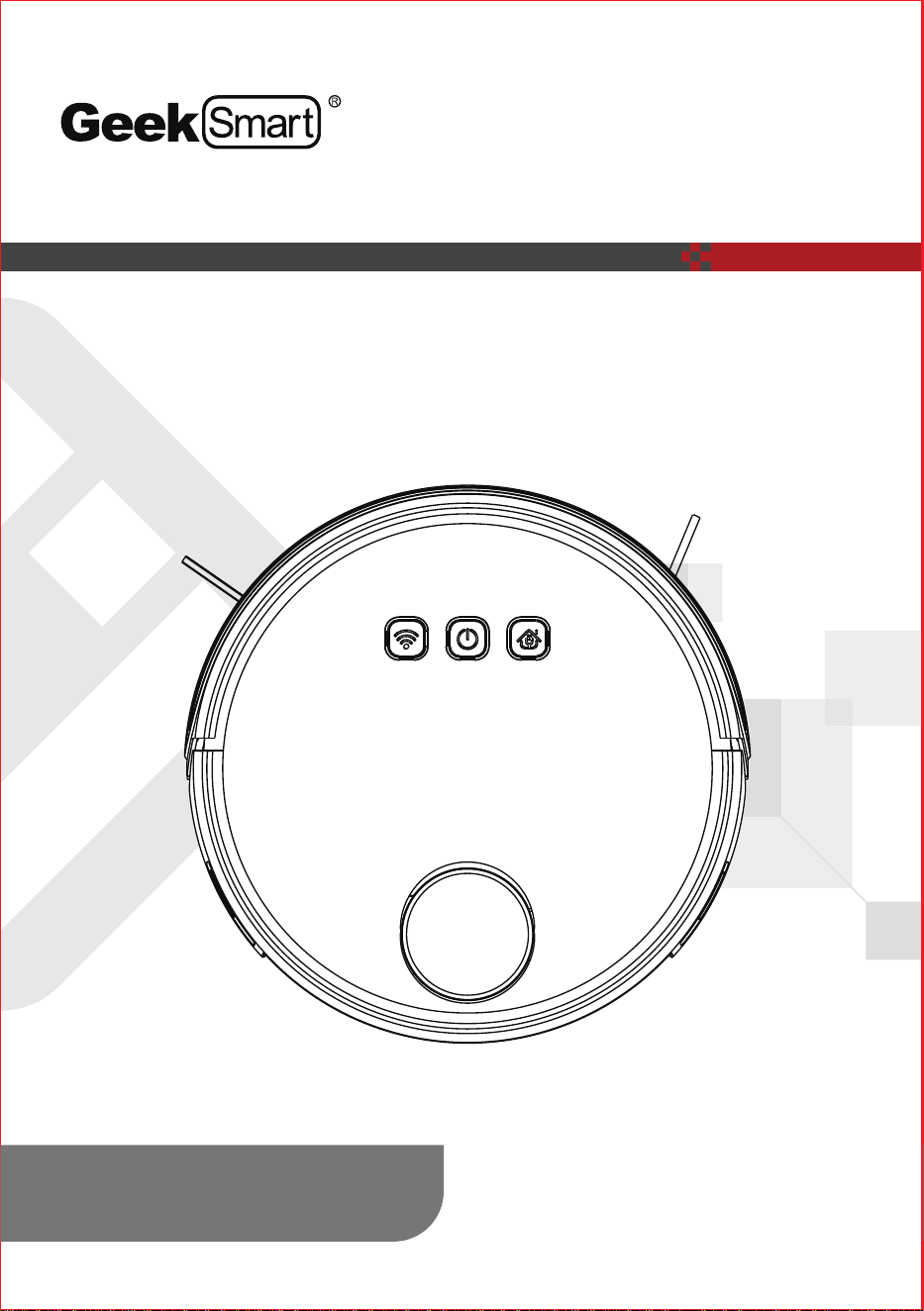
IMPORTANT:Read the instructions
carefully before operating the appliance
and keep them for future reference.
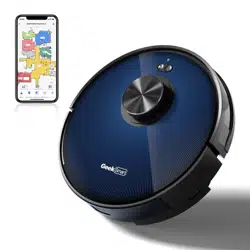
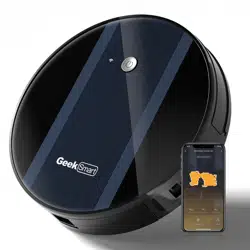
Model No.: L8
User Manual
ROBOT VACUUM CLEANER
01
03
08
25
28
Table Of Contents
Safety Instructions
Product Components
How To Use
Cleaning And Maintenance
Troubleshooting
Scan the QR code for more
assistance and support
GeekSmart bids you welcome to a world of smart home devices, the
robot vacuum ceaner. GeekSmart strives to explore and develop the smart
home industry for the good of all by combining cutting-edge technologies to
develop products fit and ready for the market. Please visit our website
www.geektechnology.com.
Before use, please scan the QR codes to watch our easy step-by-step
installation video. If you have questions regarding the installation process,
please contact us by mail
[email protected]m or by
phone
1-844-801-8880 / (862) 352-0406.
welcome
01
Please read the manual carefully before using the product and keep this
instruction for reference.
Products cannot be used by children under 8 years of age or people
with mental disabilities. If these kinds of people need to use it, please do so
under the supervision of the guardian. Please do not let children ride on the
product or play with the product as a toy. Do not use the product in a room
where infants sleep.
Issues that may arise in cleaning products should be eliminated as early as
possible. Clean the power cords and small items on the floor to prevent the
product from being blocked during the cleaning process. Fold the edge of
the carpet to the underside of the carpet,and keep the hanging curtains,
tablecloths, etc from touching the ground.
If there is a suspended environment such as a staircase, test the product first
to see if it can detect the edge of the suspended area without falling.
Protective barriers should be installed at the edge of the suspended area to
prevent falling products. Make sure that the protective equipment does not
cause personal injury.
Please follow the manual in the instructions to use the product. Use only
accessories recommended or sold by the manufacturer.
Ensure that the power supply voltage meets the voltage indicated on the
cradle.
Used only in indoor home environments. Do not use in outdoor, commercial
or industrial locations.
Use only original rechargeable batteries and charging docks that are unique
to the manufacturer. Do not use non-rechargeable batteries.
Ensure that dust boxes and filter materials are installed before using prod-
ucts.
Using the product in an environment with open flames or fragile items is
prohibited.
It is forbidden to get human's hairaclothesafingers or other body parts close
to the opening and operating parts of the product.
Do not use the product on wet or watery ground.
Safety Instructions
1.
2.
3.
4.
5.
6.
7.
8.
9.
10.
11.
lmportant Safety lnstructions
Safety Instructions
02
It is forbidden to absorb any items such as follows:
- stones, waste paper.
- flammable materials such as toner for printers or copies.
- cigarettes, matches, ash, or other items that may cause a fire.
Do not place any product that is burning at the suction outlet. Do not use
products when suction is blocked. Please clean the dust, cotton wool, hair,
etc. at the suction port to ensure smooth air circulation at the suction port.
Use the power cord carefully to avoid damage. Do not use the power
cord to drag or pull the product. Do not use the power cord as a handle. Do
not clamp the power cord into the door seam. Do not pull the power cord at
sharp corners and corners.
Do not use the product if the power cord, power outlet or charging stand are
damaged. Do not use the product when it is not working properly due to
dropping, damage, outdoor use or water ingress. To avoid injury, the product
should be repaired by the manufacturer or its after-sales service.
Before discarding the product, remove the product from the charge stand,
has been severely damaged, it is forbidden to incinerate the product, or the
product battery may cause an explosion. Please dispose of used batteries in
accordance with local laws and regulations.
Immediately dispose of packaging as it can pose choking
or other hazards to small children and pets. Please carefully
confirm the consistency between the picture and the real
components that correspond to the model you purchased.
12.
13.
14.
15.
16.
17.
CAUTION
03
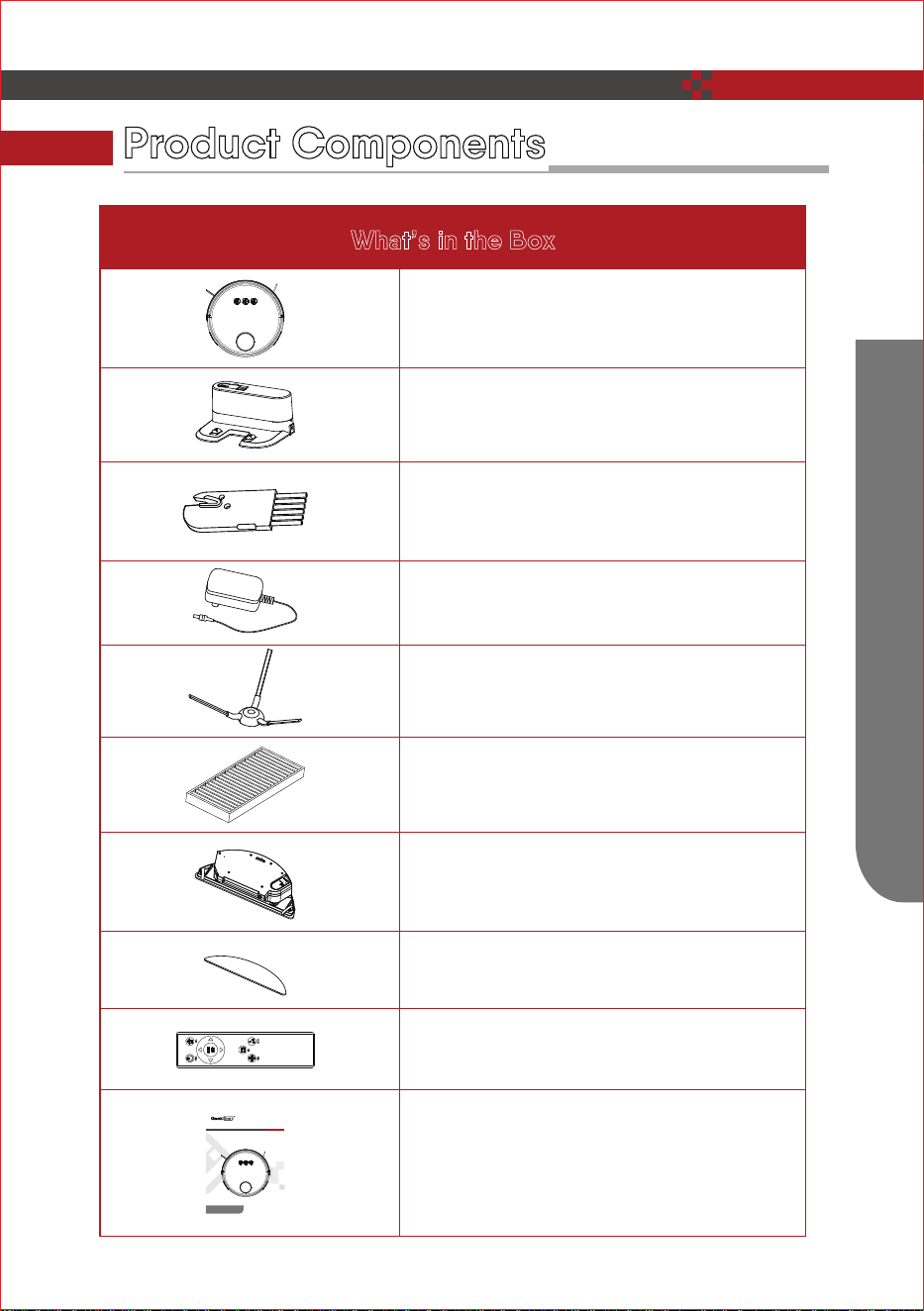
What’s in the Box
Robot Vacuum X1
Charging Base X1
Clean Brush X1
Power Adapter X1
Side Brushes X6
HEPA X2
Water Tank X1
Water Rag X1
Remote Control “Optional” X2
Product Components
Product Components
Instruction Manual X1
IMPORTANT:Read the instructions
carefully before operating the appliance
and keep them for future reference.
Model No.: L8
User Manual
ROBOT VACUUM CLEANER
04
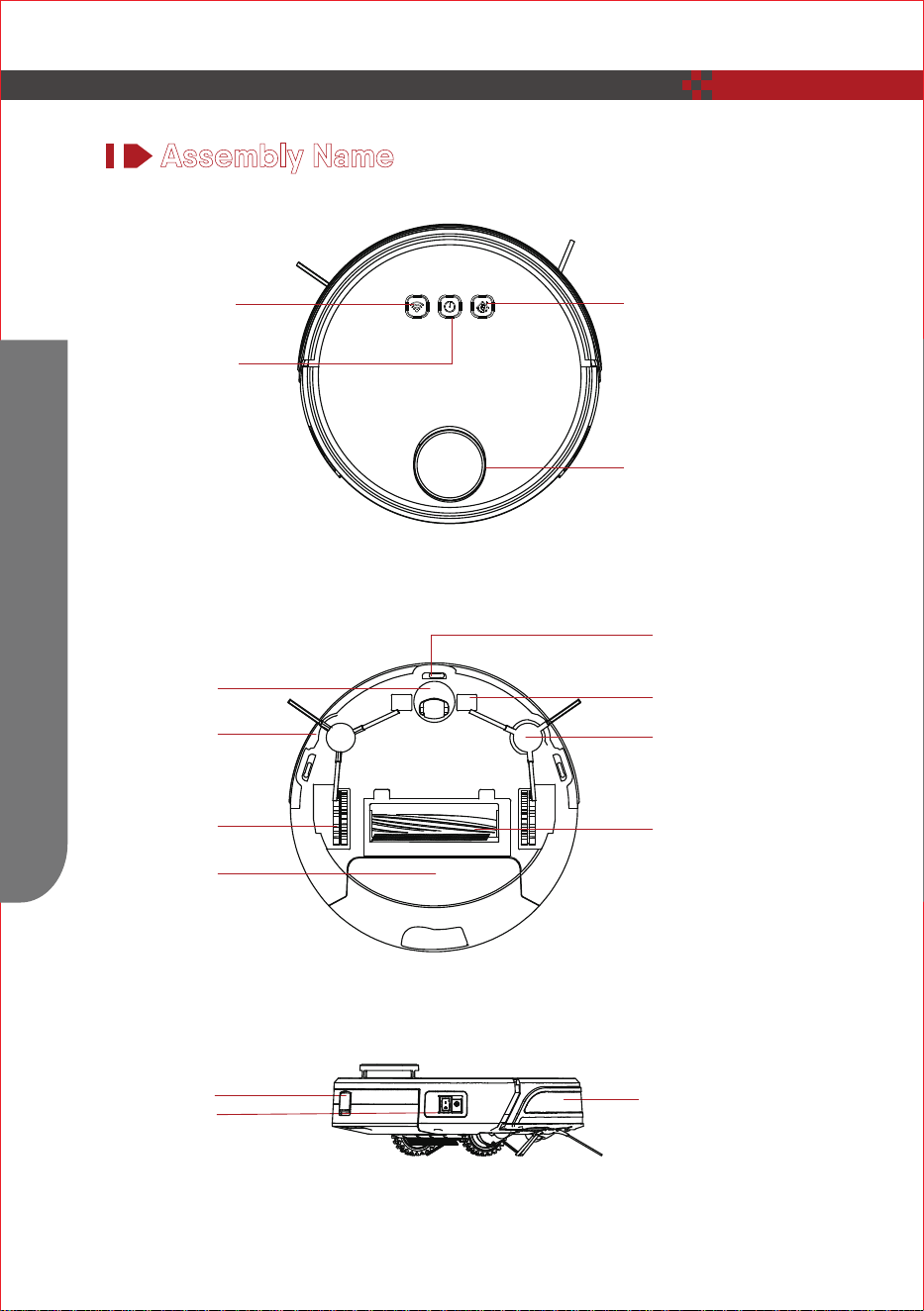
Assembly Name
Bottom View
Side view
Top View
Product Components
Laser Head
Back-charging button
Wi-Fi button
Power button
Universal Wheel
Right Brush
Drive Wheels
Dust Box
Lower Vision Sensor
Charging Pole Piece
Left Brush
Roller Brush Assembly
Dust Box
Power Switch
Infrared Sensors
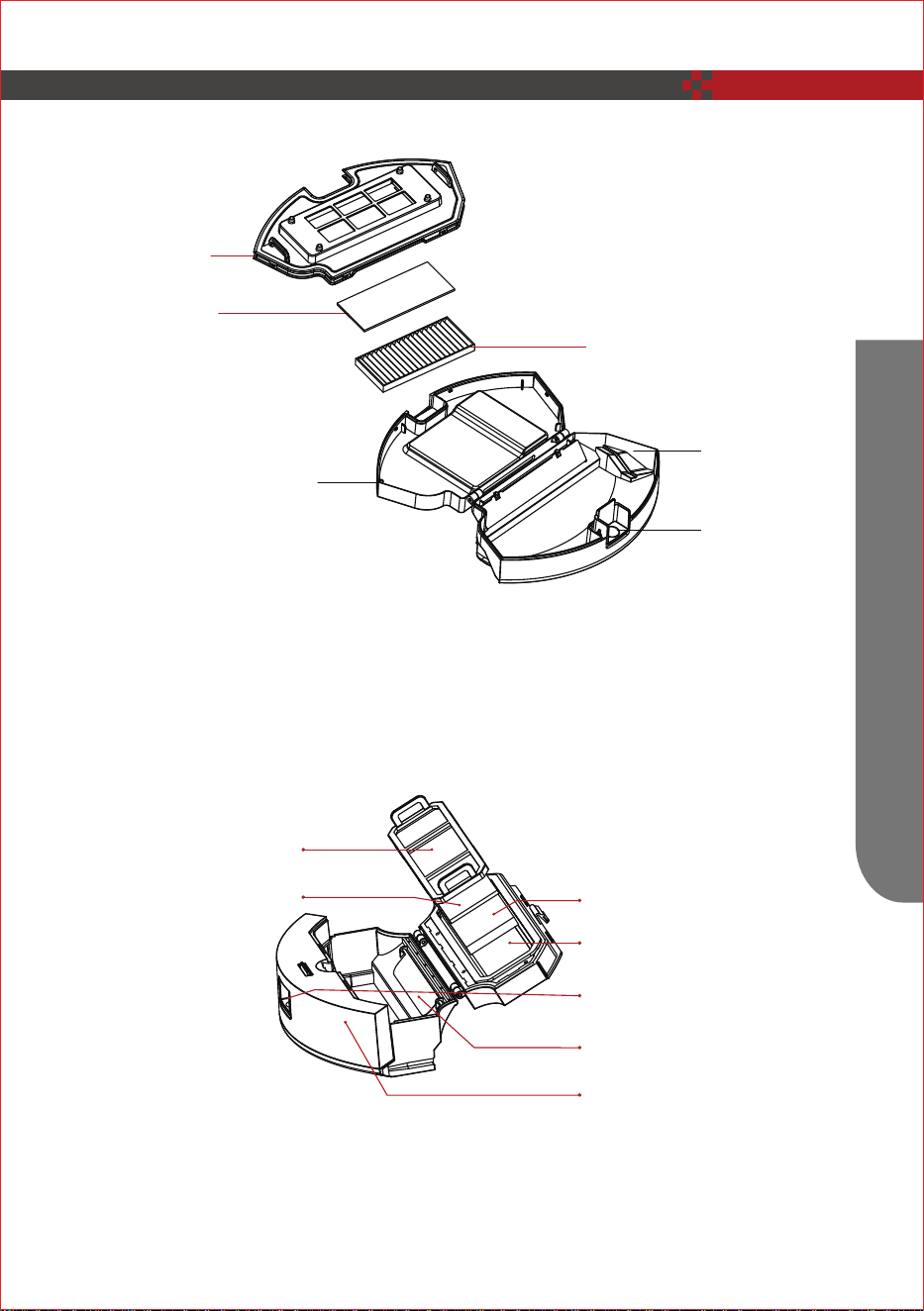
Dust Bin
Dust Box
Primary filter
Sponge filter
Hepa filter
Dust bin cover
Dust bin button
Dust bin block slice
Dust bin unit
Product Components
05
Primary Filter
Filter Sponge
High-Efficiency
Filter(HEPA)
Dustbin Key
Dust Box
Lower Cover
Dust Box Upper Cover
Product Components
06
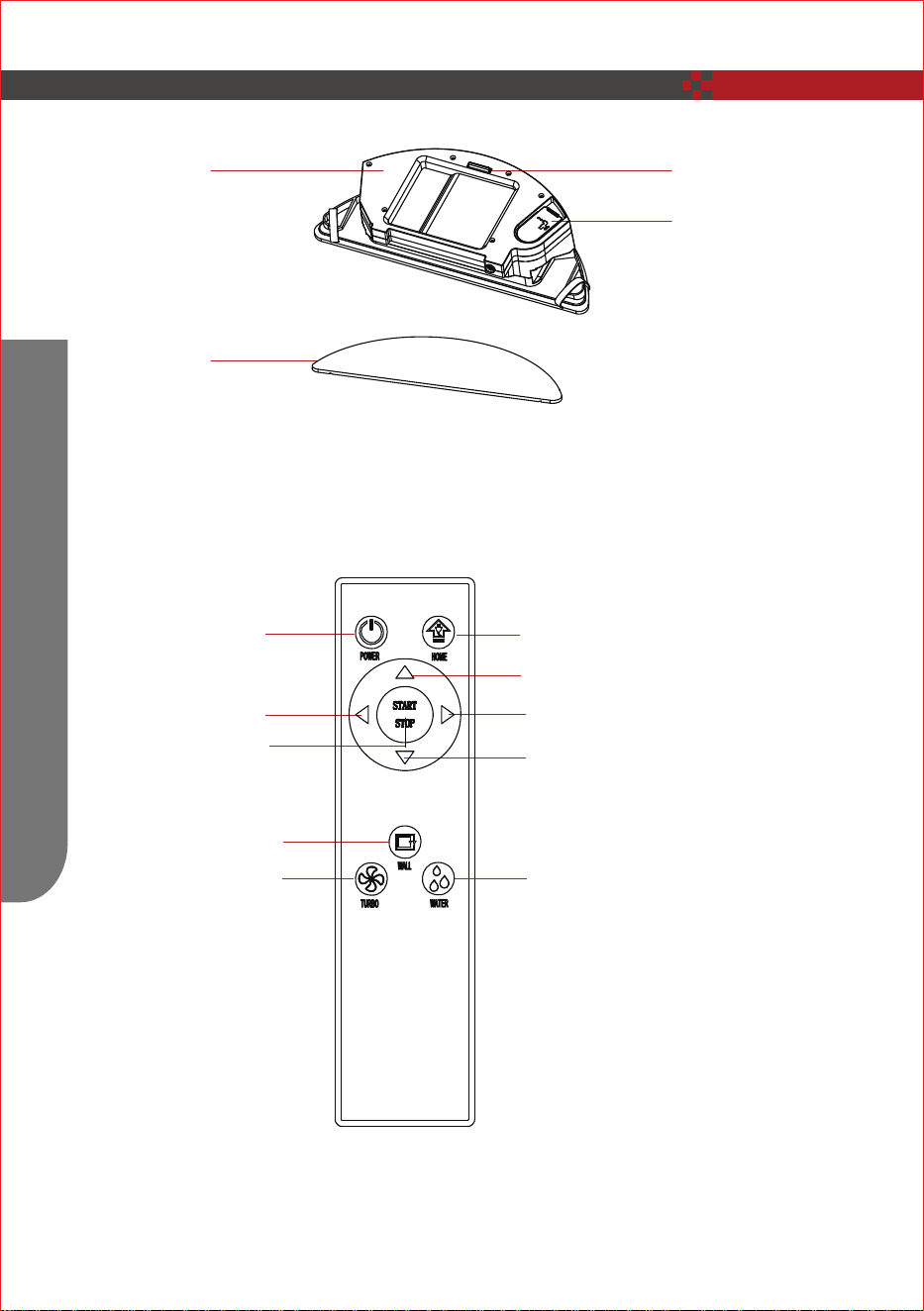
Remote Contro (“Optional”)
Water Permeable Rag Assembly
Water Rag
Water Tank
Dustbin Key
Water Tank
Sealing Plug
Left
Stop/Start
Wall-following
Power
Turbo
Home - Return to Charging base
Forward
Right
Backward
Seeping mode
Product Components
07
Parameter
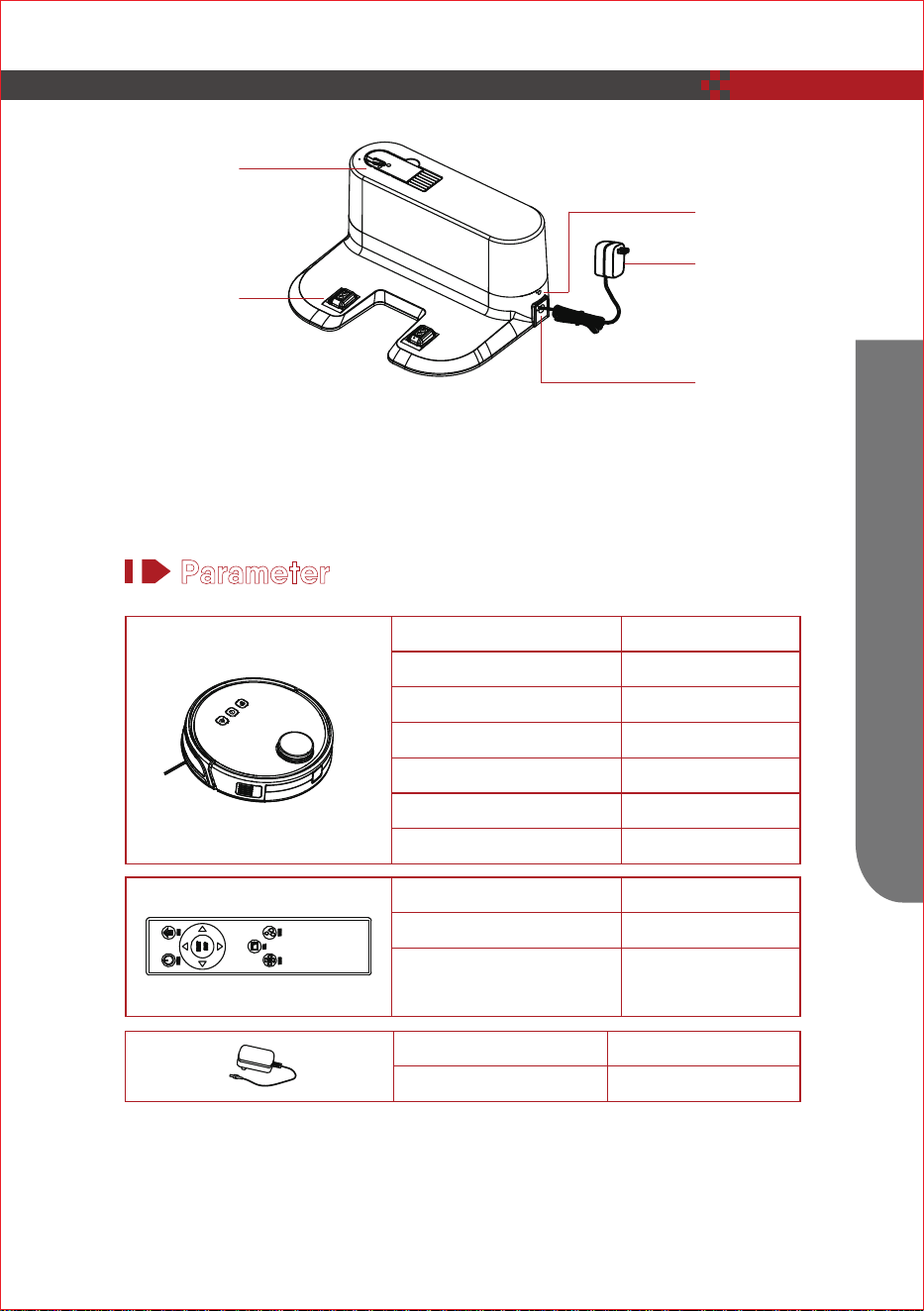
Charging Base
Install two AAA batteries before using the remote control for the first time. Make
sure the positive and negative ends are facing the correct polarity direction as
marked in the battery compartment.
Charging
Pole Piece
Clean Brush
Power
Adapter Slots
Power Adapter
Indicator Light
Input
Output
100-240V/50-60Hz
19V / 1A
Product Model
Input
Battery Capacity
Cleaning Time
Charging Time
Dust Collector Capacity
Power Consumptiom
L8
30W
Li-ion 3200mAh
0.5L
Max. 110 mins
Round 300 mins
19V / 1A
Remote Control Method
DC 3V(AAA)
Infrared
≤5M
Battery
Emitting and Receiv-
ing Distance
How To Use
08
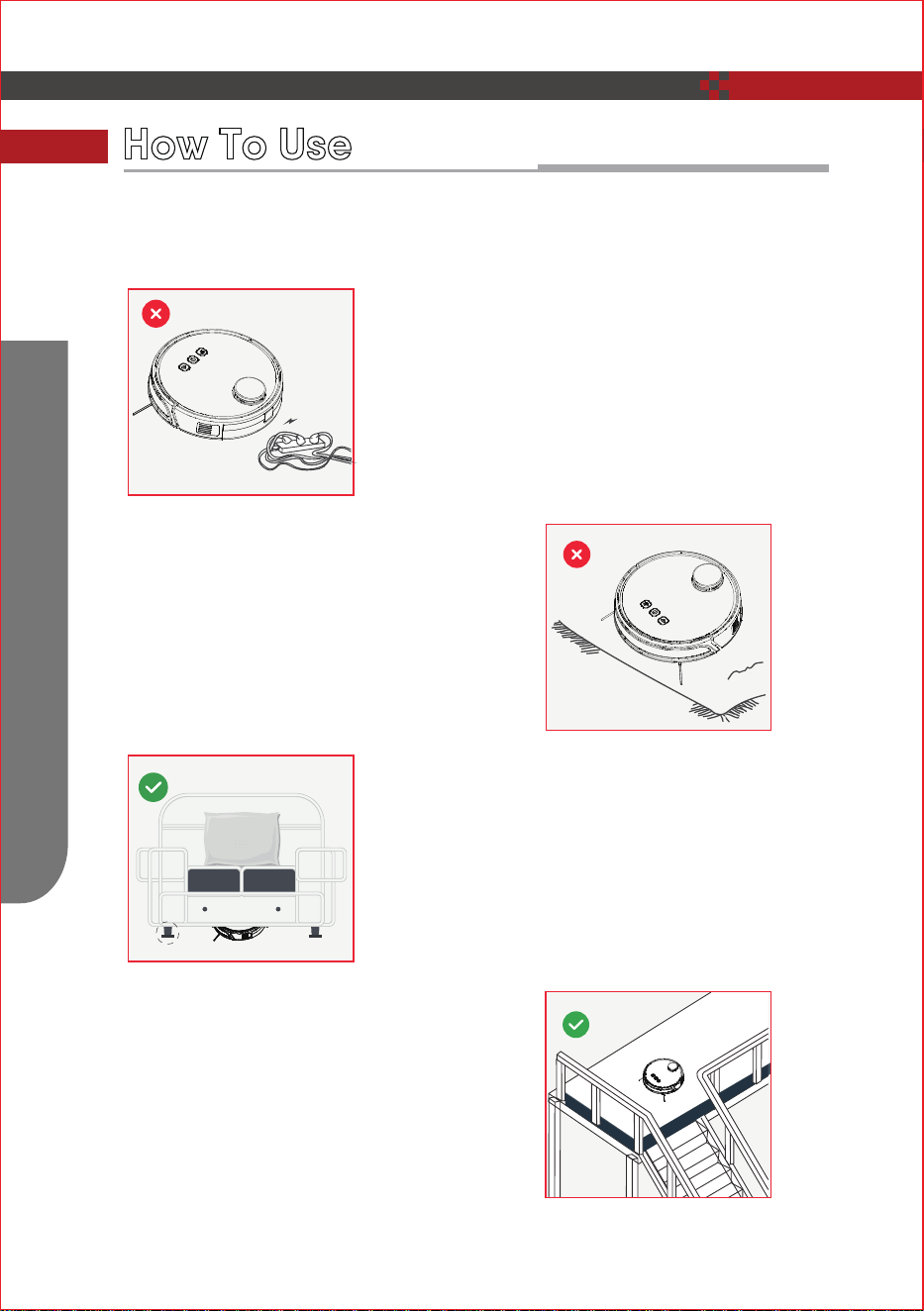
Power lines and other debris scattered
on the ground may trip up the product,
they must be removed.
1.
A gap of less than 8 cm on the bottom
of the furniture may catch the product.
If you need to clean it, please remove
the furniture.
3.
2.
Please roll the carpet tassels or let the
product work on short-hair rugs.
4.
A guardrail should be placed at the
edge of the duplex to ensure safe
operation of the product.
Please refer to the following guidelines to check the cleaning area before the
cleaner works.
How To Use
How To Use
Install The Side Brushes
09
1.
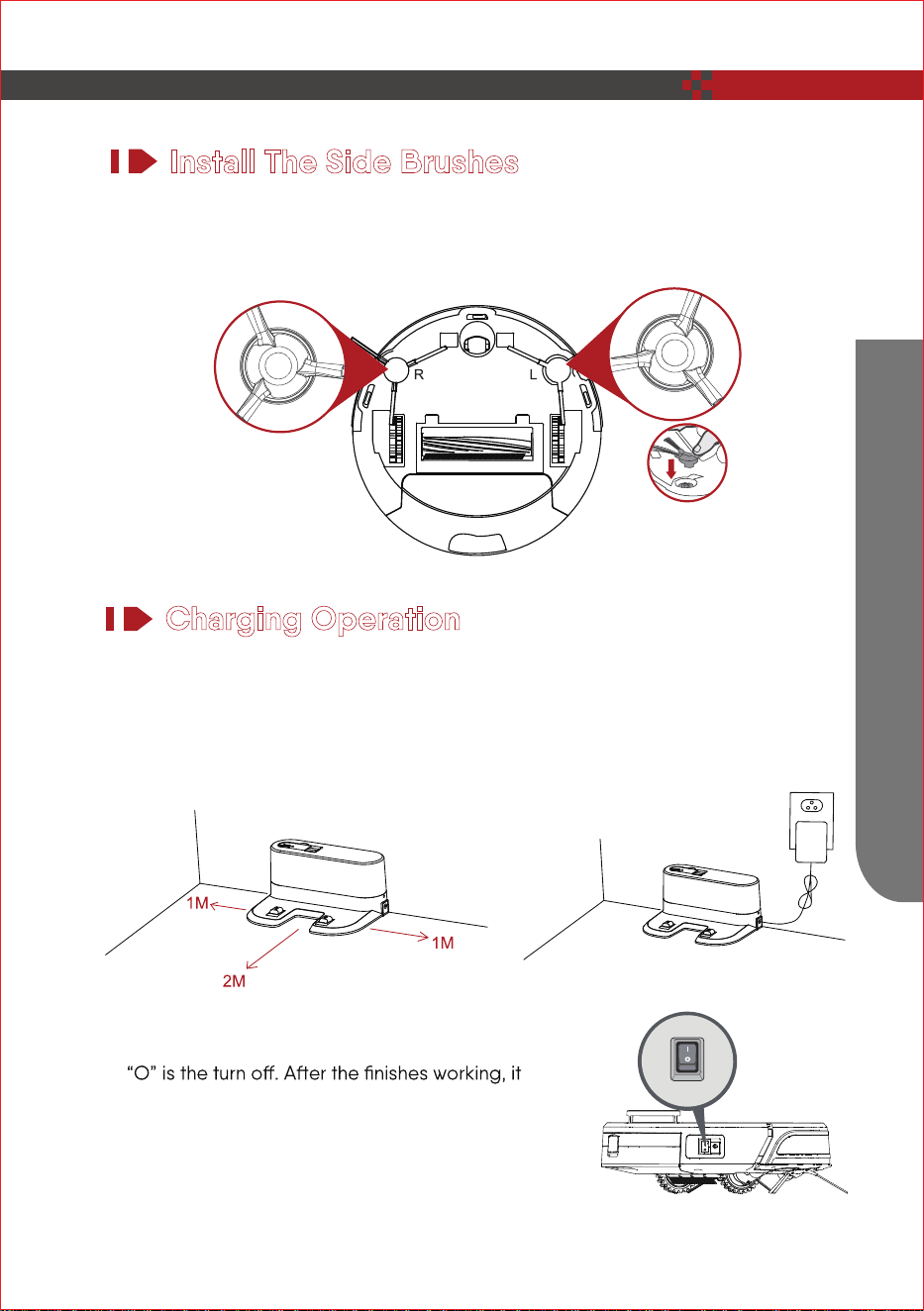
Place the charging stand flat against the wall. Do not place objects in the left and
right 1M and the front 2M, and do not have objects with strong reflection surfaces
such as mirrors.
2.
Turn on the side power switch, “I” is the turn,
is recommended not to shut down; keep the
robot in a state of charge so that it can
perform its next job better.
Please install the right brush into the right bottom mounting port of the machine, the left
brush into the left bottom mounting port of the machine, and ensure that the two side
brushes are in place.
Charging Operation
10
Charging
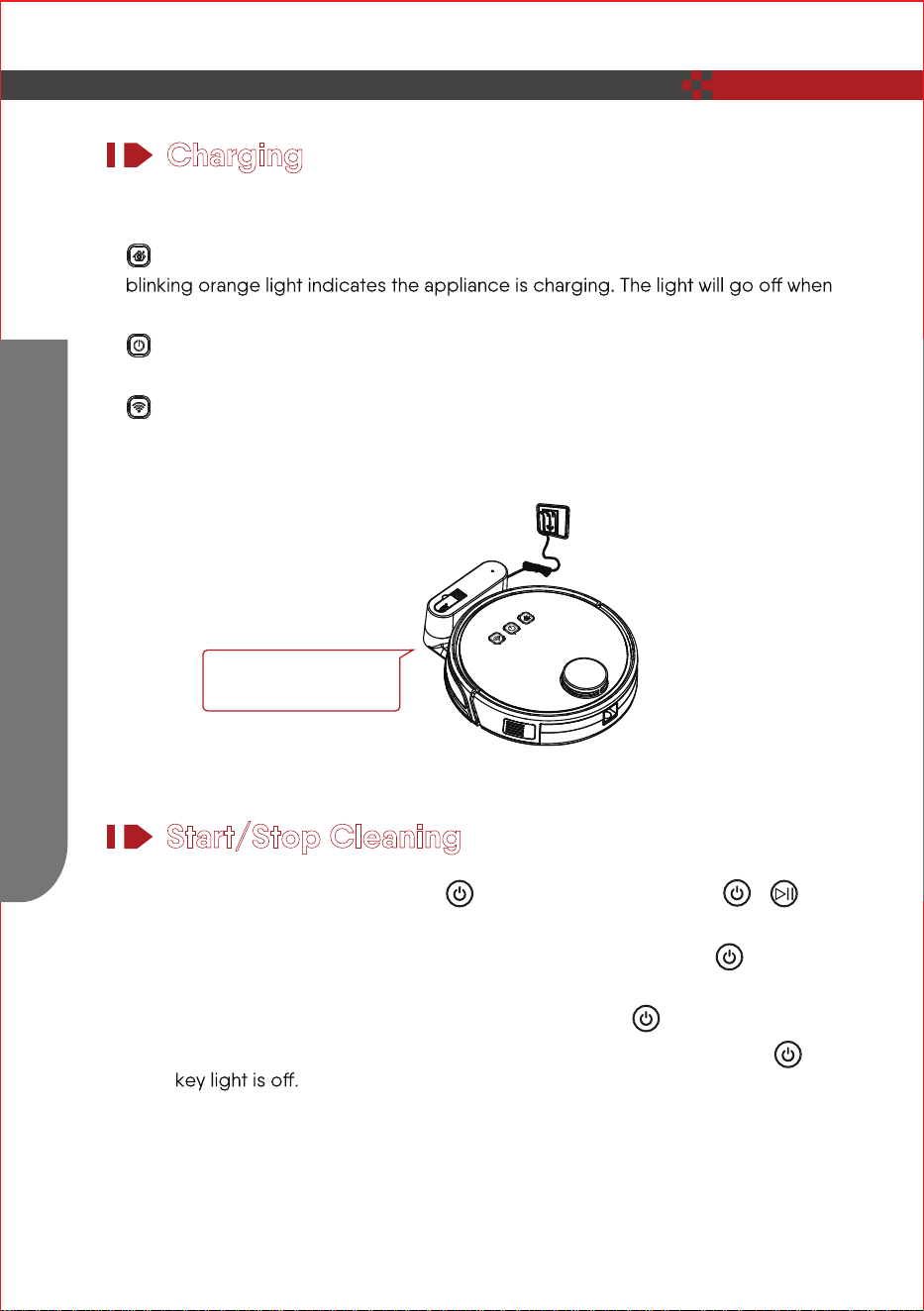
Place the robot in the charging stand and pay attention to the charging pole
piece. Turn on the power switch, the robot will enter standby mode.
The solid orange light indicates the appliance is returning for charging. The
it is fully charged.
The blue light indicates the appliance is working normally / fully charged. The
blinking blue light indicates the appliance is ready to connect Wi-Fi.
The solid blue light indicates the Wi-Fi is connected. For the first use, please
charge continuously for more than 6 hours.
3.
Start/Stop Cleaning
Start or stop by pressing the robot's key or the remote control's /
key.
1.
Before starting the mode, make sure that the outer ring of the key is
blue and the robot is in the state of being awakened.
If the robot does not wake up, short press the robot to wake it up.
The robot enters the sleep state after 10 minutes of standby, and the
How To Use
Please match the
charging pole piece
NOTE:
How To Use
11
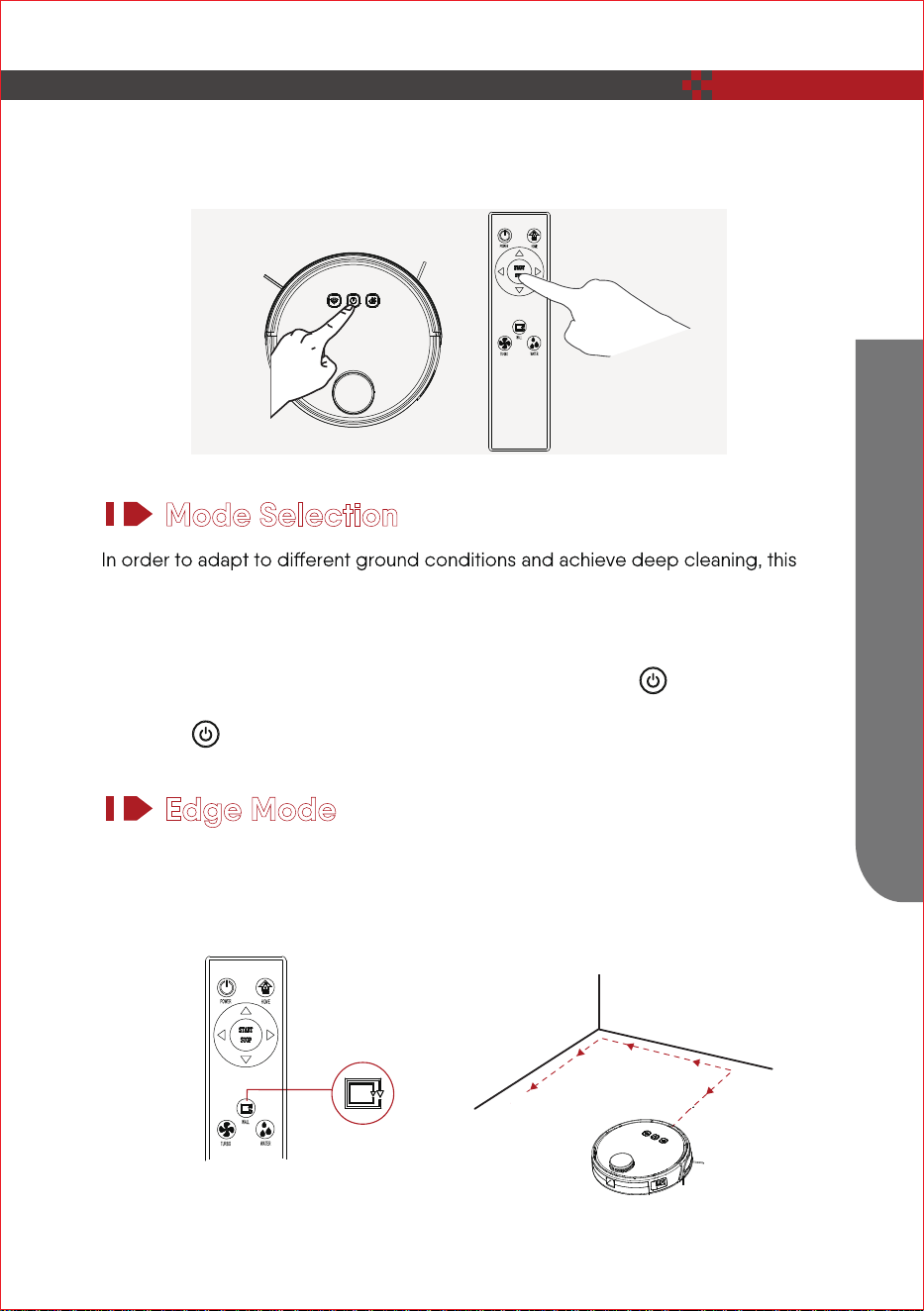
Mode Selection
Edge Mode
product has a variety of cleaning modes, which can be selected by remote control
as needed.
The remote control can switch any mode directly.
Before starting the mode, make sure that the outer ring of the key is blue and the
robot is in the state of being awakened. If the robot does not wake up, short press
the robot to wake it up.
It is suitable for cleaning at the corners of the room. The robot is cleaned around the
periphery of a fixed object (such as a wall) and cleaned back to the charging stand.
2. If you need to select another mode, please refer to the (Mode Selection) section.
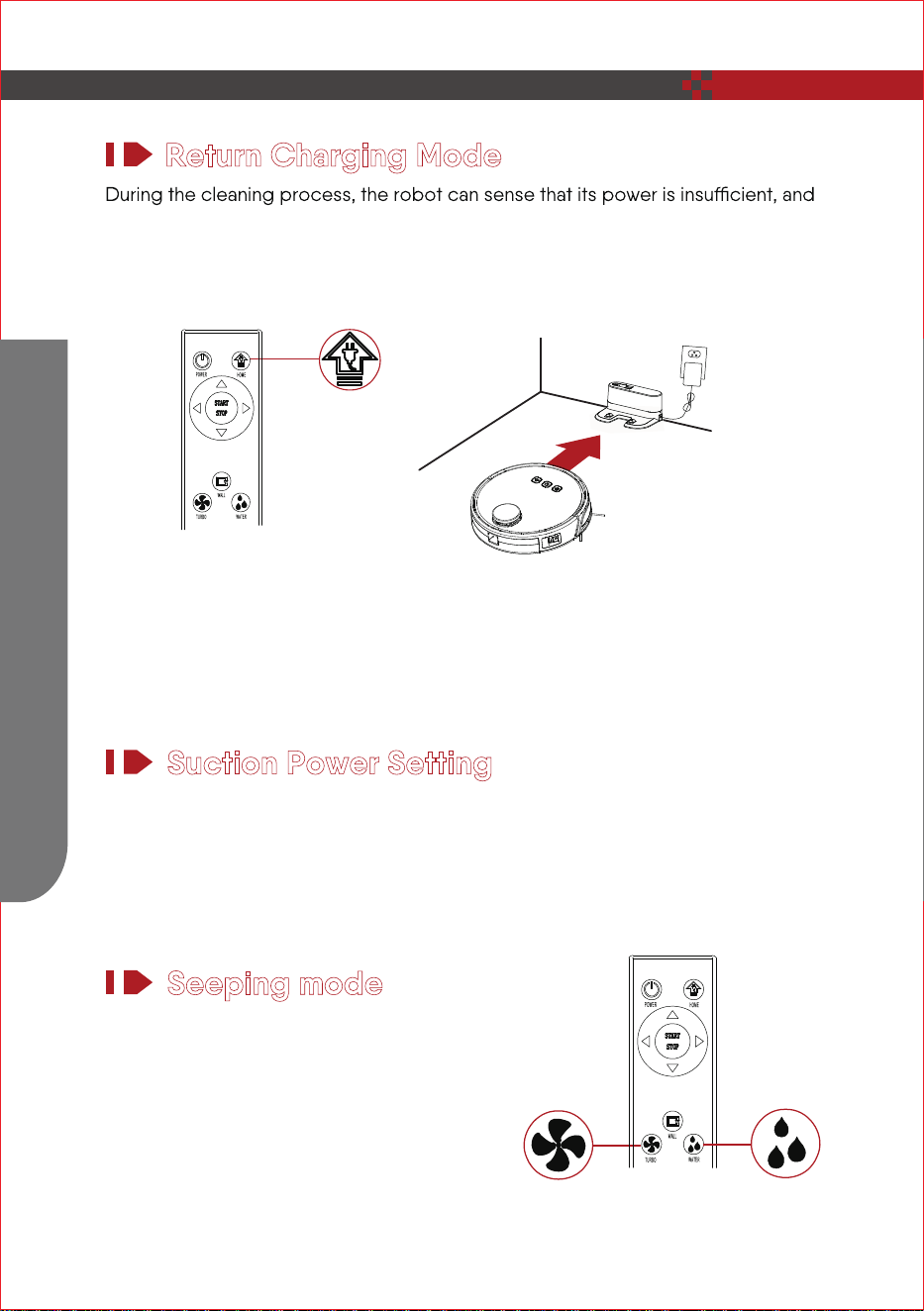
Return Charging Mode
automatically find the charging stand for charging. You can press the “home”
button or press the “power” button twice to make the robot return to the charging
stand for charging.
Suction Power Setting
Press the “Turbo” button on the remote controller, with two modes of suction
power (strong / standard), standard mode can be used for daily cleaning while the
strong mode would increase he suction power, standard mode for common
householdcleaning while the strong mode can be used for cleaning rugs.
Seeping mode
Please press “water” button on the remote
controller, with three modes to adjust water
seeping speed. the first gear means low speed,
the second gear means standard speed, the
third gear mean fast speed. generally please
select second gear.
In the regular cleaning mode, the maximum run time of the robot could
be 100 minutes while it would automatically return charging for next task if
it has completed present one.
12
How To Use
NOTE:
How To Use
13
on it and then use the cleaning brush to clean it.
This product is equipped with a water tank assembly. After the cleaning work is
completed, if there is a demand for mopping, the dust box can be replaced with a
water tank assembly. For the cleaning method, please refer to the [ Maintenance ]
section in this manual.
Do not use the water tank assembly on the carpet. When cleaning with the rag
function, fold the edge of the carpet to avoid foreign matter on the rag from
soiling the carpet.
In the cleaning, please pay attention, add water or clean up in time, remove the
water storage box when adding water when charging, be sure to remove the water
permeable wiper assembly.
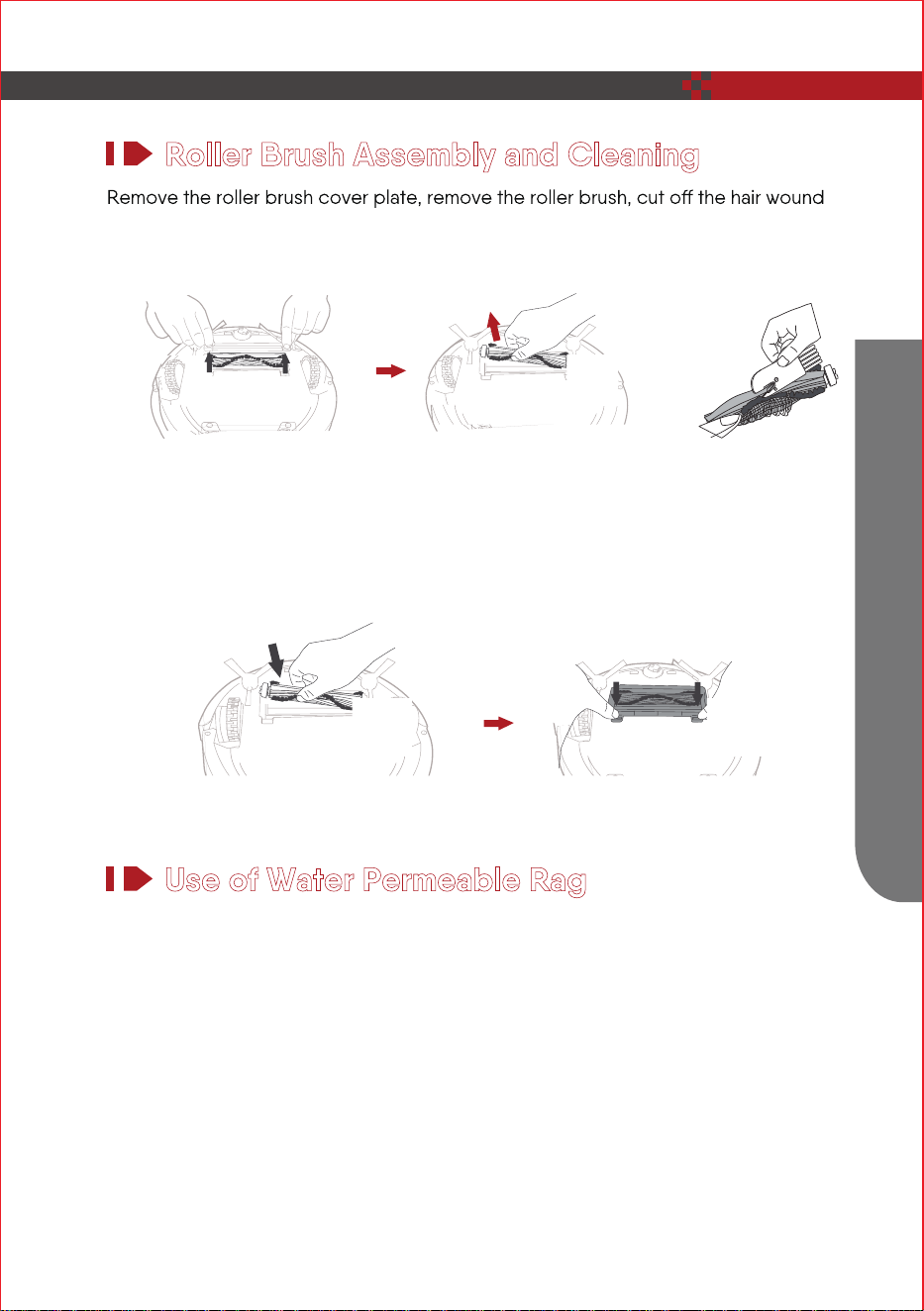
Set roller brush assembly: take out sucking assembly first, set the roller brush, cover
the board and press it to lock.
Roller Brush Assembly and Cleaning
Use of Water Permeable Rag
1.
2.
3.
How To Use
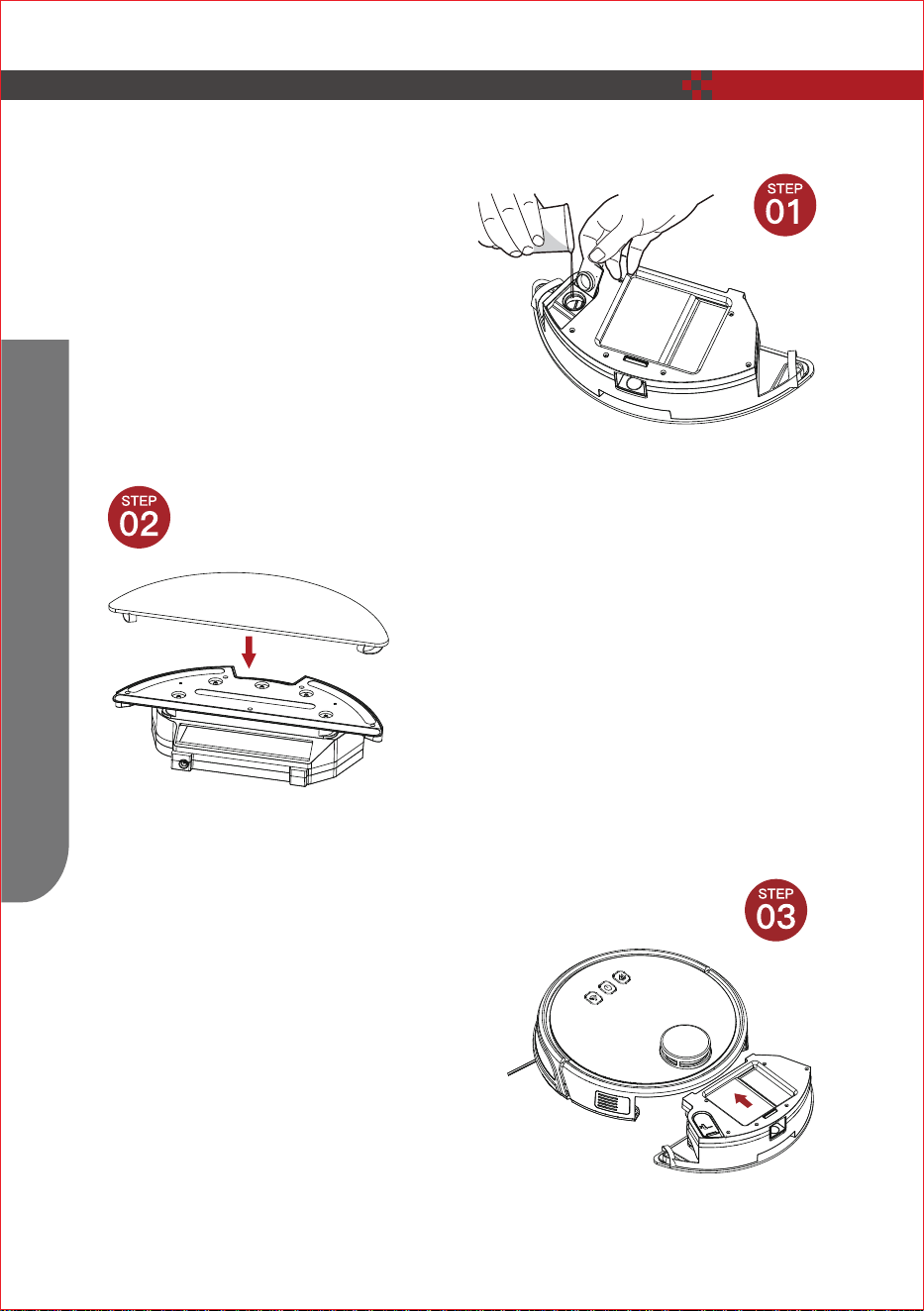
Add Water
Open the water inlet cover and
take enough water.
Install Water Tank Assembly
Press the dust box release button at the rear
of the master to remove the dust box and
replace the water tank assembly.
Sticking The Water Rag
Close the water inlet cover and stick
the water rag.
14
How To Use
15
Please scan the QR code or search “GeekSmart” and download APP. After the
APP is installed. Please follow the APP instruction to register the account and
login.
Open the APP, click 【add device】 or click the button 【+】 and select the
“Robot Vacuum”,then click the model you bought.
1.
2.
WiFi Connection
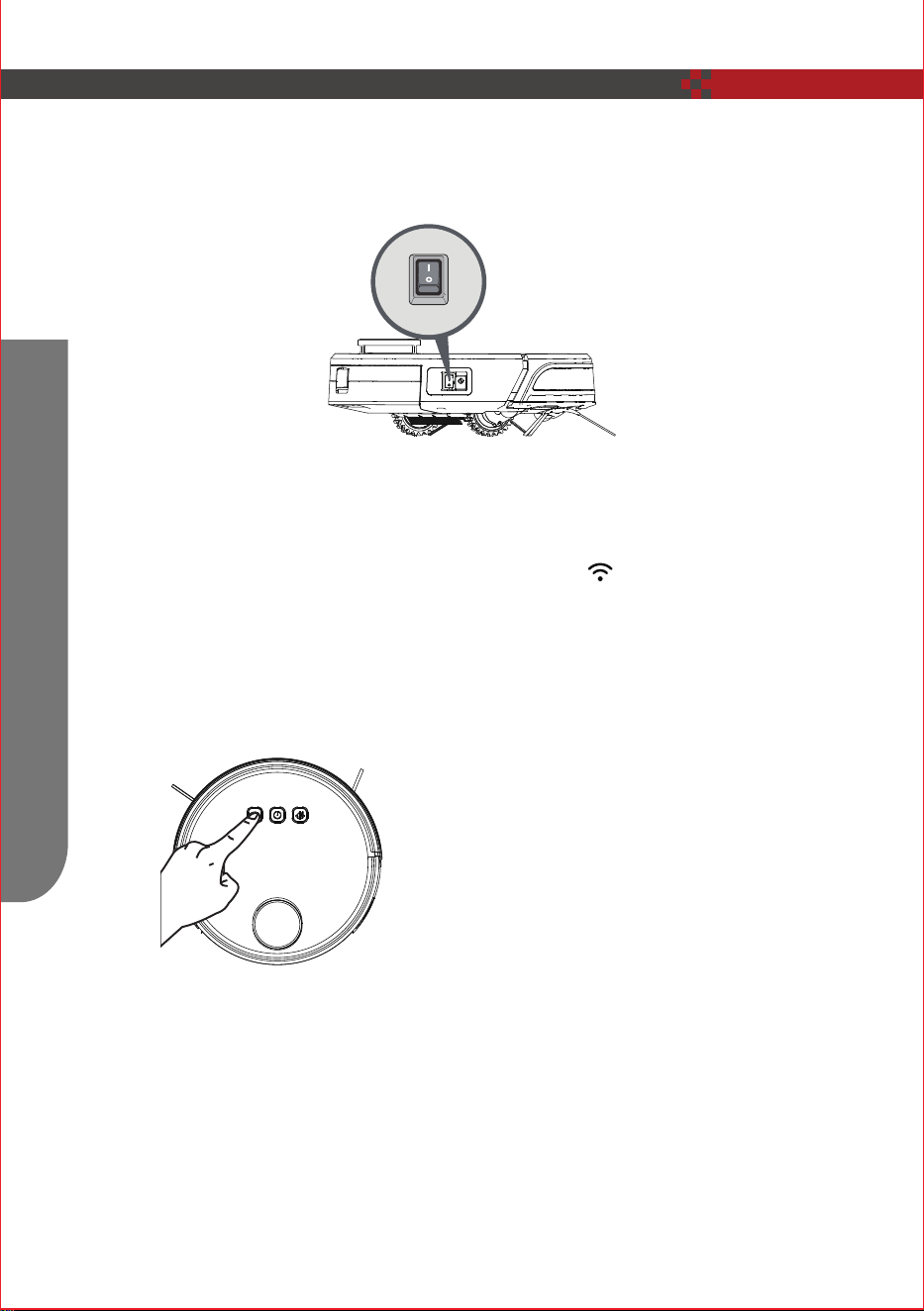
3. Please make sure that the product is on (like the picture shows)
16
How To Use
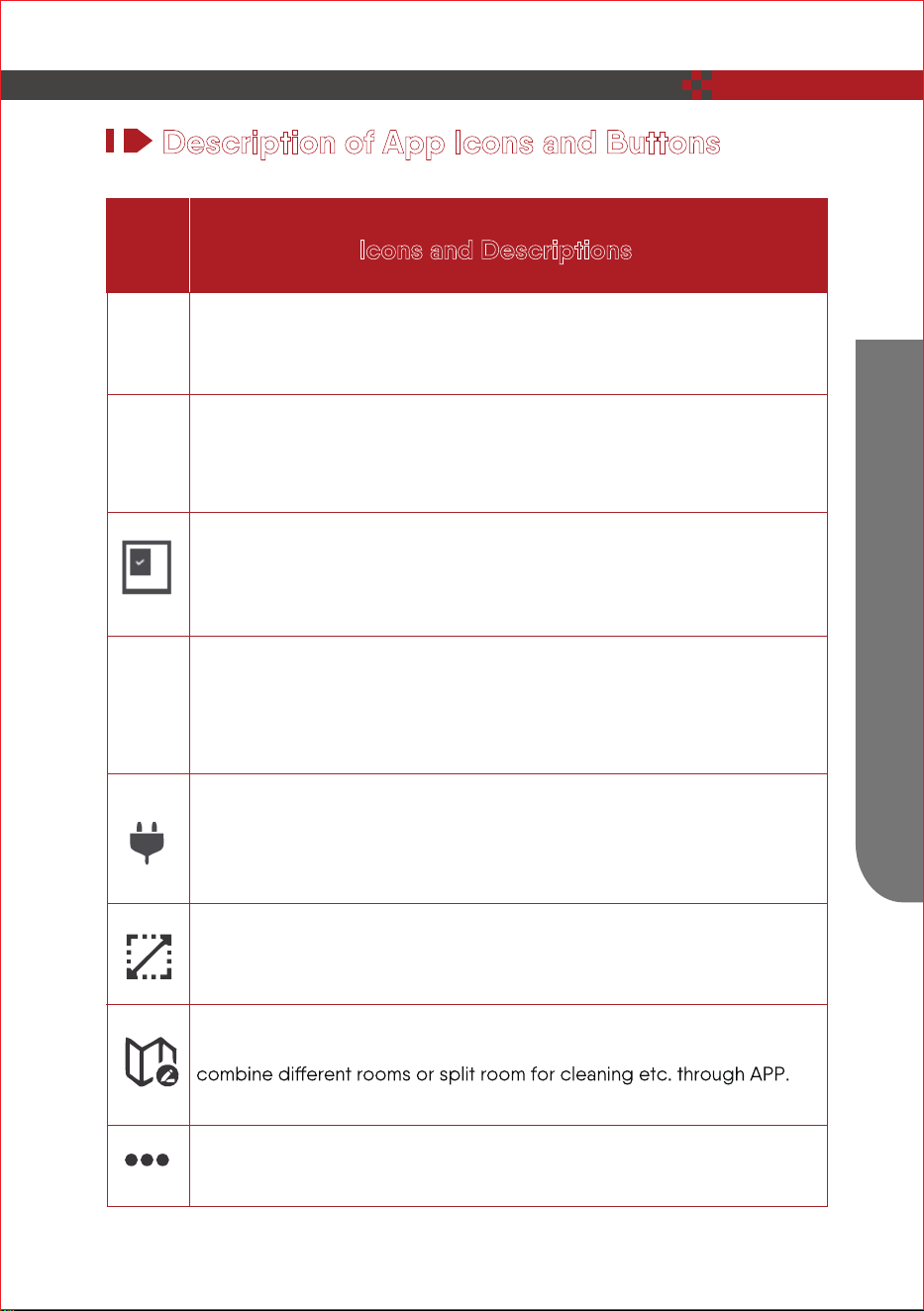
4. Long press the button below for 3 seconds and then flashes, input the wi-fi
account and password.(only support 2.4Ghz wifi,5Ghz can not be connected.) A
few seconds later ,the product will be connected to your phone.
How To Use
17
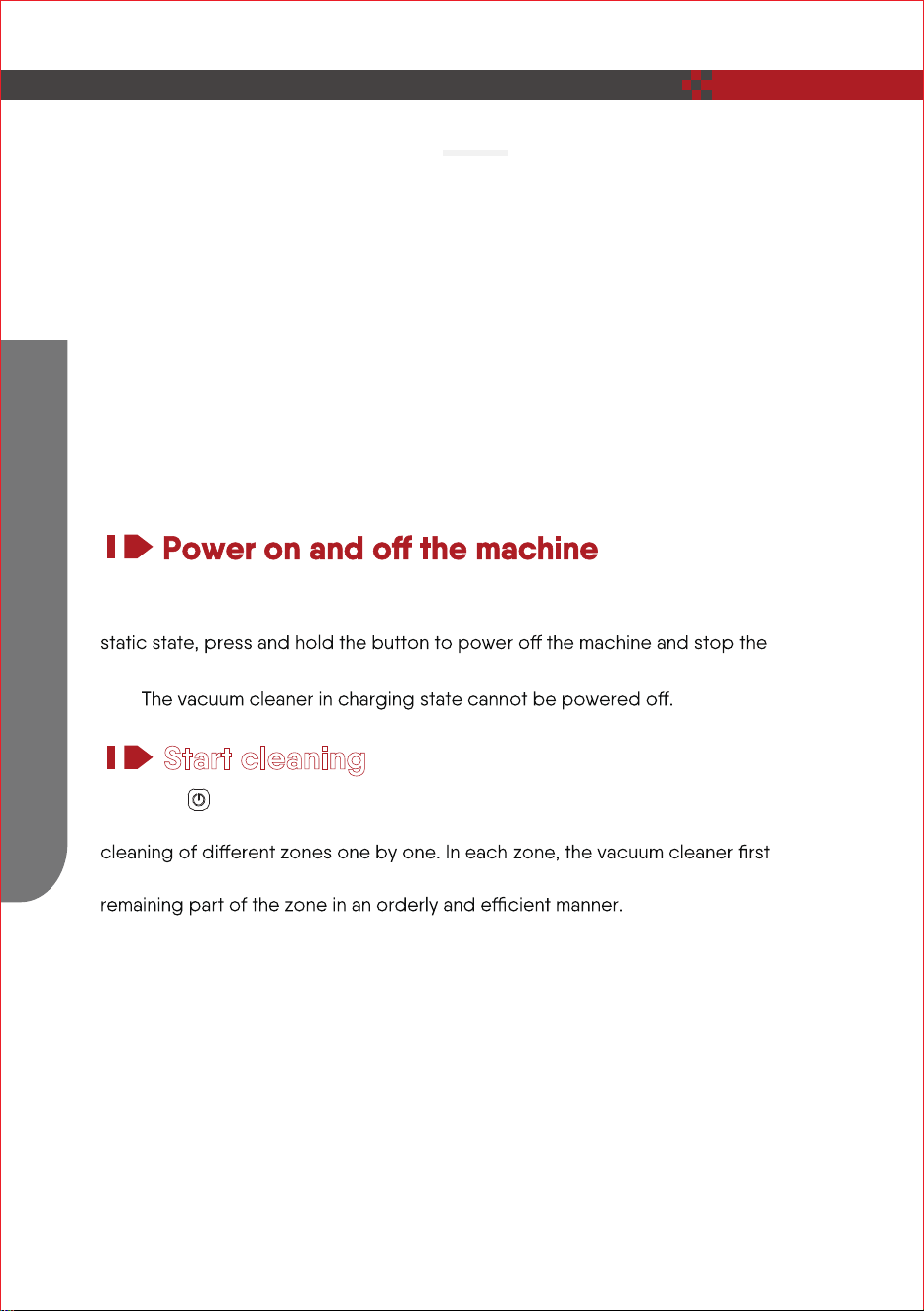
Description of App Icons and Buttons
Icons and Descriptions
Entire house cleaning: The vacuum cleaner generates a map of the
entire house through sensor scanning, and automatically plans the
optimal cleaning path.
Where to sweep: You can specify a point on the app map. Then, the
vacuum cleaner will automatically move to the point, and clean the
1.6mx1.6m zone centered on this point. You can click or drag on the
map to set the target point.
Selected zone cleaning: After the vacuum cleaner generates a map of
the entire house, you can select one or more zones for cleaning
through the app.
Configured zone cleaning: You can configure a zone in a certain place
on the app map. Then, the vacuum cleaner will automatically move to
the zone for cleaning.
Charging Base: When this icon is steady on, the vacuum cleaner
automatically returns to the docking station for charging. When this
icon blinks, the vacuum cleaner stops returning to the docking station.
Room edit: After the vacuum cleaner generates a map. you can
Setting: Including base function, and customized function.
Set a forbidden zone for cleaning.
Tap and hold the button to power on the machine. Then, the power indicator is on,
and the vacuum cleaner enters the standby state. When the vacuum cleaner is in a
current cleaning task.
Press the button to start cleaning. Then, the vacuum cleaner dynamically plans
the cleaning route according to the map generated after scanning, and completes
sweeps the floor along the wall, and then moves in zigzag mode to clean the
Start cleaning
How To Use
18
Geek Smart ‒ L8
TIP:
Zone 1: Cleaned
Zone 2: Cleaned
Zone 3: CleaningZone 4: To be cleaned
How To Use
19
If you need to add water to the water tank or wash the mopping cloth while the
vacuum cleaner is working, press the button to pause. You can press the
button to continue cleaning, or press the button in APP to return to the docking
station and stop the current cleaning task.
Pause cleaning
If no operation is performed in 10 minutes, the vacuum cleaner automatically enters
the sleep mode, and the power indicator blinks every several seconds. In sleep
mode, you can press any button to wake up the vacuum cleaner.
Enter the sleep mode
Auto mode: After completing cleaning, the vacuum cleaner automatically returns to
the docking station for charging.
Manual mode: In pause state, you can press the button to activate the “Return to
docking station” mode.
Charge the vacuum cleaner
If the power is too low, the vacuum cleaner cannot start cleaning. There-
fore, charge the vacuum cleaner before starting it.
Before cleaning, tidy up all kinds of wires on the ground (including the
power cord of the docking station). Otherwise, the vacuum cleaner may
drag the wires while cleaning, which may cause power failures of other
electric appliance or damage to items or wires.
If the cleaning area is less than 2 square meters, the vacuum cleaner will
clean the area twice by default.
automatically return to the docking station for charging. After the power is
continue cleaning (ensure that you have enabled the resumable cleaning
function).
1.
2.
3.
4.
TIP:
TIPS:
In pause state, if the vacuum cleaner returns to the docking station for charging,
the current cleaning task is stopped.
TIPS:
When the vacuum cleaner is being charged at the docking station, it cannot
enter the sleep mode.
When the vacuum cleaner is being charged, the power indicator blinks in breathing
manner.
If the vacuum cleaner encounters a fault while working, the power indicator blinks
quickly in red, and a voice prompt is generated. For details about troubleshooting
method, see “Troubleshooting”.
Faulty state
If your mobile phone fails to connect to the vacuum cleaner due to reasons such as
change of router settings and password forgotten, re-pair the vacuum cleaner with
the mobile phone according to the Wi-Fi connection instructions.
Reset the Wi-Fi settings
You can use the mobile app to specify a target point on the map. The vacuum cleaner
will automatically plan the route and move to the specified point. If you specify a target
point in the app when the vacuum cleaner is in standby or pause state, the vacuum
cleaner will clean the square zone centered on this point. After cleaning, the vacuum
cleaner will automatically return to the starting point and stop working.
Where to sweep(Pin to go)
How To Use
20
TIPS:
If the vacuum cleaner fails to find the docking station, it automatically returns
to the starting point. In this case, you need to manually put the vacuum
cleaner back to the docking station.
TIPS:
If the vacuum cleaner fails to find the docking station, it automatically returns
to the starting point. In this case, you need to manually put the vacuum
cleaner back to the docking station.
TIPS:
In faulty state, if no operation is performed in 10 minutes, the vacuum
cleaner automatically enters the sleep mode.
In faulty state, if the vacuum cleaner returns to the docking station for
charging, the current cleaning task is stopped.
TIPS:
If the vacuum cleaner is in wait-to-connect state for more than 2 minutes, its
Wi-Fi function is automatically disabled. To reconnect the vacuum cleaner to
your mobile phone, reset the Wi-Fi settings.
1.
2.
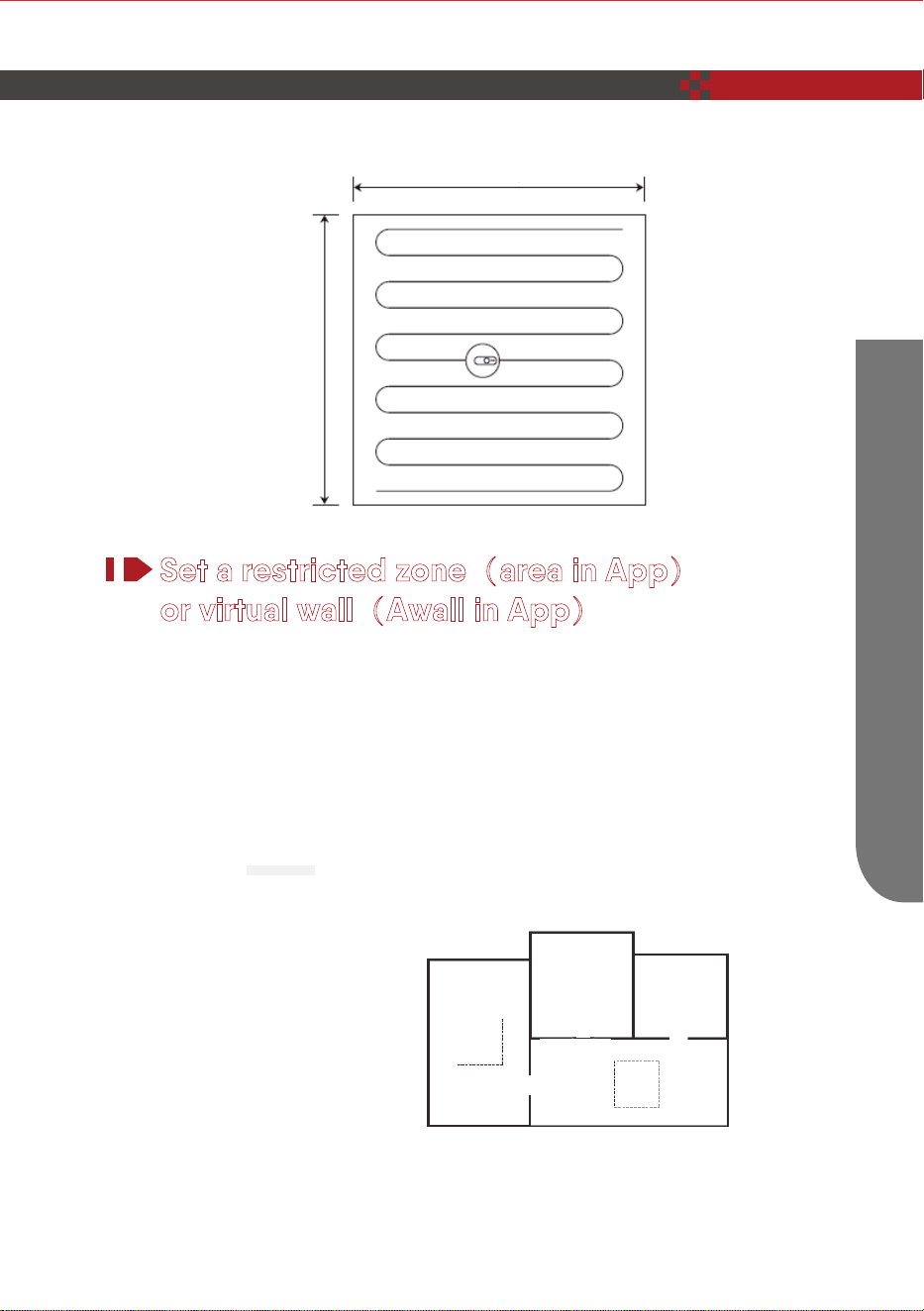
You can use the mobile app to set a restricted zone or virtual wall. After the setting is
completed, the vacuum cleaner will not enter the restricted zone or cross the virtual
wall for cleaning.
The functions and details of the app may change slightly due to continuous
development and upgrade of the app. The specific functions and details of the
app are subject to the actual version.
Set a restricted zone(area in App)
or virtual wall(Awall in App)
21
How To Use
1.6 m
1.6 m
Virtual wall
Restricted
zone for
cleaning
Restricted
zone for
mopping
TIP:
Geek Smart ‒ L8
How To Use
22
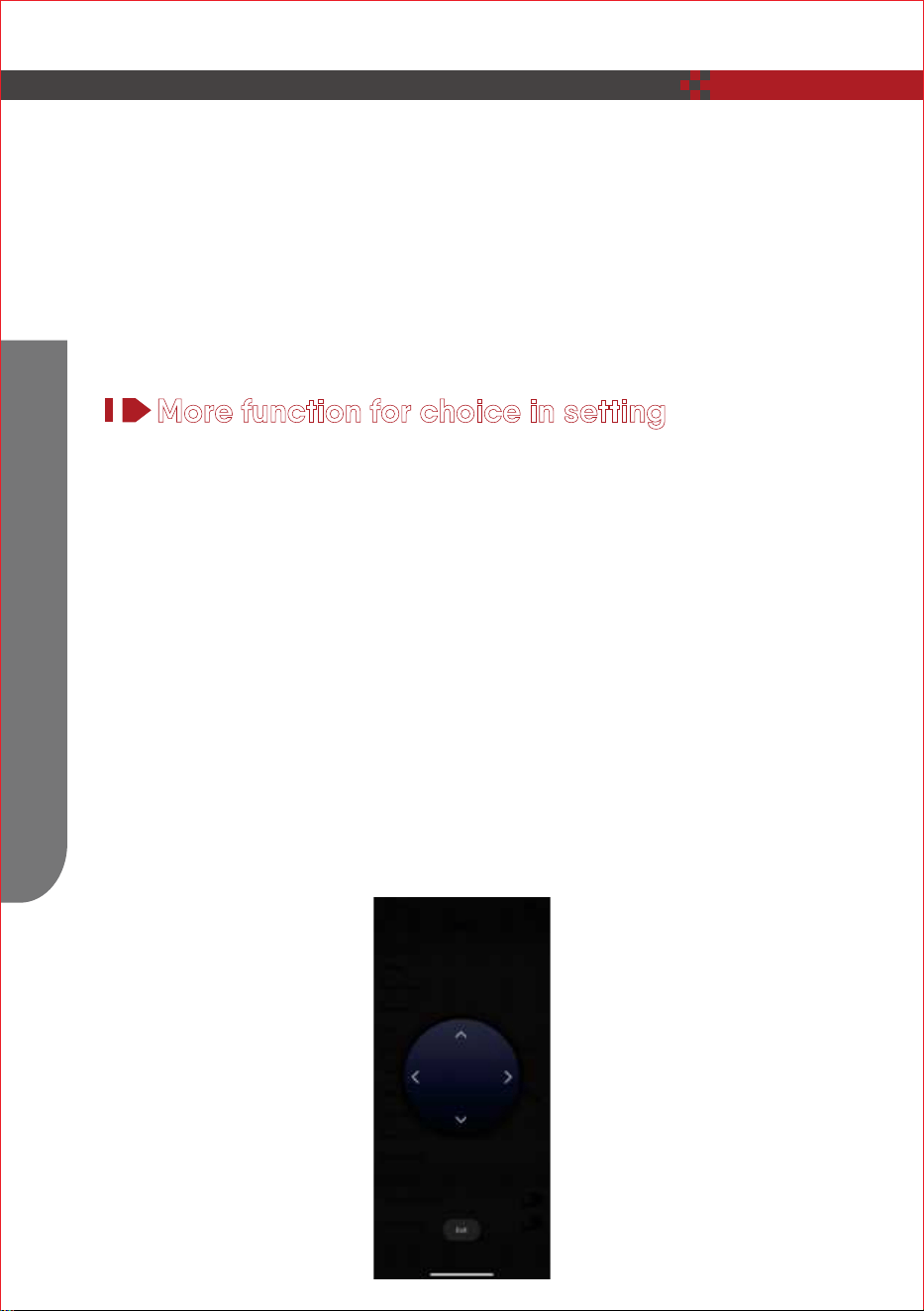
Including Forward Backward left right four direction button.
More function for choice in setting
1. Mannal
TIPS:
Before using this function, you need to enable the map save mode for the
vacuum cleaner in the mobile app.
This function is only used to divide cleaning zones, but cannot be used to
block dangerous zones.
If the vacuum cleaner is moved or there are significant changes in the the
home environment, the map may become invalid and the settings of virtual
wall or restricted zone may be lost.
1.
2.
3.
Geek Smart – L8
23
How To Use
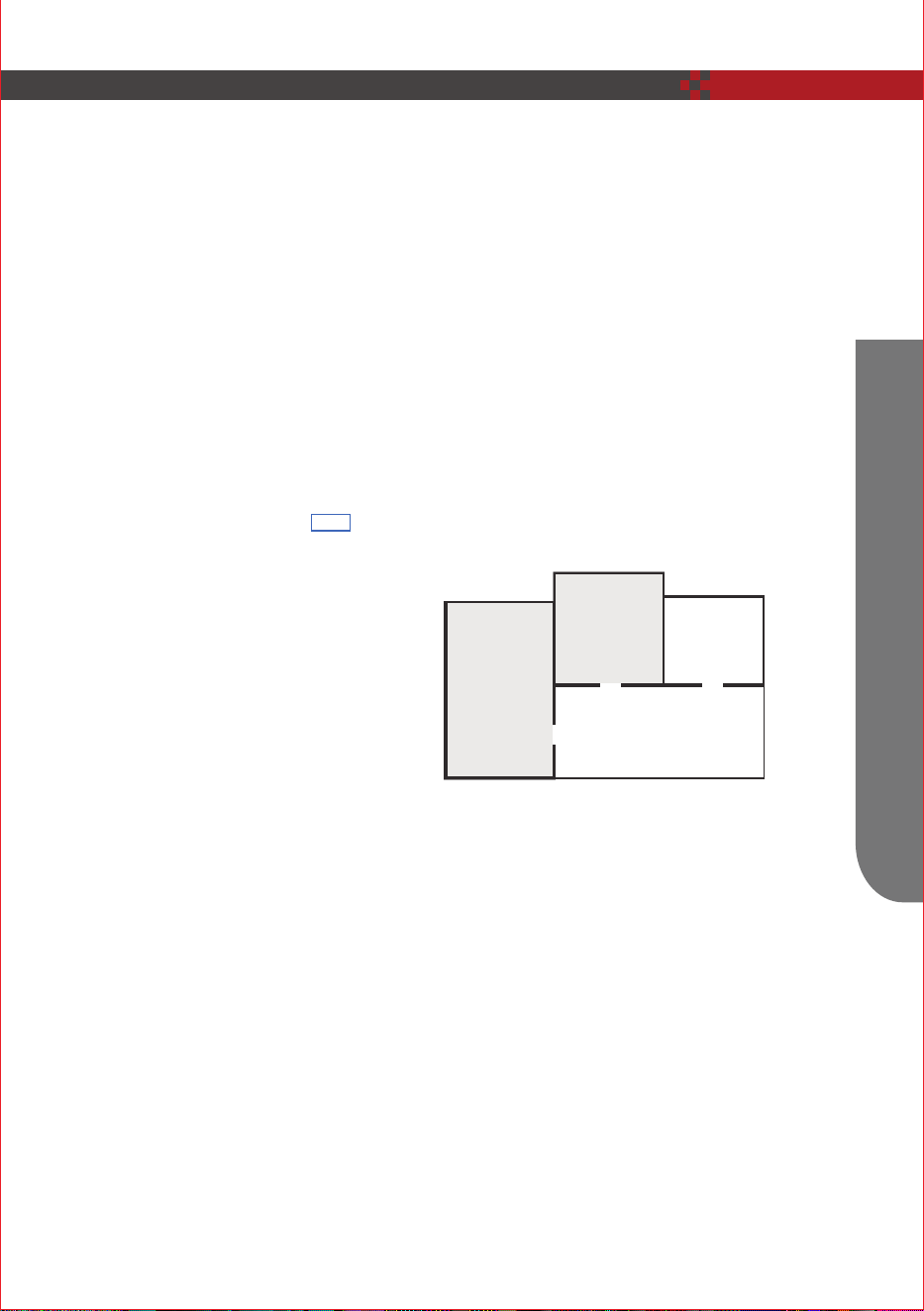
3. Seek robot: find where the robot.
You can use the mobile app to select one or more zones for cleaning. The vacuum
cleaner will clean one or more rooms based on the zone that you select on the app
map.
2. Room manager
You can use the mobile app to set the scheduled cleaning time. When the speci-
fied time arrives, the vacuum cleaner will automatically start cleaning, and return to
the docking station after it completes cleaning.
4. Timer
D
C
√B
√A
TIPS:
Before using this function, you need to enable the map save mode for the
vacuum cleaner in the mobile app, and the vacuum cleaner has already
generated a map for cleaning.
After cleaning starts, the main unit may move to a place beyond the selected
zone. Make sure that you have cleared the obstacles on the ground around
the selected zone, which cannot be used for safety isolation.
1.
2.
How To Use
24
5. Adhesion: adjust suction power.
6. Water quanty: adjust water seep when mopping.
If low power, the cleaner will be back to charging base to charge, then back to
the breakpoint to clean continuously.
8. Voice and volume
9. Record: cleaning record.
10. Switch disturb: choose time for robot when don't need work.
7. Breakpoint continuous scanning:
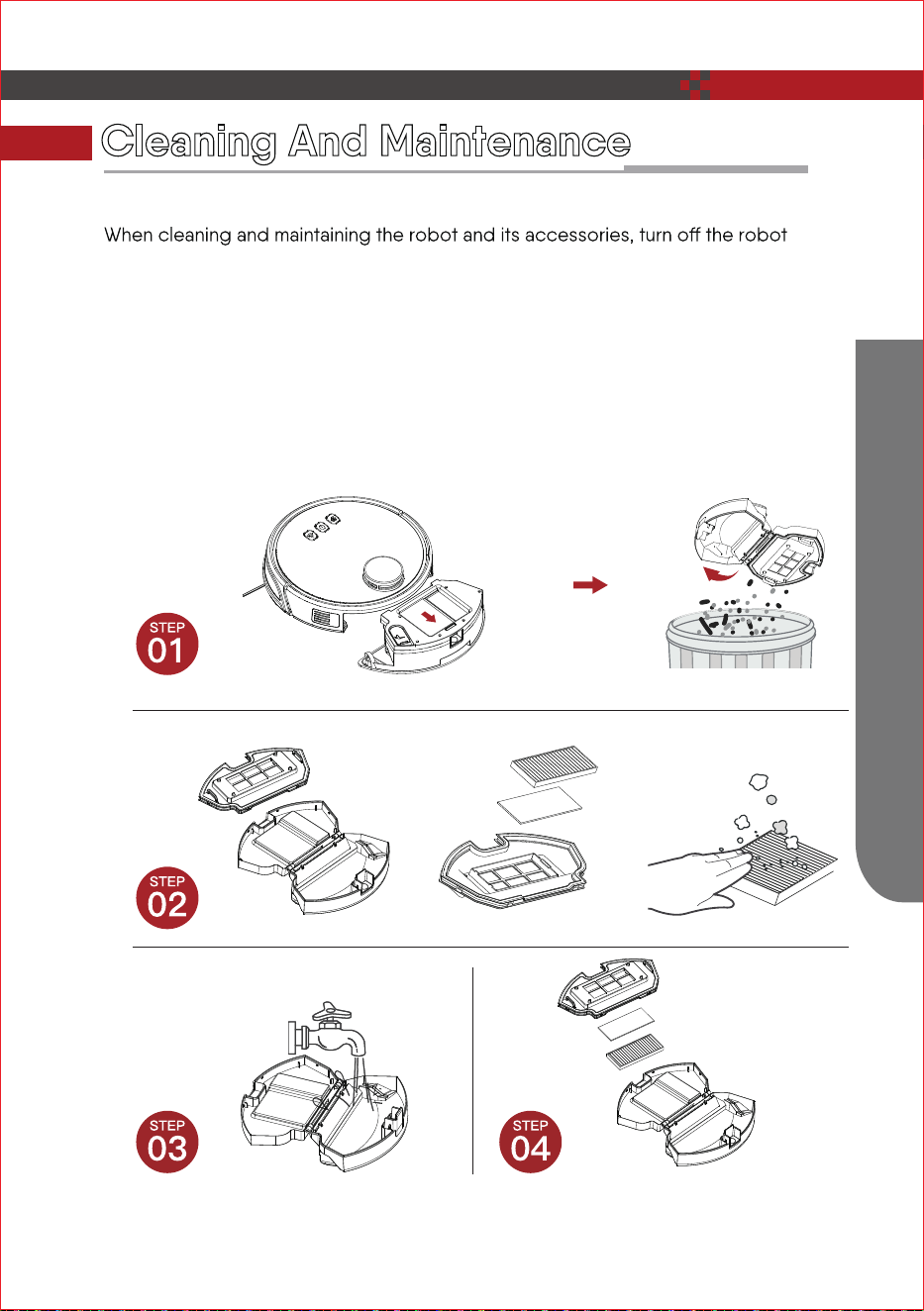
Dust Box and Filter
25
Cleaning And Maintenance
and unplug the charging stand.
Remove the dust box, open the dust box cover, and clean the garbage.
Remove dust filter. HEPA is not recommended for washing. Please pat and
remove ash.
Flush the dust box and the primary filter.
Dry the dust box and the dust filter assembly and keep it dry to ensure its service
life.
1.
2.
3.
4.
Please let these parts dry naturally
for more than 24 hours.
Cleaning And Maintenance
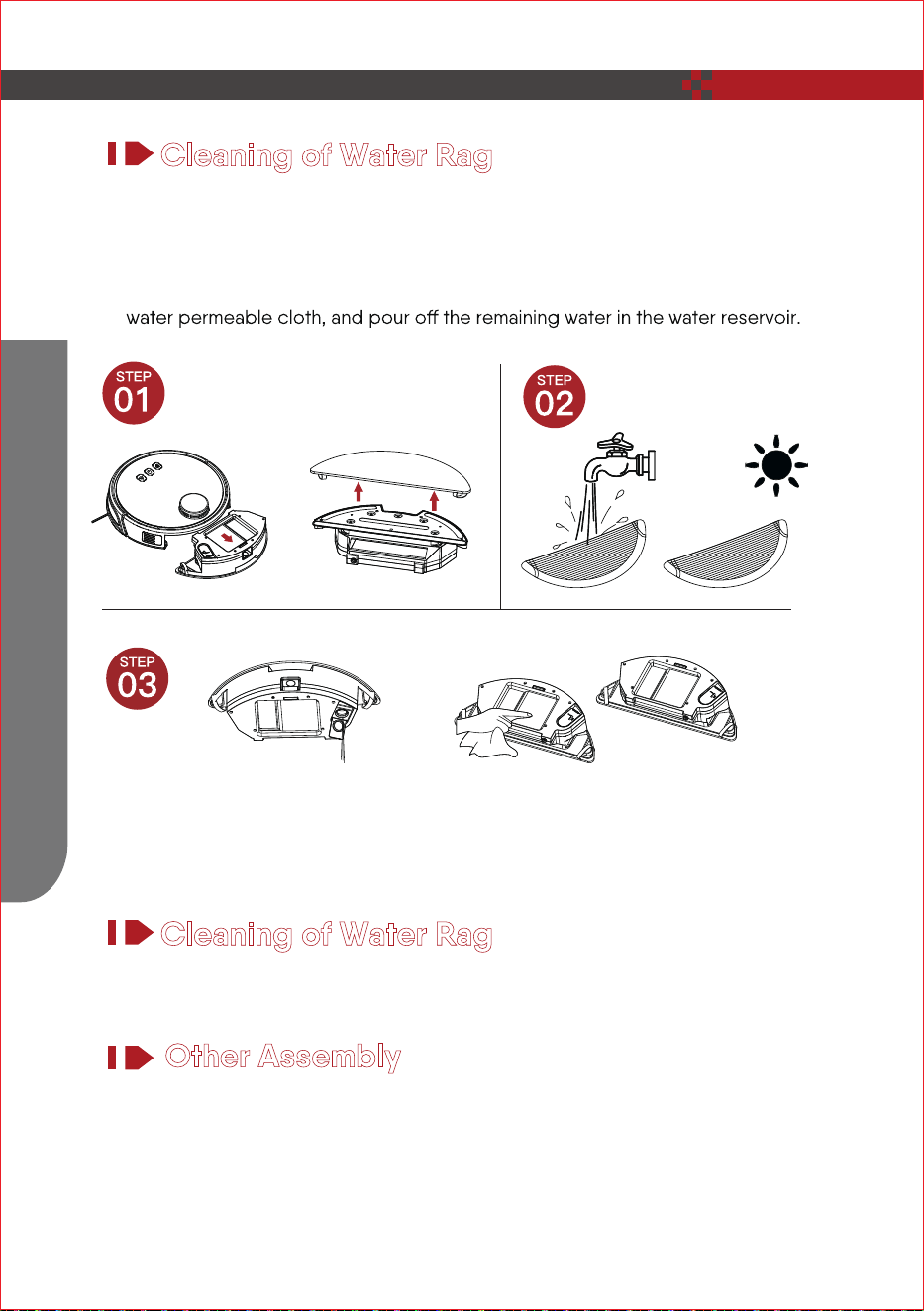
Cleaning of Water Rag
Remove: After the mopping is completed, remove the water tank assembly and
remove the water permeable rag.
Maintenance: Rinse and dry the water rag.
Remove: After mopping the floor, remove the water tank assembly, remove the
Cleaning And Maintenance
26
1.
2.
3.
Maintenance: Dry the reservoir and allow it to dry.
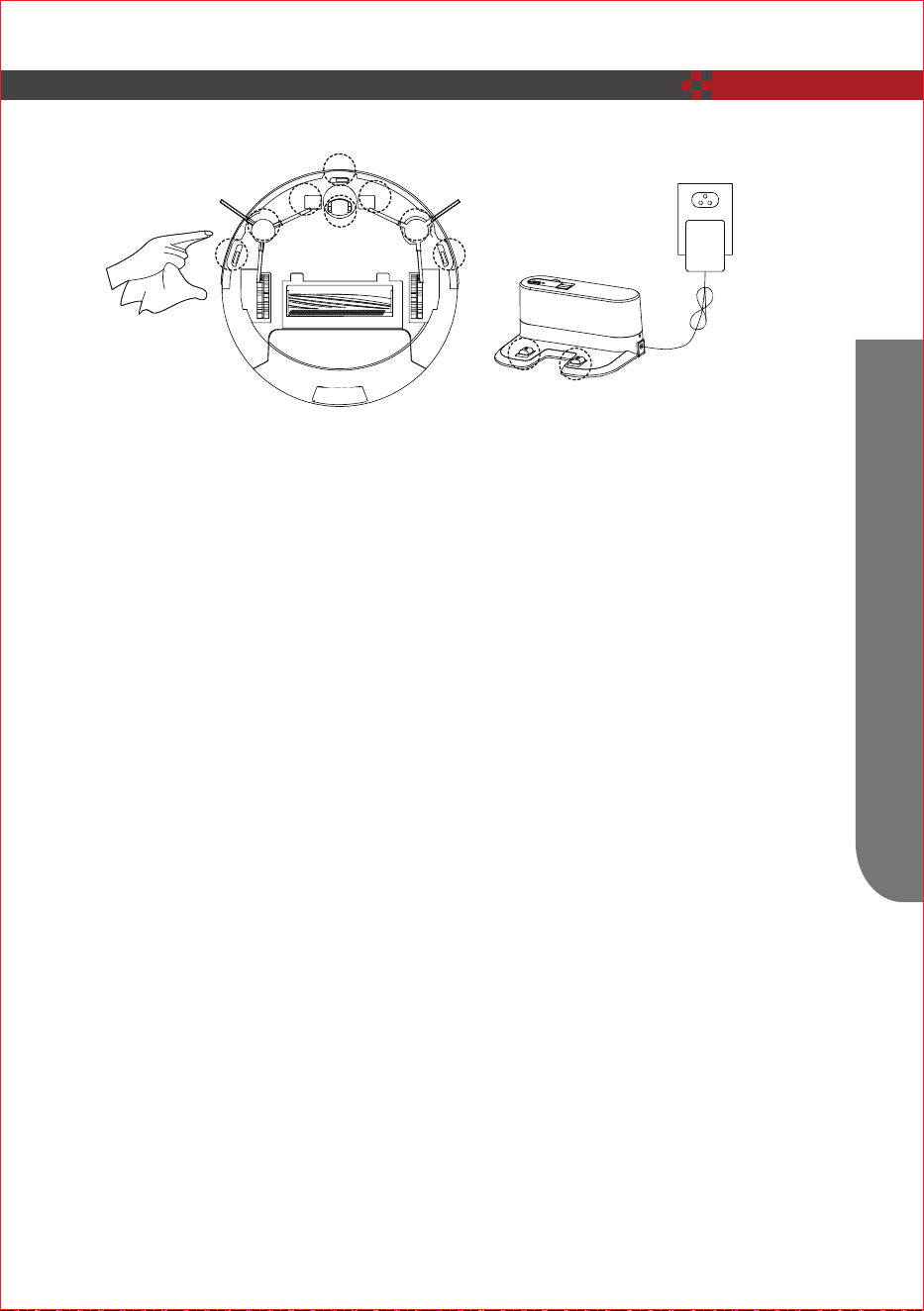
Pull out the side brush and wipe it with a clean rag.
Other Assembly
Cleaning the universal wheel to reduce hair entangle.
Clear down the sensor to ensure the sensitivity of the sensor.
To clean the charging pole pieces, use a dry rag to clean the charging poles on
the bottom of the robot or the charging stand.
Cleaning of Water Rag
27
Cleaning And Maintenance
If you will not use the product for a long time, please remove the battery and
keep it in a safe place. If the battery leaks, remove the battery and wipe the
battery compartment clean.
This product uses a high-life battery and does not require frequent replace-
ment. If you need to replace, you can contact our company for after-sales
service replacement.
Troubleshooting
28
Solution
APP content
Cause of
lssue
Left wheel
error
Collision
No water
tank inside
Ground
sensor error
Robot not on
the gound
Robot
trapped
Laser head
stucked
Laser sensor
not work
Laser sensor
covered
Robot stucked
Left Wheel Fault
Put the wheel on the ground
Push heavily the front bumper,
the check whether the front
bumper can bounces back
Please install the water tank
correctly
Clean the ground detector and
make sure I'm not lift up
Put the robot on the ground
Please take robot to open space
Don't cover over the laser head
Clean the laser sensor and
make sure not covered
Don't cover over the laser sensor
Please help the robot manually
The Water Tank Is Not
Installed
Ground Sensor Abnormal
The Host Is Picked Up
The Host Is Trapped
The Upper Cover Of The
Laser Head Is Stuck
Laser Sensor Error
Laser Sensor Is Covered
Unable To Leave The
Restricted Area
Troubleshooting
29
Troubleshooting
FAQs
What should I do when it can not work on the carpet?
We don’t suggest you make it clean the carpet. It’ better to stick some
boundary strips around the carpet as no-go zone.
What if the strength of vacuuming is weak?
Fist of all, check whether the dust bin is full and the robot is full charged. If it
collector, try to clean it with Spot Cleaning Mode.
What if my charger has dificultise charging the robot?
Please make sure you turn on the charging stand before charging and check
if the electrical sheet is connected to the charging stand
(Put it back manually or press the Power button when the robot is 1 meter in
front of the charging stand.)
What if the robot can not find the charging stand?
The charging stand should be placed against the wall with at least 1 meter
clearance each side and 2 meters in front. Sometimes you can just put it back
manually.
What should I do if the remote control is out of order?
Why does the master return to charging after cleaning?
The working time of the master varies depending on the complexity of the
room, the amount of garbage and the cleaning mode.
Q :
A :
A :
Q :
A :
Q :
A :
Q :
A :
Q :
A :
Q :
1.
2.
3.
4.
make sure that the remote point to the master.
Replace the battery with a new one if the battrery has run out capacity.
power to complete the operation.
Please wipe the infrared emitter of the remote control and the infrared
receiver of the master with clean towel.
Please install the right brush into the right bottom mounting port of the machine,
the left brush into the left bottom mounting port of the machine, and ensure that
the two side brushes are in place.

Geek Technology Ltd.
1275 Bloomfield Ave
Fairfield, NJ07004
Toll Free 1-844-801-8880 /
(862) 352-0406
www.geektechnology.com