
User Guide
MOBOTIX 20MPMultisensor IRVideo Analytics Camera
©2023MOBOTIX AG
V1.03_9/28/2023, Order Code:Mx-VM1A-20-IR-VA

Table of Contents
Table of Contents
Table of Contents 2
Before You Start 5
Support 6
MOBOTIX Support 6
MOBOTIX eCampus 6
MOBOTIX Community 6
Safety Notes 7
Legal Notes 7
Overview 9
Features 10
Package Contents 10
Dimensions 12
Accessories 13
Further Reading 15
Connection 17
Camera Cabling 18
Camera Connectors 19
microSD Card Slots 20
M.2 SSD Card Slot 20
Reset Button 20
Formatting Internal Storage Media 20
Connecting Power 21
Connecting Ethernet Cable 21
Connecting Audio and Alarm I/O 22
Installation 25
General Remarks 26
Camera Installation 26
Installing to a Ceiling or Wall Without Accessories 26
Installing the Camera With Accessories 27
Configuration 29
System Requirements for Operating the Camera 30
Accessing the Camera 30
Setting the Video Resolution 32
Default Resolution 32
2 / 120

Exporting/Importing Configuration Files 33
Menu Reference 35
The Camera Menu 37
The “Home” Tab 38
Function Items on Home Page 39
The “System” Tab 42
System 42
Security 44
Network 51
DDNS 58
Mail 59
FTP 59
HTTP 59
Events (Alarm Settings) 60
Storage Management 73
Recording 77
Schedule 78
File Location (Snapshots and Web Recording) 79
View Information 79
Factory Default 80
Software Version 81
Software Upgrade 81
Maintenance 82
The “Streaming” Tab 83
Video Configuration 84
Video Rotation 87
Video Text Overlay 88
Video ROI Encoding 89
Video OCX Protocol 90
Video Mask 90
Audio (Audio Mode and Bit Rate Settings) 91
The “Camera” Tab 93
Camera Selector 93
Exposure 93
White Balance 95
Picture Adjustment 98
Color Style 99
IR Function 99
Table of Contents
3 / 120

Table of Contents
Illumination 101
Noise Reduction 101
HDR Type 102
Gamma HDR 102
Digital Zoom 103
Profile 103
TV System 104
The “Logout” Tab 105
Appendix A: Installing UPnP Components 106
Appendix B: Converting IP Addresses from Decimal to Binary 106
AppendixC: List of Open/Closed IP Ports 108
TCP Protocol 108
UDP Protocol 108
Technical Support Information 111
Technical Specifications 112
4 / 120

Before You Start
Support
Support
MOBOTIX Support
If you need technical support, please contact your MOBOTIX dealer. If your
dealer cannot help you, he will contact the support channel to get an answer for
you as quickly as possible.
If you have internet access, you can open the MOBOTIX help desk to find addi-
tional information and software updates.
Please visit www.mobotix.com > Support > Help Desk.
MOBOTIX eCampus
The MOBOTIX eCampus is a complete e-learning platform. It lets you decide
when and where you want to view and process your training seminar content.
Simply open the site in your browser and select the desired training seminar.
Please visit www.mobotix.com/ecampus-mobotix.
MOBOTIX Community
The MOBOTIX community is another valuable source of information. MOBOTIX
staff and other users are sharing their information, and so can you.
Please visit community.mobotix.com.
6 / 120

Safety Notes
n
This product must not be used in locations exposed to the dangers of explosion.
n
Do not look directly into the infra-red LEDs that may be active on the product.
n
Install this product in a well-ventilated spot and do not close off any vent openings.
n
Do not use this product in a dusty environment.
n
Protect this product from moisture or water entering the housing.
n
Install this product as outlined in this document. A faulty installation can damage the
product!
n
Do not replace batteries of the camera. If a battery is replaced by an incorrect type, the bat-
tery can explode.
n
This equipment is not suitable for use in locations where children are likely to be present.
n
External power supplies must comply with the Limited Power Source (LPS) requirements and
share the same power specifications with the camera.
n
When using a ClassI adapter, the power cord shall be connected to a socket-outlet with
proper ground connection.
n
To comply with the requirements of EN 50130-4 regarding the power supply of alarm systems
for 24/7 operation, it is highly recommended to use an uninterruptible power supply (UPS)
for backing up the power supply of this product.
NOTE! Observe the MOBOTIX MOVE Installation Hints document to ensure optimum performance
of the camera features.
Legal Notes
Legal Aspects of Video and Sound Recording
You must comply with all data protection regulations for video and sound monitoring when using
MOBOTIX AG products. Depending on national laws and the installation location of the cameras, the
recording of video and sound data may be subject to special documentation or it may be pro-
hibited. All users of MOBOTIX products are therefore required to familiarize themselves with all
applicable regulations and to comply with these laws. MOBOTIX AG is not liable for any illegal use of
its products.
Before You Start
Safety Notes
7 / 120

Before You Start
Legal Notes
Declaration of Conformity
The products of MOBOTIX AG are certified according to the applicable regulations of the EC and other
countries. You can find the declarations of conformity for the products of MOBOTIX AG on www.-
mobotix.com under Support> Download Center> Marketing & Documentation> Certificates &
Declarations of Conformity.
RoHS Declaration
The products of MOBOTIX AG are in full compliance with European Unions Restrictions of the Use of
Certain Hazardous Substances in Electrical and Electronic Equipment (RoHS Directive 2011/65/EC) as
far as they are subject to these regulations (for the RoHS Declaration of MOBOTIX, please see www.-
mobotix.com, Support> Download Center> Marketing & Documentation> Brochures & Guides>
Certificates).
Disposal
Electrical and electronic products contain many valuable materials. For this reason, we recommend
that you dispose of MOBOTIX products at the end of their service life in accordance with all legal
requirements and regulations (or deposit these products at a municipal collection center). MOBOTIX
products must not be disposed of in household waste! If the product contains a battery, please dis-
pose of the battery separately (the corresponding product manuals contain specific directions if the
product contains a battery).
Disclaimer
MOBOTIX AG does not assume any responsibility for damages, which are the result of improper use
or failure to comply to the manuals or the applicable rules and regulations. Our General Terms and
Conditions apply. You can download the current version of the General Terms and Conditions from
our website at www.mobotix.com by clicking on the corresponding link at the bottom of every page.
8 / 120

Overview
Features
Features
The MOBOTIX MOVE 20MPMultisensor IRVideo Analytics Camera incorporates four individually
adjustable 5MP sensors with remote zoom/focus lenses for optimum positioning and alignment to
the observation needs. Four individual video streams plus a combined stream of all four sensors that
provides an undistorted view up to 360 degrees make this camera the best choice for monitoring
large areas or road intersections. The integrated DNN-based video analytics features include Face
and License Plate recognition for 24/7 video surveillance with simultaneous detection of multiple
objects. The MOBOTIX EverClear superhydrophilic and self-cleaning nano coating of the multisensor
bubble ensures best image quality even in rain and reduces cleaning efforts and operational costs.
n
4x 5MP image sensors,
freely adjustable (1/2.8”
Progressive CMOS IMX 675
SONY STARVIS II)
n
High light sensitivity:
0.02Lux color, 0.001Lux
B/W
n
Motorized 3x zoom/focus
lens 2.8 to 8mm
n
WDR up to 130dB
n
Integrated IR illumination
up to 30 m/100 ft
n
Supports up to nine
streams
H.264/H.265/MJPEG
n
Intelligent encoding, smart
low-bitrate control
n
Bi-directional audio Line
In/Out and integrated
microphone
n
MOBOTIX
MxMessageSystem
n
2D & 3D motion-com-
pensated noise reduction
(MCTF)
n
ONVIF Profile S/G/T/M sup-
port
n
DNN video analytics (8 VA,
Face & ALPR)
n
Smart event functions
n
M.2 SATA3 SSD support up
to 8TB
n
microSD SDHC/SDXC card
support up to 1TB (2 slots)
n
Triple power support
(IEEE802.3bt/AC24V/DC24V)
n
Outdoor protection rate
IP66/IK10
n
NEMA 4x-compliant
n
Built-in FIPS 140-2 Level 2-
certified TPM hard-
ware/firmware
n
Temp. Range –40 to 60°C/-
40 to 140°F with heater
n
EverClear coating of multi-
sensor bubble
NOTE! Observe the MOBOTIX MOVE Installation Hints document to ensure optimum performance
of the camera features.
Package Contents
Check the package for the items listed below.
20MPMultisensor IRVideo Analytics Camera
4-pin power terminal block
10 / 120
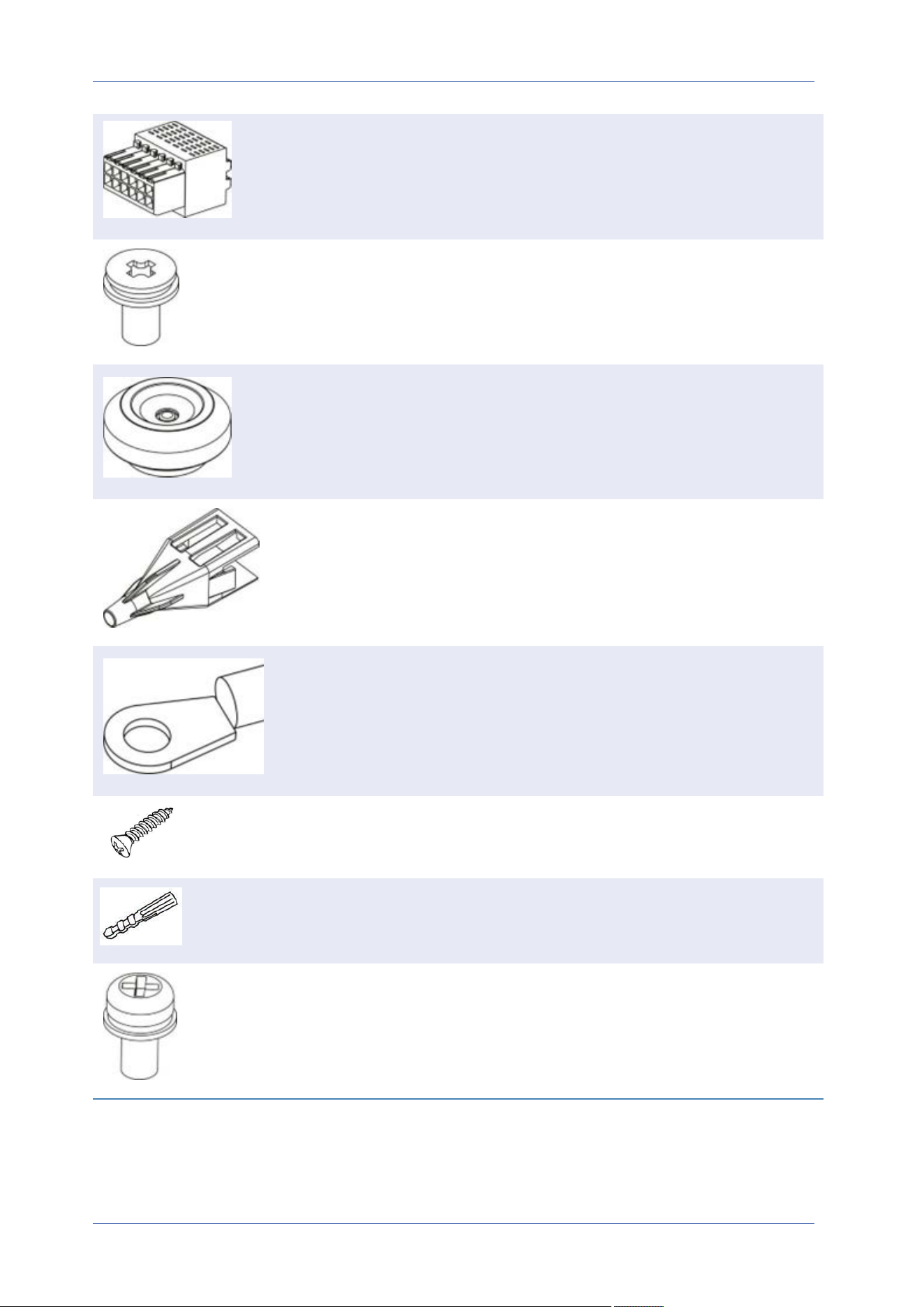
12-pin alarm & audio terminal block
M3 screw for M.2 SSD (x2)
Plastic screw anchors (x2)
RJ-45 insert tool (x1)
Ground ring (x1)
Self-tapping screws (x5)
Plastic dowel (x5)
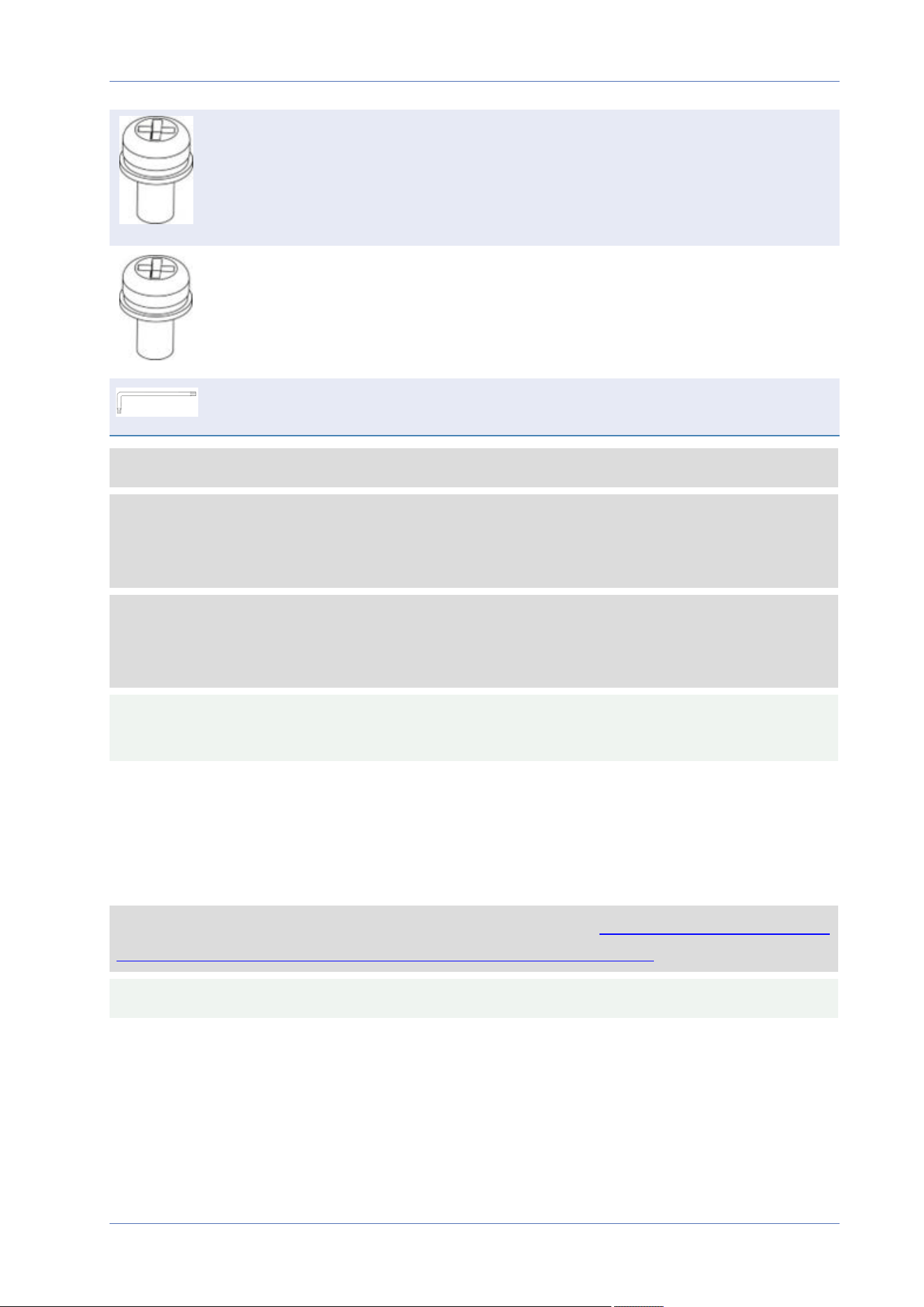
#8-32 screw for Junction box (x4)
Overview
Package Contents
11 / 120
Overview
Dimensions
#6-32 screw for Junction box (x2)
M4 screw for Ground wire (x1)
Security Torx wrench
NOTE! To purchase a power adapter, contact MOBOTIX for further information.
NOTE! To use an external power supply, contact the camera manufacturer to confirm that the
power supply complies with the LPS requirements and shares the same power specifications with
the camera.
NOTE! The supplied self-tapping screws are for soft substances/materials such as wood. For other
installation environments, such as solid or sheet rock walls, users MUST pre-drill and use plastic
anchors before fastening the camera onto the wall.
CAUTION! Do not replace batteries of the camera. Risk of explosion may occur if the battery is
replaced by an incorrect type.
Dimensions
NOTE! Download the drilling template from the MOBOTIX website: www.mobotix.com> Support
> Download Center > Marketing & Documentation> Drilling Templates.
CAUTION! Always print or copy the drilling template at 100% of the original size!
12 / 120
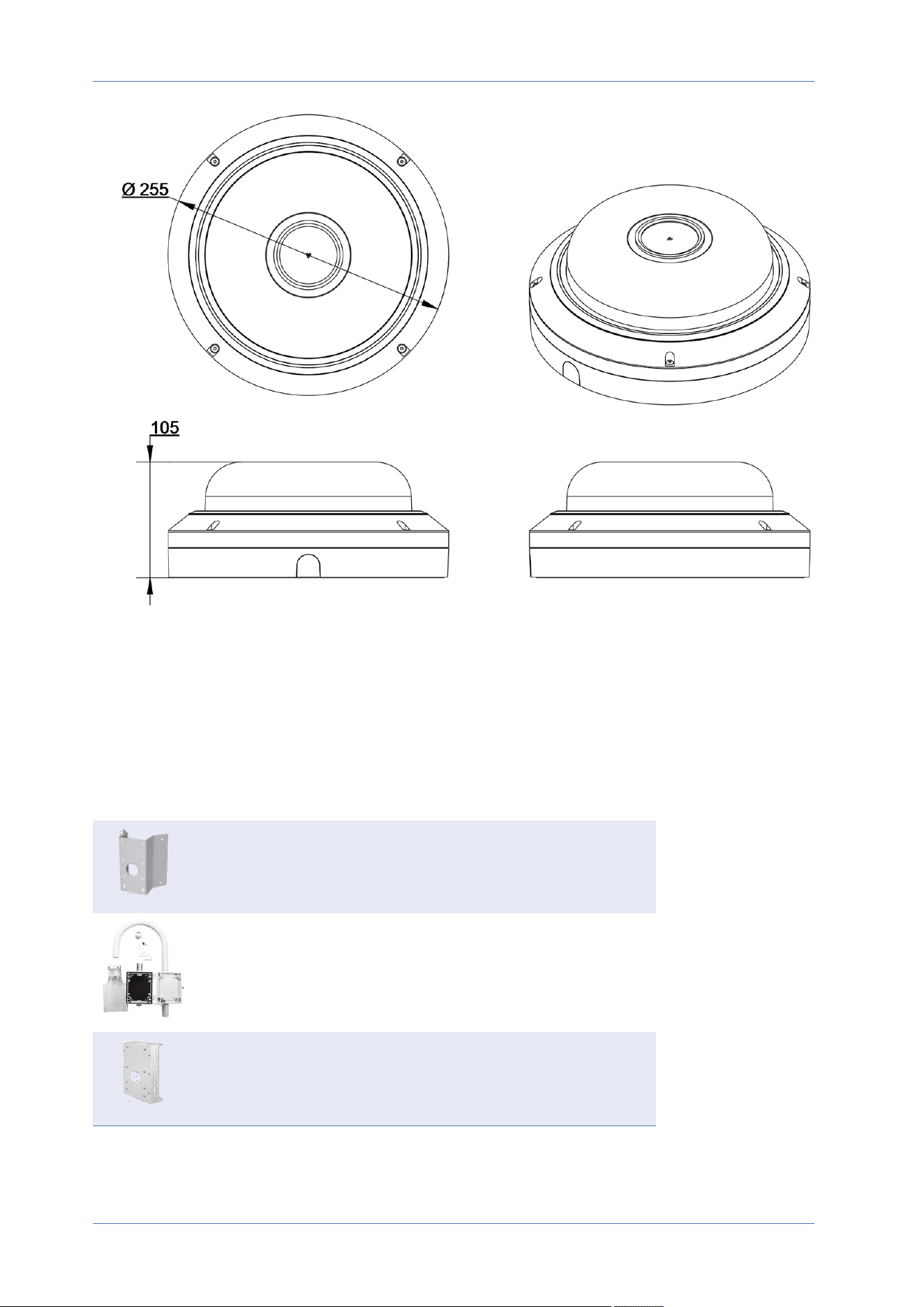
Fig. 1: 20MPMultisensor IRVideo Analytics Camera: All measurements in mm
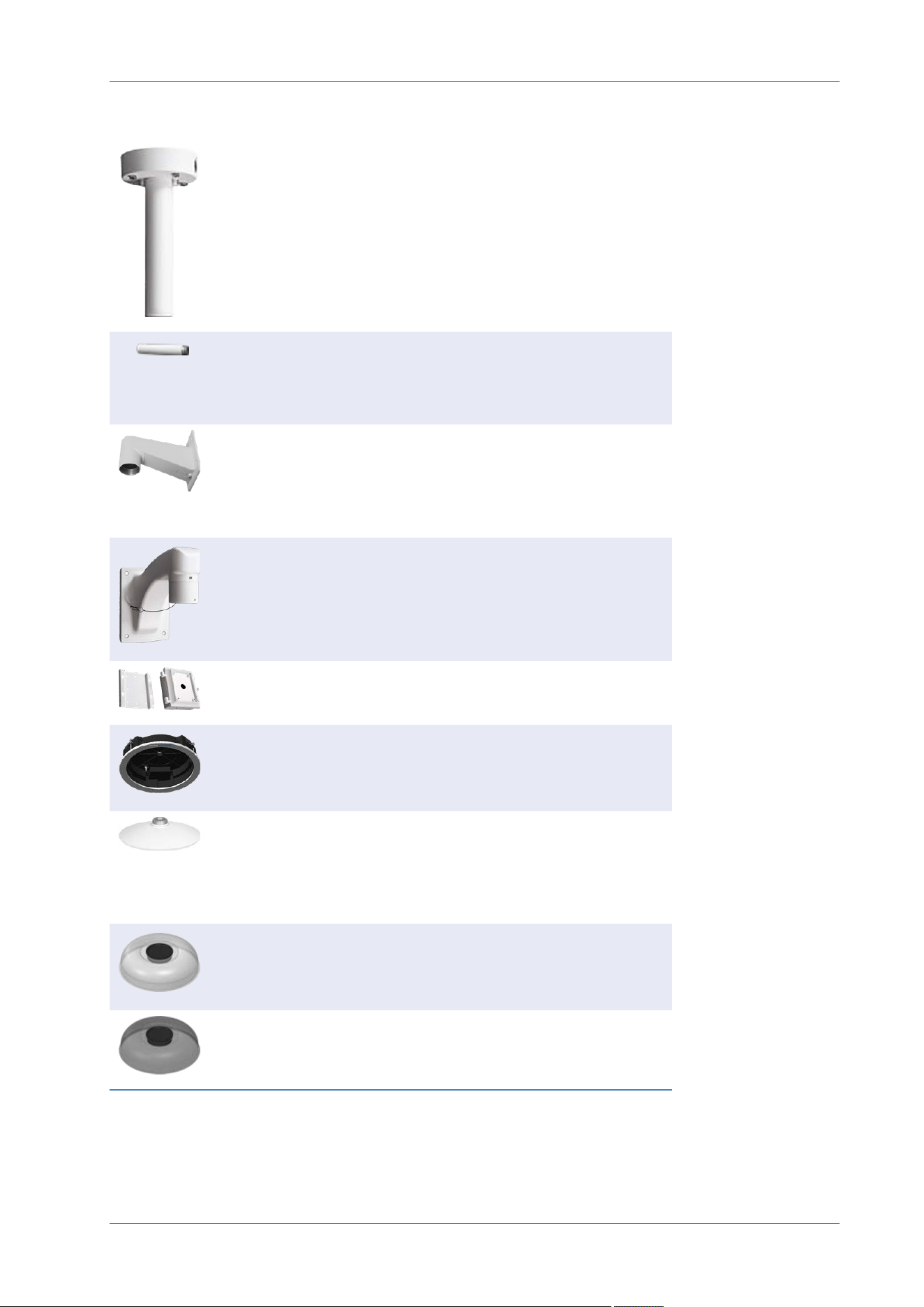
Accessories
Picture Order Code Description
Mx-M-SD-C Corner Mount for MOBOTIX MOVE
cameras (only in combination with
Wall Mount Mx-M-SD-W/WM)
Mx-M-SD-GN Parapet Mount (Gooseneck) with
integrated junction box for
MOBOTIX MOVE cameras
Mx-M-SD-P Pole Mount for MOBOTIX MOVE cam-
eras (only in combination with Wall
Mount Mx-M-SD-W/WM)
Overview
Accessories
13 / 120
Overview
Accessories
Picture Order Code Description
Mx-M-SD-PM Pendant Mount Kit 25cm for
MOBOTIX MOVE cameras
Mx-M-SD-PMEXT Pendant mount extension 25cm for
use with Pendant Mount Kit Mx-M-
SD-PM
Mx-M-SD-W Wall Mount for MOBOTIX MOVE cam-
eras; can be combined with Pole
Mount Mx-M-SD-P or Corner Mount
Mx-M-SD-C
Mx-M-SD-WM Wall Mount with room for optional
junction box Mx-M-SD-WMJB for
MOBOTIX MOVE cameras
Mx-M-SD-WMJB Wall Mount Junction Box for
MOBOTIX MOVE cameras
Mx-M-VM-IC Ceiling Flush Mount for MOBOTIX
MOVE Cameras
Mx-M-VM-AP Adapter Mounting Plate for
MOBOTIX MOVE Cameras (use with
Mx-M-SD-GN, Mx-M-SD-PM/PMEXT,
Mx-M-SD-W, Mx-M-SD-WM)
Mx-A-VM-DBC Clear Replacement Dome for
MOBOTIX MOVE Cameras
Mx-A-VM-DBT Tinted Replacement Dome for
MOBOTIX MOVE Cameras
14 / 120
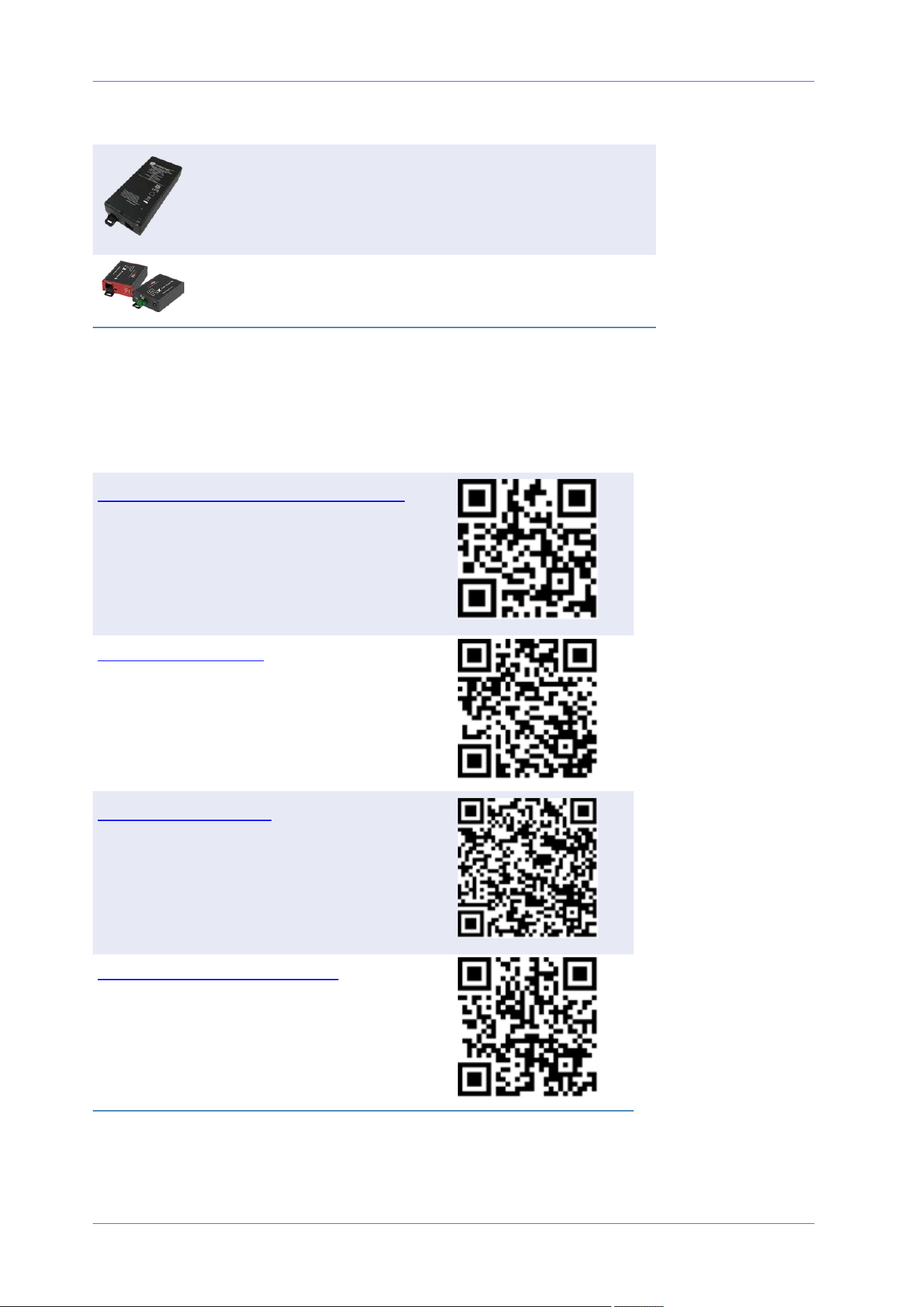
Picture Order Code Description
Mx-NPA-PoE1A-60W-BT Network Power Injector 60W
Mx-A-ETP1A-2601-SET Media Converter Set Ethernet
(PoE+) – Twisted-Pair
Further Reading
Manuals and Quick Installation documents
Video Analytics Manual
Technical Specifications
MOBOTIX MOVE Installation Hints
Overview
Further Reading
15 / 120


Connection
Camera Cabling
Camera Cabling
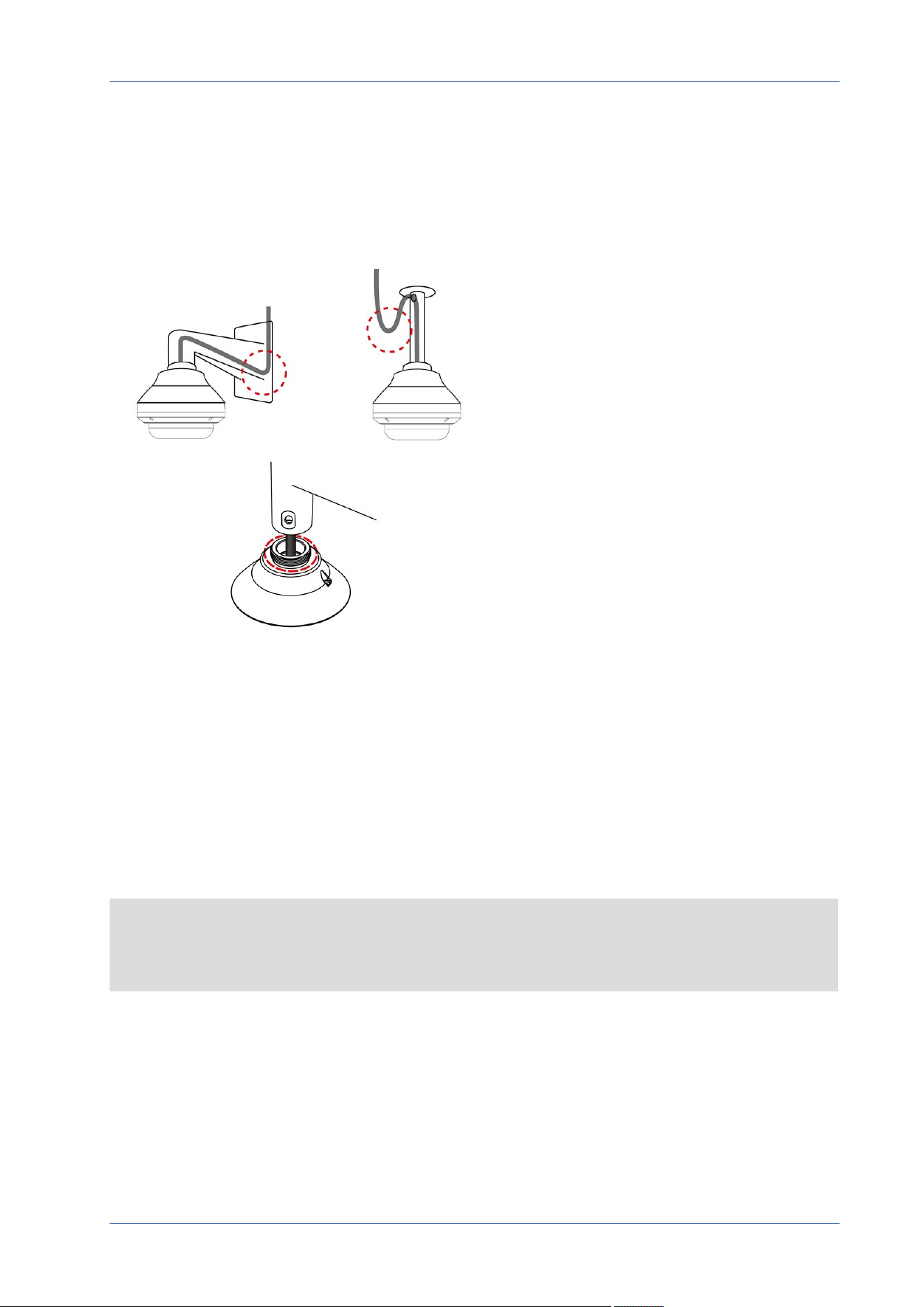
The camera is rated IP66 to prevent water from entering the camera. However, water might still enter
the camera if it is being improperly installed. Please make sure the warnings below are strictly fol-
lowed when installing the camera.
n
Place all cables and the adapter in dry and well-waterproofed environments, e.g. waterproof
boxes. This will prevent moisture from accumulating inside the camera and from penetrating
cables.
n
While running cables, slightly bend the cables to a U-shaped curve (see top images in figure
above) to make a low point. This will prevent water from entering the camera along the cables
from above.
n
The cable entry hole of the outdoor mounting kit (see bottom image in figure above) needs to
be sealed with thread seal tape to avoid water from entering the camera.
NOTE!
This camera must be installed by qualified personnel and the installation should conform to all
local codes.
18 / 120
Camera Connectors
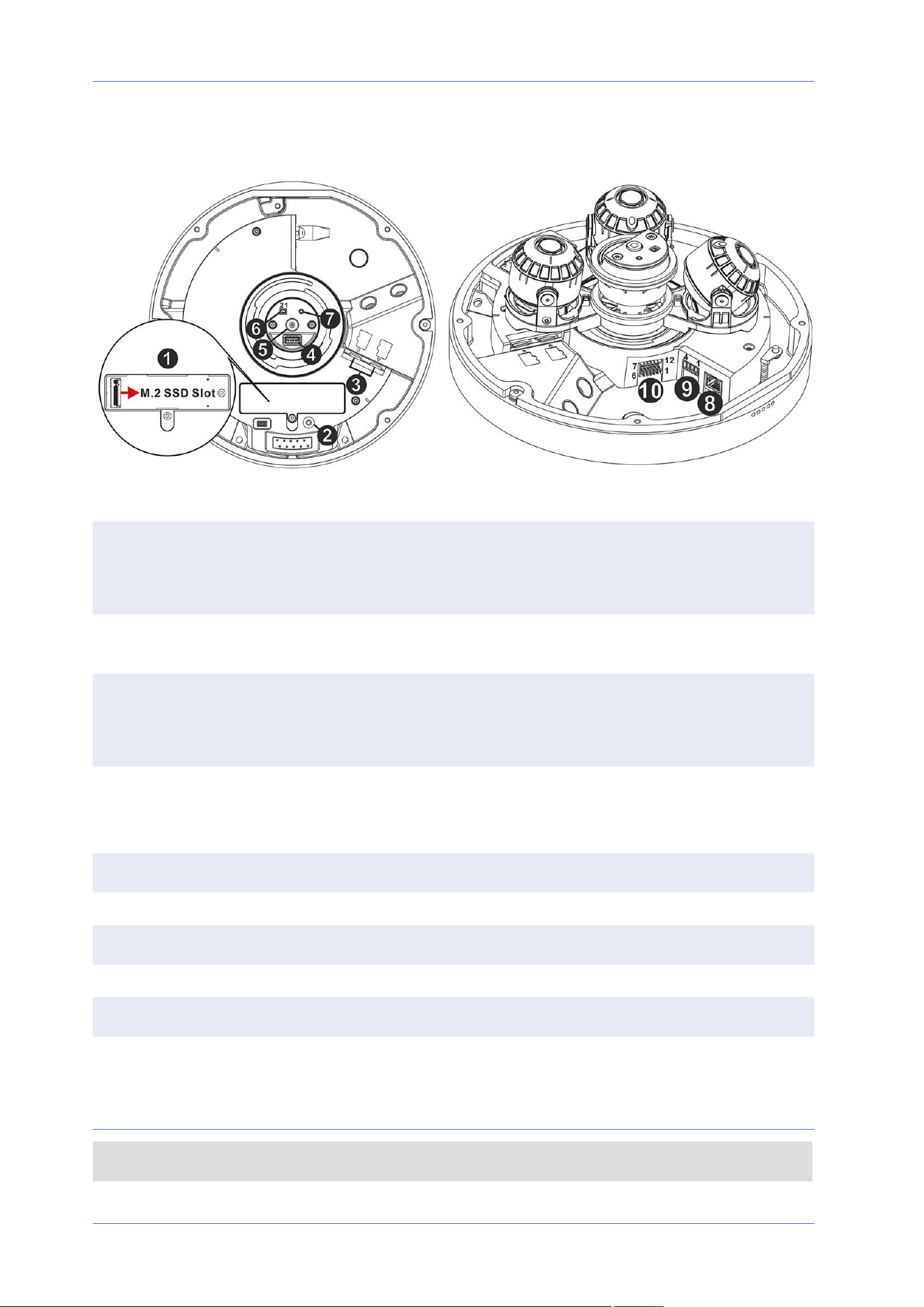
No. Connector Definition
1 M.2 SSD Card Slot Insert the M.2 SSD card (max. 8TB) into the slot to store videos and
snapshots. Always power off the camera before inserting or remov-
ing any storage media!
2 Reset Button Press the button with a proper tool for at least 20 seconds to reset
the system to factory defaults.
3 microSD Card
Slots (2)
Insert microSD cards into the slots to store videos and snapshots.
Always power off the camera before inserting or removing any stor-
age media!
4 USB Type A Insert a flash drive into the USB slot to store videos and snapshots.
Always power off the camera before inserting or removing any stor-
age media!
5 MIC Audio In
6 BNC Not available on this camera model.
7 BNC Button Not available on this camera model.
8 RJ-45 Port For network and PoE connections
9 Power Connector AC24V/DC24V power connector (see Camera Cabling, p. 18 below)
10 Audio/Alarm I/O
Connector*
Audio/Alarm I/O connection (see Camera Cabling, p. 18 below)
*Do NOT connect an external power supply to the alarm I/O connector of the camera.
NOTE! To purchase a power adapter, please contact MOBOTIX for further information.
Connection
Camera Cabling
19 / 120

Connection
Camera Cabling
microSD Card Slots
microSD Card Slot
CAUTION! Always power down the camera before performing the following steps!
Insert a microSD card into the card slot to store videos and snapshots.
NOTE!
n
It is not recommended to record with the microSD card for 24/7 continuously, as it may not
be able to support long term continuous data read/write. Contact the manufacturer of the
microSD card for information regarding the reliability and the life expectancy.
n
Remember to format a new microSD card as shown in Formatting Storage Media below.
M.2 SSD Card Slot
M.2 SSD Card Slot
CAUTION! Always power down the camera before performing the following steps!
Insert a suitable M.2 SSD card (max. 8TB) into the slot and secure it using the supplied M3 screw.
NOTE!
n
Remember to format a new SSD card as shown in Formatting Storage Media below.
Reset Button
Press the button with a proper tool for at least 20 seconds to reset the system to factory defaults.
Formatting Internal Storage Media
After inserting a new or replacing a used storage medium, make sure to format the medium so the
camera can use it to record video streams.
1. Connect to the camera.
2. Open System> Storage Management> <storage media type>.
3. In the Device Setting section, click on Format to start the formatting process.
20 / 120

Once formatting has finished, the camera can use the storage medium for recording.
Connecting Power
Using Power over Ethernet (PoE)
Use a IEEE 802.3bt PoE switch (Class6) and connect the Ethernet cable to the RJ-45 port of the cam-
era.
Using AC or DC
To power up the camera, connect either the AC or the DC power adapter to the power connector
of the camera and the power outlet.
CAUTION! Never connect both AC and DC power since this will cause unforeseeable damage.
Diagram and Pin Definition for AC24V/DC24V Power Connection
Pin Definition
1 DC24V-
2 DC24V+
3 AC24V 1
4 AC24V 2
Connecting Ethernet Cable
Ethernet Cable Connection
NOTE!
n
The length of the Ethernet cable should not exceed 100m/300ft.
n
Check the status of the link indicator and the activity indicator LEDs of the switch. If the
LEDs are unlit, please check the LAN connection.
n
In some cases, an Ethernet crossover cable may be needed when connecting the camera
directly to the PC.
Connection
Connecting Power
21 / 120
Connection
Connecting Audio and Alarm I/O
Ethernet Connector LEDs
n
Green Link LED indicates good network connection.
n
Orange Activity LED flashes for network activity indication.
Connecting Audio and Alarm I/O
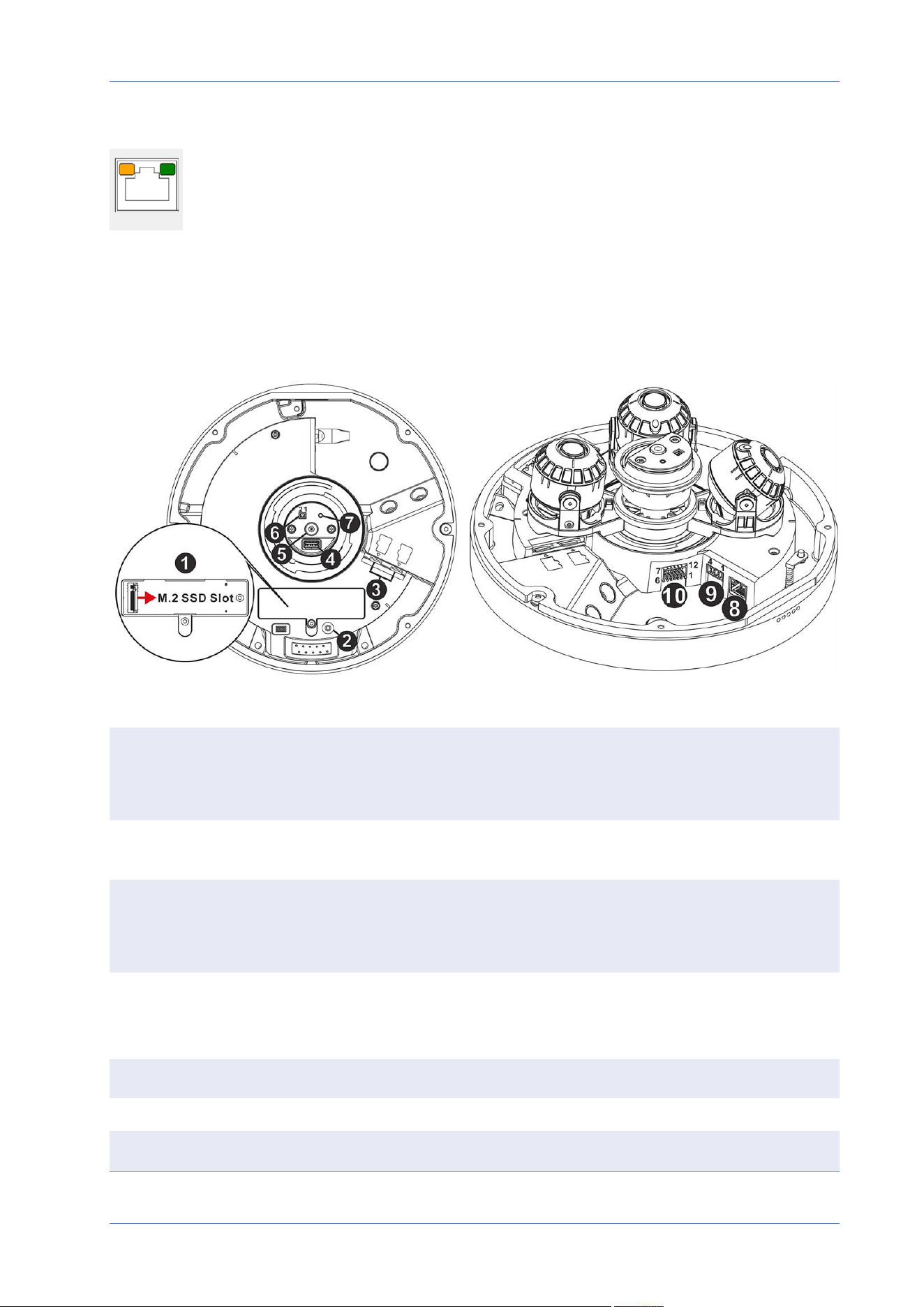
No. Connector Definition
1 M.2 SSD Card Slot Insert the M.2 SSD card (max. 8TB) into the slot to store videos and
snapshots. Always power off the camera before inserting or removing
any storage media!
2 Reset Button Press the button with a proper tool for at least 20 seconds to reset
the system to factory defaults.
3 microSD Card
Slots (2)
Insert microSD cards into the slots to store videos and snapshots.
Always power off the camera before inserting or removing any stor-
age media!
4 USB Type A Insert a flash drive into the USB slot to store videos and snapshots.
Always power off the camera before inserting or removing any stor-
age media!
5 MIC Audio In
6 BNC Not available on this camera model.
7 BNC Button Not available on this camera model.
22 / 120

No. Connector Definition
8 RJ-45 Port For network and PoE connections
9 Power Connector AC24V/DC24V power connector (see Connecting Audio and Alarm I/O,
p. 22 below)
10 Audio/Alarm I/O
Connector*
Audio/Alarm I/O connection (see Connecting Audio and Alarm I/O, p.
22 below)
*Do NOT connect an external power supply to the alarm I/O connector of the camera.
NOTE! To purchase a power adapter, please contact MOBOTIX for further information.
Connection
Connecting Audio and Alarm I/O
23 / 120



Installation
General Remarks
General Remarks
Read the instructions provided in this chapter thoroughly before installing the camera.
NOTE! This camera must be installed by qualified personnel and the installation must conform to
all local codes.
NOTE! Observe the MOBOTIX MOVE Installation Hints document to ensure optimum performance
of the camera features.
Camera Installation
The 20MPMultisensor IRVideo Analytics Camera can be mounted to walls or ceilings without
accessories. Using accessories (such as a pendant mount, for example) will increase the application
scenarios for this camera. Please refer to Accessories, p. 13 to find the type of mount that is suitable
for your situation.
To install the camera using one of these accessories, please refer to the corresponding Quick Install-
ation document available on www.mobotix.com> Support> Download Center> Marketing &
Documentation> Manuals in the MOBOTIX MOVE Accessories section.
Installing to a Ceiling or Wall Without Accessories
1. Loosen the four security screws on the camera with the supplied security torx and open the
dome cover.
2. Use a screwdriver to loosen the screws connecting the camera and the camera base.
3. Place the camera base at the desired installation location. Mark the placement of the four screw
holes and the back conduit entry (for cable entry) on the ceiling/wall.
4. Drill the cable entry hole (back conduit entry) on the ceiling/wall.
5. Drill a hole slightly smaller than the supplied plastic screw anchor on each marked screw hole.
Then insert the plastic screw anchors into the drilled holes.
6. Thread the cables through the cable entry hole. Match the four screw holes on the camera base
with the plastic screw anchors at the installation location. Fasten the camera base with the sup-
plied self-tapping screws.
26 / 120
7. When using accessories for mounting the camera, attach the anti-drop chain from the camera
to the anti-drop ring on the camera base.
8. Attach the ground wire to the grounding ring, and firmly secure it to the camera using an M4
screw.
Installing the Camera With Accessories
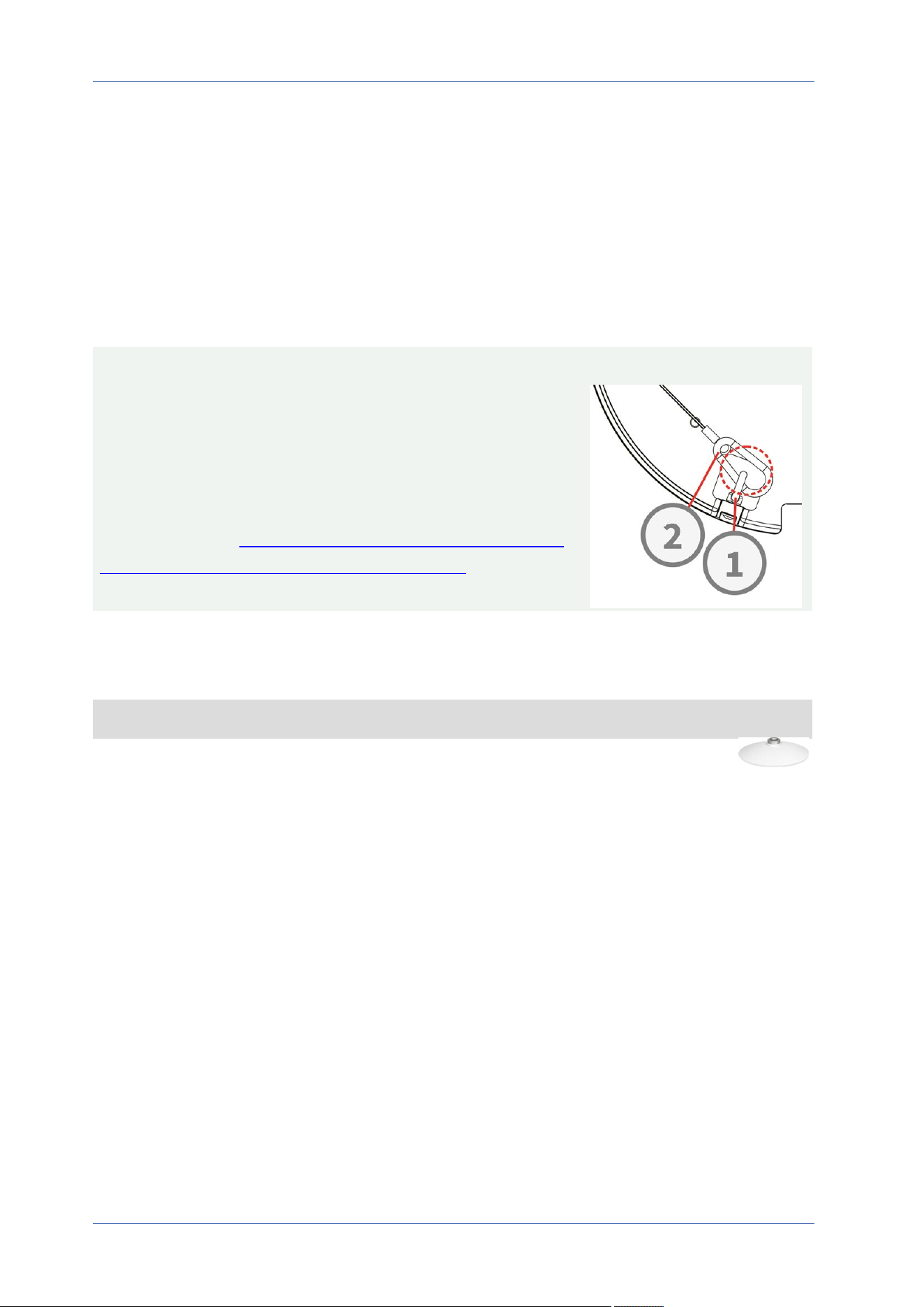
CAUTION!
For safety reasons, it is recommended to hook up the camera's
anti-drop ring ① to the anti-drop cable ② of the pendant/wall
mount when installing the camera.
For more information about installing the mounts and the anti-
drop cable, please see the corresponding Quick Installation doc-
ument available at www.mobotix.com> Support> Download
Center> Marketing & Documentation> Manuals in the
MOBOTIX MOVE Accessories section.
Installing to a Wall
NOTE! To be able to use these mounts, please order the Adapter Mounting Plate Mx-M-VM-AP.
You can install the camera to a wall using the following accessories:
n
Corner Mount Mx-M-SD-C (only in combination with SpeedDome Wall Mount Mx-
M-SD-W/WM)
n
Parapet Mount Mx-M-SD-GN (Gooseneck) with integrated junction box (Mx-M-VM-AP
required)
n
Pole Mount Mx-M-SD-P (only in combination with SpeedDome Wall Mount Mx-M-SD-W/WM)
n
Wall Mount Mx-M-SD-W can be combined with SD Pole Mount Mx-M-SD-P or Corner Mount
Mx-M-SD-C (Mx-M-VM-AP required)
n
Wall Mount Mx-M-SD-WM with room for optional junction box Mx-M-SD-WMJB (Mx-M-VM-AP
required)
Installation
Camera Installation
27 / 120

Installation
Camera Installation
Installing to a Ceiling
You can install the camera to a ceiling using the following accessories:
n
Ceiling Flush Mount Mx-M-VM-IC
n
Pendant Mount Kit 25cm Mx-M-SD-PM
n
Optional 25cm extension Mx-M-SD-PMEXT
28 / 120


Configuration
System Requirements for Operating the Camera
System Requirements for Operating the
Camera
To operate the IP camera via web browser, please ensure the PC is in good network connection and
meets system requirements as described below.
Items System Requirements
Personal Computer Minimum:
n
Intel® Core™ i5-2430M @ 2.4 GHz
n
4 GB RAM
Recommended:
n
8 GB RAM
Operating System Windows 7 or later operating system
Web Browser Any current web browser
Network Card 10Base-T (10 Mbps), 100Base-TX (100 Mbps) or 1000Base-T operation
NOTE! The ITE is to be connected only to PoE networks without routing to the outside plant or
equivalent description.
Accessing the Camera
Accessing the Camera
The 20MPMultisensor IRVideo Analytics Camera supports all current browsers without requiring any
additional plug-ins or add-ons (e.g. for H.264/H.265/MJPEG support).
Camera Login
The default IP address of the camera is: 10.x.x.x. By default, the camera starts as DHCP client and
automatically tries to get an IP address from a DHCP server.
1. Enter the camera’s IP address in the URL bar of the web browser and hit “Enter”.
2. Enter the default username (admin) and password (meinsm).
NOTE! User names and passwords are case sensitive.
30 / 120
3. You will be prompted to set a new admin user password.
NOTE! The password can have between 6 and 14 characters (at least one digit, no special
characters allowed).
4. After setting a new password, you will be prompted to log in again. Remember to use the new
password.
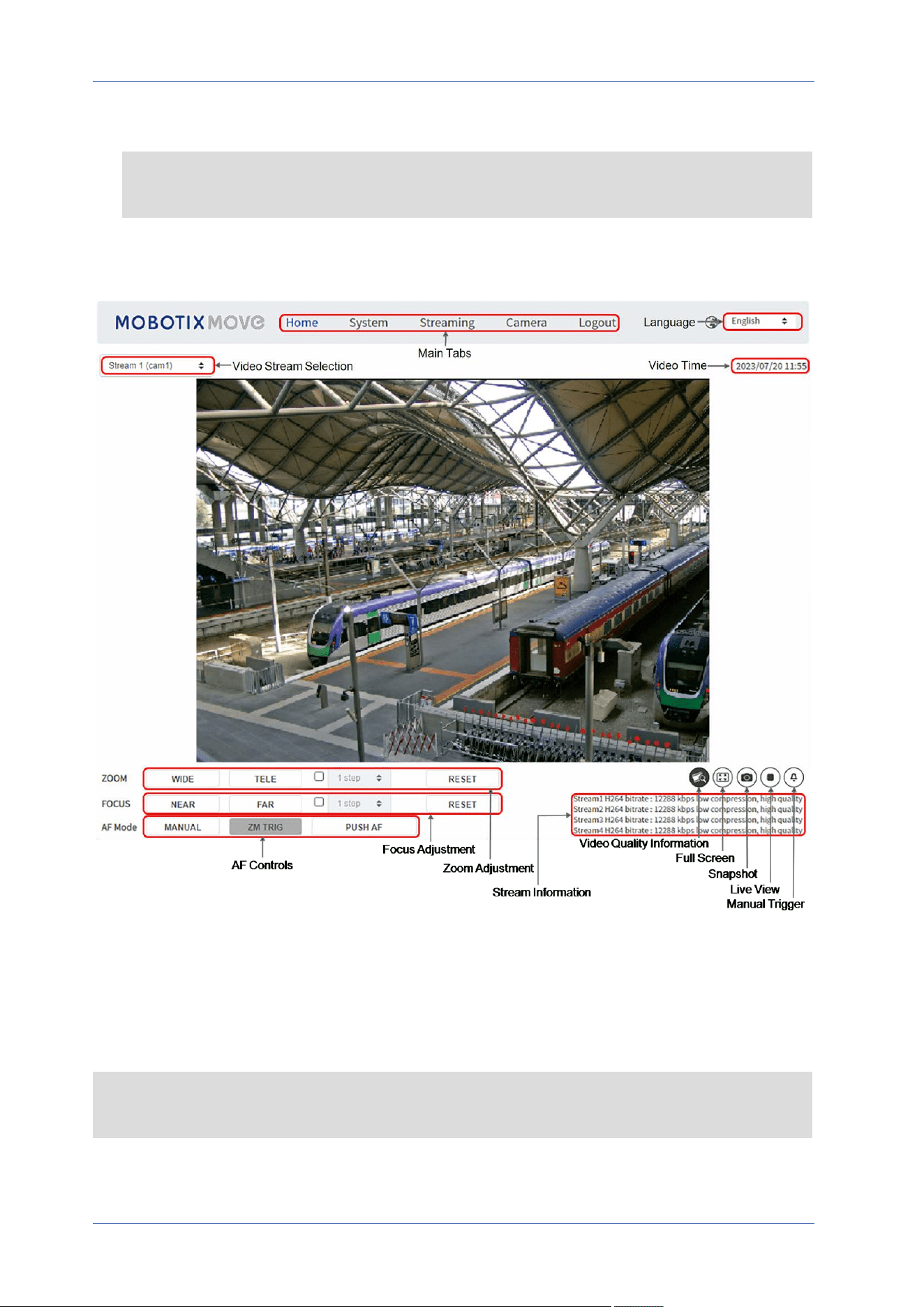
Zoom and Focus Adjustment
The live image will be displayed on the Home page when the camera is successfully accessed. If
zoom or focus is not at the desired position, please use the function buttons on the Home page to
adjust zoom and focus.
NOTE! Refer to section Menu Reference, p. 35 of the Vandal Dome WDR IP camera for more but-
ton function details.
Configuration
Accessing the Camera
31 / 120
Configuration
Setting the Video Resolution
Setting the Video Resolution
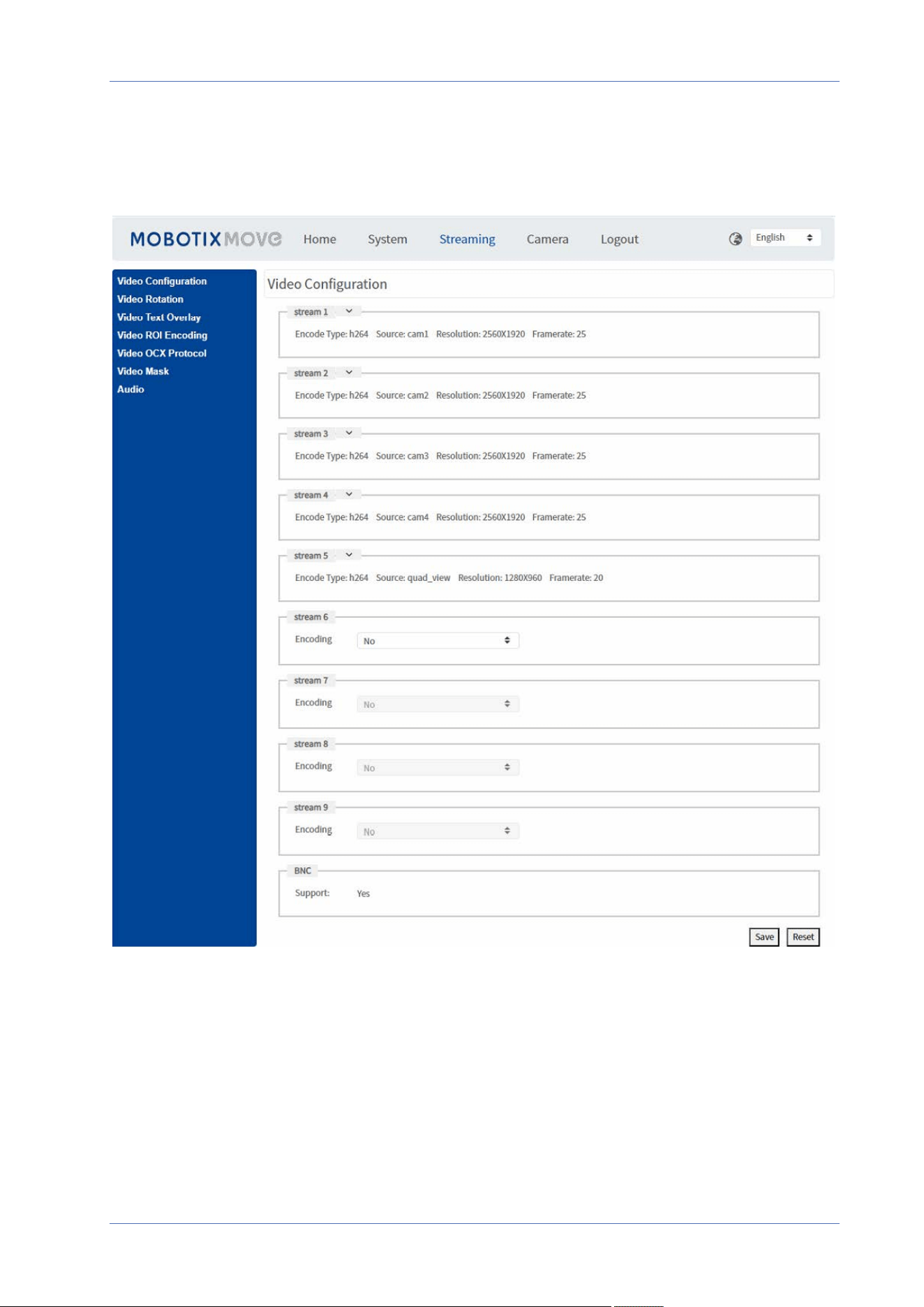
To edit the video configuration settings, select Streaming> Video Configuration.
Default Resolution
The following table lists the default resolution of the camera.
32 / 120

IP Camera Model Default Resolution
20MPMultisensor IRVideo Analytics
Camera
Mx-VM1A-20-IR-VA
Linear Mode
(60/50 fps)
H.265/H.264: 2560 × 1920 (30/25fps) +
H.265/H.264: 2560 × 1920 (30/25fps) +
H.265/H.264: 2560 × 1920 (30/25fps) +
H.265/H.264: 2560 × 1920 (30/25fps) +
H.265/H.264: 1600 × 1200 (30/25fps)
WDR Mode
(WDR 2 Shutter)
H.265/H.264: 2560 × 1920 (30/25fps) +
H.265/H.264: 2560 × 1920 (30/25fps) +
H.265/H.264: 2560 × 1920 (30/25fps) +
H.265/H.264: 2560 × 1920 (30/25fps) +
H.265/H.264: 1600 × 1200 (30/25fps)
Exporting/Importing Configuration Files
To export and import configuration files, you can access the Maintenance page on the user-friendly
browser-based configuration interface.
To edit the Maintenance settings, select System> Maintenance.
You can export configuration files to a specified location and retrieve data by uploading an existing
configuration file to the camera. This is especially convenient to make multiple cameras having the
same configuration.
Export
You can save the system settings by exporting the configuration file (.bin) to a specified location for
future use.
n
Click on the Export button, and the popup File Download window will come out.
n
Click on Save and specify a desired location for saving the configuration file.
Upload
To upload a configuration file to the camera, click on Browse to select the configuration file, and
then click on the Upload button for uploading.
Configuration
Exporting/Importing Configuration Files
33 / 120


35 / 120
Menu Reference
This section contains the following information:
The Camera Menu 37
The “Home” Tab 38
Function Items on Home Page 39
The “System” Tab 42
System 42
Security 44
Network 51
DDNS 58
Mail 59
FTP 59
HTTP 59
Events (Alarm Settings) 60
Storage Management 73
Recording 77
Schedule 78
File Location (Snapshots and Web Recording) 79
6

Menu Reference
View Information 79
Factory Default 80
Software Version 81
Software Upgrade 81
Maintenance 82
The “Streaming” Tab 83
Video Configuration 84
Video Rotation 87
Video Text Overlay 88
Video ROI Encoding 89
Video OCX Protocol 90
Video Mask 90
Audio (Audio Mode and Bit Rate Settings) 91
The “Camera” Tab 93
Camera Selector 93
Exposure 93
White Balance 95
Picture Adjustment 98
Color Style 99
IR Function 99
Illumination 101
Noise Reduction 101
HDR Type 102
Gamma HDR 102
Digital Zoom 103
Profile 103
TV System 104
The “Logout” Tab 105
Appendix A: Installing UPnP Components 106
Appendix B: Converting IP Addresses from Decimal to Binary 106
AppendixC: List of Open/Closed IP Ports 108
TCP Protocol 108
UDP Protocol 108
36 / 120

The Camera Menu
The camera’s Home Page shows these main tabs at the top:
The “Home” Tab, p. 38
You can monitor the live video of the targeted area.
The “System” Tab, p. 42
The administrator can set host name, system time, root password, network related settings, etc.
The “Streaming” Tab, p. 83
The administrator can configure video format, video compression, video OCX protocol, video frame
rate and audio compression in this page.
The “Camera” Tab, p. 93
This tab contains the camera-related settings and is only available for the administrator and user
accounts with camera control privileges.
The “Logout” Tab, p. 105
Click on the tab to log out of the camera system. Click on Login to log in again with a different user-
name and password, for example.
Menu Reference
The Camera Menu
37 / 120
Menu Reference
The “Home” Tab
The “Home” Tab
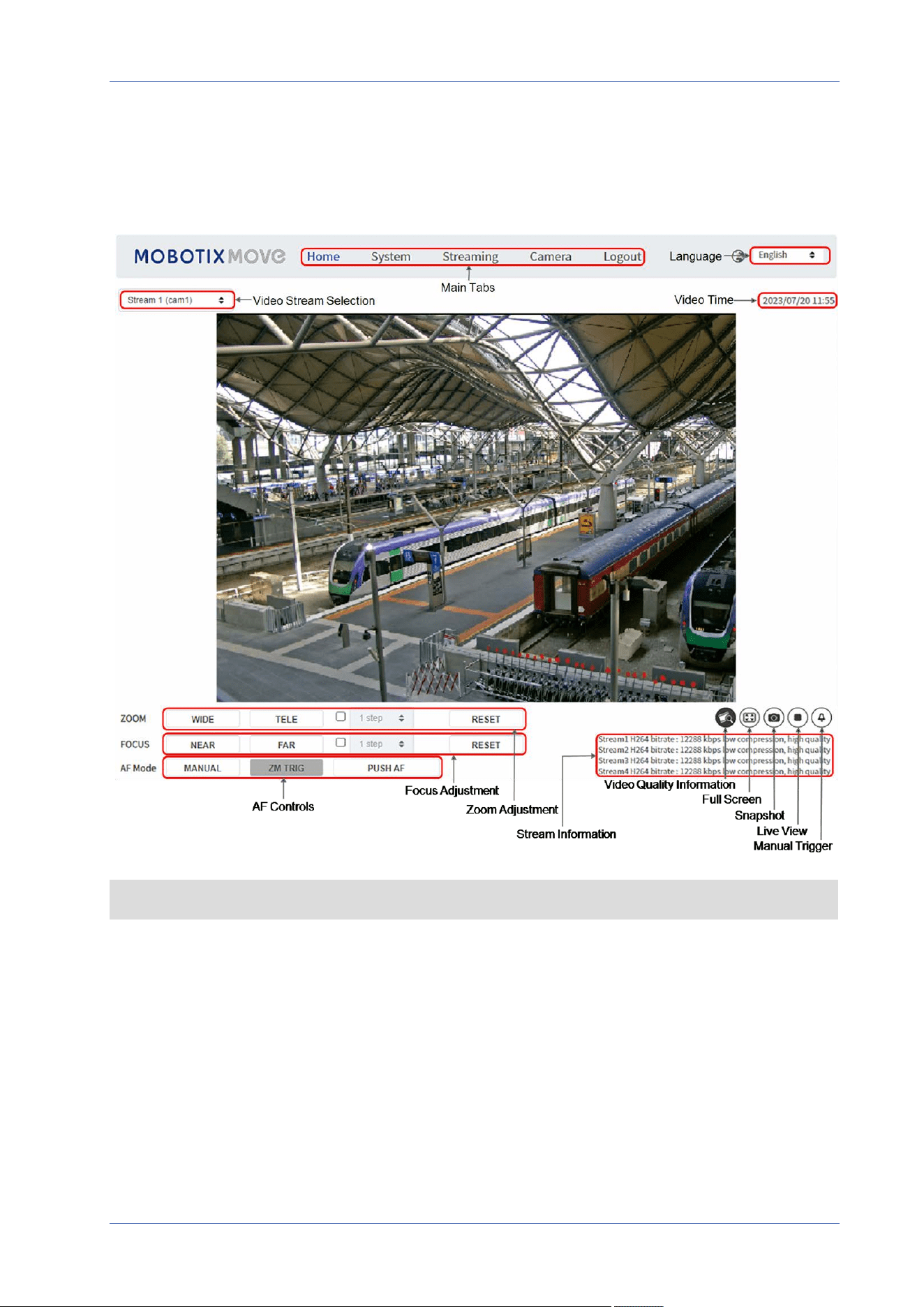
Click on the tab Home to access the Home Page. There are several function buttons on this page.
Detailed information of each item is as described in the following section.
NOTE! The function buttons on the Home page will vary for different camera models.
38 / 120

Function Items on Home Page
Multiple Languages Support
The 20MPMultisensor IRVideo Analytics Camera supports different languages for the browser inter-
face, including German, English, Spanish, French, Italian, Japanese, Portuguese, Russian, Simplified
Chinese, and Traditional Chinese.
Display Stream Selection
According to the streaming setting, you can choose the one stream to display from the drop-down
menu.
For cameras with more than one image sensor (camera head), the different streaming options will
display the video streams from the corresponding image sensors.
Digital Zoom Control
In full screen mode you can use the digital PTZ by rotating the mouse wheel (for zooming in/out).
Once you have zoomed in, you can drag the mouse in any direction to move the zoomed image.
Camera Info
Double-click on the live view pane, and the camera info window will pop up. You can instant-
aneously check the basic information of the camera, such as IP address, network status, video
format, etc.
Video Quality
Click to show/hide the video quality information including bitrate and compression.
Full Screen
Use this button to switch the image display to full screen. Alternatively, right click on the Live Video
pane and select Fullscreen.
To exit full screen mode:
n
Tap Esc on the keyboard.
n
Double-click on the Live Video pane.
Menu Reference
The “Home” Tab
39 / 120
Menu Reference
The “Home” Tab
n
Right-click on the Live Video pane and select Normal view.
Talk (On/Off)
Talk function allows the local site talks to the remote site. Click on the button to switch it to On/Off.
Users must select the suitable transmission mode under this path: Streaming> Audio to enable this
function.
Listen (On/Off)
Click on Listen to mute/activate the audio. Users must select the suitable transmission mode under
Streaming> Audio to enable this function.
NOTE! Both Talk and Listen functions are only available for user accounts that have been granted
this privilege by the administrator. Please see the Talk/Listen section in System> Security> User,
p. 44 for further details.
Snapshot
Click on the button and the JPEG snapshots will automatically be saved in the appointed place. The
default place of saving snapshots is: C:\. To change the storage location, please see File Location
(Snapshots and Web Recording), p. 79 for further details.
Live View (Pause/Restart)
Click on Pause to disable video streaming, the live video will be displayed as black. Click on Restart
to show the live video again.
Record (On/Off)
Click on Record and the Live View through the web browser will be directly recorded to the specific
location on the local hard drive, which could be configured in the File Location page. The default stor-
age location for the web recording is: C:\. Please see File Location (Snapshots and Web Recording), p.
79 for further details.
Manual Trigger (On/Off)
Click on Manual Trigger to activate/deactivate the manual trigger. Please see Manual Trigger, p. 69
for further details.
40 / 120
Zoom Adjustment
n
Wide/Tele
Hold the WIDE/TELE button, and implement continuous zoom adjustment.
For zoom lens models, optical zoom in/out functions can also be implemented by moving the
cursor to the live video pane and scrolling the mouse wheel in Normal View display mode.
n
Wide/Tele Steps
Select a Wide/Tele step value from the drop-down menu to shift the zoom lens according to
the define value.
n
Reset
Click on Reset, and the zoom lens will be calibrated to the maximum wide end.
Manual Focus Adjustment
n
Near/Far
Hold the Near/Far button, and implement continuous focus adjustment.
n
Near/Far Steps
Select a Tele/Wide step value from the drop-down menu to shift the focus lens according to
the defined value.
n
Reset
Click on Reset, and the focus lens will first be reset to the maximum near end. Then the lens
will be calibrated to a suitable position according to the monitoring environment.
Auto Focus (AF) Adjustment
n
Manual
Click on Manual, and you can adjust the focus manually via the Near / Far buttons.
n
Zm Trig (Zoom Trigger AF)
In this mode, AF is activated every time when zoom is adjusted.
n
Push AF
The One Push AF function is for fixing the focus with one click.
Menu Reference
The “Home” Tab
41 / 120
Menu Reference
The “System” Tab
The “System” Tab
NOTE! Only administrators can access the System configuration page.
System
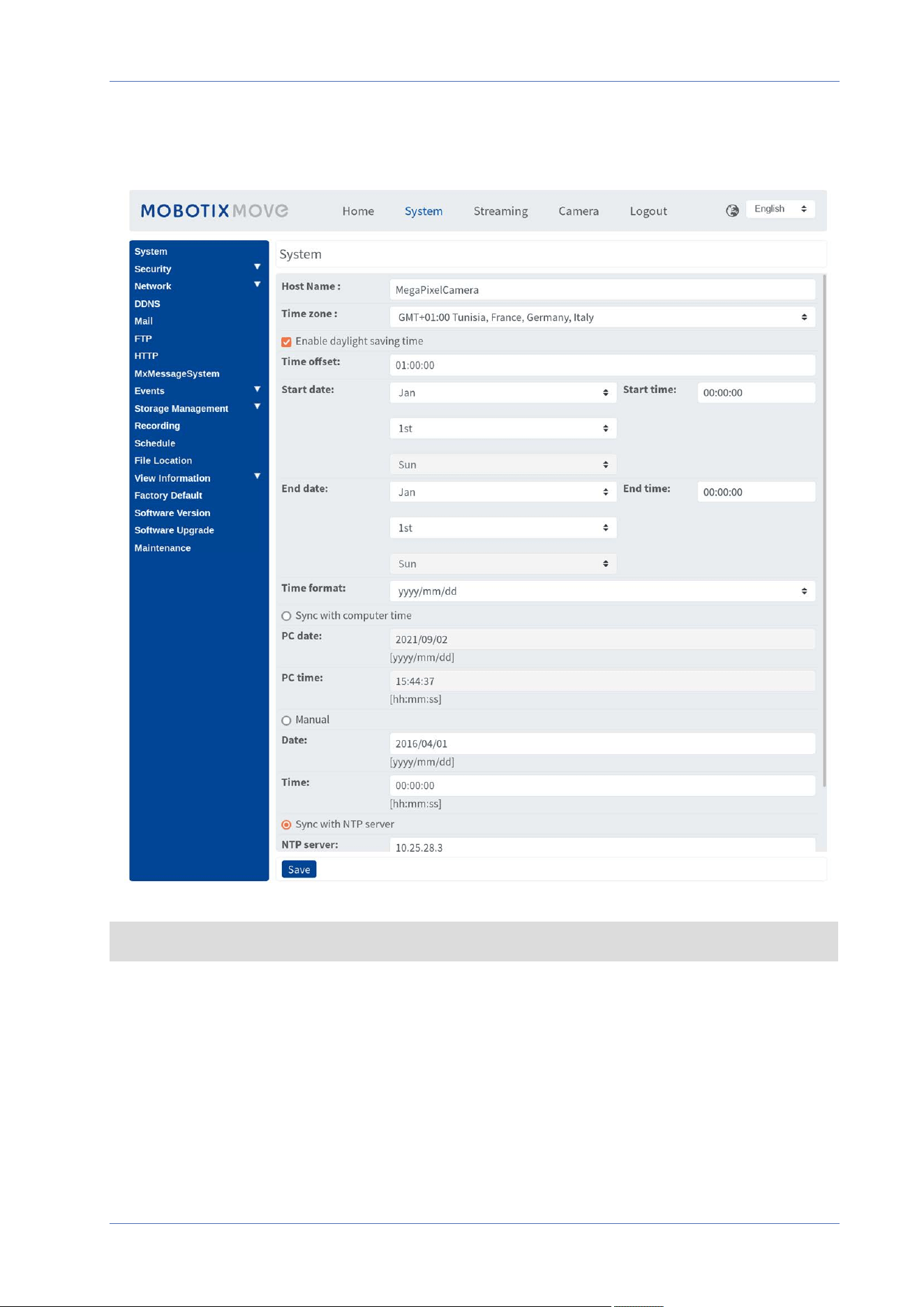
To edit the system settings, select System> System.
42 / 120

Host Name
The name is for camera identification. If alarm actions (see Triggered Actions (Common to All Event
Types), p. 60) are enabled and is set to send alarm messages by Mail/FTP, the host name entered
here will be displayed in the alarm message.
Time Zone
Select the time zone from the drop-down menu according to the location of the camera.
Enable Daylight Saving Time
To enable DST, please check the item and then specify the time offset and the DST duration. The
format for time offset is [hh:mm:ss]; for instance, if the amount of time offset is one hour, please
enter “01:00:00” into the field.
Time format
Choose a time format (yyyy/mm/dd or dd/mm/yyyy) from the drop-down menu. The format of the
date and time displayed above the live video window will be changed according to the selected
format.
Sync with Computer Time
Select the item, and video date and time display will synchronize with the PC’s.
NOTE! Users MUST click on Save to confirm the setting. Otherwise, the time will not be synced.
Manual
The administrator can set video date and time manually. Entry format should be identical with the
examples shown next to the enter fields.
Sync with NTP Server
Network Time Protocol (NTP) is an alternate way to synchronize the camera’s clock with a NTP
server. Please specify the server that is wished to synchronize in the entry field. Then select an
update interval from the drop-down menu. For further information about NTP, please open the web
site www.ntp.org.
NOTE! The synchronization will be done every time the camera boots up.
Menu Reference
The “System” Tab
43 / 120

Menu Reference
The “System” Tab
Click on Save to apply and store the settings.
Security
To edit the security settings, select System> Security.
Click on Security, there will be a drop-down menu with tabs including User, HTTPS, IP Filter, and
IEEE 802.1X.
User
To edit the user settings, select System> Security> User.
Admin Password
This item is for the administrator to reset password. Enter the new password in Admin password
and Confirm password. The input characters will be displayed as dots for security purposes. Click on
Save to confirm the changes. After the changes are confirmed, the web browser will ask the admin-
istrator to login again using the new password.
NOTE! The password can have between 6 and 14 characters (at least one digit, no special char-
acters allowed).
Add User
This item is for the administrator to add new users. Enter the new user’s name in User name and the
password in User password. Username can be up to 16 characters, and the password can have
between 6 and 14 characters (at least one digit, no special characters). Click on Add to add the new
user. The name of the new added user will be displayed in the User name drop-down menu under
Manage User. There is a maximum of twenty user accounts.
Activate the boxes below to give privileges for functions:
n
I/O access
This item supports fundamental functions that enable users to view the live video when access-
ing to the camera.
n
Camera control
This item allows the appointed user to change camera parameters on the Camera and Pan
Tilt setting page.
44 / 120

Manage User
n
Delete user
Pull down the User name drop-down menu and select the username that is wished to be
deleted. Click on Delete to remove the selected name.
n
Edit user
Pull down the User name drop-down menu and select the username. Click on Edit and a
popup window will appear. In the appeared window, enter the new user password and reset
the privileges. Click on Save to confirm the changes. Then click on Close to complete the edit-
ing.
HTTP Authentication Setting
This setting allows secured connections between the IP camera and web browser by enforcing
access controls to web resources. When users approach to the web browser, it’ll ask for username
and password, which protects the camera settings or live streaming information from snooping.
There are two security models available: Basic and Digest. Refer to the descriptions below for more
details.
n
Basic
This mode can only provide basic protection for the connection security. There will still be
risks for the password being intercepted.
n
Digest
Digest mode is a safer option for protection. The password is sent in an encrypted format to
prevent it from being stolen.
NOTE! Users MUST click on Save to apply the setting.
Streaming Authentication Setting
This setting provides security against unauthorized users from getting streaming via Real Time
Streaming Protocol (RTSP). If the setting is enabled, users will be requested to enter user name and
password before viewing the live streams. There are three security modes available: Disable, Basic
and Digest. Refer to the descriptions below for more details.
n
Disable
If disable mode is selected, there will be no security provided to against unauthorized access.
Users will not be asked to input user name and password for authentication.
n
Basic
This mode can only provide basic protection for the live streams. There will still be risks for
the password being intercepted.
Menu Reference
The “System” Tab
45 / 120

Menu Reference
The “System” Tab
n
Digest
Digest mode is a safer option for protection. The password is sent in an encrypted format to
prevent it from being stolen.
NOTE! Users MUST click on Save to apply the setting.
Enable Account Lockout Function
The Account Lockout Function is to lock out an account when someone tries to log on unsuccessfully
several times in a row. To protect user’s account, “Account Lockout Function’’ is activated when mul-
tiple login failures occur. Check the box Enable Account Lockout Function and enter the number of
threshold and duration.
n
Threshold
Threshold is a maximum number of login attempts, ranging from 5-20 times. The default value
is 5 (attempts).
n
Duration
Duration is the length of time that the account remains locked once the account lockout func-
tion is triggered, ranging from 1-60 minutes (default is 10 minutes).
Auto Log Off Setting
If Enable log off timer is enabled, the camera will log off the current user after the specified number
of minutes without interaction have passed (default is 5 minutes).
HTTPS
To edit the HTTPS settings, select System> Security> HTTPS.
HTTPS allows secure connections between the camera and the web browser using Secure Socket
Layer (SSL) or Transport Layer Security (TLS), which protects camera settings and user-
name/password inforomation from snooping. It is required to install a self-signed or generated cer-
tificate or a CA-signed certificate for implementing HTTPS.
To use HTTPS on the camera, an HTTPS certificate must be installed. The HTTPS certificate can be
obtained by either creating and sending a certificate request to a Certificate Authority (CA), by
uploading a certificate, or by creating a self-signed HTTPS certificate.
NOTE! On MOBOTIX MOVE cameras, a certificate has already been installed. If you are not required
to use a specific certificate (provided by your network administrator), you can use the pre-installed
certificate.
46 / 120

Enable HTTPS
n
HTTP & HTTPS
Under this mode, HTTP & HTTPS secure connections are enabled.
n
HTTPS only
Under this mode, the secure connection is ensured by HTTPS only.
Click on Save to apply and store the settings.
Install new certificate
Pull down the Install new certificate drop-down list and select the certificate type. Choose one
from the following types.
n
Generate Self-signed Certificate
Before a CA-issued certificate is obtained, you can create and install a self-signed certificate
first.
Beneath Generate Self-signed Certificate, click on Create and provide the requested inform-
ation as outlined under Provide the Certificate Information, p. 48.
NOTE! The self-signed certificate does not provide the same high level of security as when
using a CA-issued certificate.
n
Generate Certificate Request
Click on Generate Certificate Request to create a certificate request for obtaining a signed
certificate from CA. Provide the requested information as outlined under Provide the Cer-
tificate Information, p. 48.
When the request is complete, the subject of the created request will be shown in the field.
Click on Properties below the Subject field, copy the PEM-formatted request and send it to
the selected CA.
When the signed certificate is returned, install it by uploading the signed certificate (see
Upload Private Key/Certificate, p. 47).
Upload Private Key/Certificate
n
Do one of the following:
n
If you have a private key file, click on Browse beneath Private key and select the
private key file.
n
If you have a certificate file, click on Browse beneath Certificate and select the cer-
tificate file.
n
Click on Upload and wait until the installation is finished.
Click on Save to apply and store the settings.
Menu Reference
The “System” Tab
47 / 120

Menu Reference
The “System” Tab
Provide the Certificate Information
To create a Self-signed HTTPS Certificate or a Certificate Request to CA, please enter the information
as requested.
Information Item Create Self Signed Certificate Create Certificate Request
Country ✓ ✓
State or Province ✓ ✓
Locality ✓ ✓
Organization ✓ ✓
Organizational Unit ✓ ✓
Common Name ✓ ✓
Valid Days ✓ -
n
Country
enter a two-letter combination code to indicate the country the certificate will be used in. For
instance, type in “US” to indicate United States.
n
State or Province
Enter the local administrative region.
n
Locality
Enter other geographical information.
n
Organization
Enter the name of the organization to which the entity identified in “Common Name” belongs.
n
Organization Unit
Enter the name of the organizational unit to which the entity identified in “Common Name”
belongs.
n
Common Name
Indicate the name of the person or other entity that the certificate identifies (often used to
identify the website).
n
Valid Days
Enter the period in days (1 to 9999) to indicate the valid period of certificate.
Click on OK to save the Certificate Information after completing the setting.
IP Filter
To edit the IP filter settings, select System> Security> IP Filter.
With IP Filter, you can allow or deny specific IP addresses from accessing the camera.
48 / 120

Enable IP Filter
Check the box to enable the IP Filter function. Once enabled, the listed IP addresses (IPv4) in the
Filtered IP Addresses list box will be allowed/denied to access the camera.
Select Allow or Deny from the drop-down menu and click on Apply to determine the IP filter beha-
vior.
Add IP Address
Input IP address at the blank space below the Filtered IP Address list and click Add. The newly-
added address will be shown in the list. Up to 256 IP address entries can be specified.
In addition, to filter a group of IP addresses, enter an address at the blank space followed with a
slash and a number ranging from 1 to 31, e.g. 192.168.2.81/30. The number after the slash can
define how many IP addresses will be filtered. For details, please refer to Example: Filtering a Group
of Consecutive IP Addresses, p. 49 below.
Delete IP Address
To remove an IP address from the Filtered IP Address list, select the address and click on Delete.
Example: Filtering a Group of Consecutive IP Addresses
1. Convert 192.168.2.81/30 to binary numbers (see Appendix B: Converting IP Addresses from
Decimal to Binary, p. 106). The binary numbers are 11000000.10101000.00000010.01010001. The
number “30” after the slash is referring to the first 30 digits of the binary numbers.
2. Convert a few IP addresses before and after 192.168.2.81 to binary numbers. Then compare
their first 30 digits with the binary numbers of 192.168.2.81.
1. Convert 192.168.2.80 to binary numbers. The binary numbers are
11000000.10101000.00000010.01010000. The first 30 digits are the same with the binary
numbers of 192.168.2.81, thus 192.168.2.80 will be filtered.
2. Convert 192.168.2.79 to binary numbers. The binary numbers are
11000000.10101000.00000010.01001111. The first 30 digits are different with the binary num-
bers of 192.168.2.81, thus 192.168.2.79 will not be filtered. This also means the IP addresses
before 192.168.2.79 will not be filtered. Therefore, you can stop converting the IP addresses
before 192.168.2.79 to binary numbers.
3. Repeat the same procedure in “a” with the IP addresses after 192.168.2.81. Stop when the
situation occurs in “b” happened. Namely, the 30th digit of the binary numbers of IP
address 192.168.2.84 is different, and will not be filtered.
As a result, the IP addresses 192.168.2.80 to 192.168.2.83 will be filtered when entering
192.168.2.81/30. The following table clearly shows the 30
th
digit of the binary numbers of IP
Menu Reference
The “System” Tab
49 / 120

Menu Reference
The “System” Tab
addresses 192.168.79 and 192.168.84 are different from the others. Therefore, these two IP addresses
will not be filtered.
IP Addresses Binary Numbers
192.168.2.79 11000000.10101000.00000010.01001111
192.168.2.80 11000000.10101000.00000010.01010000
192.168.2.81 11000000.10101000.00000010.01010001
192.168.2.82 11000000.10101000.00000010.01010010
192.168.2.83 11000000.10101000.00000010.01010011
192.168.2.84 11000000.10101000.00000010.01010100
IEEE 802.1X
To edit the IEEE 802.1x settings, select System> Security> IEEE 802.1X.
The camera is allowed to access a network protected by 802.1X/EAPOL (Extensible Authentication
Protocol over LAN).
Choose On to enable the IEEE 802.1X function.
Select one among the four protocol types: EAP-MD5, EAP-TLS, EAP-TTLS and EAP-PEAP.
Users need to contact with the network administrator for gaining certificates, user IDs and pass-
words.
CA Certificate
The CA certificate is created by the Certification Authority for the purpose of validating itself. Upload
the certificate for checking the server’s identity.
Client Certificate/Private Key
Upload the Client Certificate and Private Key for authenticating the camera itself.
Settings
n
Identity
Enter the user identity associated with the certificate. Up to 16 characters can be used.
n
Private Key Password
Enter the password (maximum 16 characters) for user identity.
Enable IEEE 802.1X
Check the box to enable IEEE 802.1X.
Click on Save to apply and store the settings.
50 / 120

Network
To edit the network settings, select System> Network.
Click on Network, there will be a drop-down menu with tabs including Basic, QoS, SNMP, and
UPnP.
Basic
To edit the basic settings, select System> Network> Basic.
This setting page is for setting a new IP address for the camera, configuring other network-related
parameters and activating IPv6 address (if the network supports it).
General
This setting menu is for configuring a new IP address for the camera. To setup an IP address, please
find out the network type first. Contact the network provider for it. Then refer to the network type
and follow the instructions to setup the IP address.
NOTE! If the network type is Point-to-Point Protocol over Ethernet (PPPoE), please obtain the
PPPoE username and password from the network provider.
n
Get IP address automatically (DHCP)
Select the item and click Save to confirm the new setting. A note for camera system reboot
will appear. Click OK and the camera system will restart. The camera will be assigned with a
new IP address. Close the web browser and search the camera through the installer program:
DeviceSearch.exe. Refer to the steps below to connect the camera through “DeviceSearch”
software.
NOTE! Before searching the camera through DeviceSearch.exe, please record the camera’s
MAC address, which can be found on the label or on the package container of the camera,
for later use and identification in the future.
n
Double-click on the program DeviceSearch.exe.
n
After its window appears, click on Device Search on the top. All the finding IP devices will be
listed in the page.
n
Find the camera by its MAC address.
n
Then double-click or right click and select Browse to access the camera directly by the web
browser.
n
A prompt window requesting for the username and the password will appear. Enter the user-
name and the password to login to the camera.
Menu Reference
The “System” Tab
51 / 120

Menu Reference
The “System” Tab
n
Use fixed IP address
Select the item and insert the new IP address, e.g. 192.168.7.123. Note that the inserted IP
address should be in the same LAN as the PC’s IP address. Then go to the Default gateway
(explained later) blank and change the setting, e.g. 192.168.7.254. Click on Save to confirm the
new setting. A note for system restart will appear, click OK and the camera system will restart.
Wait for 15 seconds. The camera’s IP address in the URL bar will be changed, and users have
to login again.
When using a static IP address to connect the camera, you can access the camera by inputting
the IP address in the URL bar and hit Enter on the keyboard. Alternatively, you can access the
camera by the installer program: DeviceSearch.exe. Refer to the steps below to connect the
camera through “DeviceSearch” software with a static IP address.
n
Double-click on the program DeviceSearch.exe.
n
After its window appears, click on Device Search on the top. All the finding IP devices will be
listed in the page.
n
Find the camera by its IP address.
n
Then double-click or right click and select Browse to access the camera directly by the web
browser.
n
A prompt window requesting for the username and the password will appear. Enter the user-
name and the password to login to the camera.
n
IP address
This is necessary for network identification.
n
Subnet mask
It is used to determine if the destination is in the same subnet. The default value is
“255.255.255.0”.
n
Default gateway
This is the gateway used to forward frames to destinations in different subnet. Invalid
gateway setting will fail the transmission to destinations in different subnet.
n
Primary DNS
Primary DNS is the primary domain name server that translates hostnames into IP
addresses.
n
Secondary DNS
Secondary DNS is a secondary domain name server that backs up the primary DNS.
n
Use PPPoE
For the PPPoE users, enter the PPPoE username and password into the enter fields.
Click on Save to apply and store the settings.
52 / 120

Advanced
The following introduces the camera’s Web Server port, RTSP port, MJPEG over HTTP port, and
HTTPS port.
n
Web Server port
The default web server port is 80. With the default web server port ‘80’, you can simply input
the IP address of the camera in the URL bar of a web browser to connect the camera. When
the web server port is changed to any number other than 80, users have to enter the cam-
era’s IP address followed by a colon and the port number. For instance, a camera whose IP
address is set as 192.168.0.100 and web server port as 8080 can be connected by entering
“http://192.168.0.100:8080” in the URL bar.
n
RTSP port
The default setting of RTSP Port is 554; the RTSP Port should be set as 554 or from the range
1024 to 65535.
n
MJPEG over HTTP port
This setting always uses port 80. To access the MJPEG stream over HTTP, open
http://<ip address>/live/stream<#>, where <#> is the number of the stream you
want to show.
n
HTTPS port
The default setting of HTTPS Port is 443; the HTTPS Port should be set as 443 or from the
range 1024 to 65535.
NOTE! Please make sure the port numbers set above are not the same with each other; oth-
erwise, network conflict may occur.
n
RTSP URL
When users use RTSP players to view the live streaming, the camera provides the flexibility to
configure the streaming access name for stream 1 to stream 4. The streaming format is
rtsp://ip address:rtsp port/access name. Take a camera whose IP address is set as
192.168.0.100 for example, if users enter “liveview.1” in the blank of stream 1 access name,
the streaming address of stream 1 will be rtsp://192.168.0.100:554/liveview.1.
NOTE! The maximum length of the access name is 32 characters, and the valid characters
are A-Z, a-z, 0-9 and !#$%&’-.@^_~.
NOTE! For a list of default ports, please refer to AppendixC: List of Open/Closed IP Ports, p. 108.
Click on Save to apply and store the settings.
Menu Reference
The “System” Tab
53 / 120

Menu Reference
The “System” Tab
IPv6 Address Configuration
If the network supports IPv6, you can check the box beside Enable IPv6 and click Save. An IPv6
address will appear beside Address, and you can use it to connect to the camera.
Click on Save to apply and store the settings.
QoS
To edit the QoS (Quality of Service) settings, select System> Network> QoS.
QoS allows providing differentiated service levels for different types of traffic packets, which guar-
antees delivery of priority services especially when network congestion occurs. Adapting the Dif-
ferentiated Services (DiffServ) model, traffic flows are classified and marked with DSCP (DiffServ
CodePoint) values, and thus receive the corresponding forwarding treatment from DiffServ capable
routers.
DSCP Settings
The DSCP value range is from 0 to 63. The default DSCP value is 0 (DSCP disabled). The camera uses
the following QoS Classes:
n
Management DSCP
NOTE! The class consists of HTTP traffic: Web browsing.
n
Stream 1~4 DSCP
NOTE! You can set the Video DSCP of each stream.
n
Video DSCP
The class consists of applications such as MJPEG over HTTP, RTP/RTSP and RTSP/HTTP.
NOTE! To enable this function, please make sure the switches/routers in the network support QoS.
Click on Save to apply and store the settings.
VLAN
To edit the VLAN settings, select System> Network> VLAN.
Check the box Enable VLAN to activate the VLAN function. Enter the VLAN ID. The allowed range of
VLAN ID is from 1 to 4095. The default value is 20.
54 / 120

CoS
CoS stands for Class of Service. The higher the value of CoS is, the better transmission performance
will be. The value also determines the transmission priority among the following three classes:
n
Live Video
The value range is from 0 to 7.
n
Live Audio
The value range is from 0 to 7.
n
Management
The value range is from 0 to 7.
SNMP
To edit the SNMP (Simple Network Management Protocol) settings, select System> Network>
SNMP.
With Simple Network Management Protocol (SNMP) support, the camera can be monitored and
managed remotely by the network management system.
SNMP v1/v2
n
Enable SNMP v1/v2
Select the version of SNMP to use by checking the box.
n
Read Community
Specify the community name that has read-only access to all supported SNMP objects. The
default value is “public”.
n
Write Community
Specify the community name that has read/write access to all supported SNMP objects
(except read-only objects). The default value is “private”.
SNMP v3
SNMP v3 supports an enhanced security system that provides protection against unauthorized
users and ensures the privacy of the messages. Users will be requested to enter security name,
authentication password and encryption password while setting the camera connections in the net-
work management system. With SNMP v3, the messages sent between the cameras and the net-
work management system will be encrypted to ensure privacy.
n
Enable SNMP v3
Enable SNMP v3 by checking the box.
Menu Reference
The “System” Tab
55 / 120

Menu Reference
The “System” Tab
n
Security Name
The maximum length of the security name is 32 characters.
NOTE! The valid characters are A-Z, a-z, 0-9 and !#$%&’-.@^_~.
n
Authentication Type
There are two authentication types available: MD5 and SHA. Select SHA for a higher security
level.
n
Authentication Password
The authentication password must be 8 characters or more. The input characters will be dis-
played as dots for security purposes.
NOTE! The valid characters are A-Z, a-z, 0-9 and !#$%&’-.@^_~.
n
Encryption Type
There are two encryption types available: DES and AES. Select AES for a higher security level.
n
Encryption Password
The minimum length of the encryption password is 8 characters and the maximum length is
512 characters. The input characters will be displayed as dots for security purposes. The
encryption password can also be left blank. However, the messages will not be encrypted to
protect privacy.
NOTE! The valid characters are A-Z, a-z, 0-9 and !#$%&’-.@^_~.
Traps for SNMP v1/v2/v3
Traps are used by the camera to send messages to a management system for important events or
status changes.
n
Enable Traps
Check the box to activate trap reporting.
n
Trap address
Enter the IP address of the management server.
n
Trap community
Enter the community to use when sending a trap message to the management system.
Trap Option
n
Warm Start
A Warm Start SNMP trap signifies that the SNMP device, i.e. IP camera, performs software
reload.
56 / 120

Click on Save to apply and store the settings.
UPnP
To edit the UPnP settings, select System> Network> UPnP.
UPnP Setting
n
Enable UPnP
When the UPnP is enabled, whenever the camera is presented to the LAN, the icon of the con-
nected cameras will appear in My Network Places to allow for direct access.
NOTE! To enable this function, please make sure the UPnP component is installed on the
computer. Please see Appendix A: Installing UPnP Components, p. 106 for the installation
procedure.
n
Enable UPnP port forwarding
When the UPnP port forwarding is enabled, the camera is allowed to open the web server
port on the router automatically.
NOTE! To enable this function, please make sure that the router supports UPnP and it is
activated.
n
Friendly name
Set a name for the camera for identity.
Click on Save to apply and store the settings.
OpenVPN
This camera uses OpenVPN to implement a virtual private network (VPN). A VPN establishes secure
point-to-point or site-to-site connections between networks and computers (e.g. for remote work-
ers). Your VPN gateway administrator will provide the values for the settings below.
n
OpenVPN
Select Enabled to activate VPN.
n
Server address
Enter the IP address or DNS name of the VPN gateway you want to use.
n
Server port
Enter the server port of the specified VPN gateway.
n
Communication protocol
Select the type of protocol for the specified VPN gateway.
Menu Reference
The “System” Tab
57 / 120

Menu Reference
The “System” Tab
n
Cipher
Select the cipher that is being used to encode the network data.
n
CA certificate
Click on Browse to upload a new certification authority (CA) certificate file (ask your VPN
administrator for details).
n
Client certificate
Click on Browse to upload a new client certificate file (ask your VPN administrator for details).
n
Private key
Click on Browse to upload a new private key file (ask your VPN administrator for details).
Click on Save to apply and store the settings.
Bonjour
Bonjour (also known as Zero-configuration networking or zeroconf) is a method for establishing auto-
matic peer-to-peer networks (i.e. without dedicated network services, such as DHCP or DNS servers).
Activate Enable Bonjour to use this feature.
Click on Save to apply and store the settings.
DDNS
To edit the DDNS settings, select System> DDNS.
Dynamic Domain Name System (DDNS) allows a host name to be constantly synchronized with a
dynamic IP address. In other words, it allows those using a dynamic IP address to be associated to a
static domain name so others can connect to it by name.
n
Enable DDNS
Check the item to enable DDNS.
n
Provider
Select one DDNS host from the provider list.
n
Host name
Enter the registered domain name in the field.
n
Username/E-Mail
Enter the username or E-mail required by the DDNS provider for authentication.
n
Password/Key
Enter the password or key required by the DDNS provider for authentication.
58 / 120

Mail
To edit the mail settings, select System> Mail.
The administrator can send an E-mail via Simple Mail Transfer Protocol (SMTP) when an alarm is
triggered. SMTP is a protocol for sending E-mail messages between servers. SMTP is a relatively
simple, text-based protocol, where one or more recipients of a message are specified and the mes-
sage text is transferred.
Two sets of SMTP can be configured. Each set includes SMTP Server, Account Name, Password and
E-mail Address settings. For SMTP server, contact the network service provider for more specific
information.
Click on Save when finished. Then, please click on Test to check the connection between the cam-
era and the specified SMTP server.
FTP
To edit the FTP settings, select System> FTP.
The administrator can set the camera to send the alarm messages to a specific File Transfer Pro-
tocol (FTP) site when an alarm is triggered. You can assign alarm message to up to two FTP sites.
Enter the FTP details, which include server, server port, username, password and remote folder, in
the fields.
Click on Save when finished. Then, please click on Test to check the connection between the cam-
era and the specified FTP server.
HTTP
To edit the HTTP settings, select System> HTTP.
An HTTP Notification server can listen for the notification messages from the cameras by triggered
events. Enter the HTTP details, which include server name (for instance, http://192.168.0.100/ad-
min.php), username, and password in the fields. Alarm triggered and Motion Detection noti-
fications can be sent to the specified HTTP server.
Click on Save to apply and store the settings.
NOTE! Please see Events> Application>Send HTTP Notification, p. 63 for the HTTP notification
settings.
Menu Reference
The “System” Tab
59 / 120

Menu Reference
The “System” Tab
Events (Alarm Settings)
To edit the events settings, select System> Events. You will see these sections:
n
Application
n
Motion Detection
n
Network Failure Detection
n
Tampering
n
MxMessageSystem Event
n
Periodical Event
n
Manual Trigger
n
Audio Detection
n
Video Analytics
Triggered Actions (Common to All Event Types)
The following alarm actions can be triggered by the camera when it detects the corresponding event.
NOTE! Depending on the camera’s features and specific settings, some actions may not be avail-
able (e.g. FTP is only available if an FTP site has been specified).
n
Enable Alarm Output (high/low)
Select these items to enable alarm relay outputs.
n
IR Cut Filter
Select the item and the IR cut filter (ICR) of the camera will be removed (on) or blocked (off)
when alarm input is triggered. This function is only available for models with IR cut filter.
NOTE! The IR Function, p. 99 could not be set as Auto mode if this triggered action is
enabled.
n
Send Alarm Message by FTP/E-Mail
The administrator can select whether to send an alarm message by FTP and/or E-mail when
audio is detected.
60 / 120

n
Upload Image by FTP
Select this item and the administrator can assign an FTP site and configure various para-
meters. When audio is detected, event images will be uploaded to the appointed FTP site.
Note that to implement this function, one of the streaming MUST be set as MJPEG; otherwise,
this function will be grayed out and cannot be accessed.
The Pre-trigger buffer function allows users to check what happened to cause the trigger.
The Pre-trigger buffer frame rate could be pre-determined. On the other hand, Post-trigger
buffer is for users to upload certain amount of images after audio event occurs.
NOTE! The Pre-trigger buffer generally ranges from 1 to 20 frames. However, the range
will change accordingly if the frame rate of MJPEG on Streaming> Video Configuration is
6 or lower.
Check the box Continue image upload to upload the triggered images during certain time or
keep uploading until the trigger is off. Select Upload for __sec and enter the duration in the
blank. The images of the duration will be uploaded to FTP when the audio event occurs. The
setting range is from 1 to 99999 sec. Select Upload while the trigger is active to make the
images keep being uploaded to FTP during the trigger active until the event stops. Set the
Image frequency as the upload frame rate. The setting range is from 1 to 15 frames per
second.
NOTE! Make sure FTP configuration has been completed. Refer to section FTP for further
details.
Menu Reference
The “System” Tab
61 / 120

Menu Reference
The “System” Tab
n
Upload Image by E-Mail
Select this item and the administrator can assign an E-mail address and configure various para-
meters. When audio is detected, event images will be sent to the appointed E-mail address.
Note that to implement this function, one of the streaming MUST be set as MJPEG; otherwise,
this function will be grayed out and cannot be accessed.
The Pre-trigger buffer function allows users to check what happened to cause the trigger. The
Pre-trigger buffer frame rate could be pre-determined. On the other hand, Post-trigger buf-
fer is for users to upload certain amount of images after the audio event occurs.
NOTE! The Pre-trigger buffer generally ranges from 1 to 20 frames. However, the range will
change accordingly if the frame rate of MJPEG on Streaming> Video Configuration is 6 or
lower.
Check the box Continue image upload to upload the triggered images during certain time or
keep uploading until the trigger is off. Select Upload for __sec and enter the duration in the
blank. The images of the duration will be uploading by E-mail when the audio event occurs.
The setting range is from 1 to 99999 sec. Select Upload while the trigger is active to make
the images keep being uploaded to E-mail during the trigger active until the event stops. Set
the Image frequency as the upload frame rate. The setting range is from 1 to 15 frames per
second.
NOTE! Make sure SMTP configuration has been completed. Refer to section Mail for further
details.
n
Upload Image to SD Card
Select this item, and then the images will be uploaded to the SD card periodically. Note that to
implement this function, one of the streaming MUST be set as MJPEG; otherwise, this function
will be grayed out and cannot be accessed.
The Pre-trigger buffer function can define how many images to be uploaded before the
triggered moment. The Post-trigger buffer function can define how many images to be
uploaded after the triggered moment.
NOTE! The Pre-trigger buffer generally ranges from 1 to 20 frames. However, the range will
change accordingly if the frame rate of MJPEG on Streaming> Video Configuration is 6 or
lower.
NOTE! Before implementing Upload Image to SD Card, please make sure that the SD Card
is properly detected and installed. Refer to Storage Management> SD Card> Device
Information for further details.
62 / 120

n
Send HTTP Notification
Check this item, select the destination HTTP address, and specify the parameters for event
notifications by Audio Detection triggered. When an alarm is triggered, the notification can
be sent to the specified HTTP server.
For instance, if the custom parameter is set as “action=1&group=2”, and the HTTP server
name is “http://192.168.0.1/admin.php”, the notification will be sent to HTTP server as
“http://192.168.0.1/admin.php? action=1&group=2” when alarm is triggered.
n
Record Video Clip
Check this item and select a video recording storage type, SD Card or NAS (Network-
Attached Storage>. The Audio Detection recording will be stored in microSD/SD card or the
NAS when audio is detected.
The Pre-trigger buffer recording function allows users to check what happened to cause the
trigger. The pre-trigger buffer time range is from 1 to 3 sec. Select Upload for __ sec to set
the recording duration after audio is triggered. The setting range is from 1 to 99999 sec.
Select Upload while the trigger is active to record the triggered video until the trigger is off.
NOTE! Please make sure the local recording (with microSD/SD card) or the remote record-
ing (with NAS) is activated so that this function can be implemented. Refer to section
Recording for further details.
File Name
Enter a file name in the blank, e.g. image.jpg. The uploaded image’s file name format can be set in
this section. Please select the one that meets the requirements.
n
Add date/time suffix
File name: imageYYMMDD_HHNNSS_XX.jpg
Y: Year, M: Month, D: Day
H: Hour, N: Minute, S: Second
X: Sequence Number
n
Add sequence number suffix (no maximum value)
File name: imageXXXXXXX.jpg
X: Sequence Number
n
Add sequence number suffix up to # and then start over
File Name: imageXX.jpg
X: Sequence Number
NOTE! The file name suffix will end at the number being set. For example, if the setting is
up to “10”, the file name will start from 00, end at 10, and then start all over again.
Menu Reference
The “System” Tab
63 / 120

Menu Reference
The “System” Tab
n
Overwrite
The original image in the FTP site will be overwritten by the new uploaded file with a static file
name.
Click on Save to apply and store the settings.
Application
To edit the application settings, select System> Events> Application.
The camera supports one alarm input and one relay output for cooperation with alarm system to
catch event images. Refer to alarm pin definition below to connect alarm devices to the camera if
needed.
Alarm Switch
The default setting for the Alarm Switch function is Off. Enable the function by selecting On. You can
also activate the function according to the schedule previously set in the Schedule setting page.
Select By schedule and click Please select… to choose the desired schedule from the drop-down
menu.
Alarm Type
Select an alarm type, Normal close or Normal open, that corresponds with the alarm application.
Triggered Action
See the section Triggered Actions (Common to All Event Types), p. 60 for information about the vari-
ous actions that can be triggered.
Click on Save to apply and store the settings.
Motion Detection
To edit the motion detection settings, select System> Events> Motion Detection.
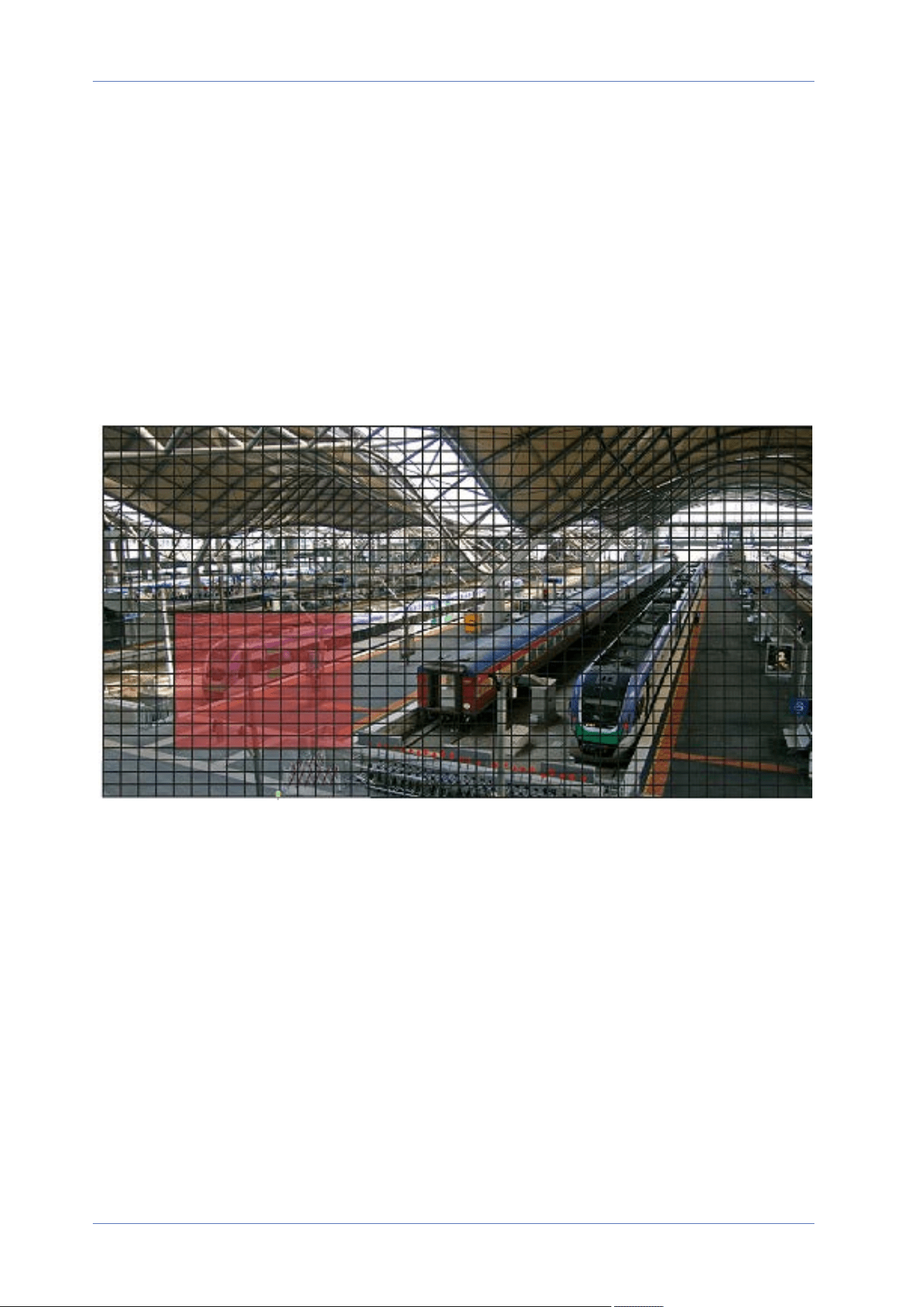
Motion Detection function allows the camera to detect suspicious motion and trigger alarms by com-
paring sampling pixels in the detection area of two consecutive live images. When motion volume in
the detection area reaches/exceeds the determined sensitivity threshold value, the alarm will be
triggered.
The function supports up to 4 sets of Motion Detection Settings. Settings can be chosen from the
Motion Detection drop-down menu.
Motion Detection
By default, motion detection is Off. Select Camera1, Camera2, Camera3, or Camera4 from the drop-
down menu to configure the video stream from the specified camera head, and select On to enable
64 / 120
this feature.
You can also activate the function according to the schedule previously set in the Schedule setting
page. Select By schedule and click Please select… to choose the desired schedule from the drop-
down menu.
Motion Region Paint
The camera divides the detection area into 1200 (40x30) detection grids; you can draw the motion
detection region using the paintbrush.
Check the box Enable brush and select the brush size, 1x1, 3x3 or 5x5. Then, left click and drag the
mouse cursor to draw the preferred detection region. To erase the drawn detection region, left click
and drag the mouse cursor on the colored grids.
Motion Detection Setting
Users could adjust various parameters of Motion Detection in this section.
Menu Reference
The “System” Tab
65 / 120
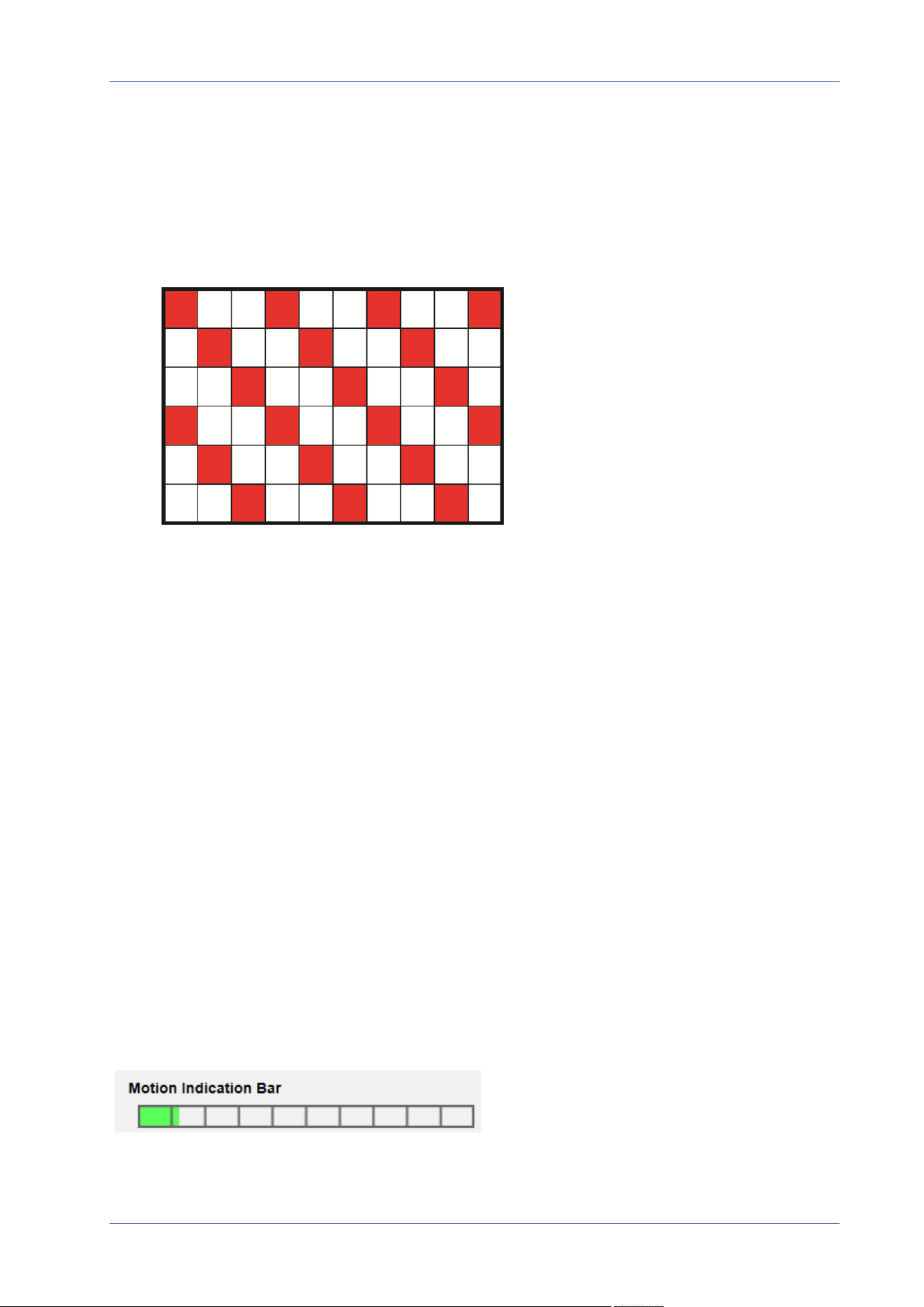
Menu Reference
The “System” Tab
n
Sampling pixel interval [1-10]:
This item is used to examine the differences between two frames. You can configure the inter-
val of sampling pixel. The default value is 1. For instance, if users set the interval as 3, IP cam-
era system will take one sampling pixel from every 3 pixels of each row and each column in
detection area (refer to the figure below). The alarm will be triggered when differences are
detected.
n
Detection level [1-100]:
You can configure detection level for each sampling pixel. Detection level is how much the cam-
era can accept the differences between two sampling pixels. The smaller the value is, the more
minor motions it detects. The default level is 10.
n
Sensitivity level [1-100]:
The default level is 80, which means if 20% or more sampling pixels are detected differently,
system will detect motion. The bigger the value, the more sensitive it is. Meanwhile, when the
value is bigger, the red horizontal line in the motion indication window will be lower accord-
ingly.
n
Time interval (sec) [0-7200]:
The value is the interval between each detected motion. The default interval is 10.
Motion Indication Bar
When Motion Detection function is activated and the motion is detected, the signals will be displayed
on the motion indication bar. The motion indication bar will go green or red when there is any
motion occurrence in the detection region.
Green suggests the occurring motion is detected and does not exceed the threshold of detection
level and sensitivity level. No alarms will be triggered.
66 / 120
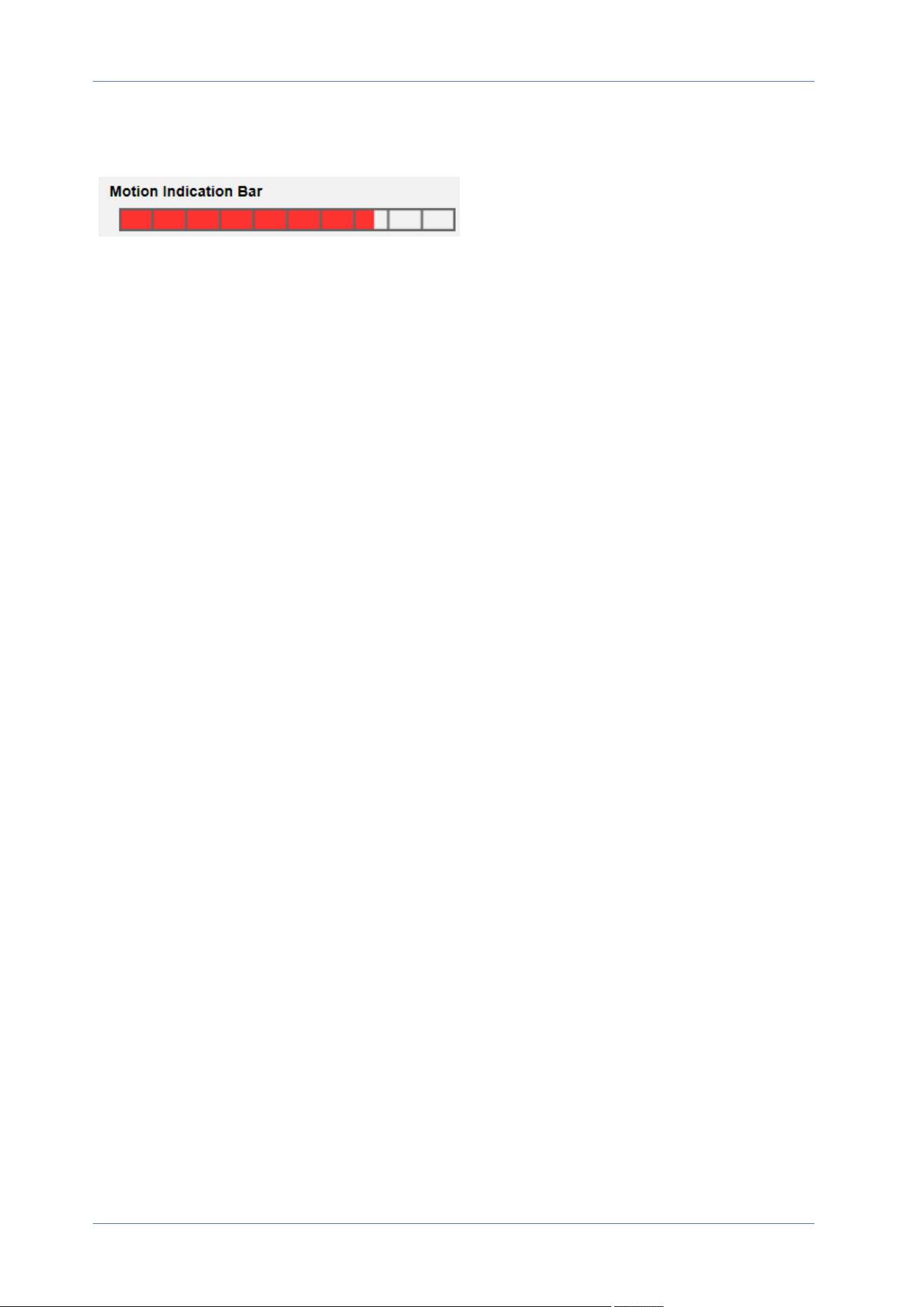
Red suggests the ongoing motion exceeds the threshold of detection level and sensitivity level. The
alarm will be triggered.
Triggered Action
See the section Triggered Actions (Common to All Event Types), p. 60 for information about the vari-
ous actions that can be triggered.
Click on Save to apply and store the settings.
Network Failure Detection
To edit the network failure detection settings, select System> Events> Network Failure Detec-
tion.
Network Failure Detection allows the camera to ping another IP device (e.g. NVR, VSS, Video Server,
etc.) within the network periodically and generates some actions in case of network failure occurs,
for instance, a Video Server is somehow disconnected.
Being capable of implementing local recording (through microSD/SD card) or remote recording (via
NAS) when network failure happens, the camera can be a backup recording device for the sur-
veillance system.
Detection Switch
The default setting for the Detection Switch function is Off. Enable the function by selecting On. You
can also activate the function according to the schedule time that is previously set in the Schedule
setting page. Select By schedule and click Please select… to choose the desired schedule from the
drop-down menu.
Detection Type
Input the IP device address and the period of ping time to ping. The camera will ping the IP device
every N minute(s). If it fails for up to three times, the alarm will be triggered. The ping time setting
range is from 1 to 99 min.
Triggered Action
See the section Triggered Actions (Common to All Event Types), p. 60 for information about the vari-
ous actions that can be triggered.
Click on Save to apply and store the settings.
Menu Reference
The “System” Tab
67 / 120

Menu Reference
The “System” Tab
Tampering
To edit the tampering settings, select System> Events> Tampering.
Tampering Alarm function helps the IP camera against tampering, such as deliberate redirection,
blocking, paint spray, and lens cover, etc., through video analysis and reaction to such events by
sending out notifications or uploading snapshots to the specified destination(s).
Detection of camera tampering is achieved by measuring the differences between the older frames of
video (which are stored in buffers) and more recent frames.
Tampering Alarm
The default setting for the Tampering Alarm function is Off. Enable the function by selecting On. You
can also activate the function according to the schedule previously set in the Schedule setting page.
Select By schedule and click Please select… to choose the desired schedule from the drop-down
menu.
Tampering Duration
Minimum Tampering Duration is the time for video analysis to determine whether camera tampering
has occurred. Minimum Duration could also be interpreted as defining the Tampering threshold;
longer duration represents higher threshold. Settable Tampering Duration time range is from 10 to
3600 sec. The Default value is 20 sec.
Triggered Action
See the section Triggered Actions (Common to All Event Types), p. 60 for information about the vari-
ous actions that can be triggered.
Click on Save to apply and store the settings.
Periodical Event
To edit the periodical event settings, select System> Events> Periodical Event.
With Periodical Event setting, you can set the camera to upload images periodically to an FTP site or
an E-mail address. For example, if the time interval is set to 60 seconds, the camera will upload
images to the FTP site or the E-mail address every 60 seconds. The images to be uploaded are the
images before and after the triggered moment. You can define how many images to be uploaded in
the Triggered Action section of this setting page.
Periodical Event
The default setting for the Periodical Event function is Off. Enable the function by selecting On.
68 / 120

Time Interval
The default value of the time interval is 60 seconds. The setting range of the time interval is from 60
to 3600 seconds.
Triggered Action
See the section Triggered Actions (Common to All Event Types), p. 60 for information about the vari-
ous actions that can be triggered.
Click on Save to apply and store the settings.
Manual Trigger
To edit the manual trigger settings, select System> Events> Manual Trigger.
With Manual Trigger setting, the current image(s) or video can be uploaded to the appointed des-
tination, such as an FTP site or an E-mail address. The administrator can specify the triggered
actions that will take when the users switch the Manual Trigger button to ON. All options are listed
as follows.
Manual Trigger
The default setting for the Manual Trigger function is Off. Enable the function by selecting On. After
the Manual Trigger function is enabled, click the Manual Trigger button on the Home page to start
uploading data. Click again to stop uploading.
Triggered Action
See the section Triggered Actions (Common to All Event Types), p. 60 for information about the vari-
ous actions that can be triggered.
Click on Save to apply and store the settings.
Audio Detection
To edit the audio detection settings, select System> Events> Audio Detection.
Audio Detection function allows the camera to detect audio and trigger alarms when audio volume
in the detected area reaches or exceeds the determined sensitivity threshold value.
NOTE! Audio Detection function is only available for models equipped with Audio I/O function.
Audio Detection
In Audio Detection Setting, the default setting for the Audio Detection function is Off. Enable the
function by selecting On.
Menu Reference
The “System” Tab
69 / 120

Menu Reference
The “System” Tab
Audio Detection Setting
Users could adjust various parameters of Audio Detection in this section.
n
Detection level [1-100]:
The item is to set detection level for each sampling volume; the smaller the value, the more
sensitive it is. The default level is 10.
n
Time interval (sec) [0-7200]:
The value is the interval between each detected audio. The default interval is 10.
Triggered Action
See the section Triggered Actions (Common to All Event Types), p. 60 for information about the vari-
ous actions that can be triggered.
Click on Save to apply and store the settings.
70 / 120
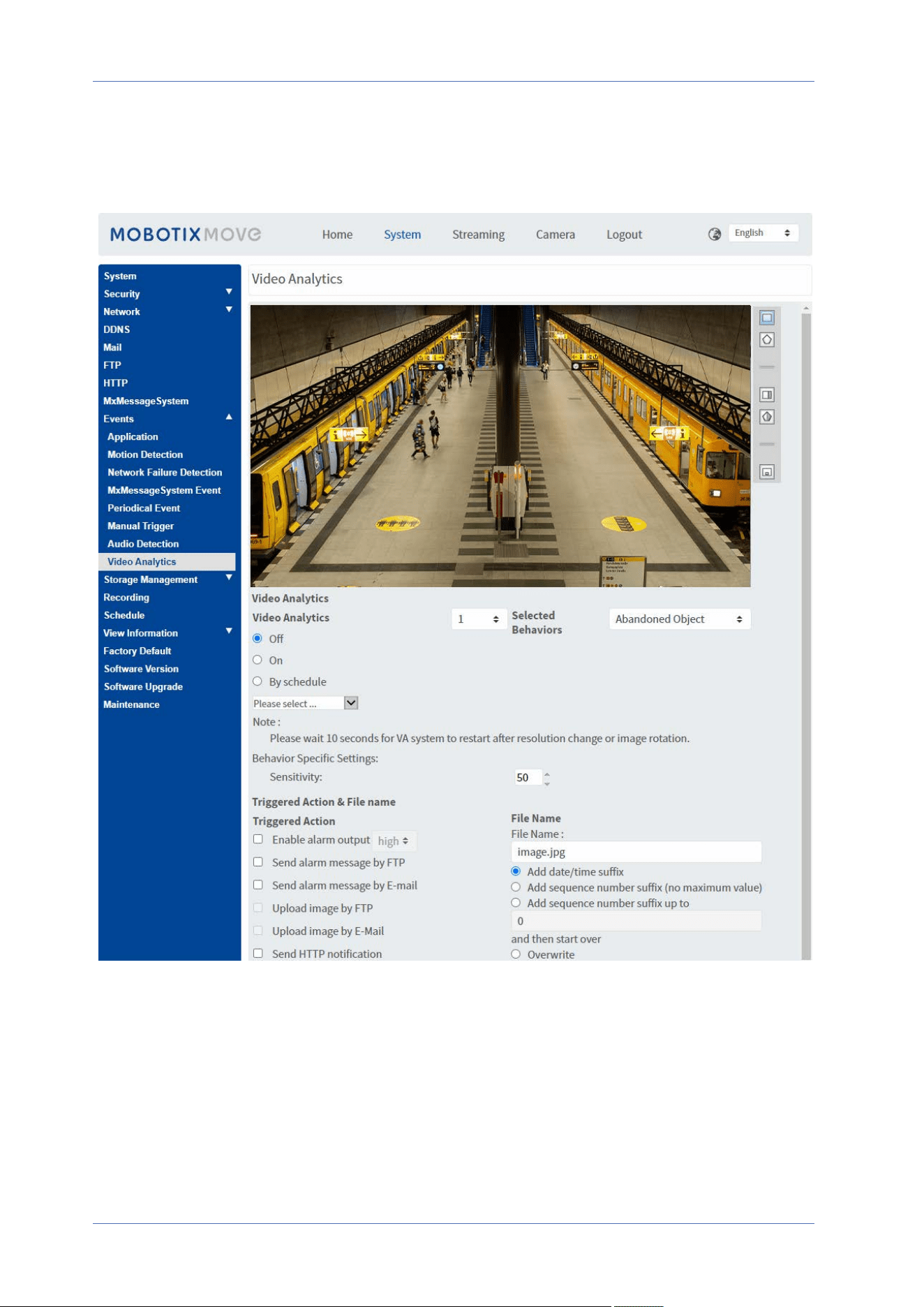
Video Analytics
To edit the video analytics settings, select System> Events> Video Analytics.
Video Analytics Behaviors
Every profile allows defining two different behaviors from the Selected Behaviors dropdown. For
example:
n
Set Video Analytics to 1.
n
From Selected Behaviors, select Face Detection.
Menu Reference
The “System” Tab
71 / 120
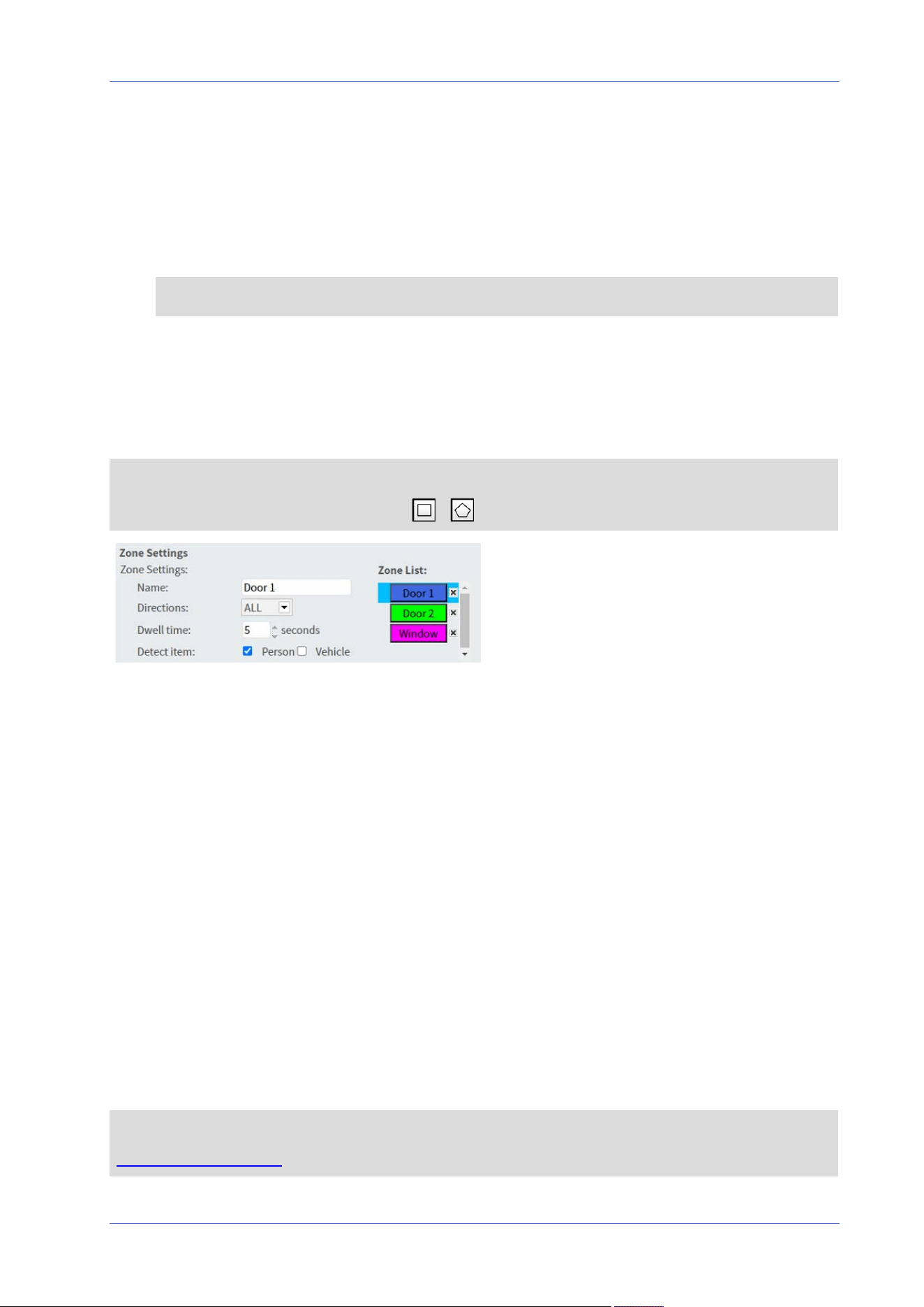
Menu Reference
The “System” Tab
n
Under Behavior-Specific Settings, configure the settings for the selected behavior option (in
this case, you could activate the Face and Gender checkboxes).
n
Click on Save to apply and store the settings.
n
Set Video Analytics to 2.
n
From Selected Behaviors, select Abandoned Object.
NOTE! You cannot select the same a behavior already selected for Video Analytics #1.
n
Under Behavior-Specific Settings, configure the settings for the selected behavior option (in
this case, you could change the Sensitivity).
n
Click on Save to apply and store the settings.
Zone Settings
NOTE! This section is only available for the Intrusion Detection behavior and if you have defined
at least one zone in the image (using the / buttons).
n
The active zone in the Zone List has a blue background.
n
The defined zones get default names (“Zone 1”, “Zone 2”, ...). To rename a zone, click on a
zone and enter a different name (in this case, “Door 1”, Door 2”, and “Window”).
n
To delete a zone, click on the trailing “x” after the zone name in the list.
n
Directions: Select one direction or ALL to trigger based on direction of movement.
n
Dwell time: Enter the minimum number of seconds for the object to stay within the zone to
trigger.
n
Detect item: Allows detecting only persons or vehicles, or both.
n
Click on Save to apply and store the settings.
Show Analytics Info
Click on Show Analytics Info to open a separate window that contains the event stream of the cam-
era. This will allow you to monitor the events that are detected by the currently defined settings (e.g.
for testing the setup).
NOTE! For more information on how to operate the Video Analytics settings, please refer to the
Video Analytics Manual.
72 / 120

Triggered Action
See the section Triggered Actions (Common to All Event Types), p. 60 for information about the vari-
ous actions that can be triggered.
Click on Save to apply and store the settings.
Storage Management
To edit the storage management settings, select System> Storage Management.
Click on Storage Management, there will be a drop-down menu with tabs including SD Card, SSD,
and Network Share.
NOTE! Always power off the camera before inserting or removing any storage media!
SD Card/SSD
To edit the settings for SD cards, select System> Storage Management> SD Card. To edit the set-
tings for SSD cards, select System> Storage Management> SSD.
You can implement local recording to two microSD/SDHC/SDXC cards with up to 1TB capacity each
and two SSD cards with up to 8TB capacity each.
This page shows the capacity information of the selected storage medium and a recording list with
all recorded files. You can also format the storage media and implement automatic recording
cleanup through the setting page.
To implement recording on a storage medium, please go to the Recording page (see Recording, p.
77).
NOTE! Please format the storage medium when using it for the first time. Formatting will also be
required when a storage medium is being used on one camera and later transferred to another
camera with different software platform.
It is not recommended to record on microSD/SD cards for 24/7 continuously, as it may not be able
to support long term continuous data read/write. Please contact the manufacturer of the
microSD/SD card for information regarding reliability and life expectancy.
Device Information
After the storage medium is inserted into the camera, the card information such as memory capa-
city and status will be shown at Device Information.
Menu Reference
The “System” Tab
73 / 120

Menu Reference
The “System” Tab
Recording Source
Select a video stream to set as the recording source. The default format of the video stream is
Stream 1. Select a preferred stream from the drop-down list.
Click on Save to apply and store the settings.
Recording Filename Format
Select a format as the recording file name format. The default recording file name format is Start
time only. Select a preferred format from the drop-down list.
Click on Save to apply and store the settings.
Device Setting
Click on Format to format the storage medium.
Two file systems are provided: vfat (default) and ext4. It is recommended to select ext4 for steady
and better performance.
Disk Cleanup Setting
Check Enable automatic disk cleanup and specify the time 1~999 day(s) or 1~142 week(s) and
storage limits 1~99% full to configure disk cleanup settings.
Click on Save to apply and store the settings.
Recording List
Enter the period in the date fields and click on Search. Select Video / JPEG, and then each video/im-
age file on the storage medium will be listed in the recording list. The maximum file size is 60 MB/per
file.
When the recording mode is set as Always (consecutive recording) and the storage medium record-
ing is also allowed to be enabled by events triggered, once events occur, the system will immediately
implement events recording to the memory card. After the recording of the events are finished, the
camera will return to the regular recording mode.
n
Remove
To remove a file, select the file first, and then click Remove button.
74 / 120

n
Sort
Click on Sort, and the files in the Recording list will be listed in name and date order.
The capital letter at the beginning of a name indicates the type of recording:
Initial Recording Type Initial Recording Type
A Alarm S Periodical Event
M Motion R Regular Recording
N Network Failure V Manual Trigger
T Tampering U Audio Detection
n
Download
To open/download a video clip/image, select the file first, then click on Download below the
Recording list. The selected file window will pop up. Click on the AVI/JPEG file to download
the file to the specified location.
Network Share (NAS)
To edit the network share settings, select System> Storage Management> Network Share.
You can store the recording videos to a network share folder, or NAS (Network-Attached Storage). A
NAS device is used for data storage and data sharing via network. This page displays the capacity
information of the network device and a recording list with all the recording files saved on the net-
work device. You can also format the NAS and implement automatic recording cleanup through the
setting page.
Device Information
When a NAS is successfully installed, the device information such as the memory capacity and
status will be shown at Device Information.
Storage Setting
The administrator can set the camera to send the alarm messages to a specific NAS site when an
alarm is triggered. Enter the network device details, which include host (the IP of the NAS), share
(the folder name of the NAS), user name, and password, in the fields.
Click on Save to apply and store the settings.
Storage Tools
Click on Format to format the NAS.
Menu Reference
The “System” Tab
75 / 120

Menu Reference
The “System” Tab
Recording Source
Select a video stream to set as the recording source. The default format of the video stream is
Stream 1. Select a preferred stream from the drop-down list.
Click on Save to apply and store the settings.
Recording Filename Format
Select a format to set as the recording file name format. The default recording file name format is
Start time only. Select a preferred format from the drop-down list
Click on Save to apply and store the settings.
Disk Cleanup Setting
Check Enable automatic disk cleanup and specify the time 1~999 day(s) or 1~142 week(s) and
storage limits 1~99% full to configure disk cleanup settings.
Click on Save to confirm the settings.
Recording List
Each video file on the Network Share will be listed in the Recording list. The maximum file size is 60
MB/per file.
When the recording mode is set as Always (consecutive recording) and the NAS recording is also
allowed to be enabled by events triggered, once events occur, the system will immediately imple-
ment events recording to NAS. After the recording of the events are finished, the camera will return
to the regular recording mode.
n
Remove
To remove a file, select the file first, and then click on Remove.
n
Sort
Click on Sort, and the files in the Recording list will be listed in name and date order.
The capital letter at the beginning of a name indicates the type of recording:
Initial Recording Type Initial Recording Type
A Alarm S Periodical Event
M Motion R Regular Recording
N Network Failure V Manual Trigger
T Tampering U Audio Detection
76 / 120
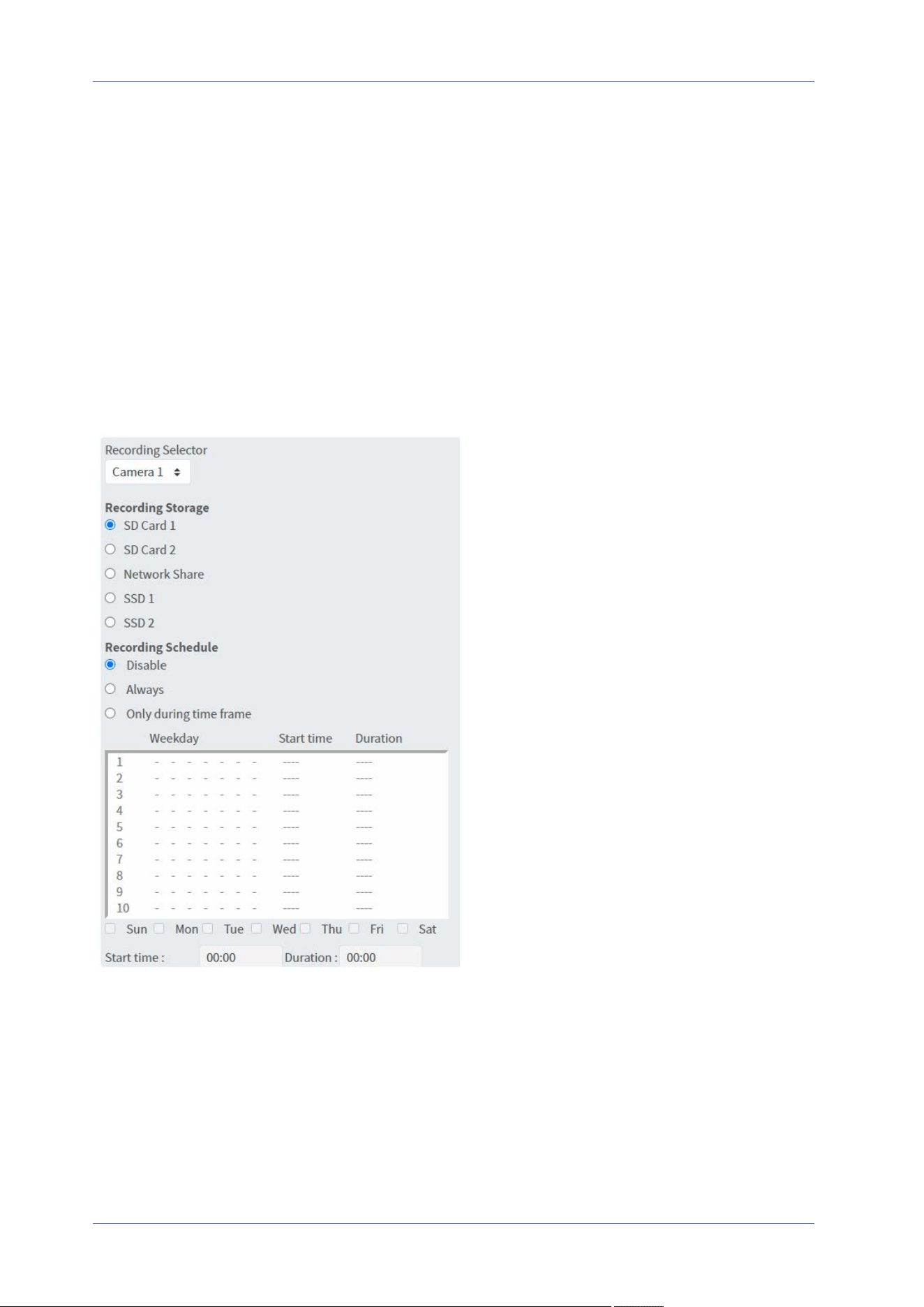
n
Download
To open/download a video clip, select the file first, and then click on download below the
Recording list field. The selected file window will pop up. Click on the AVI file to directly play
the video in the player or download it to a specified location.
Recording
To edit the recording settings, select System> Recording.
In the Recording setting page, you can specify the recording schedule that fits the present sur-
veillance requirement.
Recording Selector
Select Camera1 to Camera4 from the drop-down menu to configure the video stream from the cor-
responding camera head.
Menu Reference
The “System” Tab
77 / 120
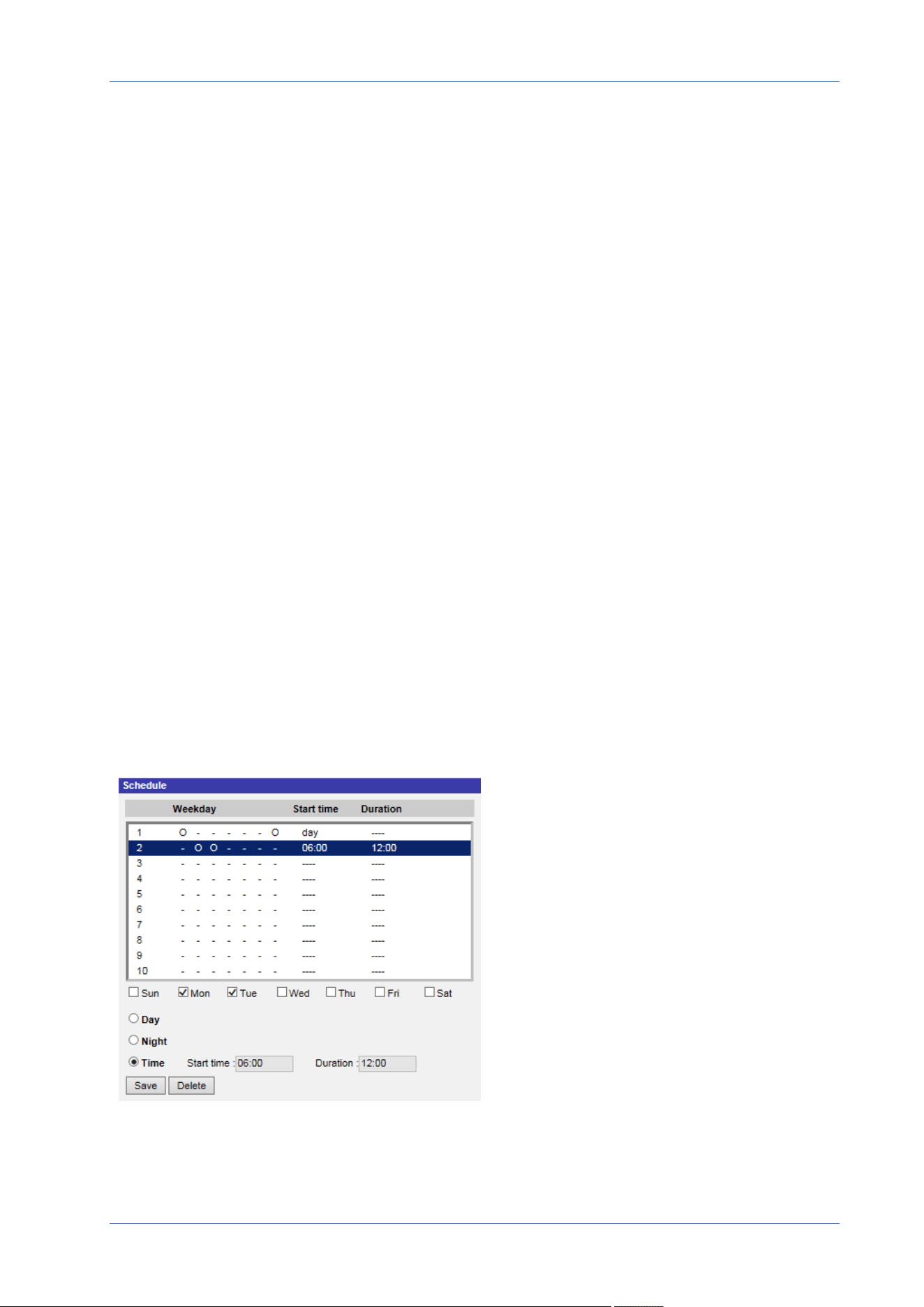
Menu Reference
The “System” Tab
Recording Storage
Select SD Card1, SD Card2, Network Share, SSD 1, or SSD 2 as recording storage.
Enable Recording Schedule
Two types of schedule mode are offered: Always and Only during time frame. You can select
Always to activate recording on a storage medium or network storage all the time. Or, select a set of
schedule from the time frame blank, check specific weekdays and setup the start time (hour:minute)
and time period (hour:minute) to activate the recording at certain time frames. The setting range for
the duration time is from 00:00 to 168:59.
Click on Save to apply and store the settings.
To delete a schedule, select one from the schedule list, and click Delete.
Disable Recording Schedule
n
Select Disable to terminate the recording function.
n
Click on Save to apply and store the settings.
Schedule
To edit the schedule settings, select System> Schedule.
78 / 120

Schedules Setup
1. Select a time frame from the time frame list.
2. Check the weekday boxes below to choose the specific weekdays.
3. Select a time mode, Day, Night or Time. Under Time mode, specify the start time (hour:minute)
and the time duration (hour:minute) to activate the schedule triggered features. The setting
range for the time duration is from 00:00 to 168:59.
4. Click on Save to apply and store the settings.
Alternatively, click on Delete to remove the highlighted time frame.
Time Mode
n
Day
The camera profile will be loaded when IR cut filter is on.
n
Night
The camera profile will be loaded when IR cut filter is off.
n
Time
This indicates the start time and the time duration for the schedule.
NOTE! Users MUST select By schedule under each feature setting page to enable the sched-
ule function.
File Location (Snapshots and Web Recording)
To edit the file location settings, select System> File Location.
You can specify a storage location on the PC or in the hard drive for the snapshots and the live
video recordings. The default setting is: C:\. Once the setting is confirmed, click on Save, and all the
snapshots and the web recordings will be saved in the designate location.
NOTE! Make sure the selected file path contains valid characters such as letters and numbers.
View Information
To edit the view information settings, select System> View Information.
Menu Reference
The “System” Tab
79 / 120

Menu Reference
The “System” Tab
Click on View Information, there will be a drop-down menu with tabs including Log File, User
Information, and Parameters.
Log File
To edit the log file settings, select System> View Information> Log File.
Click on the tab to view the system log file. The camera keeps a record of the system’s behavior and
information related to the camera. These log data can be exported for future use. Click generate sys-
log and the Save File As dialog window will pop up. The default file name is named after the model
name and the MAC address as “Model Name-MAC-log.tgz”. Select the file destination and click Save
to export the log data.
NOTE! “Save File As” dialog window may not show up immediately for the camera needs some
time to process the log data.
User Information
To edit the user information settings, select System> View Information> User Information.
The administrator can view the privileges of each user (refer to Security, p. 44). User lines follow this
syntax:
<User name>: <I/O access>:<camera control>:<talk>:<listen>
Example: <main-entrance>: 1:1:0:1
Values for <I/O access>, <camera control>, <talk>, and <listen>:
n
1: function allowed
n
0: function blocked
NOTE! The talk and listen privileges will be set regardless of the audio capabilities of the camera.
Parameters
To edit the parameters settings, select System> View Information> Parameter.
Click on this item to view the parameter settings of the entire system, such as Camera Settings, Mask
Information and Network Information.
Factory Default
To edit the factory default settings, select System> Factory Default.
You can follow the instructions on this page to reset the camera to factory default settings if needed.
80 / 120

Full Restore
Click on Full Restore to recall the factory default settings. The camera system will restart in 30
seconds. The IP address will be restored to default. After the camera system is restarted, reconnect
the camera using the default IP address. The default IP address is 192.168.0.250.
Partial Restore
Click on Partial Restore to recall the factory default settings (excluding network settings). The cam-
era system will restart in 30 seconds. Refresh the browser page after the camera system is restarted.
NOTE! The IP address will not be restored to default.
Reboot
Click on Reboot and the camera system will restart without changing the current settings. Refresh
the browser page after the camera system is restarted.
Software Version
To see the software version, select System> Software Version.
Software Upgrade
To edit the software upgrade settings, select System> Software Upgrade.
NOTE! Make sure the upgrade software file is available before carrying out software upgrade.
The procedure of software upgrade is as below.
1. Click on Browse and locate the upgrade file, for example, “ulmage_userland”.
NOTE! Do not change the name of the upgrade file, or the system will fail to find the file.
2. Pick a file type from the drop-down menu. In this case, select “ulmage+userland.img”.
3. Click on Upgrade. Then the system will prepare to start the software upgrade. Subsequently, an
upgrade status bar will be displayed on the page to show the current upgrade process. After the
upgrade process is finished, the viewer will return to the Home page.
4. Close the video browser.
Menu Reference
The “System” Tab
81 / 120

Menu Reference
The “System” Tab
5. Click on Start and activate the Control Panel. In the appeared window, double-click on Add or
Remove Programs. A window with the Currently install programs list will pop up. In the list,
select the viewer and click on Remove to uninstall the existing progam.
6. Open a new web browser and re-login the camera. Users will be prompted to download the
viewer. Once the viewer is downloaded and installed, the live video will be available.
Maintenance
To edit the maintenance settings, select System> Maintenance.
You can export configuration files to a specified location and retrieve data by uploading the con-
figuration file to the camera.
Export Files
You can save the system settings by exporting a configuration file (.bin) to a specified location for
future use. Click on Export, and the popup File Download window will come out. Click on Save and
specify a desired location for saving the configuration file.
Upload Files
To upload a configuration file to the camera, click on Browse to select the configuration file and then
click on Upload for uploading.
82 / 120
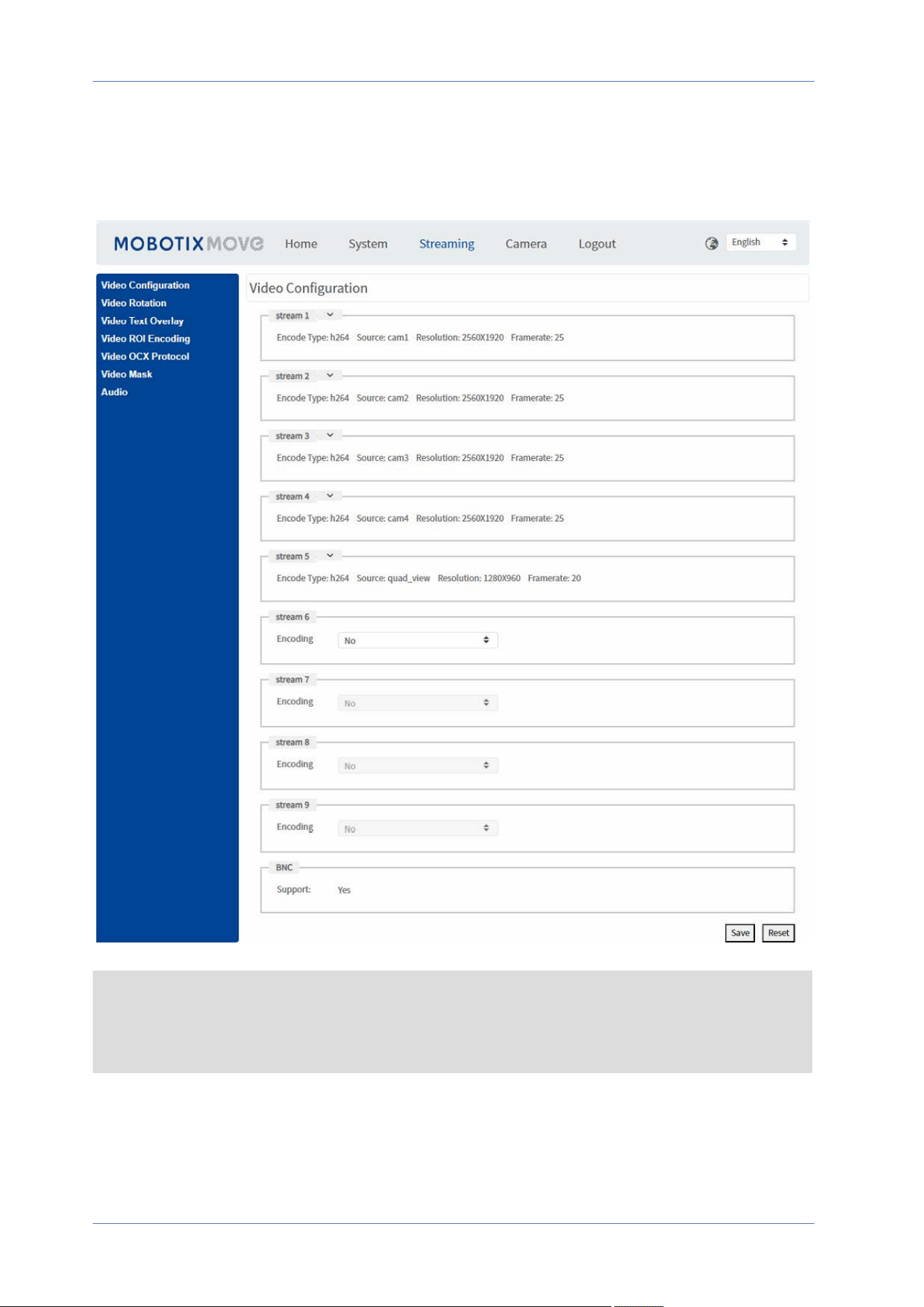
The “Streaming” Tab
To edit the video configuration settings, select Streaming> Video Configuration.
NOTE!
n
Only the administrator can access the Streaming configuration page.
n
The preset resolution and other settings will vary depending on the current camera model.
Menu Reference
The “Streaming” Tab
83 / 120

Menu Reference
The “Streaming” Tab
Video Configuration
To edit the video configuration, select Streaming> Video Configuration.
Encoding
Click on one of the stream1 to stream5 sections to expand and configure the corresponding
stream. For stream6 to stream9, select Yes to enable a stream and No to disable it.
Encode Type
The available video resolution formats include H.265, H.264, and MJPEG. You can select the preferred
encode type from the drop-down menu.
Resolution
The following table lists the default resolution of the camera.
IP Camera Model Default Resolution
20MPMultisensor IRVideo Analytics
Camera
Mx-VM1A-20-IR-VA
Linear Mode
(60/50 fps)
H.265/H.264: 2560 × 1920 (30/25fps) +
H.265/H.264: 2560 × 1920 (30/25fps) +
H.265/H.264: 2560 × 1920 (30/25fps) +
H.265/H.264: 2560 × 1920 (30/25fps) +
H.265/H.264: 1600 × 1200 (30/25fps)
WDR Mode
(WDR 2 Shutter)
H.265/H.264: 2560 × 1920 (30/25fps) +
H.265/H.264: 2560 × 1920 (30/25fps) +
H.265/H.264: 2560 × 1920 (30/25fps) +
H.265/H.264: 2560 × 1920 (30/25fps) +
H.265/H.264: 1600 × 1200 (30/25fps)
Frame Rate
Video frame rate is for setting the frames per second (fps) if necessary.
The default setting of Stream1 to Stream5 is 30fps (NTSC) or 25fps (PAL). The maximum frame rate
range of each stream will change according to the selected video resolution.
84 / 120

NOTE!
n
Low frame rate will decrease video smoothness.
n
Please make sure the higher compression ratio is supported by the system before setup.
Profile
You can set H.265/H.264 Profile to High Profile or Main Profile according to its compression needs.
With the same bit rate, the higher the compression ratio, the better the image quality is. The default
setting is Main Profile.
Rate Control
The following H.265/H.264 bit rate modes are supported:
n
CBR (Constant Bit Rate)
The video bitrate of the video stream will be fixed and consistent to maintain the bandwidth.
n
VBR (Variable Bit Rate)
The video bitrate of the video stream varies according to the activity of the monitoring envir-
onment to achieve better image quality.
Menu Reference
The “Streaming” Tab
85 / 120

Menu Reference
The “Streaming” Tab
n
LBR (Low Bit Rate)
LBR keeps low bitrate and ensures superior image quality. To implement LBR control, setup
the compression level and dynamic GOV for each streaming accordingly beforehand.
n
Compression
Based on the current application area and streaming bit rate, select the most suitable
compression level, high/mid/low.
n
Set High, and bit rate will vastly be reduced; however, image quality may be
degraded at the same time.
n
Set Low, and bit rate will stably keep low while image quality remains high.
n
Dynamic GOV
According to the amount of motion in the application area, the GOV length of the video
will be adjusted dynamically to reduce more bit rate, especially for scenes with minor
changes. The length of Dynamic GOV is from GOV Length to Max. GOV (4094).
n
Select Enabled and set Max. GOV. Then click on Save to activate the setting.
n
If there is small or zero activity in the scene, set Max. GOV larger, the GOV length
will be longer, resulting in lower bit rate and bandwidth.
n
If there are constant dynamic changes in the scene, it is suggested just adjust
GOV Length and disable Dynamic GOV.
Click on Save to apply and store the settings.
Bit Rate
The default setting of the H.265/H.264 bit rate for Stream1 to Stream5 is 12288 kbit/s. The setting
range is from 64 to 20480 kbit/s, and the total bit rate should not exceed 131072kbit/s.
GOV Length
You can set the GOV length to determine the frame structure (I-frames and P-frames) in a video
stream to save bandwidth. Less bandwidth is needed if the GOV length is set to a high value.
However, the shorter the GOV length, the better the video quality is.
The default setting for Stream1 to Stream5 is 30. The setting range of the GOV length is from 1 to
4094.
Q (Quality) Factor (MJPEG Only)
The default setting of MJPEG Q factor is 35; the setting range is from 1 to 70.
86 / 120
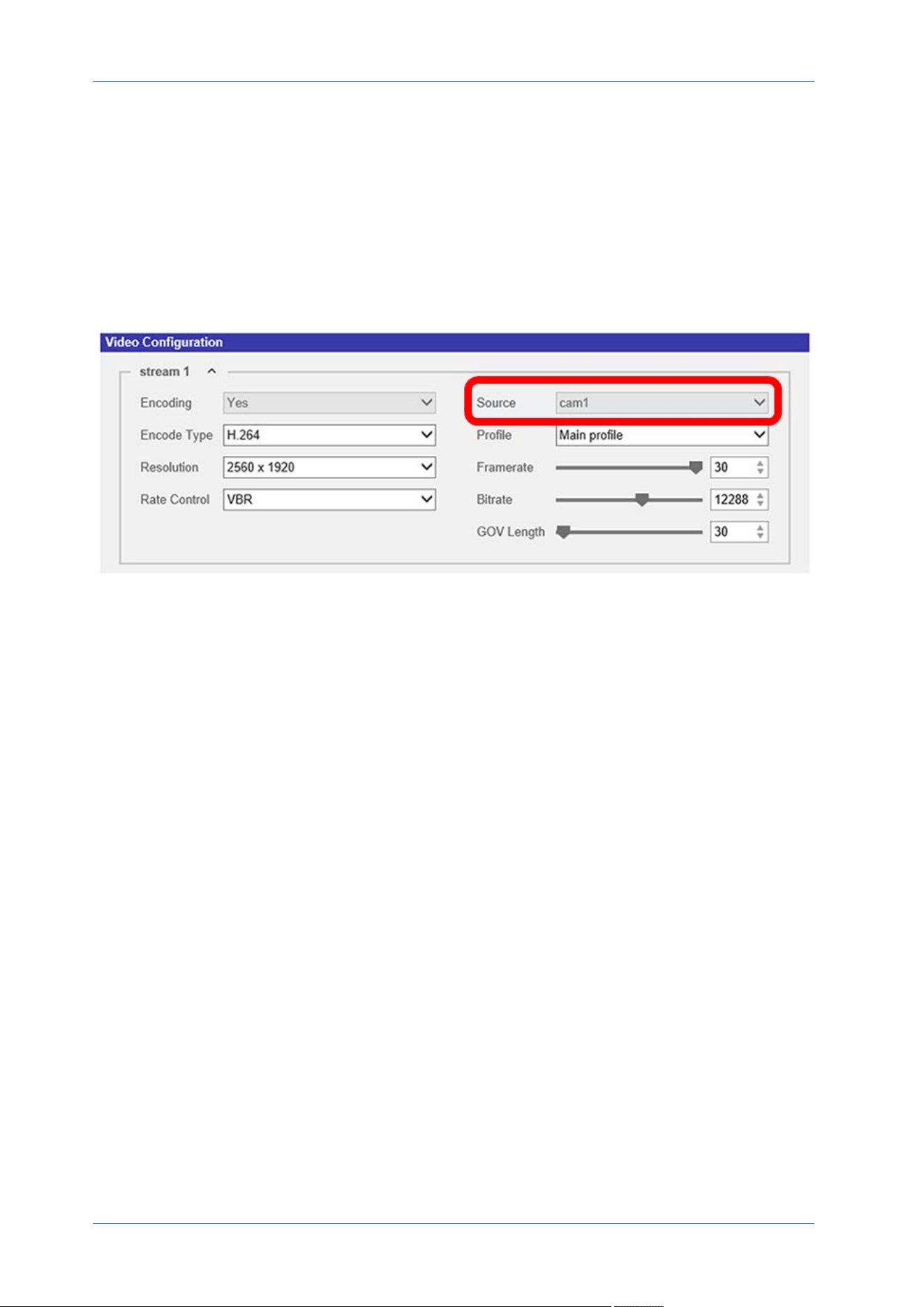
Source
You can set the viewing mode of specific camera models here. The resolution options will vary
according to the viewing mode selected from the Source drop-down list.
Cam1 to Cam4 are referring to the video stream from the specified camera head. The default setting
for Stream1 to Stream4 is set to Cam1 to Cam4, respectively. Stream5 can be set to Cam1 to Cam4
and quad_view. For Stream6 to Stream9, you can select the camera heads from Cam1 to Cam4.
Click on Save to confirm the setting or click on Reset to return to the previous settings.
Video Rotation
Camera Selector
Select Camera1 to Camera4 from the drop-down menu to configure the video stream from the cor-
responding camera head.
Rotate Function
You can change video display type if necessary. Selectable video rotate types include Mirror video
and 90/180/270 degree clockwise rotate. Refer to the following descriptions for the different video
rotate type.
n
Mirror
Select yes from the drop-down menu, and the image will be mirrored horizontally.
n
Rotate Type
You can choose 0, 90, 180, or 270 degrees from the drop-down menu to rotate the image.
Click on Save to apply and store the settings.
Menu Reference
The “Streaming” Tab
87 / 120

Menu Reference
The “Streaming” Tab
Video Text Overlay
You can select the items to display data including date & time/text string/subtitle/image on the live
video pane.
Camera Selector
Select Camera1 to Camera4 from the drop-down menu to configure the video stream from the cor-
responding camera head.
Overlay Type
You can select at most three items out of four options including date & time/text string/sub-
title/image to display on the live video pane.
n
Include Date & Time
Check the box to enable date & time display on the Live Video Pane and a Video Text Overlay
Window will show up. Move the mouse cursor to the center of the window then click and drag
the window to preferred display position. You can choose to display date, time, or date & time
from the drop-down menu, and decide the string align position (left/right).
n
Include Text String
Check the box to enable text string display on the Live Video Pane and a Video Text Overlay
Window will show up. Move the mouse cursor to the center of the window then click and drag
the window to preferred display position. Type the text to display in the entry field and decide
the string align position (left/right). The maximum length of the text string is 15 alphanumeric
characters.
n
Include Subtitle
Check the box to enable subtitle display on the Live Video Pane and a Video Text Overlay Win-
dow will show up. Move the mouse cursor to the center of the window then click and drag the
window to preferred display position. Type the text to display in the entry field and decide the
string align position (left/right). You can set at most 5 subtitles, and the maximum length of
each subtitle is 16 alphanumeric characters.
n
Include Image
Check the box to enable image display on the Live Video Pane and a Video Text Overlay Win-
dow will show up. Move the mouse cursor to the center of the window, click and drag the win-
dow to preferred display position, and then decide the string align position (left/right).
Click on Set to confirm the setting.
88 / 120

Text Overlay Setting
You can choose the Text Overlay Color (black, white, yellow, red, green, blue, cyan, or magenta) and
Text Overlay Size (small, medium, or large) of the display date & time/text string/subtitle.
Click on Set to confirm the setting.
Image Overlay Setting
Users must save the image as a 8-bit BMP file; the length should be the multiple of 32, and the
width should be the multiple of 4. The maximum resolution of the image should not exceed 32768
pixels.
Click on Set and Upload to confirm the setting.
Video ROI Encoding
To edit the video ROI encoding settings, select Streaming> Video ROI Encoding.
Video ROI Encoding is to set the compression of the selected zone within ROI for better per-
formances; at most three zones can be set in the interested region. However, this function does
NOT support MJPEG video format.
The following shows how to setup Video ROI Encoding. To implement this function, Video ROI must
be setup beforehand.
n
Select a video stream from Video Stream.
n
Select Enable from ROI Encoding to implement ROI Encoding.
n
Click on Add, click and drag the center of the window to move it to the interested location;
click and drag the edge of the window outward/inward to resize the window.
NOTE! The total size of the three windows CANNOT be larger than the half size of the ROI.
When exceeds, a warning window will pop up.
n
Choose the quality of the setting zone from Quality.
The higher the value, the better the image quality (higher bit rate) of the setting zone will be.
On the contrary, the lower the value, the lower the image quality (lower bit rate) of the selec-
ted area will be.
n
Click on Save to apply and store the settings.
Menu Reference
The “Streaming” Tab
89 / 120

Menu Reference
The “Streaming” Tab
Video OCX Protocol
To edit the video OCX protocol settings, select Streaming> Video OCX Protocol.
In the Video OCX protocol setting page, the administrator can select RTP over UDP, RTP over RTSP
(TCP), RTSP over HTTP or MJPEG over HTTP, for streaming media over the network. In the case of
multicast networking, you can select the Multicast mode. Click on Save to confirm the setting.
Video OCX protocol setting options include:
n
RTP over UDP/RTP over RTSP(TCP) / RTSP over HTTP/MJPEG over HTTP
n
Multicast Mode
Enter all required data, including Multicast Stream 1~9 Video Address/Multicast Stream
Audio Address, Multicast Port and Multicast TTL into each blank.
Click on Save to apply and store the settings.
Video Mask
To edit the video mask settings, select Streaming> Video Mask.
Camera Selector
Select Camera1 to Camera4 from the drop-down menu to configure the video stream from the cor-
responding camera head.
Active Mask Function
n
Add a Mask
Check a Video Mask checkbox, and a red frame will come out in the Live Video pane. Use the
mouse to drag and drop to adjust the mask’s size and place it on the target zone. At most 5
video masks can be set.
NOTE! It is suggested to set the Video Mask slightly bigger than the object.
n
Cancel a Mask
Un-check the Video Mask checkbox meant to be deleted; the mask will disappear from the Live
Video pane instantly.
90 / 120

Mask Setting
n
Mask color
The selections of Mask color include black, white, yellow, red, green, blue, cyan, and
magenta.
Click on Save to apply and store the settings.
Audio (Audio Mode and Bit Rate Settings)
To edit the audio mode settings, select Streaming> Audio.
In this page, the administrator can adjust the sound transmission mode, the audio gain levels and
the audio bit rate. Setting for enabling sound recording to the microSD/SD card is also available.
Transmission Mode
n
Full-duplex (Talk and Listen simultaneously)
In the Full-duplex mode, the local and remote sites can communicate with each other sim-
ultaneously, i.e. both sites can speak and listen to the other side at the same time.
n
Half-duplex (Talk or Listen, not at the same time)
In the Half-duplex mode, the local/remote site can only talk or listen to the other site at a
time.
n
Simplex (Talk only)
In the Talk only Simplex mode, the local/remote site can only talk to the other site.
n
Simplex (Listen only)
In the Listen only Simplex mode, the local/remote site can only listen to the other site.
n
Disable
Select the item to turn off the audio transmission function.
Server Gain Setting
Set the audio input/output gain levels for the sound amplification. The audio input gain value is
adjustable from 1 to 10. The audio output gain value is adjustable from 1 to 6. The sound will be
turned off if the audio gain is set to “Mute”.
Menu Reference
The “Streaming” Tab
91 / 120

Menu Reference
The “Streaming” Tab
Bit Rate
Selectable audio transmission bit rate include 16 kbit/s, 24 kbit/s, 32 kbit/s, 40 kbit/s, uLAW (64
kbit/s), ALAW (64 kbit/s), AAC (128 kbit/s), PCM (128 kbit/s), PCM (256 kbit/s), PCM (384 kbit/s), and
PCM (768 kbit/s). Higher bit rate will let higher audio quality and require bigger bandwidth.
Click on Save to apply and store the settings.
Input Type
Click on Save to apply and store the settings.
Recording to Storage
Select Enable from the drop-down menu to enable audio recording with videos into the microSD/SD
card or the NAS.
NOTE! If the chosen bit rate is not compatible with the player, there will only be noise instead of
audio during playback.
Click on Save to apply and store the settings.
92 / 120
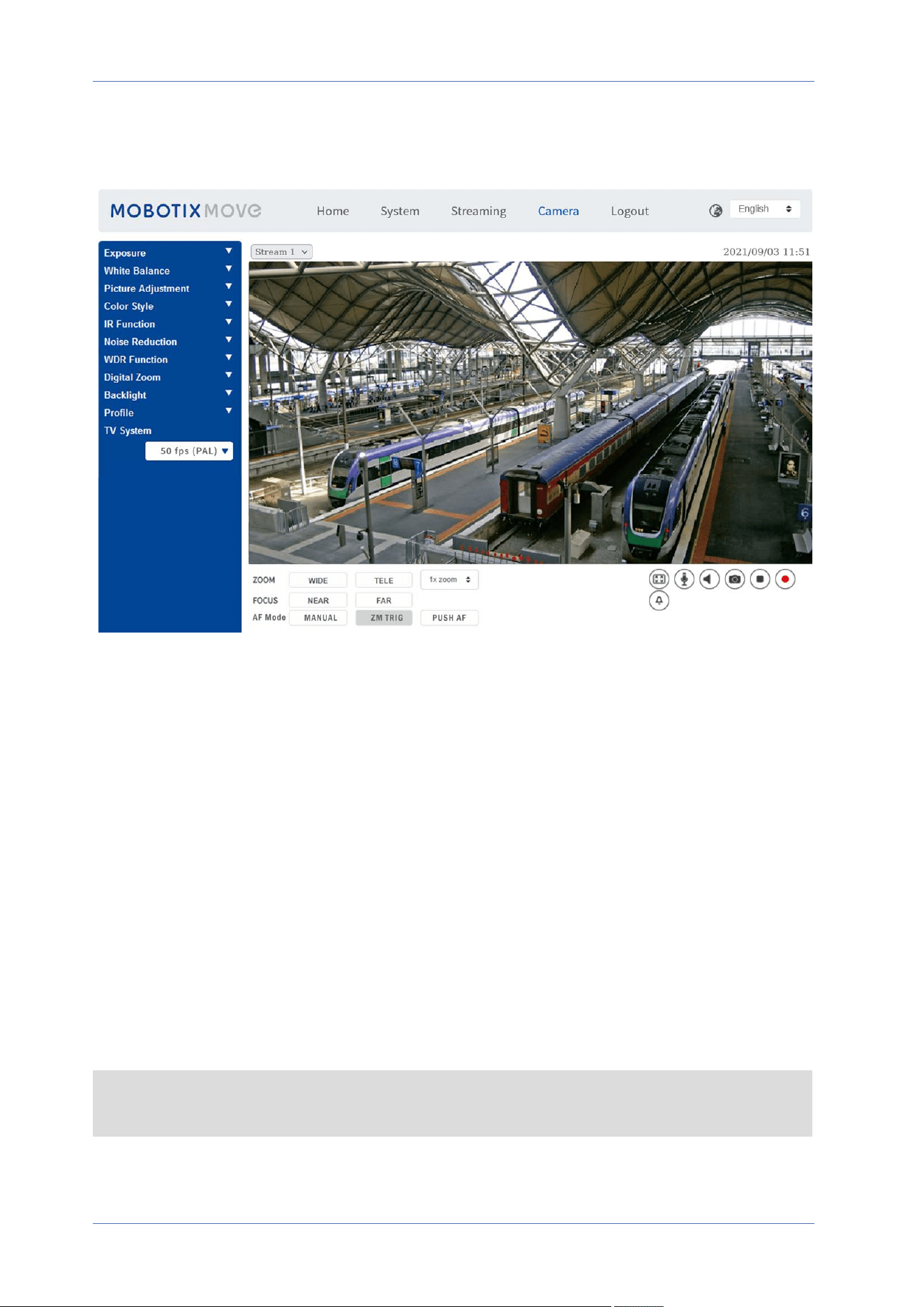
The “Camera” Tab
Camera Selector
Select Camera1 to Camera4 from the drop-down menu to configure the video stream from the cor-
responding camera head.
Exposure
To edit the exposure settings, select Camera> Exposure.
Exposure is the amount of light received by the image sensor. It is determined by the width of lens
diaphragm opening, the shutter speed and other exposure parameters. With these items, you can
define how the Auto Exposure function works. You can select one of the exposure modes according
to the operating environment. Each exposure mode is specified as follows.
NOTE! The available settings and the shutter speed range will vary depending on the lens/CMOS
sensor combination.
Menu Reference
The “Camera” Tab
93 / 120

Menu Reference
The “Camera” Tab
AE Priority (Auto-Exposure Priority)
The Auto Exposure Priority function automatically adjusts the camera's exposure settings to ensure
that the images remain clear and bright under low-light conditions. There are two modes available,
each with a distinct order of adjusting gain and shutter speed. Users can opt for either mode depend-
ing on their requirements.
n
Image Quality
To maintain the brightness of the image, gain and shutter speed in Image Quality mode will
be progressively adjusted under low light conditions. Shutter speed will decrease with increas-
ing gain until the image is bright enough.
n
Realtime
Realtime mode prioritizes increasing gain to the maximum over slowing down shutter speed.
Shutter speed will be slowed down only when maximum gain is reached. Select this mode if
you want to maintain the frame rate.
Night Mode Priority
When the TV system is set as HDR 2x shutter, you can select one of the following modes.
n
Normal
With this mode, the camera adjusts the exposure depending on the environment (this is the
default).
n
High Light Detail
It is recommended to choose this mode in dark environments if you want to see details of
bright objects. The camera automatically adjusts exposure to show more detail of the bright
object. Note that dark areas will become darker when using this mode.
Max Gain
Maximum Gain can be set to reduce image noises. The maximum gain ranges from 3dB to 48dB, or
select Off to disable the function. The default setting is 48dB.
Manual Mode
With this mode, you can select the suitable shutter speed, iris size and gain value according to the
environmental illumination. The shutter speed ranges from 1/10000 to 1 sec. (NTSC) or from 1/10000
to 1/1.5 sec. (PAL).
The range of the iris size is from 0 to 9, or select Full open to fully open the iris. The gain value range
is from 3dB to 48dB, or select Off to disable the function.
94 / 120

NOTE! The Gain setting is not available for this camera model.
White Balance
To edit the white balance settings, select Camera> White Balance.
A camera needs to find reference color temperature, which is a way of measuring the quality of a
light source, for calculating all the other colors. The unit for measuring this ratio is in degree Kelvin
(K). You can select one of the White Balance Control modes according to the operating envir-
onment. The following table shows the color temperature of some light sources for reference.
Light Sources Color Temperature in K
Cloudy Sky 6,000 to 8,000
Noon Sun and Clear Sky 6,500
Household Lighting 2,500 to 3,000
75-watt Bulb 2,820
Candle Flame 1,200 to 1,500
Auto Mode
The Auto White Balance mode is suitable for environments with light source having color tem-
perature in the range roughly from 2700K to 7800K.
ATW Mode (Auto Tracking White Balance)
With Auto Tracking White Balance function, the white balance in a scene will be automatically adjus-
ted while temperature color is changing. The AWB.wide mode is suitable for environments with light
source having color temperature in the range roughly from 2500K to 10000K.
AWB.normal
The AWB (Auto White Balance).normal mode is suitable for environments with light source having
color temperature in the range roughly from 2700K to 7800K.
AWB.wide
With AWB (Auto White Balance).wide function, the white balance in a scene will be automatically
adjusted while temperature color is changing. The AWB.wide mode is suitable for environments
with light source having color temperature in the range roughly from 2500K to 10000K.
Menu Reference
The “Camera” Tab
95 / 120
Menu Reference
The “Camera” Tab
AWB.all
The AWB (Auto White Balance).all mode is suitable for environments with light source having color
temperature under 2500K or over 10000K.
Smart Mode
The Smart mode is suitable for environments with one single background color which is strongly sat-
urated, for instance, in a forest.
One Push
With One Push function, white balance is adjusted and fixed according to the scene the camera cur-
rently sees. This function is best for situations with minimal scene changes and continuous lighting.
The function is suitable for light sources with any kind of color temperature. Follow the steps below
to set the white balance.
n
Point the camera to the monitoring area.
n
Select One Push in the White Balance setting menu
n
Click the button to adjust the color tone of the live images.
NOTE! In this mode, the value of white balance will not change as the scene or the light source var-
ies. Therefore, users might have to re-adjust the white balance by clicking the button again
when needed.
Smart Touch Mode
With Smart Touch function, you can select an area in the camera scene as the reference point for
white balance. Please ensure that the background color of the selected area is white. Smart Touch
function is suitable for environments with unchanged brightness level.
Manual Mode
In this mode, you can manually adjust the White Balance value. Input a number between 0 to 249 for
“Rgain/Bgain” to adjust the red/blue illuminant on the Live Video Pane. The following describes sev-
eral situations that might occur during the White Balance manual adjustment.
96 / 120
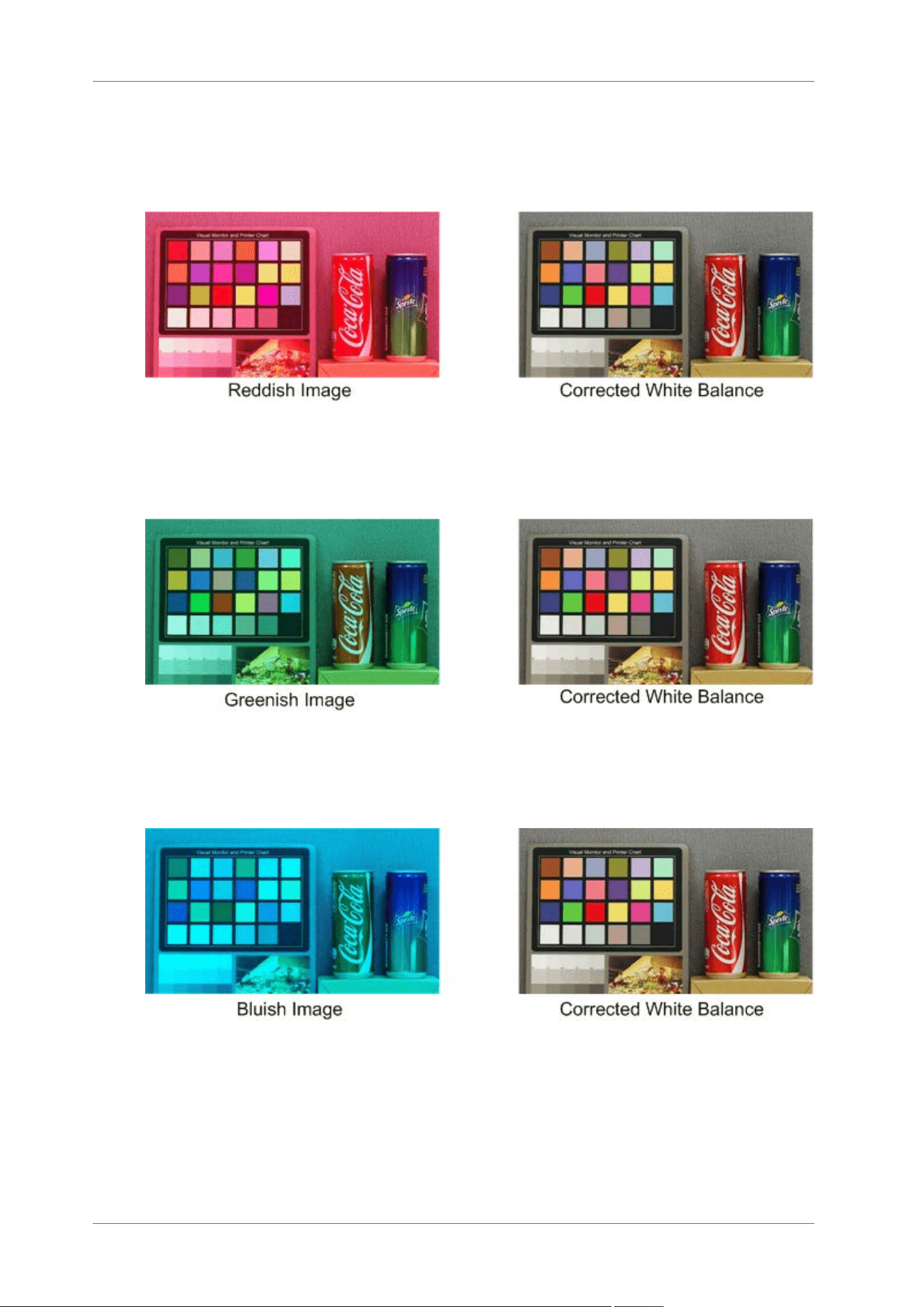
n
The video image turns reddish (as the left picture below).
The higher the Rgain value, the redder the image will be. To solve the problem, reduce the
Rgain value, and the video image will turn less reddish.
n
The video image turns greenish (as the left picture below).
The lower the Rgain value, the greener the image will be. To solve the problem, Increase the
Rgain value, and the video image will turn less greenish.
n
The video image turns bluish (as the left picture below).
The higher the Bgain value, the bluer the image will be. To solve the problem, reduce the
Bgain value, and the video image will turn less bluish.
Menu Reference
The “Camera” Tab
97 / 120
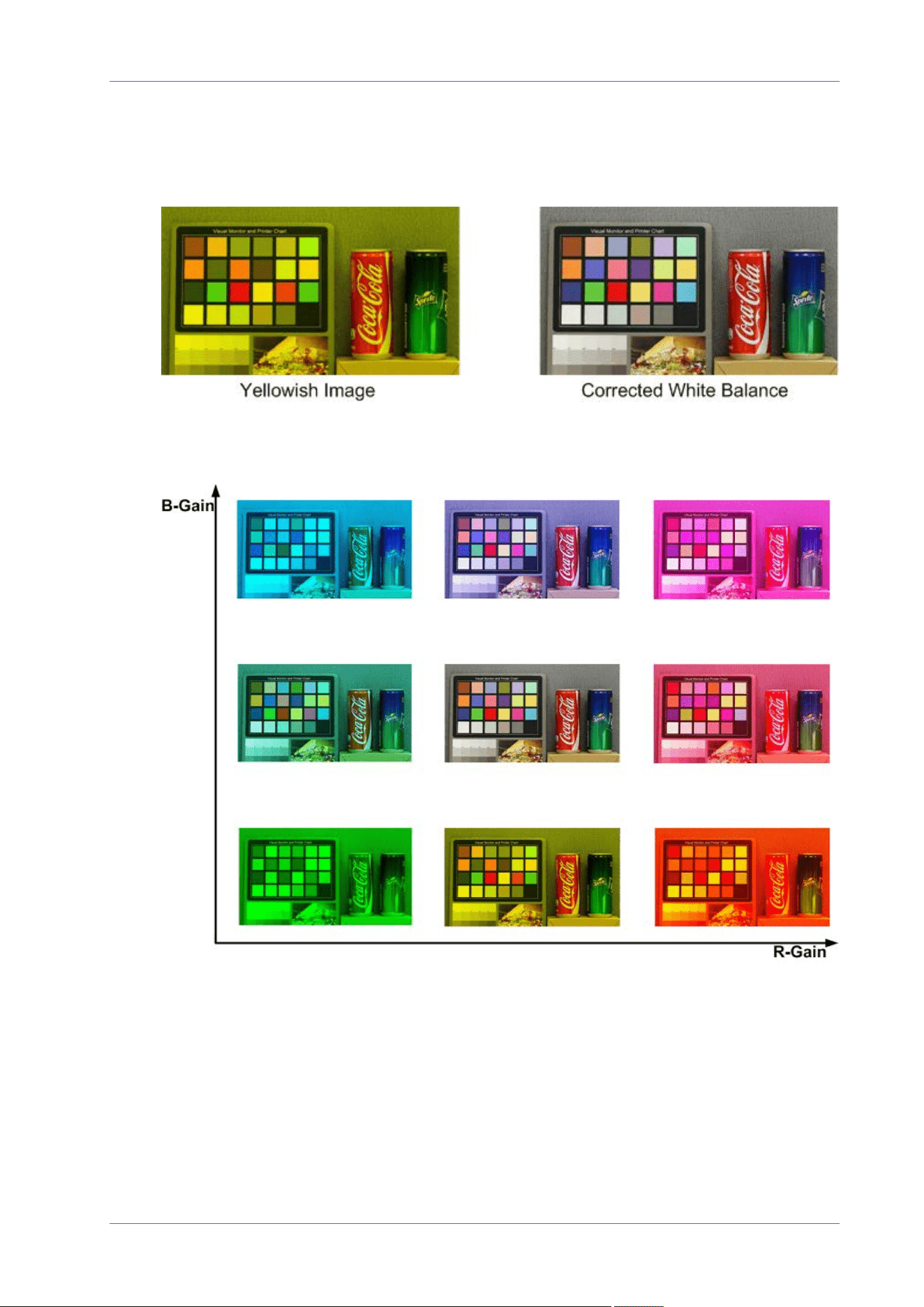
Menu Reference
The “Camera” Tab
n
The video image turns yellowish (as the left picture below).
The lower the Bgain value, the yellower the image will be. To solve the problem, Increase the
Bgain value, and the video image will turn less yellowish.
The following image displays the general color shifts of the scene when different Rgain/Bgain
combinations are applied.
Picture Adjustment
To edit the picture adjustment settings, select Camera> Picture Adjustment.
n
Brightness
The brightness level of the images is adjustable from -12 to +13. The default value is 0.
98 / 120

n
Sharpness
The sharpness level of the images is adjustable from +0 to +15. The edge of the objects is
enhanced as the sharpness level increases. The default value is +4.
n
Contrast
The contrast level of the images is adjustable from -6 to +19. The default value is 0.
n
Saturation
The saturation level of the images is adjustable from -6 to +19. The default value is 0.
n
Hue
The hue level of the images is adjustable from -12 to +13. The default value is 0.
Color Style
To edit the color style settings, select Camera>Color Style.
Color style can automatically adjust the brightness, allowing users to select the best color style
mode based on the operating environment.
n
Normal
The default setting is normal mode.
n
Dark Detail Brighter
This mode increases brightness on dark areas of the image.
n
Highlight Detail Brighter
This mode increases brightness on general-illuminated areas of the image.
IR Function
To edit the IR function settings, select Camera> IR Function.
Day/Night Function
This item is for users to define the action of the IR cut filter and IR LED lights. Refer to the descrip-
tions of each option below to select a suitable mode.
n
Auto
With this mode, the camera will decide when to remove the IR cut filter. Please refer to
Day/Night Threshold, p. 100 for further details.
Menu Reference
The “Camera” Tab
99 / 120
Menu Reference
The “Camera” Tab
n
Night
Use this mode when the environment light level is low. The IR cut filter will be removed to
allow the camera to deliver clear images in black and white.
n
Day
Select this mode to turn on the IR cut filter. The IR cut filter can filter out the IR light and
allows the camera to deliver high quality images in color.
n
Light Sensor(Default)
In this mode, for cameras with built-in IR LED modules, the light sensor will decide the occa-
sion to turn the IR LED lights on/off. For cameras with non-IR modules, the light sensor will
decide the occasion to take the IR cut filter on/off.
n
Light On (Built-in IR LED Modules Only)
In this mode, IR LED lights will always be on.
n
Light Off (Built-in IR LED Modules Only)
In this mode, IR LED lights will always be off.
Day/Night Threshold
This item is for users to set when the camera should switch from day mode to night mode or vice
versa. The camera will sense the surrounding brightness, and the threshold value stands for the level
of the light. Once the camera detects the light level reaches the set threshold, the camera will auto-
matically switch to Day/Night Mode. The range of the level is from 0 to 10, (darker = 0; brighter = 10).
n
Night Mode to Day Mode
The lower the value, the earlier the camera switches to Day mode. The default value is 7.
n
Day Mode to Night Mode
The higher the value, the earlier the camera switches to Night mode. The default value is 3.
NOTE! Equipped with different CMOS sensors, the time the camera switches to Day/Night
mode may also vary from models to models even if the threshold is set to the same value.
IR Light Compensation
With the IR Light Compensation function, the camera can prevent the center object close to the cam-
era from being too bright when IR LED lights are turned on.
NOTE! IR Light Compensation function is NOT available when Auto Exposure Window Setting
function is enabled.
100 / 120

Illumination
To edit the illumination settings, select Camera> Illumination.
Mode
Select the illumination mode Synchronize, Manual On, or Manual Off to control the IR LED light.
n
Synchronize
With this mode, the camera will decide when to activate the IR LED light.
n
Manual On
Use this option to manually activate the IR LED light.
n
Manual Off
Use this option to manually switch off the IR LED light
Light Intensity
The Intensity of the IR LED light is adjustable from 0 to 31 (this is the default).
Noise Reduction
To edit the noise reduction settings, select Camera> Noise Reduction.
The camera provides multiple Noise Reduction options for delivering optimized image quality espe-
cially in extra low-light conditions.
3DNR
3DNR (3D Noise Reduction) function delivers optimized image quality especially in extra low-light
conditions.
Different levels of 3DNR are provided, including 3DNR Low, 3DNR Mid and 3DNR High. Higher level
of 3DNR generates relatively enhanced noise reduction.
2DNR
2DNR (2D Noise Reduction) function delivers clear images without motion blurs in extra low-light
conditions.
Select on to turn on 2DNR function; otherwise, select off to turn off 2DNR function.
Menu Reference
The “Camera” Tab
101 / 120

Menu Reference
The “Camera” Tab
ColorNR
In a dark or insufficient light environment and the camera is under color mode, ColorNR (Color Noise
Reduction) can eliminate color noise.
Three levels of ColorNR, including Color Low, Color Mid and Color High, are provided. The higher
level of ColorNR generates relatively enhanced noise reduction.
HDR Type
To edit the HDR type settings, select Camera> HDR Type.
Shutter Ratio
Shutter ratio refers to the ratio between the longest exposure and the shortest exposure.
n
Auto
Auto mode automatically modifies the shutter ratio to solve the problem of changing light in
the environment. It is recommended to select this mode when illumination changes dynam-
ically.
n
Fixed
Uses a fixed shutter speed.
Low-Light Performance
Image noise becomes visible when illumination is poor and gain value is high. With this function, you
can select the best mode based on the operating environment to minimize image noise.
n
Normal
Select this mode when illumination is not low and you want to benefit from HDR.
n
Linear
Linear mode minimizes image noise in low-light conditions. Select this mode if you want to
reduce image noise in environments with poor illumination.
Gamma HDR
To edit the Gamma HDR settings, select Camera> Gamma HDR.
102 / 120

Gamma HDR function solves high contrast or changing light issues. Different level options for
Gamma HDR are Low, Mid, Hi, and Auto. Select the suitable Gamma HDR mode based on the bright-
ness of the scene. Note that image noise may appear when activating this function.
NOTE!
Auto mode is not available under these conditions:
n
TV system has been set to Linear mode
n
TV system has been set to HDR mode and the Shutter ratio under HDR Type is set as
Fixed
Digital Zoom
To edit the digital zoom settings, select Camera> Digital Zoom.
Select On to enable digital zoom, select Off to disable the function.
Profile
To edit the camera profile settings, select Camera> Profile.
Camera Profile allows users to setup the desired image parameters for specific environments with
different time schedules. You can setup at most 10 sets of camera parameter configuration under
the Camera tab. To enable this function, users must setup the schedules in advance. Refer to sec-
tion Schedule for further details of schedule setup. Then, follow the steps below to setup a camera
profile.
Camera Profile Setup
1. In the “Camera” tab, setup the camera parameters, such as White Balance, Picture Adjustment,
etc., excluding TV System.
2. Click on Profile and its setting menu will be displayed. Select a number from the Num drop-
down menu.
3. Input a name for the profile in the Name field.
4.
Click on below the Name field. The camera configuration is saved and applied to the pro-
file. Now a camera profile is created and saved.
5. Select a profile from the Num drop-down menu.
Menu Reference
The “Camera” Tab
103 / 120

Menu Reference
The “Camera” Tab
6. Tick the By schedule box. Check the desired schedule(s) from the Schedule drop-down menu.
Multiple schedules can be applied to one profile.
7.
Click on below By schedule.
8. Follow the steps above to set the rest of the profiles.
Now, the camera will automatically switch profiles according to the schedule. Alternatively, manually
select a number from the Num drop-down menu. Then, click on , the camera will load and
apply the setting of the profile.
NOTE! If users wish to set the camera parameters to factory default setting, select Normal from
the Num drop-down menu. The camera will start loading the default values.
NOTE! Users MUST set the camera parameter of the last profile as the default setting. Thus, if there
are gaps among schedules, the camera will apply the setting of the last profile.
TV System
To edit the TV system settings, select Camera> TV System.
Select the video format that matches the present TV system from the drop-down menu. The fol-
lowing table shows the available video formats for different types of models. The supported video
formats for each model are marked by “✓”.
Video Format 20MPMultisensor IRVideo Analytics Camera
NTSC 60 fps ✓
HDR 2 Shutter ✓
PAL 50 fps ✓
HDR 2 Shutter ✓
104 / 120

The “Logout” Tab
Click on the tab Logout on the top of the page, and the login window will pop up. This enables log-
ging in with a different username.
Menu Reference
The “Logout” Tab
105 / 120

Menu Reference
Appendix A: Installing UPnP Components
Appendix A: Installing UPnP Components
Please follow the instructions below to install UPnP components on Windows computers.
1. In Windows, go to Start, click on Control Panel, and then double-click on Add or Remove Pro-
grams.
2. Click on Add/Remove Windows Components in the Add or Remove Programs page.
3. Select Networking Services from the Components list in Components Wizard window of the Win-
dows, and then click Details.
4. Select UPnP User Interface in the Networking Services’ subcomponents list and then click on
OK.
5. Click on Next in the Windows Components Wizard window.
6. Click on Finish to complete installation.
Appendix B: Converting IP Addresses from
Decimal to Binary
Follow the example below to convert the IP addresses to binary numbers. Use the calculator on the
computer for conversion: Start> All Programs> Accessories> Calculator.
n
Windows7/8: Click View on the calculator and click Programmer.
n
Windows10/11: Click on the menu button and select Programmer.
106 / 120

The example below shows how to convert 192.168.2.81 to binary numbers.
1. On the left of the calculator, select Dec. Then enter the first decimal number of the IP address,
“192”. Select Bin and the number will be converted to binary number. Repeat the same pro-
cedure with the rest of decimal numbers. Remember to select Dec before entering the next
decimal number. Otherwise a decimal number cannot be entered. The table below shows the
binary representation of each decimal number.
Decimal Numbers Binary Numbers
192 11000000
168 10101000
2 10
81 1010001
2. Each binary number should have eight digits. If a binary number does not have eight digits,
please add leading zeros until it does. The binary number of each decimal number should be as
follows.
Decimal Numbers Binary Numbers
192 11000000
168 10101000
2 00000010
81 01010001
Therefore, the binary representation of IP address 192.168.2.81 is
11000000.10101000.00000010.01010001.
Menu Reference
Appendix B: Converting IP Addresses from Decimal to Binary
107 / 120

Menu Reference
AppendixC: List of Open/Closed IP Ports
AppendixC: List of Open/Closed IP Ports
The following tables list the ports for the TCP and UDP IP protocols on the MOBOTIX MOVE cameras.
TCP Protocol
Port number Service Default
Port number Service Default
80 HTTP open
443 HTTPS open
554 RTSP open
5555 UPnP open
UDP Protocol
Port number Service Default
68 DHCP open
161 SNMP closed
1900 UPnP open
3702 ONVIF Probe open
5353 Bonjour open
6666 Device Search (Dynacolor search tool) open
15070 audio talk (RTP from PC to IPCam) closed
15071 audio talk (RTCP) closed
18890 stream1 video multicast RTP port open
18891 stream1 video multicast RTCP port open
18900 stream2 video multicast RTP port open
18901 stream2 video multicast RTCP port open
18910 stream3 video multicast RTP port open
108 / 120

Port number Service Default
18911 stream3 video multicast RTCP port open
18920 stream4 video multicast RTP port open
18921 stream4 video multicast RTCP port open
18930 audio multicast RTP port open
18931 audio multicast RTCP port open
18940 meta-data multicast RTP port open
18941 meta-data multicast RTCP port open
19800 MxMessage system open
Menu Reference
AppendixC: List of Open/Closed IP Ports
109 / 120


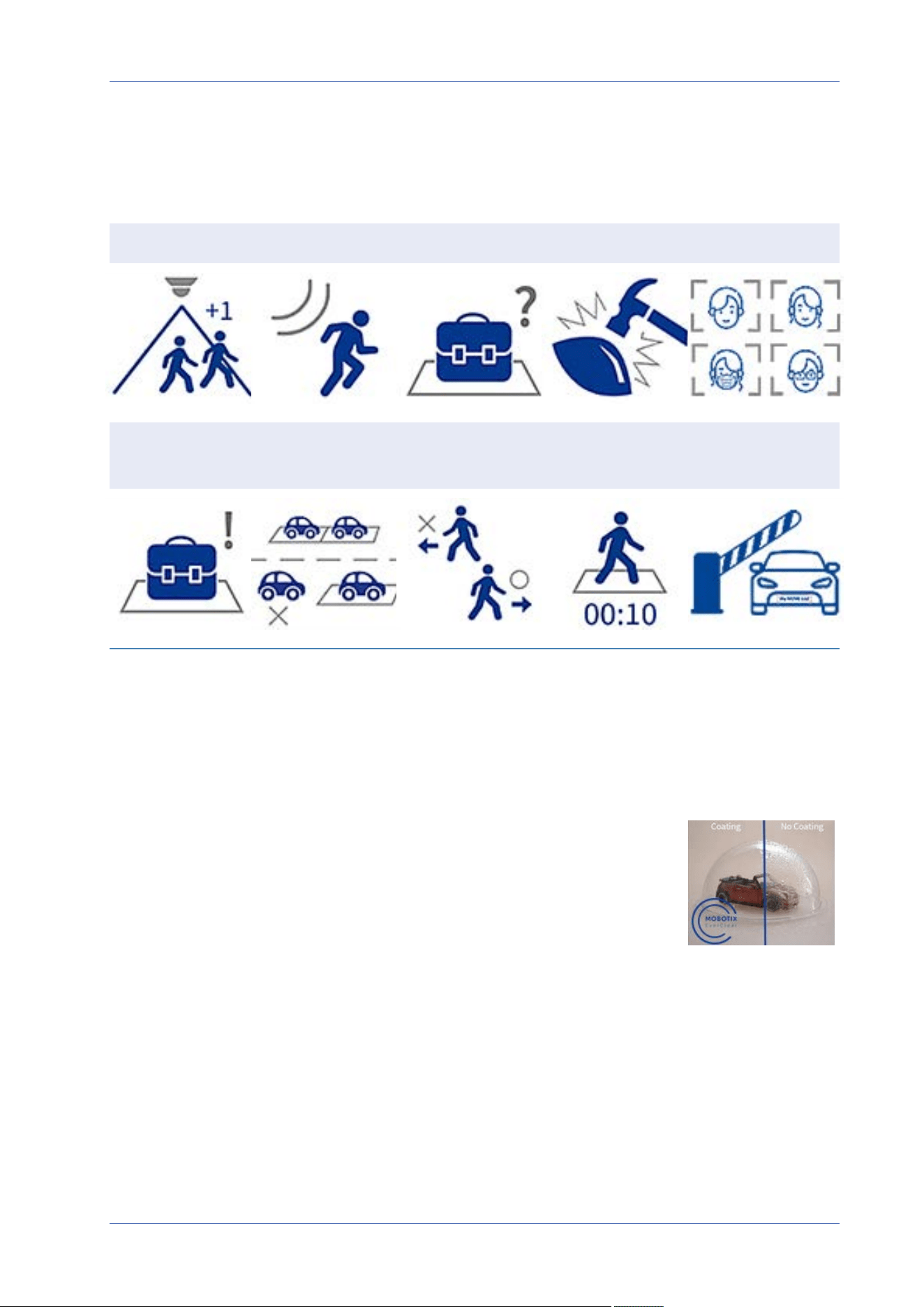
Technical Support Information
Technical Specifications
Technical Specifications
High-Quality DNN Edge Video Analytics
Counting Intrusion Removed Objects Sabotage Face Recognition
Abandoned
Objects
Stopped Vehicle Wrong Direction Loitering ALPR
The latest computer vision technology makes the DNN-accelerated video processing engine efficient
at the edge. This integrated engine provides high accuracy, and 10 (DNN-based) video analytics func-
tions including ALPR and human face recognition. Moreover, it allows simultaneous detection on mul-
tiple objects.
MOBOTIX EverClear Nano Coating
The new, groundbreaking MOBOTIX EverClear coating uses a special nano tech-
nology that transforms water droplets into an ultra-thin water film imme-
diately upon impact. This ensures the highest image quality in rain and
difficult environmental conditions and reduces maintenance costs due to its
“self-cleaning” effect.
112 / 120
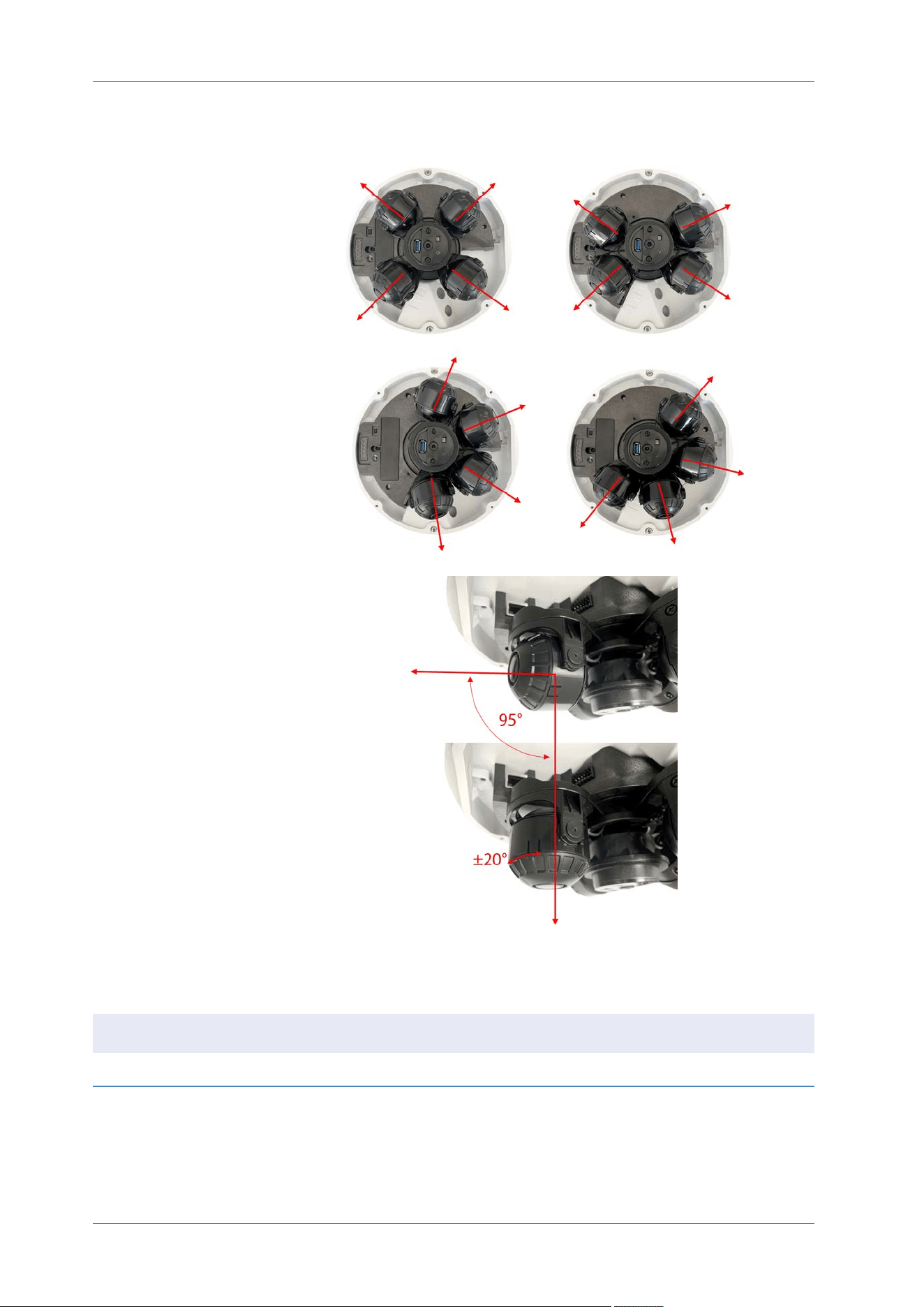
Freely Positionable Image Modules
The four sensor mod-
ules can be arranged
next to each other as
required and thus optim-
ally aligned to the detec-
tion area.
Every sensor module
can be tilted by up to 95
degrees. In addition,
you can pivot every
module by ±20 degrees.
Product Information
Product Name 20MPMultisensor IRVideo Analytics Camera
Order Code Mx-VM1A-20-IR-VA
Technical Support Information
Technical Specifications
113 / 120

Technical Support Information
Technical Specifications
Image Quality
Image Sensors 4x 5MP 1/2.8” Progressive CMOS IMX675 (SONY STARVIS II)
Effective (Used) Pixels
(per image sensor)
H x V = 2608x1964 (5MP)
Pixel Size 2.0µm
Frame Rate (maximum) WDR on/off:
H.265/H.264: 5MP@30 fps
MJPEG: 1080p@30fps
Multisensor Bubble Coating Superhydrophilic MOBOTIX EverClear nano coating transforms water
droplets into an ultra-thin water film upon impact. The coating
ensures best image quality in rain and difficult external conditions and
it reduces reflections and noise in low-light scenarios. EverClear is dirt-
repellent and increases the stability as well as the scratch-resistance of
the multisensor bubble, further reducing maintenance efforts. Coating
endurance up to 3 years depending on environmental conditions and
cleaning treatment.
Hardware Design
Processor Ambarella CV52
Memory RAM: 4GBytes,
FLASH: 512MBytes
Lens
Minimum Illumination Color: 0.02Lux
B/W: 0.001Lux
F1.6, AGC=on, 30 IRE, 1/1s
Lens Characteristics
(per image sensor)
Motorized Lens: Zoom, Focus
Focal Length: 2.8 to 8mm
Aperture: F1.6
Horizontal Field of View: 111.5° (Wide), 53.7° (Tele)
Vertical Field of View: 79° (Wide), 40.2° (Tele)
114 / 120

Camera
Day/Night Automatically switchable IR-cut filter
Shutter Speed (Auto) 1 to 1/10000s
Shutter Speed (Manual) WDR: 1 to 1/67500s
Linear: 1 to 1/67500s
Shutter Priority Mode Up to 1/45s
WDR Up to 130 dB
Zoom Optical: 3x, Digital: 10x
Image Settings Color, Brightness, Sharpness, Contrast, White Balance, Exposure Con-
trol, 2DNR, 3DNR, NR by Motion, Masking, Text Overlay
Image Rotation 90°, 180°, 270°
Camera Module Adjustment
(per image sensor)
Pan/tilt/rotate/twist
Video Codec
Compression/Encoding H.265/H.264/MJPEG
Streaming Up to 9 individually configurable streams (4 streams, 4 sub streams, 1
Quad stream) in H.264/H.265/MJPEG;
configurable resolution, frame rate, bandwidth LBR/VBR/CBR in
H.265/H.264
Audio Codec
Compression/Encoding G.711/G.726/AAC/LPCM
Streaming Bi-directional
Audio Input Integrated microphone,
Line In
Max. 2.28 V
pp
for line signal
Input impedance: 33kΩ
Audio Output Line Out
Output resistance: 220Ω
Output voltage: 1V
rms
Technical Support Information
Technical Specifications
115 / 120

Technical Support Information
Technical Specifications
Cyber Security Features
Password Protection Yes (including “forced” password change during ini-
tial setup)
IP address filtering Yes (to restrict unauthorized access based on IP
addresses)
IEEE 802.1X network access control Yes (for advanced network security and authen-
tication)
Digest authentication Yes (for secure user authentication)
FIPS 140-2 Level 2 Yes (Infineon OPTIGA™ TPM SLB 9670 TPM 2.0,
NIST/CMVP Certified Trusted Platform Module: Cer-
tificate #3492)
Security Level Exceptions:
n
Physical Security: Level 3
n
EMI/EMC: Level 3
True random number generator Yes (via TPM chipset)
AES encryption for password protection Yes (to ensure strong encryption for password stor-
age)
HTTPS/SSL (using TLS) Yes (TLS 1.2 default, TLS 1.0/1.1 optional select-
able)
User and Group Management Yes (for fine-grained access control)
VPN Yes (to establish secure network connections)
Digitally signed firmware Yes (to prevent firmware file tampering)
RSA encryption Yes (to support stronger ciphers; supported: RSA
(2048 bits), AES-128, AES-256, SHA-256, SHA-384)
Network
Interface 10/100/1000 Mbps Ethernet
Supported Protocols ARP, PPPoE, IPv4/v6, ICMP, IGMP, QoS, TCP, UDP, DHCP, UPnP, SNMP,
SMTP, RTP, RTSP, HTTP, HTTPS, FTP, NTP, DDNS, SMBv2, VPN
ONVIF conformance Supports profiles S/G/T/M
Supported Browsers All current browsers (e.g. Microsoft Edge, Firefox, Google Chrome,
Opera, etc.) are supported.
116 / 120

System Integration
Base Video Analytics
n
Motion detection
n
Audio detection
Enhanced Video Analytics
n
Abandoned objects
n
Intrusion (object classification)
n
Sabotage
n
Wrong direction
n
Loitering (object classification)
n
Object counting (object classification)
n
Object removal
n
Stopped vehicle (object classification)
1 analytics function can be activated for every image sensor
DNN (Deep Neural Network)
based video analytics
n
Face Recognition (incl. gender & age estimation)
n
Number Plate Recognition – supported countries:
Armenia, Austria, Azerbaijan, Belarus, Belgium, Bosnia and
Herzegovina, Bulgaria, Croatia, Cyprus, Czech Republic, Den-
mark, Estonia, Finland, France, Georgia, Germany, Greece,
Hungary, Ireland, Israel, Italy, Japan, Kazakhstan, Kyrgyzstan,
Latvia, Lithuania, Luxembourg, Moldova, Monaco,
Montenegro, Netherlands, North Macedonia, Norway, Poland,
Portugal, Romania, Russia, Serbia, Slovakia, Slovenia, Spain,
Sweden, Switzerland, Taiwan, Turkey, Ukraine, United King-
dom, Uzbekistan, Vietnam
Technical Support Information
Technical Specifications
117 / 120

Technical Support Information
Technical Specifications
Event Triggers
n
External input
n
Analytics
n
Network failure detection
n
Periodical event
n
Manual trigger
n
MxMessageSystem messages
Event Actions
n
External output activation
n
Video and audio recording to edge storage
n
File upload: FTP, network share and email
n
Notification: HTTP, FTP, email
n
MxMessageSystem messages
General
Housing material Metal and plastic
Power Requirements IEEE802.3bt, Type 3, class 6, max 51Watt
AC24V, max 53.1Watt, max 74.8VA
DC24V, max 27.55Watt
Connectors
n
RJ45
n
USB Type A
n
2 x Alarm in, 2x Alarm out, Audio in, Audio out terminal block
n
DC24V/AC24V terminal block
IR Illumination 850 nm; up to 30 m/100 ft distance depending on scenery reflection
Video Storage microSD SDHC/SDXC card support up to 1TB (2 slots),
M.2 SSD card support up to 8TB,
support for recording to NAS, MOBOTIX HUB, MOBOTIX MOVE NVR,
MOBOTIX CLOUD
Remotely Upgradable Yes
Environmental Protection
Class
IP66/IK10
Operating Temperature –40 to 60°C/-40 to 140°F with heater
Relative Humidity 10 to 90% non-condensing
118 / 120

Storage Conditions –20 to 70 °C/–4 to 158 °F
Approvals EMC: CE/FCC
Safety: LVD
IT Security: FIPS 140-2-compliant (using certified TPM chipset)
Environmental: IP66, IK10, NEMA-4x-compliant
MTBF 95,000hours
Warranty 5years; mechanically wearable parts (motor, gears, belts, etc.)
excluded
Dimensions ø 255 x 105mm
Weight 2400g
NOTE! Observe the MOBOTIX MOVE Installation Hints document to ensure optimum performance
of the camera features.
Alarm Input/Output Current and Voltage
Alarm In Alarm Out
5V with 10kΩ pull up, 50mA 400V DC/AC, 120mA
Technical Support Information
Technical Specifications
119 / 120

EN_09/23
MOBOTIX AG • Kaiserstrasse • D-67722 Langmeil • Tel.: +49 6302 9816-103 • [email protected] • www.mobotix.com
MOBOTIX is a trademark of MOBOTIX AG registered in the European Union, the U.S.A., and in other countries. Subject to change without
notice. MOBOTIX do not assume any liability for technical or editorial errors or omissions contained herein. All rights reserved. ©MOBOTIX
AG2021