
Version Info
Version
Date
Remarks
V1.0
2016.10
V2.0
2020.04

Preface
Preface
Dear customers,
Congratulations! Thank you for buying Micsig instrument. Please read this manual carefully before use and
particularly pay attention to the “Safety Precautions”.
If you have read this manual, please keep it properly for future reference.
The information contained herein are furnished in an “as-is” state, and may be subject to change in future versions
without notice.


Table of Contents
i
Table of Contents
TABLE OF CONTENTS ................................................................................................................................................ I
CHAPTER 1. SAFETY PRECAUTIONS ......................................................................................................................... 4
1.1 SAFETY PRECAUTIONS........................................................................................................................................... 4
1.2 SAFETY TERMS AND SYMBOLS .............................................................................................................................. 5
CHAPTER 2. QUICK START GUIDE OF OSCILLOSCOPE ............................................................................................... 7
2.1 INSPECT PACKAGE CONTENTS ............................................................................................................................... 8
2.2 USE THE BRACKET ................................................................................................................................................ 8
2.3 REAR PANEL & SIDE PANEL .................................................................................................................................... 9
2.4 FRONT PANEL ........................................................................................................................................................ 9
2.5 POWER ON/OFF THE OSCILLOSCOPE ..................................................................................................................... 10
2.6 UNDERSTAND THE OSCILLOSCOPE DISPLAY INTERFACE ...................................................................................... 11
2.7 INTRODUCTION BASIC OPERATIONS OF TOUCH SCREEN ...................................................................................... 12
2.8 MOUSE OPERATION ............................................................................................................................................. 14
2.9 CONNECT PROBE TO THE OSCILLOSCOPE ............................................................................................................. 14
2.10 USE AUTO ......................................................................................................................................................... 15
2.11 LOAD FACTORY SETTINGS ................................................................................................................................. 17
2.12 USE AUTO-CALIBRATION ................................................................................................................................... 17
2.13 PASSIVE PROBE COMPENSATION ....................................................................................................................... 17
2.15 MODIFY THE LANGUAGE ................................................................................................................................... 19
CHAPTER 3 HORIZONTAL SYSTEM.......................................................................................................................... 20
3.1 MOVE THE WAVEFORM HORIZONTALLY .............................................................................................................. 21
3.2 ADJUST THE HORIZONTAL TIME BASE (TIME/DIV) ............................................................................................... 21
3.3 PAN AND ZOOM SINGLE OR STOPPED ACQUISITIONS ........................................................................................... 23
3.4 ROLL, XY ............................................................................................................................................................ 23
3.5 ZOOM MODE ....................................................................................................................................................... 26
CHAPTER 4 VERTICAL SYSTEM ............................................................................................................................... 29
4.1 OPEN/CLOSE WAVEFORM (CHANNEL, MATH, REFERENCE WAVEFORMS) ........................................................... 30
4.2 ADJUST VERTICAL SENSITIVITY .......................................................................................................................... 32
4.3 ADJUST VERTICAL POSITION ............................................................................................................................... 32
4.4 OPEN CHANNEL MENU ........................................................................................................................................ 33
4.4.1 Set Channel Coupling ................................................................................................................................... 33
4.4.2 Set Bandwidth Limit .................................................................................................................................... 35
4.4.3 Waveform Inversion .................................................................................................................................... 36
4.4.4 Set Probe Type ............................................................................................................................................. 37
4.4.5 Set Probe Attenuation Coefficient ............................................................................................................... 38
CHAPTER 5 TRIGGER SYSTEM ................................................................................................................................ 39
5.1 TRIGGER AND TRIGGER ADJUSTMENT ................................................................................................................. 40

ii
5.2 EDGE TRIGGER .................................................................................................................................................... 45
5.3 PULSE WIDTH TRIGGER ....................................................................................................................................... 47
5.4 LOGIC TRIGGER ................................................................................................................................................... 51
5.5 NTH EDGE TRIGGER (OPTIONAL) ........................................................................................................................ 53
5.6 RUNT TRIGGER (OPTIONAL) ................................................................................................................................ 55
5.7 SLOPE TRIGGER ................................................................................................................................................... 56
5.8 TIMEOUT TRIGGER (OPTIONAL) .......................................................................................................................... 58
5.9 VIDEO TRIGGER .................................................................................................................................................. 60
5.10 SERIAL BUS TRIGGER ........................................................................................................................................ 62
CHAPTER 6 ANALYSIS SYSTEM ............................................................................................................................... 63
6.1 AUTOMATIC MEASUREMENT ............................................................................................................................... 64
6.2 FREQUENCY METER MEASUREMENT ................................................................................................................... 68
6.3 CURSOR ............................................................................................................................................................... 68
CHAPTER 7 SCREEN CAPTURE, MEMORY DEPTH AND WAVEFORM STORAGE ........................................................ 72
7.1 SCREEN CAPTURE FUNCTION .............................................................................................................................. 73
7.2 VIDEO RECORDING .............................................................................................................................................. 73
7.3 WAVEFORM STORAGE ......................................................................................................................................... 74
CHAPTER 8 MATH AND REFERENCE ....................................................................................................................... 79
8.1 DUAL WAVEFORM CALCULATION ....................................................................................................................... 80
8.2 FFT MEASUREMENT ........................................................................................................................................... 82
8.3 REFERENCE WAVEFORM CALL ............................................................................................................................ 85
CHAPTER 9 DISPLAY SETTINGS AND FUNCTION BUTTONS ..................................................................................... 88
9.1 WAVEFORM SETTINGS ......................................................................................................................................... 89
9.2 GRATICULE SETTING ........................................................................................................................................... 89
9.3 PERSISTENCE SETTING ........................................................................................................................................ 89
9.4 HORIZONTAL EXPANSION CENTER ....................................................................................................................... 90
9.5 TIME BASE MODE SELECTION ............................................................................................................................. 90
9.6 WAVEFORM REFRESH RATE (HIGH REFRESH MODE) ............................................................................................. 91
9.7 RUN/STOP AND SINGLE SEQ ............................................................................................................................... 91
9.8 AUTO ................................................................................................................................................................... 91
9.9 MEASUREMENT ................................................................................................................................................... 92
9.10 TRIGGER ............................................................................................................................................................ 92
9.11 HOME ................................................................................................................................................................ 92
CHAPTER 10 SAMPLING SYSTEM ........................................................................................................................... 93
10.1 SAMPLING OVERVIEW ....................................................................................................................................... 94
10.2 RUN/STOP KEY AND SINGLE SEQ KEY .............................................................................................................. 96
10.3 SELECT SAMPLING MODE .................................................................................................................................. 97
10.4 RECORD LENGTH AND SAMPLING RATE .......................................................................................................... 100
CHAPTER 11 HOMEPAGE FUNCTIONS .................................................................................................................. 102
11.1 OSCILLOSCOPE (SEE CHAPTERS 2~13) ............................................................................................................. 103

Table of Contents
iii
11.2 CONTACT US .................................................................................................................................................... 103
11.3 FILE MANAGER ............................................................................................................................................... 103
11.4 SETTINGS ......................................................................................................................................................... 104
11.5 QUICKGUIDE .................................................................................................................................................... 109
11.6 PHOTO ............................................................................................................................................................. 109
11.7 VIDEO .............................................................................................................................................................. 111
11.8 TIME ................................................................................................................................................................ 112
11.9 SHUTDOWN、LOCK SCREEN AND UNLOCK ............................................................................................................. 112
CHAPTER 12 SERIAL BUS TRIGGER AND DECODE (OPTIONAL) ............................................................................. 115
12.1 UART (RS232/RS422/RS485) BUS TRIGGER AND DECODE ........................................................................... 117
12.2 LIN BUS TRIGGER AND DECODE ..................................................................................................................... 122
12.3 CAN BUS TRIGGER AND DECODE ................................................................................................................... 126
12.4 SPI BUS TRIGGER AND DECODE ...................................................................................................................... 129
12.5 I2C BUS TRIGGER AND DECODE ...................................................................................................................... 133
12.6 ARINC429 BUS TRIGGER AND DECODE ......................................................................................................... 136
12.7 1553B BUS TRIGGER AND DECODE ................................................................................................................. 139
CHAPTER 13 REMOTE CONTROL .......................................................................................................................... 143
13.1 HOST COMPUTER ............................................................................................................................................. 144
13.1.1 Installation of Host Computer Software .................................................................................................. 144
13.1.2 Connection of Host Computer ................................................................................................................. 144
13.1.3 Main Interface Introduction .................................................................................................................... 145
13.1.4 Operation Interface Introduction ............................................................................................................ 146
13.1.5 Storage and View of Pictures and Videos ................................................................................................ 146
13.2 MOBILE REMOTE CONTROL ............................................................................................................................ 147
13.3 FTP ................................................................................................................................................................. 148
13.4 SCPI ................................................................................................................................................................ 151
CHAPTER 14 REFERENCE ..................................................................................................................................... 152
14.1 MEASUREMENT CATEGORY ............................................................................................................................. 153
14.2 POLLUTION DEGREE ........................................................................................................................................ 153
14.3 SOFTWARE AND FIRMWARE UPDATES .............................................................................................................. 154
CHAPTER 15 TROUBLESHOOTING ........................................................................................................................ 155
CHAPTER 16 SERVICES AND SUPPORT ................................................................................................................. 158
ANNEX ................................................................................................................................................................ 159
ANNEX A:TECHNICAL SPECIFICATIONS ................................................................................................................ 159
ANNEX B:MAINTENANCE AND CARE OF OSCILLOSCOPE ......................................................................................... 163
ANNEX C: ACCESSORIES ......................................................................................................................................... 164

4
Chapter 1. Safety Precautions
1.1 Safety Precautions
The following safety precautions must be understood to avoid personal injury and prevent damage to this product
or any products connected to it. To avoid possible safety hazards, it is essential to follow these precautions while
using this product.
⚫ Only professionally trained personnel can operate the maintenance procedure.
⚫ Avoid fire and personal injury.
⚫ Use proper power cord. Use only the power cord specified for this product and certified for the
country/region of use.
⚫ Connect and disconnect probes properly. Connect the instrument probe correctly, and its ground terminal
is ground phase. Do not connect or disconnect probes or test leads while they are connected to a voltage
source. Disconnect the probe input and the probe reference lead from the circuit under test before
disconnecting the probe from the measurement product.
⚫ Ground the product. To avoid electric shock, the instrument grounding conductor must be connected
to earth ground.
⚫ Observe all terminal ratings. To avoid fire or shock hazard, observe all rating and markings on the product.
Consult the product manual for further information of ratings before making connections to the product.
⚫ User correct probes. To avoid excessive electric shock, use only correct rated probes for any measurement.
⚫ Disconnect AC power. The adapter can be disconnected from AC power and the user must be able to access
the adapter at any time.
⚫ Do not operate without covers. Do not operate the product with covers or panels removed.
⚫ Do not operate with suspected failures. If you suspect that there is damage to this product, have it inspected
by service personnel designated by Micsig.
⚫ Use adapter correctly. Supply power or charge the equipment by power adapter designated by Micsig, and
charge the battery according to the recommended charging cycle.
⚫ Avoid exposed circuitry. Do not touch exposed connections and components when power is present.
⚫ Provide proper ventilation.
⚫ Do not operate in wet/damp conditions.
⚫ Do not operate in a flammable and explosive atmosphere.
⚫ Keep product surfaces clean and dry.
⚫ The disturbance test of all models complies with Class A standards, based on
Chapter 1. Safety Precautions
5
EN61326:1997+A1+A2+A3, but do not meet Class B standards.
Measurement Category
The TO1000 series oscilloscope is intended to be used for measurements in Measurement Category I.
Measurement Category Definition
Measurement category I is for measurements performed on circuits not directly connected to the MAINS. Examples
are measurements on circuits not derived from MAINS, and specially protected (internal) MAINS derived circuits. In
the latter case, transient stresses are variable; for that reason, the user must understand the transient withstand capability
of the equipment.
Warning:
IEC Measurement Category. Under IEC Category I mounting conditions, the input terminal can be connected to
the circuit terminal with a maximum line voltage of 300Vrms. To avoid the risk of electric shock, the input
terminal should not be connected to the circuit with a line voltage greater than 300Vrms. Instantaneous
overvoltage is present in circuits that are isolated from the mains supply. The TO1000 series digital oscilloscope
is designed to safely withstand sporadic transient overvoltage up to 1000Vpk. Do not use this equipment for any
measurements in circuits where the instantaneous overvoltage exceeds this value.
1.2 Safety Terms and Symbols
Terms in the manual
These terms may appear in this manual:
Warning. Warning statements indicate conditions or practices that could result in injury or loss of life.
Caution. Caution statements indicate conditions or practices that could result in damage to this product
or other property.
Terms on the product
These terms may appear on the product:
Danger indicates an injury hazard immediately accessible as you read the marking.
Warning indicates an injury hazard not immediately accessible as you read the marking.
Caution indicates a hazard to this product or other properties.
Symbols on the product
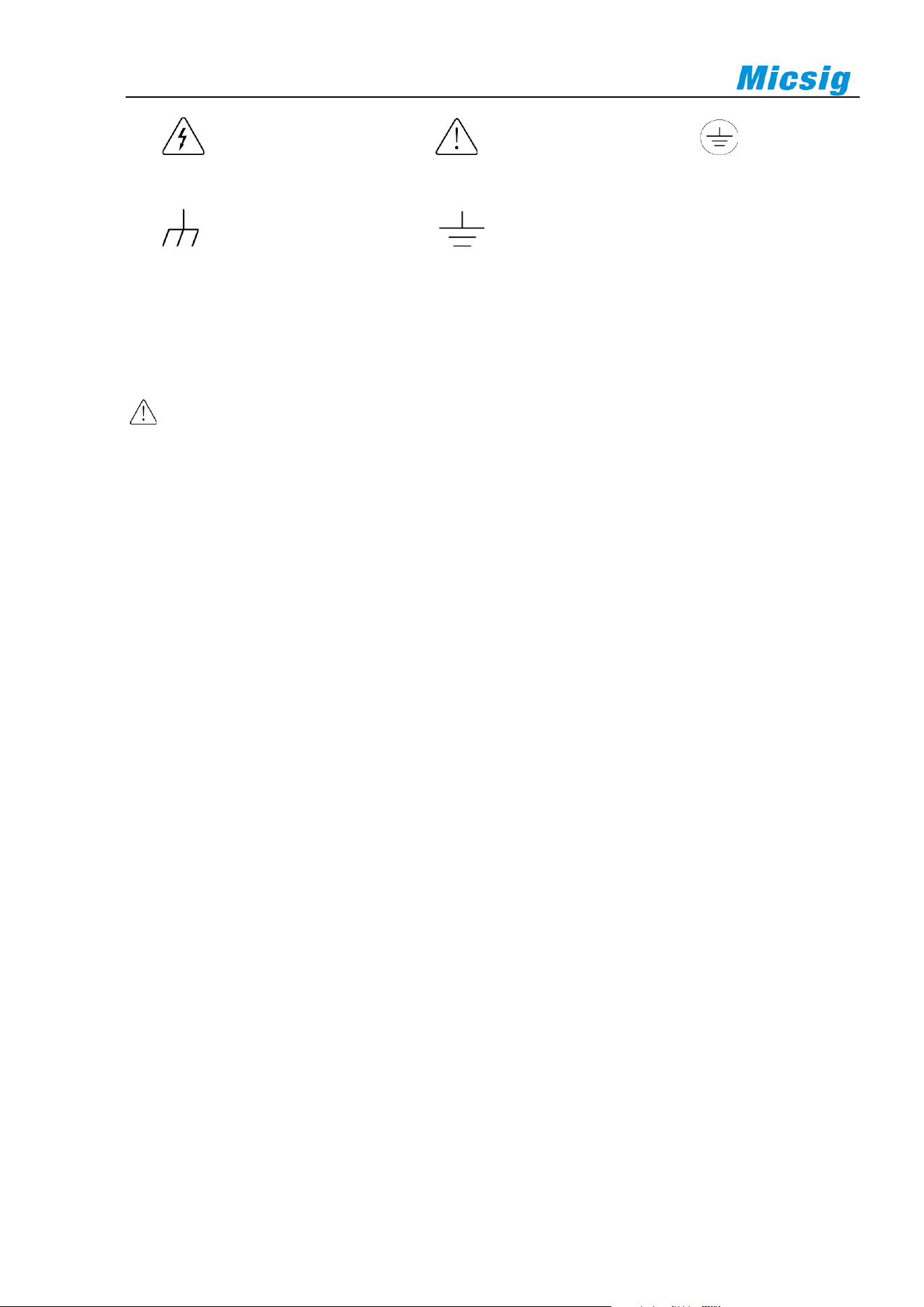
The following symbols may appear on the product:
6
Hazardous Voltage Caution Refer to Manual Protective Ground Terminal
Chassis Ground Measurement Ground Terminal
Please read the following safety precautions to avoid personal injury and prevent damage to this product
or any products connected to it. To avoid possible hazards, this product can only be used within the
specified scope.
Warning
If the instrument input port is connected to a circuit with the peak voltage higher than 42V or the power exceeding
4800VA, to avoid electric shock or fire:
⚫ User only insulated voltage probes supplied with the instrument, or the equivalent product indicated in the
schedule.
⚫ Before use, inspect voltage probes, test leads, and accessories for mechanical damage and replace when
damaged.
⚫ Remove voltage probes and accessories not in use.
⚫ Plug the battery charger into the AC outlet before connecting it to the instrument.

Chapter 2. Quick Start Guide of Oscilloscope
7
Chapter 2. Quick Start Guide of Oscilloscope
This chapter contains checks and operations of the oscilloscope. You are recommended to read them carefully to
understand appearance, power on/off, settings and related calibration requirements of the tBook mini series
oscilloscope.
⚫ Inspect package contents
⚫ Use bracket
⚫ Rear panel & side panel
⚫ Front panel
⚫ Power on/off the oscilloscope
⚫ Understand the oscilloscope display interface
⚫ Introduction to basic operations of oscilloscope
⚫ Mouse operation
⚫ Connect probe to the oscilloscope
⚫ Use automatic
⚫ Use factory settings
⚫ Use auto-calibration
⚫ Passive probe compensation
⚫ Modify the language
8
2.1 Inspect Package Contents
When you open package after receipt, please check the instrument according to the following steps.
1) Inspect if there is any damage caused by transportation
If the package or foam is found to be severely damaged, please retain it until the instrument and accessories
pass the electrical and mechanical properties test.
2) Inspect the accessories
A detailed description is given in “
Annex C” of this manual. You can refer it to check if the accessories are
complete. If the accessories are missing or damaged, please contact Micsig’s agent or local office.
3) Inspect the instrument
If any damage to oscilloscope is found by the appearance inspection or it fails to pass the performance test,
please contact Micsig’s agent or local office. If the instrument is damaged due to transportation, please retain
the package and contact the transportation company or Micsig’s agent, and Micsig will make arrangement.
2.2 Use the Bracket
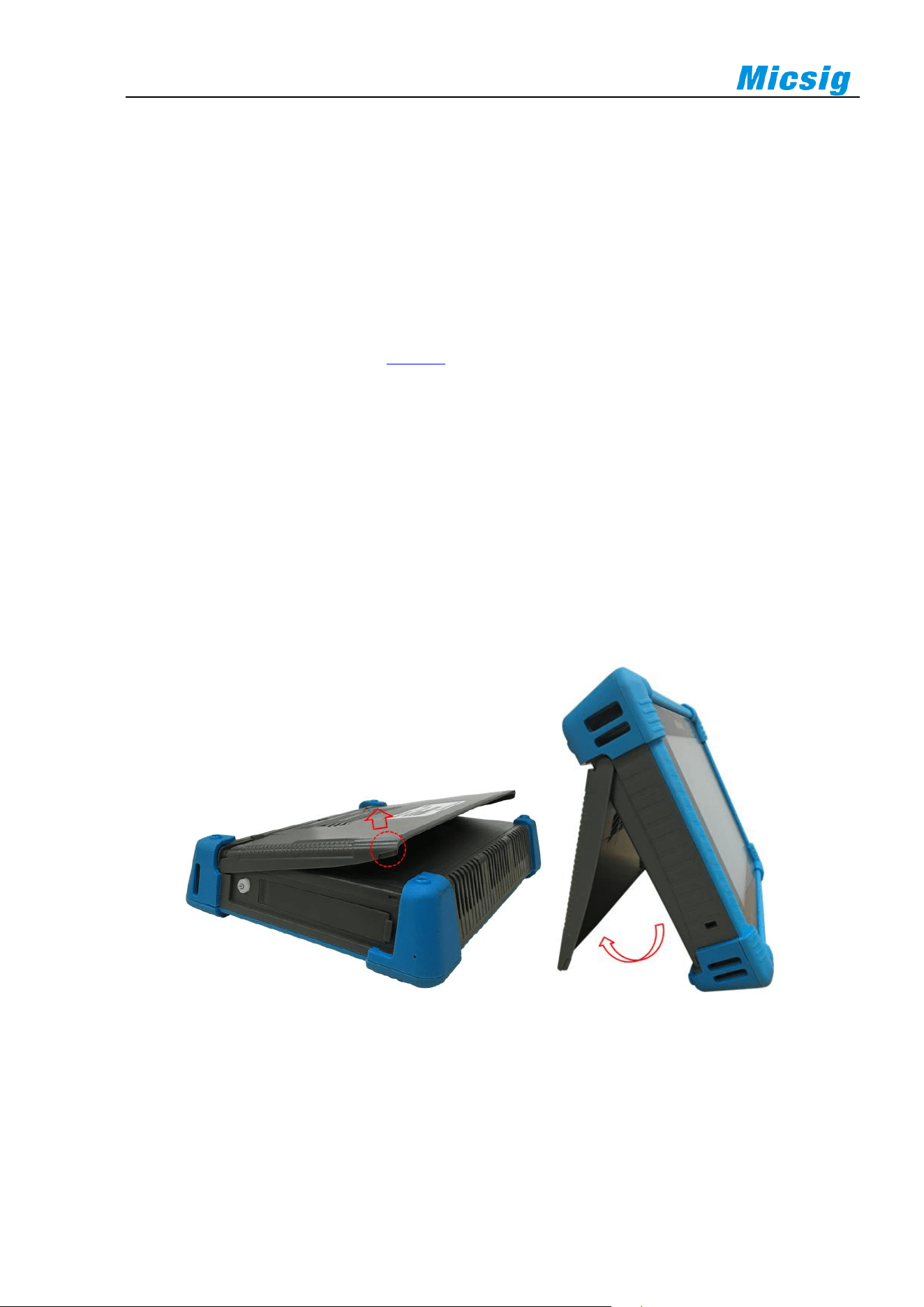
Put the front panel of the oscilloscope flatly on the table. Use your two index fingers to hold the underside of the
bracket and open the bracket by slightly upwards force, as shown in Figure 2-1.
Figure 2-1 Open Bracket
Chapter 2. Quick Start Guide of Oscilloscope
9
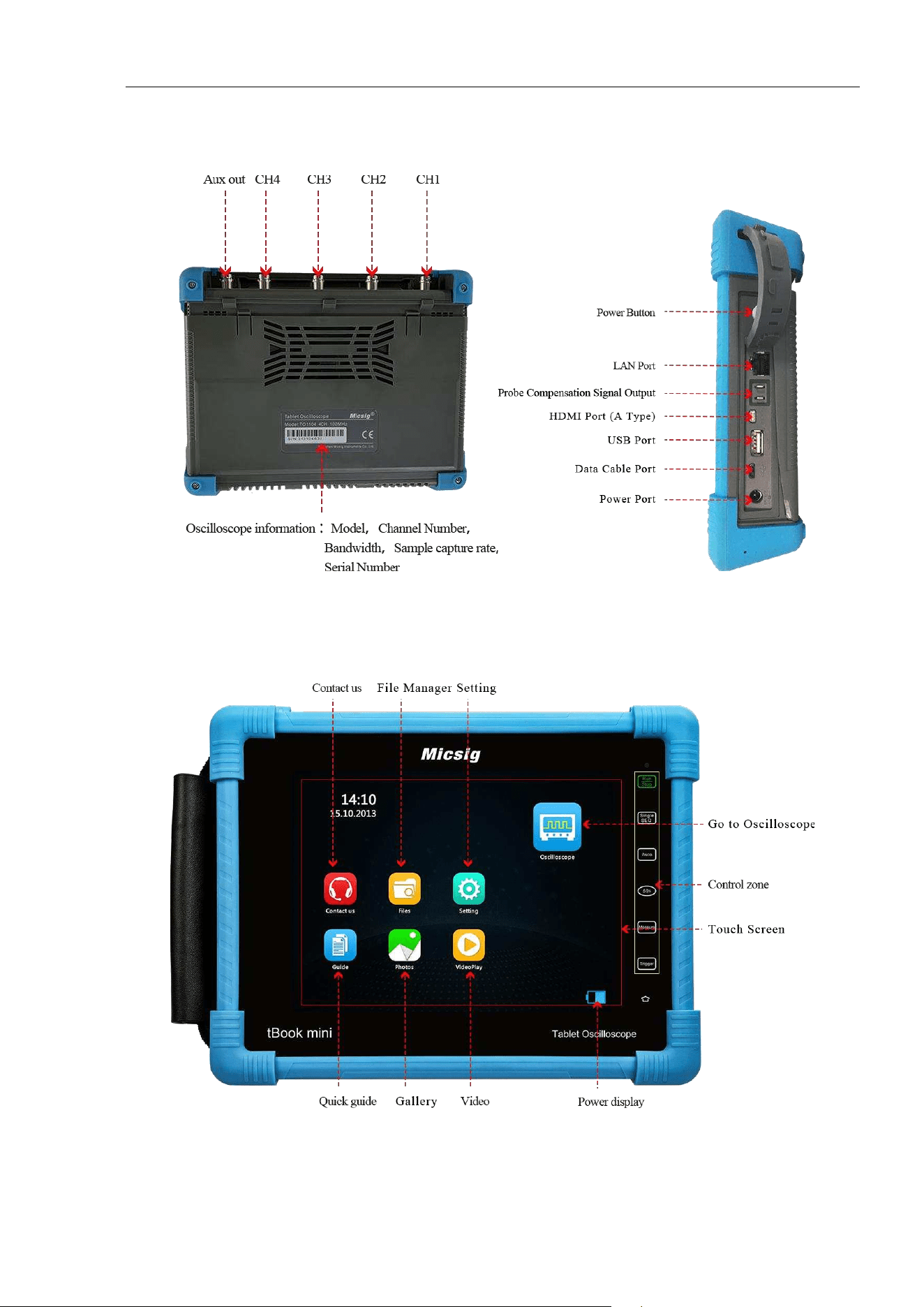
2.3 Rear panel & side panel
Figure 2-2 Rear panel & side Panel
2.4 Front Panel
Figure 2-3 Front Panel of Tablet Oscilloscope
10
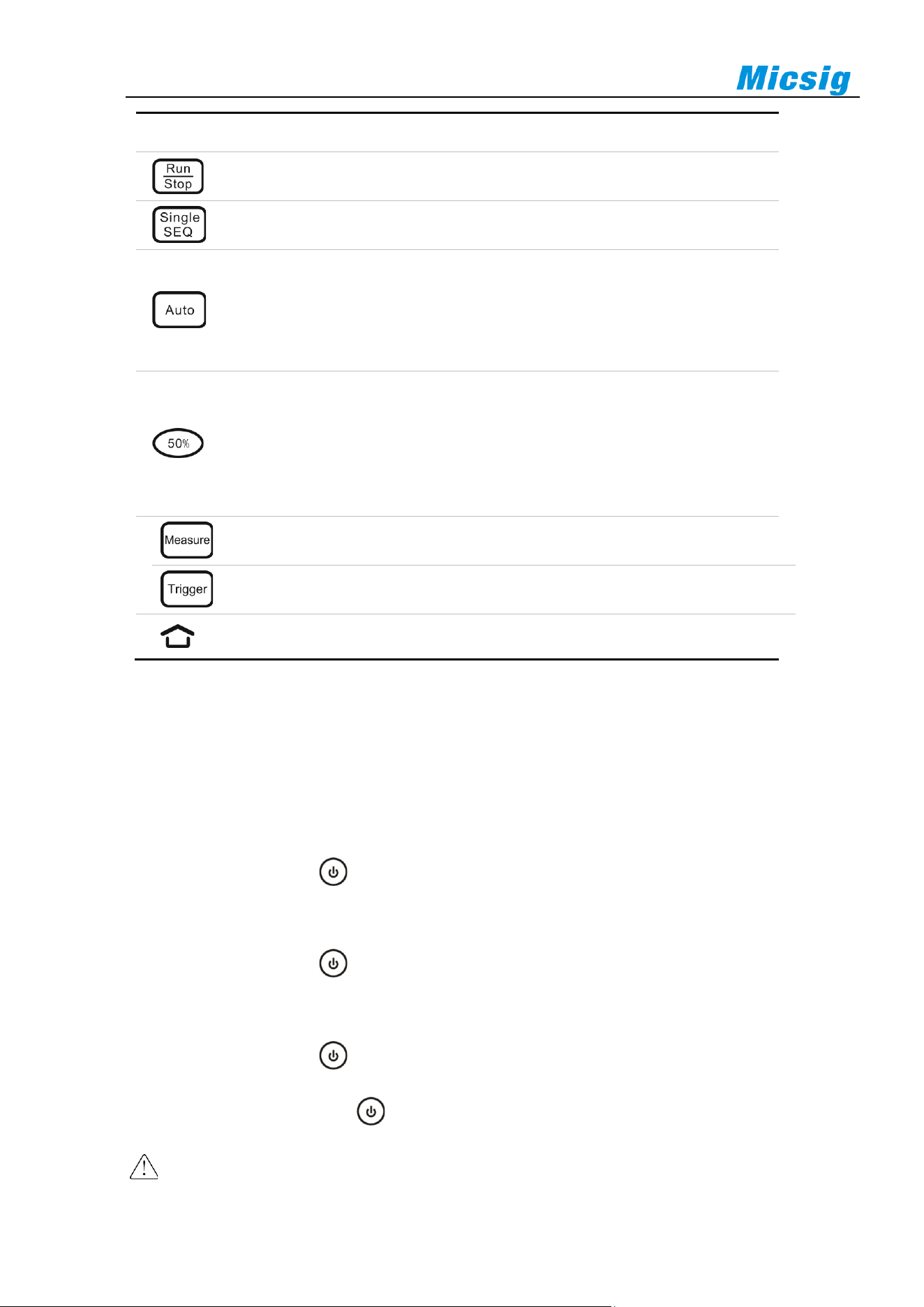
Touch button
Description
Run/Stop: Touch to start/Stop acquisition
Single SEQ: Touch to trigger on a single waveform
Auto:Touch to activate automatic waveform setup
Note: Automatic setup requires the frequency of the test signal to be at least
20Hz if the signal is sinusoidal. Otherwise, automatic setup may fail and the
quick parameter measurement function displayed in the menu will also be
unavailable
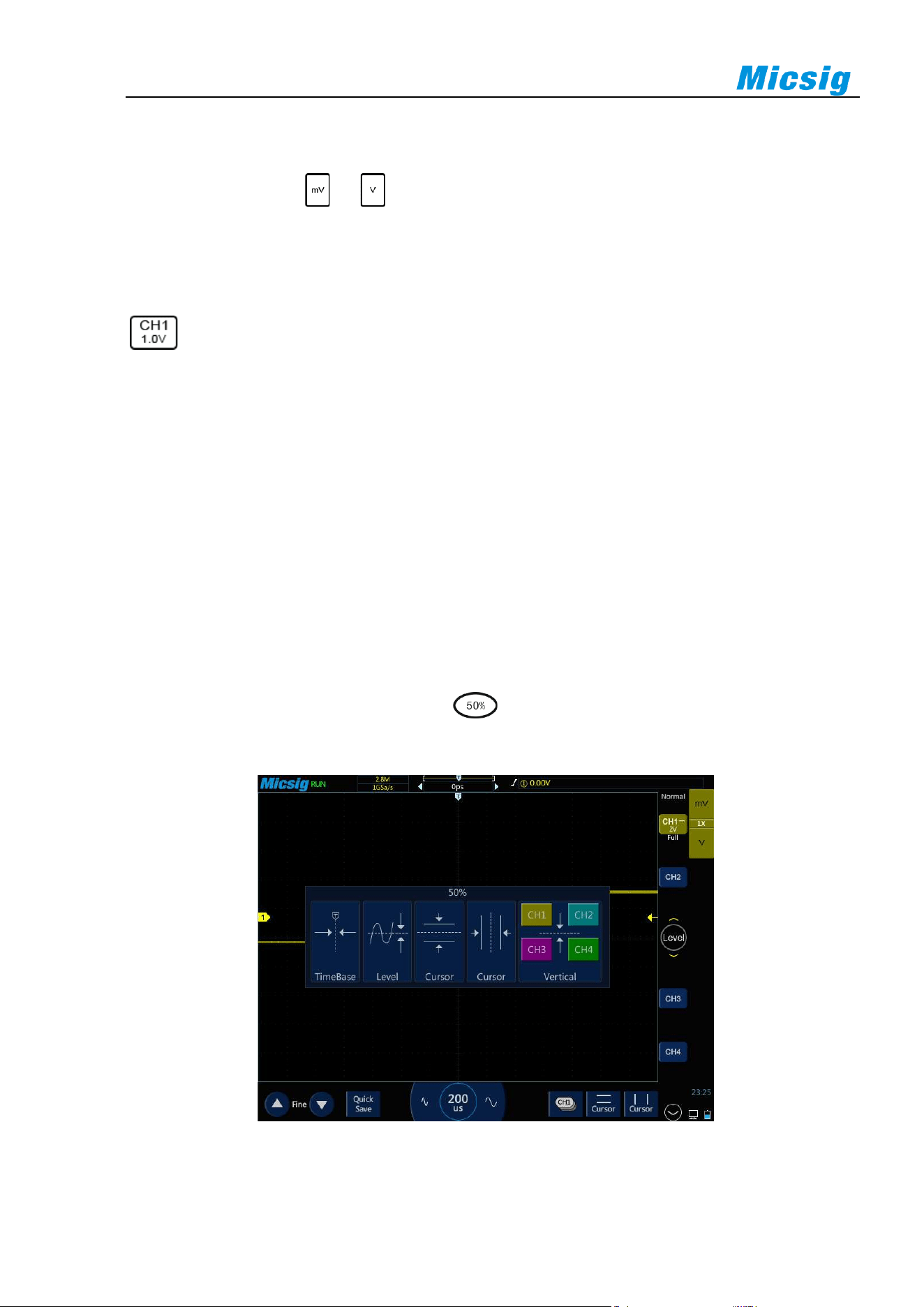
50%:Touch to set:
⚫ The channel zero point quickly returns to the center of the screen
⚫ The trigger position quickly returns to the center of the screen
⚫ Trigger level quickly returns to the center of waveform
⚫ The cursor automatically adjusts to the center of the screen on both
sides, horizontal or vertical
Measure:Touch to turn on / off measurement menu
Trigger:Touch to turn on / off trigger menu
Home:Touch to return to the homepage
Table 2-1 Description of Oscilloscope Front Panel
2.5 Power on/off the Oscilloscope
Power on/off the oscilloscope
First time start
⚫ Connect power adapter to the oscilloscope, and the oscilloscope should not be pressed on the adapter cable.
⚫ Press the power button to start the instrument.
Power on
⚫ Press the power button to start the instrument while ensuring it is connected to a power supply.
Power off
⚫ Press the power button , go to power-off interface, and click to turn off the instrument.
⚫ Long press the power button for forced power-off of the instrument.
Caution: Forced power-off may result in loss of unsaved data, please use with caution.
Chapter 2. Quick Start Guide of Oscilloscope
11
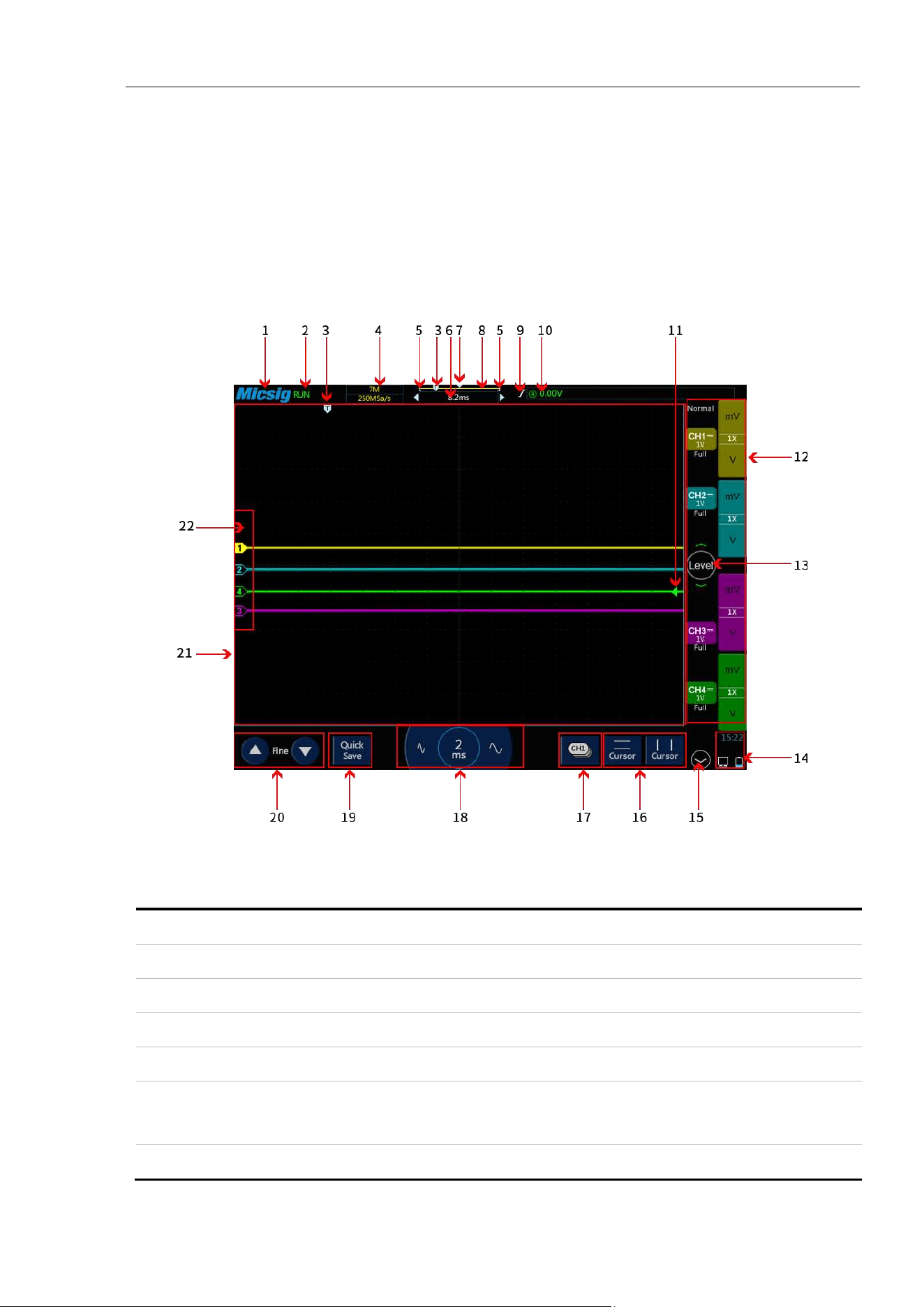
2.6 Understand the Oscilloscope Display Interface
This section provides a brief introduction and description of the tBook mini Series oscilloscope user’s interface.
After reading this section, you can be familiar with the oscilloscope display interface content within the shortest
possible time. The specific settings and adjustments will be detailed in subsequent chapters and sections. The
following items may appear on the screen at a given time but not all items are visible. The oscilloscope interface
is shown in Figure 2-4.
Figure 2-4 Oscilloscope Interface Display
No.
Description
1
Micsig logo
2
Oscilloscope status, including RUN, STOP, WAIT, AUTO
3
Trigger point
4
Sampling rate, memory depth
5
The area in “[]” indicates the position of waveform displayed on the screen throughout the memory
depth
6
Delay time, the time at which the center line of the waveform display area is relative to the trigger

12
No.
Description
point
7
Center line of waveform display area
8
Memory depth indicatrix
9
Current trigger type indication
10
Current trigger source, trigger level
11
Trigger level indicator
12
CH1、CH2、CH3、CH4 cchannel icons and vertical sensitivity icon. Tap the channel icons to
open channels and corresponding channel menu, or close channels, operate in a loop; Tap mV or
V to adjust the vertical sensitivity of channels; Display the vertical sensitivity of channels; Display
the sampling mode
13
Trigger level adjustment, press on the button to modify the trigger level through upward and
downward movements
14
Display areas of USB-PC connection, USB connection, battery level, time etc.
15
Switch to MATH and REF channel
16
Horizontal and vertical cursors open and close
17
Current channel selection. Click to pop up the current channel switching menu to switch the current
channel.
18
Horizontal time base control icon. Tap the left/right time base buttons to adjust the horizontal time
base of the waveform. Tap the time base to turn on the time base knob and turn the knob to adjust
the time base.
19
Quick save. Tap to quickly save the waveform as a reference waveform.
20
Fine adjustment button. Tap the button to finely adjust the last operation, including waveform
position, trigger level position, trigger point and cursor position.
21
Waveform display area displays information such as waveforms, cursors, and related waveform
measurements.
22
Channel indicator can indicate the zero-level position of the open channel.
Table 2-1 Description of Oscilloscope Display Interface
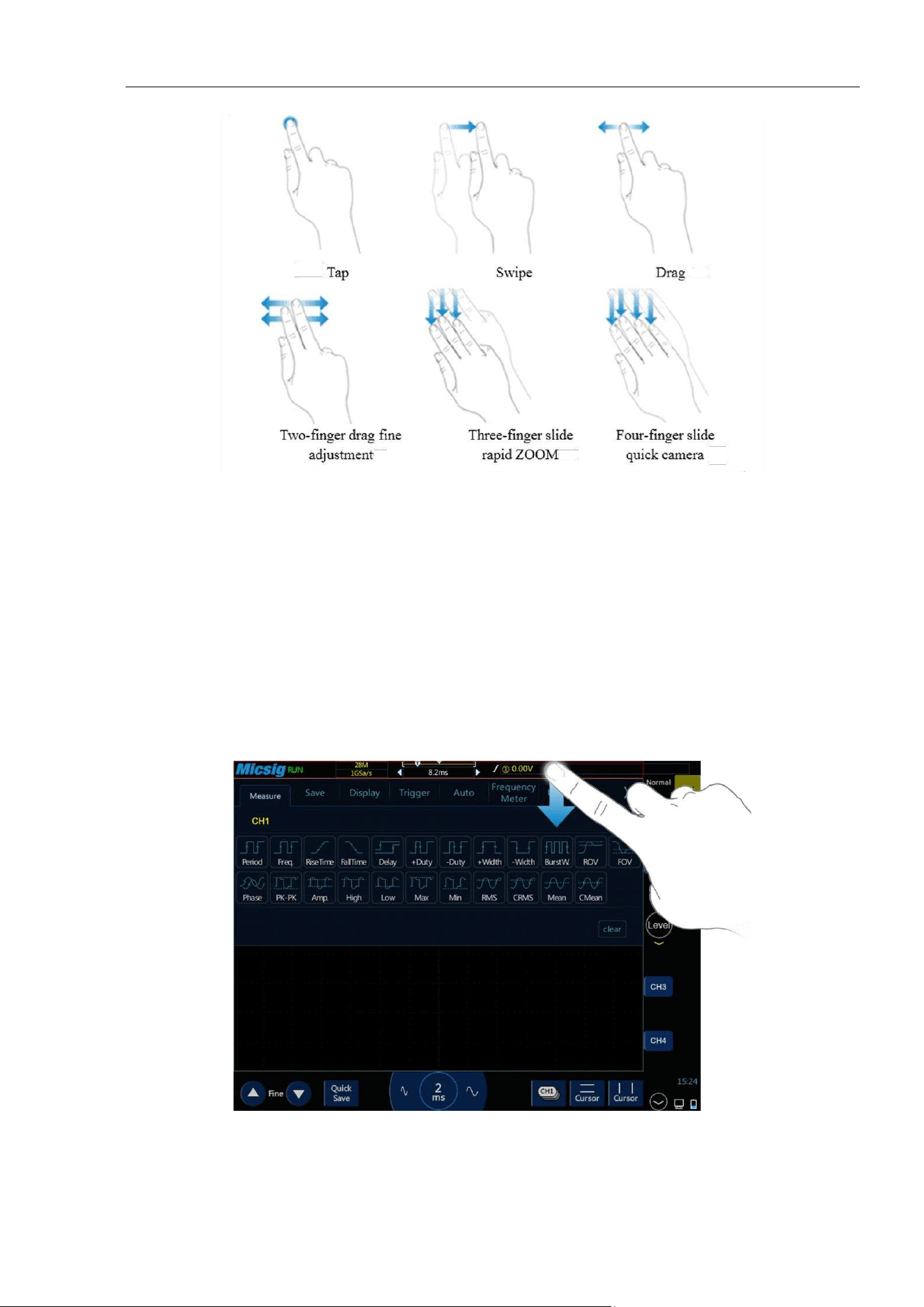
2.7 Introduction Basic Operations of Touch Screen
The tBook mini Series oscilloscope operates mainly by tap, swipe, single-finger drag, and multi-finger drag.
Chapter 2. Quick Start Guide of Oscilloscope
13
Figure 2-5 Basic Operations of tBook mini series Oscilloscope
Tap
Tap button on the touch screen to activate the corresponding menu and function. Tap any blank space on the
screen to exit the menu.
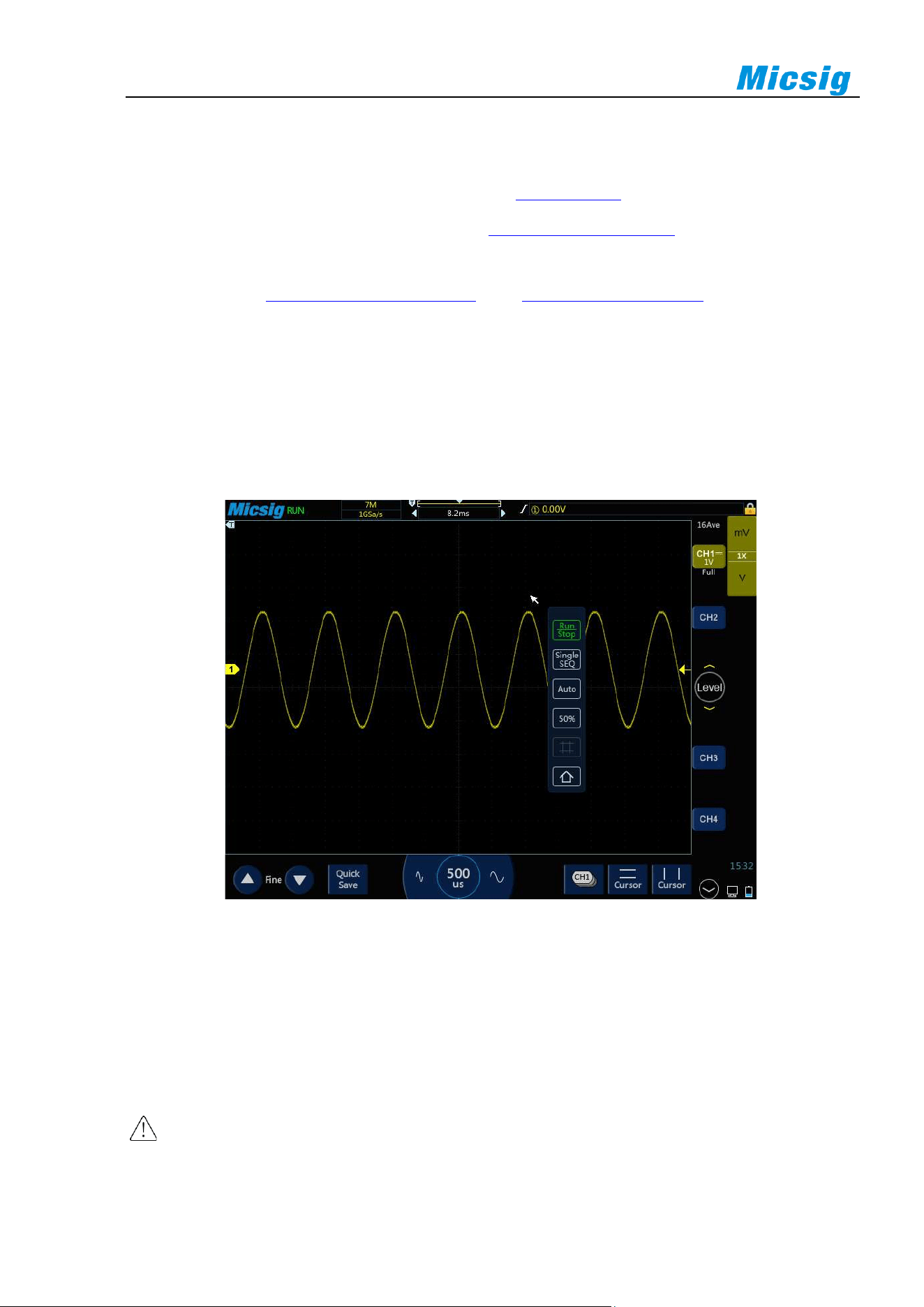
Swipe
Single-finger swipe: to open/close menus, including main menu, shortcut menu button and other channel menu
operations. For example, the main menu is opened as shown in Figure 2-6. The closing method is the opposite of
the opening method.
Figure 2-6 Slide out of Main Menu
Tap the options in the main menu to enter the corresponding submenu.
14
The opening methods of channel menu and math menu are slightly different from that of the main menu. Tap the
channel icon and math icon to open the corresponding menu.
Three-finger slide: to quickly turn on/off Zoom. Refer to “
3.5 Zoom Mode” for details.
Four-fingers slide: for quick screen capture. Refer to “7.1 Screen Capture Function” for details.
Single-finger drag: For coarse adjustments of vertical position, trigger point, trigger level, cursor, etc. of the
waveform. Refer to “
3.1 Horizontal Move Waveform” and “4.3 Adjust Vertical Position” for details.
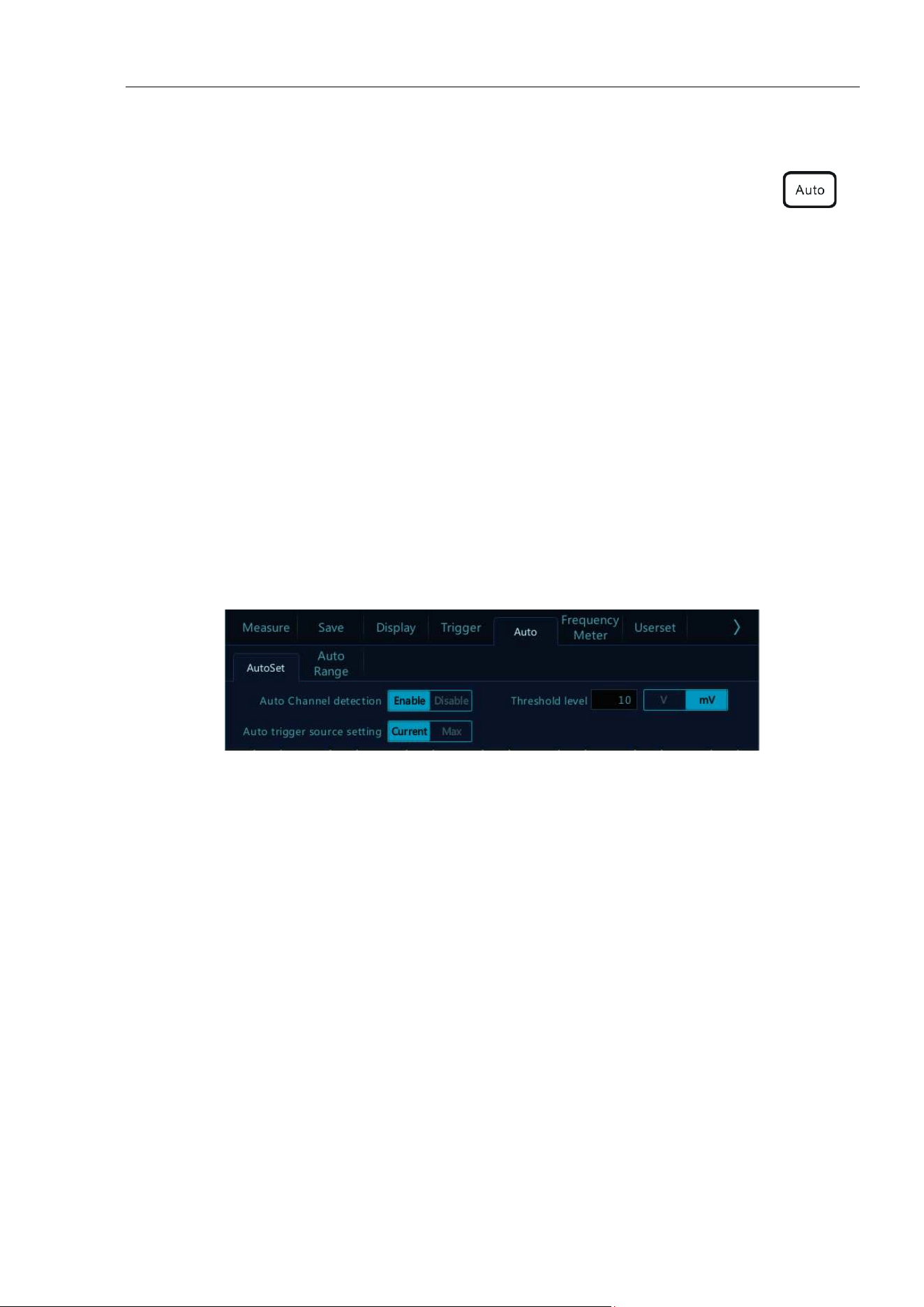
2.8 Mouse Operation
Connect the mouse to the “USB Host” interface, then operate the oscilloscope with the mouse. The menu will
pop up with the right mouse button. The left mouse button has the same function as the finger touch, and the
horizontal time base can be adjusted by rolling the mouse wheel. The right mouse button menu is shown in Figure
2-7.
Figure 2-7 Mouse Cursor
2.9 Connect Probe to the Oscilloscope
1) Connect the probe to the oscilloscope channel BNC connector.
2)
Connect the retractable tip on the probe to the circuit point or measured equipment. Be sure to connect the
probe ground wire to the ground point of the circuit.
Maximum input voltage of the analog input
Category I 300Vrms, 400Vpk.
Chapter 2. Quick Start Guide of Oscilloscope
15
2.10 Use Auto
Once the oscilloscope is properly connected and a valid signal is input, tap the Auto Set button to
quickly configure the oscilloscope to be the best display effects for the input signal.
Auto is divided into Auto Set and Auto Range. It is defaulted as Auto Set.6
Auto Set — Single-time auto, and each time press “Auto”, the screen displays “Auto” in the upper left corner.
The oscilloscope can automatically adjust the vertical scale, horizontal scale and trigger setting according to the
amplitude and frequency of signals, adjust the waveform to the appropriate size and display the input signal.
After adjustments, exit from the auto set, the “Auto” in the upper left corner disappears.
Channels may be automatically opened. Any channel greater or less than the threshold level can be opened or
closed automatically according to the set threshold level. The threshold level can be settable.
Source can be automatically triggered, and the triggered source channel can be automatically set to select priority
to the current signal or to the maximum signal.
Open the main menu. Tap “Auto” to open the auto set menu, including channel open/close setting, threshold
voltage setting and trigger source setting.
Figure 2-8 Open Auto Set
Automatic configuration includes: single channel and multiple channels; automatic adjustment of the horizontal
time base, vertical sensitivity and trigger level of signal; the oscilloscope waveform is inverted off, the bandwidth
limit sets to full bandwidth, it sets as DC coupling mode, the sampling mode is normal; the trigger type is set to
edge trigger and the trigger mode is automatic.
Note: The application of Auto Set requires that the frequency of measured signal is no less than 20Hz, the
duty ratio is greater than 1% and the amplitude is at least 2mVpp. If these parameter ranges are exceeded,
Auto Set will fail.
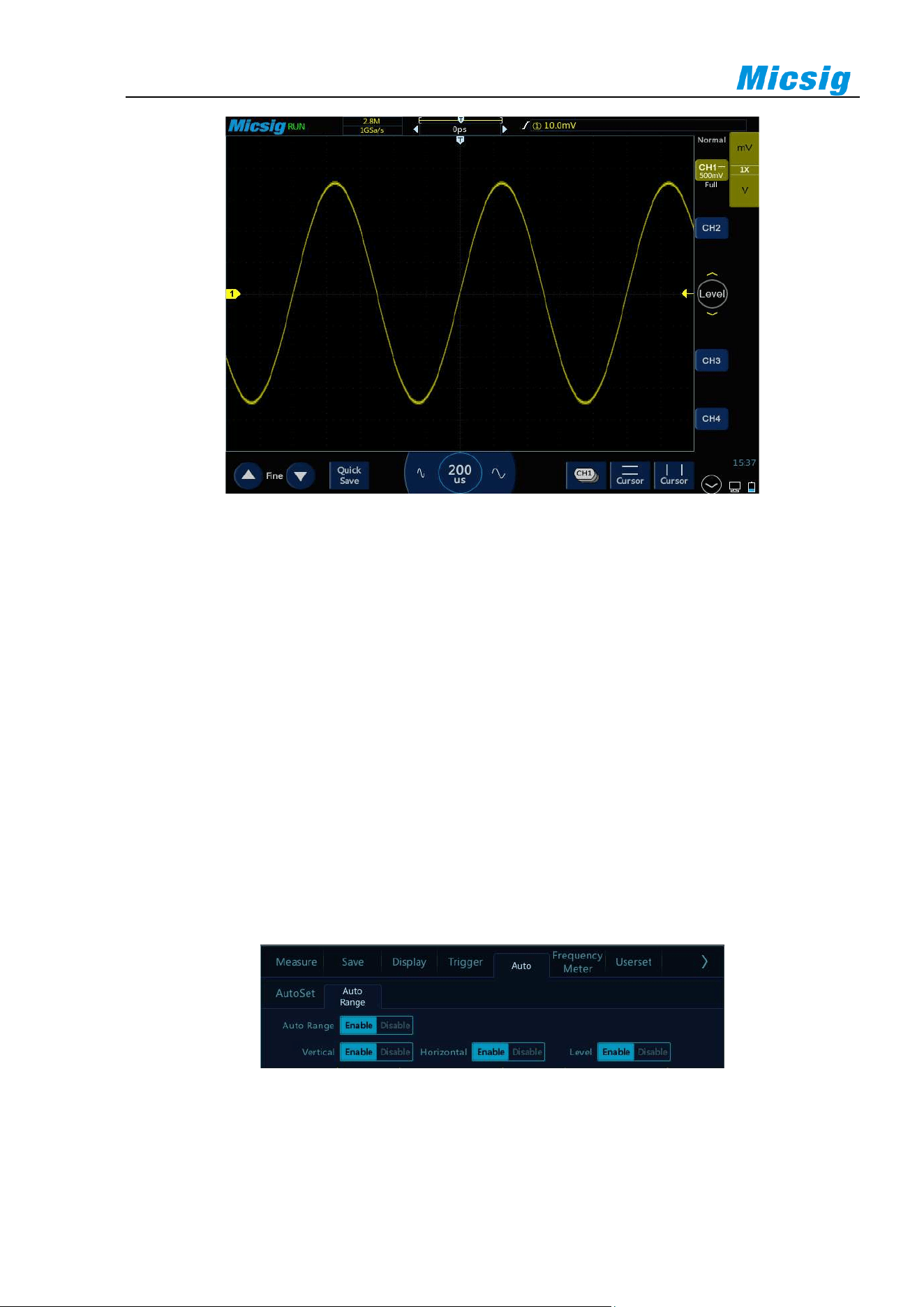
16
Figure 2-9 Auto Set Waveform
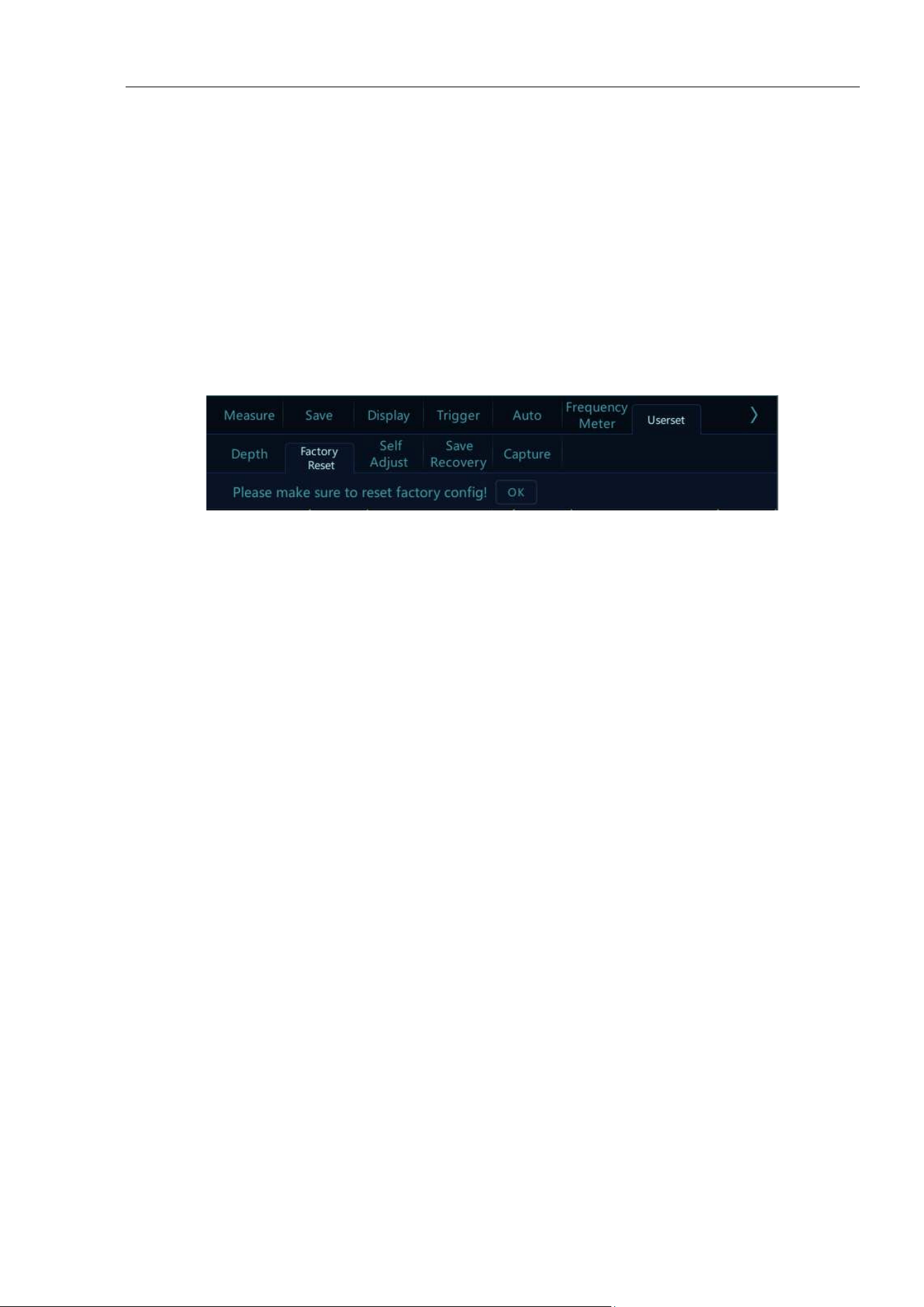
Auto Range - Continuously automatic, the oscilloscope continuously adjusts the vertical scale, horizontal time
base and trigger level in a real-time manner according to the magnitude and frequency of signal. It is defaulted
as off and needs to be opened in the menu. This function is mutually exclusive with “Auto Set”.
Open the main menu and tap “Auto” to open the auto range menu for the corresponding settings. When the
oscilloscope auto range function is turned on, the oscilloscope will automatically set various parameters,
including: vertical scale, horizontal time base, trigger level, etc. When the signal is connected, these parameters
will automatically change, and the signal does not need to be operated again after the change. The oscilloscope
will automatically recognize and make the appropriate changes.
⚫ Auto range: Turn the auto range function on or off
⚫ Vertical scale: Turn on the vertical scale automatic adjustment function;
⚫ Horizontal time base: Turn on the horizontal time base automatic adjustment function;
⚫ Trigger level: Turns on the auto-adjust trigger level function.
Figure 2-10 Open Auto Range
Auto Range is usually more useful than Auto Set under the following situations:
1) It can analyze signals subject to dynamic changes.
Chapter 2. Quick Start Guide of Oscilloscope
17
2) It can quickly view several continuous signals without adjusting the oscilloscope. This function is very
useful if you need to use two probes at the same time, or if you can only use the probe with one hand
because the other hand is full.
3) Control the automatic adjustment setting of the oscilloscope.
2.11 Load Factory Settings
Open the main menu, tap “User Settings” to enter the user setting page. Tap “Factory Settings” and the dialog
box for loading factory settings will pop-up. Press “OK” and load the factory settings. The dialog box for loading
factory settings is shown in Figure 2-11.
Figure 2-11 Load Factory Settings
2.12 Use Auto-calibration
Open the main menu, tap “User Settings” to enter the user setting page. Tap “Auto Calibration” to enter the auto-
calibration mode. When the auto-calibration function is active, the upper left corner of the screen displays
“Calibrating” in red, and after calibrating is finished, the word in red disappears. When the temperature changes
largely, the auto-calibration function can make the oscilloscope maintain the highest accuracy of measurement.
⚫ Auto-calibration should be done without probe.
⚫ Auto-calibration process takes about two minutes.
⚫ If the temperature changes above 10℃, we recommended users perform the auto-calibration.
2.13 Passive Probe Compensation
Before connecting to any channels, users should make a probe compensation to ensure the probe match the input
channel. The probe without compensation will lead to larger measurement errors or mistakes. Probe
compensation can optimize the signal path and make measurement more accurate. If the temperature changes 10℃
or above, this program must run to ensure the measurement accuracy.
Probe compensation may be conducted in the following steps:
1) First, connect the oscilloscope probe to CH1. If a hook head is used, make sure that it is in good
connection with the probe.
2) Connect the probe to the calibration output signal terminal and connect the probe ground to the ground
terminal. As shown in Figure 2-12.
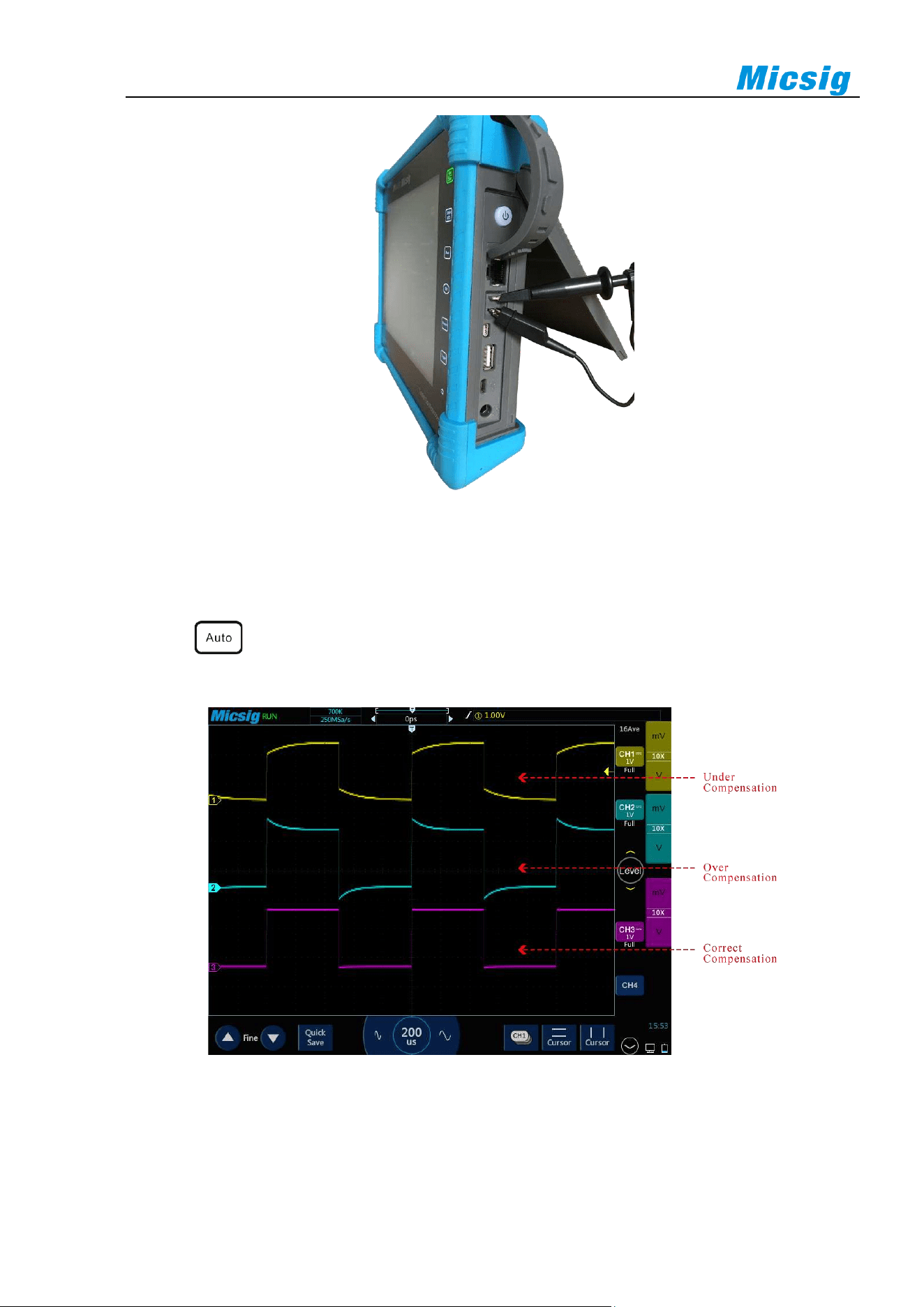
18
Figure 2-12 Probe Connection
3) Open the channel (if the channel is closed).
4) Adjust the oscilloscope channel attenuation coefficient to match the probe attenuation ratio.
5) Tap button or manually adjust the waveform vertical sensitivity and horizontal time base.
Observe the shape of the waveform, see Figure 2-13.
Figure 2-13 Probe Compensation
If the waveform on the screen is shown as “under-compensation” or “over-compensation”, please adjust the
trimmer capacitor until the waveform shown on the screen as “correct-compensation”. The probe adjustment is
shown in Figure 2-14.
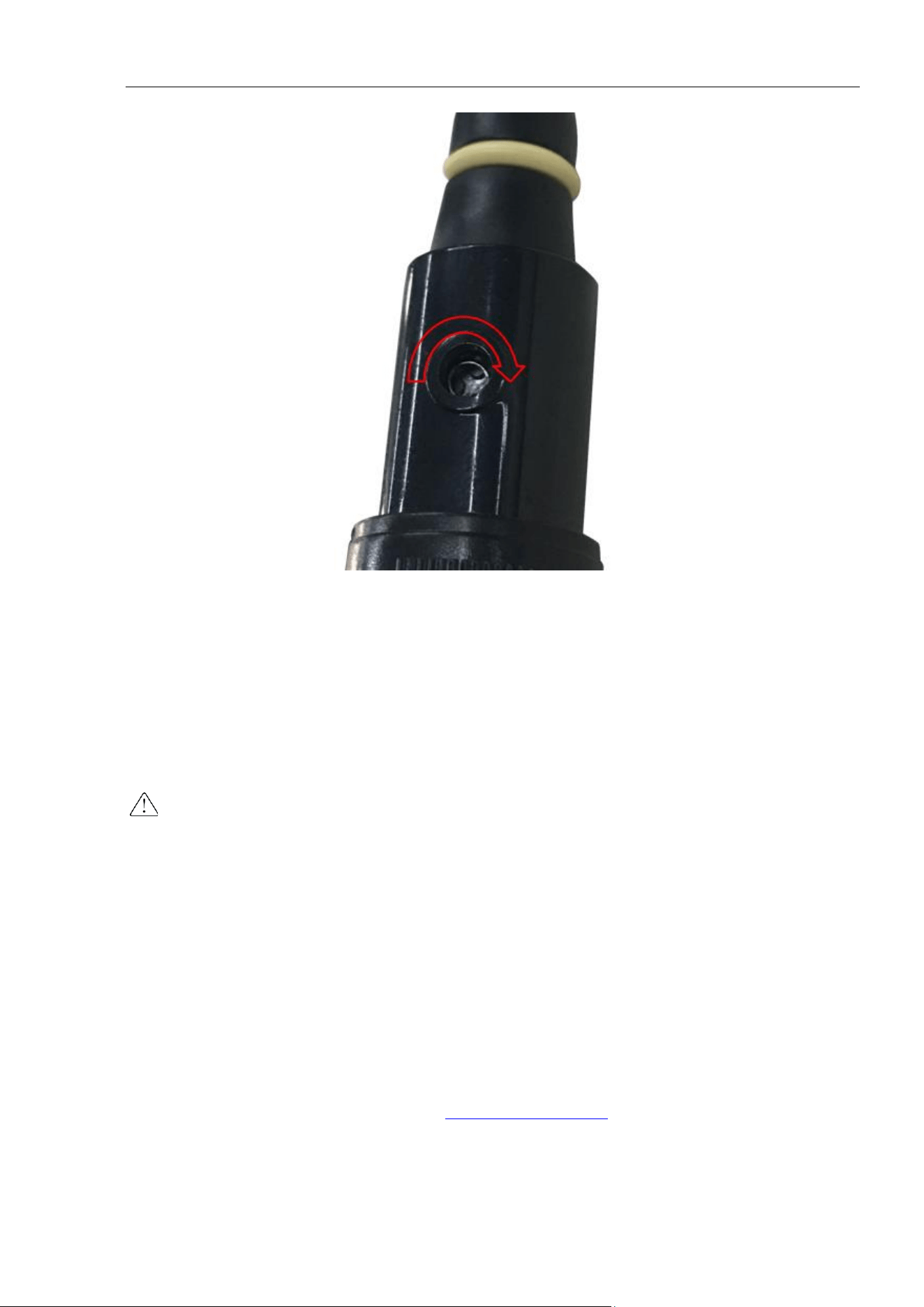
Chapter 2. Quick Start Guide of Oscilloscope
19
Figure 2-14 Probe Adjustment
The safety ring on the probe provides a safe operating range. Fingers should not exceed the safety ring when
using the probe, so as to avoid electric shock.
6) Connect the probe to all other oscilloscope channels (Ch2 of a 2-channel oscilloscope, or Ch 2, 3 and 4 of a
4-channel oscilloscope).
7) Repeat this step for each channel.
Warning
⚫ Ensure the wire insulation is in good condition to avoid probe electric shock while measuring high
voltage.
⚫ Keep your fingers behind the probe safety ring to prevent electric shock.
⚫ When the probe is connected a voltage source, do not touch metal parts of the probe-head to prevent
electric shock.
⚫ Before any measurement, please correctly connect the probe ground end.
2.15 Modify the Language
To modify the display language, please refer to “
11.4 Settings - Language”.
20
Chapter 3 Horizontal System
This chapter contains the detailed information of the horizontal system of the oscilloscope. You are recommended
to read this chapter carefully to understand the set functions and operation of the horizontal system of the tBook
mini series oscilloscope.
⚫ Move the waveform horizontally
⚫ Adjust the horizontal time base (time/div)
⚫ Pan and zoom single or stopped acquisitions
⚫ Roll, XY
⚫ Zoom mode
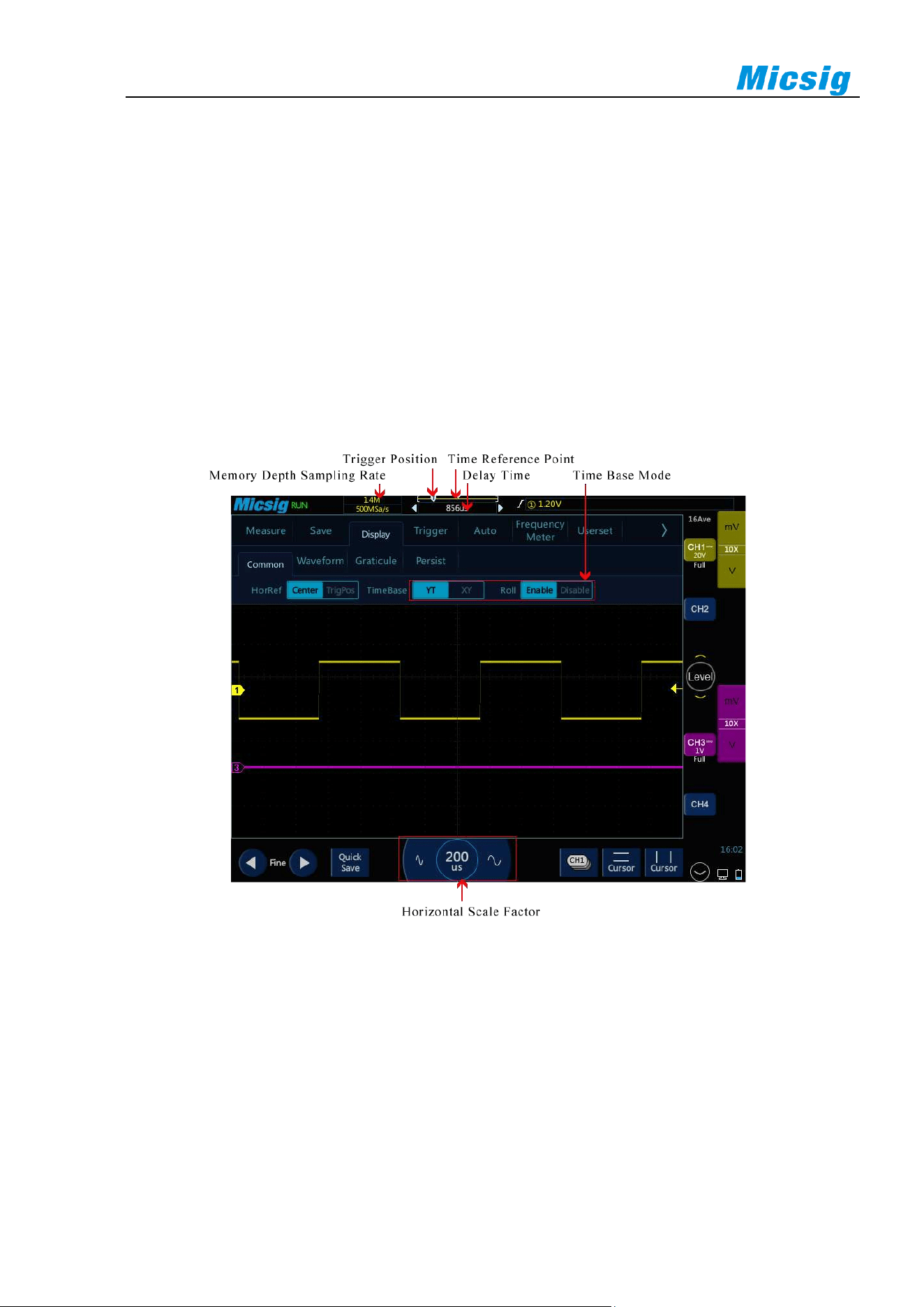
Figure 3-1 Horizontal system
Chapter 3 Horizontal System
21
3.1 Move the Waveform Horizontally
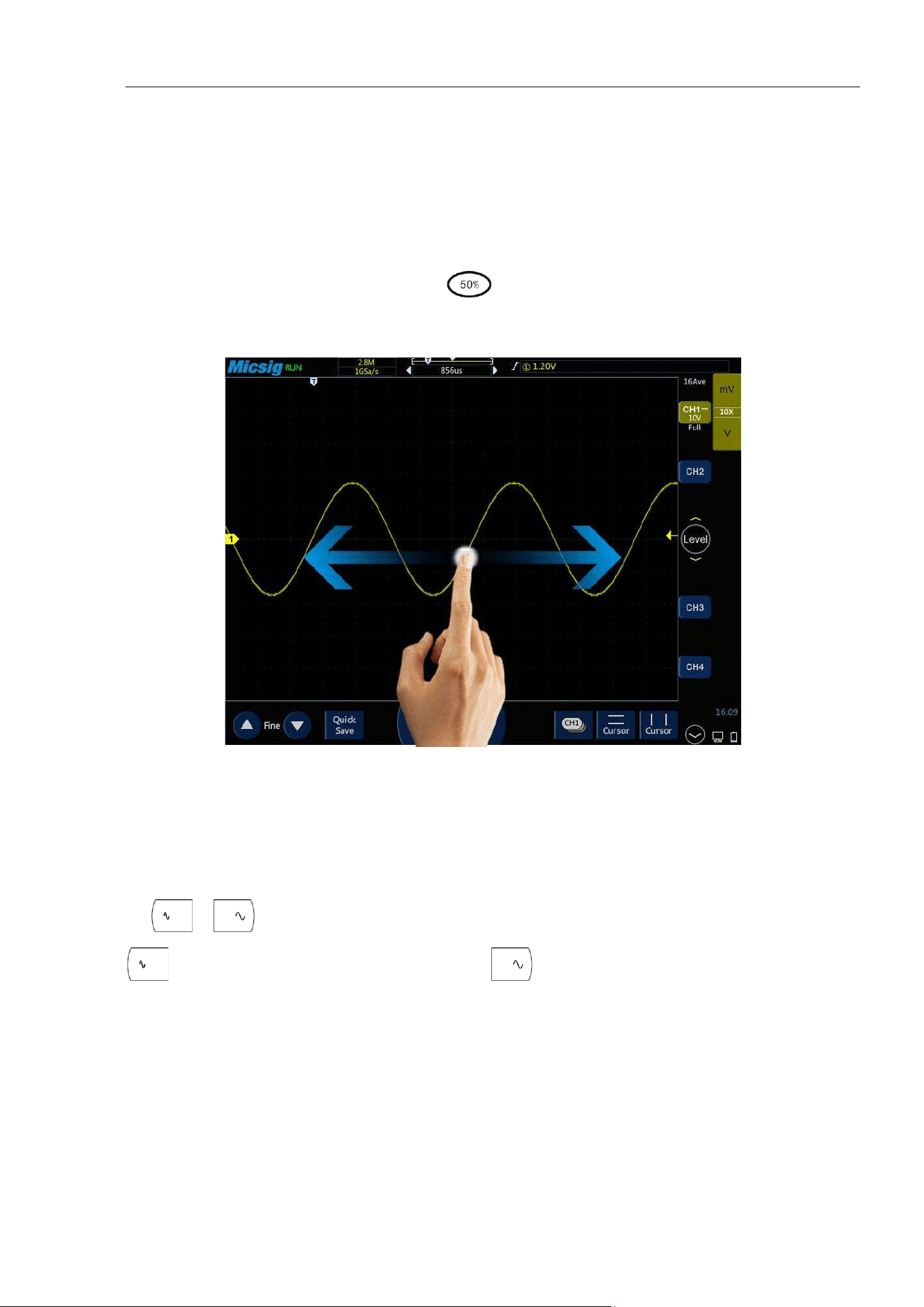
Put one finger on the waveform display area to swipe left and right, for the coarse adjustment of the waveform
position horizontally of all analog channels; after moving the waveform, tap the fine adjustment button in the
lower left corner of the screen for fine adjustment.
After moving the channel left and right, tap the key and select "time base" to quickly move the trigger
position of the current channel to the center position in the horizontal direction.
Figure 3-2 Move the Waveform Horizontally on the Screen
3.2 Adjust the Horizontal Time Base (time/div)
Method 1: Soft Keys
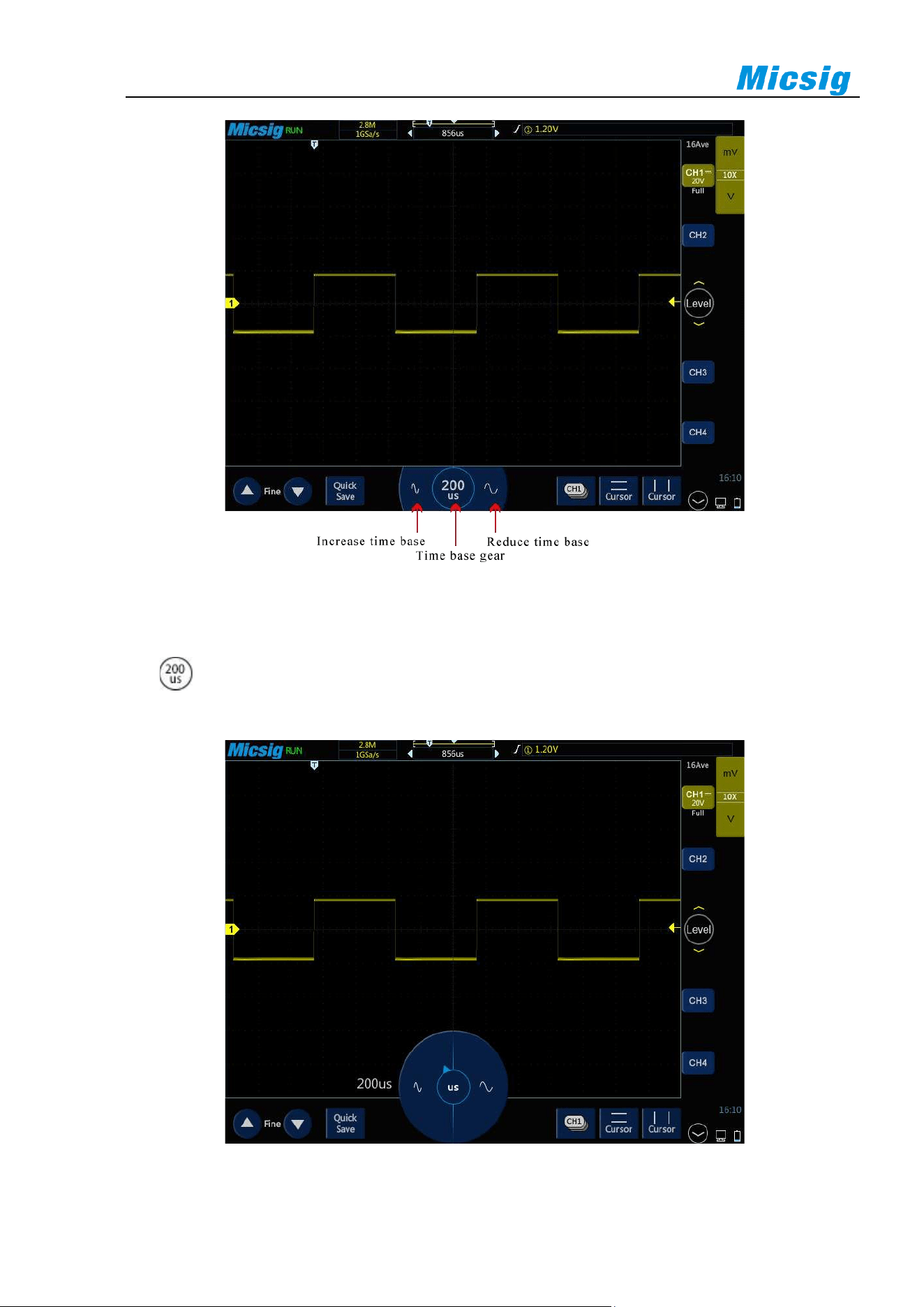
Tap , buttons to adjust the horizontal time base of all analog channels (current channels). Tap
button to increase the horizontal time base; tap button to zoom out the horizontal time base (see
Figure 3-3 Adjust the Horizontal Time Base). The horizontal time base is stepped in 1-2-5, while the waveform
changes as the time base changes.
22
Figure 3-3 Adjust the Horizontal Time Base
Method 2: Time Base Knob
Tap to turn on the time base knob (see Figure 3-4 horizontal time base knob), and then turn the knob to
adjust the appropriate time base. The time base shown on the left is the currently selected time base.
Figure 3-4 Horizontal Time Base Knob
Chapter 3 Horizontal System
23
Method 3: Double-tap
Double tap on the screen with one finger to enlarge the waveform horizontally with the double-tap point as the
center. Each time you double-tap, the horizontal time base decreases by one gear.
3.3 Pan and Zoom Single or Stopped Acquisitions
After the oscilloscope is stopped, the stopped display screen may contain several acquired data with useful
information, but only the data in the last acquisition can be horizontally moved and zoomed. The data of the
single acquisition or stopped acquisition is moved horizontally and zoomed. For details, refer to “
3.1 Move the
Waveform Horizontally” and “3.2 Adjust the Horizontal Time Base (time/div)”.
3.4 Roll, XY
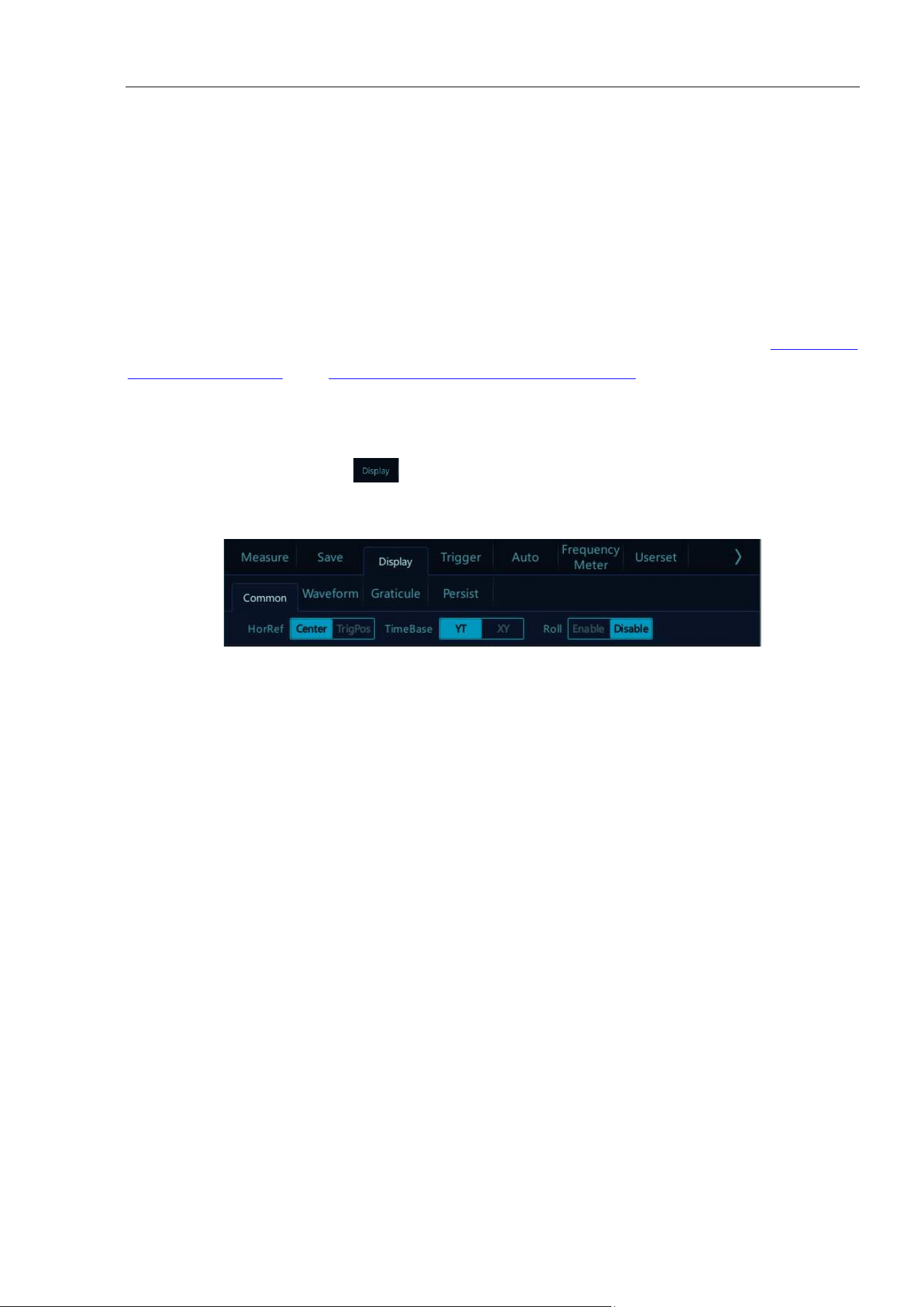
In the main menu, tap the soft key , then select the desired time base mode. The time base mode is divided
into YT, ROLL, and XY.
Figure 3-5 Display Mode
YT——Normal View Mode of Oscilloscope
In YT mode, the relative relationship between vertical voltage and horizontal time is displayed. Y axis represents
the voltage, X axis represents the time, and the waveform is displayed after triggering (waveform displayed from
left to right).
Note: When the time base is large (such as 200ms and above), sometimes the waveform will not be
displayed for a long time; this is because in YT mode, the waveform must be triggered before display. It is
closely related to the time base and can be roughly calculated as: the number of divisions on the left side
of the trigger position * time base level position; if you want to reduce the waiting time, move the trigger
position to the left.
The case that trigger position is moved out of the waveform screen is not considered here.
ROLL—— ROLL Mode
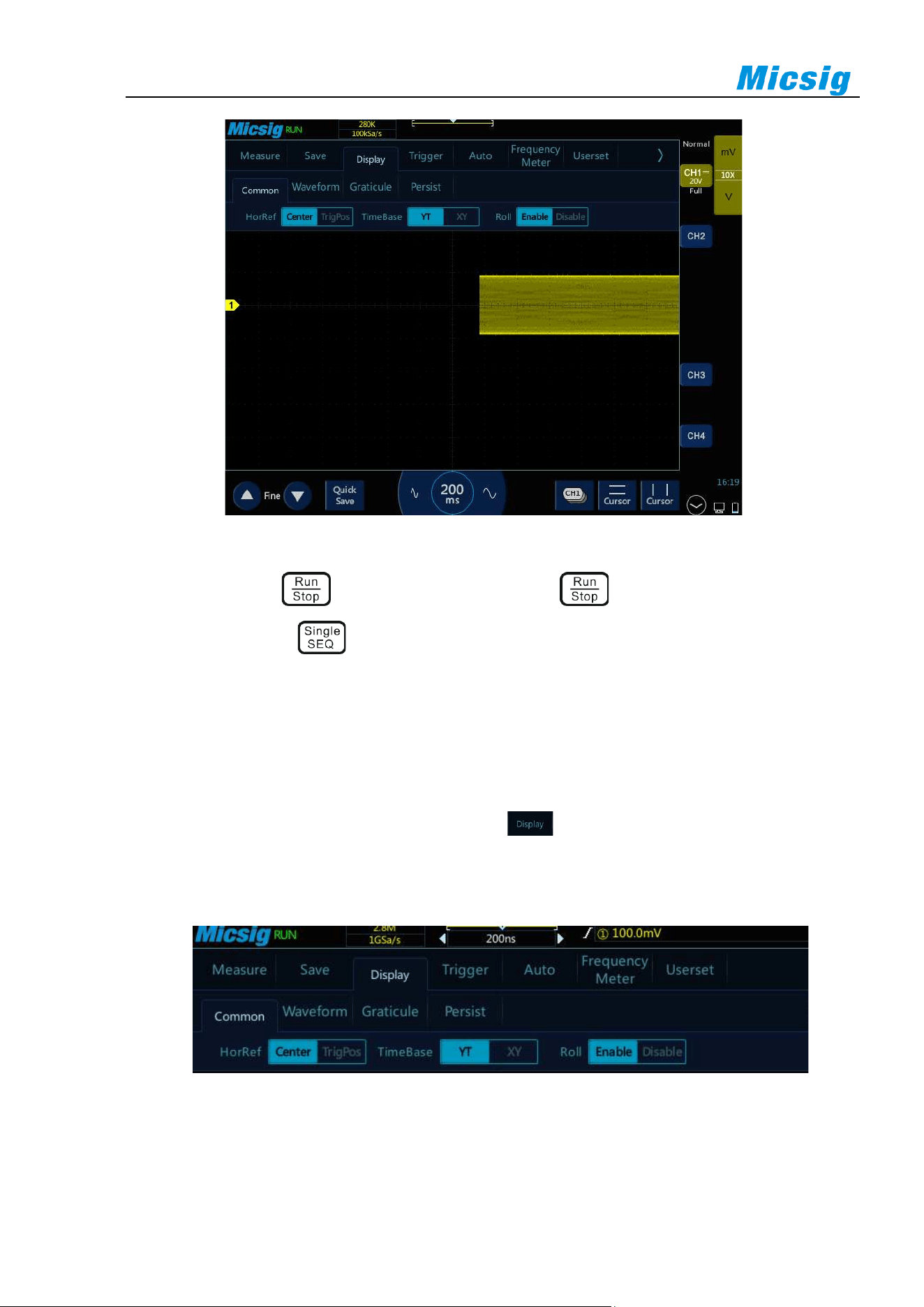
In ROLL mode, the waveform rolls from right to left to refresh the display (see Figure 3-6 ROLL Mode). The
horizontal time base adjustment range of the ROLL mode in the running state is 200ms/div~1ks/div.
In ROLL mode, trigger related information is invalid, including trigger position, trigger level, trigger voltage, etc.
24
Figure 3-6 ROLL Mode
In ROLL mode, press to stop waveform display; press again to clear waveform display and
restart acquisition; press to execute single sequence, it will stop automatically after completing a full
screen acquisition.
ROLL mode is generally used to observe waveforms with frequencies below 5 Hz.
ROLL mode is defaulted as open. When the time base is greater than 100ms, it automatically enters the ROLL
mode. If the signal to be triggered under a large time base needs to be viewed, turn off the ROLL mode.
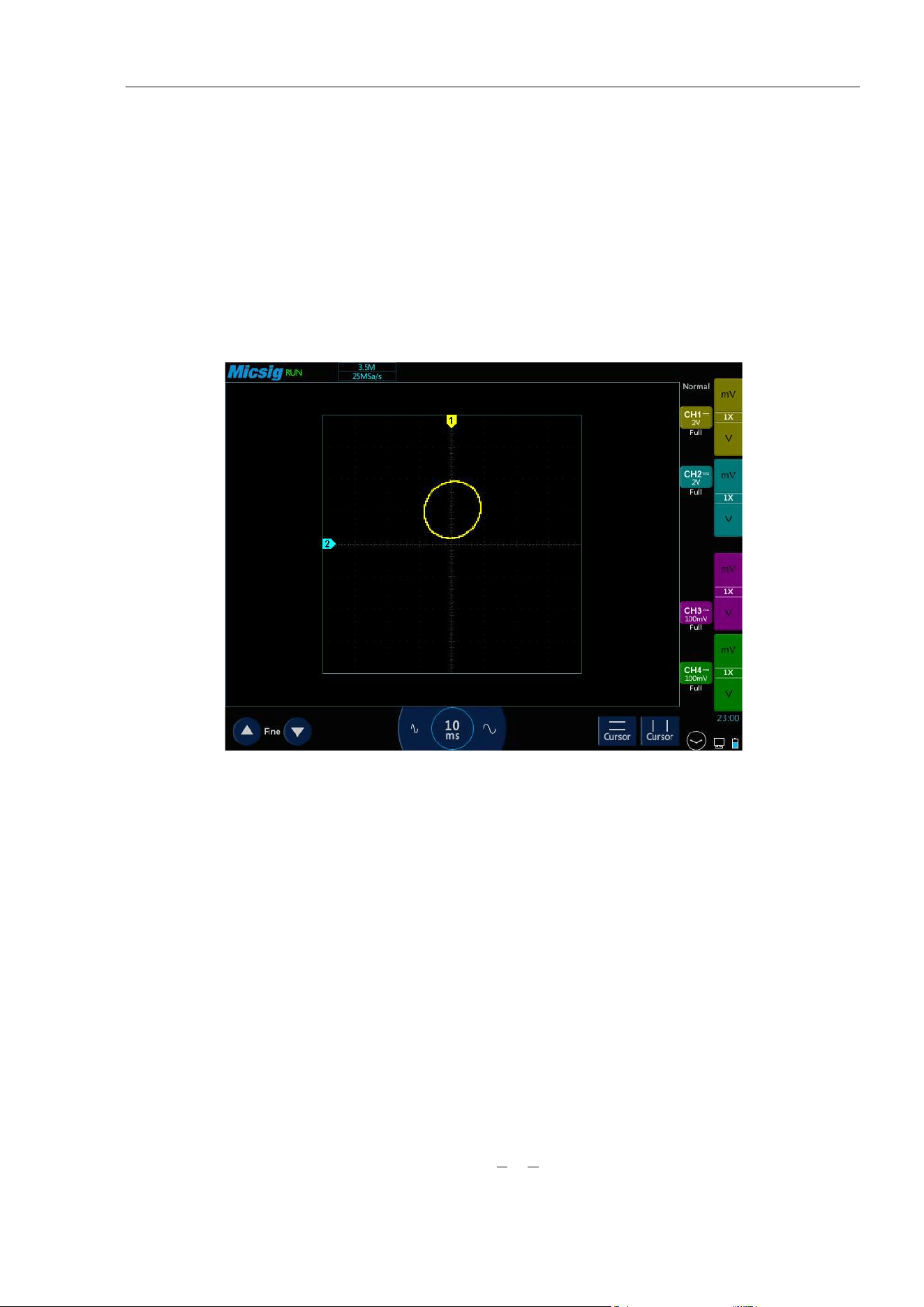
Roll mode on and off: In the main menu, tap the soft key . In the “General” option, you can turn the roll
mode on and off (refer to Figure 3-7). When the roll mode is on and the time base is within 200ms~1ks, the
oscilloscope automatically enters the roll mode.
Figure 3-7 Roll Mode On/Off
Chapter 3 Horizontal System
25
XY——XY Mode
The vertical amount of CH1 is displayed on the horizontal axis in XY mode, and the vertical amount of CH2 is
displayed on the vertical axis (see Figure 3-8 XY Mode).
You can use XY mode to compare the frequency and phase relationship of two signals.
XY mode can be used for sensors to display stress-displacement, flow-pressure, voltage-frequency or voltage-
current, for example: plotting a diode curve.
You can also use the cursor to measure the waveform in XY mode.
Figure 3-8 XY Mode
XY Mode Example
This exercise shows the usual practice of XY display mode by measuring the phase difference between two
signals of the same frequency using the Lissajous method.
1) Connect sine wave signals to CH1 and connect sine wave signals of the same frequency and different phases
to CH2.
2) Press “Auto” set button, tap “Display” in the main menu, then select “XY” in “Time Base”.
3) Drag signals so that they are centered on the display screen. Adjust the vertical sensitivity of CH1 and CH2,
and extend signals for viewing.
The phase difference (θ) can be calculated using the following formula (assuming that the amplitudes of the
two channels are the same):
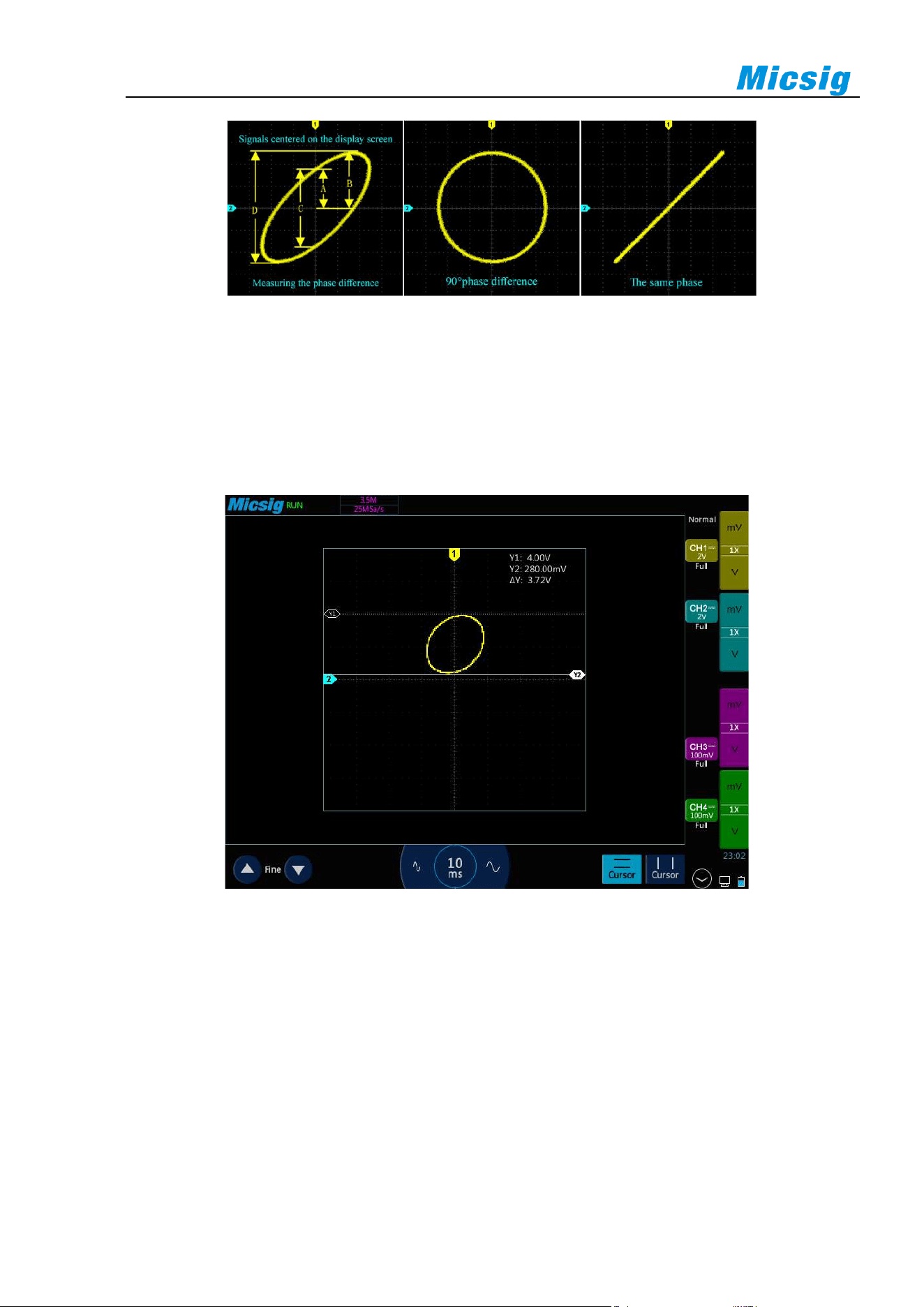
26
Figure 3-9 XY Time Base Mode Signal, Center on the Display Screen
4) Tap the “Cursor” button to open the horizontal cursor.
5) Set the cursor y2 at the top of the signal and the cursor y1 at the bottom of the signal. Record the Δy value
in the upper right corner of the screen.
6) Move y1 and y2 cursors to the intersection point of the signal and the y-axis. Record the Δy value again.
Figure 3-10 Phase Difference Measurement and Using the Cursor
7) The following formula is used to calculate the phase difference.
For example, if the first Δy value is 9.97V, the second Δy value is 5.72V:
Error! Reference source was not found. ; phase difference error! Reference source was not found.
3.5 Zoom Mode
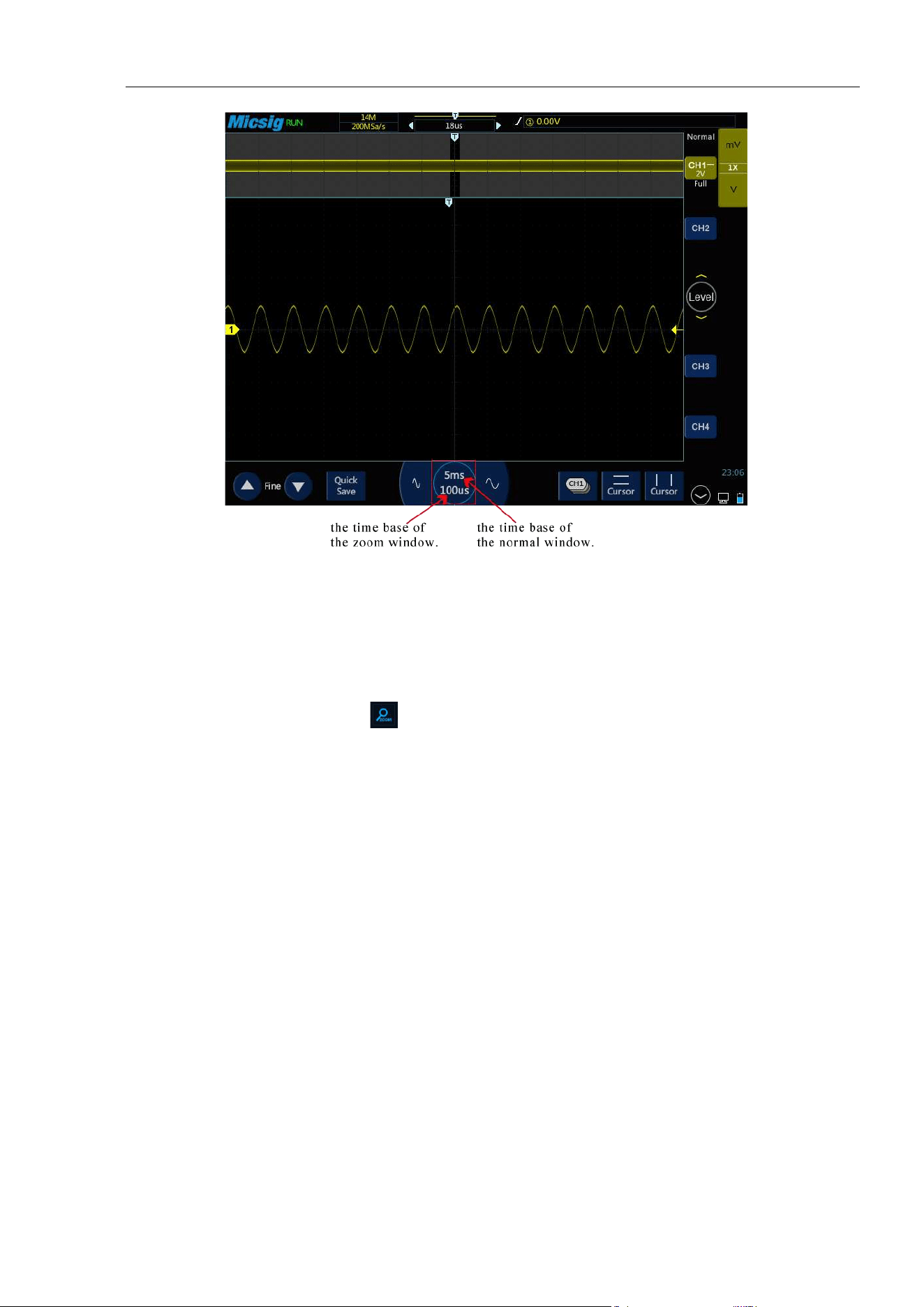
Zoom is a horizontally expanded version of the normal display. Open the zoom function, the display is divided
into two parts (see Figure 4-11 Zoom Interface). The upper part of the display screen shows the normal display
window view and the lower part shows the zoomed display window.
Chapter 3 Horizontal System
27
Figure 3-11 Zoom Interface
Zoom window view is the enlarged portion of the normal display window. You can use “Zoom” to view a portion
of the normal window that is horizontally expanded to learn more about signal analysis.
Zoom on/off:
1) Open the pull-up menu and tap button to turn the zoom function on/off.
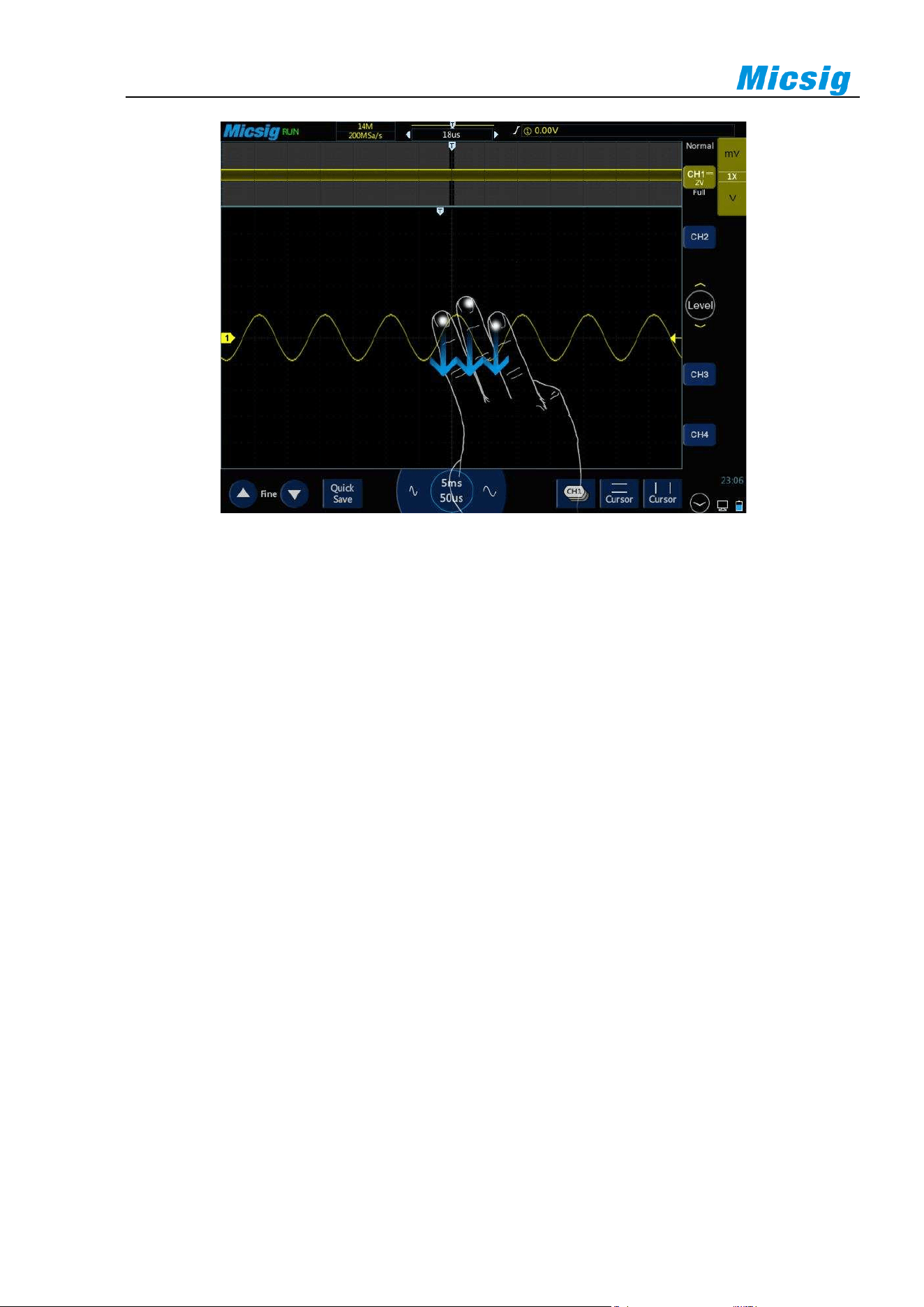
2) Put three fingers on the touch screen at the same time, slide down to open zoom mode; slide up to turn off
zoom mode. Figure 3-12 shows the operation:
28
Figure 3-12 Open Zoom Function by Three Fingers Sliding Down
Zoom window is framed in a box on the normal window, and the other portion is covered by gray shade not
displayed in the zoom window. This box shows the normal scan portion that was zoomed in the lower bottom.
Tap the time base button to adjust the time base of the zoom window. The size of the box in the normal window
changes according to the time base of the zoom window.
Drag the waveform of the zoom window horizontally to adjust the waveform position. The box in the main
window moves oppositely against the waveform; or directly drag the box in the normal window to quickly locate
the waveform to be viewed.
Note:
1) The minimum time base is displayed in the normal window when the waveform in the screen is exactly
within the memory depth. If the current time base is smaller than the minimum time base in the
normal window at the current memory depth, when the zoom window is opened, the time base in the
normal window is automatically set to the minimum time base in the normal window at the current
memory depth.
2) The cursor, math waveform, and reference waveform are not displayed in the normal window, but
can be displayed in the Zoom window.
3) If Roll mode is stopped, Zoom mode can be turned on, and tap “Run/Stop” to automatically turn off
Zoom mode.
4) When high refresh is turned on and stopped, it is forbidden to enter zoom mode.
Chapter 4 Vertical System
29
Chapter 4 Vertical System
This chapter contains the detailed information of the vertical system of the oscilloscope. You are recommended
to read this chapter carefully to understand the set functions and operation of the vertical system of the tBook
mini series oscilloscope.
⚫ Open/close channel (analog channel, math function), set the current channel
⚫ Adjust vertical sensitivity
⚫ Adjust vertical position
⚫ Open channel menu
⚫ Set channel coupling
⚫ Set bandwidth limit
⚫ Waveform inversion
⚫ Set probe type
⚫ Set probe attenuation coefficient
⚫ Vertical expansion reference
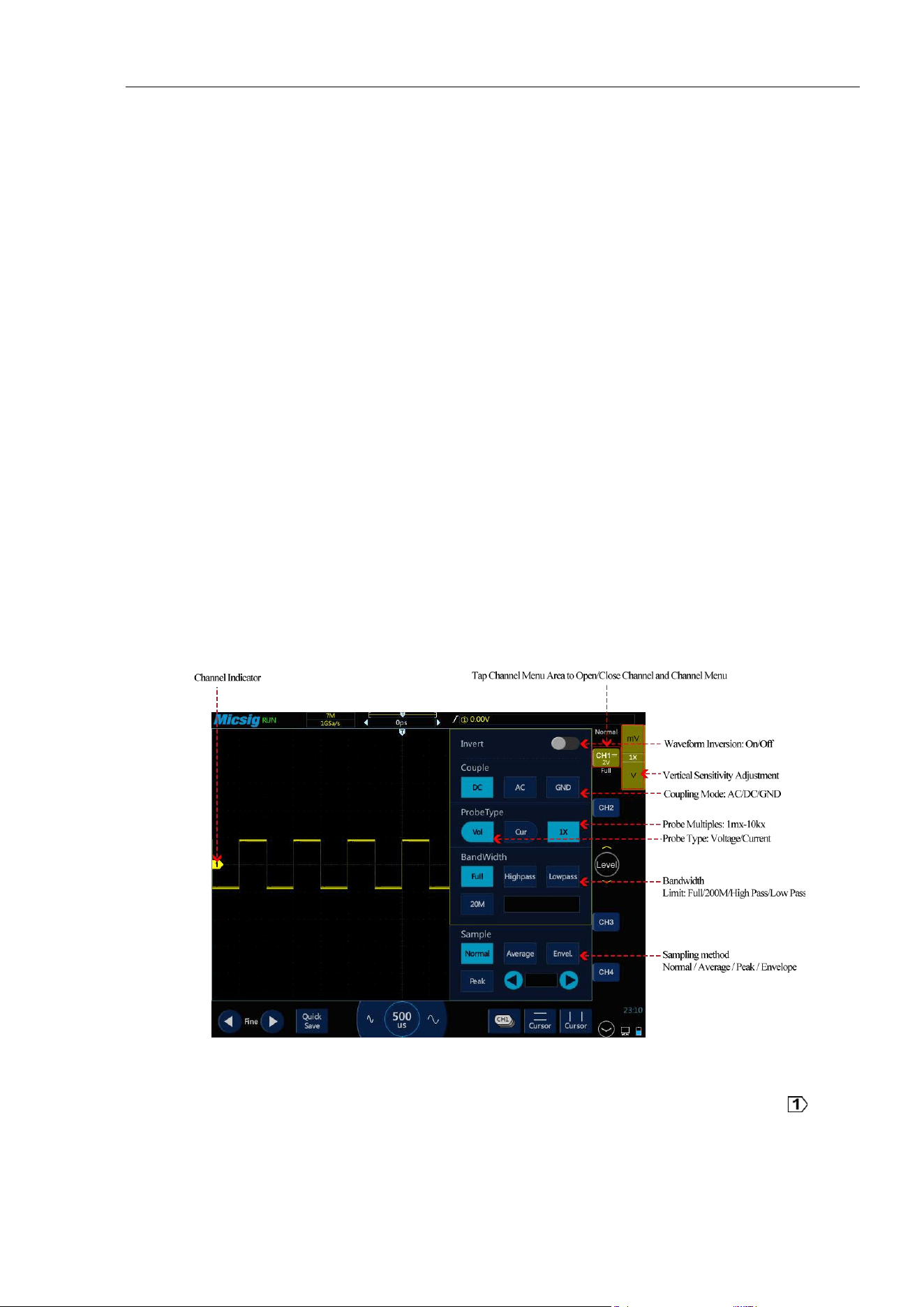
The figure below shows the “CH1 Channel Menu” displayed after opening the CH1 channel menu.
Figure 4-1 Channel Menu Display Interface
The ground level of each displayed analog channel signal is indicated by the channel indicator icon on the
far left of the display screen.
30
4.1 Open/Close Waveform (Channel, Math, Reference Waveforms)
The channel icons , , , , on the right side of the oscilloscope
waveform display area (tap to switch to math channel and reference channel) correspond to the six
channels of CH1, CH2, CH3, CH4, math function and reference channel. Click these six soft keys can cyclically
realize the functions: open the channel, open the channel menu, and close the channel.
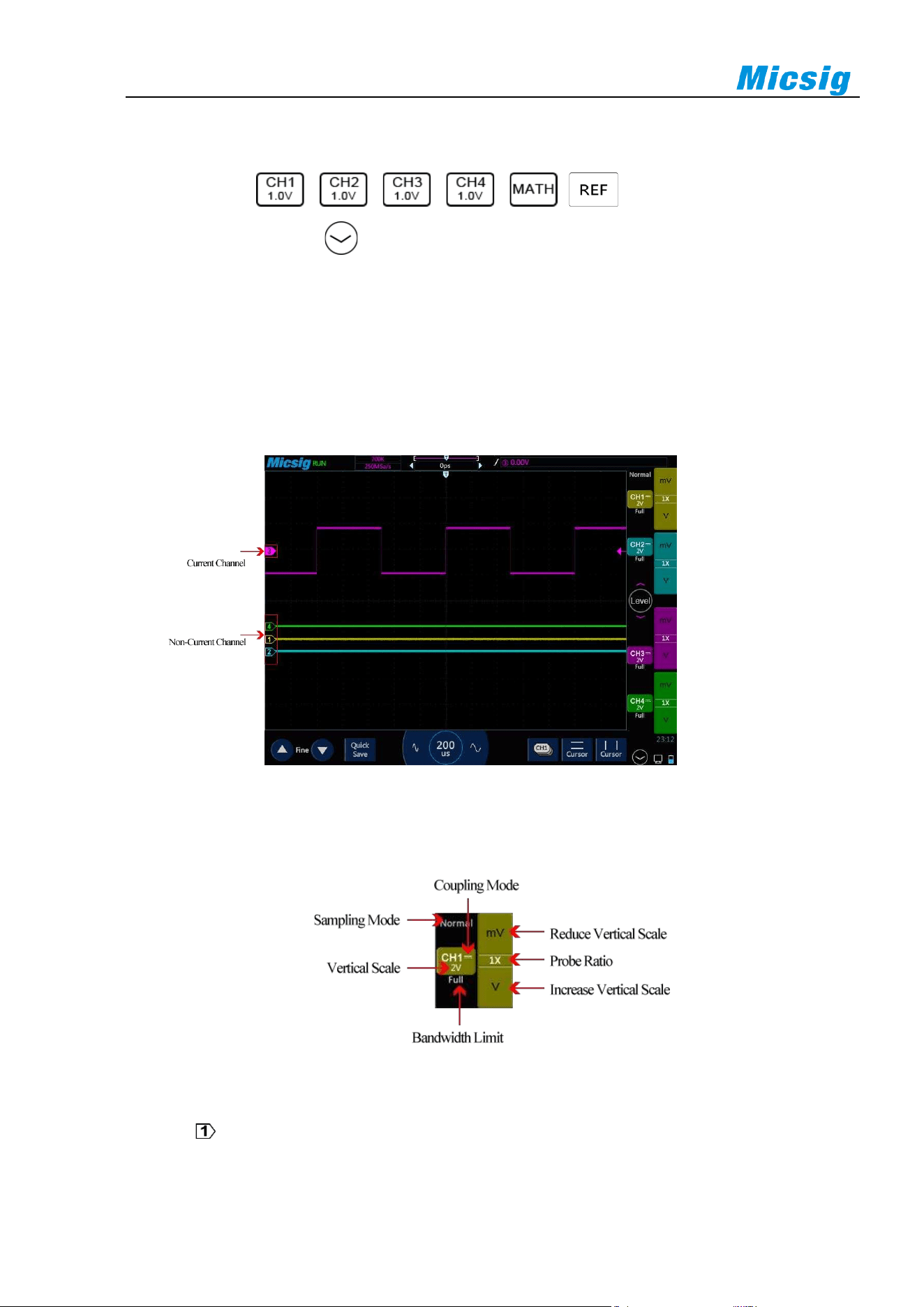
Current channel: The oscilloscope can display multiple waveforms at the same time, but only one waveform is
preferentially displayed on the uppermost layer, and the channel that is preferentially displayed on the uppermost
layer is called the current channel. The channel indicator for the current channel is solid, and the channel indicator
for the non-current channel is hollow, as shown in Figure 4-2.
Figure 4-2 Current Channel and Non-Current Channel
The display content of the oscilloscope channel display interface includes the sampling mode, vertical scale,
vertical scale sensitivity button, probe ratio, bandwidth limitation, etc. of the channel, as shown in Figure 4-3.
Figure 4-3 Channel Display Interface
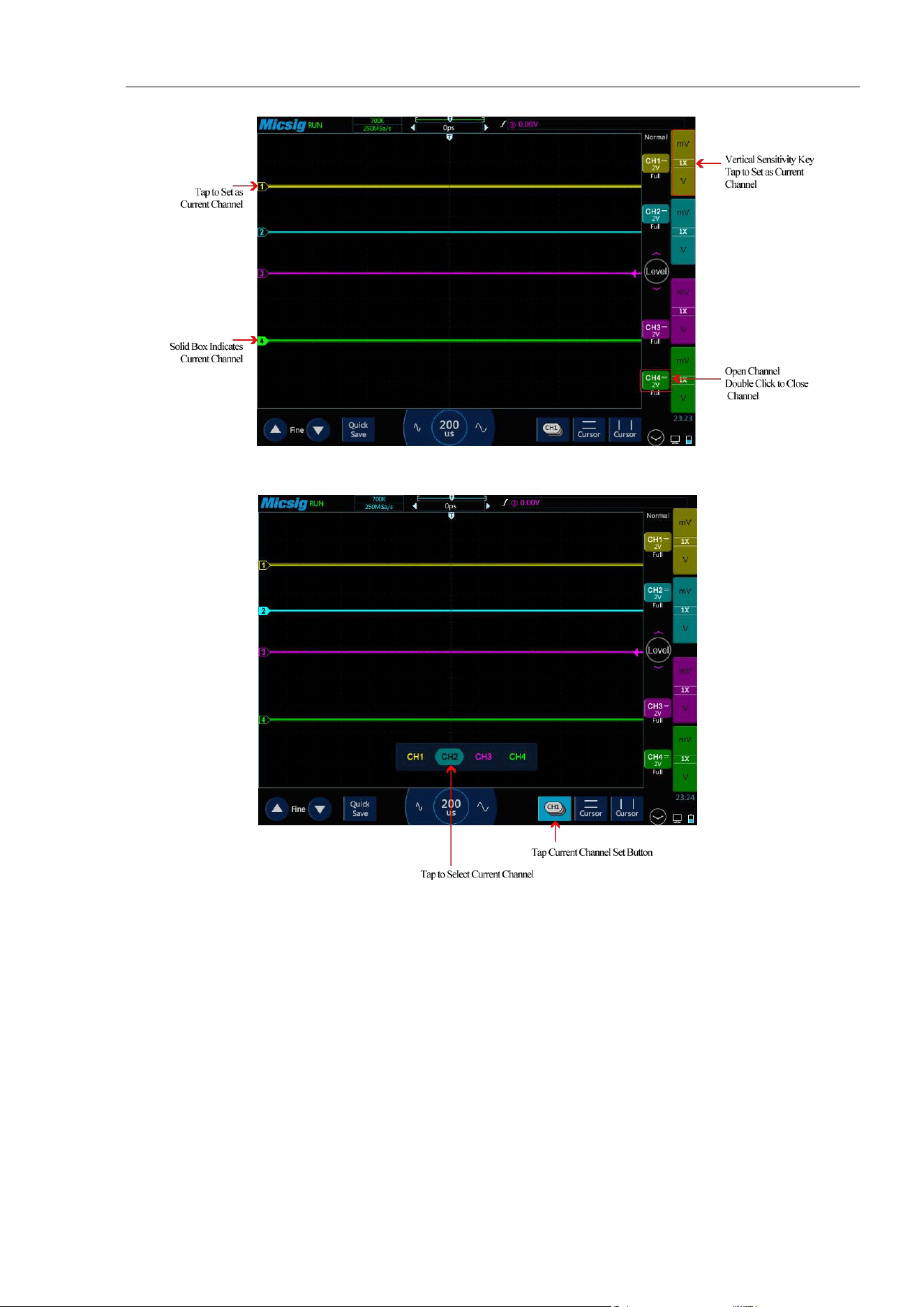
When CH1 is on, but the state is not the current channel, tap CH1 waveform or vertical sensitivity or channel
indicator or vertical sensitivity button or current channel selection button to set CH1 as the current
channel, as shown in Figure 4-4.
Chapter 4 Vertical System
31
Figure 4-4 Channel Open, Close and Switching
Figure 4-5 Using the Current Channel Selection Button
Tap the current channel icon at the bottom of the screen to pop up the current channel switching menu and press
the button to light it up, as shown in Figure 4-5. Tap the button in the menu to switch the current channel. When
this function is opened:
a. the current channel may be switched in the channel switching menu;
b. the current channel menu can be moved anywhere on the screen;
c. only the open channel is displayed in the channel switching menu;
d. when the math or reference waveform is opened, the current channel switching menu is automatically
opened.
32
4.2 Adjust Vertical Sensitivity
Tap the vertical sensitivity or buttons on the right side of the channel icon to adjust the vertical display
of the waveform corresponding to the channel, so that the waveform is displayed on the screen at an appropriate
size.
The vertical sensitivity scale (V/div) after each adjustment is displayed on the channel icon. For example,
means that the current vertical sensitivity of CH1 is 1.0V/div.
The vertical sensitivity coefficient adjusts the vertical sensitivity of the analog channel in steps of 1-2-5 (the
probe attenuation coefficient is 1X), and the vertical sensitivity range of 1:1 probe is 1mV/div-10V/div
(optionally minimum at 500uV/div).
4.3 Adjust Vertical Position
The method of adjusting vertical position is as follows:
1) Coarse adjustment: In the waveform display area, hold the waveform and put one finger to slide up and
down for changing the vertical position of the waveform.
2) Fine adjustment: After the waveform moves vertically, click the fine adjustment button in the lower left
corner of the screen to fine adjust the vertical position of the waveform for the current channel.
3) After moving the channel up and down, tap , select the channel to be adjusted in the "vertical gear"
item, and the grounding level of the channel can be moved to the center in the vertical direction of the screen.
Figure 4-6 vertical position adjustment of waveform
Chapter 4 Vertical System
33
4.4 Open Channel Menu
Tap the channel icon (channel is open) to open the channel menu.
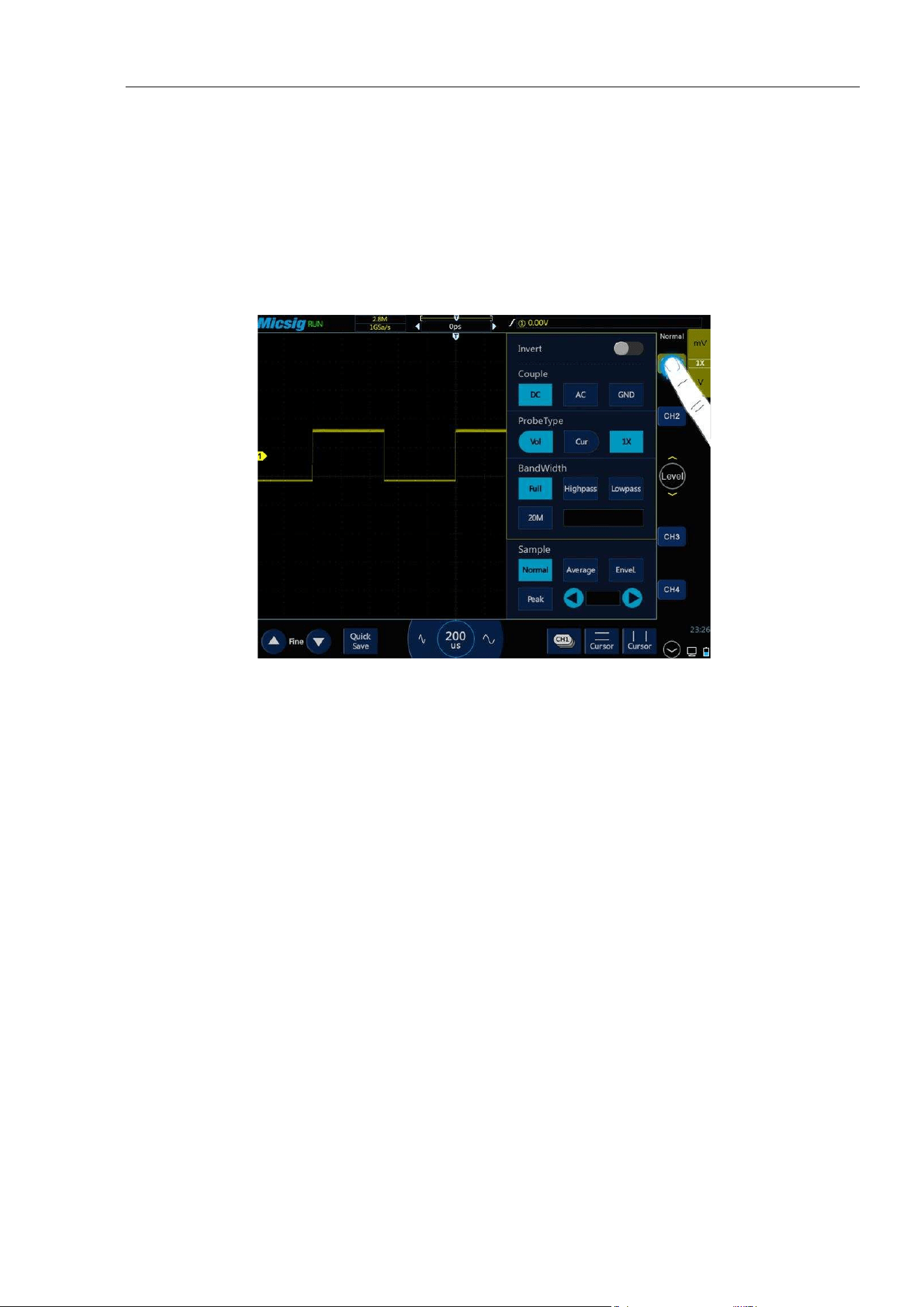
The channel menu is shown in Figure 4-7. Channel waveform inversion, channel bandwidth limit, probe type,
probe attenuation factor, channel coupling mode, and sampling mode can be set in the vertical menu.
Figure 4-7 Channel Switching Icon and Menu
4.4.1 Set Channel Coupling
Tap the icon under “Coupling Mode” and select “DC”, “AC” and “GND” channel coupling modes in the pop-up
box.
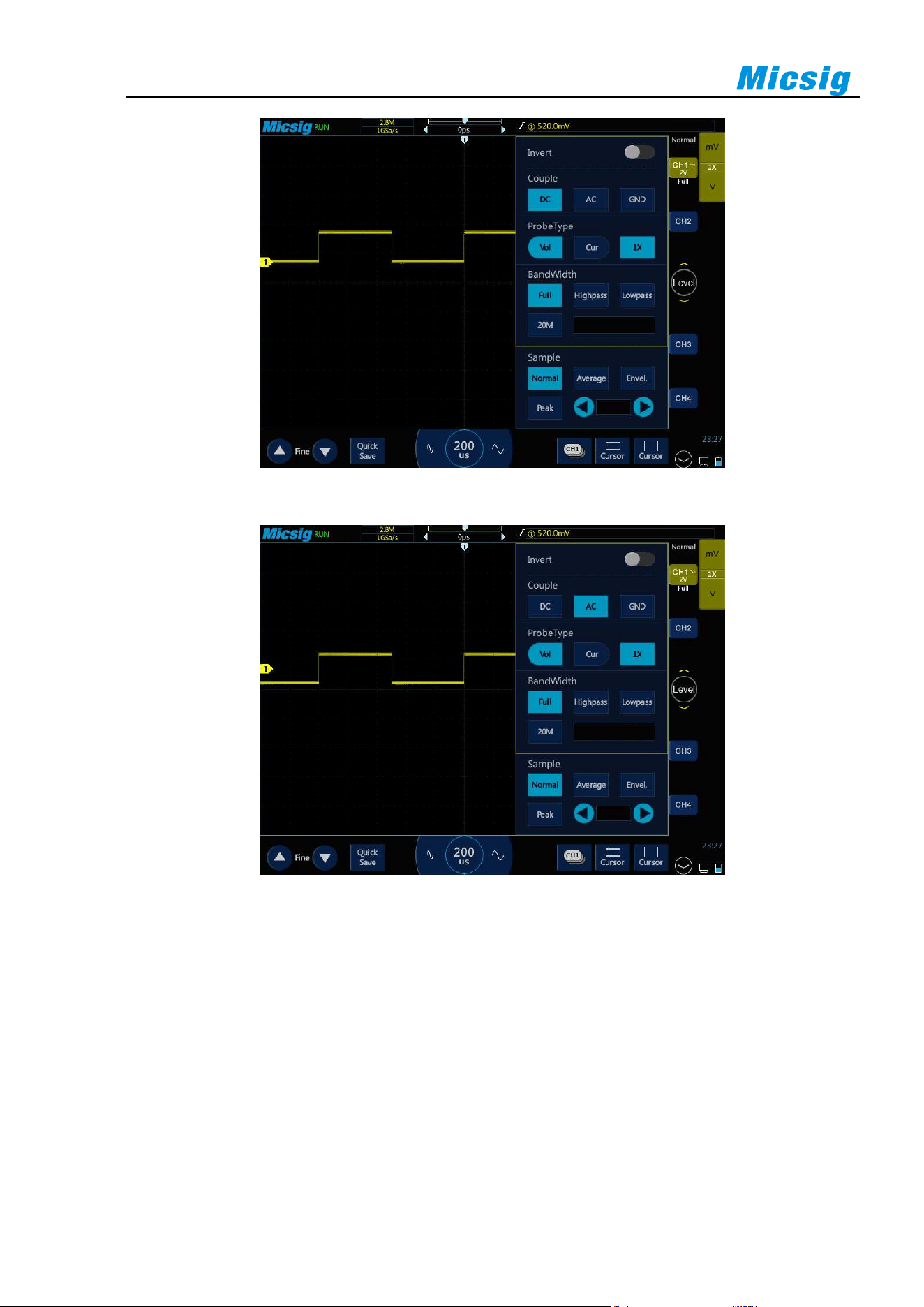
DC: DC coupling. Both the DC component and the AC component of the measured signal can pass, and can be
used to view waveforms as low as 0 Hz without large DC offset.
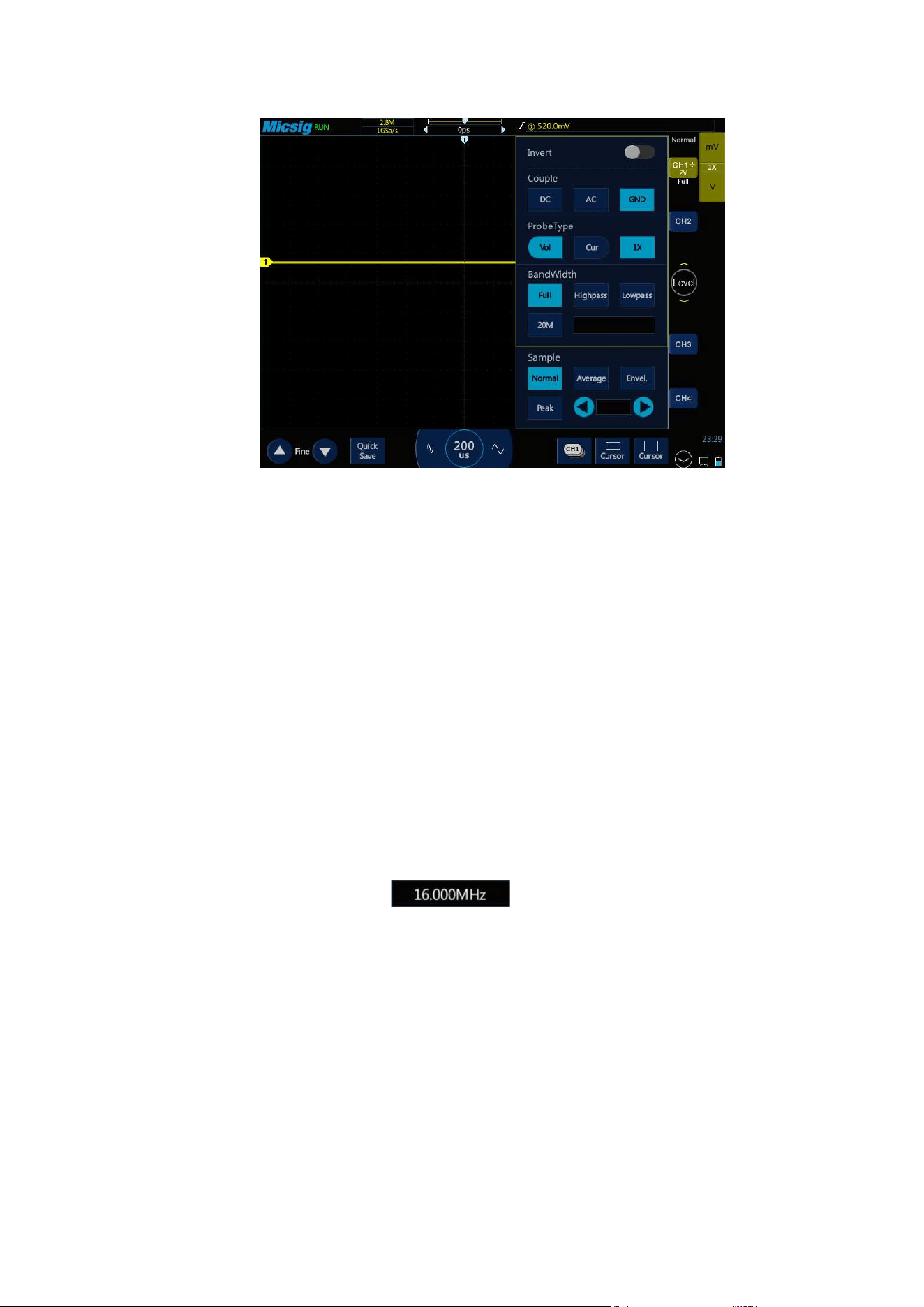
AC: AC coupling. Measured DC signal is blocked, and only the AC component can be allowed to pass, and used
to view waveforms with large DC offsets.
GND: Internal input ground, disconnecting from external input.
The oscilloscope is connected to the square wave signal with a frequency of 1KHz, an amplitude of 2V and an
offset of 1V. The waveforms of the channel couplings of DC, AC, and GND are shown in Figures 4-8, 4-9, and
4-10.
34
Figure 4-8 DC Coupling
Figure 4-9 AC Coupling
Chapter 4 Vertical System
35
Figure 4-10 GND Coupling
Note: This setting is only valid for the current channel. To switch from the current channel, just tap the channel icon, channel
indicator icon or horizontal position pointed by the channel indicator icon for direct switching. You do not need to exit the
menu.
4.4.2 Set Bandwidth Limit
Open the channel menu, find the “Bandwidth” selection box in the channel menu, set bandwidth limit, high-pass
filtering and low-pass filtering as needed.
Full Bandwidth: Allows signals of all frequencies to pass.
20M Bandwidth: Only signals with frequencies below 20MHz are allowed to pass, and signals above 20MHz
are effectively attenuated.
High Pass: Only signals above the lower limit of the currently set frequency are allowed to pass.
Select high pass, tap the frequency box , open the frequency setting interface, tap “MHz” and
“KHz” to select the frequency scale, drag or tap the slide bar for coarse adjustment of the maximum frequency
allowed to pass, tap “+”, “-” buttons to precisely adjust the frequency.
Low pass: Only signals below the currently set frequency upper limit are allowed to pass. (with the settings same
as High Pass)
High-pass filtering and low-pass filtering can be set within the frequency range of 30kHz-100MHz.
The difference in bandwidth limitation can be visualized by the waveform. The full bandwidth is shown in Figure
4-11, the 20M bandwidth is shown in Figure 4-12, the high pass is shown in Figure 4-13, and the low pass is
shown in Figure 4-14.
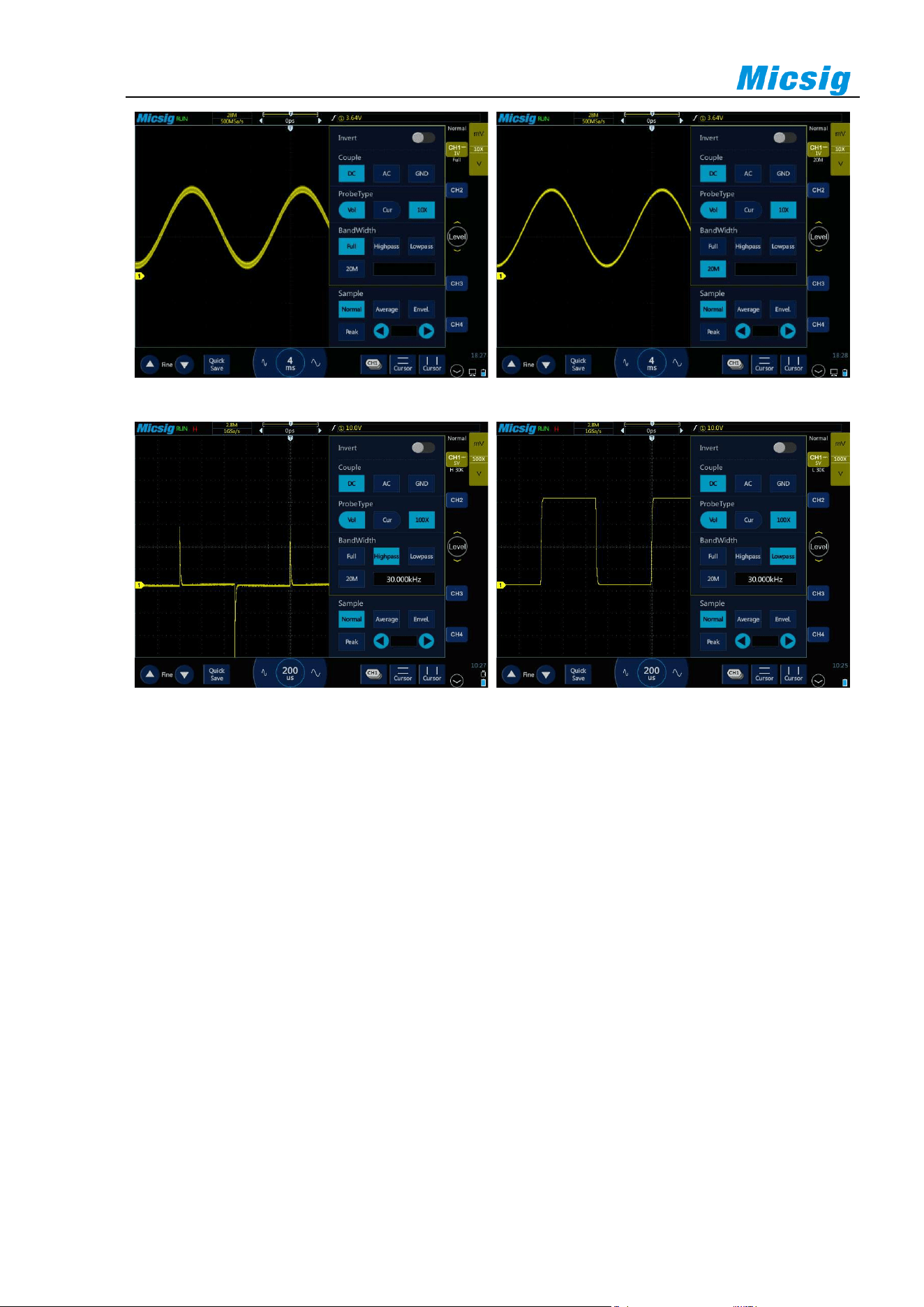
36
Figure 4-11 Full Bandwidth
Figure 4-12 20M Bandwidth
Figure 4-13 High Pass
Figure 4-14 Low Pass
4.4.3 Waveform Inversion
After selecting “Invert”, the voltage value of the displayed waveform is inverted. Inversion affects the way the
channel is displayed. When using a basic trigger, you need to adjust the trigger level to keep the waveform stable.
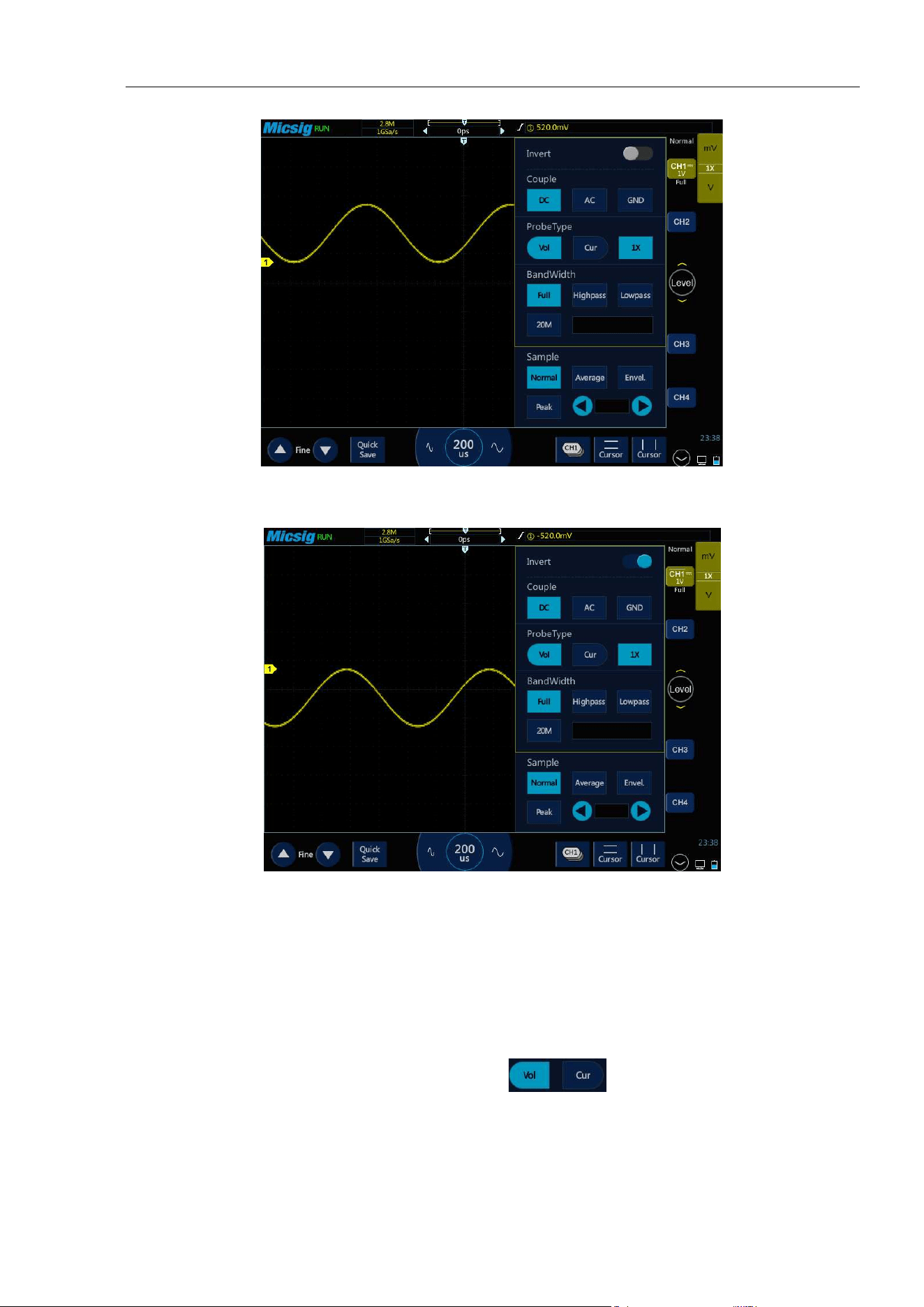
Chapter 4 Vertical System
37
Figure 4-15 Before Inversion
Figure 4-16 After Inversion
4.4.4 Set Probe Type
Probe types are divided into voltage probe and current probe.
Probe type adjustment steps:
Open the channel menu, find the “Probe Type” checkbox in the channel menu, then select:
⚫ Vol - corresponding the voltage probe.
⚫ Cur - corresponding the current probe.
38
4.4.5 Set Probe Attenuation Coefficient
When measuring with a probe, the correct measurement result can only be obtained by setting the correct probe
attenuation ratio. In order to match the actual probe attenuation ratio, it is necessary to adjust the channel
attenuation factor correspondingly under the channel menu. When probe attenuation ratio is changed, the
corresponding attenuation ratio must be set on the channel menu to ensure the correctness of the waveform
amplitude and measurement result displayed by the oscilloscope.
Probe attenuation ratio and menu attenuation ratio are shown in the table below:
Probe attenuation
ratio
Menu attenuation
ratio
0.001:1
1mx
0.002:1
2mx
0.005:1
5mx
0.01:1
10mx
0.02:1
20mx
0.05:1
50mx
0.1:1
100mx
0.2:1
200mx
0.5:1
500mx
1:1
1x
2:1
2x
5:1
5x
10:1
10x
20:1
20x
50:1
50x
100:1
100x
200:1
200x
500:1
500x
1000:1
1kx
2000:1
2kx
5000:1
5kx
10000:1
10kx
Table 4-2 Probe Attenuation Ratio Correspondence Table

Chapter 5 Trigger System
39
Chapter 5 Trigger System
This chapter contains the detailed information of the trigger system of the oscilloscope. You are recommended to
read this chapter carefully to understand the set functions and operation of the trigger system of the tBook mini
series oscilloscope.
⚫ Trigger and trigger adjustment
⚫ Edge trigger
⚫ Pulse width trigger
⚫ Logic trigger
⚫ Nth edge trigger
⚫ Runt trigger
⚫ Slope trigger
⚫ Time out trigger
⚫ Video trigger
⚫ Serial bus trigger
40
5.1 Trigger and Trigger Adjustment
What is Trigger?
The oscilloscope can capture a waveform only when it meets a preset condition first. This action of capturing the
waveform according to the condition is Trigger. The so-called capture waveform is that the oscilloscope grabs a
signal and displays it. If it is not triggered, there is no waveform display.
What can Trigger be used for?
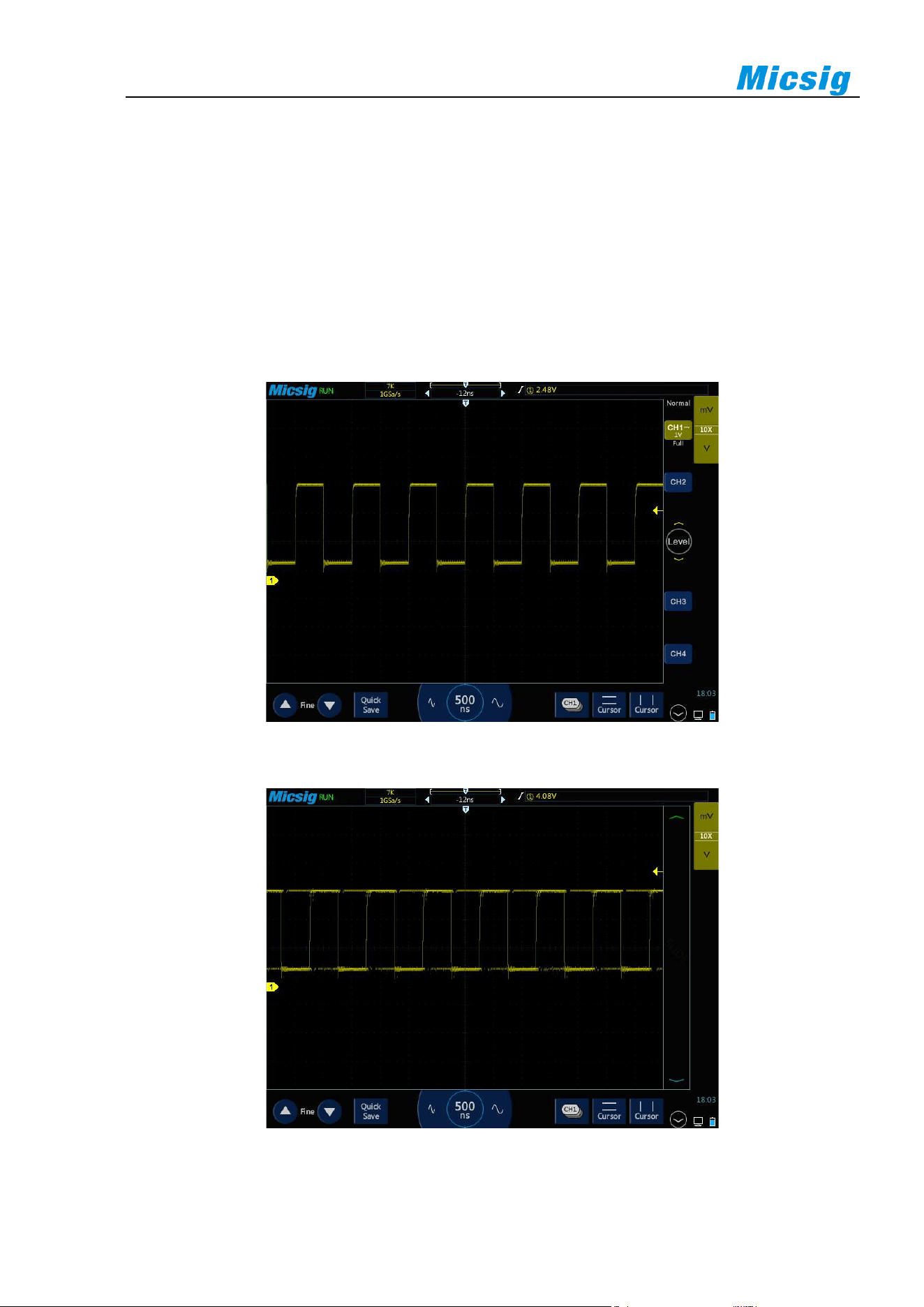
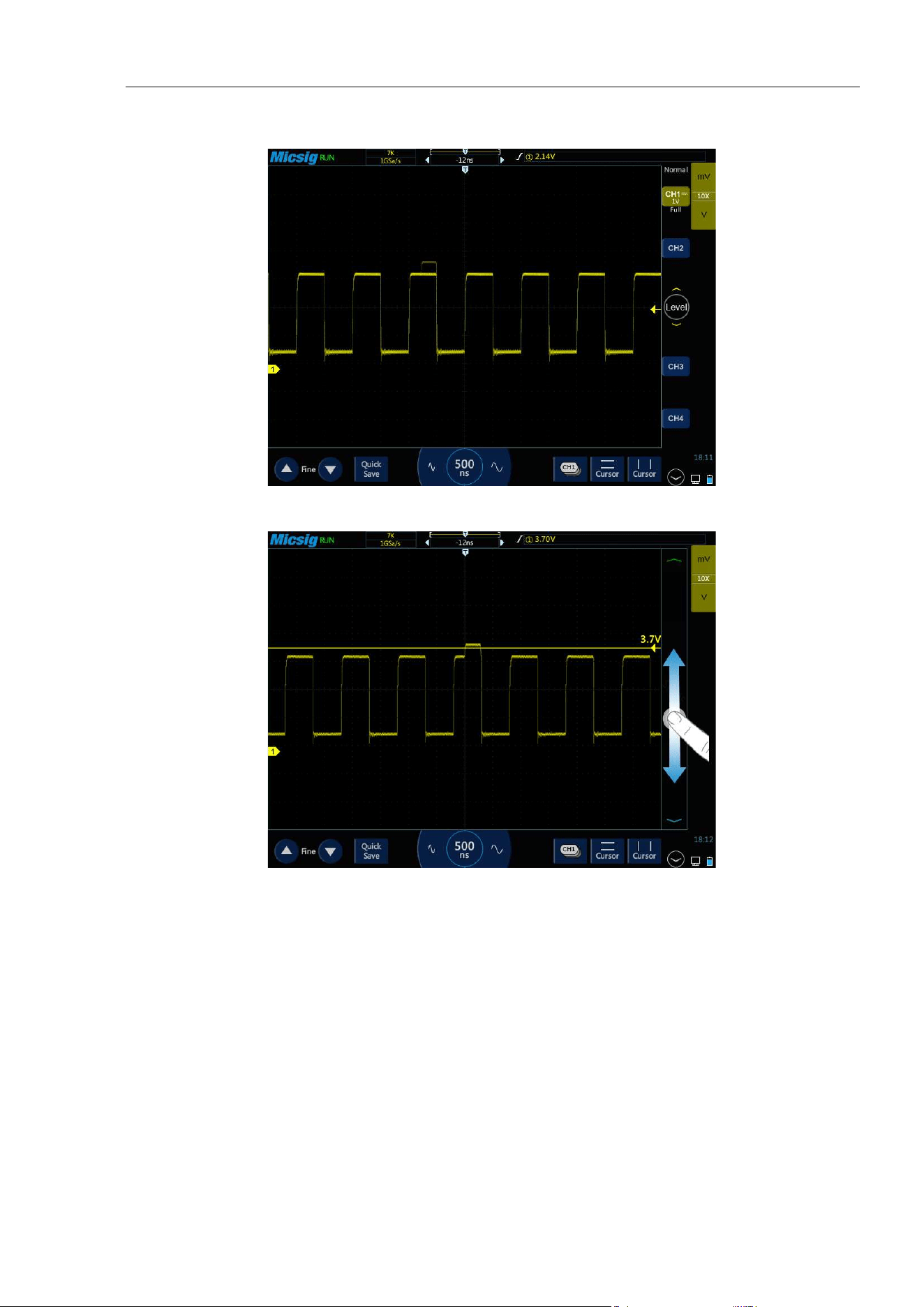
(1) The oscilloscope can stably display a periodic signal.
Figure 5-1 Stably Displayed Periodic Signal
Figure 5-2 Non-Stably Displayed Periodic Signal
Chapter 5 Trigger System
41
(2) Grab the segment you want to observe from a fast and complex signal
Figure 5-3 Abnormal Signal in Periodic Signals
Figure 5-4 Abnormal Signal Captured by Setting Trigger Level
What is Forced Trigger?
When the oscilloscope does not meet the trigger condition, the artificial or automatic oscilloscope trigger is the
forced trigger. It means that the oscilloscope only grabs a signal segment for display regardless of whether the
condition is met or not.
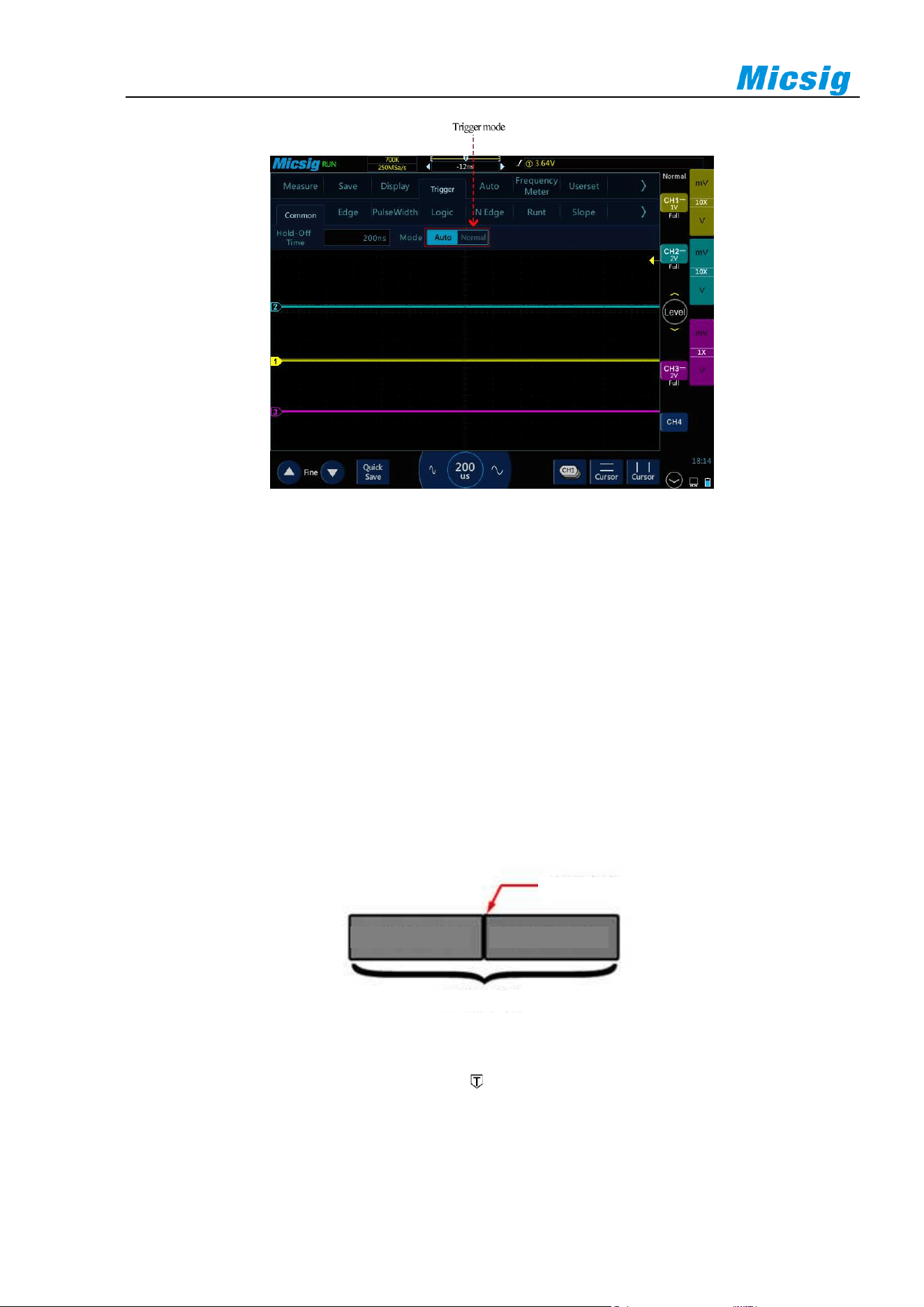
Automatic forced trigger is set in the menu. In the trigger settings, there is usually a trigger mode option, which
can be set as “Normal” or “Auto”. Normal trigger means trigger after meeting the set condition. Automatic trigger
is a kind of forced trigger. The oscilloscope will be force triggered if it does not trigger for a certain period of
time.
42
Figure 5-5 Oscilloscope Trigger Mode Setting
If a signal feature is not understood, the oscilloscope should be set as “Auto” mode, which can ensure that the
oscilloscope can also display the waveform when other trigger settings are not correct. Although the waveform
is not necessarily stable, it can provide the intuitive judgment for our further adjustment of the oscilloscope. The
signal in Figure 5-5 is the result of forced trigger in “Auto” mode.
When we set a specific trigger condition for a specific signal, especially when the time interval for satisfying the
trigger condition is long, we need to set the trigger mode to “Normal” so as to prevent the oscilloscope from
automatic forced trigger.
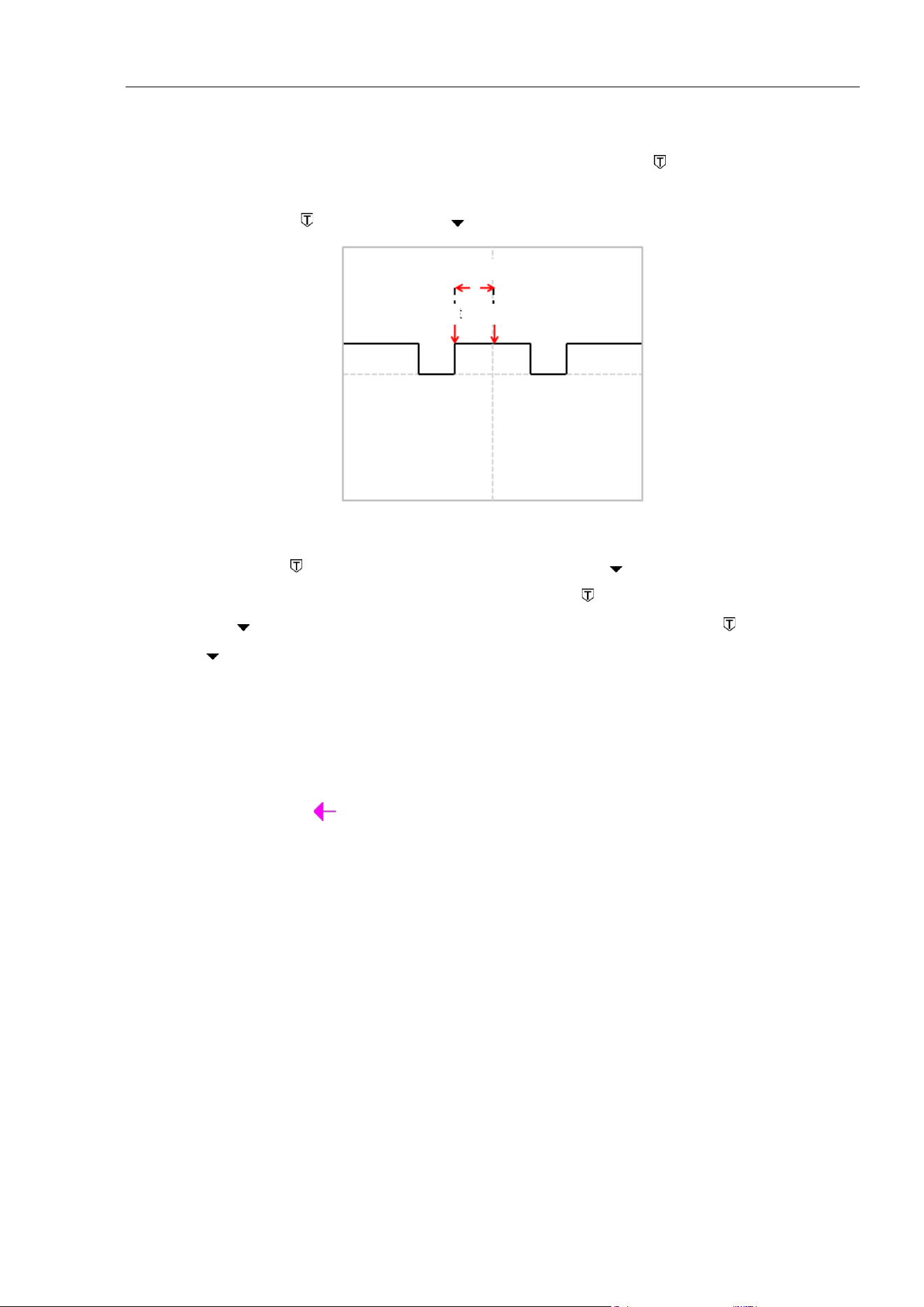
Figure 5-6 shows a conceptual demonstration of the acquisition memory. In order to understand the trigger event,
the acquisition memory can be divided into pre-trigger and post-trigger buffers. The position of the trigger event
in the acquisition memory is defined by the time reference point and trigger position (horizontal delay) settings.
Figure 5-6 Conceptual Demonstration of Acquisition Memory
All events displayed to the left of the trigger point occur before trigger. These events are called pre-trigger
messages that show events before the trigger point. All events to the right of the trigger point is called post-trigger
messages. The number of delay ranges available (pre-trigger and post-trigger messages) depends on the selected
time base and memory depth.
Trigger Event
Acquisition Memory
Pre-trigger Buffer
Post-trigger Buffer
Chapter 5 Trigger System
43
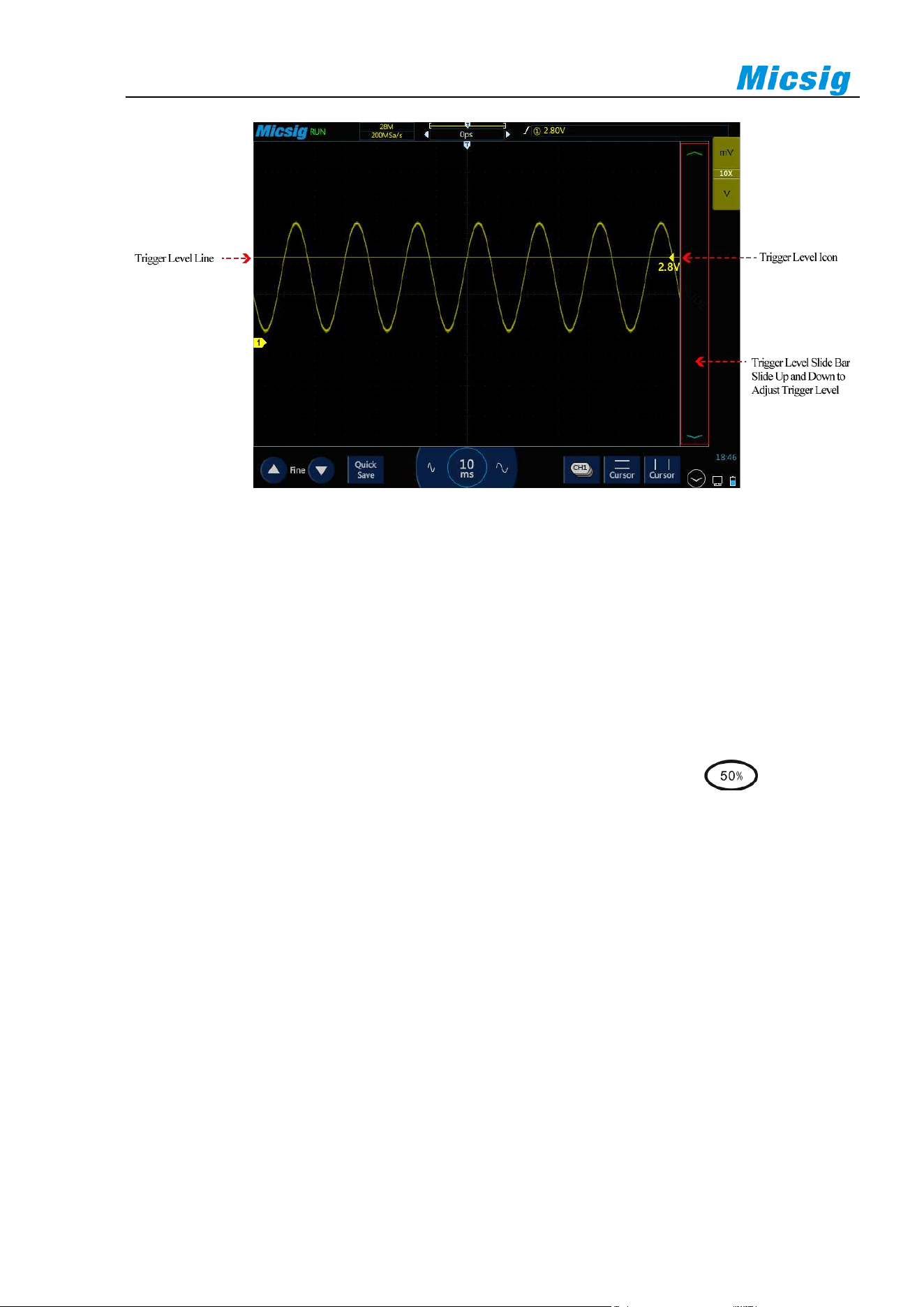
Adjust trigger position (horizontal delay)
Fingers swipe left and right in the waveform display area, the trigger point will move horizontally, the
horizontal delay time changes, and the delay time is displayed at the top center of the screen, that is, the distance
between the trigger point and the center line of the waveform display area is displayed.
Figure 5-7 Horizontal Delay
When the trigger point is located on the left side to the center line of the waveform display area, the
delay time is displayed as a positive value; When the trigger point is located on the right side to the time
reference point , and the delay time is displayed as a negative value; the trigger point overlaps with the
center line of the waveform display area, and the delay time is zero.
Trigger level
Trigger level is the signal voltage corresponding to the set trigger point. When the trigger level is changed, a
horizontal line will appear temporarily on the screen to tell you the level position (the specific value of the trigger
level is displayed in the upper right corner of the screen), then the horizontal line disappears, the trigger level is
indicated by a small arrow and the indication icon can be dragged to adjust the trigger level value. The
trigger level is shown in Figure 5-8 (the arrow indicates the trigger level line).
Horizontal Delay
Trigger
Center Position
44
Figure 5-8 Trigger Level
Adjust trigger level
The trigger level can be coarsely adjusted and finely adjusted.
Coarse adjustment: Slide up and down in the trigger level adjustment area.
Fine adjustment: After moving the trigger level, tap the fine adjustment button in the lower left corner of the
screen for fine adjustment of the trigger level.
Note: Fine adjustment requires activation of the trigger level control function.
In addition, if the final operation of the oscilloscope is to adjust the trigger level, tap and select the
"level" item to adjust the trigger level to 50% of the waveform amplitude of the trigger source channel.
Set trigger hold-off time
The trigger rejection time can set up the waiting time of the oscilloscope after the trigger and before the trigger
circuit is reconnected. During rejection, the oscilloscope does not re-trigger until the end of the rejection time,
and the rejection time can be used to stably trigger complex waveforms. The trigger rejection time ranges from
200ns~10s.
The rejection may be used to trigger on repetitive waveforms with multiple edges (or other events) between
waveform repetitions. If the shortest time between triggers is known, the rejection may also be used to trigger on
the first edge.
For example, to obtain stable trigger on the repetitive pulse trigger shown below, set the rejection time to a
value >200ns but <600ns.
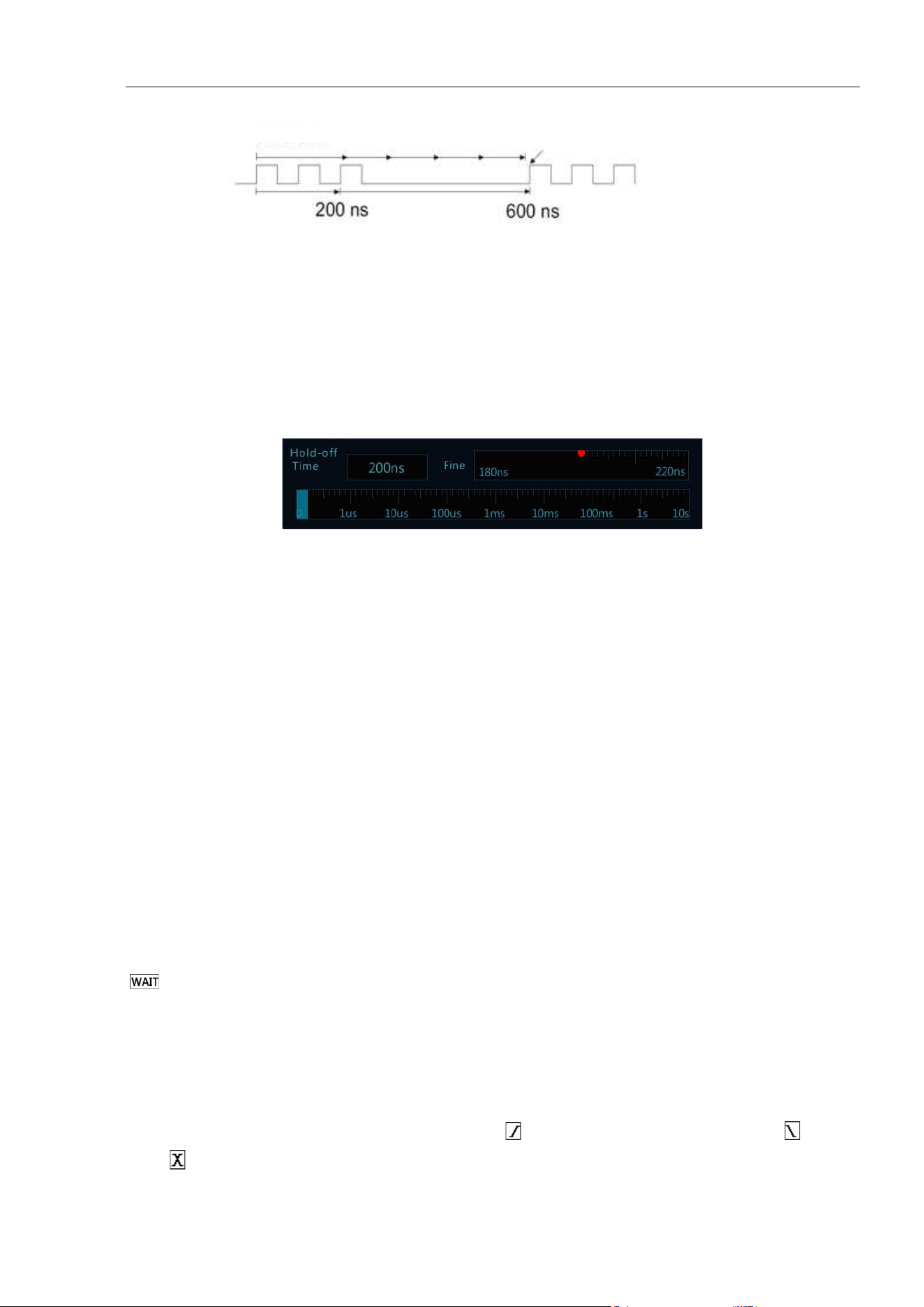
Chapter 5 Trigger System
45
Figure 5-9 Trigger Rejection Time
Set trigger hold-off time:
1) Tap “Trigger” on the main menu to open the trigger menu. Under “Common”, tap the box after “Rejection
Time” to open the rejection time adjustment interface. The trigger time is displayed on the upper left, the
fine adjustment time scale is displayed on the upper right, and the coarse time scale is displayed below, as
shown in Figure 5-10.
Figure 5-10 Trigger Hold-off Time Set Interface
2) When adjusting the time, drag or tap the coarse adjustment scale for coarse adjustment, and then drag the
fine adjustment scale for fine adjustment of the rejection time.
Trigger rejection operation prompt
It is typically used for complex waveforms. The correct rejection setting is usually slightly smaller than one
repetition of the waveform. Setting the rejection time to this time can become the only trigger point for the
repetitive waveform.
Changing the time base setting will not affect the trigger rejection time.
Using Zoom function, you can tap “Run/Stop” to stop, then horizontally move and zoom the data to find the
position where the waveform is repeated. Use the cursor to measure this time and then set the rejection time.
⚫ Use “SingleSEQ” button for single acquisition
Usually when performing a single acquisition, you must initiate some operations on the measured equipment,
and the oscilloscope is not desired to trigger automatically before these operations. The trigger condition indicator
is displayed in the upper left corner of the screen before starting operations in the circuit (this means the
pre-trigger buffer is filled).
5.2 Edge Trigger
When the edge of trigger signal reaches a certain trigger level, the set signal is triggered and generated. Trigger
occurs on either edge of the rising edge (indicating icon at the top of the screen), falling edge ( ) or dual
edge ( ), and the trigger level can be set to change the vertical position of the trigger point on the trigger edge,
Hold-off Time
Oscilloscope Trigger Position
46
namely the intersection point of the trigger level line and the signal edge. The stable waveform can be obtained
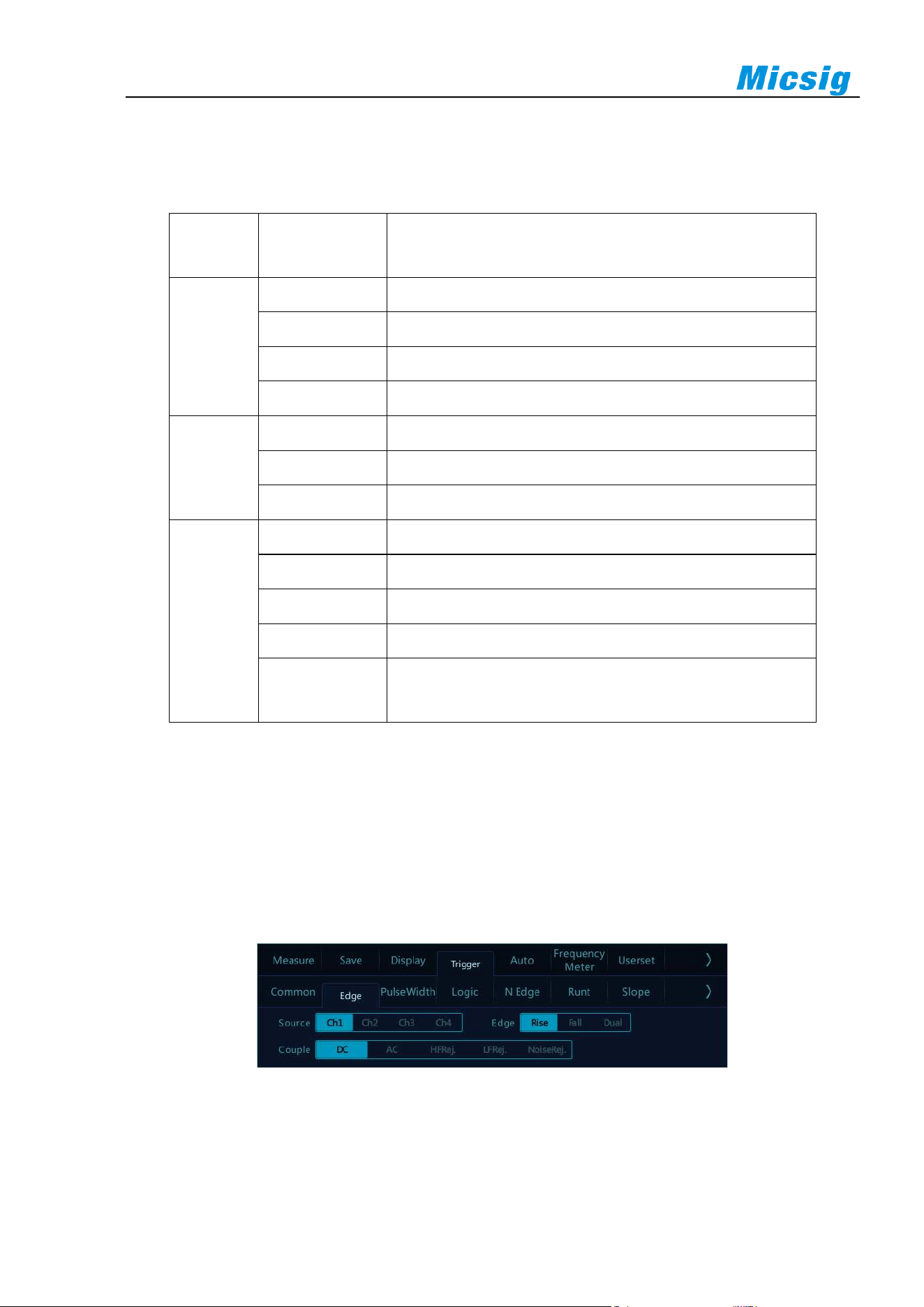
by correctly setting the edge trigger coupling mode. Edge trigger menu is shown in the table below:
Trigger
Option
Setting
Description
Trigger
Source
CH1
Set CH1 as trigger signal source
CH2
Set CH2 as trigger signal source
CH3
Set CH3 as trigger signal source
CH4
Set CH4 as trigger signal source
Slope
Rising edge
Set signal trigger on the rising edge
Falling edge
Set signal trigger on the falling edge
Dual edge
Set signal trigger on either rising edge or falling edge
Coupling
DC
AC and DC components getting through trigger signals
AC
Filter out the DC component of trigger signals
HF rejection
Suppress signals above 50KHz in trigger signals
LF rejection
Suppresses signals below 50KHz in trigger signals
Noise rejection
Low-sensitivity DC coupling to suppress high-frequency noise
in trigger signals
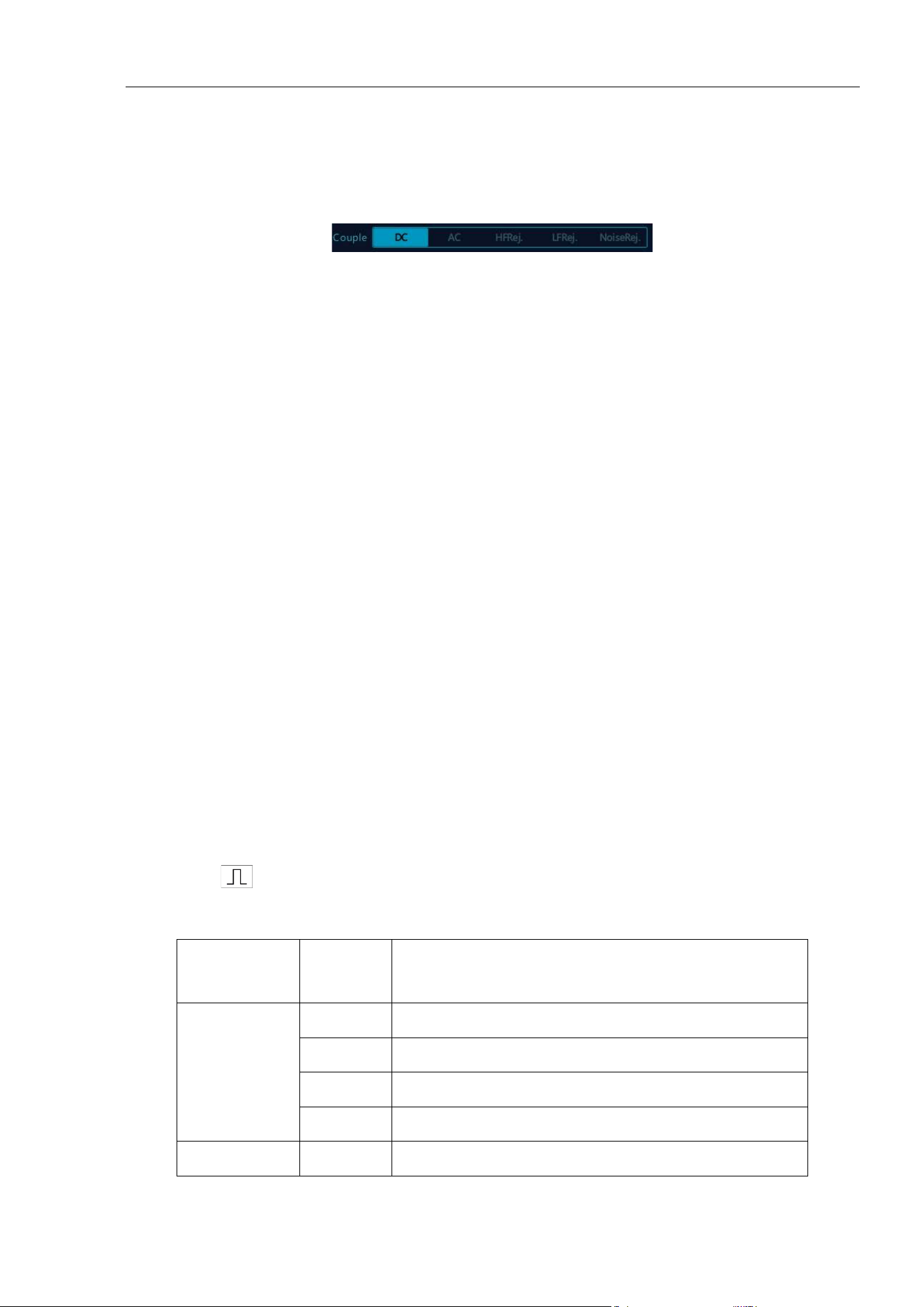
Set CH1 rising edge trigger and coupling as DC with operation steps as follows:
1) Tap “Trigger” on the main menu to open the trigger menu, select edge trigger in the trigger type, and set
edge trigger as follows, as shown in Figure 5-11:
⚫ Trigger source: CH1;
⚫ Trigger coupling mode: DC;
⚫ Trigger edge: rising.
Figure 5-11 Edge Trigger Setting Menu
2) Adjust the trigger level to ensure that the waveform can be triggered stably, for example, the trigger level
is set to 1V.
Chapter 5 Trigger System
47
Trigger coupling description
When the edge trigger setup menu is opened, the trigger coupling option is displayed below the menu. Trigger
coupling includes DC, AC, HFRei., LFRej., NoiseRej, see Figure 5-12:
Figure 5-12 Trigger Coupling Menu
1) DC coupling - allows DC and AC signals to enter the trigger path.
2) AC coupling - removes any DC offset voltage from the trigger waveform.
When the waveform has a large DC offset, stable edge triggering can be achieved using AC coupling.
3) HFRej. (High Frequency Rejection Coupling) - removes high frequency components from the trigger
waveform, using high frequency rejection to remove high frequency noises or noises from fast system clocks,
from trigger paths such as AM or FM radio stations.
4) LFRej. (Low Frequency Rejection Coupling) - removes any unnecessary low frequency components from
the trigger waveform, for example, power line frequencies that can interfere with correct trigger.
When there is low frequency noise in the waveform, stable edge triggering can be obtained using LF
rejection coupling.
5) NoiseRej. (Noise Rejection Coupling) - Noise rejection can add extra hysteresis to the trigger circuit. By
increasing the trigger hysteresis band, the possibility of noise triggering can be reduced. But it also reduces
the trigger sensitivity, so triggering the oscilloscope requires a slightly larger signal.
Note: Trigger coupling is independent of channel coupling.
5.3 Pulse Width Trigger
The trigger happens when the trigger signal pulse width (8ns~10s, the trigger type indication icon at the top of
the screen is ) reaches the set condition and the signal voltage reaches the set trigger level. Pulse width
trigger menu is shown in the following table:
Trigger
Option
Setting
Description
Trigger Source
CH1
Set CH1 as trigger signal source
CH2
Set CH2 as trigger signal source
CH3
Set CH3 as trigger signal source
CH4
Set CH4 as trigger signal source
Polarity
Positive
Trigger on setting the positive pulse width of signals
48
Trigger
Option
Setting
Description
Negative
Trigger on setting the negative pulse width of signals
Trigger
Condition
<T
Trigger when the signal pulse width is smaller than pulse
width T
>T
Trigger when the signal pulse width is greater than pulse
width T
=T
Trigger when the signal pulse width is equal to pulse width T
≠T
Trigger when the signal pulse width is not equal to pulse width
T
Trigger Pulse
Width
8ns~10s
Set the trigger pulse width
Notes: Conditions of greater than, smaller than, equal to or not equal to indicating that the error is 6%.
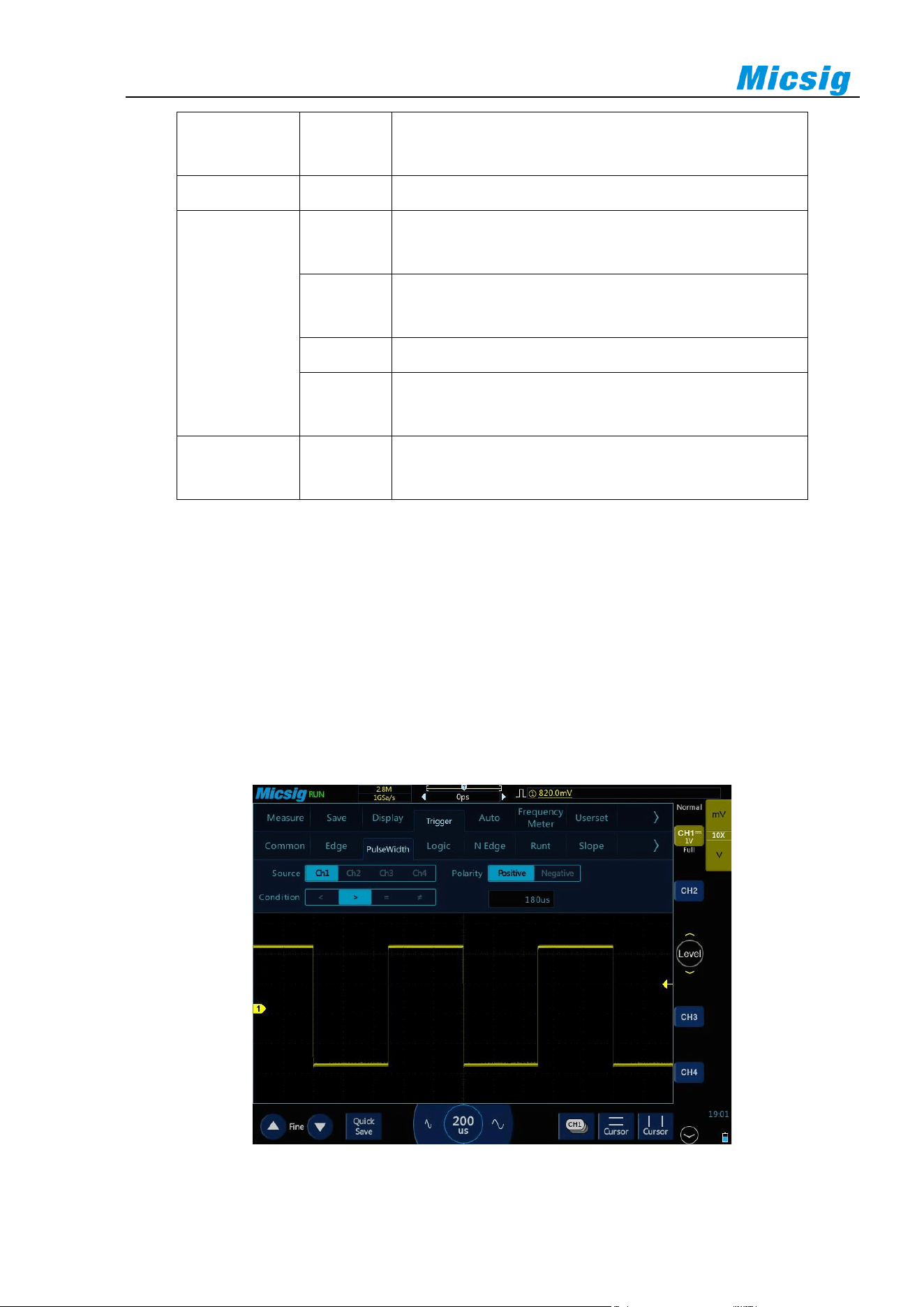
Trigger steps of positive polarity pulse width: (taking CH1 as an example)
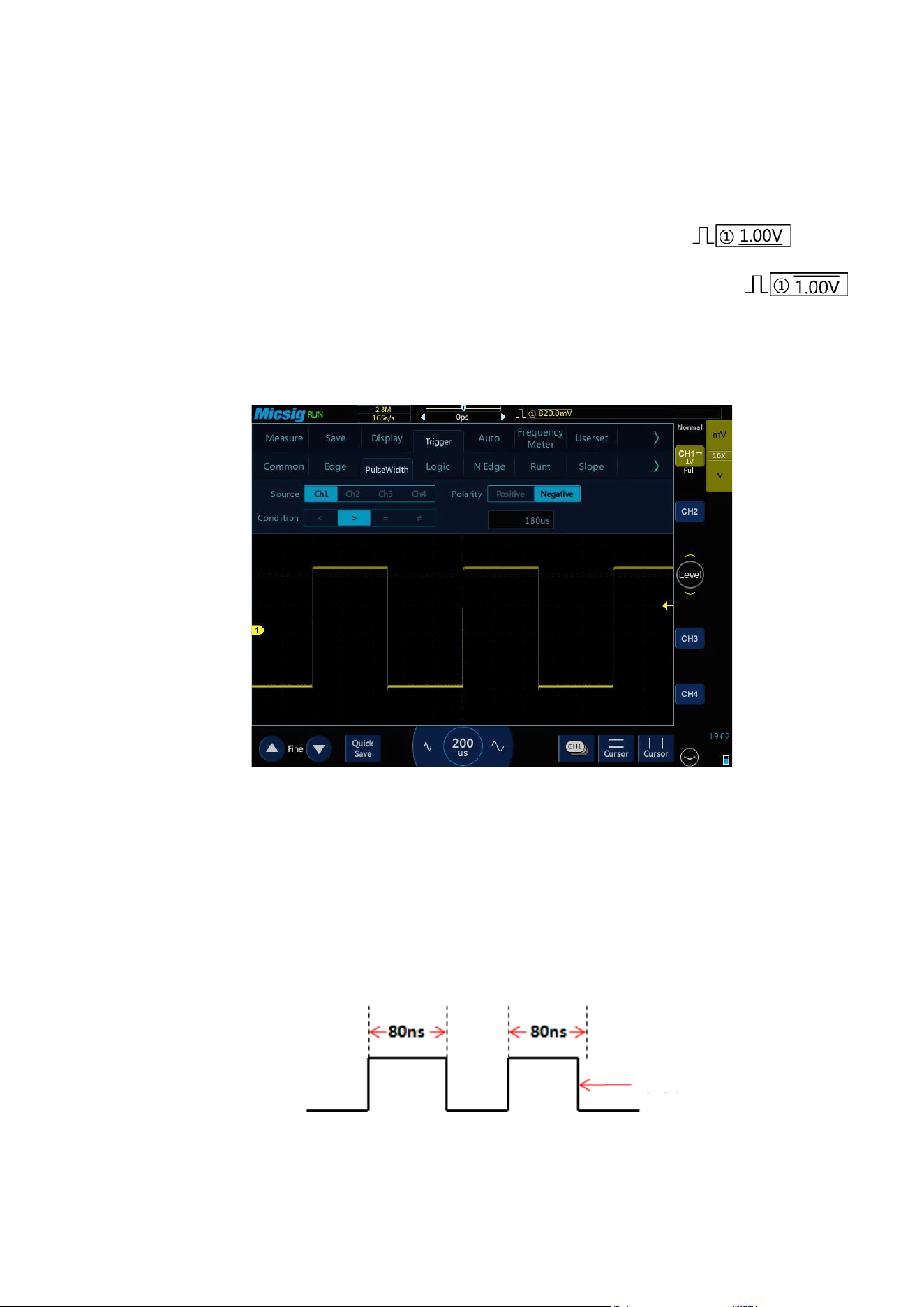
1) Tap “Trigger” on the main menu to open the trigger menu, select the pulse width trigger in the trigger type,
and set the pulse width trigger as follows, as shown in Figure 5-13:
⚫ Trigger source: CH1;
⚫ Trigger pulse polarity: positive;
⚫ Trigger level: 1V
⚫ Trigger condition and pulse width time: “greater than”, the adjustment time is 180us.
Figure 5-13 Pulse Width Trigger Setting Menu
Chapter 5 Trigger System
49
Pulse width trigger setting description:
1) Pulse polarity selection
The selected pulse polarity icon is displayed in the upper right corner of the display screen. The positive
pulse is higher than current trigger level (CH1 positive pulse indication icon ), and the
negative pulse is lower than current trigger level (CH1 negative pulse indication icon ).
When triggered on positive polarity pulse, if the restrictions are true, the trigger will happen on the high-to-
low transition of the pulse; when triggered on negative polarity pulse, if the restrictions are true, the trigger
will happen on the low-to-high transition. (Figure 5-14 Negative Pulse Level Flip)
Figure 5-14 Negative Polarity Pulse Level Flip
2) Trigger condition and pulse width time setting
Time restrictions that can set in the trigger condition: <, >, =, ≠.
⚫ Smaller than the time value (<)
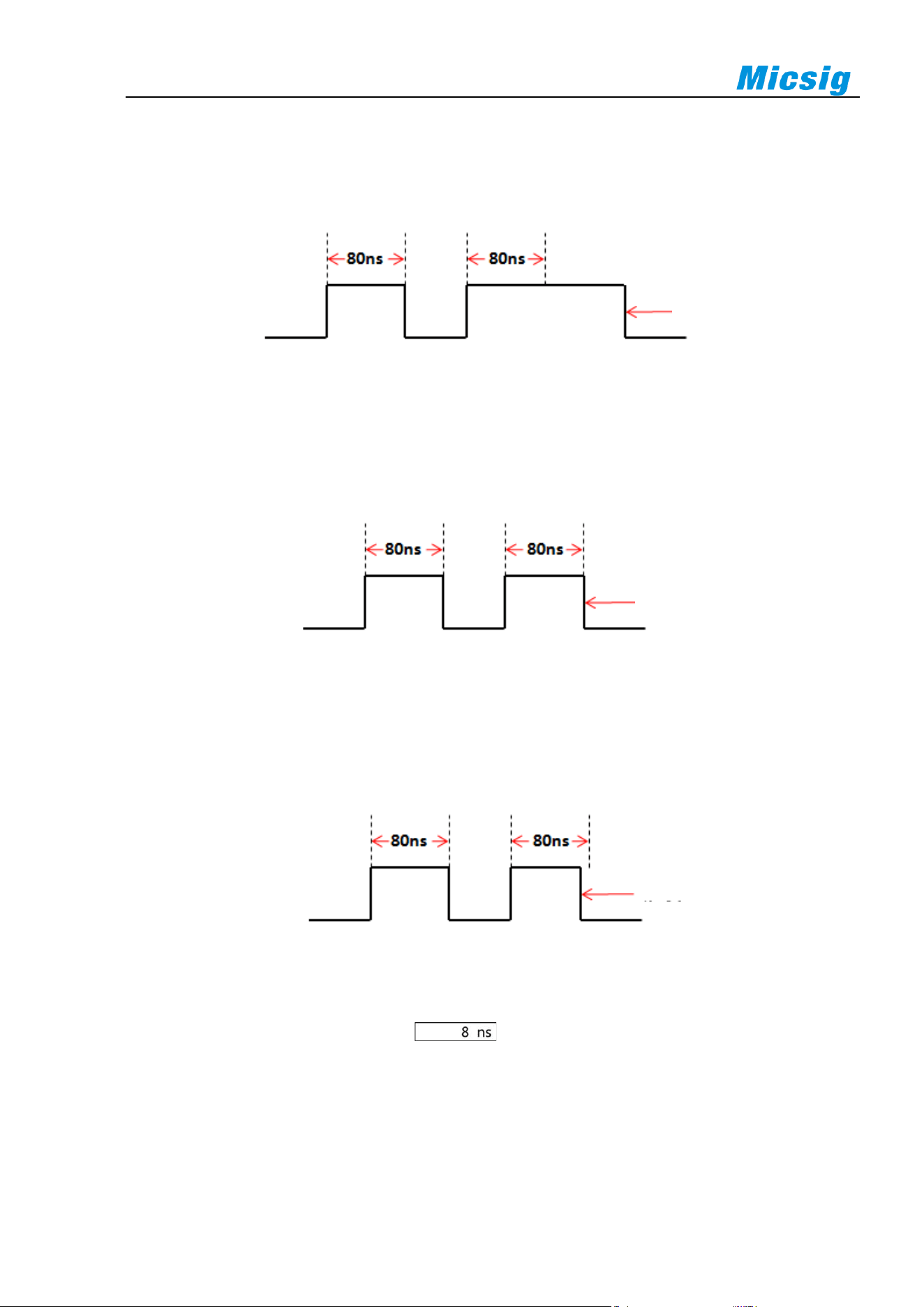
For example, for positive pulse, if it is set as T<80ns, the trigger will happen stably only when the pulse
width is smaller than 80ns (Figure 5-15 Trigger Time T<80ns).
Figure 5-15 Trigger Time T<80ns
Trigger
50
⚫ Greater than the time value (>)
For example, for positive pulse, if it is set as T>80ns, the trigger will happen stably only when the pulse
width is greater than 80ns (Figure 5-16 Trigger Time T>80ns).
Figure 5-16 Trigger Time T>80ns
⚫ Equal to the time value (=)
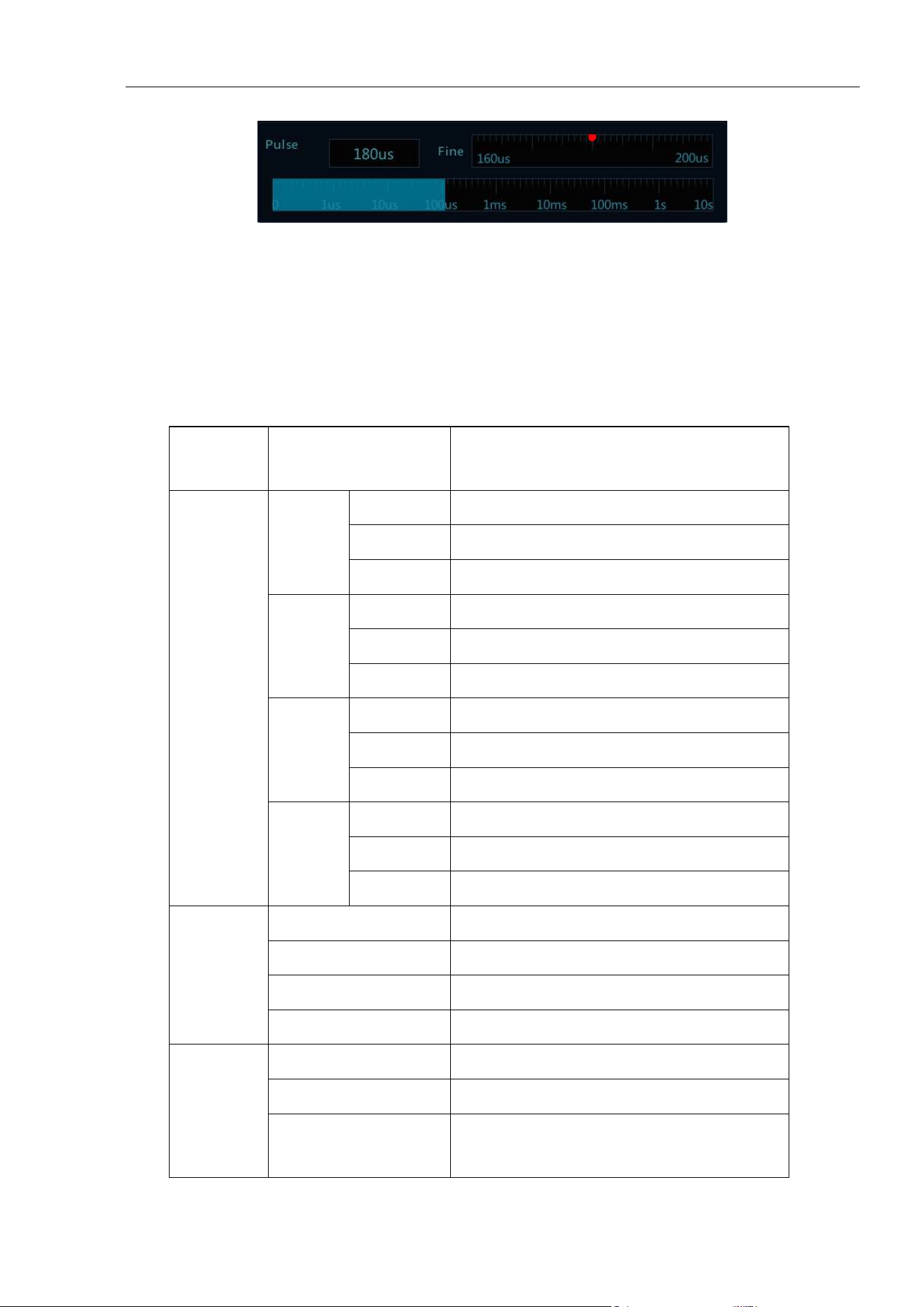
For example, for positive pulse, if it is set as T=80ns, the trigger will happen stably only when the pulse
width is equal to 80ns (Figure 5-17 Trigger Time T=80ns).
Figure 5-17 Trigger Time T=80ns
⚫ Not equal to the time value (≠)
For example, for positive pulse, if it is set as T≠80ns, the trigger will happen stably only when the pulse
width is not equal to 80ns (Figure 5-18 Trigger Time T≠80ns).
Figure 5-18 Trigger Time T≠80ns
The trigger pulse width time can be set as 8ns~10s.
Tap the pulse width time setting box to pop up the time adjustment interface (as shown in
Figure 5-19), and adjust the pulse width time. Adjust the pulse width time by adjusting or dragging the time
scale.
Trigger
Trigger
Trigger
Chapter 5 Trigger System
51
Figure 5-19 Pulse Width Time Adjustment Interface
5.4 Logic Trigger
Trigger happens when the level between analog channels satisfies a certain logical operation (AND, OR, NAND,
NOR) and the signal voltage reaches the set trigger level and the trigger logic width (8ns~10s). Logic trigger
menu descriptions are shown in the table below:
Trigger
Option
Setting
Description
Trigger
Source
CH1
High
Set CH1 as high
Low
Set CH1 as low
None
Set CH1 as none
CH2
High
Set CH2 as high
Low
Set CH2 as low
None
Set CH2 as none
CH3
High
Set CH3 as high
Low
Set CH3 as low
None
Set CH3 as none
CH4
High
Set CH4 as high
Low
Set CH4 as low
None
Set CH4 as none
Trigger
Logic
AND
Select the logic of trigger source as “AND”
OR
Select the logic of trigger source as “OR”
NAND
Select the logic of trigger source as “NAND”
NOR
Select the logic of trigger source as “NOR”
Trigger
Condition
Change to true value
Trigger when the logic changes to true value
Change to false value
Trigger when the logic changes to false value
<, >, =, ≠T
If logic status for hold time as <, >, =, ≠T, then
trigger
52
Logic Time
8ns~10ns
Set trigger logic time
Notes: Conditions of greater than, smaller than, equal to or not equal to indicating that the error is 6%.
Logic trigger operation steps between channels:
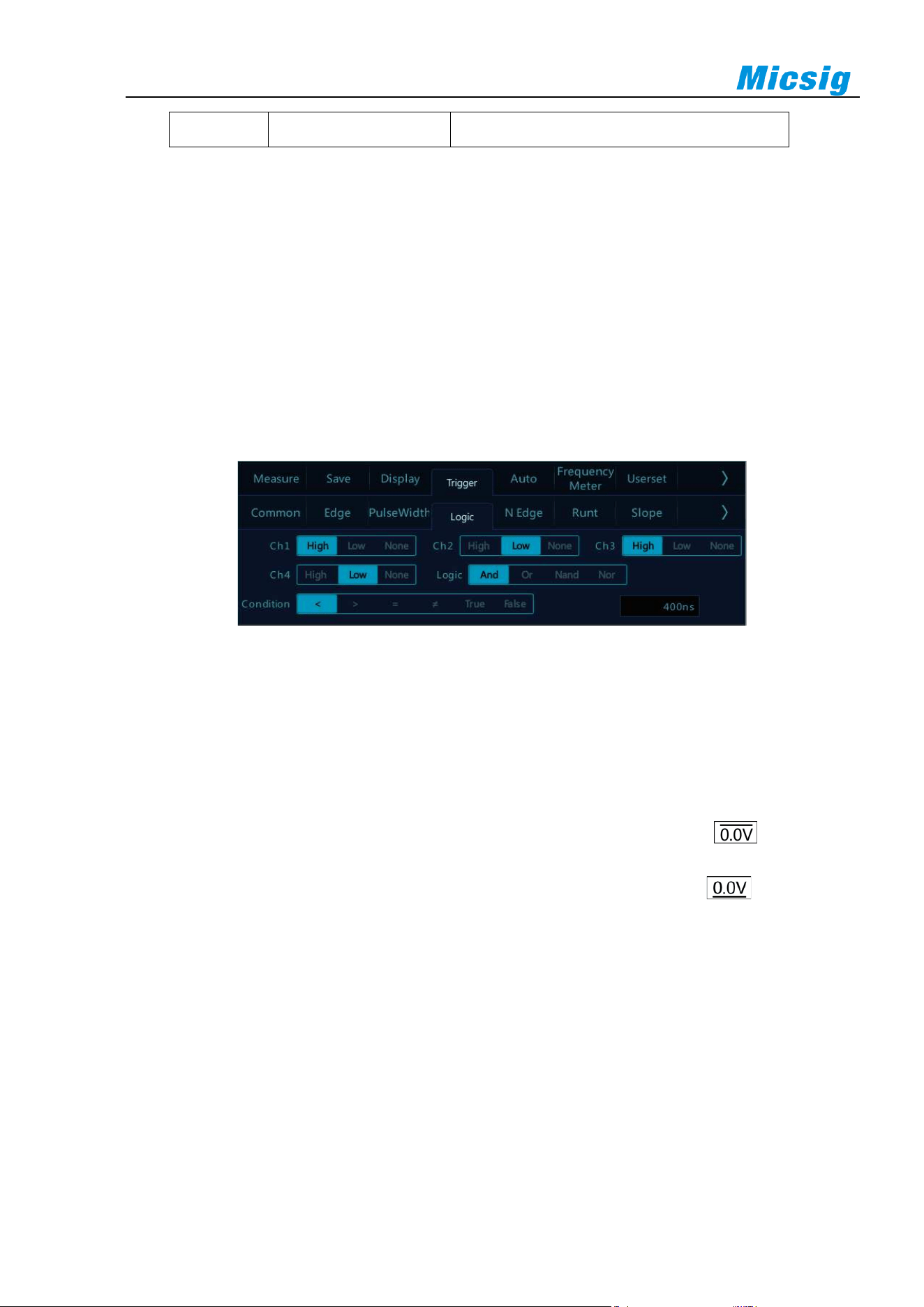
1) Tap “Trigger” on the main menu to open the trigger menu, select logic trigger in the trigger type, and set
the logic trigger as follows, as shown in Figure 5-20:
⚫ Logic levels: CH1, CH3: High; CH2, CH4: Low; (without reference to the channel of logic operation,
the level selection is None to avoid interference to the logic operation);
⚫ Logic gate: AND;
⚫ Condition: <;
⚫ Logic time: 400ns.
Figure 5-20 Logic Trigger Setting Menu
Logic trigger setting description:
Logic level setting
After trigger source, select High, Low and None for the channel. The corresponding trigger level value is
displayed in the upper right corner of the display screen.
High: means a value higher than the current trigger level, and the icon indication is “ ”.
Low: means a value lower than the current trigger level, and the icon indication is “ ”.
None: This channel is invalid.
Switch the trigger level channel: Tap the trigger level value shown in the upper right corner.
Logic conditions
1) True: Trigger when the logic changes to true value
2) False: Trigger when the logic changes to false value
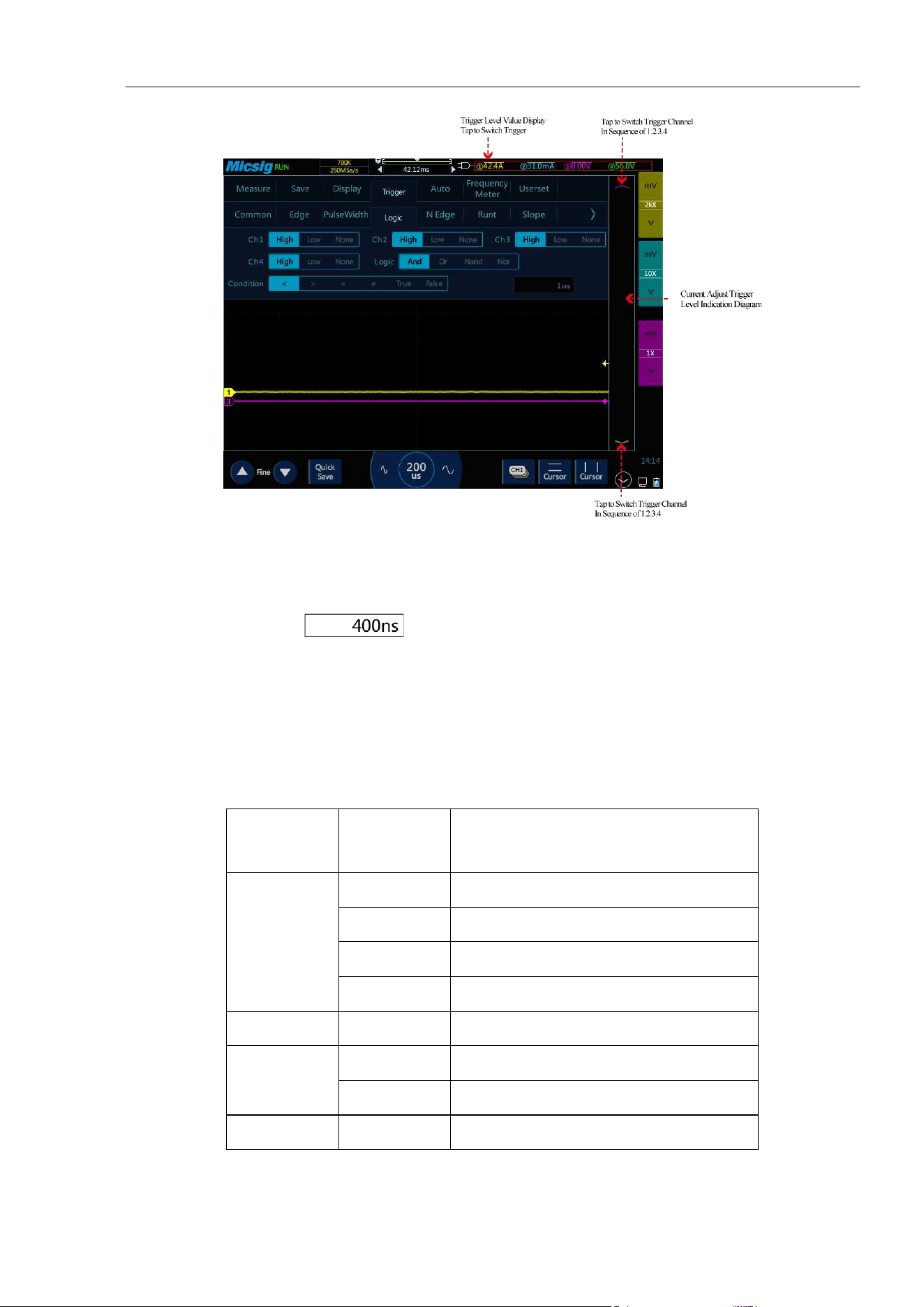
Chapter 5 Trigger System
53
Figure 5-21 Logic Trigger
Trigger pulse width time can be set as 8ns~10s.
Tap the time setting box ( ) to pop up the time adjustment interface and adjust the logic time.
Please refer to the Pulse Width Adjustment section for details.
5.5 Nth Edge Trigger
When the trigger signal is triggered on the Nth edge after the specified idle time, it is Nth edge trigger. Menu
descriptions of the Nth edge trigger are shown in the table below:
Trigger
Option
Setting
Description
Trigger
Source
CH1
Set CH1 as trigger signal source
CH2
Set CH2 as trigger signal source
CH3
Set CH3 as trigger signal source
CH4
Set CH4 as trigger signal source
Time
8ns~10s
Idle time
Edge
Rising edge
Set signal trigger on the rising edge
Falling edge
Set signal trigger on the falling edge
Nth Edge
1~65535
Set trigger on Nth edge after idle time
Set CH1 to trigger on the 5th rising edge after 500us. The steps are as follows:
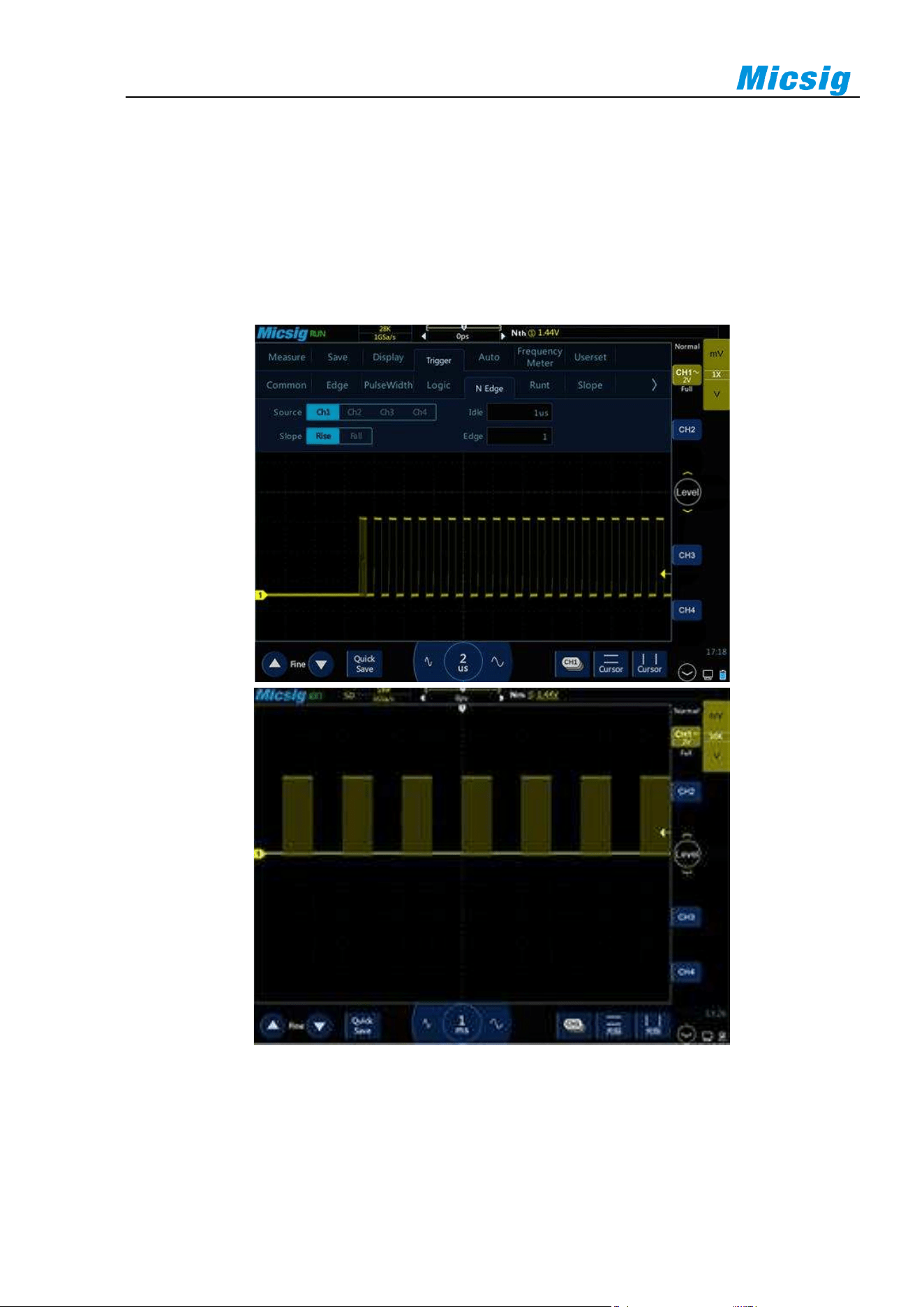
54
1) Tap “Trigger” on the main menu to open the trigger menu, select Nth edge trigger in the trigger type, and
set the Nth edge trigger as follows, as shown in Figure 5-22:
⚫ Trigger source: CH1;
⚫ Time: 10ms;
⚫ Edge signal: rising;
⚫ Nth edge: 3
Figure 6-22 Nth Edge Trigger Menu
2) Adjust the trigger level to ensure that the waveform can be triggered stably, for example the trigger level is
set to -3.2V.
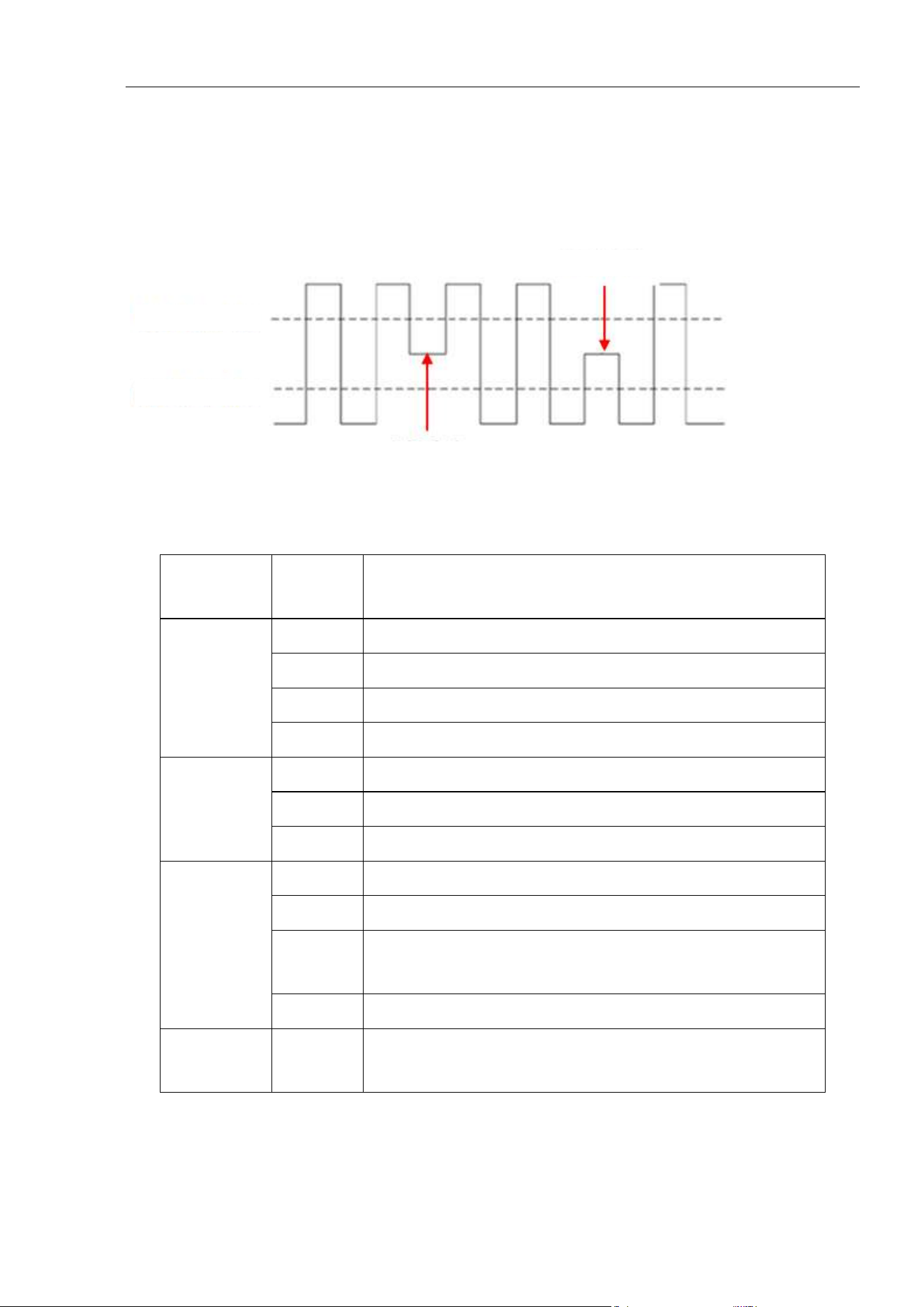
Chapter 5 Trigger System
55
5.6 Runt Trigger
By setting the high and low thresholds, trigger on a pulse that cross one threshold but fail to cross a second
threshold. There are two types available: positive short pulse and negative short pulse.
Figure 5-23 Runt Trigger
Runt trigger menu descriptions are shown in the table below:
Trigger
Option
Setting
Description
Trigger
Source
CH1
Set CH1 as trigger signal source
CH2
Set CH2 as trigger signal source
CH3
Set CH3 as trigger signal source
CH4
Set CH4 as trigger signal source
Polarity
Positive
Set signal to trigger on positive runt pulse
Negative
Set signal to trigger on negative runt pulse
Any
Set signal to trigger on either positive or negative runt pulse
Trigger
Condition
<T
Trigger when the signal pulse width is smaller than pulse width T
>T
Trigger when the signal pulse width is greater than pulse width T
<>T
Trigger when the signal pulse width is greater than lower limit T1
and smaller than upper limit T2
None
No trigger restrictions for runt pulse trigger
Trigger Pulse
Width
8ns~10s
Set the trigger pulse width
Up Level
Low Level
Positive Short Pulse
Negative Short Pulse
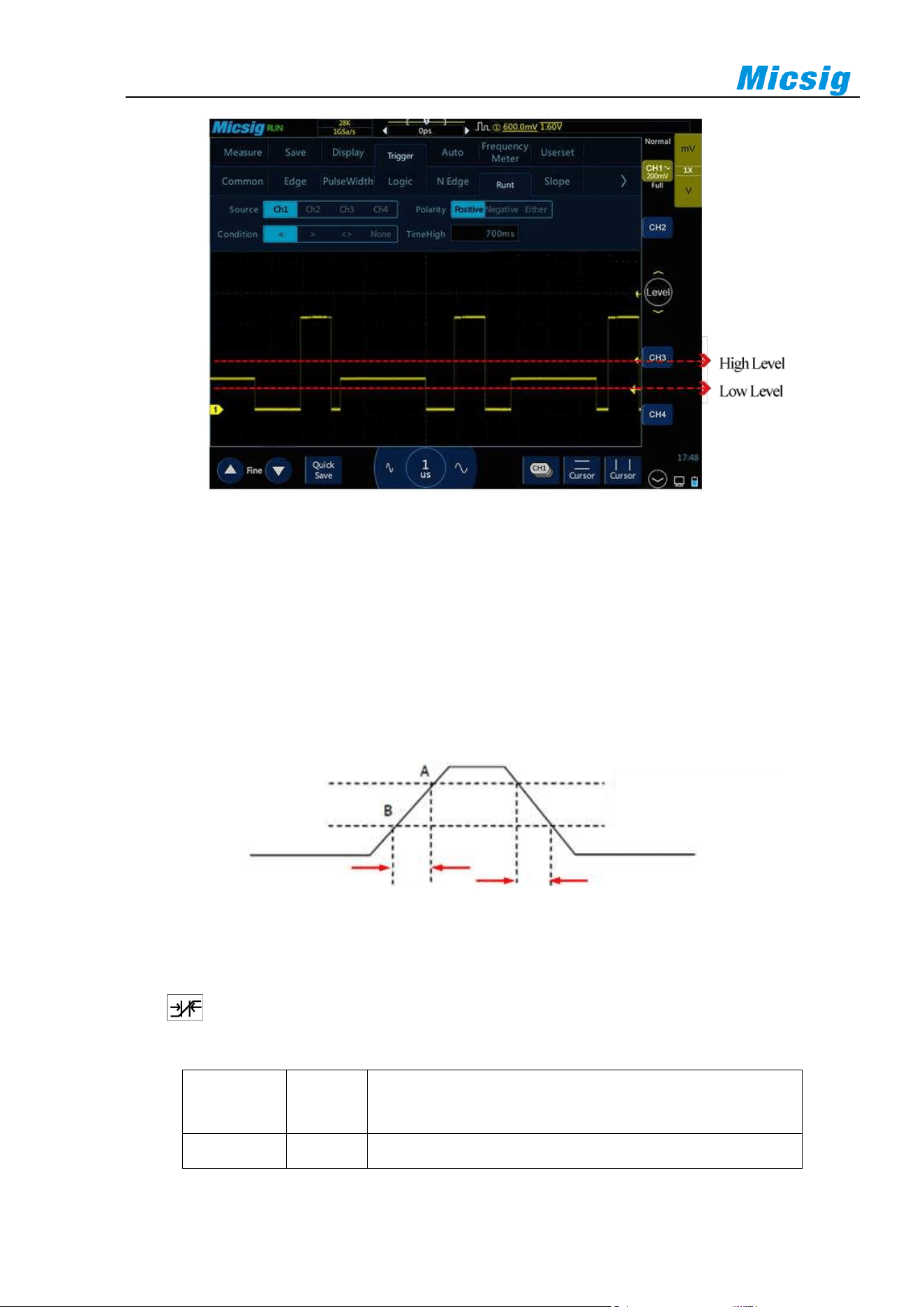
56
Figure 5-24 Runt Trigger Setting Menu
5.7 Slope Trigger
Slope Trigger means trigger when the waveform reaches a set time condition from one level to another.
Positive slope time: Time takes for the waveform to go from low to high.
Negative slope time: Time takes for the waveform to go from high to low.
As shown in Figure 5-25
Figure 5-25 Positive/Negative Slope Time
When the trigger signal slope has the hold time (8ns~10s), the trigger type on the top of the screen is only the
icon , and trigger happens when the set condition is reached. Slope trigger is suitable for observing
sawtooth or triangular waves. The slope trigger menu descriptions are shown in the table below:
Trigger
Option
Setting
Description
Trigger
CH1
Set CH1 as trigger signal source
High Level
Low Level
Positive Slope Time
Negative Slope Time
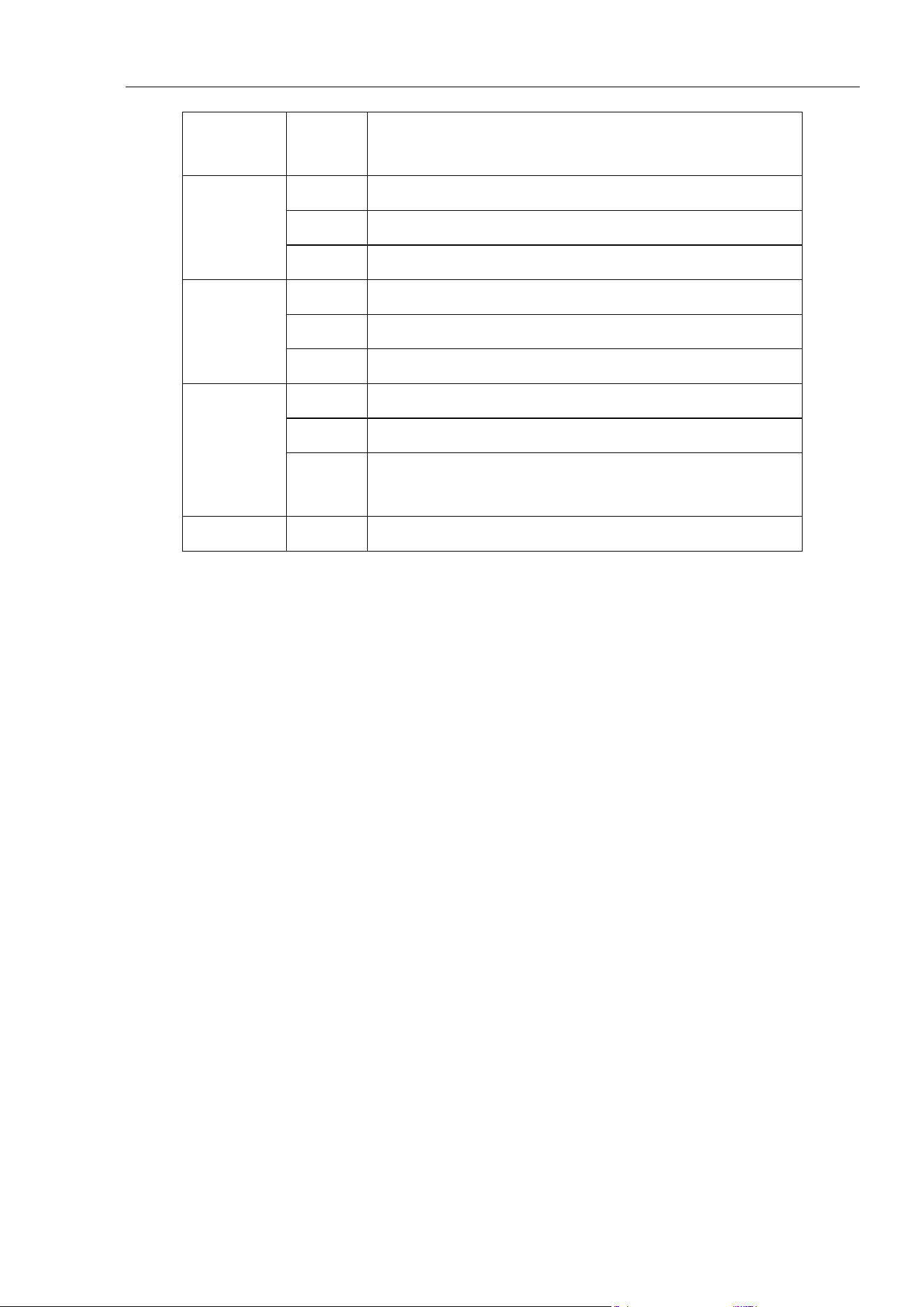
Chapter 5 Trigger System
57
Trigger
Option
Setting
Description
Source
CH2
Set CH2 as trigger signal source
CH3
Set CH3 as trigger signal source
CH4
Set CH4 as trigger signal source
Edge
Rising
Set trigger on positive signal slope
Falling
Set trigger on negative signal slope
Any
Set trigger on detecting a signal slope change
Trigger
Condition
<T
Trigger when the signal slope hold time is smaller than T
>T
Trigger when the signal slope hold time is greater than T
<>T
Trigger when the signal slope hold time is smaller than upper
limit T1 and greater than lower limit T2
Time
8ns~10s
Set the trigger signal slope hold time
Set CH1 slope status as rise and hold time less than 1ms. The steps are as follows:
1) Tap “Trigger” on the main menu to open the trigger menu, select the slope trigger in the trigger type, and
set the slope trigger as follows, as shown in Figure 5-26:
⚫ Trigger source: CH1;
⚫ Edge: Rise;
⚫ Slope hold time: 1us;
2) Adjust trigger level, adjust High or Low trigger level, click arrow at both ends of the chute Switch the
trigger level between High and Low.
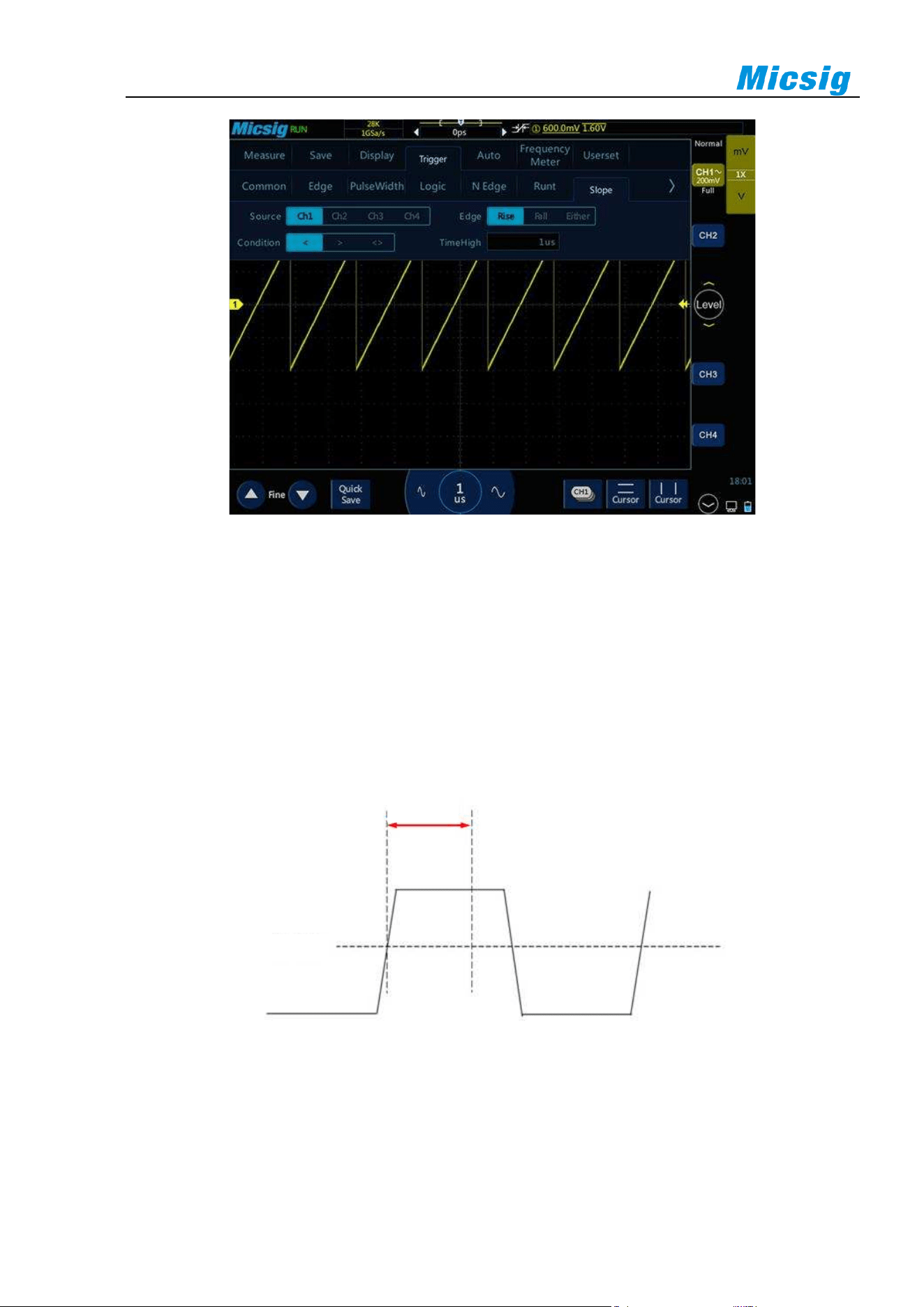
58
Figure 5-26 Slope Trigger Setting Menu
The slope hold time can be set as 8ns~10s.
Note: A stable trigger waveform can only be obtained by selecting the channel to which signals are connected as trigger
source.
5.8 Timeout Trigger
Timeout trigger happens when the time from the intersection of signal and trigger level and above (or below) the
trigger level reaches the set time, as shown in Figure 5-27:
Figure 5-27 Timeout Trigger Schematics
Duration
Set Level
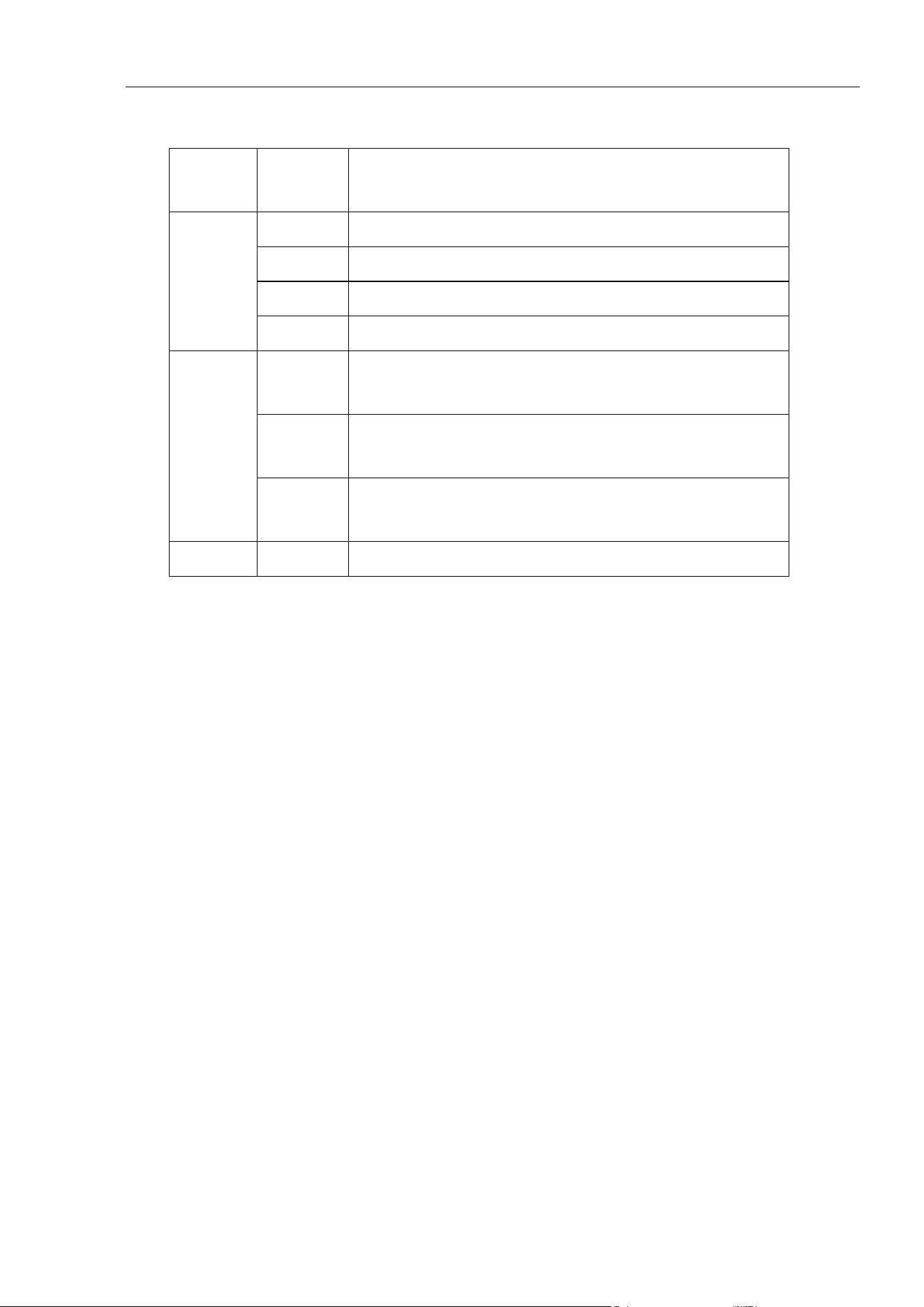
Chapter 5 Trigger System
59
Timeout trigger menu descriptions are shown in the table below:
Trigger
Option
Setting
Description
Trigger
Source
CH1
Set CH1 as trigger signal source
CH2
Set CH2 as trigger signal source
CH3
Set CH3 as trigger signal source
CH4
Set CH4 as trigger signal source
Polarity
Positive
Select to count time when the rising edge of input signal gets
through the trigger level
Negative
Select to count time when the falling edge of input signal gets
through the trigger level
Any
Select to count time when the rising edge or falling edge of input
signal gets through the trigger level
Time
8ns~10s
Timeout time
Set the polarity of CH1 trigger signal to be positive and the timeout time as 15us. The steps are as follows:
1) Tap “Trigger” on the main menu to open the trigger menu, select timeout trigger in the trigger type, and set
the timeout trigger as follows, as shown in Figure 5-28:
⚫ Trigger source: CH1;
⚫ Edge: positive;
⚫ Timeout time: 8ns;
2) Adjust the trigger level to ensure that the waveform can be triggered stably.
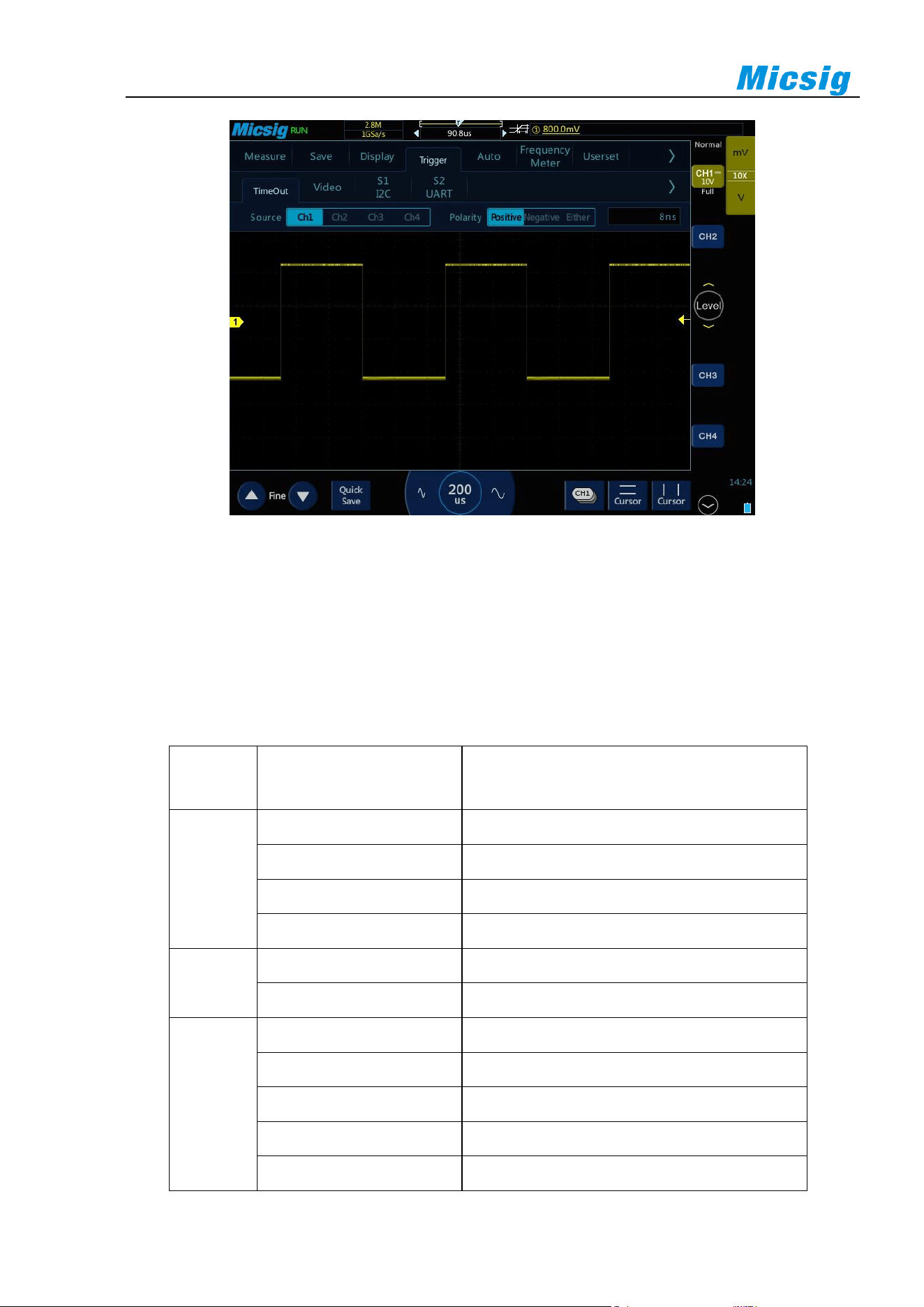
60
Figure 5-28 Time-out Trigger
5.9 Video Trigger
The triggering method for video signals depends on video formats. Generally, there are PAL/625, SECAM,
NTSC/525, 720P, 1080I and 1080P formats. The video trigger can be triggered at different voltage scales, and
the appropriate voltage scale can be adjusted as needed to observe the waveform. The video trigger menu
descriptions are shown in the table below:
Trigger
Option
Setting
Description
Trigger
Source
CH1
Set CH1 as trigger signal source
CH2
Set CH2 as trigger signal source
CH3
Set CH3 as trigger signal source
CH4
Set CH4 as trigger signal source
Polarity
Positive
Set signal positive polarity trigger
Negative
Set signal negative polarity trigger
Video
Standard
625/PAL
Based on PAL signal trigger
SECAM
Based on SECAM signal trigger
525/NTSC
Based on NTSC signal trigger
720P
Base on 720P(50Hz, 60Hz) signal trigger
1080I
Base on 1080I(50Hz, 60Hz) signal trigger
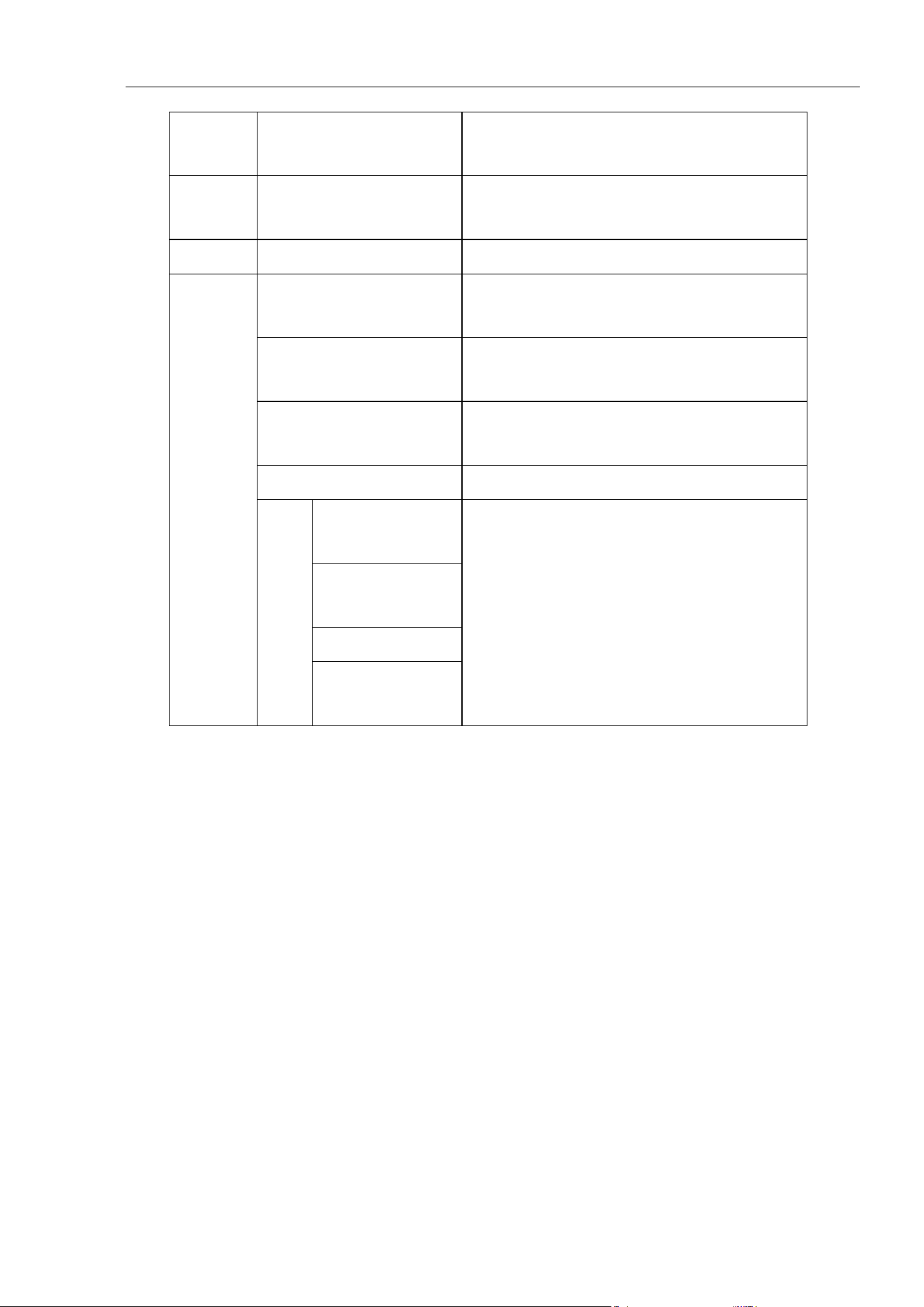
Chapter 5 Trigger System
61
Trigger
Option
Setting
Description
1080P
Base on 1080P (24Hz, 25Hz, 30Hz, 50Hz, 60Hz)
signal trigger
Line
Trigger lines
Trigger
Odd fields
Trigger on the rising edge of the first tooth pulse in
odd fields
Even fields
Trigger on the rising edge of the first tooth pulse in
even fields
All fields
Trigger on the rising edge of the first tooth pulse
found
All lines
Trigger on all horizontal sync pulses
Line
625 line
(PAL,SECAM)
Trigger on a specified line in odd or even fields
263 odd line 262
even line (NTSC)
750 line (720P)
1125 line
(1080I,1080P)
Set CH1 as trigger channel, positive polarity, NTSC standard video, all fields trigger, and the steps are as
follows:
1) Tap “Trigger” on the main menu to open the trigger menu, select the video trigger in the trigger type, and
set the video trigger as follows, as shown in Figure 5-29:
⚫ Trigger source: CH1;
⚫ Polarity: positive;
⚫ Standard: 525/NTSC;
⚫ Trigger: All fields
2) Adjust the trigger level to ensure that the waveform can be triggered stably.
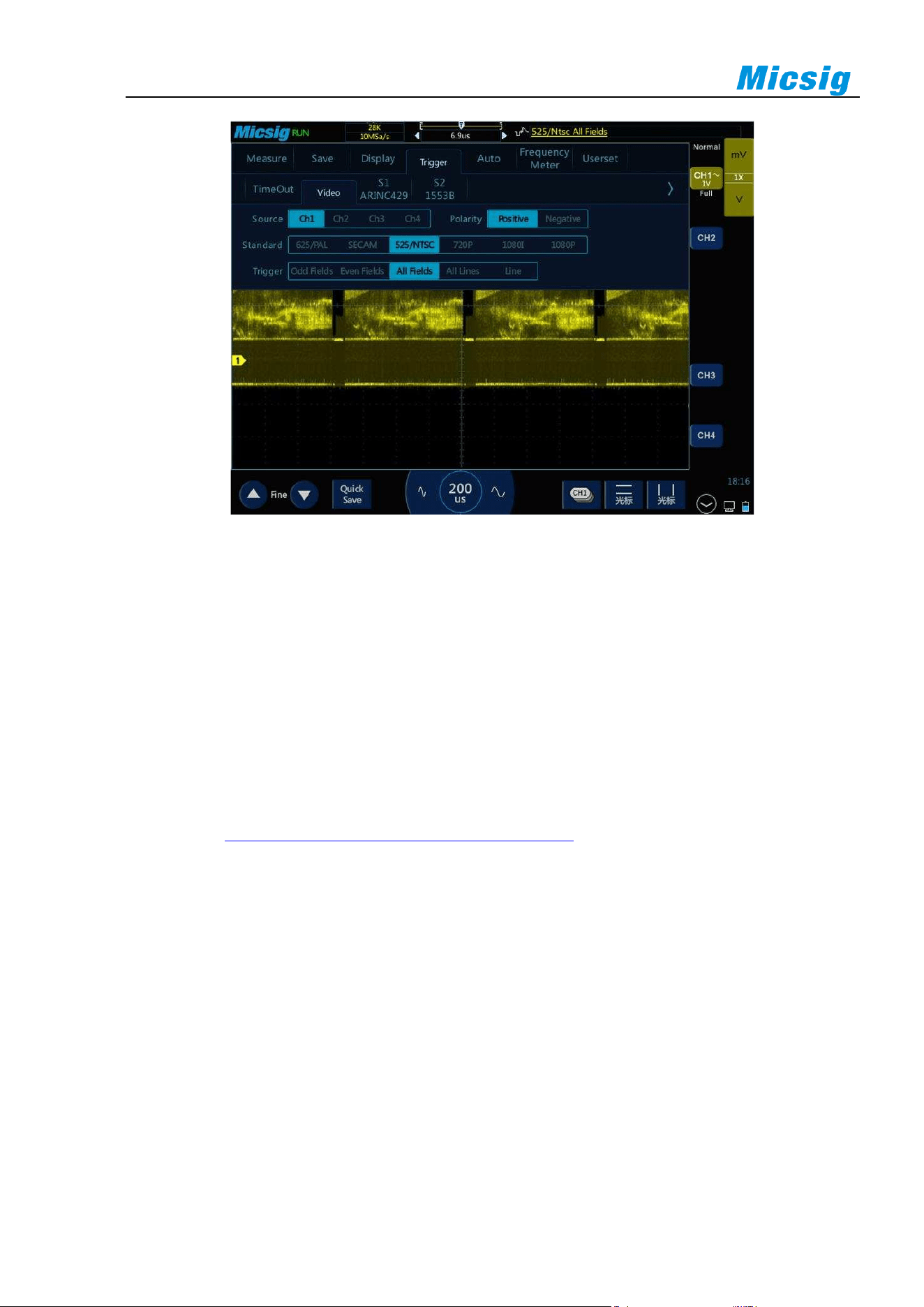
62
Figure 5-29 Video Trigger
Prompts:
⚫ In order to better observe the waveform details in the video signal, first set the memory depth to be larger.
⚫ During the trigger debugging of the video signal, since the digital oscilloscope has multi-level gray scale
display function, different brightness can reflect the frequency of different parts of the signal. Experienced
users can quickly judge the quality of the signal during the debugging process and find abnormal
conditions.
5.10 Serial Bus Trigger
Please refer to
Chapter 12 Serial Bus Trigger and Decode (Optional)

Chapter 6 Analysis System
63
Chapter 6 Analysis System
This chapter contains the detailed information of the analysis system of the oscilloscope. You are recommended
to read this chapter carefully to understand the set functions and operation of the analysis system of the tBook
mini series oscilloscope.
⚫ Automatic measurement
⚫ Frequency meter measurement
⚫ Cursor
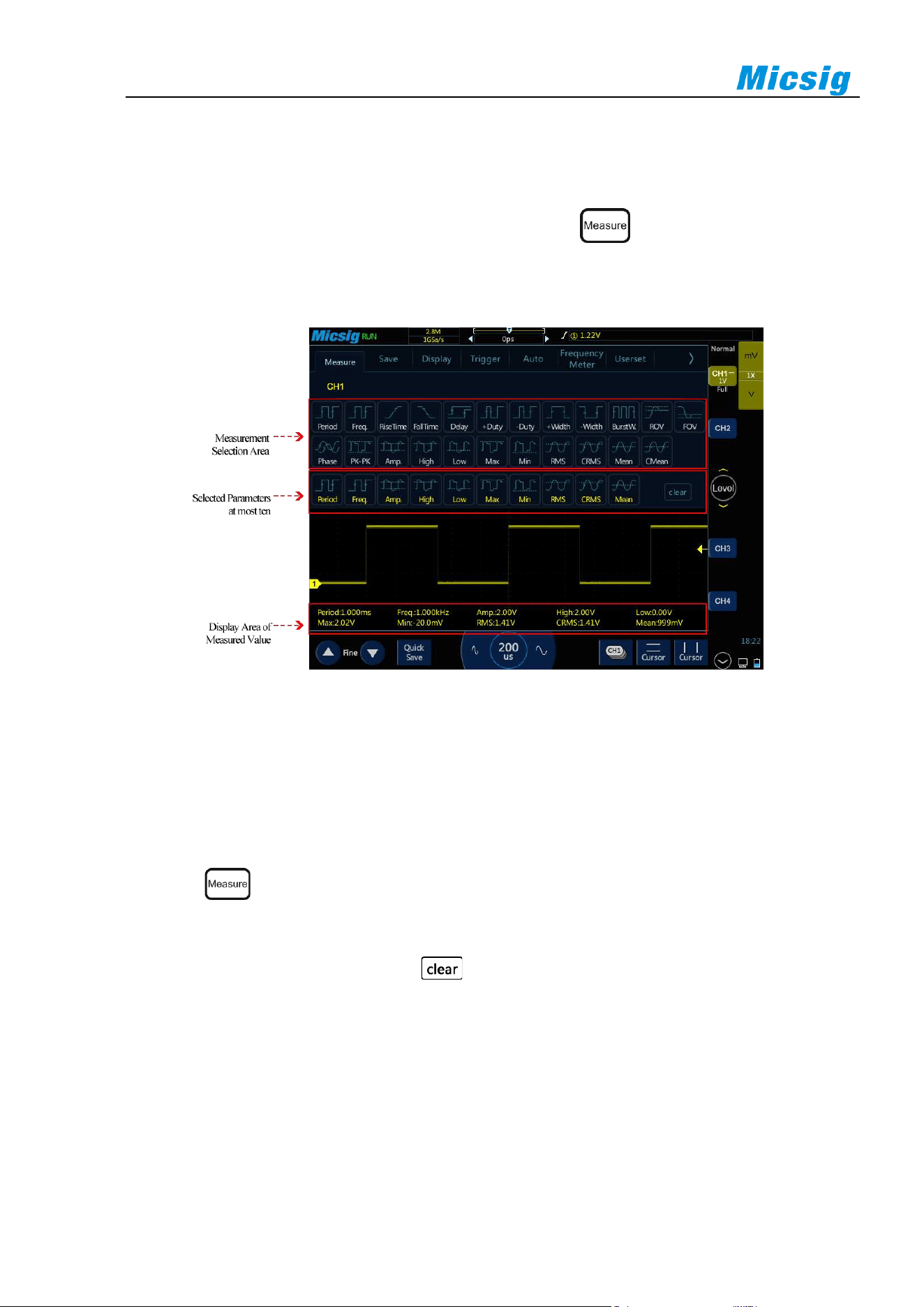
64
6.1 Automatic Measurement
Measurement setting
Slide down from top, open the main menu, tap “Measure” or click on the right side of the screen to
enter the measurement menu. There are 23 measurement items on the measurement menu. Measurement menu,
selected measurement item display and measurement item display are shown in Figure 6-1:
Figure 6-1 Automatic Measurement Menu
Automatic measurement
1) Select channel: Select the channel to be measured above the measurement menu.
2) Select measurement: Select the desired measurement item on the measurement menu. The selected
measurement item is displayed in the “Selected Parameters” display area below.
3) Press button on the key area to quickly close the measurement menu.
4) Cancel measurement item: In the “Selected Parameters” display area below measurement menu, tap the
measurement item to be cleared; or tap button to clear all measurement items.
Note:
Measurements and math functions will be recalculated when moving/zooming and opening/closing channels.
Oscilloscope has an automatic measurement memory function. Shutdown and restart will not automatically clear added
automatic measurement options.
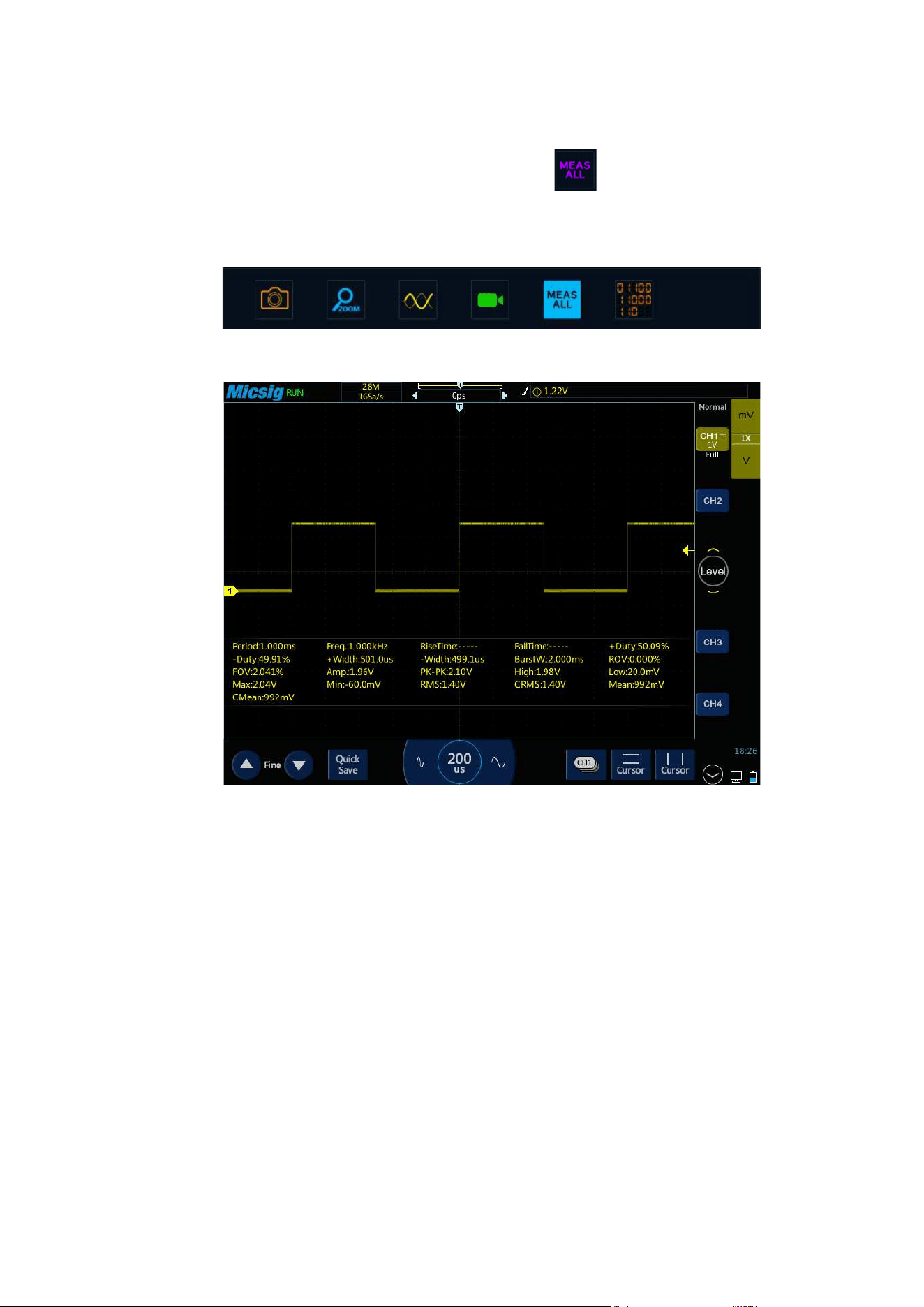
Chapter 6 Analysis System
65
All measurements
Slide from bottom, open the pull-up menu, see Figure 6-2, click to open all measurement items, display
the current channel measurement value. Switch the current channel to open all the measurement items of other
channels, as shown in Figure 6-3; click again to turn off all measurements.
Figure 6-2 Pull-up Menu
Figure 6-3 All Measurements
Period
Time of the first complete signal cycle in the waveform
Frequency
Reciprocal to the cycle time
Rise time
Time required for the first rising edge of the waveform to rise from the amplitude of 10% to 90%
Fall time
Time required for the first falling edge of the waveform to rise from the amplitude of 10% to 90%
Delay
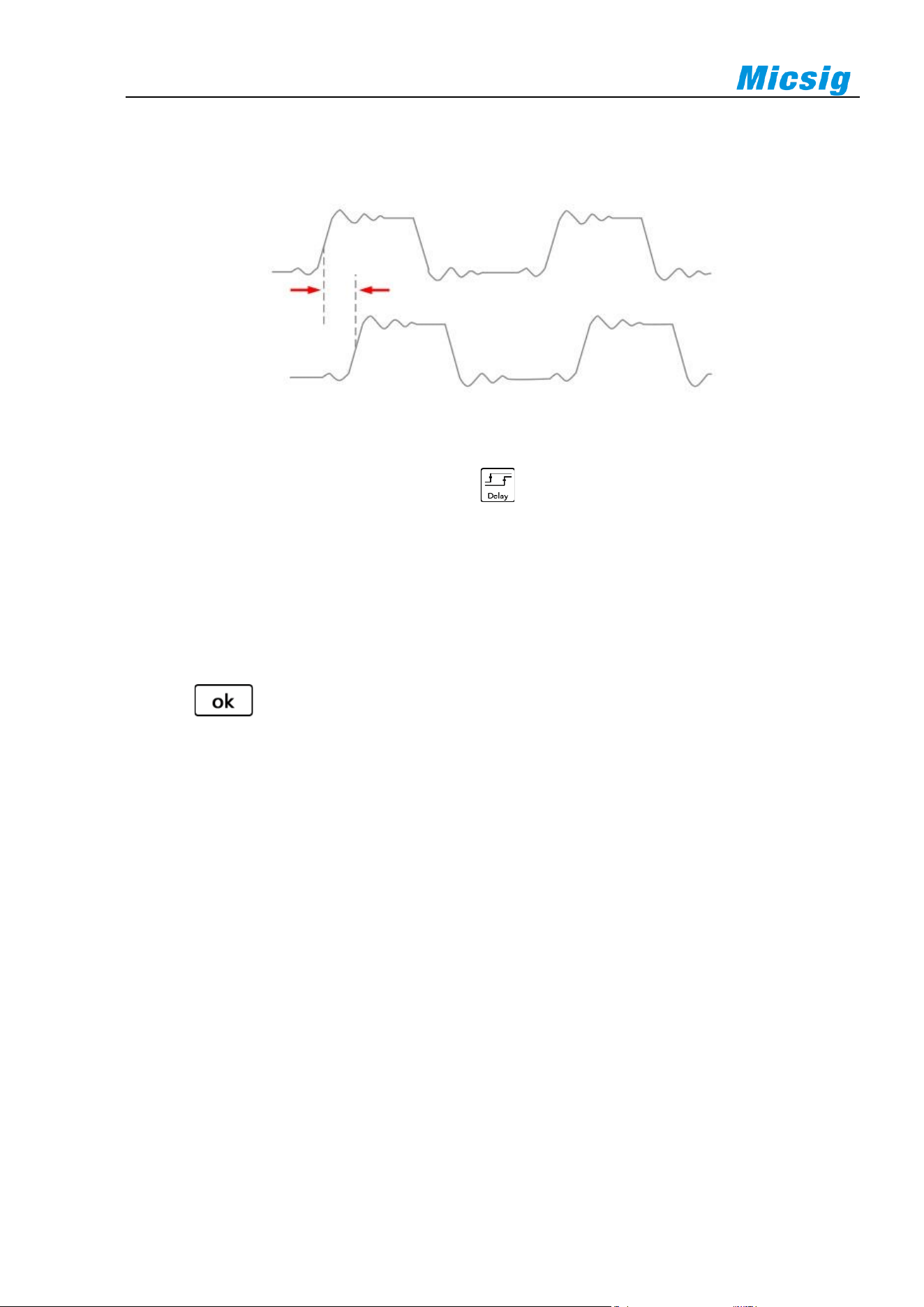
66
Time delay between rising or falling edges of channels may be measured, and there are nine effective
measurement combinations
Figure 6-4 Delay Measurement Schematics
1) Open the automatic measurement menu and tap to pop up the phase selection menu.
2) The left channel is defaulted as the current channel, and other channels can be selected by the channel area
that has been opened (except the reference channel); there are four edge selections: FirstRise、FirstFall、
LastRise、LastFall .
3) The right channel is a contrast delay channel, which can be selected between each channel and math channel.
There are four edge selections:
FirstRise、FirstFall、LastRise、LastFall.
4) Tap button to confirm.
Positive duty cycle
Measured value of the first cycle in the waveform
Positive duty cycle = (waveform positive pulse width / period) * 100%
Negative duty cycle
Measured value of the first cycle in the waveform
Negative duty cycle = (waveform negative pulse width / period) * 100%
Positive pulse width
Measured value of the first positive pulse in the waveform, taking the time between two 50% amplitude points
Negative pulse width
Measured value of the first negative pulse in the waveform, taking the time between two 50% amplitude points
Burst width
Duration of a burst measured over the entire waveform
Overshoot
Delay

Chapter 6 Analysis System
67
Positive overshoot
Positive overshoot =[(max - high) / amplitude]*100%
Negative overshoot
Negative overshoot =[(low - min) / amplitude]*100%
Phase
Timing measurement. The amount of time that one waveform leads or lags another waveform, expressed in
degrees where 360°comprises one waveform cycle.
Peak-peak
In the entire waveform measurement, peak-peak = max - min
Amplitude
In the entire waveform measurement, amplitude = high (100%) - low (0%)
The figure below shows voltage measurement points.
The channel probe type setting is used to set the measurement unit for each input channel to Volts or Amperes.
Refer to “
4.4.4 Set Probe Type”.
High
Take 100% in the entire waveform, and calculated using either the min/max or histogram method.
Low
Take 0% in the entire waveform, and calculated using either the min/max or histogram method.
Max
Highest positive peak measured over the entire waveform
Min
Highest negative peak measured over the entire waveform
RMS
True root mean square value over the entire waveform
C RMS
True root mean square value of the first cycle in the waveform
Mean
Arithmetic mean over the entire waveform
C mean
Arithmetic mean over the first cycle in the waveform
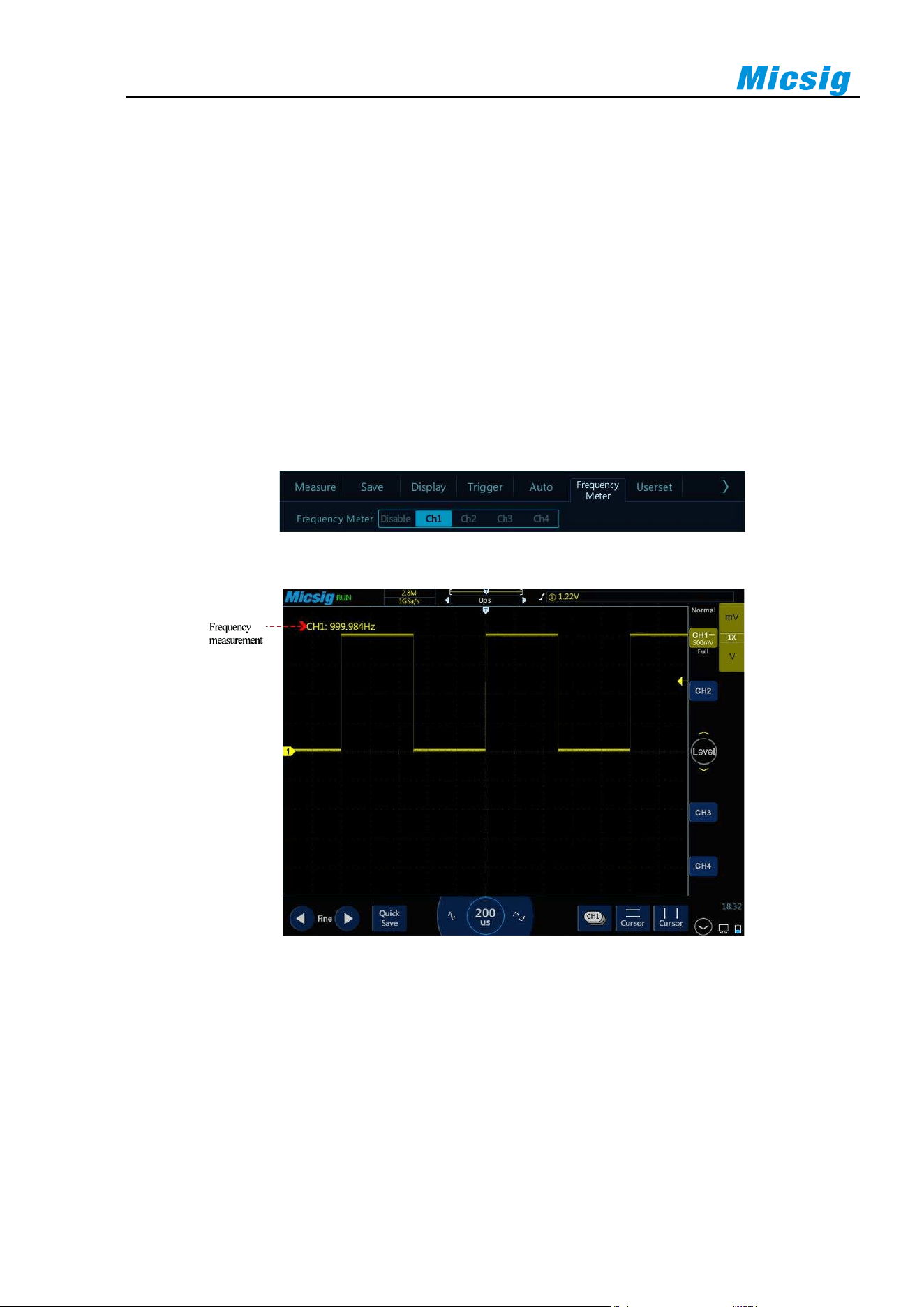
68
Note:
If the waveform required for measurement is not fully displayed on the screen, “Forward Clipping” or “Negative Clipping”
is displayed at the position of the measured value.
When the math function is operated, if source channel waveform is fully displayed, and the math waveform appears to be
off the screen, the measured value of math waveform will not be influenced.
If source channel is clipped, the measured value of math waveform is the source channel value during screen wave clipping.
6.2 Frequency Meter Measurement
Open the main menu, tap “Frequency Meter” to enter the hardware frequency meter setting menu, and select the
channel to be measured, as shown in Figure 6-5. The measured value is displayed in the upper left corner of the
screen, as shown in Figure 6-6.
Figure 6-5 Frequency Meter Measurement Menu Open
Figure 6-6 Frequency Meter Measurement
6.3 Cursor
Open cursor and place it on the measurement point to read the waveform measurement value. There are two types
of cursors: horizontal cursor and vertical cursor. The horizontal cursor measures the vertical direction magnitude,
and the vertical cursor measures the horizontal direction magnitude, as shown in Figure 6-7.
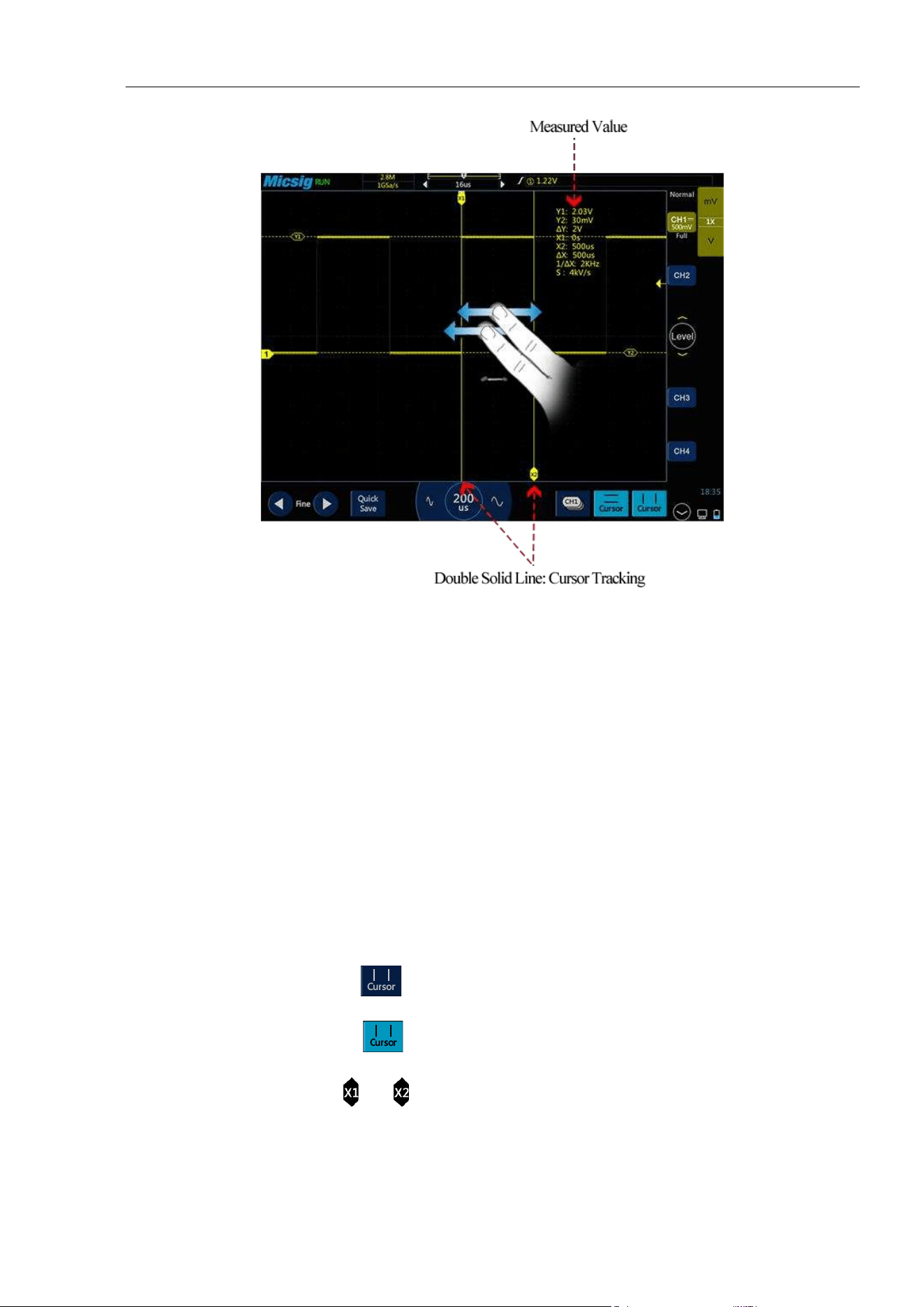
Chapter 6 Analysis System
69
Figure 6-7 Cursor Measurement Description
Note:
reading: indicates the difference between two cursor positions.
Voltage readings after Y1, Y2: indicate the position of activated horizontal cursors relative to the zero potential.
Time readings after X1, X2: indicate the position of activated vertical cursors relative to the trigger point.
1/X: frequency
S reading. Indicates the quotient of (voltage difference) of horizontal cursors and Δ (time difference) of vertical cursors,
that is, the slope of the intersection of the four cursors.
Vertical cursor on/off and activation
Vertical cursor on/off
Vertical cursor on: Tap cursor icon to open vertical cursors and the icon is on and activated.
Vertical cursor off: Tap cursor icon to turn off vertical cursors.
Tap the vertical cursor indicator (or ) to switch the cursors.
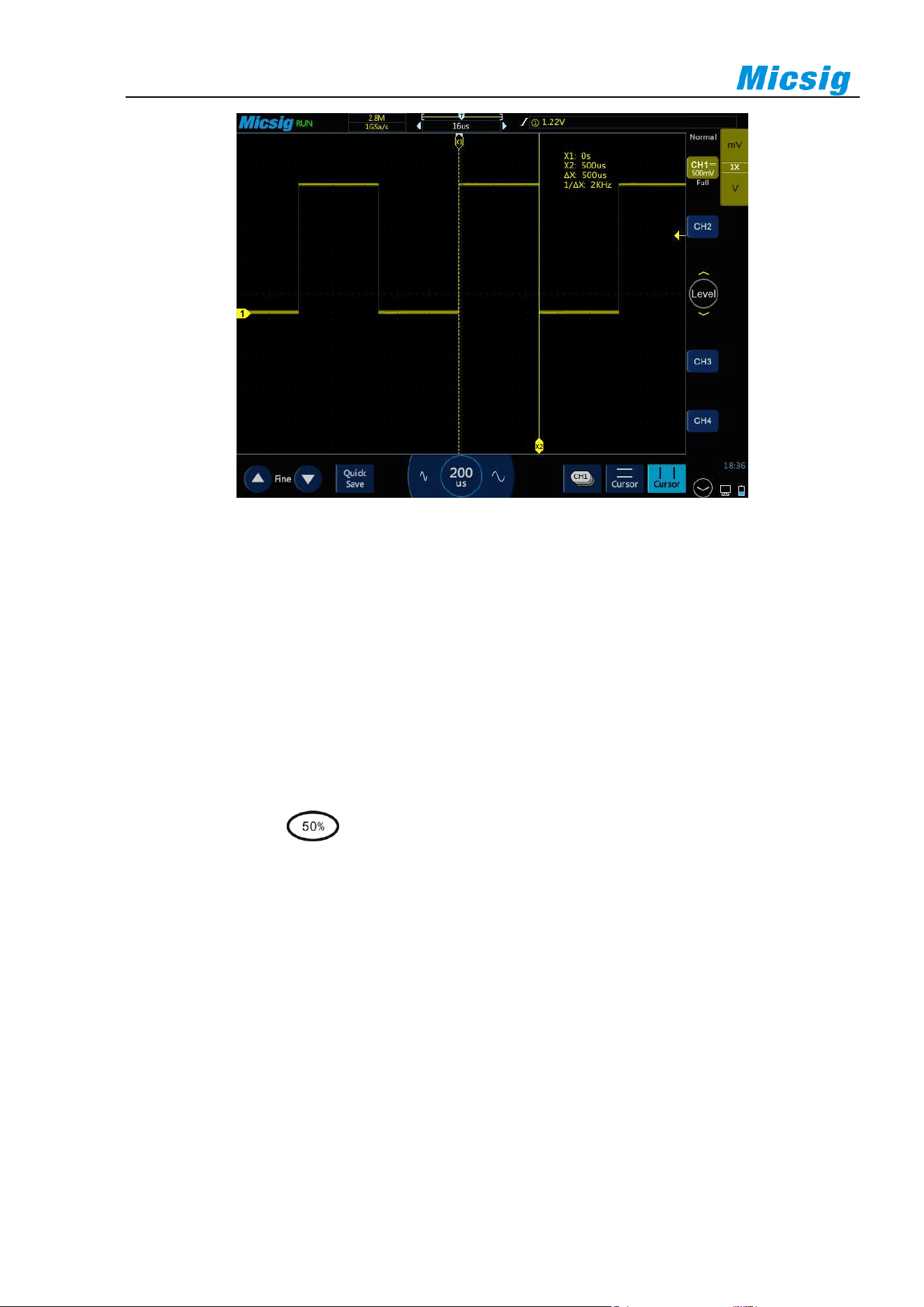
70
Figure 6-8 Open Cursor Selection Box and Close Cursor
Vertical cursor movement descriptions:
1) Use a single finger to press and hold the cursor indicator on the screen to make coarse adjustment to the
cursor; tap the fine adjustment button in the lower left corner of the screen to fine-adjust the cursor that has
just been adjusted.
2) Cursor linkage: When the cursor is opened, two finger slide and enter the cursor linkage state.
Note: During the sliding process, the current operation is changed unless the initial two fingers leave the
screen. If one finger leaves the screen and the other finger does not leave, the current linkage adjustment is
continued.
3) Open the cursor, tap , select the "cursor" item, and the cursor will automatically adjust to the center
position of the screen on both sides of the horizontal or vertical.
Horizontal cursor on/off and activation
Horizontal cursor on/off, switching, activation and movement operations, similar to those of vertical cursors, will
not be described in detail here, and please refer to vertical cursors for details.
Cursor test example
When vertical cursors are activated, the two cursors move together to check for pulse width changes in the pulse
sequence.
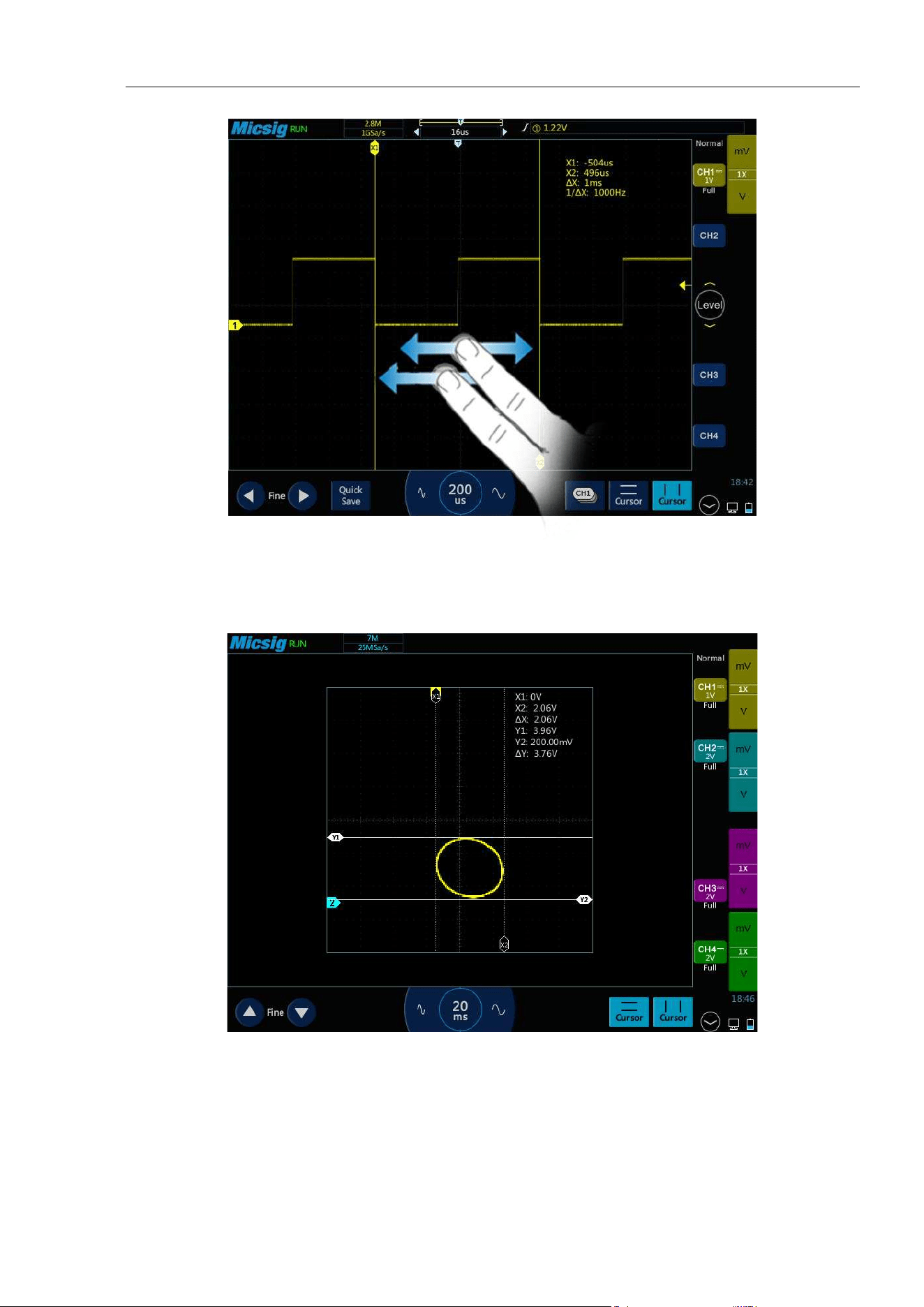
Chapter 6 Analysis System
71
Figure 6-9 Cursor Measurement Pulse Width
In the XY horizontal mode, X cursor displays CH1 value (V or A), and Y cursor displays CH2 value (V or A).
Figure 6-10 In XY Mode, Cursor Measurement

72
Chapter 7 Screen Capture, Memory Depth and
Waveform Storage
This chapter contains the detailed information of the screen capture function and memory depth of the
oscilloscope. You are recommended to read this chapter carefully to understand the storage system of the tBook
mini series oscilloscope.
⚫ Screen capture function
⚫ Video recording
⚫ Memory depth
⚫ Waveform storage
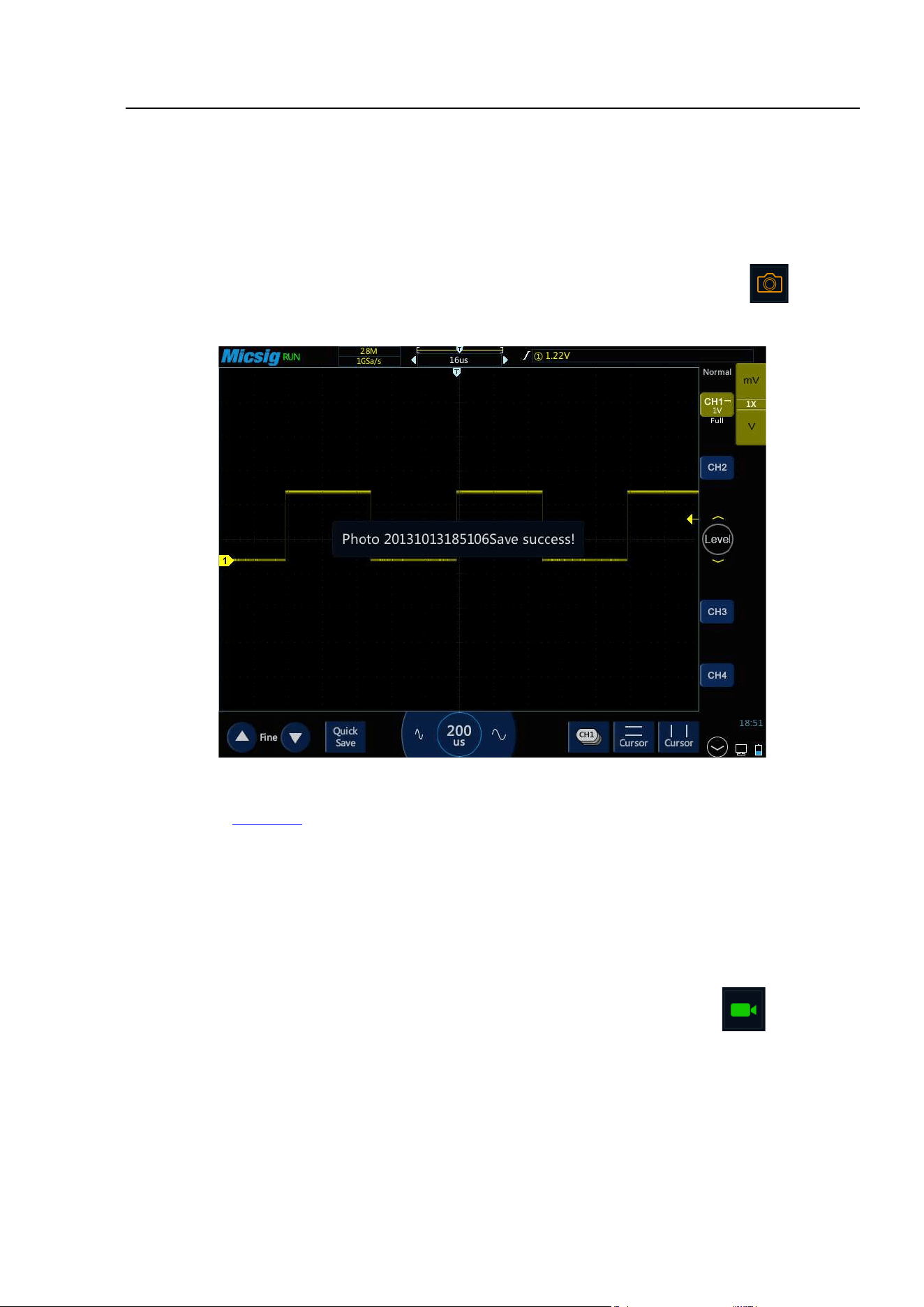
Chapter 7 Screen Capture, Memory Depth and Waveform Storage
73
7.1 Screen Capture Function
The screen capture function can store the display information of the current display screen to the local or U disk
in picture format. When the U disk is not inserted, the file is stored locally by default. When the U disk is inserted,
the file is automatically stored in the U disk.
Screen capture method: slide upward from the bottom to open the pull-up menu. Tap the icon to have a
screen capture.
Figure 7-1 Screen Capture
Please refer to “
11.6 Photo” for details on viewing pictures.
7.2 Video Recording
The video recording function is similar to the screen capture function, which can store the display information of
the current display to the local or U disk in video format. When the U disk is not inserted, the file is stored locally
by default. When the U disk is inserted, the file is automatically stored in the U disk.
Video recording method: slide up from the bottom to open the pull-up menu. Tap the icon to record the
video.
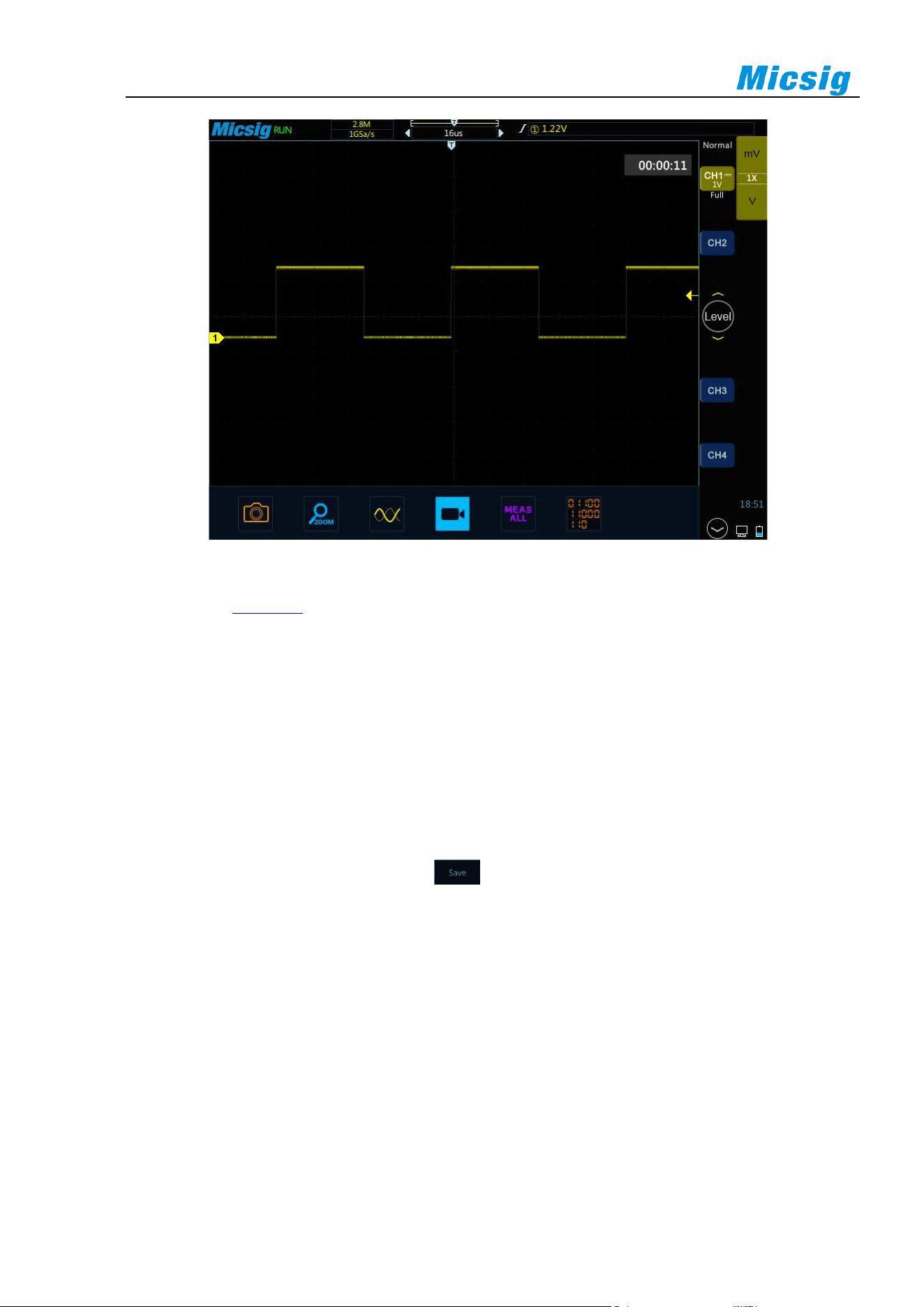
74
Figure 7-2 Video Recording
Please refer to “
11.7 Video” for details of viewing videos.
7.3 Waveform Storage
The oscilloscope can save the analog channel or math channel waveform locally or in USB device. The file type
can be WAV, CSV or BIN.
The oscilloscope provides four reference channels, which can be called to load WAV format files into the
reference channel and open the reference channel to display the reference waveform.
Save reference file
Slide down from top, open main menu and tap to open the menu. Save the reference waveform interface
of the specified channel as follows:
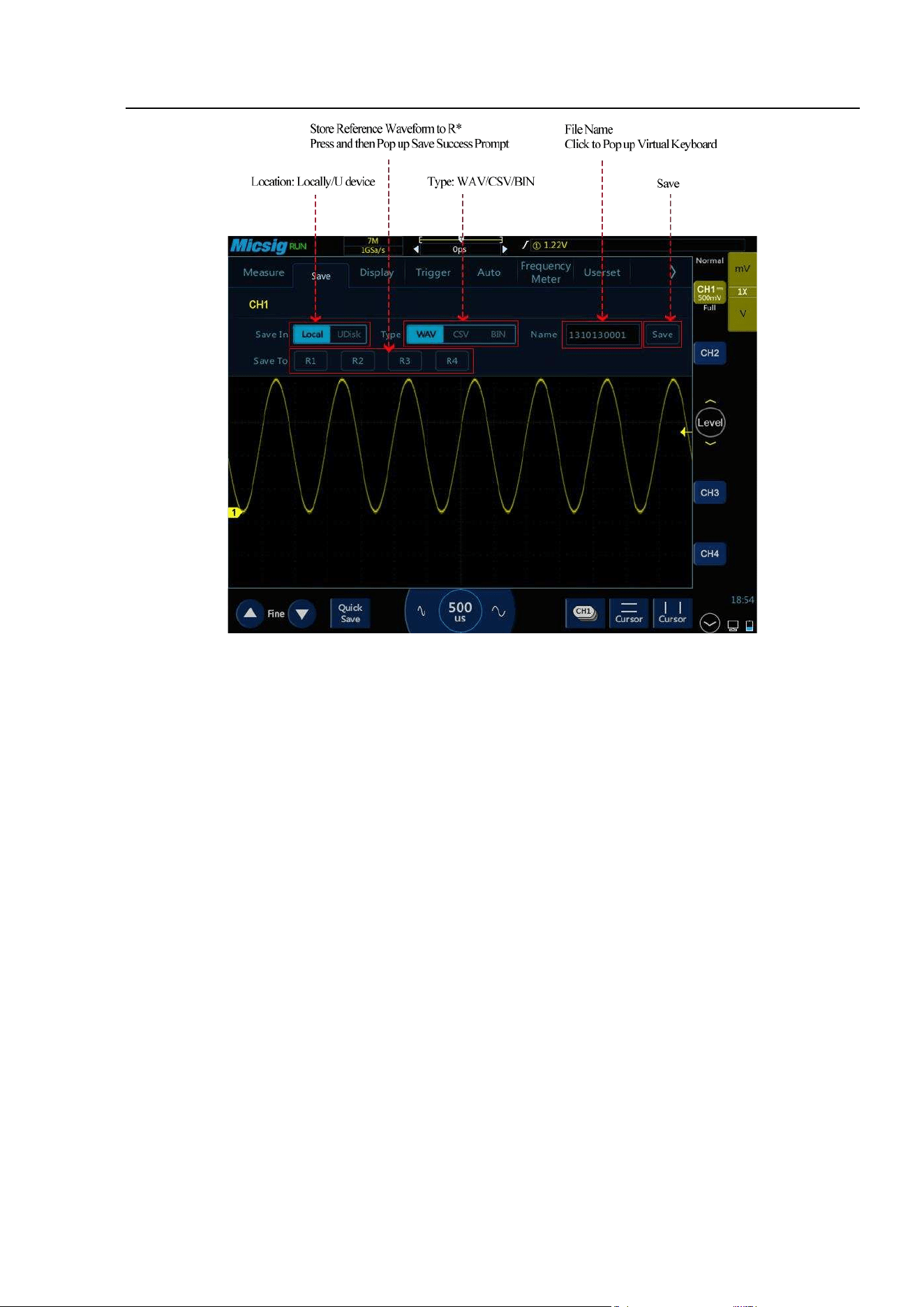
Chapter 7 Screen Capture, Memory Depth and Waveform Storage
75
Figure 7-3 Save CH1 Reference Waveform Interface
Location: Stored locally and in USB device.
File types: WAV, CSV, and BIN.
File name: The initial file name is displayed as year + month + day + storage serial number. Press the file name
box to pop up the virtual keyboard, tap “Backspace” to delete the file name, and use the virtual keyboard to
rename the file.
Save: Tap to save the reference file and pop up the save success prompt. The most recently saved file will be
displayed at the top of the called menu.
Save to: Tap the R* (R1, R2, R3, R4) button to save the current channel waveform directly to the corresponding
reference channel, and the save success prompt will pop up.
Back: Tap to return to the previous level.
Method 1: Click the “save” button
In the Save Reference Waveform menu, select the channel waveform to be saved, select the file save location,
file type and file name, and click the “save” button to save the reference waveform file.
Save the reference waveform by steps as follows:
1) The current channel is set to the channel to be saved, which can be analog channel, math channel or reference.
76
2) In the main menu, tap to enter the save menu.
3) In the Save menu, tap to open the Save Reference Waveform menu and make the following settings:
⚫ Storage location: locally.
⚫ Selecting the file type: WAV.
⚫ Entering the file name: CH1.
4) Tap “Save” to save the reference file. The save success prompt box is popped up.
If the reference waveform file is to be saved in USB device, the oscilloscope must be connected to an
external USB device. After connection, the reference waveform save location is preferentially set to the
USB device.
There is no limit to the number of saved reference waveform files.
Method 2: Click R* button
In the Save Reference Waveform menu, tap R* (R1, R2, R3, R4) button to save the current channel waveform
directly to the corresponding reference channel, and the save success prompt will pop up. The file name is
displayed as Ref* in the reference channel (* is the corresponding reference channel name). Reference waveform
files saved by this method will be overwritten after loading other reference waveforms and cannot be restored.
Method 3: Click “Quick Save” button
Tap at bottom of the screen to save all channel waveforms as reference waveforms and capture the current
screen. The file names are the default initial file names.
Management of reference files
In the file manager, open the REF file menu, you can delete, rename and move the reference file. Select the
reference file and click the button on the right to delete the reference file; click rename to open the soft
keyboard and change the name of the reference file; when inserting the U disk, the file on the oscilloscope can
be moved to the U disk.
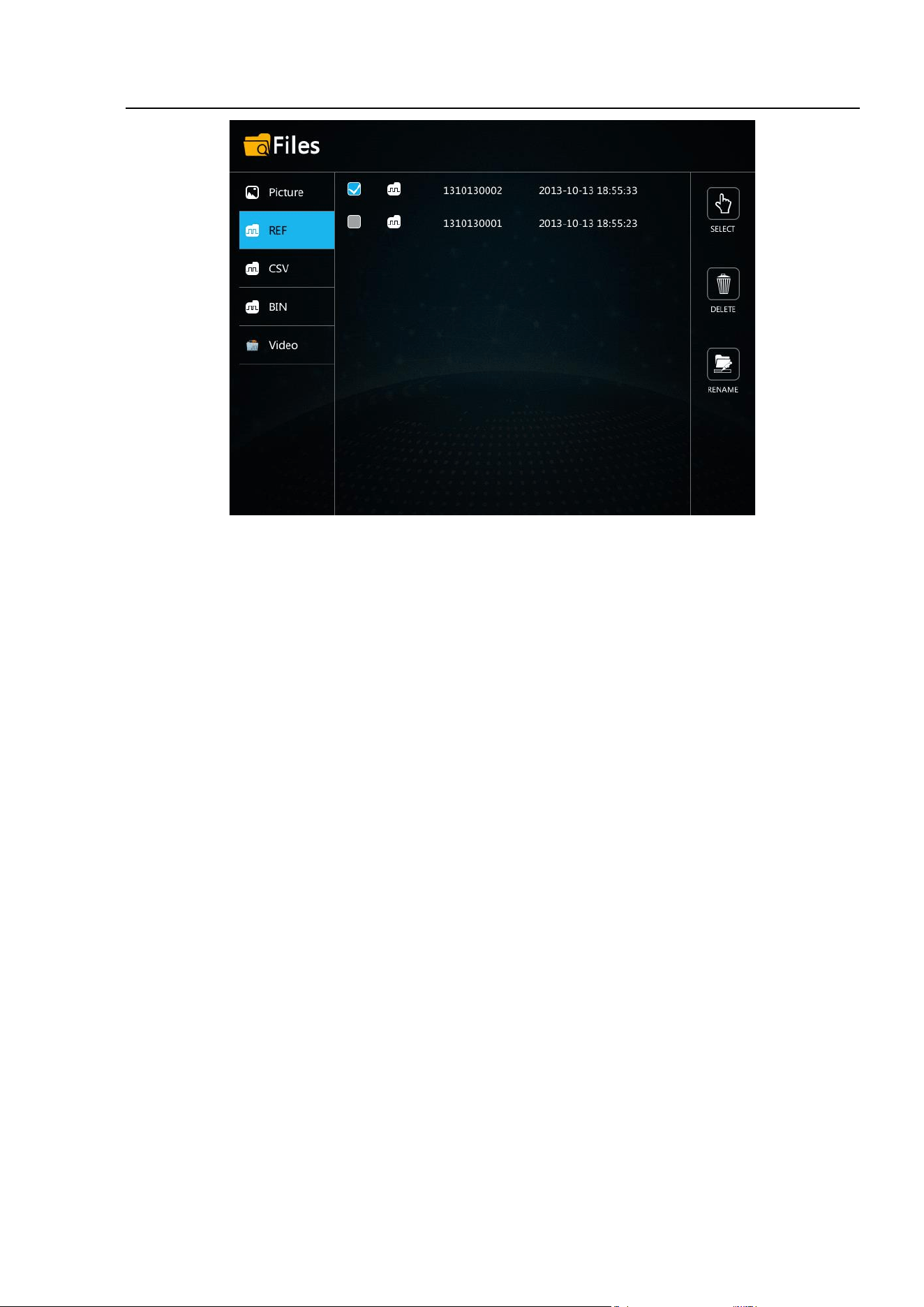
Chapter 7 Screen Capture, Memory Depth and Waveform Storage
77
Figure 7-4 Delete Reference Files
CSV files
CSV file structure
CSV format contains the basic information of the saved data: save time, file name, data length, sampling interval,
trigger time, source, vertical scale, vertical offset, vertical accuracy, horizontal time base, horizontal accuracy,
probe multiples.
The data and length of CSV files can be saved up to 70K/35K depending on the single/dual channel while being
saved. If the oscilloscope record length or the displayed data length is less than 70K/35K, the data length of CSV
files changes either. For example, when the record length is set to 14/7/3.5K, there will be 7000 sample points in
the dual channel CSV file.
Max and Min in CSV files
If running Min or Max measurements, Min and Max values displayed on the measurement results screen may
not appear in CSV files.
Explanation: If the oscilloscope sampling rate is 1GSa/s, sampling will be once every 1ns. If the horizontal scaling
is set to 10us/div, the data of 140us will be displayed (because there are 14 divisions on screen). To find the total
number of samples, the oscilloscope will perform: 140us×1GSa/s=140K sampling, which require the oscilloscope
to display 140K times of sampling using 600-pixel columns. The oscilloscope extracts 140K samples into 600-
pixel columns, and this extraction will track Min and Max values of all points represented by any given column.
These Min and Max values will be displayed in this screen column.
The similar process is applied to reduce sampled data and produce records that can be used to perform various
analyses, such as measurements and CSV data. This analysis record (or measurement record) is much larger than

78
600 and may actually contain up to 60,000 points. However, once the number of points sampled exceeds 60,000,
some extraction method is required. The extraction factor used to generate the CSV record is configured to
provide the best estimate of all samples represented by each point in the record. Therefore, Min and Max values
do not appear in CSV files.

Chapter 8 MATH and Reference
79
Chapter 8 MATH and Reference
This chapter contains the detailed information of the MATH operation and reference channel of the oscilloscope.
You are recommended to read this chapter carefully to understand the setting functions and operations of the
MATH and reference channels of the tBook mini series oscilloscope.
⚫ Dual waveform calculation
⚫ FFT measurement
⚫ Reference waveform call
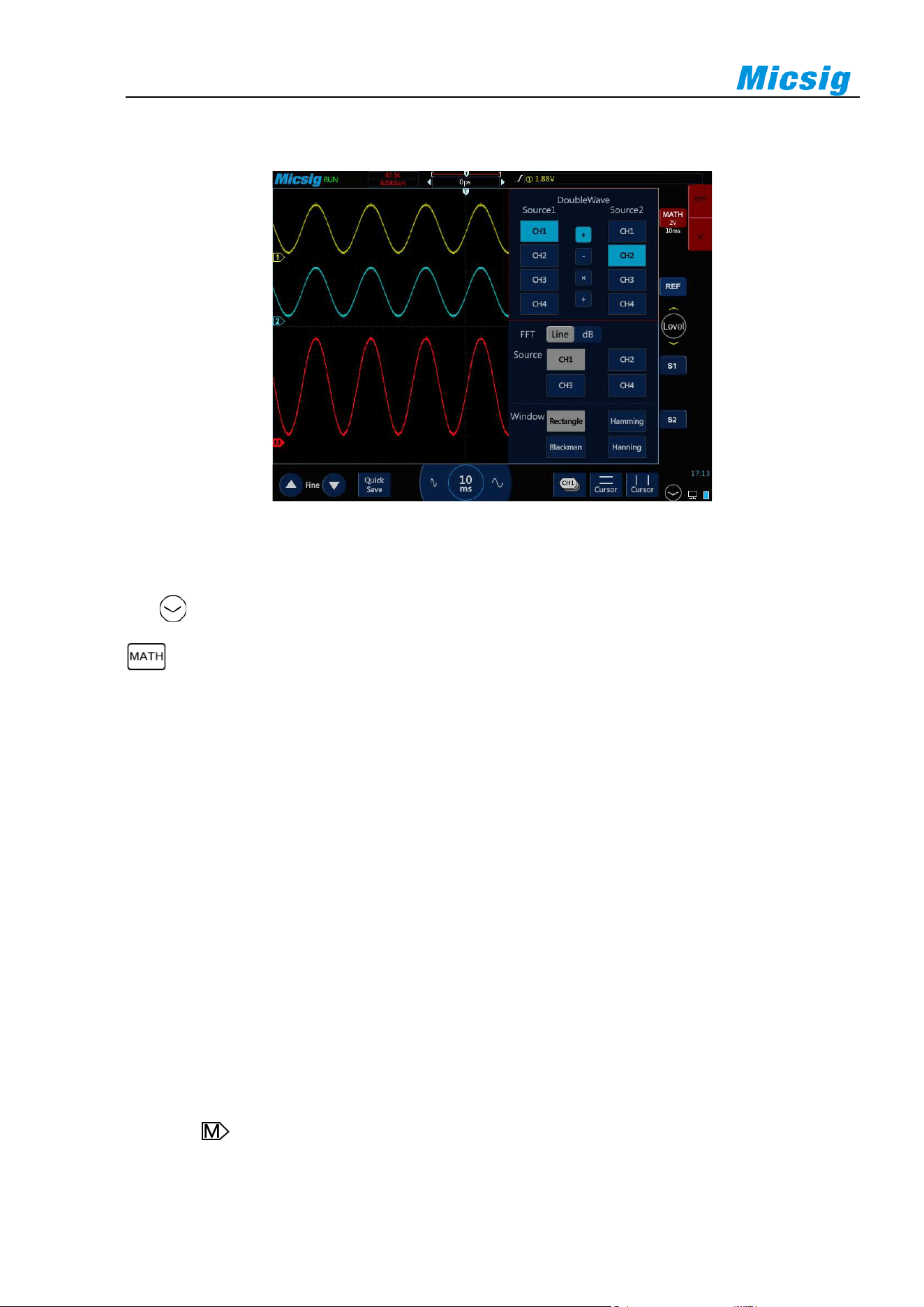
80
8.1 Dual Waveform Calculation
Figure 8-1 MATH Channel Waveform
Display math waveform
Tap on the lower right corner of the screen to enter the second channel selection area. Tap the soft key
to open the math channel. After the math waveform is opened, the current channel selector is automatically
opened.
Tap the math channel icon, open the math channel, and tap again to open the math channel menu. While opening
math for the first time, the math operation is defaulted as the dual channel calculation.
Math operation prompt
If the analog channel or math function is clipped (not fully displayed on the screen), the resulting math function
will also be clipped.
Once the math waveform is displayed, tap the channel icon to close the source channel for a better view of the
math waveform.
The vertical sensitivity and offset of each channel participating in the math function can be adjusted to facilitate
viewing and measuring of the math waveform.
The math function waveform can be measured using “Cursor” and “Measure”.
Adjust the math waveform
1) Press the math channel vertical sensitivity icon, directly tap the math waveform or math channel indication
icon , and set the math channel as the current channel.
2) For details of movement, vertical sensitivity adjustment and time base adjustment of the math channel,
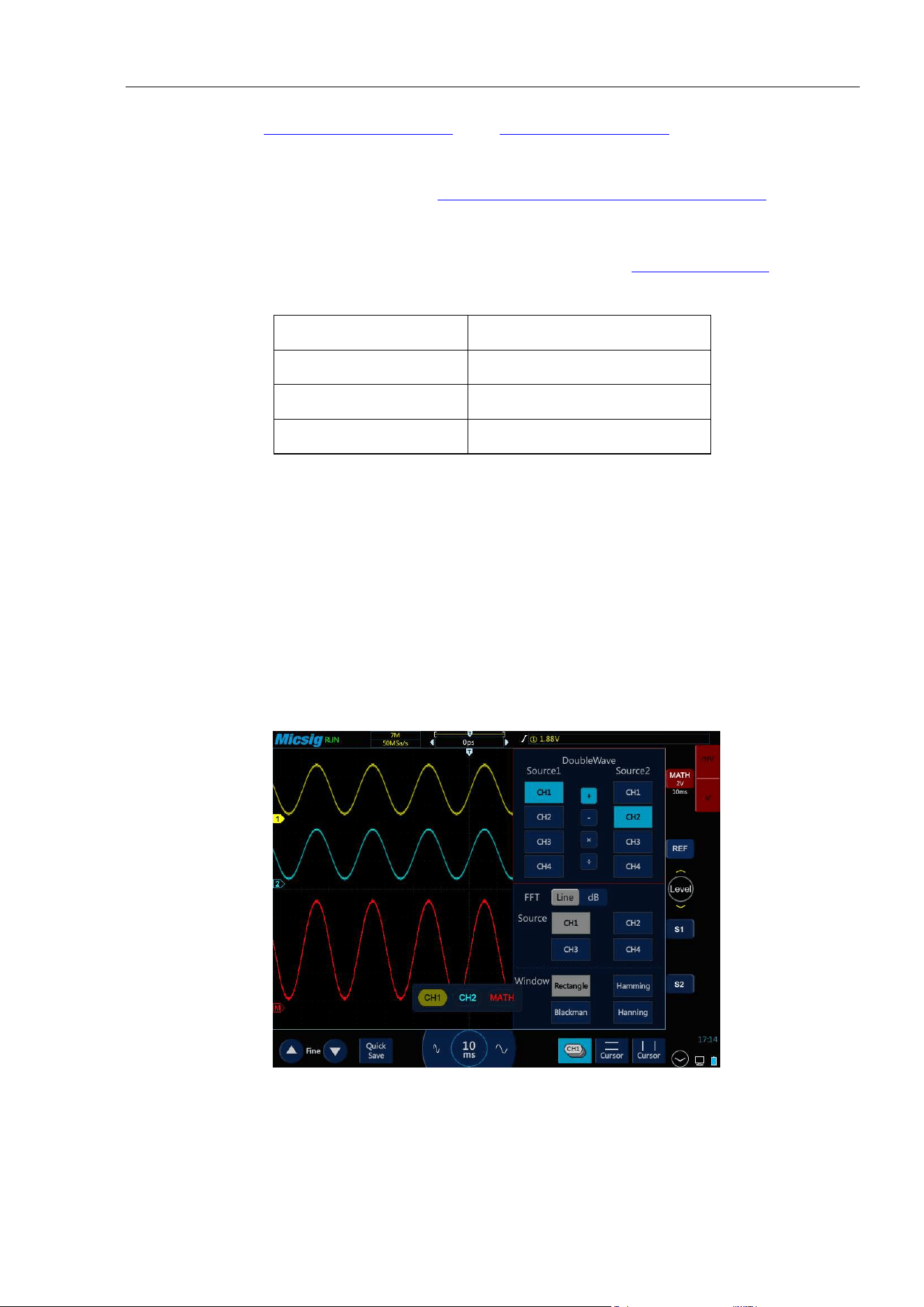
Chapter 8 MATH and Reference
81
please refer to “Chapter 3 Horizontal System” and “Chapter 4 Vertical System”.
3) The vertical sensitivity, unit and time base corresponding to the math waveform are displayed in the channel
area of the math channel. For details, see “
2.6 Understand the Oscilloscope Display Interface”.
Math waveform units
Use “Probe Type” on the channel menu to adjust the channel unit (refer to “4.4.4 Set Probe Type”) and set the
unit of each input channel to Volt or Ampere. The units of math function waveform include:
Math Function
Unit
+/-
V, A, ?
×
VV, AA, W
÷
V/V, V/A, A/A, A/V
Table 8-1 List of Mathematical Units
Note: If the units of two operation source channels are different and the unit combination cannot be identified, the unit of
math function will be displayed as? (undefined).
Math operators
Math operators perform arithmetic operations on the analog input channels.
Addition or subtraction
If addition or subtraction is selected, the values of function sources 1 and 2 will be added or subtracted point by
point and the results will be displayed.
Figure 8-2 Mathematical Operation of CH1 adding CH2
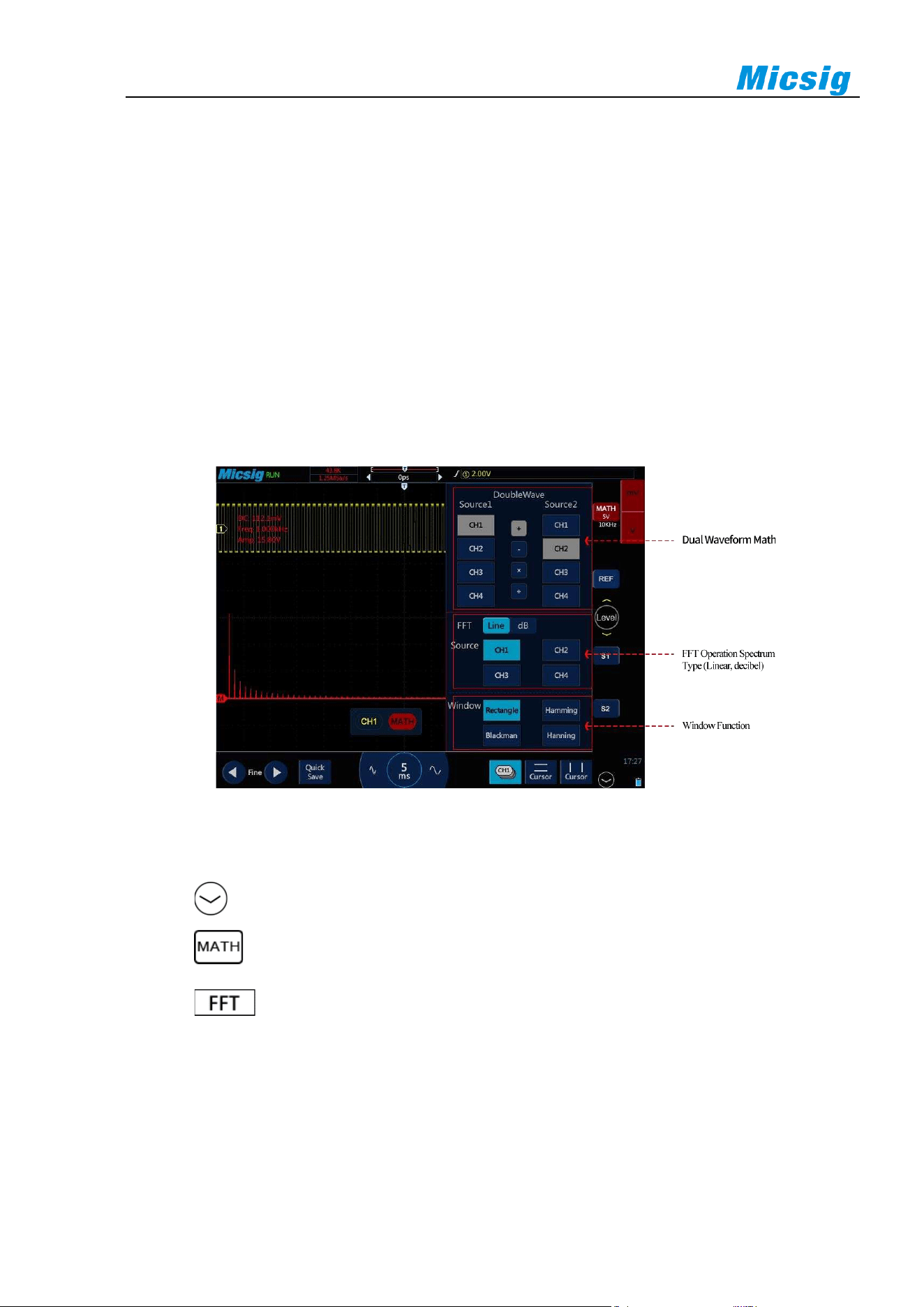
82
Multiplication or division
When multiplication or division is selected, the values of function sources 1 and 2 values will be multiplied or
divided point by point and the results will be displayed.
Multiplication is useful when viewing the power relationship, if one of the channels is proportional to the current.
8.2 FFT Measurement
FFT is used to calculate the Fast Fourier Transform using the analog input channel. FFT record specifies the
digitization time of the source and converts it to the frequency domain. After selecting the FFT function, FFT
spectrum is plotted as amplitude in V-Hz or dB-Hz on the oscilloscope display screen. The reading of the
horizontal axis changes from time to frequency (Hz), while the unit of the vertical axis changes from volt to V or
dB.
Figure 8-3 FFT Window
Open FFT
1) Tap on the lower right corner of the screen to enter the second channel selection area. Tap the soft
key to cycle through the math channel, open the math channel menu, and close the math channel.
2) Tap spectrum type “Line/Decibel” to open the FFT window (see Figure 8-3 FFT Window).
3) Tap the Operation Source box to select the channel for which FFT transform is required.
4) Tap the window box to select the window function applied to the FFT input signal.
Selection of window function
In the FFT transform, four different FFT windows can be selected.

Chapter 8 MATH and Reference
83
Each window is alternatively used between frequency resolution and amplitude accuracy, and the appropriate
window may be selected according to the characteristics of the following windows.
⚫ Rectangular window
This is the best window type for resolution frequencies that are very close to the same value, but this
type is the least effective at accurately measuring the amplitude of these frequencies. It is the best type
of measuring the spectrum of non-repetitive signals and measuring the frequency component close to
DC.
Use the “Rectangular” window to measure transients or bursts of signal levels before or after almost
the same event. Moreover, this window can be used to measure equal-amplitude sine waves with very
close frequencies and wideband random noises with relatively slow spectral variations.
⚫ Hamming window
This is the best window type for resolution frequencies that are very close to the same value, and the
amplitude accuracy is slightly better than the “Rectangular” window. The Hamming type has a slightly
higher frequency resolution than the Hanning type.
Use Hamming to measure sinusoidal, periodic, and narrowband random noises. This window is used
for measuring transients or bursts of signal levels before or after events with significant differences.
⚫ Hanning window
This is the best window type for measuring amplitude accuracy but less effective for resolving
frequencies.
Use Hanning to measure sinusoidal, periodic, and narrowband random noises. This window is used for
measuring transients or bursts of signal levels before or after events with significant differences.
⚫ Blackman-Harris window
This is the best window type for measuring frequency amplitude, but worst for measuring the resolution
frequency.
Use the Blackman-Harris measurement to find the main single-signal frequency waveform for higher
harmonics.
Since the oscilloscope performs FFT transform on the finite-length time record, the FFT algorithm
assumes that YT waveform is continuously repeated. Thus, when the period is integral, the amplitudes
of YT waveform at the beginning and at the end are the same, and waveform will not interrupt. However,
if the period of YT waveform is not integral, the waveform amplitudes at the beginning and at the end
are different, resulting in high-frequency transient interruption at the junction. In the frequency domain,
this effect is called leakage. Therefore, to avoid leakage, the original waveform is multiplied by a
window function, forcing the values at the beginning and at the end to be zero.
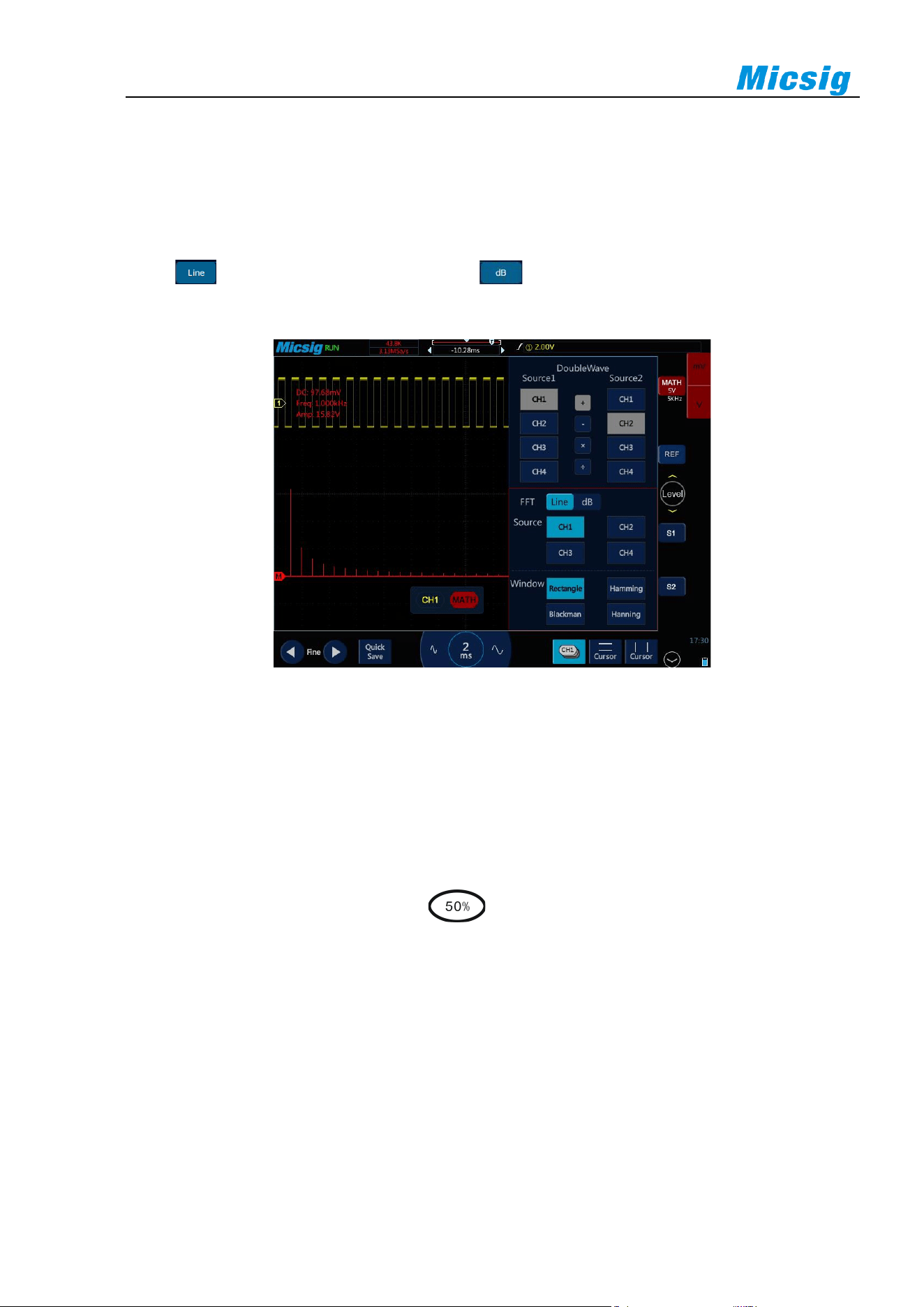
84
Note: Signals with DC components or deviations can cause errors or deviations in the FFT waveform components. AC
coupling can be selected to reduce DC components.
Spectrum type
Select , the vertical axis reads V or A; select , the vertical axis reads dB. When the spectrum is
linear, the waveform is shown in Figure 8-4.
Figure 8-4 Spectrum Amplitude as V-Hz
Adjust FFT waveforms
Waveform position
⚫ Select math channel as the current channel. After touching math waveform on the screen with one
finger, adjust the waveform display position by dragging upward and downward, leftward and
rightward, or tap the fine adjustment button in the lower left corner of the screen for fine adjustment
⚫ Move the channel horizontally, tap , tap the "time base" item, and move the leftmost (0Hz)
of the waveform to the horizontal center of the screen.
Horizontal time base scale
Select math channel as the current channel, tap the time base adjustment button, and adjust the horizontal time
base scale. The horizontal time base is stepped in 1-2-5, and the waveform changes either.
For FFT measurement, the reading of the horizontal axis changes from time to frequency (Hz), and it no longer
shares the same time base with other analog channels. Therefore, before adjusting the horizontal frequency scale,
the math channel must be set as the current channel.
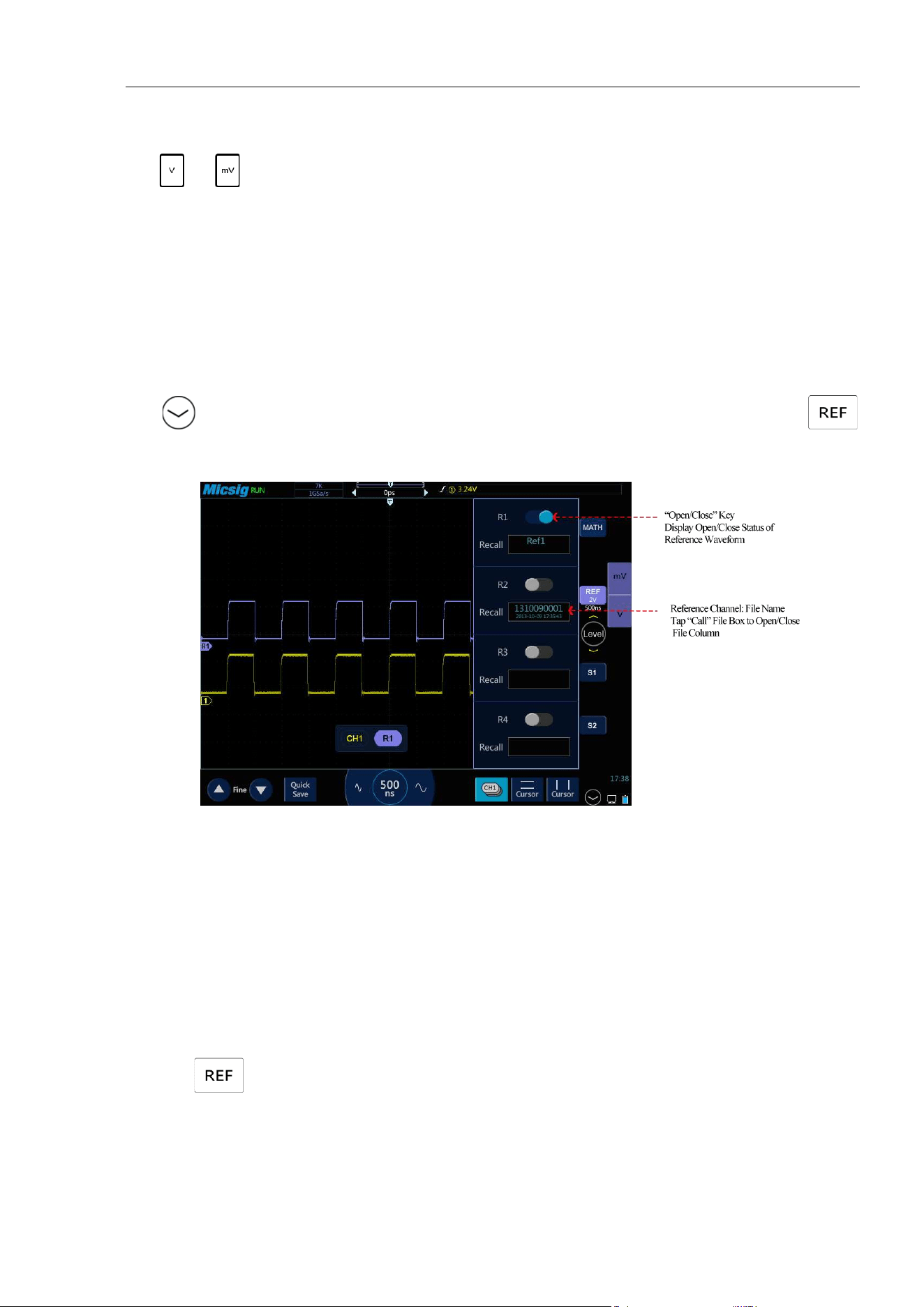
Chapter 8 MATH and Reference
85
Vertical sensitivity
Tap or on the right side of the screen to set the vertical sensitivity (V/div or dB/div) for the channel
so that waveform is displayed on the screen at an appropriate size. The vertical sensitivity factor is stepped in 1-
2-5 (using 1:1 probe).
Note: FFT waveform does not support automatic parameter measurement.
8.3 Reference Waveform Call
Reference waveform call and close
Tap in the bottom right corner of the screen to enter the second channel selection area. Tap
button to open the reference menu, see Figure 8-5.
Figure 8-5 Reference Channel Menu
When there are already waveforms loaded into the reference channel, click “Open/Close” button to open or close
the reference channel; the reference waveform is displayed in blue-violet, and the four stored waveforms can be
displayed simultaneously, wherein the current reference waveform is brighter than non-current reference
waveforms.
When there are no waveforms loaded into the reference channel, turn on the “Call” switch to call waveforms.
Take R1 as an example, with operation steps as follows:
1) Tap to open the reference menu.
2) Tap the “Call” file box under R1 to open the reference file column.
3) Click the name of the reference waveform file to be called. The file is loaded into R1 channel. Then, R1
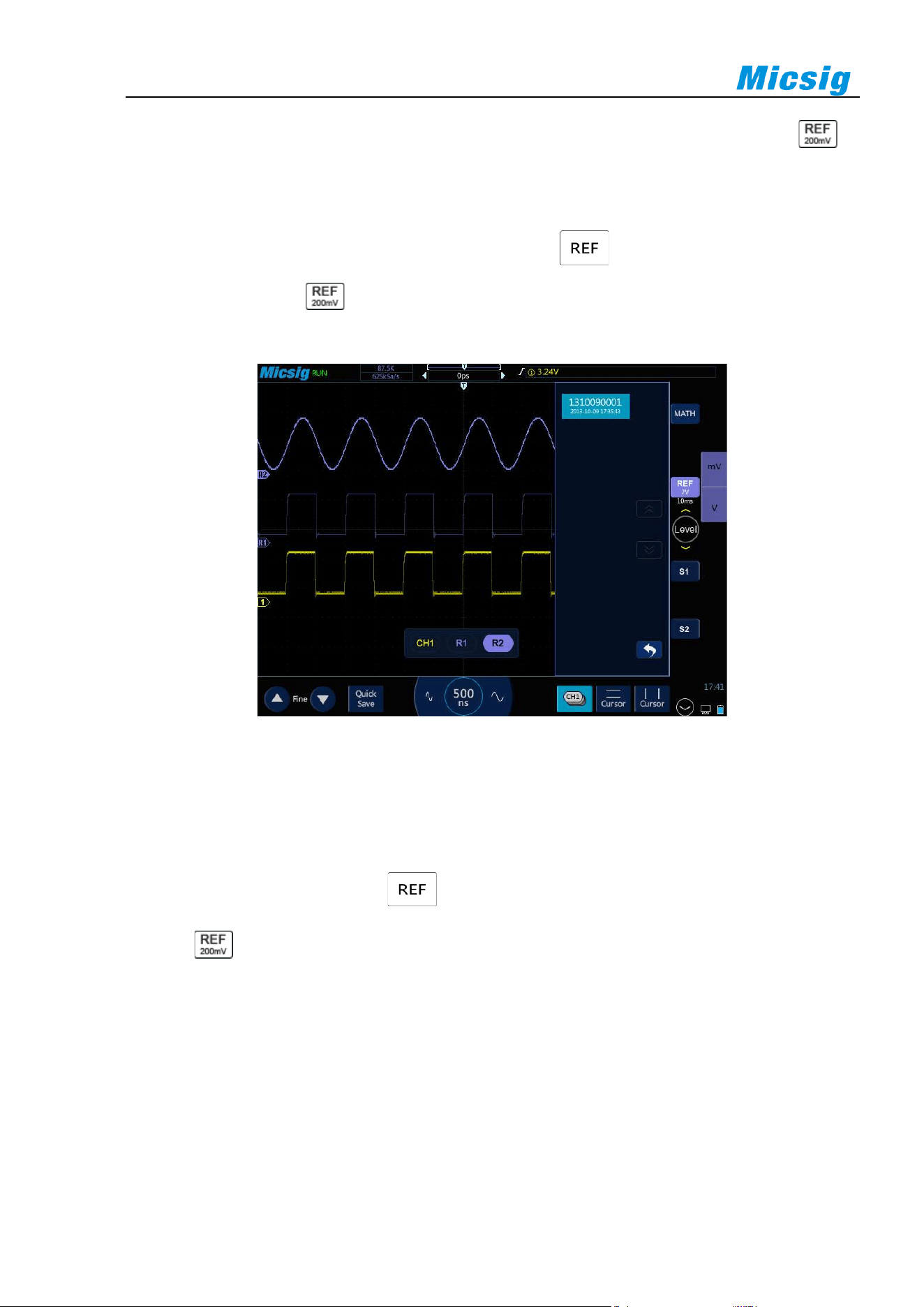
86
channel is turned on as the current channel waveform, and the reference waveform channel icon is
highlighted. The displayed state changes from “Close” to “Open”. As in Figure 8-6, the brighter reference
waveform is shown as the current reference channel.
If there are already files loaded into the reference channel, tap to open the reference channel of all
loaded reference files; tap to close all currently opened reference waveforms. A single reference channel
may also be opened with the Open/Close button.
Figure 8-6 Restore Reference Waveform
Close the reference waveform:
1) In the reference menu, tap “Open/Close” button in R1 to close the reference waveform.
2) Repeat step 1 to close other reference channels. When all reference waveform channels are closed, the
reference waveform channel icon becomes gray.
3) Tap to turn off all reference waveforms.
Reference waveform movement and time base adjustment
The horizontal or vertical movement and zoom of reference waveforms are independent of analog channels, and
the adjustments among different reference waveform channels are also independent of each other.
To adjust the reference waveform of a channel, first set the channel as the current channel, and then adjust the
reference waveform by move or zoom (in accordance with the analog channel method).
The scale and time base of the current channel reference waveform are displayed on the reference button. After

Chapter 8 MATH and Reference
87
switching the current reference channel, the scale and time base on the reference button change with the change
of current reference channel.
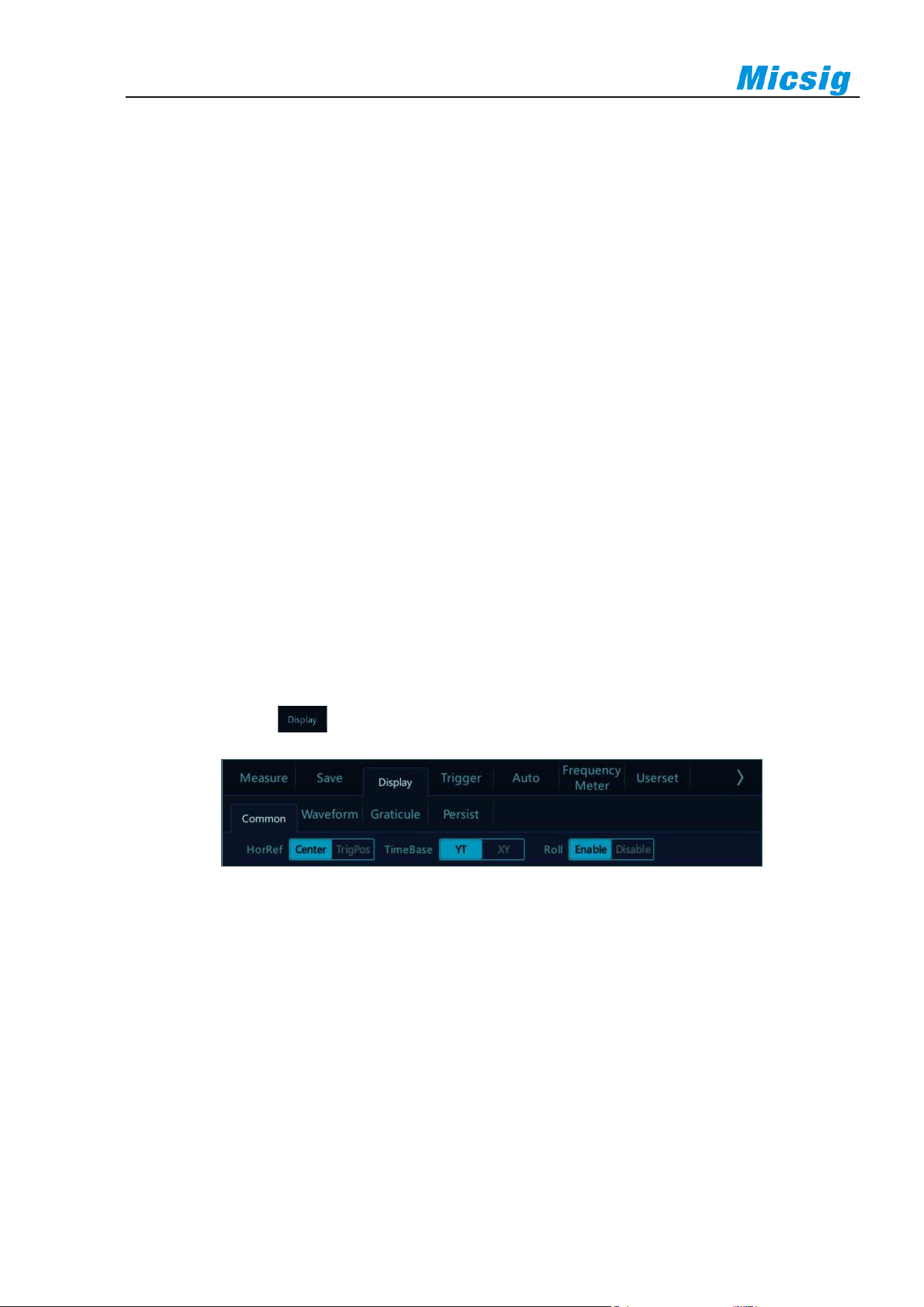
88
Chapter 9 Display Settings and Function Buttons
This chapter contains the detailed information of the display settings and function buttons of the oscilloscope.
You are recommended to read this chapter carefully to understand the display settings and function buttons of the
tBook mini series oscilloscope.
⚫ Waveform setting
⚫ Graticule setting
⚫ Persistence setting
⚫ Horizontal expansion center
⚫ Time base mode selection
⚫ Waveform refresh rate (high refresh mode)
⚫ Run/Stop and Single SEQ
⚫ Auto
⚫ 50% function
⚫ Measurement
⚫ Trigger
⚫ Home
In the main menu, tap button to enter display settings menu, as shown in Figure 9-1.
Figure 9-1 Display Settings and Function Buttons
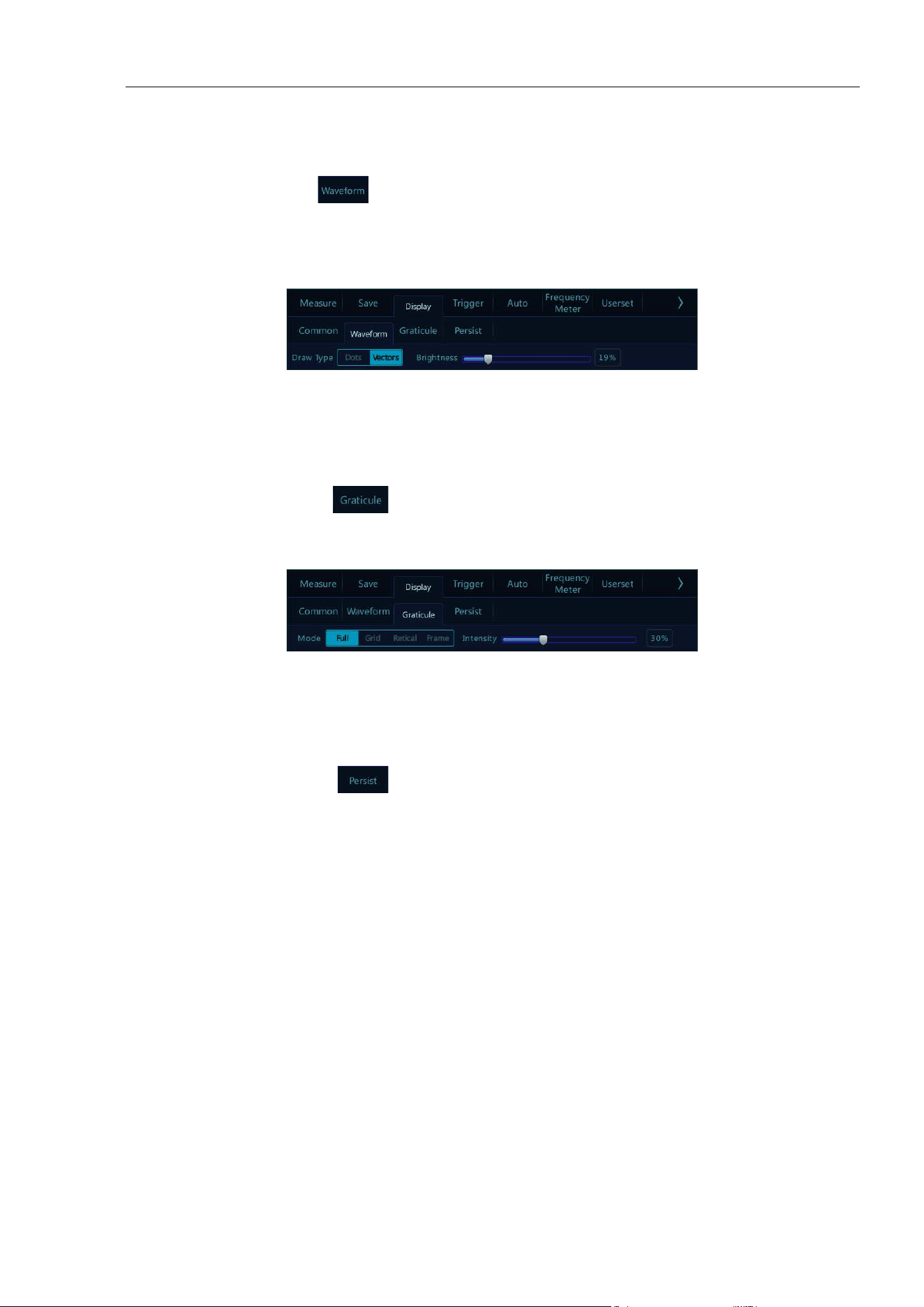
Chapter 9 Display Settings and Function Buttons
89
9.1 Waveform Settings
Open the display menu, tap button to open the waveform display menu. This menu is used to set the
display mode and brightness of waveform. The waveform display mode is divided into two types: dots and vectors.
The waveform brightness percentage is adjustable, and the waveform display setting is shown in Figure 9-2.
Figure 9-2 Waveform Display Menu
9.2 Graticule Setting
Open the display menu and tap button to open the graticule setting menu (Figure 9-3). Graticule display
mode includes: “Full”, “Grid”, “Retical” and “Frame”, and the brightness percentage is adjustable.
Figure 9-3 Graticule Menu Display
9.3 Persistence Setting
Open the display menu and tap key to open the persistence settings menu.
1) Persistence setting
In the persistence setting menu, select:
⚫ None: None - no persistence.
⚫ Auto: Auto — automatic persistence.
⚫ Normal: Normal - set the persistence time — After selecting the variable persistence, tap the box on
the right of “Adjust” to pop up the persistence time selection box (Figure 9-4) and set the persistence
time. It can be set between 10ms and 10s.
⚫ ∞: Infinite persistence - never erase the results of previous acquisitions
Infinite persistence can be used to measure noise and jitter, display the worst-case extremes of varying
waveforms, find time violations, capture events that occur infrequently.
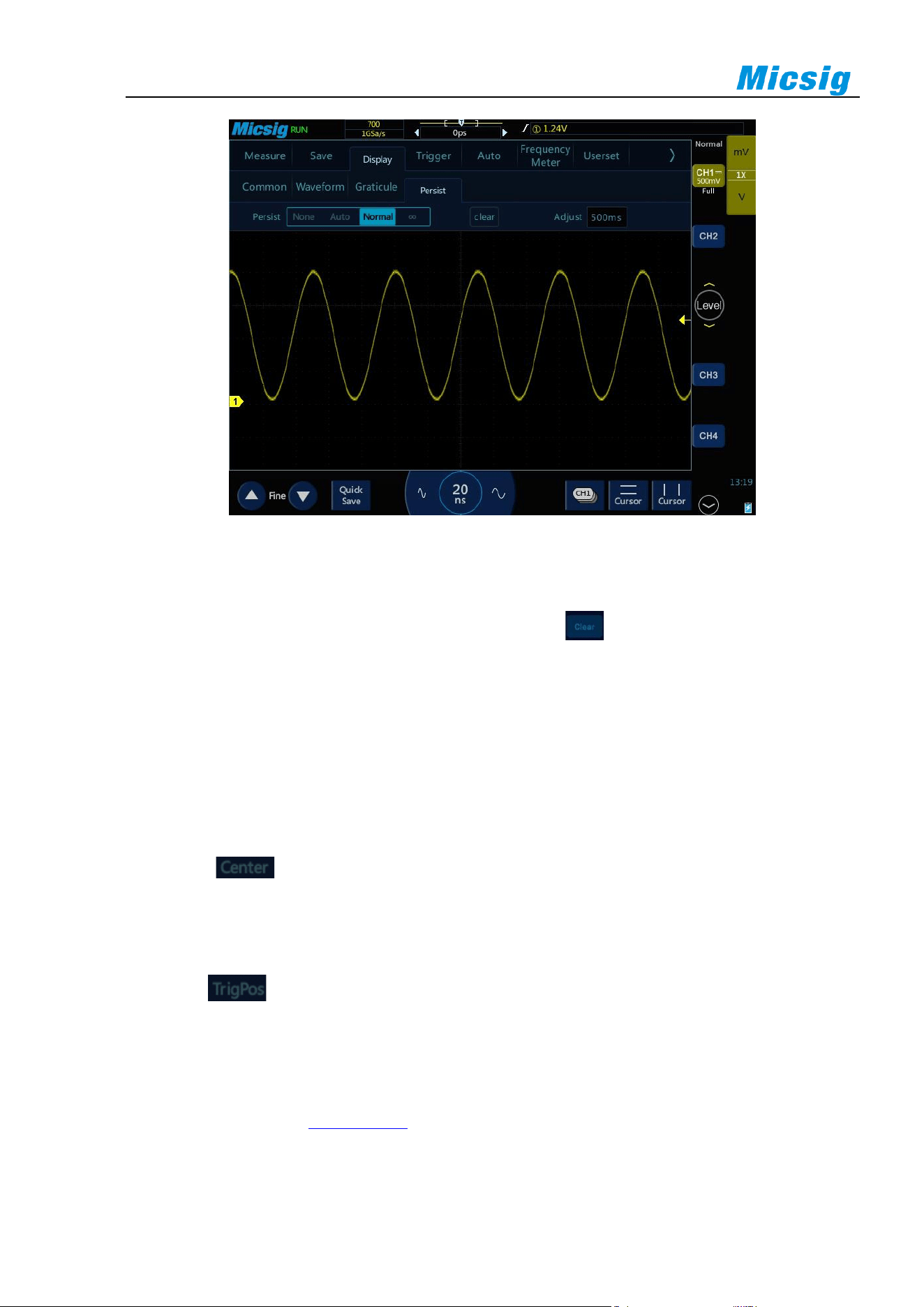
90
Figure 9-4 20MHz Sine Wave Variable Persistence 500ms
2) Erase persistence
To erase the previously acquired results from the display, tap key or adjust the horizontal time base
and vertical sensitivity. The oscilloscope will erase the persistence display and start the cumulative
acquisition again.
9.4 Horizontal Expansion Center
Horizontal expansion is divided into two types: screen center and trigger position:
1) Screen center
Select to adjust the time base waveform to expand or contract toward both sides with the screen
center as the base point, and the delay time does not change.
2) Trigger position
Select to adjust the time base waveform to expand or contract toward both sides with the trigger
position as the base point. The delay time varies with the horizontal time base.
9.5 Time Base Mode Selection
For details, please refer to “
3.4 ROLL, XY“ in Chapter 4.
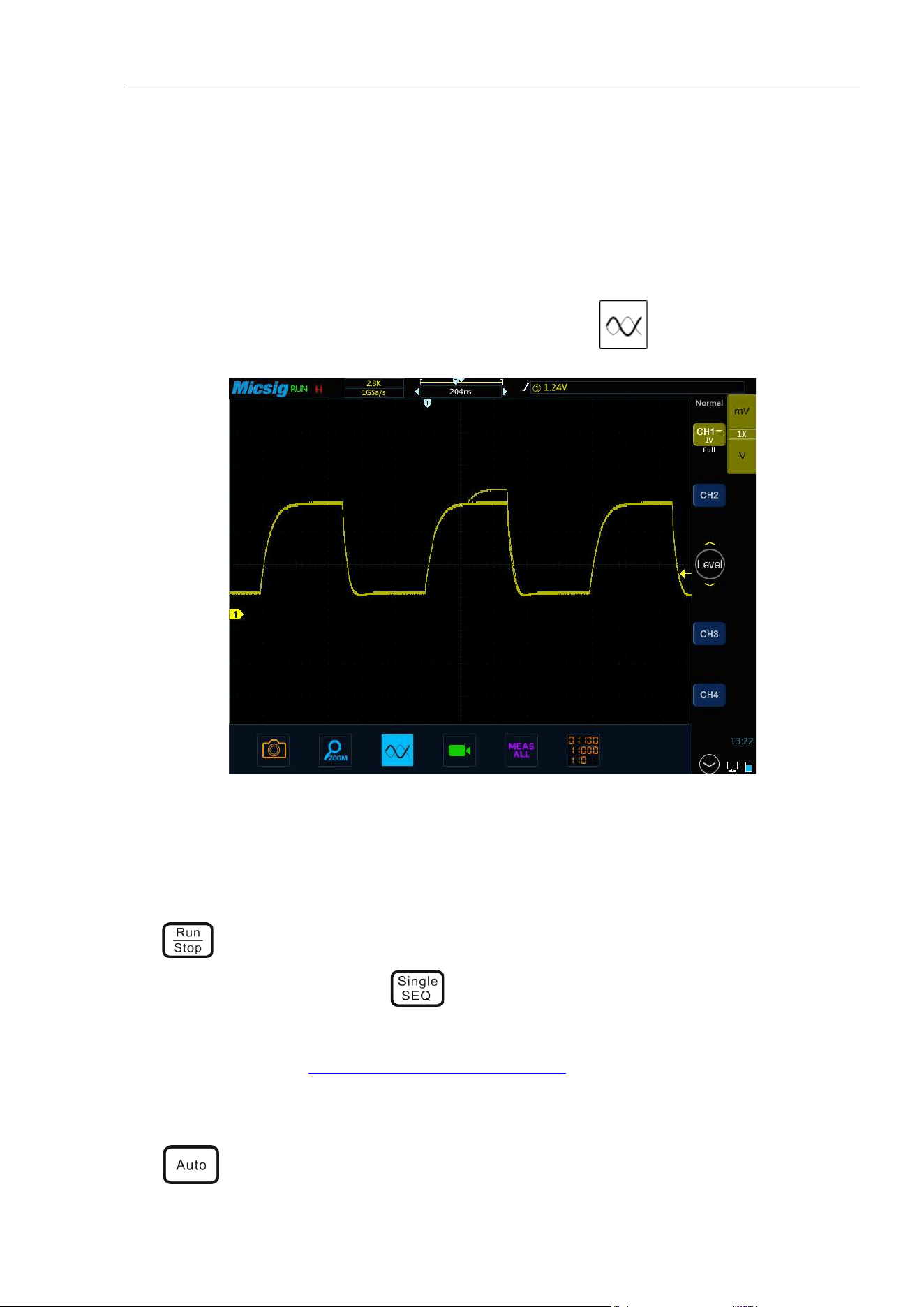
Chapter 9 Display Settings and Function Buttons
91
9.6 Waveform refresh rate (high refresh mode)
Waveform refresh rate refers to how many waveforms the oscilloscope can display per second. The "dead zone"
of oscilloscope refers to the time when the oscilloscope processes and displays the collected waveform. In the
high refresh rate mode, the dead time is greatly reduced, and abnormal signals, such as abnormal jitter, short
pulse, low-frequency interference and instantaneous error, can be detected quickly and accurately.
Slide your finger up from the bottom to open the pull-up menu, and tap to open the high refresh mode.
Figure 9-5 High refresh mode
Note: When high refresh is turned on and stopped, it is forbidden to enter zoom mode.
9.7 Run/Stop and Single SEQ
Tap in the right function area to quickly freeze and capture the current signal waveform, tap again, and
the waveform will continue to run; Tap to conduct single acquisition, and the oscilloscope will display
the single acquisition waveform.
For details, please refer to “
10.2 Run/Stop and Single SEQ Buttons” in Chapter 11.
9.8 Auto
Use on the right function key area to turn on the Auto set function. Each time you tap "Auto", the
92
oscilloscope can recognize the type of input signal and adjust the control mode, It automatically adjusts the
vertical scale, horizontal scale and trigger setting, and adjust the waveform to the best display state.
For details, please refer to “
2.10 Use Auto” in Chapter 2.
9.9 Measurement
Tap in the right function area to open or close the automatic measurement menu.
For details, please refer to “
6.1 Automatic Measurement” in Chapter 7.
9.10 Trigger
Tap in the right function area to quickly open or close the trigger menu.
For details, please refer to
Chapter 5 Trigger System.
9.11 Home
Tap in the right function area, switch to the oscilloscope homepage.
For details, please refer to
Chapter 11 Homepage Functions.

Chapter 10 Sampling System
93
Chapter 10 Sampling System
This chapter contains the detailed information of the sampling system of the oscilloscope. You are recommended
to read this chapter carefully to understand the setting and operation of the sampling system of the tBook mini
series oscilloscope.
⚫ Sampling overview
⚫ Run, stop and single sequence acquisition (running control)
⚫ Select sampling mode
⚫ Record length and sampling rate
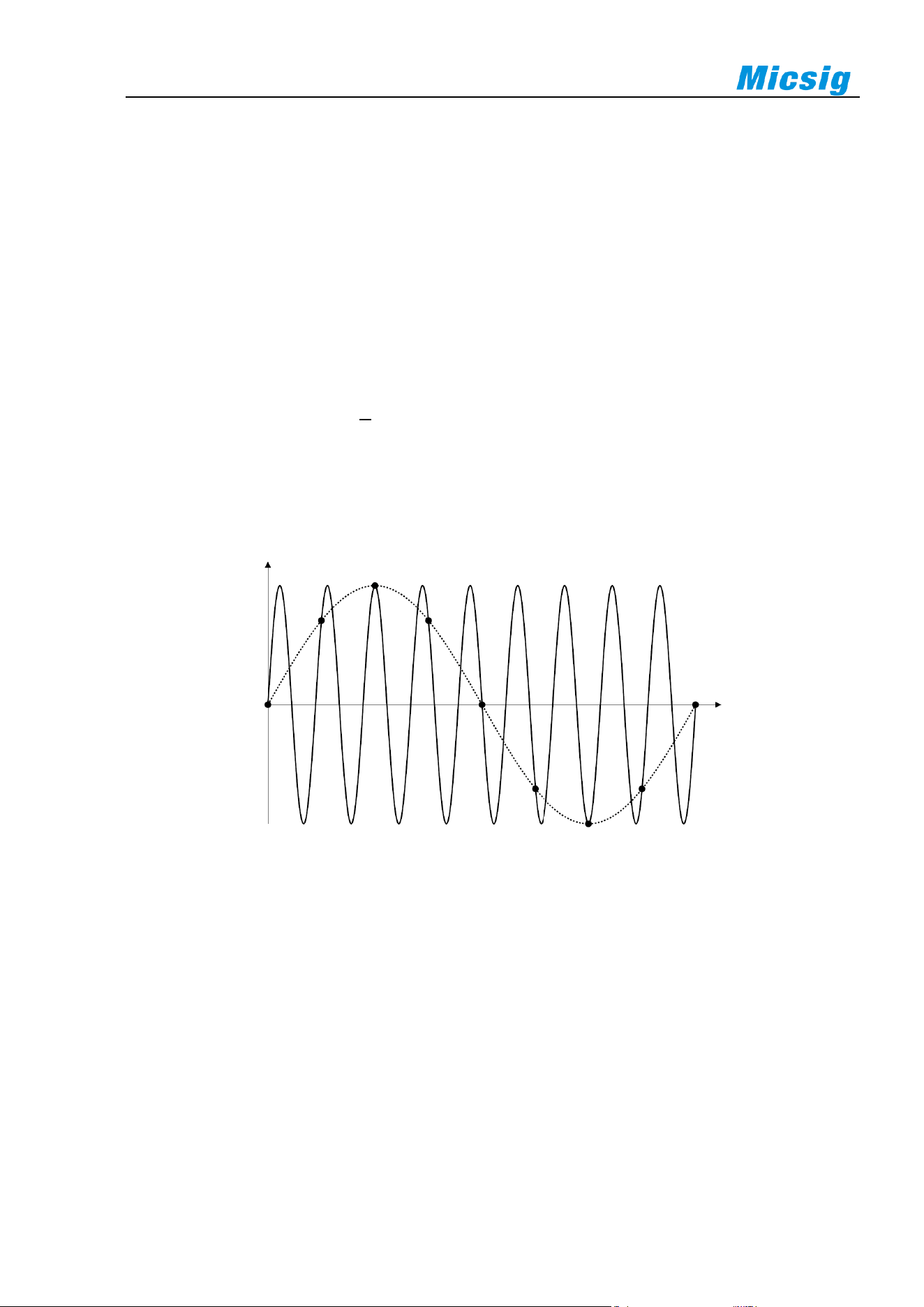
94
10.1 Sampling Overview
To understand the sampling and sampling modes of the oscilloscope, you need to understand the sampling
principle, aliasing, oscilloscope bandwidth and sampling rate, oscilloscope rise time, required oscilloscope
bandwidth, and the influence of memory depth on the sampling rate.
Sampling principle
According to the Nyquist sampling principle, for a bandwidth-limited signal with the maximum frequency f
MAX
,
the equidistant sampling frequency f
S
must be twice as large as the maximum frequency f
MAX
, so that a unique
signal can be reconstructed without aliasing.
Aliasing
Aliasing occurs when the signal is under sampled (f
S
<2f
MAX
). Aliasing is signal distortion caused by incorrectly
reconstructing low frequencies from a small number of sampling points.
Figure 10-1 Aliasing
Oscilloscope bandwidth and sampling rate
The oscilloscope bandwidth usually refers to the lowest frequency at which the input signal sine wave is
attenuated by 3dB (-30% amplitude error).
For oscilloscope bandwidth, according to the sampling principle, the required sampling rate is f
S
=2f
BW
. However,
this principle assumes that there is no frequency component exceeding f
MAX
(f
BW
in this case) and requires a
system with ideal brick-wall frequency response.
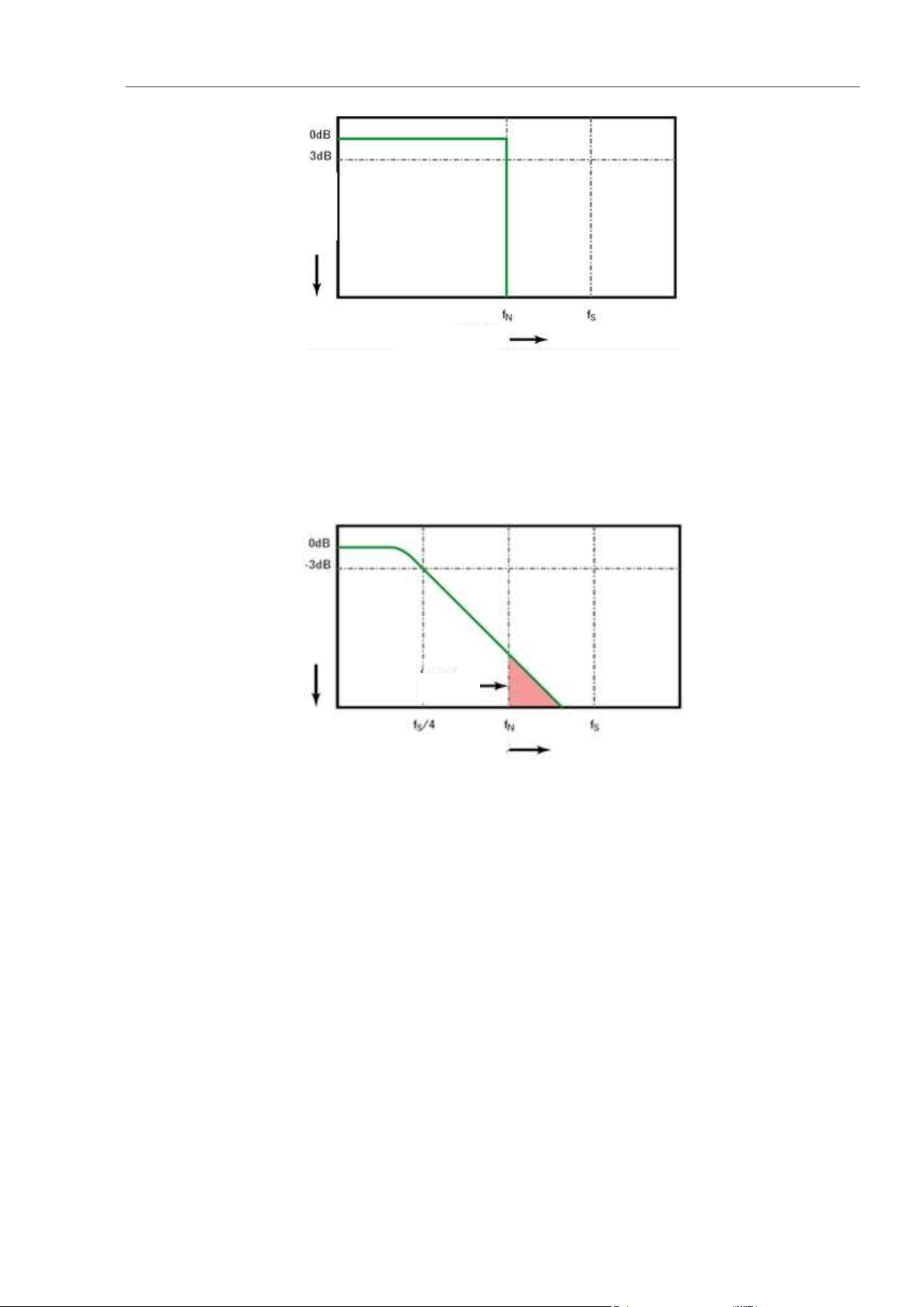
Chapter 10 Sampling System
95
Figure 10-2 Theoretical Brick-Wall Frequency Response
However, digital signals have frequency components that exceed the fundamental frequency (the square wave
consists of sine waves at fundamental frequency and an infinite number of odd harmonics), and for bandwidths
of 500MHz and below, the oscilloscope typically has Gaussian frequency response.
Figure 10-3 Sampling Rate and Oscilloscope Bandwidth
The oscilloscope bandwidth is limited to 1/4 sampling frequency and reduces the frequency response above the
Nyquist frequency.
Therefore, in fact, the oscilloscope sampling rate should be 4 times or more of its bandwidth: f
S
≥4f
BW
. This can
reduce aliasing and cause greater attenuation in the aliased frequency components.
Oscilloscope rise time
The oscilloscope rise time is closely related to its bandwidth. The rise time of an oscilloscope with Gaussian type
frequency response is approximately 0.35/f
BW
(based on the standard from 10% to 90%).
The oscilloscope rise time is not the fastest edge speed that an oscilloscope can accurately measure. It is the
fastest edge speed that the oscilloscope can produce.
Desired oscilloscope bandwidth
The oscilloscope bandwidth required to accurately measure signal is primarily determined by the rise time of the
Frequency
Attenuation
Frequency
Attenuation
Aliasing
96
signal rather than the frequency of the signal.
The following steps can be used to calculate the required oscilloscope bandwidth:
1) Determine the fastest edge speed.
Rise time information is typically obtained from the published device specifications used in the design.
2) Calculate the maximum “actual” frequency component.
According to Dr. Howard W. Johnson’s book “High-Speed Digital Design–A Handbook of Black Magic”,
all fast edges have wirelessly continuous frequency components. However, there is a turning point (or
“inflection point”) in the fast edge spectrum at which frequency components above f
knee
are negligible in
determining the signal shape.
f
knee
=0.5/signal rise time (based on 10% - 90% threshold)
f
knee
=0.4/signal rise time (based on 20% - 80% threshold)
3) The multiplication factor for the desired accuracy is used to determine the required oscilloscope bandwidth.
Desired Accuracy
Desired Oscilloscope Bandwidth
20%
f
BW
=1.0xf
knee
10%
f
BW
=1.3xf
knee
3%
f
BW
=1.9xf
knee
Table 10-1 Bandwidth Corresponding to Oscilloscope Measurement Accuracy
10.2 Run/Stop Key and Single SEQ Key
Use softkeys in the button area to start and stop the oscilloscope acquisition system: Run/Stop button
and Single Sequence Acquisition button.
⚫ When the Run/Stop button is displayed in green, it indicates that the oscilloscope is running,
that is, it meets the trigger condition and data acquisition is being performed. The green “ ” or “ ”
is displayed in the upper left corner of the screen.
To stop data collection, tap the Run/Stop button. After stopping, the screen displays the last acquired
waveform.
⚫ When the Run/Stop button is displayed in red, it indicates that data acquisition has stopped.
The red “ ” is displayed in the upper left corner of the screen.
To resume data acquisition, press the Run/Stop button again.

Chapter 10 Sampling System
97
⚫ To capture and display single acquisition (whether the oscilloscope is running or stopped), tap the
single sequence key for a single acquisition.
10.3 Select Sampling Mode
Open the channel menu, tap the sampling mode option under “Sample”, and choose among the four sampling
modes: normal, average, peak and envelope in the pop-up box.
The sampling modes of all channels are same. That is, if the sampling mode of any channel is changed, the
sampling mode of all channels is changed at the same time.
Normal sampling mode
Oscilloscope samples signal through equivalent time intervals to build waveform. When the time base of 20 ns
or faster is chosen, the oscilloscope automatically performs an interpolation algorithm that inserts difference point
between sampling points.
This mode produces the best display effects for most waveforms.
Peak sampling mode
In peak sampling mode, when the horizontal time base setting is low, the minimum and maximum sample values
are retained to capture rare events and narrow events (with any noise expanded). This mode will display all pulses
that are at least as wide as the sampling period.
When the time base is set to 200ms and above, the oscilloscope will automatically exit the peak sampling mode
and switch to the normal sampling mode.
Burr or narrow pulse capture
Burr is the rapid change in waveform that is usually narrower than waveform. Peak sampling mode can be used
to view burr or narrow pulses more easily. In the peak sampling mode, narrow burr and transition edges are
brighter than in those in the “normal” sampling mode, making them easier to see.
Applying the peak sampling mode can avoid signal aliasing but show more real noises.
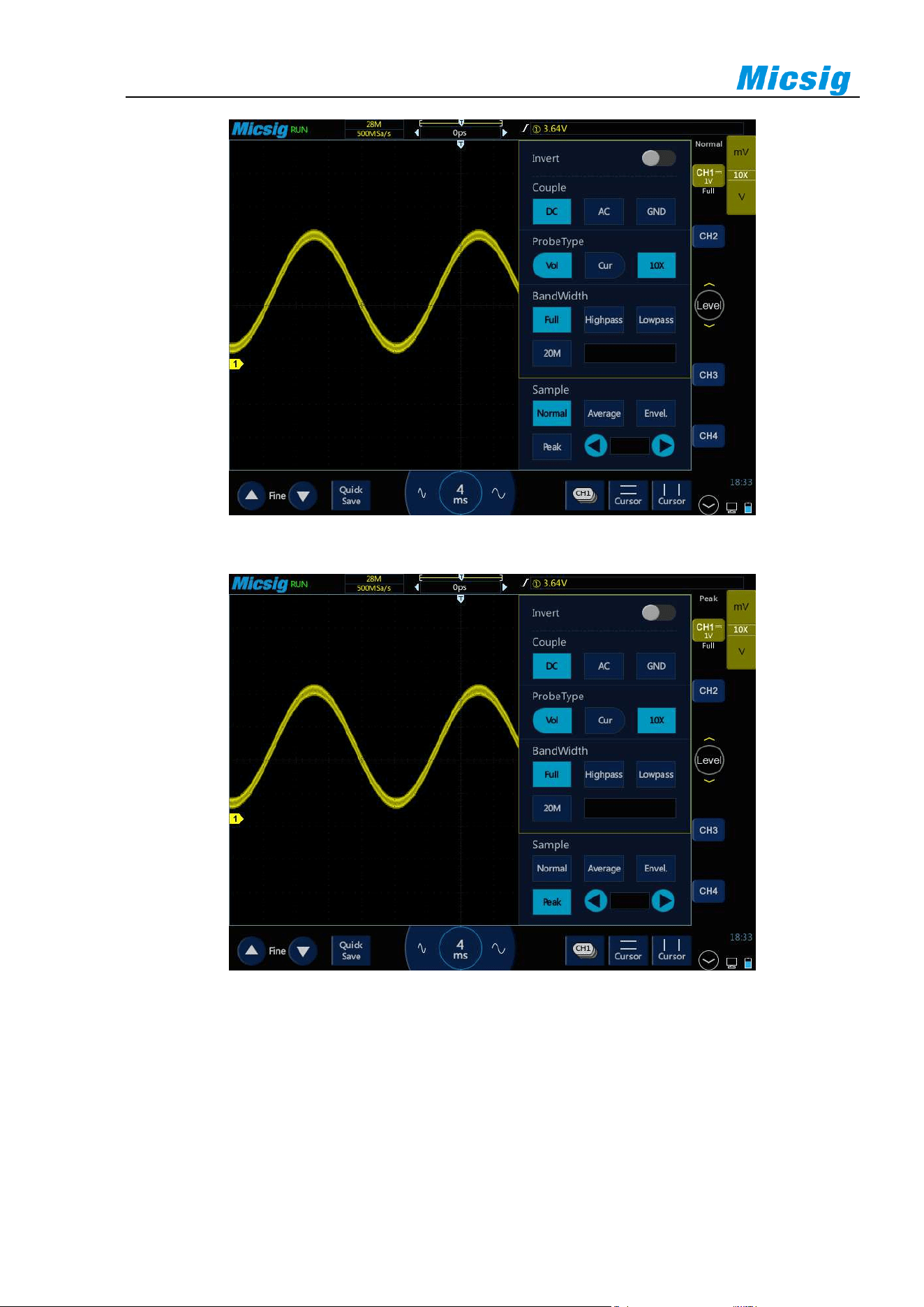
98
Figure 10-4 Sine Wave with Burr, Normal Sampling Mode
Figure 10-5 Sine Wave with Burr, Peak Sampling Mode
Use peak detection mode to find burrs
1) Connect signal to the oscilloscope to be stably displayed.
2) To find burr, select the peak sampling mode in Sampling Mode option in the Channel menu.
3) In the menu, tap “Display” → “Persistence”, then tap “∞” (infinite persistence). The oscilloscope will restart
sampling data and display them on the screen.
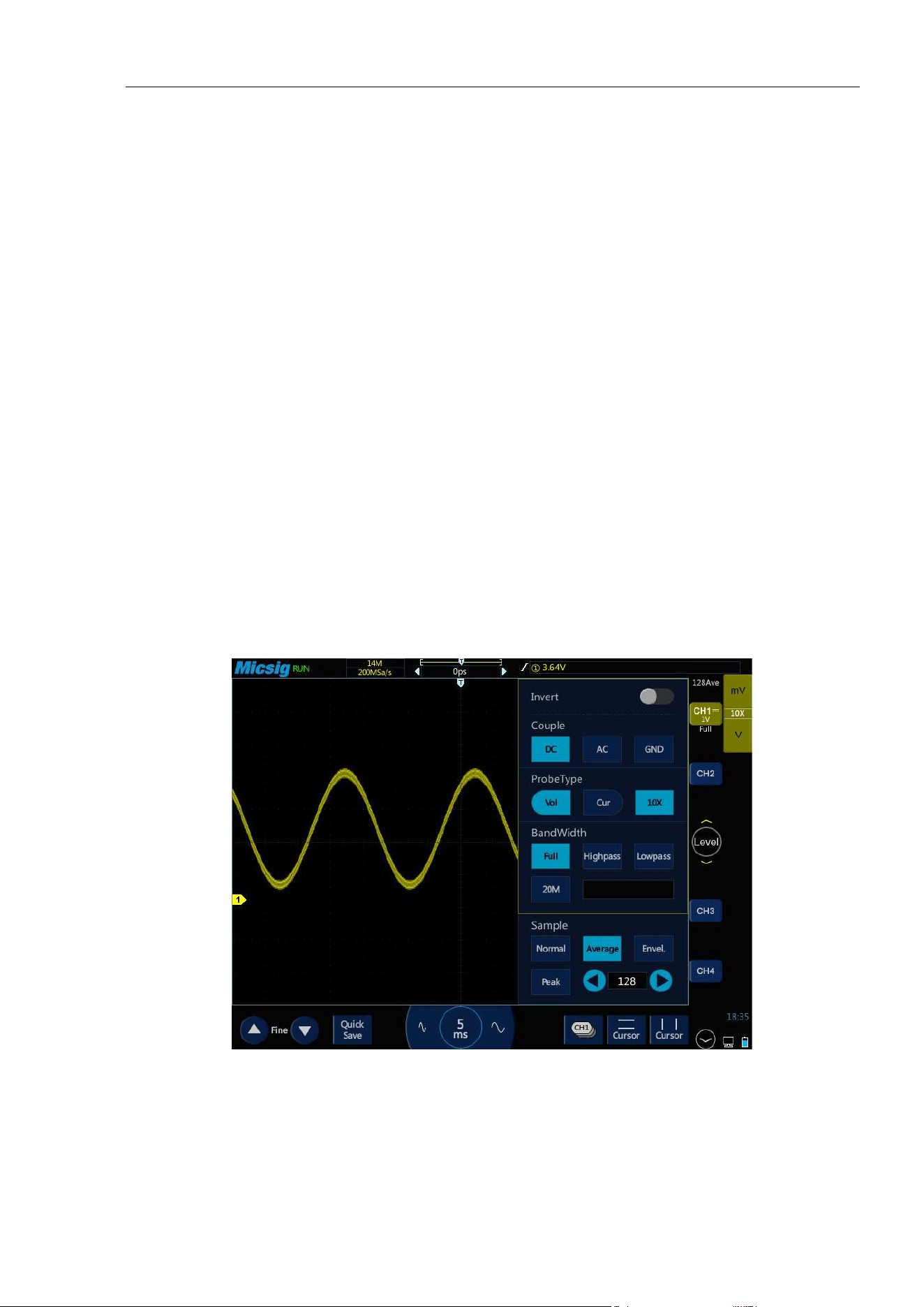
Chapter 10 Sampling System
99
4) Use the zoom mode to represent the characteristics of burr:
a. Tap the “Zoom” button in the main menu to open the zoom window.
b. To get a better resolution of burr, expand the time base to set the expanded portion of the normal
window view around burr.
Average sampling mode
The average sampling mode averages multiple acquisition results to reduce random or unrelated noises in the
displayed signal. The average of multiple sampling results requires stable trigger.
The average number can be set in the selection box after the average sampling mode, and can be set to eight order
of magnitudes: 2, 4, 8, 16, 32, 64, 128 and 256.
The higher the average number is, the slower the response of the displayed waveform-to-waveform changes. A
compromise must be made between the response speed of waveform versus the changes and the degree of noise
reduction shown on the signal.
Use average sampling mode
1) Open the channel menu and select the average sampling mode in the sampling mode option.
2) Press the number box on the right of the average sampling mode box to pop up the average number and then
tap it to set the average number that can best eliminate displayed waveform noises.
Figure 10-6 Waveform after choosing the average sampling mode, with average number 128
Envelope sampling mode
In the envelope sampling mode, the superposition effect of several sampled waveforms can be observed. The
maximum and minimum values of one signal can be captured in the specified N sample data, and the number of
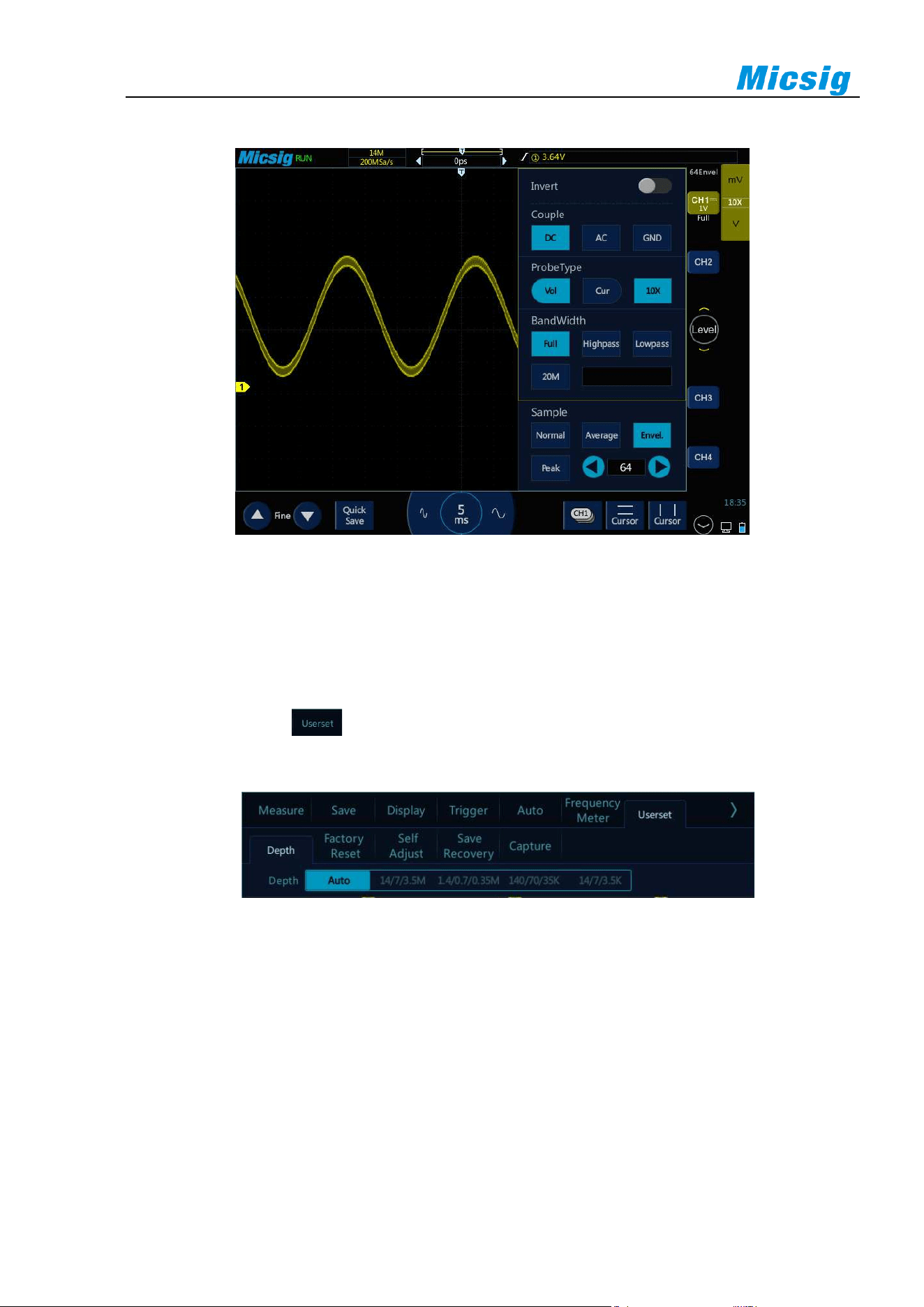
100
waveform superpositions can be set to 2, 4 , 8, 16, 32, 64, 128, 256 or ∞.
Figure 10-7 AM Signal in Envelope Sampling Mode (64)
10.4 Record Length and Sampling Rate
The record length is the data volume for each captured waveform. For example, if the record length is 700K, it
means that 700K sample points are captured by one trigger.
In the main menu, tap to enter the record length setting menu, which can be set by tapping the
corresponding record length.
Figure 10-8 Record Length
In normal refresh mode, if it is a single channel, the record length can be set to 14k, 140k, 1.4M, 14M, 28M,
Auto; if it is dual channel, the record length can be set to 7k, 70k, 0.7M, 7M, 14M, Auto; if it is three or four
channels, the record length can be set to 3.5k, 35k, 0.35M, 3.5M, 7M, Auto.
Record length and sampling rate
The record length is data volume collected per waveform capture. For example, if the record length is 0.7M, it
means that 700K sample points are captured by one trigger.
The oscilloscope record length and sampling rate have the following relationship:

Chapter 10 Sampling System
101
Sampling rate = record length/acquisition time
Generally, the oscilloscope acquisition time is exactly the display time on the current entire screen (current
horizontal time base×14).
For example, if the oscilloscope has the memory depth of 700K, the sampling rate of 1GSa/s, and the horizontal
time base of 50us/div, the acquisition time is 700us, which is 50us/div×14div.
However, when the fast time base (below 20 ns) or the record length is set to a fixed value, the oscilloscope
acquisition time does not necessarily represent the display time on the current entire screen.
For example, if the oscilloscope has the memory depth of 700K, the sampling rate of 1GSa/s, and the horizontal
time base of 20ns, the acquisition time is 700ns, which is 2.5 times of the current display time on the entire screen.
Or, if the memory depth is 140K (fixed value), the sampling rate is 1GSa/s, and the horizontal time base is 1us,
the acquisition time is 140us, which is 10 times of the current display time on the entire screen.
For a single channel in a channel pair, the maximum sampling rate of the tBook mini series oscilloscope is 1GSa/s.
If any two channels are opened, the sampling rate of the two channels will halved. For example, when CH1 and
CH3 are opened, the sampling rates of CH1 and CH3 are both 500 MSa/s.
If any three channels or all four channels are opened, the sampling rate per channel will become 1/4 of the
maximum sampling rate. For example, when CH1, CH2 and CH3 are opened, the sampling rates of CH1, CH2
and CH3 are 250 MSa/s for each of them.
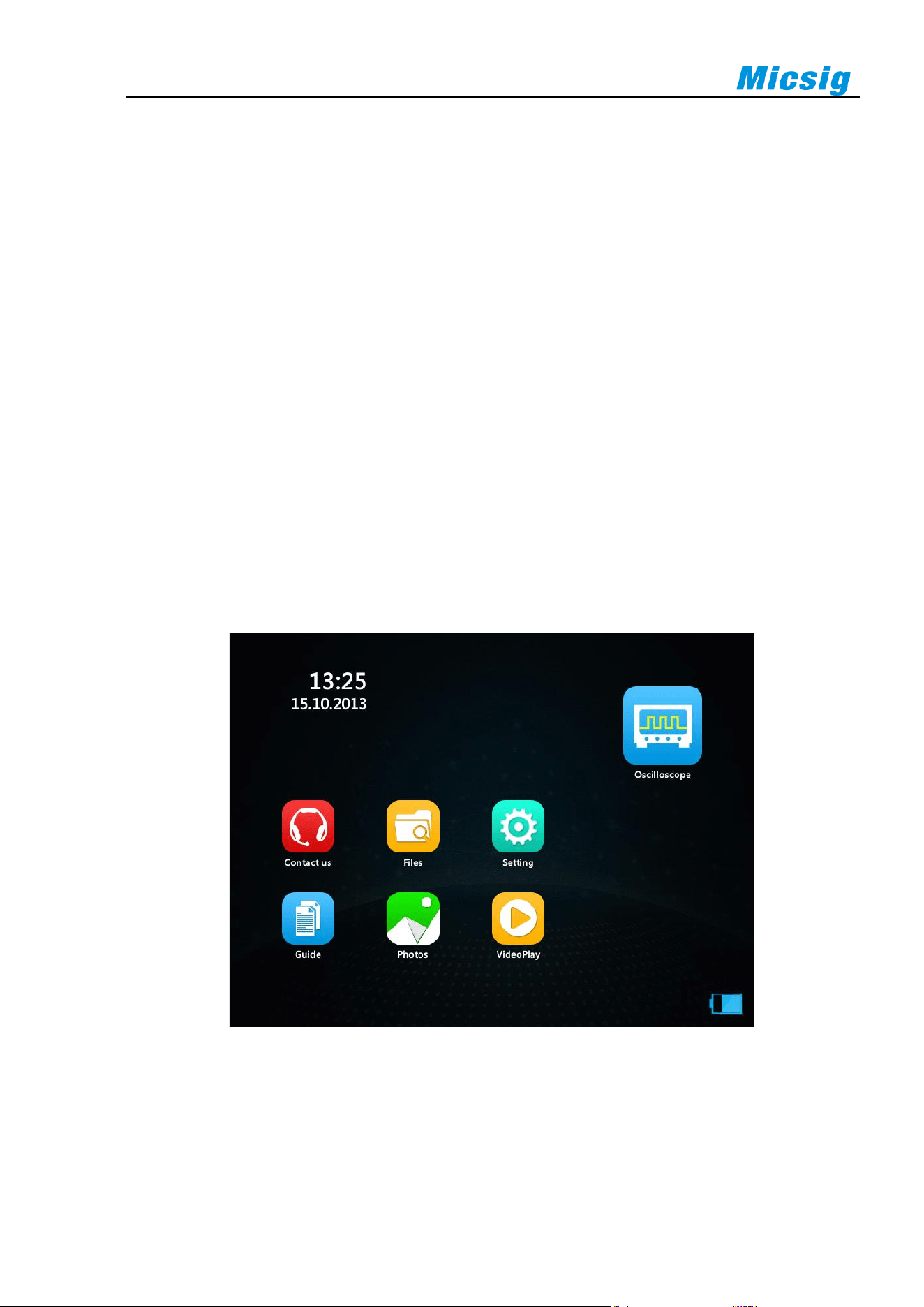
102
Chapter 11 Homepage Functions
This chapter contains the functions of the oscilloscope homepage and describes the functions of all icons on the
homepage and settings. You are recommended to read this chapter carefully to understand the homepage functions
of the tBook mini series oscilloscope.
⚫ Oscilloscope
⚫ Contact us
⚫ File manager
⚫ Settings
⚫ Quickguide
⚫ Photo
⚫ Video
⚫ Time
⚫ Shutdown
The following figure shows the contents of the oscilloscope home page. See Figure 11-1.
Figure 11-1 Homepage Interface
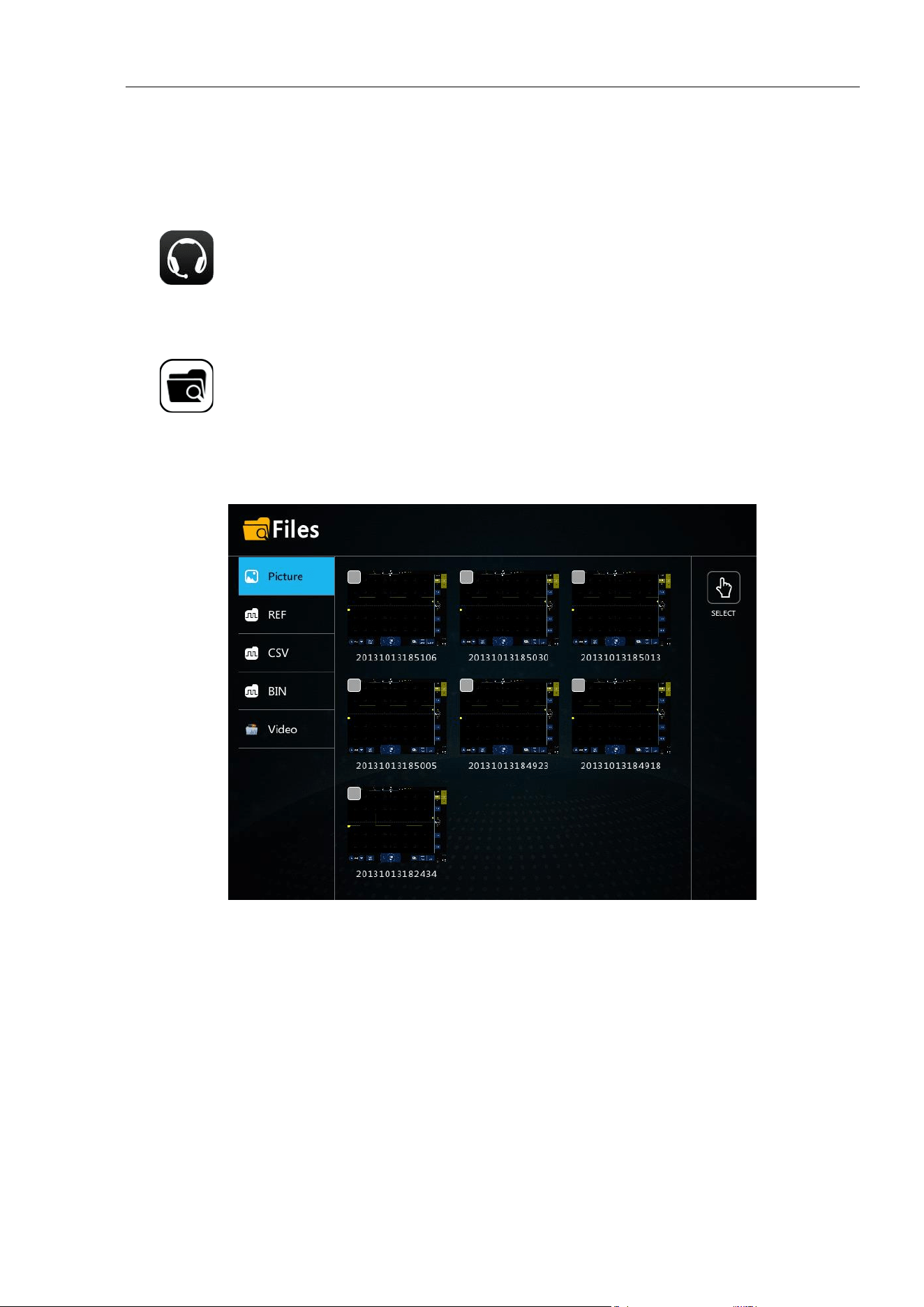
Chapter 11 Homepage Functions
103
11.1 Oscilloscope (see Chapters 2~13)
11.2 Contact us
Tap on the home page to find out the contact information of MICSIG.
11.3 File Manager
Tap on the home page to enter the file manager interface. The file format includes picture, ref (reference
waveform), CSV, bin and video. When the U disk is not inserted, the local file will be displayed; when the U disk
is inserted, the "local" and "U disk" soft keys will appear. Tap to select and manage the files in the "local" or "U
disk". The functions of naming, deleting and exporting can be realized.
Figure 11-2 File Manager
picture
Tap "picture" to open the picture list and enter the picture management interface.
Tap the picture. The picture is selected. Click again to cancel the selection. If you select a single picture file, you
can delete and rename the picture file. When you insert a U disk, you can export the file to the U disk. If you
select multiple picture files, you can delete the file. When you insert a U disk, you can export the file to the U
disk.
Tap the "select all" button on the right, quickly select all picture files, click again to cancel the selection, delete
the files in all selected status, and export the files to the U disk when inserting the U disk.
REF, CSV, BIN and Video files
File management is the same as picture file
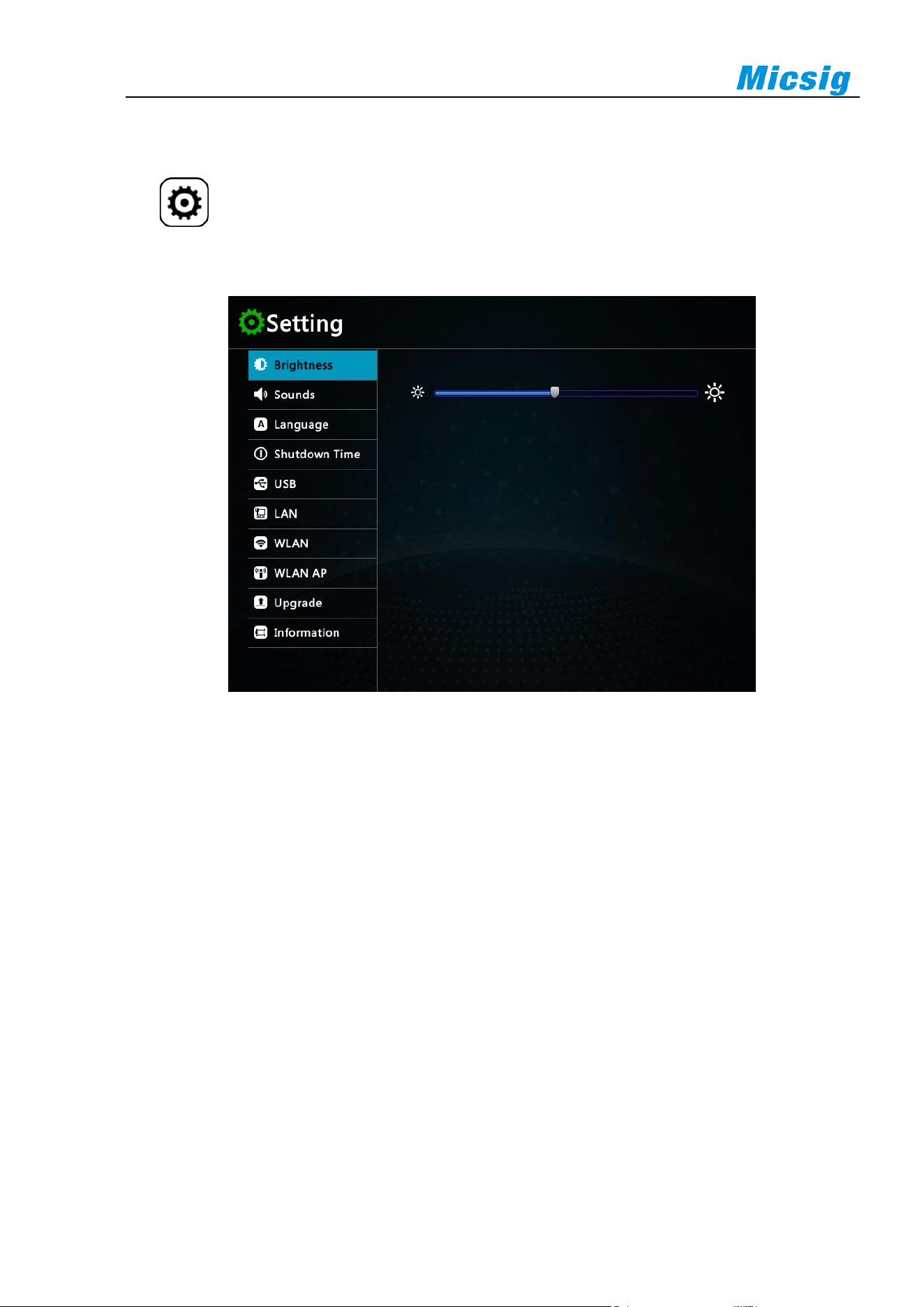
104
11.4 Settings
Tap in the homepage to enter the system setting interface. The setting interface includes brightness,
SOUNDS, language, shutdown time, USB, LAN, WLAN, WLAN AP, upgrade and INFORMATION.
The system setting interface is shown in Figure 11-3.
Figure 11-3 System setting interface
Brightness
Brightness adjustment method: adjust the brightness of the screen display, drag the "Brightness" display bar, and
the screen brightness will change accordingly.
Sounds
Volume adjustment method: adjust the volume of the prompt tone, drag the "volume" display bar, and the soft
key and power on music sound will change accordingly.
Language
The oscilloscope supports multi language display, including simplified Chinese and English.
Shutdown time
Tap the shutdown time display bar to set the shutdown time. If there is no operation within the set shutdown time,
the oscilloscope will automatically shut down. If the oscilloscope is operated within the shutdown time, the
system will start to calculate the shutdown time again, and will not shut down automatically until the requirements
are met.
Adjustment range of standby time: invalid, 1-60min.
USB
When the USB cable is used to connect the oscilloscope and PC for the first time, the PC will pop up the prompt
of installing the driver. Only after the driver is installed correctly can the oscilloscope exchange information with
the computer. After installing the driver, modify the USB connection mode to achieve different effects:
1) USB connection: after the USB connection is selected, the host computer software can be used to update the
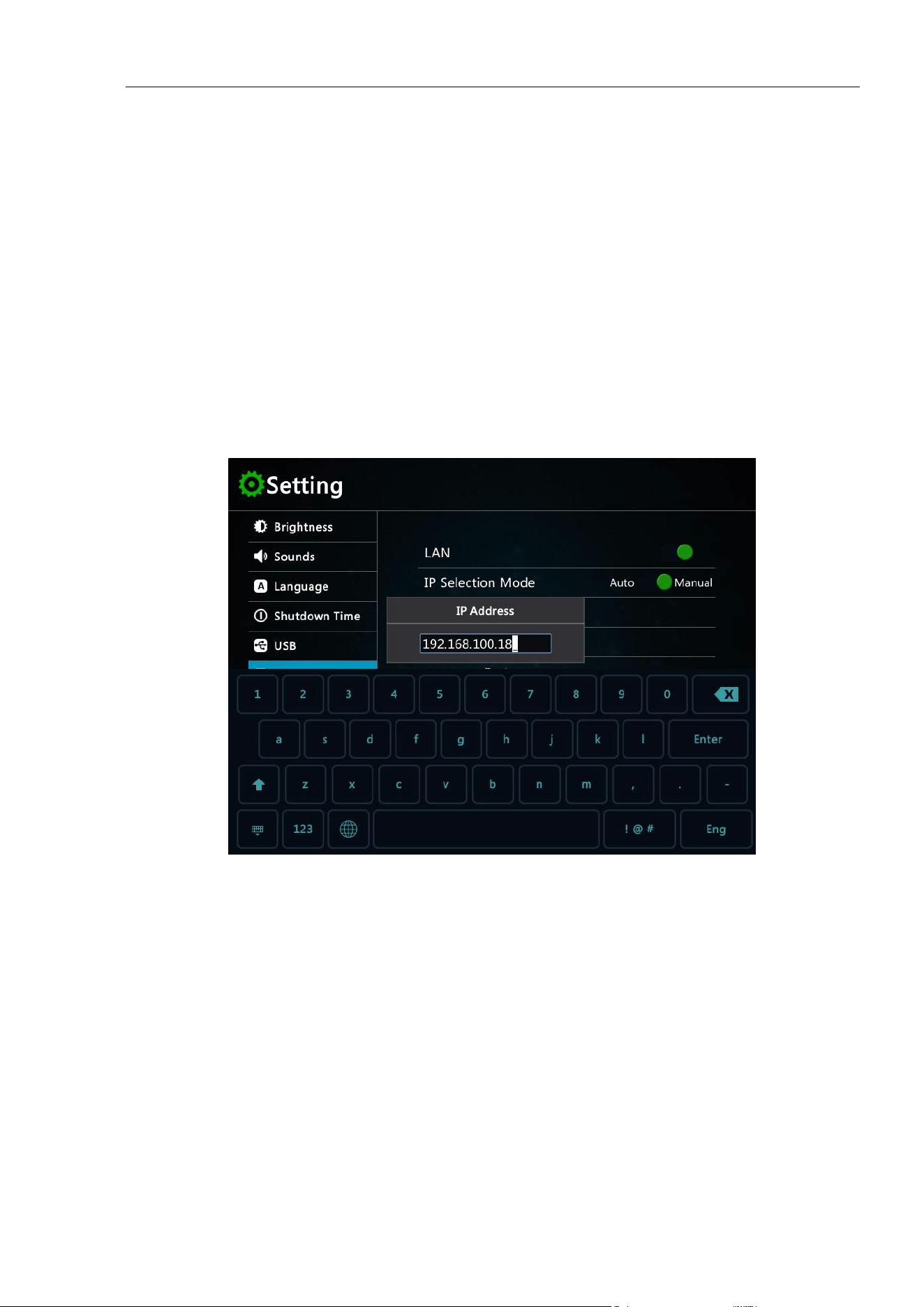
Chapter 11 Homepage Functions
105
oscilloscope program and write the oscilloscope information.
2) USB storage device: the oscilloscope can be used as a USB storage device. After connecting with the computer,
the files in the oscilloscope can be viewed, modified, deleted, and stored in the oscilloscope at the same time.
LAN
The oscilloscope provides LAN port. Through wired connection, the oscilloscope can be connected to the
network. After the LAN connection is set, the online upgrade can be carried out through the network, the internal
files of the oscilloscope can be accessed through FTP, and the web interface of the oscilloscope can be accessed.
Establishing a LAN connection
Automatic configuration
Select "automatic" for IP acquisition mode. Oscilloscope automatically obtains IP address, subnet mask,
gateway IP and DNS IP.
Manual configuration
Select "static" for IP acquisition mode. Click the IP address input box, pop up the virtual keyboard, and
manually enter the IP address, subnet mask, gateway IP and DNS IP values.
Figure 11-4 LAN Connection Setting
WLAN connection
Tap WiFi icon to enter WLAN setting interface.
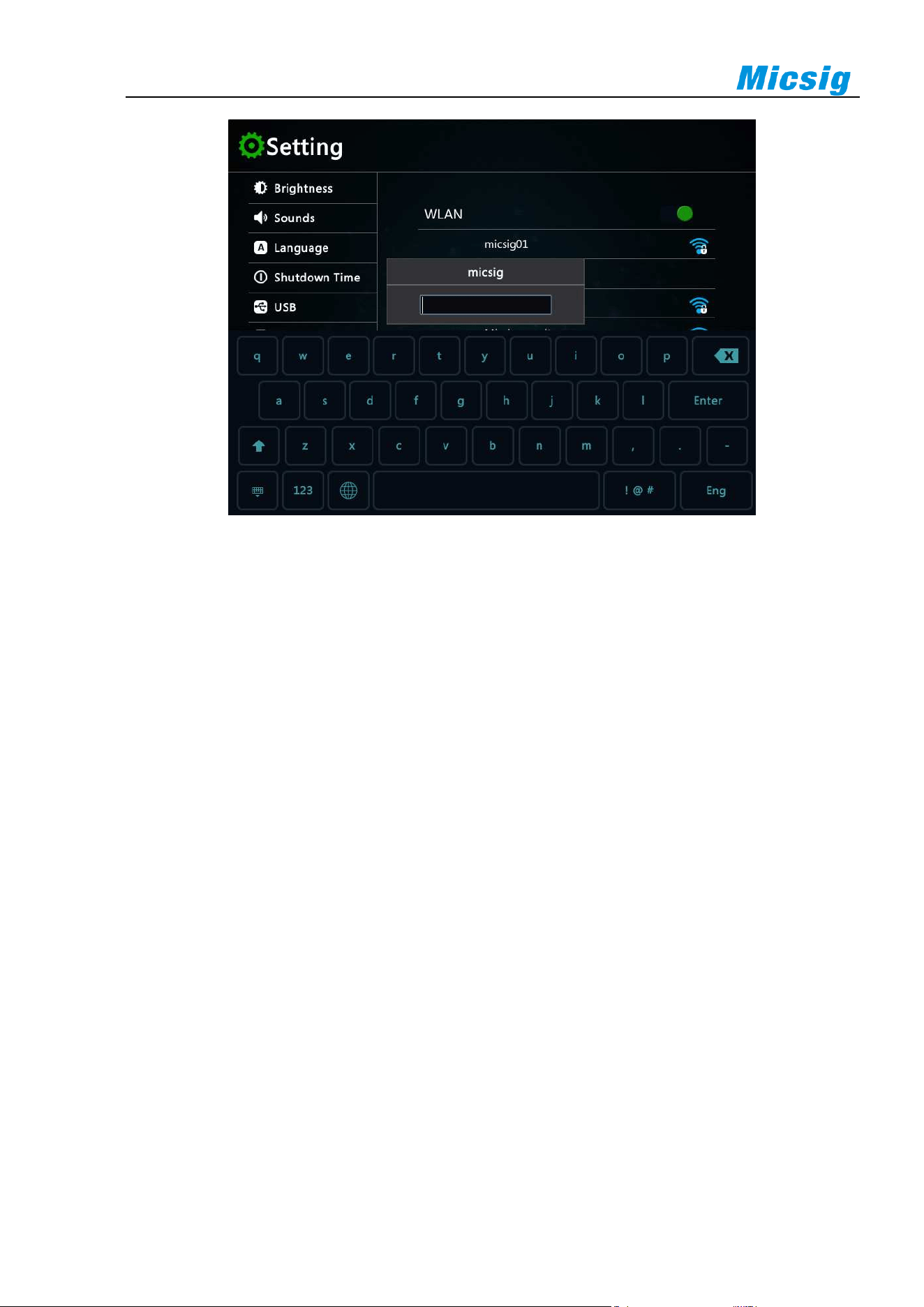
106
Figure 11-5 WLAN Connection Setting
Tap the upper right switch to turn on the WLAN function. The oscilloscope automatically scans the surrounding
wireless network and displays the name of the surrounding wireless network according to the list.
Tap the wireless network you need to connect, and the password input box will pop up. After entering the
password with the virtual keyboard, tap enter to connect, and the oscilloscope is connected to the wireless network.
Automatic configuration
Select "automatic" for IP acquisition mode. Oscilloscope automatically obtains IP address, subnet mask,
gateway IP and DNS IP.
Manual configuration
The steps of network setting are:
1) Set the IP address. The IP address should be set in the same network segment as the current network and
cannot be duplicate.
2) Set the subnet mask, which is generally the default and does not need to be set manually.
3) Set the gateway to be consistent with the routing gateway of the current network.
4) Set DNS to be consistent with the routing gateway of the current network.
WLAN AP
Tap the hotspot icon to enter the WLAN AP setting interface.
Tap the switch in the upper right corner to turn on the hotspot function.
Tap the hotspot name and password setting input box, use the virtual keyboard to enter the hotspot name and
password for setting, and other devices can share the oscilloscope file by connecting the oscilloscope hotspot.
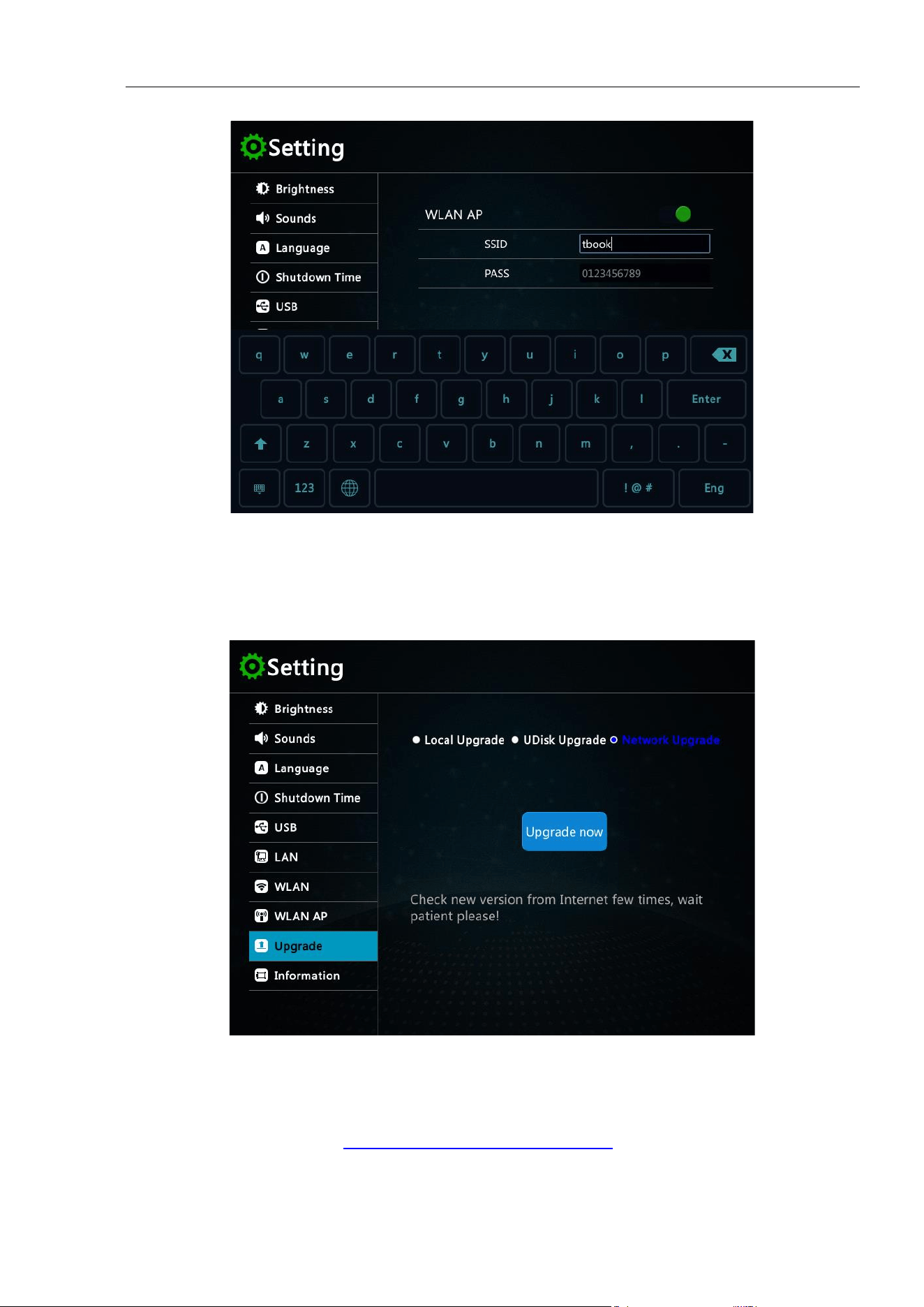
Chapter 11 Homepage Functions
107
Figure 11-6 WLAN AP Setting
Upgrade
Tap the upgrade icon to enter the upgrade options interface, which supports multiple upgrade modes, including
local upgrade, U-disk upgrade and online upgrade.
Figure 11-7 Upgrade
Local upgrade
1) Contact micsig company or download the relevant upgrade package from the website (the latest upgrade
package download address:
http://www.micsig.com/html/list_60.html).
2) Use USB cable to connect oscilloscope and PC.
108
3) In the setting and select USB option as USB storage device (refer to "USB option" in "setting") to store
the upgrade package in oscilloscope.
4) Change the USB option to USB connect.
5) Click "upgrade" in settings → upgrade to enter the upgrade interface, which is displayed as local upgrade.
6) Click "upgrade" to start the upgrade, and restart automatically after the upgrade.
U disk upgrade
1) Contact micsig company or download the relevant upgrade package from the website (the latest upgrade
package download address:
http://www.micsig.com/html/list_60.html).
2) Unzip the upgrade package and store it in the root directory of the U disk.
3) Connect the USB disk to the USB port of the oscilloscope. When the oscilloscope detects the upgrade
program, the upgrade interface pops up.
4) Click "upgrade" in settings → upgrade to enter the upgrade interface, click "upgrade" to start the upgrade,
and restart automatically after the upgrade.
Online upgrade
1) In the networking state, click "upgrade now" to check the update;
2) Click download upgrade package;
3) Click "upgrade" to start the upgrade, and restart automatically after the upgrade.
Note:
1) In the upgrade interface, if you don't want to upgrade the program, you can click home or return to exit.
2) When upgrading the program, it is necessary to ensure that the oscilloscope has sufficient power; if the
power is insufficient, a prompt box will pop up by taping .
Figure 11-8 Low battery power
Information
In the information interface, you can view the machine model, bandwidth, serial number, version info, delivery
date, installed option information, open the virtual keyboard, enter the license to open the corresponding option
function.
Chapter 11 Homepage Functions
109
The installable options include: 28m storage depth, HDMI, vertical scale 500uv, automatic range, frequency
meter, WLAN, warranty (5 / 8 / 10 years), etc.
If you need the optional function service, please contact Micsig for license and enter the install option function
at the license bar.
11.5 Quickguide
Tap on the home interface to view the quick guide of the oscilloscope, and turn the page by sliding left
and right.
Figure 11-9 Quick Guide
11.6 Photo
Tap in the homepage interface to enter the picture viewing interface.
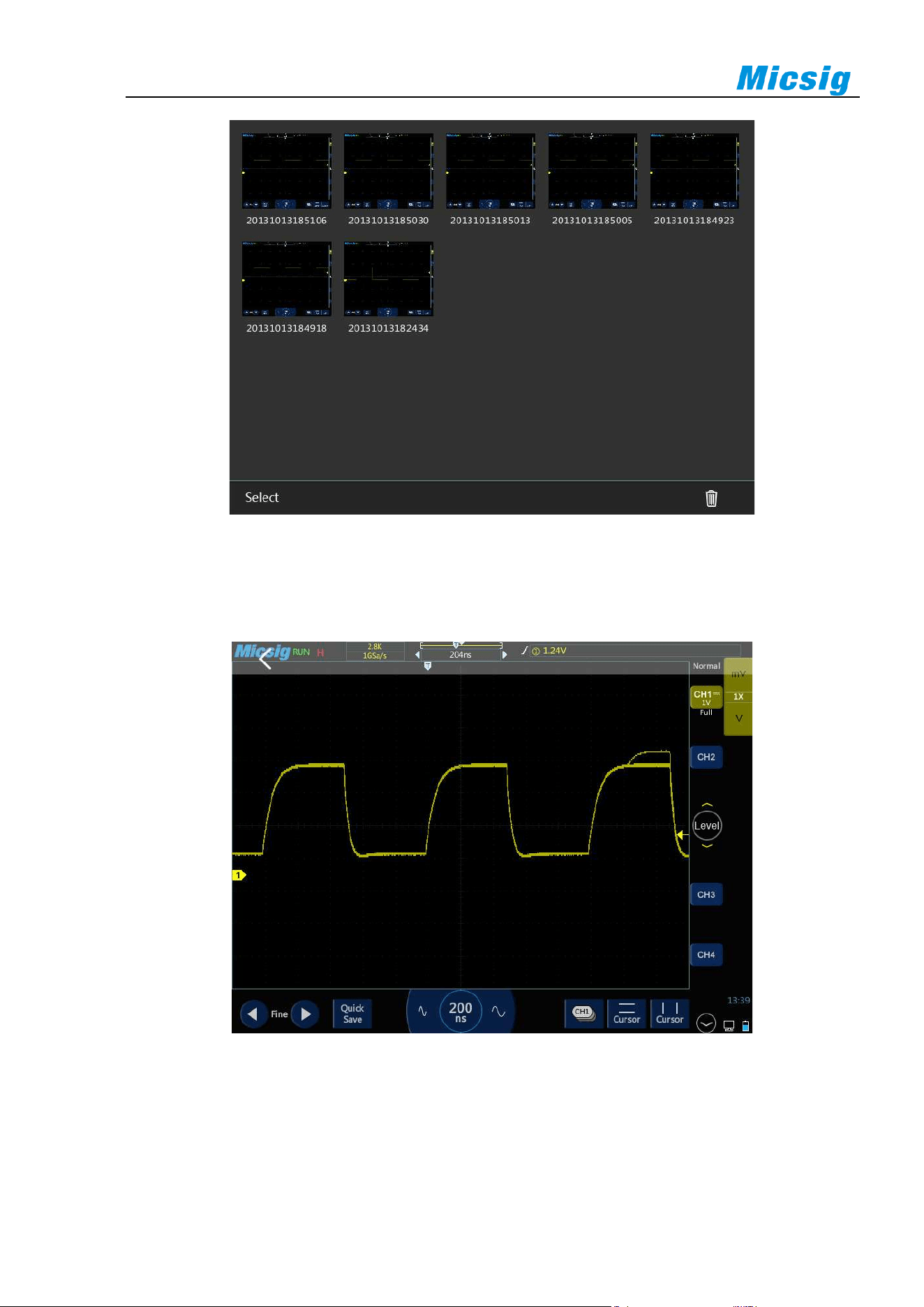
110
Figure 11-10 Picture Viewing Interface
In the picture viewing interface, the picture can be displayed in full screen. When the full screen is displayed,
drag the picture left and right to view the previous and next picture. Tap the return key to exit the full screen
display.
Figure 11-11 Picture Full Screen Viewing Interface
In the picture viewing interface, tap the "select" button at the bottom of the screen, click the picture to select the
picture, and "√" will be displayed on the left side of the picture, and click the trash can icon at the bottom right
corner of the screen to delete the picture.
After the U disk is connected to the oscilloscope, if there are pictures in the U disk, the pictures in the U disk will
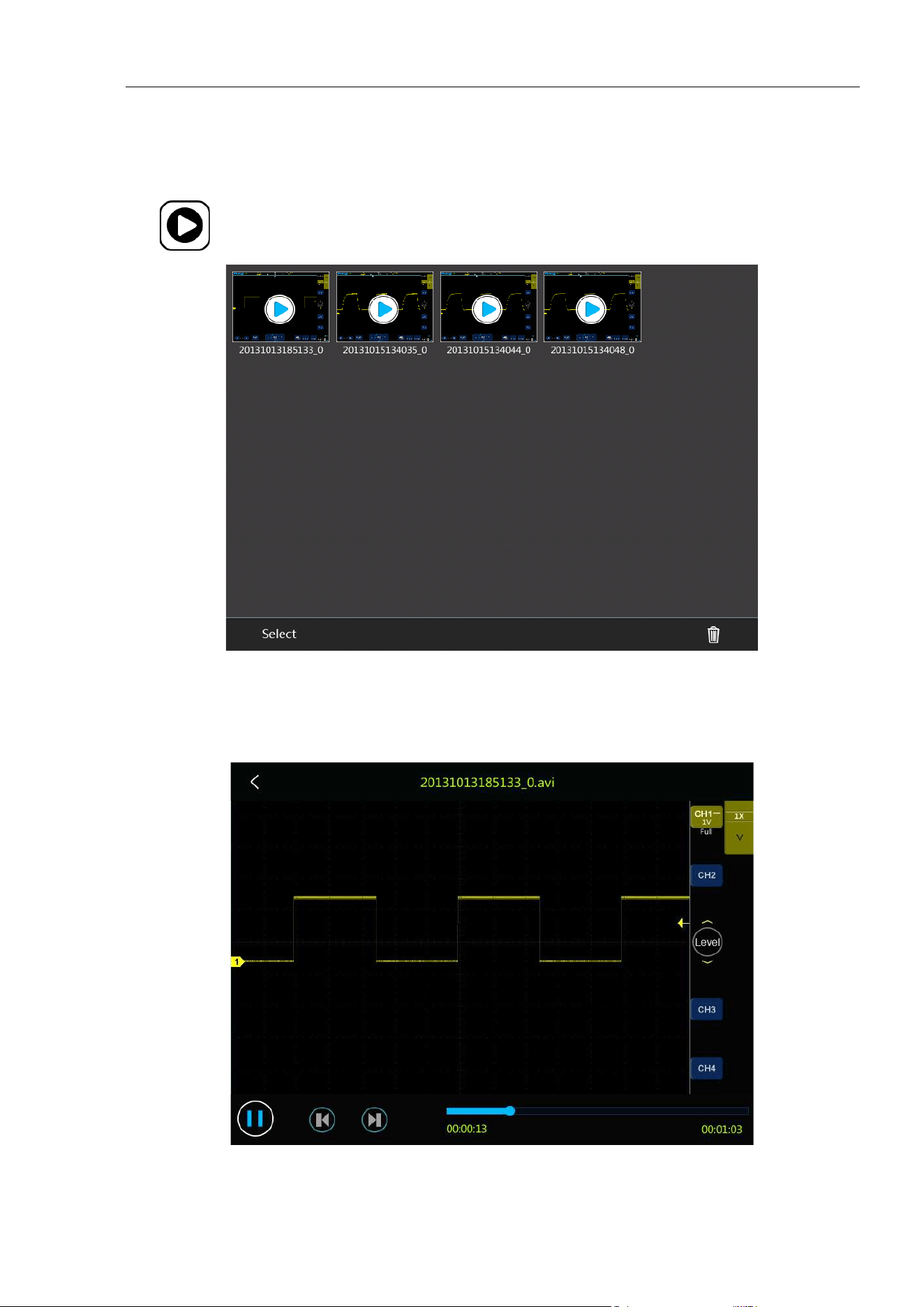
Chapter 11 Homepage Functions
111
be automatically displayed in the picture viewing interface.
11.7 Video
Tap in the homepage interface to enter the video viewing interface.
Figure 11-12 Video Viewing Interface
In the video viewing interface, tap video to play back the selected video file, and click return to exit playback.
During video playback, you can pause and quickly switch to the previous video and the next video through the
shortcut key.
Figure 11-13 Video Playback Interface
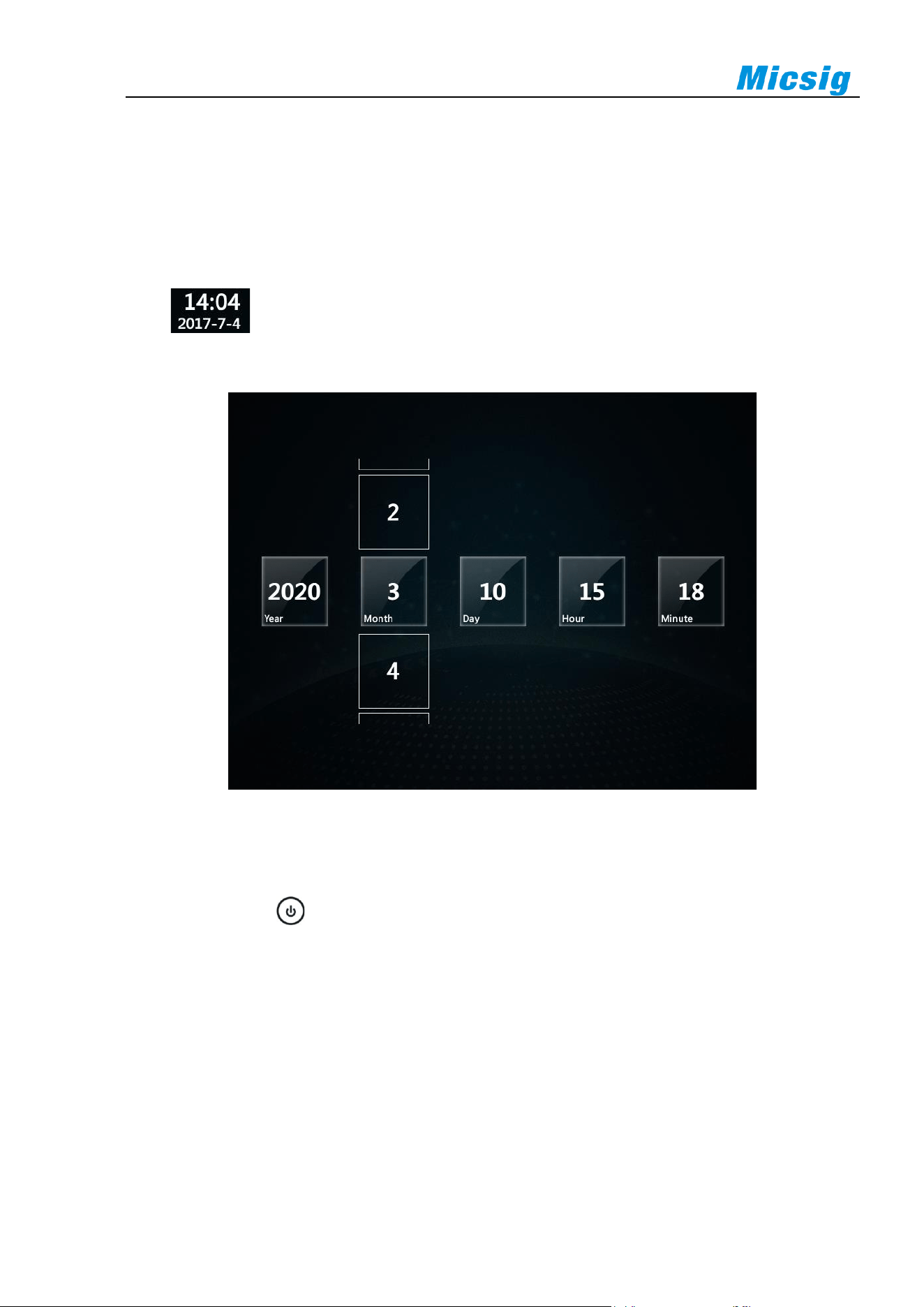
112
In the video viewing interface, tap the "select" button at the bottom of the screen, click the video to select it, and
"√" will be displayed on the left side of the video, and click the trash can icon at the bottom right corner of the
screen to delete the video.
After connecting the U disk to the oscilloscope, if there are videos in the U disk, the videos in the U disk will be
automatically displayed in the video viewing interface.
11.8 Time
Click on the homepage to enter the system time setting interface. Click the time item to be adjusted
and drag it up and down to adjust the time. After setting, the time displayed on the homepage and oscilloscope
interface will be updated to the set time synchronously.
Figure 11-14 Time Setting
11.9 Shutdown
、Lock Screen and Unlock
Press the side button to enter the shutdown interface. Shutdown includes 4 options: shutdown, restart,
screen lock or unlocking.
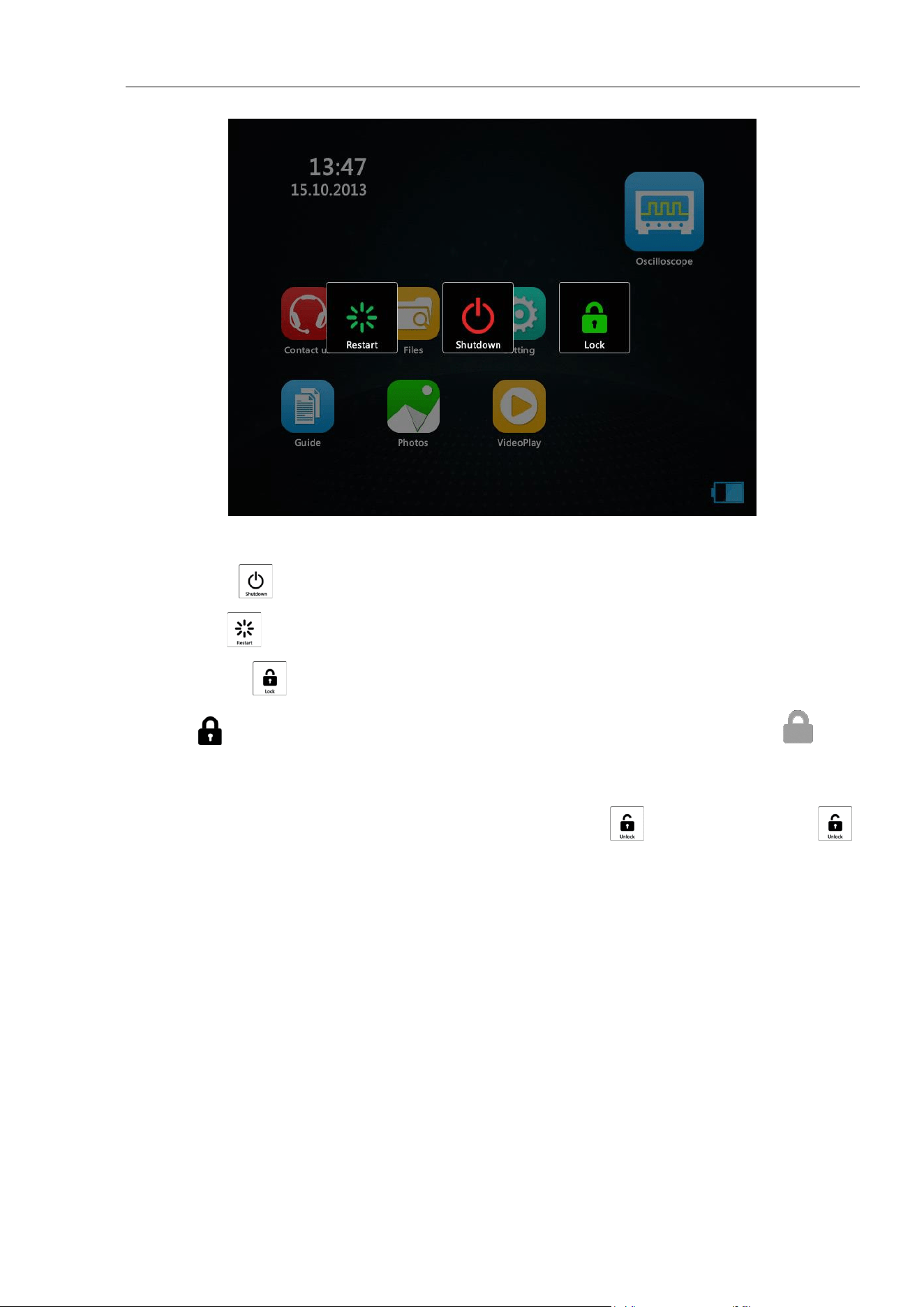
Chapter 11 Homepage Functions
113
Figure 11-14 Shutdown Interface
Shut down: tap to shutdown the oscilloscope.
Restart: click to restart the oscilloscope.
Lock screen: tap , the oscilloscope screen will be locked, and the upper right corner of the screen is
displayed . No other operation is allowed except shutdown, and restart. It will be displayed when
clicking, and disappear after 1 second.
When using the mouse, the screen will lock and the touch screen will fail unless it is unlocked.
Unlocking: After the screen is locked, click the power button on the right, will appear, and then tap ,
the oscilloscope screen will be unlocked.
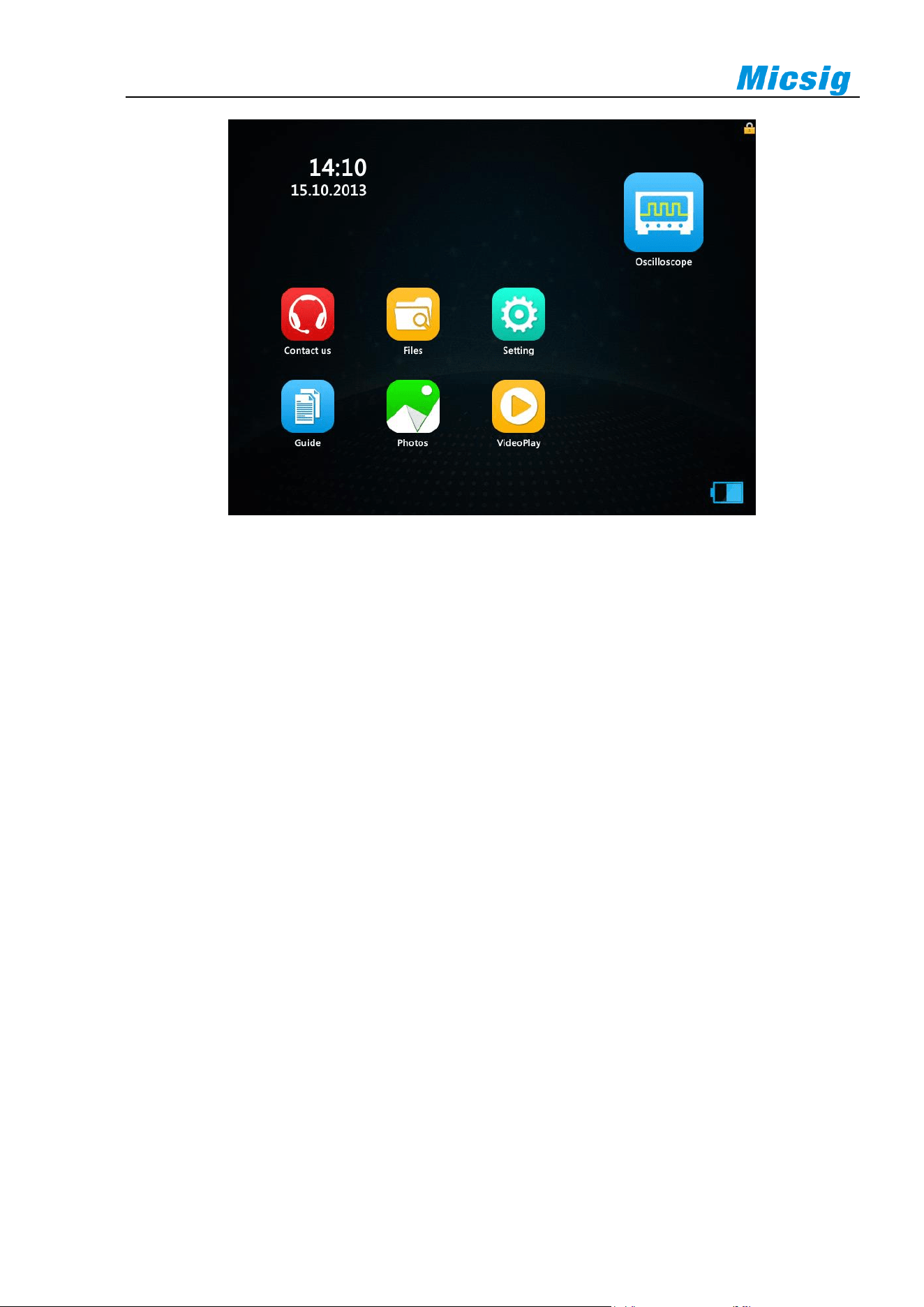
114
Figure 11-15 Locking Interface
Chapter 12 Serial Bus Trigger and Decode (Optional)
115
Chapter 12 Serial Bus Trigger and Decode
(Optional)
This chapter contains the detailed information of serial bus decoding. You are recommended to read this chapter
carefully to understand the setting and operation of tBook mini series bus trigger and decode.
This chapter mainly include the below contents:
⚫ UART (RS232/RS422/RS485) bus trigger and decode
⚫ LIN bus trigger and decode
⚫ CAN bus trigger and decode
⚫ SPI bus trigger and decode
⚫ I2C bus trigger and decode
⚫ ARINC429 bus trigger and decode
⚫ 1553B bus trigger and decode
Press in the lower right corner to switch to decode channels , tap or to
enable decoding, open bus configuration menu, select bus type, there are seven bus types: UART
(RS232/RS422/RS485), LIN, CAN, SPI, I2C, ARINC429, 1553B, where channels and can be
used for decoding simultaneously. Open the trigger setting menu, choose an appropriate trigger type, the
corresponding bus trigger type and trigger mode can be set when the bus trigger is selected, and the serial bus is
displayed in graphic form.
In the serial bus decode mode, if it is screen rolling in other modes, the time base is automatically adjusted to
1ms when switching to serial decode (the maximum time base supported by the serial decode mode is 100ms);
in Zoom mode, the enlarged signal can be decoded and displayed. The normal display window supports a
maximum time base of 100ms. When decoding is enabled, clicking “AUTO” will set the trigger type to be the
same as the decode channel bus type. The bus type selection menu is shown in Figure 12-1:
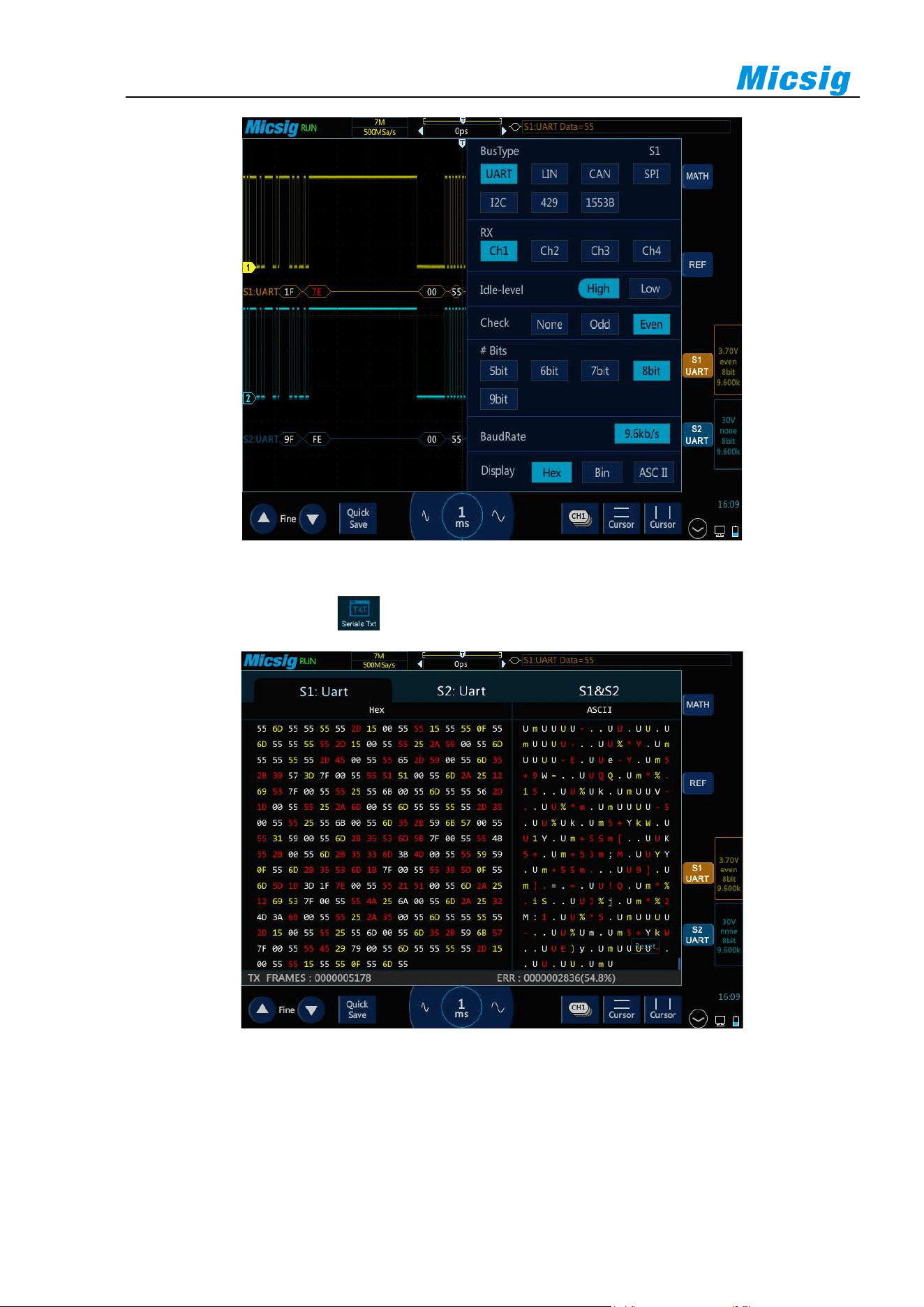
116
Figure 12-1 Bus Type Selection Menu
Open the pull-up menu and tap key to open or close the text mode, as shown in Figure 12-2.
Figure 12-2 Bus Decode Text Mode
Description:
Two decode channels S1&S2 in the text interface must be configured identically to be opened, and each channel
is displayed in chronological order with different colors;
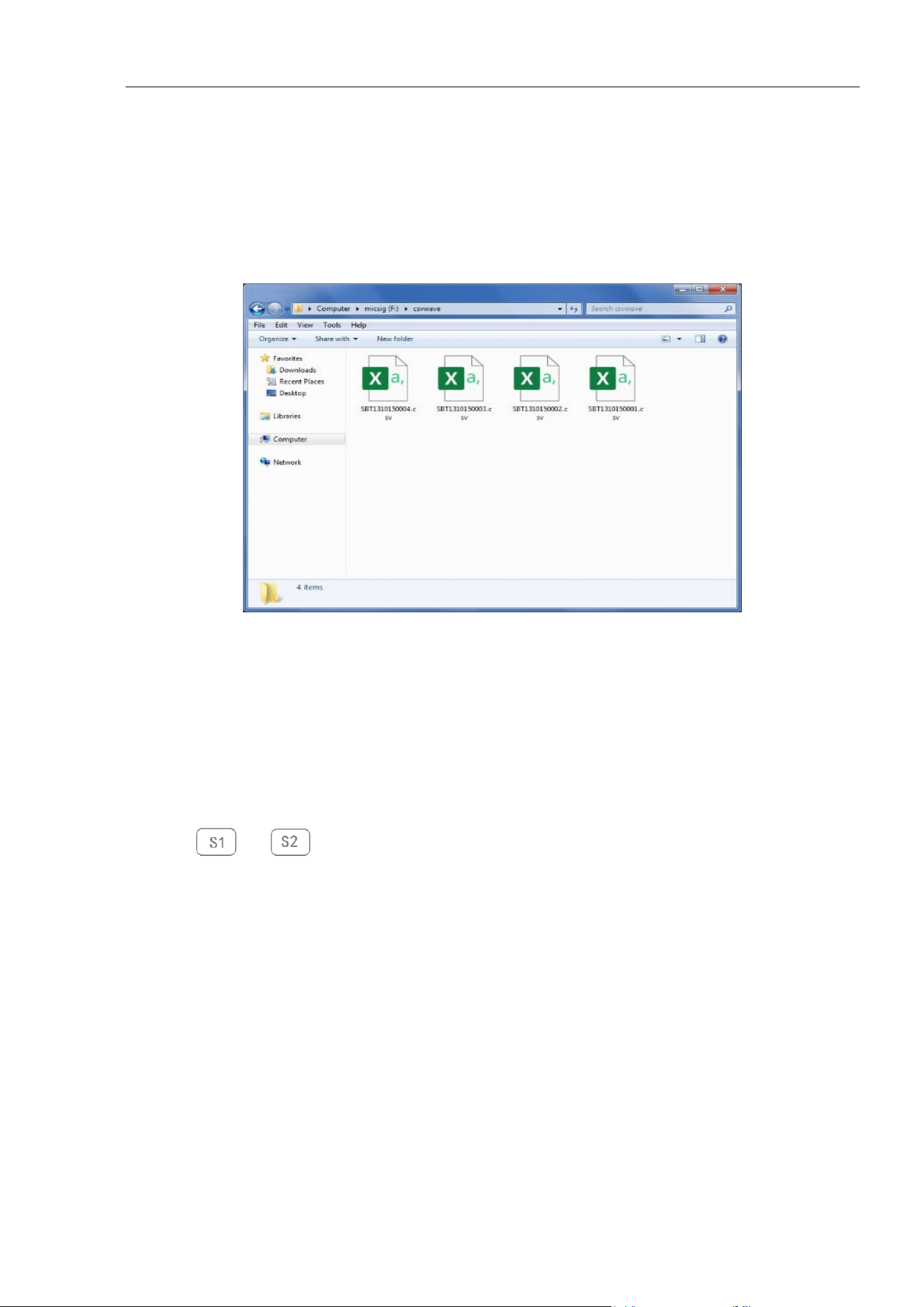
Chapter 12 Serial Bus Trigger and Decode (Optional)
117
S1/S2/S1&S2 are the channel configuration bus information, and X knob is rotated or the label is switched to
change the bus channel;
Clicking save during the text acquisition process can save all currently acquired data. If the date volume is too
large, “wait” will be displayed, and the save success prompt will be displayed.
Oscilloscope can be used as a USB storage device to view saved files on a computer, as shown in Figure 12-3:
Figure 12-3 Bus Text Storage Files
12.1 UART (RS232/RS422/RS485) Bus Trigger and Decode
For correctly decoding UART(RS232/RS422/RS485) bus data and making trigger stable, the bus configuration,
trigger mode setting and trigger level need to be adjusted.
⚫ Bus configuration
Tap or to open the bus configuration menu, as shown in Figure 12-4. The RX channel must
be chosen and the following parameters must be set according to measured signals:
Idle-level — Choose Idle Low or Idle High to match the idle state of measured equipment. For RS232, Idle
Low may be chosen.
Note: RS232 industry standard uses “negative logic”, namely high level is logic “0” and low level is
logic “1”.
Check — Choose odd, even or none depending on measured equipment.
#Bits — Set the number of bits in UART word to match measured equipment (5-9 bits available).
BaudRate — Choose the baud rate that matches signal in measured equipment.
The baud rate can be set within the range from 1.2Kb/S to 8.000Mb/S.
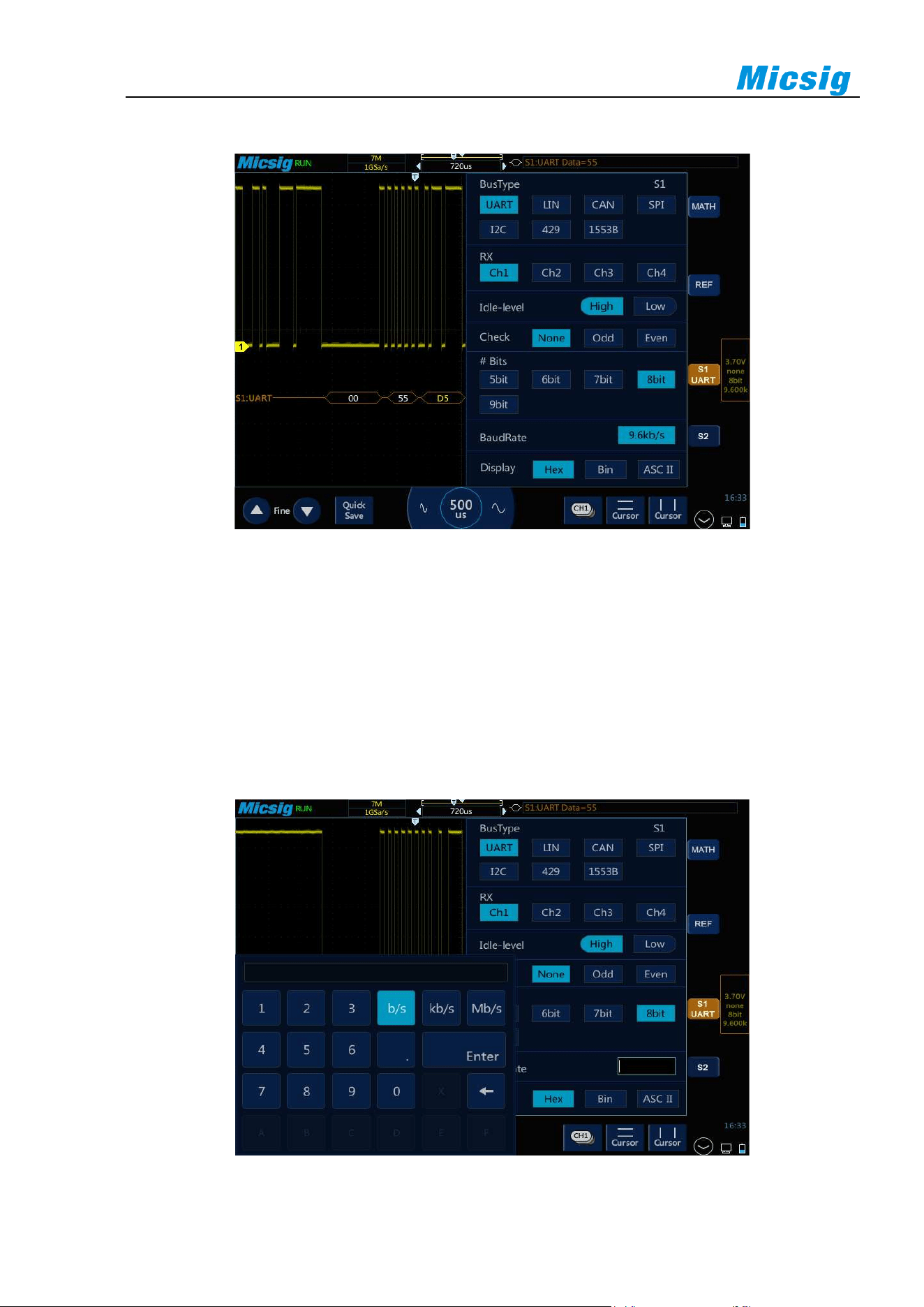
118
Display — Choose hexadecimal, binary or ASCII code display.
Figure 12-4 UART Bus Configuration Menu
When word is displayed in ASCII, 7-bit ASCII format is used. Valid ASCII characters are between 0x00 and
0x7F. To display in ASCII, at least 7 bits in the “#Bits” must be chosen. If ASCII is chosen and the data
exceeds 0x7F, the data will be displayed in hexadecimal.
Click the baud rate setting box to open the baud rate selection column. If Custom is chosen, click to pop up
the virtual soft keyboard, select the bit to be modified, enter value, and click “Enter” on the virtual soft
keyboard to complete setting. The baud rate can be set from 1.2Kb/S to 8.000Mb/S. The virtual soft keyboard
is shown in Figure 12-5:
Figure 12-5 Baud Rate Default Setting
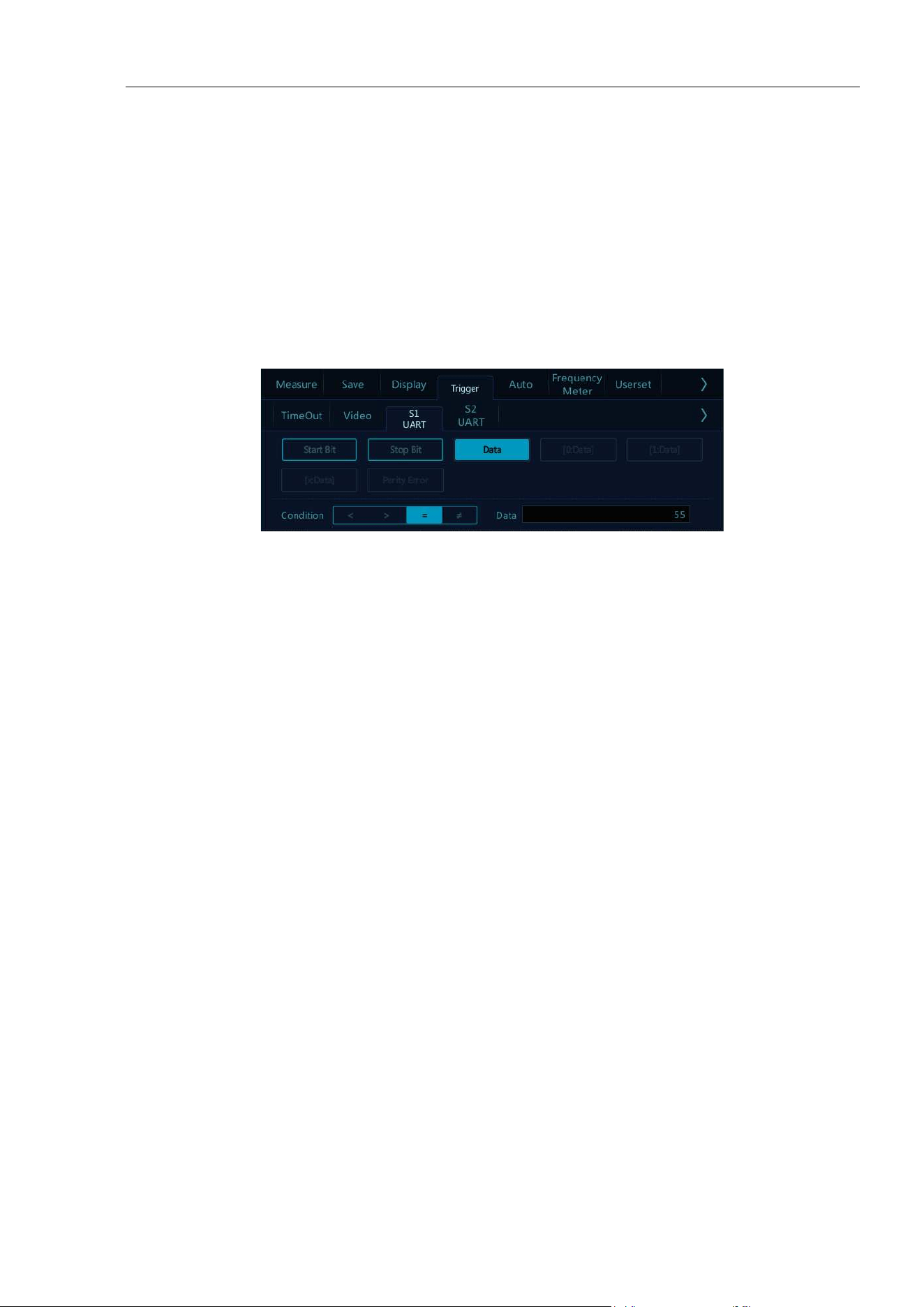
Chapter 12 Serial Bus Trigger and Decode (Optional)
119
Note: When there is parity bit, the data word length indicates the total length of data bit plus parity
bit. When there is no parity bit, the data word length is considered to be the length of data bit. For
example, if the data word length is 8bit, when there is no parity bit, it means that the total length of
data bits is 8bit; when there is parity bit, it means that the total length of data bits is 7bit, and there is
parity bit of 1 bit.
⚫ Trigger mode
Open the trigger configuration menu and select the appropriate trigger type; when choosing UART bus
trigger, the trigger type, trigger relationship and trigger data need to be set, as shown in Figure 12-6:
Figure 12-6 Trigger Setting Menu
After selecting the trigger data, use the pop-up virtual keyboard to modify it, enter the value, and click
“Enter” on the virtual soft keyboard to complete the setting.
UART trigger configuration menu description:
a) Start bit — trigger at the start bit of the measured signal;
b) Stop bit — trigger at the stop bit of the measured signal, no matter the measured signal uses 1, 1.5, or
2 stop bits or not, the trigger will occur at the first stop bit.
c) [data] — Trigger at the specified data bit, when measured signal data bits are effective as 5 to 8bits,
select [data], and select the trigger relationship as” =“ “ >“ “ <“ “≠”, then select “Trigger Data”, press
data on the touch screen, and use the pop-up virtual keyboard to modify;
d) [0:data] — the measured signal data bits is 9bits (the 9th bit is parity bit). Only when the 9th bit is 0,
then trigger. The trigger relationship, trigger data configuration are the same as those of [data] trigger;
e) [1:data] — the measured signal data bits is 9bits (the 9th bit is parity bit). Only when the 9th bit is 1,
then trigger. The trigger relationship, trigger data configuration are the same as those of [data] trigger;
f) [x:data] — the measured signal data bits is 9bits (the 9th bit is parity bit). No matter what the value
of the 9th bit is, trigger at the designated data bit. The trigger relationship, trigger data configuration
are the same as those of [data] trigger;
g) Parity Error — valid when there is parity check at parity bit, trigger while parity error.
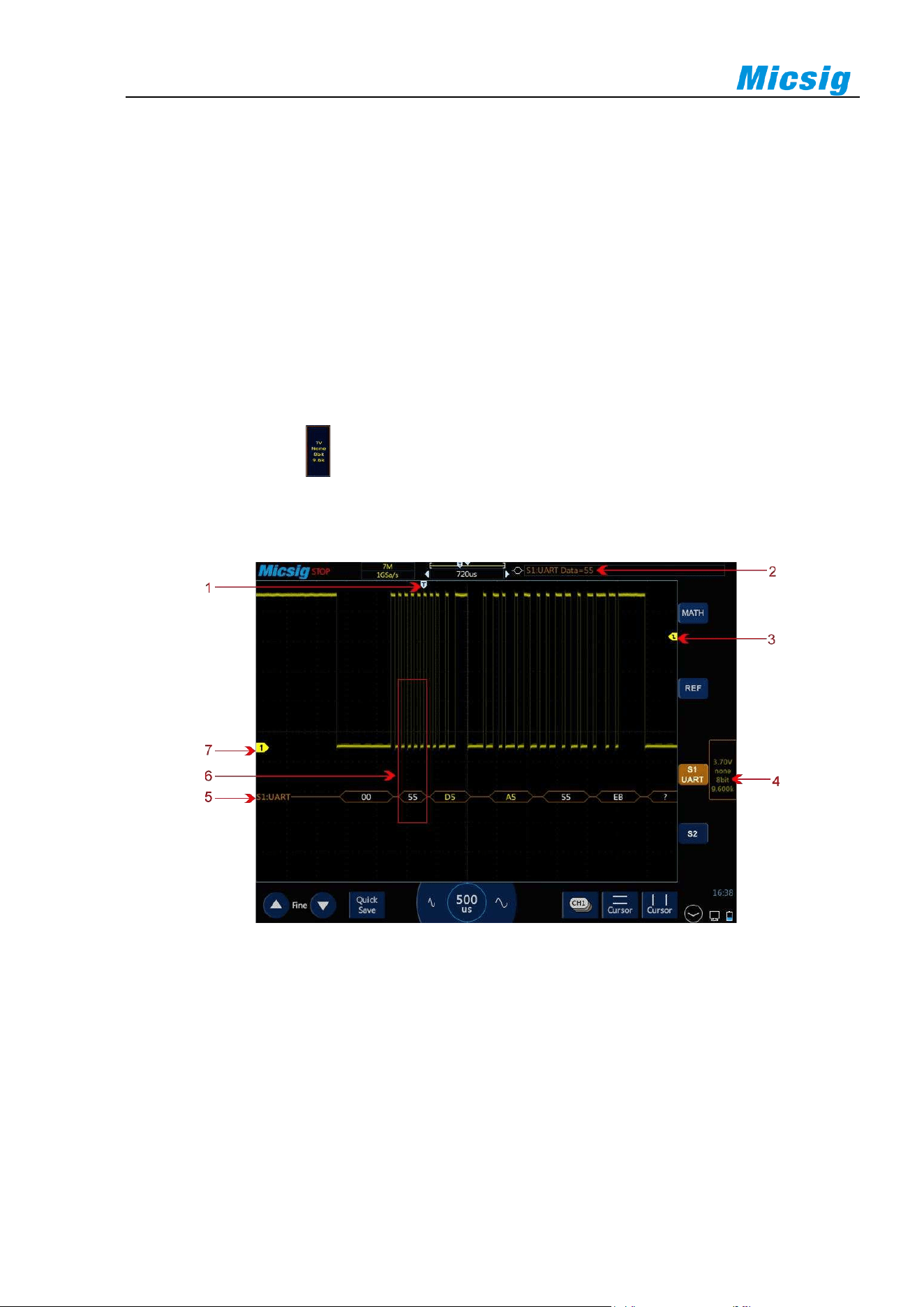
120
⚫ UART serial decode
The measured signal word length is 8bit; parity bit, none; baud rate, 19.2kb/s, hexadecimal; trigger mode
as data bit:55; follow the steps as below:
(1) Tap S1 to open the decode channel, and click S1 again to open the bus configuration menu;
(2) Select the bus type as “UART”, click “Ch1”, “Idle High”, “Check None”, “8bit”, “19.20kb/s”,
display “hexadecimal”, then close menu;
(3) Open the trigger mode setting menu, click “Data”, enter 55 manually, and press “enter” to confirm;
(4) Adjusting the threshold level according to the amplitude level of signal may make the signal to be
stably triggered. The UART trigger graphic interface is shown in Figure 12-8:
Method 1: Click configuration information to open the decode channel threshold level adjustment
box, and drag the adjustment box upward and downward to adjust the threshold level.
Figure 12-7 UART Graphic Interface
UART graphic interface description:
(1) Trigger position
(2) Trigger type
(3) Threshold level
(4) Configuration information
(5) Decode the data packet, detailed as follows
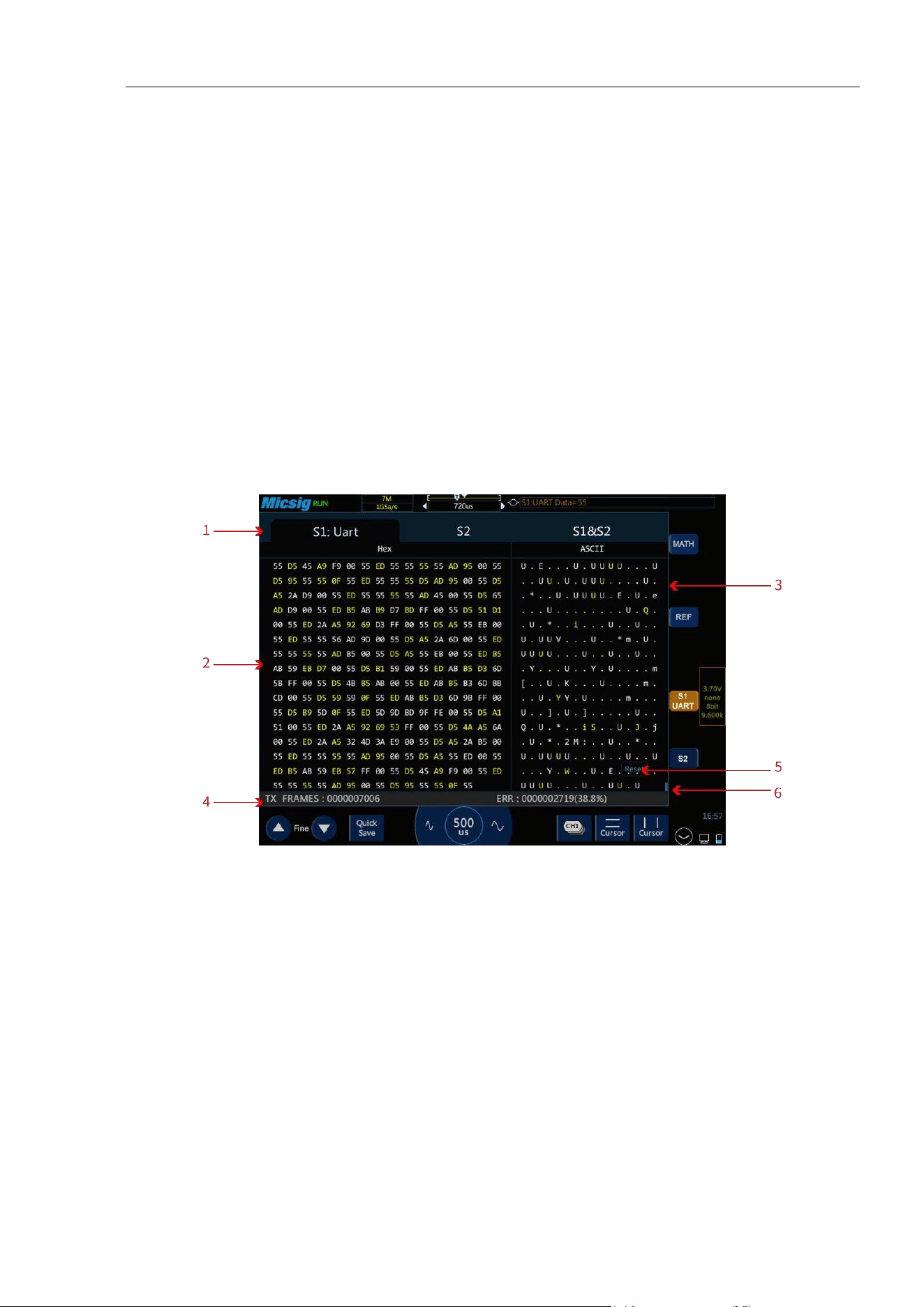
Chapter 12 Serial Bus Trigger and Decode (Optional)
121
(6) Decode data and the corresponding waveform area
(7) Signal source Ch1
UART decode data packet description:
(1) Decode data packet displays real-time data about the bus activities;
(2) Decode data displays as hexadecimal system in white;
(3) When the word length is 5-8 bits, the decode data displays as two bits of hexadecimal; when the word
length is 9 bits, the decode data displays as 3 bits of hexadecimal, and the 9th bit displays at the left
side;
(4) When there is error in decode data, if the error is at stop bit, the data displays in yellow, if it is parity
error, data displays in red;
(5) When “?” appears, the time base needs to be adjusted to view decode results.
Figure 12-8 UART Text Interface
UART text interface description, see Figure12-9:
(1) S1/S2/S1&S2 is channel configuration bus information.
(2) Area for decode data.
(3) ASCII code corresponding to the text data (when the data format is 9 bits and there is no parity bit,
ASCII code corresponds to lower 8 bits of data on the left side).
(4) Counter: Calculates the total number of frames and the percentage of ERR (parity error and stop bit
error) frames.
(5) Clear: Clear the counter data.
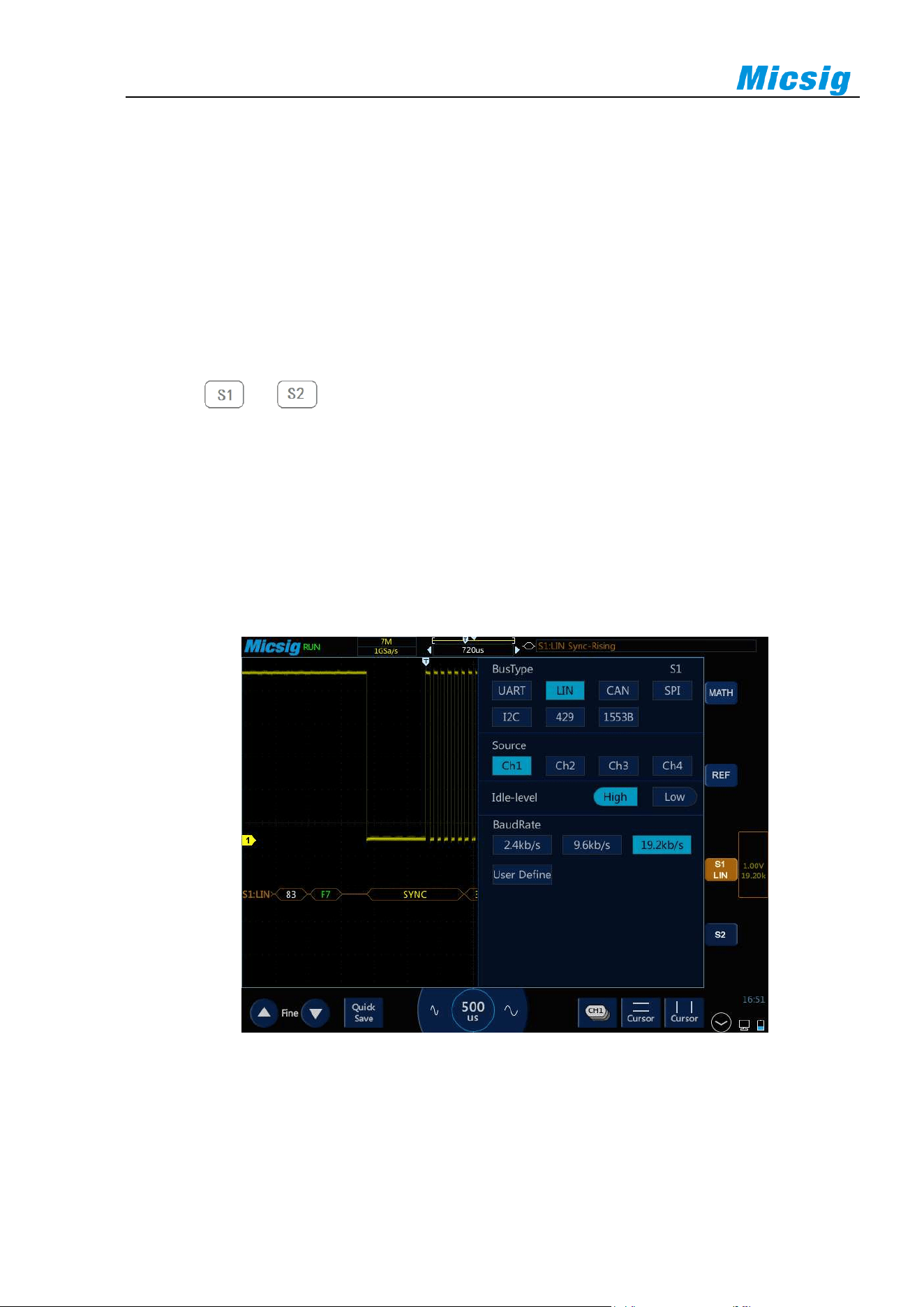
122
(6) Roller bar.
In the decode data area, the stop bit error data is displayed in yellow, and the decode error data is displayed
in red;
12.2 LIN Bus Trigger and Decode
For correctly decoding LIN bus data and making trigger stable, the bus configuration, trigger mode set and trigger
level need to be adjusted.
⚫ Bus configuration
Press or to open the bus configuration menu, and the following need to be set according to
measured signal:
Source — Select the signal source of decode.
Idle-level - high and low. Select whether to display high active or low active after the signal start bit of
measured equipment.
BaudRate — Select the baud rate that matches the signal being measured, and it can be customized.
The setting method is the same as that of UART, and will not be repeated here. As shown in Figure 12-10:
Figure 12-9 LIN Bus Configuration Menu
⚫ Trigger mode
Open the trigger configuration menu and select the appropriate trigger type. When the LIN bus trigger is
selected, the trigger mode includes: Sync-Rising, Frame ID, ID + Data. See Figure 12-11:
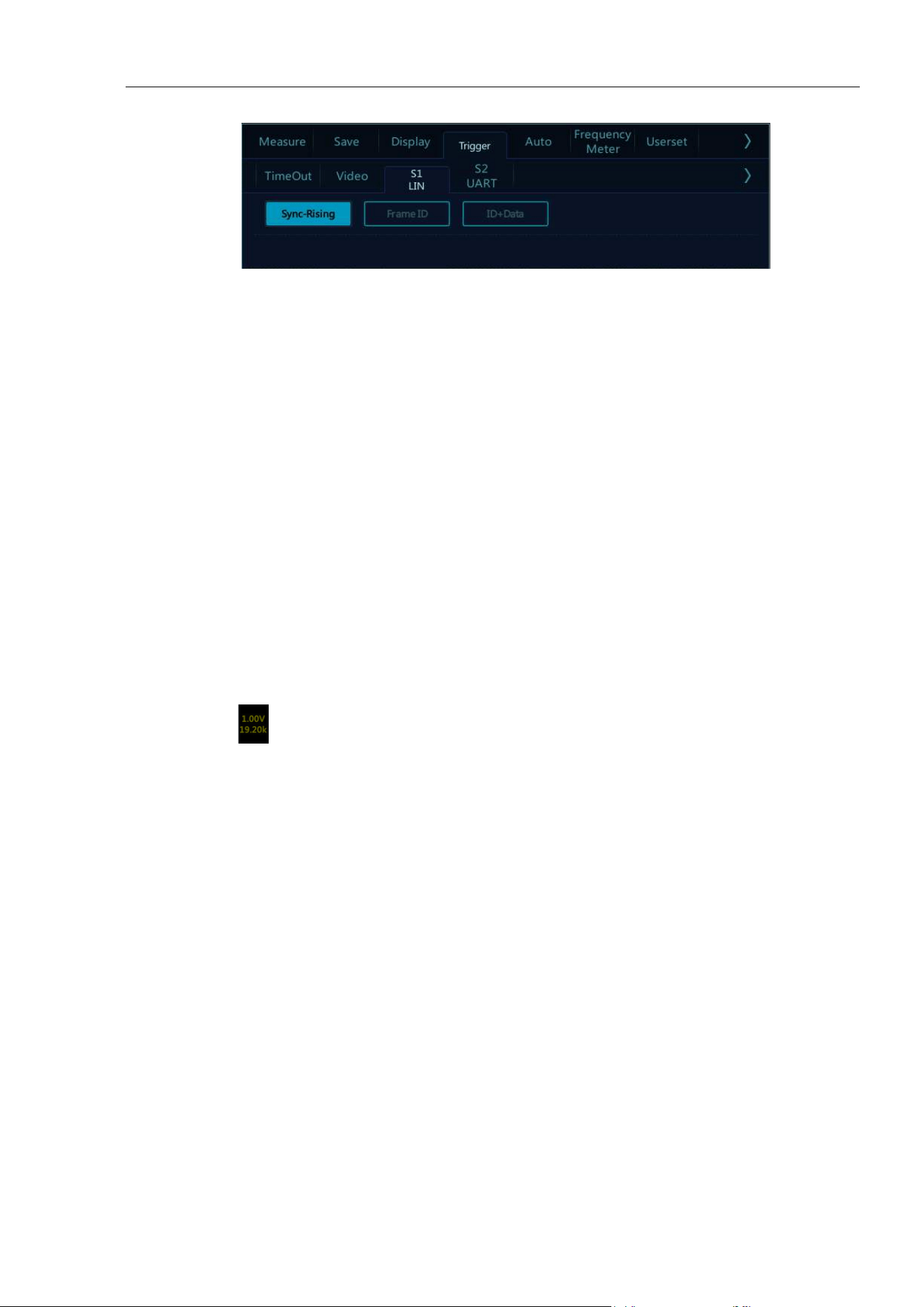
Chapter 12 Serial Bus Trigger and Decode (Optional)
123
Figure 12-10 LIN Trigger Mode Configuration Menu
a) Sync-Rising – When the “Sync Interval” of LIN bus ends, the rising edge triggers.
b) Frame ID — Triggered when a frame with an ID equal to the set value is detected. Select “Frame ID”,
click data on the touch screen, and use the pop-up virtual keyboard to modify it.
c) ID + Data—triggered when a frame with ID and data equal to the set value is detected. After selecting
“ID + Data”, click ID or data, and set them.
⚫ LIN serial decode
Ch1 is connected to measured signal. The idle level is high and the baud rate is 19.2 kb/s. The trigger mode
is synchronous rising edge. Please follow these steps:
(1) Tap S1 to open the decode channel, and click again to open the bus configuration menu;
(2) Select the bus type as “LIN”, click “Ch1”, “Idle High”, “19.20kb/s”, and then close the menu;
(3) Open the trigger mode configuration menu and click “Sync-Rising”;
(4) Click configuration information to open the decode channel threshold level adjustment box, and
drag the adjustment box upward and downward to adjust the threshold level; adjust the threshold level
according to the signal amplitude level to make the signal stably triggered. The LIN trigger graphic
interface is shown in Figure 12-12:
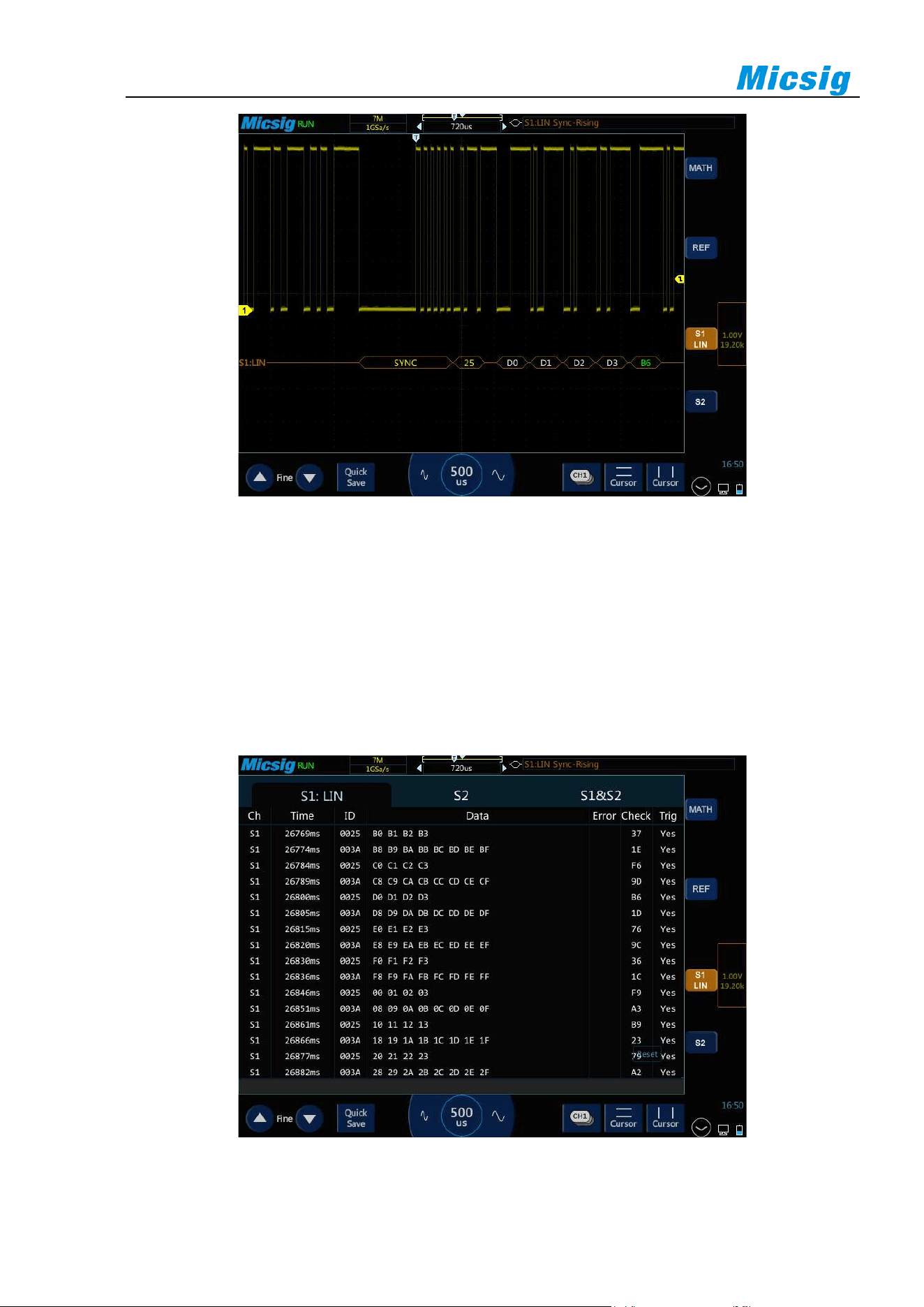
124
Figure 12-12 LIN Graphic Interface
LIN decode data packet description:
(1) Decode data packet displays real-time data about the bus activities.
(2) Decode data displays as hexadecimal system.
(3) “Frame ID” displays in yellow, “Data” displays in white, and “Parity sum” displays in green. If the
parity sum has error, it is displayed in red “E”.
(4) When “?” appears, the time base needs to be adjusted to view decode results.
Figure 12-13 LIN Text Interface

Chapter 12 Serial Bus Trigger and Decode (Optional)
125
LIN text interface description, as shown in Figure 12-13:
(1) “Ch”: bus channel.
(2) “Time”: Time intervals between the last frames to current frames.
(3) “ID”: Frame ID value.
(4) “Data”: Frame data.
(5) “Error Check”: Frame parity sum, the sum of parity error displays in red.
(6) “Trigger”: “Yes” means the frame reaches trigger condition.
(7) “Clear”: Clear counter data.
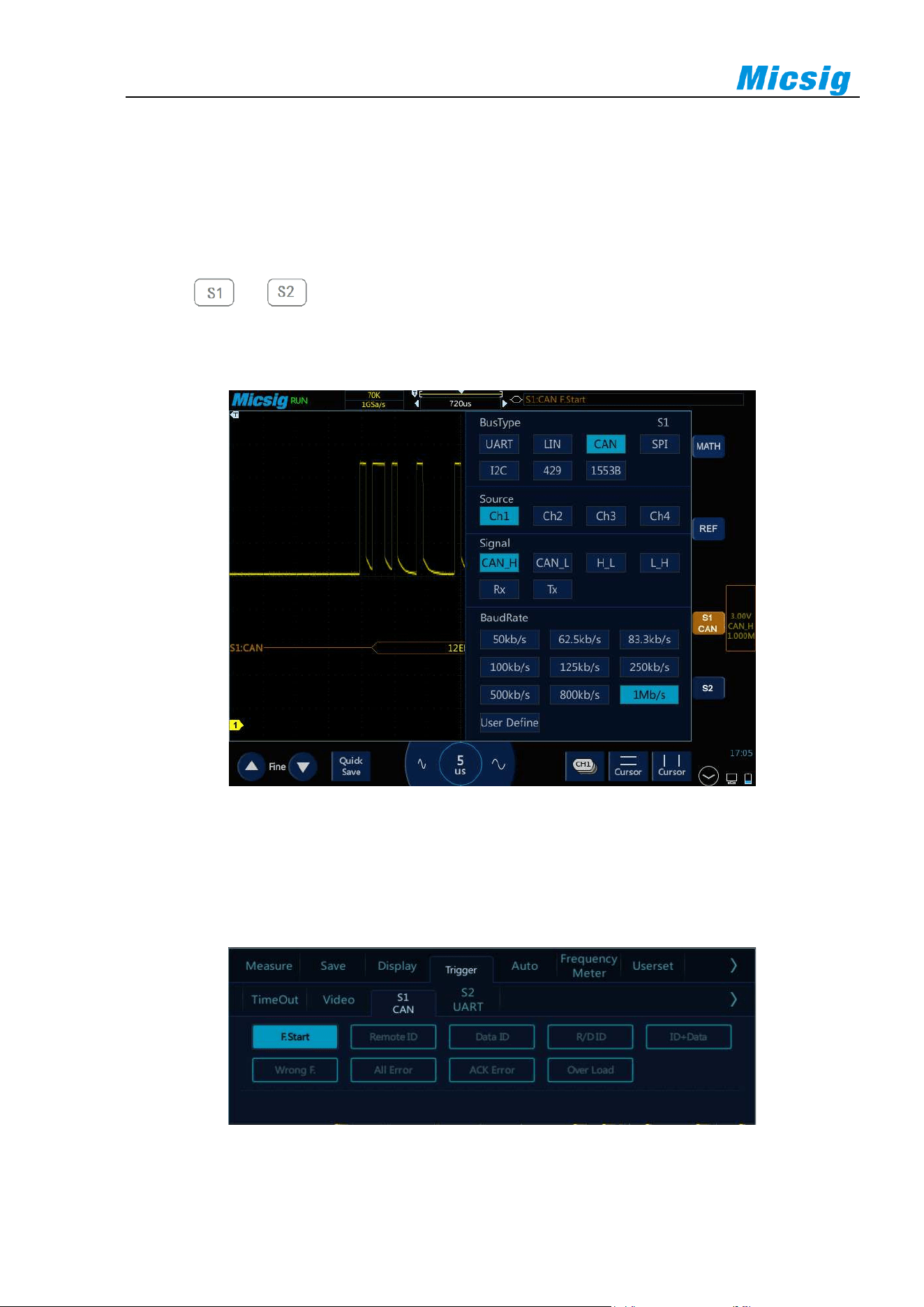
126
12.3 CAN Bus Trigger and Decode
For correctly decoding CAN bus data and making trigger stable, the bus configuration, trigger mode set and
trigger level need to be adjusted.
⚫ Bus configuration
Tap or to open the bus configuration menu, the signal source needs to be set, and the signal
type and baud rate are set according to measured signal; the setting method is the same as that of UART and
will not be repeated here. See Figure 12-14:
Figure 12-14 CAN Bus Configuration Menu
⚫ Trigger mode
Open the trigger configuration menu and select the appropriate trigger type; when S1 CAN bus trigger is
selected, as shown in Figure 12-15:
Figure 12-15 CAN Trigger Mode Configuration Menu

Chapter 12 Serial Bus Trigger and Decode (Optional)
127
Trigger mode selection menu description:
a) F.start — trigger at the start of the frame;
b) Remote ID — setting the ID matches the remote frame trigger. After selecting the “Remote Frame ID”,
and then set the ID value at the bottom of the trigger data area
Operation description: Press the numbers on the touch screen and use the virtual keyboard to set;
c) Data ID — trigger on data frame that matches set ID. Data frame ID configuration mode is the same
as the remote data frame ID configuration;
d) R/D ID — trigger on remote frame or data frame that matches set ID. Remote frame/data frame ID
configuration is the same as the remote data frame ID configuration;
e) ID + data — trigger on data frame that matches set ID and data. The configuration method is the same
as the remote frame ID configuration;
f) Wrong F. — trigger on CAN error frame;
g) All Error — trigger when there is any error in format or activity;
h) Ack Error — trigger on recessive (high) Ack position;
i) Over Load — trigger on CAN overload frame.
⚫ CAN serial decode
Ch1 is connected to measured signal. The idle level is high and the baud rate is 1Mb/s; the Trigger mode is
the frame start. Please follow these steps:
(1) Tap S1 to open the decode channel, and click S1 again to open the bus configuration menu;
(2) Select the bus type as “CAN”, and then click “Ch1”, “Idle High” and “1Mb/s”. After setting, click the
blank area to close the menu;
(3) Open the trigger mode configuration menu and click “F.Start”;
(4) Adjust the threshold level according to the signal amplitude; the CAN trigger graphic interface is shown
in Figure 12-16:
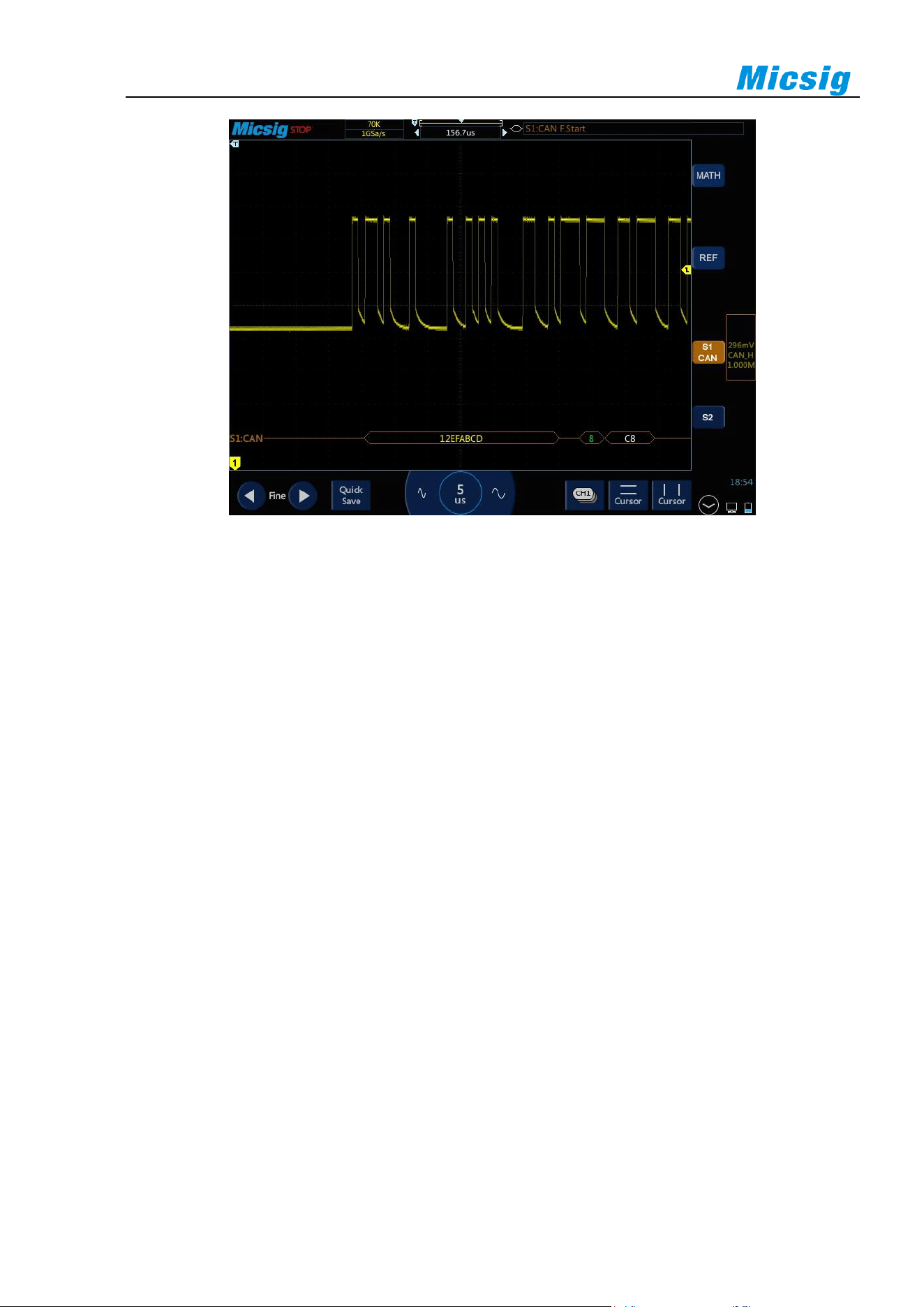
128
Figure 12-16 CAN Graphic Interface
CAN decode data packet description:
(1) Decode data packet displays real-time data about the bus activities.
(2) Decode data displays as hexadecimal system.
(3) “Frame ID” displays in yellow, “Data” displays in white, and “DLC” and “ CRC” codes display in
green. If there is frame error, it is displayed in red “E”.
(4) When “?” appears, the time base needs to be adjusted to view decode results, and “!” indicates that the
bus waveform corresponding to the decode data packet is incomplete and the data cannot be displayed
correctly.
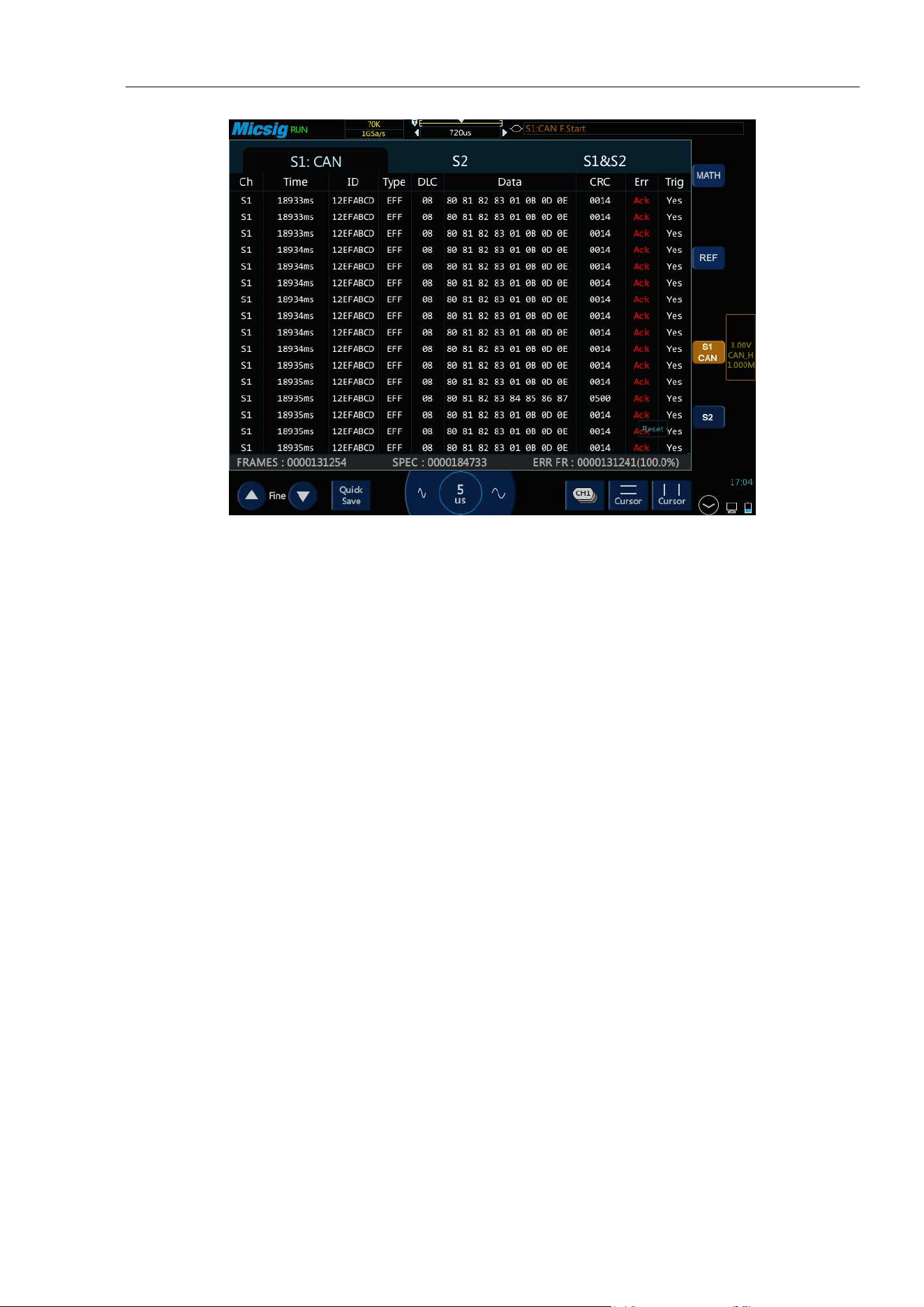
Chapter 12 Serial Bus Trigger and Decode (Optional)
129
Figure 12-17 CAN Text Interface
CAN text interface description, as shown in Figure 12-17:
(1) “Ch”: bus channel.
(2) “Time”: Time intervals between the last frames to current frames.
(3) “ID”: CAN frame ID value displayed in hexadecimal, maximum 29 bits.
(4) “Type”: Frame type, “SFF” standard data frame, “SRF” standard remote frame, “EFF” extended data
frame, “ERF” extended remote frame.
(5) “DLC”: Number of data bytes sent by this frame. This value can be ignored for remote frames.
(6) “Data”: Frame data.
(7) “CRC”: Frame CRC check code.
(8) “Err”: Response error, bit stuffing error, format error, CRC error.
(9) “Trig”: “Yes” means the frame reaches trigger condition.
(10) “Statistics”: counts the number of occurrences of frame type, data length, status, etc., and the
percentage.
12.4 SPI Bus Trigger and Decode
For correctly decoding SPI bus data and making trigger stable, the bus configuration, trigger mode set and trigger
level need to be adjusted.
⚫ Bus configuration
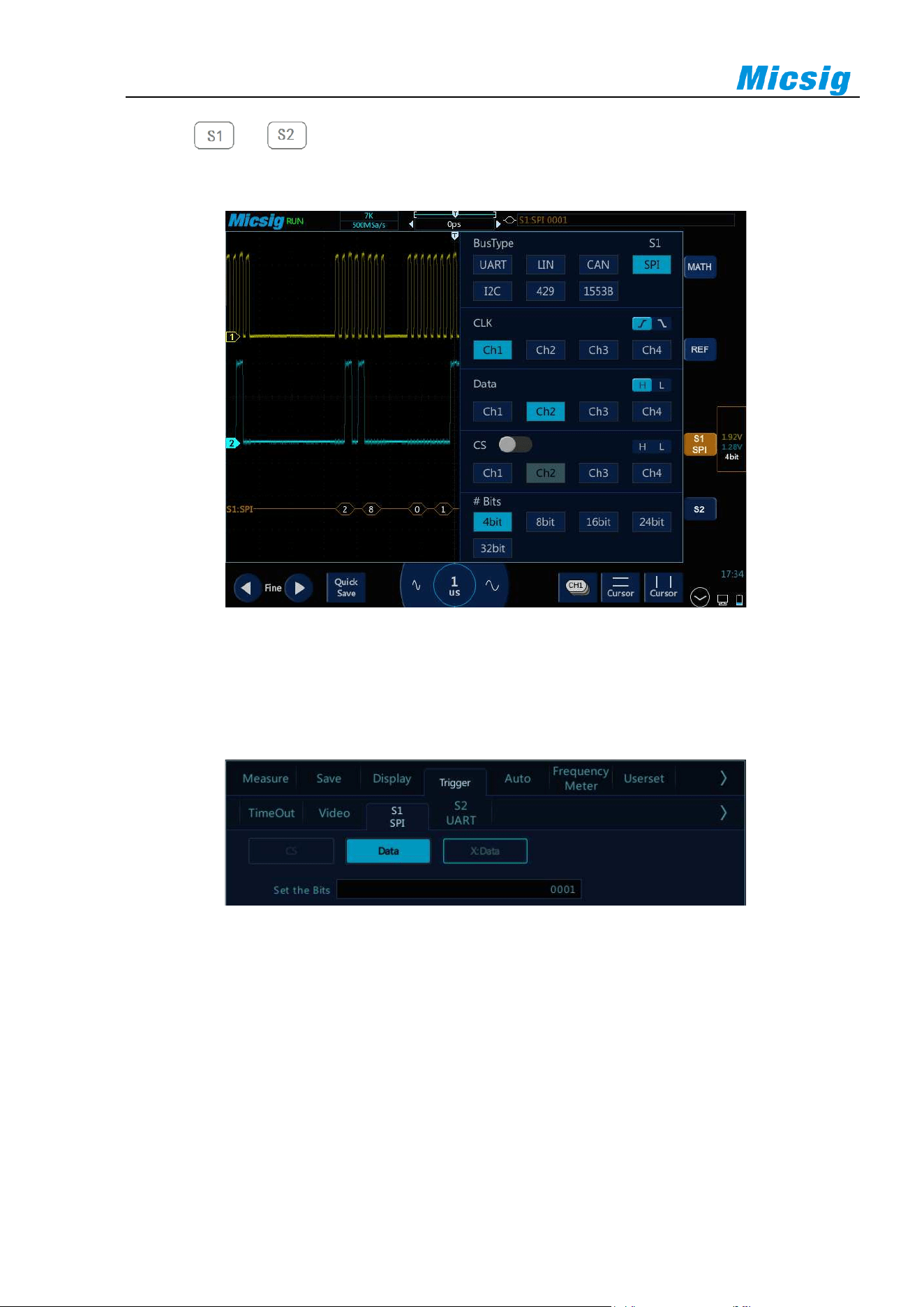
130
Tap or to open the bus configuration menu, the following need to be set:
Clock source, data source, chip select signal, and data bits, as shown in Figure 12-18:
Figure 12-18 SPI Bus Configuration Menu
⚫ Trigger mode
Open the trigger configuration menu and select the appropriate trigger type; when selecting the SPI bus
trigger, as shown in Figure 12-19:
Figure 12-19 SPI Trigger Mode Configuration Menu
The operation method is the same as CAN frame ID to be matched in the configuration, and will not be
repeated here.
Note: According to the data byte length set by bus decode, the value of the relevant bit within the byte
length is set. Trigger when the corresponding bit on data bus matches the set value.
⚫ SPI serial bus
The measured signal channel Ch1 is connected to CLK, Ch2 channel is connected to DATA, the bus idle
state is high, the clock rising edge is sampled; the data word length is 4 bits; the CS chip select is off; the
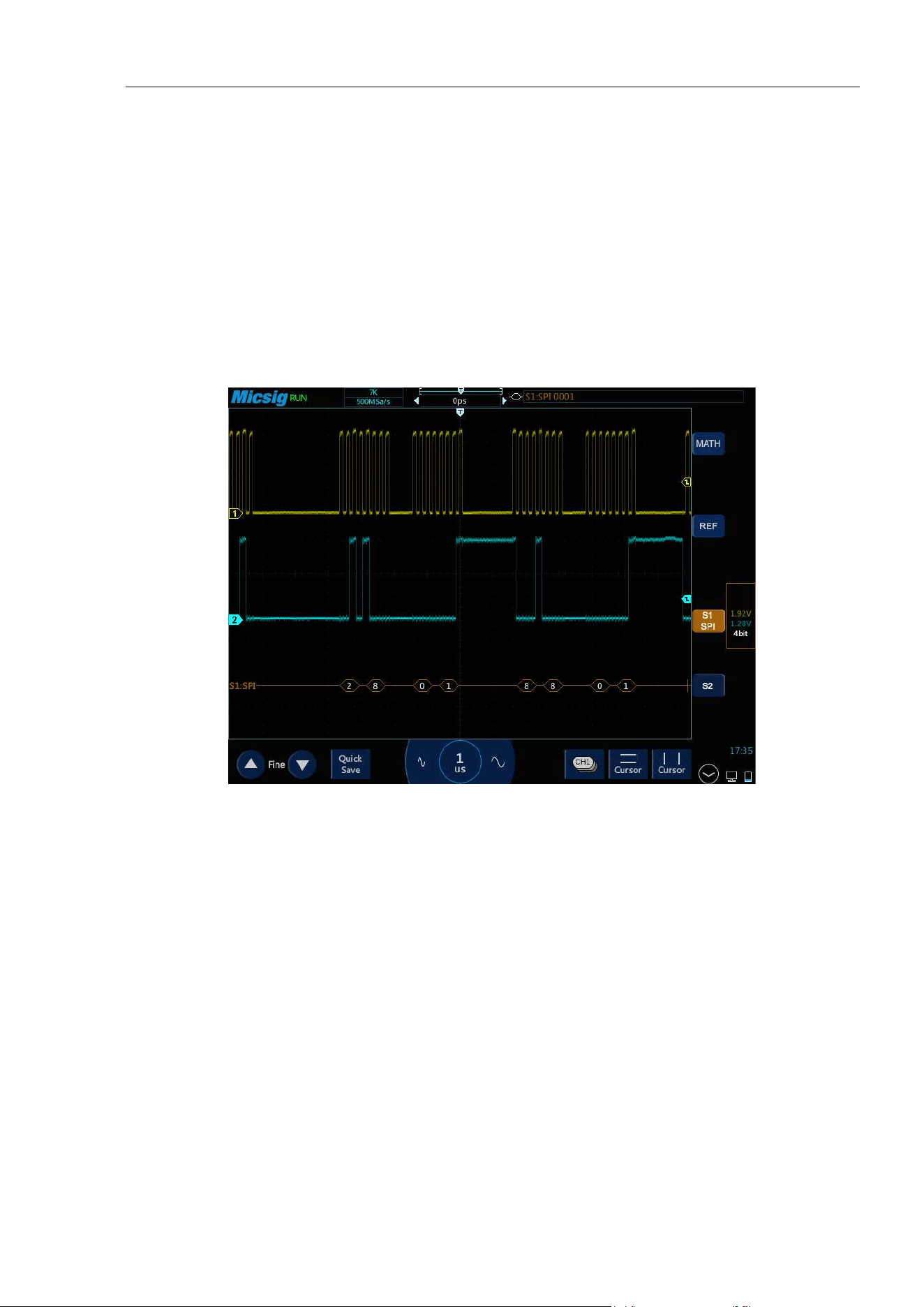
Chapter 12 Serial Bus Trigger and Decode (Optional)
131
trigger mode matches the “Data” at 0001, please follow the steps below:
(1) Tap S1 to open the decode channel, and click S1 again to open the bus configuration menu;
(2) Select the bus type as “SPI”, click clock as “Ch1” rising edge, the data is “Ch2” high level, and the
data word length is “4bit”;
(3) Open the trigger setting menu, click data on the touch screen, and use the virtual soft keyboard to set
the data to be matched as “0001”;
(4) Adjust the threshold levels of two channels according to signal amplitude; the SPI trigger graphic
interface is shown in Figure 12-20:
Figure 12-20 SPI Graphic Interface
SPI decode data packet description:
(1) Decode data packet displays real-time data about the bus activities.
(2) Decode data displays as hexadecimal system.
(3) Data displays in white.
(4) When “?” appears, the time base needs to be adjusted to view decode results.
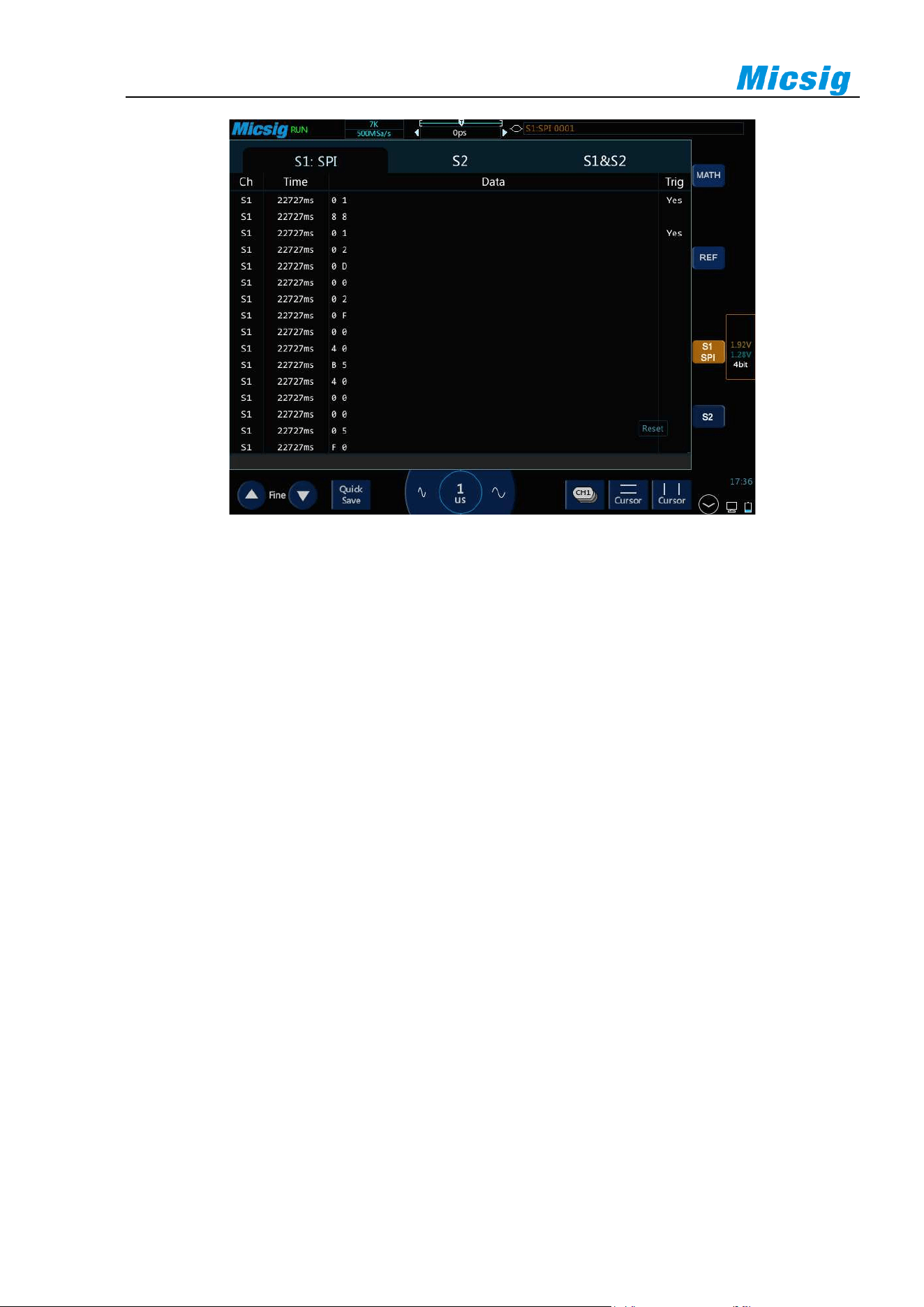
132
Figure 12-21 SPI Text Interface
SPI text interface description, as shown in Figure 12-21:
(1) “Ch”: bus channel.
(2) “Time”: Time intervals between the last frames to current frames.
(3) “Data”: According to the data word length setting, the decode data is displayed. For example, if the
data word length is 8bit, only one byte displays in the data column; if the data word length is 16bit, 2
bytes display in the data column; if the data word length is 24bit, 3 bytes display; and if the data bits is
32bit, 4 bytes display.
(4) “Trig”: “Yes” means the frame reaches trigger condition.
Note: “One frame” is measured by the set “data word length” and can meet 1 data bit code stream.
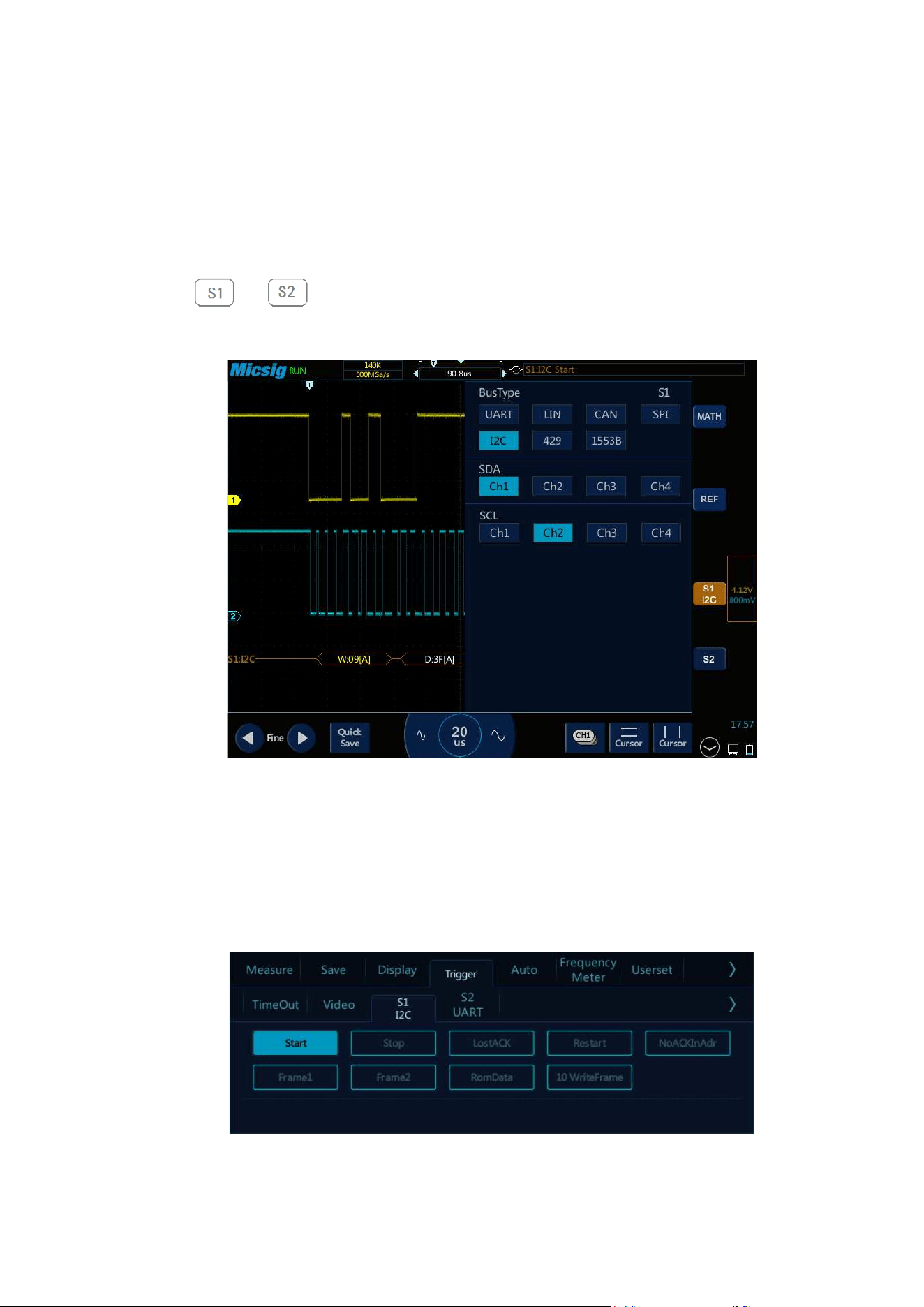
Chapter 12 Serial Bus Trigger and Decode (Optional)
133
12.5 I2C Bus Trigger and Decode
For correctly decoding I2C bus data and making trigger stable, the bus configuration, trigger mode set and trigger
level need to be adjusted.
⚫ Bus configuration
Tap or to open the bus configuration menu, Bus configuration includes the serial clock
(SCL) and the serial data (SDA) corresponding to the channel settings. See Figure 12-22:
Figure 12-22 I2C Bus Configuration Menu
Notes: When SCL or SDA channel is set, the system will automatically set other channels.
⚫ Trigger mode
Open the trigger configuration menu and select the appropriate trigger type. When the I2C bus trigger is
selected, click the trigger type and relationship on the screen, as shown in Figure 12-23:
Figure 12-23 I2C Trigger Mode Configuration Menu

134
Trigger mode menu description:
a) Start — trigger when SCL is high and SDA has a falling edge (includes restart).
b) Stop — trigger when SCL is high and SDA has a rising edge.
c) LostAck — Trigger when the bus Ack bit is high.
d) Restart — triggered when a new start condition occurs before the stop condition.
e) NoACKInAdr — trigger when the ack bit in the set address field is invalid (ignoring W/R bit), select
“Address” in the trigger data, and use the pop-up virtual soft keyboard to modify it.
f) Frame 1 - Start + Address 7 + Read/Write + Acknowledge + Data; if all bits in the frame type match,
trigger on read/write frames in 7-bit addressing mode on the 17th clock edge.
Frame type 1 operation method: Select values after the address/data, click values after the address/data
on the touch screen, and modify them on the pop-up virtual soft keyboard.
g) Frame 2 — Start + Address 7 + Read/Write + Acknowledge + Data 1 + Acknowledge + Data 2; trigger
on read/write frames in 7-bit addressing mode on the 26th clock edge if all bits in the frame type match.
The operation method of configuring frame type 2 is the same as frame type 1, and will not be repeated
here.
h) RomData - When the read operation which contains 1010xxx control byte of the EEPROM appears on
the bus and the Ack bit is correct, then the read data can be captured. If the captured data and the set
data match the set relationship condition, trigger on the clock edge of Ack bit after the data byte. After
selecting “EEPROM Data Read”, click the relationship by “=” “ >” “<” “ ≠”, and the setting method is
the same as the address field.
i) 10WriteFrame - Trigger on 10-bit write frame on the 26th clock edge if all bits in the pattern match.
Trigger mode is start condition, SCL connect to Ch2, SDA connect to Ch1, follow these steps as below:
(1) Tap S1 to open the decode channel, and click S1 again to open the bus configuration menu;
(2) Select the bus type as “I2C”, open the bus setting menu, and select the clock SCL as Ch2 channel;
(3) Open the trigger mode configuration menu and click “Start Condition” on the touch screen.
(4) Set the threshold level of two channels according to signal amplitude; I2C trigger graphic interface is
shown in Figure 12-24:
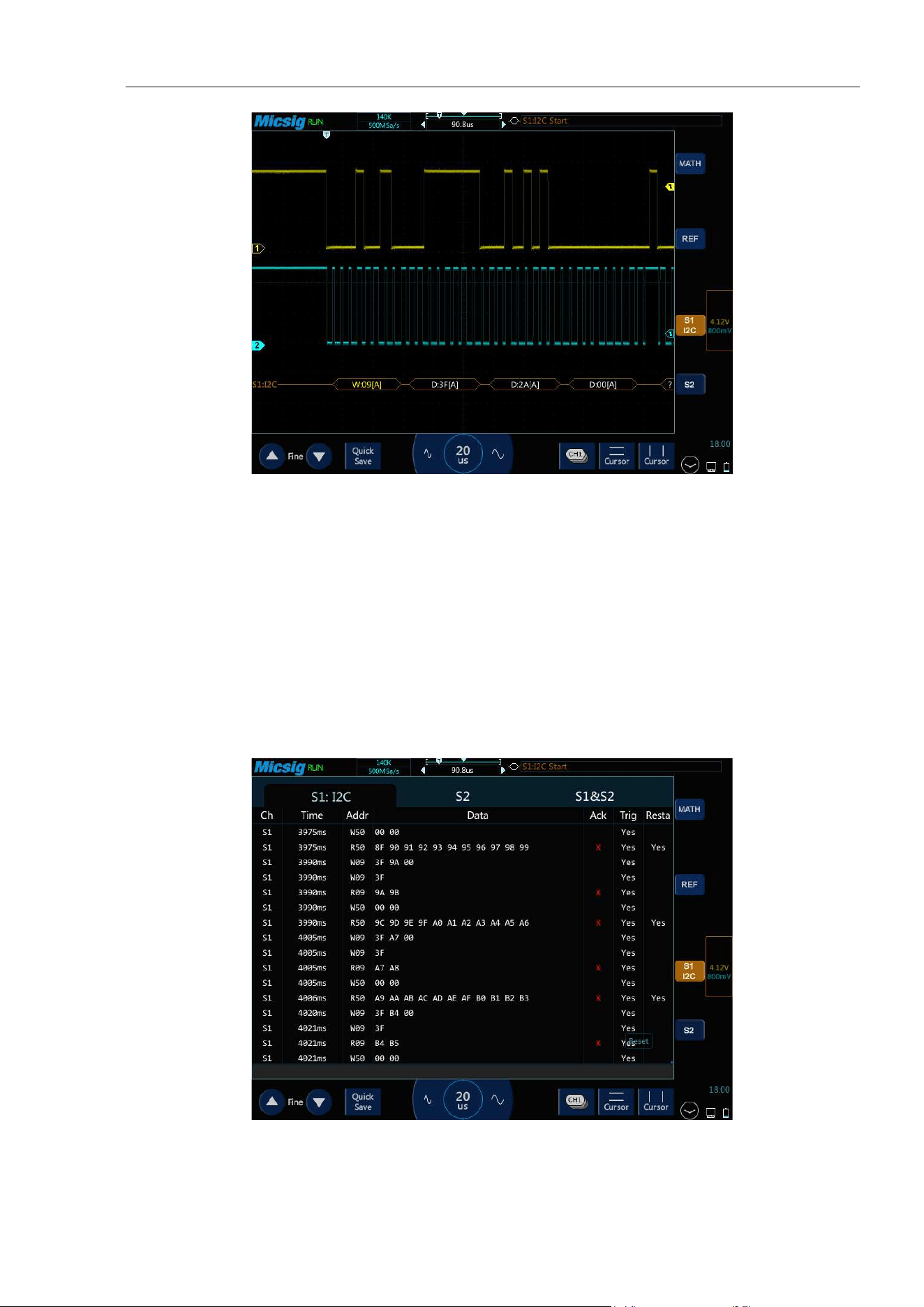
Chapter 12 Serial Bus Trigger and Decode (Optional)
135
Figure 12-24 I2C Graphic Interface
I2C decode data packet description:
(1) Decode data packet displays real-time data about the bus activities.
(2) Decode data displays as hexadecimal system.
(3) Address content display: Read address displays in green, write address displays in yellow, and data
displays in white. “W” denotes write operation, “R” denotes read operation, “D” denotes decode data,
and “~A” denotes no Ack bit.
(4) When “?” appears, the time base needs to be adjusted to view decode results.
Figure 12-25 I2C Text Interface
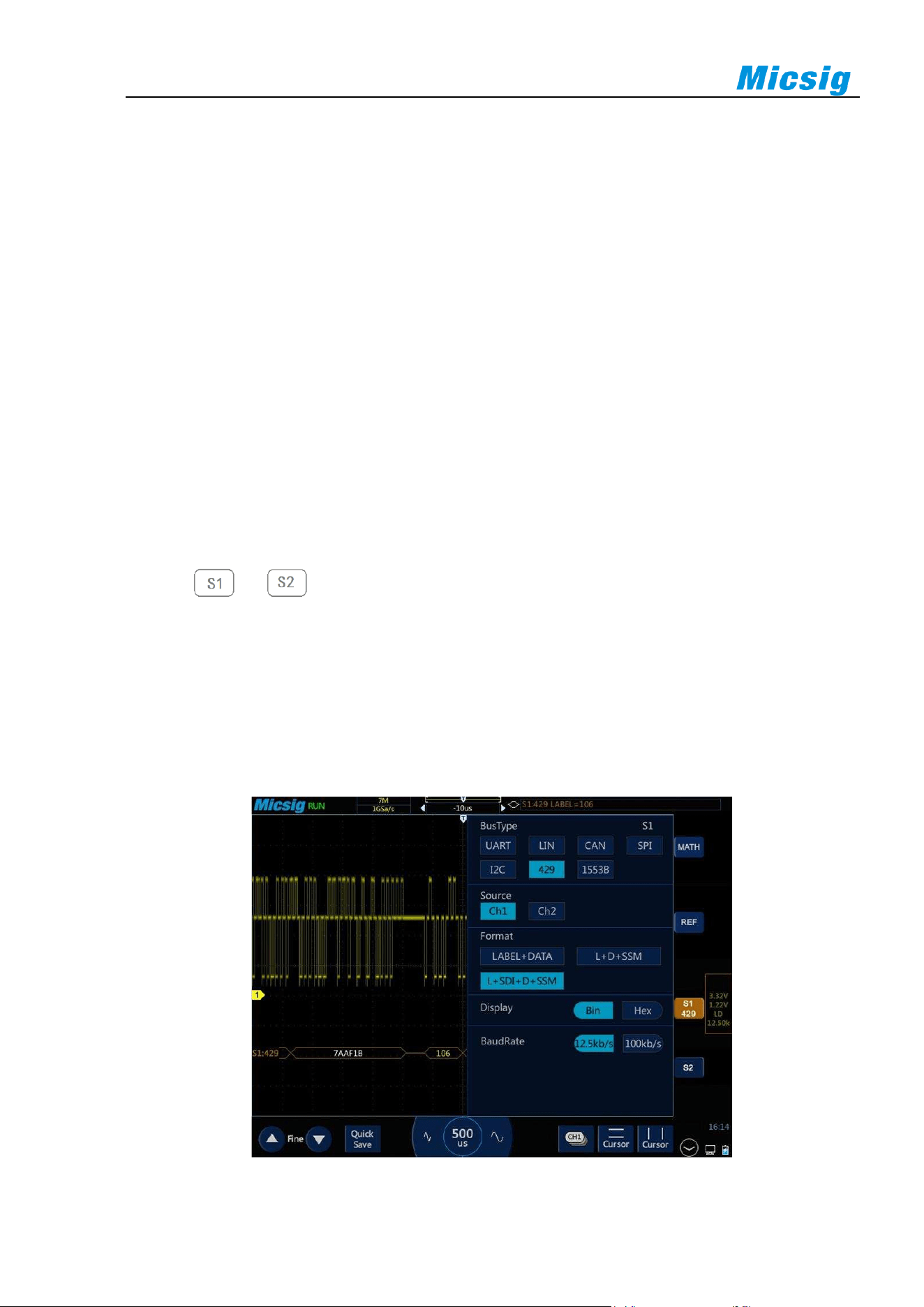
136
I2C text interface description, as shown in Figure 12-25:
(1) “Ch”: bus channel.
(2) “Time”: intervals between the last read/write operations to current read/write operations
(3) “Addr”: in address bar, “R” means the read operation, and “W” means write operation
(4) “Data”: data sent by one read and write operation is in the data bar.
(5) “Ack”: in Ack bar, “X” means Ack bit lost.
(6) “Trigger”: “Yes” means reach trigger condition.
(7) “Restart”: “Yes” means reach restart condition.
12.6 ARINC429 Bus Trigger and Decode
For correctly decoding ARINC429 bus data and making trigger stable, the bus configuration, trigger mode set
and trigger level need to be adjusted.
⚫ Bus configuration
Tap or to open the bus configuration menu, the following needs to be set:
Data Source — Select channel for ARINC 429 signal.
Word format — Select ARINC 429 decode mode.
Bus Display — Set the format for ARINC 429 decode data.
Baud Rate — Set the speed of ARINC 429 signal.
As shown in Figure 12-26:
Figure 12-26 ARINC429 Bus Configuration Menu
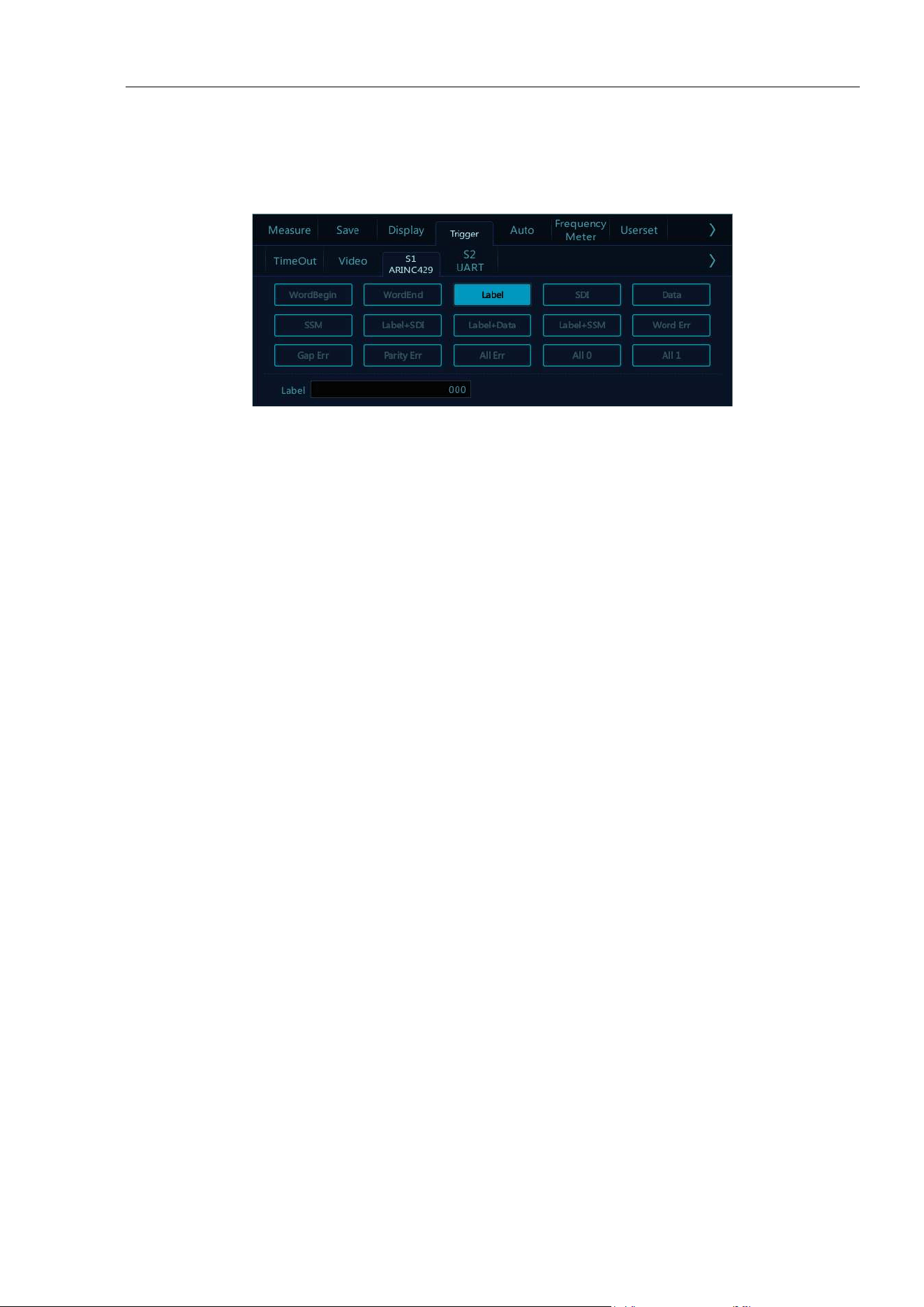
Chapter 12 Serial Bus Trigger and Decode (Optional)
137
⚫ Trigger mode
Open the trigger configuration menu and select the appropriate trigger type; when the ARINC429 bus trigger
is selected, click the trigger type and relationship on the screen, as shown in Figure 12-27:
Figure 12-27 ARINC429 Trigger Mode Configuration Menu
If LABEL, SDI (source identifier), DATA or SSM (symbol/status mark) trigger are used, after selecting
trigger mode, use the pop-up virtual keyboard to modify it, enter the value, and click “Enter” on the virtual
soft keyboard to complete the setting.
Trigger configuration menu description:
a) WordBegin: Trigger at the word start.
b) WordEnd: Trigger at the word stop.
c) Label: Label, triggered when the specified tag value occurs.
d) SDI: Source identifier, triggered on the specified source terminal.
e) Data: Trigger on the specified data.
f) SSM: Symbol/status mark, triggered on the specified symbol status matrix.
g) Label+SDI: Trigger on the specified label and the specified source terminal.
h) Label+Data: Trigger on the specified label and the specified data.
i) LABEL+SSM: Trigger on the specified label and the specified symbol status matrix.
j) Word Err - Triggered when a word error occurs.
k) Gap Err: Triggered when a gap error occurs.
l) Parity error: Triggered when a verification error occurs.
m) All Err: Triggered when any of the above errors occur.
n) All 0: Triggered when any bit with the value of zero occurs.
o) All 1 -: Triggered when any bit with the value of 1 appears.
⚫ ARINC 429 serial decode
The measured signal source is CH1, the decode format is LABEL+DATA, the display is in hexadecimal, the
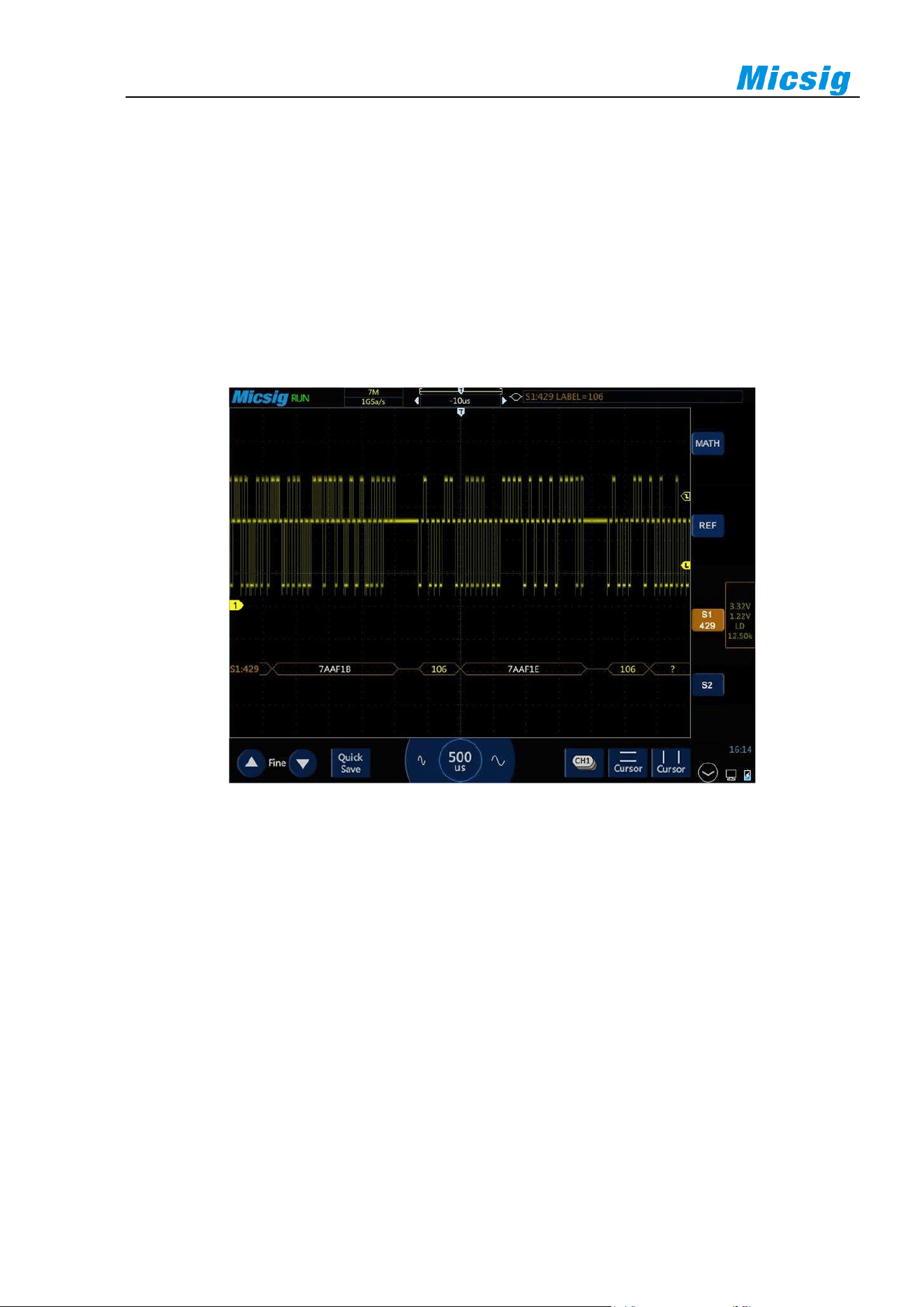
138
baud rate is 12.5kb/s, and the trigger mode is LABEL, operate as follows:
(1) Tap S1 to open the decode channel, and click S1 again to open the bus configuration menu;
Select bus type “429”, source as “CH1”, decode format as “Label+Data”, display in “hexadecimal”,
baud rate as 12.5kb/s.
(2) Open the trigger setting menu, select the trigger type as bus trigger, S1-ARINC429, the trigger mode
is LABEL, and enter LABEL as “106” on virtual keyboard.
Adjust High trigger threshold level and Low trigger threshold level according to signal amplitude;
and ARINC429 trigger graphic interface is shown in Figure 12-28:
Figure 12-28 ARINC429 Graphic Interface
ARINC429 decode data packet description:
(1) Data packet, a total of 32bits, the data format is 8~1 (label bit, high bit first) +9~10(SD) +11~29 (data
bit, low bit first) +30~31 (symbol status bit) +32 (parity bit)
(2) Label (8bits) - Displayed in octal: yellow
(3) SDI (2bits) - Displayed in binary: blue
(4) Data (19bits) - Displayed in selected numeration system: white, or red if there is parity error
(5) SSM (2bits) - Displayed in binary: green
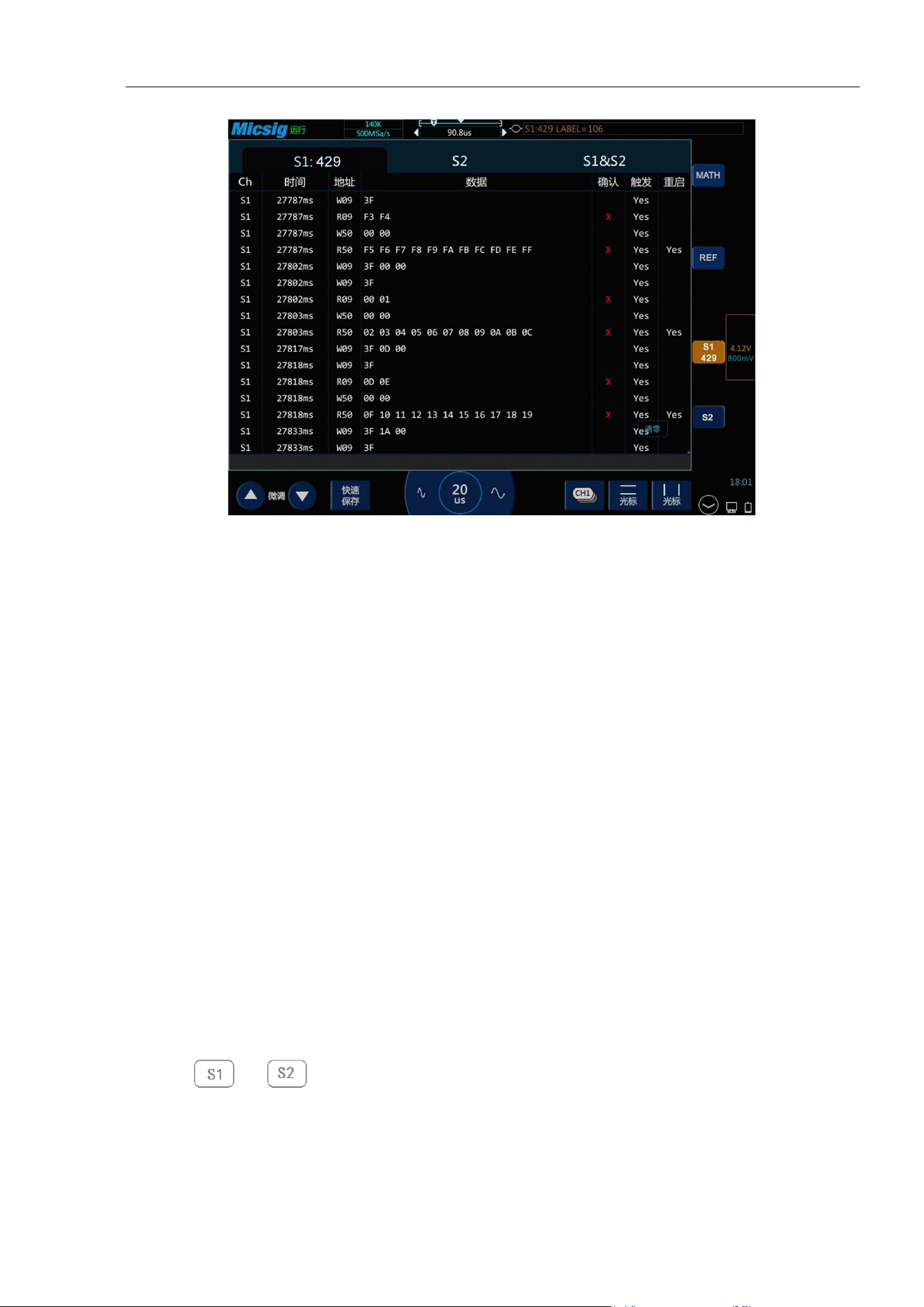
Chapter 12 Serial Bus Trigger and Decode (Optional)
139
Figure 12-29 ARINC429 Text Interface
ARINC429 text interface description, as shown in Figure 12-29:
(1) “Ch”: bus channel.
(2) “Time”: intervals between the last read/write operations to current read/write operations
(3) “LABLE”: label, information identifier, displayed in octal.
(4) “SDI”: source/target identifier, displayed in binary (displays XX if not identified separately).
(5) “Data”: content of the transmitted information, displayed in the selected numeration system.
(6) “SSM”: symbol/status matrix, displayed in binary (displays XX if not identified separately).
(7) “Error”: displays the frame error type (parity error Par, frame error Frm).
(8) “Trigger”: “Yes” means reach trigger condition.
12.7 1553B Bus Trigger and Decode
For correctly decoding 1553B bus data and making trigger stable, the bus configuration, trigger mode set and
trigger level need to be adjusted.
⚫ Bus configuration
Tap or to open the bus configuration menu, the data source and display hexadecimal need
to be set, as shown in Figure 12-30:
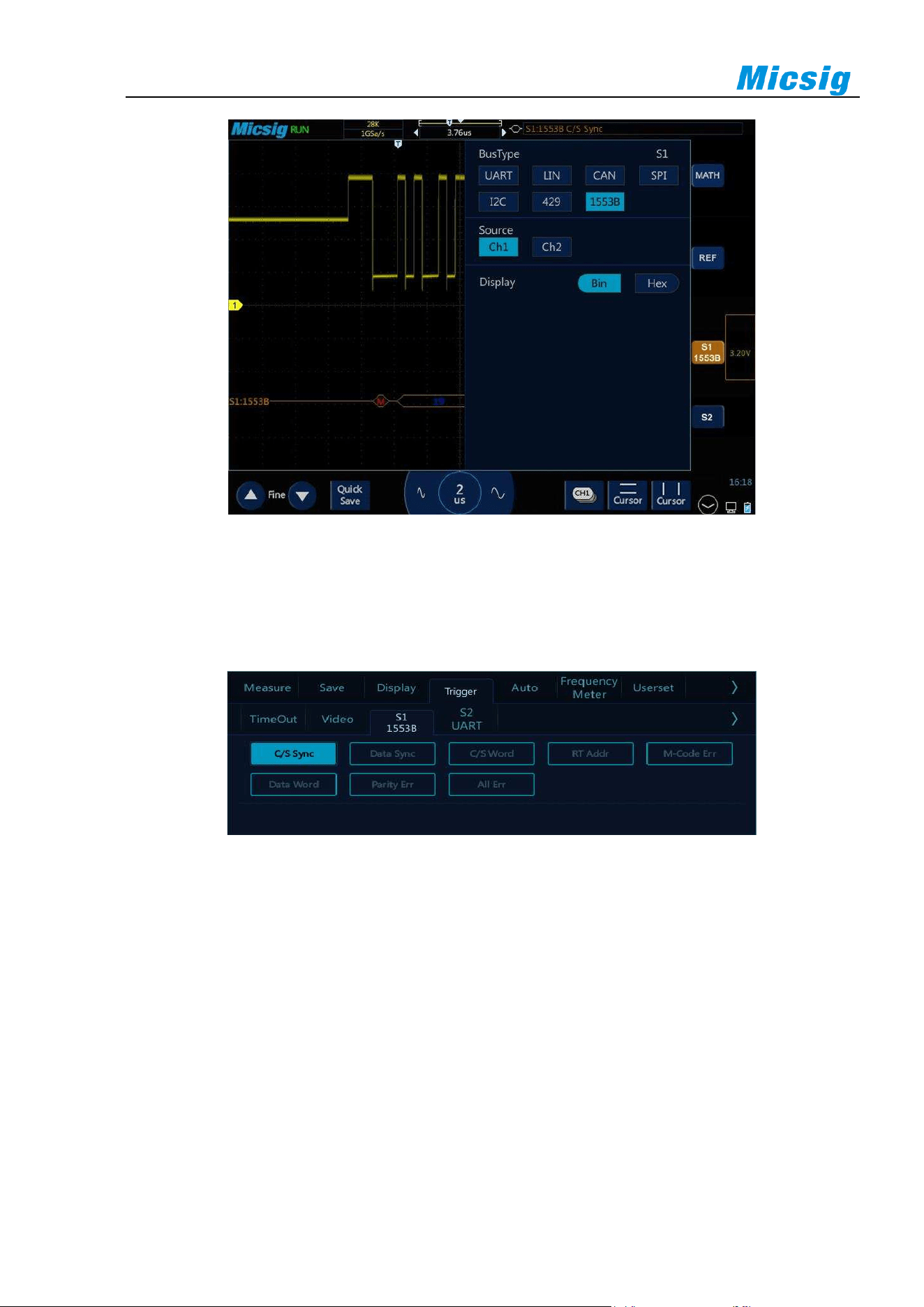
140
Figure 12-30 1553B Bus Configuration Menu
⚫ Trigger mode
Open the trigger configuration menu and select the appropriate trigger type. When the trigger type is
1553B bus trigger, click the trigger type on the screen, as shown in Figure 12-31:
Figure 12-31 1553B Trigger Mode Configuration Menu
Trigger configuration menu description:
a) Command/status word sync header: Triggered at the beginning of the command/status word (at the end
of valid C/S sync pulse).
b) Data word sync header: Triggered at the beginning of data word (at the end of valid data sync pulse).
c) Command/status word: Triggered when the specified command/status word is detected.
d) Remote terminal address: Triggered when RTA of command/status word matches the specified value.
e) If you select this option, RTA softkey will be available, allowing you to select the hexadecimal remote
terminal address value to be triggered on it. If you select 0xXX (irrelevant), oscilloscope will trigger
on any RTA.
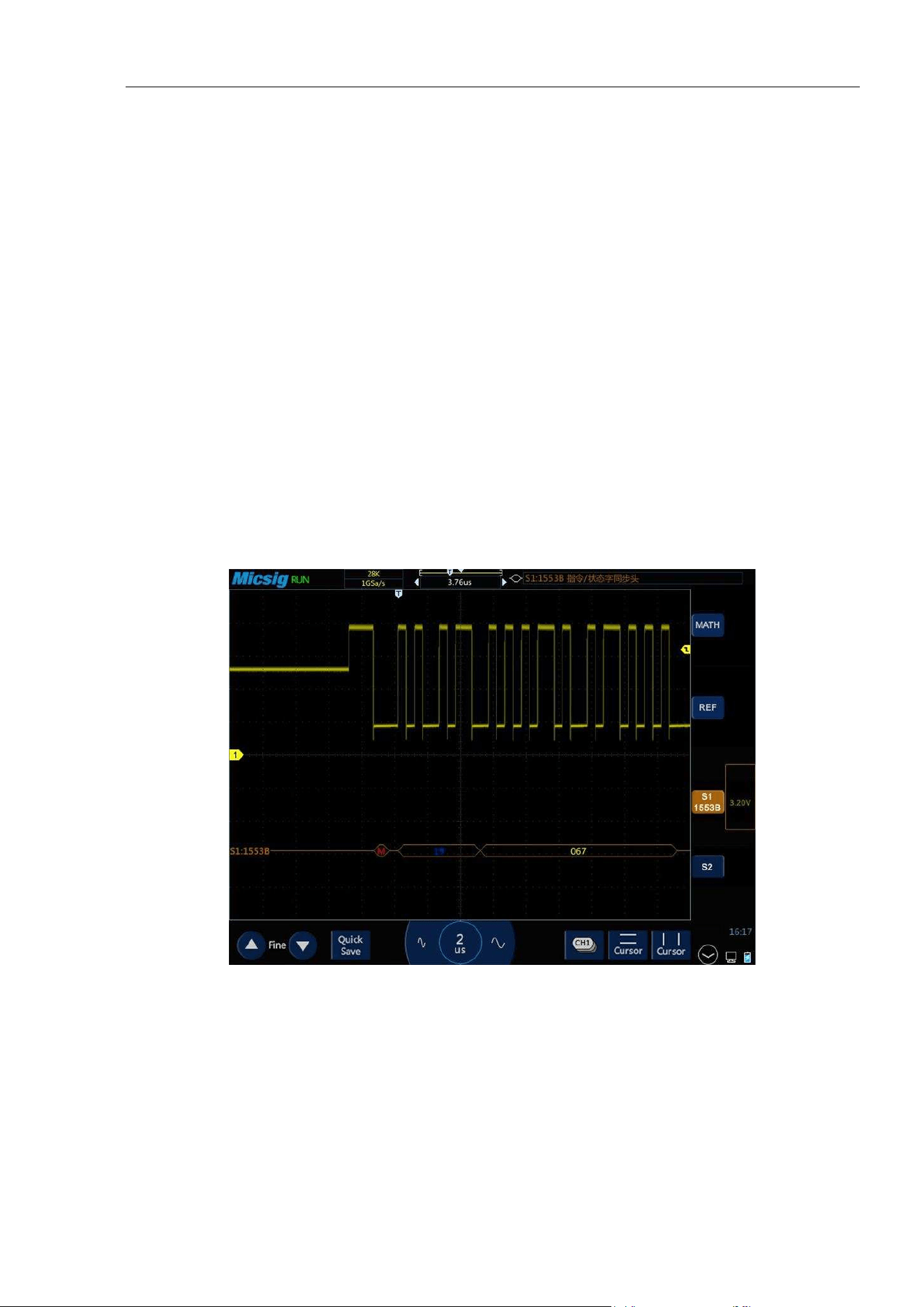
Chapter 12 Serial Bus Trigger and Decode (Optional)
141
f) Manchester coding error: Triggered when a Manchester coding error is detected.
g) Data word: Triggered when the specified data word is detected.
h) Odd parity error: Triggered when the odd parity bit is incorrect for data in the word.
i) All errors: Triggered when an error is detected.
⚫ 1553B serial decode
The measured signal source is CH1, the bus display is hexadecimal, the baud rate is 12.5kb/s, and the
trigger mode is the command/status word sync header, and operate as follows:
(1) Tap S1 to open the decode channel, and click S1 again to open the bus configuration menu;
(2) Select the bus type as “1553B”, source as “CH1’, and display in “hexadecimal”.
(3) Open the trigger setting menu, select the trigger type as bus trigger, 1553B, and trigger mode as
“command/status word sync header”.
Channel threshold level is adjusted according to signal amplitude. 1553B trigger graphic interface is shown
in Figure 12-32:
Figure 12-32 1553B Graphic Interface
1553B decode data packet description:
(1) Remote terminal address (5-bit data): blue
(2) The value of remaining 11 bits of the command/status word: yellow
(3) Decoded data: white
(4) If the command/status or data word has a parity error, its decoded text is displayed in red instead
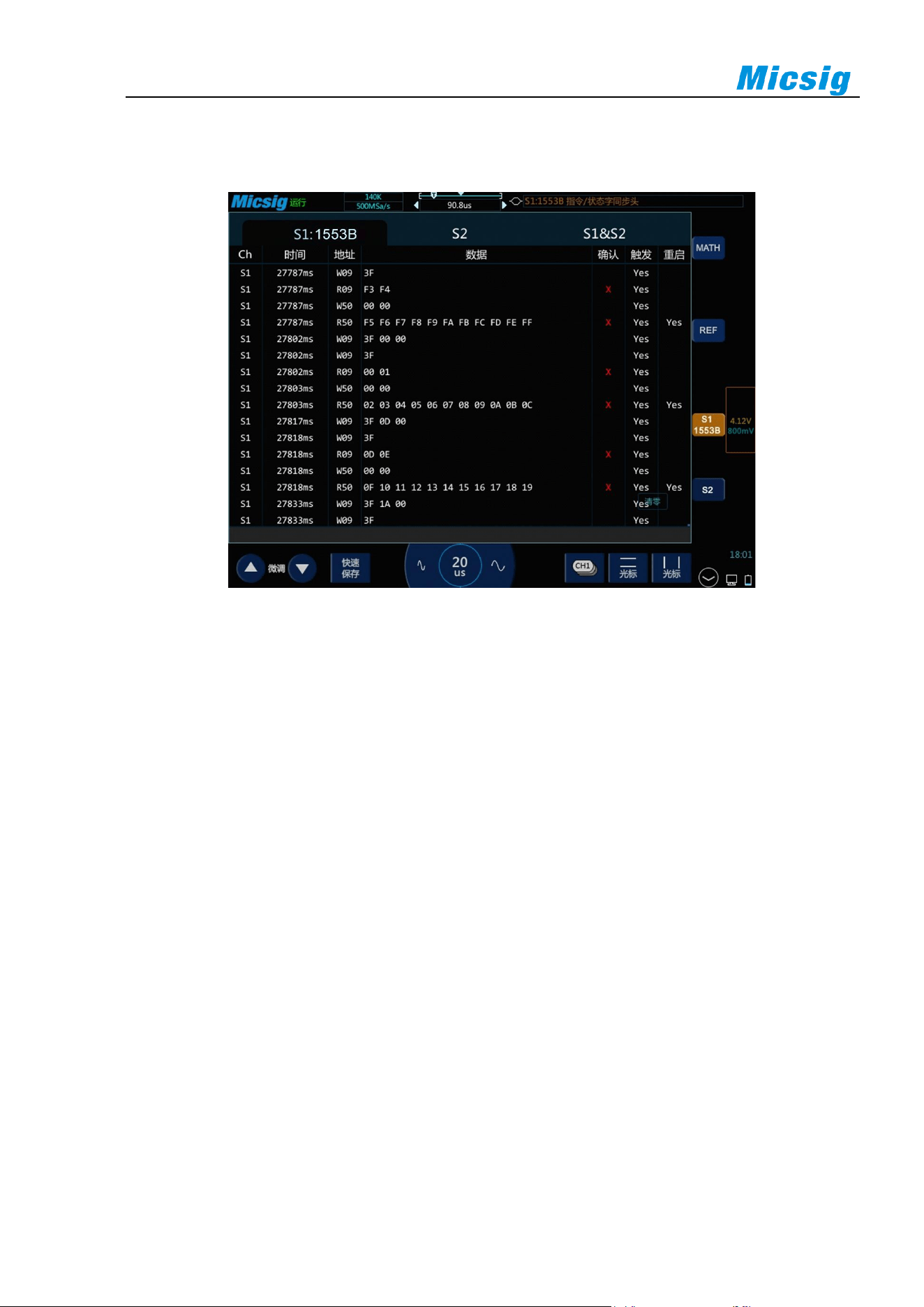
142
of green or white.
(5) The sync error is displayed together with the word “SYNC”.
Figure 12-33 1553B Text Interface
1553B text interface description, as shown in Figure 12-33:
(1) “Ch”: bus channel.
(2) “Time”: intervals between the last read/write operations to current read/write operations.
(3) “Type”: frame type (data frame DATA, command/status frame C/S, others N/A).
(4) “RAdr”: remote terminal address, displayed in the selected numeration system (N/A for no content
display).
(5) “Data”: content of the transmitted information, displayed in the selected numeration system.
(6) “Trigger”: “Yes” means reach trigger condition.
(7) “Error”: displays the frame error type (parity error Par, Manchester coding error M-ch).

Chapter 13 Remote Control
143
Chapter 13 Remote Control
This chapter contains the application of host computer, FTP and SCPI commands. You are recommended to read
this chapter carefully to understand remote control functions of the tBook mini series oscilloscope.
⚫ Host computer
⚫ Remote control
⚫ FTP
⚫ SCPI commands
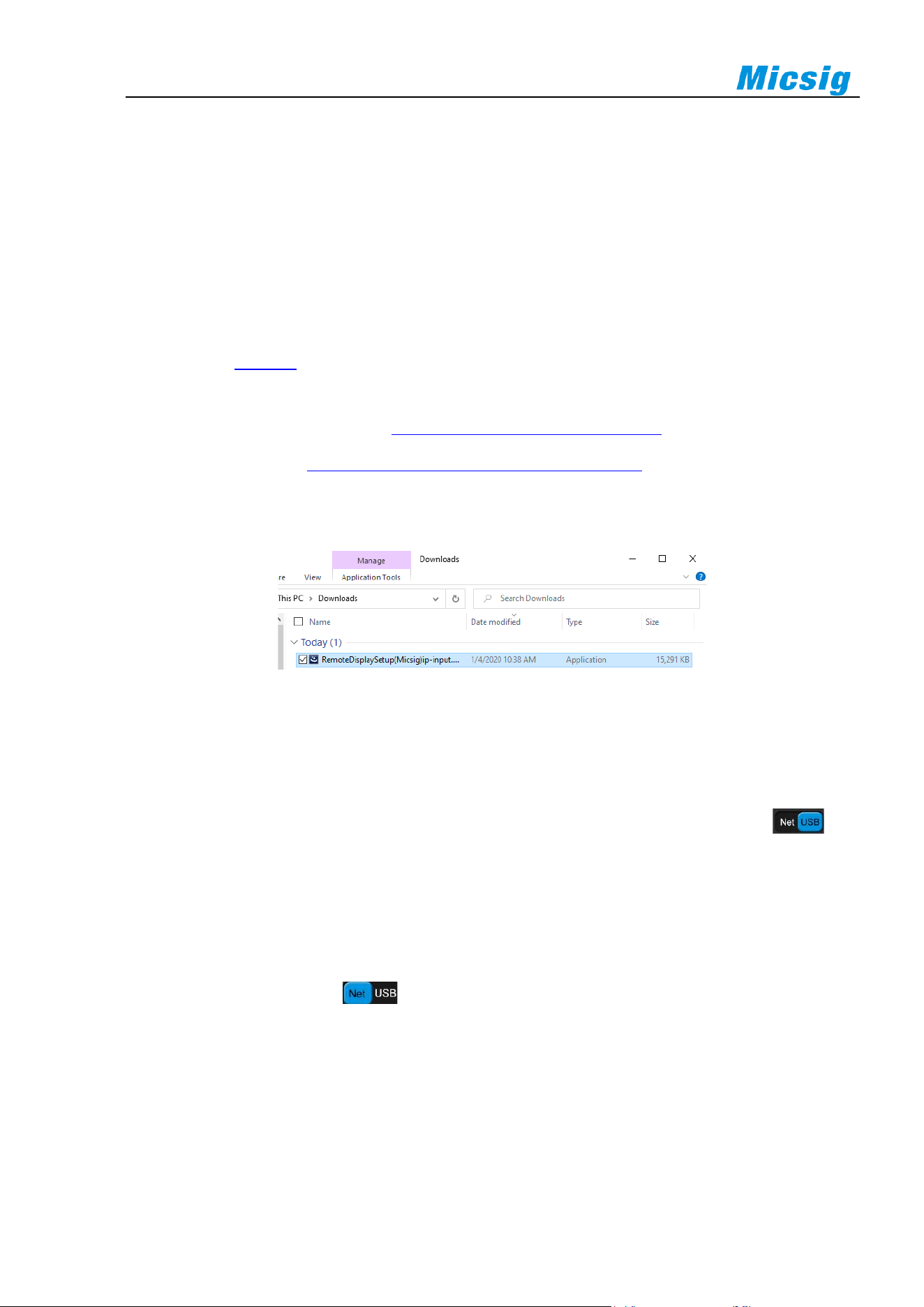
144
13.1 Host Computer
To control the instrument using the host computer software, you need to install the NI driver first (when there is
network connection, this may not be installed), then the RemoteDisplay software is downloaded and installed.
This software is suitable for Micsig TO1000 Series oscilloscopes.
13.1.1 Installation of Host Computer Software
Note: The host computer software only supports Win7 or higher edition operating system. The computer
needs to install
NI-VISA driver first. (when there is network connection, only the host computer software
specific for network connection should be installed, and no drive is needed).
The host computer download address
http://www.micsig.com/html/list_64.html.
Driver download address http://www.ni.com/download/ni-visa-16.0/6184/en/..
Download the host computer software on official website of Micsig, open RemoteDisplaySetup.exe file, and
complete the software installation.
Figure 13-1 RemoteDisplay Software
13.1.2 Connection of Host Computer
USB connection: Connect USB Device to the computer and oscilloscope through USB data cable. After the
computer recognizes the USB device, open the host computer, set the connection mode to USB , and
display the device information in the device information display box in the lower right corner. This indicates that
the oscilloscope has been found. Click to connect to the selected oscilloscope.
WIFI connection: Under the oscilloscope settings →WLAN menu, choose and connect the same WIFI with the
computer to ensure that the computer and the oscilloscope are in the same network. Open the host computer,
set the connection mode to Net , and display the device information in the device information display
box in the lower right corner. This indicates that the oscilloscope has been found. Click to connect to the selected
oscilloscope.
Enter IP connection: In case of network connection (WIFI or LAN), directly type oscilloscope IP to be
connected in the oscilloscope device information display box in the lower right corner, and then click the
oscilloscope connection status button, the host computer will be connected to the oscilloscope corresponding to
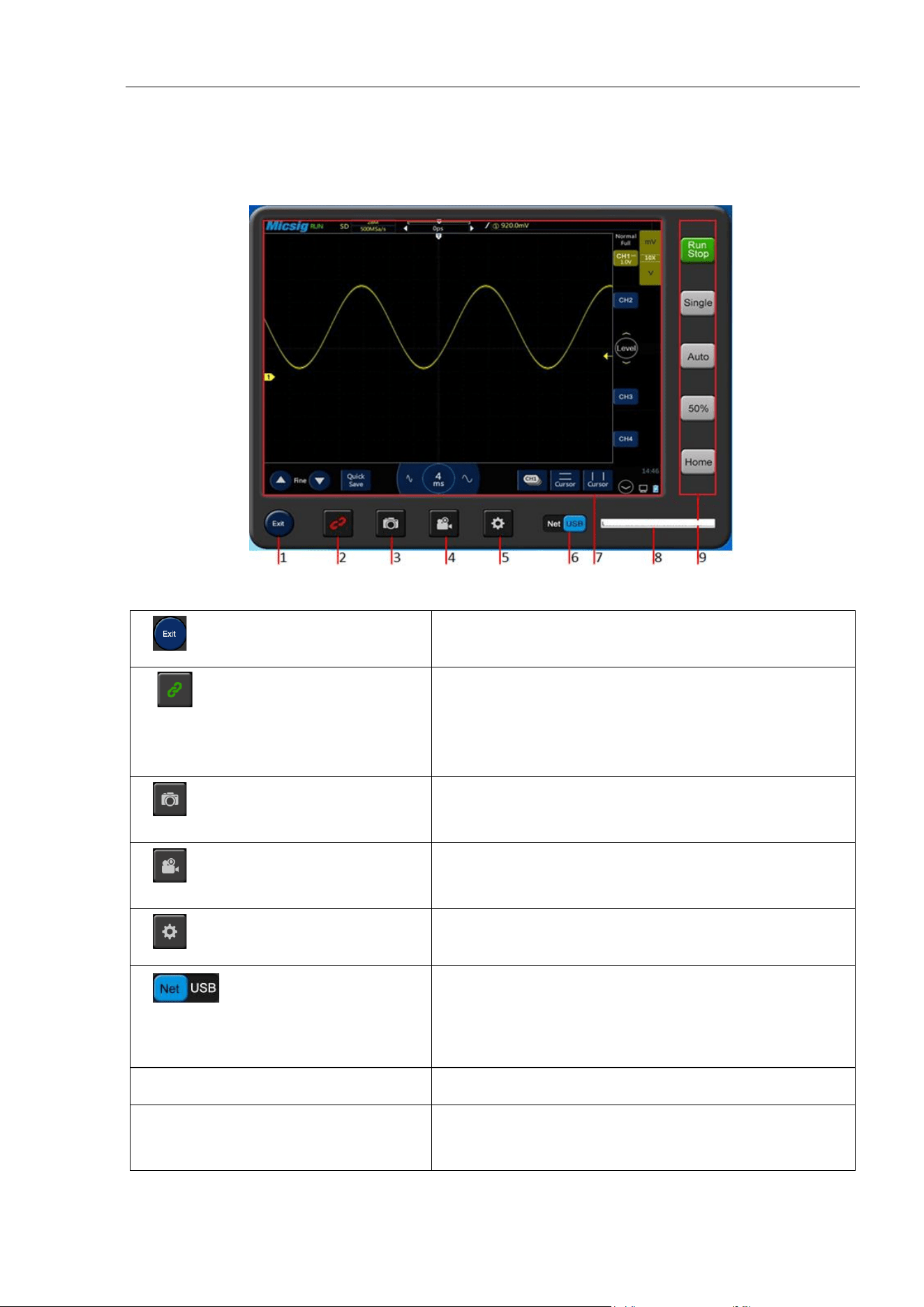
Chapter 13 Remote Control
145
the entered IP address.
13.1.3 Main Interface Introduction
Figure 13-2 Host Computer Interface
1. Host computer on/off button
Click to exit the host computer software
2 Oscilloscope connection status
button
The button has two states:
Green: Connect to selected oscilloscope when clicked
Red: Disconnect from oscilloscope when clicked
3. Quick camera button
Click to take photo quickly. Pictures are stored in the local
directory C:\Users\Public\Pictures
4. Video record button
Click to open or close video record function. Videos are stored
in local directory C:\Users\Public\Videos
5. Host computer storage button
Set photo taking and video recording storage locations
6. Select oscilloscope connection
mode
USB and WIFI connections are available
Note: WIFI connection must ensure that oscilloscope and computer
are in the same network
7. Host computer display area
Synchronous display with oscilloscope
8. Oscilloscope information display
Display oscilloscope model, connection mode, SN, IP and
other information, select the oscilloscope to be connected
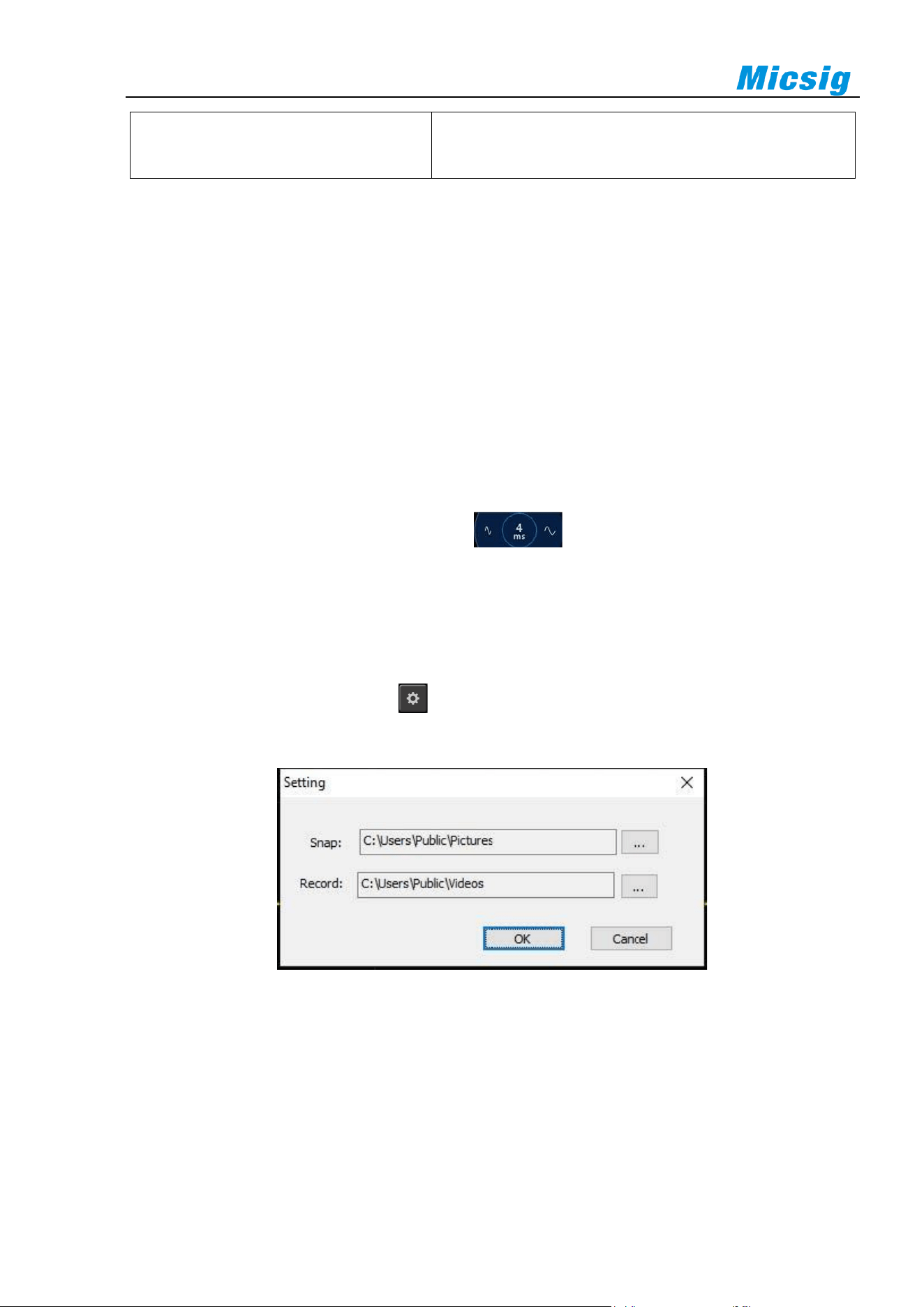
146
9. Host computer waveform control area
Waveform control area button has the same function with that
button on the oscilloscope
13.1.4 Operation Interface Introduction
The host computer and the oscilloscope are synchronously displayed, and the waveform operation mode and the
menu opening and closing mode are the same as those on the oscilloscope; the left mouse button and the single
finger operation mode are the same, and both of them can perform the operations of slide, click, drag, etc.; the
biggest difference of host computer and oscilloscope is the scroll wheel operations, which can move waveform
and cursor, adjust trigger level, and horizontal time base.
Scroll wheel operation introduction:
1. Operate the scroll wheel on the waveform display to move the current waveform;
2. After opening the cursor, operate the scroll wheel to move the current cursor;
3. Click the trigger level button, and operate the scroll wheel to adjust the trigger level.
4. Put the mouse in the time base adjustment area and adjust the horizontal time base by
operating the scroll wheel;
13.1.5 Storage and View of Pictures and Videos
Storage setting of pictures and videos:
Open the host computer storage setting , set the storage location of pictures and videos, as shown in the
figure below:
Figure 13-3 Host Computer Storage Setting
Pictures are stored in the local directory C:\Users\Public\Pictures by default. We can also store them under the
directory defined by ourselves according to our own needs. For example, we store pictures in a “mini photo”
directory under E-drive disk. We can set the video storage location in the same way, then click OK.
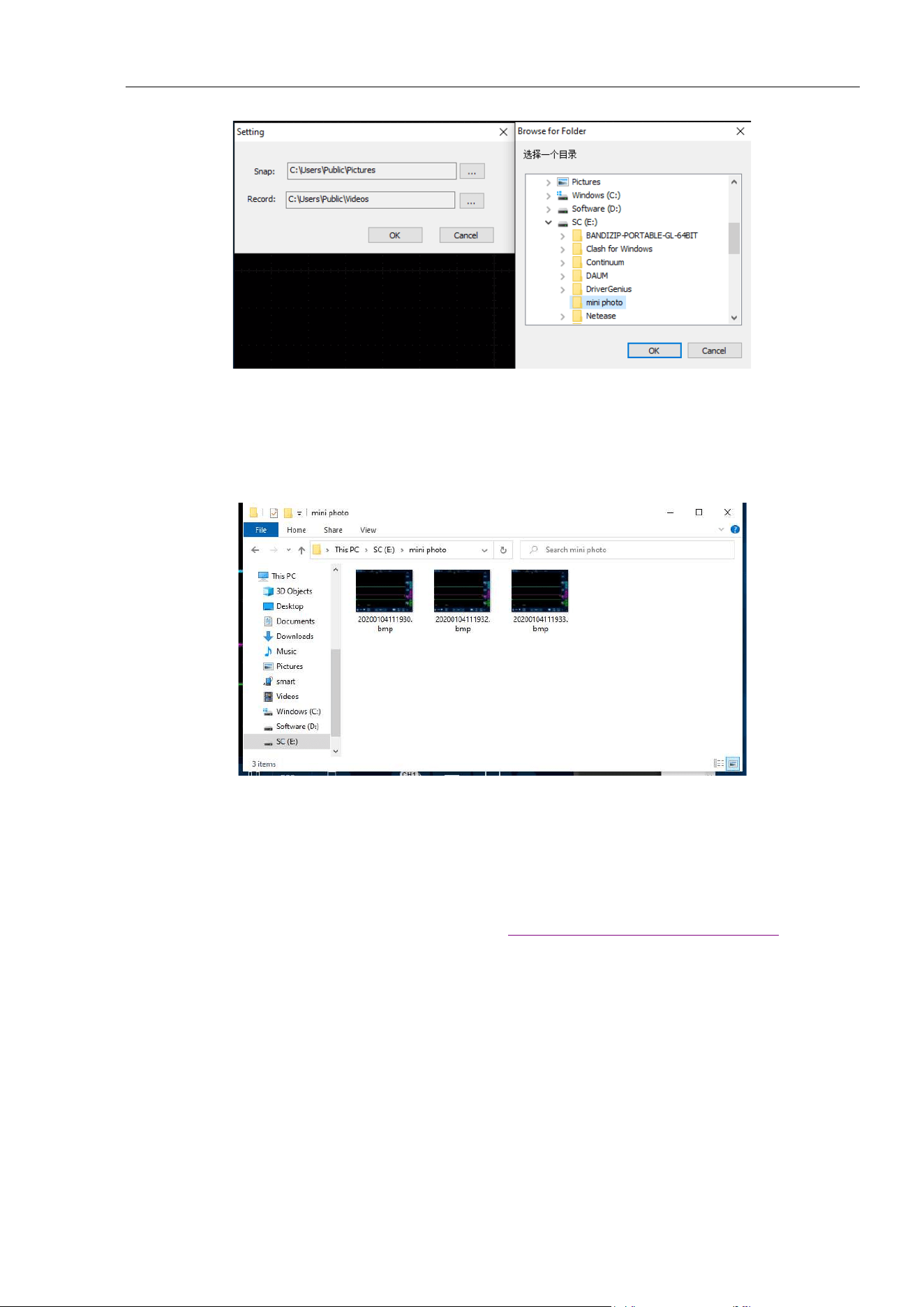
Chapter 13 Remote Control
147
Figure 13-4 Change Storage Directory
View pictures and videos:
Open picture (video) storage directory to view pictures (videos) stored on the host computer.
Figure 13-5 View Pictures
13.2 Mobile Remote Control
Micsig tBook mini series oscilloscopes support remote control on mobile phone. You need to download
Android app from the official website of Micsig (address:
http://www.micsig.com/html/list_64.html) and install
it. After App is successfully connected, Android device can be used to control the oscilloscope and display the
oscilloscope interface in a real time manner.
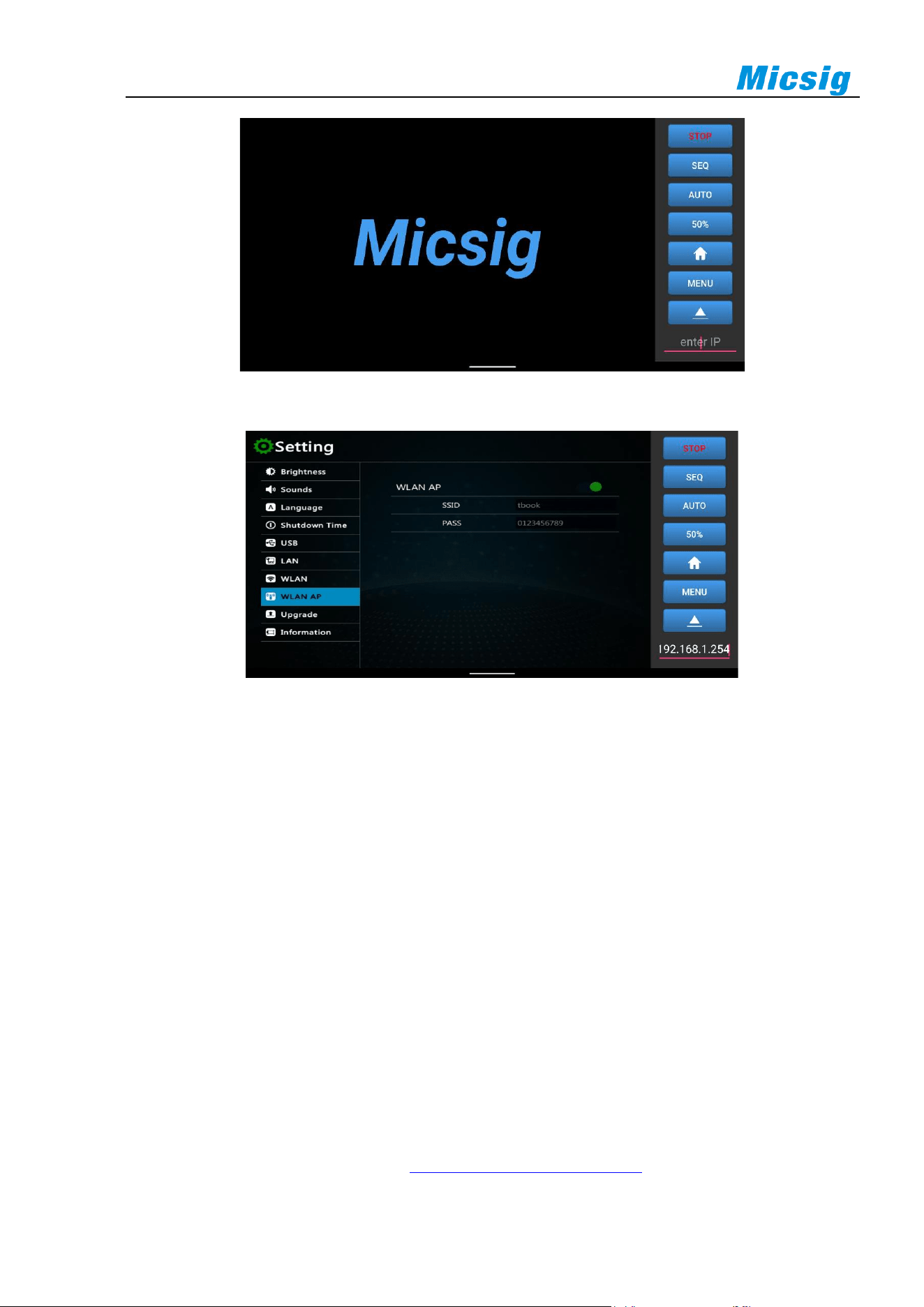
148
Figure 13-6 Android APP
Figure 13-7 Successful Connection of Android APP
Android APP can be connected by two methods:
1. Use oscilloscope portable hotspot: Mobile phone can be connected to the hotspot of oscilloscope. Enter the
oscilloscope IP 192.168.1.254 in the IP box at the lower right corner of the screen to connect successfully
for control;
2. Connect mobile phone and oscilloscope to the network segment under the same router: view the IP address
of the oscilloscope, and enters such IP address in the lower right corner of the mobile phone to connect
successfully.
The first connection method is recommended.
13.3 FTP
Through FTP, internal files of oscilloscope can be quickly viewed, called and managed from PC or mobile phone.
The tBook mini series oscilloscopes can open FTP via WIFI, oscilloscope portable hotspot, LAN, etc.
WLAN
Turn on WLAN on oscilloscope (refer to
11.4 Settings - WLAN Connection), check and ensure that PC and
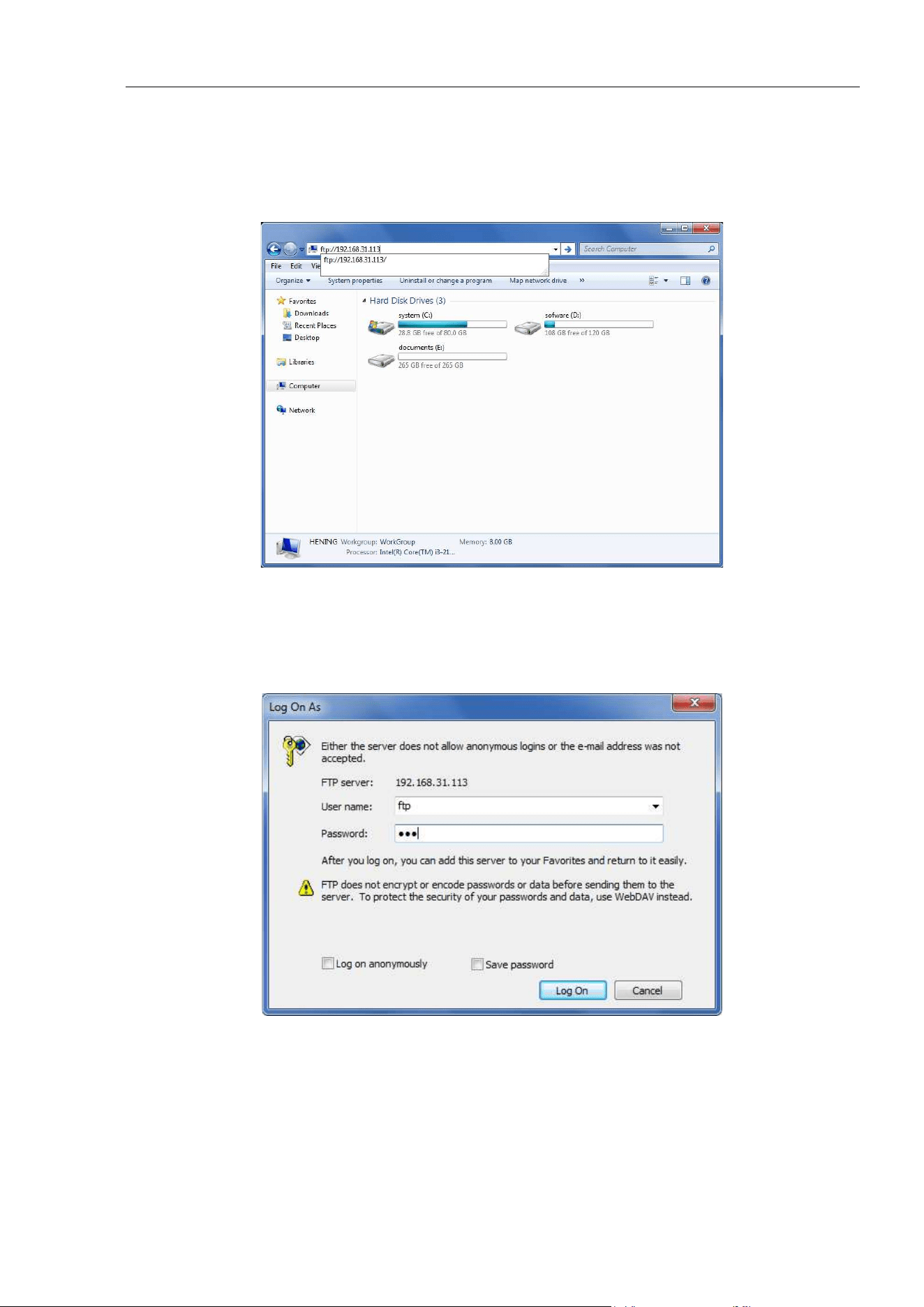
Chapter 13 Remote Control
149
oscilloscope are in the same network. Input the IP address (FTP:// IP address) displayed on the oscilloscope, and
then connect.
Figure 13-8 FTP Address Input
Enter the username and password of FTP server. The default username and the password are “ftp”. Click Login,
and view, call or manage files in the oscilloscope after successful login.
Figure 13-9 FTP Login
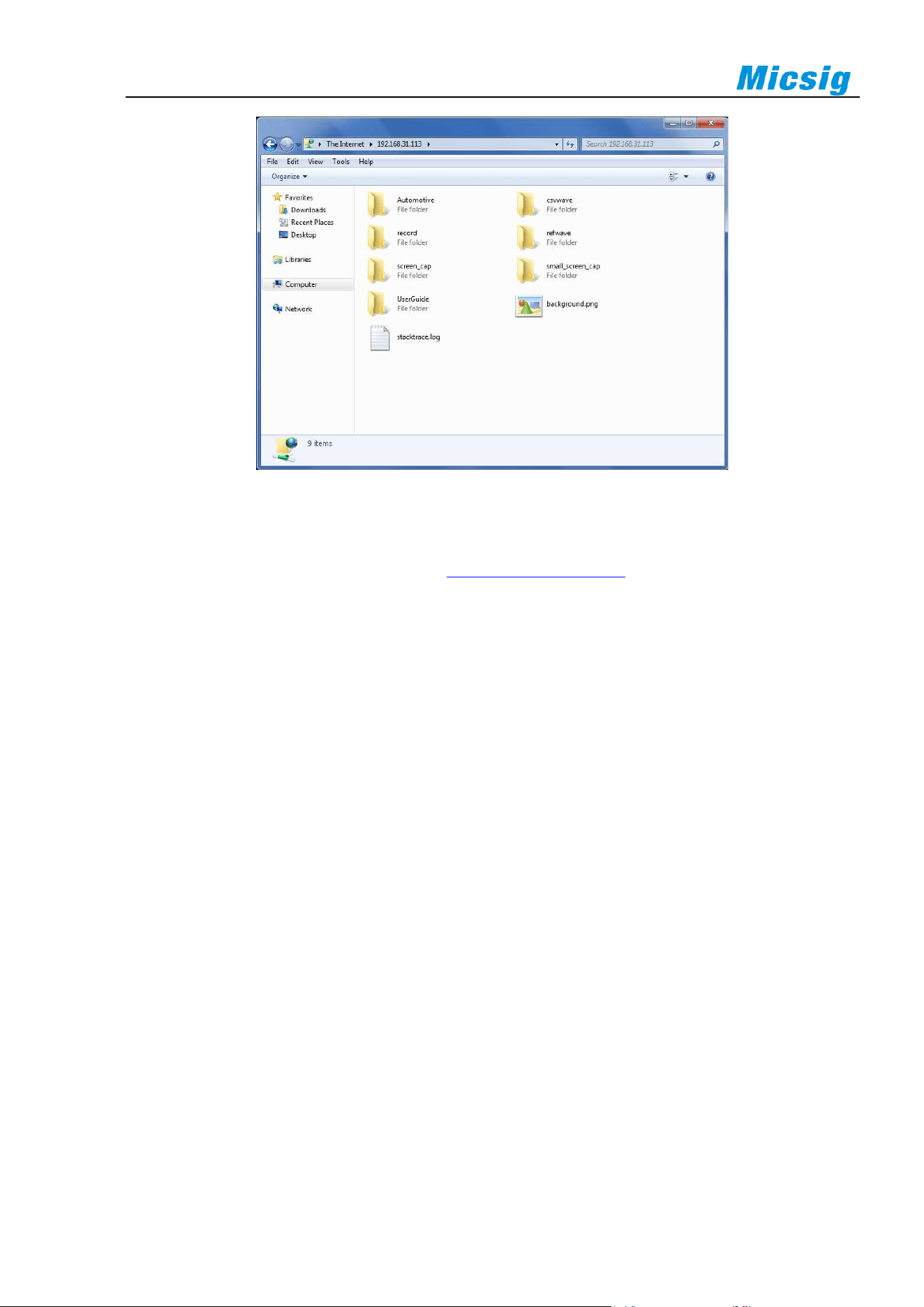
150
Figure 13-10 View Files
WLAN AP
Open the WLAN AP on oscilloscope (refer to
11.3 Settings - WLAN AP), connect PC to theWLAN AP of
oscilloscope, Enter oscilloscope IP address on PC (ftp://IP address), the default IP is 192.168.1.254.Then connect
to FTP server and enter the username and password. The default username and the password are “ftp”. Click Log
in, and view, call or manage files in the oscilloscope after successful login.
Tip: The connection method is the same as WLAN connection.
LAN
Connect to the FTP function through LAN. For details, refer to WLAN connection and portable hotspot
connection.
Mobile phone connection
To connect to FTP via mobile phone, download and install relevant file browser first, such as ES file browser.
Check and make sure oscilloscope and mobile phone are connected to the same network. Enter oscilloscope IP
address, account number and password through the ES browser. Click OK to log in, and then manage files on the
oscilloscope.
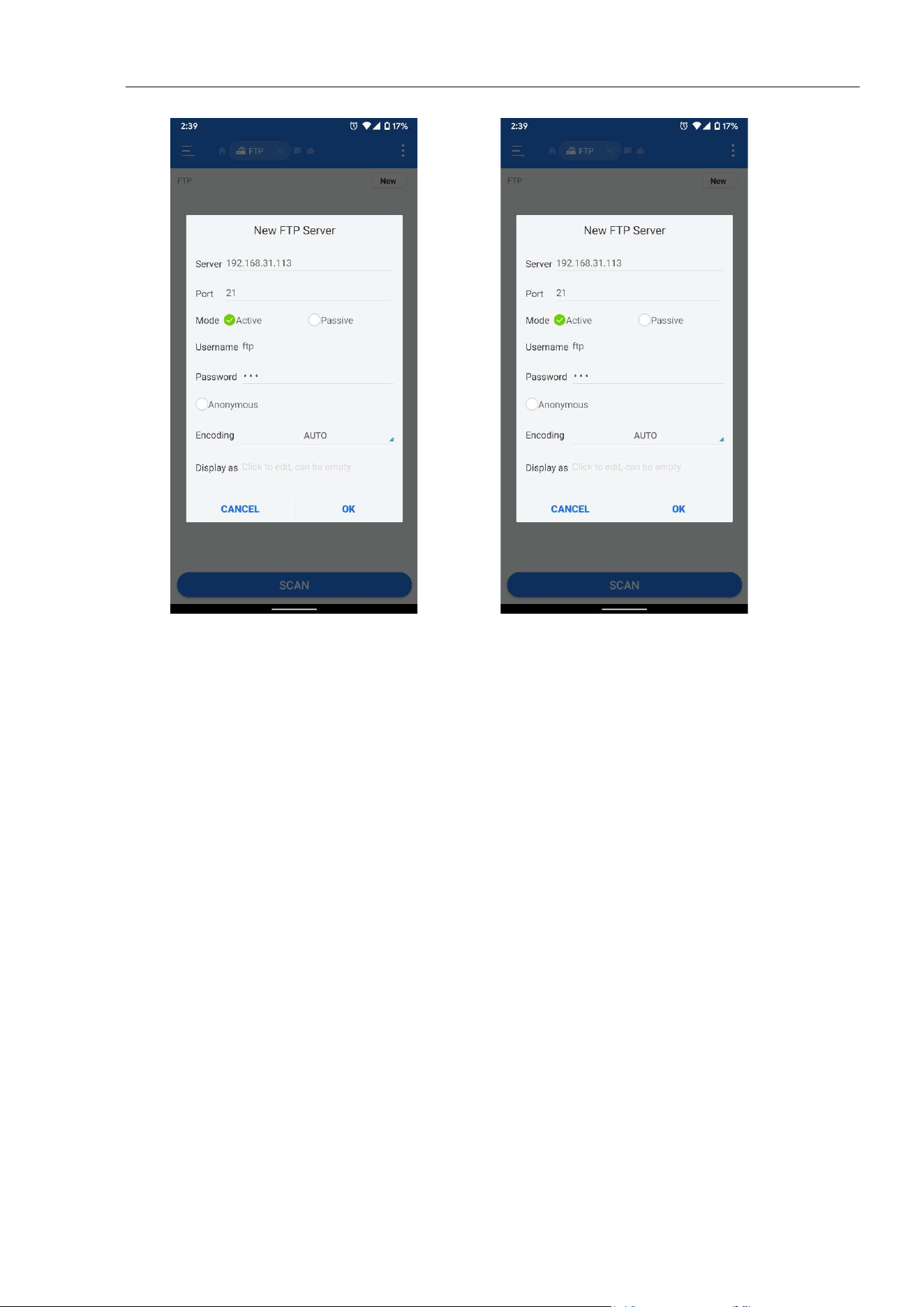
Chapter 13 Remote Control
151
Figure 13-11 Mobile Phone Login
Figure 13-12 View Files
13.4 SCPI
SCPI is the abbreviation for Standard Commands for Programmable Instruments. SCPI is a standardized
instrument programming language based on the existing standards IEEE 488.1 and IEEE 488.2, and observes
floating-point arithmetic rules in IEEE754 standard, information exchange 7-bit code symbol in ISO646
(equivalent to ASCII programming) and other standards. SCPI commands show a tree hierarchy consisting of
multiple subsystems, each of which is made up of a root keyword and one or several hierarchical keywords.
SCPI command can be used to programmatically control TO1000 Series digital oscilloscopes via the USB
interface. TO1000 Series may communicate with computer through USB device.
Note: For more details, the TO1000 series oscilloscope commands can be downloaded from the official website of Micsig.

152
Chapter 14 Reference
This chapter contains the measurement category suitable for the oscilloscope and the environmental level of
pollution degree supported. You are recommended to read this chapter carefully to understand the conditions of
use of the tBook mini series oscilloscope.
⚫ Measurement Category
⚫ Pollution Degree
Chapter 14 Reference
153
14.1 Measurement Category
Oscilloscope measurement category
tBook minim series oscilloscopes are primarily used for measurements in Measurement Category I.
Measurement category definitions
Measurement category I is for measurements performed on circuits not directly connected to MAINS. Examples
are measurements on circuits not derived from MAINS, and specially protected (internal) MAINS derived circuits.
In the latter case, transient stresses are variable; for that reason, the transient withstand capability of the equipment
is made known to the user.
Measurement category II is for measurements performed on circuits directly connected to the low voltage
installation. Examples are measurements on household appliances, portable tools and similar equipment.
Measurement category III is for measurements performed in the building installation. Examples are
measurements on distribution boards, circuit-breakers, wiring (including cables, bus-bars, junction boxes,
switches, socket-outlets) in the fixed installation, and equipment for industrial use and some other equipment, for
example, stationary motors with permanent connection to the fixed installation.
Measurement category IV is for measurements performed at the power source of the low-voltage installation.
Examples are electricity meters and measurements on primary overcurrent protection devices and ripple control
units.
Transient withstand capability
Maximum input voltage of the analog input
Category I 300Vrms, 400Vpk.
14.2 Pollution Degree
Pollution Degree
tBook mini series oscilloscopes can operate in environments with
pollution degree 2 (or pollution degree 1).
Pollution Degree
Categories
Pollution degree 1: No pollution or only dry, non-conductive pollution
occurs. The pollution has no influence. For example: a clean room or air-
conditioned office environment.
Pollution degree 2: Normally only dry, non-conductive pollution occurs.
Occasionally temporary conductivity caused by condensation may occur.
For example: general indoor environment.
Pollution degree 3: Conductive pollution, or dry, non-conductive pollution
occurs which becomes conductive due to condensation. For example:

154
sheltered outdoor environment.
Pollution degree 4: Pollution that generates persistent conductivity
through conductive dust, rain, or snow. For example: outdoor locations.
14.3 Software and Firmware Updates
Micsig often releases software and firmware updates for its products. To search for the firmware update for your
oscilloscope, please download it from the website (download address of the latest upgrade package:
http://www.micsig.com/html/list_60.html)
To view the currently installed software and firmware, click "setting" in "homepage" to display the software and
firmware information of oscilloscope in the system.
Refer to "11.4 setting" for detailed software and firmware update steps.
Chapter 15 Troubleshooting
155
Chapter 15 Troubleshooting
1. If the oscilloscope does not start up at power on, please follow steps below:
⚫ Check the power cord to verify whether it has been connected properly and whether the power supply
is normal;
⚫ Check the power on/off buttons to ensure it has been pushed, and if you are using battery, check whether
the battery is in good condition;
⚫ Restart the oscilloscope after the checks above;
⚫ Contact Micsig if the problem persists, and we will provide service to you.
2. If acquired waveforms do not display on the screen when the signal source is connected, please follow
the steps below:
⚫ Check whether the probe is connected correctly in the BNC socket;
⚫ Check whether the probe is connected correctly in the signal source;
⚫ Check whether the trigger type is correctly selected;
⚫ Check whether trigger conditions are set correctly
⚫ Check whether signal source is working properly;
⚫ Check whether the channel is turned on;
⚫ Check whether the vertical scale factor is set correctly;
⚫ Check whether the instrument is in single-sequence waiting state for trigger
⚫ Tap to resample signal.
3. If the measured voltage amplitude is 10 times greater or smaller than the actual value:
⚫ Check whether the set attenuation factor of the channel is consistent with the attenuation factor of the
actually used probe.
4. There is a waveform display, but cannot be stable:
⚫ Check the trigger source on the trigger type menu to ensure that it is consistent with the actually used
signal channel;
⚫ Check the trigger type: edge trigger is adopted for general signal, and video trigger mode for video
signal. Only the correct trigger mode is used, the waveform can be displayed stably;
⚫ Check signal source noise. Set the trigger coupling mode to be high-frequency rejection or low-
frequency rejection to filter out high frequency or low frequency noise interference
5. A waveform is displayed but inconsistent with the input waveform:
156
⚫ Check whether the coupling mode setting in the channel menu is correct.
6. If there is no display after pressing button:
⚫ Check whether the trigger mode is “Normal”, and whether the trigger level is beyond the scope of the
waveform. Center the trigger level and set the trigger mode as “Auto”.
⚫ Check whether the picture is displayed in full screen, and if so, exit the display.
7. If the display becomes slower after setting average times of sampling:
⚫ If the average times are above 32, it is normal for the general speed to become slow.
⚫ You can reduce the average times.
8. Staircase waveform is displayed:
⚫ This phenomenon is normal because the horizontal time base is too low, and the horizontal time base
may be increased to raise the horizontal resolution, and then improve the display;
⚫ The display type may be “line”. The connection between sampling points may lead to the display of
staircase waveform. This problem can be solved by setting the display type as “point” display mode.
9. There is persistence of vision in waveform display:
⚫ This phenomenon is normal because the persistence time may be set too long, and the waveform
persistence shows persistence of vision;
⚫ The reason may be that sampling mode is set to envelope of sampling, and the sampling mode can be
modified to normal waveform for normal display
10. During measurement, the measured value is displayed as -----:
⚫ This phenomenon is normal. When the channel waveform displays beyond the waveform display area,
the measured value is displayed as -----. If the channel vertical sensitivity or vertical position is adjusted,
the measured value can be displayed correctly;
⚫ This phenomenon is normal. When there is no full-cycle waveform in the waveform display area, the
measured value may be displayed as -----. If the time base is adjusted, the measured value will be
displayed correctly.
⚫ This phenomenon is normal, and the measured value of the FFT waveform is displayed as -----.
11. When viewing pictures, no pictures are displayed:
⚫ Check whether the USB option in the settings is set as the USB storage device. If it is the USB storage
device, please change to other options.
12. The oscilloscope will be black if there is no operation for a period of time:
⚫ Check whether the standby time setting in the setting is disabled; if it is not disabled, it will

Chapter 15 Troubleshooting
157
automatically standby at the set time.
13. Oscilloscope will automatically shut down after no operation for a period of time:
⚫ Check whether the shutdown time setting is Disabled; if it is not Disabled, it will automatically shut
down when the set time is reached.
14. CSV files cannot be selected when loading reference:
⚫ CSV files are not the supported format that can be loaded into reference channels.
15. Tap the button during the use of oscilloscope, there is no beep sound:
⚫ Check whether the sound volume setting is correct.
16. Oscilloscope backlight has low brightness:
⚫ Check whether the backlight settings are correct.
17. A waveform being moved changes abruptly:
⚫ Check whether the picture is displayed in full screen.
18. Turn off the channel at Auto state:
⚫ This phenomenon is normal. At Auto state, the channel with an amplitude less than 10mV will be turned
off.
19. Function buttons are pressed without response:
⚫ Check whether the picture is displayed in full screen.

158
Chapter 16 Services and Support
Service Commitments : Micsig guarantees that the products are manufactured and tested according to national
standards or enterprise standards, no unqualified products will leave our factory and the first-class customer
services are provided for all sold products. The warranty period for our products is three years since date of
shipment, and three months for the sold spare parts and the product repair and maintenance. For the details of
warranty service, please read the “Scope of Limited Warranty and Services” chapter. Micsig provides lifetime
repair and maintenance services for products. In accordance with the relevant provisions of after-sale service of
industrial products and the enterprise’s own capacities, Micsig commit as follows:
Repair Commitments : Micsig commits to use the original factory parts for products returned by the user for
repair (under warranty or not) and the commissioning and testing standards are identical with new products.
Micsig the obligation to inform the customer, but without any other obligations for non-product defects or
products with decreased performance not for objective reasons.
Service Time Commitments : Micsig will give a reply of the time and cost for repair within 2 working days
after receiving the product returned by the user for repair. After the reply is confirmed, the repair period for a
general fault is 5 working days and shall not exceed 10 working days for any special fault.
Contact us
Shenzhen Micsig Instruments Co., Ltd.
Address: No. 106, 1F, Bldg A, Huafeng International Robot Industrial Park, Hangcheng Avenue, Xixiang Sub-
district, Bao'an District, Shenzhen, China
Tel: 0755-88600880
Fax: 0755-88600880-818
Website:
www.micsig.com
Email: marketing@micsig.com
Postal Code: 518000
Annex
159
Annex
Annex A:Technical specifications
In addition to other notes, all technical specifications are applicable to all models of tbook Mini. To
meet the technical specifications, two conditions must be met:
1. The oscilloscope must work continuously for more than 30 minutes within the specified
operating temperature range.
2. If the operating temperature range reaches or exceeds 10 ℃, the system menu must be opened
and the "self -Adjust" program must be executed.
All specifications are guaranteed except those marked "typical".
General specifications
Model——Bandwidth
TO1102——100MHz
TO1104——100MHz
TO1152——150MHz
BNC input maximum voltage
CAT I 300Vrms
Channel number
2 or 4 oscilloscope channels
display
Screen
8 "TFT led multi-point capacitive touch screen
Display resolution
800*600
Background light intensity, typical
250 candela/m
2
Signal communication
Communication Interface
USB
Micro USB
WIFI/LAN
Micro HDMI
Power Supply
Adapter power supply voltage, frequency
100VAC to 240VAC、50Hz/60Hz
Adapter power supply
12VDC*5A
Battery
Standard lithium battery
capacity
Continuous working time,
typical
7.4V 8000mAh
4.0~8.0hours
Environmental
Temperature (working / storage)
0℃~+45℃ / -40℃~+60℃
Humidity (working / storage)
5%~85% / 5%~90%,25℃
Altitude (working / storage)
3000m/12000m
Cooling method
fan
Mechanical specifications
160
2 channels
4 channels
Dimension (h * w * d)
250mm*200mm*55mm
Oscilloscope (bare)
1040g
1125g
Oscilloscope specifications
Sampling rate range
single channel 1GSa/s
Double channel 500Msa/S
Three / four channels 250Msa/S
Recording length
single channel 28/14m, double channel 14/7m,
three/four channe l7/3.5m
Bandwidth limit
20MHz(-3dB)、high pass filter, low pass filter
Sampling
normal, peak, envelope, average
Probe compensation frequency,
typical
1KHz,square wave
Input
Input coupling
DC, AC, ground
Input impedance
1m Ω± 1% in parallel with 14.5pf ± 3pf
Probe attenuation coefficient
1mx ~ 10kx in steps of 1 ~ 2 ~ 5
Differential delay, typically
< 40 PS between any two channels with the same
scale and coupling
Level
Location range
-14grids~14ks
Scanning range(s/div)
2ns/div~1ks/div
Time base accuracy, typical
±20ppm
Vertical
Vertical zoom range(V/div)
1mV/div~10V/div in steps of 1~2~5
Position range
±6 grids
Vertical resolution
8 bits
Rise time, typical
100MHz≤3.5ns
150MHz≤2.3ns
DC gain accuracy, typical
≤±2.0%
Trigger
Trigger sources
CH1、CH2、CH3、CH4
Trigger mode
auto, normal, single
Trigger type
edge
rising edge, falling edge and double edge
Pulse width
condition: less than, greater than, equal to, not equal
to
Polarity: positive, negative
Logical trigger
AND、OR、NAND、NOR
N edge
rising edge, falling edge
Annex
161
Runt
polarity: positive, negative, arbitrary
Slope
rising edge, falling edge, arbitrary
Timeout
positive, negative, arbitrary
Video
odd field, even field, all fields, all lines, lines
System: pal, NTSC, SECAM, 720p, 1080i, 1080p
UART(RS232/RS422
/RS485)
UART(RS232/RS422/RS485) is triggered on the
transmission start bit, stop bit, data, 0 data, 1 data, X
data and parity error within 10 Mb / s.
LIN(optional)
Lin (optional) is triggered within 100 kb / S (20 KB /
s as defined by Lin) on synchronous rising edge,
frame ID, frame ID and data.
CAN(optional)
Can (optional) can signal frame start, frame type
(data, remote, error, overload), identifier (standard or
extended), data, identifier and data, frame end,
missing ACK or bit filling error within 1 MB / s.
You can further specify that the data is used to trigger
when ≤, <, =, >, ≥ or ≠ a special data value. The user
adjustable sampling point is set to 50% by default.
SPI(optional)
SPI (optional) is activated on the SPI bus within 50.0
MB / s on SS, frame start, MoSi, miso or MoSi and
miso.
I2C(optional)
I2C (optional) is triggered on start, repeat start, stop,
lost ACK, address (7 or 10 bits), data or address and
data on I2C bus within 10 Mb / s.
ARINC429(optional)
162
1553B(optional)
1553B (matching) in synchronization, word type 1
(command, status, data), command word (DB setting
RT address, T/R, sub address / mode, data word
number / mode code and parity), data word (user
specified 16 bit data value), error (synchronization,
parity, Manchester, discontinuous data), idle time (the
shortest time range can be 2 s s 100 μ s, the longest
time range can be selected from 2 μ s to 100 μ s,
which can be triggered in < minimum value, >
maximum value, in the range and out of the range).
RT address can be further specified to trigger when =,
≠, <, >, ≤, ≥ a special data value or within or outside
a certain range.
Trigger coupling mode
DC, AC, HF suppression, LF suppression, noise
suppression
Trigger hold-off time range
200ns~10s
measurement
Measurement type
cycle, frequency, rise time, fall time, positive duty
ratio, negative duty ratio, delay, positive pulse width,
negative pulse width, burst pulse width, positive
overshoot, negative overshoot, phase, peak peak peak
value, amplitude, high, low, maximum, minimum,
average, cycle average, root mean square, cycle root
mean square
Cursor type
horizontal cursor, vertical cursor, cross cursor
Math
FFT
4 windows:Rectangle 、 Hanning 、 Hamming 、
Blackman
Double waveform
+、-、*、/
XY mode
X-axis input / Y-axis input
Channel 1(CH1)/Channel 2(CH2)
Storage
Waveform
Unlimited
Picture
Unlimited
User settings
10
Display
Maximum refresh rate
130,000wfm/s
Persist
none,auto、100ms~10s、∞
Waveform display range
14*10grids
Waveform display mode
point、line
Language
Chinese、English

Annex
163
Annex B:Maintenance and Care of Oscilloscope
General maintenance
Do not put or leave the instrument in a place where the LCD display will be exposed to direct sunlight for
long period.
Caution: To avoid damage to the oscilloscope or probes, do not expose them to sprays, liquids, or solvents.
Clean oscilloscope
Examine the oscilloscope and probes as often as operating conditions require. To clean the exterior surface,
perform the following steps:
⚫ Use a soft cloth to remove floating dust on the outside of the oscilloscope and probes. Take care to avoid
scratching the touch screen while cleaning.
⚫ Use a soft cloth dampened with water to clean the oscilloscope while doing this please keep the power off.
Wipe with a mild detergent and water. Do not use any corrosive chemical cleaning agent, in order to avoid
damaging the oscilloscope or probe.
⚫ Clean the ventilation hole with a soft brush to keep it unimpeded. Do not use any corrosive chemical cleaning
agent, so as to avoid damage to the oscilloscope motherboard.
⚫ If the fan needs to be cleaned, please consult the after-sales service personnel, so as to avoid damage to the
oscilloscope.
Warning
Make sure the instrument is dry before recharging, to avoid electrical short circuit or personal injury caused by
moisture.
Store oscilloscope
The lithium battery needs to be charged before storing the oscilloscope for a long period.
Battery charge
Upon delivery, the lithium battery may not be charged. It takes 6 hours to be fully charged (the oscilloscope is
recommended to turn off to save the charging time). When running on battery power, the battery level indicator
in the lower right corner of the screen will indicate the battery usage.
Caution: In order to avoid charging battery from overheating, do not use beyond the permitted
environmental temperature value given in the technical specification.

164
Annex C: Accessories
Standard accessories
1) 4 pcs or 2 pcs for 10X standard probes (incl. grounding nut, grounding crocodile clip, standard rubber plug)
2) Power adapter (12V DC, 5A)
3) Power cord
4) tBook mini calibration certificate
5) tBook mini packing list
Optional accessories
1) Oscilloscope suitcase/handbag
2) Battery
3) Leather carry strap
4) High voltage probe

Annex
165
This manual is subject to change without notice.
The contents of this manual are considered correct. If the user finds any error or omission, please contact
Micsig.
The company will assume no responsibility for accident or hazard caused by the improper operation of the
user.
The copyright of this manual shall belong to Micsig. Any organization or individual may not duplicate,
copy or excerpt the contents without Micsig’s authorization. Micsig reserves the right to claim against such
actions.