CONTENTS
INTRO
4
NOTIFICATION TAB FEATURES
4.1 Notication feature
5
SEARCH TAB FEATURES
5.1 Search by plate and color
5.2 Search by country, make and model
5.3 Search by date and date range
5.4 Search by car type
6
SETTINGS TAB FEATURES
6.1 Setting up WisenetRoadAI
6.2 Setting up Events
6.3 Integration options
6.4 List settings
6.5 Updating App
6.6 DB Export & Import
3
ABOUT TAB FEATURES
3.1 Data on the About page
1
EVENTS TAB FEATURES
1.1 Full Screen Mode / Windowed Mode
1.2 List Mode
1.3 List display mode
1.4 Table display mode
1.5 Navigation
2
STATISTICS TAB FEATURES
2.1 Vehicles for a day and vehicles for a week widgets
2.2 Top-5 brands and Top-5 models widgets
2.3 Vehicles types
TROUBLE SHOOTING

3 | WisenetRoadAI application User Guide
INTRO
This document contains tips and recommendations on how to use WisenetRoadAI application
running on Hanwha AI cameras.
This document describes the following application sections:
Live view of the recognitions in
Events tab.
Work with
Notications
Look for the stored events in Search tab
Review historical data in Statistics
Congure the application in Settings
App status and recovery options in About tab
4 | WisenetRoadAI application User Guide
EVENTS TAB FEATURES
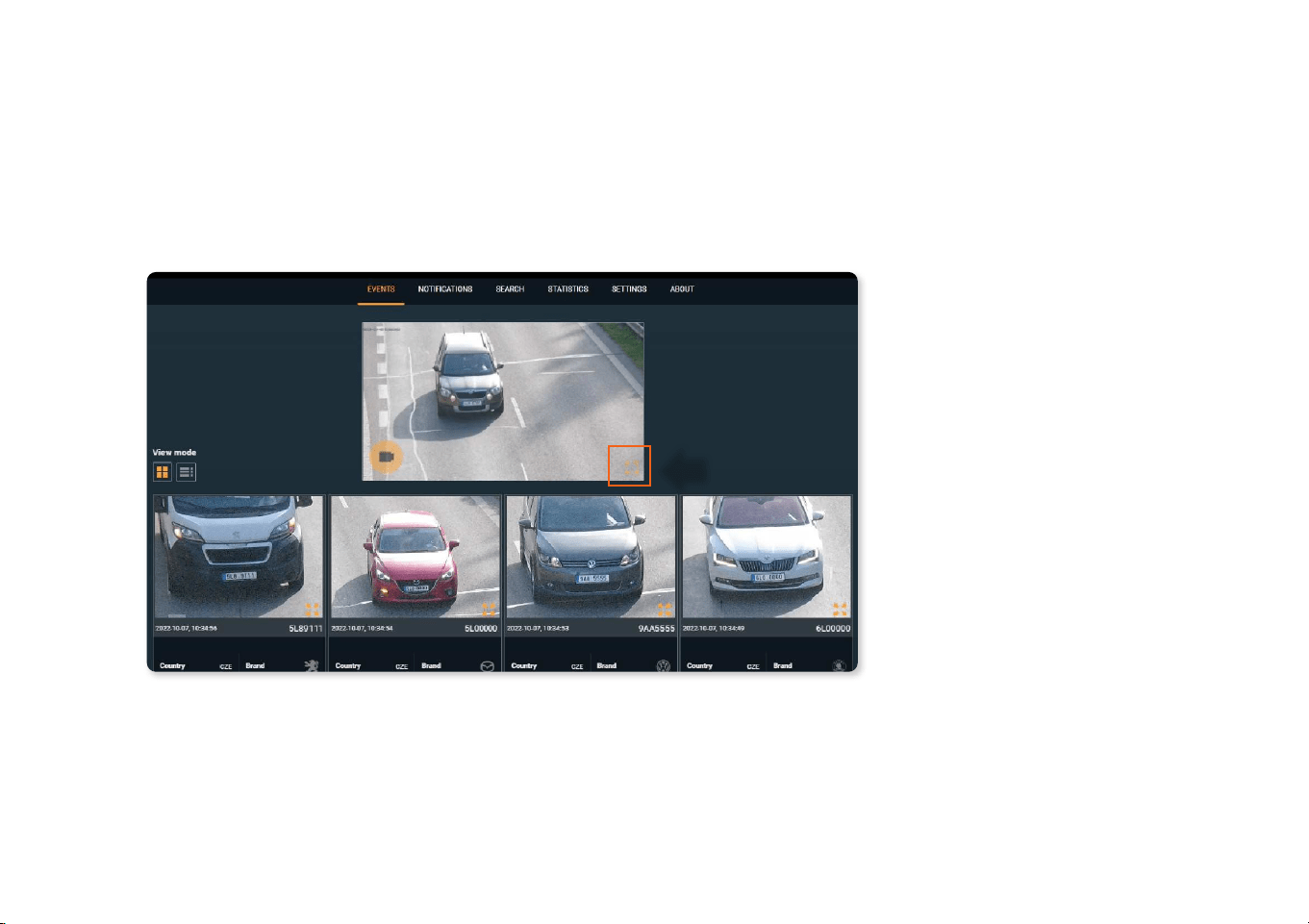
1.1 Full Screen Mode / Windowed Mode
Full-screen mode allows you to use the
entire screen area but not a small window.
To view the live image from the camera in
full-screen mode, click on the full-screen
mode icon.
To exit full-screen mode back to windowed
mode, click anywhere.
1
5 | WisenetRoadAI application User Guide
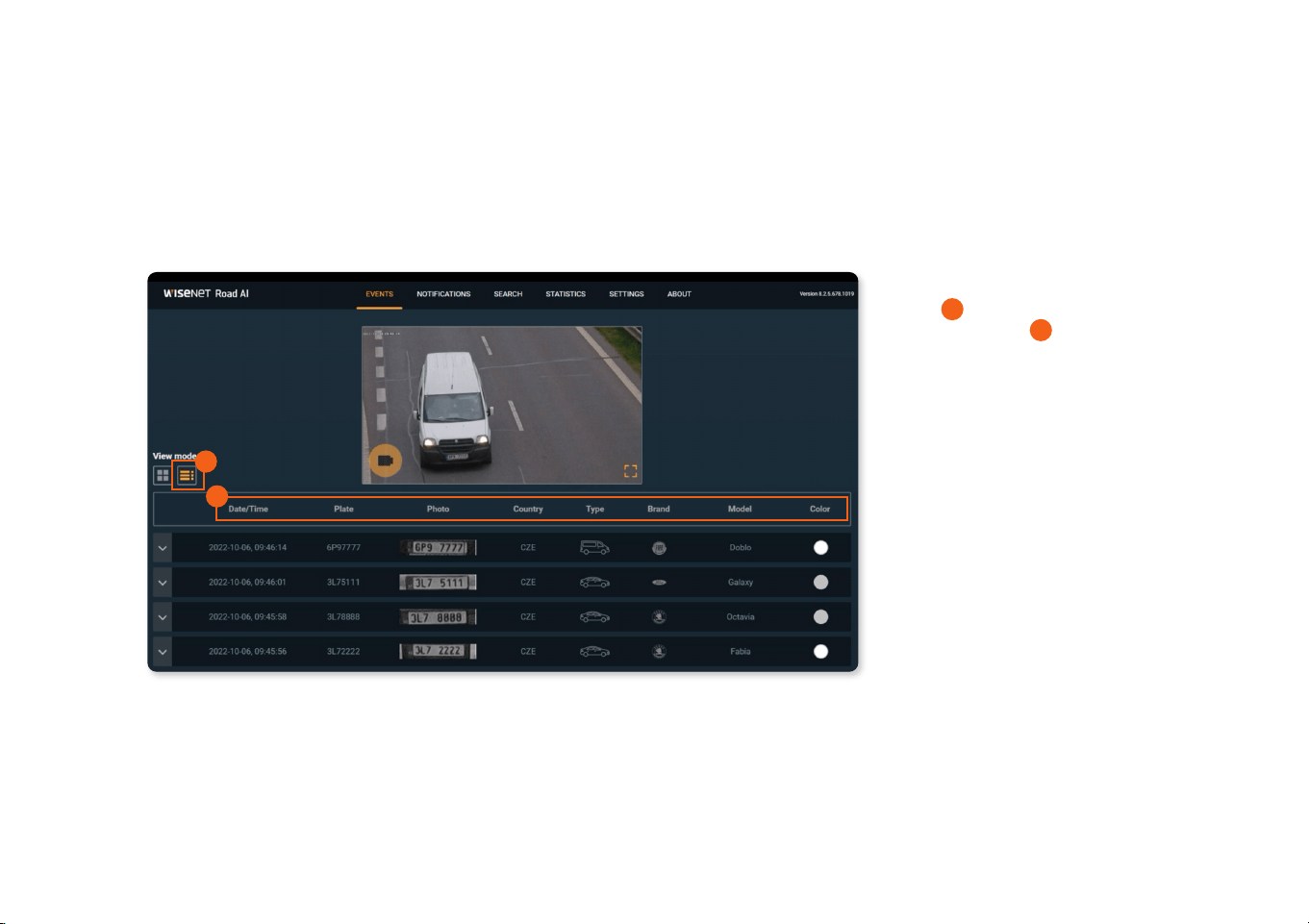
1.2 List Mode
To enable the list display of events, click
on the
A
corresponding button. Such
event parameters
B
as Date/Time, Plate,
Photo, Country, Type, Brand, Model and
Color are displayed as a table. The events
are displayed in a list from the newest to
the oldest.
After moving the cursor over the Country,
Type, and Brand icons, a popup window
demonstrates the required eld’s value.
A
B
6 | WisenetRoadAI application User Guide
1.3 List display mode
A
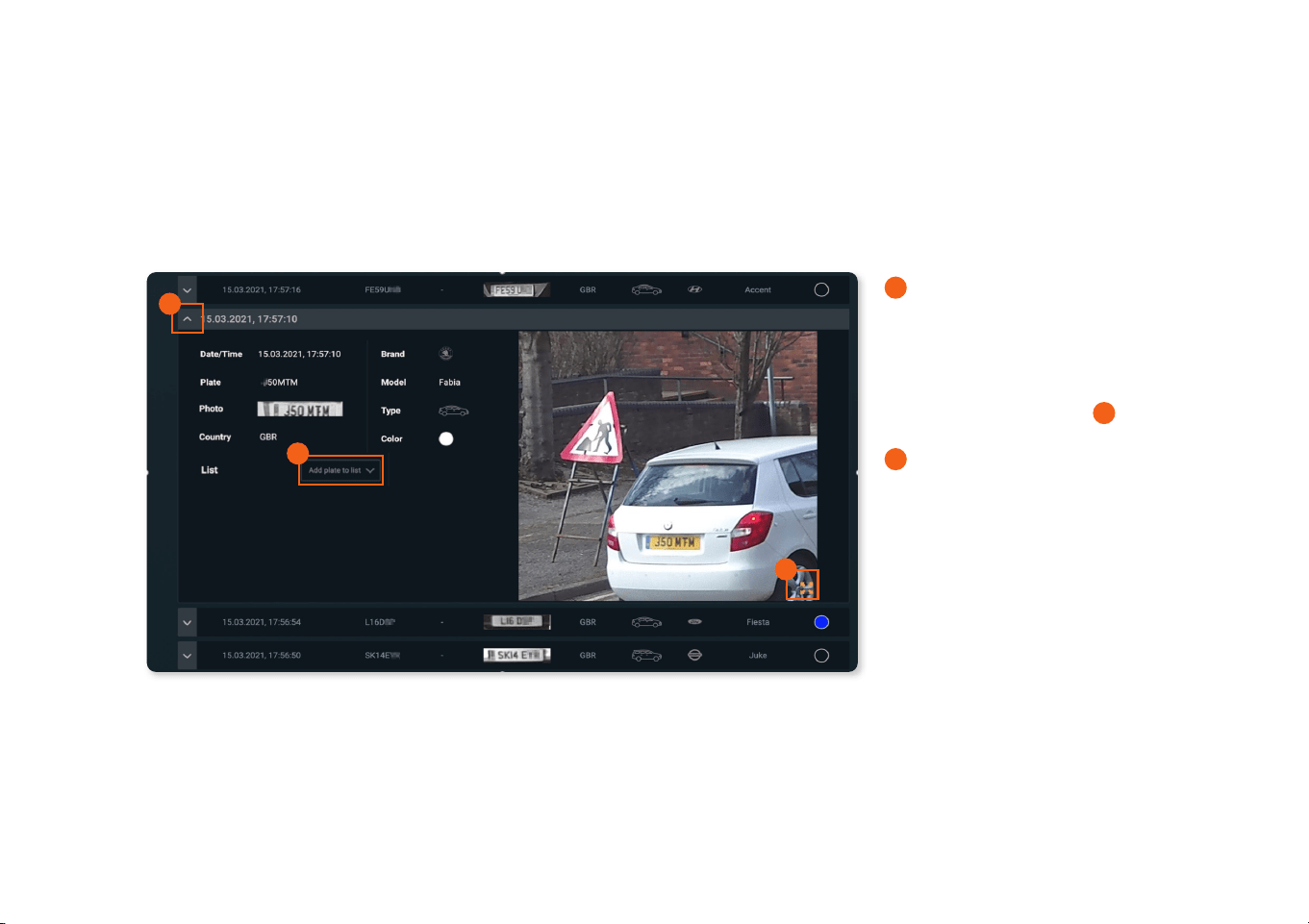
To display full event data in List mode
and enable image viewing, it is needed to
expand the selected event data.
This menu allows viewing images in full
screen mode (click on the
B
button in the
right bottom corner of a photo), as well as
C
to add the selected plate number to
the white or black list.
The display of the new events will be
paused until the list is collapsed. After
collapsing, the list will be updated with
past events. If the list isn’t collapsed
manually, it will be updated automatically
in a minute.
A
B
C
7 | WisenetRoadAI application User Guide
1.4 Table display mode
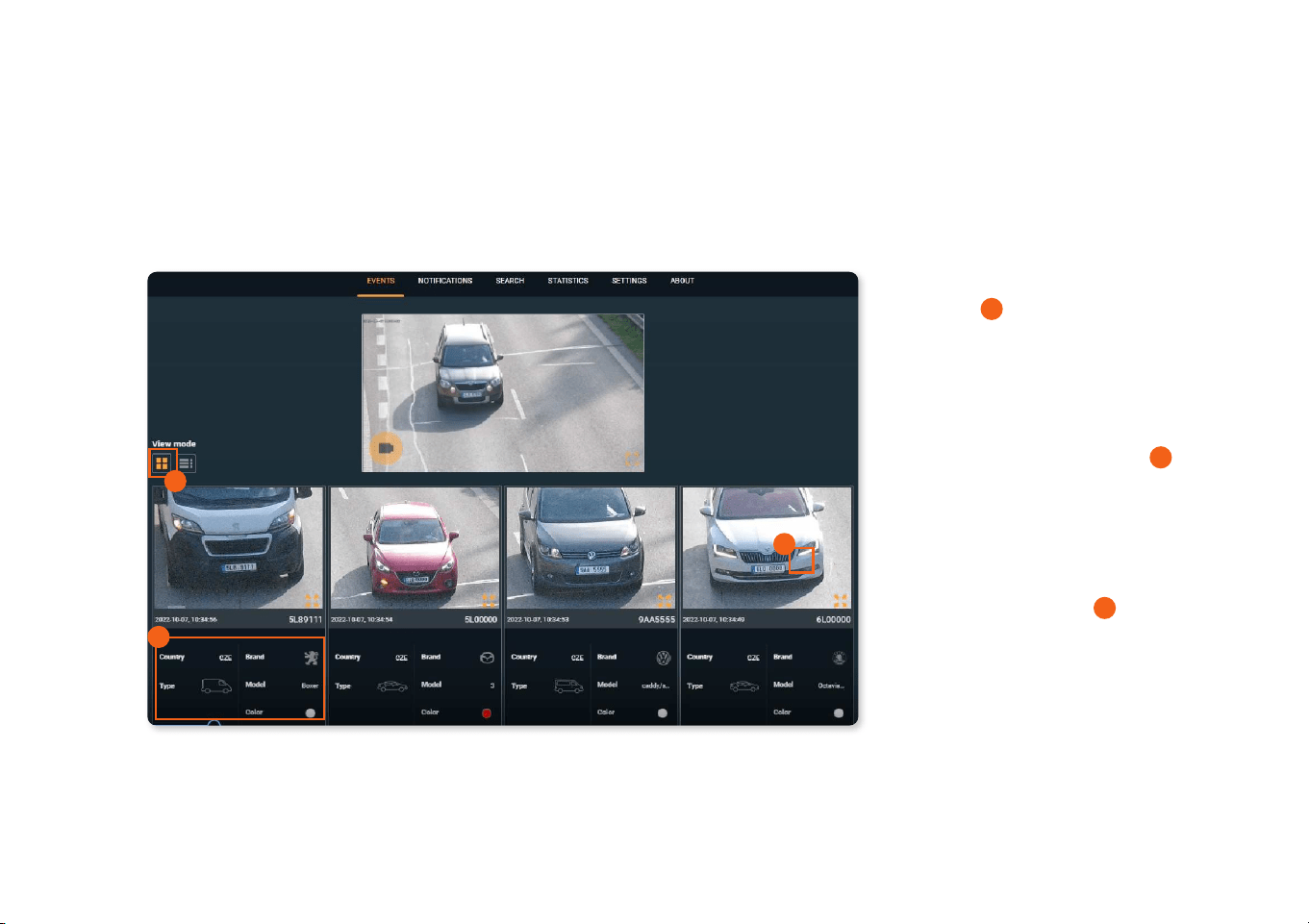
To enable the display of events as a table,
click on the
A
corresponding button. In
this mode events and their parameters
(Date/Time, Plate, Direction, Photo,
Country, Type, Brand, Model и Color) are
displayed in blocks.
After moving the cursor over the
B
Country, Type and Brand buttons, a
popup window demonstrates the value of
the required eld.
This menu allows viewing images in full-
screen mode (click on the
C
button in the
right bottom corner of a photo). However,
you can not add the selected plate number
either to the white or black list.
B
A
C
8 | WisenetRoadAI application User Guide
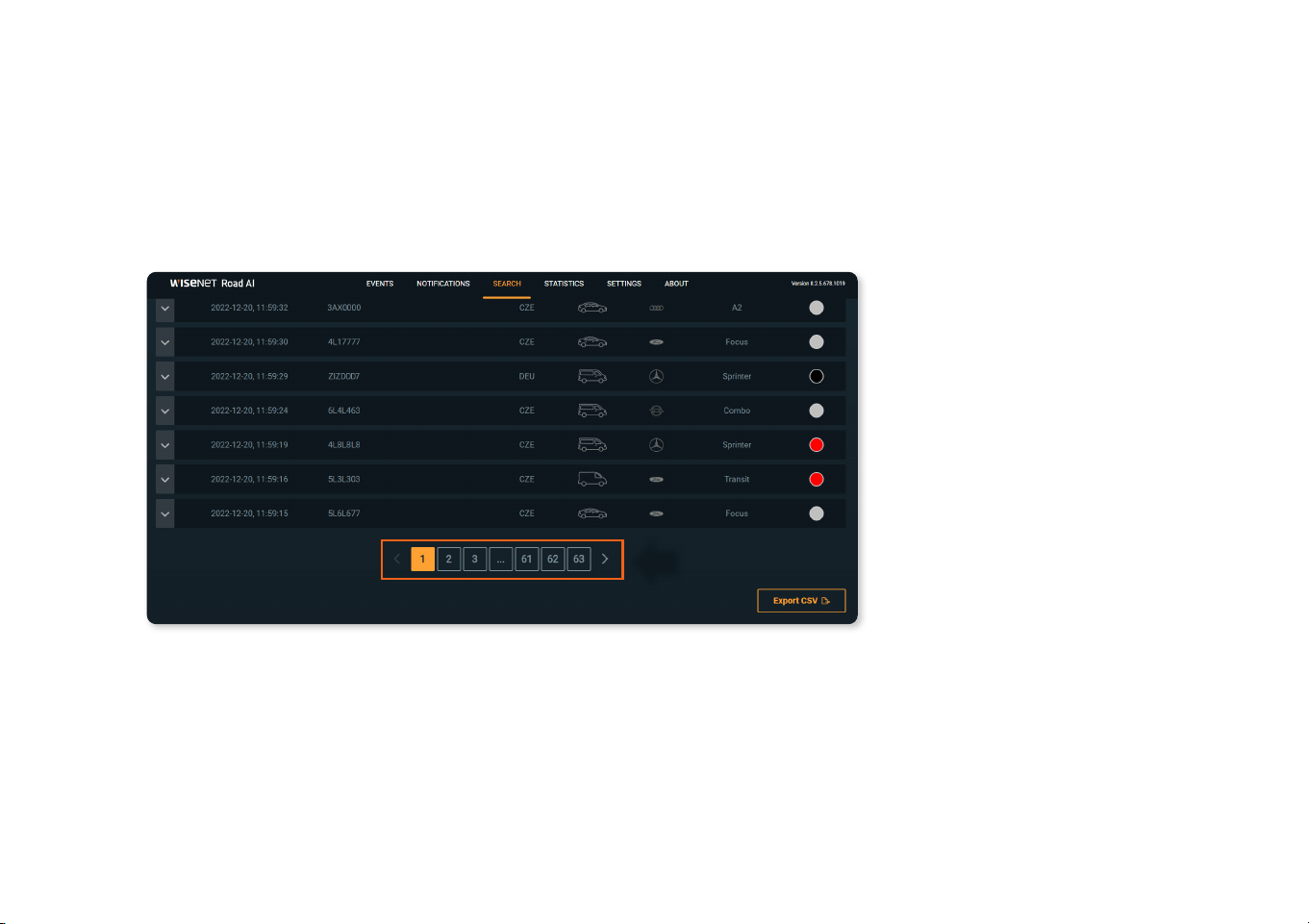
1.5 Navigation
Navigation through the events tab is done
using the left and right arrows below the
events list. You can also use numbered
buttons pointing to the page.
The events are displayed from the newest
on the rst page to the oldest on the
thirteenth page.
The number of displayed items is limited
to 500.
9 | WisenetRoadAI application User Guide
STATISTICS TAB FEATURES
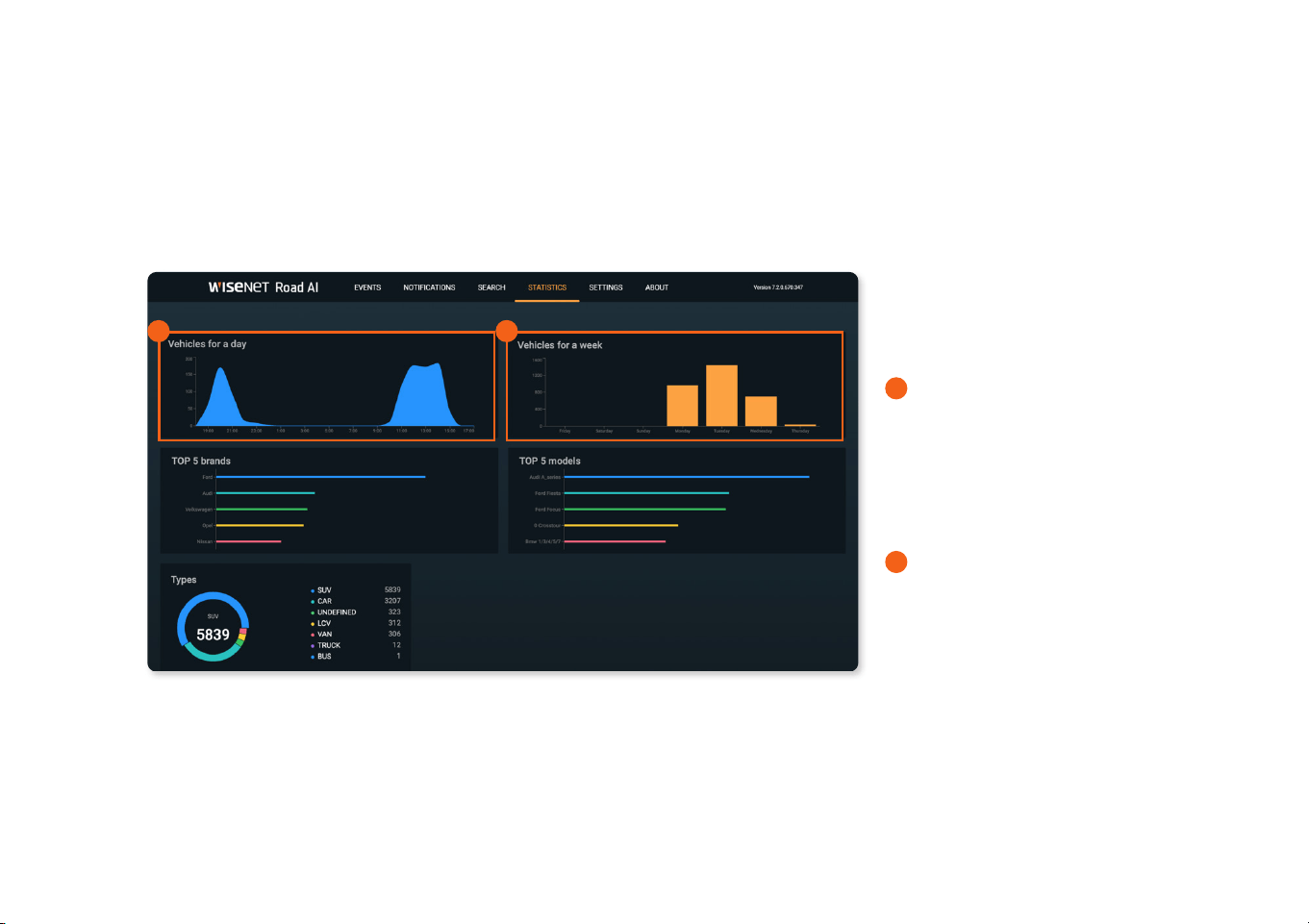
2.1 Vehicles for a day and vehicles for a week widgets
On the Statistics tab, users can familiarize
themselves with the statistics on dierent
parameters displayed on the widgets.
A
The Vehicles widget displays the
statistics on the number of cars for the last
24 hours. After moving the cursor over a
certain place on the widget, the user will
be able to see the number of cars for the
specied hour.
B
The Vehicles for a week widget
displays the statistics on the number of
cars for the last week. After moving the
cursor over a certain date on the widget,
the user will be able to see the number of
cars for the specied 24 hours.
B
A
2
10 | WisenetRoadAI application User Guide
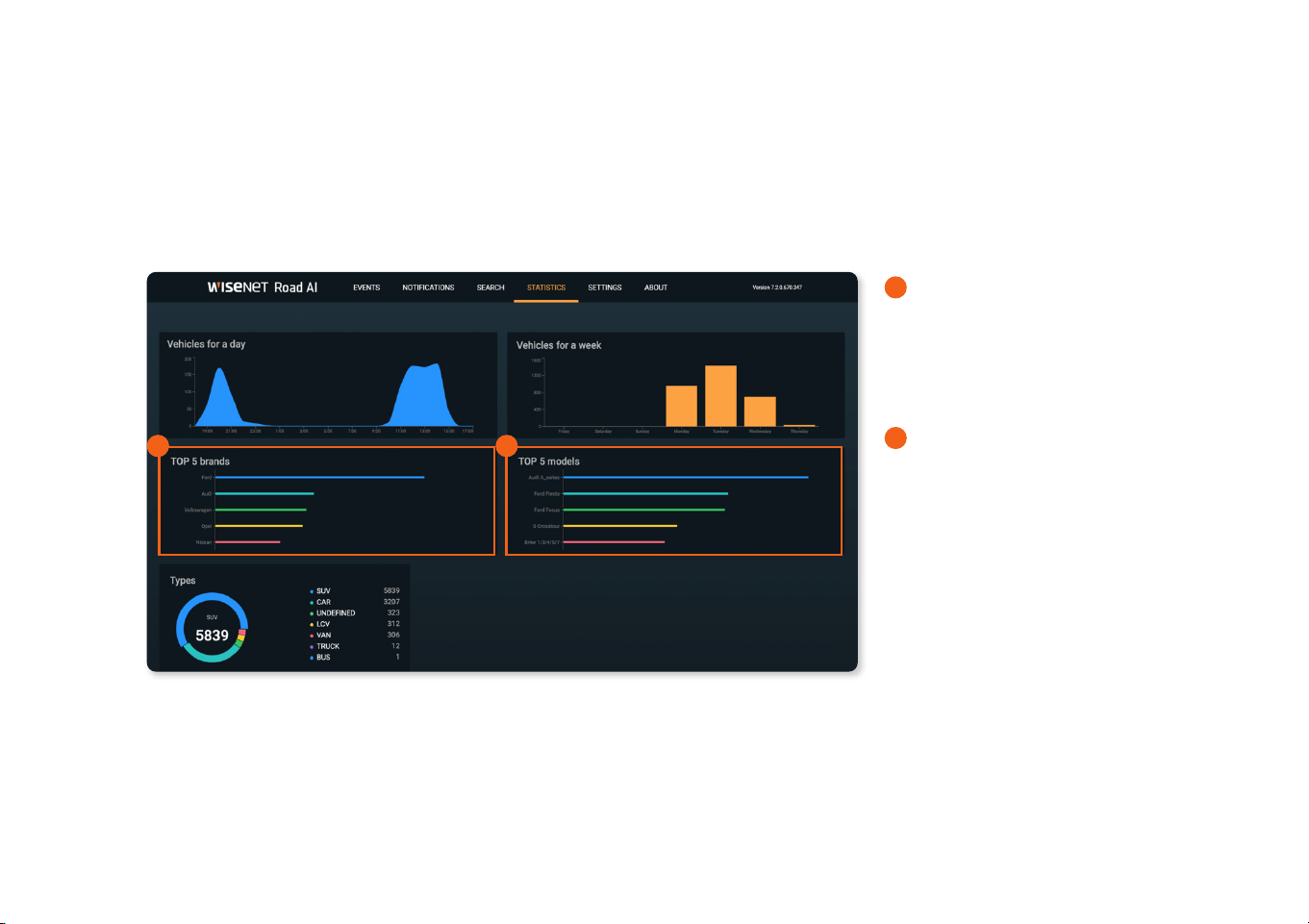
2.2 Top-5 brands and Top-5 models widgets
A
The Top-5 brands widget shows
the car brands statistics based on their
statistical distribution (no more than
10,000 latest cars are taken into account,
due to the limitation of the database size).
B
The Top-5 models widget shows
the car models statistics based on their
statistical distribution (no more than
10,000 latest cars are taken into account,
due to the limitation of the database size).
B
A
11 | WisenetRoadAI application User Guide
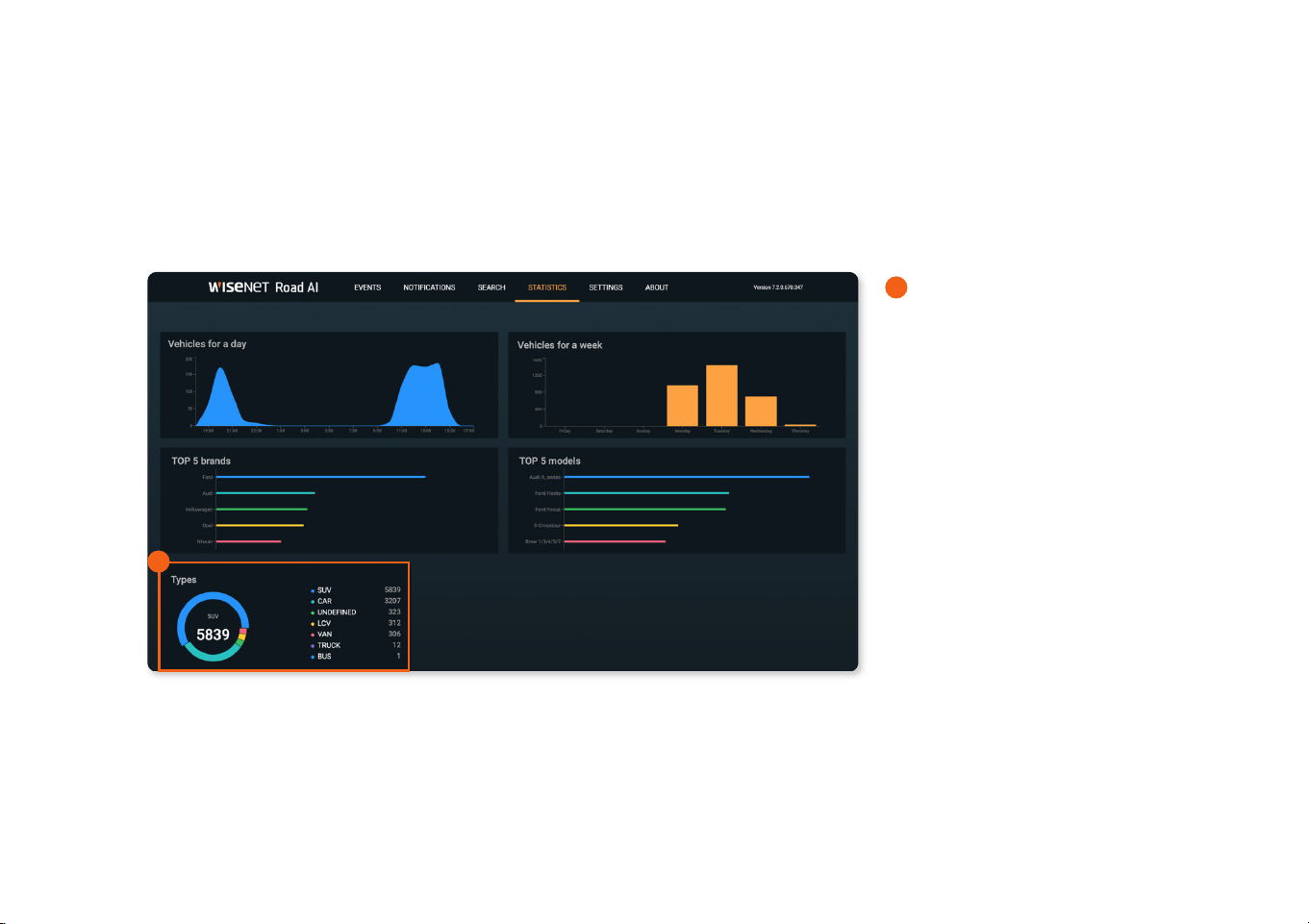
2.3 Vehicles types
A
The Types widget shows the car
brands statistics based on their statistical
distribution (no more than 10,000 latest
cars are taken into account, due to the
limitation of the database size).
A
12 | WisenetRoadAI application User Guide
ABOUT TAB FEATURES
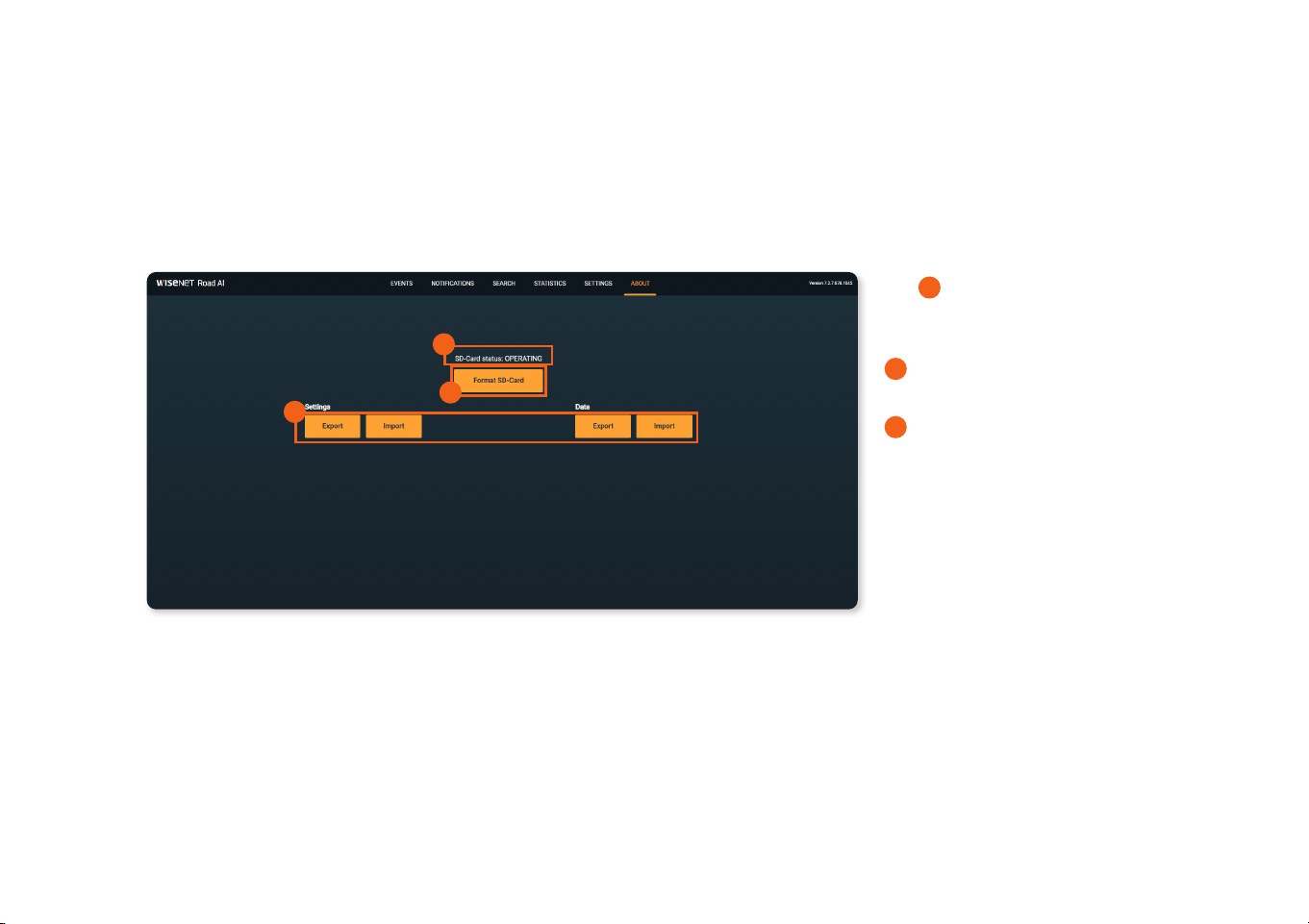
3.1 Data on the About page
The
A
status of the SD card are shown
on the ABOUT page.
B
SD Card format option
C
Export/Import buttons allow user to
store current conguration and database
for later re-use.
NOTE: Please be aware that the event
images are stored on the SD-card and will
not be exported.
3
A
B
C
13 | WisenetRoadAI application User Guide
NOTIFICATION TAB FEATURES
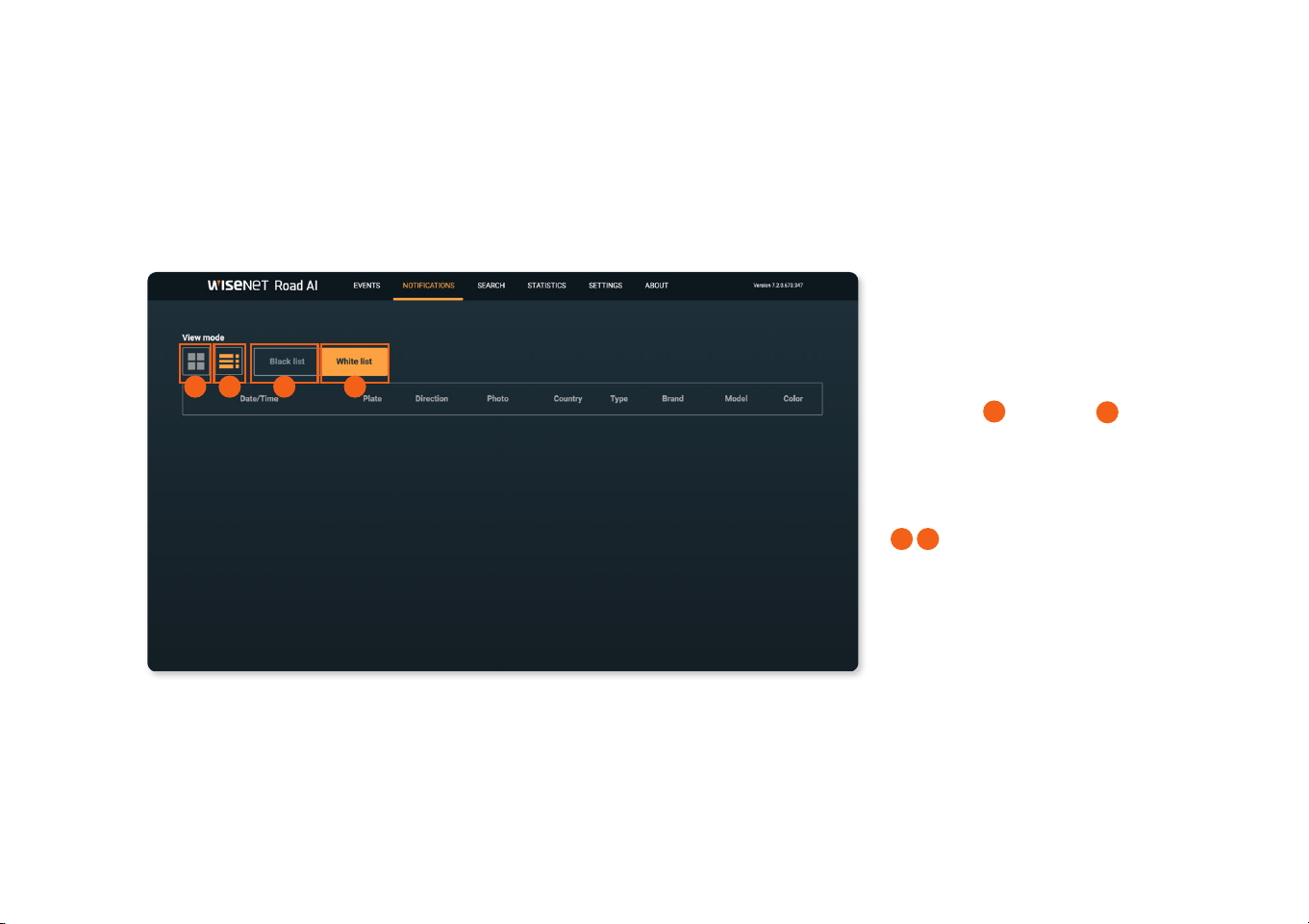
4.1 Notication feature
The notication tab allows the user to see
license plate numbers that were added
either to the white or black list in real-time.
The user can choose the display mode:
Table mode
A
, List mode
B
, similar to the
Events tab.
Display by the black and white list is
switched by the corresponding buttons
(
C
,
D
).
4
A
B
C
D
14 | WisenetRoadAI application User Guide
SEARCH TAB FEATURES
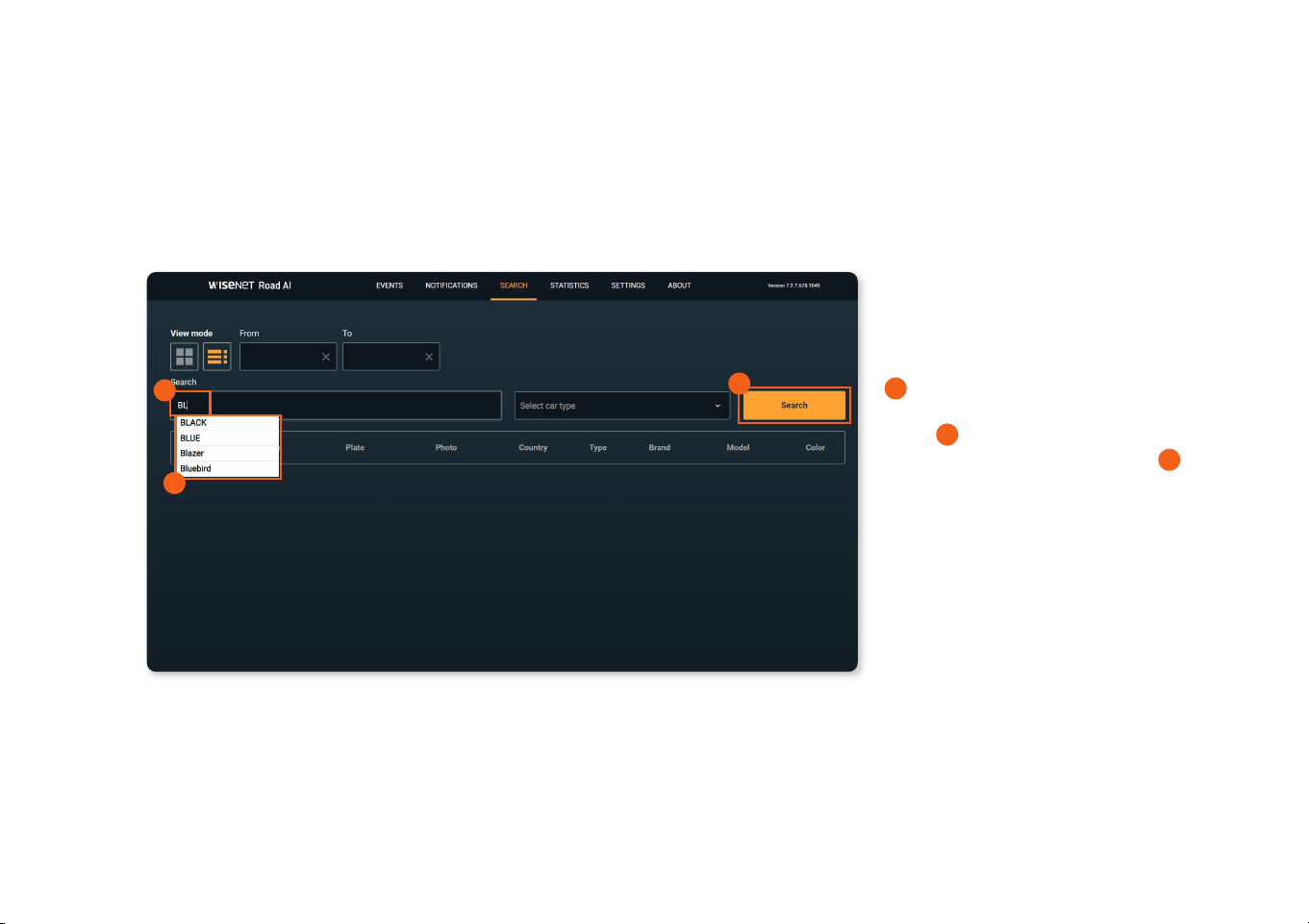
5.1 Search by plate and color
The Search tab allows searching by plate,
country, make, model, color, date, car type
and a combination of these criteria.
A
To search by color, the user must select
the search string and start entering the
color.
B
After that, the user must select
the desired color from the list and
C
click
the Search button.
License plate search can be partial plate
numbers or any characters that contains
with in the plate.
5
B
C
A
15 | WisenetRoadAI application User Guide
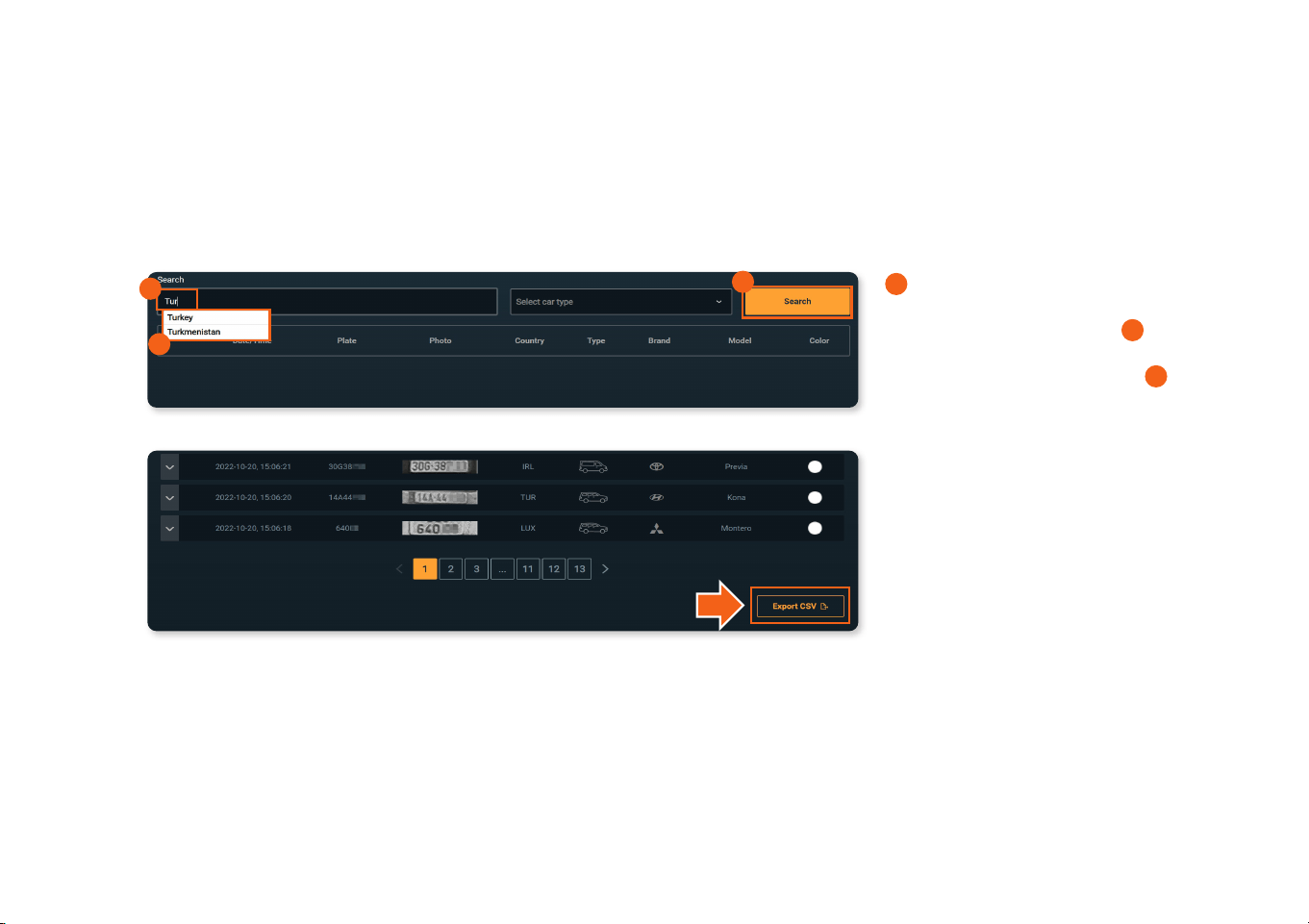
5.2 Search by country, make and model
A
To search by country, Make or model
the user must select the search string and
start entering the rst letters.
B
After that,
the user must select the desired country,
make or model from the list and
C
click
the search button.
Search results can always be saved to the
user’s device by clicking the Export CSV
button.
A
B
C
B
C
A
16 | WisenetRoadAI application User Guide
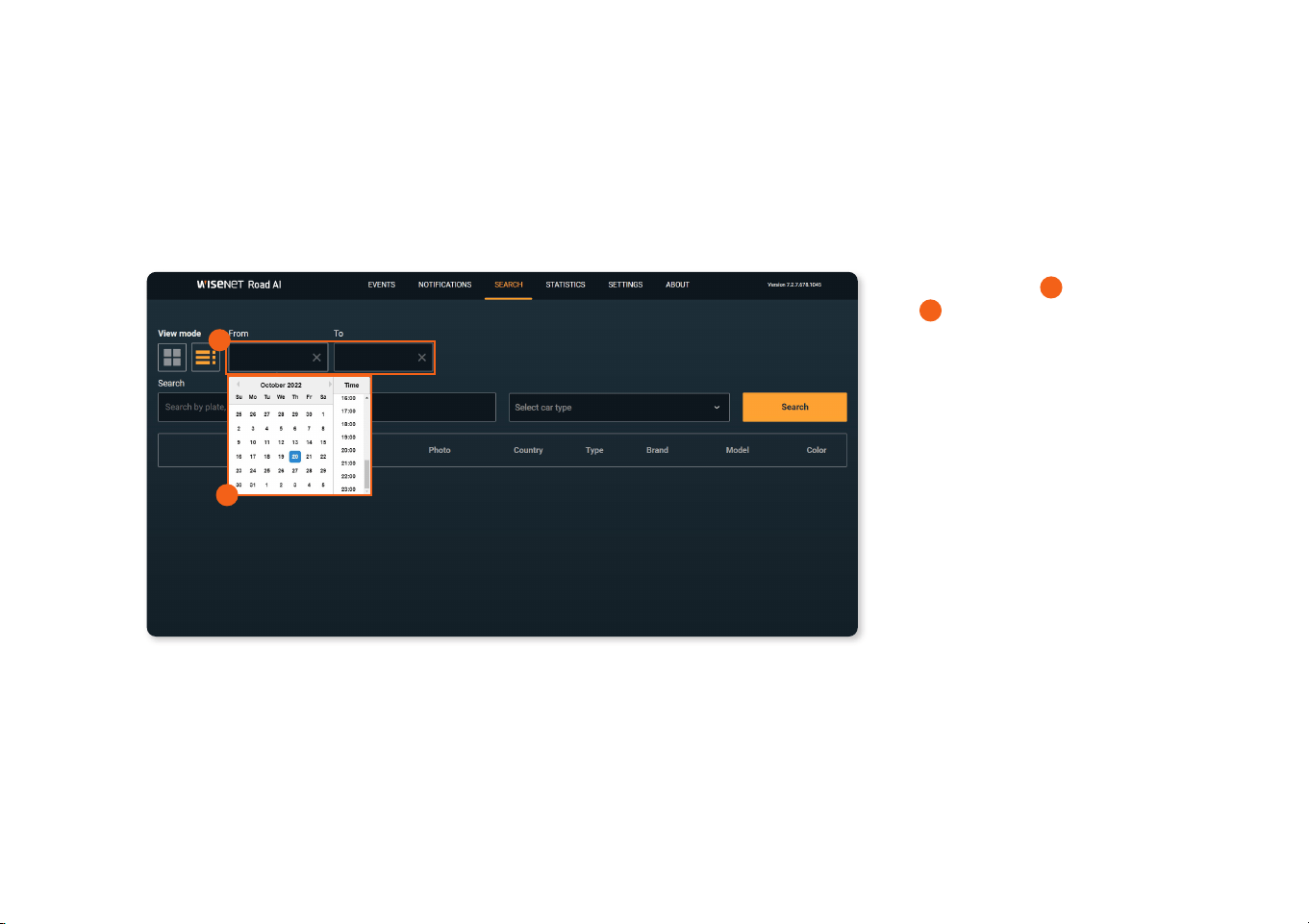
5.3 Search by date and date range
To search by date,
A
click From or To box
and
B
select the start or end date of the
search.
The user can search with or without the
start / end date. The user can also combine
search by date with search by license plate
and / or color.
The depth of the search results database is
10000.
B
A
17 | WisenetRoadAI application User Guide
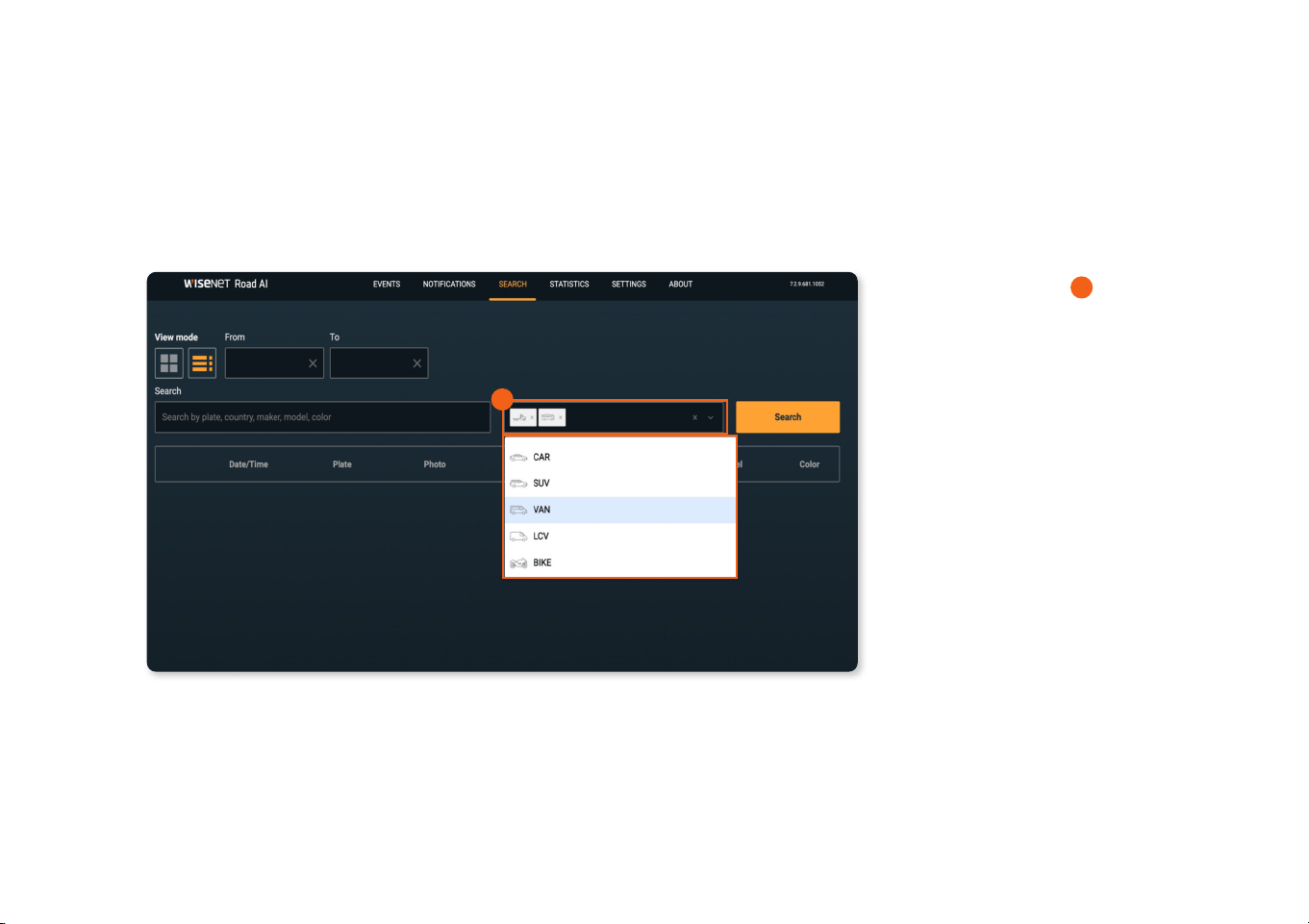
5.4 Search by car type
To search by car type,
A
click the tab
to choose vehicle type. User can select
mutiple types to display results.
A
18 | WisenetRoadAI application User Guide
SETTINGS TAB FEATURES
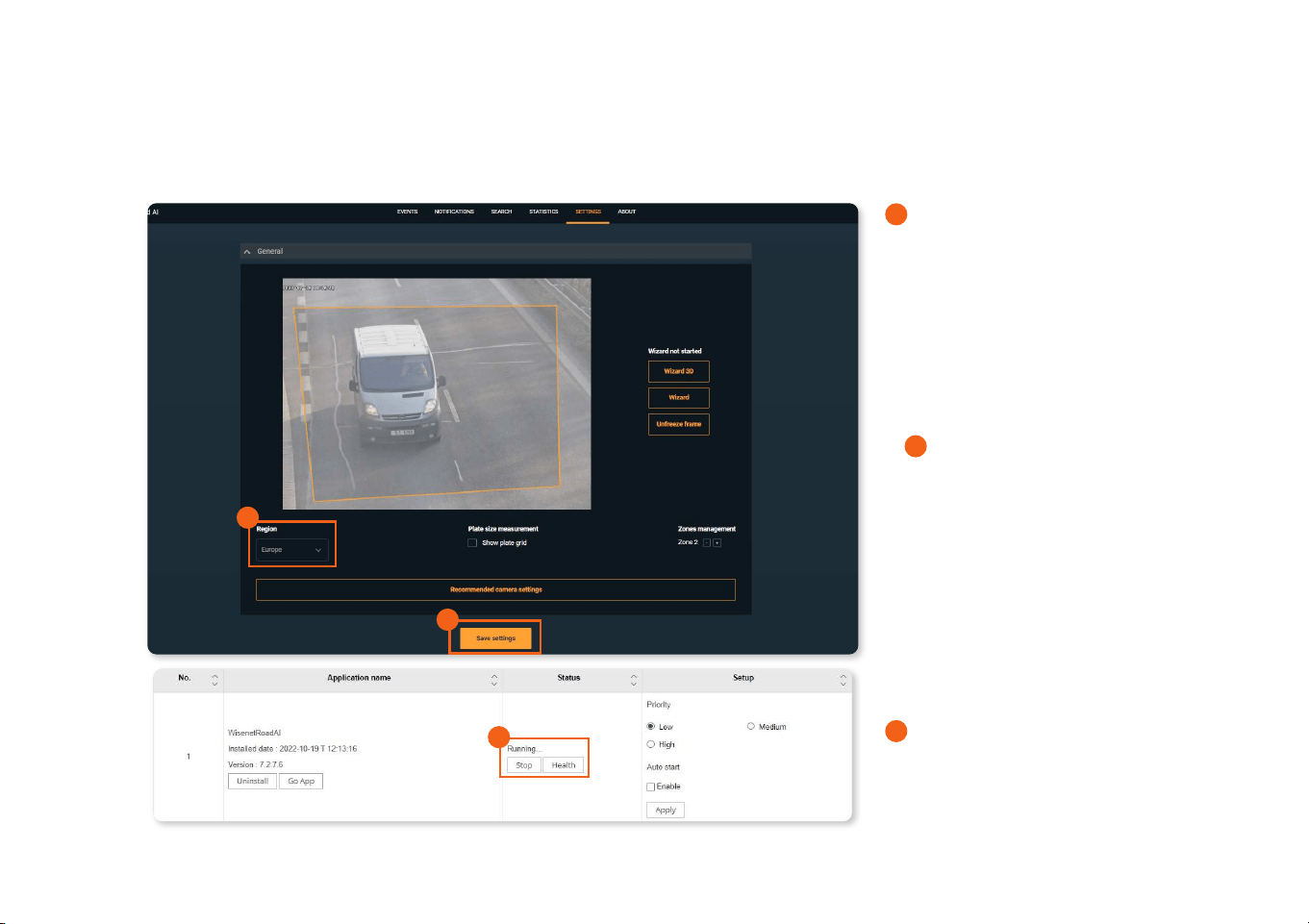
6.1 Setting up WisenetRoadAI
A
The rst option should be to dene the
Region.
1) As you go in to the settings menu,
choose the correct region that matches
your country/region. The default region
given is Europe. If you are in any other
region or country, use the pull down
menu to choose the region/country that
matches your geographical area.
2)
B
Save the settings.
Click the Save settings.
And you need to stop and start the
application for the regions to take eect.
It can be done from the web interface of
the camera uder open platform settings.
3) Once you restart the application and
come to the settings page continue with
other settings as given next page.
NOTE: You would need to go to the web
menu of the camera
;
Open Platform Area to
C
Stop and Re-start the application to take
the Regional setting changes to be eective.
6
C
NOTE: When searching, GCC regions can provide additional information.
A
B
19 | WisenetRoadAI application User Guide
6.1 Setting up WisenetRoadAI (Continued)
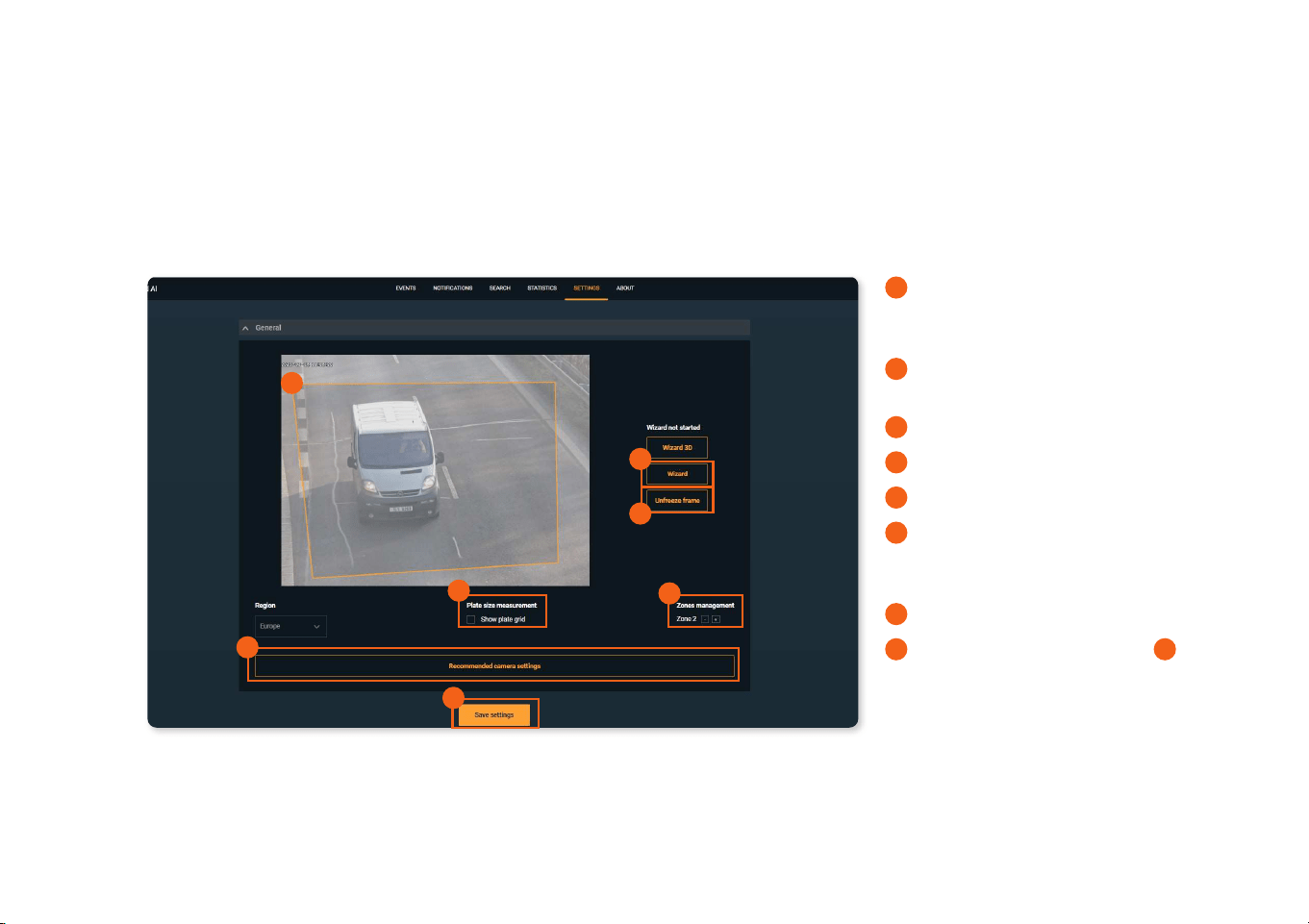
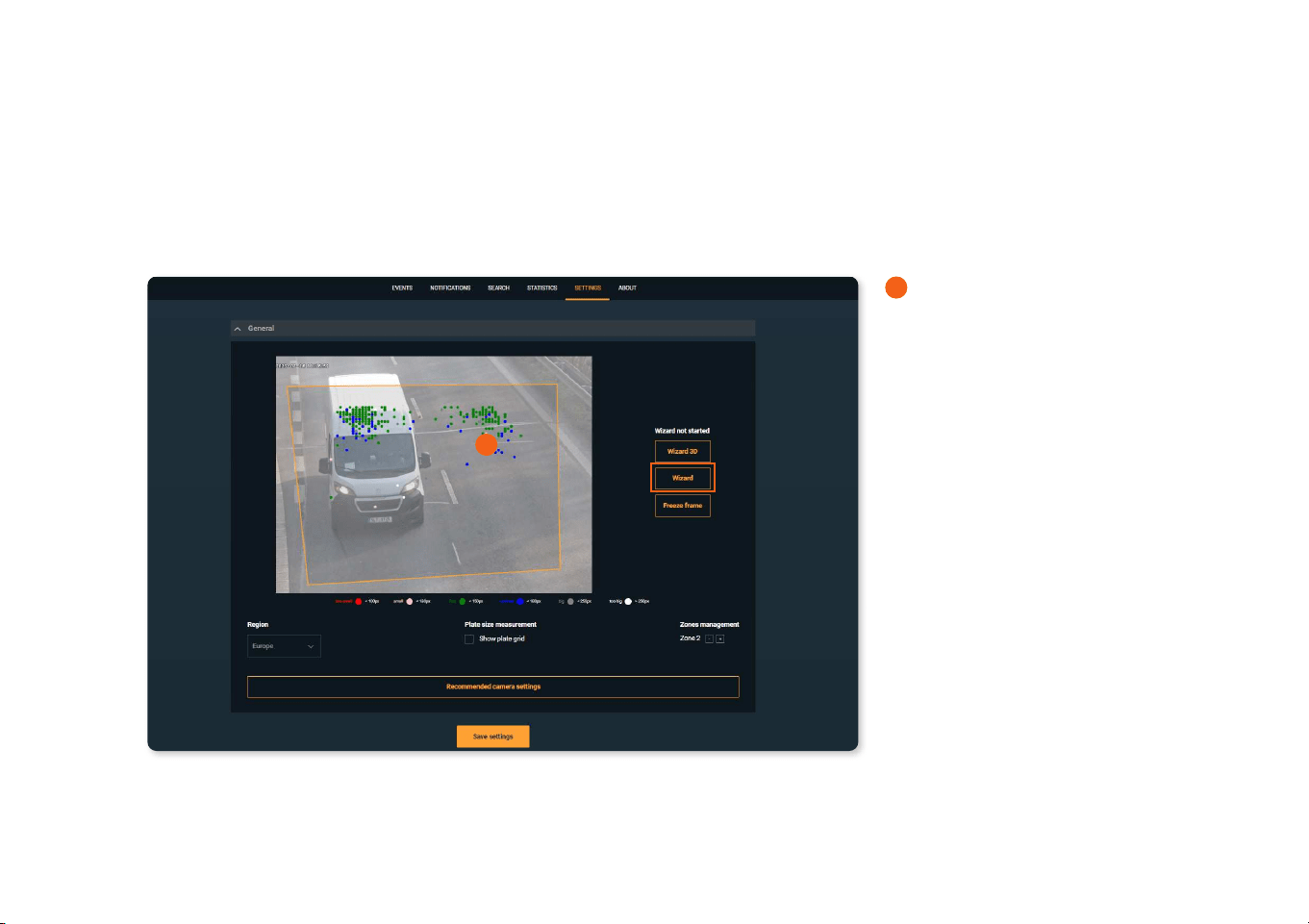
A
The application settings allow the user
to move the or resize the frame with in
which the reading takes place.
B
Switch on/o the Plate size
measurement.
C
Add License Plate Recognition Area.
D
Set up with Wizard option
E
Freeze the frame.
F
Save the corresponding sections by
clicking the Recommended camera
settings button.
G
Click Save settings
.
H
P
lease set the upper border of
A
the
recognition area further from the edge of
the frame.
This allows vehicle being fully visible during
detection and improve MMCR results.
A
B
C
D
F
G
E
20 | WisenetRoadAI application User Guide
6.1 Setting up WisenetRoadAI (Continued)
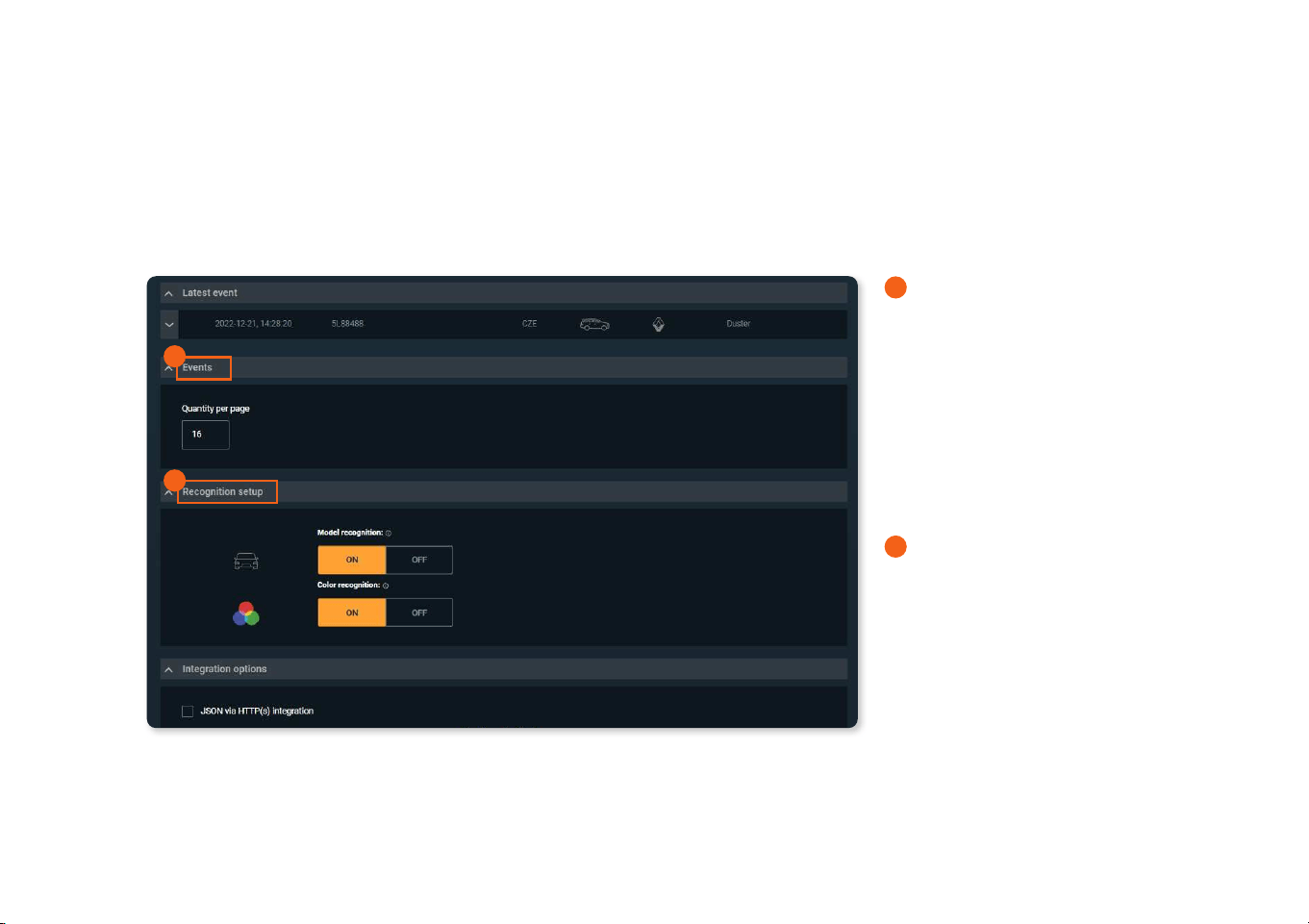
A
Wizard tool displays the statistic of the
latest 1000 recognized plates sizes.
Use it to adjust camera zooming and
recognition area conguration.
Try to keep plates in green and blue range.
Users need to have at least 100 events to
make feature displaying data.
A
21 | WisenetRoadAI application User Guide
6.2 Setting up Events
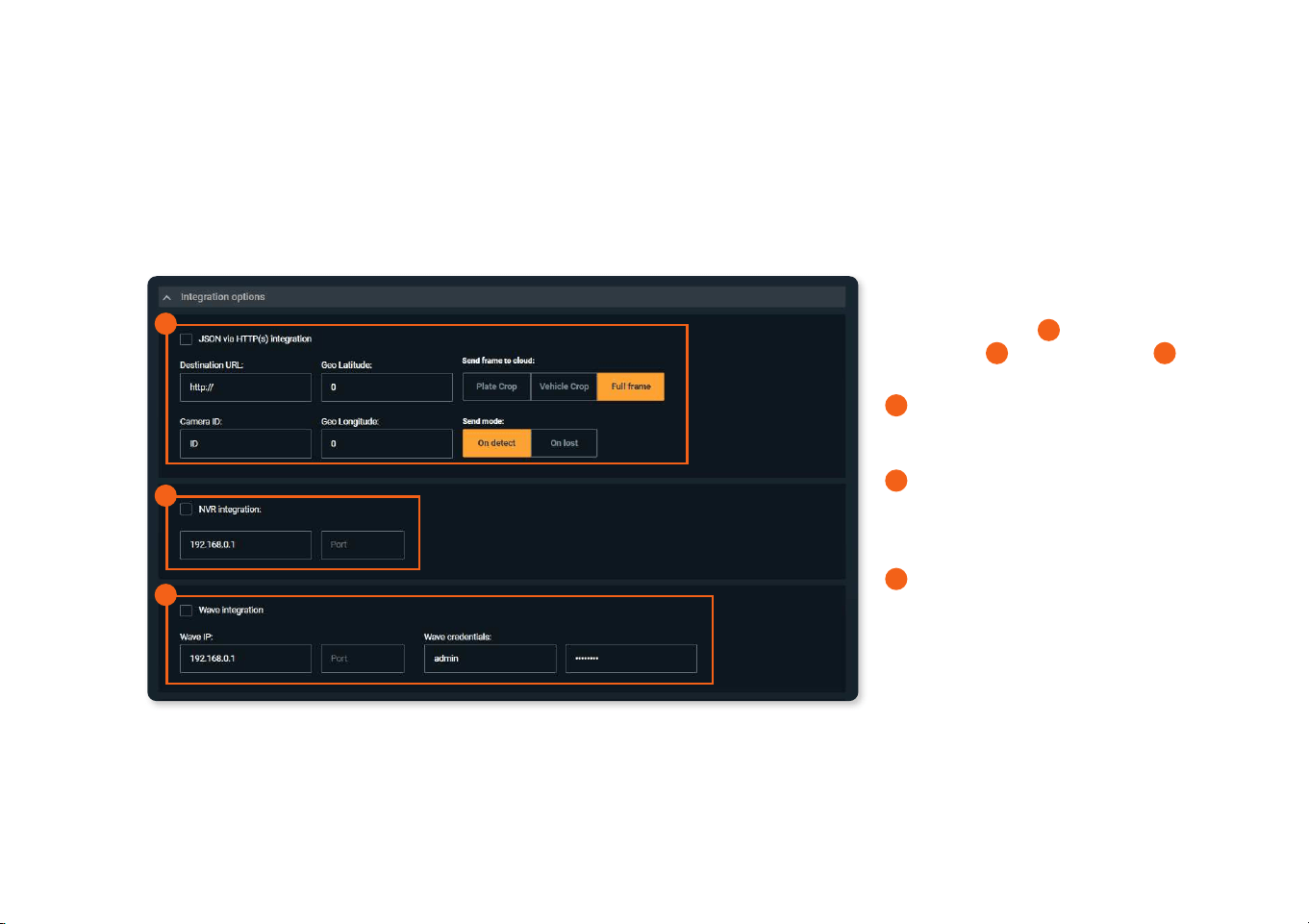
A
In the Events settings, the user can
specify the number of events displayed on
a page.
Changing this parameter will lead to
changes on the Event, Notication and
Search pages.
Event quantity per page should be with in
10 to 50.
B
You can enable/disable model
recognition and color recognition
features in the app.
Please, keep in mind the app will be
restarted automatically after saving the
settings.
Corresponding columns will be hidden in
the UI after set as OFF.
A
B
22 | WisenetRoadAI application User Guide
6.3 Integration options
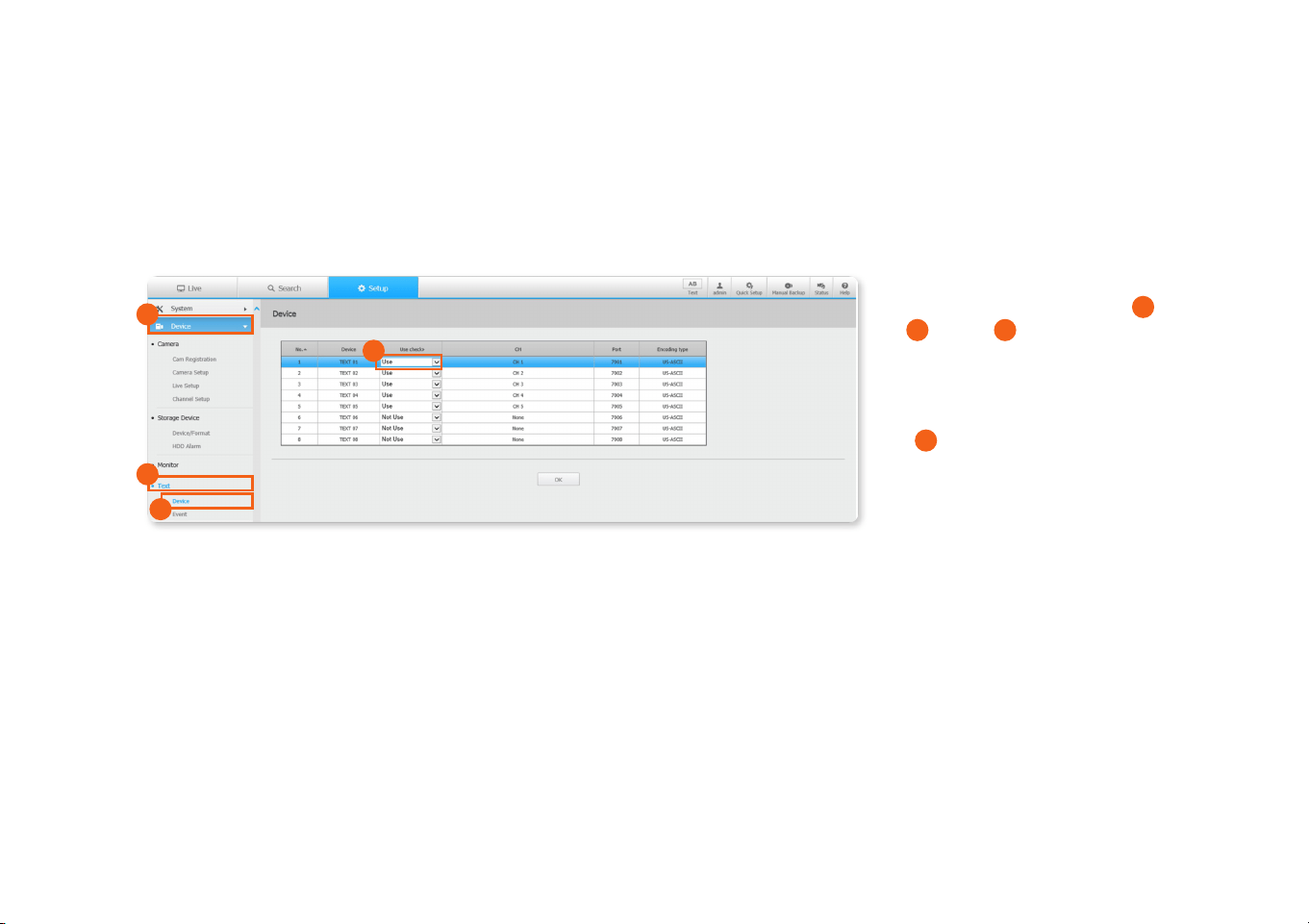
In the Integration options section, the user
can select one or several options from the
proposed variants:
A
JSON via HTTP(s)
integration
B
NVR integration
C
Wave
integration
A
: Refer to the additional guide in next
page (23p) on the supported options and
commands.
B
: Should have the target NVR IP address
and port.
NOTE: On the NVR side, you need to
congure the events to be received preperly.
C
: Make sure you have the target Wave
server credentials.
NOTE: Conguring this will get you only the
generic events in the Wave server. For full
integration in to Wave with the AI meta data,
use the Wave version that supports the full
meta data.
To select the integration, the user must
check the box next to the selected method.
To ensure the correct work/operation of
each method, the user must ll in all the
elds displayed in this method and save
the changes.
A
B
C
23 | WisenetRoadAI application User Guide
6.3 Integration options (Continued)
Check the NVR settings to obtain
corresponding Port number in
A
Device
;
B
Text
;
C
Device setting
(by default port 7001 for CH 1, 7002 for CH
2, etc.)
Set
D
Use per channels as appropriate.
A
B
C
D
24 | WisenetRoadAI application User Guide
6.3 Integration options (Continued)
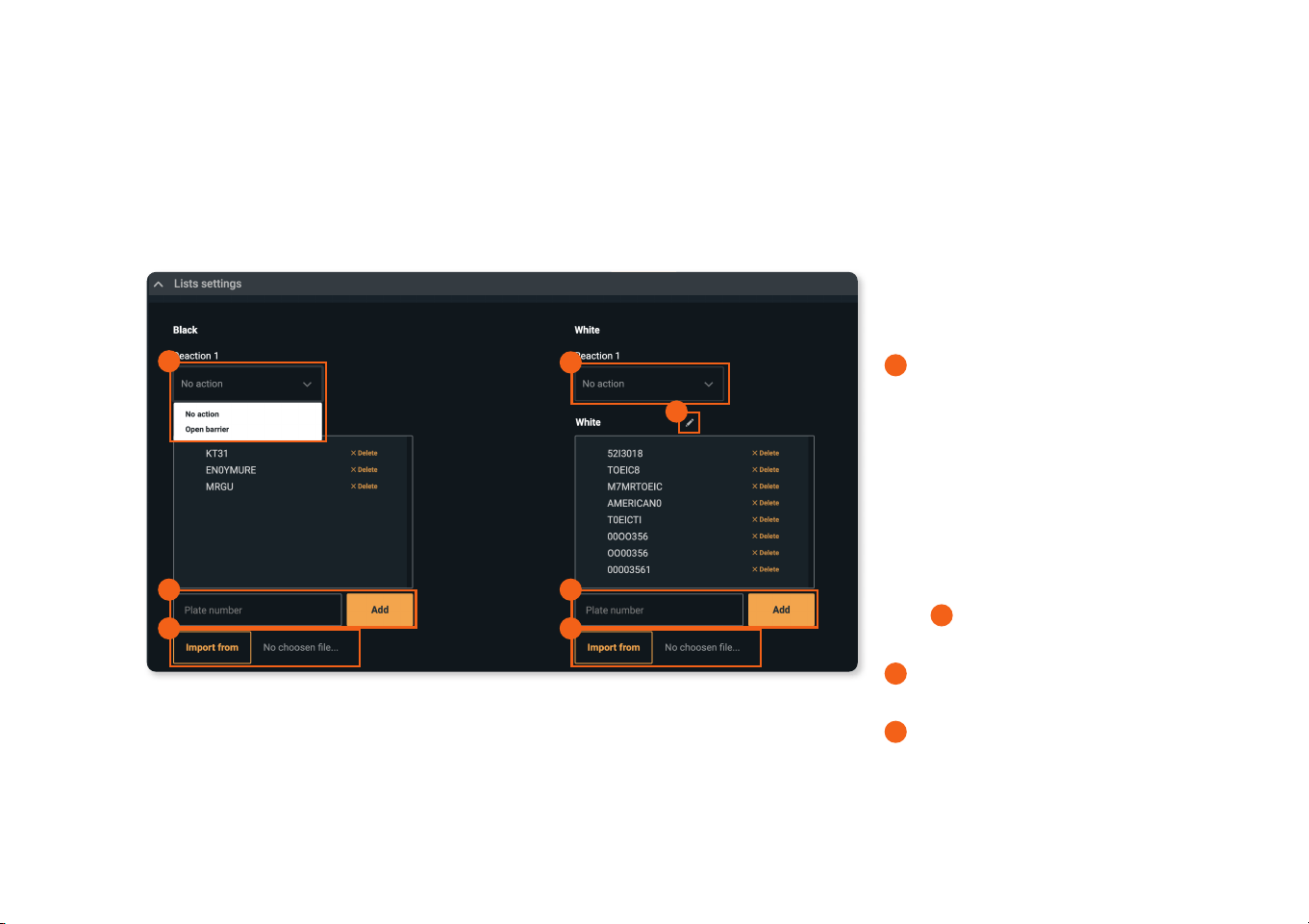
Click the channel row to open channel
settings.
Set
A
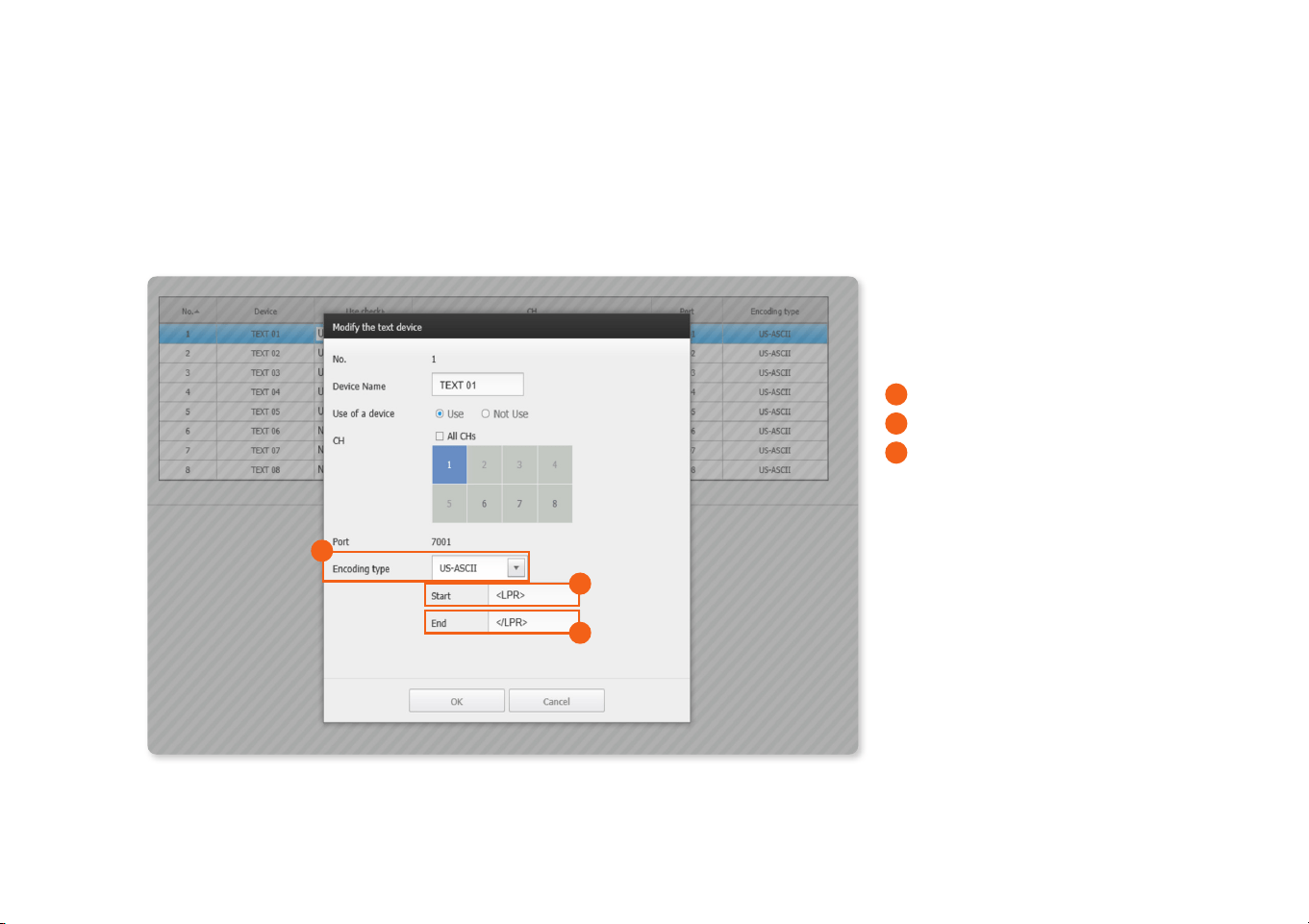
Encoding type : US-ASCII
B
Start string : <LPR>
C
End string : </LPR>
NOTE: NVR may not show LPR events if
there is no video stream bound to the same
channel.
A
B
C
25 | WisenetRoadAI application User Guide
6.4 List settings
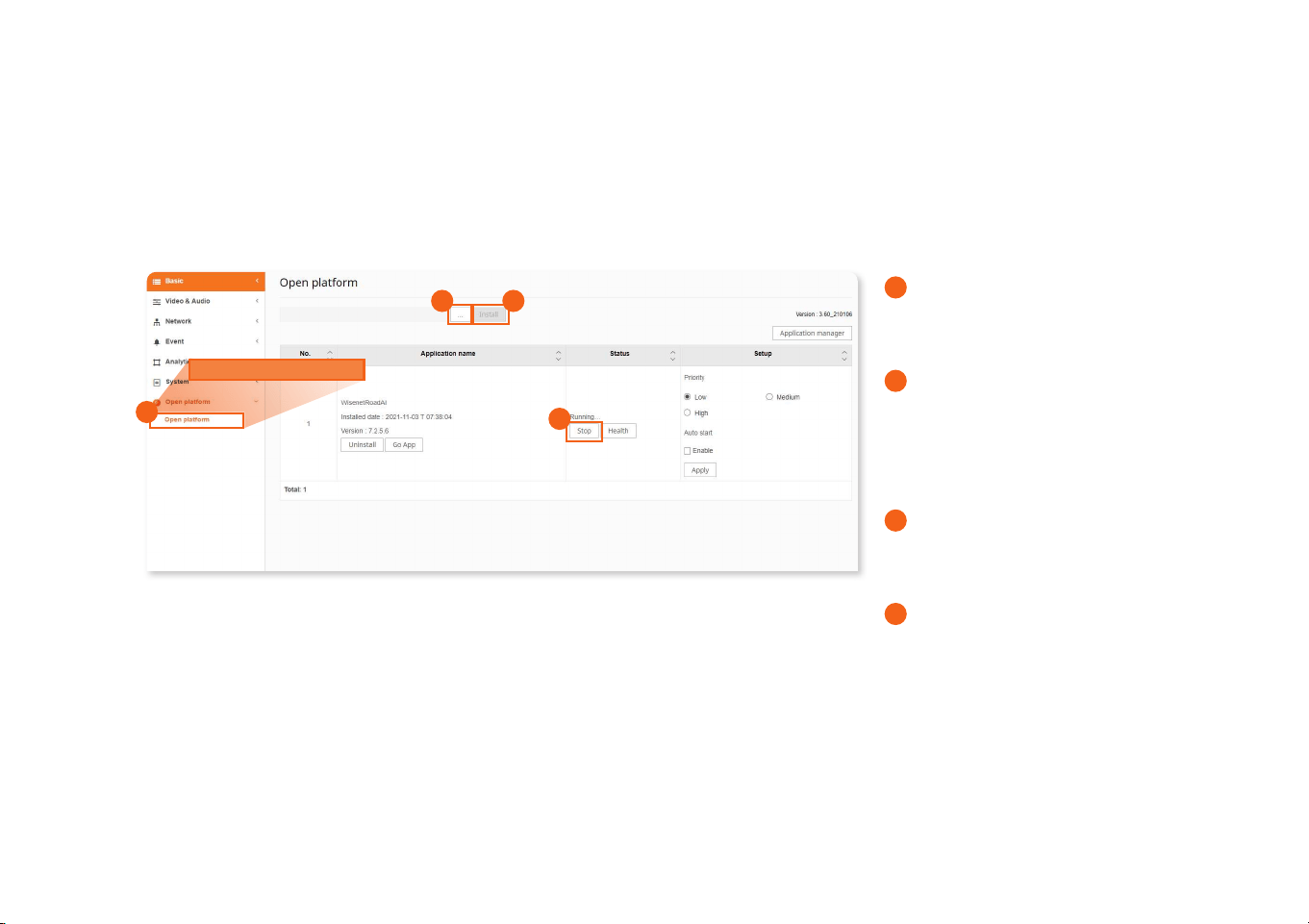
In the List settings section, the user can
set reactions to events from the white and
black list.
A
To select a reaction, the user must click
drop-down list button.
Two reactions are available: No reaction
and Open barrier.
You can also rename the title of the list. By
default it is know an Black /white list, but
you can edit the name. It can be done in
the following ways:
Click
B
Edit icon on the top of the list. It
allows editing already added plates.
C
Enter a number and then click the Add
button.
D
Import the list in the .csv format
You can also add white list and black list
from the Events menu directly by right
clicking on any of the plate events.
C C
D D
A
B
A
26 | WisenetRoadAI application User Guide
6.5 Updating App
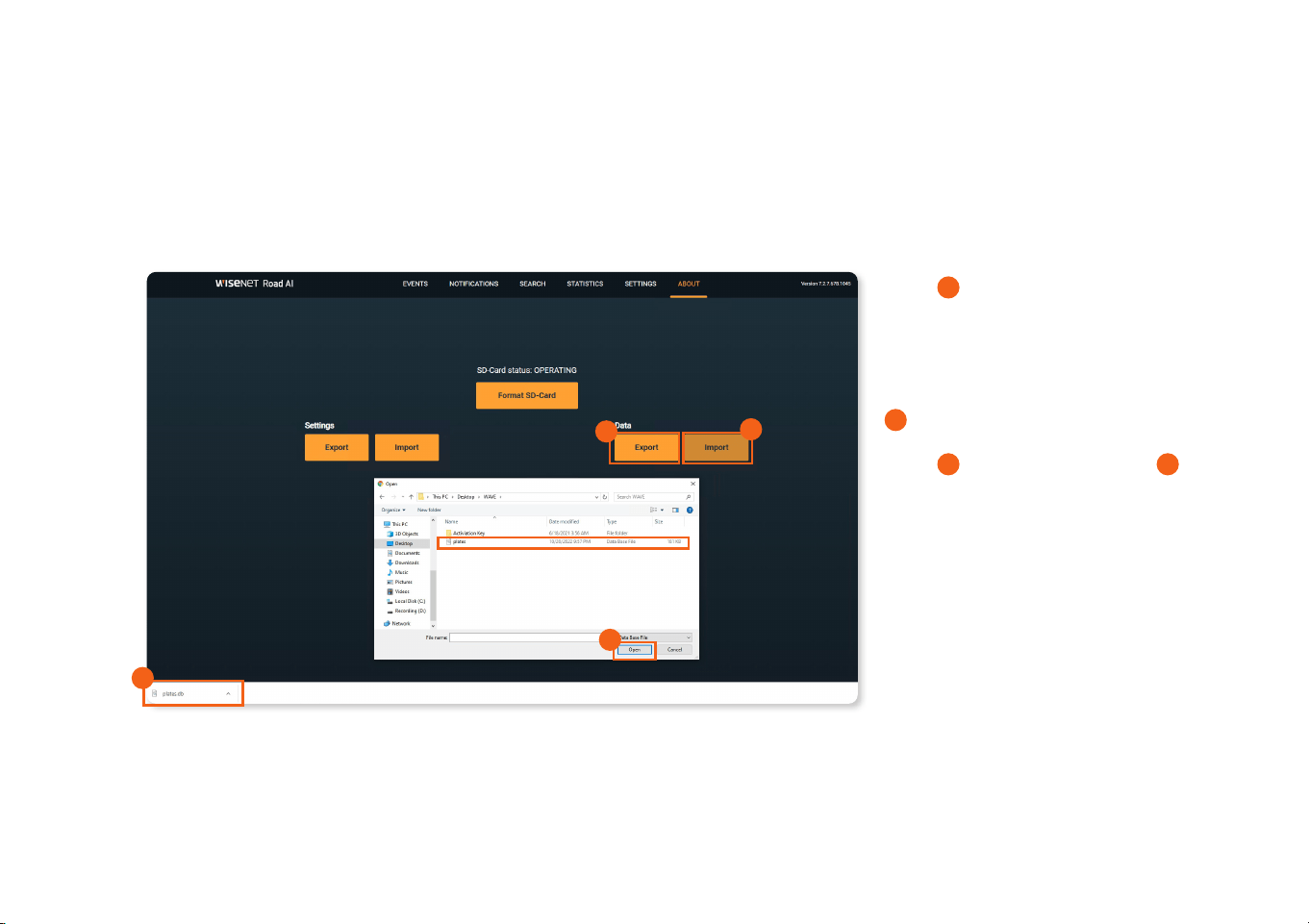
To update App, the user need to go back to camera web viewer.
A
Go to Open platform section in camera
web viewer.
B
Click Stop box to stop Wisenet Road AI
App
It is very important process to stop App
before updating App.
C
Click “....” box to select App le to
update.
D
Click Intall box to update App.
Open platform
C
D
B
A
27 | WisenetRoadAI application User Guide
6.6 DB Export & Import
Go to Wisenet Road AI application tab and select ABOUT from the pull down menu.
Select
A
to export current stored DB to
another place in connected PC.
It is highly recommended to export DB
after all of settings have been nalized.
B
Check the le to be downloaded.
Select
C
to import DB and select
D
for
the place that DB is placed.
Restart App.
Please, do not edit the database le
manually, as it will be corrupted.
Keep in mind, database does not contain
event’s images. They are stored in the SD
card.
D
A
B
C
28 | WisenetRoadAI application User Guide
6.6 DB Export & Import (Continued)
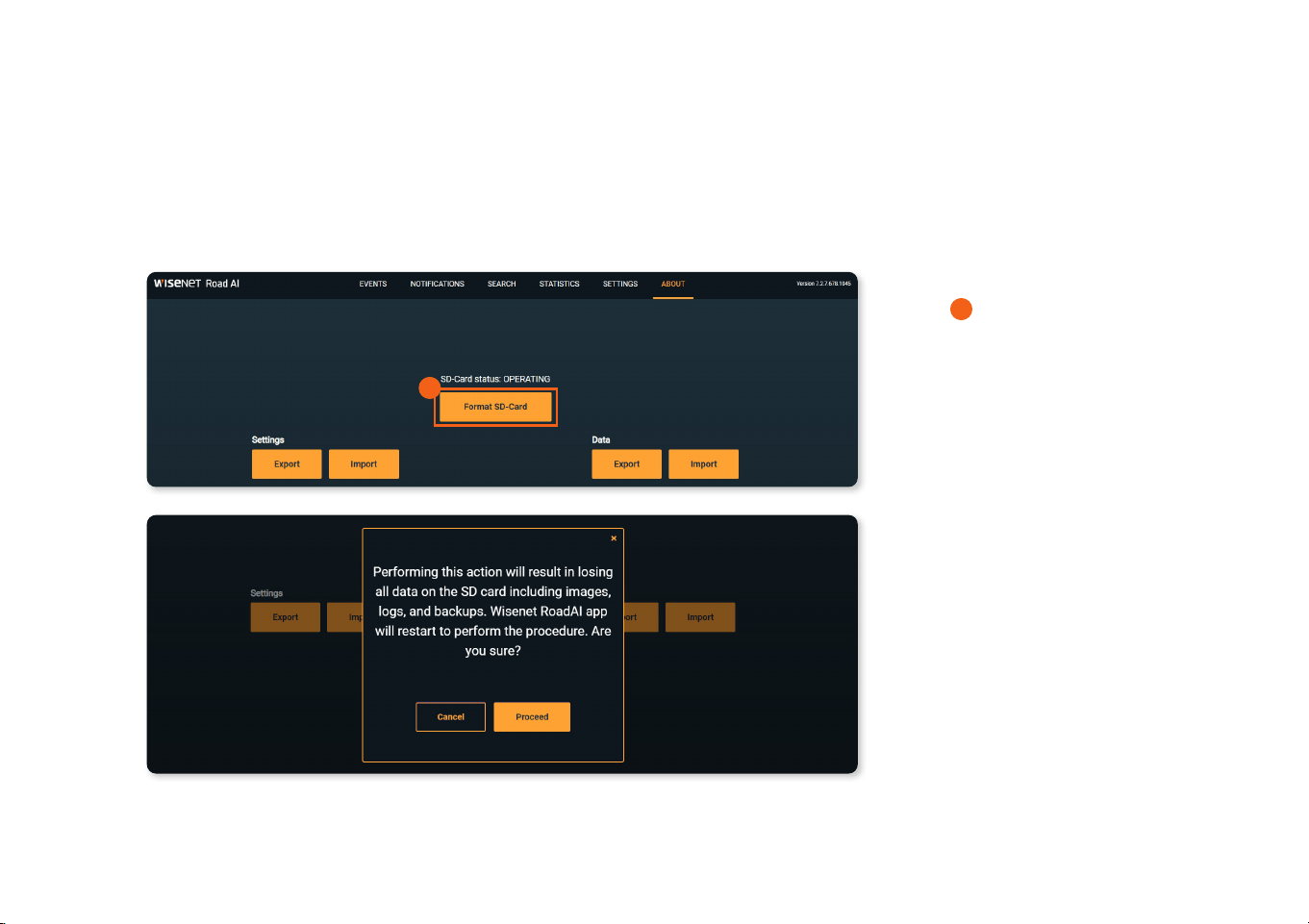
You can format in-camera SD-card by
clicking
A
Format SD-Card button, Please
keep in mind it will result in losing images.
Please perform this action only if
necessary. Formatting SD-card may take
few minutes and will force the app to
restart automatically.
A
WARNING: DO NOT INSERT OR REMOVE SDCARD WHILE CAMERA IS RUNNING

29 | WisenetRoadAI application User Guide
TROUBLE SHOOTING
How to install the application
You will have Wisenet RoadAI application pre-installed. In case you need to manually install the app (e.g. update app with
the latest version) the installation package is required from Hanwha Techwin website.
If you are upgrading the existing application it is recomended to stop the app before installing the newer version.
Check the compatible rmware version and upgrade the camera if necessary. Check that you have one of the supported
camera models: TNO-7180RLP
Please keep in mind that the latest rmware version support could lag for a few weeks, so do not rush to upgrade the
camera without conrmation of compatibility.
DO NOT REMOVE SD CARD PREINSTALLED. you must have SD card before running the RoadAI Application pre-installed.
Applications restarts from time to time - is that normal?
Both your camera and the application have protective mechanisms to avoid crashes and stalling. Those watchdogs could
restart the application. Please contact the support if the situation happens too often.
Check that built-in video-analytics are disabled, as they consume camera’s resources and aect application performance;
micro SD-card health; camera’s rmware version is compatible.
Do I need an micro SD-card?
The micro SD-card is needed to store the images of the events.
Also, it is mandatory to have micro SD-card installed and operational to send data via HTTP(s) integration and store
application’s logs.
Your camera have an micro SD-card(32Gb) pre-inserted. In case you need to change it, please select a compatible option
(32Gb at least, class 10).

30 | WisenetRoadAI application User Guide
(CONTINUED)
I do not see event’s images in the application
Please check the following:
- Micro SD-card is inserted in the camera
- Micro SD-card status is OPERATING in the About tab
- Micro SD-card is class 10
Format microSD-card from Road-AI menu and try to restart the camera to re-initialize the microSD-card if all the above are OK.
How to obtain logs?
In some cases additional information needed to check the issues with the application.
There are two types of logs: 1) in-camera, 2) in-application ones.
In-camera logs are accessible through camera conguration in
System>Log section.
In-application logs could be downloaded via your browser after hitting this combination, while on the app’s page:
Ctrl+Alt+ Shift+ L
Also, you can change the log-level (the amount of stored data) with Ctrl +Alt+ Shift+ <number>, where <number> is in
range 1..7.
The default level is 4.
Please keep in mind that micro SD-card is needed to store and download logs.
Also, log-levels higher than 4 provide massive amounts of data, so would both increase the log size, micro SD-card usage
and could aect application’s performance.

31 | WisenetRoadAI application User Guide
(CONTINUED)
How to obtain logs? (continued)
Alternative method to access logs if camera is hidden bedding the router is to use the following link
http://<CameraIP>/home/setup/opensdk/html/WisenetRoadAI/logs/WisenetRoadAI_logs.log?AppName=WisenetRoadAI
In some cases more details could be requested.
Useful links to check application status:
http://<CameraIP>/home/setup/opensdk/html/WisenetRoadAI/IPCameraManifest.xml
The application conguration is stored here
http://<CameraIP>/stw-cgi/opensdk.cgi?msubmenu=metaframeschema&action=view
Check if integration with VMS (SSM, Milestone, Genetec) is enabled
http://<CameraIP>/home/setup/opensdk/html/WisenetRoadAI/metadata.log
Check the latest integration event
http://<CameraIP>/home/setup/opensdk/html/WisenetRoadAI/schema.log
Check the integration message schema
http://<CameraIP>/stw-cgi/debugcgi?msubmenu=data&action=view
Check internal camera debug information
How can I delete all Number Plates from the SD Card to have an empty database?
You can format the micro SD-card after removing it from a camera. That will remove stored images without removing the
events from the database. Re-installing the app would clear the database. Also, you can import empty database in the
About tab.

32 | WisenetRoadAI application User Guide
(CONTINUED)
How many events can be stored?
The application stores up to 10.000 events in the camera. You can increase the number of events by saving them on the
back-end side via dierent integration types available.
Bad recognition at night. How to x that?
This might be result of:
1. Improper focusing. Consider that the area with sharp details varies during daytime and nighttime. You can even congure
two setups for day and night recognition with dierent focus.
2. AGC (automatic gain control) is set to Normal or High, which results in noise and aects recognition performance.
3. Shutter speed is low (slower than recommended 1/300)
4. IR power is not congured properly (either vehicle is too far and IR is not enough or too close that plates are over-
exposed; also closer to frame borders a vignette eect is strong). Consider using external IR for longer distances or higher
vehicle speeds.
5. Camera does not switch to the B/W mode during nighttime, as in case of high illumination it can stay in Color mode, but
the conditions would be poor for plates reading and IR would not aect the image.
Application does not recognize Make, Model and color at night. This is normal. With the help of IR, it can read only
the plate numbers. Occasionally it gives the make and model but it may not be the exact match due to poor lighting
conditions.

33 | WisenetRoadAI application User Guide
(CONTINUED)
Do I need to activate the application after installation?
You do not need to activate the application in any way - you can install it on any of the supported camera models and use it
right away.
Application does not recognize licence plates, vehicle models
Check if the application is installed. Follow the installation guides to congure the whole setup properly.
Check whether the application is running.
Check the Image requirements in case you have a video in a preview, but do not have recognition.
Do you use a supported browser? Recommended browsers.
Use Plate Size checker and Freeze Frame tools in the settings tab to check if the plate size, roll angle, positioning are valid.
Change the application resolution to FullHD if plates are too big or to 4K if they are too small. Adjust plate’s size with
camera’s zoom.
Make sure to start the application. It is recommended to use the ‘Enable Auto Start” function for convenience.
If you go in to the Wisent Road AI app with out actually starting the app, you only get a black screen with Wisenet Road AI.
Image requirements
Plates should t the following restrictions for better recognition :
- Clearly visible and readable by human - Plate width should be in range of 130-350 pixels on a picture
- Plate roll angle is less than 5˚ - Plate pitch and yaw angles are less than 30˚
Check for details in Installation Guide.

34 | WisenetRoadAI application User Guide
(CONTINUED)
Recommended browsers
We recommend using Chrome, Firefox, Safari. Check details in the Installation Guide, section Camera Settings > Important note
on web browsers
False recognitions: grass / asphalt / textures detected
1. Congure the recognition area in the Settings tab to avoid appearance of unnecessary texture and limit it only to plates
appearance zone.
2. Use manual focusing in camera settings and adjust focus to provide a sharp picture of license plates in the area they appear.
False recognition: low picture quality
Try improving picture quality through camera settings: Sharpness, focus, exposure
False recognition: small objects detected
Change Area of Interest in the Settings tab to avoid detecting small plates. Use zoom or in-app resolution to adjust.
Can’t see video in browser
1. Check whether you use supported browser if you are in the same network with camera.
2. Port 6162 from camera should be forwarded through router to view video from remote network.
Recommended Settings does not apply
Some of the camera’s settings are interconnected. Try to reset Video setting to default and use Recommended Settings button,
or just follow the Installation Guide to set the camera manually.

35 | WisenetRoadAI application User Guide
(CONTINUED)
Region selection, resolution selection does not apply
Changing region and resolution will apply to GUI rstly. You need to restart the application in the Open Platform section of
camera setting to fully apply changes.
Not all search results are displayed
The search results are currently limited by transmitting buer size providing approximately 800 latest results. Please specify
your search parameters to narrow down the result by using date/time lter or other vehicle criterias.
How can I integrate with Milestone/Genetec
Please use Hanwha Techwin’s AI plug-ins for your VMS to obtain vehicle recognition events from Wisenet RoadAI. No
additional settings needed on the application side.
What happens if I reset camera
You will not lose the application setup or data if you reset camera keeping Network & OpenPlatform parameters.
Otherwise, the application will be removed with only event images stored on the SD-card. The only way to obtain images is
to remove card from the camera in that case.
We strongly recommend export application settings and database in the About tab prior reset or application reinstallation/
update.
If you hard reset the camera through the physical reset button, you have to re-install the application.

© 2022 Hanwha Techwin Co., Ltd. All rights reserved.
DESIGN AND SPECIFICATIONS ARE SUBJECT TO CHANGE WITHOUT NOTICE
Under no circumstances, this document shall be reproduced, distributed or changed, partially or wholly, without formal authorization of Hanwha Techwin Co.,Ltd.
* Wisenet is the proprietary brand of Hanwha Techwin, formerly known as Samsung Techwin.
Head Office
6, Pangyo-ro 319beon-gil, Bundang-gu, Seongnam-si,
Gyeonggi-do, 463-400 Rep. of KOREA
Tel : +82.70.7147.8753
Fax : +82.31.8018.3740
http://hanwha-security.com
For more information visit us at
Hanwha-Security.com