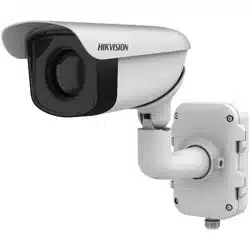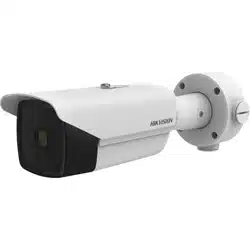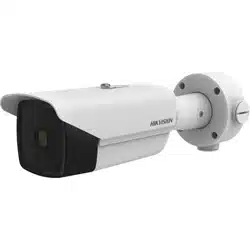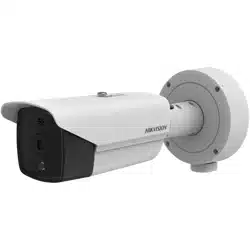

Thermal Network Camera
User Manual

Legal Informaon
©2023 Hangzhou Hikvision Digital Technology Co., Ltd. All rights reserved.
About this Manual
The Manual includes instrucons for using and managing the Product. Pictures, charts, images and
all other informaon hereinaer are for descripon and explanaon only. The informaon
contained in the Manual is subject to change, without noce, due to rmware updates or other
reasons. Please nd the latest version of this Manual at the Hikvision website ( hps://
www.hikvision.com/ ).
Please use this Manual with the guidance and assistance of professionals trained in
supporng the
Product.
Trademarks
and other Hikvision's trademarks and logos are the properes of
Hikvision in various jurisdicons.
Other trademarks and logos menoned are the properes of their respecve owners.
Disclaimer
TO THE MAXIMUM EXTENT PERMITTED BY APPLICABLE LAW, THIS MANUAL AND THE PRODUCT
DESCRIBED, WITH ITS HARDWARE, SOFTWARE AND FIRMWARE, ARE PROVIDED "AS IS" AND "WITH
ALL FAULTS AND ERRORS". HIKVISION MAKES NO WARRANTIES, EXPRESS OR IMPLIED, INCLUDING
WITHOUT LIMITATION, MERCHANTABILITY, SATISFACTORY QUALITY, OR FITNESS FOR A PARTICULAR
PURPOSE. THE USE OF THE PRODUCT BY YOU IS AT YOUR OWN RISK. IN NO EVENT WILL HIKVISION
BE LIABLE TO YOU FOR ANY SPECIAL, CONSEQUENTIAL, INCIDENTAL, OR INDIRECT DAMAGES,
INCLUDING, AMONG OTHERS, DAMAGES FOR LOSS OF BUSINESS PROFITS, BUSINESS
INTERRUPTION, OR LOSS OF DATA, CORRUPTION OF SYSTEMS, OR LOSS OF DOCUMENTATION,
WHETHER BASED ON BREACH OF CONTRACT, TORT (INCLUDING NEGLIGENCE), PRODUCT LIABILITY,
OR OTHERWISE, IN CONNECTION WITH THE USE OF THE PRODUCT, EVEN IF HIKVISION HAS BEEN
ADVISED OF THE POSSIBILITY OF SUCH DAMAGES OR LOSS.
YOU ACKNOWLEDGE THAT THE NATURE OF THE INTERNET PROVIDES FOR INHERENT SECURITY
RISKS, AND HIKVISION SHALL NOT TAKE ANY RESPONSIBILITIES FOR ABNORMAL OPERATION,
PRIVACY LEAKAGE OR OTHER DAMAGES RESULTING FROM CYBER-ATTACK, HACKER ATTACK, VIRUS
INFECTION, OR OTHER INTERNET SECURITY RISKS; HOWEVER, HIKVISION WILL PROVIDE TIMELY
TECHNICAL SUPPORT IF REQUIRED.
YOU AGREE TO USE THIS PRODUCT IN COMPLIANCE WITH ALL APPLICABLE LAWS, AND YOU ARE
SOLELY RESPONSIBLE FOR ENSURING THAT YOUR USE CONFORMS TO THE APPLICABLE LAW.
ESPECIALLY, YOU ARE RESPONSIBLE, FOR USING THIS PRODUCT IN A MANNER THAT DOES NOT
INFRINGE ON THE RIGHTS OF THIRD PARTIES, INCLUDING WITHOUT LIMITATION, RIGHTS OF
PUBLICITY, INTELLECTUAL PROPERTY RIGHTS, OR DATA PROTECTION AND OTHER PRIVACY RIGHTS.
YOU SHALL NOT USE THIS PRODUCT FOR ANY PROHIBITED END-USES, INCLUDING THE
Thermal Network Camera User Manual
i

DEVELOPMENT OR PRODUCTION OF WEAPONS OF MASS DESTRUCTION, THE DEVELOPMENT OR
PRODUCTION OF CHEMICAL OR BIOLOGICAL WEAPONS, ANY ACTIVITIES IN THE CONTEXT RELATED
TO ANY NUCLEAR EXPLOSIVE OR UNSAFE NUCLEAR FUEL-CYCLE, OR IN SUPPORT OF HUMAN
RIGHTS ABUSES.
IN THE EVENT OF ANY CONFLICTS BETWEEN THIS MANUAL AND THE APPLICABLE LAW, THE LATTER
PREVAILS.
Thermal Network Camera User Manual
ii
Symbol Convenons
The symbols that may be found in this document are dened as follows.
Symbol Descripon
Danger
Indicates a hazardous situaon which, if not avoided, will or could
result in death or serious injury.
Cauon
Indicates a potenally hazardous situaon which, if not avoided, could
result in equipment damage, data loss, performance degradaon, or
unexpected results.
Note
Provides addional informaon to emphasize or supplement
important points of the main text.
Thermal Network Camera User Manual
iii

Safety Instrucon
These instrucons are intended to ensure that user can use the product correctly to avoid danger
or property loss.
Laws and Regulaons
●
In the use of the product, you must be in strict compliance with the electrical safety regulaons
of the naon and region.
Transportaon
●
Keep the device in original or similar packaging while
transporng it.
●
Keep all wrappers
aer unpacking them for future use. In case of any failure occurred, you need
to return the device to the factory with the original wrapper. Transportaon without the original
wrapper may result in damage on the device and the company shall not take any
responsibilies.
●
DO NOT drop the product or subject it to physical shock. Keep the device away from magnec
interference.
Power Supply
●
Check the input voltage before powering on the device to avoid damage.
●
CAUTION: If the fuse of the device can be replaced, replace it only with the same model to
reduce the risk of
re or electric shock.
●
If a fuse is connected to the neutral wire and a double pole/neutral fusing occurs, parts of the
device that remain energized might represent a hazard during servicing
aer operaon of the
fuse.
●
If the device uses a 3-prong power supply plug, it must be connected to an earthed mains
socket-outlet properly.
●
Do not touch the bare components (such as the metal contacts of the inlets) and wait for at least
5 minutes, since electricity may
sll exist aer the device is powered o.
●
For the permanently connected device without a disconnect equipment, a readily accessible
disconnect equipment shall be incorporated into the electrical installaon of the connected
building.
●
For the permanently connected device without an overcurrent
protecon equipment, an
overcurrent
protecon equipment shall be incorporated into the electrical installaon of the
connected building. The specicaons of the overcurrent protecon equipment shall not exceed
that of the building.
●
For the permanently connected device without an all-pole mains switch, an all-pole mains switch
shall be incorporated into the electrical
installaon of the connected building.
●
If the device is powered by terminals connected to the power cord, ensure correct voltage and
wiring of the terminals for connecon to mains supply.
Thermal Network Camera User Manual
iv

●
Please purchase the charger by yourself. Input voltage should meet the Limited Power Source
(12 VDC, 24 VAC, or PoE(802.3af)) according to the IEC62368 standard. Please refer to technical
specicaons for detailed informaon.
●
Make sure the plug is properly connected to the power socket.
●
The socket-outlet shall be installed near the equipment and shall be easily accessible.
●
DO NOT connect mulple devices to one power adapter, to avoid over-heang or re hazards
caused by overload.
●
DO NOT touch the bare metal contacts of the inlets
aer the circuit breaker is turned o.
Electricity sll exists.
●
+
idenes the posive terminal(s) of equipment which is used with, or generates direct current.
-
idenes the negave terminal(s) of equipment which is used with, or generates direct current.
Baery
●
Risk of explosion if the baery is replaced by an incorrect type. Dispose of used baeries
according to the instrucons.
●
The built-in
baery cannot be dismantled. Please contact the manufacture for repair if
necessary.
●
For long-term storage of the
baery, make sure it is fully charged every half year to ensure the
baery quality. Otherwise, damage may occur.
●
This equipment is not suitable for use in
locaons where children are likely to be present.
●
Improper replacement of the baery with an incorrect type may defeat a safeguard (for
example, in the case of some lithium baery types).
●
DO NOT dispose of the
baery into re or a hot oven, or mechanically crush or cut the baery,
which may result in an explosion.
●
DO NOT leave the
baery in an extremely high temperature surrounding environment, which
may result in an explosion or the leakage of ammable liquid or gas.
●
DO NOT subject the
baery to extremely low air pressure, which may result in an explosion or
the leakage of ammable liquid or gas.
Installaon
●
This device is suitable for use above 2 m only.
●
Install the device according to the
instrucons in Quick Start Guide. To prevent injury, this device
must be securely aached to the installaon surface in accordance with the installaon
instrucons.
●
Never place the device in an unstable locaon. The device may fall, causing serious personal
injury or death.
●
The
addional force shall be equal to three mes the weight of the device but not less than 50
N. The device and its associated mounng means shall remain secure during the installaon.
Aer
the installaon, the device, including any associated mounng plate, shall not be damaged.
●
Never place the equipment in an unstable locaon. The equipment may fall, causing serious
personal injury or death.
●
This equipment is for use only with corresponding brackets. Use with other (carts, stands, or
carriers) may result in instability causing injury.
Thermal Network Camera User Manual
v

●
The interface varies with the models. Please refer to the product datasheet for details.
●
If the device needs to be wired by yourself, select the corresponding wire to supply power
according to the electric parameters labeled on the device. Strip o wire with a standard wire
stripper at corresponding
posion. To avoid serious consequences, the length of stripped wire
shall be appropriate, and conductors shall not be exposed.
●
Make sure that the power has been disconnected before you wire, install, or disassemble the
device.
System Security
●
You acknowledge that the nature of Internet provides for inherent security risks, and our
company shall not take any responsibilies for abnormal operaon, privacy leakage or other
damages
resulng from cyber aack, hacker aack, however, our company will provide mely
technical support if required.
●
Please enforce the protecon for the personal informaon and the data security as the device
may be confronted with the network security problems when it is connected to the Internet.
Please contact us when the device might exist network security risks.
●
Please understand that you have the responsibility to congure all the passwords and other
security sengs about the device, and keep your user name and password.
Maintenance
●
If the product does not work properly, please contact your dealer or the nearest service center.
We shall not assume any responsibility for problems caused by unauthorized repair or
maintenance.
●
A few device components (e.g.,
electrolyc capacitor) require regular replacement. The average
lifespan varies, so periodic checking is recommended. Contact your dealer for details.
●
Wipe the device gently with a clean cloth and a small
quanty of ethanol, if necessary.
●
If the equipment is used in a manner not specied by the manufacturer, the protecon provided
by the device may be impaired.
●
To reduce the risk of
re, replace only with the same type and rang of fuse.
●
The serial port of the equipment is used for debugging only.
Using Environment
●
Make sure the running environment meets the requirement of the device. The operang
temperature shall be -40°C to 65°C (-40°F to 149°F), and the operang humidity shall be 95% or
less, no condensing.
●
DO NOT expose the device to high
electromagnec radiaon or dusty environments.
●
DO NOT aim the lens at the sun or any other bright light.
●
The equipment shall not be exposed to dripping or splashing and that no objects
lled with
liquids, such as vases, shall be placed on the equipment.
●
No naked
ame sources, such as lighted candles, should be placed on the equipment.
●
For the device with venlaon openings, the venlaon openings should not be impeded by
covering the
venlaon openings with items, such as newspapers, table-cloths, and curtains.
Thermal Network Camera User Manual
vi

The openings shall never be blocked by placing the device on a bed, sofa, rug, or other similar
surface.
●
Keep a proper distance around the device for sucient venlaon.
●
This device is suitable for
mounng on concrete or other non-combusble surface only to avoid
re hazard.
●
This equipment is not suitable for use in locaons where children are likely to be present.
●
Provide a surge suppressor at the inlet opening of the equipment under special
condions such
as the mountain top, iron tower, and forest.
●
Burned ngers when handling the parts with symbol . Wait one-half hour aer switching o
before handling the parts.
Emergency
●
If smoke, odor, or noise arises from the device, immediately turn
o the power, unplug the
power cable, and contact the service center.
COMPLIANCE NOTICE: The thermal series products might be subject to export controls in various
countries or regions, including without
limitaon, the United States, European Union, United
Kingdom and/or other member countries of the Wassenaar Arrangement. Please consult your
professional legal or compliance expert or local government
authories for any necessary export
license requirements if you intend to transfer, export, re-export the thermal series products
between
dierent countries.
Thermal Network Camera User Manual
vii

Contents
Chapter 1 Overview .................................................................................................................... 1
1.1 Brief Descripon .................................................................................................................... 1
1.2 Funcon ................................................................................................................................. 1
Chapter 2 Device Acvaon and Accessing ................................................................................. 2
2.1 Acvate Device ...................................................................................................................... 2
2.1.1 Acvate the Device via Browser .................................................................................... 2
2.1.2 Acvate the Device via SADP ........................................................................................ 3
2.2 Login ...................................................................................................................................... 3
2.2.1 Plug-in
Installaon ........................................................................................................ 3
2.2.2 Illegal Login Lock ........................................................................................................... 4
Chapter 3 Network Sengs ........................................................................................................ 5
3.1 TCP/IP ..................................................................................................................................... 5
3.1.1
Mulcast Discovery ....................................................................................................... 6
3.2 Port ........................................................................................................................................ 6
3.3 Port Mapping ......................................................................................................................... 7
3.3.1 Set Auto Port Mapping .................................................................................................. 7
3.3.2 Set Manual Port Mapping ............................................................................................. 8
3.4
Mulcast ................................................................................................................................ 8
3.5 SNMP ..................................................................................................................................... 8
3.6 Access to Device via Domain Name ....................................................................................... 9
3.7 Access to Device via PPPoE Dial Up
Connecon .................................................................. 10
3.8 Set ISUP ................................................................................................................................ 10
3.9 Set Open Network Video Interface ...................................................................................... 11
3.10 Set Alarm Host ................................................................................................................... 11
3.11 Set Alarm Server ................................................................................................................ 11
3.12 Set Network Service ........................................................................................................... 12
Thermal Network Camera User Manual
viii

3.13 Set SRTP ............................................................................................................................. 12
3.14 Set Modbus ........................................................................................................................ 13
3.15 Operate via Mobile Client .................................................................................................. 13
3.15.1 Enable Hik-Connect Service on Camera .................................................................... 14
3.15.2 Set Up Hik-Connect ................................................................................................... 15
3.15.3 Add Camera to Hik-Connect ...................................................................................... 15
Chapter 4 Live View .................................................................................................................. 17
4.1 Live View Parameters ........................................................................................................... 17
4.1.1 Window Division ......................................................................................................... 17
4.1.2 Live View Stream Type ................................................................................................ 17
4.1.3 Enable and Disable Live View ...................................................................................... 17
4.1.4 Start Digital Zoom ....................................................................................................... 17
4.1.5 View Previous/Next Page ............................................................................................ 18
4.1.6 Full Screen ................................................................................................................... 18
4.1.7 Light ............................................................................................................................ 18
4.1.8 Wiper .......................................................................................................................... 18
4.1.9 Lens Inializaon ........................................................................................................ 18
4.1.10 Auxiliary Focus .......................................................................................................... 18
4.1.11 Quick Set Live View ................................................................................................... 18
4.1.12 Lens Parameters Adjustment .................................................................................... 19
4.2 Set Transmission Parameters ............................................................................................... 19
Chapter 5 Video and Image
Sengs ......................................................................................... 21
5.1 Video
Sengs ...................................................................................................................... 21
5.1.1 Stream Type ................................................................................................................ 21
5.1.2 Video Type .................................................................................................................. 21
5.1.3
Resoluon ................................................................................................................... 21
5.1.4 Bitrate Type and Max. Bitrate ..................................................................................... 22
5.1.5 Video Quality .............................................................................................................. 22
Thermal Network Camera User Manual
ix

5.1.6 Frame Rate .................................................................................................................. 22
5.1.7 Video Encoding ........................................................................................................... 22
5.1.8 Smoothing ................................................................................................................... 24
5.1.9 Display VCA Info .......................................................................................................... 24
5.1.10 Audio
Sengs ........................................................................................................... 24
5.1.11 Two-way Audio .......................................................................................................... 25
5.1.12 Set ROI ...................................................................................................................... 25
5.1.13 Metadata .................................................................................................................. 26
5.2 Display Sengs .................................................................................................................... 26
5.2.1 Image Adjustment ....................................................................................................... 26
5.2.2 Image Adjustment (Thermal Channel) ........................................................................ 26
5.2.3 DNR ............................................................................................................................. 27
5.2.4 Set
Palee ................................................................................................................... 27
5.2.5 Set Target Enhancement ............................................................................................. 28
5.2.6 DDE ............................................................................................................................. 28
5.2.7 Brightness Sudden Change ......................................................................................... 28
5.2.8 Enhance Regional Image ............................................................................................. 29
5.2.9 Mirror .......................................................................................................................... 29
5.2.10 Video Standard ......................................................................................................... 29
5.2.11 Digital Zoom .............................................................................................................. 29
5.2.12 Scene Mode .............................................................................................................. 29
5.2.13 Local Output .............................................................................................................. 29
5.3 OSD ...................................................................................................................................... 30
5.4 VCA Rule Display
Sengs .................................................................................................... 30
5.5 Set Privacy Mask .................................................................................................................. 30
5.6 Overlay Picture ..................................................................................................................... 31
5.7 Set Manual DPC
(Defecve Pixel Correcon) ....................................................................... 31
Chapter 6 Video Recording and Picture Capture ........................................................................ 32
Thermal Network Camera User Manual
x

6.1 Storage Sengs ................................................................................................................... 32
6.1.1 Set Memory Card ........................................................................................................ 32
6.1.2 Set NAS ....................................................................................................................... 32
6.1.3 Set FTP ........................................................................................................................ 33
6.1.4 Set Cloud Storage ........................................................................................................ 34
6.2 Video Recording ................................................................................................................... 34
6.2.1 Record
Automacally .................................................................................................. 34
6.2.2 Record Manually ......................................................................................................... 36
6.2.3 Playback and Download Video .................................................................................... 36
6.3 Capture Conguraon .......................................................................................................... 37
6.3.1 Capture Automacally ................................................................................................ 37
6.3.2 Capture Manually ........................................................................................................ 37
6.3.3 View and Download Picture ........................................................................................ 38
Chapter 7 VCA Resource ........................................................................................................... 39
7.1 Temperature Measurement ................................................................................................. 39
7.1.1 Noce .......................................................................................................................... 39
7.1.2 Thermography
Conguraon Flow Chart .................................................................... 39
7.1.3 Automac Thermography ........................................................................................... 41
7.1.4 Manual Thermography ............................................................................................... 48
7.2 Fire
Detecon ...................................................................................................................... 48
7.2.1 Recommended Scene ................................................................................................. 49
7.2.2 Set Dynamic Fire Source Detecon ............................................................................. 49
7.2.3 Set
Detecon Shield Region ........................................................................................ 50
7.3 Perimeter Protecon ........................................................................................................... 50
7.3.1 Set Perimeter Protecon Rules ................................................................................... 50
7.3.2 Set Perimeter
Protecon Shield Region ...................................................................... 53
7.3.3 Set Overlay & Capture Parameters ............................................................................. 53
7.3.4
Calibraon ................................................................................................................... 54
Thermal Network Camera User Manual
xi

7.3.5 Set Advanced Conguraon Parameters .................................................................... 56
7.4 Open Plaorm ...................................................................................................................... 56
7.4.1 Set Open
Plaorm ....................................................................................................... 56
Chapter 8 Event and Alarm ....................................................................................................... 58
8.1 Set Moon Detecon ........................................................................................................... 58
8.1.1 Normal Mode .............................................................................................................. 58
8.1.2 Expert Mode ............................................................................................................... 59
8.2 Set Video Tampering Alarm ................................................................................................. 59
8.3 Set Alarm Input .................................................................................................................... 60
8.4 Set Excepon Alarm ............................................................................................................. 61
8.5 Detect Audio Excepon ........................................................................................................ 61
8.6 Detect Scene Change ........................................................................................................... 62
Chapter 9 Arming Schedule and Alarm Linkage ......................................................................... 63
9.1 Set Arming Schedule ............................................................................................................ 63
9.2 Linkage Method Sengs ...................................................................................................... 63
9.2.1 Trigger Alarm Output .................................................................................................. 63
9.2.2 FTP/NAS/Memory Card Uploading ............................................................................. 65
9.2.3 Send Email .................................................................................................................. 65
9.2.4
Nofy Surveillance Center .......................................................................................... 66
9.2.5 Trigger Recording ........................................................................................................ 66
9.2.6 Set Audible Alarm Output ........................................................................................... 67
9.2.7 Set Flashing Alarm Light Output ................................................................................. 67
Chapter 10 System and Security ................................................................................................ 68
10.1 View Device
Informaon .................................................................................................... 68
10.2 Search and Manage Log ..................................................................................................... 68
10.3 Import and Export
Conguraon File ................................................................................ 68
10.4 Export Diagnose Informaon ............................................................................................. 69
10.5 Reboot ............................................................................................................................... 69
Thermal Network Camera User Manual
xii

10.6 Device Auto Maintenance .................................................................................................. 69
10.7 Restore and Default ........................................................................................................... 69
10.8 Upgrade ............................................................................................................................. 70
10.9 View Open Source
Soware License .................................................................................. 70
10.10 Time and Date .................................................................................................................. 70
10.10.1 Synchronize Time Manually .................................................................................... 70
10.10.2 Set NTP Server ........................................................................................................ 71
10.10.3 Set DST .................................................................................................................... 71
10.11 Set RS-232 ........................................................................................................................ 71
10.12 Set RS-485 ........................................................................................................................ 72
10.13 Set Same Unit .................................................................................................................. 72
10.14 Security ............................................................................................................................ 72
10.14.1
Authencaon ........................................................................................................ 73
10.14.2 Security Audit Log ................................................................................................... 73
10.14.3 Set IP Address Filter ................................................................................................ 74
10.14.4 Set MAC Address Filter ........................................................................................... 74
10.14.5
Cercate Management ......................................................................................... 75
10.14.6 Control Timeout Sengs ........................................................................................ 77
10.14.7 Set SSH .................................................................................................................... 77
10.14.8 Set HTTPS ................................................................................................................ 77
10.14.9 Set QoS .................................................................................................................... 78
10.14.10 Set IEEE 802.1X ..................................................................................................... 78
10.15 User and Account ............................................................................................................. 79
10.15.1 Set User Account and Permission ........................................................................... 79
10.15.2 Online Users ............................................................................................................ 80
Chapter 11 Appendix ................................................................................................................ 81
11.1 Common Material Emissivity Reference ............................................................................ 81
11.2 FAQ ..................................................................................................................................... 81
Thermal Network Camera User Manual
xiii

Chapter 1 Overview
1.1 Brief Descripon
Thermal network camera equipped with built-in GPU which supports intelligent perimeter
protecon algorithm, can realize high-precision VCA detecon and real-me alarm. It is applied to
perimeter protecon and re-prevenon purposes in crical infrastructures such as community,
villa, construcon site, factory, 4S stores, and so on. The pre-alarm system helps you discover
unexpected events immediately and protects your property.
1.2
Funcon
This secon introduces main funcons of the device.
Note
Not all models support the conguraons below. Take the actual product for reference.
Fire Detecon
Device can detect the dynamic re source in the scene and output pre-alarm and alarm to protect
the property.
Temperature Measurement
Device can measure the actual temperature of the spot being monitored. The device alarms when
temperature exceeds the temperature threshold value.
Perimeter
Protecon
Device can do perimeter protecon. Mulple rules can be congured for dierent requirements.
Open
Plaorm
Device supports the installaon of applicaon for the third-party to develop and run its funcon
and service.
Thermal Network Camera User Manual
1

Chapter 2 Device Acvaon and Accessing
To protect the security and privacy of the user account and data, you should set a login password
to
acvate the device when access the device via network.
Note
Refer to the user manual of the soware client for the detailed informaon about the client
soware acvaon.
2.1 Acvate Device
The device needs to be acvated by seng a strong password before use. This part introduces
acvaon using dierent client tools.
2.1.1
Acvate the Device via Browser
You can access and acvate the device via the browser.
Steps
1.
Connect your computer to the same Wi-Fi network that the device is in.
2.
Change the IP address of the computer and device to the same segment.
Note
The default IP address of the device is 192.168.1.64. You can set the IP address of the computer
from 192.168.1.2 to 192.168.1.253 (except 192.168.1.64). For example, you can set the IP
address of the PC to 192.168.1.100.
3.
Input 192.168.1.64 in the browser.
4.
Set device
acvaon password.
Cauon
We highly recommend you create a strong password of your own choosing (using a minimum of
8 characters, including at least three of the following categories: upper case leers, lower case
leers, numbers, and special characters) in order to increase the security of your product. And
we recommend you reset your password regularly, especially in the high security system,
reseng the password monthly or weekly can beer protect your product.
5.
Click OK.
6.
Input the
acvaon password to log in to the device.
7.
Oponal: Go to Conguraon → Network → Basic → TCP/IP to change the IP address of the
device to the same segment of your network.
Thermal Network Camera User Manual
2

2.1.2 Acvate the Device via SADP
Search and acvate the online devices via SADP soware.
Before You Start
Access www.hikvision.com to get SADP soware to install.
Steps
1.
Connect your computer to the same Wi-Fi network that the device is in.
2.
Run SADP
soware to search the online devices of the LAN.
3.
Check Device Status from the device list, and select
Inacve device.
4.
Create and input the new password in the password eld, and conrm the password.
Cauon
We highly recommend you create a strong password of your own choosing (using a minimum of
8 characters, including upper case leers, lower case leers, numbers, and special characters) in
order to increase the security of your product. And we recommend you reset your password
regularly, especially in the high security system,
reseng the password monthly or weekly can
beer protect your product.
5.
Click OK.
Device Status changes into
Acve.
6.
Oponal: Change the network parameters of the device in Modify Network Parameters.
2.2 Login
Log in to the device via Web browser.
2.2.1 Plug-in
Installaon
Certain operaon systems and web browser may restrict the display and operaon of the device
funcon. You should install plug-in or complete certain sengs to ensure normal display and
operaon. For detailed restricted funcon, refer to the actual device.
Operang
System Web Browser Operaon
Windows Internet Explorer 10+ Follow pop-up prompts to
complete plug-in installaon.
Google Chrome 57+
Mozilla Firefox 52+
Microso Edge 79.0.309+
Click
to
download and install plug-in.
Go to Conguraon →
Network → Advanced Sengs
Thermal Network Camera User Manual
3

Operang System Web Browser Operaon
→ Network Service to enable
WebSocket or WebSockets for
normal view if plug-in
installaon is not required.
Display and
operaon of
certain
funcons are restricted.
For example, Playback and
Picture are not available. For
detailed restricted
funcon,
refer to the actual device.
Mac OS 10.13+ Mac Safari 12+ Plug-in installaon is not
required.
Go to Conguraon →
Network → Advanced
Sengs
→ Network Service to enable
WebSocket or WebSockets for
normal view. Display and
operaon of certain funcons
are restricted. For example,
Playback and Picture are not
available. For detailed
restricted
funcon, refer to the
actual device.
Note
The device only supports Windows and Mac OS system and does not support Linux system.
2.2.2 Illegal Login Lock
It helps to improve the security when accessing the device via Internet.
Go to Conguraon → System → Security → Security Service , and enable Enable Illegal Login
Lock, Illegal Login Aempts and Locking Duraon are congurable.
Illegal Login Aempts
When your login aempts with the wrong password reach the set mes, the device is locked.
Locking Duraon
The device releases the lock aer the seng duraon.
Thermal Network Camera User Manual
4

Chapter 3 Network Sengs
3.1 TCP/IP
TCP/IP sengs must be properly congured before you operate the device over network. IPv4 and
IPv6 are both supported. Both versions can be congured simultaneously without conicng to
each other.
Go to Conguraon → Basic Conguraon → Network → TCP/IP for parameter sengs.
NIC Type
Select a NIC (Network Interface Card) type according to your network condion.
IPv4
Two IPv4 modes are available.
DHCP
The device
automacally gets the IPv4 parameters from the network if you check DHCP. The
device IP address is changed aer enabling the funcon. You can use SADP to get the device IP
address.
Note
The network that the device is connected to should support DHCP (Dynamic Host
Conguraon Protocol).
Manual
You can set the device IPv4 parameters manually. Input IPv4 Address, IPv4 Subnet Mask, and
IPv4 Default Gateway, and click Test to see if the IP address is available.
IPv6
Three IPv6 modes are available.
Route
Adversement
The IPv6 address is generated by combining the route adversement and the device Mac
address.
Note
Route adversement mode requires the support from the router that the device is connected
to.
DHCP
The IPv6 address is assigned by the server, router or gateway.
Manual
Thermal Network Camera User Manual
5

Input IPv6 Address, IPv6 Subnet, IPv6 Default Gateway. Consult the network administrator for
required informaon.
MTU
It stands for maximum transmission unit. It is the size of the largest protocol data unit that can
be communicated in a single network layer
transacon.
The valid value range of MTU is 1280 to 1500.
DNS
It stands for domain name server. It is required if you need to visit the device with domain
name. And it is also required for some
applicaons (e.g., sending email). Set Preferred DNS
Server and Alternate DNS server properly if needed.
3.1.1
Mulcast Discovery
Check the Enable Mulcast Discovery, and then the online network camera can be automacally
detected by client soware via private mulcast protocol in the LAN.
3.2 Port
The device port can be modied when the device cannot access the network due to port conicts.
Cauon
Do not modify the default port parameters at will, otherwise the device may be inaccessible.
Go to Conguraon → Network → Basic Sengs → Port for port sengs.
HTTP Port
It refers to the port through which the browser accesses the device. For example, when the
HTTP Port is
modied to 81, you need to enter hp://192.168.1.64:81 in the browser for login.
HTTPS Port
It refers to the port through which the browser accesses the device with cercate. Cercate
vericaon is required to ensure the secure access.
RTSP Port
It refers to the port of real-me streaming protocol.
SRTP Port
It refers to the port of secure real-me transport protocol.
Server Port
It refers to the port through which the client adds the device.
WebSocket Port
Thermal Network Camera User Manual
6

TCP-based full-duplex communicaon protocol port for plug-in free preview.
WebSockets Port
TCP-based full-duplex communicaon protocol port for plug-in free preview. Cercate
vericaon is required to ensure the secure access.
ModbusTCP
It refers to the protocol through which the device transmits data, such as the thermometry
data.
Note
●
WebSocket Port, and WebSockets Port are only supported by certain models.
●
For device models that support that funcon, go to Conguraon → Network → Advanced
Sengs → Network Service to enable it.
3.3 Port Mapping
By seng port mapping, you can access devices through the specied port.
Before You Start
When the ports in the device are the same as those of other devices in the network, refer to Port
to modify the device ports.
Steps
1.
Go to
Conguraon → Network → Basic Sengs → NAT .
2.
Select the port mapping mode.
Auto Port Mapping
Refer to Set Auto Port Mapping for detailed informaon.
Manual Port Mapping Refer to Set Manual Port Mapping for detailed informaon.
3.
Click Save.
3.3.1 Set Auto Port Mapping
Steps
1.
Check Enable UPnP™, and choose a friendly name for the camera, or you can use the default
name.
2.
Select the port mapping mode to Auto.
3.
Click Save.
Note
UPnP™ funcon on the router should be enabled at the same me.
Thermal Network Camera User Manual
7

3.3.2 Set Manual Port Mapping
Steps
1.
Check Enable UPnP™, and choose a friendly name for the device, or you can use the default
name.
2.
Select the port mapping mode to Manual, and set the external port to be the same as the
internal port.
3.
Click Save.
What to do next
Go to the router port mapping
sengs interface and set the port number and IP address to be the
same as those on the device. For more
informaon, refer to the router user manual.
3.4
Mulcast
Mulcast is group communicaon where data transmission is addressed to a group of desnaon
devices simultaneously. Aer seng mulcast, you can send the source data eciently to mulple
receivers.
Go to
Conguraon → Network → Basic Sengs → Mulcast for the mulcast sengs.
IP Address
It stands for the address of mulcast host.
Stream Type
The stream type as the
mulcast source.
Video Port
The video port of the selected stream.
Audio Port
The audio port of the selected stream.
Note
Audio Port varies according to dierent camera models.
3.5 SNMP
You can set the SNMP network management protocol to get the alarm event and excepon
messages in network transmission.
Before You Start
Before seng the SNMP, you should download the SNMP soware and manage to receive the
device informaon via SNMP port.
Thermal Network Camera User Manual
8

Steps
1.
Go to the sengs page: Conguraon → Network → Advanced Sengs → SNMP .
2.
Check Enable SNMPv1, Enable SNMP v2c or Enable SNMPv3.
Note
The SNMP version you select should be the same as that of the SNMP soware.
And you also need to use the dierent version according to the security level required. SNMP v1
is not secure and SNMP v2 requires password for access. And SNMP v3 provides encrypon and
if you use the third version, HTTPS protocol must be enabled.
3.
Congure the SNMP sengs.
4.
Click Save.
3.6 Access to Device via Domain Name
You can use the Dynamic DNS (DDNS) for network access. The dynamic IP address of the device can
be mapped to a domain name
resoluon server to realize the network access via domain name.
Before You Start
Registraon on the DDNS server is required before conguring the DDNS sengs of the device.
Steps
1.
Refer to TCP/IP to set DNS parameters.
2.
Go to the DDNS
sengs page: Conguraon → Network → Basic Sengs → DDNS .
3.
Check Enable DDNS and select DDNS type.
DynDNS
Dynamic DNS server is used for domain name
resoluon.
NO-IP
NO-IP server is used for domain name resoluon.
4.
Input the domain name informaon, and click Save.
5.
Check the device ports and complete port mapping. Refer to
Port to check the device port, and
refer to Port Mapping for port mapping sengs.
6.
Access the device.
By Browsers
Enter the domain name in the browser address bar to access the device.
By Client Soware Add domain name to the client soware. Refer to the client manual for
specic adding methods.
Thermal Network Camera User Manual
9

3.7 Access to Device via PPPoE Dial Up Connecon
This device supports the PPPoE auto dial-up funcon. The device gets a public IP address by ADSL
dial-up aer the device is connected to a modem. You need to congure the PPPoE parameters of
the device.
Steps
1.
Go to
Conguraon → Network → Basic Sengs → PPPoE .
2.
Check Enable PPPoE.
3.
Set the PPPoE parameters.
Dynamic IP
Aer successful dial-up, the dynamic IP address of the WAN is displayed.
User Name
User name for dial-up network access.
Password
Password for dial-up network access.
Conrm
Input your dial-up password again.
4.
Click Save.
5.
Access the device.
By Browsers
Enter the WAN dynamic IP address in the browser address bar to access
the device.
By Client Soware Add the WAN dynamic IP address to the client soware. Refer to the
client manual for details.
Note
The obtained IP address is dynamically assigned via PPPoE, so the IP address always changes
aer restarng the camera. To solve the inconvenience of the dynamic IP, you need to get a
domain name from the DDNS provider (e.g., DynDns.com). Refer to Access to Device via Domain
Name for detail informaon.
3.8 Set ISUP
When the device is registered on ISUP plaorm (formerly called Ehome), you can visit and manage
the device, transmit data, and forward alarm informaon over public network.
Steps
1.
Go to Conguraon → Network → Advanced Sengs → Plaorm Access .
2.
Select ISUP as the
plaorm access mode.
3.
Select Enable.
Thermal Network Camera User Manual
10

4.
Select a protocol version and input related parameters.
5.
Click Save.
Register status turns to Online when the funcon is correctly set.
3.9 Set Open Network Video Interface
If you need to access the device through Open Network Video Interface protocol, you can
congure the user sengs to enhance the network security.
Steps
1.
Go to
Conguraon → Network → Advanced Sengs → Integraon Protocol .
2.
Check Enable Open Network Video Interface.
3.
Select an
authencaon mode.
-
If you select Digest, the device only supports digest
authencaon.
-
If you select Digest&ws-username token, the device supports digest
authencaon or ws-
username token
authencaon.
4.
Click Add to congure the Open Network Video Interface user.
Delete Delete the selected Open Network Video Interface user.
Modify Modify the selected Open Network Video Interface user.
5.
Click Save.
6.
Oponal: Repeat the steps above to add more Open Network Video Interface users.
3.10 Set Alarm Host
The device can send the alarm signal to the remote alarm host when an event occurs. The alarm
host refers to the PC installed with client soware.
Steps
1.
Go to Conguraon → Network → Other .
2.
Enter the alarm host IP and port.
3.
Click Save.
3.11 Set Alarm Server
The device can send alarms to
desnaon IP address or host name through HTTP, HTTPS, or ISUP
protocol. The
desnaon IP address or host name should support HTTP, HTTP, or ISUP data
transmission.
Steps
1.
Go to Conguraon → Network → Advanced Sengs → Alarm Server .
2.
Enter
Desnaon IP or Host Name, URL, and Port.
Thermal Network Camera User Manual
11

3.
Select Protocol.
Note
HTTP, HTTPS, and ISUP are selectable. It is recommended to use HTTPS, as it encrypts the data
transmission during communicaon.
4.
Click Test to check if the IP or host is available.
5.
Click Save.
3.12 Set Network Service
You can control the ON/OFF status of certain protocol as desired.
Steps
Note
This funcon varies according to dierent models.
1.
Go to Conguraon → Network → Advanced Sengs → Network Service .
2.
Set network service.
WebSocket & WebSockets
WebSocket or WebSockets protocol should be enabled if you use Google Chrome 57 and its
above version or Mozilla Firefox 52 and its above version to visit the device. Otherwise, live
view, image capture, and digital zoom
funcon cannot be used.
If the device uses HTTP, enable WebSocket.
If the device uses HTTPS, enable WebSockets.
TLS (Transport Layer Security)
The device
oers TLS1.1 and TLS1.2. Enable one or more protocol versions according to your
need.
Bonjour
Bonjour is a zero-conguraon protocol used to automacally nd devices in a network or
create networks between devices. You can disable it when not using the protocol.
3.
Click Save.
3.13 Set SRTP
The Secure
Real-me Transport Protocol (SRTP) is a Real-me Transport Protocol (RTP) internet
protocol, intended to provide
encrypon, message authencaon and integrity, and replay aack
protecon to the RTP data in both unicast and mulcast applicaons.
Steps
1.
Go to Conguraon → Network → Advanced Sengs → SRTP .
Thermal Network Camera User Manual
12
2.
Select Server Cercate.
3.
Select Encrypted Algorithm.
4.
Click Save.
Note
Only certain device models support this funcon.
3.14 Set Modbus
Modbus TCP is a communicaon protocol that allows the Modbus client to acquire thermometry
data from the device, or
congure the temperature measurement funcon via TCP/IP Ethernet
network.
Steps
Note
You can set the Modbus TCP port, go to Conguraon → Network → Basic Sengs → Port .
1.
Go to Conguraon → Network → Advanced Sengs → Modbus .
2.
Select Modbus TCP mode.
Device Mode
The device is set as Subordinate by default, which means that the device operates as a
Modbus server processing the request from the client.
Register Mode
In Read Only, the client can only read all the register data. In Read/Write, the client can
congure the device using the Modbus TCP protocol.
3.
Check Enable Authorized IP Addresses and click Add to add IP addresses that are allowed to
access to the device.
Note
With regard to the network security risk, it is recommended to limit permission only to trusted
IP addresses.
3.15 Operate via Mobile Client
Hik-Connect is an applicaon for mobile devices. Using the App, you can view live image, receive
alarm
nocaon and so on.
Note
Hik-Connect service should be supported by the camera.
Thermal Network Camera User Manual
13

3.15.1 Enable Hik-Connect Service on Camera
Hik-Connect service should be enabled on your camera before using the service.
You can enable the service through SADP
soware or Web browser.
Enable Hik-Connect Service via Web Browser
Follow the following steps to enable Hik-Connect Service via Web Browser.
Before You Start
You need to
acvate the camera before enabling the service.
Steps
1.
Access the camera via web browser.
2.
Enter
plaorm access conguraon interface. Conguraon → Network → Advanced Sengs
→ Plaorm Access
3.
Select Hik-Connect as the Plaorm Access Mode.
4.
Check Enable.
5.
Click and read "Terms of Service" and "Privacy Policy" in pop-up window.
6.
Create a
vericaon code or change the old vericaon code for the camera.
Note
The vericaon code is required when you add the camera to Hik-Connect service.
7.
Save the sengs.
Enable Hik-Connect Service via SADP
Soware
This part introduce how to enable Hik-Connect service via SADP soware of an acvated camera.
Steps
1.
Run SADP soware.
2.
Select a camera and enter Modify Network Parameters page.
3.
Check Enable Hik-Connect.
4.
Create a
vericaon code or change the old vericaon code.
Note
The vericaon code is required when you add the camera to Hik-Connect service.
5.
Click and read "Terms of Service" and "Privacy Policy".
6.
Conrm the sengs.
Thermal Network Camera User Manual
14
3.15.2 Set Up Hik-Connect
Steps
1.
Get and install Hik-Connect
applicaon by the following ways.
-
Visit
hps://appstore.hikvision.com to download the applicaon according to your mobile
phone system.
-
Visit the ocial site of our company. Then go to Support → Tools → Hikvision App Store .
-
Scan the QR code below to download the
applicaon.
Note
If errors like "Unknown app" occur during the installaon, solve the problem in two ways.
●
Visit hps://appstore.hikvision.com/stac/help/index.html to refer to the troubleshoong.
●
Visit hps://appstore.hikvision.com/ , and click Installaon Help at the upper right corner of
the interface to refer to the
troubleshoong.
2.
Start the applicaon and register for a Hik-Connect user account.
3.
Log in aer registraon.
3.15.3 Add Camera to Hik-Connect
Steps
1.
Connect your mobile device to a Wi-Fi.
2.
Log into the Hik-Connect app.
3.
In the home page, tap "+" on the upper-right corner to add a camera.
4.
Scan the QR code on camera body or on the Quick Start Guide cover.
Note
If the QR code is missing or too blur to be recognized, you can also add the camera by inpung
the camera's serial number.
5.
Input the vericaon code of your camera.
Thermal Network Camera User Manual
15

Note
●
The required vericaon code is the code you create or change when you enable Hik-Connect
service on the camera.
●
If you forget the vericaon code, you can check the current vericaon code on Plaorm
Access conguraon page via web browser.
6.
Tap Connect to a Network buon in the popup interface.
7.
Choose Wired Connecon or Wireless Connecon according to your camera funcon.
Wireless
Connecon
Input the Wi-Fi password that your mobile phone has connected to, and
tap Next to start the Wi-Fi connecon process. (Locate the camera within 3
meters from the router when seng up the Wi-Fi.)
Wired
Connecon
Connect the camera to the router with a network cable and tap Connected
in the result interface.
Note
The router should be the same one which your mobile phone has connected to.
8.
Tap Add in the next interface to
nish adding.
For detailed informaon, refer to the user manual of the Hik-Connect app.
Thermal Network Camera User Manual
16

Chapter 4 Live View
It introduces the live view parameters, funcon icons and transmission parameters sengs.
4.1 Live View Parameters
The supported funcons vary depending on the model.
4.1.1 Window Division
●
refers to 1 × 1 window division.
●
refers to 2 × 2 window division.
●
refers to 3 × 3 window division.
●
refers to 4 × 4 window division.
4.1.2 Live View Stream Type
Select the live view stream type according to your needs. For the detailed informaon about the
stream type
selecon, refer to Stream Type .
4.1.3 Enable and Disable Live View
This funcon is used to quickly enable or disable live view of all channels.
●
Click
to start live view of all channels.
●
Click to stop live view of all channels.
Note
Go to Conguraon → Local , to set Auto Start Live View, If Yes is selected, live view will start
automacally when you go to live view.
4.1.4 Start Digital Zoom
It helps to see a detailed informaon of any region in the image.
Steps
1.
Click to enable the digital zoom.
2.
In live view image, drag the mouse to select the desired region.
3.
Click in the live view image to back to the original image.
Thermal Network Camera User Manual
17

4.1.5 View Previous/Next Page
When the number of channels surpasses that of live view window division, this funcon can switch
live view among
mulple channels.
Click to switch live view among mulple channels.
4.1.6 Full Screen
This funcon is used to view the image in full screen mode.
Click to start full screen mode and press ESC buon to exit.
4.1.7 Light
Click to turn on or turn o the illuminator.
4.1.8 Wiper
For the device that has a wiper, you can control the wiper via web browser.
Click
on live view page. The wiper wipes the window one me.
4.1.9 Lens
Inializaon
Lens inializaon is used on the device equipped with motorized lens. The funcon can reset lens
when long me zoom or focus results in blurred image. This funcon varies according to dierent
models.
Click
to operate lens inializaon.
4.1.10 Auxiliary Focus
Click to enable automac focus. This funcon is subject to the actual device model.
4.1.11 Quick Set Live View
It
oers a quick setup of PTZ, display sengs, OSD, video/audio and VCA resource sengs on live
view page.
Steps
1.
Click
to show quick setup page.
2.
Set PTZ, display sengs, OSD, video/audio and VCA resource parameters.
Thermal Network Camera User Manual
18

-
For PTZ sengs, see Lens Parameters Adjustment .
-
For display sengs, see Display Sengs .
-
For OSD sengs, see OSD .
-
For audio and video
sengs, see Video and Image Sengs .
-
For VCA
sengs, see Fire Detecon , Temperature Measurement , and Perimeter Protecon .
Note
The funcon is only supported by certain models.
4.1.12 Lens Parameters Adjustment
It is used to adjust the lens focus, zoom and iris.
Zoom
●
Click , and the lens zooms in.
●
Click
, and the lens zooms out.
Focus
●
Click , then the lens focuses far and the distant object gets clear.
●
Click
, then the lens focuses near and the nearby object gets clear.
PTZ Speed
●
Slide to adjust the speed of the pan/lt movement.
Iris
●
When the image is too dark, click to enlarge the iris.
●
When the image is too bright, click to stop down the iris.
4.2 Set Transmission Parameters
The live view image may be displayed abnormally according to the network condions. In dierent
network environments, you can adjust the transmission parameters to solve the problem.
Steps
1.
Go to Conguraon → Local → Live View Parameters .
2.
Set the transmission parameters as required.
Protocol
TCP
TCP ensures complete delivery of streaming data and
beer video quality, yet the real-me
transmission will be aected. It is suitable for the stable network environment.
Thermal Network Camera User Manual
19

UDP
UDP is suitable for the unstable network environment that does not demand high video
uency.
MULTICAST
MULTICAST is suitable for the situaon that there are mulple clients. You should set the
mulcast address for them before selecon.
Note
For detailed informaon about mulcast, refer to Mulcast .
HTTP
HTTP is suitable for the
situaon that the third-party needs to get the stream from the
device.
Play Performance
Shortest Delay
The device takes the real-me video image as the priority over the video uency.
Balanced
The device ensures both the real-me video image and the uency.
Fluent
The device takes the video
uency as the priority over teal-me. In poor network
environment, the device cannot ensures video uency even the uency is enabled.
Custom
You can set the frame rate manually. In poor network environment, you can reduce the
frame rate to get a
uent live view. But the rule informaon may cannot display.
3.
Click Save.
Thermal Network Camera User Manual
20

Chapter 5 Video and Image Sengs
This part introduces the conguraon of video/audio and image related parameters.
5.1 Video Sengs
This part introduces the sengs of video parameters, such as, stream type, video encoding, and
resoluon.
Go to seng page: Conguraon → Video/Audio → Video .
5.1.1 Stream Type
For device supports more than one stream, you can specify parameters for each stream type.
Main Stream
The stream stands for the best stream performance the device supports. It usually
oers the
best resoluon and frame rate the device can do. But high resoluon and frame rate usually
mean larger storage space and higher bandwidth requirements in transmission.
Sub Stream
The stream usually
oers comparavely low resoluon opons, which consumes less bandwidth
and storage space.
5.1.2 Video Type
Select the content (video and audio) that should be contained in the stream.
Video
Only video content is contained in the stream.
Video & Audio
Video content and audio content are contained in the composite stream.
Note
Video & Audio varies according to dierent camera models.
5.1.3 Resoluon
Select video resoluon according to actual needs. Higher resoluon requires higher bandwidth and
storage.
Thermal Network Camera User Manual
21

5.1.4 Bitrate Type and Max. Bitrate
Constant Bitrate
It means that the stream is compressed and transmied at a comparavely xed bitrate. The
compression speed is fast, but mosaic may occur on the image.
Variable Bitrate
It means that the device
automacally adjust the bitrate under the set Max. Bitrate. The
compression speed is slower than that of the constant bitrate. But it guarantees the image
quality of complex scenes.
5.1.5 Video Quality
When Bitrate Type is set as Variable, video quality is congurable. Select a video quality according
to actual needs. Note that higher video quality requires higher bandwidth.
5.1.6 Frame Rate
The frame rate is to describe the frequency at which the video stream is updated and it is
measured by frames per second (fps).
A higher frame rate is advantageous when there is movement in the video stream, as it maintains
image quality throughout. Note that higher frame rate requires higher bandwidth and larger
storage space.
5.1.7 Video Encoding
It stands for the compression standard the device adopts for video encoding.
Note
Available compression standards vary according to device models.
H.264
H.264, also known as MPEG-4 Part 10, Advanced Video Coding, is a compression standard. Without
compressing image quality, it increases compression rao and reduces the size of video le than
MJPEG or MPEG-4 Part 2.
Thermal Network Camera User Manual
22

H.265
H.265, also known as High Eciency Video Coding (HEVC) and MPEG-H Part 2, is a compression
standard. In comparison to H.264, it
oers beer video compression at the same resoluon, frame
rate and image quality.
MJPEG
Moon JPEG (M-JPEG or MJPEG) is a video compression format in which intraframe coding
technology is used. Images in a MJPEG format is compressed as individual JPEG images.
Prole
This funcon means that under the same bitrate, the more complex the prole is, the higher the
quality of the image is, and the requirement for network bandwidth is also higher.
I-Frame Interval
I-frame interval denes the number of frames between 2 I-frames.
In H.264 and H.265, an I-frame, or intra frame, is a self-contained frame that can be independently
decoded without any reference to other images. An I-frame consumes more bits than other
frames. Thus, video with more I-frames, in other words, smaller I-frame interval, generates more
steady and reliable data bits while requiring more storage space.
SVC
Scalable Video Coding (SVC) is the name for the Annex G extension of the H.264 or H.265 video
compression standard.
The
objecve of the SVC standardizaon has been to enable the encoding of a high-quality video
bitstream that contains one or more subset bitstreams that can themselves be decoded with a
complexity and
reconstrucon quality similar to that achieved using the exisng H.264 or H.265
design with the same quanty of data as in the subset bitstream. The subset bitstream is derived
by dropping packets from the larger bitstream.
SVC enables forward
compability for older hardware: the same bitstream can be consumed by
basic hardware which can only decode a
low-resoluon subset, while more advanced hardware
will be able decode high quality video stream.
Thermal Network Camera User Manual
23
5.1.8 Smoothing
It refers to the smoothness of the stream. The higher value of the smoothing is, the beer uency
of the stream will be, though, the video quality may not be so sasfactory. The lower value of the
smoothing is, the higher quality of the stream will be, though it may appear not uent.
5.1.9 Display VCA Info
VCA informaon can be displayed by Player and Video.
Player
Player means the VCA info can be displayed by the dedicated player provided by the
manufacturer.
Video
Video means the VCA info can be displayed by any general video player.
5.1.10 Audio
Sengs
It is a funcon to set audio parameters such as audio encoding, environment noise ltering.
Go to the audio sengs page: Conguraon → Video/Audio → Audio .
Note
Only certain camera models support the funcon.
Audio Encoding
Select the audio encoding compression of the audio.
Audio Input
Note
●
Connect the audio input device as required.
●
The audio input display varies with the device models.
Thermal Network Camera User Manual
24

LineIn Set Audio Input to LineIn when the device connects to the audio
input device with the high output power, such as MP3,
synthesizer or acve pickup.
MicIn Set Audio Input to MicIn when the device connects to the audio
input device with the low output power, such as microphone or
passive pickup.
Environmental Noise Filter
Set it as OFF or ON. When the funcon is enabled, the noise in the environment can be ltered to
some extent.
5.1.11 Two-way Audio
It is used to realize the two-way audio funcon between the monitoring center and the target in
the monitoring screen.
Before You Start
●
Make sure the audio input device (pick-up or microphone) and audio output device (speaker)
connected to the device is working properly. Refer to
specicaons of audio input and output
devices for device connecon.
●
If the device has built-in microphone and speaker, two-way audio
funcon can be enabled
directly.
Steps
Note
The funcon varies according to dierent camera models.
1.
Click Live View.
2.
Click
on the toolbar to enable two-way audio funcon of the camera.
3.
Click , disable the two-way audio funcon.
5.1.12 Set ROI
ROI (Region of Interest) encoding helps to assign more encoding resource to the region of interest,
thus to increase the quality of the ROI whereas the background informaon is less focused.
Before You Start
Please check the video coding type. ROI is supported when the video coding type is H.264 or H.
265.
Thermal Network Camera User Manual
25

Steps
1.
Go to Conguraon → Video/Audio → ROI .
2.
Check Enable.
3.
Select Stream Type.
4.
Select Region No. in Fixed Region to draw ROI region.
1) Click Draw Area.
2) Click and drag the mouse on the view screen to draw the
xed region.
3) Click Stop Drawing.
Note
Select the xed region that needs to be adjusted and drag the mouse to adjust its posion.
5.
Input the Region Name and ROI Level.
6.
Click Save.
Note
The higher the ROI level is, the clearer the image of the detected region is.
7.
Oponal: Select other region No. and repeat the above steps if you need to draw mulple xed
regions.
5.1.13 Metadata
Metadata is the raw data that the device collects before algorithm processing. It is oen used for
the third party integraon.
Go to Conguraon → Video/Audio → Metadata Sengs to enable metadata uploading of the
desired
funcon for the camera channels.
5.2 Display
Sengs
It oers the parameter sengs to adjust image features.
Go to Conguraon → Image → Display Sengs .
Click Default to restore
sengs.
5.2.1 Image Adjustment
By
adjusng the Brightness and Contrast, the image can be best displayed.
5.2.2 Image Adjustment (Thermal Channel)
You can opmize the image display eect of thermal channel by manual correcon.
Thermal Network Camera User Manual
26

Manual Correcon
Click DPC (Defecve Pixel Correcon) to opmize the image once.
Note
It is a normal phenomenon that short video freezing might occur during the process of Manual
Correcon.
Thermal AGC Mode
Choose the AGC mode according to dierent scenes to balance and improve the image quality.
●
Histogram: Choose for scene with obvious WDR and high temperature dierence, can
improve image contrast and enhance image. E.g. the scene contains both indoor and outdoor
scenes.
●
Linear: Choose for scene with low temperature dierence and the target is not obvious, can
improve image contrast and enhance image. E.g. the bird in forest.
●
Self-Adapve: Choose AGC mode automacally according to current scene.
5.2.3 DNR
Digital Noise Reducon is used to reduce the image noise and improve the image quality. Normal
and Expert modes are selectable.
Normal
Set the DNR level to control the noise
reducon degree. The higher level means stronger
reducon degree.
Expert
Set the DNR level for both space DNR and me DNR to control the noise reducon degree. The
higher level means stronger reducon degree.
5.2.4 Set
Palee
You can select the palee mode to display the thermal grayscale image to colored image.
Steps
1.
Go to Conguraon → Image → Display Sengs .
2.
Select a
palee mode in Image Enhancement according to your need.
Result
The live view displays the image with
palee.
Thermal Network Camera User Manual
27

5.2.5 Set Target Enhancement
You can set the color of the targets in dierent temperature ranges to idenfy the target quickly.
Steps
1.
Go to Conguraon → Image → Display Sengs .
2.
Click Image Enhancement, select
Palee as White Hot or Black Hot.
3.
Set the temperature value and color of High Temperature, Interval Temperature, or Low
Temperature targets.
Above (be colored)
When the target of high temperature needs to be colored, you can set the high temperature
color. Target above the
seng temperature will be displayed in seng color.
Between (be colored)
When the target of an interval temperature needs to be colored, you can set the interval
temperature color. Target between the minimum and the maximum temperatures will be
displayed in
seng color.
Below (be colored)
When the target of low temperature needs to be colored, you can set the low temperature
color. Target below the
seng temperature will be displayed in seng color.
4.
Click Save.
5.2.6 DDE
Digital Detail Enhancement is used to adjust the details of the image. OFF and Normal modes are
selectable.
OFF
Disable this
funcon.
Normal
Set the DDE level to control the details of the image. The higher the level is, the more details
shows, but the higher the noise is.
5.2.7 Brightness Sudden Change
When the brightness of target and the background is hugely dierent (the temperature dierence
of target and background is huge), the system reduces the dierence for viewing.
Thermal Network Camera User Manual
28

5.2.8 Enhance Regional Image
You can select the desired area of image to improve the coding quality. The regional image will be
more detailed and clear.
Steps
1.
Go to
Conguraon → Image → Display Sengs → Image Enhancement .
2.
Select the area of regional image enhancement. You can select OFF to disable this funcon, or
select Custom Area to draw a desired area.
A red rectangle shows on the display, in which the image quality is improved.
5.2.9 Mirror
When the live view image is the reverse of the actual scene, this funcon helps to display the
image normally.
Select the mirror mode as needed.
Note
The video recording will be shortly interrupted when the funcon is enabled.
5.2.10 Video Standard
Video standard is an ability of a video card or video display device that denes the amount of
colors that are shown and the resoluon. The two most common video standard used are NTSC
and PAL. In NTSC, 30 frames are
transmied each second. Each frame is made up of 525 individual
scan lines. In PAL, 25 frames are transmied each second. Each frame is made up of 625 individual
scan lines. Select video signal standard according to the video system in your country/region.
5.2.11 Digital Zoom
You can zoom in the image. The larger the zoom size is, the more blurred the image is.
5.2.12 Scene Mode
There are several sets of image parameters predened for dierent installaon environments.
Select a scene according to the actual installaon environment to speed up the display sengs.
5.2.13 Local Output
Enter a short descripon of your concept here (oponal).
Thermal Network Camera User Manual
29

Some camera models support CVBS, SDI, or HDMI output. Set the local output ON or OFF
according to the actual device.This is the start of your concept.
5.3 OSD
You can customize OSD (On-screen Display) informaon such as device name, me/date, font,
color, and text overlay displayed on video stream.
Go to OSD
seng page: Conguraon → Image → OSD Sengs . Set the corresponding
parameters, and click Save to take eect.
Displayed Informaon
Check to display camera name, date, week, laser ranging info, image center on the screen. You can
set the me and date formats.
Text Overlay
Set customized overlay text on image.
OSD Parameters
Set OSD parameters, such as Display Mode, OSD Size, and Font Color.
5.4 VCA Rule Display
Sengs
The VCA rule display refers to the funcon that you can customize the displayed overlay
informaon of the VCA rule, which includes the font size and line and frame color.
You can go to Conguraon → Image → VCA Rule Display to select the desired font size, and set
the line and frame color.
5.5 Set Privacy Mask
The funcon blocks certain areas in the live view to protect privacy. No maer how the device
moves, the blocked scene will never be seen.
Steps
1.
Go to privacy mask seng page: Conguraon → Image → Privacy Mask .
2.
Check Enable Privacy Mask.
3.
Click Draw Area. Drag the mouse in the live view to draw a closed area.
Drag the corners of the area
Adjust the size of the area.
Drag the area Adjust the posion of the area.
Click Clear All Clear all the areas you set.
4.
Click Stop Drawing.
Thermal Network Camera User Manual
30

5.
Click Save.
5.6 Overlay Picture
Overlay a customized picture on live view.
Before You Start
The picture to overlay has to be in BMP format with 24-bit, and the maximum picture size is 128 ×
128 pixel.
Steps
1.
Go to picture overlay
seng page: Conguraon → Image → Picture Overlay .
2.
Click Browse to select a picture, and click Upload.
The picture with a red rectangle will appear in live view
aer successfully uploading.
3.
Check Enable Picture Overlay.
4.
Drag the picture to adjust its
posion.
5.
Click Save.
5.7 Set Manual DPC
(Defecve Pixel Correcon)
If the amount of defecve pixels in the image is comparavely small and accurate correcon is
needed, you can correct these pixels manually.
Steps
1.
Go to Conguraon → Image → DPC .
2.
Select manual mode.
3.
Click the
defecve pixel on the image, then a cursor shows on the live view.
4.
Click Up, Down, Le, Right to adjust the cursor posion to the defecve pixel posion.
5.
Click , then click to correct defecve pixel.
Note
●
If mulple defecve pixels need to be corrected, click aer locang a defecve pixel. Then
aer locang other pixels, click to correct them simultaneously.
●
This funcon is only supported by certain camera models.
6.
Oponal: Click to cancel defecve pixel correcon.
Thermal Network Camera User Manual
31

Chapter 6 Video Recording and Picture Capture
This part introduces the operaons of capturing video clips and snapshots, playback, and
downloading captured
les.
6.1 Storage Sengs
This part introduces the conguraon of several common storage paths.
6.1.1 Set Memory Card
If you choose to store the les to memory card, make sure you insert and format the memory card
in advance.
Before You Start
Insert the memory card to the camera. For detailed installaon, refer to Quick Start Guide of the
camera.
Steps
1.
Go to storage management
seng page: Conguraon → Storage → Storage Management →
HDD Management .
2.
Select the memory card, and click Format to start
inializing the memory card.
The Status of memory card turns to Normal from Uninialized, which means the memory card
can be used normally.
3.
Oponal: Dene the Quota of the memory card. Input the quota percentage for dierent
contents according to your need.
4.
Oponal: Check to enable POS Informaon Storage, then the device will record the POS
informaon of reect light lter and forkli lter.
Note
The funcon is supported when your memory card capacity is 32 GB or above. Formang the
memory card manually is required to reserve 16 GB for POS informaon.
5.
Click Save.
6.1.2 Set NAS
Take network server as network disk to store the record les, captured images, etc.
Before You Start
Get the IP address of the network disk
rst.
Thermal Network Camera User Manual
32

Steps
1.
Go to NAS seng page: Conguraon → Storage → Storage Management → Net HDD .
2.
Click HDD No.. Enter the server address and le path for the disk.
Server Address
The IP address of the network disk.
File Path
The saving path of network disk
les.
Mounng Type
Select le system protocol according to the operaon system.
Enter user name and password of the net HDD to guarantee the security if SMB/CIFS is
selected.
3.
Click Test to check whether the network disk is available.
4.
Click Save.
6.1.3 Set FTP
You can congure the FTP server to save images which are captured by events or a med snapshot
task.
Before You Start
Get the FTP server address rst.
Steps
1.
Go to Conguraon → Network → Advanced Sengs → FTP .
2.
Congure FTP sengs.
FTP Protocol
FTP and SFTP are selectable. The les uploading is encrypted by using SFTP protocol.
Server Address and Port
The FTP server address and corresponding port.
User Name and Password
The FTP user should have the permission to upload pictures.
If the FTP server supports picture uploading by anonymous users, you can check Anonymous
to hide your device
informaon during uploading.
Note
If SFTP is used, logging into the FTP server anonymously is now allowed.
Directory Structure
The saving path of snapshots in the FTP server.
3.
Click Upload Picture or Upload Video to enable uploading snapshots or videos to the FTP server.
Thermal Network Camera User Manual
33

4.
Click Test to verify the FTP server.
5.
Click Save.
6.1.4 Set Cloud Storage
It helps to upload the captured pictures and data to the cloud. The plaorm requests picture
directly from the cloud for picture and analysis. The funcon is only supported by certain models.
Steps
Cauon
If the cloud storage is enabled, the pictures are stored in the cloud video manager rstly.
1.
Go to Conguraon → Storage → Storage Management → Cloud Storage .
2.
Check Enable Cloud Storage.
3.
Set basic parameters.
Protocol Version The protocol version of the cloud video manager.
Server IP The IP address of the cloud video manager. It supports IPv4 address.
Serve Port The port of the cloud video manager. You are recommended to use the
default port.
AccessKey The key to log in to the cloud video manager.
SecretKey The key to encrypt the data stored in the cloud video manager.
User Name and
Password
The user name and password of the cloud video manager.
Picture Storage
Pool ID
The ID of the picture storage region in the cloud video manager. Make
sure storage pool ID and the storage region ID are the same.
4.
Click Test to test the congured sengs.
5.
Click Save.
6.2 Video Recording
This part introduces the operaons of manual and scheduled recording, playback, and
downloading recorded les.
6.2.1 Record
Automacally
This funcon can record video automacally during congured me periods.
Thermal Network Camera User Manual
34

Before You Start
Select Trigger Recording in event sengs for each record type except Connuous. See Event and
Alarm for details.
Steps
Note
The funcon varies according to dierent models.
1.
Go to Conguraon → Storage → Schedule Sengs → Record Schedule .
2.
Check Enable.
3.
Select a record type.
Note
The record type is vary according to dierent models.
Connuous
The video will be recorded connuously according to the schedule.
Moon
When moon detecon is enabled and trigger recording is selected as linkage method, object
movement is recorded.
Alarm
When alarm input is enabled and trigger recording is selected as linkage method, the video is
recorded
aer receiving alarm signal from external alarm input device.
Moon | Alarm
Video is recorded when moon is detected or alarm signal is received from the external
alarm input device.
Moon & Alarm
Video is recorded only when moon is detected and alarm signal is received from the
external alarm input device.
Event
The video is recorded when congured event is detected.
4.
Set schedule for the selected record type. Refer to
Set Arming Schedule for the seng
operaon.
5.
Click Advanced to set the advanced sengs.
Overwrite
Enable Overwrite to overwrite the video records when the storage space is full. Otherwise
the camera cannot record new videos.
Pre-record
The me period you set to record before the scheduled me.
Thermal Network Camera User Manual
35

Post-record
The me period you set to stop recording aer the scheduled me.
Stream Type
Select the stream type for recording.
Note
When you select the stream type with higher bitrate, the actual me of the pre-record and
post-record may be less than the set value.
Recording Expiraon
The recordings are deleted when they exceed the expired me. The expired me is
congurable. Note that once the recordings are deleted, they can not be recovered.
6.
Click Save.
6.2.2 Record Manually
Steps
1.
Go to
Conguraon → Local .
2.
Set the Record File Size and saving path to for recorded les.
3.
Click Save.
4.
Click in the live view interface to start recording. Click to stop recording.
6.2.3 Playback and Download Video
You can search, playback and download the videos stored in the local storage or network storage.
Steps
1.
Click Playback.
2.
Set search condion and click Search.
The matched video
les showed on the ming bar.
3.
Click to play the video les.
-
Click to clip video les.
-
Click to play video les in full screen. Press ESC to exit full screen.
Note
Go to Conguraon → Local , click Save clips to to change the saving path of clipped video les.
4.
Click on the playback interface to download les.
1) Set search condion and click Search.
2) Select the video les and then click Download.
Thermal Network Camera User Manual
36

Note
Go to Conguraon → Local , click Save downloaded les to to change the saving path of
downloaded video les.
6.3 Capture Conguraon
The device can capture the pictures manually or automacally and save them in congured saving
path. You can view and download the snapshots.
6.3.1 Capture Automacally
This funcon can capture pictures automacally during congured me periods.
Before You Start
If event-triggered capture is required, you should
congure related linkage methods in event
sengs. Refer to Event and Alarm for event sengs.
Steps
1.
Go to
Conguraon → Storage → Schedule Sengs → Capture → Capture Parameters .
2.
Set the capture type.
Timing
Capture a picture at the
congured me interval.
Event-Triggered
Capture a picture when an event is triggered.
3.
Set the Format, Resoluon, Quality, Interval, and Capture Number.
4.
Refer to
Set Arming Schedule for conguring schedule me.
5.
Click Save.
6.3.2 Capture Manually
Steps
1.
Go to Conguraon → Local .
2.
Set the Image Format and saving path to for snapshots.
JPEG
The picture size of this format is
comparavely small, which is beer for network
transmission.
BMP
The picture is compressed with good quality.
3.
Click Save.
4.
Click
near the live view or play back window to capture a picture manually.
Thermal Network Camera User Manual
37

6.3.3 View and Download Picture
You can search, view and download the pictures stored in the local storage or network storage.
Steps
1.
Click Picture.
2.
Set search
condion and click Search.
The matched pictures showed in the le list.
3.
Select the pictures then click Download to download them.
Note
Go to Conguraon → Local , click Save snapshots when playback to change the saving path of
pictures.
Thermal Network Camera User Manual
38

Chapter 7 VCA Resource
VCA resource is a collecon of smart funcons supported by the device.
7.1 Temperature Measurement
When you enable this funcon, the device measures the actual temperature of the scene. It alarms
when temperature exceeds the temperature threshold value.
7.1.1
Noce
This part introduces the noces of conguring temperature measurement funcon.
●
The target surface should be as vercal to the opcal axis as possible. It is recommended that
the angle of oblique image plane should be less than 45°.
●
The target image pixels should be more than 5 × 5.
7.1.2 Thermography
Conguraon Flow Chart
This part introduces the process of conguring temperature measurement.
Thermal Network Camera User Manual
39
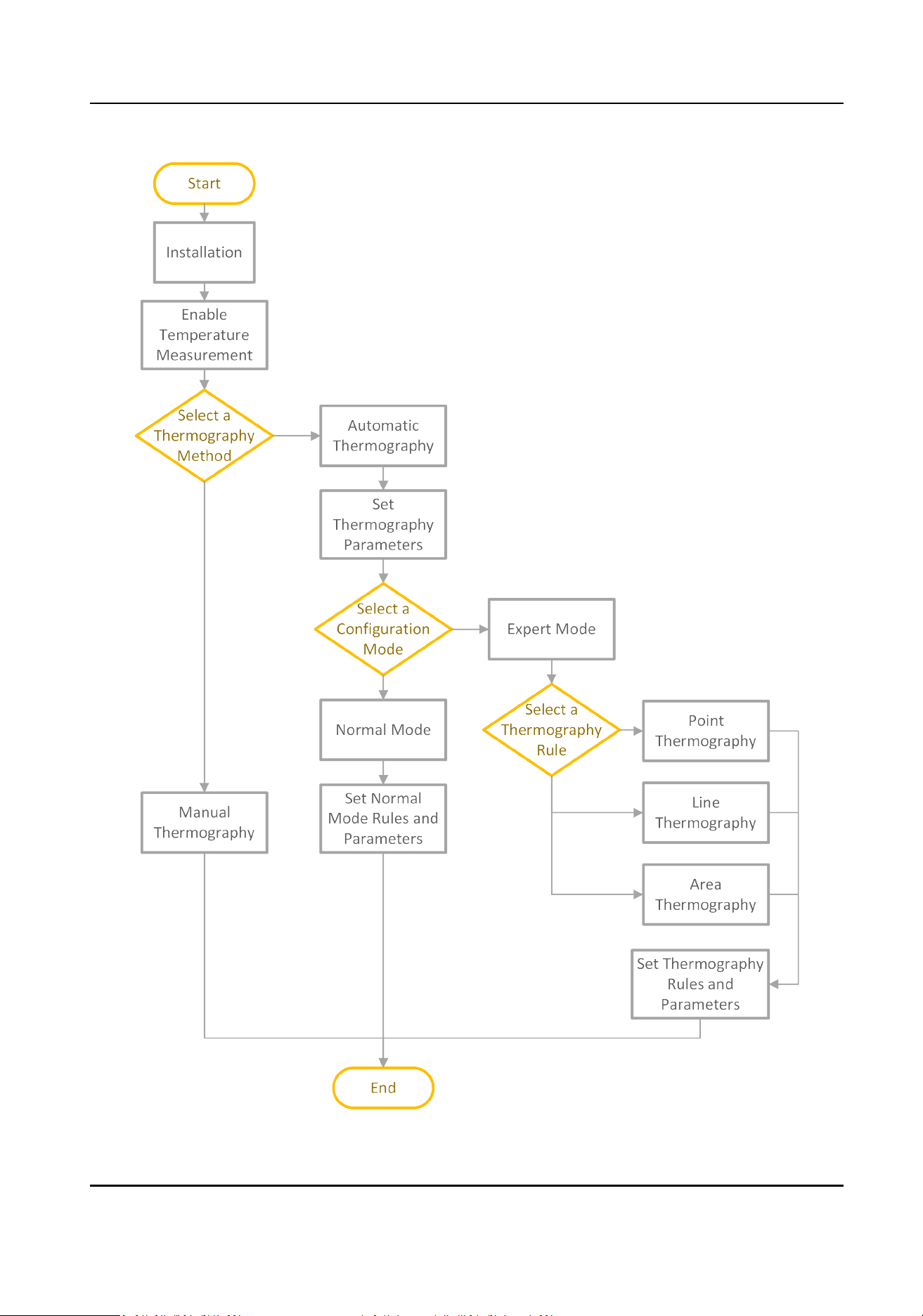
Figure 7-1 Thermography Conguraon Flow Chart
Thermal Network Camera User Manual
40

Note
Please refer to the Quick Start Guide for detailed informaon of Installaon part in the ow chart.
7.1.3 Automac Thermography
Congure the temperature measurement parameters and temperature measurement rules. The
device can measure the actual temperature and output alarms when temperature exceeds the
alarm threshold value.
Set Thermography Parameters
Congure the parameters of temperature measurement.
Steps
1.
Go to
Conguraon → Local , enable Display Temperature Info.
2.
Click Save.
3.
Go to Conguraon → Temperature Measurement & Fire Prevenon → Basic Sengs to
congure parameters.
Enable Temperature Measurement
Check to enable temperature measurement funcon.
Enable Color-Temperature
Check to display Temperature-Color Ruler in live view.
Display Temperature Info. on Stream
Check to display temperature informaon on the stream.
Display Temperature in Opcal Channel
Check to display thermal channel temperature informaon in the opcal channel.
Display Max./Min./Average Temperature
Check to display maximum/minimum/average temperature
informaon on liveview when the
temperature measurement rule is line or area.
Rule Name
Display the rule name rather than the rule ID on the live view. You can set the name in expert
temperature measurement mode for the rule.
Posion of Thermometry Info
Select the posion of temperature informaon showed on the live view.
●
Near Target: display the informaon beside the temperature measurement rule.
●
Top Le: display the informaon on the top le of screen.
Add Original Data on Capture
Thermal Network Camera User Manual
41

Check to add data on alarm triggered capture of thermal channel.
Picture Quality
Set picture quality as high, medium, or low.
Add Original Data on Stream
Add and save original raw data to stream. The funcon requires higher network bandwidth.
Data Refresh Interval
It means the refresh interval of original data.
Display Pixel-to-Pixel Thermometry Data on Stream
Add and save
real-me pixel-to-pixel thermometry data to stream. The funcon requires
higher network bandwidth.
The funcon varies according to dierent camera models.
Pixel-to-Pixel Thermometry Data Refresh Interval
It means the refresh interval of thermometry data added to the stream.
Unit
Display temperature with Degree Celsius (°C)/Degree Fahrenheit (°F)/Degree Kelvin (K).
Temperature Range
Select the temperature measurement range. The device can adjust the temperature range
automacally if you select Auto.
Atmospheric Temperature
Set the atmospheric temperature.
Atmospheric Humidity
Set the atmospheric humidity.
Atmospheric Transmissivity
Set the atmospheric transmissivity from 0 to 1.
Distance Mode
Select the distance mode for temperature measurement. Fixed Distance and
Self-Adapon
are selectable. Fixed distance mode is suitable for xed objects or objects move in a very
small area.
Self-adapon mode is suitable for moving objects. In this mode, device
automacally adjusts parameters according to the distance to objects, so as to ensure
temperature measurement accuracy.
Version
View the version of current algorithm.
Calibraon File Version
View the version of calibraon le.
Alarm Interval
Set the alarm interval between two alarms.
Thermal Network Camera User Manual
42

Forkli Filter
Enable these funcons if there are forklis in the scene, or it may cause false alarm.
Select Filter Level to lter dierent objects in the detecon scene. High Temperature Object
in the high level means the object whose tempereture is higher than the pre-alarm
threshold/temperature.
Check Display Filtering Status, and an OSD will be displayed when the
funcon is enabled.
Click Restart to restart algorithm library of forkli lter.
Note
The Forkli Filter varies according to dierent camera models.
Reect Light Filter and Forkli Filter are mutually exclusive with VCA funcons.
4.
Click Save.
Set Normal Mode
This funcon is used to measure the temperature of the whole scene and alarm.
Steps
1.
Go to Conguraon → Temperature Measurement & Fire Prevenon → Basic Sengs , and
check Enable Temperature Measurement.
2.
Refer to
Set Thermography Parameters to set the parameters.
3.
Go to
Conguraon → Temperature Measurement & Fire Prevenon → Advanced Sengs ,
and select Normal.
4.
Congure the parameters of normal mode.
Emissivity
Set the emissivity of your target. The emissivity of each object is dierent.
Distance
The distance between the target and the device.
Pre-Alarm Threshold and Filtering Time
When the temperature of target exceeds the Pre-Alarm Threshold and this status lasts not
shorter than the Filtering Time, the pre-alarm is triggered.
Alarm Threshold and Filtering Time
When the temperature of target exceeds the Alarm Threshold, and this status lasts not
shorter than the Filtering Time, the alarm is triggered.
Pre-Alarm Output and Alarm Output
Check Pre-Alarm Output and Alarm Output to link the pre-alarm or alarm with the
connected alarm device.
Temperature Sudden Change Alarm
Thermal Network Camera User Manual
43
When the temperature change exceeds the set sudden change alarm value within the set
cycle, the camera triggers an alarm.
Note
Temperature sudden change alarm is only supported by certain device models.
5.
Refer to
Set Arming Schedule for seng scheduled me. Refer to Linkage Method Sengs for
seng linkage method.
6.
Oponal: Set the osite pre-alarm/alarm specially during o-hours when there are less causes
of false alarms. You can set the lower alarm threshold to improve the
eciency of quick alarm.
Note
The funcon varies according to dierent camera models.
1) Check Enable Osite.
2) Set the osite pre-alarm/alarm and follow step 4~5 to adjust the pre-alarm/alarm threshold
and arming schedule during working hours.
Note
The same parameters and linkage method apply to the two kinds of pre-alarm/alarm, only the
threshold and arming schedule vary.
Osite Pre-Alarm Threshold
When the temperature of target exceeds the Osite Pre-Alarm Threshold during the
Osite Arming Schedule, and this status lasts not shorter than the Filtering Time, the pre-
alarm is triggered.
Osite Alarm Threshold
When the temperature of target exceeds the Osite Alarm Threshold during the Osite
Arming Schedule, and this status lasts not shorter than the Filtering Time, the alarm is
triggered.
Osite Arming Schedule
Click and drag the me bar to select the arming o-hours for osite pre-alarm and alarm.
7.
Click Save.
The maximum and minimum temperature will be displayed on the live view.
Note
Go to Image → VCA Rules Display to adjust the fonts size and the temperature colour of normal,
alarm and pre-alarm.
Set Expert Mode
Select the temperature measurement rules from Point, Line, or Area and congure parameters,
the device alarms if the alarm rules are met.
Thermal Network Camera User Manual
44

Steps
1.
Go to Conguraon → Temperature Measurement & Fire Prevenon → Basic Sengs , check
Enable Temperature Measurement.
2.
Refer to
Set Thermography Parameters to set the parameters.
3.
Go to
Conguraon → Temperature Measurement & Fire Prevenon → Advanced Sengs ,
select Expert.
4.
Select and enable the temperature measurement rules. Please refer to
Set Thermography Rule
for seng the rule.
5.
Oponal: Click Area's Temperature Comparison to set the alarm rules and the temperature.
6.
Click Save.
The maximum temperature and thermography rules will be displayed on the live view.
Note
Go to Image → VCA Rules Display to adjust the font size and the temperature color of normal,
alarm and pre-alarm.
7.
Enable the scan funcon of device, such as linear scan to monitor the scene.
Set Thermography Rule
Steps
1.
Customize the rule name.
2.
Select the rule type to Point, Line, or Area. Then draw a point, line, or area on the interface
where the
posion to be measured.
Point
Please refer to Point Thermography for detailed conguraon.
Line Please refer to Line Thermography for detailed conguraon.
Area Please refer to Area Thermography for detailed conguraon.
3.
Congure the temperature measurement parameters.
Emissivity
Set the emissivity of the target. The emissivity of the surface of a material is its eecveness
in eming energy as thermal radiaon. Dierent objects have dierent emissivity. Refer to
Common Material Emissivity Reference to search for the target emissivity.
Distance
The distance between the target and the device.
Reecve Temperature
If there is any object with high emissivity in the scene, check and set the reecve
temperature to correct the temperature. The reecve temperature should be set the same
as the temperature of the high emissivity object.
4.
Click and set the Alarm Rule.
Alarm Temperature and Pre-Alarm Temperature
Thermal Network Camera User Manual
45

Set the alarm temperature and pre-alarm temperature. E.g., select Alarm Rule as Above
(Average Temperature), set the Pre-Alarm Temperature to 50 °C, and set the Alarm
Temperature to 55 °C. The device pre-alarms when its average temperature is higher than
50 °C and alarms when its average temperature is higher than 55 °C.
Filtering Time
It refers to the
duraon me aer the target temperature reaches or exceeds the pre-alarm
temperature/alarm temperature.
Tolerance Temperature
Set the tolerance temperature to prevent the constant temperature change to
aect the
alarm. E.g., set tolerance temperature as 3 °C, set alarm temperature as 55 °C, and set pre-
alarm temperature as 50 °C. The device sends pre-alarm when its temperature reaches 50 °C
and it alarms when its temperature reaches 55 °C and only when the device temperature is
lower than 52 °C will the alarm be cancelled.
Pre-Alarm Output and Alarm Output
When the temperature of target exceeds the pre-alarm or alarm threshold, it triggers the pre-
alarm or alarm output of the connected device.
Area's Temperature Comparison
Select two areas and set the comparison rule, and set the temperature
dierence threshold.
The device alarms when the temperature dierence meets the seng value.
5.
Refer to
Set Arming Schedule for seng scheduled me. Refer to Linkage Method Sengs for
seng linkage method.
6.
Oponal: Shield certain area from being detected. Refer to Set Temperature Measurement
Shield Region for detailed sengs.
7.
Oponal: Set the osite pre-alarm/alarm specially during o-hours when there are less causes
of false alarms. You can set the lower alarm temperature to improve the
eciency of quick
alarm.
Note
The funcon varies according to dierent camera models.
1) Click .
2) Check Enable Osite.
3) Set the
osite pre-alarm/alarm and follow step 4~5 to adjust the pre-alarm/alarm
temperature and arming schedule during working hours.
Note
The same parameters and linkage method apply to the two kinds of pre-alarm/alarm, only the
threshold temperature and arming schedule vary.
Osite Pre-Alarm Temperature
Thermal Network Camera User Manual
46

When the temperature of target exceeds the Osite Pre-Alarm Temperature during the
Osite Arming Schedule, and this status lasts not shorter than the Filtering Time, the pre-
alarm is triggered.
Osite Alarm Temperature
When the temperature of target exceeds the Osite Alarm Temperature during the Osite
Arming Schedule, and this status lasts not shorter than the Filtering Time, the alarm is
triggered.
Osite Arming Schedule
Click and drag the me bar to select the arming o-hours for osite pre-alarm and alarm.
8.
Click Save.
Click Live View, and select thermal channel to view the temperature and rules
informaon on
live view.
Point Thermography
Congure the temperature measurement rule and click any point in live view to monitor the
temperature.
Steps
1.
Click in the live view and a cross cursor showed on the interface.
2.
Drag the cross cursor to desired posion.
Go to Live View interface to view the temperature and rule of the point in thermal channel.
Line Thermography
Congure the temperature measurement rule and monitor the maximum temperature of the line.
Steps
1.
Click and drag the mouse to draw a line in the live view interface.
2.
Click and move the line to adjust the posion.
3.
Click and drag the ends of the line to adjust the length.
Go to Live View interface to view the maximum temperature and rule of the line in thermal
channel.
Area Thermography
Congure
the temperature measurement rule and monitor the maximum temperature of the area.
Steps
1.
Click and drag the mouse in the live view to draw the area and right click to nish drawing.
2.
Click and move the area to adjust the
posion.
3.
Drag the corners of the area to adjust the size and shape.
Thermal Network Camera User Manual
47

Go to Live View interface to view the maximum temperature and rule of the area in thermal
channel.
Set Temperature Measurement Shield Region
You can congure areas from being detected.
Steps
1.
Go to Conguraon → Local , and enable Display Shield Area.
2.
Check Enable Shield Area.
3.
Click
.
4.
Drag the mouse in the live view to draw the area. You can drag the corners of the red rectangle
area to change its shape and size.
5.
Right click the mouse to stop drawing.
6.
Oponal: Select one area and click to delete it.
7.
Click Save.
7.1.4 Manual Thermography
Aer enable the manual thermography funcon of the device, you can click any posion on the
live view to show the real temperature.
Steps
1.
Go to Conguraon → Local and select Display Temperature Info. as Yes.
2.
Go to Conguraon → Temperature Measurement → Basic Sengs .
3.
Check Enable Temperature Measurement.
4.
Click Save.
5.
Go to live view interface and select thermal channel, click
. Click any posion on the interface
to show the real temperature.
7.2 Fire
Detecon
The device will trigger and upload alarm when detect the re source.
The
detecon is applied to re-prevenon purposes in scenic region, forest, tunnel and so on. You
can congure the detecon parameters. When re source is detected, the alarm acons will be
triggered.
Note
Not all models support the funcon. Please take the actual product for reference.
Thermal Network Camera User Manual
48

7.2.1 Recommended Scene
This part introduces the recommended scenes of re source detecon and helps you select the
appropriate scene.
Fire source
detecon can be applied to indoor and outdoor monitoring with a large detecon
radius. To achieve the best monitoring eect, please set the installaon place as requirements
below.
●
The installaon place should be the highest posion within the detecon area. The lens should
not be covered during movement to detect the maximum area.
●
It is beer to choose the installaon place with convenient trac, well-equipped power and
internet facilies (e.g., communicaon tower, watchtower and high-rise roof).
7.2.2 Set Dynamic Fire Source
Detecon
To avoid the potenal re damage, you can congure the re detecon funcon for certain areas.
The detail conguraon steps show as below.
Before You Start
Go to
Conguraon → System → Maintenance → VCA Resource Type , select Temperature
Measurement + Perimeter Protecon.
Steps
1.
Go to Conguraon → Local .
2.
Check Locate Highest Temperature Point to display the
posion of highest temperature. Check
Frame Fire Point to frame the re source on live view.
3.
Go to Conguraon → Event → Smart Event , select Dynamic Fire Source Detecon.
4.
Check Enable Dynamic Fire Source
Detecon.
5.
Set the parameters of re detecon.
Fire Source Detecon
Smoking Mode
Detect smoking behavior in the scene.
Dynamic Fire
Detect the dynamic re source in the scene.
Sensivity
The sensivity of re detecon. The bigger the value is, more easily the re source can be
detected, and the false rate is higher.
Alarm Interval
Set the alarm interval between two alarms.
Picture Quality
Thermal Network Camera User Manual
49

Set picture quality as high, medium, or low.
Note
When VCA Resource Type is selected as Temperature Measurement + Perimeter Protecon,
only Smoking Mode is supported in Fire Source Detecon. When VCA Resource Type is selected
as Temperature Measurement + Fire Detecon, Dynamic Fire is also supported in Fire Source
Detecon.
6.
Check Display Fire Source Frame on Stream to display a red frame around the re source on
stream when
re occurs.
7.
Oponal: Go to Smart Event → Fire Source Region Shield . You can shield certain areas from
being detected in
re source detecon, refer to Set Detecon Shield Region .
8.
Refer to Set Arming Schedule for seng scheduled me. Refer to Linkage Method Sengs for
seng linkage method.
9.
Click Save.
7.2.3 Set
Detecon Shield Region
Steps
1.
Go to
Conguraon → Local , and enable Display Shield Area.
2.
Check to enable the funcon.
3.
Click Draw Area and drag the mouse in the live view to draw the area. Release the mouse to
nish drawing. You can drag the corners of the red rectangle area to change its shape and size or
drag the rectangle to the
posion on your demand.
4.
Click Stop Drawing. You can click Clear All to clear all of the seng areas.
5.
Check Display Shield Area to show the shield area on the live view.
6.
Click Add to save the
re detecon shield, and it will be listed in the list. You can select a region
and click Delete to delete it from the list. You can also enable the region or not.
7.
Click Save.
7.3 Perimeter
Protecon
The funcon is used to detect whether there is any target breaking the perimeter protecon rules.
The opcal camera will track the target and the device will alarm when the perimeter protecon
rule is triggered.
7.3.1 Set Perimeter
Protecon Rules
The device can detect whether there is any target breaking the perimeter protecon rules. The
device will alarm when the rule is triggered.
Thermal Network Camera User Manual
50

Before You Start
Go to Conguraon → System → Maintenance → VCA Resource Type , select Temperature
Measurement + Perimeter Protecon.
Steps
1.
Go to
Conguraon → Perimeter Protecon → Rule .
2.
Check Intelligent Analysis.
3.
Oponal: Check Enable Fusion to view opcal and thermal image.
4.
Set perimeter protecon rules.
1) Click
to add a new rule.
2) Enter the rule name, and click the drop down menu to select Rule Type.
Line Crossing
If any target moves across the seng line, the alarm will be triggered. You can set the
crossing
direcon.
Intrusion
If any target intrudes into the pre-dened region longer than the set duraon, the alarm
will be triggered.
Region Entrance
If any target enters the pre-dened region, the alarm will be triggered.
Region Exing
If any target exits the pre-dened region, the alarm will be triggered.
3) Draw the
detecon rule.
Table 7-1
Congure VCA Rules
Rule Type How to Draw and What Parameters to Set
Line
Crossing
a. Click to draw a line in the live view.
b. You can drag end points of the line to adjust the posion and length.
c. Set the crossing direcon. Bidireconal, A-to-B, or B-to-A are selectable.
d. Set
Sensivity. The higher the value is, the easier the target can be
detected.
Intrusion a. Click to draw an area in the live view. Right click the mouse to nish
drawing. It is recommended to draw three dierent areas covering the
whole detecon scene from near to far.
Thermal Network Camera User Manual
51

Rule Type How to Draw and What Parameters to Set
Note
The recommended drawing is oponal for some camera models, refer to
the pop-up operaon guide aer you checked Intelligent Analysis.
b. Set Duraon. When a target intrudes into the set area and stays in the area
for more than the set
duraon, the device triggers an intrusion alarm.
c. Set Sensivity. The higher the value is, the easier the target can be
detected.
Region
Entrance
and Region
Exit
a. Click to draw an area in the live view. Right click the mouse to nish
drawing. It is recommended to draw three dierent areas covering the
whole detecon scene from near to far.
Note
The recommended drawing is oponal for some camera models, refer to
the pop-up operaon guide aer you checked Intelligent Analysis.
b. Target that enters or exits the set area triggers the region entrance or region
exit alarm.
4) Set other parameters for the rule.
Target Detecon
You are recommended to select the target as Human & Vehicle.
Scene Mode
The scene mode is set to be General by default. Select Distant View when you are far from
the targets. Select Leaves Interfered View when there are shaking targets in the scene,
such as leaves.
Note
In distance view, the device cannot classify the target with pixels less than 10*10. The
target will be recognized as human directly. So the selecon of this item will increase
trigger false alarm rate but decrease missing alarm rate.
Filter by Pixel
Check to enable Filter by Pixel. Draw max. size and min. size rectangles to lter the target
among human, vehicle, animal, and others. Only the target whose size is between the Max.
Size and Min. Size value will trigger the alarm.
Note
●
The lter conguraon is oponal for some camera models, refer to the pop-up
operaon guide aer you checked Intelligent Analysis.
●
You can draw the max. size and min. size rectangles according to the real target in the
scene. The recommended size is 1.2
mes of the target.
Thermal Network Camera User Manual
52

5) Repeat steps above to congure other rules.
Note
You can click to copy the same sengs to other rules.
6) Click Save.
5.
Set Arming Schedule and Linkage Method Sengs for each rule.
6.
Oponal: You can shield certain areas from being detected. Refer to Set Perimeter Protecon
Shield Region for detailed sengs.
7.
Oponal: Set displayed VCA informaon on stream or picture. Refer to Set Overlay & Capture
Parameters for detailed sengs.
8.
Oponal: Calibrate the camera to improve the accuracy. Refer to Calibraon for detailed
sengs.
7.3.2 Set Perimeter
Protecon Shield Region
You can congure areas from being detected.
Steps
1.
Go to Conguraon → Local , and enable Display Shield Area.
2.
Click .
3.
Drag the mouse in the live view to draw the area. You can drag the corners of the red rectangle
area to change its shape and size.
4.
Right click the mouse to stop drawing.
5.
Oponal: Select one area and click to delete it.
6.
Click Save.
7.3.3 Set Overlay & Capture Parameters
Steps
1.
Go to Conguraon → Perimeter Protecon → Overlay & Capture .
Display VCA Info. on Stream
Select to display target info and rule on stream, the
informaon will be added to the video
stream, and the overlay will be displayed if you get live view or play back by the VS Player.
Display Trajectory
The target's moving path will be shown in live view.
Display Target Info. on Alarm Picture
Select to display the target informaon on the alarm picture.
Display Rule Info. on Alarm Picture
Select to display the rule informaon on the alarm picture.
Display Size Info. on Alarm Picture
Thermal Network Camera User Manual
53

Select to display the size informaon of the target on the alarm picture.
Snapshot Sengs
Select to upload the picture to the surveillance center when the alarm occurs. You can also
set the quality and resoluon of the picture separately.
2.
Click Save.
Go to Conguraon → Local , check Enable rules to display rules informaon on the live view.
7.3.4 Calibraon
You can calibrate the camera rst to improve the detecon accuracy of perimeter protecon. The
calibraon is oponal, take the actual condion for reference.
Note
The funcon varies according to dierent camera models.
Calibrate Automacally
Before You Start
●
Make sure that we have known the actual height of the target person in the scene.
●
Make sure there is no moving objects in the view except for the person.
Steps
1.
Go to
Conguraon → Perimeter Protecon → Camera Calibraon .
2.
Check Camera
Calibraon.
3.
When the person is totally seen in live view, enter the height of person in Target Height.
Note
You can set a maximum of two decimal places.
4.
Click to start calibraon.
Cauon
●
The auto calibraon starts when the person is totally seen in live view, and ends when the
person is in the endpoint.
●
The endpoint-to-camera distance (m) equals 4 mes the lens focal length (mm). E.g, for 7mm
lens, the recommended endpoint is 28m (7*4).
●
The person should walk in zigzag path. And two zigzag paths are required. Make sure the
walking route covers the
le, middle, right of image.
●
The auto
calibraon duraon should be no shorter than 10 sec, and no longer than 10 min.
The device will stop calibraon automacally if the duraon is too long.
●
If there is moving object such as leave or tree in the scene, you can set the shielded area .
Refer to Set Temperature Measurement Shield Region for detail sengs.
Thermal Network Camera User Manual
54

5.
When the person exits, click to stop calibraon.
Note
Aer auto calibraon, refer to Verify the Calibraon Result to verify if the calibraon is
successful. Set manual calibraon if the auto calibraon failed, or the veried result turns bad.
Result
Aer calibraon, the height and angle of camera will be shown in live view.
Calibrate Manually
Steps
1.
Go to Conguraon → Perimeter Protecon → Camera Calibraon .
2.
Check Manual
Calibraon.
3.
Click Fig 1. Click and drag the vercal line unl it ts the target.
4.
Enter the actual length of the
calibraon line.
5.
Repeat steps above to set Fig 2, Fig 3, and Fig 4.
Note
Draw a calibraon line in each gure, and the four calibraon lines should be evenly distributed
in the same horizontal plane from le to right.
In the four gures, the calibrated object doesn't need to be the same. Select a proper object in
each
gure.
6.
Oponal: Click to delete the calibraon line.
7.
Click Save.
Cauon
●
Separate 4 vercal lines in the opcal-axis direcon at the close site, middle and far site
respecvely.
●
Separate 4 vercal lines at the le, middle and right of the image respecvely.
●
If manual
calibraon's result is incorrect, select another target to recalibrate.
●
Aer manual calibraon, refer to Verify the Calibraon Result to verify if the calibraon is
successful.
Result
Aer calibraon, the height and angle of camera will be shown in live view.
Verify the
Calibraon Result
The funcon can verify whether the calibrated value is consistent with the actual value.
Thermal Network Camera User Manual
55

Steps
1.
Click .
2.
Click , and drag a vercal line in the view.
3.
Move the line to the target, then click
to caculate the length.
Compare the calculated line length to the actual length to verify the
calibraon sengs.
4.
Click to exit.
Note
Verify not only person, but also other objects appeared in the view. Such as car, street lamp, etc.
7.3.5 Set Advanced Conguraon Parameters
Go to Conguraon → Perimeter Protecon → Advanced Conguraon and congure the
parameters.
Detecon Parameters
Single Alarm
The system only sends alarm once for one target triggering. Otherwise, the alarm will be
triggered
connuously unl the target disappears.
Restore Parameters
Restore Default
Click Restore to restore the parameters to the default.
Restart VCA
Click Restart to restart the VCA
funcon.
Note
The sengs vary according to dierent models.
7.4 Open Plaorm
Open plaorm allows you to install the applicaon for the third-party to develop and run its
funcon and service.
Note
Only certain device models support the funcon.
7.4.1 Set Open Plaorm
You can install the applicaon for the third-party to develop and run its funcon and service. For
the device supporng this funcon, you can follow the steps to import and run smart applicaons.
Thermal Network Camera User Manual
56

Before You Start
Go to Conguraon → System → Maintenance → VCA Resource Type , select Temperature
Measurement + Open Plaorm.
Steps
1.
Go to Open
Plaorm interface.
Note
Before installing the applicaon, make sure that the applicaon you want to install t the
following condions.
●
Each applicaon has its own exclusive name.
●
The FLASH memory space that the
applicaon takes up is less than the available FLASH
memory space of the device.
●
The memory and
compung power of the applicaon is less than that available memory and
compung power of the device.
2.
In Apps, click Import Applicaon.
3.
Click Browse to select an
applicaon package.
4.
Click Import to import the package. You can click the APP to view relevant details.
5.
Oponal: Set applicaon.
Click
Enable or disable the applicaon.
Click Delete the applicaon.
Click Download Logs Export log.
Click Update Browse a local path and import an applicaon
package to update the applicaon.
Figure 7-2 Set VCA Resource
Thermal Network Camera User Manual
57

Chapter 8 Event and Alarm
This part introduces the conguraon of events. The device takes certain response to triggered
alarm. Certain events may not be supported by certain device models.
8.1 Set Moon Detecon
It helps to detect the moving objects in the detecon region and trigger the linkage acons.
Steps
1.
Go to Conguraon → Event → Basic Event → Moon Detecon .
2.
Check Enable
Moon Detecon.
3.
Oponal: Highlight to display the moving object in the image in green.
1) Check Enable Dynamic Analysis for Moon.
2) Go to
Conguraon → Local .
3) Set Rules to Enable.
4.
Select
Conguraon Mode, and set rule region and rule parameters.
-
For the
informaon about normal mode, see Normal Mode .
-
For the
informaon about expert mode, see Expert Mode .
5.
Set the arming schedule and linkage methods. For the
informaon about arming schedule
sengs, see Set Arming Schedule . For the informaon about linkage methods, see Linkage
Method Sengs .
6.
Click Save.
8.1.1 Normal Mode
You can set moon detecon parameters according to the device default parameters.
Steps
1.
Select normal mode in Conguraon.
2.
Set the sensivity of normal mode. The higher the value of sensivity is, the more sensive the
moon detecon is. If the sensivity is set to 0, moon detecon and dynamic analysis do not
take eect.
3.
Set Detecon Target. Human and vehicle are available. If the detecon target is not selected, all
the detected targets will be reported, including the human and vehicle.
4.
Click Draw Area. Click and drag the mouse on the live video, and then release the mouse to
nish drawing one area.
Stop Drawing
Stop drawing one area.
Clear All Clear all the areas.
5.
Oponal: You can set the parameters of mulple areas by repeang the above steps.
Thermal Network Camera User Manual
58

8.1.2 Expert Mode
You can congure the moon detecon parameters of day/night switch according to the actual
needs.
Steps
1.
Select expert mode in
Conguraon.
2.
Set parameters of expert mode.
Day/Night Switch
OFF: Day/Night switch is disabled.
Day/Night Auto-Switch: The system switches day/night mode
automacally according to
environment. It displays colored image at day and black and white image at night.
Day/Night Scheduled-Switch: The system switches day/night mode according to the schedule.
It switches to day mode during the set periods and switches to night mode during the other
periods.
Note
This funcon is not supported in the expert mode of thermal channel.
Sensivity
The higher the value of sensivity is, the more sensive the moon detecon is. If the
sensivity is set to 0, moon detecon and dynamic analysis do not take eect.
3.
Select an Area and click Draw Area. Click and drag the mouse on the live video, then release the
mouse to nish drawing one area.
Stop Drawing
Finish drawing one area.
Clear All Delete all the areas.
4.
Oponal: Repeat the above steps to set mulple areas.
8.2 Set Video Tampering Alarm
When the congured area is covered and cannot be monitored normally, the alarm is triggered and
the device takes certain alarm response acons.
Steps
1.
Go to Conguraon → Event → Basic Event → Video Tampering .
2.
Check Enable.
3.
Set the
Sensivity. The higher the value is, the easier to detect the area covering.
4.
Click Draw Area and drag the mouse in the live view to draw the area.
Stop Drawing
Finish drawing.
Clear All Delete all the drawn areas.
Thermal Network Camera User Manual
59
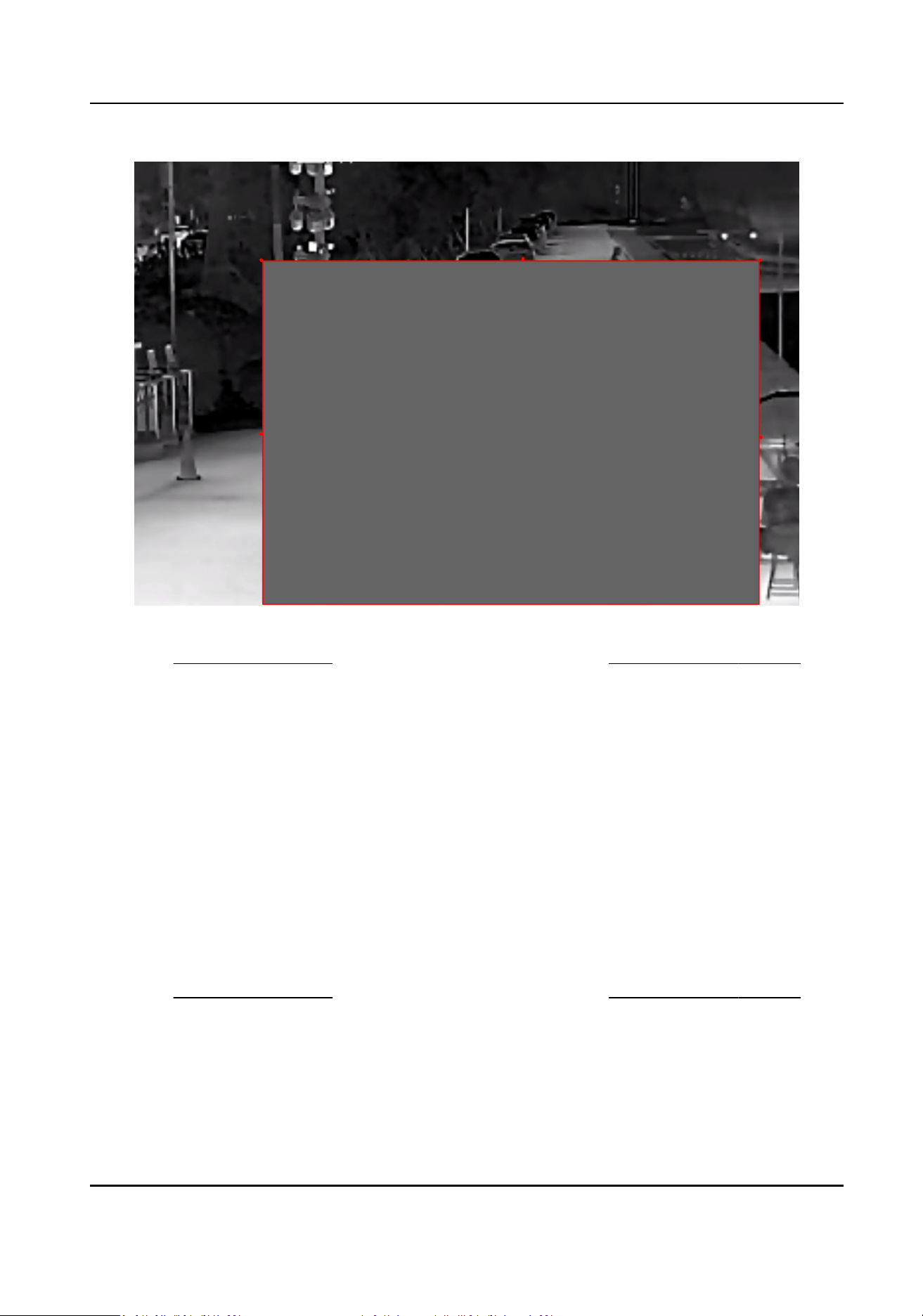
Figure 8-1 Set Video Tampering Area
5.
Refer to
Set Arming Schedule for seng scheduled me. Refer to Linkage Method Sengs for
seng linkage method.
6.
Click Save.
8.3 Set Alarm Input
Alarm signal from the external device triggers the corresponding acons of the current device.
Before You Start
Make sure the external alarm device is connected. See Quick Start Guide for cable
connecon.
Steps
1.
Go to
Conguraon → Event → Basic Event → Alarm Input .
2.
Check Enable Alarm Input Handling.
3.
Select Alarm Input NO. and Alarm Type from the dropdown list. Edit the Alarm Name.
4.
Refer to
Set Arming Schedule for seng scheduled me. Refer to Linkage Method Sengs for
seng linkage method.
5.
Click Copy to... to copy the
sengs to other alarm input channels.
6.
Click Save.
Thermal Network Camera User Manual
60

8.4 Set Excepon Alarm
Excepon such as network disconnecon can trigger the device to take corresponding acon.
Steps
1.
Go to
Conguraon → Event → Basic Event → Excepon .
2.
Select Excepon Type.
HDD Full The HDD storage is full.
HDD Error Error occurs in HDD.
Network Disconnected The device is oine.
IP Address Conicted The IP address of current device is same as that of other device in
the network.
Illegal Login Incorrect user name or password is entered.
3.
Refer to Linkage Method Sengs for seng linkage method.
4.
Click Save.
8.5 Detect Audio
Excepon
Audio excepon detecon funcon detects the abnormal sound in the scene, such as the sudden
increase/decrease of the sound intensity, and some certain
acons can be taken as response.
Steps
1.
Go to Conguraon → Event → Smart Event → Audio Excepon Detecon .
2.
Select one or several audio excepon detecon types.
Audio Loss
Detecon
Detect sudden loss of audio track.
Sudden Increase of Sound Intensity Detecon
Detect sudden increase of sound intensity. Sensivity and Sound Intensity Threshold are
congurable.
Note
●
The lower the sensivity is, the more signicant the change should be to trigger the
detecon.
●
The sound intensity threshold refers to the sound intensity reference for the detecon. It is
recommended to set as the average sound intensity in the environment. The louder the
environment sound, the higher the value should be. You can adjust it according to the real
environment.
Sudden Decrease of Sound Intensity Detecon
Detect sudden decrease of sound intensity. Sensivity is congurable.
Thermal Network Camera User Manual
61

3.
Refer to Set Arming Schedule for seng scheduled me. Refer to Linkage Method Sengs for
seng linkage methods.
4.
Click Save.
Note
The funcon varies according to dierent models.
8.6 Detect Scene Change
Scene change detecon funcon detects the change of the scene. Some certain acons can be
taken when the alarm is triggered.
Steps
1.
Go to
Conguraon → Event → Smart Event → Scene Change Detecon .
2.
Click Enable.
3.
Set the
Sensivity. The higher the value is, the more easily the change of scene can be detected.
But the detecon accuracy is reduced.
4.
Refer to
Set Arming Schedule for seng scheduled me. Refer to Linkage Method Sengs for
seng linkage method.
5.
Click Save.
Note
The funcon varies according to dierent models.
Thermal Network Camera User Manual
62

Chapter 9 Arming Schedule and Alarm Linkage
Arming schedule is a customized me period in which the device performs certain tasks. Alarm
linkage is the response to the detected certain incident or target during the scheduled
me.
9.1 Set Arming Schedule
Set the valid
me of the device tasks.
Steps
1.
Click Arming Schedule.
2.
Drag the
me bar to draw desired valid me.
Note
Up to 8 periods can be congured for one day.
3.
Adjust the me period.
-
Click on the selected me period, and enter the desired value. Click Save.
-
Click on the selected
me period. Drag the both ends to adjust the me period.
-
Click on the selected me period, and drag it on the me bar.
4.
Oponal: Click Copy to... to copy the same sengs to other days.
5.
Click Save.
9.2 Linkage Method
Sengs
You can enable the linkage funcons when an event or alarm occurs.
9.2.1 Trigger Alarm Output
If the device has been connected to an alarm output device, and the alarm output No. has been
congured, the device sends alarm informaon to the connected alarm output device when an
alarm is triggered.
Steps
1.
Go to
Conguraon → Event → Basic Event → Alarm Output .
2.
Set alarm output parameters.
Automac
Alarm For the informaon about the conguraon, see Automac Alarm .
Manual Alarm For the informaon about the conguraon, see Manual Alarm .
3.
Click Save.
Thermal Network Camera User Manual
63

Manual Alarm
You can trigger an alarm output manually.
Steps
1.
Set the manual alarm parameters.
Alarm Output No.
Select the alarm output No. according to the alarm interface connected to the external alarm
device.
Alarm Name
Custom a name for the alarm output.
Delay
Select Manual.
2.
Click Manual Alarm to enable manual alarm output.
3.
Oponal: Click Clear Alarm to disable manual alarm output.
Automac
Alarm
Set the automac alarm parameters, then the device triggers an alarm output automacally in the
set arming schedule.
Steps
1.
Set automac alarm parameters.
Alarm Output No.
Select the alarm output No. according to the alarm interface connected to the external alarm
device.
Alarm Name
Custom a name for the alarm output.
Delay
It refers to the
me duraon that the alarm output remains aer an alarm occurs.
2.
Set the alarming schedule. For the
informaon about the sengs, see Set Arming Schedule .
3.
Click Copy to… to copy the parameters to other alarm output channels.
4.
Click Save.
Alarm Output Self-check
You can enable the
funcon to regularly self-check the connecon between the device and the
alarm server.
Thermal Network Camera User Manual
64

Steps
1.
Check Enable Auto Trigger.
2.
Set Trigger Time, and the device will trigger an alarm output to the alarm server automacally in
the set
me.
3.
Set Auto Trigger Delay. It refers to the me duraon that the alarm output remains in eect
aer
the auto trigger.
4.
Click Save.
9.2.2 FTP/NAS/Memory Card Uploading
If you have enabled and congured the FTP/NAS/memory card uploading, the device sends the
alarm
informaon to the FTP server, network aached storage and memory card when an alarm is
triggered.
Refer to Set FTP to set the FTP server.
Refer to
Set NAS for NAS conguraon.
Refer to Set Memory Card for memory card storage conguraon.
9.2.3 Send Email
Check Send Email, and the device sends an email to the designated addresses with alarm
informaon when an alarm event is detected.
For email
sengs, refer to Set Email .
Set Email
When the email is congured and Send Email is enabled as a linkage method, the device sends an
email
nocaon to all designated receivers if an alarm event is detected.
Before You Start
Set the DNS server before using the Email funcon. Go to Conguraon → Network → Basic
Sengs → TCP/IP for DNS sengs.
Steps
1.
Go to email sengs page: Conguraon → Network → Advanced Sengs → Email .
2.
Set email parameters.
1) Input the sender's email
informaon, including the Sender's Address, SMTP Server, and
SMTP Port.
2)
Oponal: If your email server requires authencaon, check Authencaon and input your
user name and password to log in to the server.
3) Set the E-mail
Encrypon.
Thermal Network Camera User Manual
65

●
When you select SSL or TLS, and disable STARTTLS, emails are sent aer encrypted by SSL or
TLS. The SMTP port should be set as 465.
●
When you select SSL or TLS and Enable STARTTLS, emails are sent aer encrypted by
STARTTLS, and the SMTP port should be set as 25.
Note
If you want to use STARTTLS, make sure that the protocol is supported by your email server.
If you check the Enable STARTTLS while the protocol is not supported by your email sever,
your email is sent with no encrypon.
4) Oponal: If you want to receive nocaon with alarm pictures, check Aached Image. The
nocaon email has 3 aached alarm pictures about the event with congurable image
capturing interval.
5)
Congure Alarm E-mail Aachment Sengs.
Image
Select the number of captures of the corresponding channel.
●
0: It will not upload the image of the seletced channel.
●
1: It will only upload the image captured when the alarm is triggered.
●
3: It will upload the images captured about 1 s before and aer the alarm is triggered, as
well as the image captured when the alarm is triggered.
Video
Select the video channel and video duraon as required.
●
0 s: It will not upload the video of the seletced channel.
●
3 s: Upload the video that is recorded about 1 s before and 2 s
aer the alarm is
triggered.
●
5 s: Upload the video that is recorded about 2 s before and 3 s
aer the alarm is
triggered.
●
7 s: Upload the video that is recorded about 2 s before and 5 s
aer the alarm is
triggered.
6) Input the receiver's
informaon, including the receiver's name and address.
7) Click Test to see if the funcon is well congured.
3.
Click Save.
9.2.4
Nofy Surveillance Center
Check Nofy Surveillance Center, the alarm informaon is uploaded to the surveillance center
when an alarm event is detected.
9.2.5 Trigger Recording
Check Trigger Recording, and the device records the video about the detected alarm event.
For recording
sengs, refer to Video Recording and Picture Capture .
Thermal Network Camera User Manual
66

9.2.6 Set Audible Alarm Output
When the device detects targets in the detecon area, audible alarm can be triggered as a
warning.
Steps
1.
Go to
Conguraon → Event → Basic Event → Audible Alarm Output .
2.
Select an Alarm Type.
3.
Select Sound Type and set related parameters.
-
Select Warning and its contents. Set the alarm mes you need.
-
Select Custom Audio. You can select a custom audio
le from the drop-down list. If no le is
available, you can click Add to upload an audio
le that meets the requirement. Up to six
audio les can be uploaded, and each audio le shall not exceed 512 KB.
4.
Oponal: Click Test to play the selected audio le on the device.
5.
Set arming schedule for audible alarm. See
Set Arming Schedule for details.
6.
Click Save.
Note
The funcon is only supported by certain device models.
9.2.7 Set Flashing Alarm Light Output
Steps
1.
Go to Conguraon → Event → Basic Event → Flashing Alarm Light Output .
2.
Select a White Light Mode.
Mode
Descripon
Flashing Alarm triggers the light to ash for a certain duraon. Set the ashing speed in
Flashing Frequency.
Solid Alarm triggers the light to turn on for a certain duraon.
3.
Set the light acon duraon and the brightness.
Flashing Duraon
The me period of light on or light ashing when one alarm happens.
Brightness
The brightness of the light.
4.
Edit the arming schedule.
5.
Click Save.
Note
Only certain camera models support the funcon.
Thermal Network Camera User Manual
67

Chapter 10 System and Security
It introduces system maintenance, system sengs and security management, and explains how to
congure relevant parameters.
10.1 View Device Informaon
You can view device informaon, such as Device No., Model, Serial No. and Firmware Version.
Enter Conguraon → System → System Sengs → Basic Informaon to view the device
informaon.
10.2 Search and Manage Log
Log helps locate and troubleshoot problems.
Steps
1.
Go to
Conguraon → System → Maintenance → Log .
2.
Set search condions Major Type, Minor Type, Start Time, and End Time.
3.
Click Search.
The matched log
les will be displayed on the log list.
4.
Oponal: Click Export to save the log les in your computer.
10.3 Import and Export
Conguraon File
It helps speed up batch conguraon on other devices with the same conguraon.
Steps
1.
Export
conguraon le.
1) Go to Conguraon → System → Maintenance → Upgrade & Maintenance .
2) Click Device Parameters and input the
encrypon password to export the current
conguraon le.
3) Click Device Common Parameters, check desired common parameters and input the
encrypon password to export the current conguraon le.
4) Oponal: Set the saving path to save the conguraon le in local computer.
2.
Import conguraon le.
1) Access the device that needs to be congured via web browser.
2) Go to Conguraon → System → Maintenance → Upgrade & Maintenance .
3) Select the imported le type from the drop-down list.
Thermal Network Camera User Manual
68

Note
You can import the exported Device Common Parameters to devices of the same series.
4) Click Browse to select the saved conguraon le.
5) Input the encrypon password you have set when exporng the conguraon le.
6) Click Import.
10.4 Export Diagnose Informaon
Diagnose informaon includes running log, system informaon, hardware informaon.
Go to Conguraon → System → Maintenance → Upgrade & Maintenance , and click Diagnose
Informaon to export diagnose informaon of the device.
10.5 Reboot
You can restart the device via browser.
Go to Conguraon → System → Maintenance → Upgrade & Maintenance , and click Reboot.
10.6 Device Auto Maintenance
Set the auto maintenance schedule and the device will automacally restart on schedule, which
helps avoid problems such as network anomaly and outage during
connuous operaon, etc.
Steps
1.
Go to Conguraon → System → Maintenance → Upgrade & Maintenance .
2.
Check Enable Auto Maintenance.
3.
Read the prompt
informaon and click OK.
4.
Select the date and me when the device automacally restart.
5.
Click Save.
Note
This funcon is only available for Administrator.
10.7 Restore and Default
Restore and Default helps restore the device parameters to the default sengs.
Steps
1.
Go to Conguraon → System → Maintenance → Upgrade & Maintenance .
2.
Click Restore or Default according to your needs.
Thermal Network Camera User Manual
69

Restore Reset device parameters, except user informaon, IP parameters and video format
to the default sengs.
Default Reset all the parameters to the factory default.
Note
Be careful when using this funcon. Aer reseng to the factory default, all the
parameters are reset to the default sengs.
10.8 Upgrade
Before You Start
You need to obtain the correct upgrade package.
Cauon
DO NOT disconnect power during the process, and the device restarts automacally aer upgrade.
Steps
1.
Go to
Conguraon → System → Maintenance → Upgrade & Maintenance .
2.
Choose one method to upgrade.
Firmware
Locate the exact path of the upgrade le.
Firmware Directory Locate the directory which the upgrade le belongs to.
3.
Click Browse to select the upgrade le.
4.
Click Upgrade.
10.9 View Open Source
Soware License
Go to Conguraon → System → System Sengs → About , and click View Licenses.
10.10 Time and Date
You can congure me and date of the device by conguring me zone, me synchronizaon and
Daylight Saving Time (DST).
10.10.1 Synchronize Time Manually
Steps
1.
Go to
Conguraon → System → System Sengs → Time Sengs .
2.
Select Time Zone.
3.
Click Manual Time Sync..
Thermal Network Camera User Manual
70

4.
Choose one me synchronizaon method.
-
Select Set Time, and manually input or select date and me from the pop-up calendar.
-
Check Sync. with computer me to synchronize the me of the device with that of the local
PC.
5.
Click Save.
10.10.2 Set NTP Server
You can use NTP server when accurate and reliable me source is required.
Before You Start
Set up a NTP server or obtain NTP server
informaon.
Steps
1.
Go to Conguraon → System → System Sengs → Time Sengs .
2.
Select Time Zone.
3.
Click NTP.
4.
Set Server Address, NTP Port and Interval.
Note
Server Address is NTP server IP address.
5.
Click Test to test server connecon.
6.
Click Save.
10.10.3 Set DST
If the region where the device is located adopts Daylight Saving Time (DST), you can set this
funcon.
Steps
1.
Go to Conguraon → System → System Sengs → DST .
2.
Check Enable DST.
3.
Select Start Time, End Time and DST Bias.
4.
Click Save.
10.11 Set RS-232
RS-232 can be used to debug device or access peripheral device. RS-232 can realize
communicaon
between the device and computer or terminal when the communicaon distance is short.
Before You Start
Connect the device to computer or terminal with RS-232 cable.
Thermal Network Camera User Manual
71

Steps
1.
Go to Conguraon → System → System Sengs → RS-232 .
2.
Set RS-232 parameters to match the device with computer or terminal.
3.
Click Save.
10.12 Set RS-485
RS-485 is used to connect the device to external device. You can use RS-485 to transmit the data
between the device and the computer or terminal when the communicaon distance is too long.
Before You Start
Connect the device and computer or terminal with RS-485 cable.
Steps
The
funcon varies according to dierent camera models.
1.
Go to Conguraon → System → System Sengs → RS-485 .
2.
Set the RS-485 parameters.
Note
●
You should keep the parameters of the device and the computer or terminal all the same.
●
If the PTZ Protocol is selected as modbus-RTU, the temperature informaon can be
transferred by RS-485 interface.
●
In modbus-RTU, you can select CRC Response Transmission as Big-Endian or
Lile-Endian.
3.
Click Save.
10.13 Set Same Unit
Set the same temperature unit and distance unit. When you enable this funcon, the unit cannot
be congured separately in other seng pages
Steps
1.
Go to Conguraon → System → System Sengs → Unit Sengs .
2.
Check Use Same Unit.
3.
Set the temperature unit and distance unit.
4.
Click Save.
10.14 Security
You can improve system security by seng security parameters.
Thermal Network Camera User Manual
72

10.14.1 Authencaon
You can improve network access security by seng RTSP and WEB authencaon.
Go to Conguraon → System → Security → Authencaon to choose authencaon protocol
and method according to your needs.
RTSP Authencaon
Digest and digest/basic are supported, which means authencaon informaon is needed when
RTSP request is sent to the device. If you select digest/basic, it means the device supports
digest or basic authencaon. If you select digest, the device only supports digest
authencaon.
RTSP Digest Algorithm
MD5, SHA256 and MD5/SHA256 encrypted algorithm in RTSP authencaon. If you enable the
digest algorithm except for MD5, the third-party plaorm might not be able to log in to the
device or enable live view because of compability. The encrypted algorithm with high strength
is recommended.
WEB
Authencaon
Digest and digest/basic are supported, which means authencaon informaon is needed when
WEB request is sent to the device. If you select digest/basic, it means the device supports digest
or basic
authencaon. If you select digest, the device only supports digest authencaon.
WEB Digest Algorithm
MD5, SHA256 and MD5/SHA256 encrypted algorithm in WEB authencaon. If you enable the
digest algorithm except for MD5, the third-party plaorm might not be able to log in to the
device or enable live view because of
compability. The encrypted algorithm with high strength
is recommended.
Note
Refer to the specic content of protocol to view authencaon requirements.
10.14.2 Security Audit Log
The security audit logs refer to the security operaon logs. You can search and analyze the security
log les of the device so as to nd out the illegal intrusion and troubleshoot the security events.
Security audit logs can be saved on device internal storage. The log will be saved every half hour
aer device boong. Due to limited storage space, you can also save the logs on a log server.
Search Security Audit Logs
You can search and analyze the security log les of the device so as to nd out the illegal intrusion
and troubleshoot the security events.
Thermal Network Camera User Manual
73

Steps
Note
This funcon is only supported by certain camera models.
1.
Go to Conguraon → System → Maintenance → Security Audit Log .
2.
Select log types, Start Time, and End Time.
3.
Click Search.
The log
les that match the search condions will be displayed on the Log List.
4.
Oponal: Click Export to save the log les to your computer.
10.14.3 Set IP Address Filter
IP address lter is a tool for access control. You can enable the IP address lter to allow or forbid
the visits from the certain IP addresses.
IP address refers to IPv4.
Steps
Note
IP Address Filter is mutually exclusive with MAC Address Filter.
1.
Go to Conguraon → System → Security → IP Address Filter .
2.
Check Enable IP Address Filter.
3.
Select the type of IP address
lter.
Forbidden
IP addresses in the list cannot access the device.
Allowed Only IP addresses in the list can access the device.
4.
Edit the IP address lter list.
Add
Add a new IP address or IP address range to the list.
Modify Modify the selected IP address or IP address range in the list.
Delete Delete the selected IP address or IP address range in the list.
5.
Click Save.
10.14.4 Set MAC Address Filter
MAC address lter is a tool for access control. You can enable the MAC address lter to allow or
forbid the visits from the certain MAC addresses.
Thermal Network Camera User Manual
74

Steps
Note
MAC Address Filter is mutually exclusive with IP Address Filter.
1.
Go to Conguraon → System → Security → MAC Address Filter .
2.
Check Enable MAC Address Filter.
3.
Select the type of MAC address
lter.
Forbidden MAC addresses in the list cannot access the device.
Allowed Only MAC addresses in the list can access the device.
4.
Edit the MAC address lter list.
Add Add a new MAC address to the list.
Modify Modify the selected MAC address in the list.
Delete Delete the selected MAC address in the list.
5.
Click Save.
10.14.5
Cercate Management
It helps to manage the server/client cercates and CA cercate, and to send an alarm if the
cercates are close to expiry date, or are expired/abnormal.
Note
The funcon is only supported by certain device models.
Create Self-signed Cercate
Steps
1.
Click Create Self-signed
Cercate.
2.
Follow the prompt to enter Cercate ID, Country/Region, Hostname/IP, Validity and other
parameters.
Note
The cercate ID should be digits or leers and be no more than 64 characters.
3.
Click OK.
4.
Oponal: Click Export to export the cercate, or click Delete to delete the cercate to
recreate a
cercate, or click Cercate Properes to view the cercate details.
Thermal Network Camera User Manual
75

Create Cercate Request
Before You Start
Select a self-signed
cercate.
Steps
1.
Click Create Cercate Request.
2.
Enter the related informaon.
3.
Click OK.
Import Cercate
Steps
1.
Click Import.
2.
Click Create
Cercate Request.
3.
Enter the Cercate ID.
4.
Click Browser to select the desired server/client
cercate.
5.
Select the desired import method and enter the required informaon.
6.
Click OK.
7.
Oponal: Click Export to export the cercate, or click Delete to delete the cercate to
recreate a cercate, or click Cercate Properes to view the cercate details.
Note
●
Up to 16 cercates are allowed.
●
If certain funcons are using the cercate, it cannot be deleted.
●
You can view the funcons that are using the cercate in the funcons column.
●
You cannot create a
cercate that has the same ID with that of the exisng cercate and
import a
cercate that has the same content with that of the exisng cercate.
Server Cercate/Client Cercate
Note
The device has default self-signed server/client cercate installed. The cercate ID is default.
Install CA Cercate
Steps
1.
Click Import.
2.
Enter the
Cercate ID.
3.
Click Browser to select the desired server/client cercate.
Thermal Network Camera User Manual
76

4.
Select the desired import method and enter the required informaon.
5.
Click OK.
Note
Up to 16 cercates are allowed.
Enable Cercate Expiraon Alarm
Steps
1.
Check Enable Cercate Expiraon Alarm. If enabled, you will receive an email or the camera
links to the surveillance center that the
cercate will expire soon, or is expired or abnormal.
2.
Set the Remind Me Before Expiraon (day), Alarm Frequency (day) and Detecon Time (hour).
Note
●
If you set the reminding day before expiraon to 1, then the camera will remind you the day
before the expiraon day. 1 to 30 days are available. Seven days is the default reminding days.
●
If you set the reminding day before expiraon to 1, and the detecon me to 10:00, and the
cercate will expire in 9:00 the next day, the camera will remind you in 10:00 the rst day.
3.
Click Save.
10.14.6 Control Timeout
Sengs
If this funcon is enabled, you will be logged out when you make no operaon (not including
viewing live image) to the device via web browser within the set meout period.
Go to
Conguraon → System → Security → Advanced Security to complete sengs.
10.14.7 Set SSH
SSH is a protocol to ensure security of remote login. This seng is reserved for professional
maintenance personnel only.
Steps
1.
Go to Conguraon → System → Security → Security Service .
2.
Check Enable SSH.
3.
Click Save.
10.14.8 Set HTTPS
HTTPS is a network protocol that enables encrypted transmission and identy authencaon,
which improves the security of remote access.
Thermal Network Camera User Manual
77

Steps
1.
Go to Conguraon → Network → Advanced Sengs → HTTPS .
2.
Check Enable.
3.
Oponal: Check HTTPS Browsing to access the device only via HTTPS protocol.
4.
Select a server
cercate.
Note
●
Complete cercate management before selecng server cercate. Refer to Cercate
Management for detailed informaon.
●
If the funcon is abnormal, check if the selected cercate is abnormal in Cercate
Management.
5.
Click Save.
10.14.9 Set QoS
QoS (Quality of Service) can help improve the network delay and network congeson by seng
the priority of data sending.
Note
QoS needs support from network device such as router and switch.
Steps
1.
Go to Conguraon → Network → Advanced Conguraon → QoS .
2.
Set Video/Audio DSCP, Alarm DSCP and Management DSCP.
Note
Network can idenfy the priority of data transmission. The bigger the DSCP value is, the higher
the priority is. You need to set the same value in router while conguraon.
3.
Click Save.
10.14.10 Set IEEE 802.1X
You can authencate user permission of the connected device by seng IEEE 802.1X.
Go to Conguraon → Network → Advanced Sengs → 802.1X , and enable the funcon.
Select protocol and version according to router informaon. User name and password of server are
required.
Thermal Network Camera User Manual
78
10.15 User and Account
10.15.1 Set User Account and Permission
The administrator can add, modify, or delete other accounts, and grant dierent permission to
dierent user levels.
Cauon
To increase security of using the device on the network, please change the password of your
account regularly. Changing the password every 3 months is recommended. If the device is used in
high-risk environment, it is recommended that the password should be changed every month or
week.
Steps
1.
Go to Conguraon → System → User Management → User Management .
2.
Click Add. Enter User Name, select Level, and enter Password. Assign remote permission to
users based on needs.
Administrator
The administrator has the authority to all
operaons and can add users/operators and assign
permission.
User
Users can be assigned permission of viewing live video, seng PTZ parameters, and changing
their own passwords, but no permission for other
operaons.
Operator
Operators can be assigned all permission except for operaons on the administrator and
creang accounts.
Modify
Select a user and click Modify to change the password and permission.
Delete Select a user and click Delete.
Note
The administrator can add up to 31 user accounts.
3.
Click General to set the allowed number of mul-user simultaneous login.
Note
Only the administrator has the authority to the operaon.
4.
Click OK.
Thermal Network Camera User Manual
79

10.15.2 Online Users
The informaon of users logging into the device is shown.
Go to
Conguraon → System → User Management → Online Users to view the list of online
users.
Thermal Network Camera User Manual
80

Chapter 11 Appendix
11.1 Common Material Emissivity Reference
Material Emissivity
Human Skin 0.98
Printed Curcuit Board 0.91
Concrete 0.95
Ceramic 0.92
Rubber 0.95
Paint 0.93
Wood 0.85
Pitch 0.96
Brick 0.95
Sand 0.90
Soil 0.92
Cloth 0.98
Hard Paperboard 0.90
White Paper 0.90
Water 0.96
11.2 FAQ
Scan the following QR code to get device common FAQ.
Thermal Network Camera User Manual
81

UD34080B