

VideoXpert® Professional v 3.17 Operations Manual
C6601M-S | 06/22 2
Table of Contents
Installing VideoXpert® Professional 4
Using VideoXpert Toolbox 5
Performing Initial VideoXpert Server Configuration Using VxToolbox 5
Logging Out 8
Changing the VxToolbox Password 9
Licensing Your System 10
Managing the System 14
Discovering Devices 16
Managing Devices on a System 24
Viewing Devices, Data Sources, Alarms & Relays, or Access Points 27
Configuring the Rules Engine 33
Configuring Recording 42
Managing Users and Roles 49
Configuring VideoXpert System Settings 55
Configuring Monitor Walls 65
Using Reports 68
Managing Events 71
Using Maps 74
Using VideoXpert Portal and VideoXpert Storage Portal 76
Using VideoXpert® Portal 76
Configuring Advanced Storage Using VideoXpert Storage Portal 80
Using VideoXpert OpsCenter 86
Configuring VideoXpert® OpsCenter 86
Logging In 101
Changing Your Workstation Account Password 103
Using the VxOpsCenter Interface 104
Using Tabs and Workspaces 113
Viewing a Monitor Wall 119
Working with Maps 120
Sending Views to Workstations or Shared Displays 122
Watching Video 124
Using Investigation Mode 146
Using the Export Archive 151
Working with Plugins 154
Responding to Events 168
Logging Out 170
Closing the Application 171
Appendix A:Working With Permissions 172
Understanding Permission Resource Restrictions 172
Using Supervision and Reports Permissions 172
Using Device Management Permissions 173


VideoXpert® Professional v 3.17 Operations Manual
C6601M-S | 06/22 4
Installing VideoXpert® Professional
Caution:Your system must meet the minimum requirements before you can install the VideoXpert
Professional (VxPro) application.
To install VxPro:
1. Run the VideoXpertProfessional exe installer.
2. Read and accept the terms of the End User License Agreement.
3. Click Begin Installation.
4. Follow the instructions in the Installation Wizard to complete the installation.
5. Do one of the following:
l
(Optional) To configure VxPro, to the right of Open VxToolbox?, click Open. See the section
titled Configuring VideoXpert System Settings for instructions.
l
To end the installation now and configure VxPro later, click Close.
If you are reinstalling VideoXpert Professional, uninstall the previous version:
1. Run the VideoXpertProfessional exe installer.
2. Click to select and deselect the checkboxes under Uninstall Applications.
3. Click Uninstall.
4. When prompted, click Close.
VideoXpert® Professional v 3.17 Operations Manual
C6601M-S | 06/22 5
Using VideoXpert Toolbox
Performing Initial VideoXpert Server Configuration Using VxToolbox
VideoXpert Professional comes with a time-limited trial license. During this trial, you have access to all
VideoXpert features, and you can ignore the Licensing tab within VideoXpert.
To use VideoXpert beyond the trial, you must apply a license to the server. Licensing requires either an
Internet connection on the VideoXpert server itself, or access to a separate computer with Internet
access.
1. After installing VideoXpert, click Configure or run VxToolbox for the first time on your VideoXpert
(VX)System.
2. For VideoXpert Professional systems, in the VideoXpert Basic System Setup dialog box, type
values in the Company Name and Name Your System fields, and then click Save.
3. Perform the steps in the section titled Configuring General Settings for VideoXpert Professional
Systems.
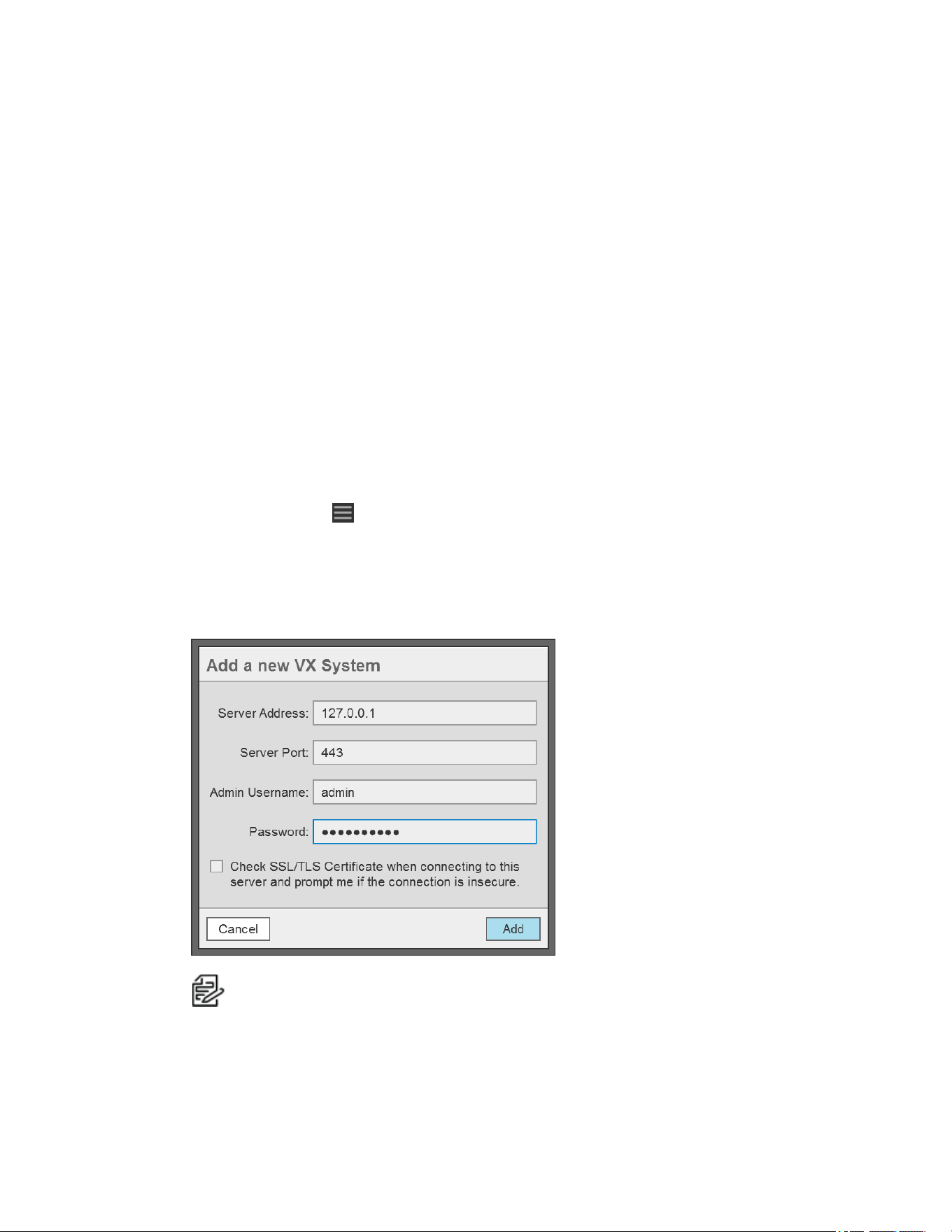
4. Perform the steps in the section titled Adding a VXSystem.
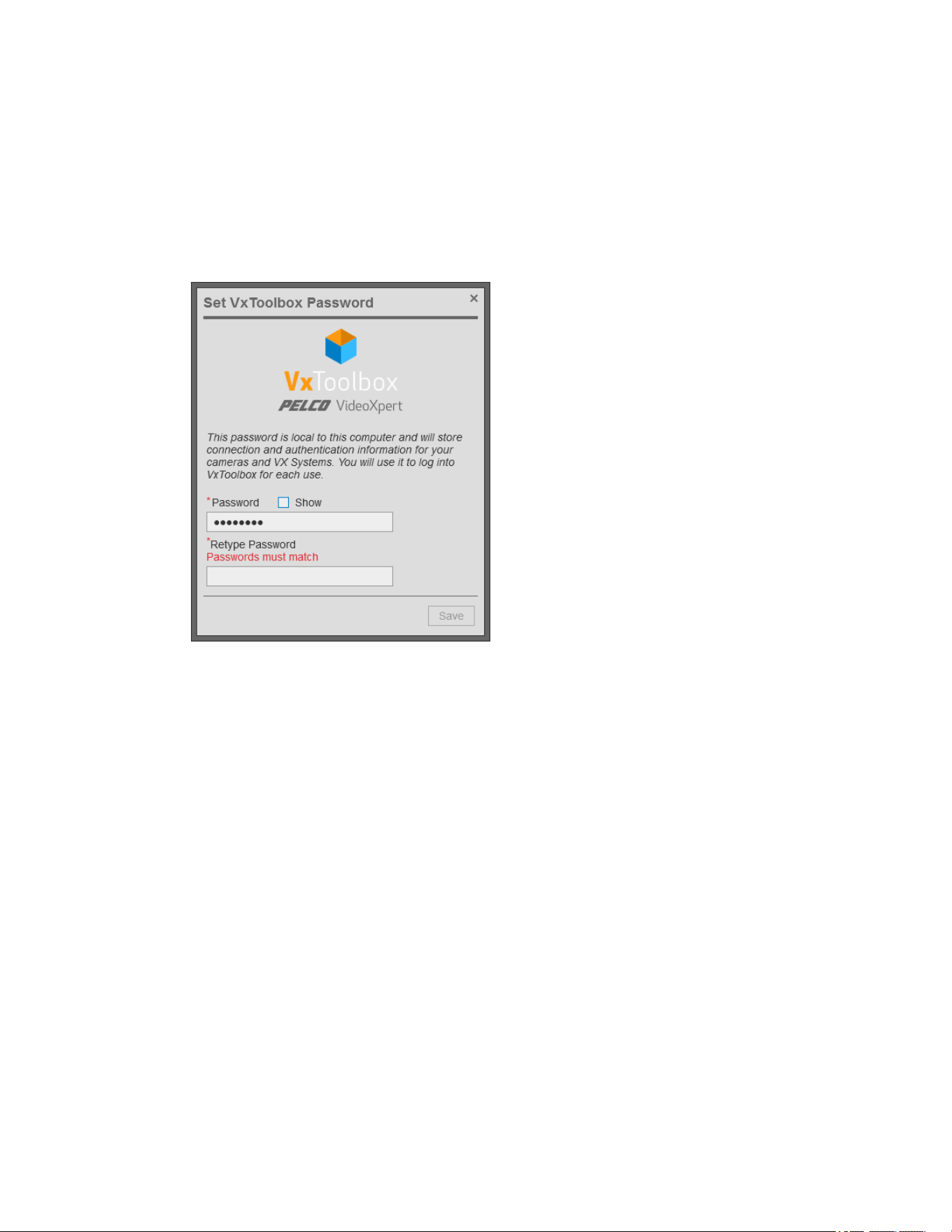
5. To set the VxToolbox password:
a.
Click the menu icon ( ), and then click Set VxToolbox Password.
b. Type a value in the Password and Reset Password fields.
c. Click Save.
6. To set the VxToolbox password and login requirements:
a. Set the password for the admin user on your system.
Note:
The default user name is
admin
. You must set a new password.
b. (Optional) Click to select the checkbox to ensure that the system checks the SSL/TLS
Certificate when connecting to the server.
VideoXpert® Professional v 3.17 Operations Manual
C6601M-S | 06/22 6
Enable this feature if your organization uses signed HTTPS certificates and the certificate
has already been loaded using VxToolBox.
c. Click Add.
d. In the VxToolbox Password Confirmation Window, click Set Password (recommended) or
No Thanks.
e. If you clicked Set Password, in the Set VxToolbox Password dialog box, enter a password
in the Password and Retype Password fields, and then click Save.
f. In the Configure VxToolbox dialog box, click OK.
g. If you enabled SSL/TLS Certificate checking, you might be required to interact with more
dialog boxes. If so, follow the prompts.
h. In the Configuration Required dialog box, enter a Company Name. This is the name by which
the Pelco licensing portal will recognize your VX server. The name cannot be changed later.
i. Click Save & Continue.
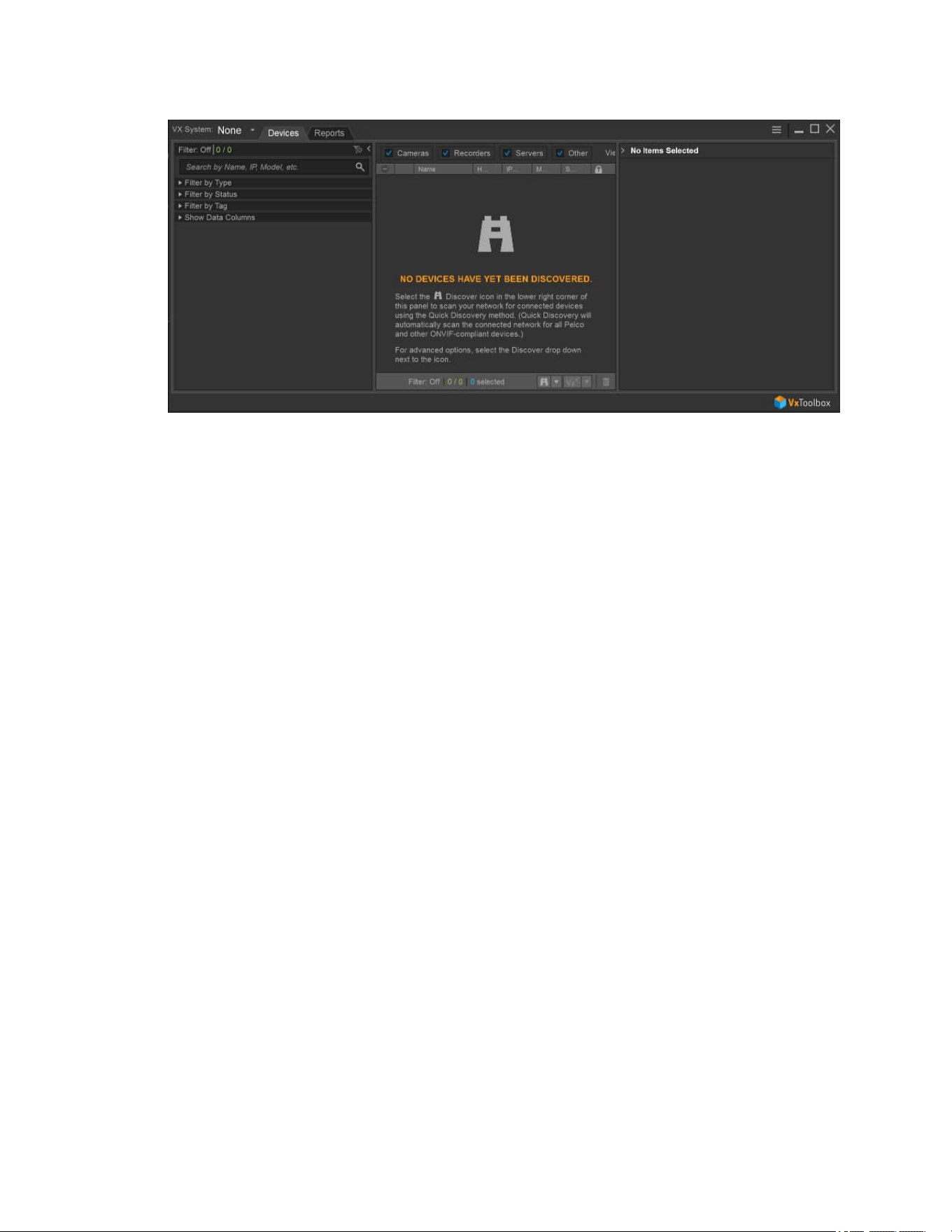
The VxToolbox application opens.
VideoXpert® Professional v 3.17 Operations Manual
C6601M-S | 06/22 7

VideoXpert® Professional v 3.17 Operations Manual
C6601M-S | 06/22 8
Logging Out
1.
Click the menu icon ( ), and then click Exit.
2. In the Exit confirmation dialog box, click Exit.

VideoXpert® Professional v 3.17 Operations Manual
C6601M-S | 06/22 9
Changing the VxToolbox Password
When starting VxToolbox, the application requests credentials. These credentials are local to the
workstation and your VxToolbox installation; they do not log you in to any system or camera. Rather, your
VxToolbox credentials protect your settings and the credentials for the individual cameras and systems
you want to access from other users on the same workstation.
After logging in to VxToolbox, you can add systems with independent credentials, and pass credentials
to cameras requiring them (closed authentication or third-party cameras).
Because your local VxToolbox environment may connect you to multiple systems and cameras, it is
recommended that you protect your credentials and log out when you have finished using the
application.
To change your VxToolbox password:
1.
Click the menu icon ( ), and then select Change VxToolbox Password.
2. In the Account Settings dialog box, enter a new password in the New Password and Confirm New
Password fields, and then click Save Changes.

VideoXpert® Professional v 3.17 Operations Manual
C6601M-S | 06/22 10
Licensing Your System
VideoXpert is licensed for the system, for upgrades, and by channel—the video streams you view and
record. It comes with one (1) license to start. A Lite license (VideoXpert Professional only) has four (4)
channels. The demo license provides unlimited channels that are active for a period of 60 days. These
are active only the first time you install the software, or if the software was pre-installed, the first time you
start up the system. In order for the system to function beyond the evaluation period, add the appropriate
quantity of licenses to the system.
You can license the system automatically or manually.
l
Manual licensing allows you to license a system that does not have an Internet connection. See
the section titled Manually Activating Licenses
l
Automatic licensing requires your VideoXpert system to be connected to the Internet and have
access to the Pelco licensing server. See the section titled Automatically Activating Licenses.
Note:If one or more licenses associated with the VideoXpert system are nearing or past the
expiration date and require renewal, their status is indicated on the Licensing page. See section
titled Viewing the License Summary.
For assistance, contact Pelco Product Support at 1-800-289-9100 (USA and Canada) or+1-559-292-
1981 (international).
Viewing the License Summary
Entitlements are associated with licenses. A license might be a consolidation of several entitlements. To
view licenses:
1. Open VxToolbox and click the Licensing tab.
2. In the License Summary table (bottom panel), view the list of licenses. For each license:
l
The license Name is listed. Unactivated Entitlements are listed as one license with the name
Pending. The names in the License Summary table correspond to the names in the
Entitlements table.
l
The Total column lists how many licenses and channels (sources) are included.
l
The In Use column identifies how many of the licenses and channels are in use.
l
The Remaining column identifies how many of the licenses and channels are not currently in
use.
l
The Expiration Date column identifies when the licenses will expire.
3. Click on a license in the License Summary table. In the [Name] Transaction History (bottom
right)panel, one of these is displayed:
l
This license does not track transaction history
l
License information including:
l
Current Projected Expiration information.
l
The Date of each transaction.
l
Each Action taken (for example:commissioning, adding, and decommissioning
channels) as part of the transaction.
l
The Balance of licenses remaining in channel-years as a result of the transaction.
l
The date of the Projected Expiration at the time of the transaction.

VideoXpert® Professional v 3.17 Operations Manual
C6601M-S | 06/22 11
If one or more licenses are nearing expiration, warning icons appear in the Licensing Summary area of
the Licensing page:
l
In the left panel of the License Summary area, to the left of the license Name
l
When the license is selected, in the top of the Transaction History (right) panel of the License
Summary area
Hover over any of these warning icons to display relevant information.
Click Details, if present, to display License Extension Details for [license name]:
l
View the current SUPexpiration information, the number of channels on the VXSystem, and
information about extending the SUP.
l
If the SUP is expiring soon, instruct the system to use existing information to build an estimated
price quote. If the necessary system variables cannot be retrieved, a default message is displayed
instead of a quote.
l
Click OKto close the dialog box.
For assistance, contact Pelco Product Support at 1-800-289-9100 (USA and Canada) or +1-559-292-
1981 (international).
Adding and Renewing Licenses
When you see the warnings in the License Summary area of the Licensing page that one or more
licenses are expiring or have expired, purchase a Software Update Plan (SUP).
l
SUPs are purchased in units of "channel-years".
l
One channel-year represents the use of one (1)licensed channel for one (1) year.
l
Channel-years are usually purchased in such a way as to allow each channel on the system to be
licensed for a period of several years.
For example:a system with 40 channels will need to purchase 80 channel-years to extend the
SUP by two (2) years.
l
Integration licenses are combined to provide the longest time before expiration.
For example: where appropriate, two one-year integration licenses will be recognized as a single
license that expires in two (2) years.
l
Adding channels to or removing channels from the system adjusts the expiration date of the
licenses to reflect how long it will take the connected channels to use the remaining channel-
years.
l
If your licenses expired before you renew them, part of your SUP is used to backfill the period of
time when the previous SUP/licenses had lapsed.
When licenses expire, all associated features are disabled until new licenses are installed or until the
existing licenses are renewed. If the SUPhas expired, you cannot upgrade the system until the SUP is
purchased or renewed.
For assistance, contact Pelco Product Support at 1-800-289-9100 (USA and Canada) or +1-559-292-
1981 (international).
Manually Activating Licenses
For manual licensing, you must have your activation ID and a separate computer with access to the
licensing server at http://licensing.pelco.com. During the manual licensing process, you will need to
transfer your Licensing Request File to a computer with Internet access during the activation process. If
you received multiple activation IDs for VideoXpert products, you must complete the process below for
each individual activation ID.

VideoXpert® Professional v 3.17 Operations Manual
C6601M-S | 06/22 12
As a part of this process, you will download an Entitlement Request File and a Entitlement File; both files
are specific to the product for which they were requested. It is recommended that you rename both files
to reflect the system for which they are intended to prevent confusion during the licensing process.
1. Open VxToolbox and click the Licensing tab.
2.
At the lower right corner of the Entitlements table (top panel), click the Add License icon ( ).
3. Enter your activation ID in the Activation ID box.
4. If necessary, click to deselect the checkbox to Automatically activate online.
5. You will be prompted to save an activation request .bin file. Select a folder (optional) type in a file
name, and then click Save.
An Entitlement Request File (named either what you typed in or the same name as the Activation
ID) with a .bin extension is downloaded to your computer.
6. Click Enter.
l
The Entitlement Pending status message appears at the top of the Entitlements table.
l
An entitlement named Pending will be listed in the table. At the far right of the Pending
entitlement row will be two icons: Download a new request (.bin) file ( ) and Remove this
activation ID ( ).
7. On a system connected to the Internet, open a new browser window or tab and go to the Pelco
licensing server at http://licensing.pelco.com.
8. Under Login, click to select logging in With User Name, With Entitlement Id, or With Activation
Id. You can also register as a New User.
9. Enter your credentials, and then click Login to access the Pelco licensing server.
10. Click the Manage Devices tab, and then click Generate License. Upload the request bin file to
the licensing web site. The Entitlement File, named response.bin, will be downloaded to your
computer.
11. Click the Licensing tab to return to the Licensing page within VxToolbox.
12. Click Choose file under the Entitlements section.
13. Select your Entitlement File (response.bin), and then click Open.
14. Click Import License File.
When the process is complete, VxToolbox will display the installed license(s) in the Entitlements table.
Automatically Activating Licenses
If your system has an active Internet connection with access to http://licensing.pelco.com, you can
automatically activate licenses for your system.
1. Open VxToolbox and click the Licensing tab.
2.
At the lower right corner of the Entitlements table (top panel), click the Add License icon ( ).
3. Enter your activation ID in the Activation ID box.
4. If necessary, click to select the checkbox to Automatically activate online.
5. Click Enter.
The system logs in to the Pelco licensing server and performs several tasks. Do not navigate
away from this page until you see the Add License dialog box.
6. Click OK.
VxToolbox will display the installed license(s) in the Entitlements table.

VideoXpert® Professional v 3.17 Operations Manual
C6601M-S | 06/22 13
Installing Entitlements After Restoring Your System
Pelco highly recommends that you back up your system and save the response file used to apply your
initial entitlement.
l
If restoring your system after uninstalling VideoXpert, you can re-apply your initial entitlement or
license.
l
If you re-image your system, you cannot apply your previous entitlement. If you have re-imaged
your system, contact Pelco Product Support at 1-800-289-9100 (USA and Canada) or+1-559-
292-1981 (international) for assistance.

VideoXpert® Professional v 3.17 Operations Manual
C6601M-S | 06/22 14
Managing the System
VxToolbox provides a single interface from which to manage and configure both cameras and your
VideoXpert Systems. From VxToolbox, you can manage any system that you can access by IP address
or hostname.
Selecting a system (by name) from the VX System menu allows you to configure that system; the
settings you see are relevant to the system, and any discovery operations you perform are issued directly
from that system.
Use the VX System menu to switch between various VideoXpert systems.
Adding a VXSystem
VxToolbox allows you to administer systems remotely. To add a system to VxToolbox, you must have
network access to the system and your user account must be assigned the administrative role.
1. Access the Add a new VX System dialog box by one of these methods:
l
If the Add a new VXSystem dialog box opens automatically, and the VxToolbox
PasswordConfirmation Window also opens automatically, click Set Password, enter the
new password in the fields, and then click Save.
l
Click the menu icon ( ) at the upper right corner of the window, click Manage VX System
Connections, and then click the Add a new VX System icon ( ).
l
At the upper left corner of the window, use the VX System drop-down menu to select Add a
VX system.
2. Enter an IP address in the Server Address field.
3. Enter a value in the Server Port field, or use the default port.
4. Enter the Admin Username and Password for the system you are adding.
5. If an SSL/TLS certificate has been uploaded and configured, click to select the checkbox for
Check SSL/TLS Certificate... to validate the certificate.
6. Click Add.
7.
If necessary, click the at the top left of the Manage VX System Connections window to close it.
Editing the System Validation
You can change whether the SSL/TLS certificate is validated when connecting to a system from
VxToolbox. Editing a system only affects your settings within your local VxToolbox installation.
1.
Click the menu icon ( ) at the upper right corner of the window, and then click Manage Vx
System Connections.
2. Select the system you want to edit.
3. In the right panel of the Manage Vx System Connections window, view the system connection
information.
4.
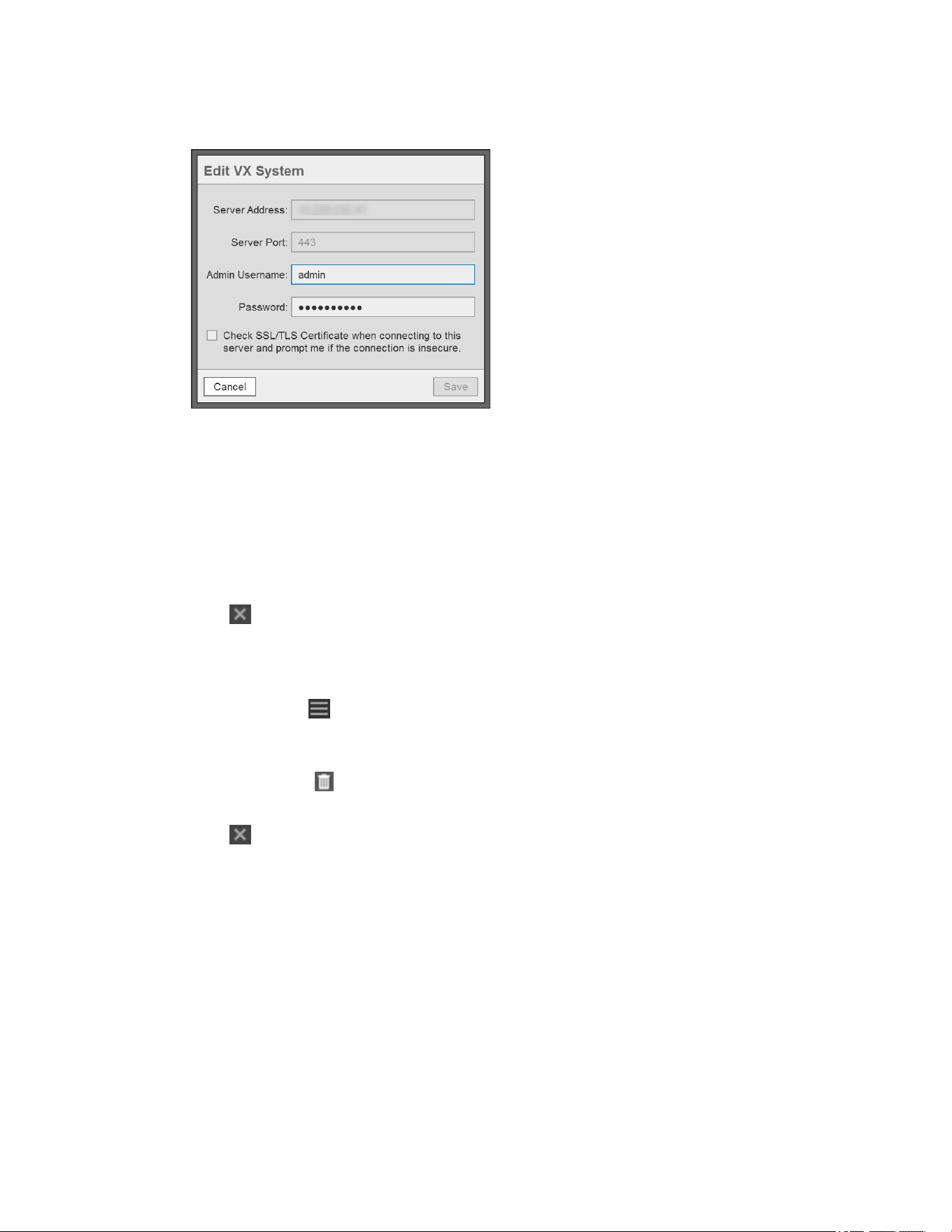
Click the Edit VX System icon ( ) to edit system settings.
a. Enter the Admin Username.
b. Enter the Password.
VideoXpert® Professional v 3.17 Operations Manual
C6601M-S | 06/22 15
c. Click to select or deselect the checkbox for Check SSL/TLS Certificate...
5. Click Save.
6. If the VxToolbox Password Confirmation dialog box opens:
a. Click to select the checkbox for Do not show this warning again, or leave it deselected.
b. (Optional)Click Set Password, type a password into the Password and Retype Password
fields, and then click Save.
c. (Optional) Click No thanks to keep the existing or no password.
7. In the Update dialog box, click OK.
8.
Click the at the top left of the Manage VX System Connections window to close it.
Removing a System
You can remove a system from VxToolbox. It can be re-added at any time.
1.
Click the menu icon ( ) at the upper right corner of the window, and then click Manage Vx
System Connections.
2. Select the system you want to remove.
3.
Click the Delete icon ( ) to remove the system.
4. In the Delete System dialog box, click OK to confirm the deletion.
5.
Click the at the top left of the Manage VX System Connections window to close it.
VideoXpert® Professional v 3.17 Operations Manual
C6601M-S | 06/22 16
Discovering Devices
When connected to a VideoXpert System, you can use VxToolbox to search the connected system for
devices, or you can add devices manually to the VxToolbox list. The device list shows only devices that
have been discovered on the network to which the VideoXpert System is connected.
When not connected to a VideoXpert System (None is selected), you can use VxToolbox to search for
devices that are accessible on the same network as the computer that is running VxToolbox; the device
list shows only locally discovered devices.
Through VxToolbox, you can manage device settings for all the devices on the network, without having to
use individual device interfaces.
VxToolbox can discover Pelco cameras or third-party cameras supporting ONVIF.
Note:To support a third-party fisheye camera that is not already recognized by VideoXpert,
contact Pelco Customer Support.
Finding Devices (Quick Discovery)
Use Quick Discovery to discover and initialize devices.
To use Quick Discovery, click Devices, and then do one of the following:
l
Click the Quick Discovery icon ( ) to perform a quick search for devices.
l
Click the Advanced Discovery Options icon ( ) to the right of the Quick Discovery icon, and then
click Quick Discovery.
l
Click the Advanced Discovery Options icon ( ) to the right of the Quick Discovery icon, and then
click Advanced Discovery. In the Discover Network Devices dialog box, in the Discovery Method
field, select Quick Discovery from the drop-down menu. Click to select or deselect the
checkboxes for SSDP and WS-Discovery, and then click Discover.
If you are connected to a VideoXpert System (the VXSystem field is not set to None), the device
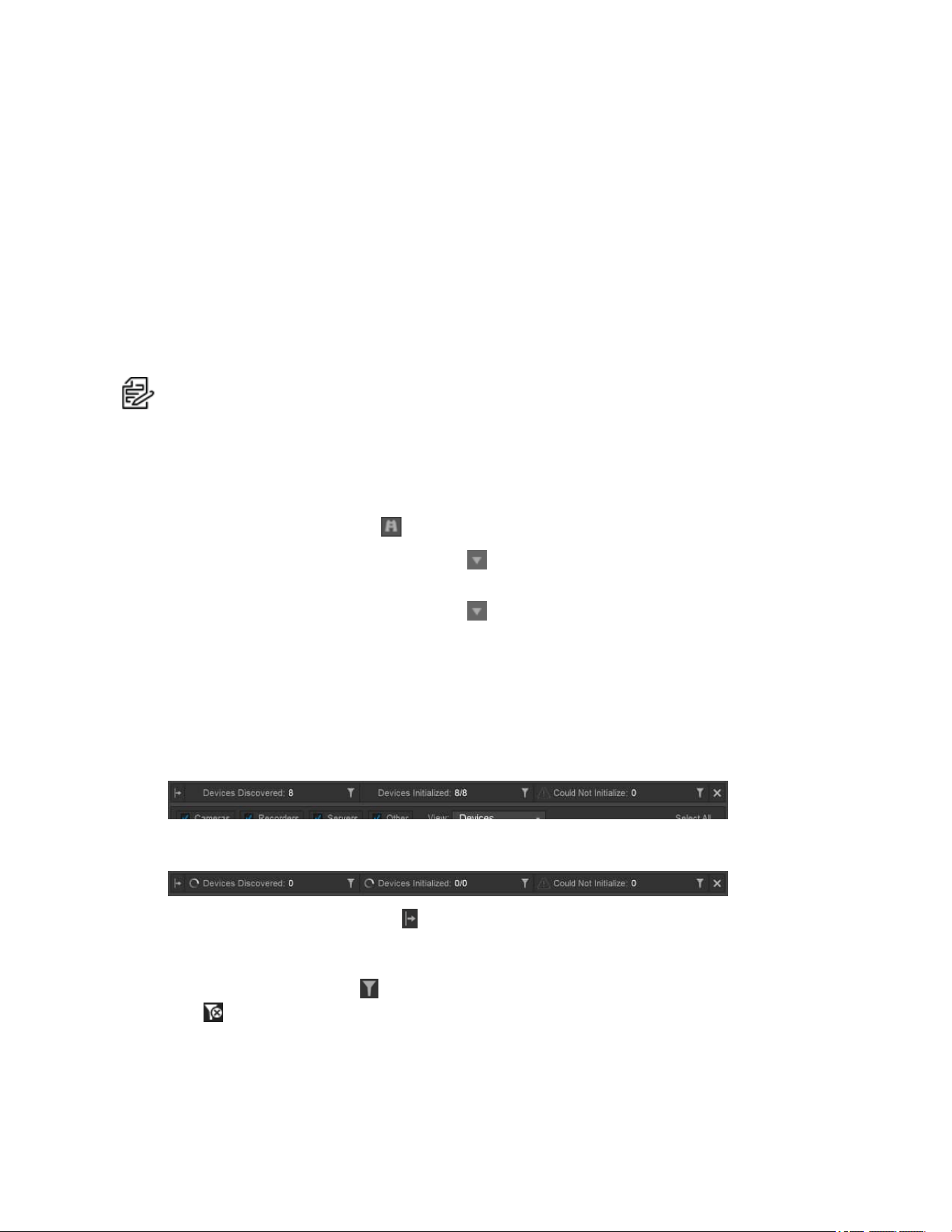
discovery banner opens at the top of the window:
l
Itindicates the number of Devices Discovered, Devices Initialized, and devices that the system
Could Not Initialize.
l
As device discovery and initialization is occurring, progress spinners are displayed to the left of
the Devices Discovered and Devices Initialized field names.
l
Hover over the Batch started icon ( ) at the far left of the banner to see the date and time the
device discovery was started.
l
To filter by Devices Discovered, Devices Initialized, and devices that the system Could Not
Initialize, click the filter icon ( ) to the right of the field name. To clear the filter, click the clear filter
icon ( ) to the right of the field name.

VideoXpert® Professional v 3.17 Operations Manual
C6601M-S | 06/22 17
l
To hide the banner, do one of the following:
–
At the far right of the banner, click the close icon ( ).
–
In the left panel under Filter by Status, click to deselect the checkbox for Show Discovery
Results.
–
Click on another tab, and then click on the Devices tab again. The checkbox for Show
Discovery Results is deselected, therefore the banner is hidden.
l
To restore the banner (unhide), in the left panel under Filter by Status, click to select the checkbox
for Show Discovery Results.
Finding Devices (Advanced Discovery)
Using Advanced Discovery, you can search for devices by protocol type or you can add individual
devices by IP address. You can also add devices that do not support ONVIF or Pelco discovery methods
using the IP address.
1.
Click Devices, and then click the Advanced Discovery Options icon ( ) to the right of the Quick
Discovery icon.
2. Click Advanced Discovery.
3. To discover devices by IP address or hostname:
a. From the Discovery Method drop-down menu, select Discover by IP or Hostname.
b. Enter a value in the Host field.
c. (Optional) Enter a value in the HTTPPort field.
d. (Optional) Enter values in the Username and Password fields.
e. (Optional)Click to select a value from the Driver drop-down menu.
f. (Optional) Click Add Another, and enter values in the fields.
4. To discover devices by IPrange:
a. From the Discovery Method drop-down menu, select Discover by IP Range.
b. Enter start and end values in the IPRange fields.
c. (Optional) Enter a value in the HTTPPort field.
d. (Optional) Enter values in the Username and Password fields.
e. (Optional)Click to select a value from the Driver drop-down menu.
f. Click Discover.
5. To use Quick Discovery, but specify using either SSDP (Simple Service Discovery Protocol) or
WS-Discovery (Web Services Dynamic Discovery):
a. From the Discovery Method drop-down menu, select Quick Discovery.
b. Click to select or deselect the checkbox for SSDP.
c. Click to select or deselect the checkbox for WS-Discovery.
6. Click Discover.
Note:This feature adds devices to the system, but it does not commission them. To commission
the devices, see the section titled Commissioning Devices that were Discovered Previously.
VideoXpert® Professional v 3.17 Operations Manual
C6601M-S | 06/22 18
Adding an RTSP Device
To add a device that uses RTSP:
1.
Click Devices, and then click the Advanced Discovery Options icon ( ) to the right of the Quick
Discovery icon.
2. Click Add RTSP Device.
3. Type a value in the Device Name field.
4. (Optional) Click to select the checkbox for Set Credentials, and then enter values in the Username
and Password fields.
5. Enter a value in the URI field.
6. (Optional) Click Add Another URI to this Device, and then enter a value in the URI field.
7. When you have added all URIs, click Create.
Note:VideoXpert supports both UDP and TCP streaming from RTSP devices, and will
automatically choose the streaming protocol based on the devices configuration.
Recognizing Device Credentials
Some devices require credentials for you to access their video or change their settings. The
Authentication Status column provides the status of each device.
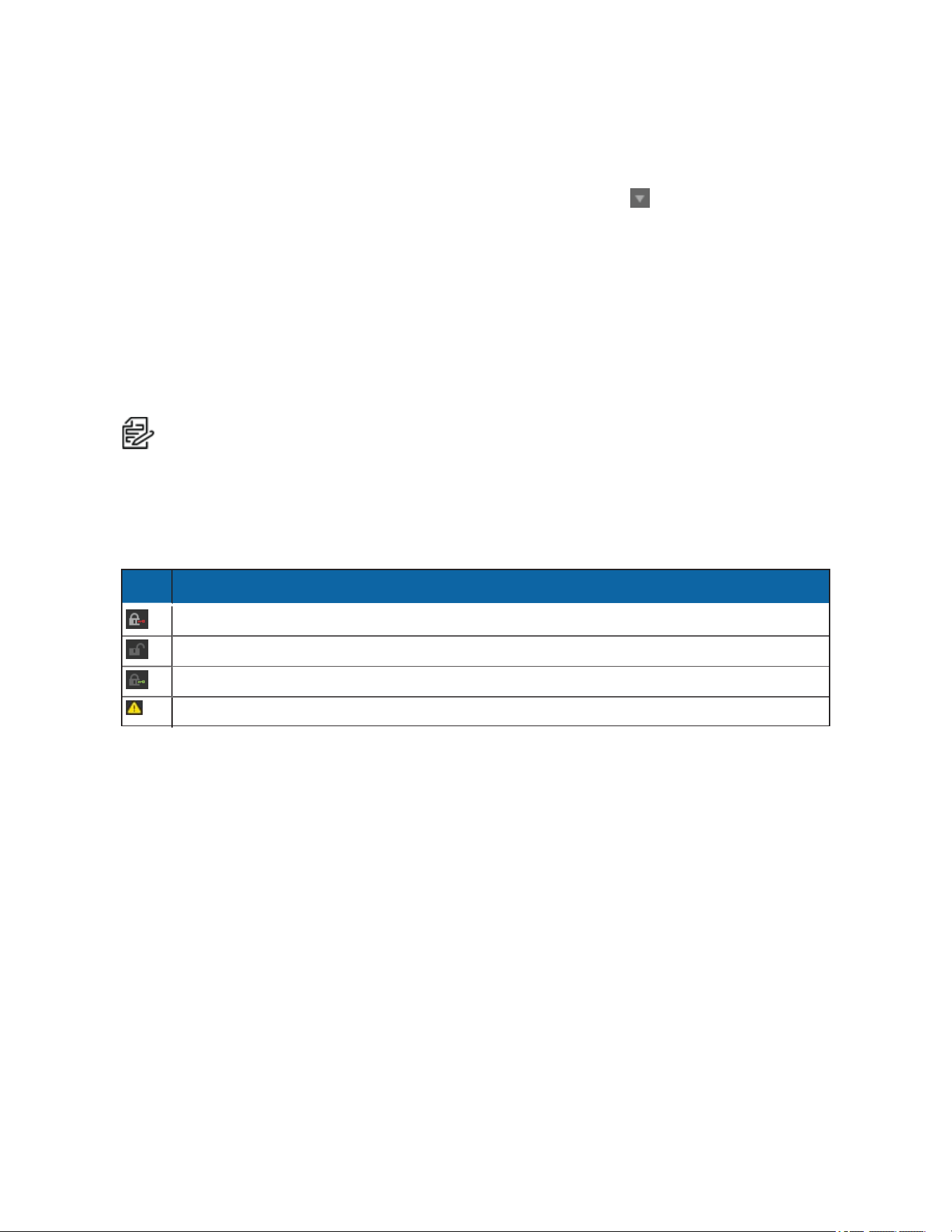
Table 1: Icons in the Authentication Status column
Icon Description
Device requires authentication.
Device does not require authentication.
VxToolbox has authenticated to this device.
The user must be created on the camera before accessing the camera.
Adding Credentials for Devices that Require Authentication
To add credentials to a device:
1. Click Devices.
2. Click to select the device requiring credentials.
3. Enter credentials in the appropriate fields.
4. If necessary, click to select a Driver from the drop-down menu.
5. Click Submit.
Creating a Default User on Cameras ThatHave No User
For security purposes, cameras require a user to be created on the camera before the VideoXpert
system can access the camera.
1. Add a camera using Quick Discovery or Advanced Discovery. See Finding Devices (Quick
Discovery) or Finding Devices (Advanced Discovery).

VideoXpert® Professional v 3.17 Operations Manual
C6601M-S | 06/22 19
2. In the main panel of the Devices page, locate any cameras on the VideoXpert System that have a
warning icon ( ) to the left of the camera Name and the locked camera icon ( ) in the
Authentication Status column.
3. If necessary, refer to the camera instructions and add the user to the camera.
4. Select the camera for which a user must be created.
5. Enter credentials in the appropriate fields, and then click Submit.
6. Add and commission the camera. See Commissioning Devices.
Resetting the Password on a Storage Device
You must reset a password on a storage device before you can use it.
1. Add a storage device using Quick Discovery or Advanced Discovery. See Finding Devices (Quick
Discovery) or Finding Devices (Advanced Discovery).
2.
In the list of devices, find a storage device with alocked server icon ( ) to the left of the device
name and a warning icon ( ) in the Authentication Status column, and then click to select the
device.
3. In the right panel, enter the credentials to reset the password, and then click Reset Password.
A password must be at least eight characters long.
You can now add and commission the storage device. See Commissioning Devices.
Configuring a Camera for Analytics
When you discover a camera that supports advanced analytics, you must commission the device before
you can use advanced analytics.
Use the appropriate tool to configure each camera, as described in the section titled Using VxToolbox to
Configure the Camera for the Pelco Advanced Analytics Suite or the section titled Using the MSI Camera
Configuration Tool (CCT)to Configure the Camera for the Pelco Smart Analytics Suite.
Note:For cameras with firmware version 3.7 and later, no analytics license is required to use the
Pelco Advanced Analytics Suite. If a camera is running firmware earlier than version 3.7, upgrade
to camera firmware 3.7 or later.
Using VxToolbox to Configure the Camera for the Pelco Advanced Analytics Suite
As a prerequisite to this procedure, ensure that you have commissioned the device. See the section titled
Commissioning Devices.
To configure a camera:
1. Click the Devices tab.
2.
Click the Edit icon ( ) to the right of ADVANCEDANALYTICS in the right panel to open the
Configure Advanced Analytics for [device name] dialog box.
3. (Optional)For a PTZcamera, in the left panel, click to select a PTZpreset from the drop-down
menu.
4. (Optional) Set a Confidence Threshold, by either using the slider bar, or typing a value in the %
field.
A confidence threshold filters out object detections that have a confidence percentage lower than
the threshold value. This is useful for filtering out detections that are not people or vehicles, or to

VideoXpert® Professional v 3.17 Operations Manual
C6601M-S | 06/22 20
help better detect objects at further distances. To filter objects out you can increase the threshold.
To increase the distance of detections you can decrease the threshold.
5. To create a New analytic rule, in the Configure Advanced Analytics for [device name] dialog box,
in the Analytic Rules (left) panel, click the add icon ( ), and then select the type of zone or
counter to add.
Note
:If you are configuring a Counterflow zone, see the section titled
Understanding
Counterflow zones (VxToolbox-only)
.
6. To configure a Person in Zone or a Vehicle In Zone area, in the center panel:
l
To reshape, expand, and/or move the zone (polygon with a blue or orange border—blue for
person, and orange for vehicle), click and drag it or its points.
l
To create a new point on the box, place the cursor on the box where the new point will be
added, click the left mouse button, and then drag the point to the appropriate location.
l
To delete a point on the box, click the right mouse button on the point, and then click Delete
Point.
l
If there is a detection issue (for example:the analytics do not detect a person in the zone),
change the size, shape, and position of the zone until detection is working as expected.
7. To configure a Person Counterflow or a Vehicle Counterflow area, in the center panel:
l
To reshape, expand, and/or move the zone (polygon with a blue or orange border—blue for
person, and orange for vehicle), click and drag it or its points.
l
To create a new point on the box, place the cursor on the box where the new point will be
added, click the left mouse button, and then drag the point to the appropriate location.
l
To delete a point on the box, click the right mouse button on the point, and then click Delete
Point.
l
If there is a detection issue (for example:the analytics do not detect a person in the zone),
change the size, shape, and position of the zone until detection is working as expected.
8. To configure a Person Counter or a Vehicle Counter, in the center panel:
l
Drag the counter line (blue or orange line—blue for person, and orange for vehicle) from the
upper left corner of the center panel to the appropriate location.
l
To shorten, lengthen, and or/move the line, click and drag it or its end points.
l
If there is a detection issue, change the size, angle, and position of the line until detection is
working as expected.
9. To name or rename a zone, click to select the zone name in the right panel, and then enter a new
string in the Zone Name field in the left panel.
Note
:Do not use quotation marks in the zone name.
10. In the right panel, enable or disable the zone by clicking to select or deselect the checkbox for
Zone is Enabled.
11. For counterflow zones, select the Counterflow Angle, either by typing in a number or by selecting it
using the slider bar.
12. For counter lines, click to select the appropriate type of line from the Counter Type drop-down
menu. This applies only to the line currently selected.

VideoXpert® Professional v 3.17 Operations Manual
C6601M-S | 06/22 21
l
An Uni-Directional Line counts objects that cross the line in the configured direction. It has
one or more white arrows on the line pointing in one direction.
l
A Bi-Directional Line maintains two separate counts—one for each direction that an object
crosses the line. For example they can be used for a building entrance to differentiate
between the number of people entering and exiting a building. It has one or more white
arrows pointing in one direction; each is paired with a black arrow on the line pointing to the
opposite direction.
l
An Omni-Directional Line counts when objects cross the line from any direction that is not
parallel to the line. It has one or more white diamonds—two white arrows pointing in opposite
directions from the line.
To configure counter lines:
a. (Optional)If you clicked Bi-Directional Line, you can either maintain the Direction Labels as
they are, or type in new labels for each arrow type. This applies only to the line currently
selected.
b. Click to select or deselect the checkbox for Generate Event. If you select this option, use the
fields and radio buttons to configure the event.
13. (Optional) In the right panel, click to select the checkbox for Override Default Severity, and then
set a new severity value, either by moving the slider bar or typing a number in the field.
14. To save current settings before making more modifications or adding another zone, click
ApplyChanges.
15. To edit a zone or counter, click to select the zone or counter in the left panel; and then change any
of the setting that are available in the right panel.
16. (Optional) To delete a zone, do one of the following:
l
Right-click the zone name in the left panel, click Delete, and then click OK in the Delete
Analytic Rules confirmation dialog box.
l
Click to select the rule name(s) in the left panel, click the Delete selected analytic rules icon
( ), and then click OKin the Delete Analytic Rules confirmation dialog box.
l
Right-click the zone border or the counter line, click Delete Analytic Rule, and then click OK
in the Delete Analytic Rules confirmation dialog box.
17. Click Save &Close.
You can disconnect from a VXSystem and still configure the zones.
Using the MSI Camera Configuration Tool (CCT)to Configure the Camera for the Pelco Smart
Analytics Suite
To configure a camera:
1. Download CCTfrom https://www.pelco.com/camera-configuration-tool, and then install it.
2. Launch CCT.
3. Use CCTto discover analytic cameras (for example:the Pelco Fisheye camera) on your network.
4. Click the Analytics tab in CCT, and configure the analytics on the camera. See the Configuring
Analytics section of the current version of the Camera Configuration Tool User Guide.
VideoXpert® Professional v 3.17 Operations Manual
C6601M-S | 06/22 22
5. Add and configure new analtyic events. See the Adding Video Analytics Events section of the
current version of the Camera Configuration Tool User Guide.
Follow these guidelines when configuring a camera and analytic events:
l
New events in VideoXpert will automatically correspond to the friendly names in CCT.
l
Some existing VideoXpert events have new default friendly names that are consistent with
CCTevent friendly names.
–
"No Object in Zone"is changed to "Object Not Present In Area".
–
"Object Count Limit Exceeded"is changed to "Objects Crossing Beam".
–
"Objects In Zone"is changed to "Objects In Area".
–
"Counterflow"is changed to "Direction Violated".
l
Some VideoXpert events have been deprecated.
–
Instead of "Loitering", use "Object Loitering".
–
Instead of "No Loitering", use "No Object Loitering".
After the events have been configured, the event description field in the VxToolbox Event page will list
information about the renamed or deprecated events and situations.
Understanding Counterflow zones (VxToolbox-only)
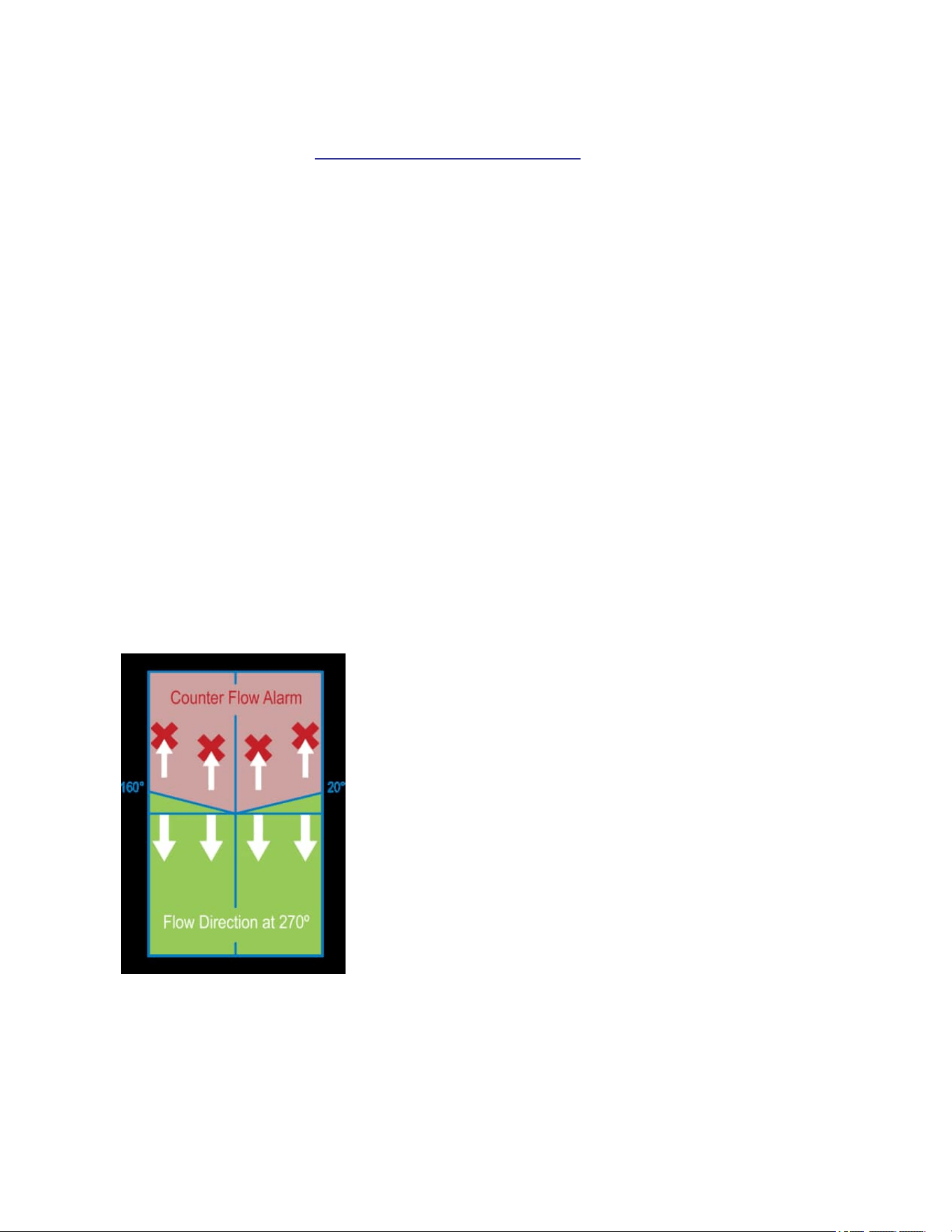
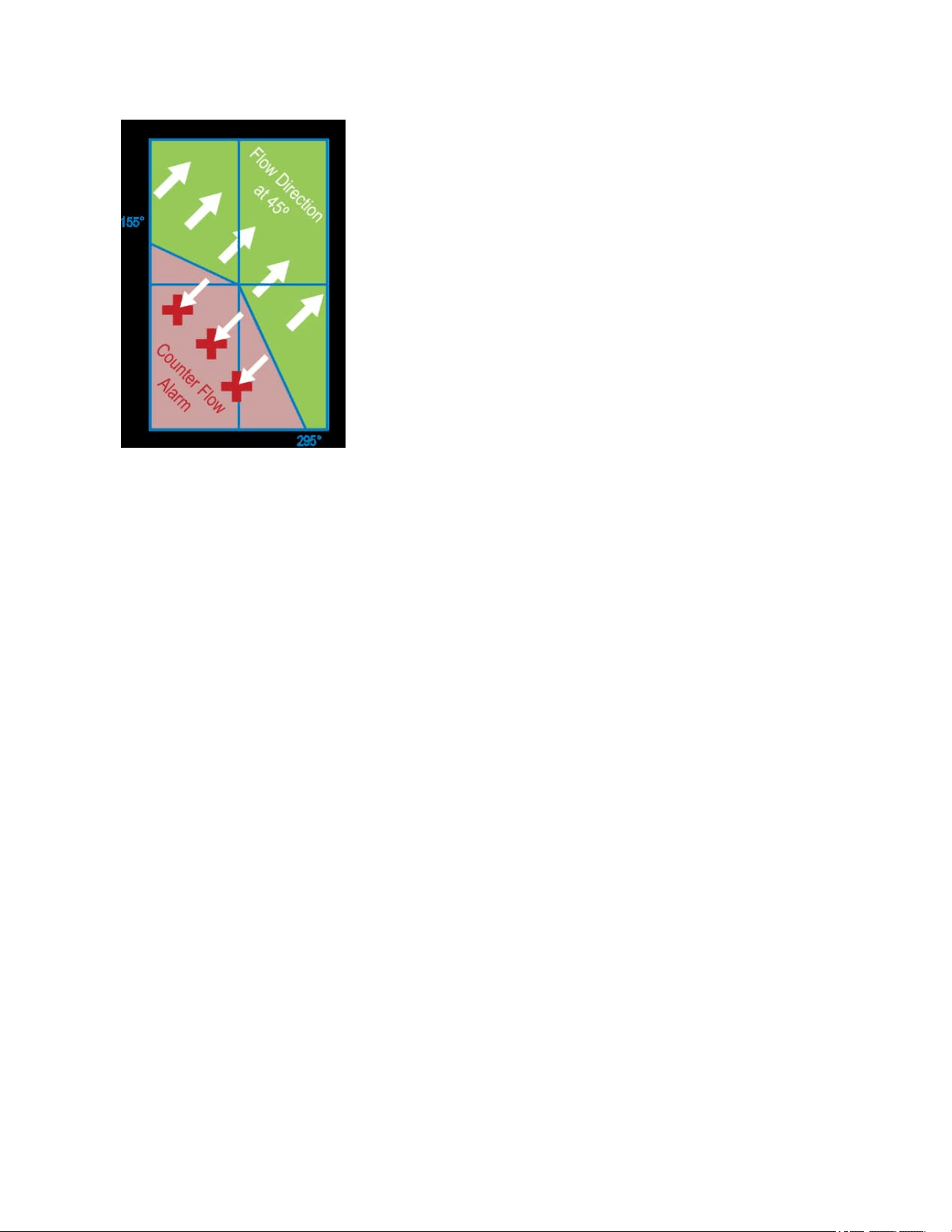
Counterflow alarms are triggered when the angle between an object’s trajectory and the wrong direction
is greater-than 110 degrees.
In Figure 1: Counterflow at 90 degrees, the Counterflow arrow is pointing at 90 degrees. Alarms trigger
when the angle is between 20 and 160 degrees.
Figure 1: Counterflow at 90 degrees
In Figure 2: Counterflow at 135 degrees,the Counterflow arrow pointing at 135 degrees. Alarms trigger
when the angle is between 155 and 245 degrees.
VideoXpert® Professional v 3.17 Operations Manual
C6601M-S | 06/22 23
Figure 2: Counterflow at 135 degrees
VideoXpert® Professional v 3.17 Operations Manual
C6601M-S | 06/22 24
Managing Devices on a System
VxToolbox enables you to add a device or change device settings.
You must commission a device to view its video or to use its video or resources within VideoXpert.
VideoXpert typically commissions devices automatically when you add them to the system. In many
cases, commissioning a device requires a license; the type of license required depends on the type of
device you are commissioning.
Add or commission operations are available from the Devices tab for the selected system.
Commissioning information is shown in the Added/Commissioned ( ) column; you can expose this
column by selecting Commissioning Status from Show Data Columns in the filtering panel.
Table 2: Icons in the Commissioning Status column
Icon Status
Not commissioned
Commissioned
Commissioning Devices
VxToolbox will only provide commissioning options applicable to the camera(s) you have selected.
Commission operations are relevant to the system you have selected from the VX System menu.
1. In the center panel of the Devices tab, select the devices to commission.
2. Perform one of the following steps:
l
Right-click the device, and then select Commission.
l
Click to select the device, and then click the Commission and Assign Cameras to a Recorder
icon ( ) at the lower right of the center panel.
l
Click to select the device, click the Commission and Assignment Options icon ( ), and then
click Commission.
3. If the Authentication Notice dialog box opens, follow the instructions in the dialog box.
4. If the Recorder Assignment dialog box opens, select a recorder from the drop-down menu, and
then click Add.
The icon for the device changes from Not commissioned ( ) to Commissioned ( ).
Commissioning Devices that were Discovered Previously
VxToolbox will only provide commissioning options applicable to the camera(s) you have selected, and
which were already discovered. Commission operations are relevant to the system you have selected
from the VX System menu.
1. In the center panel of the Devices tab, select the devices to commission.
2. Perform one of the following steps:
l
Right-click the devices, and then select Commission.
l
Click the Commission and Assignment options icon ( ), and then click Commission.
The icons for the devices change from Not commissioned ( ) to Commissioned ( ).

VideoXpert® Professional v 3.17 Operations Manual
C6601M-S | 06/22 25
Decommissioning Devices
VxToolbox can decommission the camera(s) you have selected, on system you have selected from the
VX System menu.
1. In the center panel of the Devices tab, select the devices you want to decommission.
2. Perform one of the following steps:
l
Right-click the devices, and then select Decommission.
l
Right-click the devices, click the Commission and Assignment Options icon ( ), and then
click Decommission.
The icons for the devices change from Commissioned ( ) to Not commissioned ( ).
Replacing a Camera
If you are upgrading from an existing camera to a new one, or replacing a broken camera, VxToolbox
enables you to select the existing and new cameras, and make the replacement. Replacing a camera
allows you to transfer preconfigured settings (including camera name, tags, and recording schedules)
from one camera to another.
1. If you have not already done so, ensure that the existing camera is offline (for example:turn off the
camera).
2. If you have not already done so, discover and commission the replacement camera. See the
chapter titled Discovering Devices.
3. Click the Devices tab.
4. In the center panel of the Devices tab, select the camera that you will replace.
5. Right-click the camera, and then click Replace Camera.
6. In the Select Replacement Camera for dialog box, (optional) use the search field to help you
locate the replacement camera, click to select the replacement camera, and then click Replace.
7. Read the information in the Replace Camera confirmation dialog box, and then click OK.
Removing Devices
After a device is discovered, it will persist in the system’s device registry until it is removed, even if the
device no longer exists on the network.
Removing a device will prevent you from retrieving any associated recordings through VideoXpert
Storage. To preserve access to recordings on VideoXpert Storage devices, decommission the devices
until video for the device has expired or you are sure you will no longer need to access recordings for the
device, then remove the device.
From VxToolbox, you can remove the device(s) you have selected, on the system you selected from the
VX System menu.
1. Click the Devices tab.
2. In the center panel of the Devices tab, select the devices you want to remove.
3. Perform one of the following steps:
l
Right-click the devices, and then click Remove.
l
Right-click the devices, and then click the Remove device(s) from VxToolbox and/or VX
System icon ( ) at the bottom right of the center panel.

VideoXpert® Professional v 3.17 Operations Manual
C6601M-S | 06/22 26
l
Click the devices, click the Commission and Assignment Options icon ( ), and then click
Remove.
4. In the Remove Device(s) confirmation dialog box, click OK.
The devices are removed from the list. They can be discovered again at any time.
Adding Video Associations
You can associate an audio data source with a video data source on another device.
For example, if you have a microphone on a camera near a cash register, but you want that audio to be
associated with a different camera that has a better view of that cash register, you can use Add Video
Associations to make this configuration.
1. Click the Devices tab.
2. In the center panel of the Devices page, select the device with audio data source that you want to
associate with a different video data source.
3. Right-click the device, and then click Add VideoAssociations.
In the Associate Data Sources with Audio "[camera name] - Audio" dialog box, the All Data
Sources panel will list the name of the data sources already associated with the device.
4. (Optional) In the Associate Data Sources with Audio "[camera name] - Audio" dialog box, use the
filter to narrow the list of available devices.
5. In the Associate Data Sources with Audio "[camera name] - Audio" dialog box, in the Associated
to panel, click to select and deselect the checkboxes to indicate which of the available video data
sources to associate with the audio data source.
6. Click Save.
VideoXpert® Professional v 3.17 Operations Manual
C6601M-S | 06/22 27
Viewing Devices, Data Sources, Alarms & Relays, or Access Points
The audio and video sources produced by a device (for example, a camera) are referred to as data
sources.
A device can have more than one data source. For example, a multi-channel encoder may have multiple
cameras connected to it, each with its own data source; a camera may have a microphone, producing
audio and video data sources.
A device can have one or more alarms and relays, depending on the device. For example: an encoder
typically has one alarm and one relay per device channel; a camera might have only one alarm and one
relay for the device. Alarms are configured and relays are enabled on the Devices page.
l
To view all devices on the system, in the View field drop-down menu, at the top of the center
panel, select Devices.
l
If a device and its data sources are distinguishable, you can see the individual data sources,
alarms, and relays. To see the data sources, alarms, and relays that are associated with a specific
device:
a. In the View field drop-down menu, select Devices.
b.
Click the expand icon ( ) to the left of the device.
Data sources, alarms (if any), and relays (if enabled), are listed directly below the device.
l
To view all data sources on the system, in the View field drop-down menu, at the top of the center
panel, select Data sources.
l
To toggle the view to show only the devices and not the data sources, alarms, and relays, right
click anywhere in the device list, and then click Collapse All.
l
To view the list of alarms and relays on the system, in the View field drop-down menu, at the top of
the center panel, select Alarms & Relays.
You can determine the status of an alarm or relay by the icons in the State column.
Table 3: Icons in the State column
Icon State
Alarm is active
Alarm is inactive
Relay is active
Relay is inactive
You can determine whether an alarm or relay is enabled or disabled by the icons in the Enabled
column.
Table 4: Icons in the Enabled column
Icon Enabled
Yes
No

VideoXpert® Professional v 3.17 Operations Manual
C6601M-S | 06/22 28
l
To view the list of access points on the system, in the View field drop-down menu, at the top of the
center panel, select Access Points. If there are no devices with access points, the window will
display the message NODEVICESHAVEYETBEENDISCOVERED.
Finding and Filtering Existing Sources
Use filtering options to show the devices and data sources relevant to you within the system or
environment you have selected. Filters appear in the left-most panel of the Devices tab and in some
other tabs. Click the Devices tab. Then use the filter, as appropriate:
l
Enter a value in the filter field to filter by criteria including the device name, ID, model, IP address,
serial number, vendor, or software version.
Note
:To search only by camera number, type the pound sign (#) before the camera
number. For example:type "#12" (without the quotation marks)to filter the results to
cameras with 12 in the camera number.
l
Click to expand, and then click to select and deselect checkboxes in, the Filter by Type area.
l
Click to expand, and then click to select and deselect checkboxes in, the Filter by Status area.
l
Click to expand, and then type in or select a tag in the Filter by Tags field. Tags are set in
VxOpsCenter. See the VxOpsCenter section of this manual for more information.
l
Click the Clear the current filter settings icon ( ) to clear the filters.
Controlling the Columns Displayed in the Devices Window
1. Click the Devices tab.
2. Include columns in or exclude them from the display by one of the following methods:
l
In the left panel, below the filter areas, click to expand the Show Data Columns area, and then
click to select and deselect checkboxes in the area.
l
Right-click the column header, and then click to select and deselect the column titles in the
drop-down menu.
Viewing the License Summary
1. Click the Devices tab.
2. In the left panel, below Show Data Columns, click to expand License Summary. View the system
license information.
Viewing and Configuring Device Information
If you have the proper credentials, from VxToolbox, you can view information for and configure some
settings on a device that you have selected, on the system you selected from the VX System menu.
1. Click the Devices tab.
2. In the center panel of the Devices tab, select the device you want to configure. Information specific
to the device is presented in the right panel. If the device has been authenticated in VxToolbox,
you will see the current view from the device, and status information.
3.
(Optional)Click the Web View icon ( )to the right of the device name to view the device control
panel in a web browser, and make changes there.
Note:
You must have permissions for the device in order to make any changes.

VideoXpert® Professional v 3.17 Operations Manual
C6601M-S | 06/22 29
4. If necessary, to authenticate the device, enter correct values in the Username and Password
fields, and then click Submit.
Note:
You must provide a valid username and password in order to update the device
configuration using VxToolbox.
5. (Optional) To view and update Device Information in VxToolbox:
a. Click to expand DeviceInformation. All available device information is listed, and might
include:name, hostname, IPaddress, port, MACaddress, vendor, and model. Information
varies based on the device type.
b.
If present, click the Edit icon ( ) to the right of Device Information.
If the Edit icon ( ) is not present, you cannot update Device information. Continue to step 6.
c. In the Settings Editor dialog box, enter correct values into the fields. For example:Type
values into the Name, Hostname, IPAddress, and Port fields (if available); and click to select
or deselect the checkbox for Apply name to Data Sources.
d. Click Save Changes.
6. (Optional)To create a User, log out, or change your password, if the option is present:
a. Click to expand User.
b. To create a new user, type values in the Username, New Password, and Re-type Password
fields, and then click Save.
c. To change the password, click Change Password, type values in the New Password and
Re-type Password fields, and then click Save.
d. To log out, click Log Out.
7. (Optional)To view and update the VideoConfiguration, if present:
a. Click to expand Video Configuration.
b. Continue clicking to expand the items listed under Video Configuration, and then the primary
stream, secondary stream, tertiary stream or smart compression settings to view. Depending
on the device:
l
The smart compression information includes:the compression level, and whether each
stream has dynamic GOPenabled.
l
If there are primary, secondary, and tertiary streams, the stream information might
include:device name, encoding, profile, GOP, resolution, maximum bitrate, frame rate,
multicast address, and multicast port.
c.
Click the Edit icon ( ) to the right of the smart compression, primary, secondary, or tertiary
stream listing.
d. If you are updating the smart compression settings, in the Settings Editor dialog box:
l
Click to select or deselect the checkbox for Smart Compression Enabled.
l
Select the appropriate value from the drop-down menu in the Level field.
l
Click to select or deselect the Primary Stream Dynamic GOPEnabled checkbox. If you
selected this checkbox, enter a value in the Primary Stream Max GOPLength field—
either by typing-in a number or selecting one using the up and down arrows.

VideoXpert® Professional v 3.17 Operations Manual
C6601M-S | 06/22 30
l
Click to select or deselect the Secondary Stream Dynamic GOPEnabled checkbox. If
you selected this checkbox, enter a value in the Secondary Stream Max GOPLength
field—either by typing-in a number or selecting one using the up and down arrows.
l
Click to select or deselect the Tertiary Stream Dynamic GOPEnabled checkbox. If you
selected this checkbox, enter a value in the Tertiary Stream Max GOPLength field—
either by typing-in a number or selecting one using the up and down arrows
e. If you are updating the primary, secondary, or tertiary stream, in the Settings Editor dialog
box, enter correct values into the fields. For example:Type in or select from the drop-down
menus a stream Name, Encoding, Profile, GOP, Resolution, Max Bitrate, Frame Rate,
Multicast Address, and Multicast Port.
f. Click Save Changes.
8. (Optional) To view and update basic Analytics (motion detection, etc.), if present:
a. Click to expand Analytics.
b. Continue clicking to expand individual items listed under Analytics.
c.
If there is a setting to edit, click the Edit icon ( ) to the right of the information.
d. In the Edit [analytics name] Settings for [device name] dialog box:
–
Select the appropriate radio buttons. If you chose On Camera, click Edit camera
settings in browser, make the appropriate changes, exit the browser window, and then
click Done.
–
If you chose On Server, use the slider bar to select a value for Contrast Sensitivity; use
the icons under the device image to view information Live, Jump Back 30 Seconds ( ),
Jump to Specific Date/Time ( ), or Jump to Now ( ).
–
If you chose Off, the analytics will be disabled.
–
When you are finished in this dialog box, click Done.
9. (Optional)To view and update the Pelco Advanced Analytics Suite, if present on the camera:
a. In the right panel, click to expand Analytics,and then to the right of
ADVANCEDANALYTICS, click the Edit icon ( ).
b. In the Configure Advanced Analytics for [device name] dialog box, configure the zones. See
the instructions in the section titled Configuring a Camera for Analytics to update the
configuration.
10. (Optional)To view and update Alarms, if present:
a. Click to expand Alarms.
b. Continue clicking to expand individual items listed under Alarms. All available alarm
information is listed, and might include:state, name, description, ID, and type. Information
varies based on the alarm type.
c.
Click the Edit icon ( ) to the right of the alarm item to update.
d. In the Settings Editor dialog box, enter all appropriate values. For example: type values in the
Name and Description fields, and then select a value from the drop-down menu in the Type
field.
e. Click Save Changes.

VideoXpert® Professional v 3.17 Operations Manual
C6601M-S | 06/22 31
11. (Optional)To view and update Relays, if present:
a. Click to expand Relays.
b. Continue clicking to expand individual items listed under Relays. All available relay
information is listed, and might include: status, state, name, description, and ID. Information
varies based on the device type.
c. To activate or deactivate the relay, click Activate or Deactivate under STATE.
d.
Click the Edit icon ( ) to the right of the relay item to update.
e. In the Settings Editor dialog box, enter all appropriate values. For example:select a value
from the drop-down menu in the Status field, and then type values in the Name and
Description fields. You cannot update the ID from this dialog box.
f. Click Save Changes.
12. (Optional)To view and update Recording and Retention, if present:
a. Click to expand Recording and Retention.
b. Continue clicking to expand individual items listed under Recording and Retention. All
available recording and retention information is listed, and might include:full-framerate
retention limit and the associated assigned recorders, and the standard retention limit and
associated assigned recorders.
c.
Click the Edit icon ( ) to the right of Recording and Retention.
d. In the Recording Retention Limits dialog box, click to select the radio button for the
appropriate retention limit.
e. If you selected Manual Retention Limit:
l
Click to select or deselect the checkbox for Reduce framerate for video, and then click to
select the radio button for either After [#] days or Never. If you selected After [#] days,
enter a value in the field, either by typing-in a number or selecting one using the up and
down arrows.
l
Click to select or deselect the checkbox for Delete unlocked recordings after [#] days
field, and then enter a value in the field, either by typing-in a number or selecting one
using the up and down arrows.
f. Click Save.
13. (Optional)To view and update System information, if present:
a. Click to expand System.
b. Continue clicking to expand individual items listed under System.All available system
information is displayed, and includesfirmware version and time settings.
c. To backup or restore the system, click to expand BACKUP &RESTORE, and then click
either Backup or Restore.
d. To reboot the system,click to expand MAINTENANCE, click Reboot, and then click OK.
e. To update the firmware, click to expand FIRMWARE; click Update Firmware; in the Update
Firmware dialog box, navigate to and double-click the firmware file.
Note
:For some cameras (for example:cameras that support
Pelco
Smart Analytics)
the option to update camera firmware is not present in VxToolbox.Configure firmware
for these camera using either the camera web page or the Motorola Solutions,Inc.

VideoXpert® Professional v 3.17 Operations Manual
C6601M-S | 06/22 32
Camera Configuration Tool (CCT). Download and install CCTfrom
https://www.pelco.com/camera-configuration-tool
.
f.
To update the time settings, click the Edit icon ( ) to the right of TIMESETTINGS, type-in
or select values for each field, and then click Save Changes.
14. (Optional)To view Tags, if present:
a. Click to expand Tags.
b. Continue clicking to expand individual items listed under Tags.
15. (Optional)To view and update the device Driver, if present:
a. Click to expand Driver.
b.
Click the Edit icon ( ) to the right of Driver.
c. In the Settings Editor dialog box, select a value from the drop-down menu in the System
Driver field.
d. Click Save Changes.
Disabling and Enabling Data Sources
You can conserve license seats by disabling data sources that are not in use:
1. Click the Devices tab.
2. In the center panel of the Devices page, select the device with data sources that you want to
disable.
3. Perform one of the following steps:
l
Right-click the devices, and then click Disable/Enable Data Sources.
l
Click the device, click the Addition, Commission and Assignment options icon ( ), and then
click Disable/Enable Data Sources.
4. In the Disable/Enable Data Sources dialog box, click to deselect the data sources to disable.
5. Click Save Changes.
To enable the data sources, follow the steps above, but click to select the data sources to enable.

VideoXpert® Professional v 3.17 Operations Manual
C6601M-S | 06/22 33
Configuring the Rules Engine
The Rules tab allows you to configure events generated by a source to trigger a response. Rules can
have one or more triggers, zero or more schedules, and one or more responses. There can be multiple
rules on the system.
Managing Rules
Use VxToolbox to create, duplicate, edit, or delete rules in the rules engine.
Creating a Rule
1. Click the Rules tab.
2.
In the left panel, click the Create a new Rule icon ( ). The Edit Mode (right) panel is activated.
3. Enter a value in the Name of Rule field.
4. Click to select the radio button for Active or Inactive.
5. Add one or more triggers for the rule. See the section titled Adding a Trigger.
6. (Optional) Add one or more schedules to the rule. See the section titled Adding a Schedule.
7. Add one or more responses to the rule. See the section titled Adding a Response.
8. When you have finished configuring triggers, schedules, and responses, click Save.
Duplicating a Rule
To use an existing rule as a starting point to create a new rule:
1. Click the Rules tab.
2. (Optional) In the left panel, enter a value in the Search Rules field to filter the rules.
3. Click to select the rule to duplicate.
4.
Click the Duplicate the selected Rule icon ( ). The Edit Mode (right) panel is activated.
5. Enter a value in the Name of Rule field.
6. Click to select the radio button for Active or Inactive.
7. (Optional) Add, duplicate, edit, or delete one or more triggers for the rule. See the sections titled
Adding a Trigger, Duplicating a Trigger, Editing a Trigger, and Deleting a Trigger.
8. (Optional) Add, create a copy of, edit, or delete one or more schedules for the rule. See the
sections titled Adding a Schedule, Creating a Copy of a Schedule, Editing a Schedule, and
Deleting a Schedule.
9. (Optional) Add, duplicate, edit, or delete one or more responses for the rule. See the sections
titled Adding a Response, Duplicating an Existing Response, Editing a Response, or Deleting a
Response.
10. When you have finished configuring triggers, schedules, and responses, click Save.
Editing an Existing Rule
1. Click the Rules tab.
2. (Optional) In the left panel, enter a value in the Search Rules field to filter the rules.
3. Click to select the rule to edit.
4.
Click the Edit the selected Rule icon ( ). The Edit Mode (right) panel is activated.

VideoXpert® Professional v 3.17 Operations Manual
C6601M-S | 06/22 34
5. Click to select the radio button for Active or Inactive.
6. (Optional) Add, duplicate, edit, or delete one or more triggers for the rule. See the sections titled
See the sections titled Adding a Trigger, Duplicating a Trigger, Editing a Trigger, and Deleting a
Trigger.
7. (Optional) Add, create a copy of, edit, or delete one or more schedules for the rule. See the
sections titled Adding a Schedule, Creating a Copy of a Schedule, Editing a Schedule, and
Deleting a Schedule.
8. (Optional) Add, duplicate, edit, or delete one or more responses for the rule. See the sections
titled Adding a Response, Duplicating an Existing Response, Editing a Response, or Deleting a
Response.
9. When you have finished editing triggers, schedules, and responses, click Save.
Deleting a Rule
1. Click the Rules tab.
2. In the left panel (list of rules), click the rule to delete.
3.
Click the Delete the selected Rule icon ( ).
4. In the confirmation dialog box, click Delete.
Managing Triggers
Add, duplicate, edit, or delete triggers from a rule to control the type of events that will trigger one or more
responses.
Adding a Trigger
To add an entirely new trigger to a rule:
1. Click the Rules tab.
2. Click to select the rule to edit.
3.
Click the Edit the selected Rule icon ( ). The Edit Mode (right) panel is activated.
4.
In the Triggers panel, click the Add New Rule Trigger icon ( ).
5. (Optional) In the Select an Event to trigger this Rule dialog box, narrow the list of events. To do so,
select a category from the Show drop-down menu, or type a value in the Search field.
6. In the Select an Event to trigger this Rule dialog box, click to select an event, and then click Save.
7. In the Select Event Sources to limit this Trigger for Rule dialog box, click to select the appropriate
radio button. The options vary depending on the trigger you have chosen. If you are prompted to
do so, make any other necessary selections, and then click Save.
8. When you have finished configuring the rule, click Save.
Duplicating a Trigger
To use an existing trigger as a starting point to create a new trigger:
1. Click the Rules tab.
2. Click to select the rule to edit.
3.
Click the Edit the selected Rule icon ( ). The Edit Mode (right) panel is activated.
4. In the Triggers panel, click to select a trigger to duplicate.

VideoXpert® Professional v 3.17 Operations Manual
C6601M-S | 06/22 35
5.
Click the Duplicate Rule Trigger icon ( ).
6. (Optional) Edit the When this event settings, associated with the duplicate trigger:
a.
In the When this event column, click the edit icon ( ) in the appropriate trigger.
b. (Optional) In the Select an Event to trigger this Rule dialog box, narrow the list of events. To
do so, select a category from the Show drop-down menu, or type a value in the Search field.
c. Click to select the event.
d. Click Save.
7. (Optional) Edit the is generated by settings, associated with the duplicate trigger:
a.
In the is generated by column, click the edit icon ( ) in the appropriate trigger.
b. In the Select Event Sources to limit this Trigger for Rule dialog box, click to select the
appropriate radio button. The options vary depending on the trigger you have chosen. If you
are prompted to do so, make any other necessary selections, and then click Save.
8. When you have finished configuring the rule, click Save.
Editing a Trigger
To edit an existing trigger:
1. Click the Rules tab.
2. Click to select the rule to edit.
3.
Click the Edit the selected Rule icon ( ). The Edit Mode (right) panel is activated.
4. In the Triggers panel, click the trigger to edit.
5. (Optional) Edit the When this event settings:
a.
In the When this event column, click the edit icon ( ) in the appropriate trigger.
b. (Optional) In the Select an Event to trigger this Rule dialog box, narrow the list of events. To
do so, select a category from the Show drop-down menu, or type a value in the Search field.
c. Click to select the event.
d. Click Save.
6. (Optional) Edit the is generated by settings:
a.
In the is generated by column, click the edit icon ( ) in the appropriate trigger.
b. In the Select Event Sources to limit this Trigger for Rule dialog box, click to select the
appropriate radio button. The options vary depending on the trigger you have chosen. If you
are prompted to do so, make any other necessary selections, and then click Save.
7. When you have finished configuring the rule, click Save.
Deleting a Trigger
If a trigger is no longer needed, delete it.
1. Click the Rules tab.
2. Click to select the rule to edit.
3.
Click the Edit the selected Rule icon ( ). The Edit Mode (right) panel is activated.

VideoXpert® Professional v 3.17 Operations Manual
C6601M-S | 06/22 36
4. In the Edit Mode panel, click to select the trigger to delete.
5. Do one of the following:
l
Click the at the right of the trigger entry.
l
Click the delete icon ( ).
6. When you have finished configuring the rule, click Save.
Managing Schedules
You can set one or more schedules to limit the times during which an event triggers a response; or you
can leave the Schedules panel unpopulated to allow the trigger/response combination at all times.
Adding a Schedule
To create an entirely new schedule:
1. Click the Rules tab.
2. Click to select the rule to edit.
3.
Click the Edit the selected Rule icon ( ). The Edit Mode (right) panel is activated.
4.
At the bottom of the Schedules panel, click the Edit Rule Schedules icon ( ).
5.
Click to select the Add a new schedule icon ( ).
6. In the Create Schedule dialog box, enter a value in the Display Name field.
7. Click to select the radio button for the appropriate increments of time (for example:30 Minutes).
8. Click to select or deselect the checkbox for 24-Hour Time.
9. Indicate the times and days that the recording/rule is active by clicking to select boxes
corresponding to a days and times. You can also click and drag to select a contiguous range of
times and days. Click to deselect any days and times that you do not want the recording/rule to be
active.
Note
:Schedules are shared between Recording Schedules and Rule Schedules. Any
schedule that you create, modify, or delete in either location is reflected in both locations.
10. (Optional) Click the checkbox to select or deselect Within limited date range. If you select Within
limited date range, enter dates in the Start on and End after fields, either by selecting the dates
from the calendars or by typing in a date using the mm/dd/yy format. Deselect the checkbox to
make the schedule unlimited by date.
11. Click Add.
12. In the Select Schedules for Rule dialog box, click to select the checkbox for the schedule to apply
to the rule. If there is another schedule applied to the rule, you can deselect the checkbox to
disable that schedule. If you select No TimeRestriction, all other schedules are automatically
deselected. Also, you cannot edit or copy the No Time Restriction schedule.
13. When you have finished configuring schedules, click Save Changes.
14. When you have finished configuring the rule, click Save.
15. (Optional) To quickly view the scheduled times, click to select the schedule, and then click the
View selected Rule Schedule icon ( ). Click outside the calendar to close it.

VideoXpert® Professional v 3.17 Operations Manual
C6601M-S | 06/22 37
Creating a Copy of a Schedule
To use an existing schedule as a starting point to create a new schedule:
1. Click the Rules tab.
2. Click to select the rule to edit.
3.
Click the Edit the selected Rule icon ( ). The Edit Mode (right) panel is activated.
4.
Click the Edit Rule Schedules icon ( ).
5. Click to select (highlight) the schedule to copy.
6.
Click the Create a copy of the selected Schedule icon ( ).
7. In the Duplicate Schedule dialog box, enter a new value in the Display Name field. If you do not
enter a new value, the schedule will be saved as [Original name] - Copy.
8. Click to select the radio button for the appropriate increments of time (for example:30 Minutes).
9. Click to select or deselect the checkbox for 24-Hour Time.
10. Indicate the times and days that the recording/rule is active by clicking to select boxes
corresponding to a days and times. You can also click and drag to select a contiguous range of
times and days. Click to deselect any days and times that you do not want the recording/rule to be
active.
Note
:Schedules are shared between Recording Schedules and Rule Schedules. Any
schedule that you create, modify, or delete in either location is reflected in both locations.
11. (Optional) Click the checkbox to select or deselect Within limited date range. If you select Within
limited date range, enter dates in the Start on and End after fields, either by selecting the dates
from the calendars or by typing in a date using the mm/dd/yy format. Deselect the checkbox to
make the schedule unlimited by date.
12. Click Add.
13. In the Select Schedules for Rule dialog box, click to select the checkbox for the schedule to apply
to the rule. If there is another schedule applied to the rule, you can deselect the checkbox to
disable that schedule. If you select No TimeRestriction, all other schedules are automatically
deselected. Also, you cannot edit or copy the No Time Restriction schedule.
14. When you have finished configuring schedules, click Save Changes.
15. When you have finished configuring the rule, click Save.
16. (Optional) To quickly view the scheduled times, click to select the schedule, and then click the
View selected Rule Schedule icon ( ). Click outside the calendar to close it.
Editing a Schedule
To edit an existing schedule:
1. Click the Rules tab.
2. Click to select the rule to edit.
3.
Click the Edit the selected Rule icon ( ). The Edit Mode (right) panel is activated.
4. Click to select (highlight) the schedule to edit.
5.
At the bottom of the Schedules panel, click the Edit Rule Schedules icon ( ).

VideoXpert® Professional v 3.17 Operations Manual
C6601M-S | 06/22 38
6. In the Select Schedules for Rule dialog box, click to select the checkbox for the schedule to apply
to the rule. If there is another schedule applied to the rule, you can deselect the checkbox to
disable that schedule. If you select No TimeRestriction, all other schedules are automatically
deselected. Also, you cannot edit or copy the No Time Restriction schedule.
7.
Click the Edit the selected Schedule icon ( ).
8. (Optional) In the Edit the Schedule dialog box, enter a new value in the Display Name field. If you
do not enter a new value, the schedule will be saved with the original name.
9. Click to select the radio button for the appropriate increments of time (for example:30 Minutes).
10. Click to select or deselect the checkbox for 24-Hour Time.
11. Indicate the times and days that the recording/rule is active by clicking to select boxes
corresponding to a days and times. You can also click and drag to select a contiguous range of
times and days. Click to deselect any days and times that you do not want the recording/rule to be
active.
Note
:Schedules are shared between Recording Schedules and Rule Schedules. Any
schedule that you create, modify, or delete in either location is reflected in both locations.
12. (Optional) Click the checkbox to select or deselect Within limited date range. If you select Within
limited date range, enter dates in the Start on and End after fields, either by selecting the dates
from the calendars or by typing in a date using the mm/dd/yy format. Deselect the checkbox to
make the schedule unlimited by date.
13. Click Save.
14. In the Select Schedules for Rule dialog box, click to select the checkbox for the schedule to apply
to the rule. If there is another schedule applied to the rule, you can deselect the checkbox to
disable that schedule. If you select No TimeRestriction, all other schedules are automatically
deselected. Also, you cannot edit or copy the No Time Restriction schedule.
15. When you have finished configuring schedules, click Save Changes.
16. When you have finished configuring the rule, click Save.
17. (Optional) To quickly view the scheduled times, click to select the schedule, and then click the
View selected Rule Schedule icon ( ). Click outside the calendar to close it.
Deleting a Schedule
1. Click the Rules tab.
2. Click to select the rule to delete.
3.
Click the Edit the selected Rule icon ( ). The Edit Mode (right) panel is activated.
4.
Click the Edit the selected Schedule icon ( ).
5. In the Edit the Schedule dialog box, click to select the schedule to delete.
6.
Click the Delete Schedule icon ( ).
7. In the Delete Schedule confirmation dialog box, click Delete Schedule.
8. When you have finished configuring schedules, click Save Changes.
9. When you have finished configuring the rule, click Save.
10. (Optional) To quickly view the scheduled times, click to select the schedule, and then click the
View selected Rule Schedule icon ( ). Click outside the calendar to close it.

VideoXpert® Professional v 3.17 Operations Manual
C6601M-S | 06/22 39
Managing Responses
Set one or more responses to the events in the rule.
Adding a Response
To add a new response for a trigger:
1. Click the Rules tab.
2. Click to select the rule to edit.
3.
Click the Edit the selected Rule icon ( ). The Edit Mode (right) panel is activated.
4. If necessary, click to select the appropriate trigger, and then click to select the appropriate
schedule for which to add the response.
5.
In the Responses panel, click the edit icon ( ) to the right of then this will happen. The Edit the
Responses triggered by Rule dialog box opens.
6.
Click the Add a new Response icon ( ).
7. Click to select an option from the Response Category drop-down menu.
8. Select or enter the appropriate options requested in the dialog box. These will vary depending on
the Response Category chosen earlier.
9. (Optional) If you selected a response type that is not Custom Script, you can change it to a custom
script. To do so, click Convert to Custom Script, and then click Convert in the confirmation
dialog box. The name of the response is changed to Custom Script, and the code is displayed. In
some cases, a response type Notification - VXInternal might not be converted to a Custom Script
type.
10. When you have finished configuring responses, click Save.
11. When you have finished configuring the rule, click Save.
Duplicating an Existing Response
To use an existing response as a starting point to create a new response:
1. Click the Rules tab.
2. Click to select the rule to edit.
3.
Click the Edit the selected Rule icon ( ). The Edit Mode (right) panel is activated.
4.
In the Responses panel, click the edit icon ( ) to the right of then this will happen. The Edit the
Responses triggered by Rule dialog box opens.
5. Click to select the response to duplicate.
6.
Click the Duplicate the selected Response icon ( ).
7. With the duplicate highlighted, select the appropriate options requested in the dialog box. These
will vary depending on the Response Category of the response you duplicated.
8. (Optional) If you selected a response type that is not Custom Script, you can change it to a custom
script. To do so, click Convert to Custom Script, and then click Convert in the confirmation
dialog box. The name of the response is changed to Custom Script, and the code is displayed. In
some cases, a response type Notification - VXInternal might not be converted to a Custom Script
type.

VideoXpert® Professional v 3.17 Operations Manual
C6601M-S | 06/22 40
9. When you have finished configuring responses, click Save.
10. When you have finished configuring the rule, click Save.
Editing a Response
To edit an existing response:
1. Click the Rules tab.
2. Click to select the rule to edit.
3.
Click the Edit the selected Rule icon ( ). The Edit Mode (right) panel is activated.
4.
In the Responses panel, click the edit icon ( ) to the right of then this will happen. The Edit the
Responses triggered by Rule dialog box opens.
5. Click to select the response to edit.
6. Select or enter the appropriate options requested in the dialog box. These will vary depending on
the Response Category chosen earlier.
7. (Optional) If you selected a response type that is not Custom Script, you can change it to a custom
script. To do so, click Convert to Custom Script, and then click Convert in the confirmation
dialog box. The name of the response is changed to Custom Script, and the code is displayed. In
some cases, a response type Notification - VXInternal might not be converted to a Custom Script
type.
8. When you have finished configuring responses, click Save.
9. When you have finished configuring the rule, click Save.
Deleting a Response
To delete a response:
1. Click the Rules tab.
2. Click to select the rule to edit.
3.
Click the Edit the selected Rule icon ( ). The Edit Mode (right) panel is activated.
4.
In the Responses panel, click the edit icon ( ) to the right of then this will happen. The Edit the
Responses triggered by Rule dialog box opens.
5. Click to select the response to delete.
6.
Click the Delete the selected Response icon ( ).
7. In the confirmation dialog box, click Delete.
8. When you have finished configuring responses, click Save.
9. When you have finished configuring the rule, click Save.
Configuring an SMS Messaging Response
Administrators can configure a rule to send SMS notifications. To send SMS notifications, you must
create a Twilio account for the system and then configure the notification in VxToolbox.
To configure the VideoXpert system to send SMSmessages:
1. Log in to VxToolbox.
2. Click the System tab.
3. Click SMS.

VideoXpert® Professional v 3.17 Operations Manual
C6601M-S | 06/22 41
4. Click to select the checkbox for Enable SMSmessaging via Twilio.
5. Click info, follow the instructions in the SMSAccount Configuration dialog box to set up a Twilio
account, and then click OK.
6. Enter the values from the Twilio account in the Phone Number to Send From, Twilio Account SID,
and Twilio Auth Token fields.
7. Click Send Test Message. If there is an error, check the values entered in the fields, and then try
to send the test message again.
8. After the test message was successfully sent, click Save Settings.
To configure a rule to send an SMSmessage, follow the instructions in the sections titled Creating a Rule
and Adding a Response. Usethe response type Notification - External, select checkbox for SendSMS,
and then add the appropriate information in each of the fields.

VideoXpert® Professional v 3.17 Operations Manual
C6601M-S | 06/22 42
Configuring Recording
The Recording tab allows you to assign data sources (video and audio) to the recorderwithin the VX
System you have selected.
You can assign devices to the recorder and create recording schedules through VxToolbox and
VxStorage Portal; assigning data sources to a recorder without creating a schedule will prevent data
sources from recording. You can perform advanced VxStorage configuration by connecting to the
recorder using its IP address on port 9091.
Configuring a Recorder
1. Click the Recording tab.
2. At the top of the left panel, click Recorders.
3. Click to select the recorder to configure.
4.
If available at the bottom of the left panel, click the Edit selected recorder's configuration icon ( ).
Not every recorder has configurable settings. Update recorder configuration settings, depending
on which are available for the recorder type.
a. (Optional) To change the recorder name, enter a new value in the Name field.
b. (Optional)To preserve recorder space, click to select the checkbox for, and then enter a
number in the Reduce framerate for video after [#] days field, either by typing-in a number or
selecting one using the up and down arrows
When enabled, this option removes P-frames from all recordings older than the specified
number of days, leaving only the I-frames. This cannot be set further back than the retention
limit.
c. (Optional) If available, under Maximum Retention Limit, click to select the checkbox for, and
then enter a number in the Discard video after [#] Days field, either by typing-in a number or
selecting one using the up and down arrows.
d. If available, click to select the radio button for the Transmission Method field: Multicast or
Unicast.
e. If available, in the Stream to Record area, in the left-most field, select Primary, Secondary,
or Tertiary from the drop-down menu; in the right-most field, select None or one of the other
streams that are available from the drop-down menu.
Specifically, if you selected Primary in the left-most field, Secondary and Tertiary will be
available in the right-most field; if you selected Secondary, Primary and Tertiary will be
available; if you selected Tertiary, Primary and Secondary will be available.
f. (Optional)If available, for cameras that have local recordings, click to select the checkbox for
Auto-backfill recording gaps using on-camera storage.
When selected, if there is a gap in recording of a camera (an edge device), the recorder will
query the camera for recordings, and automatically download video and audio (if present) to
fill the gap.
If you select this checkbox, you must also:
l
Type or select a number from the drop-down menu in the Download data from up to [#]
cameras at a time field.
Downloading from more cameras uses more bandwidth, which will slow the data
transmission rate.

VideoXpert® Professional v 3.17 Operations Manual
C6601M-S | 06/22 43
l
Select a time-interval from the drop-down menu in the Attempt to download every field.
If edge devices (cameras) and the recorder lose communication, the VXSystem will
attempt to connect to the edge device again at the time-interval specified in this field.
l
Type or select a value in the Stop trying to download after [#] failed attempts field.
g. (Optional) If available, click to expand Advanced Options, and then select the Maximum
Bitrate from the drop-down menu.
h. Click Save.
Viewing Cameras Assigned to a Recorder
The recorder and cameras you see in the Recording tab are relevant to the VX System you have
selected.
To view the cameras assigned to the recorder on a VxPro System:
1. Click the Recording tab.
2. At the top of the left panel, click Recorders.
3. (Optional) Use filters to see specific categories of sources that are assigned to the recorder.
Adding a Recording Group to a Recorder
1. Click the Recording tab.
2. At the top of the left panel, click Schedules.
3.
In the What to Record (left) panel, click the Create new Recording Group icon ( ), or click to
select a recording group similar to the one you will create, and then click the Duplicate selected
Recording Group icon ( ).
4. Enter a value in the Name of Recording Group field of the New Recording Group or Duplicate
Recording Group dialog box.
5. Click to select the radio button for All Resources or Selected Resources.
6. If you selected Selected Resources, in the Add / Remove Cameras from Group table, click to
select the checkboxes for the sources to include in the recording group; click to deselect the
checkboxes for the sources to exclude from the recording group.
(Optional) Use the filter to find the sources you want to add to the group. You can also sort on the
Name and # columns in the Add / Remove Cameras from Group table.
7. Click Save.
Creating a Recording Schedule for a Recording Group
1. Click the Recording tab.
2. At the top of the left panel, click Schedules.
3. In the What to Record (left) panel, click to select the recording group for which create a recording
schedule.
4.
In the When to Record (center) panel, click the Edit the Recording Schedules icon ( ) to open the
Select Schedules for Recording Group dialog box.
5. In the Select Schedules for Recording Group dialog box, click to select and deselect the
checkboxes to build the schedule you want to apply to the recording group.

VideoXpert® Professional v 3.17 Operations Manual
C6601M-S | 06/22 44
6. (Optional) To create and select a schedule that is not in the list:
a.
Click the Add a new Schedule icon ( ); or click the Create a copy of the selected Schedule
icon ( ) to start with a schedule that is close to what you want.
b. Enter a value in the Display Name field.
c. Click to select the radio button for the appropriate increments of time (for example:30
Minutes).
d. Click to select or deselect the checkbox for 24-Hour Time. Deselecting the checkbox results
in 12:00-11:59 AM and 12:00-11:59 PM recording timestamps.
e. Indicate the times and days that the recording/rule is active by clicking to select boxes
corresponding to a days and times. You can also click and drag to select a contiguous range
of times and days. Click to deselect any days and times that you do not want the
recording/rule to be active.
Note
:Schedules are shared between Recording Schedules and Rule Schedules. Any
schedule that you create, modify, or delete in either location is reflected in both
locations.
f. (Optional) Click the checkbox to select or deselect Within limited date range. If you select
Within limited date range, enter dates in the Start on and End after fields, either by selecting
the dates from the calendars or by typing in a date using the mm/dd/yy format. Deselect the
checkbox to make the schedule unlimited by date.
g. Click Add.
h. In the Select Schedules for Recording Group dialog box, click to select the checkbox for the
schedule you just created.
i. Click Save Changes.
7. (Optional) You can quickly view a recording schedule by selecting the schedule and then clicking
the View selected Recording Schedule icon ( ) at the bottom left corner of the center panel.
Click outside the calendar to close it.
8. Click to select one of the Recording Schedules.
9.
In the Recording Behaviors (right) panel, click the Create a new Recording Behavior icon ( ).
10. Click to select the radio button for either Continuous Recording or Event-Triggered Recording
(Full Frame Rate).
11. If you selected Continuous Recording, click to select the radio button for either Full Frame Rate or
Reduced Frame Rate.
12. If you selected Event-Triggered Recording (Full Frame Rate):
a. Select a value in the Start recording field, either by typing-in a number or selecting one using
the up and down arrows.
b. Click to select the event associated with the recording.
c. In the Stop recording table, enter a value in the seconds field, either by typing-in a number or
selecting one using the up and down arrows, and then click to select the radio button for
Event that triggers recording or Next opposite event.
13. Click Add & Create Another or Add.
14. If you clicked Add & Create Another, repeat steps 9-13.
15. Repeat steps 7-14 for each recording schedule created.

VideoXpert® Professional v 3.17 Operations Manual
C6601M-S | 06/22 45
Creating a Bump on Alarm Recording Schedule
A Bump on Alarm records continuous reduced frame rate (I-Frame only) video during normal situations,
and records full frame rate video during an alarm or event. The video timeline for cameras set to record
using a Bump on Alarm schedule shows a small green bar for continuous recording and a larger blue bar
during event- or alarm-driven recording.
To configure a Bump on Alarm schedule:
1. Click the Recording tab.
2. At the top of the left panel, click Schedules.
3. In the What to Record (left) panel, click to select the recording group for which create a recording
schedule.
4. In the When to Record (center) panel, click to highlight the schedule to which you will add the
bump on alarm behavior.
5. Create a schedule for an alarm- or event-triggered recording:
a. In the Recording Behaviors (right) panel, click the Create a new Recording Behavior icon
( ). The Recording Mode and Trigger will already be set to Event-Triggered Recording (Full
Frame Rate).
b. Select a value in the Start recording field, either by typing-in a number or selecting one using
the up and down arrows.
c. Click to select the event associated with the recording.
d. (Optional)If present, click to select or deselect the checkbox for Record all cameras in the
RecordingGroup.
e. In the Stop recording table, enter a value in the seconds field, either by typing-in a number or
selecting one using the up and down arrows, and then click to select the radio button for
Event that triggers recording or Next opposite event.
6. Click Add & Create Another or Add.
7. If you clicked Add & Create Another, repeat steps 5-6.
8. Repeat steps 3-7 for each recording schedule to create.
Editing a Recording Group
1. Click the Recording tab.
2. At the top of the left panel, click Schedules.
3. In the What to Record (left) panel, click to select the recording group to edit.
4.
Click the Edit selected Recording Group icon ( ) to open the Edit Recording Group window.
a. (Optional) Enter a new value in the Name of Recording Group field.
b. Click to select the radio button for All Resources or Selected Resources.
c. If you selected Selected Resources, in the Add / Remove Cameras from Group table, click to
select the checkboxes for the sources to include in the recording group; click to deselect the
checkboxes for the sources to exclude from the recording group.
d. Click Save.

VideoXpert® Professional v 3.17 Operations Manual
C6601M-S | 06/22 46
Editing a Recording Schedule
1. Click the Recording tab.
2. At the top of the left panel, click Schedules.
3. In the What to Record (left) panel, click to select the recording group for which to configure the
schedule.
4. In the When to Record (center) panel, click to select the schedule to edit, and then click the Edit
the Recording Schedules icon ( ).
5. In the Select Schedules for Recording Group dialog box, click to select and deselect the
checkboxes for schedules to associate with the recording group.
6. Click Save Changes.
7. If you removed a schedule, the Remove Schedule from Recording Group dialog box opens. Click
Delete.
8. (Optional) To create and select a schedule that is not in the list:
a.
In the When to Record (center) panel, click the Edit the Recording Schedule icon ( ).
b.
Click the Add a new Schedule icon ( ); or click the Create a copy of the selected Schedule
icon ( ) to start with a schedule that is close to what you want.
c. Enter a value in the Display Name field.
d. Click to select the radio button for the appropriate increments of time (for example:30
Minutes).
e. Click to select or deselect the checkbox for 24-Hour Time. Deselecting the checkbox results
in 12:00-11:59 AM and 12:00-11:59 PM recording timestamps.
f. Indicate the times and days that the recording/rule is active by clicking to select boxes
corresponding to a days and times. You can also click and drag to select a contiguous range
of times and days. Click to deselect any days and times that you do not want the
recording/rule to be active.
Note
:Schedules are shared between Recording Schedules and Rule Schedules. Any
schedule that you create, modify, or delete in either location is reflected in both
locations.
g. (Optional) Click the checkbox to select or deselect Within limited date range. If you select
Within limited date range, enter dates in the Start on and End after fields, either by selecting
the dates from the calendars or by typing in a date using the mm/dd/yy format. Deselect the
checkbox to make the schedule unlimited by date.
h. Click Add.
i. In the Select Schedules for Recording Group dialog box, click to select the checkbox for the
schedule you just created.
j. Click Save Changes.
9. (Optional) To quickly view the scheduled times, click to select the schedule, and then click the
View selected Rule Schedule icon ( ). Click outside the calendar to close it.
10. In the Recording Behaviors (right) panel, click to select an existing trigger.
11.
Click the Edit Selected Recording Behavior icon ( ).

VideoXpert® Professional v 3.17 Operations Manual
C6601M-S | 06/22 47
12. In the Edit Recording Behavior for Recording Group [group name] dialog box, click to select the
radio button for the Recording Mode and Triggers: Continuous Recording or Event-Triggered
Recording (Full Frame Rate).
13. If you selected Continuous Recording, click to select the radio button for either Full Frame Rate or
Reduced Frame Rate.
14. If you selected Event-Triggered Recording (Full Frame Rate):
a. Select a value in the Start recording field, either by typing-in a number or selecting one using
the up and down arrows.
b. Click to select the event associated with the recording.
c. (Optional)If present, click to select or deselect the checkbox for Record all cameras in the
RecordingGroup.
d. In the Stop recording table, enter a value in the seconds field, either by typing-in a number or
selecting one using the up and down arrows, and then click to select the radio button for
Event that triggers recording or Next opposite event.
15. Click Save &Create Another, or click Save.
Deleting a Recording Group
Deleting a Recording Group will also delete the associated Recording Schedules and Recording
Behaviors.
1. Click the Recording tab.
2. At the top of the left panel, click Schedules.
3. In the What to Record (left) panel, click to select the recording group to delete.
4.
Click the Delete selected Recording Group icon ( ).
5. In the Delete [recording group name] dialog box, click OK.
Deleting a Recording Schedule
This will delete the selected Recording Schedule, and the associated Recording Behaviors.
1. Click the Recording tab.
2. At the top of the left panel, click Schedules.
3. In the What to Record (left) panel, click to select the recording group for which to delete the
schedule.
4. In the When to Record (center) panel, click to select the schedule to delete.
5. At the bottom of the When to Record (center) panel, click the Remove selected Recording
Schedule icon ( ).
6. In the Remove Schedule from Recording Group dialog box, click Delete.
Deleting a Recording Behavior (Trigger)
If you delete all Recording Behaviors for a Recording Schedule, the Recording Schedule is also deleted.
1. Click the Recording tab.
2. At the top of the left panel, click Schedules.
3. In the What to Record (left) panel, click to select the recording group for which to delete the trigger.

VideoXpert® Professional v 3.17 Operations Manual
C6601M-S | 06/22 48
4. In the When to Record (center) panel, click to select the recording schedule for which to delete the
trigger.
5. In the Recording Behaviors (right) panel, click to select the Trigger to delete.
6. At the bottom of the Recording Behaviors (right) panel, click the Delete selected Recording
Behavior icon ( ).
7. In the Delete [behavior name] dialog box, click OK.
VideoXpert® Professional v 3.17 Operations Manual
C6601M-S | 06/22 49
Managing Users and Roles
A role is a group of permissions defining abilities and responsibilities within a system. A user must be
assigned at least one role to perform actions within the system.
If you are authenticating using LDAP, you are not required to manage users and roles, but you can in
order to control settings that are not specified in LDAP.
Understanding Internal and Restricted User Accounts
VideoXpert contains some hard-coded user accounts that are integral to the system. You cannot edit,
disable, or delete these accounts, nor can you change roles or permissions for these users. You can,
however, change the password for these accounts in the case of the admin and aggregator accounts, it is
recommended that you change the password from the default.
User Description
admin This is the basic administrative user for VideoXpert. This user account possesses
the “administrator” role, so is granted all available permissions within the system.
internal This role is used internally within the system to perform server-side tasks. It is not
visible in the Users page, under the Users tab.
rule_engine This role supports the rules engine.
snmp This role is used to collect diagnostic information for the SNMP service that is
available on the product.
Creating a Role
There are four default roles within VideoXpert:
l
Administrator has full rights to the system.
l
Manager has all Supervisor rights and the ability to configure recorder and devices within the
system, including tags, recorder assignment, etc. Managers can also assign roles to users. (This
role is available on VxPro Systems only.)
l
Supervisor has advanced access to live and recorded video including investigations, PTZ
control, and plug-ins. Supervisors can use plug-ins, configure events, and access workspaces
configured by other users. (This role is available on VxPro Systems only.)
l
User has basic rights to view live and recorded video. (This role is available on VxPro Systems
only.)
Custom roles can also be created and assigned. To create a custom role:
1. Click the Users tab, and then click Roles & Permissions at the top left of the window.
2.
Click the Add a new role icon ( ).
3. In the Create a new Role on the VX system dialog box, enter a value in the Role Name field.
4. (Optional) Add one or more permissions individually for the role:
a. In the Enabled Permissions section of the window, click Add a Permissions Category.
b. Click to select a permissions category from the available categories.
c. Click to select the radio button to Allow ALL [Category] Permissions or Allow Selected
[category] Permissions.

VideoXpert® Professional v 3.17 Operations Manual
C6601M-S | 06/22 50
d. If you selected Allow Selected [Category] Permissions, click Add a Permission; click to
select a permission from the drop-down list (including Select All [Category] Permissions);
if a confirmation dialog box opens, click OK.
e.
(Optional) To delete a permission from the category, click the Delete icon ( ) corresponding
to the permission to delete.
f. (Optional) Click Add Another Permission, and repeat the process.
5. (Optional) Add all available permissions to the role:
Note:
This is available only if you have not already added all available permissions to the
role.
a. In the Enabled Permissions section of the window, click Add a Permissions Category.
b. Click to select Add All Categories.
c. Click to expand one of the categories, and then click the radio button to Allow ALL [Category]
Permissions or Allow Selected [Category] Permissions.
d. If you selected Allow Selected [Category] Permissions, click Add Another Permission;
click to select the permission (including Select All [category] Permissions).
e. (Optional)In the permissions table that is displayed beneath Allow Selected [Category]
Permissions click the Select Resource icon ( ) to change the resource restrictions for the
permission. In the Manage Resource Restriction for window, select Match Parent
Resources (if present); Allow All Resources; Allow Selected Resources, and then select
the resources to allow; or Allow All Resources Except Selected, and then select the
resources to disallow.
The table provides the list of permission, resources allowed for each permission, and the
number of devices that are allowed.
f.
(Optional) To delete a permission from the category, click the Delete icon ( ).
g. (Optional)Repeat steps c through f for each of the categories.
6.
To delete a category from the Enabled Permissions area, click the Delete icon ( ) in the category
title.
7. Click Save.
Editing a Role
Renaming a role does not affect the users to whom the role is assigned.
1. Click the Users tab, and then click Roles & Permissions at the top left of the window.
2. Click to select the role to edit.
3.
Click the Edit the selected Role icon ( ).
4. In the Edit the Role dialog box, change the role name and/or permissions as needed.
5. For detailed instructions, see the section titled Creating a Role.
6. Click Save.
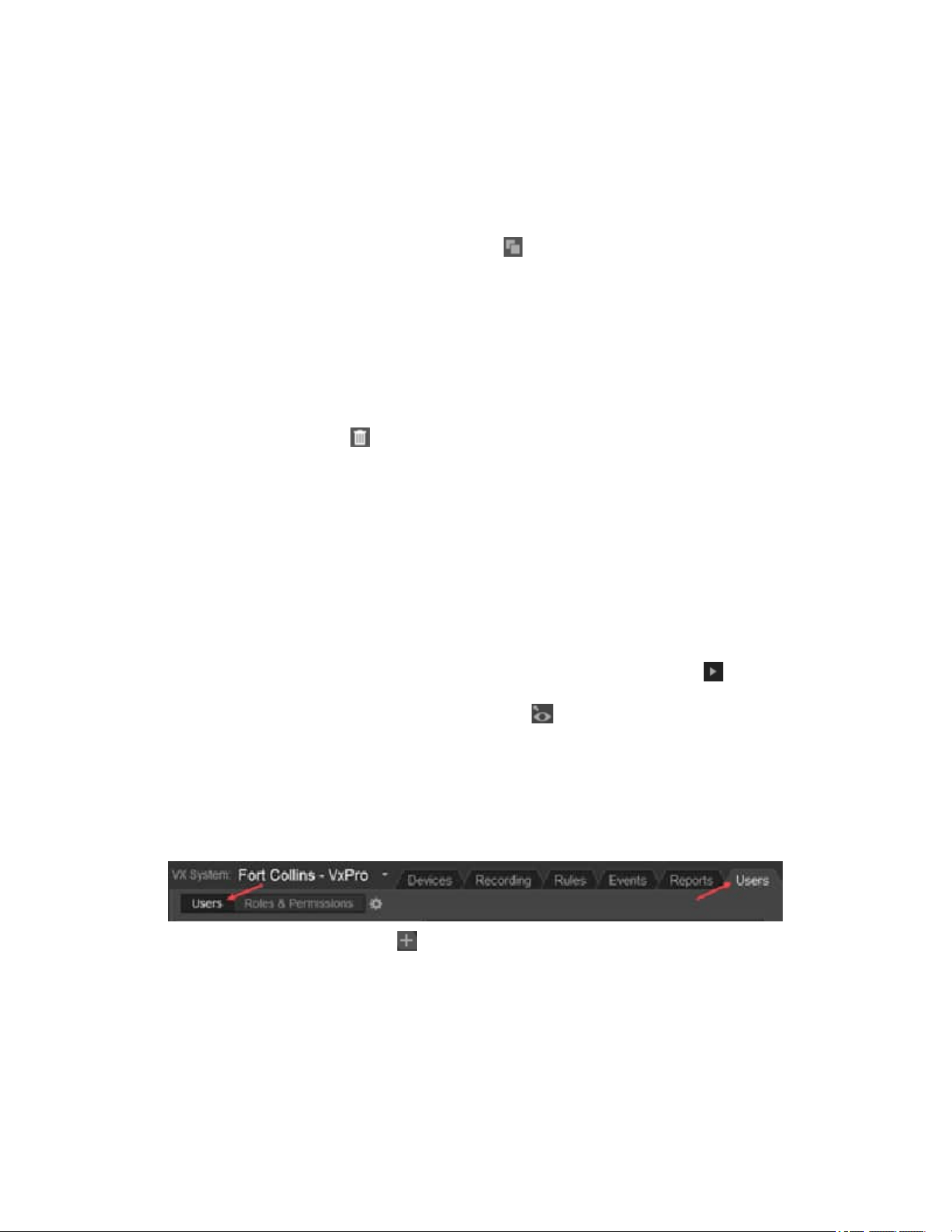
VideoXpert® Professional v 3.17 Operations Manual
C6601M-S | 06/22 51
Duplicating a Role
By default, a duplicate role retains the permissions of the original role. You can edit the permissions.
1. Click the Users tab, and then click Roles & Permissions at the top left of the window.
2. Click to select the role to duplicate.
3.
Click the Create a copy of the selected Role icon ( ).
4. Enter a name for the duplicated role and edit the permissions as needed.
5. For detailed instructions, see the section titled Creating a Role.
6. Click Save.
Deleting a Role
1. Click the Users tab, and then click Roles & Permissions at the top left of the window.
2. Click to select the role to delete.
3.
Click the Delete Role icon ( ).
4. In the confirmation dialog box, click Delete.
Viewing Details of a Role
To quickly view the permissions assigned to a specific role:
1. Click the Users tab, and then click Roles & Permissions at the top left of the window.
2. In the right panel, click to select the role to view.
3. In the Permissions of Role: [Role] (right) panel, view the permissions for each category.
The information in the Permission of Role: [Role] panel is the same information displayed in the
permission tables when you created or edited a role.
4.
(Optional) To see the users who are assigned to the role, click the expand icon ( ) to the left of
the role to display the list of users. To view the user’s information in the Users page, hover over
the user’s name, and then click the change view icon ( ) to the right of the name.
Adding Users
When adding users to the system, you give them a temporary password.
You can also provide additional user information, to make it easier to associate user names with
personnel; Name fields appear anywhere the system provides a user name.
1. Click the Users tab, and then click Users at the top left of the window.
2.
Click the Create a new User icon ( ).
3. Enter a value in the Username field.
4. (Optional) Enter values in the First Name and Last Name fields.

VideoXpert® Professional v 3.17 Operations Manual
C6601M-S | 06/22 52
5. If the Password field is enabled:
a. Enter a value in the Password and Confirm Password fields.
b. (Optional) To require a user to change the password the first time the user logs in, click to
select the checkbox for Must change password on first login with new password.
Note:
The password can only be set if the system or the specific user is using VideoXpert
authentication. To change the authentication method from Authenticate using LDAP/AD to
Authenticate usingVideoXpert, see the section titled
Setting the User Password Expiration
Policy
6. Choose a Role for the user from the drop-down menu.
7. (Optional) Click Add another role, and then choose a role for the user from the drop-down menu.
8.
(Optional) To delete a role, click the Remove this role from the selected user icon ( ). This option
is only available if more than one role is assigned to the user.
9. (Optional) Enter a value in the User ID#, Email Address, Phone, and Notes fields.
10. (Optional)Click to expand Advanced Settings.
l
Click to select or deselect the checkbox for Allow this user to be used for Aggregation.
l
Click to select or deselect the checkbox for This user's password never expires. This
overrides the global user setting for password expiration.
11. Click Add.
Editing Users
To edit a user:
1. Click the Users tab, and then click Users at the top left of the window.
2.
Click the Edit the selected User icon ( ).
3. (Optional) Enter new values in the First Name and Last Name fields.
4. (Optional)Click to select the radio button for Active or Inactive.
5. Update other settings as needed. For detailed instructions, see the section titled Adding Users.
6. Click Save.
Searching for Users
1. Click the Users tab, and then click Users at the top left of the window.
2. Enter a value in the Search Users field.
The search applies to user name, first name, and last name values.
The search begins as soon as you enter the first character; results are further refined as you enter
more characters.
3. Add or delete characters to change the search results.
4.
(Optional) To clear the search field, either delete all characters or click the Clear icon ( ) at the
right of the Search Users field.

VideoXpert® Professional v 3.17 Operations Manual
C6601M-S | 06/22 53
Assigning Roles
VideoXpert contains pre-defined roles that you can assign to users. You cannot change these roles but
you can create new roles (see Creating a Role); each user must be assigned a role to use VideoXpert.
Any locking features or competing actions performed by users are prioritized by user level.
To assign roles to an existing user:
1. Click the Users tab, and then click Users at the top left of the window.
2. Click to select the user to whom you are assigning a role, and then click the Edit the selected User
icon ( ).
3. Click to select a Role from the drop-down menu.
4. (Optional) To add another role to the user, click Add another role, and then select a Role from
the drop-down menu.
5. (Optional) If appropriate, edit additional user information from this dialog box. See sections titled
Editing a Role and Resetting Passwords.
6. Click Save.
Resetting Passwords
Users with appropriate permissions can either reset users’ passwords or force users to change their
passwords.
Resetting a user’s password will allow you to grant the user a temporary password. You may want to
reset a user’s password if a user does not remember his or her password, or the user is locked out of the
system because of failed login attempts or because of letting the password change timer lapse.
Users with appropriate permissions can also reset other users’ passwords and force users to change
their passwords.
1. Click the Users tab, and then click Users at the top left of the window.
2. Select the user whose password you want to reset, and then click the Edit the selected User
icon ( ).
3. Click Change Password
4. Enter a new value in the New Password and Re-Enter New Password fields.
If you decide not to change the password, you must click Do Not Change Password in order to
continue.
5. (Optional) If appropriate, edit additional user information from this dialog box. See sections titled
Editing a Role and Assigning Roles.
6. Click Save.
Setting the User Password Expiration Policy
For users who are not using Authenticate using LDAP/AD single sign-on (SSO), you can set passwords
to expire at specific intervals, or to never expire.
To set the global (all users) expiration policy:
1.
Click the Users tab, and then click the Global User Settings icon ( ) above the left panel, to the
right of the page tabs.
2. In the Global User Settings dialog box, click to select the radio button for Passwords never expire
or Passwords expire every [#] days.

VideoXpert® Professional v 3.17 Operations Manual
C6601M-S | 06/22 54
3. If you selected Passwords expire every [#] days, enter a value for the number of days, either by
typing-in a number or selecting one using the up and down arrows.
4. Click Done.
For users who are using Authenticate using LDAP/AD, the password expiration does not apply. You can
change the authentication method for a user from LDAP/ADto VideoXpert Authentication, so that you
can set a password expiration policy for a specific user.
1. Click the Users tab, and then click Users at the top left of the window.
2. Click to select the user whose authentication method you will change.
3.
Click the Edit icon ( ) at the bottom right of the left panel.
4. If the User was configured for Authenticate using LDAP/AD when the User was created, you must
now provide password information for the User.
a. Enter a value in the Password and Confirm Password fields.
b. Click to select or deselect the checkbox for Must change password on first login with new
password.
c. Click to expand Advanced Settings.
d. Click to select or deselect the checkbox for The user's password never expires.
5. Click Save.
Deleting Users
1. Click the Users tab, and then click Users at the top left of the window.
2. Click to select the user you want to remove.
3.
Click the Delete User icon ( ).
4. In the confirmation dialog box, click Delete.

VideoXpert® Professional v 3.17 Operations Manual
C6601M-S | 06/22 55
Configuring VideoXpert System Settings
From VxToolbox, you can configure most settings on the VX System to which you are connected. Setting
types include General Settings, Aggregation, LDAP, Backup, and SMTP settings. These are described in
the following sections.
The VXSystem settings also includes SMS settings, described in the section titled Configuring an SMS
Messaging Response.
Configuring General Settings for VideoXpert Professional Systems
1. Click the System tab.
2. Click General Settings.
3. Enter a value in the VideoXpert System Name field.
4. Complete the System Configuration:
a. Specify an RSTP Port, either by typing-in a number or selecting one using the up and down
arrows.
b. Specify an HTTPS Port,either by typing-in a number or selecting one using the up and down
arrows.
c. (Optional)Click to select or deselect the checkbox for Prefer Hostnames. When the feature
is selected, the server will try to resolve the IPaddresses into hostnames.
5. (Optional)In the Miscellaneous area:
a. Click to select or deselect the checkbox for Show previous camera names througout
VXSystem.
When selected, if you have changed the name of the camera within the last 12 months, the
camera details window in VxOpsCenter will show the current name, a list of the previous
names (up to 10), and the date that each name was changed.
b. (Optional)Click to select or deselect the checkbox for Force encryption on all exports
c. (Optional)If you selected Force encryption on all exports, click to select the checkbox for
Use preset password for all encrypted exports.
d. If you will use a preset password, type a value in the field. Click the checkbox to select Show
to see the password entered.
When forced encryption is selected, all exports to the standard locations are encrypted by
default and automatically use the same password. This does not apply to exports to alternate
locations.
6. (Optional) In the Bookmarks area:
a. Under Automatically Delete Bookmarks, click to select the radio button for When
corresponding recording is deleted, Never or After [###] days. If you select After [###] days,
select the number of days, either by typing-in a number or selecting one using the up and
down arrows.
b. Under Automatically Unlock Clips, click to select the radio button for Never or After [###]
days. If you select After [###] days, select the number of days, either by typing-in a number
or selecting one using the up and down arrows.
Note:
Locked bookmarks will not be automatically deleted.
Pelco
recommends that you
automatically unlock clips after a specified duration and delete bookmarks after the

VideoXpert® Professional v 3.17 Operations Manual
C6601M-S | 06/22 56
retention period.
7. (Optional) In the HTTPS Certificate area:
a. Click Show current certificate details to view information including Issued to, Issued by,
and Period of Validity. To close this field, click Hide current certification details.
b. (Optional) On VideoXpert Professional systems only, click Export current certificate to
.pfx; enter the password in the Authenticate Certificate dialog box, Password field; click OK;
in the Select SSL/TLS Certificate window, browse to the appropriate folder, enter a name for
the file, and then click Save.
c. On VideoXpert Professional systems only, click Install New Certificate, browse to and
select the certificate, click Open; in the Install SSL/TLS Certificate dialog box, in the
Password field, enter the password, and then click OK. Click OK again in the Install SSL/TLS
Certificate confirmation dialog box.
8. (Optional) To cancel any changes you have made before saving the settings, click Revert at the
bottom of the panel.
9. Click Save Settings.
Configuring Authentication
You can select the authentication method and parameters used.
l
VideoXpert Authentication—see the section titled Enabling VideoXpert Authentication
l
LDAP authentication using simple bind authentication—see the section titled Configuring LDAP
Authentication: Simple Bind.
l
LDAP authentication using two-stage binding—see the section titled and Configuring LDAP
Authentication: Two-Stage Bind Authentication.
l
If you select LDAPauthentication, you can also (optional) use synchronize users and roles from
LDAP—see the section titled and Configuring LDAP Authentication: Synchronizing Users and
Roles From LDAP.
l
If you select LDAPauthentication, you can also (optional) use Single Sign-On—see the section
titled Configuring LDAP Authentication: Using Single Sign-On.
Enabling VideoXpert Authentication
VideoXpert Authentication uses the internal VX system authentication instead of LDAP.
1. Click the System tab.
2. Click LDAP/AD
3. Click to select the radio button for VideoXpert Authentication.
4. Click Save Settings.
Configuring LDAP Authentication: Simple Bind
LDAP authentication using simple bind authentication requires only the LDAP server name, port, Base
DN, and search attributes.
1. Click the System tab, and then click LDAP/AD.
2. Click to select the radio button for LDAP.
3. If necessary, click to deselect the radio buttons for Two-Stage Binding Authentication and the
checkbox for Synchronize users and Roles From LDAP.

VideoXpert® Professional v 3.17 Operations Manual
C6601M-S | 06/22 57
4. Enter the host name or IPaddress of the LDAP server in the LDAP Server box.
5. (Optional) Click the SSL/TLS box if your LDAP server requires SSL/TLS authentication.
6. (Optional) Edit the server Port if the LDAP server is not on the default port (389, or 636 if you
selected SSL/TLS).
7. Type a distinguished name (DN) in the Base DN box.
8. Type an attribute key name in the Search Attributes box. When inputting multiple entries in a box,
separate entries with commas only (no spaces).
9. Click Test Connection to verify that your LDAP connection and search settings are correct.
10. Click Save Settings.
Here is an example of a simple bind request.
l
In the Base DNbox, the administrator has entered "CN=Users,DC=example,DC=com".
l
In the Search Attributes box, the administrator has entered "CN".
l
The user has signed on using "Joe"as the login name and "Pword" as the password.
l
VideoXpert sends to LDAPa bind request with the specified parameters.
This is different from what happens in a two-stage bind. See Configuring LDAP Authentication: Two-
Stage Bind Authentication.
Configuring LDAP Authentication: Two-Stage Bind Authentication
Two-stage bind authentication uses the parameters of simple bind, but adds a superuser distinguished
name and password.
1. Click the System tab, and then click LDAP/AD.
2. Click to select the radio button for LDAP.
3. Click to select the radio button for Two-Stage.
4. Enter the host name or IPaddress of the LDAP server in the LDAP Server box.
5. (Optional) Click the SSL/TLS box if your LDAP server requires SSL/TLS authentication.
6. (Optional) Edit the server Port if the LDAP server is not on the default port (389, or 636 if you
selected SSL/TLS).
7. Type a distinguished name (DN) in the Base DN box.
8. Type an attribute key name in the Search Attributes box. When inputting multiple entries in a box,
separate entries with commas only (no spaces).
9. Type a value in the Superuser DN field.
10. Type a value in the Superuser DN Password field.
11. Click Test Connection to verify that your LDAP connection and search settings are correct.
12. Click Save Settings.
Here is an example of a two-stage bind request.
l
In the Base DNbox, the administrator has entered "CN=Users,DC=example,DC=com".
l
In the Search Attributes box, the administrator has entered "sAMAccountName,CN".
l
The user has signed on using "Joe"as the login name and "Pword" as the password.
l
VideoXpert first searches for an LDAPentry that has either sAMAccountName or CNset to "Joe".
l
After finding the entry, VideoXpert sends to LDAPa bind request with the DN set to the DNof the
entry that it found during the search, and that has the password set to "Pword".

VideoXpert® Professional v 3.17 Operations Manual
C6601M-S | 06/22 58
Configuring LDAP Authentication: Synchronizing Users and Roles From LDAP
Synchronizing Users and Roles From LDAP uses the parameters of two-stage binding, but adds a root
VX DN and a VX system DN. These enable your system to use the LDAP server to synchronize User and
Role assignments.
To synchronize users and roles from an LDAP server, you must first configure users and roles on that
server. For example, if you are using an Active Directory LDAPserver:
1. Access the Active Directory Users and Computers window.
2. Create a folder structure that is appropriate to the planned permissions structure (for example:to
mirror the geographic locations of systems).
3. Within that folder structure, create groups with names that match the names of roles in
VideoXpert.
4. Add users or other groups to these groups.
5. Save the settings and close ActiveDirectory.
To configure LDAPauthentication in VxToolbox to synchronize users and roles from LDAP:
1. Click the System tab, and then click LDAP/AD.
2. Click to select the radio button for LDAP.
3. Click to select the radio button for Two-Stage.
4. Click to select the radio button for Synchronize Users and Roles From LDAP.
5. Enter the host name or IPaddress of the LDAP server in the LDAP Server box.
6. (Optional) Click the SSL/TLS box if your LDAP server requires SSL/TLS authentication.
7. (Optional) Edit the server Port if the LDAP server is not on the default port (389, or 636 if you
selected SSL/TLS).
8. Type a distinguished name (DN) in the Base DN box.
9. Type an attribute key name in the Search Attributes box. When inputting multiple entries in a box,
separate entries with commas only (no spaces).
10. Type a value in the Superuser DN field.
11. Type a value in the Superuser DN Password field.
12. (Optional) Type a value in the Root VideoXpert DN field.
l
If you are setting up only one VX System, you can leave this field blank.
l
If you are setting up multiple systems, this is the LDAP container under which all of the VX
System information is stored for all of the systems. When determining which roles should be
assigned to a user, the VX System will look for group entries within the VideoXpert System
DN sub-container, and navigate up the LDAP tree until it reaches the Root VideoXpert DN
container.
13. Type a value in the VideoXpert System DN field.
This is the LDAP container for the VideoXpert System. It can be nested inside sub-containers in
any configuration. When determining which roles should be assigned to a user, the VX System will
look for group entries within the VideoXpert System DN sub-container and navigate up the LDAP
tree until it reaches the Root VideoXpert DN container.
14. Click Test Connection to verify that your LDAP connection and search settings are correct.
15. Click Save Settings.

VideoXpert® Professional v 3.17 Operations Manual
C6601M-S | 06/22 59
Note:Permissions for each role must still be configured in the Roles and Permissions tab of
VxToolbox.
Here is an example of configuring LDAPauthentication in VxToolbox to synchronize users and roles from
LDAP.
The following users exist in your Active Directory system:
l
Joe Jones (username=joe)
l
Mary Smith (username=mary)—belongs to the AD group “Directors – West Region”
You have these four systems:
l
Log Angeles
l
San Francisco
l
New York
l
Boston
You want to ensure that:
l
All Directors for the West Region can log in to systems in the West Region, with permission to
view live and recorded video for all cameras
l
Joe Jones can log in to the New York system ONLY, and add devices and users to that system
You create the following roles with the following permissions on their VX systems, using VxToolbox:
l
Directors: “View Video Sources” and “View Recorded Video”
l
SysAdmins: “Manage User Acocunts” and “Manage Cameras & Recorders”
You decide to store information about all of your VideoXpert systems under the following Root DN in AD:
l
OU=VideoXpert,DC=example,DC=com
Under the root DN in AD,you create the following container entities:
l
OU=New York,OU=East Region,OU=VideoXpert,DC=example,DC=com
l
OU=Boston,OU=East Region,OU=VideoXpert,DC=example,DC=com
l
OU=Los Angeles,OU=West Region,OU=VideoXpert,DC=example,DC=com
l
OU=San Francisco,OU=West Region,OU=VideoXpert,DC=example,DC=com
Next, you create the following group entities:
l
CN=Directors,OU=West Region,OU=VideoXpert,DC=example,DC=com
–
You add the existing AD group “Directors – West Region” to this group.
l
CN=SysAdmins, OU=New York,OU=East Region,OU=VideoXpert,DC=example,DC=com
–
You add user “Joe Jones” to this group.
Finally, in VxToolbox, you:
l
Enable “LDAP users and roles” on all 4 VX systems.
l
Set the root DN to OU=VideoXpert,DC=example,DC=com on all 4 VX systems.
l
Set the system DN to:
–
OU=New York, etc. on the New York system
–
OU=Boston, etc. on the Boston system

VideoXpert® Professional v 3.17 Operations Manual
C6601M-S | 06/22 60
–
OU=Los Angeles, etc. on the Los Angeles system
–
OU=San Franscisco, etc. on the San Francisco system
With this configuration:
l
Mary Smith can log in to both the Log Angeles and San Francisco systems, using “mary” as her
username and her AD password as the password. When Mary logs in:
–
The VX system creates a user account with name “mary” in VX (if it doesn’t already exist).
–
The VX system adds user mary to the Directors role.
l
Joe Jones can log in to the New York system only. When Joe logs in:
–
The VX system creates a user account with name “joe” in VX (if it doesn’t already exist).
–
The VX system adds user joe to the SysAdmins role.
Configuring LDAP Authentication: Using Single Sign-On
SingleSign-On (SSO) allows users to log in to multiple systems using a single set of login credentials.
SSOcan be used with either Single-Stage or Two-Stage binding, and can be used with the Synchronize
Users and Roles From LDAP option.
Note:If VxOpsCenter is running on the same server as the VxPro or Core system, SSOwill not be
available. This is due to MSWindows limitations.
To configure authentication to use SSO:
1. Ensure that you have created a DNS entry for the cluster virtual IPaddress on the SSOdomain.
Include the ForwardLookup Zone and Reverse Lookup Zone entries. (Instructions for this
operation are beyond the scope of this document.)
2. Click the System tab, and then click LDAP/AD.
3. Click to select the radio button for LDAP.
4. Click to select the radio button for Two-Stage and the checkbox for Synchronize users and Roles
From LDAP.
5. Click to select the checkbox for Use Single Sign-On.
6. Enter the host name or FQNof the LDAPserver in the LDAPServer box.
l
If the host name (IPaddress)is used, this points to a single Active Directory Domain
Controller (DS). This creates a single point of failure; if the DCgoes offline, authentication will
break.
l
If the FQDNis used, any DCin the ADwill respond to the authentication request. This
provides fault tolerance for LDAPauthentication.
7. (Optional) Edit the server Port if the LDAP server is not on the default port (389, or 636 if you
selected SSL/TLS). if the LDAP server is not on the default port (636—SSL/TLS is required for
SSO).
8. Type a distinguished name (DN) in the Base DN box.
9. Type an attribute key name in the Search Attributes box. When inputting multiple entries in a box,
separate entries with commas only (no spaces).
10. Type a value in the Superuser DN field.
11. Type a value in the Superuser DN Password field.

VideoXpert® Professional v 3.17 Operations Manual
C6601M-S | 06/22 61
12. (Optional) Type a value in the Root VideoXpert DN field.
l
If you are setting up only one VX System, you can leave this field blank.
l
If you are setting up multiple systems, this is the LDAP container under which all of the VX
System information is stored for all of the systems. When determining which roles should be
assigned to a user, the VX System will look for group entries within the VideoXpert System
DN sub-container, and navigate up the LDAP tree until it reaches the Root VideoXpert DN
container.
13. Type a value in the VideoXpert System DN field.
This is the LDAP container for the VideoXpert System. It can be nested inside sub-containers in
any configuration. When determining which roles should be assigned to a user, the VX System will
look for group entries within the VideoXpert System DN sub-container and navigate up the LDAP
tree until it reaches the Root VideoXpert DN container.
14. Type a value in the Active Directory Domain field.
This step does not test the SSOlogin; that was tested in an earlier step.
15. Click Test Connection to verify that your LDAP connection and search settings are correct.
16. Click Save Settings.
Note:Permissions for each role must still be configured in the Roles and Permissions tab of
VxToolbox.
Note: If SSO is supported, VxPortal defaults to using it.
Note:If the VxPro or Core server is not part of the AD, or if you are using a core cluster, a service
account will be created in your ADfor the server. If the service account is not created, the value
entered in the LDAPServer box (step 6)will be ignored.
For further assistance, contact Pelco Customer Support.
Configuring System Backups
Pelco recommends that you back up your system after initial setup, when you have configured a
significant number of users and devices, and after significant changes to your system configuration.
A system backup contains the system database, including the previous 30 days’ events. Backups do not
capture exported video or any settings that you might have changed outside of VxToolbox (for example:
changes made directly to configuration scripts). The speed of each backup depends on the size of the
VideoXpert database, network bandwidth, and other variables.
To configure system backups:
1. Click System, and then click Backup.
2. In the Location area:
a. Enter a value in the Specify a Path field.
b. (Optional) Enter values in the Username and Password fields.
c. Click Test Connection.
l
If the Test Successful! dialog box opens, click OK.
l
If the Test Failed dialog box opens, click OK, correct the information in the Location
fields, and then click Test Connection again.
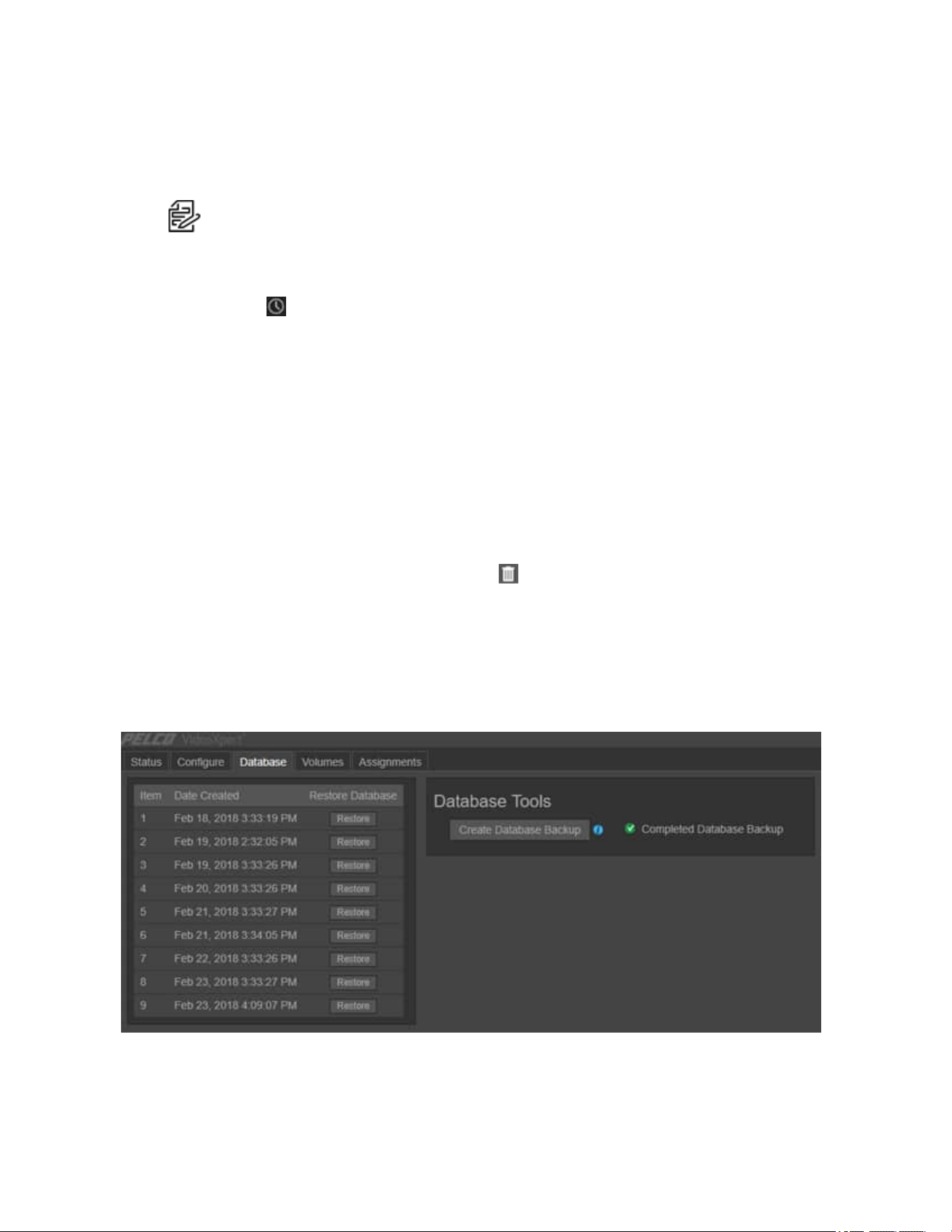
VideoXpert® Professional v 3.17 Operations Manual
C6601M-S | 06/22 62
3. Enter a value in the Retain (# of Backups) field, either by typing-in a number or selecting one using
the up and down arrows.
4. (Optional) To trigger backups automatically:
Note:
Ensure that you have correctly configured the backup location before you attempt to
schedule backups.
a. Click to select the checkbox for Backup Automatically.
b. Enter a value in the Time of Day field, either by typing-in the time or selecting it using the
clock icon ( ).
c. Enter a value in the Expiration (Days) field, either by typing-in a number or selecting one
using the up and down arrows.
5. (Optional) To cancel the changes and return to the previously saved settings, click Revert.
6. Click Save Settings.
7. (Optional) After you have correctly configured backups, you can make a backup immediately. To
do so, click Backup Now.
a. At the top of the window, a caution triangle and “Backup is currently in progress...” message
is displayed. When the backup is complete, a green checkmark and Most recent backup at
[date and time] SUCCESSFUL is displayed. If the backup fails, an error message is
displayed.
b.
To delete the backup, click the trash bin icon ( ) to the right of the backup message.
Backing Up and Restoring the Database on VideoXpert Professional Systems
VideoXpert Storage takes database recovery points daily, and stores these points for eight days. You
can also initiate a manual backup, an example of which is shown as Item 9 in the screen capture below. If
your database enters an error state, you can restore to one of the available points from the VideoXpert
Portal Database page.

VideoXpert® Professional v 3.17 Operations Manual
C6601M-S | 06/22 63
Manually Backing Up the Database on VideoXpert Professional Systems
1. Launch VideoXpert Storage Portal.
a. Login to VxPortal.
b. Click [user name] (for example:admin) in the upper-right of the window to access the pull-
down menu.
c. Click Configure Server.
d. Enter the Username and Password, and then click Log In. The default Username and
Password are both “admin”.
2. Click the Database tab.
3. In the Database Tools area, click Create Database Backup.
4. In the Backup Database confirmation dialog box, click Backup.
When the backup is complete, Completed Database Backup will be displayed in the Database Tools
area of the window.
Restoring the Database on VideoXpert Professional Systems
Restoring the database restores camera associations (provided the camera still exists within the
VideoXpert environment) and storage settings. Restoring the database will not affect video directly; you
will not lose video when restoring to an earlier time. However, if you have added cameras to the recorder
after a backup was taken, and restore to that backup, you will lose access to video for any cameras the
database restore process removes from the database.
Note: The NTP server address is not recovered during backup or restore. The NTP address must
be reset manually after the backup or restore is complete.
1. Launch VideoXpert Storage Portal.
a. Login to VxPortal.
b. Click [user name] (for example:admin) in the upper-right of the window to access the pull-
down menu.
c. Click Configure Server.
d. Enter the Username and Password, and then click Log In. The default Username and
Password are both “admin”.
2. Click the Database tab.
3. In the table, locate the backup to be restored, and then click the corresponding Restore button.
4. In the Backup from [identifier] confirmation dialog box, click Restore.
Note
:Restoring can take several minutes, and there is no way to cancel a restoration that is
in progress.
5. After you are automatically logged out, log back in.
When the restore operation is complete, Completed Restore for Backup [#] is displayed in the Database
Tools area of the window.

VideoXpert® Professional v 3.17 Operations Manual
C6601M-S | 06/22 64
Configuring the SMTP Server
You can configure the SMTP server to send email from the host to an email address. To do so:
1. In VxToolbox, click System, and then click SMTP.
2. If the Mail From field is not already populated with the correct value, enter a valid email address in
the field.
3. Enter a value in the SMTP Host field.
4. Enter a number in the SMTP Port field.
5. (Optional) Click to select the checkbox for Enable SMTPS.
6. (Optional) Click to select the checkbox for Enforce validation of the server’s certificate.
7. Enter a value in the Username field.
8. Enter a value in the Password field.
9. Click Send Test Email, enter an email address in the Send Test Email dialog box, in the Send to
Email field, and then click Send Email.
l
If the Send Test Email dialog box returns “Test email sent successfully!”, click OK.
l
If the Send Test Email dialog box returns “Test email failed...”, click Try Again, either correct
the email address, and then click Send Email; or click Cancel, correct any errors in the
SMTP configuration, and then try to send a test email again.
10. (Optional) To cancel the changes and return to the previously saved settings, click Revert.
11. Click Save Settings.
Controlling Memory Usage
VxToolbox memory usage defaults to 1 GB. To expand the amount of memory available to 4 GB:
1. Create a file titled "user_runtime.txt".
2. In the file, type "-Xms4g".
3. Save the file to C:\ProgramData\Pelco\VxToolbox.
4. Restart the VxToolbox service so that the change will take effect.
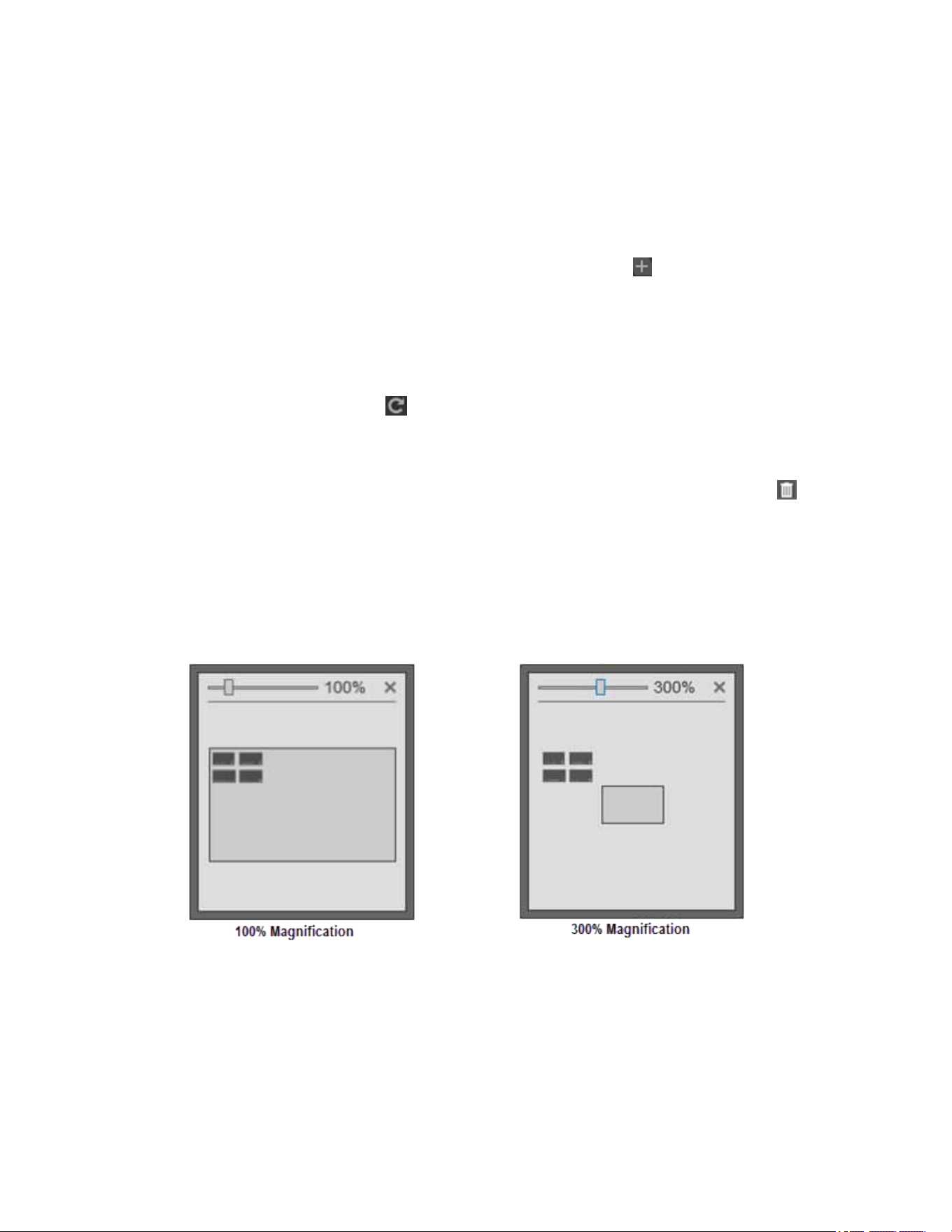
VideoXpert® Professional v 3.17 Operations Manual
C6601M-S | 06/22 65
Configuring Monitor Walls
You can use existing monitors to configure several monitor walls.
Creating a Monitor Wall
1. Click the Monitor Walls tab.
2.
At the bottom of the left panel, click the Add a new Monitor Wall icon ( ).
3. In the Add a Monitor Wall field at the upper left corner of the monitor wall window, enter a name for
the monitor wall.
4. In the Drag Monitors to assign (right) panel, click and drag a monitor to the location you would like
it to appear on the monitor wall. Repeat this step for each monitor that you want to add.
l
To refresh the list of monitors, in the upper right corner of the Drag Monitors to assign (right)
panel, click the Refresh icon ( ).
l
To filter the list of monitors, in the Drag Monitors to assign (right) panel, enter a value in the
Search Monitors field.
5.
(Optional) To delete a monitor from the monitor wall, in the left panel, click the Delete icon ( ) in
the monitor to delete.
6. (Optional) Scale the monitors:
l
To resize the monitors individually, click on a monitor and drag a corner to resize it.
l
To zoom in and out on all monitors by the same percentage, in the preview window, drag the
selector bar to the appropriate magnification level. The images below show the monitor wall
preview at 100% magnification and at 300% magnification. Notice that the monitors are no
longer included in the frame.
7. (Optional) If necessary, move the monitors into the monitor wall frame:
l
Use the scroll bars at the bottom and right edges of the monitor wall window to bring the
monitors into view.
l
In the preview window, drag the monitor wall frame so that the appropriate monitors are in the
frame. The image below shows the monitors at 300% magnification, but they are now
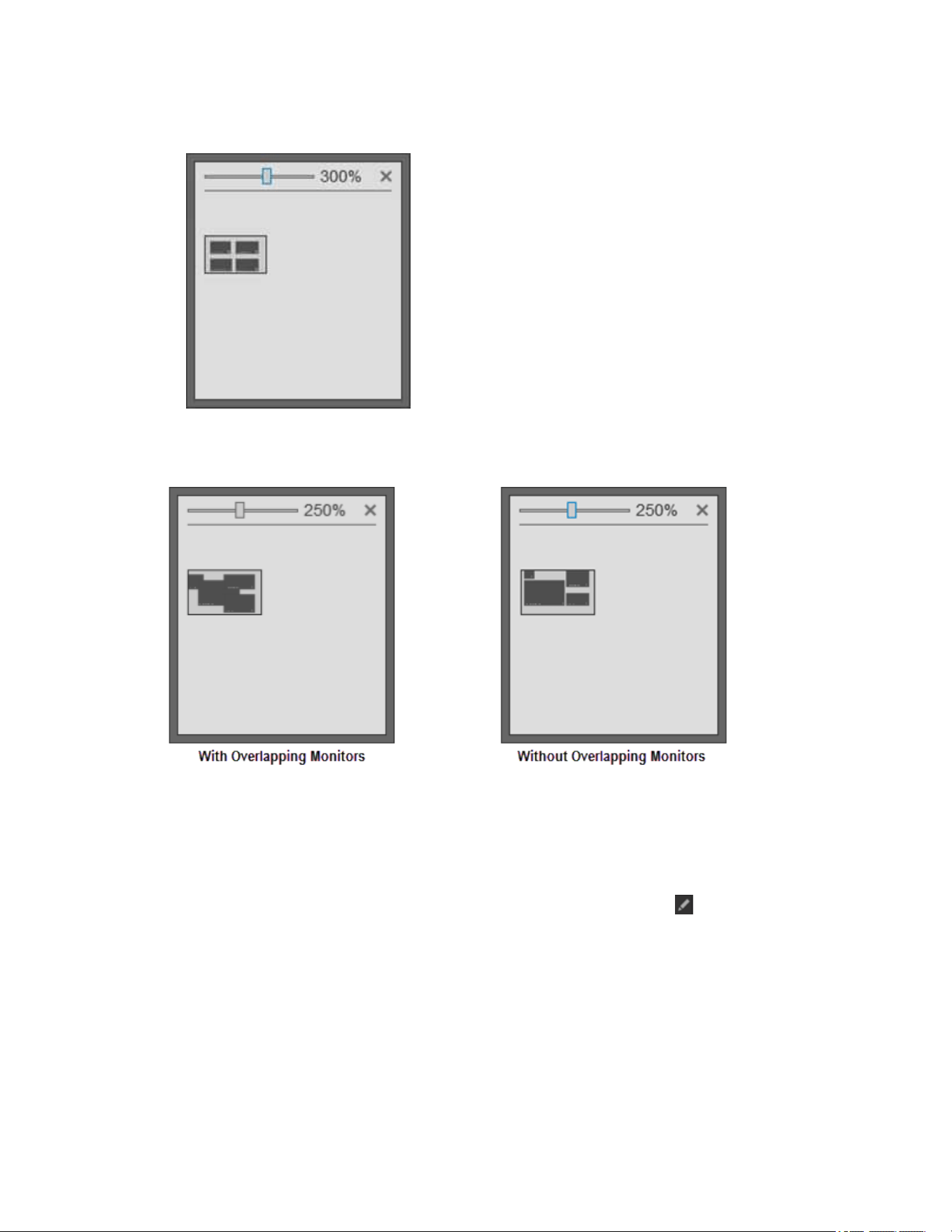
VideoXpert® Professional v 3.17 Operations Manual
C6601M-S | 06/22 66
included in the monitor wall frame.
8. (Optional) Rearrange the monitors in any configuration by dragging them to the desired locations
on the monitor wall. The image below shows the monitor wall with overlapping monitors and
without overlapping monitors.
9. When you are satisfied with the look of the monitor wall, click Save.
Editing a Monitor Wall
1. Click the Monitor Walls tab.
2. In the left panel, click to select the monitor wall to edit.
3.
At the bottom of the left panel, click the Edit the selected Monitor Wall icon ( ).
4. Update the monitor wall as needed, using the steps in the section titled Creating a Monitor Wall.
5. When you are satisfied with the look of the monitor wall, click Save.
Deleting a Monitor Wall
1. Click the Monitor Walls tab.
2. In the left panel, click to select the monitor wall to delete.

VideoXpert® Professional v 3.17 Operations Manual
C6601M-S | 06/22 67
3.
At the bottom of the left panel, click the Delete the selected Monitor Wall icon ( ).
4. In the confirmation dialog box, click Delete.
Using Send Video Permissions
The Send Video permission enables a user to send video to a remote monitor wall based on the user's
role and permissions.
Note:You can only send video to a monitor that has a number assigned to it.
See the Configuring Monitors section of this manual.
Using the instructions in the section titled Creating a Role, in the In the Edit Role window:
1. If Surveillance is not in the EnabledPermission area, click Add a Permissions Category, and
then click Surveillance.
2. Click to expand Surveillance.
3. Click to select the checkbox for Allow Select Surveillance Permissions.
4. If the Send Video permission is not listed, click Add a Permission, and then click Send Video.
5. If necessary, in the Allow Resources column of the Send Video permission row, click the Select
Resource icon ( ).
6. In the Manage Resource Restriction for window, use the drop-down menu to click one of the
following:
l
Allow All Resources
l
Allow SelectedResources
l
Allow All Resource Except Selected
7. If you chose Allow Selected Resources or Allow All Resources Except Selected, in the list of
resources in the right panel, click to select and deselect the checkboxes for the appropriate
resource names.
8. Click OK.
9. Continue using the instructions for creating a role.

VideoXpert® Professional v 3.17 Operations Manual
C6601M-S | 06/22 68
Using Reports
From the Reports page, you can create and generate reports, and export them from the system. Reports
are exported in CSV format.
Report Types available in VxToolbox include:
l
Camera Report
l
Camera Role Access Report
l
Device Report
l
Event History
l
Counting Lines Report
l
Recording Gap Report
l
Role Report
l
Storage Report
l
System Status Report
l
User Report
l
User Action Report
Create a new report template and edit the template details to include only the information needed.
Generating reports containing a large number of events might take some time. You can navigate away
from the Reports page while the system generates your report. If your report parameters are too large,
the request might time-out and the system might ask you to narrow your search.
Creating a Report Template
To create a new template.
1. Click the Reports tab.
2. In the Report Templates list in the left panel, create a new report template using one of the
following methods:
l
To start with a blank template, click the Create a new Report Template icon ( ). A New
Unsaved Template is added to the list.
l
To make a copy of an existing template from the Report Templates panel, select the template
in the Report Templates panel, and then click the Create a copy of the selected Report
Template icon ( ). A new template (named the same as the original template - Copy) is
added to the list.
l
To make a copy of an existing template from the Template Details for [template name] panel,
select the template, and then click the Save as New Template button at the lower left of the
Template Details for [template name] window (upper left panel). In the Save New Template
dialog box, enter a value in the Template Name field, and then click Save.
3. If you made a copy of an existing template, click to select the new report template.
4. If the Report Type drop-down menu is available, select from the report type.
The report type can only be selected if you started with a blank template; if you copied an existing
template, the copy is assigned the same report type as the original.

VideoXpert® Professional v 3.17 Operations Manual
C6601M-S | 06/22 69
5. If the Include [report type] (rows) field is displayed:
a. Click to select All or Selected from the drop-down menu.
b.
If you clicked Selected, click the Select report filter sources icon ( ) under the drop-down
menu; in the Select [report type] window, click to select and deselect the appropriate options,
and then click OK.
6. If the Report Type is Counting Lines Report, in the Counting Lines (rows)field, from the drop-
down menu, click to select the appropriate duration.
7. In the Include Info (columns) field, click to select and deselect the checkboxes for information to
include in the report template.
As you select and deselect this information, you can preview the report in the Column Preview for
[report template name] panel in the (vertical) center of the window.
8. If the Time Range field is displayed, select an option from the drop-down menu. If you select
Custom, set start and end dates and times in the Date & Time fields, either by typing-in values
(mm/dd/yy and hh:mm AM or PM formats) or by using the selectors available by clicking the date
icon ( ) or the time icon ( ).
9. (Optional) To generate a report for this template automatically:
a. Click to select the checkbox for Automatically Generate this Report.
b. From the drop-down menu below the option, select the day of the week on which the report
will be generated.
c. Type or click to select a time in the at field.
d. (Optional) Click to select the checkbox for Automatically Export to .csv. If you select this,
enter a Network Storage Location, Username, and Password. The user name and password
are optional.
10. Depending on how you created the template and what you want to do, click Save, Save template
changes, or Save as new template.
11. If the Save New Template dialog box is displayed, type a new name in the Template Name field,
and then click Save.
Editing a Report Template
If appropriate, you can edit an existing template.
1. Click the Reports tab.
2. In the Report Templates list in the left panel, click to select the template to edit.
3. In the Template Details for [template name] (right) panel, make any changes needed to the
template, except for the Report Type. The Report Type cannot be edited.
4. To save this over the existing template, click Save template changes.
If you do not want to overwrite the existing template, you can click Revert to cancel the changes,
or click Save as new template to save the settings as a new template.
Deleting a Report Template
If appropriate, delete a template.
1. Click the Reports tab.
2. In the Report Templates list in the left panel, click to select the template to delete.

VideoXpert® Professional v 3.17 Operations Manual
C6601M-S | 06/22 70
3.
Click the Delete Template icon ( ).
4. In the confirmation dialog box, click OK.
Generating a Report Manually
Even if a report is generated automatically, you can generate the report manually, as needed.
Note:You can run camera and device reports for locally discovered devices (VXSystem is None).
1. Click the Reports tab.
2. In the Report Templates list in the left panel, click to select the report to generate.
3. In the Column Preview for [report template name] panel (vertical center of the window), at the right
of the panel:
a. Type a value in the Name your report field, or keep the default report name.
b. Click Generate Report.
The report is listed in the Generated Reports table at the bottom of the window.
Exporting a Generated Report
To export a report from the Generated Reports table:
1. Click the Reports tab.
2. In the Generated Reports table at the bottom of the window, click to select the report to export.
3. Click Export to .csv.
4. Browse to a file location and, if appropriate, type a new value in the File name field.
5. Click Save.
Deleting a Generated Report
To delete a report from the Generated Reports table:
1. Click the Reports tab.
2. In the Generated Reports table at the bottom of the window, click to select the report to delete.
3.
Click the Remove report file icon ( ).
4. In the confirmation dialog box, click OK.

VideoXpert® Professional v 3.17 Operations Manual
C6601M-S | 06/22 71
Managing Events
From the Events tab, you can configure event details and notifications to ensure that the right users are
notified when the system records a particular action or alarm.
Finding and Filtering Events
Use filtering options to show the events relevant to you. Filters appear in the left-most panel of the Events
tab and in some other tabs.
1. Click the Events tab.
2. Click the expand the Filter panel, and then do one or more of the following.
l
Enter values in the Situation Filter field to filter by name, ID, model, IP address, serial number,
vendor, or software version.
l
Click to select an event Category from the pull-down menu
l
Click to select an option from the RequiresAcknowledgment pull-down menu.
l
Click to select an option from the Pop-Up Banner pull-down menu.
l
Click to select an option from the Audio Alert pull-down menu.
l
Enter a range in the Severity fields, either by typing-in a number or selecting one using the up
and down arrows
l
Click to select the Users from the pull-down menu.
l
Click to select the event Roles from the pull-down menu.
l
Click the Clear the current filter settings icon ( ) to clear the filters.
The events matching the filter criteria are listed in the main panel.
Viewing and Configuring Event Details
1. Click the Events tab.
2. In the center panel, click to select the event you want to view or modify. You can use the filter, as
described in the section titled Finding and Filtering Events.
3. Event details are shown in the right column. If necessary, click to expand Event Details.
4. To edit the event details settings, access the Event Details for dialog box by one of these
methods:
l
In the right panel, click the edit icon ( ) to the right of Event Details.
l
Right-click the event name, and then click Edit Event Details.
5. In the Event Details for dialog box, change event settings as necessary.
l
Click to select or deselect the checkbox for Enable logging and notification to determine
whether VideoXpert will report the event. If you select Enable logging and notification,
VideoXpert will report the event.
l
Click to select or deselect the Use Custom Display Name.
l
If you selected Use Custom Display Name, enter a name in the corresponding field.
The Custom Display Name is how VideoXpert will represent the event.

VideoXpert® Professional v 3.17 Operations Manual
C6601M-S | 06/22 72
l
(Optional)If you selected Enable logging and notification, change the Severity, if necessary,
either by moving the slider bar or typing a number in the field. The severity might help users
determine whether or not they need to act on an event.
6. Click Save.
Viewing and Configuring Event Notifications
1. Click the Events tab.
2. In the center panel, click to select the event you want to view or modify. You can use the filter, as
described in the section titled Finding and Filtering Events.
3. Event notification settings are shown in the right column. If necessary, click to expand
Notification Settings, and view the notification information.
4. To edit the event notification settings, access the Notification Settings dialog box by one of these
methods:
l
In the right panel, click the edit icon ( ) to the right of Notification Settings.
l
Right-click the event name, and then click Edit Notification Settings.
5. Click to select the checkbox for the appropriate Notification Behavior.
Note
:You can select more than one
Notification Behavior
. If you do, all settings in the
Notification Details
section of the dialog box will be configurable as described below.
6. If you selected Generate a Pop-Up Banner, configure these notification settings:
a. In the Roles and Users to Notify section of the dialog box:
l
Click in the Roles field, and then click to select one or more roles.
l
Click in the Users field, and then click to select one or more users.
b. Scroll to the Notification Details section of the dialog box.
c. Click to select or deselect the checkbox for Auto-Acknowledge After. If you select this option,
also set a time interval, either by typing-in a number or selecting one using the up and down
arrows in the first field, and then selecting the units (for example:Minutes) from the drop-
down menu.
7. If you selected Require Acknowledgment, configure these notification settings:
a. In the Roles and Users to Notify section of the dialog box:
l
Click in the Roles field, and then click to select one or more roles.
l
Click in the Users field, and then click to select one or more users.
b. Scroll to the Notification Details section of the dialog box.
c. Click to select or deselect the checkbox for Do Not Hide Cell Alerts. Events associated with
individual video sources provide alerts within VxOpsCenter cells; these alerts hide after three
seconds. Select this option to prevent the alert from hiding.
d. Click to select or deselect the checkbox for Auto-Acknowledge After. If you select this option,
also set a time interval, either by typing-in a number or selecting one using the up and down
arrows in the first field, and then selecting the units (for example:Minutes) from the drop-
down menu.

VideoXpert® Professional v 3.17 Operations Manual
C6601M-S | 06/22 73
e. (Optional) Click to select the checkbox for Allow Snooze (And Set Snooze Time), and then
click to select and deselect the checkboxes for the available intervals.
8. If you selected Generate an Audio Alert, configure these notification settings:
a. In the Roles and Users to Notify section of the dialog box:
l
Click in the Roles field, and then click to select one or more roles.
l
Click in the Users field, and then click to select one or more users.
b. Scroll to the Notification Details section of the dialog box.
c. Click to select the radio button for either Standard Chime or Custom Sound. If you select
Custom Sound, browse to the Audio File, and then click Open.
d. Type or select a value for the Play Sound [#] times field.
e. Type or select a value in the Delay Sound Playback For [#] seconds between iterations field.

VideoXpert® Professional v 3.17 Operations Manual
C6601M-S | 06/22 74
Using Maps
The Maps tab in VxToolbox is used to import and use AutoCAD 2013 DWG files and raster maps (jpeg or
png), and to use ESRI Street) maps, allowing customers to use their pre-existing building maps with
Maps in VideoXpert.
l
In VxToolbox, ensure that your system is set up for Maps. You can then create a new map, view or
edit an existing map, manage permissions for maps, and remove an existing map.
l
In VxOpsCenter, the operator can launch Maps, select a map file, add cameras to a map, manage
available maps, set user preferences for mapping, and view an existing map. Refer to the
VideoXpert OpsCenter section of this manual.
Preparing Your System for Maps
Maps requires the following prerequisites to function properly:
l
Ensure that Visual C + + Redistributable for Visual Studio 2015 is installed. It can be found at
https://www.microsoft.com/en-us/download/details.aspx?id=48145. This is installed by the
VxToolbox or VxOpsCenter installer. If this was not installed, reinstall VxToolbox or VxOpsCenter.
l
Install VideoXpert v 3.5 or later, and the latest version of VxToolbox.
l
AutoCAD files must use the 2013 format.
Creating a New Map
1. If you have not already done so, start VxToolbox, and then click the Maps tab.
2.
In the left panel, click the Add a Map icon ( ), and then click to select one of the following:
l
For an outdoor map, select Add a World Map (ESRI Street Map).
l
To use a jpeg or png file, select Add a Raster Map (jpeg or png).
l
For an indoor map, select Add a DWG Map.
3. If you selected Add a World Map (ESRI Street Map):
a. Type a value in the Name field.
b. Click Save.
4. If you selected Add a Raster Map (jpeg or png):
a. Type a value in the Name field.
b. Click Browse, navigate to and select the file, and then click Open.
c. Click Save.
5. If you selected Add a DWG Map:
a. In the Add a DWGMap dialog box, type a value into the Name field.
b. Under Select a map file, click Browse, select all files (including all xref dwg files), and then
click Open.
c. Click Save.

VideoXpert® Professional v 3.17 Operations Manual
C6601M-S | 06/22 75
Viewing an Existing Map
1. If you have not already done so, start VxToolbox, and then click the Maps tab.
Ensure that the user logging in is assigned the “administrator” role or has all of the maps
permissions assigned.
2. From the list of maps in the left panel, click the map to preview.
The selected map is displayed in the right panel.
Editing an Existing Map
1. If you have not already done so, start VxToolbox, and then click the Maps tab.
2. In the left panel) click to select the map to edit.
3.
Click the Edit map icon ( ).
4. (Optional) To change the name of the map, type a new value in the name field to the right of
EditMap.
5. (Optional) To add cameras to the map, click the Cameras tab in the left panel, and from there,
drag the camera name to the appropriate location on the current map.
6. (Optional) To add a link from the current map to another map, click the Maps tab in the left panel,
and from there, drag a map name to the appropriate location on the current map.
7. (Optional)To add doors, alarms, and other devices, click the Other tab in the left panel, and from
there, drag an item to the appropriate location on the map.
8. (Optional) To move a camera, linked map, or other item on the map, click the item to be moved,
and drag it to the appropriate location.
9. To rotate a camera, right-click it, and then select a value in the Set Rotation window, either by
using the slider bar or by typing a value in the field. Click anywhere in the map to close the
window.
10. To remove a camera, drawing, or device from the map, right click it, and then click Remove From
Map.
11. At the lower right of VxToolbox, click Save.
Deleting an Existing Map
1. If you have not already done so, start VxToolbox, and then click the Maps tab.
2. In the left panel, click to select the map to delete.
3.
At the lower right corner of the left panel, click the Delete map icon ( ).
4. In the confirmation dialog box, click Delete.
Managing Permissions for Maps
After you have created maps, use VxToolbox to assign map permissions to different roles.
1. If you have not already done so, start VxToolbox, and then click the Maps tab.
2. Refer to the section titled Managing Users and Roles for instructions to add, edit, and assign roles.
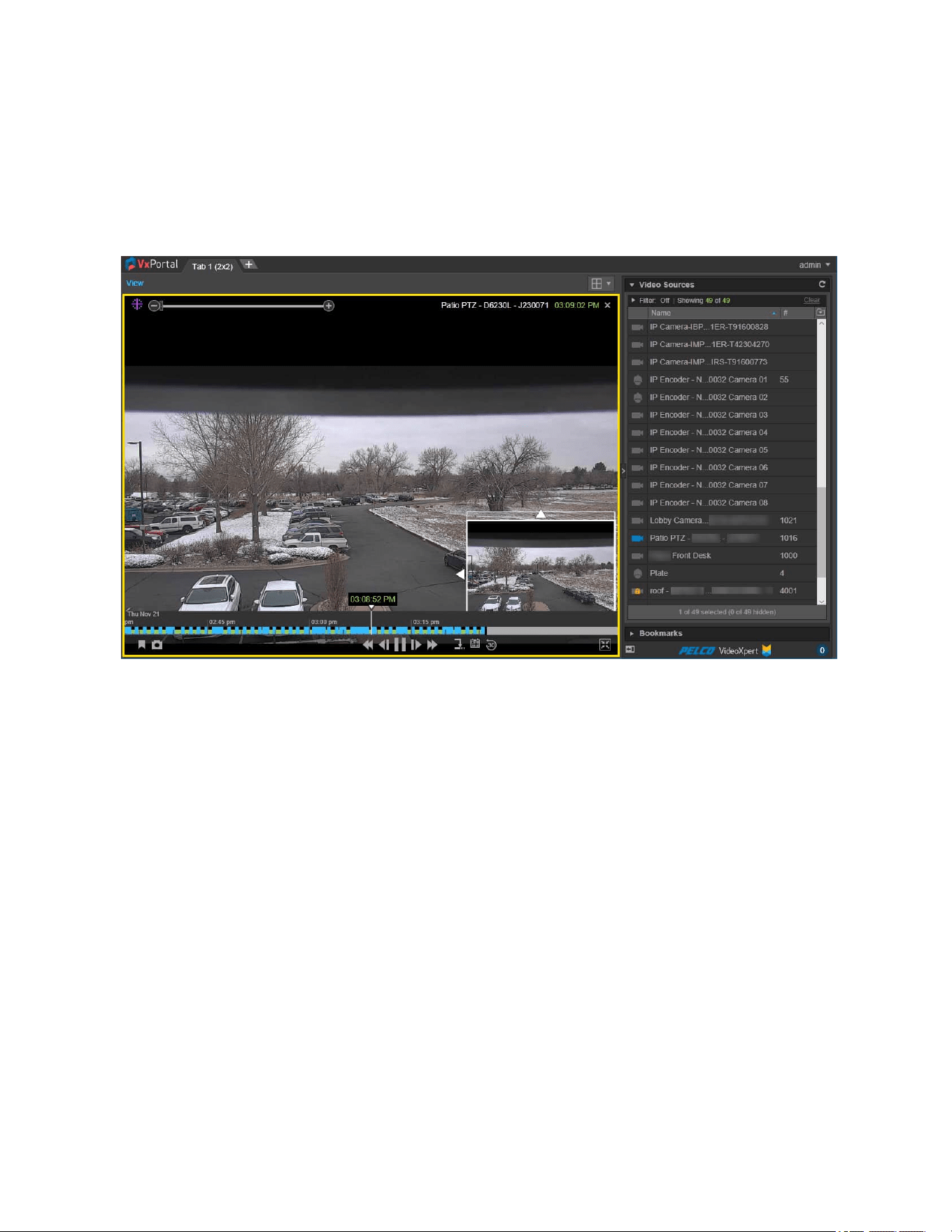
VideoXpert® Professional v 3.17 Operations Manual
C6601M-S | 06/22 76
Using VideoXpert Portal and VideoXpert Storage Portal
Using VideoXpert® Portal
VideoXpert Portal (VxPortal) is a Web interface that enables you and other users to view live and
recorded video from your VxPro system without using VxOpsCenter client.
VideoXpert Portal requires:
l
Current version of Google Chrome, Mozilla Firefox, or Microsoft Edge
VxPortal operates as a simplified version of VxOpsCenter.
l
To view cameras:
–
Double-click or drag a camera into the cell you want to view it in.
–
Select multiple cameras and drag them to a tab to view each of the selected cameras in a
separate cell. If you select more cameras than there are cells in the tab, another tab will open
to display the additional cameras.
l
Roll over a cell to engage playback controls.
l
Hover over the timeline to see a thumbnail of recorded video corresponding to the time.
l
Change layouts, use filters, create bookmarks, and perform other operations as you would in
VxOpsCenter. See the VxOpsCenter section of this document. If you change the layout of the
desktop, the layout is saved and will be loaded again the next time you access VxPortal.
VideoXpert® Professional v 3.17 Operations Manual
C6601M-S | 06/22 77
Accessing VxPortal
1. Launch VxPortal by one of the following methods:
l
Click the VxPortal icon on the desktop.
l
Open a web browser and go to the IP address of VxPortal (for example: https://[ip address of
VxPro]); if you are using Single Sign-ON (SSO), go to the domain name that you used during
system configuration.
Caution:
If you are using SSO, you must access VxPortal using the same domain name as
was added in the configuration steps. If you do not, SSOwill not be enabled.
Note:
If the server(s)on which the VideoXpert system is installed are configured for FIPS
mode, VxPortal might not work in Chrome and Firefox browsers. Use Microsoft® Edge.
2. Enter your Username and Password, and then click Log In.
Configuring a Browser to Enable Single Sign-On in VxPortal
SingleSign-On (SSO) allows users to log in to multiple systems using a single set of login credentials.
SSOcan be used with either Single-Stage or Two-Stage binding, and can be used with the Synchronize
Users and Roles From LDAP authentication options.
SSO is selected and configured in VxToolbox. To use SSO in VxPortal, if you are using Mozilla Firefox or
Microsoft Edge as the browser, configure the browser as described in the sections below.
Caution:If you are using SSO, you must access VxPortal using the same domain name as was
added in the configuration steps. If you do not, SSOwill not be enabled.
Configuring Mozilla Firefox to Enable Single Sign-On in VxPortal
If you are using Mozilla Firefox to accessVxPortal, and you need to enable Single Sign-On (SSO),
configure the browser as follows:
1. Launch Firefox.
2. Type about:config into the Search or Enter Address field, and then press Enter or click the right-
arrow at the right of the field.
3. If a warning appears, click I accept the risk!.
4. In the window that lists preference information, type "negotiate" in the search field.
5. Double-click network.negotiate-auth.trusted-uris.
6. In the Enter string value dialog box, enter the Fully Qualified Domain Name (for example:"my-
VxPro-system.com"), and then clickOK.
7. Close the browser or navigate to another page.
Configuring Microsoft Edge to Enable Single Sign-On in VxPortal
If you are using Microsoft Edge to accessVxPortal, and you need to enable Single Sign-On (SSO),
configure the browser as follows:
1. In the Windows Explorer search field, type "Internet Options", and then click to open Internet
Options.
2. In the Internet Properties window, click the Security tab, click Local Intranet, and then click
Custom level.

VideoXpert® Professional v 3.17 Operations Manual
C6601M-S | 06/22 78
3. Under User Authentication, click to select the radio button for Automatic logon only in Intranet
zone, and then click OK.
4. Click Sites.
5. In the Local intranet dialog box, click to deselect the checkbox for Automatically detect intranet
network, click to select the remaining checkboxes, and then click Advanced.
6. In the next Local intranet dialog box, in the Add this website to the zone field, enter the Fully
Qualified Domain Name (for example:"my-VxPro-system.com"), and then click Add.
7. Verify that the Fully Qualified Domain Nameis listed in the Websites field, and then click Close.
8. Click OK.
9. Click Apply, and then click OK.
Changing the System Password in VxPortal
For security purposes, you should change the default password for your system. To change it using
VxPortal:
1. Click [user name] (for example:admin) in the upper-right of the window to access the pull-down
menu.
2. Click Change Password.
3. In the Change Password dialog box, enter the requested information in the fields, and then click
Change Password.
Viewing VideoSources and Bookmarks in VxPortal
VxPortal behaves much like VxOpsCenter in that you can:
l
Create and configure tabs.
l
Open video sources in cells and interact with them.
l
Create, edit, and delete bookmarks, and open them in cells.
l
View the Event Counter.
l
Move Mission Control to the right or left panel.
See the VxOpsCenter section of this manual.
When you are viewing a video source or bookmark in VxPortal, you can select a maximum video quality
for all cells in the tab.
1. At the upper left corner of the tab, above the cells, click View.
2. Hover over Max Video Quality.
3. Click to select the appropriate option from the drop-down menu.
Note:
If you select
Highest Available Quality
, the video quality matches the highest
quality of the video source. For example:if your video source supports H264, that is the
quality displayed by VxPortal.
4. Click anywhere in VxPortal.
Managing Exports
1. Click [user name] (for example:admin) in the upper-right of the window to access the pull-down
menu.
2. Click Manage Exports.

VideoXpert® Professional v 3.17 Operations Manual
C6601M-S | 06/22 79
3. In the Export Archive window, view the list of exports in the table.
l
(Optional) Click on any column title (except Action), to sort by the values in that column.
l
(Optional) Click to expand Filter, and then do one of the following: enter a file name or
creator; select From and To start and end dates and times; and/or select a Status to view a
subset of all exports. Click Clear All to clear the filter fields.
4. (Optional) To download a record from the Export Archive, click Download in the Action column for
the archive row, and then click Open.
5.
(Optional) To edit the export name, click the pencil icon ( ) in the Action column for the archive
row; in the Edit Export Name dialog box, type a value in the New Name field, and then click Save.
6.
(Optional) To delete an export, click the trashcan icon ( ) in the Action column for the archive
row; in the confirmation dialog box, click to select or deselect the checkbox to Delete Permanently,
and then click Yes.
l
If you did not select Delete Permanently, the archive is removed from the current list, and is
added to the Export Trash Bin.
l
If you did select Delete Permanently, the archive is deleted, but not added to the Export Trash
Bin.
7. If you want to view deleted exports, click the down arrow to the right of Export Archive, and then
select View Trash Bin.
l
To move an export from the Export Trash Bin to the Export Archive window, click the export
Restore button.
l
To delete one item in the Export Trash Bin, click the export Delete button. In the confirmation
dialog box, the checkbox for Delete Permanently is already selected. Click Yes.
l
To delete all items in the Export Trash Bin, click the down arrow to the right of Export Trash
Bin, and then click Empty Trash Bin. In the confirmation dialog box, the checkbox for Delete
Permanently is already selected. Click Yes.
l
To return to the Export Archive window, click the down arrow to the right of Export Trash Bin,
and then click Close Trash Bin.
8. If you want to delete failed exports, click the down arrow to the right of Export Archive, and then
click Delete All Failed Exports. In the confirmation dialog box, click to select or deselect the
checkbox for Delete Permanently, and then click Yes.
9.
To exit the window, click the in the upper-right corner of the window or click outside the
window.
Configuring the Server
To configure the VideoXpert Server:
1. Click [user name] (for example:admin) in the upper-right of the window to access the pull-down
menu.
2. Click Configure Server.
This launches VideoXpert Storage Portal.
3. Log in to the server, and see the section titled Configuring Advanced Storage Using VideoXpert
Storage Portal of this manual for instructions on using the interface.

VideoXpert® Professional v 3.17 Operations Manual
C6601M-S | 06/22 80
Viewing Keyboard Shortcuts
To view a list of keyboard shortcuts for VxPortal:
1. Click [user name] (for example:admin) in the upper-right of the window to access the pull-down
menu.
2. Click Keyboard Shortcuts.
3. To exit the window, click the X in the upper-right corner of the window, or click outside the window.
Logging Out
To properly exit VxPortal:
1. Click [user name] (for example:admin) in the upper-right of the window to access the pull-down
menu.
2. Click Log Out.
Configuring Advanced Storage Using VideoXpert Storage Portal
VideoXpert Storage Portal provides advanced settings and status that can help you fine-tune and
monitor your VideoXpert Storage devices.
Accessing the VideoXpert Storage Portal
1. Login to VxPortal.
2. Click [user name] (for example:admin) in the upper-right of the window to access the pull-down
menu.
3. Click Configure Server.
4. Enter the Username and Password, and then click Log In. The default Username and Password
are both “admin”.
5. If you are prompted to do so, reset the password.
Checking VideoXpert Storage Status
The Status page provides basic status information about your storage/recorder to help you determine
whether you are under-utilizing or over-burdening the recorder.
1. In VideoXpert Storage Portal, click the Status tab.
2. View the available information.
Generating and Downloading Storage Logs
Storage logs can provide insight to an anomaly with the recorder or one of the sources recording to it.
When requesting support from Pelco, a Pelco technician might request logs from the recorder. To
generate and download Storage logs:
1. In VideoXpert Storage Portal, click the Status tab.
2. Click Generate Log Archive.
3. In the Generate Logs dialog box, click Generate.
4. When the log has been successfully generated, click Download Log Archive (to the left of the
Generate Log Archive button).
5. Save the zip file to an appropriate location.

VideoXpert® Professional v 3.17 Operations Manual
C6601M-S | 06/22 81
Configuring the Server in VideoXpertStoragePortal
Use the Configure page to change the transmission method and retention period for the recorder.
1. In VideoXpert Storage Portal, click the Configure tab.
2. Enter an appropriate number of days in the Maximum Retention Period field.
3. In the Transmission Method field, click to select the radio button for Multicast or Unicast.
4. Click Save.
Managing Database Backups
You can backup your storage database and restore the backups. You can also recover recording that
were written to disk, even if the database was lost:
1. In VideoXpert Storage Portal, click the Database tab.
2. (Optional)To restore the database from an existing backup, in the Database Backups panel:
a. Identify the backup to restore, and then click Restore to the right of the backup.
b. Click Restore in the Backup from [backup name] dialog box.
c. If you are prompted to do so, log out and then log in again.
The Recovering recordings massage is displayed to the right of the Recover Recordings
button, and then the Recovery successful message is displayed. Depending on the amount
of video being recovered, this process can take up to a few hours.
3. (Optional)To create a new backup:
a. In the DatabaseTools panel, click Create Database Backup.
b. In the confirmation dialog box, click Backup.
When the backup has been created, the Completed Database Backup message is displayed
to the right of the Create Database Backup button.
4. (Optional)To recover video recordings:
a. In the DatabaseTools panel, click Recover Recordings.
b. In the Recover Recordings dialog box, select the Recover from Volume from the drop-down
menu, specify a Date/Time Range to Recover in the Start and End fields, and then click
Recover.
When the recovery is complete, the Recovery successful message is displayed. Depending
on the amount of video being recovered, this process can take up to a few hours.
Using Volume Groups and Volumes
You can organize your device video storage by creating and managing Volumes and Volume Groups.
l
A volume is a logical directory in which you want to store video.
l
A volume group is a group of volumes to which cameras are assigned and distributed. You can
use volume groups to:
–
Separate types of storage (like internal vs. external)
–
Set different retention parameters for different sets of drives.
–
Write video to more than one volume. When all volumes are full, the system will overwrite
volume containing the oldest stored video.

VideoXpert® Professional v 3.17 Operations Manual
C6601M-S | 06/22 82
l
The system ships with a volume group called Default Volume Group. You can rename or delete
this volume group.
l
An archive volume group is a volume group to which the recorder will move the oldest video from
the other volume groups, instead of deleting the oldest video. See the section titled Using External
NAS Storage (Archive Volume Group) for more information about the archive volume group.
Using External NAS Storage (Archive Volume Group)
By connecting an external volume (network storage/NAS), you can extend your retention time for
VideoXpert Storage recorder. When your VideoXpert Storage recorder achieves its maximum capacity
and would normally begin to delete the oldest video, it will send video to the NAS instead. Video will still
adhere to retention parameters, even when moved to external storage. The experience in accessing
video is the same, whether a recording is served from a the VideoXpert Storage recorder or an external
server.
Note: VideoXpert supports SMB1 NAS servers when using anonymous access. For systems that
require a username/password for NAS access, you must use SMB2 or higher.
The external storage server must reside on the VideoXpert network. You can select whether to require
login credentials. If the server requires and is provided login credentials, NAS Authentication is enabled.
As video transfers from a VideoXpert Storage recorder to an external storage server, bandwidth of your
incoming cameras is equal to the bandwidth out to external storage. When using external storage, you
should plan storage distribution to ensure bandwidth availability for incoming cameras, storage overflow,
and user impact in viewing recorded video.
Note: While each VideoXpert Storage recorder can only have a single archive group, multiple
VideoXpert Storage recorder can use the same NAS server. In this case, each VideoXpert
Storage recorder must point to a different path/folder on the NAS server; pointing multiple
VideoXpert Storage recorder to the same archive group network path will cause video to expire
earlier than expected and without warning. You can individually select whether each path uses
NAS Authentication.
Creating a New Volume Group
1. In VideoXpert Storage Portal, click the Volumes tab.
2.
At the bottom-right of the Volume Groups panel, click the plus sign icon ( ).
3. In the Create New Volume Group dialog box:
a. Enter a value in the Name field.
b. Click to select or deselect the checkbox for Designate this Volume Group as the Archive
Volume Group.
c. Click OK.
4. If you selected this volume group to be the archive volume group, and there is already a
designated archive volume group, the Attention dialog box will inform you of this, and instruct you
to remove the current archive volume group. To proceed:
a. Click OK
b.
Identify the current archive volume group by the Archive Volume Group icon ( ) to the left of
the volume group name.
VideoXpert® Professional v 3.17 Operations Manual
C6601M-S | 06/22 83
c.
Select the volume group that is the current archive volume group, click the pencil icon ( ),
deselect the checkbox, and then click Save.
d. Add the new volume group, and select the checkbox to set it as the Archive Volume Group.
e. Click Save.
Editing a Volume Group
1. In VideoXpert Storage Portal, click the Volumes tab.
2. Click to select the volume group to edit.
3.
At the bottom-right of the Volume Groups panel, click the pencil icon ( ).
4. In the Edit Volume Group dialog box:
a. (Optional) Enter a value in the Name field.
b. (Optional)Click to select or deselect the checkbox for Designate this Volume Group as the
Archive Volume Group.
c. Click Save.
5. If you selected this volume group to be the archive volume group, and there is already a
designated archive volume group, the Attention dialog box will inform you of this, and instruct you
to remove the current archive volume group. To proceed:
a. Click OK
b.
Identify the current archive volume group by the Archive Volume Group icon ( ) to the left of
the volume group name.
c.
Select the volume group that is the current archive volume group, click the pencil icon ( ),
deselect the checkbox, and then click Save.
d. Add the new volume group, and select the checkbox to set it as the Archive Volume Group.
e. Click Save.
Deleting a Volume Group
1. In VideoXpert Storage Portal, click the Volumes tab.
2. Click to select the volume group to be deleted.
3.
At the bottom-right of the Volume Groups panel, click the trashcan icon ( ). The trashcan icon
turns red when you hover over it.
4. In the Delete Volume Group dialog box, click OK.
5. If you deleted the archive volume group, edit another volume group and select the checkbox to set
it as the Archive Volume Group.
Note
:If there is no designated archive volume group, the system will not archive video.
Creating a New Volume
1. In VideoXpert Storage Portal, click the Volumes tab.
2. In the Volume Groups panel, click to select a Volume Group to which the new Volume will be
assigned.

VideoXpert® Professional v 3.17 Operations Manual
C6601M-S | 06/22 84
3.
At the bottom-right of the Volumes (center) panel, click the plus sign icon ( ).
4. In the Create New Volume Group dialog box:
a. Enter a value in the Path field.
b. Click to select or deselect the checkbox for Requires credentials. If you select this checkbox,
enter values in the Username, Password, and Domain fields.
c. Enter a value in the Buffer Size field.
d. Click to select or deselect the checkbox for Reserve bandwidth for this volume.
e. Click OK.
Editing a Volume
1. In VideoXpert Storage Portal, click the Volumes tab.
2. In the Volume Groups (left) panel, click to select the volume group that contains the volume you
will edit.
3. In the Volumes (center) panel, click to select the volume to edit.
4.
At the bottom-right of the Volumes panel, click the pencil icon ( ).
5. In the Edit Volume Path dialog box:
a. (Optional) Type a new string in the Path field.
b. (Optional) Click to select or deselect the checkbox for Requires credentials.If you select this
checkbox, enter values in the Username, Password, and Domain fields.
c. (Optional) Enter a value in the Buffer Size field.
d. Click to select or deselect the checkbox for Reserve bandwidth for this volume.
6. Click Save.
Deleting a Volume
1. In VideoXpert Storage Portal, click the Volumes tab.
2. In the Volumes (center)panel, click to select the volume to be deleted.
3.
At the bottom-right of the Volumes panel, click the trashcan icon ( ). The trashcan icon turns red
when you hover over it.
4. In the Delete Volume dialog box, click OK.
Associating Devices With a Volume
If you have more than one non-archive volume group, you can associated devices (cameras) with
specific volume groups.This enables you to control data streams between the system and the volume
groups.
1. In VideoXpert Storage Portal, click the Volumes tab.
2. In the Volume Groups (left) panel, click to select the volume group with which you will associate
devices.
3.
In the Associated Devices (right) panel, click the pencil icon ( ).

VideoXpert® Professional v 3.17 Operations Manual
C6601M-S | 06/22 85
4. In the Edit Devices in Volume Group “[group name]” dialog box:
a. Click to select or deselect the checkboxes for the devices to associate with the volume
group, or click the checkbox to the left of Name to select or deselect all devices.
Selected devices are shown immediately in the Associated Devices (left)panel.
b. Click Save.
5. (Optional) Use the filter to show a subset of the devices in a volume group:
a. In the Volume Groups (left) panel, click to select the volume group.
b. In the Associated Devices (right) panel, in the Filter field, type in a value (for example “IP”).
Viewing Storage Assignments
You can check the status of individual streams and whether or not they are recording from the
VideoXpert Storage Portal Assignments page.
1. In VideoXpert Storage Portal, click the Assignments tab.
2. In the Recorders (left) panel, click to select a recorder.
3. Scroll through the device list to see the Name, ID, IP address, and Status of each device.
4. Hover over a device name or ID to see the full text.
Changing the Password
If a password expiration policy is in place (for example:your password expires every 90 days), you will
see a warning dialog box when your password must be changed.
Note:Password expiration is not used with Single Sign-On (SSO). If your system is configured to
use SSO, or if the expiration policy is set to Passwords never expire, then you will never see the
warning dialog box.
1. In the warning dialog box, click Change Password.
2. In the Change Password dialog box, enter the current password and new password in the
appropriate fields.
3. Click Save.
You can also change your password at any time.
1. In VideoXpert Storage Portal, in the upper-right corner of the window, click Change Password.
2. Enter the current password and new password in the appropriate fields.
3. Click Change Password.
4. In the Success dialog box, click OK.
5. Login to VideoXpert Storage Portal using the new password.
Logging Out
To log out of VideoXpert Storage Portal, in the upper-right corner of the window, click Logout.

VideoXpert® Professional v 3.17 Operations Manual
C6601M-S | 06/22 86
Using VideoXpert OpsCenter
Configuring VideoXpert® OpsCenter
You must configure VideoXpert OpsCenter (VxOpsCenter) before use.
Running the Application for the First Time
When you run the application for the first time, you will create your user account, configure basic
VxOpsCenter and video behaviors, and, most importantly, point VxOpsCenter to the VideoXpert System
(s) you will use. Some steps in initial setup are optional; you only need to access these options if your
workstation and network differ from default settings. The general work flow is as follows:
1. If VxToolbox is open, close it.
Note:
Do not run VxToolbox and VxOpsCenter at the same time. Doing so might cause
memory-related issues.
2. Run VxOpsCenter.
Note:
If you are using single sign-on (SSO)and are accessing the VideoXpert system
through a browser, use the Fully Qualified Domain Name (FQN)instead of the IPaddress.
3. Create your Workstation Configuration account.
l
This account is local to the workstation and preserves your configuration and your VideoXpert
system credentials from other users who might access your workstation.
l
Your workstation configuration account credentials may be the same as your VideoXpert user
credentials, though you may want to use different credentials for your workstation
configuration account to maximize security.
4. Configure your workstation, including your monitor layout. See the section titled Setting Up Your
VideoXpert Workstation.
5. Configure System Server Connections. See the section titled Configuring VX System
Connections.
6. Indicate whether or not to allow multi-system access. See the section titled Enabling or Disabling
Multi-System Access (Simultaneous Server Connections).
7. Login to VideoXpert with your standard credentials (not the Workstation Configuration credentials)
to begin using VideoXpert.
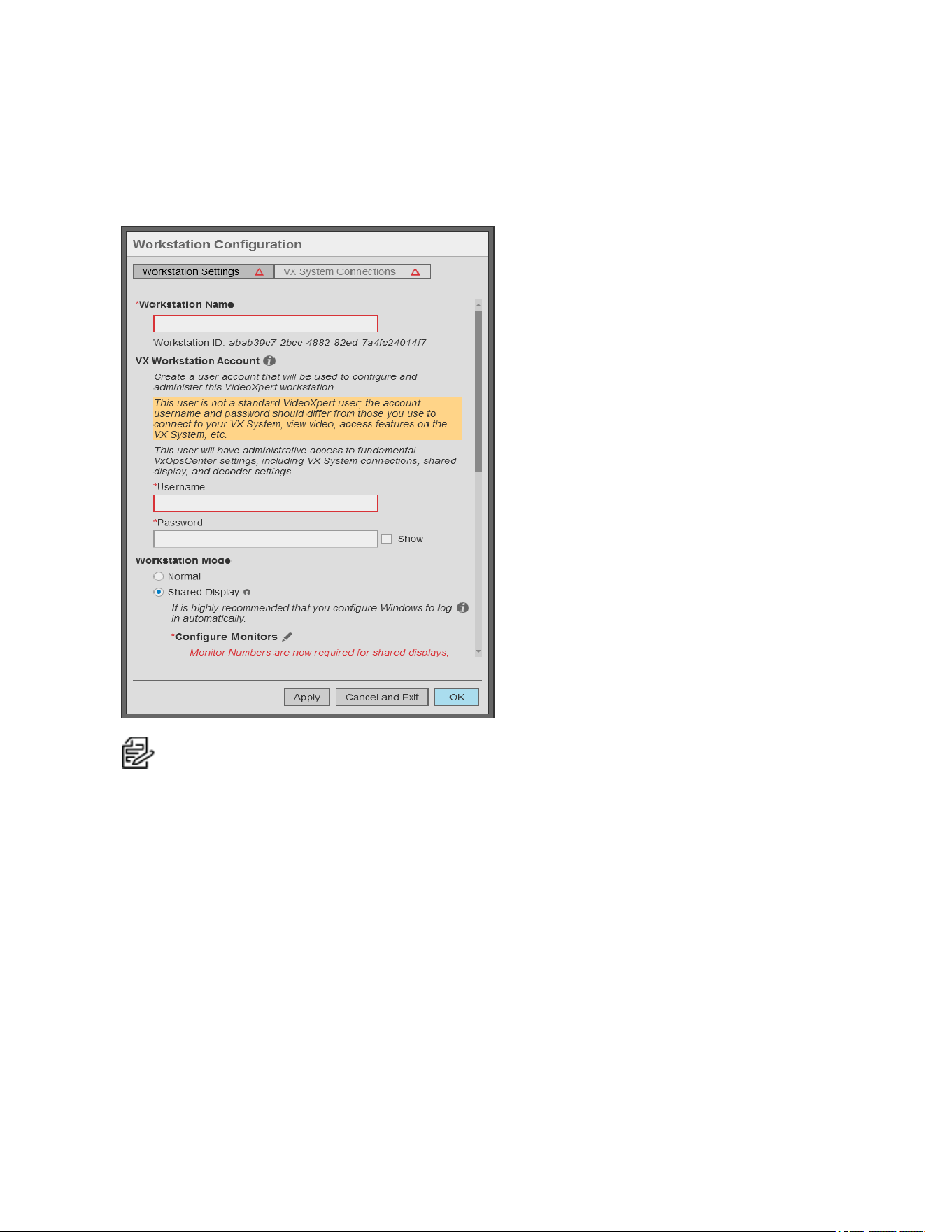
VideoXpert® Professional v 3.17 Operations Manual
C6601M-S | 06/22 87
Setting Up Your VideoXpert Workstation
VideoXpert Workstation settings determine the basic behavior of the system. These instructions apply to
the initial configuration only. You can re-configure the workstation at any time using the instructions in the
section titled Reconfiguring Your VideoXpert Workstation.
Note:This screen will look different after initial configuration. If you do not see the red triangles on
the Workstation Settings andVXSystem Connections buttons, see the instructions in the
section titled Reconfiguring Your VideoXpert Workstation.
1. Enter a Workstation Name. This is the name by which VideoXpert Core will recognize the
workstation and the name by which other users will recognize the workstation when sending
video, responding to workstation-related events, etc.
2. Enter values in the Username and Password fields under Vx Workstation Account.
3. Under, Workstation Mode, select Normal or Shared Display mode. Shared Display mode provides
monitor-wall functionality for one or more monitors. See the section titled Configuring Shared
Display Mode for more information about Shared Display mode.
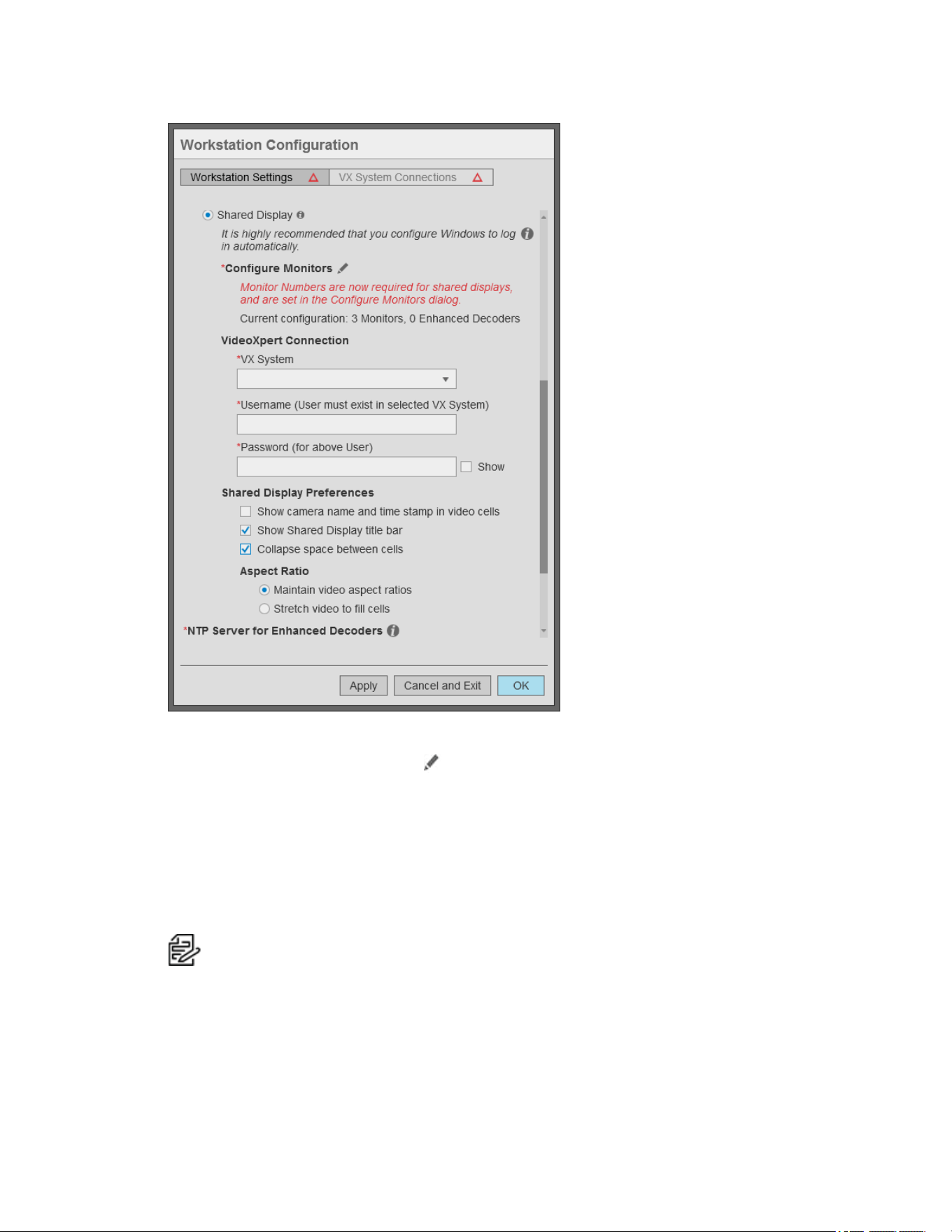
VideoXpert® Professional v 3.17 Operations Manual
C6601M-S | 06/22 88
4. If you are going to control a monitor remotely, assign a number to the monitor. To do so:
a.
Click the Configure Monitors icon ( ) to the right of Configure Monitors to open the
Configure Monitors window for the workstation.
b. Follow the instructions for assigning a number to each monitor to control. For
example:assign a number to any monitor that will be included on a shared display.
5. (Optional) Click the checkbox to select or deselect Enable hardware acceleration. Hardware
acceleration is enabled by default and should only be disabled if your workstation uses an
unsupported graphics chipset, or if you need to troubleshoot graphics issues that may result from
your graphics drivers and chipset.
Note:
Hardware acceleration of H.265 is supported on the Shared Displays VX-A3-SDD
and newer, and Enhanced Decoders VX-A3-DEC and newer.
6. (Optional) Click the checkbox to select or deselect Multi-System Access opens without initial
credentials (MSA). In MSAmode, VxOpsCenter will open with no VXSystems connected.
Credentials will be required when you connect to a VX system.
7. Click Apply to save your workstation configuration settings.
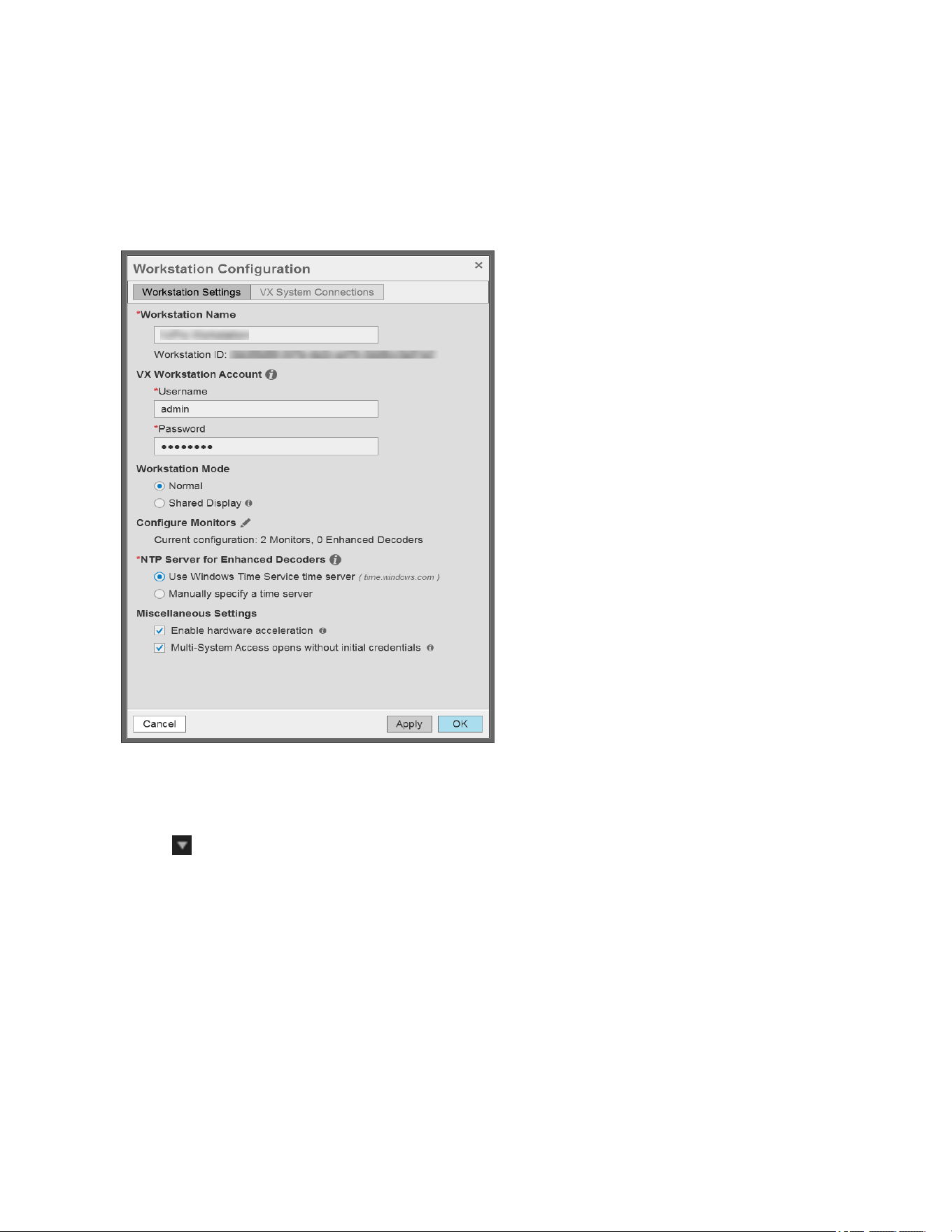
VideoXpert® Professional v 3.17 Operations Manual
C6601M-S | 06/22 89
8. Click VX System Connections and follow the instructions in the section titled Configuring VX
System Connections.
Reconfiguring Your VideoXpert Workstation
Workstation settings determine the basic behavior of the system. These instructions help you reconfigure
the system. If this is the initial setup, see Setting Up Your VideoXpert Workstation.
1. In the VxOpsCenter Login window, from the Connect to System drop-down menu, select None -
Configure Workstation; enter values in the Username and Password fields; and then click Log
In.
2. Launch the Workstation Configuration dialog box: In Mission Control, click the User Menu icon
( ), and then select Configure Workstation.
3. (Optional) Enter a new string in the Workstation Name field. This is the name by which VideoXpert
Core will recognize the workstation and the name by which other users will recognize the
workstation when sending video, responding to workstation-related events, etc.
4. (Optional)Enter new values in the Username and Password fields under Vx Workstation Account.
5. (Optional)Under Workstation Mode, select Normal or Shared Display mode. Shared Display
mode provides monitor-wall functionality for one or more monitors. See the section titled
Configuring Shared Display Mode for more information about Shared Display mode.
6. (Optional) click the checkbox to select or deselect Enable hardware acceleration. Hardware
acceleration is enabled by default and should only be disabled if your workstation uses an
unsupported graphics chipset, or if you need to troubleshoot graphics issues that may result from
your graphics drivers and chipset.

VideoXpert® Professional v 3.17 Operations Manual
C6601M-S | 06/22 90
Note:
Hardware acceleration of H.265 is supported on the Shared Displays VX-A3-SDD
and newer, and Enhanced Decoders VX-A3-DEC and newer.
7. (Optional) Click the checkbox to select or deselect Multi-System Access opens without initial
credentials (MSA). In MSAmode, VxOpsCenter will open with no VXSystems connected.
Credentials will be required when you connect to a VX system.
8. Click Apply.
9. To change the VXSystem Connections, click VX System Connections, and then see the section
titled Configuring VX System Connections.
10. When you are done with the reconfiguration, click OK.
Configuring VX System Connections
The list of VX System Connections determines the VideoXpert environments to which your VxOpsCenter
can connect. When users log in with their VideoXpert system credentials, VxOpsCenter will connect
them to relevant VideoXpert environments. If a server is not in the list of system server connections,
users will not be able to connect to it using VxOpsCenter.
Only the Workstation Configuration account can define system server connections. When you add
systems using the Workstation Configuration account, and you are working in MSA mode, you can elect
to provide credentials. If you add credentials for systems, then your Workstation Configuration account
will also immediately connect you with your systems. If you do not provide credentials, then you must
manually enter credentials for each system after you log in as the workstation configuration user. If you
are using Single Server Access mode (non-MSA mode), you must always provide the credentials when
logging in.
When setting up a connection to a server, you can determine streaming performance to the system. By
default, system connections use the best possible streaming options, but you may need to disable
settings or adjust your connection speed to account for the network between the workstation and the
system to which you will connect. See the section titled Understanding System Streaming Performance
Settings.
Working With Systems
Note:The Systems section is only present in Mission Control when you are using multi-system
access (MSA)mode.
The Systems section of Mission Control shows the list of systems you are authorized to access.
1. In Mission Control, click to expand Systems.
The Systems panel lists the systems that are available and whether sources, maps, and plugins
from the systems are being included in the Content list (selected or deselected checkbox). It also
enables you to filter the systems, view the systems list in a standalone window, and edit the
systems.
2. To use the System List Filter:
a. Click Filter to expand the filter panel.
b. Type a value in the Filter by field.
c. To clear the filter, do one of the following:
l
Click the clear filter icon ( ) at the right of the Filter by field.
l
Click Clear at the upper right of the Systems panel.

VideoXpert® Professional v 3.17 Operations Manual
C6601M-S | 06/22 91
3.
To see more details about each system, click the Open as standalone window icon ( ) to the
right of Systems.
Settings in the standalone window are reflected in the System panel.
4. To change the systems for which you are showing content (sources, maps, and plugins) in the
Systems panel or standalone window:
a. In the System list, click to select and deselect the checkbox for each system.
b. If the Enter User Credentials for the System dialog box opens, enter values in the Username
and Password fields for the appropriate system, and then click OK.
c. If you see a Time Synchronization Error, acknowledge it by clicking OK.
5. To change the columns displayed in the System List:
a. In the standalone window, if necessary, click to expand Show Columns in the left panel.
b. Click to select and deselect the checkboxes for the columns to include and exclude.
6. In the standalone window, click the up or down arrow in the column heading to sort the systems by
in ascending or descending order.
7. To edit the system list:
a.
Click the Edit icon ( ) at the lower right of the Systems panel or standalone window.
b. In the Authenticate for Administrative Access dialog box, enter values in the Username and
Password fields for the appropriate system, and then click Authenticate.
8. To add a system:
a.
Click the Add System Connection icon ( ) at the lower right of the window.
b. Use the Configure System Connection window as described in Adding Servers to
VxOpsCenter
c. Click Save.
9. In the standalone window, to export a System List.
a.
Click the menu icon ( ) at the lower left of the standalone window.
b. Click Export System List.
c. In the Export System List dialog box, enter a value in the System List File Name field.
d. In the To Location field, click Browse, and then browse to the location to which the file will be
saved.
e. Click Export.
10. In the standalone window, to import a System List:
a.
Click the menu icon ( ) at the lower left of the standalone window.
b. Click Import System List.
c. Click Browse, and then select the appropriate file.

VideoXpert® Professional v 3.17 Operations Manual
C6601M-S | 06/22 92
d. Review the information in the Import System List window, and do one of the following:
l
Click to select the radio button for Replace List.
l
Click to select the radio button for Merge Lists, and then click to select the checkboxes
for each system that you want to replace with the imported information.
e. Click Import.
11. To delete a system from the SystemList:
a. Click to select the system to delete.
b.
Click the trash bin icon ( ) at the lower right corner of the window.
c. In the confirmation dialog box, click OK.
12. At the lower right of the standalone window, click Save.
13.
To close the standalone window, click the close window icon ( ) at the upper left corner of the
window.
Enabling or Disabling Multi-System Access (Simultaneous Server Connections)
Multi-system access (MSA)allows you to access multiple VideoXpert systems simultaneously using your
VideoXpert system credentials. This can be enabled when you log in; however, you can also enable it
during system configuration.
Note: The multi-system access option is available if you have more than one server connection
added to VxOpsCenter.
To enable multi-system access:
1. If you have not already done so, access the Configure Workstation window:
a. Log into VxOpsCenter with the Workstation Configuration account.
b.
In Mission Control, click the User Menu icon ( ), and then select Configure Workstation.
2. In the Workstation Configuration window, click VX System Connections.
3. (Optional)To use a shared system list:
a. Click to select the checkbox for Use and manage a shared Systems List.
b. Click Browse, browse to a file to enter in the System List Location field, and then click Open.
c. If required, enter values in the Username andPassword fields.
d. ClickLoad Systems.
4. To add a server (if you are not using a shared system list):
a.
Click the Add System Connection icon ( ) at the lower right of the Workstation
Configuration window.
b. (Optional) Enter information about the server in the Notes field. The notes are only available
to the Workstation Configuration account.
c. Provide the IP of the server, or the FQN of the server if you are using single sign-on (SSO), in
the Server Address field, and adjust the HTTPS Port value if different from the default.

VideoXpert® Professional v 3.17 Operations Manual
C6601M-S | 06/22 93
d. (Optional) Adjust System Streaming Performance settings. See the section titled
Understanding System Streaming Performance Settings.
e. (Optional) Click to select or deselect the checkbox for Validate SSL/TLS Certificate.
f. (Optional)If there are custom fields, enter a value in each field.
g. (Optional)To add custom fields (columns) to the System List by which you can sort, in the
Configure System Connections window, below Custom Fields, click Add Another
CustomField (Column), enter a value in the Enter a new header name field (for
example:City), enter an appropriate value for the system (for example:Denver) in the field
below the new header name, and then click Save. The column and the value are shown in
the System List.
h. (Optional) Type values in the Username and Password fields.
i. Click Test Connection to verify that you have provided the correct server address; testing the
connection will require you to provide credentials to the server.
j. Click Save.
5. Click OK.
When multi-system access is enabled, the Systems section is available within VxOpsCenter. You can
select or deselect systems to show or hide sources belonging to your various systems.
Adding Servers to VxOpsCenter
1. If you have not already done so, access the Configure Workstation window:
a. Log into VxOpsCenter with the Workstation Configuration account.
b.
In Mission Control, click the User Menu icon ( ), and then select Configure Workstation.
2. In the Workstation Configuration window, click VX System Connections.
3. To import an existing system list:
a. Click to select the checkbox for Use and manage a shared Systems List.
b. Click Browse, browse to a file to enter in the System List Location field, and then click Open.
c. If required, enter values in the Username andPassword fields.
d. ClickLoad Systems.
4. To export the current system list:
a. At the lower left of the Workstation Configuration window, do one of the following, depending
on which icon is present:
l
If you are not using a shared system list, click the menu icon ( ), and then click Export
System List.
l
If you are using a shared system list, click the exportsystem list icon ( ).
b. In the Export System List dialog box, enter a value in the System List File Name field, click
Browse, browse to the location to which you will save the file, click OK, and then click Save.

VideoXpert® Professional v 3.17 Operations Manual
C6601M-S | 06/22 94
5. To add a server (if you are not using a shared system list):
a.
Click the Add System Connection icon ( ) at the lower right of the Workstation
Configuration window.
b. (Optional) Enter information about the server in the Notes field. The notes are only available
to the Workstation Configuration account.
c. Provide the IP of the server, or the FQN of the server if you are using single sign-on (SSO), in
the Server Address field, and adjust the HTTPS Port value if different from the default.
d. (Optional) Adjust System Streaming Performance settings. See the section titled
Understanding System Streaming Performance Settings.
e. (Optional) Click to select or deselect the checkbox for Validate SSL/TLS Certificate.
f. (Optional)If there are custom fields, enter a value in each field.
g. (Optional)To add custom fields (columns) to the System List by which you can sort, in the
Configure System Connections window, below Custom Fields, click Add Another
CustomField (Column), enter a value in the Enter a new header name field (for
example:City), enter an appropriate value for the system (for example:Denver) in the field
below the new header name, and then click Save. The column and the value are shown in
the System List.
h. (Optional) Type values in the Username and Password fields.
i. Click Test Connection to verify that you have provided the correct server address; testing the
connection will require you to provide credentials to the server.
j. Click Save.
6. When you have added all appropriate connections, click OK.
7. If the Log Out Required dialog box opens, click OK. You will be logged out. The configuration
changes are applied when you log back in.
Editing a System Connection
1. If you have not already done so, access the Configure Workstation window:
a. Log into VxOpsCenter with the Workstation Configuration account.
b.
In Mission Control, click the User Menu icon ( ), and then select Configure Workstation.
2. In the Workstation Configuration window, click VX System Connections.
3. Click to select the system connection to be edited.
4.
Click the Edit System Connection icon ( ) at the lower right of the Workstation Configuration
dialog box.
5. In the Configure System Connection dialog box, make all necessary updates, and then click Save.
6. In the Workstation Configuration dialog box, click OK to save the settings.
7. If the Log Out Required dialog box opens, click OK. You will be logged out. The configuration
changes are applied when you log back in.

VideoXpert® Professional v 3.17 Operations Manual
C6601M-S | 06/22 95
Deleting a System Connection
1. If you have not already done so, access the Configure Workstation window:
a. Log into VxOpsCenter with the Workstation Configuration account.
b.
In Mission Control, click the User Menu icon ( ), and then select Configure Workstation.
2. In the Workstation Configuration window, click VX System Connections.
3. Click to select the system connection to be deleted.
4.
Click the Delete System Connection icon ( ) at the lower right of the window to delete the
connection to the server.
5. In the Delete System Server Connection dialog box, click OK to confirm the deletion.
6. In the Workstation Configuration window, click OK to save the settings.
7. If the Log Out Required dialog box opens, click OK. You will be logged out. The configuration
changes are applied when you log back in.
Understanding System Streaming Performance Settings
System streaming performance settings determine the quality of streams you receive or, in some cases,
whether you receive a stream at all from a particular system. These settings affect frame rate and latency
of video, typically for the better with each subsequent setting. However, these options may not be
available for your network. VxOpsCenter uses the deepest selected option that is provided by the server.
If you deselect all Streaming Performance options, you will engage JPEG Pull streaming. JPEG Pull
streaming is always available and works on virtually all network types (anywhere a TCP connection is
available). It works even on slow connections, in part because of its lower quality (low frame rate and
high latency).
To set the System Streaming Performance, log in with the Workstation Configuration account and add or
edit a system.
l
Allow RTSP/RTP is recommended for most system configurations. Select this to enable RTSP
streaming over TCP (or Unicast or Multicast UDP, depending on subsequent settings). This option
provides a higher quality stream than JPEG Pull on all but the slowest networks.
l
Allow UDP is recommended for most LAN configurations. This setting enables Unicast streaming
over UDP. Streaming over UDP is more efficient and has lower latency than streaming over TCP.
However, UDP traffic is blocked by some WAN networks, and by fewer LAN networks. If you
encounter streaming problems, try deselecting it.
l
Allow Multicast is recommended for most enterprise-level networks whose switches allow
multicast traffic. This setting enables Multicast streaming over UDP. Multicast UDP streaming is
even more efficient than unicast UDP streaming. However, multicast traffic is blocked by most
WAN networks, and by some LAN networks.
l
Maximum Buffer Size limits the size of the buffer allocated to streaming.
–
This setting is only applicable to live UDP streams while not in PTZ control mode.
–
Larger values minimize packet loss and provide the smoothest possible frame-rate on the
display; larger values also result in longer end-to-end latency, and require more memory per
stream.
–
The default Variable buffer size setting allows VxOpsCenter to automatically find the lowest
buffering level that yields high-quality presentation on a per-stream basis.

VideoXpert® Professional v 3.17 Operations Manual
C6601M-S | 06/22 96
–
The Fixed buffer size setting is for customers who want tighter control over per-stream
memory usage and/or end-to-end latency of live streams.
l
Connection Speed determines the type and resolution of video available to you; at slower
connection speeds, you will receive video transcoded into lower resolutions. When streaming
JPEGs, your connection speed determines the compression of JPEG images (the lower the
speed, the greater the compression).
–
512k restricts you to JPEG streaming.
–
1 Mbps restricts video to CIF resolution (352 x 240) or smaller.
–
5 Mbps restricts video to D1 resolution (720 x 480) or smaller.
–
10 Mbps restricts video to secondary streams when available.
–
Connection speeds greater than 10 Mbps can access full resolution video. Options are 50
Mbps, 100 Mbps, 1 Gbps, and 10 Gbps.
Configuring Shared Display Mode
A Shared Display is a workstation that provides monitor wall functionality within VideoXpert. In this
mode, local controls are disabled; you will not control the application locally. Rather, you and other users
will send tabs and video to the shared display and control the shared display remotely.
Your workstation must have one or more, locally-connected monitor(s) to support Shared Display mode.
Putting the VxOpsCenter in Shared Display mode causes the VxOpsCenter application to start and log-in
automatically when Windows starts. Because the workstation is intended to start without user interaction,
it is recommended that you configure Windows to start and log-in automatically for shared displays.
The user account you provide when setting up Shared Display mode must have the Setup Edge Devices
and Manage Display Devices permissions. The account should also have rights to view and control any
cameras you send to the monitors; the shared display cannot display cameras it does not have
permission to access, even if the user sending something to the shared display has permission to view
those cameras.
Note:Shared display is not available if multi-system access is enabled.
To configure an VxOpsCenter for Shared Display mode:
1. If you have not already done so, access the Configure Workstation window:
a. Log into VxOpsCenter with the Workstation Configuration account.
b.
In Mission Control, click the User Menu icon ( ), and then select Configure Workstation.
2. Click the Workstation Settings tab.
3. At the top of the window, click to select the checkbox for Shared Display.
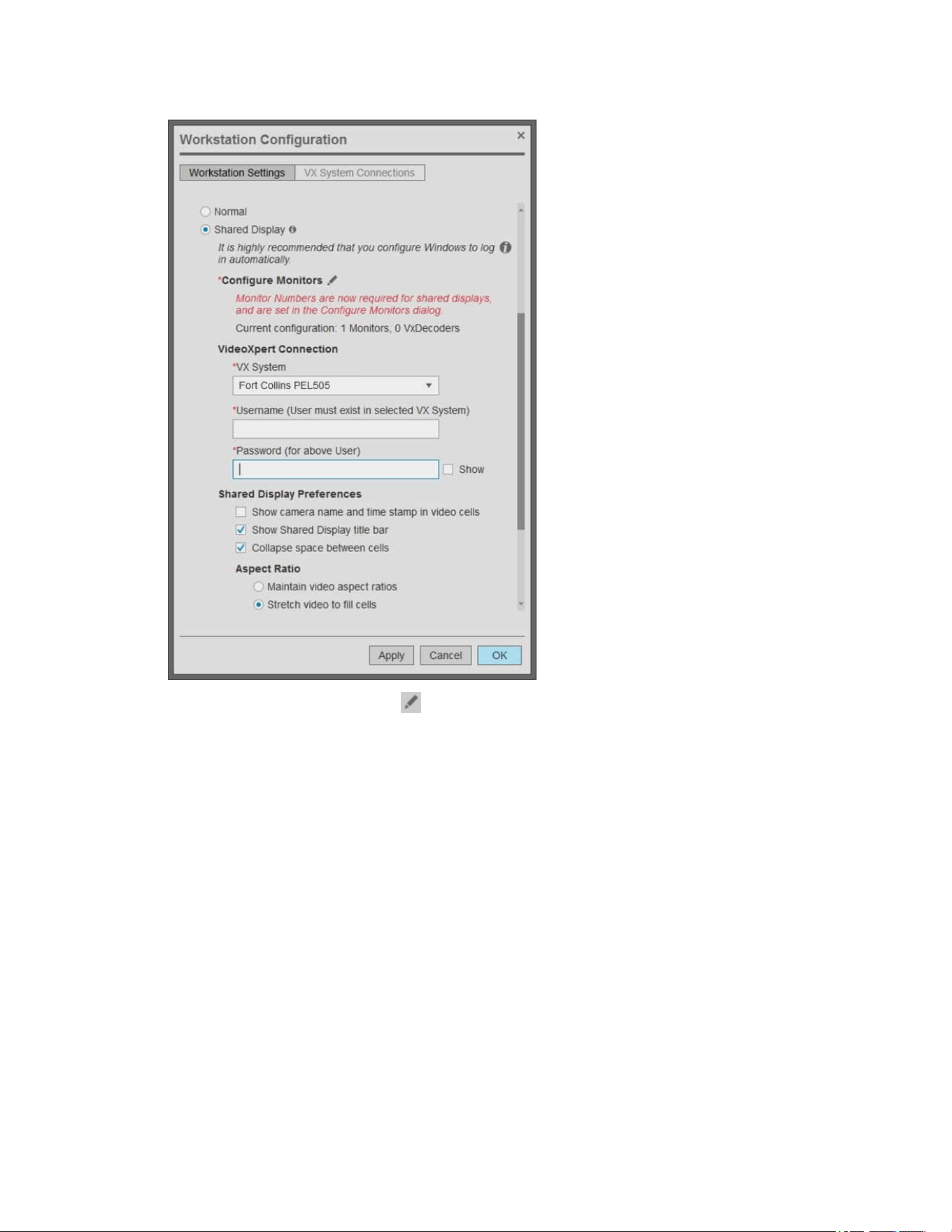
VideoXpert® Professional v 3.17 Operations Manual
C6601M-S | 06/22 97
4.
Click the Configure Monitors icon ( ), and then configure the monitors.
a. Click to select the monitor.
b. Click to select the radio button for Direct.
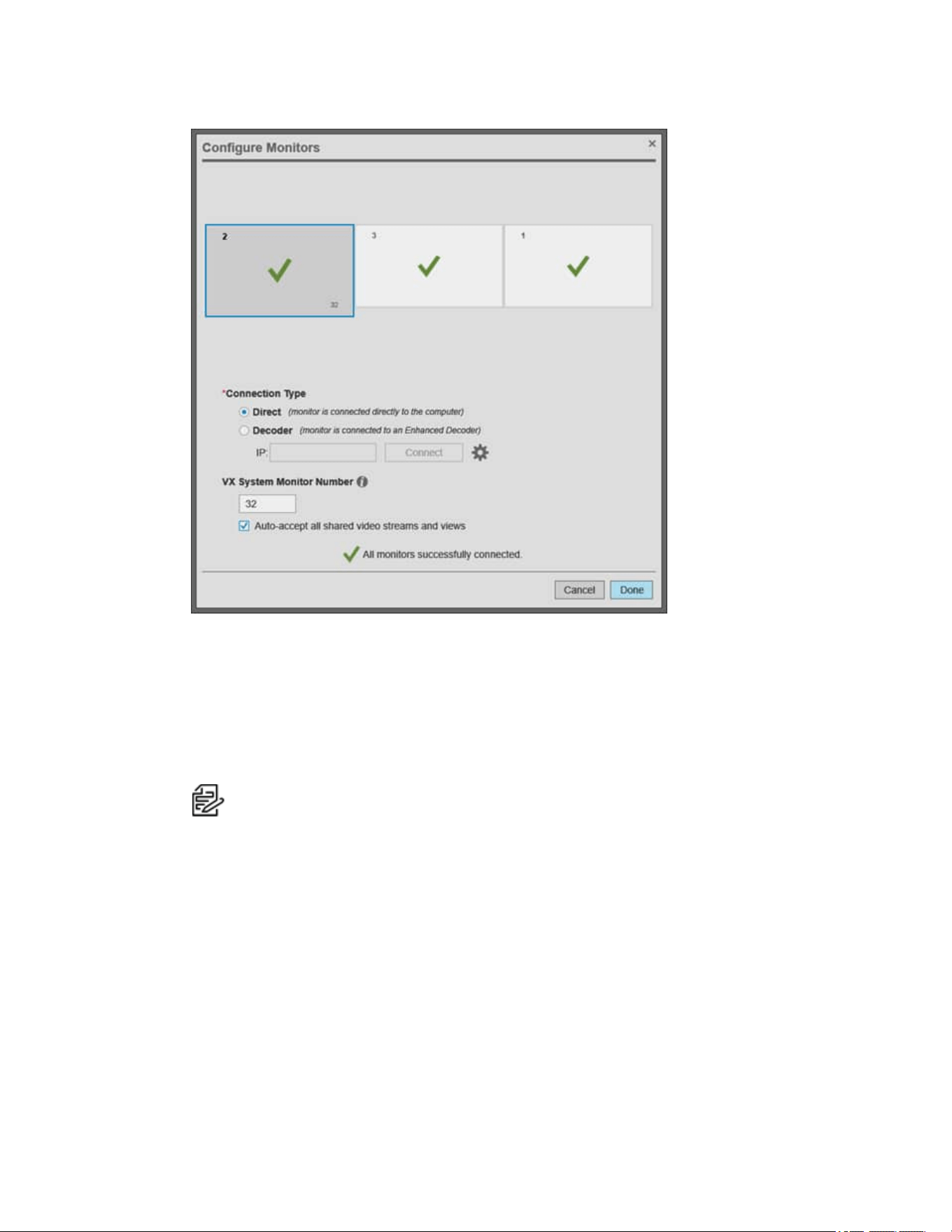
VideoXpert® Professional v 3.17 Operations Manual
C6601M-S | 06/22 98
Figure 3: Connecting Monitors
c. If you are going to allow remote control of a selected monitor, assign a number to the
monitor. To do so: enter a number in the VxSystem Monitor Number field, and then click to
select or deselect the checkbox for Auto-accept all shared video streams and views. When
Auto-accept all shared video streams and views is selected, the monitor will automatically
accept video streams and views that have been sent by another workstation or shared
display; when it is not selected, a user must manually accept shared video streams and
views on the monitor.
Note:
You must assign a unique number to a monitor (workstation or shared display) if
you will send video to it remotely. However,
Pelco
recommends that you do so
only
under these circumstances. When you set a monitor number, every change made to
that window will be sent to the server. This is an unnecessary load if you are not using
the monitor as part of a monitor wall.
The example above shows the assigned monitor number (32) in the lower right corner of the
monitor.
5. Provide a number for the monitor. The number will allow you to set rules to send video to your
shared display, or to send video to the shared display by number.
6. (Optional) Enter or select a VX System to create a VideoXpert Connection. Selecting this option
opens a dialog to configure system server connections.
7. Provide the user name and password of an account with credentials to view video; the account
provided must have access to cameras and functions you want to use through the shared monitor,
and must have the Manage Display Devices permission enabled (via VxToolbox in >Users
>Users > Device Management >Manage Display Devices).

VideoXpert® Professional v 3.17 Operations Manual
C6601M-S | 06/22 99
8. (Optional) Click the checkbox to select or deselect Show camera name and time stamp in video
cells. Whether the user sharing video has names and timestamps enabled, the shared display
uses this preference to determine whether or not to display overlays.
9. (Optional) Click the checkbox to select or deselect Show Shared Display title bar.
10. (Optional)Click the checkbox to select or deselect Collapse space between cells.
11. In the Aspect Ratio area, click to select the radio button to either Maintain video aspect ratios or
Stretch video to fill cells.
12. (Optional) click the checkbox to select or deselect Enable hardware acceleration. Hardware
acceleration is enabled by default and should only be disabled if your workstation uses an
unsupported graphics chipset, or if you need to troubleshoot graphics issues that may result from
your graphics drivers and chipset.
Note:
Hardware acceleration of H.265 is supported on the Shared Displays VX-A3-SDD
and newer, and Enhanced Decoders VX-A3-DEC and newer.
13. (Optional) Click the checkbox to select or deselect Multi-System Access opens without initial
credentials (MSA). In MSAmode, VxOpsCenter will open with no VXSystems connected.
Credentials will be required when you connect to a VX system.
14. Click Apply.
15. Click OK.
Configuring VxOpsCenter Kiosk Mode (Optional)
You can run VxOpsCenter in kiosk mode, so that only VxOpsCenter Client will be run without access to
any other Windows applications.
l
The launcher and script are not included in the default installer of VxOpsCenter.
l
To run in kiosk mode, install VxOpsCenter on a machine with Windows 10 operating system using
VxOpsCenter 2.5 or later.
Caution: If not done properly, this process might result in a loss of critical data. In addition, the
process has several complex steps that, if not done properly, might result in unforeseen results.
Before beginning this process, ensure that all important data is backed up. If you are uncertain of
this process or are unfamiliar with the requirements, contact Product Support Services for
assistance.
To install and configure VxOpsCenter to run in kiosk mode:
1. Install VxOpsCenter v 2.5 or later on a Windows 10 PC.
2. Refer to the whitepaper Configure VxOpsCenter Kiosk mode.
3. From the white paper, download OpsCenterLauncher.zip and kiosk_mode_script_v2.ps1.
4. Unzip OpsCenterLauncher.zip and copy the files to the VxOpsCenter directory at c:\Program
Files\Pelco\VideoXpert\VxOpsCenter.
Note:
The path must be the same as the path specified in kiosk_mode_script_v2.ps1.
Note:
If the OpcCenter Client kiosk mode is updated to a newer version, copy the contents
of OpsCenterLauncher.zip to the folder again.

VideoXpert® Professional v 3.17 Operations Manual
C6601M-S | 06/22 100
5. Create a local standard user account called “Operator”.
Note:The account must be the same as the account specified in kiosk_mode_script_
v2.ps1.
6. Run kiosk_mode_script_v2.ps1 as the Windows Administrator.

VideoXpert® Professional v 3.17 Operations Manual
C6601M-S | 06/22 101
Logging In
Open the VxOpsCenter application.
1. (Optional) If VxOpsCenter is configured to connect to a single system at a time, select the system
you want to access. See the section titled Understanding User Account Types.
2. (Optional)If VxOpsCenter is configured for multi-system access, select Multi-System Access
Mode from the drop-down list in the Connect to System field.
l
The first time you login to the system using Multi-System Access Mode, you will be asked to
select a system for authentication.
l
When you log in subsequently using Multi-System Access Mode, you will be connected to the
systems to which you've connected before.
l
If Mutli-System Access opens without initial credentials is enabled in VxToolbox, you can log
in using Multi-System Access Mode without using any credentials, but you will not be
connected to a VXsystem. When you connect to a VXsystem, credentials are required.
3. Enter your credentials.
4. Click Log In.
Understanding User Account Types
VxOpsCenter supports two types of users:
l
The Workstation Configuration account provides access to VxOpsCenter settings and allows you
to configure connections to VX systems. The configuration account should be reserved for
administrators, especially if multiple users will share the same workstation.
l
Logging in as a standard VX system user provides access to standard VX features - viewing
video, controlling cameras, etc.
Note: If multi-system access is enabled, only Workstation Configuration accounts are supported.
If your user account is both the Workstation Configuration account and a VX system user, VxOpsCenter
will log you into applicable VX systems and allow access to workstation configuration settings.
When you log in as a standard VX system user, the system will only populate sources and options you
have permissions to see (determined by the roles assigned to your user account). If a system or camera
does not appear when you log in, then the system or camera might be offline, or you might lack the
appropriate permissions.
Setting Your Display Language
The localization presented by the VxOpsCenter client is based on the Region and Language settings
within Windows.
Note: You must have the appropriate Windows language pack to expose display languages in the
VxOpsCenter Client.
To set or change your VxOpsCenter display language:
1. Close the VxOpsCenter software if it is already running.
2. Click Start (if necessary), and then search for and click to open Language settings.
Note
:These steps might be different, based on the operating system you are using.

VideoXpert® Professional v 3.17 Operations Manual
C6601M-S | 06/22 102
3. Click to select a language from the Windowsdisplay language drop-down menu.
4. If the appropriate language is not present, click Add a windows display language in Microsoft
Store. Follow the prompts to add the appropriate language, and if appropriate, click to select the
checkbox for Set as my Windows display language.
5. Close the Settings window.
6. Run the VxOpsCenter Client.

VideoXpert® Professional v 3.17 Operations Manual
C6601M-S | 06/22 103
Changing Your Workstation Account Password
If a password expiration policy is in place (for example:your password expires every 90 days), you will
see a warning dialog box when your password must be changed.
Note:Password expiration is not used with Single Sign-On (SSO). If your system is configured to
use SSO, or if the expiration policy is set to Passwords never expire, then you will never see the
warning dialog box.
1. In the warning dialog box, click Change Password.
2. In the Change Password dialog box, enter values in the Current Password, New Password, and
Retype New Password fields.
3. Click Save.
If you are resetting the password, and are not doing so from the password expiration warning dialog box:
1.
In Mission Control, click the User Menu icon ( ), and then select Configure Workstation.
2. If necessary, enter an administrative Username and Password, and then click Authenticate.
3. Click Workstation Settings.
4. In the VX Workstation Account area, in the Password field, enter a new password.
5. Click Apply.
6. Click OK.
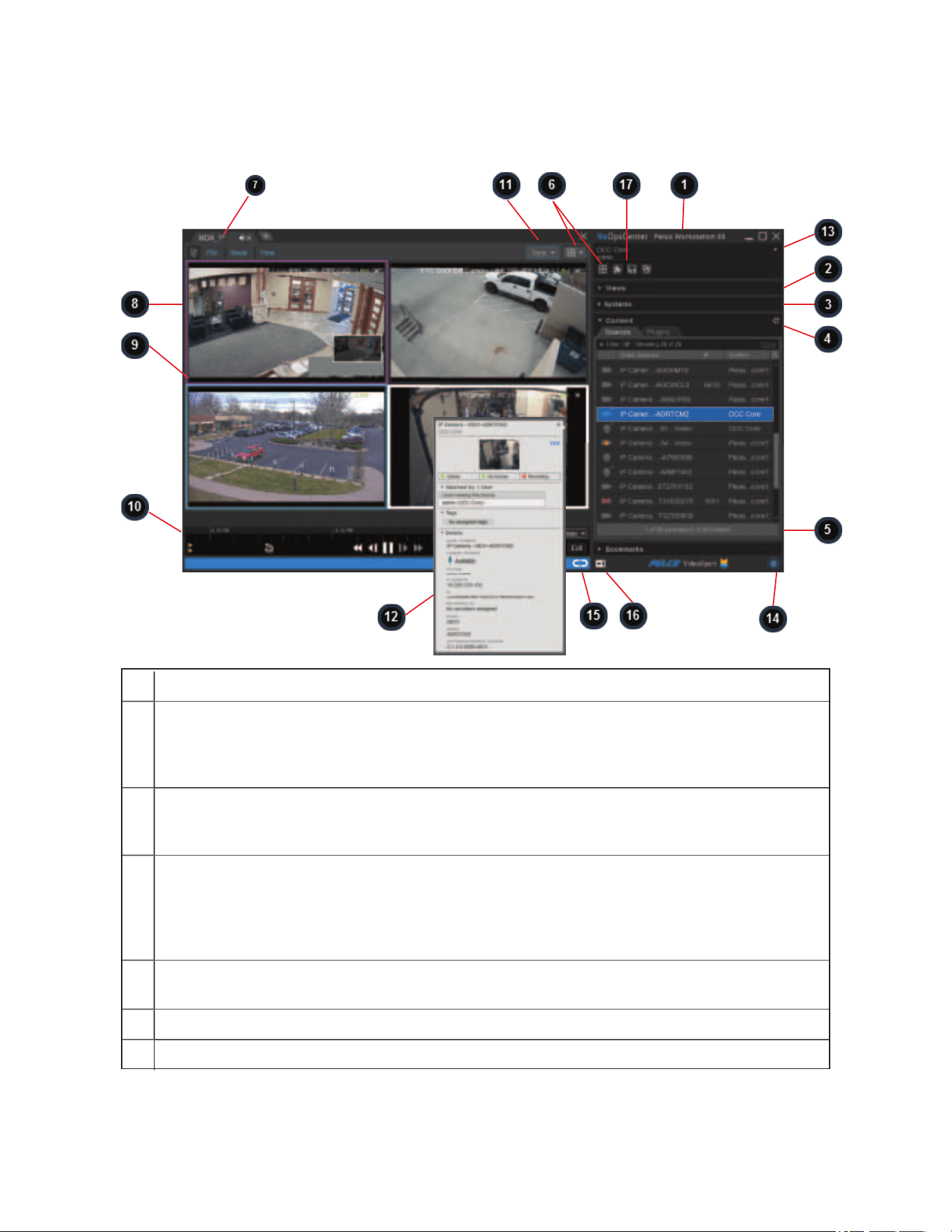
VideoXpert® Professional v 3.17 Operations Manual
C6601M-S | 06/22 104
Using the VxOpsCenter Interface
1 Mission Control contains settings, and all the items with which you may populate workspaces.
2 The Views panel provides access to New Tabs, Saved Tabs, and Workspaces. Your workspace
consists of tabs and monitors populated with cameras or plugins. You may have one active
workspace at a time containing some number of tabs (typically one tab per monitor, but that is not a
limitation); each tab contains some number of video streams or plugins.
3 The Systems panel enables you to add or edit system connections. It also provides access to the
Systems List window, which enables you to filter and sort the systems to which you are connected.
This panel is available only when running in multi-system access (MSA)mode.
4 The Content panel provides access to the Sources tab, whichshows all the video sources that
the current user can access. Use the filters in the panel to sort the list in real time. The Maps tab
provides access to Maps that are available on the system. The Plugins tab contains content and
overlay plugins. Some plugins consume a cell, like the Image Viewer plugin. Overlay plugins
operate in the same cell as video, providing additional information about the video in question.
5 The Bookmarks panel shows clips of video that you or other users have bookmarked. Use the
filters in the panel to sort the list in real time.
6 The Select Grid Layout controls or the New Tabs panel determine the number of cells in a tab.
7 A Tab is a window of the VxOpsCenter containing cells.
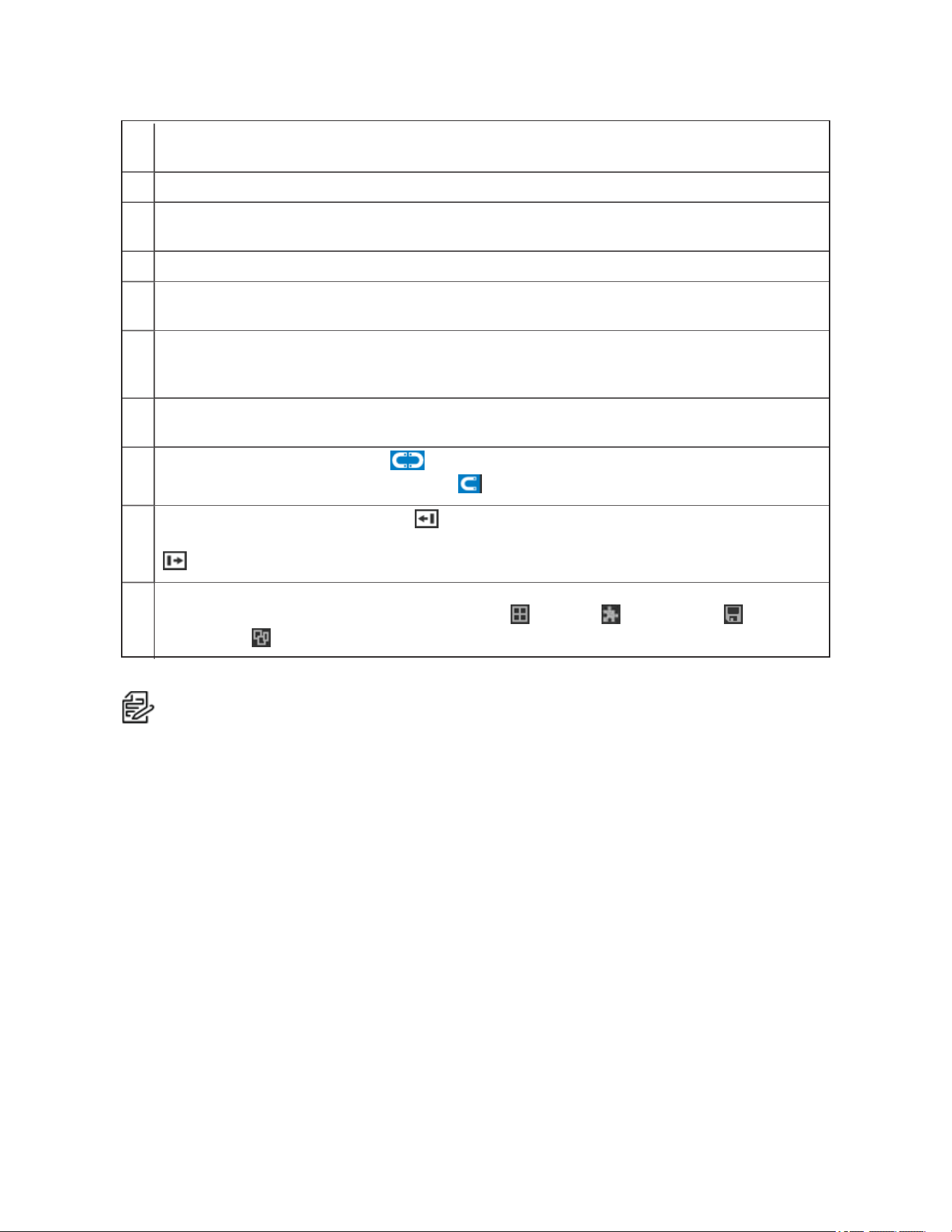
VideoXpert® Professional v 3.17 Operations Manual
C6601M-S | 06/22 105
8 A Cell displays a single camera or plugin within VideoXpert. Cell highlights and borders indicate
whether a cell is selected, playing-back video, or is in PTZ mode.
9 Playback Controls and the timeline in a selected cell applies to that cell only.
10 Playback Controls and the timeline at the bottom of the tab applies to all synchronized cells within
the tab.
11 Synchronous Play enables you to select cells for which playback is synchronized.
12 Tooltips show additional information about your video sources. Hover over entries in the Sources
and Bookmarks panels to reveal tooltips.
13 The User Menu contains preferences and controls specific to the current user. Through this menu,
you can open application Preferences, the Export Archive, the View Launcher, and other user
options.
14 The Event Counter shows how many active events that require response from you or someone
with similar permissions.
15
The Undock Mission Control icon ( ) undocks Mission Control from its current location. When it
is undocked, the Dock Mission Control icon ( ) docks it to any tab in the workspace.
16
The Move Mission Control to the Left ( ) icon is visible when Mission Control is in the default
position (right panel), and moves it to the left panel. The Move Mission Control to the Right icon
( ) is visible when Mission Control is in the left panel, and moves it to the right panel.
17 Quick access to frequently used tools are provided in Mission Control, just above the Views panel.
Click the corresponding symbol to get to New Tabs ( ), Plugins ( ), Saved Tabs ( ), and
Workspaces ( ).
Note:Camera-sensitive information is not available to users without the necessary View Full
Camera Details permission. Camera-sensitive information includes data source and device
IPaddresses; device hostname, port, serial number, version, and VIP; and target recorders.
Adding Quick Access Icons to Mission Control
Quick access to frequently used tools are provided in Mission Control, just above the Views panel. They
can be added and removed. To add or remove the quick access icons:
1. In Mission Control, right-click in the space above Views.
2. Click to select (to add) or deselect (to remove) tools icons.
Using Context Menus
Right-click entries in the source list or cameras in your active workspace to reveal additional options
available to your user and the devices you want to use. VxOpsCenter provides users with only the
options available to you at any given time; availability may be limited by factors including your user
permissions, the types of cameras you use, and whether or not PTZ mode is engaged. Options include
the following.
l
Send To enables you to choose a view to send (a saved tab, saved investigation, or workspace),
a destination for the view, and whether to force acceptance of the sent view. See the section titled
Sending Views to Workstations or Shared Displays.

VideoXpert® Professional v 3.17 Operations Manual
C6601M-S | 06/22 106
l
Quick Export lets you export a recording of the Previous 5 minutes, the Previous Minute, or a
Custom start and end date and time, from either the item in the Sources panel for from a cell
timeline. From the timeline, you can also export a recording of the Next minute and the Next 5
minutes. See the section titled Using Quick Export.
l
Edit Source enables you to assign the selected source a new name or number.
l
Manage Tags shows you what tags are assigned to the selected camera(s), system, and folders;
and lets you filter which tags to show. See the section titled Managing Tags.
l
Open Camera Configuration in Browser opens the camera Web UI, and enables you to login
and make changes to the camera configuration. Refer to the camera operations manual.
l
Open in VxToolbox opens VxToolbox to the corresponding system, and highlights the source in
the Devices (center) panel. Refer to the VxToolbox section of this manual.
l
Rotate lets you select the default rotation, 180 degrees, or plus or minus 90 degrees. See the
section titled Rotating the Camera.
l
Analytic Overlays, Simple & Enhanced lets you toggle Simple Motion Detection and
Analytic Drawing Data on and off to display or hide analytics overlays on some Pelco cameras.
See the section titled Viewing Analytics Overlays.
l
Analytic Overlays, Advanced lets you toggle Object Bounding Boxes, Object Detection
Zones, and Counting Lines on and off to display or hide these analytics on some Pelco cameras.
If you toggle Counting Lines on, you can also toggle Display Counts on and off. See the section
titled Viewing Analytics Overlays.
l
Diagnostics lets you toggle:
–
Statistics to display or hide camera statistics including such things as bitrates, mode, source,
and call-up time. See the section titled Displaying Statistics.
–
Measure Latency to determine the end-to-end latency of the source. See the section titled
Measuring Latency.
l
Relays &Aux activates or deactivates auxiliary options and functions on the device, including:
relay functions, IRillumination, washer and wiper functions, and other options and functions,
depending on the camera model.
l
Home Preset returns the camera to the home position. See the section titled Executing PTZ
Presets and Patterns.
l
Presets lets you select an existing preset position, edit an existing preset position, and create a
new preset position. See the section titled Executing PTZ Presets and Patterns.
l
Pattern enables you to run an existing pattern. Patterns must be created on the camera. Refer to
the camera operations manual.
l
Refresh Presets and Patterns retrieves the list of presets and patterns from the camera. It does
not overwrite or delete any patterns created from VxOpsCenter.
l
Send Preset Number will send a preset to a specified cell in a specified monitor; and can display
the data source, jump to a specified time, and trigger a preset. See the section titled Sending
Views to Workstations or Shared Displays
l
Search Recordings for Motion (Pixel Search) is available in VideoXpert Professional only, and
allows you to quickly find search for motion in a camera recording. See the section titled Using
Pixel Search.

VideoXpert® Professional v 3.17 Operations Manual
C6601M-S | 06/22 107
Using Tooltips
Hover over any bookmark in a cell or in the Bookmarks panel to reveal additional information about the
bookmark. This information might include:
l
The name of the bookmark
l
The name(s) of the device or data sources
l
The date and time at the middle of the bookmark recording time
l
The type of event received (if any)
l
An image from the recorded bookmark
Hover over the device symbol on any source in the Sources panel to reveal additional information about
the source, including:
l
The name of the source
l
The current image of the source (if enabled)
l
Whether or not the camera is Online, On Screen, and Recording, and whether PTZ is locked (if
the camera has PTZ)
l
Watched by information
l
Tags associated with the source (if any)
l
Technical Details such as: previous names (if there are any and the feature is enabled), whether
or not there is camera storage, the IP address, the camera ID, the target location for recording (if
any), the camera model, the camera serial number, and the camera software version
Click on View, if present, to display the source in a cell.
Using Watched By
If you have the “Multiview” permission, you will see a Watched by field in tooltips throughout the
VxOpsCenter interface. The Watched by field shows users watching live video from a particular video
source; the Watched by field does not show users playing back video recorded from a video source.
If the users listed in the Watched by field are viewing video from a different site than you, the tooltip will
also attempt to indicate the site from which other users are watching video. If users are watching video
from an aggregated site, the tooltip will state the site name in parenthesis. If you are watching video from
an aggregated site, and the users listed in the Watched by field are accessing VideoXpert from the
Aggregation (parent) site, then the tooltip will simply list parent site.
Using Previous Camera Names
If Showprevious camera names is enabled in VxToolbox, the VideoXpert System can list the current
name and up to nine previous names assigned to the camera during the last one year. For each name,
the system also lists the dates on which the names were changed.
If your system uses previous camera names, users can view the list of names for a specific camera. To
do so:
1. Hover over the device symbol on the camera in the Sources panel.
2. In the device information window, click to expand Previous Names.
VxOpsCenter identifies a camera by the name it was assigned at the time period matching the action. For
example, a camera that was previously named "Hall SW"but is now named "Hall SE" will be identified as
"Hall SW"in bookmarks taken before the name was changed.
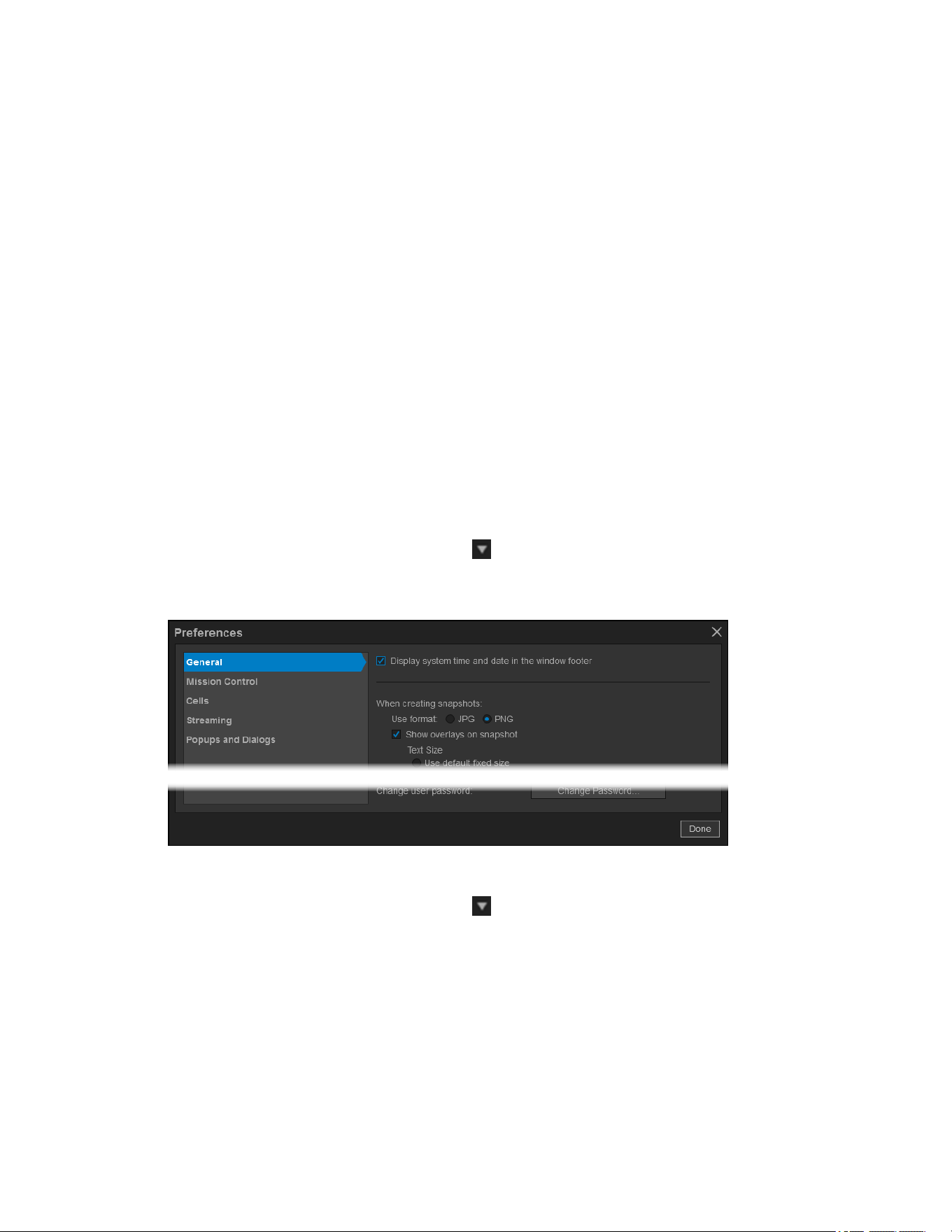
VideoXpert® Professional v 3.17 Operations Manual
C6601M-S | 06/22 108
l
In Normal mode, the camera names at the time of the action are identified as follows:
–
During playback, the name is displayed at the upper right corner of the cell, corresponding to
the name of the camera at the time of the recording.
–
A snapshot file name defaults to include the camera name at the time that the snapshot was
taken. You can change the file name.
–
An export file name defaults to include the camera name at the time that the recording was
taken. You can change the file name.
–
A bookmark identifies the camera name at the time that the bookmark was created.
l
In Investigation mode, the camera names at the time of the recording are identified in the same
locations as in Normal mode, but also in the following additional locations:
–
Timeline ribbon
–
Retrim window
–
Clip in a playlist (the name of the camera at the start of the recording)
Setting User Preferences
When logged in to VideoXpert, you can set some basic preferences for behaviors within the
VxOpsCenter application.To access the Preferences window:
1.
In Mission Control, click the User Menu icon ( ).
2. Click Preferences.
The Preferences window opens.
Updating General Settings
1.
In Mission Control, click the User Menu icon ( ).
2. Click Preferences.
3. In the Preferences window, click General.
4. (Optional) Click to select the checkbox to enable Display system time and date in the window
footer.

VideoXpert® Professional v 3.17 Operations Manual
C6601M-S | 06/22 109
5. (Optional) In the When creating snapshots area:
a. Click to select the radio button for JPG or PNG.
b. Click to select or deselect the checkbox for Show overlays on snapshot. If you select this
option, also configure the following settings:
l
Under Text Size, click to select the radio button for either Use default fixed size or Scale
text as a percentage of snapshot height. If you select scaling the text, enter a
percentage in the field, either by typing-in a number or selecting one using the up and
down arrows.
l
Select a Position from the drop-down menu.
l
Use the slider bar or type in a value to select the Opacity of Text Background.
l
In the Text color area, click to select the radio button for Use default colors or Use white
for both camera name and timestamp.
l
Click to select or deselect the checkbox for Auto-save snapshots. If you select this
option, use the default folder location to which the snapshots will be saved, or enter the
folder location either by typing in the path or using the Browse button.
6. (Optional) Click Reset Tips and Warnings, and then click OK in the Reset Warnings
confirmation window.
7. (Optional)Click Change Password, complete all fields in the Change Password for [user] dialog
box, and then click Change Password.
8. Click Done to exit the Preferences window.
Updating Mission Control Settings
1.
In Mission Control, click the User Menu icon ( ).
2. Click Preferences.
3. In the Preferences window, click Mission Control.
4. (Optional) Click to select and deselect radio buttons in the When double-clicking a source... area,
to control how a source is opened.
5. (Optional) Click the checkbox to select or deselect Allow docking Mission Control via drag-and-
drop.
6. (Optional) Click the checkbox to select or deselect Highlight source of the selected cell in the
source list. If you select this option, you can also select Automatically scroll source list to reveal
highlighted source.
7. (Optional) Click the checkbox to select or deselect Show video thumbnails on hover in the source
list.
8. Click Done to exit the Preferences window.
Updating Cells Settings
1.
In Mission Control, click the User Menu icon ( ).
2. Click Preferences.
3. In the Preferences window, click Cells.
4. In the Display camera info in video cells as section, click to select the radio button for Camera
Name, Camera Number, Camera Name / Camera Number, or Camera Number / Camera Name.

VideoXpert® Professional v 3.17 Operations Manual
C6601M-S | 06/22 110
5. (Optional) Click to select or deselect the checkbox for Always show camera info in cell. If you
select this option, you can also select Show overlay behind persistent camera info in cell.
6. (Optional) Click to select or deselect the checkbox for Display “Live” rather than timestamp in cell
when showing live video.
7. (Optional) Click to select or deselect the checkbox for Automatically enter PTZ mode upon loading
source in cell.
8. (Optional) Click to select or deselect the checkbox for Display in-cell feedback for playback
controls.
9. (Optional) Click to select or deselect the checkbox for Collapse space (gutters) between cells.
10. (Optional) Click to select or deselect the checkbox for Display timestamp above timeline
playhead.
11. In the When placing multiple cameras area, click to select the radio button for Replace video
content and create new tabs as needed or Only fill empty cells and create new tabs as needed.
12. (Optional) Click to select or deselect the checkbox for Automatically play audio when available.
l
If you selected it, click to select the radio button for From selected cell only or From all visible
cells.
l
If you deselected it, the From selected cell only or From all visible cells radio buttons are not
available.
13. (Optional)In the Advanced Analtyics area, click to select or deselect the checkbox for Always
show zones in alarm state. This option will always show zones that are in an alarmed state, for all
video cells that are streaming configured Advanced Analytic cameras.
For example: when this preference is checked, any detection-zone that is occupied will show up
as an overlay in an alarmed state and will disappear when the zone is no longer occupied. If a user
selects the Show Object Bounding Boxes and/or the Show Object Detection Zones context-menu
items in a video cell, those selections take precedence over this setting, and will show all overlays
for the user-selected options in that cell. If these cell-based options are deselected, this will return
the cell to the configured user preference.
14. (Optional) In the Video aspect ratio area, click to select the radio button for Maintain video aspect
ratios or Stretch video to fill cells.
15. (Optional) For PTZ cameras, in the Immersive/Panoramic Video area:
a. Click to select or deselect the checkbox for Show immersive PTZ reference on panoramic
image.
b. If there are Optera® cameras on your system, the Start Optera streams as option is
displayed. Click to select the radio button for Immersive only, Panoramic only, or
Panomersive. This sets the default streaming state.
16. Click Done to exit the Preferences window.
Updating Streaming Settings
1.
In Mission Control, click the User Menu icon ( ).
2. Click Preferences.
3. In the Preferences window, click Streaming.
4. Click to select or deselect the checkbox for Decrease video buffer for live streams when in PTZ
mode.

VideoXpert® Professional v 3.17 Operations Manual
C6601M-S | 06/22 111
5. In the When playing back over a low-bandwidth connection area, click to select the radio button for
Decrease frame-rate to match the network capability or Play at full frame-rate, but stop playback
to buffer as needed.
6. Click Done to exit the Preferences window.
Updating Popups and Dialogs Settings
1.
In Mission Control, click the User Menu icon ( ).
2. Click Preferences.
3. In the Preferences window, click Popups and Dialogs.
4. Click to select or deselect the checkbox for Sort alerts by severity level instead of timestamp.
5. Click Done to exit the Preferences window.
Updating Shortcut Keys
1.
In Mission Control, click the User Menu icon ( ).
2. Click Preferences.
3. In the Preferences window, click Shortcut Keys.
4. Select a profile to view and edit from the Selected Profile drop-down menu.
l
Click Personal to view and edit the shortcuts that apply to your user login. After the Personal
profile has been modified, it does not inherit changes made to the Global profile.
l
ClickGlobal to view and edit the shortcuts available to all users on the system. Any user that
has not modified the Personal profile will use the Global profile. Editing the Global profile can
be done only by system administrators or to users who have theManage Views &Global
Shortcuts permission.
Note
:If you logged in with Multi-System Access, the only profile available is Workstation;
custom shortcuts will apply only to the current workstation.
5. For each shortcut to update:
a. If necessary, click to expand the category list (for example:click General).
b. In the left column of the table, click to select the action for which to set the keystrokes (for
example: click Iris close).
c. In the field in the right column of the table, type the keystrokes (for example:type Shift +X).
When you complete the keystrokes, an orange square ( )is displayed at the far right of the
left column of the table, to the left of the updated keystrokes. This indicates that the Shortcut
has been reassigned but not saved.
d. If VxOpsCenter detects a conflict with one or more existing shortcuts, the Reassign Shortcut
dialog box opens and identifies the action(s) currently using the keystrokes. Do one of the
following:
l
Click Reassign to close the dialog box, bind the keystroke to the current action, and
display an empty cell as the keystrokes for the previously-assigned action.
l
ClickClose to close the dialog box and retain the current keystrokes for the current and
already-assigned action.

VideoXpert® Professional v 3.17 Operations Manual
C6601M-S | 06/22 112
e. (Optional)To undo changes that have not been applied, click Cancel at the lower-left corner
of the window.
6. To save the changes, click Apply Changes in the lower-right corner of the window.
l
A green square ( ) is displayed at the far right of the left column of the table, to the left of the
updated keystrokes. This indicates that the Shortcut has been reassigned from the default.
l
The green square persists after you close the window.This indicates that the keystrokes are
not the default.
7. (Optional)To remap a personal profile to the current global profile, or to remap the global profile to
the VideoXpert defaults:
a. Click Restore Defaults at the upper-right corner of the window, and then click Restore.
For each shortcut that is being remapped to the default, an orange square ( )is displayed
at the far right of the left column of the table, to the left of the updated keystrokes. This
indicates that the Shortcut has been reassigned but not saved.
b. Click Apply Changes.
8. Click Done to exit the Preferences window.
VideoXpert® Professional v 3.17 Operations Manual
C6601M-S | 06/22 113
Using Tabs and Workspaces
A workspace is comprised of tabs; each tab consists of a layout populated with sources and plugins. You
can save your entire workspace or individual tabs for easy access later. Users with appropriate
permissions can even make their workspaces or tabs arrangements available to other users. The server
automatically saves your workspace when you log out, and recalls it when you log in again.
Using Tab View Options and Modes
For each tab, use the Mode and View menus to control the display.
Configuring Tab View Options
To update view options for a tab, select the tab (in the image above, the tab is named LinkedPTZ), click
View, and then select one or more of the following options:
l
(Optional) Select whether to display the tab in Full Screen mode--the tab controls and outer
borders vanish, maximizing the size of video and cells.
l
(Optional) Set the Max Video Quality within the tab. Unless the tab is in collaborative mode,
video quality settings affect video locally; they will not determine the behavior of a tab displayed on
another user’s workspace or a shared display.
–
Highest Available Quality sets the tab to behave normally; it will display the camera’s
primary stream when possible, as dictated by cell size and system resources.
–
Secondary Stream forces the tab to display a maximum video quality of secondary for all
cameras.
–
Tertiary Stream forces the tab to display a maximum video quality of tertiary for all cameras.
(The cameras can display tertiary or the highest available video quality below tertiary.)
–
D1 (720 x 480) displays video at 720 x 480 resolution.
–
SIF (352 x 240) displays video at 352 x 240 resolution.
–
JPEG Stream sets the tab to have all streams transcoded into JPEG frames. The rate of the
JPEG stream is dependent on network bandwidth and Media Gateway availability; this
setting can be stressful on your Media Gateway.
–
Thumbnails sets the tab to images that refresh roughly every 30 seconds, rather than video.
This mode uses few resources and significantly reduces the impact of the tab on your
workstation. Use this mode for large areas in which a low frame rate is still enough to capture
activity within the scene.
If necessary, the system will downgrade one or more video streams that are displayed in the cells.
When this happens, the orange downgraded stream icon ( ) is displayed to the right of View in
the tab task bar. Click the icon to allow the system to attempt to restore the initial video quality to
each cell.
l
(Optional)Click to select either Stretch video to fill cells or Maintain video aspect ratios,
whichever is not currently selected.
l
(Optional)Click to select either Collapse space between cells or Show space between cells,
whichever is not currently selected.

VideoXpert® Professional v 3.17 Operations Manual
C6601M-S | 06/22 114
Changing Tab Modes
Tab modes determine the features available to you within a tab. Changing tab modes without saving the
current tab will cause you to lose your settings. Modes are exclusive; for example: a tab cannot support a
sequencing mode and also the collaborative mode. Putting the tab in either mode will remove the abilities
granted by the previous mode. To change the mode, click Mode, and then click to select one of these
options:
l
Normal mode sets the tab to behave normally.
l
Collaborative mode allows you and other users to view and affect changes in the tab
simultaneously; use this mode to collaborate with other users.
–
Collaborative tabs do not support plugins and are not available when multi-server access is
enabled.
–
Collaborative tabs are always public tabs; you cannot restrict the users who have access to
the collaborative tab.
–
Tabs marked with the Collaborative Tab icon ( ) are collaborative, and allow multiple users
to view and affect changes in the tab simultaneously. User commands against the
collaborative tab are performed on a first-come, first-served basis. Users should account for
latency and the total number of collaborative users when affecting the tab to coordinate
efforts.
l
Live Sequence mode allows you to add more cameras to a tab than the layout would traditionally
support, and to rotate cameras through the tab at a particular interval. See the section titled
Creating a Live Sequence Mode.
l
Alarm Sequence mode allows you to designate cameras that you want to watch only when a
meaningful event occurs. See the section titled Creating an Alarm Sequence Mode.
Creating a New Tab
Creating a tab allows you to recall the complete tab, including all cameras, viewing states (live or
recorded video), and plugins. Save tabs that you or other users will recall frequently.
1. Select a layout for a new tab by one of the following methods.
l
At the top of the workspace, to the right of all open tabs, click the New Tab icon ( ), and
select a layout.
l
In Mission Control, in the quick access icons area, click the New Tabs icon ( ), and then
click to select a layout.
l
In Mission Control, in the Views panel, click New Tabs, and then click to select a layout.
2. Populate the tab with sources or plugins. Use the filter function, if necessary, in Mission Control to
find cameras to add to your workspace:
a. Click Filter to expand the view.
b. Type a value in the Filter by field.
c. Double-click a source or drag it to an empty cell.
Note:
You can also drag cells to rearrange your workspace.

VideoXpert® Professional v 3.17 Operations Manual
C6601M-S | 06/22 115
3. While viewing the tab to be saved, click File at the upper left corner of the window, and then click
Save As.
4. Enter the following information:
a. A Name for the tab.
b. (Optional) Select a keyboard Shortcut.
c. (Optional) To make the tab available to all users in the VideoXpert environment, click to
select the checkbox for Save as public tab.
d. (Optional) If you have the correct permissions, to make the tab globally available and allow
multiple users to view and simultaneously manipulate the contents of the tab, click Save as
collaborative tab.
5. Click Save.
Opening a Saved Tab
To open a saved tab:
1. In Mission Control, click to expand the Views area.
2. Click Saved Tabs.
3. Double-click the tab you want to open, or drag a tab into the monitor in which you want it to open.
Updating an Existing Tab
You can make changes to an existing tab and then save the changes.
1. In the tab you wish to update, make all necessary changes.
2. Click File at the upper left corner of the window, and then click Save.
Changing Tab Layouts
The grid icon in any tab shows your current layout. Click it to select a new layout option. If you select a
layout with fewer cells than your current layout, the client will retain camera-cell assignments and
repopulate cells accordingly if you return to the original layout or a layout with more cells than the original.
1. Select the tab to be changed.
2.
Click the Select Grid Layout menu next to the grid icon ( ) in the top right of the tab task bar.
3. Select the new layout for the tab.
Note
:If you are using a 6 x 6 (36 streams)or an 8 x 8 (64 streams) layout,
Pelco
recommends that secondary streams are set to a maximum resolution of 640 x 480 and a
maximum framerate of 30 fps. For more information, see the current version of the
VideoXpert System Design Guide
, section titled
Understanding VxOpsCenter 6 x 6 and 8 x
8 Layout Requirements
.
Note
:For a VideoXpert Professional system, the 8 x 8 (64 streams) layout is only supported
if VxOpsCenter and the VideoXpert Professional system are running on different
computers.
4. (Optional) Click File, and then click Save to update the existing tab layout.
5. (Optional) To create a new tab layout, click File, click Save As, update information in the Save
Tab As dialog box, and then click Save.

VideoXpert® Professional v 3.17 Operations Manual
C6601M-S | 06/22 116
Editing the Metadata of an Existing Tab
To edit the name, hotkey, or description for tabs:
1. In Mission Control, under Views, click Saved Tabs.
2. Do one of the following to open the Edit Tab dialog box:
l
Click to select the tab to edit, and then click the Edit Tab icon ( ).
l
Right-click the tab to edit, and then click Edit Tab.
3. In the Edit Tab dialog box, edit the values as appropriate.
4. When complete, click Save.
Deleting a Saved Tab from the System
1. In Mission Control, under Views, click Saved Tabs.
2. Do one of the following:
l
Click to select the tab, and then click the Delete Tab icon ( ).
l
Right-click the tab, and then click Delete Tab.
3. In the Delete Tab dialog box, click OK.
Creating a New Workspace
Creating a workspace allows you to recall the complete workspace, including all cameras, viewing states
(live or recorded video), and plugins. Save workspaces that you or other users will recall frequently.
1. In Mission Control, click Views, and then click Workspaces.
2. Double-click the workspace that is similar to the one you are creating.
3. To delete tabs from the workspace, click the X at the right of each tab that you do not want (to
close the tab). Leave at least one tab open.
4. Make appropriate changes to each remaining tab, if necessary.
5. Add more tabs, as appropriate, using one of the following methods:
l
To add a new tab, see the section titled Creating a New Tab.
l
To add an existing tab: in Mission Control, under Views, click Saved Tabs, and then double-
click the tab name.
6. Make any other changes to the workspace. For example: undock, dock, or move Mission Control;
change the mode; or change the view.
7. Save the new workspace:
a. If necessary, click the Workspaces tab again.
b.
Click the Save Workspace As icon ( ).
c. Enter a value in the Name field.
d. (Optional) Select a value in the Shortcut field from the drop-down menu.
e. (Optional) If you have the correct permissions, to make the workspace available to all users
in the VideoXpert environment, click to select the checkbox for Save as public workspace.
f. Click Save.

VideoXpert® Professional v 3.17 Operations Manual
C6601M-S | 06/22 117
Opening a Saved Workspace
Opening a saved workspace will close your current workspace; you can save your current workspace
before you open a new one. If you set a shortcut for a saved item, you can also recall it using keyboard
shortcuts. To open a saved workspace:
1. In Mission Control, click Views, and then click Workspaces.
2. Double-click the workspace to open.
3. If the Recall a saved workspace dialog box opens, click to select Keep Open Windows or Close
Your Open Windows.
Updating a Saved Workspace
You can update a saved workspace if the workspace is not a global workspace, or if you have permission
to edit/update the workspace.
1. In Mission Control, click Views, and then click Workspaces.
2. Open the workspace to update.
3. To delete tabs from the workspace, click the X at the right of each tab that you do not want (to
close the tab).
4. Make appropriate changes to each remaining tab, if necessary.
5. Add more tabs, as appropriate, using one of the following methods:
l
To add a new tab, see the section titled Creating a New Tab.
l
To add an existing tab: in Mission Control, under Views, click Saved Tabs, and then double-
click the tab name.
6. Make any other changes to the workspace. For example: undock, dock, or move Mission Control;
change the mode; or change the view.
7. If this is not a global workspace, or if you have permission to edit/update the workspace, save the
updated workspace:
a. If necessary, click the Workspaces tab.
b.
Click the Save Workspace icon ( ).
c. In the Save Workspace confirmation dialog box, click Save.
Editing the Metadata of an Existing Workspace
You can edit the name or shortcut of a workspace, or change whether it is saved as a global workspace
at any time.
1. In Mission Control, click Views, and then click Workspaces.
2.
Click to select the workspace to edit, and then click the Edit Workspaces icon ( ), or right-click
the name of the workspace and then click Edit Workspace.
3. In the Edit Workspace dialog box, make any needed changes, and then click Save.

VideoXpert® Professional v 3.17 Operations Manual
C6601M-S | 06/22 118
Deleting a Workspace from the System
1. In Mission Control, click Views, and then click Workspaces.
2. Do one of the following:
l
Click to select the workspace, and then click the Delete Workspace icon ( ).
l
Right-click the workspace, and then click Delete Workspace.
3. In the Delete Workspace dialog box, click OK.

VideoXpert® Professional v 3.17 Operations Manual
C6601M-S | 06/22 119
Viewing a Monitor Wall
Monitor walls are specific groups of monitors that are frequently viewed or used together, and have been
configured in VxToolbox as a tab so that users can easily access them.
The monitor wall is used to send cameras or streams to workstations or shared displays. The user opens
the monitor wall and makes changes to the monitors in the wall. The changes are sent to the monitors
instantaneously.
To access and use a monitor wall:
1. Open a workspace to which you would like to add a monitor wall.
2. Open a the monitor wall tab by one of the following methods:
l
In Mission Control, click the New Tabs quick access button ( ), and then double-click or
click and drag the monitor wall tab icon ( ).
l
In Mission Control, click to expand the Views area, click New Tabs, and then double-click or
click and drag the monitor wall tab icon ( ).
l
At the tab bar at the top of the window, click the New Tab icon ( ), in the Open New Tab area
click the monitor wall tab icon ( ).
3. At the upper left corner of the monitor wall tab, select a pre-configured monitor wall from the drop-
down menu.
4. For each monitor in the wall, you can:
l
Drag sources into a monitor cell.
Only monitors for which you have permission can receive camera streams.
l
Change the tab grid layout by selecting an option from the Select Grid Layout drop-down
menu or by dragging and dropping them from the New Tabs panel to the monitor.
l
Click on the source name to display the tooltip for the source.
l
Remotely control a cell in live and playback modes, using a standard keyboard, a KBD500
keyboard, and/or a 3D spacemouse.
l
When you are controlling a cell:
–
The numeric keypad on either keyboard (standard or KDB5000) brings up the call-up
dialog. In a monitor wall, the call-up dialog is at the lower center of your monitor instead
of in the cell you are controlling.
–
More than one user (VxOpsCenter)can control cells in the monitor wall at one time. The
cells outlined in green are being controlled by another user. The cell outlined in white is
being controlled by you.
You cannot select cells on a monitorfor which you do not have permissions.
l
To refresh the tab, click the Refresh icon ( ) at the upper right of the tab.

VideoXpert® Professional v 3.17 Operations Manual
C6601M-S | 06/22 120
Working with Maps
Maps provides an interface to arrange cameras according to their physical locations on a map, making it
easier to find the right camera and view to suit your needs.
Note: Maps supports world drawings, DWG, JPEG (raster), and PNG (raster) images.
Before you use Maps, configure Maps in VxToolbox. Refer to the VxToolbox section of this manual.
Understanding Maps Permissions
Maps uses the View Maps permission within the VX system. Camera permissions are applied to maps as
well. If a user lacks permissions to a particular camera, it will not appear on the map or in the list of
cameras the user can add to a map.
Viewing a Map
To view a map:
1. In Mission Control, click Content, and then click Maps.
2. (Optional) Filter the maps that are displayed. To do so, enter a value in the Filter search box.
To reset the filter, click the clear filter icon ( )or Clear.
3. Select the map by one of the following methods:
l
Click and drag a map from the Maps panel to a cell.
l
Double-click the map in the Maps panel.
Working In a Map
To use the map:
1. View a map as described in the section titled Viewing a Map
2. (Optional) Move the field of view of the map. To do so, click on the map and drag it until the
appropriate view is displayed.
3. (Optional) Use the scroll wheel on your mouse to zoom in and out.
4. (Optional) Hover over a camera to view the camera name and a thumbnail.
If the hover option is not working, it has been disabled. Enable it in the Preferences panel. See the
section titled Setting User Preferences for Maps.
5. (Optional)Hover over a map to view the map name.
6. (Optional) Click on a camera in the map to view data for the camera. This opens a panel on the
right of the cell. Data includes: the camera name, status, Watched by information, Tags, and
Details (IP address, ID, recording data, model and serial numbers, and software/firmware
version).
7. (Optional) Notice the status of the icons on the map.
l
An plain icon (gate, door, alarm, etc.) is online, with no events in progress.
l
An icon that has additional or different symbols—for example: it has a red X through it or a
question mark over it; or it has been replaced by another symbol (alarm symbol, open door or
gate, etc.)—indicates special status. View device data for details.
8. (Optional) Open a camera from the map. Double-click a camera icon to open it in a new cell.

VideoXpert® Professional v 3.17 Operations Manual
C6601M-S | 06/22 121
9.
(Optional) Press Ctrl and then double-click on a linked map icon ( ) to open the map in a new
cell.
10.
(Optional)Click a linked map icon ( ) to open the map in the current cell.
11. (Optional) If you have more than one map available, you can select a different map to view in the
current Map cell. In the Map field at the upper left of the cell, select a map from the drop-down list.
Setting User Preferences for Maps
At any time, you can change the user preferences for Maps.
1. View a map as described in the section titled Viewing a Map
2.
At the upper right of the Maps cell, click the gear icon ( ).
3. (Optional) Under Automatic Map Display:
a. Click to select or deselect the checkbox for Center on Alarm.
b. If you selected Center on Alarm, click to select or deselect Switch map on alarm.
c. If you selected Switch Map on Alarm, click to select the checkbox for either Ask every time or
Automatically switch.
d. Change the Map zoom level by clicking and dragging the slider bar (if present).
Note:
You cannot change the
Map zoom level
for world maps.
4. (Optional)Under Appearance of this map:
a. Click to select or deselect Show camera numbers.
b. If you selected Show camera numbers, select a Camera number color from the drop-down
menu.
c. Adjust the Map Background Color by selecting a color from the drop-down menu.
d. Change the Scale of Icons by clicking and dragging the slider bar.
e. (Optional) Click Restore Defaults to return to the default settings for the map.
5. Click to select or deselect the checkbox for Show video thumbnail on hover. On the
VxProfessional systems, the thumbnail is always shown on hover.
6. Click outside the Preferences panel to close it.
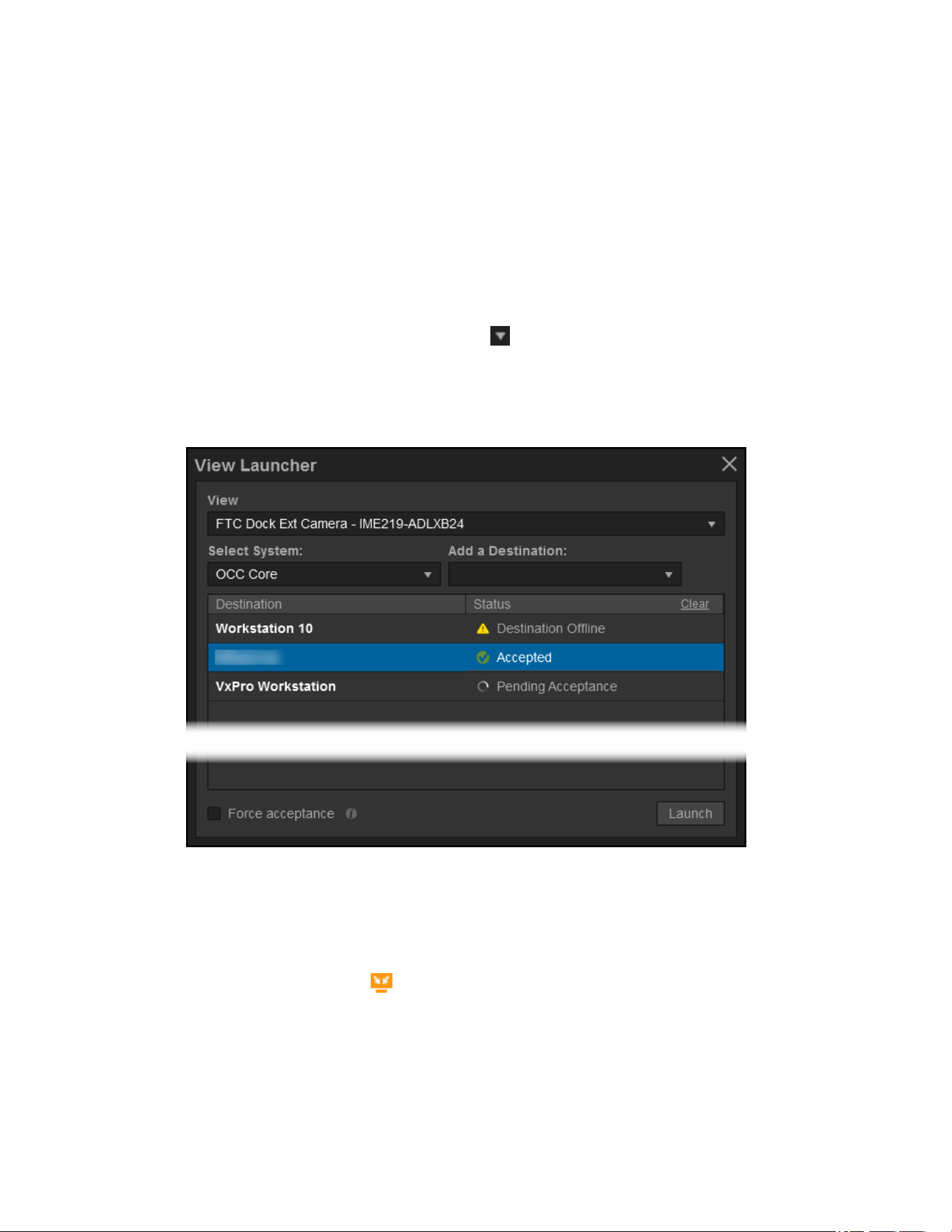
VideoXpert® Professional v 3.17 Operations Manual
C6601M-S | 06/22 122
Sending Views to Workstations or Shared Displays
You can send cameras or tabs to other workstations or shared displays (destinations) in your VideoXpert
network using View Launcher or Quick Launch.
Using View Launcher to Send Views to Workstations or Shared Displays
To use the View Launcher to send cameras or tabs to other workstations or shared displays in your
VideoXpert network:
1. Open the View Launcher using one of the following methods:
l
In Mission Control, click the User Menu icon ( ), and then select View Launcher.
l
Click the source in the active cell, click File, and then click Send To.
l
Right-click the source in the active cell, and then select Send To.
l
Right-click the device icon in of the appropriate source in the Sources list, and then select
Send To.
2. Use the drop-down menu to select the View that you want to send if it is not already selected.
If present, you can also select Saved Tabs, Saved Investigations, or Workspaces.
3. If present, use the drop-down menu under Select System to select the system on which resides
the destination for the view you want to send.
4. Use the drop-down menu under Add a Destination to select destination for the view you want to
send; destinations marked by are shared displays. You can select multiple destinations. When
you have added all appropriate destinations, click outside the drop-down menu.
5. (Optional) To clear a single destination from the list, click the x at the right of the destination row.
6. (Optional) To clear the destination list, click Clear.
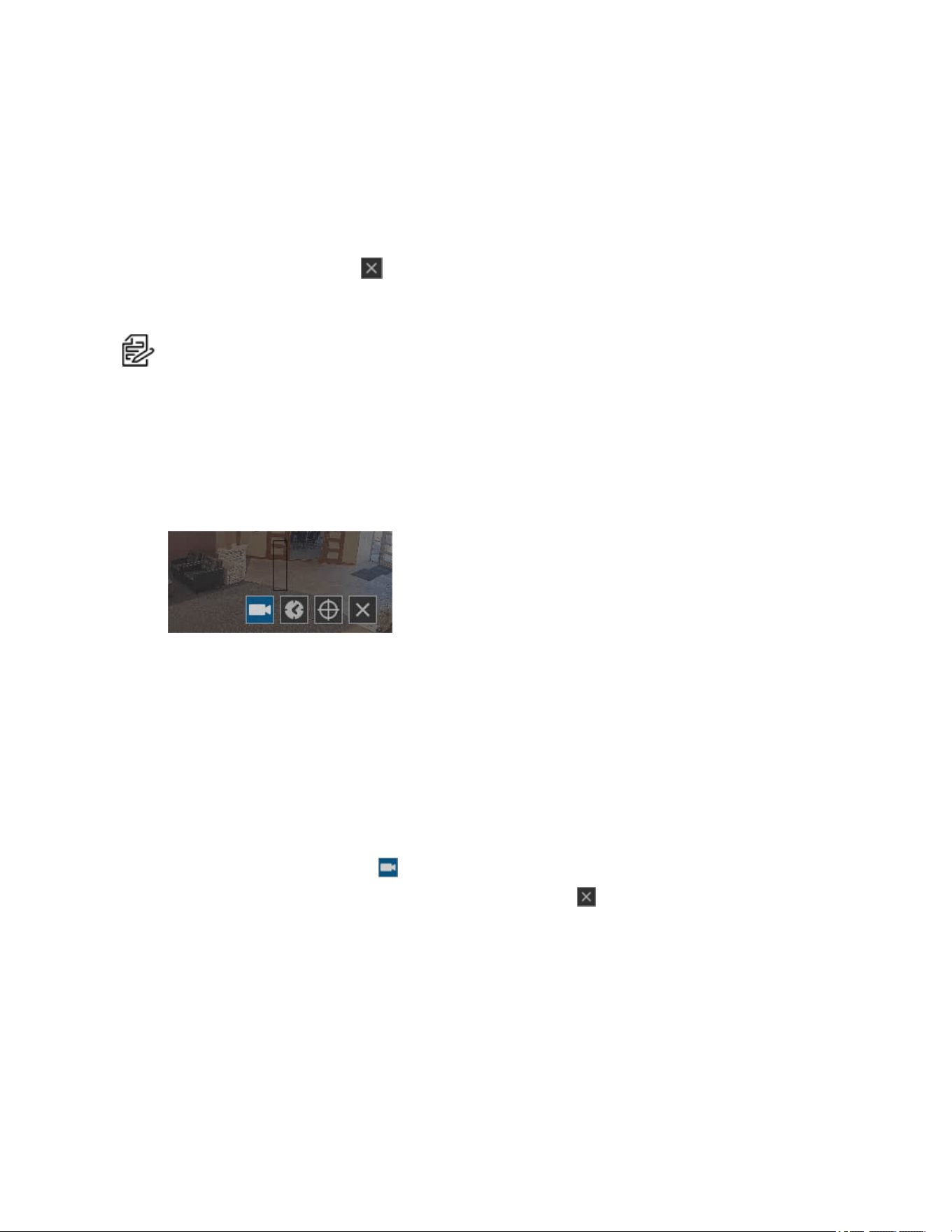
VideoXpert® Professional v 3.17 Operations Manual
C6601M-S | 06/22 123
7. (Optional) Select Force Acceptance to automatically launch the view in the active window of the
destination.
The destination user might have to manually accept the view you send, the destination might be
set to accept the view automatically, or you can force the destination to accept the view.
8. Click Launch.
9. The disposition of the sent view is listed in the Status column.
10.
Click the close window icon ( ) to exit the View Launcher.
Using Quick Launch to Send Cells to Workstations or Shared Displays
Note: The Quick Launch dialog box has other functionality, which is explained in the tasks
associated with those functions.
To use the quick launch feature, your shared displays must be assigned numbers. See the section titled
Configuring Shared Display Mode
1. (Optional) If you are sending the currently streaming camera (you will click to select the cell to be
sent), put the camera in the mode you would like to send. That is, you can leave the camera in live
mode, select playback mode, and select a specific time in the recording to begin playback. When
the cell is sent, the destination will appear as you set it now.
2. To access Quick Launch, click the cell to be sent, and then press the Insert key.
3. In the black box at the center of the dialog box:
l
Enter the target monitor number and then m to indicate the destination.
l
(Optional) Enter the target cell number and then c. If you want the stream to appear in the 1st
cell of the destination, you do not have to specify the cell number.
l
If you want to specify a source other than a currently streaming camera in which you have
clicked before opening Quick Launch, enter the camera number. If you specify the camera
number, the destination will receive the cell in live mode.
Entering 6m3c222 would send camera 222 to cell 3 of monitor 6; entering 6m would send the
currently selected camera to cell 1 of monitor 6.
4.
Click the Call Up Camera icon ( ) or press the Enter key.
5.
To close the Quick Launch dialog box, click the Cancel icon ( ).

VideoXpert® Professional v 3.17 Operations Manual
C6601M-S | 06/22 124
Watching Video
The Sources section of Mission Control shows the list of video and audio sources you are authorized to
access.
If a particular source is online but does not appear in your source list, try refreshing the list. Sources that
come online after you log in or perform a search will not appear until you refresh the list. If the source still
does not appear, request access to the source from your administrator.
When watching live video, cells 1/4 the size of the tab or larger will use the primary stream from a video
source. Cells smaller than 1/4 the size the tab will use the secondary or tertiary video stream. In a 2x2
layout, for example, all cells will use the primary stream. In a 1+12 tab, the largest cell will use the primary
stream and the other twelve will use the secondary or tertiary stream.
All-frame reverse playback enables frames to be displayed at up to eight times the normal speed. This
will make the playback smoother.
When playing forward or reverse at high speeds (greater than +/-8X), only iFrames will be shown. At
lower speeds, all frames will be shown whenever possible, but for reverse playback, some additional
limitations apply:
l
For systems that use enhanced decoders, this is available for up to four streams per monitor.
l
For systems with multiple monitors on a single host, this is available for up to four streams total on
the host PC.
l
Reverse playback may be noticeably choppy for cameras configured with dynamic-GOP-length (a
smart-compression feature) or for cameras with fixed-length, but unusually long GOPs. All
cameras should work well with fixed-length GOPs up 15, or up to 30 for cameras with resolution
less than 4K.
To watch live or recorded video, in Mission Control:
1. (Optional)If VxOpsCenter is configured for multi-system access, you can shorten the list of
sources available in the Content panel, and then limit the systems with which you are working:
a. In Mission Control, click Systems.
b. Click Filter to expand the filter panel.
c. If there is an active filter, clear it.
d. Click to select and deselect the systems to access.
The items in Sources page of the Content panel are updated immediately.
See the section titled Working With Systems.
2. Click Content, and then click Sources.
3. Find the source you want to watch. To use the Filter to search for sources:
a. Click Filter to expand the filter panel.
b. Type a value in the Filter by field or select a saved filter from the Advanced Filter Options
drop-down menu.
c. (Optional)Click to expand Advanced Filter Options, and then refine the filter using the
Tags, Online, Recording, On Screen, and Storage filters.
d. (Optional) To save a filter, under Advanced Filter Options, in the Saved Filter Sets drop-
down menu, click Save Filter.
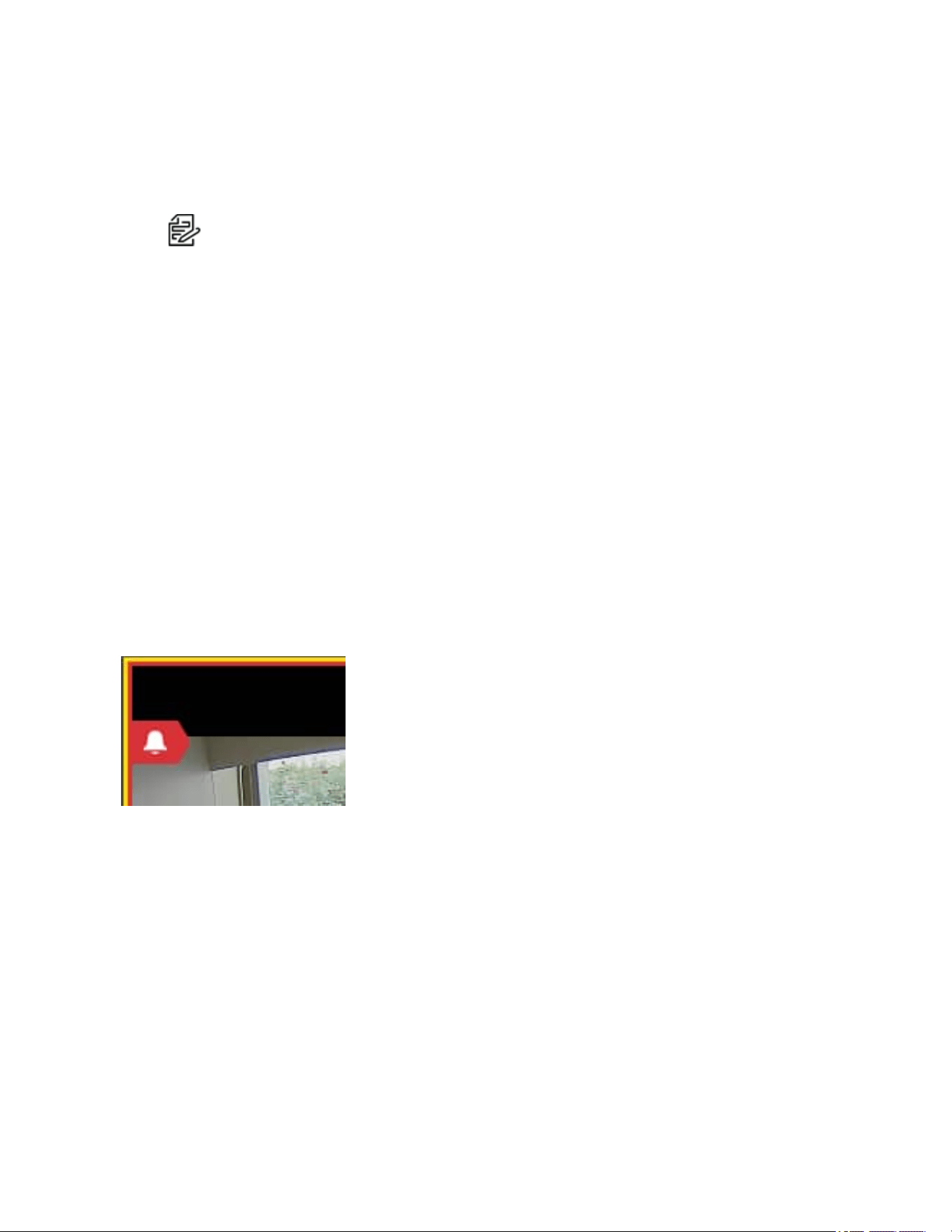
VideoXpert® Professional v 3.17 Operations Manual
C6601M-S | 06/22 125
4. Add the camera to your workspace.
l
Drag a camera to the cell in which you want it to appear.
l
Double-click a camera to add it to the next available cell in the current tab.
Note:
If you add a PTZcamera that is offline, the cell displays the
PTZcontrols are currently
unavailable
error message. Click
OK
to acknowledge the message. The cell will display
Video source is offline
until the source comes back online.
Understanding Cell Borders
The color of the inner and outer border of a cell indicates the status of the cell.
l
A white outer border indicated that the cell is active (selected); a black outer border indicates that
the cell is not active.
l
A white inner border indicates that the cell is in live mode.
l
A yellow border indicates that the cell is in playback mode.
l
A purple border indicates that the cell is in Digital PTZ mode.
l
A blue border indicates that the cell is in PTZ mode.
l
A flashing red border indicates that there is a notification for the device. To close the flashing red
border, respond to the event notification.
l
In monitor walls only, a green border indicates that the cell is being controlled by another instance
of VxOpsCenter.
Responding to an Alarm in a Cell
If your workspace has been configured do to so, it will display a red alarm symbol for each active alarm at
the left margin of a cell for a camera you are viewing. The inner cell border will flash red.
Hover over the alarm symbol to see the alarm type.
To respond to the alarm:
1. The event notifications pop-up window will display. If it does not, click the event counter at the
bottom right corner of the VxOpsCenter window. When there are one or more active alarms, the
event counter is red.
2. Click on Event Log in the Event Notification window.
3. Use the Event Notification dialog box or the Event Viewer cell to manage the alarm(s). To do so,
see the section titled Using the Event Notifications Dialog Box.

VideoXpert® Professional v 3.17 Operations Manual
C6601M-S | 06/22 126
Rotating the Camera
You can rotate the view of PTZ cameras. To do so:
1. Right-click in the cell in which the camera is streaming, and then click Rotate.
2. Click to select one of the following options:
l
Maintain the Default Rotation
l
Rotate 90°
l
Rotate 180°
l
Rotate -90°
Viewing Analytics Overlays
Pelco’s Sarix cameras provide for an overlay of analytics on live and recorded video that can be
displayed in VxOpsCenter. The types of analytics overlays are Simple &Enhanced and Advanced.
Simple &Enhanced overlays are as follows.
l
Simple Motion Detection shows a red-tinted shape overlaying the video where motion is
present.
l
Analytic Drawing Data shows lines, boxes, and text to track areas of motion within the scene.
Advanced overlays are as follows.
l
Object Bounding Boxes outlines and follows persons detected in the configured Person
Detection Zones or vehicles detected in the configured Vehicle Detection Zones. Bounding boxes
are shown for any object (person/vehicle) that is detected in the camera's view.
l
Object Detection Zones shows the configured Person Detection Zones and Vehicle Detections
Zones, and Counterflow zones (person or vehicle).
–
Person In Zone bounding boxes are outlined in blue; when occupied, the corners of the
bounding boxes will be red, as will the zone border. An event will be named Person in Zone "
[name of zone]".
–
Vehicle In Zone bounding boxes are outlined in orange; when occupied, the corners of the
bounding boxes will be red, as will the zone border. An event will be named Vehicle in Zone "
[name of zone]".
–
A Person Counterflow or Vehicle Counterflow zone hasgreen and red arrows in the
center of the zone to show correct and wrong directions. The zones for person detection are
outlined in blue; the zones for vehicle detection are outlined in orange. When one or more
people or vehicles are moving in the wrong direction, the bounding boxes for each person or
vehicle change to red and will show the full rectangular border. An event will be named
Person Counterflow in "[name of zone]" or Vehicle Counterflow in "[name of zone]".
l
Counting Lines shows directional traffic across a defined line.
–
Enabled Person Counter lines are blue.
–
Enabled Vehicle Counter lines are orange.
–
A counter can be uni-directional, bi-directional, or omni-directional, such that any person or
vehicle crossing the line in the selected direction(s) will be detected. The direction is indicated
by arrows along the line.

VideoXpert® Professional v 3.17 Operations Manual
C6601M-S | 06/22 127
–
Uni-Directional lines record one count for each crossing of the line in the selected direction
of the line.
–
Bi-Directional lines record two separate counts, one for each crossing of the line in both
directions of the line.
–
Omni-Directional lines record one count for each crossing of the line in any direction.
–
Click to select or deselect Display Counts to display or hide the line count—how many
people or vehicles have crossed the line in the appropriate direction(s).
–
Users with Admin permissions can right-click a counter line to reset the counter to zero (for
that line only).
Note
:Users can perform counter resets for streams running on VxOpsCenter client
(the local decoder); users cannot perform counter resets for streams running on an
Enhanced Decoder.
A cell containing a detection zone in which an appropriate object is detected will have an yellow border
around the cell.
Object detection events are shown in VxPortal, but the overlays are not.
Note:For PTZcameras, these are in presets that contain analytic configurations.
Note:Overlays are not available in exported recordings.
Overlays are configured at the camera level. Configuration parameters include the type of overlays that
are enabled, the shape of each overlay in the overlay type, and sensitivity to motion. Refer to the
operations manual for the camera to configure simple-motion data analytics and analytics drawing data.
Refer to the current version of the VideoXpert® Toolbox Operations Manual or the VxToolbox section of
this operations manual to configure Advanced overlays.
Analytics overlays can be enabled on a per-cell basis. That is, you can have more than one cell
streaming video for the same camera, and set each cell to display (or not display) different analytics.
Viewing Analytics Overlays in a Cell
To view an analytics overlay in a cell:
1. Open the camera in a cell.
2. Right-click the cell, click Analytic Overlays, click Enhanced, and then click to select Object
Bounding Boxes, Object Detection Zones, and/or Counting Lines.If you select Counting
Lines, you can also click to select Display Counts.
A check mark is displayed to the left of the option you select, indicating that the overlay is enabled.
3. If appropriate, repeat the previous step and select another overlay.
4. (Optional) To disable an analytics overlay, perform the steps above, but click to deselect the
overlay(s) that you do not want to display.
Note:
Overlays will still be recorded even when they are disabled, so you can view them in
playback mode.
Note
: Enhanced and Advanced Analytic Overlays can not be used in the same cell at the
same time. Selecting one type of overlay will deselect the other.

VideoXpert® Professional v 3.17 Operations Manual
C6601M-S | 06/22 128
Enabling and Disabling Audio
Video sources marked with a small blue or gray dot ( ) are associated with an audio source. In any cell
containing or associated with an audio source, click the Mute/Unmute icon ( ) to enable or disable
audio within a cell; you can control volume through Windows’ standard audio controls.
To change the audio preferences on one or more cells:
1.
In Mission Control, click the User Menu icon ( ).
2. Click Preferences.
3. In the Preferences dialog box, click Cells.
4. Click to select or deselect the checkbox for Automatically play audio when available.
5. Click to select From selected cell only or From all visible cells.
6. Click Done.
Expanding a Cell to Full-Screen
In the source cell, double-click the cell or click the View Video in Full-Screen icon ( ) to expand a cell to
the full-screen. Click the same icon (now labeled Exit Full Screen), double-click the cell, or press the Esc
key to exit full-screen mode.
Watching Recorded Video With VideoXpert
Users with sufficient permissions can access recorded video from any video source in a workspace.
Placing the pointer on a cell containing a source with recorded video will reveal playback controls.
1. Place your cursor over the cell containing the source with recordings that you want to watch.
2. Navigate to the date and time in the recording that you want to view using one of the following
methods:
l
Click the Jump to Specific Date/Time icon ( ), specify or select the date and time, and then
click Go.
l
Click in the cell with the recording to playback, enter a value in military time (for example: for
9:45PM, enter 2145). As you do this, the Quick Launch dialog box opens. When the time is
displayed in the black box at the center of the Quick Launch dialog box, click the Jump to
Time icon ( ) or press Alt+Enter.
l
Click at the appropriate spot in the timeline to quickly navigate to a different time in the
recording. Green areas on the timeline represent recorded video.
l
Drag the timeline into position to navigate to a different time in the recording. Green areas on
the timeline represent recorded video.
l
Use the playback controls to direct video playback.
l
Click the Jump Back 30 Seconds icon ( ) to jump back 30 seconds from the currently
selected spot in the timeline.
l
Click the Jump to Now icon ( ) to jump to live video.
Note:
If a user changes a camera from http to https settings or the opposite, there might be
a recording gap of between five seconds and five minutes.

VideoXpert® Professional v 3.17 Operations Manual
C6601M-S | 06/22 129
The timeline shows the date and time in the top row. The bottom row is color-coded.
l
A green bar indicates a scheduled recording.
l
An orange bar indicates an event recording.
l
A red bar indicates an alarm recording.
l
A blue bar indicates a motion recording.
l
A yellow bar indicates a manual recording.
l
A checkered blue bar indicates the results of a requested pixel search that detected motion.
l
A cyan bar indicates that an analytic was triggered.
l
A purple bar along the very bottom of the timeline indicates an audio recording.
l
A full-height bar indicates standard-quality recording.
l
A half-height bar indicates an iframe/low-quality recording.
l
No bar (all black) indicates that there is no recording for that date and time.
l
A gray bar indicates a future time.
Watching Recorded Video with Edge Storage
If your camera or video source is recording video locally (using a micro SD card or in concert with ONVIF
Profile G), and you have the correct permissions, the timeline will display the camera storage icon ( );
the device tooltip will also alert you to multiple recording locations.
Click on the camera timeline to display the camera storage icon ( ), and then click the icon to open an
investigation tab showing the camera’s various recording locations as separate timelines.
You cannot view video while it is stored on the camera; you must push video from the camera to a
VideoXpert Storage recorder, to view video stored on a camera. See the section titled Using
Investigation to View Video Stored on a Camera's Local Storage.
Using Pixel Search
Pixel Search enables you to quickly access motion detection events on a specific camera for a selected
range of time in a recording.
1. For the specific camera (one at a time) that has the events you want to view, ensure that you have
set the Motion Detection analytic, Detect Motion setting to On Server in VxToolbox. See the
current version of the VideoXpert® Toolbox Operations Manual for instructions.
2. Display the camera in a cell in VxOpsCenter; expand the cell, if appropriate.
3. Right-click the cell, and select Search Recordings for Motion (Pixel Search).
4. In the dialog box, click to select the checkbox for Don’t show again (if appropriate), and then click
OK.
5. In the grid that now overlays the camera view in the cell, select one or more zones (squares) in the
grid, using one of these methods:
l
Click to select a single zone.
l
Click and drag to select multiple adjoining zones in a rectangular pattern.

VideoXpert® Professional v 3.17 Operations Manual
C6601M-S | 06/22 130
l
Hold down the Shift key on your keyboard, and click to select each zone. These do not need
to be adjoining zones.
l
Hold down the Shift key on your keyboard, click individual zones, and click and drag to also
select groups of adjoining zones.
l
To clear the selected zones, click the Clear Selected Zones icon ( ) at the upper left of the
cell.
l
To search in the zones that you did not choose, instead of the zones you chose, click the
Invert Selected Zones icon ( ) at the upper left of the cell.
6.
To select a different date and time range than what is currently selected, click the edit icon ( ) at
the upper right corner of the cell, to the right of the date range; in the Set Time Range window,
select a start date, start time, end date, and end time; and then click Set.
7. The length of time included in the default time range is based on the current time bar selection. For
example, if 1hr is selected in the time bar drop-down menu at the bottom of the workspace, then
one hour will be the default time included in the search range. To change the length of time
included, in the default time range, click the drop-down menu for the current time bar selection,
and then click the appropriate time range.
8.
(Optional) To exit the Pixel Search, click the Cancel icon ( ) at the upper left of the cell.
9. In the upper right of the cell, click Search.
l
The first event (chronologically) plays immediately.
l
Clips with motion events detected are indicated by blue bars in the timeline in the playback
controls area.
l
The blue pixel search bars are half-height; motion is full-height.
l
To jump to the next event, click the Alt key, and then click the Next Clip icon ( ) in the
playback controls area.
l
To jump to any event, select an event from the Jump to Event drop-down menu at the top of
the window, or click the blue bar associated with the event in the playback controls area.
10. When finished, click Done in the top right corner of the window.
Using Bookmarks
When watching recorded video, you can create a private or public bookmark to note a moment in video to
reference later. Bookmarks appear in a section in Mission Control. Public bookmarks are global
resources; all users can see the public bookmarks you create. Within Mission Control, bookmarks
behave like cameras; you can add a bookmark to a tab or workspace to recall the portion of video
captured by the bookmark.
Creating Bookmarks
To create a bookmark:
1.
While watching a recorded video, click the Create Bookmark icon ( ).
2. Provide a Title for the bookmark. The title can be searched within Mission Control.
3. (Optional) Enter information in the Notes field.
4. Click to select the checkbox to make this a Private or Public bookmark.

VideoXpert® Professional v 3.17 Operations Manual
C6601M-S | 06/22 131
5. (Optional) Apply a lock to segments of video/audio recordings, called clips, to prevent them from
being deleted unless they are purposely unlocked. To do so:
a. Click to select the checkbox for Lock Video.
b. Use the date and time selectors to set the start and end parameters for the lock.
6. Click Save.
Finding and Recalling Bookmarks
Bookmarks behave like any other camera or video source. Adding a bookmark to a workspace adds the
camera to the workspace in playback mode, paused at the date and time specified by the bookmark.
1. Click Bookmarks in Mission Control to expand bookmark resources.
2. (Optional) Use the filters to search for a bookmark. The list of results only displays the source,
date, and time for the bookmark in question, but you can also search by the plain-text note
attached to the bookmark. Hover the cursor over a bookmark to get more information about it.
3. Add the bookmark to a tab or workspace.
4. To see the lock on the timeline, scroll to a time within the lock, and notice the white bar at the top of
the timeline, with arrows pointing down to indicate the start and stop times.
Editing, Unlocking, and Deleting Bookmarks
To edit the plain text for the bookmark or to lock or unlock the bookmark, select the bookmark in Mission
Control and click the Edit Bookmark icon ( ) at the lower right of the panel, you cannot change the date,
time, or camera.
To delete a bookmark, select it in Mission Control, click the Delete Bookmark icon ( ) at the lower right
of the panel, and then click Delete.
Synchronizing Video Playback
You can synchronize playback across multiple cells within a tab to provide different perspectives for a
single recording event.
1. Click Sync in the tab containing the cells to synchronize.
2. Select the cells you want to synchronize, and then click Sync, or select Sync All to select all cells
in the tab.
3.
If necessary, click the Play icon ( ) to playback video. Cells will remain synchronized until you
click Sync again or click Unsync All, even if you jump to live video and re-engage playback.
l
When using sync playback on any of your current monitors, click the Activate Synchronous
Play for This Cell icon ( ) in the bottom left corner of the tab to add a tab to the sync group.
The icon turns yellow when the cell is added to a sync group. The controls in any monitor
belonging to the sync group will affect playback for all cells and tabs in the group.
l
Click the Add to Multi-Tab Sync Group icon ( ) to add cells in a tab to the global sync group.
l
To add individual cells in a monitor to the global sync group, click Sync to open the Select
Cells for Synchronized Playback box, select the cells to add to the group, and then click
Sync.
l
To remove a cell from the group, click the Deactivate Synchronous Play for this Cell icon ( ).
The icon returns to white when it is removed from a sync group.
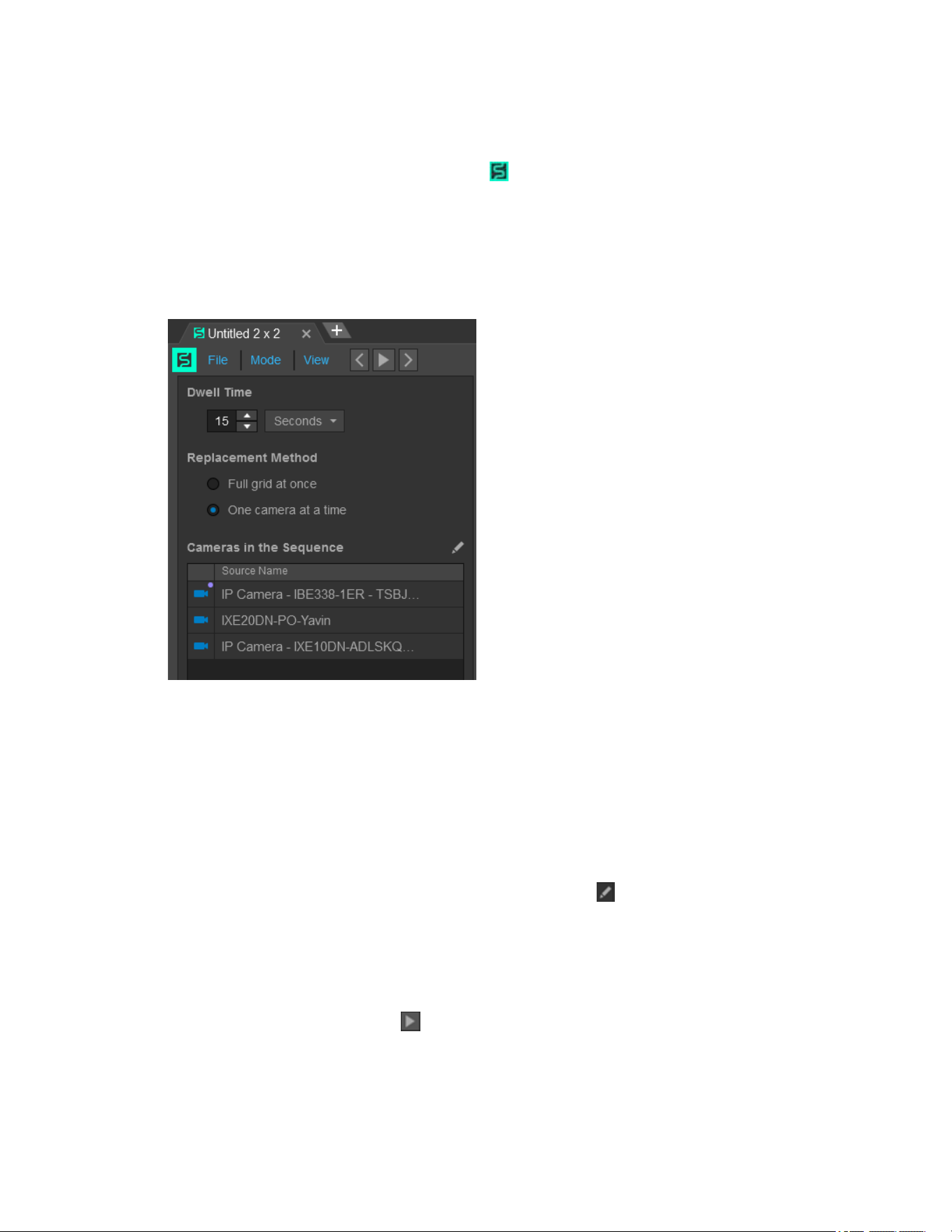
VideoXpert® Professional v 3.17 Operations Manual
C6601M-S | 06/22 132
Creating a Live Sequence Mode
A video sequence, indicated by the sequence symbol ( ), is a series of cameras set to rotate through a
tab at a user-defined period of time. When you configure a sequence, you can determine which cameras
appear in the sequence; how often the cameras rotate; and whether or not to rotate an entire set of
cameras, or just one at a time. A sequence may be helpful when you have more locations to track than
you have monitors or attention.
To create a sequence:
1. In any tab, click Mode and select Live Sequence.
2. Set the Dwell Time period. This is the length of time that the tab will dwell on cameras before
advancing to the next camera(s) in the sequence.
3. In the Replacement Method area, click to select the radio button for Full grid at once, or One
camera at a time. This determines how many cameras you want to replace at the end of each
dwell period. When replacing a single camera at a time, the cameras rotate through the grid, left-
to-right, top-to bottom. (The next camera in the sequence moves into the top-left cell; the camera
formerly in the top-left cell moves to the right, and so on. The bottom-right cell is bumped off the
grid, until it re-enters the sequence.)
4. To add cameras to the Live Sequence:
a.
To the right of Cameras in the Sequence, click the edit icon ( ) to enter the Edit Mode.
b. Either double-click cameras, or drag cameras into the Cameras in the Sequence box.
5. To delete cameras from the Live Sequence, click the x to the right of the name of the camera to
delete in the Cameras in the Sequence box.
6. Click Save.
7.
Click the Resume Sequence icon ( ).
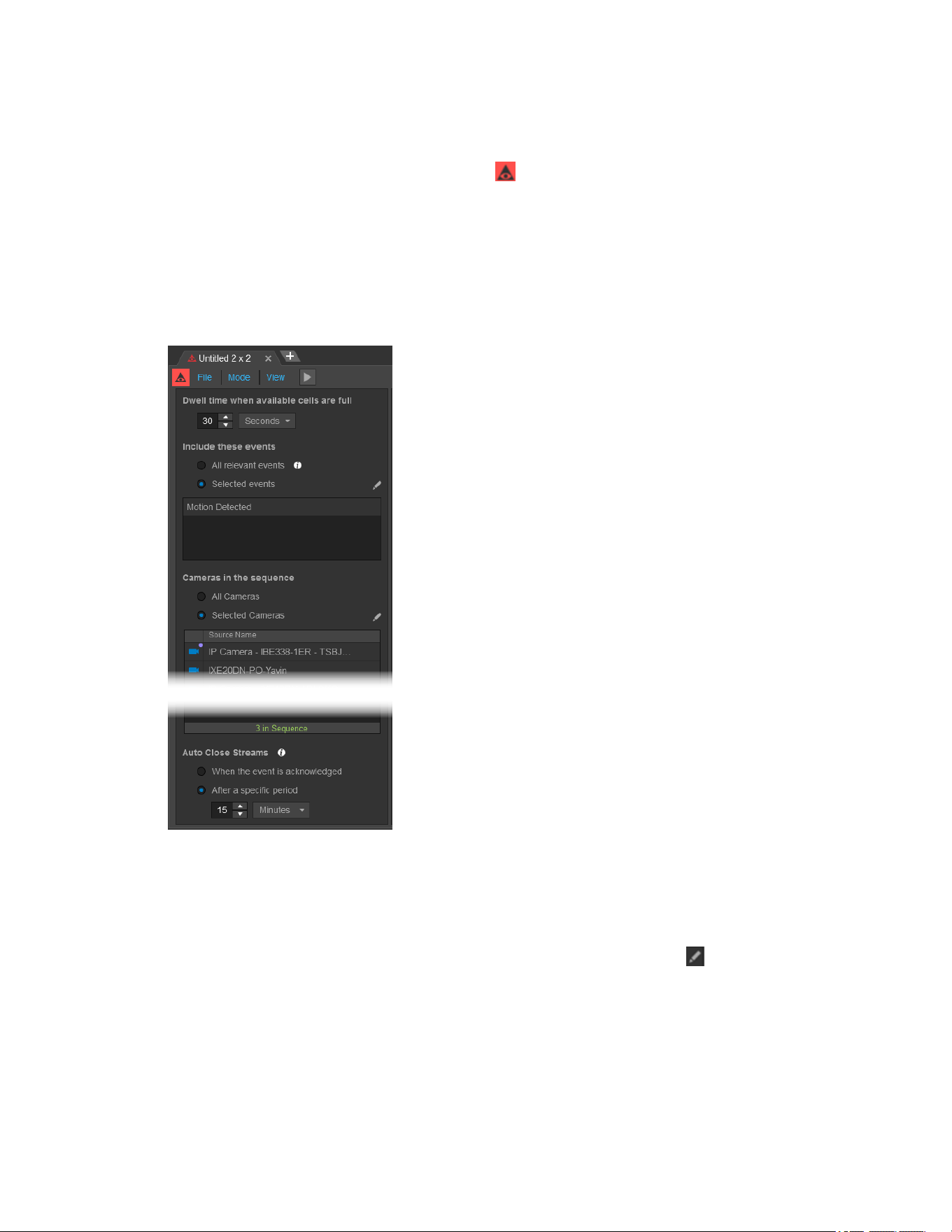
VideoXpert® Professional v 3.17 Operations Manual
C6601M-S | 06/22 133
Creating an Alarm Sequence Mode
Alarm Sequence mode, indicated by the alarm symbol ( ), allows you to designate cameras that you
want to watch only when meaningful events occur, so that you never miss activity relevant to your
surveillance operations.
By default, the sequence will any camera-associated events that have been configured to provide a
notification for your user account and role. You can refine the sequence to a subset of system cameras
and a subset of camera-associated events that you want to watch.
To create an alarm sequence:
1. In any tab, click Mode and then click Alarm Sequence.
2. If the Tab Mode Change Confirmation dialog box opens, click OK.
3. Type in a value or select a value using the up and down arrows for Dwell time when available cells
are full. This indicates how quickly video rotates through the sequence when you have more
current events than available cells in the sequence.
4. (Optional) In the Include these events area, click to select the radio button for Selected Events if
you only want to use a subset of events in your sequence, click the Edit icon ( ), click to select or
deselect checkboxes for the Event Types to include, and then click Save; otherwise, leave the All
relevant events radio button selected.
5. (Optional) In the Cameras in the Sequence area, click to select the radio button for Selected
Cameras if you want the sequence to follow a specific subset of cameras, drag cameras into the
sequence (the order does not matter for alarm sequences), and then click Save; otherwise, leave
the All Cameras radio button selected.

VideoXpert® Professional v 3.17 Operations Manual
C6601M-S | 06/22 134
6. (Optional) In the Auto Close Stream area, click to select the radio button for After a specific period,
and then enter or select the time period; otherwise, leave the When the event is acknowledged
radio button checked.
7.
Click the Resume Sequence icon ( ).
Editing Sequences
Click the Edit icon ( ) to edit the cameras, events, and other settings belonging to a sequence.
You do not need to pause the sequence to edit the cameras in the sequence.
Pausing and Resuming Sequences
Click the Pause Sequence icon ( ) to stop cameras from rotating in or out of the sequence. The
cameras in the tab will continue to play until you click the Resume Sequence icon ( ).
Setting up Snapshots
You can automatically save snapshots in a folder of your choosing.
1.
In Mission Control, click the User Menu icon ( ).
2. Click Preferences.
3. Click General.
4. In the When creating snapshots area:
a. Click to select the radio button for JPG or PNG.
b. Click to select or deselect the checkbox for Show overlays on snapshot. If you select this
option, also configure the following settings:
l
Under Text Size, click to select the radio button for either Use default fixed size or Scale
text as a percentage of snapshot height. If you select scaling the text, enter a
percentage in the field, either by typing-in a number or selecting one using the up and
down arrows.
l
Select a Position from the drop-down menu.
l
Use the slider bar or type in a value to select the Opacity of Text Background.
l
In the Text color area, click to select the radio button for Use default colors or Use white
for both camera name and timestamp.
l
Click to select or deselect the checkbox for Auto-save snapshots. If you select this
option, enter the folder location to which the snapshots will be saved either by typing in
the path or using the Browse button.
5. Click Done to exit the Preferences window.
Taking Snapshots
1.
Click the Take Snapshot icon ( ) to take a snapshot of the current frame.
2. If you have not set up a location for saved snapshots, provide a location and file name for the
snapshot, and then click Save.
3. If you have set up a location for saved snapshots using the instructions in the section titled Setting
up Snapshots, the snapshot will be saved to that location without further interaction.

VideoXpert® Professional v 3.17 Operations Manual
C6601M-S | 06/22 135
Displaying Statistics
To display camera statistics over live video in the pane, right-click the cell for which you want to see
statistics, click Diagnostics, and then click Statistics. Perform this step again to hide the information.
Most statistics presented are self-explanatory; but a few statistics require some explanation:
l
Call-up Time is a measure of how long it took between launching a stream and displaying the first
frame.
l
Pipeline Latency is the amount of buffering used by the client. This directly adds to the end-to-end
latency between the camera and the display.
For example:If you have a camera with a 3-second GOP that does not force out iFrames upon
new client connections, it might take 3 seconds to call up the first frame, but you could still have
very low end-to-end latency thereafter.
Pipeline Latency is independent of Call-up Time.
l
Displayed Frame Rate is the average number of frames displayed over a small time period. If
frames are dropped by the client, the value could be lower than the camera's configured frame-
rate. Because of those differences and because actual frame-rates are rarely whole numbers, the
rate is displayed to the second decimal point.
For example:the NTSCstandard is 29.7fps, not the 30fps typically shown in a camera
configuration UI. If the measured frame-rate is reporting higher than expected, it might be due to a
short averaging window. That is, it could be slower or faster at different points in time, but still at
the expected average rate over a longer time period.
l
Display Jitter is a measure of "jittery" (unsmooth) is the frame presentation. Ideally, frames are
displayed smoothly (no jitter) at the exact frame interval of the camera.
For example:Frames from a 30fps source should be displayed at 1/30 second intervals, but if the
display is jittery, you will see a noticeable pattern of slow/fast, long/short intervals even though the
average frame-rate is still 30.
On many systems, client-side buffering is customer-configurable. Customers can hand-tune the
buffering by starting with the smallest value and increasing until visible jitter is minimized.
VideoXpert performs this configuration automatically; streams typically start with a small Pipeline
Latency value, and then the value will increase during the first few seconds of playback to reduce
jitter. Entering PTZinput mode forces the latency back to the minimum value, so that PTZcontrol
latency is minimized, potentially at the expense of presentation smoothness.
Measuring Latency
Note:This feature is available to Admin users only. It is used to measure the performance
(latency) of your system using a camera on the system. You must have access to the camera and
a monitor to which you can point the camera.
To measure end-to-end latency
1
of the system using any camera:
1. Right-click the cell for the camera to view.
2. Click Diagnostics, click to select Measure Latency, and then click in the cell.
3. (Optional)Open the same camera in another cell, but do not dislpay the Measure Latency view.
This helps you better aim the camera at the barcode.
4. Point the camera at the barcode on the VxOpsCenter screen.
When the camera is able to read the barcode, the Scanning Success progress bar (green)begins
to fill in.

VideoXpert® Professional v 3.17 Operations Manual
C6601M-S | 06/22 136
5. Slightly adjust the camera position as needed to get the progress bar to 100%, and then read the
Average end-to-end latency measurement above the bar.
6. To exit the MeasureLatency feature:
a. Right-click the cell, click Diagnostics, and then click to deselect Measure Latency.
b.
Click the play icon ( ) in the cell.
1
USpatent pending, docket number CLO-0186-US-NP/1005700.785US1.
Viewing and Filtering Sources
In Mission Control, click to expand Content, and then click the Sources tab to see a list of all video and
audio sources that you are authorized to access.
l
Click to expand the Filter area, and use it to shorten the list of sources.
–
Enter a Source Name, Model, Number or IP address in the Filter by field.
–
In the Advanced Filter Options field, select a filter from the Save and Recall Source List Filter
Sets pull-down menu.
–
Click to expand Advanced Filter Options to reveal additional options; you can find cameras by
Tags, whether they are Online, whether they are Recording, whether they are On Screen,
and whether they are equipped with Storage.
When you use two or more tags, the filter will find only those sources that have all of the tags
assigned to them.
l
To find a filter, click to expand Advanced Filter Options, click Saved Filter Sets, and then click the
appropriate filter.
l
To save a filter, click to expand Advanced Filter Options, populate the filter, click Saved Filter
Sets, and then click Save Filter.
l
To toggle between the Folder View and the Video Sources view, click the Show Folder View icon
( ) or the Show List View icon ( ), whichever is visible. These are located at the far right of the
window, below the Filter.
See the section titled Managing Tags to create and manage folders.

VideoXpert® Professional v 3.17 Operations Manual
C6601M-S | 06/22 137
Managing Tags
The Manage Tags window enables you to see information about a selected camera or cameras, create
tags in the system, and organize cameras in a folder structure. Folders behave like tags in that you can
use them to filter and search.
To access the Manage Tags window, do one of the following:
l
In Mission Control, click the User Menu icon ( ), and then select Manage Tags.
l
Right-click a video source, either in a cell or in the Sources list, and then select Manage Tags.
Viewing Tags in the Selected Camera(s) Panel
The Selected Camera(s) panel in the Manage Tags window displays folder tag information. It also allows
you to create new tags.
1. In Mission Control, in the Content area, in Sources list, select the sources for which to manage
tags.
2. Access the Manage Tags window.
3. Click the Selected Camera(s) tab.
4. Click to select or deselect the checkboxes in the Show field, for My tags, Global tags, and
Personal Tags. Not all of these will be present for all cameras.
l
Global tags are signified by the Global icon ( ). These tags are available to all users within
the system. All users can filter sources, exports, and bookmarks according to the listed tags.
l
Personal tags created by you are indicated by the My Tag icon ( ). These tags are only
available to you and administrator-level users. You can use your personal tags to assign and
sort resources in a way that best reflects how you use VideoXpert.
l
Folder tags are indicated by the Folder Tag icon ( ).
5. In the Show tags applicable to selected camera(s), select Any or All.
l
Any shows tags that are assigned to any of the selected cameras.
l
All shows only those tags that are assigned to all of the selected cameras.
6. (Optional) To clear the tag(s) from the selected camera(s), do one of the following:
l
Remove a single tag by clicking the x at the right of the tag itself.
l
Remove all tags by clicking Remove All, and then click Clear in the confirmation dialog box.
7. Click Done to exit the window.
Creating and Assigning Tags in the Selected Camera(s) Panel
You create tags while assigning them.It is important to have a strategy for tags and camera organization
before you begin creating and assigning tags.
1. Click to select one or more cameras for which to create and apply a tag.
2. Access the Manage Tags window.
3. Click within the tag field and type the name of the tag you want to assign; if the tag exists, you can
select it and it will autofill.

VideoXpert® Professional v 3.17 Operations Manual
C6601M-S | 06/22 138
4. If the tag does not exist, do one of the following:
l
Click Create this tag (personal) to create a tag that is private to your user account.
l
Click Create this tag (global) to create a tag that other users can see and use.
5. Click Done to exit the window.
Deleting Tags in the System Panel
Through OpsCenter, users with sufficient rights can delete global tags.
1. Access the Manage Tags window.
2. Select the System tab.
3. (Optional) Click to select the checkboxes in the Show field to enable or disable My tags, Global
tags, or Personal tags.
In addition to the tags included in the Selected Camera(s) panel, you will also see Personal tags
which are indicated by the personal tag icon ( ).These tags are only visible to the creator and to
administrator-level users.For this reason, there might not be any Personal Tags.
4. Do one of the following:
l
Select the tag you want to delete, and then click the Delete icon ( ).
l
Right-click the tag you want to delete, and then click Delete.
5. In the confirmation dialog box, click Delete.
6. Click Done to exit the window.
Creating Folders in the Folders Panel
A folder is a tag that enables you to group other tags to view in a directory-like structure; you can filter and
search using a folder, as you would any other tag.
1. Access the Manage Tags window.
2. Access the Create New Folder dialog box by doing one of the following:
l
Click the Folders tab, right-click in the Folder View area, and then click Add.
l
Click the Folders tab, and then in the Folder View area, click the Add New folder icon ( ).
3. In the Create New Folder dialog box, enter a folder name in the Name field.
4. In the Create as field, click to select either the Top-level folder or Child of radio box. If you select
Child of, use the drop-down menu to select the appropriate parent folder.
5. Click OK.
6. In the Drag Cameras To and From Folders area:
a. (Optional) Use the filter to find the appropriate camera(s).
b. Click and drag the camera(s) to the new folder.
A camera can be assigned to only one folder at a time.
7. To remove a camera from the folder, do one of the following:
l
Click and drag it to the Drag Cameras To and From Folders area.
l
Click to select the camera, click the Delete icon ( ), and then click OK.
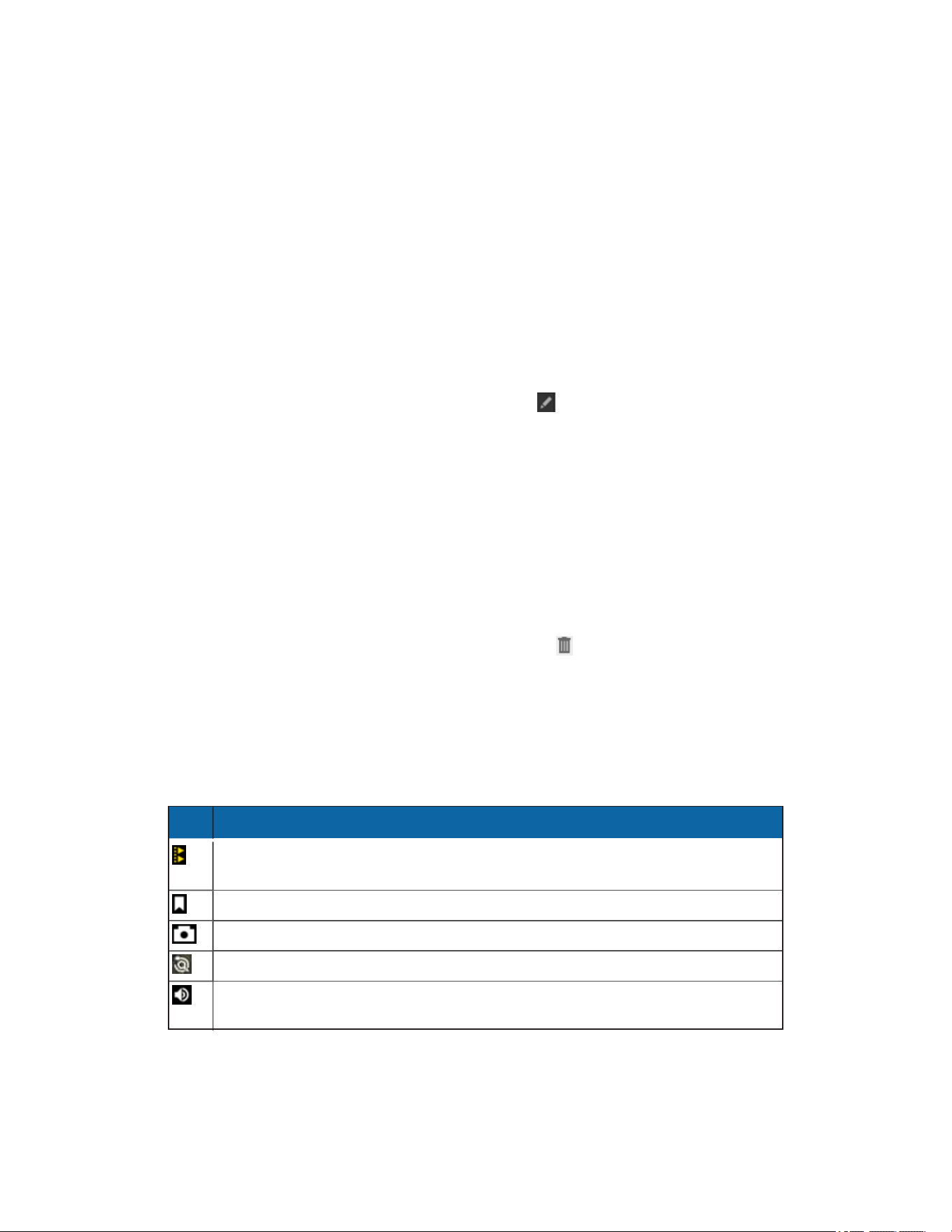
VideoXpert® Professional v 3.17 Operations Manual
C6601M-S | 06/22 139
l
Right-click the camera, click Delete, and then click OK.
8. To assign a camera to a different folder, click and drag it to the appropriate folder in the Folder
View area.
9. Click Done to exit the window.
Renaming a Folder in the Folders Panel
1. Access the Manage Tags window.
2. Click the Folders tab.
3. To rename a folder, do one of the following:
l
Right-click the existing folder, click Edit. In the Edit Folder dialog box, enter a new value in the
Name field, and then click Save.
l
Click to select the existing folder, click the Edit icon ( ). In the Edit Folder dialog box, enter a
new value in the Name field, and then click Save.
4. Click Done to exit the window.
Deleting a Folder in the Folders Panel
1. Access the Manage Tags window.
2. Click the Folders tab.
3. To delete a folder, do one of the following:
l
Right-click the existing folder, click Delete, and then, in the Delete Folder? dialog box, click
OK.
l
Click to select the existing folder, click the Delete icon ( ), and then, in the Delete Folder?
dialog box, click OK.
4. Click Done to exit the window.
Playback Controls
Playback controls appear when you hover over a cell containing recorded video.
Table 5: Playback controls (from left to right)
Icon Description
Click (when white) to activate or (when yellow) to deactivate synchronous play for a
cell; select in all cells that you want to synchronize within a tab.
Create a bookmark.
Take a snapshot of the current frame.
Enter investigation mode for all selected cells.
Mute or unmute audio on a source. If there is no audio for the source, the icon is not
shown.
VideoXpert® Professional v 3.17 Operations Manual
C6601M-S | 06/22 140
Icon Description
Rewind video. Click again to increase speeds from 2x, 4x, 8x, 16x, 32x, 64x, or
128x.
Play video at normal speed.
Fast-forward video. Click again to increase speeds from 2x, 4x, 8x, 16x, 32x, 64x,
or 128x.
Rewind video 30 seconds and initiate playback.
Select the date and time of video you want to watch.
Forward video to live playback.
View video in full-screen or exit the full-screen and return to the tab view.
Controlling Cameras (PTZ)
Engaging PTZ control changes the color of the border around the cell containing the source (camera)
you want to control: blue indicates native PTZ control, and purple indicates digital PTZ mode.
l
PTZ mode functions when PTZ cameras are operating in live mode.
l
Digital PTZ engages when you:
–
Engage PTZ controls for cameras.
–
Attempt to place PTZ cameras in playback mode; return to live video to engage native mode
for supported cameras.
–
Press Alt+Enter to force digital PTZ mode.
In Digital PTZ mode, all PTZ controls affect their digital equivalents. Pan or tilt commands to a camera in
digital PTZ mode cause the camera to digitally zoom in the requested direction (as opposed to physically
moving the camera’s field of view). Zoom commands will digitally zoom the camera from the center of the
field of view. Digital PTZ enhancements may affect video quality.
Table 6: PTZ mode icons
Icon Description
If present, activates Linked PTZ. (Pelco Camera Link)
If present, deactivates LinkedPTZ. (Pelco Camera Link)
Locks or unlocks PTZ controls for other users. If present, this icon is located in the cell heading.
The Zoom In icon is located in the cell heading.
The Zoom Out icon is located in the cell heading.
If present, the Cell Layout Menu Options icon is located in the cell heading, to the right of the
Zoom In and Zoom Out icons. When you click the icon, you can then click to select Panoramic,
Immersive, or Panomersive views.
VideoXpert® Professional v 3.17 Operations Manual
C6601M-S | 06/22 141
Icon Description
If present the system connection icon is located in the cell heading, to the left of the IPaddress
and/or date and time. When present, the icon indicates that your connection to the system is
configured to allow only MJPEGvideo.
In the cell video, this icon engages the click-to-center mode.
• Click to center video.
• Double-click to center video and zoom in.
1. Select the cell you want to control.
2. Engage PTZ controls by one of the following methods:
l
In the upper left corner of the cell, click the Activate Digital PTZ Mode icon ( or ) or the
Activate PTZ Mode icon ( ), whichever is present.
l
Press Alt+Enter to force digital PTZ mode, or enter PTZ mode when standard PTZ controls
are unavailable.
The cell border will turn blue or purple depending on the PTZ mode supported by the source.
3. If necessary for some wall-mounted fisheye cameras, manually switch the orientation in
VxOpsCenter from the Ceiling (default) mount setting to the Wall mount setting. To do so, right-
click the camera cell, click Orientation, and then click Wall.
4. Control the camera by one of the following methods. Use the joystick or mouse to affect broad
motions, and the keyboard to perform more precise movements.
l
Move the joystick up and down to tilt the camera; press the up and down arrows to nudge the
camera vertically.
l
Move the joystick left and right or press to pan the camera; press the left and right arrows to
nudge the camera laterally.
l
Twist the joystick right to zoom in and left to zoom out; press + or Page Up to zoom in and - or
Page Down to zoom out. When zooming the camera in, video may jump briefly when the
camera switches from physical to digital zoom; to prevent this behavior, disable the camera’s
digital zoom feature.
l
Use the mouse to pan and zoom. Click on the region to which you want to pan, and double-
click to zoom in to the region.
5.
To exit PTZ mode, click the Deactivate Digital PTZ Mode icon ( or ) or the Deactivate PTZ
Mode icon ( ), whichever is present.
Using Click-to-Center PTZ
When PTZ mode is enabled, you can click within the cell to center a camera’s field of on any point on
which you click, within the cell. Click-to-center functionality is not supported for all cameras.
When PTZ mode is enabled within a cell:
l
Click in the cell to center the camera’s field of view on the location that you clicked.
l
Double-click to center video and zoom in on the location that you clicked.
l
Hold Alt and double-click, to zoom out.

VideoXpert® Professional v 3.17 Operations Manual
C6601M-S | 06/22 142
Using PTZZoom to Box
When PTZ mode is enabled, you can draw a box to which the camera will recenter and will zoom in so
that the box fills the entire cell that contains the camera stream. Zoom to Box functionality is not
supported for all cameras.
When PTZ mode is enabled within a cell:
1.
Click the Zoom to Box icon ( ) to the right of the PTZand lock icons.
This icon is only available if the camera supports Zoom to Box.
2. In the cell, draw a box to indicate the area to which you will zoom.
To exit the Zoom to Box view, click the Zoom to Box icon again.
Executing PTZ Presets and Patterns
A PTZ preset is a defined PTZ position; you can send the camera to the defined position by calling the
preset. A PTZ pattern (or a preset tour) is a series of presets; you can configure most patterns to dwell at
each preset for a specific period of time.
If a pattern or preset exists on the camera, to execute it:
1. Click the cell in which the camera video is being displayed.
2. (Optional) Execute a preset using one of the following methods:
l
Right-click the cell displaying the camera, select Presets, and then select the preset you want
to execute.
l
Click the cell displaying the camera, begin entering the preset number. As you do this, the
Quick Launch dialog box opens. When the preset number is displayed in the black box at the
center of the Quick Launch dialog box, click the Trigger Preset icon ( ) or press Ctrl +Enter.
3. (Optional) To execute a pattern, right-click, select Pattern, and then select the pattern you want to
execute.
4. To exit a preset or a pattern:
l
To stop a preset or a pattern, click the Deactivate Digital PTZ Mode icon ( or ) or the
Deactivate PTZ Mode icon ( ), whichever is present.
l
To stop a pattern only, right-click the cell, select Pattern and then select Stop Pattern.
Creating Presets
VideoXpert does not store presets. Any presets or patterns you create through VxOpsCenter are created
and stored camera-side. When you create a preset through VideoXpert, you will assign the preset a
numerical value; the preset will appear in the camera or encoder interface as “Preset <value>”. Some
cameras and encoders have limitations—a maximum value for presets or reserved values that you
cannot change.
If you want to assign a non-numerical, friendly name to a preset, you must change the name of the preset
from within the camera interface.
Note: For Pelco NET5500 and NET5400 series encoders, you can edit presets, but you cannot
create new ones.
1.
In the upper left corner of the cell, click the Activate Digital PTZ Mode icon ( or ) or the
Activate PTZ Mode icon ( ), whichever is present.

VideoXpert® Professional v 3.17 Operations Manual
C6601M-S | 06/22 143
2. Move the camera to the position you want to mark as a preset.
3. Right click, select Preset, and then click Add Preset.
4. Enter or select a number for the preset. The maximum number for the preset is determined by the
camera or encoder on which you are creating a preset. Some cameras have reserved values that
you cannot use to set a new preset.
5. Click OK.
Editing Presets
Some presets are pre-defined by the camera or encoder; you cannot edit these presets.
Note: For Pelco NET5500 and NET5400 series encoders, you can edit presets, but you cannot
create or delete presets.
1.
In the upper left corner of the cell, click the Activate Digital PTZ Mode icon ( or ) or the
Activate PTZ Mode icon ( ), whichever is present.
2. Position the camera to the location that you will make the preset.
3. Right-click in the cell, click Presets, and then hover over the preset you want to change.
4.
Click the Reposition the preset to the current PTZ spacial coordinates icon ( ).
5. Click OK.
Deleting Presets
Some presets are pre-defined by the camera or encoder; you cannot delete these presets.
Note: For Pelco NET5500 and NET5400 series encoders, you can edit presets, but you cannot
create or delete presets.
1.
In the upper left corner of the cell, click the Activate Digital PTZ Mode icon ( or ) or the
Activate PTZ Mode icon ( ), whichever is present.
2. Right click in the cell, click Presets, and hover over the preset you want to delete.
3.
Click the Delete icon ( ).
4. Click Delete.
Using Quick Export
Use Quick Export to export a recording of one or more sources using predefined or custom dates and
times.
To use Quick Export from the Sources panel:
1. Right-click the source, and then click Quick Export.
2. Click to select Previous 5 minutes, Previous Minute, or Custom.
3. If you selected Custom, in the Custom QuickExport dialog box, enter clip start and end dates and
times either by typing them in or selecting them from the calendar and/or clock in each field. As
you change the dates and times, the export size estimate below the start and end times fields is
updated.After you have entered the correct dates and times, click OK.
4. In the Export Playlist As dialog box:

VideoXpert® Professional v 3.17 Operations Manual
C6601M-S | 06/22 144
a. (Optional)Enter a new string in the Export Name field.
b. View the export size estimate and verify that you have enough space on the location to which
you are exporting the clip.
l
The maximum clip size estimate is 11 GB; the size of the clip itself is not limited to
11GB.
l
Playlists with multiple clips will be the estimated sum of the clips.
l
The export size estimate does not include VxPlayer. If you are downloading VxPlayer,
add the size of the player to the estimate.
c. (Optional)If present, click to select the checkbox for Export to alternate location. If you select
this option:
l
Type a valid network path in the Export Location field.
l
If necessary, type in a Username and Password in the appropriate fields.
l
If appropriate and available, click Copy VxPlayer to This Location.
d. (Optional) If the Encrypt this export is not already selected, and it is appropriate to do so,
click to select the checkbox and then type a value in the Password and Confirm Password
fields.
Note:
If forced export encryption is enabled (in VxToolbox), this option will be selected
and grayed-out. All exports are encrypted, unless you export to an alternate location.
e. Click Start Export.
5. In the Export Playlist As dialog box, click View Exports to locate the export in the Export Archive,
or click Close.
To use Quick Export from a timeline:
1. Right-click timeline for a cell or for synchronized cells, and then click Quick Export.
2. Click to select Previous 5 minutes, Previous minute, Next minute, Next 5 minutes, or
Custom.
3. If you selected Custom, in the Custom QuickExport dialog box, enter clip start and end dates and
times either by typing them in or selecting them from the calendar and/or clock in each field. As
you change the dates and times, the export size estimate below the start and end times fields is
updated.After you have entered the correct dates and times, click OK.
4. In the Export Playlist As dialog box:
a. (Optional)Enter a new string in the Export Name field.
b. View the export size estimate and verify that you have enough space on the location to which
you are exporting the clip.
l
The maximum clip size estimate is 11 GB; the size of the clip itself is not limited to
11GB.
l
Playlists with multiple clips will be the estimated sum of the clips.
l
The export size estimate does not include VxPlayer. If you are downloading VxPlayer,
add the size of the player to the estimate.
c. (Optional)If present, click to select the checkbox for Export to alternate location. If you select
this option:

VideoXpert® Professional v 3.17 Operations Manual
C6601M-S | 06/22 145
l
Type a valid network path in the Export Location field.
l
If necessary, type in a Username and Password in the appropriate fields.
l
If appropriate and available, click Copy VxPlayer to This Location.
d. (Optional) If the Encrypt this export is not already selected, and it is appropriate to do so,
click to select the checkbox and then type a value in the Password and Confirm Password
fields.
Note:
If forced export encryption is enabled (in VxToolbox), this option will be selected
and grayed-out. All exports are encrypted, unless you export to an alternate location.
e. Click Start Export.
5. In the Export Playlist As dialog box, click View Exports to locate the export in the Export Archive,
or click Close.

VideoXpert® Professional v 3.17 Operations Manual
C6601M-S | 06/22 146
Using Investigation Mode
Investigation mode provides a more detailed interface for synchronized playback and video search in a
single window, making it easier to investigate a scene. From investigation mode, users can also trim and
export video clips from the system’s network video recorder for evidentiary safe keeping.
As you add cameras to the investigation window, the cameras appear in a detailed timeline at the bottom
of the tab populated with recording information for each camera. You can use the timeline to navigate the
composite recording.
In the timeline:
l
A green bar above the recording indicates continuous recording.
l
A blue bar above the recording indicates a motion detection recording.
l
A red bar above the recording indicates an alarm or analytics recording.
l
A thin purple bar under the video recording bar indicates audio recording.
Entering Investigation Mode
Investigation mode provides robust, synchronized playback controls with any number of cells, allowing
users to fully investigate an incident across multiple cameras simultaneously. Investigation mode always
opens in a new tab.
1. Synchronize the cells you want to investigate. To investigate a single cell, do not synchronize any
cells; if there cells are already synchronized, then apply Sync to only the cell that you want to
investigate.
2.
Click in a cell in the Sync group, and then click the Investigate icon ( ).
3. (Optional) Add cameras to the layout. As you add cameras, they will appear in the cells of the
investigation tab, and in the camera list at the bottom of the workspace. A timeline is included in
the playback controls area, indicating the availability of recorded video for all cameras.
Using Investigation to View Video Stored on a Camera's Local Storage
If your camera or video source is recording video locally (using an SD card or in concert with ONVIF
Profile G), and you have the correct permissions, the timeline will display the ; the device tooltip will also
alert you to multiple recording locations. You cannot view video while it is stored on the camera; you must
first push video from the camera to a VideoXpert Storage recorder in order to view a camera’s local
recordings.
Note: Refer to documentation for your camera to enable and setup local recording. The process to
enable and use local recordings may differ by camera model.
Click to open an investigation tab showing the camera’s various recording locations as separate
timelines. On VideoXpert Professional systems, the timelines are labeled as follows:
l
Default Recorder: Video recorded by your VideoXpert Storage recorder. These are the
recordings you would normally see when you playback video.
l
Downloaded from Camera: Video pushed from the camera to the recorder does not overwrite
video already stored on the recorder; the video recorded on the camera and the video recorded on
the VXS recorder coexist. This timeline shows video that has been pushed from the camera to the
recorder. You can only view these recordings when in the multi-recording investigation tab.
l
Camera Storage: Displays thumbnails representing video stored on the camera. You must use
the timeline to create and push video clips to default storage to view it.
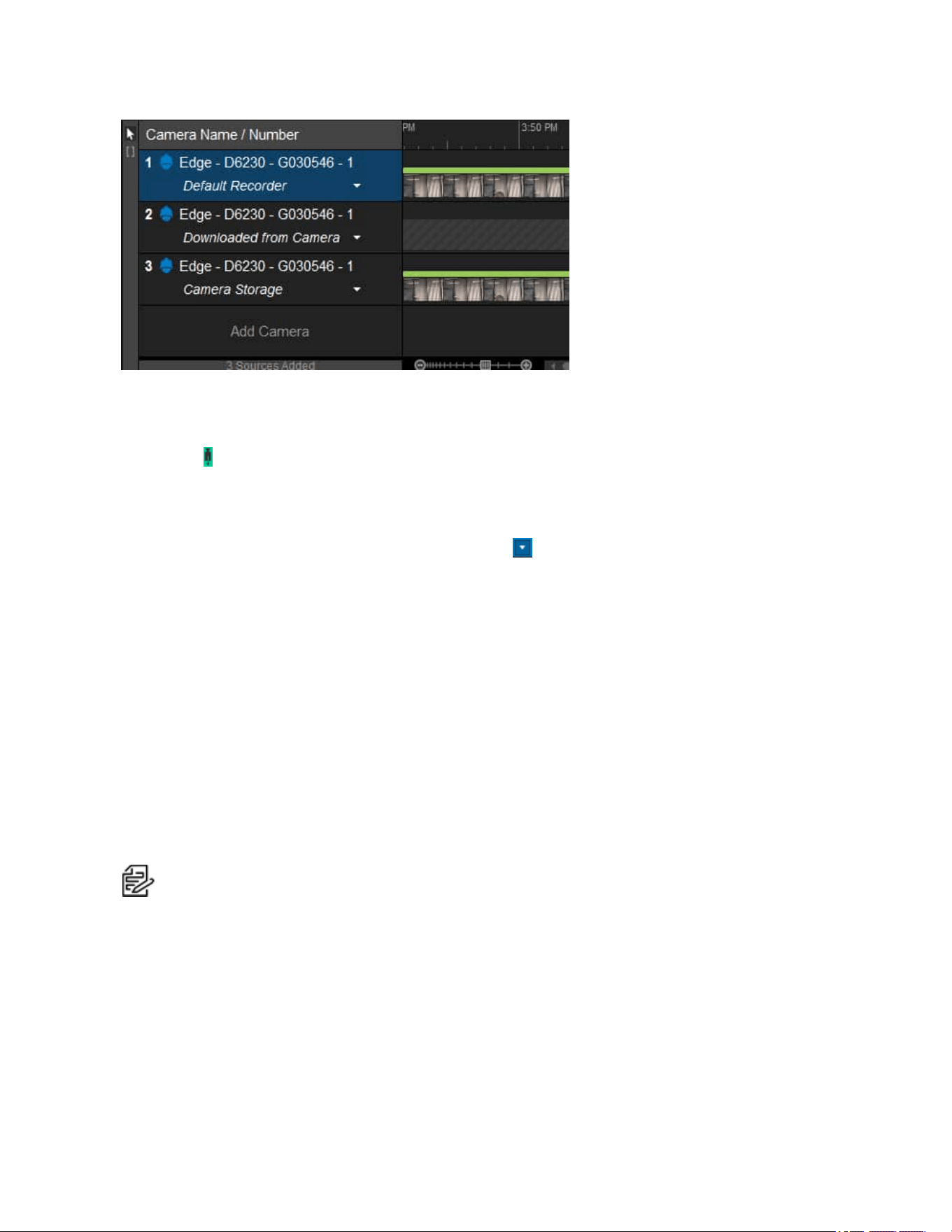
VideoXpert® Professional v 3.17 Operations Manual
C6601M-S | 06/22 147
Pushing Video From the Camera to Storage
This process assumes your camera is recording video locally.
1.
Click to enter an investigation with timelines representing VideoXpert Storage, the camera’s
local storage, and video pushed from the camera to the recorder.
2. Within the Camera Storage timeline, click and drag along the section of the Camera Storage
timeline to indicate the clip or section of video that you want to view.
3.
Click on the clip to expose the down arrow symbol ( ), and then select Add to Default
Recorder.
4. Click OK.
You can now play video that was moved from the camera to storage; it will appear in the Downloaded
from Camera timeline.
Playing Back Video After Moving it to Storage
Video that has been copied from the camera to Storage will appear in the second timeline, title
Downloaded from Camera. Select the section of video you want to play from here and play back. Video is
synchronized between your default recorder and the Downloaded from Camera timeline.
Using Auto-backfill Recording Gaps
For cameras on your VideoXpert system that have Edge Storage, Auto-backfill Recording Gaps
functionality detects when a gap in recording occurs, queries the camera for recordings, and
automatically downloads video and audio (if present) to fill the gap.
Note:This feature must be enabled in order to work. It is enabled and disabled in VxToolbox.
When the recording server has been down, either due to a hardware/software fault or for maintenance,
there can be a gap in the recording. When the recording server is online again, the VideoXpert system
queries the SD card on the camera for missing video. Recordings are retrieved automatically for the
down period.

VideoXpert® Professional v 3.17 Operations Manual
C6601M-S | 06/22 148
To use this feature:
1.
Click on the camera timeline to display the camera storage icon ( ), and then click the icon to open
an investigation tab showing separate timelines for the camera:
l
Default Recorder—on VxStorage only
l
Downloaded from Camera—on the camera (Edge Recording)
l
Camera Storage—on the camera's SDcard
2. If necessary, add cameras of interest to the investigation.
When you add a camera to an investigation by dragging and dropping from the Source panel in
Mission Control, the All Recordings option is selected by default.
3. For the appropriate timeline listed in the Camera Name / Number list, click the downarrow icon
( ) to access the drop-down menu, and then click All Recordings.
Creating Clips
Operators can create clips of recorded information, trim video clips, save them to a playlist for
safekeeping, or delete them.
The trim tool enables users to select a portion of a recording and save it to a within an investigation as
a clip. Clip selections persist in the timeline, even if you choose not to add the clip to the playlist. Once
you’ve selected a clip, you can resize or delete the selection using the time-box controls on the timeline.
1. When in Investigation Mode, click on the timeline where you want to select a clip.
2. Drag to select the start and end time of the clip you want to add to a playlist.
3. To add a clip to a playlist, click on the clip you want to select to expose the down arrow symbol
( ), and then select Add to Playlist.
4.
To delete a clip, click on the clip to expose the down arrow symbol ( ), and select Delete.
5. When you delete the clip, it will be removed from any playlists that you have not exported.
6. If you have changed a clip, but would like to undo the change, click on the clip to expose the down
arrow symbol ( ), and then select Revert Changes.
Creating a Playlist
A playlist is a series of recorded clips. Operators can trim video clips and save them to a playlist for
safekeeping. Playlists are saved locally. You can reference your playlist later, but if you absolutely want
to be sure that you don’t lose the clips or video in your investigation playlist, you should export the playlist
to your Core server.
1.
When in Investigation Mode, click the selection arrow ( ) above the clip symbol.
2.
On the timeline, click on the clip to expose the down arrow symbol ( ), and select Add to Playlist.
Repeat as necessary.
3. Refer to the following sections to preview, edit, or export the playlist.
Previewing and Editing Playlists
l
You can preview your playlist at anytime to ensure that it adequately captures your investigation. If
it does not, you can reorganize the clips in the playlist or re-trim clips to refine the action captured
by each clip.
l
Click and drag clips in the playlist to reorder them.
VideoXpert® Professional v 3.17 Operations Manual
C6601M-S | 06/22 149
l
Click the playlist tools icon ( ), and then click Preview Playlist to playback your playlist. Clips
are stitched together in the order that they appear in the playlist.
l
Re-trim a clip by either of the following methods:
–
In the playlist, right-click a clip, select Re-trim clip, and then adjust the start and/or end times
of the clip. Click Apply when complete to save your changes back to the clip and playlist.
–
In the playlist, click to select a clip, click the playlist tools icon ( ), click Re-trim clip, and
then adjust the start and/or end times of the clip. Click Apply when complete to save your
changes back to the clip and playlist.
–
In the timeline, click and drag the start time and/or end time of the clip, click the down arrow
symbol ( ), and then select Apply To Playlist. This updates the listing that is already in the
playlist.
l
Delete a clip from the playlist and from the timeline by one of the following methods:
–
In the playlist, click to select one or more clips, right-click one of the selected clips, and then
click Delete selected clips.
–
In the playlist, click to select one or more clips, click the playlist tools icon ( ), and then
click Delete selected clips.
–
In the timeline, click on a clip to expose the down arrow symbol ( ), and then select Delete.
Exporting a Playlist
Exporting a playlist allows you to save a collection of video clips, so that you can easily find and
download your investigation later. Exporting video from network storage to your Core allows you to store
video independently of your VideoXpert recorder for quick access later. The system exports unencrypted
files in the MKV format, and encrypted files in ZIP format.
If you do not have permission to export video for the video sources in your investigation video, or the
recordings saved to your playlist are no longer available from network storage, you will not be able to
export a full playlist. You can still export a playlist with missing clips.
If you are logged in as an administrator or have been granted the necessary permissions, you can export
a playlist to an alternate location, such as a USB thumb drive or network share. You can view the export
in the Export Archive window, but you cannot download the export from the Export Archive window.
You must have created a playlist and be in the investigation mode to export a playlist.
1.
At the upper right corner of the playlist (left) panel, click the Export Playlist icon ( ).
2. In the Export Playlist As dialog box, enter a value in the Export Name field.
3. (Optional) If present, click to select the checkbox for Export to alternate location. If you select this
option:
l
Type a valid network path in the Export Location field.
l
If necessary, type in a Username and Password in the appropriate fields.
l
If appropriate and the available, click Copy VxPlayer to This Location.
4. (Optional) If the Encrypt this export is not already selected, and it is appropriate to do so, click to
select the checkbox and then type a value in the Password and Confirm Password fields.
Note:
If forced export encryption is enabled (in VxToolbox), this option will be selected and
grayed-out. All exports are encrypted, unless you export to an alternate location.

VideoXpert® Professional v 3.17 Operations Manual
C6601M-S | 06/22 150
5. Click Start Export.
6. (Optional) Click View Exports to view the status of your export and view the Export Archive
window.
7. (Optional) When your export is complete, you can download it locally:
a. In the Export Playlist As dialog box , click View Exports.
b. In the entry for the export, click Download.
c. Navigate to the folder in which you want to save the export; enter a new value in the File
name field, or accept the default; and then click Save.
d. (Optional) After the file is saved, click Show File to open the file location, and then open the
file.
8. At any time, you can view, edit, download, and delete exports from the Export Archive. See the
section titled Using the Export Archive.
Encrypting Export Files
When you export a playlist, the VxOpsCenter gives you the option to encrypt the file. Encrypting the file
ensures that no one can tamper with your exported video. To decrypt and playback an export, you must
have the password used when generating the export and the VideoXport Player; you cannot playback
encrypted exports with another video player.
Encrypted exports appear as ZIP archives containing the playlist file, video clips (MKV) and a signature
file. When you attempt to open an encrypted export, it will prompt you for the password. The password
will allow the player to decrypt the export. The player will then use the signature file and public key (within
the signature) to validate the export and verify that it has not been tampered with. It will then playback the
file.
If you lose or forget the password to an export, your administrator can recover it for you by returning to
the export archive and selecting the export for which you need a password.
Note:If forced export encryption is enabled (in VxToolbox), all exports will be encrypted unless
they are exported to an alternate location.

VideoXpert® Professional v 3.17 Operations Manual
C6601M-S | 06/22 151
Using the Export Archive
From the Export Archive window, you can download, edit the name of, or delete exports. to access the
window:
l
If you are still in the Export Playlist As dialog box, click View Exports.
l
In Mission Control, click the User Menu icon ( ), and then select Show Export Archive.
Previewing Exports
You can preview exports without downloading them from the Export Archive, which appears
automatically when you export a playlist. You can also access the Export Archive at any time. See the
section titled Using the Export Archive.
Unencrypted exports use the MKV format. Encrypted exports are ZIP files; if the export file has been
encrypted, you must use the VideoXpert Player to decrypt and playback the file.
To preview the export
1. Access the Export Archive.
2. (Optional) Use the filters or sort the list of available exports by camera tag or other data associated
with the export (camera name, ID, exporting user, etc).
3. To preview the archive:
a. In the right column (untitled), to the right of Download, click the Export Archive Menu icon
( ).
b. Click Stream Export.
The export opens in a new window. Exports that are not still in storage might take a few
minutes to access.
Downloading Exports
You can download exports from the Export Archive, which appears automatically when you export a
playlist. You can also access the Export Archive at any time. See the section titled Using the Export
Archive.
Note: If you are using VxOpsCenter on a VxPro server, you do not need to download exports; you
can browse to the exports directory on your data drive to access exports.
Unencrypted exports use the MKV format. Encrypted exports are ZIP files; if the export file has been
encrypted, you must use the VideoXpert Player to decrypt and playback the file.
1. Access the Export Archive.
2. (Optional) Use the filters or sort the list of available exports by camera tag or other data associated
with the export (camera name, ID, exporting user, etc).
3. To download the archive without VideoXpert Player:
a. Click Download for the archive row.
b. Browse to a location and type a value in the File name field.
c. Click Save.
d. (Optional) When the archive has been downloaded, click Show File to open the browser to
the file location.

VideoXpert® Professional v 3.17 Operations Manual
C6601M-S | 06/22 152
4. To download the archive and the VideoXpert Player executable:
a. In the right column (untitled), to the right of Download, click the Export Archive Menu icon
( ).
b. Click Download with VideoXpert Player.
c. Browse to a location and type a value in the File name field.
d. Click Save.
e. (Optional) When the archive has been downloaded, click Show File to open the browser to
the file location.
Getting the Password for an Encrypted Export
1.
To access the Export Archive, click the User Menu icon ( ) in mission control, and then select
Show Export Archive.
2. (Optional) Use the filters to sort the list of available exports by camera tag or other data associated
with the export (camera name, ID, exporting user, etc).
3. In the right column (untitled), to the right of Download, click the Export Archive Menu icon
( ).
4. Click Get Password.
5. In the Test Export dialog box, click Copy to Clipboard.
The dialog box closes, and you can paste the password to another location.
Editing an Export Name
1.
To access the Export Archive, click the User Menu icon ( ) in mission control, and then select
Show Export Archive.
2. (Optional) Use the filters to sort the list of available exports by camera tag or other data associated
with the export (camera name, ID, exporting user, etc).
3.
Click the pencil icon ( ) in the left column for the archive row.
4. In the Edit Export Name dialog box, type a value in the New Name field.
5. Click Save.
Deleting One or More Exports
Deleting an export from the Export Archive sends it to the Trash Bin; you must delete an export from the
Trash Bin to permanently remove it from the system. This two-step process prevents users from
inadvertently removing exported files from the system.
1.
To access the Export Archive, click the User Menu icon ( ) in mission control and select Show
Export Archive.
2. In the Export Archive window, view the list of exports in the table.
l
(Optional) Sort by any column title.
l
(Optional) Click to expand Filter, type a value in the search field; and/or click in the Camera
Tags field, and then click to select the tags. Click Clear in the Camera Tags field to clear the
tags, or click Clear Filters at the upper right of the Export Archive window to clear both of the
filter fields.

VideoXpert® Professional v 3.17 Operations Manual
C6601M-S | 06/22 153
3.
(Optional) To delete an export, click the trashcan icon ( ) in the left column for the archive row; in
the confirmation dialog box, click to select or deselect the checkbox to Delete Permanently; and
then click Yes.
l
If you did not select Delete Permanently, the archive is removed from the current list, and is
added to the Export Trash Bin.
l
If you did select Delete Permanently, the archive is deleted, but not added to the Export Trash
Bin.
4. (Optional) To delete multiple exports:
a. Click to select the exports to delete (use the Ctrl or Shift keys).
b.
Click the trashcan symbol ( ) in one of the selected rows.
c. Click to select or deselect the checkbox to Delete Permanently, and then click Yes.
l
If you did not select Delete Permanently, the archive is removed from the current list,
and is added to the Export Trash Bin.
l
If you did select Delete Permanently, the archive is deleted, but not added to the Export
Trash Bin.
5. If you want to view deleted exports, click the down arrow to the right of Export Archive, and then
select View Trash Bin.
l
To move an export from the Export Trash Bin to the Export Archive window, click the export
Restore button.
l
To delete multiple exports from the trash bin, click to select the exports (use Ctrl or Shift), click
the Export Archive Menu icon ( ), click Delete Selected Exports, and then click Delete
Permanently in the confirmation dialog box.
l
To return to the Export Archive window, click the X symbol in the upper right corner of the
Export Trash Bin window.
6. If you want to delete failed exports, click the down arrow to the right of Export Archive, and then
click Delete All Failed Exports. In the confirmation dialog box, click to select or deselect the
checkbox for Delete Permanently, and then click Yes.
If there are no failed exports, the option will not be present.
7. To exit the window, click the X in the upper-right corner of the window, or click outside the window.

VideoXpert® Professional v 3.17 Operations Manual
C6601M-S | 06/22 154
Working with Plugins
Plugins are components that enhance the capabilities of VxOpsCenter Client. VxOpsCenter Client
supports two types of plugins:
l
Overlay plugins provide information supplemental to video and audio sources, and are meant to
be used in conjunction with a source; both a source and overlay plugin will populate the same cell.
l
Content plugins consume a cell by themselves; adding a content plugin to a cell that is already
populated will replace whatever was in the cell.
Installing Plugins
Close the VxOpsCenter application before installing plugins.
To install a plugin, run the plugin installer, typically an MSI file.
Plugins install under C:\ProgramData\Pelco\OpsCenter\Plugins. VxOpsCenter searches this directory
recursively on start-up to populate the plugins available to it.
Note:The Access Control System Viewer plugin is not automatically available. Obtain the installer
from PartnerFirst.pelco.com, and see the installation instructions in the current version of the
VideoXpert® InstallationManual.
Adding a Plugin to Your Workstation
To add a plugin to your workspace:
1. (Optional) Select the cell in which you want to add a plugin.
2. Access the available plugins by one of the following methods:
l
In Mission Control, click to expand Content, and then click Plugins.
l
In Mission Control, click the Plugins icon ( ).
3. If necessary, click to expand Content Plugins or Overlay Plugins.
4. If the plugin you need is not present in the Plugins panel, install it. See the section titled Installing
Plugins.
5. Double-click the plugin to add it to the selected cell (if you selected a cell), or drag the plugin to a
different cell. Double clicking a plugin will open the plugin in a manner that is consistent with video
sources, as defined by the When double-clicking a source setting, available under Preferences.
6. If a dialog box opens, respond to any prompts.
Installing and Using the BriefCam Plugin
The BriefCam Plugin converts unstructured video into structured data that is searchable, actionable, and
quantifiable. It performs object tracking and assigns metadata. It enables you to quickly review only video
that is relevant, based on the metadata.
To use the BriefCamPlugin:
1. Install BriefCam Plugin. To do so, launch the plugin installation wizard, and follow the prompts in
the BriefCam Plugin By Pelco Setup window.
2. Launch and log in to VxOpsCenter.
3. Click to expand the Content area, click Plugins, and then click BriefCam Plugin by Pelco.

VideoXpert® Professional v 3.17 Operations Manual
C6601M-S | 06/22 155
4. In the BriefCam Settings dialog box, enter the appropriate values in the Web Host, Username, and
Password fields, and then click Save.
The BriefCam Insights window opens. See the instructions for BriefCam Insights created and maintained
by BriefCam.
Using the Event Viewer Plugin
The Event Viewer plugin allows you to view all events, and filter and sort the events. To use Event
Viewer:
1. Click Event Log or open the Event Viewer plugin to open the Event Viewer in a cell of the
workspace.
2. (Optional) In the Filter (left) panel of the cell, make one or more of the following selections:
l
Click in the Event Source area of the panel, and then click the source from the drop-down
menu. Add event sources to the filter, as needed. To remove a source from the list, click the
remove icon ( ) to the immediate right of the source name; to remove all sources from the
list, click the Clear the current filter settings icon ( ) to the right of Event Source.
l
Enter or select a From date, From time, To date, and To time.
l
In the Show events with status area, click to select or deselect checkboxes for Needs
Attention, In Progress, Acknowledged, and/or No Action Needed.
l
Enter or select a Range for the Severity of events to display.
l
Select a User from the drop-down menu. To show only those actions related to the selected
user, click to select the checkbox for Only show user related actions.
l
In the Type area, select an event category from the drop-down menu, and then select the
event type from the drop-down menu below -AND- (if present).
l
To clear the filter, click Clear.
3. (Optional) Click to select the Pause Events checkbox to stop the list from updating. To allow the
list to update, click to deselect the checkbox.
4. (Optional) To sort, select the criterion from the drop-down menu to the right of Sort by, and then
select Ascending or Descending order from the drop-down menu.
5. (Optional)To view details about an event, click to select the event from the list in the center panel.
The event details panel (right panel of the Event Viewer) provides event information.
l
Click to expand Event to see basic information, whichcan include event name, date and time
of the event, severity, notification type(s), and actions.
l
Click to expand Event Source to see source device information,which can include the
IPaddress, device name, device type, and other event type-specific details.
l
Click to expand Event Specifics to see information for exported clips, which can include the
camera name, start and end times, and the clip length for each clip. It also provides the total
export length for all of the clips listed.
6. (Optional) To change an event from Needs Attention to In Progress, click to select the event, and
then click to select the checkbox for In Progress at the upper upper left corner of the event details
(right) panel. To change an event from In Progress to Needs Attention, click to deselect the
checkbox for In Progress at the upper upper left corner of the event details (right) panel.

VideoXpert® Professional v 3.17 Operations Manual
C6601M-S | 06/22 156
7. (Optional) To acknowledge one or more selected events that are identified with Needs Attention,
click to select the event(s), and then click Acknowledge at the upper right corner of the event
details (right) panel.
8. (Optional) To copy details of an event to paste into another application, click Copy Details at the
bottom of the Event Details panel, and then click Copy all to clipboard. Navigate to the target
application and paste the content.
Using the Image Viewer Plugin
The Image Viewer Content plugin allows you to display a directory of images within a cell of the Ops
Center Client. The images rotate at a designated interval, or you can manually tab through the images.
You can use the Image Viewer to scroll through important snapshots from your VxOpsCenter, or to
display a series of important images (persons of interest, etc) in the same workspace that you use for
video.
Note: The Image Viewer path is stored on the Core, and will follow your account across
workstations; if you set a path local to a particular workstation, you will not be able to view your
images on another workstation.
1. Open the Image Viewer plugin.
2. (Optional) Select an existing picture directory containing the images you want to view; this
directory can be local or a network location. To do so:
a.
Click the menu icon ( ) and then click Select picture directory.
b. Navigate to the folder.
c. Click OK.
3. (Optional) If there is no directory, or if you want to save images to a new directory, create one. To
do so:
a.
Click the menu icon ( ) and then click Select picture directory.
b. Browse to an appropriate location, and then click Make New Folder.
c. Type in a name for the folder, and then click OK.
4.
(Optional) To select the speed at which to scroll through the images, click the menu icon ( ),
click Cycle images every..., and then click one of the options.
5.
(Optional) Click the menu icon ( ), and then click to select or deselect Show Date/Time.
6.
(Optional) Click the menu icon ( ), and then click to select or deselect Show Title.
7.
(Optional) Click the menu icon ( ), and then click to select or deselect Fade between images.
8.
(Optional) Control scrolling through the images by using the back icon ( ), the pause icon ( ),
and the forward icon ( ) at the lower right of the Image Viewer plugin.
Using the Web Browser Plugin
The Chromium web browser plugin provides a means to access web resources from within
VxOpsCenter.
To add the plugin to your workspace:
1. Click to expand the Content area, click Plugins, and then drag the Web Browser plugin into a
cell.

VideoXpert® Professional v 3.17 Operations Manual
C6601M-S | 06/22 157
2. You can also double-click Web Browser to open a new single-cell tab containing the plugin.
3. Type a value into the search field (a keyword by which to search or a known URL).
4. (Optional)To select the whole URL, triple-click in the cell.
Using the Access Control System Viewer Plugin (Optional)
Note:This plugin is not automatically available. Obtain the installer from PartnerFirst.pelco.com,
and see the installation instructions in the current version of the VideoXpert® InstallationManual.
The Access Control System Viewer Plugin enables the communication and data exchange from various
Access Control Systems to the VideoXpert System. A server component, called an Access Control
Server, communicates directly to the Access Control System and relays information to the Access
Control System Viewer while relaying events between the Access Control System and VideoXpert. While
the ACS Server handles events, it also provides other information to the Access Control System Viewer,
such as user images that the Access Control System Viewer may display in association with events
injected by the ACS Server.
An Access Control Server will provide value without the use of the Access Control System Viewer.
Events may be passed to/from the ACS and VX and these events may be viewed with the Event Viewer
OCC Plugin or the Admin Portal Events Tab, however, user images, door controls and enhanced Event
filters are provided through the Access Control System Viewer Plugin.
Launching the Access Control System Viewer Plugin
1. Double-click the plugin or drag and drop it into a cell.
2. If an Info dialog box opens, make note of the information, and then click OK to close the box.
Filtering the Events in the Access Control System Viewer
1. Click the Filter tab.
2. Use the following filter settings to control which events are displayed in the Viewer.
l
(Optional) Enter start and end dates and times:
–
Select or type in a date and time in the End Time fields--the time before which you want
to see filter results.
–
Select or type in either the the number of Minutes Before to include in the filtered time
range ORselect or type in a date and time in the Start Time fields.
–
To select a different End Time, click Clear End.
l
In the Show events with status area, click to select or deselect checkboxes for Needs
Attention, In-Progress, Acknowledged, and/or Logged.
l
(Optional) Select a Property Display Filter from the drop-down menu. This selects what is
displayed for an event when it is expanded (center panel). Selecting None displays all
properties, selecting Remove IDs displays all properties except those IDs that are
unnecessary for the users to see, and Minimal displays only minimal details about the event.
l
(Optional) Enter or select a Range for the Severity of events to display.
l
(Optional) Select a user from the VMS Users drop-down menu. To show only those actions
related to the selected user, click to select the checkbox for Only show user related actions.
l
(Optional) In the Events area, select an event category from the drop-down menu, and then

VideoXpert® Professional v 3.17 Operations Manual
C6601M-S | 06/22 158
select the event type from the drop-down menu below -AND-.
l
(Optional) To clear the filter, click Reset Filter.
Configuring Access Control
From the Access Control tab, you can configure communication to an Access Control Server and display
information that is not available elsewhere in VideoXpert.
Adding, Editing, and Deleting Access Control Servers
1. Click the Access Control tab.
2.
If you do not see the Access Control Server list, click the gear icon ( ).
3. To add an access control server:
a.
Click the Add access control system icon ( ).
b. Type a descriptive string in the Server Name field.
c. Type in the IP Address of the server to add.
d. Enter or select the Port number of the server to add.
e. (Optional) Click to select the checkbox for Auto Select Events. When selected, the most
recently added event in the event window is automatically selected and expanded.
f. Click Save.
g. (Optional) Repeat this procedure to add another server.
4. To edit an existing access control server:
a.
Click the Edit access control system icon ( ).
b. (Optional) Type a new descriptive string in the Server Name field.
c. Type in the IP Address of the server to add.
d. Enter or select the Port number of the server to add.
e. (Optional) Click to select the checkbox for Auto Select Events. When selected, the most
recently added event in the event window is automatically selected and expanded.
f. Click Save.
5.
To delete an access control server, click the Delete access control system icon ( ), and then
click Yes.
6. When you have finished configuring the servers, click Close.
Filtering on Access Points
An access point can be anything that the Access Control Server reports as an access point, whether it is
a door, gate, or other entryway. All Access Points are listed along with the current known state of the
each. The Lock/Unlock button shows the current state and allows the user to toggle Lock/Unlock the door
by dragging the button – left for lock, right for unlock. The unlock state appears with a green background.
1. Click the Access Control tab.
2. Click to expand Access Points.
3. Select one or more Access Points from the AccessPoint list.
4. Click to select the checkbox for Add Access Points to Filter.

VideoXpert® Professional v 3.17 Operations Manual
C6601M-S | 06/22 159
5. In the Event Window, click to select an event that has an access point.
l
Only events with that access point ID will be included in the Event Window.
l
The associated access point(s) are added to the Access Points list in the Access Control
panel.
Filtering on Access Control Users
The Access Control Users section contains a list of known users of the Access Control System. A user
may be selected at any time to display their associated image (if available).
1. Click the Access Control tab.
2. Click to expand Access Control Users.
3. From the drop-down menu, click to select an access control user.
4. (Optional) Click to select the checkbox for one of the following:
l
Add Access Control User to Filter will display only those events that are associated with
the selected Access Control User.
l
Update User on Event Selection will cause the selected Access Control user to change
when an event is selected that has a user associated with it. To choose an event, double-click
the event in the Event Window. If you did not deselect the checkbox for Auto Select Events
when you configured an Access Control Server, the event will be chosen automatically.
Using the AccessControl System Viewer Event Window
The Event Window is the list of events that meet the criteria of the filter and Access Control configuration.
1. Click the Access Control tab.
2. Use the following options to find the information you need:
l
(Optional) Click to select or deselect the checkbox to Pause events. Deselect this checkbox
to automatically display events as they are received by the VideoXpert System.
l
(Optional) In the Sort by field, select Time or Severity from the drop-down menu, and then
select Descending or Ascending order from the drop-down menu.
l
Click an event to expand it.
l
To copy details of an event to the clipboard: click Copy Details, and then click Copy all to
clipboard.You can then paste the information into another application.
l
View video associated with the event by dragging the viewer icon ( ) to a cell.
Using the VideoXpert® Plates ALPRPlugin
The VideoXpert Plates ALPRPlugin is a software-based Automatic License Plate Recognition system for
video streams. It provides detection and capturing of vehicle license plates, and then compares the
captured plates against lists of license plates to provide identification of suspect vehicles, VIPs, parking
lot access, authorized vehicles, or unauthorized vehicles; or to identify unknown vehicles.
The plugin is distributed as a compiled binary, and is dependent on the following being present and
running:
l
Pelco VideoXpert software
l
VideoXpert Plates ALPR and VideoXpert Plates Manager applications
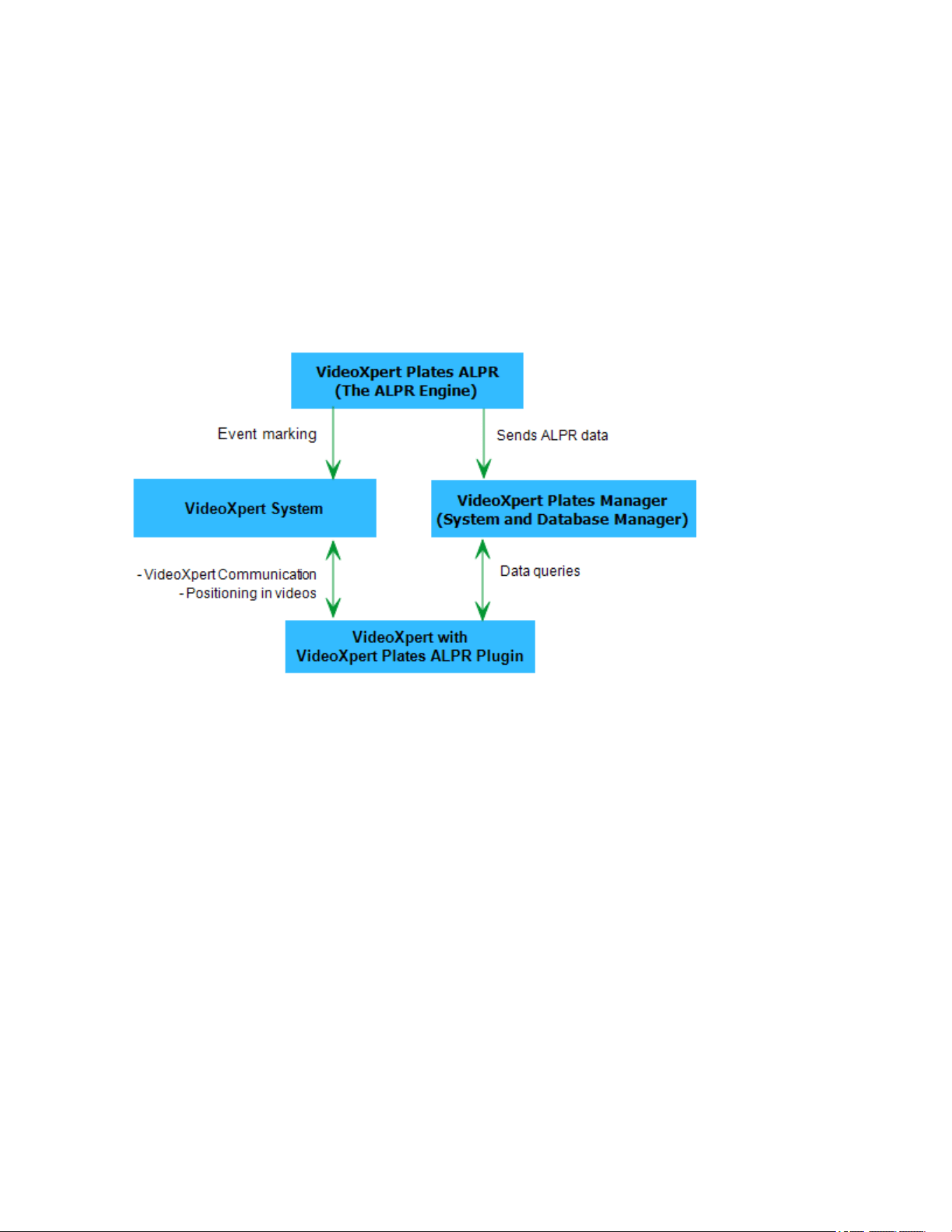
VideoXpert® Professional v 3.17 Operations Manual
C6601M-S | 06/22 160
To properly install the components of the VideoXpert Plates APLRplugin,follow the instructions in the
current version of each of these documents, available on Pelco.com:
l
VideoXpert Plates™ Software Installation Manual
l
VideoXpert Plates™ Quick Start Guide
l
VideoXpert Plates™ ALPRUser Manual
l
VideoXpert Plates™ Manager User Manual
Understanding VideoXpert Plates ALPRPlugin Architecture
The flow of information between the software components involved in using VideoXpert Plates is shown
in the diagram below.
l
VideoXpert Plates ALPRrecognizes license plates, and then sends information to the
VideoXpertPlates Manager. Theevent (plate capture) is also sent to and marked in the
VideoXpert System.
l
VideoXpert Plates Manager returns data to VideoXpertPlates ALPRPlugin, based on the search
criteria. This accesses the requested VideoXpert video fragment at the timestamp associated with
the license plate capture.
l
Meta-data is stored and retrieved via the VideoXpert Plates Manager System.
Launching the VideoXpert Plates ALPRPlugin
To begin using the plugin:
1. In VxOpsCenter, open VideoXpertPlates Plugin.
2. When you first run the plugin:
a. Enter a valid string in the VideoXpert PlatesManager URL field.
l
The URL must refer to the location where the VideoXpert Plates Manager service is
installed.
l
The format will be similar to "http://ipaddress:portnumber/VideoXpertPlates".
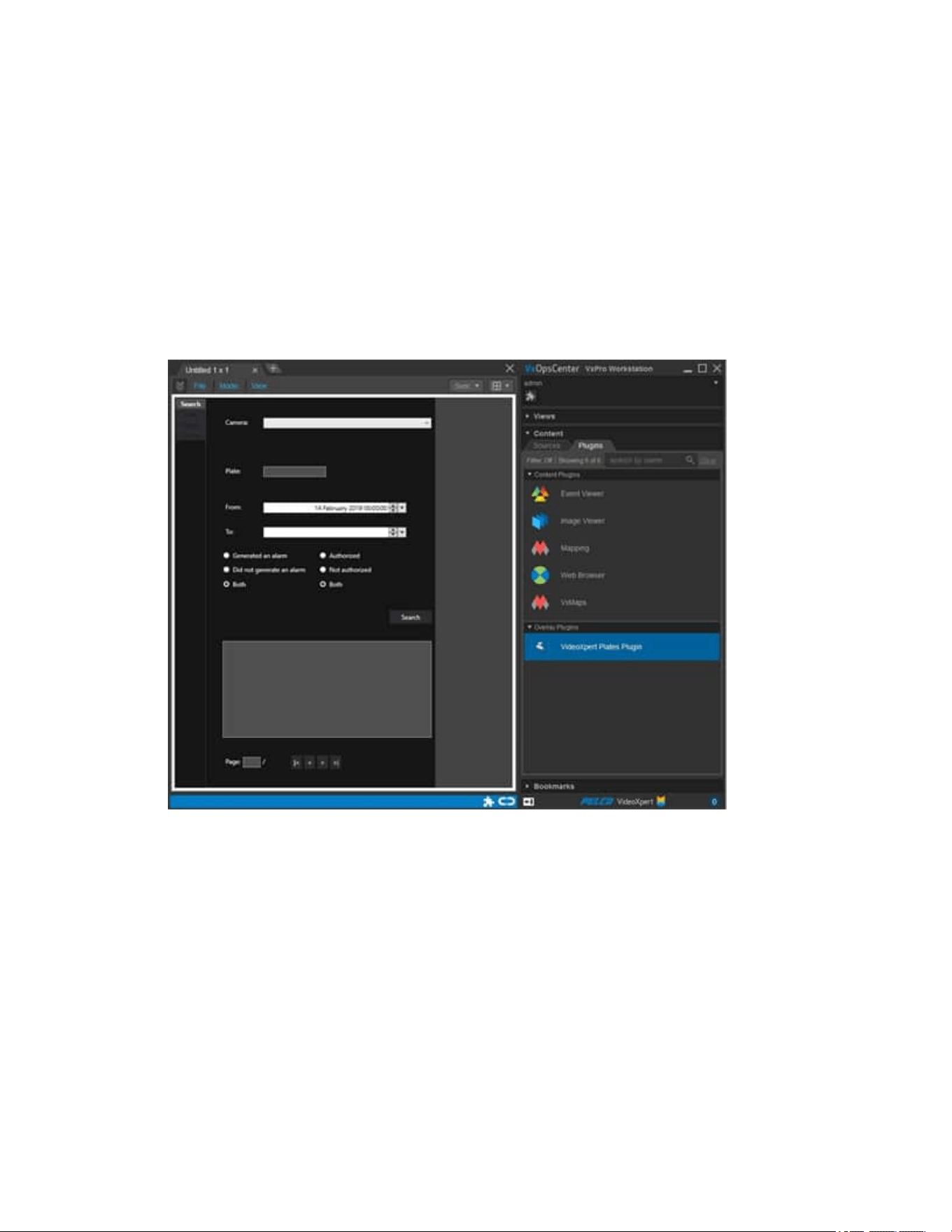
VideoXpert® Professional v 3.17 Operations Manual
C6601M-S | 06/22 161
b. Enter a valid string in the ApiKey field:
l
This is the key used to validate communication with the VideoXpert Plates Manager
service.
l
Obtain the key in the VideoXpertPlates Manager user interface. Access the
Settings menu, and then access the Users window. In the APIKey field, copy the
key. Paste it into the ApiKey field in the VideoXpertPlates ALPRPlugin. For more
information, see the current version of the VideoXpert Plates™ Manager User
Manual.
3. Click Login.
A new window opens, showing that VideoXpertPlates Plugin is running.
If you see the error message "Error connecting to VideoXpertPlates Manager", it means that
communication between the two programs is corrupt. To fix the problem:
l
If you are prompted to enter new credentials, enter the API key as instructed above.
l
If you did not receive the prompt, or entering the key did not work:
1. Return to VideoXpert Plates Manager.
2. Access the Settings menu, and then access the Users window.
3. Use the slider Rest APIKey, and copy the new key.
4. Return to the plugin, stop it, and then restart it by closing the plugin window.
5. When prompted, paste the new key into the ApiKey field, and then click Login.
A new window opens, showing that VideoXpertPlates Plugin is running.
VideoXpert® Professional v 3.17 Operations Manual
C6601M-S | 06/22 162
Searching Plates
After launching the VideoXpert Plates ALPRPlugin, you can search for plates. To do so:
1. At the upper left of the plugin window, click the Search tab.
The Search panel will open. It contains search criteria fields, the Search button, and the plate list
area.
2. In the Search panel, enter the following search criteria:
a. Use the drop-down menu in the Cameras field so select a specific camera or to click All
cameras.
l
If you have a dual-camera (Infrared and color environmental camera), and would like to
view an image of the plate in color, select the color camera.
l
Cameras are available in this field if they have been linked between VideoXpert Plates
and VideoXpert, and if they are also active in VideoXpert Plates.
b. Type a partial or complete plate number in the Plate field.
You can use the "?" as a wildcard for a single character, or the "*" as a wildcard for multiple
characters. For example:type "?J*"to get a list of all plates in the correct time range that
have a "J"as the second character.
c. In the From and To fields, specify a date and time for the search period, either by using the
up and down arrows or the calendar.
d. Click to select the appropriate radio button for the Alarm flag. Select Generated an alarm to
show only plates that generated an alarm, Did not generate an alarm to show only plates that
did not generate an alarm, or Both to show all plates that meet the rest of the search criteria.
e. Click to select the appropriate radio button for the Authorized flag. Select Authorized to show
only plates that are allowed in a specific zone, Not authorized to show only plates that are not
allowed in a specific zone, or Both to show all plates that meet the rest of the search criteria.
3. Click Search.
4. View the list of plates that match the search criteria in the plate list area. The following information
is shown:
l
A list of the plate capture records—Each capture in the list includes the date and time of the
capture, the plate number, an image of the plate, and the authorization flag.
l
The current page and total number of pages (50 results per page)
l
Navigation buttons to move through the pages
l
The total number of records that match the search criteria—If no records matched, you will
see the message No records found.
5. (Optional)To display a larger image of the vehicle and plate and to access the video clip
associated with the plate read,click the capture in the plate list.

VideoXpert® Professional v 3.17 Operations Manual
C6601M-S | 06/22 163
l
Access the video clip by moving the cursor to an appropriate time in the green video timeline
beneath the capture image, and then click Play.
l
To increase the length of the video that is displayed before the point of capture, see the
section titled Configuring User Preferences.
Managing the Black and White Lists
The VideoXpert Plates ALPR plugin includes a List Manager for White and Black lists.
l
A Black List is a list of license plates (vehicles) that can cause an alarm to be triggered if the plate
is seen. For example, if a company has a list of ex-staff, the security manager might want to
receive an email or see an alarm on his screen when any of these vehicles are seen by a camera.
l
A White List is a list of license plates that are permitted to enter an area or zone. The system might
be set up so that when one of these plates is seen at a camera, a relay device is triggered to open
a barrier to let them enter the site.
These lists must be initially created in the VideoXpert Plates Manager program. They will then
automatically appear here. However, once they have been created, they can be edited from this menu.
The user can also add plates to a list, with notes and From and To dates and times during which the lists
will be active—when they are allowed in, or when they will trigger an alarm.
To use the Black and White Lists:
1. In the upper left corner of the plugin window, click the Lists tab.
2. In theList field, click to select a list from the drop-down menu.
3. (Optional)Type a partial or complete plate number in the Plate field.
You can use the "?" as a wildcard for a single character, or the "*" as a wildcard for multiple
characters. For example:type "?J*"to get a list of all plates in the correct time range that have a
"J"as the second character.
4. Click Search.
5. View the list of plates that match the search criteria in the plate list area. If matches are found, the
following information is shown:
l
A list of the plate capture records
l
The current page and total number of pages (50 results per page)
l
Navigation buttons to move through the pages
l
The total number of records that match the search criteria—If no records matched, you will
see the message No records found.
6. (Optional)Click a record to diplay and/or edit the vehicle details, or to delete the item.
l
If you edit the details, click Save changes.
l
To delete the item, click Delete item.
7. (Optional) To add a vehicle to the list:
a. Click New Item.
b. Enter information into the following fields:
l
List name
l
Plate number

VideoXpert® Professional v 3.17 Operations Manual
C6601M-S | 06/22 164
l
Description
l
Comments
l
Active from
l
Active to
c. Click Add item.
For more advanced list options, such as importing preexisting lists from .csv files, see the current version
of the VideoXpert Plates™ Manager Operations Manual.
Viewing Reads
To veiw plate captures as soon as they are read, click the Reads tab in the upper left corner of the plugin
window. The following information is displayed in the panel:
l
Capture details, including:
–
Time and date
–
Camera ID
–
Plate number with a plate patch image
–
Status (authorized or not)
l
List of recently captured plates, with the most recent at the top of the list
Click on a plate from the list to diplay the vehicle image on the right of the screen.
Configuring User Preferences
Each user can configure and save preferences for what to display when a capture is selected/viewed.
These preferences are associated with the current user, and will be saved for for the user's next session.
To configure preferences:
1. In the upper left corner of the plugin window, click the Config tab.
2. (Optional)If you will view license plate captures as video, in the Video prebuffer (sec) field, type in
a number of seconds that will be included in video before the point of plate capture.
For example:Enter a value of 3 to start the video three seconds before the plate was captured.
The default value of zero (0)starts the video at the moment that the plate was captured.
3. (Optional) If you will view license plate captures as still images, click to select the checkbox for
Enable image mode.
Logging Out
To log out of VideoXpertPlates Plugin:
1. In the upper left corner of the plugin window, click the Config tab.
2. Click Logout.
Using the Occupancy Counting Plugin
Occupancy Counting is available as a plugin to VideoXpert or as a standalone application, allows you
to configure regions within the VideoXpert system, count traffic into and out of the regions, and calculate
the number of occupants within the regions. It also sends real-time information to a web browser so that

VideoXpert® Professional v 3.17 Operations Manual
C6601M-S | 06/22 165
people who want to enter the region can see the current occupancy count and know whether they can
enter the region.
To launch Occupancy Counting and connect it to a VideoXpert System:
1. Ensure that you have created counting lines on the VideoXpert system to mark entrance and exit
points of each region for which the system will be counting occupancy. Refer to the section titled
Configuring a Camera for the Pelco Advanced Analytics Suite in the VxToolbox section of this
manual.
2. Launch Occupancy Counting to open the Occupancy Counting Configuration window.
3. Connect to a VideoXpert system. To do so:
a. Enter the appropriate values in the Host, Port, Username, and Password fields.
b. Click Save.
c. If any of the information is incorrect, an error message displays. Correct the information, and
then click Save.
d. When the Connected message is displayed, click Continue.
To create a new region:
1.
In the Regions (left) panel, click the Create a new region icon ( ).
2. In the [region name] (right)panel:
a. Type a string in the Region Name field.
b.
Under Counters, click the Edit the "in" counters icon ( ).
c. In the Edit "In"Counters for Region dialog box, click to select the checkboxes for the
Available Lines (right panel)to add to the Selected Lines (left panel), and then click Save.
d.
Under Counters, click the Edit the "out" counters icon ( ).
e. In the Edit "Out"Counters for Region dialog box, click to select the checkboxes for the
Available Lines (right panel)to add to the Selected Lines (left panel), and then click Save.
f.
Under Event Thresholds, click the Edit the regions' thresholds icon ( ).
A threshold is used to trigger an event that will be injected into VideoXpert. This allows you to
set up associated rules.
g. In the Edit Event Thresholds for Region dialog box:
i.
Click the Create a new threshold icon ( ).
ii. Click to select Over or Under in the Trigger if capacity is drop-down menu.
iii. Type in a number for the capacity trigger.
iv. Type a string in the Event label field.
v. Create any other thresholds needed for the region.
vi. Click Save.
h. (Optional) View the Total In and Total Out values. Click Reset Totals to reset both the Total
In and Total Out to zero.
i. (Optional)View the maximum Occupancy. The denominator is the maximum capacity of the
region, and is shown on the web page.
VideoXpert® Professional v 3.17 Operations Manual
C6601M-S | 06/22 166
l
Type a new value in the denominator field to change the maximum capacity of the
region.
l
Click Reset Occupancy to change the numerator to zero.
j. Under Browser Images:
i. To the right of the UnderCapacity field, click Browse, navigate to and click on an image
file to use when the region is under capacity, and then click Open.
ii. To the right of the Over Capacity field, click Browse, navigate to and click on an image
file to use when the region is over capacity, and then click Open.
k. (Optional) To cancel changes to the region, click Cancel.
l. Click Save Changes.
m. (Optional)Click Open Browser to view the current occupancy and the image you associated
with the corresponding threshold.
Note
:Each region generates a unique URL, so that users can have web pages open
for more than one region at a time.
n. When you have finished adding, editing, or deleting the Regions, click Done, and then click
OKin the Confirm dialog box.This will restart the system using the configured settings.
o.
Click the in the upper right corner of the Occupancy Counting Configurationwindow to
close it.
p. Click Back to enter VideoXpert System Credientials for the same or another system.
To view information for or edit an existing region:
1. In the Regions (left) panel, click to select the name of the region.
2. In the [region name] (right)panel, view the existing settings.
3. (Optional) Edit the settings as described above in "To create a new region".
4. When you have finished adding, editing, or deleting the Regions, click Save Changes, click
Done, and then click OKin the Confirm dialog box.This will restart the system using the
configured settings.
5.
Click the in the upper right corner of the Occupancy Counting Configurationwindow to close it.
6. Click Back to enter VideoXpert System Credientials for the same or another system.
To delete a region:
1. In the Regions (left) panel, click to select the region to delete.
2.
Click the Delete the selected region icon ( ).
Caution
:There is no confirmation dialog box. When you click the
Delete the selected region
icon ( ), the region is immediately deleted.
3. When you have finished adding, editing, or deleting the Regions, click Save Changes, click
Done, and then click OKin the Confirm dialog box.This will restart the system using the
configured settings.
4.
Click the in the upper right corner of the Occupancy Counting Configurationwindow to close it.
5. Click Back to enter VideoXpert System Credientials for the same or another system.

VideoXpert® Professional v 3.17 Operations Manual
C6601M-S | 06/22 167
Closing a Plugin
If you close a plugin without saving your changes, you will lose the changes.
Close a plugin by one of the following methods:
l
Click the ( ) icon in the upper right corner of the plugin.
l
Click the Close Plugins icon ( ) to the immediate left of the Dock/Undock Mission Control icon at
the bottom of the window, and then click the close icon ( ) associated with the plugin you are
closing.

VideoXpert® Professional v 3.17 Operations Manual
C6601M-S | 06/22 168
Responding to Events
Events in VxOpsCenter are reported in several locations of the UI, depending on how each alarm is
configured. Notification methods include:
l
The cell that displays the camera for which there is an event will have a flashing red inner border
and a red alarm bar at the upper left of the cell.
l
In the Content area, in the Sources list, the source item will display with a red background.
l
The Event Notifications window enables you to research, snooze, and acknowledge current
events.
l
The Event Viewer lists all events, and allows you to filter and sort the full list of events to include
only those that you want to view.
l
Recorded alarm events that are triggered by the Rules Engine will show up in the timeline. The
color indicates the type of alarm.
Using the Event Viewer
The Event Viewer lists events on the system. To use Event Viewer, see the section titled Using the Event
Viewer Plugin.
Using the Event Notifications Dialog Box
Note: This section only applies to events that are configured with notifications.
When an event occurs that is pertinent to your user account and has a notification configured, an event
notification dialog box will pop-up on your monitor and present ways in which you can respond to the
event. Event notifications requiring acknowledgment persist until you or other users with the same role
acknowledge them. Other notifications persist based on the configuration of the alarm. See the current
version of the VxToolbox section of this manual.
The events icon in the lower-right corner of your workspaces also shows the number of active events that
require your attention.
1. Access an event notification by one of the following methods:
l
Click the notification icon ( ) at the lower right of the window, and then click to select the
notification. Click again to close the list of notifications.
l
Click Event Log to open the event(s) in the Event Viewer window.
l
If there is more than one notification, click the Expand icon ( ) in the bottom left corner of the
event notification window that pops-up on your screen, and then click to select the notification
on which to act. Click the icon again, now labeled Collapse, to close the window.
The event notification includes the type of event, the severity of the event, the device (for
example, the specific camera) on which the event occurred, and the date and time of the
event.
2. (Optional) If the alarm is set with snooze enabled, click Snooze to temporarily remove the visual
notifications, but have them reappear at the preconfigured interval.
3. (Optional) Click In-Progress to indicate that you are either investigating the event or are in the
process of correcting an event condition.
4. Click Acknowledge to indicate that the event is no longer relevant; or that the event condition has
been accounted for or corrected. Acknowledging an event clears the event notification.

VideoXpert® Professional v 3.17 Operations Manual
C6601M-S | 06/22 169
5. To copy details of an event to the clipboard: click Copy Details, and then click Copy all to
clipboard.You can then paste the information into another application.
6. (Optional) If you accessed an event from the event notification pop-up window, you can click
Acknowledge Selected, and then click OK in the confirmation dialog box, to clear the selected
event from the event notification window.

VideoXpert® Professional v 3.17 Operations Manual
C6601M-S | 06/22 170
Logging Out
When you log out, the application saves your desktop configuration, including video stream and plugins.
1.
In Mission Control, click the User Menu icon ( ).
2. Click Log Out.
3. In the Log Out confirmation dialog box, click Log Out.

VideoXpert® Professional v 3.17 Operations Manual
C6601M-S | 06/22 171
Closing the Application
It is important to close the application gracefully. Attempting to close the application through the start bar
or by other means will leave the application processes open, continuing to consume resources.
All plugin processes must be closed before the application itself can close. When you attempt to exit the
application, the application will first save and close all plugin applications before it can close. Depending
on the number of plugins populating your workspace, this may take a few moments; do not attempt to
forcefully close the application while it is shutting down, or you may lose unsaved workspace information
or leave plugins and application processes open.
1.
In Mission Control, click the User Menu icon ( ).
2. Click Exit VxOpsCenter.
3. In the Exit VxOpsCenter dialog box, click Exit.
VideoXpert® Professional v 3.17 Operations Manual
C6601M-S | 06/22 172
Appendix A:Working With Permissions
Permissions define the actions a user can perform within the system. Where necessary, permissions are
defined in a parent-child hierarchy; to assign a child permission, you must first define the parent
permission.
Some features are not mapped to an obvious permission; in some cases, a feature might require
compounding permissions. For example, users may have the “Place Cameras on Map” permission.
However, users must also possess the “View Video Sources” permission for cameras they want to place
in order to view video thumbnails and verify that they are placing cameras in the right locations on the
map. Pay attention to compound or complex cases listed below to ensure that your users have the
permissions they require to perform their surveillance roles within VideoXpert.
Understanding Permission Resource Restrictions
Permissions grant access to resources. Some permissions allow all-or-nothing access, using the Allow
All Resources setting; some permissions allow you to select the resources to which a user has access
using the Allow Selected Resources or Allow All Resources Except Selected settings. Some
permissions can Match Parent Resources.
l
If available and selected, Match Parent Resources assigns the same resource to the selected
permission as is assigned to its parent.
l
Allow All Resources indicates that all resources are accessible by the permission. If the
permission does not support restrictions, but is an “on/off” permission, it is the only resource
option.
For example, selecting Allow All Resources for the View Video Sources permission grants a
user access to view live video from all video sources within VideoXpert. If that same user was
restricted to Allow Selected Resources for the Use PTZ Mode permission, then the user would
be able to view video from all cameras but could only initiate PTZ controls for the cameras to
which he or she had access.
l
Allow Selected Resources indicates that the user can access all selected resources covered by
that permission.
l
Allow All Resources Except Selected indicates that the user can access all resources covered
by that permission except those that are selected.
Using Supervision and Reports Permissions
Supervision and Report permissions provide access to supervisors checking user activities auditing the
system. These permissions are not hierarchical.
Permission Description
Multiview Enables a supervisor to see users that are viewing a camera in real
time.
Define PTZPresets Allows for the creating of PTZ presets and pattens for cameras.
Manage Camera Tours This permission currently has no function.
View Private & Public Views View all private and public shared views/workspaces.
VideoXpert® Professional v 3.17 Operations Manual
C6601M-S | 06/22 173
Permission Description
Manage Views &Global
Shortcuts
Allows full access (create, update, and delete) to all public shared
views and global shortcuts.
Audit User Activity Allows users to export User Actions reports.
Using Device Management Permissions
These permissions grant users the ability to edit devices on the devices page, or tags at the system level.
Permission Description
Manage System Tags Provides the ability to create, edit, delete, and assign System/Public
tags. This permission does not apply to personal tags created or
assigned through VxOpsCenter; personal tags only appear to the
creating user and only the creating user can assign, modify, or delete
his or her own personal tags.
Manage Device Licenses Provides the ability to view, add, and update VXdevice licenses.
Manage I/O Provides full access to add, remove, and update alarm and relay
devices.
Manage Cameras &Recorders Provides full access to add, remove, and update camera and recorder
devices.
Manage Display Devices Provides full access to add, remove, and update monitor devices.
Configure Monitor Wall
Decoders
Provides full access to add, remove, and update monitor walls on
VideoXpert Enterprise systems.
Using User Management Permissions
These permissions grant users the ability to manage user account settings.
Permission Description
Manage User Accounts Grants the ability to create, update, or delete user accounts.
Assign Roles to Users
Grants the ability to assign roles to users.
Reset User Passwords Grants the ability to change the password for the user account.
Manage Roles Grants the ability to create, delete, and assign permissions to roles.
VideoXpert® Professional v 3.17 Operations Manual
C6601M-S | 06/22 174
Using Event Management Permissions
Event management permissions enable users to view, act on, and configure event notifications. There is
no hierarchy for these permissions, but in most cases, a user that can configure events should have
access to the event log and be able to handle events.
Permission Description
View Event History
Allows users to view the event history.
Note: This permission does not include user audit events. The "Audit
User Activity" permission is needed to view those events.
Handle Events
Allows a user to act on event notifications, marking them as “in
progress” or acknowledging them.
Note: This permission does not guarantee that a user will receive
events, only that the users with this permission can act on event
notifications the receive. Event notifications are defined within each
event; the ability to modify events is granted by the “Configure Events”
permission.
Configure Events Provides the ability to configure events.
Using System Management Permissions
System Management permissions should be reserved for administrators. Users with these permissions
can modify system configuration settings; these changes should be carefully planned by administrators
to ensure that they do not interfere with video recording or interrupt surveillance operations.
Permission Description
Manage System Licenses Provides the ability to view, add, and update VideoXpert system
licenses.
Set System Locale Options Allows configuration of the VideoXpert System time.
Define System Shortcuts This permission currently has no function.
Configure Recording Allows configuration of recording, including recording schedules,
camera assignments, and retention periods; this permission does not
affect access to the VXS Recorder interface.
View System Health Allows the user to view VideoXpert system diagnostic information,
including hardware and network status, temperatures, loads, and
recording gaps.
Manage System Servers Provides the ability to edit settings.
Manage Member Systems
Provides the ability to add, edit, and remove aggregated VideoXpert
systems.
VideoXpert® Professional v 3.17 Operations Manual
C6601M-S | 06/22 175
Using Surveillance Permissions
Surveillance permissions are common permissions required by operators in your VideoXpert
environment. These permissions grant access to view live or recorded video and to control cameras.
Permission Description
View Video Sources Enables users to access live video or audio. Audio sources are tied to
video sources; granting access to a video source automatically grants
access to associated audio sources.
View Full Camera Details Allows a user to access sensitive camera information (for example:
data source IP address, device hostname, device IPaddress, device
mac address, device port, device serial, device, version, device VIP,
and target recorders).
Use PTZ Mode
Provides the ability to pan, tilt, and zoom a camera. This permission
includes a priority; priority determines who can control a camera in the
event of competing users. If two or more users attempt to control a
camera, the user with the highest priority will take command and lower
priority users will be locked out.
Lock PTZ Mode
Provides the ability to lock a camera into a particular PTZ position.
PTZ locks may be overridden by users with higher priority than the
user who set the lock.
Send Video Allows a user to send video to a remote monitor, rather than all
monitors, to monitor walls, and to shared displays.
Access Alarms Allows a user to view system alarm devices.
Access Relays Allows a user to view and activate system relay devices.
Using Investigation Permissions
Investigation permissions grant access to recorded video and the ability to export video from the system.
Typical setups will want to assign the same access level to “view recorded video” permissions as to “view
video sources”.
Permission Description
View Recorded Video Enables users to access live video or audio. Audio sources are
presently tied to video sources; granting access to a video source
automatically grants access to associated audio sources.
Access EdgeStorage Grants permission to view and download camera SD card recordings.
Create Exports Allows a user to create exports.
Manage My Exports
Allows a user to edit or delete entries in the “Manage Exports” window.
Download My Exports
Allows users to download exports that they have created.
Stream My Exports
Allows users to stream exports that they have created.
VideoXpert® Professional v 3.17 Operations Manual
C6601M-S | 06/22 176
Permission Description
Create Exports in
AlternateLocations
Enables users to save exports to locations other than the default.
View All Exports
Allows a user to view all users' exports.
Manage All Exports
Allows a user to edit or delete all users' exports.
Download All Exports
Allows a user to download all users' exports.
Stream All Exports
Allows a user to stream all users' exports.
Create System Bookmarks
Allows a user to create system bookmarks
Lock System Bookmarks
Allows a user to lock system bookmarks.

VideoXpert® Professional v 3.17 Operations Manual
Pelco, Inc.
625 W. Alluvial Ave., Fresno, California 93711 United States
(800) 289-9100 Tel
(800) 289-9150 Fax
+1 (559) 292-1981 International Tel
+1 (559) 348-1120 International Fax
www.pelco.com
Pelco, the Pelco logo, and other trademarks associated with Pelco products referred to in this publication are trademarks of Pelco,
Inc. or its affiliates. ONVIF and the ONVIF logo are trademarks of ONVIF Inc. All other product names and services are the property of
their respective companies. Product specifications and availability are subject to change without notice.
© Copyright 2022, Pelco, Inc. All rights reserved.