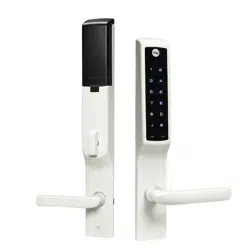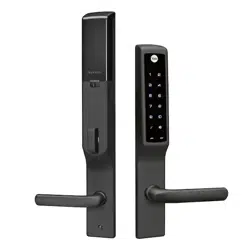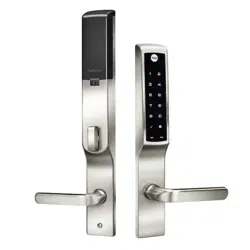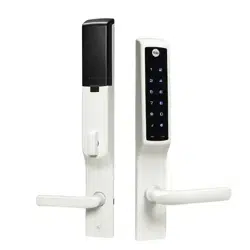
Assure Lock for Andersen
®
Patio and Entry Doors
Installation and Programming Instructions
This manual will walk you through all the required steps to add your
new Yale Assure Lock for Andersen patio and entry doors.
Yale Assure Lock is not fully functional on Andersen 200 and 400 Series
hinged patio doors. The patio door hookbolts must be manually locked before
the Yale Assure lock can lock the patio door's deadbolt.
• Remove Existing Door Hardware
• Prepping your Door
• Install your Assure Lock
• Program your Assure Lock
• Add your Assure Lock to your smart home system or August App
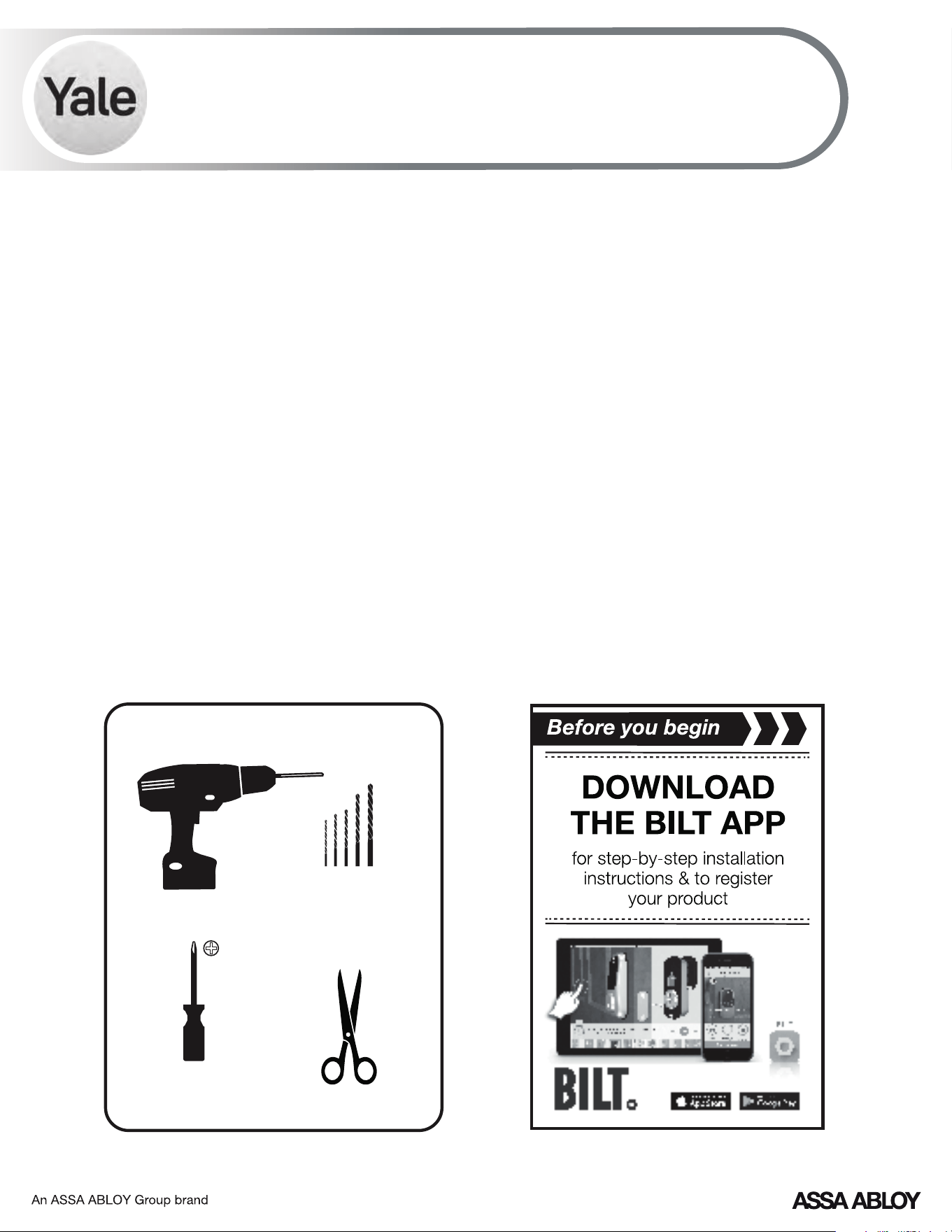
Standard Phillips
Head Screwdriver
FAILURE TO FOLLOW THESE INSTRUCTIONS COULD RESULT IN DAMAGE TO THE LOCK
P/N YRM276/YRM476-INST-FUL Rev C
Scissors
1/8" 5/16" 3/8"
1/2" 3/4" Drill Bits
Tools needed:
Drill
2
P/N YRM276/YRM476-INST-FUL Rev C
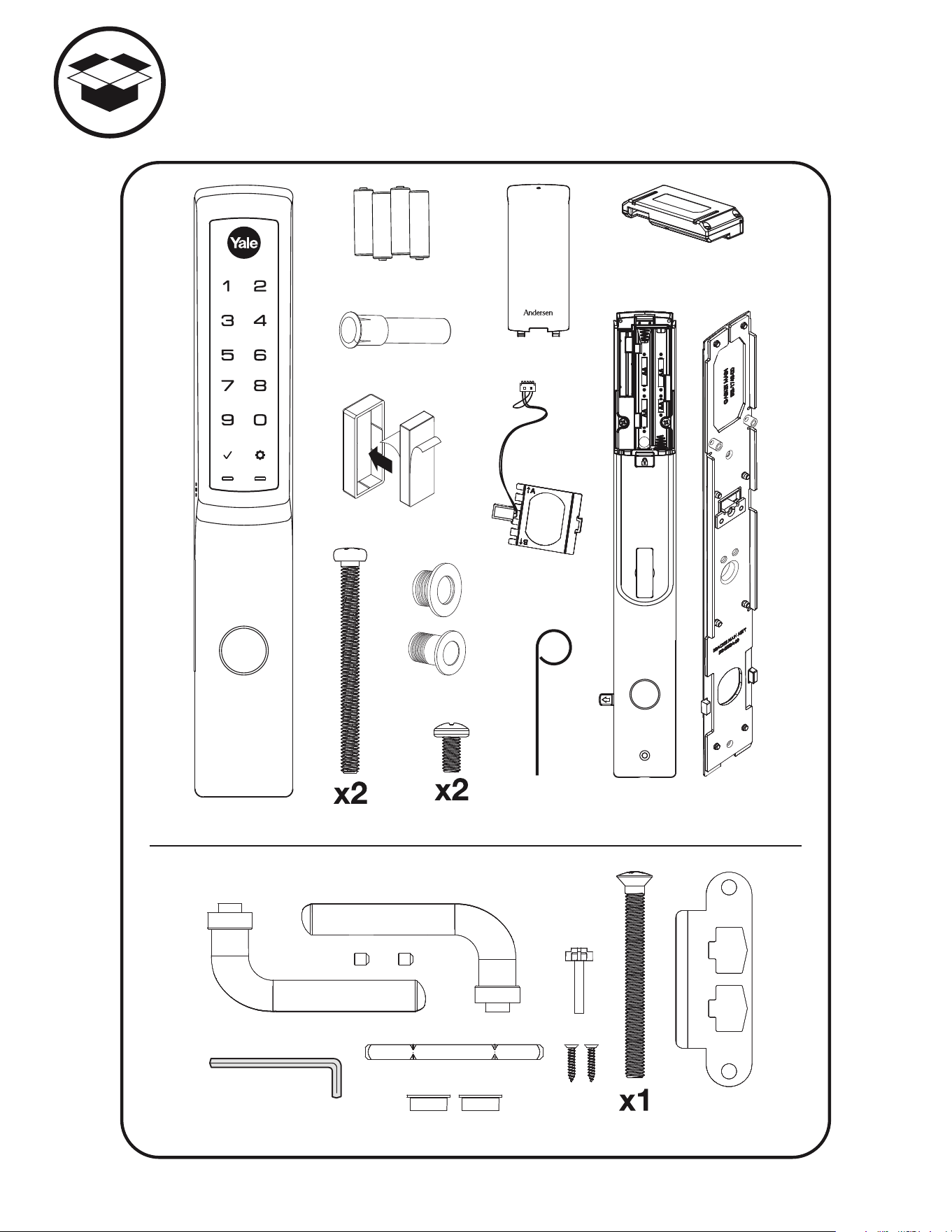
Inside
Lock
4 AA Batteries
Optional
Network Module
Battery Cover
Cylinder Magnet
Block Magnet
#8x8 PHM
Handle Kit
Mounting
Plate
Battery
Cover Key
Through Bolts
Touchscreen
Spacers
Decorative Screw
What's In The Box
Door Position
Sensor
3
P/N YRM276/YRM476-INST-FUL Rev C
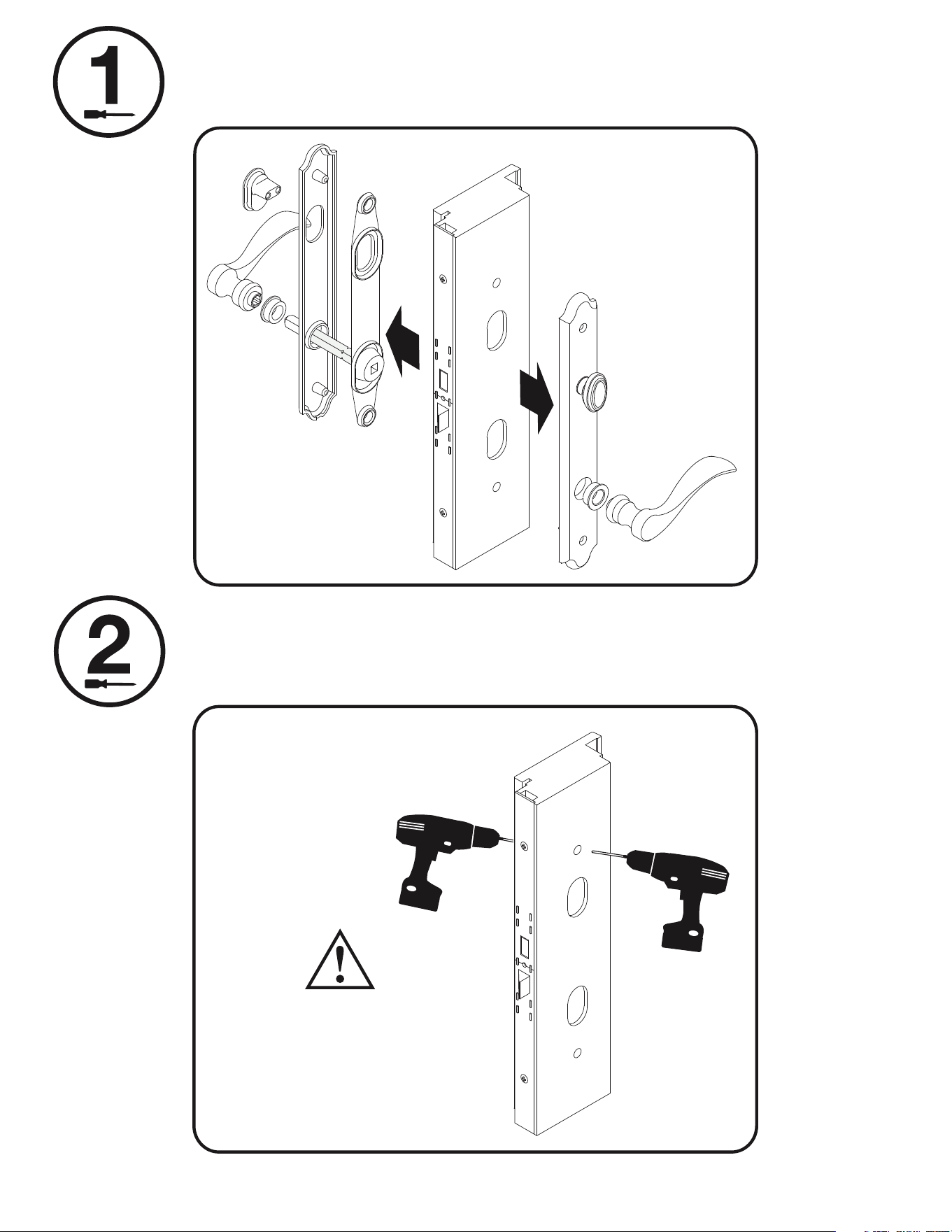
Remove Existing Hardware If Any
Prepping Door
Drill hole from both sides
of door; approximately 1"
deep from one side then
completely through from
other side.
Enlarge existing top hole
with 3/8" to 1/2" drill bit
to accommodate cable.
3/8" to 1/2"
4
P/N YRM276/YRM476-INST-FUL Rev C
3
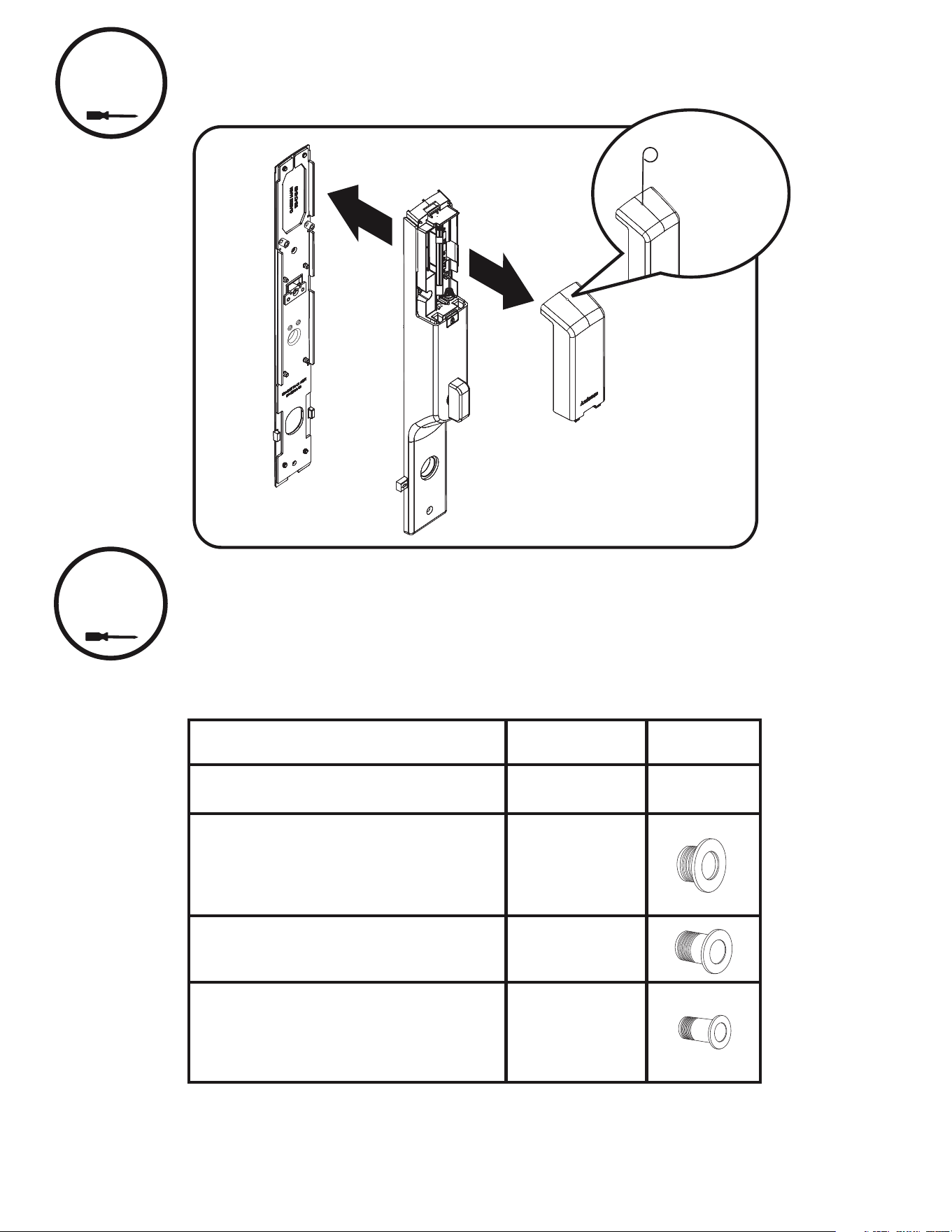
Preparing Inside Lock
Insert battery
removal tool
into hole to
release cover.
A spacer may be required to correctly install lock. There are three (3) options
in your lock kit. See chart to select the correct spacer for your application.
Selecting Correct Spacer
44
Door Type
Spacer Color
Spacer
A-Series - Outswing Only N/A None
A-Series Inswing.
E-Series 1.75" In and Outswing
E-Series 2.25" Inswing
400 Series 1.75" Inswing
Black
200 Series 1.75" All
E-Series - 2.25" Outswing Only
Gray
White
E-Series - Architect Entrance Door and
Folding Doors Sold Separately. (Provided
when ordering thick door kit part number
AYRM-270-TDK.)
Look for product ID sticker on door. Consult Andersen for assistance.
5
P/N YRM276/YRM476-INST-FUL Rev C
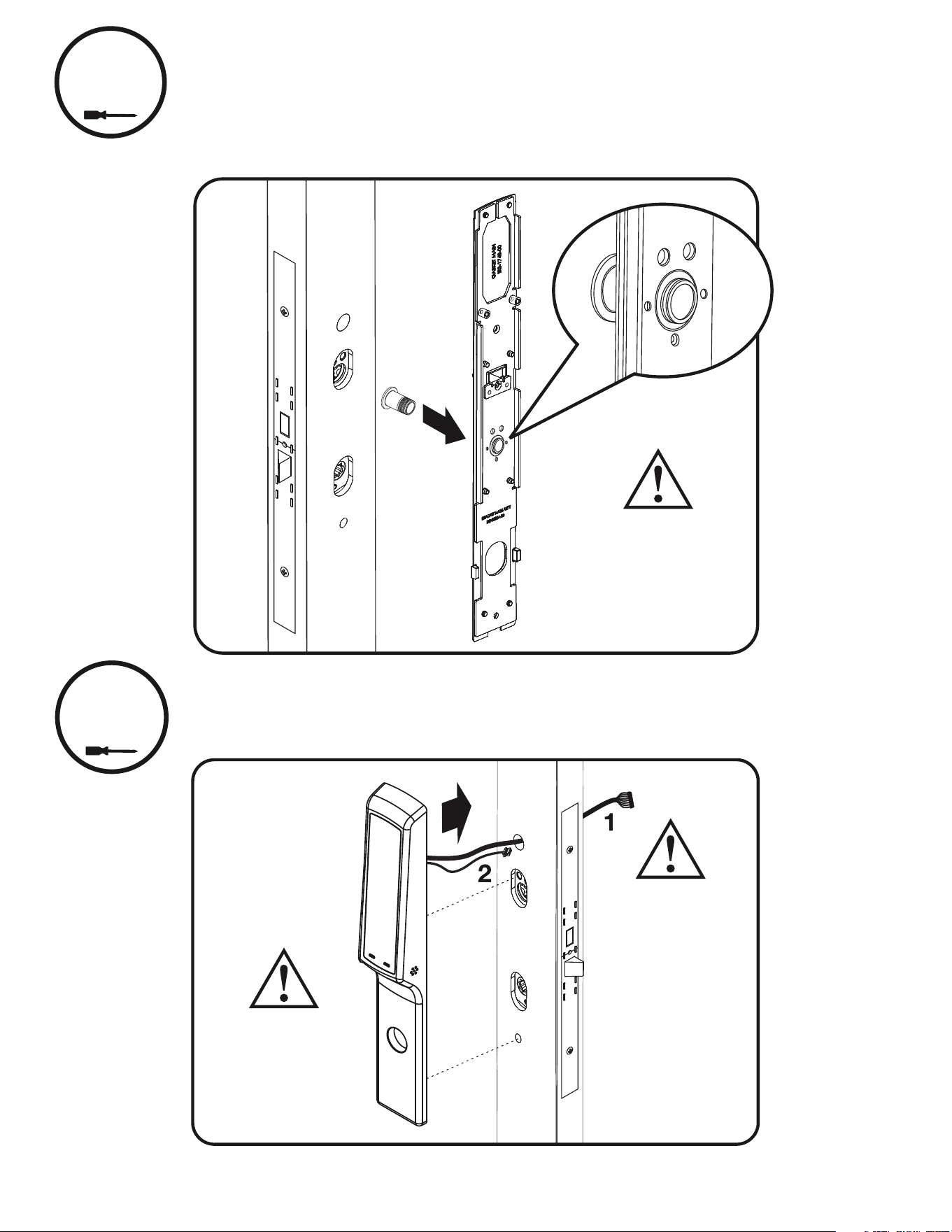
Spacer Installation
5
Insert spacer into hole. Push spacer in for one click.
As you continue installing lock, the spacer will tightened to required position.
Spacer is installed
between door
and mounting
plate gasket.
Do not over tighten.
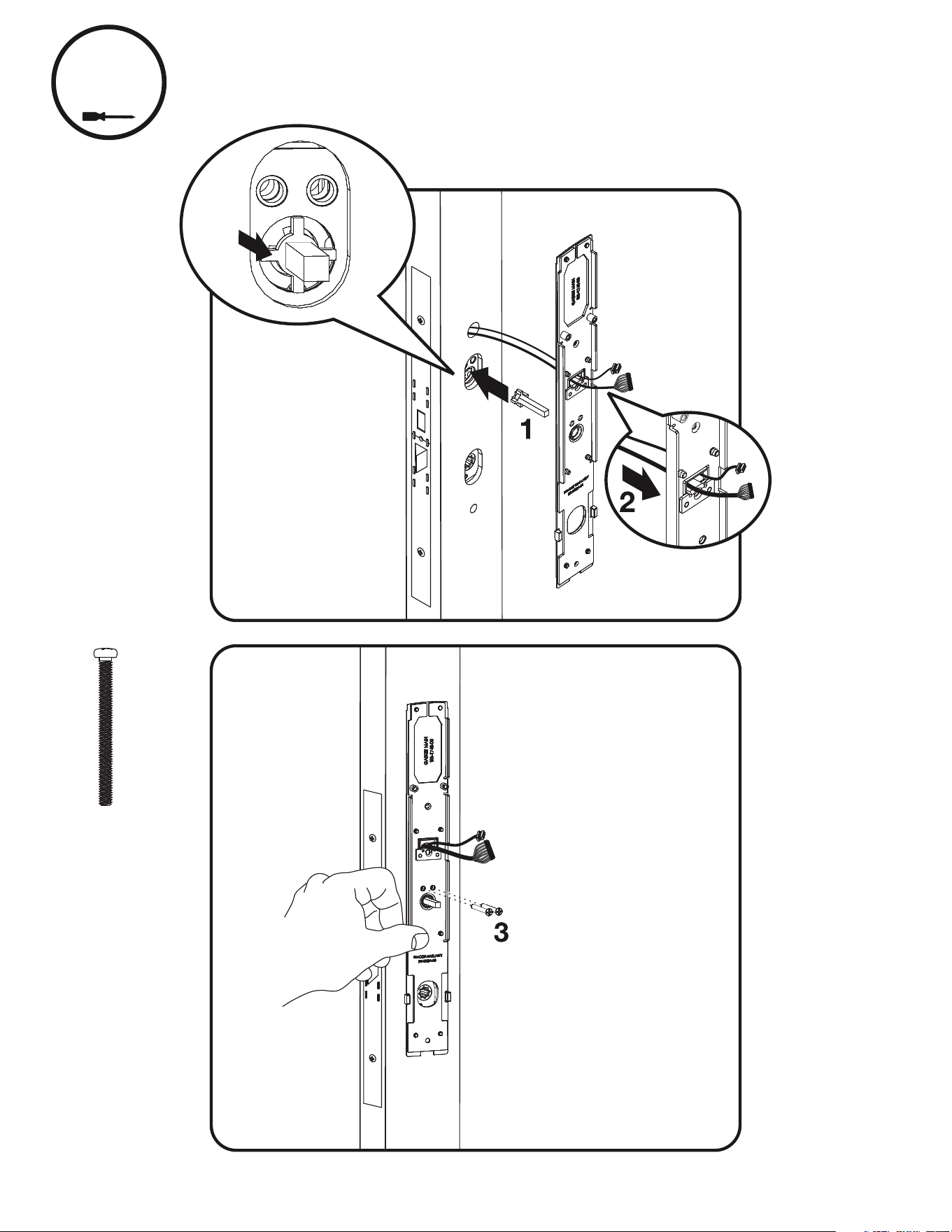
Do not bend
cables. Insert one
cable through hole
at a time.
Installing Touchscreen
6
Outside
of Door
When touchscreen
is aligned properly
it will be flush
on door.
Inside
of Door
6
P/N YRM276/YRM476-INST-FUL Rev C
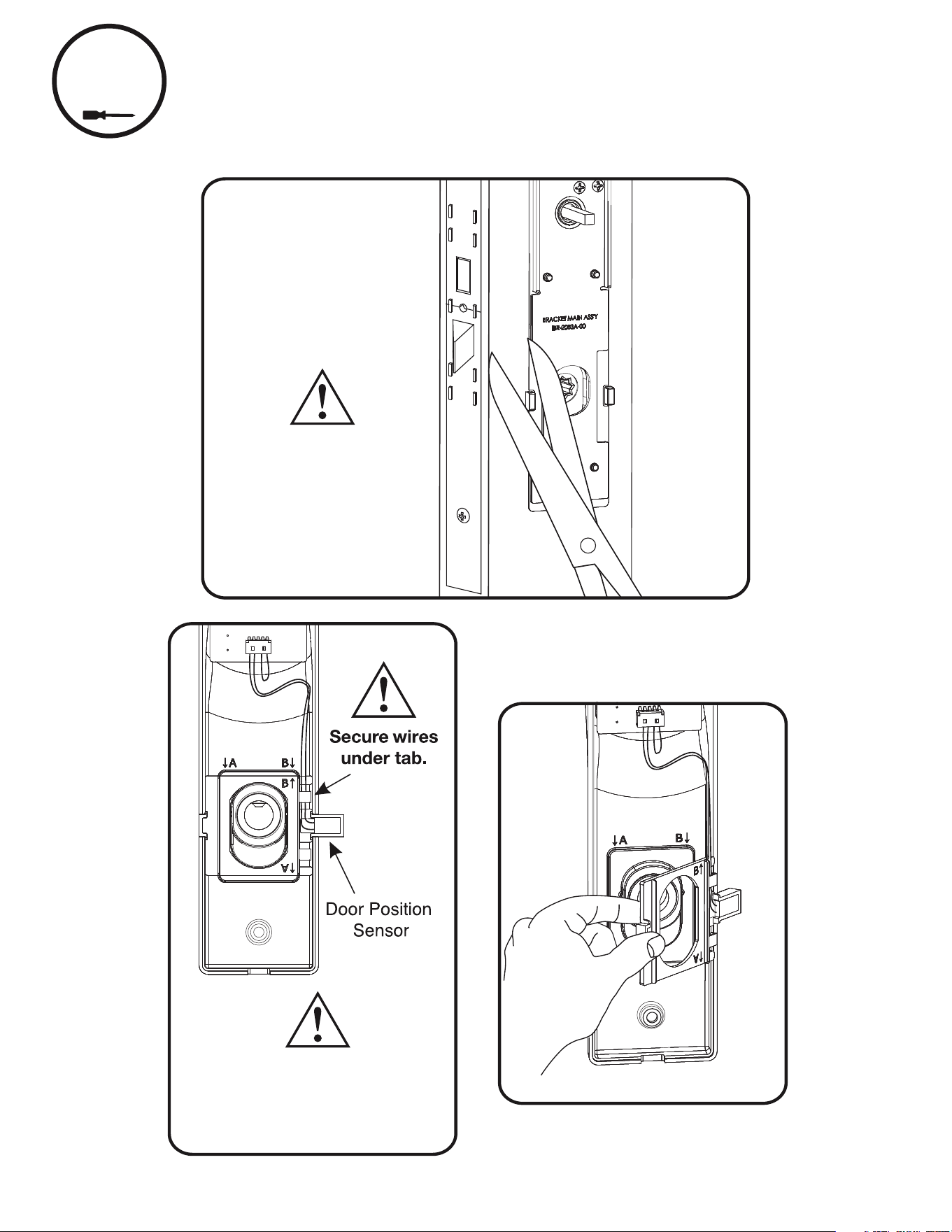
3. Install mounting bracket
with though bolts. Ensure
bracket is straight and
tighten bolts.
x2
Through Bolts
Inside of Door
Inside
of Door
Installing Inside Mounting Plate
7
1. Place spindle into lock.
2. Pull cables through
mounting bracket.
Spindle
7
P/N YRM276/YRM476-INST-FUL Rev C
8
Installing Optional Door Position Sensor
Attach Door Position
Sensor assembly.
Back of Inside Lock shown
Door Position Sensor is on
latch side of door when
installed correctly.
Remove both tabs from
gasket if installing optional
Door Position Sensor.
Do not remove tabs if
optional Door Position
Sensor is not installed.
This step is optional and only needed when using Door Position Sensor.
8
P/N YRM276/YRM476-INST-FUL Rev C
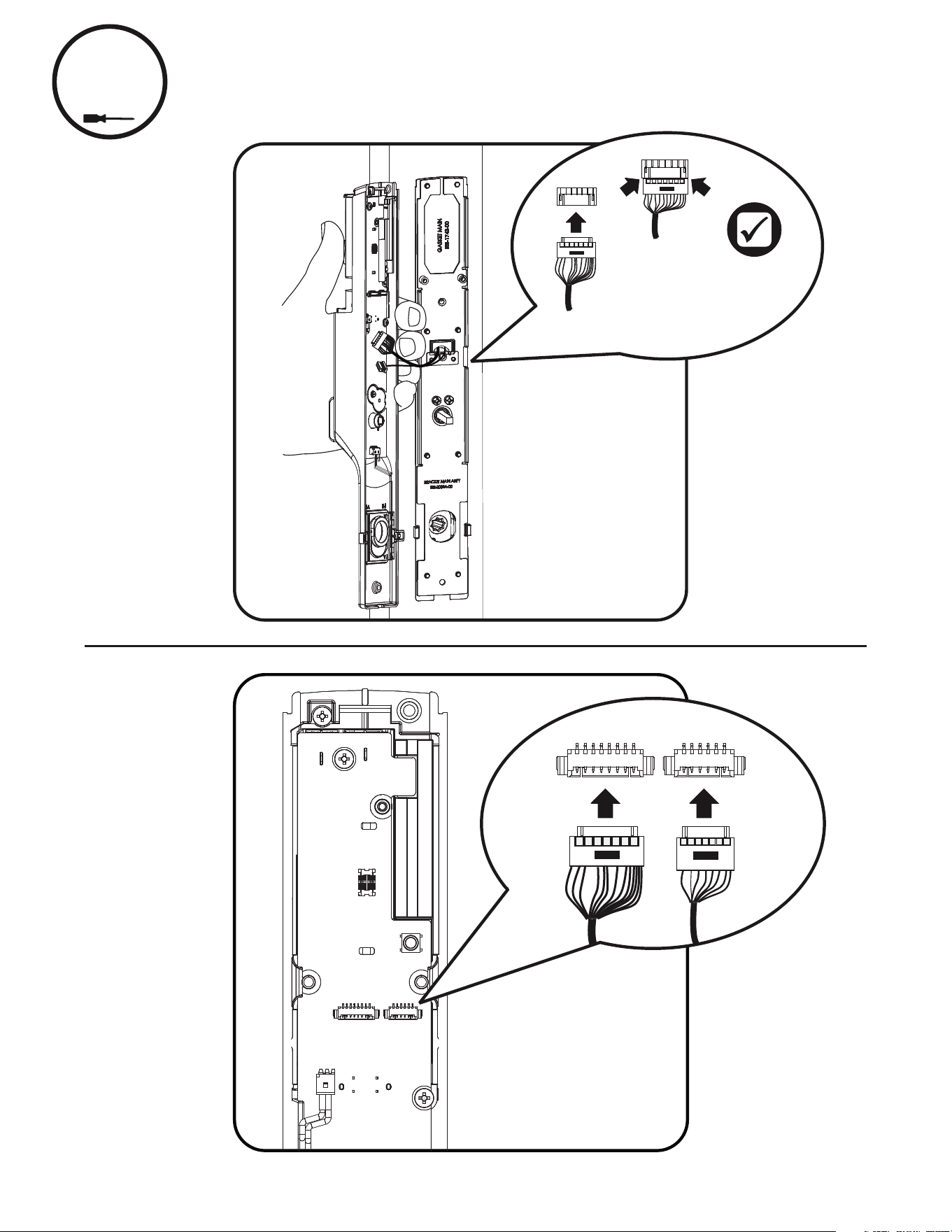
9
Attaching Cable Assemblies
Inside
of Door
Ensure cables are
securely fastened
into connector
9
P/N YRM276/YRM476-INST-FUL Rev C
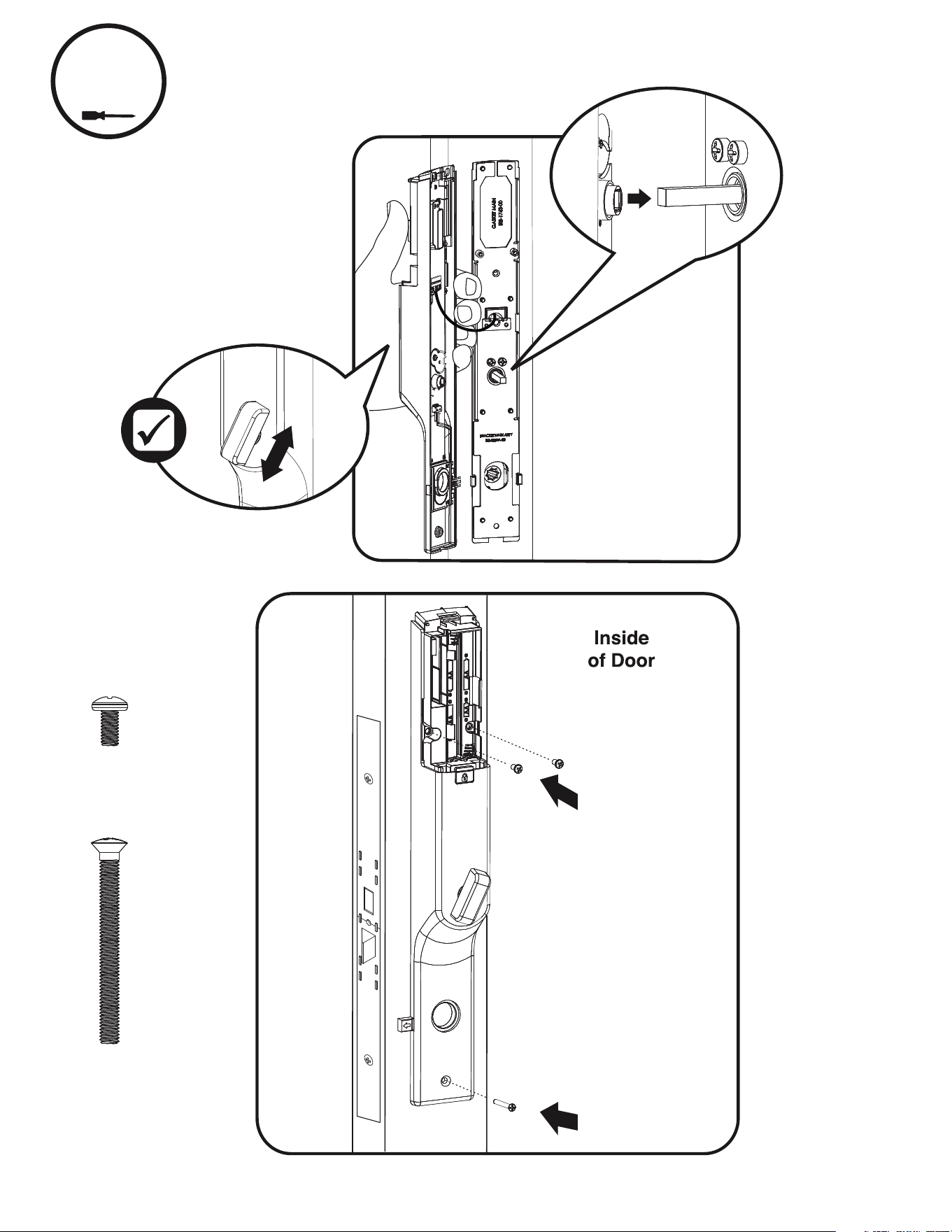
10
Installing Inside Lock
Top of thumbturn must
face away from latch
x1
Decorative Screw
x2
#8x8 PHM
Store excess
cable in interior
lock cavity.
Tighten
Tighten
10
P/N YRM276/YRM476-INST-FUL Rev C
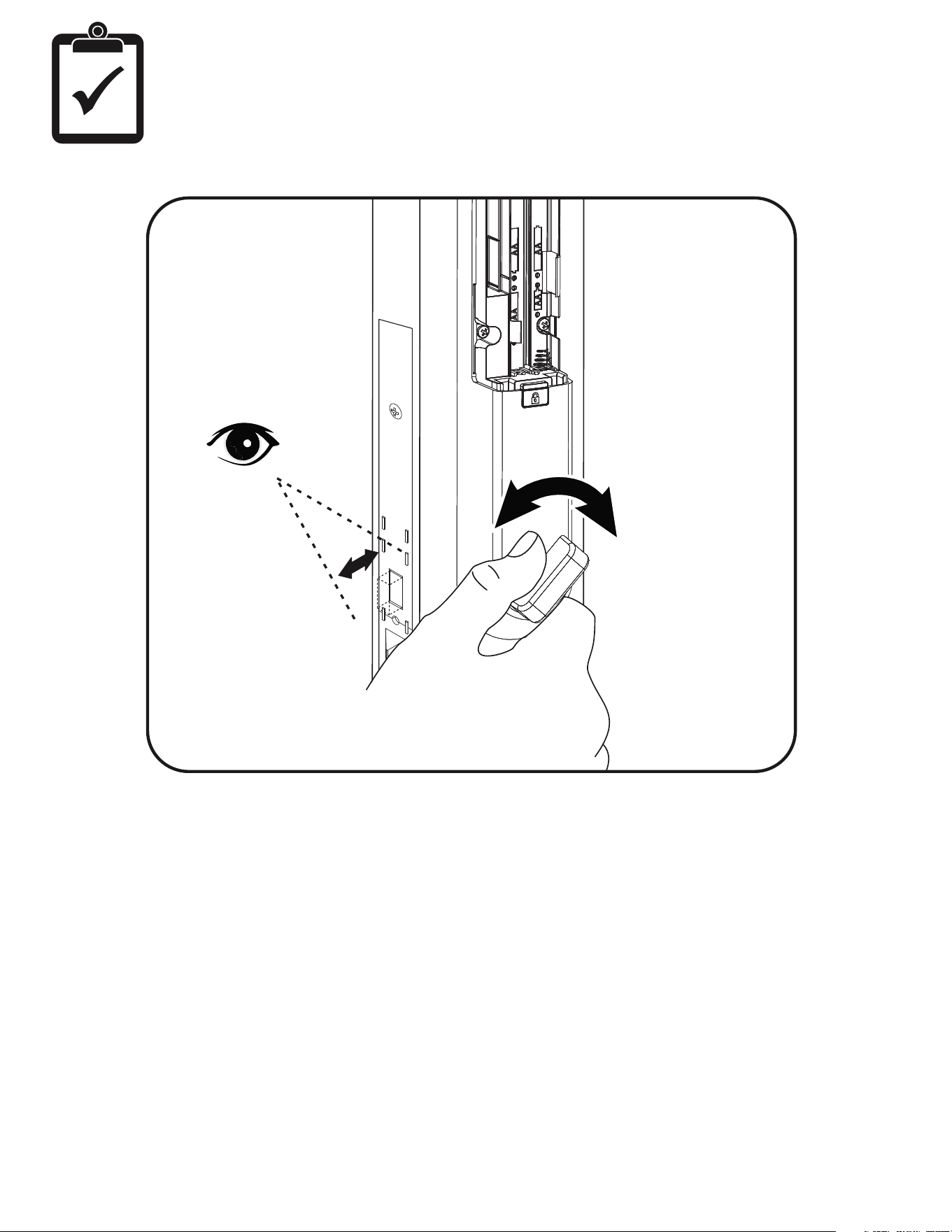
Inside
of Door
Testing Operation
Ensure thumbturn
moves freely
11
P/N YRM276/YRM476-INST-FUL Rev C
11
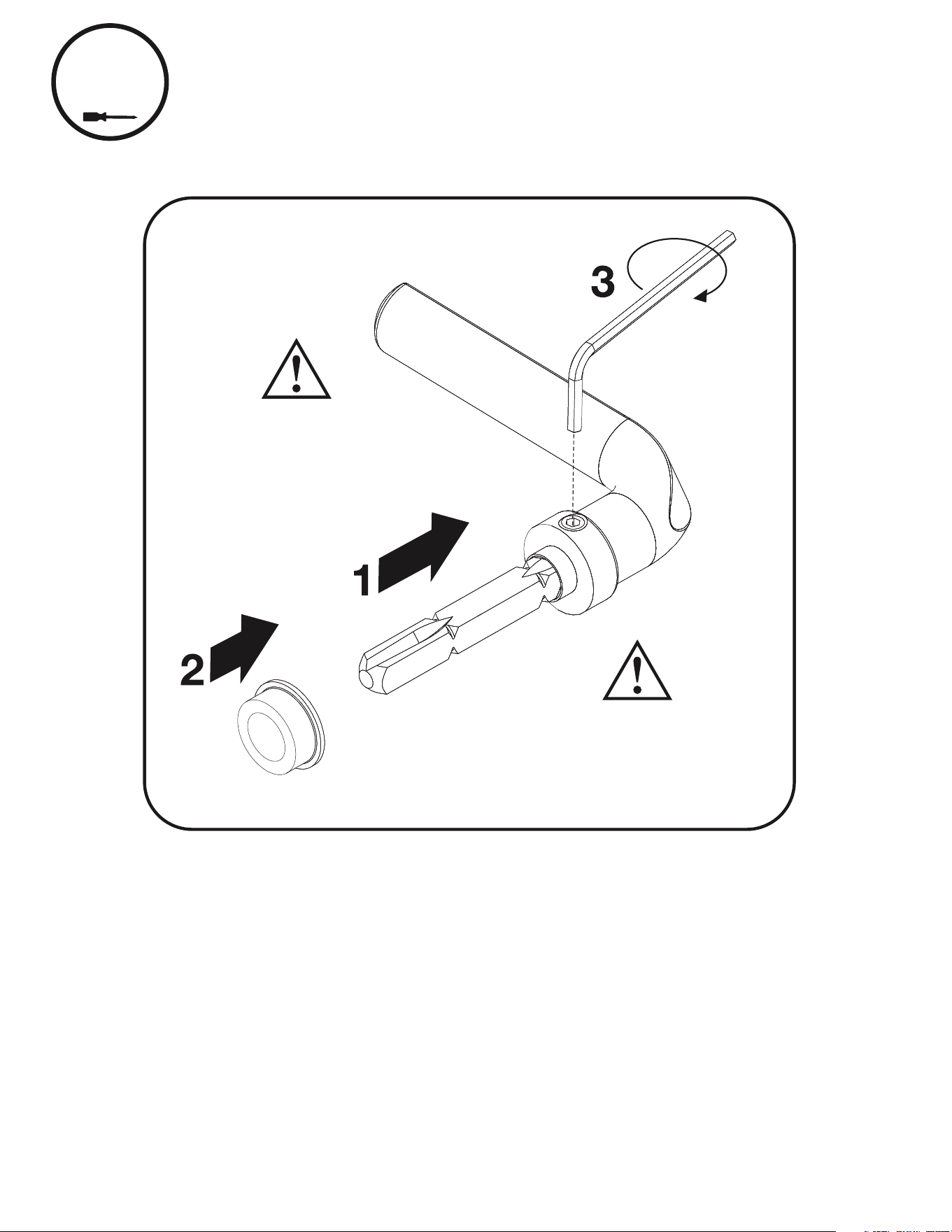
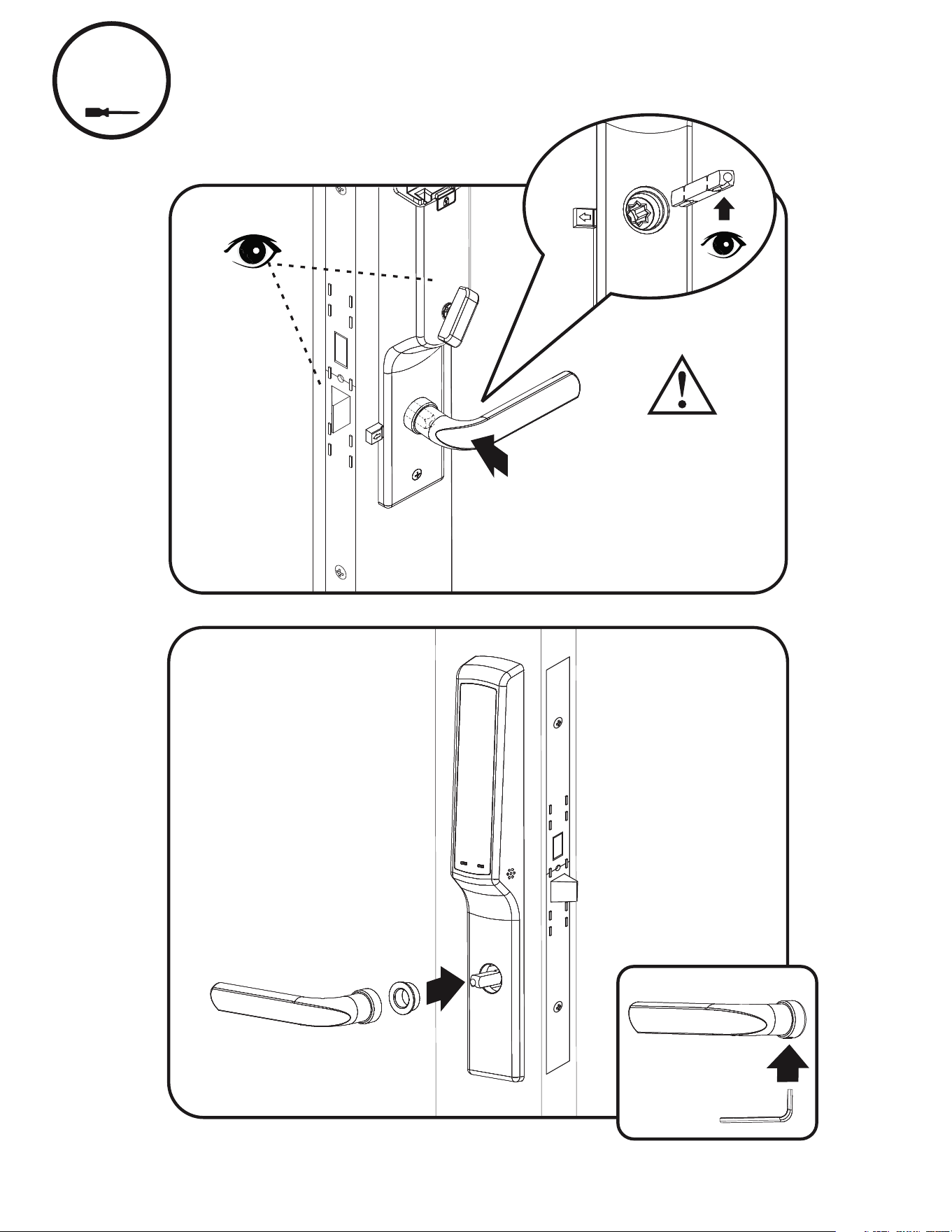
Installing Handle Spindle & Bushing
Bottom View
Push spindle
to full depth into
interior handle.
Set screw must enter
v-slot in spindle when
securing handle.
12
P/N YRM276/YRM476-INST-FUL Rev C
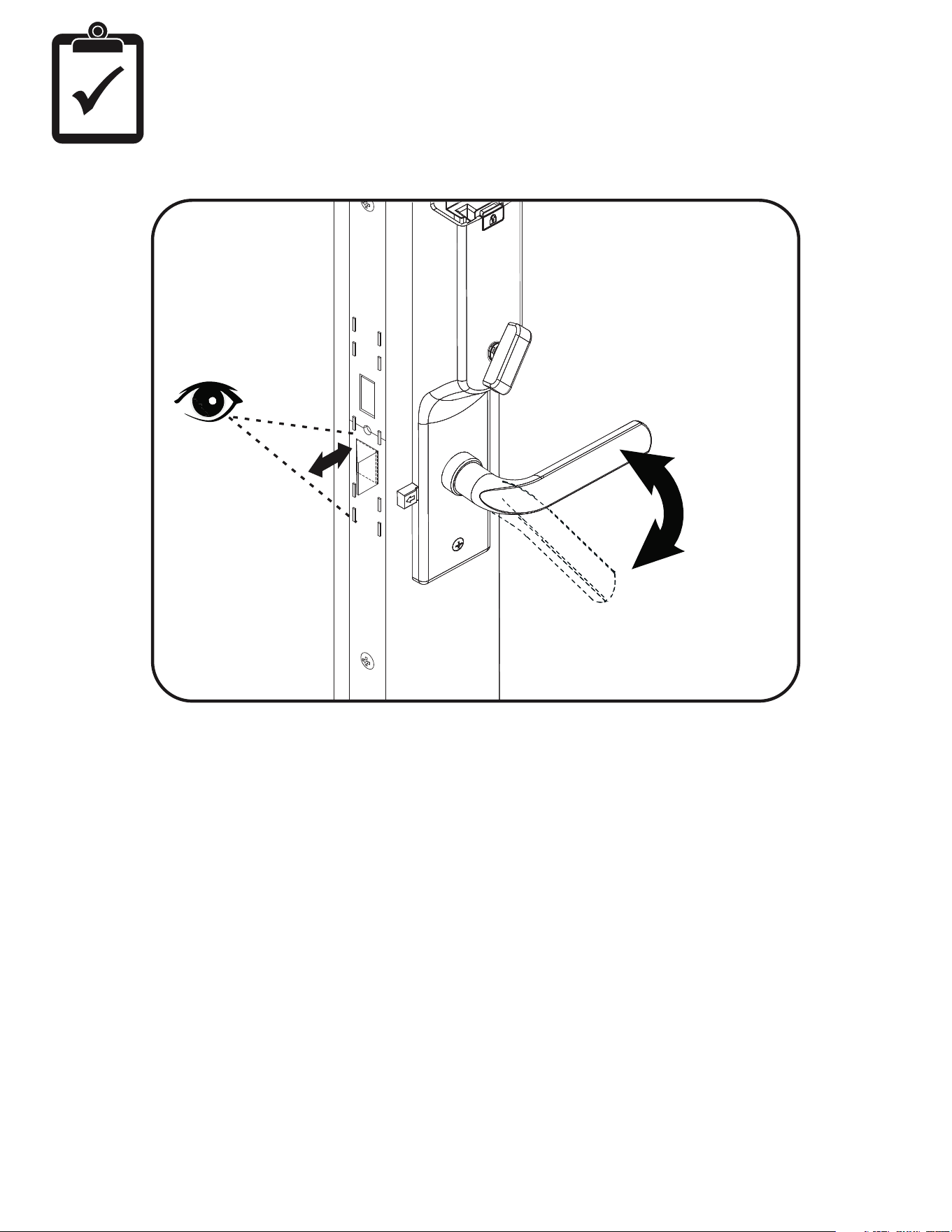
Installing Handles
12
Inside
of Door
Outside
of Door
Spindle v-slot
and handle set
screw must face
floor for proper
installation.
13
P/N YRM276/YRM476-INST-FUL Rev C
Inside
of Door
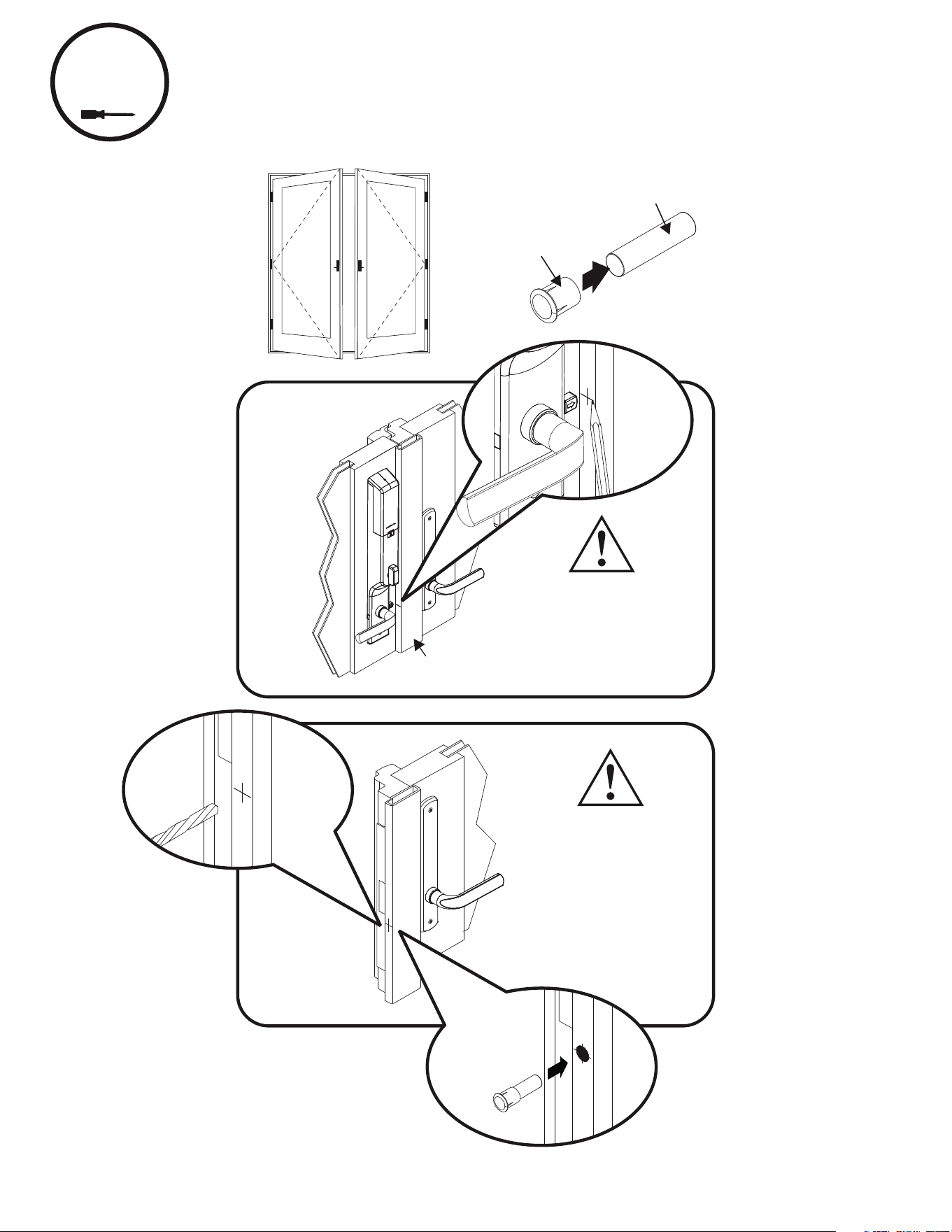
Testing Handle Operation
14
P/N YRM276/YRM476-INST-FUL Rev C
13a
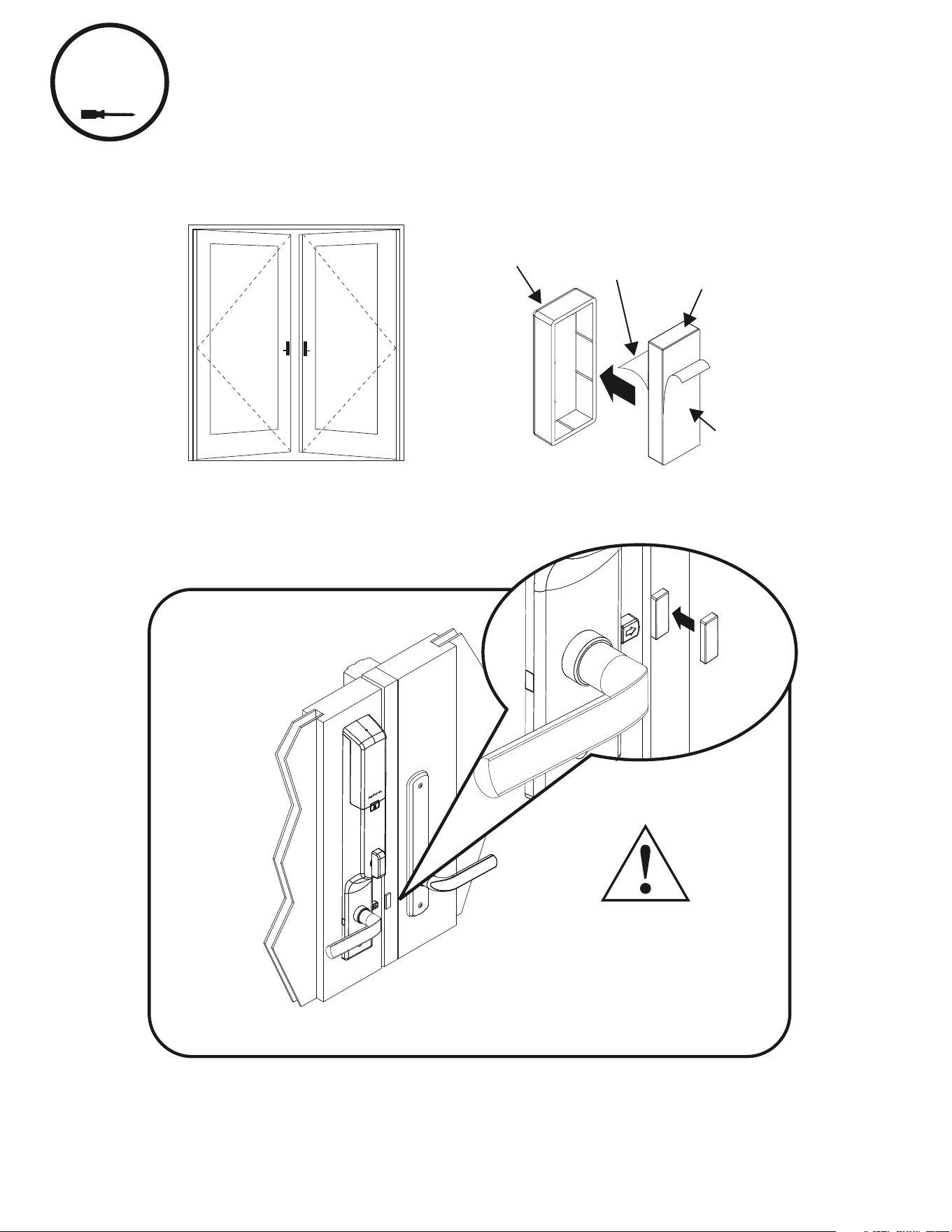
Installing Door Position Sensor Accessory Magnet
For DOUBLE Operating OUTSWING Patio Doors Only
As viewed
from exterior
Cylinder
Magnet Cap
Cylinder Magnet
Inside
of Door
Mark magnet
location across
from Door Position
Sensor.
Astragal
5/16"
Drill Bit
5/16" Dia. Hole
1" Deep
Center of
Astragal
15
P/N YRM276/YRM476-INST-FUL Rev C
13b
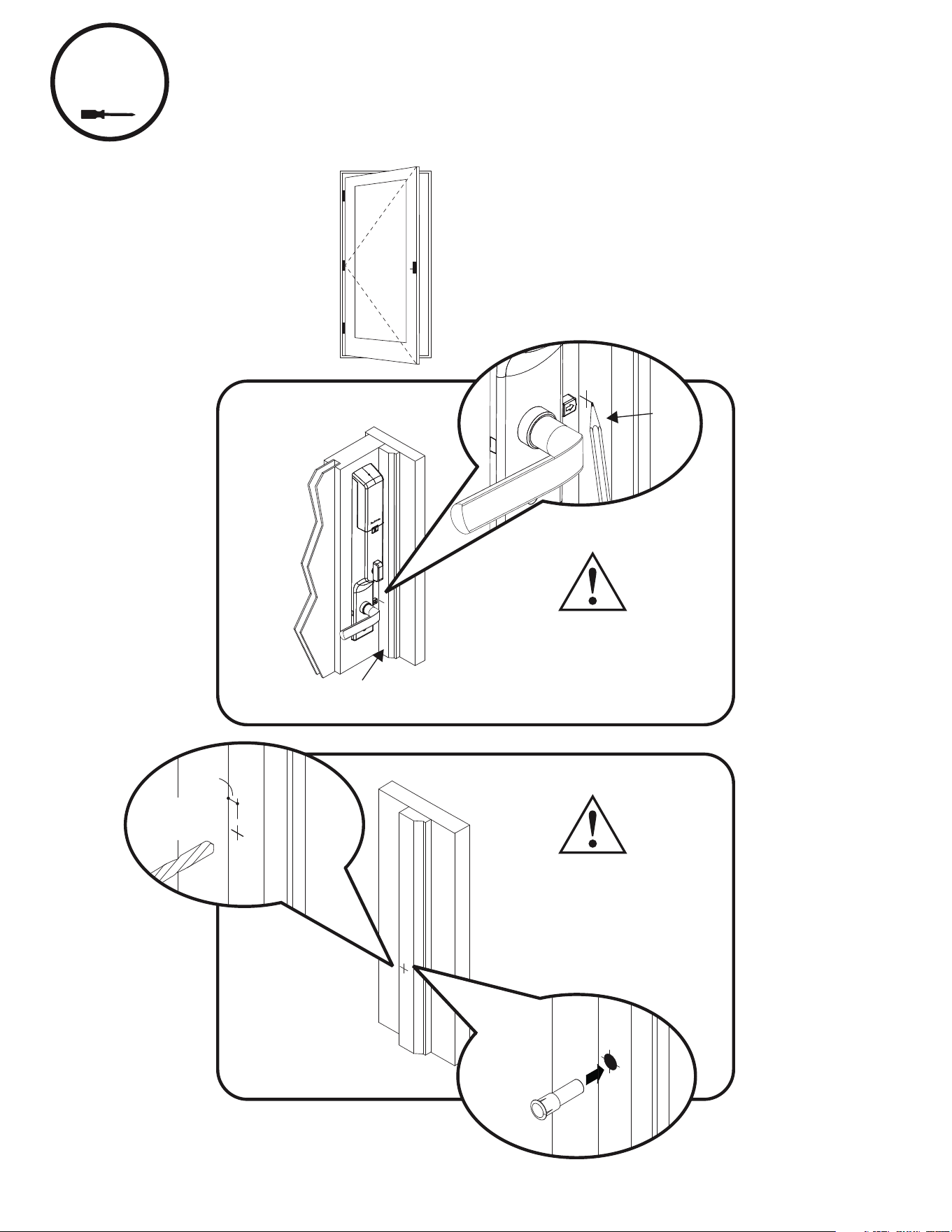
Installing Door Position Sensor Accessory Magnet
For DOUBLE Operating INSWING Patio Doors Only
As viewed
from exterior
Inside
of Door
Block
Magnet Cap
Adhesive
Liner
Block Magnet
Adhesive
Liner
Position magnet
flush to edge and
centered across
from Door Position
Sensor arrow.
16
P/N YRM276/YRM476-INST-FUL Rev C
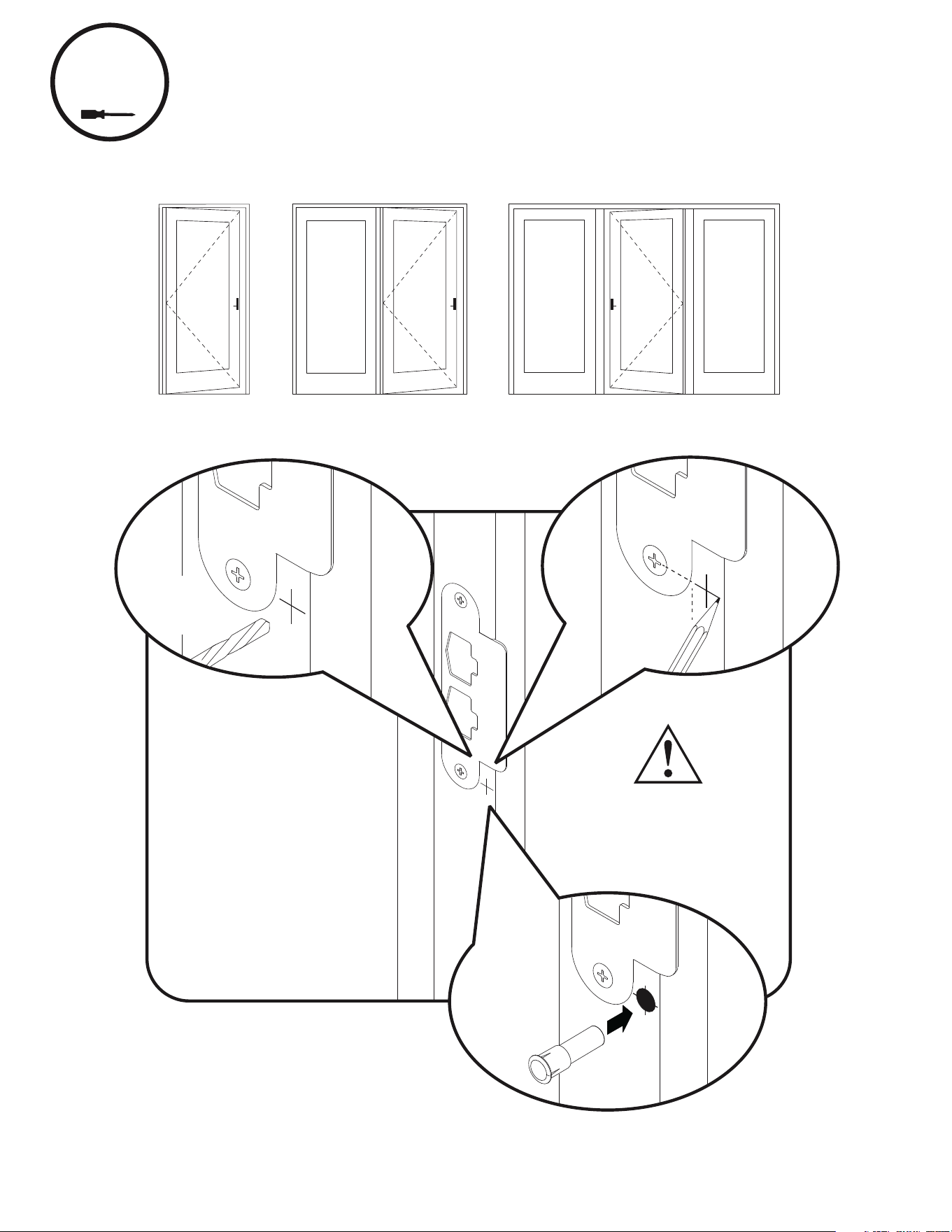
Installing Door Position Sensor Accessory Magnet
For SINGLE Operating OUTSWING Patio Doors Only
As viewed
from exterior
Inside
of Door
1/4"
Panel
Stop
Panel Stop
5/16" Dia. Hole
1" Deep
1/4" From Panel
Stop Edge
13c
Mark magnet
location across
from Door Position
Sensor.
5/16"
Drill Bit
17
P/N YRM276/YRM476-INST-FUL Rev C
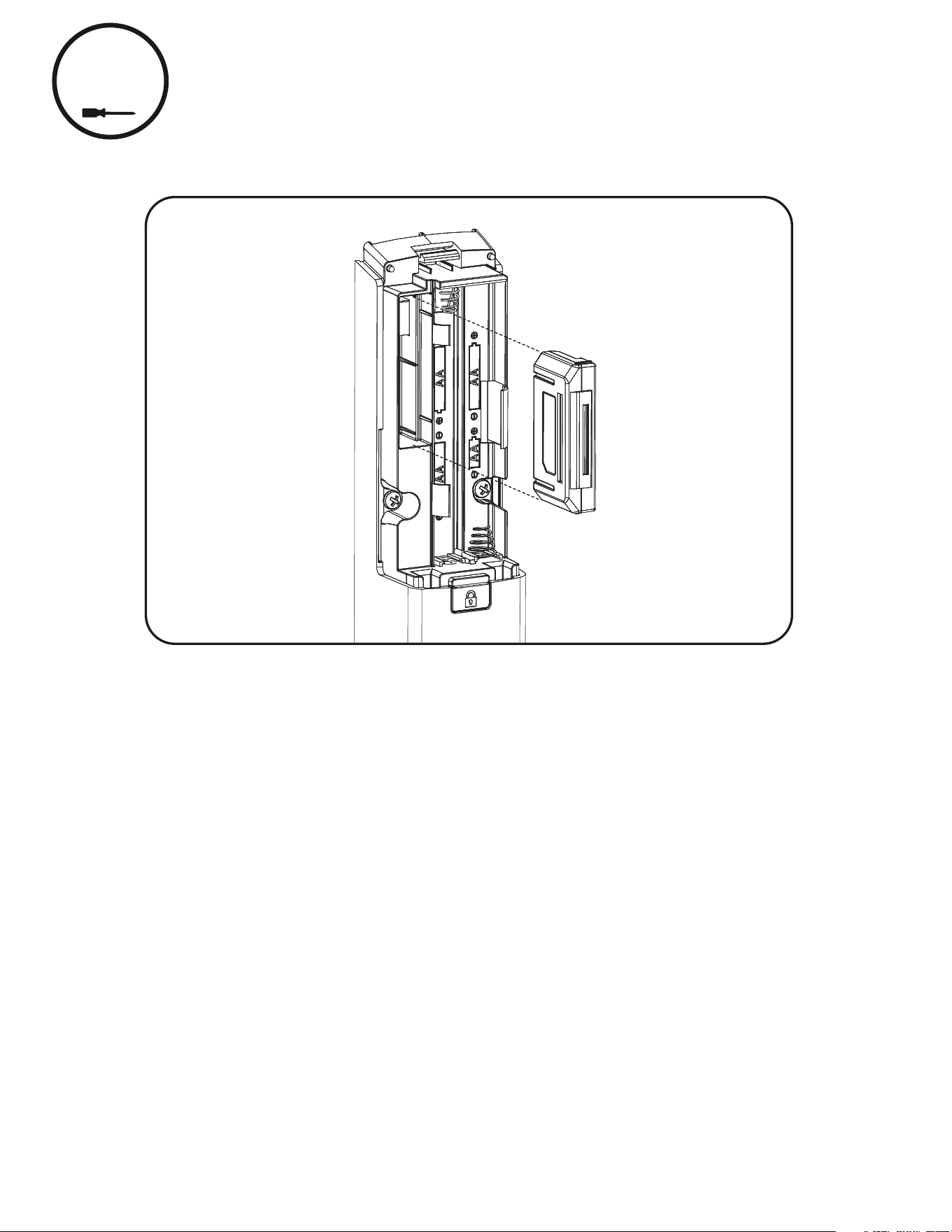
13d
Installing Door Position Sensor Accessory Magnet
For SINGLE Operating INSWING Patio and Entry Doors Only
5/16"
Drill Bit
As viewed from exterior
5/16" Dia. Hole
1" Deep At
Marked Location
18
P/N YRM276/YRM476-INST-FUL Rev C
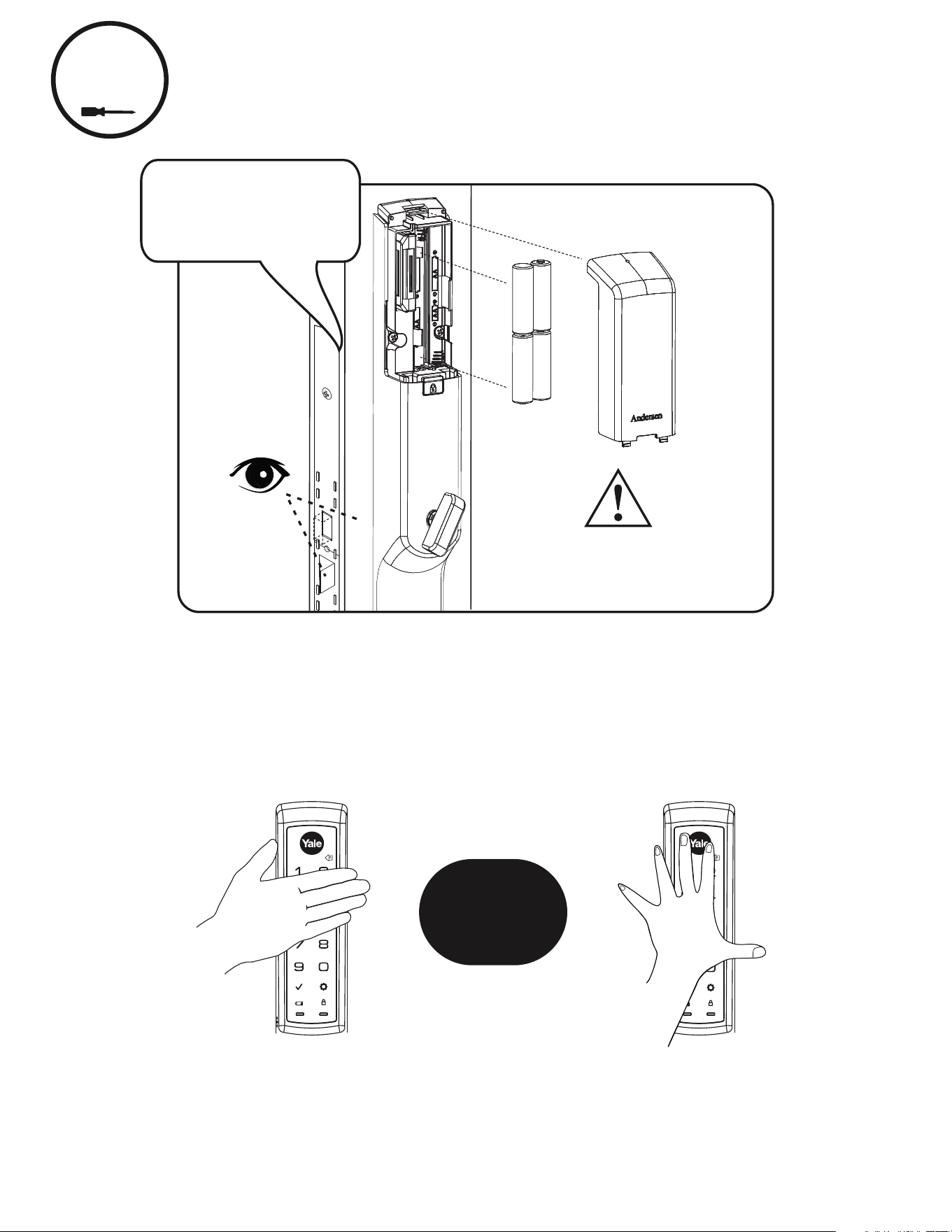
14
Installing Optional Yale Smart Module
*Yale Smart Modules can be purchased separately
19
P/N YRM276/YRM476-INST-FUL Rev C
OR
15
Installing Batteries & Cover
“Welcome to
Yale Real Living”
Bolt must be in retracted
(unlocked) position before
installing batteries.
Congratulations, you've installed your new smart lock!
Continue for Programming Instructions.
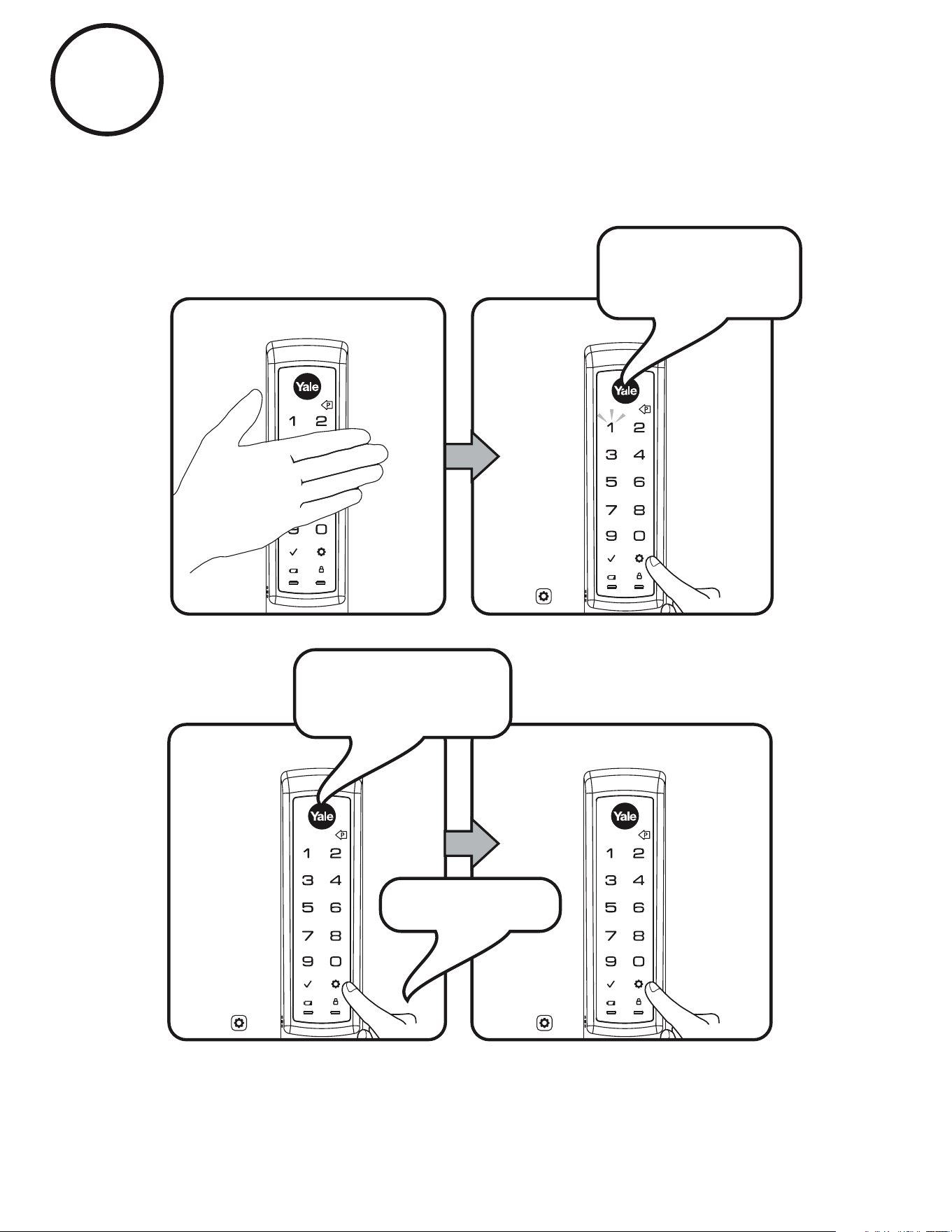
Touch the lock with your entire palm to wake the lock. You will be guided to
set up your lock by following the audio instructions on the lock.
Additional entry codes and further programming can be done through the Settings Menu.
Lock Activation
20
P/N YRM276/YRM476-INST-FUL Rev C
Using Your Lock
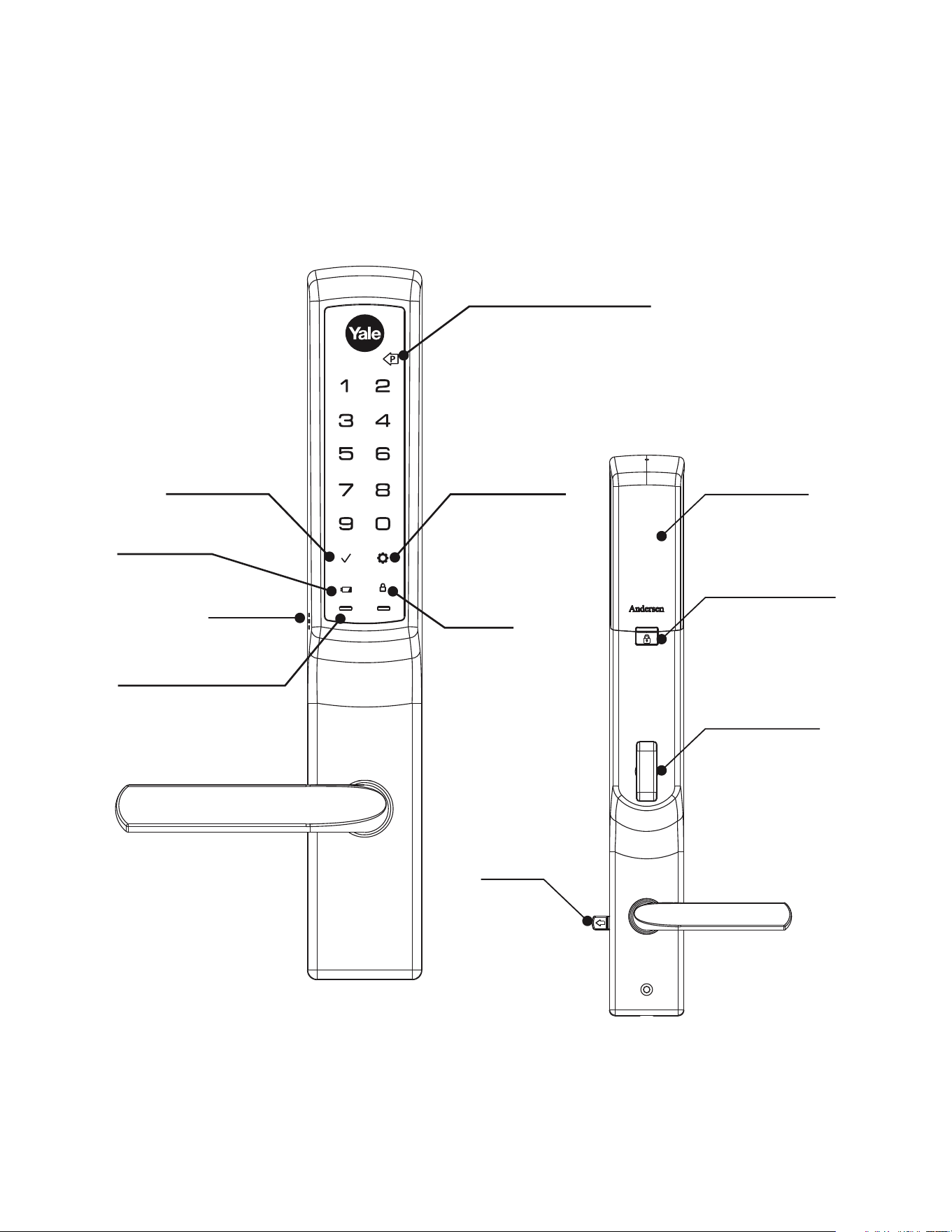
Touchscreen
Interior Lock
Door
Position
Sensor
Speaker
Press to return to
previous settings menu
Low Battery
Indicator
Privacy Button &
Inside Notification
Light
Thumbturn for
manual locking
and unlocking
Battery Cover
Battery back-up.
Hold a 9v battery to the
terminals in case of
dead lock batteries.
(Use alkaline battery)
Press to enter
or unlock
Enter master
Entry Code and
press to access
settings menu.
Lockout
Mode
21
P/N YRM276/YRM476-INST-FUL Rev C
Press gear key for a second time
and the lock will automatically hand.
"Enter a 4 to 8 digit
PIN code followed by
the gear key
"Entered."
Enter 4-8
digit Master
PIN Code
"Enter Master Code.
Press the gear
key to continue."
Press
Press Press
The Master PIN Code is used to change lock settings. A security best
practice is to set your master code with 6 or more digits and create a
separate code that is used daily to lock and unlock the door.
Creating Master PIN Code
1
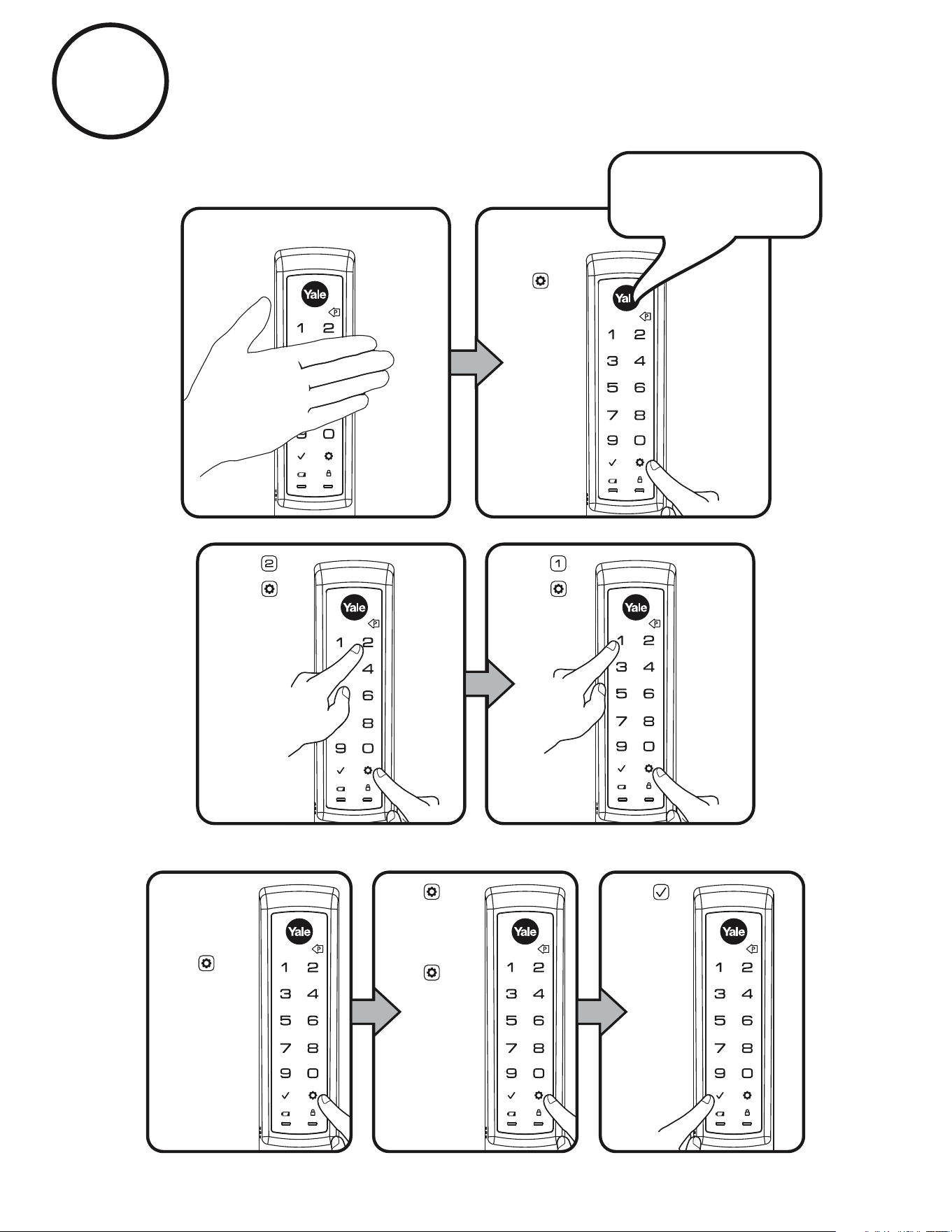
2
Creating User Codes
Master PIN Code must be created first.
*Max user codes = 250 with Yale Smart Module.
Max user codes = 25 without.
Press
Enter Master
PIN Code
"Menu Mode, enter
number, press the
gear key to continue."
Press
Press
Press
Press
Press
Enter 4-8
digit Code
(code flashes)
Press
Press
Enter 4-8
digit Code
Press
To end programming:
Adding more User Codes:
22
P/N YRM276/YRM476-INST-FUL Rev C
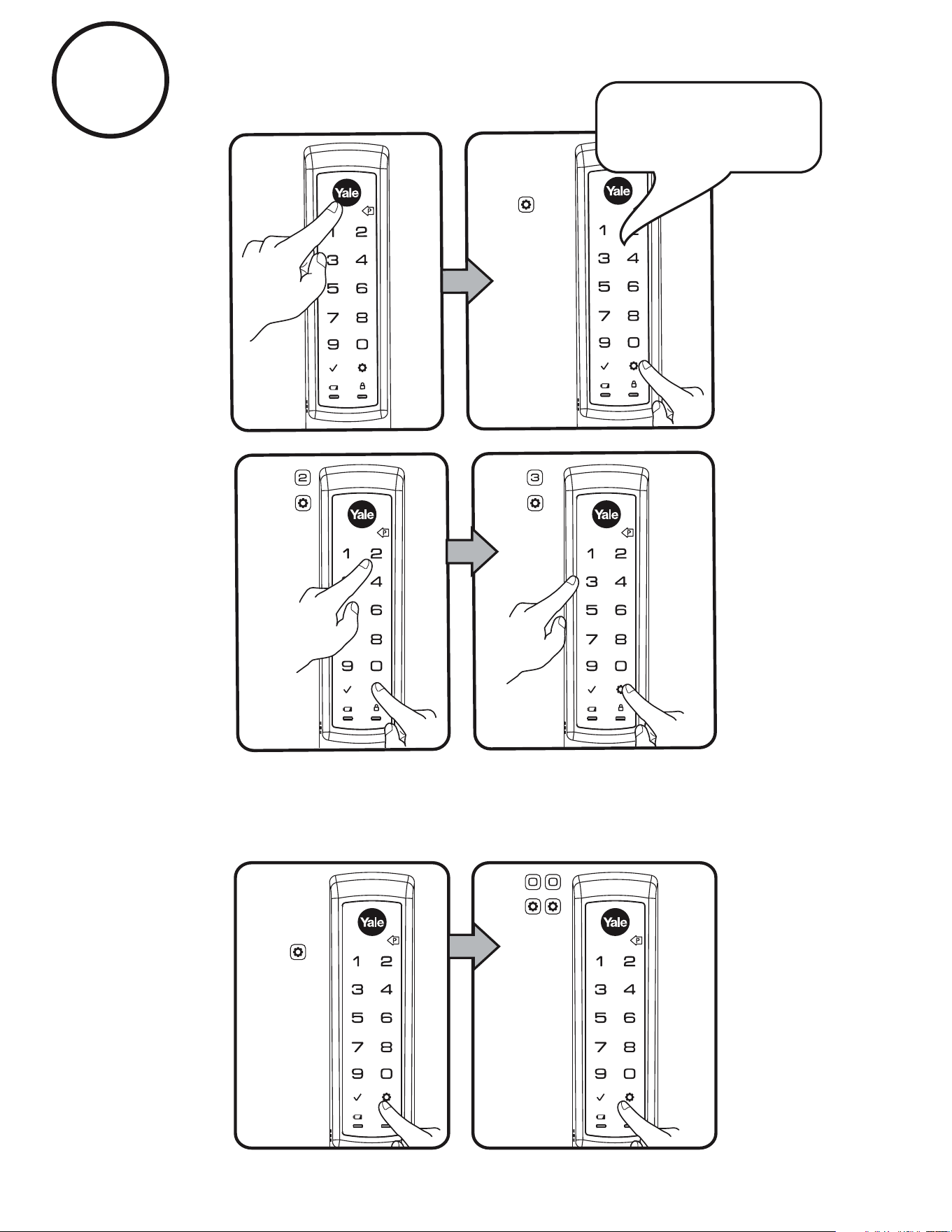
Press
Enter 4-8
digit entry
code
Press
Enter
Press
Enter Master
Entry Code
"Menu Mode, enter
number, press the
gear key to continue."
Press
Press
Press
Press
3
Deleting User Codes
Deleting one entry code:
To delete one entry code,
you must enter the entry
code you wish to delete.
To delete all entry codes
(Does not delete Master Entry Code):
23
P/N YRM276/YRM476-INST-FUL Rev C
24
P/N YRM276/YRM476-INST-FUL Rev C
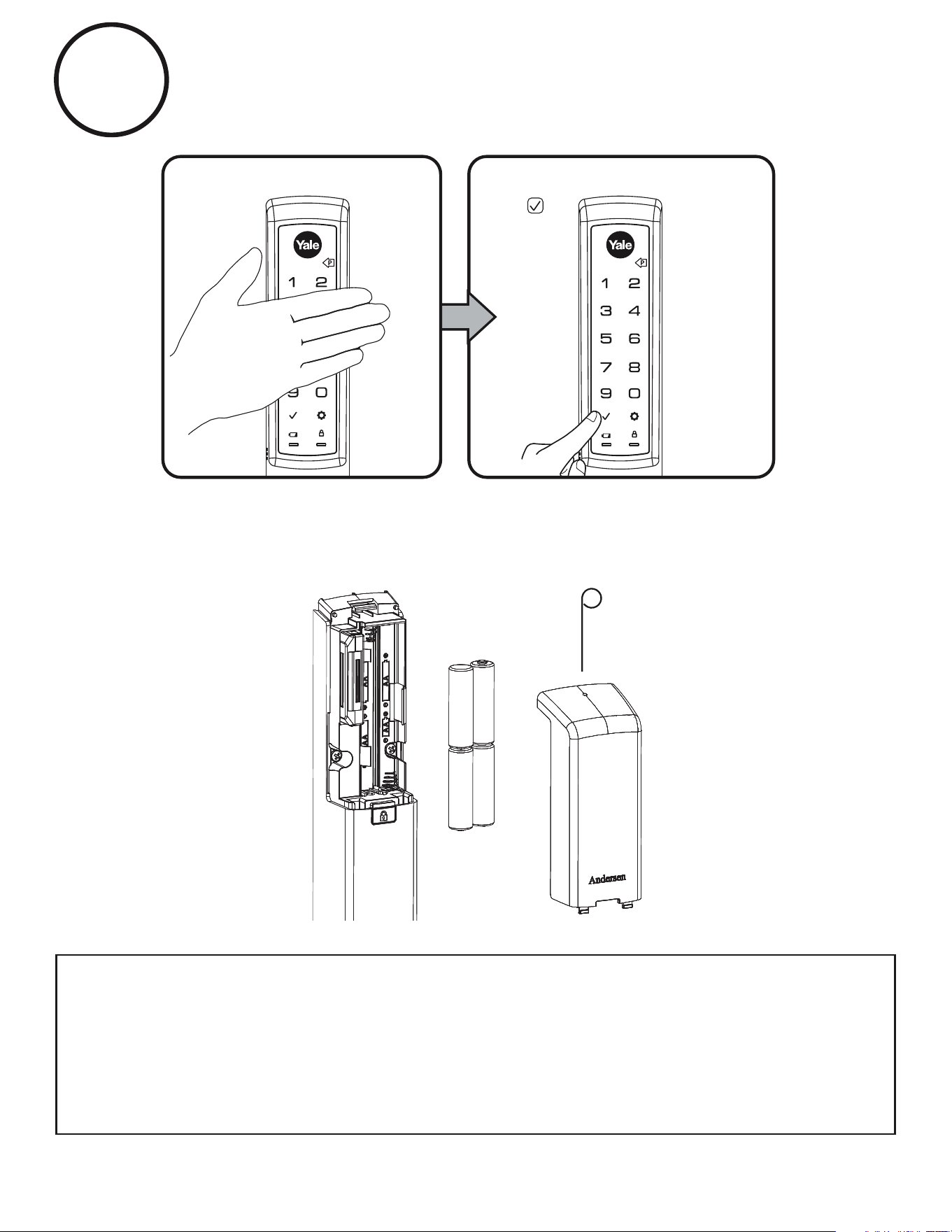
4
Unlocking Door with Code
Press
Enter Code
Replacing Batteries:
NOTE TO INSTALLER AND CONSUMER
While Yale
®
has included several features to prevent lockout (9-Volt battery jumper, low battery
warnings), it is still possible
for a lockout situation to occur. Because this product does not have
a mechanical override (a key), Yale
®
recommends to use this product in an environment where
there are additional entry points into the dwelling.
25
P/N YRM276/YRM476-INST-FUL Rev C
Resetting Lock to Factory Default
WARNING: Enabling this feature could cause lock to be unable to lock electronically in
the event of a Door Position Sensor failure.
WARNING: Enabling this feature could allow someone to tamper with your lockset Door
Position Sensor preventing lock from being locked electronically.
To Enable:
1. Touch screen with back of hand or palm to activate.
2. Enter PIN code followed by key.
3. Select menu option 3 “Advanced Lock Settings” followed by key.
4. Select option 8 “Door Position Sensor” followed by key.
5. To enable the Door Position Sensor select option 1 “Enable Door Position Sensor”
key then key to complete setup.
During installation the Door Position Sensor functionality
is automatically disabled.
When resetting the lock, all user codes, including the
Master PIN code*, are deleted. All programming features
are reset to the original default settings (see below).
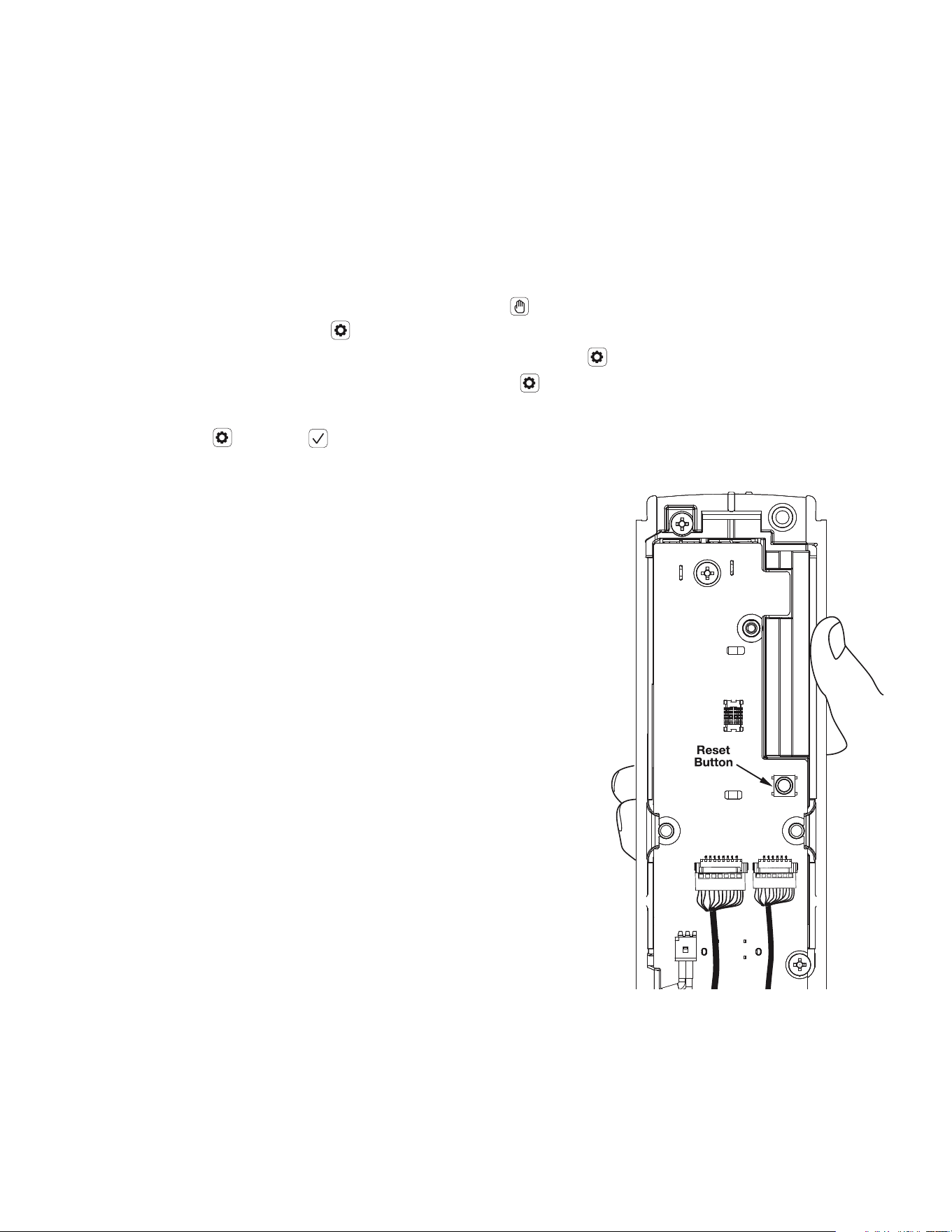
1. Remove the battery cover and batteries.
2. Remove the interior lock to access the reset button.
3. The reset button (see image at right) is located above the
PCB cable connectors.
4. Re-insert 3 batteries and hold the reset button for 3 seconds.
5. While still holding the reset button, insert the 4th battery,
and hold the reset button for an additional 3 seconds.
6. Release the reset button.
7. Re-install the interior lock onto the door.
Upon reset, Master PIN Code creation is the
only option available and must be performed
prior to any other programming of the lock.
For best results, the lock should be installed on the door when resetting the lock to factory default.
If the process was done and the lock was not installed on the door, review the Re-Handing instructions
listed in Hardware Troubleshooting.
*The Master PIN code must be registered prior to any other programming of the lock.
Interior Lock
followed by
Enabling Door Position Sensor Functionality
26
P/N YRM276/YRM476-INST-FUL Rev C
Setting Definitions
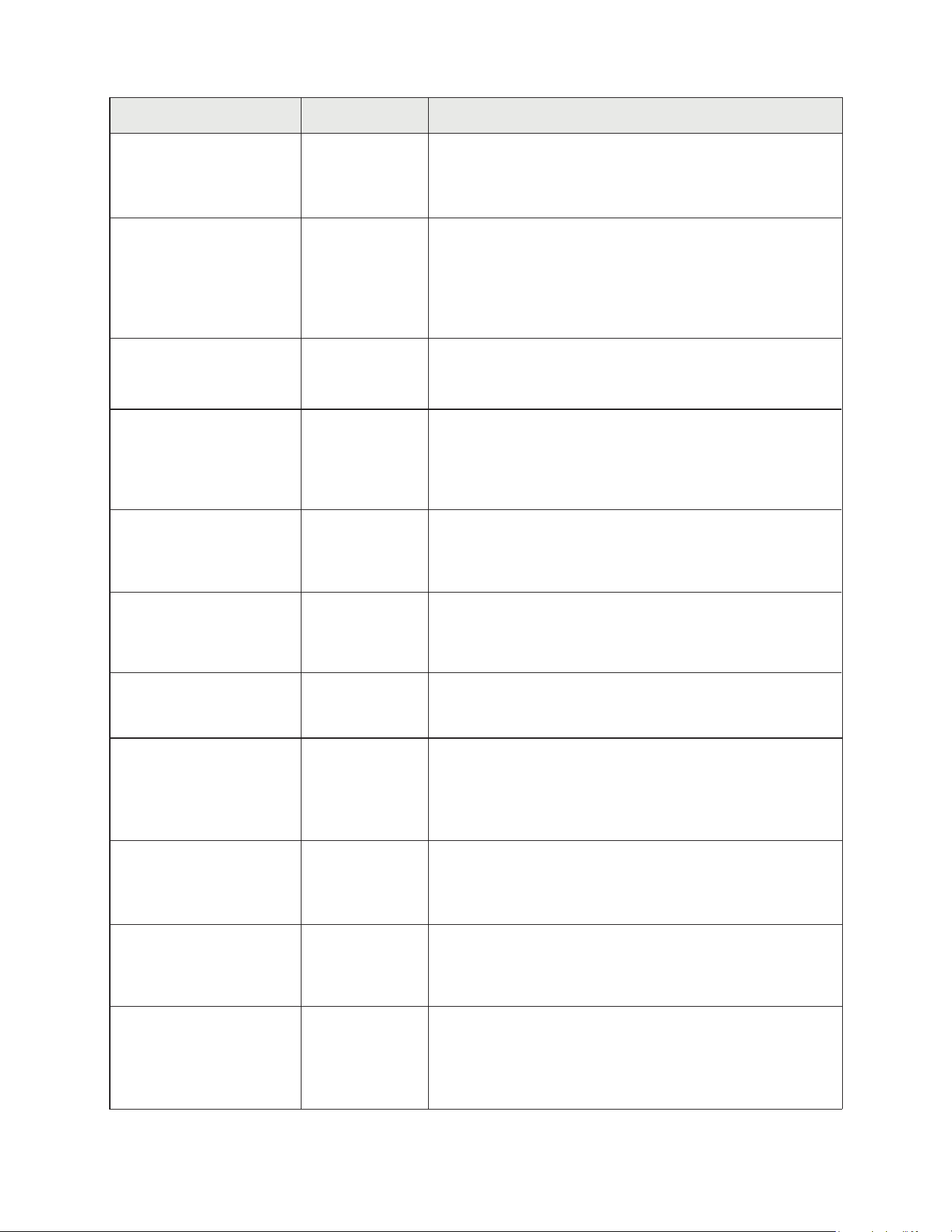
The Master PIN Code is used for programming and for feature
settings. It must be created prior to programming the lock.
The Master PIN code will also operate (unlock/lock) the lock.
Creation
required*
Automatic Re-lock Disabled
Settings Default Setting Definition
After a successful code entry or manual unlock with the key,
the lock will automatically re-lock after each unlock in an
effort to keep your home secure. This feature is optional, and
can be turned off. In the ON mode, the lock will automatically
re-lock after thirty (30) seconds.
Inside Indicator Light
Disabled (Off)
When the latch is retracted, activating the keypad will extend
the latch (during Automatic Re-lock duration or when
Automatic Re-lock is disabled). When One-Touch Re-lock is
not in use (disabled), any valid PIN Code will re-lock the lock.
One Touch Locking
Enabled
Privacy mode is disabled by default. Enable Privacy mode
by pressing the privacy button for 4 seconds to put the lock
in do-not-disturb mode (all pin codes are disabled).
Privacy Button
Disabled
Volume
Enabled (Low)
The volume setting for entry code verification is set to Low
(2) by default; otherwise it can be set to High (1) or Silent
(3) for quiet areas.
Language English
Choosing English (1), Spanish (2) or French (3) becomes
the (default) setting for the lock's voice prompts.
This feature is enabled by the Master Entry Code. When
enabled, it restricts all user (except Master) Entry Code access.
When attempting to enter a code while the lock is in Lockout
mode, the RED locked padlock will appear on the screen.
Lockout Mode Disabled
After five (5) unsuccessful attempts at entering a valid
entry code, the lock will shut down and not allow operation
for sixty (60) seconds.
Wrong Code Entry Limit
5 Times
The Lock will shutdown (flashing RED) for sixty (60) seconds
and not allow operation after the wrong code entry limit
(5 attempts) has been met.
Shutdown Time 60 Seconds
The built-in Door Position Sensor on your lock ensures that
the door is closed prior to locking. If this feature is enabled,
the door will ONLY electronically lock when the Door Position
Sensor detects the door is closed.
Door Position Sensor Disabled
*The Master Entry Code must be created prior to any other programming of the lock.
Located on the inside lock. Shows active status (Locked) of lock
and can be enabled or disabled in the Advanced Lock Settings
(Main Menu selection #3).
Master PIN Code
27
P/N YRM276/YRM476-INST-FUL Rev C
Privacy Button Setting
Enable
Disable
Handing the Lock
Preforms automatic
handing of lock
Volume Setting
Language Setting mode
Lockout Mode
**Network Module Setting
Join the network
Enable
Disable
Exit the network
English
Spanish
French
Silent
Low
High
Advanced Lock Settings
**This function appears only with
RF network module installed.
Automatic Re-lock
Disable
30 sec
Inside Indicator Light
One Touch Locking
Enable
Disable
Enable
Disable
Continue
Complete
60 sec
3 min
2 min
***Door Position Sensor
***This function appears only with
Door Position Sensor installed.
Enable
Disable
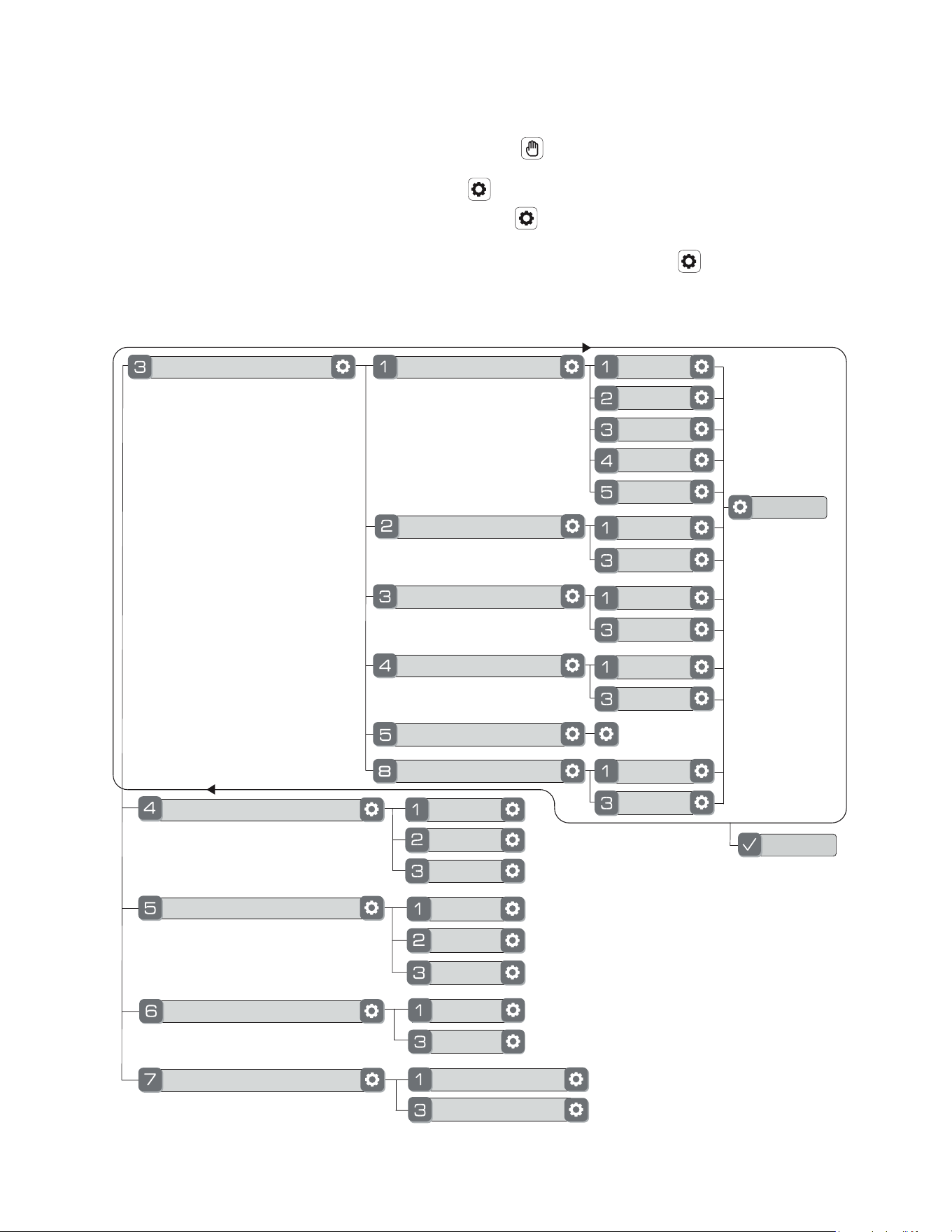
1. Touch screen with back of hand or palm to activate.
2. Enter 4-8 digit master PIN code* followed by key.
Lock Response: "Menu mode, enter number, press key to continue."
3. Enter digit corresponding to the function to be performed followed by the key.
Follow the voice commands.
Feature Programming Through Menu Mode
Using Master PIN Code*
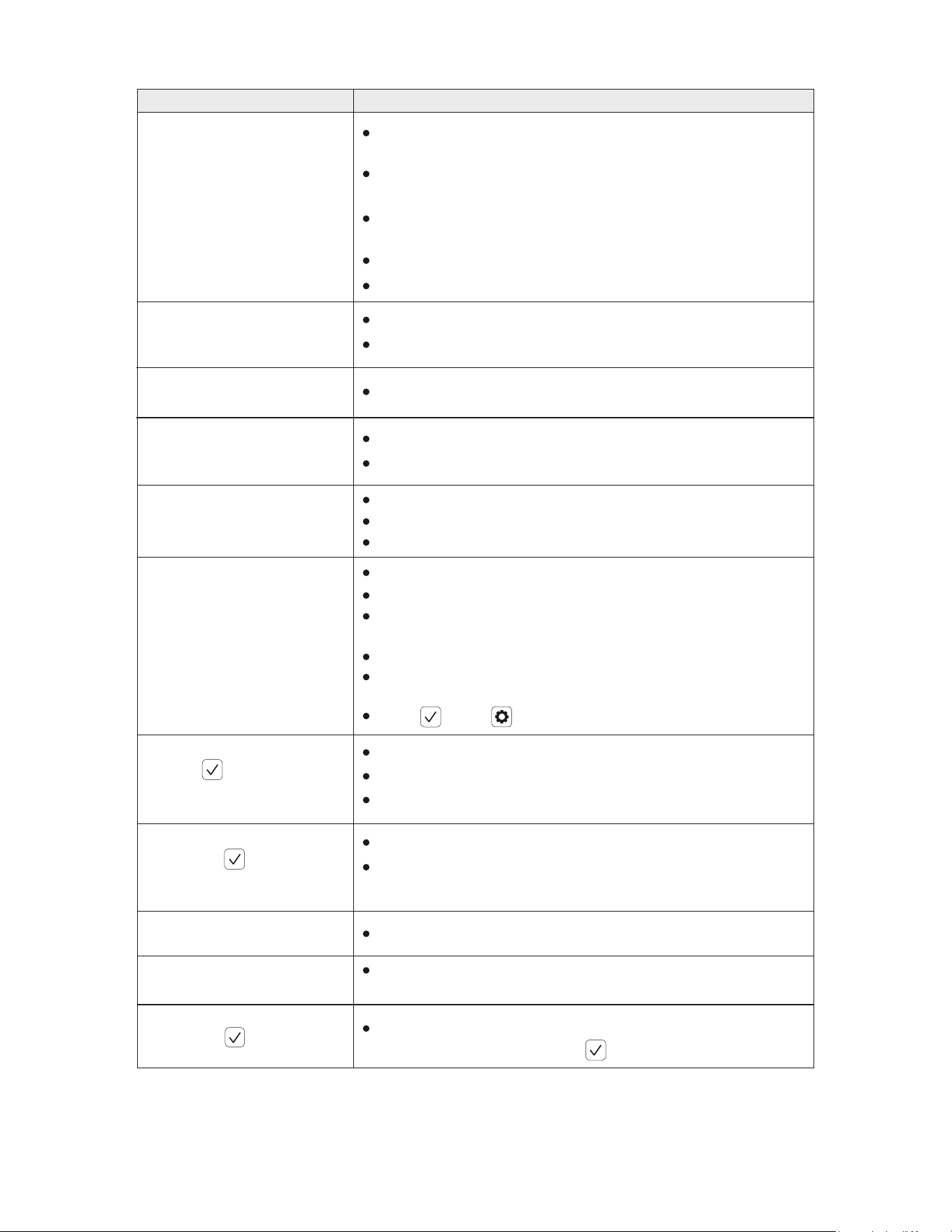
28
P/N YRM276/YRM476-INST-FUL Rev C
Upon entering a PIN code and
pressing the key, the unit
responds "Wrong number of digits".
Upon entering a PIN code and
pressing the key, the red
padlock icon appears and there
are different tones.
Upon entering a PIN code and
pressing key, theunit displays
"invalid code" error or lock times
out with-out responding.
Symptom
Suggested Action
Touchscreen becomes active when pressed w/whole hand. Use a larger
area of the hand or fingers and verify contact with at least 3 areas.
If touchscreen numbers are visible, check to see if they respond
when pressed.
Check batteries are installed and oriented correctly (polarity) in the
battery case.
Check batteries are in good condition; replace batteries*if discharged.
Check to see if touchscreen harness is fully connectedand not pinched.
Programming Troubleshooting
Lock does not respond –
door is open and
accessible.
Lock does not respond –
door is locked and
inaccessible.
Unit is on for a while then shows
no reaction. Lights dim.
Unit chimes to indicate code
acceptance, but the door will
not open.
Unit operates to allow access, but
will not automatically re-lock.
PIN codes will not register.
The unit operates, but it
makes no sound.
The unit responds "Low Battery"
Batteries may be completely discharged.
Apply 9V battery to terminals below the touchscreen for backup power option.
Batteries do not have enough power. Replace batteries*.
Check the door gaps for any foreign objects between doorand frame.
Check that the wire harness is firmly connected to the PCB.
Check to see if Auto Re-lock Mode is enabled.
Disable Auto Re-lock Mode to lock the door (automatically).
If low battery indicator is lit (see below), change batteries *.
PIN codes must consist of 4 to 8 digits to register.
The same PIN code cannot be used for multiple users.
Registration/management of PIN codes is set by the authority of the
Master Code, which is set first.
Contact the Master user.
User codes must be entered within 5 seconds (while touchscreen is
active) or process will have to be restarted.
Check or gear cannot be used as part of the PIN code.
Lockout Mode is enabled.
Only the Master can enable/disable Lockout Mode.
Contact the Master user.
Check to see if the lock is set to Lockout Mode.
Setting/managing Lockout Mode is done through
Master Code only. Contact the Master user.
Check to see if Silent Mode is enabled (see Feature #4).
This is the alert to replace the batteries. Replace all four (4) batteries*
with new AA Alkaline batteries.
The digits entered were incorrect or incomplete. Re-enter the
correct code followed by the check key.
* When batteries are replaced, Network Module locks have a real time clock that will be set through the User Interface
(UI); it is recommended to verify correct date and time particularly those locks operating under Daylight Saving Time (DST).
** Network Module locks only
29
P/N YRM276/YRM476-INST-FUL Rev C
Bolt will not extend and motor is grinding
a. Enter your Master PIN code.
b. With the bolt retracted, press menu Option 3 for Advanced Lock Settings.
c. Press Option 5 to rehand the lock.
d. Test the operation locking the door via the keypad.
Door is binding
a. Check that door and frame are properly aligned and door is free swinging.
b. Check hinges: They should not be loose or have excessive wear on knuckles.
Bolt will not deadlock
a. Check for sufficient clearance of the bolt within the strike-side jamb. Correct this by increasing
the depth of the pocket for the bolt.
b. Check for misalignment of bolt and/or strike which may be preventing bolt from properly entering the strike.
With the door open, extend and retract the bolt; if it is smooth, check the strike alignment.
c. Confirm which Andersen door unit is in the home. If an Andersen 200 Series or 400 Series hinged patio door,
the hookbolts must be manually engaged before the Yale Assure lock can lock the patio door's deadbolt.
Bolt does not extend or retract smoothly
a. Bolt and strike are misaligned, see above.
b. Check the backset of door relative to adjustments already made to bolt.
c. Verify proper door preparation and re-bore holes that are too small or misaligned.
d. Verify touchscreen wire harness is routed correctly (begin with installation step 4).
Touchscreen numerics are scrolling
Remove interior lock and check to ensure that the wire harness lies flat against the back recessed area
and is properly routed (begin with installation step 4).
Hardware Troubleshooting
Cycle lock in both the locked and unlocked positions. If problems are found:
30
P/N YRM276/YRM476-INST-FUL Rev C
“Andersen” is a registered trademark of Andersen Corporation.
Yale® is a registered trademark ASSA ABLOY Residential Group
Copyright © 2020, Andersen Corporation and ASSA ABLOY Residential Group
All rights reserved.
Reproduction in whole or in part without the express written permission of
Andersen Corporation and ASSA ABLOY Residential Group is prohibited.
Product Support Tel 1-855-213-5841 • www.yalehome.com
FCC:
Class B Equipment
This equipment has been tested and found to comply with the limits for a Class B digital
device, pursuant to Part 15 of the FCC Rules. These limits are designed to provide reasonable
protection against harmful interference in a residential installation. This equipment generates,
uses, and can radiate radio frequency energy and, if not installed and used in accordance with
the instructions, may cause harmful interference to radio communications. However, there is no
guarantee that interference will not occur in a particular installation. If this equipment does
cause harmful Interference to radio or television reception, which can be determined by turning
the equipment off and on, the user is encouraged to try to correct the interference by one or
more of the following measures:
Reorient or relocate the receiving antenna.
Increase the separation between the equipment and receiver.
Connect the equipment into an outlet on a circuit different from that to
which the receiver is connected.
Consult the dealer or an experienced radio/TV technician for help.
Industry Canada:
This Class A digital apparatus meets all requirements of the Canadian Interference Causing
Equipment Regulations.
Cet appareillage numérique de la classe A répond à toutes les exigences de l'interférence
canadienne causant des règlements d'équipement.
Warning: Changes or modifications to this device, not expressly approved by ASSA ABLOY
Residential Group could void the user's authority to operate the equipment.