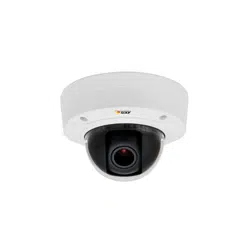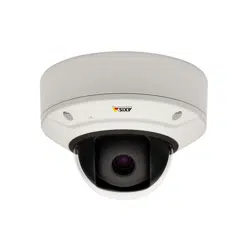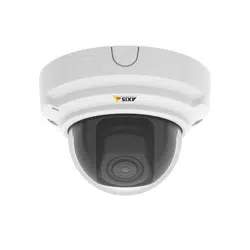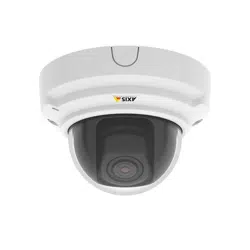


AXISQ35Series
TableofContents
Solutionoverview...........................................3
Productoverview...........................................4
Setup.....................................................6
Howtoaccesstheproduct........................................6
Abouttheproduct'sbuilt-inhelp...................................7
Imagequality...................................................7
Overlays.......................................................11
Streamingandstorage...........................................12
Events........................................................13
Applications....................................................15
Troubleshooting............................................16
Howtoresettofactorydefaultsettings.............................16
Howtocheckthecurrentrmware.................................16
Howtoupgradethermware.....................................16
Technicalissues,cluesandsolutions................................17
Performanceconsiderations.......................................18
Specications..............................................19
LEDIndicators..................................................19
SDcardslot....................................................19
Buttons.......................................................19
Connectors....................................................20
2
AXISQ35Series
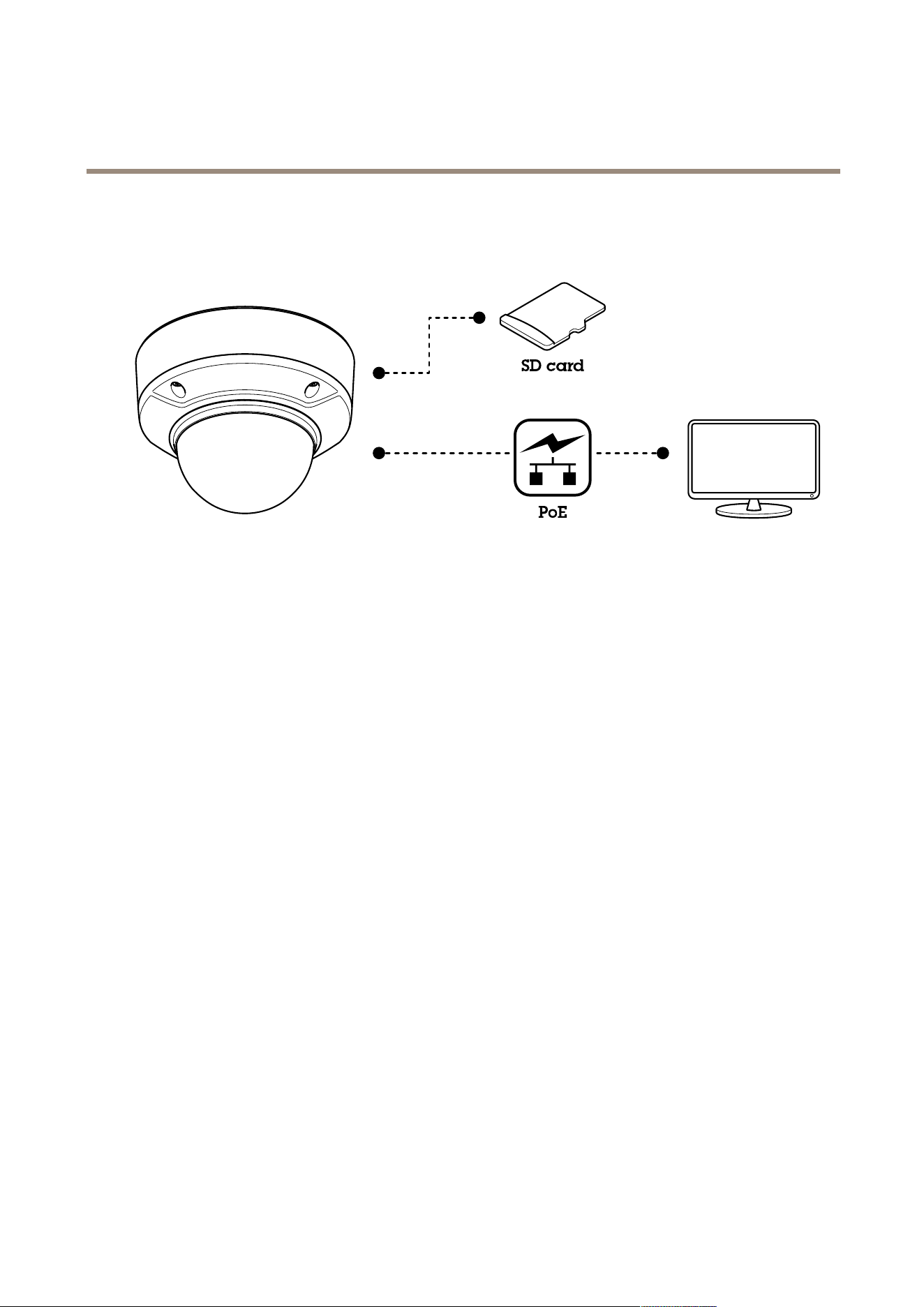
Solutionoverview
Solutionoverview
3
AXISQ35Series
Productoverview
Productoverview
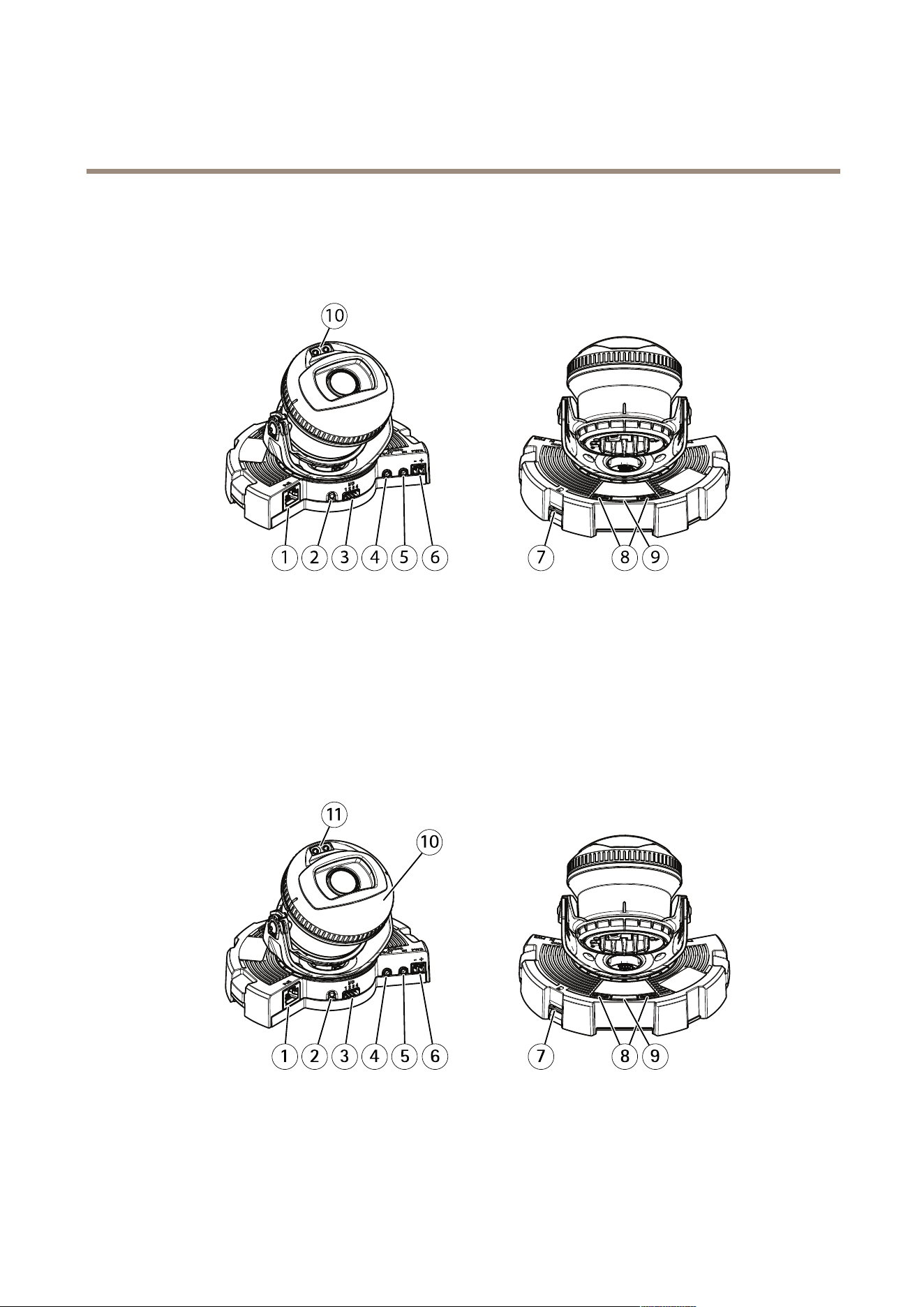
AXISQ3517-LV
1
Networkconnector
2
Controlbutton
3
I/Oconnector
4
Audioout
5
Audioin
6
DCconnector
7
SDcardslot
8
StatusLED(2x)
9
Functionbutton
10
IRLED(2x)
AXISQ3517-LVE
1
Networkconnector
2
Controlbutton
3
I/Oconnector
4
Audioout
5
Audioin
4

AXISQ35Series
Productoverview
6
DCconnector
7
SDcardslot
8
StatusLED(2x)
9
Functionbutton
10
Heater
11
IRLED(2x)
CAUTION
Theheatermaybehot.
5

AXISQ35Series
Setup
Setup
Howtoaccesstheproduct
AXISIPUtilityandAXISCameraManagementarerecommendedmethodsforndingAxisproductsonthenetworkandassigning
themIPaddressesinWindows®.Bothapplicationsarefreeandcanbedownloadedfromaxis.com/support
Theproductcanbeusedwiththefollowingbrowsers:
•Chrome
TM
(recommended),Firefox
®
,Edge
®
,orOpera
®
withWindows
®
•Chrome
TM
(recommended)orSafari
®
withOSX
®
•Chrome
TM
orFirefox
®
withotheroperatingsystems.
Ifyouneedmoreinformationaboutrecommendedbrowsers,gotoaxis.com/browser-support
Howtoaccesstheproductfromabrowser
1.Startawebbrowser.
2.EntertheIPaddressorhostnameoftheAxisproductinthebrowser’saddresseld.
ToaccesstheproductfromaMaccomputer(OSX),gotoSafari,clickonBonjourandselecttheproductfromthe
drop-downlist.ToaddBonjourasabrowserbookmark,gotoSafari>Preferences.
IfyoudonotknowtheIPaddress,useAXISIPUtilitytolocatetheproductonthenetwork.Forinformationabout
howtodiscoverandassignanIPaddress,seethedocumentAssignanIPAddressandAccesstheVideoStreamonAxis
Supportwebataxis.com/support
3.Enteryourusernameandpassword.Ifthisisthersttimetheproductisaccessed,therootpasswordmustrstbe
congured.
4.Theproduct’sliveviewpageopensinyourbrowser.
Aboutsecurepasswords
Important
Whensettingtheinitialpassword,thepasswordissentincleartextoverthenetwork.Ifthereisariskofnetworksnifng,
rstsetupasecureandencryptedHTTPSconnectionbeforeresettingthepasswords.
Thedevicepasswordistheprimaryprotectionforthedataandservices.Axis’devicesdonotimposeapasswordpolicyasdevicesmay
beusedinvarioustypesofinstallations,buttoprotectyourdatadothefollowing:
•Don’tusethedefaultpasswordthatcomeswiththedevices.
•Useapasswordwithatleast8characters,preferablyusingapasswordgenerator.
•Don’texposethepassword.
•Changepasswordatarecurringinterval,atleastonceayear.
Setapasswordfortherootaccount
Important
Thedefaultadministratorusernamerootcannotbedeleted.Ifthepasswordforrootislost,thedevicemustberesetto
thefactorydefaultsettings.
Thedefaultrootaccounthasfullprivilegesandshouldbereservedforadministrativetasks.Alwayscreateauseraccountwithlimited
privilegesfordailyuse.Thisreducestheexposureoftheadministrativeaccount.
6
AXISQ35Series
Setup
1.Makesuretofollowtheinstructionsaboutsecurepasswords,seeAboutsecurepasswordsonpage6.
2.Typeapasswordandthenretypeittoconrmthespelling.
3.ClickCreatelogin.Thepasswordhasnowbeencongured.
Abouttheproduct'sbuilt-inhelp
Youcanaccessthebuilt-inhelpthroughyourproduct’swebpage.Thehelpprovidesmoredetailedinformationontheproduct’s
featuresandtheirsettings.
Imagequality
Aboutcapturemodes
CapturemodedenesthemaximumframerateavailableintheAxisproduct.Dependingonwhichcapturemodeyouselect,you
maynotbeabletouseWDR.
Acapturemodeconsistsofaresolutionandthecorrespondingframerateavailableintheproduct.Thecapturemodesetting
affectsthecamera’seldofviewandaspectratio.
Thelowerresolutioncapturemodeiscroppedoutfromthehighestresolution.
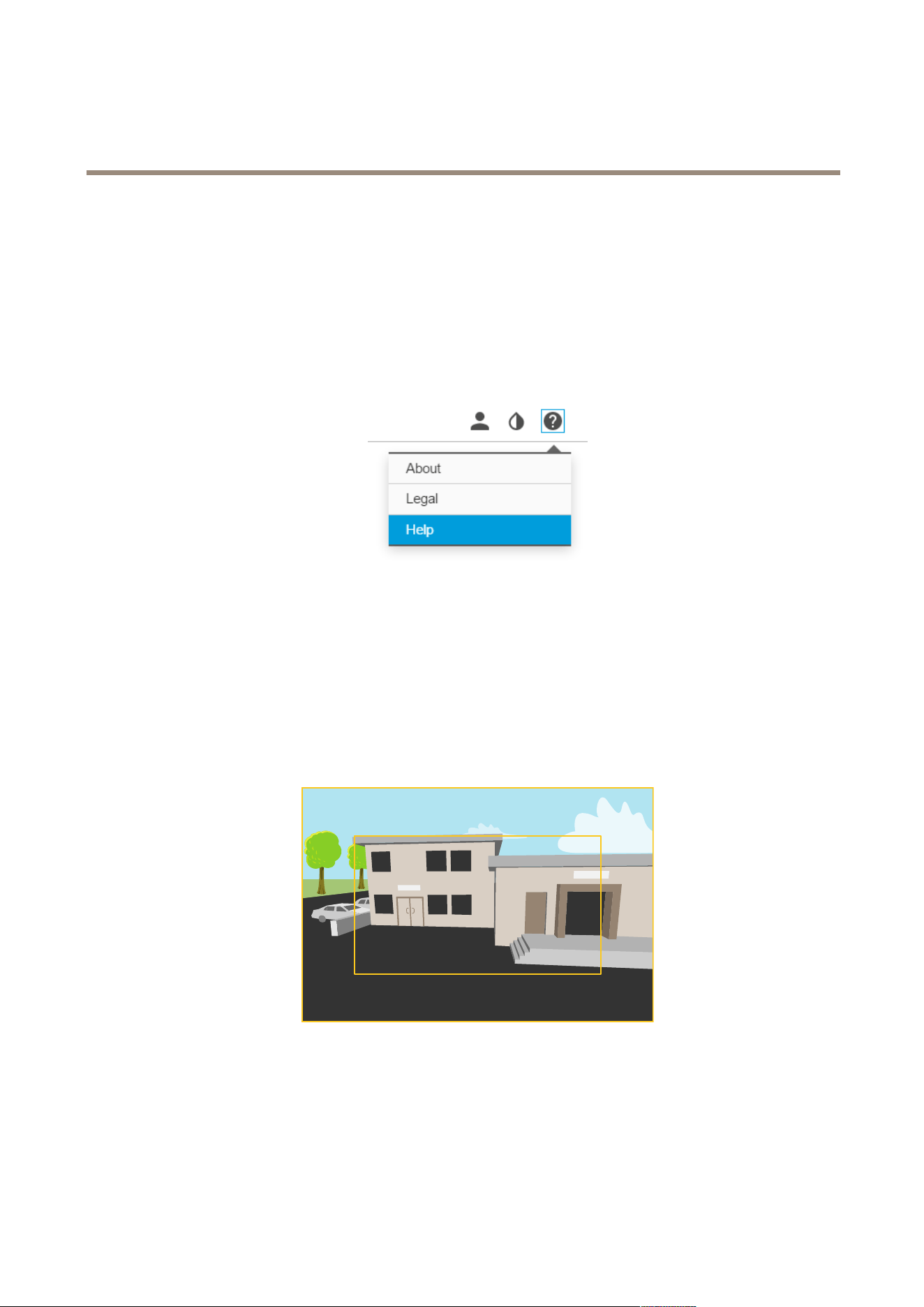
Theimageshowshowtheeldofviewandaspectratiocanchangebetweentwodifferentcapturemodes.
Howtoselectcapturemode
Whichcapturemodetochoosedependsontherequirementsofframerateandresolutionforthespecicsurveillancesetup.For
specicationsaboutavailablecapturemodes,seetheproduct’sdatasheet.Tondthelatestversionofthedatasheet,gotoaxis.com
7

AXISQ35Series
Setup
Aboutremotefocusandzoom
Theremotefocusandzoomfunctionalityallowsyoutomakefocusandzoomadjustmentstoyourcamerafromacomputer.Itisa
convenientwaytoensurethatthescene’sfocus,viewingangleandresolutionareoptimizedwithouthavingtovisitthecamera’s
installationlocation.
Left:nofocus.Right:remotefocusapplied.
Left:nozoom.Right:remotezoomapplied.
Howtostraightenimage
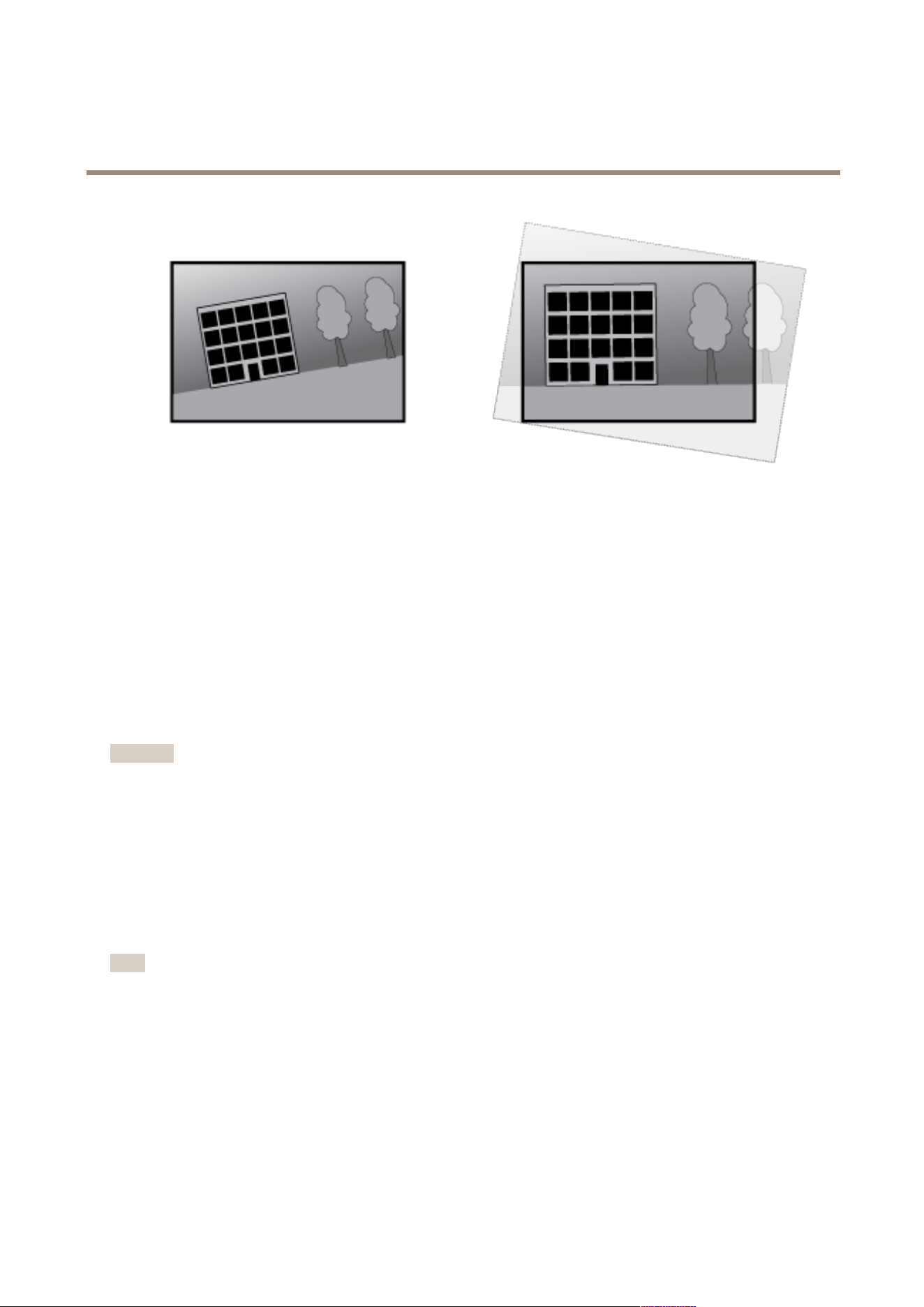
Straightenimagestraightenstheimagehorizontallybyrotatingandcroppingitdigitally.Duetothecropping,apartoftheoriginal
imageislost.Thefunctionalityisideallyusedtostraightentheimageduringinstallation.Theillustrationshowsbeforeand
afterstraightenimagehasbeenused.
8
AXISQ35Series
Setup
1.GotoSettings>Image>Imagecorrection.
2.EnableStraightenimage.
Howtohidepartsoftheimagewithprivacymasks
Ifyouwanttohidepartsoftheimageduetoprivacyreasons,useoneorseveralprivacymasks.
Whatisaprivacymask?
Aprivacymaskisauser-denedareathatprohibitsusersfromviewingpartsofthemonitoredarea.Privacymasksappearasblocks
ofsolidcolororblurredimageelementsandareappliedonthevideostream.
Privacymasksarepresentonallsnapshots,recordedvideo,andrequestedstreams.TheycannotbebypassedthroughtheVAPIX®
applicationprogramminginterface(API).
Important
Ifyouaddmultipleprivacymasks,thismayaffecttheproduct’sperformance.
Howtocreateaprivacymask
Tocreateoreditaprivacymask,gotoSettings>Privacymask.
Howtoreducenoiseinlow-lightconditions
Toreducenoiseinlow-lightconditions,youcanadjustoneormoreofthefollowingsettings:
•Makesurethattheexposuremodeisautomatic.
Note
Increasingthemaxshuttervaluecanresultinmotionblur.
•Theshutterspeedshouldbeasslowaspossible,whichmeansyoushouldsetmaxshuttertothehighestpossiblevalue.
•Reducesharpnessintheimage.
HowtobenetfromIRlightinlow-lightconditionsusingnightmode
Yourcameradeliverscolorimagesduringtheday.Aslightdiminishes,youcansetthecameratoautomaticallyshifttonightmode.
Withthissettingenabled,thecameradeliversblack-and-whiteimageswiththehelpofIRlight.
1.GotoSettings>Image>Dayandnight,andmakesurethattheIRcutlterissettoAuto.
9

AXISQ35Series
Setup
Howtoselectexposuremode
Thereareseveralexposuremodeoptionsinthecamerathatadjustsaperture,shutterspeed,andgaintoimproveimagequalityfor
specicsurveillancescenes.GotoSettings>Image>Exposureandselectbetweenthefollowingexposuremodes:
•Formostusecases,selectAutomaticexposure.
•Forenvironmentswithcertainarticiallighting,forexampleuorescentlighting,selectFlicker-free.
Selectthesamefrequencyasthepowerlinefrequency.
•Forenvironmentswithcertainarticiallightandbrightlight,forexampleoutdoorswithuorescentlightingatnightand
sunduringdaytime,selectFlicker-reduced.
Selectthesamefrequencyasthepowerlinefrequency.
•Tolockthecurrentexposuresettings,selectHoldcurrent.
HowtostabilizeashakyimagewithElectronicImageStabilization(EIS)
EIScanbeusedinenvironmentswheretheproductismountedinanexposedlocationandsubjecttovibrations,forexample,wind
orpassingtrafc.TurnonEIStogetasmootherandsteadierimagewithoutblur.
EISalsoreducesthelesizeofthecompressedimageandlowersthebitrateofthevideostream.
Note
WhenEISisturnedontheimageiscroppedslightly,loweringthemaximumresolution.
1.GotoSettings>Image.
2.TurnonEIS.
Howtohandlesceneswithstrongbacklight
UseWDRtomakebothdarkandbrightareasoftheimagevisible.
1.GotoSettings>Image.
2.TurnonWDRunderWidedynamicrange.
ImagewithoutWDR.
10

AXISQ35Series
Setup
ImagewithWDR.
Note
IfyouuseWDR,youmayexperiencesomeWDRartifactsintheimage.
FindoutmoreaboutWDRandhowtouseitataxis.com/web-articles/wdr
Overlays
Aboutoverlays
Overlaysaresuperimposedoverthevideostream.Theyareusedtoprovideextrainformationduringrecordings,suchasatimestamp,
orduringproductinstallationandconguration.
Howtoshowatextoverlaywhenthecameradetectsmotion
Thisexampleexplainshowtodisplaythetext“Motiondetected”whenthecameradetectsmotion:
MakesuretheAXISVideoMotionDetectionapplicationisrunning:
1.GotoSettings>Apps>AXISVideoMotionDetection.
2.Starttheapplicationifitisnotalreadyrunning.
3.Makesureyouhavesetuptheapplicationaccordingtoyourneeds.
Addtheoverlaytext:
4.GotoSettings>Overlay.
5.Enter#Dinthetexteld.
6.Choosealignment,textsizeandappearance.
7.Includethetextoverlay.
Createanactionrule:
8.GotoSystem>Events>Actionrules.
9.CreateanactionrulewithAXISVideoMotionDetectionastrigger.
10.Fromthelistofactions,selectOverlaytext.
11.Type“Motiondetected”.
12.Settheduration.
11

AXISQ35Series
Setup
Note
Ifyouupdatetheoverlaytextitwillbeautomaticallyupdatedonallvideostreamsdynamically.
Streamingandstorage
Howtochoosevideocompressionformat
Decidewhichcompressionmethodtousebasedonyourviewingrequirements,andonthepropertiesofyournetwork.The
availableoptionsare:
MotionJPEG
MotionJPEGorMJPEGisadigitalvideosequencethatismadeupofaseriesofindividualJPEGimages.Theseimagesarethen
displayedandupdatedataratesufcienttocreateastreamthatshowsconstantlyupdatedmotion.Fortheviewertoperceivemotion
videotheratemustbeatleast16imageframespersecond.Fullmotionvideoisperceivedat30(NTSC)or25(PAL)framespersecond.
TheMotionJPEGstreamusesconsiderableamountsofbandwidth,butprovidesexcellentimagequalityandaccesstoeveryimage
containedinthestream.
H.264orMPEG-4Part10/AVC
Note
H.264isalicensedtechnology.TheAxisproductincludesoneH.264viewingclientlicense.Installingadditionalunlicensed
copiesoftheclientisprohibited.Topurchaseadditionallicenses,contactyourAxisreseller.
H.264can,withoutcompromisingimagequality,reducethesizeofadigitalvideolebymorethan80%comparedtotheMotion
JPEGformatandbyasmuchas50%comparedtotheMPEG-4standard.Thismeansthatlessnetworkbandwidthandstoragespace
arerequiredforavideole.Orseenanotherway,highervideoqualitycanbeachievedforagivenbitrate.
Howtoreducebandwidthandstorage
Important
Ifyoureducethebandwidthitcanresultinlossofdetailsinthepicture.
1.GotoliveviewandselectH.264.
2.GotoSettings>Stream.
3.Dooneormoreofthefollowing:
-TurnontheZipstreamfunctionalityandselectthedesiredlevel.
-TurnondynamicGOPandsetahighGOPlengthvalue.
-Increasethecompression.
-TurnondynamicFPS.
Howtosetupnetworkstorage
Tostorerecordingsonthenetwork,youneedtosetupnetworkstorage:
1.GotoSettings>System>Storage.
2.ClickSetupunderNetworkstorage.
3.EntertheIPaddressofthehostserver.
4.Enterthenameofthesharedlocationonthehostserver.
12

AXISQ35Series
Setup
5.Movetheswitchifthesharerequiresalogin,andenterusernameandpassword.
6.ClickConnect.
Howtoaddaudiotoyourrecording
Editthestreamprolewhichisusedfortherecording:
1.GotoSettings>System>Streamproles.
2.Selectthestreamproletomodify.
3.IntheAudiotab,selecttheAudiostreamcheckboxandselectOnfromthedrop-downlist.
4.ClickOk.
Howtorecordandwatchvideo
Torecordvideoyoumustrstsetupnetworkstorage,seeHowtosetupnetworkstorageonpage12,orhaveanSDcardinstalled.
1.Gotothecamera’sliveview.
2.ClickonRecordoncetostartrecordingandonemoretimetostoprecording.
Towatchyourrecording:
1.ClickonStorage>Gotorecordings.
2.Selectyourrecordinginthelistanditwillplayautomatically.
Events
Aboutevents
Theeventpagesallowyoutocongureyourproducttoperformactionswhendifferenteventsoccur.Forexample,theproduct
canstartarecordingorsendanemailnoticationwhenmotionisdetected.Thesetofconditionsthatdeneshowandwhen
theactionistriggerediscalledanactionrule.
Howtorecordvideowhenthecameradetectsmotion
ThisexampleexplainshowtosetupthecameratostartrecordingtotheSDcardvesecondsbeforeitdetectsmotionandto
stoponeminuteafter.
MakesuretheAXISVideoMotionDetectionapplicationisrunning:
1.GotoSettings>Apps>AXISVideoMotionDetection.
2.Starttheapplicationifitisnotalreadyrunning.
3.Makesureyouhavesetuptheapplicationaccordingtoyourneeds.
Createanactionrule:
4.GotoSettings>System>Eventsandaddanactionrule.
5.Typeanamefortheactionrule.
6.Fromthelistoftriggers,selectApplicationsandthenselectAXISVideoMotionDetection(VMD).
7.Fromthelistofactions,selectRecordvideo.
8.Selectanexistingstreamproleorcreateanewone.
13

AXISQ35Series
Setup
9.Setthepre-triggertimeto5seconds.
10.Setthepost-triggertimeto60seconds.
11.SelectSDcardfromthelistofstorageoptions.
12.ClickOk.
Howtodetecttamperingwithinputsignal
Thisexampleexplainshowtotriggeranalarmwhentheinputsignalhasbeencutorshort-circuited.Formoreinformationaboutthe
I/Oconnector,seepage20.
1.GotoSettings>System>I/OPortsandenableSupervisedI/Oforoneoftheports.
Createanactionrule:
1.GotoSettings>System>Eventsandcreateanactionrule.
2.Typeanamefortheactionrule.
3.Fromthelistoftriggers,selectInputSignalandthenDigitalinputport.SelecttheportwithSupervisedI/Oandset
TamperedtoYes.
4.Fromthelistofschedules,selectAlways.
5.Fromthelistofactions,selectSendNoticationandthenselectarecipientorcreateanewrecipient.
6.ClickOK.
Howtorecordvideowhenthecameradetectsimpact
Shockdetectionallowsthecameratodetecttamperingcausedbyvibrationorshock.Vibrationcausedbytheenvironmentoran
objectcantriggeranactiondependingontheshocksensitivityrange,whichcanbesetfrom0to100.Inthisscenario,someoneis
throwingrocksatthecameraduringafterhoursandyouwouldliketoreceiveavideoclipoftheevent.
1.GotoSettings>System>Detectors.
2.Enableshockdetectionandsetshocksensitivityvalue.
3.ClickSave.
Createanactionrule:
4.GotoSettings>System>Eventsandaddanactionrule.
5.Typeanamefortheactionrule.
6.Fromthelistoftriggers,selectDetectorsandthenselectShockdetection.
7.Fromthelistofschedules,selectAfterHours.
8.Fromthelistofactions,selectSendVideoClip.
9.Selectanexistingstreamproleorcreateanewone.
10.Setthepre-triggertimeto5seconds.
11.Setthepost-triggertimeto60seconds.
12.Selectanexistingrecipientorcreateanewone.
13.ClickOk.
14

AXISQ35Series
Setup
Applications
Aboutapplications
AXISCameraApplicationPlatform(ACAP)isanopenplatformthatenablesthirdpartiestodevelopanalyticsandotherapplications
forAxisproducts.Tondoutmoreaboutavailableapplications,downloads,trialsandlicenses,gotoaxis.com/applications
TondtheusermanualsforAxisapplications,gotoaxis.com
Note
•Itisrecommendedtorunoneapplicationatatime.
•Avoidrunningapplicationswhenthebuilt-inmotiondetectionisactive.
15

AXISQ35Series
Troubleshooting
Troubleshooting
Howtoresettofactorydefaultsettings
Important
Resettofactorydefaultshouldbeusedwithcaution.Aresettofactorydefaultresetsallsettings,includingtheIPaddress,to
thefactorydefaultvalues.
Toresettheproducttothefactorydefaultsettings:
1.Disconnectpowerfromtheproduct.
2.Pressandholdthecontrolbuttonwhilereconnectingpower.SeeProductoverviewonpage4.
3.Keepthecontrolbuttonpressedfor15–30secondsuntilthestatusLEDindicatorashesamber.
4.Releasethecontrolbutton.TheprocessiscompletewhenthestatusLEDindicatorturnsgreen.Theproducthasbeenreset
tothefactorydefaultsettings.IfnoDHCPserverisavailableonthenetwork,thedefaultIPaddressis192.168.0.90
5.UsetheinstallationandmanagementsoftwaretoolstoassignanIPaddress,setthepassword,andaccessthevideostream.
Theinstallationandmanagementsoftwaretoolsareavailablefromthesupportpagesonaxis.com/support
Itisalsopossibletoresetparameterstofactorydefaultviathewebinterface.GotoSettings>System>Maintenanceand
clickDefault.
Howtocheckthecurrentrmware
Firmwareisthesoftwarethatdeterminesthefunctionalityofnetworkdevices.Oneofyourrstactionswhentroubleshootinga
problemshouldbetocheckthecurrentrmwareversion.Thelatestversionmaycontainacorrectionthatxesyourparticular
problem.
Tocheckthecurrentrmware:
1.Gototheproduct’swebpage.
2.Clickonthehelpmenu.
3.ClickAbout.
Howtoupgradethermware
Important
Preconguredandcustomizedsettingsaresavedwhenthermwareisupgraded(providedthatthefeaturesareavailablein
thenewrmware)althoughthisisnotguaranteedbyAxisCommunicationsAB.
Important
Makesuretheproductremainsconnectedtothepowersourcethroughouttheupgradeprocess.
Note
Whenyouupgradetheproductwiththelatestrmware,theproductreceivesthelatestfunctionalityavailable.Alwaysread
theupgradeinstructionsandreleasenotesavailablewitheachnewreleasebeforeupgradingthermware.Tondthelatest
rmwareandthereleasenotes,gotoaxis.com/support/rmware
1.Downloadthelatestrmwareletoyourcomputer,availablefreeofchargeataxis.com/support/rmware
16

AXISQ35Series
Troubleshooting
2.Logintotheproductasanadministrator.
3.GotoSettings>System>Maintenanceintheproduct’swebpageandfollowtheinstructions.Whentheupgradehas
nished,theproductrestartsautomatically.
AXISCameraManagementcanbeusedformultipleupgrades.Findoutmoreataxis.com/products/axis-camera-management
Technicalissues,cluesandsolutions
Ifyoucan’tndwhatyou’relookingforhere,trythetroubleshootingsectionataxis.com/support
Problemsupgradingthermware
FirmwareupgradefailureIfthermwareupgradefails,theproductreloadsthepreviousrmware.Themostcommonreason
isthatthewrongrmwarelehasbeenuploaded.Checkthatthenameofthermwarele
correspondstoyourproductandtryagain.
ProblemssettingtheIPaddress
Theproductislocatedona
differentsubnet
IftheIPaddressintendedfortheproductandtheIPaddressofthecomputerusedtoaccessthe
productarelocatedondifferentsubnets,youcannotsettheIPaddress.Contactyournetwork
administratortoobtainanIPaddress.
TheIPaddressisbeingused
byanotherdevice
DisconnecttheAxisproductfromthenetwork.Runthepingcommand(inaCommand/DOS
window,typepingandtheIPaddressoftheproduct):
•Ifyoureceive:Replyfrom<IPaddress>:bytes=32;time=10...
thismeansthattheIPaddressmayalreadybeinusebyanotherdeviceonthenetwork.
ObtainanewIPaddressfromthenetworkadministratorandreinstalltheproduct.
•Ifyoureceive:Requesttimedout,thismeansthattheIPaddressisavailable
forusewiththeAxisproduct.Checkallcablingandreinstalltheproduct.
PossibleIPaddressconict
withanotherdeviceonthe
samesubnet
ThestaticIPaddressintheAxisproductisusedbeforetheDHCPserversetsadynamicaddress.
ThismeansthatifthesamedefaultstaticIPaddressisalsousedbyanotherdevice,theremay
beproblemsaccessingtheproduct.
Theproductcannotbeaccessedfromabrowser
Cannotlogin
WhenHTTPSisenabled,ensurethatthecorrectprotocol(HTTPorHTTPS)isusedwhenattempting
tologin.Youmayneedtomanuallytypehttporhttpsinthebrowser’saddresseld.
Ifthepasswordfortheuserrootislost,theproductmustberesettothefactorydefaultsettings.
SeeHowtoresettofactorydefaultsettingsonpage16.
TheIPaddresshasbeen
changedbyDHCP
IPaddressesobtainedfromaDHCPserveraredynamicandmaychange.IftheIPaddresshas
beenchanged,useAXISIPUtilityorAXISCameraManagementtolocatetheproductonthe
network.Identifytheproductusingitsmodelorserialnumber,orbytheDNSname(ifthename
hasbeencongured).
Ifrequired,astaticIPaddresscanbeassignedmanually.Forinstructions,gotoaxis.com/support.
Certicateerrorwhenusing
IEEE802.1X
Forauthenticationtoworkproperly,thedateandtimesettingsintheAxisproductmustbe
synchronizedwithanNTPserver.GotoSettings>System>Dateandtime
Theproductisaccessiblelocallybutnotexternally
Routerconguration
CheckthatyourrouterallowsincomingdatatrafctotheAxisproduct.Theroutermustsupport
UPnP
®
.
Firewallprotection
ChecktheInternetrewallwithyournetworkadministrator.
17

AXISQ35Series
Troubleshooting
Problemswithstreaming
MulticastH.264only
accessiblebylocalclients
Checkifyourroutersupportsmulticasting,oriftheroutersettingsbetweentheclientandthe
productneedtobecongured.TheTTL(TimeToLive)valuemayneedtobeincreased.
NomulticastH.264
displayedintheclient
CheckwithyournetworkadministratorthatthemulticastaddressesusedbytheAxisproduct
arevalidforyournetwork.
Checkwithyournetworkadministratortoseeifthereisarewallpreventingviewing.
PoorrenderingofH.264
images
Ensurethatyourgraphicscardisusingthelatestdriver.Thelatestdriverscanusuallybe
downloadedfromthemanufacturer’swebsite.
Colorsaturationisdifferent
inH.264andMotionJPEG
Modifythesettingsforyourgraphicsadapter.Gototheadapter’sdocumentationformore
information.
Lowerframeratethan
expected
•SeePerformanceconsiderationsonpage18.
•Reducethenumberofapplicationsrunningontheclientcomputer.
•Limitthenumberofsimultaneousviewers.
•Checkwiththenetworkadministratorthatthereisenoughbandwidthavailable.
•Lowertheimageresolution.
•Intheproduct’swebpage,setacapturemodethatprioritizesframerate.Changingthe
capturemodetoprioritizeframeratemightlowerthemaximumresolutiondepending
ontheproductusedandcapturemodesavailable.
•Themaximumframespersecondisdependentontheutilityfrequency(60/50Hz)of
theAxisproduct.
Performanceconsiderations
Whensettingupyoursystem,itisimportanttoconsiderhowvarioussettingsandsituationsaffecttheperformance.Somefactors
affecttheamountofbandwidth(thebitrate)required,otherscanaffecttheframerate,andsomeaffectboth.Iftheloadonthe
CPUreachesitsmaximum,thisalsoaffectstheframerate.
Thefollowingfactorsarethemostimportanttoconsider:
•Highimageresolutionorlowercompressionlevelsresultinimagescontainingmoredatawhichinturnaffectsthe
bandwidth.
•AccessbylargenumbersofMotionJPEGorunicastH.264clientsaffectsthebandwidth.
•Simultaneousviewingofdifferentstreams(resolution,compression)bydifferentclientsaffectsbothframerateand
bandwidth.
Useidenticalstreamswhereverpossibletomaintainahighframerate.Streamprolescanbeusedtoensurethat
streamsareidentical.
•AccessingMotionJPEGandH.264videostreamssimultaneouslyaffectsbothframerateandbandwidth.
•Heavyusageofeventsettingsaffectstheproduct’sCPUloadwhichinturnaffectstheframerate.
•UsingHTTPSmayreduceframerate,inparticularifstreamingMotionJPEG.
•Heavynetworkutilizationduetopoorinfrastructureaffectsthebandwidth.
•Viewingonpoorlyperformingclientcomputerslowersperceivedperformanceandaffectsframerate.
•RunningmultipleAXISCameraApplicationPlatform(ACAP)applicationssimultaneouslymayaffecttheframerateand
thegeneralperformance.
18

AXISQ35Series
Specifications
Specifications
Tondthelatestversionoftheproduct’sdatasheet,gototheproductpageonaxis.comandlocateSupport&Documentation.
LEDIndicators
Note
•TheStatusLEDcanbeconguredtoashwhileaneventisactive.
StatusLED
Indication
Unlit
Connectionandnormaloperation.
GreenShowssteadygreenfor10secondsfornormaloperationafterstartupcompleted.
Amber
Steadyduringstartup.Flashesduringrmwareupgradeorresettofactorydefault.
Amber/RedFlashesamber/redifnetworkconnectionisunavailableorlost.
StatusLEDbehaviorandbuzzersignalforlevelingassistant
Forinformationonthefunctionbuttonusedforlevelingtheimage,seepage19.
Color
Buzzer
Cameraposition
Fixedgreen
Continuousbeep
Level
FlashinggreenFastbeepsAlmostlevel
FlashingorangeMediumbeepsNotlevel
Flashingred
Slowbeeps
Farfromlevel
SDcardslot
NO NO
NO
TICE TICE
TICE
•RiskofdamagetoSDcard.Donotusesharptools,metalobjects,orexcessiveforcewheninsertingorremovingthe
SDcard.Useyourngerstoinsertandremovethecard.
•Riskofdatalossandcorruptedrecordings.DonotremovetheSDcardwhiletheproductisrunning.UnmounttheSDcard
fromtheproduct’swebpagebeforeremoval.
ThisproductsupportsmicroSD/microSDHC/microSDXCcards(notincluded).
ForSDcardrecommendations,seeaxis.com
Buttons
Controlbutton
Thecontrolbuttonisusedfor:
•Resettingtheproducttofactorydefaultsettings.SeeHowtoresettofactorydefaultsettingsonpage16.
•ConnectingtoanAXISVideoHostingSystemservice.Toconnect,pressandholdthebuttonforabout3secondsuntilthe
statusLEDashesgreen.
19

AXISQ35Series
Specifications
FunctionButton
Thefunctionbuttonhasmultiplefunctions:
•AslevelingAssistant–Thisfunctionhelpstoensuretheimageislevel.Pressthebuttonforabout2secondstostartthe
levelingassistantandpressagaintostop.ThestatusLED(see)andbuzzersignalassistlevelingoftheimage.Theimageis
levelwhenthebuzzerbeepscontinuously.
•ToviewtheStatusLED–PressthebuttononcetolightuptheStatusLEDs.Pressagaintoturnthemoff.TheLEDs
willturnoffautomaticallyafter10seconds.
Connectors
Networkconnector
RJ45EthernetconnectorwithPoweroverEthernet(PoE).
Audioconnector
TheAxisproducthasthefollowingaudioconnectors:
•Audioin(pink)–3.5mminputforamonomicrophone,oraline-inmonosignal.
•Audioout(green)–3.5mmoutputforaudio(linelevel)thatcanbeconnectedtoapublicaddress(PA)systemoran
activespeakerwithabuilt-inamplier.Itisrecommendedtouseastereoconnectorforaudioout.
Foraudioin,theleftchannelisusedfromastereosignal.
3.5mmaudioconnectors
(stereo)
1Tip2Ring
3Sleeve
AudioInput
Microphone/Linein
Microphonebiasvoltage
Ground
AudioOutput
Lineout,monoLineout,mono
Ground
I/Oconnector
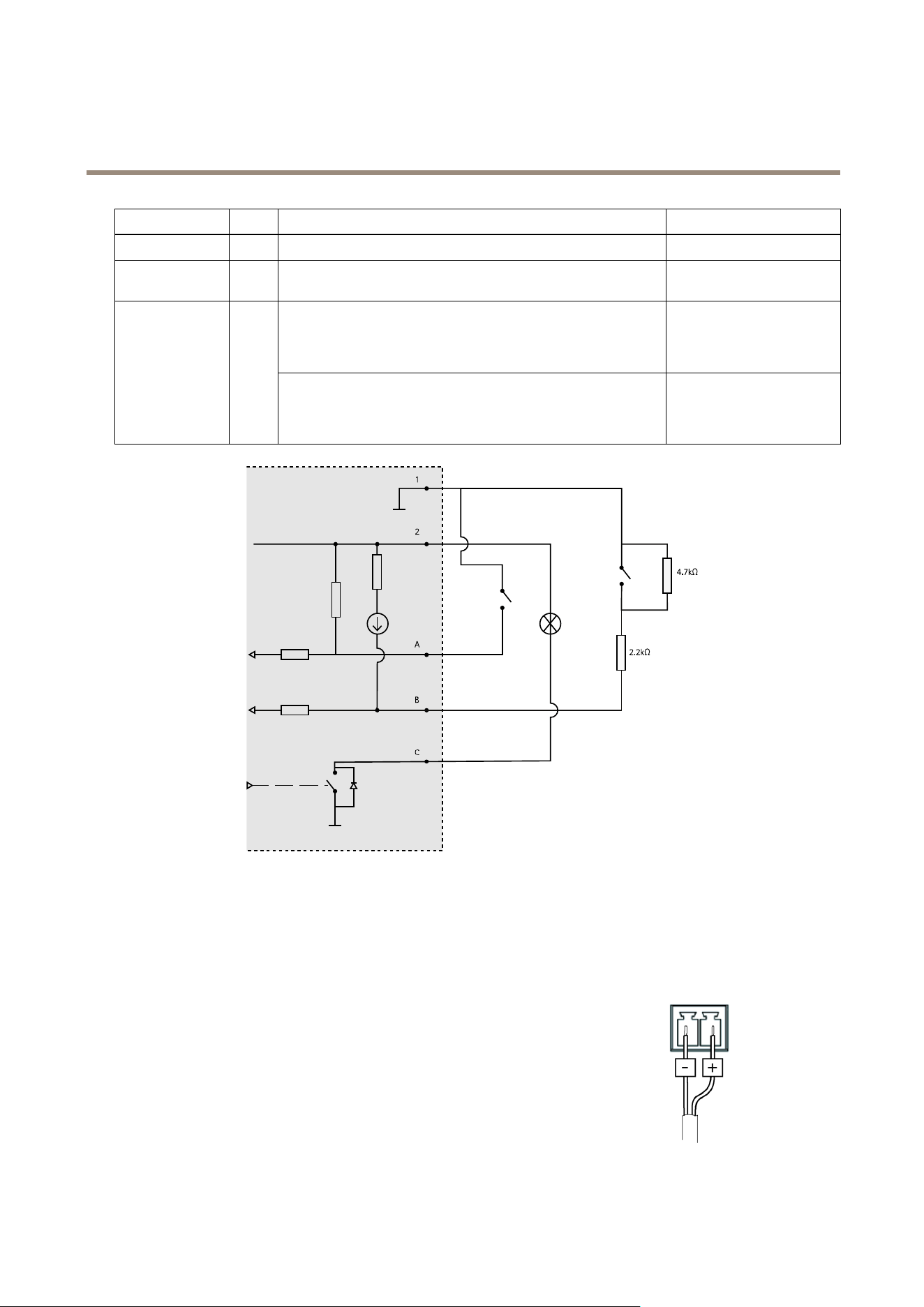
UsetheI/Oconnectorwithexternaldevicesincombinationwith,forexample,motiondetection,eventtriggering,andalarm
notications.Inadditiontothe0VDCreferencepointandpower(DCoutput),theI/Oconnectorprovidestheinterfaceto:
Digitalinput-Forconnectingdevicesthatcantogglebetweenanopenandclosedcircuit,forexamplePIRsensors,door/window
contacts,andglassbreakdetectors.
Supervisedinput-Enablespossibilitytodetecttamperingonadigitalinput.
Digitaloutput-ForconnectingexternaldevicessuchasrelaysandLEDs.ConnecteddevicescanbeactivatedbytheVAPIX®
ApplicationProgrammingInterfaceorintheproduct’swebpage.
4-pinterminalblock
20
AXISQ35Series
Specifications
FunctionPinNotes
Specications
0VDC(-)
1
DCground0VDC
DCoutput
2
Canbeusedtopowerauxiliaryequipment.
Note:Thispincanonlybeusedaspowerout.
12VDC
Maxload=50mA
DigitalinputorSupervisedinput–Connecttopin1toactivate,or
leaveoating(unconnected)todeactivate.Tousesupervisedinput,
installend-of-lineresistors.Seeconnectiondiagramforinformation
abouthowtoconnecttheresistors.
0tomax30VDC
Congurable
(InputorOutput)
3–4
Digitaloutput–Connecttopin1toactivate,orleaveoating
(unconnected)todeactivate.Ifusedwithaninductiveload,e.g.,a
relay,connectadiodeinparallelwiththeload,toprotectagainst
voltagetransients.
0tomax30VDC,opendrain,
100mA
1
0VDC(-)
2
DCoutput12V,max50mA
A
I/Oconguredasinput
B
I/Oconguredassupervisedinput
C
I/Oconguredasoutput
Powerconnector
2-pinterminalblockforDCpowerinput.UseaSafetyExtraLowVoltage(SELV)compliant
limitedpowersource(LPS)witheitheraratedoutputpowerlimitedto≤100Woraratedoutput
currentlimitedto≤5A.
21

UserManualVer.M1.10
AXISQ35SeriesDate:October2017
©AxisCommunicationsAB,2017
PartNo.1719114