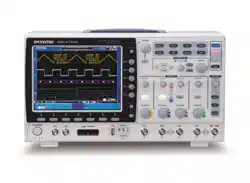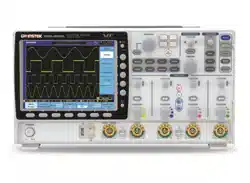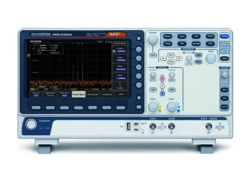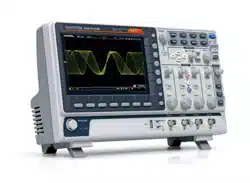

Digital Storage Oscilloscope
GDS-2000E Series
USER MANUAL
GW INSTEK PART NO. 82DS-2KE00EA1
ISO-9001 CERTIFIED MANUFACTURER

This manual contains proprietary information, which is protected by
copyright. All rights are reserved. No part of this manual may be
photocopied, reproduced or translated to another language without
prior written consent of Good Will company.
The information in this manual was correct at the time of printing.
However, Good Will continues to improve products and reserves the
rights to change specification, equipment, and maintenance
procedures at any time without notice.
Good Will Instrument Co., Ltd.
No. 7-1, Jhongsing Rd., Tucheng Dist., New Taipei City 236, Taiwan

TABLE OF CONTENTS
3
Table of Contents
SAFETY INSTRUCTIONS .................................................. 5
GETTING STARTED ........................................................ 10
GDS-2000E Series Overview ................. 11
Appearance .......................................... 15
Set Up .................................................. 27
Built-in Help ........................................ 37
MEASUREMENT ............................................................ 38
Basic Measurement ............................. 39
Automatic Measurement ...................... 46
Cursor Measurement ........................... 60
Math Operation ................................... 68
CONFIGURATION .......................................................... 78
Acquisition .......................................... 81
Segmented Memory Acquisition Overview
............................................................ 86
Display................................................. 99
Horizontal View ................................. 105
Vertical View (Channel) ...................... 114
Bus Key Configuration........................ 122
Trigger ............................................... 145
Search ................................................ 177
System Settings and Miscellaneous
Settings ............................................. 186
APPS ............................................................................ 191
Applications ....................................... 192
SAVE/RECALL ............................................................... 214

GDS-2000E Series User Manual
4
File Format/Utility ............................. 215
Create/Edit Labels .............................. 220
Save ................................................... 223
Recall ................................................. 231
Reference Waveforms ......................... 237
FILE UTILITIES ............................................................. 239
HARDCOPY KEY ........................................................... 246
REMOTE CONTROL CONFIG ........................................ 250
Interface Configuration ...................... 251
MAINTENANCE ............................................................ 262
FAQ .............................................................................. 268
APPENDIX .................................................................... 271
Updating the Firmware ...................... 271
GDS-2000E Specifications .................. 273
Probe Specifications .......................... 277
GDS-2000E Dimensions ..................... 279
Declaration of Conformity .................. 280
INDEX .......................................................................... 281

錯誤! 使用 [常用] 索引標籤將 Heading 1 套用到您想要在此處顯示的文字。
5
SAFETY INSTRUCTIONS
This chapter contains important safety
instructions that you must follow during
operation and storage. Read the following before
any operation to insure your safety and to keep
the instrument in the best possible condition.
Safety Symbols
These safety symbols may appear in this manual or on the GDS-
2000E.
WARNING
Warning: Identifies conditions or practices that
could result in injury or loss of life.
CAUTION
Caution: Identifies conditions or practices that
could result in damage to the GDS-2000E or to
other properties.
DANGER High Voltage
Attention Refer to the Manual
Protective Conductor Terminal
Earth (ground) Terminal

GDS-2000E Series User Manual
6
Do not dispose electronic equipment as unsorted
municipal waste. Please use a separate collection
facility or contact the supplier from which this
instrument was purchased.
Safety Guidelines
General
Guideline
CAUTION
Make sure the BNC input voltage does not
exceed 300Vrms.
Never connect a hazardous live voltage to the
ground side of the BNC connectors. It might
lead to fire and electric shock.
Do not place any heavy object on the GDS-
2000E.
Avoid severe impact or rough handling that
leads to damaging the GDS-2000E.
Do not discharge static electricity to the GDS-
2000E.
Use only mating connectors, not bare wires, for
the terminals.
Do not block the cooling fan opening.
Do not perform measurement at a power source
or building installation site (Note below).
Do not disassemble the GDS-2000E unless you
are qualified.
(Measurement categories) EN 61010-1:2010 specifies the
measurement categories and their requirements as follows. The
GDS-2000E falls under category I.
Measurement category IV is for measurement performed at the
source of low-voltage installation.
Measurement category III is for measurement performed in the
building installation.
Measurement category II is for measurement performed on the
circuits directly connected to the low voltage installation.
Measurement category I is for measurements performed on
circuits not directly connected to Mains.

SAFETY INSTRUCTIONS
7
Power Supply
WARNING
AC Input voltage: 100 - 240V AC, 50 - 60Hz,
auto selection. Power consumption: 30 Watts.
Connect the protective grounding conductor of
the AC power cord to an earth ground, to avoid
electrical shock.
Cleaning the
GDS-2000E
Disconnect the power cord before cleaning.
Use a soft cloth dampened in a solution of mild
detergent and water. Do not spray any liquid.
Do not use chemicals containing harsh materials
such as benzene, toluene, xylene, and acetone.
Operation
Environment
Location: Indoor, no direct sunlight, dust free,
almost non-conductive pollution (Note below)
Relative Humidity: ≤80%, 40°C or below; ≤45%,
41°C ~ 50°C
Altitude: < 2000m
Temperature: 0°C to 50°C
(Pollution Degree) EN 61010-1:2010 specifies the pollution degrees
and their requirements as follows. The GDS-2000E falls under
degree 2.
Pollution refers to “addition of foreign matter, solid, liquid, or
gaseous (ionized gases), that may produce a reduction of dielectric
strength or surface resistivity”.
Pollution degree 1: No pollution or only dry, non-conductive
pollution occurs. The pollution has no influence.
Pollution degree 2: Normally only non-conductive pollution
occurs. Occasionally, however, a temporary conductivity caused
by condensation must be expected.
Pollution degree 3: Conductive pollution occurs, or dry, non-
conductive pollution occurs which becomes conductive due to
condensation which is expected. In such conditions, equipment
is normally protected against exposure to direct sunlight,
precipitation, and full wind pressure, but neither temperature
nor humidity is controlled.

GDS-2000E Series User Manual
8
Storage
environment
Location: Indoor
Temperature: -10°C to 60°C
Humidity: Up to 93% RH (non-condensing) /
≤40ºC, up to 65% RH (non-condensing) / 41ºC
~ 60 ºC
Disposal
Do not dispose this instrument as unsorted
municipal waste. Please use a separate collection
facility or contact the supplier from which this
instrument was purchased. Please make sure
discarded electrical waste is properly recycled to
reduce environmental impact.

SAFETY INSTRUCTIONS
9
Power cord for the United Kingdom
When using the oscilloscope in the United Kingdom, make sure the
power cord meets the following safety instructions.
NOTE: This lead/appliance must only be wired by competent persons
WARNING: THIS APPLIANCE MUST BE EARTHED
IMPORTANT: The wires in this lead are coloured in accordance with the
following code:
Green/ Yellow:
Earth
Blue:
Neutral
Brown:
Live (Phase)
As the colours of the wires in main leads may not correspond with
the coloured marking identified in your plug/appliance, proceed
as follows:
The wire which is coloured Green & Yellow must be connected to
the Earth terminal marked with either the letter E, the earth symbol
or coloured Green/Green & Yellow.
The wire which is coloured Blue must be connected to the terminal
which is marked with the letter N or coloured Blue or Black.
The wire which is coloured Brown must be connected to the
terminal marked with the letter L or P or coloured Brown or Red.
If in doubt, consult the instructions provided with the equipment
or contact the supplier.
This cable/appliance should be protected by a suitably rated and
approved HBC mains fuse: refer to the rating information on the
equipment and/or user instructions for details. As a guide, a cable
of 0.75mm
2
should be protected by a 3A or 5A fuse. Larger
conductors would normally require 13A types, depending on the
connection method used.
Any exposed wiring from a cable, plug or connection that is
engaged in a live socket is extremely hazardous. If a cable or plug is
deemed hazardous, turn off the mains power and remove the cable,
any fuses and fuse assemblies. All hazardous wiring must be
immediately destroyed and replaced in accordance to the above
standard.

GDS-2000E Series User Manual
10
GETTING STARTED
This chapter describes the GDS-2000E in a
nutshell, including its main features and front /
rear panel introduction. After going through the
overview, follow the Set Up section to properly
set up the oscilloscope for first time use. The Set
Up section also includes a starter on how to use
this manual effectively.
GDS-2000E Series Overview ............................................ 11
Series lineup ............................................................................ 11
Main Features ......................................................................... 12
Accessories.............................................................................. 13
Appearance ..................................................................... 15
GDS-2074E/2104E/2204E Front Panel ......................... 15
GDS-2072E/2102E/2202E Front Panel ......................... 16
Rear Panel ............................................................................... 23
Display ..................................................................................... 25
Set Up ............................................................................ 27
Tilt Stand ................................................................................. 27
Power Up ................................................................................ 28
First Time Use........................................................................ 29
How to Use This Manual ..................................................... 32

GETTING STARTED
11
GDS-2000E Series Overview
Series lineup
The GDS-2000E series consists of 6 models, divided into 2-channel
and 4-channel versions.
Model name
Frequency
bandwidth
Input channels
Max. Real-time
Sampling Rate
GDS-2072E
70MHz
2
1GSa/s
GDS-2102E
100MHz
2
1GSa/s
GDS-2202E
200MHz
2
1GSa/s
GDS-2074E
70MHz
4
1GSa/s
GDS-2104E
100MHz
4
1GSa/s
GDS-2204E
200MHz
4
1GSa/s

GDS-2000E Series User Manual
12
Main Features
Features
8 inch, 800 x 480, WVGA TFT display.
Available from 70MHz to 200MHz.
Real-time sampling rate of 1GSa/s (2 channel
models), 1GSa/s max. (4 channel models).
Deep memory: 10M points record length.
Waveform capture rate of 120,000 waveforms
per second.
Vertical sensitivity: 1mV/div~10V/div.
Segmented Memory: Optimizes the acquisition
memory to selectively capture only the
important signal details. Up to 29000 successive
waveform segments can be captured with a
time-tag resolution of 4ns.
Waveform Search: Allows the scope to search
for a number of different signal events.
On-screen Help.
32 MB internal flash disk.
Interface
USB host port: front panel, for storage devices.
USB device port: rear panel, for remote control
or printing.
Probe calibration output with selectable output
frequency (1kHz ~ 200kHz).
Ethernet port as standard.
Calibration output.

GETTING STARTED
13
Accessories
Standard
Accessories
Part number
Description
N/A
Quick Start Guide
N/A region dependent
Power cord
GTP-070B-4, for
GDS-2072E/GDS-2074E
Passive probe; 70 MHz
GTP-100B-4, for
GDS-2102E/GDS-2104E
Passive probe; 100 MHz
GTP-200B-4, for
GDS-2202E/GDS-2204E
Passive probe; 200 MHz
Standard Apps
Name
Description
Go-NoGo
Go-NoGo testing app.
DataLog
Waveform or image data logging
app.
DVM
Digital Volt Meter app.
Digital Filter
High or low pass digital filter for
analog inputs.
Remote Disk
Allows the scope to mount a network
share drive.
Demo Mode
Demonstration mode that is used
with the GDB-03 demo board.
Optional
Accessories
Part number
Description
GTC-001
Instrument cart, 470(W)x430(D)mm
(U.S. type input socket)
GTC-002
Instrument cart, 330(W)x430(D)mm
(U.S. type input socket)
GDB-03
Demo board
GTL-110
test lead, BNC to BNC heads

GDS-2000E Series User Manual
14
GTL-242
USB cable, USB2.0A-B type cable 4P
GTP-070B-4
Passive probe; 70 MHz
GTP-100B-4
Passive probe; 100 MHz
GTP-200B-4
Passive probe; 200 MHz
Drivers
USB driver
LabVIEW driver

GETTING STARTED
15
Appearance
GDS-2074E/2104E/2204E Front Panel
VARIABLE
POSITION
HORIZONTAL
POSITION
POSITION
POSITION
POSITION
VERTICAL
MATH
REF
BUS
SCALE
TRIGGER
LEVEL
PUSH TO
ZERO
SCALESCALESCALE
PUSH TO
ZERO
PUSH TO
ZERO
PUSH TO
ZERO
PUSH TO
ZERO
PUSH TO
ZERO
SCALE
POWER
CH1 CH2 CH3 CH4
2V
CAT I
1M
W
16pF
300Vrms MAX.
Digital Storage Oscilloscope
G D S -2 2 0 4 E
200 MHz 1 GS/s
Visual Persistence Oscilloscope
Measure
Display
Cursor
Help
APP
Save/Recall
Acquire
Utility
Autoset
Run/Stop
Single
Default
Select
Search
Set/Clear
Zoom
CH1 CH2 CH3 CH4
M
R
B
Menu
50 %
Force-Trig
LCD
Variable knob
and Select key
Autoset, Run/Stop, Single
and Default settings
CH1~CH4
Trigger
controls
Function
keys
USB Host port, Probe
Compensation terminals
Power
button
Hardcopy key
Option key
Math, Reference
and Bus keys
Bottom
menu
keys
Horizontal
controls
Menu key
Vertical
controls
Side menu keys

GDS-2000E Series User Manual
16
GDS-2072E/2102E/2202E Front Panel
VARIABLE
POSITION
HORIZONTAL
TRIGGER
LEVEL
PUSH TO
ZERO
PUSH TO
ZERO
SCALE
Measure
Display
Cursor
Help
APP
Save/Recall
Acquire
Utility
Autoset
Run/Stop
Single
Default
Select
Search
Set/Clear
Zoom
Menu
50 %
Force-Trig
POSITION
POSITION
VERTICAL
MATH
REF
BUS
SCALESCALE
PUSH TO
ZERO
PUSH TO
ZERO
M
R
B
Digital Storage Oscilloscope
GDS-2202E
200 MHz 1 GS/s
Visual Persistence Oscilloscope
POWER
CH1 CH2 EXT TRIG
2V
CAT I
1M
W
16pF
300Vrms MAX.
CAT I
1M
W
16pF
300Vrms MAX.
LCD
Variable knob
and Select key
Autoset, Run/Stop, Single
and Default settings
CH1~CH2,
EXT TRIG
Trigger
controls
Function
keys
USB Host port, Probe
Compensation terminals
Power
button
Hardcopy key
Option key
Math, Reference
and Bus keys
Bottom
menu
keys
Horizontal
controls
Menu key
Vertical
controls
Side menu keys
LCD Display
8” WVGA TFT color LCD. 800 x 480 resolution,
wide angle view display.
Menu Off Key
Use the Menu Off key to hide the
onscreen menu system.
Option Key
The Option key is used to access
future installed options.

GETTING STARTED
17
Menu Keys
The side menu and bottom menu keys are used to
make selections from the soft-menus on the LCD
user interface.
To choose menu items, use the 7 Bottom menu
keys located on the bottom of the display panel.
To select a variable or option from a menu, use the
side menu keys on the side of the panel. See page
32 for details.
POSITION
VER
MA
R
B
SCALE
PUSH TO
ZERO
Side menu keys
Bottom menu keys
Hardcopy Key
The Hardcopy key is a quick-save
or quick-print key, depending on
its configuration. For more
information see pages 248(save) or
247(print).
Variable Knob
and Select Key
Select
VARIABLE
The Variable knob is used to
increase/decrease values or to
move between parameters.
The Select key is used to make
selections.

GDS-2000E Series User Manual
18
Function Keys
The Function keys are used to enter and configure
different functions on the GDS-2000E.
Measure
Measure
Configures and runs automatic
measurements.
Cursor
Cursor
Configures and runs cursor
measurements.
APP
APP
Configures and runs GW Instek
applications.
Acquire
Acquire
Configures the acquisition mode,
including Segmented Memory
acquisition.
Display
Display
Configures the display settings.
Help
Help
Shows the Help menu.
Save/Recall
Save/Recall
Used to save and recall
waveforms, images, panel settings.
Utility
Utility
Configures the Hardcopy key,
display time, language, probe
compensation and calibration. It
also accesses the file utilities
menu.
Autoset
Autoset
Press the Autoset key to
automatically set the trigger,
horizontal scale and vertical scale.

GETTING STARTED
19
Run/Stop Key
Run/Stop
Press to Freeze (Stop) or continue
(Run) signal acquisition (page 42).
The run stop key is also used to
run or stop Segmented Memory
acquisition (page 90).
Single
Single
Sets the acquisition mode to single
triggering mode.
Default Setup
Default
Resets the oscilloscope to the
default settings.
Horizontal
Controls
The horizontal controls are used to change the
position of the cursor, set the time base settings,
zoom into the waveforms and search for events.
Horizontal
Position
POSITION
PUSH TO
ZERO
The Position knob is used to
position the waveforms
horizontally on the display screen.
Pressing the knob will reset the
position to zero.
SCALE
SCALE
The Scale knob is used to change
the horizontal scale (TIME/DIV).
Zoom
Zoom
Press Zoom in combination with
the horizontal Position knob.
Play/Pause
The Play/Pause key allows you to
view each search event in
succession – to effectively “play”
through each search event. It is
also used to play through a
waveform in zoom mode.

GDS-2000E Series User Manual
20
Search
Search
The Search key accesses the search
function menu to set the search
type, source and threshold.
Search Arrows
Use the arrow keys to navigate the
search events.
Set/Clear
Set/Clear
Use the Set/Clear key to set or
clear points of interest when using
the search function.
Trigger Controls
The trigger controls are used to control the trigger
level and options.
Level Knob
LEVEL
Used to set the trigger level.
Pressing the knob will reset the
level to zero.
Trigger Menu Key
Menu
Used to bring up the trigger menu.
50% Key
50 %
Sets the trigger level to the half
way point (50%).
Force - Trig
Force-Trig
Press to force an immediate trigger
of the waveform.
Vertical
POSITION
POSITION
PUSH TO
ZERO
Sets the vertical position of the
waveform. Push the knob to reset
the vertical position to zero.
Channel Menu
Key
CH1
Press the CH1~4 key to set and
configure the channel.

GETTING STARTED
21
(Vertical)SCALE
Knob
SCALE
Sets the vertical scale of the
channel (TIME/DIV).
External Trigger
Input
EXT TRIG
Accepts external trigger signals
(page 145). Only on 2 channel
models.
Input impedance: 1MΩ
Voltage input: ±15V(peak), EXT
trigger capacitance:16pF.
Math Key
MATH
M
Use the Math key to set and
configure math functions.
Reference Key
REF
R
Press the Reference key to set or
remove reference waveforms.
BUS Key
BUS
B
The Bus key is used for parallel
and serial bus (UART, I
2
C, SPI,
CAN, LIN) configuration.
Channel Inputs
CH1
Accepts input signals.
Input impedance: 1MΩ.
Capacitance: 16pF
CAT I
USB Host Port
2V
TypeA, 1.1/2.0 compatible. Used
for data transfer.

GDS-2000E Series User Manual
22
Ground Terminal
2V
Accepts the DUT ground lead for
common ground.
Probe
Compensation
Outputs
2V
The probe compensation output is
used for probe compensation. It
also has an adjustable output
frequency.
By default this port outputs a
2Vpp, square wave signal at 1kHz
for probe compensation.
Please see page 189 for details.
Power Switch
POWER
Used to turn the power on/off.
: ON
: OFF

GETTING STARTED
23
Rear Panel
Calibration
output
Key lock Power input socketFan
Go/No Go
output
LAN portUSB Device port
LINE VOLTAGE
AC 100 240V
RANGE
FREQUENCY 50 60Hz
POWER MAX. 30 Watts
CAUTION
TO AVOID ELECTRIC SHOCK THE POWER CORD PROTECTIVE GROUNDING
DO NOT REMOVE COVERS. REFER SERVICING TO QUALIFIED PERSONNEL.
CONDUCTOR MUST BE CONNECTED TO GROUND.
Ser. No. Label
Calibration
Output
Outputs the signal for vertical scale
accuracy calibration (page 264).
USB Device Port
The USB Device port is used for
remote control.
LAN (Ethernet)
Port
The LAN port is used for remote
control over a network or when
combined with the Remote Disk
app, allows the scope to be
mounted to a share disk.


GETTING STARTED
25
Display
Memory bar
Reference
waveform
Analog
Waveform
Bus
Channel status Horizontal status
Trigger
configuration
Waveform
frequency
Date and time
Trigger position
Trigger status
Acquistion mode
Trigger level
Channel
Indicators
Memory length
and sample rate
Analog
Waveforms
Shows the analog input signal waveforms.
Channel 1: Yellow
Channel 2: Blue
Channel 3: Pink
Channel 4: Green
Bus Waveforms
Shows the bus waveforms for serial buses. The
values are displayed in hex or binary.
Channel
Indicators
The channel indicators show the zero volt level of
the signal waveform for each activated channel.
Any active channel is shown with a solid color.
Analog channel indicator
Bus indicator(B)
Reference waveform indicator
Math indicator
Trigger Position
Shows the position of the trigger.
Horizontal Status
Shows the horizontal scale and position.
Date and Time
Current date and time (page 188).

GDS-2000E Series User Manual
26
Trigger Level
Shows the trigger level on the graticule.
Memory Bar
The ratio and the position of the displayed
waveform compared to the internal memory (page
105).
Trigger Status
Trig’d
Triggered.
PrTrig
Pre-trigger.
Trig?
Not triggered, display not updated.
Stop
Trigger stopped. Also appears in
Run/Stop (page 42).
Roll
Roll mode.
Auto
Auto trigger mode.
For trigger details, see page 145.
Acquisition Mode
Normal mode
Peak detect mode
Average mode
For acquisition details, see page 81.
Signal Frequency
Shows the trigger source
frequency.
Indicates the frequency is
less than 2Hz (lower
frequency limit).
Trigger
Configuration
Trigger source, slope,
voltage, coupling.
Horizontal Status
Horizontal scale,
horizontal position.
For trigger details, see page 145.
Channel Status
Channel 1, DC coupling,
2V/Div.
For channel details, see page 114.

GETTING STARTED
27
Set Up
Tilt Stand
Tilt
To tilt, pull the legs forward, as shown below.
Stand
To stand the scope upright, push the legs back
under the casing as shown below.

GDS-2000E Series User Manual
28
Power Up
Requirements
The GDS-2000E accepts line voltages of 100 ~ 240V
at 50 or 60Hz.
Step
1. Connect the power cord to
the rear panel socket.
2. Press the POWER key. The
display becomes active in
~ 30 seconds.
: ON
: OFF
POWER
Note
The GDS-2000E recovers the state right before the
power is turned OFF. The default settings can be
recovered by pressing the Default key on the front
panel. For details, see page 232.

GETTING STARTED
29
First Time Use
Background
This section describes how to connect a signal,
adjust the scale, and compensate the probe. Before
operating the GDS-2000E in a new environment,
run these steps to make sure the instrument
performs at its full potential.
1. Power On
Follow the procedures on the previous page.
2. Firmware
Update to the latest firmware.
Page 271
3. Set the Date
and Time
Set the date and time.
Page 188
4. Reset System
Reset the system by recalling the
factory settings. Press the Default key
on the front panel. For details, see
page 232.
Default
5. Connect Probe
Connect the probe to the Channel 1 input and to
the probe compensation output. This output
provides a 2Vp-p, 1kHz square wave for signal
compensation by default.
Set the probe attenuation to x10 if the probe has
adjustable attenuation.

GDS-2000E Series User Manual
30
VARIABLE
POSITION
HORIZONTAL
POSITION
POSITION
POSITION
POSITION
VERTICAL
MATH
REF
BUS
SCALE
TRIGGER
LEVEL
PUSH TO
ZERO
SCALESCALESCALE
PUSH TO
ZERO
PUSH TO
ZERO
PUSH TO
ZERO
PUSH TO
ZERO
PUSH TO
ZERO
SCALE
POWER
CH1 CH2 CH3 CH4
2V
CAT I
1M
W
16pF
300Vrms MAX.
x1
x10
X
10
X
1
CH1
2V
6. Capture Signal
(Autoset)
Press the Autoset key. A square
waveform appears on the center of
the screen. For Autoset details, see
page 40.
Autoset
7. Select Vector
Waveform
Press the Display key, and set the
display to Vector on the bottom menu.
Display
8. Compensate
Probe
Turn the adjustment point on the probe to make
the square waveform edge flat.


GDS-2000E Series User Manual
32
How to Use This Manual
Background
This section describes the conventions used in this
manual to operate the GDS-2000E.
Throughout the manual any reference to pressing
a menu key refers to the keys directly below or
beside any menu icons or parameters.
When the user manual says to “toggle” a value or
parameter, press the corresponding menu item.
Pressing the item will toggle the value or
parameter.
Active parameters are highlighted for each menu
item. For example in the example below, Coupling
is currently set to DC.
If a menu item can be toggled from one value or
parameter to another, the available options will be
visible, with the current option highlighted. In the
example below the slope can be toggled from a
rising slope to a falling slope or either slope.
Menu item
Parameter
Menu item
Active
parameter
Optional
parameters
Menu item
Selecting a Menu
Item, Parameter
or Variable
When the user manual says to “select” a value
from one of the side menu parameters, first press
the corresponding menu key and use the Variable
knob to either scroll through a parameter list or to
increase or decrease a variable.

GETTING STARTED
33
Example 1
1
2
3
1. Press a bottom menu key to access
the side menu.
2. Press a side menu key to either set
a parameter or to access a sub
menu.
3. If accessing a sub menu or setting
a variable parameter, use the
Variable knob to scroll through
menu items or variables. Use the
Select key to confirm and exit.
Select
VARIABLE
4. Press the same bottom menu key
again to reduce the side menu.
Example 2
For some variables, a circular arrow icon indicates
that the variable for that menu key can be edited
with the Variable knob.

GDS-2000E Series User Manual
34
1
1. Press the desired menu key to select it. The
circular arrow will become highlighted.
2. Use the Variable knob to edit the value.
Toggling a Menu
Parameter
1
1. Press the bottom menu key
to toggle the parameter.
Reduce Side
Menu
1

GETTING STARTED
35
1. To reduce the side menu, press the
corresponding bottom menu that brought up
the side menu.
For example: Press the Source soft-key to
reduce the Source menu.
Reduce Lower
Menu
1. Press the relevant function
key again to reduce the
bottom menu. For example:
press the Trigger Menu key
to reduce the trigger menu.
VARIABLE
POSITION
HORIZONTAL
POSITION
POSITION
POSITION
POSITION
VERTICAL
MATH
REF
BUS
SCALE
TRIGGER
LEVEL
PUSH TO
ZERO
SCALESCALESCALE
PUSH TO
ZERO
PUSH TO
ZERO
PUSH TO
ZERO
PUSH TO
ZERO
PUSH TO
ZERO
SCALE
POWER
CH1 CH2 CH3 CH4
2V
CAT I
1M
W
16pF
300Vpk MAX.
Measure
Display
Cursor
Help
Test
Save/Recall
Acquire
Utility
Autoset
Run/Stop
Single
Default
Select
Search
Set/Clear
Zoom
CH1 CH2 CH3 CH4
M
R
B
Menu
50 %
Force-Trig
1
Remove All
Menus

GDS-2000E Series User Manual
36
1. Press the Menu Off key to
reduce the side menu, press
again to reduce the bottom
menu.
VARIABLE
POSITION
HORIZONTAL
POSITION
POSITION
POSITION
POSITION
VERTICAL
MATH
REF
BUS
SCALE
TRIGGER
LEVEL
PUSH TO
ZERO
SCALESCALESCALE
PUSH TO
ZERO
PUSH TO
ZERO
PUSH TO
ZERO
PUSH TO
ZERO
PUSH TO
ZERO
SCALE
POWER
CH1 CH2 CH3 CH4
2V
CAT I
1M
W
16pF
300Vpk MAX.
Measure
Display
Cursor
Help
Test
Save/Recall
Acquire
Utility
Autoset
Run/Stop
Single
Default
Select
Search
Set/Clear
Zoom
CH1 CH2 CH3 CH4
M
R
B
Menu
50 %
Force-Trig
1
Remove On-
Screen Messages
1. The Menu Off key can also be
used to remove any on
screen messages.
VARIABLE
POSITION
HORIZONTAL
POSITION
POSITION
POSITION
POSITION
VERTICAL
MATH
REF
BUS
SCALE
TRIGGER
LEVEL
PUSH TO
ZERO
SCALESCALESCALE
PUSH TO
ZERO
PUSH TO
ZERO
PUSH TO
ZERO
PUSH TO
ZERO
PUSH TO
ZERO
SCALE
POWER
CH1 CH2 CH3 CH4
2V
CAT I
1M
W
16pF
300Vpk MAX.
Measure
Display
Cursor
Help
Test
Save/Recall
Acquire
Utility
Autoset
Run/Stop
Single
Default
Select
Search
Set/Clear
Zoom
CH1 CH2 CH3 CH4
M
R
B
Menu
50 %
Force-Trig
1

錯誤! 使用 [常用] 索引標籤將 Heading 1 套用到您想要在此處顯示的文字。
37
Built-in Help
The Help key accesses a context sensitive help menu. The help menu
contains information on how to use the front panel keys.
Panel Operation
1. Press the Help key. The
display changes to Help
mode.
Help
2. Use the Variable knob to scroll up and down
through the Help contents. Press Select to view
the help on the selected item.
Example: Help on
the Display key
Home Key
Press the Home key to return to
the main help screen.
Go Back
Press the Back key to go to the
previous menu page.
Exit
Press the Help key again or press
the Exit key to exit the Help
mode.
Help

GDS-2000E Series User Manual
38
MEASUREMENT
Basic Measurement ......................................................... 39
Channel Activation ................................................................ 39
Autoset .................................................................................... 40
Run/Stop ................................................................................ 42
Horizontal Position/Scale .................................................... 43
Vertical Position/Scale ......................................................... 45
Automatic Measurement ................................................. 46
Measurement Items ............................................................... 46
Add Measurement ................................................................. 50
Remove Measurement .......................................................... 52
Gated mode ............................................................................ 53
Display All mode ................................................................... 54
High Low Function ............................................................... 55
Statistics ................................................................................... 56
Reference Levels .................................................................... 59
Cursor Measurement ...................................................... 60
Use Horizontal Cursors ........................................................ 60
Use Vertical Cursors ............................................................. 64
Math Operation .............................................................. 68
Basic Math Overview & Operators .................................... 68
Addition/Subtraction/Multiplication/Division ..................................... 68
FFT Overview & Window Functions................................ 70
FFT Operation .............................................................................................. 71
Advanced Math Overview ................................................... 73
Advanced Math Operation .................................................. 74

MEASUREMENT
39
Basic Measurement
This section describes the basic operations required in capturing
and viewing the input signal. For more detailed operations, see the
following chapters.
Cursor Measurement → from page 60
Configuration → from page 78
Before operating the oscilloscope, please see the Getting Started
chapter, page 10.
Channel Activation
Activate Channel
To activate an input channel,
press a channel key.
When activated, the channel
key will light up. The
corresponding channel menu
will also appear.
CH1 CH1
Each channel is associated with the color shown
beside each channel’s vertical SCALE dial: CH1:
yellow, CH2: blue, CH3: pink and CH4: green.
When a channel is activated, it is shown above the
bottom menu system.
CH1 CH3CH2 CH4
De-activate
Channel
To de-activate a channel, press
the corresponding channel key
again. If the channel menu is
not open, press the channel key
twice (the first press shows the
Channel menu).
CH1 CH1

GDS-2000E Series User Manual
40
Default Setup
To activate the default state,
press Default.
Default
Autoset
Background
The Autoset function automatically configures the
panel settings to position the input signal(s) to the
best viewing condition. The GDS-2000E
automatically configures the following parameters:
Horizontal scale
Vertical scale
Trigger source channel
There are two operating modes for the Autoset
function: Fit Screen Mode and AC Priority Mode.
Fit Screen Mode will fit the waveform to the best
scale, including any DC components (offset). AC
priority mode will scale the waveform to the
screen by removing any DC component.
Panel Operation
1. Connect the input signal to the
GDS-2000E and press the Autoset
key.
Autoset
2. The waveform appears in the center of the
display.
Before
After
3. To undo Autoset, press Undo
Autoset from the bottom menu.

MEASUREMENT
41
Change modes
1. Choose between Fit Screen Mode
and AC Priority Mode from the
bottom menu.
2. Press the Autoset key again to use
Autoset in the new mode.
Autoset
Fit Screen Mode
AC Priority
Limitation
Autoset does not work in the following situations:
Input signal frequency is less than 20Hz
Input signal amplitude is less than 10mV
Note
The Autoset key does NOT automatically activate the
channels to which input signals are connected.

GDS-2000E Series User Manual
42
Run/Stop
Background
By default, the waveform on the display is
constantly updated (Run mode). Freezing the
waveform by stopping signal acquisition (Stop
mode) allows flexible observation and analysis. To
enter Stop mode, two methods are available:
pressing the Run/Stop key or using the Single
Trigger mode.
Stop mode icon
When in Stop mode, the
Stop icon appears at the
top of the display.
Triggered icon
Freeze Waveform
using the
Run/Stop Key
Press the Run/Stop key once.
The Run/Stop key turns red.
The waveform and signal
acquisition freezes.
Stop:
Run/Stop Run/Stop
To unfreeze, press the Run/Stop
key again. The Run/Stop key
turns green again.
Run:
Run/Stop Run/Stop
Freeze Waveform
by Single Trigger
Mode
Press the Single key to go into
the Single Trigger mode. The
Single key turns bright white.
In the Single Trigger mode, the
scope will be put into the pre-
trigger mode until the scope
encounters the next trigger
point. After the scope has
triggered, it will remain in Stop
mode, until the Single key is
pressed again or the Run/Stop
key is pressed.
SingleSingle
Waveform
Operation
The waveform can be moved or scaled in both Run
and Stop mode, but in different manners. For
details, see page 105 (Horizontal position/scale)
and page 114 (Vertical position/scale).

MEASUREMENT
43
Horizontal Position/Scale
For more detailed configuration, see page 105.
Set Horizontal
Position
The horizontal position knob
moves the waveform left and
right.
POSITION
PUSH TO
ZERO
Set Horizontal
Position to 0
Pressing the horizontal position
knob will reset the horizontal
position to 0.
POSITION
PUSH TO
ZERO
Alternatively, pressing the Acquire
key and then pressing Reset H
Position to 0s from the bottom menu
will also reset the horizontal position.
Acquire
As the waveform moves, the display bar on the top
of the display indicates the portion of the
waveform currently shown on the display and the
position of the horizontal marker on the
waveform.
Position Indicator
The horizontal position is shown at the bottom of
the display grid to the right of the H icon.
Select Horizontal
Scale
To select the timebase, turn the
horizontal SCALE knob; left (slow) or
right (fast).
SCALE

GDS-2000E Series User Manual
44
Range
1ns/div ~ 100s/div, 1-2-5 increments
The scale is displayed to the left of the H icon at
the bottom of the screen.
Display bar
The display bar indicates how much
of the waveform is displayed on the
screen at any given time. Changes to
timebase will be reflected on the
display bar.
Fast
Medium
Slow
Stop mode
In the Stop mode, the waveform size
changes according to the scale.
Note
The Sample rate changes according to the timebase
and record length. See page 85.

MEASUREMENT
45
Vertical Position/Scale
For more detailed configuration, see page 114.
Set Vertical
Position
To move the waveform up or down, turn
the vertical position knob for each channel.
POSITION
PUSH TO
ZERO
Push the vertical position knob to
reset the position to 0.
As the waveform moves, the
vertical position of the cursor
appears on the display.
POSITION
PUSH TO
ZERO
Run/Stop
mode
The waveform can be moved
vertically in both Run and Stop
mode.
Select Vertical
Scale
To change the vertical scale, turn
the vertical SCALE knob; left
(down) or right (up).
SCALE
Range
1mV/div ~ 10V/div
1-2-5 increments
The vertical scale indicator for
each channel on the bottom of
the display changes
accordingly.

GDS-2000E Series User Manual
46
Automatic Measurement
The automatic measurement function measures and updates major
items for Voltage/Current, Time, and Delay type measurements.
Measurement Items
V/I Measurements
Time Meas.
Delay Meas.
Overview
FPREShoot
RPREShoot
FOVShoot
ROVShoot
Cycle Area
Area
Cycle RMS
RMS
Cycle Mean
Mean
Low
High
Amplitude
Min
Max
Pk-Pk
Frequency
Dutycycle
-Width
+Width
FallTime
RiseTime
Period
-Edges
+Edges
-Pulses
+Pulses
FRR
FRF
FFR
Phase
LFF
LFR
LRF
LRR
FFF
Voltage/Current
Measurement
Pk-Pk
(peak to
peak)
Difference between positive
and negative peak.
(=max − min)
Max
Positive peak.
Min
Negative peak.

MEASUREMENT
47
Amplitude
Difference between the
global high value and the
global low value, measured
over the entire waveform or
gated region. (=high − low)
High
Global high voltage. See
page 55 for details.
Low
Global low voltage. See page
55 for details.
Mean
The arithmetic mean value is
calculated for all data
samples as specified by the
Gating option.
Cycle Mean
The arithmetic mean value is
calculated for all data
samples within the first cycle
found in the gated region.
RMS
The root mean square of all
data samples specified by the
Gating option.
Cycle RMS
The root mean square value
is calculated for all data
samples within the first cycle
found in the gated region.
Area
Measures the positive area of
the waveform and subtracts
it from the negative area. The
ground level determines the
division between positive
and negative areas.
Cycle Area
The Summation based on all
data samples within the first
cycle found in the gated
region.
ROVShoot
Rise overshoot

GDS-2000E Series User Manual
48
FOVShoot
Fall overshoot
RPREShoot
Rise preshoot
FPREShoot
Fall preshoot
Time
Measurement
Frequency
Frequency of the waveform.
Period
Waveform cycle time.
(=1/Freq)
RiseTime
The time required for the
leading edge of the first
pulse to rise from the low
reference value to the high
reference value.
FallTime
The time required for the
falling edge of the first pulse
to fall from the high
reference value to the low
reference value.
+Width
Positive pulse width.
–Width
Negative pulse width.
Duty Cycle
Ratio of signal pulse
compared with whole cycle.
=100x (Pulse Width/Cycle)
+Pulses
Measures the number of
positive pulses.
-Pulses
Measures the number of
negative pulses.
+Edges
Measures the number of
positive edges.

MEASUREMENT
49
-Edges
Measures the number of
negative edges.
Delay
Measurement
FRR
Time between:
Source 1 first rising edge and
Source 2 first rising edge.
FRF
Time between:
Source 1 first rising edge and
Source 2 first falling edge.
FFR
Time between:
Source 1 first falling edge
and Source 2 first rising
edge.
FFF
Time between:
Source 1 first falling edge
and Source 2 first falling
edge.
LRR
Time between:
Source 1 first rising edge and
Source 2 last rising edge.
LFR
Time between:
Source 1 first rising edge and
Source 2 last falling edge.
LRF
Time between:
Source 1 first falling edge
and Source 2 last rising edge.
LFF
Time between:
Source 1 first falling edge
and Source 2 last falling
edge.
Phase
The phase difference of two
signals, calculated in
degrees.
360x
t2
t1

GDS-2000E Series User Manual
50
Note
The in-built help system can be used to see detailed
automatic measurement definitions.
Add Measurement
The Add Measurement function allows you to add up to eight
automatic measurement items on the bottom of the screen from any
channel source.
Add
Measurement
Item
1. Press the Measure key.
Measure
2. Press Add Measurement from the
bottom menu.
3. Choose either a V/I, Time or Delay
measurement from the side menu
and choose the type of
measurement you wish to add.
V/I
(Voltage/
Current)
Pk-Pk, Max, Min, Amplitude, High,
Low, Mean, Cycle Mean, RMS,
Cycle RMS, Area, Cycle Area,
ROVShoot, FOVShoot, RPREShoot,
FPREShoot
Time
Frequency, Period, RiseTime,
FallTime, +Width, –Width, Duty
Cycle, +Pulses, -Pulses, +Edges, -
Edges
Delay
FRR, FRF, FFR, FFF, LRR, LRF, LFR,
LFF, Phase

MEASUREMENT
51
4. All of the chosen automatic measurements will
be displayed in a window on the bottom of the
screen. The channel number and channel color
indicate the measurement source.
For the analog inputs: yellow = CH1,
blue = CH2, pink = CH3, green = CH4.
Choose a Source
The channel source for measurement items can be
set either before or when selecting a measurement
item.
1. To set the source, press either the
Source1 or Source2 key from the
side menu and choose the source.
Source 2 is only applicable for
delay measurements.
Range
CH1~ CH4, Math

GDS-2000E Series User Manual
52
Remove Measurement
Individual measurements can be removed at any time using the
Remove Measurement function.
Remove
Measurement
Item
1. Press the Measure key.
Measure
2. Press Remove Measurement from the
bottom menu.
3. Press Select Measurement and select
the item that you want to remove
from the measurement list.
Remove All Items
Press Remove All to remove all the
measurement items.

MEASUREMENT
53
Gated mode
Some automatic measurements can be limited to a “gated” area
between cursors. Gating is useful for measuring a magnified
waveform or when using a fast time base. The Gated mode has
three possible configurations: Off (Full Record), Screen and
Between Cursors.
Set Gating Mode
1. Press the Measure key.
Measure
2. Press Gating from the bottom
menu.
3. Choose one of the gating modes
from the side menu: Off (full
record), Screen, Between Cursors.
Cursors On
Screen
If Between Cursors is selected, the
cursor positions can be edited by
using the cursor menu.
Page 60

GDS-2000E Series User Manual
54
Display All mode
Display All mode shows and updates all items from Voltage and
Time type measurements.
View
Measurement
Results
1. Press the Measure key.
Measure
2. Press Display All from the bottom
menu.
3. Press Source from the side menu
and choose a measurement source.
Range
CH1~CH4, Math
4. The results of Voltage and Time type
measurements appear on the display.
Remove
Measurements
To remove the measurement results,
press OFF.
Delay
Measurements
Delay type measurements are not available in this
mode as only one channel is used as the source.
Use the individual measurement mode (page 50)
instead.

MEASUREMENT
55
High Low Function
Background
The High-Low function is used to select the
method for determining the value of the High-Low
measurement values.
Auto
Automatically chooses the best
high-low setting for each
waveform when measuring.
Histogram
Uses histograms to determine the
high-low values. This mode
ignores any preshoot and
overshoot values. This mode is
particularly useful for pulse-type
waveforms
low
high
Min-max
Sets the high-low values as the
minimum or maximum measured
values.
low
high
Set High-Low
1. Press the Measure key.
Measure
2. Press High-Low from the bottom
menu.

GDS-2000E Series User Manual
56
3. Select the type of High-Low settings from the
side menu.
High-Low Settings:
Histogram, Min-Max,
Auto
Restore Default
High-Low
Settings
To return to the default High-Low
settings, press Set to Defaults.
Statistics
Background
The Statistics function can be used to view a
number of statistics for the selected automatic
measurements. The following information is
displayed with the Statistics function:
Value
Currently measured value
Mean
The mean value is calculated from
a number of automatic
measurement results. The number
of samples used to determine the
mean can be user-defined.
Min
The minimum value observed
from a series of measured results
for the selected automatic
measurement items.

MEASUREMENT
57
Max
The maximum value observed
from a series of measured results
for the selected automatic
measurement items.
Standard
Deviation
The variance of the currently
measured value from the mean.
The standard deviation equals the
squared root of the variance value.
Measuring the standard deviation
can, for example, determine the
severity of jitter in a signal.
The number of samples used to
determine the standard deviation
can be user-defined.
Panel Operation
1. Press the Measure key.
Measure
2. Select at least one automatic
measurement.
Page 50
3. Press Statistics from the bottom
menu.
4. Set the number of samples to be
used in the mean and standard
deviation calculations.
Samples:
2~1000
5. Press Statistics and turn Statistics
on.
6. The statistics for each automatic measurement
will appear at the bottom of the display in a
table.

GDS-2000E Series User Manual
58
Reset Statistics
To reset the standard deviation
calculations, press Reset Statistics.

MEASUREMENT
59
Reference Levels
Background
The reference level settings determine the
measurement threshold levels for some
measurements like the Rise Time measurement.
High Ref: Sets the high reference
level.
Mid Ref: Sets the middle reference
for the first and second
waveforms.
Low Ref: Sets the low reference
level.
Panel Operation
1. Press the Measure key.
Measure
2. Press Reference Levels from the
bottom menu.
3. Set the reference levels from the side menu.
Ensure the reference levels do not cross over.
High Ref
0.0% ~ 100%
Mid Ref
0.0% ~ 100%
0.0% ~ 100%
Low Ref
0.0% ~ 100%
Default Settings
4. Press Set to Defaults to set the
reference levels back to the default
settings.

GDS-2000E Series User Manual
60
Cursor Measurement
Horizontal or vertical cursors are used to show the position and
values of waveform measurements and math operation results.
These results cover voltage, time, frequency and other math
operations. When the cursors (horizontal, vertical or both) are
activated, they will be shown on the main display unless turned off.
Use Horizontal Cursors
Panel Operation
1. Press the Cursor key once.
Cursor
2. Press H Cursor from the bottom
menu if it is not already selected.
3. When the H Cursor is selected,
repeatedly pressing the H Cursor
key or the Select key will toggle
which cursor is selected.
OR
Select
Range
Description
Left cursor ( ) movable, right
cursor position fixed
Right cursor ( ) movable, left
cursor position fixed
Left and right cursor ( + )
movable together

MEASUREMENT
61
4. The cursor position
information appears on the
top left hand side of the
screen
Cursor
Hor. position, Voltage/Current
Cursor
Hor. position, Voltage/Current
Delta (difference between cursors)
dV/dt or dI/dt
5. Use the Variable knob to move the
movable cursor(s) left or right.
VARIABLE
Select Units
6. To change the units of the
horizontal position, press H Unit.
Units
S, Hz, % (ratio), ˚(phase)
Phase or Ratio
Reference
7. To set the 0% and 100% ratio or the
0˚ and 360˚ phase references for the
current cursor positions, press Set
Cursor Positions As 100%.
Example
Horizontal
cursors

GDS-2000E Series User Manual
62
FFT
FFT cursors can use different
units. For FFT details, see page
70.
Cursor
Hor. position, dB/Voltage
Cursor
Hor. Position, dB/Voltage
Delta (difference between cursors)
dV/dt or d/dt
Example
Horizontal
cursors
XY Mode
XY mode cursors measure a number of X by Y
measurements.
Cursor
Time, rectangular, polar co-
ordinates, product, ratio.
Cursor
Time, rectangular, polar co-
ordinates, product, ratio.
Delta (difference between cursors)

MEASUREMENT
63
Example
Horizontal
cursors

GDS-2000E Series User Manual
64
Use Vertical Cursors
Panel Operation/
Range
1. Press the Cursor key twice.
Cursor
x2
2. Press V Cursor from the bottom
menu if it is not already selected.
3. When the V Cursor is selected,
repeatedly pressing the V Cursor
key or the Select key will toggle
which vertical cursor is selected.
OR
Select
Range
Upper cursor movable, lower
cursor position fixed
Lower cursor movable, upper
cursor position fixed
Upper and lower cursor movable
together
4. The cursor position
information appears on the
top left hand side of the
screen.
,
Time: cursor 1, cursor 2
,
Voltage/Current: cursor1, cursor2
Delta (difference between cursors)
dV/dt or dI/dt
5. Use the Variable knob to move the
cursor(s) up or down.
VARIABLE

MEASUREMENT
65
Select Units
6. To change the units of the vertical
position, press V Unit.
Units
Base (source wave units), % (ratio)
Base or Ratio
Reference
7. To set the 0% and 100% ratio
references for the current cursor
position, press Set Cursor Positions
As 100%.
Example
Horizontal
cursors
Vertical
cursors
FFT
FFT has different content. For
FFT details, see page 70.
,
Frequency/Time: cursor1, cursor2
,
dB/V: cursor1, cursor2
Delta (difference between cursors)
d/dt

GDS-2000E Series User Manual
66
Example
Horizontal
cursors
Vertical
cursors
XY Mode
XY mode cursors measure a number of X by Y
measurements.
Cursor
Rectangular, polar co-ordinates,
product, ratio.
Cursor
Rectangular, polar co-ordinates,
product, ratio.
Delta (difference between cursors)

MEASUREMENT
67
Example
Horizontal
cursors
Vertical
cursors

GDS-2000E Series User Manual
68
Math Operation
Basic Math Overview & Operators
Background
The Math function performs basic math functions
(addition, subtraction, multiplication, division) on
the input signals or the reference waveforms. The
resultant waveform will be shown on the screen in
real-time.
Addition (+)
Adds the amplitude of two signals.
Source
CH1~4, Ref1~4
Subtraction (–)
Extracts the amplitude difference between two
signals.
Source
CH1~4, Ref1~4
Multiplication (×)
Multiplies the amplitude of two signals.
Source
CH1~4, Ref1~4
Division (÷)
Divides the amplitude of two signals.
Source
CH1~4, Ref1~4
Addition/Subtraction/Multiplication/Division
Panel Operation
1. Press the Math key.
MATH
M
2. Press the Math key on the lower
bezel.
3. Select Source 1 from the side menu
Range
CH1~4, Ref1~4

MEASUREMENT
69
4. Press Operator to choose the math
operation.
Range
+, -, ×, ÷
5. Select Source 2 from the side menu.
Range
CH1~4, Ref1~4
6. The math measurement result appears on the
display. The vertical scale of the math
waveform appears at the bottom of the screen.
From left: Math function, source1, operator,
source2, Unit/div
Example
Math
Source 2
Source 1
Position and Unit
To move the math waveform
vertically, press the Position key from
the side menu and use the Variable
knob to set the position.
Range
–12.00 Div ~ +12.00 Div

GDS-2000E Series User Manual
70
To change the unit/div settings, press
Unit/div, then use the Variable knob to
change the unit/div.
The units that are displayed depend
on which operator has been selected,
and whether the probe for the selected
channel has been set to voltage or
current.
Operator:
Unit/div:
Multiplication
Division
Addition/Subtraction
VV, AA or W
V/V, A/A
V or A
Turn Off Math
To turn off the Math result from the
display, press the Math key again.
MATH
M
FFT Overview & Window Functions
Background
The FFT Math function performs a Fast Fourier
Transform on one of the input signals or the
reference waveforms. The resultant spectrum will
be shown on the screen in real-time. Four types of
FFT windows are available: Hanning, Hamming,
Rectangular, and Blackman, as described below.
Hanning FFT
Window
Frequency resolution
Good
Amplitude resolution
Not good
Suitable for....
Frequency measurement on
periodic waveforms

MEASUREMENT
71
Hamming FFT
Window
Frequency resolution
Good
Amplitude resolution
Not good
Suitable for....
Frequency measurement on
periodic waveforms
Rectangular FFT
Window
Frequency resolution
Very good
Amplitude resolution
Bad
Suitable for....
Single-shot phenomenon
(this mode is the same as
having no window at all)
Blackman FFT
Window
Frequency resolution
Bad
Amplitude resolution
Very good
Suitable for....
Amplitude measurement on
periodic waveforms
FFT Operation
Panel Operation
1. Press the Math key.
MATH
M
2. Press FFT from the bottom menu.
3. Select the Source from the side
menu.
Range
CH1~4, Ref~4
4. Press the Vertical Units key from
the side menu to select the vertical
units used.
Range
Linear RMS, dBV RMS

GDS-2000E Series User Manual
72
5. Press the Window key from the side
menu and select the window type.
Range
Hanning, Hamming, Rectangular,
and Blackman.
6. The FFT result appears. For FFT, the horizontal
scale changes from time to frequency, and the
vertical scale from voltage/current to dB/RMS.
Math
Source
Position and
Scale
To move the FFT waveform vertically,
press Vertical until the Div parameter
is highlighted and then use the
Variable knob.
Range
–12.00 Div ~ +12.00 Div
To select the vertical scale of the FFT
waveform, press Vertical until the dB
or voltage parameters are highlighted
and then use the Variable knob.
Range
2mV~1kV RMS, 1~20 dB
Horizontal
Position and
Scale
To move the FFT waveform
horizontally, press Horizontal until the
Frequency parameter is highlighted
and then use the Variable knob.
Range
0Hz ~ 2.5MHz

MEASUREMENT
73
To select the horizontal scale of the
FFT waveform, press Horizontal
repeatedly until the Hz/div parameter
is highlighted and then use the
Variable knob.
Range
10kHz/Div ~ 250kHz/Div
Advanced Math Overview
Background
The advanced math function allows complex math
expressions to be created based on the input
sources, reference waveforms or even the
automatic measurements available from the
Measure menu (see page 46).
An overview of each of the major parameters that
can be used in the advanced math function are
shown below:
Expression
Displays the function expression as it is created.
Source
Selects the source signal.
Source
CH1~4, Ref1~4
Function
Adds a mathematical function to the expression.
Function
Intg, Diff, log, Ln, Exp, Sqrt, Abs,
Rad, Deg, Sin, Cos, Tan, Asin,
Acos, Atan
Variable
Adds a user-specified variable to the expression.
Source
CH1~4, Ref1~4
Operator
Adds an operator or parenthesis to the function
expression.
Operator
+, -, *, /, (, ), !(, <, >, <=, >=, ==, !=,
||, &&

GDS-2000E Series User Manual
74
Figure
Adds a value to the expression.
Figure
Integers, floating point, or floating
point with exponent values.
Measurement
Adds automatic measurements to the expression.
Not all automatic measurements are supported.
Measurement
Pk-Pk, Max, Min, Amp, High,
Low, Mean, CycleMean, RMS,
CycleRMS, Area, CycleArea,
ROVShoot, FOVShoot, Freq,
Period, Rise, Fall, PosWidth,
NegWidth, Dutycycle, FRR, FRF,
FFR, FFF, LRR, LRF, LFR, LFF,
Phase, RPRFShoot, FPREShoot,
+Pulses, -Pulses, +Edges, -Edges
Advanced Math Operation
Panel Operation
1. Press the Math key.
M
MATH
2. Press Advanced Math from the
bottom menu.
3. Press Edit Expression.
4. The Edit f(x) screen appears. CH1 + CH2 is
shown in the expression box as an example at
startup.

MEASUREMENT
75
5. Press Clear to clear the expression
entry area.
6. Use the Variable knob and Select
key to create an expression.
Use the Variable knob to highlight a
source, function, variable,
operator, figure or measurement in
orange.
Press the Select key to make the
selection.
If a particular parameter is grayed
out, it indicates that that particular
parameter is not available at that
time.
Select
VARIABLE
Back Space
7. To delete the last parameter press
Back Space.
8. When the expression is complete,
press OK Accept.

GDS-2000E Series User Manual
76
Example:
CH1 + CH2
Advanced Math
Source1
Source2
Set the VAR1 &
VAR2
9. Press VAR1 or VAR2 to set
VAR1/VAR2 if they were used in
the expression created previously.
10. Press Mantissa.
Use the Left and Right arrow keys
to select a digit and use the
variable knob to set the value of
the selected digit.
11. Press Exponent.
Use the Variable knob to set the
exponent of the variable.
12. Press Go Back to finish editing
VAR1 or VAR2.
Vertical Position
and Scale
13. Press Unit/div and use the Variable
knob to set the vertical scale of the
math waveform.
14. Press Position and use the Variable
knob to set the vertical position of
the math waveform on the display.

MEASUREMENT
77
Clear Advanced
Math
To clear the advanced math result
from the display, press the Math key
again.
MATH
M

GDS-2000E Series User Manual
78
CONFIGURATION
Acquisition ..................................................................... 81
Select Acquisition Mode ....................................................... 81
Show Waveform in XY Mode............................................. 83
Set the Record Length .......................................................... 85
Segmented Memory Acquisition Overview ....................... 86
Segments Display ................................................................... 88
Set the Number of Segments .............................................. 89
Run Segmented Memory ...................................................... 90
Navigate Segmented Memory ............................................. 92
Play Through Each Segment ............................................... 92
Segment Measurement.......................................................... 94
Automatic Measurement ...................................................... 94
Segment Info .......................................................................... 98
Display ........................................................................... 99
Display Waveform as Dots or Vectors .............................. 99
Set the Level of Persistence ............................................... 100
Set the Intensity Level ........................................................ 100
Select Display Graticule...................................................... 103
Freeze the Waveform (Run/Stop).................................... 104
Turn Off Menu .................................................................... 104
Horizontal View ............................................................ 105
Move Waveform Position Horizontally .......................... 105
Select Horizontal Scale ....................................................... 106
Select Waveform Update Mode ........................................ 107
Zoom Waveform Horizontally ......................................... 108
Play/Pause ............................................................................ 111
Vertical View (Channel) ................................................. 114
Move Waveform Position Vertically ................................ 114
Select Vertical Scale ............................................................. 115

CONFIGURATION
79
Select Coupling Mode ......................................................... 115
Input Impedance ................................................................. 116
Invert Waveform Vertically ............................................... 116
Limit Bandwidth .................................................................. 117
Expand by Ground/Center ............................................... 118
Select Probe Type ................................................................ 119
Select Probe Attenuation Level ........................................ 120
Set the Deskew .................................................................... 120
Bus Key Configuration ................................................... 122
Bus Display ........................................................................... 122
Serial Bus ............................................................................... 124
Serial Bus Overview ................................................................................... 124
UART Serial Bus Configuration .............................................................. 126
I
2
C Serial Bus Interface ............................................................................. 128
SPI Serial Bus Interface ............................................................................. 129
CAN Serial Bus Interface ......................................................................... 131
LIN Serial Bus Interface ........................................................................... 132
Bus Encoding .............................................................................................. 133
Threshold Configuration.................................................... 134
Serial Bus Event Tables ............................................................................. 136
Event Tables Format ................................................................................. 140
Adding a Label to the Serial Bus ............................................................. 141
Using Cursors with the Serial Bus ........................................................... 143
Trigger .......................................................................... 145
Trigger Type Overview ...................................................... 145
Trigger Parameter Overview ............................................. 147
Setup Holdoff Level ........................................................... 152
Setup Trigger Mode ............................................................ 153
Using the Edge Trigger ...................................................... 153
Using Advanced Delay Trigger ......................................... 155
Using Pulse Width Trigger................................................. 156
Using Video Trigger ............................................................ 158
Pulse Runt trigger ................................................................ 159
Using Rise and Fall Trigger ............................................... 161
Using the Timeout Trigger ................................................ 162
Using the Bus Trigger ......................................................... 164
UART BUS Trigger Settings ............................................. 164
I
2
C Bus Trigger Settings ..................................................... 165
SPI Bus Trigger Settings .................................................... 169
CAN Bus Trigger ................................................................ 171
LIN Bus Trigger .................................................................. 174

GDS-2000E Series User Manual
80
Common Bus Trigger Settings .......................................... 176
Bus Trigger Mode ....................................................................................... 176
Search .......................................................................... 177
Configuring Search Events ................................................ 177
Copying Search Event To/From Trigger Events .......... 179
Search Event Navigation .................................................... 179
Save Search Marks ............................................................... 180
Setting/Clearing Single Search Events ............................ 181
FFT Peak ............................................................................... 182
System Settings and Miscellaneous Settings .................. 186
Select Menu Language ........................................................ 186
View System Information .................................................. 187
Erase Memory ...................................................................... 187
Set Date and Time ............................................................... 188

CONFIGURATION
81
Acquisition
The Acquisition process samples the analog input signals and
converts them into digital format for internal processing.
Select Acquisition Mode
Background
The acquisition mode determines how the samples
are used to reconstruct a waveform.
Sample
This is the default acquisition
mode. Every sample from each
acquisition is used.
Peak detect
Only the minimum and maximum
value pairs for each acquisition
interval (bucket) are used. This
mode is useful for catching
abnormal glitches in the signal.
Average
Multiple acquired data is
averaged. This mode is useful for
drawing a noise-free waveform.
To select the average number, use
the Variable knob.
Average number: 2, 4, 8, 16, 32, 64,
128, 256
Panel Operation
1. Press the Acquire key.
Acquire
2. To set the Acquisition mode, press
Mode on the bottom menu.

GDS-2000E Series User Manual
82
3. Select an acquisition mode from
the side menu.
4. If Average was chosen, set the
number of samples to be used for
the average function.
Mode
Sample, Peak Detect,
Average
Average
sample
2, 4, 8, 16, 32, 64, 128,
256
Example
Sample
Peak Detect
Average (256 times)

CONFIGURATION
83
Show Waveform in XY Mode
Background
The XY mode maps the input of channel 1 to the
input of channel 2. In 4 channel models, the input
of channel 3 can be mapped to the input of channel
4. This mode is useful for observing the phase
relationship between waveforms.
Connection
1. Connect the signals to
Channel 1 (X-axis) and
Channel 2 (Y-axis) or
Channel 3 (X2-axis) and
Channel 4 (Y2-axis).
CH3CH2CH1 CH4
YX X2 Y2
2. Make sure a channel pair is
active (CH1&CH2 or
CH3&CH4). Press the
Channel key if necessary. A
channel is active if the
channel key is lit.
CH1 CH1
CH2 CH2
Panel Operation
1. Press the Acquire menu key.
Acquire
2. Press XY from the bottom menu.
3. Choose Triggered XY from the side
menu.

GDS-2000E Series User Manual
84
X-Y mode is split into two windows. The top window
shows the signals over the full time range. The bottom
window shows XY mode.
To move the X Y waveform position, use the
vertical position knob: Channel 1 knob moves the
X Y waveform horizontally, Channel 2 knob moves
the X Y waveform vertically. Similarly, the X2 and
Y2 axis can be positioned using the channel 3 and
channel 4 vertical position knobs.
POSITION
CH1
POSITION
CH2
The horizontal position knob and horizontal Scale
knob can still be used under the XY mode.
Turn Off XY Mode
To turn off XY mode, choose OFF (YT)
mode.
Cursors and XY
Mode
Cursors can be used with XY mode.
See the Cursor chapter for details.
Page 59

CONFIGURATION
85
Set the Record Length
Background
The number of samples that can be stored is set by
the record length. Record length is important in an
oscilloscope as it allows longer waveforms to be
recorded.
The maximum record length for the GDS-2000E
depends on operating mode. The table below
describes the record lengths that are available for
each mode.
Limitations
Record
Length
Normal
Zoom
FFT
FFT in Zoom
Window
1k
✓
✗
✓
✗
10k
✓
✓
✓
✓
100k
✓
✓
✓
✓
1M
✓
✓
✓
✗
10M
✓
✓
✗
✗
Panel Operation
1. Press the Acquire key.
Acquire
2. Press the Record Length key on the
bottom menu and choose the
record length.
Record length
1000, 10k, 100k, 1M, 10M points
Note
The sampling rate may also be changed when the
record length is changed.

GDS-2000E Series User Manual
86
Segmented Memory Acquisition Overview
The advanced segmented memory utility allows the scope memory
to be divided into different segments. Each time the scope is
triggered, it only acquires data for one segment of memory at a
time. This allows you to optimize the scope memory to only
perform signal acquisition during important signal events.
For example, for a signal with a number of pulses, normally the
oscilloscope will acquire the signal until the acquisition memory of
the scope is filled up and then it will re-arm the trigger and then
capture again. This could result in a number of events not being
captured or captured at a less-than-desired resolution (depending
on the horizontal scale and sampling rate). However, the
segmented memory function would effectively allow you to
capture more of the signal than you would otherwise. The
diagrams below illustrate this point.
Normal acquisition mode example:
Normal memory acquisition period Rearm time Next trigger

CONFIGURATION
87
Segmented memory acquisition example:
Segment
n
Segment
n+1
Segment
n+2
Segment
n+3
Segment
n+4
Segment
n+5
As shown above, the memory is divided into segments to increase
the number of events that can be effectively captured with the same
acquisition memory. Also notice that the scope doesn’t need to
rearm the trigger between each segment, this makes the segmented
memory function especially useful for high speed signals. The time
between each segment is also recorded so that accurate signal
timing can also be measured.
The segmented memory function also supports automatic
measurements for each segment or statistics for all the captured
segments.

GDS-2000E Series User Manual
88
Segments Display
Run/Stop Indicator
Progress Indicator
Progress Indicator
Indicates the number of segments that have to
been captured relative to the set number of
segments.
Run/Stop Indicator
Stop: The segments have finished
acquiring or have been stopped.
Run: The scope is ready to acquire
segments.

CONFIGURATION
89
Set the Number of Segments
Note
Before the Segment function can be used, set the
trigger settings as appropriate for the signal you
wish to use. The number of segments that can be
used depends wholly on the record length. See
page 85 to set the record length.
Record length
Number of segments
1000 pt.
1 ~ 29000
10k pt.
1 ~ 2900
100k pt.
1 ~ 290
1M pt.
1 ~ 20
10M pt.
1 ~ 2
Panel Operation
1. Press the Acquire key.
Acquire
2. Press Segments on the bottom
menu.
3. Press Select Segments and set the
number of segments from the side
menu.
Num of Seg
1~29000 (record length
dependant)
Set to Maximum
Sets to the maximum number
Set to Minimum
Sets to 1 segment
Note
The Select Segments icon is only available when
when Segments = OFF or when Segments is in the
STOP mode (see the section below).

GDS-2000E Series User Manual
90
Run Segmented Memory
Background
Before the Segmented Memory function can be
used, set the trigger settings as appropriate for the
signal you wish to use. See page 145 for
configuring the trigger settings.
Run Segments
1. Toggle Segments On from the bottom menu.
Note
The first time Segmented memory is turned on the
segments will automatically be run. Each segment
will be automatically captured.
2. The scope will automatically start acquiring
segments. The progress of the segmented
memory capture is shown in the Progress
Indicator.
3. The Run Indicator will be shown when in the
Run mode and the Segments icon will also
indicate that the function is in run mode.
Run Indicator
Progress Indicator
Segment (Run )icon
4. When the scope has finished acquiring
segments, press Segments Run to toggle the
mode to the Segments Stop mode.

CONFIGURATION
91
Alternatively, the Run/Stop key can
be pressed.
Run/Stop
5. The Stop Indicator will be shown when in the
Stop mode.
Stop Indicator
Progress Indicator
Segment (Stop )icon
The scope is now ready to navigate or analyze the
acquired segments.
Rerun Segmented
Acquisition
1. To rerun the segments, press the Segments Stop
key to toggle the mode back to the Segments
Run mode.
Alternatively, press the Run/Stop
key again.
Run/Stop
2. Repeat steps 3 and 4 in the section above when
the segmented acquisition has completed.

GDS-2000E Series User Manual
92
Navigate Segmented Memory
Background
After the segmented memory acquisitions have
been captured you can navigate through each
segment one at a time.
Operation
1. Press Select Segments from the
bottom menu. This key will be
available in the Stop mode.
2. To navigate to the segment of
interest, press Current Seg from the
side menu and use the Variable
knob to scroll to the segment of
interest.
Alternatively, the Set to Minimum
and Set to Maximum keys can be
used to jump to the first and last
segment respectively.
3. The position in time of the selected
segment relative to the time of the
first segment is shown in the
Segments Time key.
Play Through Each Segment
Background
When all the segments have been acquired, the
play/pause key can be used to play back through
each segment.
Operation
1. Make sure the scope is in Segments Stop mode.
See page 90 for details.

CONFIGURATION
93
2. Press the Play/Pause key to run
through the acquired segments in
numerical order.
Press the Play/Pause key again
to pause the playback.
When the scope has played
through to the last segment,
pressing the Play/Pause key
again will play through each
segment again in reverse order.

GDS-2000E Series User Manual
94
Segment Measurement
Background
The Segmented memory function can be used in
conjunction with the automatic measurements in
the Measurement menu.
Modes
Segments
Measure
This function will either perform
statistics calculations on the
segments or tabulate a list of the
measurement results.
Segments
Info
Provides configuration information
common for all the acquired memory
segments.
Automatic Measurement
Background
The Segments Measure function allows you to
view automatic measurements for the segments in
statistical bins or as a list displaying the result of
each automatic measurement.
Statistics
This function will bin the
measurement results of a single
automatic measurement into a
user-defined number of bins.
This allows you to easily view
statistics for a large number of
segments. For example, the
statistics function will display
the number of results for each
bin and the measurement range
of each bin for the selected
automatic measurement.

CONFIGURATION
95
Measurement
List
Puts all the measurement
results for a segment in a list.
All the currently selected
automatic measurement results
are listed. A maximum of 8
automatic measurements can be
used with this function.
Note
To use automatic measurements with the
segmented memory, automatic measurements
must first be selected from the Measure menu
before the segmented memory function is run.
Setup
Press the Measure key and select
any single source measurement
from the Add Measurement menu.
See page 50 for details on how to
add automatic measurements.
Measure
Operation
1. Press Analyze Segments from the
Segments menu.
Note: This key will only be
available in the Stop mode.
2. Press Segments Measure.
3. Select either the
statistics or the
measurement list from
the side menu.
Statistics
List

GDS-2000E Series User Manual
96
4. The statics table or measurement list appears on
the display.
Note that the more segments that you have, the
longer it will take to calculate the statics or list
the measurement results.
5. For statistic measurements,
press Plot Source to choose
which automatic
measurement to use for the
statistics calculations. The
statistics for only one
automatic measurement
can be viewed at a time.
6. For the measurement list, press
Source and select the source
channel for measurement.
Range
CH1 ~ CH4
Statistics Results
This function will bin the measurement results of
the selected automatic measurement into a user-
defined number of bins.
Setup
1. To select the number of bins for the
statistics, press Divided by and
select the number of bins with the
Variable knob.
Range
1~20 bins
2. Press Select and use the Variable
knob to view the measurement
results for each bin.

CONFIGURATION
97
Example:
Statistics
Statistics of currently
selected bin
Cursor/selected bin
Bin count
Measurement
List
Puts all the measurement results for a segment in a
list.
Setup
1. Press Select and use the variable
knob to scroll through each
segment.
Example:
Measurement
List
Select
cursor
Measurement results
Measurement types

GDS-2000E Series User Manual
98
Segment Info
Operation
1. Press Analyze Segments from the
bottom menu.
Note: This key will only be
available in the Stop mode.
2. Press Segments Info.
3. A table showing all general setting information
for the segmented memory acquisitions is
shown on the display.
Info:
Sample rate, Record length,
Horizontal, Vertical

CONFIGURATION
99
Display
The Display menu defines how the waveforms and parameters
appear on the main LCD display.
Display Waveform as Dots or Vectors
Background
When the waveform is displayed on the screen, it
can be displayed as dots or vectors.
Panel Operation
1. Press the Display menu key.
Display
2. Press Dot / Vector to toggle between
Dot and Vector mode.
Range
Dots
Only the sampled dots are
displayed.
Vectors
Both the sampled dots and the
connecting line are displayed.
Example:
Vectors
Dots

GDS-2000E Series User Manual
100
Set the Level of Persistence
Background
The persistence function allows the GDS-2000E to
mimic the trace of a traditional analog oscilloscope.
A waveform trace can be configured to “persist”
for a designated amount of time.
Panel Operation
1. Press the Display menu key.
Display
2. To set the persistence time, press
the Persistence menu button on the
bottom bezel.
3. Use the Variable knob to select a
persistence time.
Time
16ms, 30ms, 60ms, 120ms, 240ms,
0.5s, 1s, 2s,~4s, Infinite, Off
Clear
To clear persistence, press Clear
Persistence.
Set the Intensity Level
Background
The intensity level of a signal can also be set to
mimic the intensity of an analog oscilloscope by
setting the digital intensity level.
Panel Operation
1. Press the Display menu key.
Display
2. Press Intensity from the bottom
menu.

CONFIGURATION
101
Waveform
Intensity
3. To set the waveform intensity, press Waveform
Intensity and edit the intensity.
Range
0~100%
Example
Waveform Intensity 50%
Waveform Intensity 100%
Graticule
Intensity
4. To set the graticule intensity, press Graticule
Intensity from the side menu and edit the
intensity value.
Range
10~100%
Example
Graticule Intensity 100%
Graticule Intensity 10%
Backlight
Intensity
5. To set the LCD backlight intensity, press
Backlight Intensity from the side menu and edit
the intensity value.
Range
2~100%

GDS-2000E Series User Manual
102
Backlight Auto-
Dim
6. To automatically dim the backlight after a set
duration, set Backlight Auto-Dim to On and then
set Time to the appropriate time.
After the set amount of time with no panel
activity, the screen will dim until a panel key is
pressed again. This function will prolong the
life of the LCD display.
Range
1~180 min

CONFIGURATION
103
Select Display Graticule
Panel Operation
1. Press the Display menu key.
Display
2. Press Graticule from the bottom
menu.
3. From the side menu choose the
graticule display type.
Full
: Shows the full grid; X and Y axis
for each division.
Grid
: Show the full grid without the X
and Y axis.
Cross Hair
: Shows only the center X
and Y frame.
Frame
: Shows only the outer frame.

GDS-2000E Series User Manual
104
Freeze the Waveform (Run/Stop)
For more details about Run/Stop mode, see page 42.
Panel Operation
1. Press the Run/Stop key. The
Run/Stop key turns red and
waveform acquisition is
paused.
Run/Stop Run/Stop
2. The waveform and the trigger
freezes. The trigger indicator on
the top right of the display shows
Stop.
3. To unfreeze the waveform,
press the Run/Stop key
again. The Run/Stop key
turns green again and
acquisition resumes.
Run/Stop Run/Stop
Turn Off Menu
Panel Operation
1. Press the Menu Off key
below the side menu keys to
reduce a menu. The menu
key needs to be pressed
each time to reduce one
menu.
See page 32 for more
information.
VARIABLE
POSITION
HORIZONTAL
POSITION
POSITION
POSITION
POSITION
VERTICAL
MATH
REF
BUS
SCALE
TRIGGER
LEVEL
PUSH TO
ZERO
SCALESCALESCALE
PUSH TO
ZERO
PUSH TO
ZERO
PUSH TO
ZERO
PUSH TO
ZERO
PUSH TO
ZERO
SCALE
POWER
CH1 CH2 CH3 CH4
2V
CAT I
1M
W
16pF
300Vpk MAX.
Measure
Display
Cursor
Help
Test
Save/Recall
Acquire
Utility
Autoset
Run/Stop
Single
Default
Select
Search
Set/Clear
Zoom
CH1 CH2 CH3 CH4
M
R
B
Menu
50 %
Force-Trig

CONFIGURATION
105
Horizontal View
This section describes how to set the horizontal scale, position, and
waveform display mode.
Move Waveform Position Horizontally
Panel Operation
The horizontal position knob moves
the waveform left/right.
POSITION
PUSH TO
ZERO
As the waveform moves, a position indicator on
the on the top of the display indicates the
horizontal position of the waveform in memory.
Reset Horizontal
Position
1. To reset the horizontal position,
press the Acquire key and then
press Reset H Position to 0s from the
bottom menu.
Alternatively, pushing the
horizontal position knob will also
reset the position to zero.
Acquire
POSITION
PUSH TO
ZERO
Run Mode
In Run mode, the memory bar keeps its relative
position in the memory since the entire memory is
continuously captured and updated.

GDS-2000E Series User Manual
106
Select Horizontal Scale
Select Horizontal
Scale
To select the timebase (time/div), turn
the horizontal Scale knob; left (slow)
or right (fast).
SCALE
Range
1ns/div ~ 100s/div, 1-2-5 increment
The timebase indicator updates as the horizontal
scale is adjusted.
Horizontal
position
Timebase
Run Mode
In Run mode, the memory bar and waveform size
keep their proportion. When the timebase becomes
slower, roll mode is activated (if the trigger is set
to Auto).
Stop Mode
In Stop mode, the waveform size changes
according to the scale.

CONFIGURATION
107
Select Waveform Update Mode
Background
The display update mode is switched
automatically or manually according to the
timebase and trigger.
Normal
Updates the whole displayed waveform at
once. Automatically selected when the
timebase (sampling rate) is fast.
Timebase
≤50ms/div
Trigger
all modes
Roll Mode
Updates and moves the waveform
gradually from the right side of the
display to the left. Automatically selected
when the timebase (sampling rate) is slow.
Timebase
≥100ms/div
Trigger
all modes
Roll mode
Select Roll Mode
Manually
1. Press the Trigger Menu key.
Menu
2. Press Mode from the bottom menu
and select Auto (Untriggered Roll)
from the side menu.

GDS-2000E Series User Manual
108
Zoom Waveform Horizontally
Background
When in Zoom mode, the screen is split into 2
sections. The top of the display shows the full
record length, while the bottom of the screen
shows the normal view.
Panel Operation
1. Press the Zoom key.
Zoom
2. The Zoom mode screen appears.
Zoom
timebase
Zoom
position
Zoom
window
Horizontal
position
Trigger
position
Horizontal
Navigation
To scroll the waveform left or right,
press Horizontal Position and use the
Variable Position knob.
The horizontal position will be shown
on the Horizontal Position icon.
VARIABLE

CONFIGURATION
109
Horizontal Scale
To change the horizontal scale, press
Horizontal Time/Div and use the
Variable Position knob.
The scale will be shown on the
Horizontal Time/Div icon.
VARIABLE
Zoom
To increase the zoom range, use the
horizontal Scale knob.
The zoom time base (Z) at the bottom
of the screen will change accordingly.
SCALE
Move the Zoom
Window
Use the Horizontal Position knob to pan
the zoom window horizontally.
To reset the zoom position, press the
Horizontal Position knob.
POSITION
PUSH TO
ZERO
The position of the zoom window, relative to the
horizontal position is shown at the bottom of the
screen next to the Zoom timebase.
Scroll Sensitivity
To alter the scrolling sensitivity of the
zoom window, press the Zoom Position
key to toggle the scrolling sensitivity.
Sensitivity
Fine, Coarse
Reset the Zoom
& Horizontal
Position
To reset both the zoom and horizontal
position, press Reset Zoom & H POS to
0s.

GDS-2000E Series User Manual
110
Exit
To go back to the original view, press
the Zoom key again.
Zoom

CONFIGURATION
111
Play/Pause
Background
The Play/Pause key can be used to play through
signals in the Zoom mode.
Note
If the Segmented memory function is turned on,
pressing the play pause key will play through
memory segments. See page 92 for information.
Panel Operation
1. Press the Play/Pause menu key.
2. The scope will go into the Zoom Play mode and
begin to scroll through the acquisition (from left
to right).
The full-record length waveform will be shown
at the top and the zoomed section will be
shown at the bottom. The Play/Pause indicator
shows the play status.
Zoom
timebase
Zoom
position
Zoom
window
Play/Pause
indicator

GDS-2000E Series User Manual
112
Zoom
To increase the zoom range, use the
horizontal Scale knob.
The zoom time base (Z) at the bottom
of the screen will change accordingly.
SCALE
Scroll Speed
To alter the scrolling speed of the
zoom window, press the Zoom Position
key to toggle the scrolling speed.
Sensitivity
Fine, Coarse
Alternatively, use the horizontal position knob
to control the scroll speed.
Turning the Horizontal knob determines the
speed and direction of the scrolling.
Speed
Left
Speed
Right
POSITION
PUSH TO
ZERO
Reset the Zoom
Position
To reset both the zoom position and
horizontal position, press Reset Zoom
& H POS to 0s.
Pause
Press the Play/Pause key to pause or
resume playing the waveform.
Reverse Direction
Press the Play/Pause key when at the
end of the record length to play back
through the waveform in reverse.

CONFIGURATION
113
Exit
To exit, press the Zoom key.
Zoom

GDS-2000E Series User Manual
114
Vertical View (Channel)
This section describes how to set the vertical scale, position, and
coupling mode.
Move Waveform Position Vertically
Panel Operation
1. To move the waveform up or
down, turn the vertical position
knob for each channel.
POSITION
PUSH TO
ZERO
2. As the waveform moves, the vertical position of
the cursor appears at the bottom half of the
display.
View or Set the
Vertical Position
1. Press a channel key. The vertical
position is shown in the Position /
Set to 0 soft key.
2. To change the position, press
Position / Set to 0 to reset the
vertical position or turn the vertical
position knob to the desired level.
CH1
POSITION
PUSH TO
ZERO
Run/Stop Mode
The waveform can be moved vertically in both
Run and Stop mode.

CONFIGURATION
115
Select Vertical Scale
Panel Operation
To change the vertical scale, turn the
vertical SCALE knob; left (down) or
right (up).
SCALE
The vertical scale indicator on the
bottom left of the display changes
accordingly for the specific channel.
Range
1mV/div ~ 10V/div. 1-2-5
increments
Stop Mode
In Stop mode, the vertical scale setting can be
changed.
Select Coupling Mode
Panel Operation
1. Press a channel key.
CH1
2. Press Coupling repeatedly to toggle
the coupling mode for the chosen
channel.
Range
DC coupling mode. The whole
portion (AC and DC) of the signal
appears on the display.
AC coupling mode. Only the AC
portion of the signal appears on the
display. This mode is useful for
observing AC waveforms mixed with
DC signals.

GDS-2000E Series User Manual
116
Ground coupling mode. The display
shows only the zero voltage level as a
horizontal line.
Example
Observing the AC portion of the waveform using AC
coupling
DC coupling
AC coupling
Input Impedance
Background
The input impedance of the GDS-2000E is fixed at
1MΩ. The impedance is displayed in the channel
menu.
View Impedance
1. Press the Channel key.
CH1
2. The impedance is displayed in the
bottom menu.
Invert Waveform Vertically
Panel Operation
1. Press the Channel key.
CH1
2. Press Invert to toggle Invert On or
Off.

CONFIGURATION
117
Limit Bandwidth
Background
Bandwidth limitation puts the input signal into a
selected bandwidth filter.
This function is useful for cutting out high
frequency noise to see a clear waveform shape.
The bandwidth filters available are dependent on
the bandwidth of the oscilloscope model.
Panel Operation
1. Press the Channel key.
CH1
2. Press Bandwidth from the bottom
menu.
3. Choose a bandwidth* from the side menu.
*Depending on the bandwidth of the
oscilloscope.
Range
70MHz models: Full, 20MHz
100MHz models: Full, 20MHz
200MHz models: Full, 20MHz,
100MHz
Example
BW Full
BW Limit 20MHz

GDS-2000E Series User Manual
118
Expand by Ground/Center
Background
When the voltage scale is changed, the Expand
function designates whether the signal expands
from the center of the screen or from the signal
ground level. Expand by center can be used to
easily see if a signal has a voltage bias. Expand by
ground is the default setting.
Panel Operation
1. Press a channel key.
CH1
2. Press Expand repeatedly to toggle
between expand By Ground and
Center.
Range
By Ground, By Center
Example
If the vertical scale is changed when the Expand
function is set to ground, the signal will expand
from the ground level*. The ground level does not
change when the vertical scale is changed.
If the vertical scale is changed when the Expand
function is set to center, the signal will expand
from the center of the screen. The ground level will
suit to match the signal position.
*Or from the upper or lower edge of the screen if
the ground level is off-screen.

CONFIGURATION
119
Expand by
Ground
Expand by Ground
Expand by Center
Expand by Center
Select Probe Type
Background
A signal probe can be set to voltage or current.
Panel Operation
1. Press the Channel key.
CH1
2. Press Probe from the bottom menu.
3. Press the Voltage/Current soft-key
to toggle between voltage and
current.

GDS-2000E Series User Manual
120
Select Probe Attenuation Level
Background
An oscilloscope probe has an attenuation switch to
lower the original DUT signal level to the
oscilloscope input range, if necessary. The probe
attenuation selection adjusts the vertical scale so
that the voltage level on the display reflects the
real value on a DUT.
Panel Operation
1. Press the Channel key.
CH1
2. Press Probe from the bottom menu.
3. Press Attenuation on the side menu
and use the Variable knob to set
the attenuation.
Alternatively, press Set to 10X.
Range
1mX ~1kX (1-2-5 step)
Note
The attenuation factor adds no influence on the real
signal. It just changes the voltage/current scale on the
display.
Set the Deskew
Background
The deskew function is used to compensate for the
propagation delay between the oscilloscope and
the probe.
Panel Operation
1. Press one of the Channel keys.
CH1
2. Press Probe from the bottom menu.

CONFIGURATION
121
3. Press Deskew on the side menu and
use the Variable knob to set the
deskew time.
Alternatively, press Set to 0s to
reset the deskew time.
Range
-50ns~50ns, 10ps increments
4. Repeat the procedure for another channel if
necessary.

GDS-2000E Series User Manual
122
Bus Key Configuration
The Bus key is used to configure the Serial bus inputs. The Bus
menu also features event tables to track and save your bus data.
The Bus key is used in conjunction with the Bus trigger (page 164)
to decode serial bus signals.
Bus Display
Bus indicator
Trigger
configuration
Data Start bit Stop bit
Start Bit/Start
of Frame
The Start bit is shown as an open bracket.
Stop Bit/End
of Frame
The Stop bit is shown as a closed bracket.
Data
Data packets/frames can be shown in Hex or
Binary. The color of the bus data indicates the type
of data or the channel the data is coming from,
depending on the bus type.
UART:
Color of packet = Color of source
channel.
I
2
C:
Color packet = SDA source channel.
SPI:
Color of packet = MOSI or MISO source
channel.

CONFIGURATION
123
CAN:
Purple = Error frame, Data length control
(DLC), Overload.
Yellow = Identifier.
Cyan = Data.
Orange = CRC.
Red = Bit stuffing error
LIN:
Purple = Break, Sync and Checksum
errors, Wakeup
Yellow = Identifier, Parity
Cyan = Data
Red = Error type
Error
Indicator/
Missing Ack
If there is an error/missing acknowledge in
decoding the serial data, a red error indicator will
be shown.
Bus Indicator
The Bus indicator shows the bus position. The
active bus is shown with a solid color. The Variable
knob can be used to horizontally position the Bus
indicator when it is active.
Active bus
(solid indicator)
Activated bus
(transparent indicator)
Trigger
Configuration
Shows the bus trigger (B) and the Trigger On
settings.

GDS-2000E Series User Manual
124
Serial Bus
The Serial Bus includes support for 5 common serial interfaces, SPI,
UART, I
2
C, CAN and LIN. Each interface is fully configurable to
accommodate variations in the basic protocols.
Each input can be displayed as binary, hexadecimal or ASCII. An
event table can also be created to aid in debugging.
Serial Bus Overview
UART
Universal Asynchronous Receiver Transmitter.
The UART bus is able to accommodate a wide
range of various common UART serial
communications.
The UART serial bus software is suitable for a
number of RS-232 protocol variants.
Inputs
Tx, Rx
Threshold
Tx, Rx
Configuration
Baud rate, Parity, Packets, End of
packets, Input polarity
Trigger On
Tx Start Bit, Rx Start Bit, Tx End of
Packet, Rx End of Packet, Tx Data,
Rx Data, Tx Parity Error, Rx Parity
Error
I
2
C
Inter Integrated Circuit is a two line serial data
interface with a serial data line (SDA) and serial
clock line (SCLK). The R/W bit can be configured.
Inputs
SCLK, SDA
Threshold
SCLK, SDA
Configuration
Addressing mode, Read/Write in
address
Trigger On
Start, Repeat Start, Stop, Missing
Ack, Address, Data, Address/Data

CONFIGURATION
125
SPI
The SPI (Serial Interface Peripheral) bus is fully
configurable to accommodate the wide variety of
SPI interfaces. This bus is only available on 4
channel models.
Inputs
SCLK, SS, MOSI, MISO
Threshold
SCLK, SS, MOSI, MISO
Configuration
SCLK edge, SS logic level, Word
size, Bit order
Trigger On
SS Active, MOSI, MISO,
MOSI&MISO
CAN
The CAN (Controller Area Network) bus is a 2-
wire, message-based protocol.
Inputs
CAN Input
Threshold
CAN Input
Configuration
Signal Type, Bit Rate
Trigger On
Start of Frame, Type of Frame,
Identifier, Data, Id & Data, End of
Frame, Missing Ack, Bit Stuffing
Err.
LIN
The LIN (Local Interconnect Network) bus is used
to decode a wide range of common LIN
configurations.
Inputs
LIN Input
Threshold
LIN Input
Configuration
Bit Rate, LIN Standard, Include
Parity Bits with Id
Trigger On
Sync, Identifier, Data, Id & Data,
Wakeup Frame, Sleep Frame, Error

GDS-2000E Series User Manual
126
UART Serial Bus Configuration
The UART bus menu is designed to decode RS-232 and other
common RS-232 variants such as RS-422, RS-485. The software
configuration is also flexible enough to decode the many
proprietary protocols based on RS-232.
Background
Basic RS-232 protocol uses single-ended data
transmissions. The signal voltage levels can be
high (±15V) and employ active low signaling.
High speed variants of RS-232, such as RS-422 and
RS-485 use differential signaling and commonly
employ low voltage differential signals with active
high signaling.
Universal Asynchronous Receiver/Transmitter
(UART) or RS-232 driver/receiver ICs commonly
used for embedded applications typically use
active high signaling with standard IC signal
levels.
Operation
1. Connect each of the bus signals (Tx, Rx) to one
of the oscilloscope channels. Connect the
ground potential of the bus to one of the
probes’ ground clip.
GND
Rx
Tx
X
10
X
1
X
10
X
1
2. Press the BUS key.
BUS
B

CONFIGURATION
127
3. Press Bus from the bottom menu
and choose the UART serial bus on
the side menu.
Define Inputs
4. Press Define Inputs from the bottom
menu.
5. From the side menu choose the Tx
Input and the Rx
Input source and the signal
polarity.
Tx
OFF, CH1 ~ CH4
Rx
OFF, CH1 ~ CH4
Polarity
Normal (High = 0), Inverted (High
= 1)
Configuration
The Configure key sets the baud rate, number of data
bits and parity.
6. Press Configure from the bottom
menu.
7. From the side menu select the Baud rate, Data
bits, Parity, Packets and End of Packet bits.
Baud Rate
50, 75, 110, 134, 150, 300, 600, 1200,
1800, 2000, 2400, 3600, 4800, 7200,
9600, 14400, 15200, 19200, 28800,
31250, 38400, 56000, 57600, 76800,
115200, 128000, 230400, 460800,
921600, 1382400, 1843200, 2764800
Data Bits
8 (fixed)
Parity
Odd, Even, None
Packets
On, Off

GDS-2000E Series User Manual
128
End of
Packet
(Hex)
00(NUL), OA(LF), OD(CR), 20(SP),
FF
I
2
C Serial Bus Interface
The I
2
C bus is a 2 wire interface with a serial data line (SDA) and
serial clock line (SCLK). The I
2
C protocol supports 7 or 10 bit
addressing and multiple masters. The scope will trigger on any of
the following conditions: a start/stop condition, a restart, a missing
acknowledge message, Address, Data or Address&Data frames.
The I
2
C trigger can be configured for 7 or 10 bit addressing with the
option to ignore the R/W bit as well as triggering on a data value
or a specific address and direction (read or write or both).
Panel operation
1. Connect each of the bus signals (SCLK, SDA) to
one of the oscilloscope channels. Connect the
ground potential to one of the probes’ ground
clip.
GND
SCLK
SDA
X
10
X
1
X
10
X
1
2. Press the Bus key.
BUS
B
3. Press Bus from the bottom menu
and choose I
2
C from the side menu.
Define Inputs
4. Press Define Inputs from the bottom
menu.
5. From the side menu choose the
SCLK input and the SDA Input.

CONFIGURATION
129
SCLK
CH1 ~ CH4
SDA
CH1 ~ CH4
Include R/W in
address
To configure whether you want the
R/W bit to be included in the
address, press Include R/W in
address and set to Yes or No in the
side menu.
R/W Bit
Yes, No
SPI Serial Bus Interface
The serial peripheral interface (SPI) is a full duplex 4 wire
synchronous serial interface. The 4 signals lines: Serial clock line
(SCLK), slave select (SS), Master output/slave input (MOSI, or
SIMO) and the Master input/slave output (MISO, or SOMI). The
word size is configurable from 4 to 32 bits. The SPI triggers on the
data pattern at the start of each framing period. Note: The SPI bus
is only available for 4 channel models.
Panel operation
1. Connect each of the bus signals (SCLK, SS,
MOSI, MISO) to one of the channel inputs.
Connect the ground potential of the bus to one
of the probes’ ground clip.
SS
MOSI
MISO
X
10
X
1
X
10
X
1
GND
SCLK
X
10
X
1
X
10
X
1
2. Press the Bus key.
BUS
B
3. Press Bus from the bottom menu
and choose the SPI serial bus.

GDS-2000E Series User Manual
130
Define Inputs
4. Press Define Inputs from the lower
menu.
5. From the side menu choose the
SCLK, SS, MOSI and MISO inputs.
SCLK
CH1 ~ CH4
SS
CH1 ~ CH4
MOSI
OFF, CH1 ~ CH4
MISO
OFF, CH1 ~ CH4
Configuration
The Configure menu sets the data line logic level,
SCLK edge polarity, word size and bit order.
6. Press Configure from the bottom
menu.
7. From the side menu select SCLK edge, SS logic
level, word Size and Bit order.
SCLK
rising edge , falling edge
SS
Active High, Active Low
Word Size
4 ~ 32 bits
Bit Order
MS First, LS First

CONFIGURATION
131
CAN Serial Bus Interface
The controller area network (CAN) bus is a half duplex 2 wire
synchronous serial interface. The CAN bus is a multi-master
communication system that relies on arbitration to solve contention
issues. The GDS-2000E supports both CAN 2.0A and 2.0B. The
CAN bus uses two wires, CAN-High and CAN-Low. These wires
are voltage inverted, and as such, the GDS-2000E only needs one
wire, CAN-High or CAN-Low for decoding.
Panel operation
1. Connect the bus signal (CAN Input) to one of
the channel inputs. Connect the ground
potential of the bus to the probe’s ground clip.
GND
CAN Input
X
10
X
1
2. Press the Bus key.
BUS
B
3. Press Bus from the bottom menu
and choose the CAN serial bus.
Define Inputs
4. Press Define Inputs from the lower
menu.
5. From the side menu choose the
CAN Input inputs and the signal
type.
CAN Input
CH1 ~ CH4
Signal
Type
CAN_H, CAN_L, Tx, Rx.

GDS-2000E Series User Manual
132
Note
The Sample Point soft-key indicates the sampling
position of each bit. This parameter is fixed.
Bit Rate
The Bit Rate menu sets the bit rate of the bus. The
bit rate is usually tied to the bus length.
6. Press Bit Rate from the bottom
menu and set the bit rate.
Bit Rate
10kbps, 20kbps, 50kbps, 125kbps,
250kbps, 500kbps, 800kbps, 1Mbps
LIN Serial Bus Interface
The local interconnect network (LIN) bus is a single wire interface.
Panel operation
1. Connect the bus signal (LIN Input) to one of the
channel inputs. Connect the ground potential of
the bus to the probe’s ground clip.
LIN
CAN Input
X
10
X
1
2. Press the Bus key.
BUS
B
3. Press Bus from the bottom menu
and choose the LIN serial bus.
Define Inputs
4. Press Define Inputs from the lower
menu.

CONFIGURATION
133
5. From the side menu choose the
LIN input and the polarity of the
bus.
LIN Input
CH1 ~ CH4
Polarity
Normal (High = 1),
Inverted(High = 0)
Note
The Sample Point soft-key indicates the sampling
position of each bit. This parameter is fixed.
Configuration
The Configure menu sets the bit rate, the LIN
standard and the parity options for the Id frame.
6. Press Configure from the bottom
menu.
7. From the side menu select configuration items.
Bit Rate
1.2kbps, 2.4kbps, 4.8kbps,
9.6kbps, 10.417kbps, 19.2kbps
LIN Standard
V1.x, V2.x, Both
Include Parity
Bits with Id
On, Off
Bus Encoding
Background
The bus that is displayed on the screen or in the
event tables can be set to either hex or binary
formats.
Operation
Press Bus Display from the Bus
menu and choose either Hex or
Binary from the side menu.

GDS-2000E Series User Manual
134
Threshold Configuration
Background
The threshold levels for the Serial buses can be set
to either a user-defined threshold level or to pre-
set threshold.
Set the Threshold
1. Press Threshold from the bottom
menu.
2. Press Select from the side menu
and choose a one of the serial bus
lines.
UART
Tx, Rx
I
2
C
SCLK, SDA
SPI
SCLK, SS, MOSI, MOSI
CAN
CAN_H, CAN_L, Tx, Rx
LIN
LIN Input
3. Press Choose Preset to select a pre-
set logic threshold.
Logic Type
Threshold
TTL
1.4V
5.0V CMOS
2.5V
3.3V CMOS
1.65V
2.5V CMOS
1.25V
ECL
-1.3V
PECL
3.7V
0V
0V

CONFIGURATION
135
4. Press Threshold to set a user
defined threshold for the currently
selected group. The threshold level
depends on vertical scale.
Scale
Range
Scale
Range
10V/Div
±290V
50mV/Div
±5.2V
5V/Div
±270V
20mV/Div
±580mV
2V/Div
±33V
10mV/Div
±540mV
1V/Div
±29V
5mV/Div
±520mV
500mV/Div
±27V
2mV/Div
±508mV
200mV/Div
±5.8V
1mV/Div
±504mV
100mV/Div
±5.4V

GDS-2000E Series User Manual
136
Serial Bus Event Tables
Background
The serial bus event tables list when each data
event on the bus occurred. The data is displayed as
either hex or binary, depending on the bus display
settings.
Event tables can be saved to disk in a CSV format.
The files will be named “Event_TableXXXX.CSV”,
where XXXX is a number from 0000 to 9999. See
page 140 for details.
Operation
1. Press Event Table from the bottom
menu.
2. Press Event Table from the side
menu to turn the event table on or
off.
Event
On, Off
Use the Variable knob to scroll through the
event table.
Data Detail
(I
2
C only)
3. To view the data at a particular
address in more detail, turn Data
Detail On. This is only available for
the I
2
C bus.
Detail
On, Off
Use the Variable knob to scroll through the
Data Detail event table.

CONFIGURATION
137
Save Event Table
4. To save the event table, press Save
Event Table. The Event table will be
saved to the current file path in a
CSV format. See page 140 for
details.
Use the variable knob to scroll through the
event table.
Example:
UART Event table
Time of trigger
Tx
Rx
Errors
Select cursor
Example:
I
2
C Event table
Time of trigger
Repeat Start
Address
Data at address
Missing Ack
Select cursor

GDS-2000E Series User Manual
138
Example:
I
2
C Data Detail
Time of trigger Address
Data at cursor
position
Select cursor
Note
Data Detail is only available with the 1
2
C bus.
Example:
SPI Event table
Time of trigger
MOSI MISO
Select cursor
Example:
CAN Event table
Time of trigger
DLC
Data
CRC Missing ACK
Select cursor
Identifier

CONFIGURATION
139
Example:
LIN Event table
Time of trigger
Identifier
Checksum
Errors
Select cursor
Parity
Data

GDS-2000E Series User Manual
140
Event Tables Format
Each bus type (UART, I
2
C, SPI, CAN, LIN) can have an event table
saved containing each bus event as a .CSV file. For serial buses, an
event is defined as the data on the bus when a Stop or End of
Packet (UART) is encountered. The data associated with each event
and the time of each event is recorded.
File Type
Each event table is saved as
Event_TableXXXX.CSV into the designated file
path. Each event table is numbered sequentially
from 0000 to 9999. For example the first event table
will be saved as Event_Table0000.CSV, the second
as Event_Table0001.CSV, and so on.
Event Table Data
Each event table saves a timestamp of each event
relative to the trigger as well as the data in each
frame/packet at the time of an event. The
frame/packet data is saved in HEX format.
The table below lists in order the data saved for
each event table.
UART
Time, Tx frame data, Rx frame data,
Errors.
I
2
C
Time, Repeat Start, Address, Data,
Missing Ack.
SPI
Time, MISO frame data, MOSI
frame data.
CAN
Time, Identifier, DLC, Data, CRC,
Missing Ack.
LIN
Time, Identifier, Parity, Data,
Checksum, Errors.

CONFIGURATION
141
Example
Below shows the data associated with an SPI event
table in a spreadsheet.
Time MOSI MISO
-11.60us 0D87 0D87
-10.16us 06C0 06C0
-8.720us 8343 343
-7.282us 243 243
-5.840us 0C88 0C88
Adding a Label to the Serial Bus
Background
A Label can be added to the serial buses. This label
will appear next to the bus indicator on the left
hand-side of the display.
Panel Operation
1. To add a label to the bus, press Edit
Labels from the Bus menu.
2. To choose a preset label, Press User
Preset from the side menu and
choose a label.
Labels
ACK, AD0, ADDR, ANALOG,
BIT, CAS, CLK, CLOCK, CLR,
COUNT, DATA, DTACK,
ENABLE, HALT, INT, IN, IRQ,
LATCH, LOAD, NMI
Edit Label
3. Press Edit Character to edit the
current label.

GDS-2000E Series User Manual
142
4. The Edit Label window appears.
5. Use the Variable knob to highlight
a character.
VARIABLE
Press Enter Character to select a
number or letter.
Press Back Space to delete a
character.
Press Editing Completed to create
the new label and return to the
previous menu.
Note: this key must be pressed to
save the label, even for the preset
labels.
Press Cancel to cancel the editing
and return to the Edit Label
menu.

CONFIGURATION
143
6. The label will appear next to the bus indicator.
Below, the label “ACK” was created for the
bus.
The bus is labeled
as ACK
Remove Label
Press Label Display to toggle the label
on or off.
Using Cursors with the Serial Bus
Background
The cursors can be used to read bus values at any
position.
Note
Ensure that one of the serial buses has been
selected and is activated.
Panel Operation
1. Press the Cursor key. Horizontal
cursors appear on the display.
Cursor
2. Press the H Cursor soft-key and
select which cursor(s) you wish to
position.
Range
Description
Left cursor ( ) movable, right
cursor position fixed
Right cursor ( ) movable, left
cursor position fixed
Left and right cursor ( + )
movable together

GDS-2000E Series User Manual
144
3. The cursor position information appears on the
top left hand side of the screen.
Example: I
2
C cursors.
Cursor
Hor. position, Bus value(s)
Cursor
Hor. position, Bus value(s)
4. Use the Variable knob to move the
movable cursor(s) left or right.
VARIABLE

CONFIGURATION
145
Trigger
The trigger configures the conditions for when the GDS-2000E
captures a waveform.
Trigger Type Overview
Edge
The edge trigger is the simplest trigger type. An
edge trigger triggers when the signal crosses an
amplitude threshold with either a positive or
negative slope.
Rising edge trigger
Falling edge trigger
Delay
The Delay trigger works in tandem with the edge
trigger, by waiting for a specified time (duration)
or number of events before the delay trigger starts.
This method allows pinpointing a location in a
long series of trigger events.
Note: when using the delay trigger, the edge trigger
source can be any one of the channel inputs, the EXT*
input or the AC line. *EXT only available on 2 channel
models.
Delay trigger example (by event)
1 2 3
A
B
C
D
A
Edge trigger
B
Delay Source
C
Delay event count (3)
D
First triggering point

GDS-2000E Series User Manual
146
Delay trigger example (by time)
A
B
C
D
A
Edge trigger
B
Delay Source
C
Delay time length
D
First triggering point
Pulse Width
Triggers when the pulse width of the signal is less
than, equal, not equal or greater than a specified
pulse width.
Pulse width
Video
Extracts a sync pulse from a video format signal,
and triggers on a specific line or field.
Pulse and Runt
Triggers on a “runt”. A runt is a pulse that passes a
specified threshold but fails to pass a second
threshold. Both positive and negative runts can be
detected.
A
B
C
D
A
Pulse
B
Runt
C
High threshold
D
Low threshold
Rise and Fall
(Slope)
Trigger on rising and or falling edges, below or
over a specified rate. The threshold can also be
specified.
B
A
A
Thresholds
B
Rate (time)

CONFIGURATION
147
Timeout
Triggers when the signal stays high, low or either
for a designated amount of time. The trigger level
determines when a signal is high or low.
A
B
C
A
Trigger level threshold
B
Timer
C
Triggering point
Bus
Triggers on SPI, UART, I2C, CAN or LIN bus.
Trigger Parameter Overview
All the following parameters are common for all
the trigger types unless stated otherwise.
Trigger Source
CH1 ~ 4
Channel 1 ~ 4 input signals
EXT
External trigger input
signal
EXT TRIG
AC Line
AC mains signal
Alternate
Alternate between channel sources for
the trigger source.
EXT Probe
Probe trigger source. Set the probe as
either current or voltage.
Source Bus
UART
UART bus
I
2
C
Inter-Integrated Circuit
SPI
Serial Peripheral Bus
CAN
Controller Area Network bus

GDS-2000E Series User Manual
148
LIN
Local Interconnect Network
Trigger Mode
Auto (un-
triggered
roll)
The GDS-2000E generates an internal
trigger if there is no trigger event, to
make sure waveforms are constantly
updated regardless of trigger events.
Select this mode especially when
viewing rolling waveforms at slower
timebases.
Normal
The GDS-2000E acquires a waveform
only when a trigger event occurs.
Single
The GDS-2000E acquires a
waveform once when a
trigger event occurs, then
stops acquiring. Press the
Single key to acquire a
waveform again.
Single
Coupling
(Edge, Delay,
Timeout)
DC
DC coupling.
AC
AC coupling. Blocks DC components
from the trigger circuits.
HF reject
High frequency filter above 70kHz
LF reject
Low frequency filter below 70kHz
Reject noise
DC coupling with low sensitivity to
reject noise.
Slope
(Edge, Delay, Rise
& Fall)
Trigger on a rising edge.
Trigger on a falling edge.
Either. (either rising or falling edge)
(Edge, Delay, Rise & Fall trigger type
only)

CONFIGURATION
149
Trigger Level
(Edge, Delay)
Level
Adjusts the trigger
manually using the
Trigger LEVEL knob.
LEVEL
PUSH TO
ZERO
Set to TTL
1.4V
Sets the trigger level to 1.4V, suitable
for triggering on TTL signals.
Set to ECL -
1.3V
Sets the trigger to -1.3V. This is
suitable for ECL circuits.
Set to 50%
Sets the trigger level to
50% of the waveform
amplitude.
50 %
Holdoff
Holdoff
Sets the holdoff time.
Set to
Minimum
Set the holdoff time to the minimum.
Delay
(Delay)
Time
Sets the delay time (4ns ~ 10s) between
the trigger event and the real trigger
timing.
Event
Sets the number of events (1 ~ 65535)
passed after the trigger event, until the
real trigger timing.
Set to
Minimum
Sets the source trigger to the minimum
time.
When
(Pulse Width)
Sets the pulse width (4ns ~ 10s) and the triggering
condition.
>
Longer than
=
Equal to
<
Shorter than
≠
Not equal to
Threshold
(Pulse Width)
Sets the amplitude threshold level for the pulse
widths.
Threshold
–XXV ~ +XXV, user-set level

GDS-2000E Series User Manual
150
Set to TTL
1.4V
Set to ECL
-1.3V
Set to 50%
Sets the threshold to 50%
Standard
(Video)
NTSC
National Television System
Committee
PAL
Phase Alternate by Line
SECAM
SEquential Couleur A Memoire
Polarity
(Pulse Width,
Video)
Positive polarity (triggered on the high
to low transition)
Negative polarity (triggered on the
low to high transition)
Polarity
(Pulse Runt)
Positive polarity (positive runt)
Negative polarity (negative runt)
Either (either negative or positive
runt)
Trigger On
(Video)
Selects the trigger point in the video signal.
Odd Field
NTSC: 1 ~ 263
PAL/SECAM: 1 ~ 313
EDTV: 1~525(480P), 1~625(576P)
HDTV: 1~750(720P), 1~563(1080i),
1~1125(1080P)
Even Field
NTSC: 1 ~ 262, PAL/SECAM: 1 ~ 312
HDTV: 1~562(1080i)
All Fields
Triggers on all fields.
All Lines
Triggers on all lines.

CONFIGURATION
151
Trigger On
(Bus)
Selects the conditions for the bus triggers.
UART Bus
Tx Start Bit, Rx Start Bit, Tx End of
Packet, Rx End of Packet, Tx Data, Rx
Data, Tx Parity Error, Rx Parity Error
I
2
C
Start, Repeat Start, Stop, Missing Ack,
Address, Data, Address/Data
SPI
SS Active, MOSI, MISO, MOSI&MISO
CAN
Start of Frame, Type of Frame,
Identifier, Data, Id & Data, End of
Frame, Missing Ack, Bit Stuffing Err
LIN
Sync, Identifier, Data, Id & Data,
Wakeup Frame, Sleep Frame, Error
Threshold
(Pulse Runt)
Sets the upper threshold limit.
Sets the lower threshold limit.
Threshold
(Rise & Fall)
Sets the High threshold.
Sets the Low threshold.
Trigger When
(Timeout)
Stays High
Triggers when the input signal stays
high for a designated amount of time.
Stays Low
Triggers when the input signal stays
low for a designated amount of time.
Either
Triggers when the input signal stays
high or low for a designated amount
of time.
Timer
(Timeout)
4nS~10.0S
Sets the amount of time that a signal
must stay high or low for the timeout
trigger.

GDS-2000E Series User Manual
152
Setup Holdoff Level
Background
The holdoff function defines the waiting period
before the GDS-2000E starts triggering again after
a trigger point. The holdoff function ensures a
stable display if there are a number of points in a
periodic waveform that can be triggered. Holdoff
applies to all the triggering types.
Wait for
trigger
Holdoff time
Trigger point
Next trigger point
Panel Operation
1. Press the trigger Menu key.
Menu
2. To set the Holdoff time, press the
Holdoff (or Mode/Holdoff) menu
button on the bottom bezel.
3. Use the side menu to set the
Holdoff time.
Range
4ns~10s
Pressing Set to Minimum sets the
Holdoff time to the minimum,
4ns.
Note
Note: The holdoff function is automatically
disabled when the waveform update mode is in
roll mode (page107).

CONFIGURATION
153
Setup Trigger Mode
Background
The trigger mode can be set to Normal or Auto
(untriggered roll). The triggering mode applies to
all the trigger types. See page 107.
Panel Operation
1. Press the Trigger menu key.
Menu
2. Press Mode from the bottom menu
to change the triggering mode.
3. Use the side panel to select Auto or
Normal triggering modes.
Range
Auto, Normal
Using the Edge Trigger
Panel Operation
1. Press the trigger Menu key.
Menu
2. Press Type from the lower bezel
menu.
3. Select Edge from the side menu.
The edge trigger indicator appears
at the bottom of the display.
From left: trigger source, slope, trigger level,
coupling
4. Press Source to change the trigger
source.

GDS-2000E Series User Manual
154
5. Use the side menu to select the trigger source
type.
Range
Channel 1 ~ 4 (Alternate On/Off),
EXT (Ext Probe: Volt/Current,
Attenuation: 1mX~1kX, CH2
models only), AC Line
6. Press Coupling from the bottom
bezel menu to select the trigger
coupling or frequency filter
settings.
Choose the coupling from the side menu.
Range
DC, AC, HF Reject, LF Reject
7. Toggle Noise Rejection On or Off
from the side menu.
Range
On, Off
8. From the bottom menu press Slope
to toggle the slope type.
Range
Rising edge, falling edge, either
9. To set the external trigger level,
select Level from the bottom bezel
menu (Not applicable for AC line
source).
10. Set the external trigger level using
the side menu.
Range
00.0V~ 5 screen divisions
Set to TTL 1.4V
Set to ECL -1.3V
Set to 50%

CONFIGURATION
155
Using Advanced Delay Trigger
Panel Operation
1. Set the edge trigger source. This
will set the initializing trigger for
the delay source.
Page 153
2. Press the trigger Menu key.
Menu
3. Press Type from the lower bezel
menu.
4. Select Delay from the side menu.
The delay trigger indicator appears
at the bottom of the display.
From left: Delay trigger indicator (D),
edge trigger (A), edge slope, edge level, edge
coupling, delay trigger (B), delay slope, delay
trigger level, delay coupling.
5. To set the delay source, press
Source and select a source from the
side menu.
Source
CH1 ~ CH4, AC Line, EXT*
*2 channel models only.
6. Press Coupling from the bottom
bezel menu to select the trigger
coupling or frequency filter
settings.
Choose the coupling from the side menu.
Range
DC, AC, HF Reject, LF Reject

GDS-2000E Series User Manual
156
7. To set the delay press Delay from
the bottom bezel.
8. To Delay by Time (Duration), press
Time from the side menu and set
the delay time.
Range
4ns ~ 10s (by time)
Set to minimum
9. To Delay by Event, press Event
from the side menu and set the
number of events.
Range
1 ~ 65535 events
Set to Minimum
Using Pulse Width Trigger
Panel Operation
1. Press the trigger Menu key.
Menu
2. Press the Type key from the lower
bezel menu.
3. Select Pulse Width from the side
menu. The pulse width trigger
indicator appears at the bottom of
the display.
From left: source, polarity, when, coupling
4. Press Source from the lower bezel.

CONFIGURATION
157
5. Use the side menu to select the pulse width
trigger source.
Range
Channel 1 ~ 4 (Alternate On/Off),
EXT (Ext Probe: Volt/Current,
Attenuation: 1mX~1kX ), AC Line
6. Press Polarity to toggle the polarity
type.
Range
Positive (high to low transition)
Negative (low to high transition)
7. Press When from the lower bezel.
Then use the side menu to select the pulse
width condition and width.
Condition
> , < , = , ≠
Width
4ns ~ 10s
8. Press Threshold from the lower
bezel to edit the pulse width
threshold.
Use the side menu to set the threshold.
Range
-XXV~XXV
Set to TTL 1.4V
Set to ECL -1.3V
Set to 50%

GDS-2000E Series User Manual
158
Using Video Trigger
Panel Operation
1. Press the trigger Menu key.
Menu
2. Press the Type key from the lower
bezel menu.
3. Select Video from the side menu.
The video trigger indicator appears
at the bottom of the display.
From left: source, video standard, field, line,
coupling
4. Press Source from the lower bezel.
5. Use the side menu to select the
video trigger source.
Range
Channel 1 ~ 4
6. Press Standard on the bottom bezel.
Use the side menu to select the video standard.
Range
NTSC, PAL, SECAM, EDTV(480P,
576P), HDTV(720P, 1080i, 1080P)

CONFIGURATION
159
7. Press Trigger On to edit the video
field and line.
Use the side menu to select the field and line.
Odd Field
NTSC: 1 ~ 263
PAL/SECAM: 1 ~ 313
EDTV: 1~525(480P), 1~625(576P)
HDTV: 1~750(720P), 1~563(1080i),
1~1125(1080P)
Even Field
NTSC: 1 ~ 262
PAL/SECAM: 1 ~ 312
HDTV: 1~562(1080i)
All Fields
Triggers on all fields.
All Lines
Triggers on all lines.
8. Press Polarity to toggle the polarity
type.
Range
positive, negative
Pulse Runt trigger
Panel Operation
1. Press the trigger Menu key.
Menu
2. Press the Type key from the lower
bezel menu.
3. Select Others → Pulse Runt
from the side menu. The
Pulse and Runt indicator
appears at the bottom of
the display.

GDS-2000E Series User Manual
160
From left: polarity, source, high/low
threshold, threshold level, coupling
4. Press Source from the lower menu.
Use the side menu to select a source.
Range
Channel 1 ~ 4(Alternate On/Off)
5. Press Polarity to toggle the polarity.
Range
Rising edge, falling edge, either.
6. Press When from the lower menu.
Then use the side menu to select the condition
and width.
Condition
> , < , = , ≠
Width
4ns ~ 10s
7. Press Threshold from the lower
bezel to edit the threshold for the
upper and lower threshold.
8. Use the side menu to set the upper
threshold.
Range
-XXV~XXV
9. Use the side menu to set the lower
threshold.
Range
-XXV~XXV

CONFIGURATION
161
Using Rise and Fall Trigger
Panel Operation
1. Press the trigger Menu key.
Menu
2. Press the Type key from the lower
bezel menu.
3. Select Others
Rise and
Fall from the side menu.
The Rise and Fall indicator
appears at the bottom of
the display.
From left: slope, source, high/low threshold,
threshold level, coupling
4. Press Source from the lower menu.
Use the side menu to select a source.
Range
Channel 1 ~ 4(Alternate On/Off)
5. Press Slope from the bottom menu
to toggle the slope.
Range
Rising edge, falling edge, either
6. Press When from the lower menu.
Then use the side menu to select the logic
conditions and true or false status.
Condition
> , < , = , ≠

GDS-2000E Series User Manual
162
Width
4ns ~ 10s
7. Press Threshold from the lower
bezel to edit the High and Low
threshold.
Range
High: -XXV~XXV
Low: -XXV~XXV
Using the Timeout Trigger
Panel Operation
1. Press the trigger Menu key.
Menu
2. Press the Type key from the lower
bezel menu.
3. Select Others
Timeout
from the side menu. The
Timeout indicator appears
at the bottom of the
display.
From left: Source, Trigger type, threshold
level, coupling
4. Press Source from the lower menu.
Use the side menu to select a source.
Range
Channel 1 ~ 4, EXT (Ext Probe:
Volt/Current, Attenuation:
1mX~1kX ), AC Line

CONFIGURATION
163
5. Press Coupling from the bottom
bezel menu to select the trigger
coupling or frequency filter
settings.
Choose the coupling from the side menu.
Range
DC, AC, HF Reject, LF Reject
6. Toggle Noise Rejection On or Off
from the Coupling side menu.
Range
On, Off
7. Press Trigger When from the lower
menu.
Then use the side menu to select trigger
conditions.
Condition
Stays High, Stays Low, Either
8. Press Level from the lower bezel to
set the trigger level.
Range
-XXV~XXV
Set to TTL 1.4V
Set to ECL -1.3V
Set to 50%
9. Press Timer from the lower bezel to
set the timer time.
Range
4ns~10.0S

GDS-2000E Series User Manual
164
Using the Bus Trigger
Background
The Bus trigger is used to trigger and decode
UART, I2C, SPI, CAN and LIN serial bus signals.
UART BUS Trigger Settings
The UART bus trigger conditions can be set at any time after the
bus settings have been set to UART.
Panel Operation
1. Set the Bus to UART in the bus
menu.
Page 126
2. Press the Trigger Menu key.
Menu
3. Press Type from the bottom menu.
4. Press Others from the side
menu and select Bus.
The Trigger on settings will be reflected on the
Trigger Configuration icon.
From left: Bus trigger, Trigger source
5. Press Trigger On and select the
triggering condition for the UART
bus.
Trigger On
Tx Start Bit, Rx Start Bit, Tx End of
Packet, Rx End of Packet, Tx Data,
Rx Data, Tx Parity Error, Rx Parity
Error

CONFIGURATION
165
Trigger On – Tx
Data, Rx Data
If Tx Data or Rx Data was configured for the
Trigger On setting, then the number of bytes and
data can also be configured.
6. Press Data from the bottom menu.
7. Press Number of Bytes from the side
menu and choose the number of
bytes for the data.
UART
1~10 Bytes
8. Press Data from the side menu to
edit the triggering data.
To edit the data, use the Variable
knob to highlight a binary or hex
digit and press Select. Use the
Variable knob to choose a value for
the digit and press Select to
confirm.
VARIABLE
Binary
0,1,X (don’t care)
Hex
0~F, X (don’t care)
ASCII
ASCII characters for the equivalent
Hex characters 00 to FF
I
2
C Bus Trigger Settings
The I
2
C bus trigger conditions can be set at any time after the bus
settings has been set to 1
2
C.
Panel Operation
1. Set the Bus to I
2
C in the bus menu.
Page 128
2. Press the Trigger Menu key.
Menu

GDS-2000E Series User Manual
166
3. Press Type from the bottom menu.
4. Press Others from the side
menu and select Bus.
The Trigger on settings will be reflected on the
Trigger Configuration icon.
From left: Bus trigger, Trigger source
5. Press Trigger On and select the
triggering condition for the
selected bus.
Trigger On
Start, Repeat Start, Stop, Missing
Ack, Address, Data, Address/Data
Trigger On – Data
If Data or Address/Data was configured for
the Trigger On setting, then the number of
bytes, data and addressing mode (I
2
C) can be
configured.
6. Press Data from the bottom menu.
7. Press Number of Bytes from the side
menu and choose the number of
bytes for the data.
I
2
C
1~5 Bytes
8. Press Addressing Mode to toggle
between 7 and 10 bit addressing
modes.

CONFIGURATION
167
9. Press Data from the side menu to
edit the triggering data.
To edit the data, use the Variable
knob to highlight a binary or hex
digit and press Select. Use the
Variable knob to choose a value for
the digit and press Select to
confirm.
VARIABLE
Binary
0,1,X (don’t care)
Hex
0~F, X (don’t care)
Trigger On -
Address
If Address or Address/Data was configured
for the Trigger On setting, then the triggering
address must be configured.
10. Press Address on the bottom menu.
11. Press Addressing Mode to toggle
between 7 and 10 bit addressing
modes.

GDS-2000E Series User Manual
168
12. To choose a preset address as the
default address, press Choose Preset
and select a preset address.
Address
Description
0000 000 0
General Call
0000 000 1
START Byte
0000 1XX X
Hs-mode
1010 XXX X
EEPROM
0000 001 X
CBUS
Press Apply Preset to set the default
address to the preset.
Note
Presets are not available for Trigger On
Address/Data.
13. Press Address from the side menu
to manually edit the triggering
address.
To edit the address, use the
Variable knob to highlight a binary
or hex digit and press Select. Use
the Variable knob to choose a value
for the digit and press Select to
confirm.
VARIABLE
Binary
0,1, X (don’t care)
Hex
0~F, X (don’t care)
Direction
14. Press Direction on the bottom menu
and choose the direction from the
side menu.
Direction
Write, Read, Read or Write

CONFIGURATION
169
SPI Bus Trigger Settings
The SPI bus trigger conditions can be set at any time after the bus
setting has been set to SPI.
Panel Operation
1. Set the Bus to SPI in the bus menu.
Page 129
2. Press the Trigger Menu key.
Menu
3. Press Type from the bottom menu.
4. Press Others from the side
menu and select Bus.
The Trigger on settings will be reflected on the
Trigger Configuration icon.
From left: Bus trigger, Trigger source
5. Press Trigger On and select the
triggering condition for the SPI
bus.
SPI
SS Active, MOSI, MISO,
MOSI&MISO
Trigger On – Data
If MOSI, MISO or MISO/MOSI was
configured for the Trigger On setting, then the
number of words and the data can be
configured.
6. Press Data from the bottom menu.

GDS-2000E Series User Manual
170
7. Press Number of Words from the
side menu and choose the number
of words for the data.
SPI
1~32 Words
8. Press MOSI or MISO from the side
menu to edit the triggering data.
To edit the data, use the Variable
knob to highlight a binary or hex
digit and press Select. Use the
Variable knob to choose a value for
the digit and press Select to
confirm.
VARIABLE
Binary
0,1,X (don’t care)
Hex
0~F, X (don’t care)

CONFIGURATION
171
CAN Bus Trigger
The CAN bus trigger conditions can be set at any time after the bus
setting has been set to CAN.
Panel Operation
1. Set the Bus to CAN in the bus
menu.
Page 131
2. Press the Trigger Menu key.
Menu
3. Press Type from the bottom menu.
4. Select Others → Bus from
the side menu. The Bus
indicator appears at the
bottom of the display.
The Trigger on settings will be reflected on the
Trigger Configuration icon.
From left: Bus trigger, Trigger source
5. Press Trigger On and select the
triggering condition for the
selected bus.
Trigger On
Start of Frame, Type of Frame,
Identifier, Data, Id & Data, End of
Frame, Missing Ack, Bit Stuffing Err
Trigger On –Type
of Frame
6. If Type of Frame was configured for the Trigger
On setting, then the type of frame can be
configured from the side menu.
Type
Data Frame, Remote Frame, Error
Frame, Overload Frame

GDS-2000E Series User Manual
172
Trigger On –
Identifier
7. If Identifier/Id & Data was configured for the
Trigger On setting, select the format from the
side menu.
Format
Standard, Extended
8. Press Identifier from the side menu
to set the identifier data.
To edit the identifier, use the
Variable knob to highlight a binary
or hex digit and press Select. Use
the Variable knob to choose a value
for the digit and press Select to
confirm.
VARIABLE
Binary
0,1,X (don’t care)
Hex
0~F, X (don’t care)
9. Press Direction on the bottom
menu and select the CAN
Direction from the side menu.
CAN Direction
Write, Read, Read or Write
Trigger On - Data
If Data/Id and Data was configured for the
Trigger On setting, then the triggering data
must be configured.
10. Press Data on the bottom menu.
11. Press Number of Bytes from the side
menu and choose the number of
bytes for the data.
Bytes
1~8 Bytes

CONFIGURATION
173
12. Press Data from the side menu to
edit the triggering data.
To edit the data, use the Variable
knob to highlight a binary or hex
digit and press Select. Use the
Variable knob to choose a value for
the digit and press Select to
confirm.
VARIABLE
Binary
0,1,X (don’t care)
Hex
0~F, X (don’t care)
13. Press Trigger When from the side
menu to choose the triggering
condition for the data.
When
=, ≠, <, >, ≤, ≥
14. The bus will now trigger when the specified
data matches the Trigger When conditions.

GDS-2000E Series User Manual
174
LIN Bus Trigger
The LIN bus trigger conditions can be set at any time after the bus
setting has been set to LIN.
Panel Operation
1. Set the Bus to LIN in the bus menu.
Page 132
2. Press the Trigger Menu key.
Menu
3. Press Type from the bottom menu.
4. Select Others → Bus from
the side menu. The Bus
indicator appears at the
bottom of the display.
From left: Bus trigger, Trigger source
5. Press Trigger On and select the
triggering condition for the
selected bus.
Trigger On
Sync, Identifier, Data, Id and Data,
Wakeup Frame, Sleep Frame, Error.
Trigger On –
Identifier
6. If Identifier or Id & Data was
configured for the Trigger On
setting, press Identifier from the
bottom menu.

CONFIGURATION
175
7. Press Identifier from the side menu
to set the identifier data.
To edit the identifier, use the
Variable knob to highlight a binary
or hex digit and press Select. Use
the Variable knob to choose a value
for the digit and press Select to
confirm.
VARIABLE
Binary
0,1,X (don’t care)
Hex
0~F, X (don’t care)
Trigger On - Data
If Data/Id and Data was configured for the
Trigger On setting, then the triggering data
must be configured.
8. Press Data on the bottom menu.
9. Press Number of Bytes from the side
menu and choose the number of
bytes for the data.
Bytes
1~8 Bytes
10. Press Data from the side menu to
edit the triggering data.
To edit the data, use the Variable
knob to highlight a binary or hex
digit and press Select. Use the
Variable knob to choose a value for
the digit and press Select to
confirm.
VARIABLE
Binary
0,1,X (don’t care)
Hex
0~F, X (don’t care)

GDS-2000E Series User Manual
176
11. Press Trigger When from the side
menu to choose the triggering
condition for the data.
When
=, ≠, <, >, ≤, ≥
12. The bus will now trigger when the specified
data matches the Trigger When conditions.
Common Bus Trigger Settings
Bus Trigger Mode
Trigger Mode
1. Like the other trigger configurations, the Bus
Trigger mode can be set to Auto (Untriggered
Roll) and Normal.
2. Press Mode from the bottom menu
to change the triggering mode.
3. Use the side panel to select Auto or
Normal triggering modes.
Range
Auto, Normal

CONFIGURATION
177
Search
The search feature can be used to search for events on the analog
input channels. The events that can be searched for are similar to
the events that are used for the trigger system. The only difference
is that the search feature uses the measurement threshold levels
rather than the trigger level to determine events.
Configuring Search Events
Background
Similar to configuring the trigger system, the
Search events must first be configured before they
can be found.
Luckily the trigger system configuration settings
can also be used for the search events. The types of
searches are listed below. Please note that a full
description of the events can be found in the
Trigger section on page 145.
Display
Number of
search events
Search event markers
Trigger point

GDS-2000E Series User Manual
178
Search Event
Types
Edge, Pulse Width, Pulse Runt, Rise and Fall Times,
FFT Peak*, Bus
*The FFT Peak search event doesn’t have a trigger
equivalent.
Panel Operation
1. Press the Search menu key.
Search
2. Press Search from the bottom menu
and turn the Search function on.
3. Press Search Type from the bottom
menu and select the type of search.
The search events are configured in
the same fashion as the trigger
events.
Please see the trigger configuration settings for
details:
Event
Types:
Edge, Pulse Width, Pulse Runt,
Rise/Fall Time, FFT Peak*, Bus
*No trigger equivalent.
4. To set the threshold levels for the
search events (instead of the
trigger level that is used for trigger
events), use the threshold soft-key
from the bottom menu.
Note
The search function can support up to 10,000 events,
however only 1,000 events can be displayed on screen
at once.

CONFIGURATION
179
Copying Search Event To/From Trigger Events
Background
As the trigger system and search feature have
similar settings, their settings can be used
interchangeably by using the Copy functions.
Interchangeable
Settings
Edge, Pulse Width, Pulse Runt, Rise and Fall Times,
Bus (FFT Peak has no trigger equivalent)
Panel Operation
1. Press Search from the lower bezel
menu.
2. To copy the settings of the selected
search type to the trigger settings,
select Copy Search Settings to
Trigger.
3. To copy over the current trigger
settings to the search settings,
press Copy Trigger Settings To
Search.
Note
If the settings cannot be copied or if the there are no
trigger settings configured (so that you cannot copy
from the trigger settings), then those particular
options will not be available.
Search Event Navigation
Background
When using the search feature, each event can be
searched for according to the event settings.
Operation
1. Turn Search on and set the
appropriate search type.
177

GDS-2000E Series User Manual
180
2. Search events are marked by hollow white
triangles at the top of the graticule.
3. Use the search arrow keys to move between
each search event.
Search events can be navigated in both stop and
run mode.
When using the arrow keys to navigate to each
event, the “current event” will always be
centered on the display.
Save Search Marks
Background
The search events can be saved to the graticule
display, allowing you to superimpose new search
events. Search events are saved over the entire
record length, with a maximum of 1000 marks.
Save Marks
1. Press Search from the lower bezel
menu.
2. Press the Save All Marks soft-key.
3. The search event markers will
become solid white triangles to
indicate that they have been saved.

CONFIGURATION
181
Clear All Marks
To clear all the saved marks, press
Clear All Marks from the side
menu.
Note
Each time the Save All Marks function is used, the
previously saved marks will also be retained,
unless cleared.
Setting/Clearing Single Search Events
Background
In addition to searching for search events based on
Search Type settings, custom search marks can be
created with the Set/Clear key.
Set Search Event
1. Navigate to a point of interest using
the horizontal position knob or
some other method.
POSITION
PUSH TO
ZERO
2. Press the Set/Clear key.
Set/Clear
3. A marker will be saved at the center
of the display.
This marker can be navigated
to/from in the same way that a
normally saved search marker
can.
Clear Search Event
To clear a set search event, use the
search arrows to navigate to the
event of interest and press the
Set/Clear key.
The marker will be deleted from the
display.
Set/Clear

GDS-2000E Series User Manual
182
FFT Peak
Background
The FFT Peak search type can be used to mark all
FFT peaks that are above a certain threshold.
Number of events
or peak amplitude
Search events
Threshold level
Note
The search function can support up to 10,000 events,
however only 1,000 events can be displayed on screen
at once.
Panel Operation
1. Turn the FFT math function on.
Page 70
2. Press the Search menu key.
Search
3. Press Search from the bottom menu
and turn the Search function on.
4. Press Search Type from the bottom
menu and select FFT Peak from the
side menu.
5. Note that the Math source is
automatically selected.

CONFIGURATION
183
6. Next, select the event search
method by pressing Method from
the bottom menu.
Select Max Peak to search by a
selected number of “max” peaks.
Select Level to set the threshold
level for the search events. Any
peaks above the threshold level
will be seen as a search event.
The threshold level will be
mirrored in the Threshold key.
Max Peak
1 ~ 10
Level
-100db ~ 100dB
View Number of
Peak Events
To view the number of peak
events, set State Info to Mark. The
number of search events will be
shown at the bottom of the screen.
View Amplitude
of Peak Search
Event
To view the position and
amplitude of a selected event, set
State Info to Peak. This information
will be shown at the bottom of the
display.

GDS-2000E Series User Manual
184
Peak Event Table
The Event Table function tabulates the amplitude
and frequency of each peak event in real time. The
event table can also be saved to a USB disk drive.
File names are saved as a PeakEventTbXXXX.csv,
where XXXX is a number starting from 0001 and is
incremented each time the event table is saved.
1. Press Event Table from the bottom
menu and turn the Event Table
function on.
The event table will appear on the screen.
Peak frequency
Peak number
Amplitude
Save Event Table
2. To save the event table, insert a
USB memory drive into the front
panel USB-A port.
3. Press Save Event Table. The event
table will be saved as
PeakEventTbXXXX.csv.
2V

CONFIGURATION
185
Event Table CSV
Format
The format for the CSV file is the same as the event
table displayed on the GDS-2000E screen; No.,
Frequency, and Value.
For example:
No.
Frequency
Value
1
1.0000MHz
-29.6dB
2
2.0000MHz
-30.4dB
3
3.0000MHz
-32.0dB
Center Peak
Results on Screen
To shift the peak events to the
center of the screen, press Selected
Peak To Center from the event table
side menu.

GDS-2000E Series User Manual
186
System Settings and Miscellaneous Settings
This section describes how to set the interface, language, time/date,
probe compensation signal, erase the internal memory and access
useful QR codes.
Select Menu Language
Description
The GDS-2000E has a number of different
languages to choose from.
Panel Operation
1. Press the Utility key.
Utility
2. Press Language on the lower menu.
3. Select the language* from the side menu.
*Language selection may differ based on
region, and as such are not listed here.

CONFIGURATION
187
View System Information
Panel Operation
1. Press the Utility key.
Utility
2. Press System from the lower menu.
3. Press System Info from the side
menu. A display panel will appear
showing:
Manufacturer name
Model name
Serial number
Firmware version
Manufacturer URL
Erase Memory
Background
The Erase Memory function will erase all internal
waveforms, setup files and labels from internal
memory.
Erased Items
Waveform 1~20, Setting memory 1~20, Reference
1~4, Labels
Panel Operation
1. Press the Utility key.
Utility

GDS-2000E Series User Manual
188
2. Press System from the lower menu.
3. Press Erase Memory from the side
menu.
A message will prompt you to press Erase
Memory again to confirm the process. Pressing
any other key will cancel erasing the memory.
4. Press Erase Memory again.
Set Date and Time
Panel Operation/
Parameter
1. Press the Utility key.
Utility
2. Press Date & Time on the lower
menu.
3. Set the Year, Month, Day, Hour and Minute from
the side menu.
Year
2000 ~ 2037
Month
1 ~ 12
Day
1 ~ 31
Hour
1~23
Minute
0~59
4. Press Save Now from the side menu
to save the date and time.

CONFIGURATION
189
5. Make sure the date/time setting is correctly
reflected at the top of the display.
Probe Compensation Frequency
Background
The probe compensation
output can be set from
1kHz (default) to
200kHz, in steps of
1kHz.
2V
Compensation
output
Panel Operation/
Parameter
1. Press the Utility key.
Utility
2. Press Probe Comp. on the lower
menu.
3. Press Frequency and change the
frequency of the probe
compensation signal.
Default Frequency
4. Press Default to set the frequency
of the probe compensation signal
to 1kHz default.
QR Code Reader Function
Background
The QR Code reader function displays a number of
preset QR codes that link to useful websites.

GDS-2000E Series User Manual
190
QR Code Items
GW Instek website
GW Instek contact window (marketing
department)
Panel Operation/
Parameter
1. Press the Utility key.
Utility
2. Press System from the lower menu.
3. Press More 1 of 3, More 2 of 3 from
the side menu.
4. Press QR Code from the side menu.
There will be two pages of QR
codes to choose from.
Press Page 1 or Page 2 to navigate
to each page.
5. Use a QR code reader app on your smart phone
or tablet to read one of the QR codes.

APPS
191
APPS
Applications.................................................................. 192
Overview ............................................................................... 192
Running Applications ......................................................... 193
Using Go-NoGo ................................................................. 194
Using the DVM ................................................................... 199
Using the Data Logger ....................................................... 201
Using the Digital Filter ....................................................... 203
Remote Disk ......................................................................... 205
Demo App ............................................................................ 208

GDS-2000E Series User Manual
192
Applications
Overview
Background
The APP function allows different software
applications to be run. The GDS-2000E comes pre-
installed with a number of apps, as described
below. Please see your local GW Instek distributor
for the latest information on new apps.
Included
Applications
Go/No-Go
The Go/No-Go application can be
used to set threshold boundaries
for input signals. Go/No-Go tests
to see if a waveform will fit inside
a user-specified maximum and
minimum amplitude boundary
(template).
DVM
The DVM application displays a
digital voltage meter readout that
floats on the top left-hand side of
the screen.
Data Log
The Data Log app will log
waveform data and/or
screenshots at set intervals for set
duration of time.
Digital Filter
Adds a digital low or high filter to
any of the input channels. Each
filter can have a user-defined
cutoff frequency set.
Mount Remote
Disk
This app allows the scope to
mount a network share drive.

APPS
193
Demo
The Demo app, when combined
with the GDB-003 demo board,
allows the scope to trigger a
number of different signals from
the demo board.
Running Applications
Background
The APP function can host a number of different
applications that can be downloaded from the GW
Instek website.
Panel Operation
1. Press the APP key.
APP
2. Press APP from the bottom menu.
3. Scroll through each application using the
Variable knob.
4. Select an application by pressing
the Select key twice.
Select
×2

GDS-2000E Series User Manual
194
Using Go-NoGo
Background
The Go-NoGo test checks if a waveform fits inside
a user-specified maximum and minimum
boundary. Boundary templates are automatically
created from a source channel. Boundary
tolerances and violation conditions can be set.
Choose the Go_NoGo application
from the APP menu. See page 193.
Set Go-NoGo
Conditions
Select the Go-NoGo conditions (NG When) and
actions when a Go-NoGo condition has been met
(Violating).
1. Press NG When from the bottom
menu and select the NoGo
conditions:
Enter: Sets the NoGo condition to
when the input signal stays within
the limit boundary.
Exit: Sets the NoGo condition to
when the input signal exceeds the
limit boundary.

APPS
195
2. Press Go Back to return to the
previous menu.
Set Go-NoGo
Actions
1. Press Violating to set what action to
perform when a signal violates the
Go-NoGo conditions.
The waveform stops when the
conditions are violated.
Ignore violations and continue to
monitor the signal. Each violation is
counted.
2. Press Go Back to return to the
previous menu.
Set Go-NoGo
Source
1. Press Compare Source from the
bottom menu to set the Go-NoGo
boundary source.
Sets CH1 as the source.
Sets CH2 as the source.
Sets CH3 as the source.
Sets CH4 as the source.
2. Press Go Back to return to the
previous menu.
Set Boundary
Tolerance
1. To set the Go-NoGo boundary
tolerance, press Reference Mode.

GDS-2000E Series User Manual
196
Auto Tolerance
2. To set the boundary tolerance as a
percentage offset from the source
waveform, press Auto Tolerance
and use the Variable knob.
VARIABLE
Offset
0.4% ~ 40% (.4% steps)
Maximum and
Minimum
Position
3. To manually set the template
tolerance, press Minimum Position
or Maximum Position and use the
Variable knob to set the absolute
minimum or maximum position.
or
Range
Voltage division range
Save Boundary
Template
4. Press Save Operation to save the
tolerance boundaries.
5. The Maximum Position tolerance
will be saved to reference
waveform R1, and the Minimum
Position tolerance to R2.
6. Press Go Back to return to the
previous menu.
Start Go-NoGo
Press Enable to start the Go-NoGo test. The Enable
button will change to Disable. Pressing Disable will
stop the Go-NoGo test and toggle the button back
to Enable.
If the Violating setting was set to Stop, press Enable
to restart the test after it has stopped.

APPS
197
Start test
Stop test
Test
stopped
Results
When Go-NoGo is running, the violation/test ratio
is displayed in the bottom left-hand corner. The
first digit represents the number of violations, and
the right hand digit represents the number of tests.
Ratio:
violation / test
Maximum
position
Minimum
position
Tolerance
Exit the
Application
To exit the application, press Break.
Note
After you exit the Go/NoGo app, the boundary
templates that were saved to R1 & R2 reference
waveforms will still be turned on. See page 237 to turn
the reference waveforms off.

GDS-2000E Series User Manual
198
Using the Go-
NoGo Output
To output the Go-NoGo results to an
external device, the Go-NoGo rear
panel terminal (open collector) can be
used. The Go-NoGo terminal will
output a positive pulse each time a
NoGo violation has occurred for a
minimum of 500us. The voltage of the
pulse depends on the external pull-up
voltage.
Timing Diagram
Enable
NoGo
500
us
Waveform
Circuit Diagram
Go-NoGo signal
220
Ω
Go-NoGo
BNC
B
+
CMOS
(Max 16V)
Or TTL
(Max 5V)

APPS
199
Using the DVM
Background
The DVM app is a digital voltage meter or digital
current meter readout that floats on the top left-
hand side of the screen. However, please note that
if the cursors (refer to page 60) are turned on, the
DVM readout will be replaced by the cursor
readout.
The DVM app allows you to measure the AC RMS,
DC, DC RMS, Duty and frequency of an input
signal. This software is especially useful for those
measurement applications that require both a DSO
and a basic DVM to be used at the same time.
Basic Features:
300V input (peak AC + DC) CAT 1
3 digit resolution for voltage measurements
5 digit resolution for frequency
Input channel selection
Example
DVM function
indicator
Source
Waveform
Measurement
and unit
Measurement
mode

GDS-2000E Series User Manual
200
Panel Operation
Choose the DVM application from the
APP menu. See page 193.
Set Source
1. Press Source and select the source
channel for the DVM. The probe
type setting (voltage or current)
determines whether the function
acts as a digital volt meter or as a
digital current meter for the
selected source. See page 119 to set
the probe type.
Source
CH1 ~ CH4
Mode
The Mode setting determines the measurement
mode for the meter.
2. Press Mode and select the mode.
Mode
AC RMS, DC, DC RMS, Duty,
Frequency
Turn On/Off
3. Press DVM and toggle DVM on.
The DVM app will remain running
in the background even if other
functions are turned on.

APPS
201
Using the Data Logger
Background
The Data Log app will log the current waveform
data or screenshot at set intervals for a set duration
of time.
Basic Features:
Log up to 100 hours of images or waveform
data.
Interval times of up to 2 seconds (waveform)
or 5 seconds (images).
Example
Panel Operation
Choose the Data Log application from
the APP menu. See page 193.
1. Press Setup.
2. Press Log to from the side menu
and select what type of data to log,
waveform data or screenshots.
Log to
Image, Waveform

GDS-2000E Series User Manual
202
3. Press Source from the side menu
and select a source channel to log if
waveforms are to be logged.
Source
CH1 ~ CH4, All Displayed
4. Press Interval and set the logging
interval time.
Interval
Data: 2secs ~ 2mins
Image: 5secs ~ 2mins
5. Press Duration and select the
logging duration time.
Duration
5mins ~ 100hrs.
6. From the bottom menu, press File
Utilities and set the save file path.
See the File Utilities chapter (page
239) for details.
Page 239
Turn On/Off
7. Press Data Logging from the bottom
menu and toggle Data Logging on.
The data/images will be saved to
the designated file path when Data
Logging is turned on.
The Data Logging app will remain
running in the background even if
other functions are turned on.
Set File Path
8. Press File Utilities to set the file
path.
Page 239

APPS
203
Using the Digital Filter
Background
The Digital Filter app is a digital high or low pass
filter with a selectable cutoff frequency. The digital
filter and be applied to each channel individually
or together using the tracking functionality.
Basic Features:
High pass or low pass filtering of analog
channels.
Selectable cutoff frequencies.
Tracking function
Example
Digital filter
type or status
High pass filter
example
Digital filter
indicator
Low pass filter
example
CH1 input: 2Vpp 1kHz square wave, low pass
filter with 1kHz cutoff frequency.
CH2 input: 2Vpp 1kHz square wave, high pass
filter with 1kHz cutoff frequency.
Panel Operation
Choose the Digital filter application
from the APP menu. See page 193.

GDS-2000E Series User Manual
204
Set Source
1. Select a source channel by pressing
CH1Filter, CH2 Filter, CH3 Filter or
CH4 Filter.
2. From the side menu press Filtering
and turn on.
3. Press Filter Type and select low or
high pass filter.
Type
Low Pass, High Pass
4. If Low Pass was selected, press
Upper Limit to set the low pass
cutoff frequency. Likewise if High
Pass was selected, press Lower
Limit to set the high pass cutoff
frequency. Only one option will be
available at a time.
Upper Limit
1Hz ~ 500MHz
Lower Limit
1Hz ~ 500MHz
Tracking
5. Press Tracking if you want the
settings of the digital filter on each
channel to be the same. When a
setting is changed on one channel,
it is reflected on the other channels.
Note
The digital filter settings will still apply to the relevant
input signals after leaving the app, unless turned off.

APPS
205
Remote Disk
Background
The Remote Disk app allows the scope to mount a
network share drive.
Basic Features:
Save and load files from the network share
drive.
Ability to automatically mount the network
share drive at startup.
Example
Panel Operation
1. Press the APP key.
APP
2. Press Mount Remote Disk from the
bottom menu.

GDS-2000E Series User Manual
206
3. A form will appear (above) prompting you to
enter the IP Address, Path Name, User Name
and Password.
IP Address refers to the IP address of the
network share drive.
Path Name refers to name of the shared
directory of the network drive. This path
must be in the root directory of the boot
drive of the network disk. No sub-directories
are allowed in the path name. For example a
path name of “DSO” would be equivalent to
C:/DSO.
User Name refers to a username with
permission to access the share drive.
Password refers to the password for the
username above.
Use the Up and Down soft-keys navigate to
each item in the form.
Use the Variable knob and Back Space soft-
key to enter characters for each item in the
form.
Mount/Unmount
4. To mount the network share
driver, press Mount from the side
menu. Press again to unmount.
When the drive is successfully
mounted, “Complete!” will be
shown on the display.
Auto Mount
5. Press Auto Mount to automatically
mount the network share drive at
startup.

APPS
207
Set File Path
6. When accessing the file utilities,
the network share drive is shown
as “Z” drive. Files can be saved to
or recalled from the network share
drive in the same manner as the
internal memory or a USB flash
disk. See the File Utilities chapter
for usage details.
Page 239
Example
Remote disk
drive (Z drive)

GDS-2000E Series User Manual
208
Demo App
Background
The Demo app can be used to demonstrate how a
number of different signals can be triggered using
the GDB-003 demo board.
Basic Features:
Automatically control the output of the GDB-
003 demo board.
Automatically set the triggering conditions
for the signal that is output from the demo
board.
Each category/mode are shown below:
Category:Analog
Mode
Function
Mode
Function
1
Auto set
2
XY Mode
3
Gating
4
Pulse Runt
5
Rise Fall
6
Search for analog
signals
7
Segments
8
Parallel
9
Update Rate
Category:Digital
Mode
Function
Mode
Function
1
Pulse Width
2
Delay
3
LM (Long mem.)
4
Logic
5
UART
6
I
2
C
7
SPI
8
CAN
9
LIN

APPS
209
Category:FM
Mode
Function
Mode
Function
1
FM
Category:Generator
Mode
Function
Mode
Function
1
Generator
Category:Video
Mode
Function
Mode
Function
1
Video
Category:CH Decode
Mode
Function
Mode
Function
1
UART
2
I
2
C
3
SPI
4
CAN
5
LIN

GDS-2000E Series User Manual
210
Example
Category, Mode#
Mode function
Demo board output port
As shown above, the demo category, mode
number, mode function and the relevant demo
board output ports are shown on the pop-up
window.
Panel Operation
1. Press the APP key.
APP
2. Press Demo from the bottom menu.
3. Press the Mode key from the side
menu and choose a demo category.
Category
Analog, Digital, FM, Generator, Video,
CH Decode.
4. Use the Up and Down arrows on
the side menu to select a mode for
the selected category.
Each mode number refers to a
specific demonstration function,
listed in the pop-up window.

APPS
211
Demo Board
Connection
5. Connect a USB Type A-B cable from the DSO
front panel USB A port to the Type B port on
the demo board.
After a few moments the demo board will boot
up. You will be prompted to select a “Demo
Mode” on the demo board LCD screen.
6. Turn the demo board variable knob clockwise
until “New GDS Series” appears.
7. Press the Select button on the demo board to
select the “New GDS Series” mode.
Select Demo Mode
New GDS Series
GDB-03
Variable
Select
8. Press the Mode key from the side
menu and choose a demo function.
9. For Analog category modes, connect 4 probes
from CH1 to CH4 on the DSO to the
corresponding CH1 to CH4 ANALOG ports on
the demo board. Connect the ground clips to
the GND ports.
Ch1
Ch2
Analog
Ch3 Ch4
3
Ch4
X10
X1
X10
X
1
X10
X
1
X10
X1
Demo Board
Analog Ports
CH1 CH2 CH3 CH4 GND

GDS-2000E Series User Manual
212
10. For Digital or CH Decode category modes,
connect 4 probes from CH1 to CH4 on the DSO
to the corresponding CH1 to CH4 DIGITAL
ports on the demo board. Connect the ground
clips to the GND ports.
Video
FM
Digital
Ch1
Ch2 Ch3
Ch4
X10
X1
X10
X1
X10
X1
X10
X
1
Demo Board
Digital Ports
GND CH2 CH3 CH4CH1
11. For the FM category mode, connect a probe
from CH1 on the DSO to the FM port on the
demo board. Connect the ground clip to the
GND port.
Video
FM
Digital
Ch1
Ch2 Ch3
Ch4
X10
X
1
Demo Board
FM Port
GNDFM
12. For the Generator category mode, connect a
probe from CH1 on the DSO to the Sine,
Square, Ramp icon port on the demo board.
Connect the ground clip to the GND port.
Video
FM
Digital
Ch1
Ch2 Ch3
Ch4
Demo Board
aveform Port
GND
Sine, Square,
Ramp
X10
X
1

APPS
213
13. For the Video category mode, connect a probe
from CH1 on the DSO to the Video port on the
demo board. Connect the ground clip to the
GND port.
Video
FM
Digital
Ch1
Ch2 Ch3
Ch
X
10
X1
Demo Board
Video Port
GNDVIDEO
Running the
Demo
14. After the demo board has been
setup, simply press Run from the
side panel.
The chosen signal from the demo board will
automatically be output and the DSO will be
automatically setup to trigger the demo signal.

GDS-2000E Series User Manual
214
SAVE/RECALL
File Format/Utility ........................................................ 215
Image File Format ............................................................... 215
Waveform File Format ....................................................... 215
Spreadsheet File Format ..................................................... 216
Setup File Format ................................................................ 218
Create/Edit Labels ......................................................... 220
Save ............................................................................. 223
File Type/Source/Destination .......................................... 223
Save Image ............................................................................ 224
Save Waveform .................................................................... 227
Save Setup ............................................................................. 229
Recall ........................................................................... 231
File Type/Source/Destination .......................................... 231
Recall Default Panel Setting .............................................. 232
Recall Waveform ................................................................. 234
Recall Setup .......................................................................... 235
Reference Waveforms .................................................... 237
Recall and Display Reference Waveforms ...................... 237

SAVE/RECALL
215
File Format/Utility
Image File Format
Format
*.bmp or *.png
Default Filename
DSxxxx.bmp/png
Contents
The display image is 800 by 480 pixels. The
background color can be inverted (Ink saver
function). Each image file is saved to the current
file path as a bitmap or PNG file.
Waveform File Format
Format
DSxxxx.lsf, CH1~CH4.lsf
The LSF file format efficiently stores waveforms.
This is the file format used for storing and recalling
all waveforms that are used with the GDS-2000E
series.
Filename
DSxxxx.lsf, CH1 ~ CH4.lsf
Waveform Type
CH1 ~ 4
Input channel signal
REF
Reference waveform
Math
Math operation result (page 68)
Storage Location
Wave1 ~
Wave20
Waveform files stored to the internal
memory. Stored waveforms can be
transferred to Ref. 1 ~ 4 to be viewed
on the display. (W1 ~ W20 waveforms
cannot be directly recalled on the
display).

GDS-2000E Series User Manual
216
Ref 1~4
Reference waveforms stored in the
internal memory, separate from W1 ~
W20. Reference waveforms (Ref 1 ~ 4)
can be displayed directly onto the
display with amplitude and frequency
information. Ref 1~4 are useful for
reference purposes. Other waveforms
(LSF and W1~20) must be recalled to
R1~4 before being displayed.
Contents:
Waveform Data
The waveform data can be used for detailed
analysis. It consists of the horizontal and vertical
data used by the waveform.
Spreadsheet File Format
Format
*.csv (Comma-separated values format, can be
opened in spreadsheet applications such as
Microsoft Excel).
CSV-formatted files can be stored in either a short-
memory format or a long-memory format: Detail
CSV, Fast CSV. The number of points that are
saved depends on the record length settings.
Detail CSV will record both the horizontal and
vertical sample points of the waveform. All the
points are recorded in scientific notation for analog
data.
Fast CSV will only record the vertical amplitude of
the sample points. Fast CSV also contains data that
enables the horizontal data points to be
reconstructed, such as trigger position, etc. Data is
recorded as integers.
Note, however, that only fast CSV can be recalled
to the internal memory. Detailed CSV cannot be
recalled.
Filename
DSxxxx.csv

SAVE/RECALL
217
Waveform Type
CH1 ~ 4
Input channel signal
Ref1~4
Reference waveform
Math
Math operation result (page 68)
All
Displayed
All the waveforms on the display.
Contents:
Detail CSV
Detail CSV waveform data contains channel
information such as vertical and horizontal
position of a signal for all the recorded points.
The following information is included in Detail
CSV, where applicable:
Format (scope type)
Memory length
Trigger Level
Source
Label
Probe ratio
Vertical units
Vertical scale
Vertical position
Horizontal units
Horizontal scale
Horizontal position
Horizontal mode
Sampling period
Firmware
Time
Mode
Vertical data
Horizontal data
Contents:
Fast CSV
The following information is included in the Fast
CSV waveform files, where applicable:
Format
(scope type)
Memory length
IntpDistance
(input trigger distance)
Trigger address
Trigger level
Source
Vertical units
Vertical units div
Vertical units extend
div
Label

GDS-2000E Series User Manual
218
Probe type
Probe ratio
Vertical scale
Vertical position
Horizontal units
Horizontal scale
Horizontal position
Horizontal mode
SincET mode
(sampling mode)
Sampling period
Horizontal old scale
Horizontal old
position
Firmware
Time
Mode
Raw vertical
waveform data
Setup File Format
Format
DSxxxx.set (proprietary format)
The setup file saves or recalls the following
settings.
Contents
Acquire
Mode
Sample rate
XY
Sample mode
Record Length
Display
Mode
Persistence
Waveform
intensity
Graticule
intensity
Backlight
intensity
Graticule
Backlight
Auto-dim

SAVE/RECALL
219
Channel
Scale
Channel
Coupling
Impedance
Invert
Bandwidth
Expand
Position
Probe
Probe
attenuation
Deskew
Cursor
Horizontal
cursor
H Unit
Vertical cursor
V Unit
Measure
Source
Gating
Statistics
Display
High-Low
Reference levels
Horizontal
Scale
Math
Source1
Operator
Source2
Position
Unit/Div
Math Off
FFT Math
Source
Vertical Units
Window
Vertical position
Horizontal
position
Advanced
Math
Expression
VAR1
VAR2
Position
Unit/Div
Trigger
Type
Source
Coupling
Alternate
Rejection
Noise Rejection
Slope
Level
Mode
Trigger When
Timer
Holdoff

GDS-2000E Series User Manual
220
Utility
Language
Hardcopy key
File Format
Ink Saver
Assign Save
Probe Comp.
Save/
recall
Image file
format
Data file format
Create/Edit Labels
Overview
Reference files, Setup files and the analog input
channels can have individual file labels set.
For the analog channels and reference waveforms,
the file label can be displayed next to the
channel/reference indicator.
The file labels are also used to easily identify
reference files, setup files or channels when saving
or recalling waveforms and setups.
Example
Label for CH1
Label for Ref 1
In the example above, the file label for channel 1 is
displayed next to the channel indicator and is also
displayed in the Edit Label menu. The Ref_1 file
label is shown next to the reference indicator.
Panel Operation
1. Press the Save/Recall key from the
front panel.
Save/Recall

SAVE/RECALL
221
2. Press Edit File Label from the
bottom menu.
3. Press Label For and select the item
that you want to create the label
for.
Label For
CH1~CH4, Ref1~4, Set1~20, Math
4. To choose a preset label, Press User
Preset from the side menu and
choose a label.
Labels
ACK, AD0, ANALOG, BIT, CAS,
CLK, CLOCK, CLR, COUNT,
DATA, DTACK, ENABLE, HALT,
INT, IN, IRQ, LATCH, LOAD,
NMI
Edit Label
1. Press Edit Character to edit the
current label.
2. The Edit Label window appears.
3. Use the Variable knob to highlight
a character.

GDS-2000E Series User Manual
222
VARIABLE
Press Enter Character to select a
number or letter.
Press Back Space to delete a
character.
Press Save Now to save the label
and return to the previous menu.
To cancel the editing the label and
return to the previous menu, press
Cancel.
Display Label
To display the currently selected
file label on the screen next to its
respective indicator, toggle Label
Display to On.
Conversely, if you want to remove
the currently selected file label
from the display, toggle Label
Display to Off.

SAVE/RECALL
223
Save
File Type/Source/Destination
Item
Source
Destination
Panel Setup
(DSxxxx.set)
Front panel
settings
Internal memory: Set1 ~
Set20
File system: Disk, USB
Waveform Data
(DSxxxx.csv)
(DSxxxx.lsf)
(CH1~CH4.lsf,
Ref1~Ref4.lsf,
Math.lsf)*
ALLxxxx.csv
Channel 1 ~ 4
Math operation
result
Reference
waveform Ref1~4
All displayed
waveforms
Internal memory:
Reference waveform
Ref1~4, Wave1 ~ Wave20
File system: Disk, USB
Display Image
(DSxxxx.bmp/png)
(Axxx1.bmp/png)**
Display image
File system: Disk, USB
*Stored in ALLXXXX directories when All Displayed waveforms are
saved.
**Stored in ALLXXXX directories when the Hardcopy key is
assigned to save Waveform, Setup or All.
Note: By default all filenames/directories are named
DSxxxx/ALLxxxx where xxxx is a number starting from 0001 and is
incremented by one after each save.

GDS-2000E Series User Manual
224
Save Image
Images can be saved either using the Save/Recall key or by using
the Hardcopy key. To save images using the Hardcopy key, see the
hardcopy section on page 246.
Panel Operation
1. To save to USB, connect a USB
drive to the front panel USB
port. If a USB drive is not
connected, images can still be
saved to the internal memory.
Front Panel
2V
2. Press the Save/Recall key from the
front panel.
Save/Recall
3. Press Save Image from the bottom
menu.
4. Press File Format to choose PNG or
BMP file types.
Range
DSxxxx.bmp, DSxxxx.png
5. Press Ink Saver to toggle Ink Saver
On or Off.
Ink Saver On
Ink Saver Off

SAVE/RECALL
225
6. Press Save from the side menu to
save the display as an image file.
7. You will automatically be taken to a file utility
where you will be able to edit the name of the
file.
8. To edit the file name, use the Variable knob to
highlight a character.
VARIABLE
Press Enter Character or the Select
key to select a number or letter.
Press Back Space to delete a
character.
9. Press Save Now to save the file. The
file name need not have been
edited to save the file.
Note: Pressing Cancel will cancel
the save operation and return you
to the Save/Recall menu.
After Save Now has been pressed the file will be
saved.
Note
The file will not be saved if the power
is turned off or the USB drive is taken
out before the message ends.


SAVE/RECALL
227
Save Waveform
Panel Operation
1. To save to an external USB flash
drive, connect the drive to the
front panel USB port. If a USB
drive is not connected, files can
still be saved to the internal
memory.
Front Panel
2V
2. Press the Save/Recall key from the
front panel.
Save/Recall
3. Press Save Waveform from the
bottom menu.
4. Choose the From waveform on the
side menu.
Source
CH1~4, Math, Ref1~4, All
Displayed
5. Press To (internal memory) or To
File and choose a destination to
save.
To
Ref1~4, Wave1~20
To File
Format: LSF, Detail CSV, Fast CSV
6. Press Save to save the file.
7. If you are saving to a file, a file utility appears
where you will be able to edit the name of the
file from the default “DSXXX” filename.

GDS-2000E Series User Manual
228
8. To edit the filename, use the Variable knob to
highlight a character.
VARIABLE
Press Enter Character or the Select
key to select a number or letter.
Press Back Space to delete a
character.
9. Press Save Now to save the file. The
filename need not have been
edited to save the file.
Note: Pressing Cancel will cancel
the save operation and return you
to the Save/Recall menu.
After Save Now has been pressed the file will be
saved.
Note
The file will not be saved if the power
is turned off or the USB drive is taken
out before the message ends.
File Utility
To edit the internal memory or the
USB flash drive contents (create/
delete/rename files and folders), press
File Utilities. For details, see page 239.

SAVE/RECALL
229
Save Setup
Panel Operation
1. To saving to an external USB
flash drive connect the drive to
the front or rear panel USB port.
If a USB drive is not connected,
files can be saved to the internal
memory.
Front Panel
2V
2. Press the Save/Recall key from the
front panel.
Save/Recall
3. Press Save Setup from the bottom
menu.
4. Press To (internal memory) or To
File and choose a destination to
save to.
To
Set1~Set20
To File
DSxxxx.set
5. Press Save to confirm saving. When
completed, a message appears at
the bottom of the display.
6. If you are saving to a file, a file utility appears
where you will be able to edit the name of the
file from the default “DSxxxx” filename.
7. To edit the filename, use the Variable knob to
highlight a character.

GDS-2000E Series User Manual
230
VARIABLE
Press Enter Character or the Select
key to select a number or letter.
Press Back Space to delete a
character.
8. Press Save Now to save the file. The
filename need not have been
edited to save the file.
Note: Pressing Cancel will cancel
the save operation and return you
to the Save/Recall menu.
After Save Now has been pressed the file will be
saved.
Note
The file will not be saved if the power
is turned off or the USB drive is taken
out before the message ends.
File Utility
To edit the internal memory or the
USB flash drive contents (create/
delete/ rename files and folders) or to
set the file path, press File Utilities. For
details, see 239.
Edit Label
To edit labels for Setup files, press Edit
Label. For more details on editing
labels, see page 220.

SAVE/RECALL
231
Recall
File Type/Source/Destination
Item
Source
Destination
Default Panel
Setup
Factory installed
setting
Current front panel
Reference
Waveform
Internal memory:
Ref1~4
Current front panel
Panel Setup
(DSxxxx.set)
Internal memory: S1 ~
S20
File system: Disk, USB
Current front panel
Waveform Data
(DSxxxx.lsf,
DSxxxx.csv**)
(CH1~CH4.lsf,
Ref1~Ref4.lsf,
Math.lsf)*
Internal memory:
Wave 1 ~ Wave20
File system: Disk, USB
Reference waveform
1 ~ 4
*Recalled from ALLXXX directories. Note that Allxxxx.csv cannot be
recalled to the oscilloscope.
**Detail CSV files cannot be recalled to the oscilloscope.

GDS-2000E Series User Manual
232
Recall Default Panel Setting
Panel Operation
1. Press the Default key.
Default
2. The screen will update with the default panel
settings.
Setting Contents
The following is the default (factory) setting
contents.
Acquire
Mode: Sample
XY: OFF
Record Length: 10k
Expand: By Center
Display
Mode: Vector
Persistence: 240ms
Waveform intensity: 50%
Graticule intensity: 50%
Backlight Intensity: 80%
Backlight Auto-dim: On
Time: 10min
Graticule: full
Channel
Scale: 100mV/Div
CH1: On
Coupling: DC
Impedance: 1MΩ
Invert: Off
Bandwidth: full
Expand: By Ground
Position: 0.00V
Probe: Voltage
Probe attenuation: 1x
Deskew: 0s
Cursor
Horizontal cursor: Off
Vertical Cursor: Off
Measure
Source: CH1
Gating: Screen
Display All: Off
High-Low: Auto
Statistics: Off
Mean & Std Dev
Samples: 2
High Ref: 90.0%
Mid Ref: 50.0%
Low Ref: 10.0%

SAVE/RECALL
233
Horizontal
Scale: 10us/Div
Position: 0.000s
Math
Source1: CH1
Operator: +
Source2: CH2
Position: 0.00 Div
Unit/Div: 200mV
Math Off
FFT
Source: CH1
Vertical Units: dBV RMS
Window: Hanning
Vertical: 20dB
Horizontal:5MHz/div
Advanced Math
Expression: CH1+CH2
VAR1: 0
VAR2: 1
Position: 0.00Div
Unit/div: 500mV
APP
App: Go-NoGo, DVM, Datalog, Mount Remote
Disk
Trigger
Type: Edge
Source: CH1
Coupling: DC
Alternate: Off
Noise Rejection: Off
Slope: Positive
Level: 0.00V
Mode: Auto
Holdoff: 10.0ns
Utility
Hardcopy: Save
Ink Saver: Off
Assign Save To: Image
File Format: Bmp
Probe Comp.: 1kHz

GDS-2000E Series User Manual
234
Recall Waveform
Panel Operation
1. For recalling from an external
USB flash drive, connect the
drive to the front or rear panel
USB port.
Front Panel
2V
2. The waveform must be stored in advance. See
page 227 for waveform store details.
3. Press the Save/Recall key.
Save/Recall
4. Press Recall Waveform from the
bottom menu. The Recall menu
appears.
5. Press From (internal memory) or
From File and choose a source to
recall from.
From
Wave1~20
From File*
File format: Lsf, Fast Csv
*Only files in the current file path will be
available, this includes files saved in the
ALLxxxx directories.
Allxxxx.csv files cannot be recalled to the
oscilloscope.
Only the “Fast CSV”, “LSF” files can be
recalled to the oscilloscope.

SAVE/RECALL
235
6. Press To and select the reference
waveform to recall to.
To
Ref1~4
7. Press Recall Now to recall the
waveform. The reference
waveform will appear on the
screen when successful.
File Utility
To edit USB flash drive contents
(create/ delete/ rename files and
folders) or to set the file path, press
File Utilities. For details, see page 239.
Recall Setup
Panel Operation
1. (For recalling from an external
USB flash drive) Connect the
drive to the front or rear panel
USB port.
Front Panel
2V
2. Press the Save/Recall key.
Save/Recall
3. Press Recall Setup from the bottom
menu.

GDS-2000E Series User Manual
236
4. Press From (internal memory) or
From File and choose a source to
recall from.
From
Set1~20
From File
DSxxxx.set (USB, Disk)*
* Only files in the current file path will be
available.
5. Press Recall Now to confirm
recalling. When completed, a
message appears at the bottom of
the display.
Note
The file will not be recalled if the
power is turned off or the USB drive is
taken out before the message appears.
File Utility
To edit the internal memory or the
USB flash drive contents (create/
delete/ rename files and folders) or to
set the file path, press File Utilities. For
details, see page 239.
Edit Label
To edit labels for Setup files, press Edit
label. For more details on editing
labels, see page 220.

SAVE/RECALL
237
Reference Waveforms
Recall and Display Reference Waveforms
Panel Operation
A reference waveform must be stored in advance.
See page 227 to store waveforms as reference
waveforms.
1. Press the REF key on the front
panel.
REF
R
2. Pressing R1~R4 repeatedly will
toggle the corresponding reference
waveform OFF/ON.
Turning R1~R4 ON will open the
corresponding reference menu.
3. If a reference waveform is ON but
not active, its reference menu can
be opened by pressing the
corresponding R1~R4 key from the
bottom menu.

GDS-2000E Series User Manual
238
Vertical
Navigation
Press Vertical repeatedly from the side
menu to choose to edit the vertical
position or Unit/Div. Use the Variable
knob to edit the values.
Horizontal
Navigation
Press Horizontal repeatedly from the
side menu to choose to edit the
Time/Div or the horizontal position.
Use the Variable knob to edit the
value.
View Reference
Waveform Details
Pressing Ref Details will display the
reference waveform details.
Details:
Sample Rate, Record Length, Date
Edit Labels
To edit labels for Setup files, press Edit
Labels. For more details on editing
labels, see page 220.
Save Reference
Waveforms
To save reference waveforms, press
Save to File. For more details on saving
waveforms, see page 227.

FILE UTILITIES
239
FILE UTILITIES
The file utilities are used each time files need to be saved to internal
or external memory. The file utilities can create directories, delete
directories, rename files as well as copy files from internal memory
to USB. The File Utilities menu also sets the file path for saving and
recalling files from the Save/Recall menu.
File Navigation ..................................................................... 240
Create Folder ........................................................................ 242
Rename File .......................................................................... 243
Delete File or Folder ........................................................... 244
Copy File to USB ................................................................ 245

GDS-2000E Series User Manual
240
File Navigation
The File Utilities menu can be used to choose files or to set the file
path for saving/recalling files.
File System
File path Drive space
File cursor File attributes
Panel Operation
1. Press the Utility key.
Utility
2. Press File Utilities from the bottom
menu.

FILE UTILITIES
241
3. The file system appears.
4. Use the Variable knob to move the
file cursor up and down.
Use the Select key to choose a file
or directory or to set the file path.
Select
VARIABLE
Note
When a USB flash drive is used, the file path
is remembered each time the USB flash
drive is used. This saves you the hassle of
setting the USB file path each time the USB
flash drive is inserted into the scope.

GDS-2000E Series User Manual
242
Create Folder
Panel Operation
1. Press the Utility key.
Utility
2. Press File Utilities from the bottom
menu.
3. Use the Variable knob and Select key to navigate
the file system.
Create Folder
4. Press Create Folder to make a new
directory at the selected location.
5. Use the Variable knob to highlight a
character.
VARIABLE
Press Enter Character or the Select
key to select a number or letter.
Press Back Space to delete a
character.
6. Press Save Now to create the folder.

FILE UTILITIES
243
Cancel
Press Cancel to cancel the operation.
Rename File
Panel Operation
1. Press the Utility key.
Utility
2. Press File Utilities from the bottom
menu.
3. Use the Variable knob and select
key to choose a file to rename.
4. Press Rename when a file is
chosen.
5. Use the Variable knob to highlight
a character.
VARIABLE
Press Enter Character or the Select
key to select a number or letter.
Press Back Space to delete a
character.

GDS-2000E Series User Manual
244
6. Press Save Now to rename the
folder or file.
Delete File or Folder
Panel Operation
1. Press the Utility key.
Utility
2. Press File Utilities from the bottom
menu.
3. Use the Variable knob and select
key to navigate the file system to
choose a file.
4. Press Delete to delete the selected
file.
5. Press Delete again to confirm the
deletion.

FILE UTILITIES
245
Copy File to USB
Panel Operation
1. Connect a USB drive to the
front panel USB port.
Front Panel
2V
2. Press the Utility key.
Utility
3. Press File Utilities from the bottom
menu.
4. Use the Variable knob and Select key to
navigate the file system to choose a file from
internal memory.
5. Press Copy to USB to copy the
selected file to the USB drive.
Note
If the same file name already exists on the USB
drive, it will be copied over.

GDS-2000E Series User Manual
246
HARDCOPY KEY
The Hardcopy key is used as quick-save or quick-print key. The
Hardcopy key can be assigned either to printout screenshots or to
save files.
When assigned to “Print” the screen image can be printed to a
PictBridge compatible printer using the USB device port. To reduce
the amount of printer ink used for each print, images can be
printed using the Ink Saver function.
When assigned to “Save”, pressing the Hardcopy key can be used
to save a screen shot, a waveform, or the current setup, depending
on the configuration.
Printer I/O Configuration
Panel Operation
1. Connect a PictBridge printer to the USB device
port on the rear panel.
LINE VOLTAGE
AC 100 240V
RANGE
FREQUENCY 50 60Hz
POWER MAX. 30 Watts
CAUTION
TO AVOID ELECTRIC SHOCK THE POWER CORD PROTECTIVE GROUNDING
DO NOT REMOVE COVERS. REFER SERVICING TO QUALIFIED PERSONNEL.
CONDUCTOR MUST BE CONNECTED TO GROUND.
Ser. No. Label
2. Press the Utility key.
Utility
3. Press I/O from the bottom menu.
4. Press USB Device Port from the side
menu and select Printer.

HARDCOPY KEY
247
Print Output
Ensure the USB port has been configured for the printer and the
printer is connected to the scope before trying to print, see page
246.
Panel Operation
1. Press the Utility key.
Utility
2. Press Hardcopy from the bottom
menu.
3. On the side menu, press Function
and select Print.
4. Press the Hardcopy key to print.
The display image is printed out.
Hardcopy
Ink Saver
To have a white background on the
printed display image, set Ink Saver to
On.
Ink Saver On
Ink Saver Off

GDS-2000E Series User Manual
248
Save - Hardcopy Key
Background
When the Hardcopy key is assigned to “Save”,
pressing the Hardcopy key can be used to save a
screen shot, a waveform, or the current setup,
depending on the configuration.
Panel Operation
1. If you wish to save to USB,
connect a USB drive to the front
panel USB port, otherwise the
file will save to internal
memory.
Front
2V
2. Press the Utility key.
Utility
3. Press Hardcopy from the bottom
menu.
4. On the side menu, press Function
to select Save.
5. Press Assign Save To and select
which type of file will be saved
when the Hardcopy key is pressed.
File Type:
Image, Waveform, Setup, All
6. Press the Hardcopy key to save the
file*.
A message will appear when the
save is successful.

HARDCOPY KEY
249
Image File
Format
1. For image files the file format can
be selected with the File Format
key.
Format:
BMP, PNG
Ink Saver
2. To have a white background for
image files, set Ink Saver to On.
Ink Saver On
Ink Saver Off
Note
*Each time the Hardcopy key is used to save
waveforms or setup files, the files are saved into a new
directory each time. The save directory is labeled
ALLXXXX, where XXXX is a number that is
incremented with each save. This directory is created
in either the internal memory or to a USB flash drive.

GDS-2000E Series User Manual
250
REMOTE CONTROL
CONFIG
This chapter describes basic configuration for
remote control. For a command list, refer to the
programming manual downloadable from
GWInstek website, www.gwinstek.com
Interface Configuration ................................................. 251
Configure USB Interface .................................................... 251
USB Functionality Check ................................................... 252
Configure the Ethernet Interface ..................................... 253
Configure Socket Server ..................................................... 255
Socket Server Functionality Check ................................... 256

REMOTE CONTROL CONFIG
251
Interface Configuration
Configure USB Interface
USB
Configuration
PC side connector
Type A, host
GDS-2000E side
connector
Type B, device
Speed
1.1/2.0
USB Class
CDC (communications device
class)
Panel Operation
1. Press the Utility key.
Utility
2. Press I/O from the bottom menu.
3. Press USB Device Port from the side
menu and select Computer.
4. Connect the USB cable to the rear
panel device port.
5. When the PC asks for the USB driver, select the
USB driver included on the accompanying User
Manual CD or download the driver from the
GW Instek website, www.gwinstek.com, in the
GDS-2000E Download section. The driver
automatically sets the GDS-2000E as a serial
COM port (Shown as VPO in the PORTS node).

GDS-2000E Series User Manual
252
USB Functionality Check
Terminal
Application
Invoke a terminal application such as RealTerm.
Set the COM port, baud rate, stop bit, data bit, and
parity accordingly.
To check the COM port number and associated
port settings, see the Device Manager in the PC.
For Windows 7:
Control panel → Hardware and Sound→ Device
Manager
Example: Configuring RealTerm:
Functionality
Check
Key in this query command via the terminal
application.
*idn?
This should return the Manufacturer, Model
number, Serial number, and Firmware version in
the following format.
GW,GDS-2202E,PXXXXXX,V1.00
Note
For further details about remote control and remote
commands, please see the GDS-2000E programming
manual, available on the GW Instek website.

REMOTE CONTROL CONFIG
253
Configure the Ethernet Interface
Ethernet
Configuration
MAC Address
Domain Name
Instrument Name
DNS IP Address
User Password
Gateway IP Address
Instrument IP
Address
Subnet Mask
HTTP Port 80 (fixed)
Background
The Ethernet interface is used for remote control
using a socket server connection. For details,
please see the Socket Server section on page 255.
Panel Operation
1. Connect the Ethernet cable to the
LAN port on the rear panel.
2. Press the Utility key.
Utility
3. Press I/O from the bottom menu.
4. Press Ethernet from the side menu.
5. Set DHCP/BOOTP to On or Off
from the side menu.
Note
IP addresses will automatically be assigned with
DHCP/BOOTP set to on. For Static IP Addresses,
DHCP/BOOTP should be set to off.

GDS-2000E Series User Manual
254
6. Use the Up and Down arrows on
the side menu to navigate to each
Ethernet configuration item.
Items
MAC Address, Instrument Name,
User Password, Instrument IP
Address, Domain Name, DNS IP
Address, Gateway IP Address,
Subnet Mask
Note: HTTP Port is fixed at 80.
7. Use the Variable knob to highlight a
character and use the Select key to
choose a character.
Select
VARIABLE

REMOTE CONTROL CONFIG
255
Press Backspace to delete a
character.
Press Save Now to save the
configuration. Complete will be
displayed when successful.
Configure Socket Server
The GDS-2000E supports socket server functionality for direct two-
way communication with a client PC or device over LAN. By
default, the Socket Server is off.
Configure Socket
Server
1. Configure the IP address for the
GDS-2000E.
Page 253
2. Press the Utility key.
Utility
3. Press I/O from the bottom menu.
4. Press Socket Server from the side
menu.
5. Press Select Port and choose the
port number with the Variable
knob.
Range
1024~65535
6. Press Set Port to confirm the port
number.
7. The Current Port icon will update
to the new port number.

GDS-2000E Series User Manual
256
8. Press Server and turn the socket
server On.
Socket Server Functionality Check
NI Measurement
and Automation
Explorer
To test the socket server functionality, National
Instruments Measurement and Automation
Explorer can be used. This program is available on
the NI website, www.ni.com.
Operation
1. Configure the IP address for the
GDS-2000E.
Page 253
2. Configure the socket port.
Page 255
3. Start the NI Measurement and
Automation Explorer (MAX)
program. Using Windows, press:
Start>All Programs>National
Instruments>Measurement & Automation
4. From the Configuration panel access;
My System>Devices and Interfaces>Network
Devices

REMOTE CONTROL CONFIG
257
5. Right click Network Devices and select Create
New Visa TCP/IP Resource…
4
5

GDS-2000E Series User Manual
258
6. Select Manual Entry of Raw Socket from the
popup window.
7. Click Next.
6
7
8. Enter the GDS-2000E’s IP address and socket
port number.
9. Click Validate.
10. A popup will appear to tell you if a VISA socket
session was successfully created.
11. Click Next.
10
11
8
9

REMOTE CONTROL CONFIG
259
12. Choose an alias for the socket connection if you
like.
13. Click Finish to finish the configuration.
12
13
14. The GDS-2000E will now appear under
Network Devices in the Configuration Panel.
Functionality
Check
15. Click the Open Visa Test Panel to send a remote
command to the GDS-2000E.
14
15

GDS-2000E Series User Manual
260
16. Click on the Configuration icon.
17. Select the I/O Settings tab.
18. Mark the Enable Termination Character checkbox.
Make sure the termination character is a line
feed (/n, value: xA).
19. Click Apply Changes.
16
17
18
19

REMOTE CONTROL CONFIG
261
20. Click the Input/Output icon.
21. Make sure the *IDN? query is selected in the
Select or Enter Command drop box.
22. Click on Query.
23. The manufacturer, model number, serial
number and firmware version will be displayed
in the buffer. For example:
GW,GDS-2202E,PXXXXXX,V1.00
20
21
22
23
Note
For further details about remote control and remote
commands, please see the GDS-2000E programming
manual.

GDS-2000E Series User Manual
262
MAINTENANCE
Two types of maintenance operations are
available: calibrate vertical accuracy, and
compensate the probe. Run these operations
when using the GDS-2000E in a new environment.
How to use SPC function .................................................. 263
Vertical Accuracy Calibration ............................................ 264
Probe Compensation .......................................................... 265

MAINTENANCE
263
How to use SPC function
Background
Signal Path Compensation (SPC) is used to
compensate the internal signal path due to
ambient temperature. SPC is able to optimize the
accuracy of the oscilloscope with respect to the
ambient temperature.
Panel Operation
1. Press the Utility key.
Utility
2. Press System from the bottom
menu.
3. Press SPC from the side menu. A
message showing a brief
introduction to SPC appears on the
screen.
Note
Disconnect all probes and cables from all channels
before calibrating.
The DSO needs to be warmed up for at least 30
minutes before using the SPC function.
4. Press Start on the side menu to
start SPC calibration.
5. The SPC Calibration will proceed one channel
at a time, from channel 1 to channel 4.

GDS-2000E Series User Manual
264
Vertical Accuracy Calibration
Panel Operation
1. Press the Utility key.
Utility
2. Press System from the bottom
menu.
3. Press more 1 of 3 from the side
menu.
4. Press Self Cal on the side menu.
5. Press Vertical on the side menu.
6. A message appears to “Now performing
vertical calibration…
CH1
Connect the CAL output to channel, then press
the Vertical key”.
7. Connect the calibration signal from the rear
panel to the Channel 1 input with a BNC cable.
CH1

MAINTENANCE
265
8. Press Vertical again after
connecting CAL to the channel 1
input.
The calibration for Channel 1 starts and ends
automatically, in less than 5 minutes. A
message is displayed when the calibration
procedure has ended.
9. Repeat the above step for Channel 2, 3* and 4*
when prompted.
*4 channel models only.
10. When the calibration for all channels has
completed, the display goes back to the default
state.
Probe Compensation
Panel Operation
1. Connect the probe between the Channel 1 input
and the probe compensation output (default set
as 2Vp-p, 1kHz square wave) on the front
panel. Set the probe attenuation to x10.
2. Alternatively, the probe compensation
frequency can be changed. See page 189 for
details.

GDS-2000E Series User Manual
266
VARIABLE
POSITION
HORIZONTAL
POSITION
POSITION
POSITION
POSITION
VERTICAL
MATH
REF
BUS
SCALE
TRIGGER
LEVEL
PUSH TO
ZERO
SCALESCALESCALE
PUSH TO
ZERO
PUSH TO
ZERO
PUSH TO
ZERO
PUSH TO
ZERO
PUSH TO
ZERO
SCALE
POWER
CH1 CH2 CH3 CH4
2V
CAT I
1M
W
16pF
300Vrms MAX.
x1
x10
X
10
X
1
CH1
2V
3. Press the CH1 key to activate CH1.
CH1
4. Set the Coupling to DC from the
bottom menu.
5. Set the Probe attenuation to
Voltage, 10X.
Page 120
6. Press the Autoset key. The
compensation signal appears on
the display.
Autoset
7. Press the Display key, then set
the display type to Vector.
Display

MAINTENANCE
267
8. Turn the adjustment point on the probe to
make the waveform as square as possible.
Under
Compensation
Normal
Over
Compensation

GDS-2000E Series User Manual
268
FAQ
•
I connected the signal but it does not appear on the display.
•
I want to remove the (Measurement result / FFT result / Help
contents) from the display.
•
The waveform does not update (frozen).
•
The probe waveform is distorted.
•
Autoset does not catch the signal well.
•
The display image printout is too dark on the background.
•
The date and time settings are not correct.
•
The accuracy does not match the specification.
I connected the signal but it does not appear on the display.
Make sure you have activated the channel by pressing the Channel
key (the channel key lights up).
I want to remove the (Measurement result / FFT result /
Help contents) from the display.
To clear automatic measurement results, press the Measure key,
select Remove Measurement and choose Remove All. See page 52.
To clear individual measurements from the screen, press the
Measure key, select Display All and choose Off. See page 54.
To clear the FFT result, press the Math key twice. See page 68 for
details.

FAQ
269
To clear the Help result, press the Help key again. See page 37 for
details.
The waveform does not update (frozen).
Press the Run/Stop key to unfreeze the waveform. See page 42 for
details.
If this does not help, the trigger mode might be set to Single. Press
the Single key to exit Single mode. See page 42 for Single trigger
details.
The probe waveform is distorted.
You might need to compensate the probe. For details, see page 265.
Autoset does not catch the signal well.
The Autoset function cannot catch signals under 10mV or 20Hz.
Please use the manual operation. See page 40 for Autoset details.
The display image printout is too dark on the background.
Use the Ink Saver function which reverses the background color.
For details, see page 247.
The date and time settings are not correct.
For date and time setting details, please see page 188. If it does not
help, the internal battery controlling the clock might be worn out.
Contact your dealer or GW Instek.

GDS-2000E Series User Manual
270
The accuracy does not match the specification.
Make sure the device is powered On for at least 30 minutes, within
+20°C~+30°C. This is necessary to stabilize the unit to match the
specification.
For more information, contact your local dealer or GW Instek at
www.gwinstek.com / marketin[email protected]w.

APPENDIX
271
APPENDIX
Updating the Firmware
Background
New firmware can be downloaded from the GW
Instek website in the DSO products section.
Place a copy of the firmware onto the root
directory of a USB memory stick.
Panel Operation
1. Put the USB drive that contains
the firmware into the front
panel USB port.
Front panel
2V
2. Press the Utility key.
Utility
3. Press File Utilities from the bottom
menu.
4. Use the Variable knob to highlight the upgrade
file.

GDS-2000E Series User Manual
272
5. Press the Select key to begin the
installation of the upgrade file.
Select
6. A message will appear asking you to confirm
this process.
Press the Select key again to
confirm the installation of the
firmware.
Select
Alternatively, press any other key to cancel the
installation.
7. Wait for the installation process to complete.
When the installation has completed you will
be prompted to restart the oscilloscope.

APPENDIX
273
GDS-2000E Specifications
The specifications apply when the GDS-2000E is powered on for at
least 30 minutes under +20°C~+30°C.
Model-specific
GDS-2072E
Channels
2 + Ext
Bandwidth
DC ~ 70MHz (–3dB)
Rise Time
5ns
Bandwidth Limit
20MHz
GDS-2074E
Channels
4
Bandwidth
DC ~ 70MHz (–3dB)
Rise Time
5ns
Bandwidth Limit
20MHz
GDS-2102E
Channels
2 + Ext
Bandwidth
DC ~ 100MHz (–3dB)
Rise Time
3.5ns
Bandwidth Limit
20MHz
GDS-2104E
Channels
4
Bandwidth
DC ~ 100MHz (–3dB)
Rise Time
3.5ns
Bandwidth Limit
20MHz
GDS-2202E
Channels
2 + Ext
Bandwidth
DC ~ 200MHz (–3dB)
Rise Time
1.75ns
Bandwidth Limit
20MHz/100MHz
GDS-2204E
Channels
4
Bandwidth
DC ~ 200MHz (–3dB)
Rise Time
1.75ns
Bandwidth Limit
20MHz/100MHz

GDS-2000E Series User Manual
274
Common
Vertical
Sensitivity
Resolution
8 bit
:1mV~10V/div
Input Coupling
AC, DC, GND
Input
Impedance
1MΩ// 16pF approx.
DC Gain
Accuracy*
1mV: ±5% full scale
≥2mV: ±3% full scale
Polarity
Normal & Invert
Maximum
Input Voltage
300Vrms, CAT I
Offset Position
Range
1mV/div ~ 20mV/div : ±0.5V
50mV/div ~ 200mV/div : ±5V
500mV/div ~ 2V/div : ±25V
5V/div ~ 10V/div : ±250V
Waveform
Signal Process
+, -, ×, ÷, FFT, FFTrms, User Defined Expression
FFT: Spectral magnitude. Set FFT Vertical Scale
to Linear RMS or dBV RMS, and FFT Window to
Rectangular, Hamming, Hanning, or Blackman-
Harris.
Trigger
Source
CH1, CH2, CH3*, CH4*, Line, EXT**
*four channel models only.
**two channel models only.
Trigger Mode
Auto (supports Roll Mode for 100 ms/div and
slower), Normal, Single Sequence
Trigger Type
Edge, Pulse Width(Glitch), Video, Pulse Runt,
Rise & Fall(Slope), Timeout, Alternate, Event-
Delay(1~65535 events), Time-Delay(Duration,
4nS~10S), Bus
Holdoff range
4nS to 10S
Coupling
AC, DC, LF rej., Hf rej., Noise rej.
Sensitivity
1div
External
Trigger
Range
±15V
Sensitivity
DC ~ 100MHz Approx. 100mV
100MHz ~ 200MHz Approx. 150mV
Input
Impedance
1MΩ±3%~16pF
Horizontal
Time base
Range
1ns/div ~ 100s/div (1-2-5 increments)
ROLL: 100ms/div ~ 100s/div
Pre-trigger
10 div maximum
Post-trigger
2,000,000 div maximum.

APPENDIX
275
Timebase
Accuracy
±50 ppm over any ≥ 1 ms time interval
Real Time
Sample Rate
1GSa/s max. (4ch models);
1GSa/s per channel (2ch models)
Record Length
Max. 10Mpts
Acquisition
Mode
Normal, Average, Peak Detect, Single
Peak Detection
2nS (typical)
Average
selectable from 2 to 256
X-Y Mode
X-Axis Input
Channel 1; Channel 3*
*four channel models only
Y-Axis Input
Channel 2; Channel 4*
*four channel models only
Phase Shift
±3° at 100kHz
Cursors and
Measurement
Cursors
Amplitude, Time, Gating available;
Unit:Seconds(s), Hz(1/s), Phase(degree),
Ration(%).
Automatic
Measurement
36 sets: Pk-Pk, Max, Min, Amplitude, High, Low,
Mean, Cycle Mean, RMS, Cycle RMS, Area, Cycle
Area, ROVShoot, FOVShoot, RPREShoot,
FPREShoot, Frequency, Period, RiseTime,
FallTime, +Width, -Width, Duty Cycle, +Pulses, -
Pulses, +Edges, -Edges, FRR, FRF, FFR, FFF, LRR,
LRF, LFR, LFF, Phase.
Cursors
measurement
Voltage difference between cursors ( ∆V) Time
difference between cursors ( ∆T)
Auto counter
6 digits, range from 2Hz minimum to the rated
bandwidth
Control Panel
Function
Autoset
Single-button, automatic setup of all channels
for vertical, horizontal and trigger systems, with
undo Autoset
Save Setup
20set
Save Waveform
24set
Display
TFT LCD Type
8" TFT LCD WVGA color display
Display
Resolution
800 horizontal × 480 vertical pixels (WVGA)
Interpolation
Sin(x)/x
Waveform
Display
Dots, vectors, variable persistence (16ms~4s),
infinite persistence
Waveform
Update Rate
120,000 waveforms per second, maximum
Display
Graticule
8 x 10 divisions
Display Mode
YT, XY

GDS-2000E Series User Manual
276
Interface
USB Port
USB 2.0 High-speed host port X1, USB High-
speed 2.0 device port X1
Ethernet Port
(LAN)
RJ-45 connector, 10/100Mbps with HP Auto-
MDIX
Go-NoGo BNC
5V Max/10mA TTL open collector output
Kensington
Style Lock
Rear-panel security slot connects to standard
Kensington-style lock.
Miscellaneous
Multi-language
menu
Available
Operation
Environment
Temperature: 0°C to 50°C. Relative Humidity ≤
80% at 40°C or below; ≤ 45% at 41°C ~ 50°C.
On-line help
Available
Time clock
Time and Date ,Provide the Date/Time for saved
data
Dimensions
380mmX208mmX127.3mm
Weight
2.8kg

APPENDIX
277
Probe Specifications
GTP-070B-4
Applicable to: GDS-2072E & GDS-2074E
Position x10
Attenuation Ratio
10:1
Bandwidth
DC to 70MHz
Input Resistance
10MΩ when used with oscilloscopes
with 1MΩ input
Input Capacitance
14.5pF to 17.5pF
Compensation Range
10pF to 35pF
Max. Input Voltage
≤600V DC + ACpk
Position x1
Attenuation Ratio
1:1
Bandwidth
DC to 10MHz
Input Resistance
1MΩ (oscilloscope input resistance)
Input Capacitance
85pF to 115pF
Max. Input Voltage
≤200V DC + ACpk
Operating Cond.
Temperature
-10°C to 50° C
Relative Humidity
≤85%
GTP-100B-4
Applicable to: GDS-2102E & GDS-2104E
Position X10
Attenuation Ratio
10:1
Bandwidth
DC to 100MHz
Input Resistance
10MΩ when used with oscilloscopes
with 1MΩ input.
Input Capacitance
14.5pF to 17.5pF
Compensation Range
5pF to 30pF
Max. Input Voltage
≤600V DC + ACpk
Position X1
Attenuation Ratio
1:1
Bandwidth
DC to 10MHz
Input Resistance
1MΩ (oscilloscope input resistance)
Input Capacitance
85pF to 115pF
Max. Input Voltage
≤200V DC + ACpk
Operating Cond.
Temperature
–10°C to 50° C
Relative Humidity
≤85%

GDS-2000E Series User Manual
278
GTP-200B-4
Applicable to: GDS-2202E & GDS-2204E
Position X10
Attenuation Ratio
10:1
Bandwidth
DC to 200MHz
Input Resistance
10MΩ when used with oscilloscopes
with 1MΩ input.
Input Capacitance
10.5pF to 17.5pF
Compensation Range
5pF to 30pF
Max. Input Voltage
≤600V DC + ACpk
Position X1
Attenuation Ratio
1:1
Bandwidth
DC to 10MHz
Input Resistance
1MΩ (oscilloscope input resistance)
Input Capacitance
65pF to 105pF
Max. Input Voltage
≤200V DC + ACpk
Operating Cond.
Temperature
–10°C to 50° C
Relative Humidity
≤85%

APPENDIX
279
GDS-2000E Dimensions
VARIABLE
POSITION
HORIZONTAL
TRIGGER
LEVEL
PUSH TO
ZERO
PUSH TO
ZERO
SCALE
Measure
Display
Cursor
Help
APP
Save/Recall
Acquire
Utility
Autoset
Run/Stop
Single
Default
Select
Search
Set/Clear
Zoom
Menu
50 %
Force-Trig
POSITION
POSITION
VERTICAL
MATH
REF
BUS
SCALESCALE
PUSH TO
ZERO
PUSH TO
ZERO
M
R
B
POWER
CH1 CH2 EXT TRIG
2V
CAT I
1M
W
16pF
300Vrms MAX.
CAT I
1M
W
16pF
300Vrms MAX.
384.0
198.0
208.0
111.0
127.3

GDS-2000E Series User Manual
280
Declaration of Conformity
We
GOOD WILL INSTRUMENT CO., LTD.
No. 7-1, Jhongsing Rd, Tucheng Dist., New Taipei City 236. Taiwan.
GOOD WILL INSTRUMENT (SUZHOU) CO., LTD.
No. 69 Lushan Road, Suzhou New District Jiangsu, China.
declare that the below mentioned product
Type of Product: Digital Storage Oscilloscope
Model Number: GDS-2072E, GDS-2074E, GDS-2102E, GDS-2104E,
GDS-2202E, GDS-2204E
are herewith confirmed to comply with the requirements set out in the
Council Directive on the Approximation of the Law of Member States
relating to Electromagnetic Compatibility (2004/108/EC) and Low Voltage
Directive (2006/95/EC).
For the evaluation regarding the Electromagnetic Compatibility and Low
Voltage Directive, the following standards were applied:
◎ EMC
EN 61326-1:
EN 61326-2-1:
Electrical equipment for measurement, control and
laboratory use –– EMC requirements (2013)
Conducted & Radiated Emission
EN 55011: 2009+A1: 2010
Electrostatic Discharge
EN 61000-4-2: 2009
Current Harmonics
EN 61000-3-2: 2006+A1: 2009+A2: 2009
Radiated Immunity
EN 61000-4-3: 2006+A1: 2008
+A2: 2010
Voltage Fluctuations
EN 61000-3-3: 2013
Electrical Fast Transients
EN 61000-4-4: 2012
-------------------------
Surge Immunity
EN 61000-4-5: 2006
-------------------------
Conducted Susceptibility
EN 61000-4-6: 2009
-------------------------
Power Frequency Magnetic Field
EN 61000-4-8: 2010
-------------------------
Voltage Dip/ Interruption
EN 61000-4-11: 2004
Low Voltage Equipment Directive 2006/95/EC
Safety Requirements
EN 61010-1: 2010 (Third Edition)
EN 61010-2-030: 2010 (First Edition)

INDEX
281
INDEX
2-4 channel differences .............. 11
AC coupling ............................. 115
AC Priority mode ...................... 41
Acquisition ................................. 81
average ...........................................81
indicator .........................................26
peak detect ....................................81
record length .................................85
sample ............................................81
XY mode ........................................83
Advanced math
expression ......................................73
operation ........................................74
source .............................................73
Amplitude measurements ........ 47
APP
Data Log ...................................... 201
Demo ............................................ 208
Digital filter ................................. 203
DVM ............................................. 199
Go-NoGo ..................................... 194
overview ...................................... 192
Remote disk ................................. 205
run ................................................ 193
Area measurements ................... 47
Auto trigger .............................. 148
Auto-dim .................................. 102
Automatic measurement
Add measurement ........................50
display all ......................................54
gated mode ....................................53
High-Low ......................................55
overview ........................................46
Reference levels ............................59
remove measurement...................52
Statistics .........................................56
Autoset ........................................ 40
AC Priority mode .........................41
effect on channel ...........................41
exception ....................................... 41
Fit Screen mode ............................ 41
Bandwidth filter ....................... 117
Blackman window ..................... 71
Built-in help ................................ 37
Caution symbol ............................ 5
Channel ....................................... 39
status indicator ............................. 26
Cleaning the instrument ............. 7
Control panel function
specification ................................ 275
Conventions ................................ 32
Coupling mode......................... 115
Cursor
horizontal ...................................... 60
specification ................................ 275
vertical ........................................... 64
Data logging ............................. 201
Date setting ............................... 188
indicator ........................................ 25
DC coupling .............................. 115
Declaration of conformity ....... 280
Default setup ............................ 232
contents ....................................... 232
effect on channel .......................... 40
Delay measurements ................. 49
Demo App ................................. 208
Deskew ...................................... 120
digital filter ............................... 203
Dimensions
diagram ....................................... 279
Display
Bus ............................................... 122
diagram ......................................... 25
search ........................................... 177
segmented memory ..................... 88
specification ................................ 275
Disposal instructions ................... 8

GDS-2000E Series User Manual
282
Dots ............................................. 99
DVM .......................................... 199
Edge Trigger............................. 153
EN61010
measurement category .................. 6
pollution degree ............................. 7
Environment
safety instruction ............................ 7
Erase memory .......................... 187
Ethernet
interface ....................................... 253
Event table format ................... 140
Expand by ground/center ..... 118
External trigger ........................ 147
input terminal ............................... 21
specification ................................ 274
FAQ ........................................... 268
FFT
horizontal cursor .......................... 62
vertical cursor ............................... 65
File
create folder ................................ 242
delete............................................ 244
rename ......................................... 243
File navigation ......................... 240
File path .................................... 241
Firmware update ..................... 271
Firmware version .................... 187
First time use .............................. 29
Fit Screen mode ......................... 41
Frequency measurements......... 48
Front panel diagram ................. 15
Go-NoGo
circuit diagram ........................... 198
Go-NoGo .................................. 194
timing........................................... 198
Ground
coupling ....................................... 116
symbol ............................................. 5
terminal ......................................... 22
Hamming window .................... 71
Hanning window ...................... 70
Holdoff ...................................... 152
Horizontal
basic operation .............................. 43
position ........................................ 105
scale ............................................. 106
specification ................................ 274
Image file format ...................... 215
Impedance ................................ 116
Initialization ............................... 29
Input frequency indicator ......... 26
Intensity .................................... 100
Interface .................................... 251
specification ................................ 276
Invert waveform ...................... 116
Keys overview ............................ 16
Labels ........................................ 220
Language selection .................. 186
List of features ............................ 12
Math
Advanced math overview .......... 73
basic ............................................... 68
FFT operation ............................... 71
FFT overview ............................... 70
Mean measurements ................. 47
Memory bar
indicator ........................................ 26
Menu on/off ............................. 104
Miscellaneous
specification ................................ 276
Model difference ........................ 11
Normal trigger ......................... 148
NTSC ......................................... 150
On-screen help ........................... 37
Overshoot measurements ......... 47
PAL ............................................ 150
Peak measurements ................... 46
Peak to peak measurement ....... 46
Persistence ................................ 100
Play waveform ......................... 111
Power on/off
safety instruction ........................... 7
Printing
connection ................................... 246
Hardcopy key ............................. 247
ink saver ...................................... 247
Probe
attenuation level ........................ 120
attenuation type ......................... 119
deskew ........................................ 120
Probe compensation ................ 265

INDEX
283
Probe compensation frequency189
Pulse runt trigger .................... 159
Pulse measurements .................. 48
Pulse width trigger .................. 156
QR code reader function ......... 189
Rear panel diagram ................... 23
Recall ......................................... 231
default setup ............................... 232
reference ...................................... 237
setup ............................................. 235
waveform..................................... 234
Rectangular window ................. 71
Reduce any menu ...................... 35
Reduce lower menu ................... 35
Reduce side menu ...................... 34
Remote control ......................... 250
interface configuration ............... 251
Remote disk .............................. 205
Rise and fall trigger ................. 161
RMS measurements ................... 47
Roll mode .................................. 107
RS-232C
function check ............................. 252
Run/Stop ............................ 42, 104
horizontal position ..................... 105
Horizontal scale .......................... 106
Save............................................ 223
Hardcopy key ............................. 248
image ............................................ 224
setup ............................................. 229
waveform..................................... 227
Screen dimmer ......................... 102
Search
configuration ............................... 177
copying search events ................ 179
copying trigger events ............... 179
FFT Peak ...................................... 182
navigation .................................... 179
save marks ................................... 180
set/clear events ........................... 181
SECAM ...................................... 150
Segmented memory
configuration .................................89
infomation .....................................98
list ...................................................94
measurement .................................94
navigation ......................................92
overview ....................................... 86
play back ....................................... 92
run .................................................. 90
statistics ......................................... 94
Serial bus
cursors ......................................... 143
encoding ...................................... 133
event tables ................................. 136
labels ............................................ 141
overview ..................................... 124
threshold ..................................... 134
trigger settings
CAN ........................................ 171
I
2
C ........................................... 165
LIN .......................................... 174
mode ....................................... 176
SPI ........................................... 169
UART ...................................... 164
Serial Bus ................................... 124
CAN ............................................. 131
I
2
C ................................................ 128
LIN ............................................... 132
SPI ................................................ 129
UART ........................................... 126
Serial number ........................... 187
Service operation
about disassembly.......................... 6
contact ......................................... 270
Setup
default contents .......................... 232
file format .................................... 218
Signal path compensation ....... 263
Single trigger mode ................. 148
Run/Stop ...................................... 42
Socket server
function check ............................ 256
Socket server
interface ....................................... 255
SPC ............................................. 263
Specifications ............................ 273
Spreadsheet file format ........... 216
Stop icon ...................................... 42
System information.................. 187
Tilt stand ..................................... 27
Time setting .............................. 188
indicator ........................................ 25
Trigger ....................................... 145
Bus

GDS-2000E Series User Manual
284
CAN ........................................ 171
I
2
C ............................................ 165
LIN .......................................... 174
SPI ........................................... 169
UART ...................................... 164
edge .............................................. 153
holdoff ......................................... 152
indicator ........................................ 26
mode ............................................ 153
parameters .................................. 147
pulse runt ................................... 159
pulse width ................................. 156
Rise and fall................................. 161
Single ............................................. 42
specification ................................ 274
status indicator ............................. 26
Timeout ....................................... 162
overview ................................. 151
video ............................................ 158
UK power cord ............................ 9
Updating the firmware ........... 271
USB
function check ............................. 252
remote control interface............. 251
Vectors......................................... 99
Vertical ...................................... 114
accuracy calibration ................... 264
basic operation ............................. 45
position ....................................... 114
scale ............................................. 115
specification ................................ 274
Video trigger ............................ 158
Warning symbol .......................... 5
Waveform
CSV file contents ........................ 217
file contents................................. 216
how to recall ............................... 234
how to save ................................. 227
invert waveform ........................ 116
play/pause key .......................... 111
roll mode ..................................... 107
zoom mode ................................. 108
Waveform color ......................... 25
Waveform file format .............. 215
XY
specification ................................ 275
Zoom waveform ...................... 108