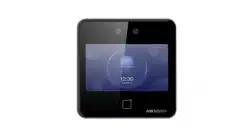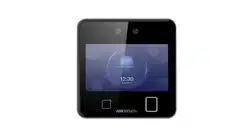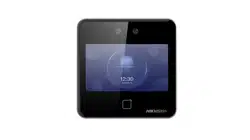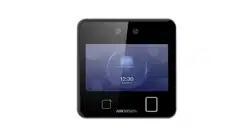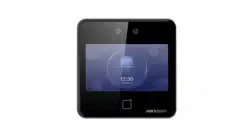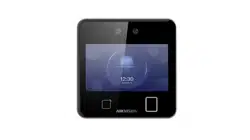

Face Recognion Terminal
User Manual

Legal Informaon
About this Document
●
This Document includes instrucons for using and managing the Product. Pictures, charts,
images and all other informaon hereinaer are for descripon and explanaon only.
●
The informaon contained in the Document is subject to change, without noce, due to
rmware updates or other reasons. Please nd the latest version of the Document at the
Hikvision website ( hps://www.hikvision.com ). Unless otherwise agreed, Hangzhou Hikvision
Digital Technology Co., Ltd. or its aliates (hereinaer referred to as "Hikvision") makes no
warranes, express or implied.
●
Please use the Document with the guidance and assistance of professionals trained in
supporng the Product.
About this Product
●
This product can only enjoy the aer-sales service support in the country or region where the
purchase is made.
●
If the product you choose is a video product, please scan the following QR code to obtain the
"Iniaves on the Use of Video Products", and read it carefully.
Acknowledgment of Intellectual Property Rights
●
Hikvision owns the copyrights and/or patents related to the technology embodied in the
Products described in this Document, which may include licenses obtained from third pares.
●
Any part of the Document, including text, pictures, graphics, etc., belongs to Hikvision. No part
of this Document may be excerpted, copied, translated, or modied in whole or in part by any
means without wrien permission.
●
and other Hikvision's trademarks and logos are the properes of Hikvision in
various jurisdicons.
●
Other trademarks and logos menoned are the properes of their respecve owners.
LEGAL DISCLAIMER
●
TO THE MAXIMUM EXTENT PERMITTED BY APPLICABLE LAW, THIS DOCUMENT AND THE
PRODUCT DESCRIBED, WITH ITS HARDWARE, SOFTWARE AND FIRMWARE, ARE PROVIDED "AS
IS" AND "WITH ALL FAULTS AND ERRORS". HIKVISION MAKES NO WARRANTIES, EXPRESS OR
Face Recognion Terminal User Manual
i

IMPLIED, INCLUDING WITHOUT LIMITATION, MERCHANTABILITY, SATISFACTORY QUALITY, OR
FITNESS FOR A PARTICULAR PURPOSE. THE USE OF THE PRODUCT BY YOU IS AT YOUR OWN RISK.
IN NO EVENT WILL HIKVISION BE LIABLE TO YOU FOR ANY SPECIAL, CONSEQUENTIAL,
INCIDENTAL, OR INDIRECT DAMAGES, INCLUDING, AMONG OTHERS, DAMAGES FOR LOSS OF
BUSINESS PROFITS, BUSINESS INTERRUPTION, OR LOSS OF DATA, CORRUPTION OF SYSTEMS, OR
LOSS OF DOCUMENTATION, WHETHER BASED ON BREACH OF CONTRACT, TORT (INCLUDING
NEGLIGENCE), PRODUCT LIABILITY, OR OTHERWISE, IN CONNECTION WITH THE USE OF THE
PRODUCT, EVEN IF HIKVISION HAS BEEN ADVISED OF THE POSSIBILITY OF SUCH DAMAGES OR
LOSS.
●
YOU ACKNOWLEDGE THAT THE NATURE OF THE INTERNET PROVIDES FOR INHERENT SECURITY
RISKS, AND HIKVISION SHALL NOT TAKE ANY RESPONSIBILITIES FOR ABNORMAL OPERATION,
PRIVACY LEAKAGE OR OTHER DAMAGES RESULTING FROM CYBER-ATTACK, HACKER ATTACK,
VIRUS INFECTION, OR OTHER INTERNET SECURITY RISKS; HOWEVER, HIKVISION WILL PROVIDE
TIMELY TECHNICAL SUPPORT IF REQUIRED.
●
YOU AGREE TO USE THIS PRODUCT IN COMPLIANCE WITH ALL APPLICABLE LAWS, AND YOU ARE
SOLELY RESPONSIBLE FOR ENSURING THAT YOUR USE CONFORMS TO THE APPLICABLE LAW.
ESPECIALLY, YOU ARE RESPONSIBLE, FOR USING THIS PRODUCT IN A MANNER THAT DOES NOT
INFRINGE ON THE RIGHTS OF THIRD PARTIES, INCLUDING WITHOUT LIMITATION, RIGHTS OF
PUBLICITY, INTELLECTUAL PROPERTY RIGHTS, OR DATA PROTECTION AND OTHER PRIVACY
RIGHTS. YOU SHALL NOT USE THIS PRODUCT FOR ANY PROHIBITED END-USES, INCLUDING THE
DEVELOPMENT OR PRODUCTION OF WEAPONS OF MASS DESTRUCTION, THE DEVELOPMENT OR
PRODUCTION OF CHEMICAL OR BIOLOGICAL WEAPONS, ANY ACTIVITIES IN THE CONTEXT
RELATED TO ANY NUCLEAR EXPLOSIVE OR UNSAFE NUCLEAR FUEL-CYCLE, OR IN SUPPORT OF
HUMAN RIGHTS ABUSES.
●
IN THE EVENT OF ANY CONFLICTS BETWEEN THIS DOCUMENT AND THE APPLICABLE LAW, THE
LATTER PREVAILS.
Data Protecon
●
To protect data, the development of Hikvision Products incorporates privacy by design
principles. For example, for Products with facial recognion features, biometrics data is stored in
your Products with encrypon method; for ngerprint Products, only ngerprint template will be
saved, which is impossible to reconstruct a ngerprint image.
●
As a data controller/processor, you may process personal data, including collecon, storage, use,
processing, disclosure, deleon, etc. You are advised to pay aenon to and comply with
applicable laws and regulaons related to the protecon of personal data, including without
limitaon, conducng security controls to safeguard personal data, such as, implemenng
reasonable administrave and physical security controls, conduct periodic reviews and the
assessments of the eecveness of your security controls.
© Hangzhou Hikvision Digital Technology Co., Ltd. All rights reserved.
Face Recognion Terminal User Manual
ii
Symbol Convenons
The symbols that may be found in this document are dened as follows.
Symbol Descripon
Danger
Indicates a hazardous situaon which, if not avoided, will or could
result in death or serious injury.
Cauon
Indicates a potenally hazardous situaon which, if not avoided, could
result in equipment damage, data loss, performance degradaon, or
unexpected results.
Note
Provides addional informaon to emphasize or supplement
important points of the main text.
Face Recognion Terminal User Manual
iii

Regulatory Informaon
FCC Informaon
Please take aenon that changes or modicaon not expressly approved by the party responsible
for compliance could void the user’s authority to operate the equipment.
FCC compliance: This equipment has been tested and found to comply with the limits for a Class B
digital device, pursuant to part 15 of the FCC Rules. These limits are designed to provide
reasonable protecon against harmful interference in a residenal installaon. This equipment
generates, uses and can radiate radio frequency energy and, if not installed and used in accordance
with the instrucons, may cause harmful interference to radio communicaons. However, there is
no guarantee that interference will not occur in a parcular installaon. If this equipment does
cause harmful interference to radio or television recepon, which can be determined by turning
the equipment o and on, the user is encouraged to try to correct the interference by one or more
of the following measures:
—Reorient or relocate the receiving antenna.
—Increase the separaon between the equipment and receiver.
—Connect the equipment into an outlet on a circuit dierent from that to which the receiver is
connected.
—Consult the dealer or an experienced radio/TV technician for help
This equipment should be installed and operated with a minimum distance 20cm between the
radiator and your body.
FCC Condions
This device complies with part 15 of the FCC Rules. Operaon is subject to the following two
condions:
1. This device may not cause harmful interference.
2. This device must accept any interference received, including interference that may cause
undesired operaon.
EU Conformity Statement
This product and - if applicable - the supplied accessories too are marked with "CE"
and comply therefore with the applicable harmonized European standards listed
Face Recognion Terminal User Manual
iv

under the EMC Direcve 2014/30/EU, RE Direcve 2014/53/EU,the RoHS Direcve
2011/65/EU
2012/19/EU (WEEE direcve): Products marked with this symbol cannot be disposed
of as unsorted municipal waste in the European Union. For proper recycling, return
this product to your local supplier upon the purchase of equivalent new equipment,
or dispose of it at designated collecon points. For more informaon see:
www.recyclethis.info
2006/66/EC (baery direcve): This product contains a baery that cannot be
disposed of as unsorted municipal waste in the European Union. See the product
documentaon for specic baery informaon. The baery is marked with this
symbol, which may include leering to indicate cadmium (Cd), lead (Pb), or mercury
(Hg). For proper recycling, return the baery to your supplier or to a designated
collecon point. For more informaon see:www.recyclethis.info
Face Recognion Terminal User Manual
v

Safety Instrucon
These instrucons are intended to ensure that user can use the product correctly to avoid danger
or property loss.
The precauon measure is divided into Dangers and Cauons:
Dangers: Neglecng any of the warnings may cause serious injury or death.
Cauons: Neglecng any of the cauons may cause injury or equipment damage.
Dangers: Follow these safeguards to prevent
serious injury or death.
Cauons: Follow these precauons to prevent
potenal injury or material damage.
Danger:
●
All the electronic operaon should be strictly compliance with the electrical safety regulaons,
re prevenon regulaons and other related regulaons in your local region.
●
Please use the power adapter, which is provided by normal company. The power consumpon
cannot be less than the required value.
●
Do not connect several devices to one power adapter as adapter overload may cause over-heat
or re hazard.
●
Please make sure that the power has been disconnected before you wire, install or dismantle the
device.
●
When the product is installed on wall or ceiling, the device shall be rmly xed.
●
If smoke, odors or noise rise from the device, turn o the power at once and unplug the power
cable, and then please contact the service center.
●
1. Risk of explosion if the baery is replaced by an incorrect type
2. Improper replacement of the baery with an incorrect type may defeat a safeguard (for
example, in the case of some lithium baery types).
3. This equipment is not suitable for use in locaons where children are likely to be present.
4. Do not dispose of the baery into re or a hot oven, or mechanically crush or cut the baery,
which may result in an explosion.
5. Do not leave the baery in an extremely high temperature surrounding environment, which
may result in an explosion or the leakage of ammable liquid or gas.
6. Do not subject the baery to extremely low air pressure, which may result in an explosion or
the leakage of ammable liquid or gas.
7. Dispose of used baeries according to the instrucons
●
If the product does not work properly, please contact your dealer or the nearest service center.
Never aempt to disassemble the device yourself. (We shall not assume any responsibility for
problems caused by unauthorized repair or maintenance.)
Face Recognion Terminal User Manual
vi

Cauons:
●
Do not drop the device or subject it to physical shock, and do not expose it to high
electromagnesm radiaon. Avoid the equipment installaon on vibraons surface or places
subject to shock (ignorance can cause equipment damage).
●
Do not place the device in extremely hot (refer to the specicaon of the device for the detailed
operang temperature), cold, dusty or damp locaons, and do not expose it to high
electromagnec radiaon.
●
The device cover for indoor use shall be kept from rain and moisture.
●
Exposing the equipment to direct sun light, low venlaon or heat source such as heater or
radiator is forbidden (ignorance can cause re danger).
●
Do not aim the device at the sun or extra bright places. A blooming or smear may occur
otherwise (which is not a malfuncon however), and aecng the endurance of sensor at the
same me.
●
Please use the provided glove when open up the device cover, avoid direct contact with the
device cover, because the acidic sweat of the ngers may erode the surface coang of the device
cover.
●
Please use a so and dry cloth when clean inside and outside surfaces of the device cover, do
not use alkaline detergents.
●
Please keep all wrappers aer unpack them for future use. In case of any failure occurred, you
need to return the device to the factory with the original wrapper. Transportaon without the
original wrapper may result in damage on the device and lead to addional costs.
●
Improper use or replacement of the baery may result in hazard of explosion. Replace with the
same or equivalent type only. Dispose of used baeries according to the instrucons provided by
the baery manufacturer.
●
Biometric recognion products are not completely applicable to an-spoong environments. If
you require a higher security level, use mulple authencaon modes.
●
Input voltage should meet both the SELV (Safety Extra Low Voltage) and the Limited Power
Source with 100~240 VAC or 12 VDC according to the IEC60950-1 standard. Please refer to
technical specicaons for detailed informaon.
Face Recognion Terminal User Manual
vii

Contents
Chapter 1 Overview .................................................................................................................... 1
1.1 Overview ................................................................................................................................ 1
1.2 Features ................................................................................................................................. 1
Chapter 2 Appearance ................................................................................................................ 2
Chapter 3 Installaon ................................................................................................................. 4
3.1 Installaon Environment ........................................................................................................ 4
3.2 Wall Mounng ....................................................................................................................... 4
3.3 Base Mounng (Oponal) ...................................................................................................... 8
Chapter 4 Wiring ...................................................................................................................... 11
4.1 Terminal Descripon ............................................................................................................ 11
4.2 Wire Normal Device ............................................................................................................. 12
4.3 Wire Secure Door Control Unit ............................................................................................ 13
4.4 Wire Fire Module ................................................................................................................. 13
4.4.1 Wiring Diagram of Door Open When Powering O .................................................... 13
4.4.2 Wiring Diagram of Door Locked When Powering O .................................................. 15
Chapter 5 Acvaon ................................................................................................................. 17
5.1 Acvate via Device ............................................................................................................... 17
5.2 Acvate via Web Browser .................................................................................................... 18
5.3 Acvate via SADP ................................................................................................................. 18
5.4 Acvate Device via Client Soware ...................................................................................... 20
Chapter 6 Quick Operaon ....................................................................................................... 21
6.1 Select Language ................................................................................................................... 21
6.2 Set Password Change Type ................................................................................................... 21
6.3 Set Network Parameters ...................................................................................................... 22
6.4 Access to Plaorm ............................................................................................................... 23
6.5 Remote Operaon via APP ................................................................................................... 24
Face Recognion Terminal User Manual
viii

6.6 Privacy Sengs .................................................................................................................... 25
6.7 Set Administrator ................................................................................................................. 26
Chapter 7 Basic Operaon ........................................................................................................ 28
7.1 Login .................................................................................................................................... 28
7.1.1 Login by Administrator ................................................................................................ 28
7.1.2 Login by Acvaon Password ...................................................................................... 29
7.1.3 Forgot Password .......................................................................................................... 30
7.2 Communicaon Sengs ...................................................................................................... 31
7.2.1 Set Wired Network Parameters .................................................................................. 31
7.2.2 Set Wi-Fi Parameters ................................................................................................... 32
7.2.3 Set RS-485 Parameters ................................................................................................ 33
7.2.4 Set Wiegand Parameters ............................................................................................. 34
7.2.5 Set ISUP Parameters .................................................................................................... 35
7.2.6 Plaorm Access ........................................................................................................... 37
7.3 User Management ............................................................................................................... 37
7.3.1 Add Administrator ....................................................................................................... 38
7.3.2 Add Face Picture ......................................................................................................... 39
7.3.3 Add Fingerprint ........................................................................................................... 41
7.3.4 Add Card ..................................................................................................................... 42
7.3.5 View PIN code ............................................................................................................. 43
7.3.6 Set Authencaon Mode ............................................................................................ 43
7.3.7 Search and Edit User ................................................................................................... 44
7.4 Data Management ............................................................................................................... 44
7.4.1 Delete Data ................................................................................................................. 44
7.4.2 Import Data ................................................................................................................. 45
7.4.3 Export Data ................................................................................................................. 45
7.5 Identy Authencaon ........................................................................................................ 46
7.5.1 Authencate via Single Credenal .............................................................................. 46
Face Recognion Terminal User Manual
ix

7.5.2 Authencate via Mulple Credenal .......................................................................... 47
7.6 Basic Sengs ....................................................................................................................... 47
7.7 Set Biometric Parameters .................................................................................................... 49
7.8 Set Access Control Parameters ............................................................................................ 52
7.9 Time and Aendance Status Sengs .................................................................................. 54
7.9.1 Disable Aendance Mode via Device ......................................................................... 54
7.9.2 Set Manual Aendance via Device ............................................................................. 55
7.9.3 Set Auto Aendance via Device .................................................................................. 56
7.9.4 Set Manual and Auto Aendance via Device .............................................................. 58
7.10 Preference Sengs ............................................................................................................ 59
7.11 System Maintenance .......................................................................................................... 61
7.12 Video Intercom .................................................................................................................. 63
7.12.1 Call Client Soware from Device ............................................................................... 63
7.12.2 Call Center from Device ............................................................................................ 63
7.12.3 Call Device from Client Soware ............................................................................... 64
7.12.4 Call Room from Device .............................................................................................. 64
7.12.5 Call Mobile Client from Device .................................................................................. 65
Chapter 8 Quick Operaon via Web Browser ............................................................................ 66
8.1 Time Sengs ........................................................................................................................ 66
8.2 Privacy Sengs .................................................................................................................... 66
8.3 Administrator Sengs ......................................................................................................... 67
8.4 No. and System Network ..................................................................................................... 67
Chapter 9 Operaon via Web Browser ...................................................................................... 69
9.1 Login .................................................................................................................................... 69
9.2 Forgot Password ................................................................................................................... 69
9.3 Live View .............................................................................................................................. 69
9.4 Person Management ............................................................................................................ 71
9.5 Search Event ........................................................................................................................ 72
Face Recognion Terminal User Manual
x

9.6 Conguraon ....................................................................................................................... 72
9.6.1 Set Local Parameters ................................................................................................... 72
9.6.2 View Device Informaon ............................................................................................. 72
9.6.3 Set Time ...................................................................................................................... 73
9.6.4 Change Administrator's Password ............................................................................... 73
9.6.5 View Device Arming/Disarming Informaon .............................................................. 74
9.6.6 Network Sengs ......................................................................................................... 74
9.6.7 Set Video and Audio Parameters ................................................................................ 77
9.6.8 Set Image Parameters ................................................................................................. 77
9.6.9 Access Control Sengs ............................................................................................... 78
9.6.10 Video Intercom Sengs ............................................................................................ 82
9.6.11 Card Sengs ............................................................................................................. 84
9.6.12 Time and Aendance Sengs .................................................................................. 85
9.6.13 Set Privacy Parameters .............................................................................................. 87
9.6.14 Set Biometric Parameters ......................................................................................... 88
9.6.15 Preference Sengs ................................................................................................... 91
9.6.16 Upgrade and Maintenance ....................................................................................... 93
9.6.17 Device Debugging ..................................................................................................... 94
9.6.18 Log Query .................................................................................................................. 95
9.6.19 Security Mode Sengs ............................................................................................. 95
9.6.20 Cercate Management ........................................................................................... 95
Chapter 10 Other Plaorms to Congure .................................................................................. 97
Appendix A. Tips for Scanning Fingerprint ................................................................................ 98
Appendix B. Tips When Collecng/Comparing Face Picture .................................................... 100
Appendix C. Tips for Installaon Environment ........................................................................ 102
Appendix D. Dimension .......................................................................................................... 103
Face Recognion Terminal User Manual
xi

Chapter 1 Overview
1.1 Overview
Face recognion terminal is a kind of access control device for face recognion, which is mainly
applied in security access control systems, such as logisc centers, airports, university campuses,
alarm centrals, dwellings, etc.
1.2 Features
●
4.3-inch touch screen
●
2 MP wide-angle dual-lens
●
Face an-spoong
●
Face recognion distance: 0.3 m to 3 m
●
Deep learning algorithm
●
6,000 face capacity, 10,000 card capacity, 5,000 ngerprint capacity for device support
ngerprint related funcons, and 150,000 event capacity
●
Face recognion duraon < 0.2 s/User; face recognion accuracy rate ≥ 99%
●
Capture linkage and captured pictures storage
●
Transmits card and user data from or to the client soware via TCP/IP protocol and saves the
data on the client soware
●
Imports pictures from the USB ash drive to the device or export pictures, events, from the
device to the USB ash drive
●
Stand-alone operaon
●
Manage, search and set device data aer logging in the device locally
●
Connects to one external card reader via RS-485 protocol
●
Connects to secure door control unit via RS-485 protocol to avoid the door opening when the
terminal is destroyed
●
Connects to external access controller or Wiegand card reader via Wiegand protocol
●
Two-way audio with indoor staon and main staon
●
Supports 6 aendance status, including check in, check out, break in, break out, overme in,
overme out
●
Conguraon via the web client
●
Remotely opens door and starts live view via mobile client
●
Supports ISAPI and ISUP5.0 protocol
●
Support English, Spanish (South America), Arabic, Thai, Indonesian, Russian, Vietnamese,
Portuguese (Brazil)
Note
Biometric recognion products are not completely applicable to an-spoong environments. If you
require a higher security level, use mulple authencaon modes.
Face Recognion Terminal User Manual
1
Chapter 2 Appearance
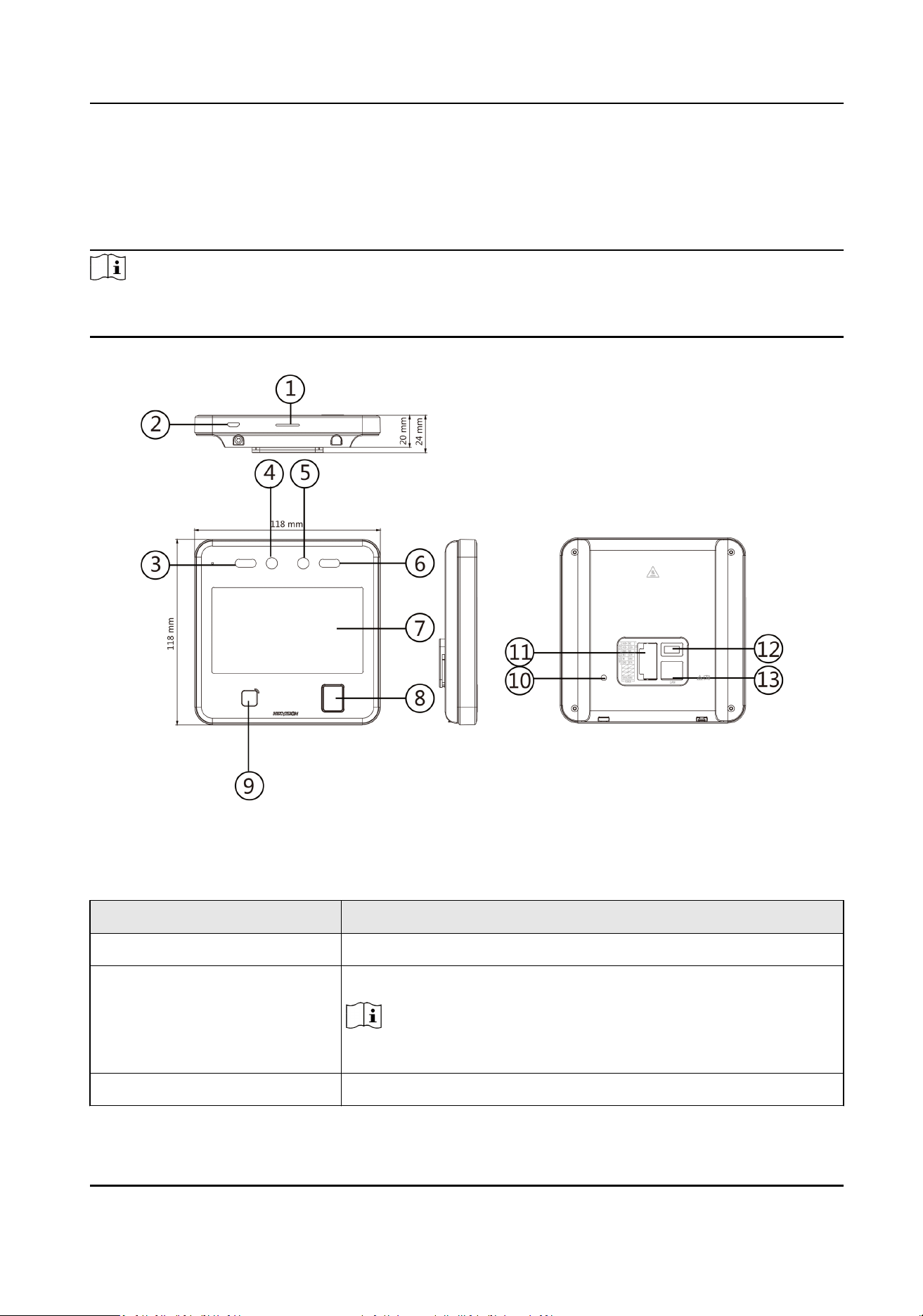
Refer to the following contents for detailed informaon of the face recognion terminal:
Note
The appearance of the device vary according to dierent models. Refers to the actual device. Here
takes face recognion terminal as example.
Figure 2-1 Face Recognion Terminal Diagram
Table 2-1 Descripon of Face Recognion Terminal
No. Descripon
1 Loudspeaker
2 microUSB
Note
micro USB to USB cable is available.
3 IR Light
Face Recognion Terminal User Manual
2

No. Descripon
4 Camera
5 Camera
6 IR Light
7 Display Screen
8 Fingerprint Module
Note
Supported by parts of the device modules.
9 Card Presenng Area
10 TAMPER
11 Wiring Terminal
12 Debugging Port
13 Network Interface
: This scker means "Hot parts! Burned ngers when handling the parts. Wait one-half hour
aer switching o before handling parts." It is to indicate that the marked item can be hot and
should not be touched without taking care. For device with this scker, this device is intended for
installaon in a restricted access locaon, access can only be gained by service persons or by users
who have been instructed about the reasons for the restricons applied to the locaon and about
any precauons that shall be taken.
Face Recognion Terminal User Manual
3

Chapter 3 Installaon
3.1 Installaon Environment
●
Avoid backlight, direct sunlight, and indirect sunlight.
●
For beer recognion, there should be light source in or near the installaon environment.
●
The minimum bearing weight of the wall or other places should be 3 mes heavier than the
device weight.
●
There shall be no strong reecve objects (such as glass doors/walls, stainless steel objects,
acrylic and other glossy plascs, lacquer, ceramic les, etc.) within 1 m of the eld of view of the
device.
●
Avoid device reecon.
●
Face recognion distance shall be greater than 30 cm.
●
Keep the camera clean.
Note
For details about installaon environment, see Tips for Installaon Environment.
3.2 Wall Mounng
Steps
Note
The addional force shall be equal to three mes the weight of the equipment. The equipment ad
its associated mounng means shall remain secure during the installaon. Aer the installaon,
the equipment, including any associated mounng plate, shall not be damaged.
1.
According to the datum line on the mounng template, sck the mounng template on the wall
or other surfaces, 1.4 meters higher than the ground.
Face Recognion Terminal User Manual
4
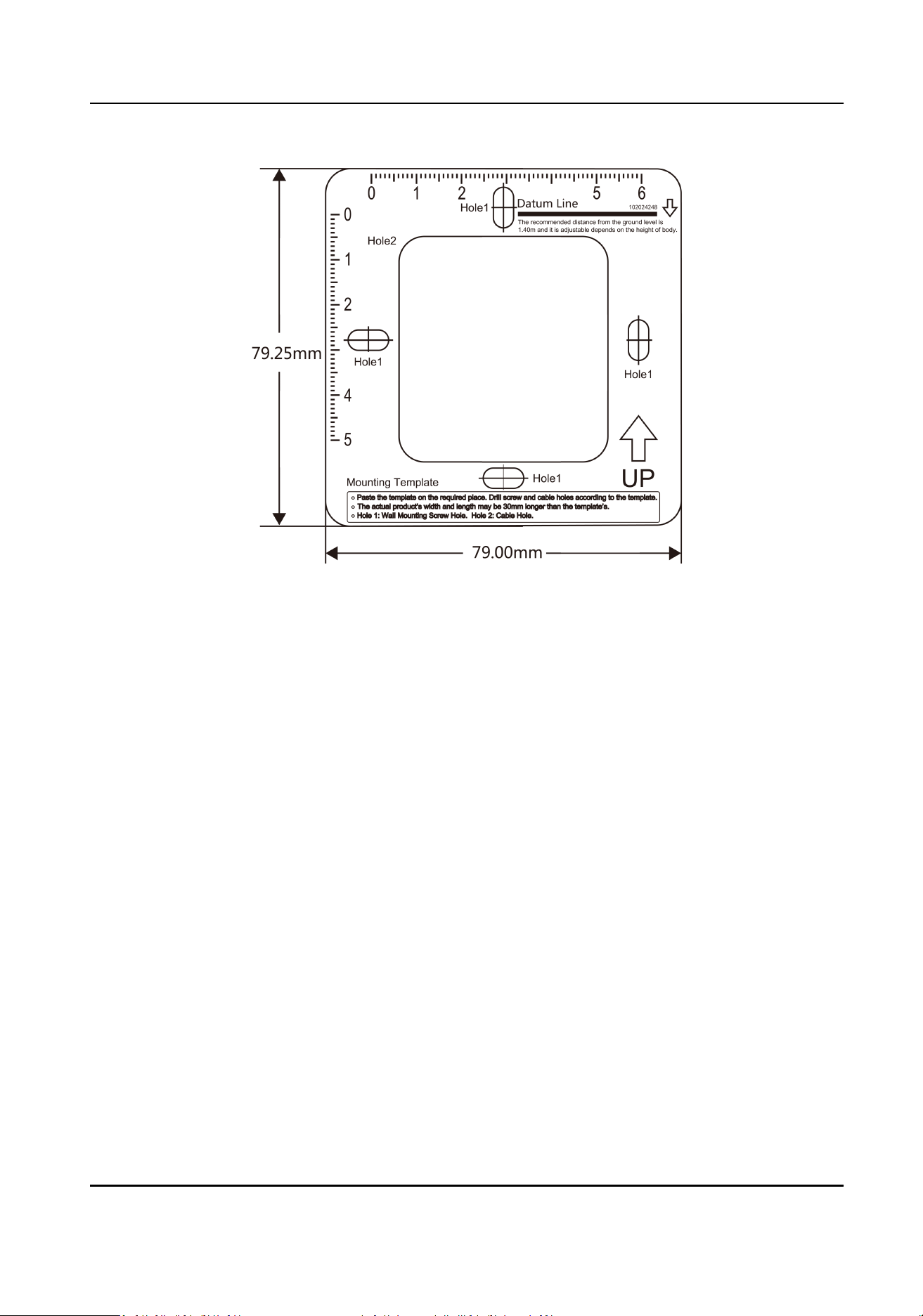
Figure 3-1 Mounng Template
2.
Drill holes on the wall or other surface according to the instrucons on the mounng template.
3.
Align the holes to the mounng plate and secure the mounng plate on the wall with the 4
supplied screws.
Face Recognion Terminal User Manual
5
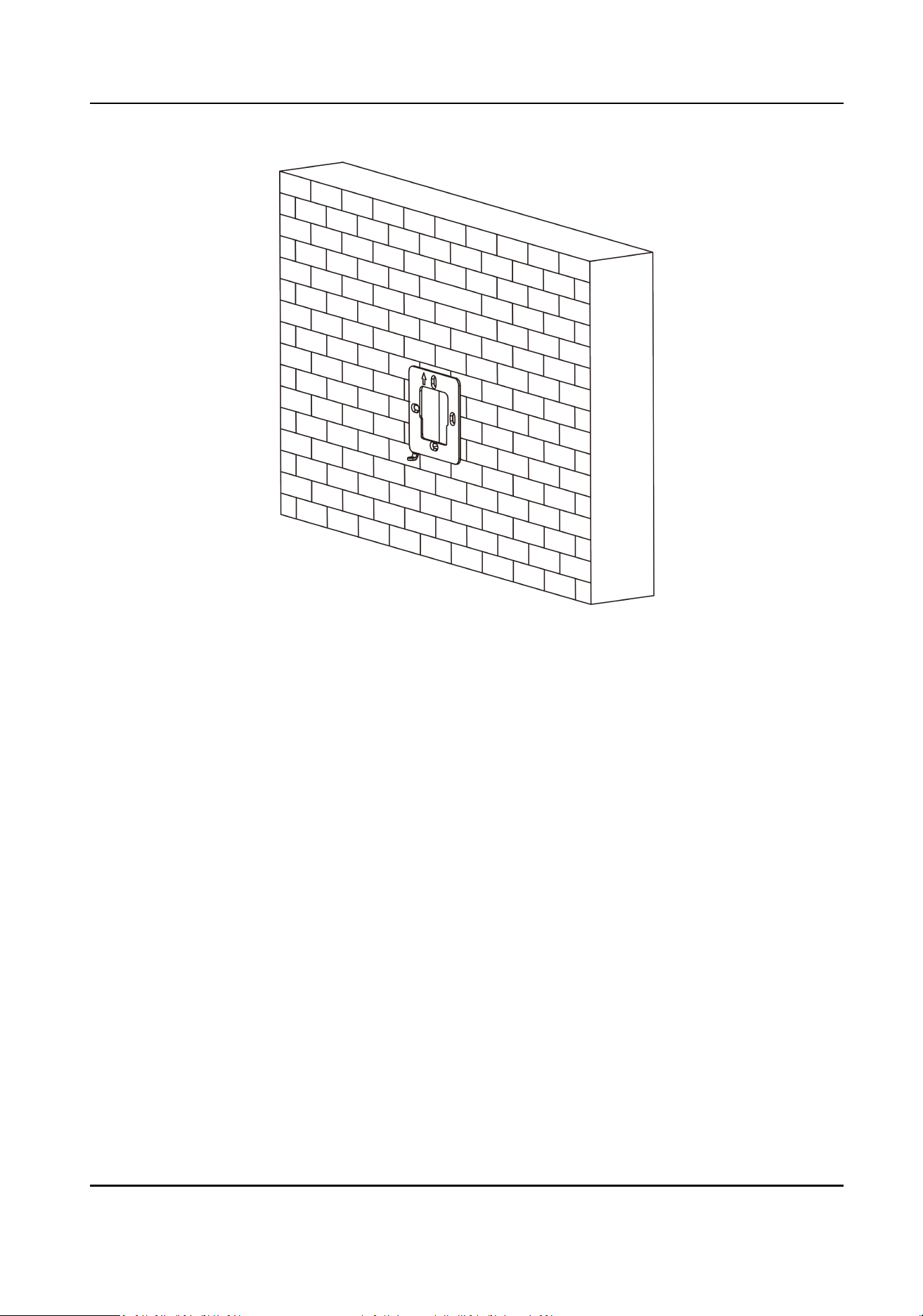
Figure 3-2 Install Mounng Plate
4.
Route the cable through the cable hole of the mounng plate, and connect to corresponding
external devices' cables.
5.
Align the device with the mounng plate and hang the device on the mounng plate.
Face Recognion Terminal User Manual
6
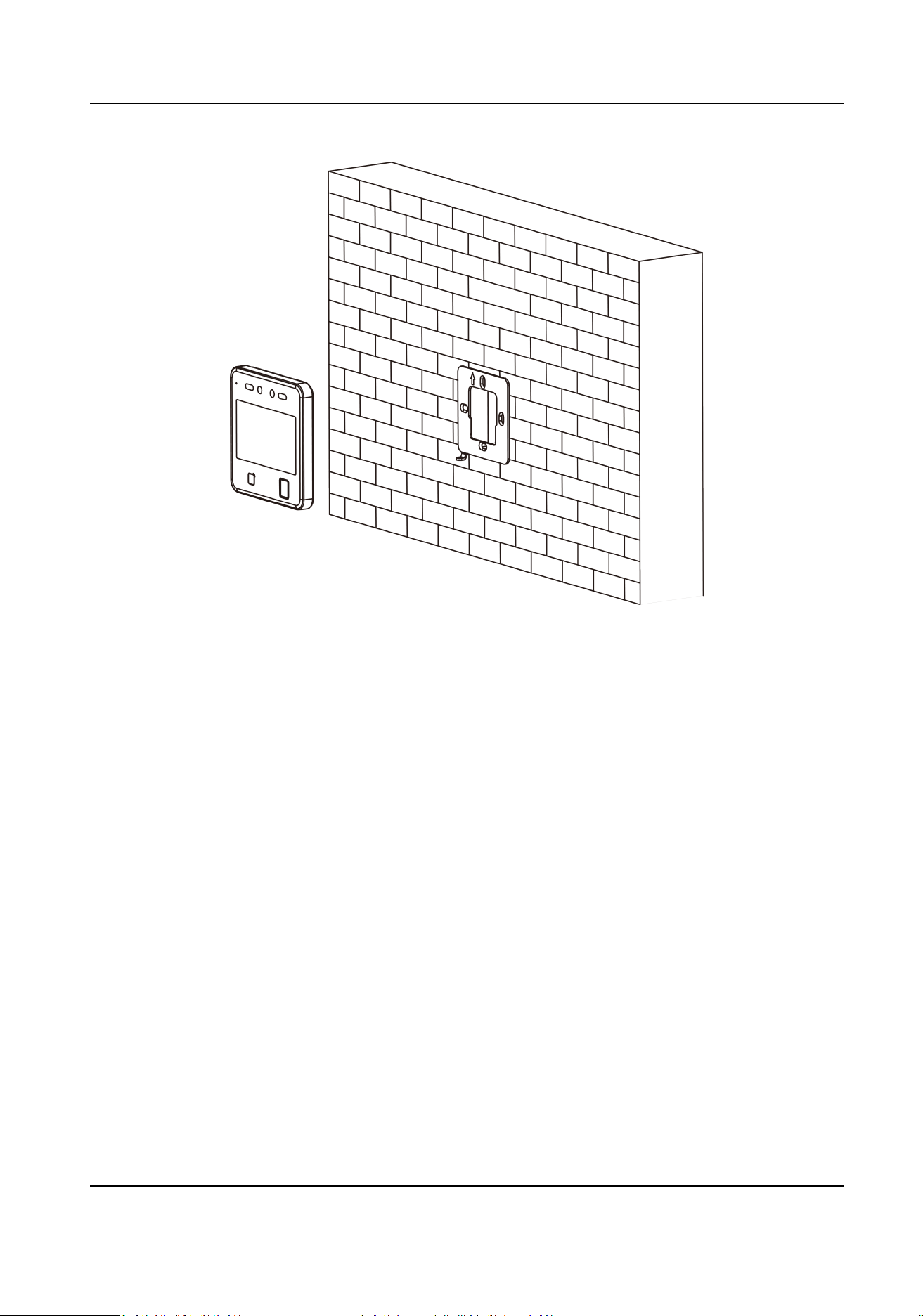
Figure 3-3 Hang Device
6.
Use one supplied screw to secure the device and the mounng plate.
Face Recognion Terminal User Manual
7
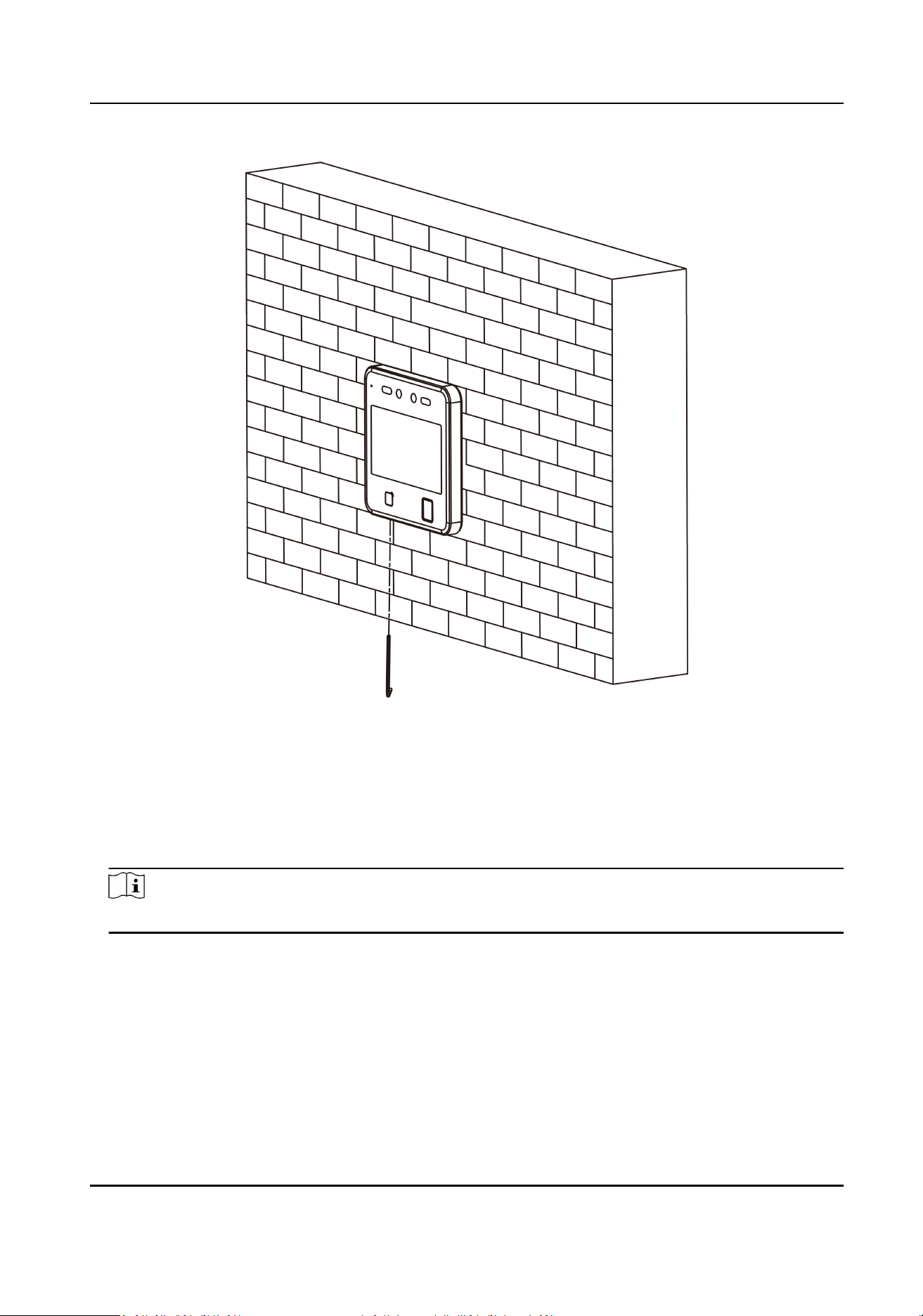
Figure 3-4 Secure Device
3.3 Base Mounng (Oponal)
Steps
1.
Align the hole of the mounng bracket with the device interfaces on the back.
Note
The bracket is oponal.
Face Recognion Terminal User Manual
8
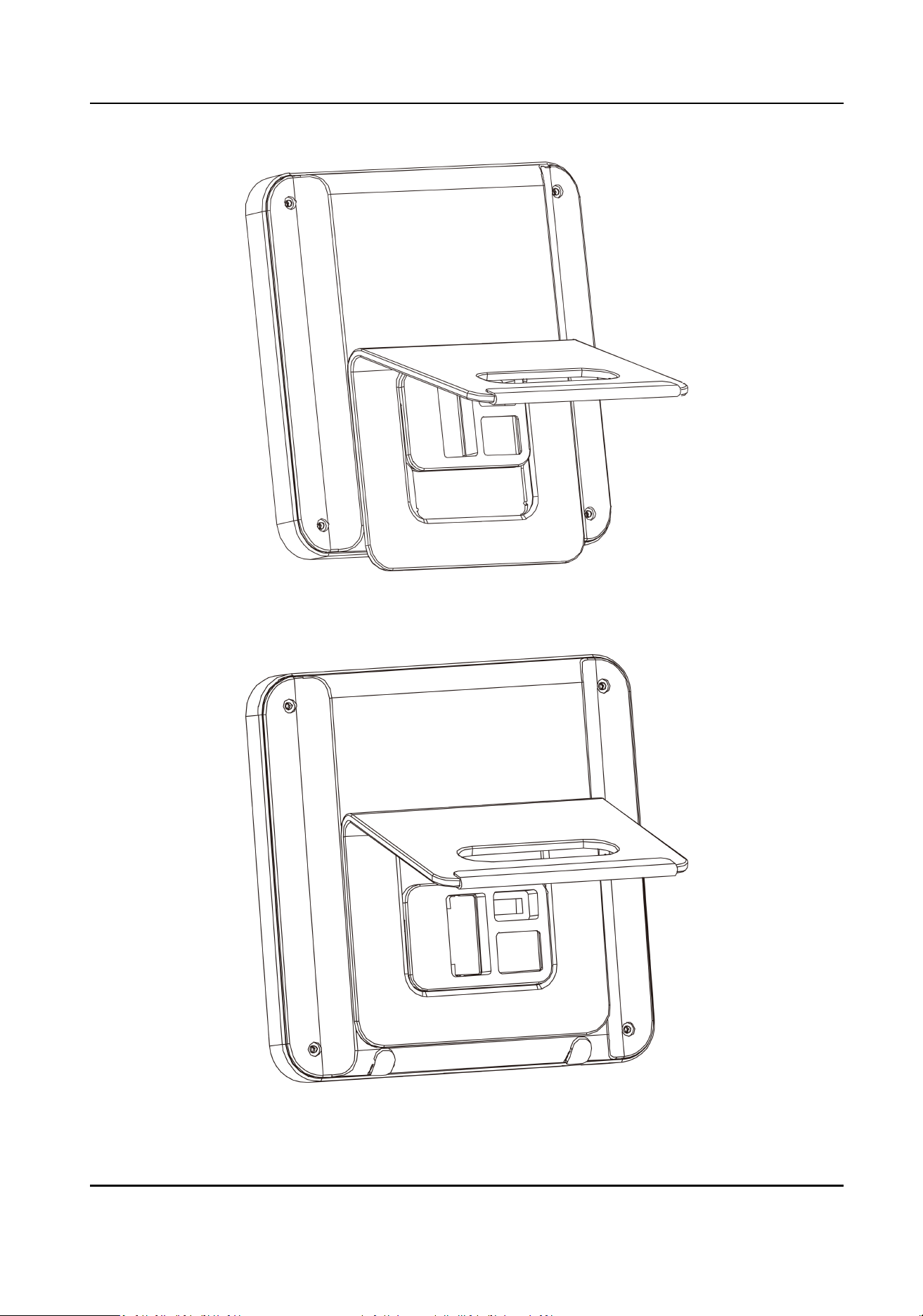
Figure 3-5 Align Bracket and Device
2.
Push the bracket from boom to top. Make sure the device is buckled with the bracket.
Figure 3-6 Buckle
Face Recognion Terminal User Manual
9

3.
Route the cable through the cable hole of the mounng plate, and connect to corresponding
external devices' cables.
4.
Insert two non-slip silicone pads.
5.
Put the mounted device on the desk or other surface.
Face Recognion Terminal User Manual
10

Chapter 4 Wiring
You can connect the RS-485 terminal with the RS-485 card reader, connect the NC and COM
terminal with the door lock, connect the SENSOR terminal with the door contact, the BTN/GND
terminal with the exit buon, and connect the Wiegand terminal with the Wiegand card reader or
the access controller.
If connect the WIEGAND terminal with the access controller, the face recognion terminal can
transmit the authencaon informaon to the access controller and the access controller can
judge whether to open the door or not.
Note
If the cable size is 18 AWG, the distance between the power supply and the device should be no
more than 60 m when wiring a single device. And the door lock and the other peripherals should
connect to a 12 VDC external power supply. If connecng to a 12 VDC door lock, the distance
between the power supply and the device should be 30 m.
4.1 Terminal Descripon
The terminals contains power input, RS-485, Wiegand output, and door lock.
The descripons of the terminals are as follows:
Table 4-1 Terminal Descripons
Group No. Funcon Color Name Descripon
Group A A1 Power Input Red +12 V 12 VDC Power
Supply
A2 Black GND Ground
Group B B1 RS-485 Yellow 485+ RS-485 Wiring
B2 Blue 485-
B3 Red/Black GND Ground
Group C C1 Wiegand Green W0 Wiegand
Wiring 0
C2 White W1 Wiegand
Wiring 1
C3 White/Black GND Ground
Group D D1 Door Lock White/Purple NC Lock Wiring
(NC)
Face Recognion Terminal User Manual
11
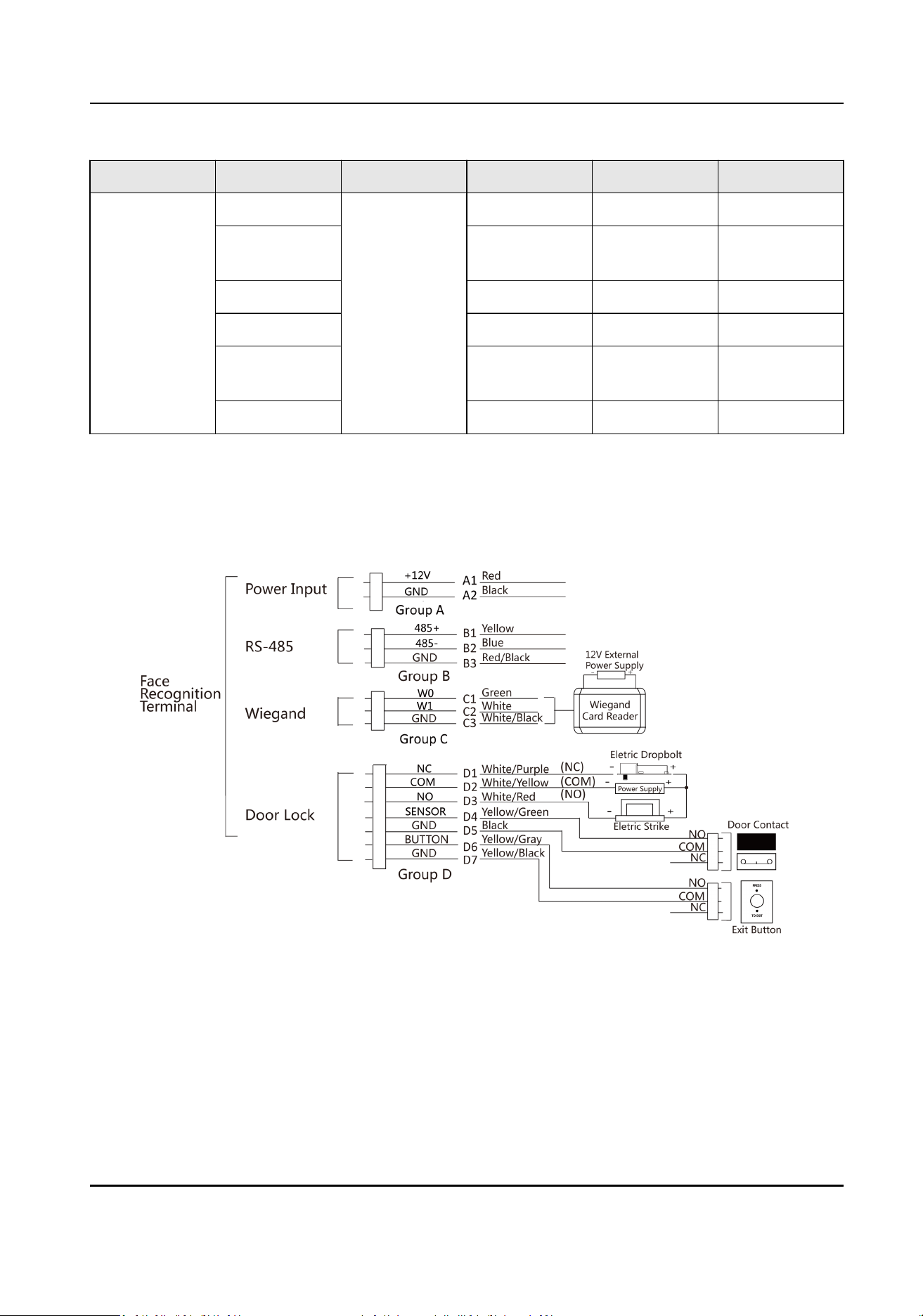
Group No. Funcon Color Name Descripon
D2 White/Yellow COM Common
D3 White/Red NO Lock Wiring
(NO)
D4 Yellow/Green SENSOR Door Contact
D5 Black GND Ground
D6 Yellow/Gray BUTTON Exit Door
Wiring
D7 Yellow/Black GND Ground
4.2 Wire Normal Device
You can connect the terminal with normal peripherals.
Figure 4-1 Device Wiring
Face Recognion Terminal User Manual
12
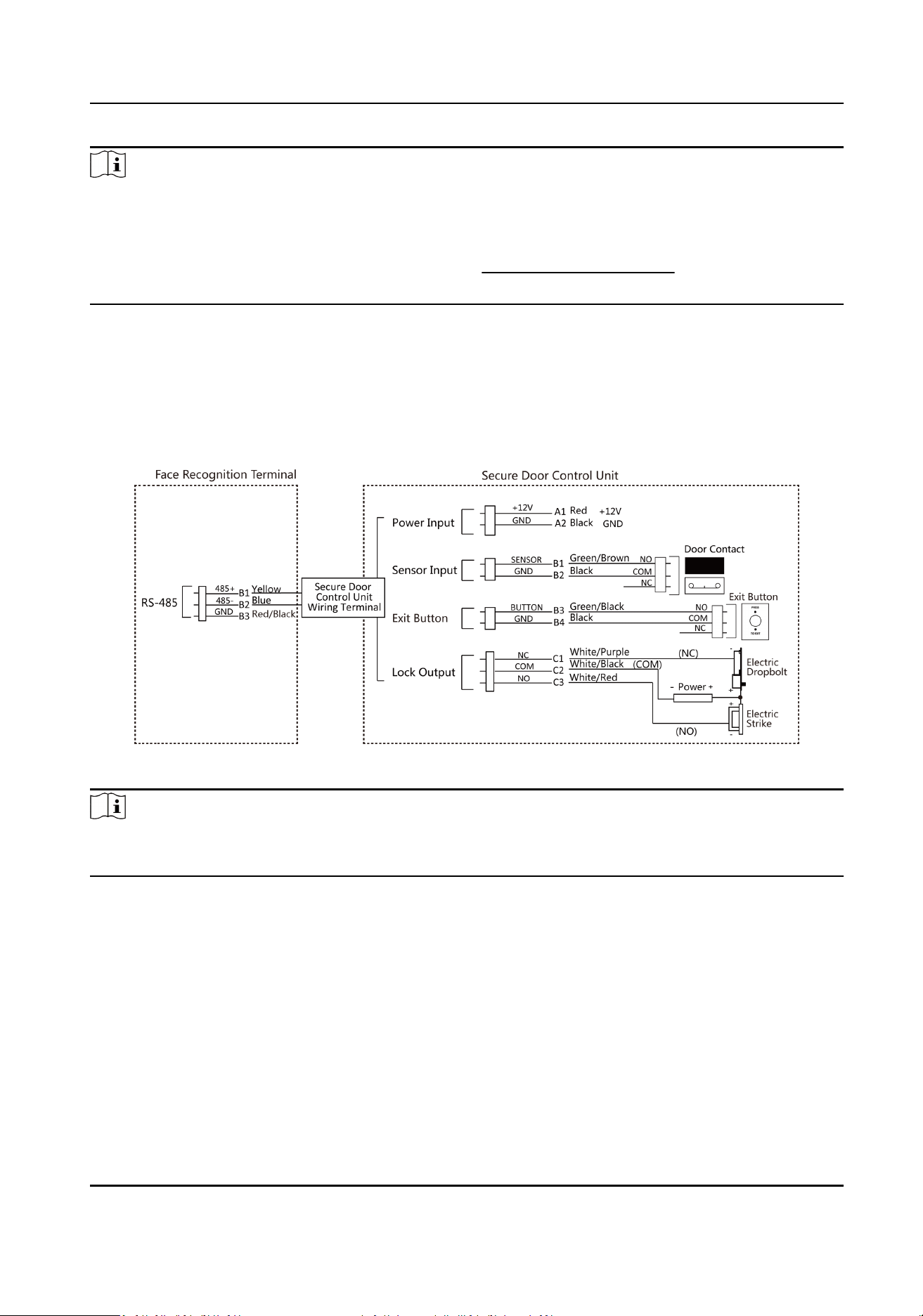
Note
●
You should set the face recognion terminal's Wiegand direcon as Input to connect to a
Wiegand card reader. If connects to an access controller, you should set the Wiegand direcon as
Output to transmit authencaon informaon to the access controller.
●
For details about Wiegand direcon sengs, see Set Wiegand Parameters .
●
Do not wire the device to the electric supply directly.
4.3 Wire Secure Door Control Unit
You can connect the terminal with the secure door control unit.
The wiring diagram is as follows.
Figure 4-2 Secure Door Control Unit Wiring
Note
The secure door control unit should connect to an external power supply separately. The suggested
external power supply is 12V, 0.5A.
4.4 Wire Fire Module
4.4.1 Wiring Diagram of Door Open When Powering O
Lock Type: Anode Lock, Magnec Lock, and Electric Bolt (NO)
Security Type: Door Open When Powering O
Scenario: Installed in Fire Engine Access
Face Recognion Terminal User Manual
13
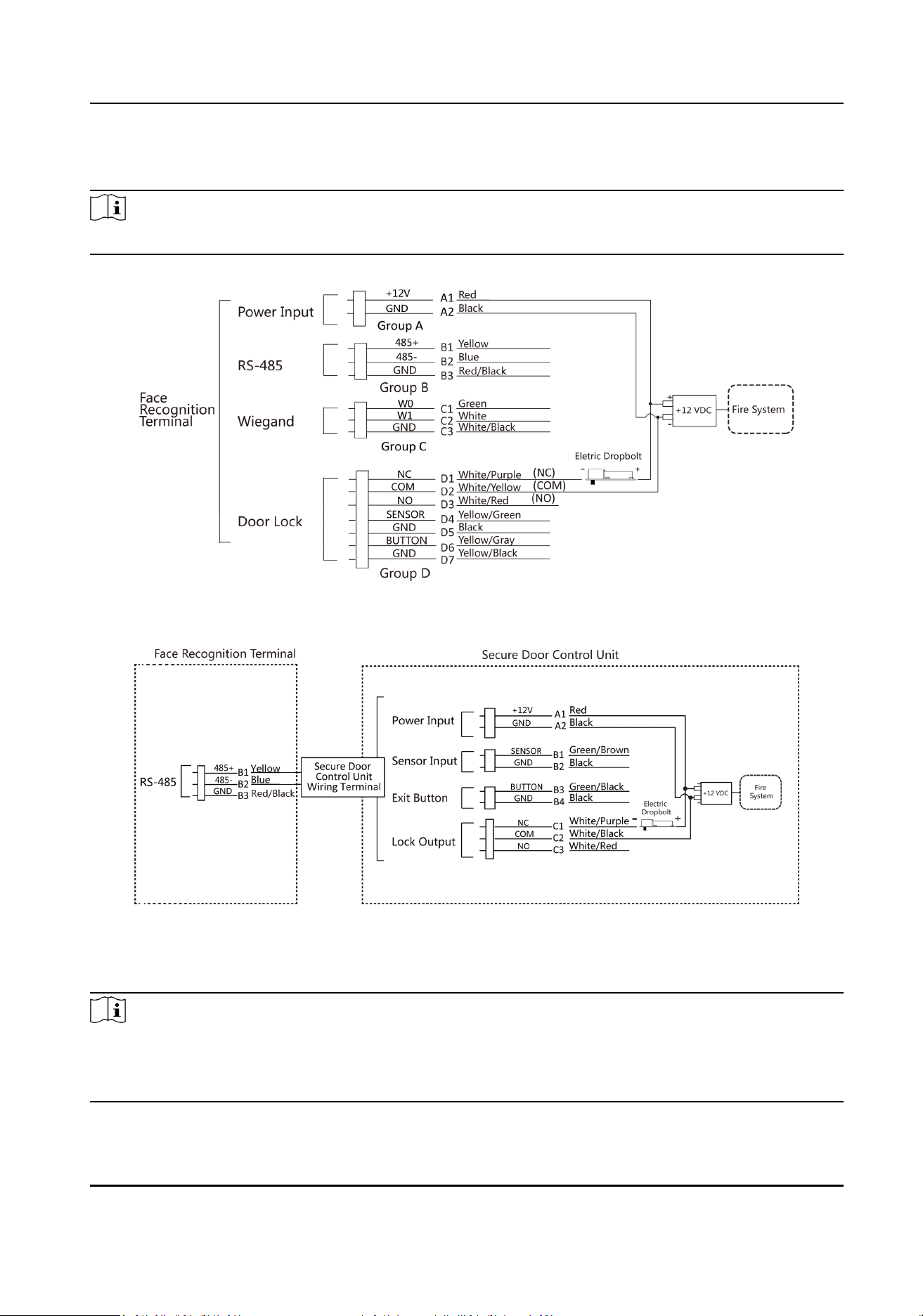
Type 1
Note
The re system controls the power supply of the access control system.
Figure 4-3 Wire Device
Figure 4-4 Wire Secure Door Control Unit
Type 2
Note
The re system (NO and COM, normally open when powering o) is connected with the lock and
the power supply in series. When an re alarm is triggered, the door remains open. In normal
mes, NO and COM are closed.
Face Recognion Terminal User Manual
14
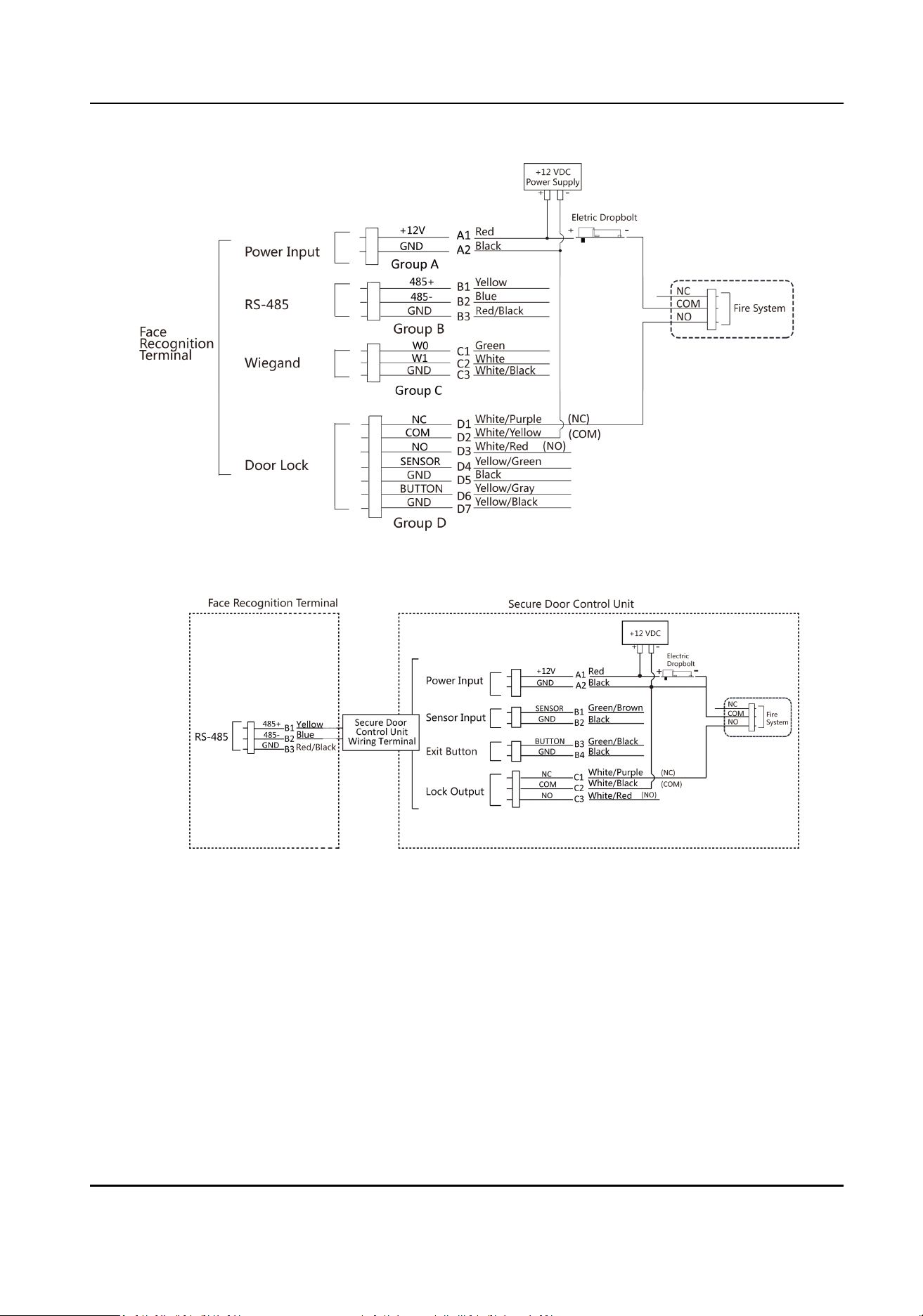
Figure 4-5 Wiring Device
Figure 4-6 Wiring Secure Door Control Unit
4.4.2 Wiring Diagram of Door Locked When Powering O
Lock Type: Cathode Lock, Electric Lock, and Electric Bolt (NC)
Security Type: Door Locked When Powering O
Scenario: Installed in Entrance/Exit with Fire Linkage
Face Recognion Terminal User Manual
15
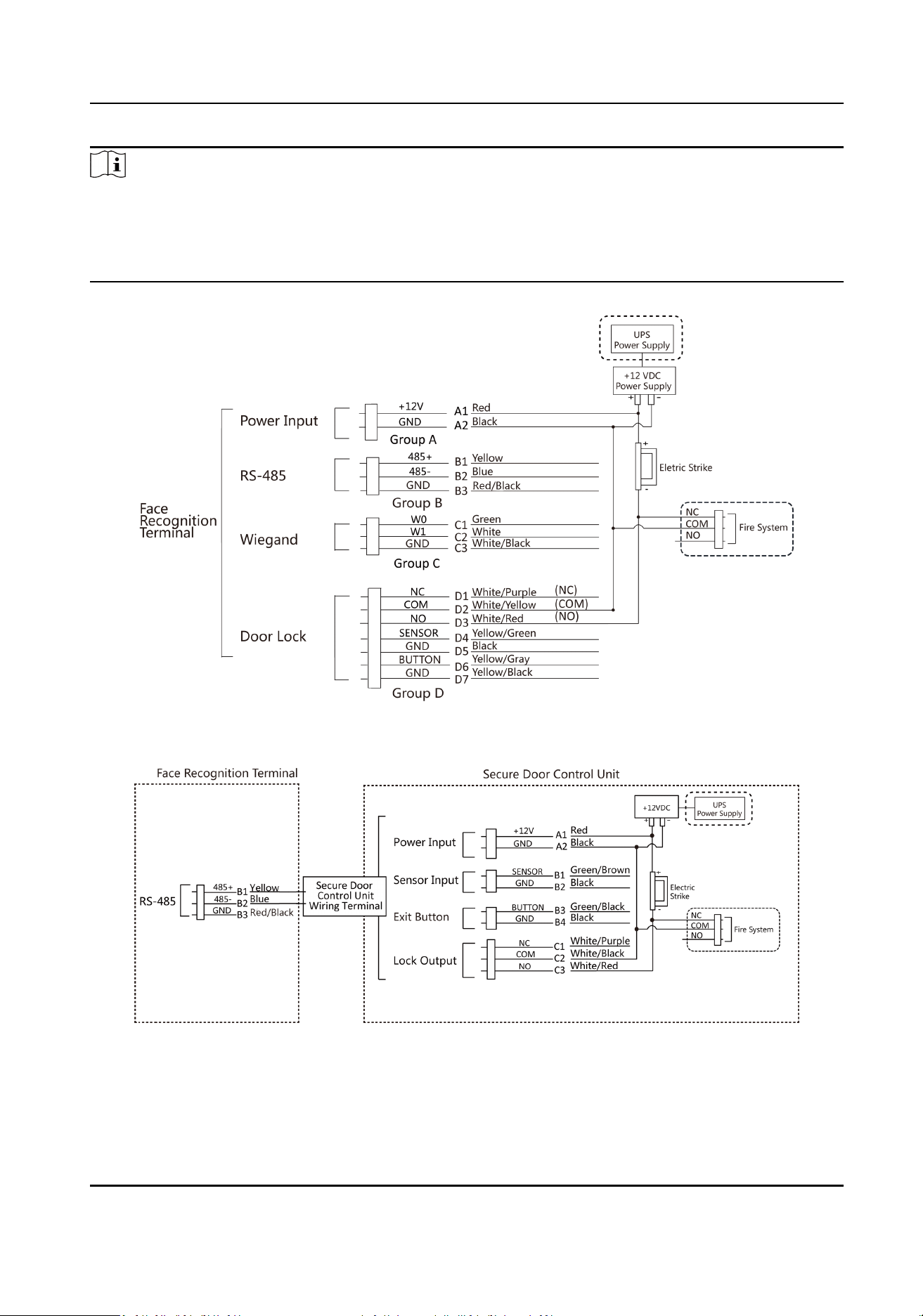
Note
●
The Uninterpretable Power Supply (UPS) is required.
●
The re system (NC and COM, normally closed when powering o) is connected with the lock
and the power supply in series. When an re alarm is triggered, the door remains open. In
normal mes, NC and COM are open.
Figure 4-7 Device Wiring
Figure 4-8 Wiring Diagram
Face Recognion Terminal User Manual
16
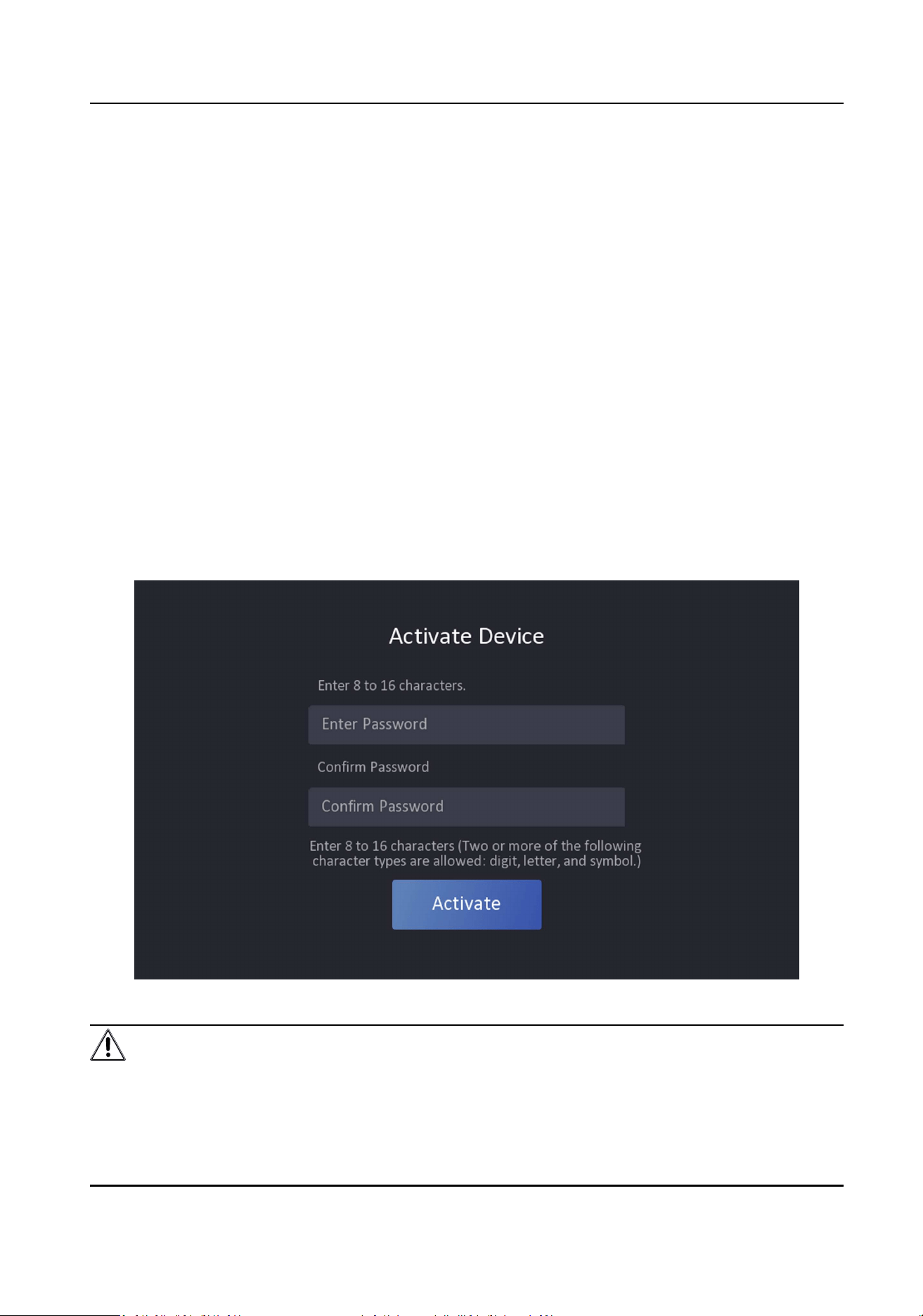
Chapter 5 Acvaon
You should acvate the device before the rst login. Aer powering on the device, the system will
switch to Device Acvaon page.
Acvaon via the device, SADP tool and the client soware are supported.
The default values of the device are as follows:
●
The default IP address: 192.0.0.64
●
The default port No.: 8000
●
The default user name: admin
5.1 Acvate via Device
If the device is not acvated, you can acvate the device aer it is powered on.
On the Acvate Device page, create a password and conrm the password. Tap Acvate and the
device will acvated.
Figure 5-1 Acvaon Page
Cauon
The password strength of the device can be automacally checked. We highly recommend you
change the password of your own choosing (using a minimum of 8 characters, including at least
Face Recognion Terminal User Manual
17
three kinds of following categories: upper case leers, lower case leers, numbers, and special
characters) in order to increase the security of your product. And we recommend you change your
password regularly, especially in the high security system, changing the password monthly or
weekly can beer protect your product.
Proper conguraon of all passwords and other security sengs is the responsibility of the
installer and/or end-user.
Note
Characters containing admin and nimda are not supported to be set as acvaon password.
5.2 Acvate via Web Browser
You can acvate the device via the web browser.
Steps
1.
Enter the device default IP address (192.0.0.64) in the address bar of the web browser, and press
Enter.
Note
Make sure the device IP address and the computer's should be in the same IP segment.
2.
Create a new password (admin password) and conrm the password.
Cauon
STRONG PASSWORD RECOMMENDED-We highly recommend you create a strong password of
your own choosing (using a minimum of 8 characters, including upper case leers, lower case
leers, numbers, and special characters) in order to increase the security of your product. And
we recommend you reset your password regularly, especially in the high security system,
reseng the password monthly or weekly can beer protect your product.
Note
Characters containing admin and nimda are not supported to be set as acvaon password.
3.
Click Acvate.
4.
Edit the device IP address. You can edit the IP address via the SADP tool, the device, and the
client soware.
5.3 Acvate via SADP
SADP is a tool to detect, acvate and modify the IP address of the device over the LAN.
Face Recognion Terminal User Manual
18
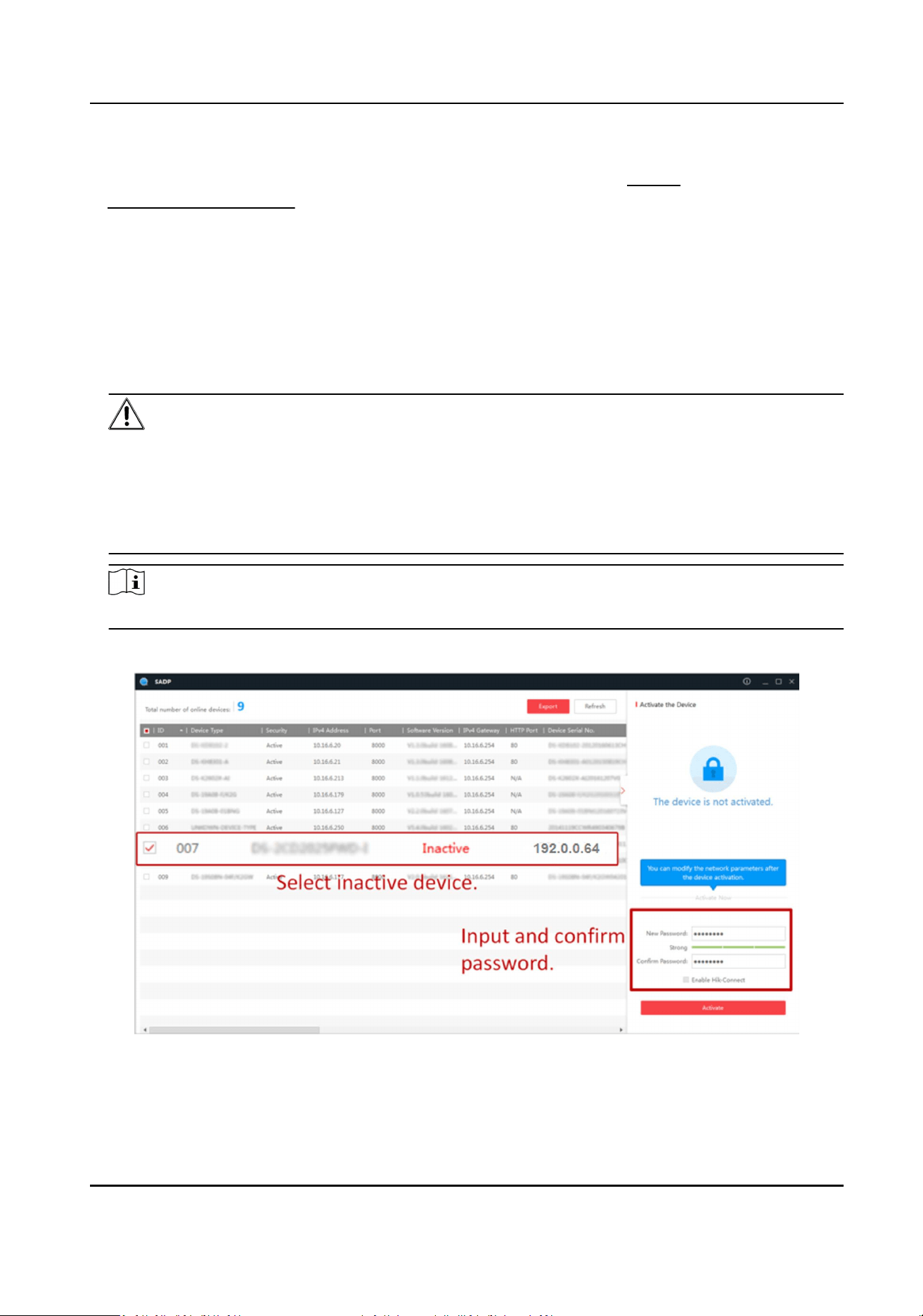
Before You Start
●
Get the SADP soware from the supplied disk or the ocial website hp://
www.hikvision.com/en/ , and install the SADP according to the prompts.
●
The device and the PC that runs the SADP tool should be within the same subnet.
The following steps show how to acvate a device and modify its IP address. For batch acvaon
and IP addresses modicaon, refer to User Manual of SADP for details.
Steps
1.
Run the SADP soware and search the online devices.
2.
Find and select your device in online device list.
3.
Input new password (admin password) and conrm the password.
Cauon
STRONG PASSWORD RECOMMENDED-We highly recommend you create a strong password of
your own choosing (using a minimum of 8 characters, including upper case leers, lower case
leers, numbers, and special characters) in order to increase the security of your product. And
we recommend you reset your password regularly, especially in the high security system,
reseng the password monthly or weekly can beer protect your product.
Note
Characters containing admin and nimda are not supported to be set as acvaon password.
4.
Click Acvate to start acvaon.
Status of the device becomes Acve aer successful acvaon.
5.
Modify IP address of the device.
1) Select the device.
Face Recognion Terminal User Manual
19
2) Change the device IP address to the same subnet as your computer by either modifying the IP
address manually or checking Enable DHCP.
3) Input the admin password and click Modify to acvate your IP address modicaon.
5.4 Acvate Device via Client Soware
For some devices, you are required to create the password to acvate them before they can be
added to the soware and work properly.
Steps
Note
This funcon should be supported by the device.
1.
Enter the Device Management page.
2.
Click on the right of Device Management and select Device.
3.
Click Online Device to show the online device area.
The searched online devices are displayed in the list.
4.
Check the device status (shown on Security Level column) and select an inacve device.
5.
Click Acvate to open the Acvaon dialog.
6.
Create a password in the password eld, and conrm the password.
Cauon
The password strength of the device can be automacally checked. We highly recommend you
change the password of your own choosing (using a minimum of 8 characters, including at least
three kinds of following categories: upper case leers, lower case leers, numbers, and special
characters) in order to increase the security of your product. And we recommend you change
your password regularly, especially in the high security system, changing the password monthly
or weekly can beer protect your product.
Proper conguraon of all passwords and other security sengs is the responsibility of the
installer and/or end-user.
Note
Characters containing admin and nimda are not supported to be set as acvaon password.
7.
Click OK to acvate the device.
Face Recognion Terminal User Manual
20
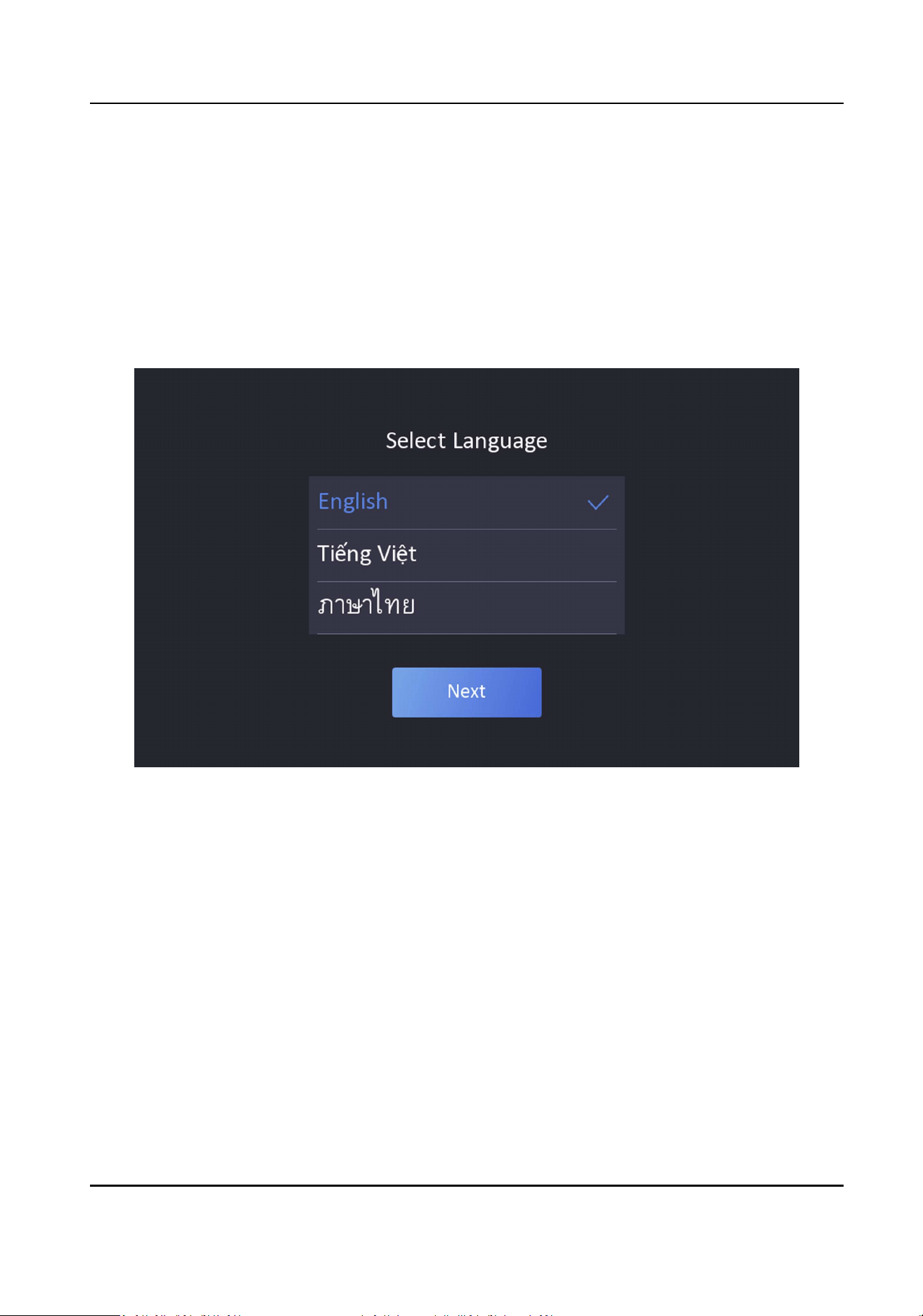
Chapter 6 Quick Operaon
6.1 Select Language
Aer acvaon, you should select a language.
Steps
1.
Select a language according to the actual needs.
Figure 6-1 Select Language
2.
Click Next.
6.2 Set Password Change Type
You can set the password change type as reserved email address or security quesons. Once you
forgot the device password, you can change the password via the selected change type.
Change Password via Email Address
If you need to change password via reserved email, you can enter an email address, and tap Next.
Face Recognion Terminal User Manual
21
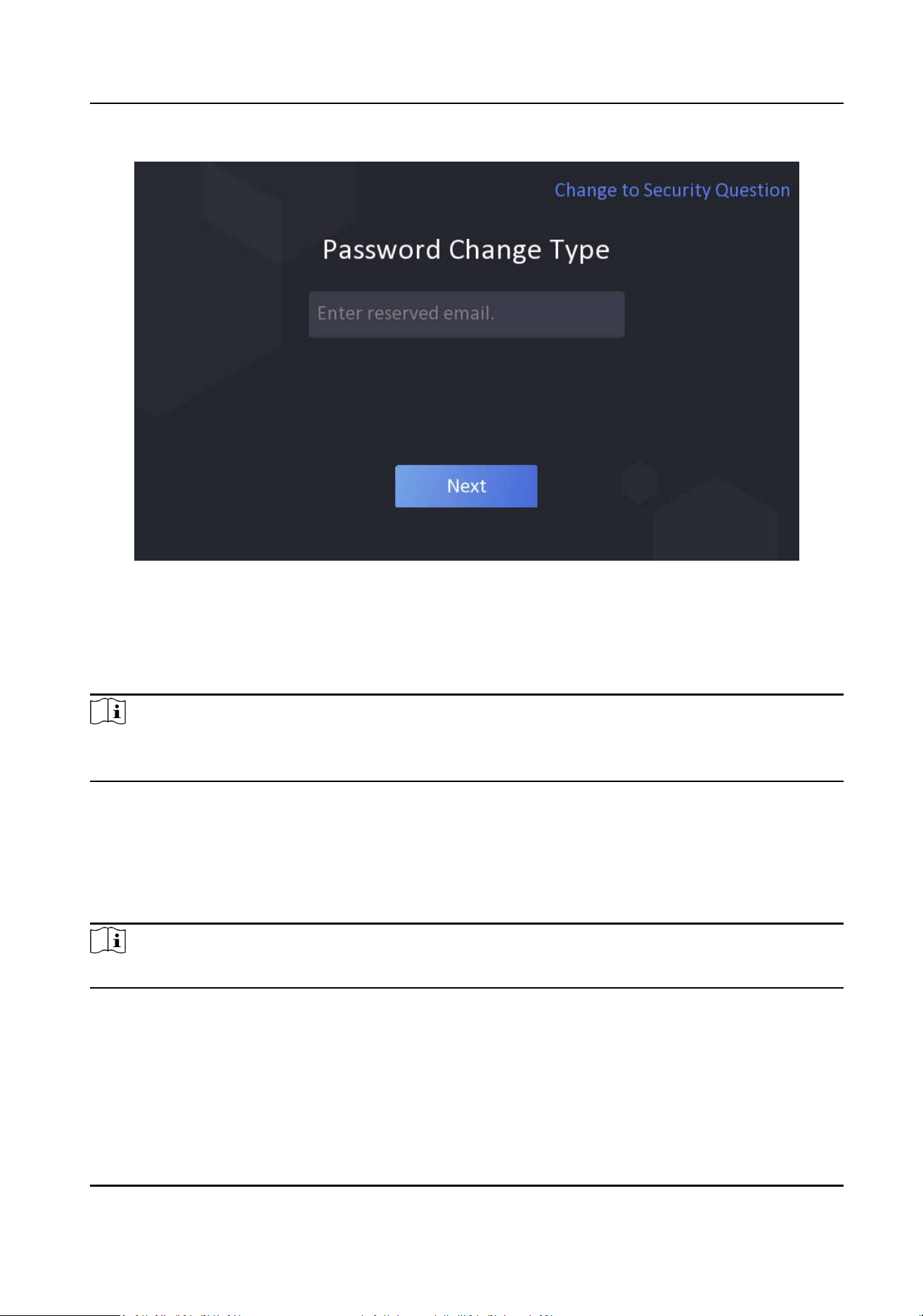
Figure 6-2 Password Change Page
Change via Security Quesons
If you need to change password via security quesons, you can tap Change to Security Quesons
on the right corner. Select the security quesons and enter the answers. Click Next.
Note
You can only select one type to change password. If you need, you can enter the web page to set
both of the changing types.
6.3 Set Network Parameters
You can set the network for the device.
Steps
Note
Parts of the device models supports wi- funcon. Refers to the actual device for details.
1.
When you enter the Select Network page, tap Wired Network or Wi-Fi for your actual needs.
Face Recognion Terminal User Manual
22
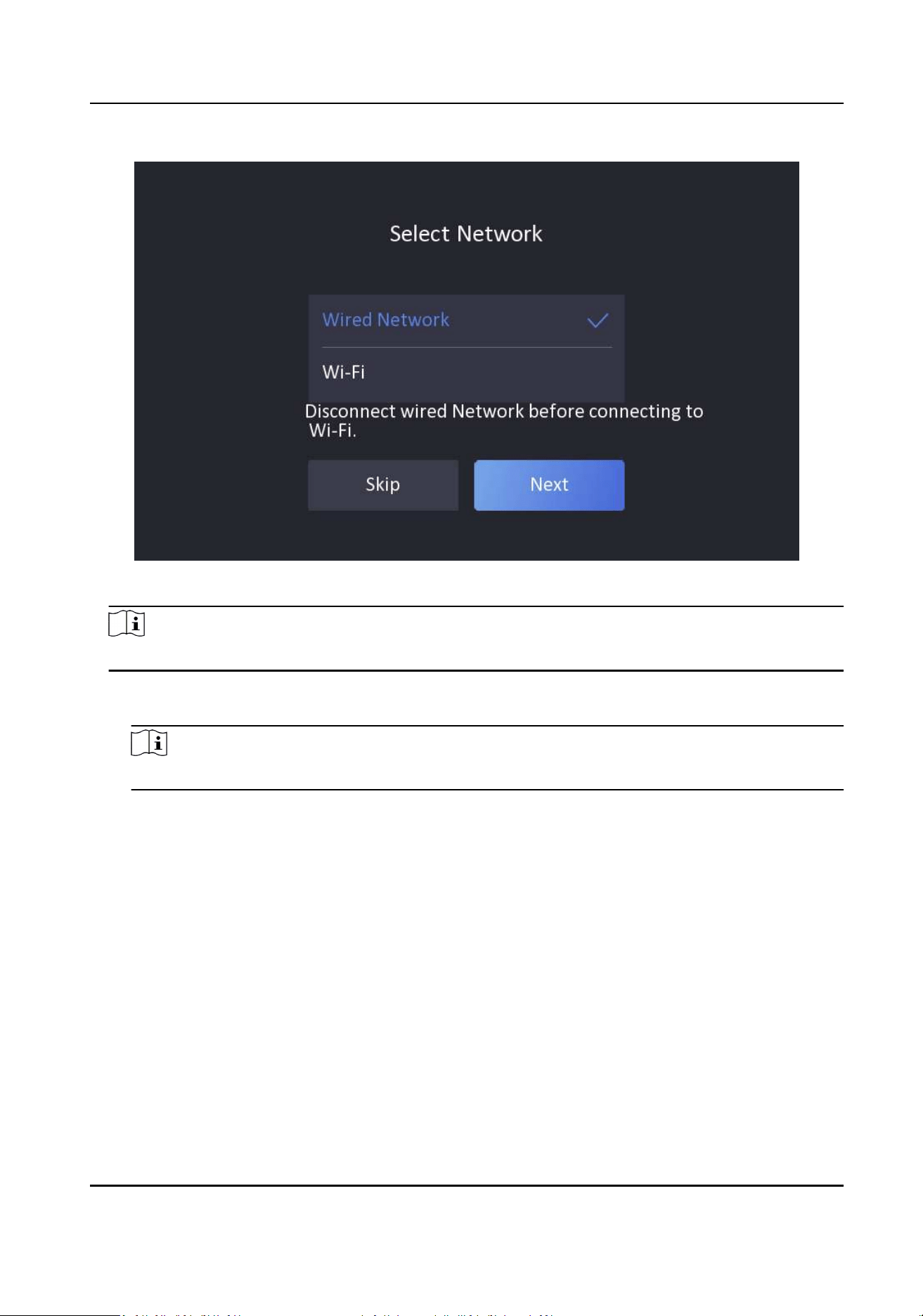
Figure 6-3 Select Network
Note
Disconnect the wired network before connecng a Wi-Fi.
2.
Tap Next.
Wired Network
Note
Make sure the device has connected to a network.
If enable DHCP, the system will assign the IP address and other parameters automacally.
If disable DHCP, you should set the IP address, the subnet mask, and the gateway.
Wi-Fi
Select a Wi-Fi and enter the Wi-Fi's password to get connected.
Or tap Add Wi-Fi and enter the Wi-Fi's name and the password to get connected.
3.
Oponal: Tap Skip to skip network sengs.
6.4 Access to Plaorm
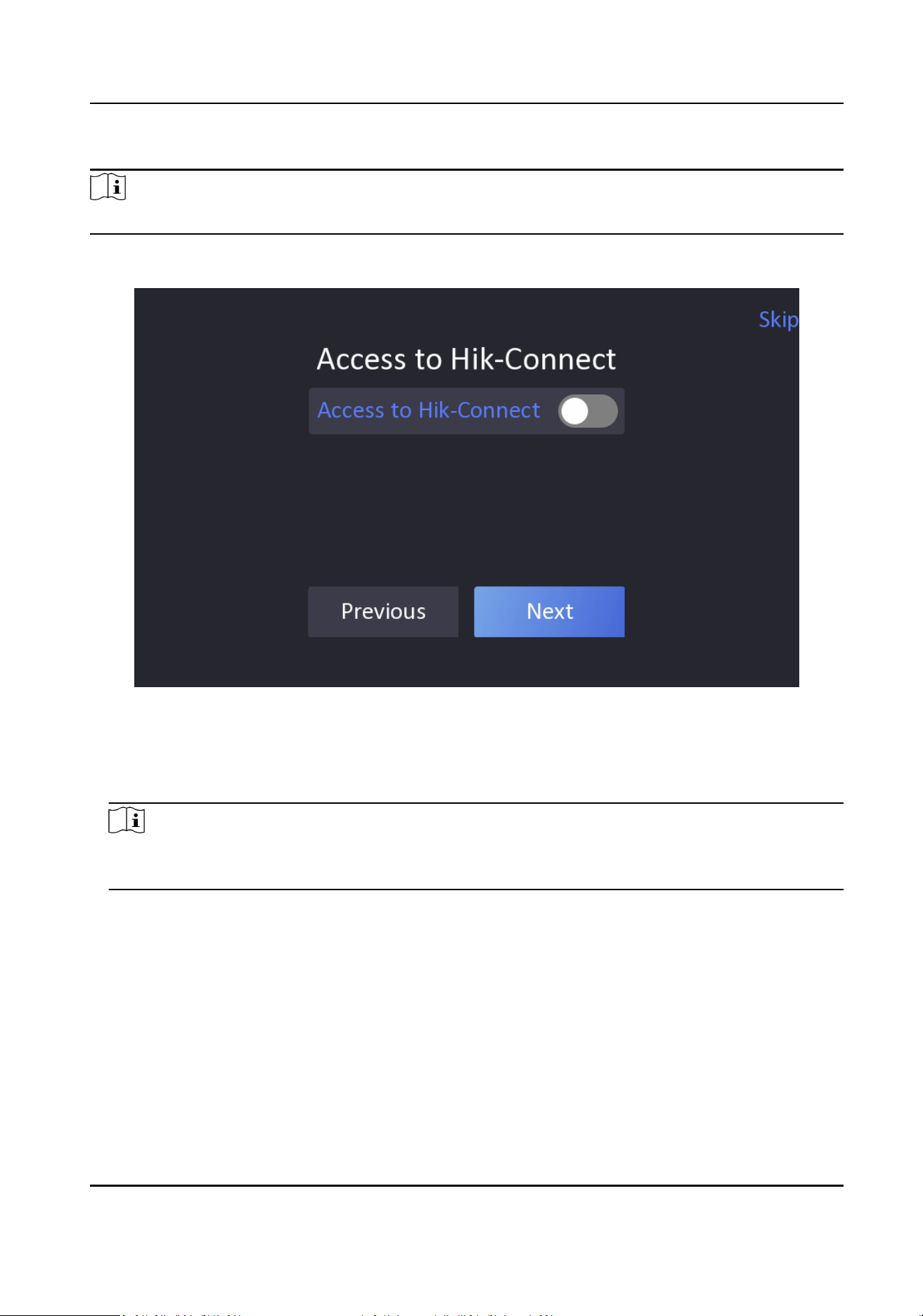
Enable the funcon and the device can communicate via Hik-Connect. You can add the device to
Hik-Connect mobile client and so on.
Face Recognion Terminal User Manual
23
Steps
Note
Parts of the device models supports funcon. Refers to the actual device for details.
1.
Enable Access to Hik-Connect, and set the server IP and vericaon code.
Figure 6-4 Access to Hik-Connect
2.
Tap Next.
3.
Oponal: Tap Skip to skip the step.
4.
Oponal: Tap Previous to go to the previous page.
Note
If you tap Previous to return to the Wi-Fi conguraon page, you need to tap the connected Wi-
Fi or connect another Wi-Fi to enter the plaorm page again.
6.5 Remote Operaon via APP
You can add the device to your mobile client for remote operaon.
Download Hik-Connect to your mobile client and run the APP. Scan the QR Code in the following
picture to add the device to your mobile client for remote operaon.
Following the instrucon in your mobile client to add the device.
Face Recognion Terminal User Manual
24
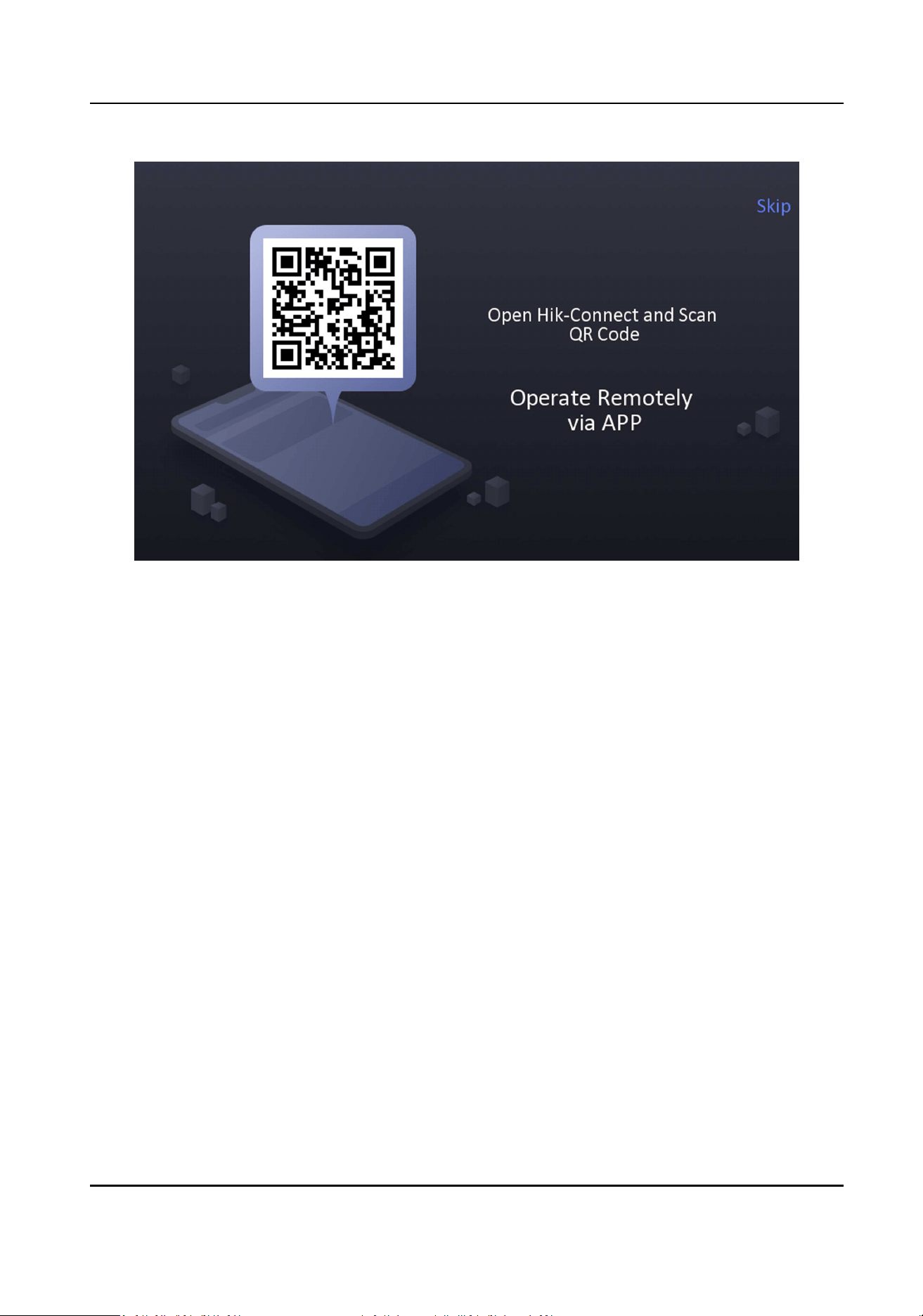
Figure 6-5 Operate Remotely via APP
6.6 Privacy Sengs
You should set the privacy parameters, including the picture uploading and storage.
Select parameters according to your actual needs.
Upload Pic. When Auth. (Upload Captured Picture When Authencang)
Upload the pictures captured when authencang to the plaorm automacally.
Save Pic. When Auth. (Save Captured Picture When Authencang)
If you enable this funcon, you can save the picture when Authencang to the device.
Save Registered Pic. (Save Registered Picture)
The registered face picture will be saved to the system if you enable the funcon.
Upload Pic. Aer Linked Capture (Upload Picture Aer Linked Capture)
Upload the pictures captured by linked camera to the plaorm automacally.
Save Pic. Aer Linked Capture (Save Pictures Aer Linked Capture)
If you enable this funcon, you can save the picture captured by linked camera to the device.
Tap Next to complete the sengs.
Face Recognion Terminal User Manual
25
6.7 Set Administrator
Aer device acvaon, you can add an administrator to manage the device parameters.
Before You Start
Acvate the device.
Steps
1.
Oponal: Tap Skip to skip adding administrator if required.
2.
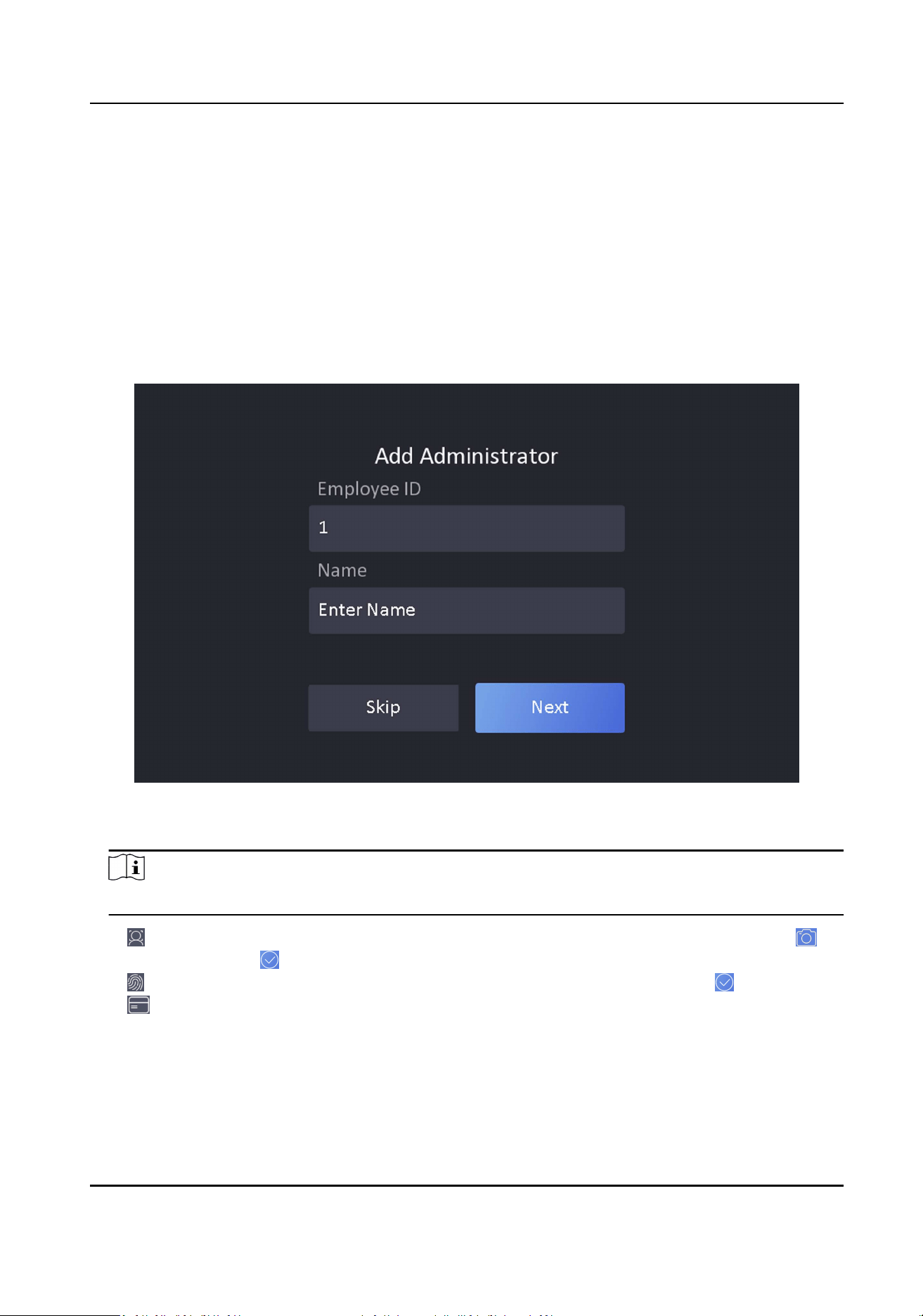
Enter the administrator's name (oponal) and tap Next.
Figure 6-6 Add Administrator Page
3.
Select a credenal to add.
Note
Up to one credenal should be added.
-
: Face forward at the camera. Make sure the face is in the face recognion area. Click to
capture and click to conrm.
-
: Press your nger according to the instrucons on the device screen. Click to conrm.
-
: Enter the card No. or present card on the card presenng area. Click OK.
4.
Click OK.
You will enter the authencaon page.
Status Icon Descripon
Face Recognion Terminal User Manual
26
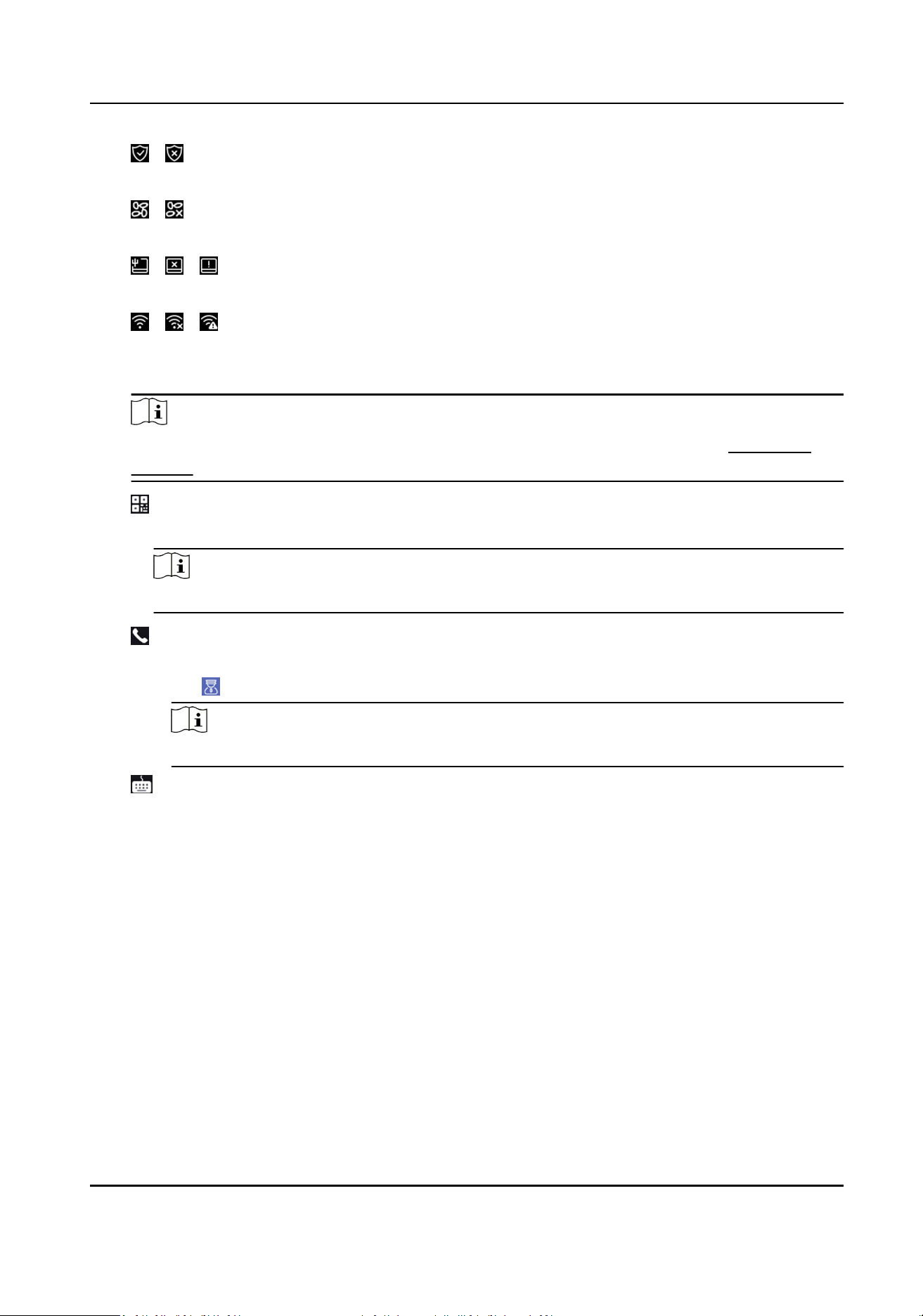
/
Device is armed/not armed.
/
Hik-Connect is enabled/disabled.
/ /
The device wired network is connected/not connected/connecng failed.
/ /
The device' Wi-Fi is enabled and connected/not connected/enabled but not connected.
Shortcut Keys Descripon
Note
You can congure those shortcut keys displayed on the screen. For details, see Preference
Sengs .
Scan QR code to authencate.
Note
The QR code can be obtained from the visitor terminal.
●
Enter the device room No. and tap OK to call.
●
Tap
to call the center.
Note
The device should be added to the center, or the calling operaon will be failed.
Enter password to authencate.
Face Recognion Terminal User Manual
27
Chapter 7 Basic Operaon
7.1 Login
Login the device to set the device basic parameters.
7.1.1 Login by Administrator
If you have added an administrator for the device, only the administrator can login the device for
device operaon.
Steps
1.
Long tap on the inial page for 3 s and slide to the le/right by following the gesture to enter
the admin login page.
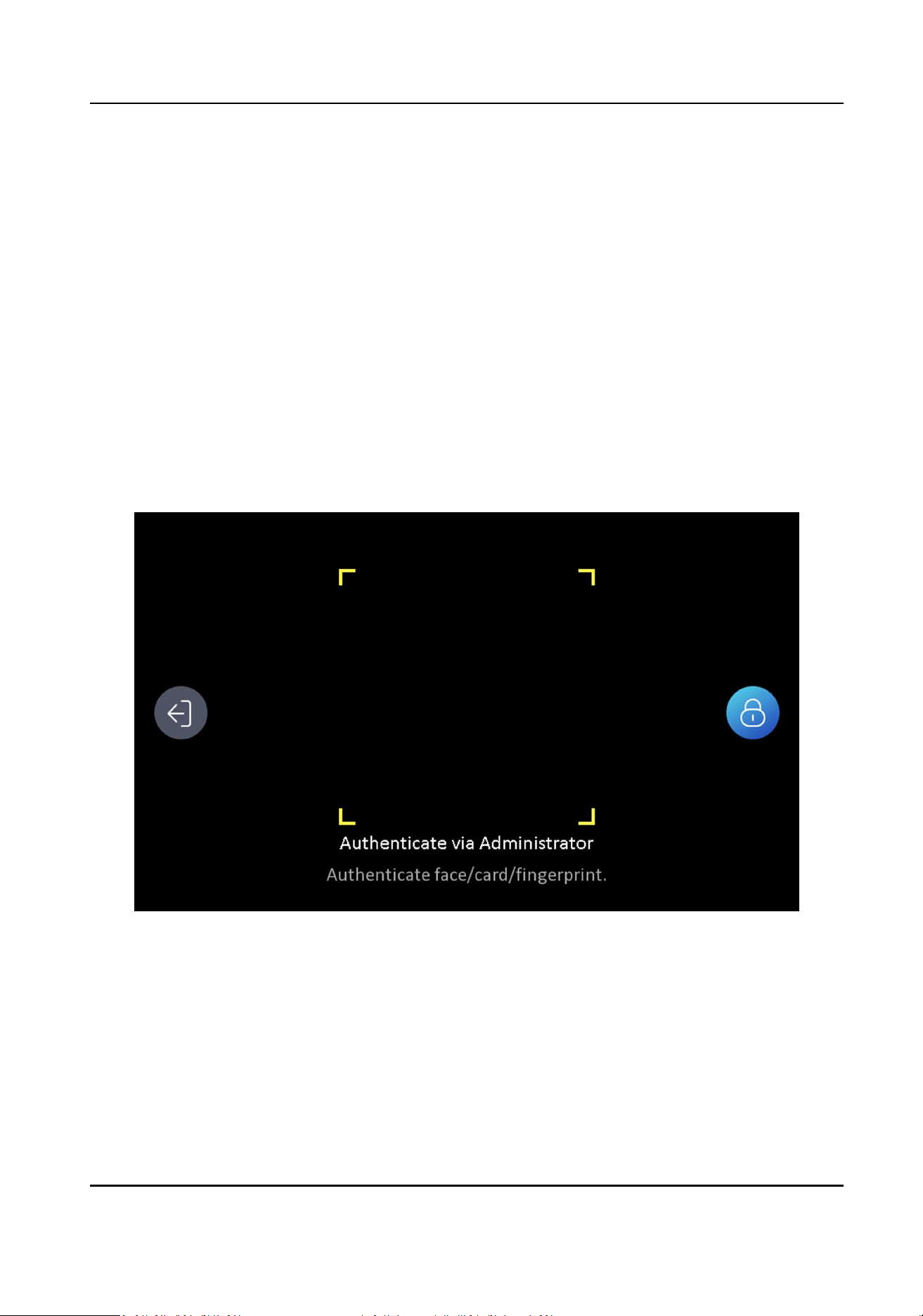
Figure 7-1 Admin Login
2.
Authencate the administrator's face, ngerprint or card to enter the home page.
Face Recognion Terminal User Manual
28
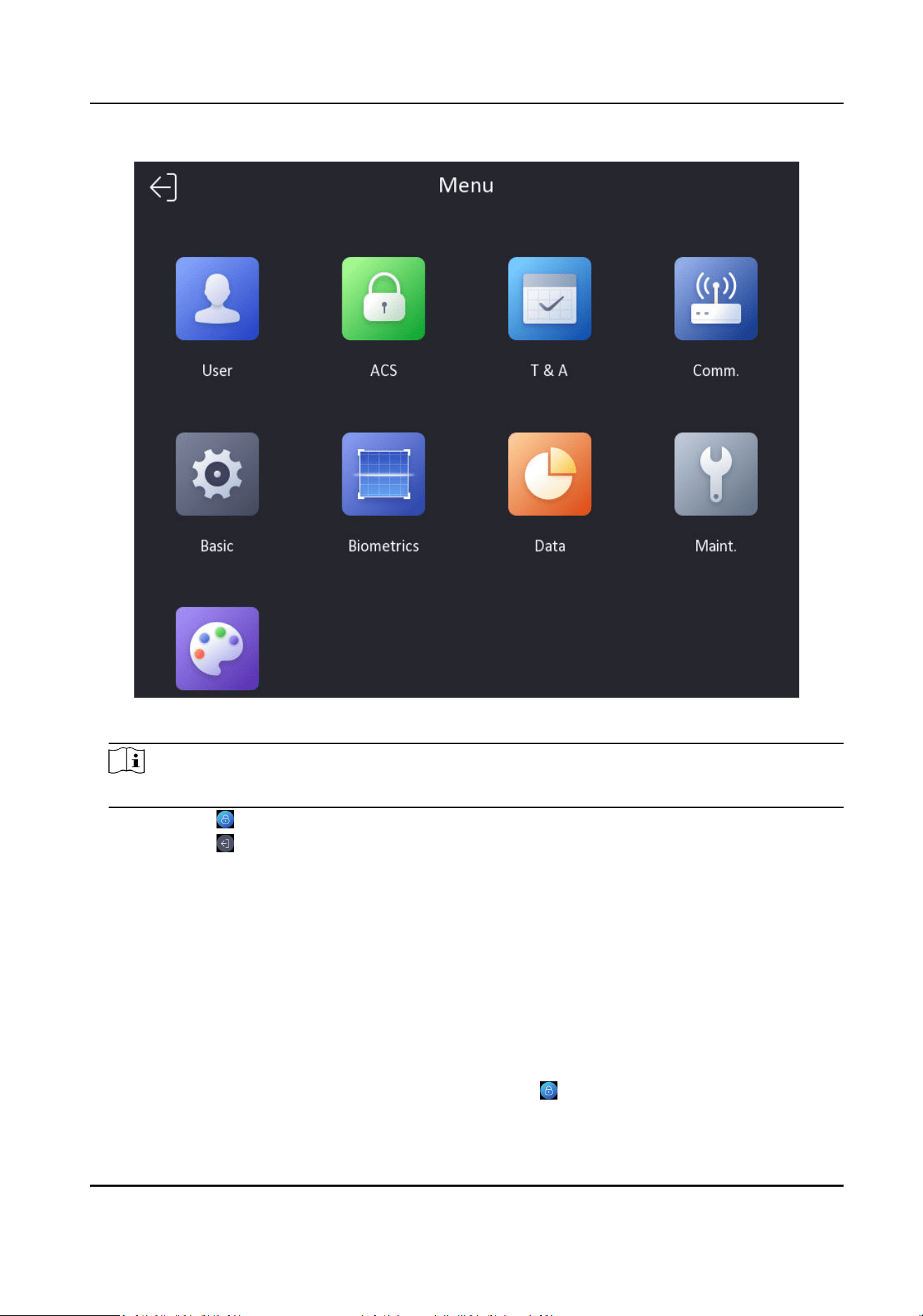
Figure 7-2 Home Page
Note
The device will be locked for 30 minutes aer 5 failed ngerprint or card aempts.
3.
Oponal: Tap and you can enter the device acvaon password for login.
4.
Oponal: Tap and you can exit the admin login page.
7.1.2 Login by Acvaon Password
You should login the system before other device operaons. If you do not congure an
administrator, you should follow the instrucons below to login.
Steps
1.
Long tap on the inial page for 3 s and slide to the le/right by following the gesture to enter
password entering page.
2.
Enter the password.
-
If you have added an administrator for the device, tap
and enter the password.
-
If you haven't added an administrator for the device, enter the password.
Face Recognion Terminal User Manual
29
3.
Tap OK to enter the home page.
Note
The device will be locked for 30 minutes aer 5 failed password aempts.
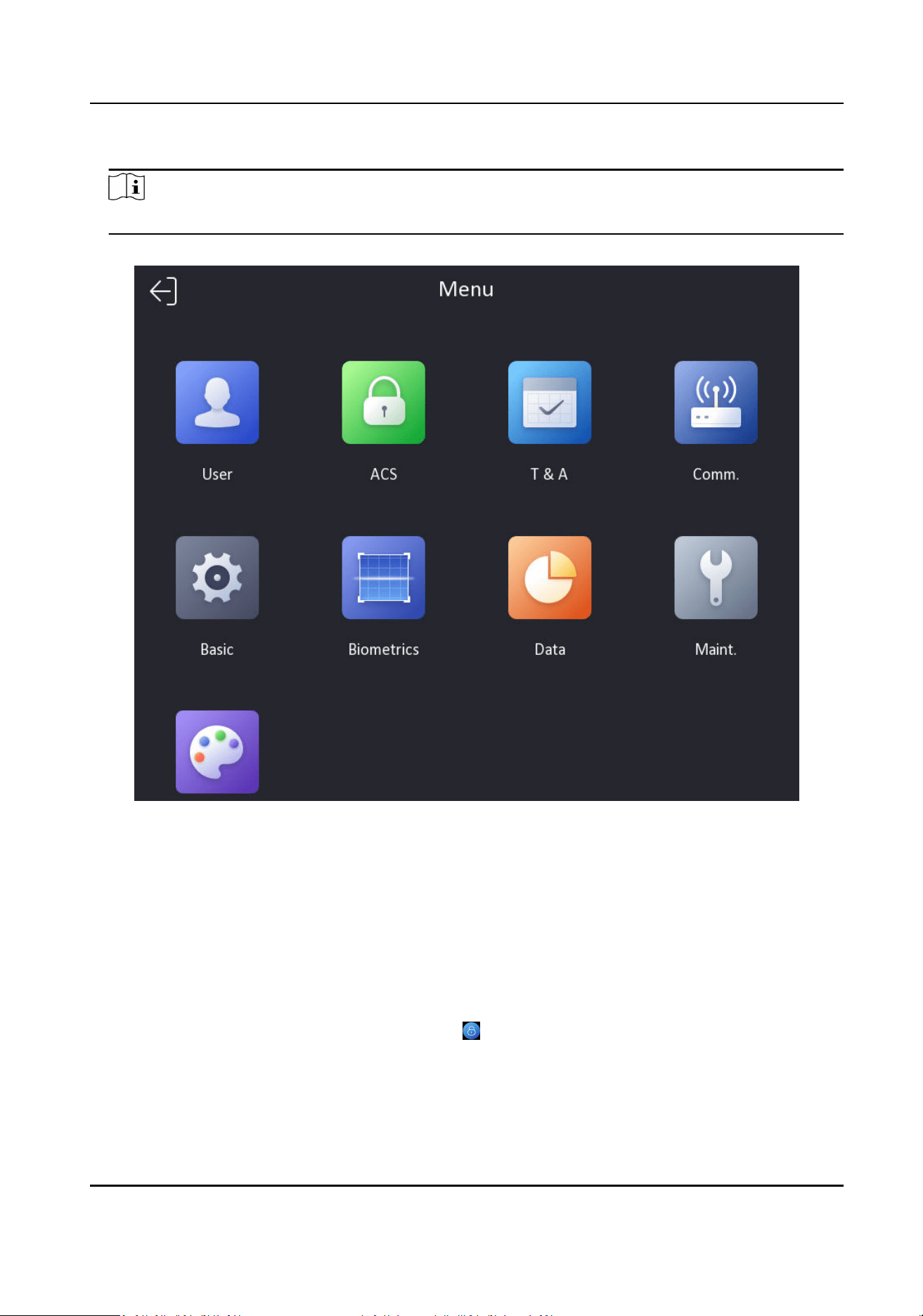
Figure 7-3 Home Page
7.1.3 Forgot Password
If you forget the password during authencaon, you can change the password.
Steps
1.
Hold the inial page for 3 s and slide to the le/right by following the gesture and log in the
page.
2.
Oponal: If you have set an administrator, tap
in the pop-up admin authencaon page.
3.
Tap Forgot Password.
4.
Select a password change type from the list.
Face Recognion Terminal User Manual
30

Note
If you have only set 1 password change type, you will go to the corresponded password change
page for further sengs.
5.
Answer the security quesons or change the password according to email address.
-
Security Quesons: Answer the security quesons that congured when acvaon.
-
Email Address
Note
Make sure the device has added to the Hik-Connect account.
a. Download Hik-Connect app.
b. Go to More → Reset Device Password .
c. Scan the QR code on the device and a vericaon code will be popped up.
Note
Tap the QR code to get a larger picture.
d. Enter the vericaon code on the device page.
6.
Create a new password and conrm it.
7.
Tap OK.
7.2 Communicaon Sengs
You can set the wired network, the Wi-Fi parameter, the RS-485 parameters, the Wiegand
parameters, ISUP and access to Hik-Connect on the communicaon sengs page.
7.2.1 Set Wired Network Parameters
You can set the device wired network parameters, including the IP address, the subnet mask, the
gateway, and DNS parameters.
Steps
1.
Tap Comm. (Communicaon Sengs) on the Home page to enter the Communicaon Sengs
page.
2.
On the Communicaon Sengs page, tap Wired Network.
Face Recognion Terminal User Manual
31
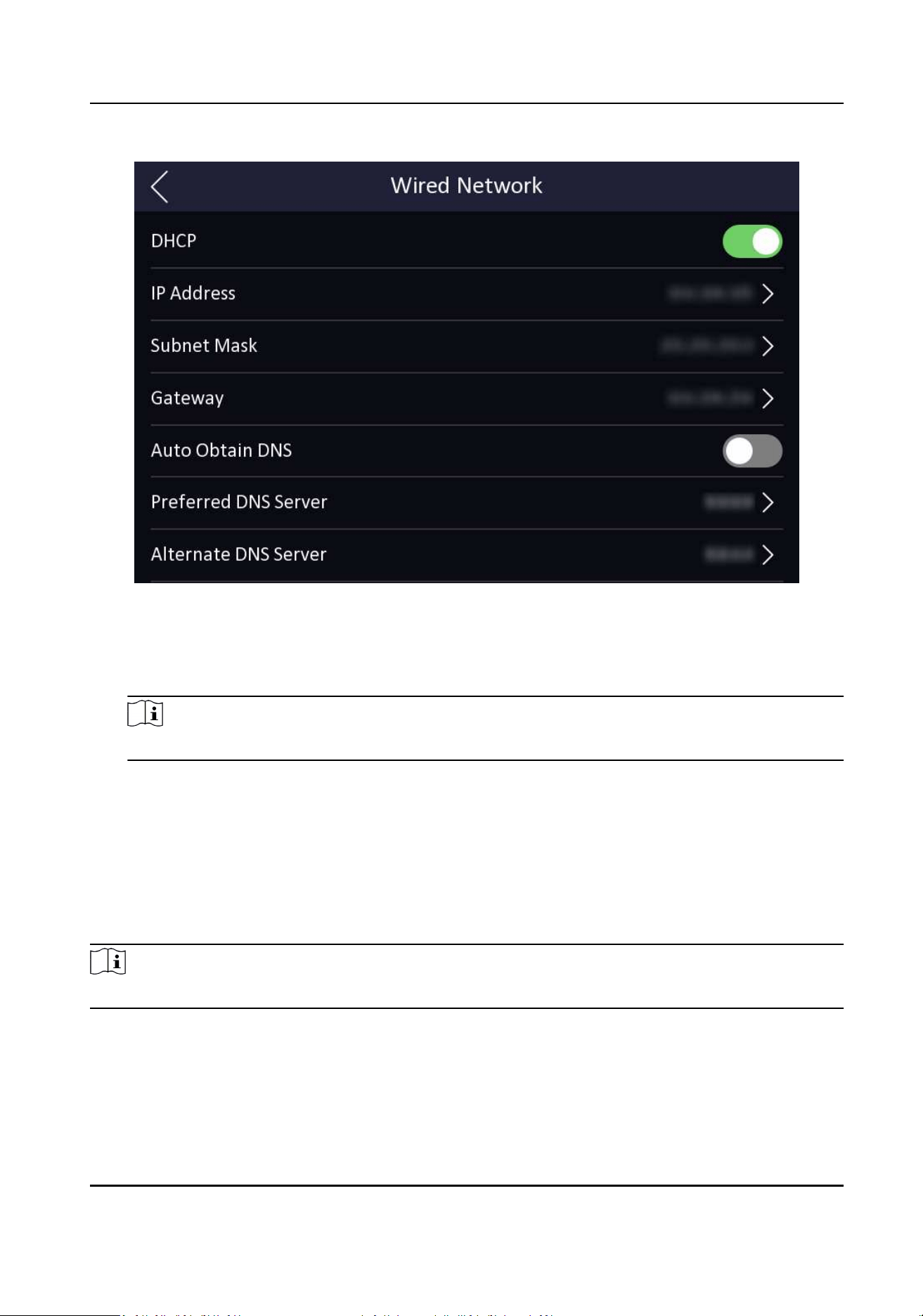
Figure 7-4 Wired Network Sengs
3.
Set IP Address, Subnet Mask, and Gateway.
-
Enable DHCP, and the system will assign IP address, subnet mask, and gateway automacally.
-
Disable DHCP, and you should set the IP address, subnet mask, and gateway manually.
Note
The device's IP address and the computer IP address should be in the same IP segment.
4.
Set the DNS parameters. You can enable Auto Obtain DNS, set the preferred DNS server and the
alternate DNS server.
7.2.2 Set Wi-Fi Parameters
You can enable the Wi-Fi funcon and set the Wi-Fi related parameters.
Steps
Note
The funcon should be supported by the device.
1.
Tap Comm. (Communicaon Sengs) on the Home page to enter the Communicaon Sengs
page.
2.
On the Communicaon Sengs page, tap.
Face Recognion Terminal User Manual
32
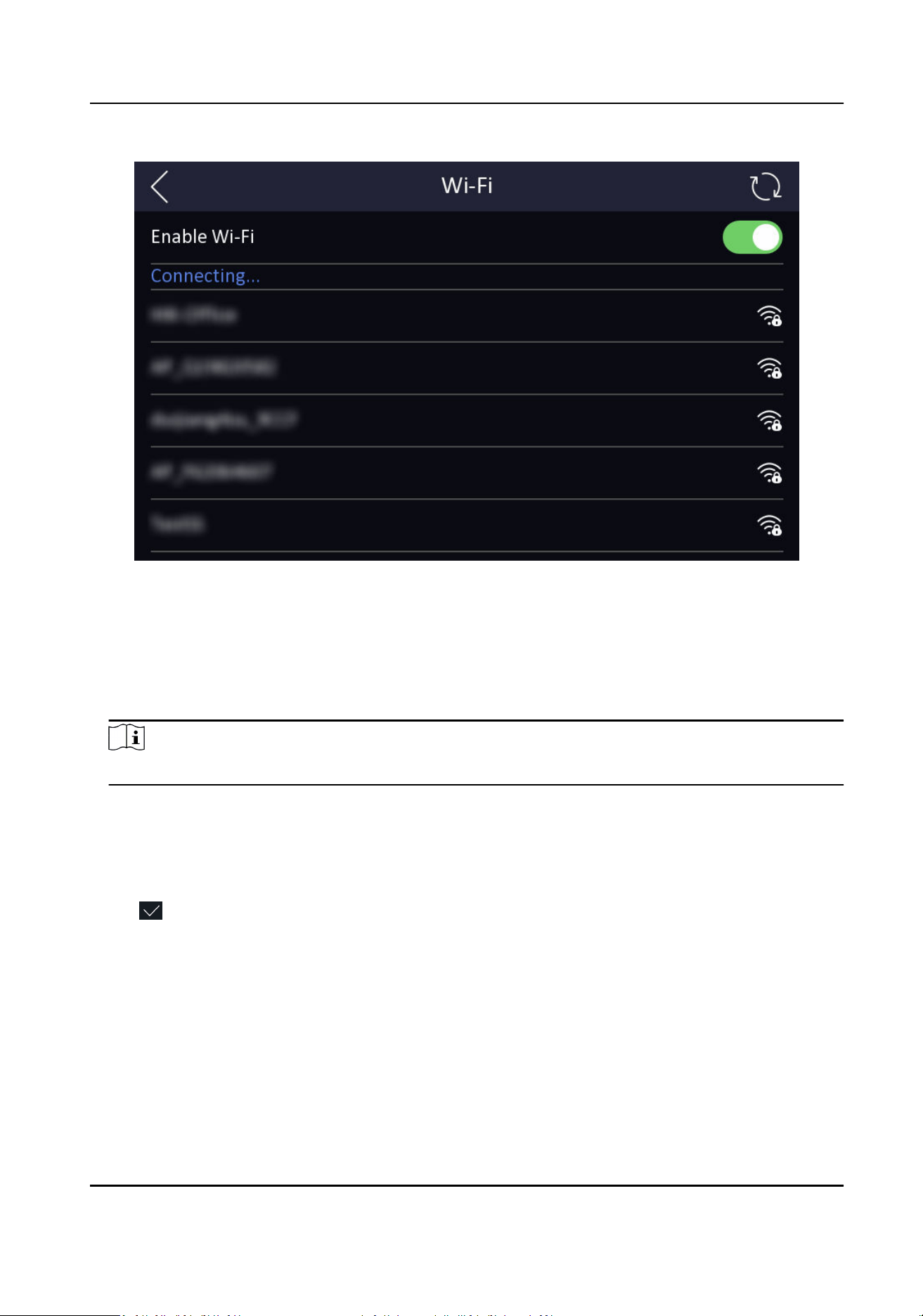
Figure 7-5 Wi-Fi Sengs
3.
Enable the Wi-Fi funcon.
4.
Congure the Wi-Fi parameters.
-
Select a Wi-Fi from the list, and enter the Wi-Fi's password. Tap OK.
-
If the target Wi-Fi is not in the list,tap Add Wi-Fi. Enter the Wi-Fi's name and password. And
tap OK.
Note
Only digits, leers, and special characters are allowed in the password.
5.
Set the Wi-Fi's parameters.
-
By default, DHCP is enable. The system will allocate the IP address, the subnet mask, and the
gateway automacally.
-
If disable DHCP, you should enter the IP address, the subnet mask, and the gateway manually.
6.
Tap OK to save the sengs and go back to the Wi-Fi tab.
7.
Tap
to save the network parameters.
7.2.3 Set RS-485 Parameters
The face recognion terminal can connect external access controller, secure door control unit or
card reader via the RS-485 terminal.
Steps
1.
Tap Comm. (Communicaon Sengs) on the Home page to enter the Communicaon Sengs
page.
Face Recognion Terminal User Manual
33
2.
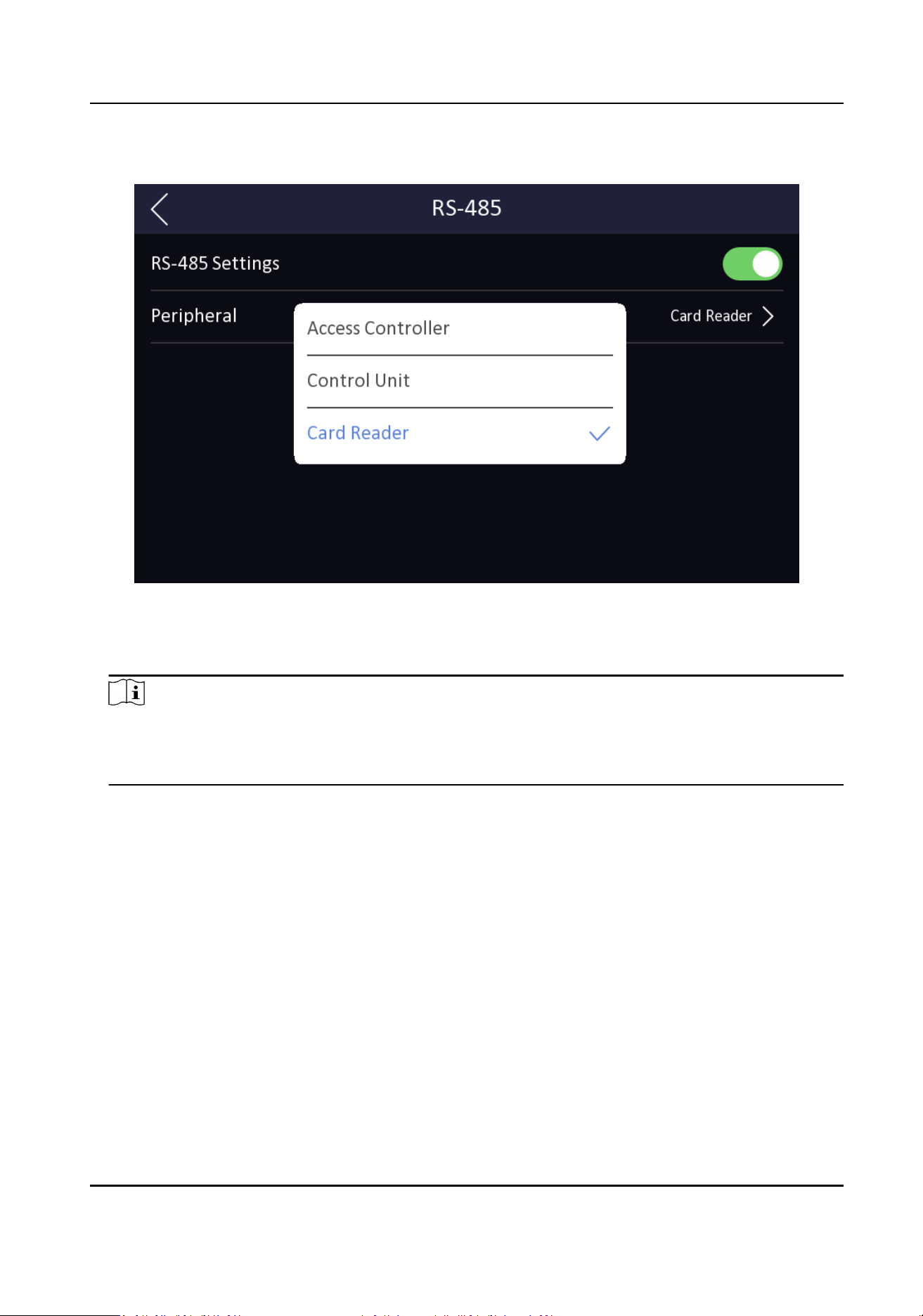
On the Communicaon Sengs page, tap RS-485 to enter the RS-485 tab.
Figure 7-6 Set RS-485 Parameters
3.
Enable RS-485 Sengs.
4.
Select an peripheral type according to your actual needs.
Note
If you select Access Controller: If connect the device to a terminal via the RS-485 interface, set
the RS-485 address as 2. If you connect the device to a controller, set the RS-485 address
according to the door No.
5.
Tap the back icon at the upper le corner and you should reboot the device if you change the
parameters.
7.2.4 Set Wiegand Parameters
You can set the Wiegand transmission direcon.
Steps
1.
Tap Comm. (Communicaon Sengs) on the Home page to enter the Communicaon Sengs
page.
2.
On the Communicaon Sengs page, tap Wiegand to enter the Wiegand tab.
Face Recognion Terminal User Manual
34
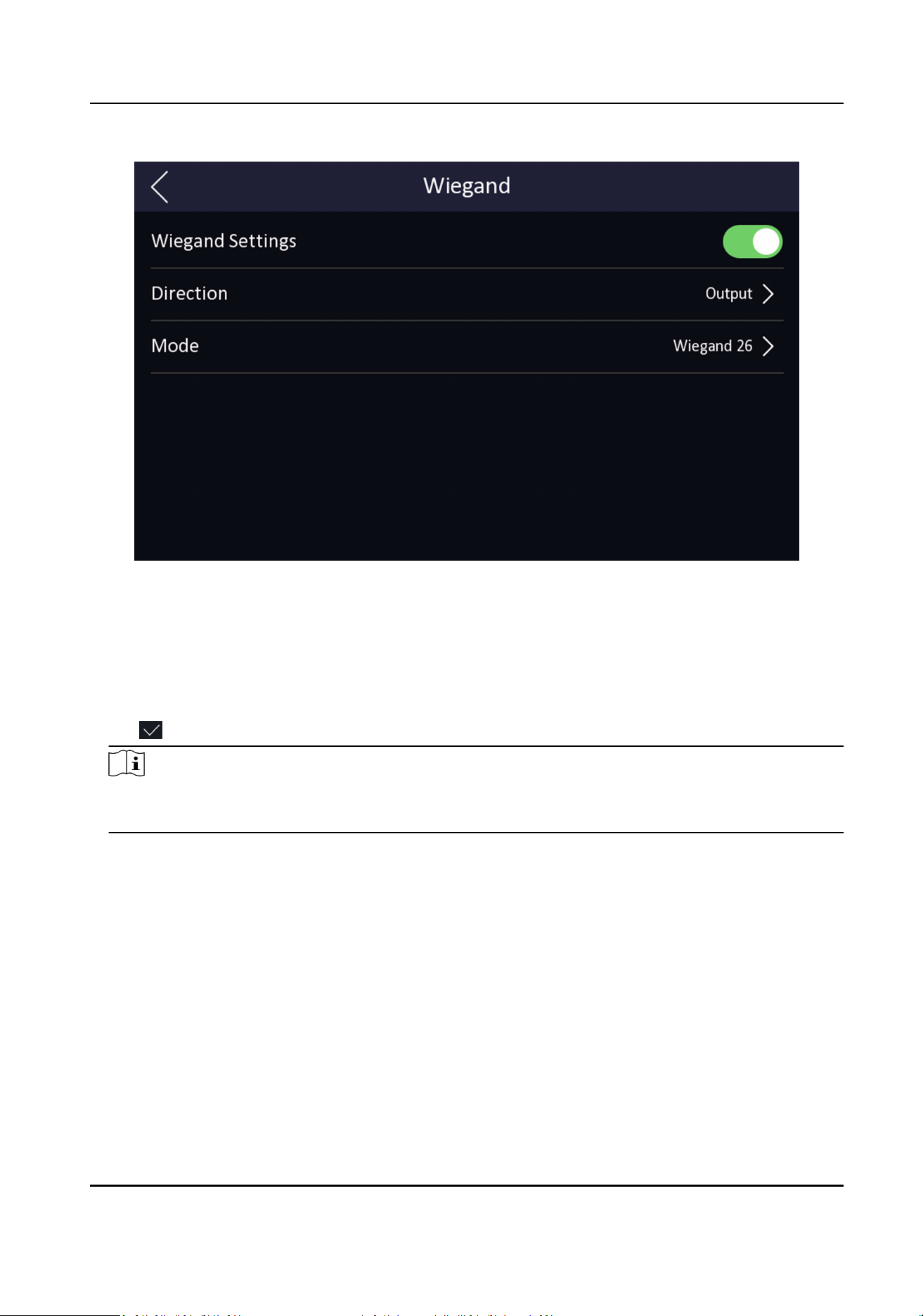
Figure 7-7 Wiegand Sengs
3.
Enable the Wiegand funcon.
4.
Select a transmission direcon.
●
Output: A face recognion terminal can connect an external access controller. And the two
devices will transmit the card No. via Wiegand 26 or Wiegand 34.
●
Input: A face recognion terminal can connect a Wiegand card reader.
5.
Tap to save the network parameters.
Note
If you change the external device, and aer you save the device parameters, the device will
reboot automacally.
7.2.5 Set ISUP Parameters
Set ISUP parameters and the device can upload data via ISUP protocol.
Before You Start
Make sure your device has connect to a network.
Steps
1.
Tap Comm. → ISUP .
Face Recognion Terminal User Manual
35
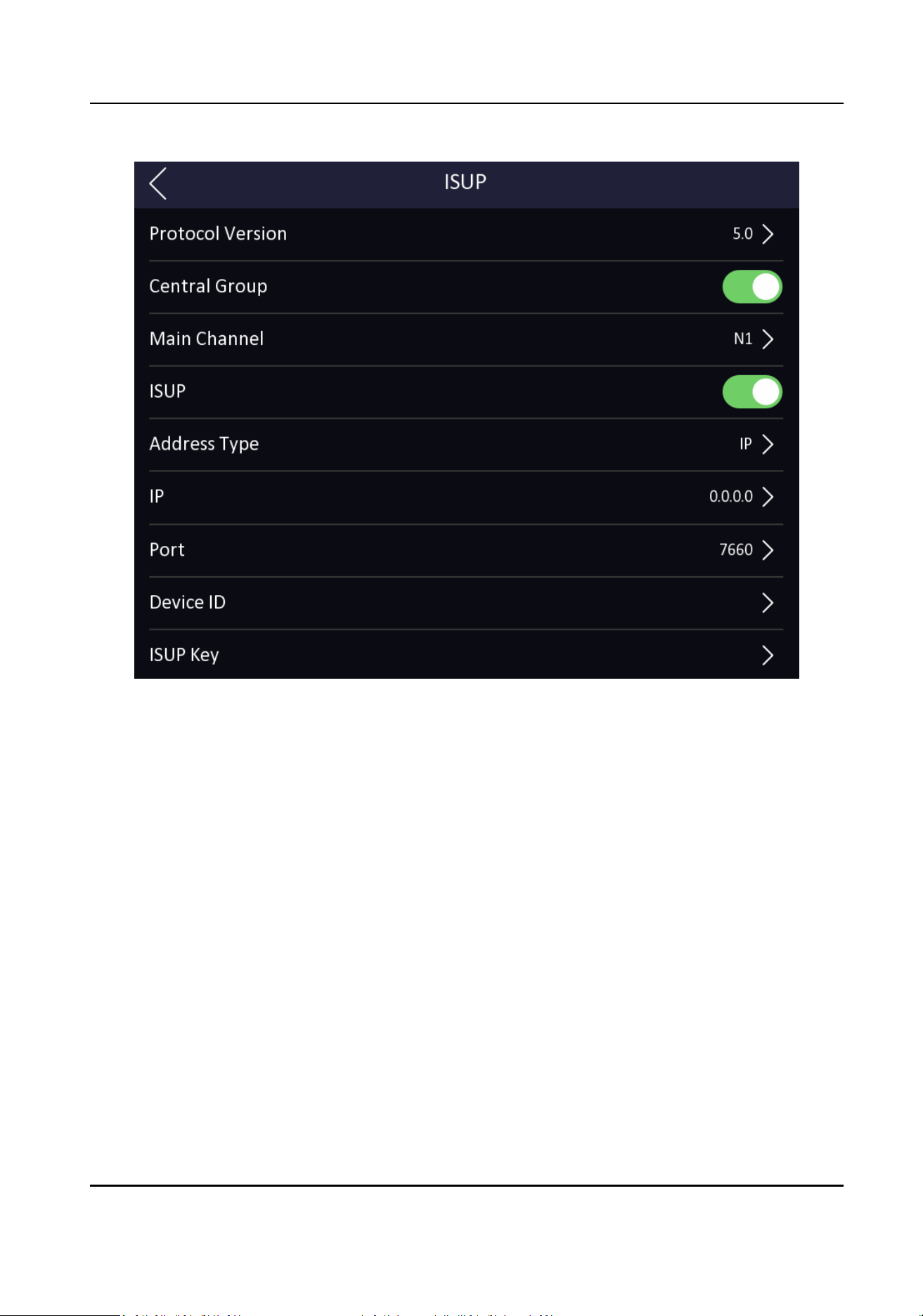
Figure 7-8 ISUP Sengs
2.
Enable the ISUP funcon and set the ISUP server parameters.
ISUP Version
Set the ISUP version according to your actual needs.
Central Group
Enable central group and the data will be uploaded to the center group.
Main Channel
Support N1 or None.
ISUP
Enable ISUP funcon and the data will be uploaded via ISUP protocol.
Address Type
Select an address type according to your actual needs.
IP Address
Set the ISUP server's IP address.
Port No.
Face Recognion Terminal User Manual
36

Set the ISUP server's port No.
Note
Port No. Range: 0 to 65535.
Device ID
Set device serial no.
ISUP Key
If you choose V5.0, you should create an account and ISUP key. If you choose other version,
you should create an ISUP account only.
Note
●
Remember the ISUP account and ISUP key. You should enter the account name or the key
when the device should communicate with other plaorms via ISUP protocol.
●
ISUP key range: 8 to 32 characters.
7.2.6 Plaorm Access
You can change the device vericaon code and set the server address before you add the device
to the Hik-Connect mobile client.
Before You Start
Make sure your device has connected to a network.
Steps
Note
Parts of the device models supports funcon. Refers to the actual device for details.
1.
Tap Comm. (Communicaon Sengs) on the Home page to enter the Communicaon Sengs
page.
2.
On the Communicaon Sengs page, tap Access to Hik-Connect.
3.
Enable Access to Hik-Connect
4.
Enter Server IP.
5.
Create the Vericaon Code, and you need to enter the vericaon code when you manage the
devices via Hik-Connect.
7.3 User Management
On the user management interface, you can add, edit, delete and search the user.
Face Recognion Terminal User Manual
37
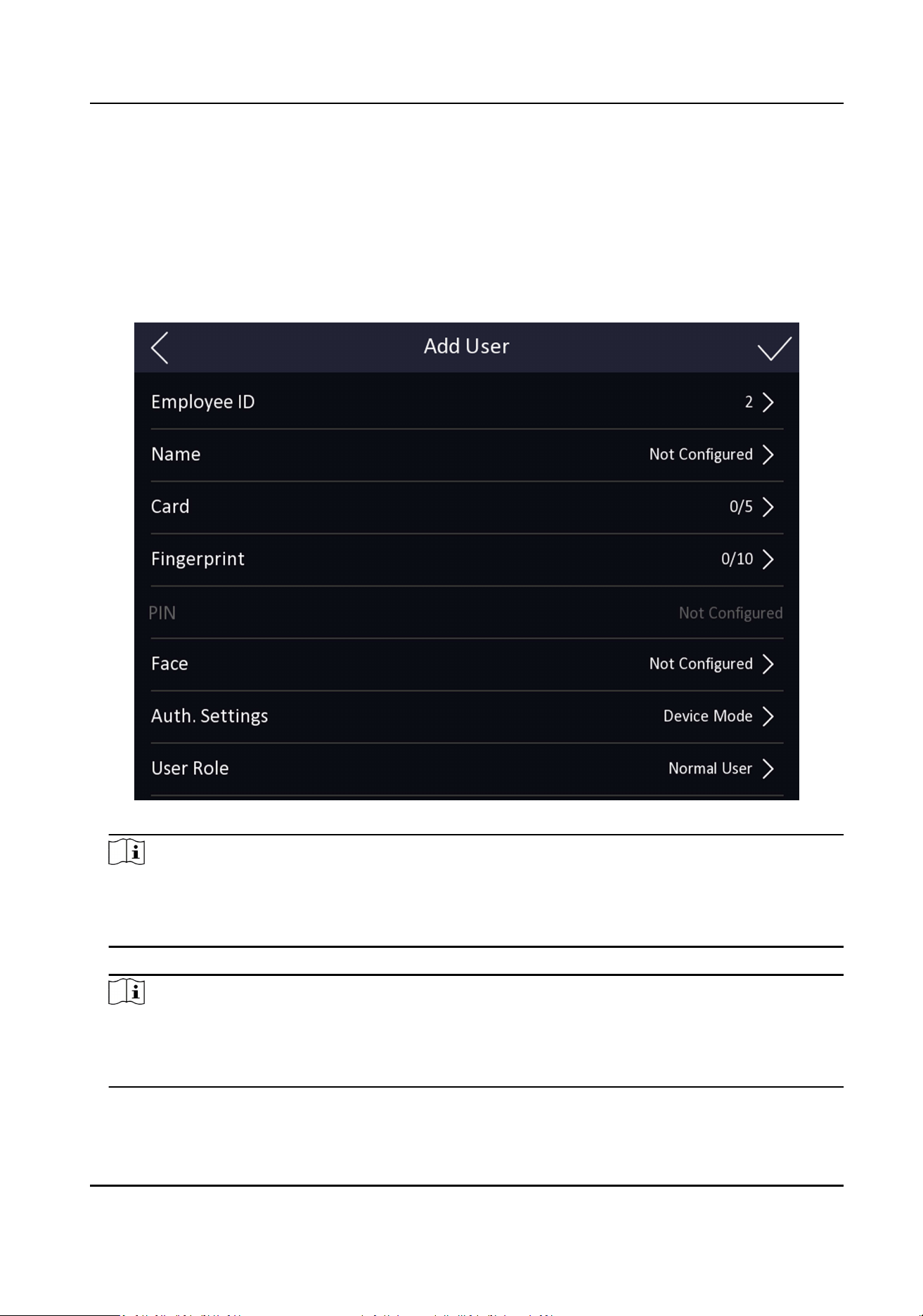
7.3.1 Add Administrator
The administrator can log in the device backend and congure the device parameters.
Steps
1.
Long tap on the inial page and log in the backend.
2.
Tap User → + to enter the Add User page.
3.
Edit the employee ID.
Note
●
The employee ID should be less than 32 characters. And it can be a combinaon of lower
leers, upper leers, and numbers.
●
The employee ID should not be duplicated.
4.
Tap the Name eld and input the user name on the so keyboard.
Note
●
Numbers, upper case leers, lower case leers, and special characters are allowed in the user
name.
●
Up to 32 characters are allowed in the user name.
5.
Oponal: Add a face picture, ngerprints, cards, or Pin for the administrator.
Face Recognion Terminal User Manual
38
Note
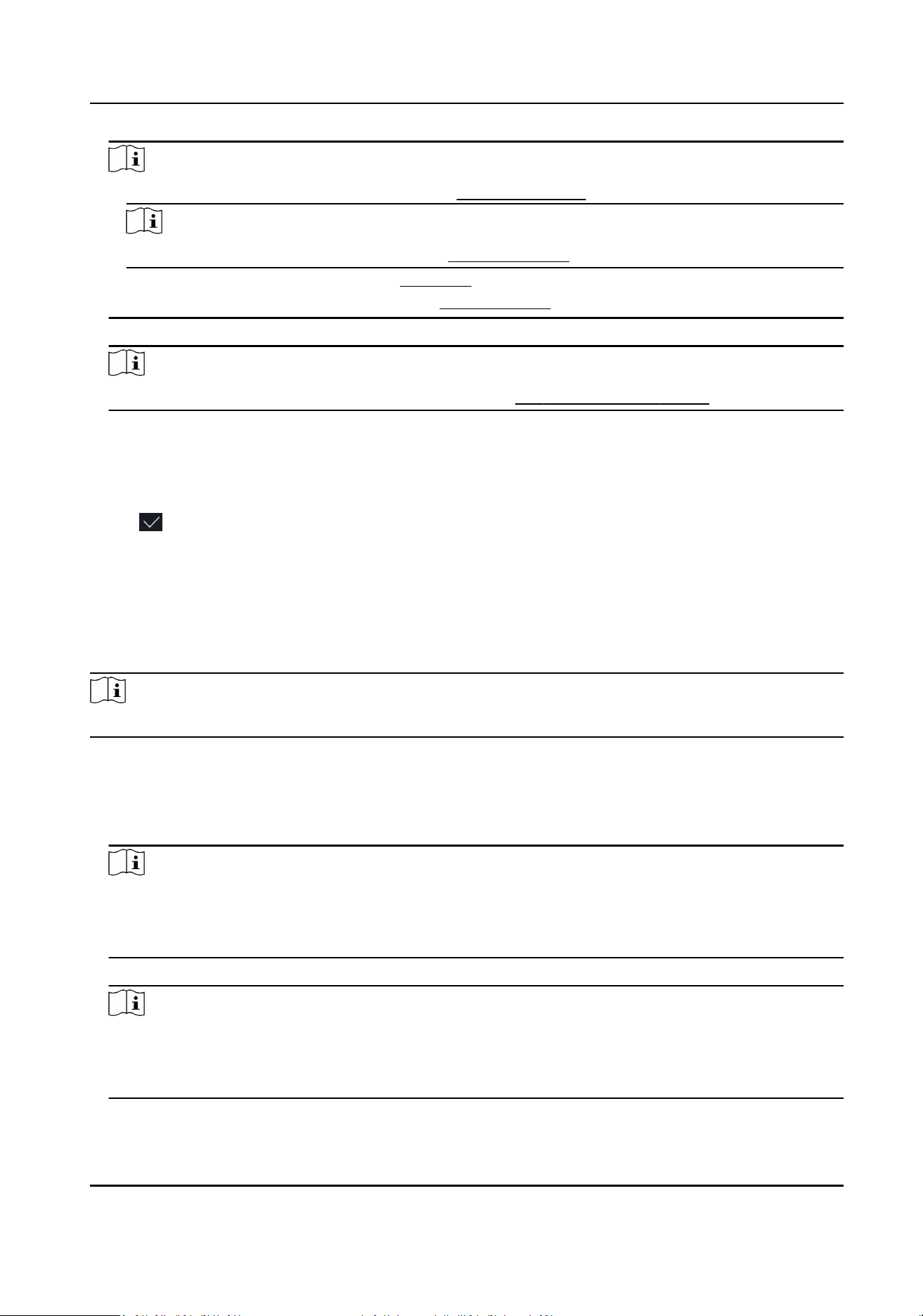
●
For details about adding a face picture, see Add Face Picture .
●
Note
For details about adding a ngerprint, see Add Fingerprint .
●
For details about adding a card, see Add Card .
●
For details about adding a password, see View PIN code .
6.
Oponal: Set the administrator's authencaon type.
Note
For details about seng the authencaon type, see Set Authencaon Mode .
7.
Enable the Administrator Permission funcon.
Enable Administrator Permission
The user is the administrator. Except for the normal aendance funcon, the user can also
enter the Home page to operate aer authencang the permission.
8.
Tap to save the sengs.
7.3.2 Add Face Picture
Add user's face picture to the device. And the user can use the face picture to authencate.
Steps
Note
Up to 6,000 face pictures can be added.
1.
Long tap on the inial page for 3 s and slide to the le/right by following the gesture and log in
the backend.
2.
Tap User → + to enter the Add User page.
3.
Edit the employee ID.
Note
●
The employee ID should be less than 32 characters. And it can be a combinaon of lower
leers, upper leers, and numbers.
●
The employee ID should not be duplicated.
4.
Tap the Name eld and input the user name on the so keyboard.
Note
●
Numbers, upper case leers, lower case leers, and special characters are allowed in the user
name.
●
The suggested user name should be within 32 characters.
5.
Tap the Face Picture eld to enter the face picture adding page.
Face Recognion Terminal User Manual
39
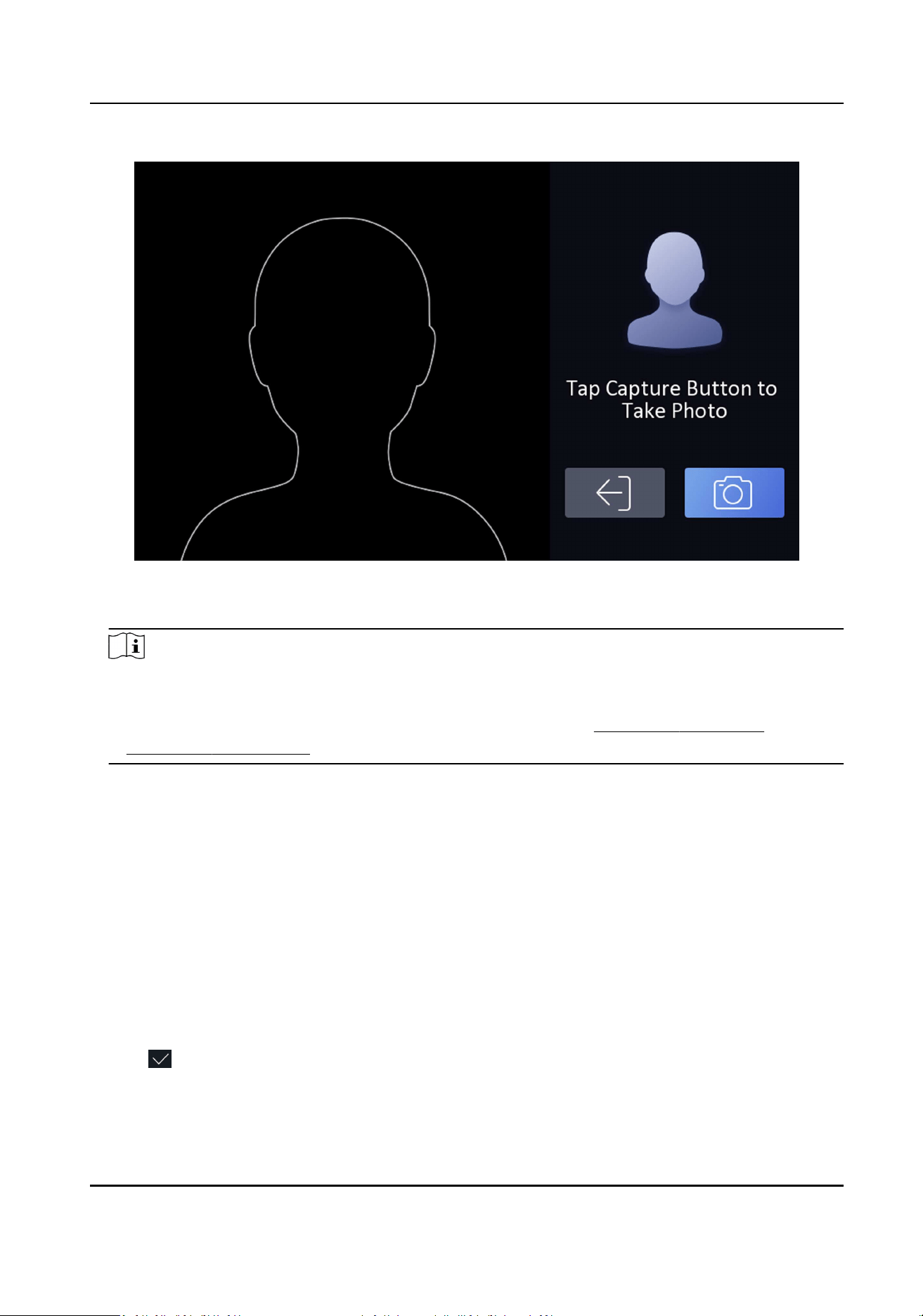
Figure 7-9 Add Face Picture
6.
Look at the camera.
Note
●
Make sure your face picture is in the face picture outline when adding the face picture.
●
Make sure the captured face picture is in good quality and is accurate.
●
For details about the instrucons of adding face pictures, see Tips When Collecng/
Comparing Face Picture .
Aer completely adding the face picture, a captured face picture will be displayed at the upper
right corner of the page.
7.
Tap Save to save the face picture.
8.
Oponal: Tap Try Again and adjust your face posion to add the face picture again.
9.
Set the user role.
Administrator
The user is the administrator. Except for the normal aendance funcon, the user can also
enter the Home page to operate aer authencang the permission.
Normal User
The User is the normal user. The user can only authencate or take aendance on the inial
page.
10.
Tap
to save the sengs.
Face Recognion Terminal User Manual
40
7.3.3 Add Fingerprint
Add a ngerprint for the user and the user can authencate via the added ngerprint.
Steps
Note
●
The funcon should be supported by the device.
●
Up to 5,000 ngerprints can be added.
1.
Long tap on the inial page for 3 s and slide to the le/right by following the gesture and enter
the device backend.
2.
Tap User → + to enter the Add User page.
3.
Tap the Employee ID. eld and edit the employee ID.
Note
●
The employee ID should be less than 32 characters. And it can be a combinaon of lower
leers, upper leers, and numbers.
●
The employee ID should not start with 0 and should not be duplicated.
4.
Tap the Name eld and input the user name on the so keyboard.
Note
●
Numbers, upper case leers, lower case leers, and special characters are allowed in the user
name.
●
The suggested user name should be within 32 characters.
5.
Tap the Fingerprint eld to enter the Add Fingerprint page.
6.
Follow the instrucons to add a ngerprint.
Note
●
The same ngerprint cannot be repeatedly added.
●
Up to 10 ngerprints can be added for one user.
●
You can also use the client soware or the ngerprint recorder to record ngerprints.
For details about the instrucons of scanning ngerprints, see Tips for Scanning Fingerprint .
7.
Set the user role.
Administrator
The user is the administrator. Except for the normal aendance funcon, the user can also
enter the Home page to operate aer authencang the permission.
Normal User
The User is the normal user. The user can only authencate or take aendance on the inial
page.
8.
Tap
to save the sengs.
Face Recognion Terminal User Manual
41
7.3.4 Add Card
Add a card for the user and the user can authencate via the added card.
Steps
Note
Up to 10,000 cards can be added.
1.
Long tap on the inial page for 3 s and slide to the le/right by following the gesture and log in
the backend.
2.
Tap User → + to enter the Add User page.
3.
Connect an external card reader according to the wiring diagram.
4.
Tap the Employee ID. eld and edit the employee ID.
Note
●
The employee ID should be less than 32 characters. And it can be a combinaon of lower
leers, upper leers, and numbers.
●
The employee ID should not be duplicated.
5.
Tap the Name eld and input the user name on the so keyboard.
Note
●
Numbers, upper case leers, lower case leers, and special characters are allowed in the user
name.
●
The suggested user name should be within 32 characters.
6.
Tap the Card eld and tap +.
7.
Congure the card No.
-
Enter the card No. manually.
-
Present the card over the card presenng area to get the card No.
Note
●
The card No. cannot be empty.
●
Up to 20 characters are allowed in the card No.
●
The card No. cannot be duplicated.
8.
Congure the card type.
9.
Set the user role.
Administrator
The user is the administrator. Except for the normal aendance funcon, the user can also
enter the Home page to operate aer authencang the permission.
Normal User
The User is the normal user. The user can only authencate or take aendance on the inial
page.
Face Recognion Terminal User Manual
42
10.
Tap to save the sengs.
7.3.5 View PIN code
Add a PIN code for the user and the user can authencate via the PIN code.
Steps
1.
Long tap on the inial page for 3 s and slide to the le/right by following the gesture and log in
the backend.
2.
Tap User → + to enter the Add User page.
3.
Tap the Employee ID. eld and edit the employee ID.
Note
●
The employee ID should be less than 32 characters. And it can be a combinaon of lower
leers, upper leers, and numbers.
●
The employee ID should not be duplicated.
4.
Tap the Name eld and input the user name on the so keyboard.
Note
●
Numbers, upper case leers, lower case leers, and special characters are allowed in the user
name.
●
The suggested user name should be within 32 characters.
5.
Tap the PIN code to view the PIN code.
Note
The PIN code cannot be edited. It can only be applied by the plaorm.
6.
Set the user role.
Administrator
The user is the administrator. Except for the normal aendance funcon, the user can also
enter the Home page to operate aer authencang the permission.
Normal User
The User is the normal user. The user can only authencate or take aendance on the inial
page.
7.
Tap
to save the sengs.
7.3.6 Set Authencaon Mode
Aer adding the user's face picture, ngerprint, password, or other credenals, you should set the
authencaon mode and the user can authencate his/her identy via the congured
authencaon mode.
Face Recognion Terminal User Manual
43

Steps
1.
Long tap on the inial page for 3 s and slide to the le/right by following the gesture and log in
the backend.
2.
Tap User → Add User/Edit User → Authencaon Mode .
3.
Select Device or Custom as the authencaon mode.
Device
If you want to select device mode, you should set the terminal authencaon mode in Access
Control Sengs page rst. For details see Seng Access Control Parameters.
Custom
You can combine dierent authencaon modes together according to your actual needs.
4.
Tap to save the sengs.
7.3.7 Search and Edit User
Aer adding the user, you can search the user and edit it.
Search User
On the User Management page, Tap the search area to enter the Search User page. Tap Card on
the le of the page and select a search type from the drop-down list. Enter the employee ID, card
No., or the user name for search. Tap to search.
Edit User
On the User Management page, select a user from the user list to enter the Edit User page. Follow
the steps in User Management to edit the user parameters. Tap to save the sengs.
Note
The employee ID cannot be edited.
7.4 Data Management
You can delete data, import data, and export data.
7.4.1 Delete Data
Delete user data.
On the Home page, tap Data → Delete Data → User Data . All user data added in the device will be
deleted.
Face Recognion Terminal User Manual
44

7.4.2 Import Data
Steps
1.
Plug a USB ash drive in the device.
2.
On the Home page, tap Data → Import Data .
3.
Tap User Data, Face Data or Access Control Parameters .
Note
The imported access control parameters are conguraon les of the device.
4.
Enter the created password when you exported the data. If you do not create a password when
you exported the data, leave a blank in the input box and tap OK immediately.
Note
●
If you want to transfer all user informaon from one device (Device A) to another (Device B),
you should export the informaon from Device A to the USB ash drive and then import from
the USB ash drive to Device B. In this case, you should import the user data before imporng
the prole photo.
●
The supported USB ash drive format is FAT32.
●
The imported pictures should be saved in the folder (named enroll_pic) of the root directory
and the picture's name should be follow the rule below:
Card No._Name_Department_Employee ID_Gender.jpg
●
If the folder enroll_pic cannot save all imported pictures, you can create another folders,
named enroll_pic1, enroll_pic2, enroll_pic3, enroll_pic4, under the root directory.
●
The employee ID should be less than 32 characters. It can be a combinaon of lower leers,
upper leers, and numbers. It should not be duplicated, and should not start with 0.
●
Requirements of face picture should follow the rules below: It should be taken in full-face
view, directly facing the camera. Do not wear a hat or head covering when taking the face
picture. The format should be JPEG or JPG. The resoluon should be 640 × 480 pixel or more
than of 640 × 480 pixel. The picture size should be between 60 KB and 200 KB.
7.4.3 Export Data
Steps
1.
Plug a USB ash drive in the device.
2.
On the Home page, tap Data → Export Data .
3.
Tap Face Data, Event Data, User Data, or Access Control Parameters.
Note
The exported access control parameters are conguraon les of the device.
4.
Oponal: Create a password for exporng. When you import those data to another device, you
should enter the password.
Face Recognion Terminal User Manual
45

Note
●
The supported USB ash drive format is DB.
●
The system supports the USB ash drive with the storage of 1G to 32G. Make sure the free
space of the USB ash drive is more than 512M.
●
The exported user data is a DB le, which cannot be edited.
7.5 Identy Authencaon
Aer network conguraon, system parameters conguraon and user conguraon, you can go
back to the inial page for identy authencaon. The system will authencate person according
to the congured authencaon mode.
7.5.1 Authencate via Single Credenal
Set the user authencaon type before authencaon. For details, see Set Authencaon Mode .
Authencate face, ngerprint, card or QR code.
Face
Face forward at the camera and start authencaon via face.
Fingerprint
Place the enrolled ngerprint on the ngerprint module and start authencaon via ngerprint.
Card
Present the card on the card presenng area and start authencaon via card.
Note
The card can be normal IC card, or encrypted card.
QR Code
Put the QR code in front of the device camera to authencate via QR code.
Note
●
Authencaon via QR code should be supported by the device.
●
The dimension of the recognized QR code picture should be larger than 6 cm × 6 cm.
Password
Enter the password to authencate via password.
If authencaon completed, a prompt "Authencated" will pop up.
Face Recognion Terminal User Manual
46

7.5.2 Authencate via Mulple Credenal
Before You Start
Set the user authencaon type before authencaon. For details, see Set Authencaon Mode .
Steps
1.
If the authencaon mode is Card and Face, Password and Face, Card and Password, Card and
Face and Fingerprint, authencate any credenal according to the instrucons on the live view
page.
Note
●
The card can be normal IC card, or encrypted card.
●
If the QR Code Scanning funcon is enabled, you can put the QR code in front of the device
camera to authencate via QR code.
●
The dimension of the recognized QR code picture should be larger than 6 cm × 6 cm.
2.
Aer the previous credenal is authencated, connue authencate other credenals.
Note
●
For detailed informaon about scanning ngerprint, see Tips for Scanning Fingerprint.
●
For detailed informaon about authencang face, see Tips When Collecng/Comparing Face
Picture.
If authencaon succeeded, the prompt "Authencated" will pop up.
7.6 Basic Sengs
You can set the sound, me, sleeping, language, community No., building No., Unit No., and
beauty.
Long tap on the inial page for 3 s and slide to the le/right by following the gesture and login the
device home page. Tap Basic.
Face Recognion Terminal User Manual
47
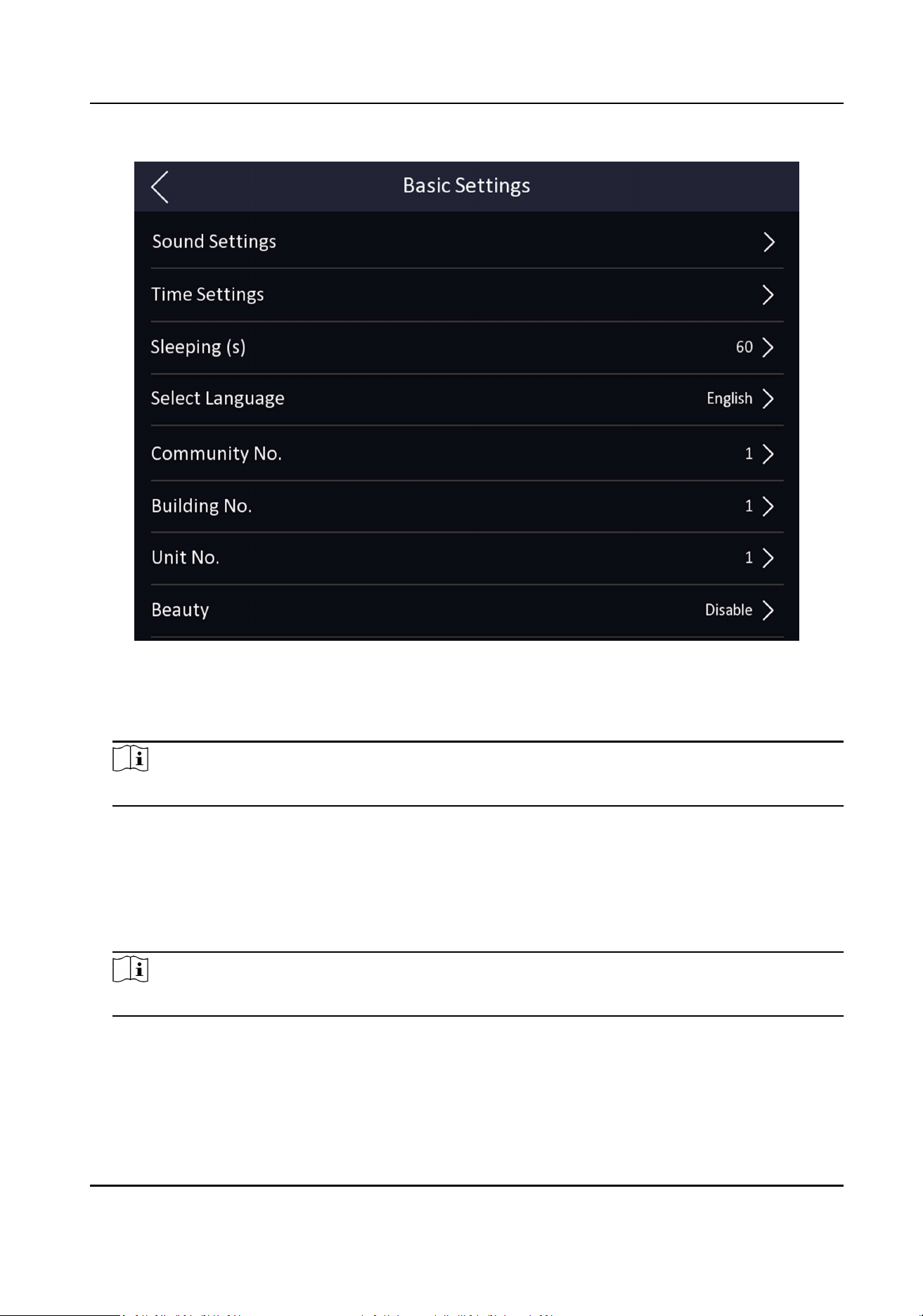
Figure 7-10 Basic Sengs Page
Sound Sengs
You can enable/disable the voice prompt funcon and adjust the voice volume.
Note
You can set the voice volume between 0 and 10.
Time Sengs
Set the me zone, the device me and the DST.
Sleeping (s)
Set the device sleeping waing me. When you are on the inial page and if you set the
sleeping me to 30 s, the device will sleep aer 30 s without any operaon.
Note
If you set the sleeping me to 0, the device will not enter sleeping mode.
Select Language
Select the language according to actual needs.
Community No.
Face Recognion Terminal User Manual
48

Set the device installed community No.
Building No.
Set the device installed building No.
Unit No.
Set the device installed unit No.
Beauty
You can enable the beauty funcon and set the smooth and the whiten parameter. Tap + or - to
control the eect strength.
Note
By default, the funcon is disabled.
7.7 Set Biometric Parameters
You can customize the face parameters to improve the face recognion performance. The
congurable parameters includes face liveness level, face recognion distance, face recognion
interval, wide dynamic, face 1:N security level, face 1:1 security level, ECO sengs, face with mask
detecon and mulple faces authencaon.
Long tap on the inial page for 3 s and login the home page. Tap Biometric.
Face Recognion Terminal User Manual
49
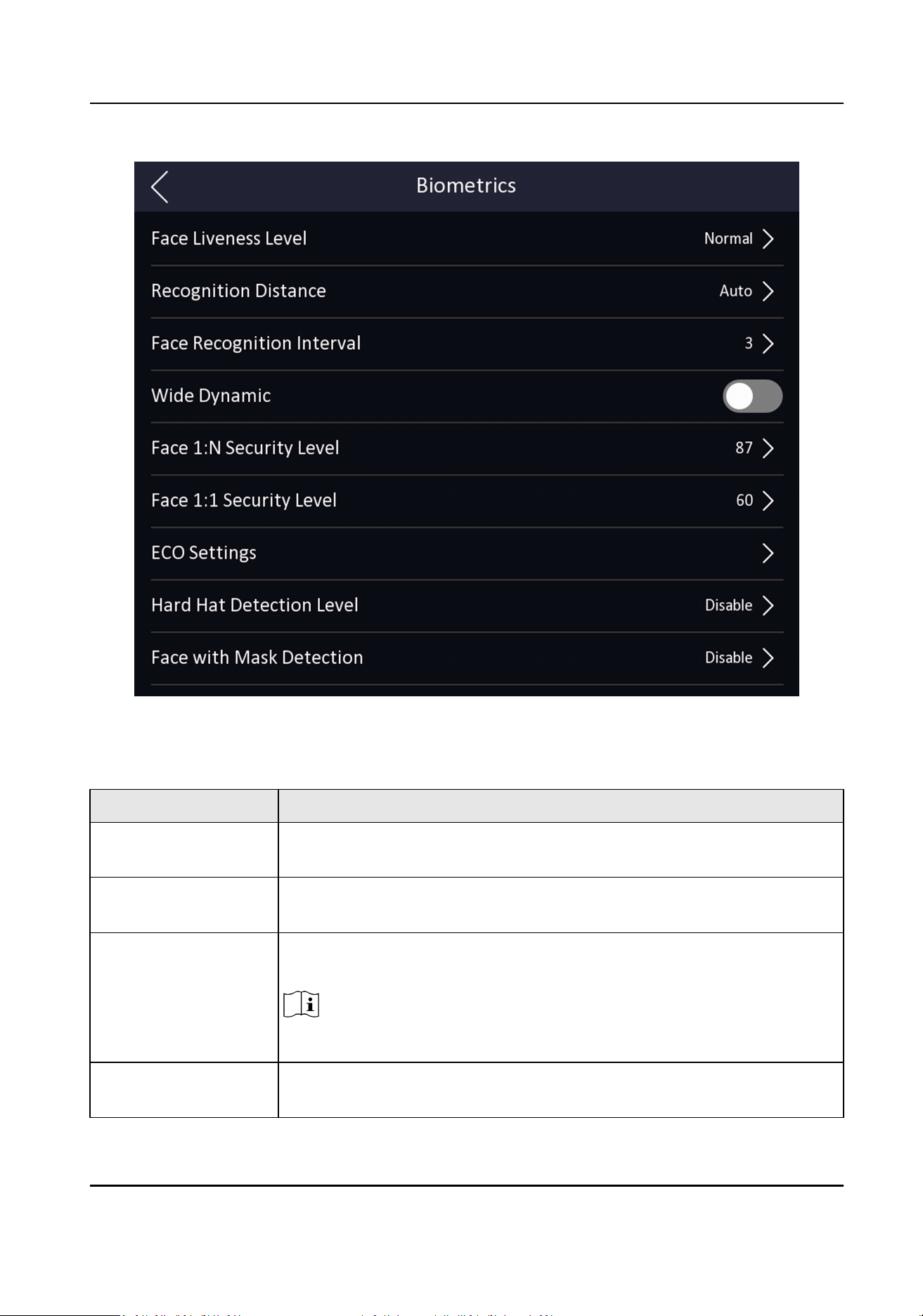
Figure 7-11 Biometric Parameters Page
Table 7-1 Face Picture Parameters
Parameter Descripon
Face Liveness Level Aer enabling face an-spoong funcon, you can set the matching
security level when performing live face authencaon.
Recognion Distance Set the valid distance between the user and the camera when
authencang.
Face Recognion
Interval
The me interval between two connuous face recognions when
authencang.
Note
You can input the number from 1 to 10.
Wide Dynamic It is suggested to enable the WDR funcon if installing the device
outdoors.
Face Recognion Terminal User Manual
50

Parameter Descripon
When there are both very bright and very dark areas simultaneously in
the view, you can enable the WDR funcon to balance the brightness of
the whole image and provide clear images with details.
Face 1:N Security Level Set the matching threshold when authencang via 1:N matching mode.
The larger the value, the smaller the false accept rate and the larger the
false rejecon rate.
Face 1:1 Security Level Set the matching threshold when authencang via 1:1 matching mode.
The larger the value, the smaller the false accept rate and the larger the
false rejecon rate.
ECO Sengs Aer enabling the ECO mode, the device will use the IR camera to
authencate faces in the low light or dark environment. And you can set
the ECO mode threshold, ECO mode (1:N), and ECO mode (1:1).
ECO Threshold
When enabling the ECO mode, you can set the ECO mode’s threshold.
The larger the value, the easier the device entering the ECO mode.
ECO Mode (1:1)
Set the matching threshold when authencang via ECO mode 1:1
matching mode. The larger the value, the smaller the false accept rate
and the larger the false rejecon rate.
ECO Mode (1:N)
Set the matching threshold when authencang via ECO mode 1:N
matching mode. The larger the value, the smaller the false accept rate
and the larger the false rejecon rate
Face with Mask&Face(1:1 ECO)
Set the matching value when authencang with face mask via ECO
mode 1:1 matching mode. The larger the value, the smaller the false
accept rate and the larger the false rejecon rate.
Face with Mask&Face(1:N ECO)
Set the matching value when authencang with face mask via ECO
mode 1:N matching mode. The larger the value, the smaller the false
accept rate and the larger the false rejecon rate.
Hard Hat Detecon Aer enabling the hard hat detecon, you can set the strategy.
Reminder of Wearing
If the person do not wear the hard hat when authencang, the
device will pop up a prompt and the door will open.
Face Recognion Terminal User Manual
51

Parameter Descripon
Must Wear
If the person do not wear the hard hat when authencang, the
device will pop up a prompt and the door will keep closed.
None
If the person do not wear a face mask when authencang, the
device will not prompt a nocaon.
Face with Mask
Detecon
Aer enabling the face with mask detecon, the system will recognize
the captured face with mask picture. You can set face with mask & face
1:N level and the strategy.
Reminder of Wearing
If the person do not wear a face mask when authencang, the
device prompts a nocaon and the door will open.
Must Wear
If the person do not wear a face mask when authencang, the
device prompts a nocaon and the door keeps closed.
7.8 Set Access Control Parameters
You can set the access control permissions, including the funcons of authencaon mode, enable
NFC card, enable M1 card, door contact, open duraon (s) and authencaon interval (s).
On the Home page, tap ACS (Access Control Sengs) to enter the Access Control Sengs page.
Edit the access control parameters on this page.
Face Recognion Terminal User Manual
52
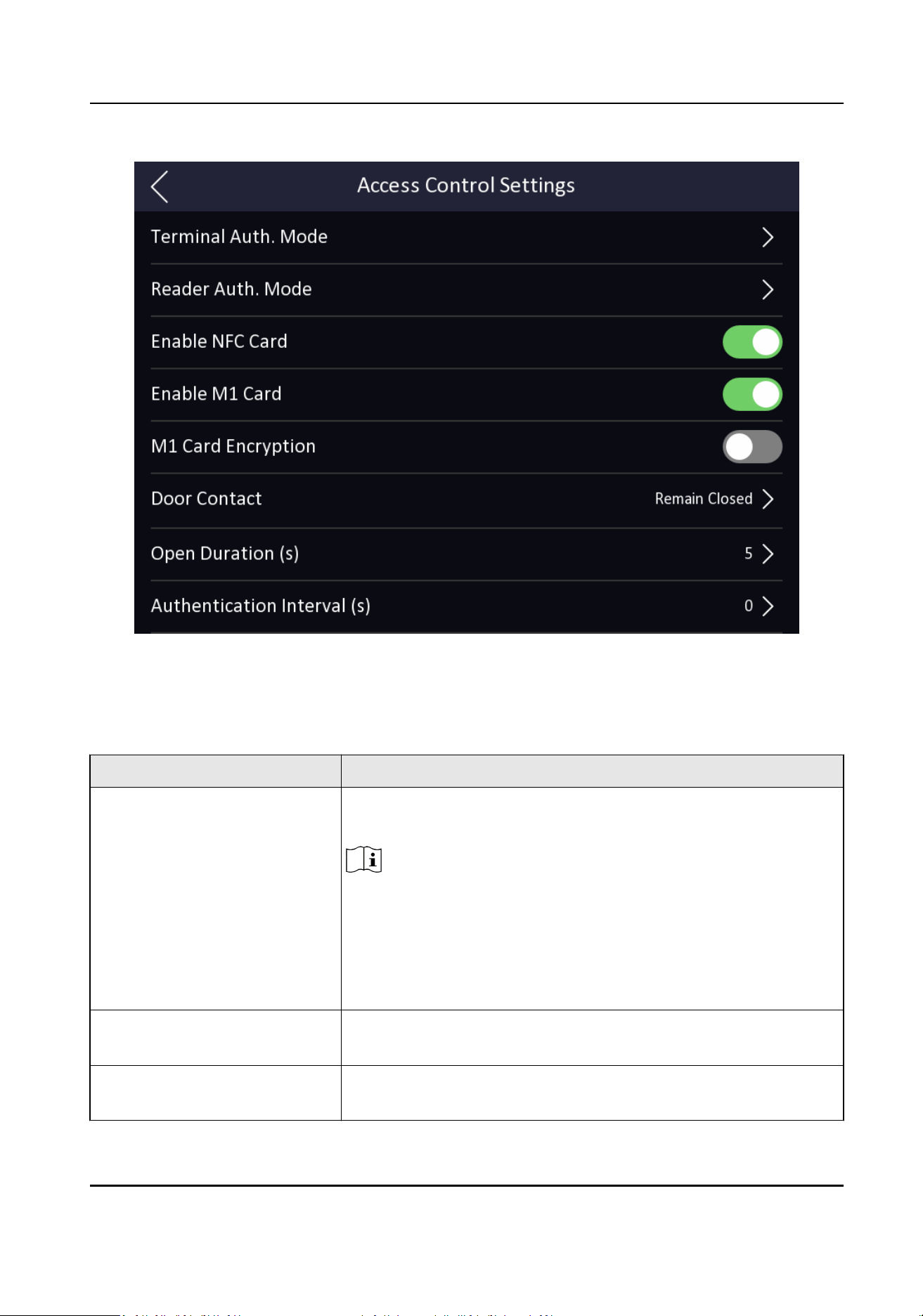
Figure 7-12 Access Control Parameters
The available parameters descripons are as follows:
Table 7-2 Access Control Parameters Descripons
Parameter Descripon
Terminal Auth. Mode (Terminal
Authencaon Mode)
Select the face recognion terminal's authencaon mode. You
can also customize the authencaon mode.
Note
●
Biometric recognion products are not completely applicable
to an-spoong environments. If you require a higher
security level, use mulple authencaon modes.
●
If you adopt mulple authencaon modes, you should
authencate other methods before authencang face.
Reader Auth. Mode (Card
Reader Authencaon Mode)
Select the card reader's authencaon mode.
Enable NFC Card Enable the funcon and you can present the NFC card to
authencate.
Face Recognion Terminal User Manual
53
Parameter Descripon
Enable M1 Card Enable the funcon and you can present the M1 card to
authencate.
M1 Card Encrypon Enabling the M1 card encrypon funcon can improve the card
security level. The card will not be copied easily.
Door Contact You can select "Open (Remain Open)" or "Close (Remian
Closed)" according to your actual needs. By default, it is Close
(Remian Closed).
Open Duraon Set the door unlocking duraon. If the door is not opened for
the set me, the door will be locked. Available door locked me
range: 1 to 255s.
Authencaon Interval Set the device authencang interval. Available authencaon
interval range: 0 to 65535.
7.9 Time and Aendance Status Sengs
You can set the aendance mode as check in, check out, break out, break in, overme in, and
overme out according to your actual situaon.
Note
The funcon should be used cooperavely with me and aendance funcon on the client
soware.
7.9.1 Disable Aendance Mode via Device
Disable the aendance mode and the system will not display the aendance status on the inial
page.
Tap T&A Status to enter the T&A Status page.
Face Recognion Terminal User Manual
54

Figure 7-13 Disable Aendance Mode
Set the Aendance Mode as Disable.
You will not view or congure the aendance status on the inial page. And the system will follow
the aendance rule that congured on the plaorm.
7.9.2 Set Manual Aendance via Device
Set the aendance mode as manual, and you should select a status manually when you take
aendance.
Before You Start
Add at least one user, and set the user's authencaon mode. For details, see User Management.
Steps
1.
Tap T&A Status to enter the T&A Status page.
2.
Set the Aendance Mode as Manual.
Face Recognion Terminal User Manual
55
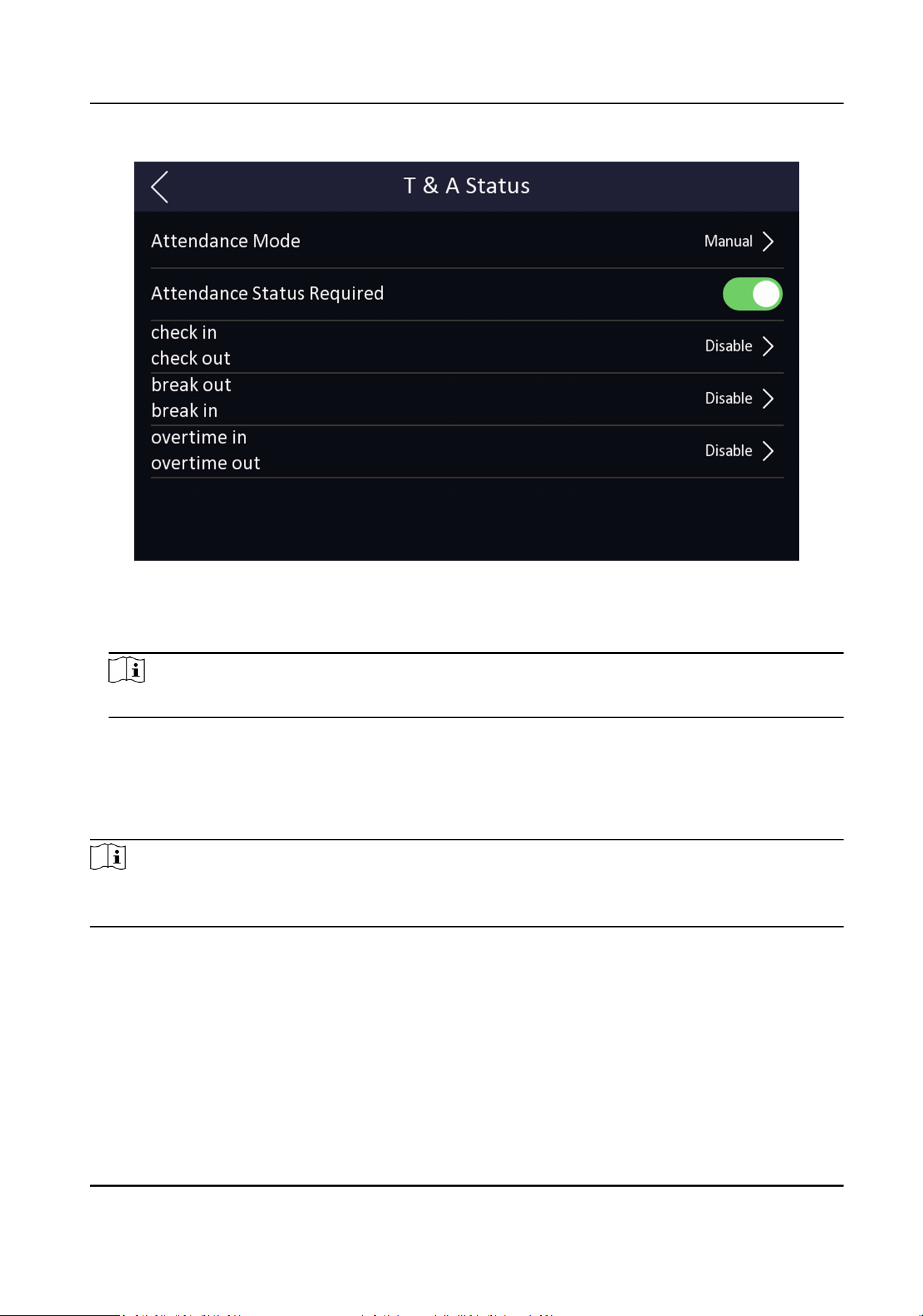
Figure 7-14 Manual Aendance Mode
3.
Enable the Aendance Status Required.
4.
Enable a group of aendance status.
Note
The Aendance Property will not be changed.
5.
Oponal: Select an status and change its name if required.
The name will be displayed on the T & A Status page and the authencaon result page.
Result
You should select an aendance status manually aer authencaon.
Note
If you do not select a status, the authencaon will be failed and it will not be marked as a valid
aendance.
7.9.3 Set Auto Aendance via Device
Set the aendance mode as auto, and you can set the aendance status and its available schedule.
The system will automacally change the aendance status according to the congured schedule.
Before You Start
Add at least one user, and set the user's authencaon mode. For details, see User Management.
Face Recognion Terminal User Manual
56
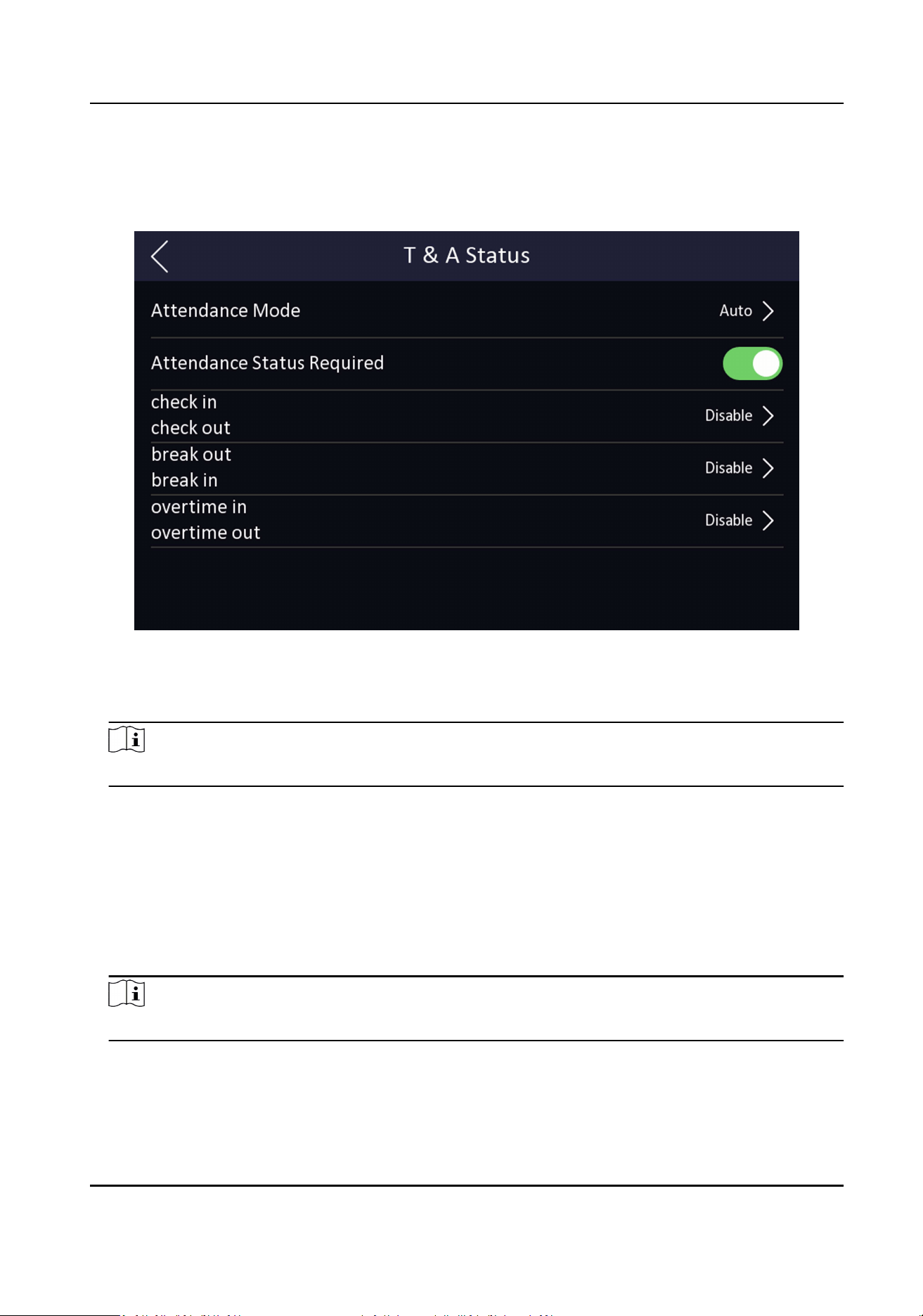
Steps
1.
Tap T&A Status to enter the T&A Status page.
2.
Set the Aendance Mode as Auto.
Figure 7-15 Auto Aendance Mode
3.
Enable the Aendance Status funcon.
4.
Enable a group of aendance status.
Note
The Aendance Property will not be changed.
5.
Oponal: Select an status and change its name if required.
The name will be displayed on the T & A Status page and the authencaon result page.
6.
Set the status' schedule.
1) Tap Aendance Schedule.
2) Select Monday, Tuesday, Wednesday, Thursday, Friday, Saturday, or Sunday.
3) Set the selected aendance status's start me of the day.
4) Tap Conrm.
5) Repeat step 1 to 4 according to your actual needs.
Note
The aendance status will be valid within the congured schedule.
Face Recognion Terminal User Manual
57
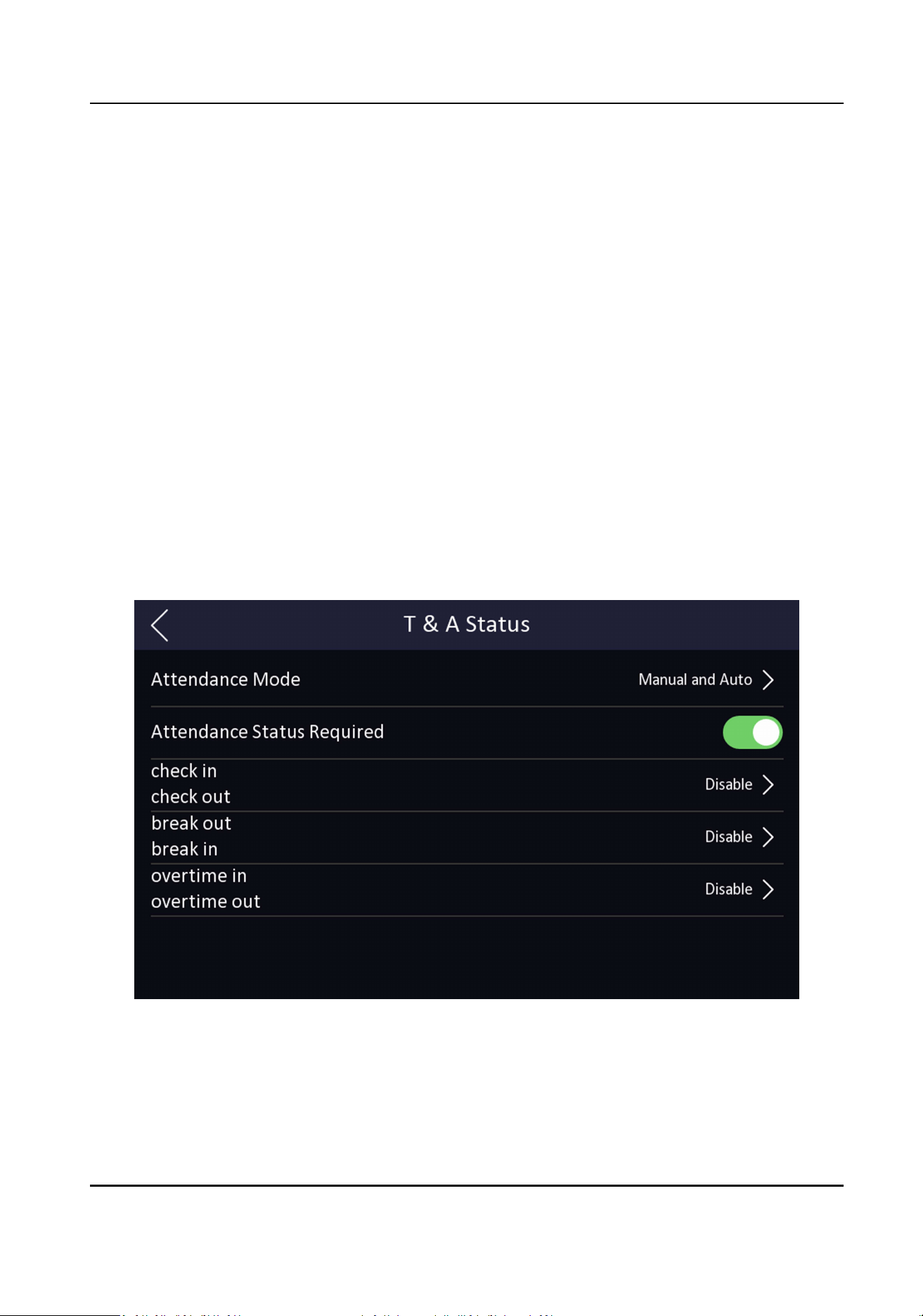
Result
When you authencate on the inial page, the authencaon will be marked as the congured
aendance status according to the congured schedule.
Example
If set the Break Out as Monday 11:00, and Break In as Monday 12:00, the valid user's
authencaon from Monday 11:00 to 12:00 will be marked as break.
7.9.4 Set Manual and Auto Aendance via Device
Set the aendance mode as Manual and Auto, and the system will automacally change the
aendance status according to the congured schedule. At the same me you can manually
change the aendance status aer the authencaon.
Before You Start
Add at least one user, and set the user's authencaon mode. For details, see User Management.
Steps
1.
Tap T&A Status to enter the T&A Status page.
2.
Set the Aendance Mode as Manual and Auto.
Figure 7-16 Manual and Auto Mode
3.
Enable the Aendance Status funcon.
4.
Enable a group of aendance status.
Face Recognion Terminal User Manual
58
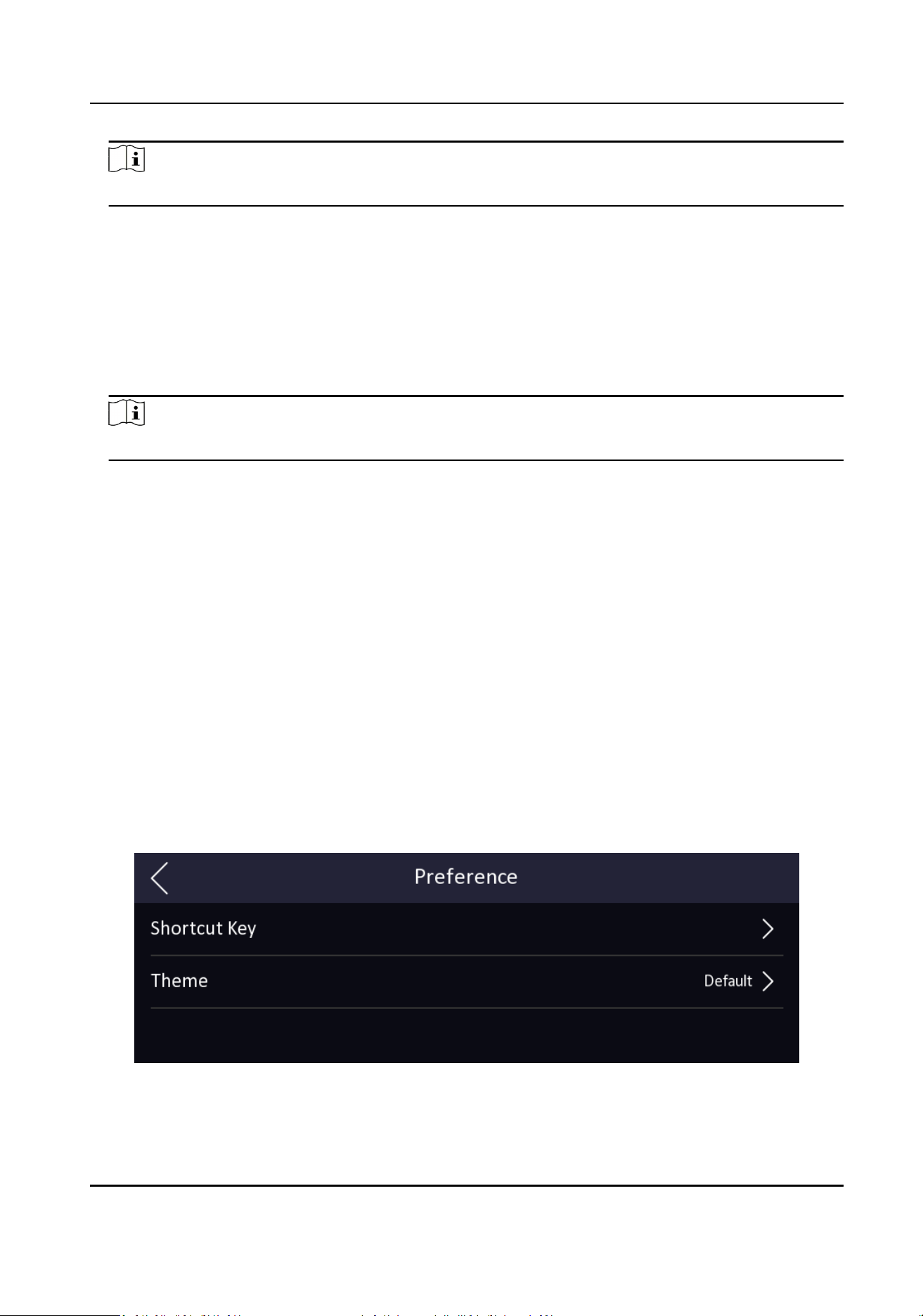
Note
The Aendance Property will not be changed.
5.
Oponal: Select an status and change its name if required.
The name will be displayed on the T & A Status page and the authencaon result page.
6.
Set the status' schedule.
1) Tap Aendance Schedule.
2) Select Monday, Tuesday, Wednesday, Thursday, Friday, Saturday, or Sunday.
3) Set the selected aendance status's start me of the day.
4) Tap OK.
5) Repeat step 1 to 4 according to your actual needs.
Note
The aendance status will be valid within the congured schedule.
Result
On the inial page and authencate. The authencaon will be marked as the congured
aendance status according to the schedule. If you tap the edit icon on the result tab, you can
select a status to take aendance manually, the authencaon will be marked as the edited
aendance status.
Example
If set the Break Out as Monday 11:00, and Break In as Monday 12:00, the valid user's
authencaon from Monday 11:00 to 12:00 will be marked as break.
7.10 Preference Sengs
You can congure preference sengs parameters.
Steps
1.
Tap Preference to enter the preference sengs page.
Figure 7-17 Preference Sengs
Face Recognion Terminal User Manual
59

Shortcut Key
Choose the shortcut key that displayed on the authencaon page, including the QR code
funcon, the call funcon, call type, and the password entering funcon.
Note
You can select call type from Call Room, Call Center, Call Specied Room No. and Call APP.
Call Room
When you tap the call buon on the authencaon page, you should dial a room No. to
call.
Call Center
When you tap the call buon on the authencaon page, you can call the center directly.
Call Specied Room No.
You should set a room No. When you tap the call buon on the authencaon page, you
can call the congured room directly without dialing.
Call APP
When you tap the call buon on the authencaon page, you will call the mobile client
where the device is added.
Password
Enable this funcon amd you can enter the password to authencate via password.
QR Code
You can use the QR code scanning funcon on the authencaon interface. The device will
upload the informaon associated with the obtained QR code to the plaorm.
Theme
You can set the theme of the prompt window on the authencaon page. You can select
Theme as Default or Simple.
Default
The device authencaon page will display the live view page. And the person's name,
employee ID, face pictures will all be displayed aer authencaon.
Simple
Aer selecng this mode, the live view of the authencaon page will be disabled, and in
the meanwhile, the person's name, employee ID, face pictures will all be hidden aer
authencaon.
Face Recognion Terminal User Manual
60
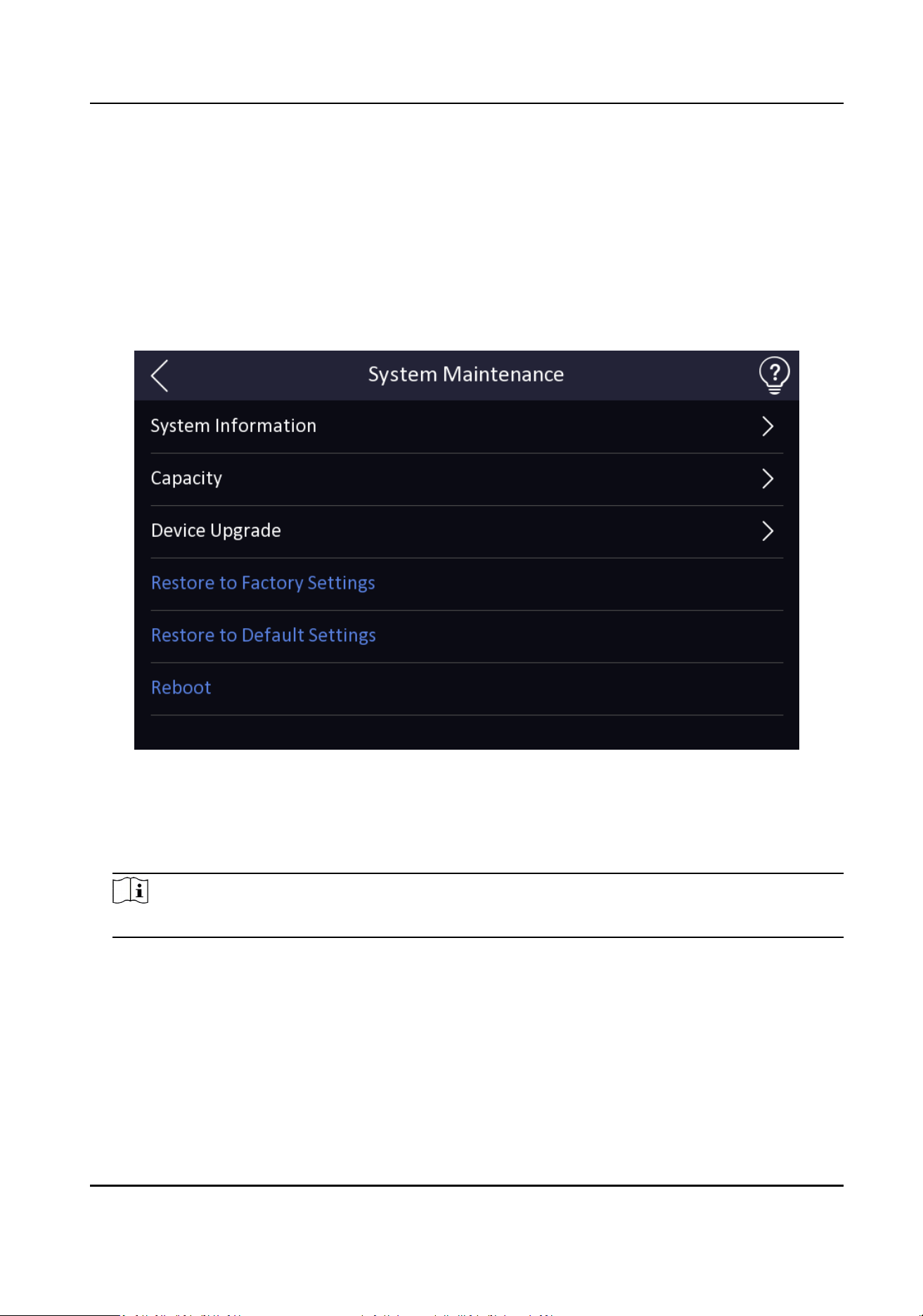
7.11 System Maintenance
You can view the system informaon and the capacity. You can also upgrade the device, restore to
factory sengs, restore to default sengs, reboot the device, set face parameters and view
version informaon.
Long tap on the inial page for 3 s and slide to the le/right by following the gesture and login the
home page. Tap Maint.
Figure 7-18 System Maintenance
System Informaon
You can view the device model, serial No., versions, MAC address, producon data, and open
source code license.
Note
The page may vary according to dierent device models. Refers to the actual page for details.
Capacity
You can view the number of user, face picture, ngerprint, card, and event.
Device Upgrade
Online Update
Face Recognion Terminal User Manual
61

If the device has been connected to Hik-Connect and network, when there is a new
installaon package in Hik-Connect, you can tap Device Upgrade → Online Update to
upgrade the device system.
Update via USB
Plug the USB ash drive in the device USB interface. Tap Device Upgrade → Update via USB ,
and the device will read the digicap.dav le in the USB ash drive to start upgrading.
Restore to Default Sengs
All parameters, except for the communicaon sengs, remotely imported user informaon, will
be restored to the default sengs. The system will reboot to take eect.
Restore to Factory Sengs
All parameters will be restored to the factory sengs. The system will reboot to take eect.
Reboot
Reboot the device.
Advanced Sengs
Long Tap on the right corner to enter the advanced sengs page. Enter the password.
Face Parameter
Custom An-Spoong Detecon
Face Liveness Level
Aer enabling face an-spoong funcon, you can set the matching security level
when performing live face authencaon.
An-Spoong Detecon Threshold
The larger the value, the smaller the false accept rate and the larger the false rejecon
rate. The smaller the value, the larger the false accept rate and the smaller the false
rejecon rate.
An-Spoong Detecon Threshold of Face with Mask
The larger the value, the smaller the false accept rate and the larger the false rejecon
rate of the face with mask. The smaller the value, the larger the false accept rate and
the smaller the false rejecon rate of the face with mask.
Lock Face for An-Spoong Protecon
Aer enabling this funcon, the device will lock automacally when an-spoong
detecon failed.
Lock Duraon
The lock duraon aer enabling Lock Face for An-Spoong Protecon when an-
spoong detecon failed.
Version Informaon
You can view the device informaon.
Face Recognion Terminal User Manual
62
7.12 Video Intercom
Aer adding the device to the client soware, you can call the device from the client soware, call
the main staon from the device, call the client soware from the device, or call the indoor staon
from the device.
7.12.1 Call Client Soware from Device
Steps
1.
Get the client soware from the supplied disk or the ocial website, and install the soware
according to the prompts.
2.
Run the client soware and the control panel of the soware pops up.
3.
Click Device Management to enter the Device Management interface.
4.
Add the device to the client soware.
Note
For details about adding device, see Add Device.
5.
Call the client soware.
1) Tap on the device inial page.
2) Enter 0 in the pop-up window.
3) Tap to call the client soware.
6.
Tap Answer on the pop-up page of the client soware and you can start two-way audio between
the device and the client soware.
Note
If the device is added to mulple client sowares and when the device is calling the client
soware, only the rst client soware added the device will pop up the call receiving window.
7.12.2 Call Center from Device
Steps
1.
Get the client soware from the supplied disk or the ocial website, and install the soware
according to the prompts.
2.
Run the client soware and the control panel of the soware pops up.
3.
Click Device Management to enter the Device Management interface.
4.
Add the main staon and the device to the client soware.
Note
For details about adding device, see Add Device.
5.
Set the main staon's IP address and SIP address in the remote conguraon page.
Face Recognion Terminal User Manual
63
Note
For details about the operaon, see the user manual of the main staon.
6.
Call the center.
-
If you have congured to call center in the
Basic Sengs , you can tap to call the center.
-
If you have not congured to call center in the
Basic Sengs , you should tap → to call
the center
7.
Answers the call via the main staon and starts two-way audio.
Note
The device will call the main staon in priority.
7.12.3 Call Device from Client Soware
Steps
1.
Get the client soware from the supplied disk or the ocial website, and install the soware
according to the prompts.
2.
Run the client soware and the control panel of the soware pops up.
3.
Click Device Management to enter the Device Management page.
4.
Add the device to the client soware.
Note
For details about adding device, see Add Device.
5.
Enter the Live View page and double-click the added device to start live view.
Note
For details about operaons in the Live View page, see Live View in the user manual of the client
soware.
6.
Right click the live view image to open the right-click menu.
7.
Click Start Two-Way Audio to start two-way audio between the device and the client soware.
7.12.4 Call Room from Device
Steps
1.
Get the client soware from the supplied disk or the ocial website, and install the soware
according to the prompts.
2.
Run the client soware and the control panel of the soware pops up.
3.
Click Device Management to enter the Device Management interface.
4.
Add the indoor staon and the device to the client soware.
Face Recognion Terminal User Manual
64

Note
For details about adding device, see Add Device.
5.
Link a user to an indoor staon and set a room No. for the indoor staon.
6.
Call the room.
-
If you have congured a specied room No. in the
Basic Sengs , you can tap to call the
room.
-
If you have not congured a specied room No. in the
Basic Sengs , you should tap on
the authencaon page of the device. Enter the room No. on the dial page and tap to call
the room.
7.
Aer the indoor staon answers the call, you can start two-way audio with the indoor staon.
7.12.5 Call Mobile Client from Device
Steps
1.
Get the mobile mobile client from the supplied disk or the ocial website, and install the
soware according to the prompts.
2.
Run the mobile client and add the device to the mobile client.
Note
For details, see the user manual of the mobile client.
3.
Enter Basic Sengs → Shortcut Key and enable Call APP.
4.
Go back to the inial page and call the mobile client.
1) Tap on the device inial page.
2) Tap to call the mobile client.
Face Recognion Terminal User Manual
65

Chapter 8 Quick Operaon via Web Browser
8.1 Time Sengs
Click in the top right of the web page to enter the wizard page.
Device Time
Display the device me in real me.
Time Zone
Select the device located me zone from the drop-down list.
Time Synchronizaon Mode
NTP
You should set the NTP server's IP address, port No., and interval.
Manual
By default, the device me should be synchronized manually. You can set the device me
manually or check Sync. with Computer Time to synchronize the device me with the
computer's me.
DST
You can enable DST, set and view the DST start me, end me and bias me.
Click Next to save the sengs and go to the next parameter. Or click Skip to skip me sengs.
8.2 Privacy Sengs
Set the picture uploading and storage parameters.
Click
in the top right of the web page to enter the wizard page. Aer seng device language
and me, you can click Next to enter the Privacy Sengs page.
Picture Uploading and Storage
Save Picture When Authencang
Save picture when authencang automacally.
Upload Picture When Authencang
Upload the pictures when authencang to the plaorm automacally.
Save Registered Picture
The registered face picture will be saved to the system if you enable the funcon.
Upload Picture Aer Linked Capture
Upload the pictures captured by linked camera to the plaorm automacally.
Face Recognion Terminal User Manual
66
Save Pictures Aer Linked Capture
If you enable this funcon, you can save the picture captured by linked camera to the device.
Click Next to save the sengs and go to the next parameters. Or click Skip to skip privacy sengs.
8.3 Administrator Sengs
Steps
1.
Click in the top right of the web page to enter the wizard page. Aer previous sengs, you
can click Next to enter the Administrator Sengs page.
2.
Enter the employee ID and name of the administrator.
3.
Select a credenal to add.
1) Click Add Face to upload a face picture from local storage.
Note
The uploaded picture should be within 200 K, in JPG、JPEG、PNG format.
2) Click Add Card to enter the Card No. and select the property of the card.
Note
Up to 5 cards can be supported.
3) Click Add Fingerprint to add ngerprints.
Note
Up to 10 ngerprints are allowed.
Click Complete to complete the sengs.
8.4 No. and System Network
Steps
1.
Click in the top right of the web page to enter the wizard page. Aer previous sengs, you
can click Next to enter the No. and System Network sengs page.
2.
Set the device type.
If you set the device type as Door Staon or Access Control Device, you can set the oor No.,
No., and click More to set Community No., Building No., and Unit No.
If you set the device type as Outer Door Staon, you can set outer door staon No., and
community No.
Device Type
The device can be used as a door staon or outer door staon. Select a device type from the
drop-down list.
Floor No.
Face Recognion Terminal User Manual
67

Set the device installed oor No.
No.
Set the device No.
Note
The main door staon No. is 0, and the sub door staon No. ranges from 1 to 16.
Community No.
Set the device community No.
Building No.
Set the device building No.
Unit No.
Set the device unit No.
3.
Click Complete to save the sengs.
Face Recognion Terminal User Manual
68

Chapter 9 Operaon via Web Browser
9.1 Login
You can login via the web browser or the remote conguraon of the client soware.
Note
Make sure the device is acvated.
Login via Web Browser
Enter the device IP address in the address bar of the web browser and press Enter to enter the
login page.
Enter the device user name and the password. Click Login.
Login via Remote Conguraon of Client Soware
Download and open the client soware. Aer adding the device, click to enter the Conguraon
page.
9.2 Forgot Password
If you forget the device password, you can change the device password via security quesons.
Steps
Note
You can change the device password via PC web.
1.
ClickForgot Password on the login page.
2.
Select the vericaon method.
3.
Answer the reserved security quesons.
Note
The answers are congured when you rst acvate the device.
4.
Create a new password and conrm the password.
5.
Click Next to save the sengs.
9.3 Live View
You can view the live video of the device, real-me event, person informaon, network status,
basic informaon, and device capacity.
Face Recognion Terminal User Manual
69

Funcon Descripons:
Door Status
Click to view the device live view.
Set the volume when starng live view.
Note
If you adjust the volume when starng two-way audio, you may hear a repeated sounds.
You can capture image when starng live view.
Select the streaming type when starng live view. You can select from the main stream and
the sub stream.
Full screen view.
/ / /
The door status is open/closed/remaining open/remaining closed.
Controlled Status
You can select open/closed/remaining open/remaining closed status according to your actual
needs.
Real-Time Event
You can view the event Employee ID, Name, Card No., Event Type, Time, and Operaon. You can
also click View More to enter the search condions, including the event type, employee ID, the
name, the card No., the me, the unit, the temperature and the temperature excepon. Click
Search. The results will be displayed on the right panel.
Person Informaon
You can view the added and not added informaon of person face and card.
Network Status
You can view the connected and registered status of wired network, wireless network, ISUP and
cloud service.
Basic Informaon
You can view the model, serial No. and rmware version.
Device Capacity
You can view the Person, Face, Card and Event capacity.
View More
Face Recognion Terminal User Manual
70

You can click View More to view the device name, device No., language, model, serial No.,
version, number of channels, IO input, IO output, lock, alarm input, alarm output, and device
capacity, etc.
9.4 Person Management
Click Add to add the person's informaon, including the basic informaon, cercate,
authencaon and sengs.
Add Basic Informaon
Click Person Management → Add to enter the Add Person page.
Add the person's basic informaon, including the employee ID, the person's name, oor No., room
No., gender and person type.
If you select Visitor as the person type, you can set the visit mes.
Click Save to save the sengs.
Set Permission Time
Click Person Management → Add to enter the Add Person page.
Enable Long-Term Eecve User, or set Start Time and End Time. If you select Visitor as the
person type, you also can set the visit mes. If you select Normal User as the person type, you also
can enable and set him or her as administrator.
Click Save to save the sengs.
Set Cercate Conguraon
Add Card
Click Person Management → Add → +Add Card to set Card No. and select the Property, and
click OK to add the card.
Add Fingerprint
Click Person Management → Add → +Add Fingerprint and press your nger on the ngerprint
module of the device to add your ngerprint.
Note
Only devices supporng the ngerprint funcon can add the ngerprint.
Add Face Picture
Click Person Management → Add → Upload to upload a face picture from the local PC.
Note
The picture format should be JPG or JPEG or PNG, and the size should be less than 200 K.
Face Recognion Terminal User Manual
71

Authencaon Sengs
Click Person Management → Add to enter the Add Person page.
Set the authencaon type.
Click Save to save the sengs.
9.5 Search Event
Click Event Search to enter the Search page.
Select the event type and enter the search condions, including the employee ID, name, card No.,
start me, and end me, and click Search.
The results will be displayed on the right panel.
9.6 Conguraon
9.6.1 Set Local Parameters
Set the live view parameters, record le size and saving path, and captured pictures format and
saving path.
Set Live View Parameters
Click Conguraon → Local to enter the Local page. Congure the stream type, the play
performance, auto start live view, and the image format and click Save.
Set Record File Saving Path
Click Conguraon → Local to enter the Local page. Select a record le size and select a saving
path from your local computer and click Save.
You can also click Open to open the le folder to view details.
Set Captured Pictures Saving Path
Click Conguraon → Local to enter the Local page. Select a image format and a saving path from
your local computer and click Save.
You can also click Open to open the le folder to view details.
9.6.2 View Device Informaon
View the device name, device No., language, model, serial No., version, number of channels, IO
input, IO output, lock, alarm input, alarm output, and device capacity, etc.
Click Conguraon → System → System Sengs → Basic Informaon to enter the conguraon
page.
Face Recognion Terminal User Manual
72

You can view and edit the device name and the device language.
You can view the model, serial No., version, cameras, IO input, IO output, lock, RS-485, alarm input,
alarm output, and device capacity, etc.
9.6.3 Set Time
Set the device's me zone, synchronizaon mode, server address, NTP port, and interval.
Click Conguraon → System → System Sengs → Time Sengs .
Device Time
Display the device me in real me.
Time Zone
Select the device located me zone from the drop-down list.
Time Synchronizaon Mode
NTP
You should set the NTP server's IP address, port No., and interval.
Manual
By default, the device me should be synchronized manually. You can set the device me
manually or check Sync. with Computer Time to synchronize the device me with the
computer's me.
DST
You can enable DST, set and view the DST start me, end me and bias me.
9.6.4 Change Administrator's Password
Steps
1.
Click Conguraon → User Management .
2.
Click .
3.
Enter the old password and create a new password.
4.
Conrm the new password.
5.
Click Save.
Cauon
The password strength of the device can be automacally checked. We highly recommend you
change the password of your own choosing (using a minimum of 8 characters, including at least
three kinds of following categories: upper case leers, lower case leers, numbers, and special
characters) in order to increase the security of your product. And we recommend you change
your password regularly, especially in the high security system, changing the password monthly
or weekly can beer protect your product.
Face Recognion Terminal User Manual
73

Proper conguraon of all passwords and other security sengs is the responsibility of the
installer and/or end-user.
9.6.5 View Device Arming/Disarming Informaon
View device arming type and arming IP address.
Click Conguraon → System → User Management → Arming/Disarming Informaon .
You can view the device arming/disarming informaon. Click Refresh to refresh the page.
9.6.6 Network Sengs
Set TCP/IP, port parameters, plaorm access, ISUP and SDK server.
Note
Refer to the actual products when conguraon.
Set Basic Network Parameters
Click Conguraon → Network → Network Sengs → TCP/IP .
Set the parameters and click Save to save the sengs.
NIC Type
Select a NIC type from the drop-down list. By default, it is Auto.
DHCP
If uncheck the funcon, you should set the IPv4 address, IPv4 subnet mask, IPv4 default
gateway, Mac address, and MTU.
If you check the funcon, the system will allocate the IPv4 address, IPv4 subnet mask, the IPv4
default gateway automacally.
DNS Server
Set the preferred DNS server and the Alternate DNS server according to your actual need.
Set Wi-Fi Parameters
Set the Wi-Fi parameters for device wireless connecon.
Steps
Note
The funcon should be supported by the device.
1.
Click Conguraon → Network → Network Sengs → Wi-Fi .
Face Recognion Terminal User Manual
74

2.
Check Wi-Fi.
3.
Select a Wi-Fi
-
Click Connect of a Wi-Fi in the list and enter the password.
-
Click Manual Add and enter SSID and select the security mode. Click OK. Click Connect.
4.
Oponal: Set the WLAN parameters.
1) Set the IP address, subnet mask, default gateway and DNS server address. Or enable DHCP
and the system will allocate the IP address, subnet mask, default gateway and DNS server
address automacally.
5.
Click Save.
Set Port Parameters
Set the HTTP, HTTPS, HTTP Listening, RTSP and Server port parameters.
Click Conguraon → Network → Network Service → HTTP(S) .
HTTP
It refers to the port through which the browser accesses the device. For example, when the
HTTP Port is modied to 81, you need to enter hp://192.0.0.65:81 in the browser for login.
HTTPS
Set the HTTPS for accessing the browser. Cercate is required when accessing.
HTTP Listening
The device can send alarm informaon to the event alarm IP address or domain name via HTTP
protocol/HTTPS protocol. Edit the event alarm IP address or domain name, URL, port, and
protocol.
You can also click Default to reset the HTTP parameters.
Note
The event alarm IP address or domain name should support the HTTP protocol/HTTPS protocol
to receive the alarm informaon.
RTSP
Click Conguraon → Network → Network Service → RTSP .
It refers to the port of real-me streaming protocol.
Plaorm Access
Plaorm access provides you an opon to manage the devices via plaorm.
Face Recognion Terminal User Manual
75

Steps
Note
Parts of the device models supports funcon. Refers to the actual device for details.
1.
Click Conguraon → Network → Device Access → Hik-Connect to enter the sengs page.
Note
Hik-Connect is an applicaon for mobile devices. With the App, you can view live image of the
device, receive alarm nocaon and so on.
2.
Check Enable to enable the funcon.
3.
Oponal: Check the checkbox of Custom, and you can set the server address by yourself.
4.
Enter the vericaon code.
5.
Check Enable to enable video encrypon. Set the video encrypon password and conrm
password.
6.
Click More and enable Allow Accessbehind Wired Network to adjust the network priority.
7.
Click View to view device QR code. Scan the QR code to bind the account.
Note
8 to 32 leers (a to z, A to Z) or numbers (0 to 9), case sensive. You are recommended to use a
combinaon of no less than 8 leers or numbers.
8.
Click Save to enable the sengs.
Set ISUP Parameters
Set the ISUP parameters for accessing device via ISUP protocol.
Steps
Note
The funcon should be supported by the device.
1.
Click Conguraon → Network → Device Access → ISUP .
2.
Check Enable.
3.
Select the ISUP version and Server IP Address, Port, Device ID, and you can view the Register
status.
Note
If you select 5.0 as the version, you should set the Encrypon Key and Network Connecon
Priority as well. You can click More and check WLAN or Wired Network to adjust the network
priority.
4.
Set the ISUP listening parameters, including ISUP alarm center IP address/domain name, ISUP
alarm center URL, and ISUP alarm center port.
Face Recognion Terminal User Manual
76

5.
Click Save.
9.6.7 Set Video and Audio Parameters
Set the image quality and resoluon.
Set Video Parameters
Click Conguraon → Video/Audio → Video .
Set the camera name, stream type, video type, resoluon, bit rate type, Max. bit rate and I Frame
Interval.
Click Save to save the sengs aer the conguraon.
Note
The funcons vary according to dierent models. Refers to the actual device for details.
Set Audio Parameters
Click Conguraon → Video/Audio → Audio .
Set the audio stream type, input volume, and output volume.
Check Enable Voice Prompt according to your needs.
9.6.8 Set Image Parameters
You can adjust the image parameters, video parameters, supplement light parameters, beauty
parameters, enable WDR and set capture interval.
Steps
1.
Click Conguraon → Image .
2.
Congure the parameters to adjust the image.
Image Adjustment
Drag the block or enter the value to adjust the live video's brightness, contrast, saturaon,
and sharpness.
Video Adjustment (Video Standard)
Set the video frame rate when performing live view remotely. Aer changing the standard,
you should reboot the device to take eect.
PAL
25 frames per second. Suitable for mainland China, Hong Kong (China), the Middle East
countries, Europe countries, etc.
NTSC
30 frames per second. Suitable for the USA, Canada, Japan, Taiwan (China), Korea, the
Philippines, etc.
Face Recognion Terminal User Manual
77

LED Light
Set the supplement light type and mode. You can also set the brightness.
Beauty
Set whiten and smooth value for the face appeared on the device live view page.
Backlight
Enable or disable WDR.
When there are both very bright and very dark areas simultaneously in the view, WDR
balances the brightness level of the whole image and provide clear images with details.
Start All Recording
You can click to record when starng live view.
Capture Interval
You can click to capture image when starng live view.
Full Screen
You can click for full screen view.
3.
Click Restore Default Sengs to restore the parameters to the default sengs.
9.6.9 Access Control Sengs
Set Authencaon Parameters
Click Conguraon → Access Control → Authencaon Sengs .
Note
The funcons vary according to dierent models. Refers to the actual device for details.
Click Save to save the sengs aer the conguraon.
If select Terminal 1:
Terminal/Terminal Type/Terminal Model
Select terminal and get the terminal descripon. They are read-only.
Enable Authencaon Device
Enable the authencaon funcon.
Authencaon
Select an authencaon mode according to your actual needs from the drop-down list.
Recognion Interval
You can set the interval between 2 connuous recognion of a same person during the
authencaon. In the congured interval, Person A can only recognized once. If another person
(Person B) has recognized during the interval, Person A can recognized again.
Face Recognion Terminal User Manual
78

Authencaon Interval
You can set the authencaon interval of the same person when authencang. The same
person can only authencate once in the congured interval. A second authencaon will be
failed.
Alarm of Max. Failed Aempts
Enable to report alarm when the card reading aempts reach the set value.
Tampering Detecon
Enable the an-tamper detecon for the card reader.
Card No. Reversing
The read card No. will be in reverse sequence aer enabling the funcon.
If select Terminal 2:
Terminal/Terminal Type/Terminal Model
Select terminal and get the terminal descripon. They are read-only.
Enable Authencaon Device
Enable the authencaon funcon.
Authencaon
Select an authencaon mode according to your actual needs from the drop-down list.
Recognion Interval
You can set the interval between 2 connuous recognion of a same person during the
authencaon. In the congured interval, Person A can only recognized once. If another person
(Person B) has recognized during the interval, Person A can recognized again.
Alarm of Max. Failed Aempts
Enable to report alarm when the card reading aempts reach the set value.
Communicaon with Controller Every
When the access control device cannot connect with the card reader for longer than the set
me, the card reader will turn oine automacally.
Max. Interval When Entering Password
When you entering the password on the card reader, if the interval between pressing two digits
is longer than the set value, the digits you pressed before will be cleared automacally.
OK LED Polarity/Error LED Polarity
Set OK LED Polarity/Error LED Polarity of the access control device according to the card reader
parameters. Generally, adopts the default sengs.
Tampering Detecon
Enable the an-tamper detecon for the card reader.
Face Recognion Terminal User Manual
79

Set Door Parameters
Click Conguraon → Access Control → Door Parameters .
Click Save to save the sengs aer the conguraon.
Door Name
You can create a name for the door.
Open Duraon
Set the door unlocking duraon. If the door is not opened for the set me, the door will be
locked.
Door Open Timeout Alarm
An alarm will be triggered if the door has not been closed within the congured me duraon.
Door Magnec Sensor Type
You can set the door contact as Remain Open or Remain Closed according to your actual needs.
By default, it is Remain Closed.
Exit Buon Type
You can set the exit buon as Remain Open or Remain Closed according to your actual needs.
By default, it is Remain Open.
Door Lock Powering O Status
You can set the door lock status when the door lock is powering o. By default, it is Remain
Closed.
Extended Open Duraon
The door contact can be enabled with appropriate delay aer person with extended access
needs swipes her/his card.
Door Remain Open Duraon with First Person
Set the door open duraon when rst person is in. Aer the rst person is authorized, it allows
mulple persons access the door or other authencaon acons.
Duress Code
The door can open by inpung the duress code when there is duress. At the same me, the
client can report the duress event.
Super Password
The specic person can open the door by inpung the super password.
Note
The duress code and the super code should be dierent.
Face Recognion Terminal User Manual
80

Set RS-485 Parameters
You can set the RS-485 parameters including the peripheral, address, baud rate, etc.
Click Conguraon → Access Control → RS-485 .
You can view the default RS-485 protocol, baud rate, date bit, stop bit, parity, ow control and
communicaon mode.
Check Enable, and set the parameters.
Click Save to save the sengs aer the conguraon.
Peripheral Type
Select a peripheral from the drop-down list according the actual situaon. You can select from
Card Reader, Extension Module, Access Controller, or Disable.
RS-485 Address
Set the RS-485 Address according to your actual needs.
Note
If you select Access Controller: If connect the device to a terminal via the RS-485 interface, set
the RS-485 address as 2. If you connect the device to a controller, set the RS-485 address
according to the door No.
Set Wiegand Parameters
You can set the Wiegand transmission direcon.
Steps
Note
Some device models do not support this funcon. Refer to the actual products when conguraon.
1.
Click Conguraon → Access Control → Wiegand Sengs .
2.
Check Wiegand to enable the Wiegand funcon.
3.
Set a transmission direcon.
Input
The device can connect a Wiegand card reader.
Output
The can connect an external access controller. And the two devices will transmit the card No.
via Wiegand 26 or 34.
4.
Click Save to save the sengs.
Face Recognion Terminal User Manual
81

Note
If you change the peripheral, and aer you save the device parameters, the device will reboot
automacally.
Set Terminal Parameters
You can set terminal parameters for accessing.
Click Conguraon → Access Control → Terminal Parameters .
You can set Working Mode as Permission Free Mode or Access Control Mode.
Permission Free Mode
The device only judge your credenal is in the valid duraon, and will not authencate the
permission.
Access Control Mode
The access control mode is the device normal mode. You should authencate your credenal
for accessing.
Click Save to save the sengs aer the conguraon.
9.6.10 Video Intercom Sengs
Set Video Intercom Parameters
The device can be used as a door staon, outer door staon, or access control device. You should
set the device No. before usage.
Click Conguraon → Intercom → Device No. .
If set the device type as Door Staon or Access Control Device, you can set the oor No. and No.,
and click More to set Community No., Building No., and Unit No.
Click Save to save the sengs aer the conguraon.
Device Type
The device can be used as a door staon or outer door staon. Select a device type from the
drop-down list.
Note
If you change the device type, you should reboot the device.
Floor No.
Set the device installed oor No.
No.
Face Recognion Terminal User Manual
82

Set the device No.
Note
●
If you change the No., you should reboot the device.
●
The main door staon No. is 0, and the sub door staon No. ranges from 1 to 16.
Community No.
Set the device community No.
Building No.
Set the device building No.
Unit No.
Set the device unit No.
Note
If you change the No., you should reboot the device.
If set the device type as Outer Door Staon, you can set the period No., outer door staon No.,
and community No.
Outer Door Staon No.
If you select outer door staon as the device type, you should enter a number between 1 and
99.
Note
If you change the No., you should reboot the device.
Community No.
Set the device community No.
Congure SIP Parameters
Set the device's IP address and the SIP server's IP address. Aer seng the parameters, you can
communicate among the access control device, door staon, indoor staon, main staon, and the
plaorm.
Note
Only the access control device and other devices or systems (such as door staon, indoor staon,
main staon, plaorm) are in the same IP segment, the two-way audio can be performed.
Go to Conguraon → Intercom → Linked Network Sengs .
Set the main staon's IP address and SIP server's IP address.
Click Save.
Face Recognion Terminal User Manual
83

Press Buon to Call
Steps
1.
Click Conguraon → Intercom → Press Buon to Call to enter the sengs page.
2.
Check Call Indoor Staon, Call Specied Indoor Staon, Call Management Center or APP at
your needs.
Note
If you check Call Specied Indoor Staon, you need to enter the number of the indoor staon.
3.
Click Save.
9.6.11 Card Sengs
Set Card Security
Click Conguraon → Card Sengs → Card Type to enter the sengs page.
Set the parameters and click Save.
Enable NFC Card
Reserved.
Enable M1 Card
Enable M1 card and authencang by presenng M1 card is available.
M1 Card Encrypon
Sector
M1 card encrypon can improve the security level of authencaon.
Enable the funcon and set the encrypon sector. By default, Sector 13 is encrypted. It is
recommended to encrypt sector 13.
Enable EM Card
Enable EM card and authencang by presenng EM card is available.
Note
If the peripheral card reader supports presenng EM card, the funcon is also supported to
enable/disable the EM card funcon.
Enable DESFire Card
The device can read the data from DESFire card when enabling the DESFire card funcon.
DESFire Card Read Content
Aer enable the DESFire card content reading funcon, the device can read the DESFire card
content.
Face Recognion Terminal User Manual
84

Enable FeliCa Card
The device can read the data from FeliCa card when enabling the FeliCa card funcon.
Set Card No. Authencaon Parameters
Set the card reading content when authencate via card on the device.
Go to Conguraon → Card Sengs → Card No. Authencaon Sengs .
Select a card authencaon mode and click Save.
Full Card No.
All card No. will be read.
Wiegand 26 (3 bytes)
The device will read card via Wiegand 26 protocol (read 3 bytes).
Wiegand 34 (4 bytes)
The device will read card via Wiegand 34 protocol (read 4 bytes).
9.6.12 Time and Aendance Sengs
If you want to track and monitor when the persons start/stop work and monitor their working
hours and late arrivals, early departures, me taken on breaks, and absenteeism, you can add the
person to the shi group and assign a shi schedule (a rule for the aendance dening how the
schedule repeats, the shi type, break sengs, and the card swiping rule.) to the shi group to
dene the aendance parameters for the persons in the shi group.
Set Manual Aendance via Web
Set the aendance mode as manual, and you should select a status manually when you take
aendance.
Before You Start
Add at least one user, and set the user's authencaon mode. For details, see User Management.
Steps
1.
Click Conguraon → T&A Status to enter the sengs page.
2.
Enable Time and Aendance.
3.
Set the Aendance Mode as Manual.
4.
Enable the Aendance Status Required and set the aendance status lasts duraon.
5.
Enable On/O work, and set Custom Name of Check In/Out.
6.
Enable Break, and set Custom Name for Break Out/In.
7.
Enable Overme, and set Custom Name for Overme Out/In.
8.
Click Save to nish sengs.
Face Recognion Terminal User Manual
85

Set Auto Aendance via Web
Set the aendance mode as auto, and you can set the aendance status and its available schedule.
The system will automacally change the aendance status according to the congured schedule.
Before You Start
Add at least one user, and set the user's authencaon mode. For details, see User Management.
Steps
1.
Click Conguraon → T&A Status to enter the sengs page.
2.
Set the Aendance Mode as Auto.
3.
Enable the Aendance Status Required funcon.
4.
Enable a group of aendance status.
Note
The Aendance Property will not be changed.
5.
Oponal: Select an status and change its name if required.
6.
Set the status' schedule.
Set Manual and Auto Aendance via Web
Set the aendance mode as Manual and Auto, and the system will automacally change the
aendance status according to the congured schedule. At the same me you can manually
change the aendance status aer the authencaon.
Before You Start
Add at least one user, and set the user's authencaon mode. For details, see User Management.
Steps
1.
Click Conguraon → T&A Status to enter the sengs page.
2.
Set the Aendance Mode as Manual and Auto.
3.
Enable the Aendance Status Required funcon.
4.
Enable a group of aendance status.
Note
The Aendance Property will not be changed.
5.
Oponal: Select an status and change its name if required.
6.
Set the status' schedule.
Result
On the inial page and authencate. The authencaon will be marked as the congured
aendance status according to the schedule. If you tap the edit icon on the result tab, you can
select a status to take aendance manually, the authencaon will be marked as the edited
aendance status.
Face Recognion Terminal User Manual
86

Example
If set the Break Out as Monday 11:00, and Break In as Monday 12:00, the valid user's
authencaon from Monday 11:00 to 12:00 will be marked as break.
9.6.13 Set Privacy Parameters
Set the event storage type, picture upload and storage parameters, and the picture clearing
parameters.
Go to Conguraon → Security → Privacy Sengs
Event Storage Sengs
Select a method to delete the event. You can select from Delete Old Events Periodically, Delete
Old Events by Specied Time, or Overwring.
Delete Old Events Periodically
Drag the block or enter number to set the period for event deleng. All events will be deleted
according to the congured me duraon.
Delete Old Events by Specied Time
Set a me and all events will be deleted on the congured me.
Overwring
The earliest 5% events will be deleted when the system detects the stored events has been over
95% of the full space.
Authencaon Sengs
Display Authencaon Result
You can check Face Picture, Name, and Employee ID, to display the authencaon result.
Name De-idencaon
You can check Name De-idencaon, and the whole name will not be displayed.
Authencaon Result Display Duraon
You can set authencaon result display duraon.
Picture Uploading and Storage
Save Picture When Authencang
Save picture when authencang automacally.
Upload Picture When Authencang
Upload the pictures when authencang to the plaorm automacally.
Save Registered Picture
The registered face picture will be saved to the system if you enable the funcon.
Face Recognion Terminal User Manual
87

Upload Picture Aer Linked Capture
Upload the pictures captured by linked camera to the plaorm automacally.
Save Pictures Aer Linked Capture
If you enable this funcon, you can save the picture captured by linked camera to the device.
Clear All Pictures in Device
Note
All pictures cannot be restored once they are deleted.
Clear Registered Face Pictures
All registered pictures in the device will be deleted.
Clear Captured Pictures
All captured pictures in the device will be deleted.
9.6.14 Set Biometric Parameters
Set Basic Parameters
Click Conguraon → Smart → Smart .
Note
The funcons vary according to dierent models. Refers to the actual device for details.
Click Save to save the sengs aer the conguraon.
Face An-spoong
Enable or disable the live face detecon funcon. If enabling the funcon, the device can
recognize whether the person is a live one or not.
Note
Biometric recognion products are not completely applicable to an-spoong environments. If
you require a higher security level, use mulple authencaon modes.
An-spoong Detecon Level
Aer enabling the face an-spoong funcon, you can set the matching security level when
performing an-spoong detecon.
Recognion Distance
Select the distance between the authencang user and the device camera.
Pitch Angle
The maximum pitch angle when starng face authencaon.
Face Recognion Terminal User Manual
88

Yaw Angle
The maximum yaw angle when starng face authencaon.
Face Picture Quality Grade for Applying
Set the face picture's grade.
1:1 Matching Threshold
Set the matching threshold when authencang via 1:1 matching mode. The larger the value,
the smaller the false accept rate and the larger the false rejecon rate.
1:N Matching Threshold
Set the matching threshold when authencang via 1:N matching mode. The larger the value,
the smaller the false accept rate and the larger the false rejecon rate.
Face Recognion Timeout Value
Set the meout value when face recognizing. If the face recognion me is longer than the
congured value, the system will pop up a prompt.
Fingerprint Security Level
According to the actual situaon, select the level.
ECO Mode
Aer enabling the ECO mode, the device will use the IR camera to authencate faces in the low
light or dark environment. And you can set the ECO mode threshold, ECO mode (1:N), and ECO
mode (1:1).
ECO Mode Threshold
The larger the value, the device enter the ECO Mode easier.
ECO Mode (1:1) Threshold
Set the matching threshold when authencang via ECO mode 1:1 matching mode. The larger
the value, the smaller the false accept rate and the larger the false rejecon rate.
ECO Mode (1:N) Threshold
Set the matching threshold when authencang via ECO mode 1:N matching mode. The larger
the value, the smaller the false accept rate and the larger the false rejecon rate
Face with Mask Detecon
Aer enabling the face without mask detecon, the system will recognize the captured face
with mask picture or not. You can set face with mask1:N matching threshold, it's ECO mode, and
the strategy.
None
The funcon is disabled. The device will not detect whether a person is wearing a face mask
or not.
Reminder of Wearing Face Mask
Face Recognion Terminal User Manual
89

If the person do not wear the face mask when authencang, the device will pop up a
prompt and the door will open.
Must Wear Face Mask
If the person do not wear the face mask when authencang, the device will pop up a
prompt and the door will keep closed.
Face with Mask & Face (1:1)
Set the matching value when authencang with face mask via 1:1 matching mode. The larger
the value, the smaller the false accept rate and the larger the false rejecon rate.
Face with Mask 1:N Match Threshold
Set the matching threshold when authencang with face mask via 1:N matching mode. The
larger the value, the smaller the false accept rate and the larger the false rejecon rate.
Face with Mask & Face 1:1 Match Threshold (ECO)
Set the matching value when authencang with face mask via ECO mode 1:1 matching mode.
The larger the value, the smaller the false accept rate and the larger the false rejecon rate.
Face with Mask & Face 1:N Match Threshold (ECO)
Set the matching threshold when authencang with face mask via ECO mode 1:N matching
mode. The larger the value, the smaller the false accept rate and the larger the false rejecon
rate.
Enable Hard Hat Detecon
Aer enabling the hard hat detecon, you can set the strategy.
None
The funcon is disabled. The device will not detect whether a person is wearing a hard hat or
not.
Reminder of Wearing
If the person do not wear the hard hat when authencang, the device will pop up a prompt
and the door will open.
Must Wear
If the person do not wear the hard hat when authencang, the device will pop up a prompt
and the door will keep closed.
Set Recognion Area
Click Conguraon → Smart → Area Conguraon .
Drag the yellow frame in the live video to adjust the recognion area. Only the face within the area
can be recognized by the system.
Or drag the block of each parameter to set the area.
Click Save.
Click or , or to capture pictures, record videos, and view full screen live video.
Face Recognion Terminal User Manual
90

9.6.15 Preference Sengs
Set the theme, noce publicaon, prompt schedule, custom prompt, and authencaon result
text.
Set Screen Display
You can set the display theme and the sleep me for the device.
Click Conguraon → Preference → Screen Display .
Sleep
Enable Sleep and the device will enter the sleep mode when no operaon within the congured
sleep me.
Display Theme
You can select display theme for device authencaon. You can select Theme Mode as
Authencaon Mode, Adversement or Simple. When you select Simple, the informaon of
name, ID, face picture will not be displayed.
Noce Publicaon
You can set the noce publicaon for the device.
Click Conguraon → Preference → Noce Publicaon .
Theme Management
Click Media Library Management → + to upload the picture from the local PC.
You can click +, and set Name and Type to create a theme. Aer creang the theme, click + in
the Theme Management panel to select pictures in the media library. Click OK to add pictures
to the theme.
Schedule Management
Aer you have created a theme, you can select the theme and draw a schedule on the me line.
Select the drawn schedule, and you can edit the exact start and end me.
Select the drawn schedule and you can click Clear or Clear All to delete the schedule.
Slide Show Interval
Enter a number to set the slide show interval. The picture will be changed according to the
interval.
Set Prompt Schedule
Customize the output audio content when authencaon succeeded and failed.
Face Recognion Terminal User Manual
91

Steps
1.
Click Conguraon → Preference → Prompt Schedule .
2.
Enable the funcon.
3.
Set the appellaon.
4.
Select me schedule.
5.
Set the me period when authencaon succeeded.
1) Click Add Time Duraon.
2) Set the me duraon.
Note
If authencaon is succeeded in the congured me duraon, the device will broadcast the
congured content.
3) Set the audio prompt content.
4) Oponal: Repeat substep 1 to 3.
5) Oponal: Click to delete the congured me duraon.
6.
Set the me duraon when authencaon failed.
1) Click Add Time Duraon.
2) Set the me duraon.
Note
If authencaon is failed in the congured me duraon, the device will broadcast the
congured content.
3) Set the audio content.
4) Oponal: Repeat substep 1 to 3.
5) Oponal: Click to delete the congured me duraon.
7.
Click Save to save the sengs.
Customize Prompt Voice
You can customize prompt voices for the device.
Steps
1.
Click Conguraon → Preference → Custom Prompt .
2.
Click
→ and import audio le from local PC according to your actual needs.
Note
The uploaded audio le should be less than 512 kb, in WAV format.
Congure Authencaon Result Text
Steps
1.
Go to Conguraon → Preference → Authencaon Result Text .
Face Recognion Terminal User Manual
92

2.
Enable Customize Authencaon Result Text.
3.
Enter custom texts.
4.
Click Save.
9.6.16 Upgrade and Maintenance
Reboot device, restore device parameters, and upgrade device version.
Reboot Device
Click Maintenance and Security → Maintenance → Restart .
Click Restart to reboot the device.
Upgrade
Click Maintenance and Security → Maintenance → Upgrade .
Select an upgrade type from the drop-down list. Click and select the upgrade le from your
local PC. Click Upgrade to start upgrading.
If the device has been connected to Hik-Connect and network, when there is a new installaon
package in Hik-Connect, you can click Upgrade aer Online Update to upgrade the device system.
Note
Do not power o during the upgrading.
Restore Parameters
Click Maintenance and Security → Maintenance → Backup and Reset .
Restore All
All parameters will be restored to the factory sengs. You should acvate the device before
usage.
Restore
The device will restore to the default sengs, except for the device IP address and the user
informaon.
Import and Export Parameters
Click Maintenance and Security → Maintenance → Backup and Reset .
Export
Click Export to export the device parameters.
Note
You can import the exported device parameters to another device.
Import
Face Recognion Terminal User Manual
93

Click and select the le to import. Click Import to start import conguraon le.
Advanced Sengs
Click Advanced Sengs, and enter the admin password.
Face Parameter
Custom An-spoong Detecon
An-spoong Detecon Level
Aer enabling face an-spoong funcon, you can set the matching security level when
performing live face authencaon.
An-Spoong Detecon Threshold
The larger the value, the smaller the false accept rate and the larger the false rejecon
rate. The smaller the value, the larger the false accept rate and the smaller the false
rejecon rate.
Lock Face for An-spoong Protecon
Aer enabling this funcon, the device will lock automacally when an-spoong detecon
failed.
Lock Duraon
The lock duraon aer enabling Lock Face for An-spoong Protecon when an-spoong
detecon failed.
Unlock
You can click Unlock according to your needs.
Version Informaon
You can view the device informaon.
9.6.17 Device Debugging
You can set device debugging parameters.
Steps
1.
Click Maintenance and Security → Maintenance → Device Debugging .
2.
You can set the following parameters.
Enable SSH
To raise network security, disable SSH service. The conguraon is only used to debug the
device for the professionals.
Print Log
You can click Export to export log.
Capture Network Packet
You can set the Capture Packet Duraon, Capture Packet Size, and click Start to capture.
Face Recognion Terminal User Manual
94

9.6.18 Log Query
You can search and view the device logs.
Go to Maintenance and Security → Maintenance → Log .
Set the major and minor type of the log type. Set the start me and end me for searching, and
click Search.
The results will be displayed below, which including the No., me, the major type the minor type,
the channel No., the local/remote user informaon, the remote host IP, etc.
9.6.19 Security Mode Sengs
Set the security mode for logging in the client soware.
On the Device for Management page, click Maintenance and Security → Security → Security
Service .
Select a security mode, and click Save.
Security Mode
High security level for user informaon vericaon when logging in the client soware.
Compable Mode
The user informaon vericaon is compable with the old client soware version when
logging in.
9.6.20 Cercate Management
It helps to manage the server/client cercates and CA cercate.
Note
The funcon is only supported by certain device models.
Create and Import HTTPS Cercate
Steps
1.
Go to Maintenance and Security → Security → Cercate Management .
2.
In the HTTPS Cercate area, click Create Cercate Request.
3.
Input cercate informaon and click Save.
●
Click View and the created cercate will be displayed.
●
The cercate will be saved automacally.
4.
Download the cercate and save it to an asking le in the local computer.
5.
Send the asking le to a cercaon authority for signature.
Face Recognion Terminal User Manual
95

6.
Import the signed cercate.
1) In the Import Key area, select a cercate from the local, and click Import.
2) In the Import Communicaon Cercate area, select a cercate from the local, and click
Import.
Create and Import SYSLOG Cercate
Steps
1.
Go to Maintenance and Security → Security → Cercate Management .
2.
In the SYSLOG Cercate area, click Create Cercate Request.
3.
Input cercate informaon and click Save.
●
Click View and the created cercate will be displayed.
●
The cercate will be saved automacally.
4.
Download the cercate and save it to an asking le in the local computer.
5.
Send the asking le to a cercaon authority for signature.
6.
Import the signed cercate.
1) In the Import Key area, select a cercate from the local, and click Import.
2) In the Import Communicaon Cercate area, select a cercate from the local, and click
Import.
Import CA Cercate
Before You Start
Prepare a CA cercate in advance.
Steps
1.
Go to Maintenance and Security → Security → Cercate Management .
2.
Create an ID in the CA Cercate ID area.
Note
The input cercate ID cannot be the same as the exisng ones.
3.
Upload a cercate le from the local.
4.
Click Import.
Face Recognion Terminal User Manual
96

Chapter 10 Other Plaorms to Congure
You can also congure the device via iVMS-4200 Client Soware or HikCentral Access Control. For
details, see the plaorms' user manual.
iVMS-4200 Client Soware
Click/tap the link to view the client soware's user manual.
hp://enpinfodata.hikvision.com/analysisQR/showQR/ca930247
HikCentral Access Control (HCAC)
Click/tap the link to view the HCAC's user manual.
hp://enpinfodata.hikvision.com/analysisQR/showQR/f2f6cf42
Face Recognion Terminal User Manual
97
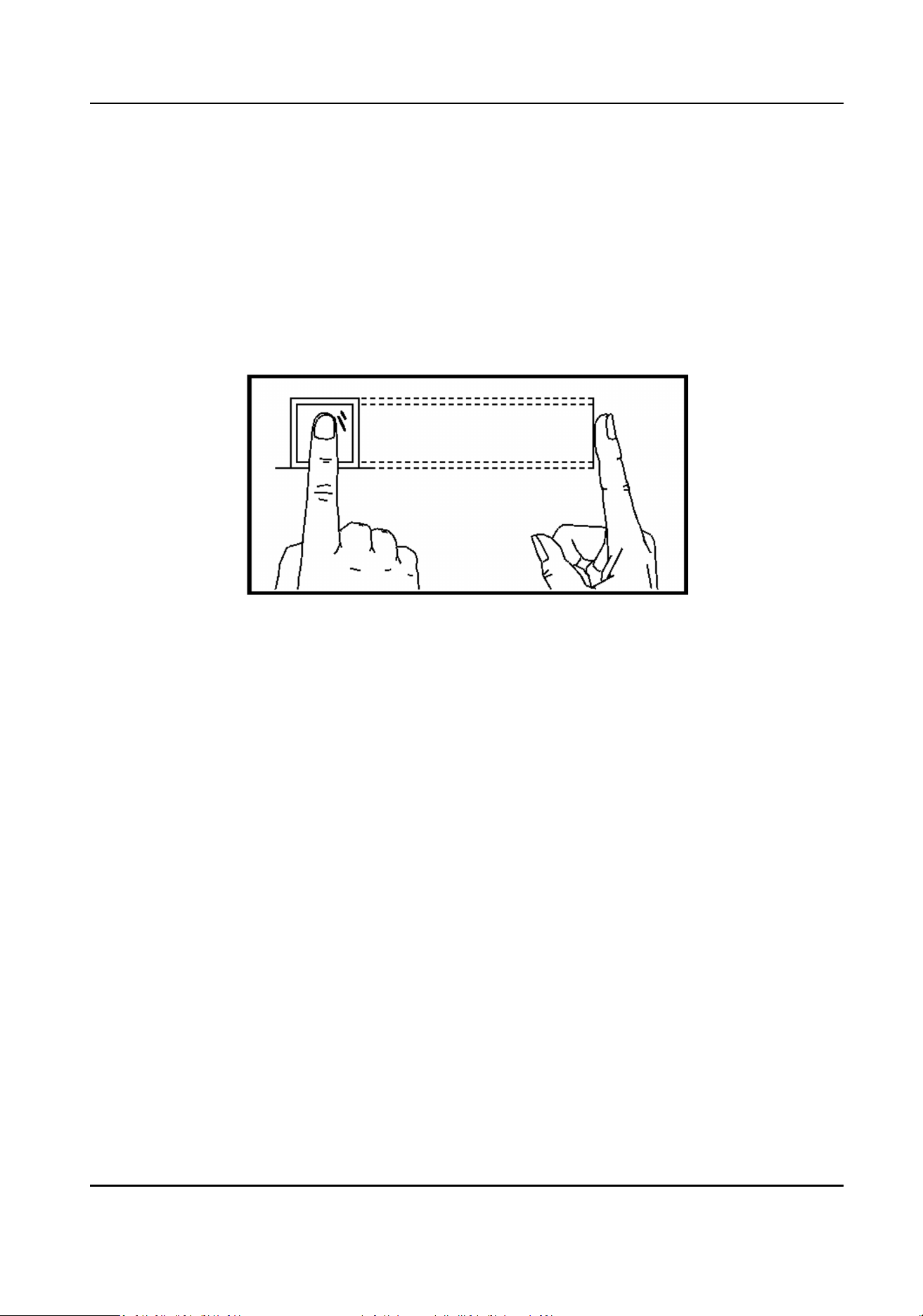
Appendix A. Tips for Scanning Fingerprint
Recommended Finger
Forenger, middle nger or the third nger.
Correct Scanning
The gure displayed below is the correct way to scan your nger:
You should press your nger on the scanner horizontally. The center of your scanned nger should
align with the scanner center.
Incorrect Scanning
The gures of scanning ngerprint displayed below are incorrect:
Face Recognion Terminal User Manual
98
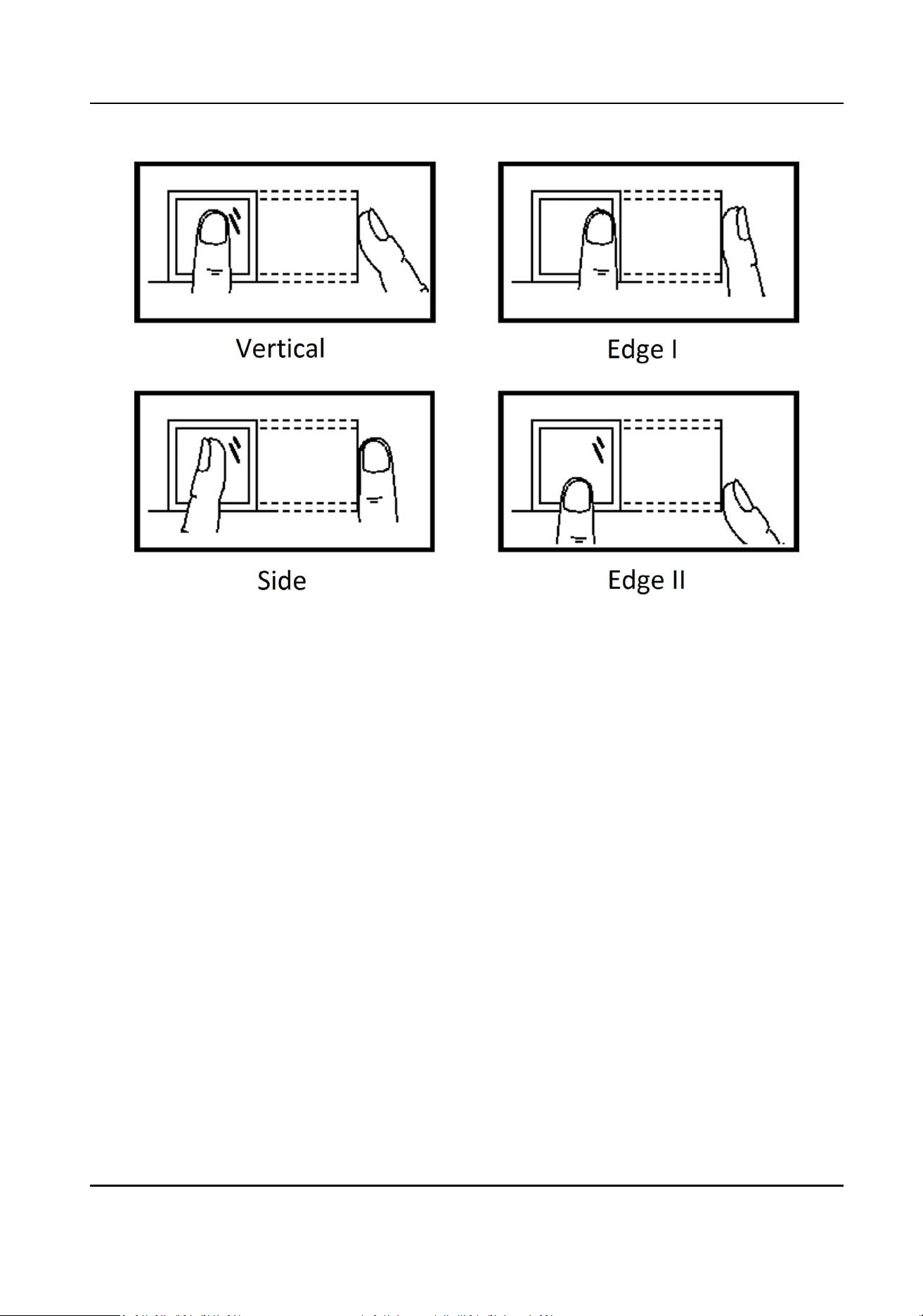
Environment
The scanner should avoid direct sun light, high temperature, humid condions and rain.
When it is dry, the scanner may not recognize your ngerprint successfully. You can blow your
nger and scan again.
Others
If your ngerprint is shallow, or it is hard to scan your ngerprint, we recommend you to use other
authencaon methods.
If you have injuries on the scanned nger, the scanner may not recognize. You can change another
nger and try again.
Face Recognion Terminal User Manual
99
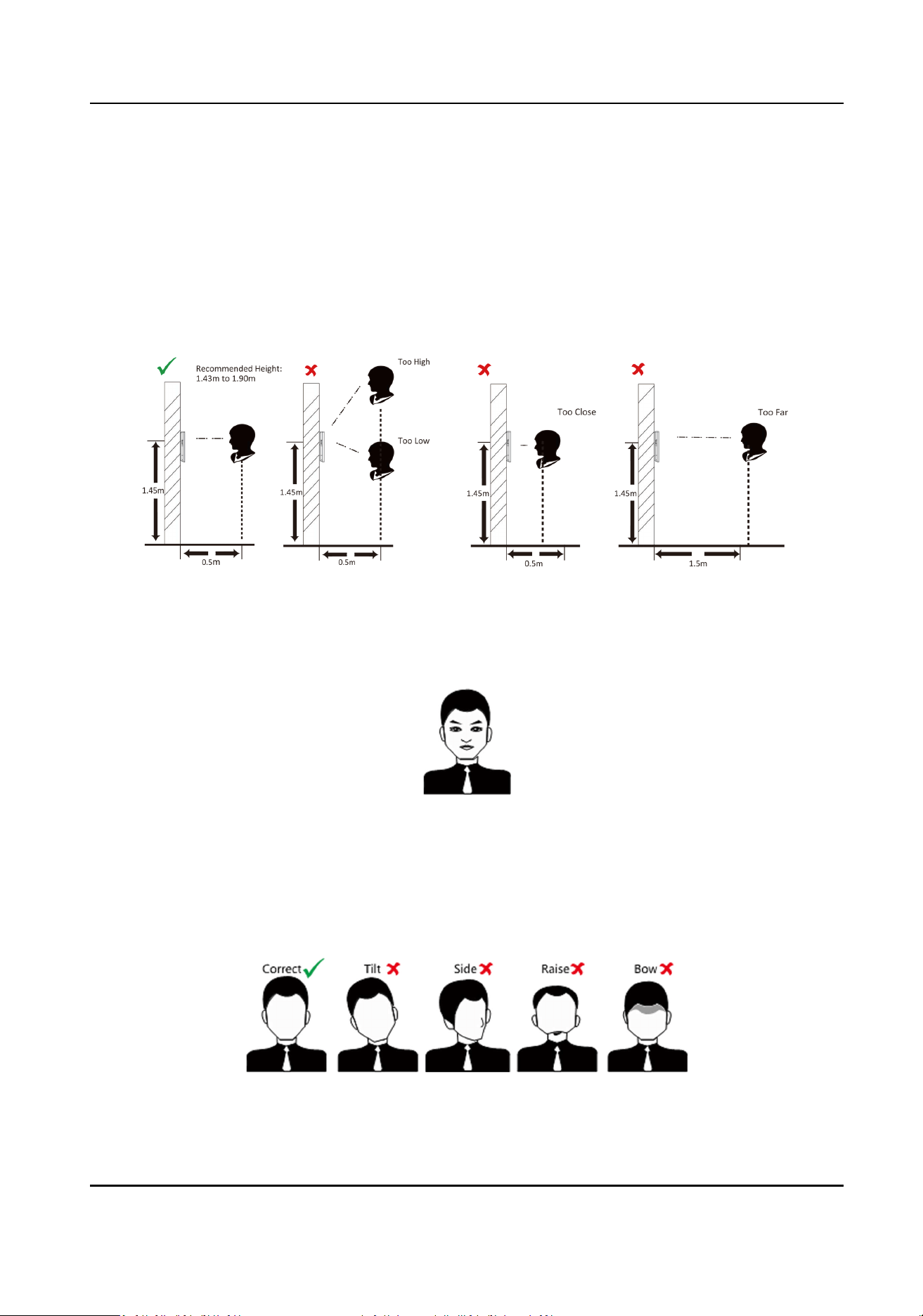
Appendix B. Tips When Collecng/Comparing Face
Picture
The posion when collecng or comparing face picture is as below:
Posions (Recommended Distance: 0.5 m)
Expression
●
Keep your expression naturally when collecng or comparing face pictures, just like the
expression in the picture below.
●
Do not wear hat, sunglasses, or other accessories that can aect the facial recognion funcon.
●
Do not make your hair cover your eyes, ears, etc. and heavy makeup is not allowed.
Posture
In order to get a good quality and accurate face picture, posion your face looking at the camera
when collecng or comparing face pictures.
Face Recognion Terminal User Manual
100

Size
Make sure your face is in the middle of the collecng window.
Face Recognion Terminal User Manual
101
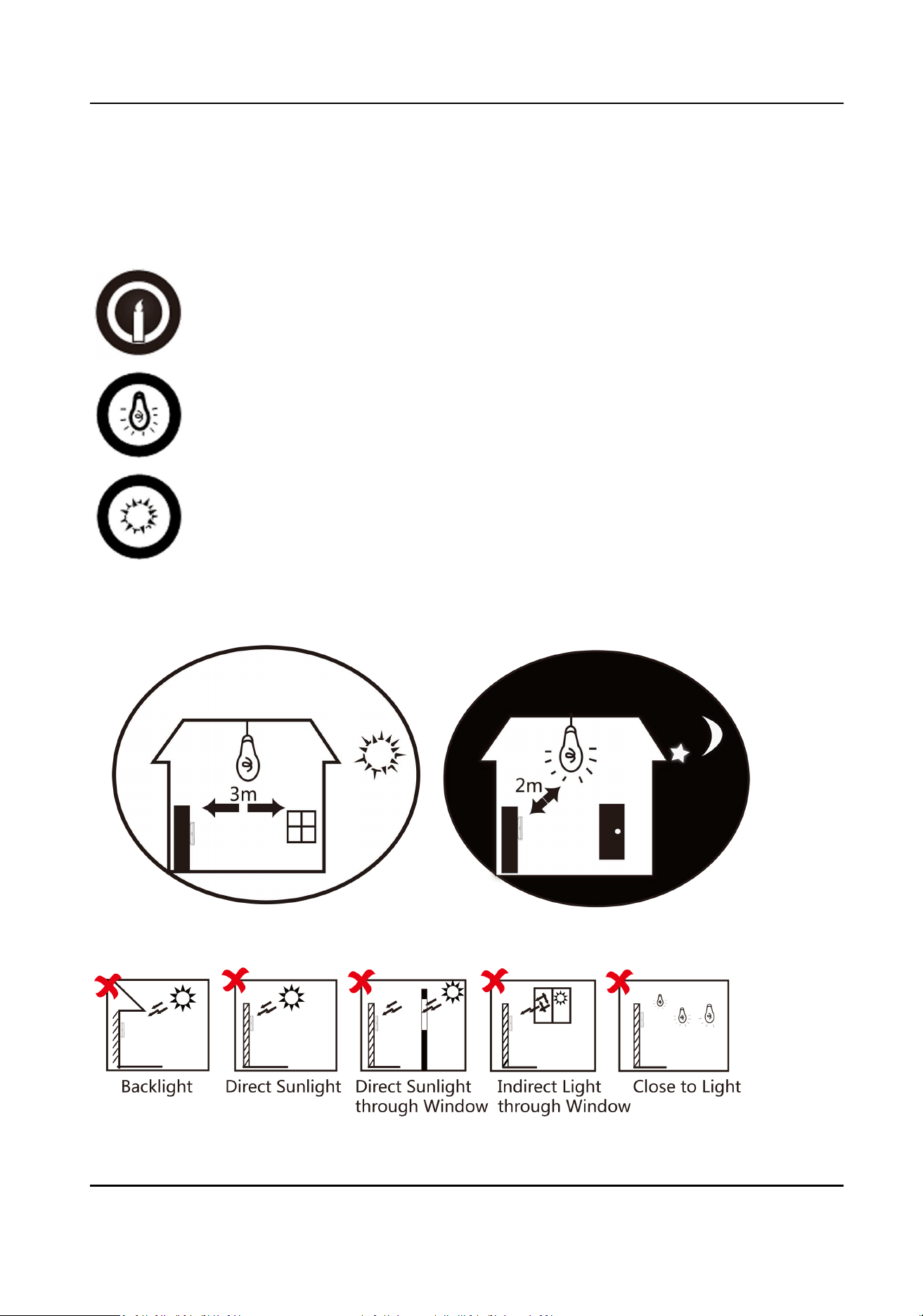
Appendix C. Tips for Installaon Environment
1. Light Source Illuminaon Reference Value
Candle: 10Lux
Bulb: 100~850Lux
Sunlight: More than 1200Lux
2. Install the device at least 2 meters away from the light, and at least 3 meters away from the
window or door.
3.Avoid backlight, direct and indirect sunlight
Face Recognion Terminal User Manual
102
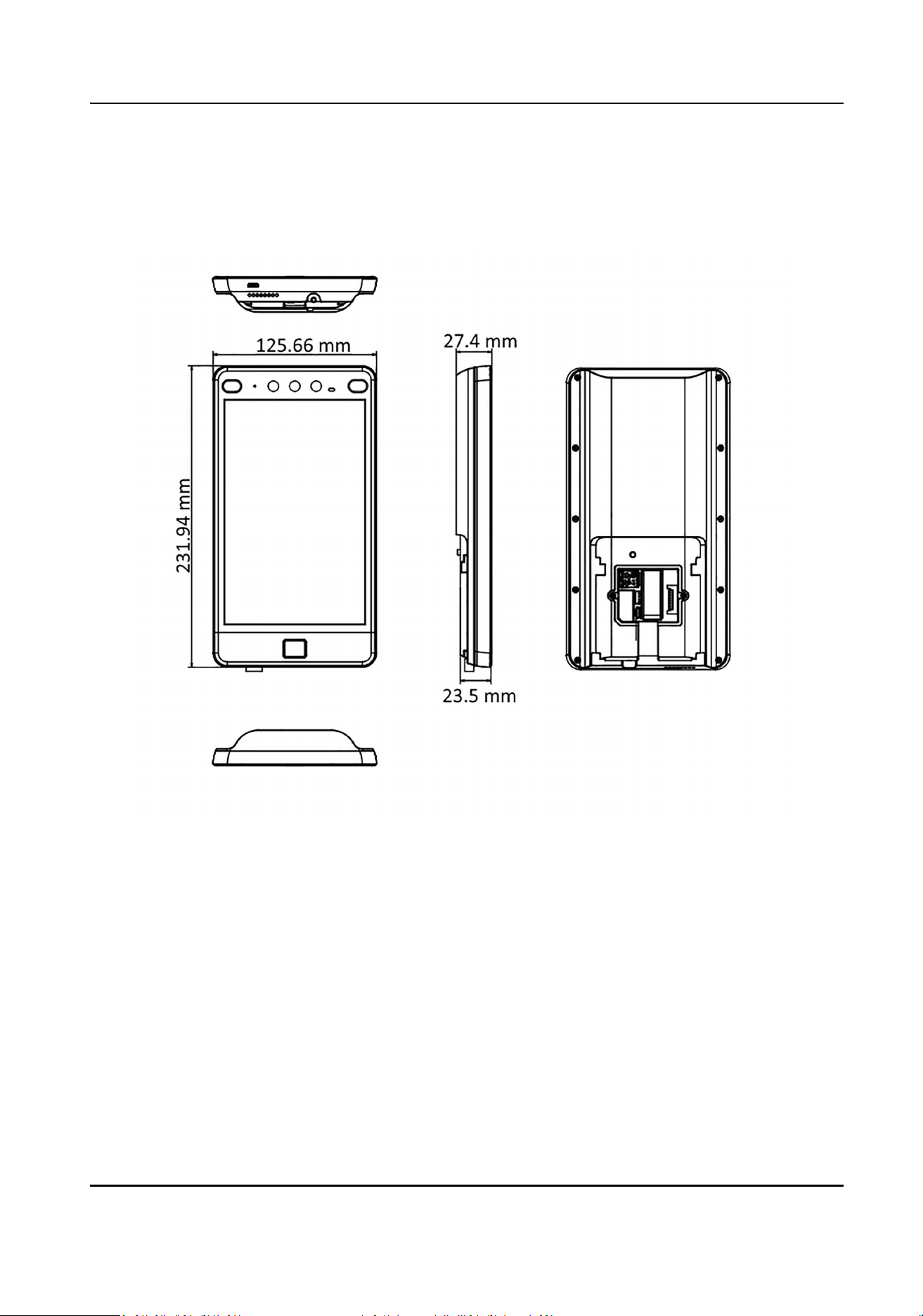
Appendix D. Dimension
Figure D-1 Dimension
Face Recognion Terminal User Manual
103

UD17697B-D