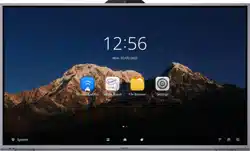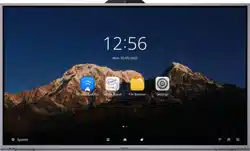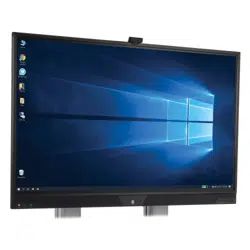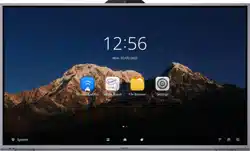

Interactive Flat Panel
User Manual

Interactive Flat Panel User Manual
i
Legal Information
© 2022 Hangzhou Hikvision Digital Technology Co., Ltd. All rights reserved.
About this Manual
The Manual includes instructions for using and managing the Product. Pictures, charts, images and
all other information hereinafter are for description and explanation only. The information
contained in the Manual is subject to change, without notice, due to firmware updates or other
reasons. Please find the latest version of this Manual at the Hikvision website
(https://www.hikvision.com/).
Please use this Manual with the guidance and assistance of professionals trained in supporting the
Product.
Trademarks
and other Hikvision's trademarks and logos are the properties of
Hikvision in various jurisdictions.
Other trademarks and logos mentioned are the properties of their respective owners.
: The terms HDMI and HDMI High-Definition Multimedia Interface, and the HDMI
Logo are trademarks or registered trademarks of HDMI Licensing Administrator, Inc. in the United
States and other countries.
Disclaimer
TO THE MAXIMUM EXTENT PERMITTED BY APPLICABLE LAW, THIS MANUAL AND THE PRODUCT
DESCRIBED, WITH ITS HARDWARE, SOFTWARE AND FIRMWARE, ARE PROVIDED "AS IS" AND
"WITH ALL FAULTS AND ERRORS". HIKVISION MAKES NO WARRANTIES, EXPRESS OR IMPLIED,
INCLUDING WITHOUT LIMITATION, MERCHANTABILITY, SATISFACTORY QUALITY, OR FITNESS FOR
A PARTICULAR PURPOSE. THE USE OF THE PRODUCT BY YOU IS AT YOUR OWN RISK. IN NO EVENT
WILL HIKVISION BE LIABLE TO YOU FOR ANY SPECIAL, CONSEQUENTIAL, INCIDENTAL, OR INDIRECT
DAMAGES, INCLUDING, AMONG OTHERS, DAMAGES FOR LOSS OF BUSINESS PROFITS, BUSINESS
INTERRUPTION, OR LOSS OF DATA, CORRUPTION OF SYSTEMS, OR LOSS OF DOCUMENTATION,
WHETHER BASED ON BREACH OF CONTRACT, TORT (INCLUDING NEGLIGENCE), PRODUCT
LIABILITY, OR OTHERWISE, IN CONNECTION WITH THE USE OF THE PRODUCT, EVEN IF HIKVISION
HAS BEEN ADVISED OF THE POSSIBILITY OF SUCH DAMAGES OR LOSS.
YOU ACKNOWLEDGE THAT THE NATURE OF THE INTERNET PROVIDES FOR INHERENT SECURITY
RISKS, AND HIKVISION SHALL NOT TAKE ANY RESPONSIBILITIES FOR ABNORMAL OPERATION,
PRIVACY LEAKAGE OR OTHER DAMAGES RESULTING FROM CYBER-ATTACK, HACKER ATTACK,
VIRUS INFECTION, OR OTHER INTERNET SECURITY RISKS; HOWEVER, HIKVISION WILL PROVIDE
TIMELY TECHNICAL SUPPORT IF REQUIRED.
YOU AGREE TO USE THIS PRODUCT IN COMPLIANCE WITH ALL APPLICABLE LAWS, AND YOU ARE
SOLELY RESPONSIBLE FOR ENSURING THAT YOUR USE CONFORMS TO THE APPLICABLE LAW.
ESPECIALLY, YOU ARE RESPONSIBLE, FOR USING THIS PRODUCT IN A MANNER THAT DOES NOT
INFRINGE ON THE RIGHTS OF THIRD PARTIES, INCLUDING WITHOUT LIMITATION, RIGHTS OF

Interactive Flat Panel User Manual
ii
PUBLICITY, INTELLECTUAL PROPERTY RIGHTS, OR DATA PROTECTION AND OTHER PRIVACY RIGHTS.
YOU SHALL NOT USE THIS PRODUCT FOR ANY PROHIBITED END-USES, INCLUDING THE
DEVELOPMENT OR PRODUCTION OF WEAPONS OF MASS DESTRUCTION, THE DEVELOPMENT OR
PRODUCTION OF CHEMICAL OR BIOLOGICAL WEAPONS, ANY ACTIVITIES IN THE CONTEXT RELATED
TO ANY NUCLEAR EXPLOSIVE OR UNSAFE NUCLEAR FUEL-CYCLE, OR IN SUPPORT OF HUMAN
RIGHTS ABUSES.
IN THE EVENT OF ANY CONFLICTS BETWEEN THIS MANUAL AND THE APPLICABLE LAW, THE LATER
PREVAILS.
Interactive Flat Panel User Manual
iii
Preface
Applicable Models
This manual is applicable to Interactive Flat Panel.
Symbol Conventions
The symbols that may be found in this document are defined as follows.
Symbol
Description
Danger
Indicates a hazardous situation which, if not avoided, will or could
result in death or serious injury.
Caution
Indicates a potentially hazardous situation which, if not avoided,
could result in equipment damage, data loss, performance
degradation, or unexpected results.
Note
Provides additional information to emphasize or supplement
important points of the main text.

Interactive Flat Panel User Manual
iv
Contents
Chapter 1 Introduction ............................................................................................................... 1
Chapter 2 Operation and Maintenance Precautions .................................................................... 2
2.1 Use of Power Cable ................................................................................................................ 2
2.2 Cleaning and Maintenance .................................................................................................... 3
Chapter 3 Connection and Installation ........................................................................................ 4
3.1 Precautions for Installation .................................................................................................... 4
3.2 Appearance and Interfaces .................................................................................................... 4
3.3 Connection to Personal Computer (PC) ................................................................................. 5
3.4 Internal Computer Installation ............................................................................................... 6
3.5 Mounting ................................................................................................................................ 6
Chapter 4 Startup and Shutdown .............................................................................................. 10
4.1 Device Startup ...................................................................................................................... 10
4.1.1 Installed Without a Computer Box ........................................................................... 10
4.1.2 Installed with a Computer Box .................................................................................. 10
4.2 Eco Mode ............................................................................................................................. 10
4.3 Shutdown ............................................................................................................................. 10
Chapter 5 Menu Operations ..................................................................................................... 11
5.1 Basic Operations .................................................................................................................. 11
5.2 Input Source ......................................................................................................................... 12
5.3 Time and Date ...................................................................................................................... 12
5.4 Network ................................................................................................................................ 12
5.5 Control Menu ....................................................................................................................... 12
5.5.1 Annotating................................................................................................................. 13
5.5.2 Screenshot................................................................................................................. 15
5.5.3 Screen Record ........................................................................................................... 15
5.5.4 Voting Machine ......................................................................................................... 16
5.6 Notification........................................................................................................................... 18
Chapter 6 System Settings ........................................................................................................ 19
6.1 Network Settings .................................................................................................................. 19

Interactive Flat Panel User Manual
v
6.1.1 Wired Network Settings ............................................................................................ 19
6.1.2 Wireless Network Settings ........................................................................................ 20
6.1.3 WLAN Hotspot Settings ............................................................................................. 21
6.2 Display Settings .................................................................................................................... 22
6.3 Audio Settings ...................................................................................................................... 24
6.4 Language and Input Settings ................................................................................................ 24
6.5 Time and Date Settings ........................................................................................................ 25
6.6 Application Management .................................................................................................... 25
6.7 Bluetooth ............................................................................................................................. 25
6.8. Intelligent Temperature Control ......................................................................................... 25
6.9 Advanced Settings ................................................................................................................ 26
6.10 Security ............................................................................................................................... 28
6.11 Device Information ............................................................................................................ 28
Chapter 7 Intelligent Applications ............................................................................................. 29
7.1 FileBrowser........................................................................................................................... 29
7.2 Browser ................................................................................................................................ 30
7.3 Whiteboard .......................................................................................................................... 30
7.3.1 Toolbar Introduction ................................................................................................. 31
7.3.2 Manage Whiteboard ................................................................................................. 33
7.3.3 Save Whiteboard ....................................................................................................... 34
7.3.4 Share Whiteboard ..................................................................................................... 34
7.3.5 More Functions ......................................................................................................... 35
7.4 WonderCast ......................................................................................................................... 37
7.5 System Pre-installed Applications ........................................................................................ 37
Appendix A FAQs ..................................................................................................................... 38

Interactive Flat Panel User Manual
1
Chapter 1 Introduction
The Interactive Flat Panel (hereafter referred as 'the device') integrates functions of computers,
projectors, interactive whiteboards, sound boxes, cameras (optional), HDTVs, advertising
machines and so on. The device applies multiple technologies like 4K display, infrared touch,
human-machine interaction, multi-media information processing, and network transmission,
providing users with various features such as writing, annotating, multi-screen sharing, and
remote video call (optional).
The device is mainly used for remote video conferences, trainings and guidance, medical
consulting, and other events in kinds of offices, meeting rooms, multi-media classrooms,
exhibition halls and so on.
Key Features
● Ultra HD display with up to 3840 × 2160 resolution of input signal available.
● 20px ultra fine writing, and 2 mm diameter recognizable with the precision of 1 mm.
● Built-in Wi-Fi realizes screen mirroring without any cable connection.
● Built-in interactive whiteboard system allows annotating and sharing by QR code.
● Looping-out display available.
● Various audio and video interfaces for device access.
● Built-in network switch module saves a network switch.
● Built-in Android system provides kinds of applications.
● Compatible with OPS/OPS-C devices, realizing smooth switch between built-in systems.
● Ultra-thin design with aluminum profile frame.

Interactive Flat Panel User Manual
2
Chapter 2 Operation and Maintenance Precautions
The LCD panel on the device is made by high-precision technology. However, tiny spots on the
screen that are always or never lit may be observed, or when observed from side, the color and
brightness may appear to be uneven. Yet the above phenomena are common among LCD displays
rather than faults and will not affect the performance of the device.
● Our company is not responsible for any fault caused by third-party when operating the device
and other failure or damage incurred.
● Do not operate the device in an environment of dust, high humidity, or oil and steam contacting
to avoid the risk of fire and damage.
● Do not place the device under direct sunlight or near strong light source.
● Do not place the device near other equipment with strong radiation.
● Do not expose the device to rain or humid environment.
● Do not place the device on unstable or unsafe surface. Avoid strong impact, vibration or
vibration.
● Do not operate the device near heating device or place of high temperature to avoid the risk of
fire.
● After moving the device from low temperature environment to high temperature environment,
please do not turn on the device immediately and wait for the condensation to evaporate.
● Do not insert any object into the device.
● Do not place heavy objects upon the device.
● The device and its accessories are subject to change without prior notice.
● The fragile materials of the display are vulnerable to falling and impact. Please hold with care.
● Improper operations during debugging and operating may cause damage to the device.
● Scratching or knocking the device with hard objects is strictly forbidden. Do not frequently turn
on/off the power of the device when operating to avoid the risk of damage and faults.
● If smoke, odor or noise rise from the device, turn off the power at once and unplug the power
cable, and then please contact the service center.
2.1 Use of Power Cable
● If the power cable is damaged or failed, contact service center. Make sure the power supply is
properly grounded and matches the requirements specified by the plate on the shell.
● Do not expose the device to rain or humid environment. Disconnect power plug and antenna in
thunderstorm weather.
● If the device will not be used for a long time. Shut down the power of the device and disconnect
the power supply.
● Electric discharge may last for a short period of time after the power is shut down. Please wait
for two minutes after the power shut down to operate the device.
● Only use the original power cable delivered with the device. Contact authorized dealer to
purchase power cable with same specifications.
● Make sure the power supply is grounded.
● Do not let dust or metal attachment adhere to the power plug and socket.
● Do not modify the cable in any form.

Interactive Flat Panel User Manual
3
● Do not place heavy object on the cable.
● Keep the cable away from heat.
● Do not disconnect the power plug by pulling the cable.
● Keep the power cable away from physical or mechanical damage.
● The cable is applicable only to the Interactive Display. Do not use it on other devices.
2.2 Cleaning and Maintenance
● The hole on the rear shell is for heat dissipation. Do not pour or spray liquid to the rear shell or
use wet cloth for cleaning.
● Disconnect the power plug before cleaning.
● Do not display images with high brightness on the screen for too long.
● Use a dry, soft and dust-free cloth to clean the device.
● Contact service center for internal cleaning.
● Proper maintenance can avoid certain early-stage failures.
● Clean the device on a regular basis to make the device look new.
● Do not clean the device with water, spray cleaner or industrial chemical reagent. Prevent
foreign matters from entering the device.
● Contact qualified service personnel for device maintenance. If the device is damaged, please
contact out company, do not carry out unauthorized maintenance.
Interactive Flat Panel User Manual
4
Chapter 3 Connection and Installation
3.1 Precautions for Installation
● Clean the device screen and back before installation for best performance.
● For safety, only use the wall mount or base provided by the manufacture.
● Contact professional staff for wall mounting.
● Check the accessories before the installation. Contact the dealer if anything is missing.
● Do not install the device too tight. Otherwise the screen may be distorted.
● Mount the device on load-bearing wall.
● Place the device on a stable surface or fix the device steadily on the wall.
● Install the device near an available AC power socket for easy power connection. Use the same
ground cable with other devices to prevent signal interference.
● Do not place the device near mechanical vibration source.
● Do not place the device in an environment where insects have easy access.
● Do not let the device face the air conditioner directly to avoid condensing.
● Do not place the device in strong electromagnetic field to avoid radio interference.
3.2 Appearance and Interfaces
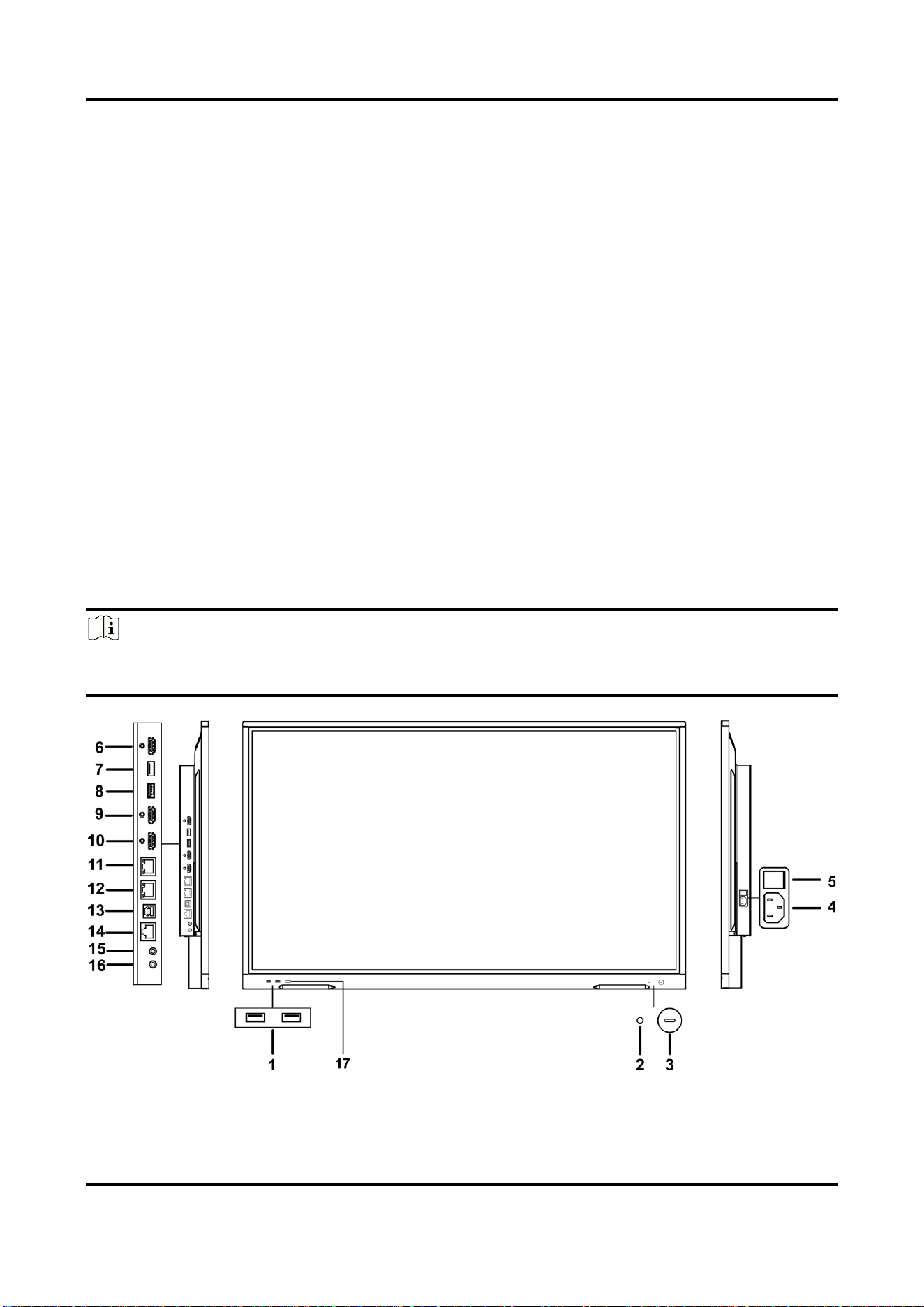
The interfaces of Conference Flat Panel are shown as followed.
Note
● Interfaces of the device vary from different type.
● The following description is from the direction facing the screen.
Figure 3-1 Front Panel and Interfaces
Interactive Flat Panel User Manual
5
Table 3-1 Panel Description
No.
Description
No.
Description
1
Multi-functional USB interface
10
HDMI input interface 1
2
Environmental light sensor
11
Network interface 2
3
Power button
Short press to turn to power-
saving status. Long press to turn
on or turn off the device.
12
Network interface 1
4
Power switch
13
External touch interface
5
Power supply interface
100 to 240 VAC
14
RS-232 debug serial port
6
HDMI output interface
15
Audio input interface
7
Multi-functional USB interface
16
Audio output interface
8
USB 2.0 interface
17
Type-C interface
9
HDMI input interface 2
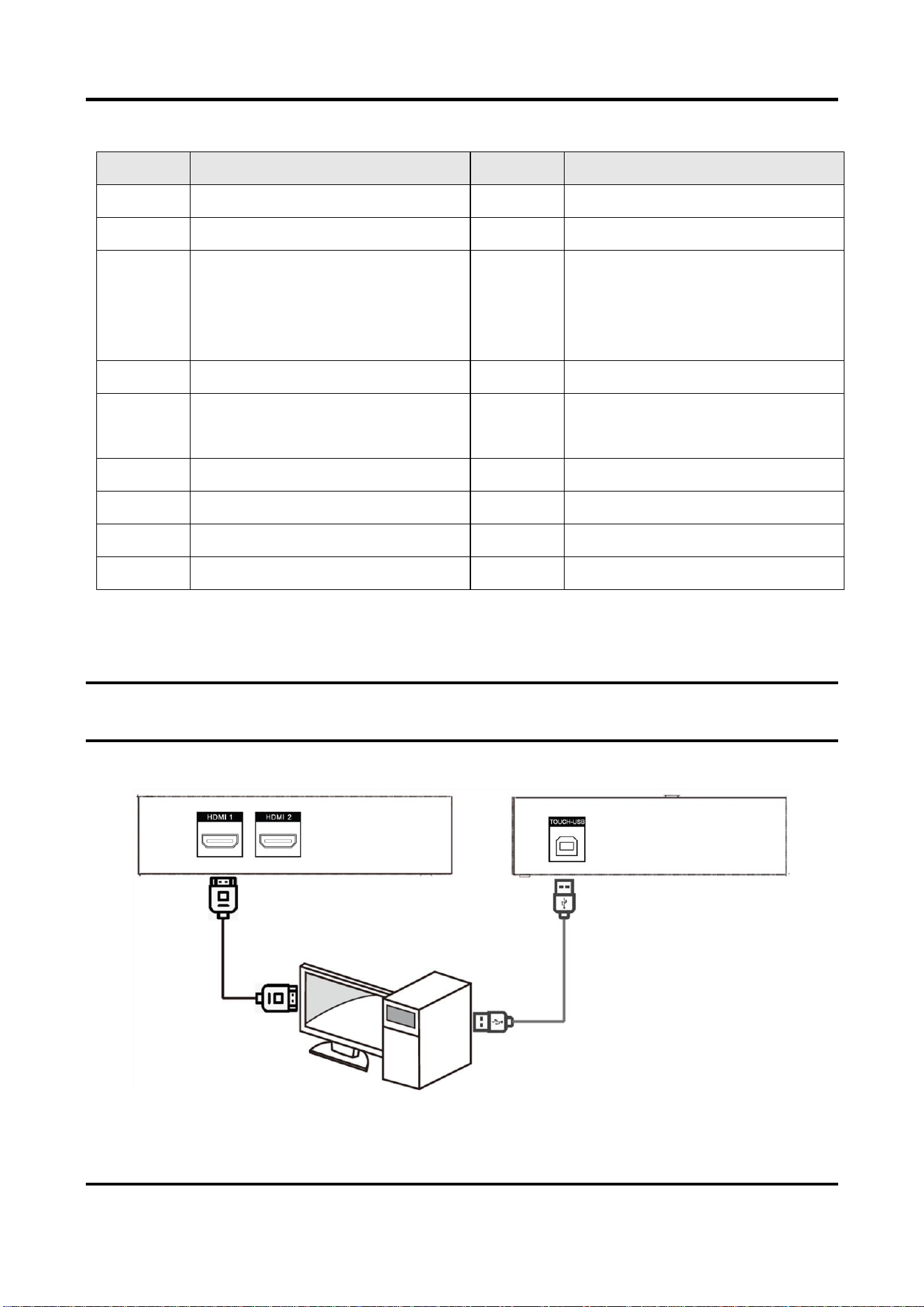
3.3 Connection to Personal Computer (PC)
The connection of PC and the device is shown as below.
Warning
The device must be disconnected from power supply before installation or disassembly.
Figure 3-2 Connect to PC
Interactive Flat Panel User Manual
6
Note
● The Touch-USB interface is needed only when the user needs to touch operate the external PC
on the device.
● Use high quality signal cable less than 10 meters in length for high HDMI signal transmission
quality.
● USB cable is not contained in the product. Please purchase USB cable with type A connector to
type B connector.
3.4 Internal Computer Installation
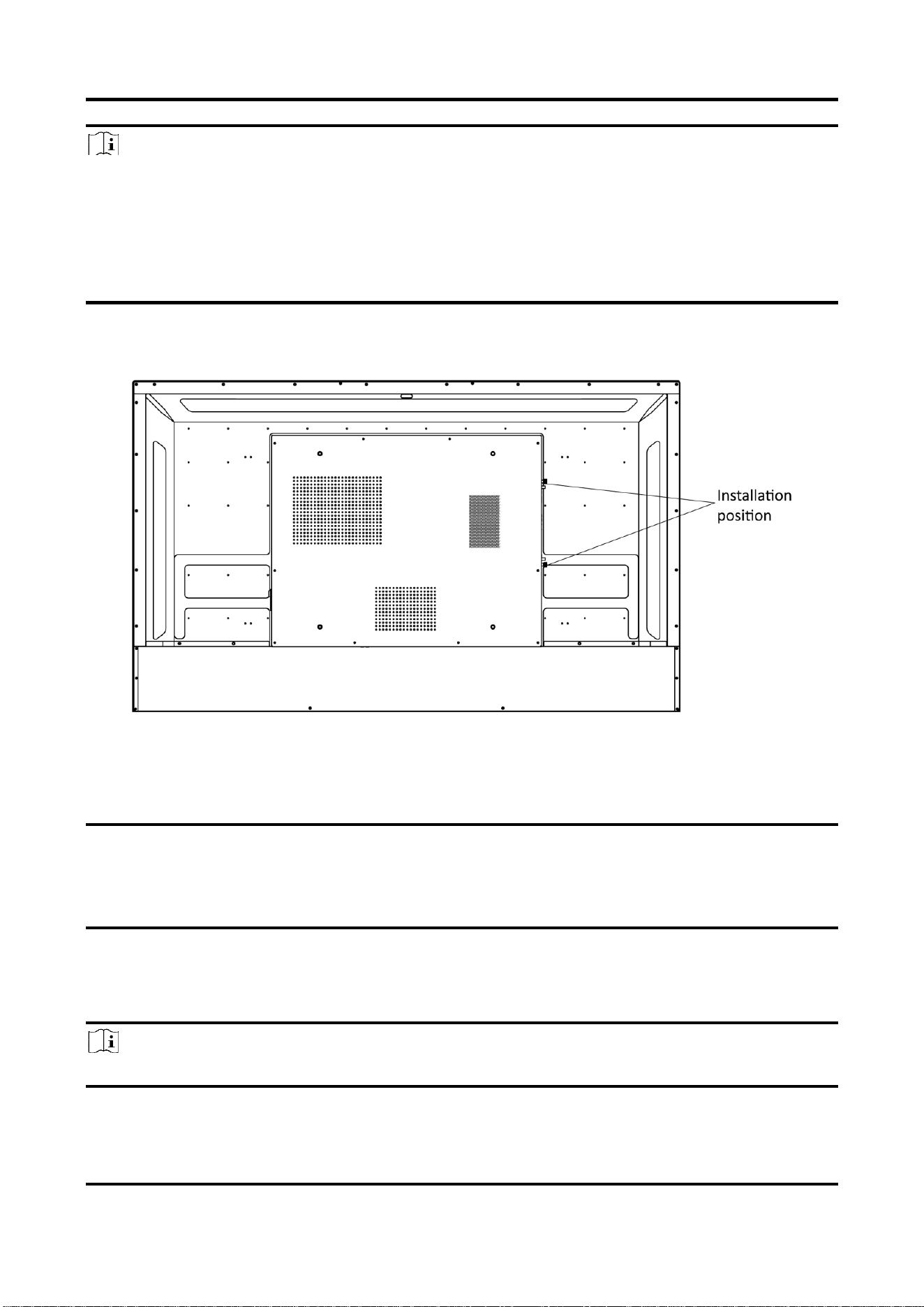
Figure 3-3 Internal Computer Installation
The computer box is installed at the side slot of the device. When installing the box, make sure its
ventilation hole is facing the same direction with the rear panel as shown above. Fasten the
screws to fix the box into position.
Warning
● The computer is an optional accessory.
● To avoid potential device damage, the computer box can be removed only after the device is
disconnected from power.
3.5 Mounting
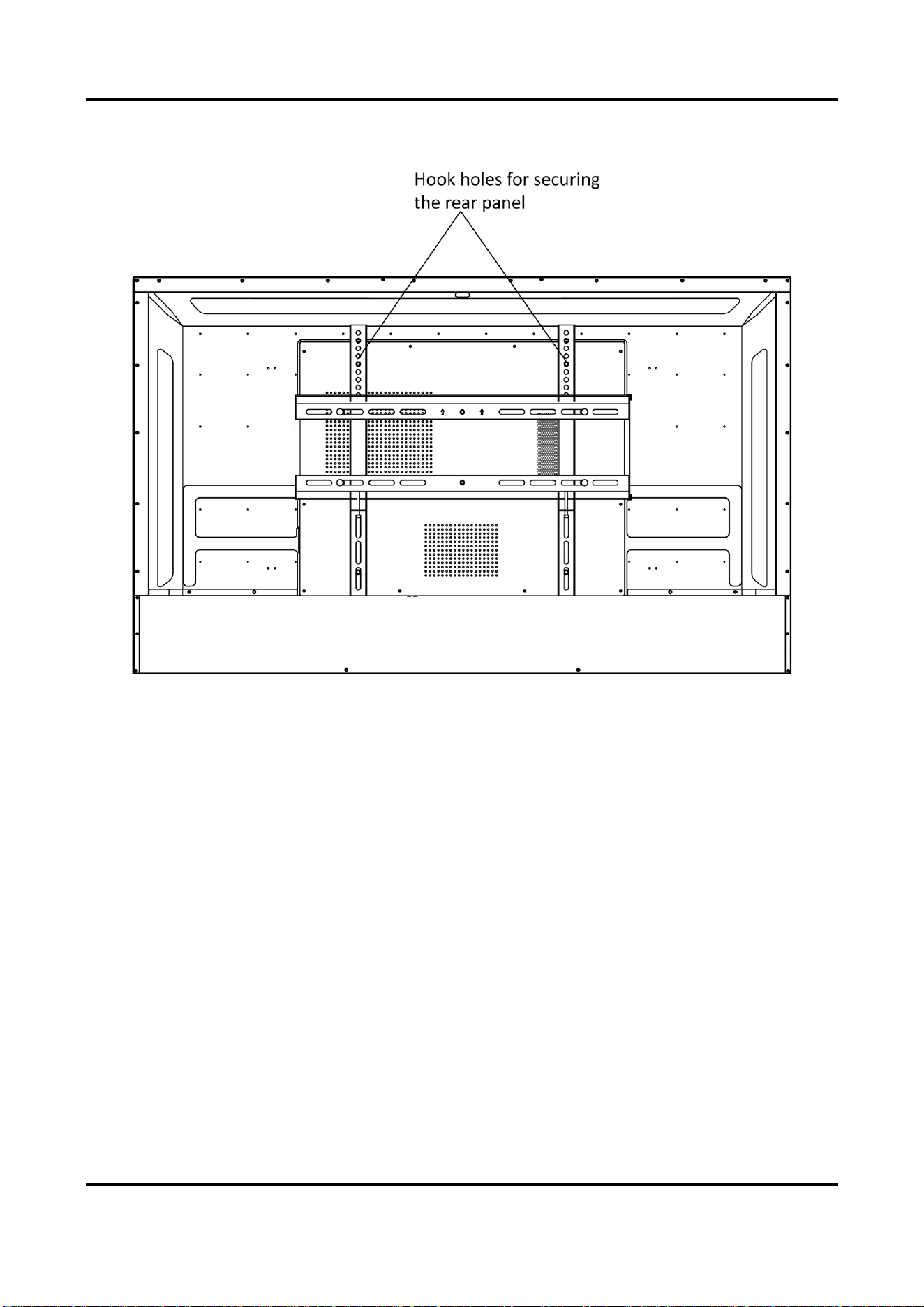
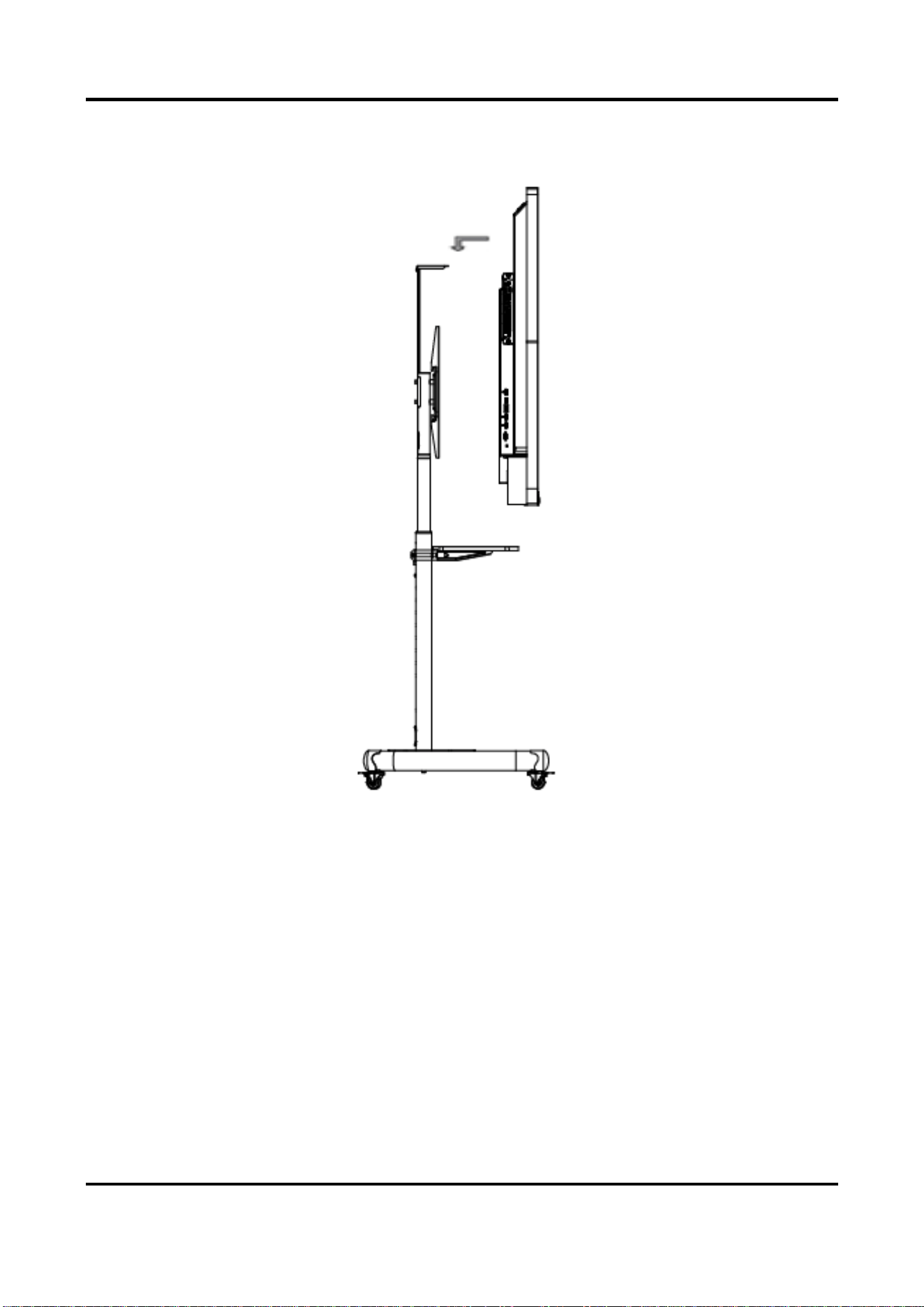
The device can be installed with wall mount or mobile mount, as shown below.
Note
The accessories for wall mount and mobile mount are different. Do not mix them up.
Interactive Flat Panel User Manual
7
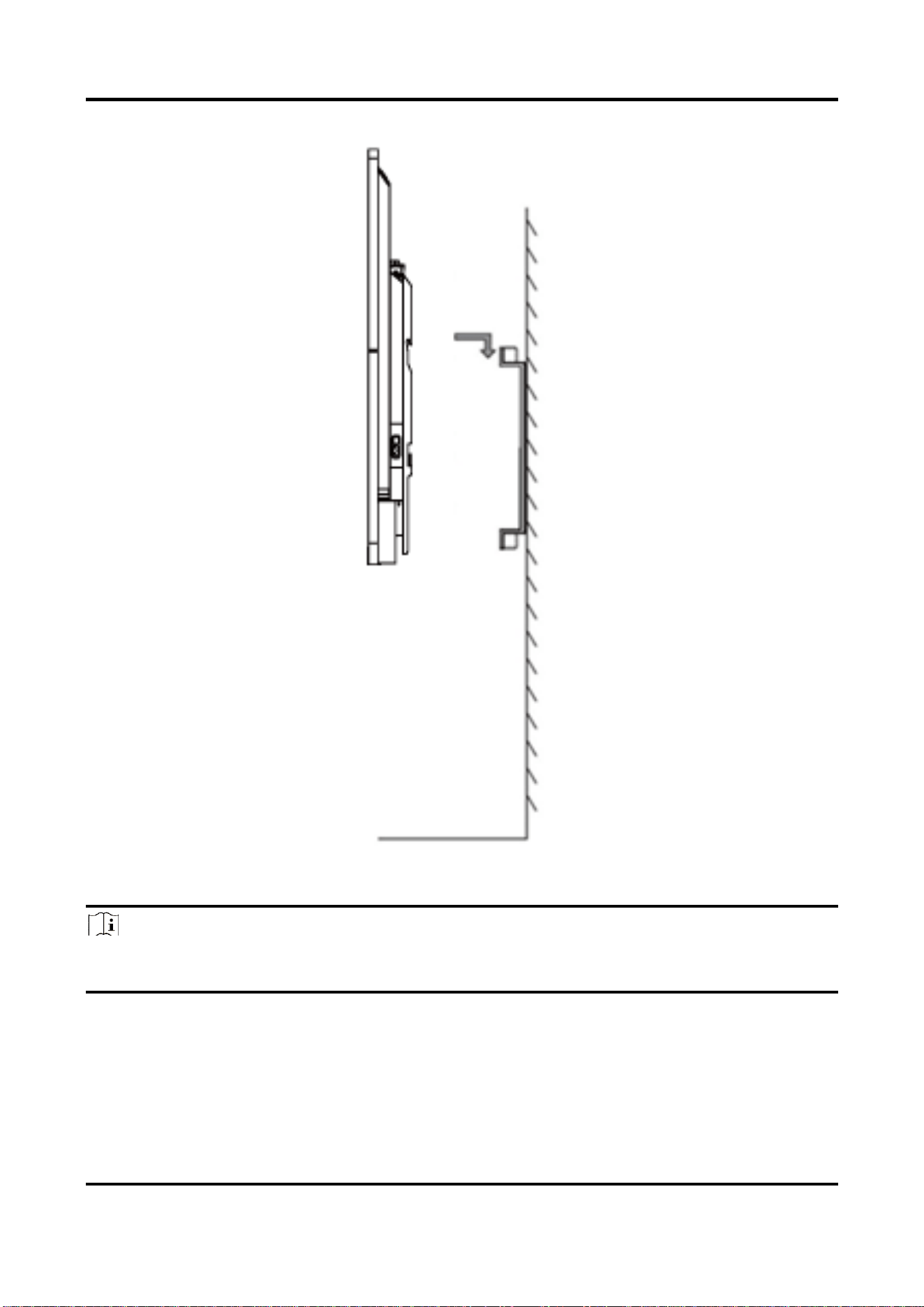
Wall Mounting
Figure 3-4 Wall Mounting Rear View
Interactive Flat Panel User Manual
8
Figure 3-5 Wall Mounting Side View
Note
The wall mount is mobile horizontally. Please leave a space no less than 6 cm at each side (or 12
cm at one side), and 5 mm at the top and bottom for maintenance service.
Interactive Flat Panel User Manual
9
Mobile Mounting
Figure 3-6 Mobile Mounting

Interactive Flat Panel User Manual
10
Chapter 4 Startup and Shutdown
4.1 Device Startup
4.1.1 Installed Without a Computer Box
Steps
1. Connect the device to power supply.
2. Turn on the power switch, the power indicator on the front panel will turn red.
3. Push the power button on the front panel to start up the device, the indicator will turn blue.
4.1.2 Installed with a Computer Box
Install the box when the device is disconnected from power and turn on the power switch after
the installation is finished. During the startup, the power indicator of the box will turn red and the
fan will start. After a beep sound, the power indicator will turn green and the computer is
switched on. Meanwhile, the power indicator on the front panel will turn blue which means the
device is switched on.
4.2 Eco Mode
Entering Eco Mode
Press the power button on the front panel to turn off the screen and enter Eco Mode.
Waking up the Device
Three ways to wake up the device:
● Press the power button on the front panel.
● Press the power-off button on the remote control.
● Touch anywhere on the screen twice.
4.3 Shutdown
● If the device is not installed with a computer box or the computer box is shut down, directly
switch off the power to shut down the device.
● If the device is installed with a computer box which is powered on, tap Start and choose
Shutdown, or press the power button on the computer box to shut it down (press and hold the
power button to force shutdown). Then switch off the power to shut down the device.
Note
Switching off the power of the device directly leads to force shutdown of the computer box.
Next time the device starts up, Windows may enter error recovery mode and screen touch will
be disabled. In this case, you need to connect a mouse and a keyboard to the device.
Short press the power-off button on the remote control.
Interactive Flat Panel User Manual
11
Chapter 5 Menu Operations
Note
Software interfaces and functions may vary with device models. All pictures in this manual are for
illustration purpose only.
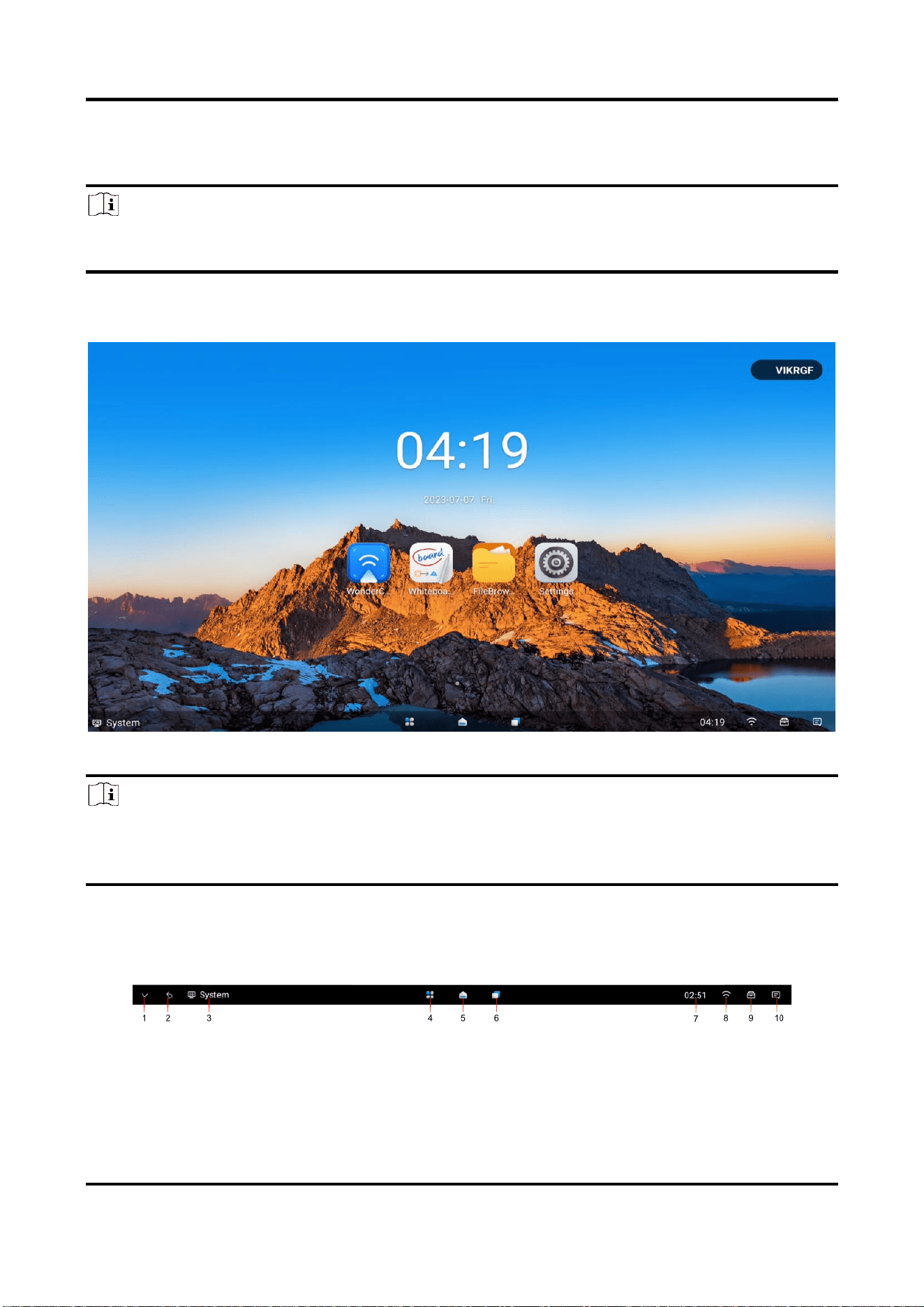
Turn on the device and go to the main page. The shortcut menu is displayed at the bottom of the
screen.
Figure 5-1 Main Page
Note
Long press the icons of applications on the main page to replace with the commonly-used
ones.
If there is a prompt message, it will appear in the bottom right corner of the screen.
5.1 Basic Operations
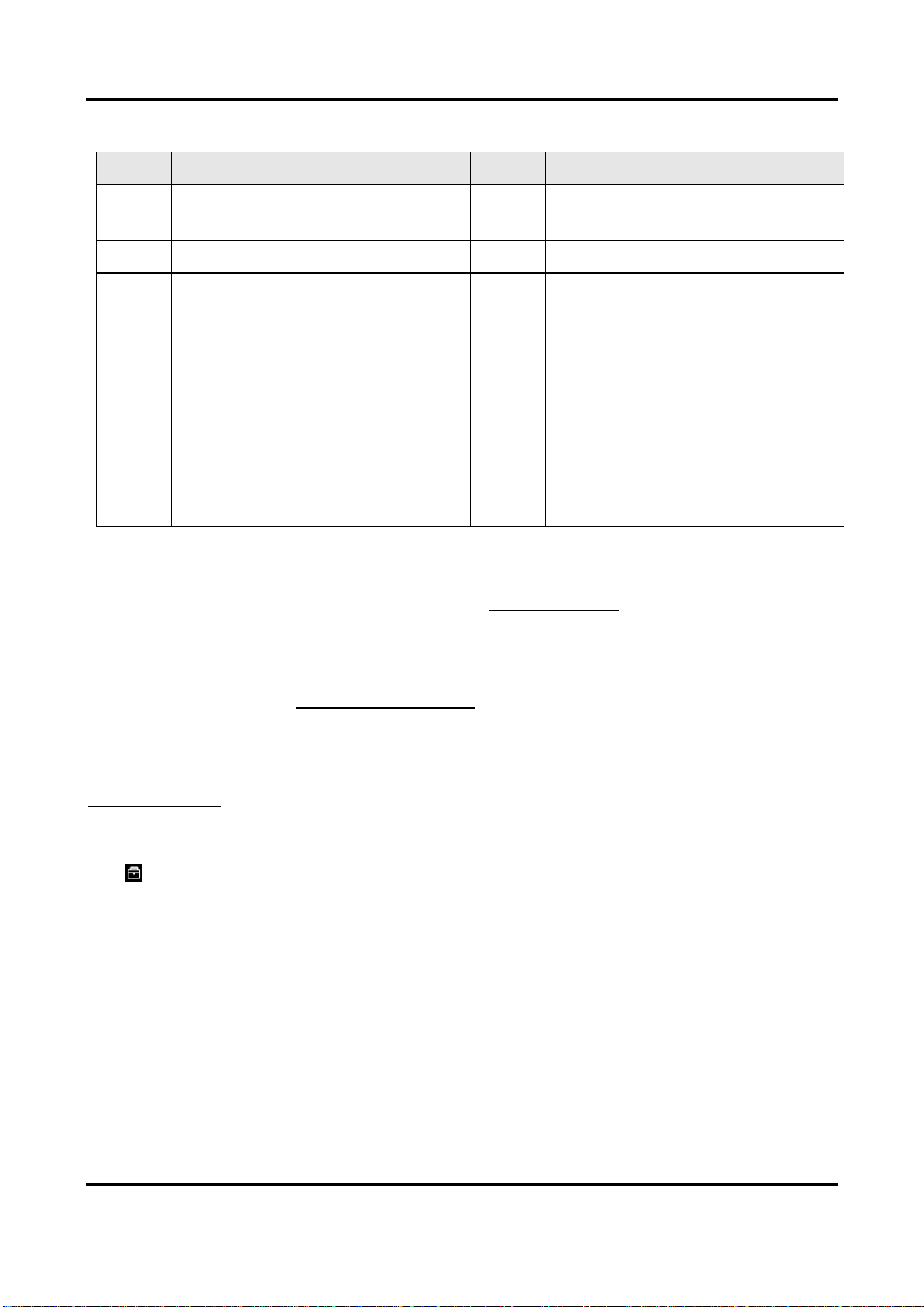
Functions of the shortcut icons are described below.
Figure 5-2 Shortcuts
Interactive Flat Panel User Manual
12
Table 5-1 Shortcuts Description
No.
Function
No.
Function
1
Tap to hide the menu bar at the
bottom.
6
Tap to open all the windows of
processes.
2
Tap to return to the previous page.
7
Tap to set the date and time.
3
Tap to select the input source.
8
Tap to configure network
parameters and hotspot.
The icon color changes with the
strength of the wireless network
signal.
4
Tap to check all the applications.
Long press and move the selected
application to display in split view.
9
Tap to open the control menu.
5
Tap to return to the main page.
10
Tap to check notifications.
5.2 Input Source
Tap the icon of input source at the bottom (area 3 in Basic Operations), and set the input source
of the device. System, PC, HDMI 1, and HDMI 2, Type-C are available.
5.3 Time and Date
Set time and date. Refer to Time and Date Settings for more details.
5.4 Network
Set the detailed parameters of wired network, wireless network, and WLAN hotspot. Refer to
Network Settings for more details.
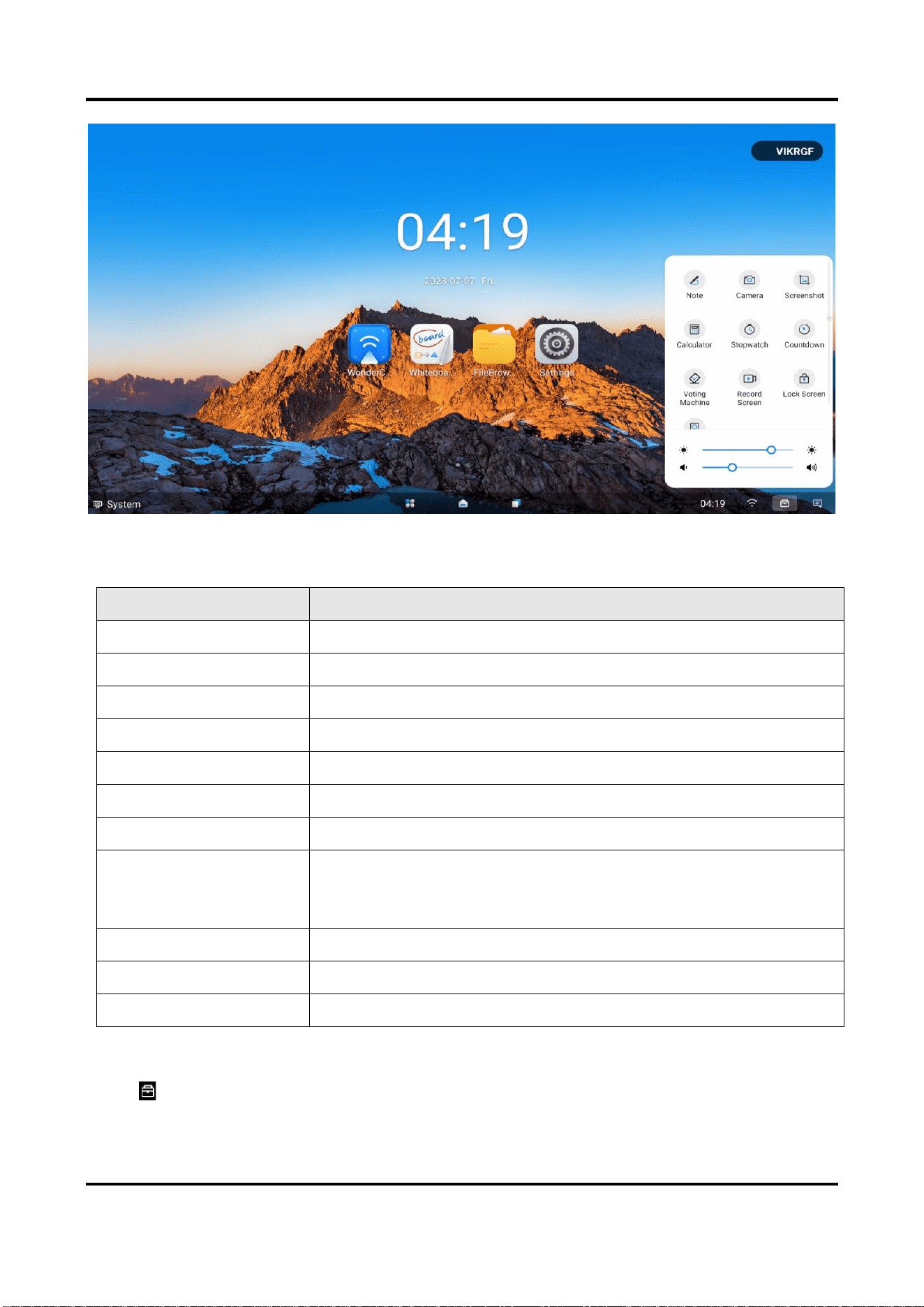
5.5 Control Menu
Tap at the bottom to show the control menu. The following operations are available.
Interactive Flat Panel User Manual
13
Figure 5-3 Control Menu
Table 5-2 Control Menu Descriptions
Tool
Description
Calculator
Enable the built-in calculator.
Note
Take annotations on the current page.
Camera
Open the camera bound to the device.
Screenshot
Capture the current page.
Stopwatch
Measure the amount of time.
Countdown
Count seconds backwards to zero.
Controller
Enable the virtual controller.
Lock Screen
Tap to enable touch lock, and no touch operation on the locked
page is available. Tap the lock and exit, the touch function will
return to normal.
Voting Machine
Set voting options for voting.
Record Screen
Record your operation as a video.
Adjustment Bar
Adjust the brightness and volume.
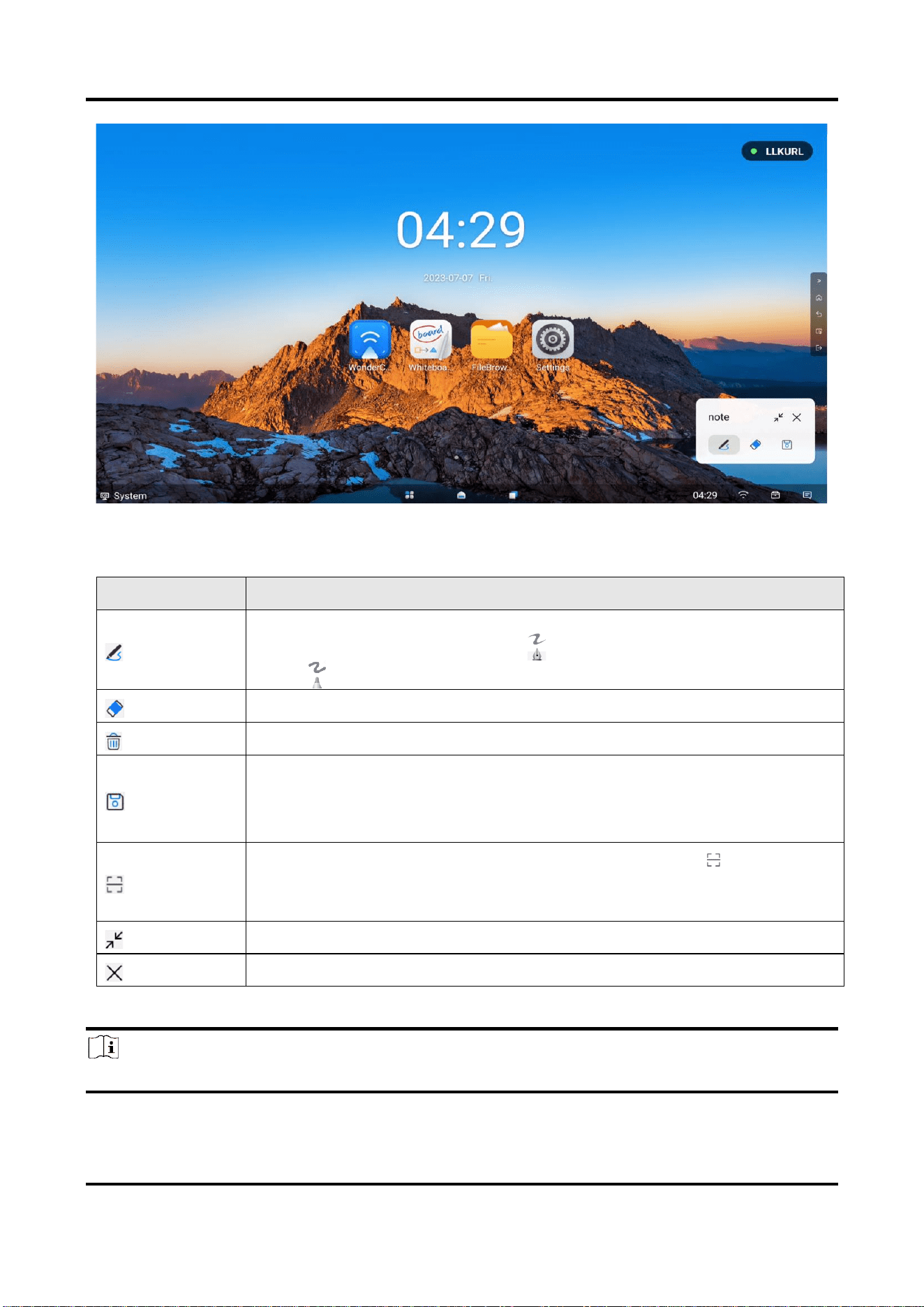
5.5.1 Annotating
Go to → Note to take annotations. You can add annotations anywhere on the page by
touching and moving on the screen.
Interactive Flat Panel User Manual
14
Figure 5-4 Take Annotations
Table 5-3 Icon Descriptions
Icon
Description
● Pen color and size are customizable.
● Enable angled stroke or not. Tap to have lines with angled stroke, and
tap to have lines without angled stroke.
Erase the desired annotations.
Clear all the annotations.
Save the current page.
Generate QR code of annotation when flat panel connects to the LAN.
Devices in the same LAN can scan the QR code to download annotation.
When the device is connected to the Internet, you can tap to generate
the annotation into a QR code, and any devices in the same LAN as the
device can scan the QR code to download the annotation.
Hide the tool in a floating window.
Exit annotating.
Note
Up to 20 pens are allowed when lines with angled stroke is disabled, while only one when enabled.
Interactive Flat Panel User Manual
15
5.5.2 Screenshot
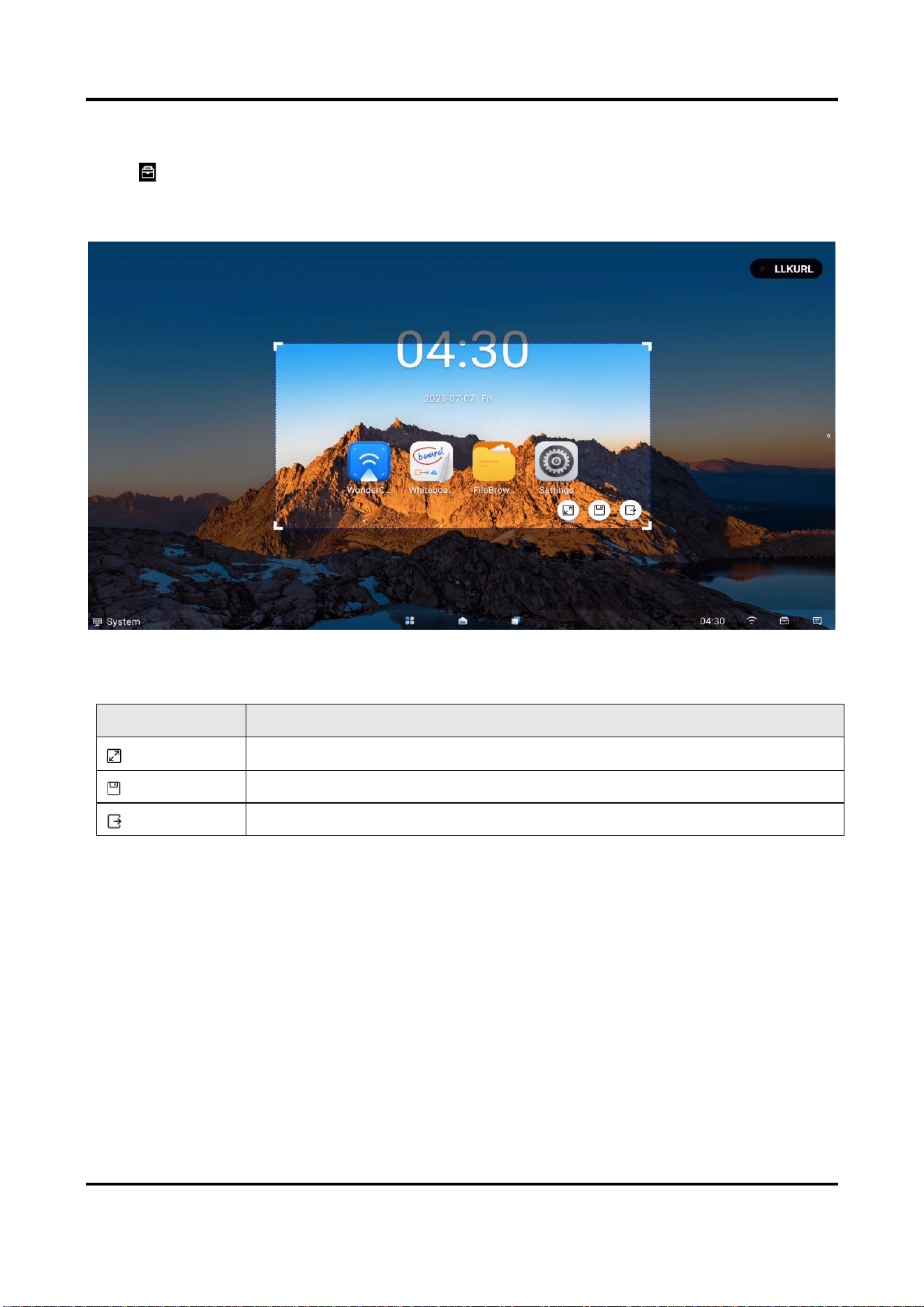
Go to → Screenshot, and a capture area pops up on the current page. Adjust the area by
tapping and dragging the four corners. The screenshot toolbar pops up on the lower right corner
of the area.
Figure 5-5 Screenshot
Table 5-4 Screenshot Toolbar Descriptions
Icon
Description
Capture the whole page.
Save the screenshot in the capture area.
Exit screenshot.
5.5.3 Screen Record
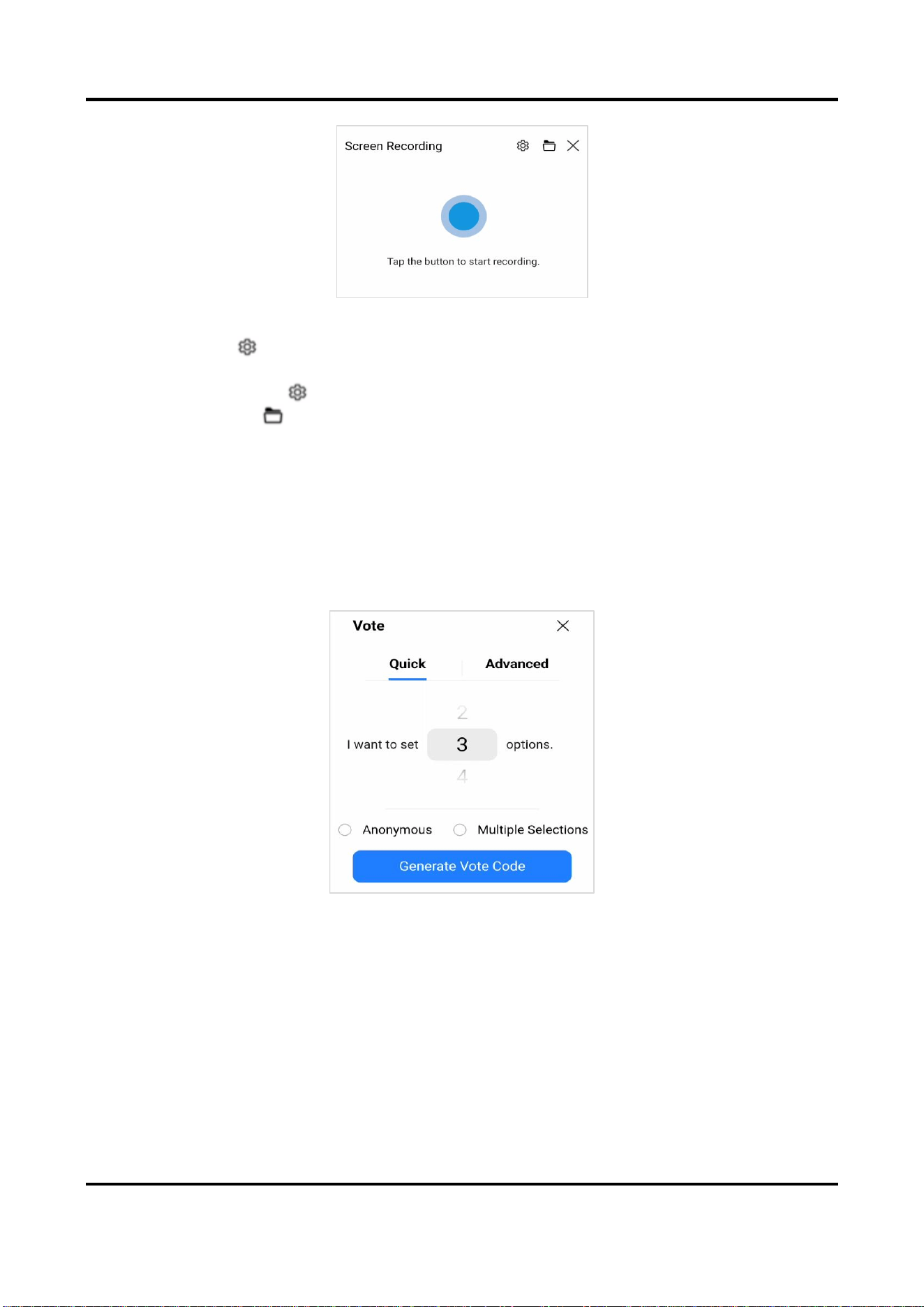
Click Screen Record in the Tools menu bar, click the button to start recording the screen, click
again to pause/resume recording, click Stop Recording to end recording.
Interactive Flat Panel User Manual
16
Figure 5-6 Screen recording
● Definition: Click to support setting the clarity to high-definition (1920 × 1080), Standard
Clear (1280 × 720), or smooth (720 × 480).
● Audio Recording: Click to select whether to turn on or off recording screen sound.
● Save Address: Click to go to the screen recording and saving address in file management.
5.5.4 Voting Machine
After the device is connected to the public network, click Voter in the Tools menu. You can vote
quickly or according to the set voting options.
Quick voting
After selecting several voting options, quickly proceed to vote.
Steps
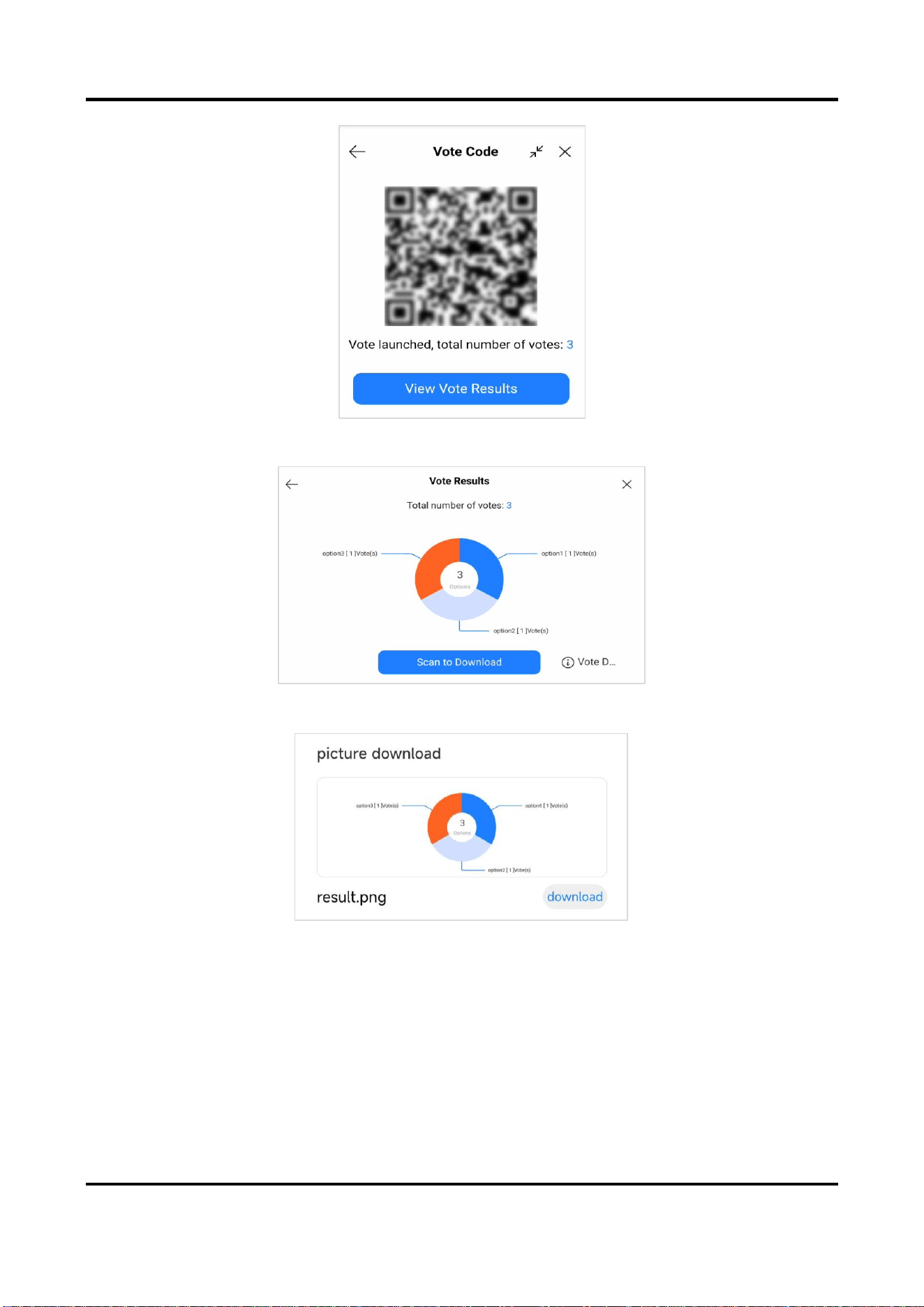
1. Click on Quick and select the number of voting options.
Figure 5-7 Quick Voting
2. Configure the following parameters according to actual needs.
● Anonymous: Secret ballot.
● Multiple Selections: When voting, multiple voting options can be selected.
3. Click Generate Vote Code, which can be scanned by mobile phone for voting.
Interactive Flat Panel User Manual
17
Figure 5-8 Mobile Voting Interface
4. Click View Vote Results, end the voting, and view the voting details.
Figure 5-9 Viewing Voting Results
5. (Optional) Click Scan to Download. You can download the voting results through your phone.
Figure 5-10 Download Voting Results
Advanced voting
After scanning the code on your phone and editing voting options on your phone, proceed to vote.
Steps
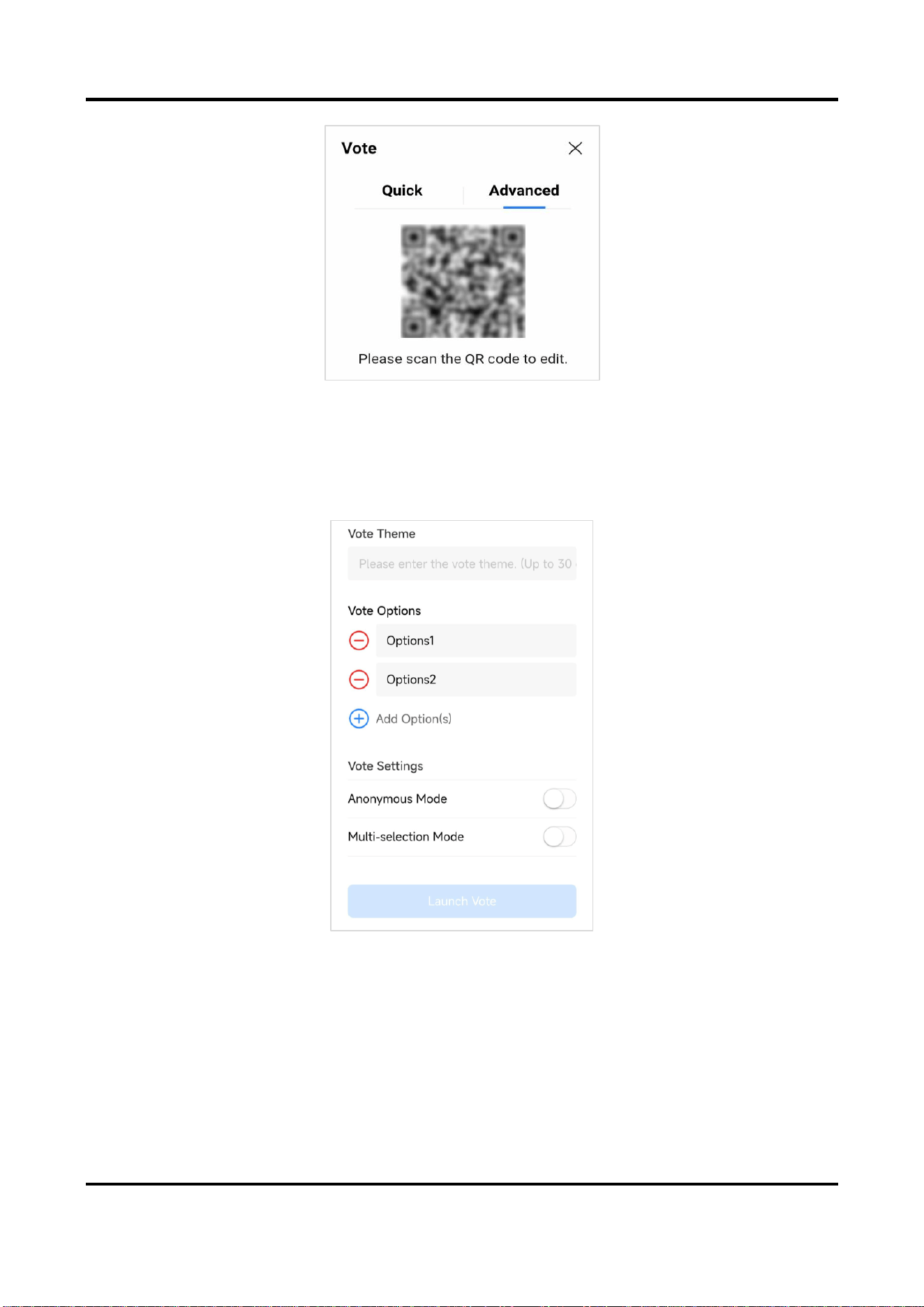
1. Click on Advanced and scan the code on your phone to set up voting.
Interactive Flat Panel User Manual
18
Figure 5-11 Advanced Voting
2. Configure the following parameters according to actual needs.
● Vote Theme and Vote Options: custom configuration.
● Anonymous: Secret ballot.
● Multiple Selections: When voting, multiple voting options can be selected.
3. Click Launch Vote, which can be done by scanning the code on your phone.
Figure 5-12 Setting Voting Options
4. Click View Vote Results, end the voting, and view the voting details.
5. (Optional) Click Scan to Download. You can download the voting results through your phone.
5.6 Notification
Check notifications. Click Delete to delete all notifications.
Interactive Flat Panel User Manual
19
Chapter 6 System Settings
The screen displays the main page after the device is turned on. Slide the screen to the left of right
to view applications, device status, and help documents. Left slide home screen to scan the code
for feedback.
6.1 Network Settings
The network status is displayed at the bottom of the screen (area 8 in Basic Operations).
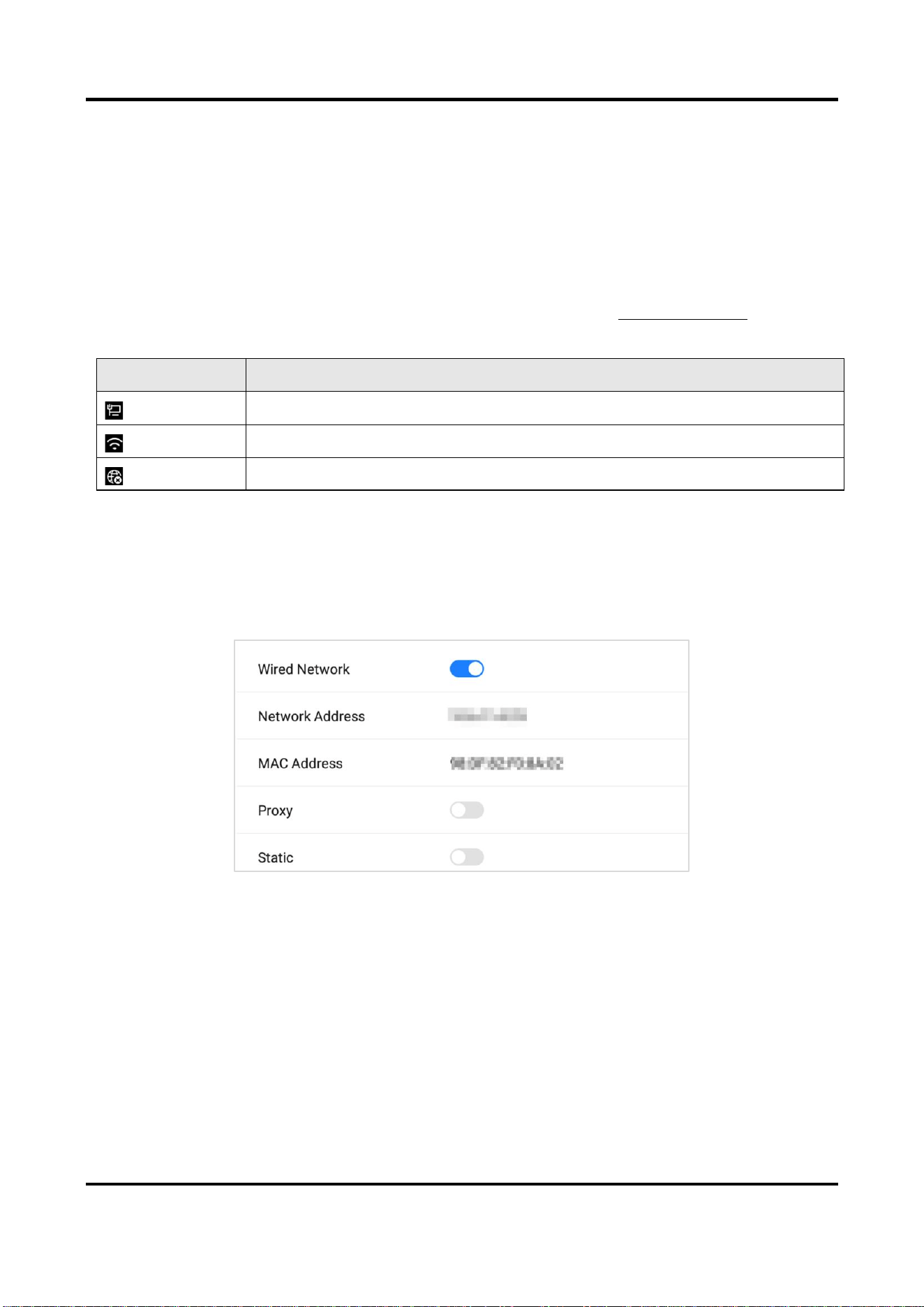
Table 6-1 Different Network Status
Icon
Description
Connected to a wired network.
Connected to a wireless network.
No network connected.
6.1.1 Wired Network Settings
Steps
1. Go to Settings → Network → Wired Network.
2. Enable Wired Network.
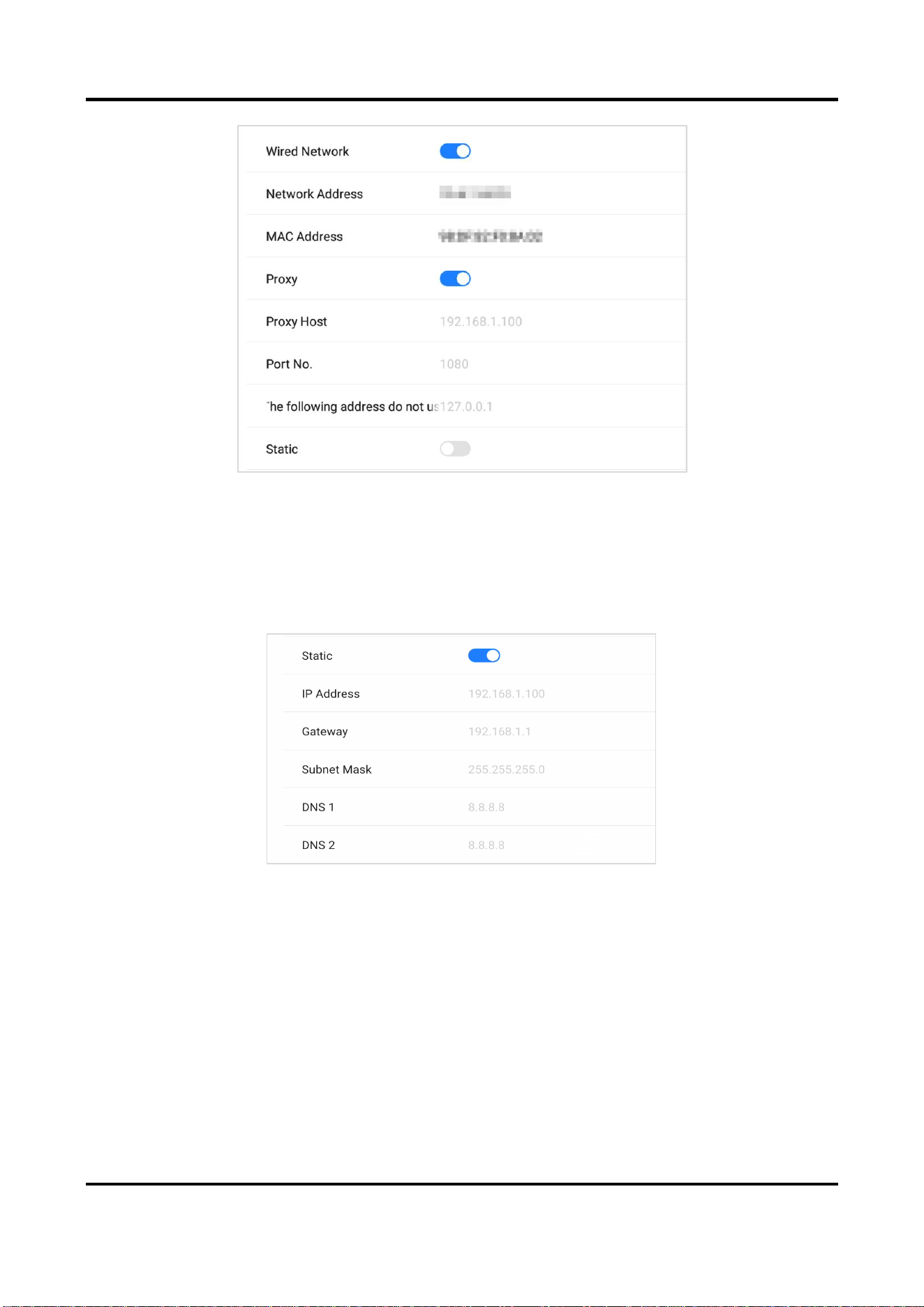
Figure 6-1 Wired Network Settings
3. Optional: Tap to enable Proxy or Static.
Proxy Settings
When proxy enabled, you need to set Proxy Host and Port No., and set the URLs that do not use
the proxy.
Interactive Flat Panel User Manual
20
Figure 6-2 Proxy Settings
Static Settings
When static IP enabled, you need to set network parameters, such as IP Address, Gateway,
Subnet Mask, DNS1, and DNS2.
Figure 6-3 Static IP Settings
6.1.2 Wireless Network Settings
Steps
1. Go to Settings → Network → Wireless Network.
2. Enable WLAN, and you can add a new network or connect to an available network.
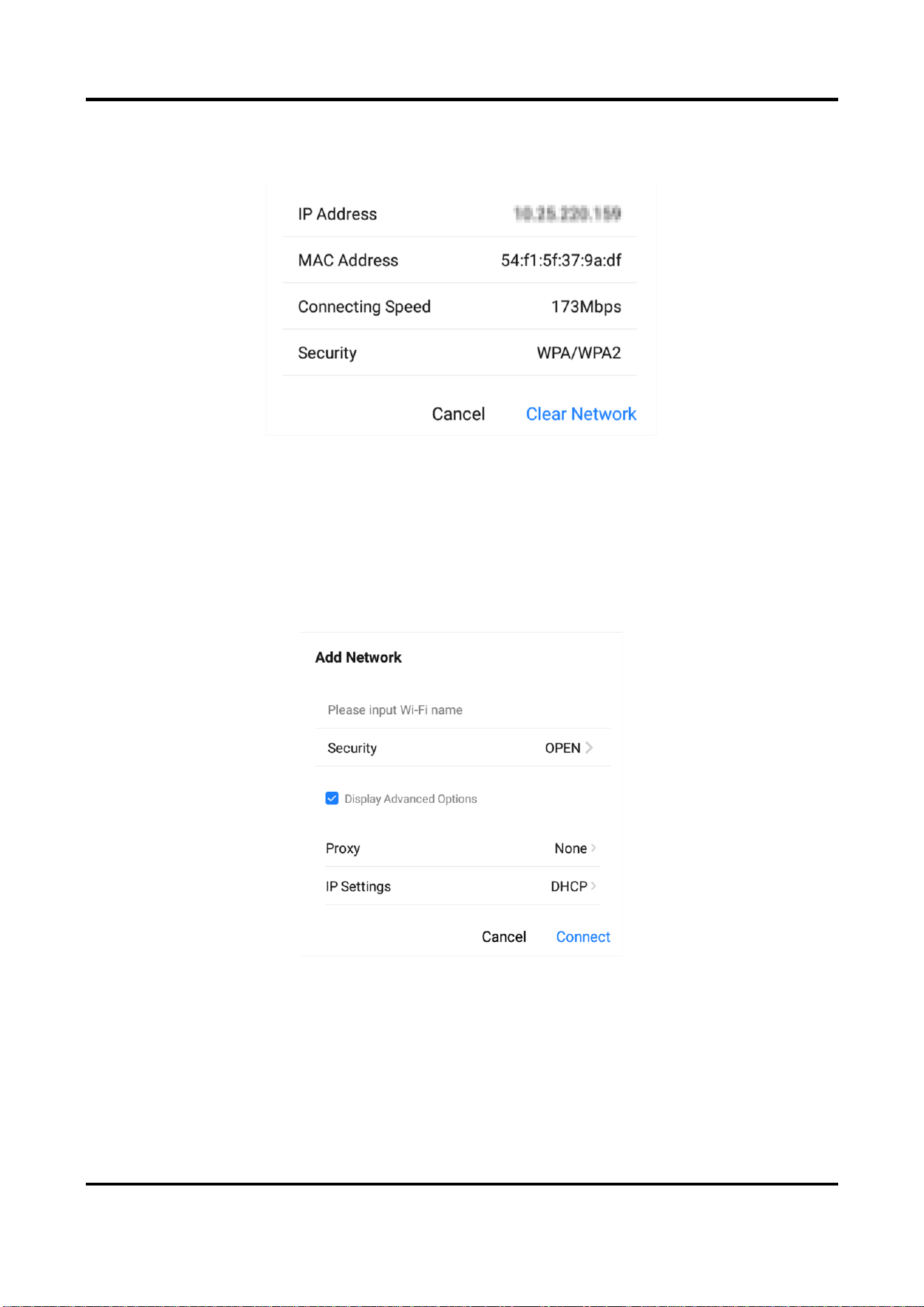
Connect to Available Networks
● Tap the desired network in the available network list, and enter the password to connect.
Interactive Flat Panel User Manual
21
● Tap Connect, and network information page pops up. Tap Clear Network to delete the
information of the selected network. Tap Cancel to exit the page.
Figure 6-4 Wireless Network Information
Add Other Networks
Steps
1. Tap Add Other Networks.
2. Enter Wi-Fi name and select Security.
Figure 6-5 Add Other Network
3. Optional: Check Display Advanced Settings to select proxy and network IP type.
4. Tap Connect to connect the device to the added wireless network.
6.1.3 WLAN Hotspot Settings
When the device is connected to the wired network, it can provide wireless network for other
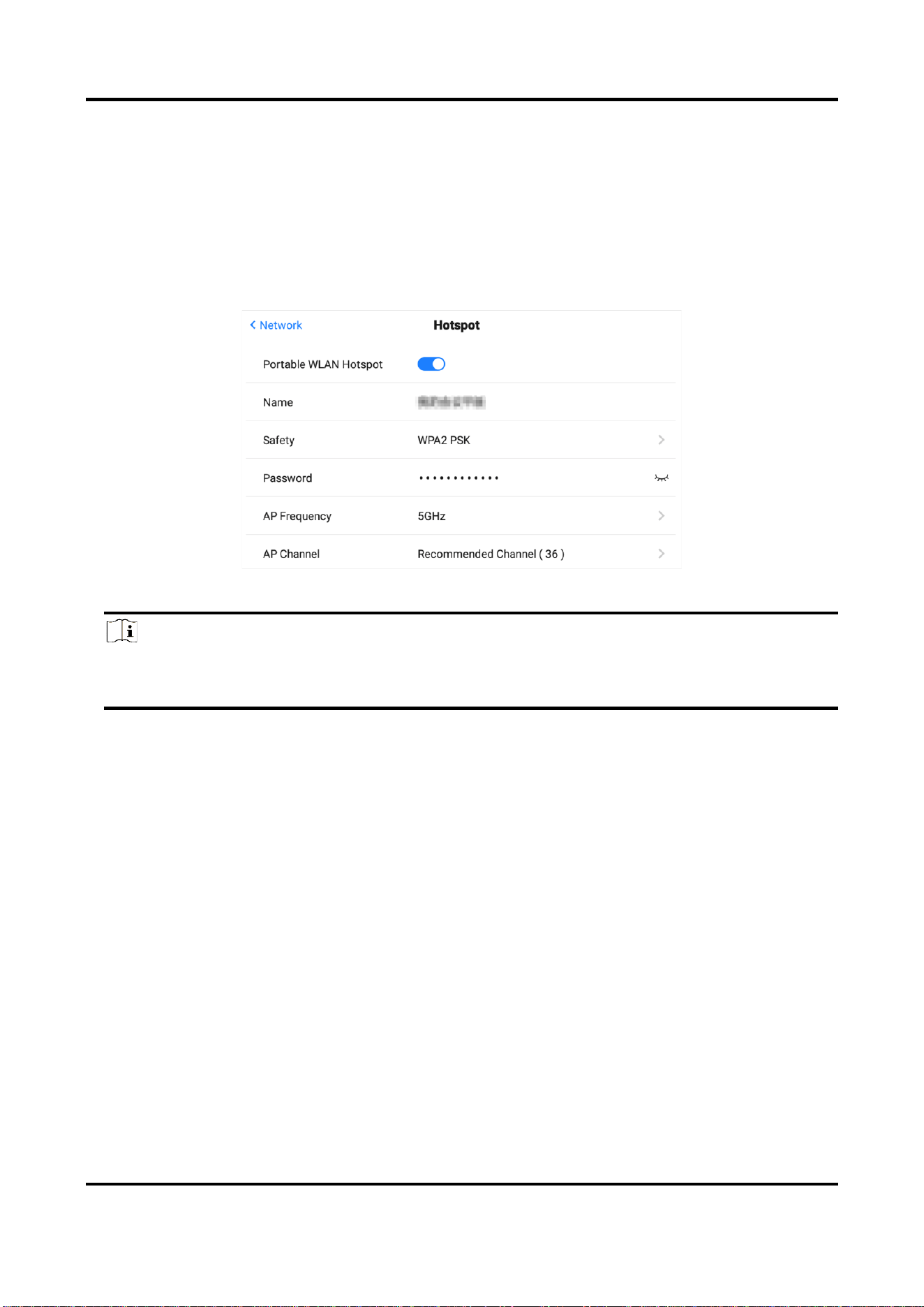
Interactive Flat Panel User Manual
22
devices with WLAN hotspot enabled.
Steps
1. Go to Settings → Network → Hotspot.
2. Enable Portable WLAN Hotspot.
● Hotspot Isolation: After enabling hotspot isolation, even if the device is connected to the
LAN, it cannot access resources such as websites in the LAN.
3. Set parameters in the pop-up page.
Figure 6-6 Hotspot Settings
Note
If the device supports both 2.4 GHz and 5 GHz, set 5 GHz as AP Frequency, and recommended
channels as AP Channel for better experience functions such as wireless screen mirroring.
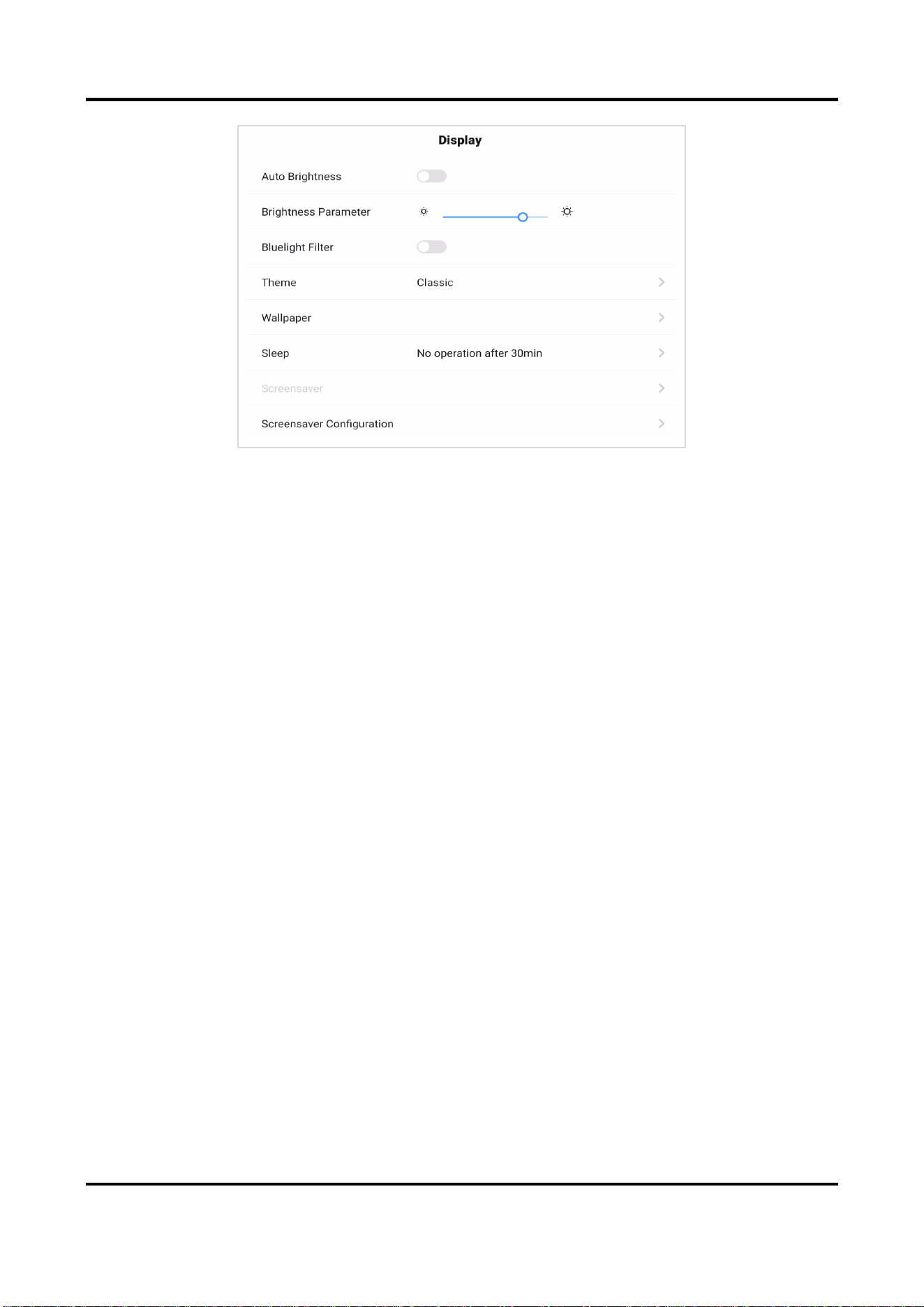
6.2 Display Settings
Go to Settings → Display to adjust parameters, such as brightness and sleeping time.
Interactive Flat Panel User Manual
23
Figure 6-7 Display Settings
Auto Brightness
The device can adjust brightness according to the environment automatically when enabled.
Brightness Parameter
Slide the slider to adjust the brightness of the screen.
Bluelight Filter
Enable the function to protect your eyes by filtering blue light.
Theme
Set the device theme. Tap Settings to
select a desired theme, and tap Apply.
Wallpaper
Tap Wallpaper to select
a desired picture from wallpaper library or the system picture library
as wallpaper, or restore to the default wallpaper.
Sleep
Set an inactivity period for sleep mode.
Screensaver
Set an inactivity period for enabling screensaver.
Screensaver Configuration
Tap to select a screensaver picture in the pop-up page, and tap Preview to preview the effect.
Tap Apply to set the selected picture as the screensaver. The screensaver can also be
customized.
Interactive Flat Panel User Manual
24
Note
You can add new screensaver pictures in Screensaver Configuration by tapping .
6.3 Audio Settings
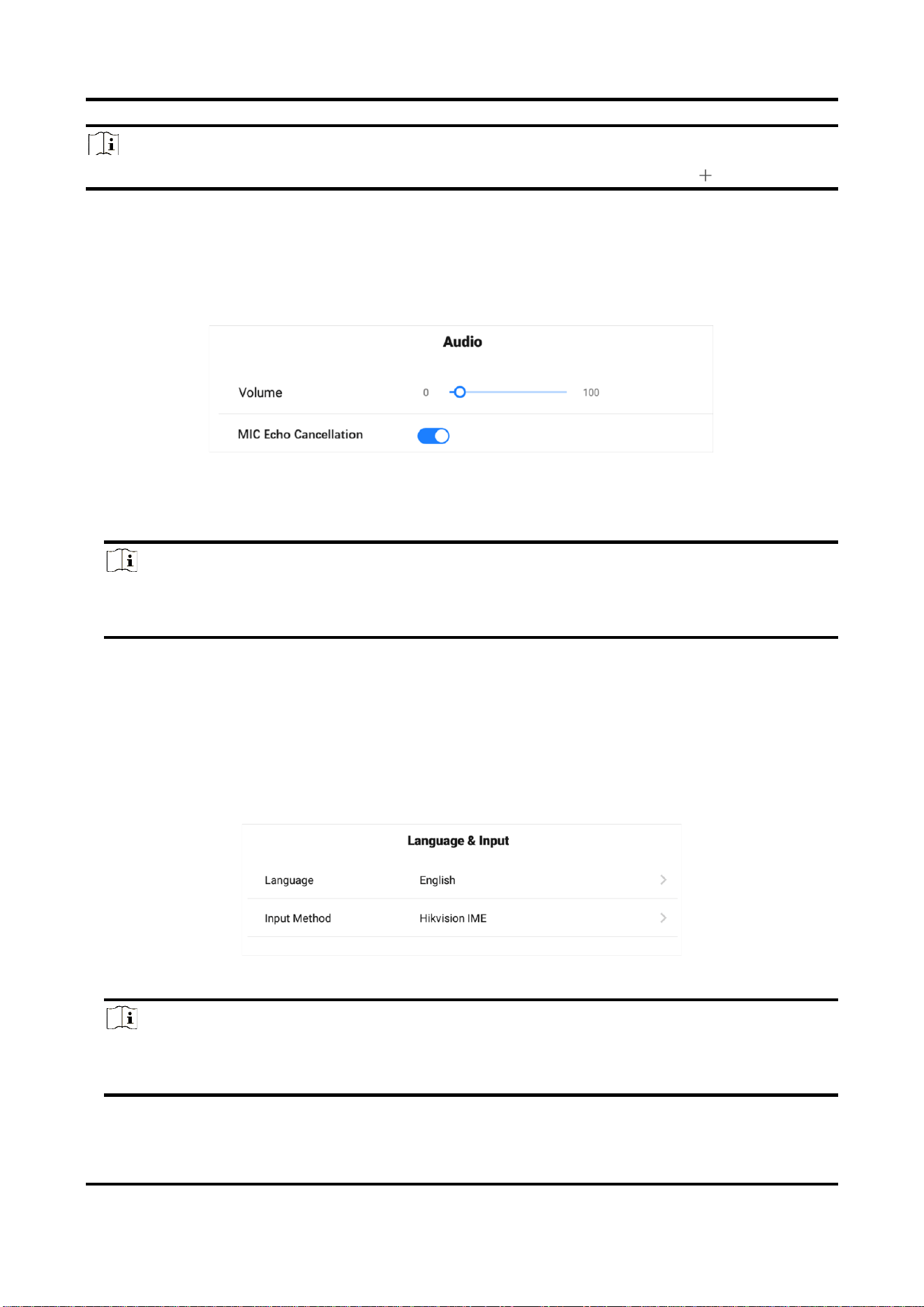
Steps
1. Go to Settings → Audio to set audio parameters.
Figure 6-8 Audio Settings
2. Adjust the Volume value.
3. Enable MIC Echo Cancellation to eliminate the noise of echo. By default, this function is enabled
Note
It is recommended to enable MIC Echo Cancellation before starting a video conference, and the
echos from the microphone will be eliminated.
6.4 Language and Input Settings
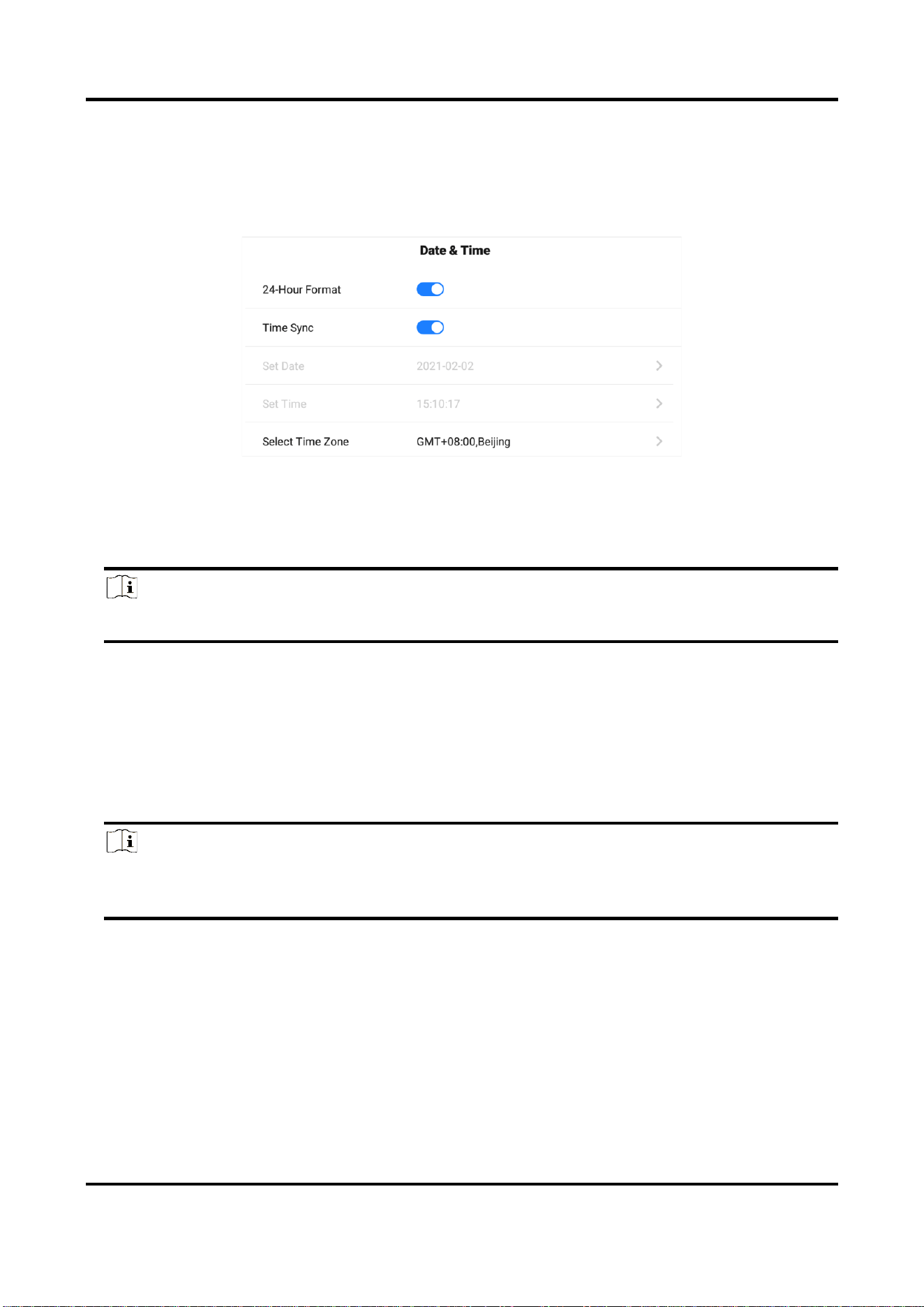
Steps
1. Go to Settings → Language & Input.
2. Tap Language to select the desired language.
3. Tap Input Method to select the desired input method.
Figure 6-9 Language and Input Settings
Note
Handwriting input is available, and the written content in any text input page will be
automatically transformed into system font.
Interactive Flat Panel User Manual
25
6.5 Time and Date Settings
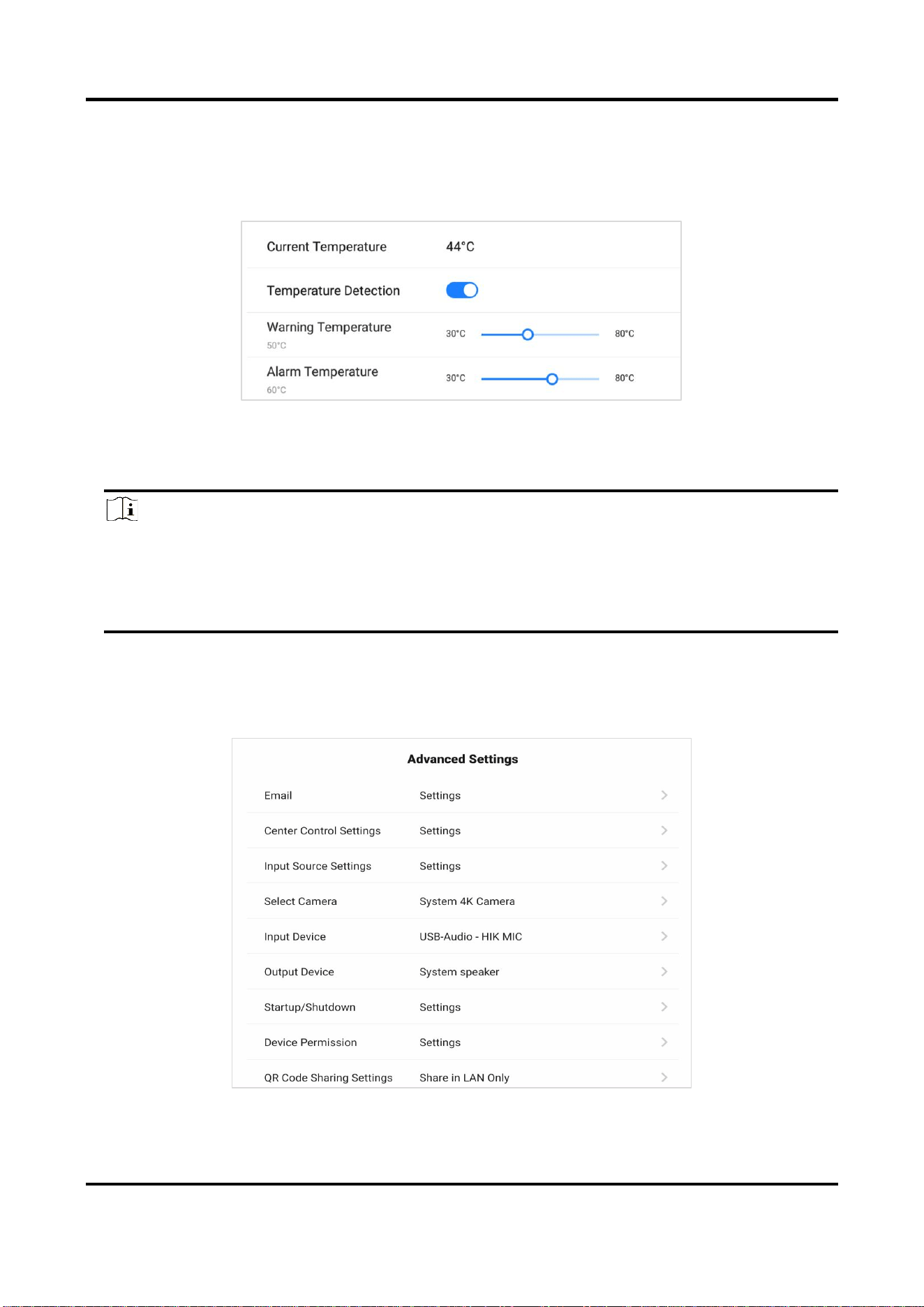
Steps
1. Go to Settings → Time & Date.
Figure 6-10 Date and Time Settings
2. Enable Time Sync.
3. Tap Select Time Zone to select the region.
4. Optional: Enable 24-Hour Format to display the time in 24-hour format.
Note
If Time Sync is disabled, you can set date and time manually.
6.6 Application Management
Steps
1. Go to Settings → Application Management.
2. Tap the desired application to check details.
3. You can perform operations, such as Forced Stop, Clear Data, Clear Cache, and Uninstall.
Note
The built-in applications cannot be uninstalled. You can tap the icon in Application Details to open
the application.
6.7 Bluetooth
Enable Bluetooth to search the available devices nearby, and tap the desired one to connect.
6.8. Intelligent Temperature Control
The device monitors inner temperature in real time. When the temperature exceeds the set
warning or alarming temperature, the device will display prompt messages for you to take
Interactive Flat Panel User Manual
26
measures in a timely manner.
Steps
1. Go to Settings → Auxiliary Functions →Temperature Control.
Figure 6-11 Intelligent Temperature Control
2. Enable Temperature Detection.
3. Slide the slider to set Warning Temperature and Alarming Temperature.
Note
● When the temperature exceeds the set warning temperature, the temperature in status bar
on the upper right corner turns orange.
● When the temperature exceeds the set alarming temperature, the temperature information
pops up and prompts you to turn off the device.
6.9 Advanced Settings
Select Settings → Advanced Settings. You can set parameters as follows.
Figure 6-12 Advanced Settings

Interactive Flat Panel User Manual
27
E-mail
Set the E-mail address for receiving shared contents from whiteboard.
Input Source Settings
Startup Input Source
Select the desired input source as the device starts up. You can select a built-in system, or an
external input source.
Auto Switch When Connecting Signal Source
If this function is enabled, the system will switch to the newly-connected input source when
an external input source is connected.
Auto Switch When Disconnecting Signal Source
If this function is enabled, the system will switch to the configured input source as the device
is disconnected from the external input source.
Select Camera
Select the desired camera among those bound to the device.
Input Device
Select the desired audio input device.
Output Device
Select the desired audio output device.
Startup/Shutdown
Startup Mode
Select Startup When Powered On or Standby When Powered On.
Scheduled Startup/Shutdown
Set the schedule for startup and shutdown.
No-signal Shutdown
Set the time for auto-shutdown if no signal is accessible.
Device Permission
Disable Wi-Fi
If Wi-Fi is disabled, the device cannot be connected to the wireless network.
Disable Copying Off
If copying from USB disk is disabled, the device cannot read from external disks.
QR Code Sharing Settings
Share the content of whiteboard through a QR code.
Share in LAN Only
Devices in the same LAN as the flat panel can scan the QR code to download the content.

Interactive Flat Panel User Manual
28
All Networks
Devices connected to all networks can scan the QR code to download the content.
Wakeup Settings
Wake from Serial Port
If this function is enabled, the device in standby status can be woken up by serial port
command.
Wake from Signal Source
If this function is enabled, the device in standby status can be waken up if an input signal
source is connected.
HDMI Output Settings
Connect the device through HDMI interface to share the contents. You can set the desired
resolution, and enable audio and HDCP.
USB Settings
Follow Systems, Android and PC are available.
Boot Animation Settings
Set the boot animation for the device.
6.10 Security
Go to Settings → Security to enable screen lock and set your password.
6.11 Device Information
Go to Settings → About to check the device information. The device name is customizable, and
you can restore the device to the default settings.
Warning
All the data will be lost if the settings are restored to the default status.
Interactive Flat Panel User Manual
29
Chapter 7 Intelligent Applications
7.1 FileBrowser
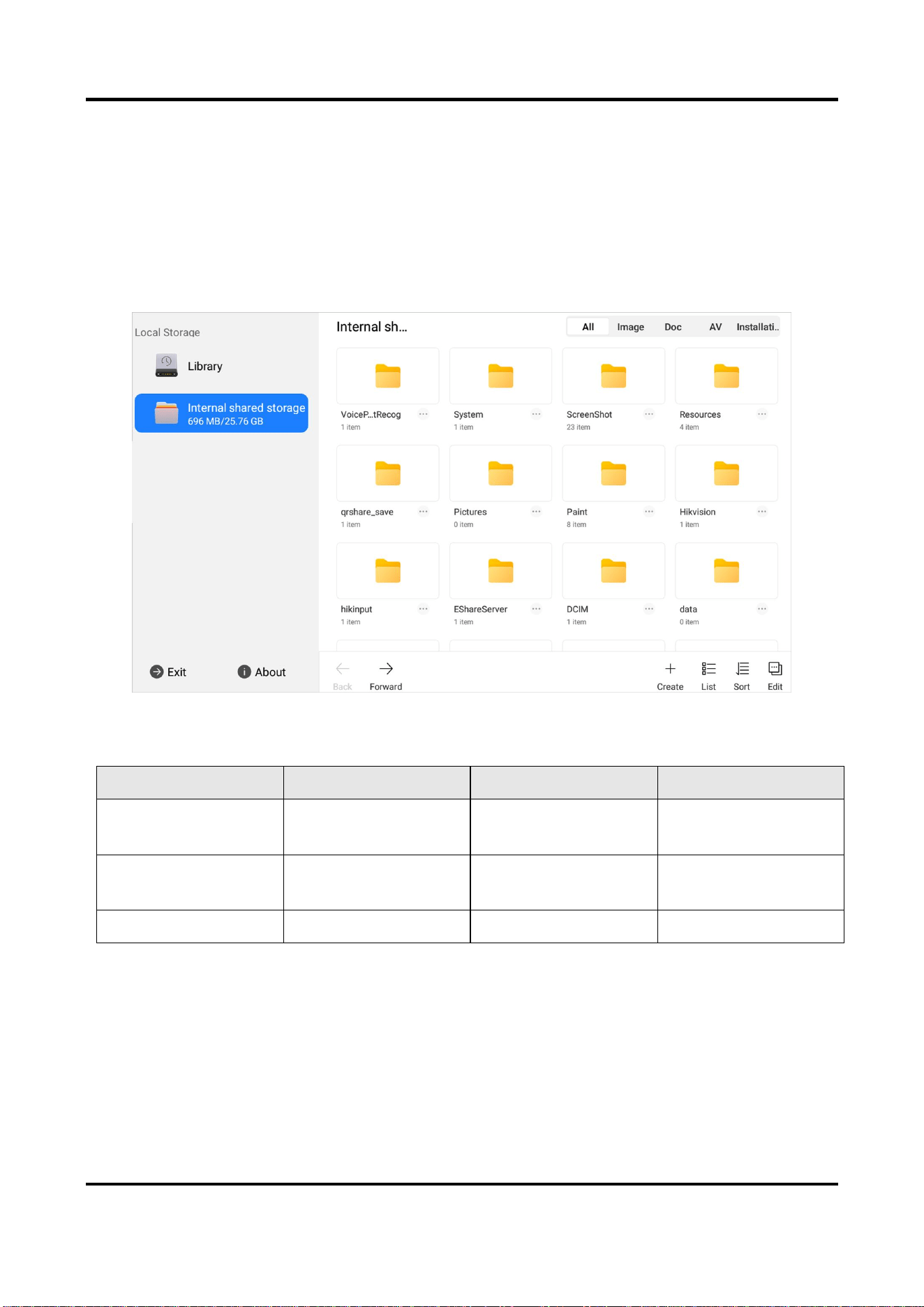
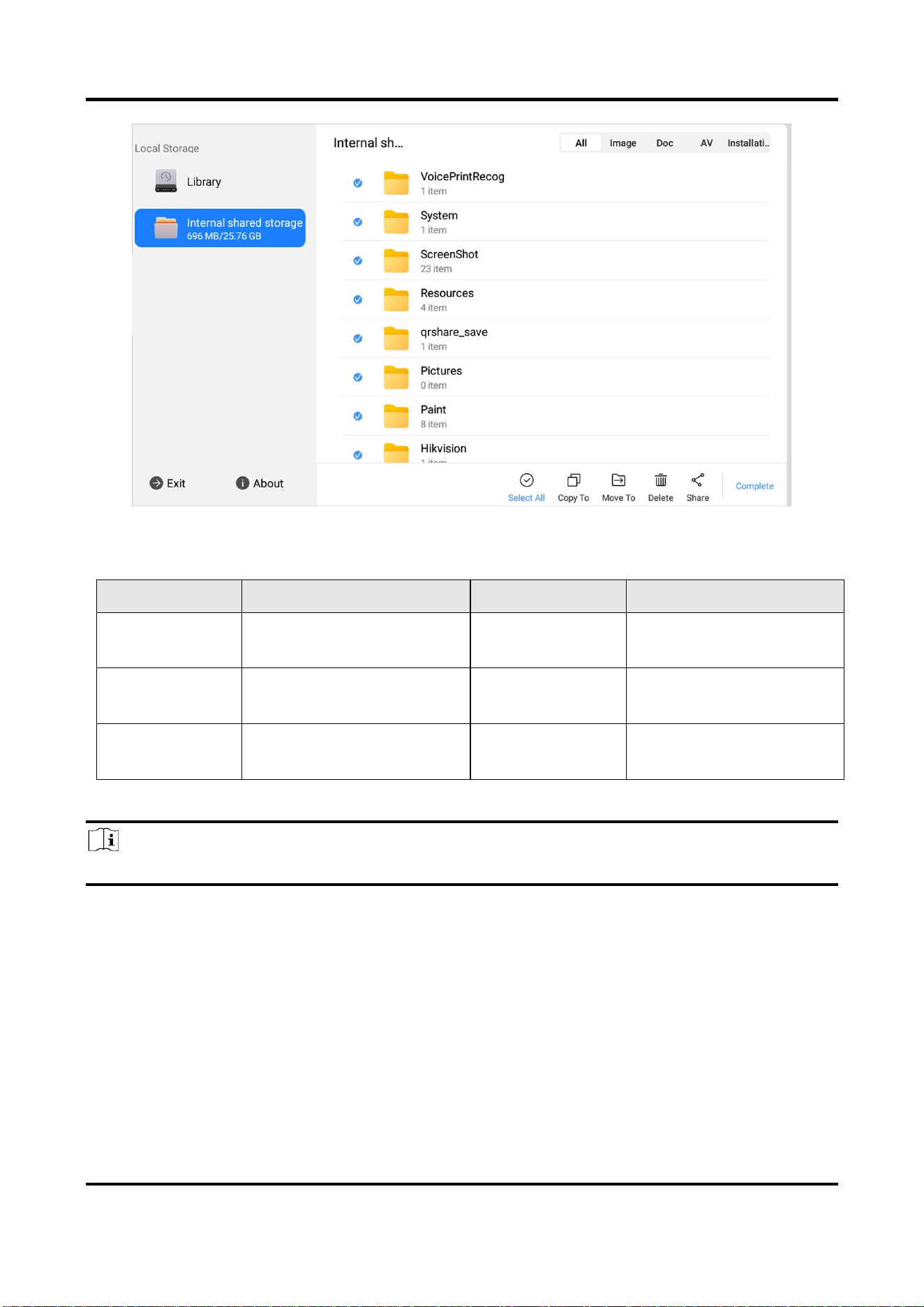
Tap FileBrowser on the main page. All the files under the current directory are shown by default.
Tap Image, Doc, AV, or Installation Package to view specified files.
Icons are described as follows.
Figure 7-1 File Management
Table 7-1 Descriptions of File Management Icons
Icon
Description
Icon
Description
Back/Forward
Go to the
previous/next page.
Create
Create a new folder.
Grid/List
View the files in grid
or list mode.
Sort
Change the file order.
Edit
Edit the files.
--
--
Interactive Flat Panel User Manual
30
Figure 7-2 Edit the Files
Table 7-2 Descriptions of Editing Icons
Icon
Description
Icon
Description
Select All
Select all the files.
Copy To
Copy the selected file(s)
to another folder.
Move To
Move the selected file(s) to
another folder.
Delete
Delete the selected file(s).
Share
Share the selected file(s).
Complete
Turn back to the original
page.
Note
Long press the file to perform other operations.
7.2 Browser
Connect the device to the Internet, and tap Browser. Enter URL in the address bar to view texts,
pictures, audios and videos on the Internet.
7.3 Whiteboard
Whiteboard is an editing software that integrates functions such as touch writing, image insertion,
and content sharing. Users can add boards with different backgrounds for touch writing, erasing,
and page switching operations. It supports importing and editing images, and after the whiteboard
Interactive Flat Panel User Manual
31
content is completed, it can be saved locally or shared via email.
7.3.1 Toolbar Introduction
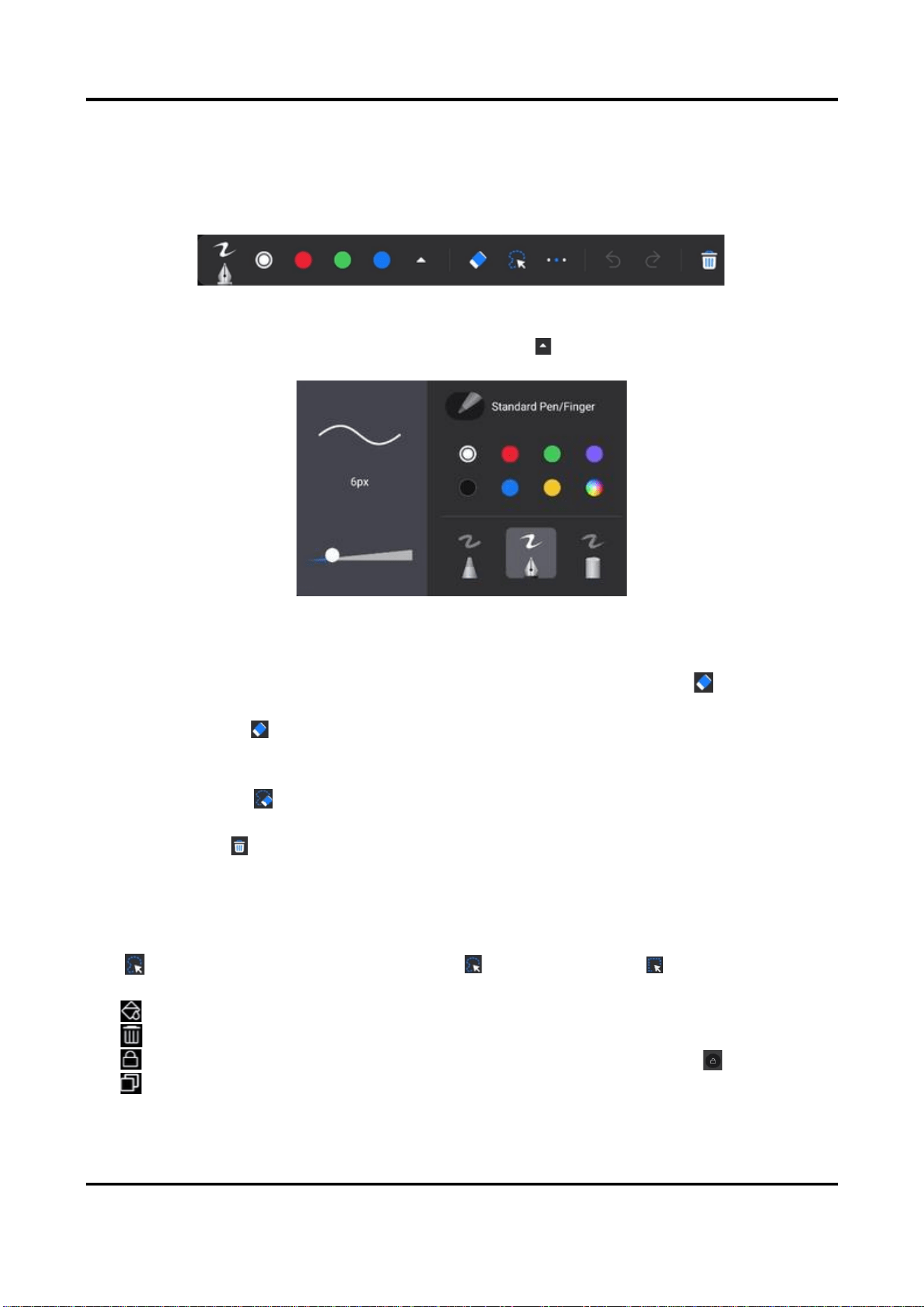
By using the toolbar, you can write, erase, select, restore/undo, and take other operations on the
whiteboard.
Figure 7-3 Toolbar
Write
The writing function is used to write on a whiteboard. Tap on the toolbar to adjust parameters
such as brush type, color, thickness, etc.
Figure 7-4 Set Writing Parameters
Erase
The erase function is used to erase the content written on the whiteboard. Tap on the toolbar
to select the following actions:
● Partial Erase: Tap , click and drag the eraser on the area that needs to be deleted, and the
content of the covered area will be deleted. Supports sliding the slider to adjust the size of the
eraser.
● Circle Erase: Tap to circle the area that needs to be deleted. The content of the trajectory
touched in the circle area will be deleted.
● Erase All: Tap to clear all written content on the current whiteboard page.
● Gesture Erasing: When your palm, back of hand, or two fingers come into close contact with
the screen, you can perform large-scale erasing operations.
Circle Selection
Tap on the toolbar to circle any shaped area ( ) or rectangular area ( ) and edit the content
in the area.
● : Change the color of the content in the selected area uniformly.
● : Delete the content within the selected area.
● : Lock the content within the selected area. Long press on the area or tap to unlock.
● : Copy the content of the area.
Interactive Flat Panel User Manual
32
Note
● Support resizing, moving, and rotating the content in the selected area.
● Tap outside the selected area to cancel the area selection.
Undo or Redo
When accidentally writing or erasing, the undo tool can be used to undo your operation.
● : Click to undo the last action;
● : Click to redo the previous action.
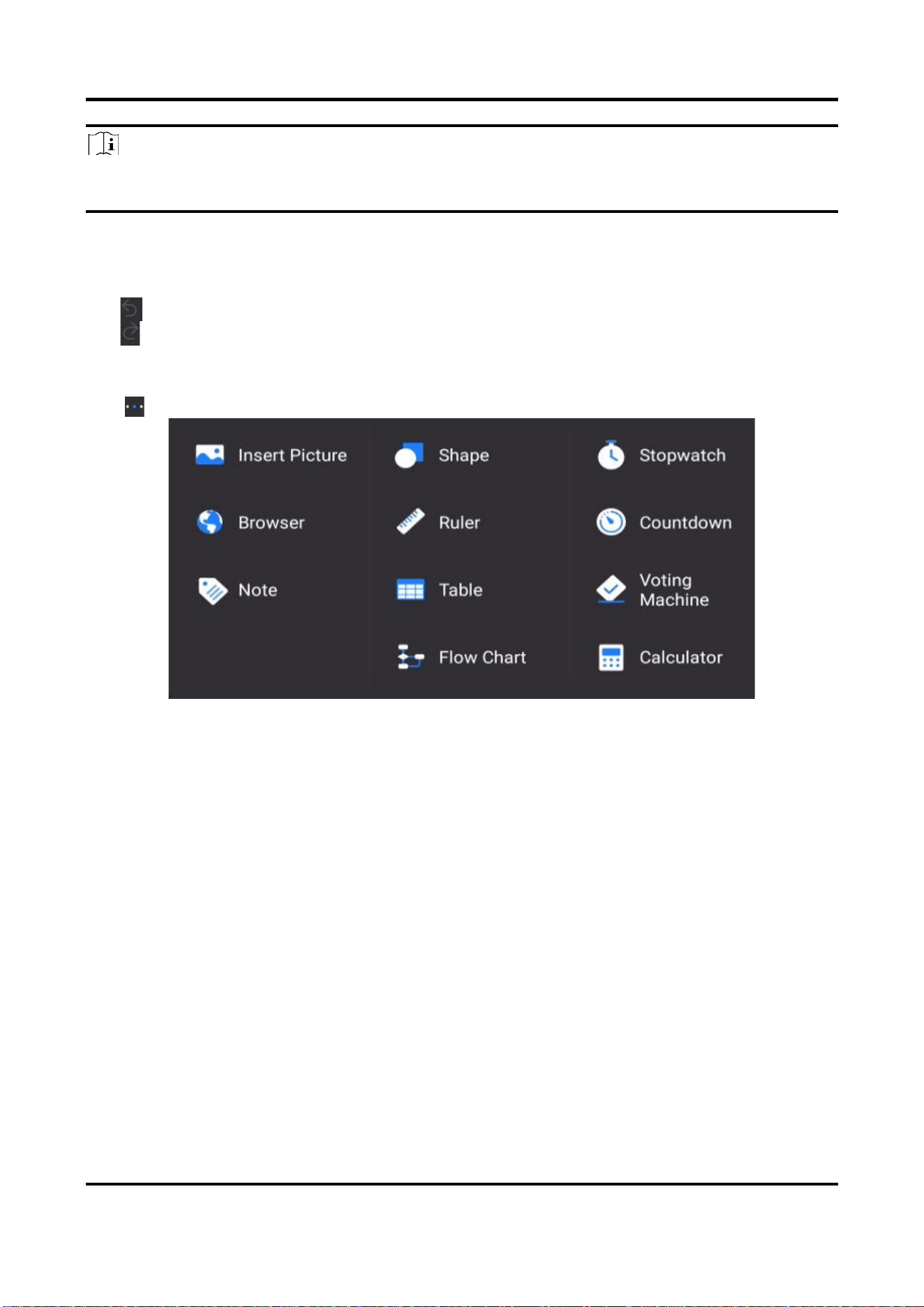
More Tools
Tap on the toolbar to call up the following tools:
Figure 7-5 More Tools
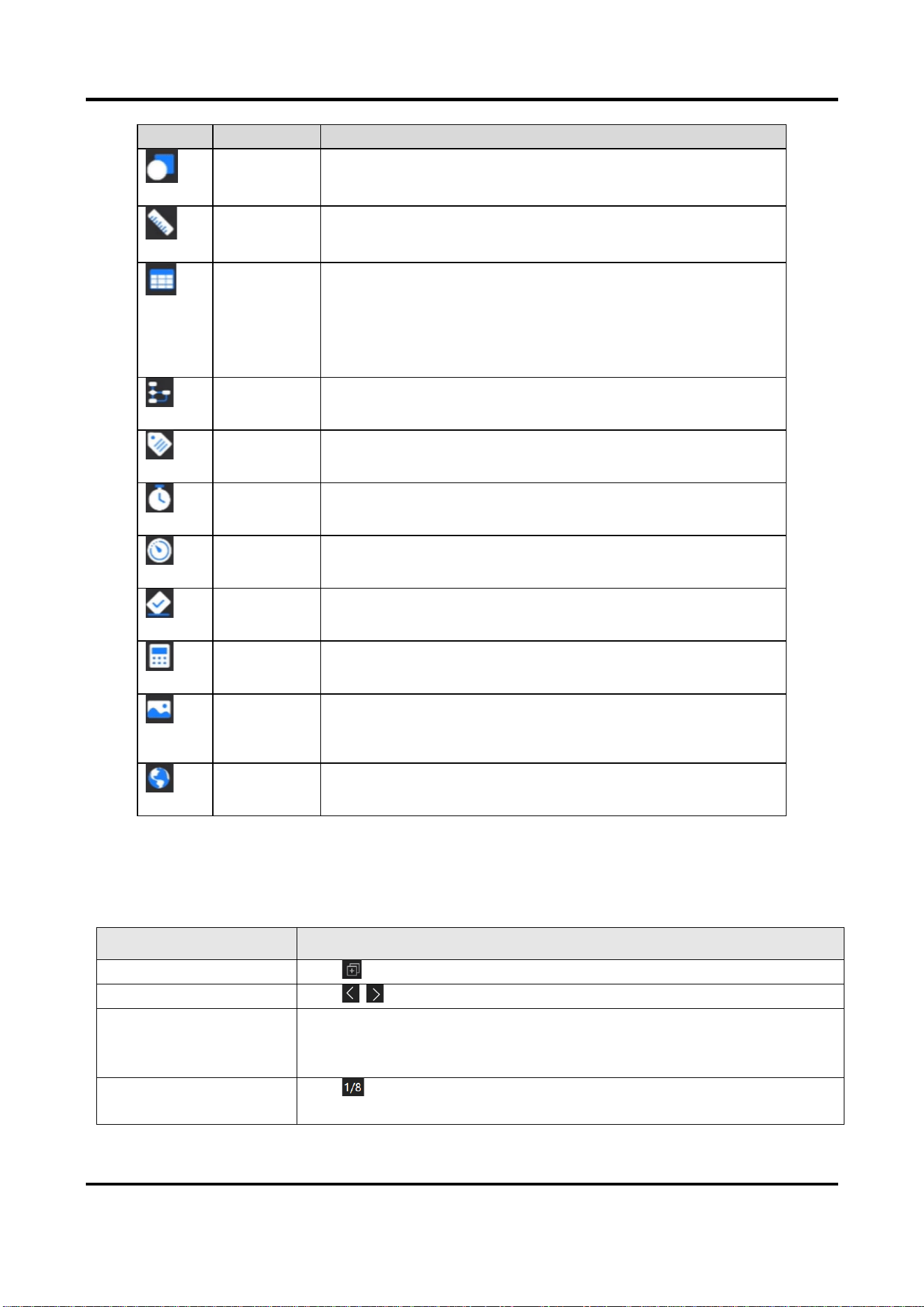
Table 7-3 Tools Description
Interactive Flat Panel User Manual
33
Icon
Name
Description
Shape
Insert rectangles, ellipses, circles, and lines.
Ruler
Use a ruler, protractor, square, or compass. Drag to adjust
size and angle.
Table
Insert a table.
Long press the table to add/delete rows or columns;
Drag the table to move or resize it;
Tap the table to choose to modify the color of the content
written in the table.
Flow Chart
You can select different shapes and lines to draw a
flowchart on the whiteboard.
Note
Insert a note. Support moving, resizing, copying notes, and
changing the color of notes.
Stopwatch
Open the stopwatch.
Countdown
Open the countdown.
Voting
Machine
Open the voter machine.
Calculator
Open the calculator.
Insert
Picture
After inserting a picture, you can lock, resize, move, rotate,
delete the picture, and modify the color of the content
written in the area.
Browser
Call up the browser on the side of the whiteboard.
7.3.2 Manage Whiteboard
You can create a new whiteboard, switch whiteboards, and delete whiteboards.
Table 7-4 Function Description
Function
Description
Add Whiteboard
Tap on the bottom right corner to add a whiteboard page.
Switch Whiteboard
Tap / to switch the whiteboard page.
Drag Whiteboard
A single whiteboard is infinitely large, and you can drag the
whiteboard page up, down, left, right with five fingers to extend
writing space.
View Whiteboard
Tap on the page number area to display a thumbnail of the
whiteboard page. Swipe the thumbnail up and down, and tap a page
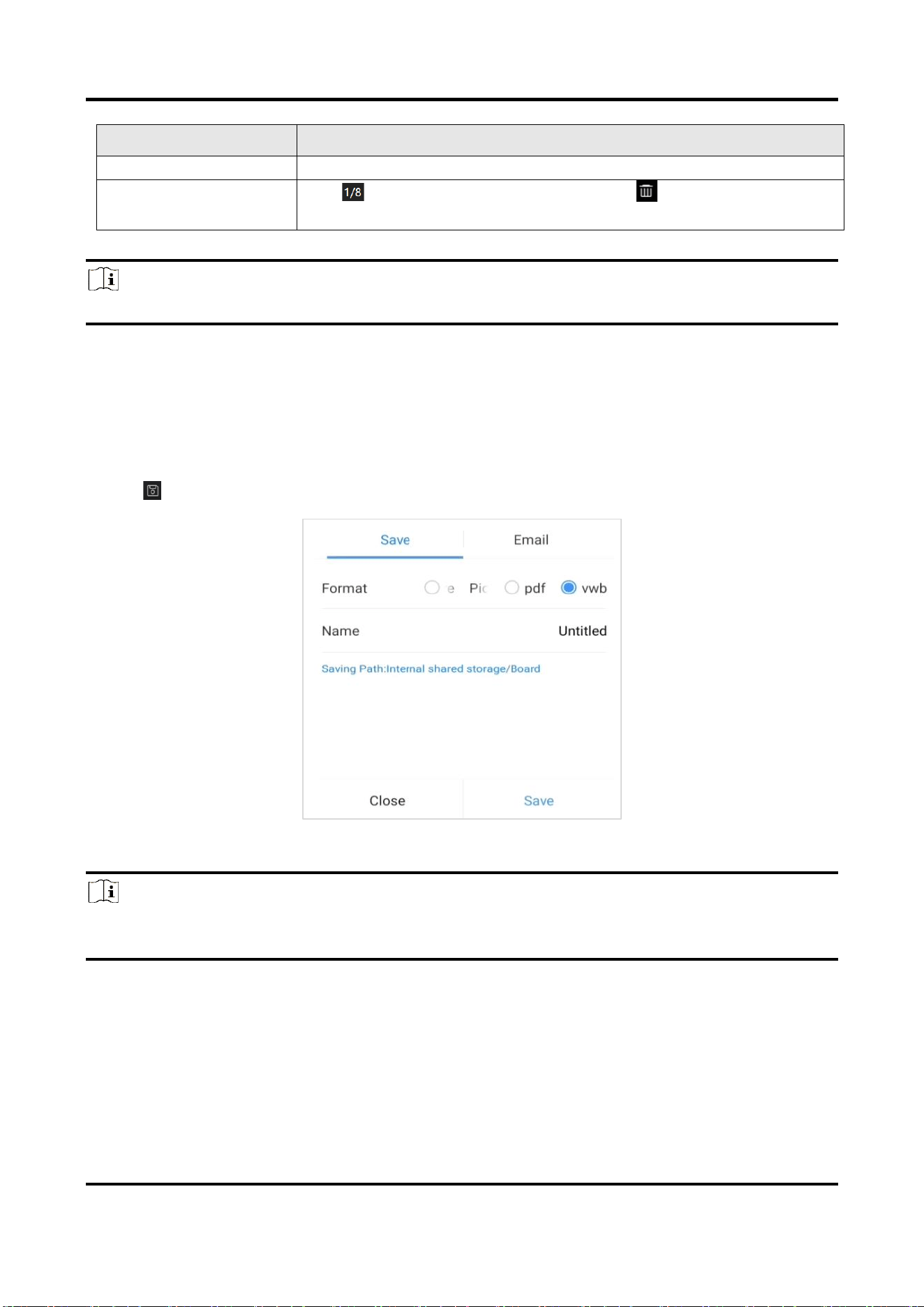
Interactive Flat Panel User Manual
34
Function
Description
to jump to the displayed page.
Delete Whiteboard
Tap on the page number area and tap on the bottom right
corner of the page to delete that page.
Note
All information will be reset after closing the whiteboard.
7.3.3 Save Whiteboard
After the whiteboard content is completed, the page can be saved locally on the device for
reference or shared with others.
Steps
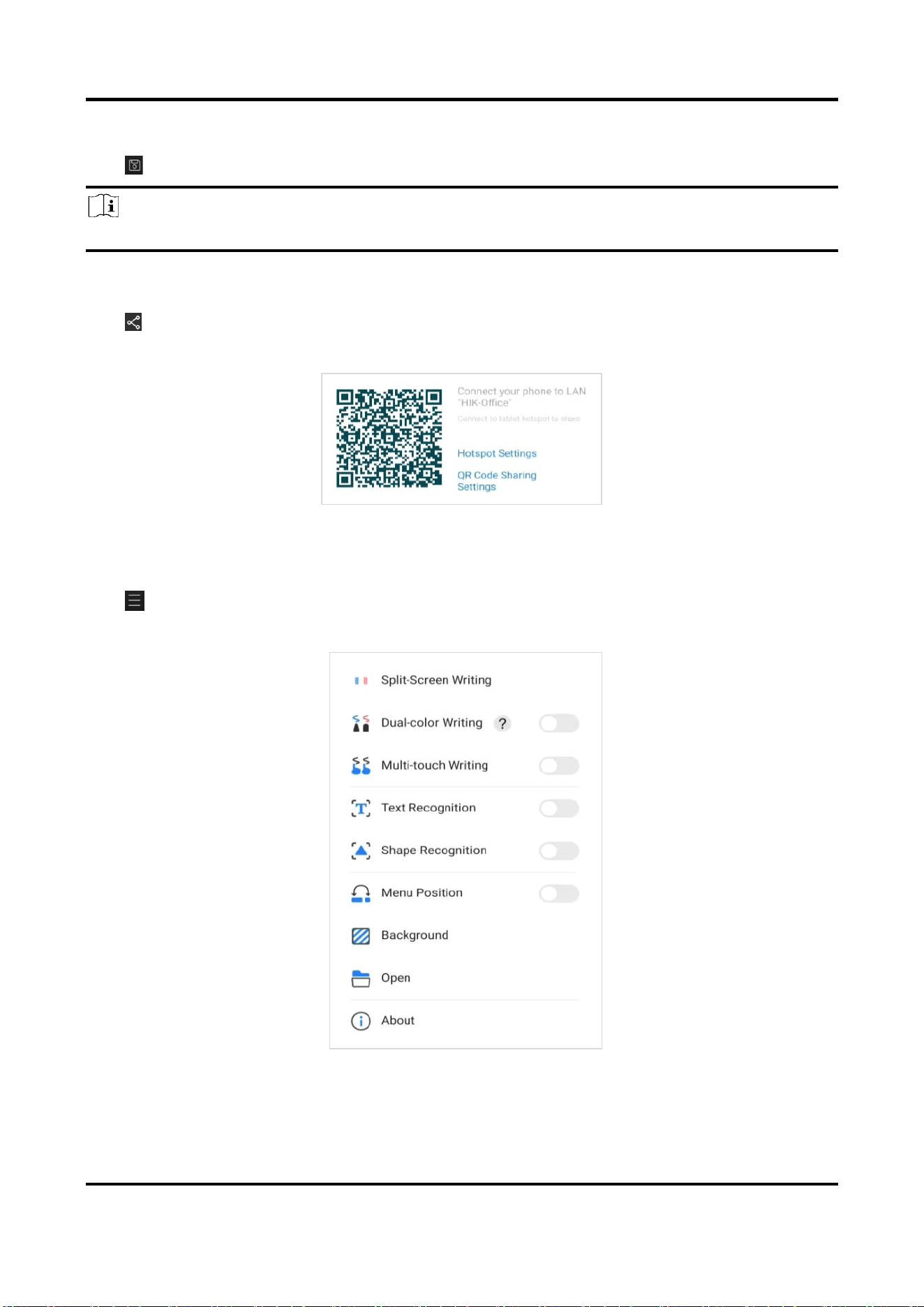
1. Tap on the bottom left of the whiteboard.
Figure 7-6 Save Whiteboard
2. Select a format.
Note
Support saving the board as PNG format images, PDF format documents, or editable VWB format
files.
3. (Optional) Edit the name of the board.
4. Tap Save.
7.3.4 Share Whiteboard
Users can share whiteboards with others via email or QR code.
Interactive Flat Panel User Manual
35
Share via Email
Tap on the bottom left of the whiteboard and select Email.
Note
Make sure the Email server has been configured before you start.
Share Via QC Code
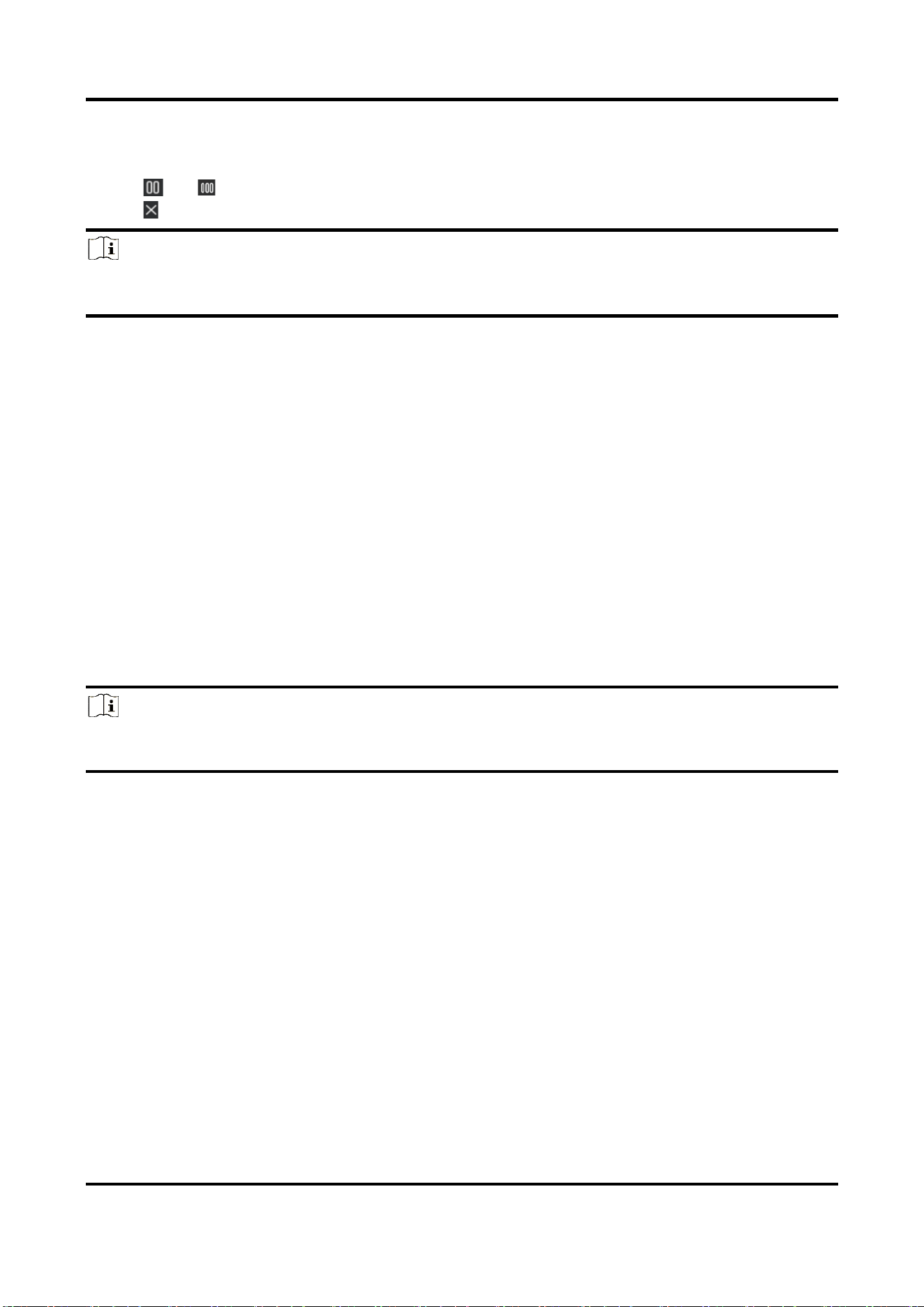
Tap on the bottom left corner, mobile devices on the same LAN can scan the code to
download whiteboard content.
Figure 7-7 Share via QC Code
7.3.5 More Functions
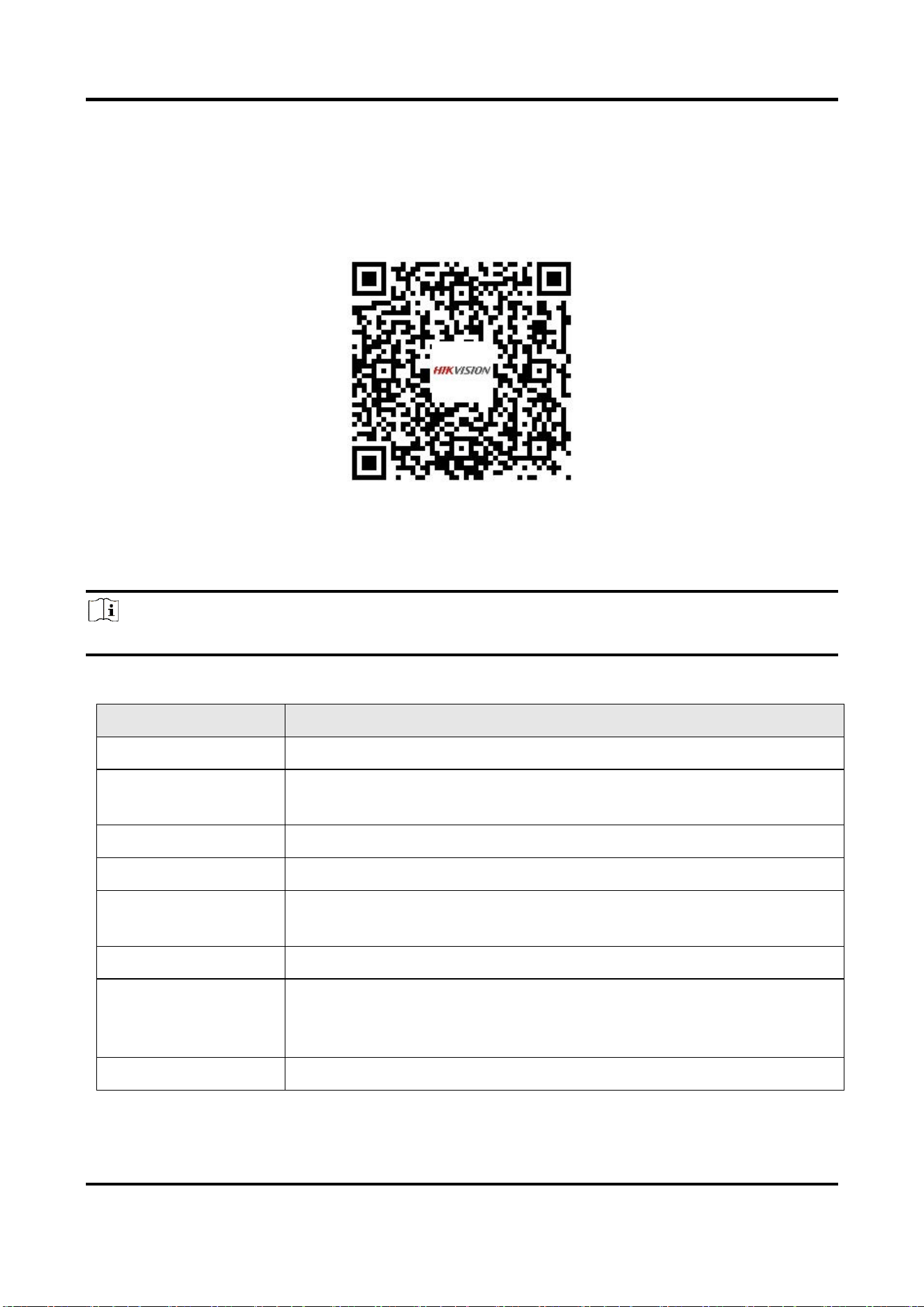
Tap on the bottom left corner of the whiteboard to achieve functions such as split-screen
writing and dual-color writing.
Figure 7-8 More Functions
Interactive Flat Panel User Manual
36
Split-Screen Writing
Support whiteboard simultaneous writing on split screens.
● Tap or switch between two or three screens.
● Tap to exit split-screen writing mode.
Note
When changing the number of split screens and exiting split-screen writing, the current content
will not be saved.
Dual-Color Writing
After enabling, different colors can be selected for writing on the tip and tail of the writing pen.
Multi-Touch Writing
After enabling, the whiteboard supports multi finger touch, meaning that multiple fingers can
simultaneously edit the whiteboard.
Text Recognition
After enabling, the whiteboard can recognize the drawn text and correct it to the regular text.
Shape Recognition
After enabling, the whiteboard can recognize the drawn graphics and correct them to the regular
graphics.
Note
● The recognizable shapes include circles, triangles, rectangles, and lines.
● Text recognition and shape recognition do not support simultaneous activation.
Menu Position
After enabling, the menu on the left and page numbers on the right of the whiteboard are
swapped for easy access to the function icons and menus.
Background
Set the background and shading of the whiteboard, and you can customize the whiteboard
background style as needed.
Open
Open the whiteboard file saved as a VWB format for editing again.
Interactive Flat Panel User Manual
37
7.4 WonderCast
You can mirror the screen of your PC or mobile phone on the Interactive Flat Panel (only when
devices connect to the same LAN), or control the Flat Panel through your PC or phone.
Please scan the following QR code for more details about WonderCast.
7.5 System Pre-installed Applications
The following table briefly describes the applications pre-installed in the system. Refer to the help
document of desired application, to get more details.
Note
The system pre-installed applications vary from different device types.
Table 7-3 Introduction of System Pre-installed Applications
Application
Introduction
Gallery
It is used for viewing pictures in SD card and USB disk.
Upgrade
It provides remote upgrade and local upgrade, and upgrade of local
components.
Camera
It is used for taking picture by camera.
Video
It is used for recording videos.
Table Manager
Device detection, memory optimization, and garbage cleaning can be
performed through scanning devices.
WPS Office
It is used for editing multiple formats of documents online.
Ark
It is used for docking with the centralized control platform, so that
devices can be remotely managed through the platform, such as
sending files and upgrading remotely.
FocSign Player
It is used for releasing programs and schedules to the digital signage.
Interactive Flat Panel User Manual
38
Appendix A FAQs
Question
Cause and Solution
Why do the condensations appear
frequently on the screen?
Tempered glass is installed on the outer screen to provide
protection. There is a gap between the screen and the
tempered glass for air convection. The main reason is that
there is a temperature difference between the screen and
the outside. Hot air condenses on the glass surface at a
lower temperature, which results in condensations.
Condensations will evaporate after the device starts up
and will not affect the use of the device.
Why there is no sound coming from
my laptop after connection?
If only audio cable is accessed, both audio output and
image output will be unavailable.
● Access HDMI cable.
● Select the device as the audio output device in
Windows.
Why does the screen get hot after a
period of use?
Screen temperature rise is caused by heat dissipation and
is completely normal. Our heat dissipation design is
industrial-leading and is the formulator of the industry
standards, which is in accordance with the national health
standard.
Does long-time use damage the
eyes?
The recognition of flicker by human eyes is 50Hz. If the
frequency is lower than 50Hz, then the flicker will be
recognized and cause eye muscles fatigue. We use 60Hz
LCD screen, human eyes will not recognize the flicker of
the screen. Compared with other products of the same
kind, it can reduce eye fatigue to a large extent.
Why there is no image in screen nor
sound coming from the device?
● Check if the power cable is connected.
● Check if the socket works normally.
● Check if the power switch is turned on.
Why does the device HDMI channel
have no input signal?
● Check if the input source works normally.
● Change HDMI interface or cable.
● If PC is accessed, set HDMI output on your PC.
Why is wired network unstable?
Try to disable the auto network detection option.

UD34154B