
IDIS Co., Ltd.
For more information, please visit at
www.idisglobal.com
2
Before reading this manual
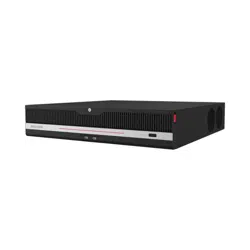
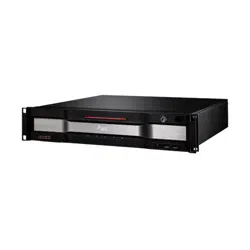
This manual contains basic instructions on installing and using DirectIP Network Video Recorder, an IDIS product.
Users who are using this product for the rst time, as well as users with experience using comparable products,
must read this manual carefully before use and heed to the warnings and precautions contained herein while using
the product. Safety warnings and precautions contained in this manual are intended to promote proper use of the
product and thereby prevent accidents and property damage and must be followed at all times.
Once you have read this manual, keep it at an easily accessible location for future reference.
• The manufacturer will not be held responsible for any product damage resulting from the use of unauthorized parts and
accessories or from the user's failure to comply with the instructions contained in this manual.
• It is recommended that rst-time users of DirectIP Network Video Recorder and individuals who are not familiar with its
use seek technical assistance from their retailer regarding product installation and use.
• If you need to disassemble the product for functionality expansion or repair purposes, you must contact your retailer and
seek professional assistance.
• Both retailers and users should be aware that this product has been certied as being electromagnetically compatible for
commercial use. If you have sold or purchased this product unintentionally, please replace with a consumer version.
Safety Precautions
CAUTION
RISK OF ELECTRIC SHOCK
DO NOT OPEN
CAUTION: TO REDUCE THE RISK OF ELECTRIC SHOCK,
DO NOT REMOVE COVER (OR BACK).
NO USER-SERVICEABLE PARTS INSIDE.
REFER SERVICING TO QUALIFIED SERVICE PERSONNEL.
The lightning ash with arrowhead symbol, within an equilateral triangle, is intended to alert the user to the
presence of uninsulated "dangerous voltage" within the product’s enclosure that may be of sucient magnitude to
constitute a risk of electric shock.
The exclamation point within an equilateral triangle is intended to alert the user to the presence of important
operating and maintenance (servicing) instructions in the literature accompanying the appliance.
Symbol Publication Description
IEC60417-5032 Alternating current
IEC60417-6042 Caution – Shock hazard
IEC60417-6172 Disconnect all power sources
WARNING
Hazardous moving parts
Keep away from moving fan blades
AVERTISSEMENT
Pièces mobiles dangereuses
Se tenir éloigné des pales de ventilateurs mobiles
Before reading this manual
3
Important Safeguards
1. Read Instructions
All the safety and operating instructions should be read before the appliance
is operated.
2. Retain Instructions
The safety and operating instructions should be
retained for future reference.
3. Cleaning
Unplug this equipment from the wall outlet before cleaning it.
Do not use liquid aerosol cleaners. Use a damp soft cloth for cleaning.
4. Attachments
Never add any attachments and/or equipment without the approval of the
manufacturer as such additions may result in the risk of re, electric shock or
other personal injury.
5. Water and/or Moisture
Do not use this equipment near water or in
contact with water.
6. Ventilation
Place this equipment only in an upright position. This equipment has an
open-frame Switching Mode Power Supply (SMPS), which can cause a re or
electric shock if anything is inserted through the ventilation holes on the side
of the equipment.
7. Accessories
Do not place this equipment on an unstable cart, stand or table. The
equipment may fall, causing serious injury to a child or adult, and serious
damage to the equipment. Wall or shelf mounting should follow the
manufacturer's instructions, and should use a mounting kit approved by the
manufacturer.
This equipment and cart combination should be moved with care. Quick
stops, excessive force, and uneven surfaces may cause the equipment and cart
combination to overturn.
8. Power Sources
This equipment should be operated only from the type of power source
indicated on the marking label. If you are not sure of the type of power, please
consult your equipment dealer or local power company. You may want to
install a UPS (Uninterruptible Power Supply) system for safe operation in order
to prevent damage caused by an unexpected power stoppage. Any questions
concerning UPS, consult your UPS retailer.
This equipment should be remain readily operable.
9. Power Cords
Operator or installer must remove power and TNT connections before
handling the equipment.
10. Lightning
For added protection for this equipment during a lightning storm, or when it
is left unattended and unused for long periods of time, unplug it from the wall
outlet and disconnect the antenna or cable system. This will prevent damage
to the equipment due to lightning and power-line surges.
11. Overloading
Do not overload wall outlets and extension cords as this can result in the risk
of re or electric shock.
12. Objects and Liquids
Never push objects of any kind through openings of this equipment as they
may touch dangerous voltage points or short out parts that could result in a
re or electric shock. Never spill liquid of any kind on the equipment.
13. Servicing
Do not attempt to service this equipment yourself. Refer all
servicing to qualied service personnel.
14. Damage requiring Service
Unplug this equipment from the wall outlet and refer servicing to qualied
service personnel under the following conditions:
A. When the power-supply cord or the plug has been damaged.
B. If liquid is spilled, or objects have fallen into the equipment.
C.
If the equipment has been exposed to rain or water.
instructions, adjust only those controls that are covered by the operating
instructions as an improper adjustment of other controls may result in
damage and will often require extensive work by a qualied technician to
restore the equipment to its normal operation.
E.
If the equipment has been dropped, or the cabinet damaged.
F.
When the equipment exhibits a distinct change in performance ─ this
indicates a need for service.
15. Replacement Parts
When replacement parts are required, be sure the service technician has
used replacement parts specied by the manufacturer or that have the same
characteristics as the original part. Unauthorized substitutions may result in
re, electric shock or other hazards.
16. Safety Check
Upon completion of any service or repairs to this equipment, ask the service
technician to perform safety checks to determine that the equipment is in
proper operating condition.
17. Field Installation
This installation should be made by a qualied service person and should
conform to all local codes.
18. Correct Batteries
Leaving a BATTERY in an extremely high temperature surrounding
environment that can result in an EXPLOSION or the leakage of ammable
liquid or gas. A BATTERY subjected to extremely low air pressure that may
result in an explosion or the leakage of ammable liquid or gas.
Laisser une BATTERIE dans un environnement extrêmement chaud peut
entraîner une EXPLOSION ou une fuite de liquide ou de gaz inammable. Une
BATTERIE soumise à une pression d’air extrêmement faible peut également
entraîner une explosion ou une fuite de liquide ou de gaz inammable.
19. Tmra
A manufacturer’s maximum recommended ambient temperature
(Tmra) for the equipment must be specied so that the customer and
installer may determine a suitable maximum operating environment for the
equipment.
20. Elevated Operating Ambient Temperature
If installed in a closed or multi-unit rack assembly, the operating ambient
temperature of the rack environment may be greater than room ambient.
Therefore, consideration should be given to installing the equipment in an
environment compatible with the manufacturer’s maximum rated ambient
temperature (Tmra).
21. Reduced Air Flow
Installation of the equipment in the rack should be such that the amount of
airow required for safe operation of the equipment is not compromised.
22. Mechanical Loading
Mounting of the equipment in the rack should be
such that a hazardous condition is not caused by uneven mechanical loading.
23. Circuit Overloading
Consideration should be given to connection of the equipment to supply
circuit and the eect that overloading of circuits might have on over current
protection and supply wiring. Appropriate consideration of equipment
nameplate ratings should be used when addressing this concern.
24. Reliable Earthing (Grounding)
Reliable grounding of rack mounted equipment should be maintained.
Particular attention should be given to supply connections other than direct
connections to the branch circuit (e.g., use of power strips).
25. Children
This equipment is not suitable for use in locations where children are likely to
be present.
Cet équipement ne convient pas à une utilisation dans des lieux pouvant
accueillir des enfants.
26. Grounding
The equipment protective earthing conductor should be connected to the
installation protective earthing conductor.
Le l de mise à la terre de protection de l’équipement doit être connecté au l
de mise à la terre de protection de l’installation.
Before reading this manual
4
In-Text
Symbol Type Description
Caution Important information concerning a specic function.
Note Useful information concerning a specic function.
User’s Caution Statement
Caution: Any changes or modications to the equipment not expressly approved by the party responsible for
compliance could void your authority to operate the equipment.
FCC Compliance Statement
THIS EQUIPMENT HAS BEEN TESTED AND FOUND TO COMPLY WITH THE LIMITS FOR A CLASS A DIGITAL DEVICE, PURSUANT TO PART
15 OF THE FCC RULES. THESE LIMITS ARE DESIGNED TO PROVIDE REASONABLE PROTECTION AGAINST HARMFUL INTERFERENCE
WHEN THE EQUIPMENT IS OPERATED IN A COMMERCIAL ENVIRONMENT. THIS EQUIPMENT GENERATES, USES, AND CAN RADIATE
RADIO FREQUENCY ENERGY AND IF NOT INSTALLED AND USED IN ACCORDANCE WITH THE INSTRUCTION MANUAL, MAY CAUSE
HARMFUL INTERFERENCE TO RADIO COMMUNICATIONS. OPERATION OF THIS EQUIPMENT IN A RESIDENTIAL AREA IS LIKELY TO
CAUSE HARMFUL INTERFERENCE, IN WHICH CASE USERS WILL BE REQUIRED TO CORRECT THE INTERFERENCE AT THEIR OWN
EXPENSE.
WARNING: CHANGES OR MODIFICATIONS NOT EXPRESSLY APPROVED BY THE PARTY RESPONSIBLE FOR COMPLIANCE COULD VOID
THE USER’S AUTHORITY TO OPERATE THE EQUIPMENT.
THIS CLASS OF DIGITAL APPARATUS MEETS ALL REQUIREMENTS OF THE CANADIAN INTERFERENCE CAUSING EQUIPMENT
REGULATIONS.
WEEE (Waste Electrical & Electronic Equipment)
Correct Disposal of This Product
(Applicable in the European Union and other European countries with separate collection systems)
This marking shown on the product or its literature, indicates that it should not be disposed with other household
wastes at the end of its working life. To prevent possible harm to the environment or human health from
uncontrolled waste disposal, please separate this from other types of wastes and recycle it responsibly to promote
the sustainable reuse of material resources.
Household users should contact either the retailer where they purchased this product, or their local government
oce, for details of where and how they can take this item for environmentally safe recycling.
Business users should contact their supplier and check the terms and conditions of the purchase contract. This
product should not be mixed with other commercial wastes for disposal.
Before reading this manual
5
Copyright
© 2022 IDIS Co., Ltd.
IDIS Co., Ltd. reserves all rights concerning this manual.
Use or duplication of this manual in part or whole without the prior consent of IDIS Co., Ltd. is strictly prohibited.
Contents of this manual are subject to change without prior notice.
Registered Trademarks
IDIS is a registered trademark of IDIS Co., Ltd.
Other company and product names are registered trademarks of their respective owners.
The information in this manual is believed to be accurate as of the date of publication even though explanations of some
functions may not be included. We are not responsible for any problems resulting from the use thereof. The information
contained herein is subject to change without notice. Revisions or new editions to this publication may be issued to incorporate
such changes.
The software included in this product contains some Open Sources. You may obtain the corresponding source code which we
have to distribute according to the license policy. Go to System Setup - About page for more information. This product includes
software developed by the University of California, Berkeley and its contributors, and software developed by the OpenSSL Project
for use in the OpenSSL Toolkit (http://www.openssl.org/). Also, this product includes cryptographic software written by Eric
Young (eay@cryptsoft.com), and software written by Tim Hudson (tjh@cryptsoft.com).
Covered by one or more claims of the patents listed at patentlist.accessadvance.com.

6
Table of Contents
1
2
Part 1 – Introduction .........................................7
Product Features ................................................................7
Accessories. . . . . . . . . . . . . . . . . . . . . . . . . . . . . . . . . . . . . . . . . . . . . . . . . . . . . . . . . . . . . . . . . . . . . . 9
Overview ......................................................................10
Front Panel ...............................................................................10
Dimensions ..............................................................................13
Rear Panel ...............................................................................14
Rear Panel Connections ..................................................................16
Part 2 - Appendix ...........................................20
Supported SFP Transceiver Module List .........................................20
System Log Types ..............................................................21
Error Code Types ...............................................................22
Troubleshooting ...............................................................25
Specications ..................................................................26

7
Product Features
This is a DirectIP-enabled video recorder that supports surveillance, recording, and playback of video from network
cameras (or video encoders).
This NVR (Network Video Recorder) unit oers the following features:
● Real-time 64 channel DirectIP network surveillance
● Network camera zero conguration
● Conguration-free network camera access
● UHD resolution support
● H.265 support codec
● Supports up to Full HD 1920ips video recording
● HDMI out 2 ports
● Fast and easy search feature (Time-Lapse, Event log, Motion, Text-In)
● Simultaneously survey, record, play back, and transmit data in real-time
● Graphic User Interface(GUI) and multilingual
● Multiple recording modes (Schedule, Event, Pre-Event, and Panic)
● 2 USB 2.0 port, 1 USB 3.0 port (for connecting peripherals, upgrading software, and saving recording data)
● Records the data eciently (RAID 1,5,10)
● Two-way audio communication
● Network camera audio recording and 1-channel audio playback
● 4 alarm in, 1 alarm out, and 1 alarm reset
● IR remote control-enabled
● Self-diagnosis and automated system event alerts (industry standard S.M.A.R.T. protocol for HDD status alerts)
● Exports setup, system log and clip-copy les on network
Part 1 – Introduction
Part 1 – Introduction
8
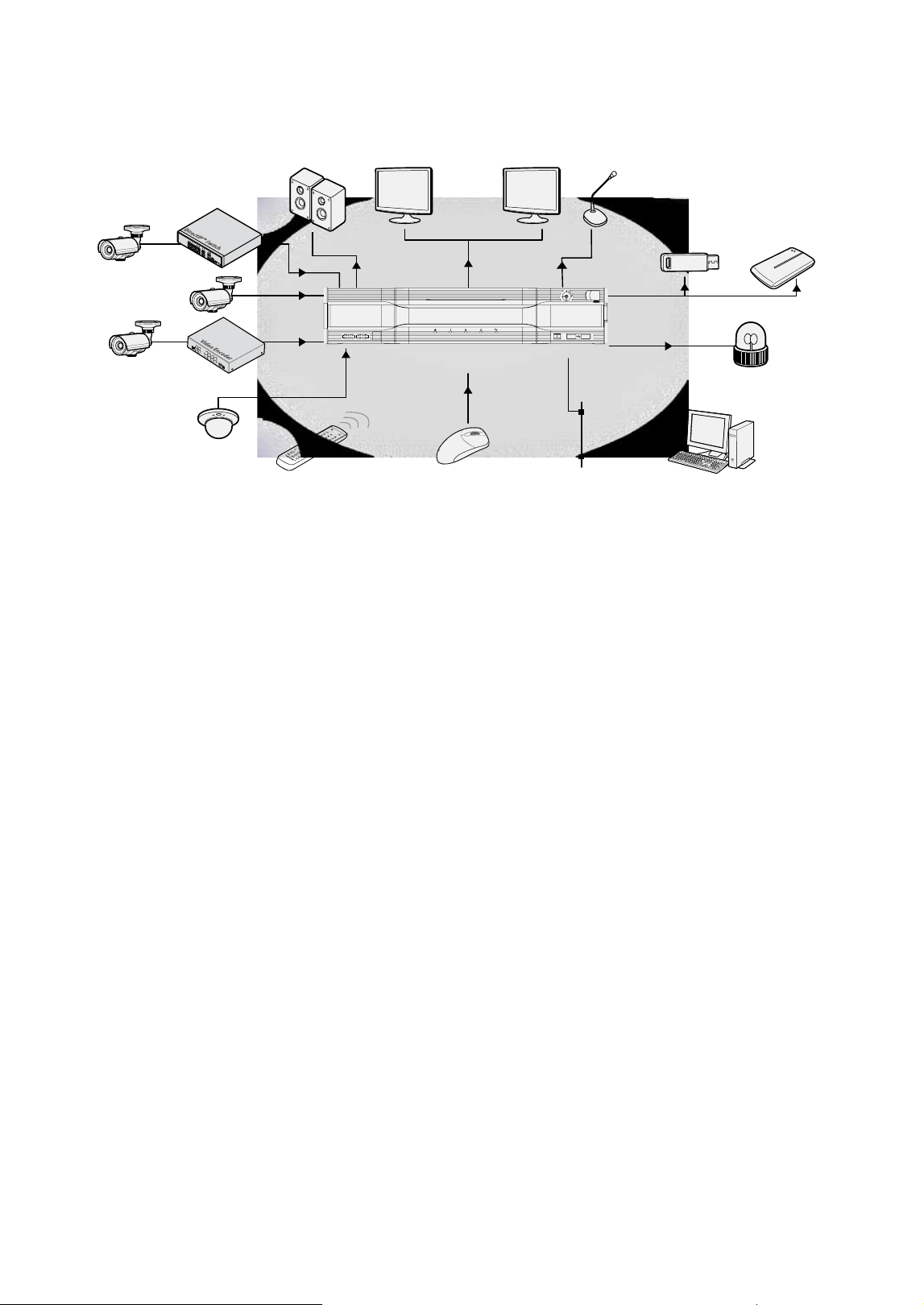
HDMI Monitor
HDMI Monitor
Flash Memory
USB HDD
Alarm Out
Alarm
Network Connection
Network Video Recorder
Mouse
IR Remote
Control
Sensor (1-16)
Video Encoder
Analog
Camera
Network
Camera
DirectIP Gigabit
PoE Switch
Network
Camera
Audio Out
Microphone
Part 1 – Introduction
9
Accessories
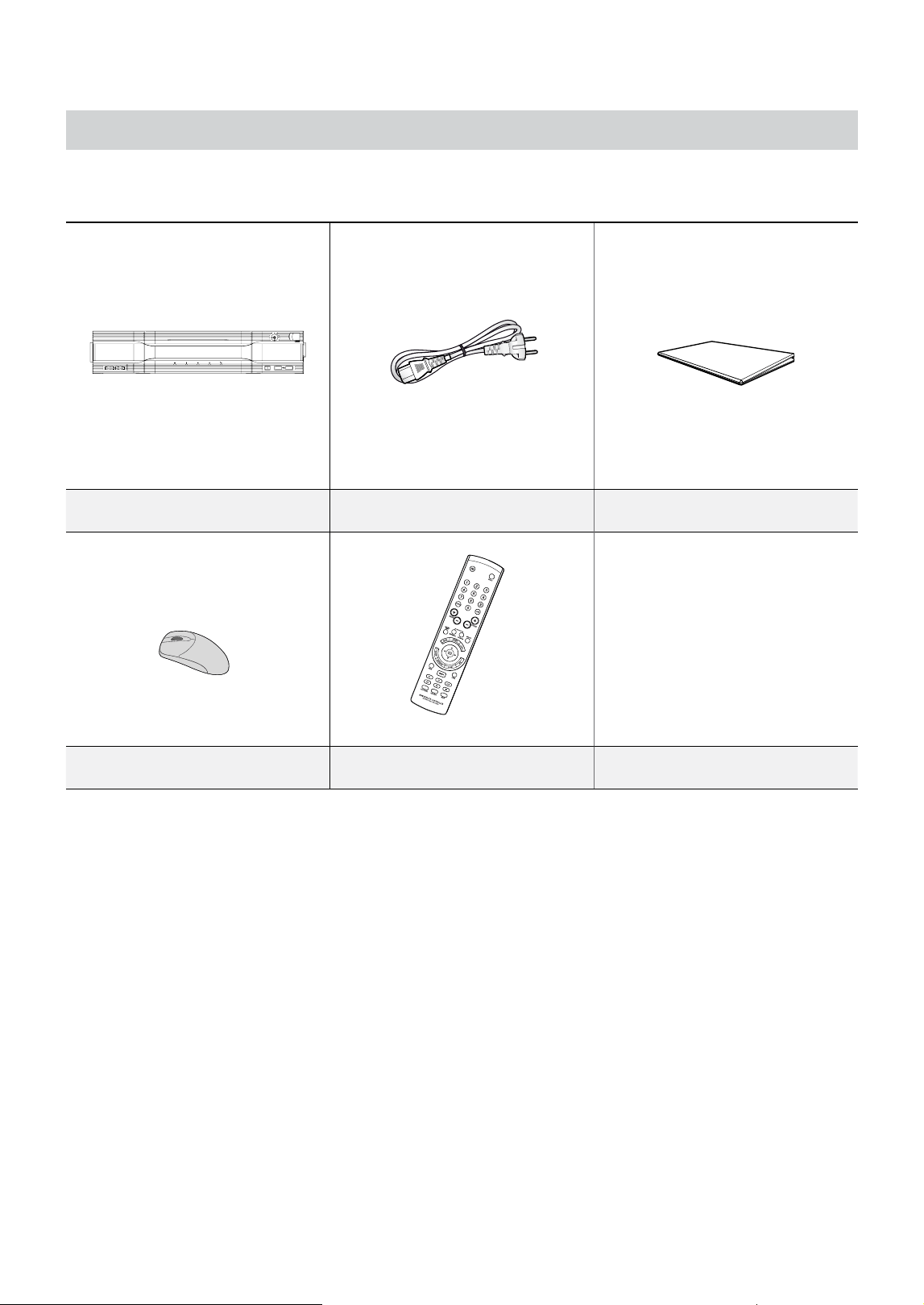
Upon unpackaging the product, check the contents inside to ensure that all the following accessories are included.
Network Video Recorder Power Cable Quick Guide
Optical USB Mouse IR Remote Control (Optional)
Part 1 – Introduction
10
Overview
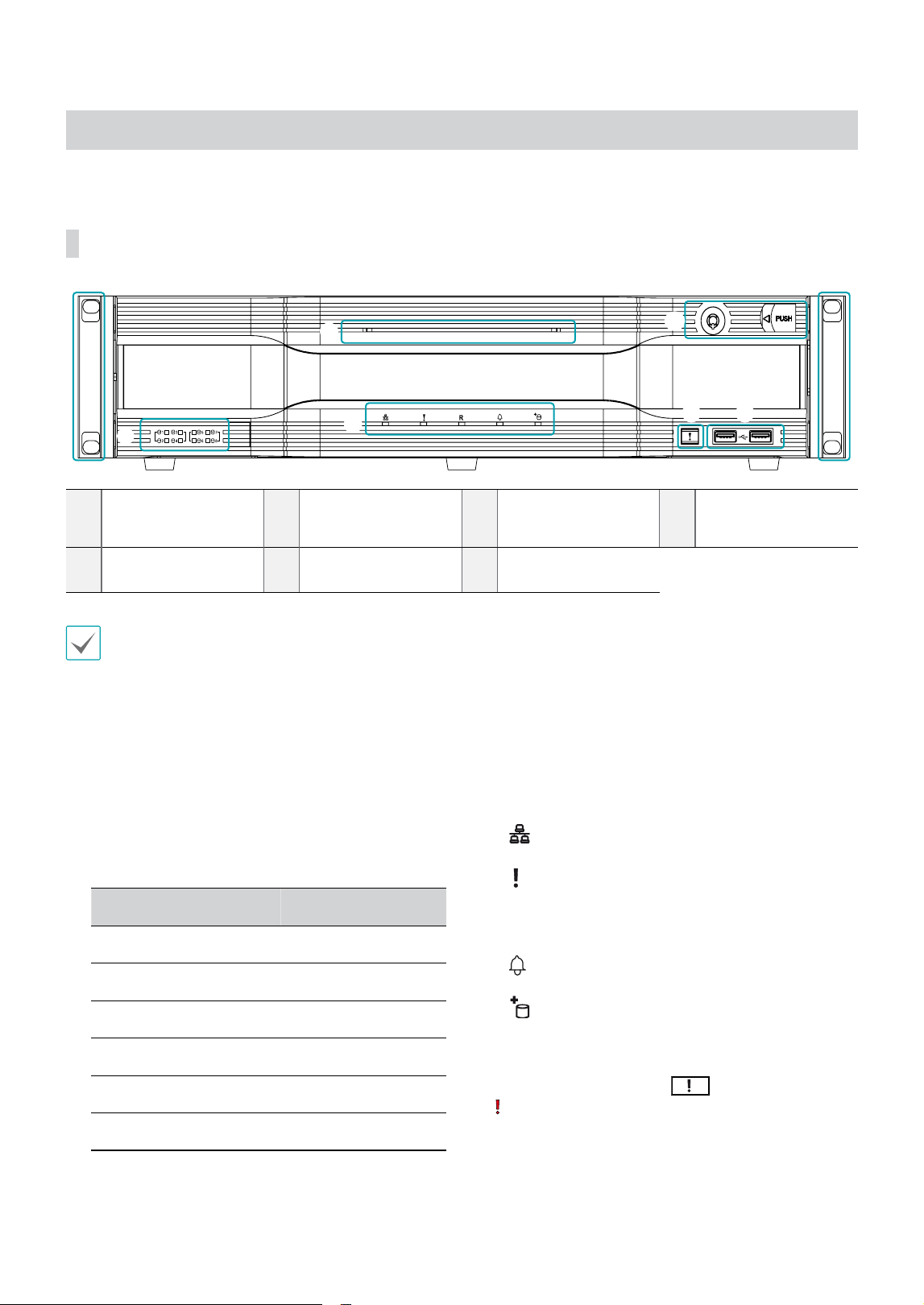
Front Panel
1
SATA LED
2
Status LEDs
3
Panic Recording
Button
4
USB Ports
5
Power LED
6
Front Door Lock
7
Rack Mount Ears
• Some buttons have more than one function.
• Remote control sensor is located on the left side of the front panel. Ensure that the sensor remains unobstructed at all
times. If obstructed, the sensor might not be able to receive remote control signals.
• Placing a Wi-Fi, Bluetooth, or any other wireless communication device near the NVR may interfere with remote control
signal transmission.
• Access various windows and menus using a USB mouse as you would on a personal computer.
• For easier system conguration, a USB mouse is recommended.
1 SATA LED
These LEDs indicate the status of HDD and RAID
mode.
LED Color
HDD Status
On Green
SATA HDD Connection
Blinking Green
Data Transmission
On Red
RAID Broken
Blinking Red
RAID Rebuilding
On Green / Red
HDD / RAID Error
O -
No SATA HDD
2 Status LEDs
●
Network LED: Flashes when the main unit is
linked to an ethernet.
●
Panic LED: Flashes in red when Panic Recording
is in progress.
● R LED: Lights up in red when RAID mode is
operating nomally.
●
Alarm LED: Lights up in red when an alarm
event occurs.
●
eSATA LED: Lights up when the main unit is
connected to an eSATA device.
3 Panic Recording Button
Pressing Panic Recording
1
2
3 4 5 6 7 8 9 0
button displays the
icon and commences recording irrespective of the
current schedule.
Press the button again to deactivate Panic Recording
mode.
1
2
3 4
6
5
7
7
Part 1 – Introduction
11
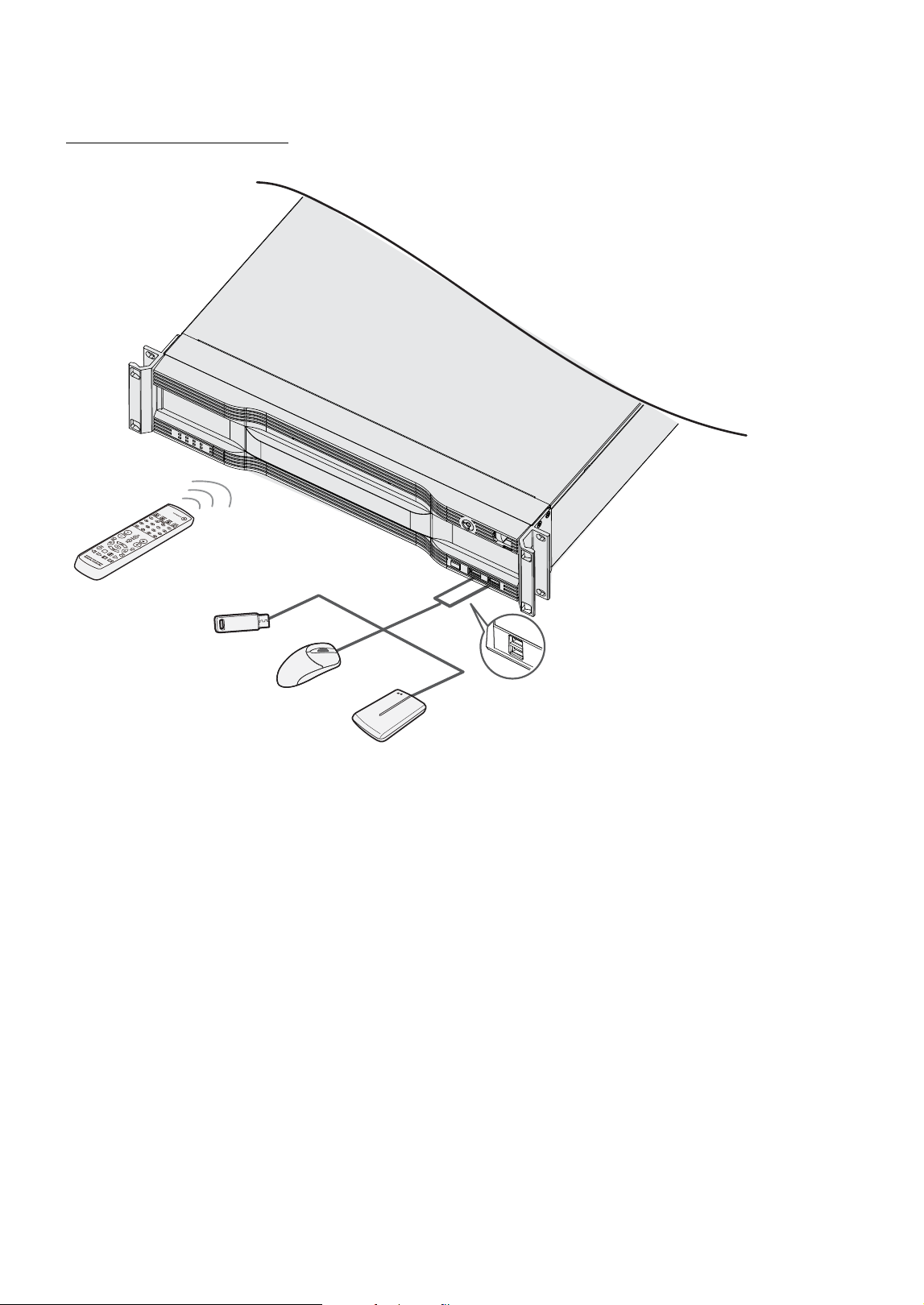
4 USB Ports
● Storage Device Connection
Connect an external USB hard drive or a USB ash
memory device to one of the USB ports for use with
the Clip Copy feature. The external storage device
should be placed as close to the NVR as possible.
It is recommended that you use a connection
cable that is no longer than 180cm in length. Use
the connection cable included with your external
storage device to connect the device to one of NVR's
USB ports. For more information on Clip Copy, refer
to the Clip Copy in the operation manual.
● Peripheral Device Connection
Use the USB ports to connect peripherals such as a
USB mouse to the NVR. You can also use a USB-to-
serial converter and connect multiple text-in devices
to the NVR at the same time.
For USB ash memory devices, the NVR supports
the FAT32 le format only.
5 Power LED
Lights up while the main unit is in operation.
6 Front Door Lock
By using enclosed door-lock key, front panel
can be detachable to replace the HDD. For more
information on how to replace the HDD, refer to the
Specications on page 26.
7 Rack Mount Ears
The ears can be used for rack mount.
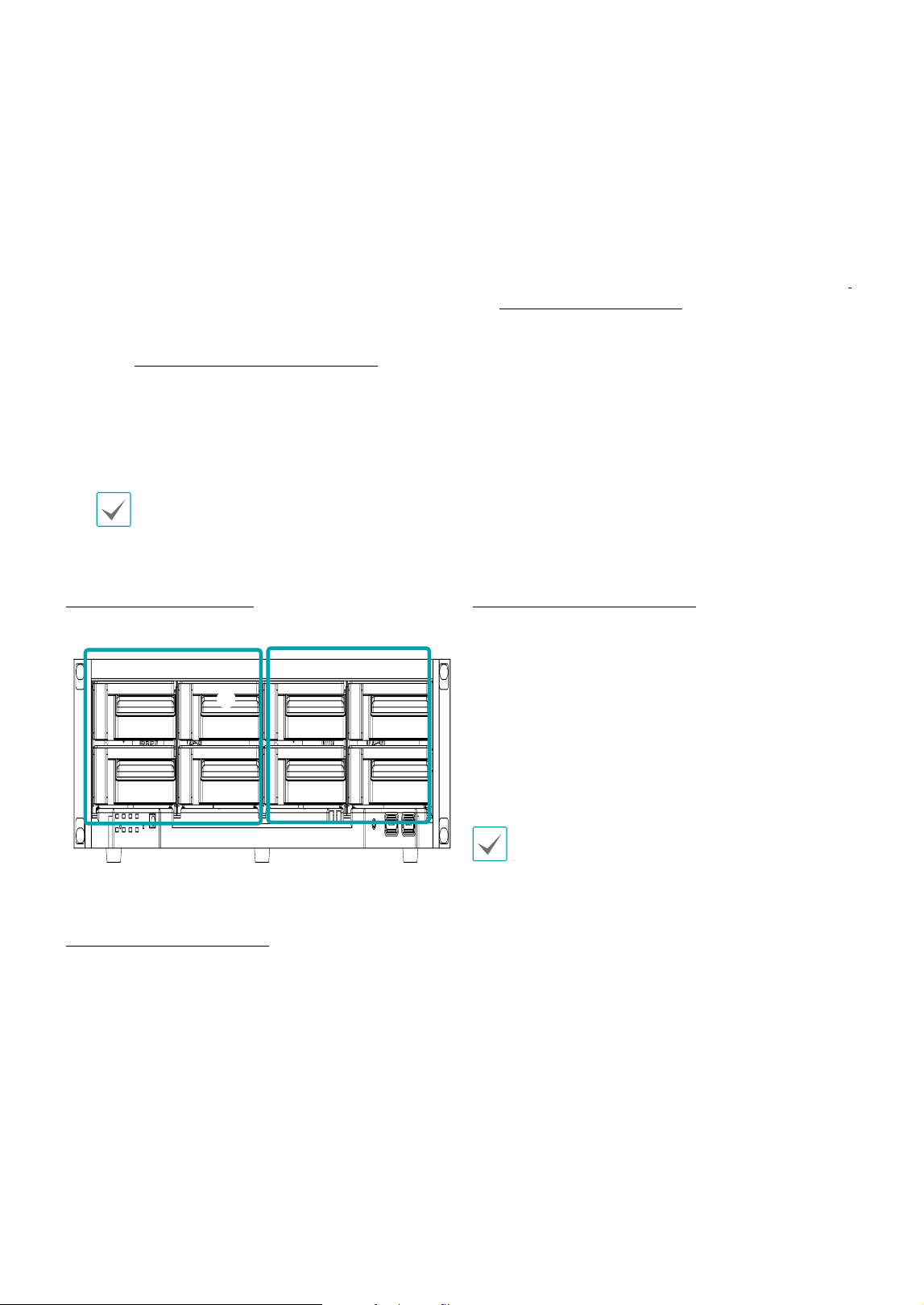
Port Number of HDD Drive
Refer to the following port number of HDD drive.
Group 1 Group 2
HDD Installation Precautions
To reuse the HDD which was used as a RAID, low-level
format the drive. Otherwise, it is recognized as a RAID
error and the data of all the connected HDDs may be
deleted.
Make sure to turn o the power before you add, remove
or replace the HDD.
RAID Conguration Precautions
It is possible to congure a raid represented by odd
number on consecutive disk drives.
Various combinations of RAID can be congured
according to the following conditions.
● RAID 1 :
Two consecutive hard drives (RAID
congurations represented by disk drives 1, 3, 5 and 7).
● RAID 5, RAID 10 :
Four consecutive hard drives (RAID
congurations represented by disk drives 1 and 5).
• When conguring RAID, you must use HDDs with
the same capacity and of the same model.
• While RAID is rebuilding due to degradation, do
not remove a HDD to congure the RAID. If you
remove it, the data of all the connected HDDs may
be deleted.
1
5 7
2 4 6 8
3
Group1 Group2
Part 1 – Introduction
12
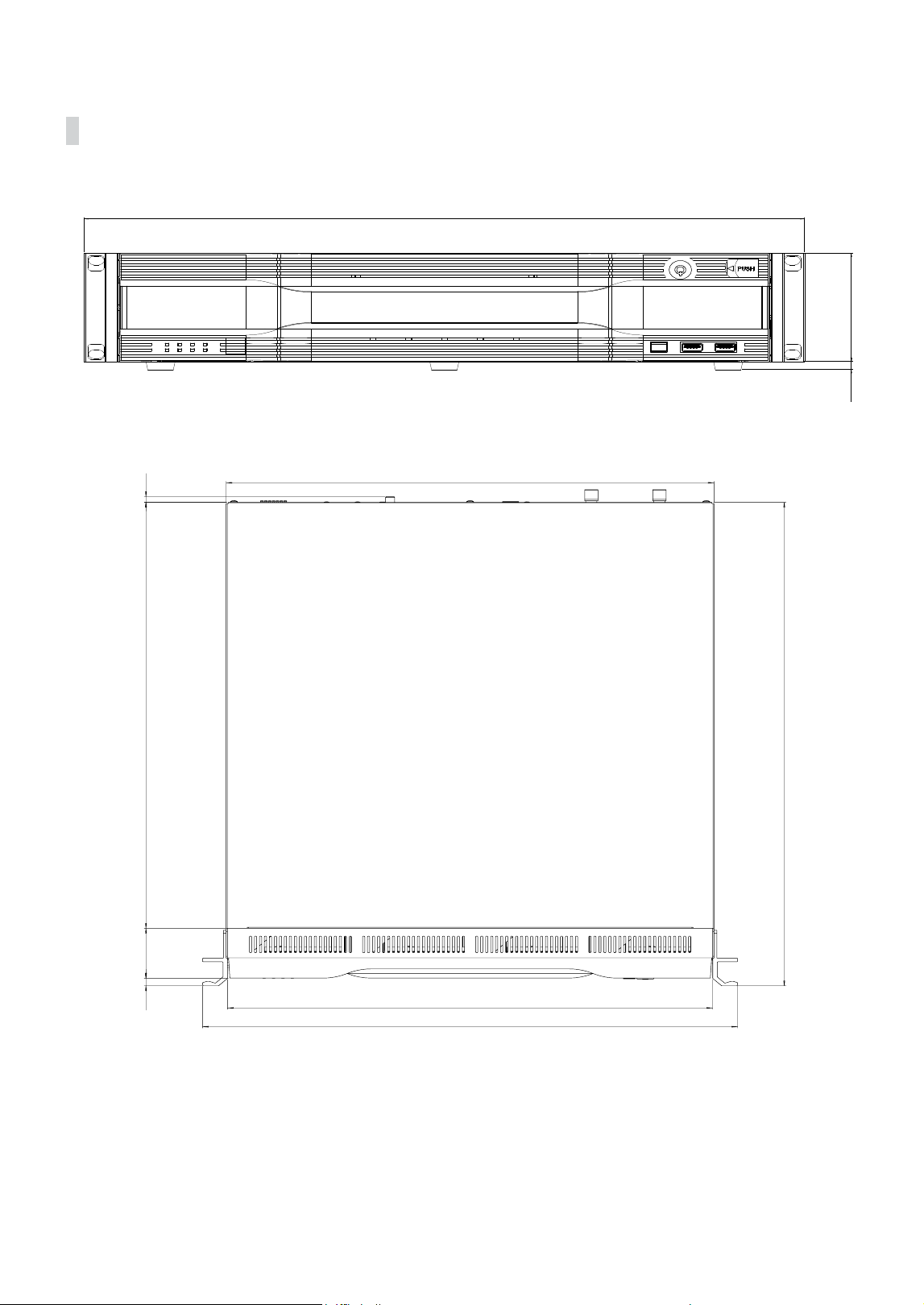
Connections on the Front Panel
IR Remote Control
Flash Memory
Mouse
USB HDD
Part 1 – Introduction
13
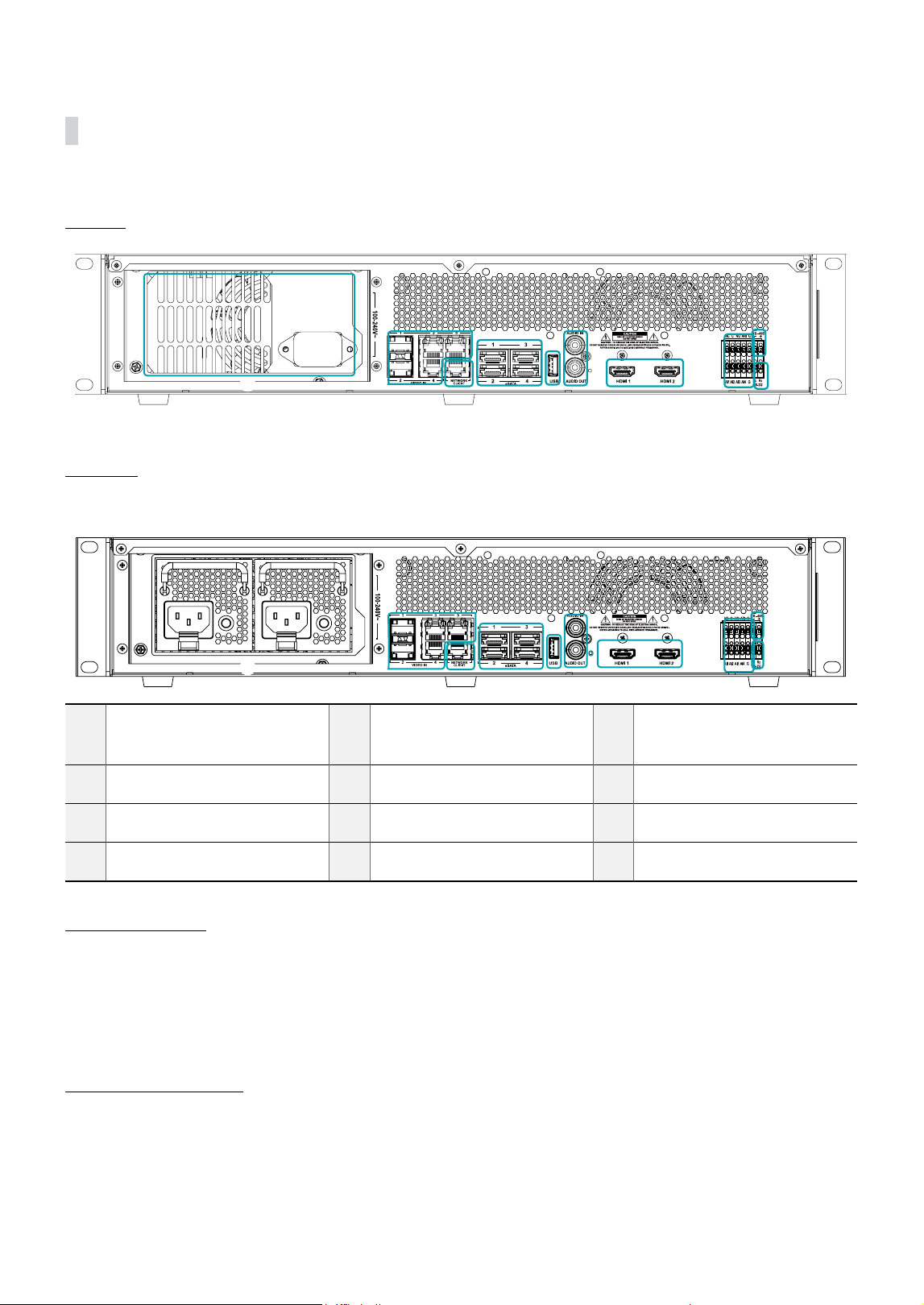
Dimensions
Unit : mm
482.6
886.5
6.5
88
482.6
437.6
482.6
8.3
54 461
440
523.3
6.2
~
▽ ▽▽ ▽▽▽ ▽▽▽▽
도
번
품
명
표면
처리
열
처리
재질
사
상
척도
관계
도번
5.0
3.0
1.8
1.2
0.8
0.5
5 급
1.8
1.2
0.8
0.5
0.3
0.2
4 급
1.2
0.8
0.5
0.3
0.2
0.1
3 급
0.8
0.5
0.3
0.2
0.1
0.1
2 급
0.3
0.2
0.1
0.1
0.1
1 급
1000 ~ 2000 이하
250 ~ 1000 이하
63 ~ 250 이하
16 ~ 63 이하
4 ~ 16 이하
4 이하
호칭치수
등급
지정 공차 범위(
)
지정
등급
각
도
제
도
설
계
검
도
승
인
변경인
[ ] : 외관 등급
<=> : 로라 방향
F B : 처리전 치수
F A : 처리후 가공
F N : 표면 처리 불가
N N : 위치 관계 무관
T N : Chip 불가
B S : Burr 면
B N : Burr 제거
R : C0.3 또는 R0.3 이하
1
2
3
4
5
6
7
8
9
10
11
12
13
14
15
16
17
18
19
20
21
22
23
24
25
26
27
28
29
30
31
32
33
34
35
36
A
B
C
D
E
F
G
H
I
J
K
L
M
N
O
P
Q
▶
▶
◀
◀
▲ ▲ ▲ ▲ ▲ ▲ ▲ ▲ ▲
▲
▼ ▼ ▼ ▼ ▼ ▼ ▼ ▼ ▼ ▼
IDIS CO.,LTD
B
DR-8564D 2U #1
N
S
Part 1 – Introduction
14
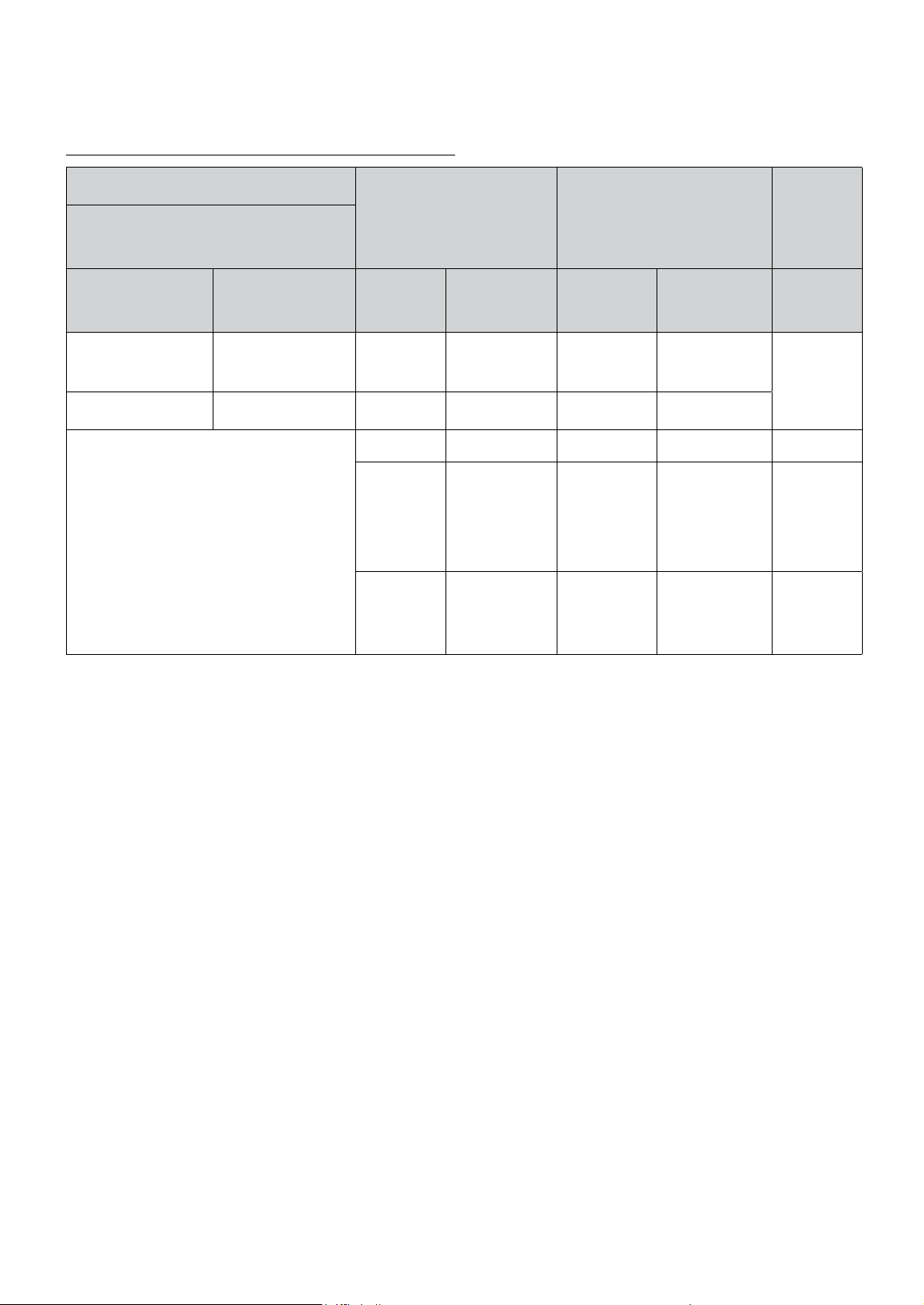
Rear Panel
DR-8564
2
3 4
5 6
7
8
9
1
0
DR-8564D
2 3 4
5 6
8
1
1
Power In Port
2
Video In Ports
- SFP (1~2) / RJ45 (3~5)
3
Network Port
4
eSATA Ports
5
USB 3.0 Ports
6
Audio Connection Ports
7
HDMI Out Port
8
Alarm Connection Ports
9
RS-232 Port
0
RS-485 Port
HDMI Port Precautions
• Use a certied cable marked with an HDMI logo when using HDMI. The screen may not display or a connection error may occur if
you do not use a certied HDMI cable.
• It is recommended that you use the following HDMI cable type.
– High-speed HDMI Cable
– High-speed HDMI Cable with Ethernet
Rack Installation Precautions
• End users must install the rack according to the rack installation manual.
• You must use only the screws that are provided in the rack or screws with dimensions mentioned in the rack installation manual.
• When installing this NVR in the rack, it must be installed by a skilled person or an instructed person.
7
9
0
Part 1 – Introduction
15
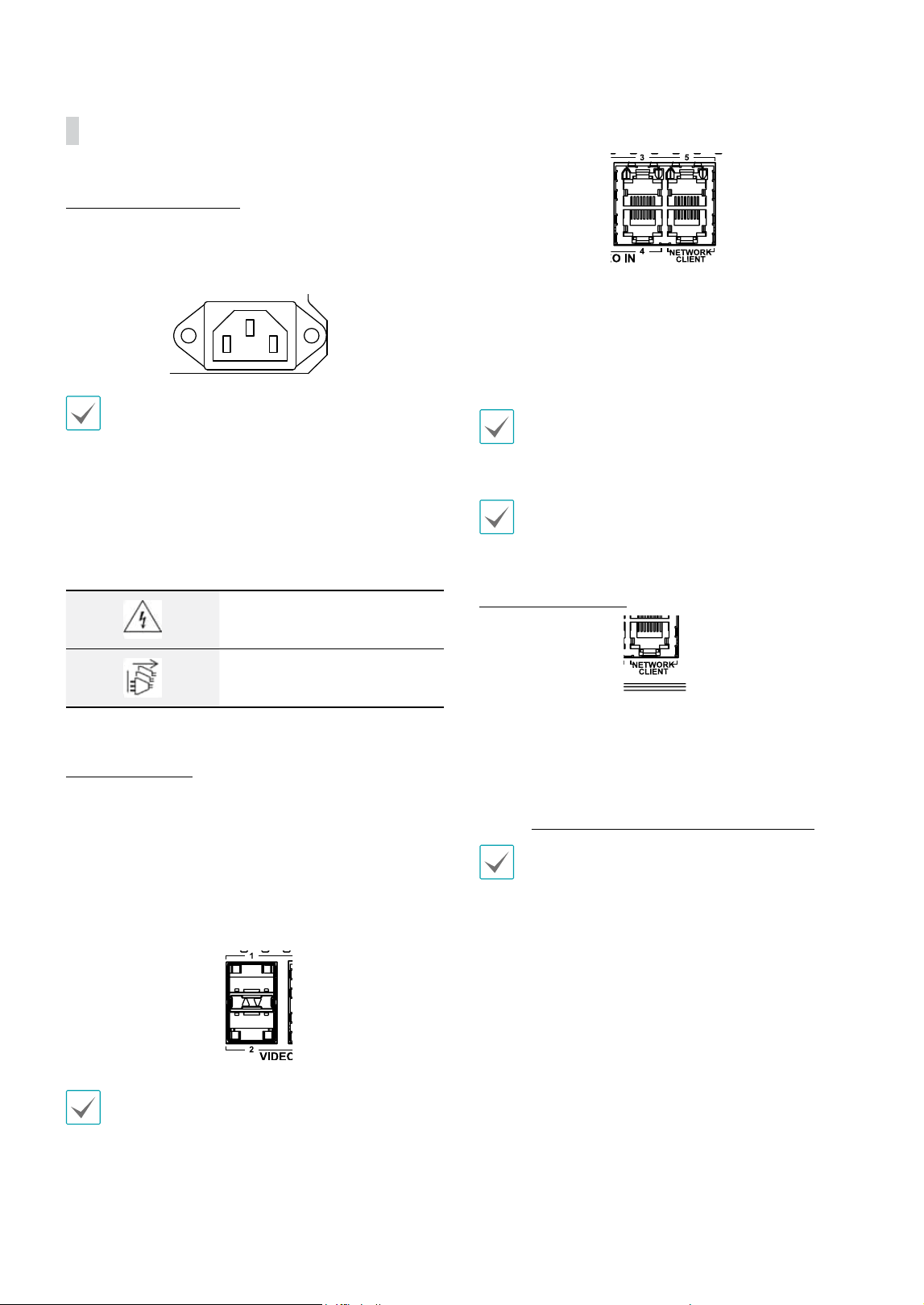
The LED and Buzzer Control Rules of Redundant Power
(DR-8564D)
Condition
Power Module #1 Power Module #2 Buzzer
AC Cord Included /
Not Included
Power Module #1 Power Module #2
Green LED Red LED Green LED Red LED
Mounted Non-mounted
On O O Blinking
On
Non-mounted Mounted
O Blinking On O
Mounted
On O On O O
O
Blink when a
warning event
occurs
O
Blink when a
warning event
occurs
O
O
On during a
module failure
O
On during a
module failure
On
Part 1 – Introduction
16
Rear Panel Connections
Power Cable Connection
Connect the power cable to this port. This NVR does not
feature a separate power on/o button and will turn on
the moment power is supplied.
• Organize the power cable so that it will not cause
people to trip over or become damaged from chairs,
cabinets, desks, and other objects in the vicinity. Do
not run the power cable underneath a rug or carpet.
• The power cable is grounded. Do not modify the
power plug even if your power outlet does not have
a ground contact.
• Do not connect multiple devices to a single power
outlet.
Caution – Shock hazard
Disconnect all power sources
Video Connection
● SFP Video In Port
These ports are used to connect to higher devices that
are some distances away via optical cables. You can
connect Gigabit Fiber Media Converters (Optional:
DA-MC1101) or external hubs (Optional: DH-2112PF,
DH-2128PF, DH-2212PF) to form a network. The NVR
recognizes DirectIP network cameras automatically.
• These ports operate in Full Duplex mode only.
• When the network is connected normally, the LED
lights up. Also when data transmission over the
network is in progress, the LED ashes.
• For more information on SFP modules supported
by the SFP Video In Port, refer to Supported SFP
Transceiver Module List on page xx.
● RJ45 Video In Port
Connect network cameras or video encoders to the NVR
using RJ-45 cable (Cat5, Cat5e, or Cat6). In addition to
cameras or video encoders, you can connect external
hubs (Optional: DH-2112PF, DH-2128PF, DH-2212PF) to
form a network. The NVR recognizes DirectIP network
cameras automatically.
Green LED on the right will turn on if connected to a
1000 BASE-T network. Orange LED on the left will then
ash once a link has been established.
• For stable video transmission, it is recommended
to connect less than 32 network cameras or video
encoders to a single Video In port.
Network Connection
This NVR is capable of connecting to networks via an
ethernet connector. Connect an RJ-45 cable (Cat5,
Cat5e, or Cat6) to the NVR's network port. It's possible to
operate and upgrade the NVR remotely over a network.
Fore more information on ethernet connection setup,
refer to Network Setup in the operation manual.
• Connector directions may vary depending on the
NVR model.
• Green LED on the right will begin to ash if
connected a 1000 BASE-T network. Orange LED
on the left will then ash once a link has been
established.
Part 1 – Introduction
17
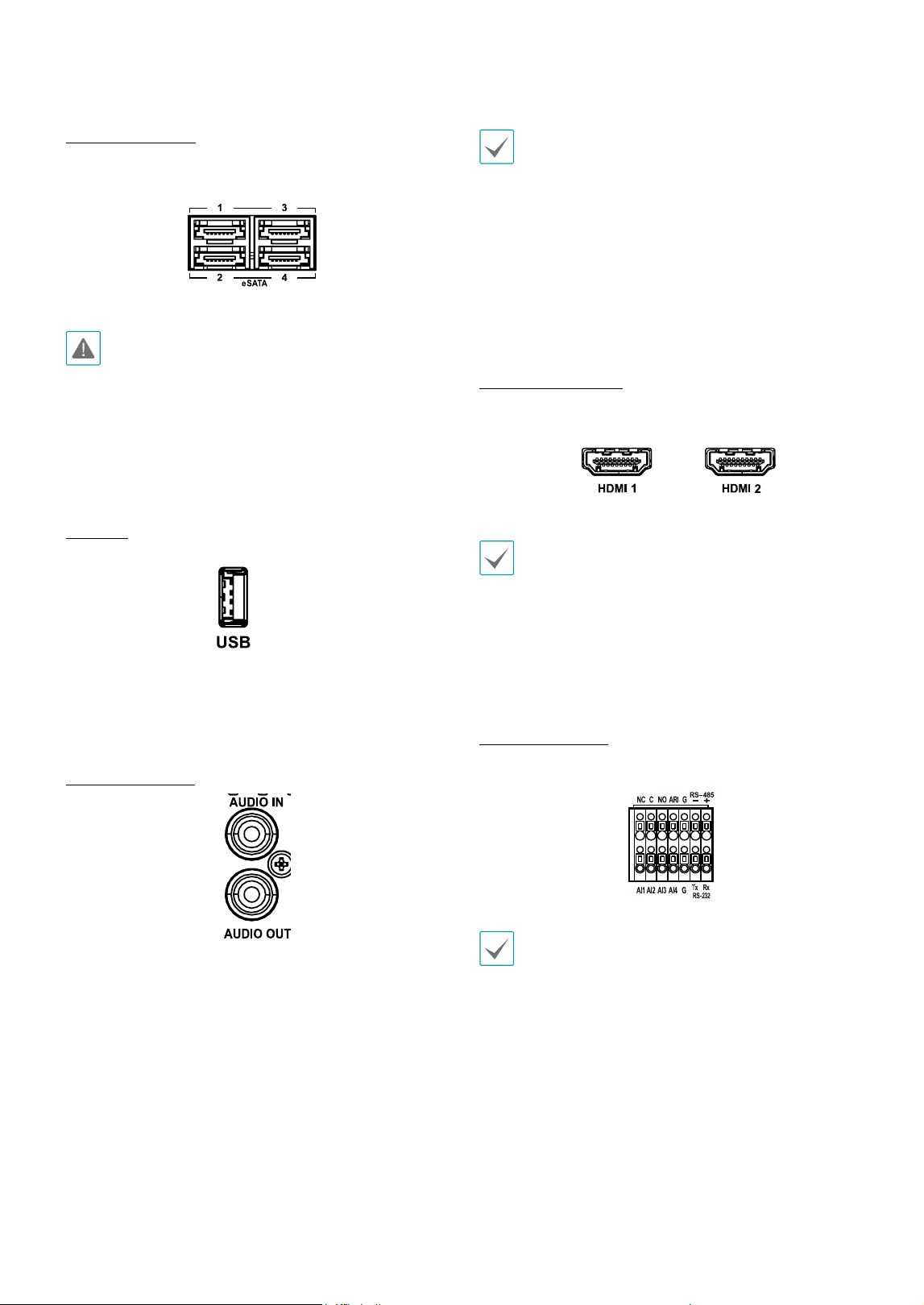
eSATA Connection
Connect external hard drives to these ports.
Do not connect or disconnect an eSATA device while
the NVR is powered on. To connect an eSATA device,
rst turn o the NVR and unplug the power cable.
Connect the eSATA device and then power the eSATA
device rst and then NVR back on. To disconnect an
eSATA device, rst turn o the NVR and unplug the
power cable. Turn o the eSATA device and then
disconnect the eSATA connection cable.
USB Port
Support Super-speed USB 3.0 (5Gbps), High-Speed USB
2.0 (480Mbps) and Full Speed USB 1.0 (12Mbps) for
transfer.
Audio Connection
Connect the audio device to the AUDIO IN port and
speakers with a built-in amplier to the AUDIO OUT
port. Use the AUDIO OUT port to listen to audio from
network cameras.
Use the AUDIO IN port to establish two-way
communication with cameras.
• This NVR does not feature a built-in audio amplier
unit and therefore requires the user to purchase a
speaker system with a built-in amplier separately.
It's possible to connect an amplied audio source to
the NVR, but microphones that do not have a built-
in amplier will not function properly if connected
to the NVR directly. If this is the case, connect the
microphone to the NVR via a pre-amp.
• Check your local laws and regulations on making
audio recordings.
Monitor Connection
Connect to the HDMI 1 or 2 port.
• Use a certied cable marked with an HDMI logo
when using HDMI. The screen may not display or
a connection error may occur if you do not use a
certied HDMI cable.
• It is recommended that you use the following HDMI
cable type.
– High-speed HDMI Cable
– High-speed HDMI Cable with Ethernet
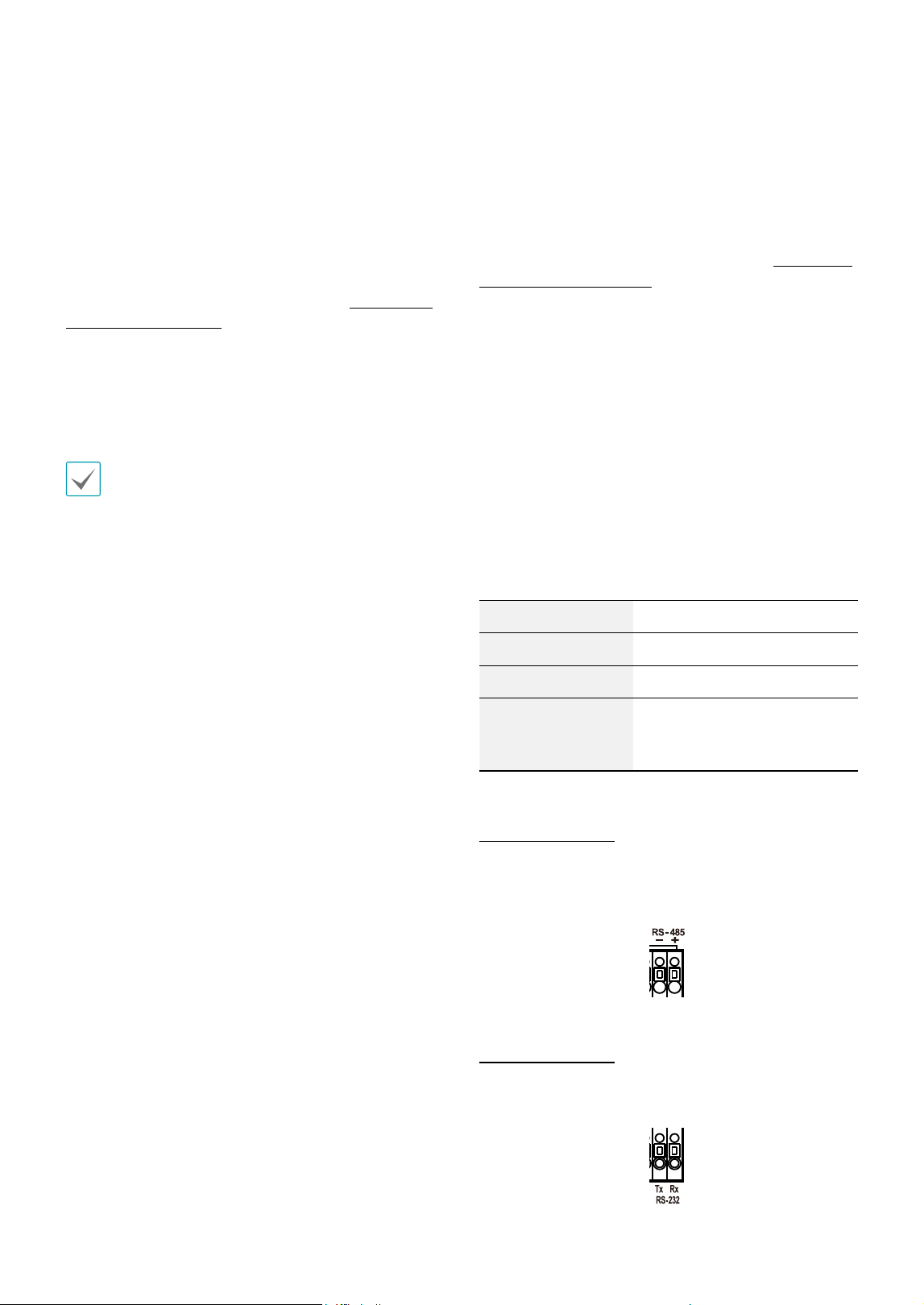
Alarm Connection
Connect alarm connectors to these ports.
Press down on the button and insert the cable into
the opening. Release the button and then pull on the
cable slightly to ensure it is held securely in place. To
disconnect the cable, press down on the button again
and pull the cable out.
Part 1 – Introduction
18
● Alarm In 1 through 4
This NVR is capable of responding to event signals from
exterxnal alarm in devices. Connect mechanical or
electrical switches to AI 1 through 4 and the G (ground)
connector. In order to be recognized by the NVR,
the signal from an alarm in device must be less than
0.3V (Normally Open) and maintained for at least 0.5
seconds. The alarm in voltage range is 0V to 5V. For more
information on alarm in setup, refer to the Alarm-In in
the operation manual.
● G (Ground)
Connect alarm in or out's ground cable to the G
connector.
All connectors marked "G" are common connectors.
● NC/NO (Relay Alarm Outputs)
This NVR is capable of activating/deactivating buzzers,
lights, and other external devices. Connect the device to
the C (Common) and NC (Normally Closed) or C and NO
(Normally Open) connectors. NC/NO is a relay output
which sinks 2A@125VAC and 1A@30VDC. For more
information on alarm out setup, refer to the Alarm-Out
in the operation manual.
● ARI (Alarm Reset In)
An external signal to the Alarm Reset In can be used to
reset both the Alarm Out signal and the NVR’s internal
buzzer. Mechanical or electrical switches can be wired to
the ARI (Alarm Reset In) and GND (Ground) connectors.
The threshold voltage is below 0.3V and should be
stable at least 0.5 seconds to be detected. Connect the
wires to the ARI and GND connectors.
● Connector Arrangement
AI1 through AI4 Alarm In 1 through 4
G Ground
C Relay Common
NO/NC
Normally Open and Normally
Close Relay Alarm Out
(connected to C port)
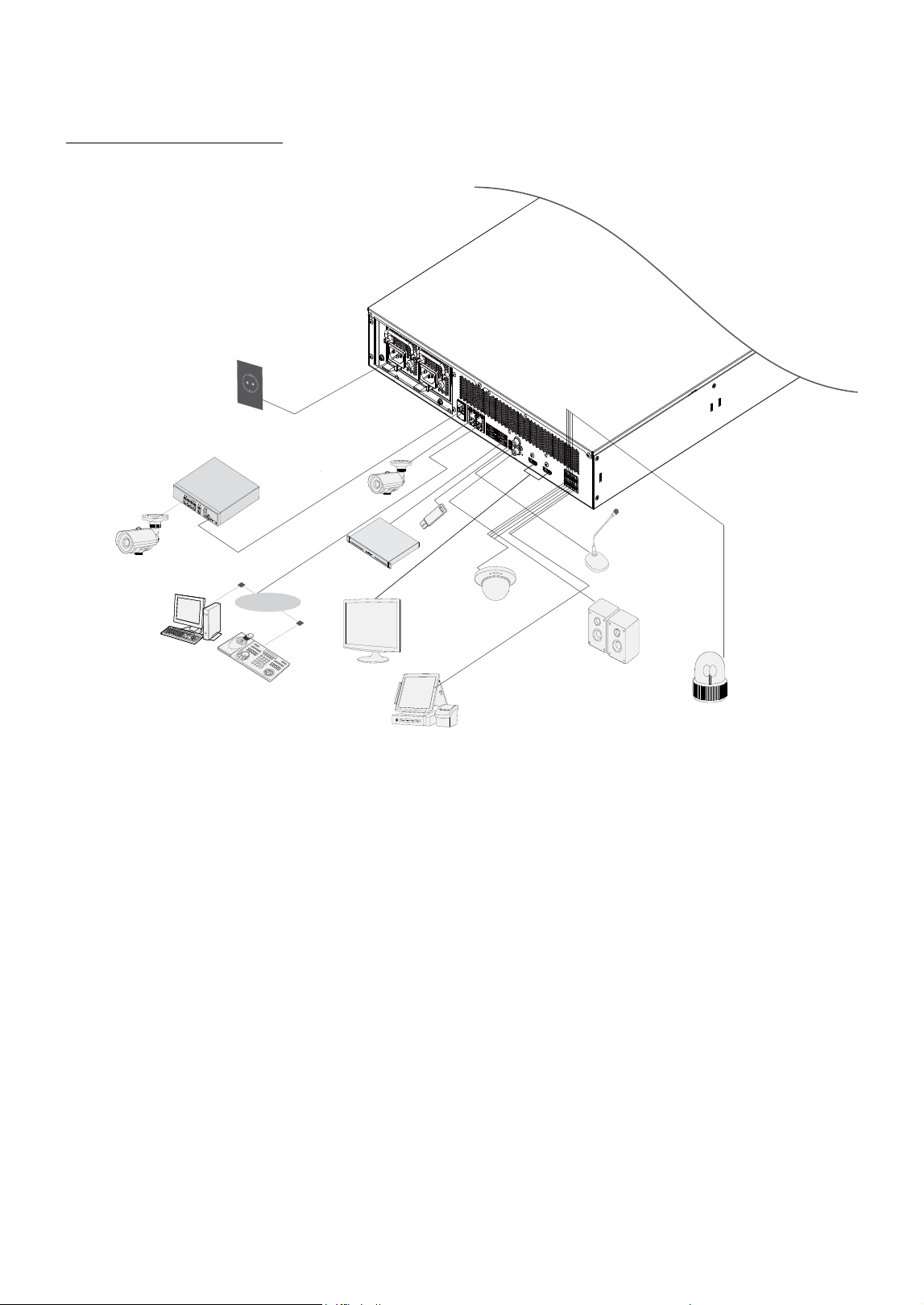
RS-485 Connection
This NVR supports the RS-485 half-duplex serial
communication protocol for connecting to external
devices such as POS units.
RS-232 Connection
Connect an external device such as a POS unit to this
port.
Part 1 – Introduction
19
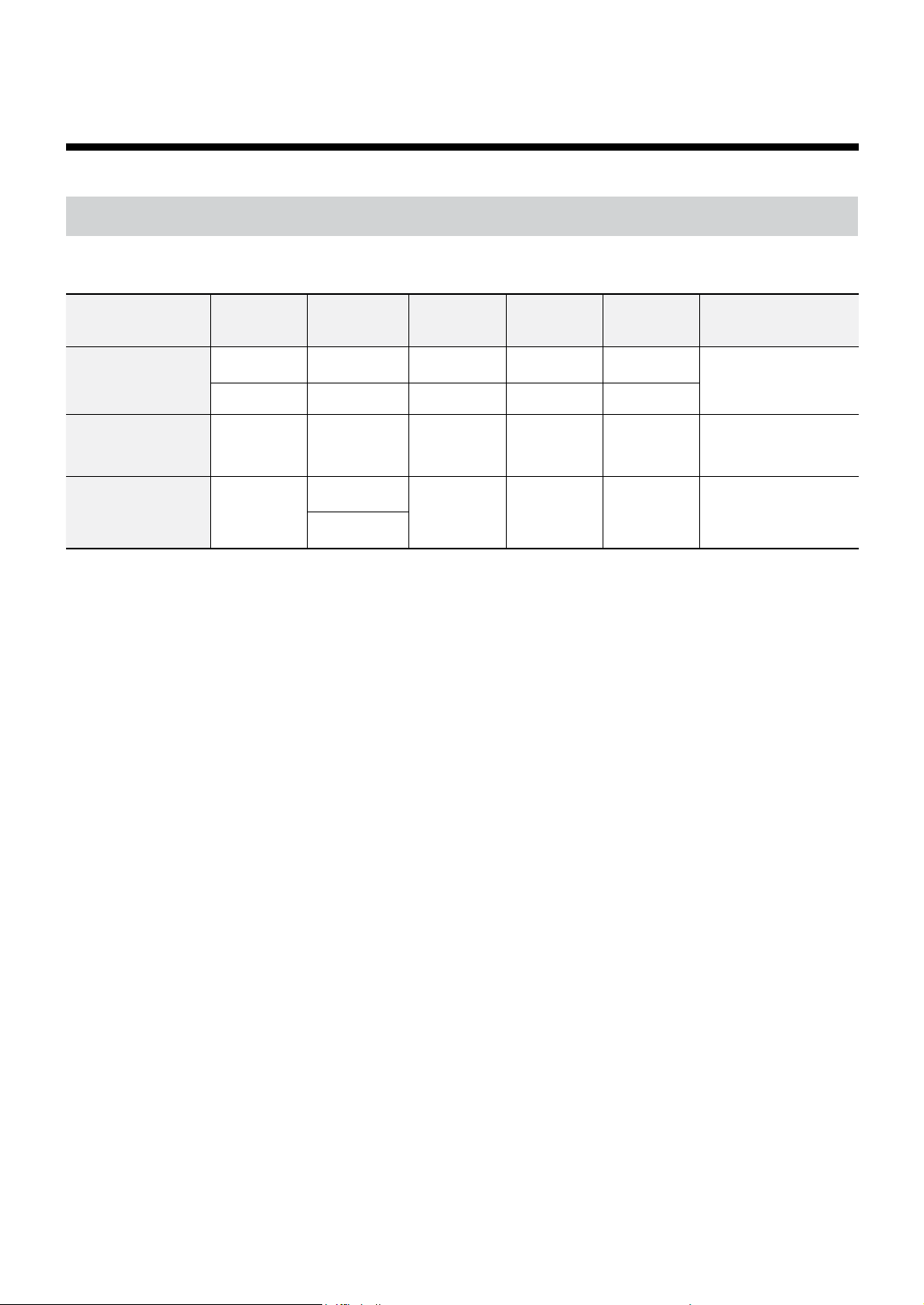
Connections on the Rear Panel
DirectIP™ Switch
Network
Camera
Network
Network
Camera
Keyboard
POS
Sensor
HDMI Monitor
Speaker
Microphone
Alarm
Power
DirectIP Gigabit
PoE Switch
eSATA Storage
Device
IDIS Center
Remote Monitoring
USB
20
Part 2 - Appendix
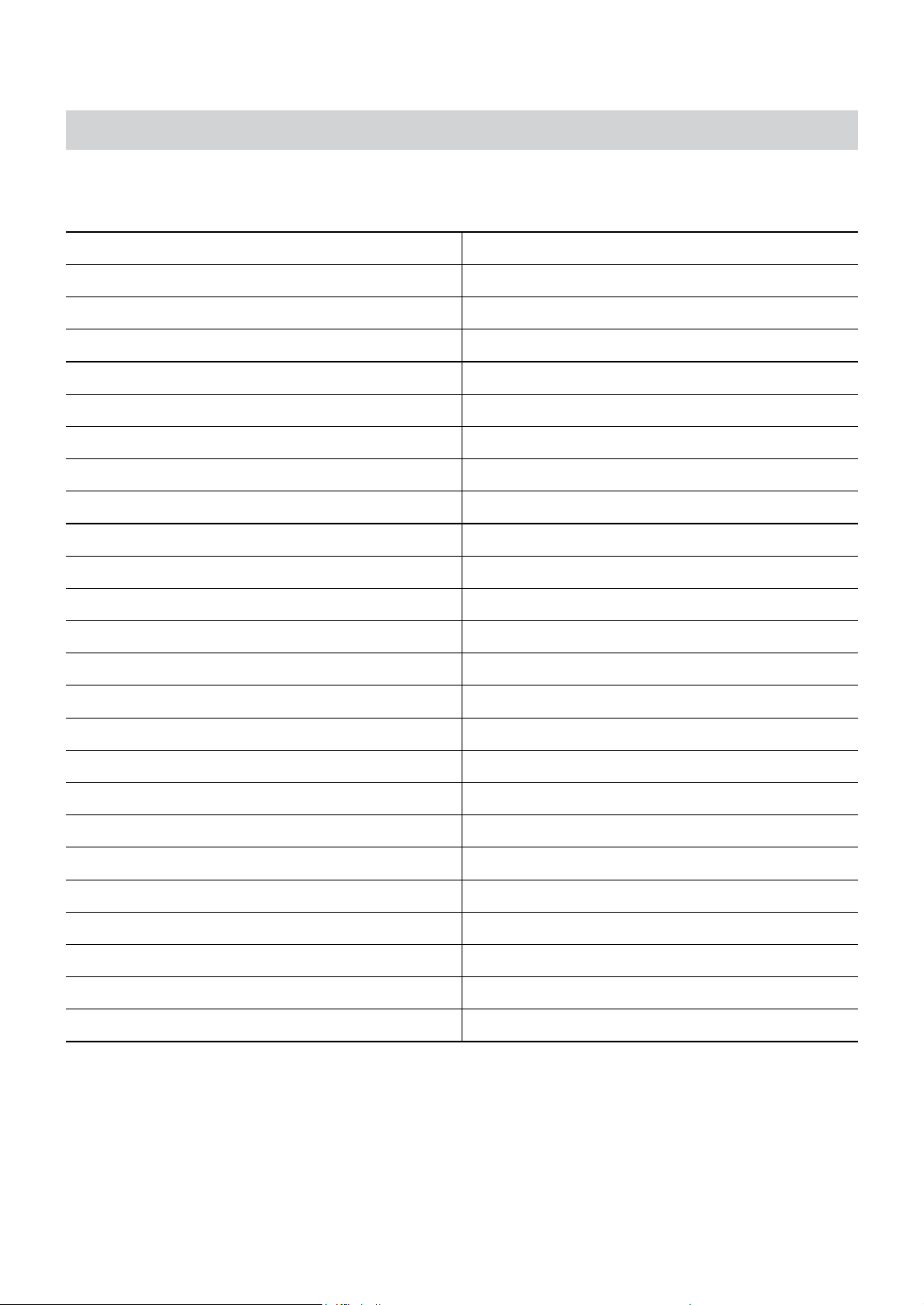
Supported SFP Transceiver Module List
The system's SFP ports support the following types of SFP modules:
Standard Diameter (um)
Wavelength
(nm)
Length Mode Connector SFP Module
1000BASE-SX
50/125 850 550m Multi LC
ATOP
APSB85123CDL05
62.5/125 850 500m Multi LC
1000BASE-LX 9/125 1310 20Km Single LC
ATOP
APSB31123CDL20
1000BASE-LX
BiDi
9/125
1310
20Km Single LC
ATOP
APSB35123CDL20
APSB53123CDL20
1550
Part 2 - Appendix
21
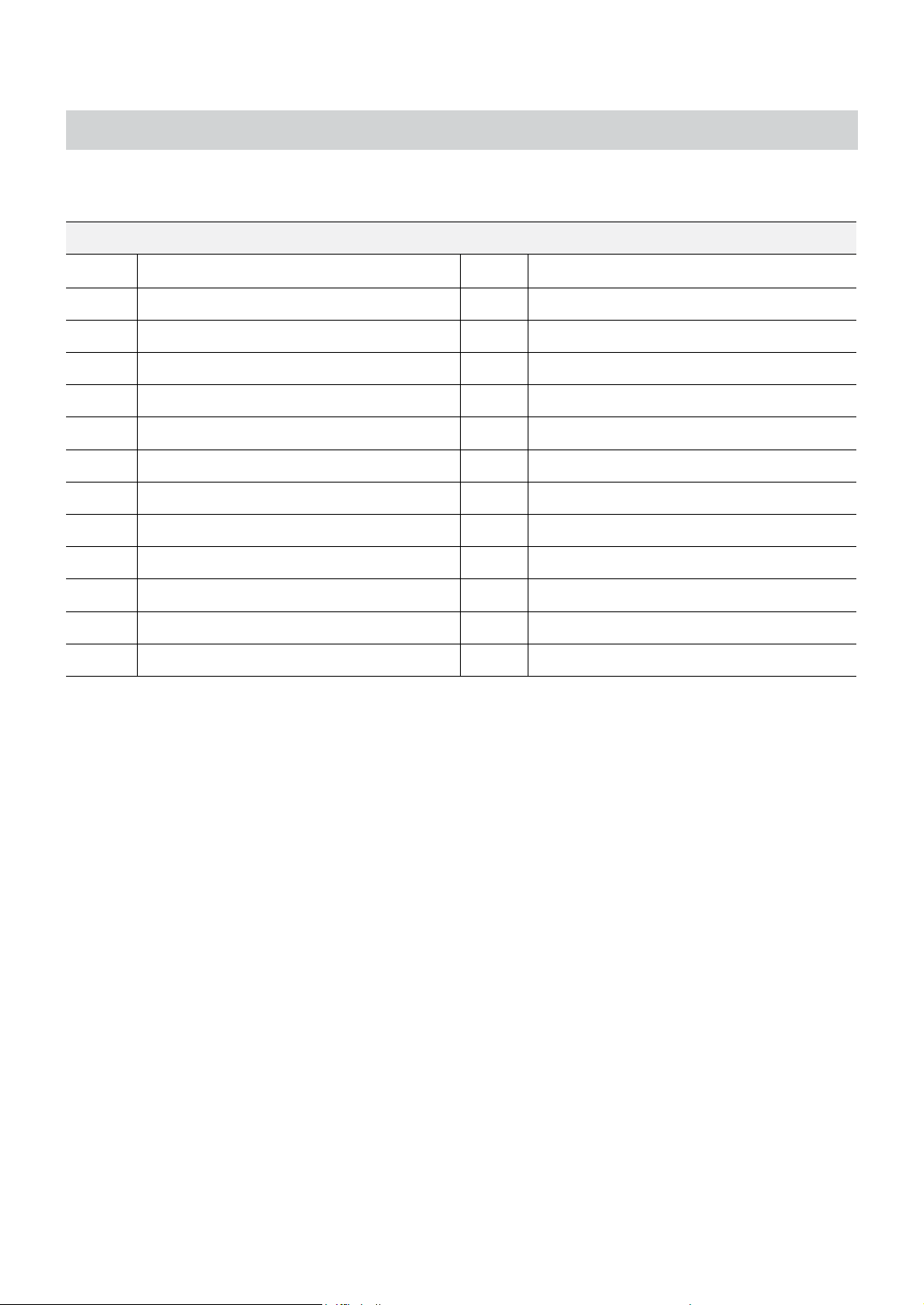
System Log Types
Boot Up Panic On
System Shutdown Panic O
Restart Clear All Data
Upgrade Success Clear Disk
Upgrade Error Format Disk
Power Failure Disk Full
Time Changed Auto Deletion
Time Zone Change Search Begin
Time Sync. Search End
Time Sync. Failed Clip-Copy Begin
Disk Bad Clip-Copy End
Login Clip-Copy Cancel
Logout Clip-Copy Failure
Setup Begin Clip Copy User
Setup End Clip-Copy Begin
Remote Setup Change Clip-Copy Finished
Remote Setup Failure Clip Copy Duration of Video
Setup Import Clip Copy Camera
Setup Import Failure Callback Failed
Setup Export Factory Reset
Setup Export Failure Camera Upgrade Begin
Setup Export Canceled Camera Upgrade End
Schedule On Camera Upgrade Failure
Schedule O Camera Upgrade User
Camera Upgrade Camera
Part 2 - Appendix
22
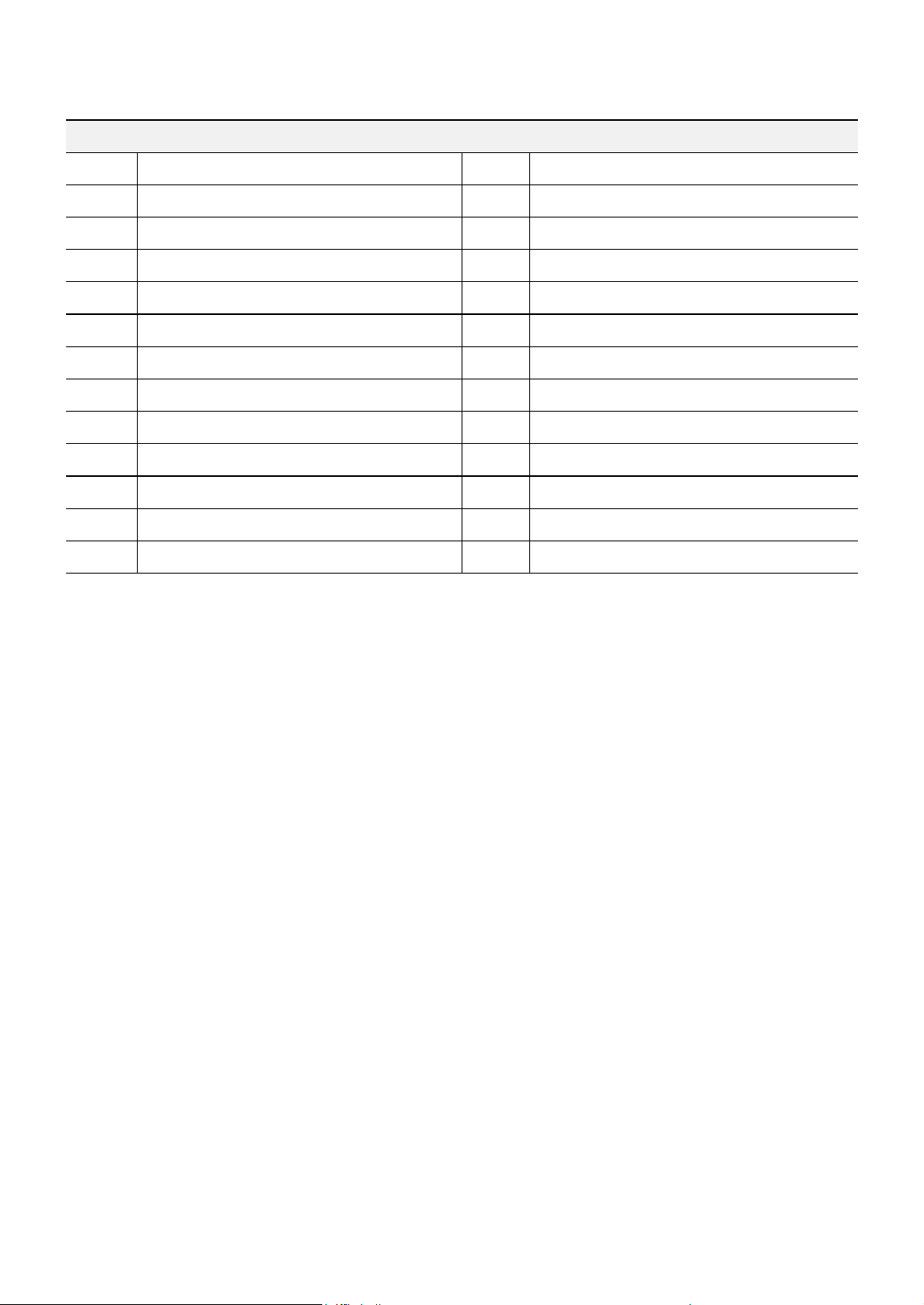
Error Code Types
Upgrade Error Codes
No. Type No. Type
0 Unknown Error 301 Remote Network Error
1 Incorrect File Version 302 No Remote Upgrade Permission
2 Incorrect OS Version 303 Remote Upgrade File Save Failure
3 Incorrect Software Version 304 Remote Upgrade Cancelled by User
4 Incorrect Kernel Version 400 USB Storage Device Mount Failure
100 Storage Device Mount Failure 401 USB Storage Device File Read Failure
101 File Not Found 402 USB Storage Device File Copy Failure
102 File Decompression Failure 403 USB Device Not Connected
103 LILO Execution Failure 404 USB Storage Device in Use
104 Reboot Failure 405 Unsupported File System
105 Improper File 500 Clip Copy in Progress: Upgrade Not Available
300 Remote Connection Failure
Part 2 - Appendix
23
Clip Copy Error Codes
No. Type No. Type
0 Unknown Error 12 Disk Error
1 Device Error 13 Clip Player Execution File Not Found
2 Device Connection Failure 14 Clip Player Execution File Access Failure
3 CD Media Not Found 15 Clip Player Execution File Save Failure
4 Incorrect Media 16 Image Generation Failure
5 File Name Taken 17 Burn Failure
6 Insucient Space 18 Burn Time Overrun
7 Temporary File Generation Failure 19 Device Connection Failure
8 Disk Access Failure 20 Device in Use
9 Disk Format Failure 21 Unsupported File System
10 Database Changed 22 Data Validation Failure
11 Save Failure 23 No Saved Data within Range

Part 2 - Appendix
24
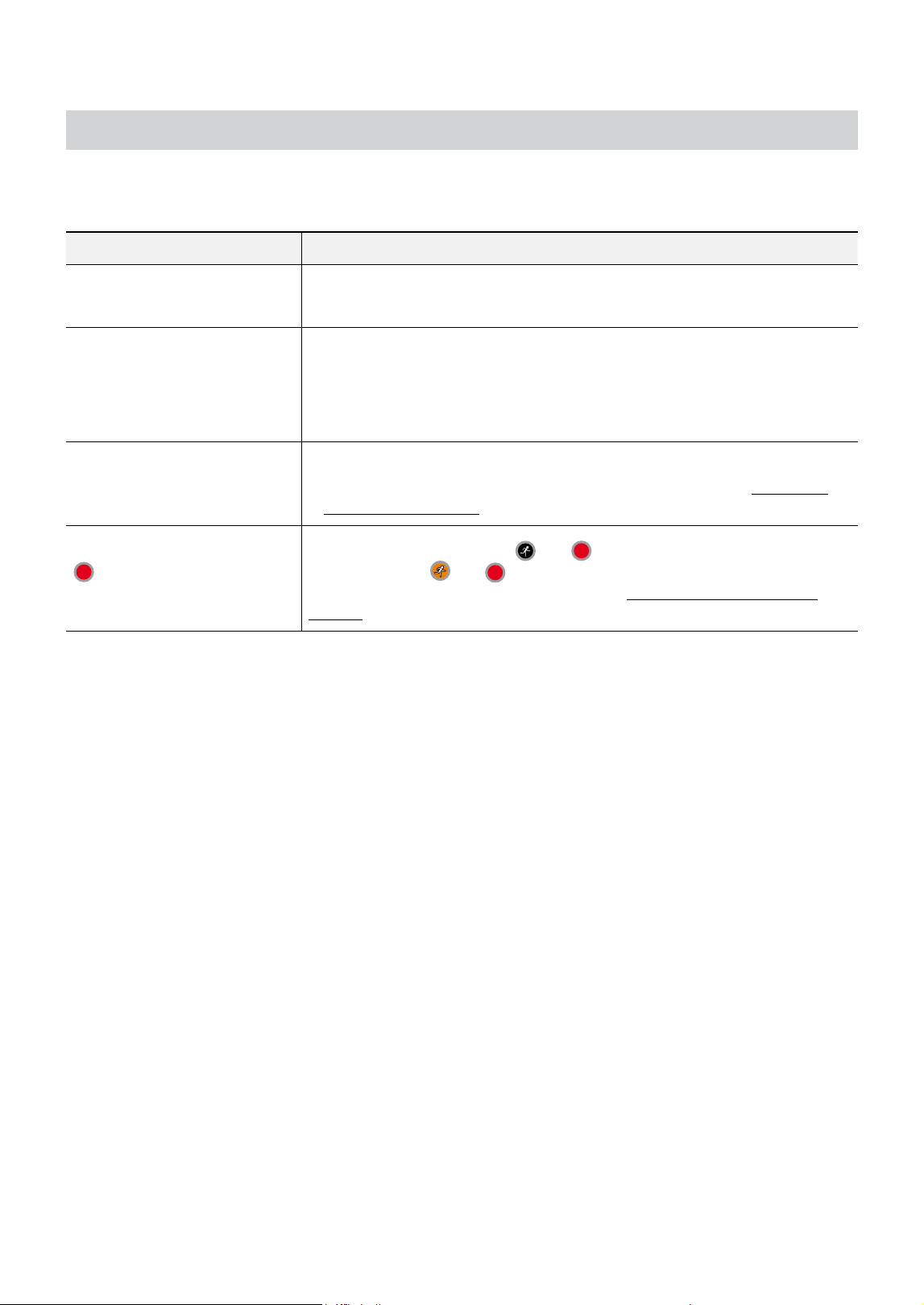
Network Error Codes
No. Type No. Type
0 Cause of Failure Unknown 20 Connection Cancelled by User
1 Normal Logout 21 No Response from Network Device Host
2 All Channels in Use - Connection Denied 22 High Network Noise Level
3 Incorrect Product Version Info 23 Transmission Queue Full
4 Incorrect User Name or Password 24 Incorrect OEM Info
5 Forced Disconnection by Admin 25 No Search Permission
6 Timeout 26 Port in Use
7 Network Device Terminated 27 SSL Connection Failure
8 Unable to Connect: No Available Port 28 Network Timeout
9 Server Not in Operation: Unable to Connect 29 Network Device Host Timeout
11 Network Unavailable 30
RTP via TCP Not Supported by Network
Device Host
12 Dierent Network Zone: Unable to Access 31 Socket Error
13 Connection Timeout 100 Unknown CODEC
14 Forced Disconnection by Network Device 101 .jpeg CODEC (not supported)
15 Network Device Host Terminated 103 .mpeg4 CODEC (not supported)
16 Unable to Route to Network Device Host 400 Unsupported Resolution
17 Connection Severed -1 Normal Access
Part 2 - Appendix
25
Troubleshooting
Problem Solution
The main unit won't turn on.
● Check the power cable connection status.
● Check the power outlet.
Unable to display Live video.
● Check the camera's video cable connection status.
● Check the monitor's video cable connection status.
● Check the camera's power setting.
● Check the camera lens settings.
NVR stopped working in the
middle of a recording.
● Hard disk may be full. Delete video recordings to free up space.
● Set the NVR to Recycle mode. For more information, refer to the General in
the operation manual.
icon is shown, but video is
not being recorded.
If the Pre-Event is enabled, the and icons appears when recording is not
inprogress, or the
and icons appear when an event occurs and recording
is in progress. For more information, refer to the Schedule in the operation
manual.
Part 2 - Appendix
26
Specications
These product specications may change without prior notice.
VIDEO
Video Inputs 64 IP
channels
Video Outputs 2 HDMI
Display Resolution 3840x2160, 1920 x 1200 , 1920 x 1080, 1680 x 1050, 1600 x 1200
Display Speed Up to 1080ips
* If more than 16 cameras from video encoders are registered on the NVR, video may not be displayed smoothly in a
remote program.
*
Recording speed may be slowed down during the RAID rebuild process.
RECORDING
Max. Throughput 400Mbps, 1920ips @ UHD
Compression H.265, H.264
Recording Mode Time-Lapse, Event, Pre-Event, Panic
PLAYBACK
Performance 64
ch Full HD synchronous playback
Search Mode Time-lapse, Event log,Thumbnail, Motion, Text-in
STORAGE
HDD SATA x 8, eSATA x4, RAID 1, 5, 10 supported
Total Capacity 288TB=12TB x 8(Internal) + 12TB x 4x4(External)
Data Export Device USB HDD, USB Stick
NETWORK
Client Connection Gigabit Ethernet(Client) x1
Video in Connection Gigabit Ethernet(Video In) x3, SFP(Video In ) x 2
Transmission Speed 50Mbps / 100Mbps(BRP Mode)
Event Notication
Email (attach clip (.cbf) .MP4), Callback to Remote S/W, Push notication (IDIS
Mobile), FTP, HTTP
V8.2
Part 2 - Appendix
27
INTERFACE
Audio In / Out NVR : 1 RCA / 1 RCA + 2 HDMI
NVR Alarm Spec- In
4 TTL, NC/NO programmable, 2.4V (NC) or 0.3V (NO) threshold, 5V DC
NVR Alarm Spec- Out
1 relay output, NC/NO, 2A@125V AC, 1A@30V DC
NVR Alarm Spec - Reset IN 1 TTL, terminal block
Internal Buzzer Yes
Serial Interface RS232 (Terminal Block), RS485 (Terminal Block)
USB USB 2.0 x 2. USB 3.0 x 1
GENERAL
Operating System Embedded Linux
Unit Dimensions
(W x H x D)
482.6mm x 88mm x 523.3mm (19"x3.5"x20.6")
Unit Weight
11.16kg (24.60lb) (with 2 HDDs) DR-8564
12.24kg (26.98lb) (with 2 HDDs) DR-8564D
Working Temperature 0°C to 40°C
Operating Humidity 0% ~ 90%
Power Input
100-240V~, 50/60Hz, 6-3A DR-8564
100-240V~, 50/60Hz, 8-4A x2 DR-8564D
Power Consumption
100-240V~, 50/60Hz, 6-3A, 145W DR-8564
100-240V~, 50/60Hz, 8-4A, 145W x2 DR-8564D
Approvals FCC, UL, CE, CB, PSE
* The power consumption of the dual power model "DR-8564D" is based on the maximum power consumption of one
module.
Some hard disks may not function properly when mounted on to this product. Refer to the compatibility chart below before
mounting any additional hard disk on to the product. Hard disk compatibility chart is subject to change without notice.
Contact your retailer for the latest compatibility chart.
Storage Manufacturer Model S.M.A.R.T Operating Temperature
4TB TOSHIBA MG08ADA400E 10°C~60°C
12TB TOSHIBA MG07ACA12TE 10°C~60°C
※ The normal operating temperature of hard drives is based on S.M.A.R.T standards.
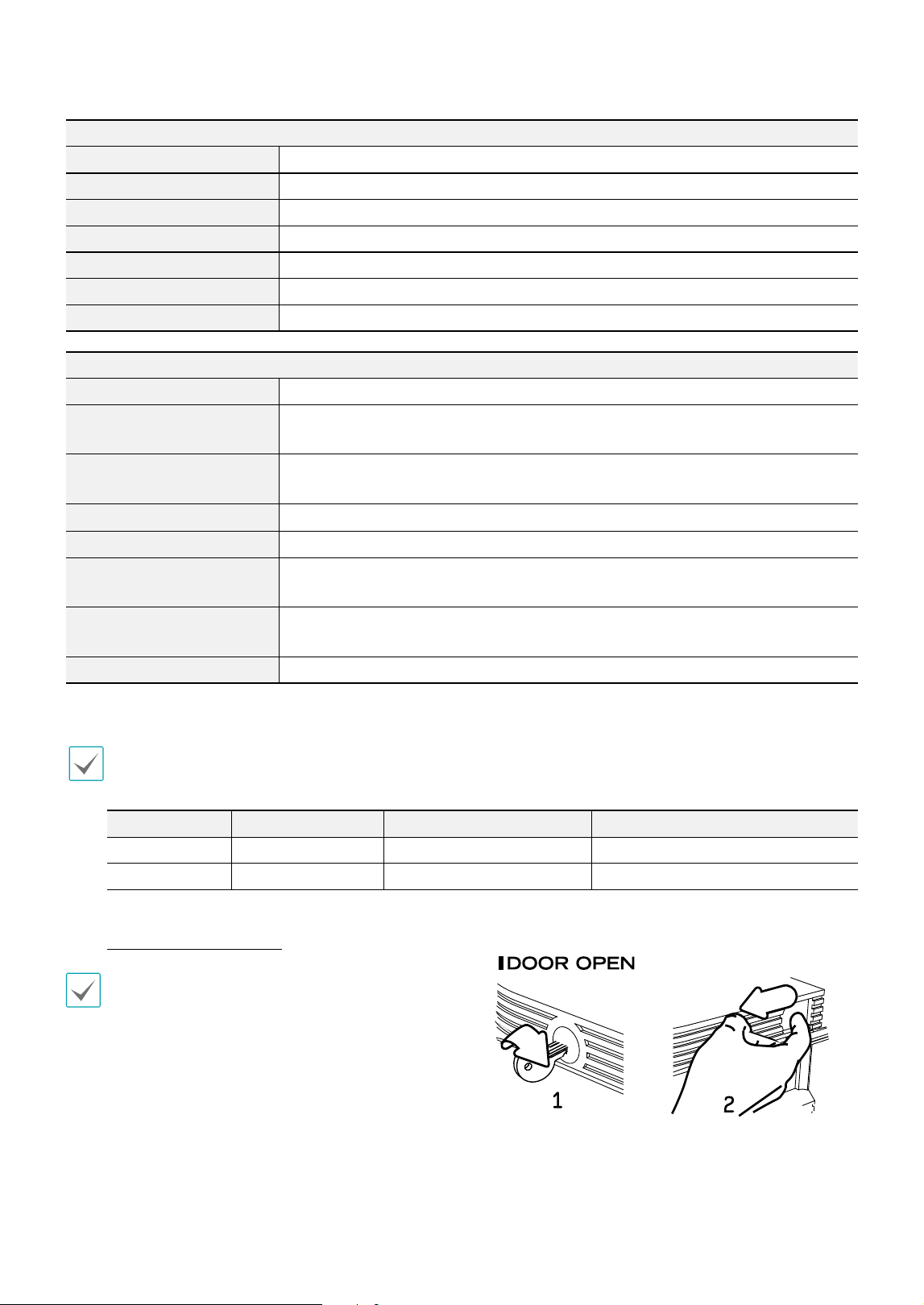
How to Open The Front Door
1
Insert the enclosed door-lock key and turn clockwise.
2
Press the door open button on the left side.
3
Front panel will be detached and you can replace the HDD.
V8.2