CONNECT AND ADD SMART LIGHTING PRODUCTS
B
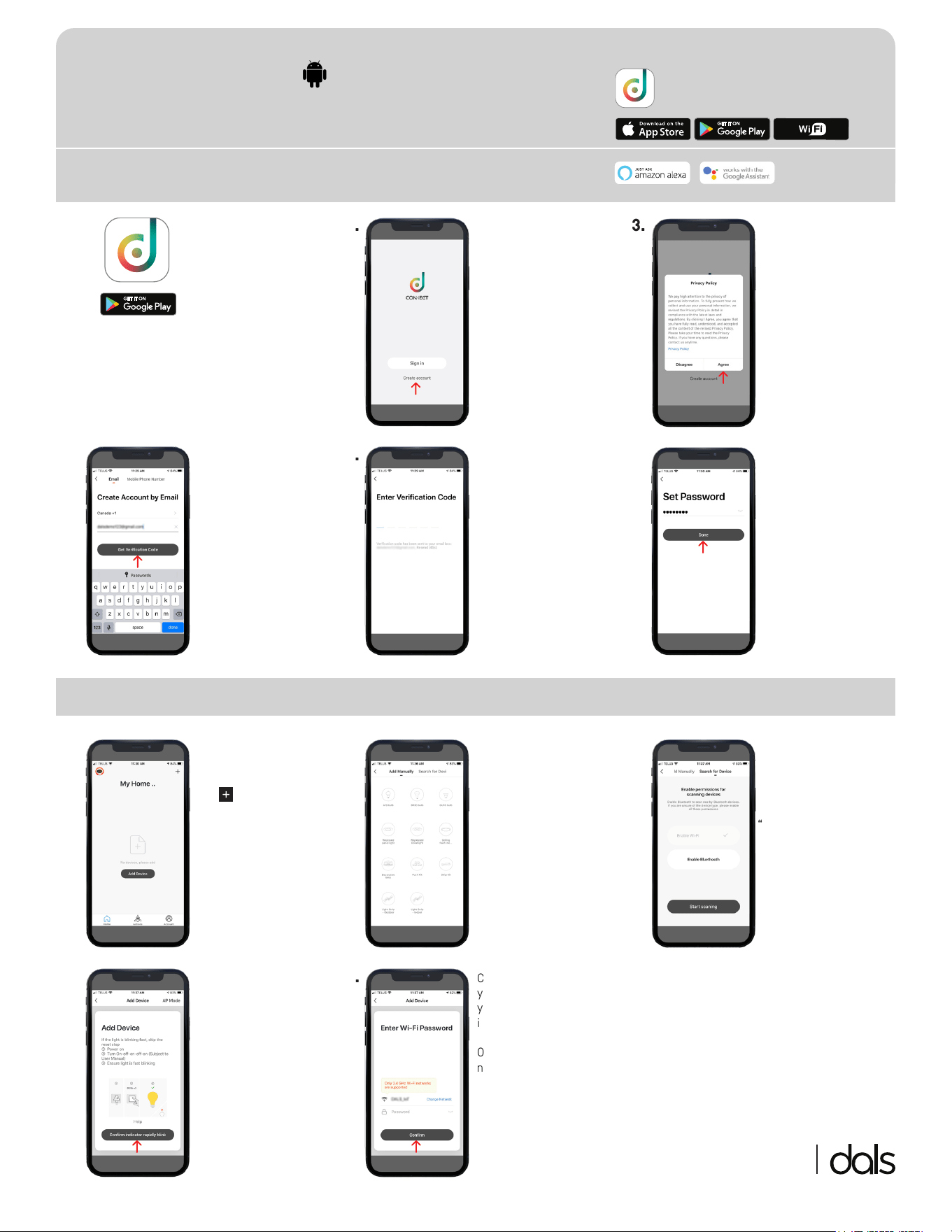
3. In the “Search for Device"
tab, make sure to “Enable
Wi-Fi" if it is not already
enabled. If you purchased
a Bluetooth device,
“Enable Bluetooth".
If you are unsure
of the device type,
please enable all these
permissions
2. Choose the product you
want to add among the
proposed choices.
1. Open the Dals Connect
app. To add a product,
click on “Add Device" or
the icon at the top
right corner.
DOWNLOAD AND SET UP THE DALS APP
A
4. 5.To add your product,
follow the 3 steps:
1- Power on
2- Turn On-o-on-o-on
(Subject to User Manually)
3- Ensure light is fast
blinking
Click on “Conrm indicator
rapidly blink".
Connect your device on
your Wi-Fi network. Enter
your Wi-Fi and password
in the space provided.
Only 2.4 GHz Wi-Fi
networks are supported.
1 877 430 1818
www.dals.com
Download our free app
Télécharger notre application gratuite
1. 2.Download the
application
“Dals Connect" on
Google Play.
3. Please read the Privacy
Policy and Terms of Use.
Click on “Agree" if you
acknowledge that you
have understood and
accepted the contents of
this policy.
Open the application
and click on “Create
account" or click on
“Sign in" if you already
have an account.
4. 5. 6.Dene your country
and enter your email
address. Click on “Get
Verication Code".
You will receive a
verication code at the
email address entered in
Step 4. Enter the code in
the space provided.
Once the account has
been created, enter your
password. Click on “Done".
ANDROID INSTRUCTIONS
1 877 430 1818
www.dals.com
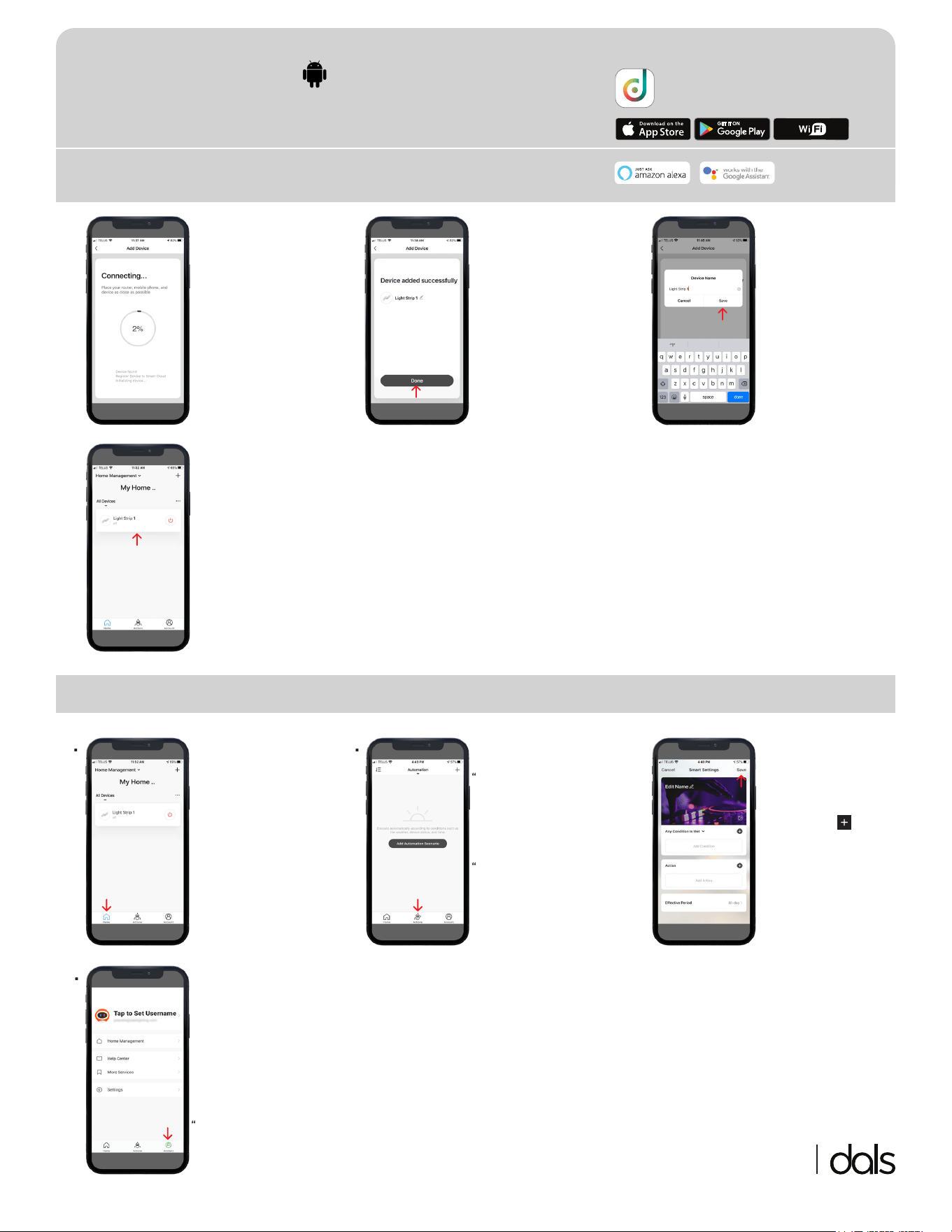
8. You can name your
devices here. It will help
you to organize your
devices tree in the menu.
7. Your device has been
added successfully.
Click on “Done"
6. Your device is now
connecting to your
Wi-Fi network. Place
your router, mobile
phone, and device as
close as possible. If the
connection failed, please
ensure the last steps
were done correctly.
Repeat if needed.
CONNECT AND ADD SMART LIGHTING PRODUCTS
B
Download our free app
Télécharger notre application gratuite
9. Your device will appear on
your home screen. You
can directly manage all
of your lighting products
here.
LIGHT UP YOUR WORLD WITH DALS
C
1. 2.You can directly
manage all of your
lighting products on
the menu by toggling
On/O or by clicking
on a device for full
customization.
ACTIONS
“Scenario" let you control
multiple devices with
one tap or by using an AI
speaker through voice
commands.
“Automation" execute
automatically according
to conditions such as the
weather, device status,
and time.
3. AUTOMATION
Once you clicked on “Add
Automation Scenario",
select a condition by
clicking on the icon.
Same thing for the action.
Then enter the period in
which the automation will
occur.
Edit the name, the picture
and click on “Save".
4. ACCOUNT
Set your prol, secure
your account, connect
to AI speaker such
as Google assistant
or Amazon Alexa and
much more.
Need help? Click on
“Help Center" button
ANDROID INSTRUCTIONS
1 877 430 1818
www.dals.com
LIGHT UP YOUR WORLD WITH DALS
C
Download our free app
Télécharger notre application gratuite
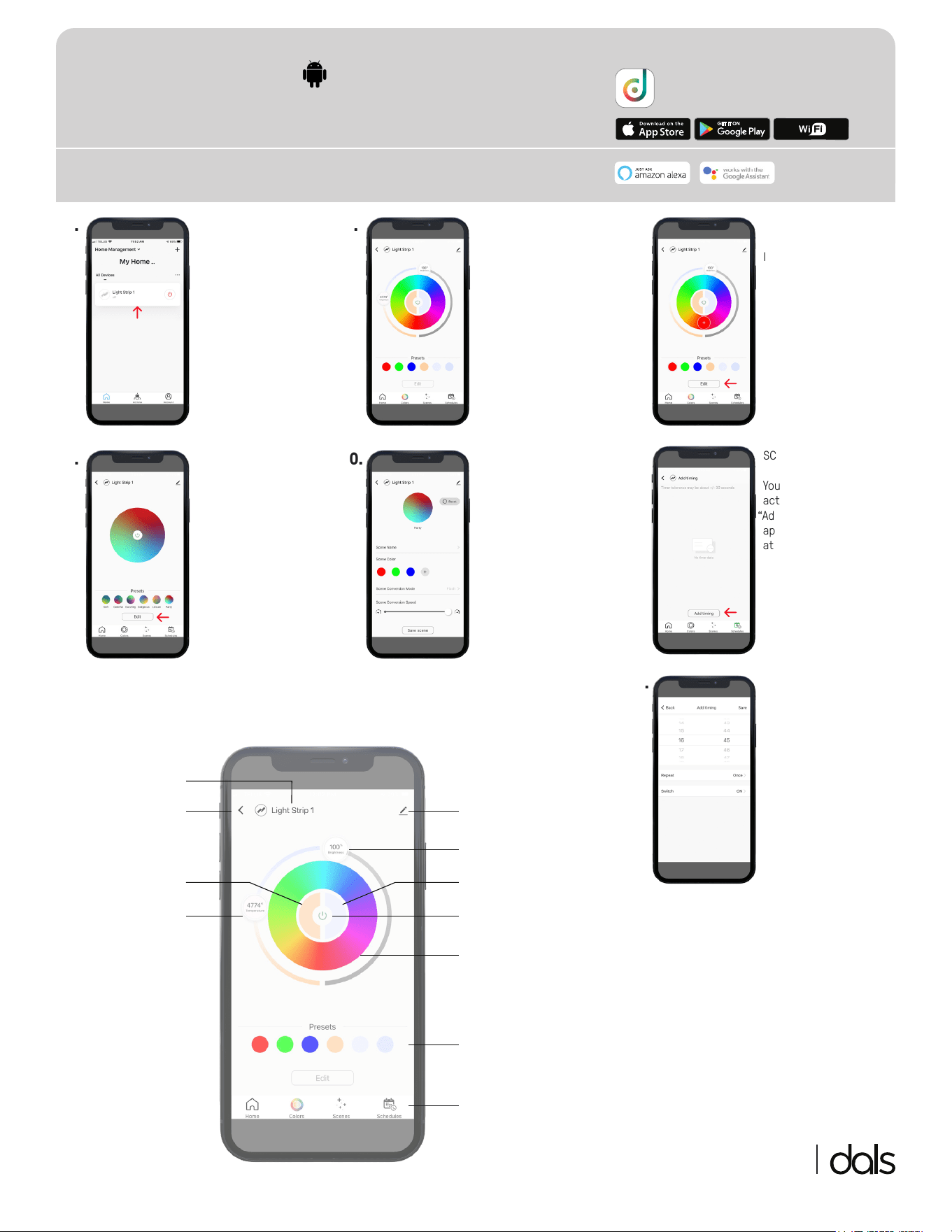
11. SCHEDULES
You can congure time
actions by clicking on
“Add timing" which let the
app toggle lights On/O
at a specic time.
6. 7.You can directly
manage all of your
lighting products on
the menu by toggling
On/O or by clicking
on a device for full
customization.
Once you clicked on a
device, you can set its
colors, create multiple
scenes and congure
schedules.
8. COLORS
In the “Presets" section,
you can edit a
preselected color, enter a
new color and then save it.
9. 10.SCENES
In the “Presets"
section, you can
select or create your
own home atmosphere.
To personnalize your
scene, click on “Edit".
SCENES
Once you clicked on “Edit",
you can change the scene
name, create your own
color composition, select
your conversion mode
(Static/Flash/Breath) and
adjust the conversion
speed.
SCHEDULES
Once you clicked on “Add
timing", you can set the
time and then select how
often you want the device
to switch On/O.
12.
RGB Circle
Presets
Color temperature
Dimmer
On/O
Hot (3000 K)
Cold (5000 K)
Options
Selected device
Home
Toolbar
(Home/Colors/
Scenes/Schedules)
MAIN COLOR REMOTE CONTROL
ANDROID INSTRUCTIONS
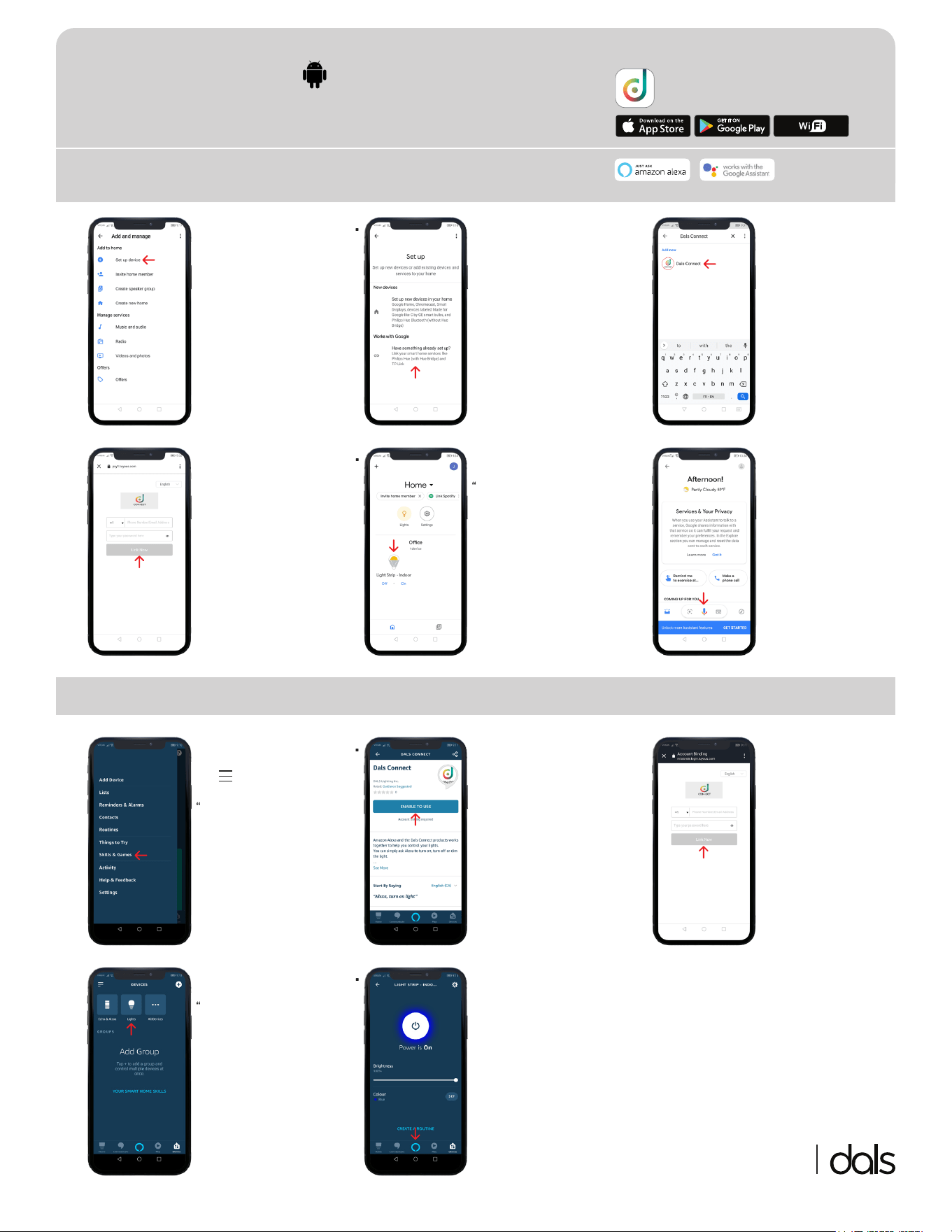
2. 3. In the search box, enter
“Dals Connect” then
select it.
4. Login with your current
account, the same
account used during
“A4” step.
5. Your Dals smart devices
will be listed in the
“Home” section. Adding
devices to a room enables
commands like “turn on
the living room lights”.
6. Try saying, “Ok Google"
then...
• “ Turn on light name/
room name"
• “ ...Dim light name "
• “ Brighten light name "
• “ Set light name to 20% "
• “ Dim/Brighten light
name to 50% "
• “ Turn light name/room
name to red "
• “ Turn on/o everything "
• “ Is <light name> on? "
1. Click on “Have something
alr e a d y se t u p?” in “Works
with Google”.
AMAZON ALEXA
E
1 877 430 1818
www.dals.com
GOOGLE ASSISTANT
D
INSTRUCTIONS POUR IOS
Téléchargez notre
application gratuite
Open the Google Home
app and click on “Add”,
then click on “Set up
device”.
GOOGLE ASSISTANT
D
Download our free app
Télécharger notre application gratuite
2. 3. You will need to link your
device. Login with your
current account, the
same account used
during “A4” step.
4. Your smart devices
will be listed in the
“Devices” tab at the
bottom of the home
screen. Adding devices
to a room enables
commands like “turn
on the living room
lights”.
5. Try saying, “Alexa" then...
• “ Turn on light name/
room name"
• “ ...Dim light name "
• “ Brighten light name "
• “ Set light name to 20% "
• “ Dim/Brighten light
name to 50% "
• “ Turn light name/room
name to red "
• “ Turn on/o everything "
• “ Is <light name> on? "
1. In the search box, enter
“Dals Connect”.
You should see the skill
appear in the search
results. Tap on the “Dals
Connect” skill to enable
access.
Open the Amazon
Alexa app and click
on at the top left
corner, then click on
“Skills & Games”.
ANDROID INSTRUCTIONS