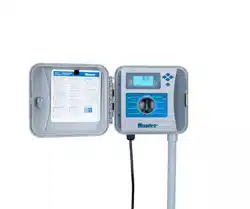
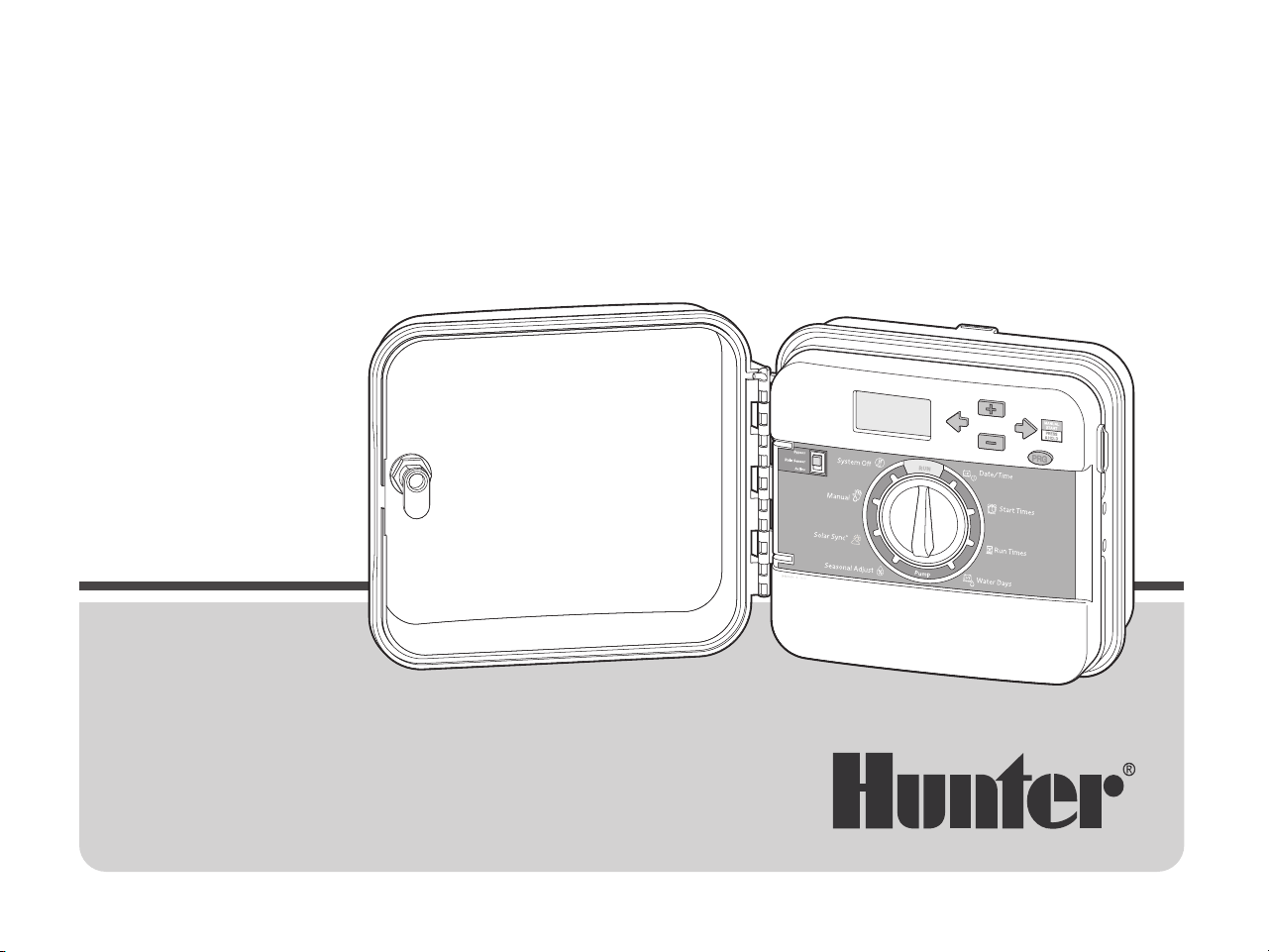
PC Series
Modular Controller
Indoor/Outdoor Models
Owner’s Manual and
Installation Instructions
PRO-C
®
Residential and Light Commercial
Irrigation Controller
INTRODUCTION AND INSTALLATION
SPECIFICATIONS ................................................................ 3
PRO-C COMPONENTS ..................................................... 4
MOUNTING THE CONTROLLER TO A WALL ..................... 8
CONNECTING AC POWER ................................................ 9
INSTALLING STATION MODULES .................................... 10
CONNECTING STATION WIRES ........................................ 11
CONNECTING THE BATTERY ............................................ 12
CONNECTING A MASTER VALVE ...................................... 13
CONNECTING A PUMP START RELAY .............................. 14
CONNECTING A HUNTER “CLIK”WEATHER SENSOR ....... 15
CONNECTING A HUNTER REMOTE .................................. 17
CONNECTING TO THE HUNTER SOLAR SYNC .................. 19
PROGRAMMING THE CONTROLLER
SETTING THE CURRENT DATE AND TIME ......................... 24
SETTING PROGRAM START TIMES .................................. 25
SETTING STATION RUN TIMES ........................................ 26
SETTING A WATERING SCHEDULE .................................. 27
OPTIONS FOR RUNNING YOUR IRRIGATION SYSTEM .... 29
USING THE PRO-C TO OPERATE OUTDOOR LIGHTING .... 30
ADVANCED FEATURES
SET PUMP/MASTER VALVE OPERATION ........................ 33
PROGRAMMABLE RAIN OFF ........................................... 33
SETTING SPECIFIC DAYS OFF ........................................... 33
HIDDEN FEATURES
PROGRAM CUSTOMIZATION ............................................ 34
PROGRAMMABLE DELAY BETWEEN STATIONS .............. 34
PROGRAMMABLE SENSOR OVERRIDE .............................. 35
TOTAL RUN TIME CALCULATOR ......................................... 36
EASY RETRIEVE PROGRAM MEMORY ............................... 36
SOLAR SYNC DELAY ........................................................... 37
CYCLE AND SOAK ............................................................... 38
HUNTER QUICK CHECK CLIK-DELAY PROGRAMMING ....... 40
CLEARING CONTROLLER’S MEMORY/RESETTING
CONTROLLER ..................................................................... 40
WINTERIZING YOUR IRRIGATION SYSTEM ........................ 40
CLIK DELAY INSTRUCTIONS ............................................... 41
TROUBLESHOOTING GUIDE
PROBLEMS, CAUSES, AND SOLUTIONS ........................... 42
TABLE OF CONTENTS
3
SPECIFICATIONS
Operating Specications
• Station Count: Conventional wiring from 4 to 23 stations,
Two-wire EZ Decoder option up to 32 stations
• Station Run Time: 1 minute to 6 hours on programs
A, B, and C
• Start Times: 4 per program, three programs for up
to 12 starts
• Watering Schedule: 7-day calendar, interval watering up
to a 31-day interval or true odd or even day programming,
made possible by the 365-day clock/calendar
Electrical Specications
• Transformer Input: 120 VAC, 60 Hz
(230 VAC, 50/60 Hz for international use)
• Transformer Output: 24 VAC, 1 amp
• Station Output: 24 VAC, 0.56 amps per station
• Maximum Output: 24 VAC, 0.84 amps
(includes Master Valve Circuit)
• Battery: 9-volt alkaline battery (not included) used
only for non-AC programming; the non-volatile memory
maintains program information
• Battery, front panel, internal CR2032 lithium for
real-time clock
Cabinet Dimensions
Height: 9" (23 cm)
Width: 10" (21.5 cm)
Depth: 4 1/2" (10.9 cm)
Outdoor cabinet is NEMA 3R, IP44 rated.
Default Settings
All stations are set to zero run time. This controller has a
non-volatile memory that retains all entered program data
even during power outages, without the need for a battery.
Cleaning
Clean only with cloth dampened with mild soapy water.
4
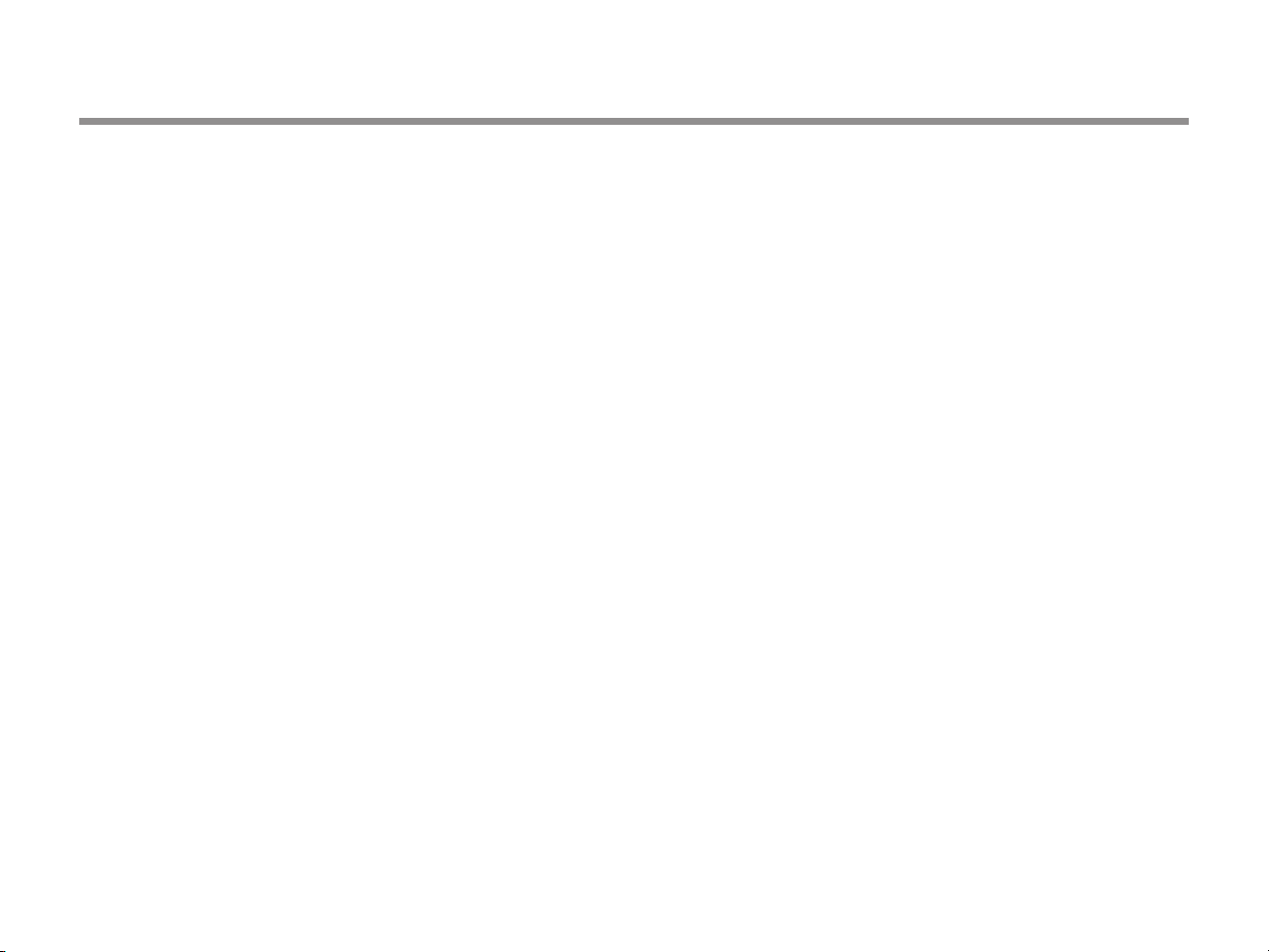
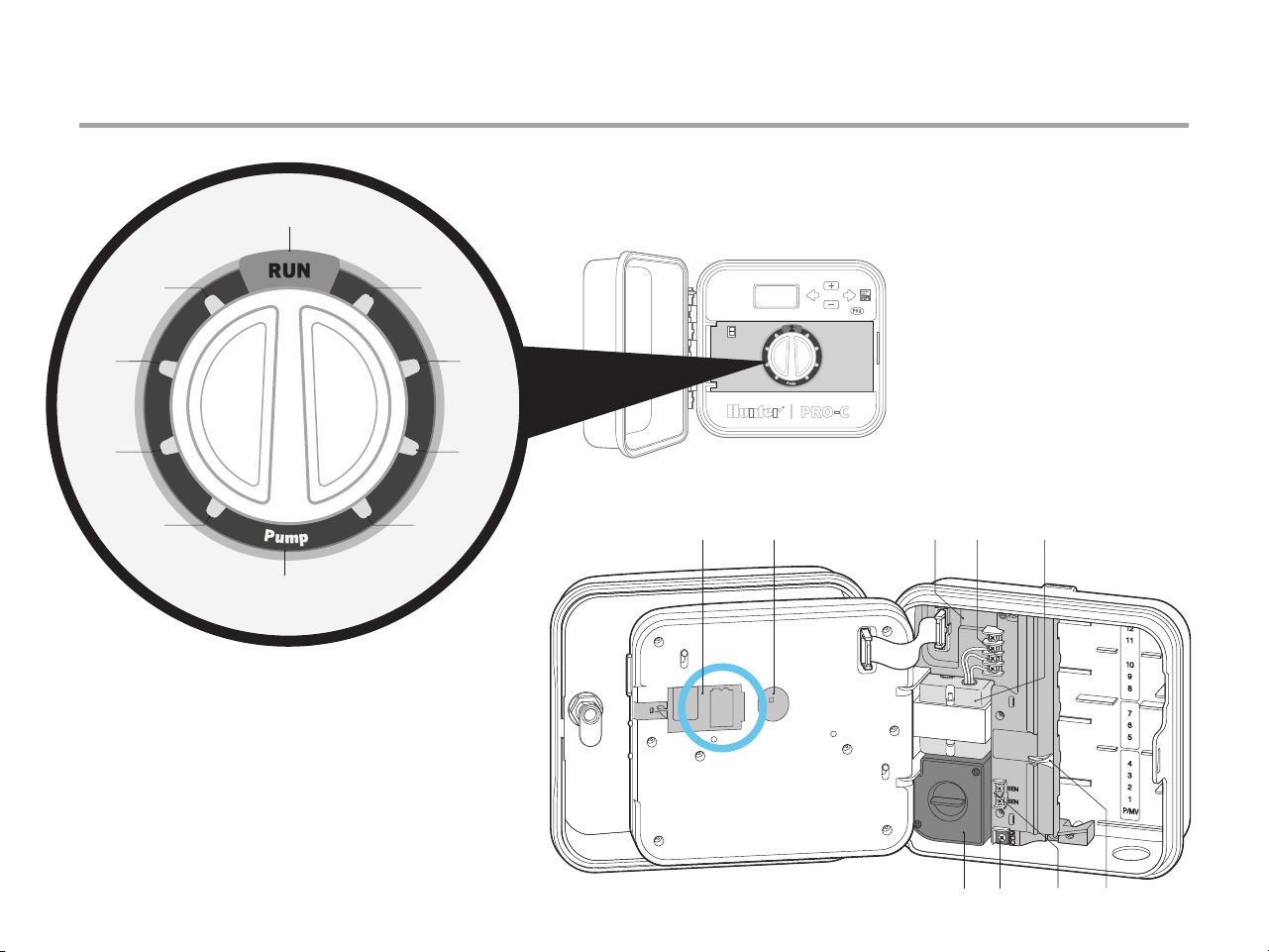
PRO-C COMPONENTS
A
B
②
③
⑧
④⑤ ⑨ ⑪ ⑩⑥
①⑦
⑫
⑬
⑯⑱
⑭ ⑮
⑰
5
PRO-C COMPONENTS (CONTINUED)
①
Main Display
Indicates various times, values,
and programmed information
②
Year Identies current calendar year
③
Month Identies current calendar month
④
Day Identies current calendar day
⑤
Start Time
Identies selected program
start time
⑥
Program Selector
Identies the program in use:
A, B, or C
⑦
Station Number
Identies currently selected
station number
⑧
Run Time
Allows user to set each valve
station run time from 1 minute
to 4 hours
⑨
Days of the Week
Identies days of the week
to water or not water
⑩
Odd/Even Watering
Identies if odd or even
watering days are selected
⑪
Interval
Identies if interval watering
has been selected
⑫
Seasonal Adjustment
Displays in increments of 5% the
selected percentage of seasonal
adjustments
Running Indicates when watering occurs
Rain Drop
Indicates watering will occur on
selected day
Crossed Rain Drop
Indicates watering will not occur
on selected day
A
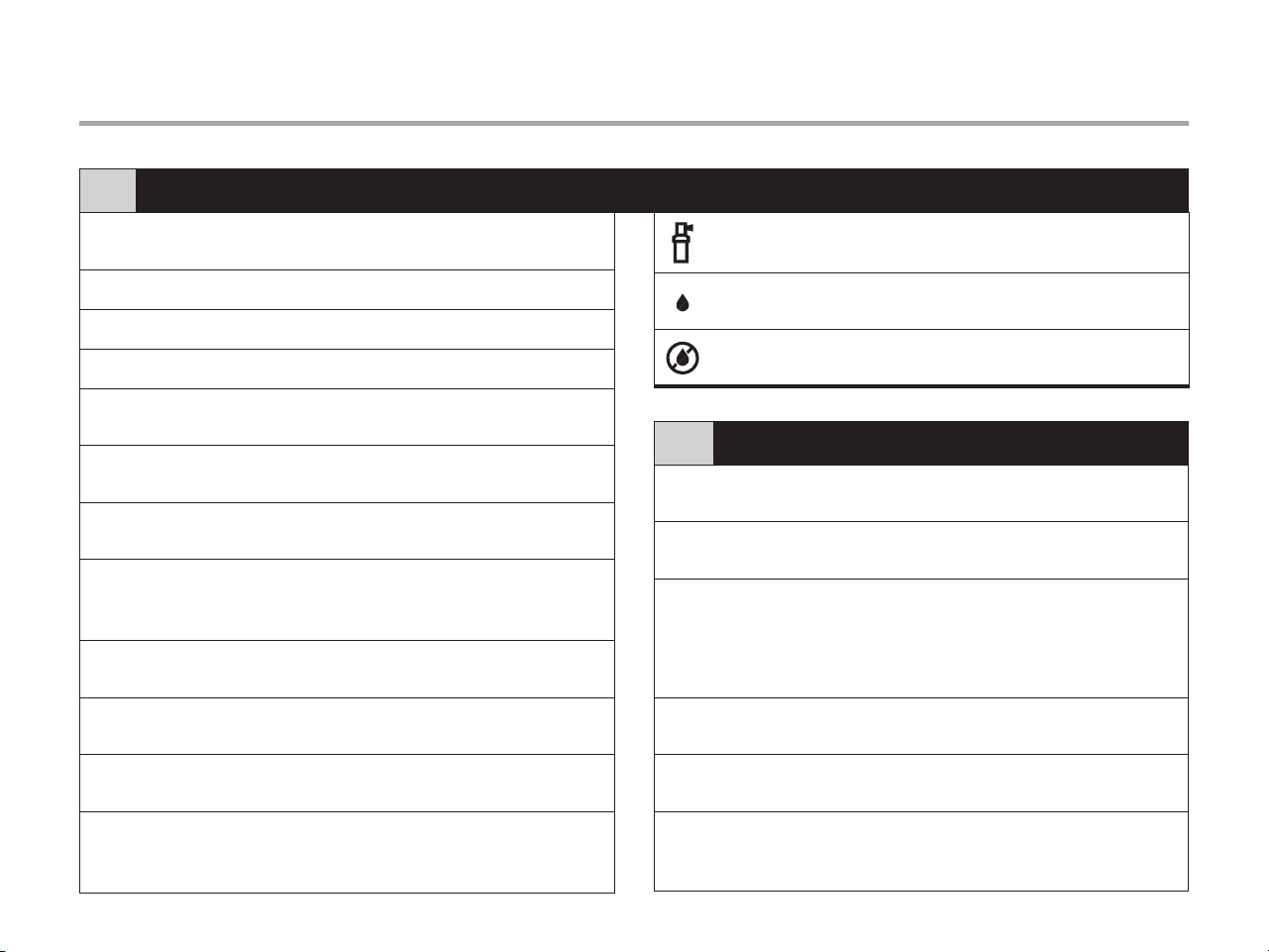
LCD Display
B
Control Buttons and Switches
⑬
+Button
Increases the selected
ashing display
⑭
-Button
Decreases the selected
ashing display
⑮
→Button
Advances the selected ashing
display to the next item, also use
to start a manual cycle
⑯
←Button
Returns selected ashing display
to the previous item
⑰
PRG Button
Selects programs A, B, and C;
also use to start a test program
⑱
Rain Sensor
Bypass Switch
Use to bypass weather “Clik-type”
sensors if one is installed
6
PRO-C COMPONENTS (CONTINUED)
D
① ② ③ ④
⑥ ⑦
①
⑥
②
③
④
⑤
➉
⑨
⑧
⑦
C
⑧ ⑨
⑤
7
PRO-C COMPONENTS (CONTINUED)
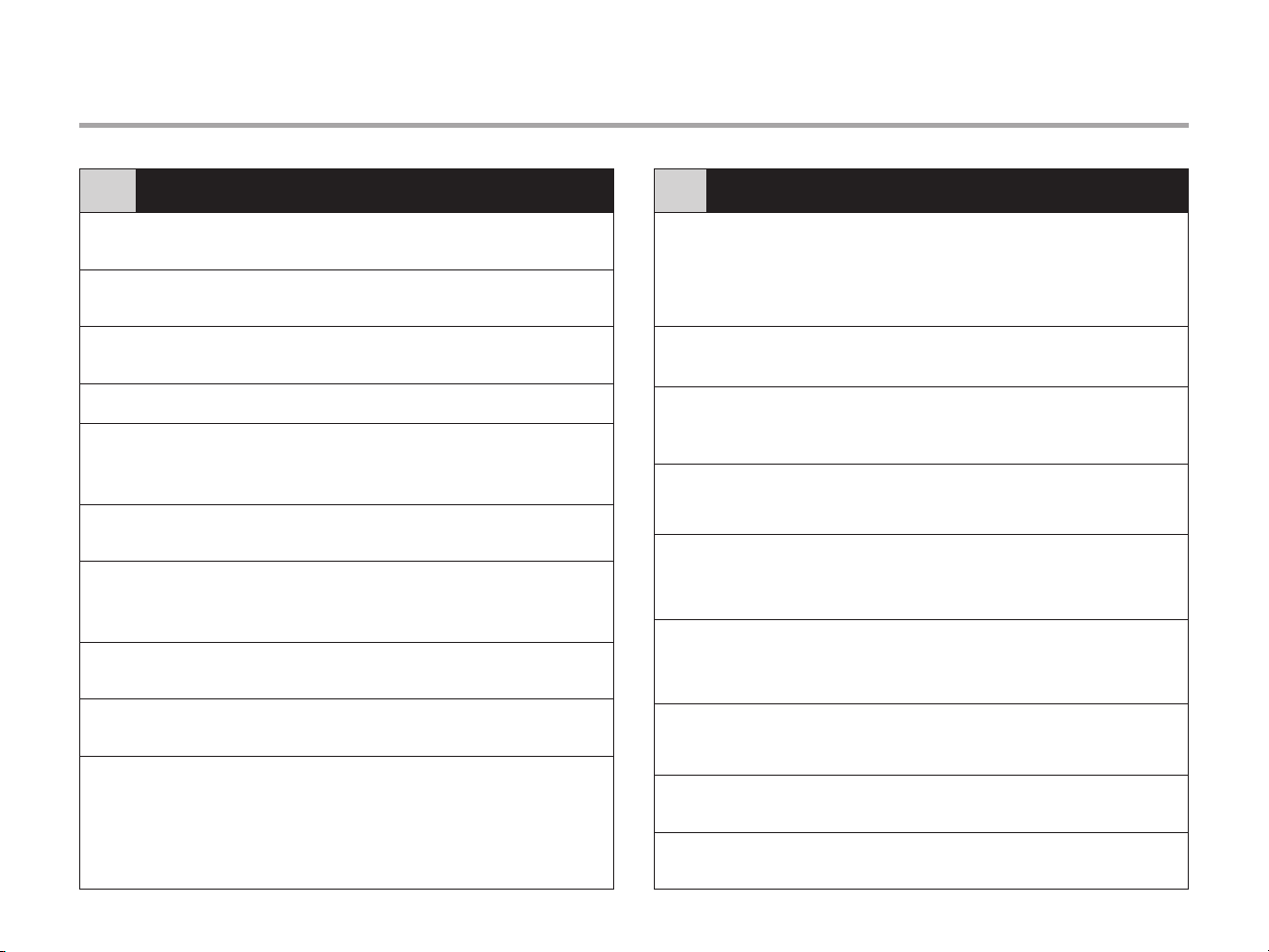
C
Control Dial
①
Run
Normal dial position for
automatic operation
②
Set Current Date/
Time
Set current date and time
③
Set Program
Start Times
Set 1 to 4 start times in each
program
④
Set Station Run Times Set each station run time
⑤
Set Days to Water
Select individual days to water,
odd, even or interval watering
schedule
⑥
Set Pump Operation
Turn pump or master valve
on or o for each station
⑦
Seasonal Adjustment
Make global run time changes
without programming the
controller (from 5% to 300%)
⑧
Solar Sync
®
Allows user to program settings
when using Solar Sync ET sensor
⑨
Manual—Single
Station
Activates a one-time watering of
a single station
⑩
System O
Used to discontinue all programs
and stop all watering until the dial
is returned to the RUN position,
or to set the programmable rain
o feature
D
Wiring Compartment
①
9-Volt Battery
An alkaline battery (not included) allows
programming of the controller without
AC power
②
Reset Button
This button will reset the controller.
All programmed data will remain intact
③
Power Area
Used to attach transformer, sensor wires,
and other systems to the controller
④
SmartPort
®
Input Terminals
Used to connect a SmartPort, which
enables Hunter remote controls
⑤
Transformer
A transformer is installed (outdoor
models only; indoor models are supplied
with a plug-in transformer)
⑥
Junction Box
This box provides an area for connecting
primary AC power (outdoor models only)
⑦
Ground Lug
For additional surge protection, connect
lug to earth ground
⑧
Sensor Terminals
Used to connect Hunter Solar Sync or
“Clik-type” sensors
⑨
Power Slide
Release to remove or insert Pro-C
modules
8
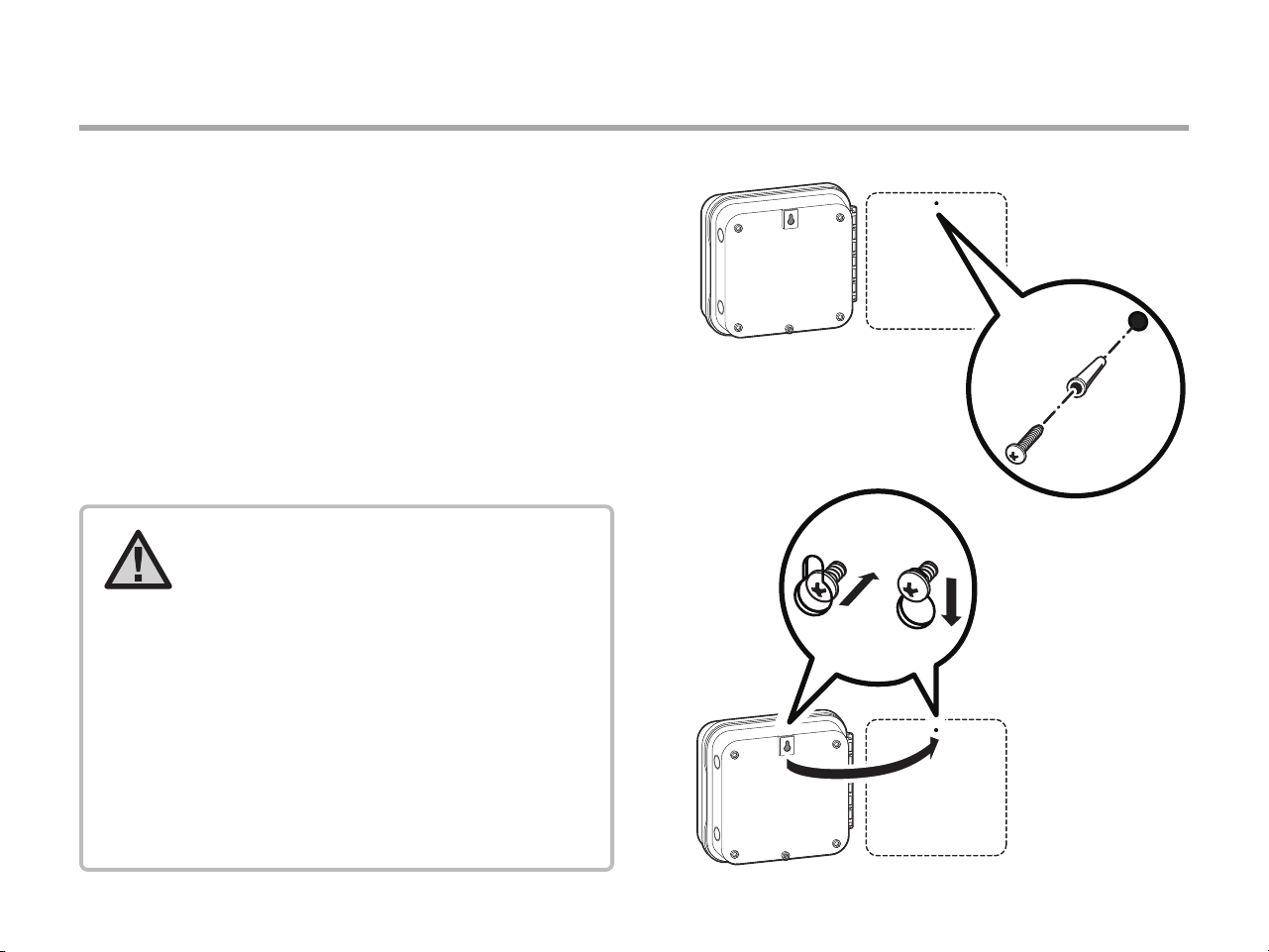
MOUNTING THE CONTROLLER TO A WALL
All necessary hardware is included for most installations.
1. Use the hole at the top of the controller as a reference and
secure a 1" (25 mm) screw into the wall. Note: Install screw
anchors if attaching to drywall or masonry wall.
2. Align controller with the screw and slide the keyhole
on top of the controller over the screw.
3. Secure controller in place by installing screws in the holes.
For PC-401-A: If the supply cord is damaged, it must be
replaced by the manufacturer or service agent or a similarly
qualified person to avoid hazard.
NOTE: The indoor Pro-C is not weather-
or water-resistant, and must be installed
indoors or in a protected area. This device
is not intended for use by young children.
Never let children play with this device.
The outdoor model is water- and weather-
resistant. Connecting the outdoor Pro-C
to the primary power should be done by
a licensed electrician following all local
codes. Improper installation could result
in shock or re hazard. This device is not
intended for use by young children. Never
let children play with this device.
9
CONNECTING AC POWER
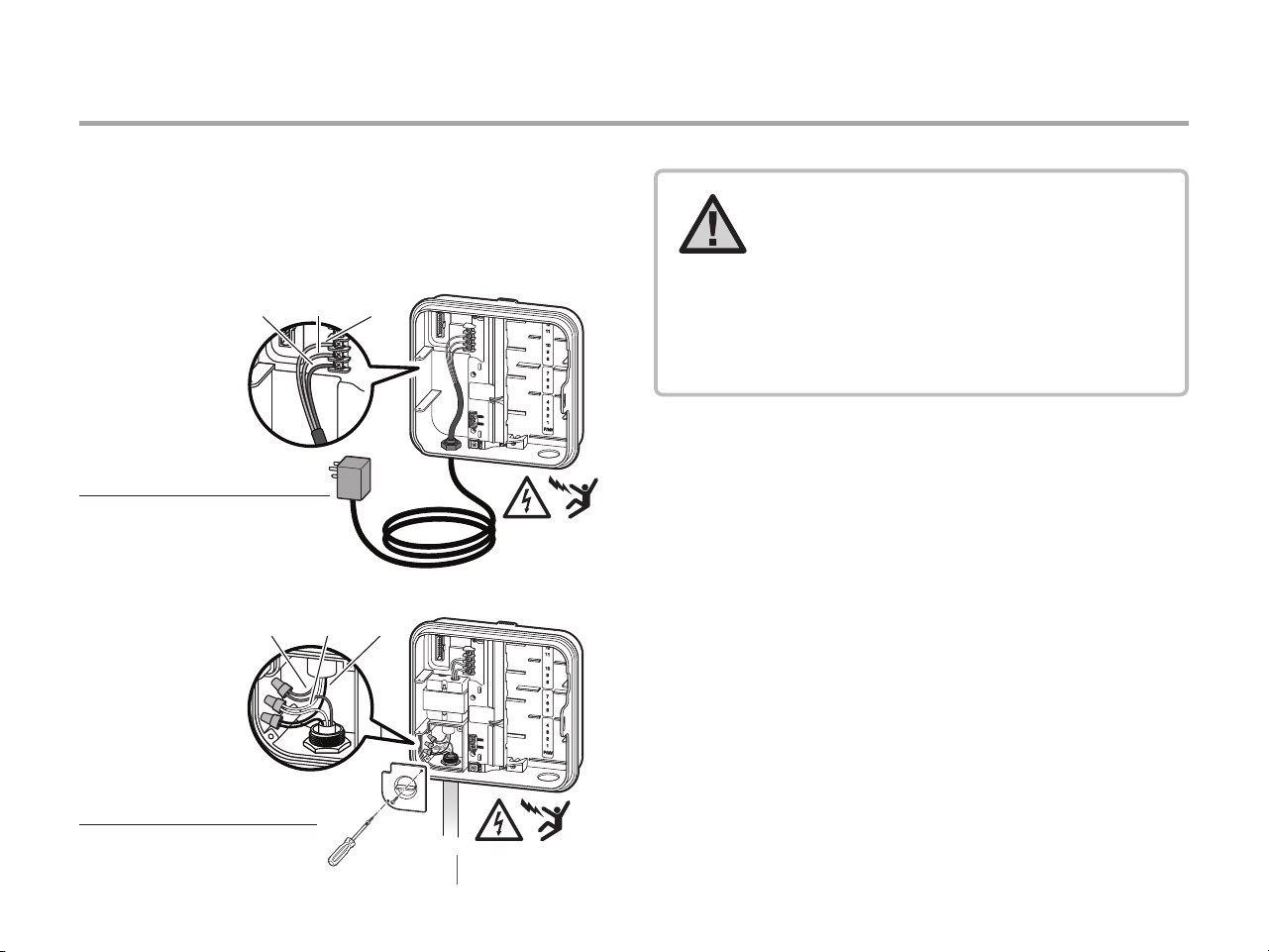
Indoor Cabinet
Route transformer cable through the hole on the bottom left
side of the controller and connect one Yellow Wire to each of the
screws marked AC and the Green wire to GND.
Outdoor Cabinet
1. Route AC power cable and conduit through the ½" (13 mm)
conduit opening on the left side of the bottom of the cabinet.
2. Connect the wires to the transformer wires located inside the
junction box. International units are supplied with a built
-
in
terminal strip. Always use a UL listed conduit ½" (13 mm) male
adapter when installing the AC wiring.
3. Insert the adapter into the ½" (13 mm) hole at the bottom of the
controller. Attach a nut to the adapter inside the enclosure.
4. Connect a 9-volt alkaline battery (not included) to the battery
terminals and place in the battery compartment in the front
panel. The battery allows the user to program the controller
without AC power. Watering will not occur without AC power.
Since this controller has non-volatile memory, the program
clock and calendar will be retained during a power outage even
if no battery is installed.
① GND
(Green)
② AC1
(Yellow)
③ AC2
(Yellow)
①
②
③
① ②
③
120 V 230 V
U.S.A. INTERNATIONAL
Outdoor Cabinet
① GROUND
(Green)
② NEUTRAL
(White)
③ HOT
(Black)
Indoor Cabinet
To be performed by a licensed
electrician only.
Always use UL listed ½” (13 mm) conduit
with male adapter when installing AC
wiring. Pro-C/PCC controllers are
intended to be supplied AC power with a
15A rated overcurrent protected device.
10
INSTALLING STATION MODULES
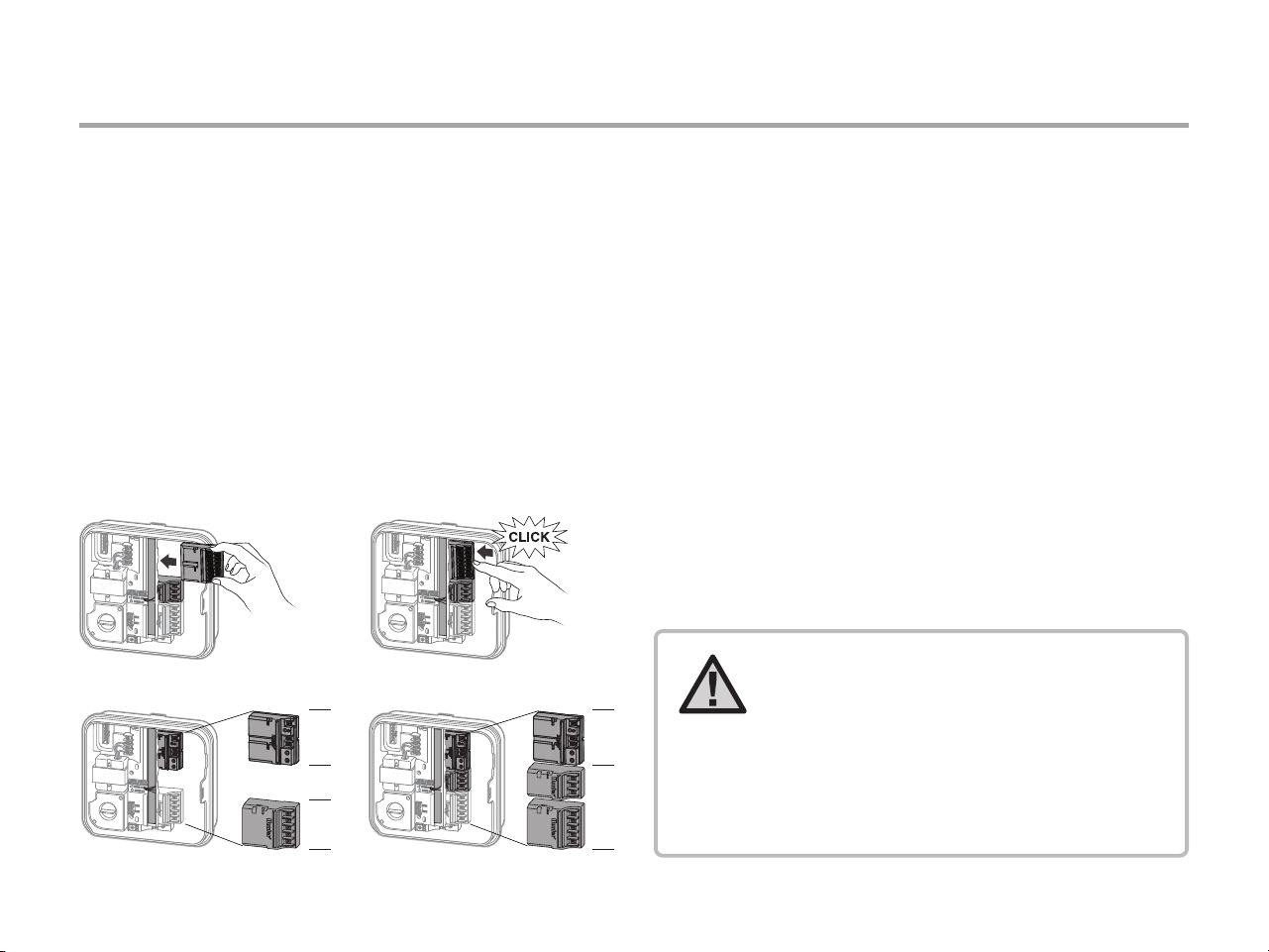
The Pro-C controller is supplied with a factory-installed base
module for up to 4 stations. Additional modules may be added in
increments of 3 stations (PCM-300), 9 stations (PCM-900), or
16 stations (PCM-1600). In total, a conventionally wired system
can be expanded up to 23 stations. Additional modules are sold
separately.
The Pro-C is also compatible with the EZ Decoder System
(EZDS) for hybrid conventional and two-wire operations. Add
a Pro-C Decoder Module (PC-DM) to enable control for up to
32 total stations. This system uses the same EZ-1 decoders
used with ICC2 and HCC controllers. For more installation and
programming details, please refer to the PC-DM Installation
Guide.
Installing PCM Modules
The Pro-C controller is designed with a simple-to-use “Power
Lock” feature that assures that the modules are energized and
firmly secured into the controller. The “Power Lock” can unlock
or lock all modules at once or at the same time by simply pushing
the “Power Lock” slide.
1. Slide the “Power Lock” into the “Power Off” (unlocked)
position. Insert the PCM or PC-DM modules into the
appropriate sequential position in the controller cabinet.
2. Once all of the modules are in place, slide the “Power Lock”
into the “Power On” (locked) position to energize and secure
the modules into the controller.
3. The Pro-C will automatically recognize the correct number of
stations. It is not necessary to press the reset button on the
back of the facepack or cycle power to the controller.
1–4
Conv.
5–32
Decoder
1–7
Conventional
8–32
Decoder
NOTE: To expand your controller to 16 or
23 stations with a PCM-900 or PCM-1600,
respectively, install one PCM-300 in the
rst expansion slot (stations 5–7). Then
install the PCM-900 or PCM-1600 in the
upper two expansion slots. These modules
will not t or operate in any other station
output slot.
11
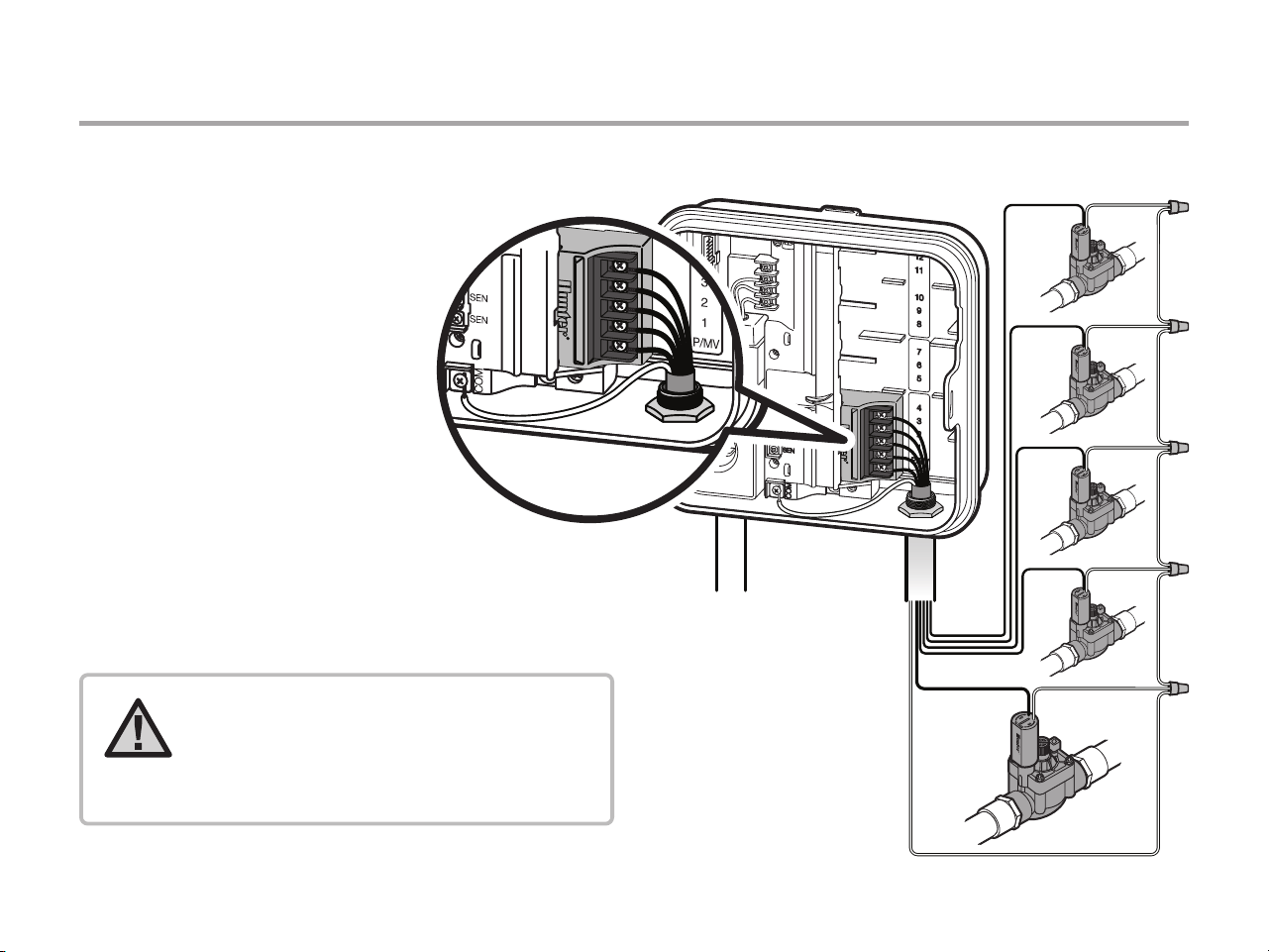
CONNECTING STATION WIRES
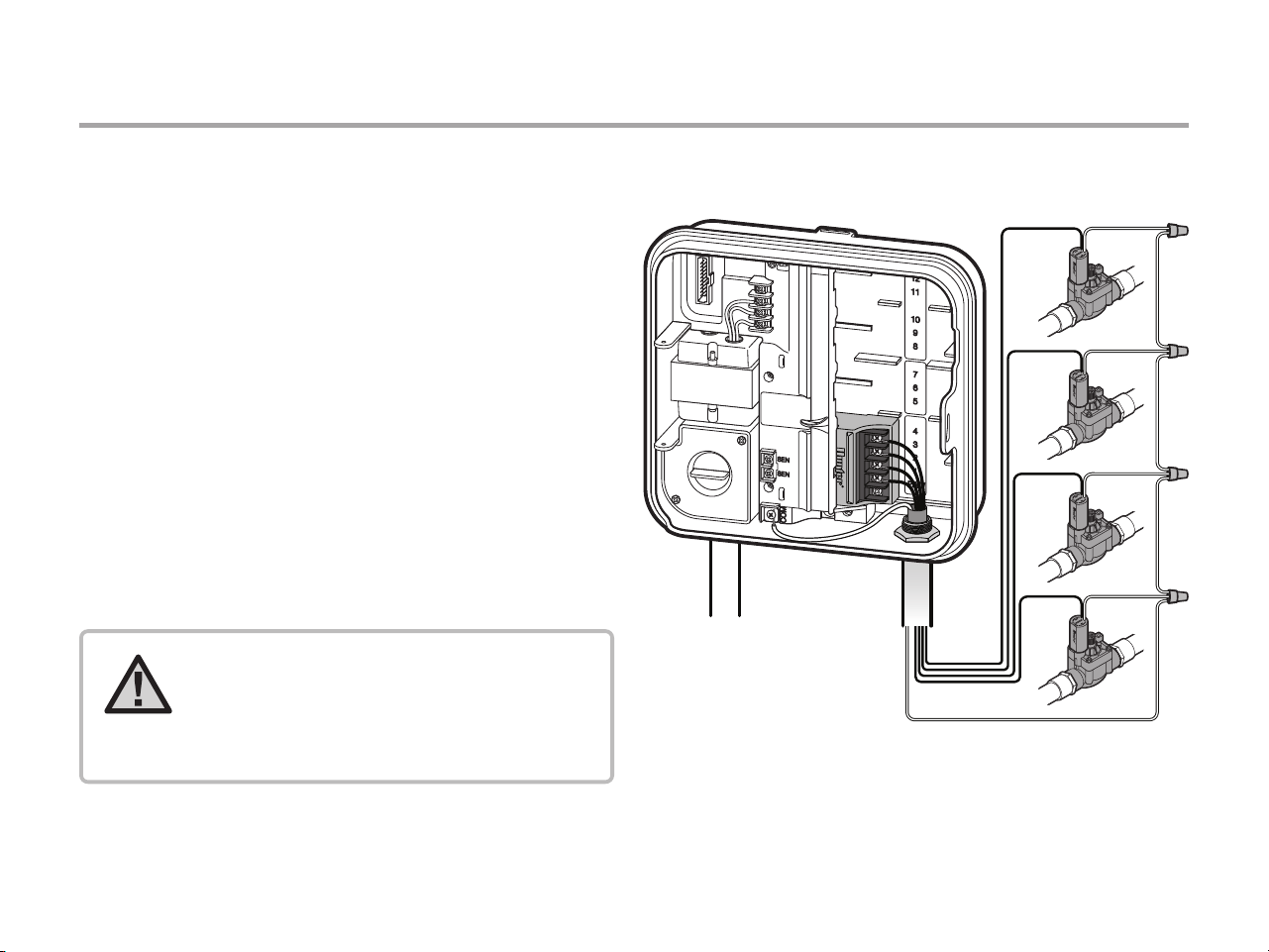
1. Route valve wires between control valve location
and controller.
2. At valves, attach a common wire to either solenoid wire
of all valves. This is most commonly a white colored wire.
Attach a separate control wire to the remaining wire
of each valve. All wire splice connections should be
done using waterproof connectors.
3. Route valve wires through the conduit and attach conduit
to one of the openings on the bottom of the cabinet.
4. Strip ½" (13 mm) of insulation from ends of all wires.
Secure the valve common wire to “COM” (Common) terminal.
Attach all individual valve control wires to the appropriate
station terminals.
COM
1
2
3
4
NOTE: The common terminal screw has
moved from the base module and is
now below the sensor terminals. Do not
connect the incoming common wires to
the P/MV terminal.
12
CONNECTING THE BATTERY (OPTIONAL)
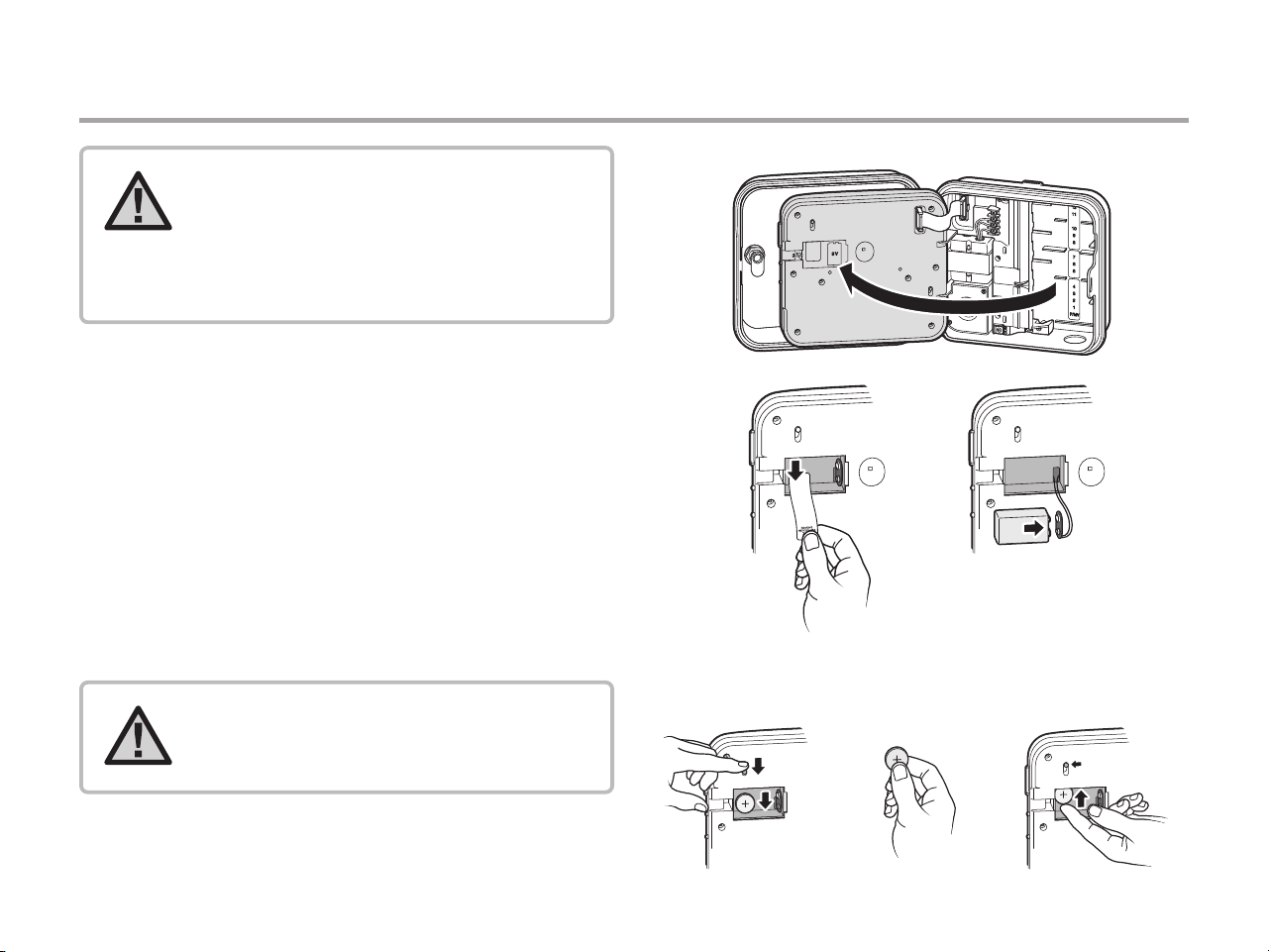
Connect a 9-volt alkaline battery (not included) to the battery
terminals and place in the battery compartment in the front
panel. The battery allows the user to program the controller
without AC power. Watering will not occur without AC power.
Since this controller has non-volatile memory, the program clock
and calendar will be retained during a power outage even if no
battery is installed.
Activating the 3V Lithium Battery
After installing your Pro-C, make sure to remove the battery
contact insulator to allow the Pro-C to keep time in the event
of a power outage.
Replacing the 3V Lithium Battery
① ② ③
NOTE: Warning: Risk of re, explosion,
and electric shock. Replace battery
with CR 2032 type only. Use of a
dierent battery has potential risk for
re, explosion, and electric shock. See
owner’s manual for instructions.
NOTE: When installing 3V lithium
battery, ensure the positive (+) side is
facing up.
13
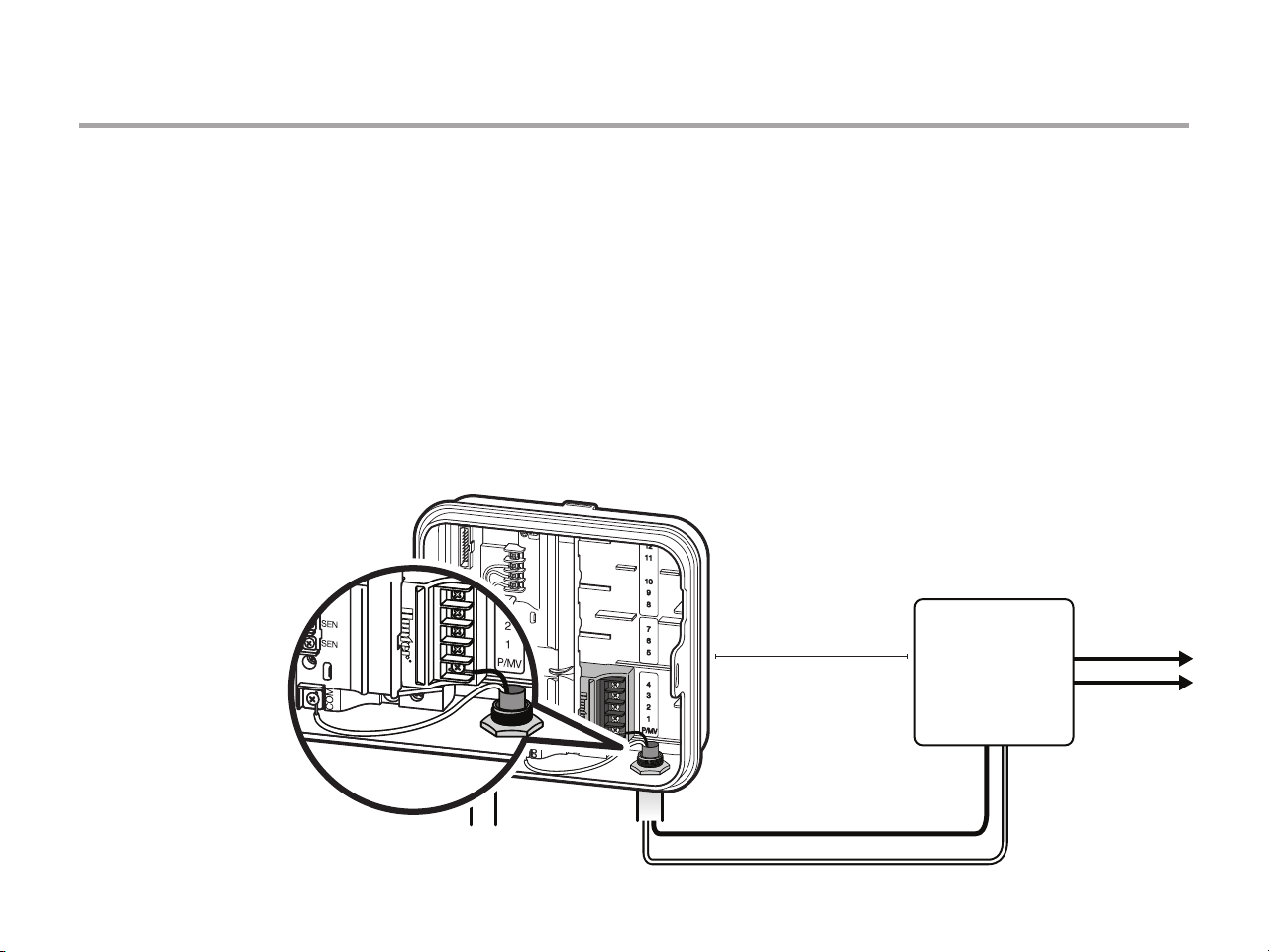
Connecting a Master Valve (optional)
1
Master Valve
COM
P/MV
2
3
4
Connect either wire from Master Valve to the P/MV terminal.
Connect remaining wire to the “COM” (Common) terminal.
NOTE: When using a PC-DM, the P/MV
can be hardwired directly to the P/MV
terminal or programmed to operate via
the two-wire path. Refer to the PC-DM
Installation Guide for more information.
14
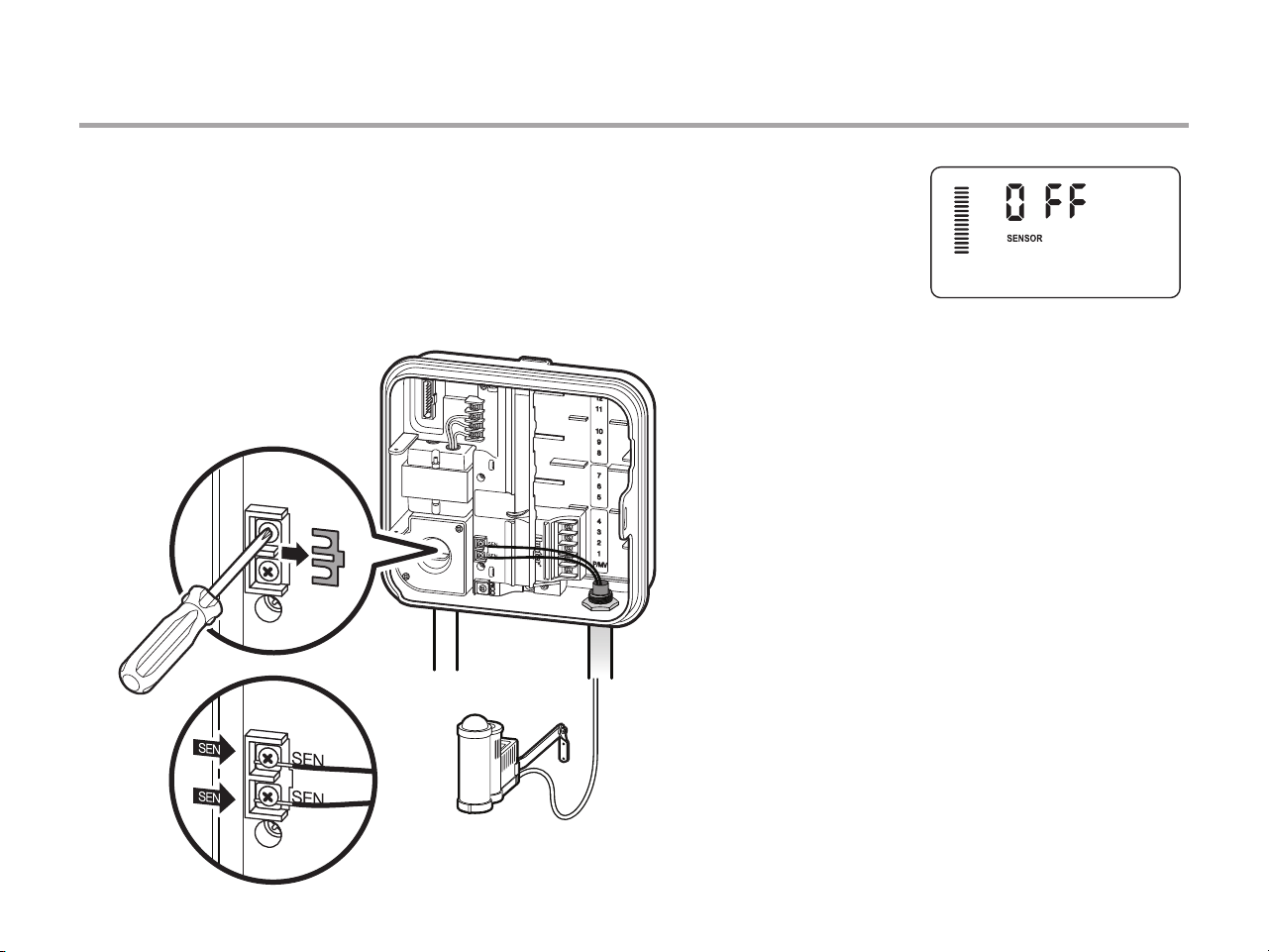
CONNECTING A PUMP START RELAY (OPTIONAL)
1. Route a wire pair from the pump relay into the
controller housing.
2. Connect the pump common wire to the terminal
slot “COM” (Common) and the remaining wire
from the pump relay to the P/MV terminal slot.
Relay holding current draw must not exceed 0.28 amps
(24 VAC). Do not connect the controller directly to the pump—
damage to controller will result.
PSR
P/MV
COM
15' (4.5 m) minimum
To pump
For more information on the installation of a PSR, please visit
the support page: https://hunter.direct/pumpstartrelay
15
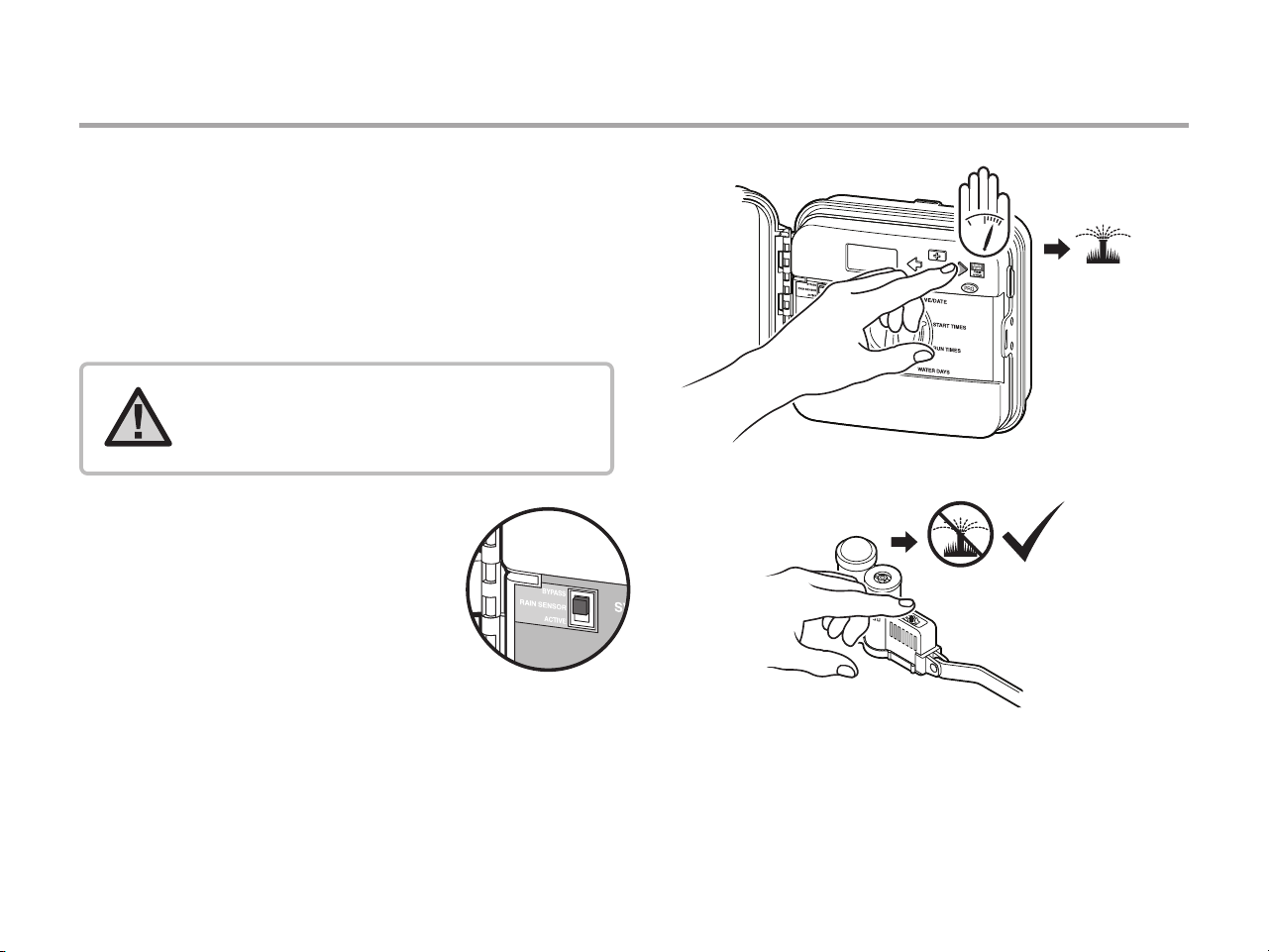
CONNECTING A HUNTER “CLIK” WEATHER SENSOR (NOT INCLUDED)
A Hunter weather sensor or other micro-switch-type weather
sensors can be connected to the Pro-C. The purpose of this
sensor is to stop automatic watering when weather conditions
dictate.
1. Remove the metal jumper plate that is attached across
the two SEN terminals inside the controller.
2. Connect one wire to one SEN
terminal, and the other wire
to the other SEN terminal.
When the weather sensor
has deactivated automatic
watering, “OFF” will appear
on the display.
16
CONNECTING A HUNTER “CLIK” WEATHER SENSOR (CONTINUED)
Testing the Weather Sensor
The Pro-C provides simplified testing of a rain sensor when
the sensor is wired into the sensor circuit. You can manually
test proper operation of the rain sensor by using the One -
Touch Manual Start (see page 30). During the Manual cycle,
pressing the test button on the “Clik-type” sensor
(e.g., Mini-Clik
®
)
will interrupt watering.
Manually Bypassing the Weather Sensor
If the rain sensor is interrupting irrigation,
you can bypass it by using the bypass switch
on the front of the controller.
Slide the switch to the Bypass position
to disable the rain sensor from the system
to allow for controller operation. You can
also bypass the weather sensor for manual operation by using
the Manual function. The Bypass switch does not affect the
Seasonal Adjust update when using the Solar Sync sensor.
NOTE: The Manual single-station function
ignores any attached sensor and will allow
watering to occur.
17
CONNECTING A HUNTER REMOTE (NOT INCLUDED)
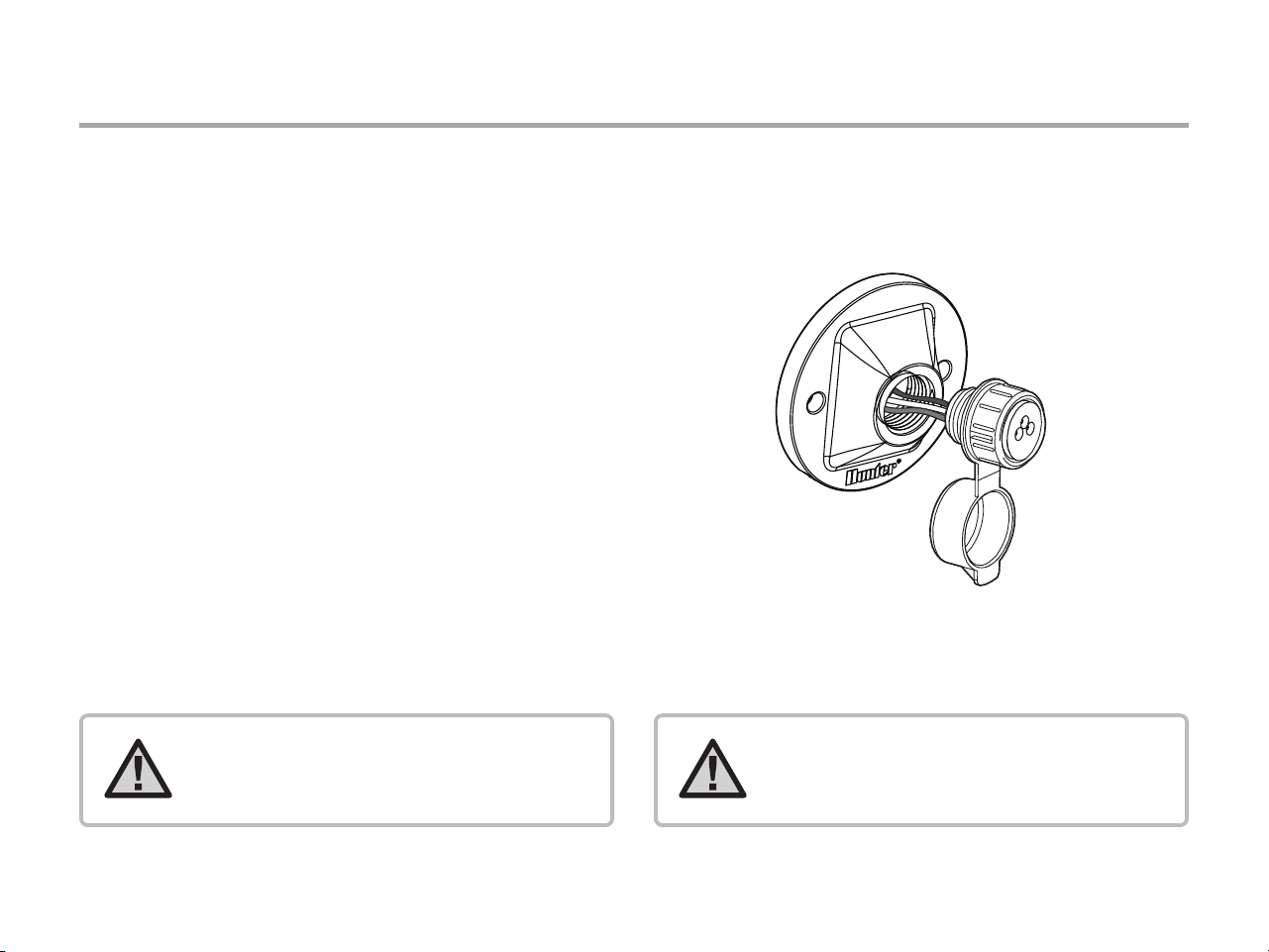
The Pro-C is compatible with Hunter remote controls.
The SmartPort wiring harness (included with all Hunter
remotes) allows for fast and easy use of Hunter controls.
Hunter remotes make it possible for you to operate the system
without having to walk back and forth to the controller.
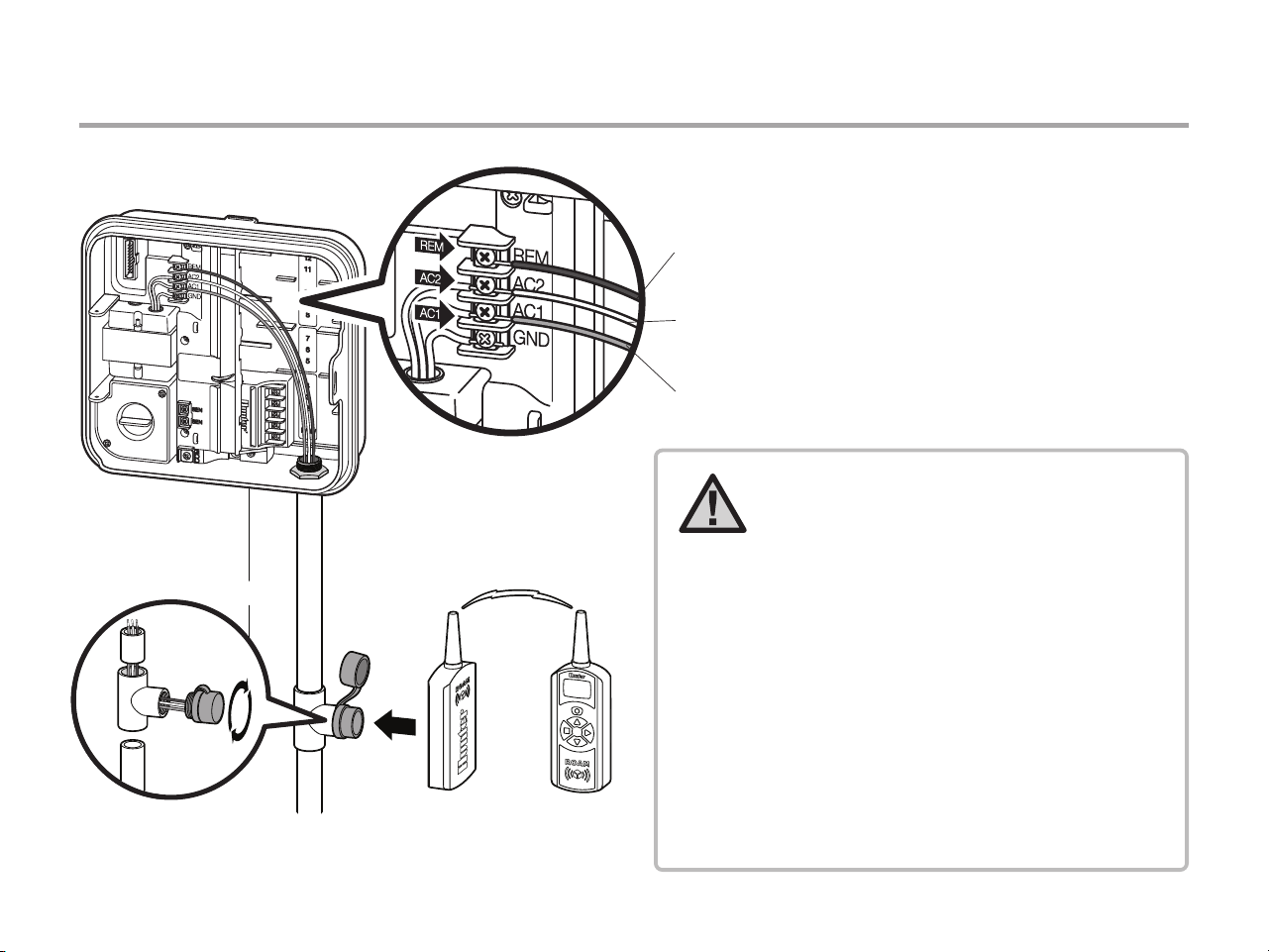
To Install the SmartPort Connector
1. Install a 1/2" PVC Slip x Slip x FIPT in the field
wiring conduit approximately 12" (30 cm) below the Pro-C.
2. Feed the red, white, and blue wires of the harness
through the base of the “Tee” and into the wiring
compartment as shown.
3. Screw the SmartPort harness housing into the “Tee”
as shown.
4. Attach the red wire to the screw slot marked AC1, attach
the white wire to the screw slot marked AC2, attach the
blue wire to the screw slot marked REM.
NOTE: P/N 258200 can be used as
an alternate method to mount the
SmartPort connector.
NOTE: Reversing the red and white
wires will result in an “SP ERR” message.
18
CONNECTING A HUNTER REMOTE (CONTINUED)
12” / 30 cm
REM
(Blue)
AC2
(White)
AC1
(Red)
NOTE: Any extension of the wiring on the
SmartPort may result in an error message
in the controller display and possible
malfunction of the remote unit due to
radio interference. In some situations,
lengthening of the harness may work
ne, in others it may not work at all (it is
site specic). In either case, extending
the wiring harness should be done using
shielded cable to minimize the possible
eects of electrical noise. For easiest
installation, order the Hunter
SmartPort shielded cable wiring harness.
(P/N ROAM-SCWH) with a full 25’ (7.6 m)
of shielded cable.
19
CONNECTING TO THE HUNTER SOLAR SYNC
®
The Solar Sync is a sensor system that, when connected
to Hunter Pro-C, will automatically adjust your controller
watering based upon changes in local climate conditions.
The Solar Sync utilizes a solar and temperature sensor
to measure on-site weather conditions used to determine
evapotranspiration (ET), or the rate at which plants and turf
use water. In addition, the Solar Sync sensor includes
a Hunter Rain-Clik® and Freeze-Clik® sensor that will shut
down your irrigation system when it rains and/or during
freezing conditions.
The controller will automatically increase or decrease watering
run times based on changes in weather. The result is a new
water-efficient irrigation product that promotes water
conservation and healthier plants. You simply program your
controller like you normally would, and the Solar Sync takes
over from there, eliminating the need to manually adjust your
watering schedule.
For installation and programming instructions of your Hunter
Solar Sync, please refer to the Solar Sync owner’s manual
or visit the Solar Sync support section on our website:
https://hunter.direct/solarsynchelp
hunter.direct/procwi
20
This controller is compatible with the Solar Sync and Wireless
Solar Sync systems. Solar Sync is a sensor system that will
automatically adjust the controller’s watering schedule (based
on changes in local climate condition) by using the Seasonal
Adjust function. The Solar Sync uses a solar and temperature
sensor to determine evapotranspiration (ET), or the rate at
which plants and turf use water, and also includes Hunter
Rain-Clik and Freeze-Clik technology that will shut down
irrigation when it rains and/or during freezing conditions.
Installing Solar Sync Sensor
Connect the Green and Black wire
from the Solar Sync Sensor to the
“SEN” wiring terminals on the
controller. It does not matter which
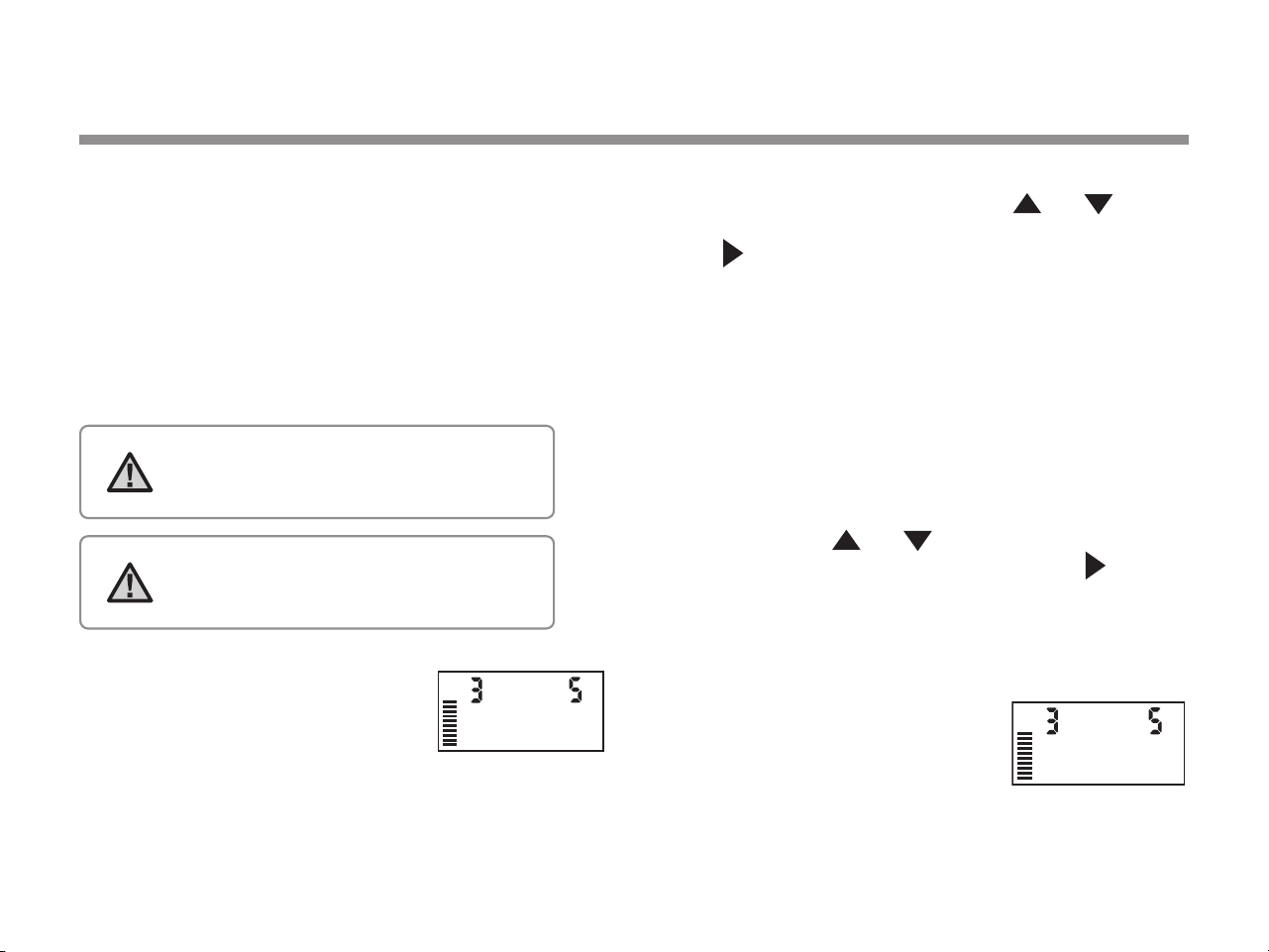
wire connects to which terminal. Turn the dial to the “Solar
Sync Settings” position. The display will initially show dashed
lines and then will show the default Region setting (3) on the
left and the default Water Adjustment setting (5) on the right.
Adjust the Region as needed by using the
and buttons
(refer to page 21 for explanation of Solar Sync Region setting).
Use the button to advance to the right to adjust the Water
Adjust setting as needed (see page 22 for explanation of
Water Adjust setting).
Installing the Wireless Solar Sync
Connect the Green and Black wire from the Wireless Solar
Sync Receiver to the “SEN” wiring terminals on the controller.
It does not matter which wire connects to which terminal.
Turn the dial to the “Solar Sync Settings” position. The
display will initially show dashed lines and then will show the
default Region setting (3) on the left and the default Water
Adjustment setting (5) on the right. Adjust the region as
needed by using the and buttons (refer to page 13 for
explanation of Solar Sync Region setting). Use the button
to advance to the right to adjust the Water Adjust setting as
needed (see page 14 for explanation of Water Adjust setting).
Solar Sync Settings
Once the Solar Sync sensor is connected to the controller, two
numbers will appear in the display
when the dial is turned to the Solar
Sync Settings position. The number
on the left of the screen is the Region
setting, and the number on the right on the screen is the
Water Adjustment setting (as shown above).
CONNECTING A HUNTER SOLAR SYNC
®
ET SENSOR
NOTE: Solar Sync will apply a default seasonal adjust
value of 100% until the rst full day (24-hour period)
of weather measurements have been received from
the sensor.
NOTE: Enabling the Sensor Bypass switch has no
eect on the seasonal adjust updates from the
Solar Sync sensor. It will, however, bypass the Rain-
Clik and Freeze-Clik functionality of the sensor.
21
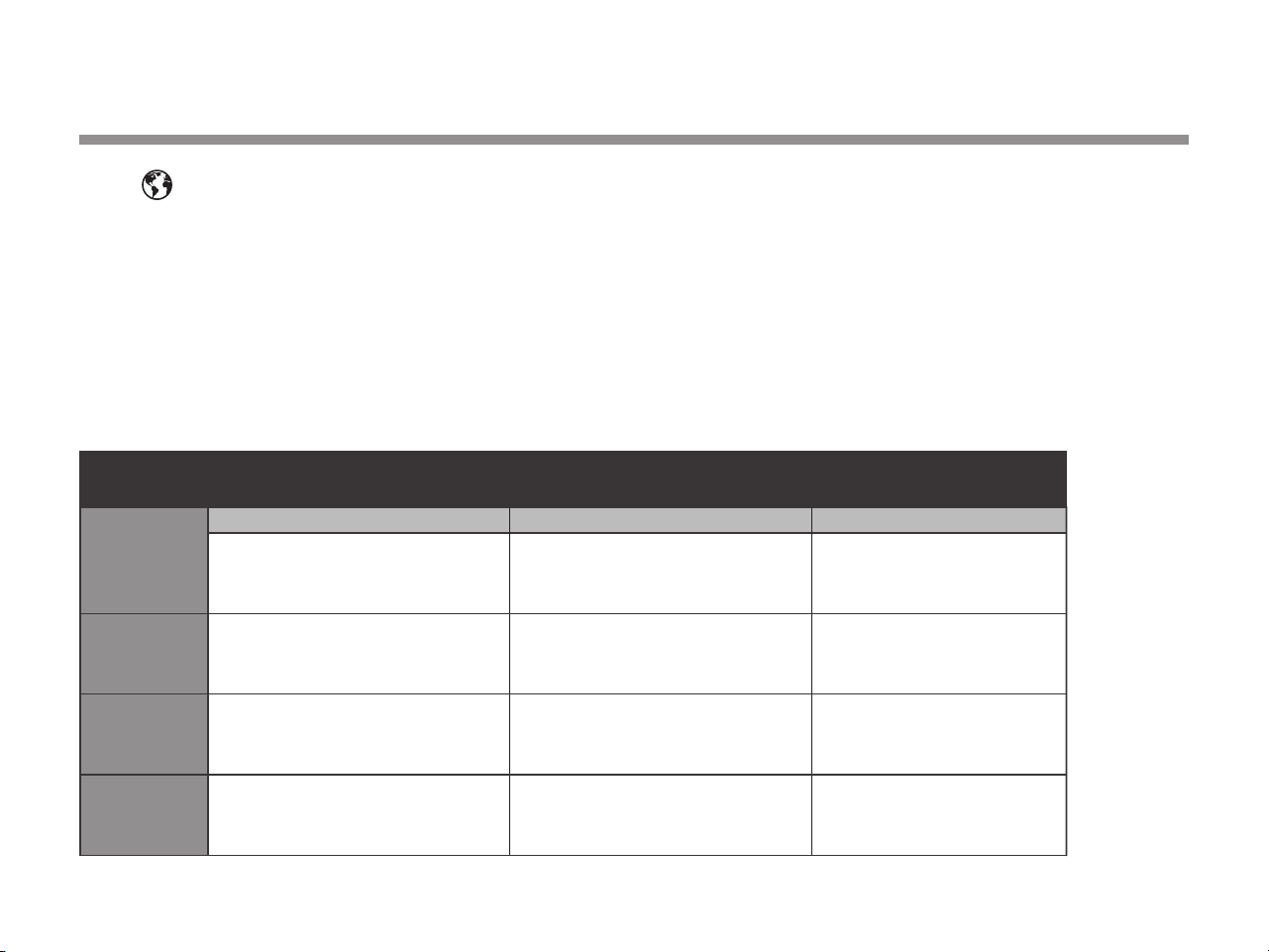
Region
For accurate Solar Sync measurements, the controller needs to
be programmed for the average peak season ET for your region.
Use the table below to determine your region.
The table will assist you in identifying the type of region you live
in. There are four basic ET regions, each with descriptions of the
region, along with typical ET and temperature characteristics. It is
recommended that, if possible, the region be chosen based upon
average July ET or peak summer ET (inches/mm per day).
Use the following table for choosing your region (reference below).
You can use methods A, B, or C to help you choose which region is
best for your area:
A: Based upon the ET of your region using the average July ET
or peak summer ET (inches/mm per day). This is the preferred
option when selecting your region.
B: Based upon the temperature for your region using the average
July or the driest month high temperature (not the highest
temperature for July).
C: Based upon the general description of your region.
CONNECTING A HUNTER SOLAR SYNC ET SENSOR
• U.S. Northern States
• Coastal Regions
If the average July ET is
< 0.17" (4.3 mm) per day
If the average temperature for July is
65°– 75°
(18°C – 24°C)
If the average temperature for July is
75° – 85°
(24°C – 29°C)
• Mountains
• U.S. Northern Inland States
If the average July ET is 0.18" – 0.23"
(4.6 mm – 5.8 mm) per day
• U.S. Southern States
• Inland/High Desert
If the average July ET is 0.24" – 0.29"
(6.1 mm – 7.4 mm) per day
If the average temperature for July is
85° – 95°
(29°C – 35°C)
• Deserts
If the average July ET is > 0.30"
(7.6 mm) per day
If the average temperature for July is
95° – 105°
(35°C – 41°C)
* For Southern hemisphere locations, use the month of January.
Region
1
Region
2
Region
3
Region
4
IF ANY OF THE CHOICES IN THE ROWS APPLY TO YOUR SITUATION, THEN THAT IS YOUR REGION SETTING CHOICE.
A B C
*For Southern Hemisphere locations, use the month of January.
22
Water Adjustment
The Water Adjustment is a 1 to 10 scale that allows for easy
adjustment of the Seasonal Adjust value from the Solar Sync ET
Sensor. Upon installation of the Solar Sync ET Sensor, keep the
Water Adjustment setting at the default value of 5. However, aer
installation, if you nd that the seasonal adjust value is lower or
higher than expected, the Water Adjustment value can be modied
to the Seasonal Adjust output value. See Calibration/Setup on page
15 for explanation of how to use Water Adjustment scale to ne-tune
seasonal adjust output value.
Uninstalling a Solar Sync Sensor
If a Solar Sync sensor has been installed, then the seasonal adjust
value used by the controller will be calculated from the weather
data supplied by the Solar Sync sensor.If the Solar Sync sensor is no
longer used with the controller, it must be uninstalled. If the Solar
Sync sensor is not uninstalled, the controller will not allow the
seasonal adjust value to be manually changed. For example, if the
seasonal adjust value shown on the controller was 50 percent when
the Solar Sync sensor was removed, it will remain 50 percent until
the Solar Sync sensor is uninstalled.
To uninstall the Solar Sync sensor, simply disconnect the green and
black wires from the controller terminal and then turn the dial to
the “Solar Sync Settings” position. The display should show dashes,
indicating that the controller no longer recognizes the Solar Sync
sensor for calculation of seasonal adjustment. Now the seasonal
adjust value can be changed manually by turning the knob to the
“Seasonal Adjust” position and using the + or - button to adjust
the value.
CONNECTING A HUNTER SOLAR SYNC ET SENSOR
+
-
NOTE: If an individual zone is “wetter” or
“drier” than the rest of the system, simply
increase or decrease the amount of run
time on the controller.

23
Calibration/Setup
Aer Solar Sync has been installed and programmed, allow the system to run for a few days at the initial setting. Because of the variety in site
conditions (including sensor location, amount of direct sunlight available to the sensor, reective heat from surrounding structures, etc), the
initial setting may require adjustment to arrive at the desired performance. The calibration of the Solar Sync to a particular site can easily be
accomplished by adjusting the Region and/or Water Adjustment settings. The instructions below outline this process:
1. Install Solar Sync sensor
2. Program Region and allow system to operate at initial setting for a minimum of 3 days
3. Observe the Seasonal Adjust on the controller. If the Seasonal Adjust amount appears to be lower or higher than expected for that time of
year, the Solar Sync settings need to be adjusted.
a. Seasonal Adjust too low: Turn the dial to the Solar Sync settings position. Increase the value on the Water Adjustment scale (10 is max).
Once the setting is changed, the controller will immediately be updated with the new Seasonal Adjust percentage. Increase the Water
Adjustment setting until the desired Seasonal Adjust percentage is shown. If you max out the Water Adjustment scale at 10 and still
require more Seasonal Adjust, move down to the next lower Region (from Region 4 to 3, for example).
b. Seasonal Adjust too high: Turn the dial to the Solar Sync settings position. Decrease the value on the Water Adjustment scale (default
setting is 5). Once the setting is changed, the controller will immediately be updated with the new Seasonal Adjust percentage. Decrease
the Water Adjustment setting until the desired Seasonal Adjust percentage is shown. If you minimize the Water Adjustment scale down
to 1 and still require a reduction in Seasonal Adjust, move up the next Region (from Region 2 to 3, for example).
Station Run Times: It is important to understand that Solar Sync provides a global seasonal adjustment to the controller. This means that
all station run times will be modied by the seasonal adjust percentage shown. When programming the controller, the run times should be
entered that represent peak season watering schedules. If the Solar Sync is adjusting to the appropriate seasonal adjust value but the run time
for a particular station appears to be too long/short, adjust the station run time in the controller program.
CONNECTING A HUNTER SOLAR SYNC ET SENSOR
24
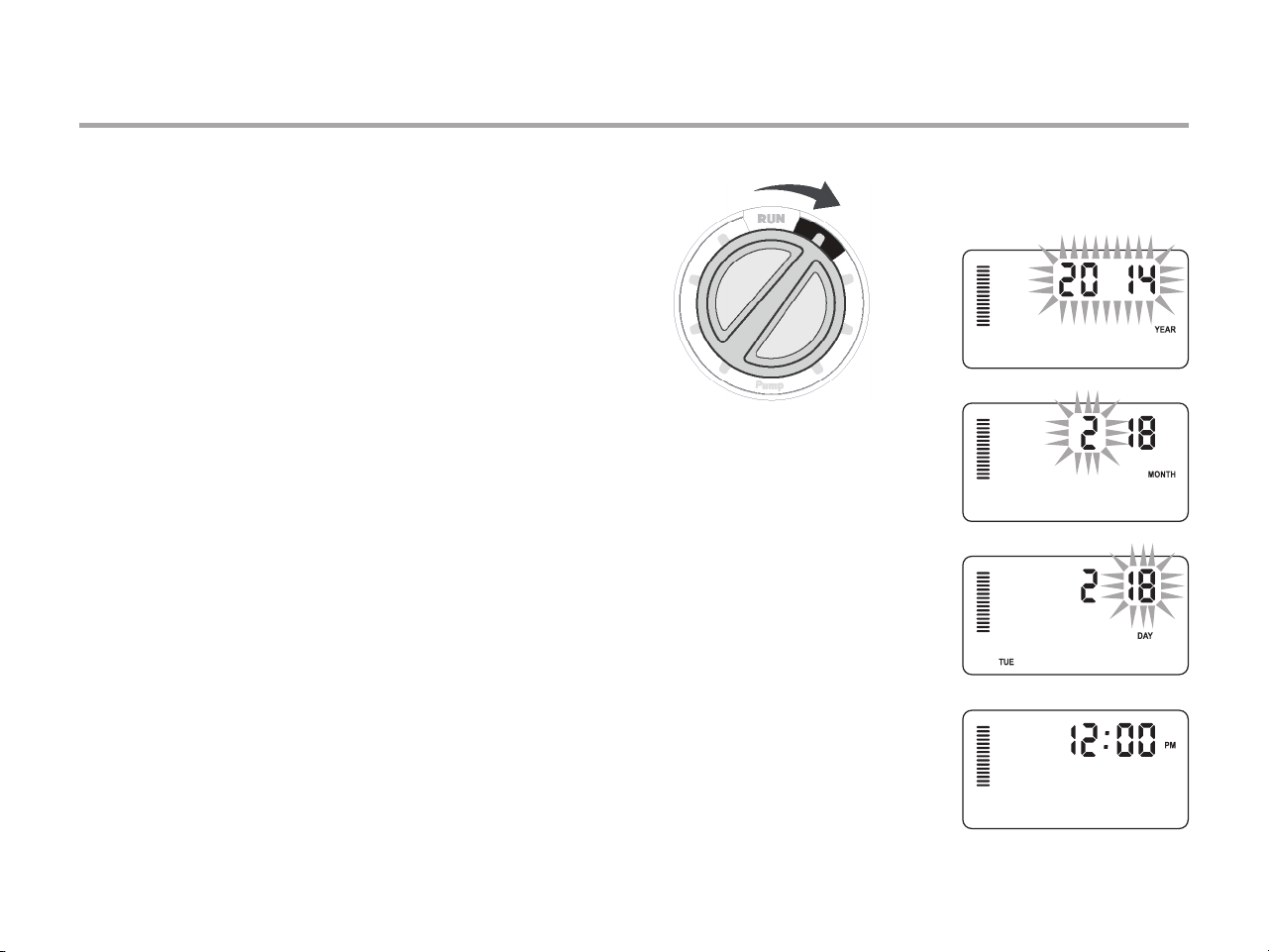
SETTING THE CURRENT DATE AND TIME
1. Turn the dial to the DATE/TIME position.
2. The current year will be flashing in the display. Use the
+ and - buttons to change the year. Push the→button
to proceed to setting the month.
3. The month will be flashing. Use the + and - buttons
to change the month. Press the →button to proceed
to setting the day.
4. The day will be flashing. Use the + and - buttons
to change the day of the month. Press the →button
to proceed to setting the time.
5. The time will be displayed: Use the + and-buttons
to select AM, PM, or 24 hr. Press the →button to move
to hours. Use the + and - buttons to change the hour
shown on the display. Press the →button to move onto
the minutes. Use the +and - buttons to change the
minutes shown in the display.
The date and time have now been set.
25
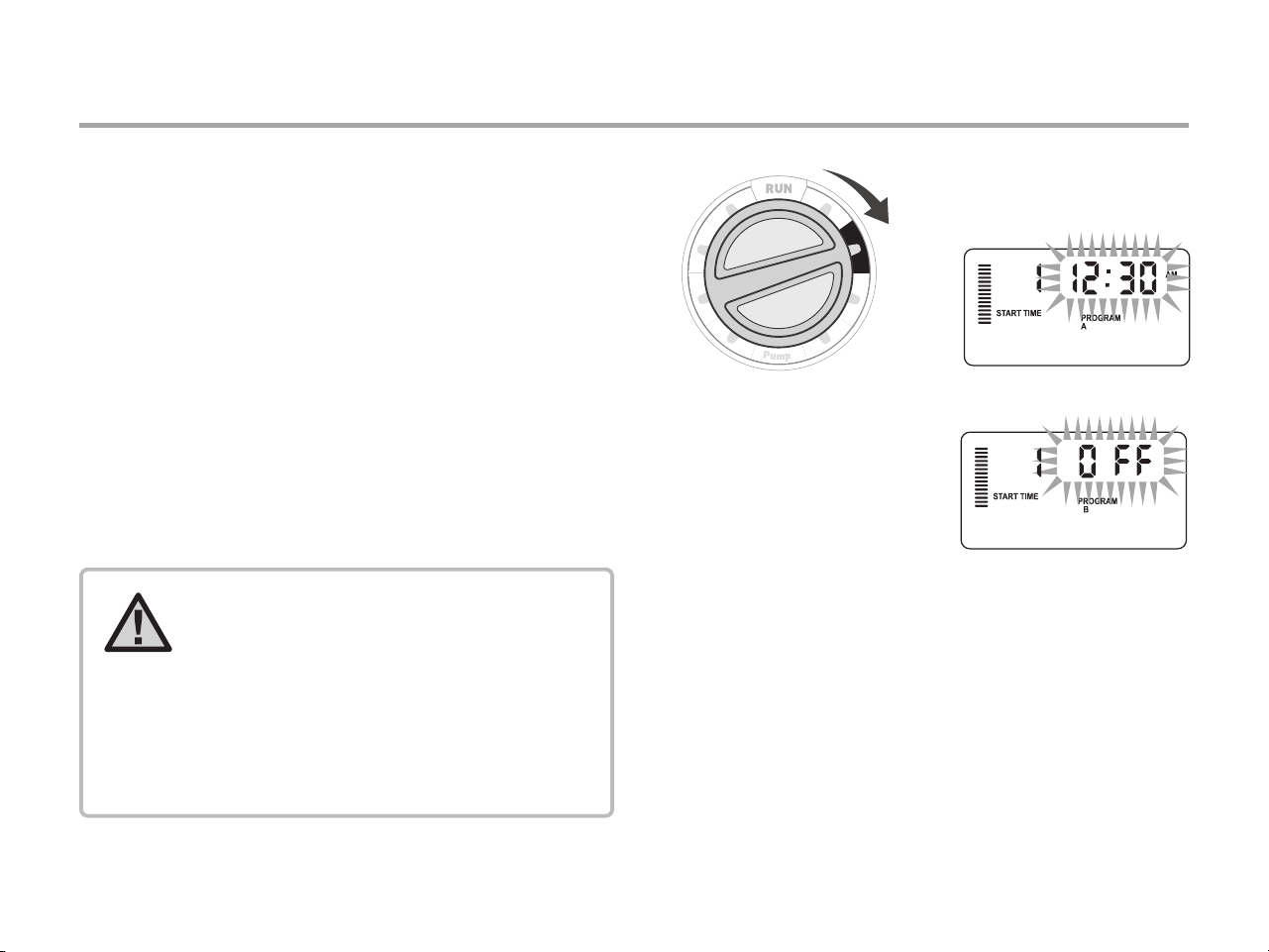
SETTING PROGRAM START TIMES
1. Turn the dial to the START TIMES position.
2. Press the PRG button to select A, B, or C.
3. Use the + and - buttons to change the start time. (Advances
in 15-minute increments.) One start time will activate all
stations sequentially in that program. This eliminates the
need to enter a start time for each station.
4. Press the→button to add another start time,
or PRG button for the next program.
Eliminating a Program Start Time
With the dial set to the START TIMES position, push the + and -
buttons until you reach 12:00 am (Midnight). From this position
push the - button once to reach the “OFF” position.
NOTE: All stations operate in numerical
order. Only one program start time is
required to activate a watering program.
If a program has all four start times
turned o, then that program is o (all
other program details are retained).
Because there are no start times, there
will be no watering with that program.
26
SETTING STATION RUN TIMES
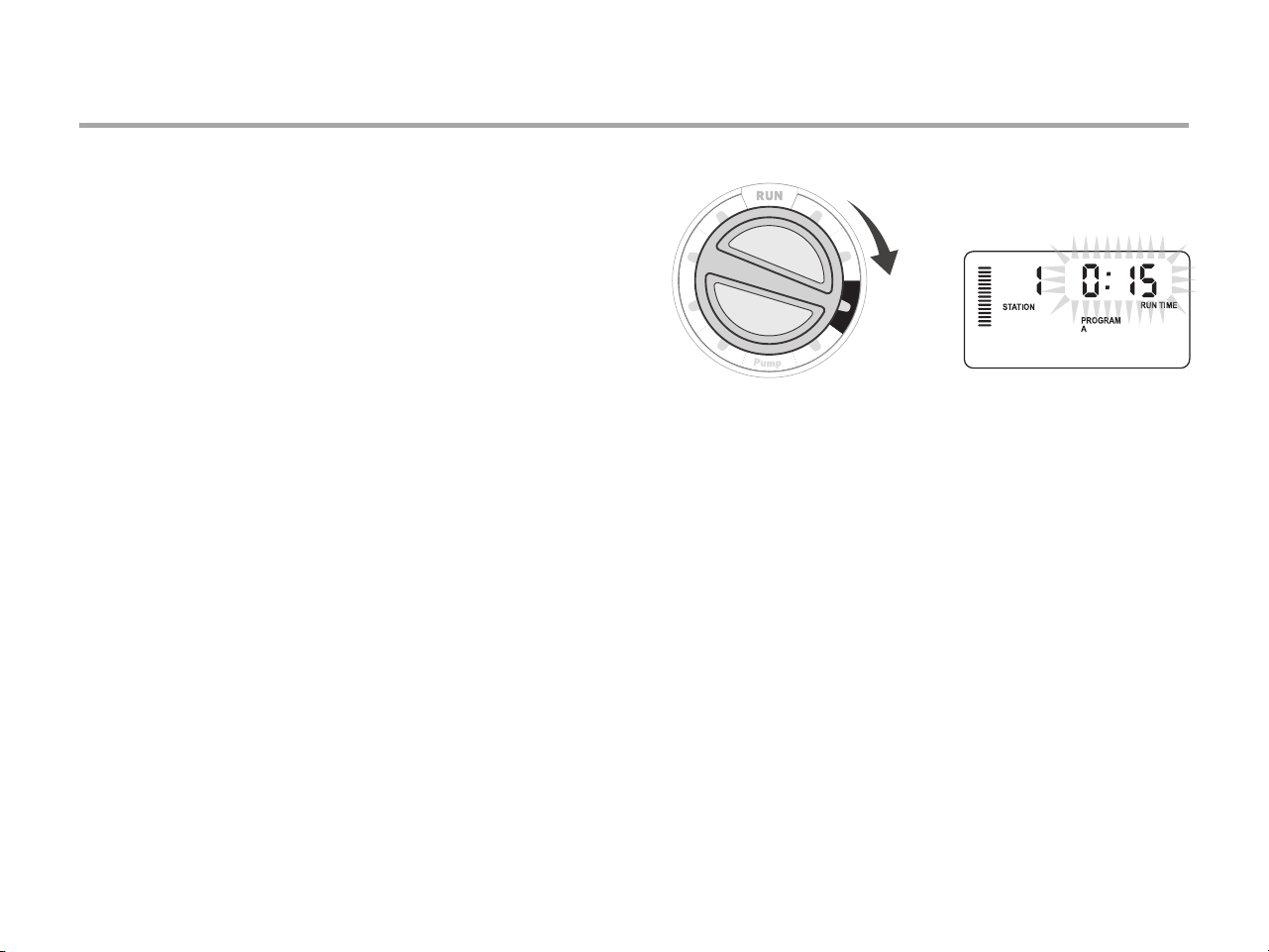
1. Turn the dial to the RUN TIMES position.
2. The display will show the last program selected (A, B, or C)
the station number selected, and the run time for that
station will be flashing. You can switch to another program by
pressing the PRG button.
3. Use the + and - buttons to change the station run time
on the display. You may set station run times from 1 minute to
6 hours.
4. Press the→button to advance to the next station.
5. Repeat steps 2 and 3 for each station.
27
SETTING A WATERING SCHEDULE
1. Turn the dial to the WATER DAYS position.
2. The display will show the last program selected (A, B,
or C). You can switch to another program by pressing the
PRG button.
3. The controller displays currently programmed active day
schedule information. You can choose to water on specific
days of the week, or you can choose interval watering, or
choose to water on odd days or even days. Each program can
operate using only one type of water day option.
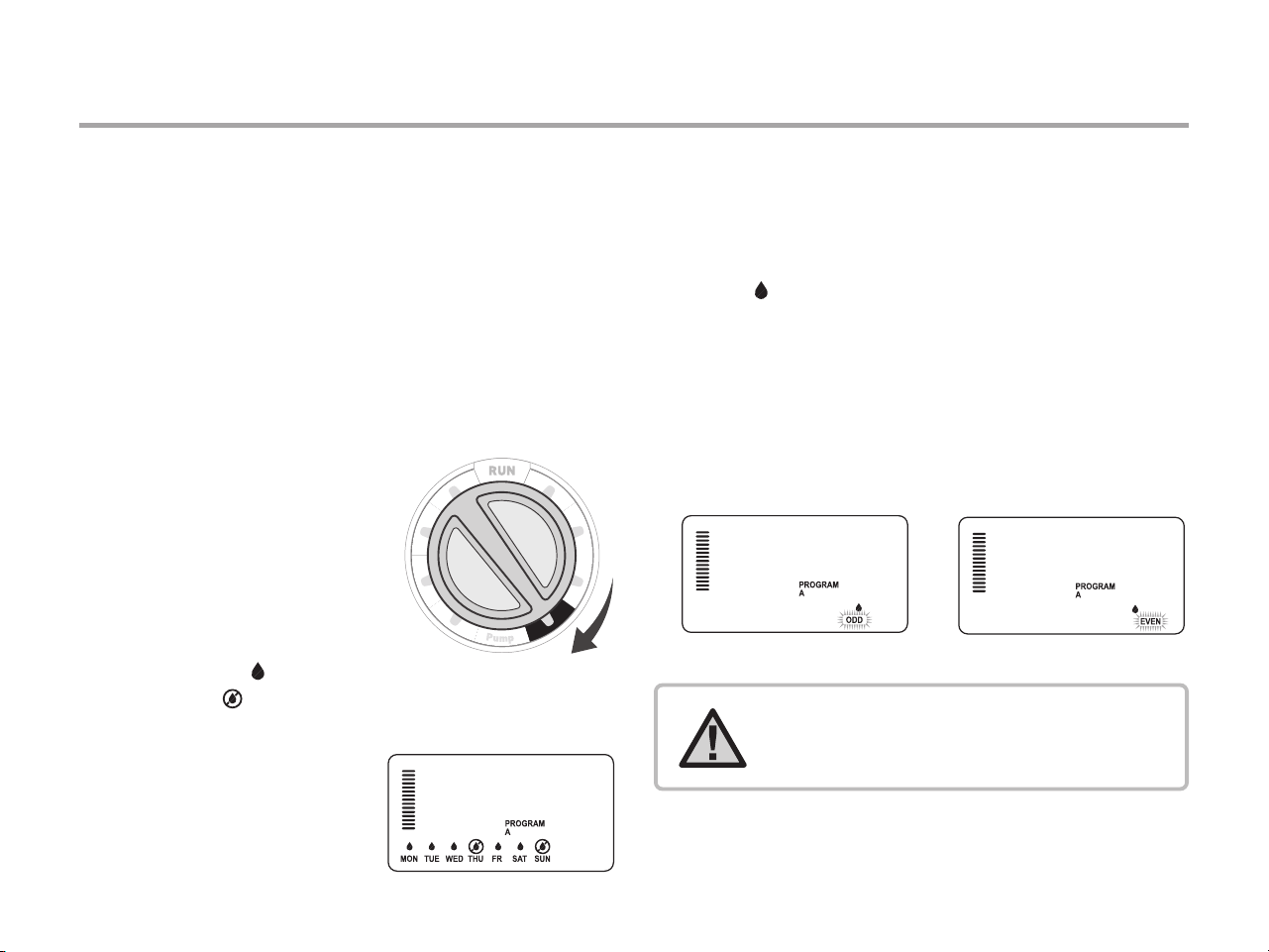
Selecting Specic Days
of the Week to Water
1. Press the + button to activate
a particular day of the week to
water (the display always starts
with Monday). Press the - button
to cancel watering for that day.
After pressing a button, the
display automatically advances
to the next day. A icon indicates
a water day. A icon indicates a
no water day.
2. After programming, set the
dial to the RUN position to
enable automatic execution
of all selected programs
and start times.
Selecting Odd or Even Days to Water
This feature uses numbered day(s) of the month for watering
instead of specific days of the week (odd days: 1st, 3rd, 5th, etc.;
even days: 2nd, 4th, 6th, etc.)
1. With the cursor on SUN in specific days of the week mode
press the → button once. ODD will flash on the screen.
2. If even day watering is desired, press the - button once. EVEN
will flash on the screen. You can move back and forth from
ODD to EVEN by pressing the - button.
3. Once you selected odd or even day watering, turn the dial
back to the RUN TIMES position.
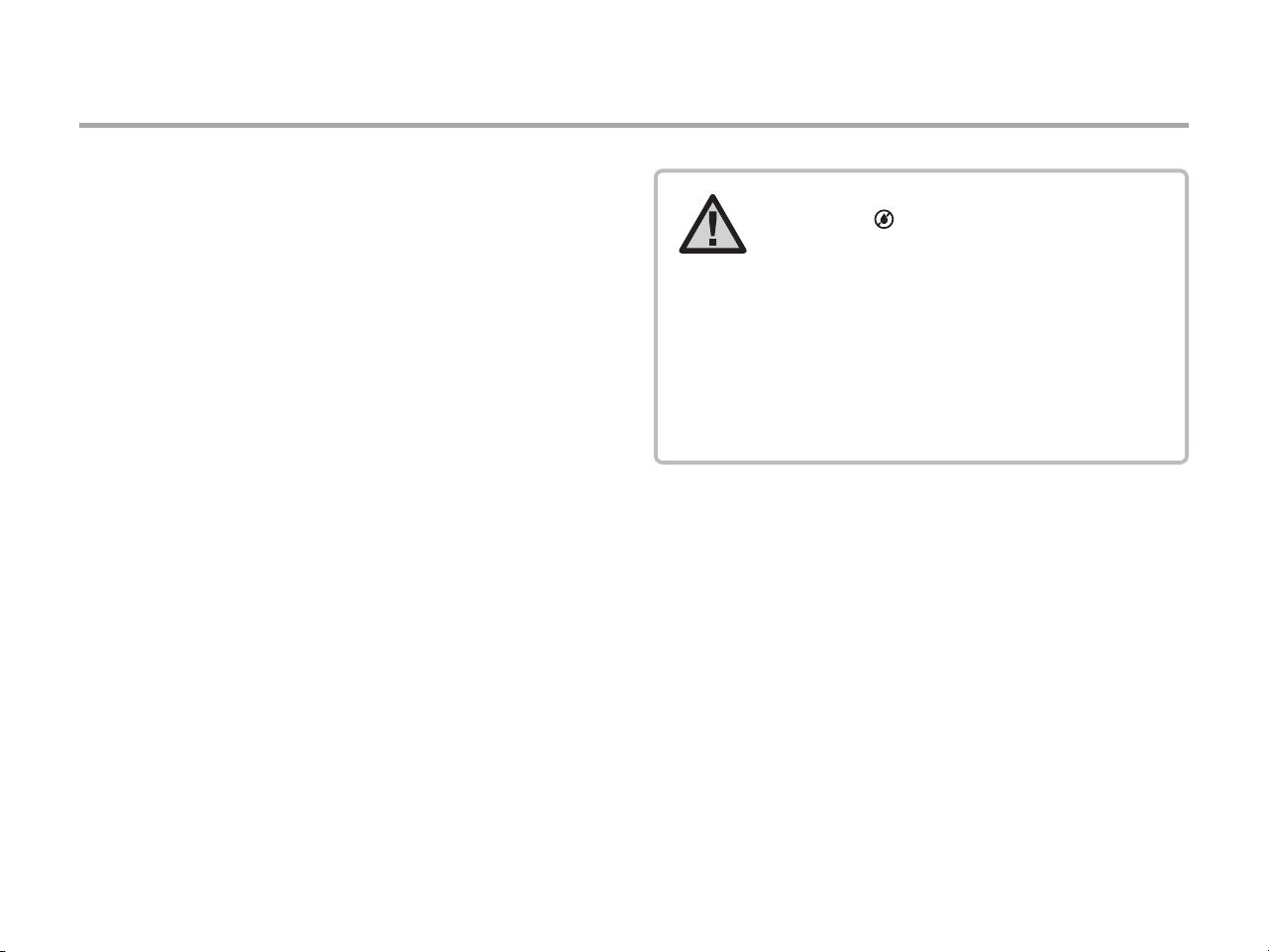
NOTE: The 31st of any month and
February 29th are always “OFF” days
if Odd day watering is selected.
28
Selecting Interval Watering
This feature is convenient if you want to have a more consistent
watering schedule without having to worry about the day of the
week or the date. The interval you select is the amount of days
between watering including the watering day.
1. Turn the dial to the WATER DAYS position. The water drop
above Monday should be flashing.
2. Press the → button until EVEN is flashing, then press the →
button one more time. The display will change to the interval
mode and the Interval Day number will be flashing.
3. Press the + button. The display will now show two numbers:
the interval, and the days remaining in the interval.
4. The number of days between waterings, or the interval, will
be flashing. Use the + and - buttons to select the number of
days desired between waterings.
5. Press the→button. The days remaining in the interval are
now flashing. Use the + and - buttons to select the number
of days until the next desired watering. One day remaining
means it will water the next day.
SETTING A WATERING SCHEDULE (CONTINUED)
NOTE: If any days are selected as non-
water days at the bottom of the display,
the Interval Day watering will exclude
those days. For example, if the Interval
Days are set at 5 and Monday is a non-
water day, the controller will water every
5th day, but never on a Monday. If the
interval water day falls on a Monday and
Monday is a non-water day, the program
would not water for 5 more days resulting
in no irrigation for 10 days total.
29
OPTIONS FOR RUNNING YOUR IRRIGATION SYSTEM
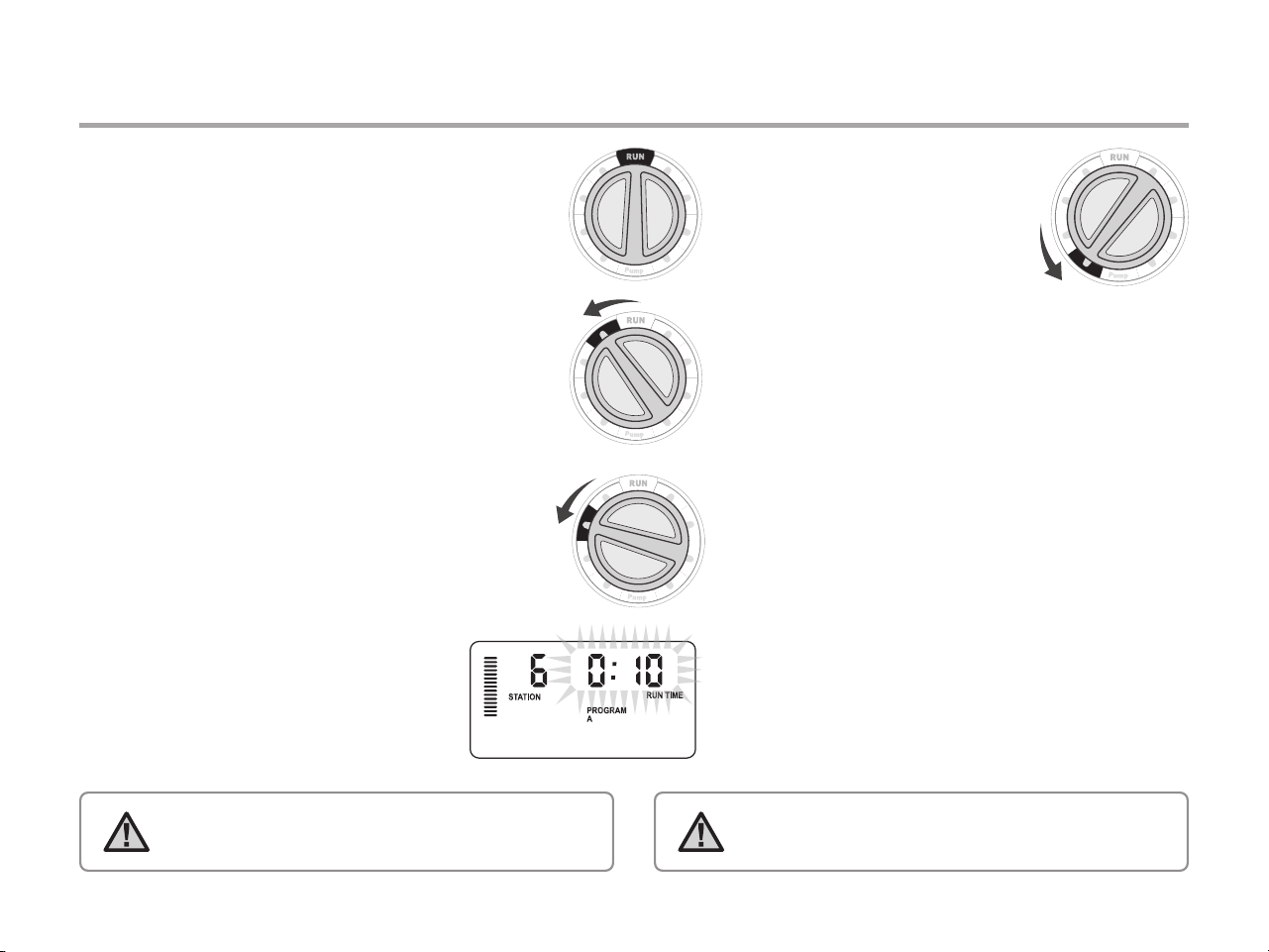
Run
After programming is complete, turn the dial to the RUN
position to enable automatic execution of all selected
programs and start times.
System O
Valves currently watering will be shut off after the dial is
turned to the SYSTEM OFF position for two seconds. All
active programs are discontinued and watering is stopped.
To return controller to normal automatic operation, simply
return dial to the RUN position.
Manually Run a Single Station
1. Turn the dial to the MANUAL position.
2. Station run time will flash in the display. Use the →
button to move to the desired station. You may then
use the + and - buttons to select the amount of time
for a station to water.
3. Turn the dial to the RUN position to run
the station (only the designated station
will water, then controller will return to
automatic mode with no change in the
previously set program).
Seasonal Adjustment
Seasonal Adjust is used to make
global run time changes without re-
programming the entire controller.
This feature is perfect for making
small changes that are necessary as
the weather changes. For instance, hotter times of the
year may require a bit more water. Seasonal adjust can
be increased so that the stations will run longer than
the programmed time. Conversely, as fall approaches,
the seasonal adjust can be reduced to allow for short
watering durations.
1. Turn the dial to the SEASONAL ADJUST position.
2. Press the + or - buttons to set the percentage
desired from 5 percent to 300 percent.
To view the new adjusted run time, turn the dial
to set run time’s position. The displayed run times will be
updated accordingly as the seasonal adjustment
is made.
NOTE : The Manual single station function ignores any
attached sensor and will allow watering to occur.
NOTE: The controller should always be initially
programmed in the 100% position.
30
OPTIONS FOR RUNNING YOUR IRRIGATION SYSTEM (CONTINUED)
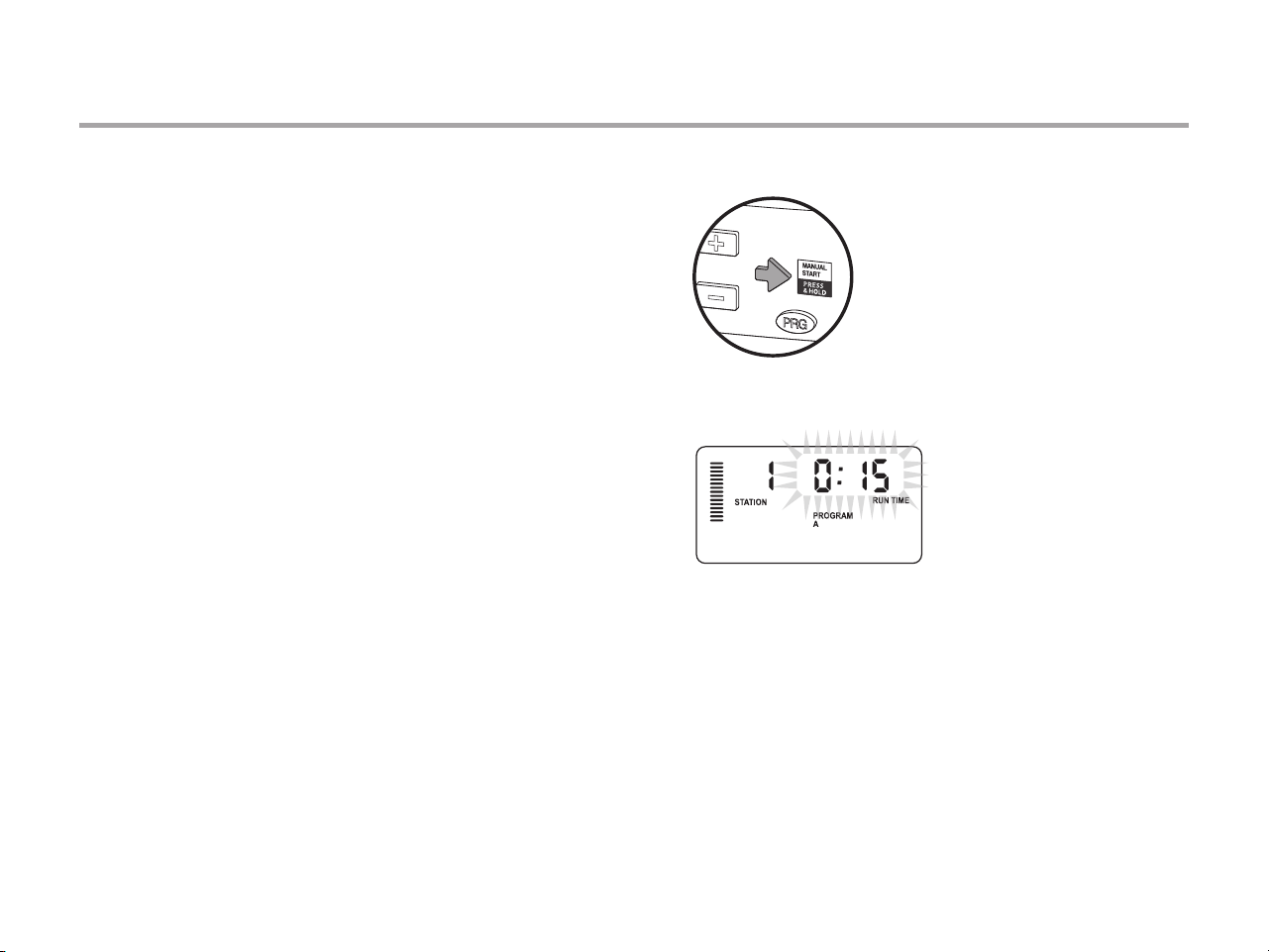
One - Touch Manual Start and Advance
You can also activate a program to water without using the dial.
1. With the dial in the RUN position, hold down the → button for
2 seconds.
2. This feature automatically defaults to program A. You can
select program B, or C by pressing the PRG program.
3. The station number will flash. Press the ← or → button to
scroll through the stations and use the + and - buttons to
adjust the station run times. (If no buttons are pressed during
step 2 or 3, the controller will automatically begin program A.)
4. Press the →button to scroll to the desired station to start
with. After a 2-second pause, the program will begin.
This feature is great for a quick cycle when extra watering is
needed or if you would like to scroll through the stations to inspect
your system.
31
USING THE PRO-C TO OPERATE OUTDOOR LIGHTING (OPTIONAL)
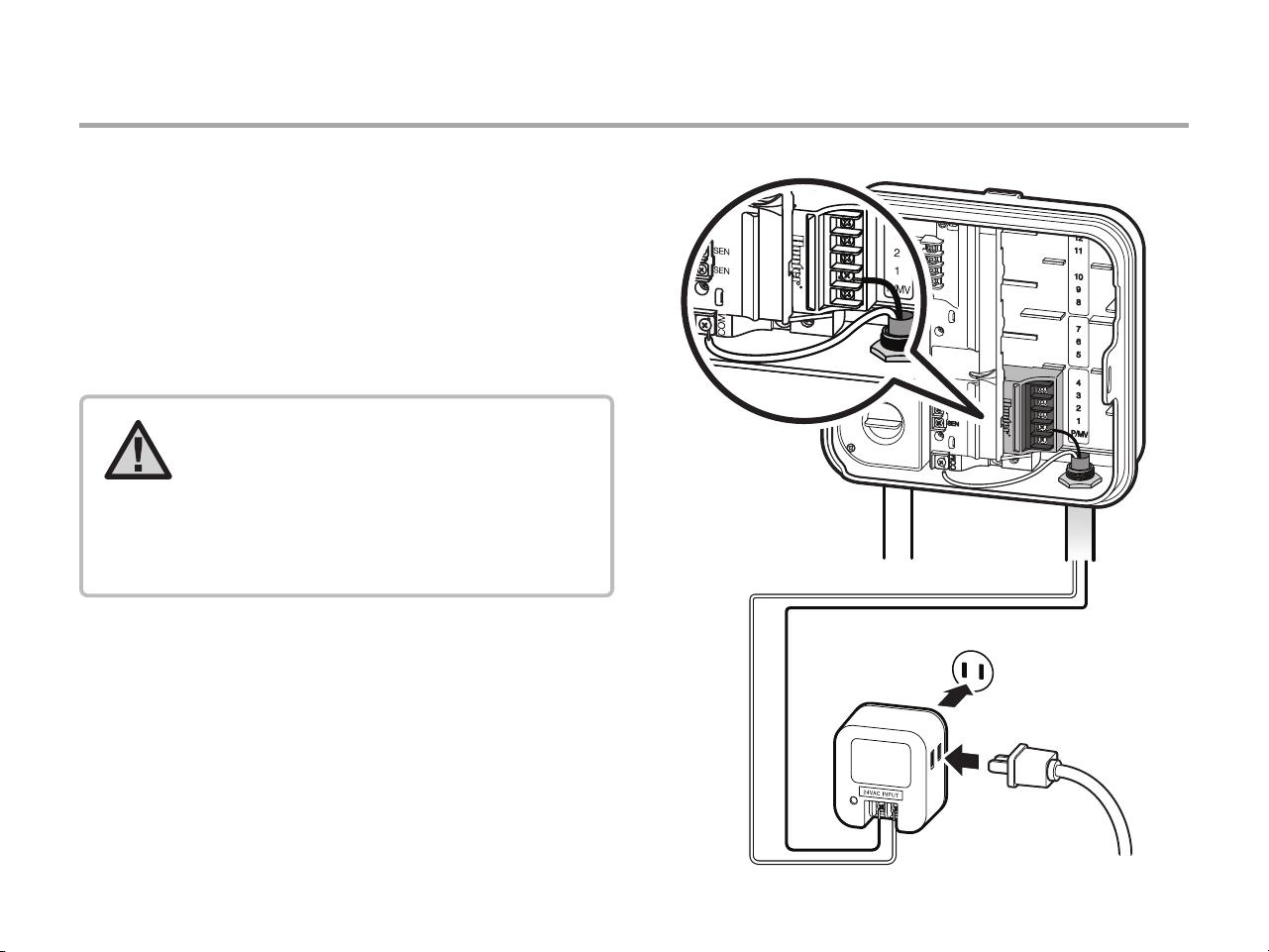
Connecting the FX Luminaire Transformer
The Pro-C is capable of operating three separate lighting
transformers equipped with the PXSync interface box.
Connect wires from the first PXSync box to station output 1
(and the Common) on the Pro-C terminal. If using a second or
third transformer, the second will be wired to station 2 and the
third wil be wired to station 3.
Common
Station Output
Transformer
Accessory Plug
NOTE: Manual cycles initiated at the
controller or from a remote will cancel
any automatic program currently
running. Once manual cycle is complete,
the controller will return to automatic
mode, and run the next scheduled
program at its specied start time
32
USING THE PRO-C TO OPERATE OUTDOOR LIGHTING (OPTIONAL)
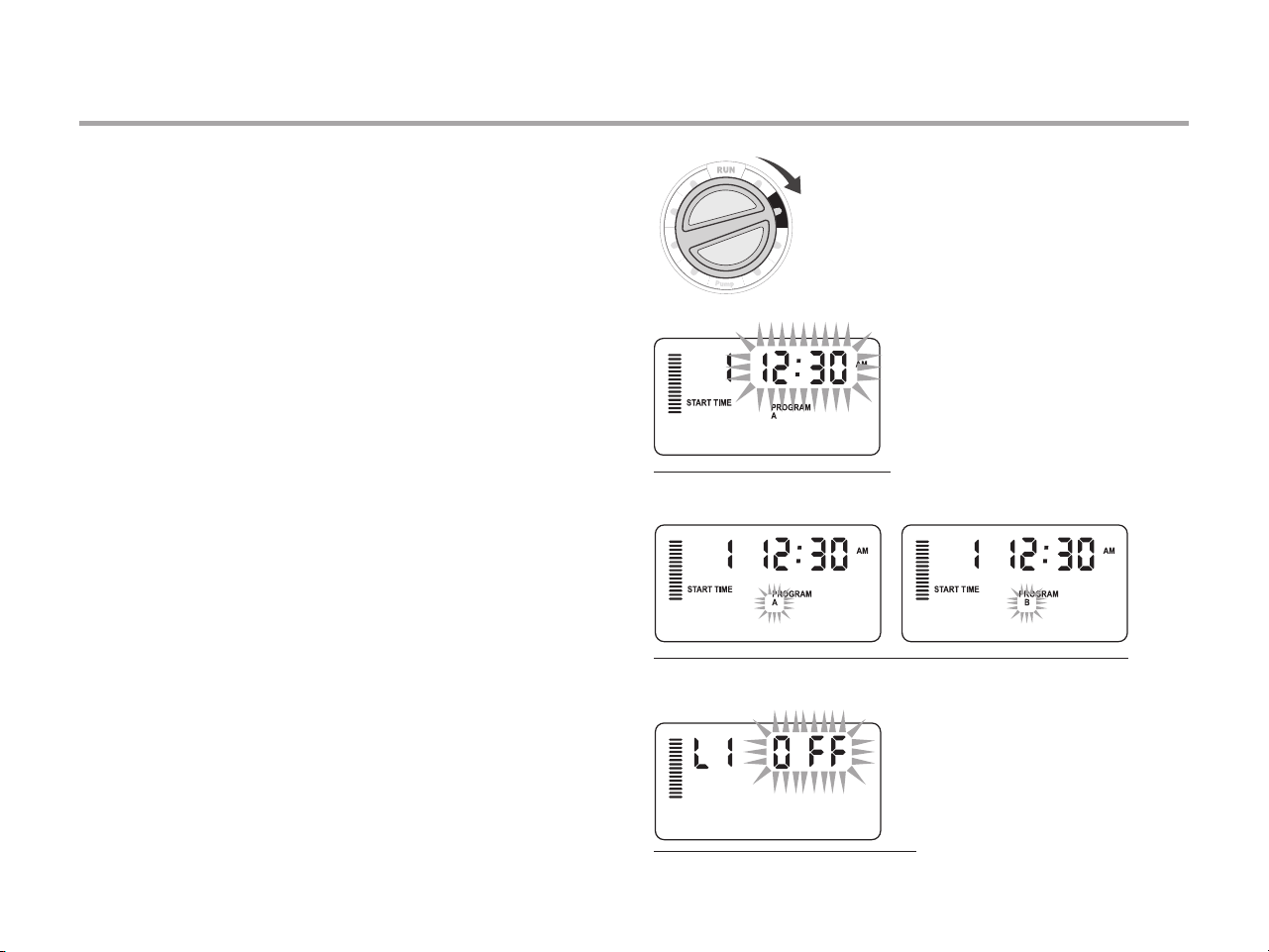
Creating a Lighting Program
1. Turn the dial to the START TIMES position.
2. Press and hold the PRG button for 6 seconds and observe the
A, B, C programs moving.
3. L1 and a flashing “OFF” will appear, and the controller is ready
to designate lighting programs.
4. Add a start time to lighting program L1 by pressing the + and -
buttons until the correct time is shown. Up to four start times
can be assigned to L1.
5. Turn the dial to the RUN TIMES position. Press the PRG
button repeatedly until L1 is shown. Use the + and - buttons to
add a run time to lighting program L1.
When using a second or third lighting transformer, repeat the
same steps above after connecting the additional PXSync boxes,
adding start and run times accordingly.
You do not need to program days of the week for lighting
programs. They can run every day according to the
programmed start and run times.
Example of screen upon entering
Lighting program can be activated
Example of ashing screen while holding down on PRG button
33
ADVANCED FEATURES
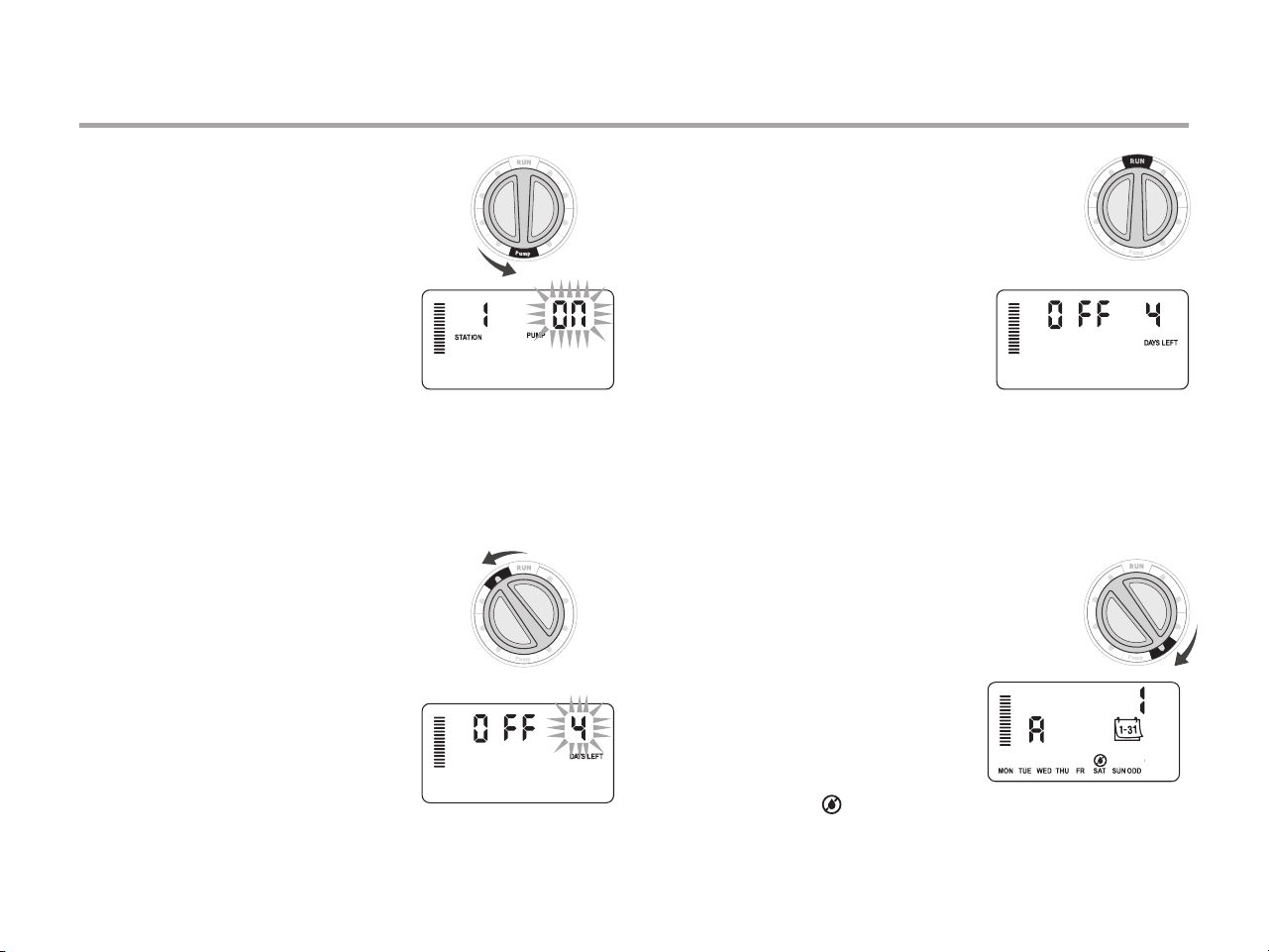
Set Pump/Master Valve Operation
The default is for all stations to have
the master valve/pump start circuit ON.
The master valve/pump start can be set
ON or OFF by station, regardless of
which program the station is assigned.
To program pump operation:
1. Turn the dial to the PUMP position.
2. Press the + or - buttons to toggle the master valve/pump start
ON or OFF for the specific station.
3. Press the→button to advance to the next station.
4. Repeat steps 2 and 3 for all necessary stations.
Programmable Rain O
This feature permits the user to stop all
programmed waterings for a designated
period from 1 to 31 days. At the end of the
programmable rain off period, the controller
will resume normal automatic operation.
1. Turn the dial to the SYSTEM OFF
position.
2. Press the + button and a 1 will be
displayed and the DAYS LEFT icon
will illuminate.
3. Press + as many times as needed to set the number of days off
desired (up to 31).
4. Turn the dial back to the RUN position, at
which time, OFF, a number and the DAYS icon
all remain on.
5. Leave the dial in the RUN position.
The days off remaining will decrease at
midnight of each day. When it goes to
zero, the display will show the normal
time of day and normal irrigation will
resume at the next scheduled start time.
Setting Specic Day(s) O
Programming a No Water Day(s) is useful to inhibit watering on
mowing days, etc. For instance, if you always mow the lawn on
Saturdays, you would designate Saturday as a No Water Day so
you are not mowing wet grass.
1. Turn the dial to the WATER DAYS position.
2. Enter an interval watering schedule as
described on page 28.
3. Press the → button once. MON will be flashing.
4. Use the → button until the cursor is at
the day of the week you wish to set as
a No Water Day.
5. Press the - button to set this day as a
no water day. The will illuminate over this day.
6. Repeat steps 4 and 5 until all desired event day(s) are off.
EVEN
24-30
13 29
34
HIDDEN FEATURES
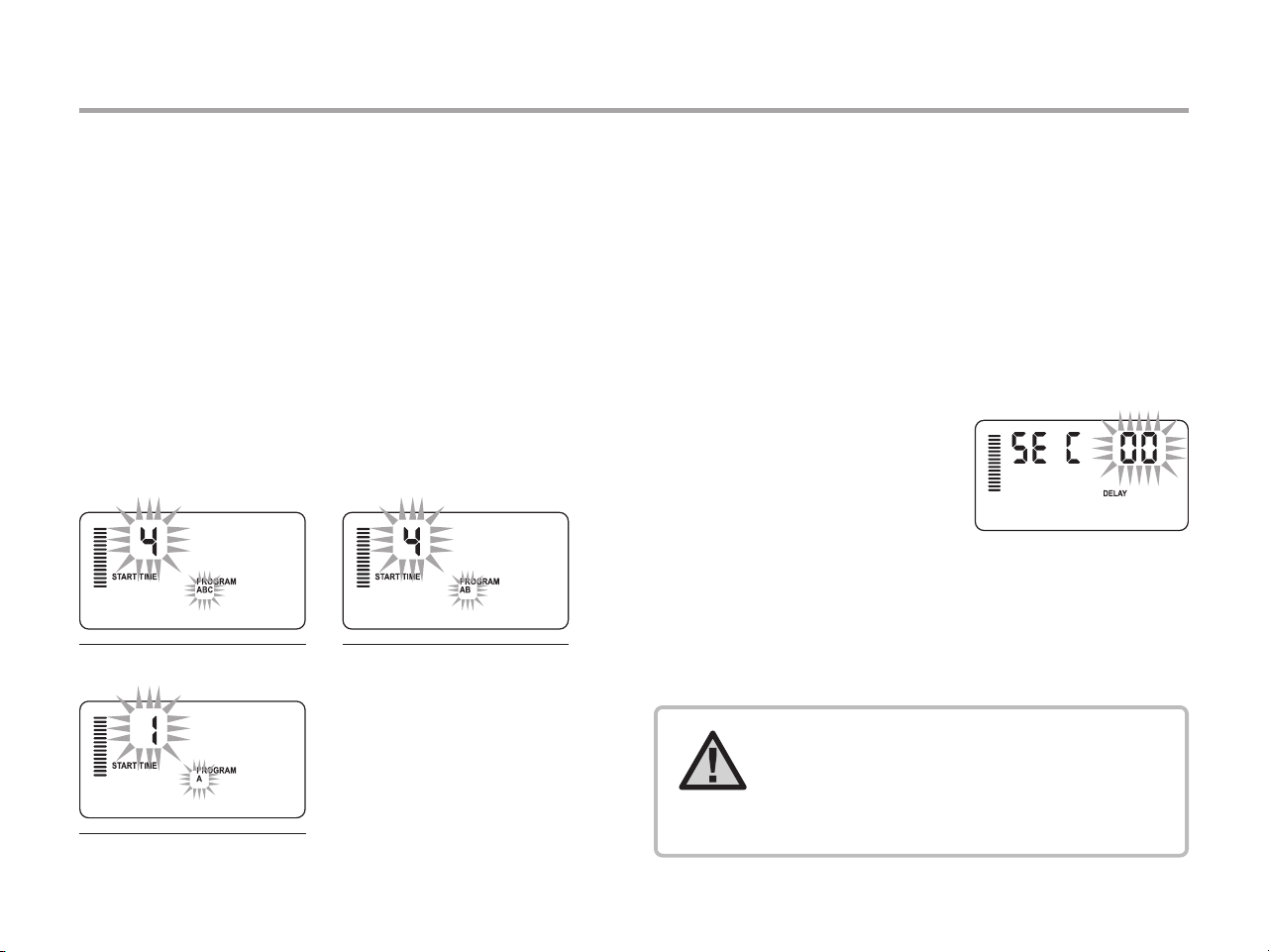
Program Customization
The Pro-C is factory-configured with 3 independent programs
(A, B, C with four start times each) for different plant type
requirements. The Pro-C can be customized to display only the
required programs. You can hide those programs that are not
required to ease programming.
1. Start with the dial in the RUN position.
2. Press and hold the - button. Turn the dial to the WATER DAYS
position.
3. Release the - buttons.
4. Use the + and - button to change program modes.
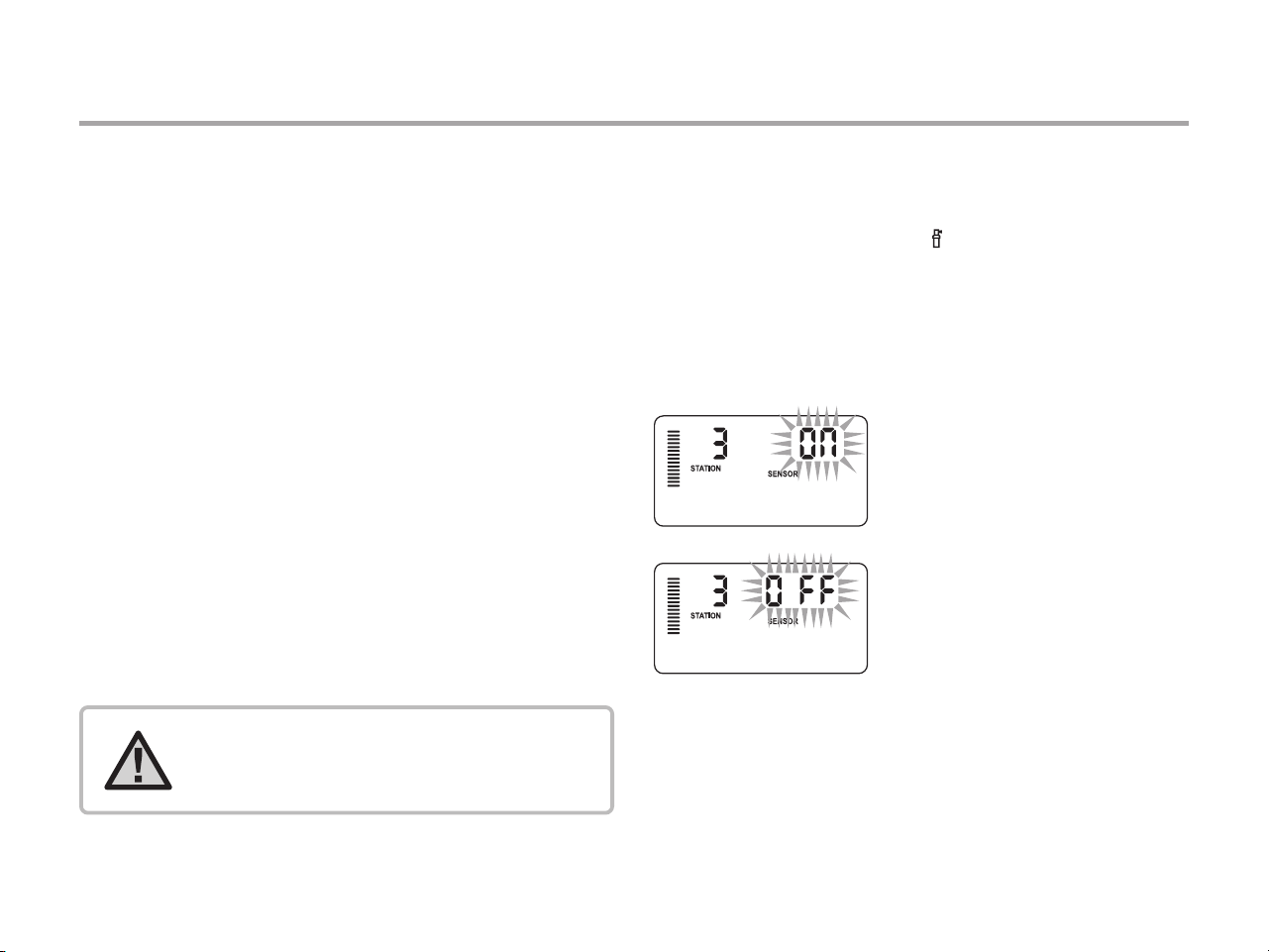
Programmable Delay Between Stations
This feature allows the user to insert a delay between when
one station turns off and the next station turns on. This is
very helpful on systems with slow closing valves or on pump
systems that are operating near maximum flow or have slow
well recovery.
1. Start with the dial in the RUN position.
2. Press and hold the - button while turning the dial to the
RUN TIMES position.
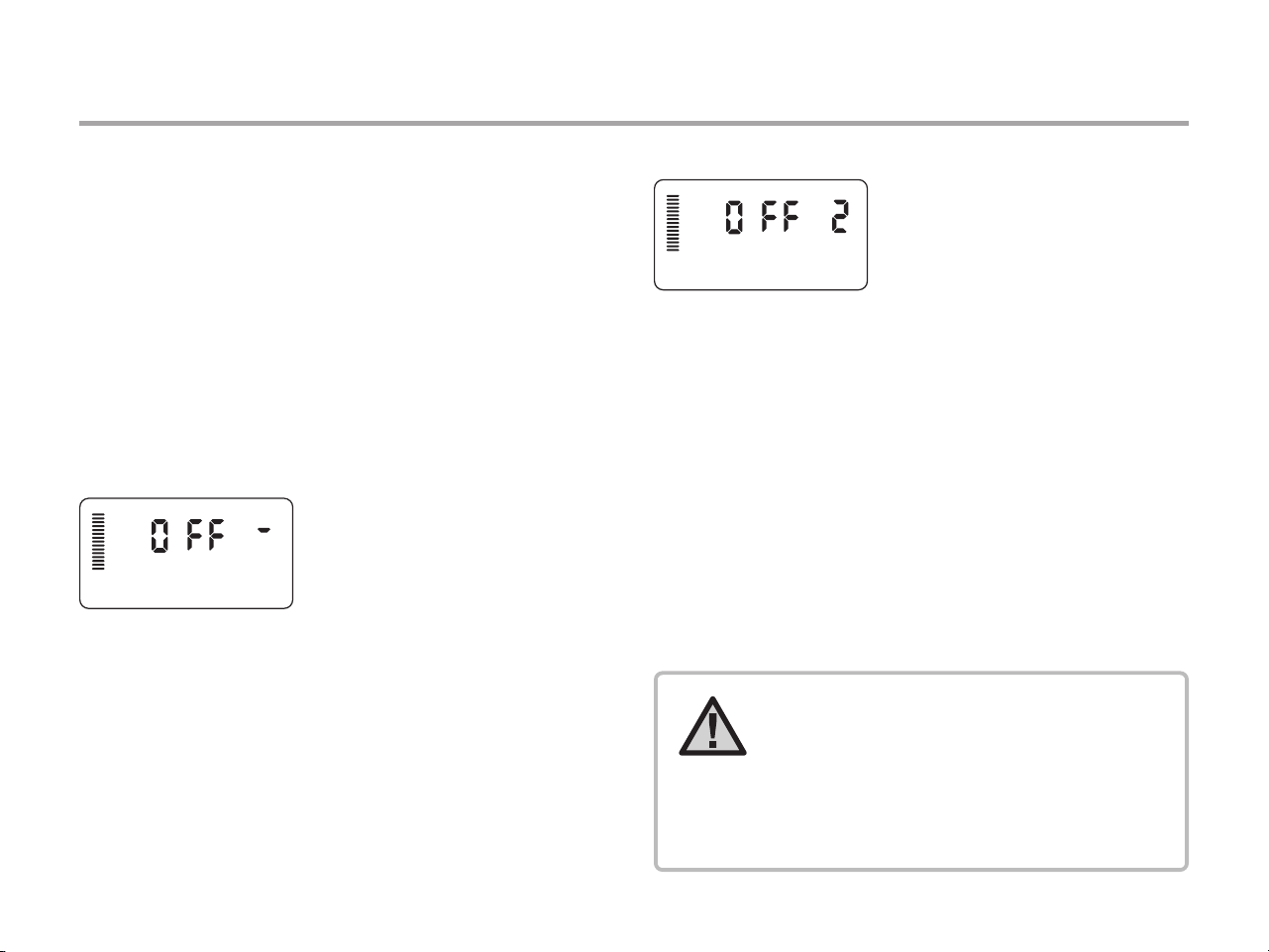
3. Release the - button. The display
will show a delay time for all
stations in seconds.
4. Press the + and - buttons to
increase or decrease the delay time
between 0 and 59 seconds in 1-second increments and then
in 1-minute increments up to 4 hours. Hr will be displayed
when the delay changes from seconds to minutes and hours.
Maximum delay is 4 hours.
5. Return the dial to the RUN position.
Advanced Mode
(3 programs / 4 start times)
Limited Mode
(1 program / 1 start time)
Normal Mode
(2 programs / 4 start times)
NOTE: The Master Valve/Pump Start
circuit will operate during the rst 15
seconds of any programmed delay to
aid in the closing of the valve and to
avoid unnecessary cycling of the pump.
35
Programmable Sensor Override
The Pro-C allows the user to program the controller so that the
sensor disables watering on only desired stations. For example,
patio gardens that have pots under overhangs and roofs may
not receive water when it rains and will continue to need to be
watered during periods of rain. To program sensor override:
1. Turn the dial to the RUN position.
2. Press and hold the- button while turning the dial
to the START TIMES position.
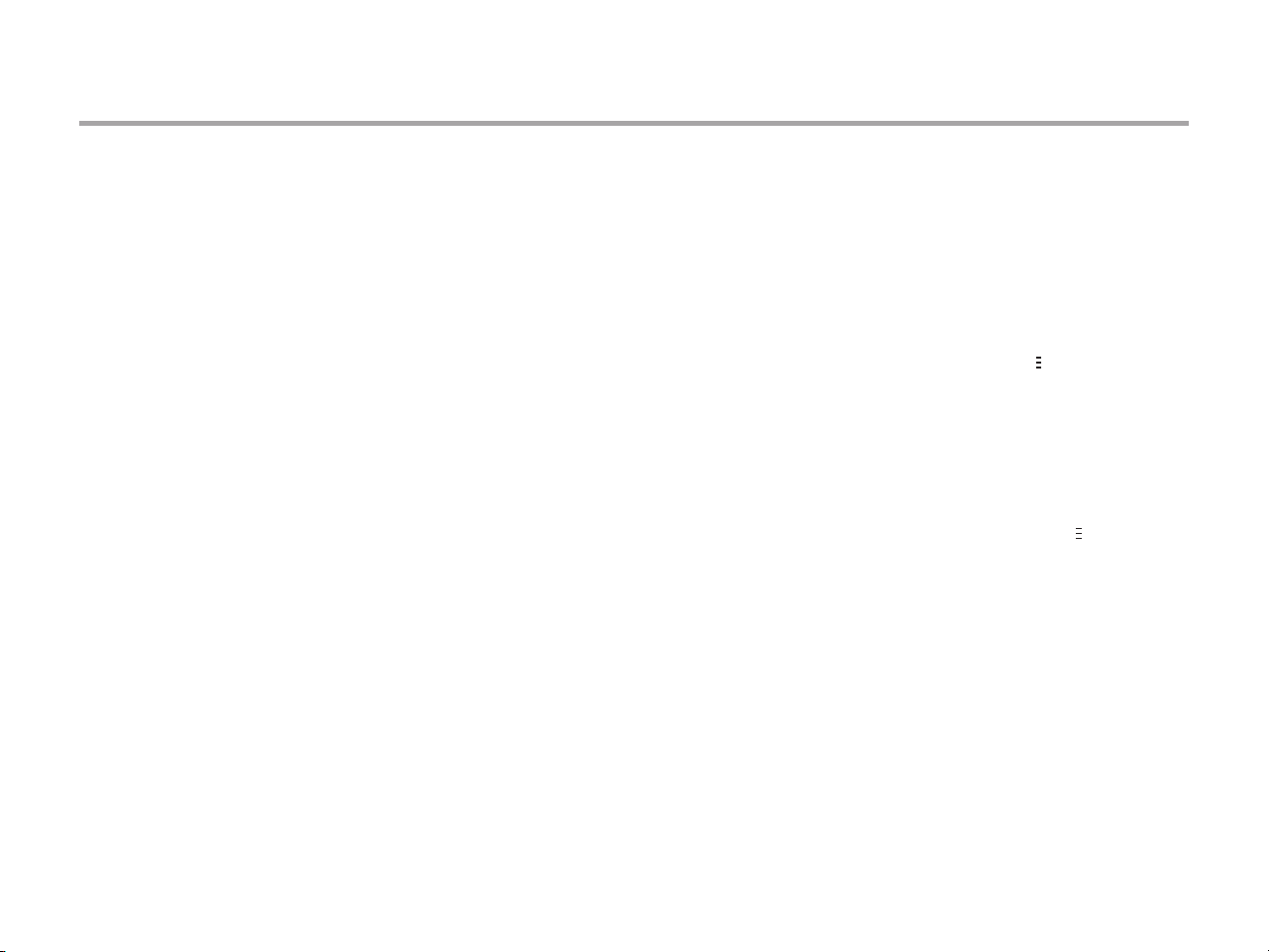
3. Release the - button. The display will show the station
number, the SENSOR icon, and ON will be flashing.
4. Press the + or - button to enable or disable the sensor
for the station shown.
ON = Sensor enabled (will suspend irrigation)
OFF = Sensor disabled (will allow watering)
5. Use the ←or → buttons to scroll to the next station that you
would like to program the sensor override.
A station that is running in the sensor override mode will display
the word “SENSOR” and flash the icon.
HIDDEN FEATURES (CONTINUED)
NOTE: The controller default is for the
sensor to disable watering on all zones
when rain occurs.
36
HIDDEN FEATURES (CONTINUED)
Total Run Time Calculator
The Pro-C keeps a running total of each program’s station run
times. This feature provides a quick way to determine how long
each program will water.
1. While in the RUN TIMES mode use the → button to advance
to the highest station position.
2. Press the →button once to review the total of all run times
programmed.
3. Use the PRG button to review additional programs.
Test Program
The Pro-C offers users a simplified method for running a test
program. This feature operates each station in numerical
sequence, from the lowest to the highest. You can start with any
station. This is a great feature to check the operation of your
irrigation system.
To initiate the test program:
1. Press and hold the PRG button. The station number will be
flashing.
2. Press the ← or→ button to scroll to the station you would like
the test program to start with. Use the + and - button to set a
run time of up to 15 minutes. The run time needs to be entered
only once.
3. After a 2-second pause, the test program will begin.
Easy Retrieve
™
Program Memory
The Pro-C is capable of saving the preferred watering program
into memory for retrieval at a later time. This feature allows for a
quick way of resetting the controller to the original programmed
watering schedule.
To save the program into memory:
1. With the dial in the RUN position, press and hold the + and PRG
buttons for 3 seconds. The display will scroll from left to right
across the display indicating the program is being saved into
memory.
2. Release the + and PRG buttons.
To retrieve a program that was previously saved into memory:
1. With the dial in the RUN position, press and hold the - and
PRG buttons for 3 seconds. The display will scroll from right
to left across the display indicating the program is being
retrieved from memory.
2. Release the - and PRG buttons.
37
HIDDEN FEATURES (CONTINUED)
Solar Sync Delay for Pro-C
The delay feature is accessible only after the installation
of the Solar Sync. The Solar Sync Delay feature allows the user
to postpone seasonal adjustment changes from being made
by Solar Sync for up to 99 days.
While the Solar Sync Delay is active, the Solar Sync will continue
to collect and store data.
Operation:
To access the Solar Sync Delay setting:
1. Place the dial in the RUN position; press and hold the + button,
rotate the dial to the Solar Sync position then release the +
button. The following screen will be presented: d:XX (where d
indicates days and XX indicates the number of days
to be delayed).
2. Press the + or - button to increase/decrease the number
of days the delay should run. Once the desired number of days
is displayed, move the dial back to the RUN position to activate
the delay.
To change the existing Delay days setting:
1. Open the Solar Sync Delay menu by pressing the + button and
rotating the dial to Solar Sync Settings and release the
+ button.
2. Use the + or - keys to modify the number of days until desired
numbers of delay days is displayed. (Setting the days to 00
turns Solar Sync Delay to OFF.)
3. Return the dial to the RUN position for the changes to
take effect.
While Solar Sync Delay is active, the Solar Sync will continue
to gather weather information and calculate the Seasonal
Adjust Value. The updated seasonal adjust will be applied once
the Solar Sync Delay days reach 00.
NOTE: The number of days remaining will
not be displayed on the RUN screen. To
check if the Delay feature is active, open
the Solar Sync Delay menu and check
the days displayed. If 1 or more days are
displayed, then Solar Sync Delay is active;
if 00 is displayed, then Solar Sync Delay is
not active.
38
HIDDEN FEATURES (CONTINUED)
Cycle and Soak
The Cycle and Soak feature allows you to split a station’s
run time into more usable, shorter watering durations. This
feature is useful when applying water to slopes and tight soils
because it automatically applies water more slowly, helping to
prevent runoff from occurring. You should enter the Cycle time
as a fraction of the station’s watering time, and the Soak time
as the minimum number of minutes required before watering
can occur again for the next Cycle. The total number of cycles
is determined by taking the total programmed station run
time and dividing it by the Cycle time.
Accessing the Cycle and Soak Menu:
The Cycle and Soak feature is accessed by placing the dial
in the RUN position, pressing and holding the + button for 3
seconds; while holding the + button rotate the dial to the RUN
TIME dial position, then release the button.
Setting the Cycle Time:
Initially Station 1 will be displayed. To access other stations,
press the ← or → button.
Once the desired station is displayed, use the + or - button to
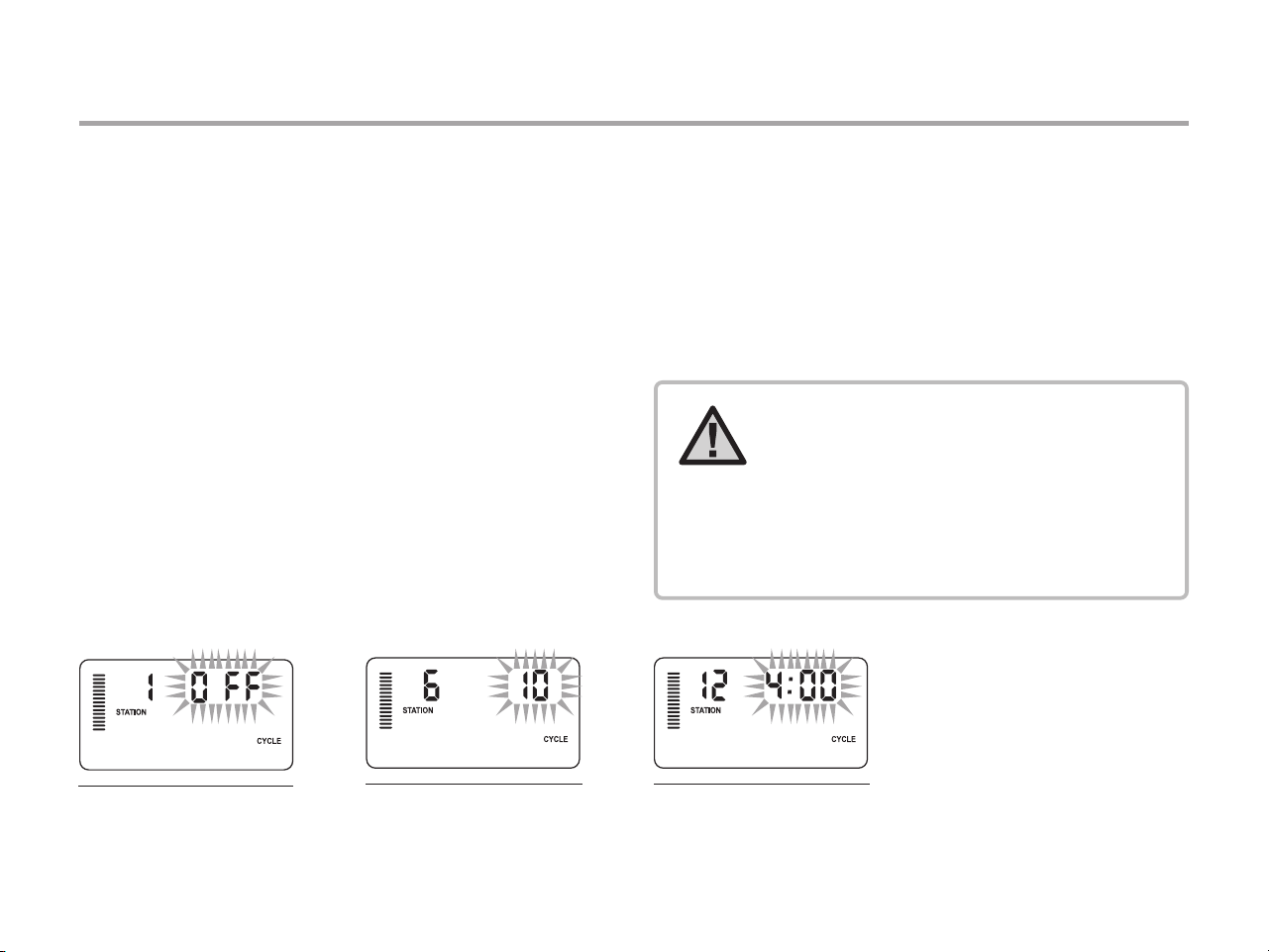
increase or decrease the Cycle time. The user can set the time
from 1 minute to 4 hours in 1-minute increments or to OFF if no
Cycle is desired.
Example of Cycle screen upon
entering
Example of Cycle screen with
only minutes
Example of Cycle screen with
hours included
NOTE: Before 1 hour, only minutes are
displayed (e.g., 36). At 1 hour or above,
the display will change to include the
hour digit (e.g., 1:13 and 4:00).
If a station’s Run Time is less than or
equal to the Cycle time, then no Cycle
will be applied.
39
HIDDEN FEATURES (CONTINUED)
Accessing the Soak Menu:
Once the desired Cycle times for each station have been
programmed, the Cycle time can be accessed by pressing the
PRG button.
The station will remain the same as was previously displayed
under the Cycle time (i.e., if station 2 is displayed in the Cycle
menu then Station 2 will be displayed upon pressing the
PRG button).
Setting the Soak Time:
To access the other stations, press the ← or→button.
Once the desired station is displayed, the user can use
the + or - button to increase or decrease the Soak time.
The user can set the Soak time from 1 minute to 4 hours
in 1-minute increments.
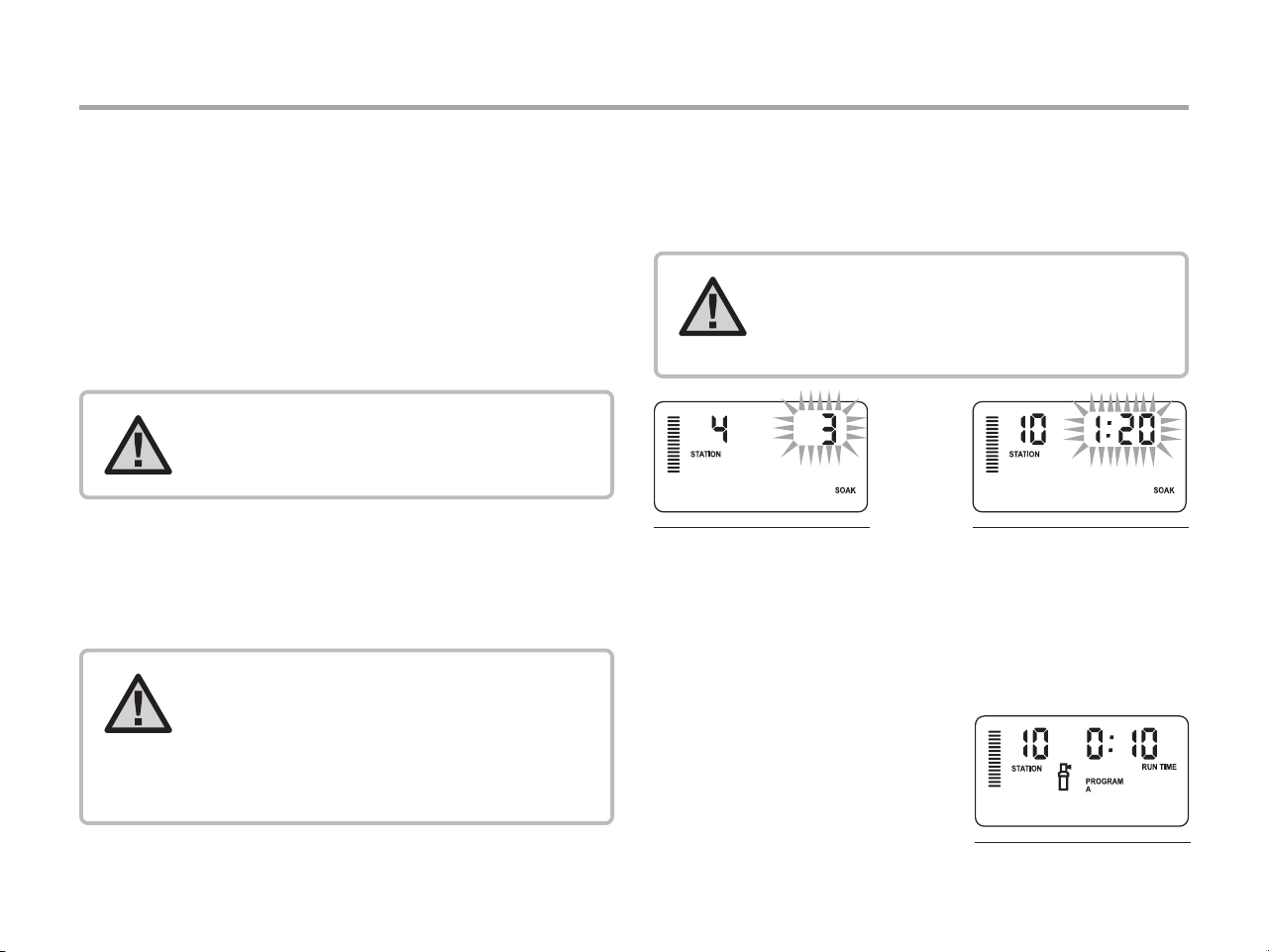
Example of Soak screen with
only minutes
Example of Soak screen with
hours included
Station 10 cycle running
Cycle and Soak Situations:
Station 1 requires 20 minutes of watering, but after 5 minutes,
runoff occurs. However, after 10 minutes all the water is
absorbed. The solution would be to program 20 minutes for
the station run time, 5 minutes for
the Cycle time, and 10 minutes for
the Soak time.
The soak time is a minimum
amount. The soak time may be
longer amount depending on the
remaining run times.
NOTE: The Soak menu cannot be accessed
without a programmed Cycle time.
NOTE: When changing the stations,
if a station without a Cycle time is
encountered, the screen will revert back
to the Cycle time. Move to the next station
with a Cycle Time and press the PRG
button to return.
NOTE: Before 1 hour, only minutes are
displayed (e.g., 36). At 1 hour or above,
the display will change to include the hour
digit (e.g., 1:13 and 4:00).
40
HIDDEN FEATURES (CONTINUED)
Hunter Quick Check
™
This circuit diagnostic procedure can quickly identify “shorts”
commonly caused by faulty solenoids or when a bare common
wire touches a bare station control wire.
To initiate the Hunter Quick Check test procedure:
1. Press the +, -, ← and→ buttons simultaneously. In the
standby mode, the LCD will display all segments (helpful
when troubleshooting display problems).
2.
Press the
+
button to begin the Quick Check test procedure.
The system will search all stations to detect a high current
path through the station terminals. When a field wiring short is
detected, an ERR symbol preceded by the station number will
momentarily flash on the controller LCD display. After the Hunter
Quick Check completes running this circuit diagnostic procedure,
the controller returns to the automatic watering mode.
Clearing Controller’s Memory/Resetting Controller
If you feel that you have misprogrammed the controller, there
is a process that will reset the memory to factory defaults and
erase all programs and data that have been entered into the
controller. Press and hold the PRG button. Press and release
the RESET button on the back of the front panel. Wait until the
display shows 12:00 am. Release the PRG button. The controller
is now ready to be reprogrammed.
WINTERIZING YOUR SYSTEM
In regions where the frost level falls below the depth of the
installed piping, it is common for systems to be “winterized.”
Several methods can be used to drain the water from the system.
If compressed air method is used, we recommend that a qualified
licensed contractor perform this type of winterization.
NOTE: Any programs that have been
saved with Easy Retrieve will remain
aer resetting controller.
NOTE: WARNING! WEAR ANSI-
APPROVED SAFETY EYE PROTECTION!
Extreme care must always be taken when
blowing out the system with compressed
air. Compressed air can cause serious
injury, including serious eye injury
from ying debris. Always wear ANSI-
approved safety eye protection and do
not stand over any irrigation components
(pipes, sprinklers, and valves) during
blowout. SERIOUS PERSONAL INJURY
MAY RESULT IF YOU DO NOT PROCEED
AS RECOMMENDED.
41
CLIK DELAY INSTRUCTIONS
Clik Delay Feature
This feature allows the user to delay programmed waterings for
a designated period (from 1-7 days) AFTER a Clik Event ends.
At the end of Programmed Clik Delay period, the controller will
resume normal automatic irrigation.
1. Turn the dial to the RUN Position
2. Press and hold the “+” button for 3 seconds, then turn the dial
to the OFF position
3. Release the “+” button. The display will show the program-
mable Clik Delay.
4. Press the “+” button to set Clik Delay duration (from 1 to 7 days).
5. Return the dial to the RUN position. Clik Delay is set.
After a Clik Event ends (rain sensor changes from wet to dry) the
Clik Delay feature will become active and the screen will display
Clik Delay duration. The day count down will occur 24 hours
after the start of Clik Delay.
An active Clik Delay can be cancelled by turning the dial to the
OFF position, waiting for OFF to stop flashing, then turning the
dial back to the RUN position.
Any station that is set to override sensor, as well as Lighting
Programs, will operate during a Clik Delay event.
SENSOR DAYS LEFT
SENSOR DAYS LEFT
Note: Use caution when using the
programmable Clik Delay feature with
Hunter Wind-Clik, Freeze-Clik, Soil- Clik,
and freeze component of Solar Sync and
Rain/Freeze Clik as the Clik Delay will
become active AFTER Clik Event from
these devices.
42
TROUBLESHOOTING GUIDE
Problem Cause Solution
The controller repeats itself or
continuously waters, even when it
should not be on (cycling repeatedly).
Too many start times (Programming Error). Only one start time per active program
is required. Refer to “Setting Program
Start Times” on page 25.
There is no display. Check AC power wiring. Correct any errors.
The display reads “SP ERR.” Electrical noise is entering the system.
Check the SmartPort wiring harness.
Verify that the red wire is attached to the
AC1 terminal, the white wire to the AC2
terminal and the blue wire to the REM
terminal. If the wires were extended then
they will need to be replaced with shielded
cable. Contact your local distributor for
information on shielded cable.
The display reads “P ERR.” There is a fault in the pump start,
master valve, or the wiring for the
pump start/master valve.
Check the master valve or pump start
wire for continuity. Replace or repair
the shorted wire. Check that all wire
connections are good and watertight.
The display reads a station number and
ERR, such as “2 ERR.”
There is a fault in the station solenoid,
or the station wiring.
Check the station wire for continuity.
Replace or repair shorted wire. Check
that all wire connections are good
and watertight.
The display reads “NO AC.” There is no AC power present
(the controller is not receiving power).
Check to see if the transformer is
properly installed.
43
TROUBLESHOOTING GUIDE (CONTINUED)
Problem Cause Solution
The display reads “SENSOR OFF.” The rain sensor is interrupting irrigation
or the sensor jumper is not installed.
Slide the Rain Sensor switch on front
panel to the BYPASS position to bypass
rain sensor circuit, or install the sensor
jumper.
Rain sensor will not shut off system. Incompatible rain sensor or the jumper
was not removed when sensor was
installed.
Manual Single Station Mode Used.
Make sure sensor is micro-switch-
type such as Mini-Clik
®
. Check that the
jumper has been removed from the SEN
terminals. Confirm proper operation
(see “Testing the Weather Sensor” on
page 16).
Manual Single Station Mode will override
the sensor. Use Manual All Station Mode
to test sensor.
The controller does not have a start time
for each station.
Programming error, dial in incorrect
position.
Be sure the dial is in correct position.
Total number of stations can be easily
checked by placing dial in the RUN TIMES
position and pressing the back arrow.
Valve will not turn on. Short in wiring connections.
Bad solenoid.
Check field wiring.
Replace solenoid.
44
Certicate of Conformity to European Directives
Hunter Industries declares that the irrigation controller Model Pro-C complies with the standards of the European Directives
of “electromagnetic compatibility” Directive 2014/30/EU and “low voltage” Directive 2014/35/EU.
Senior Regulatory Compliance Engineer
FCC Notice
This controller generates radio frequency energy and may
cause interference to radio and television reception. It has
been type tested and found to comply with the limits for a
Class B computing device in accordance with the specifications
in Subpart J of Part 15 of FCC Rules, which are designed to
provide reasonable protection against such interference
in a residential installation. However, there is no guarantee
that interference will not occur in a particular installation.
If this equipment does cause interference to radio or television
reception, which can be determined by turning the equipment
off and on, the user is encouraged to try to correct the
interference by one or more of the following measures:
• Reorient the receiving antenna
• Move the controller away from the receiver
• Plug the controller into a different outlet so that controller
and receiver are on different branch circuits
If necessary, the user should consult the dealer or an experienced
radio/television technician for additional suggestions. The user
may find the following booklet prepared by the Federal
Communications Commission helpful: “How to Identify and
Resolve Radio-TV Interference Problems.” This booklet is
available from the U.S. Government Printing Office, Washington,
D.C., Stock No. 004-000-00345-4 (price: $2.00)
This product should not be used for anything other than
what is described in this document. This product should only
be serviced by trained and authorized personnel.
45
NOTES
NOTES
47
NOTES

1-800-733-2823
LIT-605-US C 3/20
RESIDENTIAL & COMMERCIAL IRRIGATION
|
Built on Innovation®
1940 Diamond Street, San Marcos, California 92078 USA
Learn more. Visit hunterindustries.com
© 2020 Hunter Industries Inc. Hunter, the Hunter logo, and all other trademarks are property of Hunter Industries, registered in the U.S. and other countries.