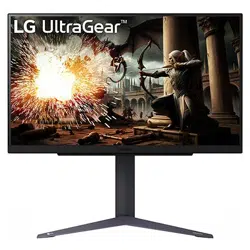
(LED Monitor)
User Manual
Please read this manual carefully before operating your set and retain it for future reference.
27GS75Q
27GS75QX
www.lg.com
Copyright © 2023 LG Electronics Inc. All Rights Reserved.

2
ENGLISH
2
TABLE OF CONTENTS
LICENSE .......................................3
OPEN SOURCE SOFTWARE
NOTICE INFORMATION ..............4
ASSEMBLING AND PREPARING 4
- Supported Drivers and Software .........................5
- Product and Button Description...........................5
How to Use the Joystick Button
- Moving and Lifting the Monitor............................6
Installing on a Table
Adjusting the Stand Height
Adjusting the Angle
Pivot Feature
Using the Kensington Lock
Installing the Wall Mount Plate
Installing on the Wall
USING THE MONITOR .............. 15
- Connecting to a PC...................................................15
HDMI Connection
DisplayPort Connection
- Connecting AV Devices ...........................................16
HDMI Connection
- Connecting Peripherals...........................................17
Connecting Headphones
USER SETTINGS ....................... 18
- Activating the Main Menu ....................................18
Main Menu Features
- User Settings ...............................................................20
Menu Settings
TROUBLESHOOTING ................ 30
PRODUCT SPECIFICATION ...... 34
- Factory Support Mode............................................36
- HDMI Timing (Video) ................................................38
- Power LED ..................................................................... 39
- Beep Guide .................................................................... 40
4
ENGLISH
OPEN SOURCE SOFTWARE
NOTICE INFORMATION
To obtain the source code that is contained in this product, under GPL, LGPL, MPL,
and other open source licenses that have the obligation to disclose source code, and
to access all referred license terms, copyright notices and other relevant documents,
please visit https://opensource.lge.com.
LG Electronics will also provide open source code to you on CD-ROM for a charge
covering the cost of performing such distribution (such as the cost of media,
shipping, and handling) upon email request toopensourc[email protected].
This offer is valid to anyone in receipt of this information for a period of three
yearsafter our last shipment of this product.
ASSEMBLING AND PREPARING
CAUTION
• Always use genuine LG components to ensure safety and product performance.
• The product warranty will not cover damage or injury caused by the use of
unauthorized components.
• It is recommended that use the supplied components.
• If you use generic cables not certified by LG, the screen may not display or there
may be image noises.
• Illustrations in this document represent typical procedures, so they may look
different from the actual product.
• Do not apply foreign substances (oils, lubricants, etc.) to the screw parts when
assembling the product. (Doing so may damage the product.)
• Applying excessive force when tightening screws may cause damage to the
monitor. Damage caused in this way will not be covered by the product warranty.
• Do not carry the monitor upside down by just holding the base. This may cause the
monitor to fall off the stand and could result in personal injury.
• When lifting or moving the monitor, do not touch the monitor screen. The force
applied to the monitor screen may cause damage to it.
• For wave pattern on appearance, unlike the general method of coating, it’s applied
to added glittering material in raw material. With no peeled-off appearance, it has
good durability. Please use it with confidence because there is no problem in using
the product at all.
NOTE
• The components may look different from those illustrated here.
• Without prior notice, all product information and specifications contained in this
manual are subject to change to improve the performance of the product.
• To purchase optional accessories, visit an electronics store or an online shopping
site, or contact the retailer from where you purchased the product.
• The power cord provided may differ depending upon the region.
6
ENGLISH
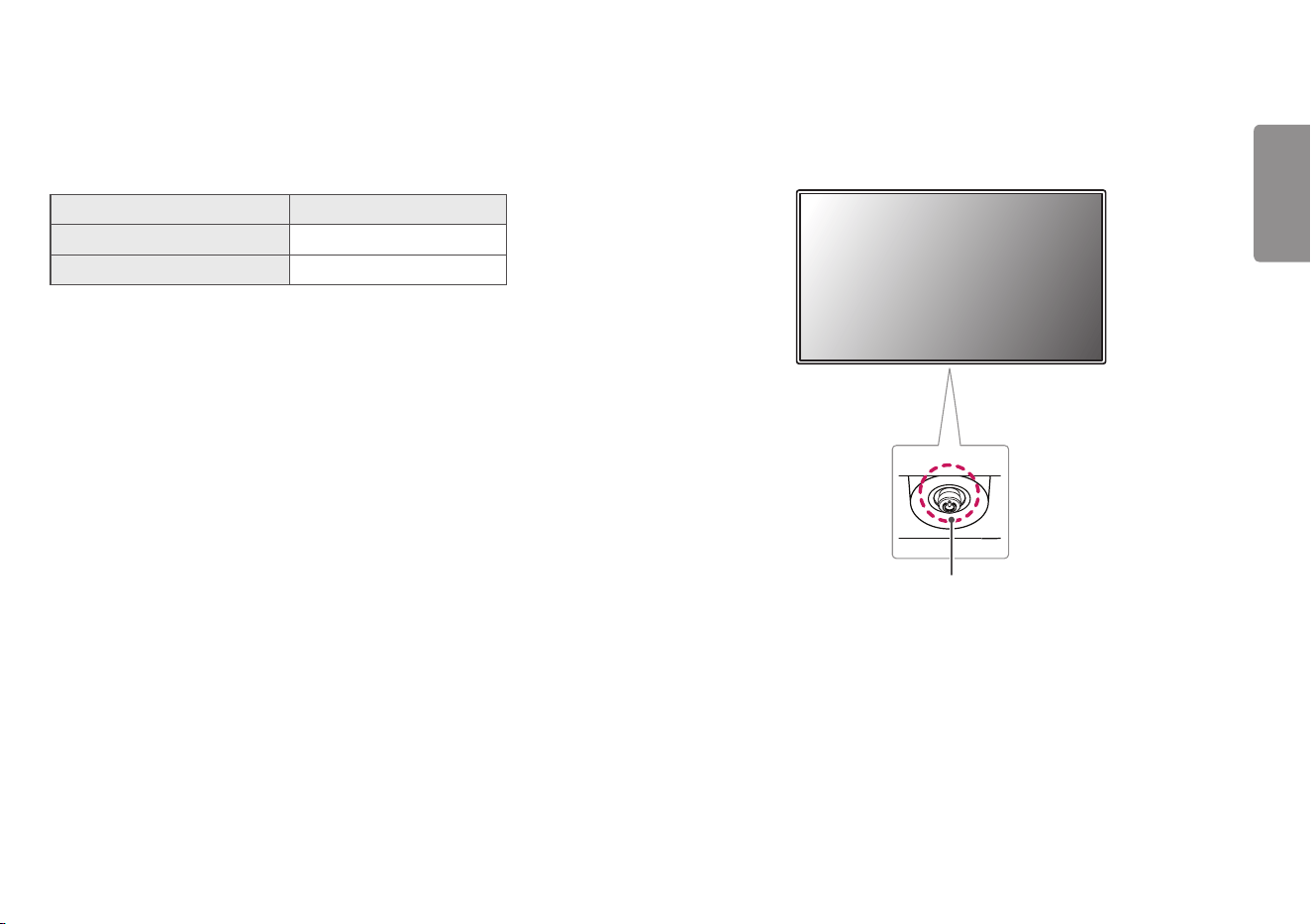
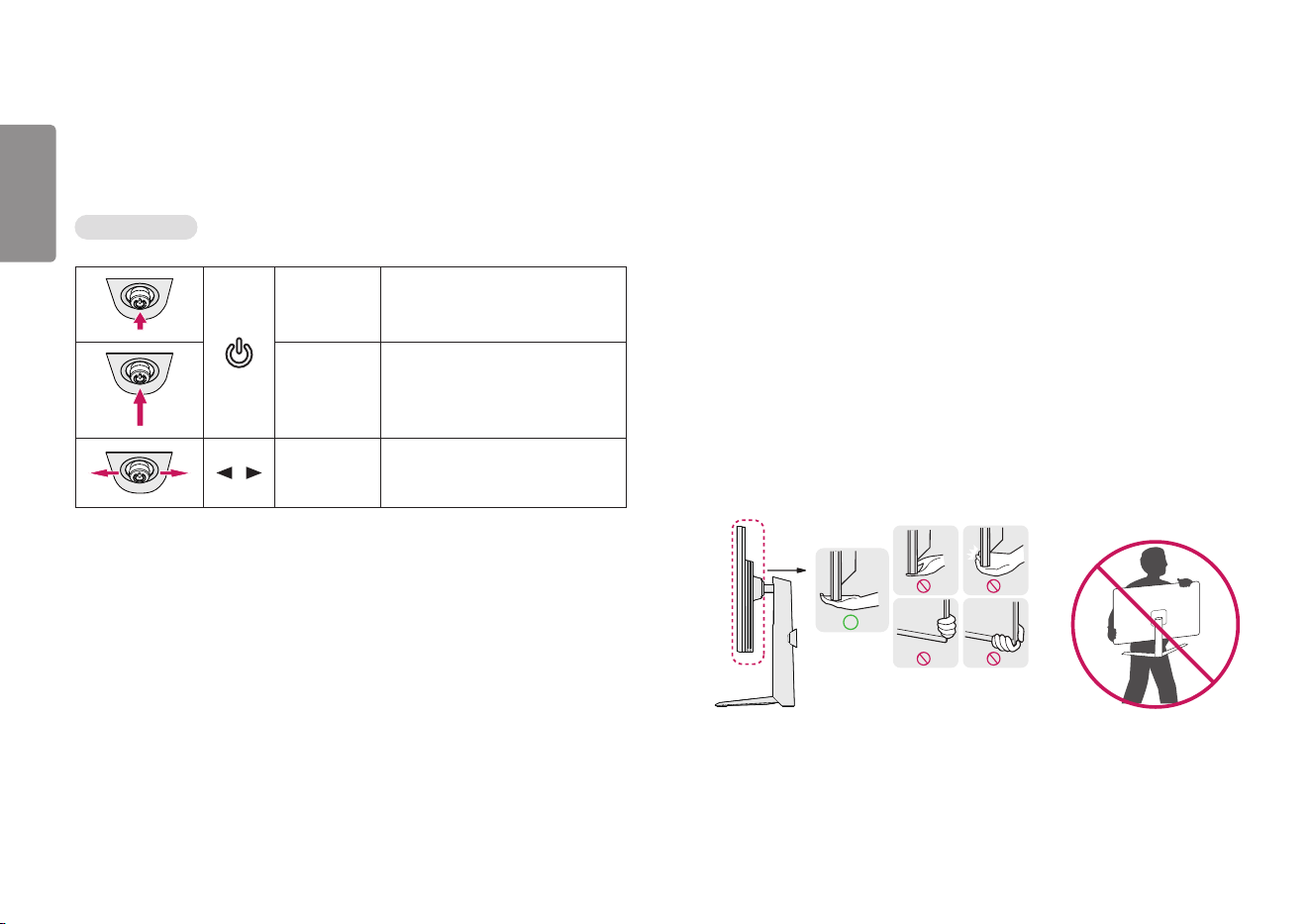
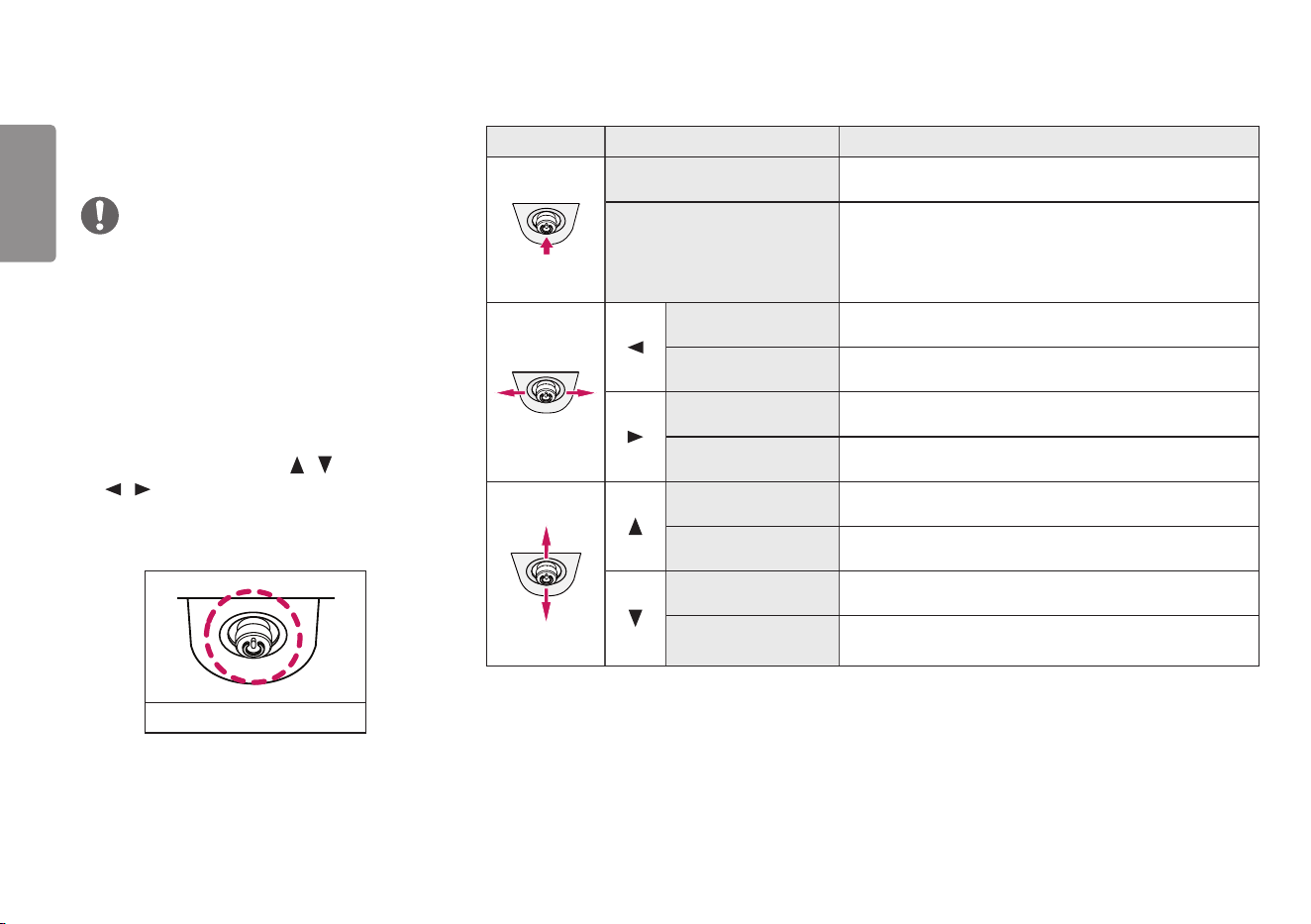
How to Use the Joystick Button
You can easily control the functions of the monitor by pressing the joystick button or
moving it left/right/up/down with your finger.
Basic Functions
Power on
Press the joystick button once
with your finger to turn on the
monitor.
Power off
Press and hold the joystick button
once with your finger to turn off
the monitor.
/
Volume
control
You can control the volume by
moving the joystick button left/
right.
Moving and Lifting the Monitor
When moving or lifting the monitor, follow these instructions to prevent the monitor
from being scratched or damaged and to ensure safe transportation, regardless of
its shape or size.
• Place the monitor in the original box or packing material before attempting to
move it.
• Before moving or lifting the monitor, disconnect the power cord and all other
cables.
• Hold the bottom and side of the monitor frame firmly. Do not hold the panel itself.
• When holding the monitor, the screen should face away from you to prevent it
from being scratched.
• When transporting the monitor, do not expose the monitor to shock or excessive
vibration.
• When moving the monitor, keep it upright and never turn the monitor on its side or
tilt it sideways.
7
ENGLISH
Installing on a Table
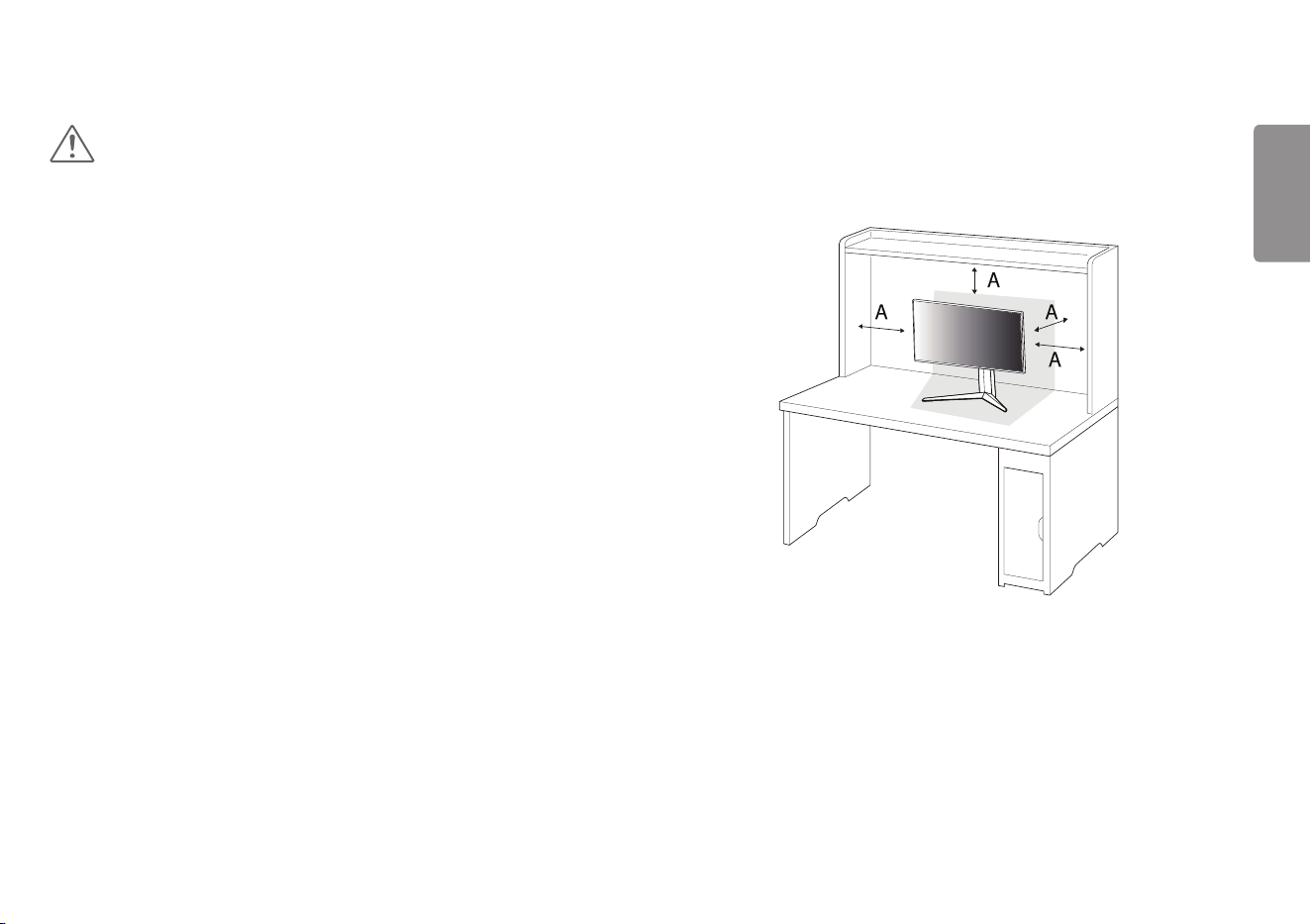
• Lift the monitor and place it on the table in an upright position. Place the monitor
at least 100mm (3.94 inches) away from the wall to ensure sufficient ventilation.
A :100 mm (3.94 inches)
CAUTION
• Avoid touching the monitor screen as much as possible.
- This may result in damage to the screen or some of the pixels used to create
images.
• If you use the monitor panel without the stand base, its joystick button may cause
the monitor to become unstable and fall, resulting in damage to the monitor or
human injury. In addition, this may cause the joystick button to malfunction.
8
ENGLISH
CAUTION
• Unplug the power cord before moving or installing the monitor. There is risk of
electric shock.
• Make sure to use the power cord that is provided in the product package and
connect it to a grounded power outlet.
• If you need another power cord, please contact your local dealer or the nearest
retail store.
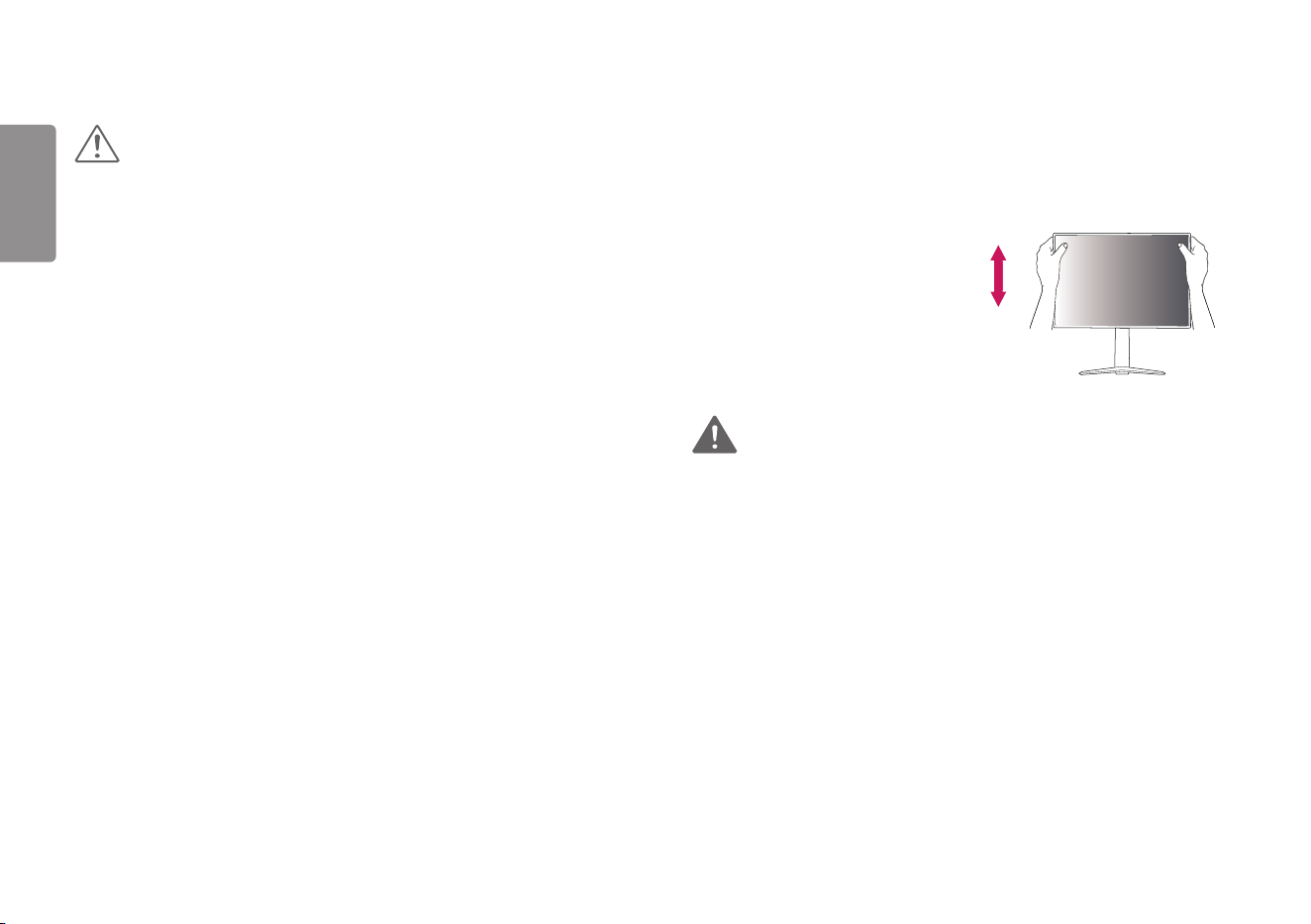
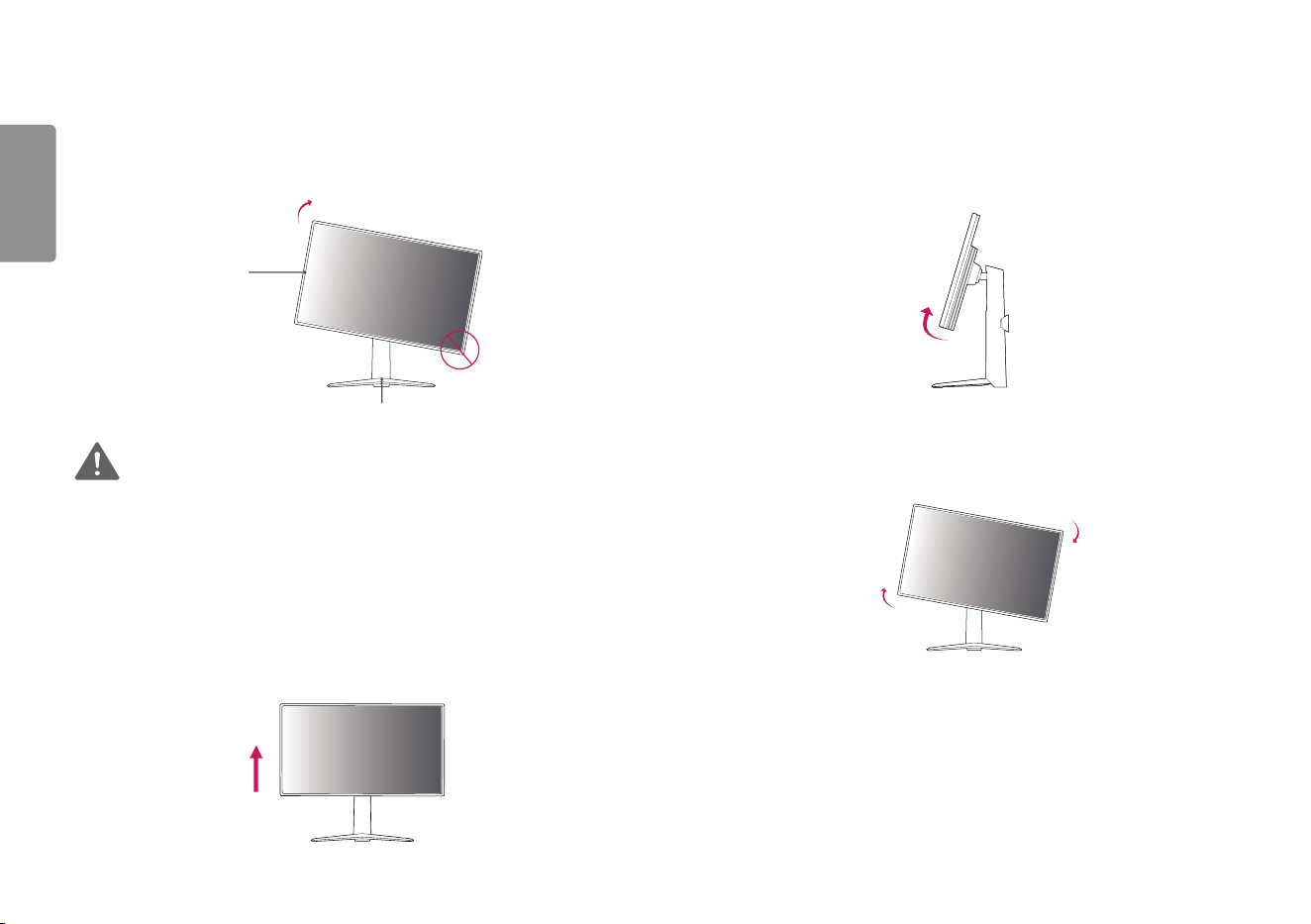
Adjusting the Stand Height
1 Place the monitor mounted on the stand base in an upright position.
2 Handle the monitor with both hands for safety.
Max. 110.0 mm (4.3 inches)
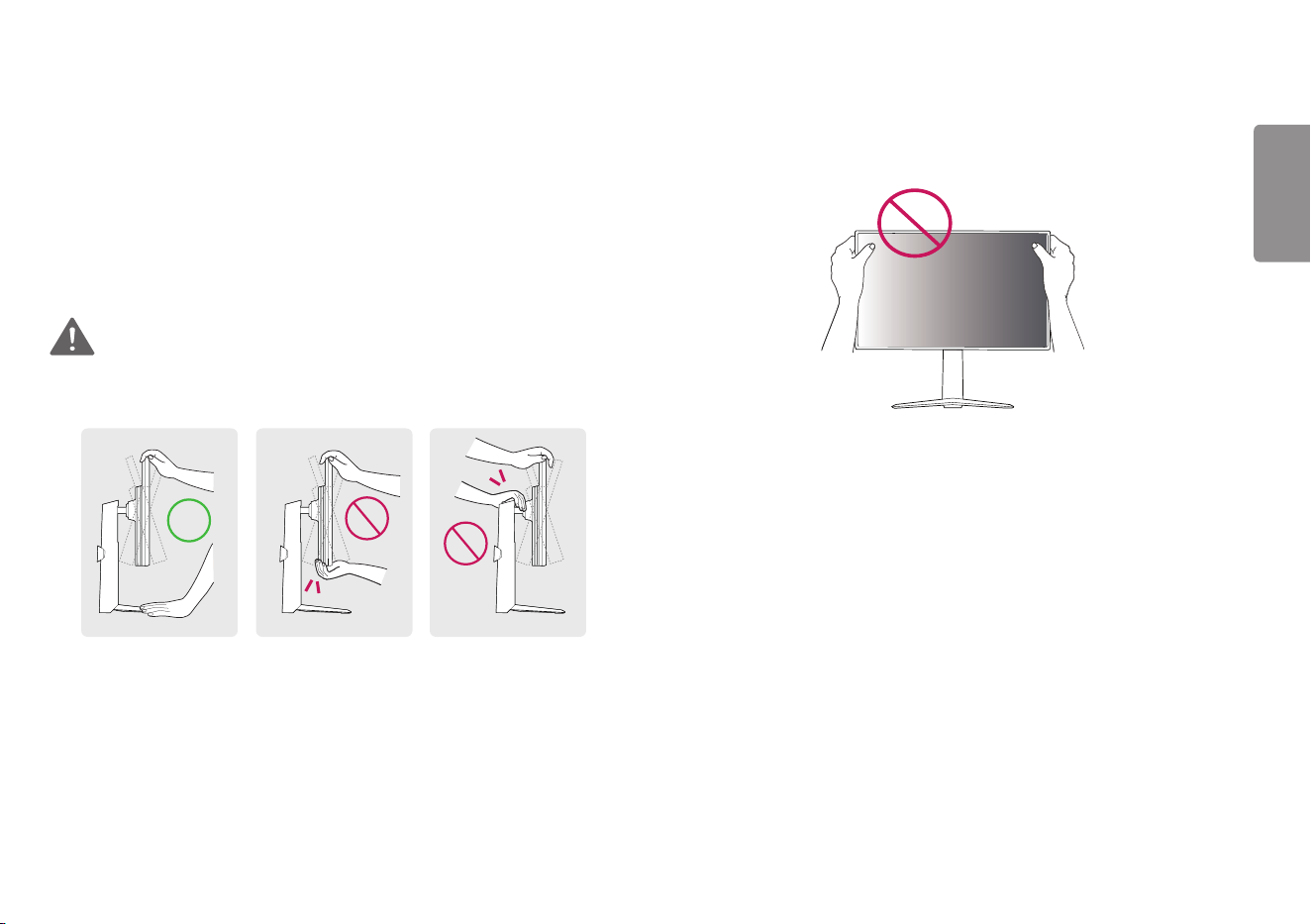
WARNING
• When adjusting the screen height, do not place your hand on the stand body to
avoid injury to your fingers.
9
ENGLISH
Adjusting the Angle
1 Place the monitor mounted on the stand base in an upright position.
2 Adjust the angle of the screen.
The angle of the screen can be adjusted forward or backward from -5° to 15° for a
comfortable viewing experience.
WARNING
• To avoid injury to the fingers when adjusting the screen, do not hold the lower part
of the monitor’s frame as illustrated below.
• Be careful not to touch or press the screen area when adjusting the angle of the
monitor.
10
ENGLISH
Pivot Feature
The pivot feature allows the monitor to rotate 90° clockwise.
Head
Stand
WARNING
• To avoid scratching the stand base, make sure that when rotating the monitor
using the pivot feature, the stand does not make contact with the monitor.
• When using the Pivot function, do not rotate the monitor too fast or with
excessive force.
- The head may come in contact with the stand and scratch the base.
- Be careful as you may injure your finger by jamming it between the head and the
stand.
1 Raise the monitor to the maximum height.
2 Adjust the angle of the monitor in the direction of the arrow as shown in the
figure.
3 Rotate the monitor clockwise as shown in the figure.
11
ENGLISH
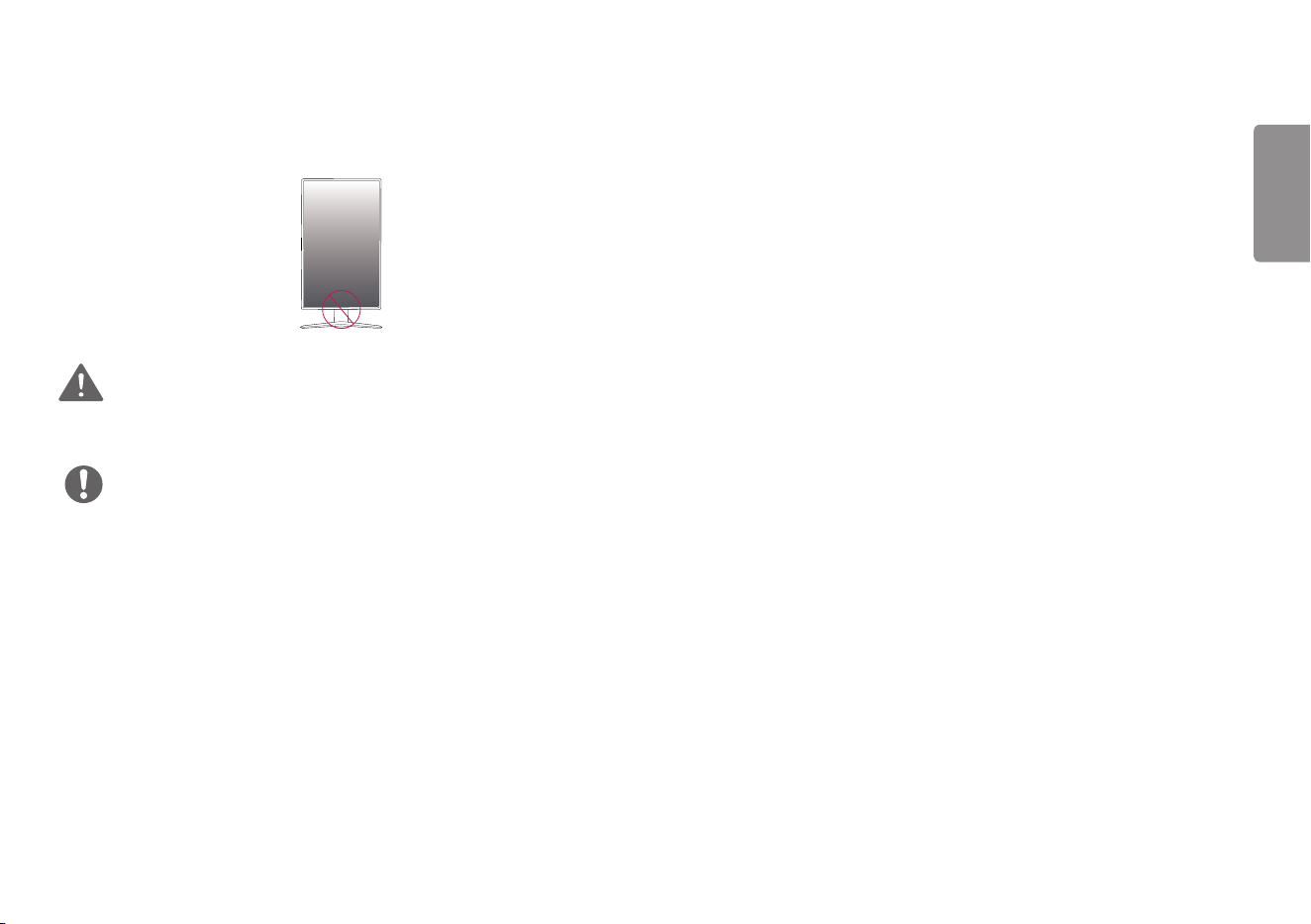
4 Complete the installation by rotating the monitor 90° as shown below.
WARNING
• Be careful as you may injure your finger by jamming it between the head and the
desk.
NOTE
• Auto Pivot feature of the display is not supported.
• The screen can be rotated easily using the screen pivot shortcut key provided
with your Windows operating system. Note that some Windows versions and
some graphics card drivers may use different settings for the screen pivot key or
may not support the pivot key at all.
12
ENGLISH
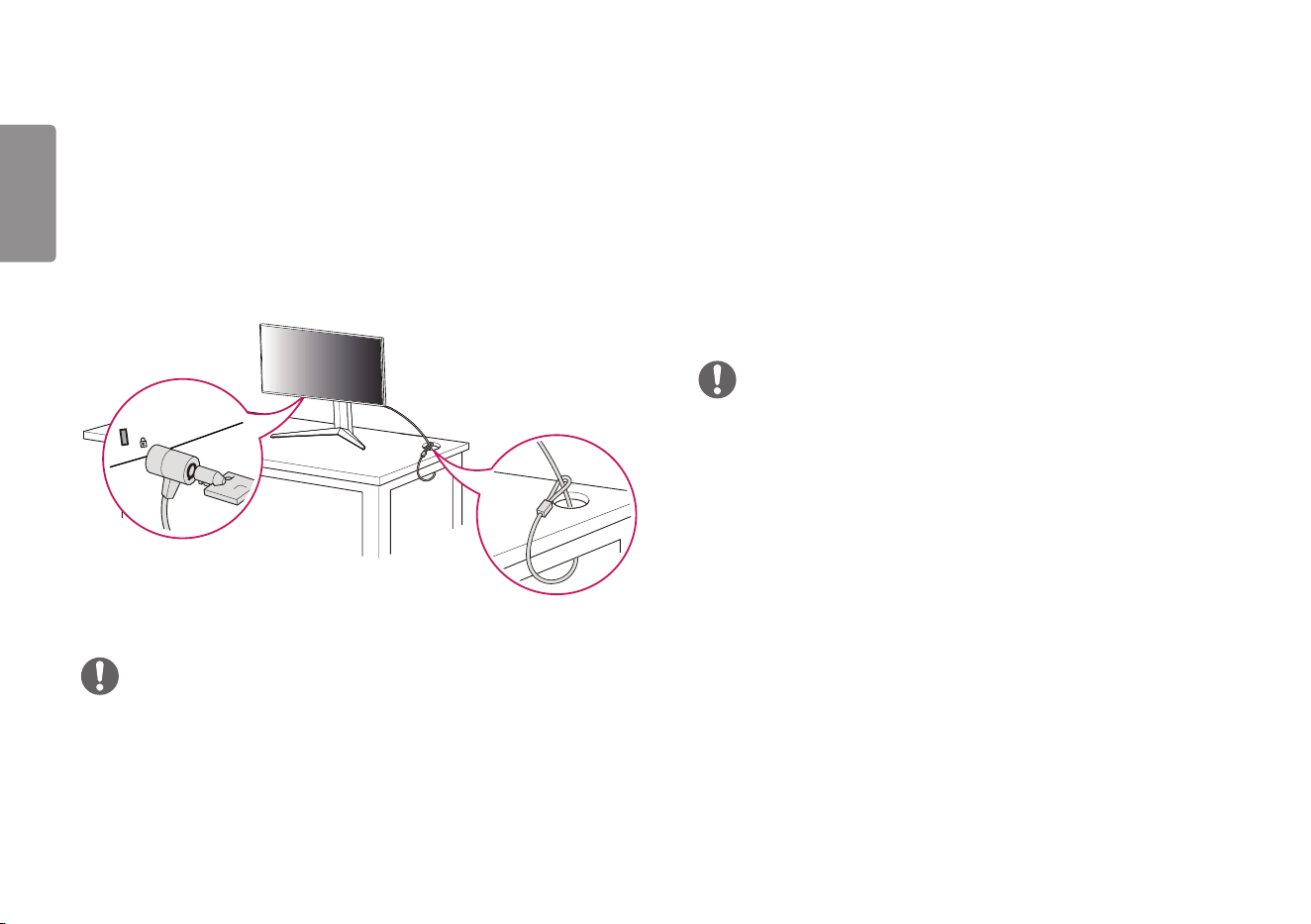
Using the Kensington Lock
The connector for the Kensington security system is located at the bottom of the
monitor.
For more information on installation and usage, refer to the Kensington lock owner’s
manual or visit the website at http://www.kensington.com.
Connect the monitor to a table using the Kensington security system cable.
NOTE
• The Kensington security system is optional. You can obtain optional accessories
from most electronics stores.
Installing the Wall Mount Plate
This monitor meets the specifications for the wall mount plate or other compatible
devices.
1 Place the screen face down. To protect the monitor panel (screen), cover the
surface with a soft cloth or the monitor protection pad included in the product
package.
2 Remove the four screws tightened on the back of the monitor.
3 Place the wall mount plate onto the monitor and align it with the screw holes.
4 Tighten the four screws using a screwdriver to fix the plate to the monitor.
NOTE
• The wall mount plate is sold separately.
• For more information on installation, refer to the wall mount plate’s installation
guide.
• Be careful not to apply too much force while mounting the wall mount plate as it
may cause damage to the screen.
13
ENGLISH
Installing on the Wall
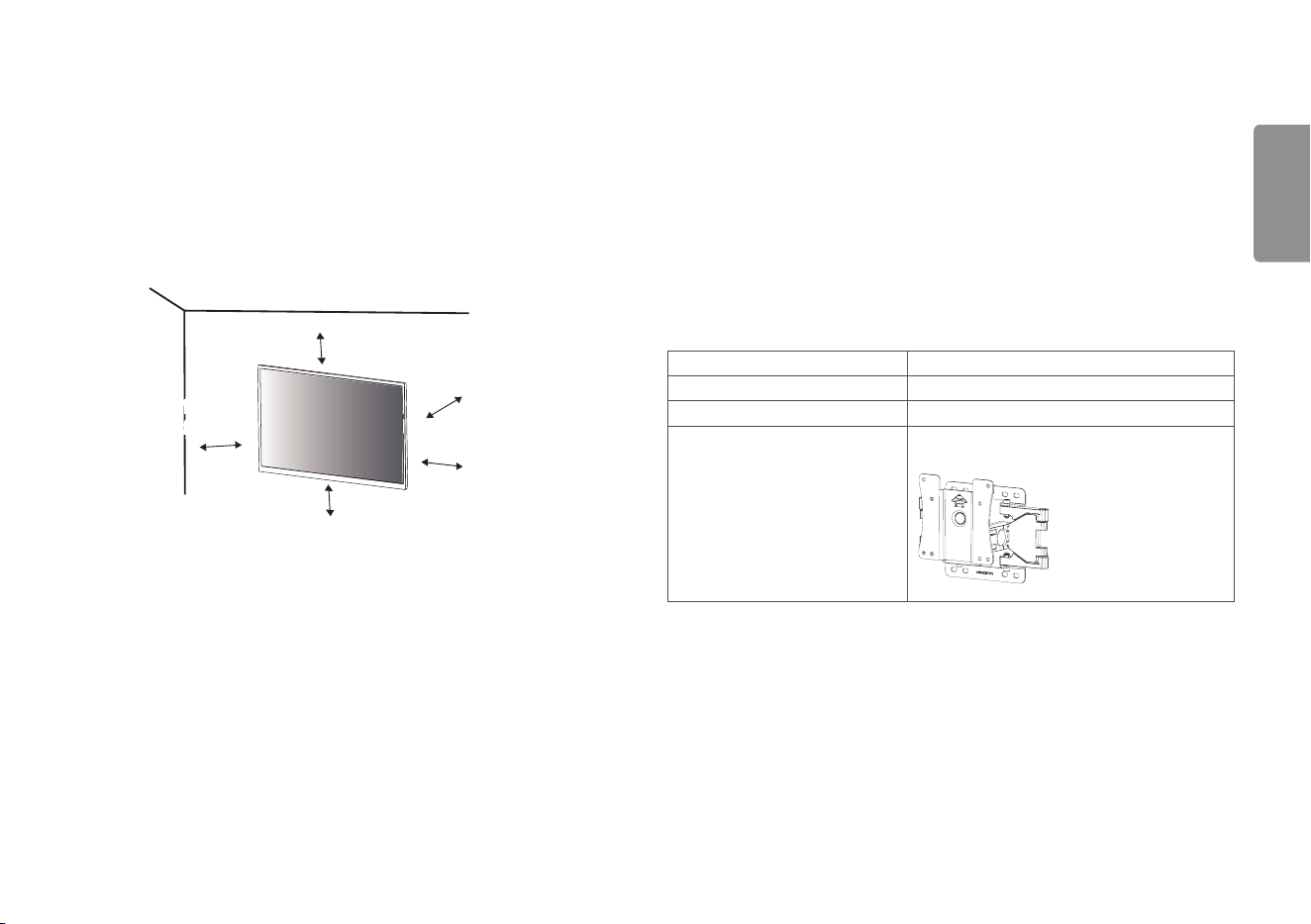
Install the monitor at least 100mm (3.94 inches) away from the wall and leave
about 100mm (3.94 inches) of space at each side of the monitor to ensure
sufficient ventilation. Detailed installation instructions can be obtained from your
local retail store. Alternatively, please refer to the manual for how to install and set
up a tilting wall mounting bracket.
100 mm
(
3.94 inches)
100 mm
(3.94 inches)
100 mm
(3.94 inches)
100 mm
(3.94 inches)
100 mm
(3.94 inches)
To install the monitor to a wall, attach a wall mounting bracket (optional) to the back
of the monitor.
Make sure that the wall mounting bracket is securely fixed to the monitor and to the
wall.
1 If you use screws longer than the standard length, it may damage the inside of
the product.
2 A non-VESA standard screw may damage the product and cause the monitor
to fall. LG Electronics is not liable for any accidents relating to the use of non-
standard screws.
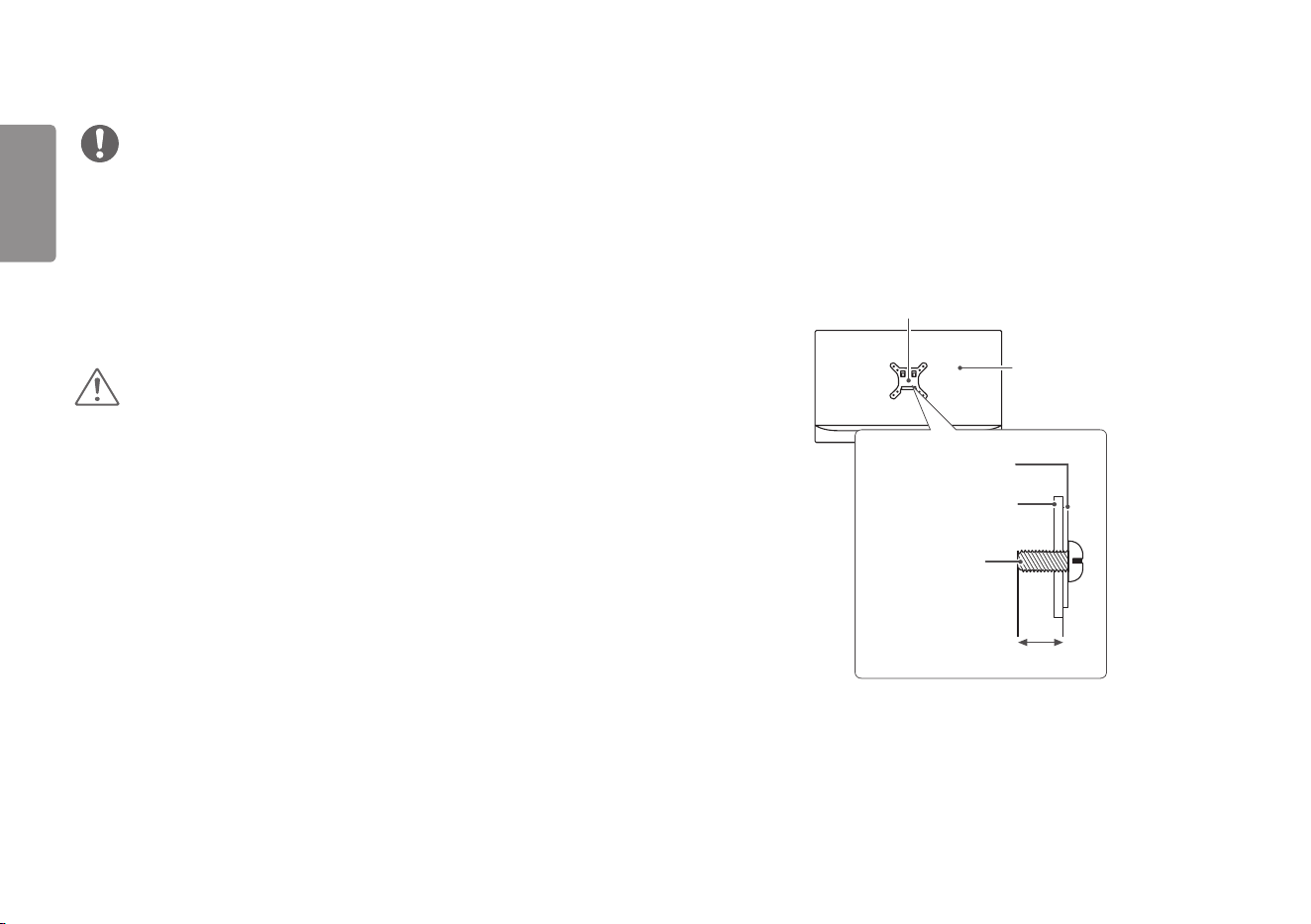
Wall Mount (mm/inches) 100 x 100 / 3.94 x 3.94
Standard screw M4 x L10
Number of screws 4
Wall Mount Plate (Optional) LSW 149
14
ENGLISH
NOTE
• Use the screws specified by VESA standards.
• The wall mount kit includes the installation guide and all necessary parts.
• The wall mounting bracket is optional. You can obtain optional accessories from
your local dealer.
• The length of the screw may differ for each wall mounting bracket. Be sure to use
the proper length.
• For more information, please refer to the user manual for the wall mounting
bracket.
CAUTION
• Unplug the power cord before moving or installing the monitor to avoid electric
shock.
• Installing the monitor on the ceiling or on a slanted wall may result in the monitor
falling off, which could lead to injury. Use an authorized LG wall mount and contact
the local dealer or qualified personnel.
• Applying excessive force when tightening screws may cause damage to the
monitor. Damage caused in this way will not be covered by the product warranty.
• Use the wall mounting bracket and screws that conform to VESA standards.
Damage caused by the use or misuse of inappropriate components will not be
covered by the product warranty.
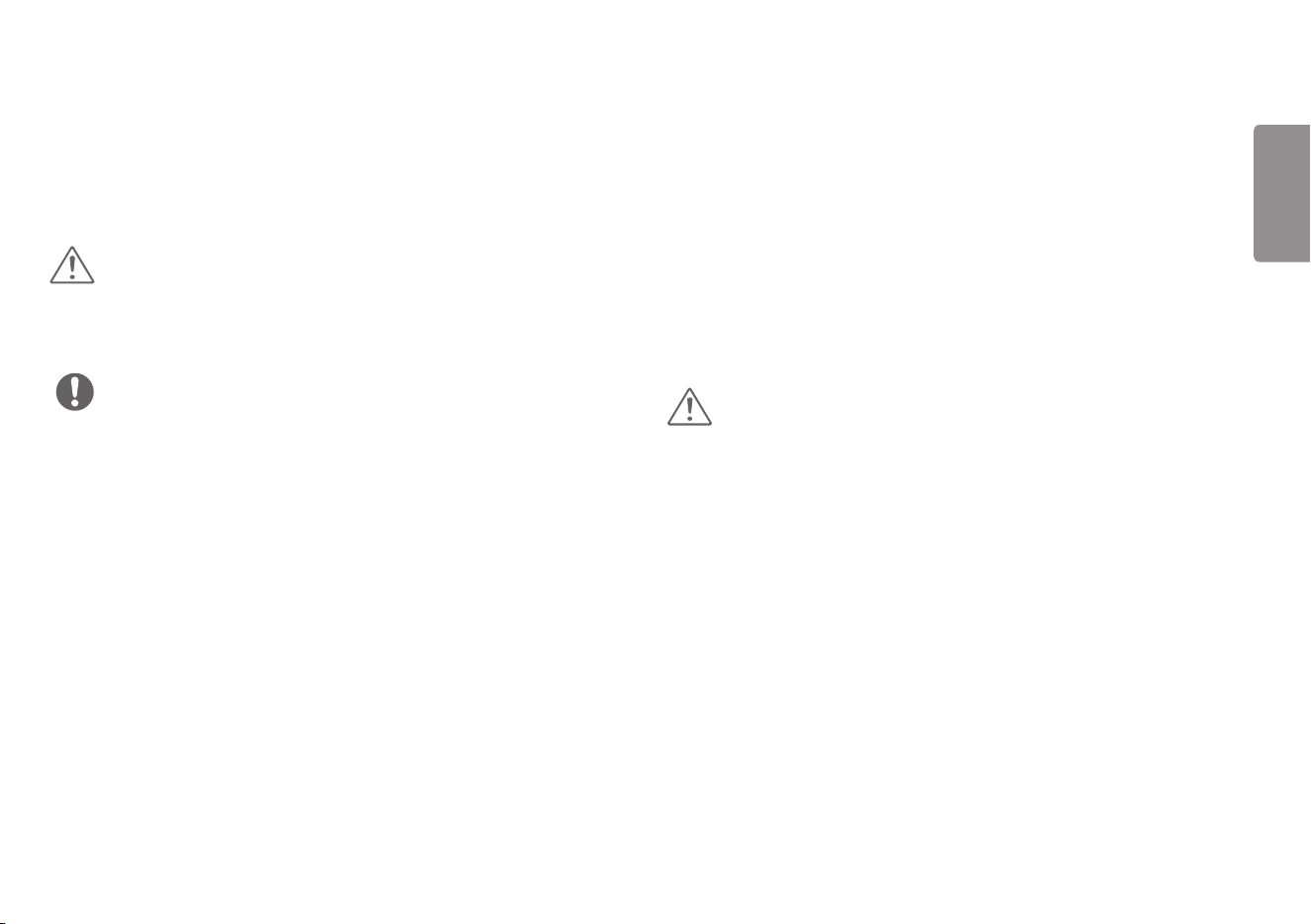
• When measured from the back of the monitor, the length of each installed screw
must be 8 mm (0.3 inches) or less.
Wall Mount Plate
Back of the Monitor
Screw
Dimensions:
M4 x L10
Wall Mount Plate
Back of the
Monitor
Max. 8 mm (0.3 inches)
15
ENGLISH
USING THE MONITOR
• Illustrations in this manual may differ from the actual product.
Press the joystick button, go to Settings → Input, and then select the input option.
CAUTION
• Do not press the screen for a prolonged time. This may cause image distortion.
• Do not display a still image on the screen for a prolonged time. This may cause
image retention. Use a screensaver if possible.
NOTE
• When connecting the power cord to the outlet, use a grounded (3-hole) power
strip or a grounded power outlet.
• The monitor may flicker when turned on in an area where the temperature is low.
This is normal.
• Sometimes red, green, or blue spots may appear on the screen. This is normal.
Connecting to a PC
• This monitor supports the *Plug and Play feature.
* Plug and Play: A feature that allows you to add a device to your computer without
having to reconfigure anything or install any manual drivers.
HDMI Connection
Transmits digital video and audio signals from your PC to the monitor.
CAUTION
• Using a DVI to HDMI / DP (DisplayPort) to HDMI cable may cause compatibility
issues.
• Use a certified cable with the HDMI logo attached. If you do not use a certified
HDMI cable, the screen may not display or a connection error may occur.
• Recommended HDMI cable types
- Ultra High Speed HDMI®/
TM
cable
16
ENGLISH
DisplayPort Connection
Transmits digital video and audio signals from your PC to the monitor.
NOTE
• There may be no video or audio output depending on the DP (DisplayPort) version
of the PC.
• If you are using a Mini DisplayPort output graphics card, use a Mini DP to DP (Mini
DisplayPort to DisplayPort) cable or gender that supports DisplayPort1.4. (sold
separately)
Connecting AV Devices
HDMI Connection
HDMI transmits digital video and audio signals from your AV device to the monitor.
NOTE
• Using a DVI to HDMI / DP (DisplayPort) to HDMI cable may cause compatibility
issues.
• Use a certified cable with the HDMI logo attached. If you do not use a certified
HDMI cable, the screen may not display or a connection error may occur.
• Recommended HDMI cable types
- Ultra High Speed HDMI®/
TM
cable
17
ENGLISH
Connecting Peripherals
Connecting Headphones
Connect peripherals to the monitor via the headphones port.
NOTE
• Peripheral devices are sold separately.
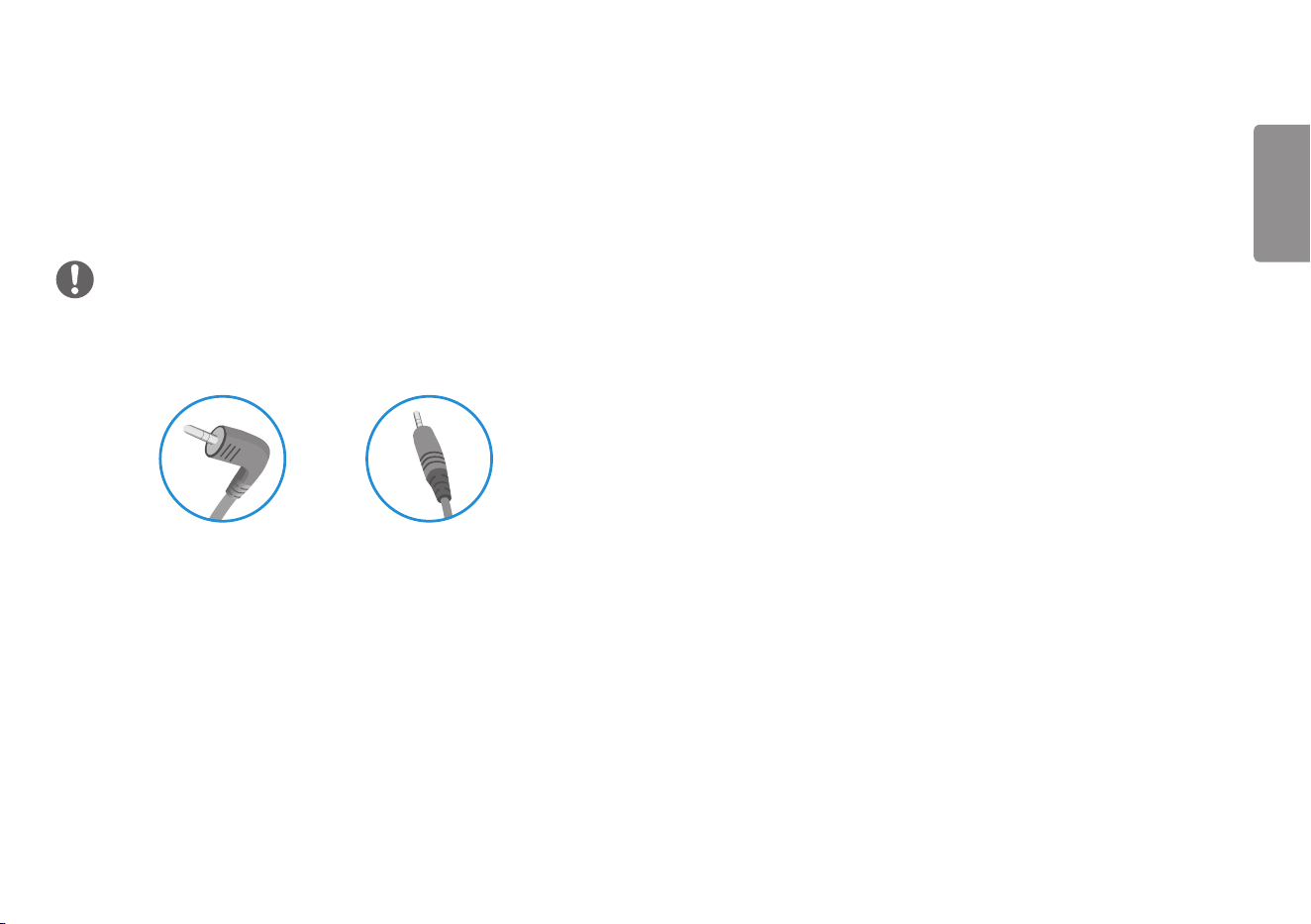
• If you use angled earphones, it may cause a problem with connecting another external
device to the monitor. Therefore, it is recommended to use straight earphones.
Angled Straight
(Recommend)
• Depending on the audio settings of the PC and external device, headphones
functions may be limited.
18
ENGLISH
USER SETTINGS
NOTE
• Your monitor’s OSD (On Screen Display) may differ
slightly from that shown in this manual.
• When Beep Guide is activated, pressing the joystick
button will take you to Settings right away.
Activating the Main Menu
1 Press the joystick button on the bottom of the
monitor.
2 Move the joystick up/down ( / ) and left/right
( / ) to set the options.
3 Press the joystick button once more to exit the
main menu.
Joystick Button
Button Menu Status Description
Main menu disabled Enables the main menu.
Main menu enabled
Enters the Settings feature.
(Holding down the button to turn off the monitor. You can
turn off the monitor this way at any time, including when the
OSD is on.)
Main menu disabled Adjusts the monitor volume level.
Main menu enabled Enters the Input feature.
Main menu disabled Adjusts the monitor volume level.
Main menu enabled Enters the Game Mode feature.
Main menu disabled Enters the Accessibility menu.
Main menu enabled Turns off the monitor.
Main menu disabled Enters the Accessibility menu.
Main menu enabled Exits the main menu.
19
ENGLISH
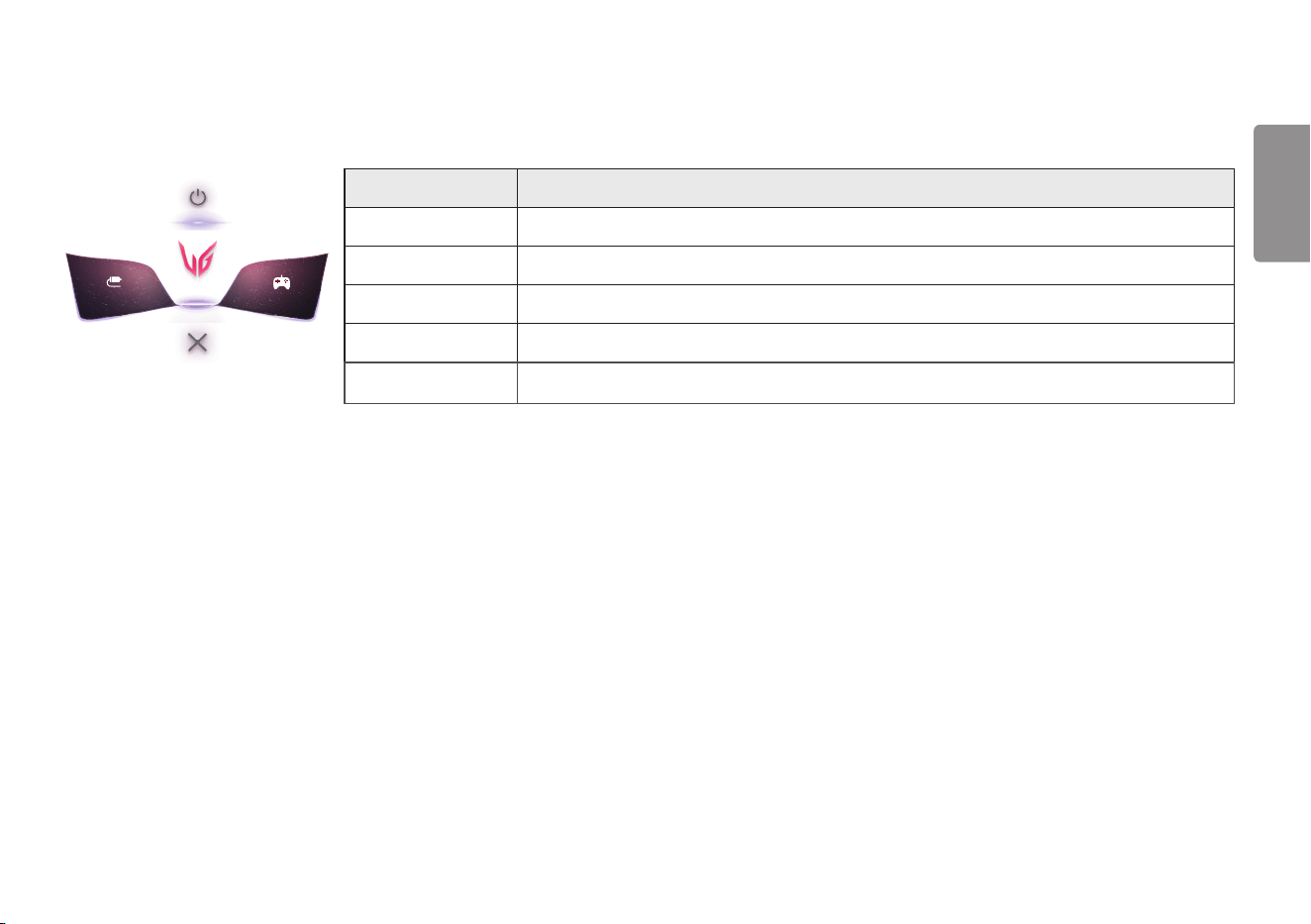
Main Menu Features
Power Off
Input Game Mode
Settings
Exit
Main Menu Description
Input Sets input mode.
Power Off Turns off the monitor.
Settings Configures the screen settings.
Game Mode Sets the game mode for gaming.
Exit Exits the main menu.
20
ENGLISH
User Settings
Menu Settings
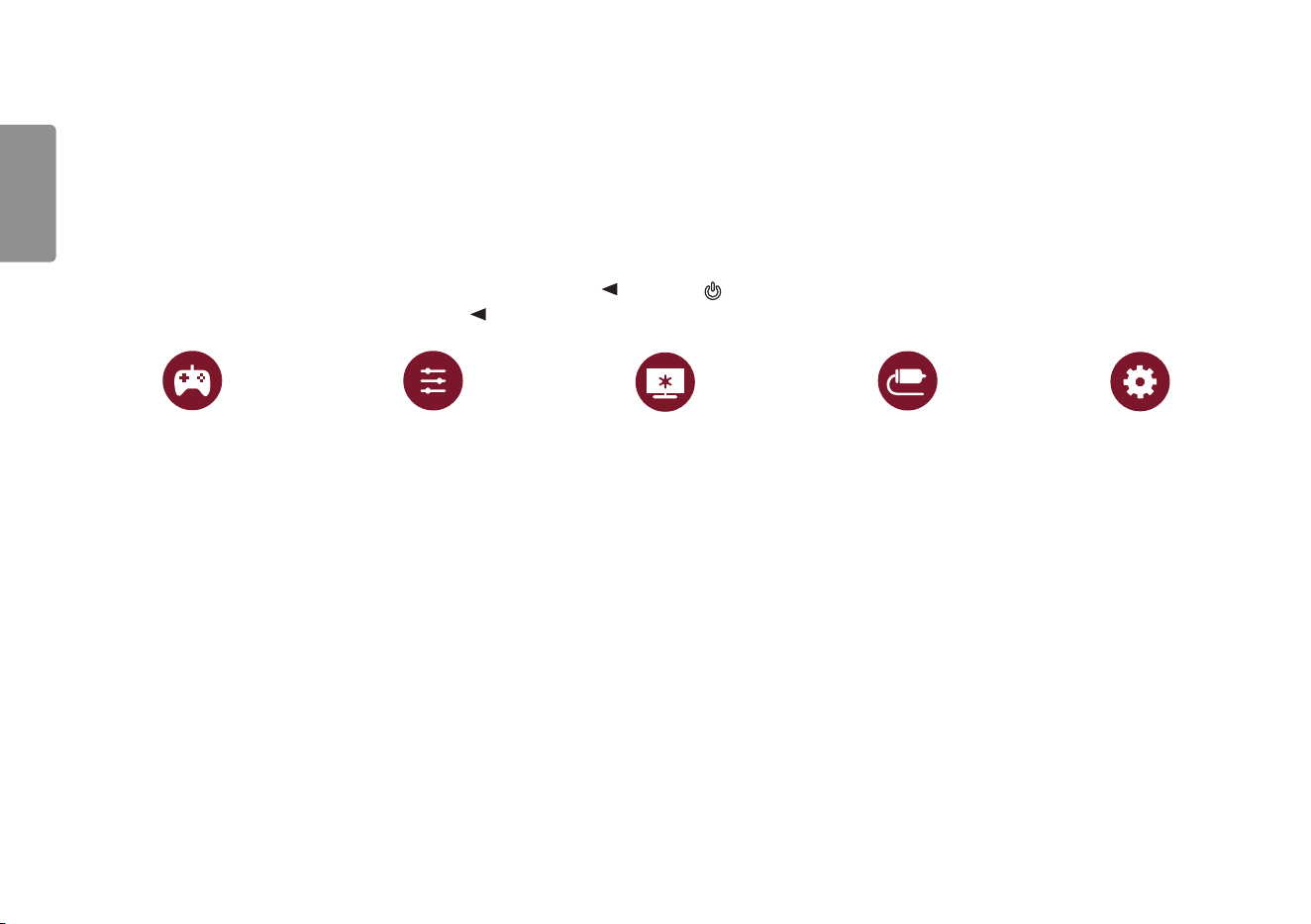
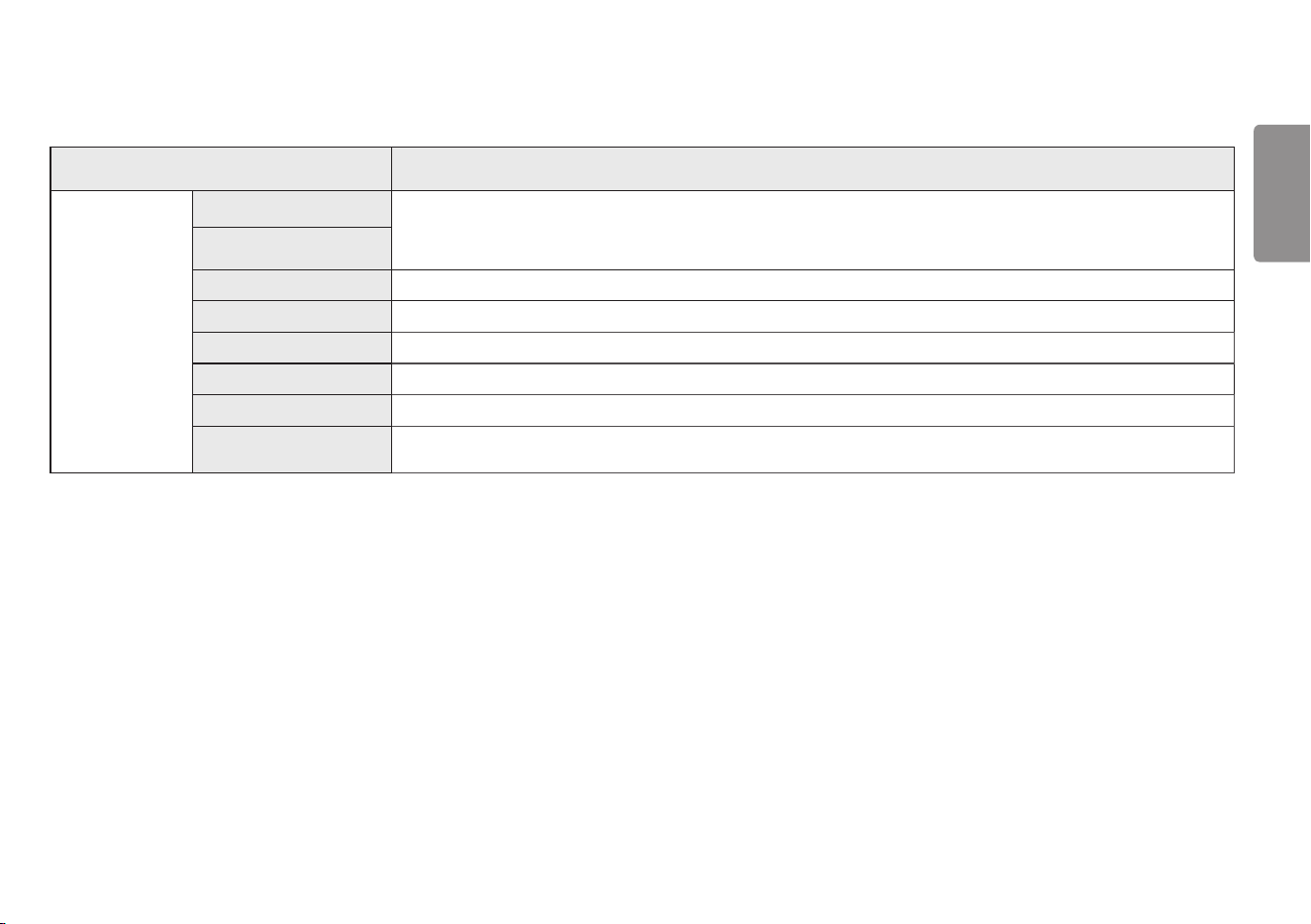
1 To view the OSD menu, press the joystick button at the bottom of the monitor and then enter the Settings.
2 Configure the options by moving the joystick up/down/left/right.
3 To return to the upper menu or set other menu items, move the joystick to or pressing ( ) it.
4 If you want to exit the OSD menu, move the joystick to until you exit.
Game Mode Game Adjust Picture Adjust Input General
21
ENGLISH
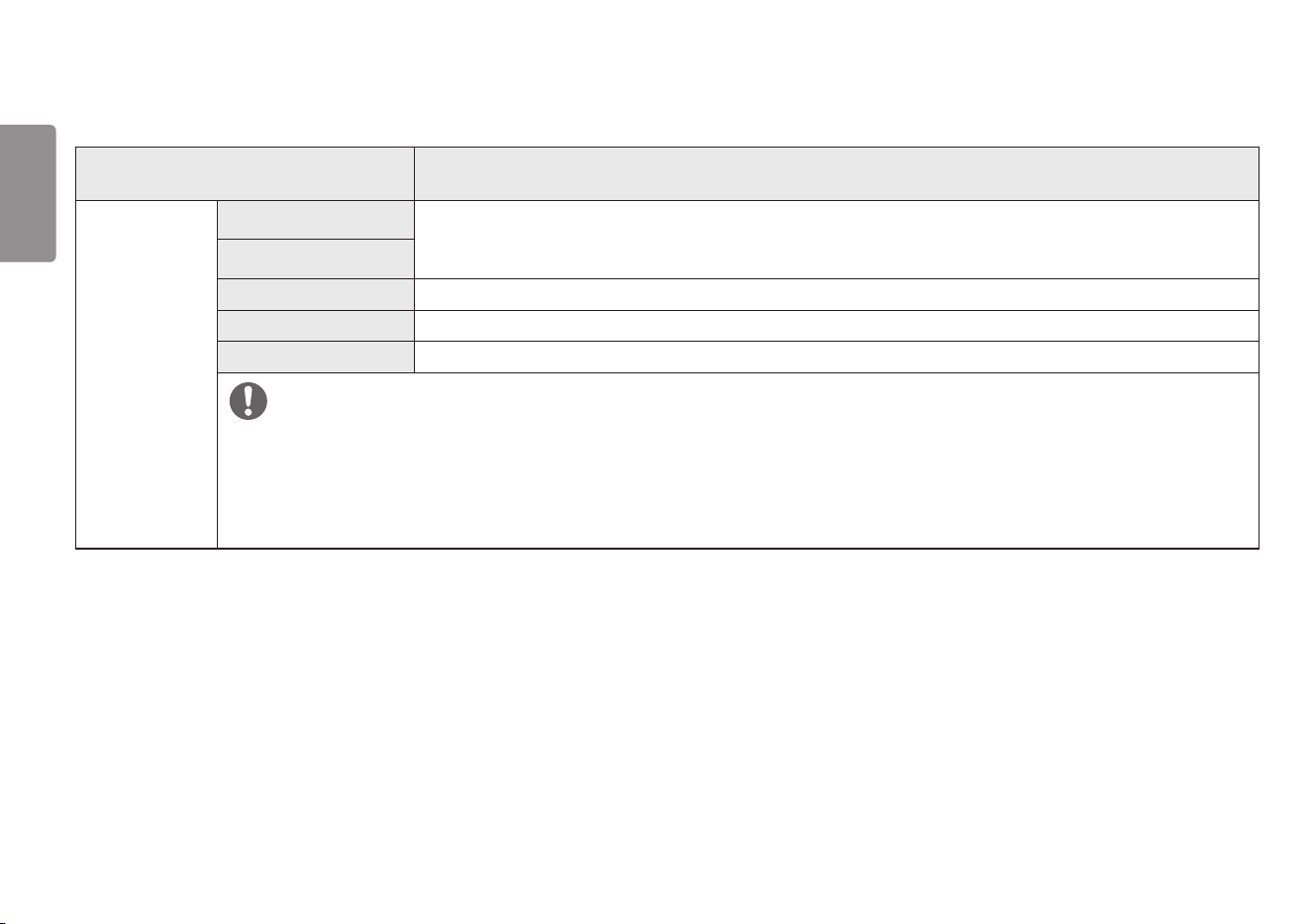
Game Mode on SDR(Non-HDR)signal.
Settings > Game Mode Description
Game Mode
Gamer 1
In this mode, users can customize elements including game-related options.
Gamer 1 and Gamer 2 picture modes allow you to save two sets of customized display settings, including game-related
setup options.
Gamer 2
FPS This mode is optimized for FPS games.
RTS This mode is optimized for RTS Game.
Vivid Heightens contrast, brightness and sharpness to display vivid images.
Reader Optimizes the screen for viewing documents. You can brighten the screen in the OSD menu.
HDR Effect Optimizes the screen for high dynamic range.
Color Weakness
This mode is for users who cannot distinguish between red and green. It enables users with color weakness to easily
distinguish between the two colors.
22
ENGLISH
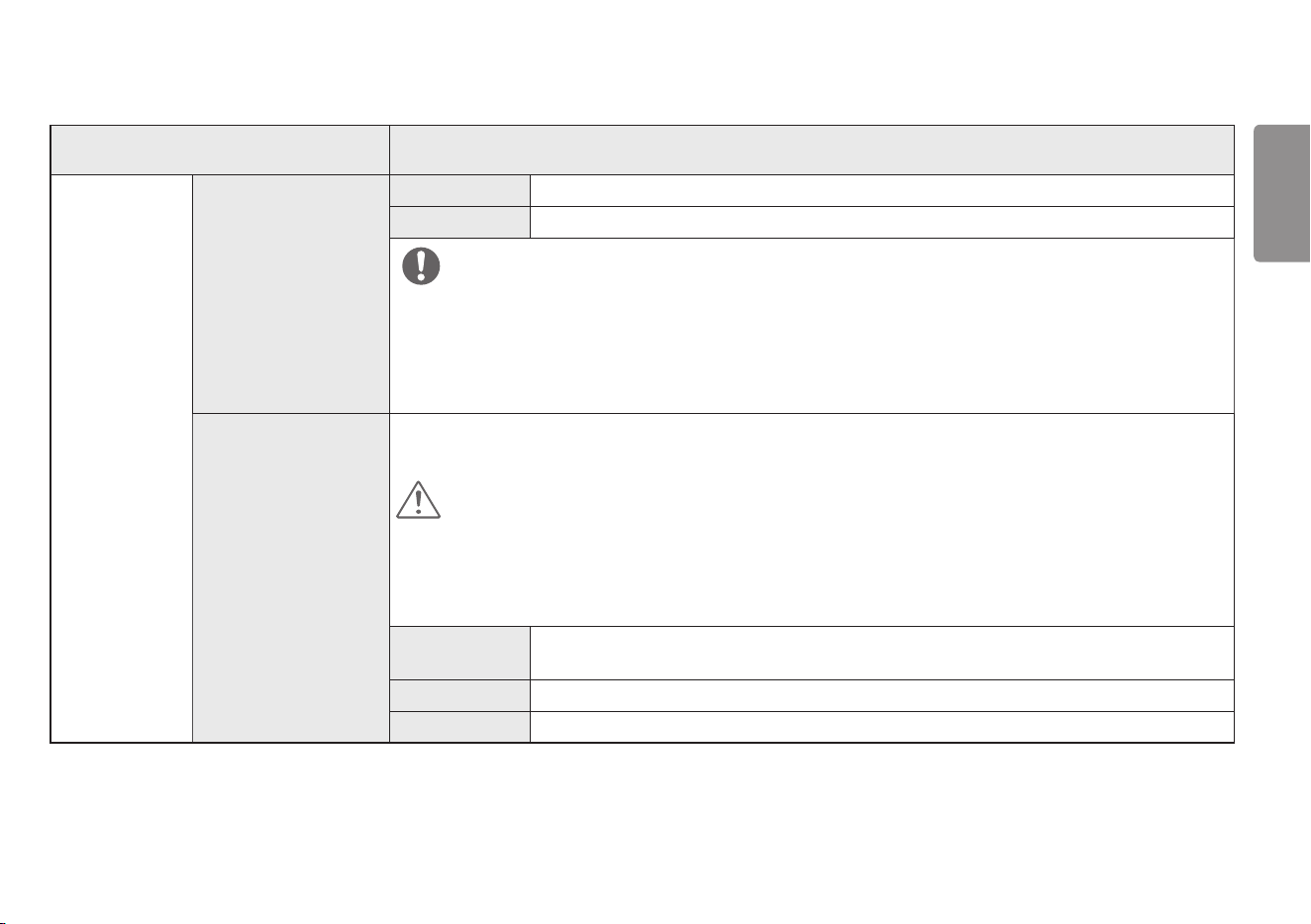
Game Mode on HDR signal.
Settings > Game Mode Description
Game Mode
Gamer 1
In this mode, users can customize elements including game-related options.
Gamer 1 and Gamer 2 picture modes allow you to save two sets of customized display settings, including game-related
setup options.
Gamer 2
FPS This mode is optimized for FPS games. It is suitable for very dark FPS games.
RTS This mode is optimized for RTS games.
Vivid Optimized the screen for vivid colors.
NOTE
• HDR content may not be operated properly depending on the Windows10 OS setting. Please check the HDR On / Off setting of Windows.
• When the HDR function is turned on, the characters or picture quality may be poor according to Graphic card performance.
• While the HDR function is on, screen flickering or cracking may occur when changing the monitor input or power on/off according to Graphic card
performance.
• For information about whether the graphics card and game support HDR, visit their manufacture's website.
23
ENGLISH
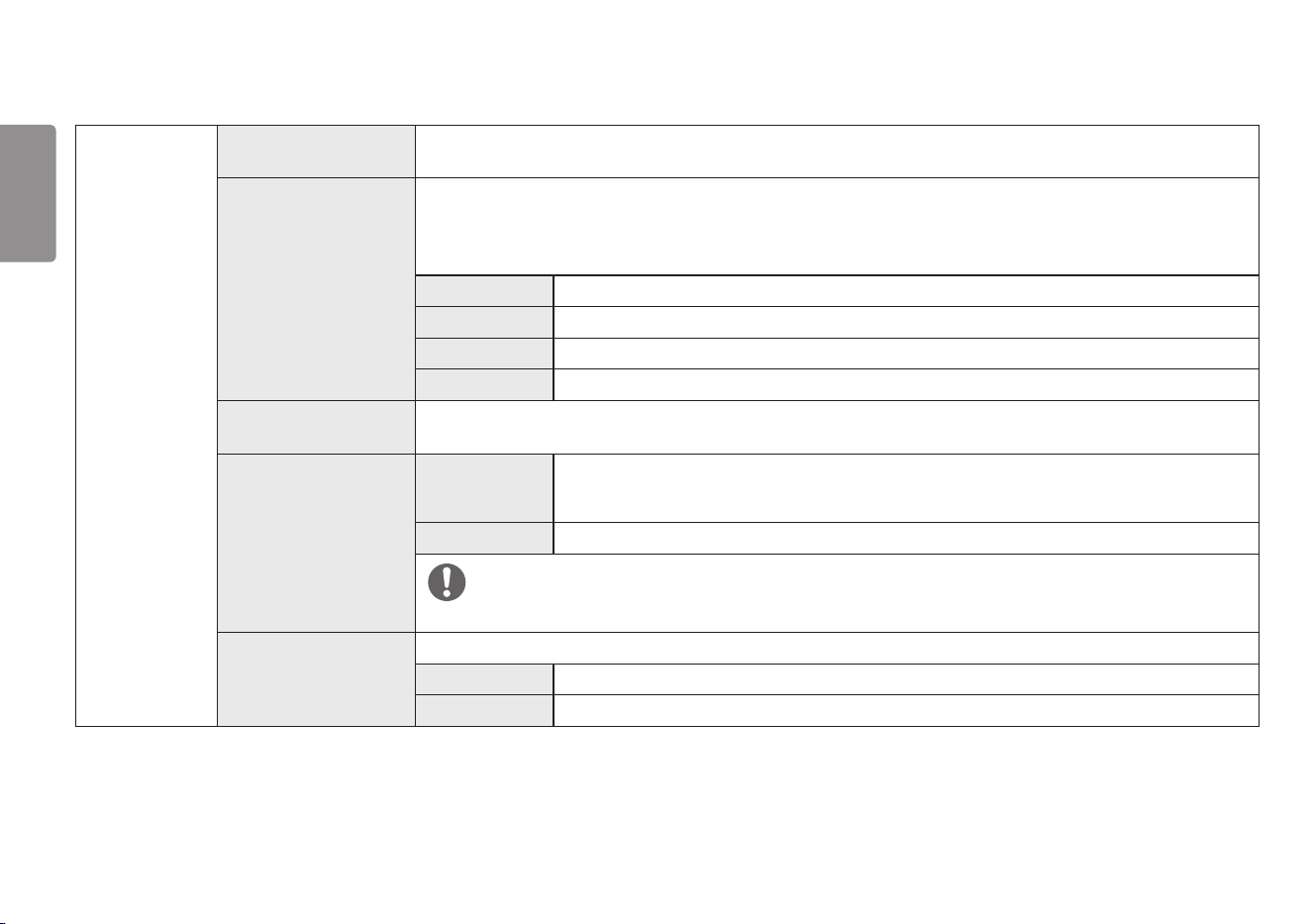
Settings > Game Adjust Description
Game Adjust
Overclock
On Sets Overclock to a higher refresh rate than specified by the panel specification.
Off Disables the Overclock improvement feature.
NOTE
• After the monitor reboots, change the maximum refresh rate setting in the GPU control panel.
• If the screen display appears abnormal, turn off the Overclock setting.
• The Overclock function's features/performance may vary depending on the graphics card or gaming content.
• We do not guarantee the performance of the function and are not responsible for any side effects that may occur from its
activation.
FreeSync / Adaptive-Sync
Provides seamless and natural images by synchronizing the vertical frequency of the input signal with that of the
output signal.
CAUTION
• Supported Interface: DisplayPort, HDMI(FreeSync), Adaptive-Sync.
• Supported Graphic Card : A graphic card that supports AMD’s FreeSync is necessary.
• Supported Version : Make sure to update the graphic card to the latest driver.
• For more information and requirement, refer to AMD website at http://www.amd.com/FreeSync
Extended
FreeSync / Adaptive-Sync function on. (Enable wider frequency range of FreeSync function than basic
mode.)
Basic FreeSync / Adaptive-Sync function on. (Enable basic frequency range of FreeSync function.)
Off FreeSync / Adaptive-Sync function off.
24
ENGLISH
Game Adjust
Black Stabilizer
You can control the black contrast to have better visibility in dark scenes.
You can easily distinguish objects on dark game screens.
Response Time
Sets a response time for displayed pictures based on the speed of the screen.
For a normal environment, it is recommended that you use Fast.
For a fast-moving picture, it is recommended that you use Faster.
Once Faster Mode is selected, Motion Blur may occur depending on the content.
Faster Sets the response time to Faster.
Fast Sets the response time to Fast.
Normal Sets the response time to Normal.
Off Does not use the response time improvement feature.
Crosshair
Crosshair provides a mark on the center of the screen for First Person Shooter (FPS) games. Users can select the Crosshair
that fits their gaming environment among four different Crosshairs.
FPS Counter
On
The indicator is displayed on the upper left of the screen. It will reflect the actual frame rate that is
received at the input. You can also adjust the position of FPS Counter.(upper left / upper right / lower
right / lower left)
Off Does not use the FPS Counter feature.
NOTE
• FPS Counter and Crosshair feature can not be used at the same time.
Game Reset
Returns game to the default settings.
No Cancel the select.
Yes Returns to the default settings.
25
ENGLISH
Settings > Picture Adjust Description
Picture Adjust
Brightness Adjusts the brightness of the screen.
Contrast Adjusts the contrast of the screen.
Sharpness Adjusts the sharpness of the screen.
Gamma
Mode 1, Mode 2,
Mode 3
The higher the gamma value, the darker the image becomes. Likewise, the lower the gamma value, the
lighter the image becomes.
Mode 4
If you do not need to adjust the gamma settings, select Mode 4.
Color Temp
Custom The user can adjust it to red, green, or blue by customization.
Warm Sets the screen color to a reddish tone.
Medium Sets the screen color to between a red and blue tone.
Cool Sets the screen color to a bluish tone.
Manual The user can fine - tune the color temperature.
R/G/B You can customize the picture color using Red, Green, and Blue colors.
Six Color
Meets the user requirements for colors by adjusting the hue and saturation of the six colors (Red, Green, Blue, Cyan,
Magenta and Yellow) and then saving the settings.
Hue
Adjusts the tone of the screen colors.
Saturation
Adjusts the saturation of the screen colors. The lower the value, the less saturated and brighter the
colors become. The higher the value, the more saturated and darker the colors become.
Black Level
Sets the offset level (for HDMI only).
y
Offset: as a reference for a video signal, this is the darkest color the monitor can display.
High Keeps the current contrast ratio of the screen.
Low Lowers the black levels and raises the white levels from the current contrast ratio of the screen.
26
ENGLISH
Picture Adjust
DFC
On Adjusts the brightness automatically according to the screen.
Off Disables the DFC feature.
Picture Reset
Do you want to reset your picture settings?
No Cancel the select.
Yes Returns to the default settings.
27
ENGLISH
Settings > Input Description
Input
Input List Selects the input mode.
Aspect Ratio
Adjusts the aspect ratio of the screen.
Full Wide Displays the video in widescreen, regardless of the video signal input.
4:3 Displays the video in 4:3.
Auto Input Switch
When automatic input switch is set to On, display will automatically switch to new input when connected.
On Enables Auto Input Switch.
Off Disables Auto Input Switch.
28
ENGLISH
Settings > General Description
General
Language Sets the menu screen to the desired language.
User-defined Key 1
You can customise the main menu to access your preferred menu easily.
User-definded Key 1 and User-definded Key 2 appear at the left/right of the main menu.
User-defined Key 2
SMART ENERGY
SAVING
High Saves energy using the high-efficiency SMART ENERGY SAVING feature.
Low Saves energy using the low-efficiency SMART ENERGY SAVING feature.
Off Disables the SMART ENERGY SAVING feature.
Deep Sleep Mode
When Deep Sleep Mode is enabled, power consumption is minimized while the monitor is in standby mode.
On Enables Deep Sleep Mode.
Off Disables Deep Sleep Mode.
NOTE
• If Deep Sleep Mode is Off, monitor only turns off the back light while the monitor is standby mode.
Power LED
Turns the power LED on the bottom of the monitor on or off.
On The power LED turns on automatically.
Off The power LED turns off.
Automatic Standby
Feature that automatically turns off the monitor when there is no movement on the screen for a period of time. You
can set a timer for the auto-off function. (8H, 6H, 4H and Off)
29
ENGLISH
General
Input Compatibility
Version
Set Input Compatibility Version to the same version as the connected external device.
- In case of DisplayPort input, set to 1.4 to use the HDR function.
- In case of HDMI input, set to 2.0 to use the HDR function.
Buzzer
This feature lets you set the sound generated from Buzzer when your monitor powers on.
On Enables your monitor's Buzzer.
Off Disables your monitor's Buzzer.
OSD Lock
This feature disables the configuration and adjustment of menus.
On Enables OSD Lock.
Off Disables OSD Lock.
NOTE
• All features are disabled except Brightness, Contrast in Picture Adjust, Input, OSD Lock and Information in General.
Information The display information will be shown the Total Power On Time, Resolution.
Reset to Initial Settings
Do you want to reset your settings?
No Cancel the reset.
Yes Returns to the default settings.
30
ENGLISH
TROUBLESHOOTING
Nothing is displayed on the screen.
Is the monitor's power cord plugged in? • Check if the power cord is correctly plugged into the power outlet.
Is the power LED on? • Check the power cable connection and press the power button.
Is the power on and the power LED
displaying white?
• Check that the connected input is enabled (Settings > Input).
Is the power LED blinking? • If the monitor is in sleep mode, move the mouse, or press any key on the keyboard, to switch the display on.
• Check if the computer is turned on.
Is the "The screen is not currently set
to the recommended resolution. If you
have no video or the screen flickers,
see the troubleshooting guide in the
product owner’s manual." message
being displayed?
• This occurs when signals transferred from the PC (graphics card) are out of the recommended horizontal or vertical frequency
range of the monitor. Please see the Product Specification section of this manual to set the appropriate frequency.
Is the "No Signal" message being
displayed?
• This is displayed when the signal cable between the PC and the monitor is missing or disconnected. Check the cable and
reconnect it.
Have you installed the display driver? • Be sure to install the display driver from our web site: http://www.lg.com.
• Make sure to check if the graphics card supports Plug and Play function.
Some features are disabled.
Are some functions not available when
you press the Menu button?
• The OSD is locked. Go to Settings > General and set OSD Lock to Off.
31
ENGLISH
The screen retains an image.
Does image sticking occur even when the
monitor is turned off?
• Displaying a still image for a prolonged time may cause damage to the screen, resulting in the retention of the image.
• To extend the lifetime of the monitor, use a screensaver.
Screen display is unstable and shaky. / Images displayed on the monitor leave shadow trails.
Did you select the appropriate resolution? • If the selected resolution is HDMI 1080i 60/50 Hz (interlaced), the screen may be flickering. Change the resolution to 1080p or
the recommended resolution.
32
ENGLISH
NOTE
• Vertical Frequency: In order to display an image, the screen must be refreshed dozens of times per second, like a fluorescent lamp. The number of times the screen is refreshed
per second is called vertical frequency, or refresh rate, and is represented by Hz.
• Horizontal Frequency: The time it takes to display one horizontal line is called the horizontal cycle. If 1 is divided by the horizontal interval, the result is the number of horizontal
lines displayed per second. This is called horizontal frequency and is represented by kHz.
• Check if the graphics card’s resolution or frequency is within the range allowed by the monitor and set it to the recommended (optimal) resolution Control Panel > Display >
Settings in Windows. (The settings may differ depending on the operating system (OS) you use.)
• Not setting the graphics card to the recommended (optimal) resolution may result in blurred text, a dimmed screen, a truncated display area or misalignment of the display.
• The setting methods may be different depending on the computer or operating system, and some resolutions may not be available depending on the performance of the
graphics card. If this is the case, contact the manufacturer of the computer or graphics card for assistance.
• Some graphics cards may not support 2560 x 1440 (180 Hz or Higher) resolution. If the resolution cannot be displayed, contact the manufacturer of your graphics card.
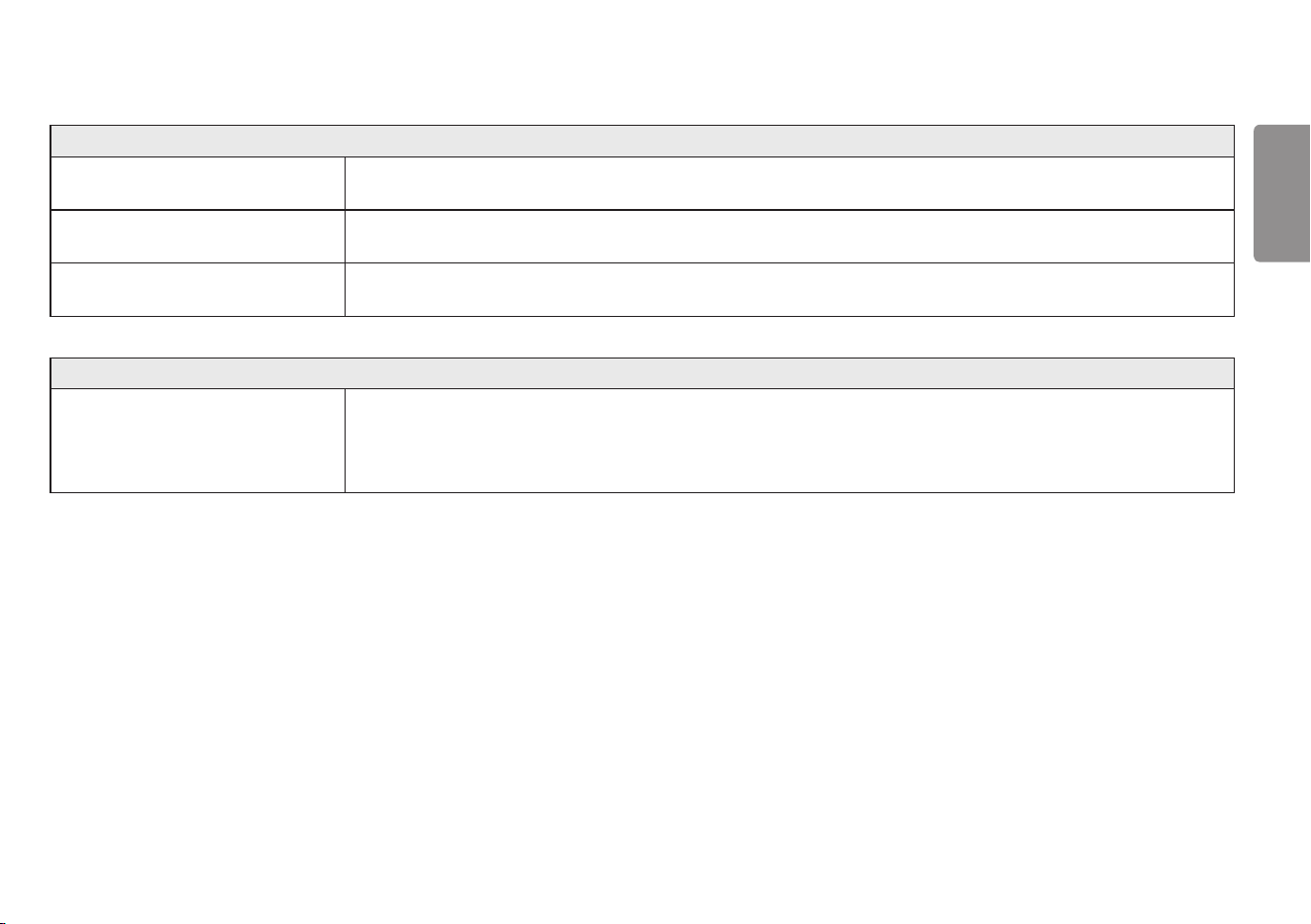
33
ENGLISH
The display color is abnormal.
Does the display appear discolored
(16 colors)?
• Set the color to 24 bit (true color) or higher. In Windows, go to Control Panel > Display > Settings > Color Quality. (The
settings may differ depending on the operating system (OS) you use.)
Does the display color appear unstable or
monochrome?
• Check if the signal cable is connected properly. Reconnect the cable or reinsert the PC's graphics card.
Are there spots on the screen? • When using the monitor, pixilated spots (red, green, blue, white, or black) may appear on the screen. This is normal for an LCD
screen. It is not an error, nor is it related to the monitor's performance.
No sound from the headphone port.
Are images displayed using DP
(DisplayPort) or HDMI input without
sound?
• Make sure that the headphone port connections are made properly.
• Try increasing the volume with the joystick.
• Set the audio output of the PC to the monitor you are using. On Microsoft Windows, go to Control Panel > Hardware and
Sound > Sound > set the Monitor as default device. (The settings may differ depending on the operating system (OS) you use.)
34
ENGLISH
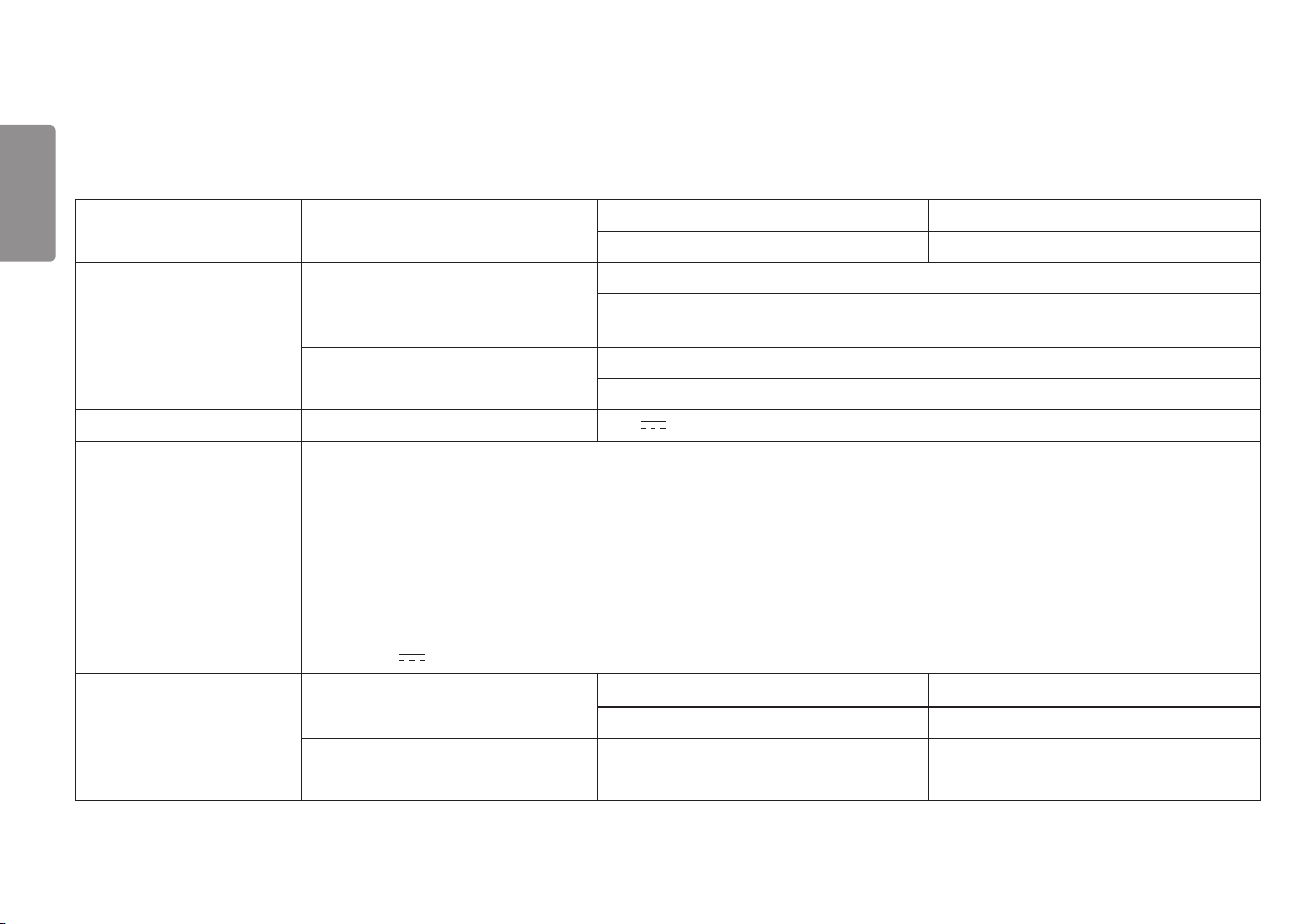
PRODUCT SPECIFICATION
LCD Screen Color Depth HDMI 8-bit/10-bit/12-bit color is supported.
DP (DisplayPort) 10-bit color is supported.
Resolution Max Resolution 2560 x 1440 @ 144 Hz (HDMI)
2560 x 1440 @ 200 Hz (DisplayPort)
(*OverClock)
Recommended Resolution 2560 x 1440 @ 144 Hz (HDMI)
2560 x 1440 @ 180 Hz (DisplayPort)
Power Sources Power Rating 19 V 2.0 A
AC/DC Adapter ADS-45SQ-19-3 19040E, manufactured by SHENZHEN HONOR ELECTRONIC
ADS-45FSQ-19 19040EPG-1, manufactured by SHENZHEN HONOR ELECTRONIC
ADS-45FSQ-19 19040EPK-1, manufactured by SHENZHEN HONOR ELECTRONIC
ADS-45FSQ-19 19040EPCU-1, manufactured by SHENZHEN HONOR ELECTRONIC
ADS-45FSQ-19 19040EPBR-1, manufactured by SHENZHEN HONOR ELECTRONIC
AD10530LF, manufactured by PI Electronics (H.K.) Ltd.
AD2137S20, manufactured by PI Electronics (H.K.) Ltd.
AD2137620, manufactured by PI Electronics (H.K.) Ltd.
Output: 19 V 2.1 A
Environmental Conditions Operating Conditions Temperature 0 °C to 40 °C (32 °F to 104 °F)
Humidity Less than 80 %
Storing Conditions Temperature -20 °C to 60 °C (-4 °F to 140 °F)
Humidity Less than 85 %
35
ENGLISH
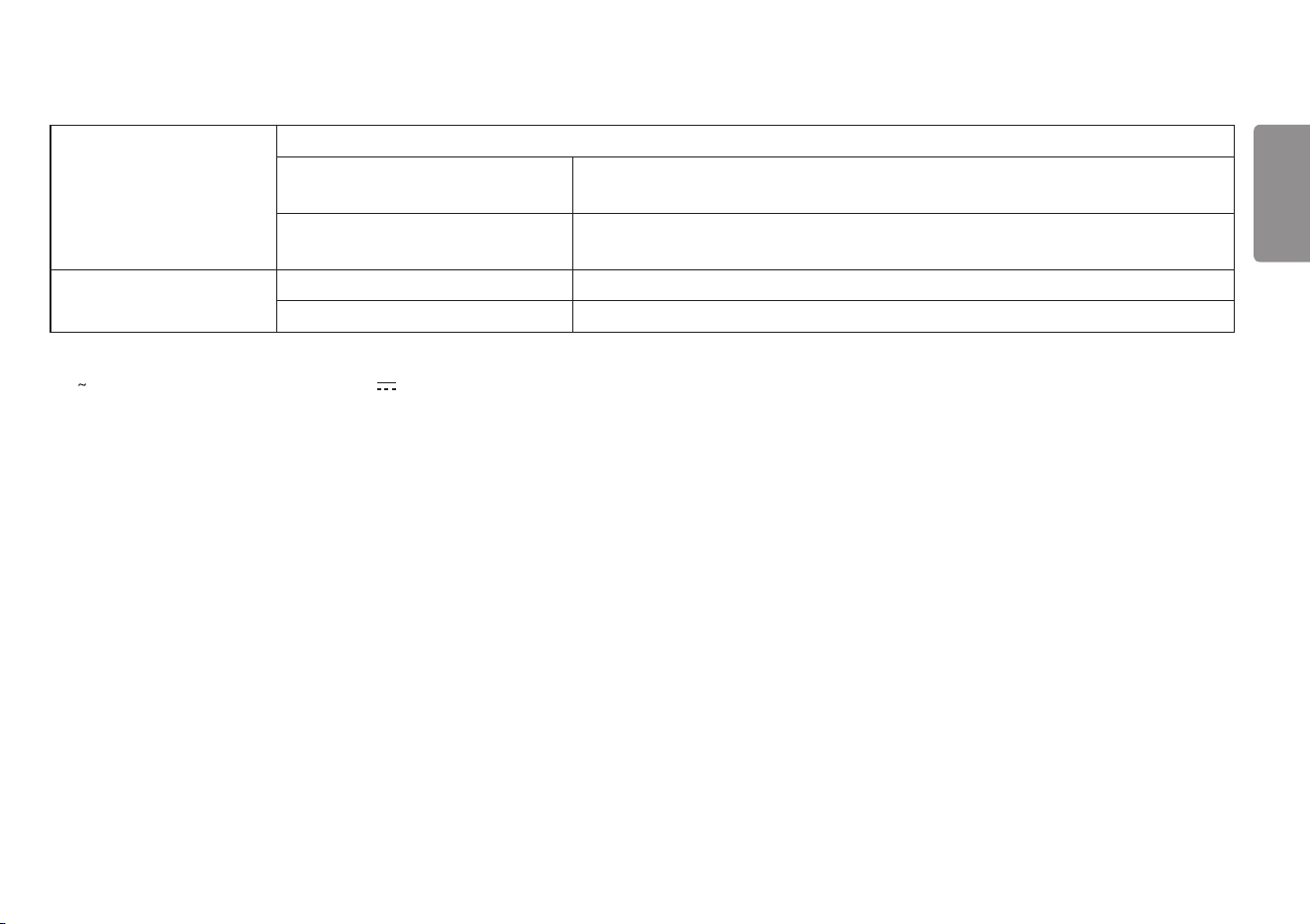
Dimensions Monitor Size (Width x Height x Depth)
With Stand 613.5 x 577.7 x 253.7 (mm)
24.1 x 22.7 x 9.9 (inches)
Without Stand 613.5 x 371.6 x 51.3 (mm)
24.1 x 14.6 x 2.0 (inches)
Weight (Without Packaging) With Stand 6.2 kg (13.6 lbs)
Without Stand 4.1 kg (9.0 lbs)
Specifications are subject to change without notice.
The symbol means alternating current, and the symbol means direct current.
The Power Consumption level can be different by operating condition and monitor setting.
* The On mode power consumption is measured with LGE test standard (Full White pattern , Maximum resolution).
** The monitor goes to the Sleep Mode in a couple of minutes (Max 5 minutes).
36
ENGLISH
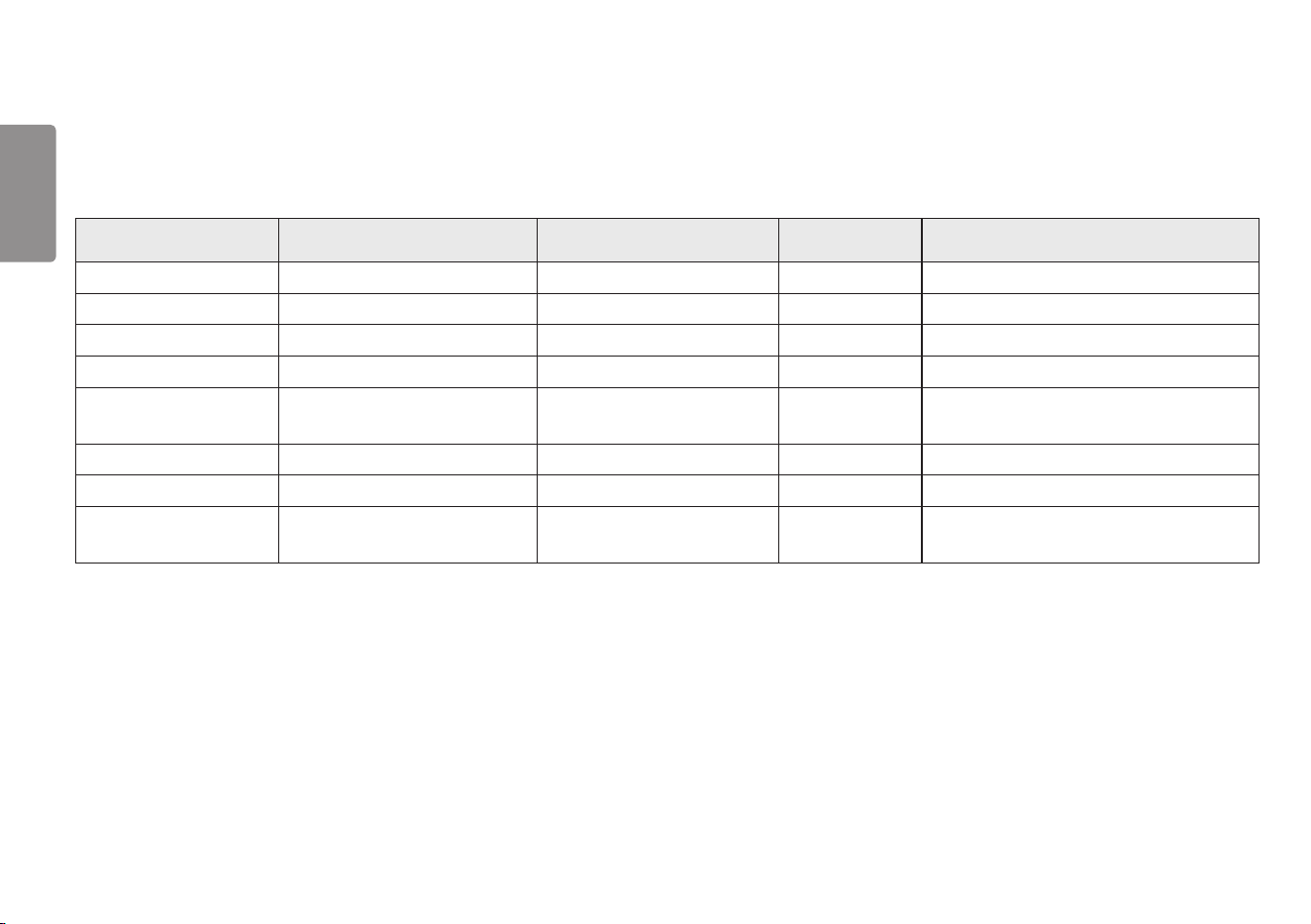
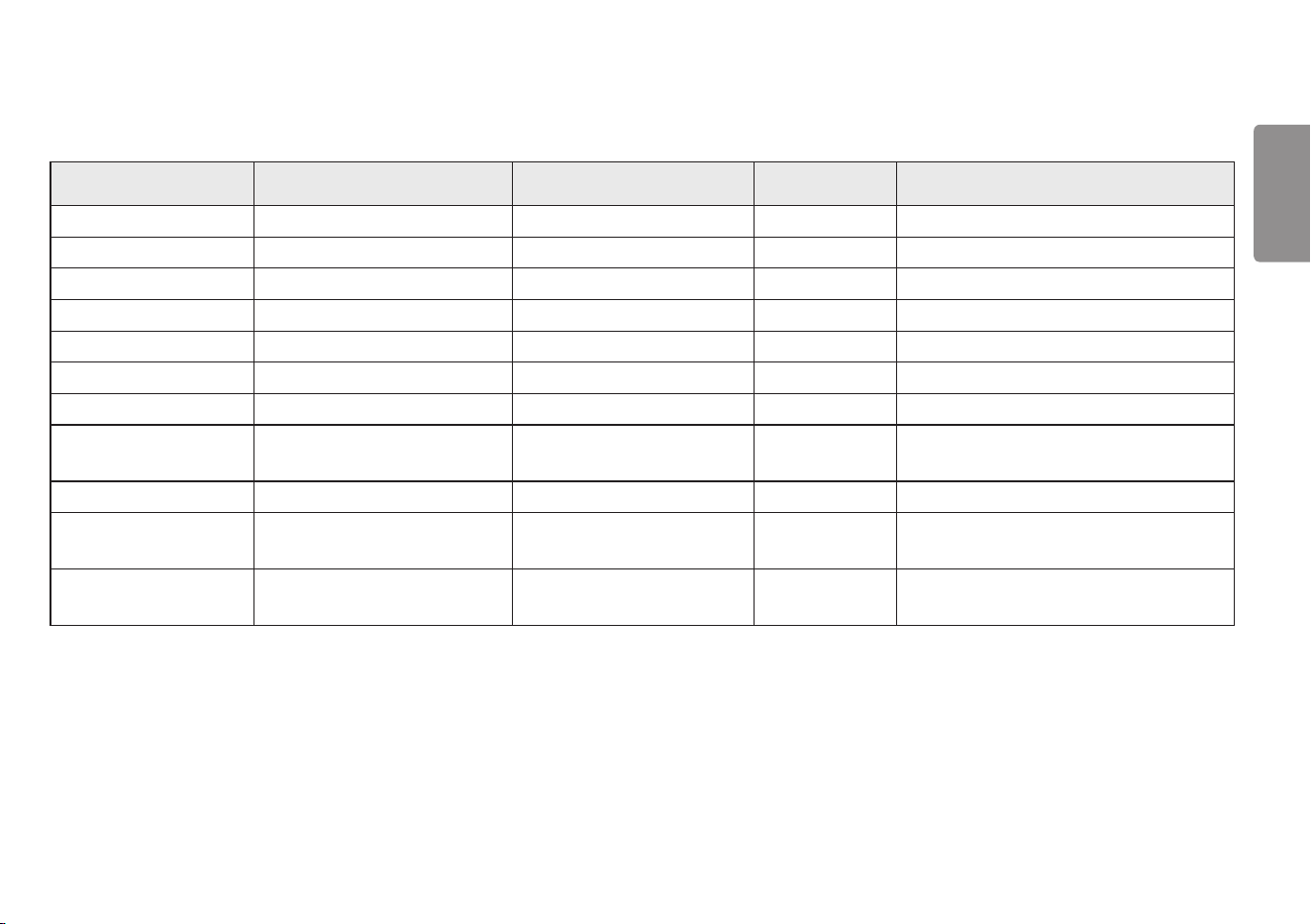
Factory Support Mode
HDMI
Resolution Horizontal Frequency (kHz) Vertical Frequency (Hz) Polarity (H/V) Remarks
640 x 480 31.469 59.940 -/-
800 x 600 37.879 60.317 +/+
1024 x 768 48.363 60.004 -/-
1920 x 1080 67.500 60.000 +/+
2560 x 1440 88.787 59.951 +/-
Recommended Timing
- Input Compatibility Version : 1.4
2560 x 1440 111.857 74.971 +/-
2560 x 1440 182.996 119.998 +/-
2560 x 1440 218.290 143.991 +/-
Recommended Timing
- Input Compatibility Version : 2.0
37
ENGLISH
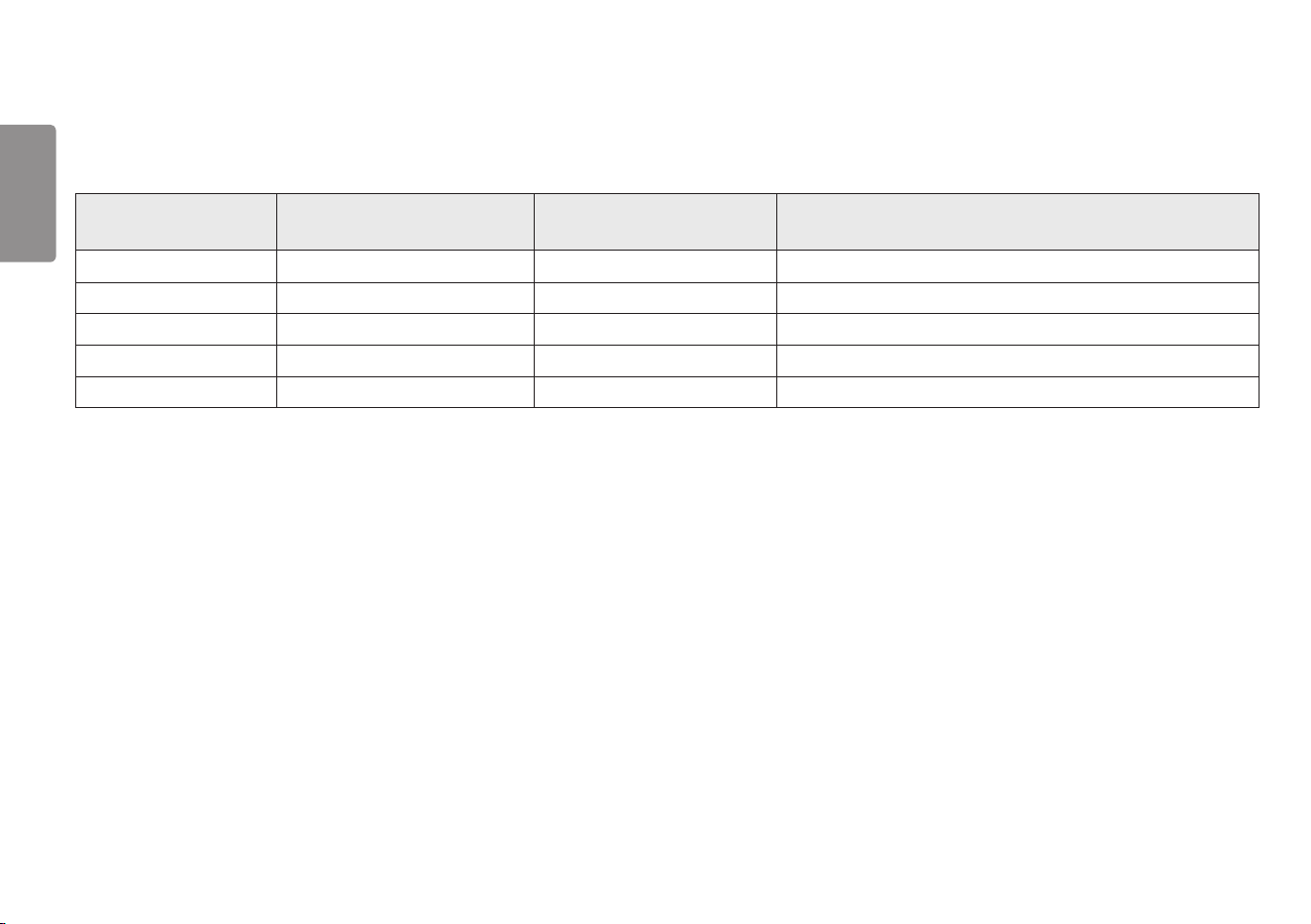
DP
Resolution Horizontal Frequency (kHz) Vertical Frequency (Hz) Polarity (H/V) Remarks
640 x 480 31.469 59.940 -/-
800 x 600 37.879 60.317 +/+
1024 x 768 48.363 60.004 -/-
1920 x 1080 67.500 60.000 +/+
2560 x 1440 88.787 59.951 +/-
2560 x 1440 150.919 99.946 +/-
2560 x 1440 182.996 119.998 +/-
2560 x 1440 222.151 143.973 +/-
Recommended Timing
- Input Compatibility Version : 1.2
2560 x 1440 257.327 165.059 +/-
2560 x 1440 282.879 180.063 +/-
Recommended Timing
- Input Compatibility Version : 1.4
2560 x 1440 315.221 200.013 +/-
Recommended Timing
- Input Compatibility Version : 1.4 (O.C)
38
ENGLISH
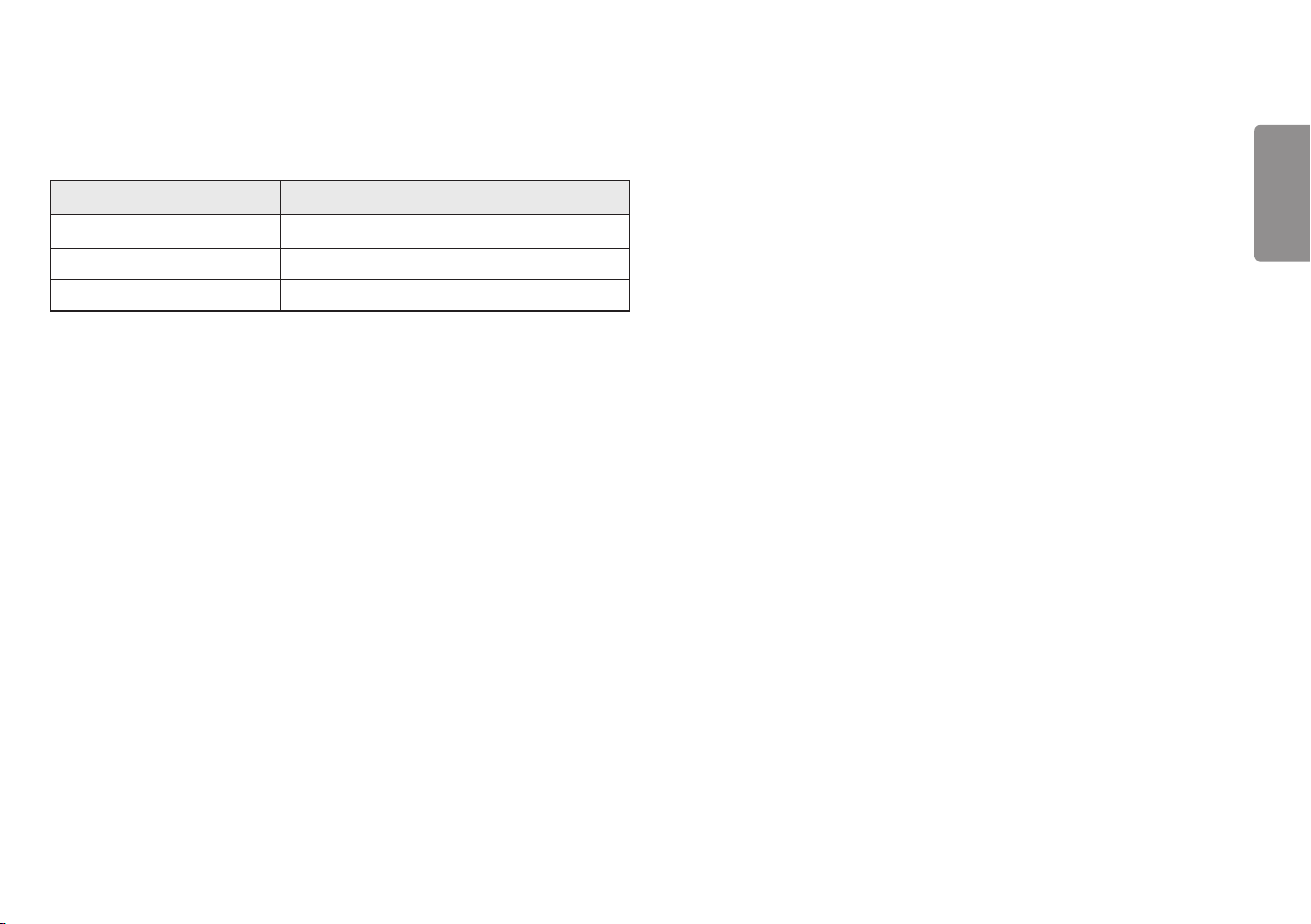
HDMI Timing (Video)
Factory support mode
(Preset Mode)
Horizontal Frequency (kHz) Vertical Frequency (Hz) Remarks
480P 31.5 60
720P 45.0 60
1080P 67.5 60
1080P 135.0 120
2160P 135.0 60
39
ENGLISH
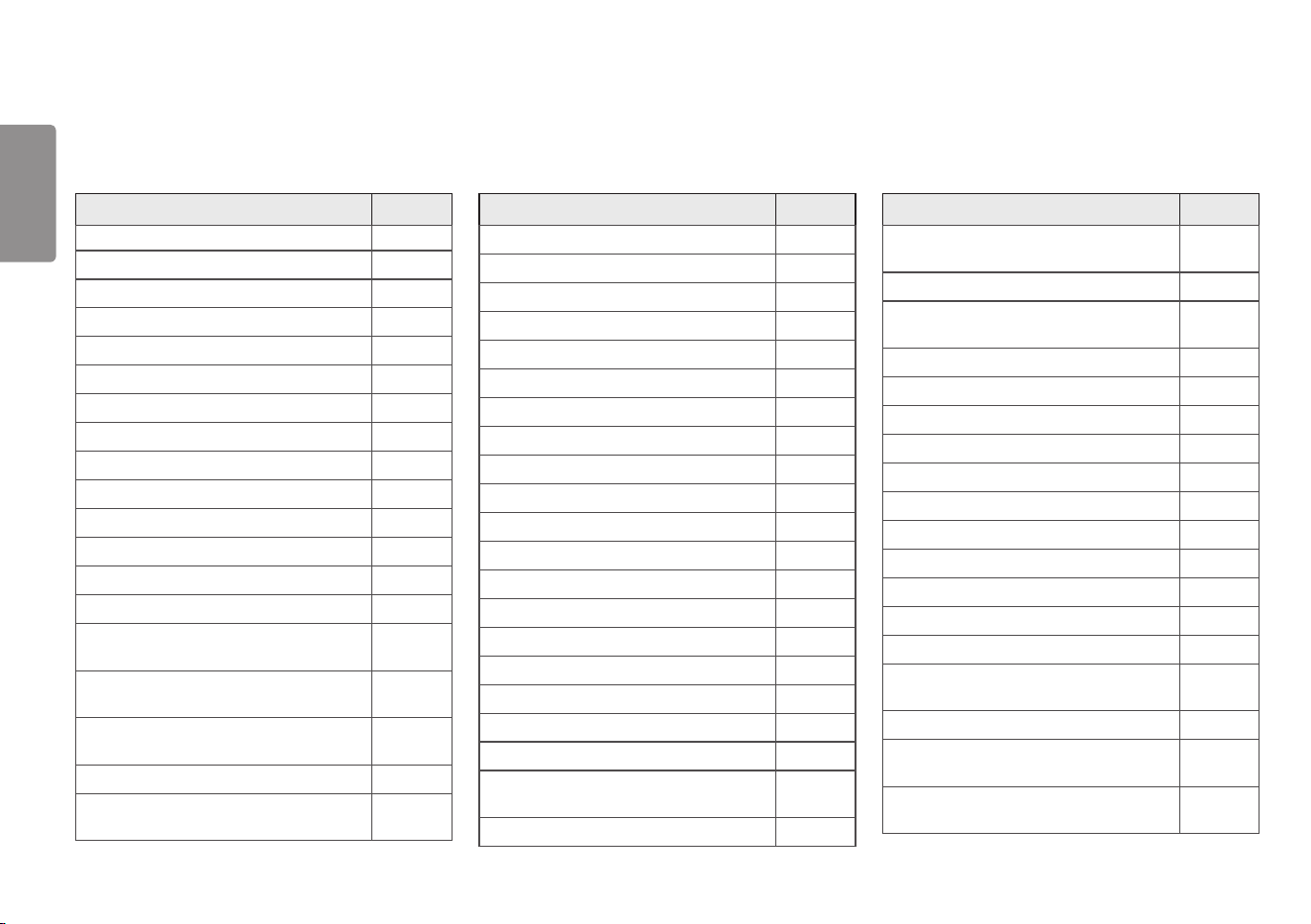
Power LED
Mode LED Color
On Mode Red (For a few seconds)
Sleep Mode (Standby Mode) Off
Off Mode Off
40
ENGLISH
Beep Guide
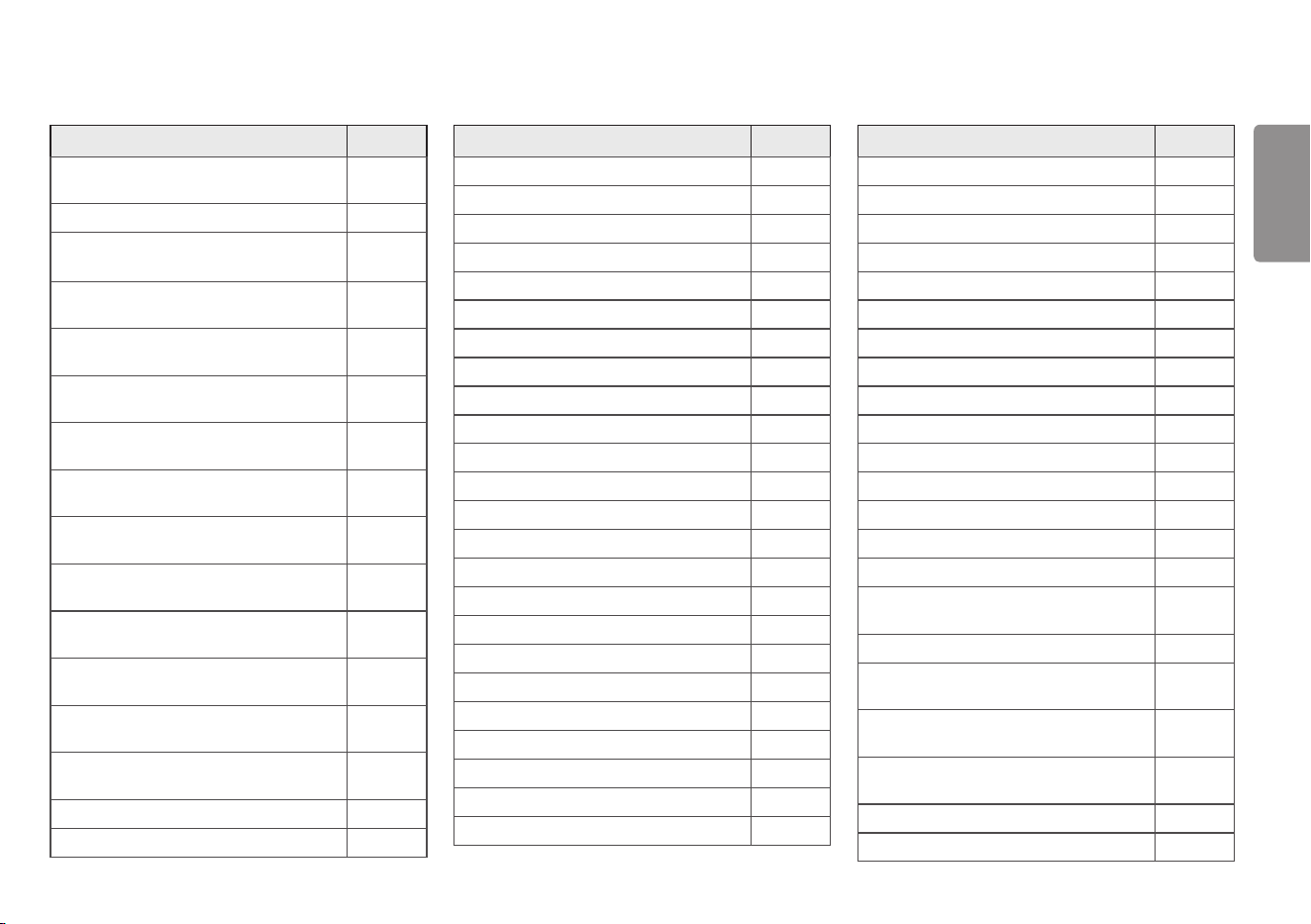
Menu Location
Game Mode 1
Game Mode - Gamer1 1 1
Game Mode - Gamer2 1 2
Game Mode - FPS 1 3
Game Mode - RTS 1 4
Game Mode - Vivid 1 5
Game Mode - Reader 1 6
Game Mode - HDR Effect 1 7
Game Mode - Color Weakness 1 8
Game Adjust 2
Game Adjust - Overclock 2 1
Game Adjust - Overclock - On 2 1 1
Game Adjust - Overclock - Off 2 1 2
Game Adjust - FreeSync / Adaptive-Sync 2 2
Game Adjust - FreeSync / Adaptive-Sync
- Extended
2 2 1
Game Adjust - FreeSync / Adaptive-Sync
- Basic
2 2 2
Game Adjust - FreeSync / Adaptive-Sync
- Off
2 2 3
Game Adjust - Black Stabilizer 2 3
Game Adjust - Black Stabilizer
2 3 1
Slider
Menu Location
Game Adjust - Response Time 2 4
Game Adjust - Response Time - Faster 2 4 1
Game Adjust - Response Time - Fast 2 4 2
Game Adjust - Response Time - Normal 2 4 3
Game Adjust - Response Time - Off 2 4 4
Game Adjust - Crosshair 2 5
Game Adjust - Crosshair - Red Cross 2 5 1
Game Adjust - Crosshair - Green Cross 2 5 2
Game Adjust - Crosshair - Red Dot 2 5 3
Game Adjust - Crosshair - Green Dot 2 5 4
Game Adjust - Crosshair - Off 2 5 5
Game Adjust - FPS Counter 2 6
Game Adjust - FPS Counter - On 2 6 1
Game Adjust - FPS Counter - Off 2 6 2
Game Adjust - Game Reset 2 7
Game Adjust - Game Reset - No 2 7 1
Game Adjust - Game Reset - Yes 2 7 2
Picture Adjust 3
Picture Adjust - Brightness 3 1
Picture Adjust - Brightness
3 1 1
Slider
Picture Adjust - Contrast 3 2
Menu Location
Picture Adjust - Contrast
3 2 1
Slider
Picture Adjust - Sharpness 3 3
Picture Adjust - Sharpness
3 3 1
Slider
Picture Adjust - Gamma 3 4
Picture Adjust - Gamma - Mode 1 3 4 1
Picture Adjust - Gamma - Mode 2 3 4 2
Picture Adjust - Gamma - Mode 3 3 4 3
Picture Adjust - Gamma - Mode 4 3 4 4
Picture Adjust - Color Temp 3 5
Picture Adjust - Color Temp - Custom 3 5 1
Picture Adjust - Color Temp - Warm 3 5 2
Picture Adjust - Color Temp - Medium 3 5 3
Picture Adjust - Color Temp - Cool 3 5 4
Picture Adjust - Color Temp - Manual 3 5 5
Picture Adjust - Color Temp - Manual
3 5 5 1
Slider
Picture Adjust - R/G/B 3 6
Picture Adjust - R/G/B - Red
3 6 1
Slider
Picture Adjust - R/G/B - Green
3 6 2
Slider
41
ENGLISH
Menu Location
Picture Adjust - R/G/B - Blue
3 6 3
Slider
Picture Adjust - Six Color 3 7
Picture Adjust - Six Color - Red Hue
3 7 1
Slider
Picture Adjust - Six Color - Red Saturation
3 7 2
Slider
Picture Adjust - Six Color - Green Hue
3 7 3
Slider
Picture Adjust - Six Color - Green
Saturation
3 7 4
Slider
Picture Adjust - Six Color - Blue Hue
3 7 5
Slider
Picture Adjust - Six Color - Blue
Saturation
3 7 6
Slider
Picture Adjust - Six Color - Cyan Hue
3 7 7
Slider
Picture Adjust - Six Color - Cyan
Saturation
3 7 8
Slider
Picture Adjust - Six Color - Magenta Hue
3 7 9
Slider
Picture Adjust - Six Color - Magenta
Saturation
3 7 10
Slider
Picture Adjust - Six Color - Yellow Hue
3 7 11
Slider
Picture Adjust - Six Color - Yellow
Saturation
3 7 12
Slider
Picture Adjust - Black Level 3 8
Picture Adjust - Black Level - High 3 8 1
Menu Location
Picture Adjust - Black Level - Low 3 8 2
Picture Adjust - DFC 3 9
Picture Adjust - DFC - On 3 9 1
Picture Adjust - DFC - Off 3 9 2
Picture Adjust - Picture Reset 3 10
Picture Adjust - Picture Reset - No 3 10 1
Picture Adjust - Picture Reset - Yes 3 10 2
Input 4
Input - Input List 4 1
Input - Input List - HDMI 1 4 1 1
Input - Input List - HDMI 2 4 1 2
Input - Input List - DisplayPort 4 1 3
Input - Aspect Ratio 4 2
Input - Aspect Ratio - Full Wide 4 2 1
Input - Aspect Ratio - 4 : 3 4 2 2
Input - Auto Input Switch 4 3
Input - Auto Input Switch - On 4 3 1
Input - Auto Input Switch - Off 4 3 2
General 5
General - Language 5 1
General - Language - English 5 1 1
General - Language - German 5 1 2
General - Language - French 5 1 3
General - Language - Spanish 5 1 4
Menu Location
General - Language - Italian 5 1 5
General - Language - Swedish 5 1 6
General - Language - Finnish 5 1 7
General - Language - Portuguese 5 1 8
General - Language - Portuguese (Brazil) 5 1 9
General - Language - Polish 5 1 10
General - Language - Russian 5 1 11
General - Language - Turkish 5 1 12
General - Language - Ukrainian 5 1 13
General - Language - Chinese 5 1 14
General - Language - Traditional Chinese 5 1 15
General - Language - Japanese 5 1 16
General - Language - Korean 5 1 17
General - User-defined Key 1 5 2
General - User-defined Key 1 - Input 5 2 1
General - User-defined Key 1 - Game
Mode
5 2 2
General - User-defined Key 1 - Crosshair 5 2 3
General - User-defined Key 1 - Black
Stabilizer
5 2 4
General - User-defined Key 1 - Response
Time
5 2 5
General - User-defined Key 1 - FPS
Counter
5 2 6
General - User-defined Key 2 5 3
General - User-defined Key 2 - Input 5 3 1
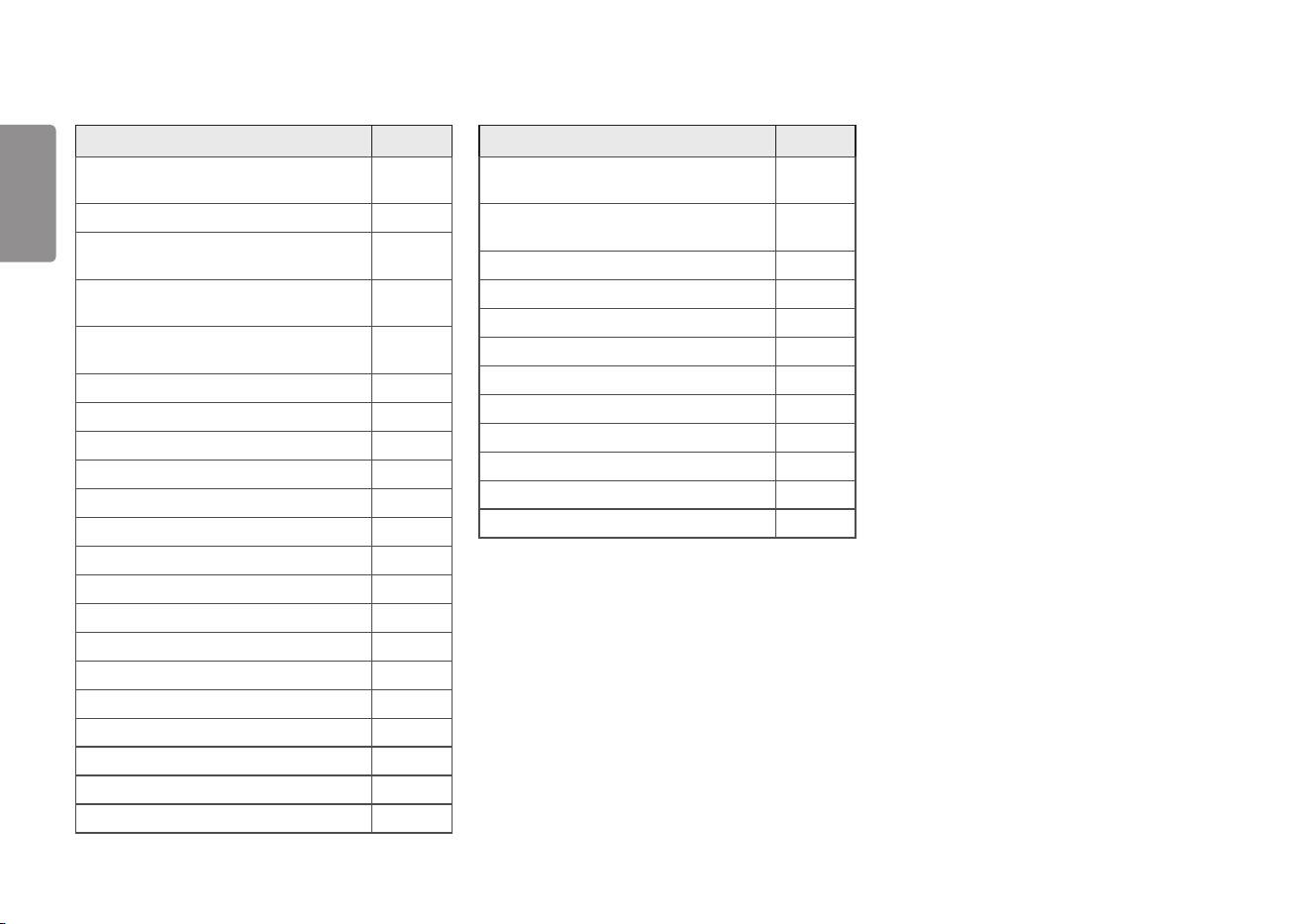
42
ENGLISH
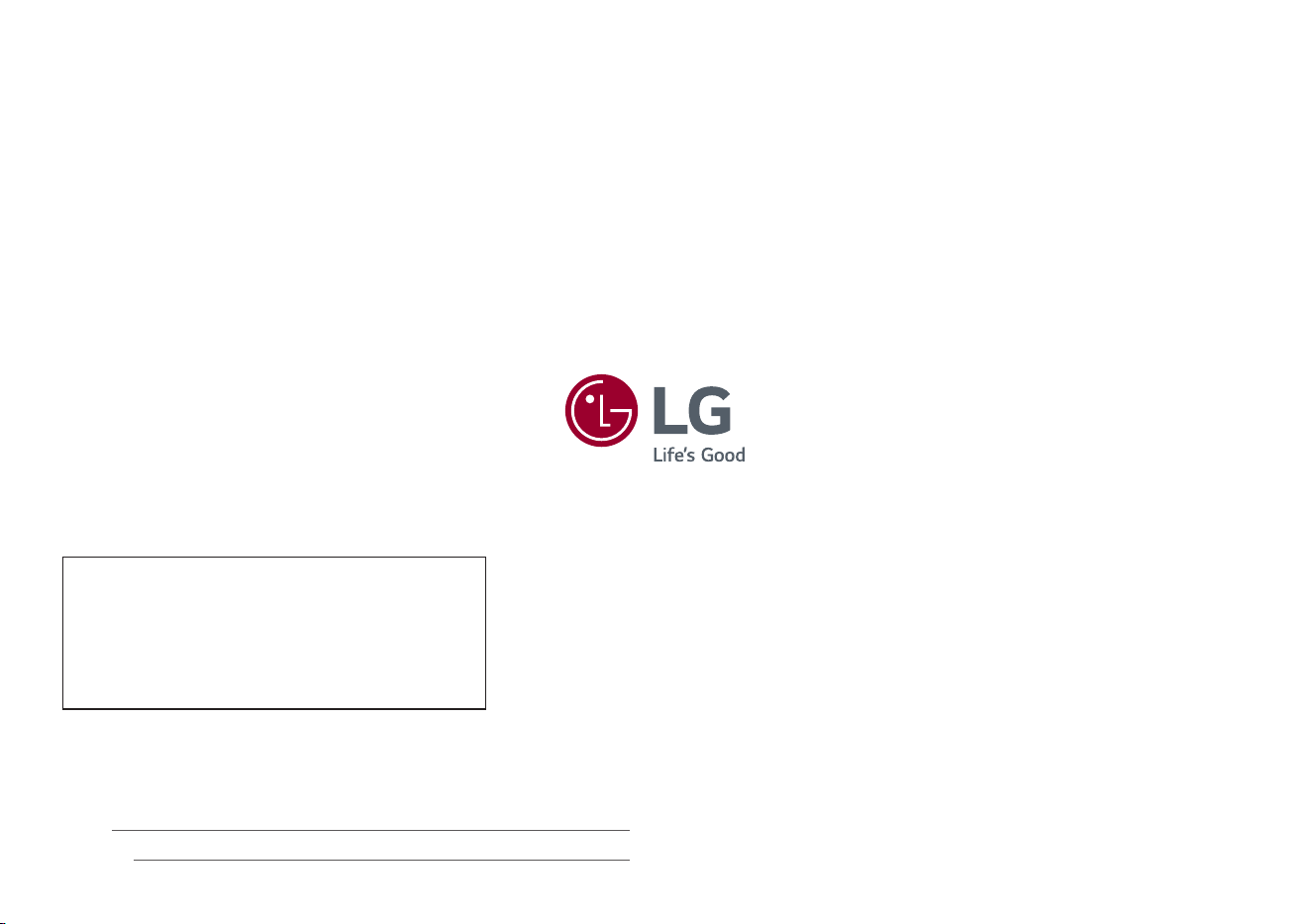
Menu Location
General - User-defined Key 2 - Game
Mode
5 3 2
General - User-defined Key 2 - Crosshair 5 3 3
General - User-defined Key 2 - Black
Stabilizer
5 3 4
General - User-defined Key 2 - Response
Time
5 3 5
General - User-defined Key 2 - FPS
Counter
5 3 6
General - SMART ENERGY SAVING 5 4
General - SMART ENERGY SAVING - High 5 4 1
General - SMART ENERGY SAVING - Low 5 4 2
General - SMART ENERGY SAVING - Off 5 4 3
General - Deep Sleep Mode 5 5
General - Deep Sleep Mode - On 5 5 1
General - Deep Sleep Mode - Off 5 5 2
General - Power LED 5 6
General - Power LED - On 5 6 1
General - Power LED - Off 5 6 2
General - Automatic Standby 5 7
General - Automatic Standby - 8H 5 7 1
General - Automatic Standby - 6H 5 7 2
General - Automatic Standby - 4H 5 7 3
General - Automatic Standby - Off 5 7 4
General - Input Compatibility Version 5 8
Menu Location
General - Input Compatibility Version -
DP:1.4 / HDMI: 2.0
5 8 1
General - Input Compatibility Version -
DP:1.2 / HDMI: 1.4
5 8 2
General - Buzzer 5 9
General - Buzzer - On 5 9 1
General - Buzzer - Off 5 9 2
General - OSD Lock 5 10
General - OSD Lock - On 5 10 1
General - OSD Lock - Off 5 10 2
General - Information 5 11
General - Reset to Initial Settings 5 12
General - Reset to Initial Settings - No 5 12 1
General - Reset to Initial Settings - Yes 5 12 2
The model and serial number of the product are located on the back and on one side of
the product.
Record them below in case you ever need service.
Model
Serial No.
Supplier’s Declaration of Conformity
Trade Name LG
Responsible Party LG Electronics USA, Inc.
Address 111 Sylvan Avenue, North Building,
Englewood Cliffs, NJ 07632
E-mail [email protected]om