
Face Mask Detection
Installation Manual
Table of Contents
1. Introduction ..................................................................................................................................... 3
1.1 Key Features .............................................................................................................................. 3
1.2 System Requirements ............................................................................................................... 3
1.3 Compatible Models ................................................................................................................... 3
2. Installation ....................................................................................................................................... 3
2.1 Hardware ................................................................................................................................... 3
2.1.1 Camera Installation ............................................................................................................ 4
2.1.2 Tripod Installation .............................................................................................................. 6
2.2 Software .................................................................................................................................... 7
2.2.1 Licence Activation .............................................................................................................. 7
3. Settings ............................................................................................................................................ 8
3.1 Digital Zoom-In function ........................................................................................................... 9
4. System Interface ............................................................................................................................ 10
4.1 Application on the Edge ............................................................................................................... 10
4.2 WAVE Integration ........................................................................................................................ 11
5. Support .......................................................................................................................................... 12
5.1 Frequently Asked Questions ................................................................................................... 12
Revision History
Version
Date
Notes
1.0
04/06/2020
Initial version

Face Mask Detection Installation Manual
1. Introduction
Businesses and organisations are exploring ways to re-open whilst safeguarding the health of their staff and visitors.
Wearing a mask can provide a much needed protection against the spread of COVID-19, and has been adopted as a safety
measure in many workplaces.
Face Mask Detection Application was created to help businesses and organisations. This is an Artificial Intelligence-based
Video Analytics Solution used to instantly detect and alarm individuals that do not wear or incorrectly wear face mask on
premises.
1.1 Key Features
Detects masks of different types and sizes
Detects Incorrectly Used Mask Detection
Not Affected by Hat, Glasses or Head Scarf
Simultaneously detects up to 4 people
Detection up to 5 meters
Generates alarm including metadata, pictures and videos
Displays instant alarms and plays vocal alarm message
Edge-based detection, runs on camera
SD Card and FTP image store functions
Wisenet Wave Integration
1.2 System Requirements
The application designed to run on the edge of compatible Wisenet cameras
To setup and view alarms from the camera is done using Microsoft Edge or Chrome Browser installed on thin
client PC with monitor and keyboard
For WAVE Integration, WAVE version 4.0.0.29988 or greater
1.3 Compatible Models
The Face Mask Detection Application can be added to the following open-platform Wisenet X camera models:
XNB-6000, XNO-6080R, XNO-6010R, XNO-6080R, XNV-6080, XNV-6080R, XND-6080, XND-6080R, XND-6080V,
XND-6080RV, XND-6010, XNV-6010, XND-6020R, XNV-6020R, XNO-6120R, XNV-6120R and XNV-6120, XNV-6011
and XND-6011F.
In addition, we have 4 camera models that come preloaded and licence activated
1. XNV-6011/MSK 2MP Compact Vandal Dome
2. XND-6010/MSK 2MP Indoor Dome
3. XNB-6000/MSK 2MP Box
4. XNO-6080R/MSK 2MP IR Bullet
2. Installation
2.1 Hardware
Since the a2-VCA Mask Detection System works on the camera, the installation process consists basically of camera
mounting and software installation processes.
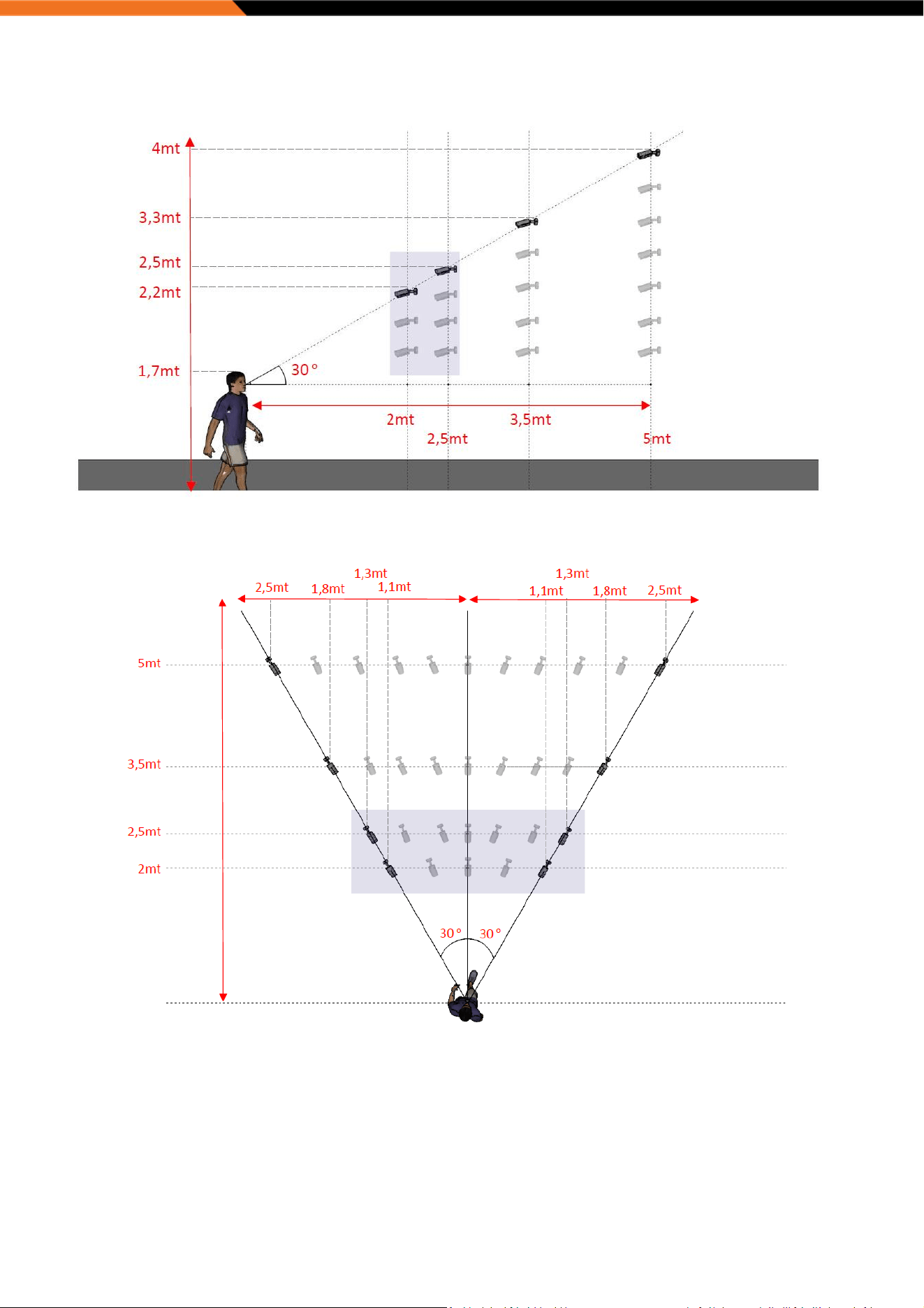
The most important point to be considered in camera mounting angle is that people's faces are fully visible. Instructions
on mounting, sample drawings about the angle, distance options, and distance-angle table are given below.
Face Mask Detection Installation Manual
2.1.1 Camera Installation
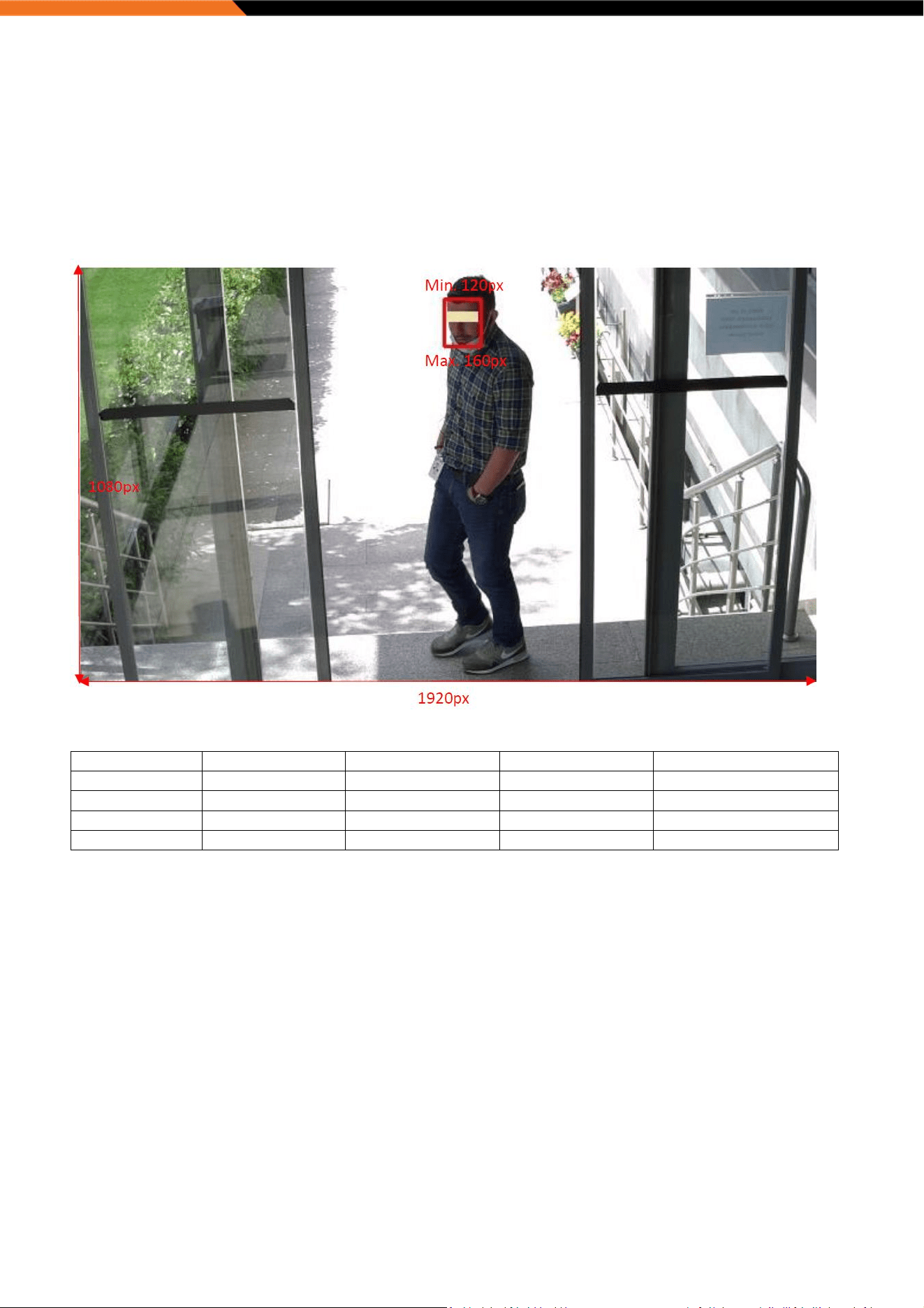
The width of the face area should be minimum 120px and maximum 160px on Full HD Image
The installation angle of the camera should see people's faces at a maximum angle of 30 o vertically.
The installation angle of the camera should see people's faces at a maximum angle of ±30o horizontally.
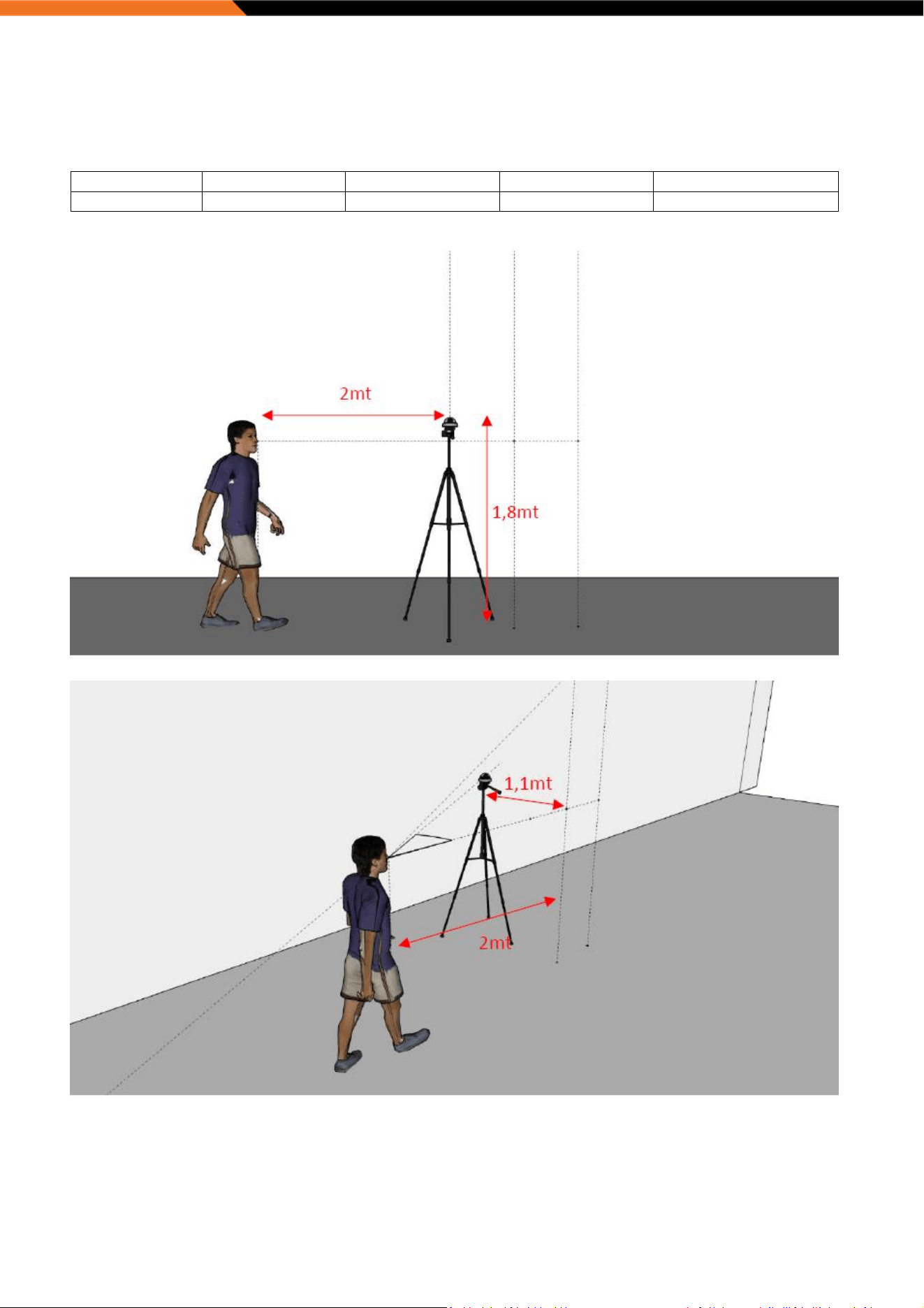
Tripod mounting is possible. Minimum camera mounting height should be 1.70mt (meters)
Field Of View Example
Distance-Angle Table
Distance
Vertical Angle
Camera Height
Horizontal Angle
Horizontal Distance
2mt
0 - 30
o
1.8 – 2.2mt
-30
o
- 0 - +30
o
-1.1mt - 0 - +1.1mt
2.5mt
0 - 30
o
1.8 – 2.5mt
-30
o
- 0 - +30
o
-1.3mt - 0 - +1.3mt
3.5mt
0 - 30
o
1.8 – 3.3mt
-30
o
- 0 - +30
o
-1.8mt - 0 - +1.8mt
5mt
0 - 30
o
1.8 – 4mt
-30
o
- 0 - +30
o
-2.5mt - 0 - +2.5mt
Face Mask Detection Installation Manual
Vertical Mounting Angles
* 2.8mm fixed lens cameras can be used only in Blue Highlighted area
Horizontal Mounting Angles
* 2.8mm fixed lens cameras can be used only in Blue Highlighted area
Face Mask Detection Installation Manual
2.1.2 Tripod Installation
Distance-Angle Table
Distance
Vertical Angle
Camera Height
Horizontal Angle
Horizontal Distance
Tripod – 2-2.5mt
-
1.8mt
-30
o
- 0 - +30
o
±2.5mt - ±2.5mt
Face Mask Detection Installation Manual
2.2 Software
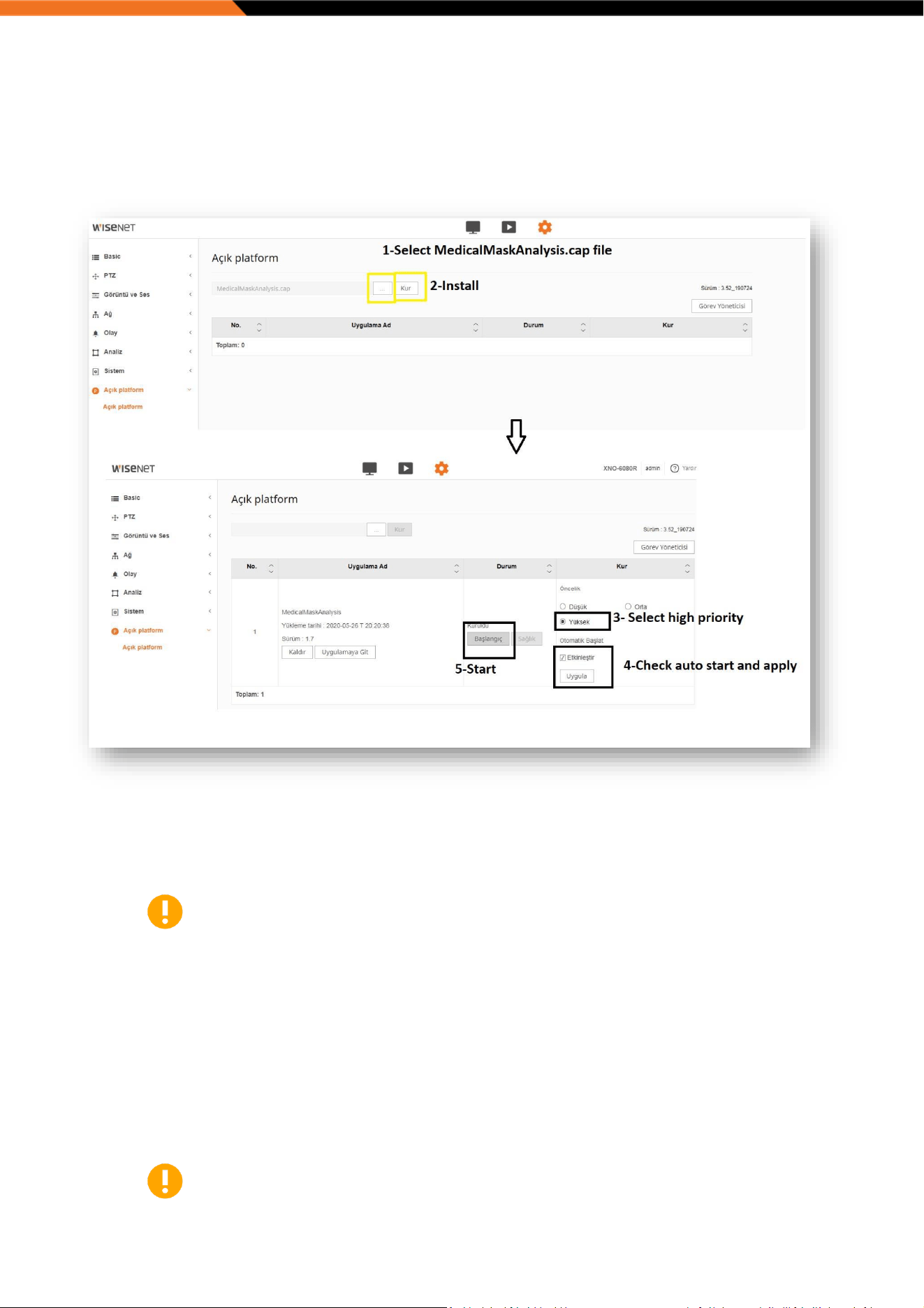
To install Mask Detection Software on the camera, open Hanwha camera interface and please follow the below
highlighted steps:
2.2.1 Licence Activation
Once the application is installed, it needs to be activated with a valid licence and there are two stages to complete this
process; requesting for licence and applying to the application.
Please note, without valid Purchase Order Number information this will delay in
generating licence request code.
To request licence
1. Navigate to Licence menu
2. Click to “Copy” button to copy the Licence Request Code
3. Compose an e-mail and in the subject of the email include your Purchase Order Number and “a2
FaceMaskDetection App”
4. Paste the Licence Request Code into the email body
5. Send to your purchasing distributor
6. Once the Licence key is received, please copy and paste into the licence field and press apply button. The
system will pop up with message “Licence is accepted”.
Please note, that date and time need to be set correctly before generating the licence
request code.
Face Mask Detection Installation Manual
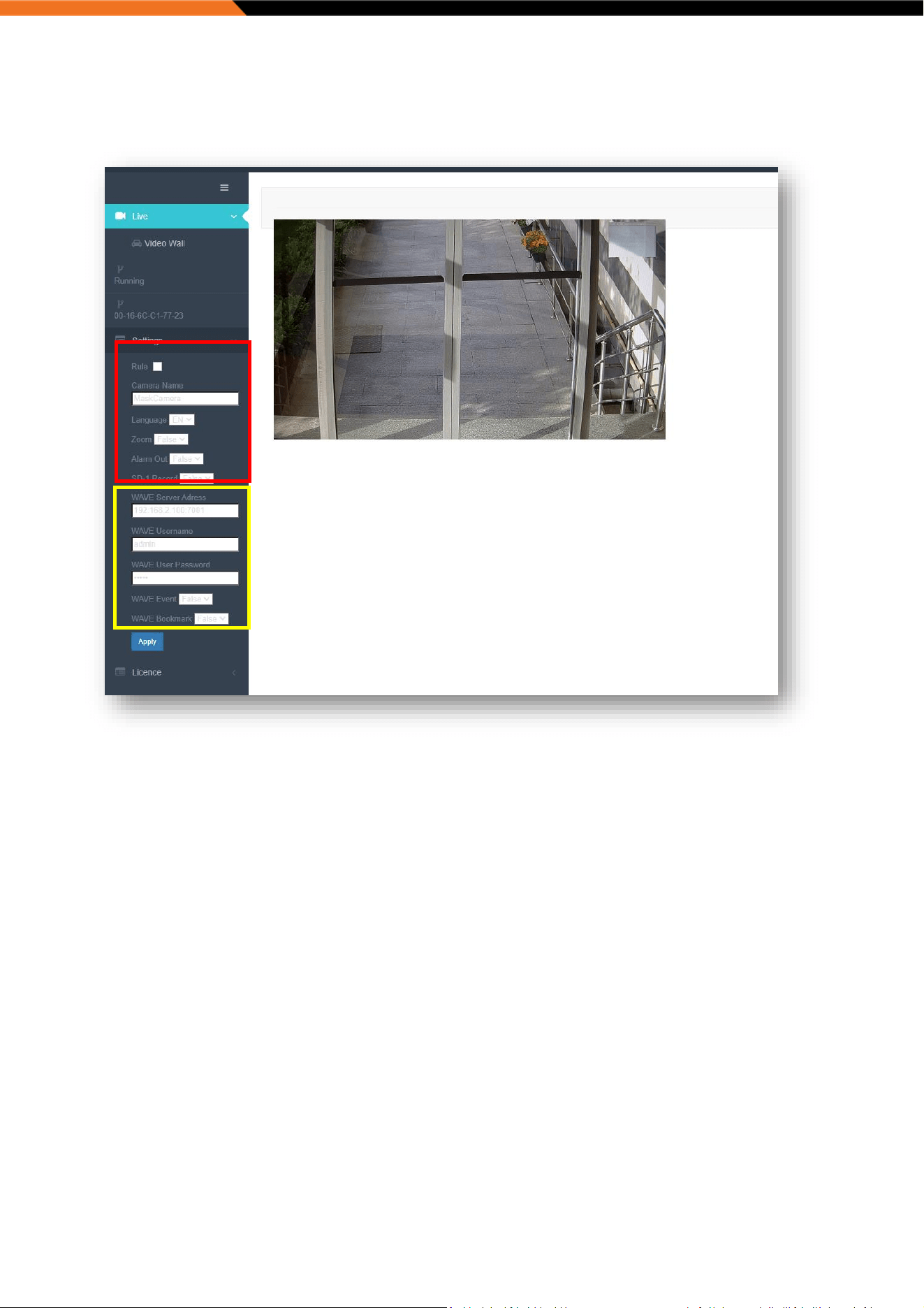
3. Settings
System Setting (Red Box)
Rule : Displays Min/Max Face Size hints on stream
Camera Name : Designated name is shown at VMS Software
Language : Language selection (English/Turkish)
Zoom : Digital Zoom-In function (True/False)
Alarm Out : Camera output signal on alarm moment (True/False)
SD-1 Record : Recording the Alarm Pictures into SD Card (True/False)
Setting for Wisenet Wave Integration (Yellow Box)
Wave Logins : Username and Password
Wave Event : Event message (Active/Passive)
Wave Bookmark : Bookmark (Active/Passive)
Face Mask Detection Installation Manual
3.1 Digital Zoom-In function
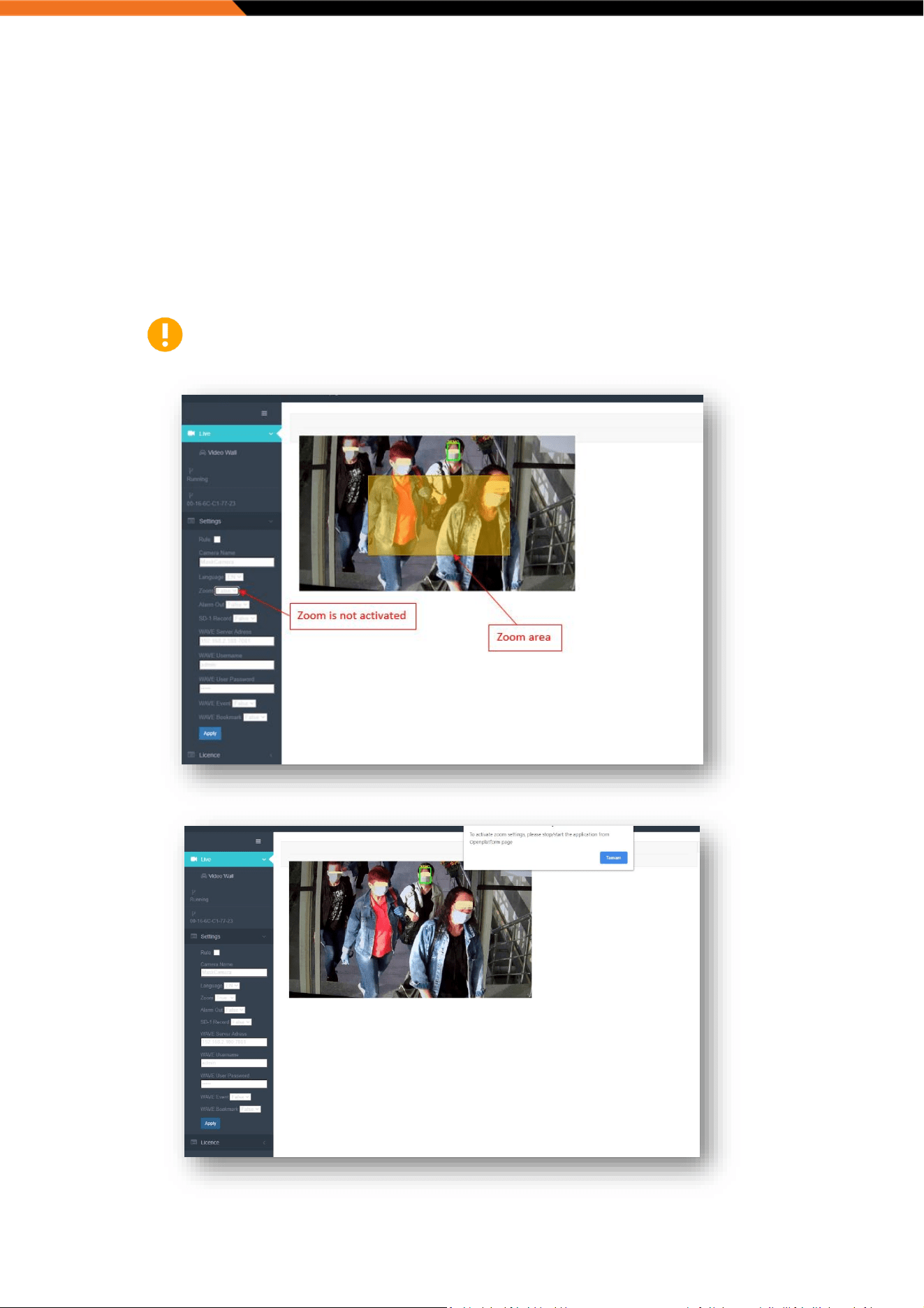
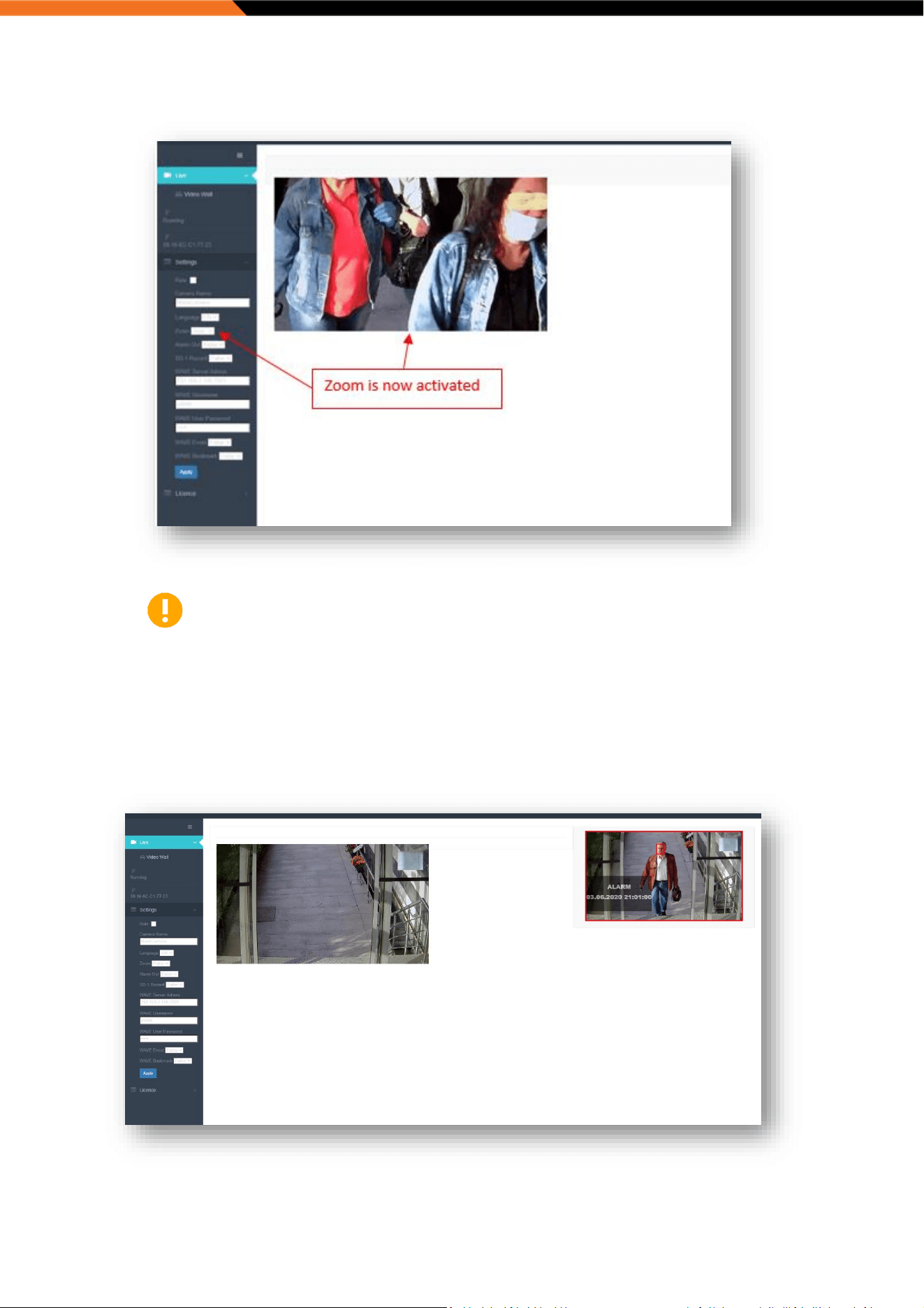
System has a digital Zoom-In function for cameras with fixed lens. There is only 1 step zoom option. If the Zoom Function
is activated, system get high-resolution stream and crop a specific area from centre of the images.
To activate this feature:
1. Select Zoom area
2. Navigate to Zoom parameter and select “True”
3. Click “Apply” button
4. System will automatically restart
Please note, the restart is required only for this feature.
Face Mask Detection Installation Manual
Please note, this function does not affect the live and recording stream.
4. System Interface
The application can be used as stand-alone on the Edge of the camera or integrated into Wisenet Wave VMS.
4.1 Application on the Edge
Face Mask Detection Installation Manual
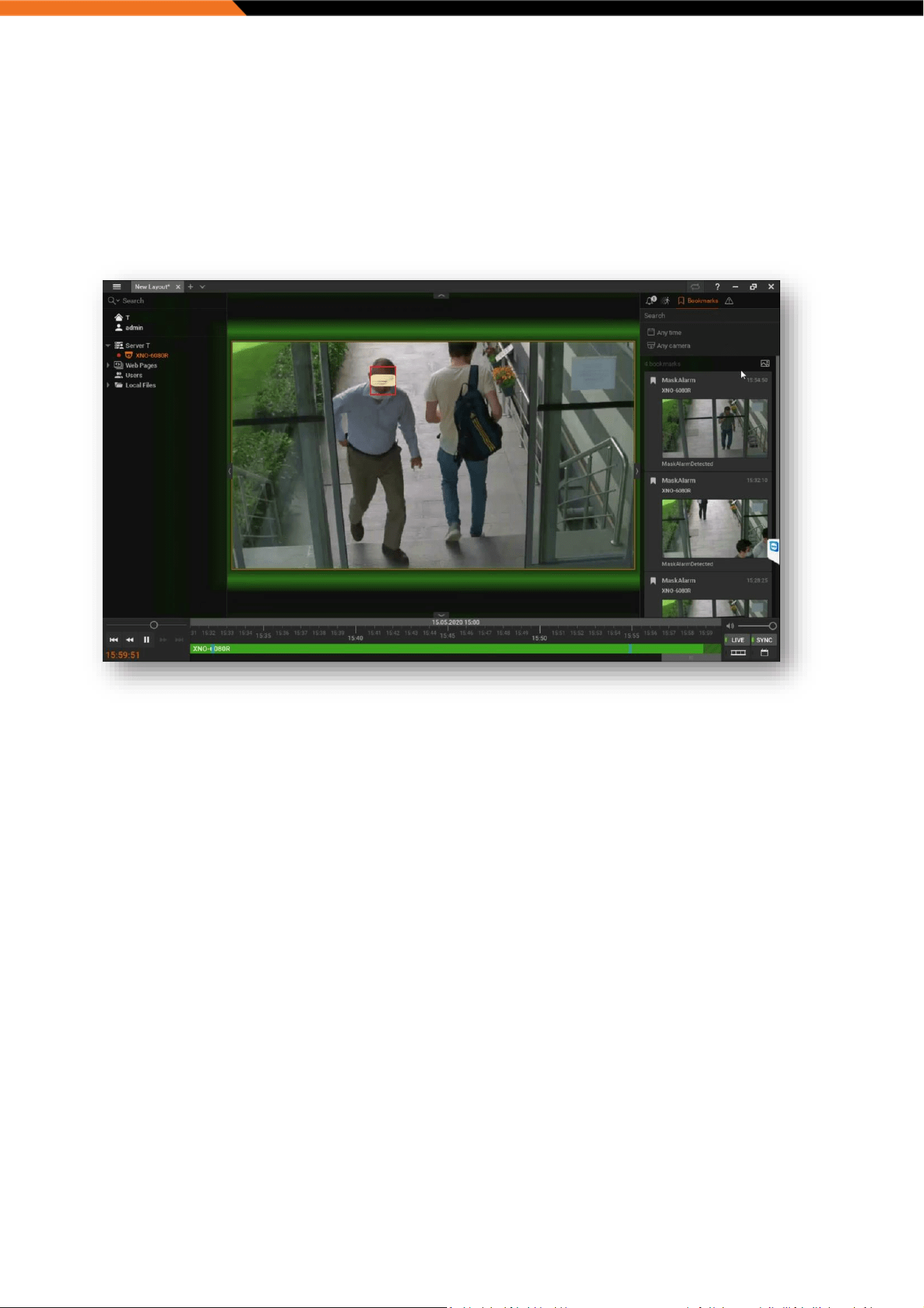
Live view stream appear on the left side
Alarm images appear on right side
A pre-recorded Alarm Message is played through web browser when the system detects a non-masked person.
The system has pre-recorded alarm messages in English or Turkish played accordingly to the selected System
Language.
4.2 WAVE Integration
Alarm images are appeared on right side
System generates a bookmark on Wisenet Wave
Alarm video clip can be watched by clicking alarm image shown on Bookmark List
If a “Play Sound” rule is activated on Wisenet Wave, a pre-recorded alarm message is played through web
browser when the system detects a non-masked person. The system has pre-recorded alarm messages in English
or Turkish played accordingly to the selected System Language.

Face Mask Detection Installation Manual
5. Support
For technical support, please contact via one of the below options:
E-mail: eucctv.help@hanwha.com
Telephone:
France +33 1 76 28 43 66
Germany +49 32 213 335936
Italy +39 02 8732 5016
Spain +34 91 123 50 70
UK +44 1372 235663
All other countries +49 32 213 335936
5.1 Frequently Asked Questions
Q: I cannot install the Software (cap file) on the camera.
A: Please check your camera model against the list of compatible models of this manual section “1.3 Compatible
Models”.
Q: I have received activation licence but it is rejected.
A: Please check the date-time settings of the camera has not changed since the licence request was made.
Q: The software is not detecting any people with mask or without.
A: The width of the face area should be minimum 120px and maximum 160px on Full HD Image and should be viewed
under 30
o
angle in vertical or horizontal. For further information, please check section 2 of this manual.
Q: Do I need SD card to install and run the application on the edge of the camera?
A: You don’t need SD card to install or run the application on the edge. SD Card is required only if you intend to use the
application as standalone (meaning on the edge of the camera) and record alarms and images.

Face Mask Detection Installation Manual