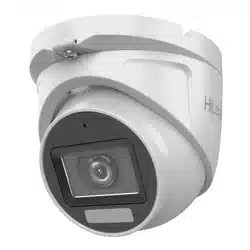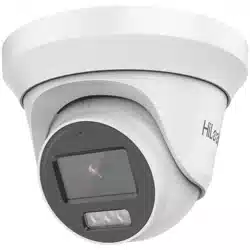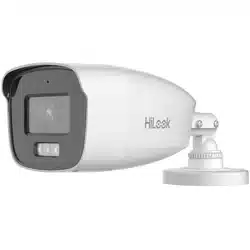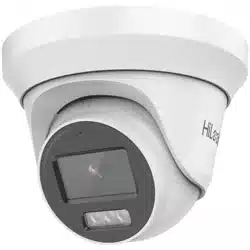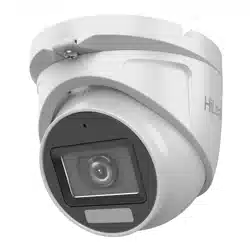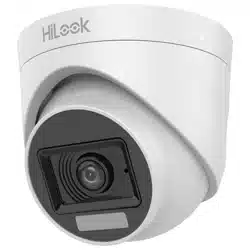
HiLook Series Smart Hybrid
Light Bullet & Turret Camera
User Manual
User Manual
Thank you for purchasing our product. If there are any
questions, or requests, do not hesitate to contact the
dealer.
This manual applies to the models below:
Type
Model
Note
Type I Camera
THC-B227-LMS
2MP model
THC-B257-LMS
3K model
Type II Camera
THC-B127-LPS
2MP model
THC-B127-LMS
THC-B157-LPS
3K model
THC-B157-LMS
Type III
Camera
THC-T127-LPS
2MP model
THC-T157-LPS
3K model
Type IV
Camera
THC-T127-LMS
2MP model
THC-T157-LMS
3K model
Type V
Camera
THC-T227-LMS
2MP model
THC-T257-LMS
3K model
This manual may contain several technical mistakes or
printing errors, and the content is subject to change
without notice. The updates will be added to the new
version of this manual. We will readily improve or
update the products or procedures described in the
manual.
01000020230322

Legal Information
©2022 Hangzhou Hikvision Digital Technology Co., Ltd.
About this Manual
Pictures, charts, images and all other information
hereinafter are for description and explanation only.
The information contained in the Manual is subject to
change, without notice, due to firmware updates or
other reasons. Please find the latest version in the
company website (https://www.hikvision.com/). Please
use this user manual under the guidance of
professionals.
Trademarks
and other Hikvision's trademarks and logos are
the properties of Hikvision in various jurisdictions.
Other trademarks and logos mentioned are the
properties of their respective owners.
Disclaimer
TO THE MAXIMUM EXTENT PERMITTED BY APPLICABLE
LAW, THIS MANUAL AND THE PRODUCT DESCRIBED,
WITH ITS HARDWARE, SOFTWARE AND FIRMWARE, ARE
PROVIDED "AS IS" AND "WITH ALL FAULTS AND
ERRORS". HIKVISION MAKES NO WARRANTIES, EXPRESS
OR IMPLIED, INCLUDING WITHOUT LIMITATION,
MERCHANTABILITY, SATISFACTORY QUALITY, OR FITNESS
FOR A PARTICULAR PURPOSE. THE USE OF THE
PRODUCT BY YOU IS AT YOUR OWN RISK. IN NO EVENT
WILL HIKVISION BE LIABLE TO YOU FOR ANY SPECIAL,
CONSEQUENTIAL, INCIDENTAL, OR INDIRECT DAMAGES,
INCLUDING, AMONG OTHERS, DAMAGES FOR LOSS OF
BUSINESS PROFITS, BUSINESS INTERRUPTION, OR LOSS
OF DATA, CORRUPTION OF SYSTEMS, OR LOSS OF
DOCUMENTATION, WHETHER BASED ON BREACH OF
CONTRACT, TORT (INCLUDING NEGLIGENCE), PRODUCT
LIABILITY, OR OTHERWISE, IN CONNECTION WITH THE
USE OF THE PRODUCT, EVEN IF HIKVISION HAS BEEN
ADVISED OF THE POSSIBILITY OF SUCH DAMAGES OR
LOSS.
YOU ACKNOWLEDGE THAT THE NATURE OF THE
INTERNET PROVIDES FOR INHERENT SECURITY RISKS,
AND HIKVISION SHALL NOT TAKE ANY RESPONSIBILITIES
FOR ABNORMAL OPERATION, PRIVACY LEAKAGE OR
OTHER DAMAGES RESULTING FROM CYBER-ATTACK,
HACKER ATTACK, VIRUS INFECTION, OR OTHER
INTERNET SECURITY RISKS; HOWEVER, HIKVISION WILL
PROVIDE TIMELY TECHNICAL SUPPORT IF REQUIRED.
YOU AGREE TO USE THIS PRODUCT IN COMPLIANCE
WITH ALL APPLICABLE LAWS, AND YOU ARE SOLELY
RESPONSIBLE FOR ENSURING THAT YOUR USE
CONFORMS TO THE APPLICABLE LAW. ESPECIALLY, YOU
ARE RESPONSIBLE, FOR USING THIS PRODUCT IN A
MANNER THAT DOES NOT INFRINGE ON THE RIGHTS OF
THIRD PARTIES, INCLUDING WITHOUT LIMITATION,
RIGHTS OF PUBLICITY, INTELLECTUAL PROPERTY RIGHTS,
OR DATA PROTECTION AND OTHER PRIVACY RIGHTS.
YOU SHALL NOT USE THIS PRODUCT FOR ANY
PROHIBITED END-USES, INCLUDING THE DEVELOPMENT
OR PRODUCTION OF WEAPONS OF MASS DESTRUCTION,
THE DEVELOPMENT OR PRODUCTION OF CHEMICAL OR
BIOLOGICAL WEAPONS, ANY ACTIVITIES IN THE
CONTEXT RELATED TO ANY NUCLEAR EXPLOSIVE OR
UNSAFE NUCLEAR FUEL-CYCLE, OR IN SUPPORT OF
HUMAN RIGHTS ABUSES.
IN THE EVENT OF ANY CONFLICTS BETWEEN THIS
MANUAL AND THE APPLICABLE LAW, THE LATTER
PREVAILS.
Regulatory Information
FCC Information
Please take attention that changes or modification not
expressly approved by the party responsible for
compliance could void the user’s authority to operate
the equipment.
FCC compliance: This equipment has been tested and
found to comply with the limits for a Class A digital
device, pursuant to part 15 of the FCC Rules. These
limits are designed to provide reasonable protection
against harmful interference when the equipment is
operated in a commercial environment. This equipment
generates, uses, and can radiate radio frequency energy
and, if not installed and used in accordance with the
instruction manual, may cause harmful interference to
radio communications. Operation of this equipment in a
residential area is likely to cause harmful interference in
which case the user will be required to correct the
interference at his own expense.
FCC Conditions
This device complies with part 15 of the FCC Rules.
Operation is subject to the following two conditions:
1. This device may not cause harmful interference.
2. This device must accept any interference received,
including interference that may cause undesired
operation.
EU Conformity Statement
This product and - if applicable - the
supplied accessories too are marked with
"CE" and comply therefore with the
applicable harmonized European
standards listed under the Low Voltage Directive
2014/35/EU, the EMC Directive 2014/30/EU, the RoHS
Directive 2011/65/EU.
2012/19/EU (WEEE directive): Products
marked with this symbol cannot be
disposed of as unsorted municipal waste in
the European Union. For proper recycling,
return this product to your local supplier
upon the purchase of equivalent new
equipment, or dispose of it at designated collection
points. For more information see: www.recyclethis.info.
2006/66/EC (battery directive): This product contains a
battery that cannot be disposed of as
unsorted municipal waste in the European
Union. See the product documentation for
specific battery information. The battery is
marked with this symbol, which may
include lettering to indicate cadmium (Cd), lead (Pb), or
mercury (Hg). For proper recycling, return the battery
to your supplier or to a designated collection point. For
more information, see: www.recyclethis.info.
Industry Canada ICES-003 Compliance
This device meets the CAN ICES-3 (A)/NMB-3(A)
standards requirements.
Warning
This is a class A product. In a domestic environment this
product may cause radio interference in which case the
user may be required to take adequate measures.
Safety Instruction
These instructions are intended to ensure that user can
use the product correctly to avoid danger or property
loss.
The precaution measure is divided into “Warnings” and
“Cautions”.
Warnings: Serious injury or death may occur if any of
the warnings are neglected.
Cautions: Injury or equipment damage may occur if any
of the cautions are neglected.
Warnings
In the use of the device, you must be in strict
compliance with the electrical safety regulations of
the nation and region.
Input voltage should meet both the SELV (Safety Extra
Low Voltage) and the Limited Power Source with 12
VDC according to the IEC60950-1 standard and
IEC62368-1 standard. Refer to technical specifications
for detailed information.
The socket-outlet shall be installed near the
equipment and shall be easily accessible.
An all-pole mains switch shall be incorporated in the
electrical installation of the building.
Do not connect multiple devices to one power
adapter to avoid over-heating or a fire hazard caused
by overload.
Make sure that the plug is firmly connected to the
power socket.
Make sure that the device is firmly fixed if wall
mounting or ceiling mounting is adopted.
If smoke, odor or noise rise from the device, turn off
the power at once and unplug the power cord, and
then contact the service center.
Never attempt to disassemble the camera by
unprofessional personal.
Cautions
No naked flame sources, such as lighted candles,
should be placed on the equipment.
Install the equipment according to the instructions in
this manual.
To prevent injury, this equipment must be securely
attached to the wall in accordance with the
installation instructions.
Do not drop the camera or subject it to physical
shock.
Do not touch senor modules with fingers.
Do not place the camera in extremely hot, cold (the
operating temperature shall be -40°C to 60°C), dusty
or damp locations, and do not expose it to high
electromagnetic radiation.
If cleaning is necessary, use clean cloth with a bit of
ethanol and wipe it gently.
Warnings Follow
these safeguards to
prevent serious injury
or death.
Cautions Follow these
precautions to prevent
potential injury or
material damage.
Do not aim the camera at the sun or extra bright
places.
The sensor may be burned out by a laser beam, so
when any laser equipment is in using, make sure that
the surface of sensor will not be exposed to the laser
beam.
Do not expose the device to high electromagnetic
radiation or extremely hot, cold, dusty or damp
environment.
To avoid heat accumulation, good ventilation is
required for the operating environment.
Keep the camera away from liquid while in use for
non-water-proof device.
While in delivery, the camera shall be packed in its
original packing, or packing of the same texture.
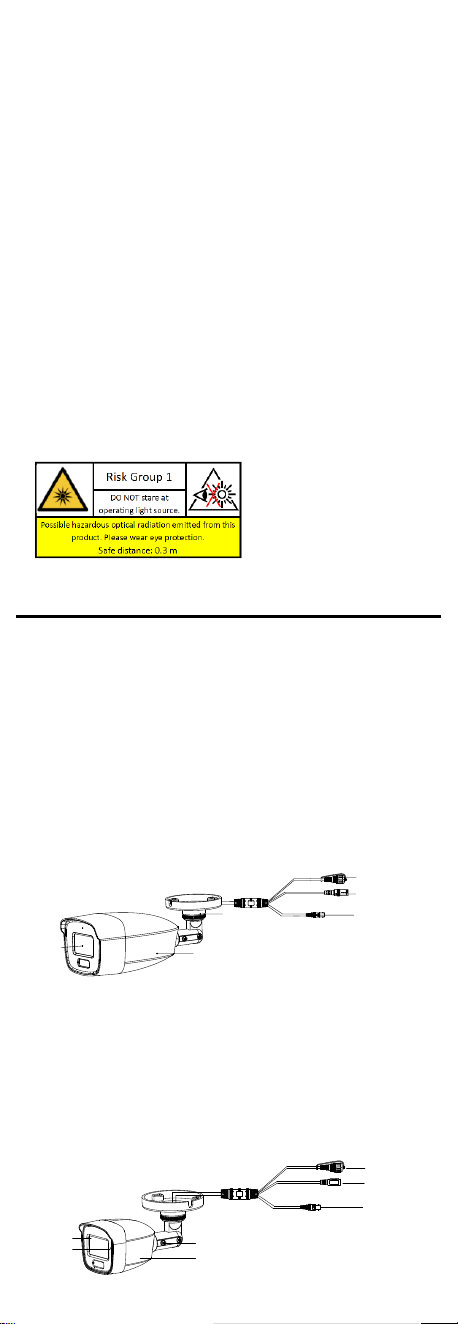
The beam of the light at the distance of 200 mm is
classified as Risk Group 1 (RG1). Possible hazardous
optical radiation emitted from this product.
DO NOT stare at operating light source. May be
harmful to the eyes.
Wear appropriate eye protection or turn on the
supplement light only at a safe distance (0.3 m) or in
the area that is not directly exposed to the light when
installing or maintaining the device.
1 Introduction
1.1 Product Features
The main features are as follows:
High performance CMOS sensor
OSD menu with configurable parameters
Smart light
3-axis adjustment
Hybrid supplement light with IR and white light
1.2 Overview
1.2.1 Overview of Type I Camera
Main Body
Switch Button
Video Cable
Power Cord
Lens
Bracket
Figure 1-1 Overview of Type I Camera
Note:
Press and hold the switch button for 5 seconds to
switch the video output. Four kinds of video outputs
are available: TVI, AHD, CVI, and CVBS.
1.2.2 Overview of Type II Camera
Switch Button
Video Cable
Power Cord
Lens
Bracket
Microphone
Main Body
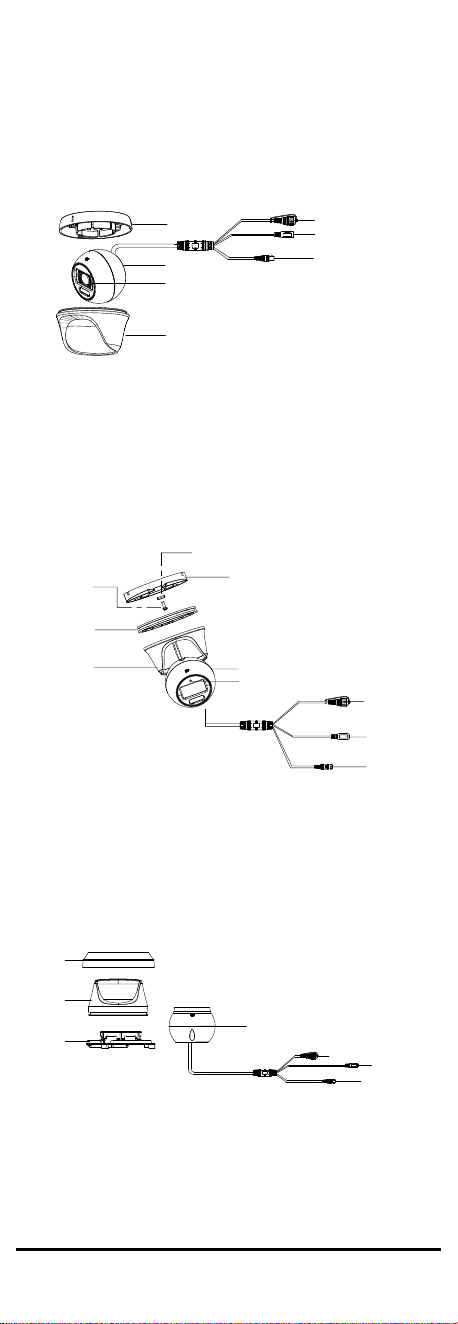
Figure 1-2 Overview of Type II Camera
Note:
Press and hold the switch button for 5 seconds to
switch the video output. Four kinds of video outputs
are available: TVI, AHD, CVI, and CVBS.
1.2.3 Overview of Type III Camera
Enclosure
Main Body
Base
Switch Button
Power Cord
Video Cable
Microphone
Figure 1-3 Overview of Type III Camera
Note:
Press and hold the switch button for 5 seconds to
switch the video output. Four kinds of video outputs
are available: TVI, AHD, CVI, and CVBS.
1.2.4 Overview of Type IV Camera
Trim Ring
Enclosure
Base
Main Body
Switch Button
Video Cable
Power Cord
Tightening Screw
Clip Plate
Microphone
Figure 1-4 Overview of Type IV Camera
Note:
Press and hold the switch button for 5 seconds to
switch the video output. Four kinds of video outputs
are available: TVI, AHD, CVI, and CVBS.
1.2.5 Overview of Type V Camera
Trim Ring
Enclosure
Base
Main Body
Power Cord
Switch Button
Video Cable
Figure 1-5 Overview of Type V Camera
Note:
Press and hold the switch button for 5 seconds to
switch the video output. Four kinds of video outputs
are available: TVI, AHD, CVI, and CVBS.
2 Installation
Before you start
Make sure that the device in the package is in good
condition and all the assembly parts are included.
Make sure that all the related equipment is power-off
during the installation.
Check the specification of the products for the
installation environment.
Check whether the power supply is matched with
your power output to avoid damage.
Make sure the wall is strong enough to withstand
three times the weight of the camera and the mount.
If the product does not function properly, contact
your dealer or the nearest service center. DO NOT
disassemble the camera for repair or maintenance by
yourself.
2.1 Installation of Type I & II Camera
2.1.1 Ceiling/Wall Mounting without Junction Box
Ceiling mounting and wall mounting are similar.
Following steps take ceiling mounting as an example.
Steps:
1. Paste the drill template (supplied) to the installation
location.
2. (Optional) For cement ceiling, drill the screw holes
with a 5.5 mm drill and insert the supplied wall
plugs.
3. (Optional) Drill the cable hole, when the cables are
routed through the ceiling.
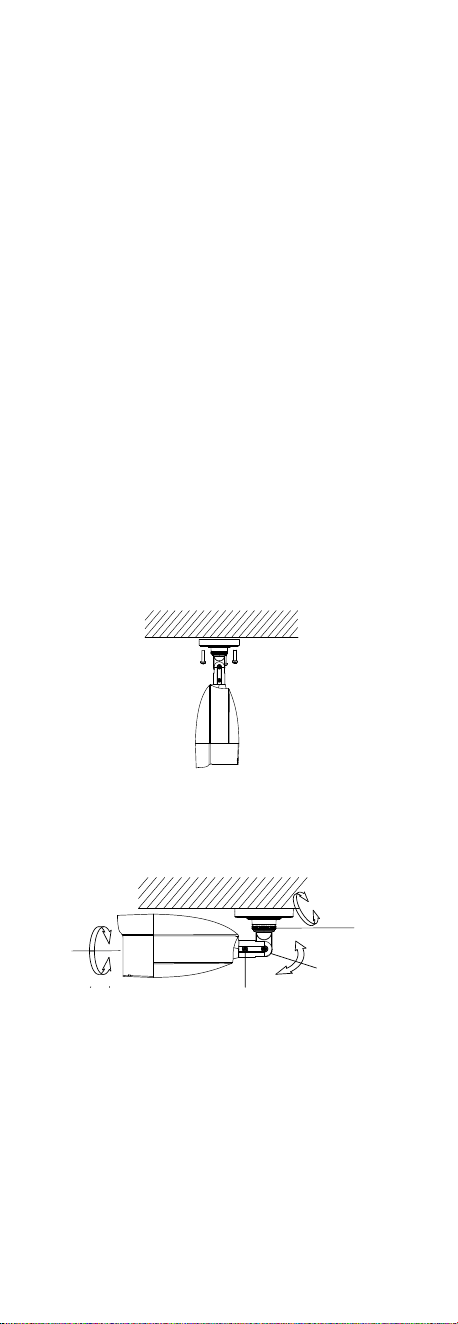
4. Secure the camera to ceiling with three PA4 × 25
screws (supplied).
Figure 2-1 Secure the Camera to the Ceiling
5. Connect the cables.
6. Power on the camera to adjust the view angle
according to the figure below.
Trim Ring
Adjusting Screw
Pan Position
[0° to 360°]
Tilt Position
[0° to 180°]
Adjusting Screw
Rotation Position
[0° to 360°]
Figure 2-2 3-Axis Adjustment
2.1.2 Ceiling/Wall Mounting with Junction Box
Before you start:
You need to purchase a junction box in advance.
Ceiling mounting and wall mounting are similar.
Following steps take wall mounting as an example.
Steps:
1. Paste the drill template for junction box to the
installation location.
2. (Optional) For cement wall, drill the screw holes
with a 5.5 mm drill and insert the supplied wall
plugs.
3. (Optional) Drill the cable hole, when the cables are
routed through the wall.
4. Take apart the junction box.
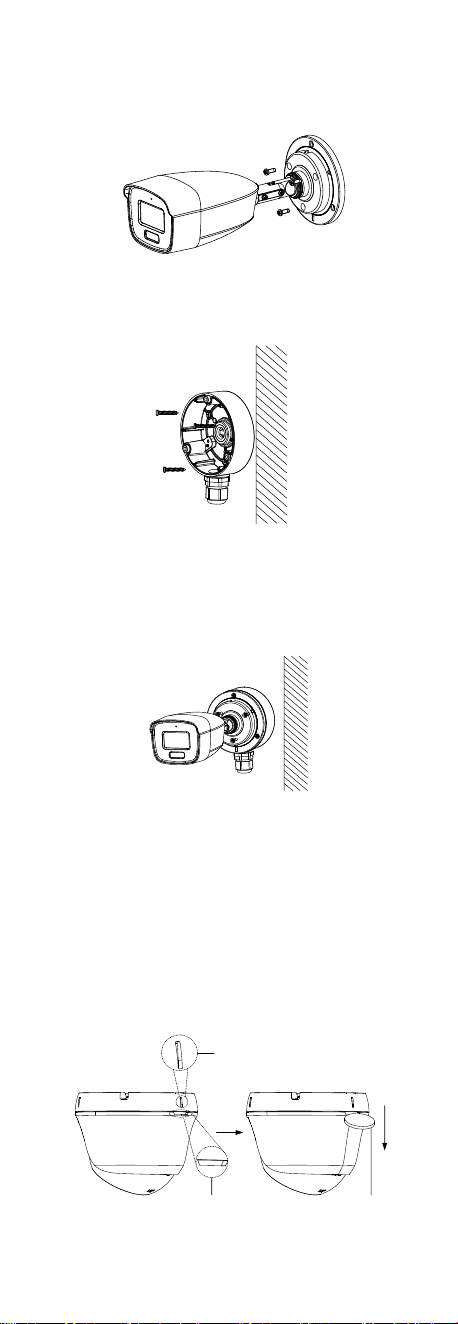
5. Fix the camera to the junction box cover with three
PM4 × 10 screws.
Figure 2-3 Fix the Camera to the Junction Box Cover
6. Secure the junction box body on the wall with three
PA4 × 25 screws (supplied).
Figure 2-4 Secure the Junction Box on the Wall
7. Route the cables through the bottom cable hole or
side cable hole of the junction box and connect the
cables.
8. Fix the junction box cover on its body with three
PM3 × 16 L6 screws.
Figure 2-5 Fix the Cover to Its Body
9. Refer to Step 6 of 2.1.1 Ceiling/Wall Mounting
without Junction Box to finish installation.
2.2 Installation of Type III Camera
2.2.3 Ceiling Mounting Without Junction Box
Steps:
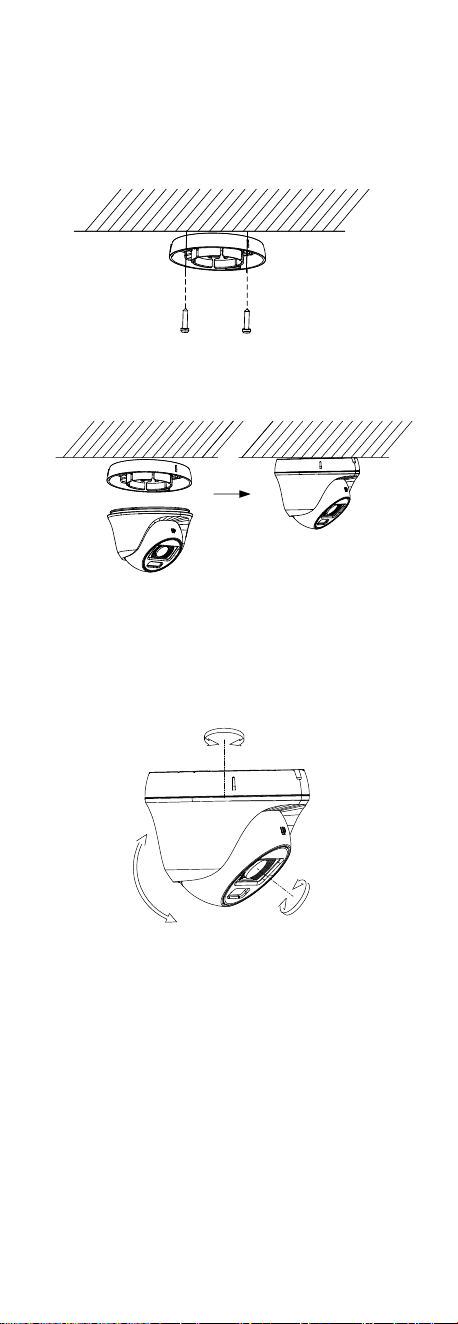
1. Rotate the camera to align the mark with the notch.
Insert a coin or another tool into the notch, and
press down to dissemble the camera.
Notch
Mark
Coin
Figure 2-6 Dissemble the Camera
2. Paste the drill template (supplied) to the place
where you want to install the camera.
3. (Optional) For cement ceiling, drill the screw holes
with a 5.5 mm drill and insert the supplied wall
plugs.
4. (Optional) Drill the cable hole, when the cables are
routed through the ceiling.
5. Use two PA4 × 25 screws (supplied) to secure the
base to the ceiling.
Figure 2-7 Secure the Base to the Ceiling
6. Align the notch with the mark to install the camera
back to the base and secure it.
Figure 2-8 Install the Camera Back
7. Connect the cables.
8. Power on the camera to check whether the image
on the monitor is gotten from the optimum angle. If
not, adjust the camera according to the figure
below.
Pan Position
[0° to 360°]
Rotation Position
[0° to 360°]
Tilt Position
[0° to 75°]
Figure 2-9 3-Axis Adjustment
1). Rotate the enclosure to adjust the pan position
[0° to 360°].
2). Move the main body up and down to adjust the
tilt position [0° to 75°].
3). Rotate the main body to adjust the rotation
position [0° to 360°].
2.2.4 Ceiling Mounting with Junction Box
Before you start:
You need to purchase a junction box in advance.
Steps:
1. Loosen screws to take apart the junction box.
2. Paste the drill template for junction box to the place
where you want to install the camera.
3. (Optional) For cement ceiling, drill the screw holes
with a 5.5 mm drill and insert the supplied wall
plugs.
4. (Optional) Drill the cable hole, when the cables are
routed through the ceiling.
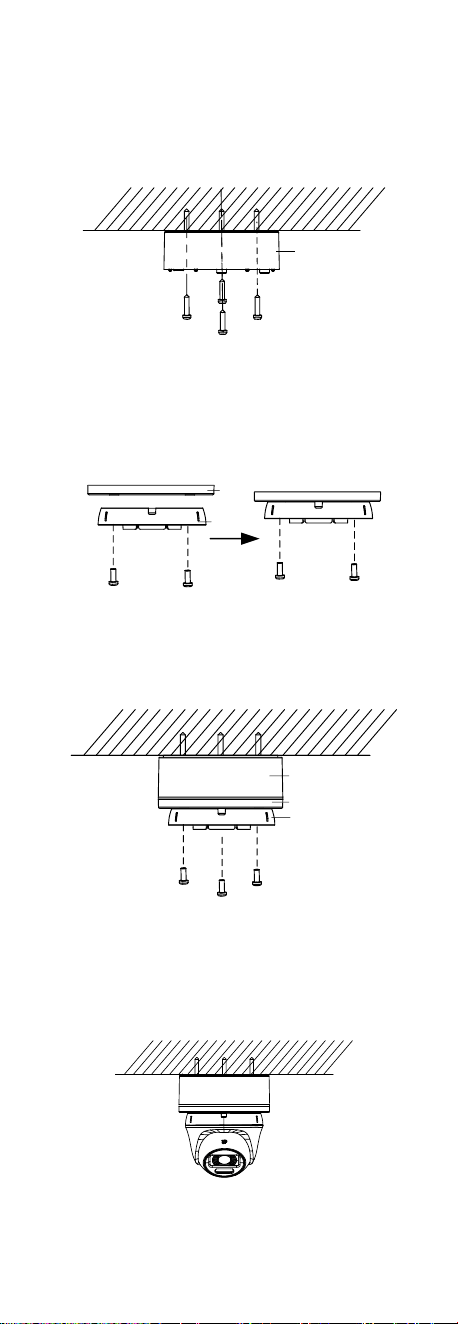
5. Secure the junction box body on the ceiling with
four PA4 × 25 screws that come with the junction
box.
Junction Box Body
Figure 2-10 Secure the Junction Box Body
6. Route the cables through the bottom cable hole or
the side cable hole of the junction box.
7. Combine the junction box cover with the base of the
camera and secure it with two M4 × 10 screws.
Junction Box Cover
Camera Base
Figure 2-11 Combine Junction Box Cover and Camera
Base
8. Fix the junction box cover onto the junction box
body with three M3 screws.
Junction Box Body
Junction Box Cover
Camera Base
Figure 2-12 Combine Junction Box Cover and Junction
Box Body
9. Connect the power cord and video cable and put
the cables back into the junction box.
10. Repeat the steps 6 to 9 of 2.2.3 Ceiling Mounting
Without Junction Box to finish the installation.
Figure 2-13 Finish the Installation
2.2.5 Wall Mounting
Before you start:
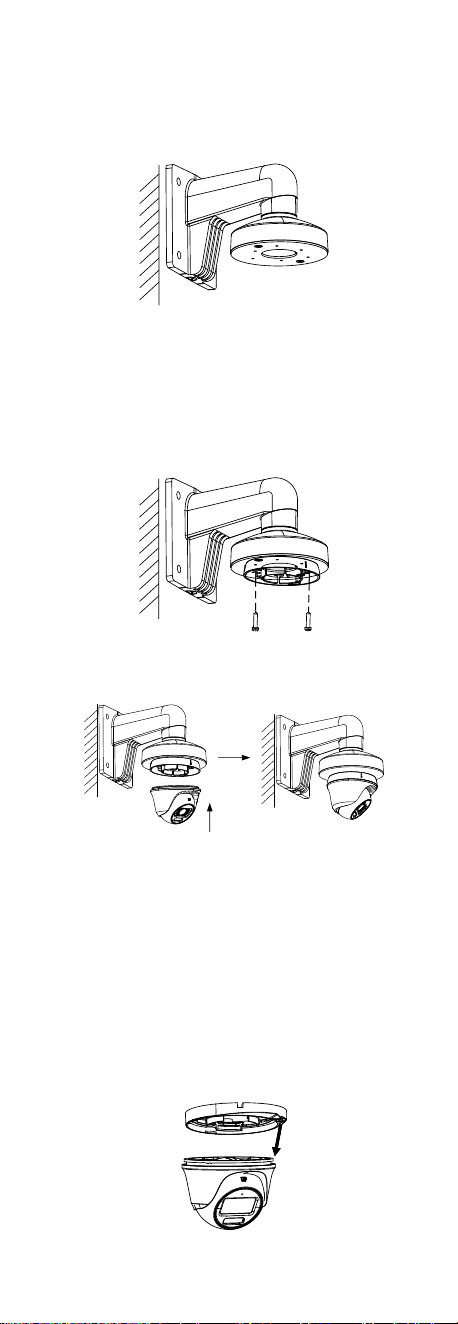
You need to purchase a wall mount in advance.
Steps:
1. Drill Ø10 mm screw holes in the wall where you
want to install the wall mount.
2. Use four M6 expansion bolts to fix the wall mount
onto the wall.
Figure 2-14 Fix the Wall Mount
3. Loosen the set screw.
4. Refer to step 1 of 2.2.3 Ceiling Mounting Without
Junction Box to dissemble the camera.
5. Use two M4 × 10 screws to fix the base onto the
wall mount.
Figure 2-15 Fix the Base onto the Wall Mount
6. Repeat steps 6 to 9 of 2.2.3 Ceiling Mounting
Without Junction Box to finish the installation.
Figure 2-16 Finish the Installation
2.3 Installation of Type IV Camera
2.3.6 Ceiling Mounting without Junction Box
Steps:
1. Paste the drill template (supplied) to the installation
location.
2. (Optional) For cement ceiling, drill the screw holes
with a 5.5 mm drill and insert the supplied wall
plugs.
3. Loosen the tightening screw, and pull out the clip
plate to dissemble the camera.
Figure 2-17 Dissemble the Camera
4. Install the camera to ceiling.
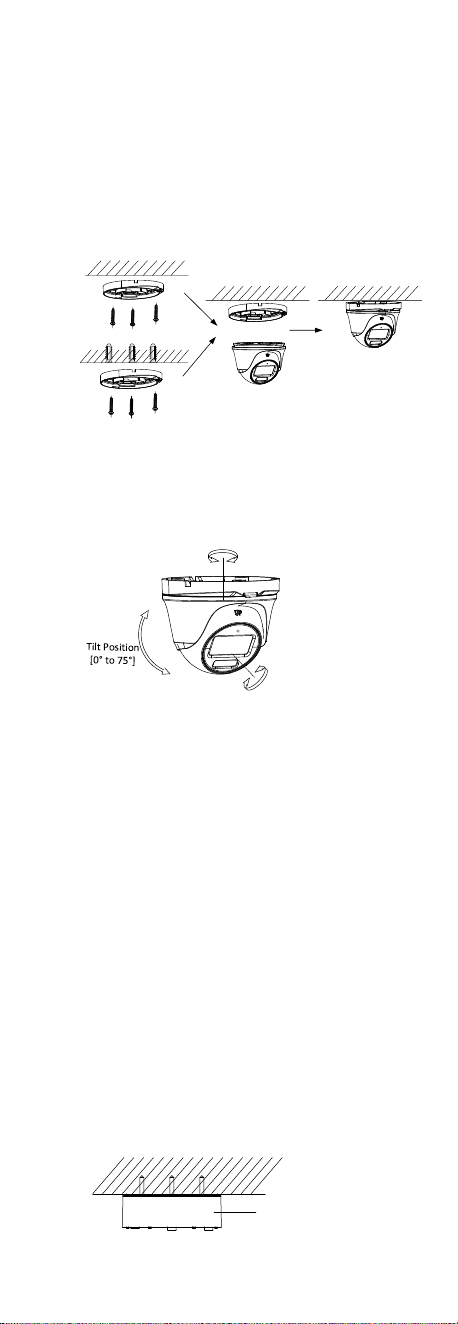
i. Method 1:
Secure the installation plate to the ceiling with
three PA4 × 25 screws (supplied).
Method 2:
Drill the screw holes with a 5.5 mm drill and
insert the supplied wall plugs, and secure the
installation plate to the ceiling with three PA3 ×
25 screws.
ii. Fit the camera onto the installation plate.
iii. Turn the camera as the figure below until it snaps
into the installation plate.
Or
Base Installation
Method 1
Method 2
Figure 2-18 Install the Camera to Ceiling
5. Connect the cables.
6. Power on the camera to adjust the view angle
according to the figure below.
Rotation Postion
[0° to 360°]
Pan Position
[0° to 360°]
Figure 2-19 3-Axis Adjustment
4). Rotate the enclosure to adjust the pan position
[0° to 360°].
5). Move the main body up and down to adjust the
tilt position [0° to 75°].
6). Rotate the main body to adjust the rotation
position [0° to 360°].
2.3.7 Ceiling Mounting with Junction Box
Before you start:
You need to purchase a junction box in advance.
Steps:
1. Loosen screws to take apart the junction box.
2. Paste the drill template for junction box to the
installation location.
3. (Optional) For cement ceiling, drill the screw holes
with a 5.5 mm drill and insert the supplied wall
plugs.
4. (Optional) Drill the cable hole, when the cables are
routed through the ceiling.
5. Secure the junction box body on the ceiling with
four PA4 × 25 screws according to the actual object.
Junction Box Body
Figure 2-20 Secure the Junction Box Body
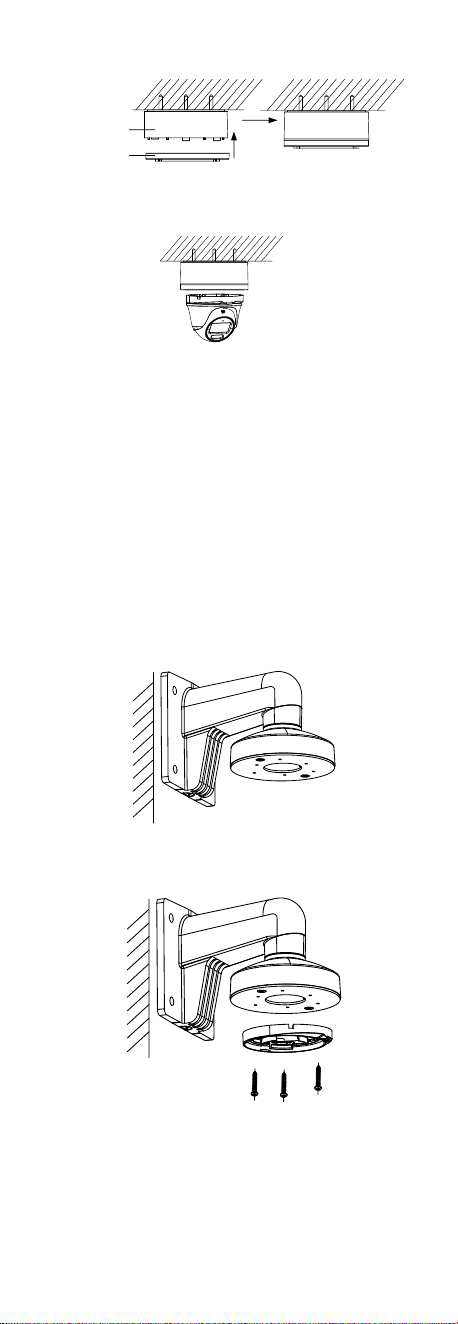
6. Fix the junction box cover to the junction box body.
Junction Box Body
Junction Box Cover
Figure 2-21 Fix Junction Box Cover to Junction Box Body
Figure 2-22 Finish Installation
7. Route the cables through the bottom cable hole or
the side cable hole of the junction box.
8. Refer to step 5 of 2.3.6 Ceiling Mounting without
Junction Box to adjust the angle and finish the
installation.
2.3.8 Wall Mounting
Before you start:
You need to purchase a wall mount in advance.
Steps:
1. Drill Ø10 mm screw holes in the wall where you
want to install the wall mount.
2. Use four M6 expansion bolts to fix the wall mount
onto the wall.
Figure 2-23 Fix the Wall Mount
3. Use three PM4 screws to fix the installation plate
onto the wall mount.
Figure 2-24 Fix the Installation Plate
4. Refer to steps 3 to 5 of Section 2.3.6 Ceiling
Mounting without Junction Box to finish installation.
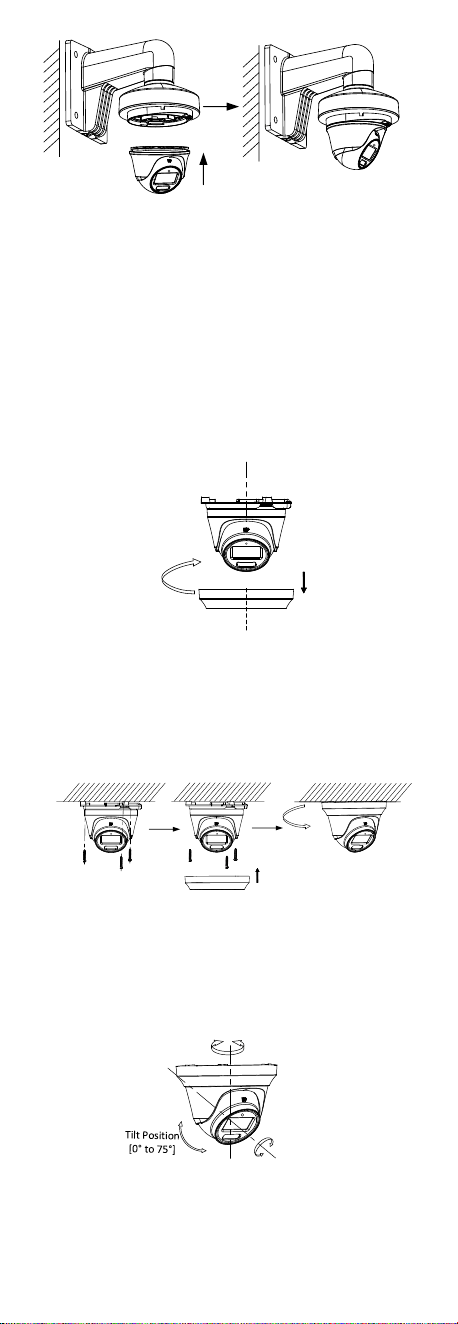
Figure 2-25 Finish Installation
2.4 Installation of Type V Camera
2.4.1 Ceiling Mounting
Steps:
1. Paste the drill template (supplied) to the installation
location.
2. (Optional) For cement ceiling, drill the screw holes
with a 5.5 mm drill and insert the supplied wall
plugs.
3. Rotate the camera counterclockwise to remove the
trim ring.
Figure 2-26 Remove Trim Ring
4. Install the camera to ceiling.
iv. Secure the installation plate to the ceiling with
three PA4 × 25 screws (supplied).
v. Install the trim ring.
vi. Turn the camera as the figure below until it snaps
into the installation plate.
Figure 2-27 Install the Camera to Ceiling
5. Connect the cables.
6. Power on the camera to adjust the view angle
according to the figure below.
Pan Position
[0° to 360°]
Rotation Postion
[0° to 360°]
Figure 2-28 3-Axis Adjustment
1). Rotate the enclosure to adjust the pan position
[0° to 360°].
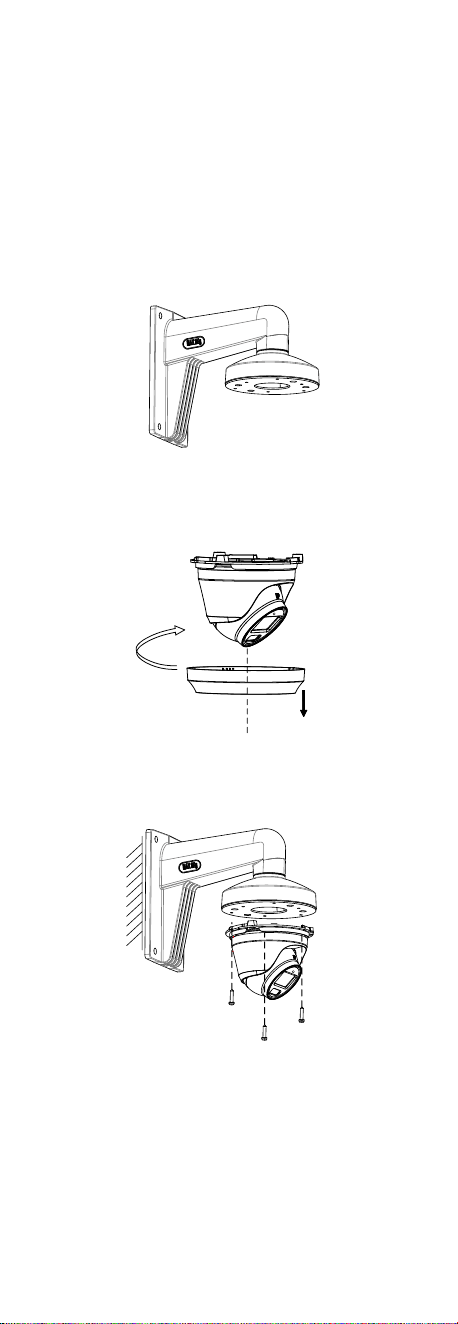
2). Move the main body up and down to adjust the
tilt position [0° to 75°].
3). Rotate the main body to adjust the rotation
position [0° to 360°].
2.4.2 Wall Mounting without Junction Box
Before you start:
You need to purchase a wall mount in advance.
Steps:
1. Drill Ø10 mm screw holes in the wall where you
want to install the wall mount.
2. Use four M6 expansion bolts to fix the wall mount
onto the wall.
Figure 2-29 Fix the Wall Mount
3. Rotate the camera counterclockwise to remove the
trim ring.
Figure 2-30 Remove Trim Ring
4. Use three PM4 × 10 screws to fix the installation
plate onto the wall mount.
Figure 2-31 Fix the Installation Plate
5. Refer to steps 3 to 5 of Section 2.3.6 Ceiling
Mounting without Junction Box to finish installation.
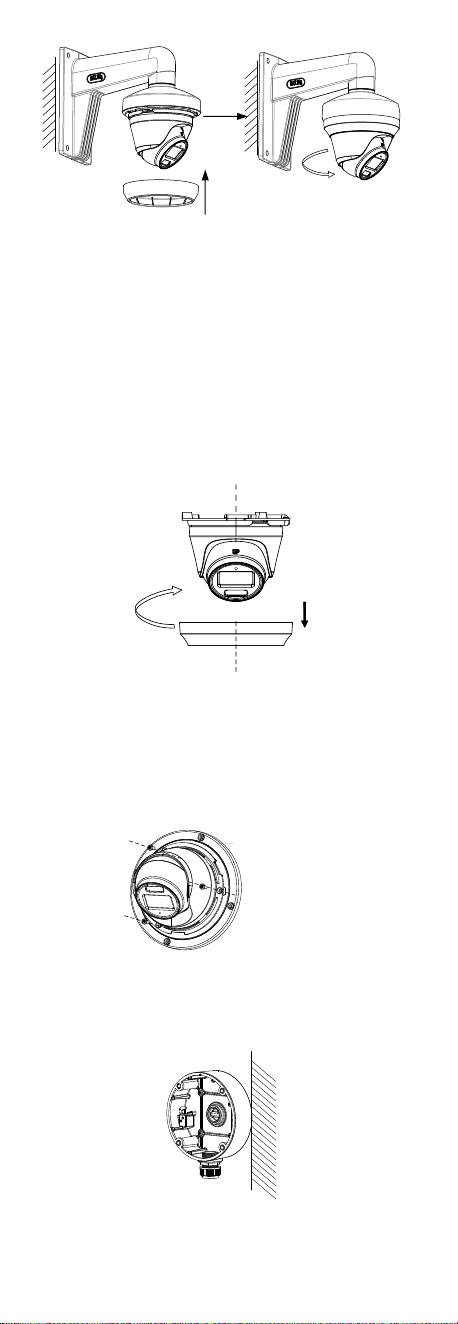
Figure 2-32 Finish Installation
2.4.3 Wall Mounting with Junction Box
Before you start:
You need to purchase a junction box in advance.
Ceiling mounting with a junction box is similar to
ceiling mounting with an inclined ceiling mount.
Following steps take a junction box as an example.
Steps:
1. Rotate the camera counterclockwise to remove the
trim ring.
Figure 2-33 Remove Trim Ring
2. Paste the drill template for junction box to the
installation location.
3. Take the junction box apart. Secure the turret to the
junction box cover with three or four PA4 × 10
screws.
Junction Box Cover
4. Fix the junction box body to the wall with four PA4 ×
25 screws.
Figure 2-34 Fix Junction Box to Wall
5. Route the cables through the bottom cable hole or
the side cable hole of the junction box.
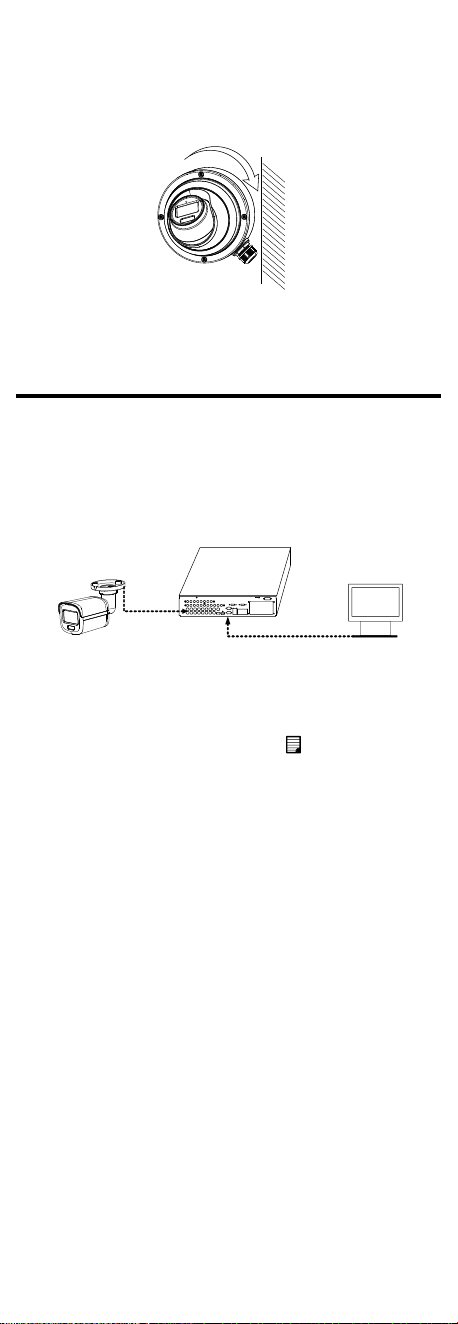
6. Secure the junction box cover to the junction box
cover with four PA4 × 25 screws. Refer to step 4 to 6
of 2.4.1 Ceiling Mounting to adjust the angle and
finish the installation.
Figure 2-35 Finish Installation
3 Menu Description
Please follow the steps below to call the menu.
Note:
The actual display may vary with your camera model.
Steps:
1. Connect the camera with the TVI DVR and the
monitor, as shown in figure 3-1.
Camera
TVI DVR
Monitor
Figure 3-1 Connection
2. Power on the camera, TVI DVR, and monitor to view
the image on the monitor.
3. Click PTZ Control to enter the PTZ Control interface.
4. Call the camera menu by clicking button or
calling preset No. 95.
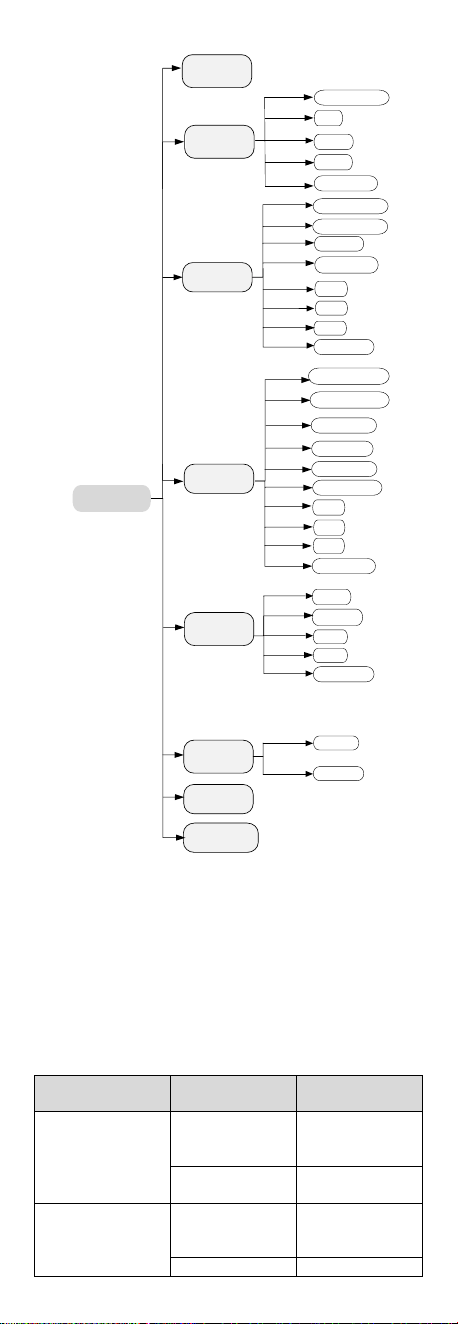
EXPOSURE MODE
MAIN MENU
VIDEO
SETTINGS
EXIT
SAVE
&
EXIT
AGC
BACK
EXIT
CONTRAST
SHARPNESS
SATURATION
DNR
BACK
VIDEO
FORMAT
FACTORY
DEFAULT
SAVE & EXIT
WHITE BALANCE
BRIGHTNESS
EXIT
SAVE & EXIT
IMAGE MODE
AUDIO
SETTINGS
AUDIO
BACK
EXIT
SAVE & EXIT
VOLUME
LIGHTING
SETTINGS
LIGHTING MODE
BACK
EXIT
SAVE & EXIT
THRESHOLD
LEVEL
EXPOSURE
SMART IR
IR/WHITE LIGHT
CANCEL
CONFIRM
Figure 3-2 Main Menu Overview
5. Click the direction buttons to control the camera.
1). Click up/down direction buttons to select menu
options.
2). Click Iris + to confirm the selection.
3). Click left/right direction buttons to adjust the
value of the selected option.
3.2 VIDEO FORMAT
Video formats are available as below.
Video Output
Video Format
Supported
Models
TVI
3K@20fps
4MP@25fps
4MP@30fps
3K models
2MP@25fps
2MP@30fps
All models
AHD
5MP@20fps
4MP@25fps
4MP@30fps
3K models
2MP@25fps
2MP models

2MP@30fps
CVI
4MP@25fps
4MP@30fps
3K models
2MP@25fps
2MP@30fps
2MP models
CVBS
PAL
NTSC
All models
3.3 EXPOSURE
EXPOSURE MODE
You can set the EXPOSURE MODE to GLOBAL, BLC, HLC,
or DWDR.
GLOBAL
GLOBAL refers to the normal exposure mode which
adjusts lighting distribution, variations, and
non-standard processing.
BLC (Backlight Compensation)
BLC (Backlight Compensation) compensates light to the
object in the front to make it clear, but this may cause
over-exposure of the background where the light is
strong.
HLC (Highlight Compensation)
HLC stands for highlight compensation. The camera
detects strong spots (over-exposure portion of image)
and reduces the brightness of strong spots to improve
the overall images.
DWDR (Digital Wide Dynamic Range)
Digital wide dynamic range gives the camera the ability
to view dark areas of the given image as well as
extremely lighted portions of the image, or areas of
high contrast.
AGC (Auto Gain Control)
It optimizes the clarity of the image in poor light
conditions. The AGC level can be set to HIGH, MEDIUM,
or LOW.
Note:
The noise will be amplified when setting the AGC level.
3.4 LIGHTING SETTINGS
LIGHTING MODE
IR and WHITE LIGHT are available.
IR
IR LIGHT
You can turn on/off the IR LIGHT to meet the
requirements of different circumstances.
SMART IR
The Smart IR function is used to adjust the light to its
most suitable intensity, and prevent the image from
over exposure.
D N Threshold (Day to Night Threshold)
Day to Night Threshold is used to control the sensitivity
of switching the day mode to the night mode. You can
set the value from 1 to 9. The larger the value is, the
more sensitive the camera is.
N D Threshold (Night to Day Threshold)
Night to Day Threshold is used to control the sensitivity
of switching the night mode to the day mode. You can
set the value from 1 to 9. The larger the value is, the
more sensitive the camera is.
WHITE LIGHT
Under the WHITE LIGHT sub-menu, you can set the
mode to OFF or AUTO.
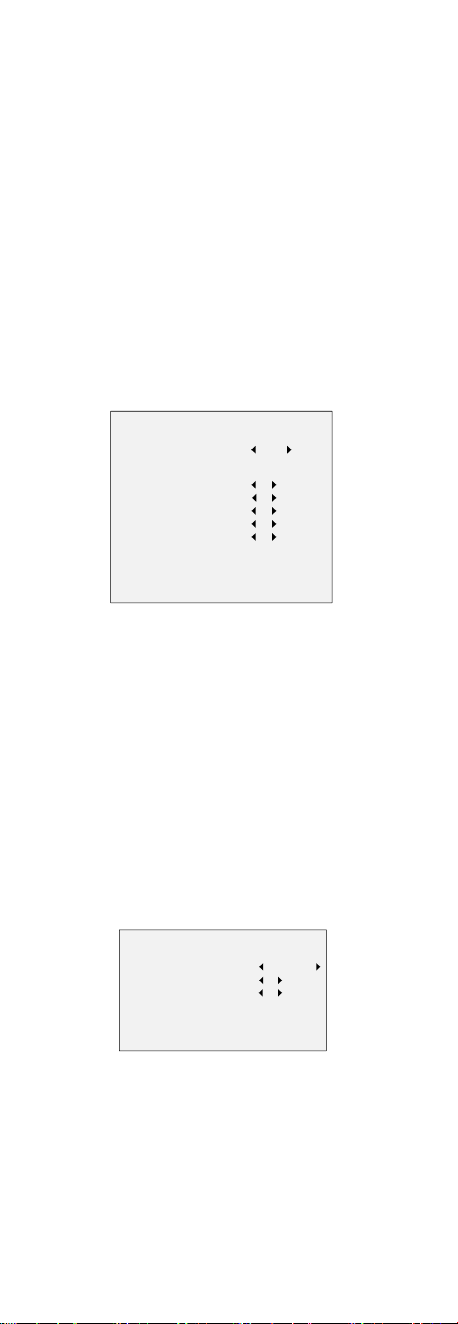
OFF
Set it to OFF to give up this function.
AUTO
You can set THRESHOLD and LEVEL in this section.
THRESHOLD
The higher the threshold is, the more sensitive the
device is to dark environment.
LEVEL
You can adjust the maximum brightness of supplement
light.
3.5 VIDEO SETTINGS
Move the cursor to VIDEO SETTINGS and click Iris+ to
enter the submenu. IMAGE MODE, WHITE BALANCE,
BRIGHTNESS, CONTRAST, SHARPNESS, SATURATION,
and DNR are adjustable.
VIDEO SETTINGS
IMAGE MODE STD
WHITE BALANCE
BRIGHTNESS
CONTRAST
SHARPNESS
SATURATION
DNR
BACK
EXIT
SAVE & EXIT
5
5
5
5
5
Figure 3-3 VIDEO SETTINGS
IMAGE MODE
IMAGE MODE is used to adjust the image saturation,
and you can set it to STD (Standard), HIGH-SAT (High
Saturation), or HIGHLIGHT (better indoor facial details).
WHITE BALANCE
White balance, the white rendition function of the
camera, is to adjust the color temperature according to
the environment. It can remove unrealistic color casts in
the image. You can set WHITE BALANCE mode to AUTO
or MANUAL.
MANUAL
You can set the R-GAIN/B-GAIN value to adjust the
shades of red/blue color of the image.
WHITE BALANCE
MODE
R-GAIN
B-GAIN
BACK
EXIT
SAVE&EXIT
MANUAL
5
5
Figure 3-4 WHITE BALANCE
BRIGHTNESS
Brightness refers to the brightness of the image. You
can set the brightness value from 1 to 9 to darken or
brighten the image. The greater the value is, the
brighter the image is.
CONTRAST
This feature enhances the difference in color and light
between parts of an image.

SHARPNESS
Sharpness determines the amount of detail an imaging
system can reproduce.
SATURATION
Saturation is the proportion of pure chromatic color in
the total color sensation. Adjust this feature to change
the saturation of the color.
DNR
DNR refers to digital noise reduction. This function
reduces noise in video stream.
3.6 AUDIO SETTINGS
Under the AUTO SETTINGS sub-menu, you can set the
mode to ON or OFF. Adjust the VOLUME to a higher
value to raise the volume.
3.7 FACTORY DEFAULT
Reset all the settings except video format to factory
defaults.
3.8 EXIT
Move the cursor to EXIT and click Iris+ to exit the menu.
3.9 SAVE & EXIT
Move the cursor to SAVE & EXIT and click Iris+ to save
the settings and exit the menu.
UD28280B-A