
User Guide

Some of the contents in this manual may differ from your phone depending
on the software of the phone. Actual color may vary. Your phone is designed
to make it easy for you to access a wide variety of content. For your protection,
we want you to be aware that some applications that you enable may involve
the location of your phone being shared. For applications available through
Cricket, we offer privacy controls that let you decide how an application may
use the location of your phone and other phones on your account. However,
the Cricket privacy tools do not apply to applications available outside of
Cricket. Please review the terms and conditions and the associated privacy
policy for each location-based service to learn how location information
will be used and protected. In addition, your Cricket phone may be used to
access the Internet and to download, and/or purchase goods, applications,
and services from Cricket or elsewhere from third parties. Cricket provides
tools for you to control access to the Internet and certain Internet content.
These controls may not be available for certain devices which bypass Cricket
controls. © 2022 Cricket Wireless LLC. All rights reserved. Cricket and the Cricket
logo are registered trademarks under license to Cricket Wireless LLC. Other
marks are the property of their respective owners. microSD logo is a trademark
of SD-3C, LLC.
TCL is a registered trademark of TCL Technology Group Corporation. For device
support, please contact 1-855-224-4228 (US and Canada) or download files
for your device at: https://support.tcl.com/us-mobile-product-downloads. All
rights reserved.

1
Table of contents
1 Your phone ���������������������������������������������������������������������������������������������������������4
1.1 Keys and connectors ................................................................................ 4
1.2 Getting started ........................................................................................... 7
1.3 Home screen ............................................................................................ 12
2 Phone ����������������������������������������������������������������������������������������������������������������14
2.1 Making a call ........................................................................................... 14
2.2 Answer or decline a call ......................................................................... 15
2.3 Calling your voicemail ............................................................................ 16
3 Contacts ������������������������������������������������������������������������������������������������������������ 16
3.1 View Contacts ......................................................................................... 16
3.2 Adding a contact ................................................................................... 17
3.3 Editing a contact ..................................................................................... 18
3.4 Deleting a contact .................................................................................. 19
3.5 Sharing a contact ................................................................................... 19
3.6 Additional options ................................................................................... 20
4 Messages ����������������������������������������������������������������������������������������������������������21
4.1 Write a message ...................................................................................... 21
4.2 Send a multimedia message ................................................................. 22
4.3 How to type a message ......................................................................... 23
4.4 Settings ...................................................................................................... 24
5 Email ������������������������������������������������������������������������������������������������������������������25
6 Camera �������������������������������������������������������������������������������������������������������������26

2
6.1 Photo mode ............................................................................................. 26
6.2 Video mode ............................................................................................. 27
7 Gallery ���������������������������������������������������������������������������������������������������������������28
8 Browser ��������������������������������������������������������������������������������������������������������������30
9 Tools �������������������������������������������������������������������������������������������������������������������31
9.1 Recorder ................................................................................................... 31
9.2 Calendar .................................................................................................. 31
9.3 Clock ......................................................................................................... 33
9.4 Note ........................................................................................................... 35
9.5 Calculator ................................................................................................. 36
9.6 File manager ............................................................................................ 37
9.7 Music ......................................................................................................... 37
10 Settings ��������������������������������������������������������������������������������������������������������������38
10.1 Wireless & networks ................................................................................. 38
10.2 Accessibility .............................................................................................. 42
10.3 Sound & notifications .............................................................................. 43
10.4 Display ....................................................................................................... 44
10.5 Phone settings .......................................................................................... 45
10.6 Calling settings ......................................................................................... 48
10.7 About phone ............................................................................................ 50
10.8 Software update ..................................................................................... 51
11 Safety information ��������������������������������������������������������������������������������������������52
12 General information �����������������������������������������������������������������������������������������64
13 1 YEAR LIMITED WARRANTY ������������������������������������������������������������������������������ 67
14 Troubleshooting ������������������������������������������������������������������������������������������������70

3
This device meets applicable national SAR limits of 1.6 W/kg.
When carrying the device or using it while worn on your
body, either use an approved accessory such as a holster
or otherwise maintain a distance of 15 mm from the body to
ensure compliance with RF exposure requirements. Note that
the product may be transmitting even if you are not using it.
PROTECT YOUR HEARING
To prevent possible hearing damage, do not listen at high
volume levels for long periods. Exercise caution when holding
your device near your ear while the loudspeaker is in use.
The device contains magnets which may interfere with
other devices and items (such as credit card, pacemakers,
defibrillators, etc.). Please maintain at least 150 mm of
separation between your phone and the devices/items
mentioned above.
Product meets FCC Radio Frequency Exposure Guidelines--
FCC ID 2ACCJN060.
This device complies with Part 15 of the FCC Rules. Operation
is subject to the following two conditions: (1) this device may
not cause harmful interference, and (2) this device must
accept any interference received, including interference that
may cause undesired operation.

4
1 Your phone ���������������������������������������������
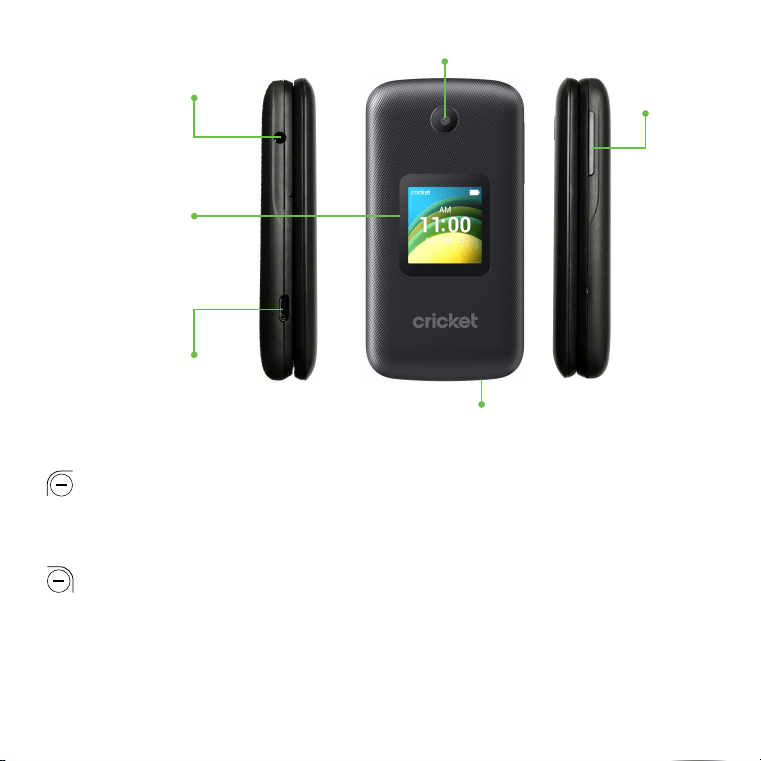
1�1 Keys and connectors
Headset port
Volume keys
Status and
notification bar
Speaker
Left Menu
Call/Answer key
Favoite contacts key
Navigation
Right Menu
Power/Hang Up key
Back/Delete key
Text message key
OK key
Internal screen
USB-C charging port
5
Mic
External screen
Camera
USB-C charging port
Headset port
Volume keys
Left Menu
•
Press to access Notifications from the home screen.
•
Commands will show on screen. Press to select.
Right Menu
•
Press to access Shortcuts from the Home screen.
•
Commands will show on screen. Press to select.

6
OK key
•
Confirm an option.
•
Press to access app list (from the Home screen).
Navigation Key
Shortcuts accessible from the Home screen
•
Navigate up to access Settings.
•
Navigate down to access Recent apps.
•
Navigate left to access Email.
•
Navigate right to access Contacts.
Call/Answer key
•
Place/Answer a call.
•
From the home screen, press to enter the call log.
Power/Hang Up key
•
End a call or return to the Home screen.
•
Press and hold to Restart or Power on/off.
Back/Delete Key
•
Move backwards through Menus.
•
Delete entered number or letter.
Volume Keys
•
Adjusts the speaker or headset volume during a call.
•
Adjusts media volume while listening to music, video, or streaming.
•
Adjusts the Alert sounds volume.
•
Mutes the ringtone of an incoming call.

7
1�2 Getting started
1�2�1 Set-up
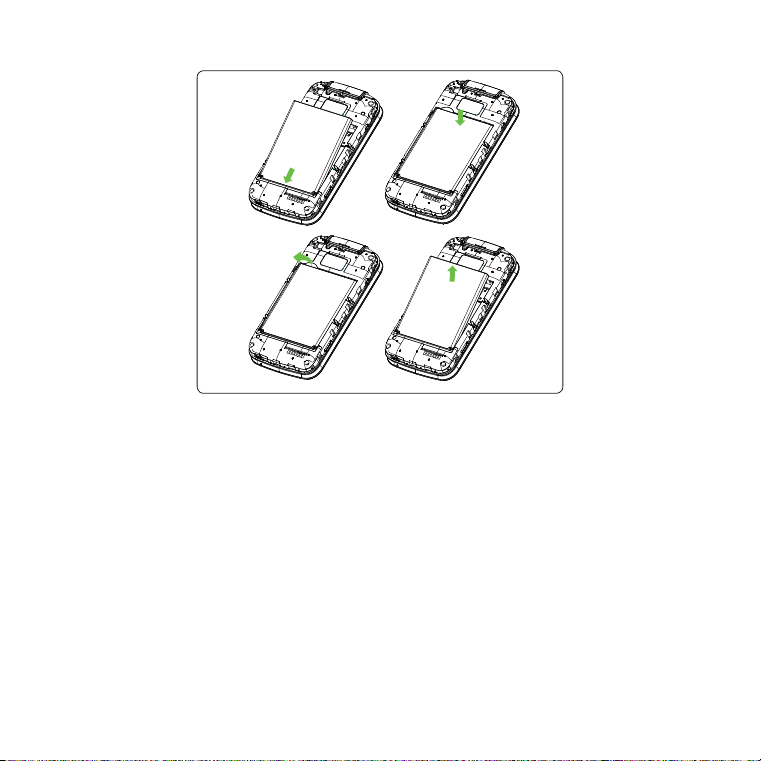
Removing and attaching back cover
8
Removing or installing battery
9
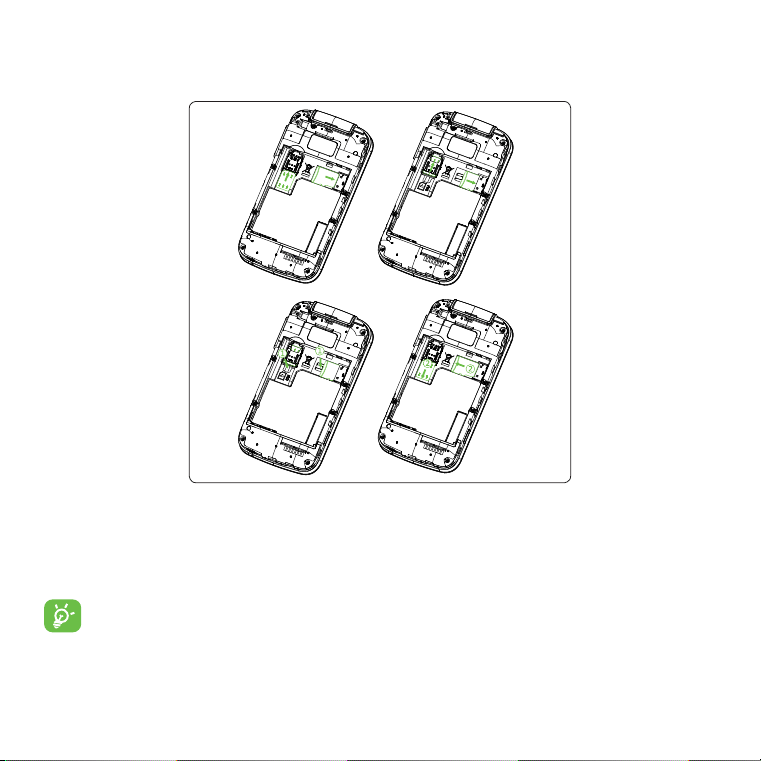
Inserting or removing the SIM and microSD
TM
card
You must insert your SIM card to make phone calls using your network.
SIM card
SD card
SIM card
SD card
SIM card
SD card
SIM card
SD card
•
Insert a SIM or microSD™ card into the card slot with the gold-colored
contacts facing down.
•
To remove the SIM or microSD™ card, push down on the plastic spring and
pull the SIM or microSD™ card out.
Only use SIM card provided to you by Cricket. mircoSD
TM
cards are sold
separately.
10
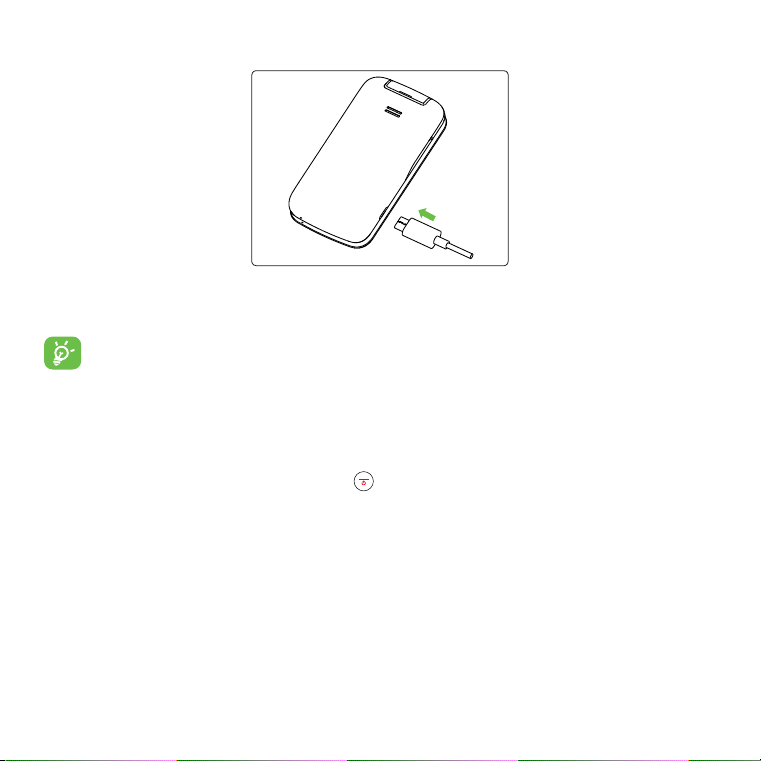
Charging battery
Insert the small end of the charging cable into the charge port as shown
and connect the charger to a power outlet.
To reduce power consumption and energy waste, disconnect your
charger when the battery is fully charged, and switch off Wi-Fi, Bluetooth
and other wireless connections when they are not in use.
1�2�2 Power on your phone
Press and hold Power/Hang Up key
until the phone powers on. Type in
your PIN code if necessary. Once unlocked, Home screen is displayed.
If you don’t know your PIN code or if you have forgotten it, contact your
service provider. Do not store your PIN code within your phone, instead store
your PIN in a location that is accessible without using phone.

11
Set up your phone for the first time
The first time you power on the phone, you will be guided through the
following steps:
Note: This phone uses cellular data for certain services, applications and
functions. If not connected to Wi-Fi, Standard data charges will apply. Please
connect to a Wi-Fi network to limit data charges.
•
Select the phone’s language, then press OK to go to the next step.
•
Select an available Wi-Fi network and press OK to connect, or press Left
Menu to Skip to the next step.
•
Select and set Accessibility options, then press Right Menu to done.
Press Left Menu to skip.
•
Press OK to the next step.
•
Read the Privacy policy & Terms of Service, use Navigation key to learn
more and/or open URL. Press Right Menu to enter the Home screen.
Note: If SIM card is not installed, your phone will still power on and you will be
able to connect to a Wi-Fi network and use some of the phone’s features.
1�2�3 Power off your phone
Press and hold Power/Hang Up key
until the phone display shuts off.

12
1�3 Home screen
Notifications
•
Displays all notifications
Navigation ring
•
Shortcuts accessible
from the Home screen
OK
•
Press to access the main menu
Status/Notifications Bar
•
Displays Status and
Notification indicators
Time
Date
Shortcuts
•
Access to Shortcuts
13
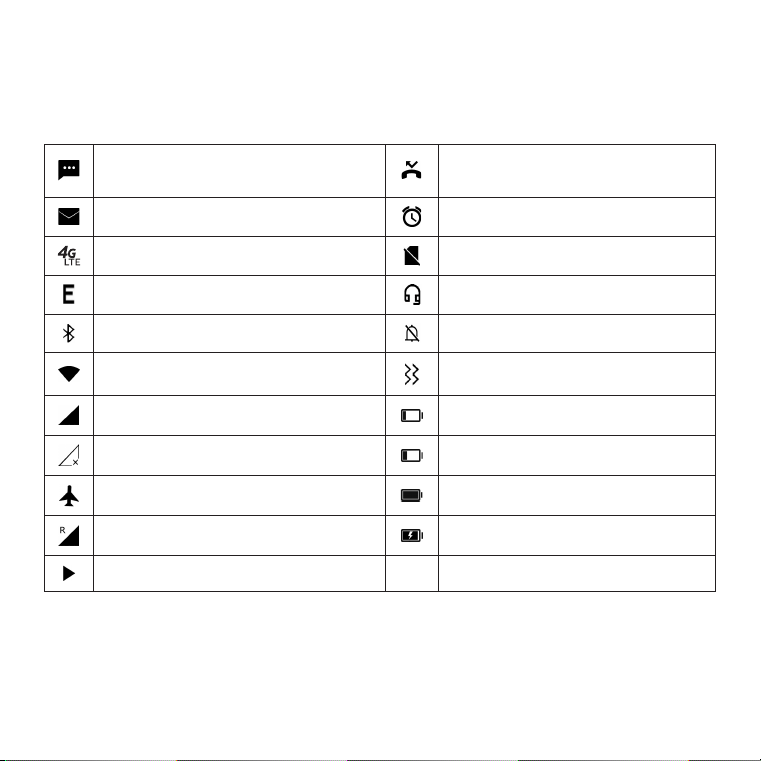
1�3�1 Status bar
From the status bar, you can view both phone status (to the right side) and
notification information (to the left side).
New text or multimedia
message
Missed call
New Email message Alarm set
4G LTE connected No SIM card installed
EDGE connected Headset connected
Bluetooth
®
active Silent mode
Wi-Fi
®
active Vibrate mode
Signal strength Battery is very low (red bar)
No signal Battery is low
Airplane mode Battery fully charged
Roaming Battery charging
Song is playing

14
1�3�2 Change the Home screen wallpaper
•
From the Home screen, press OK , select Settings > Display >
Wallpapers > Wallpaper Gallery or Gallery.
•
Navigate to select image, press Left Menu to preview and press OK
to confirm.
•
The selected image will be displayed on Home screen.
2 Phone ������������������������������������������������������
2�1
Making a call
•
From the Home screen, use the keypad to dial the phone number then
press Call/Answer key to place the call. If you make a mistake, press
Back/Delete key to delete the incorrect digits.
•
If you want to make a call from your call log, press Call/Answer key
from the Home screen to access the call log, and choose the number you
want to dial, press OK to make the call.
•
If you want to make a call from Contacts, select Contacts from app list.
Choose the contact you want to dial, press OK twice or Call/Answer
key
to make the call.
International call
To dial an international call, press and hold key to enter “+”, then enter
the international country prefix followed by the full phone number and finally
press Call/Answer key .

15
Emergency call
Dial emergency number and press Call/Answer key
to make an
emergency call. Emergency calls work without a SIM card, but still require
network coverage.
2�2 Answer or decline a call
When you receive a call:
•
Open the flip to answer. Settings > Call settings > Answer options > Flip
open is default select. Otherwise,
•
Press OK or Call/Answer key to answer.
•
Press Right Menu or Power/Hang Up key to decline.
•
Press Left Menu to reject the call by sending a preset message.
To mute the ringtone volume of an incoming call, press the Volume key.
16
2�3 Calling your voicemail
(1)
Press and hold
key to call and listen to your voicemail.
3 Contacts �������������������������������������������
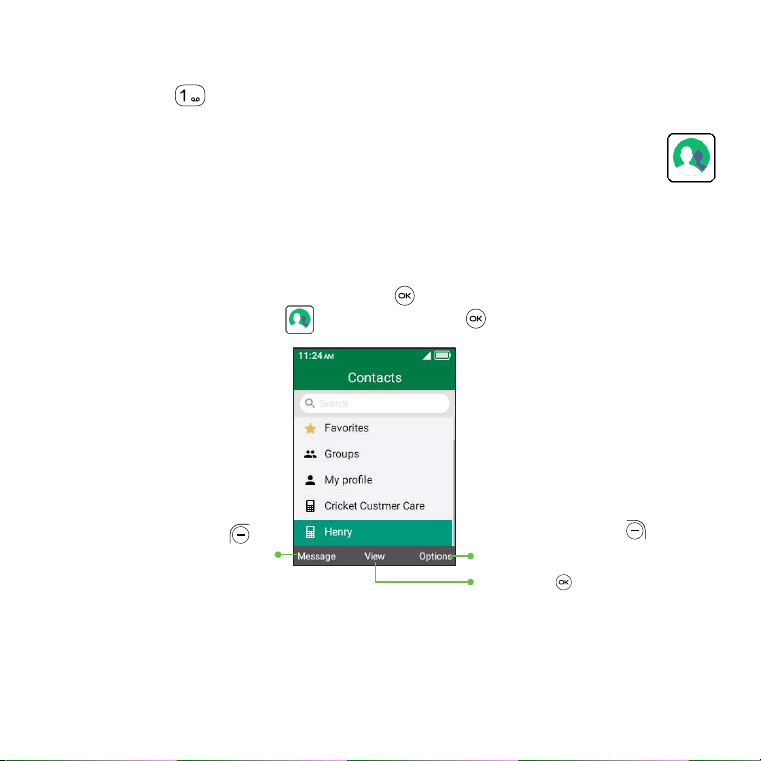
3�1 View Contacts
Contacts app provides quick and easy access to your stored contacts.
You can access this app by pressing OK
from the Home screen, then
selecting the Contacts app
and pressing OK .
Press Left Menu to
send an SMS/MMS
Press Right Menu
to
access more options
Press OK
to view
a contact's details
(1)
Contact your network operator to check service availability.

17
3�2 Adding a contact
On the contacts list screen, press Right Menu
to access Options > New
contact to access and input the contact information. Navigate down to
access next contact information category.
When finished, press OK to save.
When finished, press Right Menu to access Options > Save, then press OK
to save.

18
3�3 Editing a contact
In contacts list screen, select contact and press OK
to enter detail screen.
Press OK again to edit.
When finished editing, press Right Menu to access Options > Save, then
press OK to save.
To cancel edit mode, press Right Menu to access Options > Cancel, then
press OK to confirm.
19
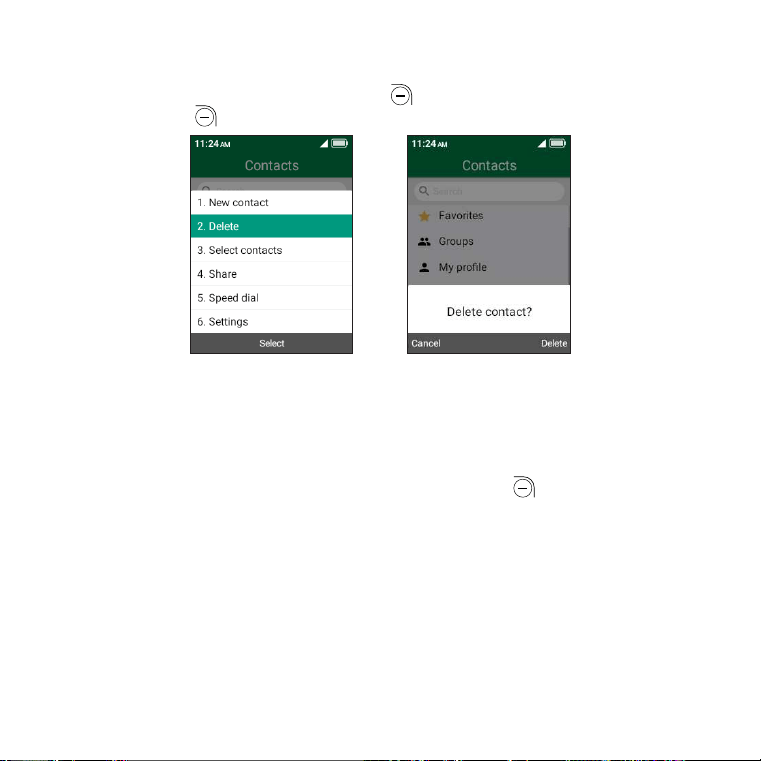
3�4 Deleting a contact
In contacts list screen, press Right Menu
to access Options > Delete, and
press Right Menu to confirm.
3�5 Sharing a contact
You can share a single contact with others by sending the contact’s vCard
to them via E-Mail, Messages, and Bluetooth.
Select a contact you want to share, press Right Menu
to access Options
> Share.

20
3�6 Additional options
From the contact list, you can access the following options:
Speed dial contacts
1. From the contacts list screen, press Right Menu
to access Options >
Speed dial.
2. Use Navigation key to scroll to the one of 2-9 keypad number, press OK
to set. Voicemail is automatically assigned to 1 and cannot be changed.
3. When complete, a notification will appear in the status bar: “Speed dial
set.”
4. From the Home screen, long press the keypad number to dial the assigned
contact.
Settings
•
Sort contacts by: Sort your contacts by first or last name.
•
Import/Export: Import/Export contacts from/to SIM card.

21
4 Messages ������������������������������������������
Use the Messages app to send and receive text (SMS) and multimedia
(MMS) messages.
4�1 Write a message
From the Home screen, press the Text Message Key
or press OK and
select Messages app
.
•
Press Left Menu to create a new message.
•
Enter the phone number or contact name of the recipient in the To: bar,
or press Right Menu to access Options > Select from contact or Select
contact group.
•
Navigate down to access SMS bar to type in the message.
•
Press Left Menu to send.
•
Press OK or Left Menu to access Options > Send to send.

22
An SMS of more than 160 characters will be counted as an additional
SMS. Specific letters or characters will also increase the size of the SMS.
This may cause multiple SMS to be sent to your recipient.
4�2 Send a multimedia message
MMS enables you to send video clips, images, photos, contacts and sounds
by pressing Right Menu
to access Options > Add Attachment, press OK
and select from Pictures, Video, Audio and Contact. Select file and follow
prompts on screen to attach to message. Press OK or Right Menu to
access Options > Send to send message.
An SMS will be converted to MMS automatically when media files (image,
video, audio, etc.) are attached or email addresses are added as a
recipient.

23
4�3 How to type a message
Inputting Text
There are different ways to enter text to create contacts, write emails or send
messages.
You may choose from the different methods by pressing
key and
alternate between:
•
Abc (sentence case), abc (lower case), or ABC (upper case): Press each
key multiple times to create each letter. For example, an ‘S’ is created by
pressing the ‘7’ key four times. An ‘e’ is created by pressing ‘3’ twice, and
so on.
•
Kt9 (Predictive): Predictive text mode (Kt9) allows you to type faster, as the
phone tries to predict what you are writing.
To type “Hello”: press the “4” key once, press the “3” key once, press the
“5” key once, press the “5” key once, press the “6” key once. As you type,
word suggestions will appear at the bottom of the screen. If you see the
word you are trying to type, select it by Navigating to the word and
press OK .
•
123: This mode generates only numbers. You may type ‘1’ by pressing the
‘1’ key just once, ‘2’ by pressing ‘2’ and so on. Switch back to ABC, Abc,
abc, or Kt9 (Predictive) mode to continue writing words.
•
Symbols: Symbols, such as punctuation and special characters, may be
accessed by pressing key. Find the right symbol by Navigating .
When the cursor highlights a symbol you want to add, press OK to
select it.
•
To delete typed characters, press Back/Delete key to delete them
one by one or press and hold to delete all at once.

24
4�4 Settings
In the Messages app screen, press Right Menu
to access Options >
Settings > OK to view the following options:
•
Auto Signature: Add a personal signature to your messages. When finished,
press OK to save.
•
SMS encoding: Set SMS encoding format as Auto or Super.
•
Wireless emergency alerts: View alert inbox or to access messaging
emergency alert settings.

25
5 Email �������������������������������������������������
You can access the Email app by pressing OK from the Home screen,
select Tools
> Email and press OK .
Select one of the Email providers and press OK
to continue.
•
Enter your email address of the account you want to setup.
•
Press Right Menu to access Next, enter the password of the account
and press Right Menu . You may be prompted to manually setup your
email account.
•
To add another email account, you can press Right Menu to access
Options > Settings, then select Add.
To create and send emails
•
Press Left Menu to compose a new email from the Inbox screen.
•
Enter recipient(s) email address(es) in the To field. If you want to add
new recipient(s), press Navigate down to switch to the Subject field to
confirm the entered addess, then press Navigate up to the return to To
field again to add more.
•
Type the subject and the content of the message.
•
If necessary, press Right Menu to add another recipient(s) as Cc/Bcc
or to add an attachment to the message.
•
If you do not want to send the mail right away, you can press Right Menu
and select Save as draft to save a copy.
•
Finally, press OK to send.
26
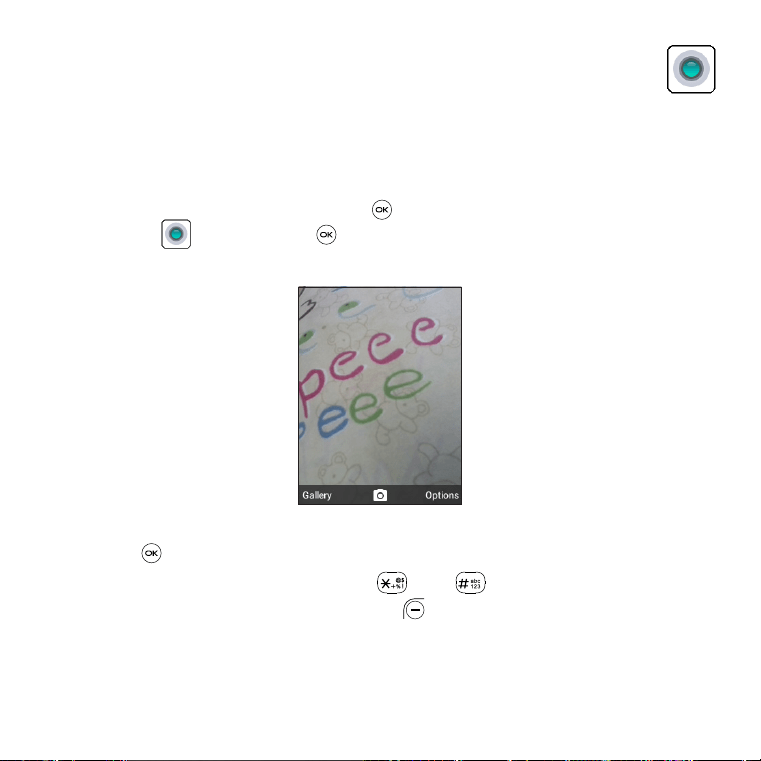
6 Camera ���������������������������������������������
Your mobile phone features a Camera app to take photos and shoot videos.
6�1 Photo mode
To access the Camera app, press OK
from the Home screen, select the
Camera app
and press OK .
To take a picture
•
Position the object or landscape in the screen.
•
Press OK to take the photo.
•
Press Volume Up/Down key, or press and to zoom lens in and out.
•
After taking the photo, press Left Menu to preview.
•
Photos will be automatically saved to Gallery app.

27
6�2 Video mode
To shoot a video
•
Press Right Menu to switch to Video mode.
(1)
•
Press OK to record a video.
•
Zoom in/out: Press Volume Up/Down key, or press and to zoom
lens in and out.
•
Press OK to end recording. Videos will be automatically saved to
Gallery app.
(1)
With microSD
TM
card installed: Press Right Menu
to access Options >
Take video to switch to Video mode.
28
7 Gallery ����������������������������������������������
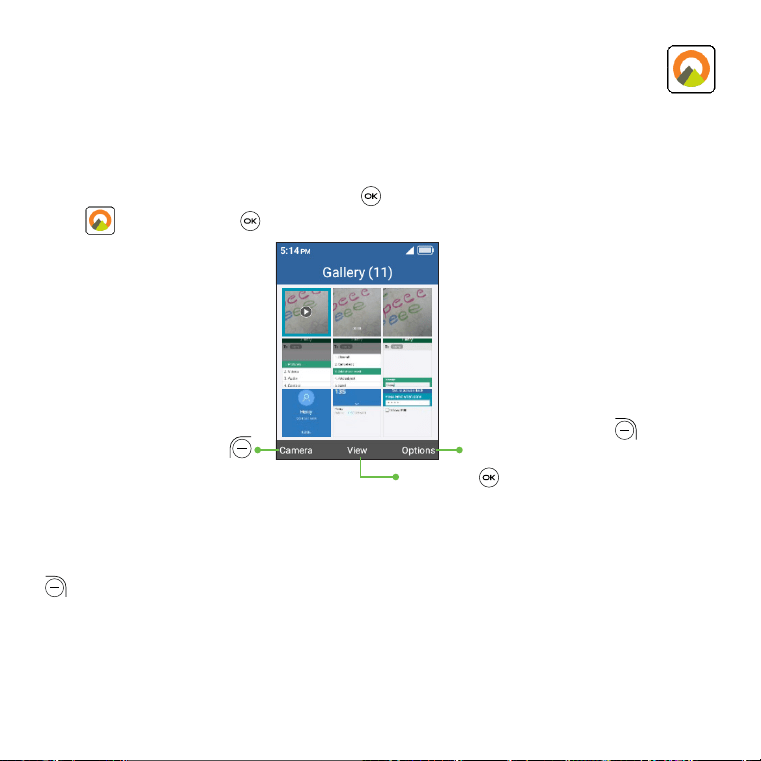
The Gallery app provides you with one location to view and organize all
your saved photos and videos. The Gallery app also offers additional photo
options.
To access the Gallery app, press OK
from the Home screen, select Gallery
app
and press OK .
Press Left Menu
to take photo
Press Right Menu
to
access more options
Press OK
to view
the selected photo
Gallery app photo options
When viewing photos in Gallery app, select an image and press Right Menu
to access:
•
Delete: Delete the selected photo.
•
Share: Share the photo via Email, Messages and Bluetooth.
•
Select files: Select multiple photos in the Gallery.
29
•
Edit: Adjust light exposure, rotate the photo, crop, add a filter, and auto-
enhance.
•
Set as wallpaper: Set the photo as Wallpaper.
•
Set as contact photo: Set the photo as Image for existing contact.
•
View favorites: View favorites photo list.
Individual photo view options
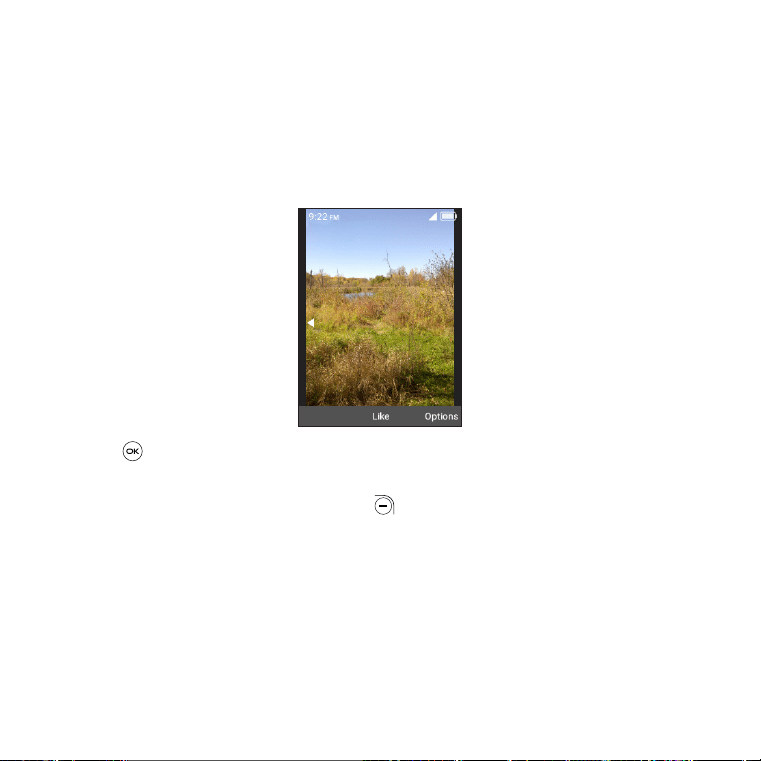
Press OK to "like" the photo and add it to Favorites.
When previewing an individual image in Gallery app, the options above are
also available by pressing Right Menu with the under additional options
below:
•
View full screen: View the photo with full screen.
•
Info: Displays file name, size, type, date taken, path and resolution.
30
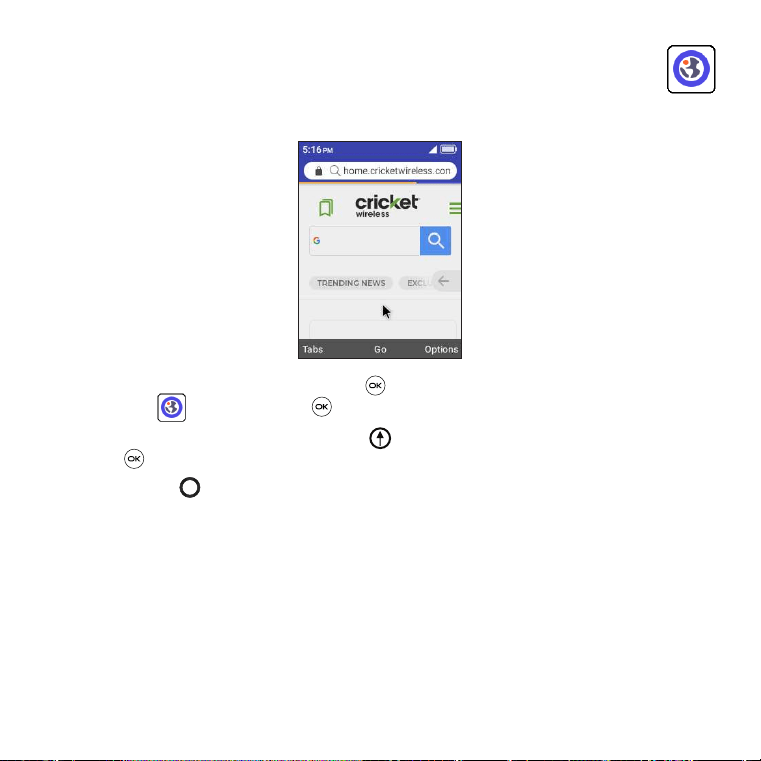
8 Browser����������������������������������������������
Use the Browser app to navigate the Web.
To access the Browser app, press OK from the Home screen, select
Browser app
and press OK .
To search the internet, Navigation up to search bar, enter the website and
press OK .
Use Navigation
to move cursor on the screen.

31
9 Tools ��������������������������������������������������
9�1 Recorder
To access the Recorder app, press OK
from the Home screen, select Tools
> Recorder
and press OK .
If there is no record, press Left Menu
and then OK to start recording.
Otherwise,
•
Press Left Menu to show the list.
•
Press OK to start recording. Press OK to Stop, or press Left Menu to
Pause/Resume.
After recorded:
•
Press Left Menu to add new.
•
Press OK to Play.
•
Press Right Menu to access Options, such as delete, share, rename,
select recordings and details.
9�2 Calendar
Use the Calendar app, to keep track of important meetings, appointments,
and events.
To access the Calendar app, press OK
from the Home screen, select Tools
> Calendar and press OK .

32
9�2�1 Multimode view
You can display the Calendar in Day, Week, or Month view. Press Right Menu
to access Options to change your Calendar view.
Day view Week view Month view
9�2�2 Creating new events
Press Left Menu
to add new events from any Calendar view.
•
Fill in new event information.
•
If it is a whole-day event, select All-day event.
•
When finished, press Left Menu to save.
More Options are available by pressing Left Menu
from the Calendar
main screen:
•
Go to date: To go to whatever date you want.
•
Search: Search scheduled events.
•
Settings: To set a series of Calendar settings.

33
9�2�3 Event reminder
If a reminder is set for an event, the upcoming event icon
will appear on
the Status bar as a notification when the reminder time arrives.
9�3 Clock
Your mobile phone features a Clock app with an Alarm, Timer, Stopwatch
and World clock function.
To access the Clock app, press OK
from the Home screen, select Tools >
Clock
and press OK .
9�3�1 Alarm
From the Tools screen, Navigate left
or right to switch to Alarm screen.
To set an alarm
From the Alarm screen, press Left Menu
to add a new alarm. The following
options will appear:
•
Time: Set the alarm time.
•
Repeat: Select the days you want your alarm active.
•
Ringtone: Select a ringtone for the alarm.
•
Vibrate: Enable vibration.
•
Alarm title: Enter a name for the alarm.
•
Press Right Menu to save.
34
Press Right Menu
to access Options > Turn on or off > press OK to turn
on or off the selected alarm.
To adjust alarm settings
More options are available for saved alarms by selecting the alarm to be
edited and pressing Right Menu
from the Alarm screen:
•
Edit: Edit selected alarm.
•
Delete: Delete selected alarm.
•
Settings: Set snooze duration, alarm volume, vibrate, and ringtone for the
selected alarm.
9�3�2 Timer
From the Alarm screen, Navigate right
to enter the Timer screen.
Press Left Menu and Navigation to edit hour, minute and second.
press OK to confirm.
When finished, press OK to start the Timer.
•
When the Timer is ongoing:
Press OK
to pause/resume the Timer.
Press Right Menu
to add 1 minute.
•
Press Left Menu to reset the Timer.
•
When the Timer is reset: Press Right Menu to enter Settings, allowing you
to set Snooze time, Alarm volume, vibrate and select ringtone.
35
9�3�3 Stopwatch
From the Timer screen, Navigate right
to enter the Stopwatch screen.
•
Press OK to start the Stopwatch.
•
When the Stopwatch is ongoing:
Press Right Menu
to record the lap.
Press OK
to pause/resume the time.
•
Press Left Menu to reset the stopwatch and clear lap times.
9�3�4 World clock
From the Stopwatch screen, Navigate right
to enter the World clock
screen.
•
Press Left Menu to add a location or time zone to add to the World
clock feature.
•
Press Right Menu to delete or set more options.
9�4 Note
To access the Note app, press OK
from the Home screen, select Tools >
Note
and press OK .
•
Press Left Menu to add note, enter contents then press OK to Save.
•
On the note list, press Right Menu to access Options, such as edit,
delete, share, select notes, details.

36
•
Use Navigation to select the note, press OK to view detail. Then:
Press OK
to edit.
Press Left Menu
and then press Right Menu to confirm delete.
Press Right Menu
to access Options, such as edit, delete, share the
note via Messages, Email, or Bluetooth.
9�5 Calculator
To access Calculator, press OK
from the Home screen, select Tools >
Calculator app and press OK .
Press to
enter decimal
Press
key to enter
negative or positive
number value
Press OK
to
calculate results
Press corresponding
direction on
Navigation
to
enter in Calculator
Enter the numbers using the keypad.
Select the mathematical operation to be performed using Navigation
,
follow onscreen guide for each navigation direction and the corresponding
mathematical operation.
Press OK
to select equals = and get results.
37
9�6 File manager
To access this app, press OK
from the Home screen, select Tools > File
manager
and press OK .
File manager displays all data stored on the phone and the microSD
TM
card
(if applicable) card, including applications, media files downloaded from
Browser or other locations; videos, pictures or audios you have captured;
other data transferred via Bluetooth, USB cable, etc.
When you transfer an application from a PC to your phone/microSD
TM
card,
you only can locate the application using File Manager. You will not be able
to install it on your phone.
File manager allows you to perform and be really efficient with the following
common operations: create (sub) folder, open folder/file, view, rename, cut,
copy, delete, play, share, etc.
9�7 Music
Use the Music app to play music files stored on your phone. Music files can
be downloaded from your computer to your phone using a USB cable.
To access the Music app, press OK
from the Home screen, select Tools >
Music and press OK .

38
10 Settings ���������������������������������������������
To access the Settings app, press OK from the Home screen, select
Settings
and press OK .
10�1 Wireless & networks
This phone uses cellular data for certain services, applications and functions.
If not connected to Wi-Fi, Standard data charges will apply. Please connect
to a Wi-Fi network to limit data charges.
10�1�1 Airplane mode
When Airplane mode is on, all wireless connections are disabled
simultaneously, including Wi-Fi and Bluetooth.
10�1�2 Wi-Fi
Wi-Fi will allow you to surf the internet without using your mobile network
when in range of a wireless network. To access Wi-Fi, open the settings to
configure the access point and connect your phone. Be advised you may
need to enter a password if applicable.

39
10�1�3 Bluetooth
Bluetooth allows your phone to exchange data (videos, images, music, etc.)
with other Bluetooth devices within a close range such as another phone,
computer, printer, headset, car kit, etc.
10�1�4 Tethering & Mobile hotspot
USB tethering
USB tethering can share your phone’s Internet connection with a single USB-
connected device. Press to turn USB tethering On.
Bluetooth tethering
To share your phone’s data connection via Bluetooth. Press OK
then select
On to activate this function.
Mobile hotspot
To share your phone’s data connection via a mobile hotspot. Press OK
then press Left Menu to activate this function.
Note: Enabling Mobile Hotspot will alert you to turn off Wi-Fi.

40
10�1�5 VPN
Virtual private networks (VPNs) allow you to connect to the resources inside
a secured local network from outside that network. VPNs are commonly
deployed by corporations, schools, and other institutions so that their users
can access local network resources when not inside that network, or when
connected to a wireless network.
Before adding a VPN, you should set a screen lock for your phone.
To add a VPN
•
Press Left Menu to Add VPN.
•
On the screen that opens, follow your network administrator’s instructions
to configure each component of the VPN settings.
•
Press OK to save.
The VPN is added to the list on the VPN settings screen.
•
Press OK to connect.
•
Press Right Menu to access Options, such as edit, delete, always-on
VPN and Help.
10�1�6 Mobile network
Mobile data
If you do not need to transmit data on all mobile networks, turn off Mobile
data to avoid incurring significant charges for data use on local operator
mobile networks, particularly if you do not have a mobile data agreement.

41
Data usage
•
Data usage: Navigate left or right to view data usage details.
•
Limit data usage: Using Navigation to set On/Off, amount and unit of
the data usage, then press OK to save.
•
Data usage alert: Using Navigation to set alert with On/Off, amount
and unit, then press OK to save.
•
Monthly usage cycle: Using Navigation to set monthly reset date.
Data usage is measured by your phone, and your carrier may count
differently.
Data roaming access
If you don’t need to transmit data on other operators’ mobile networks,
disable Data roaming to avoid incurring significant roaming charges.
Network operators
The first time you turn on your phone with your SIM card inserted, it will
automatically configure your network service: 2G, 3G, or 4G.
Network type and strength
Press OK
to view detail information.
Access Point Name
Press Left Menu
to add new APN.
Enter the required APN information, when finished, press OK to save.
Roaming state
Press OK to view roaming state.

42
10�1�7 Wireless emergency alerts
Press Right Menu
to access Settings.
•
Navigate up or down and press OK to select one of Extreme
threats, Severe threats, AMBER alerts, Public safety messages, Sate and
local tests, or Spanish.
•
Navigate up or down to On, press OK to enable the
corresponding functions.
Alert reminder
Set alert reminder as Once, Every 2 min, Every 15 min or Off.
10�2 Accessibility
Readout
Readout mode function reads labels of interface elements and provides
sound response.
Large text
Turn On/Off large text.
Color inversion
Turn On/Off color inversion.
Color correction
Select one of the color types.

43
Captions
Press Left Menu
to turn on Captions, then can set Language, text size and
caption style.
Mono Audio
Turn On/Off mono audio.
Hearing aids
Hearing Aid Compatibility (HAC) mode can be used by people who are
deaf, have poor hearing or speech impairments. After connecting the phone
and hearing aid device, calls are linked to a relay service, which converts
incoming speech to text for the person using the hearing aid and converts
outgoing text from the hearing aid device to a spoken voice for the person
on the other end of the conversation.
10�3 Sound & notifications
Volume
Set volume for Alert sounds and Media.
Sound with vibrate
Turn On/Off Also vibrate for calls.
Ringtones
Set your incoming call ringtone.
Notification sounds
Set your notification ringtone.

44
Keypad sound
Turn On/Off keypad sound.
10�4 Display
Menu layout
Set menu layout as Grid or List.
Wallpaper
Select wallpaper from available wallpapers.
Brightness
Set the level of brightness.
Display backlight
Set screen backlight sleep time.
Key backlight
Set key backlight time.
Font size
Set font size.

45
10�5 Phone settings
10�5�1 Language
Select preferred language: English, Spanish or others.
10�5�2 Key shortcuts
Set Navigation keys shortcuts accessible from the Home screen.
10�5�3 Storage
To view Phone and microSD
TM
card detail storage.
10�5�4 USB connection
With a USB cable, you can charge your device, transfer files or photos (PTP)
between your phone and a computer.
To connect your phone to the computer:
•
Use the USB cable to connect the phone to a USB port on your computer.
•
Press Left Menu to open the Notifications and choose Charging this
device via USB, or
•
Press OK from the Home screen, select Settings > Phone settings >
USB and press OK .
•
Select the way which you want to. By default, Charge this device is
selected.

46
10�5�5 Location
Turn On/Off Location.
10�5�6 Security
Screen Lock
Screen lock allows you to set a 4-digit pass code which protects your phone
information if lost or stolen. Your phone will ask for pass code entry in order to
access device.
Encrypt phone
Your device has encrypted by default.
Certificate manage
•
Trusted credentials: Display trusted CA certificates.
•
Install from storage: Install encrypted certificates from internal storage or
microSD
TM
card.
•
Clear credentials: Remove all certificates.
SIM card lock
A SIM PIN prevents access to the SIM card cellular data networks. When
it’s enabled, any device containing the SIM card will request the PIN upon
restart. A SIM PIN is not the same as the screen lock pass code used to
unlock the device.
Press Left Menu
to change the SIM PIN lock passcode, enter the old code,
then enter new code twice to confirm.

47
10�5�7 Account
Press Right Menu
to access Options > Add to add a new account. You
also can turn on/off Automatically sync data.
10�5�8 Reset
Network settings reset
Reset all network settings, including Wi-Fi, Cellular data and Bluetooth.
Factory data reset
If Factory data reset is selected, erase all of your personal data from internal
phone storage, microSD
TM
card, or both, including information about your
accounts, your system and application settings, and any downloaded
applications, please back up your data before reset.
Resetting the Phone does not erase any system software updates you’ve
downloaded or any files on your microSD
TM
card, such as music or photos. If
you reset the phone in this way, you’re prompted to re-enter the same kind
of information as when you first started the device.
Reset settings
Reset any system settings to the phone original behavior. This will not affect
personal data or the security, languages and account settings.

48
10�5�9 Date & time
Automatic date & time
The phone’s date and time will sync automatically with the network. If
selected Off, you can manually set the date and time.
Set date
Manually set the phone's date.
Set time
Manually set the phone's time.
Use network-provided time zone
The phone’s time zone will sync automatically with the network. If selected
Off, you can manually set the time zone.
Select time zone
Manually set the phone's time zone.
Time format
Select 12 hour clock format or 24 hour clock format.
10�6 Calling settings
Answer options
Enable flip open and/or Any key to answer the incoming call.

49
Ignore with message
Edit, add or delete the quick responses message when ignore the incoming
call.
Speed dial
Assign a contact to a keypad number, 2-9.
Voice mail
Select to set Voice mail service, voice number and notification sound.
Blocked numbers
Press OK
to add contact, call history or new number as a Blocked
number.
After added, press Right Menu to access Options to remove or edit.
Auto redial
Set auto redial frequency is Off, Every 10/30/60 seconds.
Fixed dialing numbers
Fixed dialing number (FDN) is a SIM service mode, where outgoing calls are
restricted to a set of phone numbers. These numbers are added to the FDN
list. The most common practical application of FDN is for parents to restrict
the phone numbers to which their children can dial. For security reasons,
you’ll be prompted to enable FDN by entering SIM PIN2 which is usually
acquired from your service provider or SIM maker.
Call Forwarding
Configure how your calls are forwarded when you are busy, unanswered or
unreachable.

50
Call duration
View last, outgoing, incoming or all call duration.
Additional settings
•
Caller ID: Select network default, hide number or show number.
•
Call Waiting: Enable or disable call waiting.
10�7 About phone
View basic information about your phone, such as your phone number,
Status, Network, Battery, Hardware information, Software information, Legal
info, E-Label etc.
10�7�1 E-Label
Contains information about Model number, Manufacture, FCC ID, Device
serial number, Hardware and IMEI etc.

51
10�8 Software update
To access Software updates, follow the steps below:
•
Connect your device to a Wi-Fi network and make sure it has a strong
data connection.
•
Ensure your battery is fully charged before starting the software update.
Your device’s current battery level can be found on your device under
Settings
> About phone > Battery > Battery level.
•
From the Home screen, press OK and select Settings > Software
update > Check for updates.
•
When there is a new mandatory software update version available, the
phone will start downloading automatically, then press Right Menu to
select INSTALL to update your system.

52
11 Safety information ���������������������������������
We recommend that you read this chapter carefully before using your
device. The manufacturer disclaims any liability for damage, which may
result as a consequence of improper use or use contrary to the instructions
contained herein.
• TRAFFIC SAFETY
Given that studies show that using a device while driving a vehicle
constitutes a real risk, even when the hands-free kit is used (car kit,
headset...), drivers are requested to refrain from using their device when the
vehicle is not parked.
When driving, do not use your device or headphone to listen to music or to
the radio. Using a headphone can be dangerous and forbidden in some
areas. When switched on, your device emits electromagnetic waves that
can interfere with the vehicle’s electronic systems such as ABS anti-lock
brakes or airbags. To ensure that there is no problem:
- do not place your device on top of the dashboard or within an airbag
deployment area,
- check with your car dealer or the car manufacturer to make sure that the
dashboard is adequately shielded from device RF energy.
• CONDITIONS OF USE
You are advised to switch off the device from time to time to optimize its
performance.
Switch the device off before boarding an aircraft.

53
Switch the device off when you are in healthcare facilities, except in
designated areas. As with many other types of equipment now in regular
use, these devices can interfere with other electrical or electronic devices, or
equipment using radio frequencies.
Switch the device off when you are near gas or flammable liquids. Strictly
obey all signs and instructions posted in a fuel depot, petrol station, or
chemical plant, or in any potentially explosive atmosphere.
When the device is switched on, it should be kept at least 150 mm from any
medical device such as a pacemaker, a hearing aid, or insulin pump, etc. In
particular when using the device, you should hold it against the ear on the
opposite side of the device, if applicable.
To avoid hearing impairment, move the device away from your ear while
using the "hands-free" mode because the amplified volume might cause
hearing damage.
Do not let children use the device and/or play with the device and
accessories without supervision.
When replacing the cover, note that your device may contain substances
that could create an allergic reaction.
Always handle your device with care and keep it in a clean and dust-free
place.
Do not allow your device to be exposed to adverse weather or
environmental conditions (moisture, humidity, rain, infiltration of liquids, dust,
sea air, etc.). The manufacturer's recommended operating temperature
range is 0°C (32°F) to 40°C (104°F).
At over 40°C (104°F) the legibility of the device’s display may be impaired,
though this is temporary and not serious.

54
Emergency call numbers may not be reachable on all cellular networks. You
should never rely only on your phone for emergency calls.
Do not open, dismantle, or attempt to repair your device yourself.
Do not drop, throw, or bend your device.
To avoid any injury, do not use the device if the screen is damaged, cracked,
or broken.
Do not paint the device.
Only use batteries, battery chargers, and accessories which are
recommended by TCL Communication Ltd. and its affiliates and are
compatible with your device model. TCL Communication Ltd. and its affiliates
disclaim any liability for damage caused by the use of other chargers or
batteries.
Remember to make back-up copies or keep a written record of all important
information stored in your device.
• PRIVACY
Please note that you must respect the laws and regulations in force in your
jurisdiction or other jurisdiction(s) where you will use your device regarding
taking photographs and recording sounds with your device. Pursuant to such
laws and regulations, it may be strictly forbidden to take photographs and/
or record the voices of other people or any of their personal attributes, and
duplicate or distribute them, as this may be considered to be an invasion of
privacy. It is the user's sole responsibility to ensure that prior authorization be
obtained, if necessary, in order to record private or confidential conversations
or take a photograph of another person. The manufacturer, the seller, vendor,
and/or service provider of your device. Disclaim any liability which may result
from the improper use of the device.

55
• BATTERY
Following air regulation, the battery of your product is not charged. Please
charge it first.
Before removing the battery from your device, make sure that the device is
switched off.
Observe the following precautions for battery use:
- Do not attempt to open the battery (due to the risk of toxic fumes and
burns).
- Do not puncture, disassemble, or cause a short-circuit in a battery.
- Do not burn or dispose of a used battery in household rubbish or store it at
temperatures above 60°C (140°F).
- Do not disassemble or open, crush, bend or deform, puncture, or shred.
- Do not modify or remanufacture, attempt to insert foreign objects into
the battery, immerse or expose to water or other liquids, expose to fire,
explosion, or other hazard.
CAUTION: RISK OF EXPLOSION IF BATTERY IS REPLACED BY AN INCORRECT TYPE.
DISPOSE OF USED BATTERIES ACCORDING TO THE INSTRUCTIONS.
Only use the battery with a charging system that has been qualified with the
system per CTIA Certification Requirements for Battery System Compliance to
IEEE 1725. Use of an unqualified battery or charger may present a risk of fire,
explosion, leakage, or other hazard.
Batteries must be disposed of in accordance with locally applicable
environmental regulations. Only use the battery for the purpose for which it
was designed. Never use damaged batteries or those not recommended by
TCL Communication Ltd. and/or its affiliates.

56
This symbol on your device, the battery, and the accessories means
that these products must be taken to collection points at the end of
their life:
- Municipal waste disposal centers with specific bins for these items of
equipment.
- Collection bins at points of sale.
They will then be recycled, so that their components can be reused,
preventing substances being disposed of in the environment.
In European Union countries:
These collection points are accessible free of charge.
All products with this sign must be brought to these collection points.
In non-European Union jurisdictions:
Items of equipment with this symbol are not to be thrown into ordinary bins if
your jurisdiction or your region has suitable recycling and collection facilities;
instead they are to be taken to collection points for them to be recycled.
CAUTION: RISK OF EXPLOSION IF BATTERY IS REPLACED BY AN INCORRECT TYPE.
DISPOSE OF USED BATTERIES ACCORDING TO THE INSTRUCTIONS.
• CHARGERS
Main powered chargers will operate within the temperature range of: 0°C
(32°F) to 40°C (104°F).
The chargers designed for your device meet with the standard for safety
of information technology equipment and office equipment use. They are
also compliant to the eco design directive 2009/125/EC. Due to different
applicable electrical specifications, a charger you purchased in one
jurisdiction may not work in another jurisdiction. They should be used for this
purpose only.

57
• Electronic Recycling
For more information on Electronic Recycling:
1) Visit TCL Electronic Recycling Program website at https://www.tcl.com/
us/en/mobile/accessibility-compliance/tcl-mobile-electronic-recycling-
program.html or
2) Call TCL US Customer Support at 1-855-224-4228.
• Battery Recycling (USA & Canada):
TCL partners with Call2Recycle® to offer a safe and convenient battery
recycling program.
For more information on our Battery Recycling Program, please visit https://
www.tcl.com/us/en/mobile/accessibility-compliance/tcl-mobile-battery-
recycling-program.html
• Federal Communications Commission (FCC) Declaration of Conformity
This device complies with part 15 of the FCC Rules. Operation is subject
to the following two conditions: (1) This device may not cause harmful
interference, and (2) this device must accept any interference received,
including interference that may cause undesired operation.
Changes or modifications not expressly approved by the party responsible
for compliance could void the user‘s authority to operate the equipment.

58
This device has been tested and found to comply with the limits for a Class
B digital, pursuant to Part 15 of the FCC Rules. These limits are designed to
provide reasonable protection against harmful interference in a residential
installation. This equipment generates, uses, and can radiate radio frequency
energy and, if not installed and used in accordance with the instructions,
may cause harmful interference to radio communications. However, there is
no guarantee that interference will not occur in a particular installation if this
equipment does cause harmful interference to radio or television reception,
which can be determined by turning the equipment off and on, the user
is encouraged to try to correct the interference by one or more of the
following measures:
- Reorient or relocate the receiving antenna.
- Increase the separation between the equipment and receiver.
- Connect the equipment into an outlet on a circuit different from that to
which the receiver is connected.
- Consult the dealer or an experienced radio/TV technician for help.
FCC Caution:
Changes or modifications not expressly approved by the party responsible
for compliance could void the user‘s authority to operate the equipment.
FCC RF Exposure Information (SAR):
This device is designed and manufactured not to exceed the emission
limits for exposure to radio frequency (RF) energy set by the Federal
Communications Commission of the United States.

59
During SAR testing, this is set to transmit at its highest certified power level in
all tested frequency bands, and placed in positions that simulate RF exposure
in usage near the body with the separation of 15 mm. Although the SAR
is determined at the highest certified power level, the actual SAR level of
the device while operating can be well below the maximum value. This is
because the device is designed to operate at multiple power levels so as to
use only the power required to reach the network. In general, the closer you
are to a wireless base station antenna, the lower the power output.
The exposure standard for wireless employs a unit of measurement known as
the Specific Absorption Rate, or SAR. The SAR limit set by the FCC is 1.6 W/kg.
Tests for SAR are conducted using standard operating positions accepted by
the FCC with the device transmitting at its highest certified power level in all
tested frequency bands.
The FCC has granted an Equipment Authorization for this model device with
all reported SAR levels evaluated as in compliance with the FCC RF exposure
guidelines. SAR information on this model device is on file with the FCC and
can be found under the Display Grant section of www.fcc.gov/oet/ea/fccid
after searching on:
FCC ID: 2ACCJN060
This device is HAC M4/T4 compatible. Reference ANSI C63.19 (2011).
FCC Hearing Aid Compatibility (HAC)
On product, go to Settings > About phone > Legal info > Hearing Aid
Compatibility (HAC)
Or go to https://www.tcl.com/us/en/mobile/accessibility-compliance/
hearing-aid-compatibility/ and search for FCC ID 2ACCJN060.

60
Exposure to radio frequency
On product, go to Settings > About phone > Legal info > RF Exposure.
Or go to https://www.tcl.com/us/en/mobile/accessibility-compliance/
mobile-and-health/ and search for model 4058R.
SAR compliance for body operation is based on a separation distance of 15
mm between the device and the human body. During use, the actual SAR
values for this device are usually well below the values stated above. This is
because, for purposes of system efficiency and to minimize interference on
the network, the operating power of your device is automatically decreased
when full power is not needed. The lower the power output of the device, the
lower its SAR value.
Body-worn SAR testing has been carried out at a separation distance of 15
mm. To meet RF exposure guidelines during body-worn operation, the device
should be positioned at least this distance away from the body.
If you are not using an approved accessory ensure that whatever product
is used is free of any metal and that it positions the device the indicated
distance away from the body.
Organizations such as the World Health Organization and the US Food and
Drug Administration have suggested that if people are concerned and want
to reduce their exposure they could use a hands-free accessory to keep
the wireless device away from the head or body during use, or reduce the
amount of time spent on the device.

61
Please note by using the device some of your personal data may be
shared with the main device. It is under your responsibility to protect your
own personal data, not to share with it with any unauthorized devices or
third party devices connected to yours. For devices with Wi-Fi features,
only connect to trusted Wi-Fi networks. Also when using your device as
a hotspot (where available), use network security. These precautions will
help prevent unauthorized access to your device. Your device can store
personal information in various locations, including a SIM card, memory card,
and built-in memory. Be sure to remove or clear all personal information
before you recycle, return, or give away your device. Choose your apps
and updates carefully, and install from trusted sources only. Some apps
can impact your device’s performance and/or have access to private
information, including account details, call data, location details, and
network resources.
Note that any data shared with TCL Communication Ltd. is stored in
accordance with applicable data protection legislation. For these purposes
TCL Communication Ltd. implements and maintains appropriate technical
and organizational measures to protect all personal data, for example,
against unauthorized or unlawful processing and accidental loss or
destruction of or damage to such personal data whereby the measures shall
provide a level of security that is appropriate having regard to:
(i) the technical possibilities available,
(ii) the costs for implementing the measures,
(iii) the risks involved with the processing of the personal data, and
(iv) the sensitivity of the personal data processed.

62
You can access, review, and edit your personal information at any time by
logging into your user account, visiting your user profile, or contacting us
directly. Should you require us to edit or delete your personal data, we may
ask you to provide us with evidence of your identity before we can act on
your request.
US Information Concerning the Federal Communications Commission
(“FCC”) Requirements for Hearing Aid Compatibility with Wireless Devices
When wireless devices are used near hearing devices (such as hearing
aids and cochlear implants), users may detect a buzzing, humming, or
whining noise. Some hearing devices are more immune than others to this
interference, and wireless devices also vary in the amount of interference
that they generate.
The wireless telephone industry has developed ratings to assist hearing
device users in finding wireless devices that may be compatible with their
hearing devices. Not all wireless devices have been rated. Wireless devices
that are rated will have the rating displayed on the box together with other
relevant approval markings.
The ratings are not guarantees. Results will vary depending on the user’s
hearing device and hearing loss. If your hearing device is vulnerable to
interference, you may not be able to use a rated wireless device successfully.
Consulting with your hearing health professional and testing the wireless
device with your hearing device is the best way to evaluate it for your
personal needs.

63
This smartphone has been tested and rated for use with hearing aids for
some of the wireless technologies that the smartphone uses. However, other
wireless technologies may be used in this smartphone that have not been
tested for use with hearing aids. It is important to try the different features of
your smartphone thoroughly and in different locations to determine if you
hear any interfering noise when using this smartphone with your hearing aid
or cochlear implant. Consult your wireless service provider about its return
and exchange policies, and for information about hearing aid compatibility.
Hearing aid compatibility rating for this smartphone: M4/T4
How the ratings work
M-Ratings: Wireless devices rated M3 or M4 meet FCC requirements and are
likely to generate less interference to hearing devices than wireless devices
that are not labeled. M4 is the better or higher of the two ratings.
T-Ratings: Wireless devices rated T3 or T4 meet FCC requirements and are
likely to be more usable with a hearing device’s telecoil (“T Switch” or
“Telephone Switch”) than unrated wireless devices. T4 is the better or higher
of the two ratings. (Note that not all hearing devices have telecoils in them.)
Hearing devices may also be measured for immunity to this type of
interference. Your hearing device manufacturer or hearing health
professional may help you find results for your hearing device. The more
immune your hearing aid is, the less likely you are to experience interference
noise from wireless devices.
For more information about the actions that the FCC has taken with regard
to hearing aid compatibility with wireless devices and other steps that the
FCC has taken to ensure that individuals with disabilities have access to
telecommunications services, visit www.fcc.gov/cgb/dro.
64
• LICENCES
microSD Logo is a trademark of SD-3C LLC.
The Bluetooth word mark and logos are owned by the Bluetooth SIG,
Inc. and any use of such marks by TCL Communication Ltd. and its
affiliates is under license. Other trademarks and trade names are
those of their respective owners.
TCL 4058C Bluetooth Declaration ID D044937
The Wi-Fi Logo is a certification mark of the Wi-Fi Alliance.
12 General information ������������������������������
•
Website: www.tcl.com/us/en (US)
www.tcl.com/ca/en (Canada)
•
Call support: 1-855-224-4228 (US and Canada)
•
Web support: https://support.tcl.com/contact-us
(email only for mobile products)
•
Manufacturer: TCL Communication Ltd.
5/F, Building 22E, 22 Science Park East Avenue, Hong Kong
Science Park, Shatin, NT, Hong Kong
Download files for your device at: https://support.tcl.com/us-mobile-product-
downloads

65
Protection against theft
(1)
Your device is identified by an IMEI (phone serial number) shown on the
packaging label and in the product's memory. We recommend that you note
the number the first time you use your device by entering *#06# and keep
it in a safe place. It may be requested by the police or your operator if your
device is stolen. This number allows your device to be blocked, preventing a
third person from using it, even with a different SIM card.
Disclaimer
There may be certain differences between the user manual description and
the device’s operation, depending on the software release of your device or
specific operator services.
TCL Communication Ltd. shall not be held legally responsible for such
differences, if any, nor for their potential consequences, which responsibility
shall be borne by the operator exclusively.
This device may contain materials, including applications and software
in executable or source code form, which is submitted by third parties for
inclusion in this device ("Third Party Materials"). All third party materials in this
device are provided "as is", without warranty of any kind, whether express
or implied, including the implied warranties of merchantability, fitness for a
particular purpose or use/third party application, interoperability with other
materials or applications of the purchaser and non-infringement of copyright.
The purchaser undertakes that TCL Communication Ltd. has complied with all
quality obligations incumbent upon it as a manufacturer of mobile devices and
devices in complying with Intellectual Property rights. TCL Communication Ltd.
will at no stage be responsible for the inability or failure of the Third Party Materials
to operate on this device or in interaction with any other devices of the purchaser.
(1)
Contact your network operator to check service availability.

66
To the maximum extent permitted by law, TCL Communication Ltd. disclaims
all liability for any claims, demands, suits, or actions, and more specifically
– but not limited to – tort law actions, under any theory of liability, arising
out of the use, by whatever means, or attempts to use, such Third Party
Materials. Moreover, the present Third Party Materials, which are provided
free of charge by TCL Communication Ltd. may be subject to paid updates
and upgrades in the future; TCL Communication Ltd. waives any responsibility
regarding such additional costs, which shall be borne exclusively by the
purchaser. The availability of the applications may vary depending on the
countries and the operators where the device is used; in no event shall
the list of possible applications and software provided with the devices be
considered as an undertaking from TCL Communication Ltd.; it shall remain
merely as information for the purchaser. Therefore, TCL Communication
Ltd. shall not be held responsible for the lack of availability of one or more
applications wished for by the purchaser, as its availability depends on the
country and the operator of the purchaser. TCL Communication Ltd. reserves
the right at any time to add or remove Third Party Materials from its devices
without prior notice; in no event shall TCL Communication Ltd. be held
responsible by the purchaser for any consequences that such removal may
have on the purchaser regarding the use or attempt to use such applications
and Third Party Materials.
Accessory
◆ 1850mAh lithium-ion battery
◆ Quick Start Guide
◆ USB-C cable
◆ Wall charger

67
13 1 YEAR LIMITED WARRANTY �������������������
TCL Technology Holding Limited, offers a 1 year limited warranty on selected
TCL devices that are found to be defective in materials or workmanship upon
submission of the following items:
1. The warranty card is properly completed and submitted, and including;
2. Proof of purchase – consisting of original invoice or sales slip indicating
the date of purchase, dealer’s name, model and serial number of the
product.
General Terms and Conditions
This warranty is confined to the first purchaser of the product only and is not
applicable to cases other than defects in material, design and workmanship.
Items and Conditions Not Covered:
•
Periodic checks, maintenance, repair and replacement of parts due to
normal wear and tear.
•
Abuse or misuses, including but not solely limited to the failure to use this
product for its normal purposes or in accordance with TCL’s instructions on
usage and maintenance.
•
Defects resulting from usage of the product in conjunction with
accessories that are not approved by TCL for use with this product.
•
TCL will not be responsible for any repairs caused by third party
component parts, or service that is found to be the cause for the defect or
damage of the product.

68
•
TCL will not be responsible for failure to use the battery in accordance
with the specific instructions of core outlined in the product user manual.
For example, do not attempt to open sealed devices, such as batteries.
Opening of sealed devices may result in bodily injury and/or property
damage.
•
Accidents, Acts of God, lightning, water, fire, public disturbances, improper
ventilation, voltage fluctuations or any cause beyond the control of TCL.
•
This warranty does not affect the consumers’ statutory rights nor the
consumers’ rights against the dealer related to their purchase/ sales
agreement.
TCL’s 1 Year Limited Warranty will abide by the following options regarding
claims:
1. Repair the TCL product using new or previously used parts that are
equivalent to new in performance and reliability
2. Replace the TCL product with the same model (or with a product that has
similar functionality) formed from new and/or previously used parts that
are equivalent to new in performance and reliability, also;
a. When a TCL product or part is replaced or provided, any replacement
item becomes the customer’s property and the replaced or refunded item
becomes TCL’s property
b. TCL will not provide any data transfer service. This is the customer’s
responsibility. TCL shall not be liable for the loss of any saved/stored
data in products that are either repaired or replaced. Customer should
maintain a separate backup copy of the contents of the device’s data.
3. Repair or Replacement of any TCL product under the terms of this
warranty does not provide right to extension or renewal of the warranty
period.

69
4. Warranty repairs are available free of charge at TCL authorized repair
centers for products that comply with the General Terms and Conditions
of this warranty. Shipping cost of the defective product(s) to TCL
authorized repair center is to be paid by the customer. The customer is
responsible for any damage to the defective product during shipment to
the authorized repair center.
5. This warranty is not transferrable. This warranty will be the purchasers’
sole and exclusive remedy and neither TCL nor its service centers shall
be liable for any incidental or consequential damages or breach of any
express or implied warranty of this product.
6. This warranty extends to products purchased and sold within the United
States and Canada. All products sold in United States will be subject to
their respective state and federal laws. All products purchased in Canada
will be subject to Canadian laws.
Customer Care Contact Information
PRODUCT
SUPPORT
PHONE
SUPPORT WEBSITE
TCL USA 855-224-4228 https://support.tcl.com/us
TCL Canada 855-224-4228 https://support.tcl.com/ca

70
14 Troubleshooting ��������������������������������������
Before contacting the service center, follow the instructions below:
•
You are advised to fully charge ( ) the battery for optimal operation.
•
Avoid storing large amounts of data in your phone as this may affect its
performance.
•
Use the FOTA (Firmware Over The Air) Upgrade tool to update your phone›s
software. To access Software update, press Settings > Software update >
Check for updates.
Carry out the following checks:
My phone has not responded for several minutes
•
Restart your phone by pressing and holding Power/Hang Up key .
My phone turns off by itself
•
Check that your screen is locked when you are not using your phone, and
make sure Power/Hang Up key is not mis-contacted due to unlocked
screen.
•
Check the battery charge level.
My phone cannot charge properly
•
Make sure that your battery is not completely discharged; if the battery
power has been empty for a long time, it may take around 20 minutes to
display the battery charger indicator on the screen.
•
Make sure charging is carried out under normal conditions: 0°C (32°F) to
40°C (104°F).
•
When abroad, check that the voltage input is compatible.

71
My phone cannot connect to a network or “No service” is displayed
•
Try connecting in another location.
•
Verify the network coverage with your service provider.
•
Check with your service provider that your SIM card is valid.
•
Try selecting the available network(s) manually.
•
Try connecting at a later time if the network is overloaded.
My phone cannot connect to the Internet
•
Check that the IMEI number (press *#06#) is the same as the one printed
on your warranty card or box.
•
Make sure that the internet access service of your SIM card is available.
•
Check your phone›s Internet connecting settings.
•
Make sure you are in a place with network coverage.
•
Try connecting at a later time or another location.
Invalid SIM card
•
Make sure the SIM card has been correctly inserted (see “Inserting or
removing the SIM and microSD
TM
card”).
•
Make sure the chip on your SIM card is not damaged or scratched.
•
Make sure the service of your SIM card is available.
Unable to make outgoing calls
•
Make sure you have dialed a valid number and have pressed Call/
Answer key
.
•
For international calls, check the country and area codes.
•
Make sure your phone is connected to a network, and the network is not
overloaded or unavailable.
•
Check your subscription status with your service provider (credit, SIM card
valid, etc.).

72
•
Make sure you have not barred outgoing calls.
•
Make sure that your phone is not in airplane mode.
Unable to receive incoming calls
•
Make sure your phone is switched on and connected to a network (check
for overloaded or unavailable network).
•
Check your subscription status with your service provider (credit, SIM card
valid, etc.).
•
Make sure you have not forwarded incoming calls.
•
Make sure that you have not barred certain calls.
•
Make sure that your phone is not in airplane mode.
The caller’s name/number does not appear when a call is received
•
Check that you have subscribed to this service with your service provider.
•
Your caller has concealed his/her name or number.
I cannot find my contacts
•
Make sure your SIM card is not broken.
•
Make sure your SIM card is inserted properly.
•
Import all contacts stored in SIM card to phone.
The sound quality of the calls is poor
•
You can adjust the volume during a call by pressing the Volume Up/Down
key.
•
Check the network strength .
•
Make sure that the receiver, connector, or speaker on your phone is clean.
I am unable to use the features described in the manual
•
Check with your service provider to make sure that your subscription
includes this service.

73
•
Make sure this feature does not require an TCL accessory.
When I select a number from my contacts, the number cannot be dialed
•
Make sure that you have correctly recorded the number in your file.
•
Make sure that you have selected the country prefix when calling a foreign
country.
I am unable to add a contact in my contacts
•
Make sure that your SIM card contacts are not full; delete some files or
save the files in the phone contacts.
My callers are unable to leave messages on my voicemail
•
Contact your service provider to check service availability.
I cannot access my voicemail
•
Make sure your service provider’s voicemail number is correctly entered in
«Voicemail number».
•
Try later if the network is busy.
I am unable to send and receive MMS
•
Check your phone memory availability as it might be full.
•
Contact your service provider to check service availability and check MMS
parameters.
•
Verify the server center number or your MMS profile with your service
provider.
•
The server center may be swamped, try again later.
SIM card PIN locked
•
Contact your service provider to obtain the PUK code (Personal Unblocking
Key).

74
I am unable to download new files
•
Make sure there is sufficient phone memory for your download.
•
Check your subscription status with your service provider.
The phone cannot be detected by others via Bluetooth
•
Make sure that Bluetooth is turned on and your phone is visible to other
users.
•
Make sure that the two phones are within Bluetooth’s detection range.
How to make your battery last longer
•
Make sure you follow the complete charge time (maximum 2.5 hours).
•
After a partial charge, the battery level indicator may not be exact. Wait
for at least 20 minutes after removing the charger to obtain an exact
indication.
•
Switch off the backlight upon request.
•
Extend the email auto-check interval for as long as possible.
•
Exit background-running applications if they are not being used for a long
time.
•
Deactivate Bluetooth, Wi-Fi, or GPS when not in use.
The phone will become warm following prolonged calls, game playing,
internet surfing or running other complex applications�
•
This heating is a normal consequence of the CPU handling excessive
data. Ending above actions will make your phone return to normal
temperatures.