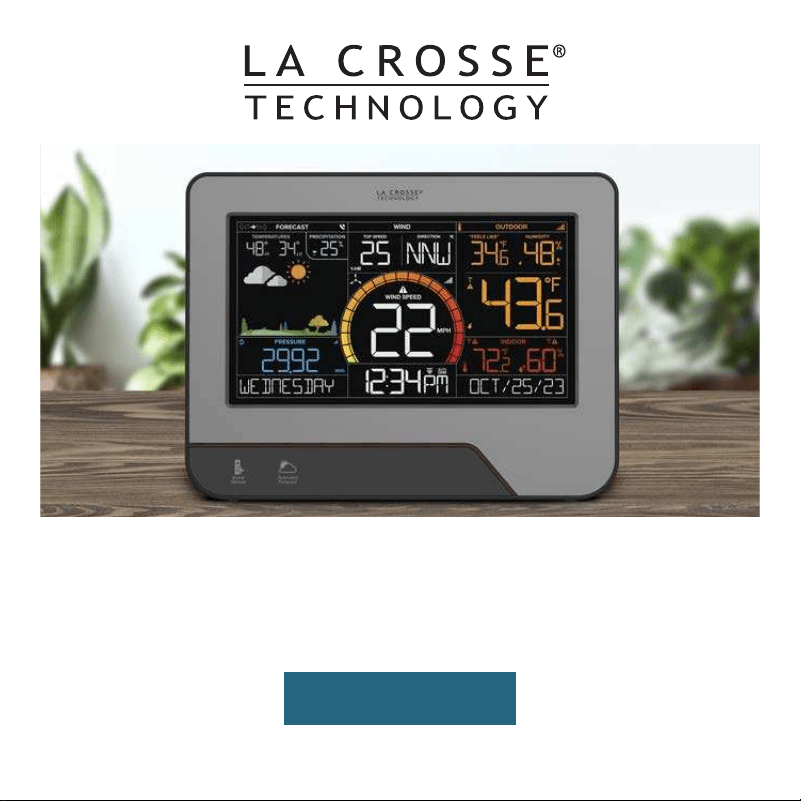
SET UP GUIDE
MODEL NUMBER V23
Wi-Fi COLOR WIND SPEED
+ WEATHER SYSTEM
Register Your Product
and Double Your Warranty
Scan Here
Scan the QR Code or visit: bit.ly/v23_register
to register your product and to double the standard one-year
warranty for free by opting to receive occasional product emails.

BASICS
SUPPORT
LA CROSSE VIEW
APPENDIX
Initial Setup
Display Settings
Buttons
LCD Display Brightness
Auto-Dim Settings
Time & Calendar Display
We’re Here to Help
Factory Reset
Stay in Touch
Connecting to the App
Connecting Your Display
Adding Your Sensors to
the App
Data Stream Technology
Specifications
Cautions & Statements
Recycling & Disposal
02
06
07
08
08
09
WIND
Viewing Wind Data
Wind Speed Records
Customizable Alerts
14
15
18
SENSORS
Placement & Mounting
Glide Pro Sensor
Installation
Add-On Sensors
Adding Sensors to Your
Display
Viewing Your Add-On
Sensor Data
19
20-21
22-23
24
24
FORECAST
Viewing Forecast Data
Viewing Extended Daily
and Hourly Forecast Data
Day/Night Forecast
Moon Phase
10-12
11
12
12
PRESSURE
Relative Pressure 13
TEMP. AND HUMIDITY
Viewing Temperature and
Humidity Data
Temperature and Humidity
Records
“Feels Like” Temperature
Customizable Alerts
16
17
17
18
28
28
28
03
04
05
09
25
25-28
28
Table of Contents
02
Initial Setup
BASICS
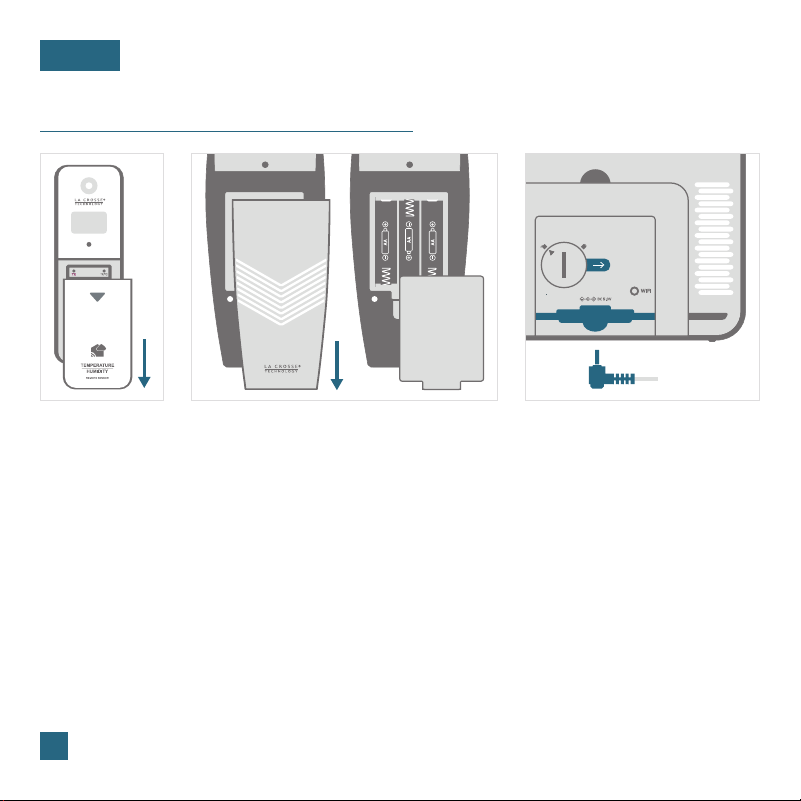
Power Up
Note:
It may take up to 10 minutes for the sensor data to appear on your display.
Thermo-Hygro Sensor
Slide the battery cover down to remove it. Install 2 fresh “AA” batteries according to polarity and snap
the cover back into place. The blue LED light will flash when transmitting.
Glide Pro Sensor
Slide the outer cover down to remove it. Then remove the inner battery cover and install 3 fresh “AA”
batteries according to polarity. Replace both the battery cover and outer cover.
Display
Insert the 5V Power Adapter into an outlet, and then plug it into the Power Jack on the bottom of
the display. Next, remove the Insulation Tab from the Battery Compartment. About 30 seconds after
powering on, it will automatically enter the Settings Menu. See page
06 for more details.
Power Jack
Glide Pro Sensor (LTV-W3) Back of Display (V23)Thermo-Hygro Sensor
(LTV-TH2i)
Connecting to the App
LA CROSSE VIEW
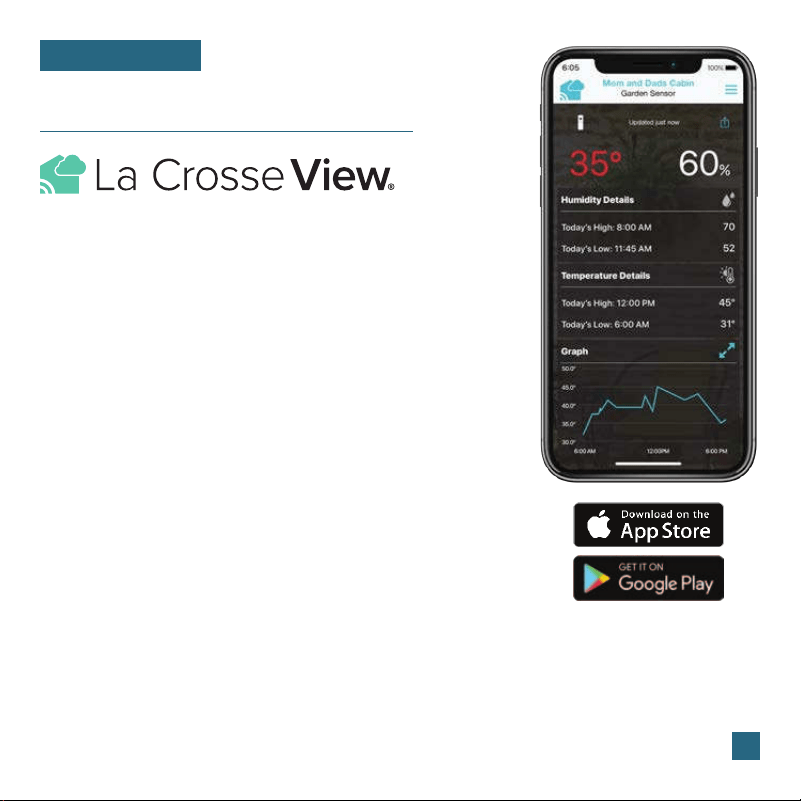
Download the La Crosse View App
Visit the App Store or Google Play Store to download the free
La Crosse View app onto your mobile device.
Launch the App
Connecting Your Display to the App
Open the La Crosse View app. Follow the on-screen setup
instructions to create an account, add new devices, and connect
your display to your Wi-Fi network.
Stay connected to your home anytime, anywhere with the
La Crosse View app.
Monitor your home environment and set custom alerts to notify
you when conditions change.
Connecting is optional and the display will function as a
standalone unit without the Wi-Fi connection. However, we
recommend connecting during the initial setup, as it will save you
time and allows access to some advanced features right away.
Now that you’ve created your La Crosse View account, it’s time to add your system to your
account and connect it to your home router using the La Crosse View app.
Note: For the steps listed on the next page, you’ll need your Wi-Fi network name (SSID)
and password. Make sure your mobile device is connected to the same Wi-Fi network.
03
Adding & Connecting Your Display to Wi-Fi
LA CROSSE VIEW
04
Checking Your Display’s Wi-Fi Status
Press the SET button on the top of the display to view your Wi-Fi Status.
Having Trouble Connecting to Wi-Fi?
The app should guide you through the best method for your Wi-Fi network and router. However,
if you have trouble connecting, please go to:
bit.ly/wifi_questions or scan the QR code. This will
explain additional connectivity options, including connecting by WPS or contacting our technical
support team for further assistance.
The La Crosse View app is required to connect the display to your Wi-Fi network. Download, install,
and log into your La Crosse View account first.
New User Initial Setup: When first setting up your
system, the app will lead you through a series of
instructions to help get your system added into your
account and connected to your home Wi-Fi network.
Manually Add & Connect Display: After the initial walkthrough,
displays can be added and connected via the Devices tab in
the app’s main menu. Simply tap the Add Device or + button
at the bottom of the Devices page in the app.
1.
Follow the initial app instructions or manually add the display into your account. 2.
Next, the app will prompt you to use your phone to scan the device ID barcode located on the back of
the display. Please note, adding a device to your account and connecting it to Wi-Fi are two dierent
steps. You can complete either step separately if you have any trouble.
When connected, the display will beep, and time and forecast information should appear on the screen.
The indicator will also become solid.
3.
4.
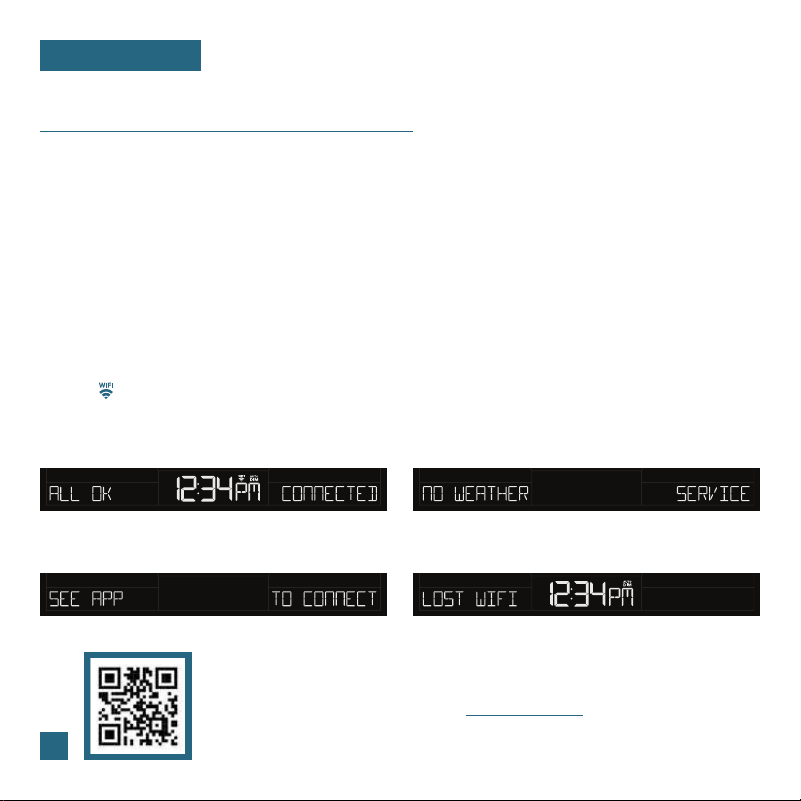
ALL OK CONNECTED: Your system is connected to your
Wi-Fi and its data should be available on the display and
in the app.
SEE APP TO CONNECT: Check the app for notifications.
NO WEATHER SERVICE: Your Internet weather and time
services are not connecting. These should resolve on their
own, please be patient.
LOST WIFI: Check your router and network connections.
* This step is only required if you do not receive the Add Device
notification within the app.
Prior to mounting/positioning your sensors, make sure your
display is receiving sensor data.
Upon getting the display connected to your Wi-Fi network, the app will
explain how your connected sensors should be brought in. Within the
next 15 minutes, you should receive an Add Device notification in your
app. This is indicated by the Red Cloud and the number inside of it. Tap
this icon to begin adding your sensors into the app.
1.
Manually Add Your Sensors to the App*
3.
4.
2.
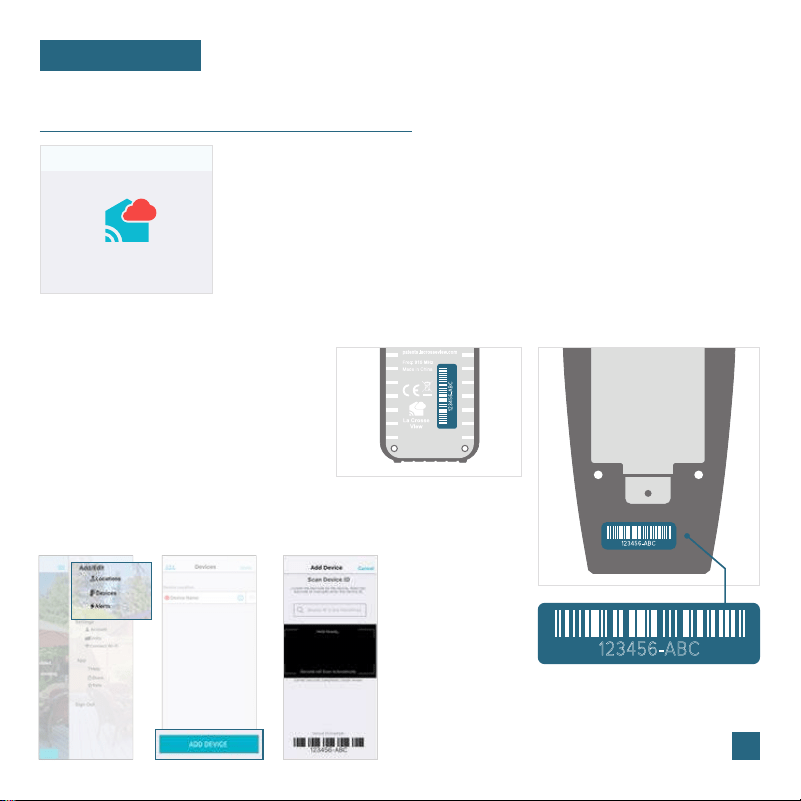
Open your La Crosse View app. On the
Main Menu, scroll to ADD/EDIT and select
DEVICES.
Scan the Barcode on your Sensor or type
in the Device ID manually.
Confirm the sensor image and Device
ID and add a Device Name and Location
Name. Select DONE.
On the Devices page, select the ADD
DEVICE or PLUS (+) button.
Add Device SaveCancel
2
Please wait up to 15 minutes
for your additional devices
to connect to your account.
Adding Your Sensors to the App
LA CROSSE VIEW
02
123456-ABC
123456-ABC
123456-ABC
▲ Back of Thermo-Hygro Sensor
Inside of Glide Pro Sensor ⊲
05
06
Display Settings
BASICS
About 30 seconds after powering on, the display will automatically enter the Settings Menu.
Use the steps below to navigate the menu and get your display working the way you’d like.
Settings Menu Order
•
HELLO Greeting
• Language (English/Spanish/French/German)
• Beep On/O
• Time Format (12 or 24 Hour)
• Hour | Minute | Year | Month | Date
• Calendar Order (Month/Date or Date/Month)
• Temperature Units (Fahrenheit or Celsius)
• Temperature Decimal On/O
• Pressure Units (InHg or hPa)
• Custom Pressure Value
• Wind Speed Units (MPH or KPH)
• Wind Direction (Letters or Degrees)
• THANK YOU Message
Important: Settings such as language and units of measure must
be set manually within the display Settings Menu. These are not
controlled by the La Crosse View app.
• The language selected will aect menu instructions as well as
weekday and month readouts.
• Weekday will set automatically after year, month, and date
settings are adjusted.
• When in 24 hour time format, seconds will show in place of
AM/PM markings.
• If you’re connected to Wi-Fi, the time/date will automatically
update from the Internet. See pages
03-05 for more info.
Navigating the Settings Menu
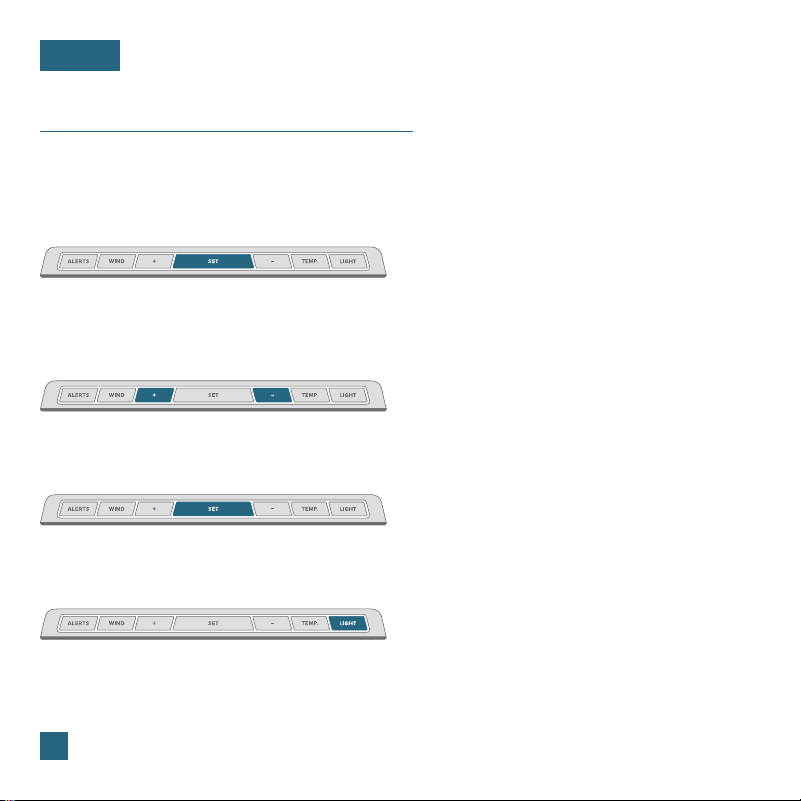
To manually set language, time/date, and
other settings, hold the
SET button to enter
the Settings Menu.
1.
Use the +/- buttons on the top of the display
to adjust the values.
2.
Press the SET button to confirm your
selection and move to the next setting.
3.
You may exit the Settings Menu at any time
by pressing the
LIGHT button.
4.
Front of Display Back of Display
07
Buttons
BASICS
* Your display must be connected to Wi-Fi to receive Daily/Hourly forecast information.
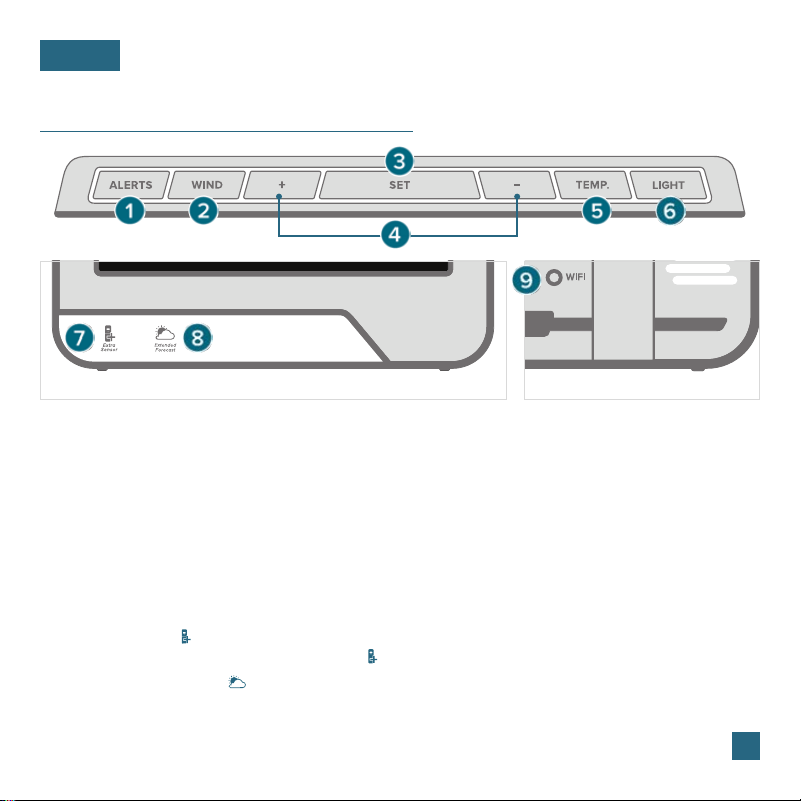
1. ALERTS: Hold to enter Alert Settings. Press to confirm and move to next item. Use the + or - buttons
to arm or disarm an alert, and to adjust alert values.
2. WIND: Press to view Wind Speed History. While viewing, hold the MINUS (-) button to reset the
history value. Hold the
WIND button to search for the Glide Pro sensor.
3. SET: Press to view Wi-Fi status. Hold to enter the Settings Menu.
4. PLUS/MINUS (+/-): Use to adjust values. When in Alert Settings, press to arm/disarm alert.
5. TEMP: Press to view Temperature & Humidity History. While viewing, hold the MINUS (-) button to reset
history value. Hold the
TEMP button to search for the Thermo-Hygro Sensor.
6. LIGHT: Press to adjust backlight or to exit settings. Hold to enter Auto-Dim settings.
7. EXTRA SENSOR ( ): Tap to view sensor ID numbers. While viewing, hold the MINUS (-) button
delete the sensor. Hold the
EXTRA SENSOR ( ) button to search for new sensors.
8. EXTENDED FORECAST ( ): Tap to see Daily or Hourly Forecast. Hold to auto-scroll forecast data.*
9. WIFI: Press during initial setup for Wi-Fi Connection. Hold to re-enter Configuration Mode and
clear previous Wi-Fi settings.
Adjusting the LCD Display Brightness
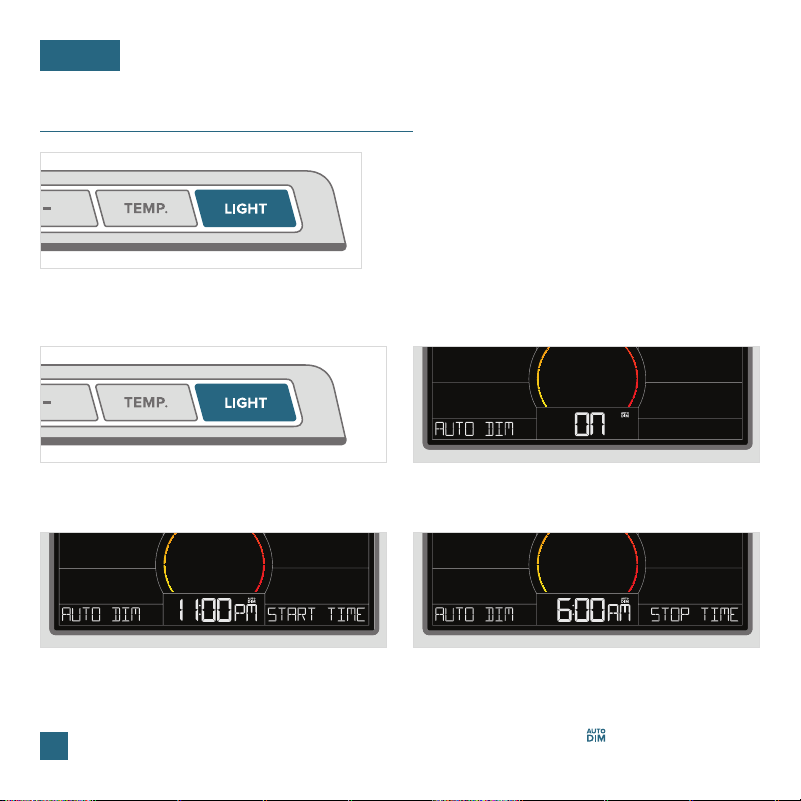
Press the LIGHT button on the top of the display
to adjust the backlight intensity. There are four
brightness levels, plus an o option.
08
LCD Display Brightness
BASICS
Note: Only the starting and stopping hours can be set. The Auto-Dim Icon ( ) will appear on the
LCD when the Auto-Dim feature is activated.
Auto-Dim Settings
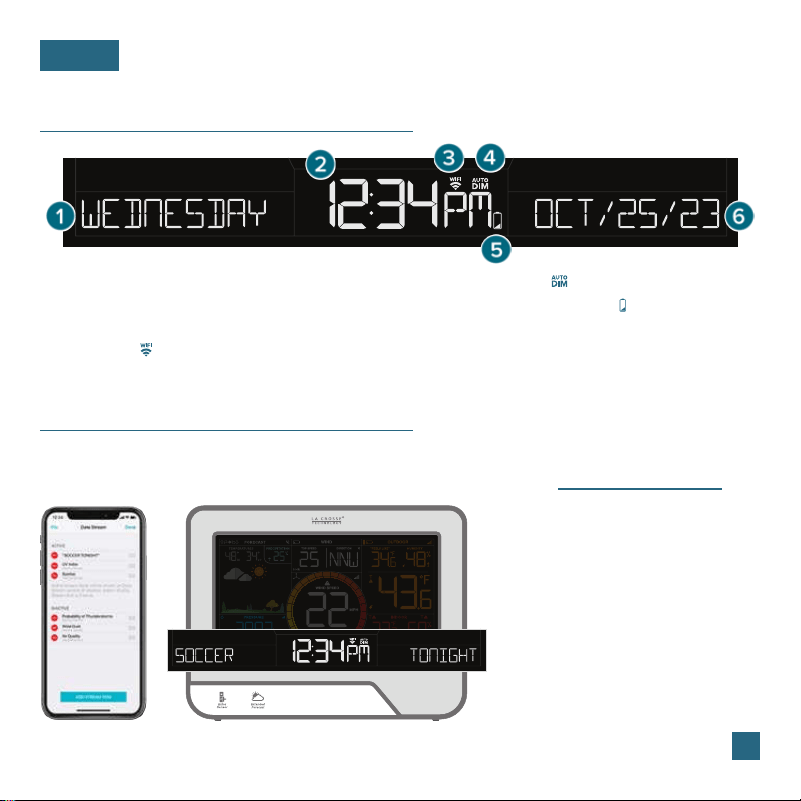
Program your display to automatically dim during preselected times.
1. Hold the LIGHT button to enter the Auto-Dim
Settings Menu.
2. Press the +/- buttons to turn the Auto-Dim
feature on/o. Press
LIGHT to confirm.
4. Press the +/- buttons to adjust the stopping
hour. Press
LIGHT to confirm and exit.
3. Press the +/- buttons to adjust the starting
hour. Press
LIGHT to confirm.
09
BASICS
Time & Calendar Display
Data Stream Technology®
Data Streams allow you to see additional AccuWeather information in the time and calendar
section on the display. Learn how to set these up in our video here: bit.ly/datastream_vid
* Your display must be connected to Wi-Fi to receive Data Stream information.
Check the La Crosse View app
for a comprehensive list of
Data Stream options.
Stream Options Examples:
•
UV Index
• Sunrise/Sunset Times
• Chance of Thunderstorms
• Air Quality
• Personal Message
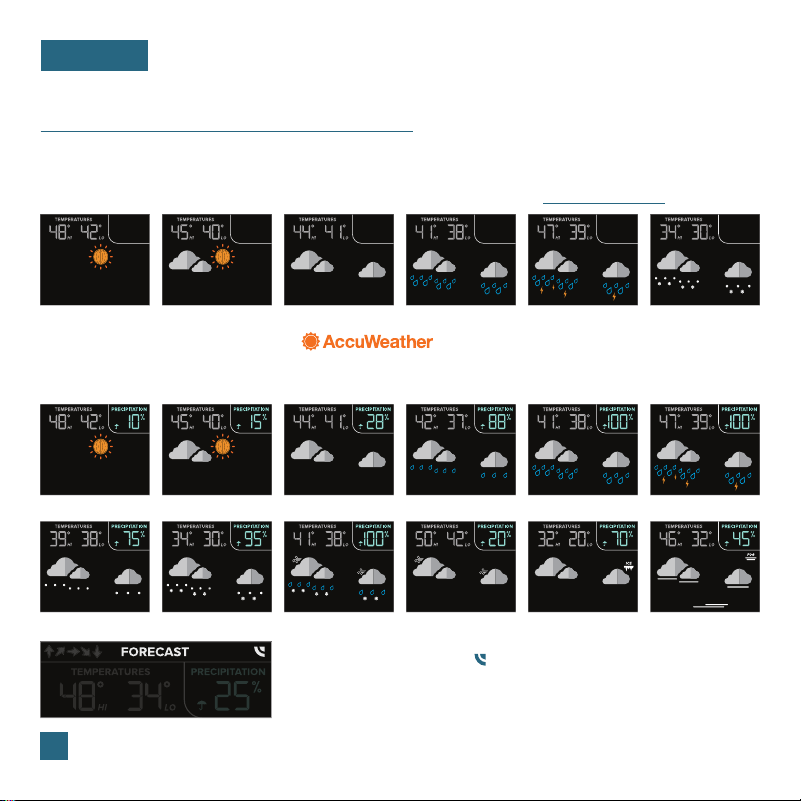
1. WEEKDAY: Full day of the week display.
2. 12/24 HOUR TIME: Time will automatically update
when connected to Wi-Fi.
3. WI-FI ICON ( ): Indicates active Wi-Fi connection.
4. AUTO-DIM ICON ( ): Indicates Auto-Dim is active.
5. LOW BATTERY INDICATOR ( ): Appears when
station battery needs to be replaced.
6. CALENDAR: Select Month/Date or Date/Month
order in the Settings Menu.
Note: The Forecast Icons may not represent your current weather. They are a future prediction of weather to come
over the next 12 hours.
10
Viewing Your Forecast Data
FORECAST
When using as a standalone unit, the display uses changes in barometric pressure to predict your weather
to come. This is represented by the 6 forecast scenes below. High and low temperatures will come from
the Thermo-Hygro Sensor. Watch our Forecast Icon Video for more details:
bit.ly/forecast_vid
When connected to Wi-Fi, the display will receive additional weather icons, chance of precipitation values,
and future forecast information from AccuWeather. Additional forecast scenes include:
Sunny
Sunny
Light Snow
Partly Sunny
Partly Sunny
Snowy
Snowy
T-Storms
Foggy
Rainy
Light Rain
Windy
T-Storms
Rainy
Icy
Cloudy
Cloudy
Wintry Mix
The Internet Indicator icon ( ) and word FORECAST will appear at
the top of the forecast section when your display is connected and
receiving AccuWeather data.
Enhanced Forecast Data Powered by
Viewing Extended Forecast Data
FORECAST
11
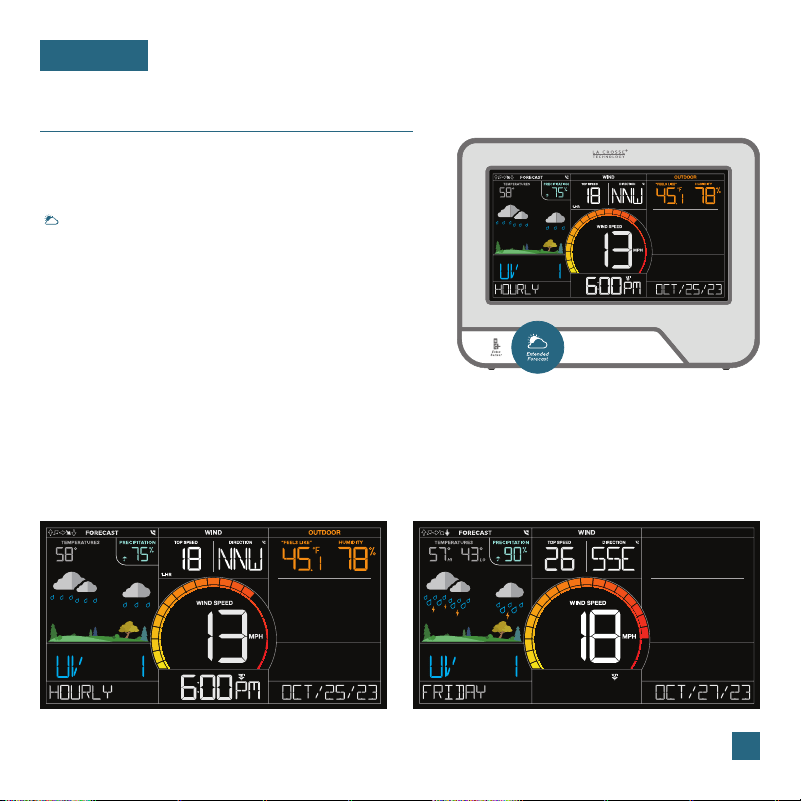
Hourly & Daily Extended Forecasts
When connected to Wi-Fi and opted in for weather services
in the La Crosse View app, tap the
EXTENDED FORECAST
( ) button on the front of the display to toggle through your
next 12 hours and next 7 days of forecast data.
Hourly and daily forecast predictions provide dierent sets
of data from AccuWeather. They use Internet sources and
do not include measurements from your outdoor sensors.
Hourly Forecast Example Daily Forecast Example
Hourly Forecast Data Includes: Daily Forecast Data Includes:
•
Forecast Icons
• Chance of Precipitation
• Wind Speed & Gust
• Wind Direction
• Forecast Icons
• Chance of Precipitation
• Wind Speed & Gust
• Wind Direction
• Current Temperature
• “Feels Like” Temperature*
• Outdoor Humidity
• UV Index
• MIN/MAX Temperatures
• UV Index
* “Feels Like” Temperature only appears when conditions are met, see page 17 for more information.
Note: Your display must be connected to Wi-Fi to receive Extended
Forecast data. These are Internet predictions from AccuWeather
and do not use data from your outdoor sensors.
Viewing Your Forecast Data
FORECAST
12
Spring (March 20
th
to June 20
th
) Summer (June 21
st
to Sept. 20
th
) Fall (Sept. 21
st
to Dec. 20
th
) Winter (Dec. 21
st
to March 19
th
)
Seasonal Trees
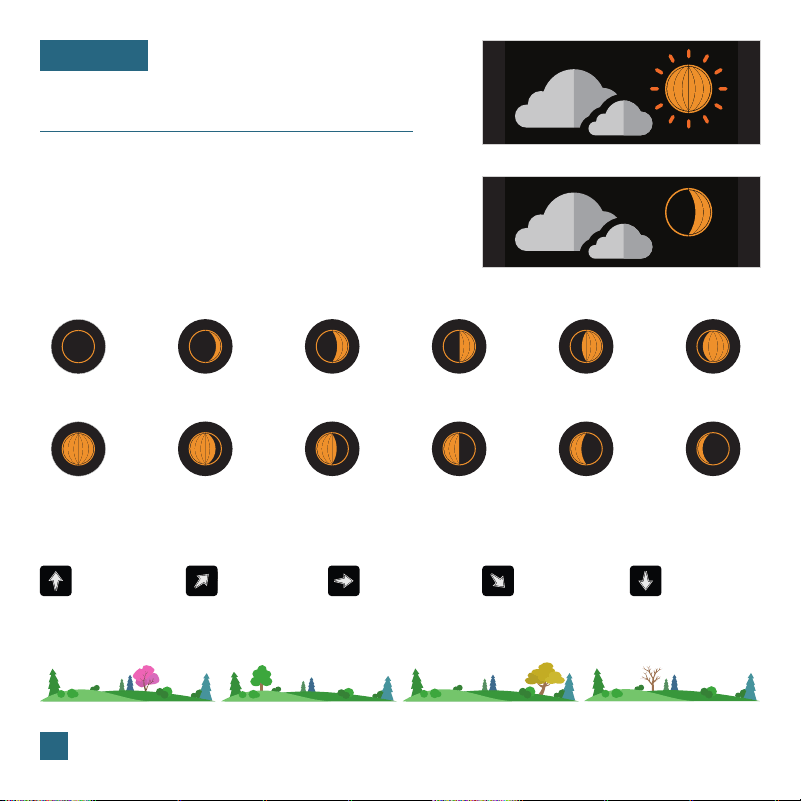
The foliage scene in the forecast section changes seasonally. The dates are pre-programmed.
Daytime Forecasts & Moon Phase
When clear or partly clear conditions are predicted during
the daytime (7:00am to 6:59pm), the sun icon will show. From
7:00pm to 6:59am, the Moon Phase will appear regardless
of forecast. These times are preprogrammed and cannot be
adjusted. The moon icon is based on the lunar calendar and
year, month, & date settings. The phases include:
Trend Arrows
The arrows represent changes in pressure over the past 3 hours.
Rapid Increase Steady Pressure Rapid DecreaseSlow Increase Slow Decrease
Day Forecast (partly clear example)
Night Forecast (partly clear example)
New Moon
Full Moon
Small Waxing
Crescent
Large Waning
Gibbous
Large Waxing
Crescent
Small Waning
Gibbous
First Quarter
Last Quarter
Small Waxing
Gibbous
Large Waning
Crescent
Large Waxing
Gibbous
Small Waning
Crescent
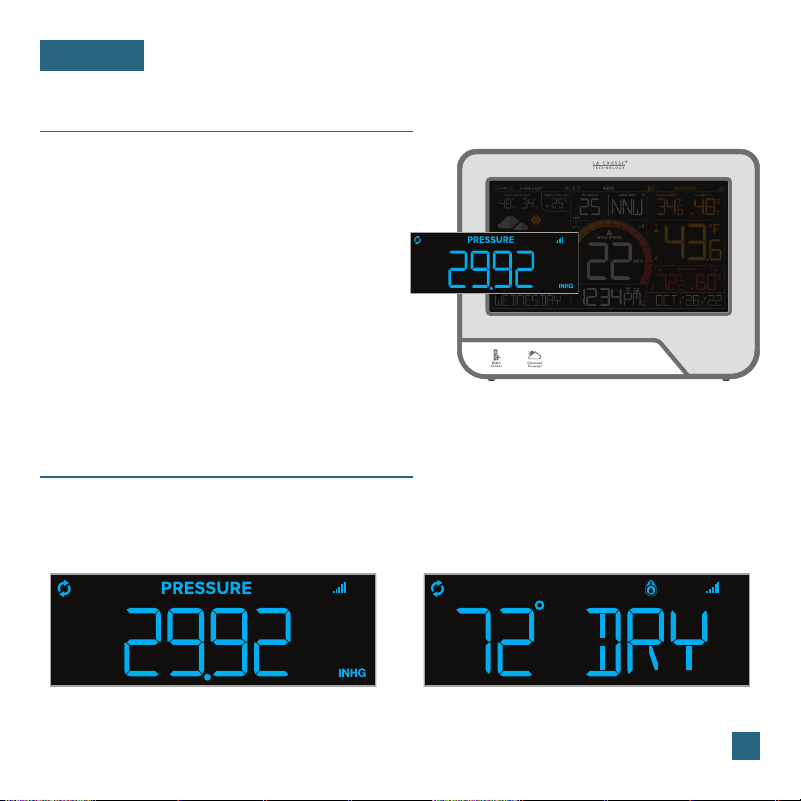
The Relative Pressure reading will come from your
display’s internal barometer.
• Please allow up to 10 days for automatic
calibration, or program your local pressure
value in the Settings Menu.
• The default pressure reading is 29.91 InHg
(1013 hPa). The display will acclimate on its
own if the pressure value is not set.
• Select your preferred unit of measurement
(hPa or InHg) in the Settings Menu.
13
Relative Pressure
PRESSURE
Relative Pressure Example Water Leak Sensor Example
Pressure & Add-On Sensor Data
Your relative pressure and add-on sensor data share the same section on the display. Whether you
choose to connect to the La Crosse View app or not, this display can show data for up to 4 extra
sensors. This data will appear in the blue section on the display and in the app if connected.
Note: Add-on sensors are sold separately. See pages 22-24 for add-on sensor information.
Viewing Wind Data
WIND
14
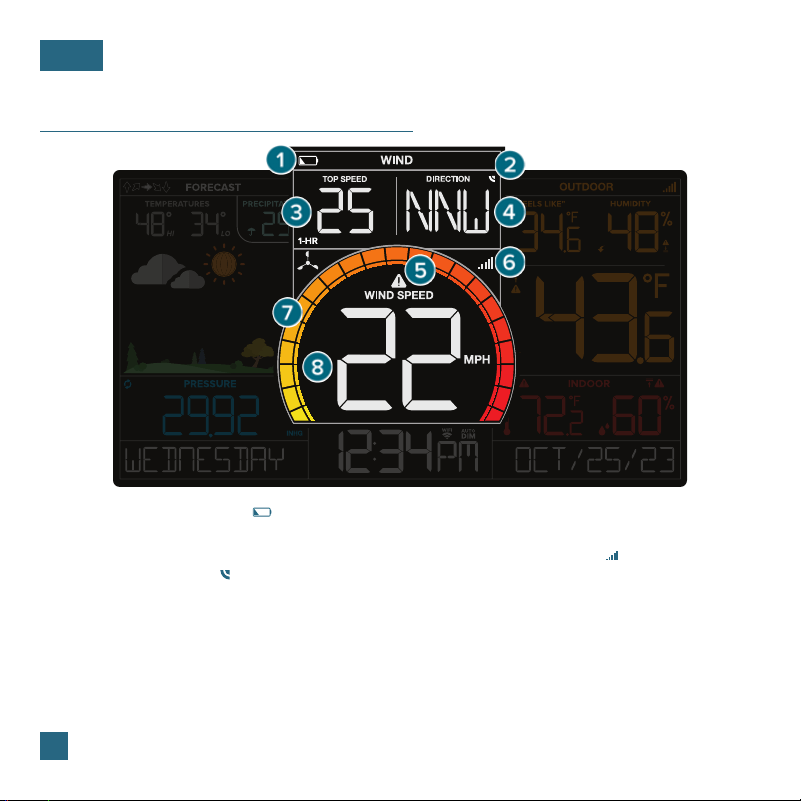
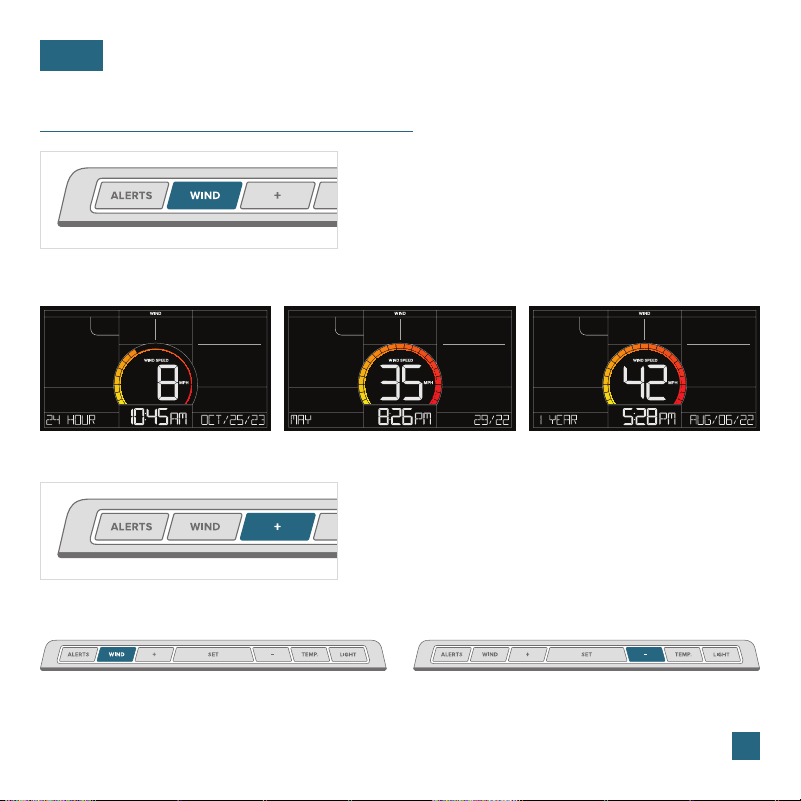
1. LOW BATTERY INDICATOR ( )
Indicates the batteries in the Glide Pro Sensor
should be replaced soon.
2. INTERNET INDICATOR ( )
Indicates the display is receiving Wind Direction
from AccuWeather.*
3. TOP WIND SPEED
Top wind speed in the past 60 minutes.
4. CURRENT WIND DIRECTION*
Choose between cardinal points (letters)
or degrees in the Settings Menu.
5. HIGH WIND SPEED ALERT ICON
Appear if a wind speed alert is set & active.
6. RECEPTION INDICATOR ( )
Indicates if the display is receiving data from
the Glide Pro Sensor.
7. WIND SPEED GRAPH
Visual representation of current wind speed.
8. CURRENT WIND SPEED
Top wind speed in the past 31 seconds.
* Your display must be connected to Wi-Fi to receive
wind direction data.
WIND
15
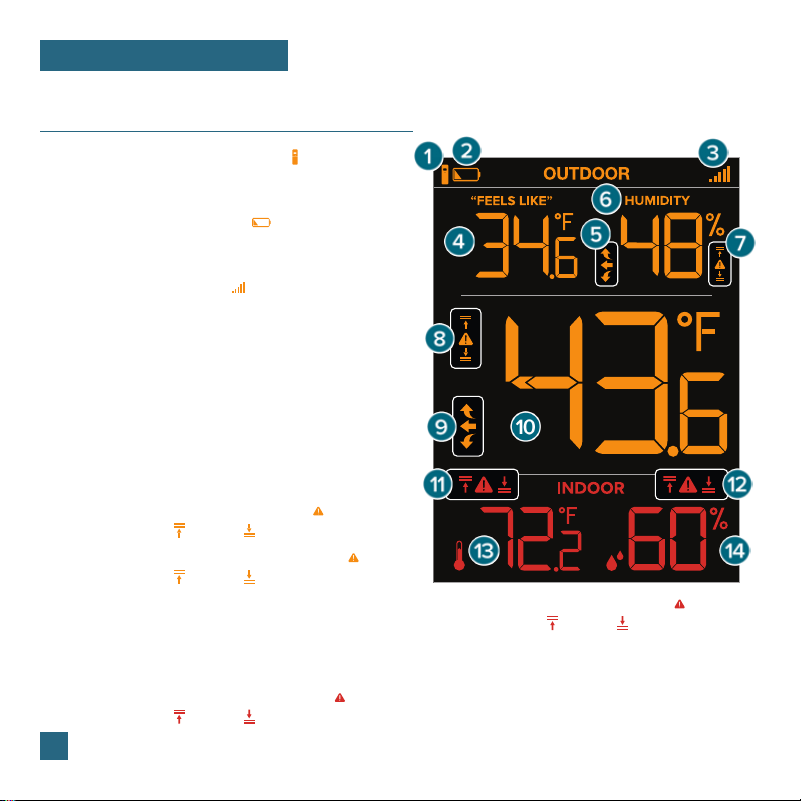
24 Hour Record Example 1 Month Record Example 1 Year Record Example
Wind Speed Records
When viewing the monthly record, press the PLUS (+)
button to toggle through the current month and past
11 months of top speed records.
Press the
WIND button to view wind speed
records.
Next, hold the MINUS (-) button until dashes
appear on the display. This reading will now
reset to the current wind value.
Reset Wind Speed Records
Viewing Wind Speed Records
Press the WIND button on the top of the display to
toggle through wind speed records with time and
date stamps.
This system measures high wind speed records for the past 24 hours, 7 days, 1 month, and 1 year.
16
Viewing Temperature & Humidity Data
TEMPERATURE & HUMIDITY
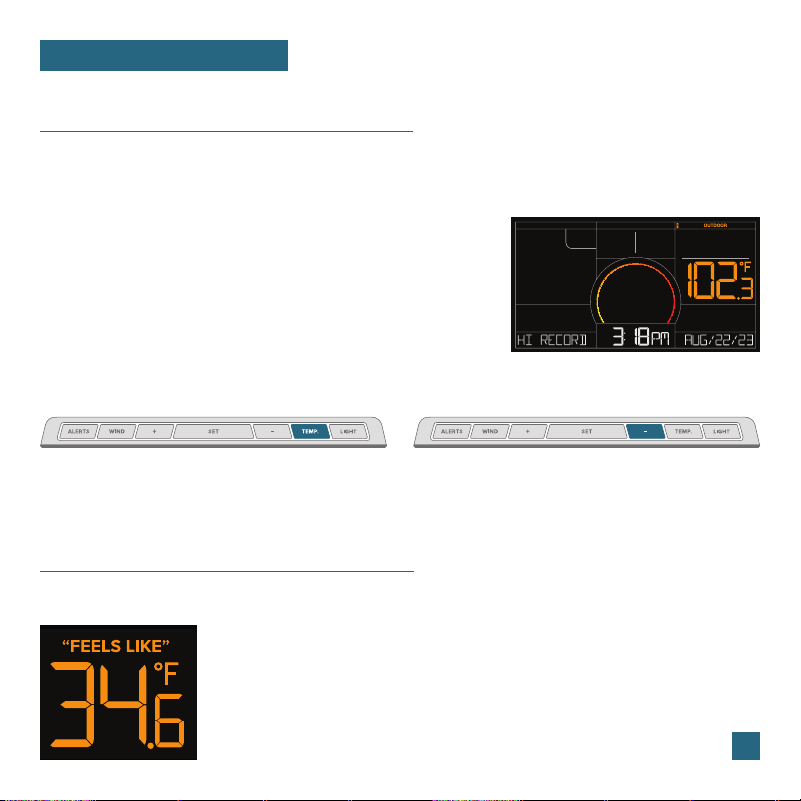
1. THERMO-HYGRO SENSOR ICON ( )
Indicates Temperature readings are coming from
a Thermo-Hygro Sensor.
2. LOW BATTERY INDICATOR ( )
Indicates the batteries in the Thermo-Hygro Sensor
should be replaced soon.
3. RECEPTION INDICATOR ( )
Indicates if the display is receiving data from
a Thermo-Hygro Sensor.
4. “FEELS LIKE” TEMPERATURE
Current Heat Index or Wind Chill when conditions
are met.
5. OUTDOOR HUMIDITY TREND ARROWS
Indicate humidity trend over the past 3 hours
6. OUTDOOR HUMIDITY
Current relative humidity
7. OUTDOOR HUMIDITY ALERT ICONS ( )
Appear if a high ( ) or low ( ) alert is set & active.
8. OUTDOOR TEMPERATURE ALERT ICONS ( )
Appear if a high ( ) or low ( ) alert is set & active.
9. OUTDOOR TEMPERATURE TREND ARROWS
Indicate temperature trend over the past 3 hours
10. OUTDOOR TEMPERATURE
Current temperature (decimal/no decimal option)
11. INDOOR TEMPERATURE ALERT ICONS ( )
Appear if a high ( ) or low ( ) alert is set & active.
12. INDOOR HUMIDITY ALERT ICONS ( )
Appear if a high ( ) or low ( ) alert is set & active.
13. INDOOR TEMPERATURE
Current temperature (decimal/no decimal option)
14. INDOOR HUMIDITY
Current relative humidity
Note: You can choose decimal/no decimal display option in the Settings Menu (see page 6).
• Wind Chill: When temperature is below 50ºF (10ºC) and there is 5 MPH (8 KPH)
of sustained wind speed.
• Heat Index: When temperature is above 80ºF (27ºC).
• Current Temperature When the temperature is between 50°F and 80°F
(10.5ºC and 26.1ºC), the readings will remain the same as the outdoor
value regardless of wind speed.
Temperature & Humidity Records
17
Viewing Temperature & Humidity Records
This reading indicates both Wind Chill and Heat Index values when conditions are met.
“Feels Like” Temperature
TEMPERATURE & HUMIDITY
Viewing Temperature & Humidity Records
Press the TEMP. button to toggle through records with time and date stamps.
Press the TEMP. button to view temperature
and humidity records.
Reset Temperature & Humidity Records
Next, hold the MINUS (-) button until dashes
appear on the display. This reading will now
reset to the current value.
Records Viewing Order
1.
Outdoor High Temperature
2. Outdoor Low Temperature
3. Outdoor High Humidity
4. Outdoor Low Humidity
5. Indoor High Temperature
6. Indoor Low Temperature
7. Indoor High Humidity
8. Indoor Low Humidity
9. “Feels Like” High Temperature
10. “Feels Like” Low Temperature
11.
Dew Point
High Outdoor Temperature Record Example
Customizable Alerts
18
ALERTS
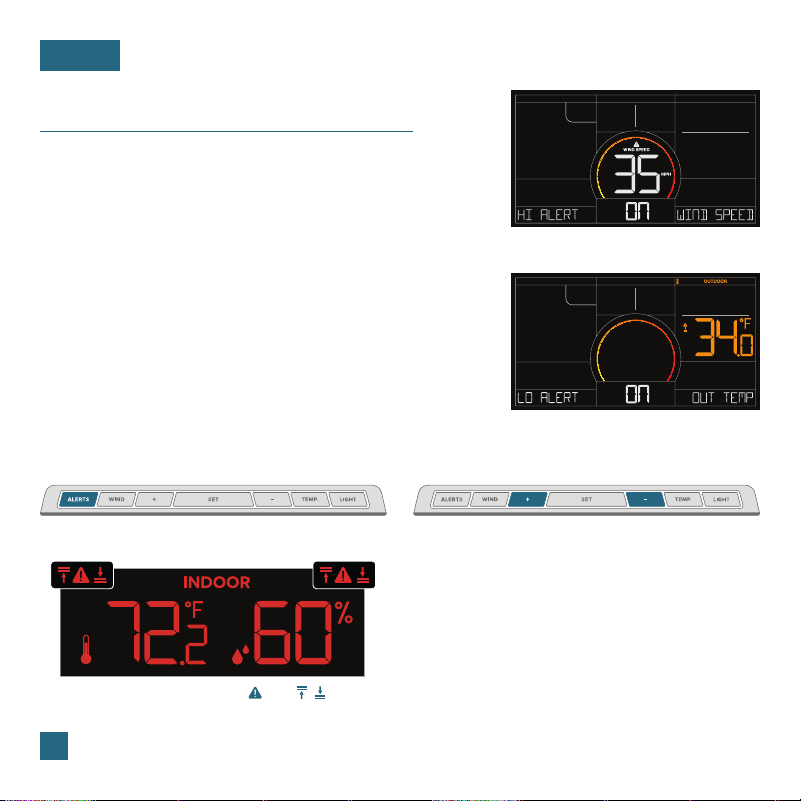
Hold the ALERTS button to enter alert settings.
Activating/Deactivating Alerts
Use the +/- buttons to activate/deactivate alerts.
Alert Setting Order
1.
High Wind Speed
2. Outdoor High Temperature
3. Outdoor Low Temperature
4. Outdoor High Humidity
5. Outdoor Low Humidity
6.
Indoor High Temperature
7. Indoor Low Temperature
8.
Indoor High Humidity
9.
Indoor Low Humidity
High Wind Speed Alert Example
Outdoor Low Temperature Alert Example
Triggered Alerts
•
When an alert value is reached, the corresponding
value and alert icon will flash on screen.
• The display will also beep 5 times each minute until
the value moves out of the alert range. Press any
button to stop the alert sound.
• Alerts set on the display are separate from those
created within the La Crosse View app.
Setting Custom Alerts
1.
Hold the ALERTS button to enter the Alert Settings Menu.
2. Use the +/- buttons to activate/deactivate individual alerts,
or press the
ALERTS button to skip to the next option.
3. Once activated, use the +/- buttons to adjust the values.
Press the
ALERTS button to confirm and move forward.
Note: The default setting for alerts is OFF.
Active alerts are indicated by the and / icons
located in their respective sections on the LCD.
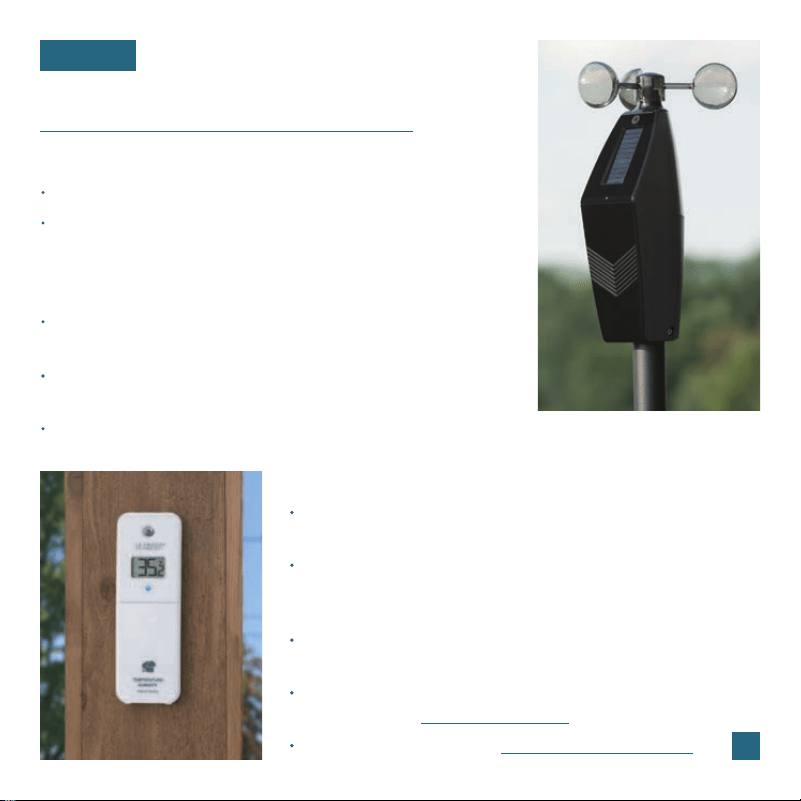
Sensor Placement & Mounting
SENSORS
19
Insert a mounting screw through the hole at the top to securely
mount the sensor. It can also hang from the back using a nail.
Mount the sensor vertically in a protected well-shaded area.
Keeping it out of direct weather elements such as sunlight, rain,
snow, etc. will help avoid inaccurate readings.
The maximum wireless transmission range to the display is up
to 400 feet (121.92 m.) in open air, not including walls or floors.
For additional protection against weather elements, a Sensor
Weather Shield (
bit.ly/weather-shield) is available for purchase.
For video instructions, visit: bit.ly/th_sensor_mounting
For Accurate Thermo-Hygro Sensor Measurements
For optimal battery life, ensure the Solar Panel is facing south.
Ideally, the Glide Pro Sensor should be mounted on the tallest
object in your area. Avoid positioning the sensor parallel
or below eaves, roof lines, trees, or other objects that may
obstruct wind speed readings.
Make sure the screws on the Wind Cups and Mounting Bracket
are securely fastened.
The maximum wireless transmission range to the display is up
to 400 feet (121.92 m) in open air, not including walls or floors.
The Glide Pro Sensor should be mounted with the Wind Cups
on the top.
For Accurate Glide Pro Sensor Measurements
Glide Pro Sensor Mounting
SENSORS
20
Fence posts, poles, decks, and mailboxes are common mounting options due to their convenience.
Many users prefer these types of locations as the data they provide is accurate from their ground
level perspective. However, because the wind in these spots is often aected by obstructions, the
readings may dier when compared to local reporting stations.
If the basic installation option detailed above isn’t suitable for your location, the Glide Pro Sensor is
designed to work in a variety of configurations. See the next page for details regarding flexible and
advanced installation options.
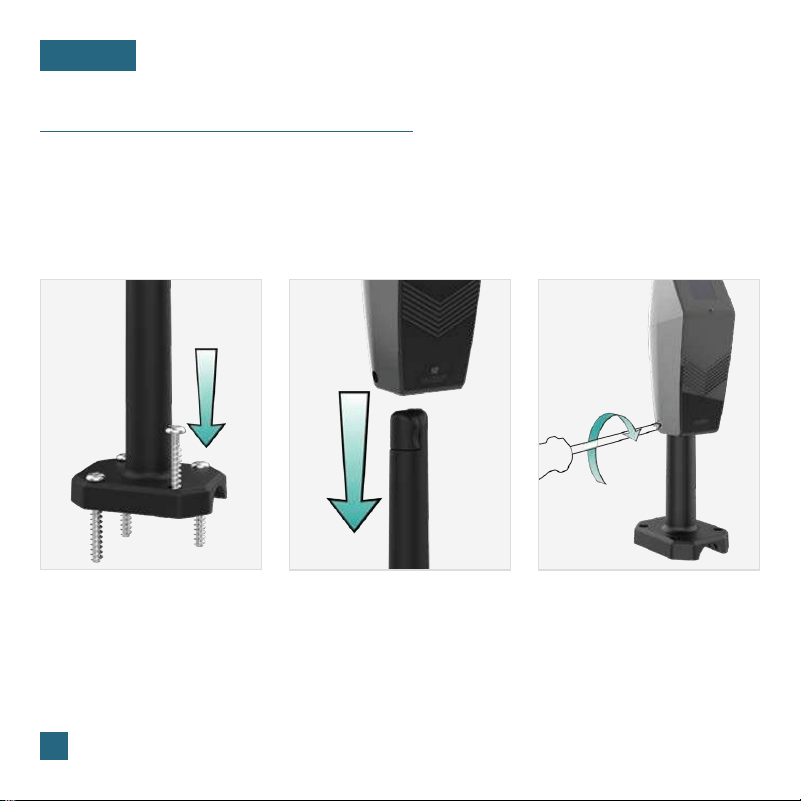
Basic Installation
Mount the Mast to a flat surface
with the four provided screws.
Place the Glide Pro Sensor on
top of the Mast. Ensure the Solar
Panel is facing south.
Secure the Glide Pro Sensor to
the Mast by tightening the screws
on the side.
21
Glide Pro Sensor Mounting
SENSORS
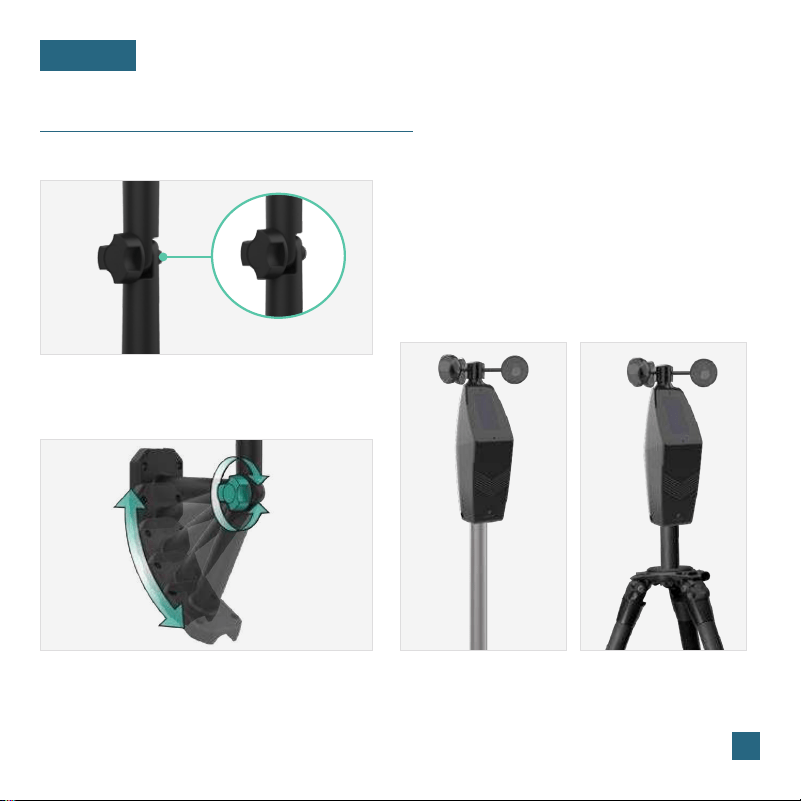
Flexible Installation
Some advanced installation options include tripods,
wall mounts, and chimney mounts. Any of these
can be combined with U-bolts for attachment onto
a tall cylindrical conduit using the Adjustable Base.
These options will require additional equipment and
possibly professional help for best results.
Advanced Installation
Freestanding Pole Setup
1'' Maximum Outside
Pole Diameter
Tripod Setup Example
1'' Maximum Outside
Pole Diameter
This configuration allows you to attach the sensor
to angled locations and easily make adjustments
to ensure the sensor is mounted properly.
Install the Hand Screw to the bracket, then secure
the Glide Pro Sensor to the Mast by tightening
the screws on the side.
Hand Screw
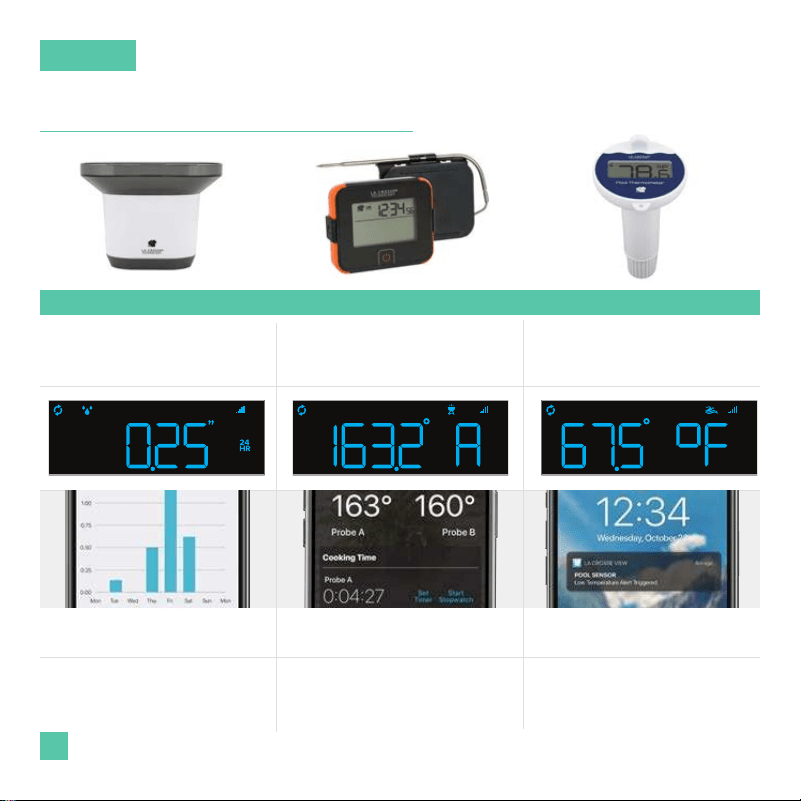
FEATURES INCLUDE:
Current Rainfall
Rainfall Records
FEATURES INCLUDE:
Two Hi-Temperature Probes
Backlit Display & Storage Case
FEATURES INCLUDE:
Water Temperature
Floating Design with LCD Display
USE CASE: Check rain totals from
last night’s storm to help make
adjustments to your lawn & garden
watering schedule.
USE CASE: Set independent timers
and alerts to monitor two steaks at
the same time.
USE CASE: Place in a pool or hot
tub to keep an eye on changes in
water temperature.
Display & App Screenshots
Featured: LTV-R3
Display & App Screenshots
Featured: LTV-BBQ1
Display & App Screenshots
Featured: LTV-POOLv2
RAIN SENSOR BBQ SENSOR POOL SENSOR
22
Featured Add-On Sensors
SENSORS
Note: Feature sets may vary.
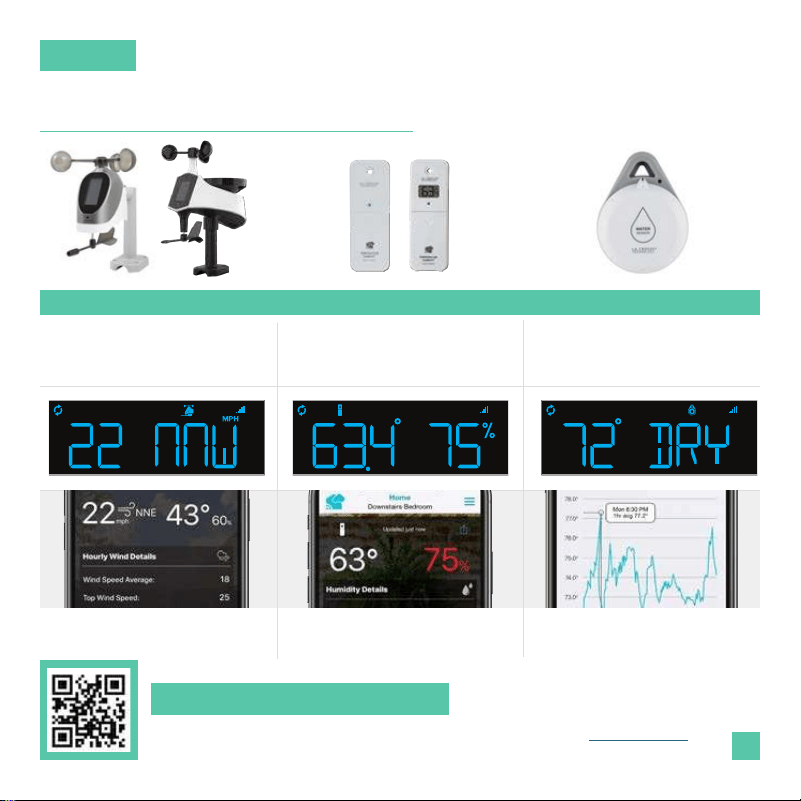
FEATURES MAY INCLUDE:
Wind Speed, Direction, Rainfall,
Temperature, and Humidity
FEATURES MAY INCLUDE:
Temperature & Humidity
LCD Display
FEATURES INCLUDE:
Water Detection
Ambient Temperature
MULTI-SENSORS THERMO-HYGRO SENSORS
Find more add-on sensor options by scanning the QR code or visiting: bit.ly/v23_parts
Expand Your System to Suit Your Needs
WATER LEAK SENSOR
23
Featured Add-On Sensors
SENSORS
Display & App Screenshots
Featured: LTV-WSDTH04 & LTV-WSDR1
Display & App Screenshots
Featured: LTV-TH1 & LTV-TH2i
Display & App Screenshots
Featured: LTV-WL1
Add-On Sensors
SENSORS
24
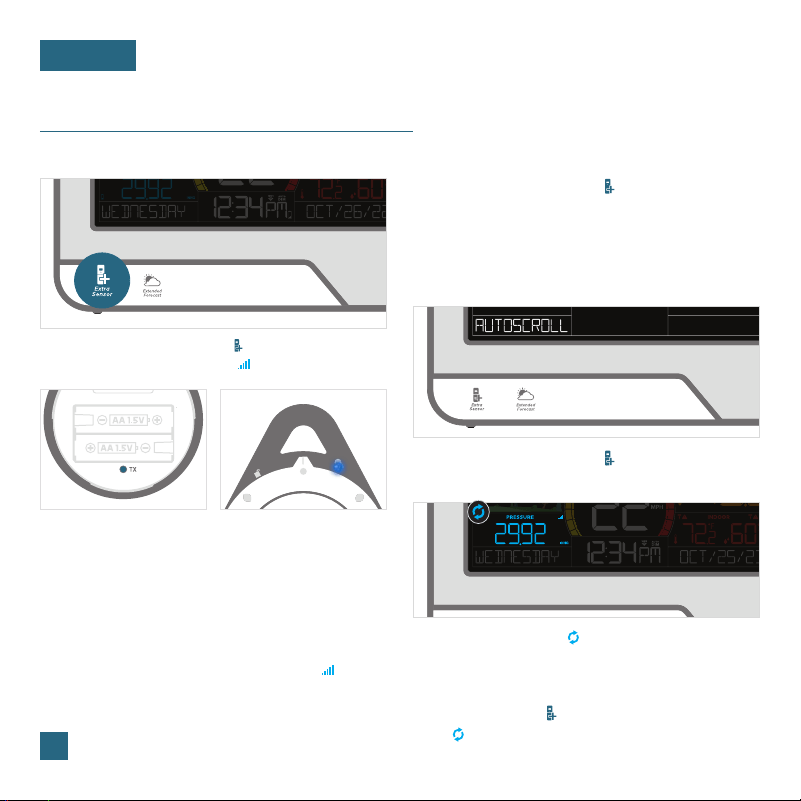
Adding Sensors to Your Display
2. Install batteries into your sensor. If the sensor has
a
TX button, press it to force a transmission signal.
This button is usually located in or near the sensor’s
battery compartment. The LED light on the sensor
will flash once.
3. Your sensor should connect within the next three
minutes. The Sensor Reception Indicator ( ) will
appear solid when a sensor is connected.
Inside of Water Leak Sensor* Top of Water Leak Sensor*
* Water Leak Sensor shown as example, sensor not included
1. Hold the EXTRA SENSOR ( ) button until the
Sensor Reception Indicator ( ) starts to animate.
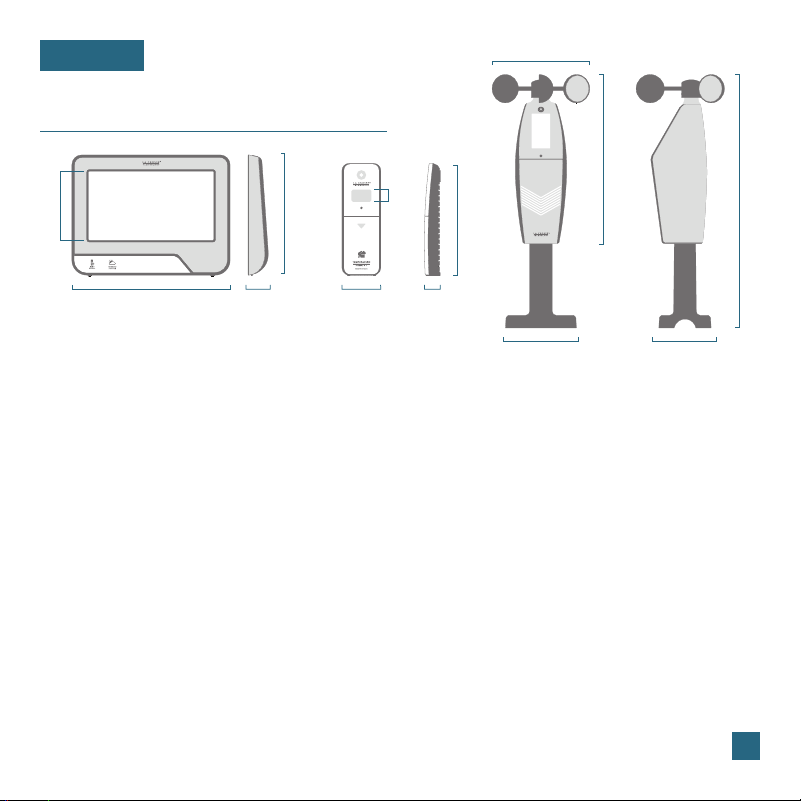
Tap the EXTRA SENSOR ( ) button to switch
between pressure and add-on sensor readings,
or select the Auto-Scroll option to cycle through
all available pressure and sensor data.
Tap the EXTRA SENSOR ( ) button until
AUTOSCROLL appears on the display.
Viewing Add-On Sensor Data
Programming the Auto-Scroll Option
To deactivate the Auto-Scroll option, tap the
EXTRA SENSOR ( ) button until the Auto-Scroll
Icon ( ) disappears. The display will stay on
your current selection.
The Auto-Scroll Icon ( ) located in the top left
corner will appear when active.
25
Specifications
APPENDIX
Wi-Fi NETWORK REQUIREMENTS
•
Broadcast Frequency: 2.4GHz (802.11 b/g/n)
• Name/Password: Must Not Exceed 45 Characters
• Network Speed: Must Be Greater than 1 Mbps
DISPLAY (V23)
•
Indoor Temp. Range: 32°F to 122°F (0°C to 50°C)
• Indoor Humidity Range: 10 to 99%RH
• Power Requirements: 5.0V Adapter (included)
+ Battery Backup: 1 “CR2032” Coin Cell Battery
(included) Saves time/date when unplugged
The plug on the power adapter is intended to serve as the
disconnect device, the socket-outlet shall be installed near
the equipment and shall be easily accessible.
• LCD Brightness: 4 Intensity Levels + OFF
(Programmable Auto-Dim Backlight Option)
• Languages: English, Spanish, French, & German
(Translations Available for Menus and Calendar)
THERMO-HYGRO SENSOR (LTV-TH2i)
•
Outdoor Temp. Range: -40°F to 140°F (-40°C to 60°C)
• Outdoor Humidity Range: 10 to 99%RH
• Transmission Range: 400 feet (121.92 m) open air
• Update Interval: Every 51 Seconds
• Power Requirements: 2 “AA” Batteries (not included)
• Battery Life: Over 24 Months
MOBILE REQUIREMENTS
•
Apple phones require iOS with cellular or Wi-Fi service.
• Android phones require Android OS with cellular or
Wi-Fi service.
GLIDE PRO SENSOR (LTV-W3)
•
Wind Speed Range: 0 to 111 mph (0 to 178 kph)
• Transmission Range: 400 feet (121.92 m) open air
• Update Interval: Every 31 Seconds
• Power Requirements: 3 “AA” Batteries (not included)
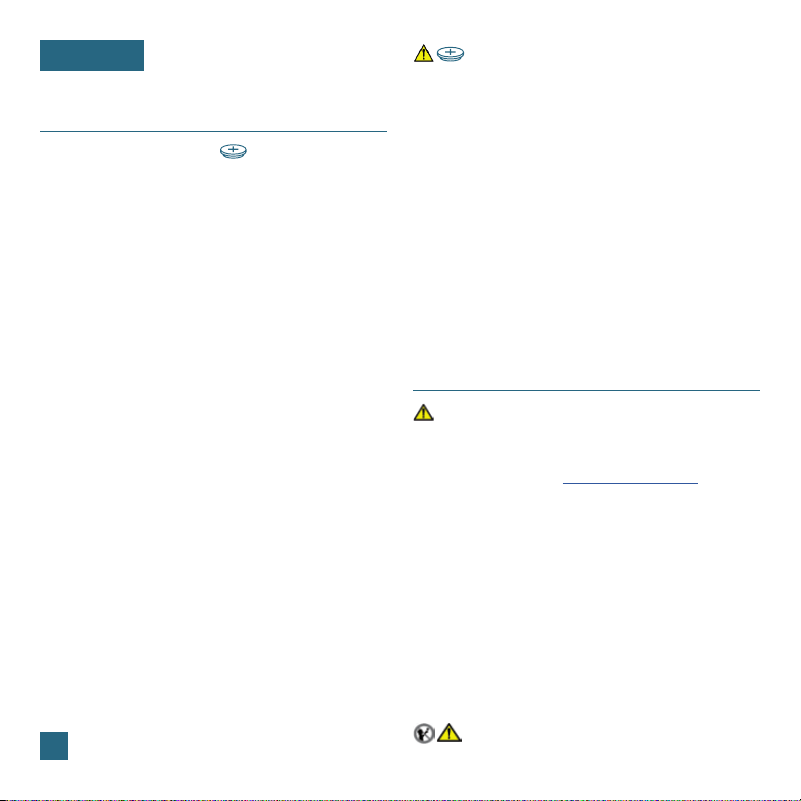
• Battery Life: Over 36 Months
8.30''
(21.09 cm)
1.13''
(2.88 cm)
6.33'' (16.09 cm)
3.62'' (9.2 cm)
1.97''
(5.0 cm)
0.75''
(1.91 cm)
5.73'' (14.55 cm)
0.63'' (1.6 cm)
3.74'' (9.5 cm) 2.95'' (7.5 cm)
5.14'' (13.06 cm)
13.37'' (33.96 cm)
8.91'' (22.64 cm)
Note: If you have a multi-band router, this device will
connect to the 2.4GHz band when connecting to Wi-Fi.
Apple and the Apple logo are trademarks of Apple Inc., registered in the U.S. & other countries. App Store is a service mark of Apple Inc.
Google Play and the Google Play logo are trademarks of Google Inc.
Coin Cell Battery
Replace the Coin Cell Battery
1. Use a coin to turn the battery cover to the left to remove it.
2. Pull back the metal pin and gently remove the battery.
3. Insert a fresh CR2032 battery with the + side up and snap
it into place.
4. Replace the battery cover and use the coin to turn it to
the right to lock.
Swallowing may lead to serious injury in as little as 2 hours or death,
due to chemical burns and potential perforation of the esophagus.
If you suspect your child has swallowed or inserted a coin cell battery,
immediately seek urgent medical assistance.
Examine devices and make sure the battery compartment is correctly
secured, e.g. that the screw or other mechanical fastener is tightened.
Do not use if compartment is not secure.
Dispose of used coin cell batteries immediately and safely.
Flat batteries can still be dangerous.
Tell others about the risk associated with coin cell batteries and
how to keep their children safe.
WARNING
This product contains a coin cell battery.
If swallowed, it could cause severe injury or death in just 2 hours.
Seek medical attention immediately.
1.
2.
3.
4.
5.
6.
7.
1.
2.
3.
WARNING: KEEP BATTERIES OUT OF REACH OF CHILDREN
California Residents
WARNING: This product can expose you to chemicals
including acrylonitrile, butadiene, and styrene, which are known
to the State of California to cause cancer and birth defects or
other reproductive harm.
For more information, go to:
www.P65Warnings.ca.gov
Battery Replacement Instructions
When batteries of dierent brand or type are used together,
or new and old batteries are used together, some batteries
may be over-discharged due to a dierence of voltage or
capacity. This can result in venting, leakage, and rupture and
may cause personal injury.
• Do not mix Alkaline, lithium, standard, or rechargeable
batteries.
• Always purchase the correct size and grade of battery
most suitable for the intended use.
• Always replace the whole set of batteries at one time,
taking care not to mix old and new ones, or batteries of
dierent types.
• Clean the battery contacts and also those of the device
prior to battery installation.
• Ensure the batteries are installed correctly with regard to
polarity (+ and -).
• Remove batteries from product during periods of non-use.
Battery leakage can cause corrosion and damage to this
product.
• Remove used batteries promptly.
• For recycling and disposal of batteries, and to protect the
environment, please check the internet or your local phone
directory for local recycling centers and/or follow local
government regulations.
Not for children under 3 yrs.
WARNING: CHOKING HAZARD—Small Parts
APPENDIX
26
The manufacturer is not responsible for any radio or TV
interference caused by unauthorized changes or modifications
to this equipment. Such changes or modifications could void the
user authority to operate the equipment.
All rights reserved. This manual may not be reproduced in any
form, even in part, or duplicated or processed using electronic,
mechanical or chemical process without the written permission
of the publisher.
This booklet may contain errors or misprints. The information it
contains is regularly checked and corrections are included in
subsequent editions. We disclaim any responsibility for any
technical error or printing error, or their consequences.
All trademarks and patents are recognized.

FCC Statement
This equipment has been tested and found to comply with the limits for a Class B digital device, pursuant to part 15 of the FCC
Rules. These limits are designed to provide reasonable protection against harmful interference in a residential installation.
This equipment generates, uses and can radiate radio frequency energy and, if not installed and used in accordance with the
instructions, may cause harmful interference to radio communications. However, there is no guarantee that interference will not
occur in a particular installation. If this equipment does cause harmful interference to radio or television reception, which can be
determined by turning the equipment o and on, the user is encouraged to try to correct the interference by one or more of the
following measures:
FCC Radiation Exposure Statement
This device complies with FCC radiation exposure limits set
forth for an uncontrolled environment and it also complies with
Part 15 of the FCC RF Rules. This equipment must be installed
and operated in accordance with provided instructions and the
antenna(s) used for this transmitter must be installed to provide
a separation distance of at least 20 cm from all persons and
must not be co-located or operating in conjunction with any
other antenna or transmitter. End-users and installers must be
provided with antenna installation instructions and consider
removing the no-collocation statement.
This device complies with Part 15 of the FCC Rules.
Operation is subject to the following two conditions:
(1) This device may not cause harmful interference, and
(2) This device must accept any interference received,
including interference that may cause undesired operation.
Caution: Any changes or modifications not expressly approved
by the party responsible for compliance could void the user's
authority to operate the equipment.
Canada Statement
This device contains licence-exempt transmitter(s)/receiver(s) that comply with Innovation, Science and Economic Development
Canada’s licence-exempt RSS(s). Operation is subject to the following two conditions: (1) This device may not cause interference;
and (2) This device must accept any interference, including interference that may cause undesired operation of the device.
The device meets the exemption from the routine evaluation limits in section 2.5 of RSS 102 and compliance with RSS-102 RF
exposure, users can obtain Canadian information on RF exposure and compliance. This transmitter must not be co-located or
operating in conjunction with any other antenna or transmitter. This equipment should be installed and operated with a minimum
distance of 20 centimeters between the radiator and your body.
• Reorient or relocate the receiving antenna.
• Connect the equipment into an outlet on a circuit dierent
from that to which the receiver is connected.
• Increase the separation between the equipment and receiver.
• Consult the dealer or an experienced radio/TV technician
for help.
APPENDIX
27
28
Warranty
Use the links below to find additional resources or reach out to our sta directly.
Self-Help:
bit.ly/v23_support • Online: bit.ly/contact_techsupport
Phone: 1.844.200.8752
Representatives are available Monday-Friday, 8am-6pm CST
La Crosse Technology, Ltd. provides a 1-year limited time
warranty (from date of purchase) on this product, relating
to manufacturing defects in materials and workmanship.
For full warranty details, visit:
www.lacrossetechnology.com/pages/warranty
La Crosse Technology, Ltd.
2830 South 26
th
Street, La Crosse, Wisconsin 54601
Follow La Crosse Technology on Facebook, Instagram,
YouTube, and Twitter.
Stay in Touch
Ask questions, watch setup videos, and provide feedback
on our social media outlets.
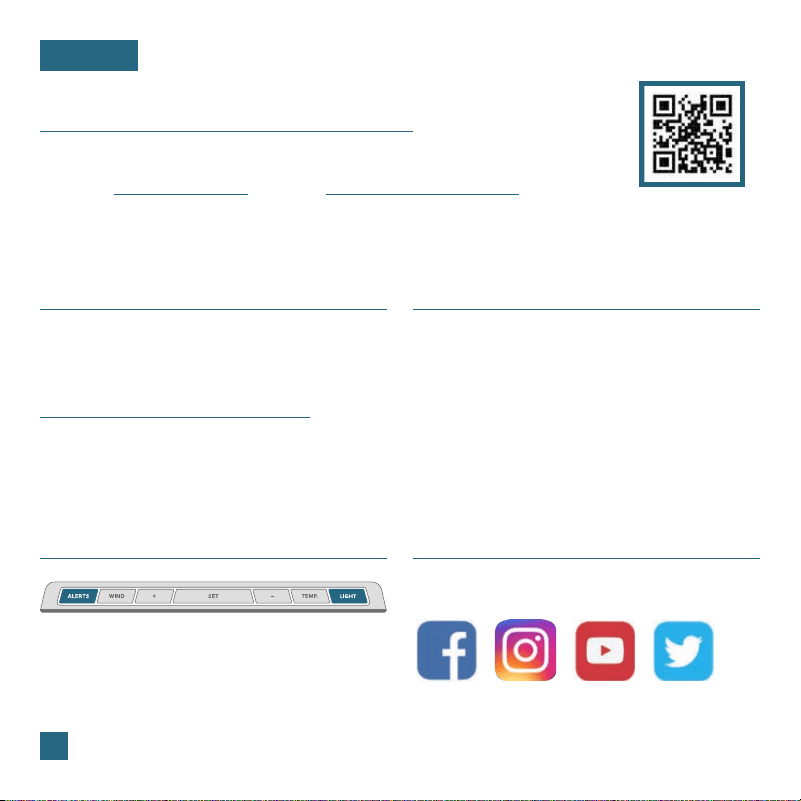
Factory Reset
If you are experiencing issues, press the ALERTS & LIGHT
buttons down together until the display beeps. You do not
need to remove the battery to reset the display. All records
will be lost when a factory reset is performed.
Having Trouble? We’re here to help.
SUPPORT
Scan for Additional
Info and Support
Recycling & Disposal
Please consider the environment when deciding to dispose of
this product. Although household electronics are generally safe
to use on a daily basis, incorrect disposal can cause negative
and potentially irreversible impacts on our environment.
Check with local donation centers to see if your product can
be donated for future use. If disposal is the only option, federal
agencies, local governments, and certified retailers may have
electronic recycling programs in place. Programs may vary
based on location.
Designed in La Crosse, Wisconsin
• Made in China • Printed in China • DC 060123