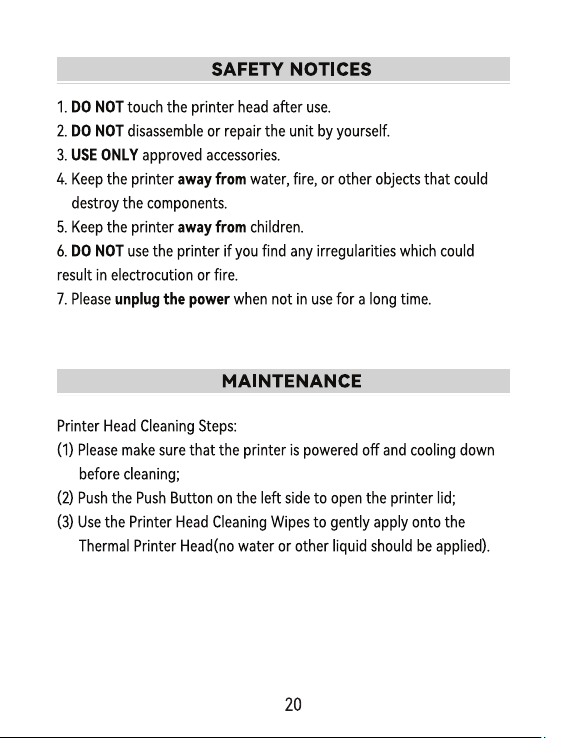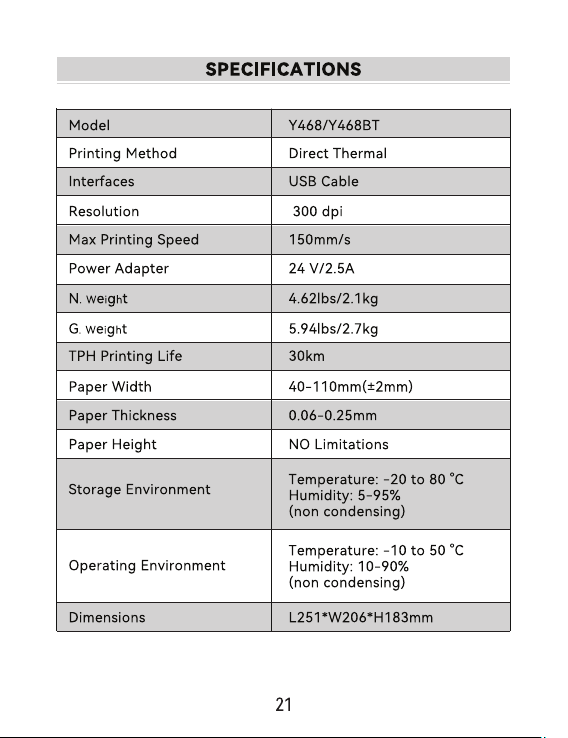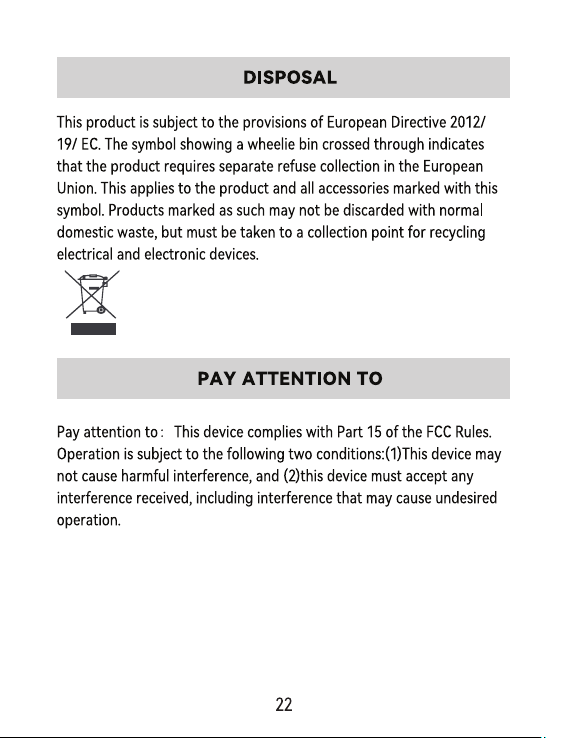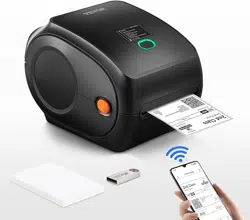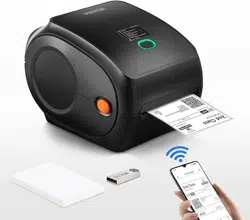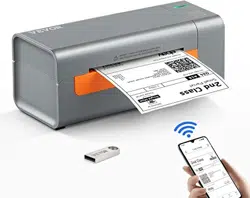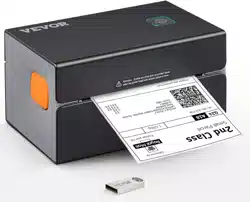

Original instructions for Thermal Label Printer,please read all manual
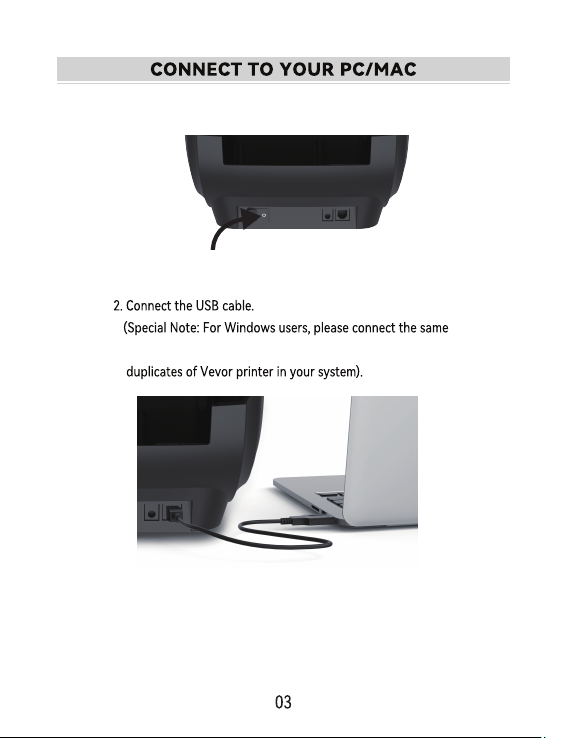
1.Ensure the power is OFF(Press down“O”means Power OFF)
USB po on your computer to aviod producing unwanted
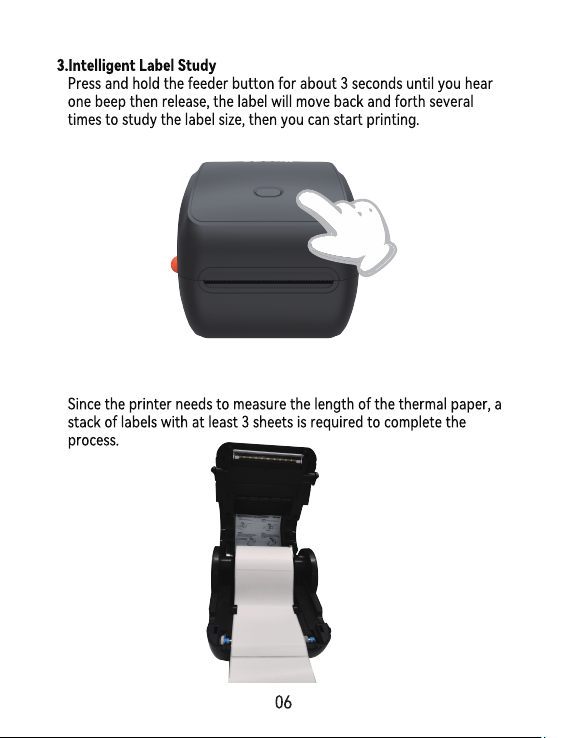
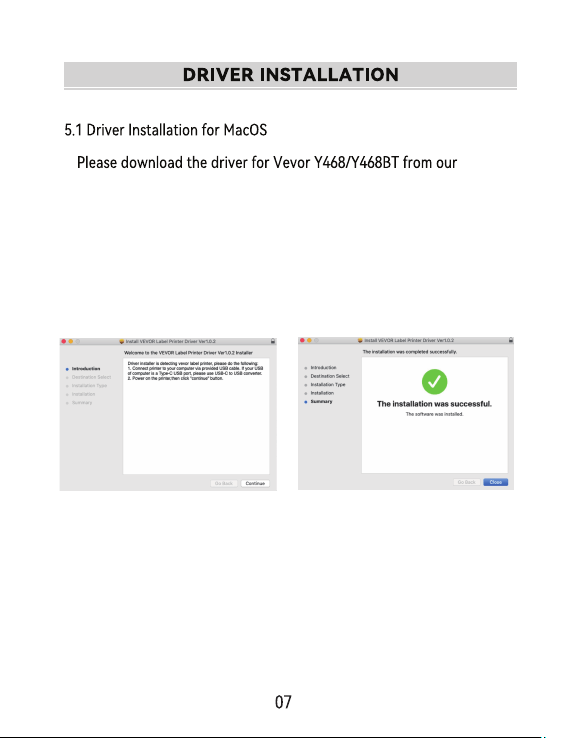
1.Double-click the le "Vevor-Mac-Driver-Latest.pkg".
ocial website https://www.vevor.com/pages/download-
center-label-printer,or nd it from the USB stick that comes
with the package.
2.Click
"
Continue
"
and follow
the on screen instructions.
3.Click
"
Close
"
to nish.
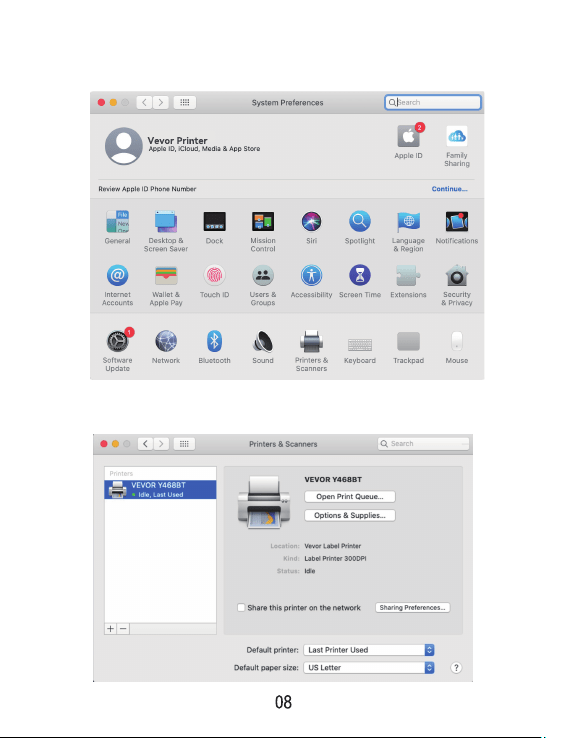
5.Power on the printer, you will see "VEVOR Y468/Y468BT" in the
list,Now you can print labels.
4.Open”System Preferences”,and click”Printers & Scanners”.
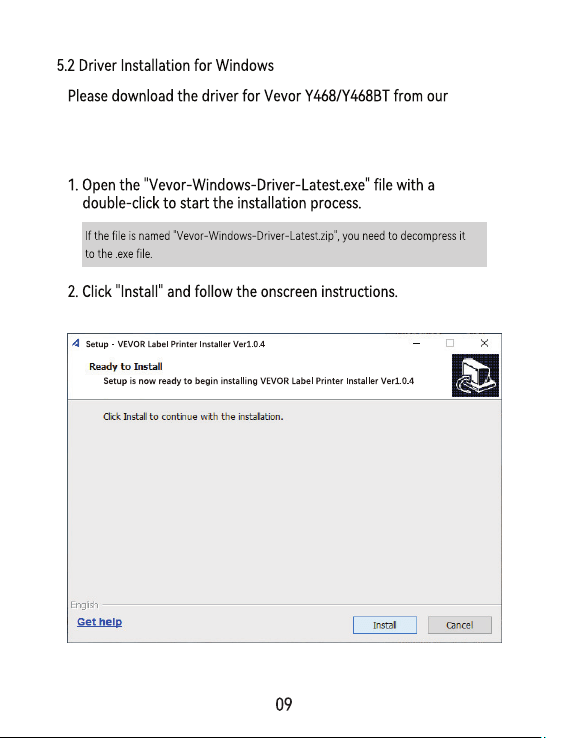
ocial website https://www.vevor.com/pages/download-
center-label-printer,or nd it from the USB stick that comes
with the package.
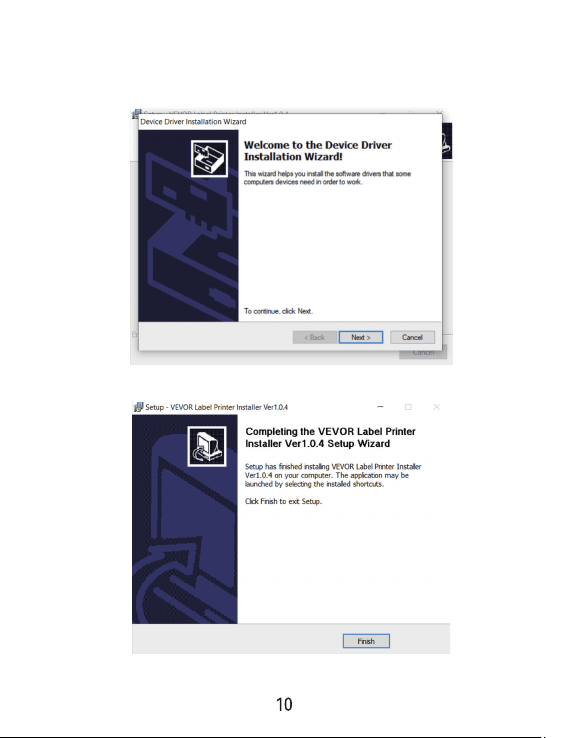
3.Click “Next”and “nish” to complete the driver installation.
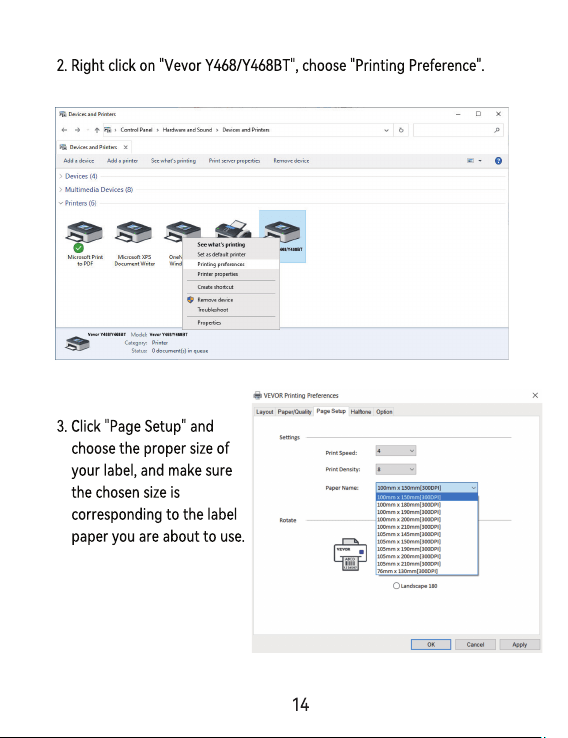
You can also scan QRCode below to download APP.
iOS
Android
would cause printing blank.
(102mm x 152mm).Each time you change dierent label sizes,please
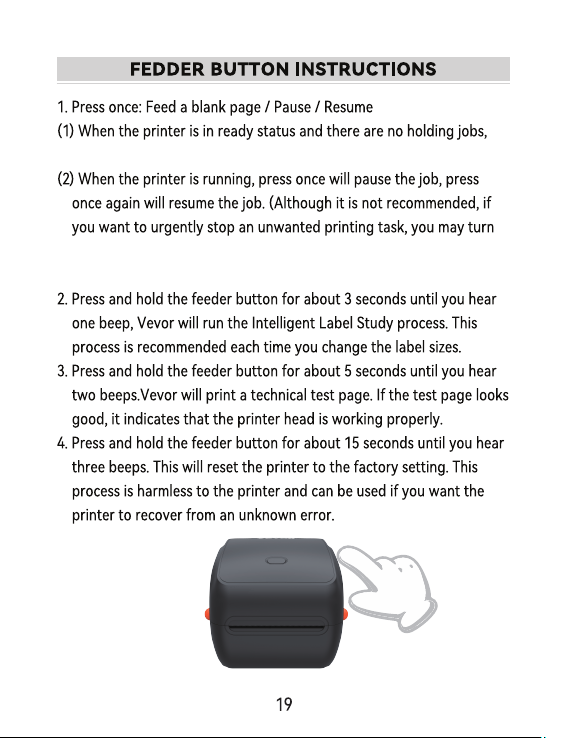
press the feeder button once,the printer will feed a blank page.
o the power directly and don’t forget to cancel the print task from
the computer at the same time).