User’s Manual
Bluetooth & Wi-Fi
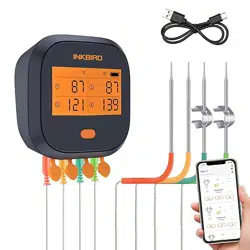
Smart Thermometer
IBBQ-4BW

Contents
Introduction01 -------------------01
Connection02 --------------------04
Specification03 ------------------10
Battery and Accessories04 -------12
Frequently Asked Questions05 ----14
1
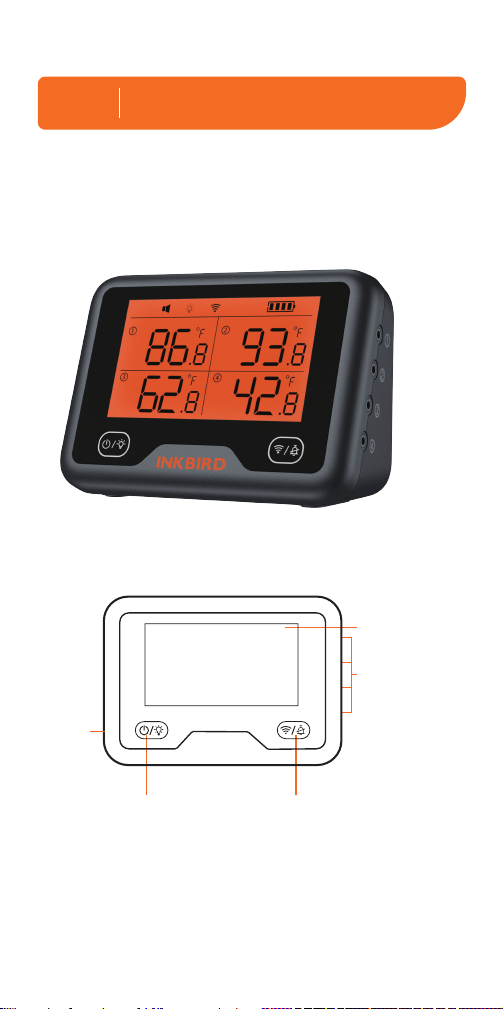
1.1 Product Layout and Indicator Icons
Probe Port (Jack
2.5mm mono
plug 11mm)
Power/Backlight Button
USB
Charging
Port
LCD Screen
Wi-Fi Connection/Bluetooth
Connection/Alarm Cancel Button
Introduction
01
2
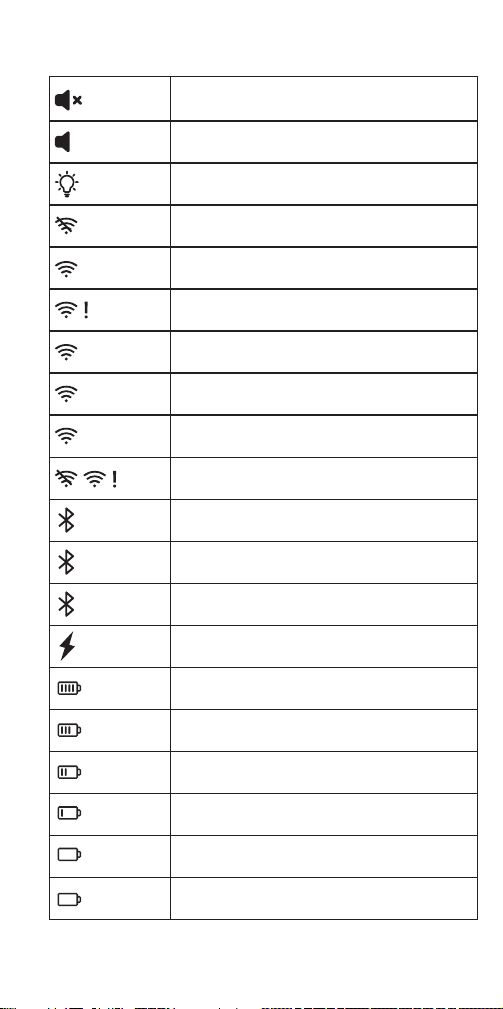
Silent Mode
The device is in SmartConfig Mode
Ring Mode
The backlight is on
The Wi-Fi is turned off
The device is connected to the
Wi-Fi network successfully
The device is connected to the router
but can not access the internet
The device is not connected to
the Wi-Fi network
The device is in AP Mode
The Wi-Fi is being initialized or an
error has occurred
Bluetooth connected
Waiting for paired
Bluetooth not connected
USB Power is connected
100% of Battery level
80%~99% of Battery level
60%~79% of Battery level
40%~59% of Battery level
20%~39% of Battery level
0%~19% of Battery level
always on
disappeared
Slowly flash
Fast flash
always on
flash
disappeared
always on
flash
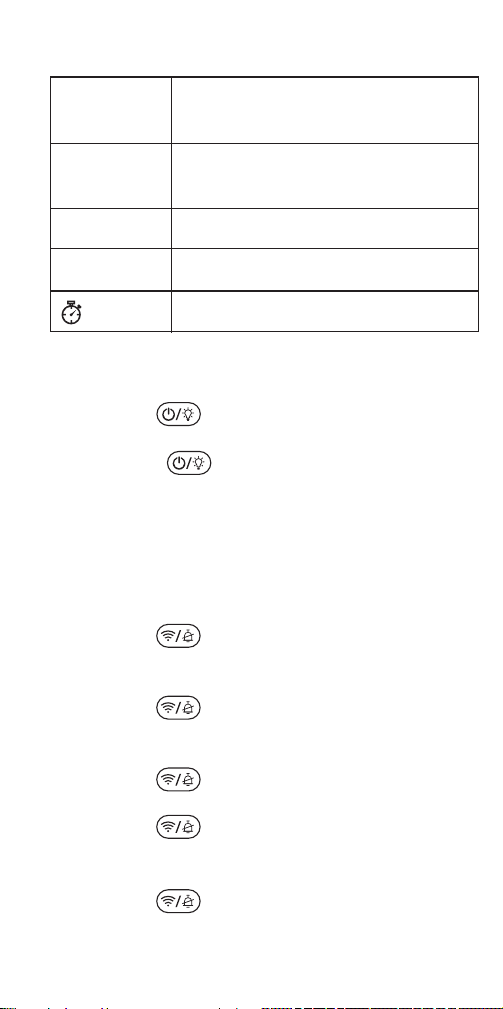
3
1.2 Buttons and Basic Operations
1.2.1 Power/Backlight button
1. Hold the button for 3 seconds to turn
on/off the device.
2. Touch the button lightly to turn on/off
the backlight.
1.2.2 Wi-Fi Connection/Bluetooth
Connection/Alarm Cancel button
The device’s Wi-Fi will be automatically turned
on when the device is powered up.
1. Hold the button for 3 seconds to
switch back and forth between AP mode and
SmartConfig mode.
2. Hold the button for 3 seconds to
reset the Wi-Fi network when the device is
already connected to your phone via Wi-Fi .
3. Hold the button for 3 seconds to turn
on Wi-Fi when it is off.
4. Click the button lightly to connect the
device to your phone through Bluetooth when
the device is found by your phone.
5. Click the button lightly to stop the
alarm.
The alarm will ring if the current
temperature is higher than the preset
temperature
The alarm will ring if the current
temperature is lower than the preset
temperature
The measure temperature is higher
than 300℃/572℉.
The measured temperature is lower
than-30℃/-22℉
Timer alert
H flash
L flash
flash
- H -
- L -

Bluetooth when the phone is near to the
device.
We recommend you to connect the device to
your phone via Bluetooth first and then
interconnect them quickly in Assisted
Configuration Wi-Fi mode.
Note:
Please enable location service on your
mobile devices and give the BBQGO PRO app
permission to access your location, the app
can not connect the IBBQ-4BW to your phone
without the permission.
Please put the device as much as close to
your phone and wireless router before the
connection.
2.2.1 Bluetooth Connection
1. Turn on the device.
2. Open the app, click “Add Device”and select
IBBQ-4BW.
3. Choose Bluetooth Connection and click
“Next Step” to start searching the device.
4. Click the button on the device to
complete the connection when the device is
found by your app.
Note:
1. Please see 2.2.2 below if you still need to
pair the device to your phone through Wi-Fi
network.
2. The device will automatically connect to
your phone through Bluetooth if it is already
connected to your phone through Wi-Fi
network.
4
Connection
02
2.1 Free App Download
Get BBQGo Pro from Google Play or App
Store for free, or you can scan the QR codes
below to download the app directly.
Please make sure the following requirements
are met to download the apps smoothly:
-Your iOS devices must be running iOS 11 or
above to download the app.
-Your Android devices must be running
Android 4.4 or above to download the app.
2.2 Bluetooth Connection and Wi-Fi
Connection
The device support both Bluetooth Connection
and Wi-Fi Connection.
When you are using the App to connect the
device to your phone, you can use Bluetooth
to interconnect them first, and then use the
Wi-Fi network to connect them or you can
choose a Wi-Fi network to pair the device to
your phone first, the App will automatically
connect the device to your phone via
2.2.2 Wi-Fi Connection
There are 3 methods to connect the device to
your phone through Wi-Fi:
★ SmartConfig Mode Connection (the Wi-Fi
icon flashes rapidly)
★ Ap Mode Connection (the Wi-Fi icon flashes
slowly)
★ Assisted Configuration Wi-Fi Connection
(the Wi-Fi icon flashes quickly or slowly)
Note:
1. The Assisted Configuration Wi-Fi Mode can
only be used after the device is connected to
your phone via Bluetooth.
2. Hold the button for 3 seconds to
switch back and forth between AP mode and
SmartConfig mode.
3. Please register an account and log in before
pairing, then you could monitor the device
anywhere anytime with your phone.
SmartConfig Mode Connection
1. Turn on the device.
2. Connect your phone to a 2.4GHz Wi-Fi
network.
3. Open the app, register or log in. Click “Add
Device” and select IBBQ-4BW.
4. Choose Wi-Fi Connection.
5. Confirm that the Wi-Fi icon displayed on
your device flashes rapidly and choose the
Smart Config mode.
Note: Please hold the button for 3
seconds to reset Wi-Fi or change the Wi-Fi
connection mode if the Wi-Fi icon does not
flash quickly, and the device will need 5
seconds to process.
6. Enter the Wi-Fi password on your app and
click “Next Step”.
7. The app will display “Pairing Success!” and
the Wi-Fi icon will stay lit after finishing the
connection.
Ap Mode Connection
1. Turn on your device.
2. Connect your phone to a 2.4GHz Wi-Fi
network.
3. Open the app, register or log in. Click “Add
Device” and select IBBQ-4BW.
4. Choose Wi-Fi Connection.
5. Confirm that the Wi-Fi icon displayed on
your device flashes slowly and choose the AP
mode.
Note: Please hold the button for 3
seconds to reset Wi-Fi or change the Wi-Fi
connection mode if the Wi-Fi icon does not
flash slowly, and the device will need 5
seconds to process.
6. Enter the Wi-Fi password on your app and
click “Next Step”.
7. Open your phone’s WLAN setting page and
choose the “BBQ-4BW-LS-XXX” Wi-Fi network
to connect.
8. Back to your app and confirm.
9. The app will display “Pairing Success!” and
the Wi-Fi icon will stay lit after finishing the
connection.
Assisted Configuration Wi-Fi Mode
The Assisted Configuration Wi-Fi Mode can
only be used when the device is already
connected to your phone through Bluetooth.
Android iOS
1. Open the app, click the button in the right
top corner to enter into the setting page and
then choose “Device Wi-Fi Config”.
2. Register an account and log in.
3. Click “Wi-Fi Connection”.
4. Choose Assisted Configuration Wi-Fi mode.
5. Enter the Wi-Fi network’s name and
password, click “Confirm” to go to next step.
6. The app will display “Pairing Success!” after
finishing the connection.
Note:
1. After connecting to the mobile phone via
Wi-Fi, the device will connect to the cloud
server. As long as the mobile phone can access
the Internet (mobile data or any Wi-Fi), the user
can remotely monitor the device and view data
through the App anytime and anywhere.
2. The device has a protection function against
the misoperation of Wi-Fi.
When the device is successfully connected to
the user's phone, the device will memorize the
Wi-Fi configuration information (Wi-Fi name
and password) automatically.
Hold the button for 3 seconds to reset
the Wi-Fi network and configure a new Wi-Fi
network within 3 minutes to save the change.
The device will reconnect to the previous Wi-Fi
network in the following 2 situations:
(1) The device is not successfully connected to
a new Wi-Fi network within 3 minutes after the
reset.
(2) The device is turned off after the reset
without Wi-Fi configuration.
3. Remove the device from the app will
completely erase the network configuration
information (Wi-Fi name and password), and
the device will not reconnect to the previous
Wi-Fi network in any situation.
Please manually configure the Wi-Fi network
within 5 minutes after removing the device
from your app, or the or the device's Wi-Fi will
be turned off automatically to save power.
4. Please put the device as close as possible
to the wireless router when using Wi-Fi
connection, the signal will be weaken and the
connection will fail if the device is far away
from the router or cross a wall.
5. Please put the device as close as possible
to your phone when using Bluetooth
connection, the signal will be weaken and the
connection will fail if the device is far away
from your phone or cross a wall.
6. if the device is placed on a metal table or
close to a metal object, the signal will be
weakened or even make the device unable to
connect to the phone when using wireless
connection.
7. Please keep the device away from metal
objects as much as possible when using a
wireless connection, preferably more than 1
meter above the ground.
8. This device only supports 2.4GHz Wi-Fi, but
it is also compatible with Wi-Fi 4, Wi-Fi 5,
Wi-Fi 6, and Wi-Fi 6E routers as long as they
set 2.4GHz Wi-Fi on.
9. The device only supports WPA/WPA2
security encryption methods. The device will
unable to connect to the Wi-Fi network if the
router is set to other encryption methods.

Bluetooth when the phone is near to the
device.
We recommend you to connect the device to
your phone via Bluetooth first and then
interconnect them quickly in Assisted
Configuration Wi-Fi mode.
Note:
Please enable location service on your
mobile devices and give the BBQGO PRO app
permission to access your location, the app
can not connect the IBBQ-4BW to your phone
without the permission.
Please put the device as much as close to
your phone and wireless router before the
connection.
2.2.1 Bluetooth Connection
1. Turn on the device.
2. Open the app, click “Add Device”and select
IBBQ-4BW.
3. Choose Bluetooth Connection and click
“Next Step” to start searching the device.
4. Click the button on the device to
complete the connection when the device is
found by your app.
Note:
1. Please see 2.2.2 below if you still need to
pair the device to your phone through Wi-Fi
network.
2. The device will automatically connect to
your phone through Bluetooth if it is already
connected to your phone through Wi-Fi
network.
5
Please make sure the following requirements
are met to download the apps smoothly:
-Your iOS devices must be running iOS 11 or
above to download the app.
-Your Android devices must be running
Android 4.4 or above to download the app.
2.2 Bluetooth Connection and Wi-Fi
Connection
The device support both Bluetooth Connection
and Wi-Fi Connection.
When you are using the App to connect the
device to your phone, you can use Bluetooth
to interconnect them first, and then use the
Wi-Fi network to connect them or you can
choose a Wi-Fi network to pair the device to
your phone first, the App will automatically
connect the device to your phone via
2.2.2 Wi-Fi Connection
There are 3 methods to connect the device to
your phone through Wi-Fi:
★ SmartConfig Mode Connection (the Wi-Fi
icon flashes rapidly)
★ Ap Mode Connection (the Wi-Fi icon flashes
slowly)
★ Assisted Configuration Wi-Fi Connection
(the Wi-Fi icon flashes quickly or slowly)
Note:
1. The Assisted Configuration Wi-Fi Mode can
only be used after the device is connected to
your phone via Bluetooth.
2. Hold the button for 3 seconds to
switch back and forth between AP mode and
SmartConfig mode.
3. Please register an account and log in before
pairing, then you could monitor the device
anywhere anytime with your phone.
SmartConfig Mode Connection
1. Turn on the device.
2. Connect your phone to a 2.4GHz Wi-Fi
network.
3. Open the app, register or log in. Click “Add
Device” and select IBBQ-4BW.
4. Choose Wi-Fi Connection.
5. Confirm that the Wi-Fi icon displayed on
your device flashes rapidly and choose the
Smart Config mode.
Note: Please hold the button for 3
seconds to reset Wi-Fi or change the Wi-Fi
connection mode if the Wi-Fi icon does not
flash quickly, and the device will need 5
seconds to process.
6. Enter the Wi-Fi password on your app and
click “Next Step”.
7. The app will display “Pairing Success!” and
the Wi-Fi icon will stay lit after finishing the
connection.
Ap Mode Connection
1. Turn on your device.
2. Connect your phone to a 2.4GHz Wi-Fi
network.
3. Open the app, register or log in. Click “Add
Device” and select IBBQ-4BW.
4. Choose Wi-Fi Connection.
5. Confirm that the Wi-Fi icon displayed on
your device flashes slowly and choose the AP
mode.
Note: Please hold the button for 3
seconds to reset Wi-Fi or change the Wi-Fi
connection mode if the Wi-Fi icon does not
flash slowly, and the device will need 5
seconds to process.
6. Enter the Wi-Fi password on your app and
click “Next Step”.
7. Open your phone’s WLAN setting page and
choose the “BBQ-4BW-LS-XXX” Wi-Fi network
to connect.
8. Back to your app and confirm.
9. The app will display “Pairing Success!” and
the Wi-Fi icon will stay lit after finishing the
connection.
Assisted Configuration Wi-Fi Mode
The Assisted Configuration Wi-Fi Mode can
only be used when the device is already
connected to your phone through Bluetooth.
1. Open the app, click the button in the right
top corner to enter into the setting page and
then choose “Device Wi-Fi Config”.
2. Register an account and log in.
3. Click “Wi-Fi Connection”.
4. Choose Assisted Configuration Wi-Fi mode.
5. Enter the Wi-Fi network’s name and
password, click “Confirm” to go to next step.
6. The app will display “Pairing Success!” after
finishing the connection.
Note:
1. After connecting to the mobile phone via
Wi-Fi, the device will connect to the cloud
server. As long as the mobile phone can access
the Internet (mobile data or any Wi-Fi), the user
can remotely monitor the device and view data
through the App anytime and anywhere.
2. The device has a protection function against
the misoperation of Wi-Fi.
When the device is successfully connected to
the user's phone, the device will memorize the
Wi-Fi configuration information (Wi-Fi name
and password) automatically.
Hold the button for 3 seconds to reset
the Wi-Fi network and configure a new Wi-Fi
network within 3 minutes to save the change.
The device will reconnect to the previous Wi-Fi
network in the following 2 situations:
(1) The device is not successfully connected to
a new Wi-Fi network within 3 minutes after the
reset.
(2) The device is turned off after the reset
without Wi-Fi configuration.
3. Remove the device from the app will
completely erase the network configuration
information (Wi-Fi name and password), and
the device will not reconnect to the previous
Wi-Fi network in any situation.
Please manually configure the Wi-Fi network
within 5 minutes after removing the device
from your app, or the or the device's Wi-Fi will
be turned off automatically to save power.
4. Please put the device as close as possible
to the wireless router when using Wi-Fi
connection, the signal will be weaken and the
connection will fail if the device is far away
from the router or cross a wall.
5. Please put the device as close as possible
to your phone when using Bluetooth
connection, the signal will be weaken and the
connection will fail if the device is far away
from your phone or cross a wall.
6. if the device is placed on a metal table or
close to a metal object, the signal will be
weakened or even make the device unable to
connect to the phone when using wireless
connection.
7. Please keep the device away from metal
objects as much as possible when using a
wireless connection, preferably more than 1
meter above the ground.
8. This device only supports 2.4GHz Wi-Fi, but
it is also compatible with Wi-Fi 4, Wi-Fi 5,
Wi-Fi 6, and Wi-Fi 6E routers as long as they
set 2.4GHz Wi-Fi on.
9. The device only supports WPA/WPA2
security encryption methods. The device will
unable to connect to the Wi-Fi network if the
router is set to other encryption methods.

Bluetooth when the phone is near to the
device.
We recommend you to connect the device to
your phone via Bluetooth first and then
interconnect them quickly in Assisted
Configuration Wi-Fi mode.
Note:
Please enable location service on your
mobile devices and give the BBQGO PRO app
permission to access your location, the app
can not connect the IBBQ-4BW to your phone
without the permission.
Please put the device as much as close to
your phone and wireless router before the
connection.
2.2.1 Bluetooth Connection
1. Turn on the device.
2. Open the app, click “Add Device”and select
IBBQ-4BW.
3. Choose Bluetooth Connection and click
“Next Step” to start searching the device.
4. Click the button on the device to
complete the connection when the device is
found by your app.
Note:
1. Please see 2.2.2 below if you still need to
pair the device to your phone through Wi-Fi
network.
2. The device will automatically connect to
your phone through Bluetooth if it is already
connected to your phone through Wi-Fi
network.
6
Please make sure the following requirements
are met to download the apps smoothly:
-Your iOS devices must be running iOS 11 or
above to download the app.
-Your Android devices must be running
Android 4.4 or above to download the app.
2.2 Bluetooth Connection and Wi-Fi
Connection
The device support both Bluetooth Connection
and Wi-Fi Connection.
When you are using the App to connect the
device to your phone, you can use Bluetooth
to interconnect them first, and then use the
Wi-Fi network to connect them or you can
choose a Wi-Fi network to pair the device to
your phone first, the App will automatically
connect the device to your phone via
2.2.2 Wi-Fi Connection
There are 3 methods to connect the device to
your phone through Wi-Fi:
★ SmartConfig Mode Connection (the Wi-Fi
icon flashes rapidly)
★ Ap Mode Connection (the Wi-Fi icon flashes
slowly)
★ Assisted Configuration Wi-Fi Connection
(the Wi-Fi icon flashes quickly or slowly)
Note:
1. The Assisted Configuration Wi-Fi Mode can
only be used after the device is connected to
your phone via Bluetooth.
2. Hold the button for 3 seconds to
switch back and forth between AP mode and
SmartConfig mode.
3. Please register an account and log in before
pairing, then you could monitor the device
anywhere anytime with your phone.
SmartConfig Mode Connection
1. Turn on the device.
2. Connect your phone to a 2.4GHz Wi-Fi
network.
3. Open the app, register or log in. Click “Add
Device” and select IBBQ-4BW.
4. Choose Wi-Fi Connection.
5. Confirm that the Wi-Fi icon displayed on
your device flashes rapidly and choose the
Smart Config mode.
Note: Please hold the button for 3
seconds to reset Wi-Fi or change the Wi-Fi
connection mode if the Wi-Fi icon does not
flash quickly, and the device will need 5
seconds to process.
6. Enter the Wi-Fi password on your app and
click “Next Step”.
7. The app will display “Pairing Success!” and
the Wi-Fi icon will stay lit after finishing the
connection.
Ap Mode Connection
1. Turn on your device.
2. Connect your phone to a 2.4GHz Wi-Fi
network.
3. Open the app, register or log in. Click “Add
Device” and select IBBQ-4BW.
4. Choose Wi-Fi Connection.
5. Confirm that the Wi-Fi icon displayed on
your device flashes slowly and choose the AP
mode.
Note: Please hold the button for 3
seconds to reset Wi-Fi or change the Wi-Fi
connection mode if the Wi-Fi icon does not
flash slowly, and the device will need 5
seconds to process.
6. Enter the Wi-Fi password on your app and
click “Next Step”.
7. Open your phone’s WLAN setting page and
choose the “BBQ-4BW-LS-XXX” Wi-Fi network
to connect.
8. Back to your app and confirm.
9. The app will display “Pairing Success!” and
the Wi-Fi icon will stay lit after finishing the
connection.
Assisted Configuration Wi-Fi Mode
The Assisted Configuration Wi-Fi Mode can
only be used when the device is already
connected to your phone through Bluetooth.
1. Open the app, click the button in the right
top corner to enter into the setting page and
then choose “Device Wi-Fi Config”.
2. Register an account and log in.
3. Click “Wi-Fi Connection”.
4. Choose Assisted Configuration Wi-Fi mode.
5. Enter the Wi-Fi network’s name and
password, click “Confirm” to go to next step.
6. The app will display “Pairing Success!” after
finishing the connection.
Note:
1. After connecting to the mobile phone via
Wi-Fi, the device will connect to the cloud
server. As long as the mobile phone can access
the Internet (mobile data or any Wi-Fi), the user
can remotely monitor the device and view data
through the App anytime and anywhere.
2. The device has a protection function against
the misoperation of Wi-Fi.
When the device is successfully connected to
the user's phone, the device will memorize the
Wi-Fi configuration information (Wi-Fi name
and password) automatically.
Hold the button for 3 seconds to reset
the Wi-Fi network and configure a new Wi-Fi
network within 3 minutes to save the change.
The device will reconnect to the previous Wi-Fi
network in the following 2 situations:
(1) The device is not successfully connected to
a new Wi-Fi network within 3 minutes after the
reset.
(2) The device is turned off after the reset
without Wi-Fi configuration.
3. Remove the device from the app will
completely erase the network configuration
information (Wi-Fi name and password), and
the device will not reconnect to the previous
Wi-Fi network in any situation.
Please manually configure the Wi-Fi network
within 5 minutes after removing the device
from your app, or the or the device's Wi-Fi will
be turned off automatically to save power.
4. Please put the device as close as possible
to the wireless router when using Wi-Fi
connection, the signal will be weaken and the
connection will fail if the device is far away
from the router or cross a wall.
5. Please put the device as close as possible
to your phone when using Bluetooth
connection, the signal will be weaken and the
connection will fail if the device is far away
from your phone or cross a wall.
6. if the device is placed on a metal table or
close to a metal object, the signal will be
weakened or even make the device unable to
connect to the phone when using wireless
connection.
7. Please keep the device away from metal
objects as much as possible when using a
wireless connection, preferably more than 1
meter above the ground.
8. This device only supports 2.4GHz Wi-Fi, but
it is also compatible with Wi-Fi 4, Wi-Fi 5,
Wi-Fi 6, and Wi-Fi 6E routers as long as they
set 2.4GHz Wi-Fi on.
9. The device only supports WPA/WPA2
security encryption methods. The device will
unable to connect to the Wi-Fi network if the
router is set to other encryption methods.

Bluetooth when the phone is near to the
device.
We recommend you to connect the device to
your phone via Bluetooth first and then
interconnect them quickly in Assisted
Configuration Wi-Fi mode.
Note:
Please enable location service on your
mobile devices and give the BBQGO PRO app
permission to access your location, the app
can not connect the IBBQ-4BW to your phone
without the permission.
Please put the device as much as close to
your phone and wireless router before the
connection.
2.2.1 Bluetooth Connection
1. Turn on the device.
2. Open the app, click “Add Device”and select
IBBQ-4BW.
3. Choose Bluetooth Connection and click
“Next Step” to start searching the device.
4. Click the button on the device to
complete the connection when the device is
found by your app.
Note:
1. Please see 2.2.2 below if you still need to
pair the device to your phone through Wi-Fi
network.
2. The device will automatically connect to
your phone through Bluetooth if it is already
connected to your phone through Wi-Fi
network.
7
Please make sure the following requirements
are met to download the apps smoothly:
-Your iOS devices must be running iOS 11 or
above to download the app.
-Your Android devices must be running
Android 4.4 or above to download the app.
2.2 Bluetooth Connection and Wi-Fi
Connection
The device support both Bluetooth Connection
and Wi-Fi Connection.
When you are using the App to connect the
device to your phone, you can use Bluetooth
to interconnect them first, and then use the
Wi-Fi network to connect them or you can
choose a Wi-Fi network to pair the device to
your phone first, the App will automatically
connect the device to your phone via
2.2.2 Wi-Fi Connection
There are 3 methods to connect the device to
your phone through Wi-Fi:
★ SmartConfig Mode Connection (the Wi-Fi
icon flashes rapidly)
★ Ap Mode Connection (the Wi-Fi icon flashes
slowly)
★ Assisted Configuration Wi-Fi Connection
(the Wi-Fi icon flashes quickly or slowly)
Note:
1. The Assisted Configuration Wi-Fi Mode can
only be used after the device is connected to
your phone via Bluetooth.
2. Hold the button for 3 seconds to
switch back and forth between AP mode and
SmartConfig mode.
3. Please register an account and log in before
pairing, then you could monitor the device
anywhere anytime with your phone.
SmartConfig Mode Connection
1. Turn on the device.
2. Connect your phone to a 2.4GHz Wi-Fi
network.
3. Open the app, register or log in. Click “Add
Device” and select IBBQ-4BW.
4. Choose Wi-Fi Connection.
5. Confirm that the Wi-Fi icon displayed on
your device flashes rapidly and choose the
Smart Config mode.
Note: Please hold the button for 3
seconds to reset Wi-Fi or change the Wi-Fi
connection mode if the Wi-Fi icon does not
flash quickly, and the device will need 5
seconds to process.
6. Enter the Wi-Fi password on your app and
click “Next Step”.
7. The app will display “Pairing Success!” and
the Wi-Fi icon will stay lit after finishing the
connection.
Ap Mode Connection
1. Turn on your device.
2. Connect your phone to a 2.4GHz Wi-Fi
network.
3. Open the app, register or log in. Click “Add
Device” and select IBBQ-4BW.
4. Choose Wi-Fi Connection.
5. Confirm that the Wi-Fi icon displayed on
your device flashes slowly and choose the AP
mode.
Note: Please hold the button for 3
seconds to reset Wi-Fi or change the Wi-Fi
connection mode if the Wi-Fi icon does not
flash slowly, and the device will need 5
seconds to process.
6. Enter the Wi-Fi password on your app and
click “Next Step”.
7. Open your phone’s WLAN setting page and
choose the “BBQ-4BW-LS-XXX” Wi-Fi network
to connect.
8. Back to your app and confirm.
9. The app will display “Pairing Success!” and
the Wi-Fi icon will stay lit after finishing the
connection.
Assisted Configuration Wi-Fi Mode
The Assisted Configuration Wi-Fi Mode can
only be used when the device is already
connected to your phone through Bluetooth.
1. Open the app, click the button in the right
top corner to enter into the setting page and
then choose “Device Wi-Fi Config”.
2. Register an account and log in.
3. Click “Wi-Fi Connection”.
4. Choose Assisted Configuration Wi-Fi mode.
5. Enter the Wi-Fi network’s name and
password, click “Confirm” to go to next step.
6. The app will display “Pairing Success!” after
finishing the connection.
Note:
1. After connecting to the mobile phone via
Wi-Fi, the device will connect to the cloud
server. As long as the mobile phone can access
the Internet (mobile data or any Wi-Fi), the user
can remotely monitor the device and view data
through the App anytime and anywhere.
2. The device has a protection function against
the misoperation of Wi-Fi.
When the device is successfully connected to
the user's phone, the device will memorize the
Wi-Fi configuration information (Wi-Fi name
and password) automatically.
Hold the button for 3 seconds to reset
the Wi-Fi network and configure a new Wi-Fi
network within 3 minutes to save the change.
The device will reconnect to the previous Wi-Fi
network in the following 2 situations:
(1) The device is not successfully connected to
a new Wi-Fi network within 3 minutes after the
reset.
(2) The device is turned off after the reset
without Wi-Fi configuration.
3. Remove the device from the app will
completely erase the network configuration
information (Wi-Fi name and password), and
the device will not reconnect to the previous
Wi-Fi network in any situation.
Please manually configure the Wi-Fi network
within 5 minutes after removing the device
from your app, or the or the device's Wi-Fi will
be turned off automatically to save power.
4. Please put the device as close as possible
to the wireless router when using Wi-Fi
connection, the signal will be weaken and the
connection will fail if the device is far away
from the router or cross a wall.
5. Please put the device as close as possible
to your phone when using Bluetooth
connection, the signal will be weaken and the
connection will fail if the device is far away
from your phone or cross a wall.
6. if the device is placed on a metal table or
close to a metal object, the signal will be
weakened or even make the device unable to
connect to the phone when using wireless
connection.
7. Please keep the device away from metal
objects as much as possible when using a
wireless connection, preferably more than 1
meter above the ground.
8. This device only supports 2.4GHz Wi-Fi, but
it is also compatible with Wi-Fi 4, Wi-Fi 5,
Wi-Fi 6, and Wi-Fi 6E routers as long as they
set 2.4GHz Wi-Fi on.
9. The device only supports WPA/WPA2
security encryption methods. The device will
unable to connect to the Wi-Fi network if the
router is set to other encryption methods.

Bluetooth when the phone is near to the
device.
We recommend you to connect the device to
your phone via Bluetooth first and then
interconnect them quickly in Assisted
Configuration Wi-Fi mode.
Note:
Please enable location service on your
mobile devices and give the BBQGO PRO app
permission to access your location, the app
can not connect the IBBQ-4BW to your phone
without the permission.
Please put the device as much as close to
your phone and wireless router before the
connection.
2.2.1 Bluetooth Connection
1. Turn on the device.
2. Open the app, click “Add Device”and select
IBBQ-4BW.
3. Choose Bluetooth Connection and click
“Next Step” to start searching the device.
4. Click the button on the device to
complete the connection when the device is
found by your app.
Note:
1. Please see 2.2.2 below if you still need to
pair the device to your phone through Wi-Fi
network.
2. The device will automatically connect to
your phone through Bluetooth if it is already
connected to your phone through Wi-Fi
network.
8
Please make sure the following requirements
are met to download the apps smoothly:
-Your iOS devices must be running iOS 11 or
above to download the app.
-Your Android devices must be running
Android 4.4 or above to download the app.
2.2 Bluetooth Connection and Wi-Fi
Connection
The device support both Bluetooth Connection
and Wi-Fi Connection.
When you are using the App to connect the
device to your phone, you can use Bluetooth
to interconnect them first, and then use the
Wi-Fi network to connect them or you can
choose a Wi-Fi network to pair the device to
your phone first, the App will automatically
connect the device to your phone via
2.2.2 Wi-Fi Connection
There are 3 methods to connect the device to
your phone through Wi-Fi:
★ SmartConfig Mode Connection (the Wi-Fi
icon flashes rapidly)
★ Ap Mode Connection (the Wi-Fi icon flashes
slowly)
★ Assisted Configuration Wi-Fi Connection
(the Wi-Fi icon flashes quickly or slowly)
Note:
1. The Assisted Configuration Wi-Fi Mode can
only be used after the device is connected to
your phone via Bluetooth.
2. Hold the button for 3 seconds to
switch back and forth between AP mode and
SmartConfig mode.
3. Please register an account and log in before
pairing, then you could monitor the device
anywhere anytime with your phone.
SmartConfig Mode Connection
1. Turn on the device.
2. Connect your phone to a 2.4GHz Wi-Fi
network.
3. Open the app, register or log in. Click “Add
Device” and select IBBQ-4BW.
4. Choose Wi-Fi Connection.
5. Confirm that the Wi-Fi icon displayed on
your device flashes rapidly and choose the
Smart Config mode.
Note: Please hold the button for 3
seconds to reset Wi-Fi or change the Wi-Fi
connection mode if the Wi-Fi icon does not
flash quickly, and the device will need 5
seconds to process.
6. Enter the Wi-Fi password on your app and
click “Next Step”.
7. The app will display “Pairing Success!” and
the Wi-Fi icon will stay lit after finishing the
connection.
Ap Mode Connection
1. Turn on your device.
2. Connect your phone to a 2.4GHz Wi-Fi
network.
3. Open the app, register or log in. Click “Add
Device” and select IBBQ-4BW.
4. Choose Wi-Fi Connection.
5. Confirm that the Wi-Fi icon displayed on
your device flashes slowly and choose the AP
mode.
Note: Please hold the button for 3
seconds to reset Wi-Fi or change the Wi-Fi
connection mode if the Wi-Fi icon does not
flash slowly, and the device will need 5
seconds to process.
6. Enter the Wi-Fi password on your app and
click “Next Step”.
7. Open your phone’s WLAN setting page and
choose the “BBQ-4BW-LS-XXX” Wi-Fi network
to connect.
8. Back to your app and confirm.
9. The app will display “Pairing Success!” and
the Wi-Fi icon will stay lit after finishing the
connection.
Assisted Configuration Wi-Fi Mode
The Assisted Configuration Wi-Fi Mode can
only be used when the device is already
connected to your phone through Bluetooth.
1. Open the app, click the button in the right
top corner to enter into the setting page and
then choose “Device Wi-Fi Config”.
2. Register an account and log in.
3. Click “Wi-Fi Connection”.
4. Choose Assisted Configuration Wi-Fi mode.
5. Enter the Wi-Fi network’s name and
password, click “Confirm” to go to next step.
6. The app will display “Pairing Success!” after
finishing the connection.
Note:
1. After connecting to the mobile phone via
Wi-Fi, the device will connect to the cloud
server. As long as the mobile phone can access
the Internet (mobile data or any Wi-Fi), the user
can remotely monitor the device and view data
through the App anytime and anywhere.
2. The device has a protection function against
the misoperation of Wi-Fi.
When the device is successfully connected to
the user's phone, the device will memorize the
Wi-Fi configuration information (Wi-Fi name
and password) automatically.
Hold the button for 3 seconds to reset
the Wi-Fi network and configure a new Wi-Fi
network within 3 minutes to save the change.
The device will reconnect to the previous Wi-Fi
network in the following 2 situations:
(1) The device is not successfully connected to
a new Wi-Fi network within 3 minutes after the
reset.
(2) The device is turned off after the reset
without Wi-Fi configuration.
3. Remove the device from the app will
completely erase the network configuration
information (Wi-Fi name and password), and
the device will not reconnect to the previous
Wi-Fi network in any situation.
Please manually configure the Wi-Fi network
within 5 minutes after removing the device
from your app, or the or the device's Wi-Fi will
be turned off automatically to save power.
4. Please put the device as close as possible
to the wireless router when using Wi-Fi
connection, the signal will be weaken and the
connection will fail if the device is far away
from the router or cross a wall.
5. Please put the device as close as possible
to your phone when using Bluetooth
connection, the signal will be weaken and the
connection will fail if the device is far away
from your phone or cross a wall.
6. if the device is placed on a metal table or
close to a metal object, the signal will be
weakened or even make the device unable to
connect to the phone when using wireless
connection.
7. Please keep the device away from metal
objects as much as possible when using a
wireless connection, preferably more than 1
meter above the ground.
8. This device only supports 2.4GHz Wi-Fi, but
it is also compatible with Wi-Fi 4, Wi-Fi 5,
Wi-Fi 6, and Wi-Fi 6E routers as long as they
set 2.4GHz Wi-Fi on.
9. The device only supports WPA/WPA2
security encryption methods. The device will
unable to connect to the Wi-Fi network if the
router is set to other encryption methods.

Bluetooth when the phone is near to the
device.
We recommend you to connect the device to
your phone via Bluetooth first and then
interconnect them quickly in Assisted
Configuration Wi-Fi mode.
Note:
Please enable location service on your
mobile devices and give the BBQGO PRO app
permission to access your location, the app
can not connect the IBBQ-4BW to your phone
without the permission.
Please put the device as much as close to
your phone and wireless router before the
connection.
2.2.1 Bluetooth Connection
1. Turn on the device.
2. Open the app, click “Add Device”and select
IBBQ-4BW.
3. Choose Bluetooth Connection and click
“Next Step” to start searching the device.
4. Click the button on the device to
complete the connection when the device is
found by your app.
Note:
1. Please see 2.2.2 below if you still need to
pair the device to your phone through Wi-Fi
network.
2. The device will automatically connect to
your phone through Bluetooth if it is already
connected to your phone through Wi-Fi
network.
9
Please make sure the following requirements
are met to download the apps smoothly:
-Your iOS devices must be running iOS 11 or
above to download the app.
-Your Android devices must be running
Android 4.4 or above to download the app.
2.2 Bluetooth Connection and Wi-Fi
Connection
The device support both Bluetooth Connection
and Wi-Fi Connection.
When you are using the App to connect the
device to your phone, you can use Bluetooth
to interconnect them first, and then use the
Wi-Fi network to connect them or you can
choose a Wi-Fi network to pair the device to
your phone first, the App will automatically
connect the device to your phone via
2.2.2 Wi-Fi Connection
There are 3 methods to connect the device to
your phone through Wi-Fi:
★ SmartConfig Mode Connection (the Wi-Fi
icon flashes rapidly)
★ Ap Mode Connection (the Wi-Fi icon flashes
slowly)
★ Assisted Configuration Wi-Fi Connection
(the Wi-Fi icon flashes quickly or slowly)
Note:
1. The Assisted Configuration Wi-Fi Mode can
only be used after the device is connected to
your phone via Bluetooth.
2. Hold the button for 3 seconds to
switch back and forth between AP mode and
SmartConfig mode.
3. Please register an account and log in before
pairing, then you could monitor the device
anywhere anytime with your phone.
SmartConfig Mode Connection
1. Turn on the device.
2. Connect your phone to a 2.4GHz Wi-Fi
network.
3. Open the app, register or log in. Click “Add
Device” and select IBBQ-4BW.
4. Choose Wi-Fi Connection.
5. Confirm that the Wi-Fi icon displayed on
your device flashes rapidly and choose the
Smart Config mode.
Note: Please hold the button for 3
seconds to reset Wi-Fi or change the Wi-Fi
connection mode if the Wi-Fi icon does not
flash quickly, and the device will need 5
seconds to process.
6. Enter the Wi-Fi password on your app and
click “Next Step”.
7. The app will display “Pairing Success!” and
the Wi-Fi icon will stay lit after finishing the
connection.
Ap Mode Connection
1. Turn on your device.
2. Connect your phone to a 2.4GHz Wi-Fi
network.
3. Open the app, register or log in. Click “Add
Device” and select IBBQ-4BW.
4. Choose Wi-Fi Connection.
5. Confirm that the Wi-Fi icon displayed on
your device flashes slowly and choose the AP
mode.
Note: Please hold the button for 3
seconds to reset Wi-Fi or change the Wi-Fi
connection mode if the Wi-Fi icon does not
flash slowly, and the device will need 5
seconds to process.
6. Enter the Wi-Fi password on your app and
click “Next Step”.
7. Open your phone’s WLAN setting page and
choose the “BBQ-4BW-LS-XXX” Wi-Fi network
to connect.
8. Back to your app and confirm.
9. The app will display “Pairing Success!” and
the Wi-Fi icon will stay lit after finishing the
connection.
Assisted Configuration Wi-Fi Mode
The Assisted Configuration Wi-Fi Mode can
only be used when the device is already
connected to your phone through Bluetooth.
1. Open the app, click the button in the right
top corner to enter into the setting page and
then choose “Device Wi-Fi Config”.
2. Register an account and log in.
3. Click “Wi-Fi Connection”.
4. Choose Assisted Configuration Wi-Fi mode.
5. Enter the Wi-Fi network’s name and
password, click “Confirm” to go to next step.
6. The app will display “Pairing Success!” after
finishing the connection.
Note:
1. After connecting to the mobile phone via
Wi-Fi, the device will connect to the cloud
server. As long as the mobile phone can access
the Internet (mobile data or any Wi-Fi), the user
can remotely monitor the device and view data
through the App anytime and anywhere.
2. The device has a protection function against
the misoperation of Wi-Fi.
When the device is successfully connected to
the user's phone, the device will memorize the
Wi-Fi configuration information (Wi-Fi name
and password) automatically.
Hold the button for 3 seconds to reset
the Wi-Fi network and configure a new Wi-Fi
network within 3 minutes to save the change.
The device will reconnect to the previous Wi-Fi
network in the following 2 situations:
(1) The device is not successfully connected to
a new Wi-Fi network within 3 minutes after the
reset.
(2) The device is turned off after the reset
without Wi-Fi configuration.
3. Remove the device from the app will
completely erase the network configuration
information (Wi-Fi name and password), and
the device will not reconnect to the previous
Wi-Fi network in any situation.
Please manually configure the Wi-Fi network
within 5 minutes after removing the device
from your app, or the or the device's Wi-Fi will
be turned off automatically to save power.
4. Please put the device as close as possible
to the wireless router when using Wi-Fi
connection, the signal will be weaken and the
connection will fail if the device is far away
from the router or cross a wall.
5. Please put the device as close as possible
to your phone when using Bluetooth
connection, the signal will be weaken and the
connection will fail if the device is far away
from your phone or cross a wall.
6. if the device is placed on a metal table or
close to a metal object, the signal will be
weakened or even make the device unable to
connect to the phone when using wireless
connection.
7. Please keep the device away from metal
objects as much as possible when using a
wireless connection, preferably more than 1
meter above the ground.
8. This device only supports 2.4GHz Wi-Fi, but
it is also compatible with Wi-Fi 4, Wi-Fi 5,
Wi-Fi 6, and Wi-Fi 6E routers as long as they
set 2.4GHz Wi-Fi on.
9. The device only supports WPA/WPA2
security encryption methods. The device will
unable to connect to the Wi-Fi network if the
router is set to other encryption methods.

without the permission.
4. Please put the device, the router and the
phone as close as possible.
5. The power of the device cannot be too low
when configuring the Wi-Fi network.
6. Please try rebooting the device and router.
7. Please hold the button for 3 seconds
to reset Wi-Fi or change the Wi-Fi connection
mode if the Wi-Fi icon does not flash, and the
device will need 5 seconds to process.
The Wi-Fi icon will flash quickly in SmartConfig
mode and flash slowly in AP mode.
8. Please connect the device to your phone via
Bluetooth first and then interconnect them
quickly in Assisted Configuration Wi-Fi mode.
9. VPN and Network proxy servers are
forbidden to use during the connection
process as they may lead to connection failure.
10. Check the router settings, the device may
be blocked or added to the blacklist.
11. Please see 2.2 above for more details.
Can I check the current temperature with
my phone anytime anywhere?
Yes, as long as your phone is connected to the
internet.
Why can’t charge the device?
1. Please use USB 2.0 Type-C charge cable.
2. The device only supports standard USB
charging. Fast charging is not available.
Are these probes waterproof?
No. Please do not put the whole probe into
liquid, it may lead to inaccurate readings.
Please air dry it or put it into a 120°C degree
oven for about half an hour after socking the
whole probe into water. The probes can be
washed with water but the interfaces should
be kept dry.
10
Specification
03
3.1 Product Parameters
Model: IBBQ-4BW
Dimension: 108×44×80mm
Net Weight: 183g
Screen Size: 70×40mm
Screen Type: Black-and-white LCD
Backlight Color: Orange
Magnetic Suction Grade: N30
Battery Type: Li-Ion Polymer Battery
Battery Capacity: 2500mah/9.25Wh
USB Type-C Input Voltage: DC 5V
USB Type-C Input Current: 1A Standard
Operating Temperature: 0℃~55℃/32℉~131℉
Temperature Unit: ℃/℉
Temperature Calibration Range:
-7℃~+7℃/-12.6℉~+12.6℉
Respond Time: 0.1sec (Min).
Temperature Refresh Rate: 4Hz
High/Low Temperature Alarm: The device and
the app will alarm at the same time.
Alarm mode: Single edge trigger mode or
repeat trigger mode.
Alarm Interval: The alarm interval can be set
in repeat trigger mode.
Probe Connector: Jack 2.5mm mono plug
11mm
Number of Probe Channels: 4
System Requirements:
Android 4.2 or later, iOS 11 or later
Short Time Measurement Temperature Range
of The Probe: -30℃~+300℃/-22℉~+572℉
Continuous Monitoring Temperature Range of
The Probe: -20℃~+250℃/-4℉~+482℉
Probe Temperature Resolution: 0.1℉
Probe Temperature Accuracy:
±0.5℃ (maximum) form +25℃~+140℃
±1.0℃ (maximum) form 0℃~+185℃
±1.5℃ (maximum) from -10℃~+250℃
±2.0℃ (maximum) from -20℃~+300℃
3.2 Wireless Parameters
Bluetooth: Bluetooth BLE4.2
Bluetooth Radio Frequency:
2400-2483.5MHz
Bluetooth Maximum Output Power: +5dBm
Wi-Fi: 2.4GHz IEEE 802.11b/g/n (20MHz)
Spreading: 802.11b: CCK, DQPSK, DBPSK
802.11g: 64 QAM, 16 QAM, QPSK, BPSK
802.11n: BPSK, QPSK,16-QAM, 64-QAM
Wi-Fi Radio Frequency: 802.11b/g/n
(20MHz): 2.412~2.484GHz
Wi-Fi Number of Channels: 1-14@2.4GHz
(CH1-11 for US/CA, CH1-13 for EU/CN)
Wi-Fi Data Rate: 802.11b: 1, 2, 5.5, 11Mbps
802.11g: 6, 9, 12, 18, 24, 36, 48, 54Mbps
802.11n: MCS0~MCS7
Wi-Fi Security: WPA™/WPA2™
Wi-Fi Maximum output power: +20dbm
Wi-Fi Maximum gain: 3dBi
What to do if my phone won’t connect to
Wi-Fi?
1. Please make sure your phone is not
connecting to 5GHz band Wi-Fi, the device
only support 2.4GHz band Wi-Fi now.
2. Please make sure that you have entered
the correct Wi-Fi username and password.
3. Please enable location service on your
mobile devices and give the BBQGO PRO app
permission to access your location, the app
can not connect the IBBQ-4BW to your phone

without the permission.
4. Please put the device, the router and the
phone as close as possible.
5. The power of the device cannot be too low
when configuring the Wi-Fi network.
6. Please try rebooting the device and router.
7. Please hold the button for 3 seconds
to reset Wi-Fi or change the Wi-Fi connection
mode if the Wi-Fi icon does not flash, and the
device will need 5 seconds to process.
The Wi-Fi icon will flash quickly in SmartConfig
mode and flash slowly in AP mode.
8. Please connect the device to your phone via
Bluetooth first and then interconnect them
quickly in Assisted Configuration Wi-Fi mode.
9. VPN and Network proxy servers are
forbidden to use during the connection
process as they may lead to connection failure.
10. Check the router settings, the device may
be blocked or added to the blacklist.
11. Please see 2.2 above for more details.
Can I check the current temperature with
my phone anytime anywhere?
Yes, as long as your phone is connected to the
internet.
Why can’t charge the device?
1. Please use USB 2.0 Type-C charge cable.
2. The device only supports standard USB
charging. Fast charging is not available.
Are these probes waterproof?
No. Please do not put the whole probe into
liquid, it may lead to inaccurate readings.
Please air dry it or put it into a 120°C degree
oven for about half an hour after socking the
whole probe into water. The probes can be
washed with water but the interfaces should
be kept dry.
11
3.1 Product Parameters
Model: IBBQ-4BW
Dimension: 108×44×80mm
Net Weight: 183g
Screen Size: 70×40mm
Screen Type: Black-and-white LCD
Backlight Color: Orange
Magnetic Suction Grade: N30
Battery Type: Li-Ion Polymer Battery
Battery Capacity: 2500mah/9.25Wh
USB Type-C Input Voltage: DC 5V
USB Type-C Input Current: 1A Standard
Operating Temperature: 0℃~55℃/32℉~131℉
Temperature Unit: ℃/℉
Temperature Calibration Range:
-7℃~+7℃/-12.6℉~+12.6℉
Respond Time: 0.1sec (Min).
Temperature Refresh Rate: 4Hz
High/Low Temperature Alarm: The device and
the app will alarm at the same time.
Alarm mode: Single edge trigger mode or
repeat trigger mode.
Alarm Interval: The alarm interval can be set
in repeat trigger mode.
Probe Connector: Jack 2.5mm mono plug
11mm
Number of Probe Channels: 4
System Requirements:
Android 4.2 or later, iOS 11 or later
Short Time Measurement Temperature Range
of The Probe: -30℃~+300℃/-22℉~+572℉
Continuous Monitoring Temperature Range of
The Probe: -20℃~+250℃/-4℉~+482℉
Probe Temperature Resolution: 0.1℉
Probe Temperature Accuracy:
±0.5℃ (maximum) form +25℃~+140℃
±1.0℃ (maximum) form 0℃~+185℃
±1.5℃ (maximum) from -10℃~+250℃
±2.0℃ (maximum) from -20℃~+300℃
3.2 Wireless Parameters
Bluetooth: Bluetooth BLE4.2
Bluetooth Radio Frequency:
2400-2483.5MHz
Bluetooth Maximum Output Power: +5dBm
Wi-Fi: 2.4GHz IEEE 802.11b/g/n (20MHz)
Spreading: 802.11b: CCK, DQPSK, DBPSK
802.11g: 64 QAM, 16 QAM, QPSK, BPSK
802.11n: BPSK, QPSK,16-QAM, 64-QAM
Wi-Fi Radio Frequency: 802.11b/g/n
(20MHz): 2.412~2.484GHz
Wi-Fi Number of Channels: [email protected]
(CH1-11 for US/CA, CH1-13 for EU/CN)
Wi-Fi Data Rate: 802.11b: 1, 2, 5.5, 11Mbps
802.11g: 6, 9, 12, 18, 24, 36, 48, 54Mbps
802.11n: MCS0~MCS7
Wi-Fi Security: WPA™/WPA2™
Wi-Fi Maximum output power: +20dbm
Wi-Fi Maximum gain: 3dBi
What to do if my phone won’t connect to
Wi-Fi?
1. Please make sure your phone is not
connecting to 5GHz band Wi-Fi, the device
only support 2.4GHz band Wi-Fi now.
2. Please make sure that you have entered
the correct Wi-Fi username and password.
3. Please enable location service on your
mobile devices and give the BBQGO PRO app
permission to access your location, the app
can not connect the IBBQ-4BW to your phone

without the permission.
4. Please put the device, the router and the
phone as close as possible.
5. The power of the device cannot be too low
when configuring the Wi-Fi network.
6. Please try rebooting the device and router.
7. Please hold the button for 3 seconds
to reset Wi-Fi or change the Wi-Fi connection
mode if the Wi-Fi icon does not flash, and the
device will need 5 seconds to process.
The Wi-Fi icon will flash quickly in SmartConfig
mode and flash slowly in AP mode.
8. Please connect the device to your phone via
Bluetooth first and then interconnect them
quickly in Assisted Configuration Wi-Fi mode.
9. VPN and Network proxy servers are
forbidden to use during the connection
process as they may lead to connection failure.
10. Check the router settings, the device may
be blocked or added to the blacklist.
11. Please see 2.2 above for more details.
Can I check the current temperature with
my phone anytime anywhere?
Yes, as long as your phone is connected to the
internet.
Why can’t charge the device?
1. Please use USB 2.0 Type-C charge cable.
2. The device only supports standard USB
charging. Fast charging is not available.
Are these probes waterproof?
No. Please do not put the whole probe into
liquid, it may lead to inaccurate readings.
Please air dry it or put it into a 120°C degree
oven for about half an hour after socking the
whole probe into water. The probes can be
washed with water but the interfaces should
be kept dry.
12
04
4.1 Rechargeable Battery
1. IBBQ-4BW has adopted a
2500mAh/9.25Wh lithium battery.
2. The device will automatically shut off at
0% battery. The backlight and alarm can only
be turned on when the battery is above 1%.
3. If the device is inserted with 4 temperature
probes and connected to your phone with
Wi-Fi network only, it can last up to 42 hours
at an ambient temperature of 23°C without
backlight and alarm.
4. Turning on the backlight, the alarm and the
Wi-Fi will increase power consumption of the
device.
5. The temperature of the probe will also
affect the device’s power consumption.
6. Turning off the backlight and the Wi-Fi will
evidently decrease power consumption of
the device.
7. The device will stand by for a long time if
the Wi-Fi is turned off and the Bluetooth is
not connected.
8. Please charge the device with a standard
USB Type-C 2.0 cable or a standard USB
Type-C 3.0 cable.
9. Please charge the device with a 5V/1A
rated USB adapter. At an ambient
temperature of 23°C, the battery can be
charged to at least 40% in 60 minutes, 75% in
120 minutes and 98% in 180 minutes.
10. Working environment:
Discharge: -10℃~+60℃, the highest humidity
is 90%RH.
The best discharge temperature:
+15℃~+25℃. The device can exert the
highest performance of the lithium battery at
this temperature. Charging: 0℃~+45℃, the
highest humidity is 90%RH.
The best charging temperature: +20℃~+25℃.
The battery can be charged to the maximum
capacity in the shortest time at this
temperature.
11. Using the device in an environment with a
temperature higher than +40°C or lower than
0°C may affect battery life.
12. Temperature will affect the chemical
activity of the battery, so it is normal that the
battery level is inaccurate when you use the
device in an environment below 0°C.
13. Storage Environment:
-20℃~+45℃, 65%±20%RH;
Ideal Storage Environment:
0°C~+30°C, 65%±10%RH.
Do not fully charge or fully discharge your
device’s battery — charge it to around 50%.
If you store a device when its battery is fully
discharged, the battery could fall into a deep
discharge state, which renders it incapable of
holding a charge. Conversely, if you store it
fully charged for an extended period of time,
the battery may lose some capacity, leading
to shorter battery life.
Please charge the device to 50% power every
six months if you want to store the device for
more than six months.
14. Do not use the device in extremely
high/low temperature environments.
15. Do not use the device in high humidity
environments as it may lead to battery
damage.
4.2 Accessories
1. USB Cable
USB 2.0 Type-A to Type-C charge cable
Length: 50cm (about 1.64ft)
2. Temperature Probes
Probe cable length:1.2m (about 3.937ft)
Insert the Probes into the device when the
device is turned on, the device will display
the readings of the instant temperature.
Please make sure the probes are inserted
into the center of the food to get accurate
temperature readings.
3. Probe Clamp
The clamp can be used to fix the probe and
keep it stable to obtain a more accurate
temperature.
What to do if my phone won’t connect to
Wi-Fi?
1. Please make sure your phone is not
connecting to 5GHz band Wi-Fi, the device
only support 2.4GHz band Wi-Fi now.
2. Please make sure that you have entered
the correct Wi-Fi username and password.
3. Please enable location service on your
mobile devices and give the BBQGO PRO app
permission to access your location, the app
can not connect the IBBQ-4BW to your phone
Battery and Accessories

without the permission.
4. Please put the device, the router and the
phone as close as possible.
5. The power of the device cannot be too low
when configuring the Wi-Fi network.
6. Please try rebooting the device and router.
7. Please hold the button for 3 seconds
to reset Wi-Fi or change the Wi-Fi connection
mode if the Wi-Fi icon does not flash, and the
device will need 5 seconds to process.
The Wi-Fi icon will flash quickly in SmartConfig
mode and flash slowly in AP mode.
8. Please connect the device to your phone via
Bluetooth first and then interconnect them
quickly in Assisted Configuration Wi-Fi mode.
9. VPN and Network proxy servers are
forbidden to use during the connection
process as they may lead to connection failure.
10. Check the router settings, the device may
be blocked or added to the blacklist.
11. Please see 2.2 above for more details.
Can I check the current temperature with
my phone anytime anywhere?
Yes, as long as your phone is connected to the
internet.
Why can’t charge the device?
1. Please use USB 2.0 Type-C charge cable.
2. The device only supports standard USB
charging. Fast charging is not available.
Are these probes waterproof?
No. Please do not put the whole probe into
liquid, it may lead to inaccurate readings.
Please air dry it or put it into a 120°C degree
oven for about half an hour after socking the
whole probe into water. The probes can be
washed with water but the interfaces should
be kept dry.
13
4.1 Rechargeable Battery
1. IBBQ-4BW has adopted a
2500mAh/9.25Wh lithium battery.
2. The device will automatically shut off at
0% battery. The backlight and alarm can only
be turned on when the battery is above 1%.
3. If the device is inserted with 4 temperature
probes and connected to your phone with
Wi-Fi network only, it can last up to 42 hours
at an ambient temperature of 23°C without
backlight and alarm.
4. Turning on the backlight, the alarm and the
Wi-Fi will increase power consumption of the
device.
5. The temperature of the probe will also
affect the device’s power consumption.
6. Turning off the backlight and the Wi-Fi will
evidently decrease power consumption of
the device.
7. The device will stand by for a long time if
the Wi-Fi is turned off and the Bluetooth is
not connected.
8. Please charge the device with a standard
USB Type-C 2.0 cable or a standard USB
Type-C 3.0 cable.
9. Please charge the device with a 5V/1A
rated USB adapter. At an ambient
temperature of 23°C, the battery can be
charged to at least 40% in 60 minutes, 75% in
120 minutes and 98% in 180 minutes.
10. Working environment:
Discharge: -10℃~+60℃, the highest humidity
is 90%RH.
The best discharge temperature:
+15℃~+25℃. The device can exert the
highest performance of the lithium battery at
this temperature. Charging: 0℃~+45℃, the
highest humidity is 90%RH.
The best charging temperature: +20℃~+25℃.
The battery can be charged to the maximum
capacity in the shortest time at this
temperature.
11. Using the device in an environment with a
temperature higher than +40°C or lower than
0°C may affect battery life.
12. Temperature will affect the chemical
activity of the battery, so it is normal that the
battery level is inaccurate when you use the
device in an environment below 0°C.
13. Storage Environment:
-20℃~+45℃, 65%±20%RH;
Ideal Storage Environment:
0°C~+30°C, 65%±10%RH.
Do not fully charge or fully discharge your
device’s battery — charge it to around 50%.
If you store a device when its battery is fully
discharged, the battery could fall into a deep
discharge state, which renders it incapable of
holding a charge. Conversely, if you store it
fully charged for an extended period of time,
the battery may lose some capacity, leading
to shorter battery life.
Please charge the device to 50% power every
six months if you want to store the device for
more than six months.
14. Do not use the device in extremely
high/low temperature environments.
15. Do not use the device in high humidity
environments as it may lead to battery
damage.
4.2 Accessories
1. USB Cable
USB 2.0 Type-A to Type-C charge cable
Length: 50cm (about 1.64ft)
2. Temperature Probes
Probe cable length:1.2m (about 3.937ft)
Insert the Probes into the device when the
device is turned on, the device will display
the readings of the instant temperature.
Please make sure the probes are inserted
into the center of the food to get accurate
temperature readings.
3. Probe Clamp
The clamp can be used to fix the probe and
keep it stable to obtain a more accurate
temperature.
What to do if my phone won’t connect to
Wi-Fi?
1. Please make sure your phone is not
connecting to 5GHz band Wi-Fi, the device
only support 2.4GHz band Wi-Fi now.
2. Please make sure that you have entered
the correct Wi-Fi username and password.
3. Please enable location service on your
mobile devices and give the BBQGO PRO app
permission to access your location, the app
can not connect the IBBQ-4BW to your phone

without the permission.
4. Please put the device, the router and the
phone as close as possible.
5. The power of the device cannot be too low
when configuring the Wi-Fi network.
6. Please try rebooting the device and router.
7. Please hold the button for 3 seconds
to reset Wi-Fi or change the Wi-Fi connection
mode if the Wi-Fi icon does not flash, and the
device will need 5 seconds to process.
The Wi-Fi icon will flash quickly in SmartConfig
mode and flash slowly in AP mode.
8. Please connect the device to your phone via
Bluetooth first and then interconnect them
quickly in Assisted Configuration Wi-Fi mode.
9. VPN and Network proxy servers are
forbidden to use during the connection
process as they may lead to connection failure.
10. Check the router settings, the device may
be blocked or added to the blacklist.
11. Please see 2.2 above for more details.
Can I check the current temperature with
my phone anytime anywhere?
Yes, as long as your phone is connected to the
internet.
Why can’t charge the device?
1. Please use USB 2.0 Type-C charge cable.
2. The device only supports standard USB
charging. Fast charging is not available.
Are these probes waterproof?
No. Please do not put the whole probe into
liquid, it may lead to inaccurate readings.
Please air dry it or put it into a 120°C degree
oven for about half an hour after socking the
whole probe into water. The probes can be
washed with water but the interfaces should
be kept dry.
14
4.1 Rechargeable Battery
1. IBBQ-4BW has adopted a
2500mAh/9.25Wh lithium battery.
2. The device will automatically shut off at
0% battery. The backlight and alarm can only
be turned on when the battery is above 1%.
3. If the device is inserted with 4 temperature
probes and connected to your phone with
Wi-Fi network only, it can last up to 42 hours
at an ambient temperature of 23°C without
backlight and alarm.
4. Turning on the backlight, the alarm and the
Wi-Fi will increase power consumption of the
device.
5. The temperature of the probe will also
affect the device’s power consumption.
6. Turning off the backlight and the Wi-Fi will
evidently decrease power consumption of
the device.
7. The device will stand by for a long time if
the Wi-Fi is turned off and the Bluetooth is
not connected.
8. Please charge the device with a standard
USB Type-C 2.0 cable or a standard USB
Type-C 3.0 cable.
9. Please charge the device with a 5V/1A
rated USB adapter. At an ambient
temperature of 23°C, the battery can be
charged to at least 40% in 60 minutes, 75% in
120 minutes and 98% in 180 minutes.
10. Working environment:
Discharge: -10℃~+60℃, the highest humidity
is 90%RH.
The best discharge temperature:
+15℃~+25℃. The device can exert the
highest performance of the lithium battery at
this temperature. Charging: 0℃~+45℃, the
highest humidity is 90%RH.
The best charging temperature: +20℃~+25℃.
The battery can be charged to the maximum
capacity in the shortest time at this
temperature.
11. Using the device in an environment with a
temperature higher than +40°C or lower than
0°C may affect battery life.
12. Temperature will affect the chemical
activity of the battery, so it is normal that the
battery level is inaccurate when you use the
device in an environment below 0°C.
13. Storage Environment:
-20℃~+45℃, 65%±20%RH;
Ideal Storage Environment:
0°C~+30°C, 65%±10%RH.
Do not fully charge or fully discharge your
device’s battery — charge it to around 50%.
If you store a device when its battery is fully
discharged, the battery could fall into a deep
discharge state, which renders it incapable of
holding a charge. Conversely, if you store it
fully charged for an extended period of time,
the battery may lose some capacity, leading
to shorter battery life.
Please charge the device to 50% power every
six months if you want to store the device for
more than six months.
14. Do not use the device in extremely
high/low temperature environments.
15. Do not use the device in high humidity
environments as it may lead to battery
damage.
4.2 Accessories
1. USB Cable
USB 2.0 Type-A to Type-C charge cable
Length: 50cm (about 1.64ft)
2. Temperature Probes
Probe cable length:1.2m (about 3.937ft)
Insert the Probes into the device when the
device is turned on, the device will display
the readings of the instant temperature.
Please make sure the probes are inserted
into the center of the food to get accurate
temperature readings.
3. Probe Clamp
The clamp can be used to fix the probe and
keep it stable to obtain a more accurate
temperature.
Frequently Asked
Questions
05
What to do if my phone won’t connect to
Wi-Fi?
1. Please make sure your phone is not
connecting to 5GHz band Wi-Fi, the device
only support 2.4GHz band Wi-Fi now.
2. Please make sure that you have entered
the correct Wi-Fi username and password.
3. Please enable location service on your
mobile devices and give the BBQGO PRO app
permission to access your location, the app
can not connect the IBBQ-4BW to your phone

without the permission.
4. Please put the device, the router and the
phone as close as possible.
5. The power of the device cannot be too low
when configuring the Wi-Fi network.
6. Please try rebooting the device and router.
7. Please hold the button for 3 seconds
to reset Wi-Fi or change the Wi-Fi connection
mode if the Wi-Fi icon does not flash, and the
device will need 5 seconds to process.
The Wi-Fi icon will flash quickly in SmartConfig
mode and flash slowly in AP mode.
8. Please connect the device to your phone via
Bluetooth first and then interconnect them
quickly in Assisted Configuration Wi-Fi mode.
9. VPN and Network proxy servers are
forbidden to use during the connection
process as they may lead to connection failure.
10. Check the router settings, the device may
be blocked or added to the blacklist.
11. Please see 2.2 above for more details.
Can I check the current temperature with
my phone anytime anywhere?
Yes, as long as your phone is connected to the
internet.
Why can’t charge the device?
1. Please use USB 2.0 Type-C charge cable.
2. The device only supports standard USB
charging. Fast charging is not available.
Are these probes waterproof?
No. Please do not put the whole probe into
liquid, it may lead to inaccurate readings.
Please air dry it or put it into a 120°C degree
oven for about half an hour after socking the
whole probe into water. The probes can be
washed with water but the interfaces should
be kept dry.
15
What to do if my phone won’t connect to
Wi-Fi?
1. Please make sure your phone is not
connecting to 5GHz band Wi-Fi, the device
only support 2.4GHz band Wi-Fi now.
2. Please make sure that you have entered
the correct Wi-Fi username and password.
3. Please enable location service on your
mobile devices and give the BBQGO PRO app
permission to access your location, the app
can not connect the IBBQ-4BW to your phone

without the permission.
4. Please put the device, the router and the
phone as close as possible.
5. The power of the device cannot be too low
when configuring the Wi-Fi network.
6. Please try rebooting the device and router.
7. Please hold the button for 3 seconds
to reset Wi-Fi or change the Wi-Fi connection
mode if the Wi-Fi icon does not flash, and the
device will need 5 seconds to process.
The Wi-Fi icon will flash quickly in SmartConfig
mode and flash slowly in AP mode.
8. Please connect the device to your phone via
Bluetooth first and then interconnect them
quickly in Assisted Configuration Wi-Fi mode.
9. VPN and Network proxy servers are
forbidden to use during the connection
process as they may lead to connection failure.
10. Check the router settings, the device may
be blocked or added to the blacklist.
11. Please see 2.2 above for more details.
Can I check the current temperature with
my phone anytime anywhere?
Yes, as long as your phone is connected to the
internet.
Why can’t charge the device?
1. Please use USB 2.0 Type-C charge cable.
2. The device only supports standard USB
charging. Fast charging is not available.
Are these probes waterproof?
No. Please do not put the whole probe into
liquid, it may lead to inaccurate readings.
Please air dry it or put it into a 120°C degree
oven for about half an hour after socking the
whole probe into water. The probes can be
washed with water but the interfaces should
be kept dry.
What to do if my phone won’t connect to
Wi-Fi?
1. Please make sure your phone is not
connecting to 5GHz band Wi-Fi, the device
only support 2.4GHz band Wi-Fi now.
2. Please make sure that you have entered
the correct Wi-Fi username and password.
3. Please enable location service on your
mobile devices and give the BBQGO PRO app
permission to access your location, the app
can not connect the IBBQ-4BW to your phone
16

without the permission.
4. Please put the device, the router and the
phone as close as possible.
5. The power of the device cannot be too low
when configuring the Wi-Fi network.
6. Please try rebooting the device and router.
7. Please hold the button for 3 seconds
to reset Wi-Fi or change the Wi-Fi connection
mode if the Wi-Fi icon does not flash, and the
device will need 5 seconds to process.
The Wi-Fi icon will flash quickly in SmartConfig
mode and flash slowly in AP mode.
8. Please connect the device to your phone via
Bluetooth first and then interconnect them
quickly in Assisted Configuration Wi-Fi mode.
9. VPN and Network proxy servers are
forbidden to use during the connection
process as they may lead to connection failure.
10. Check the router settings, the device may
be blocked or added to the blacklist.
11. Please see 2.2 above for more details.
Can I check the current temperature with
my phone anytime anywhere?
Yes, as long as your phone is connected to the
internet.
Why can’t charge the device?
1. Please use USB 2.0 Type-C charge cable.
2. The device only supports standard USB
charging. Fast charging is not available.
Are these probes waterproof?
No. Please do not put the whole probe into
liquid, it may lead to inaccurate readings.
Please air dry it or put it into a 120°C degree
oven for about half an hour after socking the
whole probe into water. The probes can be
washed with water but the interfaces should
be kept dry.
What to do if my phone won’t connect to
Wi-Fi?
1. Please make sure your phone is not
connecting to 5GHz band Wi-Fi, the device
only support 2.4GHz band Wi-Fi now.
2. Please make sure that you have entered
the correct Wi-Fi username and password.
3. Please enable location service on your
mobile devices and give the BBQGO PRO app
permission to access your location, the app
can not connect the IBBQ-4BW to your phone
www.inkbird.com
+86-755-25738050
4/F E, Bldg 713, Pengji Industrial Zone,
Liantang St, Luohu Dist, Shenzhen, China.
INKBIRD TECH.C.L