062921BR www.akiascreens.com 1
3
2
4
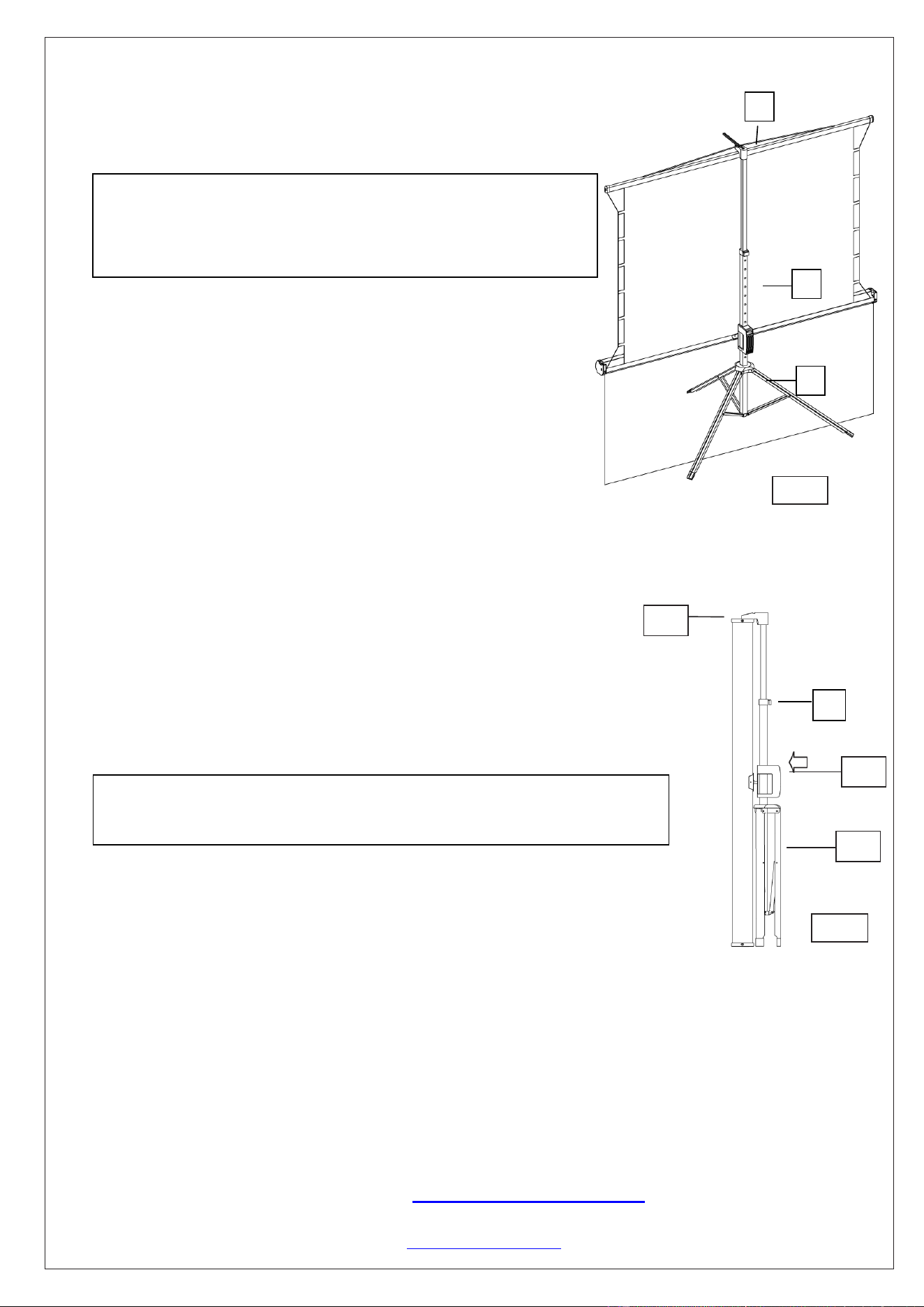
Fig.1
Fig. 2
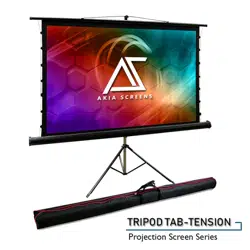
Tripod Tab-Tension Series
Portable Tripod Tab-Tensioned Projection Screen
CineWhite UHD-B (matte white)
USER’S GUIDE
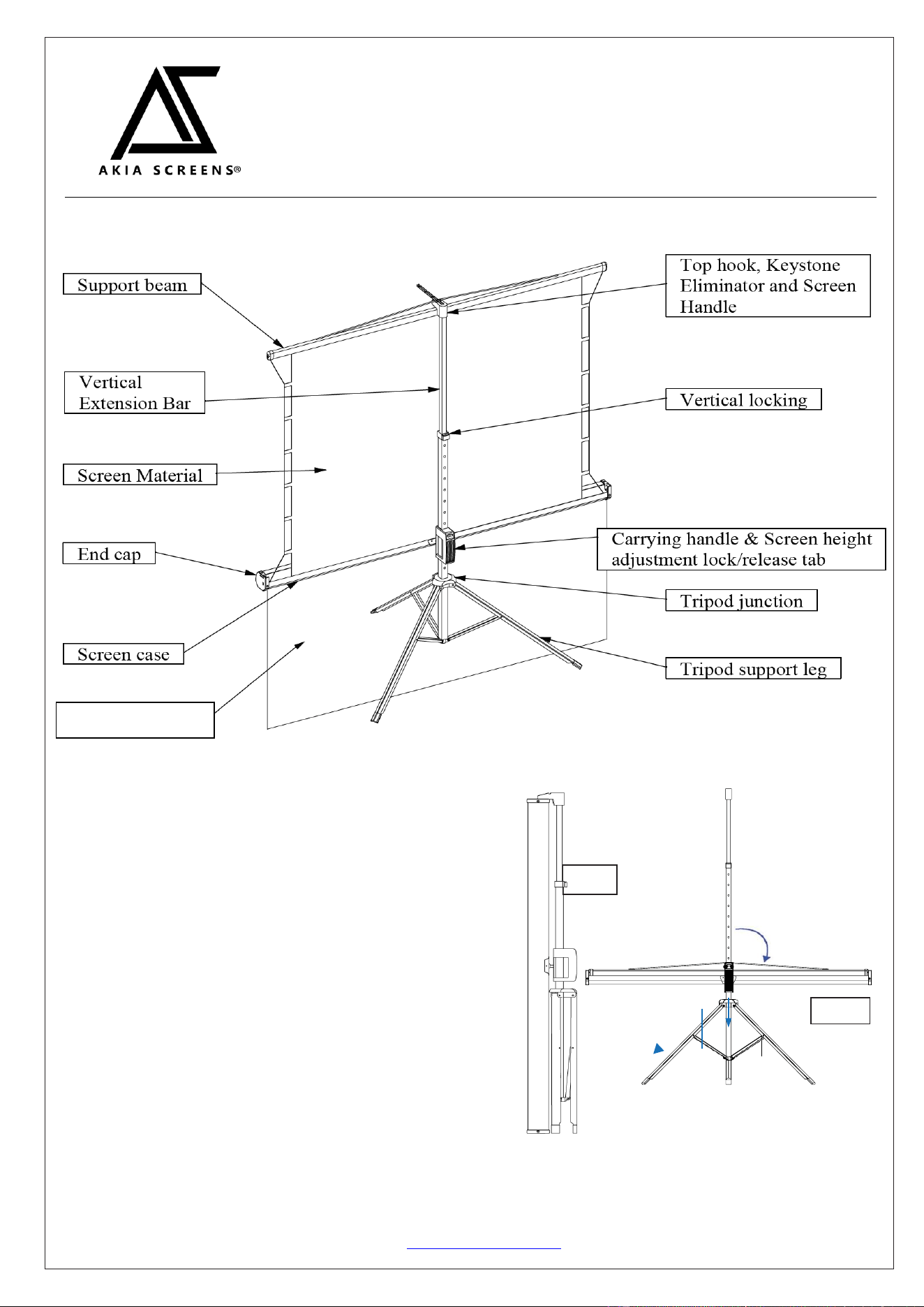
Tripod Screen Parts Identification
A.
Tripod Screen Setup
Follow the steps below and Fig. 1 & 2.
1.
Place the screen in an upright position (Fig.1) with the
1
legs toward the ground.
2.
Deploy the Tripod Support legs by pushing
down on the Tripod Junction.
3.
Turn the tripod’s screen case in a 90-degree
horizontal position so that the screen casing is now
parallel to the ground with the screen handle facing
the bottom of the top hook.
4.
Completely extend the legs as much as possible
so they are stable and position them away from
objects that may interfere with their balance. DO
NOT stand the tripod on an unstable platform to
avoid an injury should the tripod screen collapse.
Tripod drape skirt
062921BR www.akiascreens.com 2
3
4
1
B.
Preparing the tripod screen for projection:
Follow the steps below and Fig. 3.
1.
Pull the screen handle up vertically and hook the screen handle on
the Top Hook.
2.
Push/press the Vertical Locking Tab to unlock the current
position of the Vertical Extension Bar and raise it with another
hand. Remain pushing on the button until you reach the desired
height and let go until you hear a click sound which indicates it is
locked in place.
3.
Push/press the Screen Height Adjustment Lock/Release
located just above the Carrying Handle to raise or lower the
bottom of the screen. Once the desired height has been set, let go of
the tab to lock the position in place.
Tripod Skirt Installation
4. Unfold the tripod skirt in a clean area. Use the magnetic bars to attach it to the tripod case.
C.
Collapsing the screen:
Follow the steps below and Fig. 4.
1.
Push/press the Screen Height Adjustment Lock/Release Tab to unlock
and slowly slide the handle up (NOT all the way) to slowly retract the screen
into its case.
2.
Press the Vertical Adjustment Lock/Release Tab to unlock and slowly
bring the extension bar down to lower the position of the screen’s top hook.
3.
Unhook the screen material from the Top Hook and slowly retract the
screen back into the case.
4.
Hold the Extension Bar and Push/press the Vertical Locking tab to unlock and
release the position of the extension bar. Bring the extension bar all the way down.
5.
Turn the screen’s case vertically clockwise and insert the Top Hook’s
bottom pin to lock into the screen’s end cap hole.
6.
Close the tripod legs by pushing them in.
Note:
• To ensure the screen is stable, extend the tripod’s legs as much as possible.
• Do not fold the screen or allow any sharp objects to touch the screen’s surface.
• Clean the screen surface often when needed.
• Careful use will extend the lifetime of this product.
For more information, technical support or your local Akia Screens contact,
please visit
www.akiascreens.com
1
2
3
Note: Use the Keystone Eliminator to prevent “Keystone Effect” from
occurring. Keystone Effect is caused when a projector presents its image
at a downward angle causing a trapezoid-shaped image to appear on the
screen. The Keystone Eliminator is designed to eliminate that effect by
sloping the screen forward.
Fig. 4
2
Note: It is very important to remember to hold the extension bar first and then
unlock the adjustment tab to prevent the extension bar from slamming and causing
injury or damaging the screen.
Fig. 3