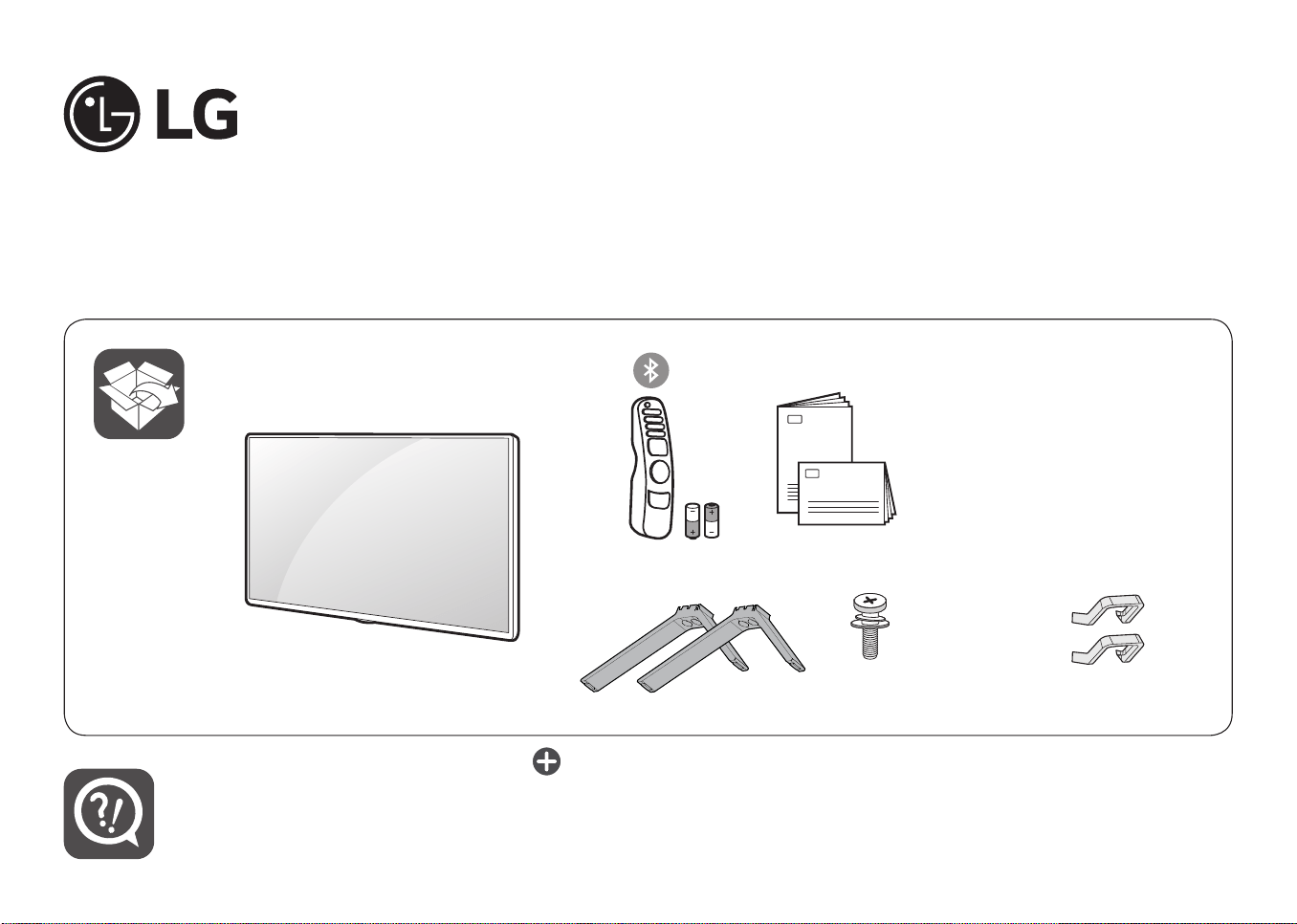
OLED TV
55AM960H0UD
65AM960H0UD
x 4
(M4 x L30)
ENGLISH Easy Setup Guide
Please read this manual carefully before operating your set and retain it for future reference.
ESPAÑOL Guía Rápida de Conguración
Lea atentamente este manual antes de poner en marcha el equipo y consérvelo para futuras consultas.
FRANÇAIS Guide de conguration rapide
Avant d’utiliser l’appareil, veuillez lire attentivement ce manuel et le conserver pour pouvoir vous y
reporter ultérieurement.
www.lg.com
Printed in Korea / Imprimé en Corée
Depending upon model / Según el modelo / Selon le modèle
AA

ENGLISH Read Safety and Reference.
WARNING : To prevent injury, this apparatus must be securely attached to the desk/wall in accordance with the Safety and
Reference.
ESPAÑOL Leer Seguridad y Consultas.
ADVERTENCIA : Para prevenir daños, este aparato debe ser instalado a la mesa/pared de acuerdo a la guía de Seguridad y
Consultas.
FRANÇAIS Lisez Sécurité et références.
AVERTISSEMENT : Pour éviter les blessures, cet appareil doit être solidement xé au bureau ou au mur, conformément aux
directives du manuel Sécurité et références.
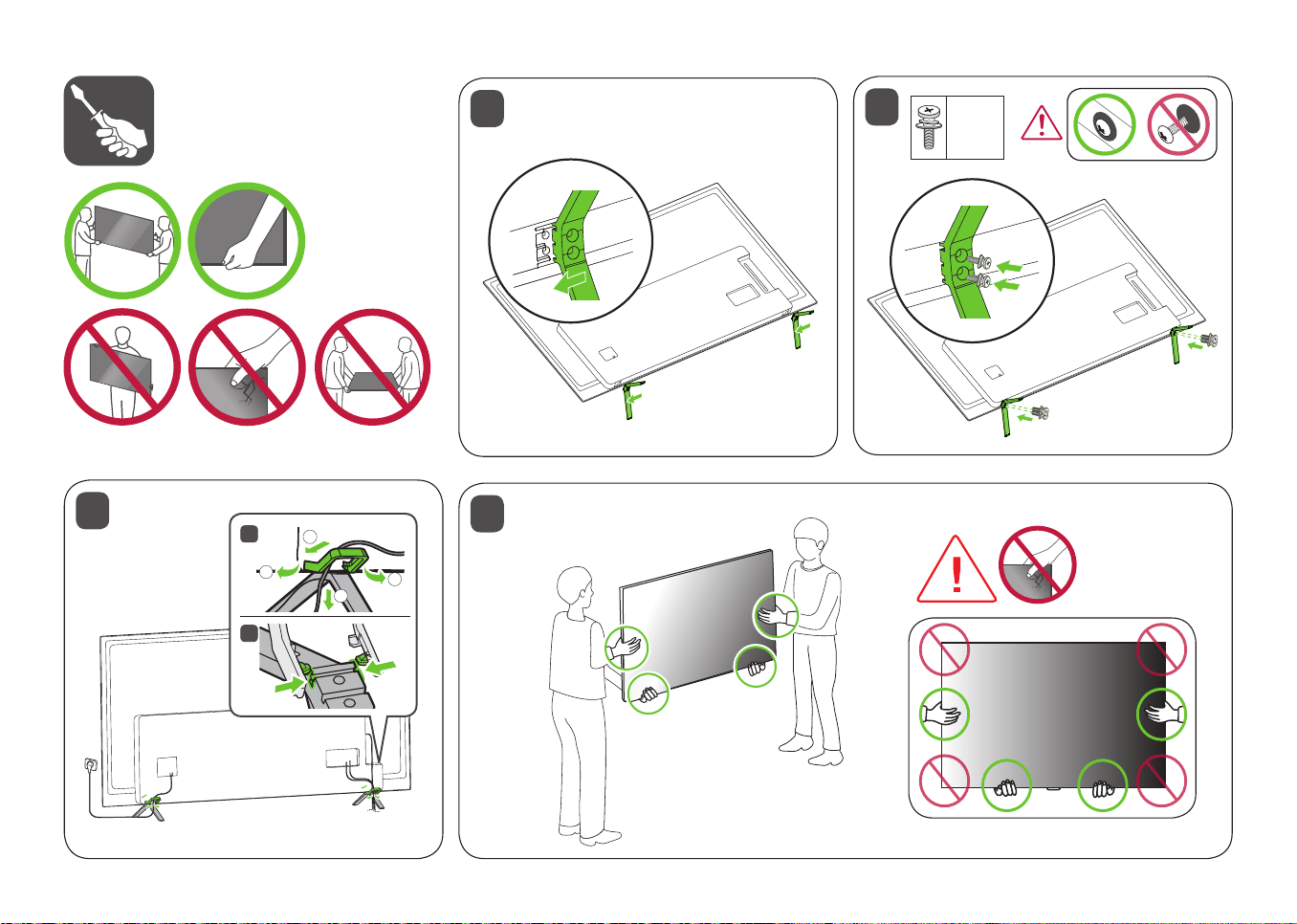
1
2
3
x 4
1
2
4
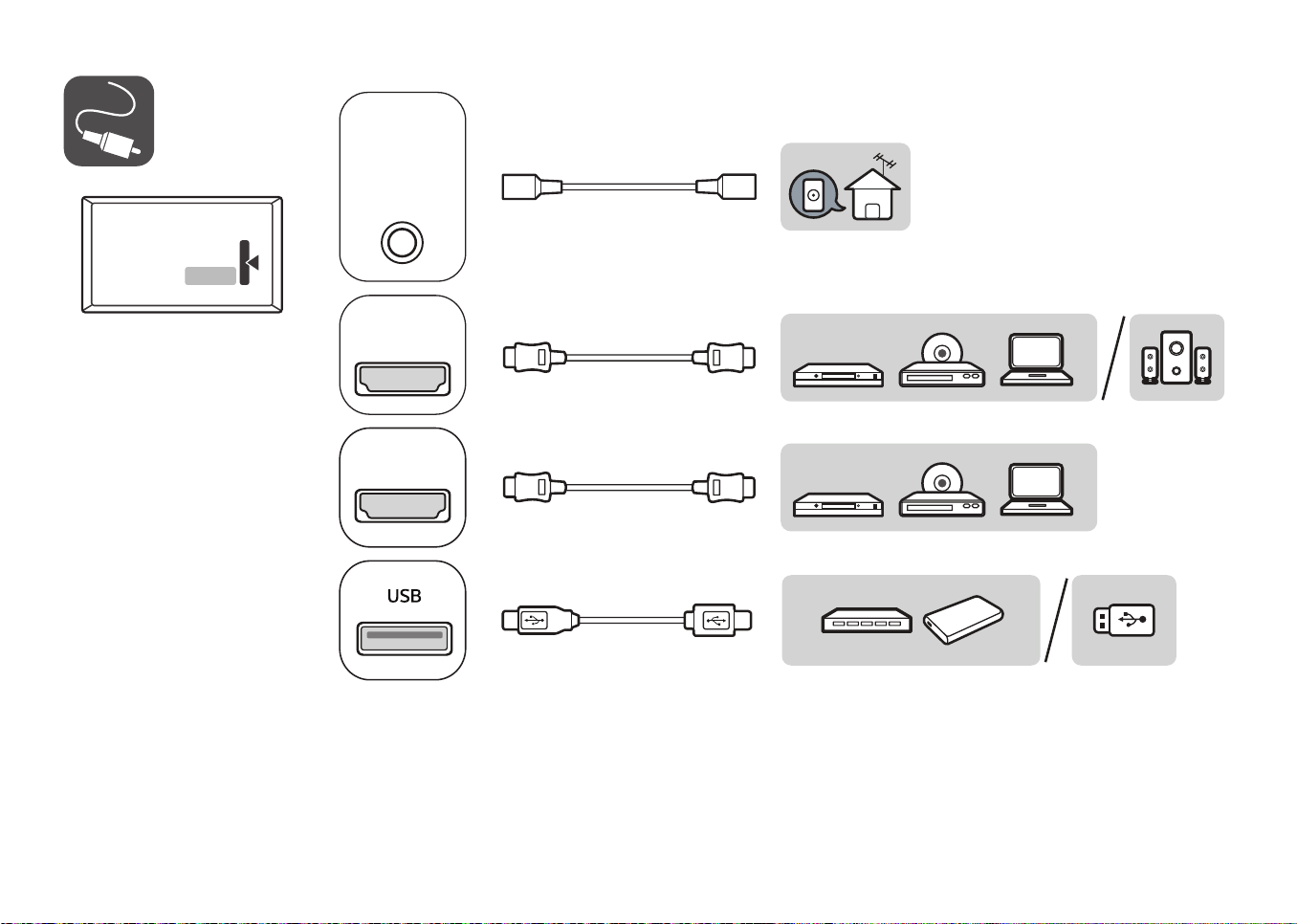
OPTICAL
DIGITAL
AUDIO OUT
SORTIE AUDIO
NUMRIQUE
OPTIQUE
SPEAKER OUT
LINE OUT
SORTIE
HAUT-PARLEUR
SORTIE LIGNE
RS-232C IN
(CONTROL & SERVICE)
ENTRE RS-232C
(CONTRLE ET SERVICE)
ANTENNA /
CABLE IN
ENTRE
ANTENNE /
CBLE
HDMI
HDMI
HDMI
(eARC/ARC)
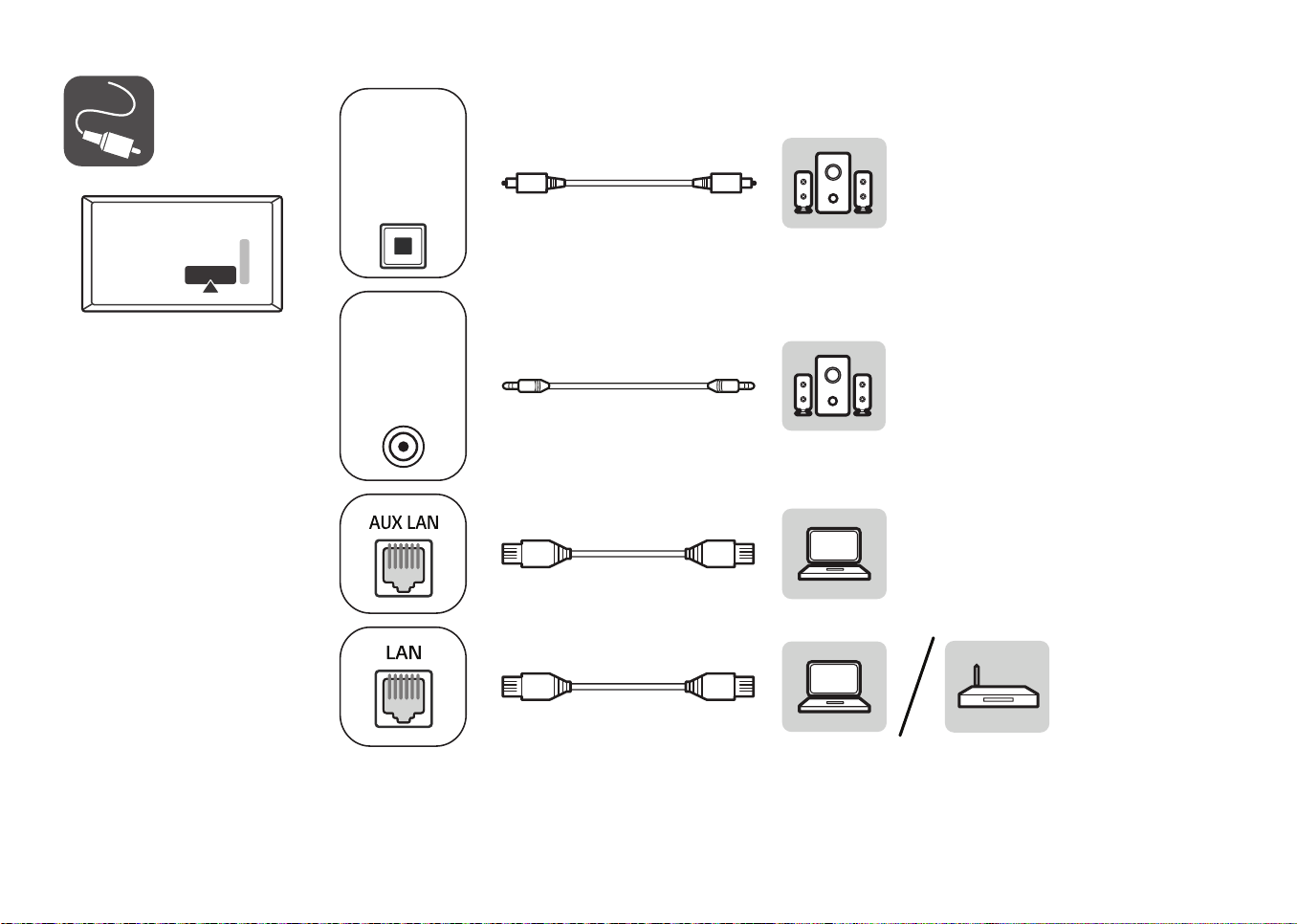
OPTICAL
DIGITAL
AUDIO OUT
SORTIE AUDIO
NUMRIQUE
OPTIQUE
SPEAKER OUT
LINE OUT
SORTIE
HAUT-PARLEUR
SORTIE LIGNE
RS-232C IN
(CONTROL & SERVICE)
ENTRE RS-232C
(CONTRLE ET SERVICE)
ANTENNA /
CABLE IN
ENTRE
ANTENNE /
CBLE
HDMI
HDMI
HDMI
(eARC/ARC)
OPTICAL
DIGITAL
AUDIO OUT
SORTIE AUDIO
NUMRIQUE
OPTIQUE
SPEAKER OUT
LINE OUT
SORTIE
HAUT-PARLEUR
SORTIE LIGNE
RS-232C IN
(CONTROL & SERVICE)
ENTRE RS-232C
(CONTRLE ET SERVICE)
ANTENNA /
CABLE IN
ENTRE
ANTENNE /
CBLE
HDMI
HDMI
HDMI
(eARC/ARC)
AA
Kg
90°
A
B
C
D
E
F
G
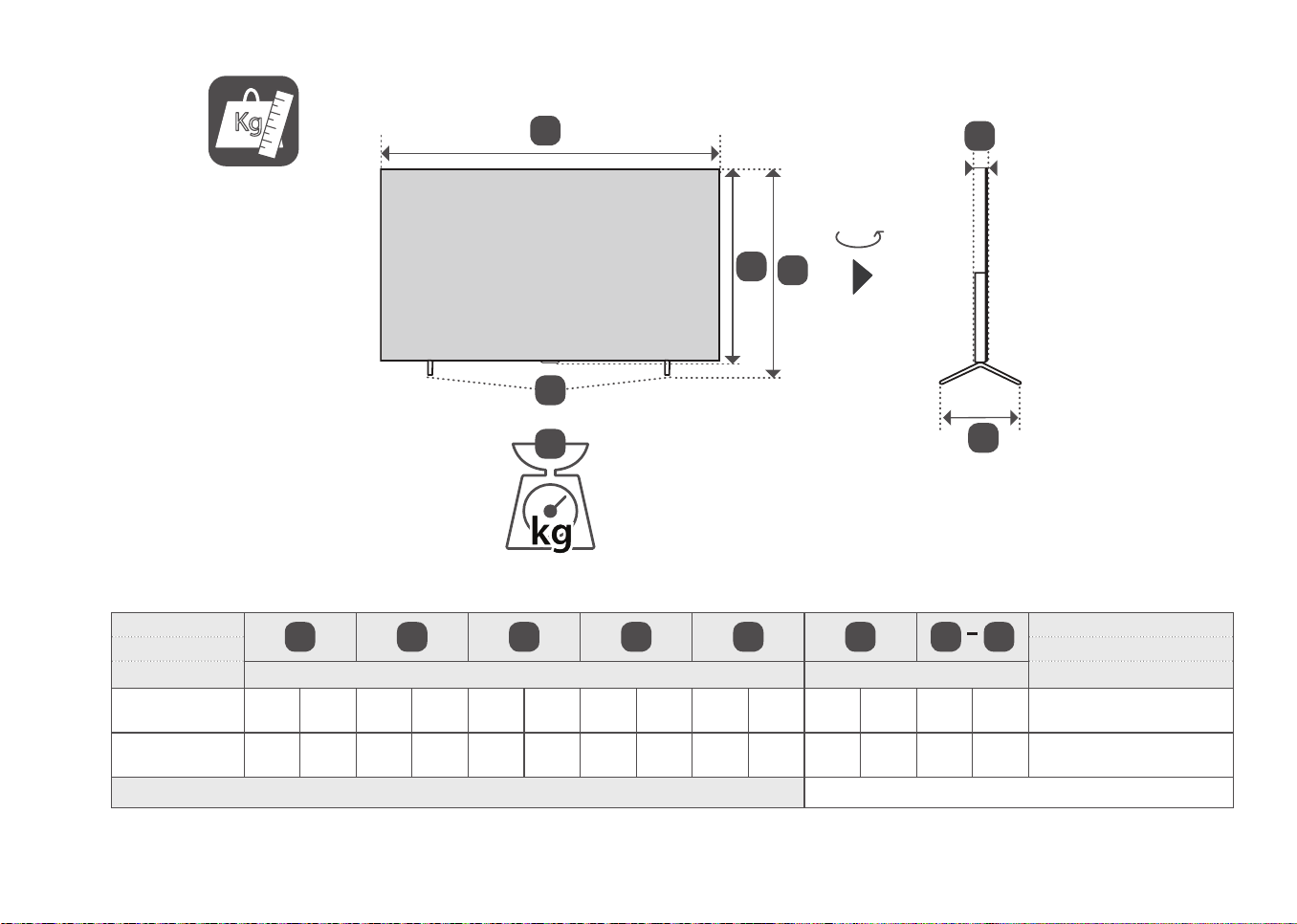
MODELS
A B C D E F F
G
Power consumption
MODELOS Consumo de potencia
MODÈLES mm (inches / pulgadas / po) kg (lbs / libras / lb) Consommation électrique
55AM960H0UD
1,228
(48.3)
1 228
(48,3)
772
(30.3)
772
(30,3)
235
(9.2)
235
(9,2)
708
(27.8)
708
(27,8)
45.9
(1.8)
45,9
(1,8)
14.5
(31.9)
14,5
(31,9)
14.3
(31.5)
14,3
(31,5)
266 W
65AM960H0UD
1,449
(57)
1 449
(57)
896
(35.2)
896
(35,2)
235
(9.2)
235
(9,2)
832
(32.7)
832
(32,7)
45.9
(1.8)
45,9
(1,8)
17.3
(38.1)
17,3
(38,1)
17.1
(37.6)
17,1
(37,6)
347 W
Power requirement / Alimentación requerida / Alimentation électrique
AC 120 V~ 50 / 60 Hz
*MFL721070022406REV00*

2
ENGLISH_index
Table of Contents
Important Safety Instruction
Warning! Safety Instructions
Preparing
Optional Extras
8 Wall Mounting Bracket
Lifting and moving the TV
Mounting on a Table
10 Securing the TV to a Wall
Mounting on a Wall
Connections
12 Antenna/Cable
13 Other connections
14 External Speakers
15 Network setup
Using Button
16 Basic functions
Using Remote Control
18 Registering Magic Remote Control
Troubleshooting
Settings
20 Selecting Picture Mode
20 Adjusting the Brightness of a Picture
20 To use Energy Saving Feature
Specifications
22 HDMI-DTV supported mode
23 HDMI-PC supported Mode
24 Supported Photo Formats
24 Supported Audio Formats
25 Supported Video Formats
Open Source Software Notice
Information
Updating Firmware
Licenses
Precautions for Protecting the
OLED TV Screen
27 Images that are likely to cause image
retention
27 Running [Pixel Cleaning] to Protect the
OLED TV Screen
27 Recommendations for Minimizing Image
Retention

3
ENGLISH_index
IR Codes
External Control Device Setup
29 RS-232C Setup
29 Phone jack Type
30 Type of Connector: D-Sub 9-Pin Male
30 RS-232C Configurations
30 Communication Parameters
30 Set ID
31 Command Reference List
32 Transmission / Receiving Protocol
IR OUT Using Guide
40 Suitable / Not Recommend remote-
controller data format
40 IR Receiver specifications
Regulatory
41 FCC Notice
41 FCC Radio Frequency Interference
Requirements (for UNII devices)
41 FCC RF Radiation Exposure Statement
42 Industry Canada Statement
42 IC Radiation Exposure Statement
42 RSS-247 Requirement
43 NOTE TO CABLE/TV INSTALLER
43 WARNING! (STABILITY HAZARD)
43 Symbols
43 LG Take-back & Recycling Policy
44 Dominican Republic only
4
ENGLISH_index
Important Safety Instruction
• Read these instructions.
• Keep these instructions.
• Heed all warnings.
• Follow all instructions.
• Do not use this apparatus near water.
• Clean only with dry cloth.
• Do not block any ventilation openings. Install in accordance with the manufacturer’s instructions.
• Do not install near any heat sources such as radiators, heat registers, stoves, or other apparatus
(including amplifiers) that produce heat.
• Do not defeat the safety purpose of the polarized or grounding-type plug. A polarized plug has two
blades with one wider than the other. A grounding type plug has two blades and a third grounding prong.
The wide blade or the third prong are provided for your safety. If the provided plug does not fit into your
outlet, consult an electrician for replacement of the obsolete outlet.
• Protect the power cord from being walked on or pinched particularly at plugs, convenience receptacles,
and the point where they exit from the apparatus.
• Only use attachments/accessories specified by the manufacturer.
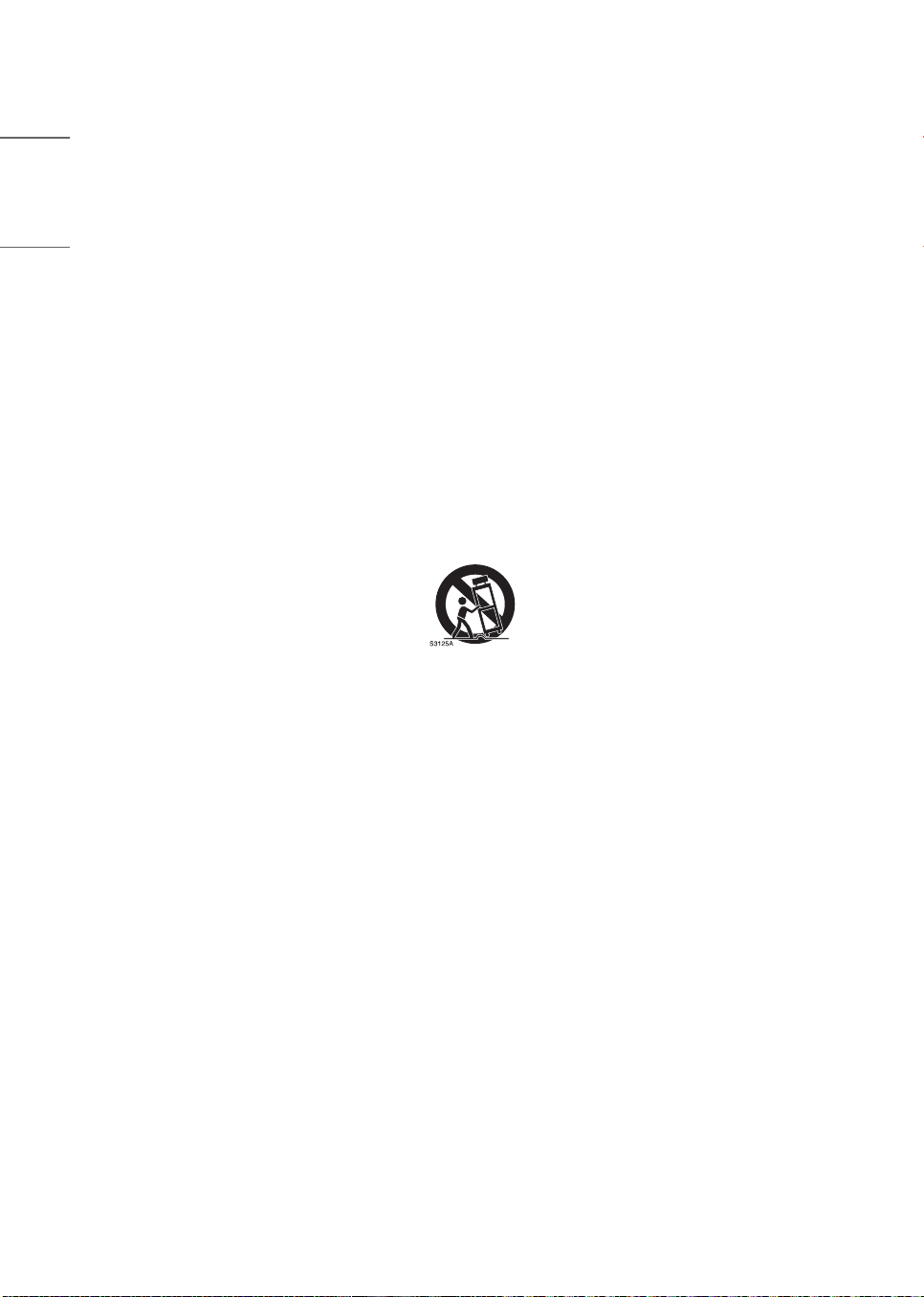
• Use only with the cart, stand, tripod, bracket, or table specified by the manufacturer, or sold with the
apparatus. When a cart is used, use caution when moving the cart/apparatus combination to avoid injury
from tip-over.
• Unplug this apparatus during lightning storms or when unused for long periods of time.
• Refer all servicing to qualified service personnel. Servicing is required when the apparatus has been
damaged in any way, such as power-supply cord or plug is damaged, liquid has been spilled or objects
have fallen into the apparatus, the apparatus has been exposed to rain or moisture, does not operate
normally, or has been dropped.
5
ENGLISH_index
Warning! Safety
Instructions
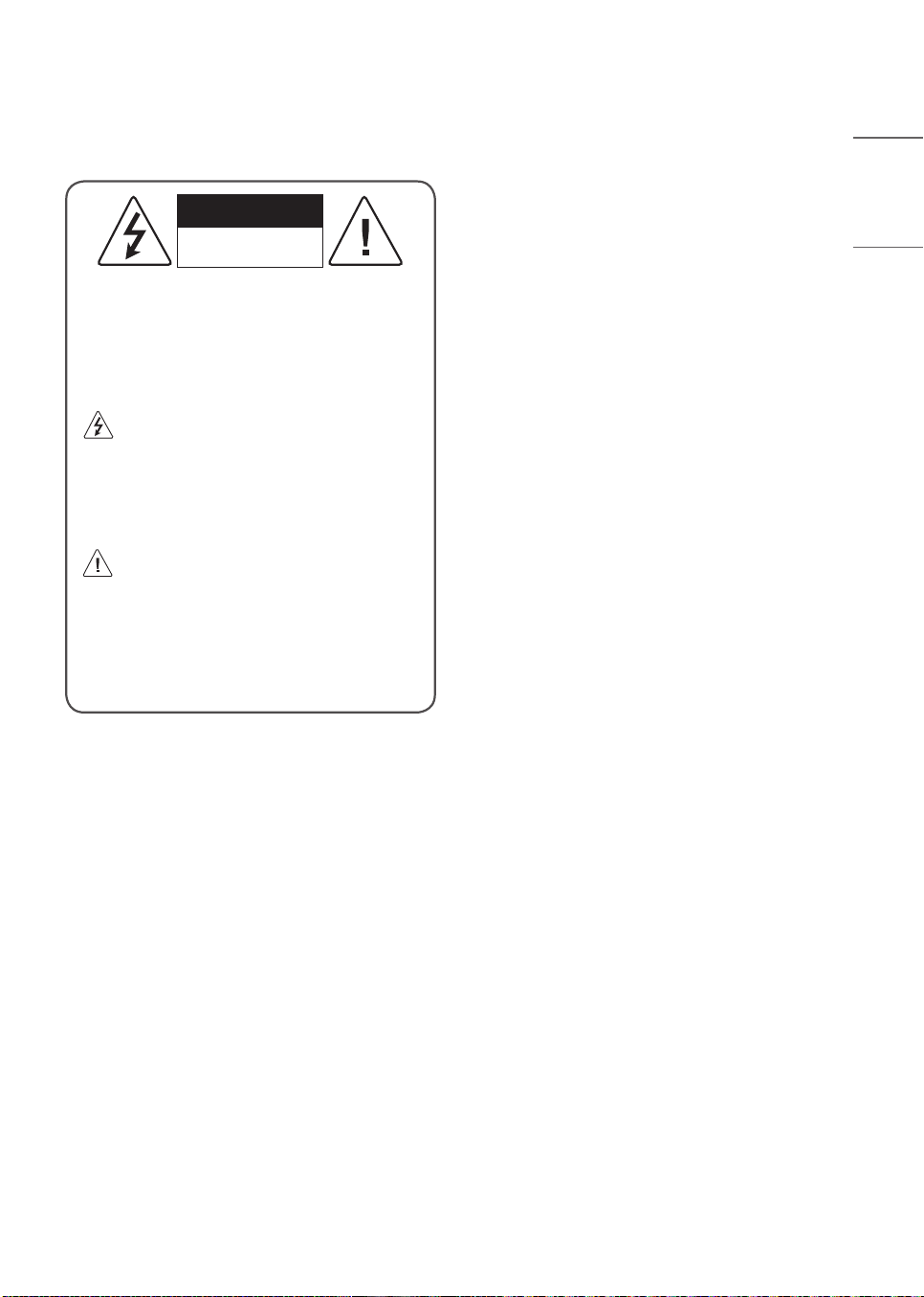
CAUTION
RISK OF ELECTRIC SHOCK
DO NOT OPEN
CAUTION: TO REDUCE THE RISK OF
ELECTRIC SHOCK, DO NOT REMOVE COVER
(OR BACK). NO USER-SERVICEABLE PARTS
INSIDE. REFER TO QUALIFIED SERVICE
PERSONNEL.
This symbol is intended to alert the user
to the presence of uninsulated
“dangerous voltage” within the product’s
enclosure that may be of sufficient magnitude
to constitute a risk of electric shock to
persons.
This symbol is intended to alert the user
to the presence of important operating
and maintenance (servicing) instructions in
the literature accompanying this apparatus.
WARNING: TO REDUCE THE RISK OF FIRE
AND ELECTRIC SHOCK, DO NOT EXPOSE
THIS PRODUCT TO RAIN OR MOISTURE.
• TO PREVENT THE SPREAD OF FIRE, KEEP
CANDLES OR OTHER ITEMS WITH OPEN
FLAMES AWAY FROM THIS PRODUCT AT ALL
TIMES.
• Do not place the TV and/or remote control in
the following environments:
- Keep the product away from direct sunlight.
- An area with high humidity such as a bathroom.
- Near any heat source such as stoves and other
devices that produce heat.
- Near kitchen counters or humidifiers where they
can easily be exposed to steam or oil.
- An area exposed to rain or wind.
- Do not expose to dripping or splashing and do
not place objects filled with liquids, such as
vases, cups, etc. on or over the apparatus (e.g.,
on shelves above the unit).
- Near flammable objects such as gasoline
or candles, or expose the TV to direct air
conditioning.
- Do not install in excessively dusty places.
Otherwise, this may result in fire, electric shock,
combustion/explosion, malfunction or product
deformation.
• Ventilation
- Install your TV where there is proper ventilation.
Do not install in a confined space such as a
bookcase.
- Do not install the product on a carpet or
cushion.
- Do not block or cover the product with cloth or
other materials while unit is plugged in.
• Take care not to touch the ventilation openings.
When watching the TV for a long period, the
ventilation openings may become hot.
• Protect the power cord from physical or
mechanical abuse, such as being twisted, kinked,
pinched, closed in a door, or walked upon. Pay
particular attention to plugs, wall outlets, and the
point where the cord exits the device.

6
ENGLISH_index
• Do not move the TV whilst the Power cord is
plugged in.
• Do not use a damaged or loosely fitting power
cord.
• Be sure to grasp the plug when unplugging the
power cord. Do not pull on the power cord to
unplug the TV.
• Do not connect too many devices to the same AC
power outlet as this could result in fire or electric
shock.
• Disconnecting the Device from the Main Power
- The power plug is the disconnecting device.
In case of an emergency, the power plug must
remain readily accessible.
• Do not let your children climb or cling onto the
TV. Otherwise, the TV may fall over, which may
cause serious injury.
• Outdoor Antenna Grounding (Can differ by
country):
- If an outdoor antenna is installed, follow
the precautions below. An outdoor antenna
system should not be located in the vicinity
of overhead power lines or other electric light
or power circuits, or where it can come in
contact with such power lines or circuits as
death or serious injury can occur. Be sure the
antenna system is grounded to provide some
protection against voltage surges and built-up
static charges Section 810 of the National
Electrical Code (NEC) in the U.S.A. provides
information with respect to proper grounding of
the mast and supporting structure, grounding
of the lead-in wire to an antenna discharge
unit, size of grounding conductors, location of
antenna discharge unit, connection to grounding
electrodes and requirements for the grounding
electrode. Antenna grounding according to the
National Electrical Code, ANSI/NFPA 70
• Grounding (Except for devices which are not
grounded.)
- TV with a three-prong grounded AC plug must
be connected to a three-prong grounded AC
outlet. Ensure that you connect the earth
ground wire to prevent possible electric shock.
• Never touch this apparatus or antenna during a
lightning storm. You may be electrocuted.
• Make sure the power cord is connected securely
to the TV and wall socket if not secured damage
to the Plug and socket may occur and in extreme
cases a fire may break out.
• Do not insert metallic or inflammable objects into
the product. If a foreign object is dropped into
the product, unplug the power cord and contact
the customer service.
• Do not touch the end of the power cord while it is
plugged in. You may be electrocuted.
• If any of the following occur, unplug the
product immediately and contact your local
customer service.
- The product has been damaged.
- If water or another substance enters the
product (like an AC adapter, power cord, or TV).
- If you smell smoke or other odors coming from
the TV.
- When lightning storms or when unused for long
periods of time.
Even the TV is turned off by remote control or
button, AC power source is connected to the unit
if not unplugged in.
• Do not use high voltage electrical equipment near
the TV (e.g., a bug zapper). This may result in
product malfunction.
• Do not attempt to modify this product in any
way without written authorization from LG
Electronics. Accidental fire or electric shock can
occur. Contact your local customer service for
service or repair. Unauthorized modification could
void the user’s authority to operate this product.
• Use only an authorized attachments / accessories
approved by LG Electronics. Otherwise, this may
result in fire, electric shock, malfunction, or
product damage.
• Never disassemble the AC adapter or power cord.
This may result in fire or electric shock.
• Handle the adapter carefully to avoid dropping or
striking it. An impact could damage the adapter.

7
ENGLISH_index
• To reduce the risk of fire or electrical shock, do
not touch the TV with wet hands. If the power
cord prongs are wet or covered with dust, dry the
power plug completely or wipe dust off.
• Batteries
- Store the accessories (battery, etc.) in a safe
location out of the reach of children.
- Do not short circuit, disassemble, or allow
the batteries to overheat. Do not dispose of
batteries in a fire. Batteries should not be
exposed to excessive heat.
- Caution: Risk of fire or explosion if the battery
is replaced by an incorrect type.
• Moving
- When moving, make sure the product is
turned off, unplugged, and all cables have been
removed. It may take 2 or more people to carry
larger TVs. Do not press or put stress on the
front panel of the TV. Otherwise, this may result
in product damage, fire hazard or injury.
• Keep the packing anti-moisture material or vinyl
packing out of the reach of children.
• Do not allow an impact shock, any objects to fall
into the product, and do not drop anything onto
the screen.
• Do not press strongly upon the panel with a hand
or a sharp object such as a nail, pencil, or pen,
or make a scratch on it. It may cause damage to
screen.
• Cleaning
- When cleaning, unplug the power cord and wipe
gently with a soft/dry cloth. Do not spray water
or other liquids directly on the TV. Do not clean
your TV with chemicals including glass cleaner,
any type of air freshener, insecticide, lubricants,
wax (car, industrial), abrasive, thinner, benzene,
alcohol etc., which can damage the product
and/or its panel. Otherwise, this may result in
electric shock or product damage.
Preparing
• If the TV is turned on for the first time after it
was shipped from the factory, initialization of the
TV may take a few minutes.
• Image shown may differ from your TV.
• Your TV’s OSD (On Screen Display) may differ
slightly from that shown in this manual.
• The available menus and options may differ from
the input source or product model that you are
using.
• New features may be added to this TV in the
future.
• The device must be easily accessed to a location
outlet near the access. Some devices are not
made by turning on / off button, turning off the
device and unplugging the power cord.
• The items supplied with your product may vary
depending on the model.
• Product specifications or contents of this manual
may be changed without prior notice due to
upgrade of product functions.
8
ENGLISH_index
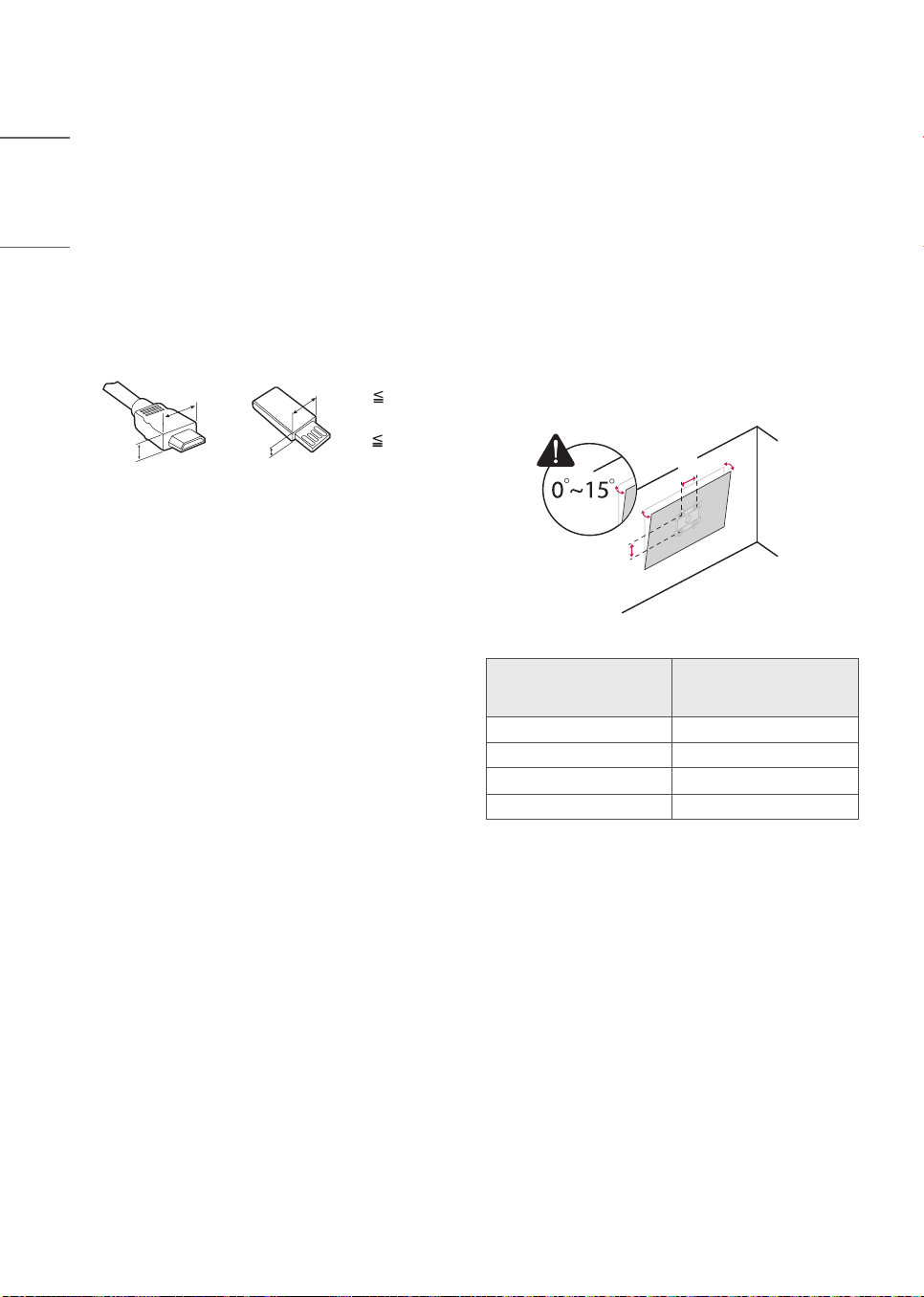
• For an optimal connection, HDMI cables and
USB devices should have bezels less than 10 mm
(0.39 inches) thick and 18 mm (0.7 inches) width.
• Use an extension cable that supports USB 2.0 if
the USB cable or USB flash drive does not fit into
your TV’s USB port.
• Use a certified cable with the HDMI logo
attached.
• If you do not use a certified HDMI cable, the
screen may not display or a connection error may
occur.
• Recommended HDMI cable types
- Ultra High Speed HDMI
®
/™ cable (3 m
(9.84 feet) or less)
A
B
A
B
* A 10 mm
(0.39 inches)
* B 18 mm
(0.7 inches)
• Do not use any unapproved items to ensure the
safety and lifespan of the product.
• Any damages or injuries by using unapproved
items are not covered by the warranty.
Optional Extras
Optional extras can be changed or modified for
quality improvement without any notification.
Contact your dealer for buying these items.
These devices work only with certain models.
The model name or design may be changed due to
the manufacturer’s circumstances or policies.
(Depending upon model)
Wall Mounting Bracket
Make sure to use screws and wall mounts that
meet the VESA standard. Standard dimensions for
the wall mount kits are described in the following
table.
A
B
Model
55AM960H0UD
65AM960H0UD
77AM960H0UD
VESA (A x B) (mm) 300 x 200
Standard screw M6
Number of screws 4
Wall mount bracket OLW480B
9
ENGLISH_index
Lifting and moving the TV
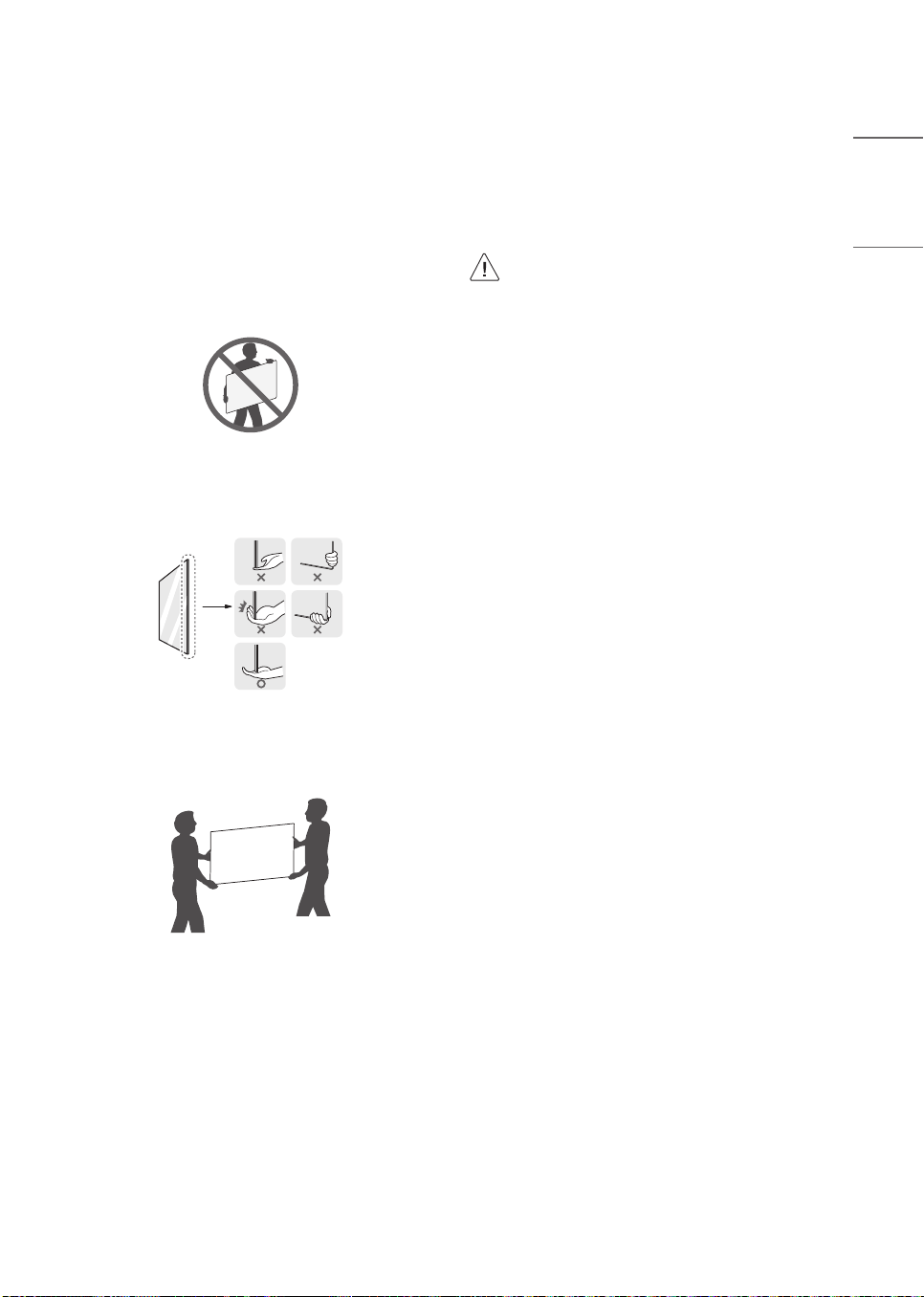
Please note the following advice to prevent the
TV from being scratched or damaged and for safe
transportation regardless of its type and size.
• It is recommended to move the TV in the box or
packing material that the TV originally came in.
• Before moving or lifting the TV, disconnect the
power cord and all cables.
• When holding the TV, the screen should face away
from you to avoid damage.
• Hold the side and bottom of the TV frame firmly.
Make sure not to hold the transparent part,
speaker, or speaker grill area.
• Use at least two people to move a large TV.
• When transporting the TV by hand, hold the TV
as shown in the following illustration.
• When transporting the TV, do not expose the TV
to jolts or excessive vibration.
• When transporting the TV, keep the TV upright;
never turn the TV on its side or tilt towards the
left or right.
• When handling the TV, be careful not to damage
the protruding buttons.
• Avoid touching the screen at all times, as
this may result in damage to the screen.
• Do not place the product on the floor with
its front facing down without padding.
Failure to do so may result in damage to
the screen.
• Do not move the TV by holding the cable
holders, as the cable holders may break,
and injuries and damage to the TV may
occur.
• When attaching the stand to the TV
set, place the screen facing down on a
cushioned table or flat surface to protect
the screen from scratches. (Depending on
model)
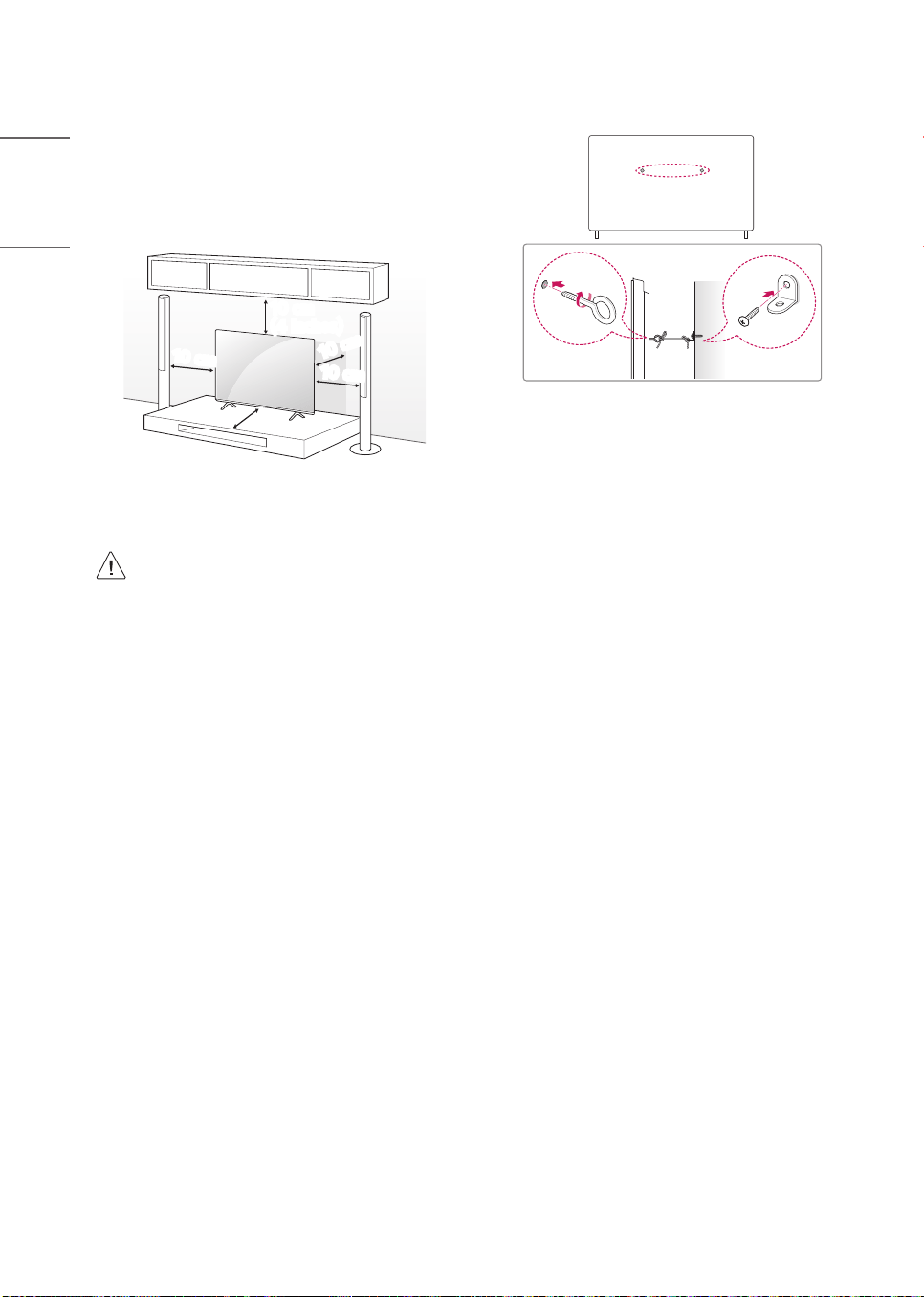
10
ENGLISH_index
Mounting on a Table
(Depending upon model)
1 Lift and tilt the TV into its upright position on
a table.
• Leave a 10 cm (4 inches) (minimum) space
from the wall for proper ventilation.
10 cm
10 cm
(4 inches)
10 cm
10 cm
10 cm
(Depending on model)
2 Connect the power cord to a wall outlet.
• Do not apply foreign substances (oils,
lubricants, etc.) to the screw parts when
assembling the product. (Doing so may
damage the product.)
• If you install the TV on a stand, you need to
take actions to prevent the product from
overturning. Otherwise, the product may
fall over, which may cause injury.
• Do not use any unapproved items to ensure
the safety and product life span.
• Any damage or injuries caused by using
unapproved items are not covered by the
manufacturer’s warranty.
• When assembling the stand, ensure that all
of the provided screws are attached. If the
screws are not fully tightened, the product
may tilt or tip over, resulting in damage.
Tightening the screws with excessive
force may cause them to come off due to
abrasion of the screw joint.
Securing the TV to a Wall
(Depending on model)
1 Insert and tighten the eye-bolts, or TV brackets
and bolts on the back of the TV.
• If there are bolts inserted at the eye-bolts
position, remove the bolts first.
2 Mount the wall brackets with the bolts to the
wall. Match the location of the wall bracket and
the eye-bolts on the rear of the TV.
3 Connect the eye-bolts and wall brackets tightly
with a sturdy rope. Make sure to keep the rope
horizontal with the flat surface.
• Use a platform or cabinet that is strong and large
enough to support the TV securely.
• Brackets, bolts and ropes are not provided. You
can obtain additional accessories from your local
dealer.
11
ENGLISH_index
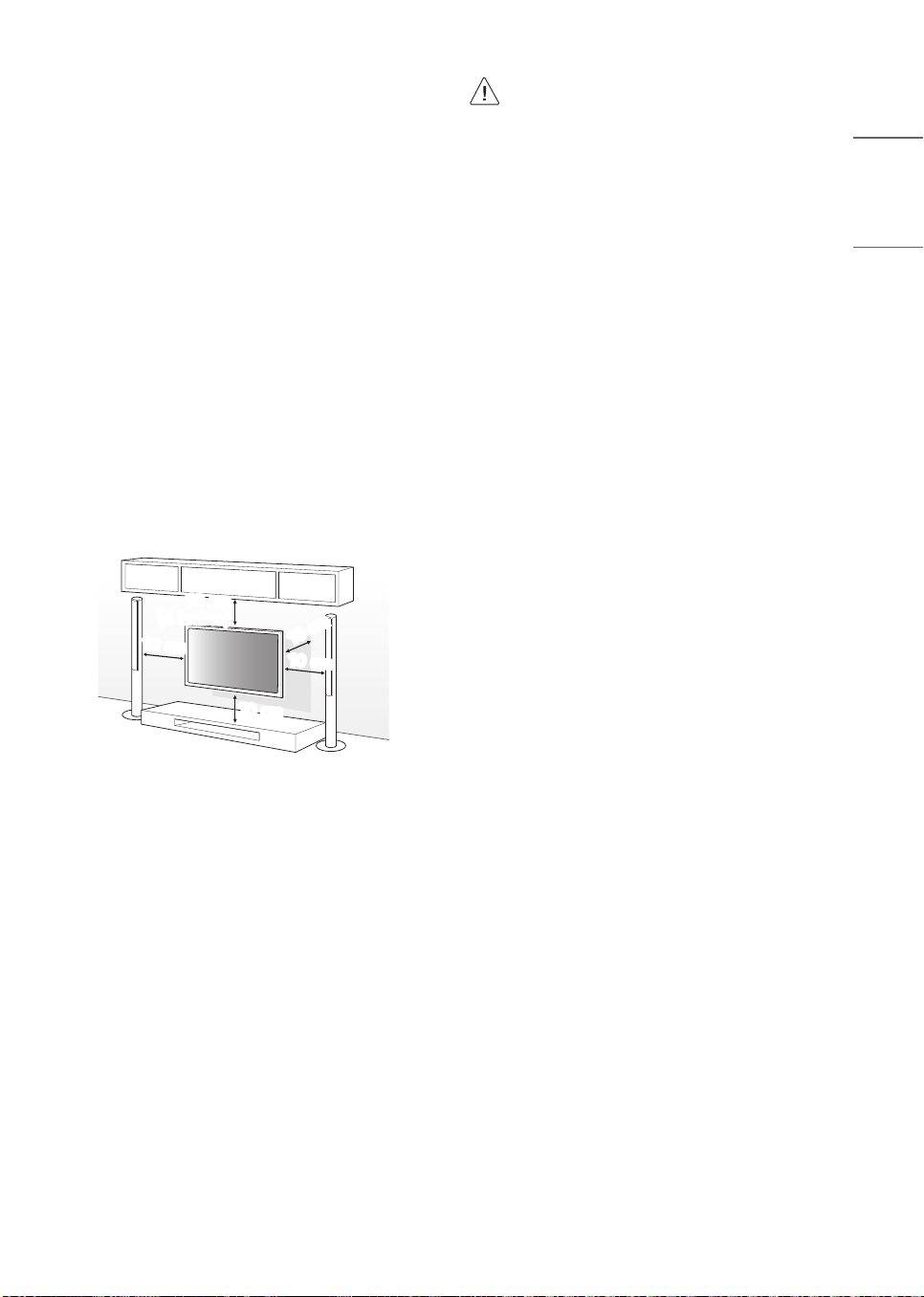
Mounting on a Wall
An optional wall mount can be used with your
LG Television. Consult with your local dealer for
a wall mount that supports the VESA standard
used by your TV model. Carefully attach the wall
mount bracket at the rear of the TV. Install the wall
mount bracket on a solid wall perpendicular to the
floor. If you are attaching the TV to other building
materials, please contact qualified personnel to
install the wall mount. Detailed instructions will be
included with the wall mount. We recommend that
you use an LG brand wall mount. The LG wall mount
is easy to adjust or to connect the cables. When
you do not use LG’s wall mount bracket, use a wall
mount bracket where the device is adequately
secured to the wall with enough space to allow
connectivity to external devices. If you are using
a non-adjustable mount, attach the mount to the
wall. Attach the cables to the TV first, then attach
the TV to the mount.
10 cm
10 cm
(4 inches)
10 cm
10 cm
10 cm
• Remove the stand before installing the TV
on a wall mount by performing the stand
attachment in reverse.
• For more information of screws and wall
mount bracket, refer to the Separate
purchase.
• If you intend to mount the product to
a wall, attach VESA standard mounting
interface (optional parts) to the back of
the product. When you install the set to
use the wall mounting bracket (optional
parts), fix it carefully so as not to drop.
• When mounting a TV on the wall, make
sure not to install the TV by hanging the
power and signal cables on the back of the
TV.
• Do not install this product on a wall if it
could be exposed to oil or oil mist. This
may damage the product and cause it to
fall.
12
ENGLISH_index
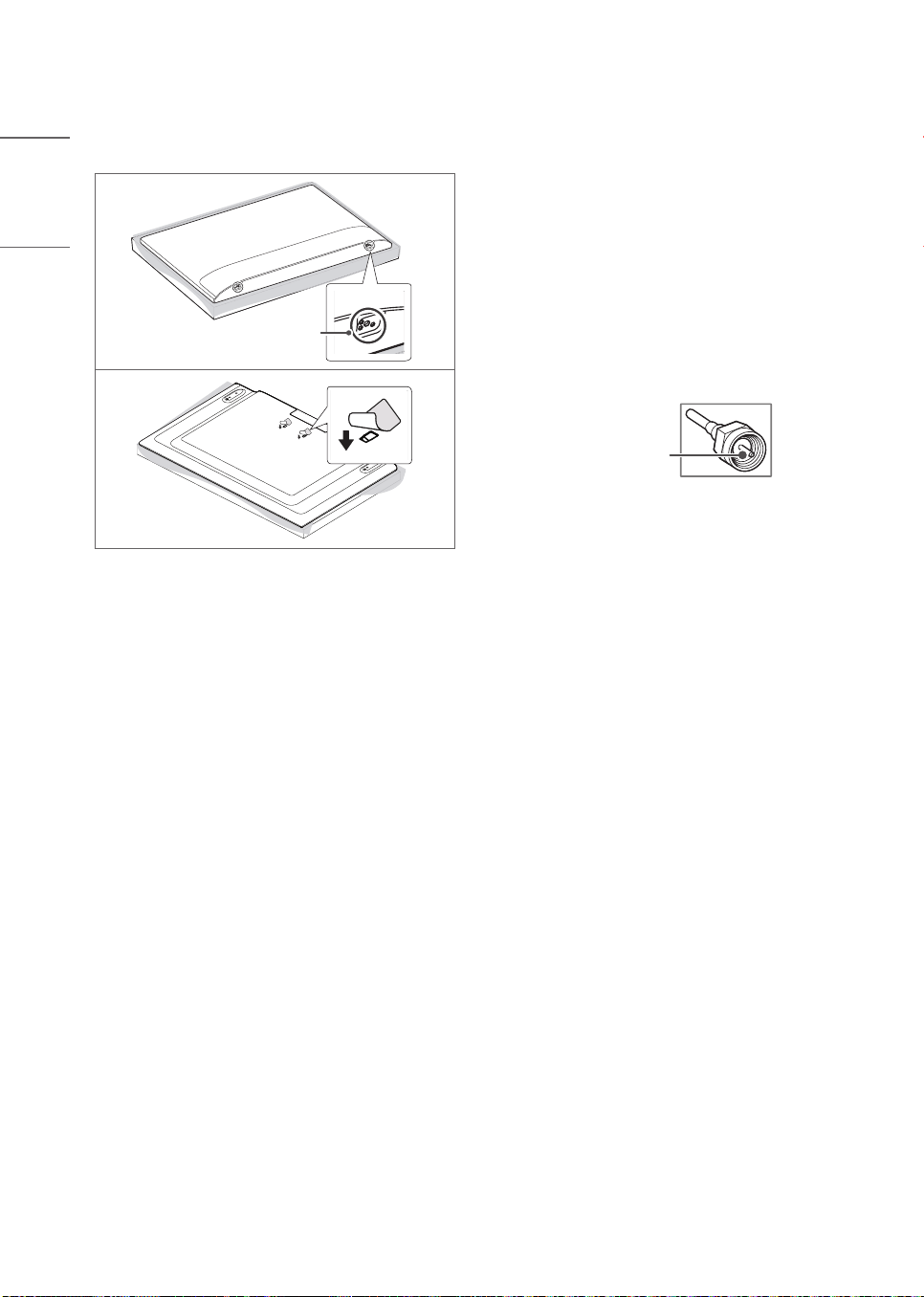
• When installing the wall mounting bracket, it is
recommended to cover the stand hole using tape,
in order to prevent the influx of dust and insects.
(Depending on model)
Stand hole
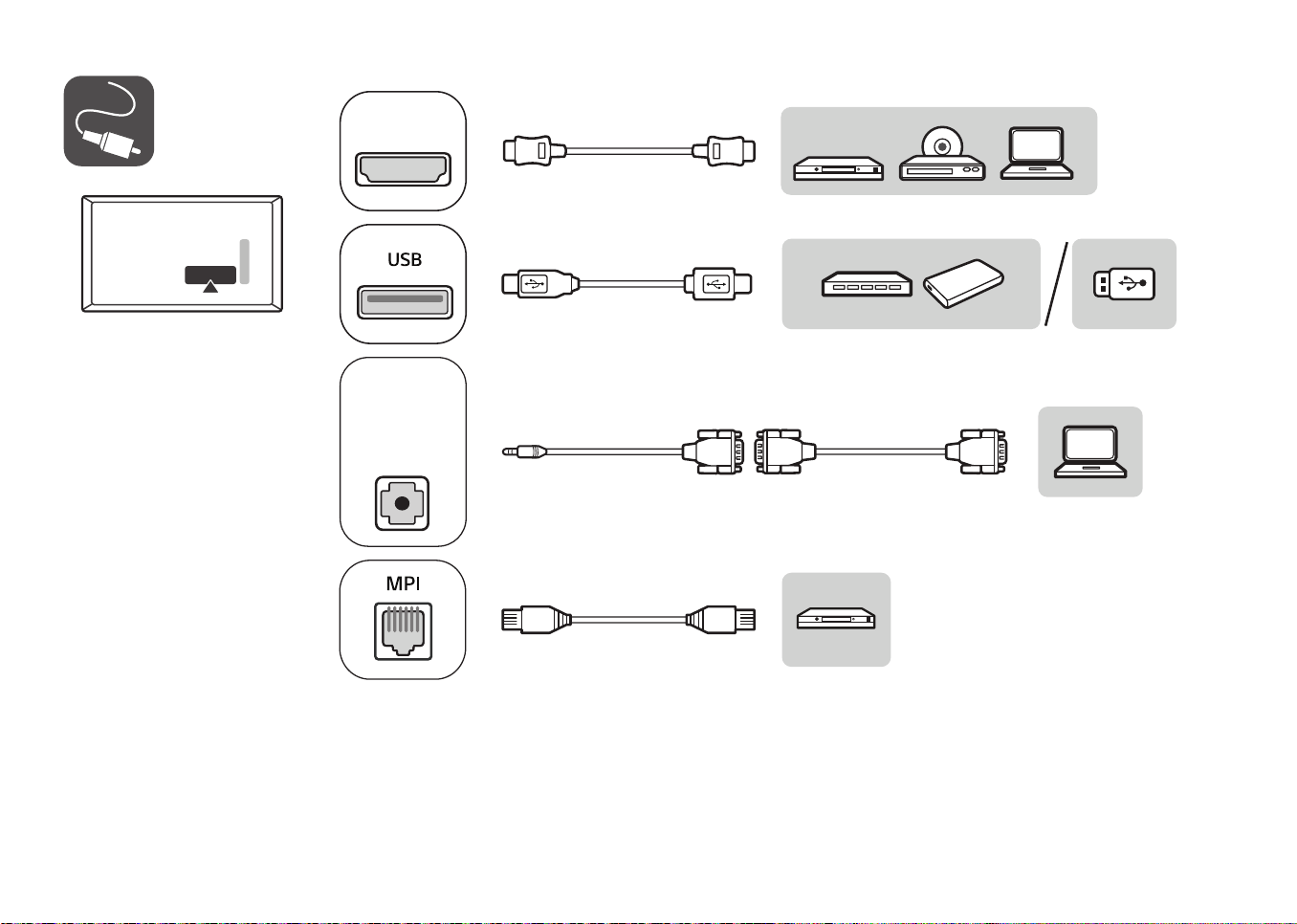
Connections
You can connect various external devices to the
TV. For more information on external device’s
connection, refer to the manual provided with each
device.
Antenna/Cable
Connect an antenna, cable, or cable box to watch
TV while referring to the following. The illustrations
may differ from the actual items and an RF cable
is optional.
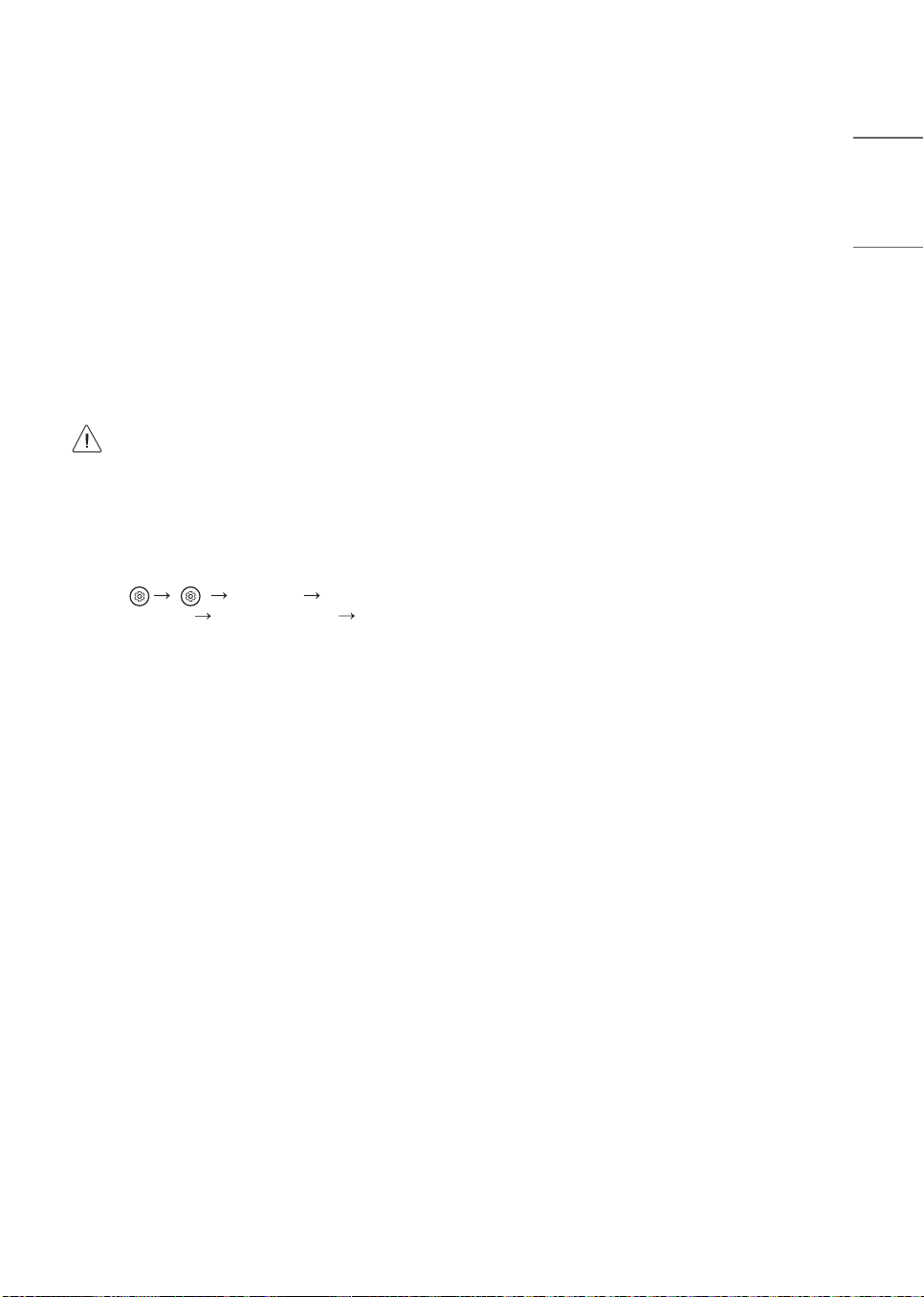
• Make sure not to bend the copper wire of the RF
cable.
Copper wire
• Complete all connections between devices, and
then connect the power cord to the power outlet
to prevent damage to your TV.
• Use a signal splitter to use 2 TVs or more.
• This TV cannot receive ULTRA HD (3840 x 2160
pixels) broadcasts directly because the related
standards have not been confirmed. (Depending
upon model)
13
ENGLISH_index
Other connections
Connect your TV to external devices. For the best
picture and audio quality, connect the external
device and the TV with the HDMI cable.
HDMI
• Supported HDMI Audio format:
(Depending on model)
Dolby Digital / Dolby Digital Plus (32 kHz /
44.1 kHz / 48 kHz),
PCM (32 kHz / 44.1 kHz / 48 kHz / 96 kHz /
192 kHz)
DTS (44.1 kHz / 48 kHz / 88.2 kHz / 96 kHz),
DTS-HD (44.1 kHz / 48 kHz / 88.2 kHz / 96 kHz
/ 176.4 kHz / 192 kHz)
• If the device connected to Input Port
also supports HDMI Deep Color, your
picture may be clearer. However, if the
device doesn’t support it, it may not
work properly. In that case, change the
TV’s [HDMI Deep Color] setting to off.
(Depending on model)
• [ ] [General] [External
Devices] [HDMI Settings] [HDMI
Deep Color]
(Depending on model)
USB
• Some USB Hubs may not work. If a USB device
connected through a USB Hub is not detected,
connect it directly to the USB port on the TV.
• It is recommended that you use a USB hub or
USB HDD with a power supply. (If the power
supplied is not sufficient, the USB storage device
may not be detected properly.)
• It is recommended that you use an external USB
HDD with a rated voltage of 5 V of less and a
rated current of 500 mA or less.
External Devices
Supported external devices are: Blu-ray player, HD
receivers, DVD players, VCRs, audio systems, USB
storage devices, PC, gaming devices, and other
external devices.
• The external device connections shown may differ
slightly from illustrations in a manual.
• Connect external devices to the TV regardless
about the order of the TV port.
• If you connect a gaming device to the TV, use the
cable supplied with the gaming device.
• Refer to the external equipment’s manual for
operating instructions.
• In PC mode, there may be noise associated
with the resolution, vertical pattern, contrast or
brightness. If noise is present, change the PC
output to another resolution, change the refresh
rate to another rate or adjust the brightness and
contrast on the [Picture] menu until the picture
is clear. Depending upon the graphics card, some
resolution settings may not allow the image to be
positioned on the screen properly.
• When connecting via a wired LAN, it is
recommended to use a CAT 7 cable. (Depending
upon model)
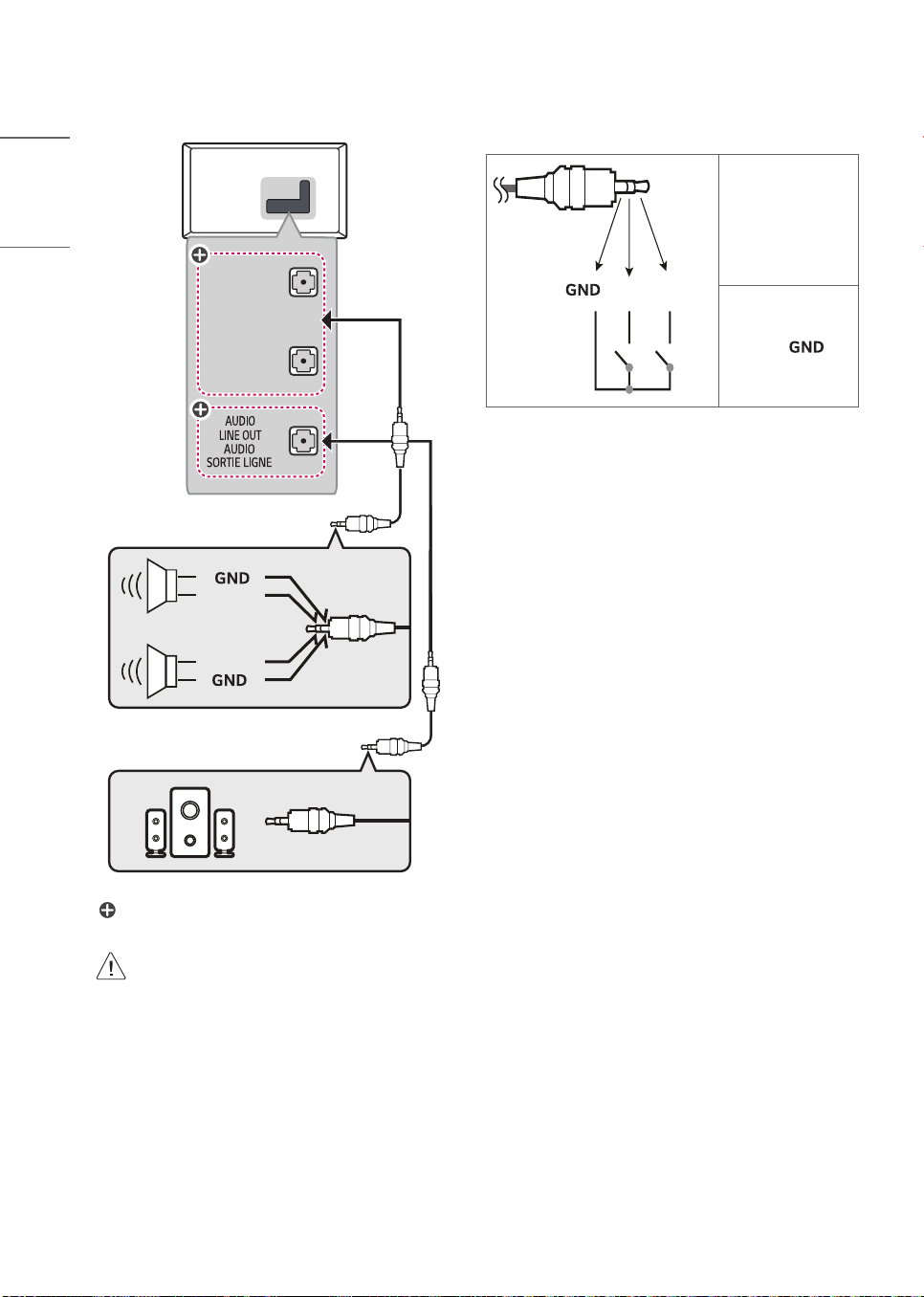
14
ENGLISH_index
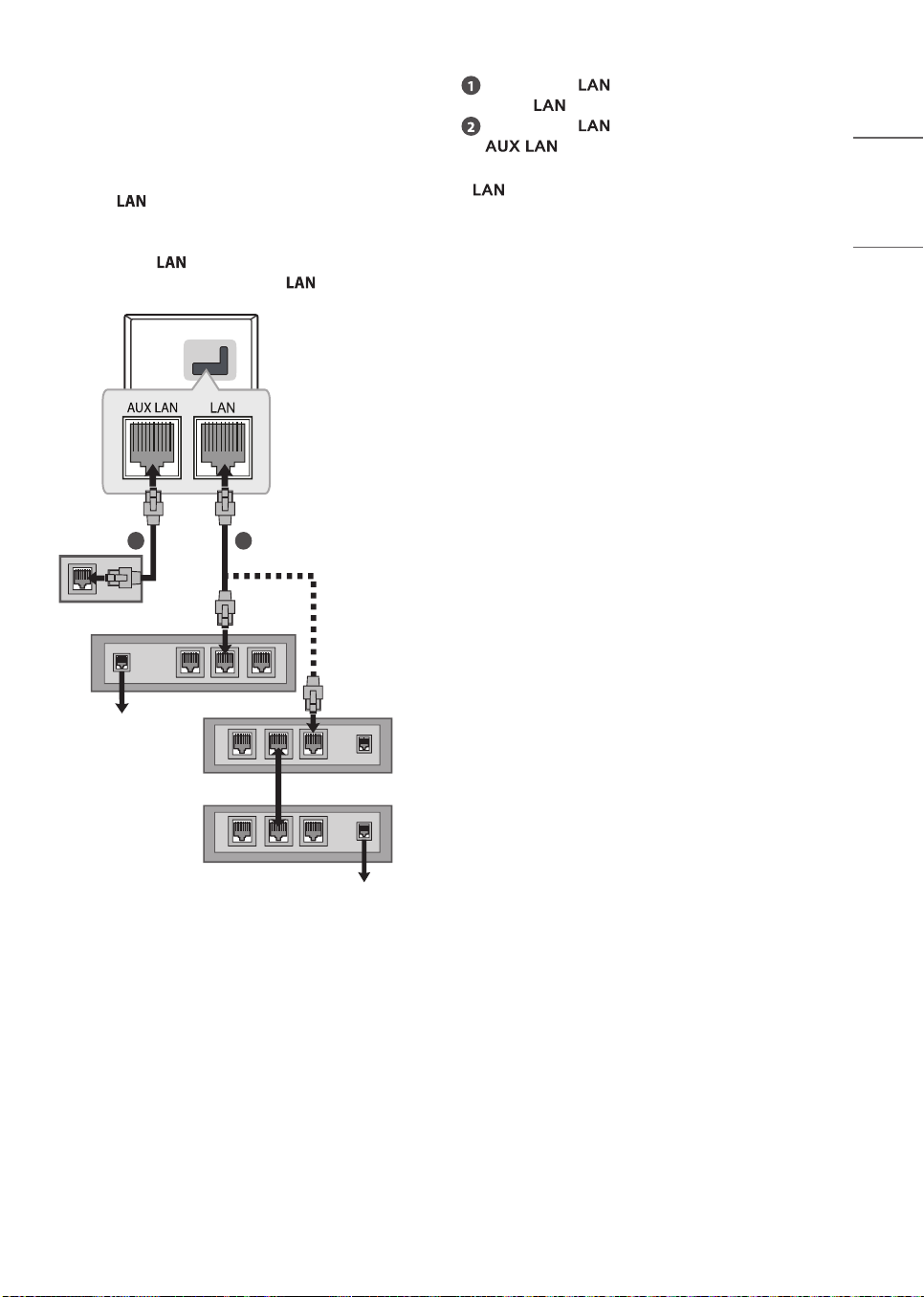
External Speakers
(Depending on model)
EXTERNAL
SPEAKER OUT
SORTIE HAUT-PARLEUR
EXTERNE
SPEAKER OUT
LINE OUT
SORTIE HAUT-PARLEUR
SORTIE LIGNE
or
RIGHT
LEFT
: Depending on model
• Use only with the 3 Pole 3.5 mm Stereo
Jack.
• Do not connect your headphones or
earphones to the port for connecting an
external speaker.
Method of volume control port
(Depending on model)
• Cable Spec.
/ UP / DOWN
Each up/
down pins are
connected to
CPU with pull
up resistor
respectively.
CPU detects
transition from
3.3 V to
level for volume
control.
15
ENGLISH_index
Network setup
(Depending upon model)
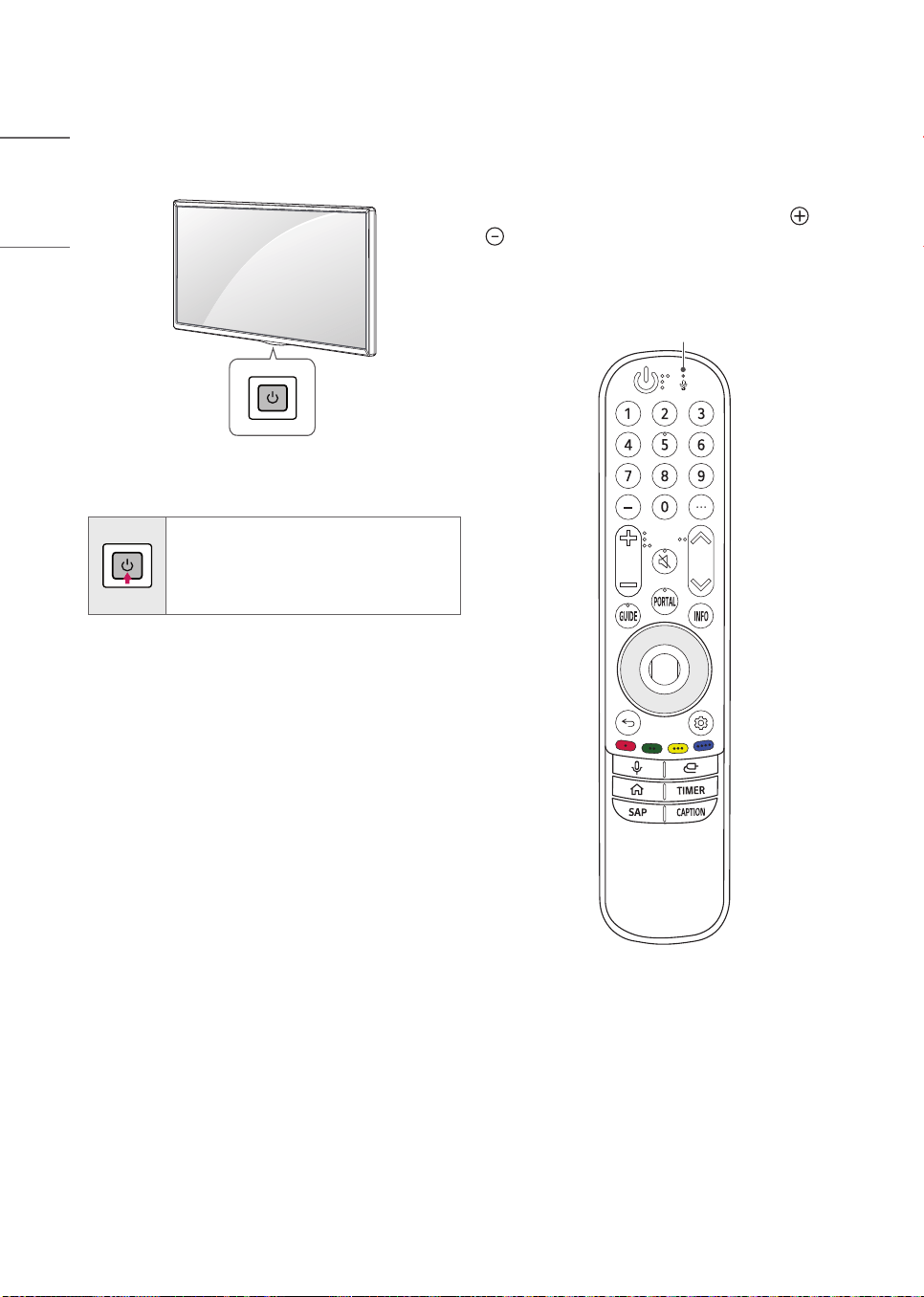
Wired network connection
This TV can be connected to a Pro:Centric server
via the port. After making the physical
connection, the TV needs to be set up for network
communication.
Connect the port of the Modem or Router
from Pro:Centric server to the port on the TV.
2 1
Broadband Modem
Pro:Centric Server
Broadband Modem
Pro:Centric Server
Router
Broadband Modem
Connect the port of the Modem or Router
to the port on the TV.
Connect the port of the PC to the
port on the TV. (Depending on model)
• Do not connect a modular phone cable to the
port.
• Since there are various connection methods,
please follow the specifications of your
telecommunication carrier or internet service
provider.
16
ENGLISH_index
Using Button
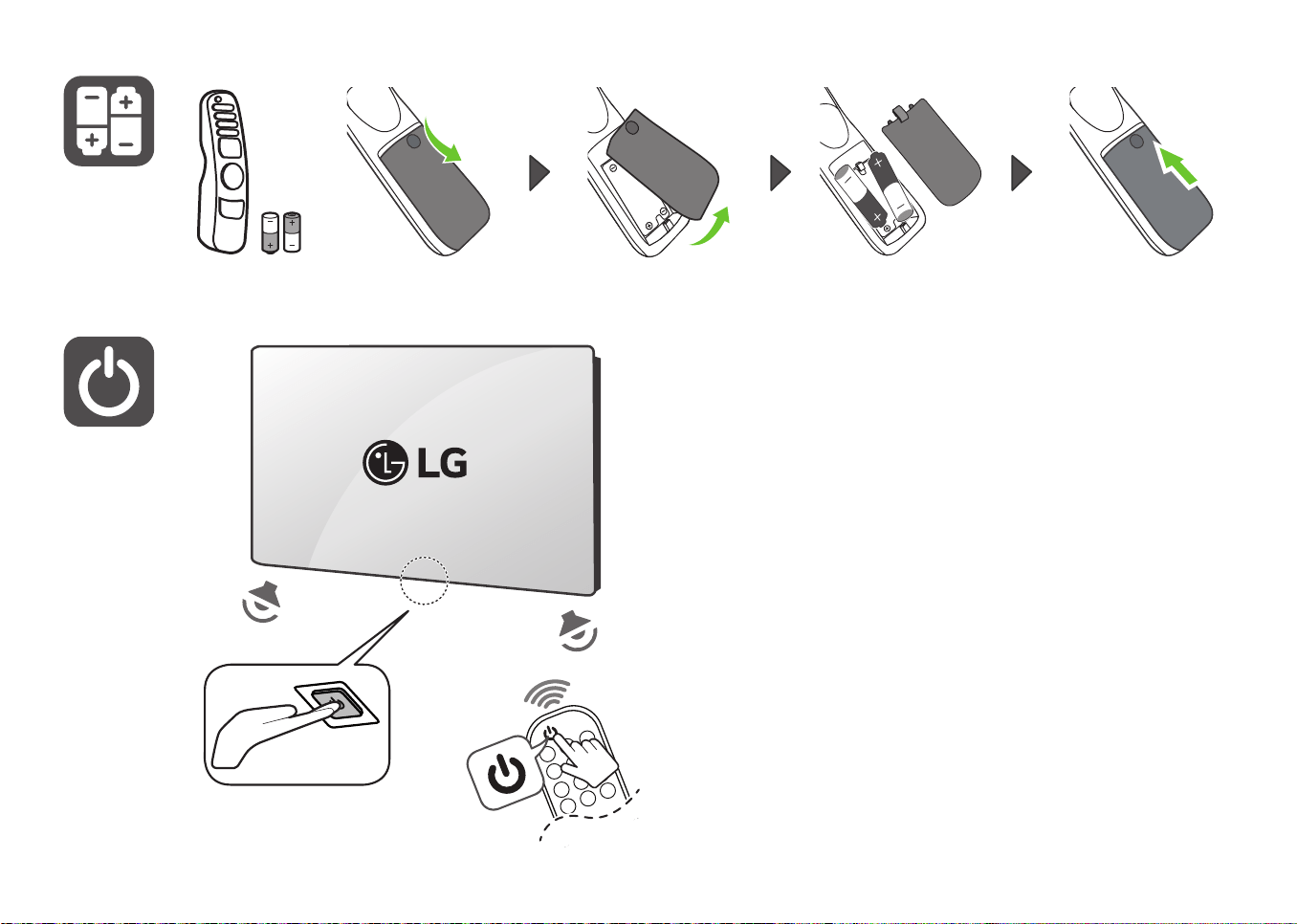
You can simply operate the TV functions, using the
button.
Basic functions
Power On (Press)
Power Off
1)
(Press)
1) All running apps will close.
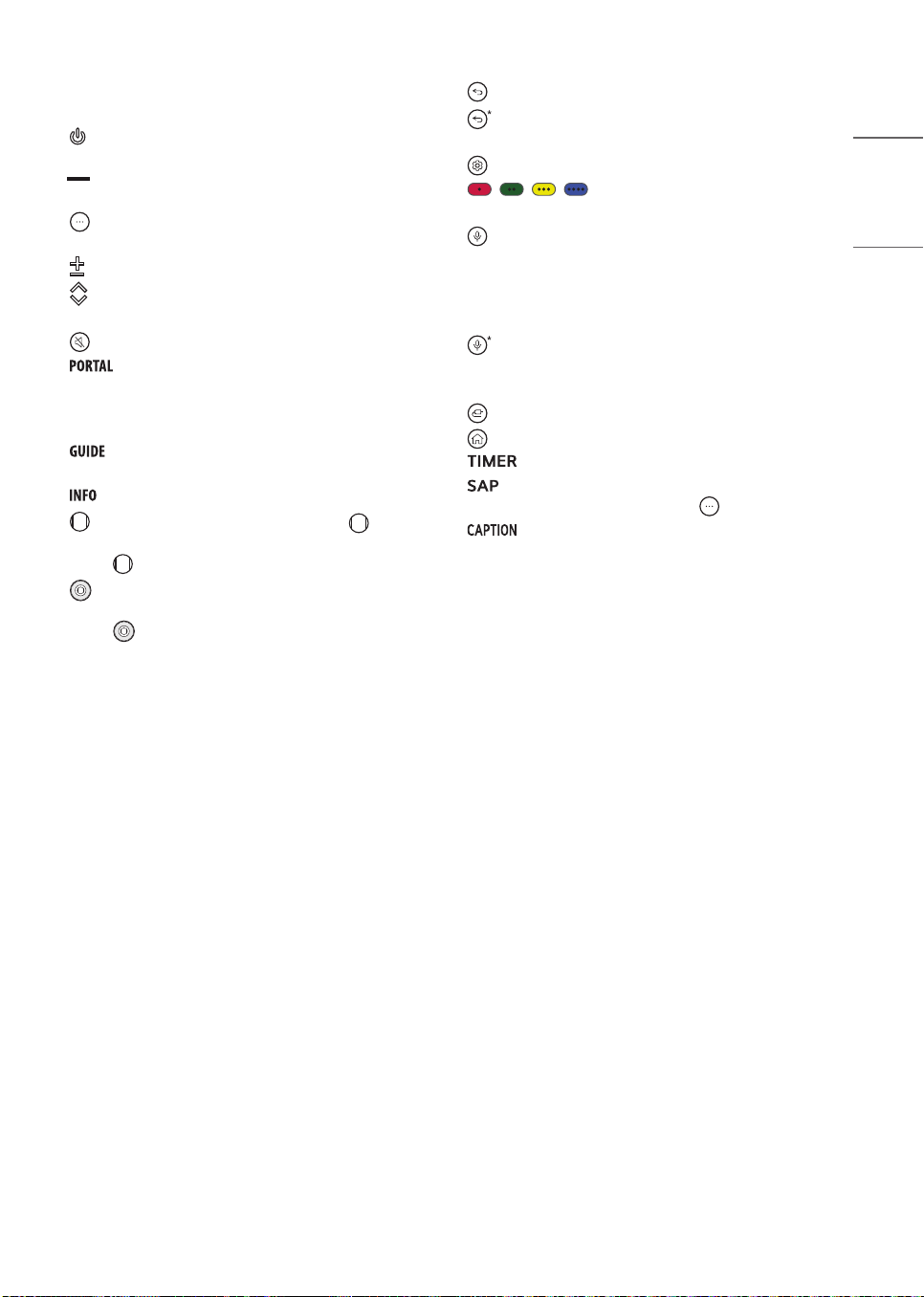
Using Remote Control
The descriptions in this manual are based on the
buttons on the remote control. Please read this
manual carefully and use the TV correctly.
To replace batteries, open the battery cover,
replace batteries (1.5 V AA) matching the and
ends to the label inside the compartment, and
close the battery cover. Be sure to point the magic
remote toward the remote control sensor on the
TV.
Microphone
(Some buttons and services may not be provided
depending on models or regions.)
17
ENGLISH_index
* To use the button, press and hold for more
than 3 seconds.
(Power) Turns the TV on or off.
Number buttons Enters numbers.
(Dash) Inserts a dash between numbers such
as 2-1 and 2-2.
(More actions) Displays more remote control
functions.
(Volume buttons) Adjusts the volume level.
(Channel buttons) Scrolls through the saved
channels.
(Mute) Mutes all sounds.
- Pro:Centric: Displays and removes Pro:Centric
Application.
- No Pro:Centric: Accesses the Home menu.
Displays the program event according to
time scheduler.
Shows information on the current program.
(Wheel (OK)) Press the center of button
to select a menu. You can change channels by
using button.
(Up/Down/Left/Right) Press the up, down,
left or right button to scroll the menu. If you
press buttons while the pointer is in use, the
pointer will disappear from the screen and Magic
Remote will operate like a general remote control.
To display the pointer on the screen again, shake
Magic Remote to the left and right.
(Back) Returns to the previous level.
(Back) Clears on-screen displays and returns
to last input viewing.
(Q. Settings) Accesses the Quick Settings.
, , , These access special functions
in some menus.
(Voice recognition) Network connection is
required to use the voice recognition function.
Check for recommended content. (Some
recommended services may not be available in
some countries.)
(Voice recognition) Speak while pressing
and holding the button to use the voice
recognition feature.
(Input) Changes the input source.
(Home) Accesses the Home menu.
Turns the TV off in a set amount of time.
SAP (Secondary Audio Program) feature can
also be enabled by pressing the button.
Activates or deactivates the subtitles.
18
ENGLISH_index
Registering Magic Remote Control
How to register the Magic Remote Control
To use the Magic Remote, first pair it with your TV.
1 Put batteries into the Magic Remote and turn
the TV on.
2 Point the Magic Remote at your TV and press
the (Wheel (OK)) on the remote control.
* If the TV fails to register the Magic Remote, try
again after turning the TV off and back on.
How to deregister the Magic Remote
Control
Press the (Back) and (Home) buttons at
the same time, for five seconds, to unpair the
Magic Remote with your TV.
* Pressing and holding the (Home) and
(Q. Settings) button will let you cancel and re-
register Magic Remote at once.
• It is recommended that an Access
Point (AP) be located more than 0.2 m
(0.65 ft) away from the TV. If the AP
is installed closer than 0.2 m (0.65 ft),
the Magic remote control may not
perform as expected due to frequency
interference.
• Do not mix new batteries with old
batteries. This may cause the batteries
to overheat and leak.
• Failure to match the correct polarities
of the battery may cause the battery to
burst or leak, resulting in fire, personal
injury, or ambient pollution.
• This apparatus uses batteries. In your
community there might be regulations
that require you to dispose of these
batteries properly due to environmental
considerations. Please contact your local
authorities for disposal or recycling
information.
• The product's internal and external
batteries should not be exposed to
excessive heat such as direct sunlight,
fire, or the like.
Troubleshooting
The software version can be updated for
improvement in performance.
The customer is responsible to ensure the
compatibility of their equipment with any LG
Electronics software. If needed, please consult
with LG Electronics and update new software
versions according to the guidance provided by LG
Electronics.
Cannot control the TV with the remote control.
• Check the remote control sensor on the product
and try again.
• Check if there is any obstacle between the
product and the remote control.
• Check if the batteries are still working and
properly installed ( to , to ).
No image display and no sound is produced.
• Check if the product is turned on.
• Check if the power cord is connected to a wall
outlet.
• Check if there is a problem in the wall outlet by
connecting other products.
The TV turns off suddenly.
• Check the power control settings. The power
supply may be interrupted.
• Check if the auto-off function is activated on the
settings related time.
• If there is no signal while the TV is on, the TV
will turn off automatically after 15 minutes of
inactivity.
When connecting to the PC (HDMI), no signal is
detected.
• Turn the TV off/on using the remote control.
• Reconnect the HDMI cable.
• Restart the PC with the TV on.
19
ENGLISH_index
• Abnormal display
- If the TV feels cold to the touch, there may
be a small flicker when it is turned on. This is
normal; there is nothing wrong with TV. Some
minute dot defects may be visible on the
screen, appearing as tiny red, green, or blue
spots. However, they have no adverse effect
on the TV’s performance. Avoid touching the
LCD screen or holding your finger(s) against it
for long periods of time. Doing so may produce
some temporary distortion effects on the
screen.
- This panel is an advanced product that contains
millions of pixels. In a very few cases, you could
see fine dots on the screen while you’re viewing
the TV. Those dots are deactivated pixels and
do not affect the performance and reliability of
the TV.
- Displaying a still image for a prolonged period
of time may cause an image sticking. Avoid
displaying a fixed image on the TV screen for an
extended length of time.
• Generated Sound
- Cracking noise A cracking noise that occurs
when watching or turning off the TV is
generated by plastic thermal contraction due to
temperature and humidity. This noise is common
for products where thermal deformation is
required.
- Electrical circuit humming/panel buzzing
A low level noise is generated from a high-
speed switching circuit, which supplies a large
amount of current to operate a product.
It varies depending upon the product.
This generated sound does not affect the
performance and reliability of the product.
• Make sure to wring any excess water or
cleaner from the cloth.
• Do not spray water or cleaner directly onto
the TV screen.
• Make sure to spray just enough of water or
cleaner onto a dry cloth to wipe the screen.

20
ENGLISH_index
Settings
Selecting Picture Mode
[ ] [Picture] [Select Mode]
Select the picture mode that is best suited to your
viewing environment, preferences or video type.
• [Personalized Picture] It is set to the analyzed
image quality using artificial intelligence deep
learning technology.
• [Vivid] Sharpens the image by increasing the
contrast, brightness and sharpness.
• [Standard] Displays the picture with natural
contrast, brightness and sharpness levels.
• [Auto Power Save] Auto Power Save mode
reduces power consumption by using dimming
control.
• [Cinema] Suitable picture for movies.
• [Sports] / [Soccer] Suitable picture for sports
games. Sharpens the image of rapid movements
such as kicking or throwing a ball.
• [Game Optimizer] Suitable picture for gameplay.
• [FILMMAKER MODE] Provides optimized
Cinema Picture quality certified by UHD Alliance,
the standard setting body for UHD-related
technologies.
• [Expert (Bright space, daytime)] / [Expert (Dark
space, night)] Suitable for movies, etc. viewed in
a dark environment. [Expert (Dark space, night)]
has lower color temperature than [Expert (Bright
space, daytime)]. Select a mode that is suitable
for the movie you are watching.
• If an HDR/Dolby Vision video signal is input to
the models that do not support the HDR/Dolby
Vision technology, normal signal picture mode
options will be made available.
• Depending upon the input signal, the available
picture models may be different.
• When watching online service content, the
Picture Mode may be changed to match the
content being shown.
• [Expert] is an option that allows a picture quality
expert to fine-tune the quality of the standard
picture. Thus, it may not be effective for a normal
picture.
• [Select Mode] changes may modify [Energy
Saving] and [Motion Eye Care] settings and it can
affect energy consumption.
Adjusting the Brightness of a
Picture
[ ] [Picture] [Advanced Settings]
[Brightness]
Adjust the brightness of the entire screen.
• [OLED Pixel Brightness] Adjusts the display
brightness by varying the brightness of the OLED
panel.
• [Adjust Contrast] Adjusts the contrast of the
bright and dark areas of the picture.
• [Black Level] Adjusts the brightness of dark areas
of the screen.
• [Auto Dynamic Contrast] Corrects the difference
between the bright and dark areas of the
screen for optimal results depending upon the
brightness of the picture.
• [Dynamic Tone Mapping] Suitable contrast
settings based on image brightness of the HDR
content.
• [Peak Brightness] Adjust peak brightness for the
brightest luminance.
• [Gamma(Adjust Brightness)] Adjusts the medium
brightness of the picture.
• [Video Range] Adjusts the darkness of the screen
in order to display a perfect black.
• [Motion Eye Care] Automatically adjusts
brightness and reduces image blur based on
image data which reduces eyestrain.
• Depending upon the input signal or the selected
picture mode, the available options may differ.
• The configurable items differ depending upon
model.
To use Energy Saving Feature
(Depending upon model)
[ ] [Geneal] [Energy Saving]
Reduces power consumption by adjusting peak
screen brightness.
• [No Signal Auto Off] Configure how the TV
operates when there is no video signal for a
certain period.
21
ENGLISH_index
Specifications
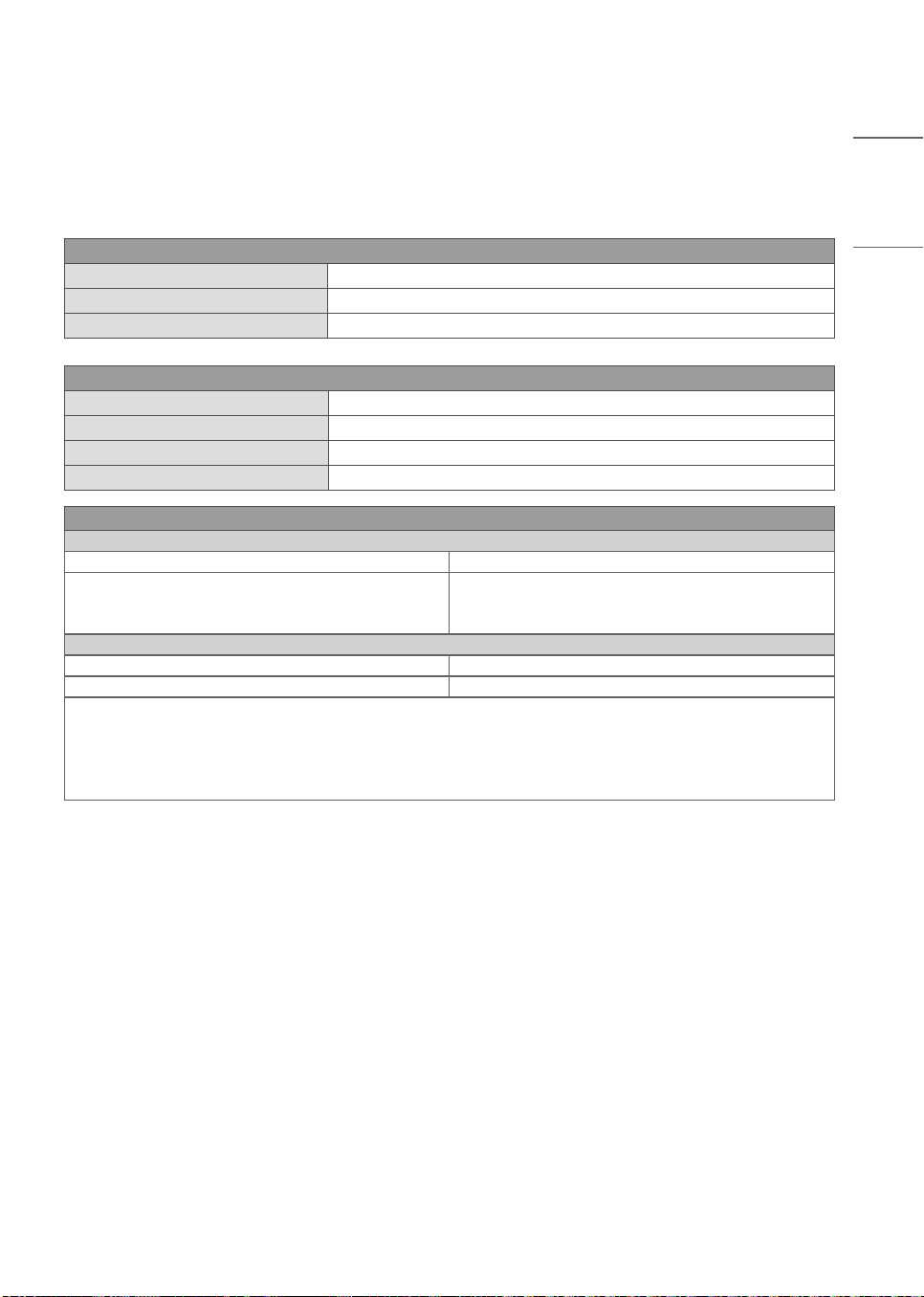
Product specifications may be changed without prior notice due to upgrade of product functions.
Estimated yearly energy consumption indicated on the FTC label is measured in accordance with the Test
Procedures for Television Sets (USA only).
The actual energy consumption depends on the usage environment (The content watched, TV settings,
etc.).
Broadcasting Specifications
Television system ATSC, NTSC-M, 64 & 256 QAM
Program coverage (Band) VHF 2-13, UHF 14-69, DTV 2-69, CATV 1-135, CADTV 1-135
External antenna impedance 75 Ω
Environment condition
Operating Temperature 0 °C to 40 °C (32 °F to 104 °F)
Operating Humidity Less than 80 %
Storage Temperature -20 °C to 60 °C (-4 °F to 140 °F)
Storage Humidity Less than 85 %
Wireless module(LGSBWAC95)Specifications
Wireless LAN (IEEE 802.11a/b/g/n/ac)
Frequency Range Output Power (Max.)
2400 to 2483.5 MHz
5150 to 5725 MHz
5725 to 5850 MHz
18.5 dBm
18 dBm
18 dBm
Bluetooth
Frequency Range Output Power (Max.)
2400 to 2483.5 MHz 9 dBm
As band channels can vary per country, the user cannot change or adjust the operating frequency. This
product is configured for the regional frequency table.
For consideration of the user, this device should be installed and operated with a minimum distance of
20 cm (7.8 inches) between the device and the body.
FCC ID: BEJLGSBWAC95 / IC: 2703H-LGSBWAC95
22
ENGLISH_index
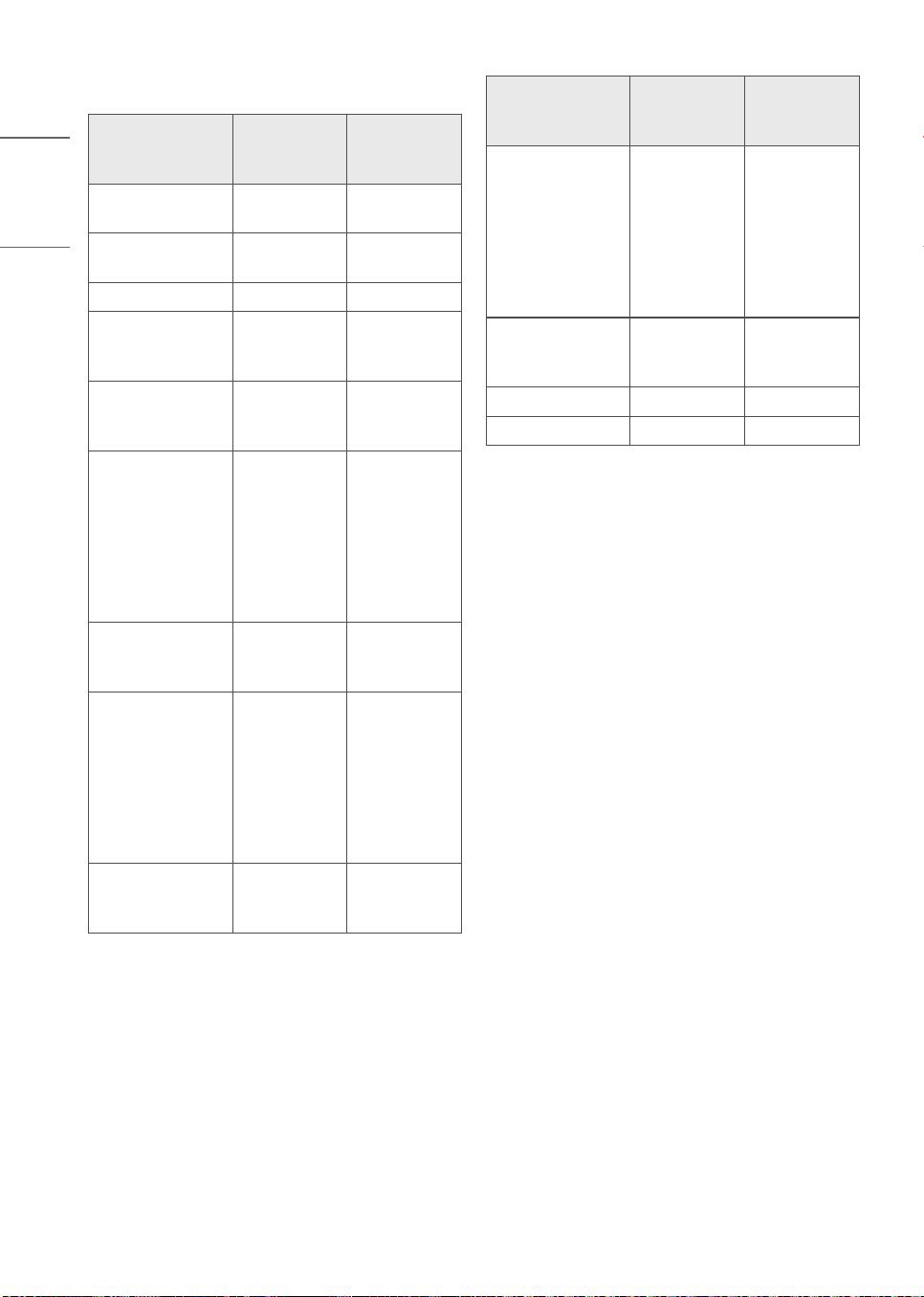
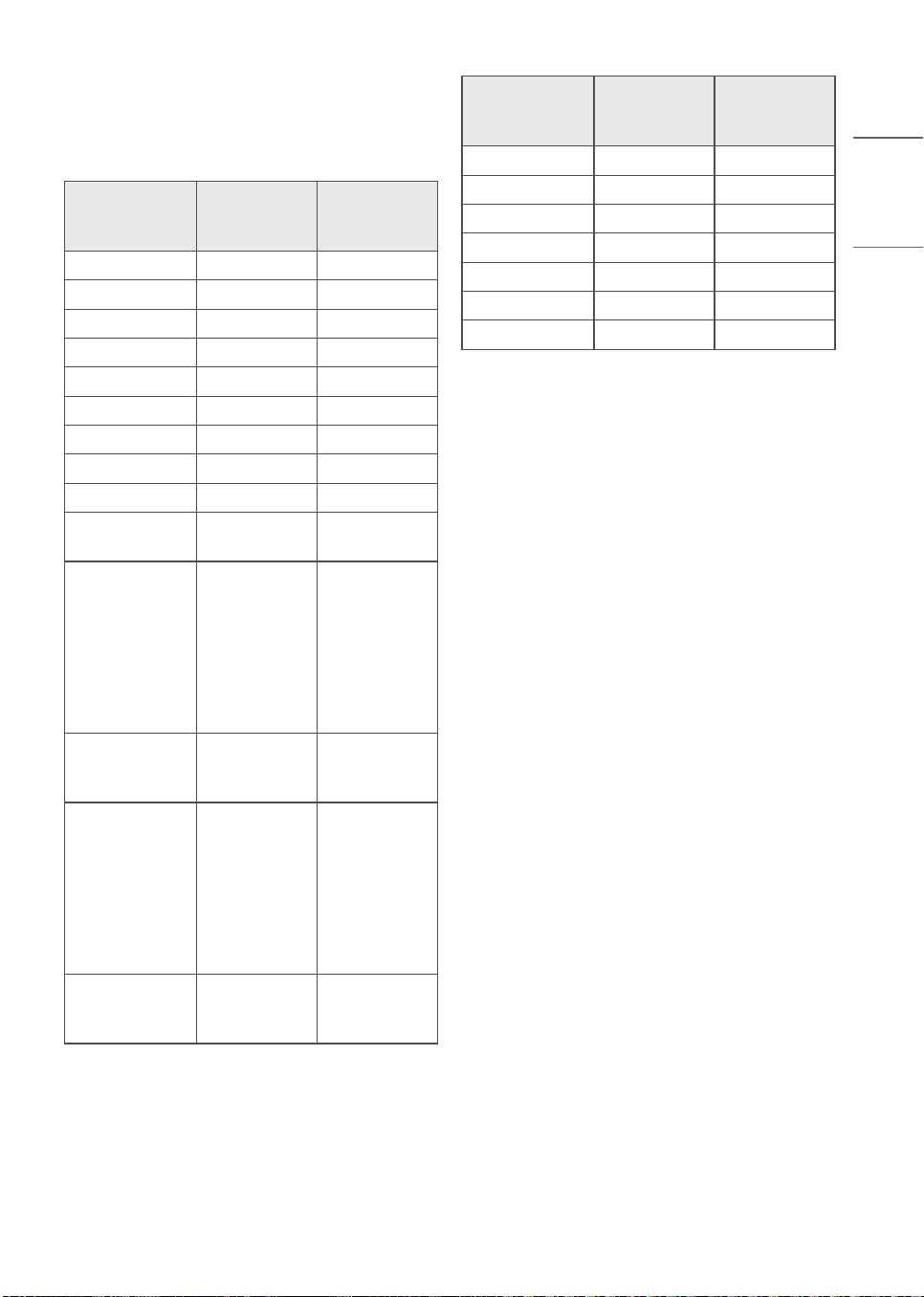
HDMI-DTV supported mode
Resolution
Horizontal
Frequency
(kHz)
Vertical
Frequency
(Hz)
640 x 480p
31.46
31.50
59.94
60.00
720 x 480p
31.46
31.50
59.94
60.00
720 x 576p 31.25 50.00
1280 x 720p
44.95
45.00
37.50
59.94
60.00
50.00
1920 x 1080i
28.12
33.71
33.75
50.00
59.94
60.00
1920 x 1080p
26.97
27.00
28.12
33.71
33.75
56.25
67.43
67.50
23.97
24.00
25.00
29.97
30.00
50.00
59.94
60.00
1920 x 1080p
1)
112.50
134.86
135.00
100.00
119.88
120.00
3840 x 2160p
53.94
54.00
56.25
67.43
67.50
112.50
134.86
135.00
23.97
24.00
25.00
29.97
30.00
50.00
59.94
60.00
3840 x 2160p
1)
225.00
269.73
270.00
100.00
119.88
120.00
Resolution
Horizontal
Frequency
(kHz)
Vertical
Frequency
(Hz)
4096 x 2160p
53.94
54.00
56.25
67.43
67.50
112.50
134.86
135.00
23.97
24.00
25.00
29.97
30.00
50.00
59.94
60.00
4096 x 2160p
1)
225.00
269.73
270.00
100.00
119.88
120.00
2560 x 1080p
2)
66.00 60.00
2560 x 1080p
1) 2)
131.74 120.00
1) Only some HDMI input ports are supported.
2) Supported when Wide Aspect Ratio is set to
21:9.
23
ENGLISH_index
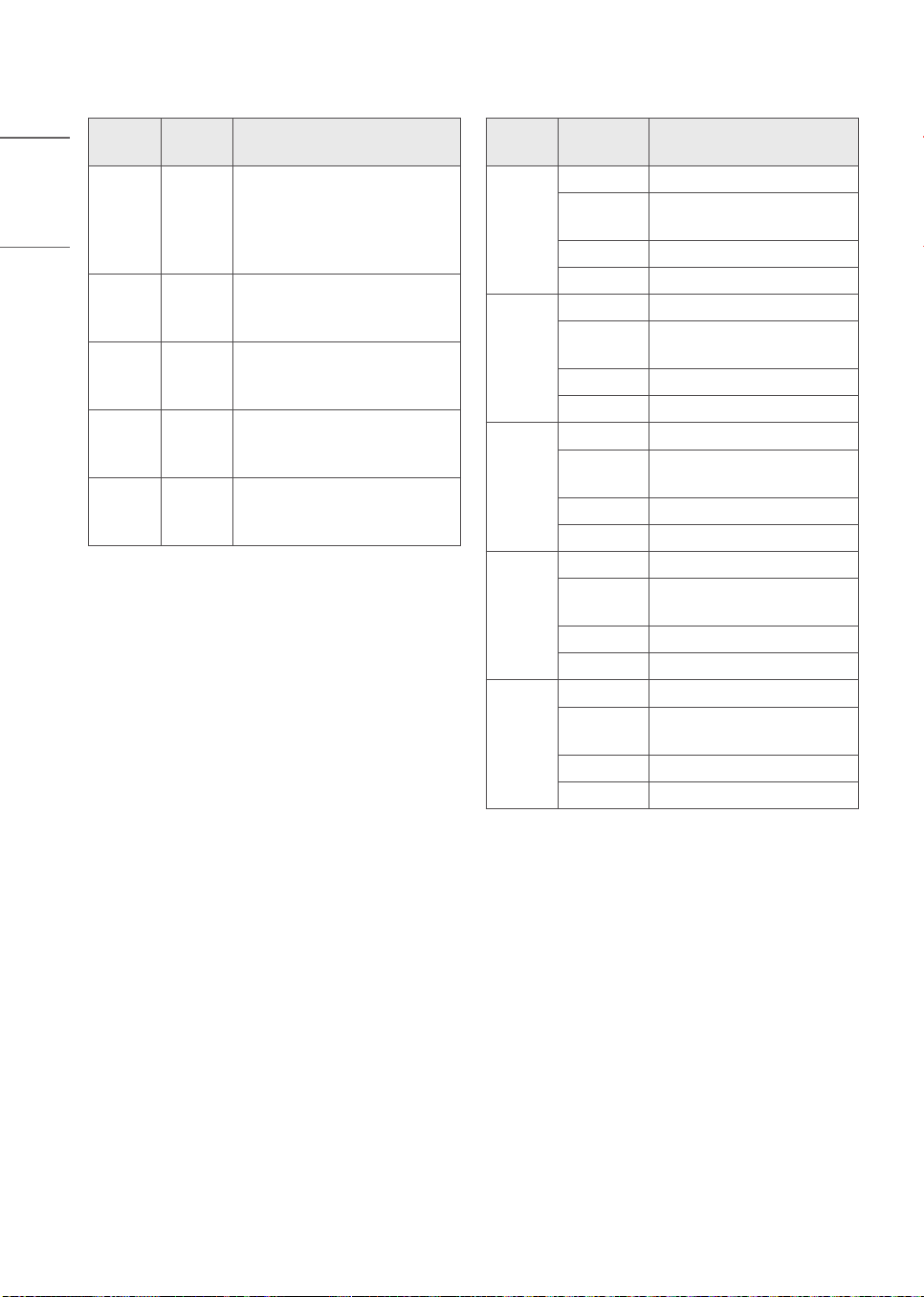
HDMI-PC supported Mode
• PC audio is not supported.
• Use HDMI IN 1 for PC mode. (Depending on
model)
Resolution
Horizontal
Frequency
(kHz)
Vertical
Frequency
(Hz)
640 x 350 31.46 70.09
720 x 400 31.46 70.08
640 x 480 31.46 59.94
800 x 600 37.87 60.31
1024 x 768 48.36 60.00
1360 x 768
3)
47.71 60.01
1152 x 864 54.34 60.05
1280 x 1024 63.98 60.02
1920 x 1080 67.50 60.00
1920 x 1080
1)
134.86
135.00
119.88
120.00
3840 x 2160
53.94
54.00
56.25
67.43
67.50
112.50
134.86
135.00
23.97
24.00
25.00
29.97
30.00
50.00
59.94
60.00
3840 x 2160
1)
225.00
269.73
270.00
100.00
119.88
120.00
4096 x 2160
53.94
54.00
56.25
67.43
67.50
112.50
134.86
135.00
23.97
24.00
25.00
29.97
30.00
50.00
59.94
60.00
4096 x 2160
1)
225.00
269.73
270.00
100.00
119.88
120.00
Resolution
Horizontal
Frequency
(kHz)
Vertical
Frequency
(Hz)
2560 x 1440
2)
88.78 59.95
2560 x 1440
1) 2)
182.99 119.99
2560 x 1080
4)
66.00 60.00
2560 x 1080
1) 4)
131.74 120.00
3840 x 1600
4)
99.41 60.00
3840 x 1080
5)
66.62 60.00
3840 x 1080
1) 5)
137.25 120.00
1) Only some HDMI input ports are supported.
2) Supported when HDMI Deep Color is set to 4K.
3) Supported when HDMI Deep Color is set to off
4) Supported when Wide Aspect Ratio is set to
21:9.
5) Supported when Wide Aspect Ratio is set to
32:9.
24
ENGLISH_index
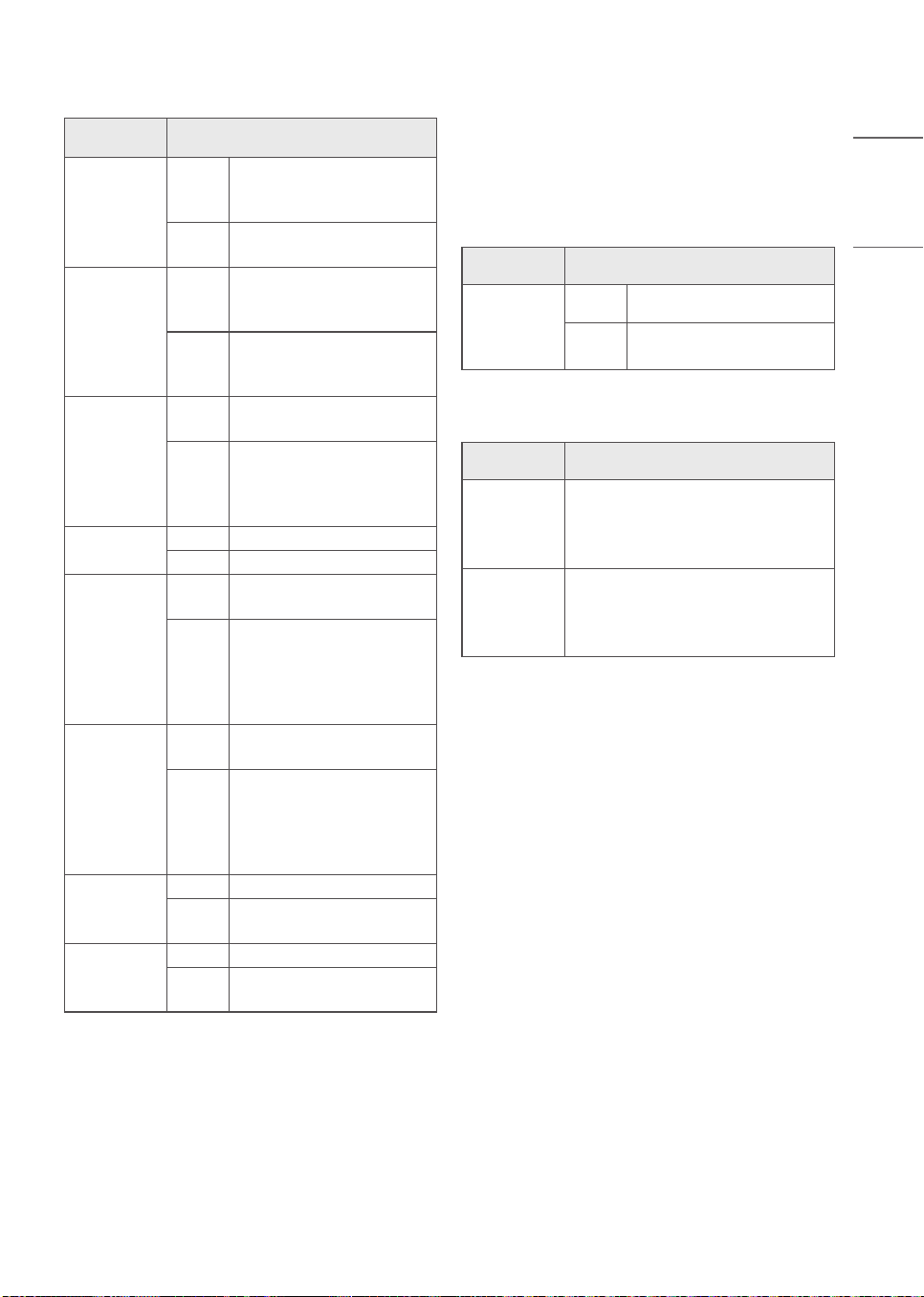
Supported Photo Formats
File
Format
Format Resolution
.jpeg
.jpg
.jpe
JPEG
Minimum: 64 (W) x 64 (H)
Maximum (Normal Type):
15360 (W) x 8640 (H)
Maximum (Progressive Type):
4800 (W) x 3600 (H)
.png PNG
Minimum: 64 (W) x 64 (H)
Maximum: 5760 (W) x
5760 (H)
.bmp BMP
Minimum: 64 (W) x 64 (H)
Maximum: 1920 (W) x
1080 (H)
.heif
.heic
HEIF
Minimum: 64 (W) x 64 (H)
Maximum: 4800 (W) x 3600
(H)
.avif AVIF
Minimum: 64 (W) x 64 (H)
Maximum: 4800 (W) x 3600
(H)
Supported Audio Formats
File
Format
Item Info
.mp3
Bit rate 32 Kbps - 320 Kbps
Sample
freq.
16 kHz - 48 kHz
Support MPEG1, MPEG2
Channels mono, stereo
.wav
Bit rate -
Sample
freq.
8 kHz - 96 kHz
Support PCM
Channels mono, stereo
.ogg
Bit rate 64 kbps - 320 kbps
Sample
freq.
8 kHz - 48 kHz
Support Vorbis
Channels mono, stereo
.wma
Bit rate 128 kbps - 320 kbps
Sample
freq.
8 kHz - 48 kHz
Support WMA
Channels up to 6 ch
.flac
Bit rate -
Sample
freq.
8 kHz - 96 kHz
Support FLAC
Channels mono, stereo
• The number of supported programmes may vary
depending on the sample frequency.
25
ENGLISH_index
Supported Video Formats
Extension Codec
.asf
.wmv
Video
VC-1 Advanced Profile
(except for WMVA), VC-1
Simple and Main Profiles
Audio
WMA Standard (except for
WMA v1/ WMA Speech)
.avi
Video
Xvid (GMC is not
supported), H.264/AVC,
Motion Jpeg, MPEG-4
Audio
MPEG-1 Layer I, II, MPEG-1
Layer III (MP3), Dolby
Digital, LPCM, ADPCM
.mp4
.m4v
.mov
Video
H.264/AVC, MPEG-4,
HEVC, AV1
Audio
Dolby Digital, Dolby Digital
Plus, AAC, MPEG-1 Layer
III (MP3), Dolby AC-4
1)
,
DTS
1)
, DTS-HD
1)
, DTS:X
1)
.3gp
.3g2
Video H.264/AVC, MPEG-4
Audio AAC, AMR-NB, AMR-WB
.mkv
Video
MPEG-2, MPEG-4, H.264/
AVC, VP8, VP9, HEVC, AV1
Audio
Dolby Digital, Dolby Digital
Plus, AAC, PCM, DTS
1)
,
DTS-HD
1)
, DTS:X
1)
, MPEG-1
Layer I, II, MPEG-1 Layer
III (MP3)
.ts
.trp
.tp
.mts
Video
H.264/AVC, MPEG-2,
HEVC
Audio
MPEG-1 Layer I, II, MPEG-1
Layer III (MP3), Dolby
Digital, Dolby Digital Plus,
AAC, PCM, DTS
1)
, DTS-
HD
1)
, DTS:X
1)
, Dolby AC-4
1)
.mpg
.mpeg
.dat
Video MPEG-1, MPEG-2
Audio
MPEG-1 Layer I, II, MPEG-1
Layer III (MP3)
.vob
Video MPEG-1, MPEG-2
Audio
Dolby Digital, MPEG-1
Layer I, II, DVD-LPCM
1) Dolby AC-4, DTS, DTS-HD, DTS:X: This feature is
available in certain models only.
Cautions for Video Playback
• ULTRA HD Video: 3840 x 2160, 4096 x 2160
• Some HEVC encoded ULTRA HD videos other
than the content officially provided by LG
Electronics may not be played.
• Some codecs can be supported after a software
upgrade.
Extension Codec
.mkv
.mp4
.ts
Video H.264/AVC, HEVC
Audio
Dolby Digital, Dolby Digital
Plus, AAC
Supported External Subtitles
Subtitle Format
External
Subtitle
*.smi, *.srt, *.sub (MicroDVD,
SubViewer 1.0/2.0), *.ass,
*.ssa, *.txt (TMPlayer), *.psb
(PowerDivX), *.dcs (DLP Cinema)
Embedded
Subtitle
Matroska(mkv): Sub Station Alpha
(SSA), Advanced Sub Station Alpha
(ASS), SRT
MP4: Timed Text

26
ENGLISH_index
Open Source Software
Notice Information
To obtain the source code that is contained in
this product, under GPL, LGPL, MPL, and other
open source licenses that have the obligation to
disclose source code, and to access all referred
license terms, copyright notices and other relevant
documents, please visit
https://opensource.lge.
com.
LG Electronics will also provide open source code
to you on CD-ROM for a charge covering the
cost of performing such distribution (such as the
cost of media, shipping, and handling) upon email
request to
opensourc[email protected].
This offer is valid to anyone in receipt of this
information for a period of three years after our
last shipment of this product.
Updating Firmware
(Depending upon model)
You can update the firmware for the product by
downloading the latest firmware.
1 Download the latest firmware at
partner.lge.
com
. (Signing up for a membership and log-in
required)
2 Create a folder named “LG_DTV” or “lg_dtv” on
a USB memory device.
3 Move the downloaded file to the folder that you
have created on the USB memory device.
4 Connect the USB memory device to the USB
port on your TV.
5 When a pop-up window appears, start the
update by following the instructions.
Licenses
Supported licenses may differ by model.
The terms HDMI, HDMI High-Definition
Multimedia Interface, HDMI trade dress and
the HDMI Logos are trademarks or registered
trademarks of HDMI Licensing Administrator, Inc.
Manufactured under license from Dolby
Laboratories. Dolby, Dolby Vision, Dolby Vision
IQ, Dolby Audio, Dolby Atmos, and the double-D
symbol are trademarks of Dolby Laboratories
Licensing Corporation.
The Bluetooth
®
word mark and logos are
registered trademarks owned by Bluetooth SIG,
Inc. and any use of such marks by LG Electronics
Inc. is under license. Other trademarks and trade
names are those of their respective owners.
For DTS patents, see
http://patents.dts.com
.
Manufactured under license from DTS, Inc. (for
companies headquartered in the U.S./Japan/
Taiwan) or under license from DTS Licensing
Limited (for all other companies).
DTS, DTS:X, and the DTS:X logo are registered
trademarks or trademarks of DTS, Inc. in the
United States and other countries.
© 2021 DTS, Inc. ALL RIGHTS RESERVED.
27
ENGLISH_index
Precautions for Protecting
the OLED TV Screen
Unlike regular LED/LCDs, OLED TVs produce
images that emit light for each pixel, achieving
a perfect black color and delivering clear images
without blurring.
Due to the nature of the organic materials used
to achieve high-resolution image quality, OLED
displays generally experience image retention on
the screen, which can be a persistent phenomenon.
This phenomenon is observed in all OLED panels,
and although recommended picture modes can
minimize image retention, current technology
cannot completely prevent this from occurring.
Displaying the same image for a long time or
repeatedly displaying the same image can cause
image retention on the screen, which is a common
phenomenon in OLED panel products due to the
nature of the product. This product has a built-in
screen protection feature. Avoid displaying images
that are likely to cause image retention, and follow
the recommendations.
Images that are likely to cause
image retention
• Images with black areas on the top and bottom
and/or the left and right sides of the screen.
• Images whose aspect ratio is 4:3 or 21:9.
• Images that are fixed for a long time, such as
channel number, station logo, game console icon,
set-top box menu, etc.
• Other fixed screen images or repeatedly displayed
images.
Running [Pixel Cleaning] to Protect
the OLED TV Screen
The OLED TV is equipped with a pixel cleaning
feature to check the status of the screen by
itself and prevent image retention. This feature
is automatically calculates the optimal execution
time based on the accumulated viewing time and is
automatically executed when the TV is turned off.
While this feature is running, horizontal lines may
appear at the top and bottom of the screen. The
pixel cleaning feature works when the product is
connected to the power cord and main power.
• To run this function manually, press the
button on the remote control, go to [ ]
[General] [OLED Care] [OLED Panel Care]
and press [Pixel Cleaning].
Recommendations for Minimizing
Image Retention
When watching the TV for a long time, press the
button on the remote control, go to [ ]
[Picture] [Select Mode] and set the mode to
[Auto Power Save], go to [Advanced Settings]
[Brightness] and set [OLED Pixel Brightness] to a
lower level. In addition, press the button on the
remote control, go to [ ] [General] [OLED
Care] [OLED Panel Care] and set the [Adjust
Logo Brightness] value to [High].
When showing images with black bars at the top/
bottom/left/right side of the screen, press the
button on the remote control, press [ ], and go
to [Picture] [Aspect Ratio] [User Selection]
[Vertical Zoom] or [4-Way Zoom] to remove the
black bars.
Turn off the menus for setting up devices such as
set-top boxes so that they are not displayed on the
screen for a long time.
• When the screen is showing one fixed
image for a long time, the screen
brightness will be automatically reduced
and then restored once the screen content
changes. This is a normal function to
minimize image retention.
28
ENGLISH_index
IR Codes
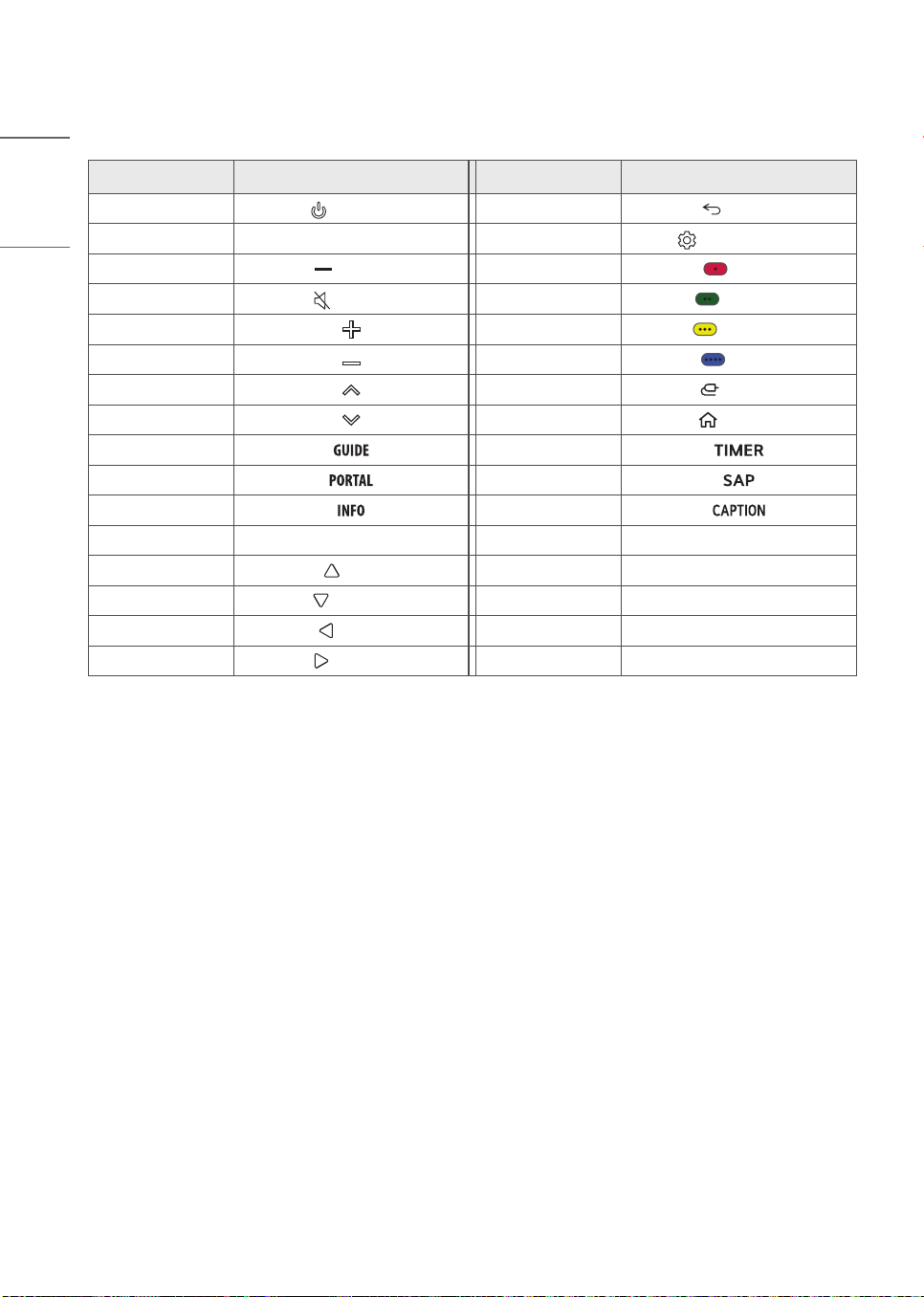
• This feature is not available for all models.
Code (Hexa) Function Code (Hexa) Function
08
(Power)
28 (Back)
10-19 Number Key 0-9 43
(Q. Settings)
4C (Dash) C1
(Red)
09
(Mute)
C0
(Green)
02 C2
(Yellow)
03
C3
(Blue)
00 0B (Input)
01 7C
(Home)
AB 0E
0C 0A
AA 39
44 OK
40
(Up)
41
(Down)
07
(Left)
06
(Right)
29
ENGLISH_index
External Control Device
Setup
RS-232C Setup
• Image shown may differ from your TV.
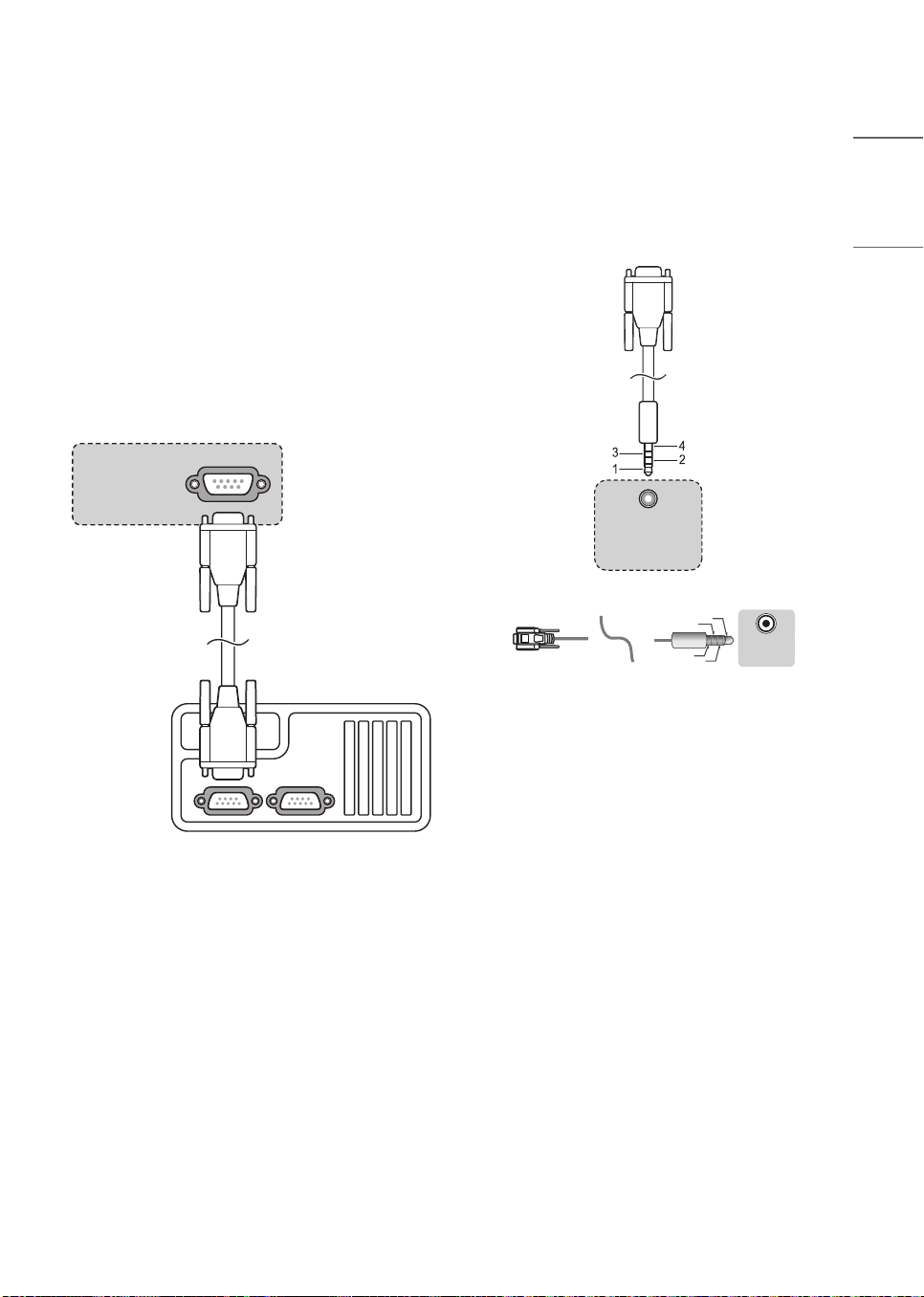
Connect the RS-232C (serial port) input jack to
an external control device (such as a computer or
an A/V control system) to control the product’s
functions externally.
Connect the serial port of the control device to the
RS-232C jack on the product back panel.
• RS-232C connection cables are not supplied with
the product.
RS-232C IN
(CONTROL & SERVICE)
ENTR�E RS-232C
(CONTR�LE ET SERVICE)
(*Not Provided)
(Depending upon model)
Phone jack Type
(Depending upon model)
• You need to purchase the phone-jack to RS-232C
cable required for the connection between the PC
and the TV, which is specified in the manual.
* For other models, connect to the USB port.
* The connection interface may differ from your TV.
(PC)
RS-232C IN
(CONTROL & SERVICE)
ENTR�E RS-232C
(CONTR�LE ET SERVICE)
(TV)
(STB)
(TV)
USB IN
(TV)
(PC)
(PC)
RS-232C IN
(CONTROL & SERVICE)
(TV)
(TV)
(PC)
(TV)
(PC)
SERVICE ONLY
RS-232C IN
(CONTROL & SERVICE)
1
3
2
1
3
2
4
(TV)
(STB)
1
3
2
4
1
3
2
4
RS-232C IN
(CONTROL & SERVICE)
ENTRE RS-232C
(CONTRLE ET SERVICE)
RS-232C IN
(CONTROL & SERVICE)
ENTRE RS-232C
(CONTRLE ET SERVICE)
30
ENGLISH_index
Type of Connector: D-Sub 9-Pin
Male
6
1
5
9
USB IN
(TV)
(PC)
(PC)
RS-232C IN
(CONTROL & SERVICE)
(TV)
(TV)
(PC)
(TV)
(PC)
SERVICE ONLY
RS-232C IN
(CONTROL & SERVICE)
1
3
2
1
3
2
4
(TV)
(STB)
1
3
2
4
1
3
2
4
RS-232C IN
(CONTROL & SERVICE)
ENTRE RS-232C
(CONTRLE ET SERVICE)
RS-232C IN
(CONTROL & SERVICE)
ENTRE RS-232C
(CONTRLE ET SERVICE)
(TXD)
(RXD)
(GND)
(IR-OUT)
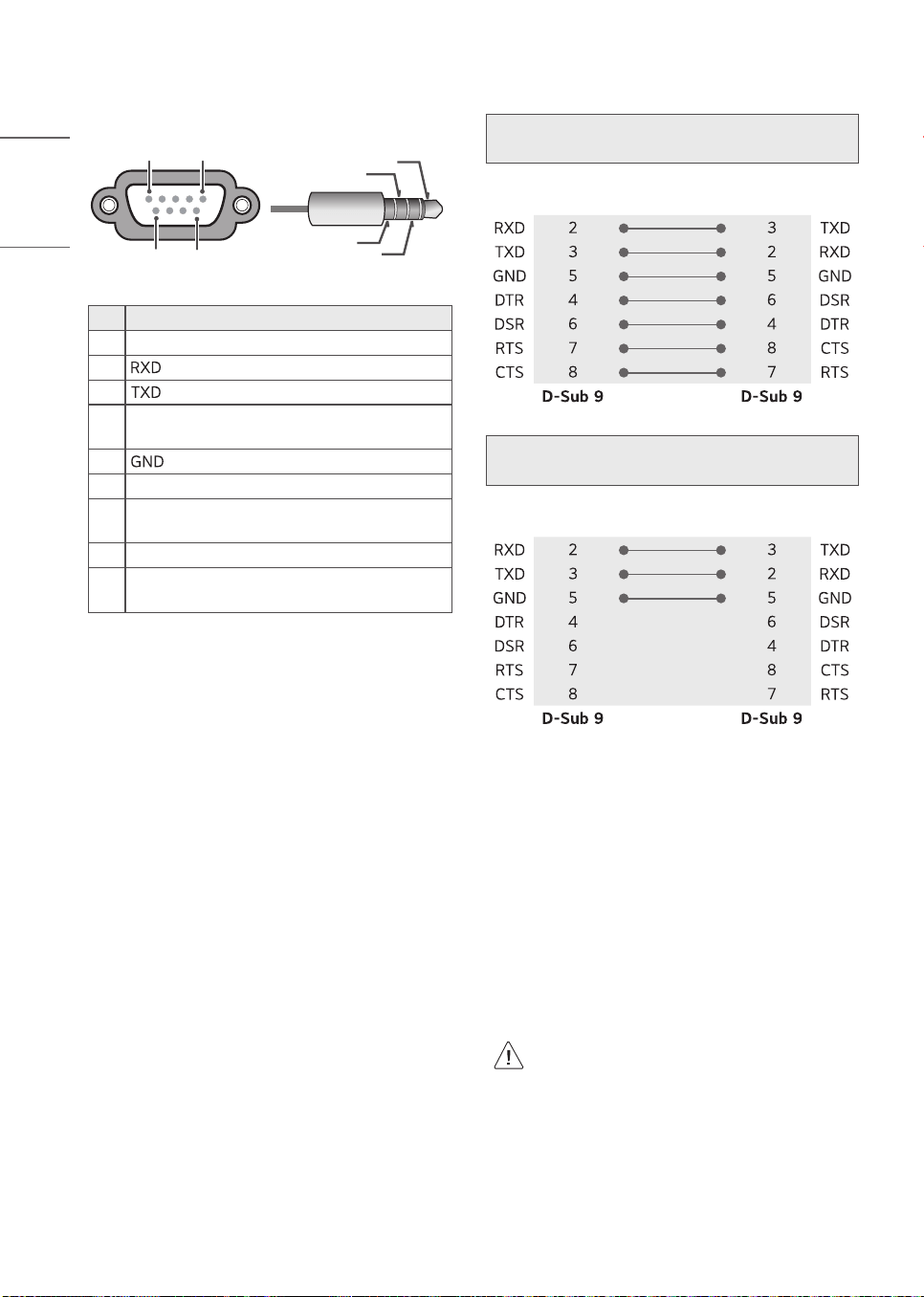
No. Pin name
1
3.5 V
2
(Receive data)
3
(Transmit data)
4
IR OUT* from TV
*: Depending upon model
5
6
No Connection
7
No Connection (5 V available in some
models)
8
No Connection
9
No Connection (12 V available in some
models)
RS-232C Configurations
7-Wire Configurations
(Standard RS-232C cable)
PC TV
3-Wire Configurations
(Not standard)
PC TV
Communication Parameters
• Baud rate: 9,600 bps (UART)
• Data length: 8 bits
• Parity: None
• Stop bit: 1 bit
• Communication code: ASCII code
• Use a crossed (reverse) cable.
Set ID
For Set ID number, see "Real data mapping".
The adjustment range is 1-99.
• Some models support the [Set ID] up to
1000.
31
ENGLISH_index
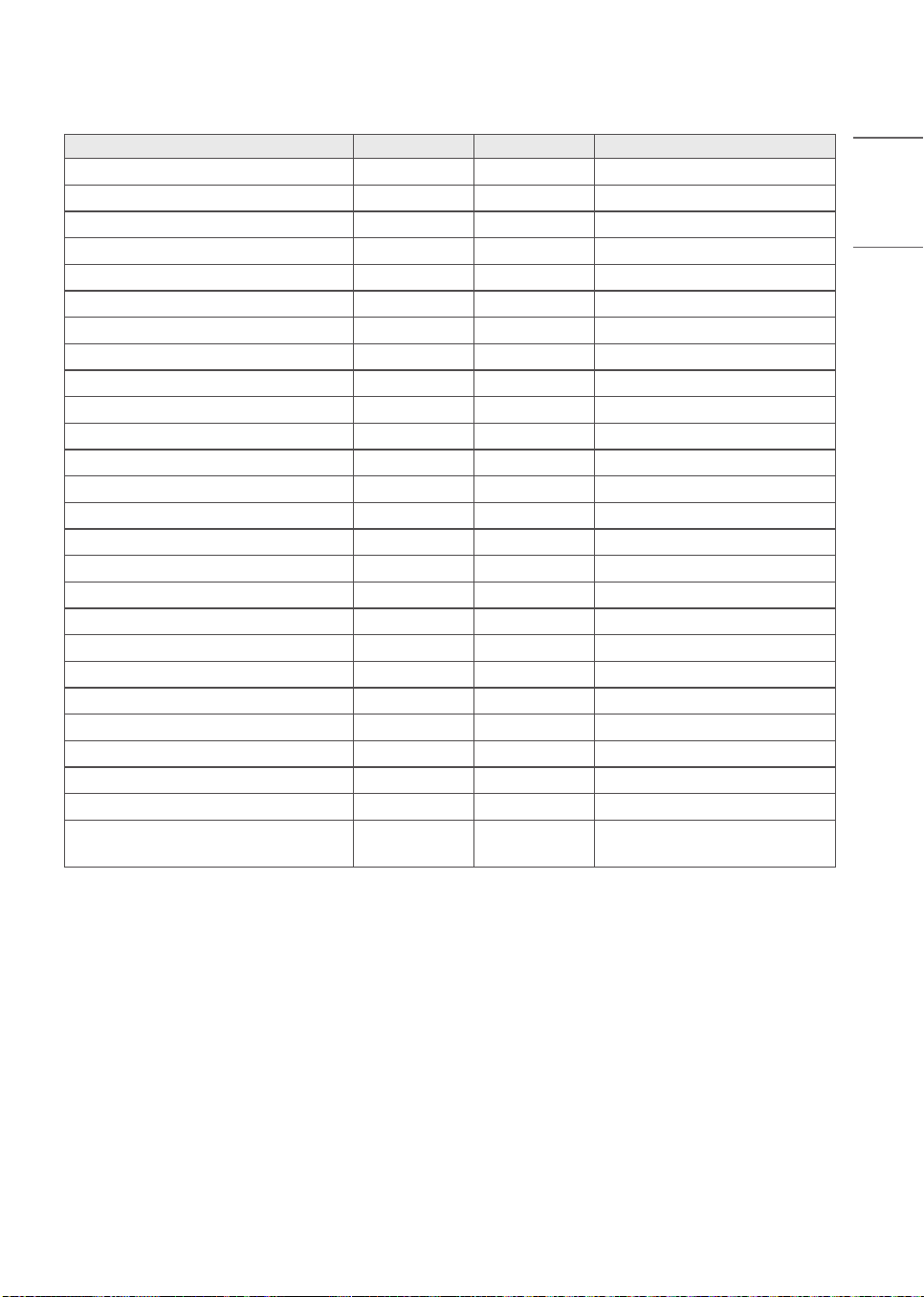
Command Reference List
(Depending on model)
Command1 Command2 Data (Hexadecimal)
1 Power k a 00 to 01
2 Aspect Ratio k c (See p. 32)
3 Screen Mute k d (See p. 33)
4 Volume Mute k e 00 to 01
5 Volume Control k f 00 to 64
6 Contrast k g 00 to 64
7 Brightness k h 00 to 64
8 Color k i 00 to 64
9 Tint k j 00 to 64
10 Sharpness
k k 00 to 32
11 OSD Select k l 00 to 01
12 Remote Control Lock Mode k m 00 to 01
13 Balance k t 00 to 64
14 Color Temperature x u 00 to 64
15 Energy Saving j q (See p. 35)
16 Auto Configuration j u 01
17 Equalizer j v (See p. 35)
18 Tune Command m a (See p. 36)
19 Channel Add/Delete m b 00 to 01
20 Key m c (See p. 37)
21 Control Backlight m g 00 to 64
22 Input select x b (See p. 37)
23 Channel block/unblock
m d (See p. 38)
24 Fail Over Mode m i (See p. 39)
25 Fail Over Input Select m j (See p. 39)
26 Internal storage media contents
play
s n, a8 (See p. 39)
• During playing media, all commands except Power (ka) and Key (mc) are not executed and treated as NG.
With RS-232C cable, TV can communicate “ka command” in power-on or power-off status. but with USB-
to-Serial converter cable, the command works only if TV is on.
32
ENGLISH_index
Transmission / Receiving Protocol
(Depending on Model)
Transmission
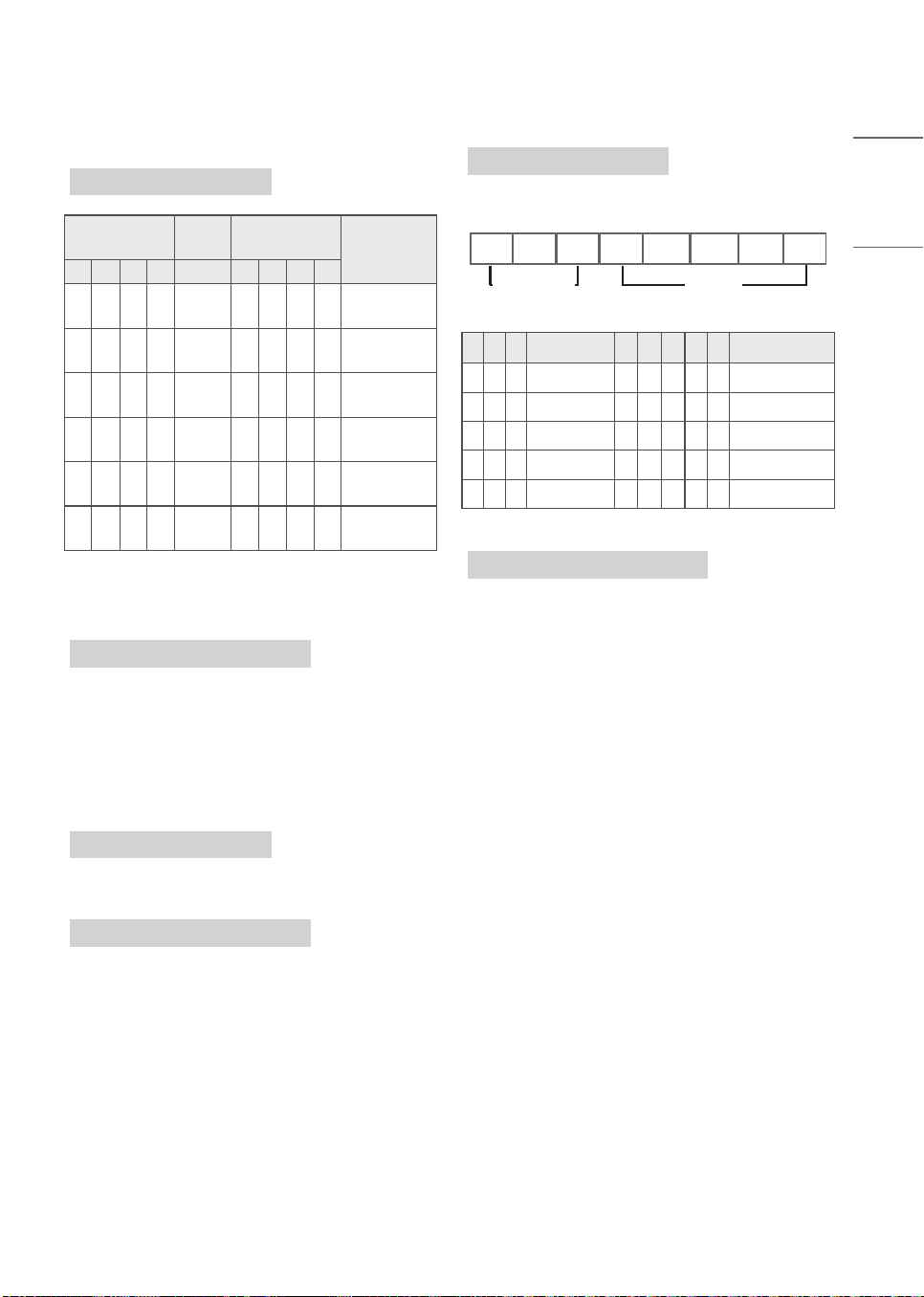
(Command1)(Command2)( )(Set ID)( )(Data)(Cr)
(Command1): First command to control the TV. (j,
k, m or x)
(Command2): Second command to control the TV.
(Set ID): You can adjust the set ID to choose
desired monitor ID number in option menu.
Adjustment range is 1 to 99. When selecting Set
ID ‘0’, every connected set is controlled. Set ID
is indicated as decimal (1 to 99) on menu and as
Hexa decimal (0 x 0 to 0 x 63) on transmission/
receiving protocol.
(Data): To transmit command data. Transmit ‘FF’
data to read status of command.
(Cr): Carriage Return
ASCII code ‘0 x 0D’
( ): ASCII code ‘space (0 x 20)’
• Some models support the Set ID up to
1000 (Hexa decimal 0 x 3E8).
OK Acknowledgement
(Command2)( )(Set ID)( )(OK)(Data)(x)
* The set transmits ACK (acknowledgement)
based on this format when receiving normal
data. At this time, if the data is data read mode,
it indicates present status data. If the data is
data write mode, it returns the data of the PC
computer.
Error Acknowledgement
(Command2)( )(Set ID)( )(NG)(Data)(x)
* The set transmits ACK (acknowledgement) based
on this format when receiving abnormal data
from non-viable functions or communication
errors.
Data 00: Illegal Code
1 Power (Command: k a)
▶ To control Power On/Off of the set.
Transmission
(k)(a)( )(Set ID)( )(Data)(Cr)
Data 00: Off
Data 01: On
Ack
(a)( )(Set ID)( )(OK/NG)(Data)(x)
▶ To Show TV is Power On/Off.
Transmission
(k)(a)( )(Set ID)( )(FF)(Cr)
Ack
(a)( )(Set ID)( )(OK/NG)(Data)(x)
* Similarly, if other functions transmit ‘0 x FF’ data
based on this format, Acknowledgement data
feed back presents status about each function.
* OK Ack., Error Ack. and other message may
display on the screen when TV is power On.
2 Aspect Ratio (Command: k c) (Main Picture
Size)
▶ To adjust the screen format. (Main picture
format) You can also adjust the screen format
using the picture settings.
Transmission
(k)(c)( )(Set ID)( )(Data)(Cr)
Data 01: 4:3 (Normal screen - Just Scan Off)
Data 02: 16:9 (Wide screen - Just Scan Off)
Data 06: Original (Just Scan Off)
Data 09: Just Scan
* Please make sure that the model doesn't support
both Vertical Zoom and All-Direction Zoom mode.
Ack
(c)( )(Set ID)( )(OK/NG)(Data)(x)
* Using the PC input, you select either 16:9 or 4:3
screen aspect ratio.
* In DTV/HDMI (1080i 50 Hz / 60 Hz, 720p 50 Hz
/ 60 Hz, 1080p 24 Hz / 30 Hz / 50 Hz / 60 Hz),
Component (720p, 1080i, 1080p) mode, Just
Scan is available.
* Full Wide is supported only for Digital, Analogue,
AV.

33
ENGLISH_index
3 Screen Mute (Command: k d)
▶ To select screen mute on/off.
Transmission
(k)(d)( )(Set ID)( )(Data)(Cr)
Data 00: Screen mute off (Picture on) / Video
mute off
Data 01: Screen mute on (Picture off)
Data 10: Video mute on
Ack
(d)( )(Set ID)( )(OK/NG)(Data)(x)
* In case of video mute on only, TV will display On
Screen Display (OSD). But, in case of Screen mute
on, TV will not display OSD.
4 Volume Mute (Command: k e)
▶ To control volume mute on/off.
You can also adjust mute using the mute button
on remote control.
Transmission
(k)(e)( )(Set ID)( )(Data)(Cr)
Data 00: Volume mute on (Volume off)
Data 01: Volume mute off (Volume on)
Ack
(e)( )(Set ID)( )(OK/NG)(Data)(x)
5 Volume Control (Command: k f)
▶ To adjust volume.
You can also adjust volume with the volume
buttons on remote control.
Transmission
(k)(f)( )(Set ID)( )(Data)(Cr)
Data Min: 00 to Max: 64
* Refer to "Real data mapping".
Ack
(f)( )(Set ID)( )(OK/NG)(Data)(x)
6 Contrast (Command: k g)
▶ To adjust screen contrast.
You can also adjust contrast in the picture
settings.
Transmission
(k)(g)( )(Set ID)( )(Data)(Cr)
Data Min: 00 to Max: 64
* Refer to "Real data mapping".
Ack
(g)( )(Set ID)( )(OK/NG)(Data)(x)
7 Brightness (Command: k h)
▶ To adjust screen brightness.
You can also adjust brightness in the picture
settings.
Transmission
(k)(h)( )(Set ID)( )(Data)(Cr)
Data Min: 00 to Max: 64
* Refer to "Real data mapping".
Ack
(h)( )(Set ID)( )(OK/NG)(Data)(x)
8 Color (Command: k i)
▶ To adjust the screen color.
You can also adjust color in the picture settings.
Transmission
(k)(i)( )(Set ID)( )(Data)(Cr)
Data Min: 00 to Max: 64
* Refer to "Real data mapping".
Ack
(i)( )(Set ID)( )(OK/NG)(Data)(x)

34
ENGLISH_index
9 Tint (Command: k j)
▶ To adjust the screen tint.
You can also adjust tint in the picture settings.
Transmission
(k)(j)( )(Set ID)( )(Data)(Cr)
Data Red: 00 to Green: 64
* Refer to "Real data mapping".
Ack
(j)( )(Set ID)( )(OK/NG)(Data)(x)
10 Sharpness (Command: k k)
▶ To adjust the screen sharpness.
You can also adjust sharpness in the picture
settings.
Transmission
(k)(k)( )(Set ID)( )(Data)(Cr)
Data Min: 00 to Max: 32
* Refer to "Real data mapping".
Ack
(k)( )(Set ID)( )(OK/NG)(Data)(x)
11 OSD Select (Command: k l)
▶ To select OSD (On Screen Display) on/off when
controlling remotely.
Transmission
(k)(l)( )(Set ID)( )(Data)(Cr)
Data 00: Off
Data 01: On
Ack
(l)( )(Set ID)( )(OK/NG)(Data)(x)
12 Remote Control Lock Mode (Command: k m)
▶ To lock the front panel controls on the monitor
and remote control.
Transmission
(k)(m)( )(Set ID)( )(Data)(Cr)
Data 00: Off
Data 01: On
Ack
(m)( )(Set ID)( )(OK/NG)(Data)(x)
* If you are not using the remote control, use
this mode. When main power is on/off, external
control lock is released.
* In the standby mode, if key lock is on, TV will not
turn on by power on key of IR & Local Key.
13 Balance (Command: k t)
▶ To adjust balance.
You can also adjust balance in the audio settings.
Transmission
(k)(t)( )(Set ID)( )(Data)(Cr)
Data L: 00 to R: 64
* Refer to "Real data mapping".
Ack
(t)( )(Set ID)( )(OK/NG)(Data)(x)
14 Color Temperature (Command: x u)
▶ To adjust Color Temperature. You can also adjust
Color Temperature in the picture settings.
Transmission
(x)(u)( )(Set ID)( )(Data)(Cr)
Data Warm: 00 to Cool: 64
* Refer to "Real data mapping".
Ack
(u)( )(Set ID)( )(OK/NG)(Data)(x)
35
ENGLISH_index
15 Energy Saving (Command: j q)
▶ To reduce the power consumption of the TV. You
can also adjust Energy Saving in picture settings.
Transmission
(j)(q)( )(Set ID)( )(Data)(Cr)
Power Saving
Function
Level
Description
7 6 5 4 3 2 1 0
0 0 0 0
Low
Power
0 0 0 0 Off
0 0 0 0
Low
Power
0 0 0 1 Minimum
0 0 0 0
Low
Power
0 0 1 0 Medium
0 0 0 0
Low
Power
0 0 1 1 Maximum
0 0 0 0
Low
Power
0 1 0 1 Screen Off
0 0 0 0
Low
Power
0 1 0 0 Auto
▶ Auto is available in TV that supports ‘Intelligent
Sensor’.
Ack
(q)( )(Set ID)( )(OK/NG)(Data)(x)
16 Auto Configuration (Command: j u) (Only RGB
support model)
▶ To adjust picture position and minimize image
shaking automatically. It works only in RGB (PC)
mode.
Transmission
(j)(u)( )(Set ID)( )(Data)(Cr)
Data 01: To set
Ack
(u)( )(Set ID)( )(OK/NG)(Data)(x)
17 Equalizer (Command: j v)
▶ To adjust equalizer.
Transmission
(j)(v)( )(Set ID)( )(Data)(Cr)
MSB LSB
0 0 0 0 0 0 0 0
Frequency
Data
7 6 5 Frequency 4 3 2 1 0 Step
0 0 0 1st Band 0 0 0 0 0 0 (decimal)
0 0 1 2nd Band 0 0 0 0 1 1 (decimal)
0 1 0 3rd Band ... ... ... ... ... ...
0 1 1 4th Band 1 0 0 1 1 19 (decimal)
1 0 0 5th Band 1 0 1 0 0 20 (decimal)
Ack
(v)( )(Set ID)( )(OK/NG)(Data)(x)

36
ENGLISH_index
18 Tune Command (Command: m a)
▶ To tune the channel to the following Physical
Major/Minor Channel number.
Transmission
(m)(a)( )(Set ID)( )(Data0)( )(Data1)( )(Data2)( )
(Data3)( )(Data4)( )(Data5)(CR)
• Analog Antenna/Cable
Data0: Physical Channel number
- Antenna (ATV): 02~45 (Decimal: 2~69)
- Cable (CATV): 01~7D (Decimal: 1~125)
Data1~4: Major/Minor Channel number
- Data1 & Data2: xx (Don’t care)
- Data3 & Data4: xx (Don’t care)
Data5: Input Source (Analog) *
- 00: Antenna (ATV)
- 01: Cable (CATV)
* Installer Menu items 003 BAND/AFC and 102
ATSC BAND select the tuning band(s) for the
display. In order for the tune command to be
executed, the Input Source value for Data5 must
match each tuner’s tuning band setting.
• Digital Antenna/Cable
Data0: Physical Channel number **
- Antenna (DTV): 02~45 (Decimal: 2~69)
- Cable (CADTV): 01~ 87 (Decimal: 1~135)
** When (Data5) is 22, 26, or 66 (see below), use
00 for (Data0).
Data1 & Data2: Major Channel number
- Data1: High byte channel data
- Data2: Low byte channel data
00 01~27 0F (Decimal: 1~9999)
Data3 & Data4: Minor Channel number
- Data3: High byte channel data
- Data4: Low byte channel data
00 00~03 E7 (Decimal: 0~999)
Data5: Input Source (Digital) †
- 02: Antenna (DTV), Use Physical Channel
number
- 06: Cable (Auto ††) (CADTV), Use Physical
Channel number
- 22: Antenna (DTV), Do not use Physical Channel
number (see also (Data0) ** above)
- 26: Cable (Auto††) (CADTV), Do not use
Physical Channel number (see also (Data0) **
above)
- 46: Cable (Auto††) (CADTV), Use Physical
Major Channel number only (One Part Channel)
- 66: Cable (Auto ††) (CADTV), Use Major
Channel number only (One Part Channel), Do
not use Physical Channel number (see also
(Data0) ** above)
† Installer Menu items 003 BAND/AFC and 102
ATSC BAND select the tuning band(s) for the
display. In order for the tune command to be
executed, the Input Source value for (Data5) must
match each tuner’s tuning band setting.
†† Cable bands Cable Std - x3, Cable HRC - x4,
and Cable IRC - x5 can also be used in (Data5)
lower nibble.
Two bytes are available for each Major and Minor
Channel number. The high byte is 00 unless the
channel number exceeds 255.
Tune Command Examples:
Example 1: Tune to analog cable channel 35
Set ID = All = 00
Data0 = Channel Data is 35 = 23
Data1 & Data2 = No Major = 00 00
Data3 & Data4 = No Minor = 00 00
Data5 = Analog Cable = 01
Total = ma 00 23 00 00 00 00 01
Example 2: Tune to digital antenna channel 30~3
Set ID = All = 00
Data0 = Don’t know Physical = 00
Data1 & Data2 = Major is 30 = 00 1E
Data3 & Data4 = Minor is 3 = 00 03
Data5 = Digital Antenna = 22
Total = ma 00 00 00 1E 00 03 22
Ack
(a)( )(Set ID)( )(OK)(Data 0)(Data1)(Data2)
(Data3)(Data4)(Data5)(x)(a)( )(Set ID)( )(NG)
(Data0)(x)
37
ENGLISH_index
19 Channel Add/Delete (Command: m b)
▶ To set the saved channel status.
Transmission
(m)(b)( )(Set ID)( )(Data)(Cr)
Data 00: Delete
Data 01: Add
Ack
(b)( )(Set ID)( )(OK/NG)(Data)(x)
20 Key (Command: m c)
▶ To send IR remote key code.
Transmission
(m)(c)( )(Set ID)( )(Data)(Cr)
Data "IR Codes"
Ack
(c)( )(Set ID)( )(OK/NG)(Data)(x)
21 Control Backlight (Command: m g)
▶ To control the backlight.
Transmission
(m)(g)( )(Set ID)( )(Data)(Cr)
Data Min: 00 to Max: 64
Ack
(g)( )(Set ID)( )(OK/NG)(Data)(x)
22 Input select (Command: x b) (Main Picture
Input)
▶ To select input source for main picture.
Transmission
(x)(b)( )(Set ID)( )(Data)(Cr)
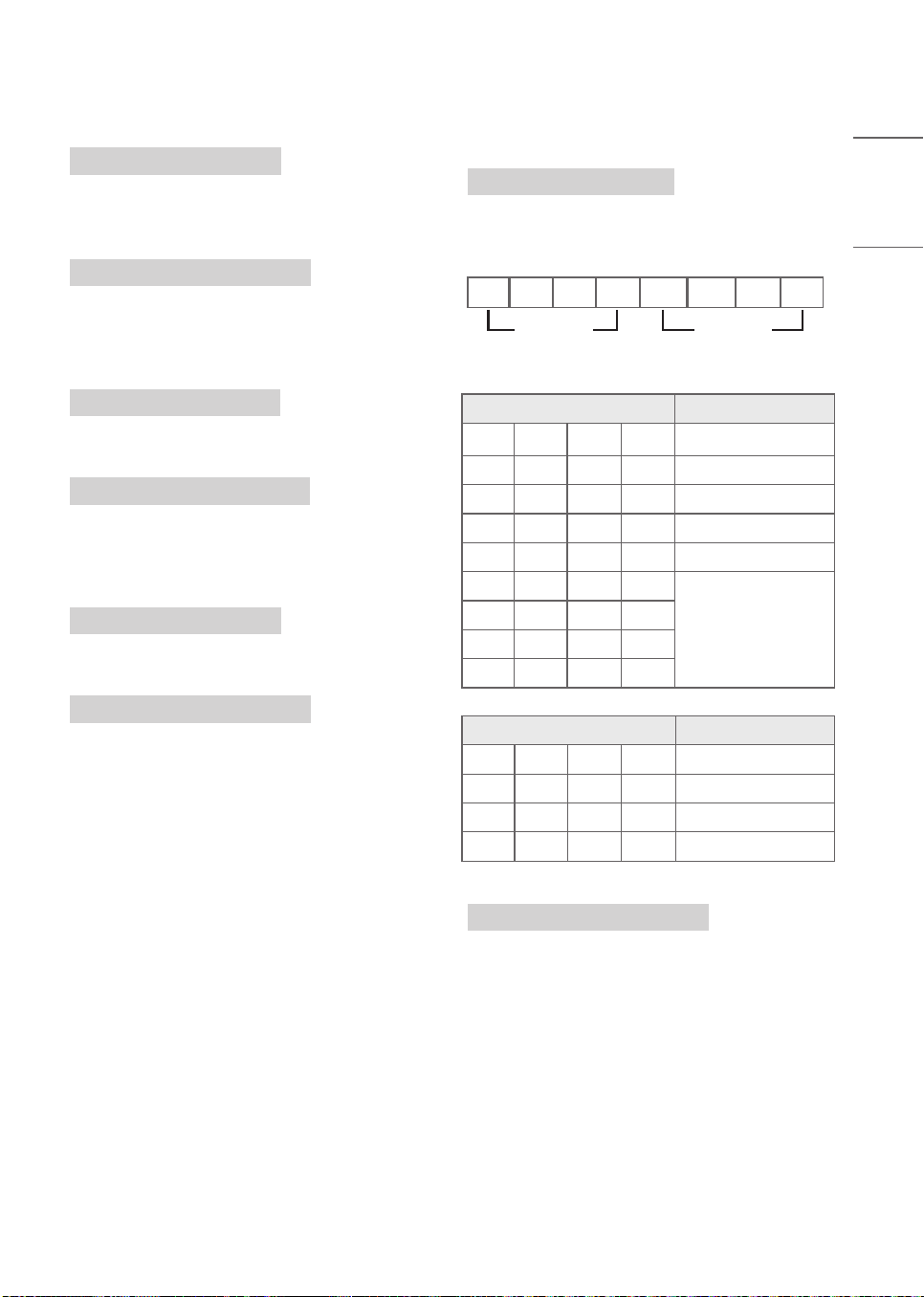
Data Structure
MSB LSB
0 0 0 0 0 0 0 0
External
Input
Input
Number
External Input Data
0 0 0 0 DTV
0 0 0 1 Analogue
0 0 1 0 AV
0 1 0 0 Component
0 1 1 0 RGB
0 1 1 1
HDMI
1 0 0 0
1 0 0 1
1 0 1 0
Input Number Data
0 0 0 0 Input1
0 0 0 1 Input2
0 0 1 0 Input3
0 0 1 1 Input4
Ack
(b)( )(Set ID)( )(OK/NG)(Data)(x)

38
ENGLISH_index
23 Channel block/unblock (Command: m d)
▶ This command may work differently depending
on model and signal.
(For South Korea, North/Latin America except
Colombia Model)
Transmission
(m)(d)( )(Set ID)( )(Data 00)( )(Data 01)( )(Data
02)(Data 03)(Data 04)( )(Data 05)( )(Data 06)
(Cr)
(Data 00): Physical Channel Number
(Data 01)(Data 02): Major Channel Number
- (Data 01): High Channel data
- (Data 02): Low Channel data
00 00 ~ 27 0F (Decimal: 0 ~ 9999)
(Data 03)(Data 04): Minor Channel Number
- (Data 03): High Channel data
- (Data 04): Low Channel data
(Data 05): Input Source
- 02: Antenna TV (DTV)
- 06: Cable TV (CADTV)
- 0b: Cable DTV Plus
(Data 06): block(01)/unblock(00)
Ack
(d)( )(Set ID)( )(OK/NG)(Data 00)(Data 01)(Data
02)(Data 03)(Data 04)(Data 05)(Data 06)(x)
* Block/Unblock Command Examples
Block/Unblock Cable DTV Channel 18-2
(Set ID) = 01
(Data 00) = Physical Channel Number 18 =
12(HEX)
(Data 01) & (Data 02) = Major Channel Number is
18 = 00 12(HEX)
(Data 03) & (Data 04) = Minor Channel Number is
2 = 00 02(HEX)
(Data 05) = cable DTV = 06
(Data 06) = block(01)/unblock(00)
Result:
md 01 12 00 12 00 02 06 (01/00)
(For all other regions including Colombia, Excluding
the above countries)
Transmission
(m)(d)( )(Set ID)( )(Data 00)( )(Data 01)( )(Data
02)(Data 03)(Data 04)(Cr)
(Data 00): Physical Channel Number
(Data 01)(Data 02): Channel Data
- (Data 01): High Channel data
- (Data 02): Low Channel data
00 00 ~ 27 0F (Decimal: 0 ~ 9999)
(Data 03): Input Source
- 10: Antenna TV (DTV)
- 20: Antenna Radio (Radio)
- 40: Satellite TV (SDTV)
- 50: Satellite Radio (S-Radio)
- 90: Cable TV (CADTV)
- a0: Cable Radio (CA-Radio)
(Data 04): block(01)/unblock(00)
Ack
(d)( )(Set ID)( )(OK/NG)(Data 00)(Data 01)(Data
02)(Data 03)(Data 04)(x)
* Block/Unblock Command Examples
Block/Unblock Digital Antenna Channel 800
(Set ID) = All = 01
(Data 00) = Physical Channel Number 30 = 1E
(Data 01) & (Data 02) = Channel Data is 800 = 03
20
(Data 03) = Digital Antenna TV = 10
(Data 04) = block/unblock = (01/00)
Result:
md 01 1E 03 20 10 (01/00)
39
ENGLISH_index
24 Fail Over Mode (Command: m i)
▶ Selects the Fail Over mode.
Transmission
(m)(i)( )(Set ID)( )(Data)(Cr)
Data 00: Off
Data 01: Auto
Data 02: Manual
Ack
(i)( )(Set ID)( )(OK/NG)(Data)(x)
25 Fail Over Input Select (Command: m j)
▶ Selects an input source for fail over. (This
feature is only available when Fail Over is set to
Custom.)
Transmission
(m)(j)( )(Set ID)( )(Data 1)( )(Data 2)( )(Data 3)( )
(Data 4)...( )(DataN)(Cr)
Data 1-N (Input priority 1-N)
Data 20: AV1
Data 21: AV2
Data 22: AV3
Data 90: HDMI1
Data 91: HDMI2
Data 92: HDMI3
Data 93: HDMI4
Ack
(j)( )(Set ID)( )(OK/NG)(Data 1)(Data 2)(Data 3)
(Data 4)...(DataN)(x)
* Some input signals may not be available for all
models.
* The data number (N) may vary depending on the
model. (The data number depends on the number
of supported input signals.)
26 Internal storage media contents play
(Command: s n, a8)
▶ Plays media stored in the internal memory.
▶ This command may work differently depending
on model and signal.
Transmission
(s)(n)( )(Set ID)( )(a)(8)( )(Data)(Cr)
Data 01: Media contents play
Ack
(n)( )(Set ID)( )(OK/NG)(a)(8)( )(Data)(x)
* Real data mapping
00 : Step 0
A : Step 10 (Set ID 10)
F : Step 15 (Set ID 15)
10 : Step 16 (Set ID 16)
64 : Step 100
6E : Step 110
73 : Step 115
74 : Step 116
CF : Step 199
FE : Step 254
FF : Step 255
40
ENGLISH_index
IR OUT Using Guide
Suitable / Not Recommend remote-controller data format
Item Data format code Note
Suitable Data Format
NEC, Toshiba Full Repeat Code Format
Single: Enable
Repeat: Enable
Philips RC5, RC6 Code Format
Zenith Code Format
Not Recommend Data Format
Matsushita, RCA Code Format
Single: Enable
Repeat: Disable
Sony 12/15/20 bit, Mitsubishi Code Format
Sharp, JVC, R-step, Philips RCMM, RECS-80,
XMP Code Format
Single: Disable
Repeat: Disable
IR Receiver specifications
Carrier frequency 37.9 KHz
Peak Wavelength 940 nm
Minimum burst length Min. 300 us
Minimum gap time is required of Min. 350 us
Data word length Max. 100 ms
Minimum gap time in the data stream is needed of Min. 50 ms
Parameter Symbol Conditions Min Typ Max Unit
High Level Out Pulse Width Twh
Burst Wave = 600
Period = 1.2
400 - 800
Low Level Out Pulse Width Twl 400 - 800
If not use the remote-controller with data formats recommended, IR output signals will be
suppressed automatically by IR receiver. In this case, LG does not guarantee IR working function. To
make sure of this matter, here are two methods as below.
• Use the remote-controller with suitable data formats.
• Use the IR dongle receiver of the set-top box.

41
ENGLISH_index
Regulatory
FCC Notice
(For USA)
This equipment has been tested and found to
comply with the limits for a Class B digital device,
pursuant to Part 15 of the FCC Rules. These limits
are designed to provide reasonable protection
against harmful interference in a residential
installation. This equipment generates, uses,
and can radiate radio frequency energy and, if
not installed and used in accordance with the
instructions, may cause harmful interference
to radio communications. However, there is no
guarantee that interference will not occur in a
particular installation. If this equipment does
cause harmful interference to radio or television
reception, which can be determined by turning the
equipment off and on, the user is encouraged to
try to correct the interference by one or more of
the following measures:
- Reorient or relocate the receiving antenna.
- Increase the separation between the equipment
and the receiver.
- Connect the equipment to an outlet on a circuit
different from that to which the receiver is
connected.
- Consult the dealer or an experienced radio/TV
technician for help.
This device complies with part 15 of the FCC
Rules. Operation is subject to the following two
conditions: (1) this device may not cause harmful
interference and (2) this device must accept any
interference received, including interference that
may cause undesired operation. Any changes or
modifications in construction of this device which
are not expressly approved by the party responsible
for compliance could void the user’s authority to
operate the equipment.
FCC Radio Frequency Interference
Requirements (for UNII devices)
(For USA)
High power radars are allocated as primary users of
the 5.25 to 5.35 GHz and 5.65 to 5.85 GHz bands.
These radar stations can cause interference with
and/or damage this device. This device cannot be
co-located with any other transmitter.
FCC RF Radiation Exposure
Statement
(For USA)
[For having wireless function (WLAN, Bluetooth,...)]
This equipment complies with FCC radiation
exposure limits set forth for an uncontrolled
environment. This transmitter must not be co-
located or operating in conjunction with any other
antenna or transmitter.
This equipment should be installed and operated
with minimum distance 20 cm (7.8 inches) between
the antenna and your body. Users must follow the
specific operating instructions for satisfying RF
exposure compliance.

42
ENGLISH_index
Industry Canada Statement
(For Canada)
[For having wireless function (WLAN, Bluetooth,...)]
This device contains licence-exempt transmitter(s)/
receiver(s) that comply with Innovation, Science
and Economic Development Canada’s licence-
exempt RSS(s). Operation is subject to the
following two conditions:
(1) This device may not cause interference.
(2) This device must accept any interference,
including interference that may cause undesired
operation of the device.
IC Radiation Exposure Statement
(For Canada)
[For having wireless function (WLAN, Bluetooth,...)]
This equipment complies with IC radiation exposure
limits set forth for an uncontrolled environment.
This equipment should be installed and operated
with minimum distance 20 cm (7.8 inches) between
the antenna & your body.
NOTE: THE MANUFACTURER IS NOT
RESPONSIBLE FOR ANY RADIO OR TV
INTERFERENCE CAUSED BY UNAUTHORIZED
MODIFICATIONS TO THIS EQUIPMENT. SUCH
MODIFICATIONS COULD VOID THE USER’S
AUTHORITY TO OPERATE THE EQUIPMENT.
RSS-247 Requirement
(For Canada)
[For product having the wireless function using 5
GHz frequency bands]
(1) The device for operation in the band 5150–
5250 MHz is only for indoor use to reduce the
potential for harmful interference to co-channel
mobile satellite systems;
(2) For devices with detachable antenna(s), the
maximum antenna gain permitted for devices in the
bands 5250-5350 MHz and 5470-5725 MHz shall
be such that the equipment still complies with the
e.i.r.p. limit;
(3) For devices with detachable antenna(s), the
maximum antenna gain permitted for devices in
the band 5725-5850 MHz shall be such that the
equipment still complies with the e.i.r.p. limits as
appropriate; and
(4) [For devices operating in the band 5250-5350
MHz having an e.i.r.p. greater than 200 mW]
Antenna type(s), antenna models(s), and worst-
case tilt angle(s) necessary to remain compliant
with the e.i.r.p. elevation mask requirement set
forth in section 6.2.2.3 of RSS-247 shall be clearly
indicated.
Users should also be advised that high-power
radars are allocated as primary users (i.e. priority
users) of the bands 5250-5350 MHz and 5650-
5850 MHz and that these radars could cause
interference and/or damage to LE-LAN devices.
43
ENGLISH_index
NOTE TO CABLE/TV INSTALLER
(For USA and Canada)
This reminder is provided to call the CATV system
installer’s attention to Article 820-40 of the
National Electric Code (U.S.A.). The code provides
guidelines for proper grounding and, in particular,
specifies that the cable ground shall be connected
to the grounding system of the building, as close to
the point of the cable entry as practical.
WARNING! (STABILITY HAZARD)
A television set may fall, causing serious personal
injury or death. Many injuries, particularly
to children, can be avoided by taking simple
precautions such as:
- ALWAYS use cabinets or stands or mounting
methods recommended by the manufacturer of
the television set.
- ALWAYS use furniture that can safely support the
television set.
- ALWAYS ensure the television set is not
overhanging the edge of the supporting furniture.
- ALWAYS educate children about the dangers of
climbing on furniture to reach the television set
or its controls.
- ALWAYS route cords and cables connected to
your television so they cannot be tripped over,
pulled or grabbed.
- NEVER place a television set in an unstable
location.
- NEVER place the television set on tall furniture
(for example, cupboards or bookcases) without
anchoring both the furniture and the television
set to a suitable support.
- NEVER place the television set on cloth or other
materials that may be located between the
television set and supporting furniture.
- NEVER place items that might tempt children to
climb, such as toys and remote controls, on the
top of the television or furniture on which the
television is placed.
If the existing television set is going to be retained
and relocated, the same considerations as above
should be applied.
Symbols
Refers to alternating current (AC).
Refers to direct current (DC).
Refers to class II equipment.
Refers to stand-by.
Refers to “ON” (power).
Refers to dangerous voltage.
LG Take-back & Recycling Policy
(For USA)
LG Electronics offers a customized e-waste
take-back & recycling service that meets local
needs and requirements in the countries where
e-waste regulations are in place, and also provides
product take-back & recycling service voluntarily in
some regions. LG Electronics evaluates products’
recyclability at the design step selectively, with the
goal of improving recyclability where practicable.
Through these activities, LG Electronics seeks to
contribute to conserving natural resources and
protecting the environment. For more information,
please visit our global site at
https://www.lg.com/recycling
44
ENGLISH_index
Dominican Republic only
WEEE
Disposal of your old appliance
1 This crossed-out wheeled bin symbol indicates that waste electrical and electronic
products (WEEE) should be disposed of separately from the municipal waste stream.
2 Old electrical products can contain hazardous substances so correct disposal of your old
appliance will help prevent potential negative consequences for the environment and
human health. Your old appliance may contain reusable parts that could be used to repair
other products, and other valuable materials that can be recycled to conserve limited
resources.
3 You can take your appliance to any of the authorized centers for collection, If you want
to know an updated list of countries that have this service, visit the page
https://www.
lg.com/global/take-back-recycling-global-network-south-america
Eliminación de su viejo electrodoméstico
1 El símbolo del contenedor de basura tachado con un aspa indica que la recogida separada
de aparatos eléctricos y electrónicos (AEE) debe realizarse de manera separada.
2 Los aparatos eléctricos antiguos pueden contener sustancias peligrosas, de modo que la
correcta eliminación del antiguo aparato ayudará a evitar posibles consecuencias negativas
para el medio ambiente y para la salud humana. El antiguo aparato puede contener
piezas reutilizables que podrían utilizarse para reparar otros productos y otros materiales
valiosos que pueden reciclarse para conservar los recursos limitados.
3 Puedes llevar tu aparato a cualquiera de los centros autorizados de recoleccion de
residuos electricos y electronicos. Si deseas conocer una lista actualizada de los paises
que cuentan con este servicio, visite la pagina
https://www.lg.com/global/take-back-
recycling-global-network-south-america

45
ENGLISH_index

46
ENGLISH_index
THE CONSUMER TECHNOLOGY INDUSTRY CARES
Manufacturers, retailers and the rest of the consumer technology industry are committed to making products safe and enjoyable. As you
enjoy your television, please note that all televisions – new and old- must be supported on proper stands or installed according to the
manufacturer’s recommendations. Televisions that are inappropriately situated on dressers, bookcases, shelves, desks, speakers, chests,
carts, etc., may fall over, resulting in injury.
CHILD SAFETY:
CTA.tech
PROPER TELEVISION PLACEMENT MATTERS
TUNE IN TO SAFETY
• NEVER allow children to climb on or play on the television or the furniture on which the
television is placed.
• NEVER place the television on furniture that can easily be used as steps, such as a chest of
drawers.
• ALWAYS follow the manufacturer’s recommendations for the safe installation of your
television.
• ALWAYS read and follow all instructions for proper use of your television.
• ALWAYS install the television where it cannot be pushed, pulled over or knocked down.
• ALWAYS route cords and cables connected to the television so that they cannot be tripped
over, pulled or grabbed.
WALL OR CEILING MOUNT YOUR TELEVISION
• ALWAYS contact your retailer about professional installation if you have any doubts about
your ability to safely mount your television.
• ALWAYS use a mount that has been recommended by the television manufacturer and has a
safety certification by a Nationally Recognized Testing Laboratory (NRTL).
• ALWAYS follow all instructions supplied by the television and mount manufacturers.
• ALWAYS make sure that the wall or ceiling where you are mounting the television is
appropriate. Use proper anchoring systems for different wall or ceiling types (e.g. wood,
concrete, metal, etc.). If you are unsure, contact a professional installer.
• Televisions can be heavy. A minimum of two people is required for a wall or ceiling mount
installation.
MOVING AN OLDER TELEVISION TO A NEW PLACE IN YOUR HOME
• REMEMBER Special care should be made in the placement of older CRT/flat-panel televisions.
Many new television buyers move their older CRT/flat-panel televisions into a secondary room
after the purchase of a flat-panel television.
• NEVER place your older CRT/flat-panel television on a dresser where children may be tempted
to use the drawers to climb.
• ALWAYS place your older CRT/flat-panel television on furniture that is sturdy and appropriate
for its size and weight.
• ALWAYS make sure your older CRT/flat-panel television does not hang over the edge of your
furniture.
LG Customer Information Center
For inquires or comments,
visit www.lg.com or call;
1-888-865-3026
USA, Commercial User
1-855-286-2456
CANADA
Supplier’s Declaration of Conformity
Trade Name LG
Responsible Party LG Electronics USA, Inc.
Address 111 Sylvan Avenue, North
Building, Englewood Cliffs, NJ
07632
E-mail [email protected]om
Model
Serial no.
The model and serial number of the product
are located on the back and on one side of the
product. Record them below in case you ever
need service.
