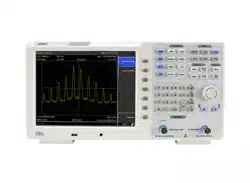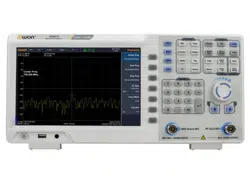

XSA800 Series Spectrum Analyzer
User Manual
◼
XSA805
(
TG
)
◼
XSA810
(
TG
)
◼
XSA815
(
TG
)
For product support, visit:www.owon.com.hk/download

May 2021 edition V1.0.0
Copyright © LILLIPUT Company. All rights reserved.
The LILLIPUT's products are under the protection of the patent rights, including ones
which have already obtained the patent rights and those which are applied for. The
information in this manual will replace all materials published.
The information in this manual was correct at the time of printing. However, LILLIPUT will
continue to improve products and reserves the rights to change specification at any time
without notice.
is the registered trademark of the LILLIPUT Company.
Fujian LILLIPUT Optoelectronics Technology Co., Ltd.
No. 19, Heming Road
Lantian Industrial Zone, Zhangzhou 363005 P.R. China
Tel: +86-596-2130430 Fax: +86-596-2109272
Web: www.owon.com E-mail: [email protected].cn

General Warranty
We warrant that the product will be free from defects in materials and
workmanship for a period of 3 years from the date of purchase of the product
by the original purchaser from our company. The warranty period for
accessories is 12 months. This warranty only applies to the original purchaser
and is not transferable to a third party.
If the product proves defective during the warranty period, we will either repair
the defective product without charge for parts and labour, or will provide a
replacement in exchange for the defective product. Parts, modules and
replacement products used by our company for warranty work may be new or
reconditioned like new. All replaced parts, modules and products become the
property of our company.
To obtain service under this warranty, the customer must notify our company
of the defect before the expiration of the warranty period. Customer shall be
responsible for packaging and shipping the defective product to the
designated service centre, a copy of the customer's proof of purchase is also
required.
This warranty shall not apply to any defect, failure or damage caused by
improper use or improper or inadequate maintenance and care. We shall not
be obligated to furnish service under this warranty a) to repair damage
resulting from attempts by personnel other than our company representatives
to install, repair or service the product; b) to repair damage resulting from
improper use or connection to incompatible equipment; c) to repair any
damage or malfunction caused by the use of not our supplies; or d) to service
a product that has been modified or integrated with other products when the
effect of such modification or integration increases the time or difficulty of
servicing the product.
Please contact the nearest Sales and Service Offices for services.
Excepting the after-sales services provided in this summary or the
applicable warranty statements, we will not offer any guarantee for
maintenance definitely declared or hinted, including but not limited to
the implied guarantee for marketability and special-purpose
acceptability. We should not take any responsibilities for any indirect,
special or consequent damages.

i
Table of Contents
1. General Safety Requirements................................................ 1
2. Safety Terms and Symbols ..................................................... 3
3. Document Overview............................................................... 4
Related documents including: Quick guide, User manual,
programme guide and etc. ......................................................... 4
4. User Notice............................................................................. 5
General Inspection ........................................................................5
Safety Precaution before Operation ............................................5
Check Power Supply ........................................................................... 5
Allowed Variation Range of Supply Power Parameters ....................... 6
Power Cord Selection .......................................................................... 6
Electro-static Discharge (ESD) Protection ........................................... 7
First Time to Power on .................................................................7
Front Panel ....................................................................................8
Front Panel Function Key .................................................................... 9
Parameter Input ................................................................................. 12
Front Panel Connector ....................................................................... 13
Rear Panel.................................................................................... 14
User Interface .............................................................................. 16
Build-in Help ............................................................................... 18
Basic Measurement ..................................................................... 19
5. Menu Interpretation ............................................................ 23
5.1 【FREQ】Frequency............................................................. 23
5.2 【SPAN】 ................................................................................ 25
5.3 【AMPTD】Amplitude .......................................................... 26
5.4 【Auto】Auto Tune ............................................................... 30
5.5 【BW】Bandwidth ................................................................. 30
5.6 【Trace】 ................................................................................ 32
5.7 【Detector】 ........................................................................... 33
5.8 【Display】 ............................................................................. 35
5.9 【Sweep】............................................................................... 36

ii
5.10 【Trig】 ................................................................................. 37
5.11 【TG】 ................................................................................... 38
5.12 【Demod】Demodulation .................................................. 39
5.13 【Peak】................................................................................ 44
5.14 【Marker】 ............................................................................ 45
5.15 【Marker→】 ........................................................................ 48
5.16 【Marker Fctn】Marker Function ..................................... 49
5.17 【Meas】Measurement ...................................................... 51
5.18 【Meas Setup】 ................................................................... 54
5.19 【System】 ........................................................................... 54
5.20 【File】 .................................................................................. 60
5.21 【Preset】 ............................................................................. 61
5.22 【Help】 ................................................................................ 61
5.23 【Save/Recall】 ................................................................... 61
5.24 【Quick/Save】 .................................................................... 63
6. Specification ........................................................................ 64
7. Warranty ............................................................................... 72
7.1 Troubleshooting ............................................................... 72
7.2 Spectrum Analyzer Repair .............................................. 73
8. Appendix .............................................................................. 74
Appendix A: Enclosure ............................................................... 74
Appendix B: General Care and Cleaning .................................. 74
Appendix C: USB Disk Requirements ....................................... 75
Appendix D: PC Software Requirements .................................. 75

1.General Safety Requirements
1
1. General Safety Requirements
Before use, please read the following safety precautions to
avoid any possible bodily injury and to prevent this product or
any other connected products from damage. To avoid any
contingent danger, ensure this product is only used within the
ranges specified.
◼ Use Proper Power Cord. Use only the power cord supplied
with the product and certified to use in your country.
◼ Product Grounded. This instrument is grounded through the
power cord grounding conductor. To avoid electric shock, the
grounding conductor must be grounded. The product must be
grounded properly before any connection with its input or
output terminals.
◼ Check all Terminal Ratings. To avoid fire or shock hazard,
check all ratings and markings on this product. Refer to the
user manual for more information about ratings before
connecting to the instrument.
◼ Use Proper Overvoltage Protection. Make sure that no
overvoltage (such as that caused by a thunderstorm) can
reach the product, or else the operator might expose to danger
of electrical shock.
◼ Do not operate without covers. Do not operate the
instrument with covers or panels removed.
◼ Avoid exposed circuit. Be careful when working on exposed
circuitry to avoid risk of electric shock or other injury.
◼ Do not operate if any damage. If you suspect damage to
the instrument, have it inspected by qualified service
personnel before further use. Any maintenance, adjustment or
replacement especially to circuits or accessories must be
performed by qualified service personnel.
◼ Use your Oscilloscope in a well-ventilated area. Make sure
the instrument installed with proper ventilation.
◼ Do not operate in damp conditions. In order to avoid short
circuiting to the interior of the device or electric shock, please
do not operate in a humid environment.

1.General Safety Requirements
2
◼ Do not operate in an explosive atmosphere. In order to
avoid damages to the device or personal injuries, it is
important to operate the device away from an explosive
atmosphere.
◼ Keep product surfaces clean and dry. To avoid the influence
of dust or moisture in air, please keep the surface of device
clean and dry.
◼ Electrostatic Prevention. Operate the instrument in an
electrostatic discharge protective environment to avoid
damage induced by static discharges. Always ground both the
internal and external conductors of cables to release static
before making connections.
◼ Protect the Input Terminals of Instrument. Do not bend or
hit the input terminals and the connected devices, (such as
filter, attenuator, etc.) as such stress may cause damages to
devices and the instrument. Do not mix the use of 50Ω and
75Ω connectors and/or cables.
◼ Do Not Overload the Input. To avoid damaging the
instrument, the signals at input terminal must be less than 50V
DC voltage components and 30 dBm (1 W) AC (RF)
components.
◼ Appropriate Use of Power Meter. If you are not sure of the
characteristics of signal under measure, follow these
recommendations to ensure safe operations: if a RF power
meter is available, use it to measure the power level of this
signal first; or add a rated external attenuator between signal
cable and input terminal of the instrument. Maximum
attenuation, reference level and maximum span frequency
should be selected, so as to make the signals displayed within
the screen.
◼ Know About the Specification Conditions of the
Instrument. For maximum performance of the instrument, use
the analyzer under specified conditions.
◼ Handling Safety. Please handle with care during
transportation to avoid damages to buttons, knob, interfaces
and other parts on the panels.
2.Safety Terms and Symbols
3
2. Safety Terms and Symbols
Safety Terms
Terms in this manual (The following terms may appear in this
manual):
!
WARNING
Warning indicates conditions or practices that could result
in injury or loss of life.
Terms on the product (The following terms may appear on this
product):
DANGER
Indicates an immediate hazard or injury possibility.
WARNING
Indicates a possible hazard or injury.
CAUTION
Indicates potential damage to the instrument or other
property.
Safety Symbols
Symbols on the product (The following symbols may appear on
the product):
~
!
Hazardous
Voltage
Chassis
Ground
Refer to
Manual
!
CAUTION
Caution indicates the conditions or practices that could
result in damage to this product or other property.

3.Document Overview
4
3. Document Overview
⚫ Quick Start
This chapter states the matters need to attention before first
power on, how to power on at first time, introduces spectrum
analyzer’s front/rear panel and user interface, explains how to
use the instrument with a measurement example
demonstration.
⚫ Menu interpretation
This chapter offers spectrum analyzer’s front panel menu and
button interpretation.
⚫ Specification Parameter
This chapter lists spectrum analyzer’s specification parameter.
⚫ Trouble Shooting
This chapter helps to implement the troubleshooting and deal
with after sale repair.
⚫ Appendix
This chapter introduces accessories of spectrum analyzer and
how to maintain device.
Convention on button and menu key format:
Button: Button character + bold bracket, e.g. 【FREQ】stands for
FREQ button.
Menu key words+bracket, e.g.[Center frequency] stands for
【FREQ】function’s center frequency item, that is common called
softkey menu item.
Related document:
Related documents including: Quick guide, User manual,
programme guide and etc.

4.User Notice
5
4. User Notice
This chapter states the matters need to attention before first power
on, and how to power on at first time, introduces spectrum
analyzer’s front/rear panel and user interface, explains how to use
the instrument with a measurement example demonstration.
4.1General Inspection
When you receive your new instrument, it is recommended
that you check the instrument following these steps:
1.Check for transportation damage.
If it is found that the packaging carton or the foamed plastic
protection cushion has suffered serious damage, do not throw
it away until the complete device and its accessories have
been electrically and mechanically checked.
2.Check the Accessories
The supplied accessories are described in the "Appendix A:
Enclosure" of this Manual. Please ensure that all the listed
accessories are present and undamaged, if any problems are
found please contact your distributor or our local office.
3.Check the Complete Instrument
If there is any physical damage, operational fault, or
performance issue please contact your distributor or our local
office. If there is any damage to the instrument please ensure
you keep the original packaging. Ideally you should always
keep the original packaging if the instrument must be returned
for repair.
4.2 Safety Precaution before Operation
4.2.1 Check Power Supply
The analyzer is equipped with a three-wire power cord in
accordance with international safety standards. The product must
be grounded properly before being powered on, as floating or
improper ground may cause damage to the instrument or personal
injury.
Make sure the grounding conductor of the spectrum analyzer is
grounded before turning on the instrument. After which the AC
power cord can be connected. Do not use a non-ground power
4.User Notice
6
cord.
4.2.2 Allowed Variation Range of Supply Power Parameters
The spectrum analyzer is compatible with 100V~240V, 50Hz-60Hz
AC power, Table 4-1 lists the power requirement to run the
spectrum analyzer.
Table 4-1 Working Power Variation Range
Power Supply Parameter
Compatible Range
Voltage
100 - 240 VAC
Frequency
50 - 60 Hz ±10%
Power
22 W
To prevent or lower the risk of damage to the spectrum analyzer
from power interference between instruments, especially from
peak pulses produced by large power consumption instruments, a
220V/110V AC regulated power supply is recommended.
4.2.3 Power Cord Selection
The analyzer is equipped with a three-wire power cord in
accordance with international safety standards. This cable grounds
the analyzer cabinet when connected to an appropriate power line
outlet. The cable must be rated greater than 250Vac and 2A.
!
WARNING
Improper grounding may cause damage to the instrument,
or result in personal injury. Make sure the grounding
conductor of the spectrum analyzer is grounded before
turning on the instrument.
Always use a well-grounded power source. Do not use an
external power cable, power cord or an auto transformer
without grounded protection. If this product is to be powered
via an external auto transformer for voltage reduction,
ensure that its common terminal is connected to a neutral
(earthed pole) of the power supply.
4.User Notice
7
!
WARNING
Make sure the supply power is stable before turning on the
analyzer to protect it from damage. Refer to "First Time to
Power on" section 3.
4.2.4 Electro-static Discharge (ESD) Protection
ESD is an issue often ignored by users. Damage from ESD on the
instrument is unlikely to occur immediately but will significantly
reduce the reliability of it. Therefore, ESD precautions should be
implemented in the work environment, and applied daily.
Generally, there are two steps to manage ESD protection:
1) Conductive table mats to connect hands via wrist bands
2) Conductive ground mat to connect feet via ankle straps
Implement both protection methods will provide a good level of
anti-static protection. If used alone, the protection will not be as
reliable. To ensure user’s safety, anti-static components should
offer at least 1MΩ isolation resistance.
Make good use of anti-static technology to protect components
from damage:
1) Quickly ground the internal and external conductor of the coaxial
cable before it is connected with the spectrum analyzer.
2) Staff must wear anti-static gloves before touching the connector
cord or doing any assemble work.
3) Assure all the instruments are grounded properly to avoid static
storage.
4.3 First Time to Power on
Connect the three-pin AC power cord into the instrument. Insert the
plug into a power socket provided with a protective ground.
!
WARNING
The above ESD protections measures cannot be used
when working with over 500V!
4.User Notice
8
!
WARNING
Check the power source before turning on the spectrum
analyzer, to protect the device from damage.
1) Press the power switch on the bottom left of the front
panel.
2) Self-initialization takes about 30 seconds, after the boot screen
the spectrum analyzer will default to the scanning curve.
3) After power on, let the spectrum analyzer warm up for 30
minutes for stabilization to obtain the most accurate results.
4.4 Front Panel
8
69
10
11
4
5
1 2
3
7
Figure 4-1 Front panel
Table 4-2 Front Panel Description
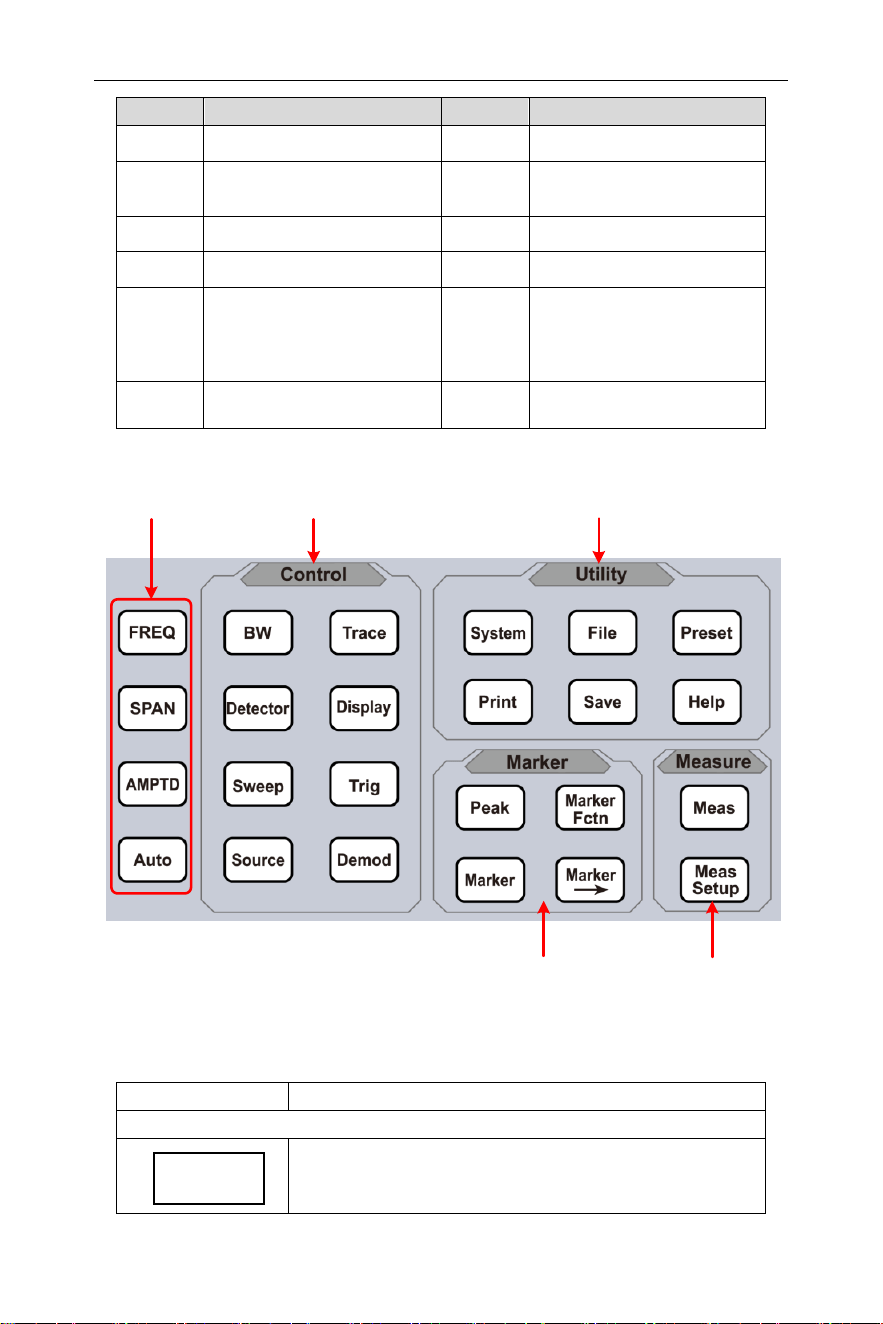
4.User Notice
9
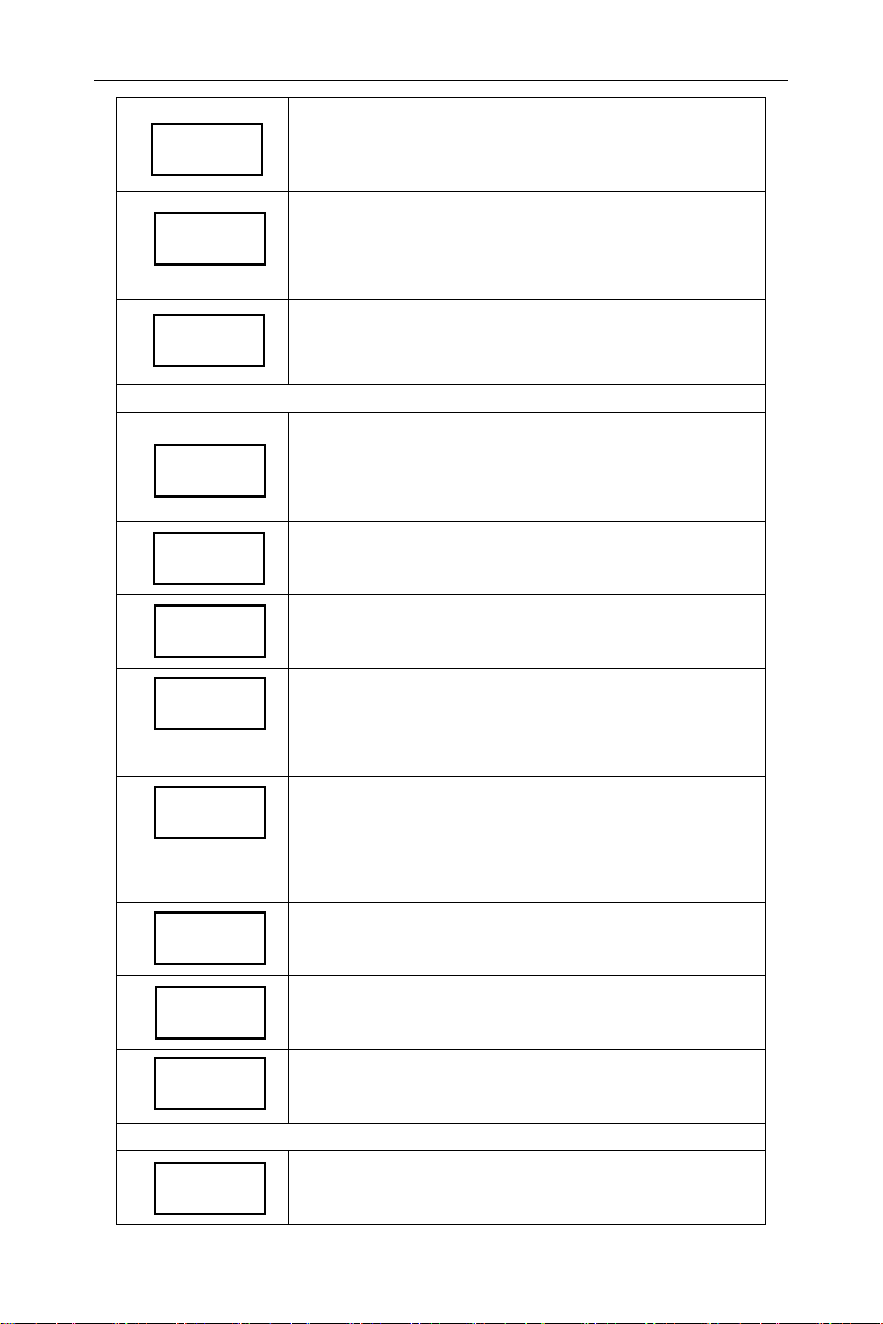
4.4.1 Front Panel Function Key
Basic keys
Marker measure
Advanced
measure
Utility keysControl keys
Figure 4-2 Function Keys
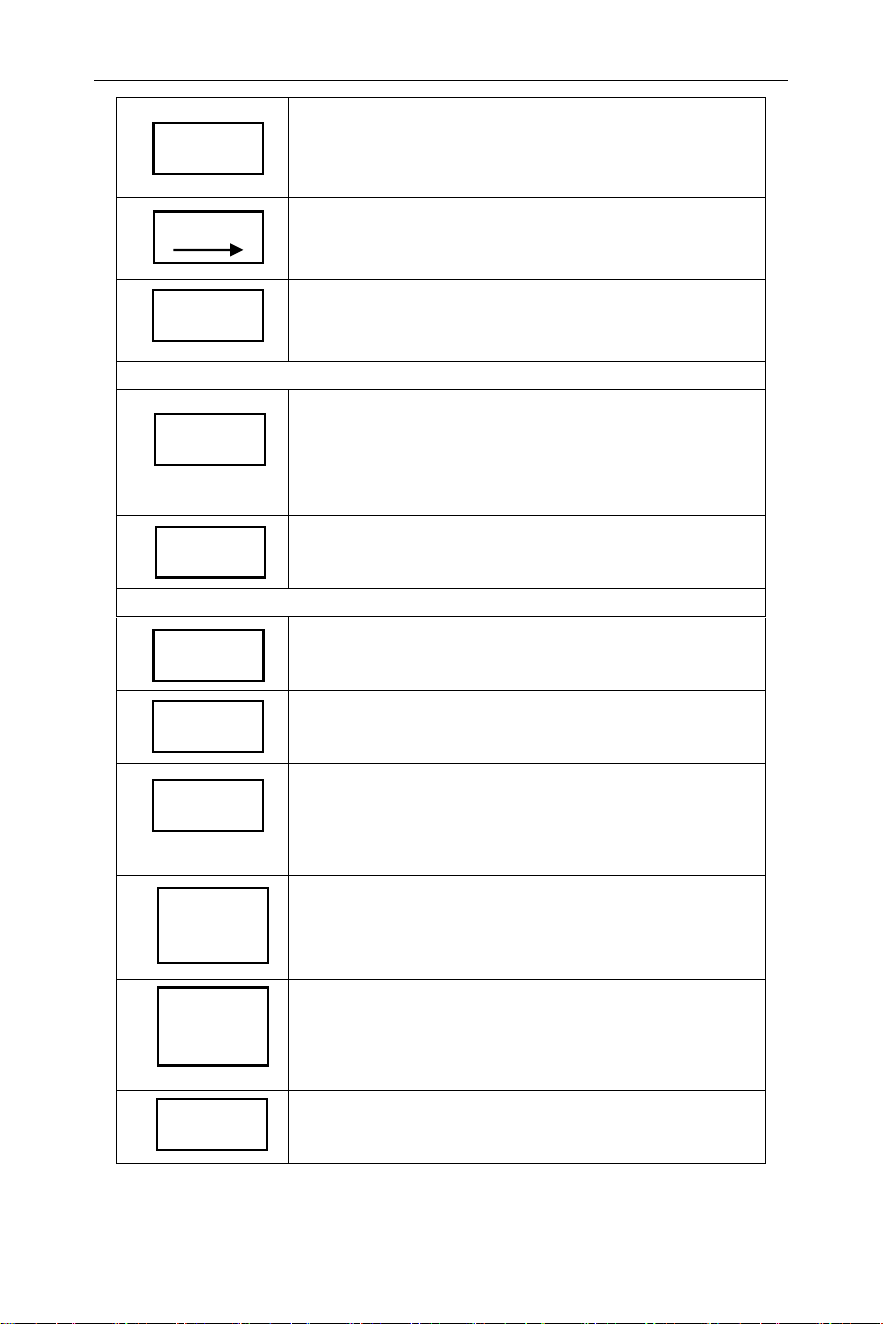
Table 4-3 Function Key Description
Keys
Description
Basic keys
Activates the center-frequency function, and
accesses the frequency function menu.
NO.
Description
NO.
Description
①
LCD
⑦
Numeric keypad
②
Menu softkeys
⑧
Tracking generator
output connector
③
Function keys
⑨
Earphone interface
④
Knob
⑩
USB Host port
⑤
Arrow keys
⑪
Power key
(Push to turn on,
long push to turn off)
⑥
RF Input connector
FREQ
4.User Notice
10
Activates the frequency sweep span
function, and set Full Span\Zero Span\Last
Span.
Activates the reference level function, and
accesses the amplitude softkeys, with
which you set functions that affect data on
the vertical axis.
Searches the signal automatically within the
full frequency range.
Control keys
Activates the RBW (resolution bandwidth)
function, and accesses the softkeys that
control the bandwidth functions and
averaging.
Accesses the softkeys that allow you to
store and manipulate trace information.
Accesses the softkeys that allow you to
configure detector functions.
Accesses the softkeys that allow you to
control what is displayed on the analyzer,
including the display line, graticule and
label.
Accesses the softkeys that allow you to set
the sweep time, select the sweep mode of
the analyzer.
Accesses the softkeys that allow you to
select the trigger mode of the analyzer.
Accesses the softkeys that allow you to set
the tracking generator.
Accesses the softkeys that allow you to set
the demodulation.
Marker measure keys
Places a marker on the highest peak, and
accesses the Peak functions menu.
SPAN
AMPTD
BW
AUTO
Sweep
Trig
Trace
Display
Detector
TG
Demod
Peak
4.User Notice
11
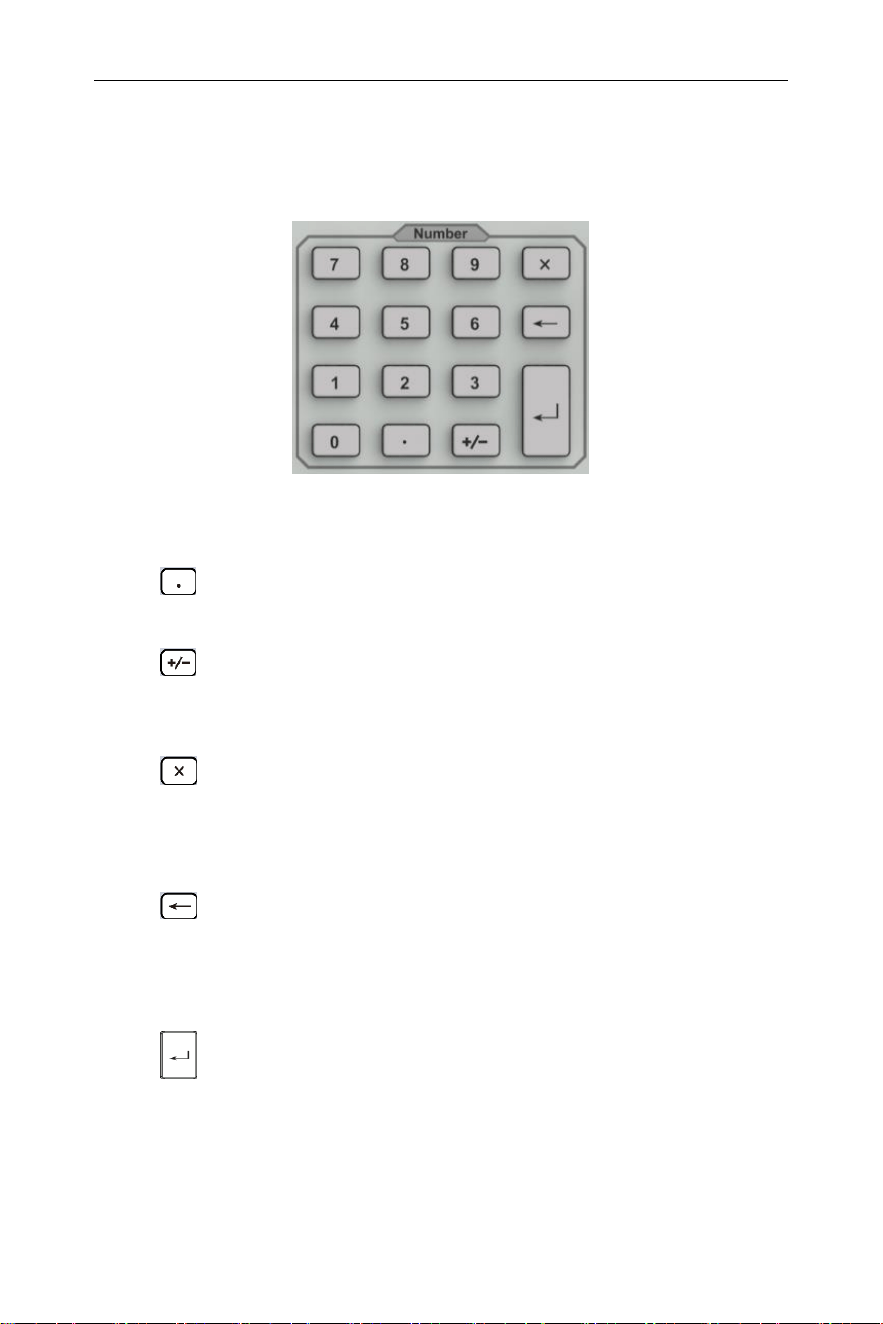
Accesses the marker control keys that
select the type and number of markers and
turns them on and off.
Accesses the marker function softkeys that
allow you to set other system parameters
based on the current marker value.
Accesses the menu of special functions,
such as marker noise, N dB bandwidth
measure and frequency counting.
Advanced measure keys
Accesses the softkeys that let you make
transmitter power measurements such as
ACPR(adjacent channel power), channel
power, and OBW(occupied bandwidth), etc.
Sets the parameters for the selected
measurement function.
Utility keys
Sets the system parameters, and accesses
the calibration menu.
Accesses the softkeys that allow you to
configure the file system of the analyzer.
Resets the analyzer to the factory settings,
user state or Last off state. This state can
be specified in 【System】→
[PowerOn/Preset►]→[Preset►].
Quickly save screenshots, trace data, and
user status
Save/recall screenshots, trace data, user
status
Press the Help key to activate the help
system. Press the Help key again to exit.
Marker
System
Save/
Recall
File
Help
Meas
Meas
Setup
p
Preset
Quick
Save
Marker
Fctn
p
Marker
4.User Notice
12
4.4.2 Parameter Input
Specific parameter values are able to be entered using the numeric
keypad, knob, and directional keys.
Numeric Keypad
Figure 4-3 Numeric Keypad
1. Numeric keys
Numbers 0-9 are available to be used.
2. Decimal point
A decimal point "." will be inserted at the cursor position
when this key is pressed.
3. Sign key
Sign key "+/-" is to toggle the sign of a parameter. When
pressed the first time, a "-" will be inserted and changed into
"+" following the second press.
4. Cancel Key
(1) During the editing process this key will clear the inputs in
the active area and exit editing mode at the same time.
(2) Turn off the display in the active area.
(3) Exit current test mode while in keyboard test.
5. Back Key
(1) During the process of parameter editing, this key will
delete the characters on the left side of the cursor.
(2) While in the process of file name editing, pressing this
key will delete characters that have been entered.
6.
Enter
When pressed, the system will complete the input process
and insert a default measurement unit for the parameter
automatically.
Knob
4.User Notice
13
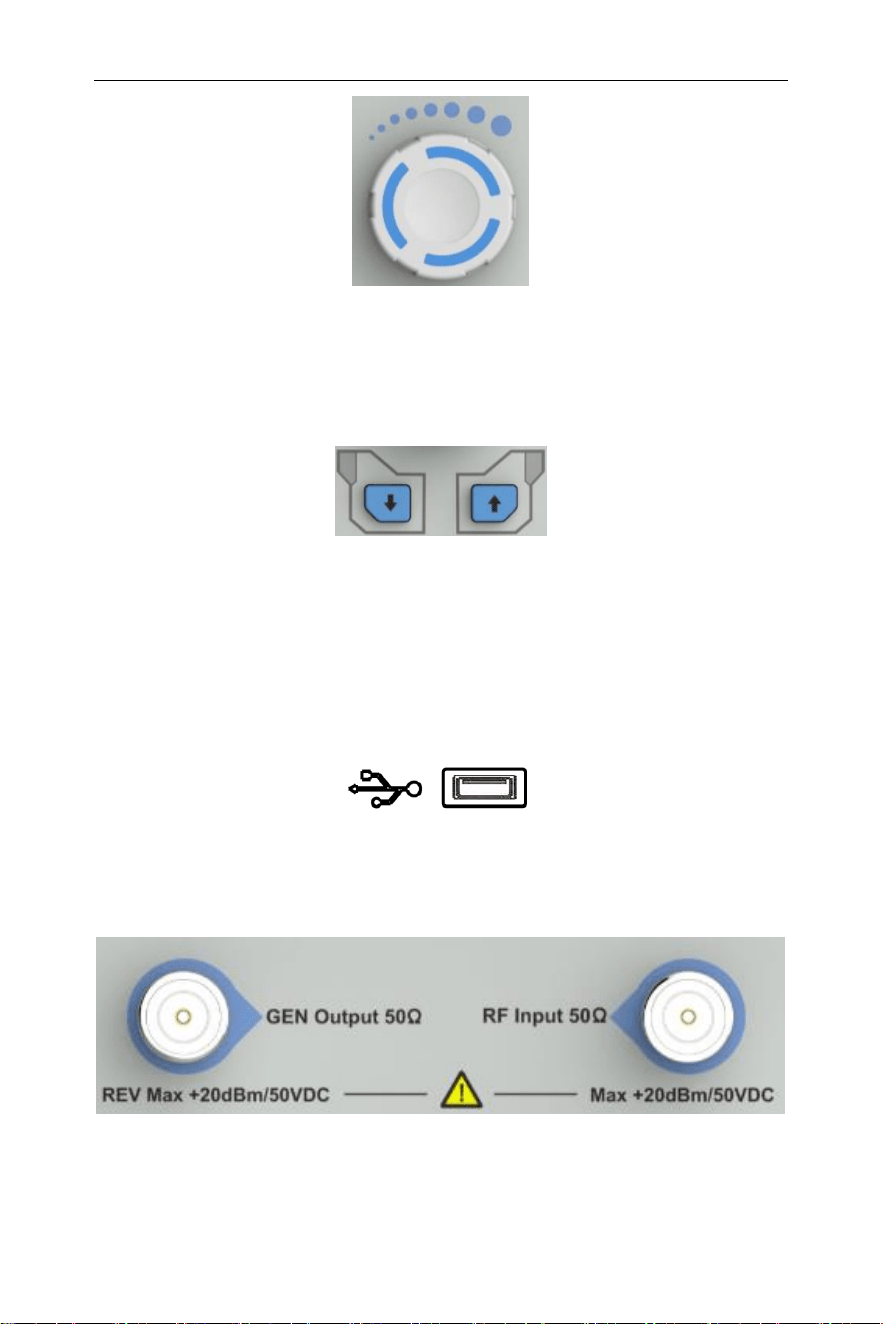
Figure 4-4 The knob
The knob function:
During parameter editing, turn the knob clockwise to increase, or
counterclockwise to decrease the parameter values at specified
steps.
Direction key
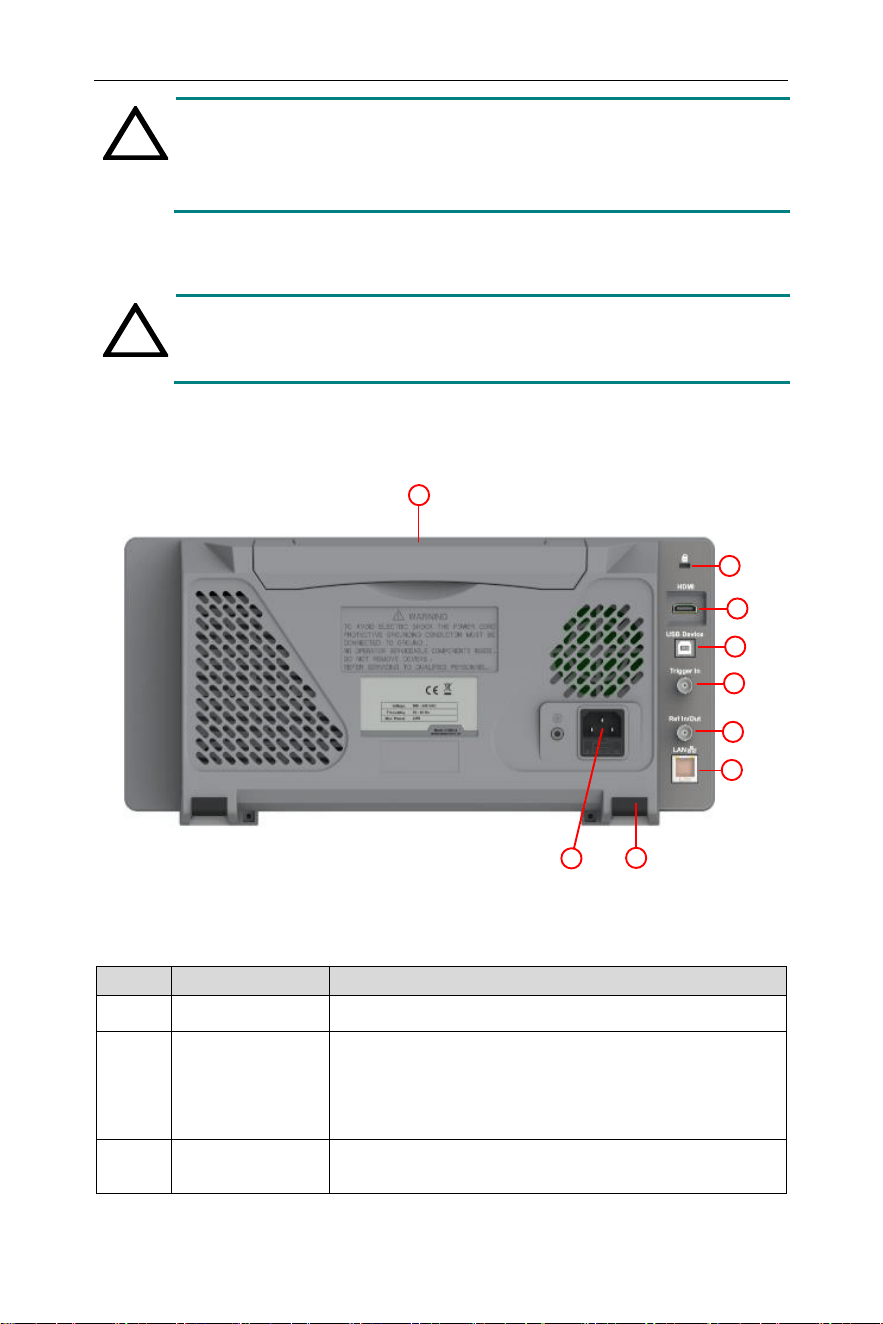
Figure 4-5 Direction keys
The directional keys have following functions:
1) Increase or decrease the parameter value at specific steps
while editing a parameter.
2) Move the cursor though the directory tree in the【File】function.
4.4.3 Front Panel Connector
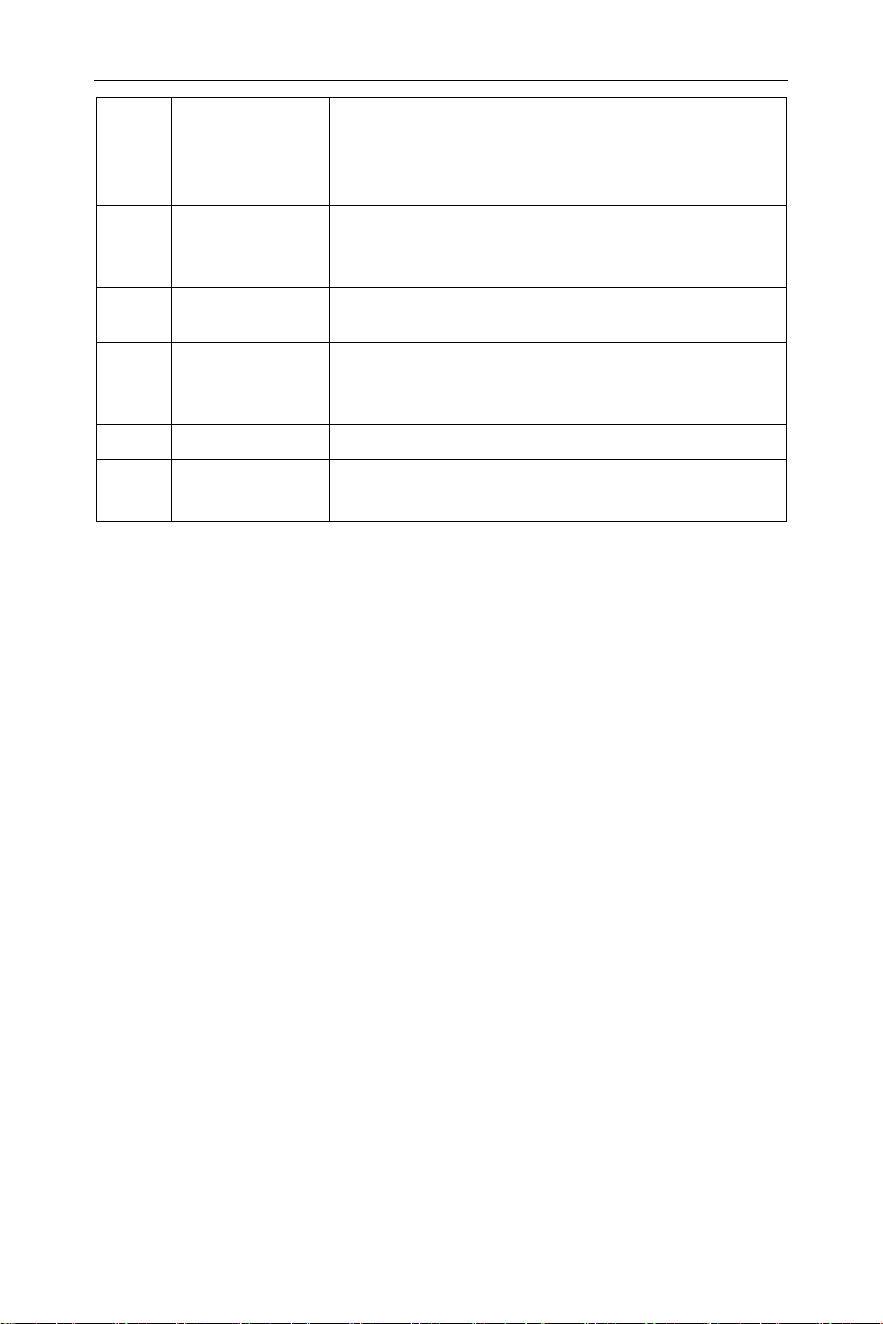
1. USB Host
The analyzer may serve as a "host" device to connect to external
USB devices. This interface is available for USB storage devices.
2. GEN Output 50Ω (tracking generator output 50Ω)
The output of the tracking generator can be connected to a
receiver through an N type male connector, users can purchase
this option if required.
4.User Notice
14
!
CAUTION
Input voltage at RF input port must not be higher than 50 V
DC to avoid damage to the attenuator and input mixer
tracking generator.
3. RF Input 50Ω
The RF input may be connected to a device via a N type connector
!
CAUTION
When input attenuator is higher than 10 dB, the RF port
input signal must be less than +30 dBm.
4.5Rear Panel
1
2
3
5
4
6
7
9
8
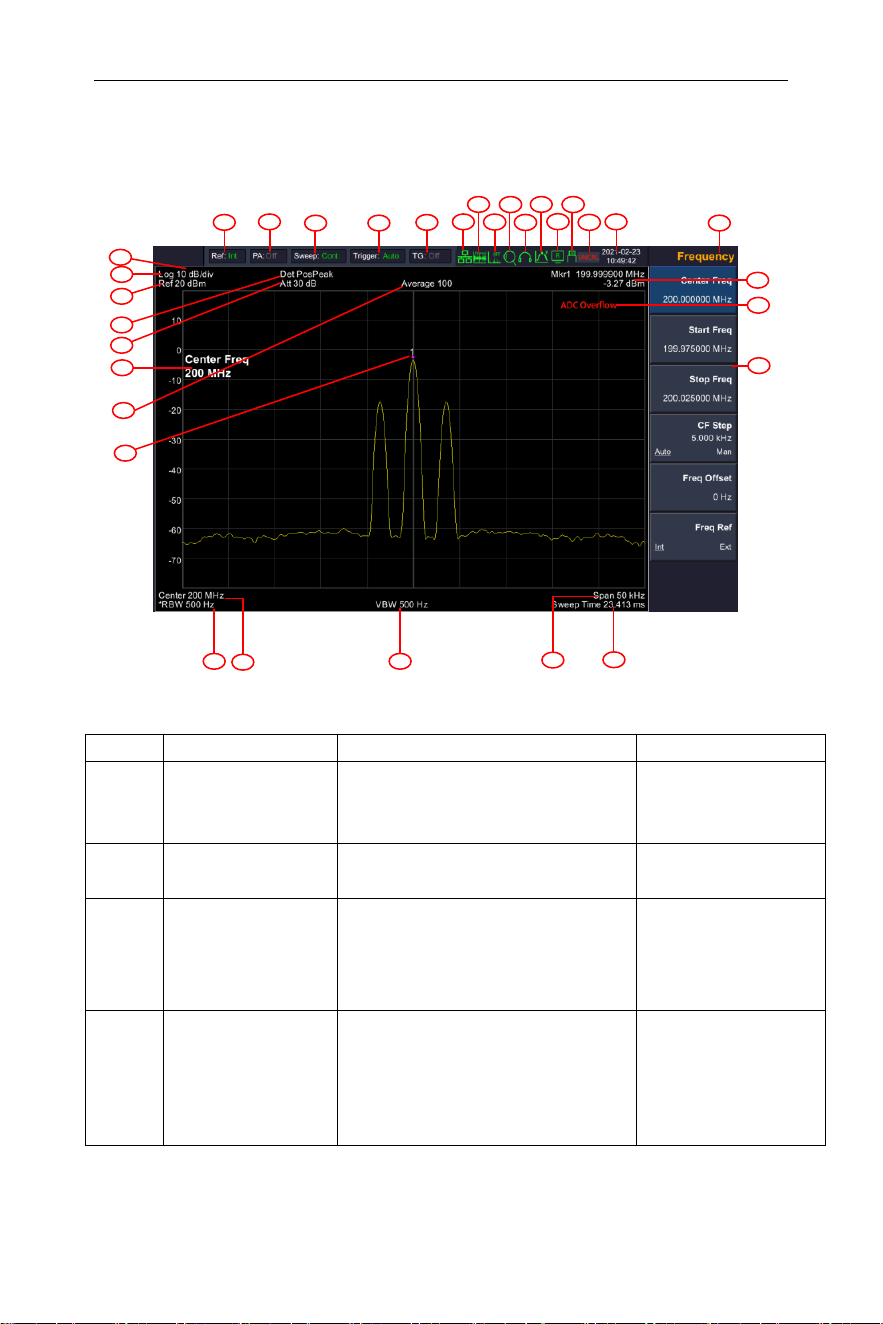
Figure 4-6 Rear Panel
Table 4-4 Rear Panel Description
NO.
Name
Description
①
Handle
Stow the handle for mobile use.
②
Lock hole
You can lock the spectrum analyzer to a
fixed location using the security lock
(please buy it yourself) to secure the
spectrum analyzer.
③
HDMI
interface
HDMI output, connect an external monitor
or projector.
4.User Notice
15
④
USB Device
interface
This configurable USB port permits
external USB devices. It supports
PictBridge printer and remote-control
connection.
⑤
External
trigger
connector
Connect an external TTL signal.
⑥
10MHz
IN/OUT
The BNC input or output of the 10 MHz
reference clock
⑦
LAN
interface
Through this interface, the analyzer can
be connected to your local network for
remote control.
⑧
Stool
To adjust the angle of the device
⑨
AC power
connector
AC: frequency 50Hz±10%, single-phase
alternative 220V±15% or 110V±15%
4.User Notice
16
4.6User Interface
6
20
24
4
22
3
5
25
23
21
2
1
15
7
31
30
28
29
17
32
27
16
19
26
8
9
10
11
13
12
14
18
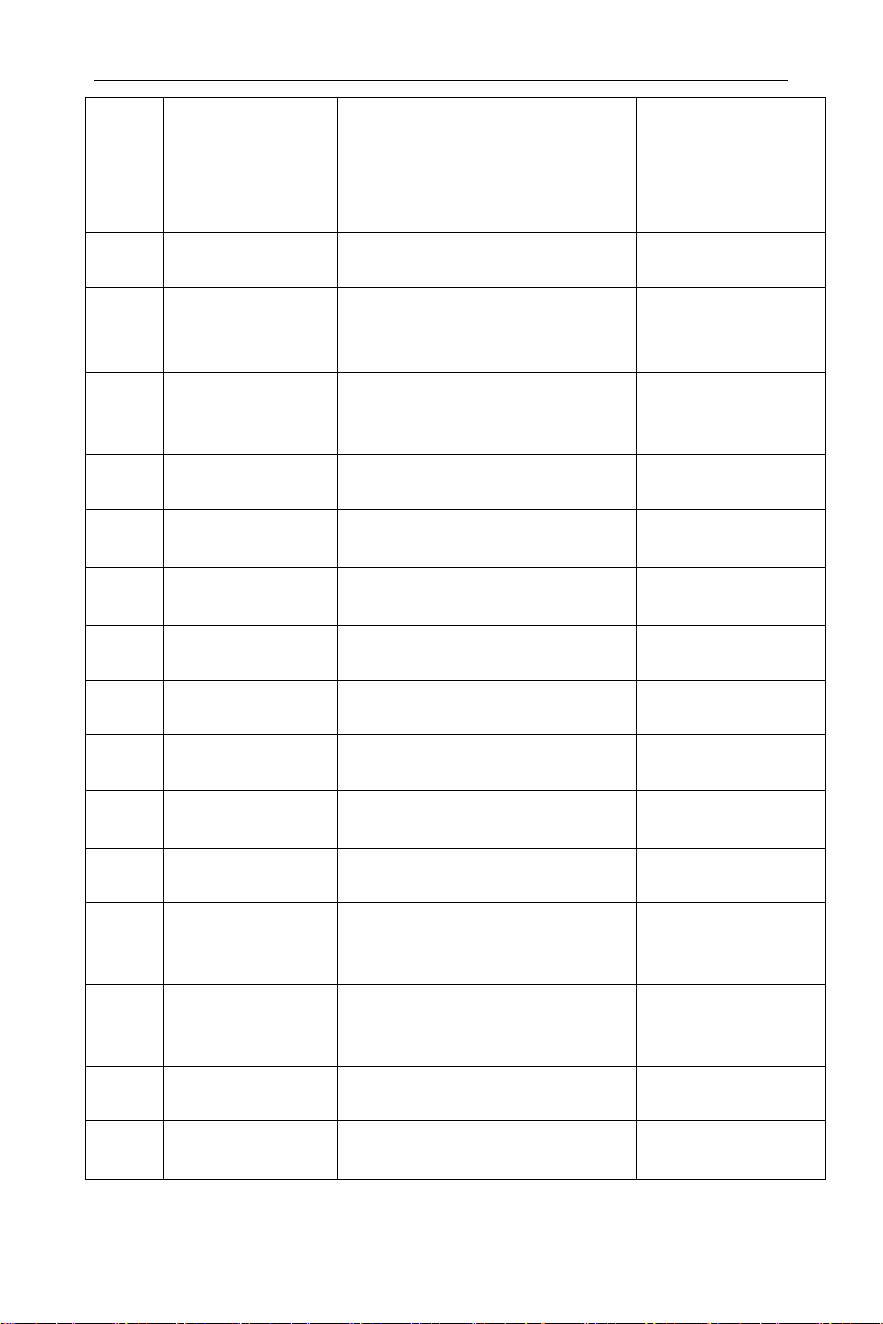
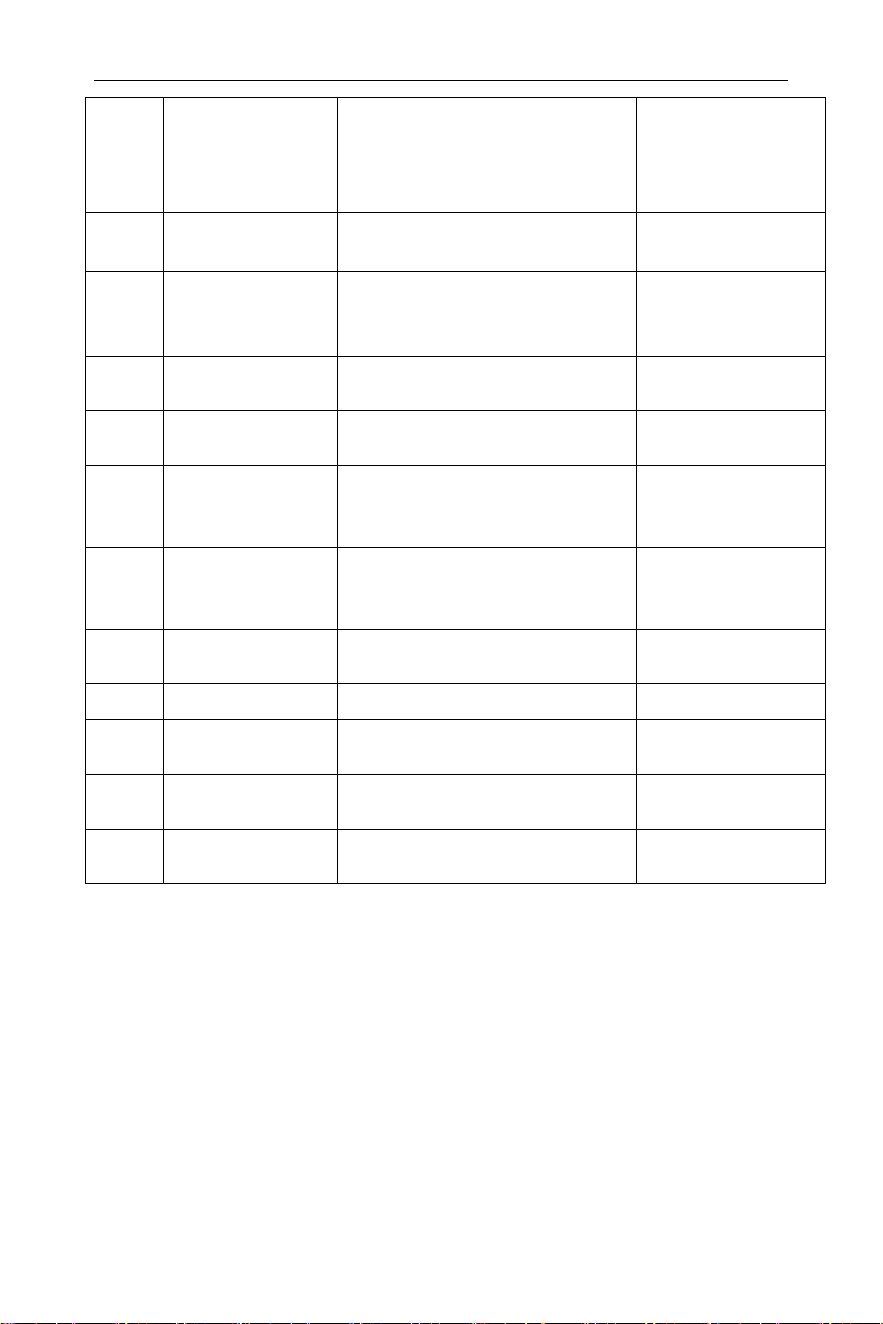
Figure 4-7 User interface
Table 4-5 User interface Description
NO.
Name
Description
Related Key
①
Reference
frequency
Set the reference
frequency as Int (internal)
or Ext (external) input
FREQ → [Freq
Ref]
②
Preamplifier
Turn on/off the
preamplifier
AMPTD→
[Preamplifier]
③
Sweep status
Set the sweep status to
Single or Cont
(continuous)
【Sweep】→
[Sweep Single]
or [Sweep
Cont]
④
Trigger type
Set the trigger type to
Auto, Video, Pos
(external positive edge),
Neg (external negative
edge)
【Trig】
4.User Notice
17
⑤
Tracking
generator
Show the source type as
CW (Continuous Wave) or
TG (Tracking Generator),
press to turn on/off the
source output
【TG】→
[Source GEN]
⑥
LAN access
sign
LAN access sign
⑦
Analog
demodulation
Turn on analog
demodulation
【 Demod 】 →
[Analog
Demod]
⑧
FFT mode
When RBW is set to less
than 3kHz, automatically
switch to FFT mode
⑨
Automatic
mode
Turn on automatic mode
【Auto】
⑩
Audio
demodulation
Turn on audio
demodulation
【Demod】→
[Demod]
⑪
Peak search
Turn on peak search
【Peak】→
[Cont Max]
⑫
Remote
control
Turn on remote control
⑬
USB storage
device
Show if USB storage
device is inserted;
⑭
UNCAL sign
Measurement is not
calibrated
⑮
Date/time
Display system date and
time
【System】→
[Date/Time]
⑯
Menu title
Function of current menu
belongs to.
⑰
Marker
readout
Display frequency and
amplitude of current
marker
【Marker】
⑱
Overflow sign
When the input signal
exceeds the ADC range,
this sign will appear
⑲
Menu item
Menu item of current
function
⑳
Sweep Time
System sweep time
【Sweep】→
[Sweep Time]
4.User Notice
18
㉑
Span
Display span width
【SPAN】
→[Span] or
【FREQ】
→[Stop Freq]
㉒
Video
bandwidth
Display video bandwidth
【BW】→
[VBW]
㉓
Center
frequency
Display center frequency
【FREQ】→
[Center Freq] or
[Start Freq]
㉔
Resolution
bandwidth
Display resolution
bandwidth
【BW】→[RBW]
㉕
Marker
Display current activated
marker
【Marker】
㉖
Trace
average
number
Continuously get average
of the trace to smooth it.
BW→
[Average]
㉗
Active
parameter
setting
Use the number keypad,
knob, and arrow keys to
set the value.
㉘
Attenuation
Display input attenuation
setting
AMPTD →
[Attenuation]
㉙
Detector type
Display detector type
【Detector】
㉚
Reference
level
Reference level
AMPTD → [Ref
Level]
㉛
Amplitude
Scale Type
Log (logarithmic) or Line
(linear)
AMPTD →
[Scale Type]
㉜
Amplitude
Scale
Display amplitude scale
AMPTD →
[Scale/Div]
4.7Build-in Help
The built-in help provides information that refers to every function
key and menu key on the front panel. Users can view this help
information if required.
1.How to acquire built-in help
Press Help; a prompt about how to obtain help information will
be shown
2.Page up and down
If there is more than one page of information, you can read the
complete information by using the directional keys.

4.User Notice
19
3.Close the current help information
Press "Help" again to close help.
4.Acquire the menu help
A message about how to obtain help information will be shown,
press the menu keys to get the corresponding help.
5.Acquire the help information of any function key
A message about how to obtain help information will be shown,
press any function key to get the corresponding help.
4.8Basic Measurement
Basic measurements include, input signal frequency and amplitude
display, marked by a frequency marker. Follow these four simple
steps below to implement input signal measurement.
Basic:
1. Setting center frequency;
2. Setting span and resolution bandwidth;
3. Activate marker;
4. Setting amplitude;
For example, to measure a 100MHz -20dBM signal, you must turn
on the spectrum analyzer and ensure it is warmed up for 30
minutes to ensure measurement accuracy.
1. Equipment connection:
Connect the output terminal of signal generator to the RF Input
50Ω terminal of spectrum analyzer. Set the parameters as follows:
Frequency 100 MHz
Amplitude -20 dBm
2. Setting parameters:
1) Press 【Preset】 to restore the analyzer to its factory-defined
state. The Spectrum analyzer will display the spectrum from
9kHz to the maximum span width. The signal generated will
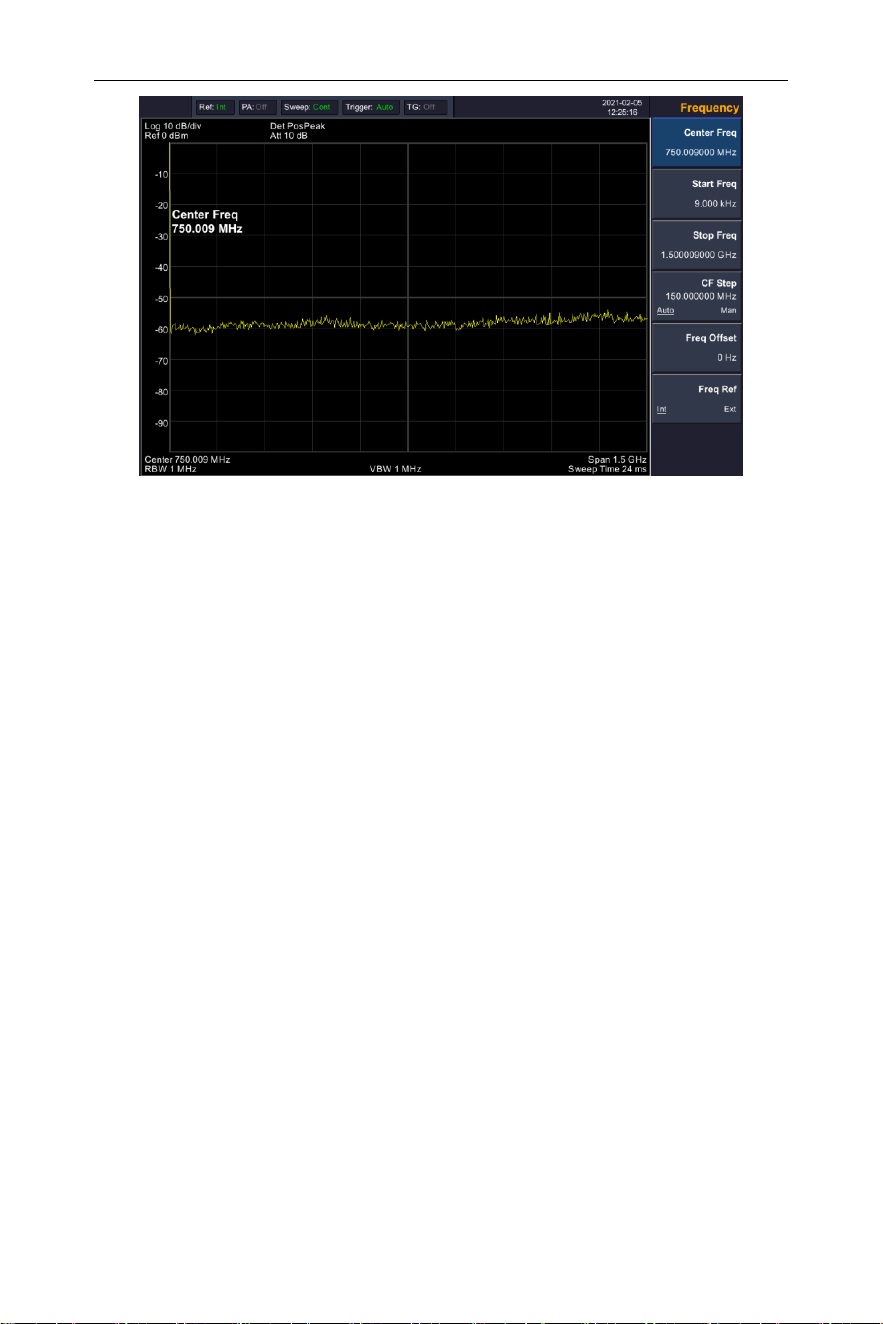
display as a vertical line at 100MHz. Refer to Figure 4-8。
4.User Notice
20
Figure 4-8 Full Span
To clearly observe the signal, reduce the frequency span to 1 MHz
and set the center frequency to 100MHz.
2) Setting Center Frequency
Press "FREQ", select [Center frequency] on corresponding pop up
menu. Input "100" and select the unit as MHz on the numeric
keypad. The keys can be used to set the exact value but the knob
and directional keys can also be used to set the center frequency.
3) Setting Frequency Span
Press 【SPAN】, input "1" and select MHz as its unit using the
numeric keypad; or press 【↓】 to decrease to 1MHz.
Press 【BW】, set [resolution bandwidth] to manual, and input
"30" and select kHz as its unit using the numeric keypad; or
press 【↓】to decrease to 30kHz.
Press 【Detector】, set the detection type to positive peak.
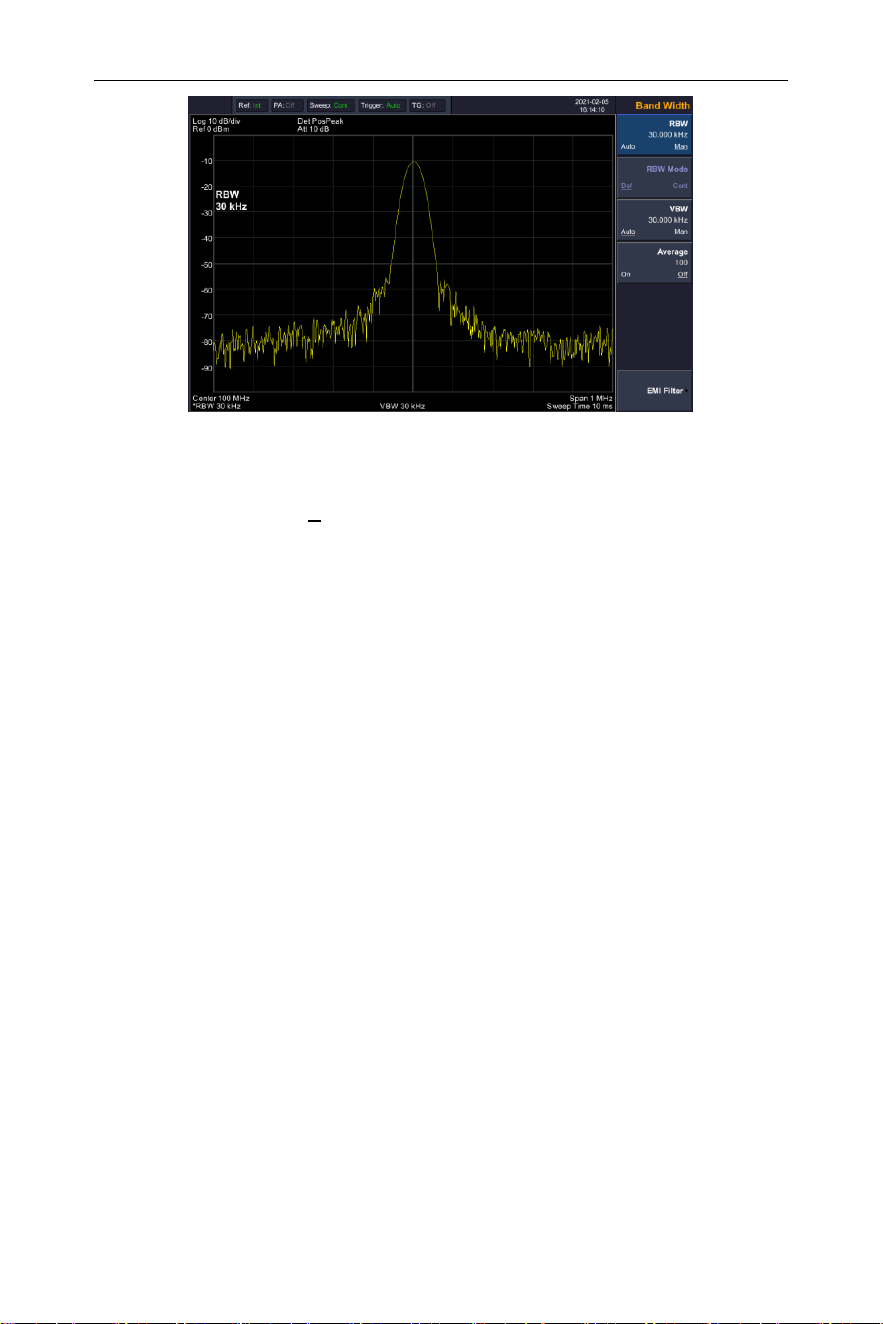
Figure 4-9 shows the signal at a higher resolution.
Please note that resolution bandwidth, video bandwidth and
frequency span are self-adapted. They adjust to certain values
according to frequency span. Sweep time can be self-adapted too.
4.User Notice
21
Figure 4-9 Set frequency span
4) Activate Marker
—Press【Marker】button in the function area. Press the softkey
to select [Marker 1 2 3 4 5 ], select Marker 1, the marker is
located at horizontal center by default, that is the signal peak
point or its neighbor.
—Press Peak, and enter the next level menu, select [Max
Search]. Frequency and amplitude values are read by the
marker and shown on the top right of the display area.
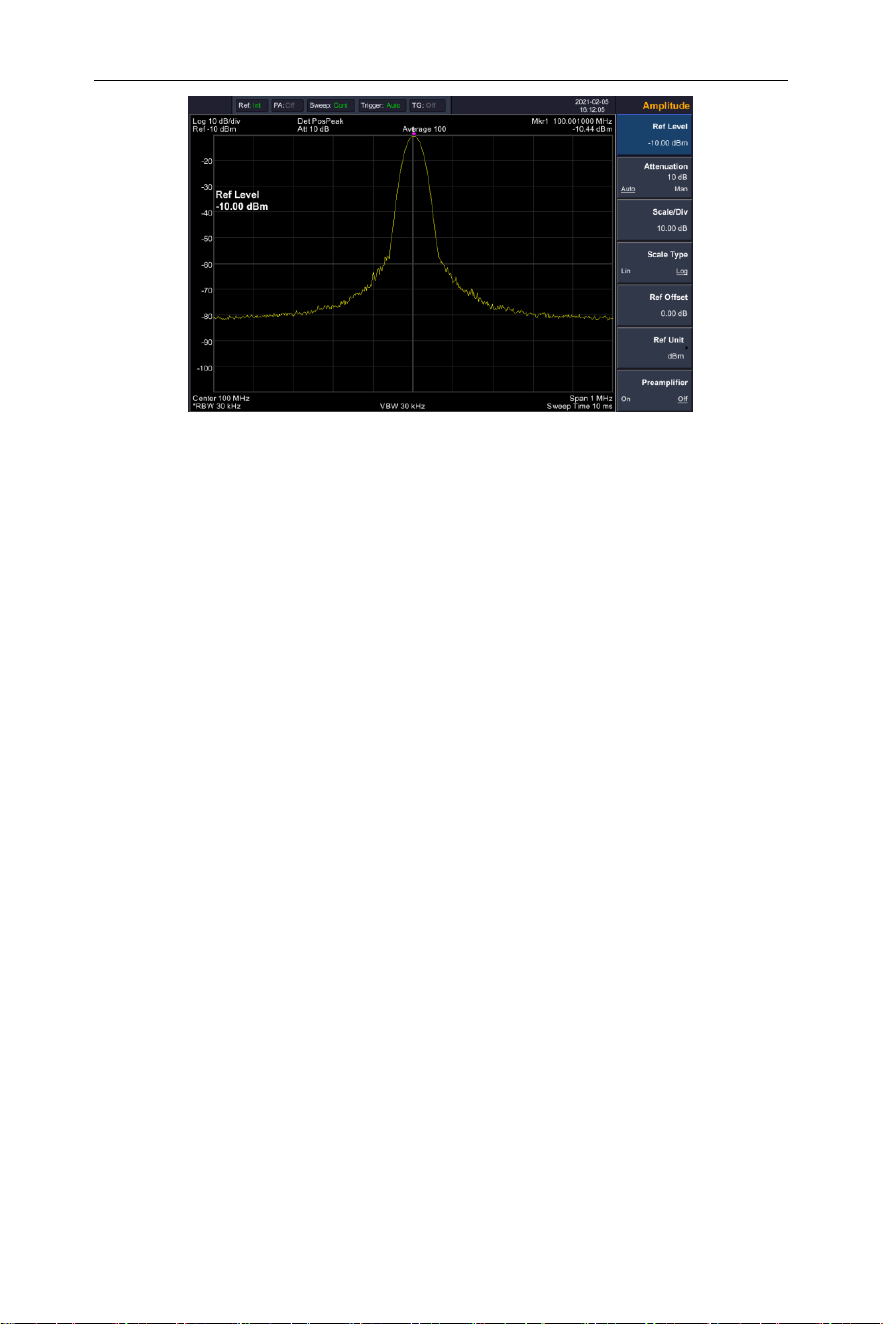
5) Setting amplitude
The reference level will be shown at the top of the display grid. To
get a better dynamic range, the real signal peak point should be
located at or near the top of display grid (reference level). The
reference level is also the maximum value on Y axis. Here we
reduce to 10dB reference level to increase the dynamic range.
Press 【AMPTD】, the amplitude setting menu will pop up, and the
[reference level] soft key will be activated. The reference level can
be input at the top left of the display grid. Input "-10" using the
numeric keypad and set the unit to dBm. You can also use the 【↓】
key or the knob for adjustment.
The reference level is set at -10dBM, which is the signal peak
value near the top of the grid. The balance between the signal
peak value and noise is dynamic range.
4.User Notice
22
Figure 4-10 Set reference level

5.Menu Interpretation
23
5. Menu Interpretation
This section provides you with the information on using the front
panel of the spectrum analyzer.
5.1 【FREQ】Frequency
The frequency range of a channel can be expressed by either of
two groups of parameters: Start Frequency and Stop Frequency;
or Center Frequency and Span. If any such parameter is changed,
the others would be adjusted automatically in order to ensure the
coupling relationship among them
f
center
= ( f
stop
+ f
start
) / 2
(5-1)
f
span
=
f
stop
−
f
start
(5-2)
f
center
, f
stop
,
f
s t a r t
and f
span
denotes the center frequency, the stop
frequency, the start frequency and the span respectively.
5.1.1 [Center Freq]
Sets the center frequency of the sweep. When pressed, the
frequency mode is switched to Center Freq and Span in order to
enter the desired parameter data.
Key Points:
⚫ The start and stop frequencies vary with the center frequency
when the span is constant.
⚫
Changing the center frequency horizontally shifts the current
sweep channel and the adjustment is limited by the specified
frequency range.
⚫
In Zero Span mode, the start frequency, stop frequency and
center frequency are always equal. If one is changed the others
are updated to match.
⚫ You can modify this parameter using the numeric keys, knob, or
direction keys.
5.1.2 [Start Freq]
Sets the start frequency of the sweep. When pressed, the
frequency mode is switched to Start Freq and Stop Freq in order to
enter the desired parameter data.
Key Points:

5.Menu Interpretation
24
⚫ The span and center frequency are changed automatically
according to the start frequency. The change of the span would
have influence on other system parameters. For more details,
please refer to "Span".
⚫
In Zero Span mode, the start frequency, stop frequency and
center frequency are always equal. If one is changed the others
are updated to match.
⚫ You can modify this parameter using the numeric keys, knob, or
direction keys.
⚫ If start freq is larger than stop freq when setting, then stop freq
will increase automatically to the same value of start freq.
5.1.3 [Stop Freq]
Sets the stop frequency of the sweep. When pressed, the
frequency mode is switched to Start Freq and Stop Freq in order to
enter the desired parameter data.
Key Points:
⚫ Modifying the stop frequency changes the span and center
frequency, and the change of span influences other system
parameters, see "Span".
⚫ You can modify this parameter using the numeric keys, knob, or
direction keys.
⚫ If stop freq is larger than start freq when setting, then start freq
will decrease automatically to the same value of stop freq.
5.1.4 [CF Step Auto Man]
Sets the step of center frequency. Changing the center
frequency in a fixed step continuously switches the channel to be
measured.
Key Points:
⚫ The frequency step type could be "Manual" or "Auto". In Auto
mode, the CF step is 1/10 of span if it is in Non-zero span mode
or equals 25% of RBW while in Zero span mode; in Manual
mode, you can set the step using the numeric, step keys or knob.
Then activate 【Center Frequency】, press step, center
frequency will change as setting step.
⚫ After you set an appropriate frequency step and select center
frequency, you can use using up and down direction keys to
switch between measurement channels in a specified step in
5.Menu Interpretation
25
order to sweep the adjacent channels manually.
⚫ You can modify this parameter using the numeric keys, knob, or
direction keys.
Frequency step lends itself to detect the harmonic waves and
bandwidths that are beyond the current span.
For example, for order of harmonic of a 300 MHz signal, you can
use set both the center frequency and frequency step to 300
MHz, and press the up direction key continuously to increase the
center frequency to 600MHz, that is secondary harmonic. Press
frequency steps to increase center frequency by 300MHz, which
reaches 900MHz. [CF Step Auto Man] shows the auto or manual
mode to setting the steps. When step is under manual mode,
press [CF Step Auto Man] to return to auto mode.
5.1.5 [Freq Offset]
You can set a frequency offset to displayed frequency value,
including freq marker value. This movement won’t influence sweep
frequency range.
While this function activated (frequency offset isn’t 0), you can
modify this parameter using the numeric keys, knob or direction
keys. `
5.1.6 [Freq Ref Int Ext]
Set the reference frequency as internal or external input, this is
regarded as whole device reference.
5.2 【SPAN】
Set the spectrum analyzer to span mode. When press 【SPAN】,
[Span],[Full Span],[Zero Span] and [Last Span] will be available to
configure. You can modify span using the numeric keys, knob or
direction keys. Use numeric key or [Zero Span] to clear span.
5.2.1 [Span]

5.Menu Interpretation
26
Sets the frequency range of the sweep. When pressed, the
frequency mode is switched to Center Freq/Span.
Key points:
⚫ The start and stop frequencies are changed with the span
automatically.
⚫ In manual span mode, the span can be set down to 0 Hz, that is
zero span mode. And up to the full span described in
"Specification". When it is set to the maximum span, it enters full
span mode.
⚫ Modifying the span in non-zero span mode may cause an
automatic change in both CF step and RBW if they were in Auto
mode, and the change of RBW may influence VBW (in Auto
VBW mode).
⚫ In non-zero span mode, variation in the span, RBW or VBW
would cause a change in sweep time.
⚫ You can modify this parameter using the numeric keys, knob, or
direction keys.
5.2.2 [Full Span]
Sets the spectrum analyzer to center frequency/sweep mode, and
span of the analyzer to the maximum.
5.2.3 [Zero Span]
Sets the span of the analyzer to 0 Hz. Both the start and stop
frequencies will equal the center frequency and the horizontal axis
will denote time. The analyzer here is measuring the time domain
characteristics of amplitude, located at the corresponding
frequency point. This will help to observe the signal (especially for
modulated signal) at time domain.
5.2.4 [Last Span]
Changes the span to the previous span setting.
5.3 【AMPTD】Amplitude
Sets the amplitude parameters of the analyzer. Through these
parameters, signals under measurement can be displayed at an
optimal view with minimum error. The pop out amplitude menu

5.Menu Interpretation
27
includes [Ref Level], [Attenuation Auto Manual], [Scale/Div],
[Scale Type Lin Log], [Ref Offset], [Ref Unit], and [Preamplifier
On Off].
5.3.1 [Ref Level]
Activate reference level function and sets the maximum power or
voltage for display window.
Key points:
⚫ This value is affected by a combination of maximum mixing level,
input attenuation, and preamplifier. When you adjust it, the input
attenuation is adjusted under a constant max mixing level,
meeting:
L
Ref
− a
RF
+ a
PA
L
mix
(5-3)
L
Ref
,
a
RF
,
a
PA
and
L
mix
denotes the reference level, the input
attenuation, the preamplifier, and the max mixing level,
respectively.
⚫ You can modify this parameter using the numeric keys, knob, or
direction keys.
Reference level located at the top of axis grid. Measurement
near the reference level would gain better accuracy, but input
signal amplitude should not exceed the reference level; if it
exceeds, the signal will be compressed and distorted, result in
wrong measurement. Analyzer’s input attenuation is related with
reference level, it can self-adjust to avoid signal compression.
Minimum reference level is -80dBm at Log scale under 0dB
attenuation.
5.3.2 [Attenuation Auto Man]
Sets the front attenuator of the RF input in order to permit big signals
(or small signals) to pass from the mixer with low distortion (or low
noise). It only works under internal mixer mode to adjust input
attenuator insider analyzer. In Auto mode, input attenuator is related
with reference level.
Key points:
⚫ When the preamplifier is On, the input attenuation could be set
up to 40 dB. You can adjust the reference level to ensure that
the specified parameters meet the requirement.

5.Menu Interpretation
28
⚫ Modifying the reference level may cause an automatic change in
attenuation value; But the change of attenuation value won’t
influence reference level.
⚫ You can modify this parameter using the numeric keys, knob, or
direction keys.
Attenuator adjustment is to make the maximum signal amplitude
pass from mixer less than or equal to -10dBm. E.g. if the
reference level is +12dBm, the attenuator value is 22dB, then
the input level in mixer is -18dBm (12-22-8=-18), its mainly
purpose is to avoid signal compression. Switch [Input Atten Auto
Manual] to manual mode, adjust the attenuator manually. The
highlight under auto or manual stands for auto coupling and
manual coupling. When attenuator is under manual mode, press
[Input Atten Auto Manual] will match the attenuator and
reference level again.
Note: Maximum input signal amplitude of input attenuator (10dB
input attenuation at least) is +30dBm, higher power signal will
damage input attenuator or mixer.
5.3.3 [Scale/Div]
Sets the logarithmic units per vertical grid division on the display.
Select 1,2,5 or 10dB log amplitude scale. It’s 10dB/div by default.
Every activated marker is with dB as unit, difference between two
markers is treated as marker difference under dB unit.
Key points:
⚫ By changing the scale, the displayed amplitude range is
adjusted.
⚫ The amplitude that can be displayed is from reference level
minus 10 times the current scale value to the reference level.
⚫ You can modify this parameter using the numeric keys, knob, or
direction keys.
5.3.4 [Scale Type Lin Log]
Sets the Scale Type of Y-axis to Lin or Log, the default is Log. It
only works under internal mixer mode. In general, select mV as Lin
amplitude scale unit. Of course there would be other units for
select.

5.Menu Interpretation
29
Key points:
⚫ In Log scale type: the Y-axis denotes the logarithmic coordinates,
the value shown at top of the grid is the reference level and the
grid size is equal to the scale value. The unit of Y-axis will be
automatically switched into the default "dBm" when the scale
type is changed from Lin to Log.
⚫ In Lin scale type: the Y-axis denotes the linear coordinates, the
value shown at the top of the grid is the reference level and the
bottom of the grid shows 0 V. The grid size is 10% of the
Reference level and the Scale/Div is invalid. The unit of Y-axis
will be automatically switched into the default "mV" when the
scale type is changed from Log to Lin.
⚫ Other than as mentioned above, the unit of Y-axis is
independent of the Scale Type.
5.3.5 [Ref Offset]
Assigns an offset to the reference level to attempt to compensate
for gains or losses generated between the device under
measurement and the analyzer.
Key points:
⚫ The changing of this value changes both the readout of the
reference level and the amplitude readout of the marker, but will
not impact the position of the curve on the screen.
⚫ You can modify this parameter using the numeric keys.
⚫ This offset use dB as absolute unit, will not change with selected
scale and unit.
5.3.6 [Ref Unit►]
Sets the unit of the Y-axis to[dBm], [dBmV], [dBuV], [V] or [W]
Key points:
1) [dBm]
Choose decibel equals to 1mW as amplitude unit.
2) [dBμW]
Choose decibel equals to 1μW as amplitude unit.
3) [dBpW]
Choose decibel equals to 1pW as amplitude unit.
4) [dBmV]
Choose decibel equals to 1mV as amplitude unit.
5) [dBμV]

5.Menu Interpretation
30
Choose decibel equals to 1μW as amplitude unit.
6) [W]
Choose Watts as amplitude unit.
7) [V]
Choose Voltage as amplitude unit.
5.3.7 [Preamplifier On Off]
Sets the status of preamplifier located at the front of the RF
signal path. Turning on the preamplifier reduces the displayed
average noise level in order to distinguish small signals from the
noise when working with small signals.
5.4 【Auto】Auto Tune
Searches for signals automatically throughout the full frequency
range, adjusts the frequency and amplitude to their optimum and
realizes one-key signal search and auto setting of parameters.
Key points: some parameters such as reference level, scale, and
input attenuation may be changed during the auto tune.
5.5 【BW】Bandwidth
Sets the RBW (Resolution Bandwidth) and VBW (Video Bandwidth)
parameters of the analyzer. Pop out the setting menu includes
[RBW Auto Man], [RBW Mode Def Con],[VBW Auto Man],
[Average On Off], [EMI Filter►].
5.5.1 [RBW Auto Man]
Adjust the resolution bandwidth ranging from 10Hz-1MHz. Use
numeric key, step key or knob to switch resolution bandwidth. The
underline under Auto or Manual means Auto mode or Manual
mode. Press [Resolution Bandwidth Auto Manual] and hold it until
underline under Auto has been highlighted. Then the resolution
bandwidth is under auto coupling mode.
Key points:
⚫ Reducing the value of RBW will increase the frequency

5.Menu Interpretation
31
resolution, but may also cause sweeps to take longer (Sweep
Time is effected by a combination of RBW and VBW when it is in
Auto mode).
⚫
RBW decreases with the span (non-zero span) in Auto RBW
mode.
5.5.2 [RBW Mode Def Cont]
Adjust resolution step mode, resolution mode can be set to 1-3-5,
Default or Continuous mode.
5.5.3 [VBW Auto Man]
Sets the desired video bandwidth in order to remove the band
noise. Set the video resolution displays in function area, ranging
from 10Hz to 1MHz by sequence step. You can modify this
parameter by numeric key, step key or knob. The underline under
Auto or Manual means Auto mode or Manual mode. Press [VBW
Auto Manual] and hold it in manual until the underline highlighted
under Auto to return auto mode.
Key points:
⚫ Reducing the VBW to smooth the spectrum line and differentiate
small signals from the noise. However, this may cause a longer
sweep time. (Sweep Time is effected by a combination of RBW
and VBW when it is in Auto mode).
⚫ VBW varies with RBW when it is set to Auto.
5.5.4 [Average On Off]
Trace average function. It doesn’t need narrow VBW to implement
smooth trace. This function set the wave detector to acquisition
mode, continuously get average of the trace to smooth it.
5.5.5 [EMI Filter►]
Pop out the menu for EMI measurement bandwidth.
1) [EMI Filter On Off]
Turn on or off EMI measurement resolution bandwidth.
2) [1MHz]
Set EMI measurement resolution to 1MHz.
3) [120kHz]

5.Menu Interpretation
32
Set EMI measurement resolution to 120kHz.
4) [9kHz]
Set EMI measurement resolution to 9kHz.
5) [200Hz]
Set EMI measurement resolution to 200Hz.
6) [Return]
Return to the previous menu.
5.6 【Trace】
As the sweep signal is displayed as a trace on the screen, you
can set parameters about the trace using this key. The analyzer
allows for up to five traces to be displayed at one time, and press
this key to check the menu for trace. It includes [Trace 1 2 3 4 5],
[Clear Write], [Max Hold], [Min Hold], [Blank], [View],
[Operations►] ,[ 1 ↔ 2], [ 2 - DL → 2], [ 2 ↔ 3], [ 1 → 3] and [ 2
→ 3].
5.6.1 [Trace 1 2 3 4 5 ]
Select trace, the analyzer offers 1,2,3,4,5 trace. The selected trace
and corresponding status menu will be underlined.
5.6.2 [Clear Write]
Refresh current curve and display the analyzer trace.
5.6.3 [Max Hold]
Maintains the maximum for each point of the trace. It continuously
receive scan data and select positive peak value detect mode.
5.6.4 [Min Hold]
Maintains the minimum for each point of the trace. It continuously
receive scan data and select negative peak value detect mode.
5.6.5 [Blank]
Clear the trace on screen. But the trace stock will keep still without
refreshing.
5.6.6 [View]

5.Menu Interpretation
33
Stops updating trace data and display current trace for
observation..
5.6.7 [Operations►]
Enter trace math related sub menu.
1) [1 ↔ 2]
Exchange the trace stock 1 data with trace stock 2 and place them
in display mode.
2) [2-DL → 2]
Deduct display line value in trace stock 2. This function execute
once when activated. Press [2 - DL → 2] again to execute it the
second time. When this function activated, display line will also be
activated.
3) [2 ↔ 3]
Exchange the trace stock 2 data with trace stock 3 and place them
in display mode.
4) [1→3]
Exchange the trace stock 1 data with trace stock 3 and place them
in display mode.
5) [2→3]
Exchange the trace stock 2 data with trace stock 3 and place them
in display mode.
5.7 【Detector】
While displaying a wider span, each pixel contains spectrum
information associated with a larger subrange. That is, several
samples may fall on one pixel. Which of the samples will be
represented by the pixel depends on the selected detector type.
Press this key to pop out the relevant menu includes [Pos Peak],
[Neg Peak], [Normal], [Sample], [RMS Avg], [Voltage Avg],
[Quasi-Peak].
Key points:
⚫ Selects an appropriate type according to the application in order
to ensure the accuracy of the measurement for your application.
5.Menu Interpretation
34
⚫ When 【BW/AVG】→[EMI Filter►]→[EMI Filter] is On,
[Quasi-Peak] is available.
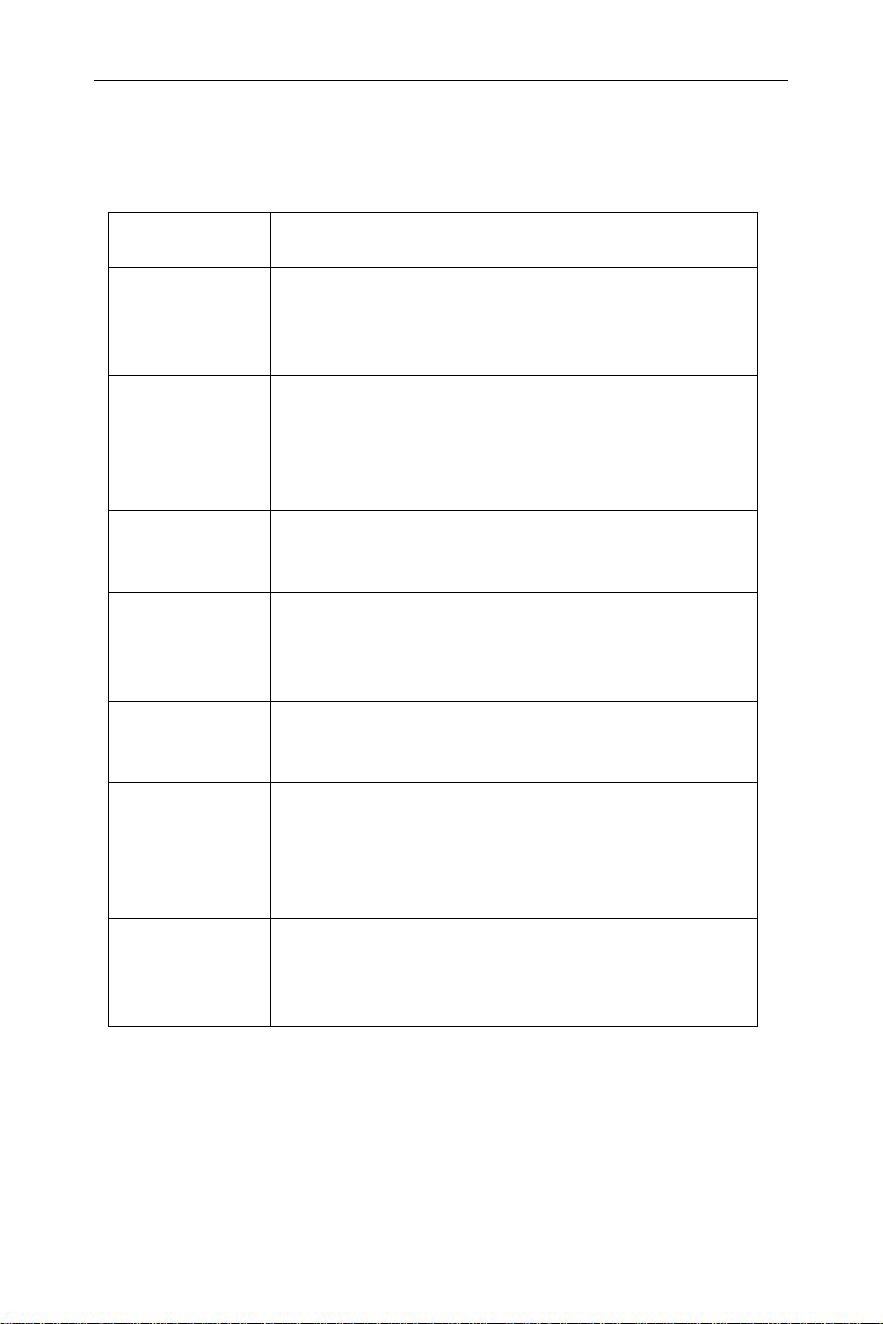
Table 8-1 Detector type comparison
Detector
Type
Measurement
Pos Peak
Positive peak detector ensures that no peak
signal is missed, which is useful for
measuring signals that are very close to the
base noise.
Neg Peak
Negative peak detector is used in most
cases with the self-test of the spectrum
analyzer and is rarely used in the
measurement. It is able to restore the
modulation envelope of the AM signal well.
Normal
Display pos peak and neg peak alternately
when noise is detected, or it only display pos
peak.
Sample
Sampling detector is conducive to
measurement noise signal. Compared with
the standard detection method, it can
measure noise better.
RMS Avg
RMS Average detector averages rms levels
to calculate the true average power. It is best
for measuring the power of complex signals.
Voltage Avg
Voltage Average detector averages the
linear voltage data of the envelope signal
measured during the bucket interval. It is
useful for observing rise and fall behavior of
AM or pulse-modulated signals.
Quasi-Peak
Quasi-peak detector is a weighted form of
peak detection. The measured value drops
as the repetition rate of the measured signal
decreases. It is used in EMI testing.
5.7.1 [Pos Peak]
Searches the maximum from the sampling data segment and
displays it at the corresponding pixel. Positive peak detector will be
selected when [Max Hold] pressed.
5.7.2 [Neg Peak]

5.Menu Interpretation
35
Searches the minimum from the sampling data segment and
displays it at the corresponding pixel.
5.7.3 [Normal]
When noise is detected, the positive and negative peaks are
alternately displayed, otherwise only positive peaks are displayed.
5.7.4 [Sample]
Set the detector to the sampling detector mode. This mode is
usually used for video averaging and noise frequency Maker.
5.7.5 [RMS Avg]
Set the detector to the RMS Average detector mode. This mode
calculates the RMS average power of all the samples in the
sample bucket.
5.7.6 [Voltage Avg]
Set the detector to the Voltage Average detector mode. This mode
calculates the average voltage of all the samples in the sample
bucket.
5.7.7 [Quasi-Peak]
Set the detector to the Quasi-Peak detector mode. This mode is
available when EMI filter is turned on. The quasi-peak detector is a
peak detector that is weighted by the duration and repetition rate of
the signal, as specified by the CISPR 16-1-1 standard. Quasi-peak
detection is characterized by a fast charge time and slow decay
time.
5.8 【Display】
Controls the screen display of the analyzer, such as full screen,
setting the on or off for window zoom, display line, amplitude scale,
grid and label.
5.8.1 [Full Screen]
Set to full-screen display graphical interface, press any key to exit.

5.Menu Interpretation
36
5.8.2 [Zoom On Off]
In multi-window display mode, press this button to zoom in on the
selected window. Press the key for the first time to enlarge the
selected window to the entire graphic display area. Press this
button again to exit the entire graphic display area and restore the
multi-window display mode.
5.8.3 [Display Line On Off]
When this menu is on, an adjustable horizontal reference line is
activated on the screen.
5.8.4 [Ampt Graticule On Off]
Turn on or Off amplitude scale function.
5.8.5 [Grid On Off]
It’s the grid lines displaying and hiding menu. When the grid
display line is on, pressing [Grid On Off] again will turn it off.
5.8.6 [Label On Off]
Defines the content displayed or hidden in the comments that
appear in the display grid area.
5.9 【Sweep】
Sets parameters about the Sweep time and mode including
[Sweep Time Auto Man], [Sweep Mode Fast ACCY], [Sweep
Single], [Sweep Cont]].
5.9.1 [Sweep Time Auto Man]
Sets the time interval for the analyzer to complete a sweep.

5.Menu Interpretation
37
⚫ In non-zero span, the analyzer uses the shortest sweep time on
the basis of the current RBW and VBW settings if Auto is
selected.
⚫ You can modify this parameter using the numeric keys, knob, or
direction keys.
5.9.2 [Sweep Mode Fast ACCY]
Set the sweep mode of the spectrum analyzer to fast sweep or
precise sweep.
When Fast is selected, the spectrum analyzer will complete a
sweep faster within the span range.
When ACCY is selected, the spectrum analyzer will accurately
complete a sweep within the span.
5.9.3 [Sweep Single]
Press [Single Sweep] to set the sweep mode to Single. Press
[Single Scan] to restart the scan when the next trigger signal
arrives. Allows you to set continuous scan mode.
5.9.4 [Sweep Cont]
Press [Continuous Scan] to activate the sweep scan mode.
5.10 【Trig】
Sets the trigger type and other associated parameters, menu
includes [Auto Run] , [Video], [External ►].
5.10.1 [Auto Run]
Set the trigger mode to the free trigger mode so that the scan
trigger is as fast as possible with the spectrum analyzer. It meets
the trigger conditions at any time, that is, continue to generate a
trigger signal.
5.10.2 [Video]
This indicates a trigger signal will be generated when the system
detects a video signal in which the voltage exceeds the specified
video trigger level.

5.Menu Interpretation
38
5.10.3[External ►]
In this mode, an external signal (TTL signal) is input from the
[Trigger In] connector at the rear panel, its edge conditions should
meet with the user settings to generate trigger signals.
Press [External ►] to enter the submenu, and select [Positive
Edge] or [Negative Edge] as the trigger condition.
5.11 【TG】
When the Source is turned on, an independent signal or a signal
with the same frequency of the current sweep signal will be output
from the GEN OUTPUT 50Ω terminal on the front panel. Press the
key will pop out related menu includes [Track Gen On Off], [Output
Level], [Network Meas►]. The source is turned off in the power-on
and reset states.
5.11.1[Track Gen On Off]
Select the tracking generator to be on or off.
5.11.2 [Output Level]
Set the output power of CW or TG source.
5.11.3[Network Meas►]
When the source is “TG”, tracking source network measurement
function is available, mainly for amplitude and frequency
characteristics measurement; RF output and spectrum
measurement is fully synchronized, can be used as a scalar
network analyzer. When the network measurement function is "on",
the measurement results show relative values after "normalized",
expressed in "dB". When the network measurement function is
"off", the measurement shows the spectrum measurement result,
expressed in "dBm".
1) [Network Meas On Off]
Turn on or off the tracking source network measurement function.

5.Menu Interpretation
39
Tracking source network measurement function, mainly for
amplitude and frequency characteristics measurement; RF output
and spectrum measurement is fully synchronized, can be used as
a scalar network analyzer. When the network measurement
function is "on", the measurement results show relative values after
"normalized", expressed in "dB". When the network measurement
function is "off", the measurement shows the spectrum
measurement result, expressed in "dBm".
2) [Output Level]
Used to set the output power of the trace source.
3) [Ref Level]
This soft menu is used to track the source network measurement of
the user to adjust the measurement results display location.
4) [Position]
Used to set the position during network measurement.
5) [Execute Norm]
This soft menu is used to track the user's field calibration of the
source network measurements. After connecting the instrument's
RF output to the RF input, press the "normalized" soft menu and
the display shows a straight line on the 0dB scale.
6) [Normalize On Off]
This soft-menu is used to turn normalization on or off after
executing normalization.
7)[Return]
Return to the previous menu.
5.12 【Demod】Demodulation
Enter the demodulation settings, the spectrum analyzer supports
audio demodulation and analog demodulation.

5.Menu Interpretation
40
5.12.1 [DEMOD►]
Enter Audio Demod soft menu.
5.12.1.1 [Demod On Off]
Turn audio demodulation on or off.
5.12.1.2 [Demod Mode►]
Enter the demodulation mode soft menu. Including FM, AM.
5.12.1.3 [Sound]
When the audio demodulation is on, adjust the speaker output
volume.
5.12.1.4 [RadioSet►]
Quick access to the common broadcast band.
5.12.1.5[Return]
Return to the previous menu.
5.12.2 [Analog Demod►]
Enter the digital demodulation soft menu.
5.12.2.1 [AM►]
Enter AM demodulation soft menu.
5.12.2.1.1 [AM On Off]
Turn AM demodulation On or Off.
5.12.2.1.2 [Carrier Freq]
Set the carrier frequency of the AM modulation signal.
5.12.2.1.3 [IF BW]
Set the demodulation bandwidth of the AM modulated signal.
5.12.2.1.4 [Data Reset]
Set the maximum, minimum, and average data reset under the AM
modulated signal.
5.12.2.1.5 [Setup►]

5.Menu Interpretation
41
Set the time axis, depth axis and AF trigger of AM modulation.
1) [Time Axis►]
Set the time axis parameters.
⚫ [Ref.Value]
Set the starting reference time on the time axis.
⚫[Position]
Set the reference position of the waveform on the time axis.
⚫ [Scale/Div Auto Man]
Automatically or manually set the grid division scale.
⚫ [Return]
Return to the previous menu.
2)[Depth Axis►]
Set the depth axis parameters.
⚫ [Ref Depth]
Set the reference offset position as a vertical percentage.
⚫[Position]
Set the reference position of the waveform on the depth axis.
⚫[Scale/Div Auto Man]
Automatically or manually set the grid division scale.
⚫[Return]
Return to the previous menu.
3)[AF Trigger►]
Set the AF triggering conditions.
⚫[AF Trigger On Off]
Set the AF trigger to be On or Off.
⚫[Edge Pos Neg]
Set the trigger to rising or falling edge.
⚫[Trigger Mode]

5.Menu Interpretation
42
Set the triggering mode to single trigger or continuously trigger.
⚫[Trigger Level]
Set the trigger level as a percentage of the depth.
⚫ [Trigger Delay]
Set the trigger delay time.
⚫[Return]
Return to the previous menu.
5.12.2.2 [FM►]
Enter FM demodulation soft menu.
5.12.2.2.1 [FM On Off]
Turn FM demodulation On or Off.
5.12.2.2.2 [Carrier Freq]
Set the carrier frequency of the FM modulation signal.
5.12.2.2.3 [IF BW]
Set the demodulation bandwidth.
5.12.2.2.4 [Data Reset]
Set the maximum, minimum, and average data reset under the FM
modulated signal.
5.12.2.2.5[Setup►]
Set the time axis, deviation axis and AF trigger of FM modulation.
1) [Time Axis►]
Set the time axis parameters.
⚫[Ref.Value]
Set the starting reference time on the time axis.
⚫[Position]
Set the reference position of the waveform on the time axis.
⚫ [Scale/Div Auto Man]

5.Menu Interpretation
43
Automatically or manually set the grid division scale.
⚫[Return]
Return to the previous menu.
2)[Deviation Axis►]
Set the deviation axis parameters.
⚫[Ref Deviation]
Set the reference offset position as a vertical percentage.
⚫[Position]
Set the reference position of the waveform on the deviation axis.
⚫ [Scale/Div Auto Man]
Automatically or manually set the grid division scale.
⚫[Return]
Return to the previous menu.
3)[AF Trigger►]
Set the AF triggering conditions.
⚫[AF Trigger On Off]
Set the AF trigger to be On or Off.
⚫[Edge Pos Neg]
Set the trigger to rising or falling edge.
⚫[Trigger Mode]
Set the triggering mode to single trigger or continuously trigger.
⚫[Trigger Level]
Set the trigger level as a percentage of the depth.
⚫[Trigger Delay]
Set the trigger delay time.
⚫[Return]
Return to the previous menu.

5.Menu Interpretation
44
5.13 【Peak】
Executes peak searching immediately and opens the Peak setting
menu.
Key Points:
⚫ If Max is selected from the Peak Search option, it will search and
mark the maximum on the trace.
⚫
The peak search of Next Peak, Peak Right, Peak Left or peaks
in the peak table must meet the specified parameter condition.
⚫
The spurious signal at the zero frequency caused by LO feed
through is ignored.
5.13.1 [Max Search]
Place a frequency scale at the highest point of the trace and
display the frequency and amplitude of the frequency scale in the
upper right corner of the screen. [Max search] does not change the
activated function.
5.13.2 [Next Peak]
Searches the peak whose amplitude is the closest to that of the
current peak. The peak is then identified with a marker. When this
key is pressed repeatedly, you can quickly find a lower peak.
5.13.3 [Left Peak]
Searches the nearest peak located to the left side of the current
peak and meets the current peak and peak thresholds condition.
The peak is then identified with a marker.
5.13.4 [Right Peak]
Searches the nearest peak located to the right side of the current
peak and meets the current peak and peak thresholds condition.
The peak is then identified with a marker.
5.13.5 [Min Search]

5.Menu Interpretation
45
Searches the peak with the minimum amplitude on the trace and
identifies it with a marker.
5.13.6 [Mkr→CF]
Used to move the peak point to the center frequency point.
5.13.7 [Cont Max On Off]
Set the peak search form, off by default. On mode will
automatically search for the peak.
5.14 【Marker】
The marker appears as a rhombic sign (shown below) for
identifying the point on the trace. We can easily readout the
parameters of the marked point on the trace, such as the amplitude,
frequency and sweep time.
Key points:
⚫ The analyzer allows for up to three groups of markers to be
displayed at one time, but only one pair or one single marker is
active every time.
⚫ You can use the numeric keys, knob or direction keys to enter
the desired frequency or time when any marker type menu is
active, so as to view the readouts of different points on the trace.
5.14.1 [Marker 1 2 3 4 5]
Selects one marker, the default is Marker1. And place the
frequency scale at the center of the trace. If the frequency
difference is activated, this softkey changes to the menu under the
[Difference] function.
If there is already a marker, this command will not produce any
operation. If there are already two markers (e.g. in [Difference]
mode), [Marker] changes the active frequency scale to a new
single frequency scale. Amplitude and frequency information can
be obtained from the frequency scale (time information when the

5.Menu Interpretation
46
sweep width is 0Hz), and these values are displayed in the upper
right corner of the active function area and the screen. You can use
the numeric keys, the step key, or the knob to move the active
frequency scale.
The marker reads data from the current active track (this track may
be track A or track B). If both tracks are active or both tracks are in
static display mode, the frequency scale will read data from track
A.
5.14.2 [Trace 1 2 3 4 5]
In the trace measurement, the frequency scale used to activate the
traces.
5.14.3 [Normal]
One of the marker types, which is used to measure the values of
X (Frequency or Time) or Y (Amplitude) at certain point of the
trace. When selected, a marker will appear with its own digital ID
such as "1" on the trace.
Key points:
⚫ If no active marker exists currently, a one will be enabled
automatically at the center frequency of current trace.
⚫ You can use the knob, direction keys or numeric keys to move
the marker. The readouts of the marker will be displayed on the
upper right of the screen.
⚫ The readout resolution of the X-axis corresponds to the span
and sweep points. For higher resolution, add sweep points or
reduce the span.
5.14.4 [Delta]
One of the marker types, which is used to measure the delta
values of X (Frequency or Time) and Y (Amplitude) between the
Reference point and certain point on the trace. When selected, a
pair of markers appears on the trace, which are the Reference
Marker and the Delta Marker. Will be in the active area and the
display area of the upper right corner, showing the amplitude delta
value between the two markers and frequency difference. If a

5.Menu Interpretation
47
single marker already exists, [Delta] will place a static marker and
an active marker to the original position and a single marker
position. Use the knob, step key, or number keys to move the
marker. If there are two markers, press [Delta] directly. However, if
[Delta] has been activated, press [Delta] to place the still frequency
scale to the active marker. The displayed amplitude difference is
expressed in dB, or is the linear unit in terms of the corresponding
scale.
Key points:
⚫ The Reference Marker will be activated at the position of current
marker, or else both the reference marker and Delta Marker will
be simultaneously activated at the center frequency location if no
marker is active at the present.
⚫ The location of the Reference Marker is always fixed (both in the
X-axis and the Y-axis), while the Delta Marker is active. You can
use the numeric keys, knob or direction keys to change the
location of Delta Marker.
⚫
The delta of both the Frequency/Time and the amplitude
between the two markers are displayed at the upper right of the
screen.
⚫ Two ways to enable a certain point as the reference:
a) Open a "Normal" marker and locate it onto a point and then
switch the marker type into "Delta", creating a new reference,
then you can modify the location of the delta point to achieve the
delta measurement.
b) Open a Delta Marker and place it onto a point, then reselect
the Delta menu to locate the marker you opened onto this points,
then you can modify the location of the delta point to achieve the
delta measurement.
5.14.5 [Off]
The marker information displayed on the screen and functions
based on the marker will be turned off and won’t show up again.
5.14.6 [All Off]
Turns off all the opened markers and the related functions. The
marker won’t show again.
5.14.7 [Marker Table On Off]

5.Menu Interpretation
48
Turns on or off the display of all marker table.
5.15 【Marker→】
A soft menu associated with the marker function is popped out for
setting the other system parameters (such as Center frequency,
Reference level) by current marker readings. These menus relate
to the frequency of the spectrum analyzer, whether the sweep
width and marker are in normal or delta marker mode.
5.15.1 [Mkr->CF]
Sets the center frequency of the analyzer based on the frequency
of the current marker. This feature quickly moves the signal to the
center of the screen.
⚫ If Normal is selected, the center frequency will be set to the
frequency of the current marker.
⚫ If Delta Marker is selected, the center frequency will be set to the
frequency at which the Delta Marker is located.
⚫
The function is invalid in Zero span mode.
5.15.2 [Mkr->CF Step]
Sets the center frequency step of the analyzer based on the
frequency of the current marker.
⚫ If Normal is selected, the center frequency step will be set to the
frequency of current marker.
⚫ If Delta Marker is selected, the center frequency step will be set
to the frequency at which the Delta Marker is located.
⚫ The function is invalid in Zero span mode.
5.15.3 [Mkr->Start]
Sets the start frequency of the analyzer based on the frequency of
the current marker.
⚫ If Normal is selected, the start frequency will be set to the
frequency of the current marker.
⚫ If Delta Marker is selected, the start frequency will be set to the

5.Menu Interpretation
49
frequency at which the Delta Marker is located.
⚫ The function is invalid in Zero span mode.
5.15.4 [Mkr->Stop]
Sets the stop frequency of the analyzer based on the frequency of
the current marker.
⚫ If Normal is selected, the stop frequency will be set to the
frequency of the current marker.
⚫ If Delta Marker is selected, the stop frequency will be set to the
frequency at which the Delta Marker is located.
⚫ The function is invalid in Zero span mode.
5.15.5 [Mkr->Ref Level]
Sets the reference level of the analyzer based on the amplitude of
the current marker.
⚫ If Normal is selected, the reference level will be set to the
amplitude of the current marker.
⚫ If Delta Marker is selected, the reference level will be set to the
amplitude at which the Delta Marker is located.
5.15.6 [MkrΔ->Span]
Changes the span of the analyzer to the frequency difference
between the two markers.
5.16 【Marker Fctn】Marker Function
Executes specific marker soft menu.
5.16.1 [Function Off]
Turn off marker measurement function.
5.16.2 [NdB On Off]
Enables the N dB BW measurement or sets the value of N. The N
dB BW denotes the frequency difference between points that are

5.Menu Interpretation
50
located on both sides of the current marker while the amplitude
falls off (N<0) or rises (N>0) N dB separately,
Key points:
⚫ When the measurement starts, the analyzer will search the
two points which are located at both sides of the current point
and are N dB amplitudes smaller or greater than the current
point, and display the frequency difference between the two
points.
⚫ You can use the numeric keys, knob or direction keys to
modify the value of N, 3 at default.
5.16.3 [Marker Noise On Off]
Turn on or off the frequency noise function. The function of marking
noise is applied to the selected cursor, and then the noise Power
Spectral Density at the cursor is read. When turned on, the
average noise level read at the frequency scale is normalized to 1
Hz bandwidth for noise power.
5.16.4 [Freq Count►]
Activate the frequency counter function and display the count
results in the upper right corner of the screen. The counter counts
only the signals that are displayed on the screen. The frequency
count also pops up an additional counter function for the soft menu,
including [Freq Count On Off ].
1) [Freq Count On Off]
Turn on or off the frequency counter mode. This function is invalid
when the trace signal generator is activated. The count value is
displayed in the upper right corner of the screen.
2) [Resolution]
Counter resolution is divided into 1 kHz, 100 Hz, 10 Hz, 1Hz.
Changing the counter resolution can change the counter accuracy.
The higher the resolution, the higher the counting accuracy.
3) [Return]
Return to the previous menu.

5.Menu Interpretation
51
5.17 【Meas】Measurement
Provide a variety of advanced measurement functions, pop-up
spectrum analyzer built-in and user-defined measurement function
soft menu, turn on or off the time spectrum, adjacent channel
power measurement, channel power measurement, occupied
bandwidth, Pass-Fail measurement menu.
5.17.1 [Measure off]
You can directly close the currently running measurement function,
you can also choose to close the measurement menu.
5.17.2 [Time Spec On Off]
Turn on time spectrum measure mode.
5.17.3 [ACPR On Off]
Turn on or off the adjacent channel power measurement. Press
【Meas Setup】 to pop up the parameters of the adjacent channel
power measurement soft menu. The adjacent channel power is
used to measure the ratio of the adjacent channel power of the
transmitter. The absolute value of the main channel power and the
absolute value of the adjacent channel power are obtained by the
linear power integration method, so that the adjacent channel
power ratio is gained.
5.17.4 [Chanel Power On Off]
Turn on or off channel power measurements. Press 【Meas Setup】
to pop up the channel power measurement parameter settings soft
menu. The channel power is used to measure the transmitter
channel power, according to the user set the channel bandwidth,
through the linear power integration method to obtain the absolute
value of the main channel power.

5.Menu Interpretation
52
5.17.5 [OBW On Off]
Turn on or off the occupied bandwidth measurement. Press
【Meas Setup】 to pop up the parameter setting soft menu for
occupying the bandwidth measurement. Occupied Bandwidth is a
measure of the bandwidth occupied by the transmitter signal can
be measured from the total power ratio within the in-band power
span, with a default value of 99% (the user can set this value).
5.17.6 [Pass-Fail►]
Enter the pass / fail measurement function soft menu. Pass / fail
measurement has two modes of window measurement and area
measurement.
5.17.6.1 [Window Meas►]
Enter Window measurement soft menu.
1) [Window Meas On Off]
Turn on or off window measurement mode.
2) [Limit Line On Off]
Turns the amplitude line on or off, and the amplitude line turns on
when the window measurement is on.
3) [Freq Line On Off]
Turns the frequency line on or off, and the frequency line turns on
when the window measurement is on.
4) [Limit Set Up Low]
Used to edit the upper and lower limit on the amplitude line.
5) [Freq Set Start Stop]
Start and stop frequencies for scanning line for editing.
6) [Window Sweep On Off]
Turns window sweep on or off. When the window sweep is on, only
the window formed by the intersection of the amplitude line and the

5.Menu Interpretation
53
frequency line is scanned. The peripheral stops scanning; the full
frequency is scanned when it is closed.
7) [Return]
Return to the previous menu.
5.17.6.2 [Limit Meas►]
Enter limit measurement soft menu.
1) [Limit Meas On Off]
Turn on or off limit measurement mode.
2) [Line Up On Off]
When the upper limit line is turned on or off, the upper limit line is
opened by default when the area measurement is on.
3) [Line Low On Off]
When the lower limit line is turned on or off, the lower limit line is
opened by default when the area measurement is on.
4) [Shift X/Y Freq Ampt]
Frequency: For the actual measurement, the edited area as a
whole superimposed on a frequency, so that it can implement left
or right shift, easy to measure. Does not affect the frequency and
marker of the spectrum analyzer settings.
Amplitude: The region has been edited on the whole
superimposed on a degree, so that it can move up or down, easy
to measure. Does not affect the amplitude setting of the spectrum
analyzer.
5) [UpLine Edit►]
Upper line editing is used to edit the control line above the trace,
depending on the trace.
6) [LowLine Edit►]
Lower line editing is used to edit the control line above the trace,
depending on the trace.
7) [Return]
Return to the previous menu.

5.Menu Interpretation
54
5.18 【Meas Setup】
Measurement setting menu for the corresponding measurement
parameter settings when adjacent channel power, channel power,
occupied bandwidth measurement mode is turned on.
5.18.1 [Channel BW]
Set the bandwidth of the channel power measurement, and set the
total display power percentage of bandwidth.
5.18.2 [Channel Interval]
Set the center frequency difference of the primary channel to the
adjacent channel.
5.18.3 [Channel Nums]
Set the number of upper and lower adjacent channels measured
by adjacent channel power.
5.18.4 [Power Percent]
Set the power ratio of occupied bandwidth.
5.19 【System】
A soft menu for system parameter settings pops up. Including
[System ►], [ Setting ►], [PowerOn / Preset ►], [ Calibration ►].
For first time you use the spectrum analyzer, set the date and time,
the system will store the settings, restart the machine after power
off won’t change the settings.
5.19.1 [System►]

5.Menu Interpretation
55
Pop up system information and system log soft menu.
1) [System Info]
2) [Firmware Update]
3) [Option]
5.19.1.1[System Info]
Press to display system information.
5.19.1.2 [Firmware Update]
1. Create a folder named “spectrum” (lowercase) on the root
directory of the USB memory device, and copy the firmware file
onto this folder.
2. Insert the USB memory device into the front-panel USB
connector on your instrument. Press 【System】key on the front
panel, press [System ►], and press [Firmware Update] to
execute firmware update.
3. The analyzer will perform the update process. The upgrade
procedure will take approximately 30 seconds. During the
update process, do not remove the USB memory device, do not
power off the instrument or press any key. If the update process
fails, please report the problem to your distributor or our
technical support.
4.Once the upgrade is completed, the instrument will automatically
restart
5.19.1.3 [Option]
Enter option TG or EMI function configuration.
5.19.1.4 [Return]
Return to the previous menu.
5.19.2 [Setting]
A soft menu for setting the interface address of the spectrum
analyzer, including [Network ►]. The spectrum analyzer supports
VGA, LAN and USB interface communication.

5.Menu Interpretation
56
5.19.2.1[LAN►]
Pop out the relative menu for network configuring.
1) [IP]
Used to set the IP address of the LAN port.
2) [Mask]
Set the subnet mask parameter.
3) [Gate]
Set default gateway address.
4) [DHCP On Off]
One of the setting methods of IP address. The DHCP server
assigns an IP address, subnet mask and gateway to the analyzer
on the basis of the current network status.
5.19.2.2 [ScreenSetting►]
Set the LCD brightness, the range is 0% to 100%.
5.19.2.3[Language►]
To set the system language.
5.19.2.4 [Date/Time►]
Used to set the device date, time, and their format.
⚫ [Date/Time On Off]
Turn on or off Date/Time display.
⚫ [Format►]
Time format can be displayed as [YMD HMS] or [HMS YMD].
⚫ [Date Set]
Set the display date for spectrum analyzer. Format is
YYYMMDD. E.g. June 22th,2012 should display as 20120622.
⚫ [Time Set]
Set the display time for spectrum analyzer. Format is HHMMSS.
E.g. 16:55:30 should display as 165530.
5.Menu Interpretation
57
5.19.3 [PowerOn/Preset►]
Used to set the analyzer power on parameters or reset
parameters.
5.19.3.1 [Power Set►]
Power-on parameter settings include [Factory],[User]and [Last].
5.19.3.2 [Preset►]
Power-on parameter settings include [Factory],[User]and [Last].
Note: To save the current system configuration as a user-defined
configuration, press the [Save/Recall] panel key and select the
[User Status] menu item.
Table 8-2 [Factory] Settings
Parameter
Value
Frequency
Center Frequency
500M
250.009000MHz
1G
500.009000MHz
1.5G
750.009000MHz
Start Frequency
9.000 kHz
Stop Frequency
500M
500.009000MHz
1G
1.000009000GHz
1.5G
1.500009000GHz
Frequency Step
500M
Auto
50.000000 MHz
1G
Auto
100.000000 MHz
1.5G
Auto
150.000000 MHz
Frequency Offset
0 Hz
Frequency Reference
Internal
SPAN
Sweep
500M
500.000000MHz
1G
1.000000000GHz
1.5G
1.500000000GHz
AMPTD
Reference Level
0.00 dBm
Attenuator
Auto 10 dB
5.Menu Interpretation
58
Scale/div
10.00 dB
Scale Type
Log
Reference Offset
0.00 dB
Unit
dBm
Preamp
Off
BW
Resolution Bandwidth
Auto 1 MHz
Resolution Step
Default
Video Bandwidth
Auto 1 MHz
Trace Average
Off
Detector
Detect Type
Pos Peak
Sweep
Sweep Time
Auto 24.000 ms
Sweep Term
Continuous Sweep
Source
Tracking Source
Off
Output Level
-10dBm
Network Meas
Off
Trace
Trace
1
Trace Type
Clear Write
Trace 1 Math
1<- ->2
Display
Full Display
Off
Window Zoom
Off
Display Line
Off
Amplitude Scale
On
Grid
On
Label
On
Trig
Trigger Type
Auto
Demod
DEMOD
Off
Analog Demod
Off
Peak
5.Menu Interpretation
59
Peak Search
Off
Marker Fctn
NdB
Off
Marker Noise
Off
Frequency Count
Off
Marker
Marker
1
Trace
1
Marker List
Off
Meas
Time Spectrum
Off
Adjacent Power
Off
Channel Power
Off
Occupied Bandwidth
Off
pass-fail
Off
Meas Setup
Channel Bandwidth
1.000000 MHz
Channel Gap
2.000000 MHz
Adjacent Number
3
Occupied Bandwidth
99.00%
System
Interface
LAN
IP
192.168.1.13
Mask
255.255.255.0
Gate
192.168.1.1
DHCP
Off
Language
English
Date/Time
On
5.19.13 [Calibration►]
Pop up user calibration soft menu including [Calibration] and
[Factory].
[Calibration]: Set the signal generator frequency as 440MHz,
power as -20dBm, access to RF instrument RF input, press the
[Calibration] softkey, start the implementation of user calibration.

5.Menu Interpretation
60
[Factory]: If you do not need the user calibration compensation
data, press the [Factory] key to clear the data and return to the
factory status.
5.20 【File】
Pop up file management soft menu.
5.20.1 [Refresh]
In the directory state, view the latest stored files.
5.20.2 [Type ►]
To check file type under directory, includes screen image, trace
data and display all.
5.20.3 [First Page]
Display first page of current directory.
5.20.4 [Prev Page]
Display Previous page.
5.20.5 [Next Page]
Display next page.
5.20.6 [Last Page]
Display last page of current directory.
5.20.7 [Operations►]
Enter file operation soft menu, including [Sort►], [Delete►],
[Export►], [Load], [Power Set], [Preset].

5.Menu Interpretation
61
5.21 【Preset】
Press the [Preset] key on the front panel to restore the factory
default settings or user-defined settings with one key. By default,
the factory default settings are restored with the [Preset] key.
5.22 【Help】
Spectrum analyzer help menu, press this key once to open the
system help, press any key to display the help content, and press
this key again to close the help function.
5.23 【Save/Recall】
Save, recall or set to quickly save screenshot, trace data, or user
state.
5.23.1【Save►】
It’s available to save screenshot, trace data, or user state.
5.23.1.1 [Screen Pixmap►]
Enter screenshot save soft menu, you can choose to save
screenshots to local or flash memory, the image file format is bmp,
the lower left corner of the screen status display bar will display the
saved screenshots information.
5.23.1.1 [Trace Data►]
Enter the trace data save soft menu, you can choose to save the
trace data to the local or flash memory, trace data file format is csv,
the bottom left corner of the screen status display trace data saving
information.
5.23.1.1 [User State]
Save the current system configuration as a user self-defined

5.Menu Interpretation
62
configuration. Save it in local. The information on saving the user
status will display in the status bar of the bottom left corner of the
screen.
5.23.2 [Recall►]
Recall screenshot, trace data, user state or all related information.
5.23.2.1 [Type►]
Select to recall screenshot, trace data, user state or all file types to
the local. The screenshot file format is bmp, the trace data file
format is csv, and the user state file format is user. The progress
box displayed in the middle of the screen will display load
successfully and other related information.
5.23.2.2 [Sort►]
Select screenshot, trace data, user state or all files to view related
information in the required order of name, time, or size.
5.23.2.3 [First Page]
Display the first page of the current directory.
5.23.2.4 [Prev Page]
Display the previous page.
5.23.2.5 [Next Page]
Display the next page.
5.23.2.6 [Load]
Load the relevant information of the selected file.
5.23.2.7 [Return]
Return to the previous menu.
5.23.3 [Save Setup►]
Set the file type for quick save as screenshot, trace data or user
state.
5.23.3.1 [Screen Pixmap]
Set the file type for quick save as screenshot.

5.Menu Interpretation
63
5.23.3.2 [Trace Data]
Set the file type for quick save as trace data.
5.23.3.3 [User Stage]
Set the file type for quick save as user state.
5.24 【Quick/Save】
Shortcut key for saving screenshots, trace data or user state. The
type of file is set in the [Save Setup►] menu of the [Save/Recall]
key. Generally, you can select the file save type as screenshots,
trace data or user state, and save it to the internal memory or an
external U disk (if inserted).
6.Specification
64
6. Specification
This chapter lists the technical specifications and general technical
specifications of the spectrum analyzer. Unless otherwise stated,
the technical specifications apply to the following conditions:
⚫The instrument has been preheated for 30 minutes before use.
⚫
The instrument is in the calibration cycle and has been
self-calibrated.
"Typical" and "nominal" for this product are defined as follows
⚫Typical: Refers to the performance of the product under certain
conditions.
⚫Nominal: Refers to the approximate value under product
application process.
Frequency
Frequency Range
XSA805(TG)
9.000 kHz to 500.009 MHz
XSA810(TG)
9.000 kHz to 1.000009 GHz
XSA815(TG)
9.000 kHz to 1.500009 GHz
Frequency Resolution
1 Hz
Frequency Span
Span Range
0 Hz, 100 Hz to max frequency of instrument
Span Uncertainty
± span / (sweep points-1)
Internal Reference Frequency
Reference Frequency
10.000000 MHz
Reference Frequency
Accuracy
±[ (days since last calibrate × freq aging rate)
+ temperature stability + initial accuracy ]
Temperature stability
0℃ to 50℃, reference to 25℃
< 0.5 ppm
Aging rate
<1 ppm/year
Frequency Readout Accuracy
Marker frequency
resolution
span / (number of sweep points - 1)
6.Specification
65
Marker frequency
uncertainty
±(frequency indication × reference frequency
accuracy + 1% × span + 10% × resolution
bandwidth + marker frequency resolution)
Frequency Counter
Resolution
1 Hz, 10 Hz, 100 Hz, 1 kHz
Uncertainty
±(frequency indication × reference frequency
accuracy + counter resolution)
Frequency Span
Range
0 Hz, 100 Hz to maximum frequency of
instrument
Uncertainty
± span / (number of sweep points - 1)
SSB Phase Noise (20℃ to 30℃,fc=1 GHz)
Carrier
Offset
10 kHz
< -80 dBc/Hz
100 kHz
< -100 dBc/Hz
1 MHz
< -115dBc/Hz
Residual FM (20℃ to 30℃, RBW = VBW = 1 kHz)
Residual FM
< 50 Hz (nominal)
Bandwidth
Resolution
Bandwidth(-3dB)
1 Hz to 1 MHz (1-3-5-10 steps by sequence)
RBW accuracy
< 5%, typical
Resolution Filter
Shape Factor (60 dB :
3 dB)
<5 typical
Video Bandwidth (-3
dB)
10 Hz to 1 MHz(1-3-5-10 steps by sequence)
Resolution bandwidth
(-6 dB) (EMI)
200 Hz,9 kHz,120 kHz,1 MHz
200 Hz, 9 kHz, 120 kHz, 1 MHz
Amplitude and level
6.Specification
66
Amplitude
measurement
range
DANL to +10 dBm, 100 kHz to 10MHz, Preamp
Off
DANL to +20 dBm, 10 MHz to 1.5 GHz, Preamp
Off
Reference Level
-80 dBm to +30 dBm, 0.1dBm by step
Preamp
20 dB, nominal, 100 kHz to 1.5 GHz
Input Attenuator
Range
XSA805(TG)
XSA810(TG)
XSA815(TG)
0 to 40 dB, in 1 dB step
Max Input DC
Voltage
50 V
Max continuous
power
+20dBm, average continuous power
Max. damage level
+30 dBm(1 W)
Display Average Noise Level
(attenuation = 0 dB, RBW = VBW = 100 Hz, sample detector, trace
average ≥ 50, 20℃ to 30℃, input impendence = 50 Ω)
Preamp
Off
9 kHz 至 1 MHz
-95 dBm (Typical), <-88
dBm
1 MHz 至 500 MHz
-140 dBm (Typical),
<-130dBm
XSA810(TG)
500 MHz to 1 GHz
XSA815(TG)
500 MHz to 1.5 GHz
-138 dBm (Typical),
<-128dBm
Preamp
On
9 kHz 至 1 MHz
-135 dBm (Typical),
<-128 dBm
1 MHz 至 500 MHz
-160 dBm (Typical),
<-150 dBm
XSA810(TG)
500 MHz to 1 GHz
XSA815(TG)
500 MHz to 1.5 GHz
-158 dBm (Typical),
<-148 dBm
Level Display
Logarithmic level axis
1 dB to 255 dB
Linear level axis
0 to reference level
Number of display
points
513
Number of traces
5
Trace detectors
positive-peak, negative-peak, normal,
sample, RMS, voltage average
6.Specification
67
quasi-peak
Trace functions
clear write, max hold, min hold, average,
view, blank, trace math
Units of level axis
dBm, dBμW, dBpW, dBmV, dBμV, W, V
Frequency response
(20℃ to 30℃, 30% to 70% relative humidity, input attenuation=10
dB, reference frequency=50 MHz)
Preamp Off
(
fc
≥9K)
±0.7 dB
Preamp On
(
fc
≥50 MHz)
±1.0 dB
Input Attenuation Switching Uncertainty
Setting range
0 dB to 40 dB, in 1 dB step
Switching uncertainty
fc = 50 MHz, relative to 10 dB, 20℃ to 30℃
<0.5 dB
Absolute Amplitude Uncertainty
Uncertainty
fc = 50 MHz, peak detector, preamplifier off,
attenuation = 10 dB, input signal level =
-10dBm, 20℃ to 30℃
<0.4 dB
RBW Switching Uncertainty
Uncertainty
relative to 10 kHz RBW
<0.1 dB
Reference Level
Range
-80 dBm to +30 dBm, in 1 dB step
Resolution
log scale
0.01 dB
linear
scale
4 digits
Preamplifier
input signal range 0 dBm to -50 dBm
Gain
100 kHz to
1.5 GHz
20 dB (nominal)
Level Measurement
6.Specification
68
Uncertainty
95% confidence level, S/N > 20 dB, RBW =
VBW = 1 kHz, preamplifier off, attenuation =
10 dB, -50 dBm < input level ≤ 0 dBm, fc >
10 MHz, 20℃ to 30℃
RF Input VSWR (attenuation ≥ 10 dB)
VSWR
300 kHz to
1.5 GHz
<1.5 (nominal)
Distortion and spurious response
Second harmonic
distortion
fc ≥ 50 MHz, Preamp off, signal input -20
dBm, attenuation = 10 dB
-45 dBc
Third-order
intermodulation
fc ≥ 50 MHz, two -20 dBm tones at input
mixer spaced by 200 kHz, attenuation = 0
dB
>+10 dBm
1 dB Gain Compression
1dB compression of
input mixer (P1dB)
fc ≥ 50 MHz, 0 dB RF attenuation
>0 dBm, nominal
Residual response
connect 50 Ω load at input port, 0 dB input
attenuation, 20℃ to 30℃
<-90 dBm, typical
Intermediate
frequency
< -60 dBc
System related
sidebands
referenced to local oscillators, referenced to
A/D conversion, referenced to subharmonic
of first LO, referenced to harmonic of first
LO
< -60 dBc
Input related spurious
-30 dBm signal at input mixer
<-60 dBc
Sweep
Sweep Time
Span≥10 Hz
10 ms to 3000 s
Zero Span
20 us to 3000 s
6.Specification
69
Sweep time
uncertainty
span ≥ 100 Hz: 5% (nominal)
zero span (sweep time setting value > 1 ms):
5% (nominal)
Sweep Mode
Continuous, Single
Trigger
Trigger source
free run, video, external
External trigger level
5 V TTL level
Tracking Generator (Option)
Frequency Range
XSA805(TG)
100 kHz to 500.009 MHz
XSA810(TG)
100 kHz to 1.000009 GHz
XSA815(TG)
100 kHz to 1.500009 GHz
Output power level
range
-40 dBm to 0 dBm
Output power level
resolution
1 dB
Output flatness
relative to 50 MHz
±3 dB
Maximum safe reverse
level
Harmonic
spurious
-30 dBc (Tracking generator
output power = -10 dBm)
Non-harmo
nic
spurious
-40 dBc(Tracking generator
output power = -10 dBm)
Tracking generator to
input terminal isolation
-60 dB (Tracking generator output power = 0
dBm)
Input/Output
RF Input
Impedance
50 Ω, typical
Connector
N Type Female
Tracking generator output
Impedance
50 Ω, typical
Connector
N Type Female
Internal reference
6.Specification
70
frequency
10 MHz
output level
+3 dBm to +10 dBm, +8 dBm (typical)
Impedance
50 Ω, typical
Connector
BNC female
External reference
frequency
10 MHz ± 5 ppm
output level
0 dBm to + 10 dBm
Impedance
50 Ω, typical
Connector
BNC female
External Trigger Input
Impedance
1 kΩtypical
Connector
BNC female
Audio interface
Impedance
30 Ω, typical
Connector
3.5 mm
USB Host
Connector
A Plug
Protocol
USB version 2.0
USB Device
Connector
B Plug
Protocol
version 2.0
HDMI
Connector
A Plug
Protocol
version 1.4
LAN
10/100Base,RJ-45
Display
Type
TFT LCD
Resolution
1280*800
Size
9 inches
Color
65536
6.Specification
71
Mass Memory
Mass memory
Flash disk (internal storage 256 MByte), USB
storage device (not supplied)
Power Supply
Input voltage range,
AC
100 V to 240 V
AC supply frequency
50 Hz to 60 Hz
Power consumption
28 W (nominal)
Temperature
Operating
Temperature Range
0 ℃ to 40 ℃
Storage
Temperature Range
-20 ℃ to 60 ℃
Humidity
0℃ to 30℃
≤ 95% relative humidity
30℃ to 40℃
≤ 75% relative humidity
Altitude
operating height
up to 3,000m
Appearance
Dimensions
375 mm (Width)×185 mm (Height)×120 mm
(Depth)
Weight
Approx. 3.7 kg (without package)

7.Warranty
72
7. Warranty
7.1 Troubleshooting
Typical issues that may occur when using your spectrum analyzer:
◼ Power on malfunction
◼ No signal display
◼ Wrong measurement results or poor frequency or amplitude
precision.
1. Power on malfunction
Power on malfunction can include a situation where the screen is
still dark (no display) after switch on.
If the screen is still dark after power on, please check:
1) If the power supply has been connected correctly and it the
power supply voltage range is within the specification.
2) If the power switch has been turned on.
3) If the fan is running, please contact us for service.
2. No signal display
If there is no signal display at any wave band. Please try the
following: set a signal generator at 30 MHz frequency and -20 dBm
power and connect it to the spectrum analyzer RF input connector.
If there is still no signal display, there may be a problem with the
spectrum analyzer hardware circuit. Please contact us for service.
3. Wrong measurement results or poor signal frequency
precision
If the display contents shakes a lot or the frequency readout
exceeds the error range during measurements, check if the signal
source is stable. If so, check if spectrum analyzer reference is
precise. Select internal or external frequency reference according
to measurement conditions: press 【FREQ】→[frequency reference
Internal External].If the frequency is still not precise, then the
spectrum analyzer LO has lost its phase lock, please contact us for
service.
4. Wrong measurement results or poor readout amplitude
precision

7.Warranty
73
If signal amplitude readout is not precise, perform a calibration. If
amplitude readout is still not precise, then it may be a problem with
internal circuit, please contact us for service.
7.2 Spectrum Analyzer Repair
When it is difficult to solve your spectrum analyzer’s problem, you
can contact us by phone or fax. When it’s confirmed that the
instrument is damaged and need return to repair, you need to wrap
the spectrum with the original packaging material and the packing
box, follow the steps below to package:
1) Write a detailed description of the malfunction of the spectrum
analyzer, put it in the box together with the spectrum analyzer.
2) Put the instrument in a dustproof / antistatic plastic bag to
reduce possible damage.
3) Place pads in four corners of mother packaging carton, then
put the instrument into the mother carton.
4) Seal the carton with tape and tighten it with nylon tape.
5) Mark the carton with words of "Fragile! Do not touch!
Carefully".
6) Ship by type of precise instruments.
7) Keep all the copies of shipping sheets.
!
CAUTION
The use of other materials to package the spectrum
analyzer may damage the instrument. Do not use
polystyrene pellets as packaging materials, they can not
adequately fit the instrument, and can be sucked into fan by
the generated electrostatic, causing the spectrum analyzer
damage.
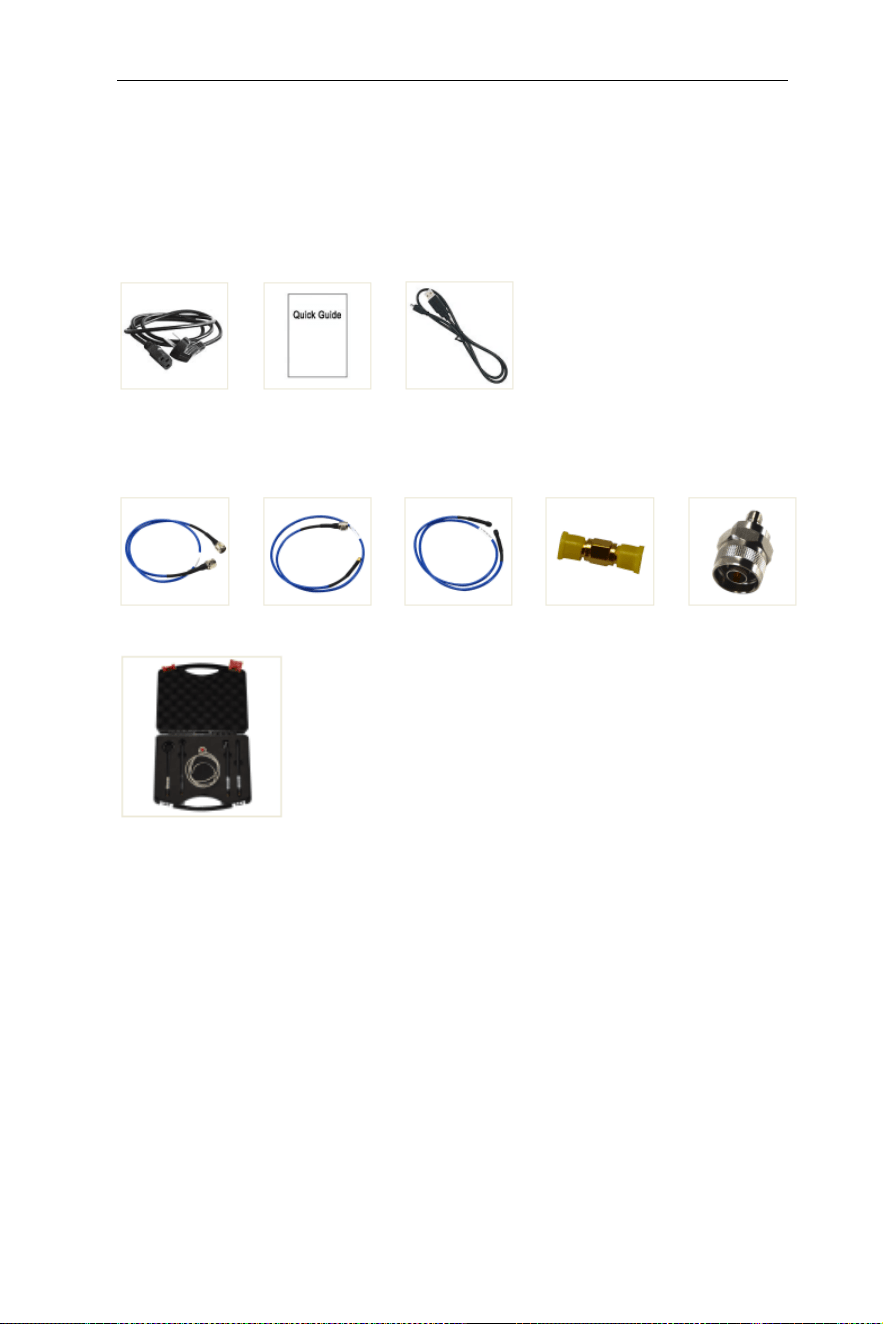
8.Appendix
74
8. Appendix
Appendix A: Enclosure
(The accessories subject to final delivery.)
Standard Accessories
Power Cord
Quick Guide
USB Cable
Options
N-N Cable
N-SMA
Cable
SMA-SMA
Cable
SMA Adaptor
N-SMA
Adaptor
Near Field Probe includes: Four near-field
probes, N-SMA adapter, SMA-SMA cable
( Frequency range: 30 MHz – 3 GHz)
Appendix B: General Care and Cleaning
General Care
Do not store or leave the instrument where the liquid crystal display
could be exposed to direct sunlight for long periods of time.
Caution: To avoid any damage to the instrument or probes, do not
exposed it to any sprays, liquids, or solvents.
Cleaning
Inspect the instrument and probes as often as operating conditions

8.Appendix
75
require.
To clean the instrument exterior, perform the following steps:
Wipe the dust from the instrument surface with a soft cloth. Take
care not to scratch the transparent LCD protection screen when
cleaning.
!
WARNING
Before re applying power, ensure that the instrument is
completely dry, avoiding any electric shock or electrical
short circuit resulting from moisture.
Appendix C: USB Disk Requirements
USB disk requirements:
Max capacity 4G, NTFS file system is not supported.
If the USB disk doesn't work properly, format your USB disk and
then try again.
Appendix D: PC Software Requirements
The PC software does not support Windows XP.
2021.05 V1.0.0