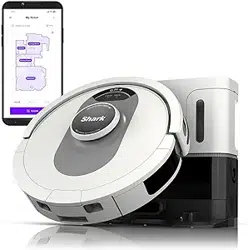
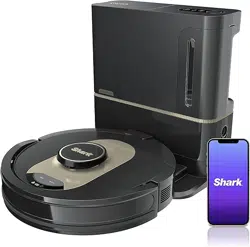
Shark AI ULTRA ROBOT SELF-EMPTY XL Robot Vacuum 2500 OWNER'S GUIDE
IMPORTANT SAFETY INSTRUCTIONS
PLEASE READ CAREFULLY BEFORE USE · FOR HOUSEHOLD USE ONLY
If the charging cable plug does not fit fully into the outlet, reverse the plug. If it still does not fit, contact a qualified electrician. DO NOT force into outlet or try to modify to fit.
WARNING: To reduce the risk of fire, electric shock, injury, or property damage:
LASER WARNING THIS PRODUCT HAS A CLASS 1 LASER. IT IS SAFE UNDER REASONABLY FORESEEABLE CONDITIONS (AS DEFINED IN THESE INSTRUCTIONS.) ALWAYS TURN OFF THE POWER BEFORE LIFTING THE ROBOTIC VACUUM CLEANER OR PERFORMING ANY MAINTENANCE ON IT. DO NOT LOOK DIRECTLY INTO LASER.
GENERAL WARNINGS
When using an electrical appliance, basic precautions should always be followed, including the following:
- The robotic vacuum cleaner system consists of a robotic vacuum and charging base with power supply. These components contain electrical connections, electrical wiring, and moving parts that potentially present risk to the user.
- Before each use, carefully inspect all parts for any damage. If a part is damaged, discontinue use.
- Use only identical replacement parts.
- This robotic vacuum cleaner contains no serviceable parts.
- Use only as described in this Owner's Guide. DO NOT use the robotic vacuum cleaner for any purpose other than those described in this Owner's Guide.
- With the exception of filters, DO NOT expose any parts of the robotic vacuum cleaner to water or other liquids.
- DO NOT put hands into any opening in the base or robot.
USE WARNINGS
- For your robot's cliff sensors to work properly, all runners, rugs, or carpets must be eight inches from any stairs (or must be continuous and extend over the edge of the stairs). If a runner, rug, or carpet edge that is less than eight inches from the stairs cannot be moved, you must use a digital no-go zone to block off the stairs. For non-app users, use a boundary to block off an unsafe boundary.
- To minimize the risk of the robot traveling beyond an unsafe boundary (stair/cliff edges, fireplaces, water hazards), establish these areas as "no-go zones" using the mapping feature in the SharkClean mobile app. Upon setting the boundary, run the vacuum and visually confirm that the settings effectively prevent the robot from passing beyond the set boundary. Adjust settings as necessary.
- This product has a Class 1 Laser. It is safe under reasonably foreseeable conditions (as defined in this Owner's Guide). Always turn off the power before lifting the robotic vacuum cleaner or performing any maintenance on it.
- DO NOT look directly into laser.
- Always turn off the robotic vacuum cleaner before inserting or removing the filter or dust bin.
- DO NOT handle plug, charging base, charging cable, or robotic vacuum cleaner with wet hands. Cleaning and user maintenance shall not be made by children without supervision.
- DO NOT use without robot dust bin and filters in place.
- DO NOT damage the charging cord:
- a) DO NOT pull or carry charging base by the cord or use the cord as a handle.
- b) DO NOT unplug by pulling on cord. Grasp the plug, not the cord.
- c) DO NOT close a door on the cord, pull the cord around sharp corners, or leave the cord near heated surfaces.
- DO NOT put any objects into nozzle or accessory openings. DO NOT use with any opening blocked; keep free of dust, lint, hair, and anything that may reduce airflow.
- DO NOT use robotic vacuum cleaner if airflow is restricted. If the air paths become blocked, turn the vacuum cleaner off and remove all obstructions before turning on the unit again.
- Keep nozzle and all vacuum openings away from hair, face, fingers, uncovered feet, or loose clothing.
- DO NOT use if robotic vacuum cleaner is not working as it should, or has been dropped, damaged, left outdoors, or dropped into water.
- DO NOT place vacuum cleaner on unstable surfaces.
- DO NOT use to pick up:
- a) Liquids.
- b) Large objects.
- c) Hard or sharp objects (glass, nails, screws, or coins).
- d) Large quantities of dust (drywall dust, fireplace ash, or embers.)
- e) DO NOT use as an attachment to power tools for dust collection.
- f) Smoking or burning objects (hot coals, cigarette butts, or matches).
- g) Flammable or combustible materials (lighter fluid, gasoline, or kerosene).
- h) Toxic materials (chlorine bleach, ammonia, or drain cleaner).
- i) Toxic materials (high concentrations of chlorine bleach liquid, high concentrations of ammonia, or drain cleaning solution).
- DO NOT use in the following areas:
- a) Wet or damp surfaces.
- b) Outdoor areas near fireplaces with unobstructed entrances.
- c) Spaces that are enclosed and may contain explosive or toxic fumes or vapors (lighter fluid, gasoline, kerosene, paint, paint thinners, mothproofing substances, or flammable dust.)
- d) In an area with a space heater.
- e) Near fireplaces with unobstructed entrances.
- Turn off the robotic vacuum cleaner before any adjustment, cleaning, maintenance, or troubleshooting.
- Allow all filters to air-dry completely before reinstalling them to prevent liquid from being drawn into electric parts.
- DO NOT modify or attempt to repair the robotic vacuum cleaner or the battery yourself, except as indicated in this Owner's Guide. DO NOT use the vacuum if it has been modified or damaged.
- DO NOT use any household cleaners (all-purpose cleaners, glass cleaners, bleach) on any of the polished high gloss surfaces on the base or robot vacuum cleaner as they contain chemicals that may damage these surfaces. Instead, use a cloth dampened with water to gently clean.
BATTERY USE
- The battery is the power source for the vacuum. Carefully read and follow all charging instructions.
- To prevent unintentional starting, ensure the vacuum is powered off before picking it up or carrying it. DO NOT carry the appliance with your finger on the power switch.
- For SHARK AI ROBOT SELF-EMPTY™ XL base replacement, use XDKRV2500. For SHARK AI ROBOT SELF-EMPTY™ base replacement, use XDKRV2500S. For replacement battery, use RVBAT850.
- Keep the battery away from all metal objects such as paper clips, coins, keys, nails, or screws. Shorting the battery terminals together increases the risk of fire or burns.
- Under abusive conditions, liquids may be ejected from the battery. Avoid contact with this liquid, as it may cause irritation or burns. If contact occurs, flush with water. If liquid contacts eyes, seek medical help.
- Robotic vacuum cleaner should not be stored, charged, or used at temperatures below 50°F (10°C) or above 104°F (40°C). Ensure the battery and vacuum have reached room temperature before charging or use. Exposing the robot or battery to temperatures outside of this range may damage the battery and increase the risk of fire.
- DO NOT expose the robotic vacuum cleaner or battery to fire or temperatures above 265°F (130°C) as it may cause explosion.
GETTING TO KNOW YOUR SHARK AI ULTRA™ ROBOT
LIVING WITH YOUR ROBOT
CHECK BASE FILL LEVEL
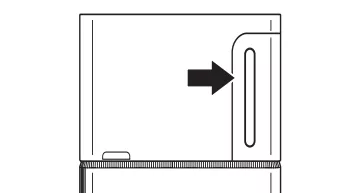
The dust bin is designed to hold up to 60 days of debris. During initial use, you may have to empty it more frequently while the robot finds more debris than usual. Check the fill level regularly to know when to empty.
DOORWAYS AND THRESHOLDS
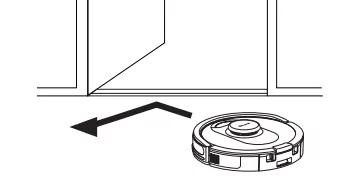
Your robot can easily climb over most thresholds, but if one is higher than 0.75", set up a no-go zone in the app to block it off.
AVOID MOVING THE ROBOT OR BASE
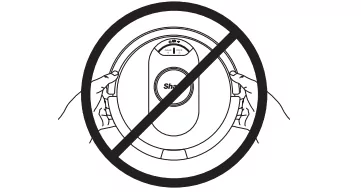
While your robot is cleaning, DO NOT pick it up and move it, or move the charging base—this will impact the robot's ability to map your home.
CAN’T CONNECT TO WI-FI?
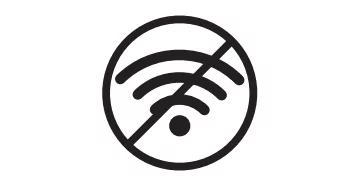
Restart your phone
- Turn off phone, wait a few minutes, then turn it back on and connect to Wi-Fi.
Reboot your robot
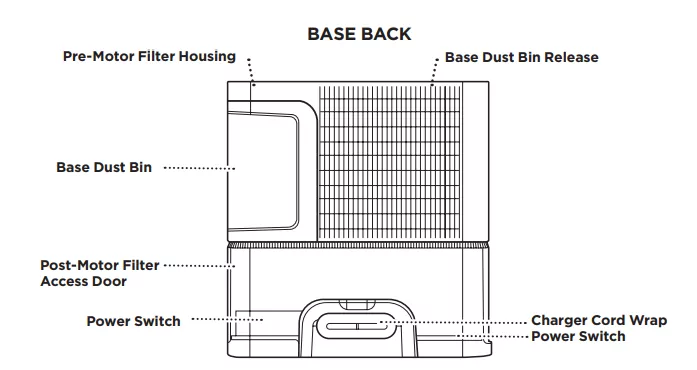
- Make sure the power switch on the back of the base is in the ON position.
- Take robot off base and press and hold down the CLEAN button on the robot for 12 seconds. Turn your robot back on by placing it on the base.
Reboot your router
- Unplug the router power cable for 30 seconds, then plug it back in. Allow several minutes for your router to reboot completely.
- Then follow the steps outlined in the SharkClean* app Wi-Fi setup instructions.
PREP YOUR HOME
Your robot uses an array of sensors to navigate around walls, furniture legs, and other obstacles while it cleans. To prevent the robot from entering areas you don't want it to, set up no-go zones in the app. For best results, prepare your home as indicated below, and schedule a daily cleaning to ensure all floor areas are regularly maintained.
NOTE: Scheduling is one of many features that can only be done in the app.
OBSTRUCTIONS
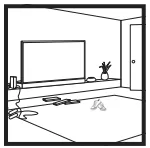
Clear cords and objects smaller than 3.5" in height from floors and open interior doors to ensure a complete map of your home.
SCHEDULING
Schedule whole-home vacuuming runs with the app.
THRESHOLDS
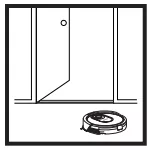
Your robot can easily climb over most thresholds, but if one is 0.75" or higher, set up a no-go zone in the app to block it off.
AVOID MOVING THE ROBOT OR BASE
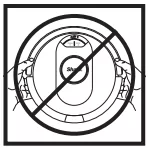
While your robot is cleaning, do not pick it up and move it, as this will impact the robot's navigation. If you move the charging base to a new location, you will need to re-map your home. This will impact the robot's ability to return to the dock when cleaning is complete.
STAIR
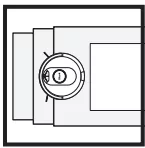
Your robot's cliff sensors will prevent it from falling off ledges. For the cliff sensors to work properly in any mode, all runners, rugs, or carpets must be at least 8 inches from any stairs, or must extend over the edge of the stairs.
BASE SETUP
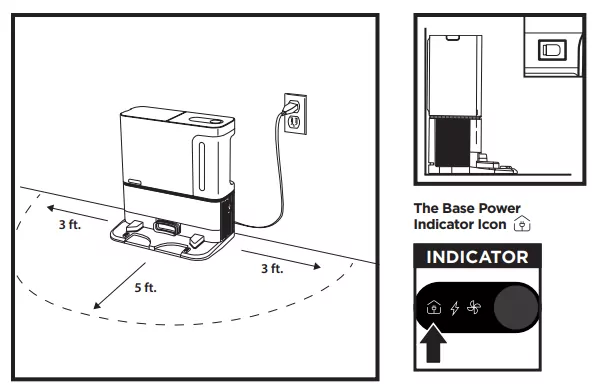
- Select a permanent location for the Base. Remove protective film from robot and base.
- Place the base with its back against a wall. Select a level surface on a bare floor in a central area with a strong Wi-Fi signal. Do not place base against baseboard heaters or other heating elements.
- Remove any objects that are closer than 3 feet from either side of the base or closer than 5 feet from the front of the base.
- Plug in the base. If your base has a power switch, make sure it is turned to the (I) ON position. The Power Indicator icon (
 ) on the top right side of the base will illuminate when the base has power.
If the base is relocated after setup, the robot may not be able to find its way back, and the robot will have to completely re-map your home.
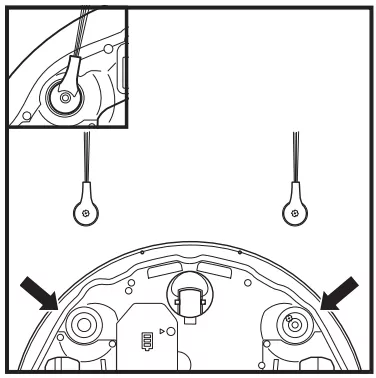
INSTALLING THE SIDE BRUSHES
Snap the 2 included Side Brushes onto the square pegs on the bottom of the robot.
ROBOT BATTERY INDICATOR LIGHTS
| In Use |
 |
| While Charging (White) |
 |
| No Charge or Off |
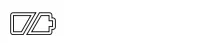 |
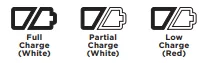
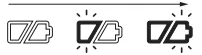
The white charge indicator lights show how much battery power is remaining. While the robot is charging, both white LED lights will flash. When charging is complete, both will illuminate steadily. It may take up to 6 hours to fully charge your robot.
If the robot is idle and away from the charging base for 10 minutes, it will enter Sleep Mode. The indicator lights will turn off, but the battery and Wi-Fi lights will remain on in sleep mode. Wake up the robot by pressing any button.
NOTE: If the low charge light is blinking red, there is not enough battery power for the robot to return to the base. Manually place the robot on the base.
TIP: To preserve battery life, if the robot will not be used for a long time, turn off the power on the robot by pressing the CLEAN button and holding it for 5-7 seconds. The robot should be recharged at least once every three months.
To turn robot off, take robot off base and press the CLEAN button on the robot for 5-7 seconds.
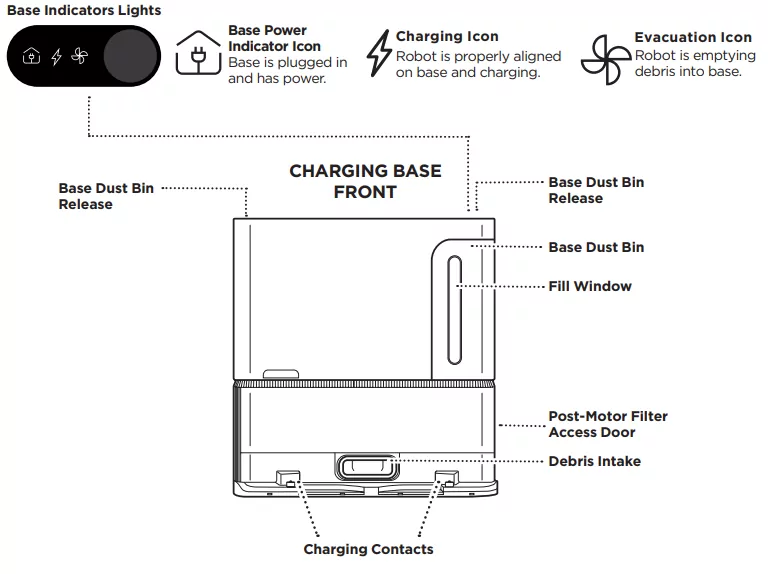
BASE INDICATOR LIGHTS
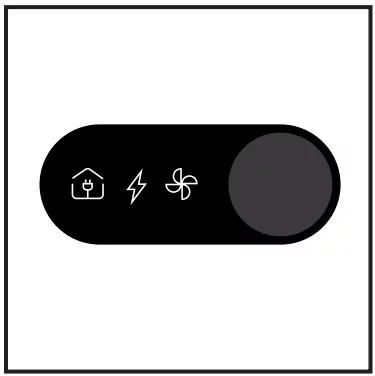
- Base Power Indicator Icon
 : Base is plugged in and has power.
- Charging Icon
 : Robot is properly aligned on base and charging.
- Evacuation Icon
 : Robot is emptying debris into base.
CHARGING
IMPORTANT: The Shark AI ULTRA™ ROBOT has a pre-installed rechargeable battery. Charge the battery completely before first use. It may take up to 6 hours to fully charge.
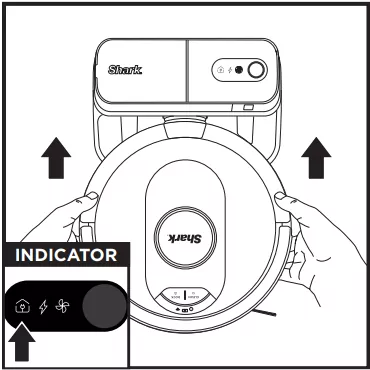
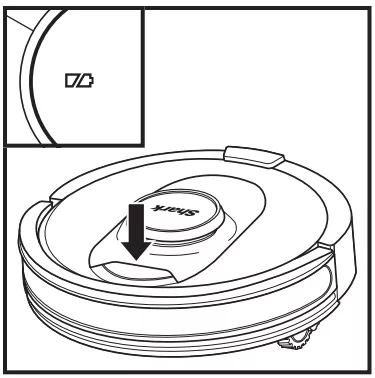
To charge, place the robot on the base for 6 hours. When the robot is properly aligned with its BACK against the base, the Charging Symbol  on the top right side of the base will illuminate, and the Battery icon
  on the robot will illuminate. When the battery is fully charged, the charging icon will stop pulsing but remain illuminated.
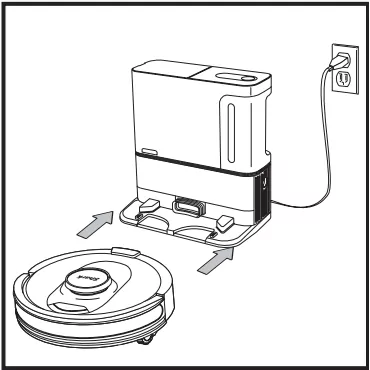
When the cleaning cycle is complete, the battery is low, or when programmed to recharge/resume mission, the robot will search for the base. If the robot doesn't return to base, its charge may have run out.
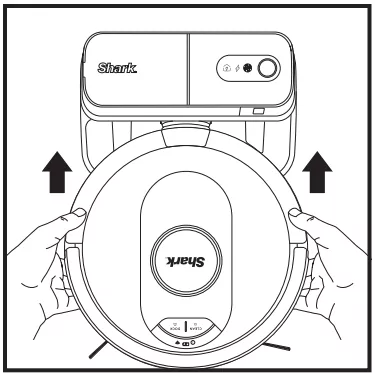
If the robot has no charge or it cannot return to the base, manually place it on the base. When the robot is properly aligned on the base with the robot's BACK against the base, the Charging Symbol on the top right side of the base will illuminate. The robot will beep when charging begins.
TO TURN ON ROBOT: Place robot on base or hold down CLEAN button for 5 to 7 seconds until the indicator lights turn on.
NOTE: When manually placing the robot on the base, make sure the Charging Contacts on the bottom of the robot are touching the ones on the base.
NOTE: When picking up the robot, be careful not to place fingers between the bumper and the base of the robot
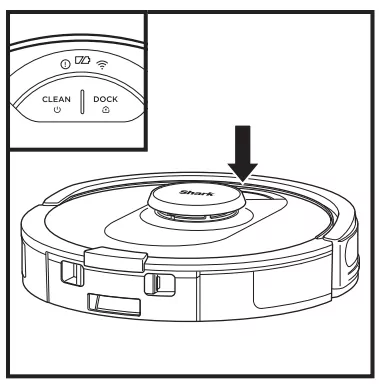
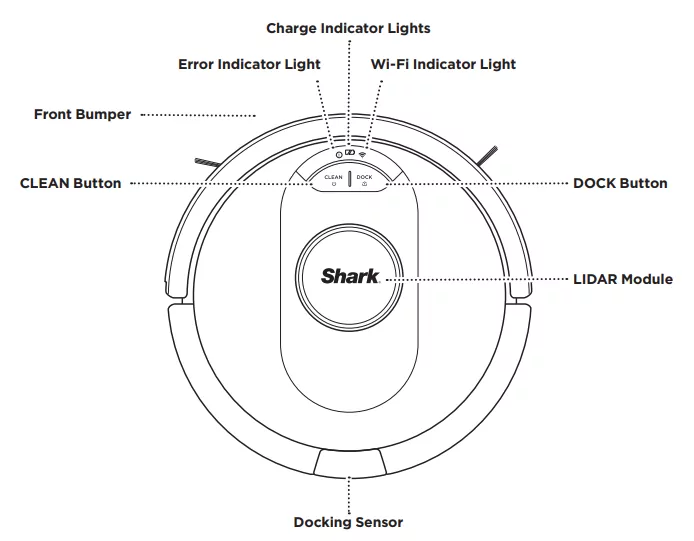
CLEAN BUTTON
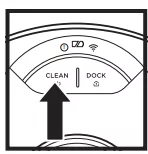
Hold down for 5-7 seconds to power on robot. Press to begin a cleaning session and press again to stop the cleaning session. Hold down for 5-7 seconds to power off the robot.
DOCK BUTTON
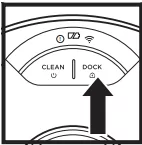
Press to stop cleaning and send robot back to the base to recharge.
CHARGE INDICATOR LIGHTS
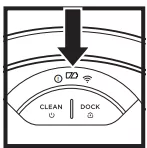
Display the amount of charge remaining in the battery.
“!” ERROR INDICATOR
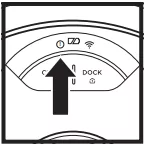
See Troubleshooting section for full list of error codes.
WI-FI INDICATOR
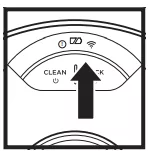
White light: connected to Wi-Fi.
Red light: not connected.
Flashing white: setup mode. No light: not set up yet.
USING THE SHARK AI ULTRATM ROBOT
USING THE SHARKCLEAN™ APP AND VOICE CONTROLS
Get the most out of your Shark AI Robot with these app features:
- Recharge and Resume: Enable this feature to handle multi-room cleaning in larger homes. The robot will return to the base, recharge, and can pick up where it left off.
- UltraClean Mode™: Targeted deep cleaning for a specific room or single spot.
- No-Go Zones: Use the no-go zones in the app to keep your robot out of the areas you would like it to avoid.
- Scheduling: Set up whole-home cleanings for any time, any day.
- Control From Anywhere: Wherever you are, you're in control of your robot.
- Cleaning Reports: Each time your robot cleans, your app will generate a cleaning report.
Search for SharkClean in the app store and download the app to your iPhone™ or Android™.
SETTING UP VOICE CONTROL WITH THE GOOGLE ASSISTANT OR AMAZON ALEXA
Visit sharkclean.com/AIRobotSE for setup instructions, which include how to enable Shark Skill for Amazon Alexa and using with Google Assistant.
Google Assistant:
Hey Google, start vacuuming.
Hey Google, tell (robot name) to vacuum.
Hey Google, pause vacuuming.
Hey Google, tell (robot name) to go home.
Hey Google, ask Shark to UltraClean my (room_name).
Amazon Alexa:
Alexa, ask Shark to start vacuuming/cleaning the (room name), (room name).
Alexa, start/stop the vacuum.
Alexa, send the vacuum to base.
Alexa, ask Shark to UltraClean my (room name).
WI-FI TROUBLESHOOTING
- To use the app, your phone must be connected to a 2.4 GHz network. The app will only work on a 2.4 GHz network.
- Typical home Wi-Fi networks support both 2.4 GHz and 5 GHz.
- Do not use a VPN or a proxy server. ·Make sure Wi-Fi isolation is turned off on the router.
- If you cannot connect, call 1-888-228-5531.
STILL CAN'T CONNECT?
Restart your phone: Turn off phone, wait a few minutes, then turn it back on and connect to Wi-Fi.
Reboot your robot:
- Make sure the power switch on the back of the BASE is in the ON position.
- Take robot off base and press and hold the CLEAN button on the robot for 12 seconds to turn off power. Place the robot back on the base to power back on.
Reboot your router:
- Unplug the router power cable for 30 seconds, then plug it back in. Allow several minutes for your router to reboot completely.
| ERROR CODE |
PROBLEM |
| ! (RED) + Wi-Fi indicator (RED Flashing) |
Wrong password for Wi-Fi! |
| ! (Flashing red) + Wi-Fi (RED) |
SSID cannot be found, try connecting again! |
| ! + Wi-Fi (Flashing RED at the same time) |
Cannot connect to Wi-Fi |
WI-FI TROUBLESHOOTING
How do I use my robot with Amazon Alexa?
Open the Amazon Alexa app, go to the menu and select Skills. Or go to the Alexa Skills store on the Amazon website. Search for "Shark Skill". Select the Shark Skill to open the detail page, then select the Enable Skill option. Once enabled, you can ask Alexa to control your robot (i.e., "Alexa, tell Shark to start cleaning").
How do I set up my robot with the Google Assistant on an Apple device?
- Download, open, and sign into the Google Assistant app.
- Select the "Explore" icon. Search for "Shark" and select "Try it."
- To allow Google to link to your SharkClean account, sign into your SharkClean account. This is the same account you used when setting up your Shark robot in the SharkClean app. Select "Authorize" to link your SharkClean account to the Google Assistant. Congratulations! The Google Assistant now works with your Shark robot. To send your robot into action, use the voice command, "Google, tell Shark to start cleaning."
How do I set up my robot with the Google Assistant on Android?
- Download, open, and sign into the Google Assistant app.
- Select the "Explore" icon. Search for "Shark" and select "Link."
- Sign into your SharkClean account. This is the same account you used when setting up your Shark robot in the SharkClean app. Congratulations! The Google Assistant now works with your Shark robot. To send your robot into action, use the voice command, "Google, tell Shark to start cleaning."
What should I do if my Wi-Fi randomly disconnects?
Turn OFF the robot, by pressing and holding the CLEAN button for 5-7 seconds. Wait 10 seconds, then turn the robot power back on by pressing and holding the CLEAN button for 5-7 seconds. Turn off your phone. Wait 30 seconds, then turn your phone back on. Open Wi-Fi settings on your phone, find the Shark network, and select Forget Network. Reopen SharkClean app and retry the connection process. It is normal for your robot to temporarily lose connectivity when it goes under furniture or moves far from your router. Your Shark robot will automatically reconnect to Wi-Fi. If the robot does not reconnect, power it off, wait 10 seconds, power the robot back on, and place it back on the base.
What should I do if I verified a wireless network password that is incorrect?
Close the app, then reopen it. Make sure that you entered the correct Wi-Fi network password this time. In your phone's network settings, choose your home 2.4 GHz network, and select Forget. Reconnect to your home network. Make sure to use the correct password. If you were able to connect to your home network, proceed to the app setup process. We recommend that you use the eye icon when entering your password to make sure it is correct. Turn off your router and wait 30 seconds. Turn your router back on. Check to make sure your 2.4 GHz network is visible in your phone settings. Turn off the robot, then wait 10 seconds. Turn the robot back on and wait for the voice prompt. Hard-close the app and restart the connection process on the robot. If you cannot locate your Wi-Fi password, please contact your Internet service provider.
What should I do if my username or password is invalid?
We recommend you select the eye icon next to the password entry to verify you are entering your password correctly. Select the "Forgot Password" option on the sign-in page. The automated system will email you a link to reset your password. If you do not see an email, search your inbox and spam folder for emails from [email protected] You can use the "Resend code" option to send the email again.
What should I do if there is an issue resetting password (did not receive the email or token was invalid)?
Select the "Forgot Password" option on the sign-in page. The automated system will email you a link to reset your password. If you do not see an email, search your inbox and spam folder for emails from [email protected] You can use the "Resend code" option to send the email again.
What should I do if my Shark robot won't connect to Wi-Fi or loses Wi-Fi connectivity?
If you are an iOS user and recently upgraded to iOS 14, you need to enable local network access on your phone for the SharkClean app. Please take the following steps to enable. Go to your phone settings → Select Privacy → Select Local Network → Toggle Shark Clean on, then try connecting again. Make sure your phone is connected to your home Wi-Fi network before trying to connect your robot. Typical home Wi-Fi networks support both 2.4 GHz and 5 GHz. Make sure you are connected to a 2.4 GHz network when you enter your username and password. Ensure your robot is turned on and you hear an audio prompt. Do not use a VPN or a proxy server. Make sure Wi-Fi isolation is turned off on the router.
There may be instances where your Shark robot loses connectivity while operating, due to a weak Wi-Fi signal, or entering a zone that blocks Wi-Fi.
Turn off the robot. Wait 10 seconds, then turn the power back on and wait for the voice prompt. Power off your phone, wait 30 seconds, and power back on. Open Wi-Fi settings on your phone, find the Shark network, then select Forget Network. Reopen the SharkClean app and retry the connection process.
It is normal for your robot to temporarily lose connectivity when it goes under furniture, or moves far from your router. Your Shark robot will automatically reconnect to Wi-Fi. If the robot does not reconnect on its own, remove the unit from the base. Power the robot off, wait 10 seconds, and place it back on the base.
USING THE SHARK AI ULTRATM ROBOT
AI LASER NAVIGATION
After setup is complete, your robot will conduct an Explore Run to create an initial map of your home. The robot will travel from room to room to identify walls, furniture, and other obstacles as it cleans. This run will take less time than a full cleaning, as it doesn’t cover the entire floor.
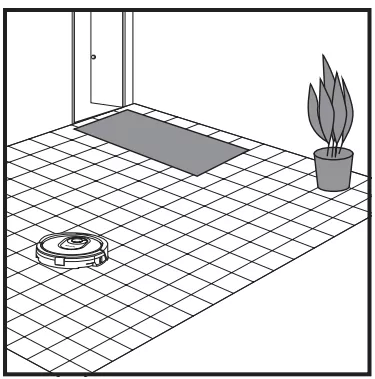
The robot's object detection technology helps it navigate around obstacles taller than 3.5" in height. Create no-go zones in the app to block off areas you do not want the robot to enter. You can set up no-go zones around small objects, or use them to block off large areas.
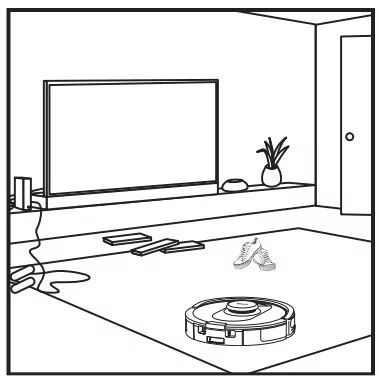
MANUAL CLEANING MODE
To manually start a cleaning cycle, press the CLEAN button on the robot or on the mobile app. To immediately send the robot back to the base, press the DOCK button.
ULTRACLEAN MODE
To start using UltraClean Mode, select a specific room or spot in the SharkClean® app home map screen. Your robot will clean this targeted area on demand with multi-directional cleaning coverage.
MAINTENANCE
EMPTYING THE BASE DUST BIN
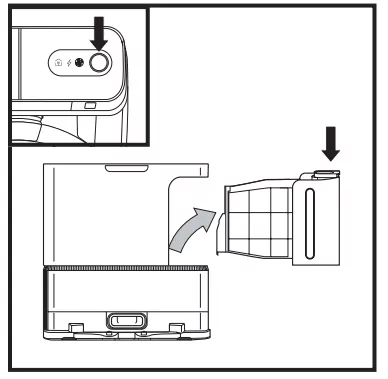
The Base Dust Bin holds up to 60 days' worth of dust and debris. Empty the base dust bin when the debris level approaches the max fill line. To detach the bin, press the Dust Bin Release button on top right side of the base, then slide out the bin.
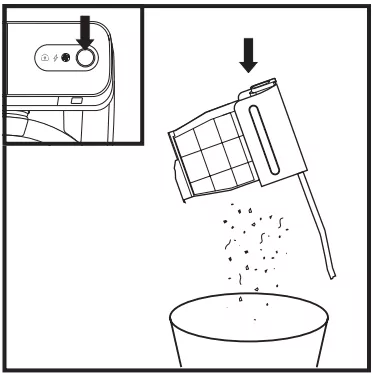
To empty the bin, hold it over the trash, then press the release button with the trash can icon on the bottom of the bin. The bin lid will open, releasing dust and debris. Lightly tap the dust bin against the inside of the trash receptacle to knock off any remaining debris. Reinstall the bin by sliding it into the slot in the base until it clicks into place.
CAUTION: Turn off power before performing any maintenance.
EMPTYING THE ROBOT DUST BIN
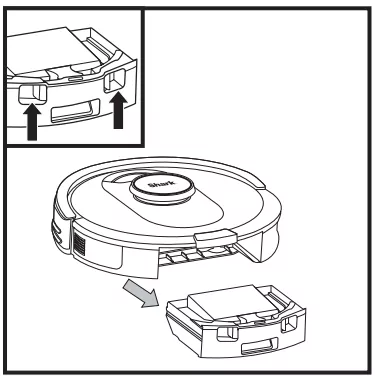
Press the Dust Bin Release Button and slide out the dust bin.
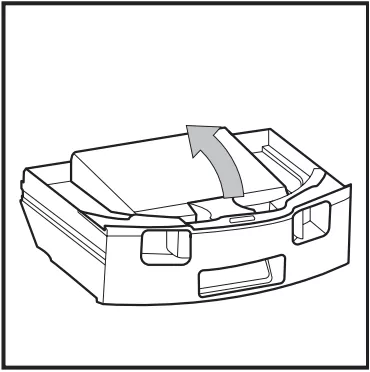
To open the dust bin lid, press and hold the button while lifting the lid, using the finger slots.
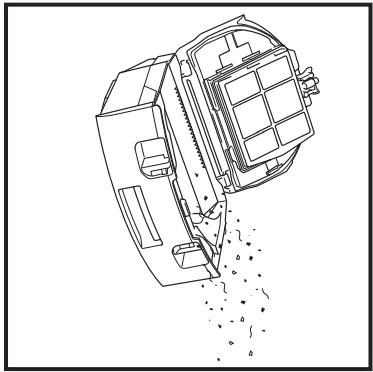
Empty debris and dust into trash. Remove filter and wash dust bin if necessary.
NOTE: Make sure to insert the dust bin completely, until it clicks into place.
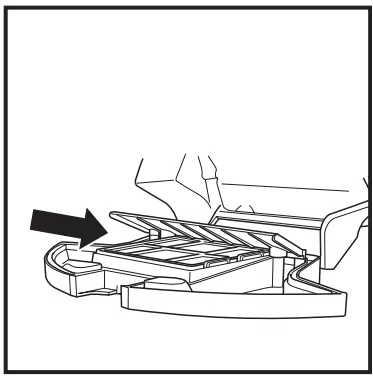
Look between the filter and the plastic shield and make sure there is no debris buildup.
Remove shield and clear any debris buildup with a dry cloth or soft brush.
CLEANING AND REPLACING THE BASE FILTERS
Regularly clean the filters to keep your vacuum's suction power optimal.
To clean filters, rinse with cold water ONLY to prevent damage from cleaning chemicals. Allow all filters to air-dry for at least 24 hours before reinstalling them to prevent liquid from being drawn into electric parts.
IMPORTANT: DO NOT use soap when cleaning the filters.
CLEAN PRE-MOTOR FILTERS ONCE A MONTH
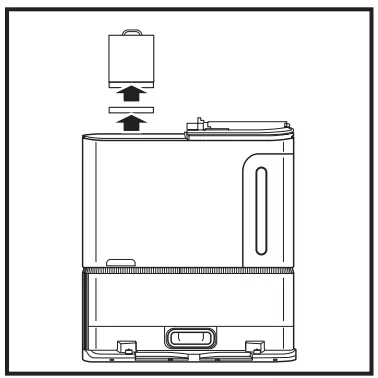
To open the filter housing lid, hold the top left edge of the base and pull up on the lid. With the lid open, remove the foam filter by the top handle, then lift out the felt filter underneath. Tap the filters clean over the trash, then rinse them with cold water ONLY, as soap may damage them. Allow filters to air-dry completely before reinstalling them. The filters must be installed correctly for the base to work properly. Reinsert the felt filter first, then the foam filter.
CLEAN POST-MOTOR FILTER EVERY YEAR
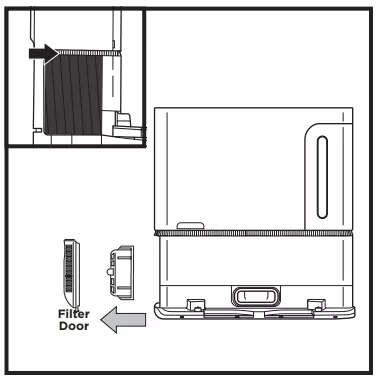
Press the button at the top of the Filter Door, then tilt the door and lift it off. Remove the Post-Motor Filter from the base by pulling the tab down. Tap the filters clean over the trash, then rinse them with cold water ONLY, as soap may damage them. To reinstall the post-motor filter, insert it into the base and replace the filter door.
CLEANING AND REPLACING ROBOT'S FILTER
For optimal suction power, after each use, clean and reinsert the filter inside the robot's dust bin. See sharkclean.com/AIRobotSE for replacement filters.
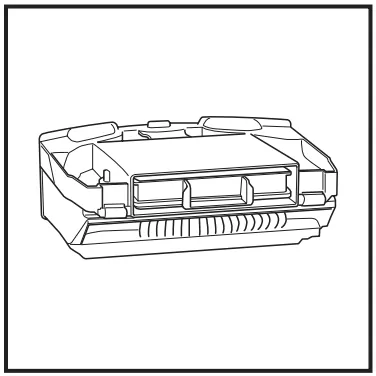
Remove and empty the dust bin. Clean any hair or debris off the Anti-Tangle Comb on the back of the dust bin.
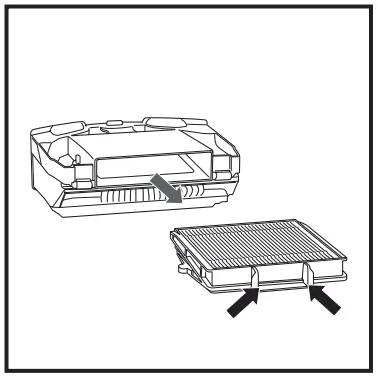
Pull filter out of the dust bin by the tabs.
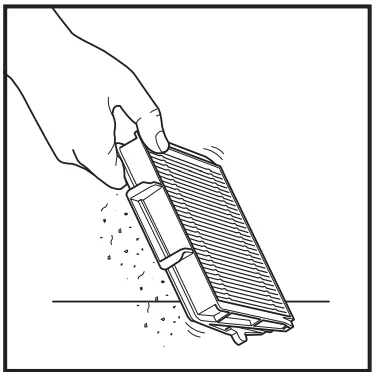
Lightly tap the filter to remove debris every time you empty the dust bin.
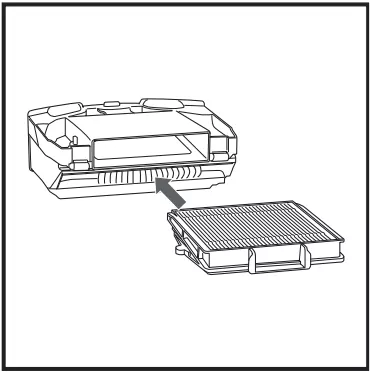
Reinsert the filter into the dust bin, then slide the dust bin back into the robot until it clicks into place.
NOTE: Make sure to insert the dust bin completely, until it clicks into place.
CLEANING SENSORS AND CHARGING CONTACTS
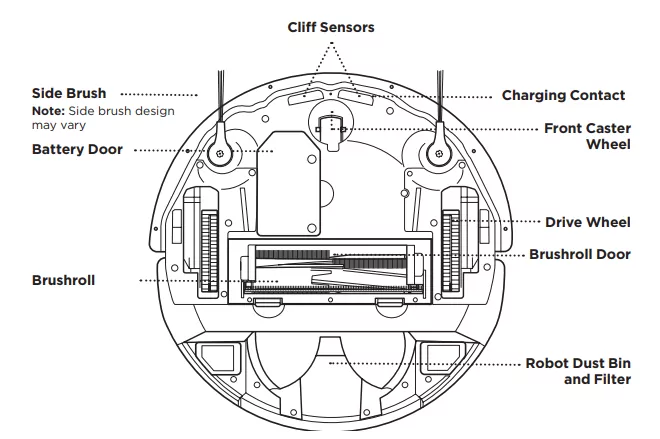
CLEAN SENSORS AND CHARGING CONTACTS AS NEEDED. With a dry cloth, gently dust off the sensors and contacts located on the bottom of the robot and on the base.
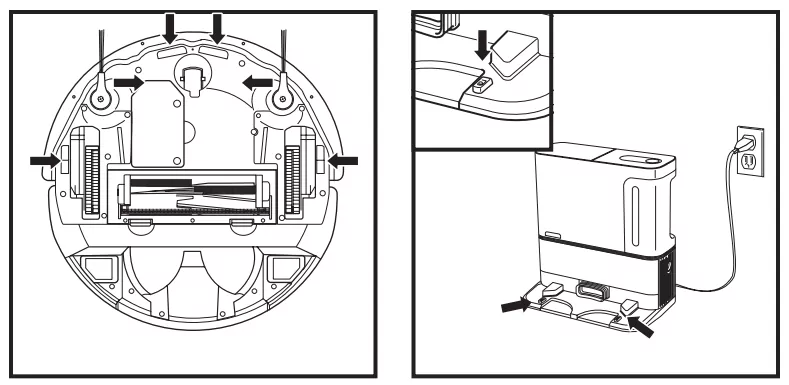
IMPORTANT: The robot uses cliff sensors to avoid stairs and other steep drops. Sensors may work less effectively when they are dirty. For best results, clean sensors regularly.
CLEANING SIDE BRUSHES
CLEAN SIDE BRUSHES AS NEEDED.
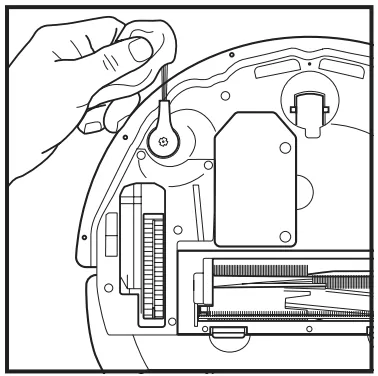
Carefully unwind and remove any string or hair wrapped around brushes.
Gently wipe brushes with a dry cloth. To reinstall, snap the brushes over the pegs. Spin the brushes manually to make sure they are installed correctly.
BRUSHROLL
The Brushroll actively removes hair wrap while your robot cleans. If some debris remains wrapped around the brushroll, continue to run the robot to give the brushroll time to clean itself. If some hair wrap or debris remains after continued cleaning, carefully remove it from the brushroll.
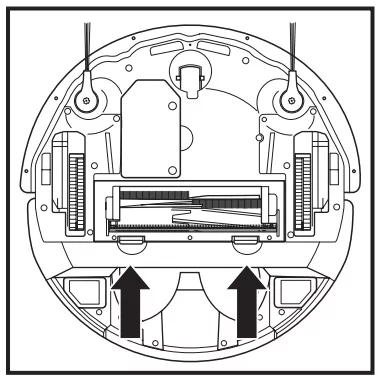
To access the brushroll, push up on the tabs on the brushroll door, then lift off the door.
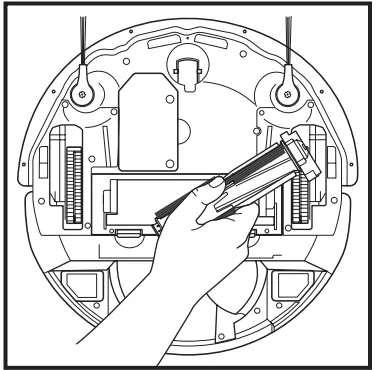
Lift out the brushroll and remove any debris. Reinstall the brushroll, inserting the flat end first. Close the brushroll door and press down until both sides click into place.
NOTE: Replace brushroll every 6 to 12 months, or when visibly worn. See sharkaccessories.com for replacement parts.
LIDAR MODULE
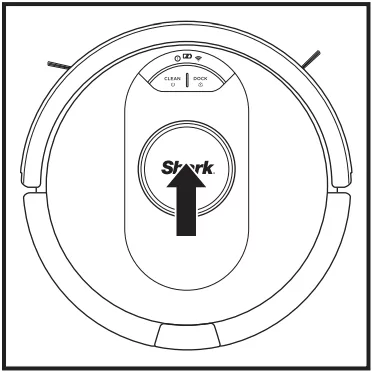
Periodically check the LIDAR navigation module on top of the robot for hair and debris. Gently wipe away any hair or debris from the module. For a more thorough cleaning, place the robot on a level surface and turn off the power. Use a cotton swab to gently rotate the module clockwise five times. Do not insert cotton swab inside the openings in the module.
CLEANING THE WHEELS
CLEAN FRONT WHEEL HOUSING PERIODICALLY. See sharkaccessories.com for replacement parts.
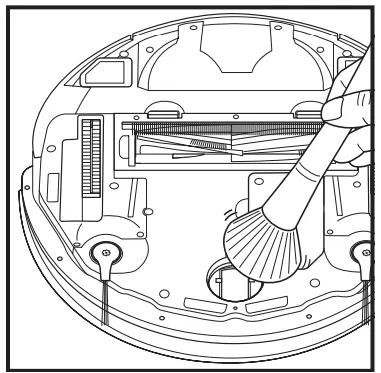
Rotate the front wheel while lightly brushing away dirt and debris. Clean the wheel and the housing around it.
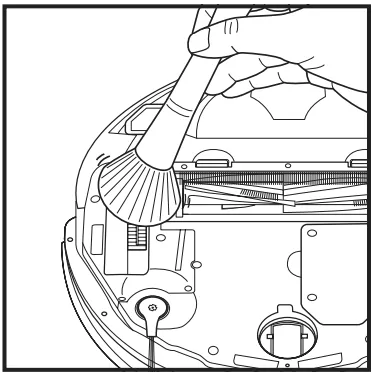
Periodically clean the drive wheels and the housing around them. To clean, rotate each drive wheel while dusting.
NOTE: Brush not included.
TROUBLESHOOTING
CAUTION: Turn off power before performing any maintenance.
If any error lights are illuminated or flashing on your Shark AI ULTRA™ ROBOT, see the error code chart below:
| ERROR CODE |
ERROR NUMBER |
SOLUTION |
| DOCK (RED) + ! (RED) flashing |
2 |
Side brush is stuck. Remove any debris from around the side brushes so they move freely. |
| CLEAN (RED) + DOCK (RED) + ! (RED) flashing |
2 |
A drive wheel is stuck. Clean the wheels and remove any debris wrapped around the axles so they can move freely. |
| CLEAN (RED) + ! (RED) alternating |
2 |
Blockage in brushroll. Remove any debris from around the brushroll so that it can spin freely. |
| CLEAN (WHITE) + DOCK (RED) + ! (RED) flashing |
2 |
Wheel motor encoder failure. Please contact Shark Customer Service at 1-888-228-5531. |
| CLEAN (WHITE) + ! (RED) flashing |
2 |
Blockage in brushroll. Remove any debris from around and inside the brushroll so that it can spin freely. |
| CLEAN (RED) + ! (RED) flashing |
3 |
Suction motor failure. Remove and empty the dust bin, clean the filters, remove the brushroll and brushroll door, and remove blockages. |
| DOCK (RED) flashing |
6 |
Front bumper may be jammed. Clean the bumper and make sure it moves in and out freely. |
| CLEAN (RED) + DOCK (WHITE) flashing |
7 |
Cliff sensor error. Move your robot to a new location and clean its cliff sensors. |
| CLEAN (RED) + DOCK (RED) flashing |
9 |
Robot dust bin needs to be reinstalled. Insert the dust bin until it clicks in place. |
| CLEAN (RED) flashing |
10 |
Robot may be stuck on an obstacle. Move robot to a new location on a level surface. |
| CLEAN (RED) + DOCK (WHITE) alternating |
16 |
Robot is stuck. Move your robot to a new location and make sure the front bumper moves in and out freely. |
| CLEAN (RED) + DOCK (WHITE) + ! (RED) flashing |
21 |
Robot has encountered an error while booting. Please turn the power off and back on. |
| CLEAN (WHITE) + DOCK (RED) flashing |
23 |
Make sure the base indicator light turns blue to confirm your robot is placed on the base correctly. |
| BATTERY ICON (RED) flashing |
24 |
Battery is critically low and needs recharging. Please pick up your robot and place it on the base. Make sure the base indicator light turns blue to confirm your robot is placed on the base correctly. |
| DOCK (WHITE) + ! (RED) flashing |
24 |
Robot has encountered an error while charging. Please make sure you are using the correct power cord for the base. |
| DOCK (RED) FLASHING + ! (RED) solid |
26 |
Blockage in dust bin. Check base and robot dust bin for clogs. Clear any debris and reinstall the dust bin, ensuring that it clicks into place. |
REPLACEMENT PARTS
NOTE: To order replacement parts and filters, visit sharkaccessories.com.
ROBOT:
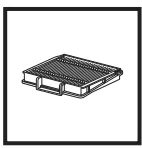
Robot Filter
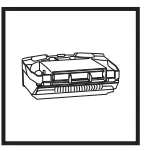
Robot Dust Bin
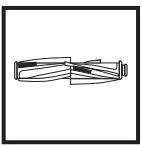
Brushroll
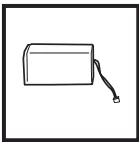
Battery
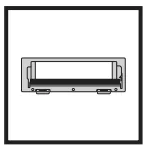
Brushroll Door
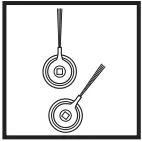
Side Brushes
BASE:
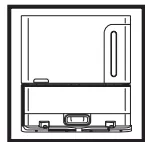
Charging Base
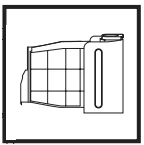
Base Dust Bin
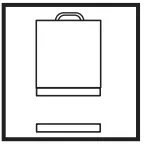
Base Pre-Motor Foam & Felt Filter Kit
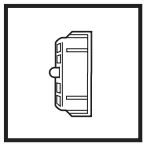
Base Post-Motor Filter
END-USER LICENSE AGREEMENT FOR SHARKNINJA SOFTWARE
IMPORTANT: PLEASE READ THE TERMS AND CONDITIONS OF THIS LICENSE AGREEMENT CAREFULLY BEFORE CONTINUING WITH THIS PROGRAM INSTALL OR USE OF THIS PRODUCT: SharkNinja Operating LLC’s (“SharkNinja”) End-User License Agreement (“EULA”) is a legal agreement between You (either a single entity or an individual) and SharkNinja for SharkNinja’s Software Applications, including those installed by You onto your SharkNinja products or already installed on your device, including all firmware (referred hereafter as “SN APPS”). By installing, copying, checking a box, clicking a button confirming your agreement to these terms, or otherwise continuing to use the SN APPS, You agree to be bound by the terms of this EULA. This license agreement represents the entire agreement concerning SN APPS between
You and SharkNinja, and it supersedes any prior proposal, representation, or understanding between the parties. If You do not agree to the terms of this EULA, do not install or use the SN APPS or this product.
The SN APPS are protected by copyright laws and international copyright treaties, as well as other
intellectual property laws and treaties.
1. GRANT OF LICENSE. The SN APPS are licensed as follows:
1.1 Installation and Use. SharkNinja grants You the right to download, install, and use SN APPS on the specified platform for which the SN APP was designed and in connection with SharkNinja products with which the SN APPS are designed to operate ("SN Devices").
1.2 Backup Copies. You may also make a copy of SN APPS downloaded and installed by You for backup and archival purposes.
2. DESCRIPTION OF OTHER RIGHTS AND LIMITATIONS.
2.1 Maintenance of Copyright Notices. You must not remove or alter any copyright notices on any and all copies of the SN APPS.
2.2 Distribution. You may not distribute copies of the SN APPS to third parties.
2.3 Prohibition on Reverse Engineering, Decompilation, and Disassembly. You may not reverse engineer, decompile, or disassemble SN APPS, except and only to the extent that such activity is expressly permitted by applicable law notwithstanding this limitation.
2.4 Rental. You may not rent, lease, or lend SN APPS without written permission from SharkNinja.
2.5 NOT FOR RESALE SOFTWARE. Applications identified as "Not for Resale" or "NFR," may not be resold, transferred, or used for any purpose other than demonstration, test, or evaluation.
2.6 Support Services. SharkNinja may provide You with support services related to SN APPS ("Support Services"). Any supplemental software code provided to You as part of the Support Services shall be considered part of SN APPS and subject to the terms and conditions of this EULA.
2.7 Compliance with Applicable Laws. You must comply with all applicable laws regarding use of SN APPS.
3. UPDATES.
SharkNinja may provide You with upgrades or updates to SN APPS. This EULA will govern any upgrades provided by SharkNinja that replace and/or supplement SN APPS, unless such upgrade is accompanied by a separate EULA, in which case the terms of that EULA will govern. If You decide not to download and use an upgrade or update provided by SharkNinja, You understand that You could put SN Apps at risk to serious security threats or cause SN Apps to become unusable or unstable.
4. DATA AND PRIVACY.
SharkNinja is committed to ensuring your privacy by adhering to high standards of fairness and integrity. We are committed to keeping our customers informed about how we use the information we gather from You through the use of each of our websites or SN APPS. Our privacy practices are described in SharkNinja's Privacy Policy, as well as in separate notices given when an app, product, or service is purchased or downloaded. By using SN APPS or providing us with your personal information, You are accepting and consenting to the practices, terms, and conditions described in SharkNinja's Privacy Policy. At all times your information will be treated in accordance with the SharkNinja Privacy Policy, which is incorporated by reference into this EULA and can be viewed at the following URL: http://www.sharkninja.com/privacypolicy.
5. THIRD-PARTY APPLICATION LIBRARIES AND EMBEDDED SOFTWARE.
5.1 You acknowledge that Ayla Networks, Inc. ("Ayla") has provided certain application libraries that have been embedded into SN APPS ("Ayla Application Libraries") and enables SN Devices to connect to the Ayla Cloud Service ("Ayla Embedded Software").
5.2 You will not use the Ayla Application Libraries except as an incorporated portion of SN APPS, unmodified from the form provided to You.
5.3 You will not use the Ayla Embedded Software except as an incorporated portion of SN Devices, unmodified from the form provided to You.
5.4 You will not modify, adapt, translate, or create derivative works based on, or decompile, disassemble, reverse engineer, or otherwise attempt to derive the source code or underlying algorithms of, the Ayla Application Libraries or the Ayla Embedded Software.
5.5 SharkNinja retains all ownership of SN APPS (and the Ayla Application Libraries contained therein) and any software installed on SN Devices (including the Ayla Embedded Software) and only a license thereto is granted to You for use in connection with the SN APPS and SN Devices.
5.6 You will not use the Ayla Application Libraries or Ayla Embedded Software to attempt to gain unauthorized access to or use of the systems/services of SharkNinja's other licensors; nor will You transmit viruses, worms, Trojan horses, time bombs, spyware, malware, cancelbots, passive collection mechanisms, robots, data mining software, or any other malicious or invasive code or program into the systems/services of SharkNinja's other licensors.
5.7 You will not use the Ayla Application Libraries or Ayla Embedded Software to interfere with, breach, or circumvent any security feature, authentication feature, or any other feature that restricts or enforces limitations on the use of, or access to, the systems/services of SharkNinja's other licensors.
5.8 You will not probe, attack, scan, or test the vulnerability of the systems/services of SharkNinja's other licensors.
5.9 SharkNinja's other licensors of the SN APPS, Ayla Application Libraries, and the Ayla Embedded Software are the express third-party beneficiaries of this EULA, and the provisions of this Section of this EULA are made expressly for the benefit of such licensors, and are enforceable by such licensors.
6. TERMINATION. Without prejudice to any other rights, SharkNinja may terminate this EULA if You fail to comply with the terms and conditions of this EULA. In such event, You must destroy all copies of SN APPS in your possession.
7. COPYRIGHT. All title, including but not limited to copyrights, in and to SN APPS and any copies thereof are owned by SharkNinja or its suppliers. All title and intellectual property rights in and to the content which may be accessed through use of SN APPS are the property of the respective content owner and may be protected by applicable copyright or other intellectual property laws and treaties. This EULA grants You no rights to use such content. All rights not expressly granted are reserved by SharkNinja.
8. OPEN SOURCE SOFTWARE. You hereby acknowledge that SN APPS may contain software that is subject to "open source" or "free software" licenses ("Open Source Software"). The license granted by this EULA does not apply to Open Source Software contained in the SN APPS. Rather, the terms and conditions in the applicable Open Source Software license shall apply to the Open Source Software. Nothing in this EULA limits your rights under, or grants You rights that supersede, any Open Source Software license. You acknowledge that the Open Source Software license is solely between You and the applicable licensor of the Open Source Software. To the extent the terms of the licenses applicable to the Open Source Software require SharkNinja to provide the Open Source Software, in either source or executable form, or to provide copies of applicable license terms or other required information, You may obtain a copy of the software by contacting SharkNinja at the below physical address. Additional information about the Open Source Software, and its terms of use, may be found at www.sharkclean.com.
9. NO WARRANTIES. SharkNinja expressly disclaims any warranty for SN APPS, Ayla Application Libraries, or Ayla Embedded Software. SN APPS, Ayla Application Libraries, and Ayla Embedded Software are provided 'As Is' without any express or implied warranty of any kind, including but not limited to any warranties of merchantability, noninfringement, fitness of a particular purpose, or title. SharkNinja does not warrant or assume responsibility for the accuracy or completeness of any information, text, graphics, links, or other items contained within the SN APPS. SharkNinja makes no warranties respecting any harm that may be caused by the transmission of a computer virus, worm, logic bomb, or other such computer program. SharkNinja further expressly disclaims any warranty or representation to any third party.
10. LIMITATION OF LIABILITY. In no event shall SharkNinja or its suppliers be liable for any special, incidental, punitive, indirect, or consequential damages whatsoever (including, but not limited to, damages for loss of profits or confidential or other information, for business interruption, for personal injury, for loss of privacy, for failure to meet any duty including of good faith or of reasonable care, for negligence, and for any other pecuniary or other loss whatsoever) arising out of or in any way related to the use of or inability to use SN Devices or SN APPS, the provision of or failure to provide support or other services, information, software, and related content through the product or otherwise arising out of the use of SN APPS, or otherwise under or in connection with any provision of this EULA, even in the event of the fault, tort (including negligence), strict liability, breach of contract, or breach of warranty of SharkNinja or any supplier, and even if SharkNinja or any supplier has been advised of the possibility of such damages. SharkNinja shall have no liability with respect to the content of the SN APPS or any part thereof, including but not limited to errors or omissions contained therein, libel, infringements of rights of publicity, privacy, trademark rights, business interruption, personal injury, loss of privacy, moral rights, or the disclosure of confidential information.
11. APPLICABLE LAW. The laws of the Commonwealth of Massachusetts will govern this EULA and You hereby consent to exclusive jurisdiction and venue in the state and federal courts sitting in the Commonwealth of Massachusetts.
12. ASSIGNMENT. SharkNinja may assign this EULA without notice to Licensor.
13. ENTIRE AGREEMENT. This EULA (including any addendum or amendment to this EULA which is included with the SN Devices) is the entire agreement between You and SharkNinja relating to the SN APPS and supersedes all prior or contemporaneous oral or written communications, proposals and representations with respect to the SN APPS or any other subject matter covered by this EULA. To the extent the terms of any SharkNinja policies or programs for support services conflict with the terms of this EULA, the terms of this EULA shall control.
If You have questions regarding this EULA, please contact SharkNinja at 89 A Street, Suite 100, Needham, MA 02494.
ONE (1) YEAR LIMITED WARRANTY
- The original unit and/or non-wearable components deemed defective, in SharkNinja's sole discretion, will be repaired or replaced up to one (1) year from the original purchase date.
- In the event a replacement unit is issued, the warranty coverage ends six (6) months following the receipt date of the replacement unit or the remainder of the existing warranty, whichever is later. SharkNinja reserves the right to replace the unit with one of equal or greater value.
What is not covered by this warranty?
- Normal wear and tear of wearable parts (such as foam filters, filters, etc.), which require regular maintenance and/or replacement to ensure the proper functioning of your unit, are not covered by this warranty. Replacement parts are available for purchase at sharkaccessories.com.
- Any unit that has been tampered with or used for commercial purposes.
- Damage caused by misuse (e.g., vacuuming up water or other liquids), abuse, negligent handling, failure to perform required maintenance (e.g., not cleaning the filters), or damage due to mishandling in transit.
- Consequential and incidental damages.
- Defects caused by repair persons not authorized by SharkNinja. These defects include damage caused in the process of shipping, altering, or repairing the SharkNinja product (or any of its parts) when the repair is performed by a repair person not authorized by SharkNinja.
- Products purchased, used, or operated outside North America.
How to get service
If your appliance fails to operate properly while in use under normal household conditions within the warranty period, visit sharkclean.com/support for product care and maintenance self-help. Our Customer Service Specialists are also available at 1-888-228-5531 to assist with product support and warranty service options, including the possibility of upgrading to our VIP warranty service options for select product categories. Please register your product and have it with you when contacting Customer Service.
SharkNinja will cover the cost for the customer to send in the unit to us for repair or replacement. A fee of $25.95 (subject to change) will be charged when SharkNinja ships the repaired or replacement unit.
How to initiate a warranty claim
You must call 1-888-228-5531 to initiate a warranty claim. You will need the receipt as proof of purchase. A Customer Service Specialist will provide you with return and packing instruction information.
How state law applies
This warranty gives you specific legal rights, and you also may have other rights that vary from state to state. Some states do not permit the exclusion or limitation of incidental or consequential damages, so the above may not apply to you.
Model Number: _______________
Date of Purchase: _______________ (Keep receipt)
Store of Purchase: _______________
TIP: You can find the model and serial numbers on the QR code labels on the bottom of the robot and base.
Expected runtime: 60 minutes
Expected charging time: 6 hours
PLEASE READ CAREFULLY AND KEEP FOR FUTURE REFERENCE.
This Owner's Guide is designed to help you keep your Shark AI ULTRA™ ROBOT running at peak performance.
SharkNinja Operating LLC
US: Needham, MA 02494
CAN: Ville St-Laurent, QC H4S 1A7
1-888-228-5531
sharkclean.com
Illustrations may differ from actual product. We are constantly striving to improve our products; therefore the specifications contained herein are subject to change without notice.
This product may be covered by one or more U.S. patents. See sharkninja.com/patents for more information.
FCC STATEMENT
1. This device may not cause harmful interference
2. This device must accept any interference received, including interference that may cause undesired operation.
Changes or modifications not expressly approved by the party responsible for compliance could void the user's authority to operate this device.
ISED STATEMENT
This device complies with Industry Canada's licence-exempt RSS(s). Operation is subject to the following two conditions: (1) This device may not cause harmful interference, and (2) This device must accept any interference received, including interference that may cause undesired operation.
[IMAGE]
BATTERY REMOVAL AND DISPOSAL
This product uses a battery. When the battery no longer holds a charge, it should be removed from the vacuum and recycled. DO NOT incinerate or compost the battery.
When your lithium-ion battery needs to be replaced, dispose of it or recycle it in accordance with local ordinances or regulations. In some areas, it is illegal to place spent lithium-ion batteries in the trash or in a municipal solid waste stream. Return spent battery to an authorized recycling center or to retailer for recycling. Contact your local recycling center for information on where to drop off the spent battery.
For more information on battery removal for disposal, please visit sharkclean.com/batterysupport.
The RBRC (Rechargeable Battery Recycling Corporation) seal on the lithium-ion battery indicates that the costs to recycle the battery at the end of its useful life have already been paid by SharkNinja. In some areas, it is illegal to place spent lithium-ion batteries in the trash or municipal solid waste stream and the RBRC program provides an environmentally conscious alternative.
RBRC, in cooperation with SharkNinja and other battery users, has established programs in the United States and Canada to facilitate the collection of spent lithium-ion batteries. Help protect our environment and conserve natural resources by returning the spent lithium-ion battery to an authorized SharkNinja service center or to your local retailer for recycling. You may also contact your local recycling center for information on where to drop off the spent battery, or call 1-800-798-7398.