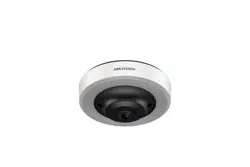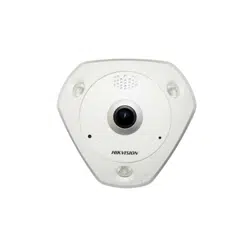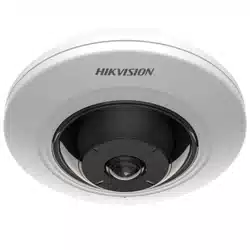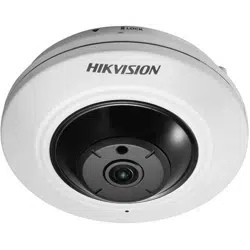

Fisheye Parking Camera
User Manual

Fisheye Parking Camera User Manual
i
Initiatives on the Use of Video Products
Thank you for choosing Hikvision products.
Technology affects every aspect of our life. As a high-tech company, we are increasingly aware of
the role technology plays in improving business efficiency and quality of life, but at the same time,
the potential harm of its improper usage. For example, video products are capable of recording
real, complete and clear images. This provides a high value in retrospect and preserving real-time
facts. However, it may also result in the infringement of a third party's legitimate rights and
interests if improper distribution, use and/or processing of video data takes place. With the
philosophy of "Technology for the Good", Hikvision requests that every end user of video
technology and video products shall comply with all the applicable laws and regulations, as well as
ethical customs, aiming to jointly create a better community.
Please read the following initiatives carefully:
●
Everyone has a reasonable expectation of privacy, and the installation of video products should
not be in conflict with this reasonable expectation. Therefore, a warning notice shall be given in
a reasonable and effective manner and clarify the monitoring range, when installing video
products in public areas. For non-public areas, a third party's rights and interests shall be
evaluated when installing video products, including but not limited to, installing video products
only after obtaining the consent of the stakeholders, and not installing highly-invisible video
products.
●
The purpose of video products is to record real activities within a specific time and space and
under specific conditions. Therefore, every user shall first reasonably define his/her own rights
in such specific scope, in order to avoid infringing on a third party's portraits, privacy or other
legitimate rights.
●
During the use of video products, video image data derived from real scenes will continue to be
generated, including a large amount of biological data (such as facial images), and the data
could be further applied or reprocessed. Video products themselves could not distinguish good
from bad regarding how to use the data based solely on the images captured by the video
products. The result of data usage depends on the method and purpose of use of the data
controllers. Therefore, data controllers shall not only comply with all the applicable laws and
regulations and other normative requirements, but also respect international norms, social
morality, good morals, common practices and other non-mandatory requirements, and respect
individual privacy, portrait and other rights and interests.
●
The rights, values and other demands of various stakeholders should always be considered
when processing video data that is continuously generated by video products. In this regard,
product security and data security are extremely crucial. Therefore, every end user and data
controller, shall undertake all reasonable and necessary measures to ensure data security and
avoid data leakage, improper disclosure and improper use, including but not limited to, setting
up access control, selecting a suitable network environment (the Internet or Intranet) where
video products are connected, establishing and constantly optimizing network security.

Fisheye Parking Camera User Manual
ii
●
Video products have made great contributions to the improvement of social security around the
world, and we believe that these products will also play an active role in more aspects of social
life. Any abuse of video products in violation of human rights or leading to criminal activities are
contrary to the original intent of technological innovation and product development. Therefore,
each user shall establish an evaluation and tracking mechanism of their product application to
ensure that every product is used in a proper and reasonable manner and with good faith.

Fisheye Parking Camera User Manual
iii
Legal Information
© 2022 Hangzhou Hikvision Digital Technology Co., Ltd. All rights reserved.
About this Manual
The Manual includes instructions for using and managing the Product. Pictures, charts, images and
all other information hereinafter are for description and explanation only. The information
contained in the Manual is subject to change, without notice, due to firmware updates or other
reasons. Please find the latest version of this Manual at the Hikvision website
(https://www.hikvision.com/).
Please use this Manual with the guidance and assistance of professionals trained in supporting the
Product.
Trademarks
and other Hikvision's trademarks and logos are the properties of
Hikvision in various jurisdictions.
Other trademarks and logos mentioned are the properties of their respective owners.
Disclaimer
TO THE MAXIMUM EXTENT PERMITTED BY APPLICABLE LAW, THIS MANUAL AND THE PRODUCT
DESCRIBED, WITH ITS HARDWARE, SOFTWARE AND FIRMWARE, ARE PROVIDED "AS IS" AND
"WITH ALL FAULTS AND ERRORS". HIKVISION MAKES NO WARRANTIES, EXPRESS OR IMPLIED,
INCLUDING WITHOUT LIMITATION, MERCHANTABILITY, SATISFACTORY QUALITY, OR FITNESS FOR
A PARTICULAR PURPOSE. THE USE OF THE PRODUCT BY YOU IS AT YOUR OWN RISK. IN NO EVENT
WILL HIKVISION BE LIABLE TO YOU FOR ANY SPECIAL, CONSEQUENTIAL, INCIDENTAL, OR INDIRECT
DAMAGES, INCLUDING, AMONG OTHERS, DAMAGES FOR LOSS OF BUSINESS PROFITS, BUSINESS
INTERRUPTION, OR LOSS OF DATA, CORRUPTION OF SYSTEMS, OR LOSS OF DOCUMENTATION,
WHETHER BASED ON BREACH OF CONTRACT, TORT (INCLUDING NEGLIGENCE), PRODUCT
LIABILITY, OR OTHERWISE, IN CONNECTION WITH THE USE OF THE PRODUCT, EVEN IF HIKVISION
HAS BEEN ADVISED OF THE POSSIBILITY OF SUCH DAMAGES OR LOSS.
YOU ACKNOWLEDGE THAT THE NATURE OF THE INTERNET PROVIDES FOR INHERENT SECURITY
RISKS, AND HIKVISION SHALL NOT TAKE ANY RESPONSIBILITIES FOR ABNORMAL OPERATION,
PRIVACY LEAKAGE OR OTHER DAMAGES RESULTING FROM CYBER-ATTACK, HACKER ATTACK,
VIRUS INFECTION, OR OTHER INTERNET SECURITY RISKS; HOWEVER, HIKVISION WILL PROVIDE
TIMELY TECHNICAL SUPPORT IF REQUIRED.
YOU AGREE TO USE THIS PRODUCT IN COMPLIANCE WITH ALL APPLICABLE LAWS, AND YOU ARE
SOLELY RESPONSIBLE FOR ENSURING THAT YOUR USE CONFORMS TO THE APPLICABLE LAW.
ESPECIALLY, YOU ARE RESPONSIBLE, FOR USING THIS PRODUCT IN A MANNER THAT DOES NOT
INFRINGE ON THE RIGHTS OF THIRD PARTIES, INCLUDING WITHOUT LIMITATION, RIGHTS OF
PUBLICITY, INTELLECTUAL PROPERTY RIGHTS, OR DATA PROTECTION AND OTHER PRIVACY RIGHTS.
YOU SHALL NOT USE THIS PRODUCT FOR ANY PROHIBITED END-USES, INCLUDING THE
DEVELOPMENT OR PRODUCTION OF WEAPONS OF MASS DESTRUCTION, THE DEVELOPMENT OR

Fisheye Parking Camera User Manual
iv
PRODUCTION OF CHEMICAL OR BIOLOGICAL WEAPONS, ANY ACTIVITIES IN THE CONTEXT RELATED
TO ANY NUCLEAR EXPLOSIVE OR UNSAFE NUCLEAR FUEL-CYCLE, OR IN SUPPORT OF HUMAN
RIGHTS ABUSES.
IN THE EVENT OF ANY CONFLICTS BETWEEN THIS MANUAL AND THE APPLICABLE LAW, THE
LATTER PREVAILS.
Fisheye Parking Camera User Manual
v
Symbol Conventions
The symbols that may be found in this document are defined as follows.
Symbol
Description
Danger
Indicates a hazardous situation which, if not avoided, will or could
result in death or serious injury.
Caution
Indicates a potentially hazardous situation which, if not avoided,
could result in equipment damage, data loss, performance
degradation, or unexpected results.
Note
Provides additional information to emphasize or supplement
important points of the main text.

Fisheye Parking Camera User Manual
vi
Safety Instruction
Regulatory Information
This is a class A product and may cause radio interference in which case the user may be required
to take adequate measures.
Laws and Regulations
Use of the product must be in strict compliance with the local laws and regulations. Please shut
down the device in prohibited area.
Power Supply
●
Use of the product must be in strict compliance with the local electrical safety regulations.
●
Use the power adapter provided by qualified manufacturer. Refer to the product specification
for detailed power requirements.
●
It is recommended to provide independent power adapter for each device as adapter overload
may cause over-heating or a fire hazard.
●
Make sure that the power has been disconnected before you wire, install, or disassemble the
device in the authorized way according to the description in the manual.
●
To avoid electric shock, DO NOT directly touch exposed contacts and components once the
device is powered up.
●
DO NOT use damaged power supply devices (e.g., cable, power adapter, etc.) to avoid electric
shock, fire hazard, and explosion.
●
DO NOT directly cut the power supply to shut down the device. Please shut down the device
normally and then unplug the power cord to avoid data loss.
●
The socket-outlet shall be installed near the equipment and shall be easily accessible.
●
Make sure the power supply has been disconnected if the power adapter is idle.
●
Connect to earth before connecting to the power supply.
●
Device powered by Safety Extra-Low Voltage (SELV): The power source should meet limited
power source or PS2 requirements according to IEC 60950-1 or IEC 62368-1 standard.
Transportation, Use, and Storage
●
To avoid heat accumulation, good ventilation is required for a proper operating environment.
●
Store the device in dry, well-ventilated, corrosive-gas-free, no direct sunlight, and no heating
source environment.
●
Avoid fire, water, and explosive environment when using the device.
●
Install the device in such a way that lightning strikes can be avoided. Provide a surge suppressor
at the inlet opening of the equipment under special conditions such as the mountain top, iron
tower, and forest.
●
Keep the device away from magnetic interference.
●
Avoid device installation on vibratory surfaces or places. Failure to comply with this may cause
device damage.
●
DO NOT touch the heat dissipation component to avoid burns.

Fisheye Parking Camera User Manual
vii
●
DO NOT expose the device to extremely hot, cold, or humidity environments. For temperature
and humidity requirements, see device specification.
●
No naked flame sources, such as lighted candles, should be placed on the equipment.
●
DO NOT touch the sharp edges or corners.
●
To prevent possible hearing damage, DO NOT listen at high volume levels for long periods.
Maintenance
●
If smoke, odor, or noise arises from the device, immediately turn off the power, unplug the
power cable, and contact the service center.
●
If the device cannot work properly, contact the store you purchased it or the nearest service
center. DO NOT disassemble or modify the device in the unauthorized way (For the problems
caused by unauthorized modification or maintenance, the company shall not take any
responsibility).
●
Keep all packaging after unpacking them for future use. In case of any failure occurred, you
need to return the device to the factory with the original packaging. Transportation without the
original packaging may result in damage to the device and the company shall not take any
responsibility.
Network
●
Please enforce the protection for the personal information and the data security as the device
may be confronted with the network security problems when it is connected to the Internet.
Contact us if network security risks occur.
●
Please understand that you have the responsibility to configure all the passwords and other
security settings about the device, and keep your user name and password.
Lens
●
DO NOT touch the lens with fingers directly in case the acidic sweat of the fingers erodes the
surface coating of the lens.
●
DO NOT aim the lens at the strong light such as sun or incandescent lamp. The strong light can
cause fatal damage to the device.
Data
DO NOT disconnect the power during formatting, uploading, and downloading. Or files may be
damaged.

Fisheye Parking Camera User Manual
viii
Contents
Chapter 1 Introduction ............................................................................................................... 1
1.1 Product Introduction ........................................................................................................... 1
1.2 Key Feature .......................................................................................................................... 1
Chapter 2 Activation and Login ................................................................................................... 2
2.1 Activation ............................................................................................................................. 2
2.1.1 Default Information .................................................................................................. 2
2.1.2 Activate via SADP ...................................................................................................... 2
2.1.3 Activate via Web Browser ........................................................................................ 3
2.2 Login ..................................................................................................................................... 4
Chapter 3 Parking Space Detection ............................................................................................. 5
3.1 Set Detection Rules .............................................................................................................. 5
3.2 Set Parking Space Indicator ................................................................................................. 6
3.3 View Parking Space Status ................................................................................................... 8
Chapter 4 Capture Configuration ................................................................................................ 9
4.1 Set Capture Parameters ....................................................................................................... 9
4.1.1 Set License Plate Recognition Country/Region ........................................................ 9
4.1.2 Set Image Encoding Parameters ............................................................................... 9
4.1.3 Set Capture Overlay ................................................................................................ 10
4.2 View Real-Time Picture ...................................................................................................... 11
Chapter 5 Live View and Local Configuration ............................................................................. 14
5.1 Live View ............................................................................................................................ 14
5.1.1 Start/Stop Live View ............................................................................................... 14
5.1.2 Select Image Display Mode ..................................................................................... 14
5.1.3 Display Control ........................................................................................................ 14
5.1.4 Select Stream Type ................................................................................................. 15
5.1.5 Capture Picture Manually ....................................................................................... 16
5.1.6 Record Manually ..................................................................................................... 16
5.1.7 Enable Digital Zoom ................................................................................................ 16
5.2 PT Control ........................................................................................................................... 16

Fisheye Parking Camera User Manual
ix
5.3 Local Configuration ............................................................................................................ 17
Chapter 6 Storage ..................................................................................................................... 19
6.1 Set FTP ................................................................................................................................ 19
6.2 Set Listening Host ............................................................................................................... 20
Chapter 7 Encoding and Display ................................................................................................ 22
7.1 Set Video Encoding Parameters ........................................................................................ 22
7.2 Set Image Parameters ........................................................................................................ 23
7.3 Set ROI ................................................................................................................................ 26
7.4 Set OSD ............................................................................................................................... 26
Chapter 8 Network Configuration ............................................................................................. 28
8.1 Set IP Address..................................................................................................................... 28
8.2 Connect to ISUP Platform .................................................................................................. 30
8.3 Set DDNS ............................................................................................................................ 30
8.4 Set Port ............................................................................................................................... 31
Chapter 9 Serial Port Configuration ........................................................................................... 33
9.1 Set RS-485 .......................................................................................................................... 33
9.2 Set RS-232 .......................................................................................................................... 33
Chapter 10 Alarm Configuration ............................................................................................... 35
10.1 Set Motion Detection ....................................................................................................... 35
10.2 Set Exception Alarm ......................................................................................................... 36
Chapter 11 Safety Management ................................................................................................ 37
11.1 Manage User .................................................................................................................... 37
11.2 Enable User Lock .............................................................................................................. 37
11.3 Set SSH .............................................................................................................................. 38
11.4 Set HTTPS ......................................................................................................................... 38
11.4.1 Create and Install Self-signed Certificate ............................................................. 38
11.4.2 Install Authorized Certificate ................................................................................ 38
Chapter 12 Maintenance .......................................................................................................... 40
12.1 View Device Information ................................................................................................. 40
12.2 Upgrade ............................................................................................................................ 40
12.3 Reboot .............................................................................................................................. 40

Fisheye Parking Camera User Manual
x
12.4 Restore Parameters ......................................................................................................... 41
12.5 Synchronize Time ............................................................................................................. 41
12.6 Set DST ............................................................................................................................. 42
12.7 Export Parameters ........................................................................................................... 42
12.8 Import Configuration File................................................................................................. 42
12.9 Export Debug File ............................................................................................................. 43
A. Communication Matrix and Device Command ...................................................................... 44

Fisheye Parking Camera User Manual
1
Chapter 1 Introduction
1.1 Product Introduction
The fisheye parking camera (hereinafter referred to as device) is applied in the parking guidance
and find my car system to detect whether the parking space is occupied or not and recognize the
license plate. It is integrated with the parking space status indicator which can indicates different
colors. Different colors stand for different parking space status. The device can be widely applied
in the environment with dark light, such as road, warehouse, underground garage, bar, garden,
etc. to provide HD display.
1.2 Key Feature
●
HD camera, applied in environment with low illumination such as underground garage.
●
Ultra-wide lens to display 360° panoramic image without blind areas.
●
Supports various display modes, including the fisheye mode, two-image calibration mode, four-
image calibration mode, two-image panorama mode, and four-image panorama mode.
●
Multiple video compression modes. Supports video quality and encoding complexity settings.
●
Abundant interfaces.
●
Detection of the parking space status, and smart analysis of crossing over line in two-image and
four-image calibration modes.
●
Supports motion detection.

Fisheye Parking Camera User Manual
2
Chapter 2 Activation and Login
2.1 Activation
For the first-time access, you need to activate the device by setting an admin password. No
operation is allowed before activation. The device supports multiple activation methods, such as
activation via SADP software, web browser, and iVMS-4200 Client.
Note
Refer to the user manual of iVMS-4200 Client for the activation via client software.
2.1.1 Default Information
Device default information are as follows.
●
Default IP address: 192.0.0.64
●
Default user name: admin
2.1.2 Activate via SADP
SADP is a tool to detect, activate, and modify the IP address of the devices over the LAN.
Before You Start
●
Get the SADP software from the supplied disk or the official website
(https://www.hikvision.com/), and install it according to the prompts.
●
The device and the computer that runs the SADP tool should belong to the same network
segment.
The following steps show how to activate one device and modify its IP address. For batch
activation and IP address modification, refer to User Manual of SADP for details.
Steps
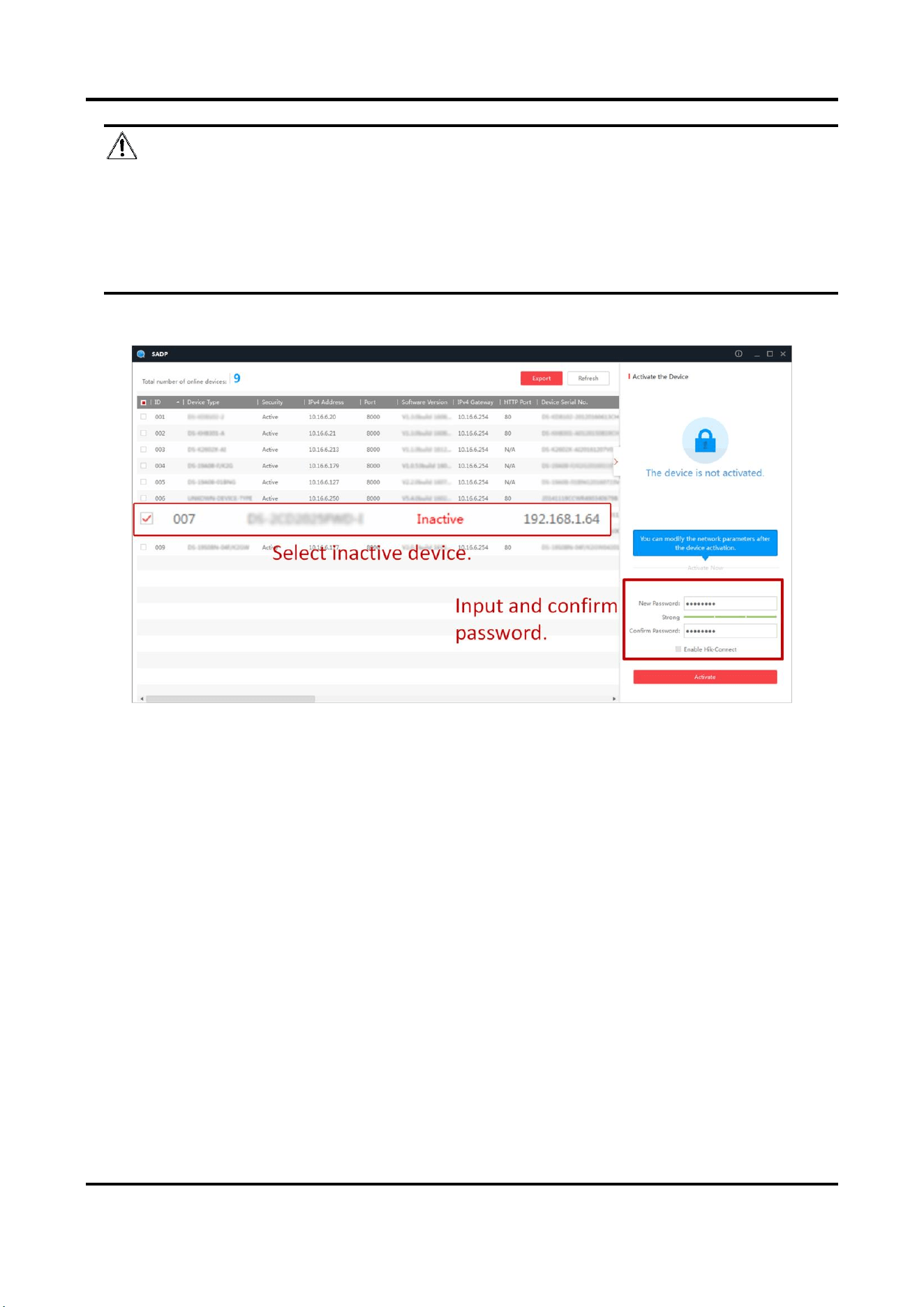
1. Run the SADP software and search the online devices.
2. Find and select your device in online device list.
3. Enter a new password (admin password) and confirm the password.
Fisheye Parking Camera User Manual
3
Caution
STRONG PASSWORD RECOMMENDED-We highly recommend you create a strong password of
your own choosing (using a minimum of 8 characters, including upper case letters, lower case
letters, numbers, and special characters) in order to increase the security of your product. And
we recommend you reset your password regularly, especially in the high security system,
resetting the password monthly or weekly can better protect your product.
4. Click Activate to start activation.
Figure 2-1 Activate via SADP
Status of the device becomes Active after successful activation.
5. Modify IP address of the device.
1) Select the device.
2) Change the device IP address to the same network segment as your computer by either
modifying the IP address manually or checking Enable DHCP.
3) Enter the admin password and click Modify to activate your IP address modification.
2.1.3 Activate via Web Browser
Use web browser to activate the device. For the device with the DHCP enabled by default, use
SADP software or client software to activate the device.
Before You Start
Ensure the device and the computer connect to the same LAN.
Steps
1. Change the IP address of your computer to the same network segment as the device.

Fisheye Parking Camera User Manual
4
2. Open the web browser, and enter the default IP address of the device to enter the activation
interface.
3. Create and confirm the admin password.
Caution
STRONG PASSWORD RECOMMENDED-We highly recommend you create a strong password of
your own choosing (using a minimum of 8 characters, including upper case letters, lower case
letters, numbers, and special characters) in order to increase the security of your product. And
we recommend you reset your password regularly, especially in the high security system,
resetting the password monthly or weekly can better protect your product.
4. Click OK to complete activation.
5. Go to the network settings interface to modify IP address of the device.
2.2 Login
You can log in to the device via web browser for further operations such as live view and local
configuration.
Before You Start
Connect the device to the network directly, or via a switch or a router.
Steps
1. Open the web browser, and enter the IP address of the device to enter the login interface.
2. Enter User Name and Password.
3. Click Login.
4. Download and install appropriate plug-in for your web browser. Follow the installation prompts
to install the plug-in.
5. Reopen the web browser after the installation of the plug-in and repeat steps 1 to 3 to login.
6. Optional: Click Logout on the upper right corner of the interface to log out of the device.
Fisheye Parking Camera User Manual
5
Chapter 3 Parking Space Detection
3.1 Set Detection Rules
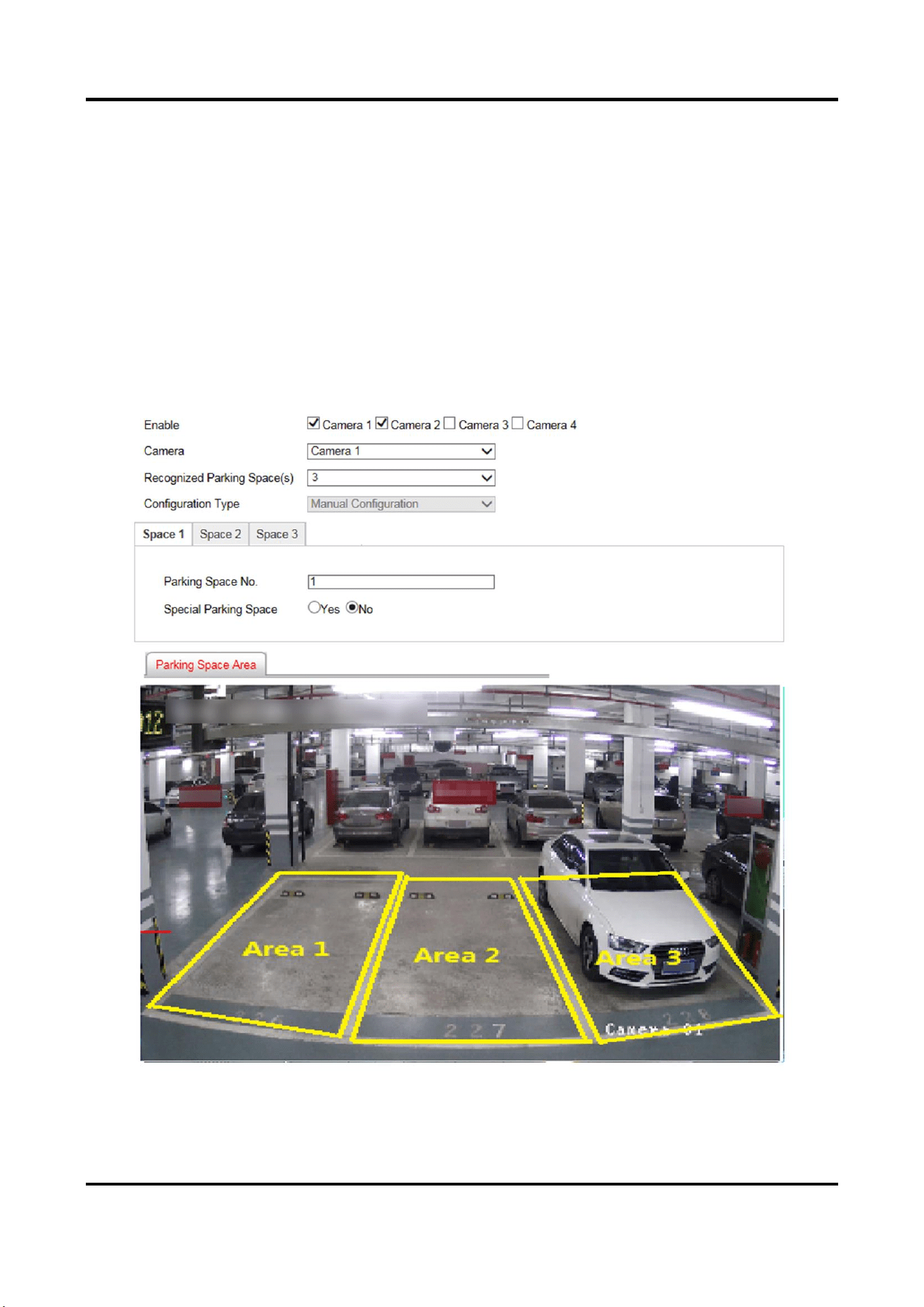
To detect the parking spaces, you should enable the smart analysis and set the parameters of
parking spaces.
Steps
1. Go to Configuration → Device Configuration → Smart Analysis → Analytics Parameters.
Figure 3-1 Smart Analysis

Fisheye Parking Camera User Manual
6
2. Optional: If you have enabled two/four-image calibration mode, enable the camera(s) to detect
parking spaces.
Note
Up to two cameras can be enabled.
3. Optional: Select Camera if two cameras have been enabled.
4. Select the number of Recognized Parking Space(s).
Note
The number may vary with different models.
According to the number of spaces you set, the quadrilateral(s) of the parking space area(s) will
appear in the image.
5. Click the tab of the parking space No. to set the parameters.
1) Enter Parking Space No.
2) Click Yes if the parking space is a special parking space.
6. Adjust the parking space areas.
1) Select a quadrilateral, and drag the vertices of the quadrilateral to adjust its shape, or drag
the quadrilateral to adjust the position.
2) Repeat the step above to adjust other areas.
7. Click Save.
3.2 Set Parking Space Indicator
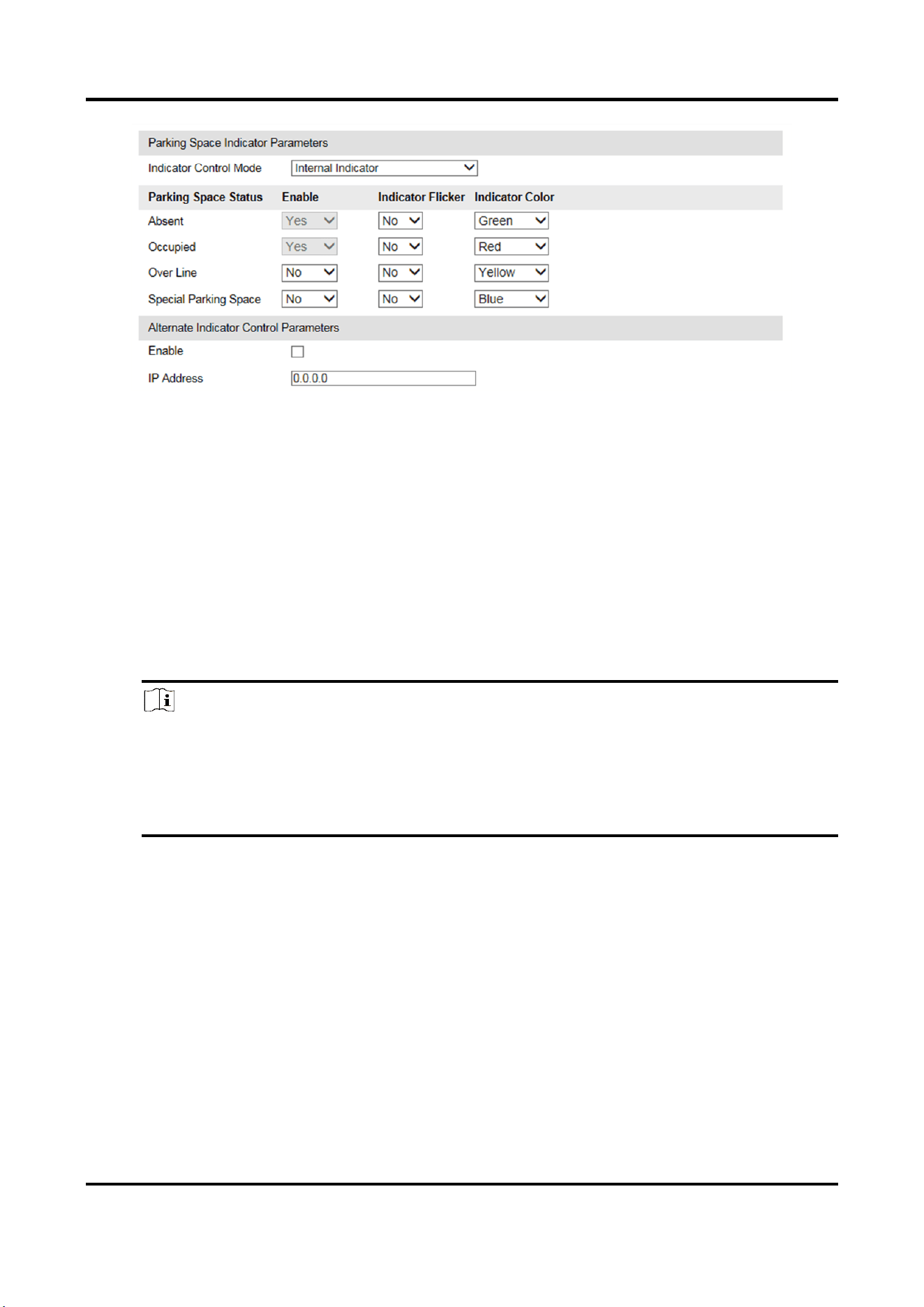
The indicator indicates the parking space status. Different colors stand for different status. You can
set the indicator colors and flashing status for different parking space status.
Steps
1. Go to Configuration → Device Configuration → Parking Space Indicator → Parking Space
Indicator.
Fisheye Parking Camera User Manual
7
Figure 3-2 Set Parking Space Indicator
2. Select Indicator Control Mode.
Internal Indicator
The parking space status is informed via the internal indicator of the device.
3. Set the indicator parameters for different parking space status.
1) Enable or disable the indication for different parking space status.
Unoccupied
The parking space is free.
Occupied
The parking space is occupied by a vehicle.
Note
Occupied status means all the detected parking spaces are occupied, and unoccupied
status means not all the detected parking spaces are occupied. E.g., three parking spaces
are detected. When the three spaces are all occupied, the indicator will display the color
you set for the occupied status. When two spaces are occupied and one space is
unoccupied, the indicator remains the color you set for the unoccupied status.
Over Line
A vehicle occupied two parking spaces.
Special Parking Space
The parking space is specified to a certain vehicle.
2) Select Indicator Flicker and Indicator Color for different parking space status.
4. Optional: If there are symmetric parking spaces on both sides, and the distance between the
device to the monitored parking space lines is too far, you can enable alternate indicator control
and set the parameters.
1) Check Enable of Alternate Indicator Control Parameters.
2) Enter IP Address of the device on the opposite parking space.
The current device can control the indicator of the device on the opposite parking space, and
Fisheye Parking Camera User Manual
8
vice versa.
5. Click Save.
3.3 View Parking Space Status
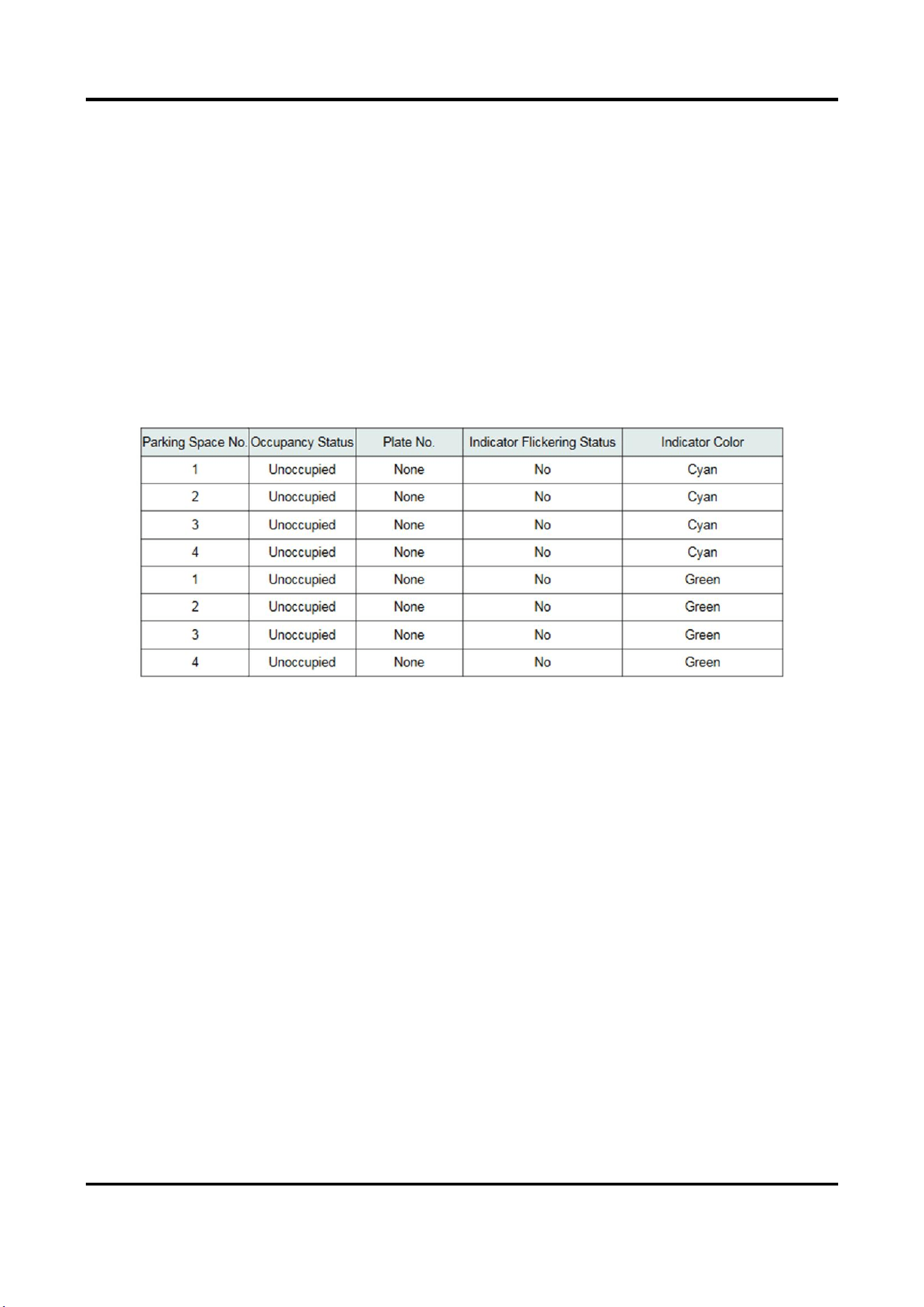
You can view the occupancy status, license plate number, indicator color, etc. of the detected
parking spaces.
Steps
1. Go to Configuration → Device Configuration → Parking Space Indicator → Parking Space
Status.
2. View the parking space status.
Figure 3-3 Parking Space Status
Fisheye Parking Camera User Manual
9
Chapter 4 Capture Configuration
4.1 Set Capture Parameters
4.1.1 Set License Plate Recognition Country/Region
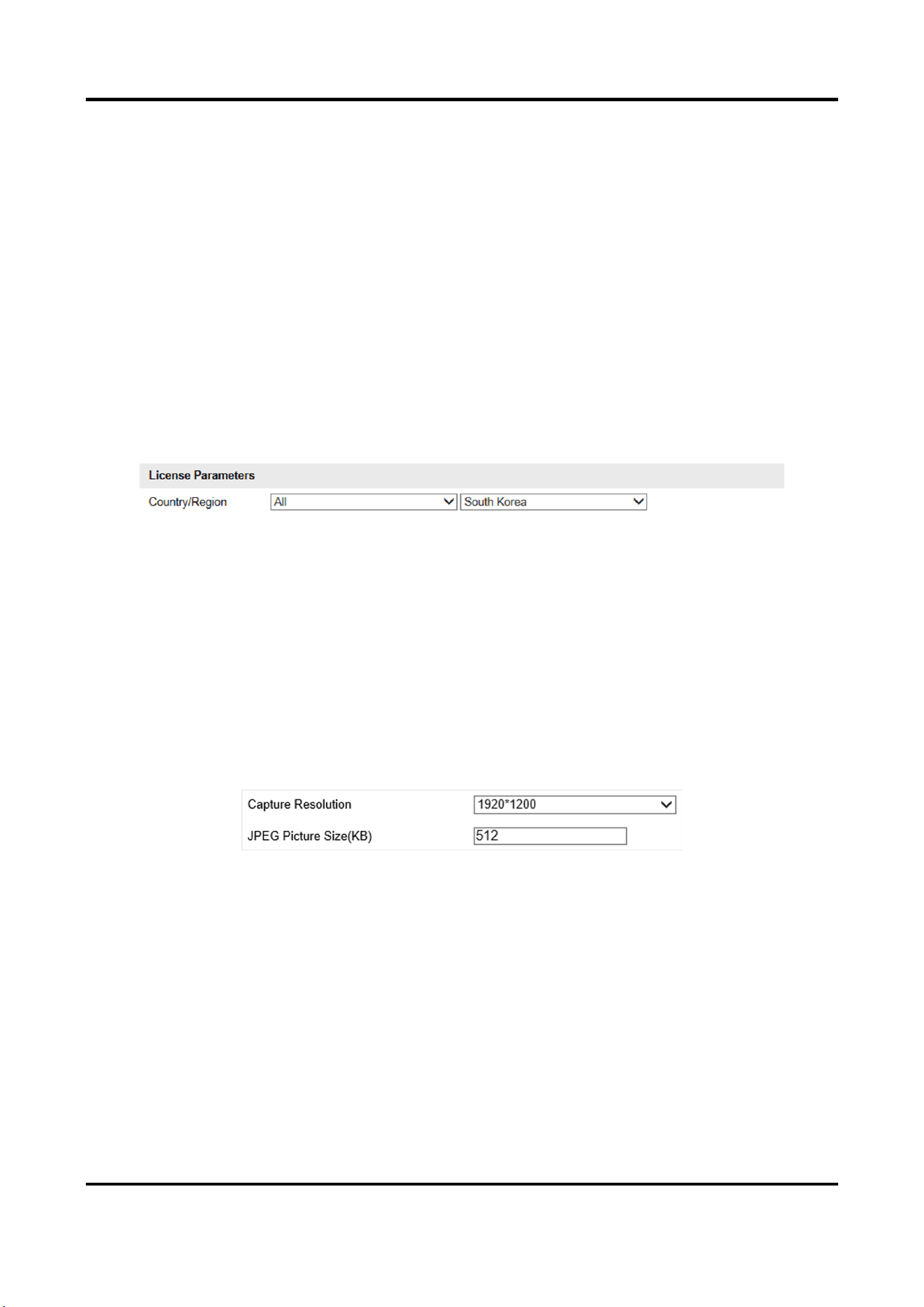
You can select the license plate recognition country/region.
Steps
1. Go to Configuration → Device Configuration → Capture Parameters → License Parameters.
Figure 4-1 Set License Plate Recognition Country/Region
2. Select Country/Region.
3. Click Save.
4.1.2 Set Image Encoding Parameters
If the captured pictures are not clear, set the resolution of the captured pictures and the picture
size.
Steps
1. Go to Configuration → Device Configuration → Encoding and Storage → Image Encoding.
Figure 4-2 Set Image Encoding Parameters
2. Select Capture Resolution.
3. Enter the picture size.
JPEG Picture Size
The size of the compressed captured picture. The actual size is related to the scene
complexity.
4. Click Save.
Fisheye Parking Camera User Manual
10
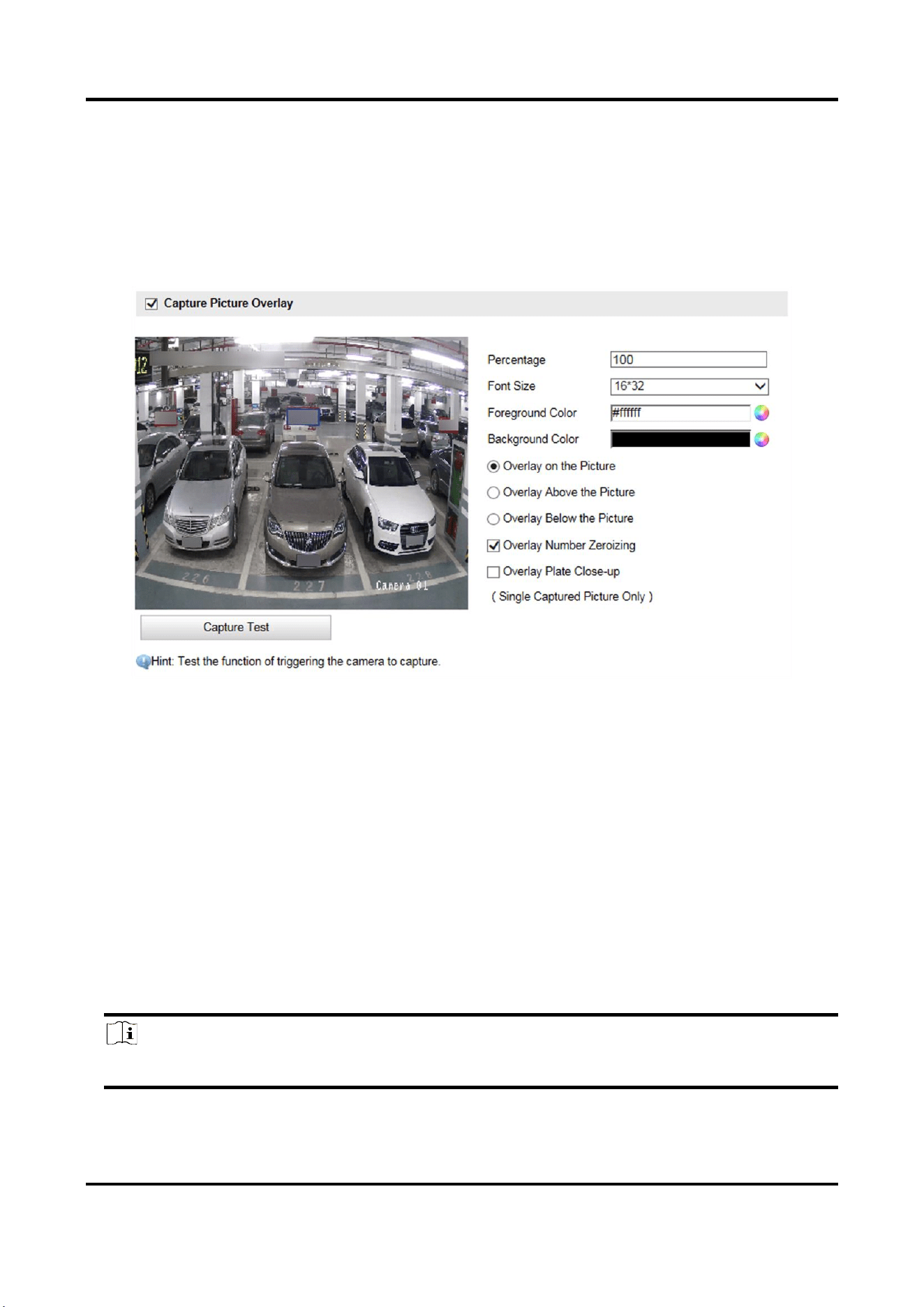
4.1.3 Set Capture Overlay
If you want to overlay information on the captured pictures, set capture overlay.
Steps
1. Go to Configuration → Device Configuration → Text Overlay → Capture Overlay Configuration.
2. Check Capture Picture Overlay.
Figure 4-3 Set Capture Overlay
3. Set the font size, color, overlay position, etc.
Percentage
It is the percentage that the overlaid information occupies on the picture.
Overlay Number Zeroizing
When the overlaid number digits are smaller than the fixed digits, 0 will be overlaid before
the overlaid number. E.g., the fixed digits for lane No. is 2. If the lane No. is 1, 01 will be
overlaid on the picture.
Overlay Plate Close-up
Check it, and a license plate close-up picture will be overlaid on the upper left corner of the
captured picture.
4. Select the overlay information from the list.
Note
The overlay information may vary with different models. The actual device prevails.
5. Set the overlay information.

Fisheye Parking Camera User Manual
11
Type
You can edit the type.
Overlay Information
For some information types, you can edit the detailed information.
Overlay Position
Check it, and the current information will be displayed from a new
line.
Space
Edit the number of space between the current information and the
next one from 0 to 255. 0 means there is no space.
Line Break
Characters
Edit the number of characters from 0 to 100 between the current
information line and the previous information line. 0 means no line
break.
/
Adjust the display sequence of the overlay information.
6. Click Save.
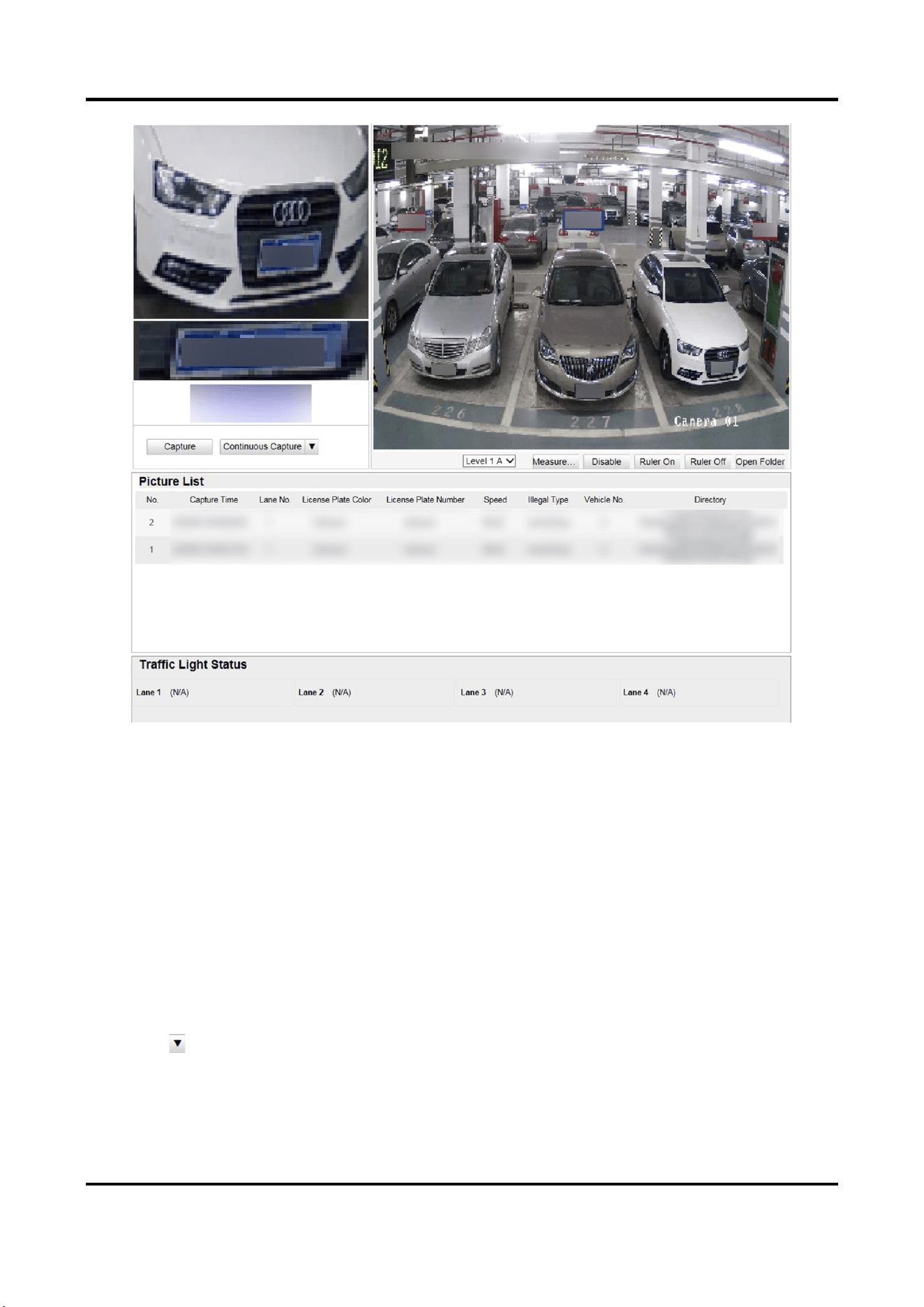
4.2 View Real-Time Picture
You can view the real-time captured pictures and information of the captured vehicles.
Steps
1. Go to Live View → Real-Time Status and Traffic Flow Statistics.
2. Select the captured picture from the picture list, and you can view the capture scene picture
and the captured license plate picture.
Fisheye Parking Camera User Manual
12
Figure 4-4 Real-Time Picture
3. You can do the following operations on this interface.
–
Select the arming mode. Level 1 Arming can only connect one client or web. The uploaded
pictures will not be stored in the storage card. The pictures in the storage card will be
uploaded to the level 1 arming. Level 2 Arming can connect three clients or webs. The
pictures will be uploaded to the client/web, and stored in the storage card. Disarming is to
cancel the alarm status or real-time picture.
–
Click Measure Plate, and drag a rectangle on the live view image to measure the license plate
pixel. Click the button again to exit the measurement.
–
Click Ruler On to enable rule when measuring the license plate. After the measurement, click
Ruler Off.
–
Click Capture to enable manual capture. The captured pictures will be saved in the set local
path. Or you can click Open Folder to view the pictures.
–
Click on the right of Continuous Capture to set the continuous capture parameters. After
the configuration, click Continuous Capture to capture pictures.
Capture Times

Fisheye Parking Camera User Manual
13
Up to five times are supported.
Continuous Capture Interval
Up to four intervals are supported. You can set the time of each interval.
Fisheye Parking Camera User Manual
14
Chapter 5 Live View and Local Configuration
5.1 Live View
5.1.1 Start/Stop Live View
Click to start live view. Click to stop live view.
5.1.2 Select Image Display Mode
Click to display the image in 4:3/16:9/original/self-adaptive display mode.
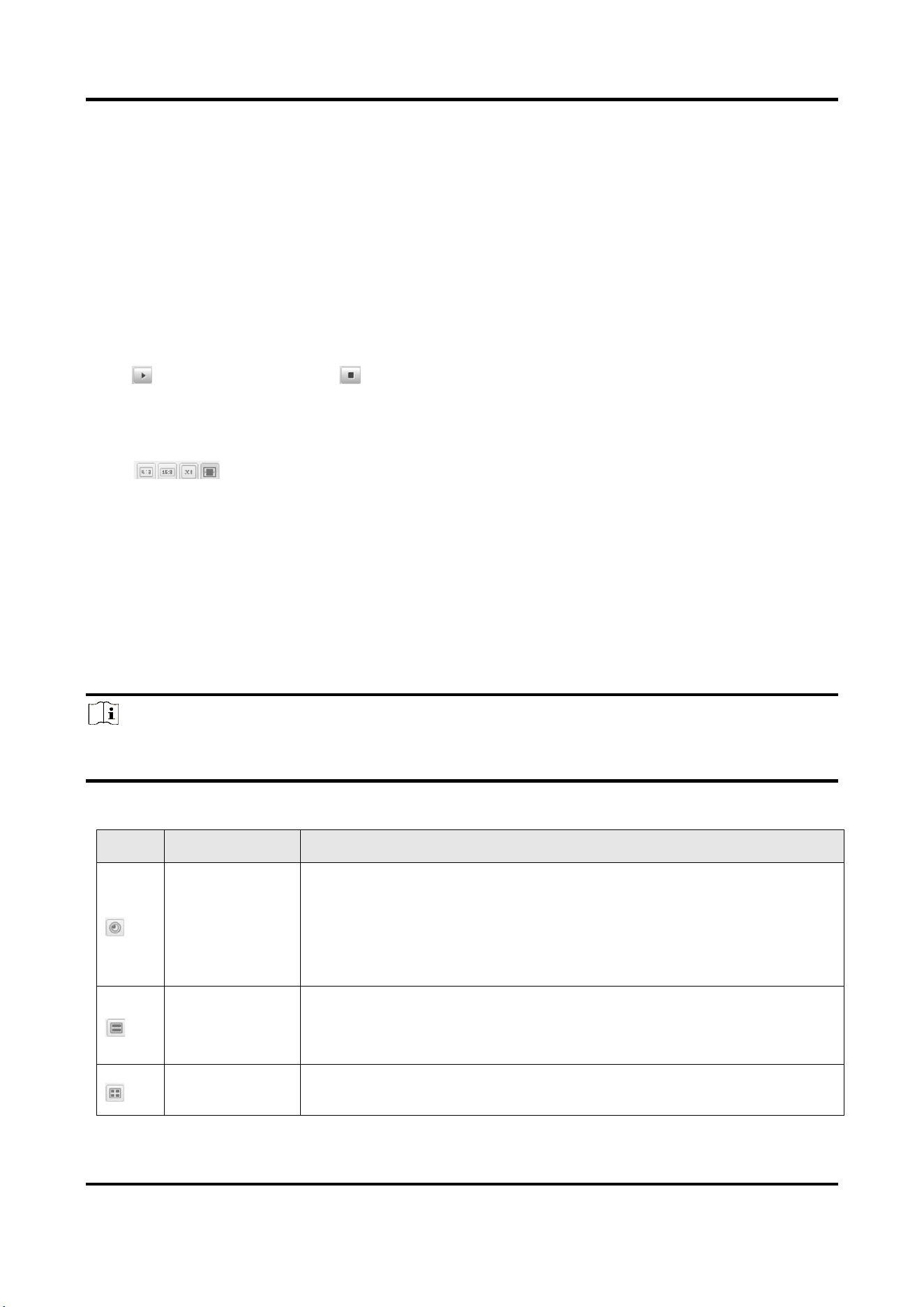
5.1.3 Display Control
The device supports hardware and software decoding modes. In the two decoding modes, you can
select different display modes.
Hardware Decoding
Hardware decoding means the obtained live view video is decoded by the device itself. In
hardware decoding mode, five display modes are supported. Refer to the table below for details.
Note
In hardware decoding mode, once you switch a display mode, you need to reboot the device to
take the settings into effect.
Table 5-1 Display Control in Hardware Decoding Mode
Icon
Display Mode
Description
Fisheye mode
In the fisheye mode, the whole wide-angle view of the fisheye
camera is displayed. This mode is called fisheye because it
approximates the vision of a fish's convex eye. The lens produces
curvilinear images of a large area, while distorting the perspective
and angles of objects in the image.
Two-image
calibration
mode
In two-image calibration mode, the round fisheye image is
transformed to two rectangular images by some calibration methods.
Four-image
calibration
In four-image calibration mode, the round fisheye image is
transformed to four rectangular images by some calibration
Fisheye Parking Camera User Manual
15
Icon
Display Mode
Description
mode
methods.
Two-image
panorama
mode
In two-image panorama mode, the streams of two cameras combine
to one stream to display one panorama image.
Four-image
panorama
mode
In four-image panorama mode, the streams of four cameras combine
to one stream to display one panorama image.
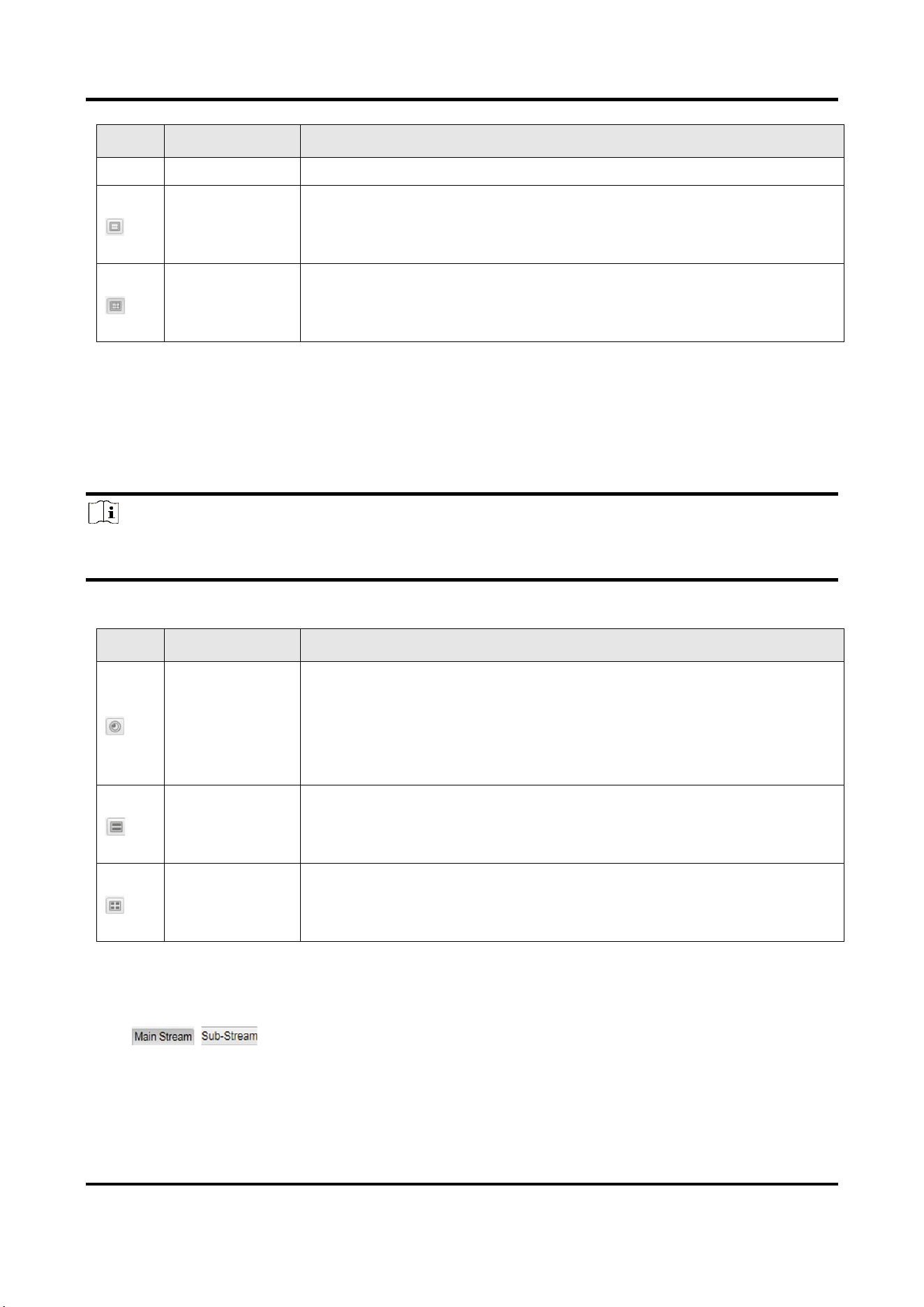
Software Decoding
Software decoding means the obtained live view video is decoded by using the CPU of your PC
that is running the web browser. The live view performance depends on the decoding ability of
your PC. In software decoding mode, three display modes are supported. Refer to the table below
for details.
Note
Once you switch the decoding mode, you need to reboot the device to take the settings into
effect.
Table 5-2 Display Control in Software Decoding Mode
Icon
Display Mode
Description
Fisheye mode
In the fisheye mode, the whole wide-angle view of the fisheye
camera is displayed. This mode is called fisheye because it
approximates the vision of a fish's convex eye. The lens produces
curvilinear images of a large area, while distorting the perspective
and angles of objects in the image.
Two-image
calibration
mode
In two-image calibration mode, the round fisheye image is
transformed to two rectangular images by some calibration methods.
Four-image
calibration
mode
In four-image calibration mode, the round fisheye image is
transformed to four rectangular images by some calibration
methods.
5.1.4 Select Stream Type
Click / to select the stream type. It is recommended to select the main stream to
get the high-quality image when the network condition is good, and select the sub-stream to get
the fluent image when the network condition is not good enough.

Fisheye Parking Camera User Manual
16
5.1.5 Capture Picture Manually
You can capture pictures manually on the live view image and save them to the computer.
Steps
1. Click to start live view.
2. Click to capture a picture.
3. Optional: Click Configuration → Local Configuration to view the saving path of snapshots in live
view.
5.1.6 Record Manually
You can record videos manually on the live view image and save them to the computer.
Steps
1. Click to start live view.
2. Click to start recording.
3. Click to stop recording.
4. Optional: Click Configuration → Local Configuration to view the saving path of record files.
5.1.7 Enable Digital Zoom
You can enable digital zoom to zoom in a certain part of the live view image.
Steps
1. Click to start live view.
2. Click to enable digital zoom.
3. Place the cursor on the live view image position which needs to be zoomed in. Drag the mouse
rightwards and downwards to draw an area.
The area will be zoomed in.
4. Click any position of the image to restore to normal image.
5. Click to disable digital zoom.
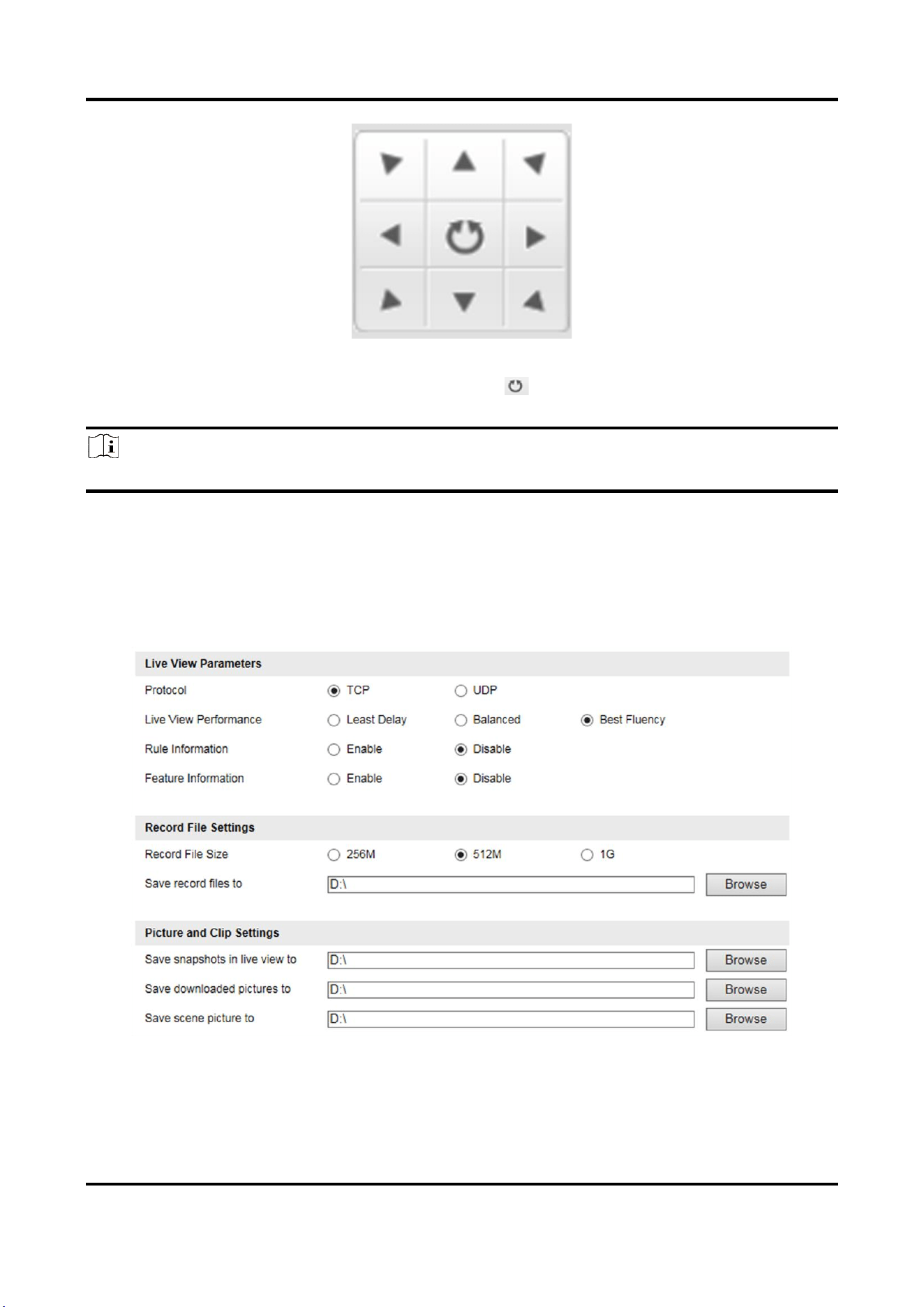
5.2 PT Control
On Live View interface, click to show/hide the PT control panel.
Fisheye Parking Camera User Manual
17
Figure 5-1 PT Control
Hold the direction buttons to pan/tilt the device. Click , and the device keeps panning. Click it
again to stop panning.
Note
You can also drag the cursor on the live view image to pan/tilt the device.
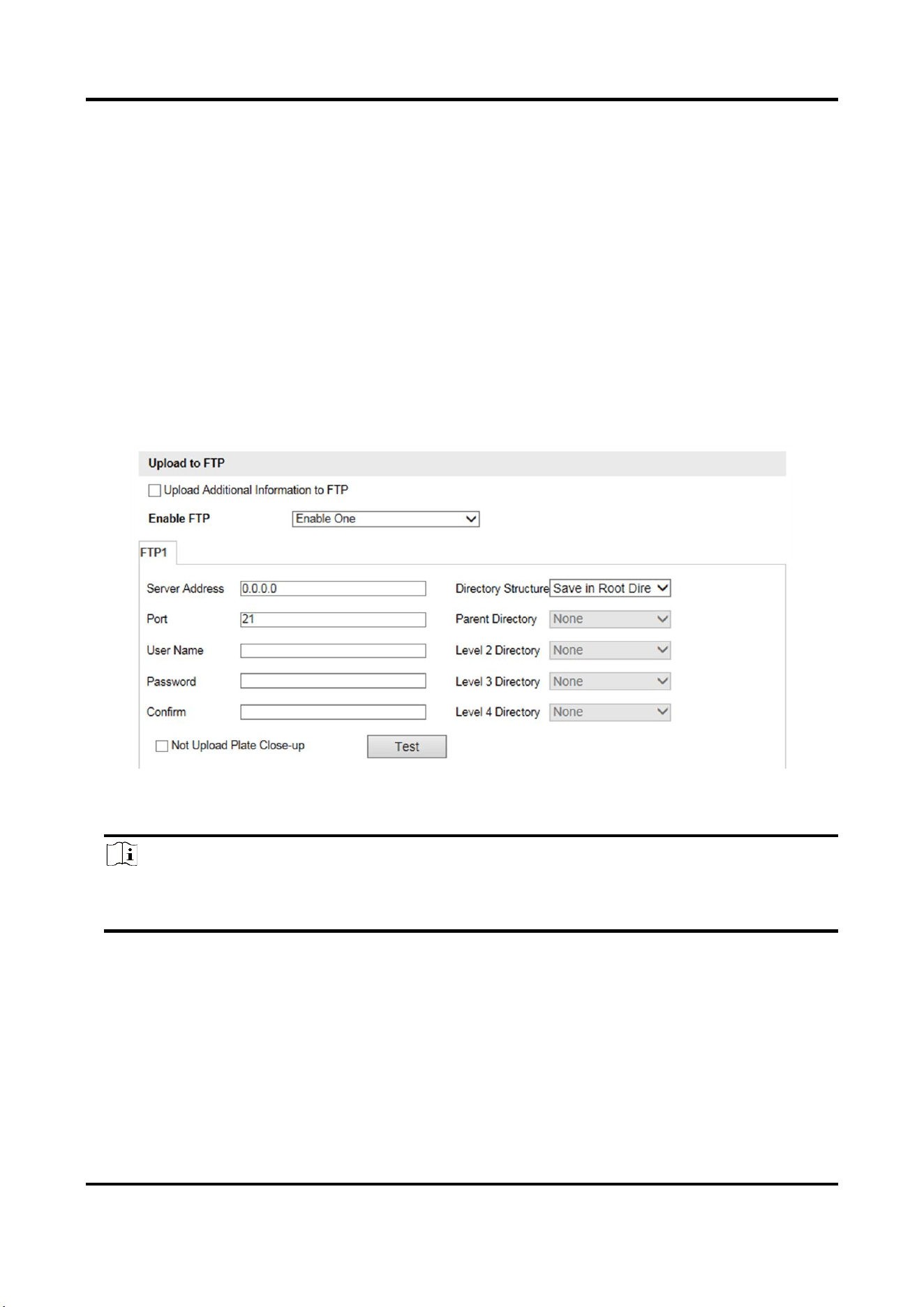
5.3 Local Configuration
Go to Configuration → Local Configuration to set the live view parameters and change the saving
paths of videos, captured pictures, scene pictures, etc.
Figure 5-2 Local Configuration
Protocol

Fisheye Parking Camera User Manual
18
Select the network transmission protocol according to the actual needs.
TCP
Ensures complete delivery of streaming data and better video quality, yet the real-time
transmission will be affected.
UDP
Provides real-time audio and video streams.
Live View Performance
Least Delay
The video is real-time, but the video fluency may be affected.
Balanced
Balanced mode considers both the real time and fluency of the video.
Best Fluency
When the network condition is good, the video is fluent.
Rule Information
If you enable the rule information, tracking frames will be displayed on the live view interface
when there are vehicles passing.
Feature Information
If you enable the feature information, information of the lane, traffic flow, speed, etc. will be
displayed on the live view interface.
Record File Size
Select the packed size of the manually recorded video files. After the selection, the max. record
file size is the value you selected.
Save record files to
Set the saving path for the manually recorded video files.
Save snapshots in live view to
Set the saving path of the manually captured pictures in live view mode.
Save downloaded pictures to
Set the saving path for the downloaded pictures.
Save scene picture to
Set the saving path of the captured pictures in the Real-Time Status and Traffic Flow Statistics
interface.
Note
The parameters vary with different models. The actual device prevails.
Fisheye Parking Camera User Manual
19
Chapter 6 Storage
6.1 Set FTP
Set FTP parameters if you want to upload the captured pictures to the FTP server.
Before You Start
Set the FTP server, and ensure the device can communicate normally with the server.
Steps
1. Go to Configuration → Device Configuration → Encoding and Storage → FTP.
Figure 6-1 Set FTP
2. Enable the FTP server.
Note
You can only enable one FTP if the device does not support the violation capture, or you should
set different uploaded data for each FTP respectively.
Example
If you select FTP 1 as Upload Checkpoint Data, FTP 2 will be selected as Upload Violation Data
by default.
3. Optional: Check Upload Additional Information to FTP, and then the related information can be
attached when uploading.
4. Set FTP parameters.
1) Enter Server Address and Port.
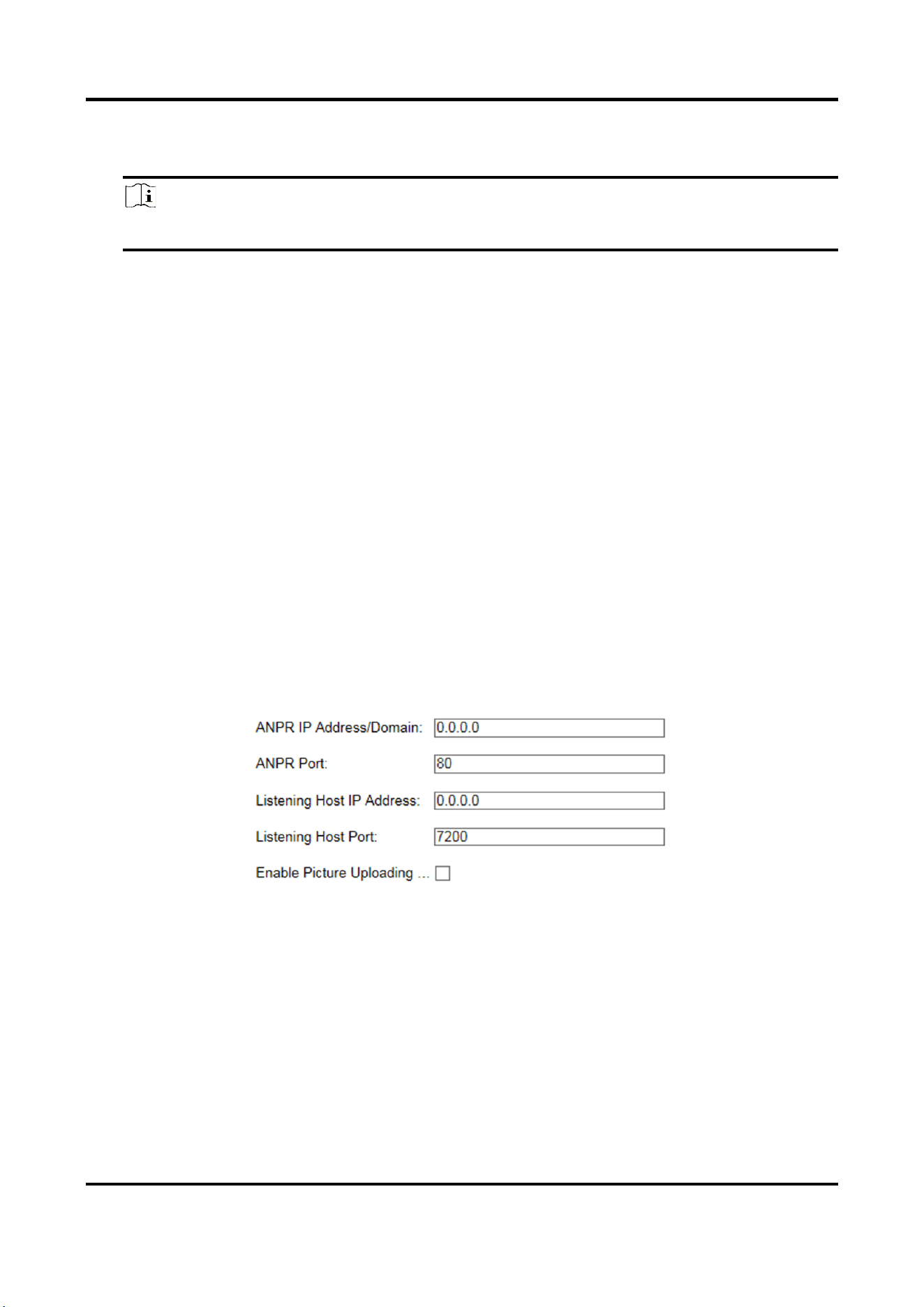
Fisheye Parking Camera User Manual
20
2) Enter User Name and Password, and confirm the password.
3) Select Directory Structure.
Note
If multiple directories are needed, you can customize the directory name.
5. Optional: Check Not Upload Plate Close-up if the license plate close-up pictures are not needed
to upload.
6. Optional: Click Test to check the FTP server.
7. Set the name rule and separator according to the actual needs.
8. Optional: Edit OSD information which can be uploaded to the FTP server with the pictures to
make it convenient to view and distinguish the data.
9. Click Save.
6.2 Set Listening Host
The listening host can be used to receive the uploaded information and pictures of the device
arming alarm.
Before You Start
The listening service has been enabled for the listening host, and the network communication with
the device is normal.
Steps
1. Go to Configuration → Device Configuration → System Configuration → Network Parameters.
Figure 6-2 Set Listening Host
2. Set ANPR IP Address/Domain and ANPR Port if you need to upload the alarm information and
pictures.
3. Set Listening Host IP Address and Listening Host Port, and check Enable Picture Uploading
Listening if you need to upload the alarm information and pictures.

Fisheye Parking Camera User Manual
21
Note
ANPR and listening conflict with each other. When you enable listening host, pictures will be
uploaded via listening host in priority. When you disable listening and have set ANPR IP address
and port, pictures will be uploaded via ANPR protocol.
4. Click Save.

Fisheye Parking Camera User Manual
22
Chapter 7 Encoding and Display
7.1 Set Video Encoding Parameters
Set video encoding parameters to adjust the live view and recording effect.
●
When the network signal is good and the speed is fast, you can set high resolution and bitrate to
raise the image quality.
●
When the network signal is bad and the speed is slow, you can set low resolution, bitrate, and
frame rate to guarantee the image fluency.
●
When the network signal is bad, but the resolution should be guaranteed, you can set low
bitrate and frame rate to guarantee the image fluency.
●
Main stream stands for the best stream performance the device supports. It usually offers the
best resolution and frame rate the device can do. But high resolution and frame rate usually
means larger storage space and higher bandwidth requirements in transmission. Sub-stream
usually offers comparatively low resolution options, which consumes less bandwidth and
storage space.
Steps
1. Go to Configuration → Device Configuration → Encoding and Storage → Video Encoding.
2. Set the parameters for different streams.
Stream Type
Video stream and video & audio stream are selectable.
Bitrate
Select relatively large bitrate if you need good image quality and effect, but more storage
spaces will be consumed. Select relatively small bitrate if storage requirement is in priority.
Frame Rate
It is to describe the frequency at which the video stream is updated and it is measured by
frames per second (fps). A higher frame rate is advantageous when there is movement in the
video stream, as it maintains image quality throughout.
Resolution
The higher the resolution is, the clearer the image will be. Meanwhile, the network
bandwidth requirement is higher.
SVC
Scalable Video Coding (SVC) is an extension of the H.264/AVC and H.265 standard. Enable the
function and the device will automatically extract frames from the original video when the
network bandwidth is insufficient.
Bitrate Type

Fisheye Parking Camera User Manual
23
Select the bitrate type to constant or variable.
Video Quality
When bitrate type is variable, 6 levels of video quality are selectable. The higher the video
quality is, the higher requirements of the network bandwidth.
Profile
Under the same bitrate, the higher the profile is, the higher the image quality is, and the
higher the requirement of the network bandwidth is.
I Frame Interval
It refers to the number of frames between two key frames. The larger the I frame interval is,
the smaller the stream fluctuation is, but the image quality is not that good.
Video Encoding
The device supports multiple video encoding types, such as H.264, H.265, and MJPEG.
Supported encoding types for different stream types may differ. H.265 is a new encoding
technology. Compared with H.264, it reduces the transmission bitrate under the same
resolution, frame rate, and image quality.
3. Click Save.
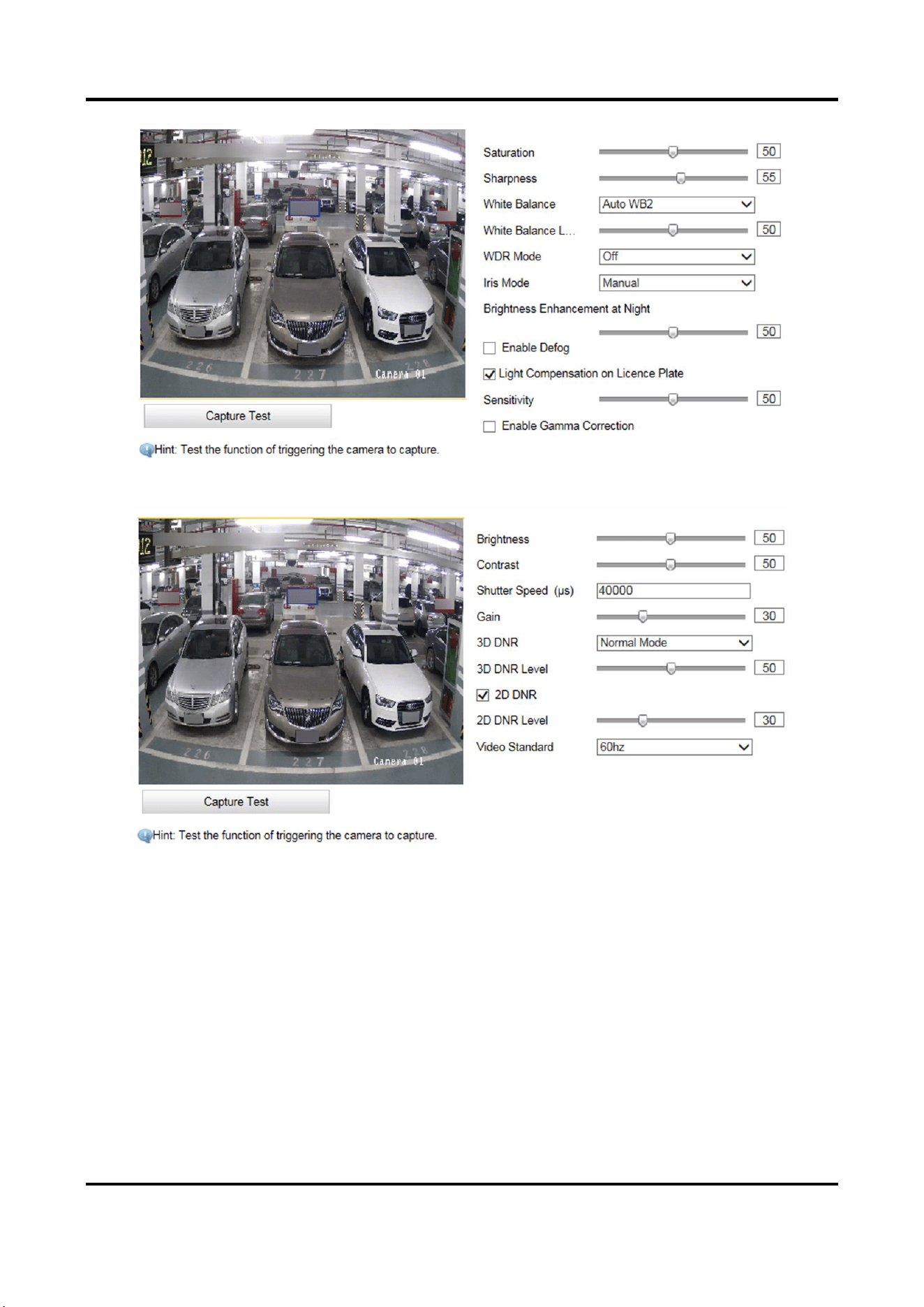
7.2 Set Image Parameters
You can adjust the image parameters to get clear image.
Steps
Note
The supported parameters may vary with different models. The actual device prevails.
1. Go to Configuration → Device Configuration → Image Parameters → General
Parameter/Configuration → Device Configuration → Image Parameters → Video.
Fisheye Parking Camera User Manual
24
Figure 7-1 Set General Parameters
Figure 7-2 Set Video Image Parameters
2. Adjust the parameters.
Saturation
It refers to the colorfulness of the image color.
Sharpness
It refers to the edge contrast of the image.
White Balance
It is the white rendition function of the device used to adjust the color temperature according
to the environment.

Fisheye Parking Camera User Manual
25
Iris Mode
Select the iris mode as manual.
Brightness Enhancement at Night
The scene brightness will be enhanced at night automatically.
Enable Defog
Enable defog to get a clear image in foggy days.
Light Compensation on License Plate
Check it. The light compensation on license plates can be realized, and various light
supplement conditions can be adapted via setting license plate expectant brightness and
supplement light correction coefficient. The higher the sensitivity is, the easier this function
can be enabled.
Enable Gamma Correction
The higher the gamma correction value is, the stronger the correction strength is.
Brightness
It refers to the max. brightness of the image.
Contrast
It refers to the contrast of the image. Set it to adjust the levels and permeability of the image.
Shutter Speed
If the shutter speed is quick, the details of the moving objects can be displayed better. If the
shutter speed is slow, the outline of the moving objects will be fuzzy and trailing will appear.
Gain
It refers to the upper limit value of limiting image signal amplification. It is recommended to
set a high gain if the illumination is not enough, and set a low gain if the illumination is
enough.
3D DNR
Digital Noise Reduction (DNR) reduces the noise in the video stream.
In Normal Mode, the higher the 3D DNR Level is, the stronger the noise will be reduced. But
if it is too high, the image may become fuzzy.
In Expert Mode, set Spatial Intensity and Time Intensity. If the special intensity is too high,
the outline of the image may become fuzzy and the details may lose. If the time intensity is
too high, trailing may appear.
2D DNR
The higher the 2D DNR Level is, the stronger the noise will be reduced. But if it is too high,
the image may become fuzzy.
Video Standard
Select the video standard according to the actual power supply frequency.

Fisheye Parking Camera User Manual
26
7.3 Set ROI
ROI (Region of Interest) encoding helps to assign more encoding resources to the region of
interest, thus to increase the quality of the ROI whereas the background information is less
focused.
Before You Start
Please check the video encoding type. ROI is supported when the video encoding type is H.264 or
H.265.
Steps
1. Go to Configuration → Device Configuration → Encoding and Storage → ROI.
Figure 7-3 Set ROI
2. Optional: If you have enabled two/four-image calibration mode, select the camera.
3. Select Stream Type.
4. Set ROI region.
1) Check Enable.
2) Select Area Code.
3) Click Draw Area.
4) Drag the mouse on the live view image to draw the fixed area.
5) Select the fixed area that needs to be adjusted and drag the mouse to adjust its position.
6) Click Stop Drawing.
5. Enter Area Name and select ROI Level.
Note
The higher the ROI level is, the clearer the image of the detected area is.
6. Click Save.
7. Optional: Select other area codes and repeat the steps above if you need to draw multiple fixed
areas.
7.4 Set OSD
You can customize OSD information on the live view.
Steps
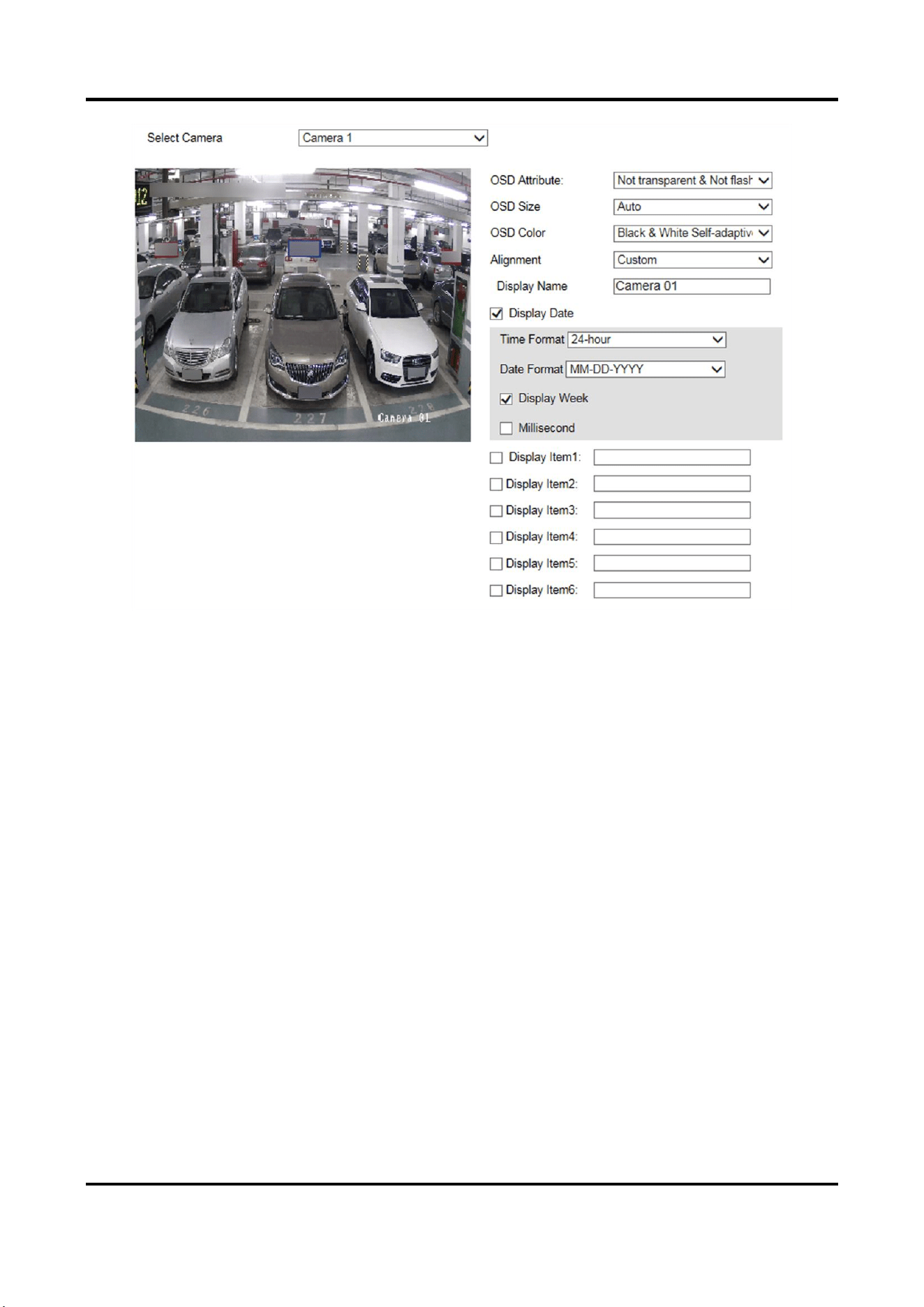
1. Go to Configuration → Device Configuration → Text Overlay → OSD Settings.
Fisheye Parking Camera User Manual
27
Figure 7-4 Set OSD
2. Optional: If you have enabled two/four-image calibration mode, select the camera.
3. Set OSD property, font size, alignment, etc.
4. Set the display content.
1) Check Camera Name and enter the name.
2) Check Display Date, and set the time and date format.
3) Check Display Week.
4) Check Millisecond
5. Optional: Check the display item(s) and enter the information in the text field(s).
6. Drag the red frames on the live view image to adjust the OSD positions.
7. Click Save.
Result
The set OSD will be displayed in live view image and recorded videos.
Fisheye Parking Camera User Manual
28
Chapter 8 Network Configuration
8.1 Set IP Address
IP address must be properly configured before you operate the device over network. IPv4 and IPv6
are both supported. Both versions can be configured simultaneously without conflicting to each
other.
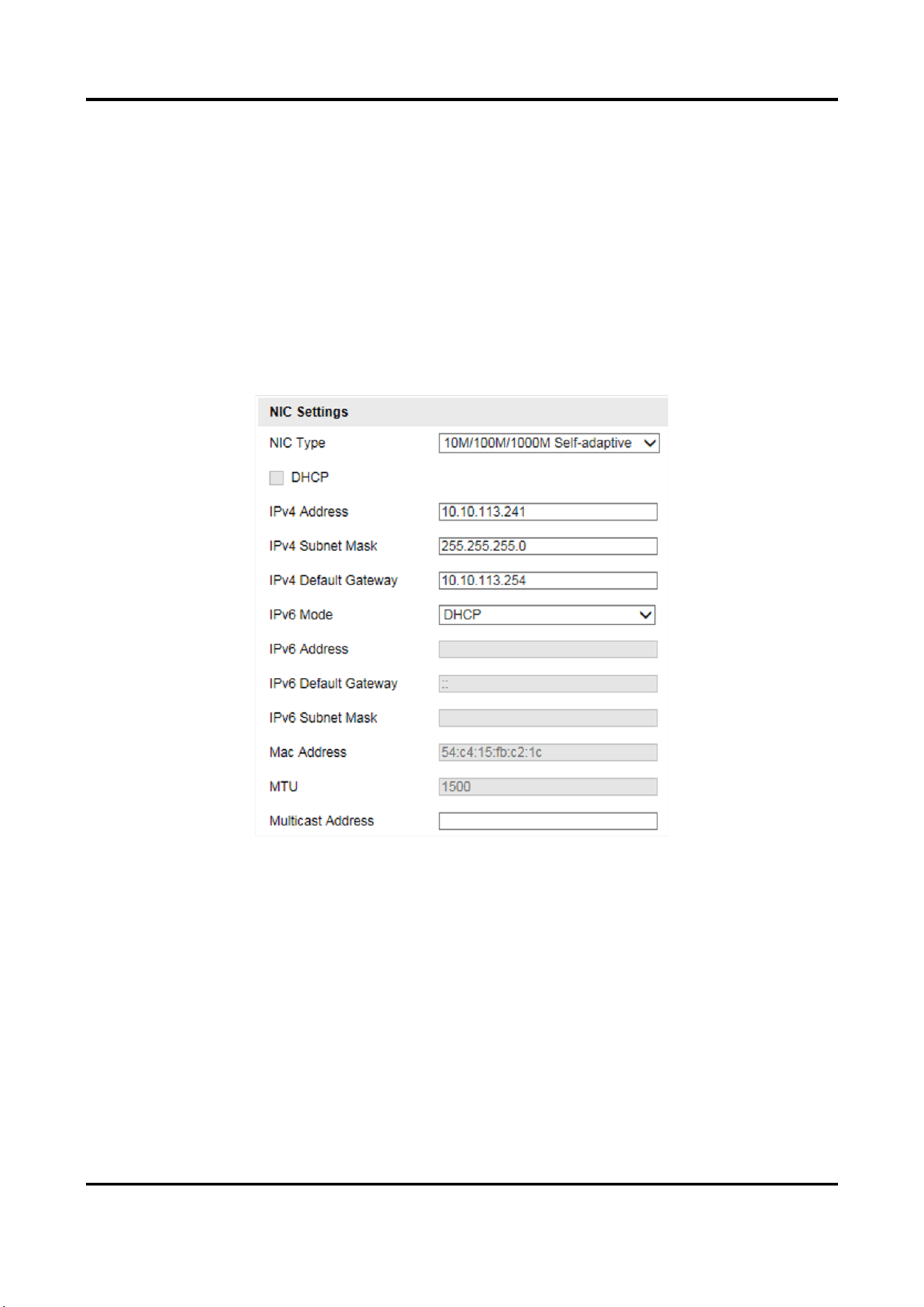
Go to Configuration → Device Configuration → System → Network Parameters.
Figure 8-1 Set IP Address
NIC Type
Select a NIC (Network Interface Card) type according to your network condition.
IPv4
Two IPv4 modes are available.
DHCP
The device automatically gets the IPv4 parameters from the network if you check DHCP. The
device IP address is changed after enabling the function. You can use SADP to get the device
IP address.

Fisheye Parking Camera User Manual
29
Note
The network that the device is connected to should support DHCP (Dynamic Host
Configuration Protocol).
Manual
You can set the device IPv4 parameters manually. Enter IPv4 Address, IPv4 Subnet Mask, and
IPv4 Default Gateway.
IPv6
Three IPv6 modes are available.
Route Advertisement
The IPv6 address is generated by combining the route advertisement and the device Mac
address.
Note
Route advertisement mode requires the support from the router that the device is connected
to.
DHCP
The IPv6 address is assigned by the server, router, or gateway.
Manual
Enter IPv6 Address, IPv6 Subnet Mask, and IPv6 Default Gateway. Consult the network
administrator for required information.
MTU
It stands for maximum transmission unit. It is the size of the largest protocol data unit that can
be communicated in a single network layer transaction.
The valid value range of MTU is 1280 to 1500.
Multicast
Multicast is group communication where data transmission is addressed to a group of
destination devices simultaneously. After setting the IP address of the multicast host, you can
send the source data efficiently to multiple receivers.
DNS
It stands for domain name server. It is required if you need to visit the device with domain
name. And it is also required for some applications (e.g., sending email). Set Preferred DNS
Server properly if needed.
Fisheye Parking Camera User Manual
30
8.2 Connect to ISUP Platform
ISUP is a platform access protocol. The device can be remotely accessed via ISUP platform.
Before You Start
●
Create the device ID on ISUP platform.
●
Ensure the device can communicate with the platform normally.
Steps
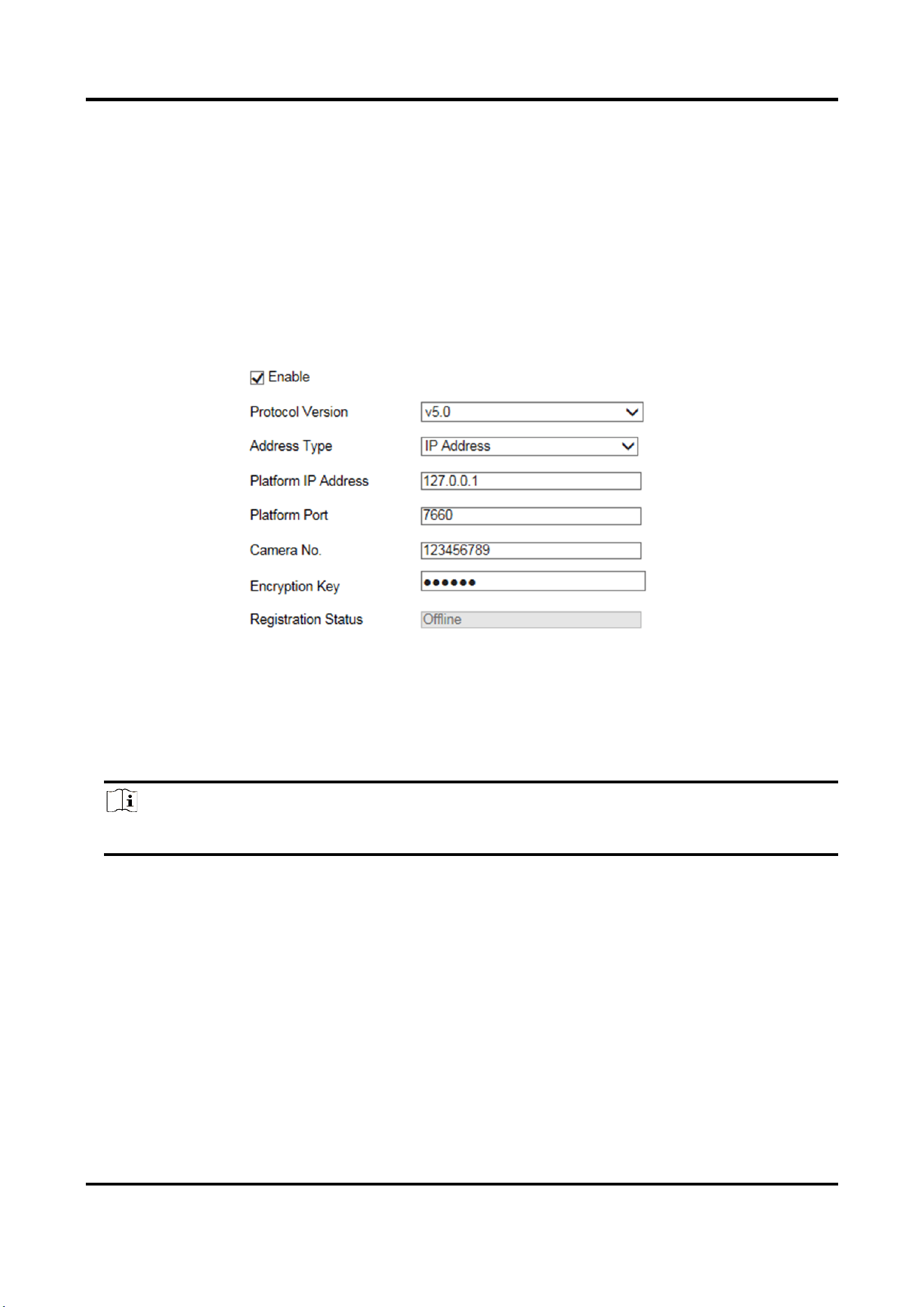
1. Go to Configuration → Device Configuration → System Configuration → ISUP.
Figure 8-2 Connect to ISUP Platform
2. Check Enable.
3. Select Protocol Version.
4. Select Address Type.
5. Enter Platform IP Address, Platform Port, and Camera No.
Note
You need to enter Encryption Key if you select Protocol Version as v5.0.
6. Click Save.
7. Optional: View Register Status.
What to do next
When the registration status shows online, you can add or manage the device via the platform
software. Refer to its corresponding manual for details.
8.3 Set DDNS
You can use the Dynamic DNS (DDNS) for network access. The dynamic IP address of the device
can be mapped to a domain name resolution server to realize the network access via domain
Fisheye Parking Camera User Manual
31
name.
Before You Start
●
Register the domain name on the DDNS server.
●
Set the LAN IP address, subnet mask, gateway, and DNS server parameters. Refer to "Set IP
Address" for details.
●
Complete port mapping. The default port is 80, 8000, and 554.
Steps
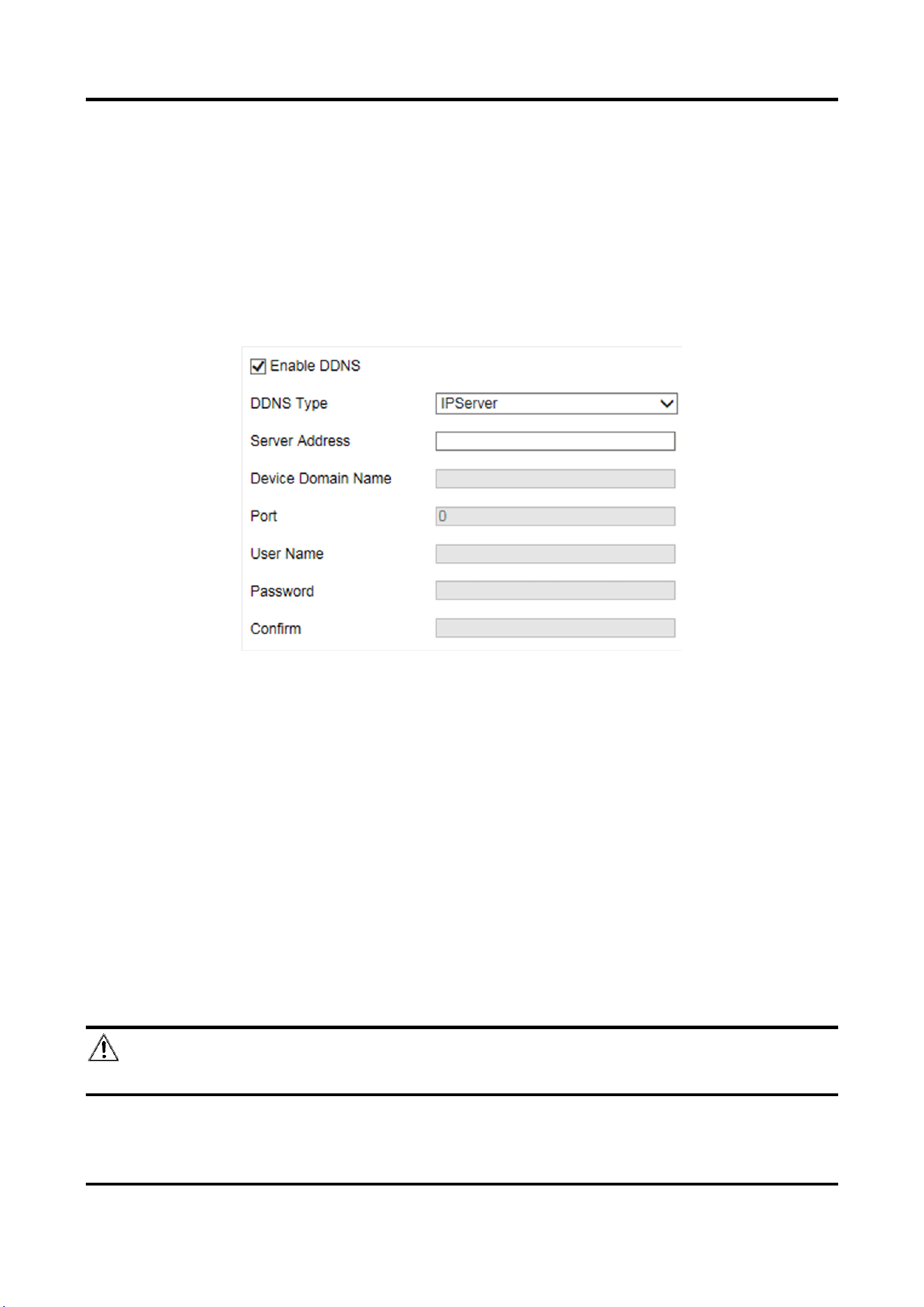
1. Go to Configuration → Device Configuration → System Configuration → DDNS.
Figure 8-3 Set DDNS
2. Check Enable DDNS.
3. Enter the server address and other information.
4. Click Save.
5. Access the device.
By Browsers
Enter the domain name in the browser address bar to access the
device.
By Client Software
Add domain name to the client software. Refer to the client software
manual for specific adding methods.
8.4 Set Port
The device port can be modified when the device cannot access the network due to port conflicts.
Caution
Do not modify the default port parameters at will, otherwise the device may be inaccessible.
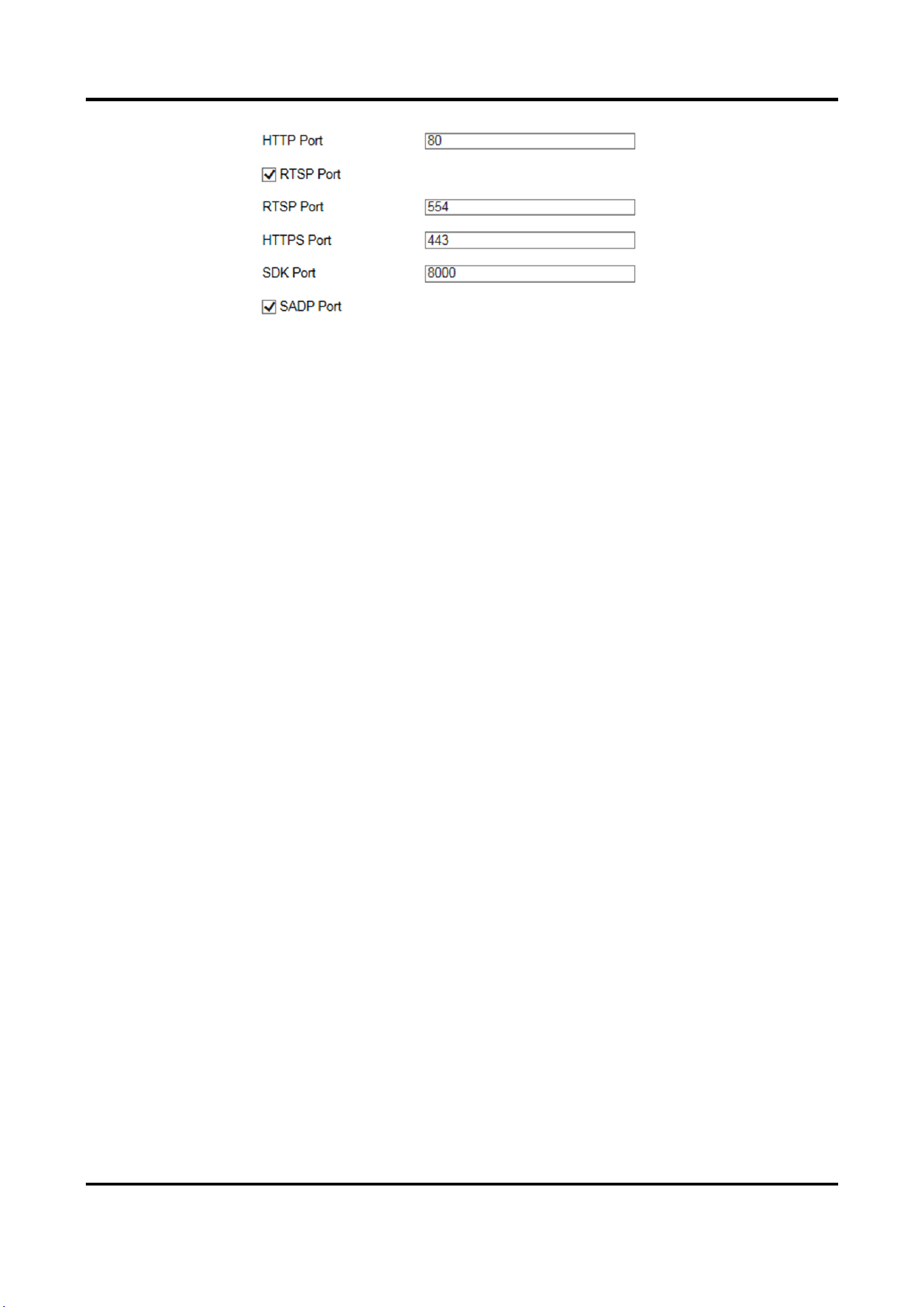
Go to Configuration → Device Configuration → System Configuration → Port for port settings.
Fisheye Parking Camera User Manual
32
Figure 8-4 Set Port
HTTP Port
It refers to the port through which the browser accesses the device. For example, when the
HTTP Port is modified to 81, you need to enter http://192.168.1.64:81 in the browser for login.
RTSP Port
It refers to the port of real-time streaming protocol.
HTTPS Port
Set the HTTPS for accessing the browser. Certificate is required when accessing.
SDK Port
It refers to the port through which the client adds the device.
SADP Port
It refers to the port through which the SADP software searches the device.
Fisheye Parking Camera User Manual
33
Chapter 9 Serial Port Configuration
9.1 Set RS-485
Set RS-485 parameters if the device has been connected to a vehicle detector or other RS-485
devices.
Before You Start
The corresponding device has been connected via the RS-485 serial port.
Steps
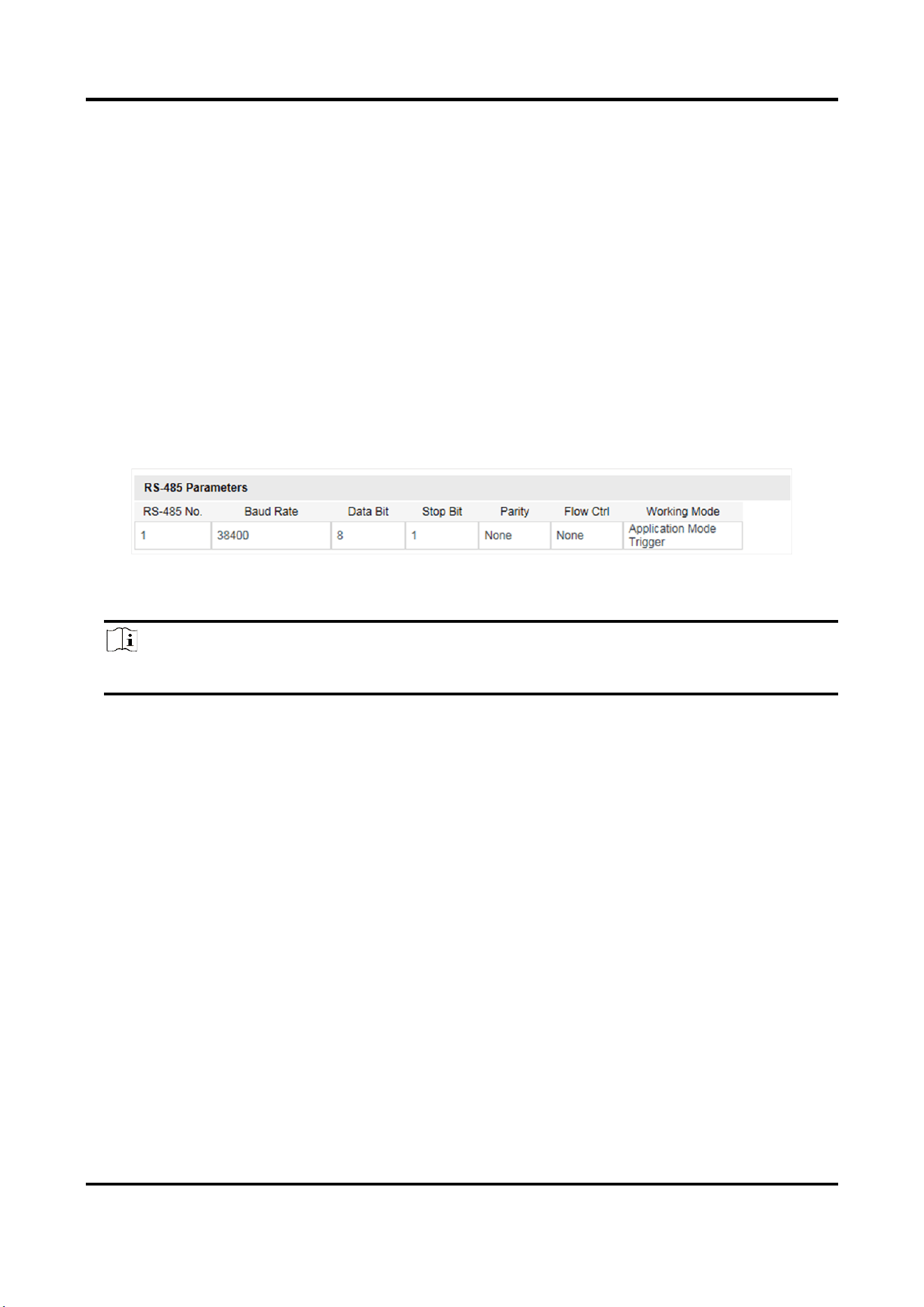
1. Go to Configuration → Device Configuration → System Configuration → Serial Ports.
Figure 9-1 Set RS-485
2. Set Baud Rate, Data Bit, Stop Bit, etc.
Note
The parameters should be same with those of the connected device.
3. Select Working Mode.
Application Mode Trigger
Select it if the vehicle detector has been connected via the RS-485 serial port.
Transparent Transmission
Select it, and the network command can be transmitted to RS-485 control command via the
RS-485 serial port.
GPS
The GPS devices are connected to the RS-485 serial port of the device for receiving location
data.
4. Click Save.
9.2 Set RS-232
Set RS-232 parameters if you need to debug the device via RS-232 serial port, or peripheral devices
Fisheye Parking Camera User Manual
34
have been connected.
Before You Start
The corresponding device has been connected via the RS-232 serial port.
Steps
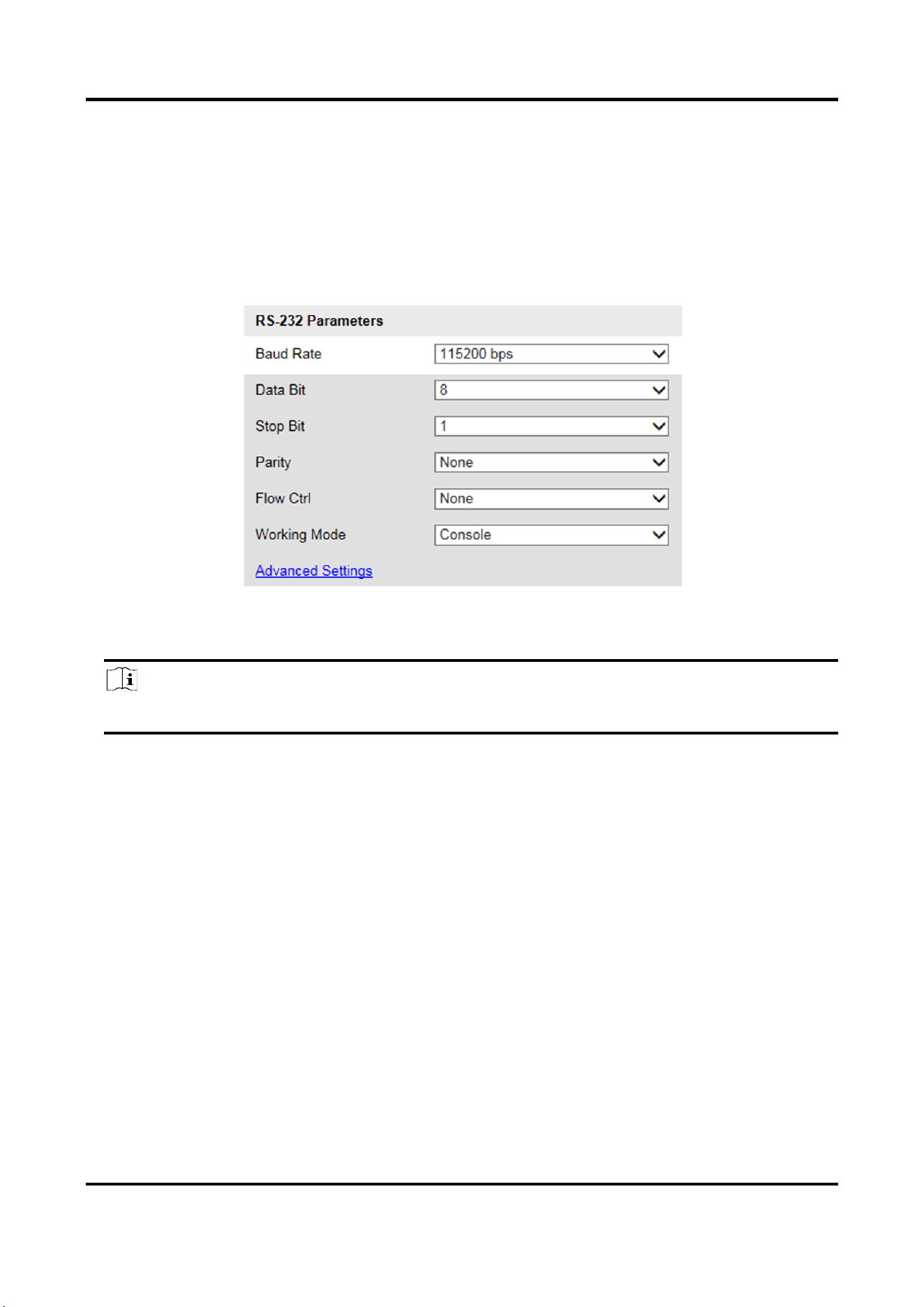
1. Go to Configuration → Device Configuration → System Configuration → Serial Ports.
2. Click Advanced Settings.
Figure 9-2 Set RS-232
3. Set Baud Rate, Data Bit, Stop Bit, etc.
Note
The parameters should be same with those of the connected device.
4. Select Working Mode.
Console
Select it when you need to debug the device via RS-232 serial port.
Transparent Channel
Select it, and the network command can be transmitted to RS-232 control command via the
RS-232 serial port.
Narrow Band
Reserved.
5. Click Save.
Fisheye Parking Camera User Manual
35
Chapter 10 Alarm Configuration
This section explains how to set the device to respond to alarm events, including motion detection
and exceptions. These events can trigger the linkage methods, such as notifying the video security
center.
10.1 Set Motion Detection
Motion detection detects the moving objects in the set video security area, and a series of actions
can be taken when the alarm is triggered.
Steps
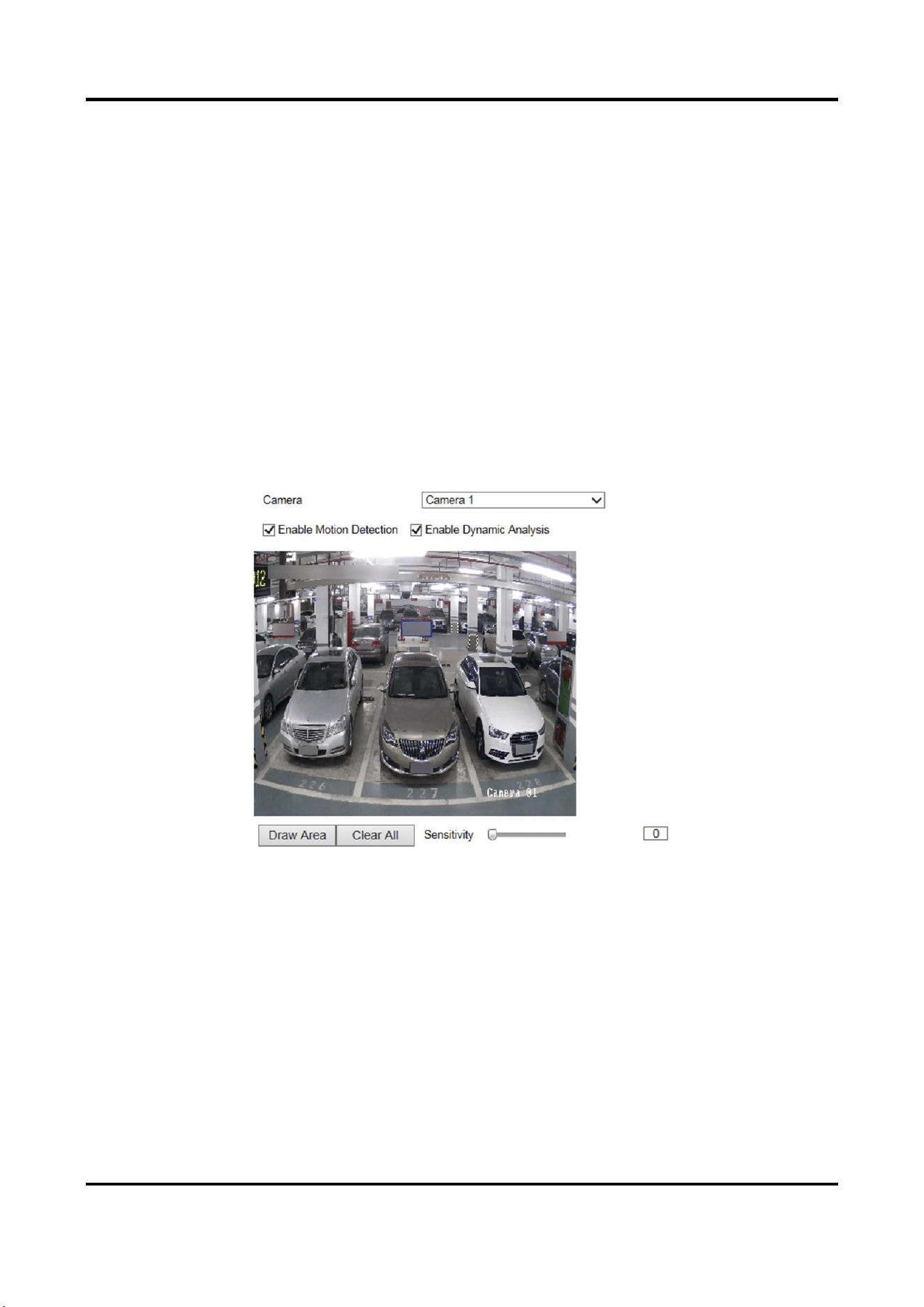
1. Go to Configuration → Device Configuration → Exception → Motion Detection.
Figure 10-1 Set Motion Detection
2. Optional: If you have enabled two/four-image calibration mode, select the camera.
3. Check Enable Motion Detection and Enable Dynamic Analysis.
4. Set the motion detection area.
1) Click Draw Area.
2) Drag the mouse on the live view to draw a motion detection area.
3) Click Stop Drawing to complete the current drawing.
4) Optional: Repeat the steps to draw more areas.
5) Optional: Click Clear All to clear all the areas.
6) Adjust Sensitivity of the motion detection.
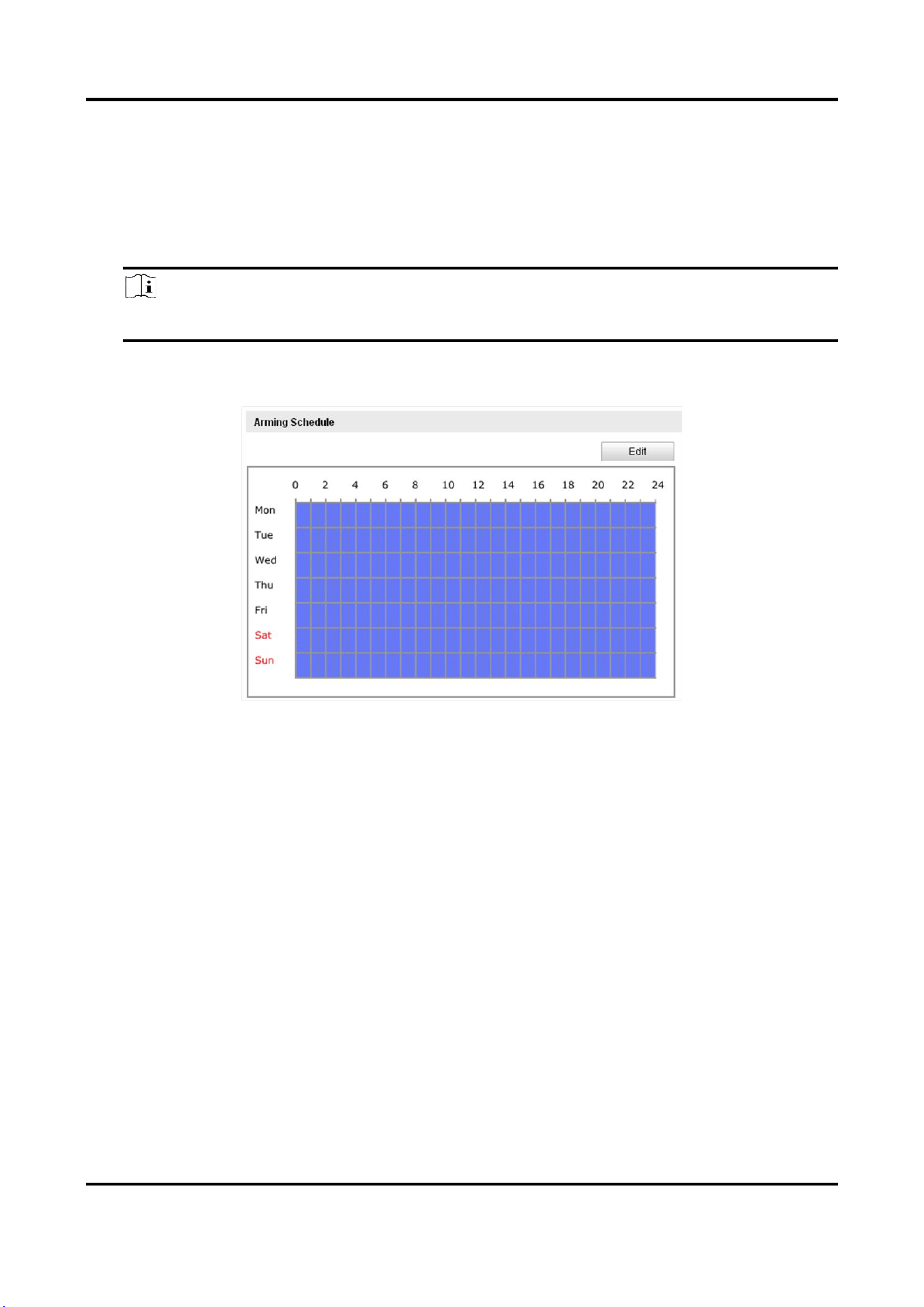
5. Set the arming schedule for the motion detection.
Fisheye Parking Camera User Manual
36
1) Click Edit.
2) Select a day to set the arming schedule.
3) Set the start time and end time of the periods.
4) Optional: If you want to copy the arming schedule to other days, check the day(s) and click
Copy.
5) Click OK.
Note
The time of each period cannot be overlapped. Up to four periods can be set for each day.
Figure 10-2 Set Arming Schedule
6. Check Notify Surveillance Center to send an exception or alarm signal to the video security
center when the motion detection occurs, or check Trigger Alarm Output.
7. Click Save.
10.2 Set Exception Alarm
Set exception alarm when the network is disconnected or the IP address is conflicted.
Steps
1. Go to Configuration → Device Configuration → Exception → Exception.
2. Check the exception type(s) to be alarmed.
3. Click Save.

Fisheye Parking Camera User Manual
37
Chapter 11 Safety Management
11.1 Manage User
The administrator can add, modify, or delete other accounts, and grant different permissions to
different user levels.
Steps
1. Go to Configuration → Device Configuration → User Management.
2. Add a user.
1) Click Add.
2) Enter User Name and select Level.
3) Enter Admin Password, Password, and confirm the password.
Caution
To increase security of using the device on the network, please change the password of your
account regularly. Changing the password every 3 months is recommended. If the device is
used in high-risk environment, it is recommended that the password should be changed every
month or week.
4) Assign remote permission to users based on needs.
User
Users can be assigned permission of viewing live video and changing their own passwords,
but no permission for other operations.
Operator
Operators can be assigned all permission except for operations on the administrator and
creating accounts.
5) Click OK.
3. You can do the following operations.
–
Select a user and click Modify to change the password and permission.
–
Select a user and click Delete to delete the user.
11.2 Enable User Lock
To raise the data security, you are recommended to lock the current IP address.
Steps
1. Go to Configuration → Device Configuration → System Configuration → Service.
2. Check Enable User Lock.

Fisheye Parking Camera User Manual
38
3. Click Save.
Result
When the times you entered incorrect passwords have reached the limit, the current IP address
will be locked automatically.
11.3 Set SSH
To raise network security, disable SSH service. The configuration is only used to debug the device
for the professionals.
Steps
1. Go to Configuration → Device Configuration → System Configuration → Service.
2. Uncheck Enable SSH Service.
3. Click Save.
11.4 Set HTTPS
11.4.1 Create and Install Self-signed Certificate
HTTPS is a network protocol that enables encrypted transmission and identity authentication,
which improves the security of remote access.
Steps
1. Go to Configuration → Device Configuration → System Configuration → HTTPS.
2. Select Create Self-signed Certificate.
3. Click Create.
4. Follow the prompt to enter Country/Region, Hostname/IP, Validity, and other parameters.
5. Click OK.
Result
The device will install the self-signed certificate by default.
11.4.2 Install Authorized Certificate
If the demand for external access security is high, you can create and install authorized certificate
via HTTPS protocol to ensure the data transmission security.
Steps
1. Go to Configuration → Device Configuration → System Configuration → HTTPS.
2. Select Create certificate request first and continue the installation.
3. Click Create.
4. Follow the prompt to enter Country/Region, Hostname/IP, Validity, and other parameters.

Fisheye Parking Camera User Manual
39
5. Click Download to download the certificate request and submit it to the trusted authority for
signature.
6. Import certificate to the device.
–
Select Signed certificate is available, start the installation directly. Click Browse and Install
to import the certificate to the device.
–
Select Create the certificate request first and continue the installation. Click Browse and
Install to import the certificate to the device.
7. Click Save.

Fisheye Parking Camera User Manual
40
Chapter 12 Maintenance
12.1 View Device Information
Basic Information and Algorithms Library Version
Go to Configuration → Device Configuration → System Configuration → Device Information to
view the basic information and algorithms library version of the device.
You can edit Device Name and Device No. The device No. is used to control the device. It is
recommended to reserve the default value.
Device Status
Go to Configuration → Device Status to view the device status.
12.2 Upgrade
Upgrade the system when you need to update the device version.
Before You Start
Prepare the upgrade file.
Steps
1. Go to Configuration → Device Configuration → System Maintenance → Upgrade.
2. Click Browse to select the upgrade file.
3. Click Upgrade.
4. Click OK in the popup window.
Note
The upgrade process will take 1 to 10 minutes. Do not cut off the power supply.
Result
The device will reboot automatically after upgrade.
12.3 Reboot
When the device needs to be rebooted, reboot it via the software instead of cutting off the power

Fisheye Parking Camera User Manual
41
directly.
Steps
1. Go to Configuration → Device Configuration → System Maintenance → Reboot.
2. Click Reboot.
3. Click OK to reboot the device.
12.4 Restore Parameters
When the device is abnormal caused by the incorrect set parameters, you can restore the
parameters.
Steps
1. Go to Configuration → Device Configuration → System Maintenance → Default.
2. Select the restoration mode.
–
Click Restore to restore the parameters except the IP address, subnet mask, gateway, and
port No. to the default settings.
–
Click Restore Factory Settings to restore all the parameters to the factory settings.
3. Click OK.
12.5 Synchronize Time
Synchronize the device time when it is inconsistent with the actual time.
Steps
1. Go to Configuration → Device Configuration → System Configuration → Time Settings.
2. Select Time Zone.
3. Select Synchronization Mode.
NTP Synchronization
Select it to synchronize the device time with that of the NTP server. Set Server Address, NTP
Port, and Interval. Click NTP Test to test if the connection between the device and the server
is normal.
Manual Synchronization
Select it to synchronize the device time with that of the computer. Set time manually, or
check Sync. with computer time.
Note
The time synchronization modes vary with different models. The actual device prevails.
4. Click Save.

Fisheye Parking Camera User Manual
42
12.6 Set DST
If the region where the device is located adopts Daylight Saving Time (DST), you can set this
function.
Steps
1. Go to Configuration → Device Configuration → System Configuration → DST.
2. Check Enable DST.
3. Set Start Time, End Time, and DST Bias.
4. Click Save.
12.7 Export Parameters
You can export the parameters of one device, and import them to another device to set the two
devices with the same parameters.
Steps
1. Go to Configuration → Device Configuration → System Maintenance → Export Parameters.
2. Click Export Parameters.
3. Set a password, and click OK.
Note
The password is used for importing the configuration file of the current device to other devices.
4. Select the saving path, and enter the file name.
5. Click Save.
12.8 Import Configuration File
Import the configuration file of another device to the current device to set the same parameters.
Before You Start
Save the configuration file to the computer.
Steps
Caution
Importing configuration file is only available to the devices of the same model and same version.
1. Go to Configuration → Device Configuration → System Maintenance → Import Config. File.
2. Select Importing Method.

Fisheye Parking Camera User Manual
43
Note
If you select Import Part, check the parameters to be imported.
3. Click Browse to select the configuration file.
4. Enter the password which is set when the configuration file is exported, and click OK.
5. Click Import.
6. Click OK on the popup window..
Result
The parameters will be imported, and the device will reboot.
12.9 Export Debug File
The technicians can export the debug file to troubleshoot and maintain the device.
Steps
1. Go to Configuration → Device Configuration → System Maintenance → Export Debug File.
2. Click Export Debug File.
3. Select the saving path, and enter the file name.
4. Click Save.
Fisheye Parking Camera User Manual
44
A. Communication Matrix and Device Command
Scan the QR code below to get the communication matrix of the device.
Figure A-1 Communication Matrix
Scan the QR code below to get the device command.
Figure A-2 Device Command

UD29000B-A