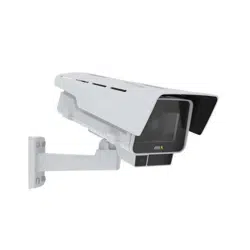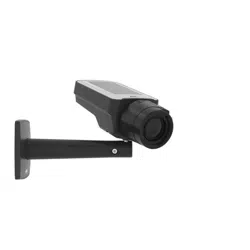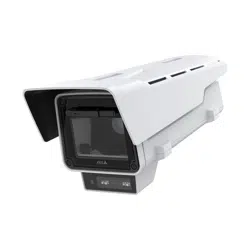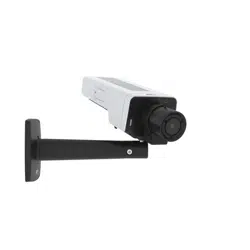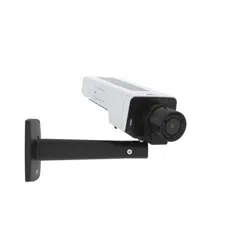

AXISP13NetworkCameraSeries
AXISP1375NetworkCamera
AXISP1377NetworkCamera
AXISP1378NetworkCamera
UserManual

AXISP13NetworkCameraSeries
TableofContents
Productoverview...........................................3
Findthedeviceonthenetwork................................4
Accessthedevice...............................................4
Verifythatnoonehastamperedwiththermware....................4
Securepasswords...............................................4
Additionalsettings..........................................6
Needmorehelp?................................................6
Replacethelens................................................6
Hidepartsoftheimagewithprivacymasks..........................6
Reducenoiseinlow-lightconditions................................6
Selectexposuremode............................................7
Maximizedetailsinanimage......................................7
Monitorlongandnarrowareas....................................7
Improvefacialrecognition........................................8
Viewarea......................................................8
Handlesceneswithstrongbacklight................................8
Showatextoverlayinthevideostreamwhenthedevicedetectsmotion..9
Videocompressionformats........................................10
Reducebandwidthandstorage....................................
10
Setupnetworkstorage...........................................11
Addaudiotoyourrecording.......................................11
Recordandwatchvideo..........................................
11
Setuprulesandalerts...........................................12
Triggeranaction................................................12
Recordvideowhenthecameradetectsmotion........................
12
Applications....................................................12
Troubleshooting............................................14
Resettofactorydefaultsettings...................................14
Firmwareoptions...............................................14
Checkthecurrentrmware.......................................
14
Upgradethermware............................................15
Technicalissues,cluesandsolutions................................
15
Performanceconsiderations.......................................
16
Specications..............................................18
SDcardslot....................................................
18
Buttons.......................................................
19
Connectors....................................................
19
2

AXISP13NetworkCameraSeries
Productoverview
Productoverview
1
microSDcardslot
2
StatusLED
3
Built-inmicrophone
4
Zoompuller
5
Lockscrewforfocusring
6
Focusring
7
Powerconnector(DC)
8
T92G20connector
9
Controlbutton
10
RS485/422connector
11
I/Oconnector
12
i-CSconnector(compatiblewithP-irisandDC-iris)
13
Securityslot
14
Audioin(analogue/digital)
15
Audioout
16
Networkconnector(PoE)
3

AXISP13NetworkCameraSeries
Findthedeviceonthenetwork
Findthedeviceonthenetwork
TondAxisdevicesonthenetworkandassignthemIPaddressesinWindows®,useAXISIPUtilityorAXISDeviceManager.Both
applicationsarefreeandcanbedownloadedfromaxis.com/support.
FormoreinformationabouthowtondandassignIPaddresses,seethedocumentHowtoassignanIPaddressandaccessyour
deviceonthedevicepageataxis.com.
Accessthedevice
1.OpenabrowserandentertheIPaddressorhostnameoftheAxisdevice.
IfyouhaveaMaccomputer(OSX),gotoSafari,clickBonjourandselectthedevicefromthedrop-downlist.Toadd
Bonjourasabrowserbookmark,gotoSafari>Preferences.
IfyoudonotknowtheIPaddress,useAXISIPUtilityorAXISDeviceManagertondthedeviceonthenetwork.
2.Entertheusernameandpassword.Ifyouaccessthedeviceforthersttime,youmustsettherootpassword.SeeSeta
newpasswordfortherootaccountonpage4.
3.Theliveviewpageopensinyourbrowser.
Verifythatnoonehastamperedwiththermware
TomakesurethatthedevicehasitsoriginalAxisrmware,ortotakefullcontrolofthedeviceafterasecurityattack:
1.Resettofactorydefaultsettings.SeeResettofactorydefaultsettingsonpage14.
Afterthereset,securebootguaranteesthestateofthedevice.
2.Congureandinstallthedevice.
Securepasswords
Important
Axisdevicessendtheinitiallysetpasswordincleartextoverthenetwork.Toprotectyourdeviceaftertherstlogin,set
upasecureandencryptedHTTPSconnectionandthenchangethepassword.
Thedevicepasswordistheprimaryprotectionforyourdataandservices.Axisdevicesdonotimposeapasswordpolicyasthey
maybeusedinvarioustypesofinstallations.
Toprotectyourdatawestronglyrecommendthatyou:
•Useapasswordwithatleast8characters,preferablycreatedbyapasswordgenerator.
•Don’texposethepassword.
•Changethepasswordatarecurringinterval,atleastonceayear.
Setanewpasswordfortherootaccount
Important
Thedefaultadministratorusernameisroot.Ifthepasswordforrootislost,resetthedevicetofactorydefaultsettings.
1.Typeapassword.Followtheinstructionsaboutsecurepasswords.SeeSecurepasswordsonpage4.
2.Retypethepasswordtoconrmthespelling.
4

AXISP13NetworkCameraSeries
Findthedeviceonthenetwork
3.ClickCreatelogin.Thepasswordhasnowbeencongured.
5

AXISP13NetworkCameraSeries
Additionalsettings
Additionalsettings
Needmorehelp?
Youcanaccessthebuilt-inhelpfromthedevice’swebpage.Thehelpprovidesmoredetailedinformationonthedevice’sfeaturesand
theirsettings.
Replacethelens
1.Stopallrecordingsanddisconnectpowerfromtheproduct.
2.Disconnectthelenscableandremovethestandardlens.
3.Attachthenewlensandconnectthelenscable.
4.Reconnectthepower.
5.Logintotheproduct’swebpage,gototheImagetabandthenselecttheP-Irislensyouhaveinstalled.
Note
IfyouuseaDCirislens,selectGenericDCIris.
6.Forthechangestotakeeffect,youneedtorestartthedevice.GotoSystem>MaintenanceandclickRestart.
7.Adjustthezoomandfocus.
Hidepartsoftheimagewithprivacymasks
Createaprivacymasktohideapartoftheimage:
1.GotoSettings>Privacymask.
2.ClickNew.
Reducenoiseinlow-lightconditions
Toreducenoiseinlow-lightconditions,youcanadjustoneormoreofthefollowingsettings:
•Settheexposuremodetoautomatic.
Note
Ahighmaxshuttervaluecanresultinmotionblur.
•Toslowdowntheshutterspeed,setmaxshuttertothehighestpossiblevalue.
6
AXISP13NetworkCameraSeries
Additionalsettings
•Reducesharpnessintheimage.
•Setthemaxgaintoalowervalue.
Selectexposuremode
Therearedifferentexposuremodeoptionsinthecamerathatadjustsaperture,shutterspeed,andgaintoimproveimagequalityfor
specicsurveillancescenes.GotoSettings>Image>Exposureandselectbetweenthefollowingexposuremodes:
•Formostusecases,selectAutomaticexposure.
•Forenvironmentswithcertainarticiallighting,forexampleuorescentlighting,selectFlicker-free.
Selectthesamefrequencyasthepowerlinefrequency.
•Forenvironmentswithcertainarticiallightandbrightlight,forexampleoutdoorswithuorescentlightingatnightand
sunduringdaytime,selectFlicker-reduced.
Selectthesamefrequencyasthepowerlinefrequency.
•Tolockthecurrentexposuresettings,selectHoldcurrent.
Maximizedetailsinanimage
Important
Ifyoumaximizedetailsinanimage,thebitratewillprobablyincreaseandyoumightgetareducedframerate.
•Setthecompressionaslowaspossible.
•SelectMJPEGstreaming.
•TurnoffZipstreamfunctionality.
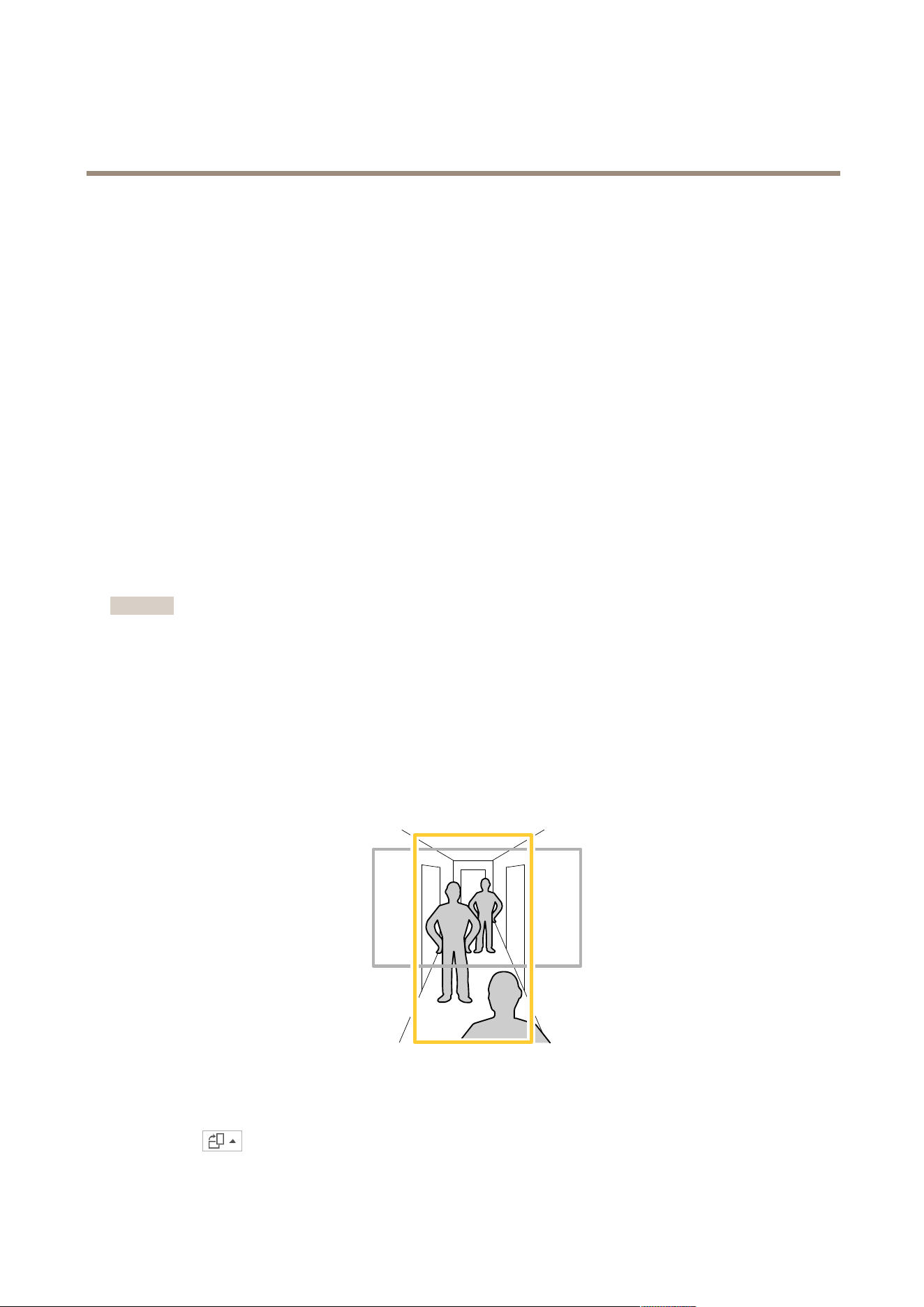
Monitorlongandnarrowareas
Usecorridorformattobetterutilizethefulleldofviewinalongandnarrowarea,forexampleastaircase,hallway,road,ortunnel.
1.Dependingonyourdevice,turnthecameraorthe3-axislensinthecamera90°or270°.
2.Ifthedevicedoesn’trotatetheviewautomatically,logintothewebpageandgotoSettings>System>Orientation.
3.Click
.
7

AXISP13NetworkCameraSeries
Additionalsettings
4.Rotatetheview90°or270°.
Findoutmoreataxis.com/axis-corridor-format.
Improvefacialrecognition
Tobetterrecognizethefaceofapersonpassingbythecamera,youcansettheoptimalpixelresolutionwiththecamera’spixel
counter.
1.GotoSettings>System>Orientationandclick.
2.Inthecamera’sliveview,adjustthesizeandplacementoftherectanglearoundtheareaofinterest,forexample,where
thefacesofpassingpersonsareexpectedtoappear.Youcanthenseethenumberofpixelsrepresentedbythesidesof
therectangle.
Note
Youcanuseanobjectofaknownsizeintheviewasareferencetodecidehowmuchresolutionisneededforrecognition.
Viewarea
Aviewareaisacroppedpartofthefullview.Youcanstreamandstoreviewareasinsteadofthefullviewtominimizebandwidth
andstorageneeds.IfyouenablePTZforaviewarea,youcanpan,tiltandzoomwithinit.Byusingviewareasyoucanremoveparts
ofthefullview,forexample,thesky.
Whenyousetupaviewarea,werecommendyoutosetthevideostreamresolutiontothesamesizeasorsmallerthantheviewarea
size.Ifyousetthevideostreamresolutionlargerthantheviewareasizeitimpliesdigitallyscaledupvideoaftersensorcapture,
whichrequiresmorebandwidthwithoutaddingimageinformation.
Handlesceneswithstrongbacklight
Dynamicrangeisthedifferenceinlightlevelsinanimage.Insomecasesthedifferencebetweenthedarkestandthebrightest
areascanbesignicant.Theresultisoftenanimagewhereeitherthedarkorthebrightareasarevisible.Widedynamicrange
(WDR)makesbothdarkandbrightareasoftheimagevisible.
1.GotoSettings>Image>Widedynamicrange.
2.Ifrequired,turnonWDR.
8

AXISP13NetworkCameraSeries
Additionalsettings
3.UsetheContrastslidertoadjusttheamountofWDR.
ImagewithoutWDR.
ImagewithWDR.
Note
WDRmaycauseartifactsintheimage.
FindoutmoreaboutWDRandhowtouseitataxis.com/web-articles/wdr.
Overlaysaresuperimposedoverthevideostream.Theyareusedtoprovideextrainformationduringrecordings,suchasatimestamp,
orduringproductinstallationandconguration.Youcanaddeithertextoranimage.
Showatextoverlayinthevideostreamwhenthedevicedetectsmotion
Thisexampleexplainshowtodisplaythetext“Motiondetected”whenthedevicedetectsmotion:
MakesurethatAXISVideoMotionDetectionisrunning:
1.GotoSettings>Apps>AXISVideoMotionDetection.
2.Starttheapplicationifitisnotalreadyrunning.
3.Makesureyouhavesetuptheapplicationaccordingtoyourneeds.
Addtheoverlaytext:
4.GotoSettings>Overlay.
5.SelectCreateoverlayandselectTextoverlay.
6.Enter#Dinthetexteld.
7.Choosetextsizeandappearance.
8.Topositionthetextoverlay,chooseCustomoroneofthepresets.
9

AXISP13NetworkCameraSeries
Additionalsettings
Createarule:
9.GotoSystem>Events>Rulesandaddarule.
10.Typeanamefortherule.
11.Inthelistofconditions,selectAXISVideoMotionDetection.
12.Inthelistofactions,selectUseoverlaytext.
13.Selectaviewarea.
14.Type“Motiondetected”.
15.Settheduration.
16.ClickSave.
Note
Ifyouupdatetheoverlaytextitwillbeautomaticallyupdatedonallvideostreamsdynamically.
Videocompressionformats
Decidewhichcompressionmethodtousebasedonyourviewingrequirements,andonthepropertiesofyournetwork.The
availableoptionsare:
MotionJPEG
Note
ToensuresupportfortheOpusaudiocodec,theMotionJPEGstreamisalwayssentoverRTP.
MotionJPEG,orMJPEG,isadigitalvideosequencethatismadeupofaseriesofindividualJPEGimages.Theseimagesarethen
displayedandupdatedataratesufcienttocreateastreamthatshowsconstantlyupdatedmotion.Fortheviewertoperceivemotion
videotheratemustbeatleast16imageframespersecond.Fullmotionvideoisperceivedat30(NTSC)or25(PAL)framespersecond.
TheMotionJPEGstreamusesconsiderableamountsofbandwidth,butprovidesexcellentimagequalityandaccesstoeveryimage
containedinthestream.
H.264orMPEG-4Part10/AVC
Note
H.264isalicensedtechnology.TheAxisproductincludesoneH.264viewingclientlicense.Toinstalladditionalunlicensed
copiesoftheclientisprohibited.Topurchaseadditionallicenses,contactyourAxisreseller.
H.264can,withoutcompromisingimagequality,reducethesizeofadigitalvideolebymorethan80%comparedtotheMotion
JPEGformatandbyasmuchas50%comparedtotheMPEG-4standard.Thismeansthatlessnetworkbandwidthandstoragespace
arerequiredforavideole.Orseenanotherway,highervideoqualitycanbeachievedforagivenbitrate.
H.265orMPEG-HPart2/HEVC
Note
H.265islicensedtechnology.TheAxisproductincludesoneH.265viewingclientlicense.Toinstalladditionalunlicensed
copiesoftheclientisprohibited.Topurchaseadditionallicenses,contactyourAxisreseller.
Reducebandwidthandstorage
Important
Ifyoureducethebandwidthitcanresultinlossofdetailsinthepicture.
10

AXISP13NetworkCameraSeries
Additionalsettings
1.GotoliveviewandselectH.264.
2.GotoSettings>Stream.
3.Dooneormoreofthefollowing:
-TurnontheZipstreamfunctionalityandselectthedesiredlevel.
Note
ThezipstreamsettingsareusedforbothH.264andH.265.
-TurnondynamicGOPandsetahighGOPlengthvalue.
-Increasethecompression.
-TurnondynamicFPS.
Note
WebbrowsersdonotsupportH.265decoding.UseavideomanagementsystemorapplicationsupportingH.265decoding.
Setupnetworkstorage
Tostorerecordingsonthenetwork,youneedtosetupnetworkstorage:
1.GotoSettings>System>Storage.
2.ClickSetupunderNetworkstorage.
3.EntertheIPaddressofthehostserver.
4.Enterthenameofthesharedlocationonthehostserver.
5.Movetheswitchifthesharerequiresalogin,andenterusernameandpassword.
6.ClickConnect.
Addaudiotoyourrecording
Editthestreamprolewhichisusedfortherecording:
1.GotoSettings>StreamandclickStreamproles.
2.SelectthestreamproleandclickAudio.
3.SelectthecheckboxandselectInclude.
4.ClickSave.
5.ClickClose.
Recordandwatchvideo
Torecordvideoyoumustrstsetupnetworkstorage,seeSetupnetworkstorageonpage1 1,orhaveanSDcardinstalled.
Recordvideo
1.Gotothecamera’sliveview.
2.Tostartarecording,clickRecord.Clickagaintostoptherecording.
Watchvideo
11

AXISP13NetworkCameraSeries
Additionalsettings
1.ClickStorage>Gotorecordings.
2.Selectyourrecordinginthelistanditwillplayautomatically.
Setuprulesandalerts
Youcancreaterulestomakeyourdeviceperformanactionwhencertaineventsoccur.Aruleconsistsofconditionsandactions.
Theconditionscanbeusedtotriggertheactions.Forexample,thedevicecanstartarecordingorsendanemailwhenitdetects
motion,orshowanoverlaytextwhenitrecords.
Triggeranaction
1.GotoSettings>System>Eventstosetuparule.Theruledeneswhenthecamerawillperformcertainactions.Rules
canbesetupasscheduled,recurring,orforexample,triggeredbymotiondetection.
2.SelecttheConditionthatmustbemettotriggertheaction.Ifyouspecifymorethanoneconditionfortherule,allofthe
conditionsmustbemettotriggertheaction.
3.SelectwhichActionthecamerashouldperformwhentheconditionsaremet.
Note
Ifyoumakechangestoanactiverule,thentheruleneedstoberestartedforthechangestotakeeffect.
Recordvideowhenthecameradetectsmotion
ThisexampleexplainshowtosetupthecameratostartrecordingtotheSDcardvesecondsbeforeitdetectsmotionandto
stoponeminuteafter.
MakesurethatAXISVideoMotionDetectionisrunning:
1.GotoSettings>Apps>AXISVideoMotionDetection.
2.Starttheapplicationifitisnotalreadyrunning.
3.Makesureyouhavesetuptheapplicationaccordingtoyourneeds.
Createarule:
1.GotoSettings>System>Eventsandaddarule.
2.Typeanamefortherule.
3.Inthelistofconditions,underApplication,selectAXISVideoMotionDetection(VMD).
4.Inthelistofactions,underRecordings,selectRecordvideowhiletheruleisactive.
5.Selectanexistingstreamproleorcreateanewone.
6.Settheprebuffertimeto5seconds.
7.Setthepostbuffertimeto60seconds.
8.Inthelistofstorageoptions,selectSDcard.
9.ClickSave.
Applications
AXISCameraApplicationPlatform(ACAP)isanopenplatformthatenablesthirdpartiestodevelopanalyticsandotherapplications
forAxisproducts.Tondoutmoreaboutavailableapplications,downloads,trialsandlicenses,gotoaxis.com/applications.
12

AXISP13NetworkCameraSeries
Additionalsettings
TondtheusermanualsforAxisapplications,gotoaxis.com.
Note
•Severalapplicationscanrunatthesametimebutsomeapplicationsmightnotbecompatiblewitheachother.Certain
combinationsofapplicationsmightrequiretoomuchprocessingpowerormemoryresourceswhenruninparallel.Verify
thattheapplicationsworktogetherbeforedeployment.
13

AXISP13NetworkCameraSeries
Troubleshooting
Troubleshooting
Ifyoucan’tndwhatyou’relookingforhere,trythetroubleshootingsectionataxis.com/support.
Resettofactorydefaultsettings
Important
Resettofactorydefaultshouldbeusedwithcaution.Aresettofactorydefaultresetsallsettings,includingtheIPaddress,to
thefactorydefaultvalues.
Toresettheproducttothefactorydefaultsettings:
1.Disconnectpowerfromtheproduct.
2.Pressandholdthecontrolbuttonwhilereconnectingpower.SeeProductoverviewonpage3.
3.Keepthecontrolbuttonpressedfor15–30secondsuntilthestatusLEDindicatorashesamber.
4.Releasethecontrolbutton.TheprocessiscompletewhenthestatusLEDindicatorturnsgreen.Theproducthasbeenreset
tothefactorydefaultsettings.IfnoDHCPserverisavailableonthenetwork,thedefaultIPaddressis192.168.0.90.
5.UsetheinstallationandmanagementsoftwaretoolstoassignanIPaddress,setthepassword,andaccessthevideostream.
Theinstallationandmanagementsoftwaretoolsareavailablefromthesupportpagesonaxis.com/support.
Itisalsopossibletoresetparameterstofactorydefaultthroughthewebinterface.GotoSettings>System>Maintenanceand
clickDefault.
Firmwareoptions
Axisoffersproductrmwaremanagementaccordingtoeithertheactivetrackorthelong-termsupport(LTS)tracks.Beingonthe
activetrackmeanscontinuouslygettingaccesstoallthelatestproductfeatures,whiletheLTStracksprovideaxedplatformwith
periodicreleasesfocusedmainlyonbugxesandsecurityupdates.
Usingrmwarefromtheactivetrackisrecommendedifyouwanttoaccessthenewestfeatures,orifyouuseAxisend-to-endsystem
offerings.TheLTStracksarerecommendedifyouusethird-partyintegrations,whicharenotcontinuouslyvalidatedagainstthelatest
activetrack.WithLTS,theproductscanmaintaincybersecuritywithoutintroducinganysignicantfunctionalchangesoraffecting
anyexistingintegrations.FormoredetailedinformationaboutAxisproductrmwarestrategy,gotoaxis.com/support/rmware.
Checkthecurrentrmware
Firmwareisthesoftwarethatdeterminesthefunctionalityofnetworkdevices.Oneofyourrstactionswhentroubleshootinga
problemshouldbetocheckthecurrentrmwareversion.Thelatestversionmaycontainacorrectionthatxesyourparticular
problem.
Tocheckthecurrentrmware:
1.Gototheproduct’swebpage.
2.Clickonthehelpmenu.
3.ClickAbout.
14

AXISP13NetworkCameraSeries
Troubleshooting
Upgradethermware
Important
Preconguredandcustomizedsettingsaresavedwhenthermwareisupgraded(providedthatthefeaturesareavailablein
thenewrmware)althoughthisisnotguaranteedbyAxisCommunicationsAB.
Important
Makesuretheproductremainsconnectedtothepowersourcethroughouttheupgradeprocess.
Note
Whenyouupgradetheproductwiththelatestrmwareintheactivetrack,theproductreceivesthelatestfunctionality
available.Alwaysreadtheupgradeinstructionsandreleasenotesavailablewitheachnewreleasebeforeupgradingthe
rmware.Tondthelatestrmwareandthereleasenotes,gotoaxis.com/support/rmware.
1.Downloadthermwareletoyourcomputer,availablefreeofchargeataxis.com/support/rmware.
2.Logintotheproductasanadministrator.
3.GotoSettings>System>Maintenance.Followtheinstructionsonthepage.Whentheupgradehasnished,the
productrestartsautomatically.
AXISDeviceManagercanbeusedformultipleupgrades.Findoutmoreataxis.com/products/axis-device-manager.
Technicalissues,cluesandsolutions
Ifyoucan’tndwhatyou’relookingforhere,trythetroubleshootingsectionataxis.com/support.
Problemsupgradingthermware
FirmwareupgradefailureIfthermwareupgradefails,thedevicereloadsthepreviousrmware.Themostcommonreason
isthatthewrongrmwarelehasbeenuploaded.Checkthatthenameofthermwarele
correspondstoyourdeviceandtryagain.
Problemsafterrmware
upgrade
Ifyouexperienceproblemsafterarmwareupgrade,rollbacktothepreviouslyinstalledversion
fromtheMaintenancepage.
ProblemssettingtheIPaddress
Thedeviceislocatedona
differentsubnet
IftheIPaddressintendedforthedeviceandtheIPaddressofthecomputerusedtoaccessthe
devicearelocatedondifferentsubnets,youcannotsettheIPaddress.Contactyournetwork
administratortoobtainanIPaddress.
TheIPaddressisbeingused
byanotherdevice
DisconnecttheAxisdevicefromthenetwork.Runthepingcommand(inaCommand/DOSwindow,
typepingandtheIPaddressofthedevice):
•Ifyoureceive:Replyfrom<IPaddress>:bytes=32;time=10...
thismeansthattheIPaddressmayalreadybeinusebyanotherdeviceonthenetwork.
ObtainanewIPaddressfromthenetworkadministratorandreinstallthedevice.
•Ifyoureceive:Requesttimedout,thismeansthattheIPaddressisavailable
forusewiththeAxisdevice.Checkallcablingandreinstallthedevice.
PossibleIPaddressconict
withanotherdeviceonthe
samesubnet
ThestaticIPaddressintheAxisdeviceisusedbeforetheDHCPserversetsadynamicaddress.
ThismeansthatifthesamedefaultstaticIPaddressisalsousedbyanotherdevice,theremay
beproblemsaccessingthedevice.
15

AXISP13NetworkCameraSeries
Troubleshooting
Thedevicecannotbeaccessedfromabrowser
Cannotlogin
WhenHTTPSisenabled,ensurethatthecorrectprotocol(HTTPorHTTPS)isusedwhenattempting
tologin.Youmayneedtomanuallytypehttporhttpsinthebrowser’saddresseld.
Ifthepasswordfortheuserrootislost,thedevicemustberesettothefactorydefaultsettings.
SeeResettofactorydefaultsettingsonpage14.
TheIPaddresshasbeen
changedbyDHCP
IPaddressesobtainedfromaDHCPserveraredynamicandmaychange.IftheIPaddresshasbeen
changed,useAXISIPUtilityorAXISDeviceManagertolocatethedeviceonthenetwork.Identify
thedeviceusingitsmodelorserialnumber,orbytheDNSname(ifthenamehasbeencongured).
Ifrequired,astaticIPaddresscanbeassignedmanually.Forinstructions,gotoaxis.com/support.
Certicateerrorwhenusing
IEEE802.1X
Forauthenticationtoworkproperly,thedateandtimesettingsintheAxisdevicemustbe
synchronizedwithanNTPserver.GotoSettings>System>Dateandtime.
Thedeviceisaccessiblelocallybutnotexternally
Toaccessthedeviceexternally,werecommendusingoneofthefollowingapplicationsforWindows
®
:
•AXISCompanion:freeofcharge,idealforsmallsystemswithbasicsurveillanceneeds.
•AXISCameraStation:30-daytrialversionfreeofcharge,idealforsmalltomid-sizesystems.
Forinstructionsanddownload,gotoaxis.com/products/axis-companion.
Problemswithstreaming
MulticastH.264only
accessiblebylocalclients
Checkifyourroutersupportsmulticasting,oriftheroutersettingsbetweentheclientandthe
deviceneedtobecongured.TheTTL(TimeToLive)valuemayneedtobeincreased.
NomulticastH.264
displayedintheclient
CheckwithyournetworkadministratorthatthemulticastaddressesusedbytheAxisdevice
arevalidforyournetwork.
Checkwithyournetworkadministratortoseeifthereisarewallpreventingviewing.
PoorrenderingofH.264
images
Ensurethatyourgraphicscardisusingthelatestdriver.Thelatestdriverscanusuallybe
downloadedfromthemanufacturer’swebsite.
Colorsaturationisdifferent
inH.264andMotionJPEG
Modifythesettingsforyourgraphicsadapter.Gototheadapter’sdocumentationformore
information.
Lowerframeratethan
expected
•SeePerformanceconsiderationsonpage16.
•Reducethenumberofapplicationsrunningontheclientcomputer.
•Limitthenumberofsimultaneousviewers.
•Checkwiththenetworkadministratorthatthereisenoughbandwidthavailable.
•Lowertheimageresolution.
•Themaximumframespersecondisdependentontheutilityfrequency(60/50Hz)
oftheAxisdevice.
Can'tselectH.265encoding
inliveview
WebbrowsersdonotsupportH.265decoding.Useavideomanagementsystemorapplication
supportingH.265decoding.
Performanceconsiderations
Whensettingupyoursystem,itisimportanttoconsiderhowvarioussettingsandsituationsaffecttheperformance.Somefactors
affecttheamountofbandwidth(thebitrate)required,otherscanaffecttheframerate,andsomeaffectboth.Iftheloadonthe
CPUreachesitsmaximum,thisalsoaffectstheframerate.
Thefollowingfactorsarethemostimportanttoconsider:
•Highimageresolutionorlowercompressionlevelsresultinimagescontainingmoredatawhichinturnaffectsthe
bandwidth.
16

AXISP13NetworkCameraSeries
Troubleshooting
•RotatingtheimageintheGUIwillincreasetheproduct'sCPUload.
•AccessbylargenumbersofMotionJPEGorunicastH.264clientsaffectsthebandwidth.
•Simultaneousviewingofdifferentstreams(resolution,compression)bydifferentclientsaffectsbothframerateand
bandwidth.
Useidenticalstreamswhereverpossibletomaintainahighframerate.Streamprolescanbeusedtoensurethat
streamsareidentical.
•AccessingMotionJPEGandH.264videostreamssimultaneouslyaffectsbothframerateandbandwidth.
•Heavyusageofeventsettingsaffectstheproduct’sCPUloadwhichinturnaffectstheframerate.
•UsingHTTPSmayreduceframerate,inparticularifstreamingMotionJPEG.
•Heavynetworkutilizationduetopoorinfrastructureaffectsthebandwidth.
•Viewingonpoorlyperformingclientcomputerslowersperceivedperformanceandaffectsframerate.
•RunningmultipleAXISCameraApplicationPlatform(ACAP)applicationssimultaneouslymayaffecttheframerateand
thegeneralperformance.
17

AXISP13NetworkCameraSeries
Specifications
Specifications
Tondthelatestversionoftheproduct’sdatasheet,gototheproductpageataxis.comandlocateSupport&Documentation.
LEDIndicators
Note
•TheStatusLEDcanbeconguredtobeunlitduringnormaloperation.Tocongure,gotoSettings>System>Plaincong.
•TheStatusLEDcanbeconguredtoashwhileaneventisactive.
•TheStatusLEDcanbeconguredtoashforidentifyingtheunit.GotoSettings>System>Plaincong.
StatusLED
Indication
Unlit
Connectionandnormaloperation.
GreenSteadygreenfor10secondsfornormaloperationafterstartupcompleted.
Amber
Steadyduringstartup.Flashesduringrmwareupgradeorresettofactorydefault.
Amber/RedFlashesamber/redifnetworkconnectionisunavailableorlost.
RedFirmwareupgradefailure.
StatusLEDbehaviorforfocusassistant
Note
OnlyvalidforoptionalP-iris,DC-irisormanualirislenses.
ThestatusLEDasheswhentheFocusAssistantisactive.
Color
Indication
RedTheimageisoutoffocus.
Adjustthelens.
AmberTheimageisclosetofocus.
Thelensneedsnetuning.
Green
Theimageisinfocus.
SDcardslot
NO NO
NO
TICE TICE
TICE
•RiskofdamagetoSDcard.Donotusesharptools,metalobjects,orexcessiveforcewheninsertingorremovingthe
SDcard.Useyourngerstoinsertandremovethecard.
•Riskofdatalossandcorruptedrecordings.DonotremovetheSDcardwhiletheproductisrunning.UnmounttheSDcard
fromtheproduct’swebpagebeforeremoval.
ThisproductsupportsmicroSD/microSDHC/microSDXCcards.
ForSDcardrecommendations,seeaxis.com.
microSD,microSDHC,andmicroSDXCLogosaretrademarksofSD-3CLLC.microSD,microSDHC,microSDXCare
trademarksorregisteredtrademarksofSD-3C,LLCintheUnitedStates,othercountriesorboth.
18

AXISP13NetworkCameraSeries
Specifications
Buttons
Controlbutton
Thecontrolbuttonisusedfor:
•EnablingtheFocusAssistant.PressandveryquicklyreleasetheControlbutton.
•Resettingtheproducttofactorydefaultsettings.SeeResettofactorydefaultsettingsonpage14.
Connectors
Networkconnector
RJ45EthernetconnectorwithPoweroverEthernet(PoE).
Audioconnector
•Audioin–3.5mminputforamonomicrophone,oraline-inmonosignal(leftchannelisusedfromastereosignal).
•Audioout–3.5mmoutputforaudio(linelevel)thatcanbeconnectedtoapublicaddress(PA)systemoranactive
speakerwithabuilt-inamplier.Astereoconnectormustbeusedforaudioout.
1Tip2Ring
3Sleeve
AudioInput
Microphone/Linein
Microphonebiasvoltage
Ground
AudioOutput
Lineout,monoLineout,mono
Ground
Foraudioin,theleftchannelisusedfromastereosignal.
I/Oconnector
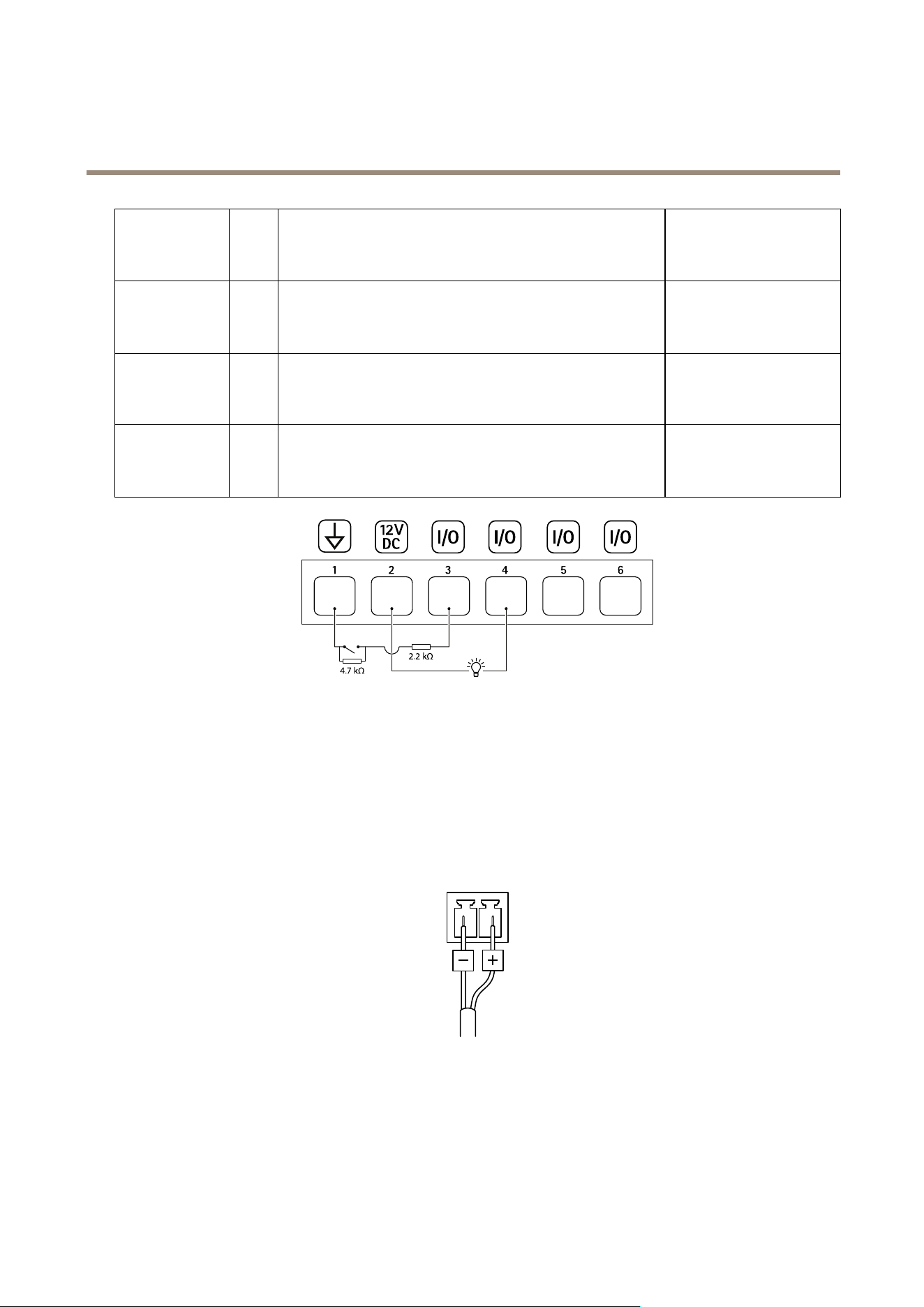
UsetheI/Oconnectorwithexternaldevicesincombinationwith,forexample,motiondetection,eventtriggering,andalarm
notications.Inadditiontothe0VDCreferencepointandpower(DCoutput),theI/Oconnectorprovidestheinterfaceto:
Digitalinput-Forconnectingdevicesthatcantogglebetweenanopenandclosedcircuit,forexamplePIRsensors,door/window
contacts,andglassbreakdetectors.
Supervisedinput-Enablespossibilitytodetecttamperingonadigitalinput.
Digitaloutput-ForconnectingexternaldevicessuchasrelaysandLEDs.ConnecteddevicescanbeactivatedbytheVAPIX®
ApplicationProgrammingInterfaceorfromtheproduct’swebpage.
FunctionPinNotes
Specications
DCground
1
0VDC
DCoutput
2
Canbeusedtopowerauxiliaryequipment.
Note:Thispincanonlybeusedaspowerout.
12VDC
Maxload=50mA
19
AXISP13NetworkCameraSeries
Specifications
Input1
3
DigitalinputorSupervisedinput–Connecttopin1toactivate,or
leaveoating(unconnected)todeactivate.Tousesupervisedinput,
installend-of-lineresistors.Seeconnectiondiagramforinformation
abouthowtoconnecttheresistors.
0tomax30VDC
Output1
4
Digitaloutput–Internallyconnectedtopin1(DCground)when
active,andoating(unconnected)wheninactive.Ifusedwithan
inductiveload,e.g.,arelay,connectadiodeinparallelwiththeload,
toprotectagainstvoltagetransients.
0tomax30VDC,opendrain,
100mA
Input2
5
DigitalinputorSupervisedinput–Connecttopin1toactivate,or
leaveoating(unconnected)todeactivate.Tousesupervisedinput,
installend-of-lineresistors.Seeconnectiondiagramforinformation
abouthowtoconnecttheresistors.
0tomax30VDC
Output2
6
Digitaloutput–Internallyconnectedtopin1(DCground)when
active,andoating(unconnected)wheninactive.Ifusedwithan
inductiveload,e.g.,arelay,connectadiodeinparallelwiththeload,
toprotectagainstvoltagetransients.
0tomax30VDC,opendrain,
100mA
1
DCground
2
DCoutput12V,max50mA
3
Supervisedinputport1
4
Digitaloutputport1
5
Supervisedinputport2
6
Digitaloutputport2
Powerconnector
2-pinterminalblockforDCpowerinput.UseaSafetyExtraLowVoltage(SELV)compliantlimitedpowersource(LPS)witheither
aratedoutputpowerlimitedto≤100Woraratedoutputcurrentlimitedto≤5A.
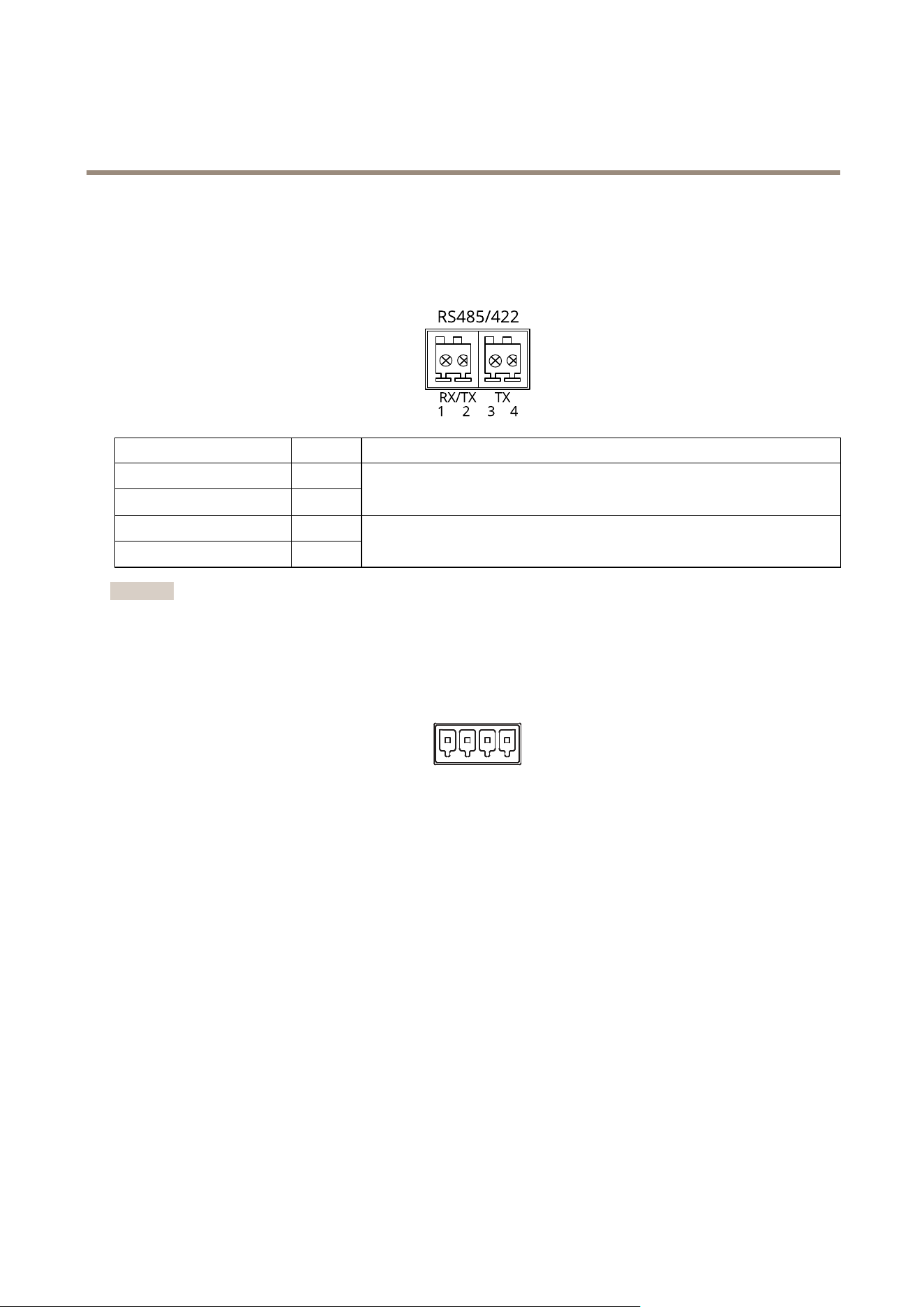
RS485/RS422connector
Two2-pinterminalblocksforRS485/RS422serialinterfaceusedtocontrolauxiliaryequipmentsuchaspan-tiltdevices.
Theserialportcanbeconguredtosupport:
•Two-wireRS485halfduplex
20
AXISP13NetworkCameraSeries
Specifications
•Four-wireRS485fullduplex
•Two-wireRS422simplex
•Four-wireRS422fullduplexpointtopointcommunication
FunctionPinNotes
RS485BaltRS485/422RX(B)
1
RS485AaltRS485/422RX(A)
2
RXpairforallmodes(combinedRX/TXfor2-wireRS485)
RS485/RS422TX(B)
3
RS485/RS422TX(A)
4
TXpairforRS422and4-wireRS485
Important
Themaximumcablelengthis30m(98ft).
T92G20connector
UsethisconnectorwhenyoumountthecamerainanAXIST92G20OutdoorHousing.Theconnectorsuppliespowertotheheaterand
theIRilluminationinthehousing.
21

UserManualVer.M2.6
AXISP13NetworkCameraSeries
Date:January2020
©AxisCommunicationsAB,2019-2020
PartNo.T10135685