
Please scan QR code below
for installation video.
Before using the TV, please read this guide thoroughly and
retain it for future reference.
91553 RSAG2.025.54070SS-1
English
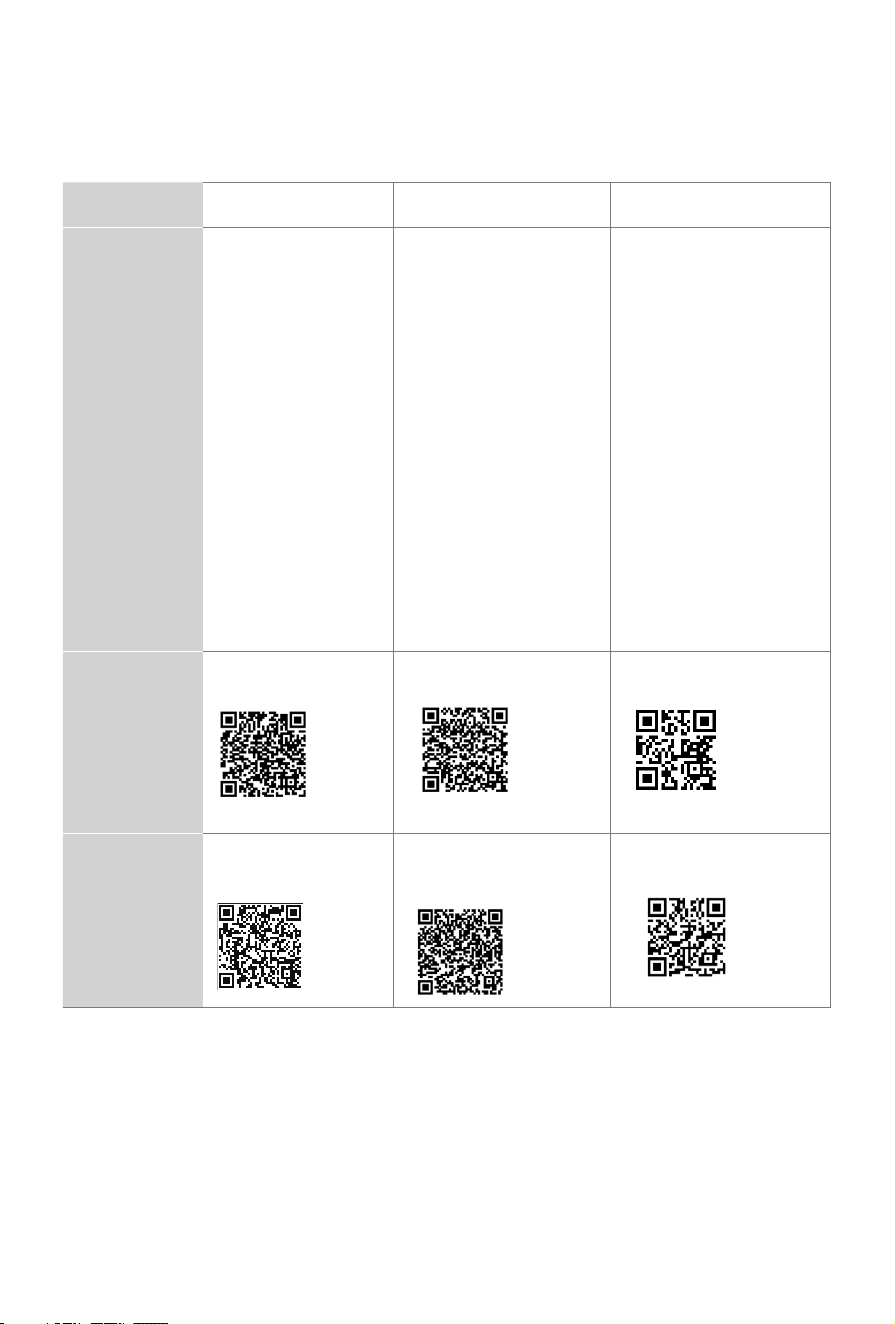
Congratulations on the purchase of your Hisense TV! If you would like to know 'all things
Hisense', contact us using the support info:
The model and serial number of the TV is located on the back and/or on one side of the
TV. We recommend that you record this if you ever need service.
Disclaimer
Disclaimer: Subscriptions or other payments may be required to access content through some
applications. Some or all of the included or downloaded application services in this Hisense
device may not function depending on the Internet connection, local limitations of included
applications or other reasons outside of Hisense’s control. HISENSE EXPRESSLY DISCLAIMS
RESPONSIBILITY FOR ANY APPLICATION SERVICE FROM FUNCTIONING AT ANY TIME, FOR
CONTENT IN ANY APPLICATION SERVICE, FOR DISRUPTIONS OF SERVICE, LOCAL OR
REGIONAL LIMITATIONS, WARRANTIES OF TITLE, NO INFRINGEMENT, AND FOR IMPLIED
WARRANTIES OF MERCHANTABILITY OR FITNESS FOR A PARTICULAR PURPOSE. By
purchasing this device, you accept such Disclaimer without any claim on Hisense at any time.
Country
U.S.A CANADA MEXICO
Customer
Care
Center
•
Phone:
1-888-935-
8880
•
Hours of Operation:
Monday - Friday: 9
AM to 9 PM EST
Saturday - Sunday: 9
AM to 6 PM EST
•
Service Email:
Service@hisense-
usa.com
USA:
Hisense USA
Corporation
105 Satellite BLVD
Suite I, Suwanee, GA
30024
•
Phone:
1-855-344-7367
•
Hours of Operation:
Monday - Friday: 8 AM
to 8 PM EST
Saturday - Sunday:
9 AM to 6 PM EST,
Federal holidays
excluded
•
Service Email:
canadasupport@
hisense.com
CANADA:
Hisense Canada Co., Ltd
2550 Meadowvale
Boulevard, Unit 1
Mississauga, ON, Canada
L5N 8C2
•
Phone:
800-008-8880
•
Hours of Operation:
Monday - Friday: 9:00-
21:00 hrs
Saturday: 9:00-15:00 hrs
•
Service Email:
mx
MEXICO IMPORTER:
Hisense Mexico S. de
R.L. de C.V.
Blvd. Miguel de Cervantes
Saavedra No 301
Torre Norte Piso 2, Col.
Ampliación Granada
Miguel Hidalgo, Ciudad
de México, C.P. 11520
Hisense
Support
Page
http://www.hisense-
usa.com/support/
http://www.hisense-
canada.com/support/
https://hisense.com.mx/
support/
*Scan to download user manual
Register
your TV
http://www.hisense-
usa.com/support/
register
http://www.hisense-
canada.com/support/
productReg.asp
https://hisense.com.mx/
support/register
1
This Quick Setup Guide supports the following models:
55S7N / 65S7N
This TV is equipped with this quick setup guide and embedded E-Manual (
>
Settings > System > Advanced System > E-Manual
).
On the website (www.hisense.com), you can get the User Manual.
Find what you want
E-Manual support functions
Search
Find the help you are looking for.
QR Code
Scan to open the E-Manual on your mobile device.
What's in the box
Your Hisense TV comes with the following items:
● TV ● QuickSetupGuide(thisdocument)
● powercord ● 1setofAAorAAA(1.5Vcc)batteries
● remotecontrol ● ImportantSafetyInformationandWarrantyCard
● 2basestands ● 4screws(attachtheTVstand)
● wallmountassembly ● 8cableclamps
● 2frameassemblies
NOTE:
• The accessories may be different from the list above due to different models, countries/
regions, please refer to the actual accessory bag.
• The power cord included with this TV is not rated for in-wall use. It is designed for
standard use and should not be installed within walls.
IMPORTANT:
To prevent accidentally discarding items that came with your TV, be sure to
check ALL
of the foam
in the carton box.
Disclaimer:
This Quick Setup Guide is intended as a general guideline to help you
set up your TV. Images throughout this document are for illustrative purposes only and
may differ from the actual product.
·
Please check foam for accessories before discarding.
·
Veuillez vérifier la mousse pour qu'il n'y ait pas d'accessoires avant de la jeter.
·
Antes de desechar la espuma, asegúrese de retirar todos los accesorios.
2
Getting started
Step 1. Attach stand, mount or frame
Before you start using your TV, attach your TV stand or mount it on the wall.
CAUTION:
Disconnect the AC power cord before installing a stand or a wall mount bracket.
The LED display on your TV is fragile. Make sure the TV screen is not scratched or
damaged by hard objects or from pressure.
After the stand or mount installation is completed, make sure the TV is steady on a
table or firmly attached to a wall mount, before removing all protective film, if any.
If the protective film was not removed, the installation of the frame will be affected.
Before installing the frame, please install the TV stand or the wall mount.
Attach the TV stand
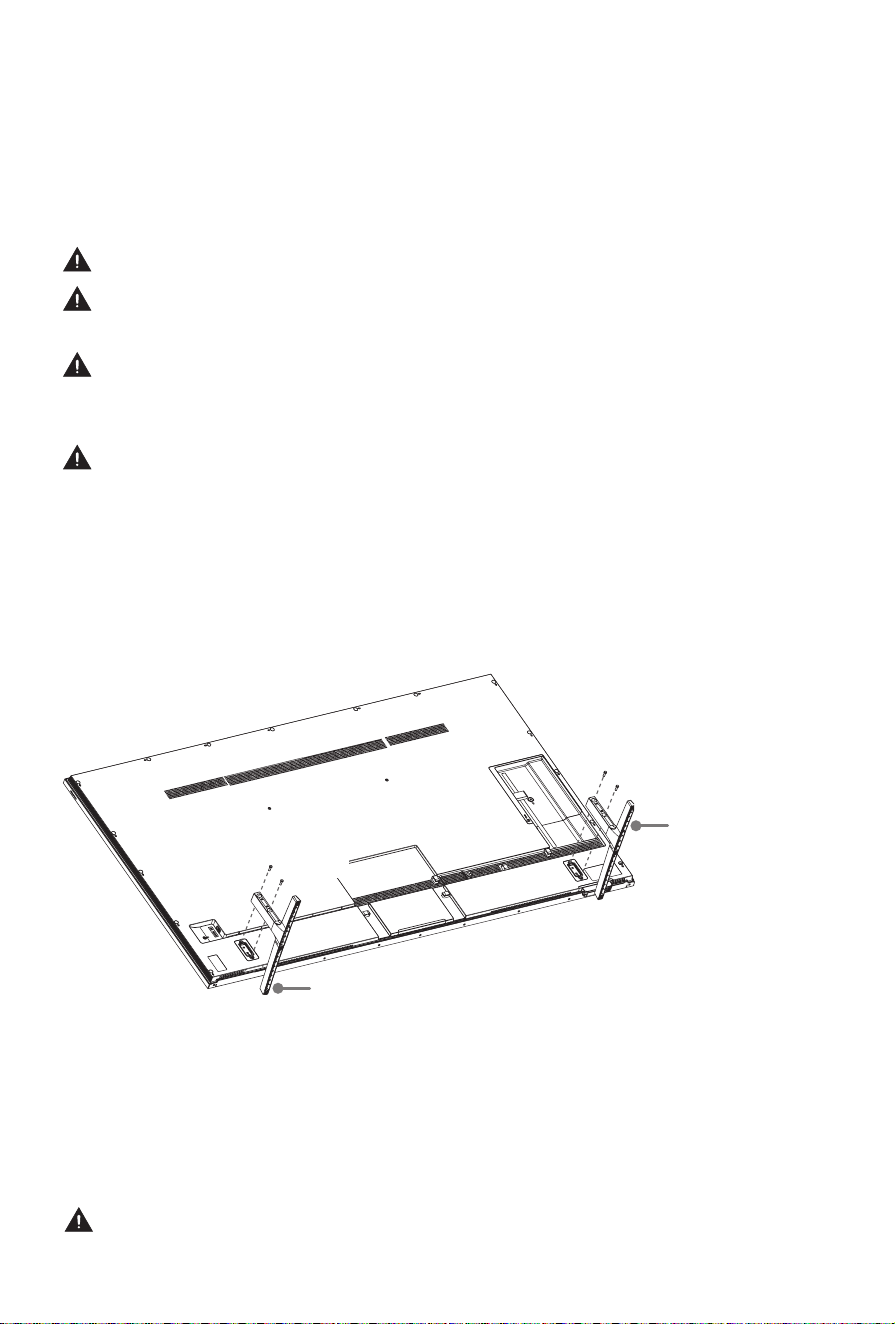
To attach the TV stands to your TV:
1.CarefullyplaceyourTVfacedownonaclean,softandatsurface.
2. Insert the TV base stands into the TV back cover.
3.
Use the screws provided to secure each base stand tightly.
Attach cable clamps and manage cable
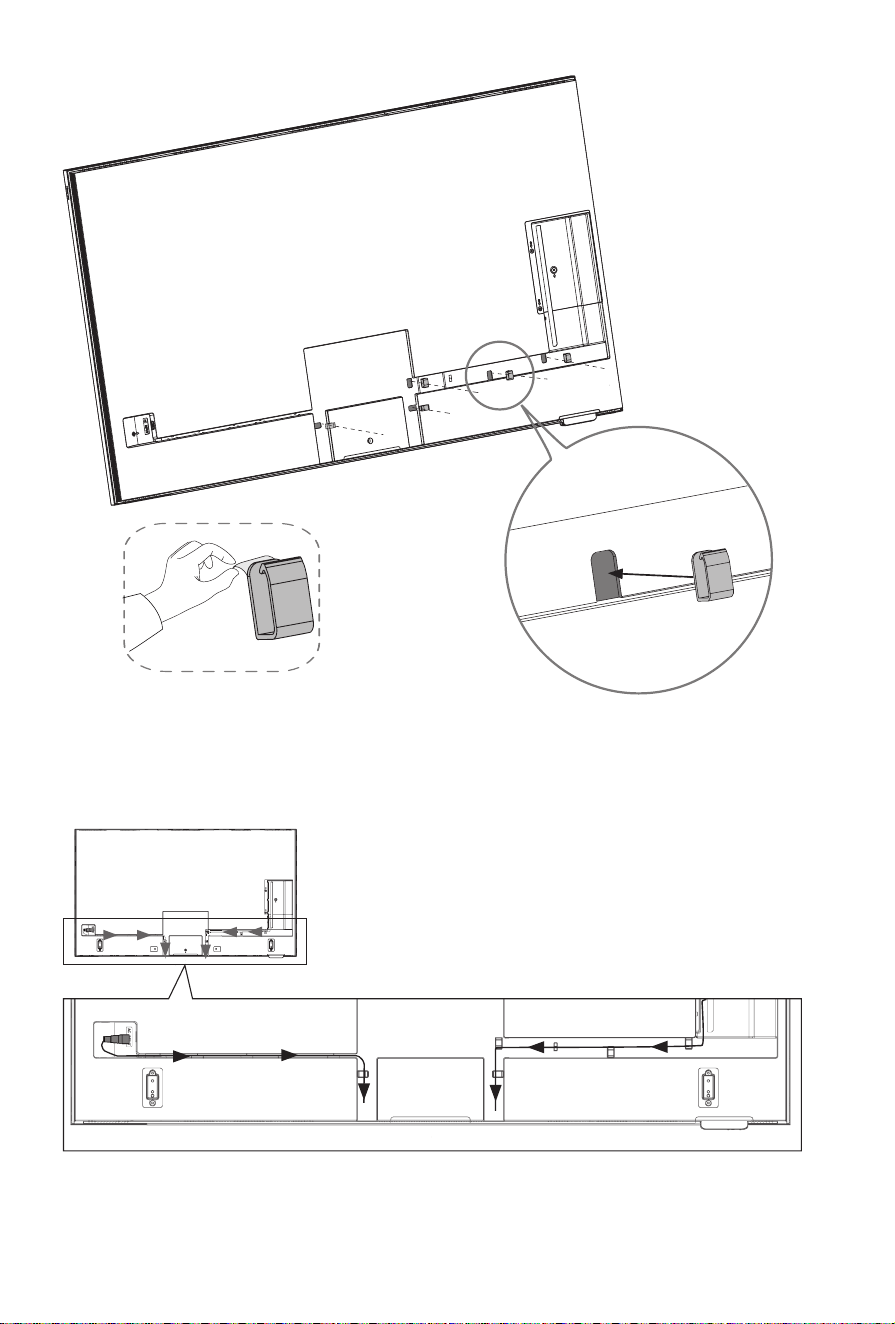
1. Tear off the sticker at the back of cable clamps, paste cable clamps into the holes in
the cable raceway. (See Fig.1)
NOTE: Make sure the open-ended part of the cable clamp is positioned at the middle
of cable raceway.
2. Manage cables and power cord with cable clamps. (See Fig.2)
CAUTION:
Before installing the wall mount on the wall, make sure that you have
connected and managed power cord and all cables you need.
Base Stand
Base Stand
Screws:
M4×12
Screws:
M4×12
3
Fig.1
Fig.2
4
Attach the wall mount bracket (included)
Follow instructions provided with the wall mount bracket. If it is not correctly mounted,
the TV may fall and cause property damage or personal injury.
NOTE:
Remove the screws from the bracket holes on the TV back cover before wall
mount installing. The removed screws cannot be used for attaching the wall mount.
To attach the wall mount bracket:
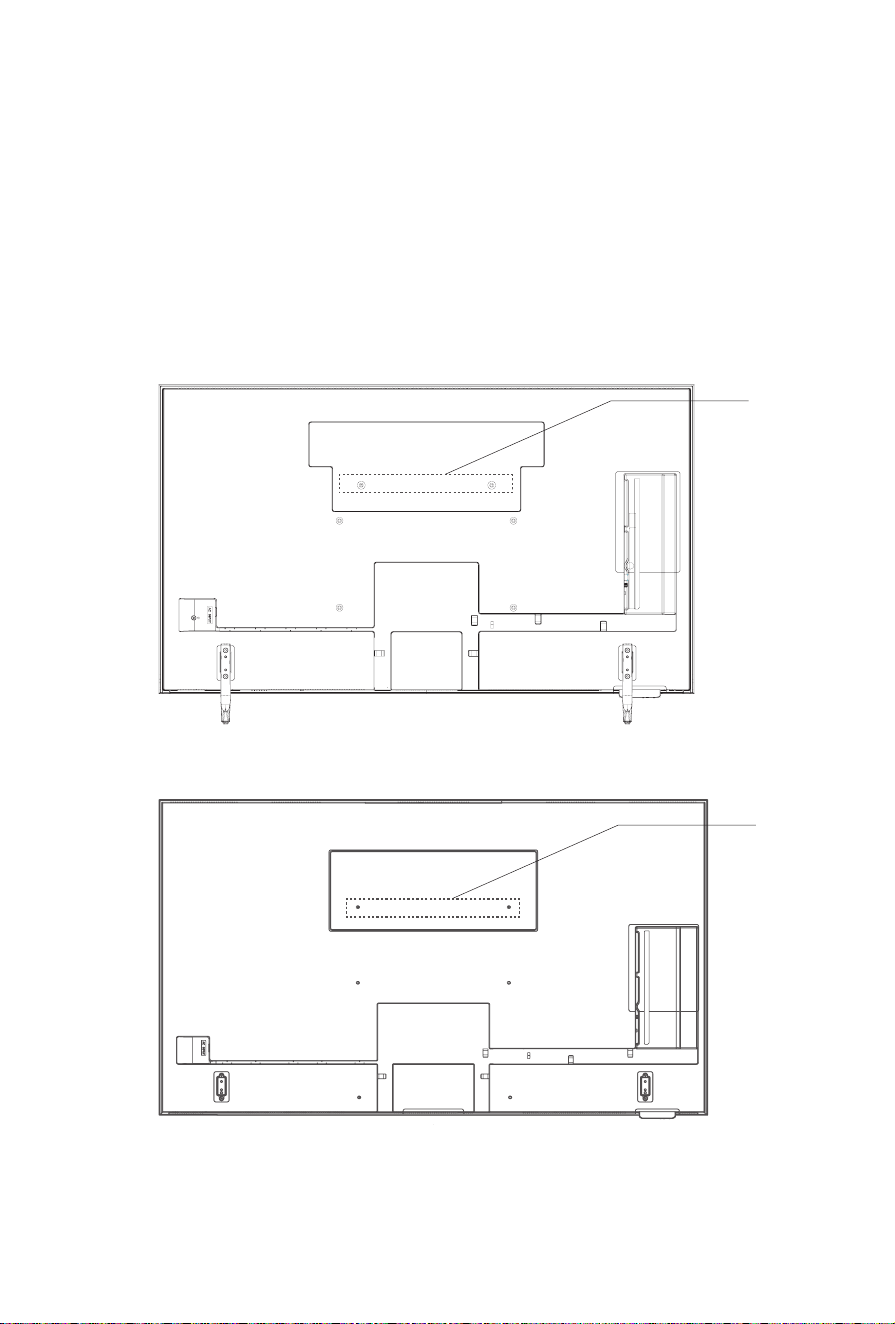
Wall mounting solution I
: Use bracket holes A1, A2 and use standard wall bracket.
The screws and wall bracket are in the wall mount assembly.
A1 A2
I
55"(139.7 cm)
65"(165.1 cm)
A1 A2
I
5
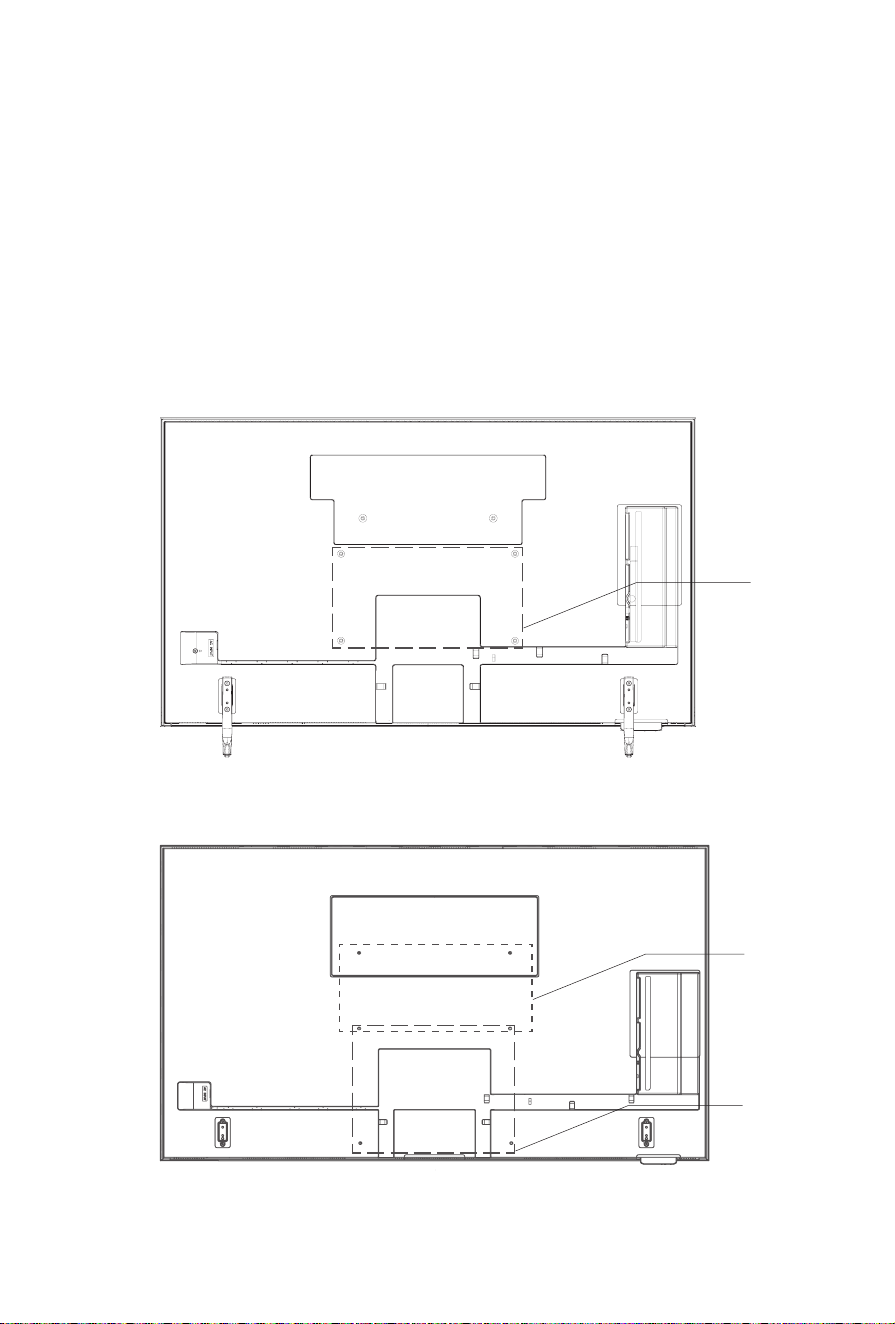
Wall mounting solution II
(only for 65"(165.1 cm)) : Use bracket holes A1, A2, B1, B2.
Place spacers (not included) in the bracket holes(A1, A2). This solution requires that the
upper two spacers(A1, A2) are parallel with the lower two holes(B1, B2). It is compatible
with 400×200 VESA wall mount, M6 screws, the screw length is 9.5 - 11.5 mm.
Wall mounting solution III
: Use bracket holes B1, B2, C1, C2. It is compatible with
400×200(55"(139.7 cm))/400×300(65"(165.1 cm))VESA wall mount, M6 screws, the screw
length is 9.5 - 11.5 mm.
Attach the wall mount bracket (not included)
B1 B2
II
A1 A2
C1
C2
III
NOTE:
Remove the screws from the bracket holes on the TV back cover before wall
mount installing. The removed screws cannot be used for attaching the wall mount.
65"(165.1 cm)
B1 B2
C1 C2
III
55"(139.7 cm)
6
CAUTION:
• Follow instructions provided with the wall mount bracket. If it is not correctly mounted,
the TV may fall and cause property damage or personal injury.
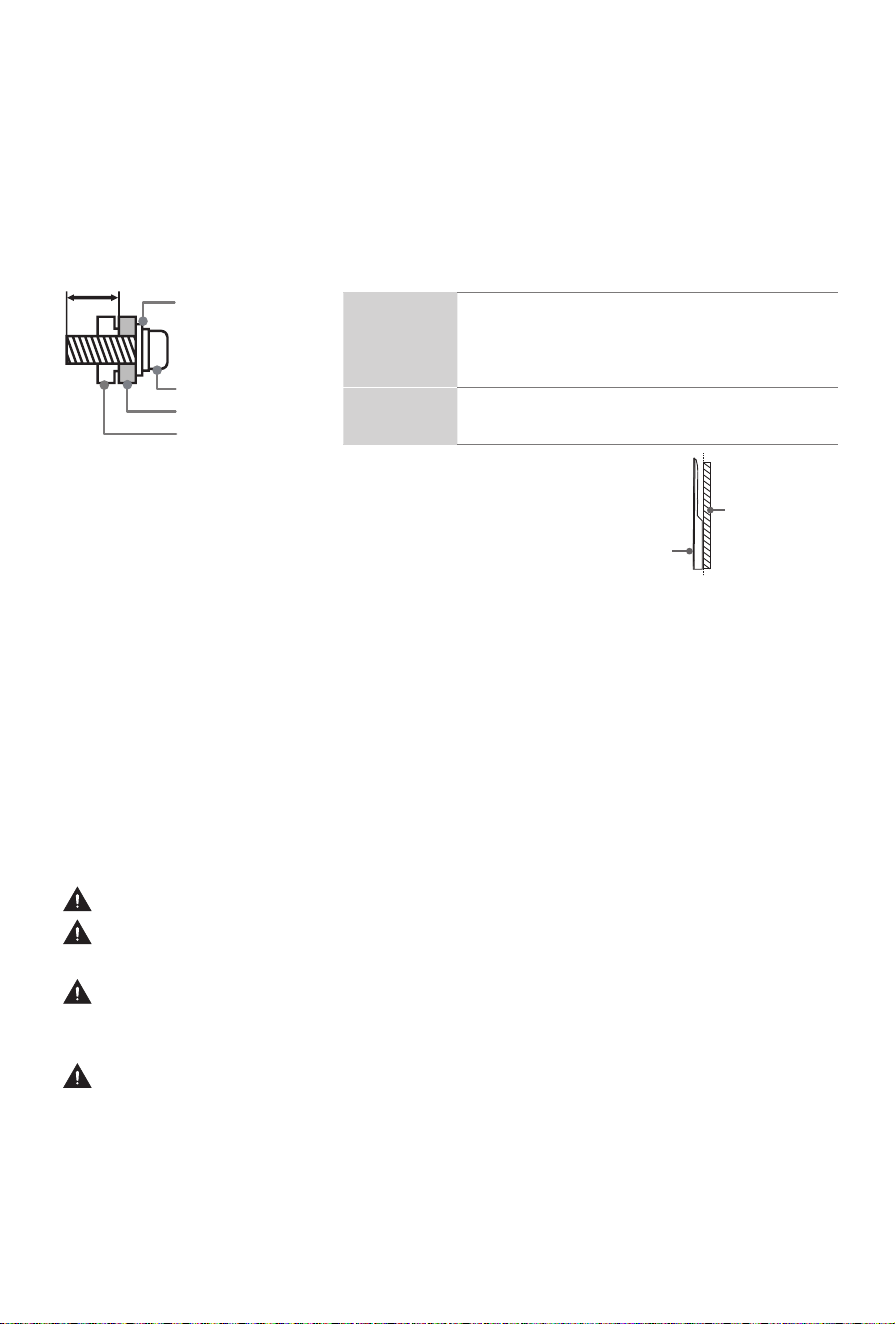
• To prevent internal damage to the TV and to ensure it is mounted securely, be sure
to use fixing screws (not included) that are 9.5 - 11.5 mm in length when measured
from the attaching surface of the rear cover.
• We do not recommend hanging the TV on a slanted wall, and
TV
screen
Vertical
surface
when wall mounting make sure your television remains
parallel to the wall and does not lean forward.
NOTE:
• If installed on a ceiling or slanted wall, or the television installed is not parallel to the
wall, the television may fall and result in property damage or severe personal injury.
• If you have additional questions, please contact the wall mount manufacturer or the
retailer from which you purchased the TV.
• The diameter and length of the screws differ depending on the wall mount bracket model.
9.5 - 11.5 mm
Wall mount bracket
Screw
Spacer
Rear cover of the TV
Wall mount
hole pat-
tern(mm)
400 × 200 (Wall mounting solution III)(55"(139.7 cm))
400 × 200 (Wall mounting solution II)(65"(165.1 cm))
400 × 300 (Wall mounting solution III)(65"(165.1 cm))
Wall mount
screw size
M6
Attach the frame
CAUTION:
Don’t move the TV with the frame.
After installing each frame, do not strongly pull or shock it. Failing to do so may
cause it fall off the TV.
Before installing the frame, please install the TV stand or the wall mount. If you
want to remove the TV stand or the wall mount that has been installed, please
remove the frames first.
Before installing frames, remove the protective film first.
If the protective film
was not removed, the installation of the frame will be affected.
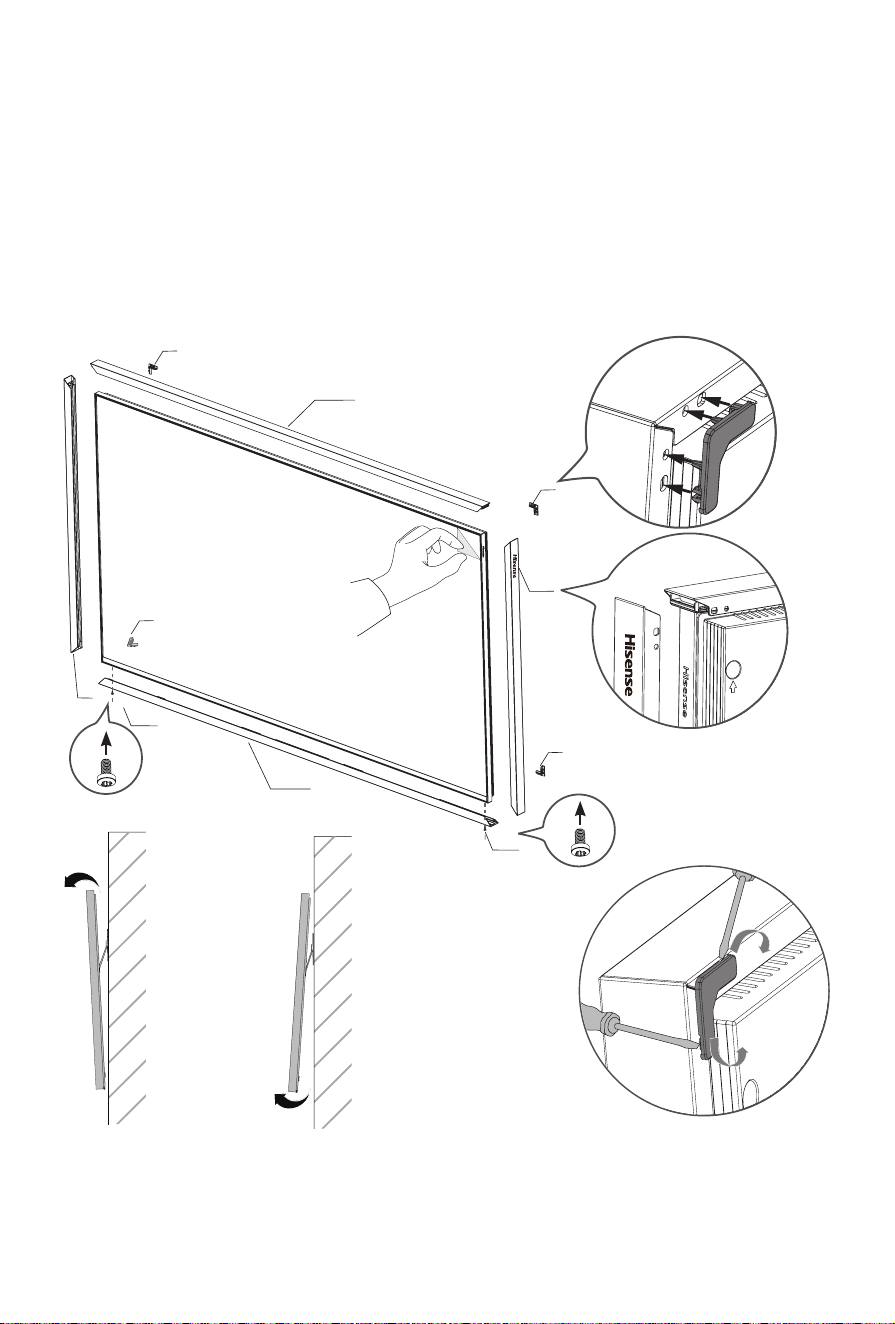
After the TV stand or the wall mount installation, attach the frame to your TV. You can
choose the frame provided in the accessories.
1. Install the upper frame.
2. Install the left and right frame, hang the left and right frame into the grooves on both
sides of the upper frame.
7
1
2
2
3
4
4
5
5
5
5
3. Install the lower frame which is with several holes.
4. Use the two screws provided to secure the lower frame tightly.
NOTE:
•
Theupper,leftandrightframesmustbettedtightly,otherwiseyoumaynotndthe
holes to secure the screws.
•
If there is a gap between the lower frame and the left/right frame, you can adjust the
tightness of the screws to remove the gap.
5. Install the four plastic clips from the back of the TV.
NOTE:
If you have installed the TV on the wall, two or more people are needed to lift the
TV up slightly so that you can install the four plastic clips conveniently. (See Fig.3,Fig.4)
Fig.3 Fig.4
NOTE:
•
While removing the frames from the TV, remove them in the reverse order of the assembly. Use a
at-headscrewdriverorothersuitabletoolstoprytheplasticclipsupalongthegroove.(See Fig.5)
Fig.5
8
Step 2. Connect devices to your TV
Check to ensure that you have connected right cables for right ports securely. Loose
connections can affect the quality of the picture image and color.
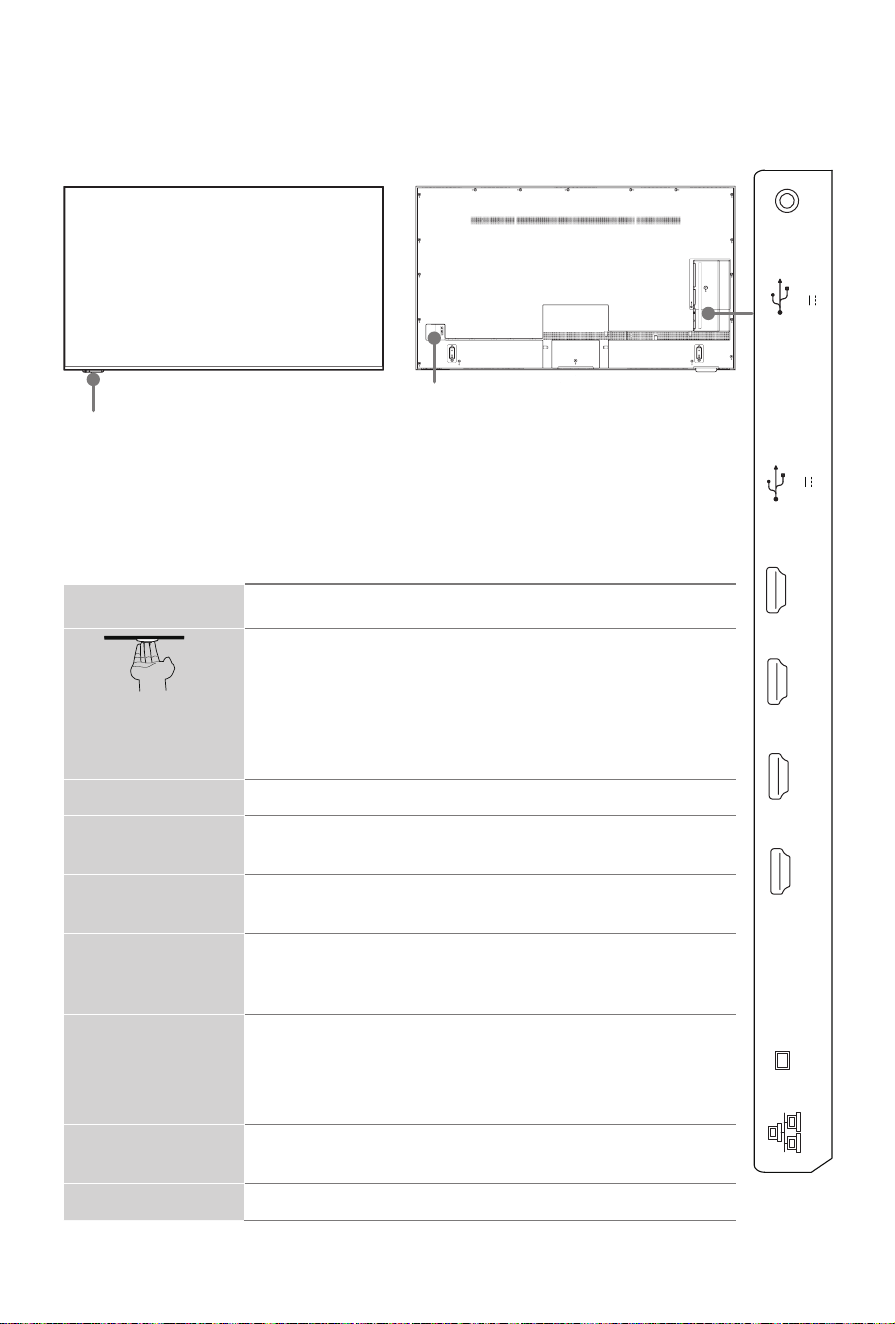
Power indicator
The light is white in standby mode.
Power button
(Standby/Source)
When the TV is in standby mode, quick press the power
button, and TV will be turned on.
When the TV is on, quick press the power button to call up
the menu:
•Quick press to change the selection.
•Long press to confirm your selection.
ANT/CABLE
Connect an outdoor VHF/UHF antenna.
HDMI
ConnectaHighDenitionMultimediaInterface(HDMI)cable
from an external device.
RESET
Power off / restart (quick press)
Reset your TV back to the factory setting (long press for 5 seconds)
SERIAL
Connect the serial cable to PC. You can input serial command
on PC to control the TV, such as turn on/off the TV, select an
input source or adjust the OSD menu, etc.
USB
Connect a USB device for browsing photos, music and
movies. Hard disks with a total current consumption or
impulse current consumption greater than 500mA are not
supported.
LAN
Connect an Ethernet cable to access a network or the
Internet. The TV also has a wireless connectivity feature.
DIGITAL AUDIO OUT
Connect an optical cable from an external digital audio system.
• Power indicator
• Power button(Standby/Source)
TV Front TV Back
Power Input
HDMI 2
4K@60Hz
HDMI 4
4K@144Hz
ANT/CABLE
RESET
USB 2
DC 5V 1A(MAX
)
HDMI 3
4K@144Hz
SERIAL
HDMI 1(eARC)
4K@60Hz
LAN
DIGITAL
AUDIO OUT
USB 1
DC 5V 0.5A(MAX
)
CAUTION:
•
Do not block the sensor which is located at the left bottom of the TV, otherwise
the motion sensor and the brightness can be affected.
9
Step 3. Get your remote ready
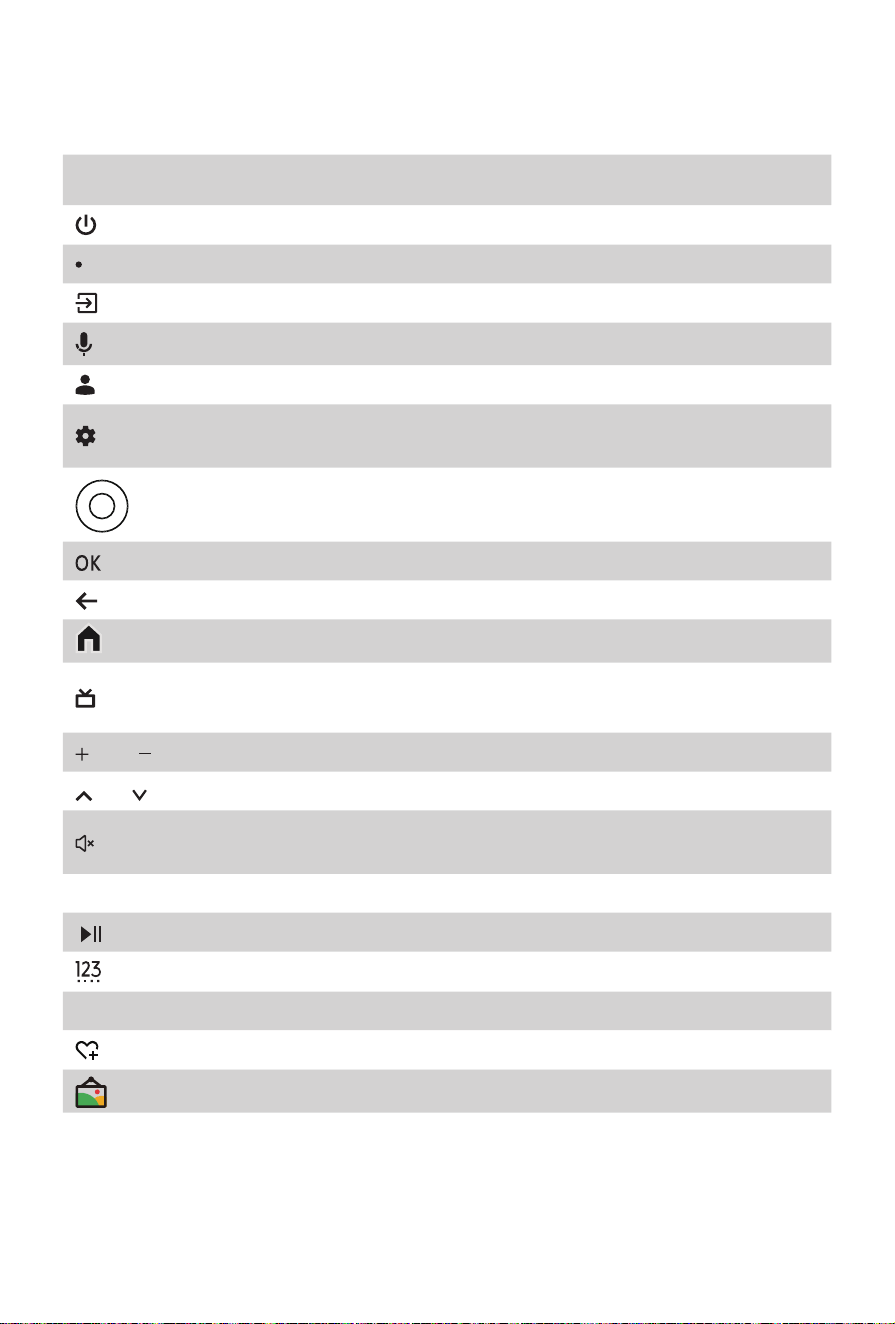
The following table shows the buttons on your remote control and describes what they are for.
BUTTON DESCRIPTION
Power on / Enter art mode / Power off when the TV in art mode
Microphone / Indicator
Change TV input source
Google Assistant of TV
Accounts&SignInorswitchprole
Access the settings (direct or through the dashboard in GTV) from
any place in the system
D-pad (up/down/left/right navigation buttons)
Conrmationbutton
Return to the previous place in the menu or app
Press to display the Home screen
Enter to Live tab in launcher/Display the Electronic Program
Guide(if support)/Return to Live TV
*
VOL Volume (up/down)
CH Channel (up/down)
Press to mute or restore sound
Press and hold to display Accessibility menu
MENU Press to enter Menu
Media content control function buttons
Enter Channels/input numbers and special function buttons
App Quick access buttons to applications
Custom button to launch input or apps quickly
Press to enter art mode
NOTE
• Buttons listed here are for reference only. Actual remote control may vary depending on
model, country/region.
• * Pressing the button in different scenarios will have different responses.
10
Insert the batteries
1. Take off the back cover to open the battery compartment of the remote control.
2. Insert two AA or AAA (1.5Vcc) size batteries. Make sure to match the (+) and (-)
ends of the batteries with the (+) and (-) ends indicated in the battery compartment.
3. Restore the battery compartment cover.
Important information about the remote and batteries
• Discardbatteriesinadesignateddisposalarea.Donotthrowthemintoafire.
• Removeoldbatteriesimmediatelytopreventthemfromleakingintothebattery
compartment.
• Ifyoudonotintendtousetheremotecontrolforalongtime,thenremovethe
batteries.
• Batterychemicalscancausearash.Ifthebatteriesleak,cleanthebattery
compartment with a cloth. If chemicals touch your skin then wash it immediately.
• Donotmixoldandnewbatteries.
• Donotmixalkaline,standard(carbon-zinc)orrechargeable(NiCd,NiMH,etc.)
batteries.
• Donotcontinueusingtheremoteifitgetswarmorhot.
• CallourSupportCenterimmediatelyonthesupportwebsite.
Remote control range information
•
The remote control can work at a distance of up to 26 feet (792.5 cm) in front of the TV set.
•
The remote control angle: taking the remote sensor as an apex, 6 meters away, its
controlled horizontal angle is within ±30°, while the vertical angle is within ±15°.
Pairing the remote control
1. PairtheremotetotheTVafteryoupoweritonforthersttime,therewillbe
instructions on how to pair the remote.
2. If your remote fails to pair with TV, keep the remote within 10 feet (304.8 cm) from the
TV, press and hold the [ ] button and [ ] button at the same time or [ MENU ]
button at least 3 seconds to start pairing.
3. Iftheremotepairssuccessfully,aconrmationwilldisplayonthescreen.Ifitdoes
not pair successfully, an unsuccessful message will display. Repeat step 2, or you
can press [ ] button to select
Settings
>
Remotes & Accessories
>
Bluetooth
to
On
.
NOTE:
•
If an unknown error occurs with the remote, it could have been caused by
interference. Try to remove what's causing the interference and pair the remote again.
•
If an unknown error occurs with the remote control while the battery power is normal,
you can take out the batteries and press any key for 1~2 seconds, and insert them
back. The remote control can work normally.
•
The remote cannot be paired to the TV while the TV is in the standby mode.
11
Step 4. Power on the TV
Plug your power cord into a power outlet.
Your TV will display a launch screen showing the Hisense logo.
Step 5. Complete the first-time setup
The first time you turn on your TV, there is a guided setup to make it easy to connect
your TV to the Internet and complete the setup of your TV.
Step 6. Establish a network connection
1. Press
the [ ]
button
on the remote,
and select
Settings
to enter the Settings menu
.
2. Select
Network & Internet
.
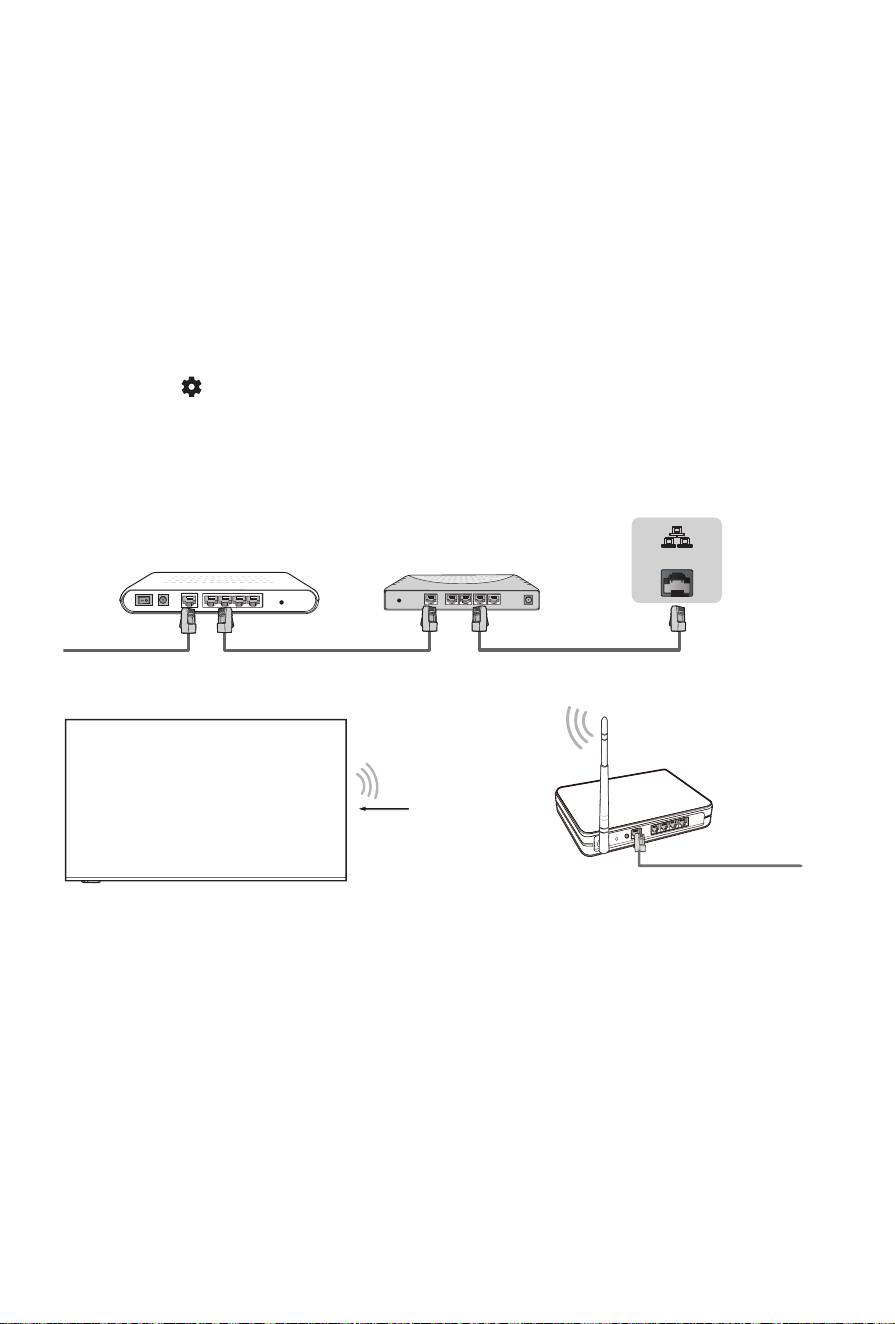
TV JACK
Modem Cable LAN CableLAN Cable
External Modem
(ADSL / VDSL / Cable TV)
IP Sharer (Router)
(with DHCP server)
LAN
Establish a wired network connection
Establish a wireless network connection
Wireless router with DHCP
LAN Cable
Wireless LAN Adapter
built-in TV set
And setup is done, congratulations!
Now that you’ve completed the first-time setup, enjoy your TV!
12
Troubleshooting
If you are having trouble with your TV, first try turning it off and on again. If this does not fix the
problem, check the tips in the following table. If your problem is not listed in the following table,
then contact us at one of the phone numbers on page before.
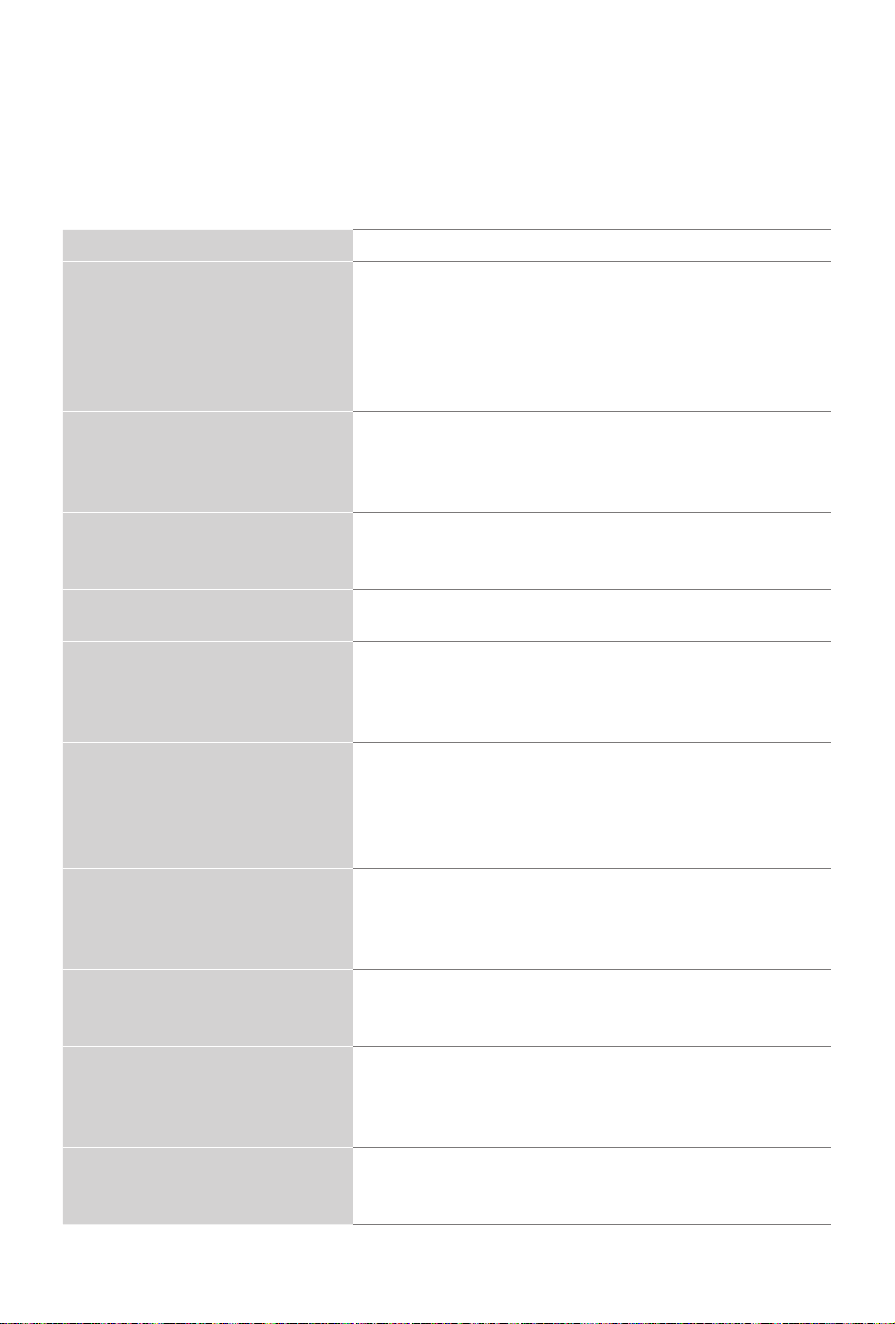
Issues Possible solutions
No sound or picture
•Check if the power cord is plugged into a powered AC
outlet.
•PressthePowerbuttonontheremotecontroltoactivate
the unit from 'Standby' mode.
•ChecktoseeiftheLEDlightisonornot.Ifitis,thenthe
TV is receiving power.
I have connected an external
source to my TV and I get no
picture and/or sound.
•Checkforthecorrectoutputconnectionontheexternal
source and for the correct input connection on the TV.
•Makesureyouhavemadethecorrectselectionforthe
input mode for the incoming signal.
When I turn on my TV, there is a
delay for a few seconds before the
picture appears. Is this normal?
•Yes,thisisnormal.TheTVisinitializingandsearching
for previous setting information.
The picture is normal but there is
no sound
•Checkthevolumesettings.
•Checkif'Mute'modeissettoOn.
Sound but no picture or black and
white picture
•Ifthepictureisblackandwhite,unplugtheTVfromthe
AC outlet and replug it after 60 seconds.
•CheckthattheColorissetto50orhigher.
•TrydifferentTVchannels.
The sound and/or picture is
distorted or appears wavy
•AnelectricappliancemaybeaffectingtheTV.Turnoff
any appliances that are nearby and move it farther away
from the TV.
•InsertthepowerplugoftheTVsetintoanotherpower
outlet.
The sound and picture is blurry or
cuts out
•Ifusinganexternalantenna,checkthedirection,position
and connection of the antenna.
•Adjustthedirectionofyourantennaorresetornetune
the channel.
A horizontal or vertical stripe
appears on the picture and/or the
picture is shaking
•Checkifthereisanapplianceorelectrictoolnearbythat
is causing interference.
The plastic cabinet makes a
"clicking" type of sound
•The'click'soundcanoccurwhenthetemperatureofthe
television changes. This change causes the television
cabinet to expand or contract, which makes the sound.
This is normal and the TV is OK.
The remote control does not work
•ConrmthatTVstillhaspowerandisoperational.
•Changethebatteriesintheremotecontrol.
•Checkifthebatteriesarecorrectlyinstalled.
13
Product specifications
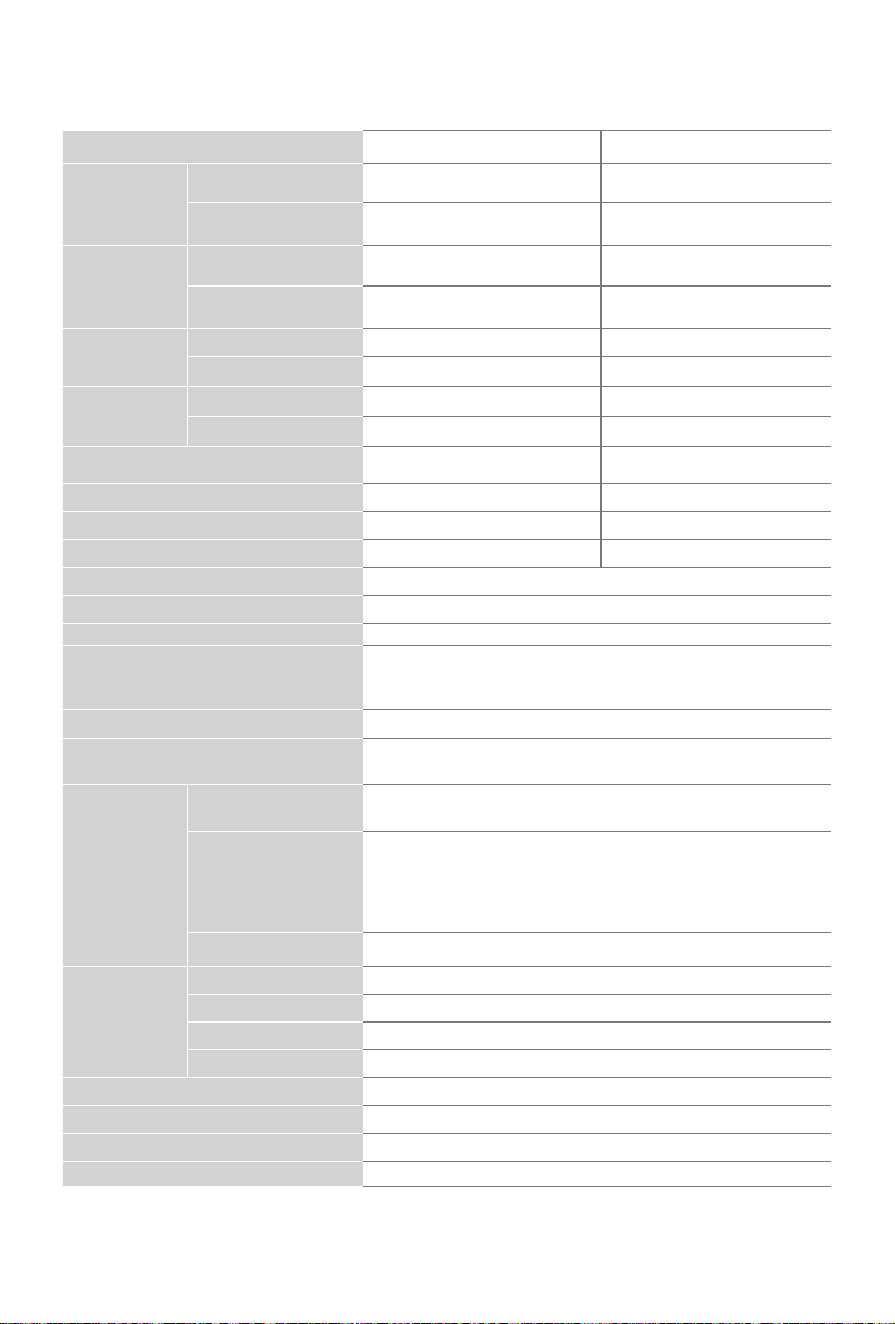
Model Name
55S7N 65S7N
Dimension
(W × H × D)
Without Stand
48.5 × 28.4 × 1.4 inches
(1 232 × 721 × 36 mm)
57.1 × 33.2 × 1.4 inches
(1 451 × 844 × 36 mm)
With Stand
48.5 × 30.8 × 11.7 inches
(1 232 × 782 × 298 mm)
57.1 × 35.2 × 15.0 inches
(1 451 × 893 × 381 mm)
Dimension
(W × H × D)
(with frame)
Without Stand
49.4 × 28.9 × 1.5 inches
(1 256 × 733 × 39 mm)
58.1 × 33.7 × 1.5 inches
(1 475 × 856 × 39 mm)
With Stand
49.4 × 31.2 × 11.7 inches
(1 256 × 793 × 298 mm)
58.1 × 35.6 × 15.0 inches
(1 475 × 903 × 381 mm)
Weight Without Stand
40.1 lbs (18.2 kg) 61.7 lbs (28.0 kg)
With Stand
40.3 lbs (18.3 kg) 62.6 lbs (28.4 kg)
Weight
(with frame)
Without Stand
42.5 lbs (19.3 kg) 64.9 lbs (29.5 kg)
With Stand
42.8 lbs (19.4 kg) 65.8 lbs (29.9 kg)
TV Stand Width(W × D)
36.7 × 11.7 inches
(
932 × 298
mm)
44.1 × 15.0 inches
(1 120 × 381 mm)
Active Screen Size (Diagonal)
54.6 inches (138.7 cm) 64.5 inches (163.8 cm)
Audio Power
2×10W + 2×8W 2×10W + 2×8W
Power consumption
150 W 200 W
Screen Resolution
3840 × 2160
Power Supply
100-240 V~ 50/60 Hz
Connectivity Built-in Wireless feature (2x2, dual band)
Receiving Channels
VHF: 2 - 13, UHF: 14 - 69, CATV: 1 - 125
Digital Terrestrial Broadcast (8VSB): 2 - 69
Digital cable (64/256 QAM): 1 - 135
Tuner Type
Frequency synthesized
Receiving Systems
Analog: NTSC, PAL M/N
Digital: ATSC/QAM, ISDB-T
Wireless
LAN Module
specications
Frequency Range
2.4-2.4835GHz
5.15-5.85GHz
Output Power
(Max.)
2.4-2.4835GHz 17dBm
5.15-5.25GHz 14dBm
5.25-5.35GHz(DFS Band) 14dBm
5.49-5.71GHz(DFS/TPC Band) 14dBm
5.725-5.85GHz(for Non EU) 14dBm
Modulation Type
IEEE802.11 a/b/g/n/ac
Bluetooth
Module
specications
Version/Proles
Bluetooth 5.3
Frequency Range
2.4-2.4835GHz
Output Power (Max.)
2.4-2.4835GHz,Class1,6dBm
Modulation Type
GFSK,π/4-DQPSKand8-DPSK
Operating Temperature 41°F - 95°F(5°C - 35°C)
Operating Humidity 20% to 80% non-condensing
Storage Temperature 5°F to 113°F(-15°C to 45°C)
Storage Humidity 10% to 70%, non-condensing
NOTE:
"Receiving Systems" may differ depending on your model/country/region.
Disclaimer:
All products, product specifications, and data are subject to change
without notice to improve reliability, function, design or otherwise.

14
Certification and compliance
NOTE:
The following warnings only apply to products with such certification.
This device complies with Part 15 of the FCC Rules. Operation is subject to the following
two conditions: (1) This device may not cause harmful interference, and (2) This device
must accept any interference received, including interference that may cause undesired
operation.
Note:
This equipment has been tested and found to comply with the limits for a Class
B digital device, pursuant to Part 15 of the FCC Rules. These limits are designed to
provide reasonable protection against harmful interference in a residential installation.
This equipment generates, uses, and can radiate radio frequency energy and, if not
installed and used in accordance with the instructions, may cause harmful interference
to radio communications. However, there is no guarantee that interference will not occur
in a particular installation. If this equipment does cause harmful interference to radio or
television reception, which can be determined by turning the equipment off and on, the user
is encouraged to try to correct the interference by one or more of the following measures:
● Reorientorrelocatethereceivingantenna.
● Increasetheseparationbetweentheequipmentandreceiver.
● Connecttheequipmentintoanoutletonacircuitdifferentfromthattowhichthereceiver
is connected.
● Consultthedealeroranexperiencedradio/TVtechnicianforhelp.
The manufacturer is not responsible for any radio or TV interference caused by
unauthorized modifications to this equipment. Such modifications could void the user’s
authority to operate the equipment.
This equipment complies with FCC radiation exposure limits set forth for an uncontrolled
environment. This equipment should be installed and operated with minimum distance of [20]
cm between the radiator and your body. This transmitter must not be co-located or operating
in conjunction with any other antenna or transmitter.
This device contains licence-exempt transmitter(s)/receiver(s) that comply with Innovation,
Science and Economic Development Canada’s licence-exempt RSS(s). Operation is subject
to the following two conditions:
(1) This device may not cause interference.
(2) This device must accept any interference, including interference that may cause
undesired operation of the device.
This equipment complies with radio frequency exposure limits set forth by the Innovation,
Science and Economic Development Canada for an uncontrolled environment. This
equipment should be installed and operated with a minimum distance of 20 cm between the
device and the user or bystanders.
This device must not be co-located or operating in conjunction with any other antenna or
transmitter.
Declaration of conformity
Trade Name: Hisense
Model: 55S7N / 65S7N
Responsible Party: Hisense USA Corporation
Service Address: 105 Satellite BLVD Suite I, Suwanee, GA 30024
Service Phone Number: 1-888-935-8880
15
©2024. All rights reserved. Hisense and the Hisense logo are registered trademarks of Hisense.
Other brand and product names are registered trademarks of their respective owners.
Environmental protection
This mark indicates that this product should not be disposed together with other domestic
garbage, to avoid damage to the environment or human health due to the disposal of uncontrolled
waste. Recycle it responsibly for promoting the sustainable reuse of material resources. To return
your used device, please use the return systems available in your location or contact the vendor
where you purchased your product they could take this product for recycling and protection of the
environment.
The terms HDMI, HDMI High-Definition Multimedia Interface, HDMI Trade dress and the HDMI
Logos are trademarks or registered trademarks of HDMI Licensing Administrator, Inc.
Dolby, Dolby Vision, and the double-D symbol are registered trademarks of Dolby Laboratories
Licensing Corporation. Dolby Vision IQ and Dolby Audio are trademarks of Dolby Laboratories
LicensingCorporation.ManufacturedunderlicensefromDolbyLaboratories.Condentialunpublished
works. Copyright © 1992-2022 Dolby Laboratories. All rights reserved.
For DTS patents, see http://patents.dts.com. Manufactured under license from DTS Licensing Limited.
DTS, DTS:X, Virtual:X, and the DTS:X logo are registered trademarks or trademarks of DTS, Inc. in the
United States and other countries. © 2021 DTS, Inc. ALL RIGHTS RESERVED.

