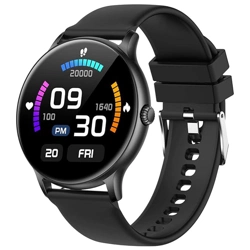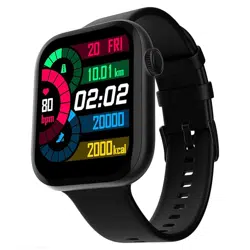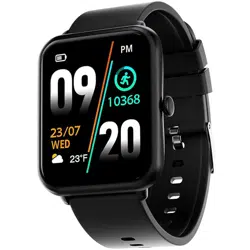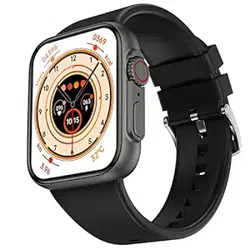
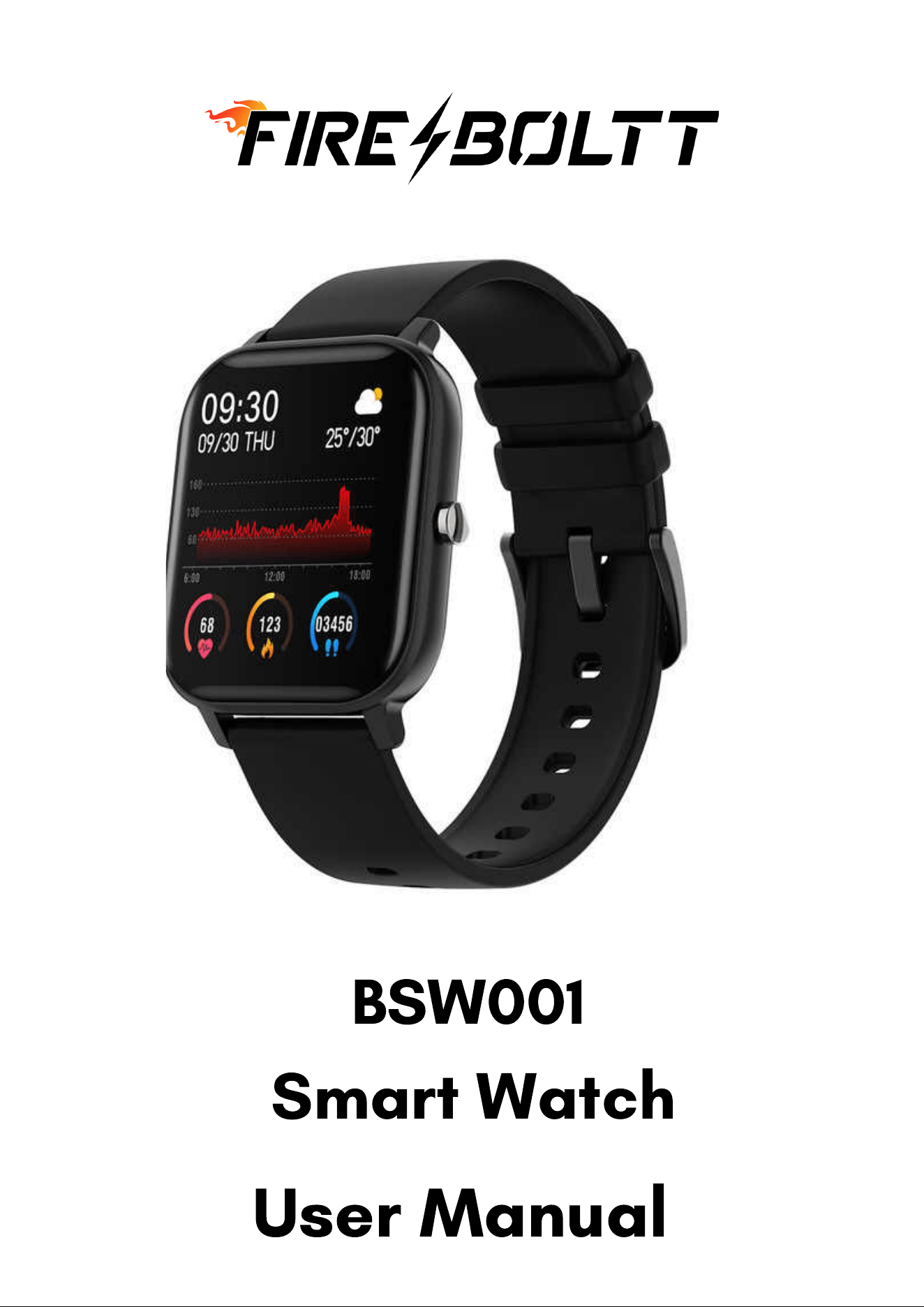
BSW001
User Manual
Smart Watch
Watch Face Functions Navigation and Button Instructions
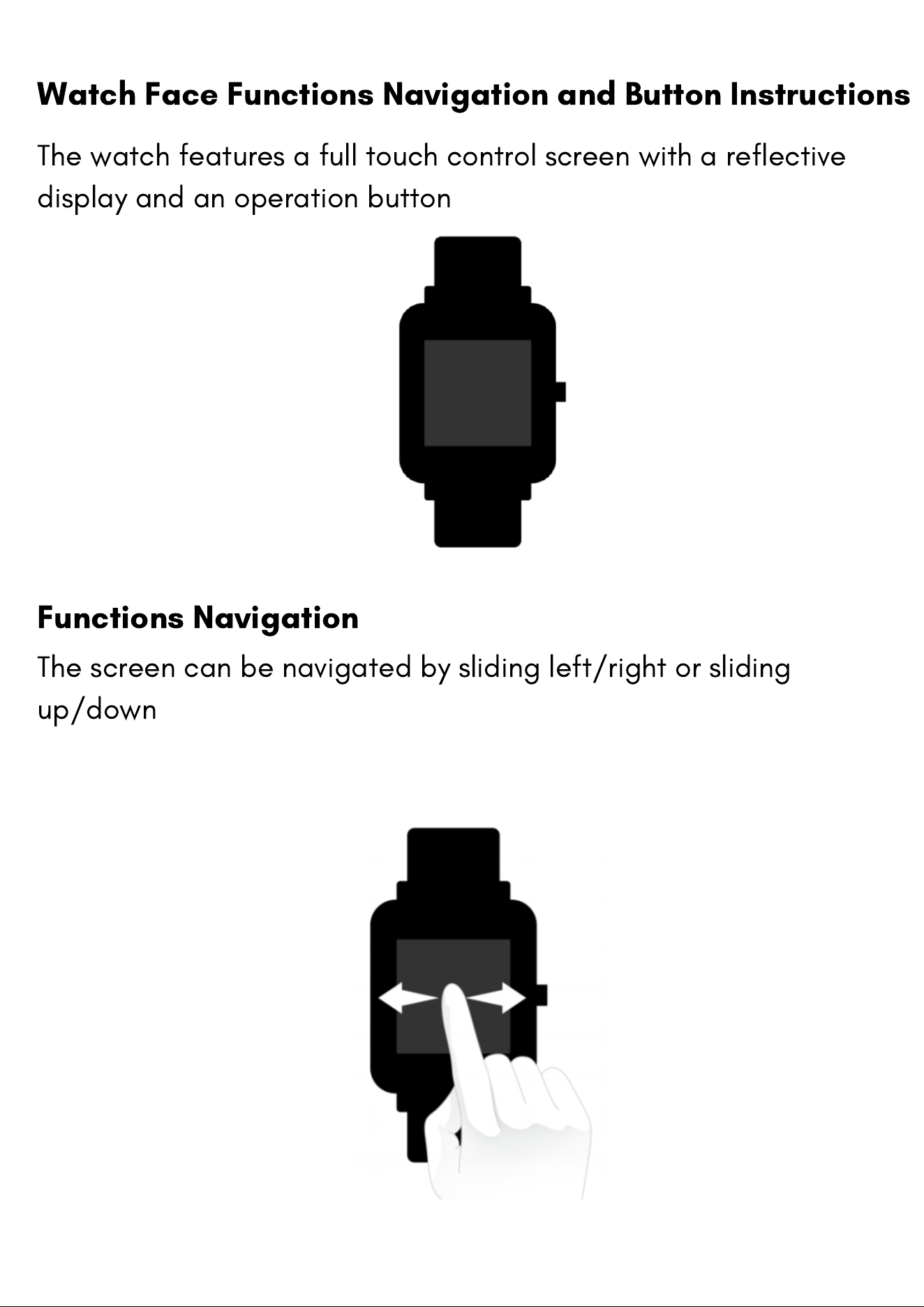
The watch features a full touch control screen with a reflective
display and an operation button
Functions Navigation
The screen can be navigated by sliding left/right or sliding
up/down
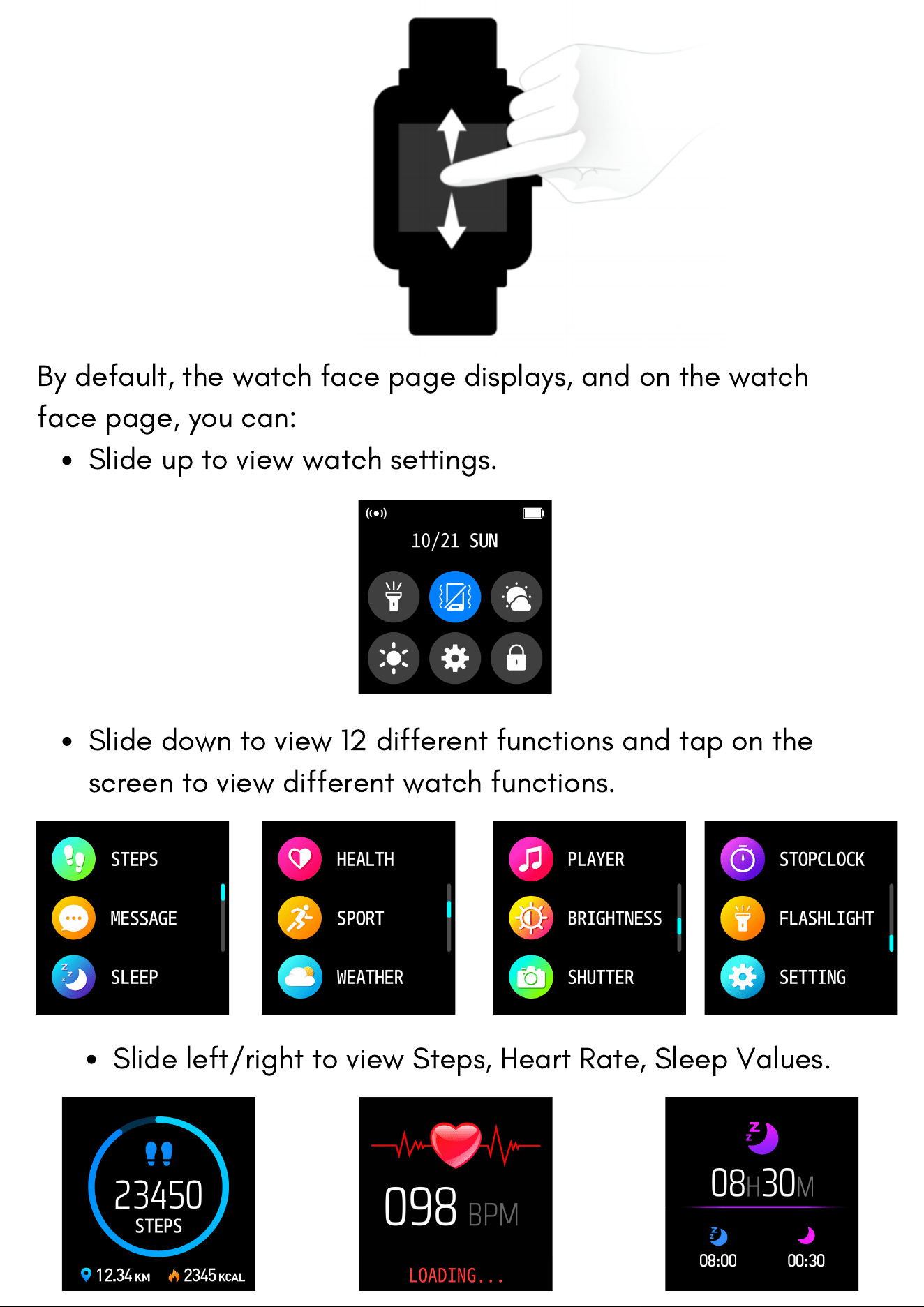
Slide up to view watch settings.
By default, the watch face page displays, and on the watch
face page, you can:
Slide down to view 12 different functions and tap on the
screen to view different watch functions.
Slide left/right to view Steps, Heart Rate, Sleep Values.
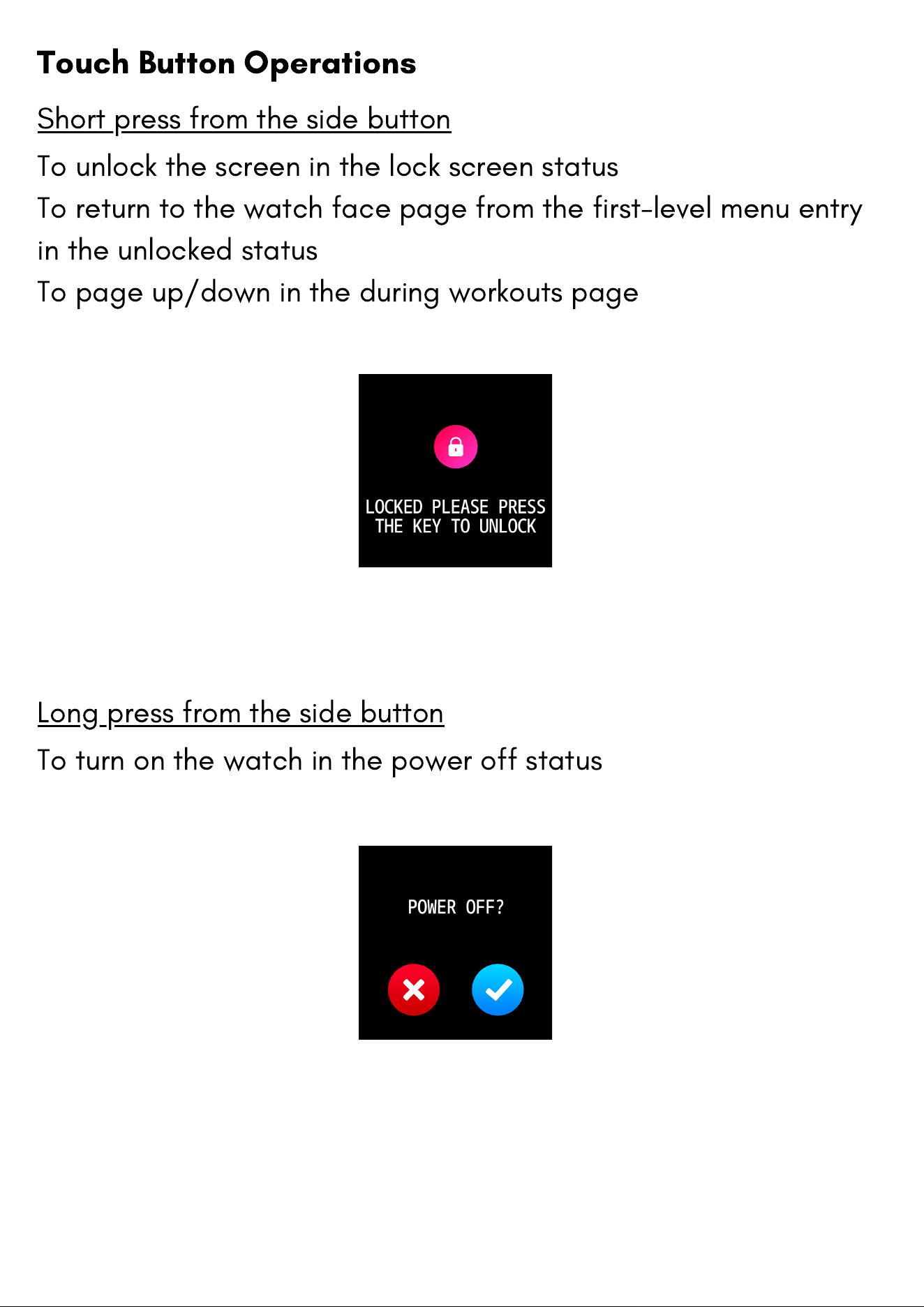
Touch Button Operations
Short press from the side button
To unlock the screen in the lock screen status
To return to the watch face page from the first-level menu entry
in the unlocked status
To page up/down in the during workouts page
Long press from the side button
To turn on the watch in the power off status
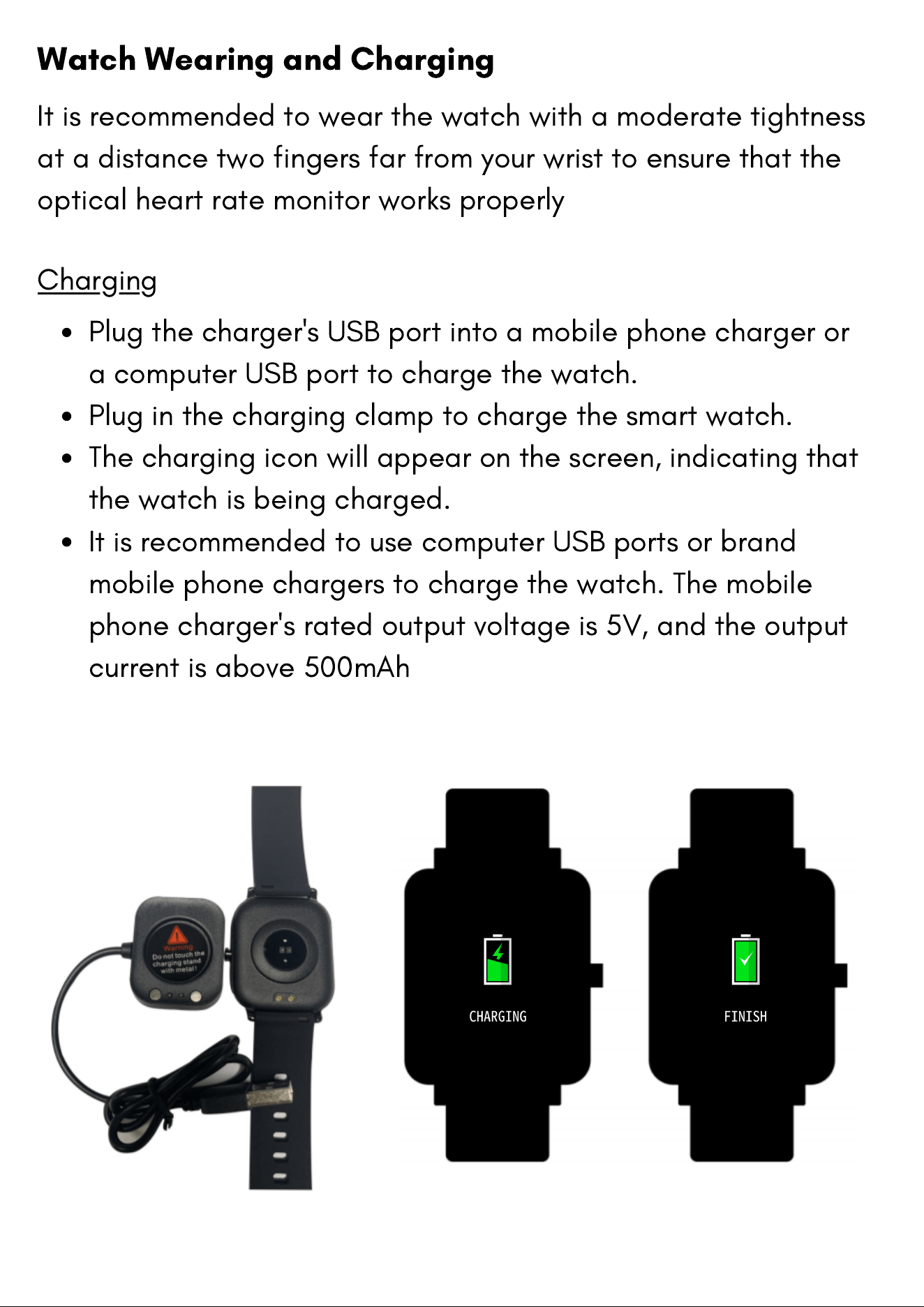
Plug the charger's USB port into a mobile phone charger or
a computer USB port to charge the watch.
Plug in the charging clamp to charge the smart watch.
The charging icon will appear on the screen, indicating that
the watch is being charged.
It is recommended to use computer USB ports or brand
mobile phone chargers to charge the watch. The mobile
phone charger's rated output voltage is 5V, and the output
current is above 500mAh
Watch Wearing and Charging
It is recommended to wear the watch with a moderate tightness
at a distance two fingers far from your wrist to ensure that the
optical heart rate monitor works properly
Charging
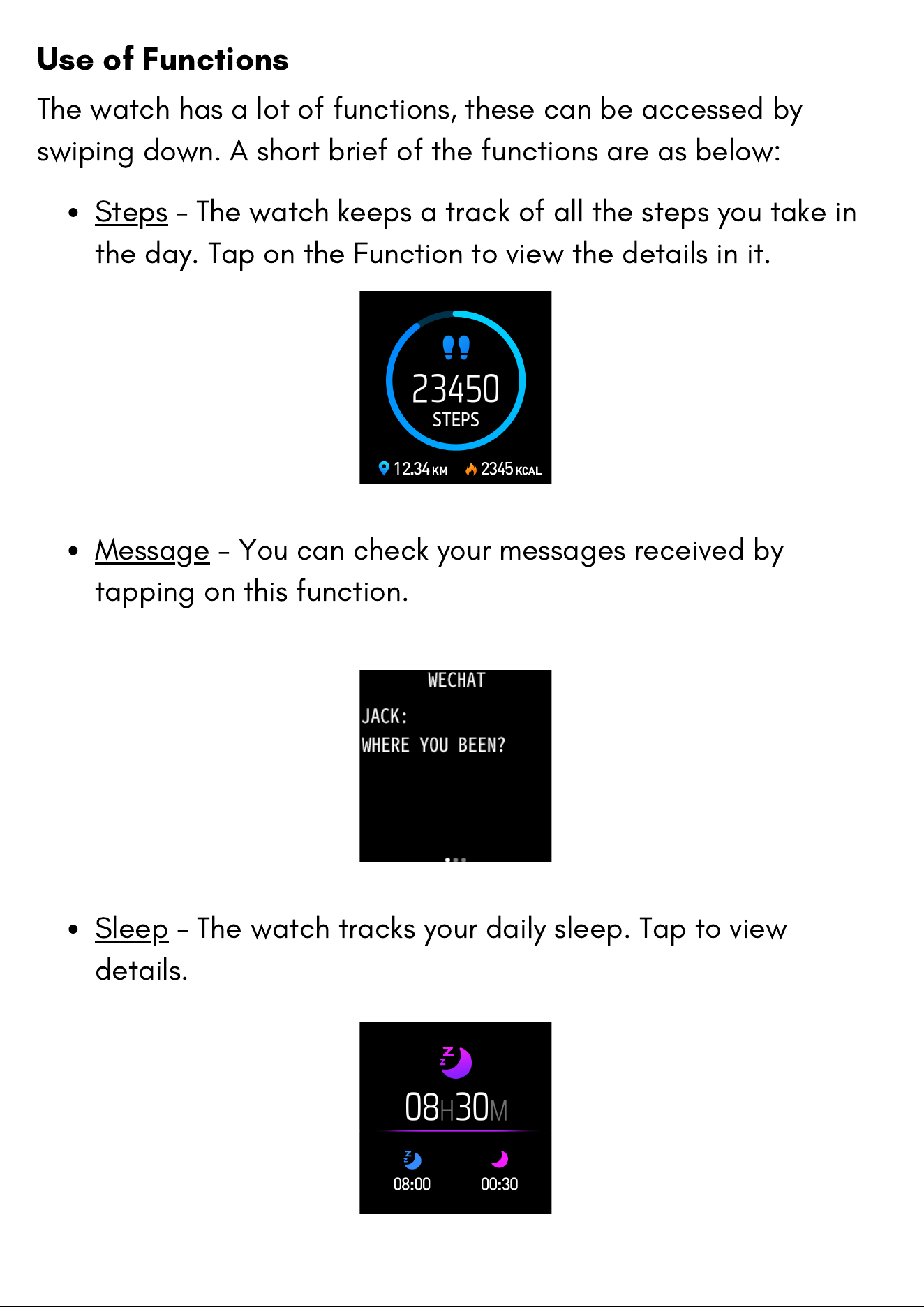
Use of Functions
The watch has a lot of functions, these can be accessed by
swiping down. A short brief of the functions are as below:
Steps - The watch keeps a track of all the steps you take in
the day. Tap on the Function to view the details in it.
Message - You can check your messages received by
tapping on this function.
Sleep - The watch tracks your daily sleep. Tap to view
details.
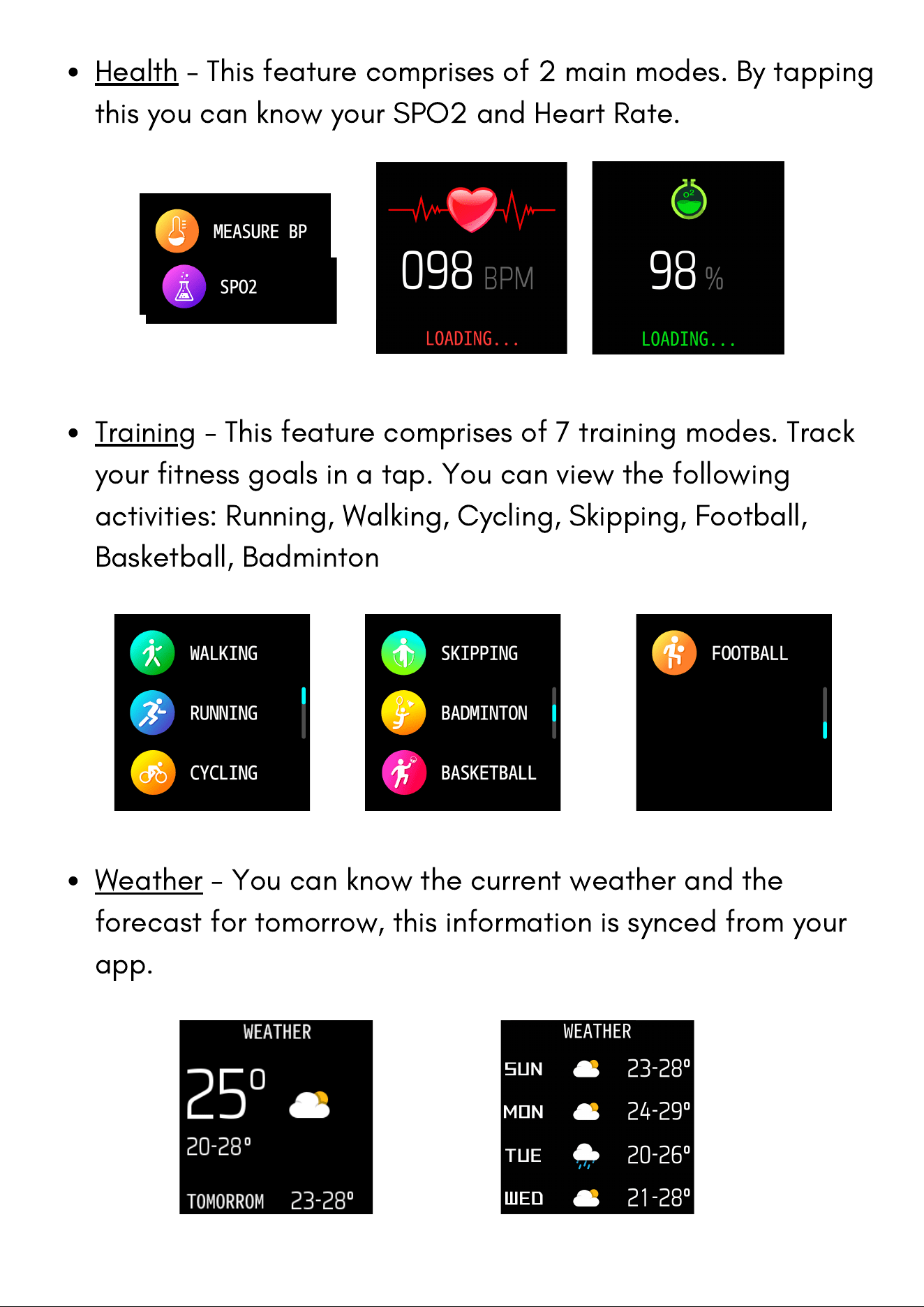
Health - This feature comprises of 2 main modes. By tapping
this you can know your SPO2 and Heart Rate.
Training - This feature comprises of 7 training modes. Track
your fitness goals in a tap. You can view the following
activities: Running, Walking, Cycling, Skipping, Football,
Basketball, Badminton
Weather - You can know the current weather and the
forecast for tomorrow, this information is synced from your
app.
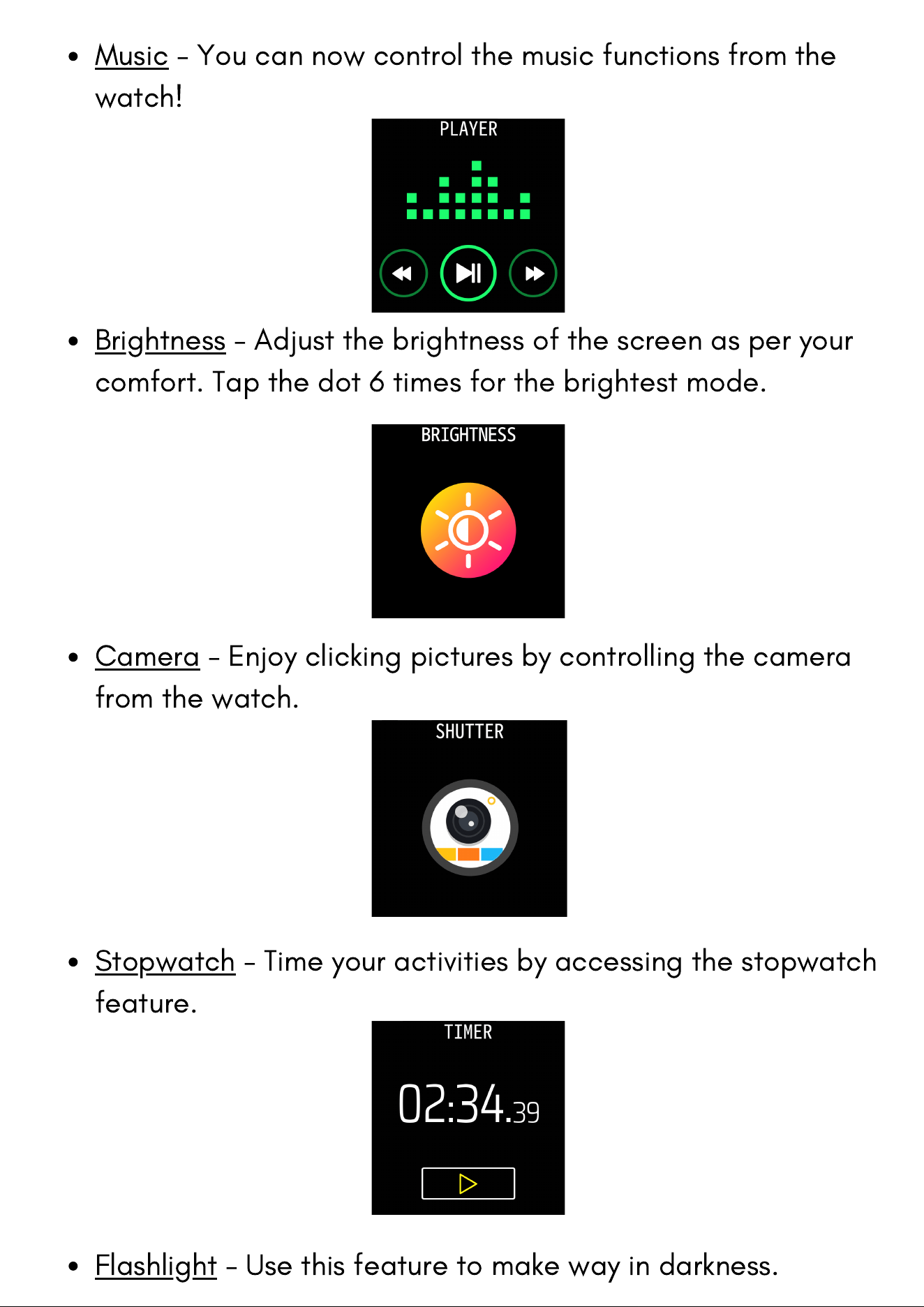
Music - You can now control the music functions from the
watch!
Brightness - Adjust the brightness of the screen as per your
comfort. Tap the dot 6 times for the brightest mode.
Camera - Enjoy clicking pictures by controlling the camera
from the watch.
Stopwatch - Time your activities by accessing the stopwatch
feature.
Flashlight - Use this feature to make way in darkness.
The watch app refers to the functions that can be used
independently on the watch, such as status & activity.
The order of apps displayed by default is shown in the following
figure. You can customize the app displayed on the screen
based on your personal preferences
App Settings
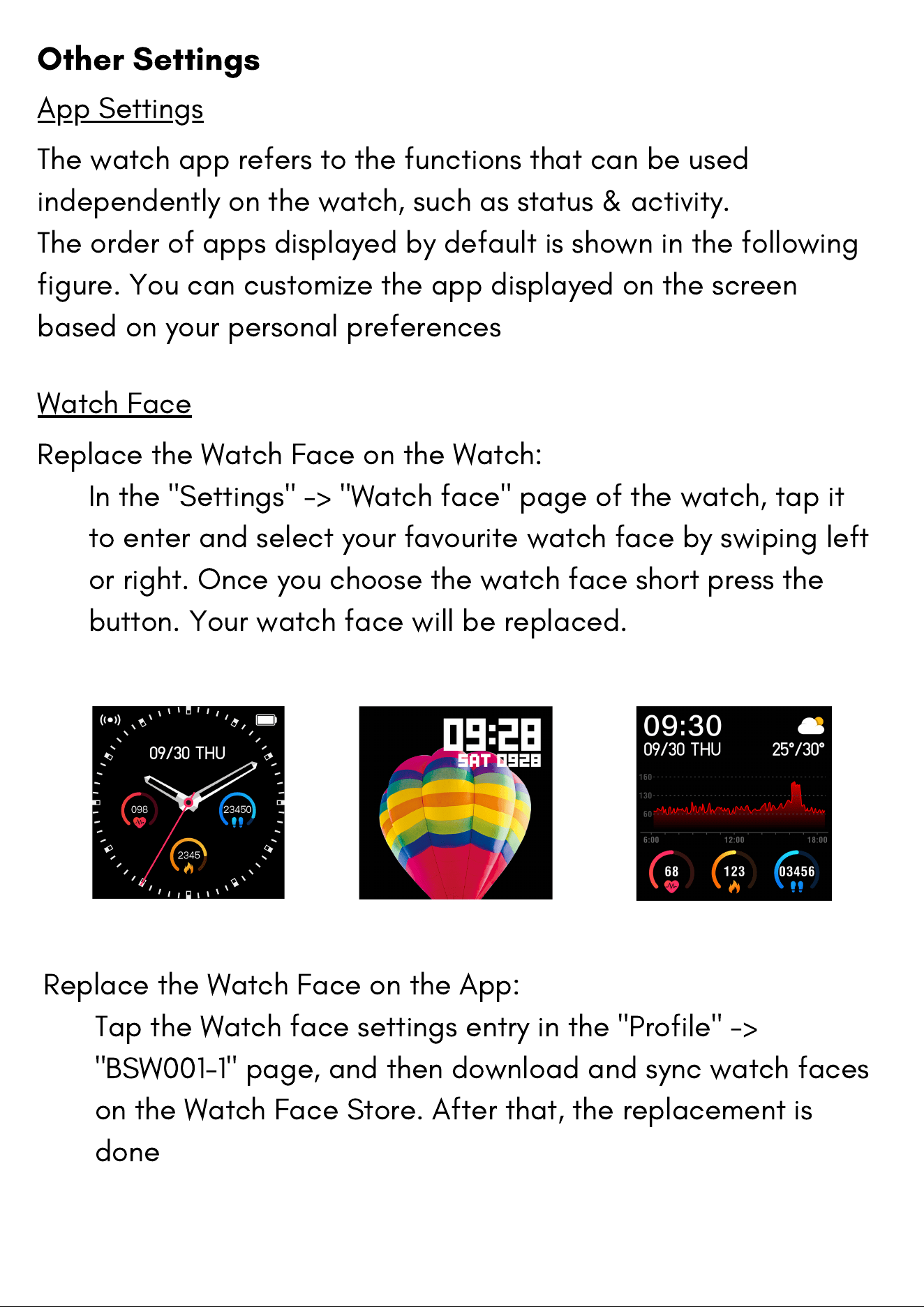
Replace the Watch Face on the Watch:
In the "Settings" -> "Watch face" page of the watch, tap it
to enter and select your favourite watch face by swiping left
or right. Once you choose the watch face short press the
button. Your watch face will be replaced.
Watch Face
Replace the Watch Face on the App:
Tap the Watch face settings entry in the "Profile" ->
"BSW001-1" page, and then download and sync watch faces
on the Watch Face Store. After that, the replacement is
done
Other Settings
Notifications
During use, you need to enable the corresponding "App alerts"
on the Da Fit App, and keep the watch and the mobile phone
connected.
If you are using an iOS device, you need to pair the watch with
the Bluetooth of the mobile phone before use.
Enable Notifications
If you are using an Android device, you need to include the App
into the whitelist or self-starting list of the mobile phone in
background settings and keep the App running in the
background to protect it from being detected and killed by the
mobile phone's background processes. Such background
processes could disconnect the watch and the App, and as a
result no reminder will be received. See "Profile" -> "BSW001-1" -
> "Run in background" settings for different mobile phone
systems
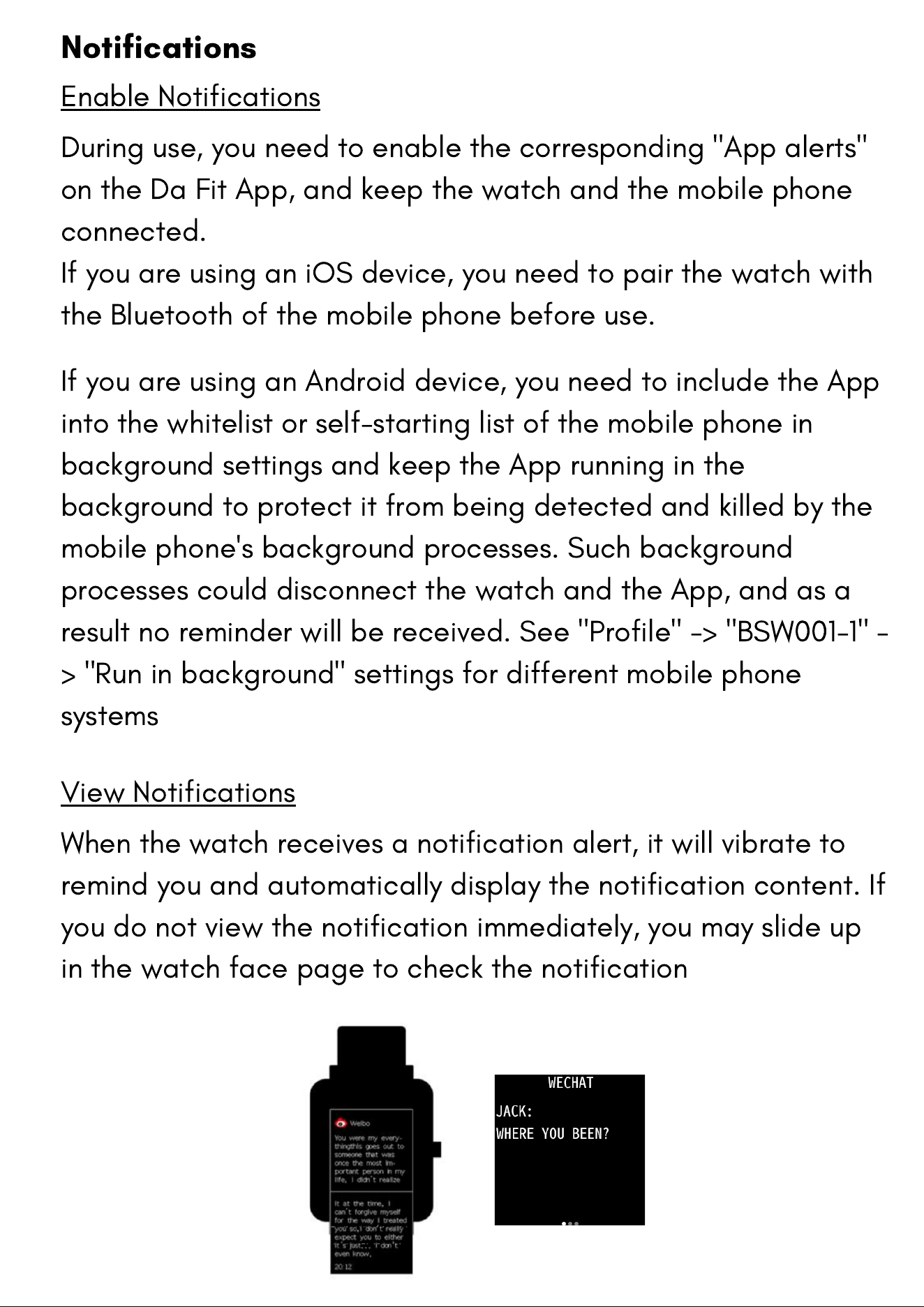
When the watch receives a notification alert, it will vibrate to
remind you and automatically display the notification content. If
you do not view the notification immediately, you may slide up
in the watch face page to check the notification
View Notifications
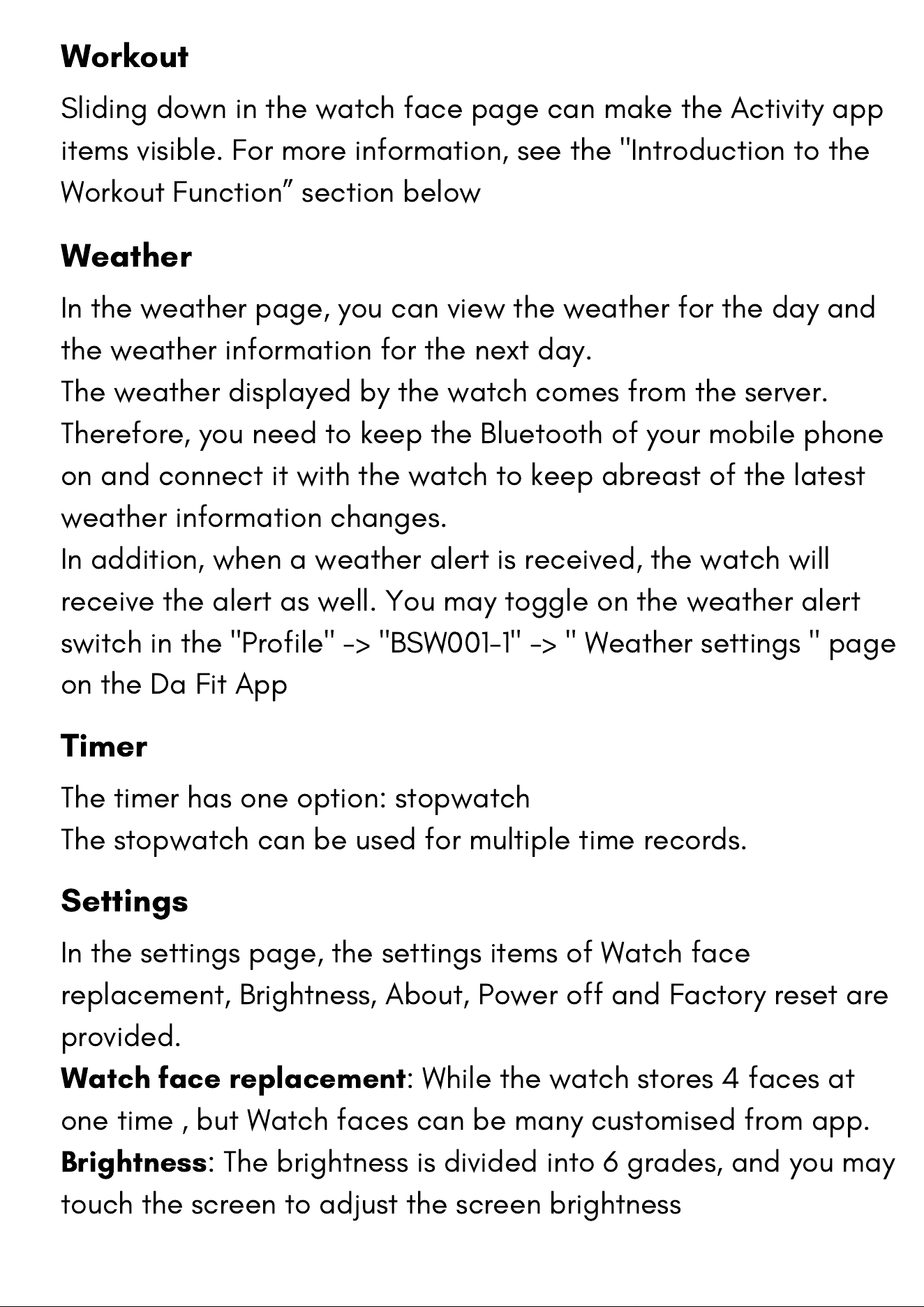
Workout
Sliding down in the watch face page can make the Activity app
items visible. For more information, see the "Introduction to the
Workout Function” section below
Weather
In the weather page, you can view the weather for the day and
the weather information for the next day.
The weather displayed by the watch comes from the server.
Therefore, you need to keep the Bluetooth of your mobile phone
on and connect it with the watch to keep abreast of the latest
weather information changes.
In addition, when a weather alert is received, the watch will
receive the alert as well. You may toggle on the weather alert
switch in the "Profile" -> "BSW001-1" -> " Weather settings " page
on the Da Fit App
Timer
The timer has one option: stopwatch
The stopwatch can be used for multiple time records.
Settings
In the settings page, the settings items of Watch face
replacement, Brightness, About, Power off and Factory reset are
provided.
Watch face replacement
: While the watch stores 4 faces at
one time , but Watch faces can be many customised from app.
Brightness
: The brightness is divided into 6 grades, and you may
touch the screen to adjust the screen brightness
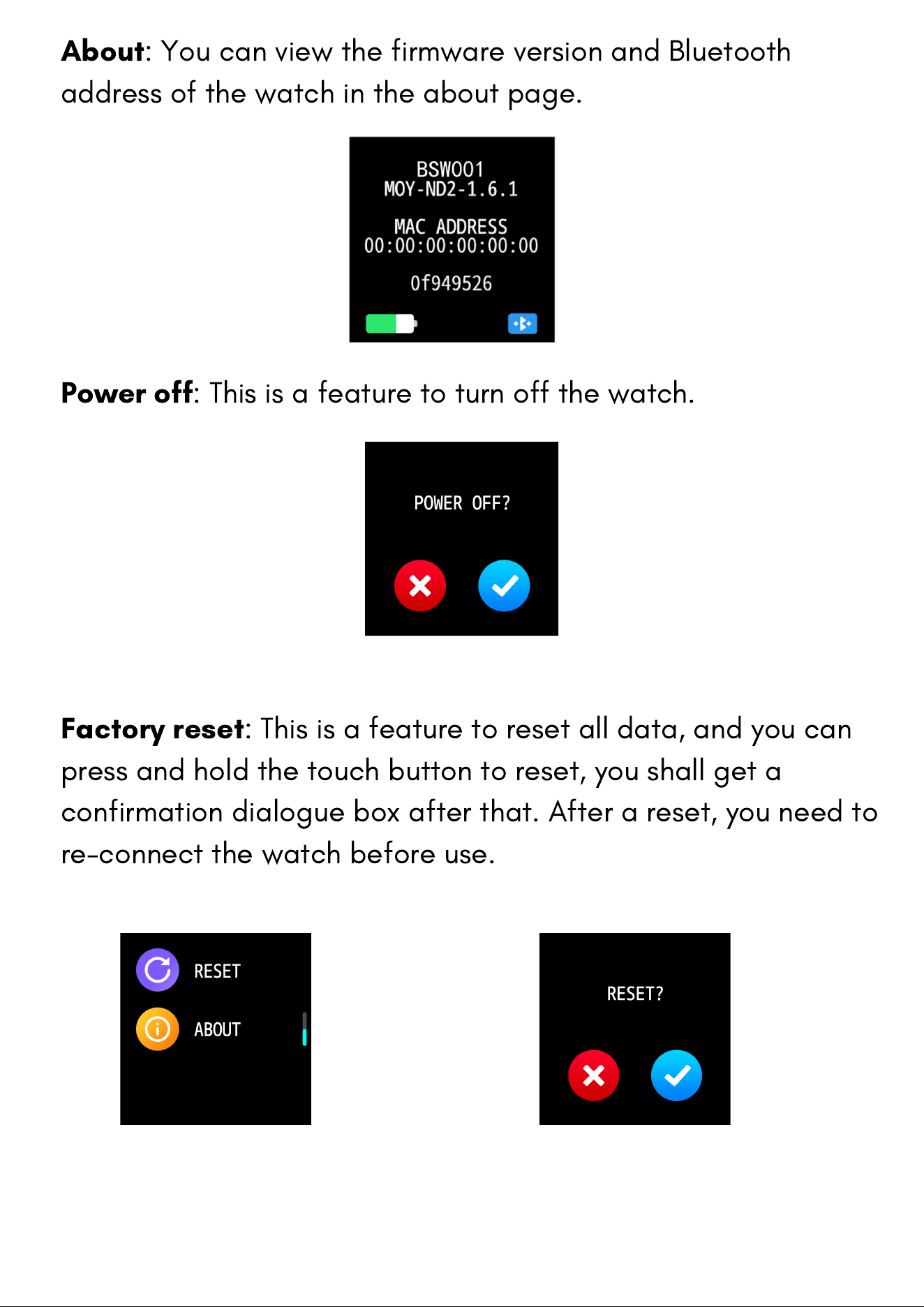
About
: You can view the firmware version and Bluetooth
address of the watch in the about page.
Power off
: This is a feature to turn off the watch.
Factory reset
: This is a feature to reset all data, and you can
press and hold the touch button to reset, you shall get a
confirmation dialogue box after that. After a reset, you need to
re-connect the watch before use.
Watch Status Reminder
Incoming Call
When the watch receives incoming calls, it will vibrate to remind
you.
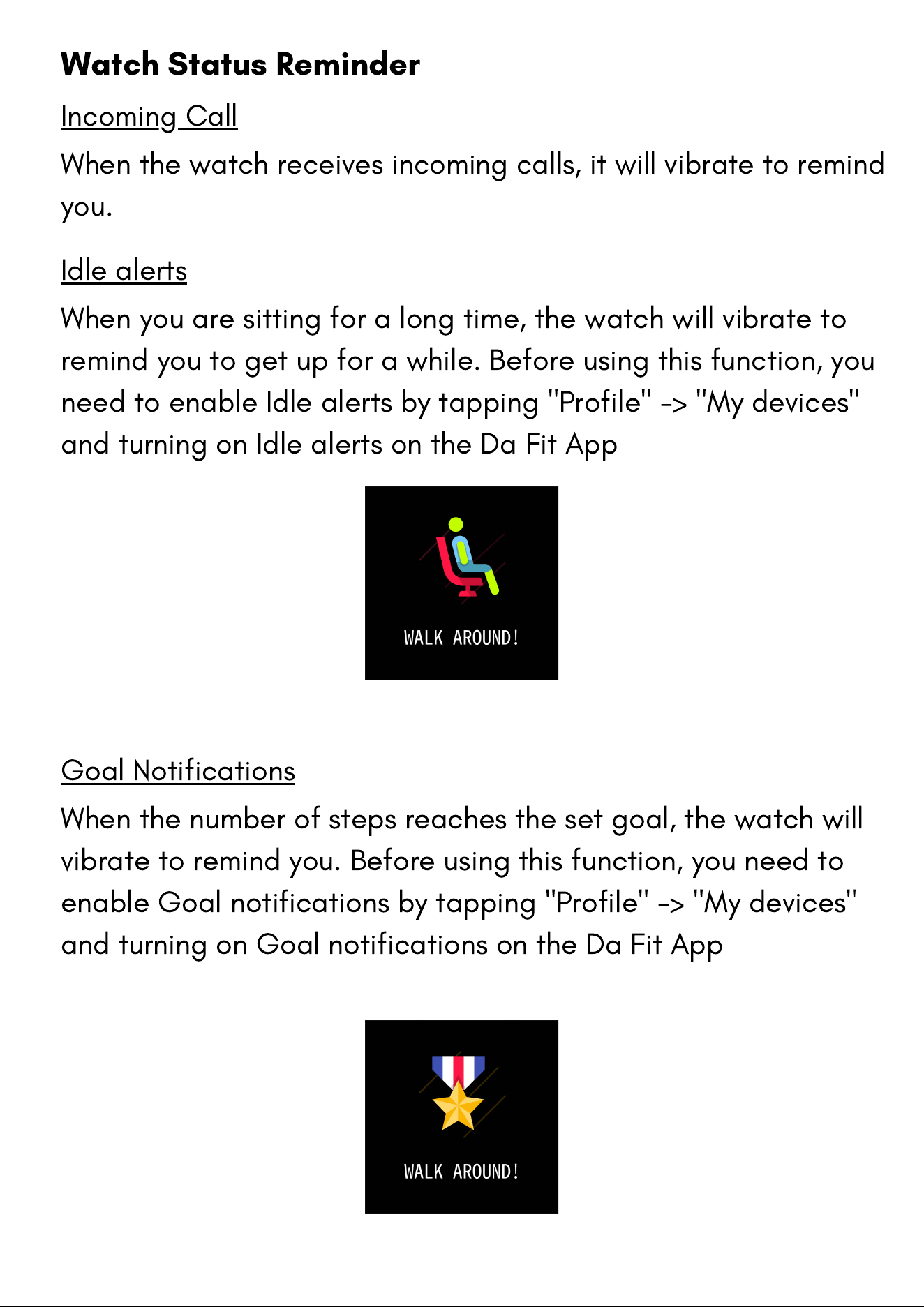
Idle alerts
When you are sitting for a long time, the watch will vibrate to
remind you to get up for a while. Before using this function, you
need to enable Idle alerts by tapping "Profile" -> "My devices"
and turning on Idle alerts on the Da Fit App
Goal Notifications
When the number of steps reaches the set goal, the watch will
vibrate to remind you. Before using this function, you need to
enable Goal notifications by tapping "Profile" -> "My devices"
and turning on Goal notifications on the Da Fit App
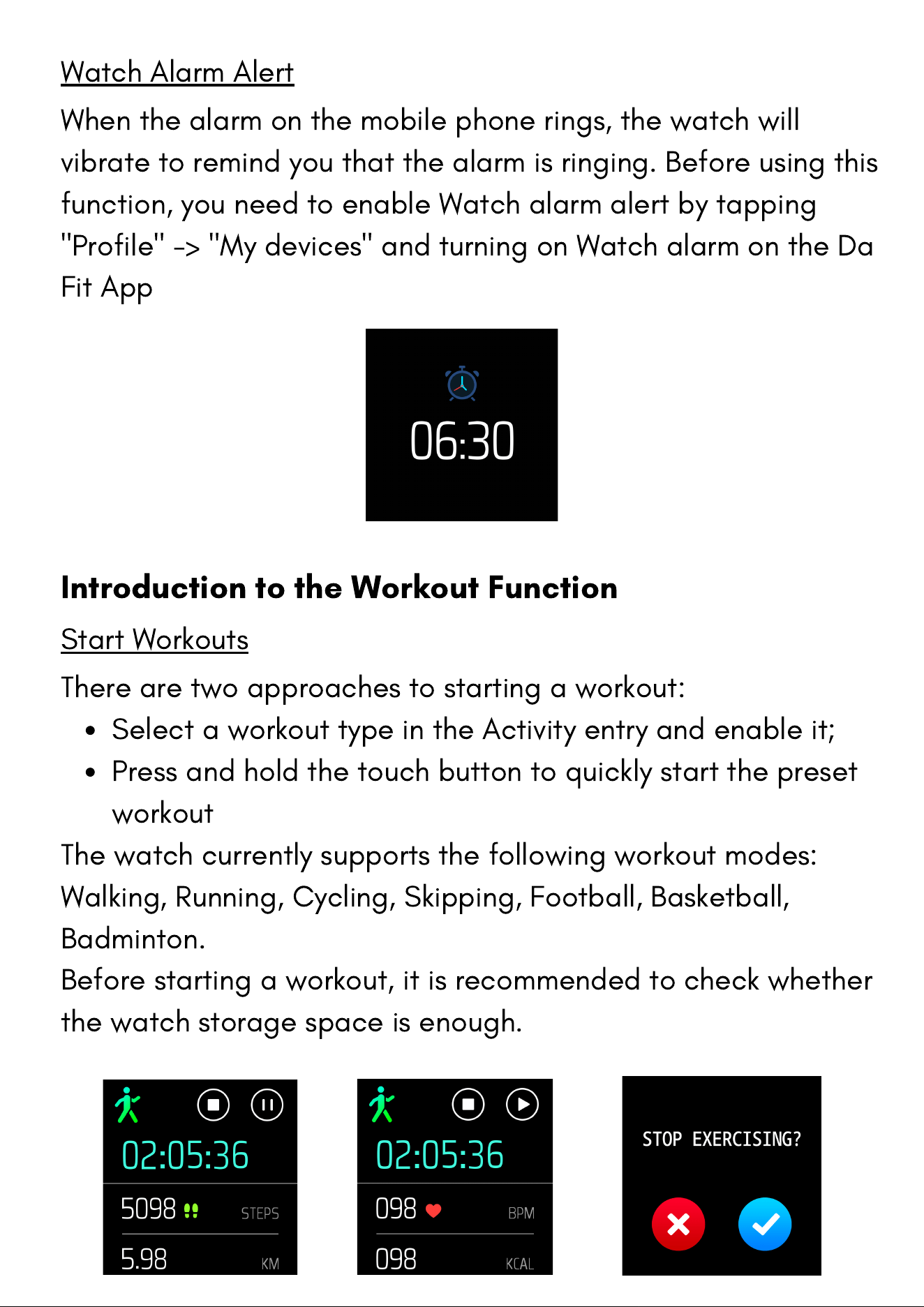
Select a workout type in the Activity entry and enable it;
Press and hold the touch button to quickly start the preset
workout
There are two approaches to starting a workout:
The watch currently supports the following workout modes:
Walking, Running, Cycling, Skipping, Football, Basketball,
Badminton.
Before starting a workout, it is recommended to check whether
the watch storage space is enough.
Introduction to the Workout Function
Start Workouts
Watch Alarm Alert
When the alarm on the mobile phone rings, the watch will
vibrate to remind you that the alarm is ringing. Before using this
function, you need to enable Watch alarm alert by tapping
"Profile" -> "My devices" and turning on Watch alarm on the Da
Fit App
The watch has an IPX7 waterproof and dustproof rating, and
can withstand 5-minute soaking in fresh water 1m deep at
the room temperature, but it is not suitable for swimming or
bathing.
Do not operate the watch underwater. After touching water,
do not operate the touch screen or charge the watch until
the watch is wiped by using a soft cloth.
The watch is not resistant to erosive liquids such as
seawater, acidic and alkaline solutions and chemical
reagents. Damages or defects caused by misuse or improper
use are not covered under warranty.
Precautions
Daily Maintenance of the Watch
1. The watch is water resistant. It is recommended to clean the
watch and watchband regularly with water and dry them with a
soft cloth before wearing.
2. Don't use detergents such as soap, hand sanitizer, or bath
foam for cleaning to avoid chemical residues from irritating the
skin or corroding the device.
3. When you wear the watch in a bath (which enables use during
bath), in swimming (which enables use during swimming), or with
sweat, please clean and dry the watch timely.
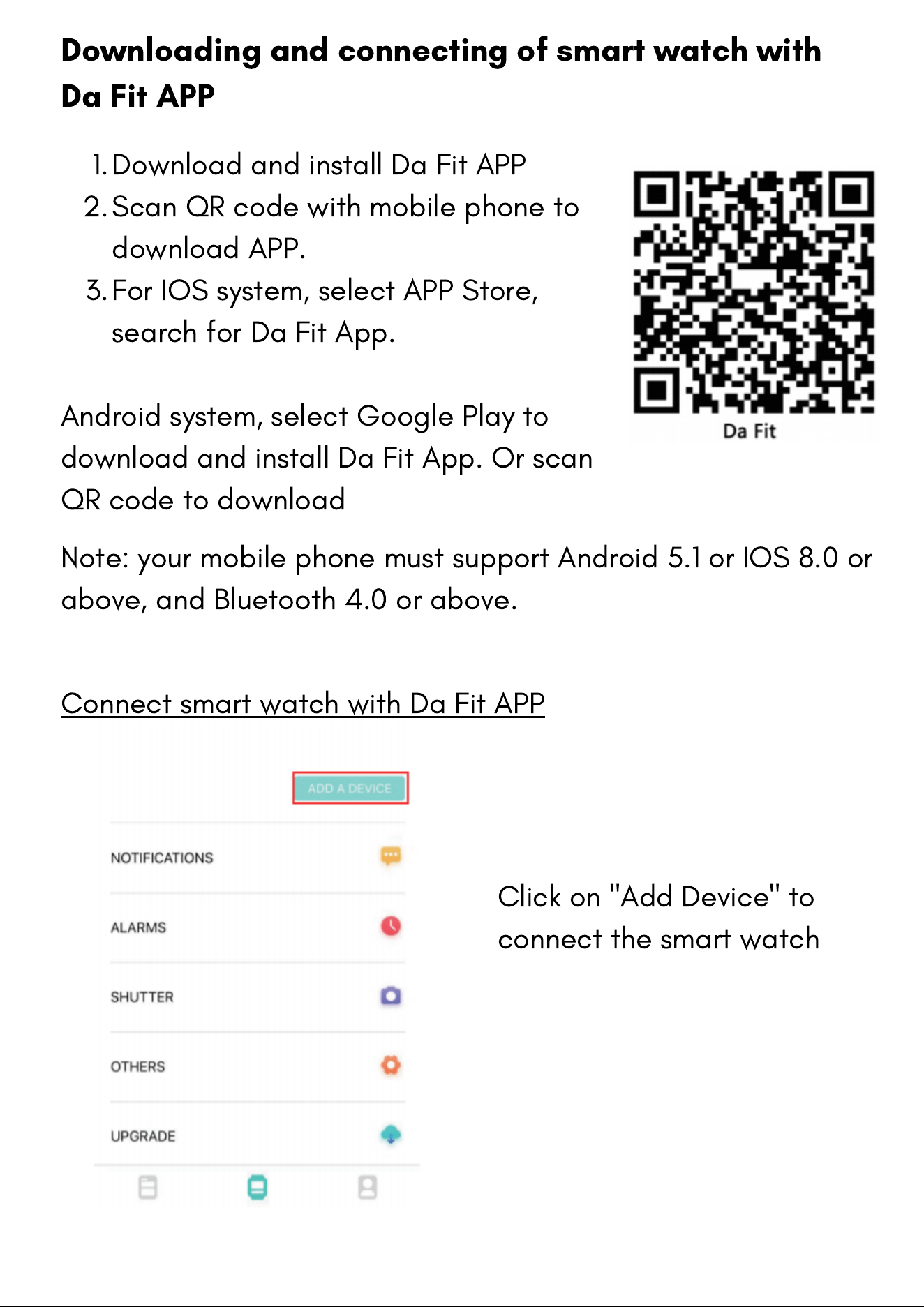
Download and install Da Fit APP
Scan QR code with mobile phone to
download APP.
For IOS system, select APP Store,
search for Da Fit App.
1.
2.
3.
Android system, select Google Play to
download and install Da Fit App. Or scan
QR code to download
Downloading and connecting of smart watch with
Da Fit APP
Connect smart watch with Da Fit APP
Note: your mobile phone must support Android 5.1 or IOS 8.0 or
above, and Bluetooth 4.0 or above.
Click on "Add Device" to
connect the smart watch
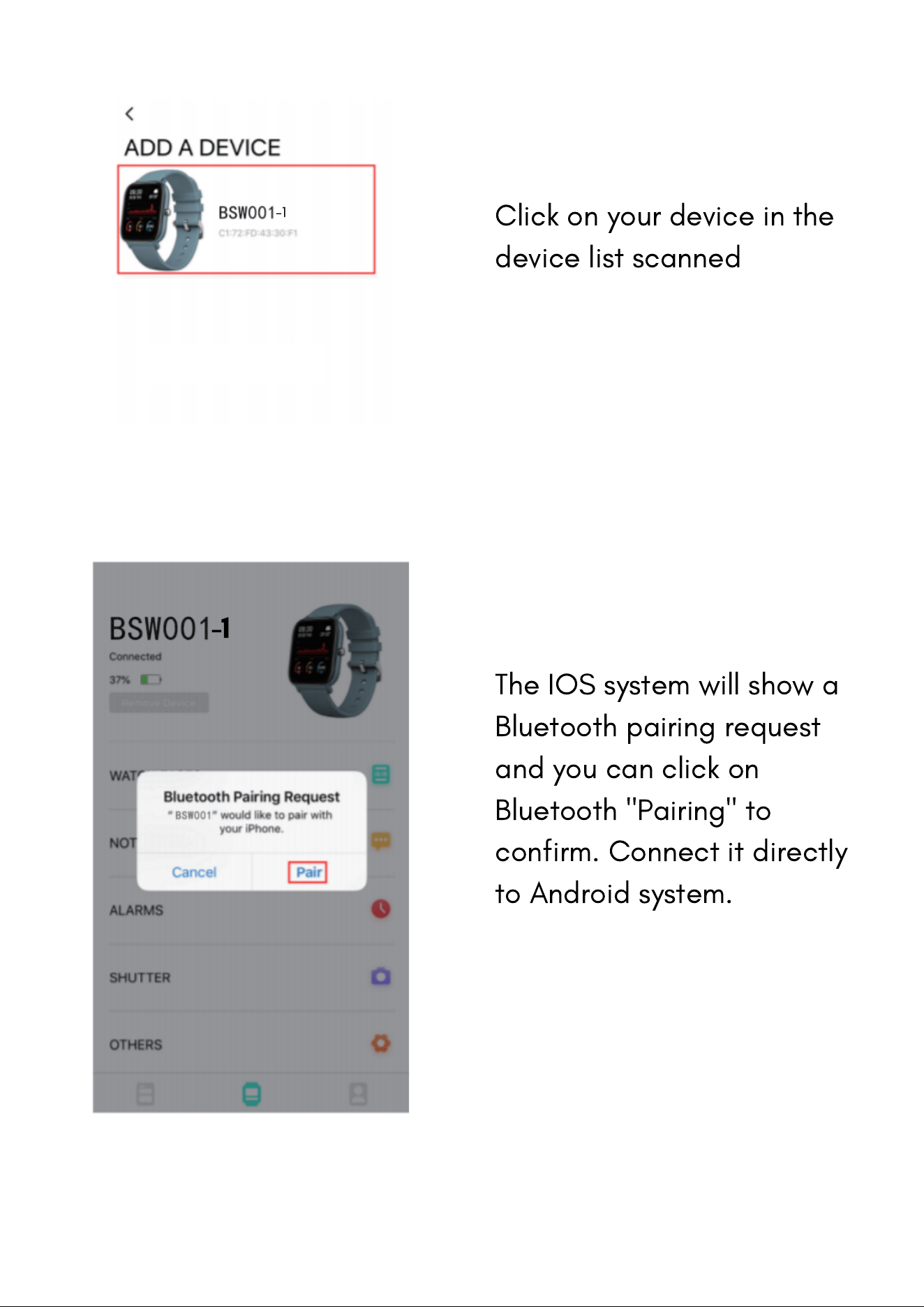
Click on your device in the
device list scanned
The IOS system will show a
Bluetooth pairing request
and you can click on
Bluetooth "Pairing" to
confirm. Connect it directly
to Android system.
-1
-1
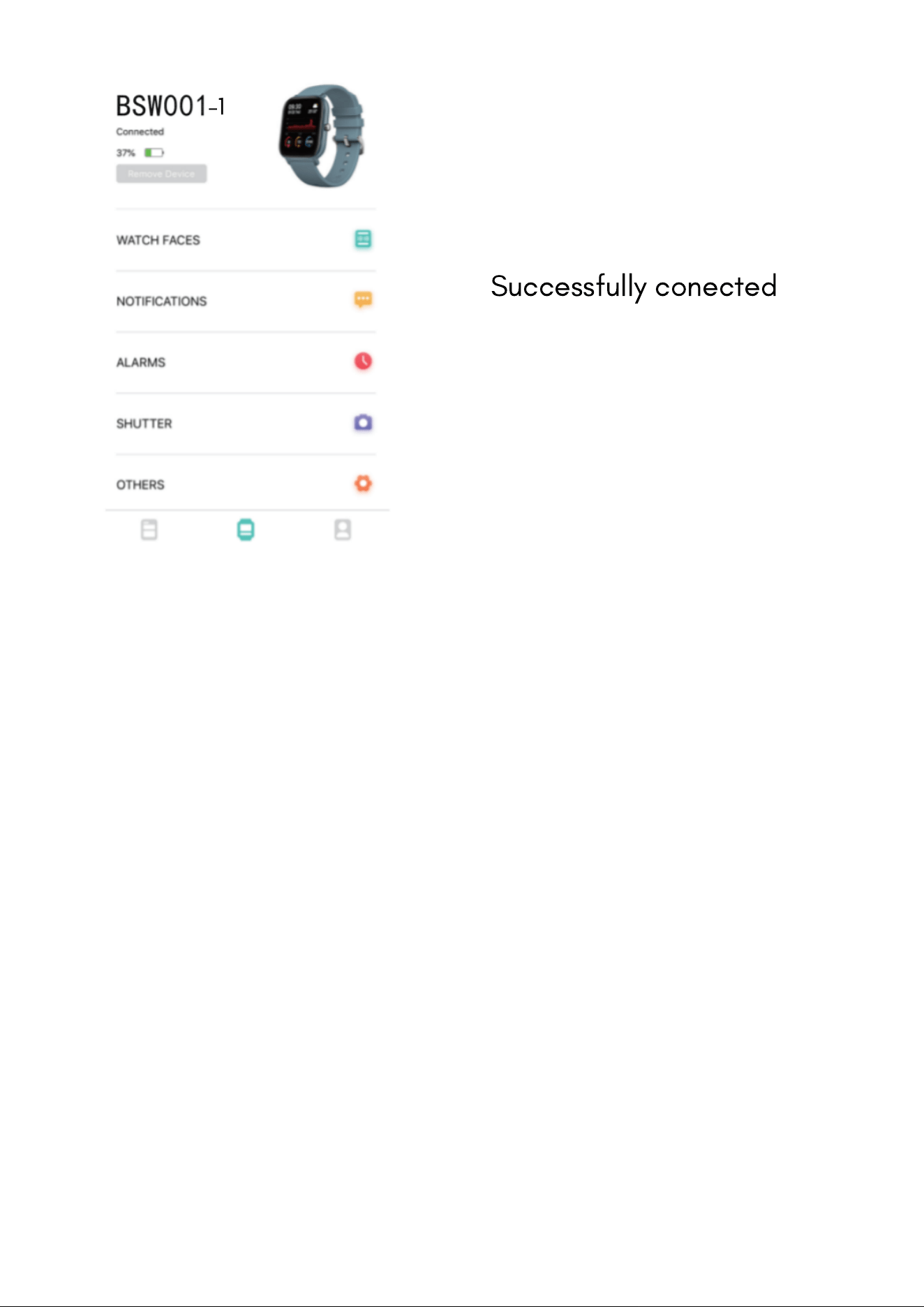
Successfully conected
-1