1 FR Quick Start Guide
General
Luxriot Vero Face Recognition (further referred to simply as FR) is a biometric face recognition application designed
to work with Luxriot EVO video management platform. Leading-edge technology assures optimal system
performance and reliability with real time face detection, concurrent multiple face recognition and instant face
matching in 1-to-1 and 1-to-many modes.
This document will guide you through the process of product installation, activation, and first start. The product
installation contains a full documentation package with the detailed setup guidelines, configuration tips, and
troubleshooting advice.
Architecture
Luxriot Vero Face Recognition operates based on video streams provided by one or multiple Luxriot EVO servers. It
does not work directly with streams from IP cameras. Each recognition event is then sent back to Luxriot EVO,
allowing you to react to these events and search the result history.
The recognition results are stored on the FR server: result database + frame archive.
Notifications about live recognition events are sent to Luxriot EVO Console for E&A rules, and also to
Luxriot EVO Monitor for live popup in the FR channel notification area.
These notifications include details about the recognition events.
Luxriot EVO Monitor allows searching recognition history based on time, subject's name and/or image.
Supported Luxriot EVO editions are Luxriot EVO S and Luxriot EVO Global, starting from the software version
1.17.0.
For Luxriot EVO Global, FR can work either with the whole system at once (connected to the central server), or with
any of the Luxriot EVO Recording Server machines directly.
Licensing
Luxriot Vero Face Recognition license defines the maximum number of subjects in the matching database.
Features Figures
Number of faces in the subjects' database from 100 to 10 000 000, or unlimited**
Number of connected servers and channels* Not limited
Number of connected channels* Not limited
*Server hardware must comply with recommendations
**Only limited by database size
System Requirements
Luxriot EVO server version must be 1.17.0 or newer.
Microsoft Windows 64-bit versions only, no 32-bit (x86) version support: Windows 8.1/10, Windows Server 2012
R2/2016/2019. FR requires that .NET 4.5 and 4.7 framework is installed on the server. Please also ensure that the
target OS has all the latest updates.
Hardware: Intel CPUs with AVX/AVX2 support (produced after 2011, please verify before choosing your FR
server hardware).
Minimum hardware requirements per FR channel: 2 physical cores 2.4GHz, 2GB RAM, for ~1080@20FPS
channel with average people flow (Luxriot EVO not included).
Face recognition result precision greatly depends on the quality of input image quality; pay attention to the camera
installation and preliminary work with FR configuration. Please consider the recommendations in the main FR
administration manual and use them as a checklist when deploying your FR system.
Luxriot Vero FR Quick Start Guide 1
©2021 Luxriot. All Rights Reserved.
Product Installation
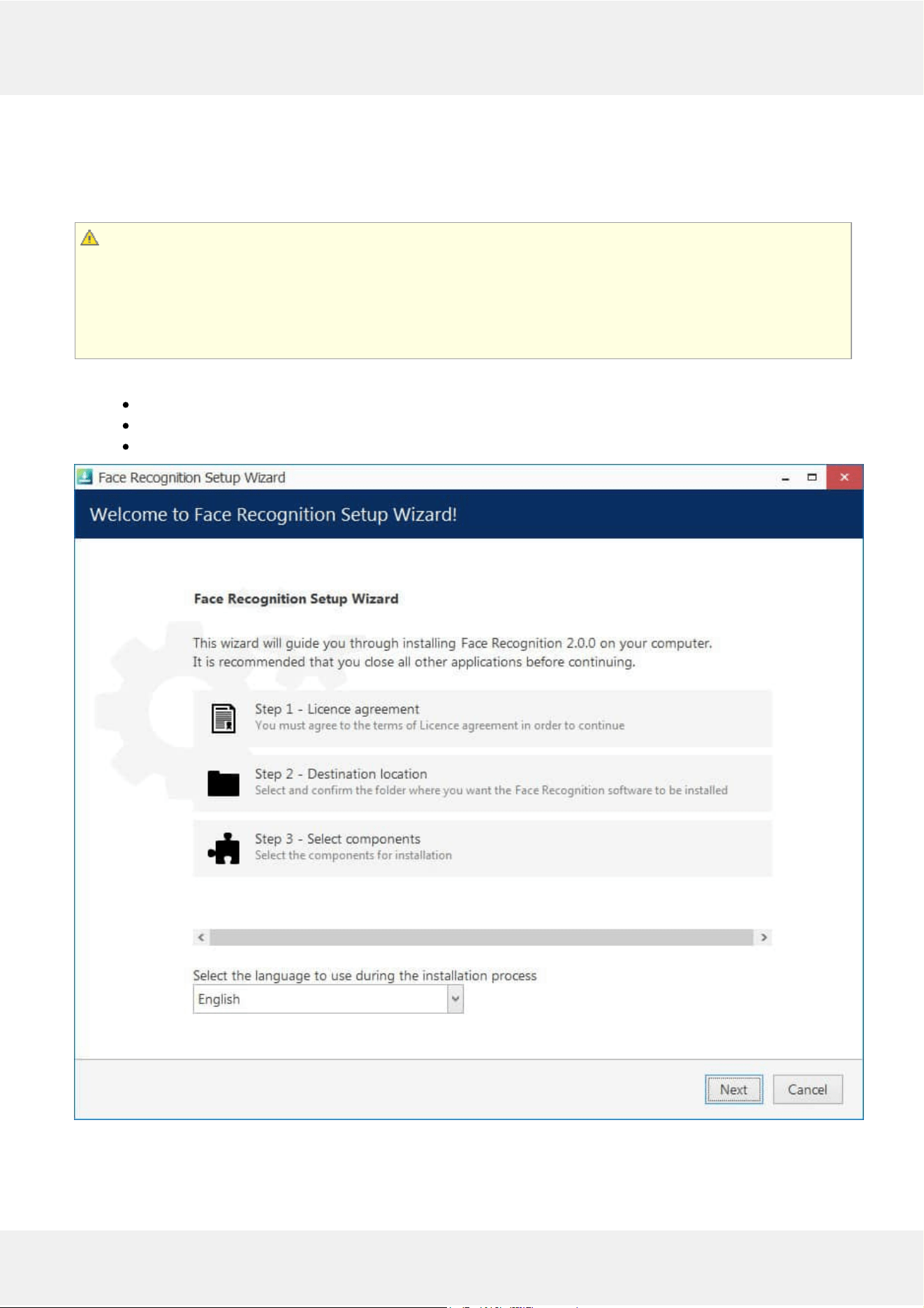
Run Luxriot Vero Face Recognition installation package and go through the steps to set it up on your system. You
will be asked to agree to the EULA, as well as choose the installation folder and product language.
Important: for CPUs without AVX/AVX2 support, you need to download an additional *.msi package
(usually provided together with the main FR installation file). Put it into the same directory as the main
installation package (otherwise, you will be prompted to browse for it during installation).
Without the extra package, FR operation on older CPUs may be unstable or impose higher CPU load. We
strongly recommend using newer CPUs with AVX/AVX2 support, and do not guarantee FR operation on older
ones.
If something goes wrong during the installation:
make sure the host system meets the system requirements listed above
ensure you have the latest FR release version
contact [email protected] for assistance
Run the Face Recognition installation wizard
Click Finish to close the wizard.
As a result, Luxriot Vero Face Recognition will appear in the list of Windows services. Immediately after the setup is
complete, the FR service will be started automatically and you will be able to run FR as described below.
Luxriot Vero FR Quick Start Guide 2
©2021 Luxriot. All Rights Reserved.
First Run
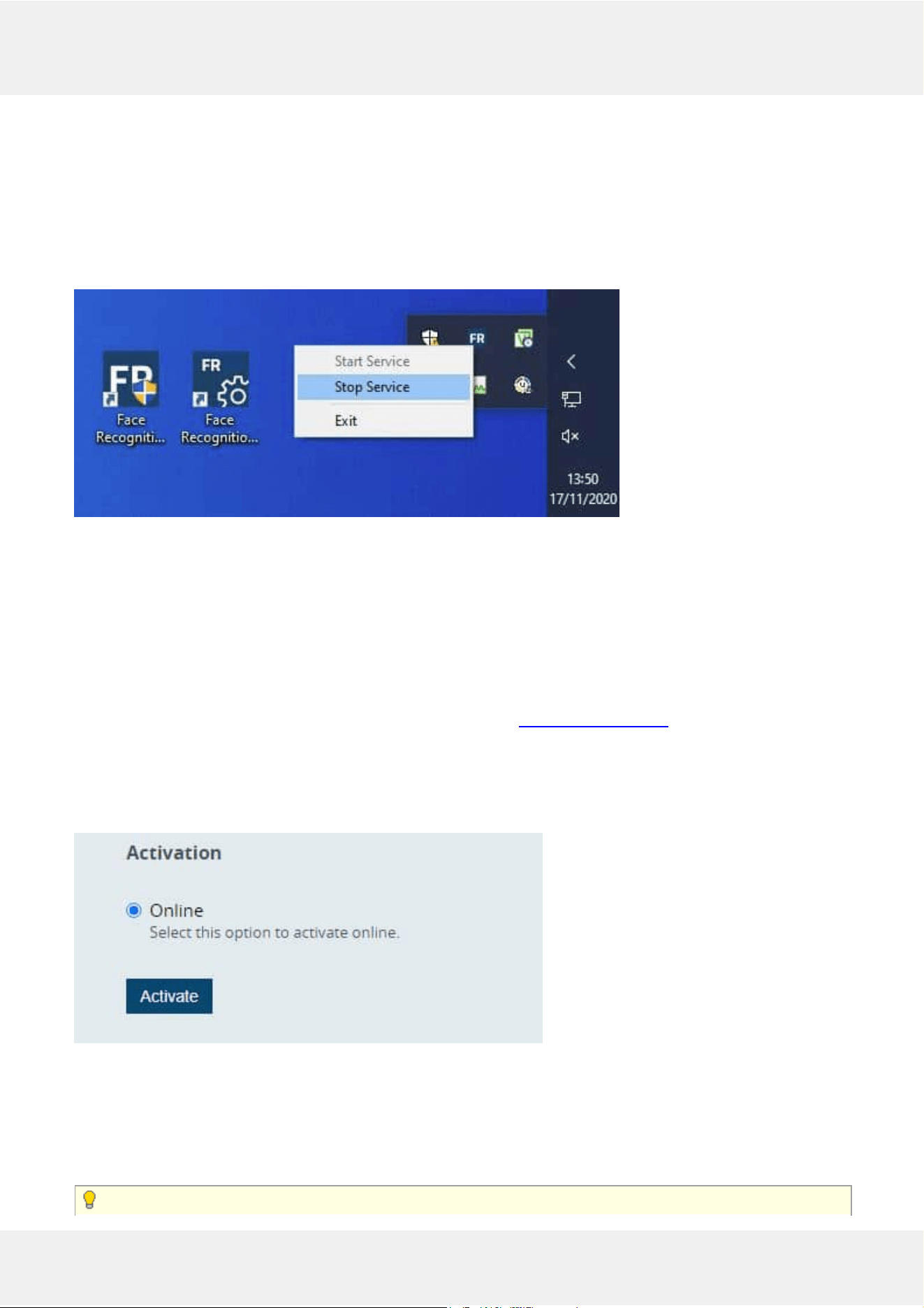
Start the FR service shell by launching the Face Recognition Service Tray Tool shortcut from your Desktop. FR
icon will then appear in your system tray, allowing you to start and stop the service simply by right-clicking the
tray icon and choosing the corresponding option.
The Face Recognition server itself has no graphics user interface, running silently as a Windows service, but has a
Web based management console, easy to access and to use.
FR shortcuts and tray tool
Having installed and launched the FR service, you can access its control UI either by clicking the Face Recognition
Service Configuration icon or your Desktop, or by typing in the address manually in the Web browser using the
following default parameters:
Address: localhost or local IP address
Port: 8085
Username: admin
Password: admin
You will be able to change these settings via Service Settings after you log in.
For the parameters above, the FR Web UI access link will look like http://localhost:8085.
License Activation
When you open the FR Web management console for the first time, you will be asked to activate your license key in
order to proceed.
FR license activation options
When navigated away from the Web Management console main page, you will still see your license information and
a link to the license manager in bottom left corner of the page.
The following options are available:
Online activation: Internet access is required at the activation stage, but will not be necessary for further FR
operation.
Note that Luxriot Vero Face Recognition license is bound to the server hardware set.
Luxriot Vero FR Quick Start Guide 3
©2021 Luxriot. All Rights Reserved.
ONLY activate FR on the ultimate hardware set, and do not remove the hardware components after
activation. This includes HDDs, NICs, graphics cards etc.
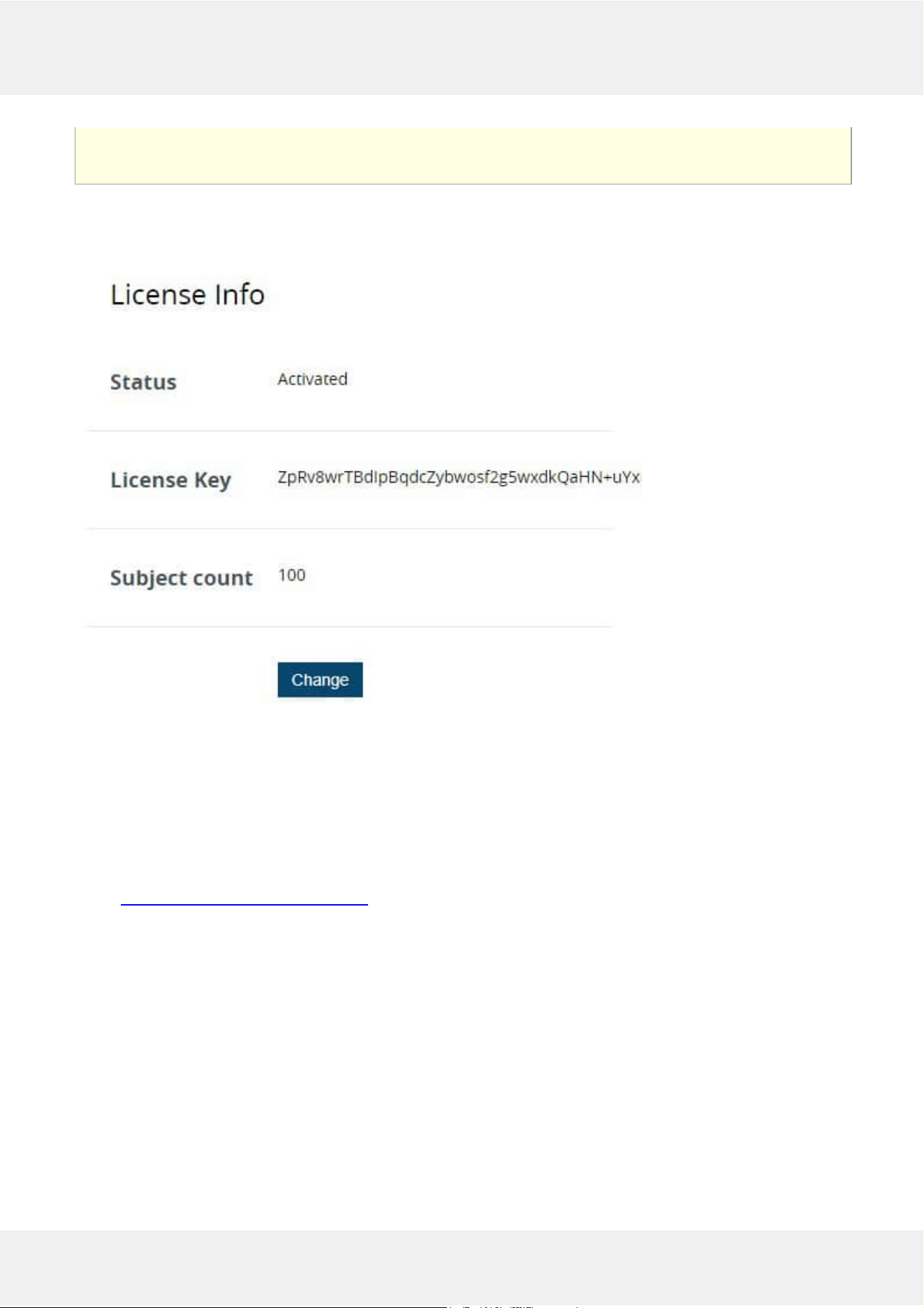
Simply enter your FR license key and click Activate: the form will automatically connect to the activation server and
get back to you with a confirmation and license info. FR license limits the number of faces in the subjects' database,
so you will see the maximum number of subjects in the summary.
License summary
Offline activation is not available at this point. If you wish to obtain an trial license for preliminary testing, kindly
contact our support engineers at [email protected].
Documentation
For further Luxriot Vero Face Recognition configuration guidelines, kindly refer to the document bundled with the
software. You will find it in FR Web UI under the User Guide section:
http://localhost:8085/html/manual
Luxriot Vero FR Quick Start Guide 4
©2021 Luxriot. All Rights Reserved.