

About this document
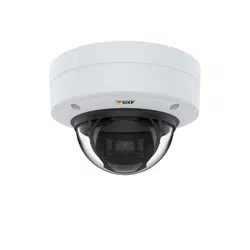
This manual is intended for administrators and users of AXIS P3367–VE
Fixed Dome Network Camera, and is applicable to firmware 5.40 and
later. It includes instructions for using and m anaging the product on
your network. Previous experience of networking will be of use when
using this product. Some knowledge of UNIX or Linux-based systems
may also be beneficial, for developing shell scripts and applications.
Later version of this document will be posted to the Axis website,
as required. See also t he product’s online help, available via the
web-based interface.
Liability
Every care has been taken in the preparation of this manual. Please
inform your local Axis office of any inaccuracies or omissions. Axis
Communications AB cannot be held responsible for any technical or
typographical errors and reserves the right to make changes to the
product and manuals without prior notice. Axis Communications AB
makes no w arranty of any kind with regard to the material contained
within this document, including, but n o t limited to, the implied
warranties of merchantability and fitness for a particular purpose. A xis
Communications AB shall not be liable nor responsible for incidental or
consequential damages in connection with the furnishing, performance
or use of this m aterial.
Intellectual Property Rights
Axis AB has intellectual property rights relating to technology embodied
in the product described in this document. In particular, and without
limitation, these intellectual property rights may includ e one or more
of the patents listed at h ttp://www.axis.com/patent.htm and one or
more additional patents or pending patent applications in th e US a nd
other countries.
This produc t contains li censed th ird-party software. See the menu item
“About” in the product’s user interface fo r more information.
This product contains source code copyright Apple Computer,
Inc.,underthetermsofApplePublicSourceLicense2.0(see
http://www.opensource.ap ple.com/apsl). The source code is available
from h ttp://developer.apple.com/darwin/pro jects/ bon jou r/
Equipment Modifications
This equipment must be installed and used in strict a ccordance with the
instructions given in the user documentation. This equipment contains
no user-serviceable components. Unauthorized equipment changes or
modifications will invalidate all applicable regulatory certifications
and approvals.
Trademark Acknowledgments
Apple, Boa, Bonjour, Ethernet, Internet Explorer, Linux , Microsoft,
Mozilla, Real, SMPTE, QuickTime, UNIX, Windows, WWW are registere
d
trademarks of the respective holders. Java and all Java-based
trademarks and logos are trademarks or registered trademarks of Oracle
and/or its affiliates. UPnP
TM
is a certification mark of the UPnP
TM
Implementers Corporation.
Support
Should you require any technical assistance
,pleasecontactyourAxis
reseller. If your questions cannot be answered immediately, your
reseller will forward your queries through the appropriate channels to
ensure a rapid response. If you are connec
tedtotheInternet,youcan:
• download user documentation and software updates
• find answers to resolved problems in the FAQ database. Search
by product, category, or phrase
• report problems to Axis support staff by logging in to your private
support area
• chat with Axis support staff (se lected countries only)
• visit Axis Support at www.axis.com/techsup/

AXIS P3367–VE Fixed Dome Network Camera
Table of contents
Hardwareoverview .......................................... 4
Connectors .................................................... 5
LEDindicators .................................................. 6
Accessingtheproduct ....................................... 7
Accessfromabrowser ........................................... 7
AccessfromtheInternet .......................................... 8
Settherootpassword ............................................ 8
TheLiveViewpage .............................................. 9
Mediastreams .............................................. 12
HowtostreamH.264 ............................................ 12
MJPEG ........................................................ 12
AXISMediaControl(AMC) ........................................ 12
Alternativemethodsofaccessingthevideostream .................... 13
Accessingaudiostreams .......................................... 14
Settinguptheproduct ....................................... 15
BasicSetup .................................................... 15
VideoandAudio ............................................ 16
VideoStream ................................................... 16
Stream Profiles ................................................. 17
CameraSettings ................................................ 17
ViewAreas ..................................................... 19
Overlay ........................................................ 20
PrivacyMask ................................................... 20
Focus & Zoom . . . . . . . . . . . . . . . . . . . . . . . . . . . . . . . . . . . . . . . . . . . . . . . . . . 20
AudioSettings .................................................. 21
AudioClips .................................................... 22
Live View Config ............................................ 23
PTZ (Pan Tilt Zoom) ......................................... 25
Presetpositions ................................................. 25
GuardTour ..................................................... 26
Advanced ...................................................... 26
Detectors .................................................. 27
CameraTampering .............................................. 27
Motiondetection ............................................... 27
Audiodetection ................................................. 29
Applications . .............................................. 30
Events .................................................... 31
SettingupanActionRule ......................................... 31
Recipients ..................................................... 32
Schedules ...................................................... 32
Recurr
ences ....................................................
32
Recordings ................................................. 33
RecordingList .................................................. 33
Continuousrecording ............................................ 33
SystemOptions ............................................. 34
Security ....................................................... 34
Date&Time .................................................... 35
Network ....................................................... 36
Storage ....................................................... 40
Ports&Devices ................................................. 41
Maintenance ................................................... 41
Support ....................................................... 42
Advanced ...................................................... 43
Resettofactorydefaultsettings ................................... 43
Troubleshooting ............................................ 45
Checking the firmware ........................................... 45
Upgrading the firmware .......................................... 45
Emergencyrecoveryprocedure ..................................... 45
Symptoms,possiblecausesandremedialactions ...................... 46
Technical Specifications ...................................... 50
Performanceconsiderations ....................................... 52
3
AXIS P3367–VE Fixed Dome Network Camera
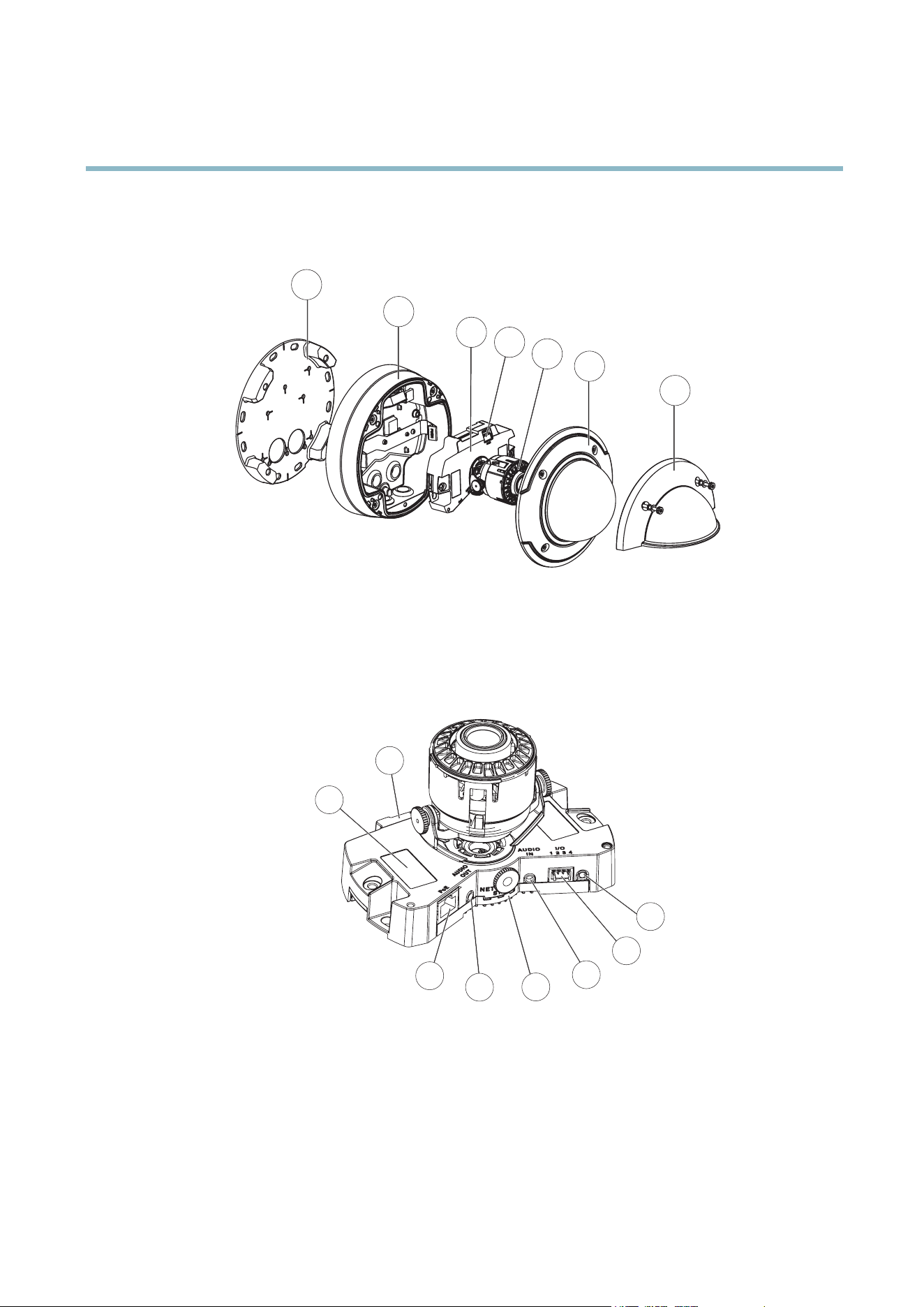
Hardware overview
Hardware overview
7
6
2
1
5
4
3
1
Mounting bracket
2
Unit casing
3
Camera unit
4
Fan output connector
5
Heater. C aution! The heater may be hot.
6
Dome cover
7
Weather shield
2
1
3
4
5
6
7
8
1
Part number (P/N) & Serial number (S/N)
2
SD card slot
3
Network connector (PoE)
4
Audio out
5
Networ
k, Status and Power LED indicators
6
Audio in
7
I/O connector
8
Co
ntrol button
4
AXIS P3367–VE Fixed Dome Network Camera
Hardware overview
Connectors
Network connector - RJ-45 Ethernet connector. Supports Power over Ethernet ( PoE). A shielded network cable (STP) must be
used to protect the product against power surges.
Audio in (pink) - 3.5 mm input for a m ono microphone, or a line-in mono signal (left channel is used from a stereo signal).
Audio out (green) - 3.5 mm output for audio (line level) that can be connected to a public address (PA) system or an active speaker
with a built-in a mplifier. A stereo connector must be used for the audio out.
SD card slot - A standard or high-capacity SD card (not included) can be used for local recording with remo vable storage. For
instructions on how to insert and remove an SD card, please refer to the Installation Guide.
Note
Before removal, the SD card should be unmounted to prevent corruption of recordings. To unmount the SD card, go to Setup
>SystemOptions>Storage>SDCardand click Unmount.
Control button - The control button is used for:
• ConnectingtoanAXISVideoHostingSystemservice.Seepage 37. To connect, press and hold the button for about 1
second until the Status LED flashes green.
• Connecting to AXIS Internet Dynamic DNS Service. See page 37. To connect, press and hold the button for about 3
seconds.
• Resetting the product to factory default settings. See page 43.
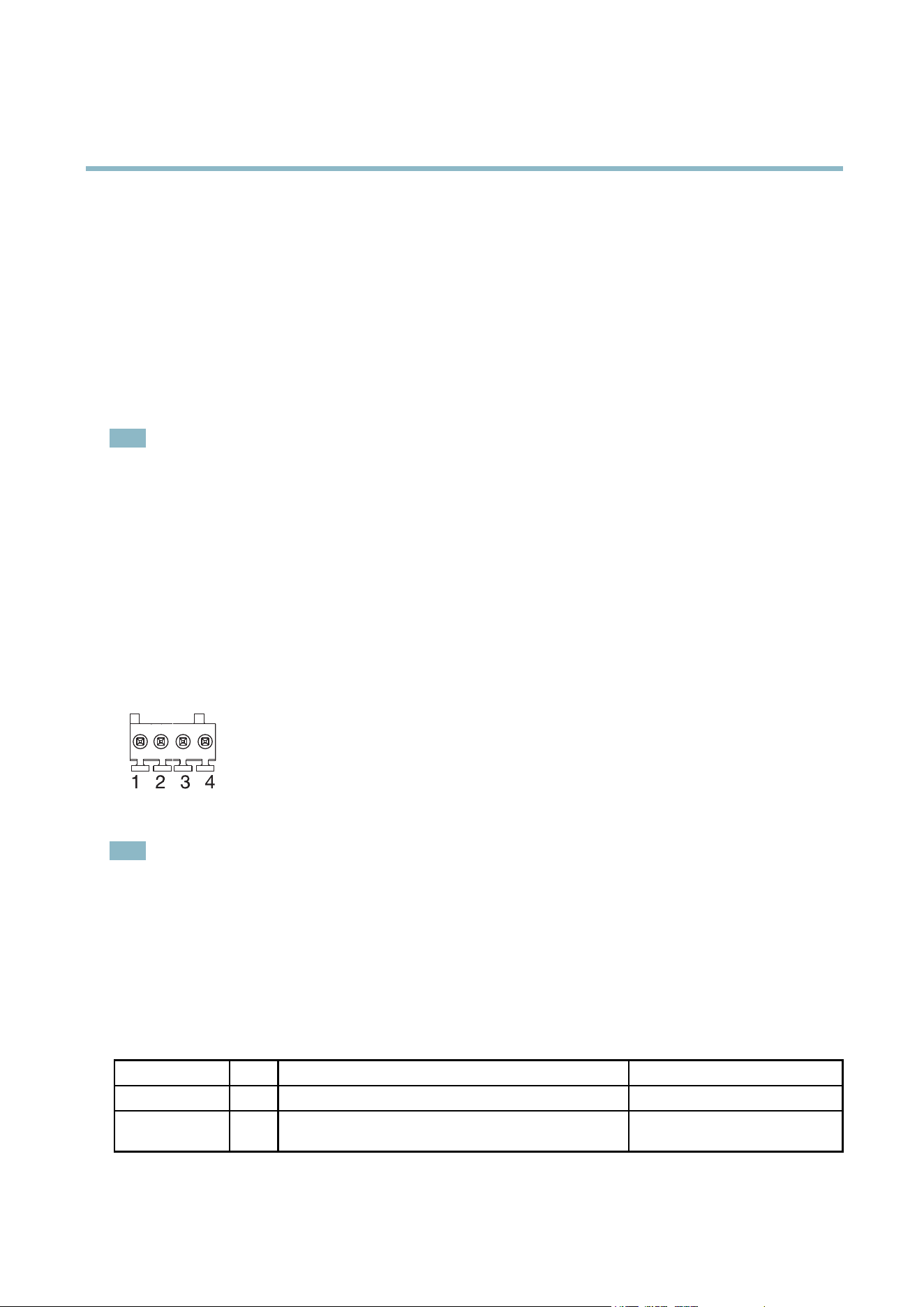
I/O connector
Note
For technical specifications, see page 50.
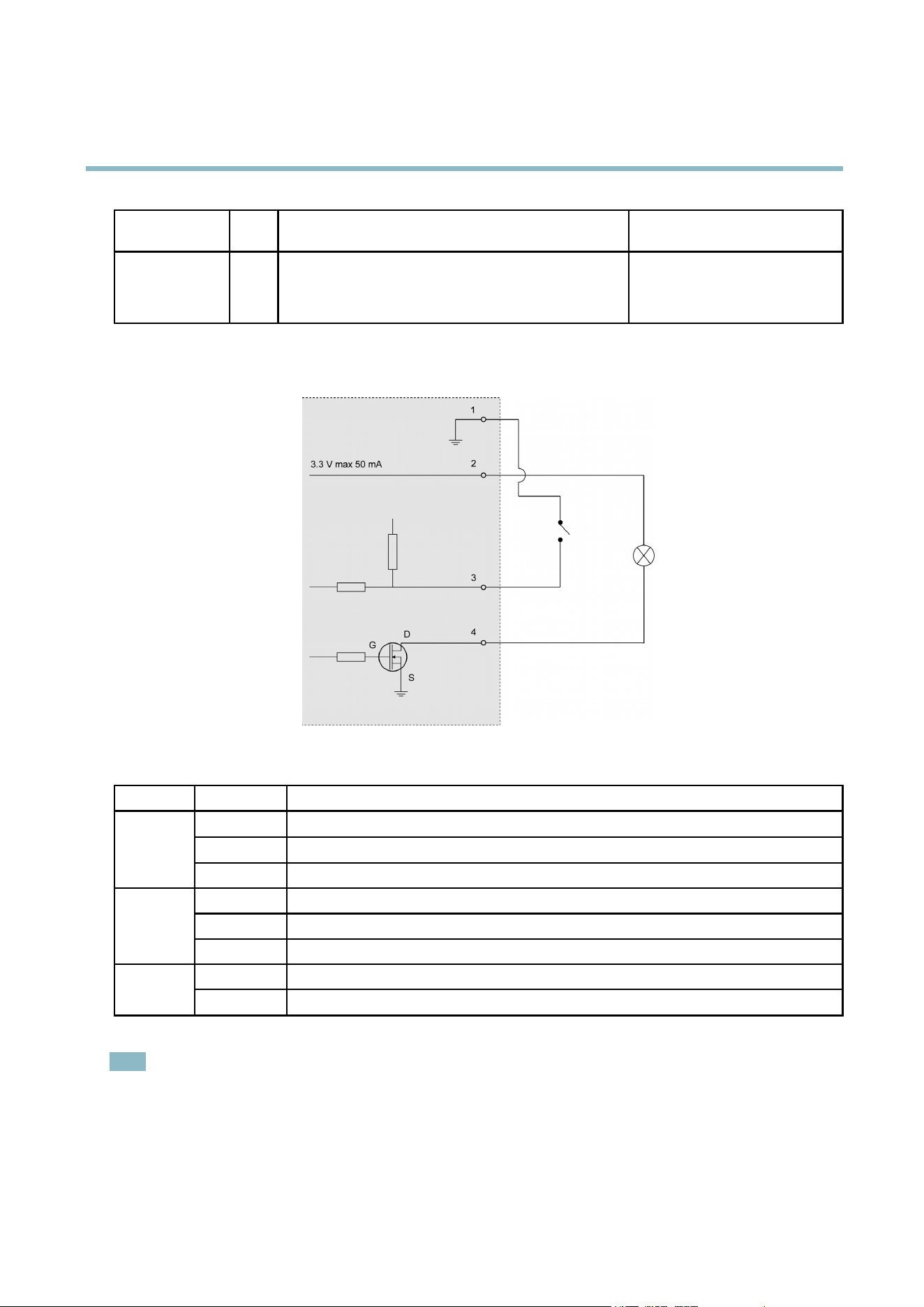
I/O terminal connector - Use in applicat ions for e.g. motion detection, event triggering, time lapse recording and alarm notifications.
In addition to an auxiliary power and a GND pin, the I/O terminal connector provides the interface to:
• Digital output — For connecting external devices such as relays and LEDs. Connected devices can be activated by the
VAPIX® Application Programming Interface, output buttons on the Live View page or by an A ction Rule. The output will
show as active (shown under System Opti
ons > Ports & Devices) if the alarm device is activa ted.
• Digital input — An alarm input for c
onnecting devices that can toggle between an open and closed circuit, for example:
PIRs, door/window contacts, glass break detectors, etc. When a signal is received the state changes and the input
becomes active (shown under System Options > Ports & Devices).
Function Pin Notes
Specifications
GND
1
Ground
3.3 V DC Power
2
Can be used to p
ower auxili ary equipment.
Note: This pin can only be used as power out.
Max load = 50 mA
5
AXIS P3367–VE Fixed Dome Network Camera
Hardware overview
Digital Input
3
Connect to GND to activate, or leave floating (unconnected)
to deactivate.
0to+40VDC
Digital Output
4
Internal connection to ground when activated, floating
(unconnected) when deactivated. If used with an external
relay, a diode must be connected in parallel with the load, for
protection against voltage transients.
Max load =100 mA
Max voltage = +40 V DC
LED indica tors
LED
Color
Indication
Green
Steady for connection to a 100 MBit/s network. Flashes for network activity.
Amber
Steady for connection to a 10 MBit/s network. Flashes for network activity.
Network
Unlit No network connectio n.
Green Steady green for normal operation.
Amber
Steady during startup and when restoring settings.
Status
Red
Slow flash for fail
ed upgrade.
Green
Normal operation.
Power
Amber
Flashes green/amber during firmware upgrade.
Note
• The Status LED can be configured to be unlit during normal operation, or to flash only when the product is accessed. To
configure, go to Setup > System Options > Ports & Devices > LED. See the online help for more information.
• The Status LED can be configured to flash while an event is active.
• The Status LED can be configured to flash for identifying the unit. This can be done under Setup > System Options >
Maintenance.
6
AXIS P3367–VE Fixed Dome Network Camera
Accessing the product
Accessing the product
To install the Axis product, refer to the Installation Guide supplie d with the product.
The product can be used with most operating systems and browsers. The recommended browsers are Internet Explorer with Windows,
Safari with Macintosh and Firefox with other operating systems. See Technical Specifications, on pag e 50.
Note
• To view streaming video in I nternet Explorer, allow installation of AXIS Media Control (AMC) when prompted .
• QuickTime
TM
is also supported for viewing H.264 streams and for audio.
• If your computer restricts the use of additional software components, the product can b e configured to use a Java
applet for viewing Motion JPEG.
• The Axis product includes (1) H.264 decoder lice nse for viewing video str eams a nd (1) AAC audio license. These licenses are
automatically installed with AMC. The administr ator can disable the insta llation of the decoders, to prevent installation of
unlicensed copies.
Access from a browser
1. Start a browser (Internet Explorer, Firefox, Safari).
2. Enter the IP address or host nam e of the Axis product in the browser’s Location/Address field. To access the product from a
Macintosh computer (Mac OS X), click on the Bonjour tab and select the product from the drop-down list.
If you do not know the IP a ddre ss, use AXIS IP Utility to locate the product on the network. For more information on ho w to
discover and assign an IP address, refer to the Installation Guide.
3. Enter your user name and password. If this is the first time the product is accessed, the root password must first be
configured; for instructions see Set the root password, on page 8 .
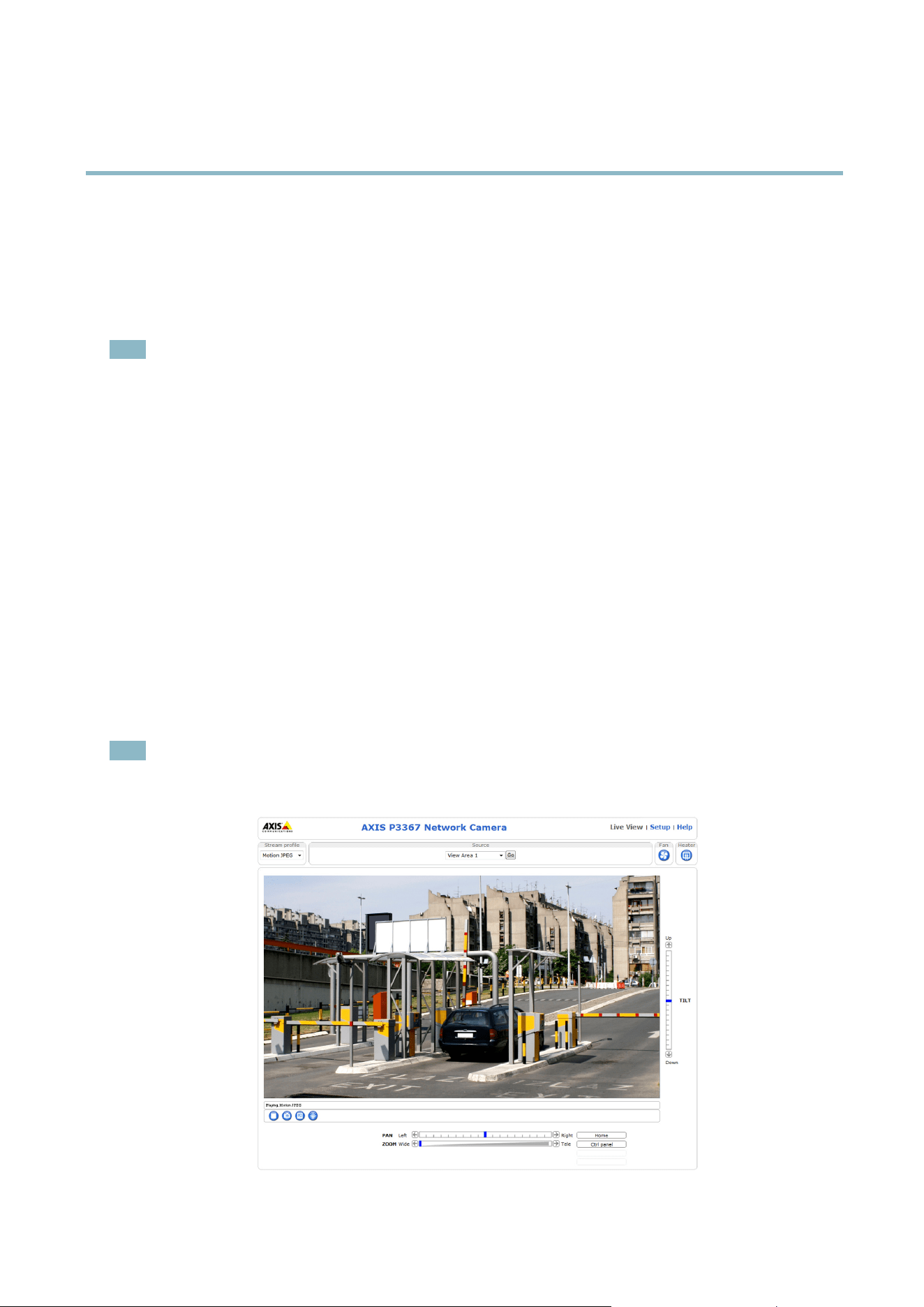
4. The product’s Live View page appears in your browser.
Note
The layout of the Live View page ma yhavebeencustomizedtospecificrequireme
nts. Consequently, some of the examples
and functions featured here may differ from those displayed in your own Live View page.
7
AXIS P3367–VE Fixed Dome Network Camera
Accessing the product
Access from the Internet
Once connected, the Axis product is accessible on your local network (LAN). To access the product from the Internet you must
configure your network router to allow incoming data traffic to the product. To do this, enable the NAT-traversal feature, wh ich
will attempt t o automatically co nfigure the router to allow access to the product. This is enabled from Setup > System Options >
Network > TCP/IP A d vanced.
For more information, please see NAT traversal (port mapping) for IPv4, on page 38.SeealsoAXISInternetDynamicDNSServiceat
www.axiscam.net For Technical notes on this and other topics, visit the Axis Support web at www.axis.com\techsup
Set the root password
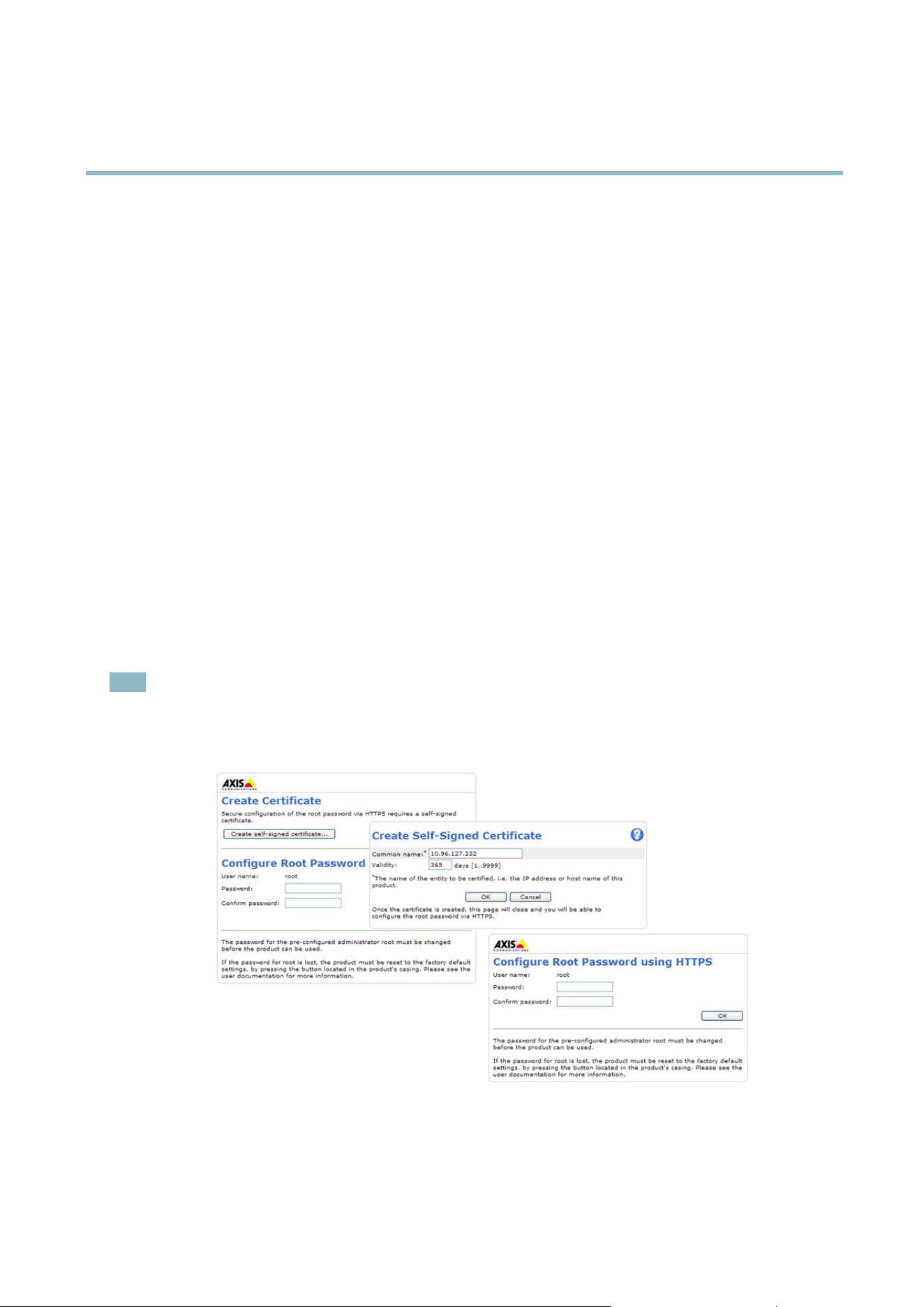
To gain access to the Axis product, you must set the passwo rd for the default administrator user root. This is done in the Configure
Root Password dialog, which appears when the product is accessed for the first time.
To prevent network eavesdropping, the root password can be set via an encrypted HTTPS connection, which requires an HTTPS
certificate. HTTPS (Hypertext Transfer Protocol over SSL) is a protocol used to encrypt traffic between web browsers and servers. The
HTTPS certificate ensures encrypted exchange of information.
To set the password via a standard HTTP connection, enter it directly in the first dialog.
To set the password via an encrypted HTTPS connection, follow these steps:
1. Click Create self-signed certificate.
2. Provide the requested information and click OK.Thecertificate is created and the password can now be set securely. All
traffic to and from the product is encrypted from this point on.
3. Enter a password and then re-enter to confirm the spelling. Click OK. The password has now been configured.
Note
• The default administrator user name root is permanent and cannot be deleted.
• If the p assword for root is lost, the product must be reset to the factory default settings. See Reset to factory default
settings, on page 43.
8
AXIS P3367–VE Fixed Dome Network Camera
Accessing the product
Configure capture mode
Capture mode defines how image data is taken from the image sensor in regard to resolution and frame r ate , prioritizing either one or
the other. Capture mode is set the first time the product is accessed. Select the de sired Capture M ode from the drop-down list
and click OK.SeealsoCapture mode, on page 18.
The Live View page
If the Axis product has been customized to meet specific requirements, not all the items described below will appear in the Live View
page. The following provides an overview of each available button.
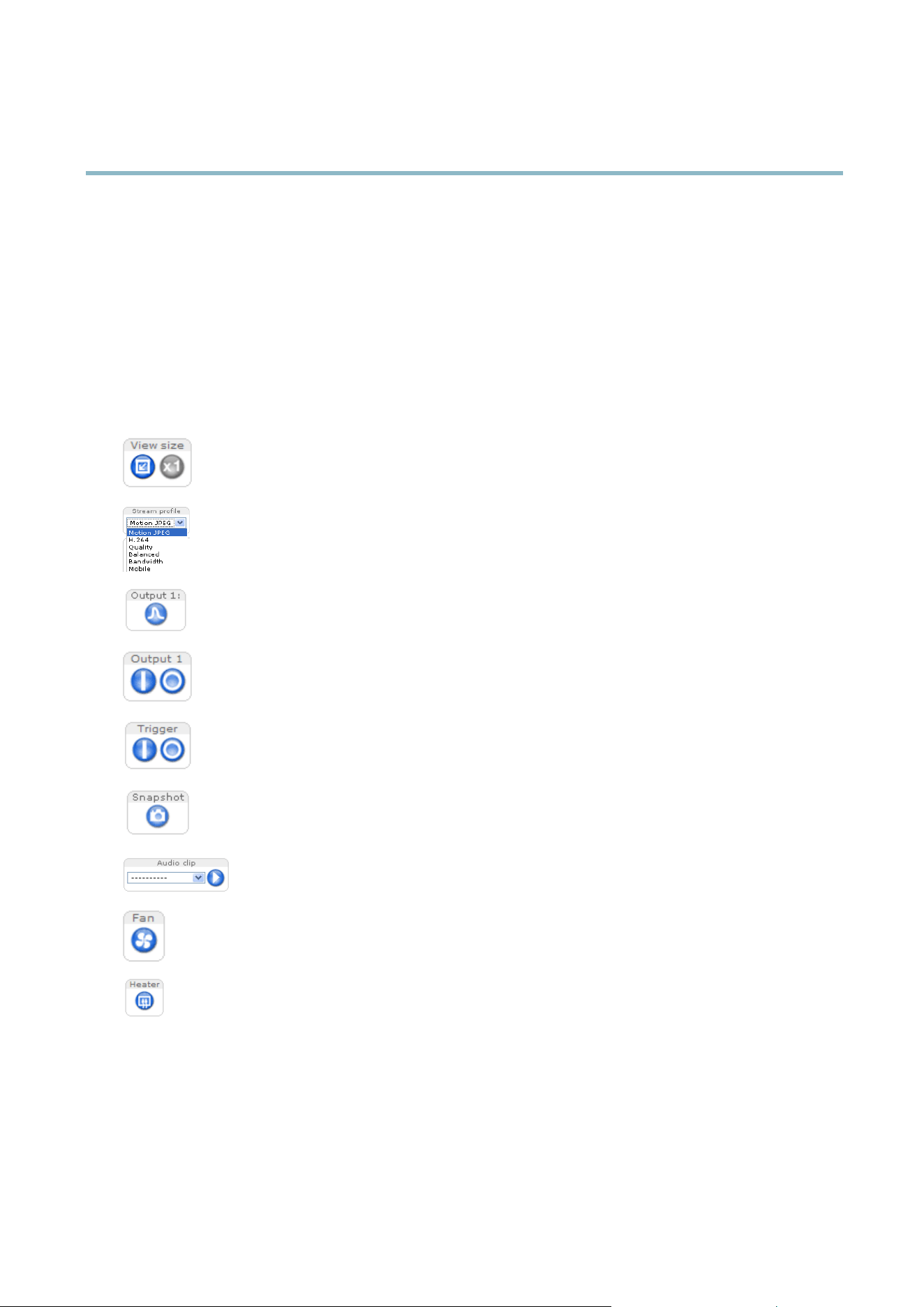
Controls on the Live View page
Click View siz e to scale the image down to 800 pixels wide or to full scale. Only ava ilable in MJPEG.
The Stream Profi le drop-down list allows you to select a customized or pre-programmed stream profile . Stream
profiles are configured under Video & Audio > Stream Profi les.SeeStream Profiles, on page 17.
Click Pulse to activate the output for a defined per iod of time, such as switching a light on for 20 seconds.
Click the Active/Inactive buttons to manually start and stop a connected device — e.g. switch a light on and off.
The Manual Trigger button can trigger an event directly from the Live View page. The button is configured under
Live View Config > Action Buttons.
Click Snapshot to save a snapshot of the video image. Right-c
lick the video image to save it in JPEG format on your
computer. This button is primarily intended for use when the AXIS Me dia Control viewer t oolbar is not available.
Enable this button from Live View Config > Action Buttons.
The Audio clip drop-down list allows you to play an audio clip from the Live View page. Select the audio
clip and click the Play button.
Activate the product’s fan with this button. Enable this button from Live View Config > Action Buttons. The Fan
button is activated automatically
. Press this button to a ctivate it manually.
Activate the product’s heater with this button. Enable this button from Live View Config > Action Buttons.
AXIS Media Control viewer toolbar
The AXIS M edia Control v iewer toolbar is available in Internet Explorer only. See AXIS Media Control (AMC), on page 12 for more
information. The toolbar displays the following buttons:
9
AXIS P3367–VE Fixed Dome Network Camera
Accessing the product
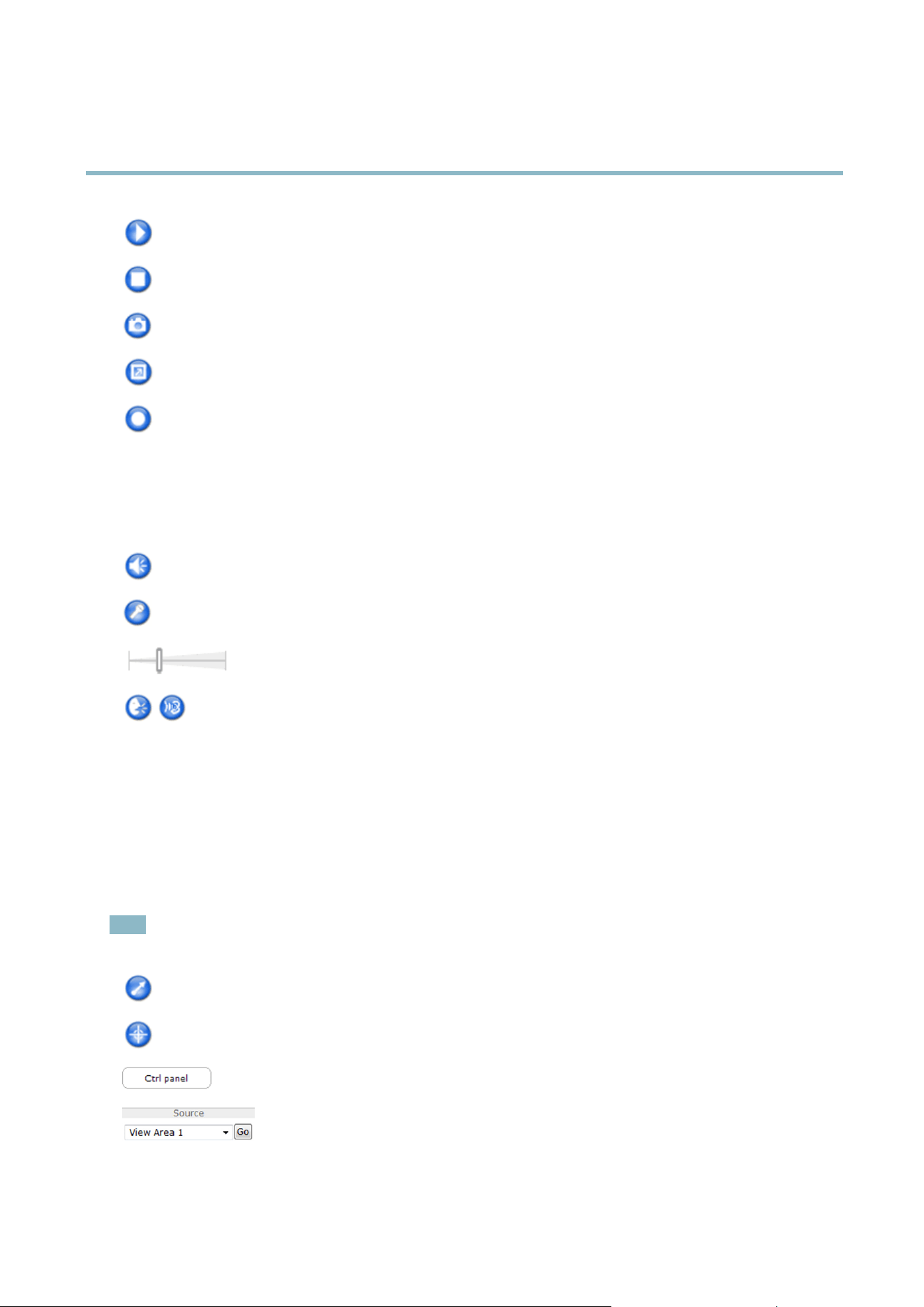
The Play button connects to the Axis product and starts playing a media stream.
The Stop button stops the video stream.
The Snapshot button takes a snapshot of the video image. The location where the image is saved can be specified
in the AMC Control Panel.
Click the View Full Screen button and the video image will fill the entire screen. Press ESC (Escape) on the computer
keyboard to cancel full screen view.
The Record button is used to record the current video stream. The location wh ere the recording is sa v ed can be specified
in the AMC Control Panel.
AMC Audio controls
AMC audio buttons control the speakers and microphone connected to the client computer. The buttons are only visible when
audio is enabled.
Speaker button — Click to turn the speakers on or off.
Microphone button – Click to mute or unmute the microphone. In Simplex - Network Camera speaker only mode,
click this button to stop sending aud io to the product.
Use the slider to control the volume of the speakers and the microphone.
Half-duplex mode
The Talk/Listen button is used to switch between sending and receiving audio. The button can be configured
from the Audio tab in the AMC Control panel:
• Push-To-Talk mode: Click and hold the button to talk/send. Release the button to listen.
• Toggle mode: Click once to switch between talking and listening.
Simplex – Network Camera speaker only mode
To send audio, the Talk and Micro phone buttons must both be enabled. Click either button to stop audio
transmission.
PTZ Controls
The Live View page also displays Pan/Tilt/Zoom (PTZ) controls. The administrator can enable/disable controls for specified users under
System Options > Security > Users.
Note
These controls are available if digital P TZ is enabled in the sele c ted view area, s ee View Areas, on page 19.
Click the Emulate joystick mode button
and click in the image to move the camera view in the direction of the
mouse pointer.
Click the Center mode button and cl
ick in the image to center the camera view on that position.
Click the Ctrl panel butt
on to open the PTZ control panel which provides additional PTZ controls.
User-defined buttons can also appear in the Control panel. See Controls, on page 26.
To view a specific view area or preset position, select the view area or prese t position from the
Source list.
10
AXIS P3367–VE Fixed Dome Network Camera
Accessing the product
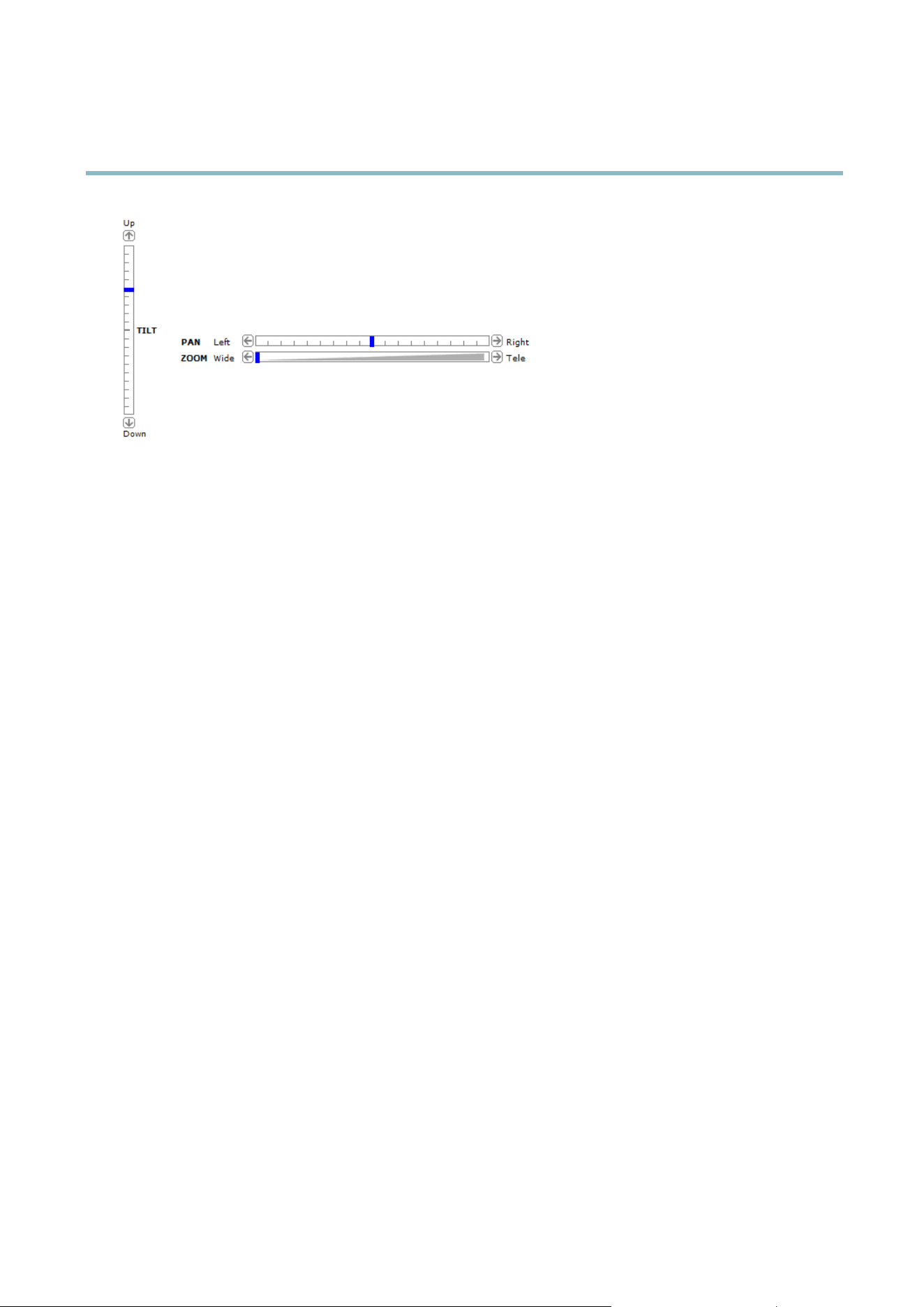
Pan and Tilt bars – Use the arrows to pan and tilt the camera view, or click on a position on the bar to steer the
camera view to that position.
Zoom bar – Use the arrows to zoom in and out, or click on a position on the bar to zoom to that position.
The PTZ controls can be disabled under PTZ > Advanced > Controls,seeControls, on page 26.
11

AXIS P3367–VE Fixed Dome Network Camera
Media s treams
Media streams
The Axis product provides several image and v ideo stream formats. Your requirements and the properties of your network will
determine the type you use.
The Live View p age in the product provides access to H.264 and Motion JPEG video streams, audio streams and to the list of available
stream profiles. Other applications and clients can access video and audio streams directly, without going via the Live View page.
How to stream H.264
The video com pression standard H.264 makes good use of bandwidth, and can p rovide high quality video streams at less than 1 Mbit/s.
Deciding which combination of protocols and methods to use depends on your viewing requirements, and on the properties of
your network. The available options in AXIS Media Control are:
Unicast RTP
This unicast method (RTP over UDP) is used
for live unicast video, especially when it is
important to always have an up-to-date video
stream, even if some images are dropped.
RTP over RTSP
This unicast method (RTP tunneled over RTSP )
is usef ul as it is relatively simple to configure
firewallstoallowRTSPtraffic.
RTP over RTSP over HTTP
This unicast method can be used to traverse
firewalls. Firewalls are comm o nly configured to
allow the HTTP protocol, thus allowing RTP to
be tunneled.
Unicasting is used for video-on-demand
transmission so that there is no video traffic
on the network until a client connects and
requests the stream.
Note that there are a maximum of 20
simultaneous unicast connections.
Multicast RTP
This method (RTP over UDP) should be used for live multicast video. The video stream is al
ways
up-to-date, even if some images are dropped.
Multicasting provides the most efficient usage of bandwidth when there are large numbers of
clients viewing simultaneously. A mult icast cannot however, pass a network ro
uter unless the
router is configured to allow this. It is not possible to multicast over the Internet, for example.
Note also that all multicast viewers c ount as one unicast viewer in the maximum total of 20
simultaneous connections.
AXIS Media Control negotiates with the A xis pr oduct to determine the transport protocol to use. The order of priority, listed in the
AMC Control Panel, can be changed and the op
tions disa b led, to suit specific requirements.
Note
H.264 is licensed technology. The Axis product includes one H.264 viewing client license. Installing additional unlicense d
copies of the clients is prohibited. To purchase additional licenses, contact your Axis reseller.
MJPEG
This format uses
standard JPEG still images f o r the video stream. These images are then displayedandupdatedataratesufficient
to create a stream that shows constantly updated mo tion.
The Motion JPEG stream uses considerable amounts of bandwidth, but provides excellent image qualityandaccesstoeveryimage
contained in the stream. The recommended method of accessing Motion JPEG live video from the Axis product is to use the AXIS
Media
Control in Internet Explorer in Windows.
AXIS Media Control (AMC)
AXIS Media Control (A MC) in Internet Explorer in Wi ndows is the recommended method of accessing live video from the Axis product.
12
AXIS P3367–VE Fixed Dome Network Camera
Media s treams
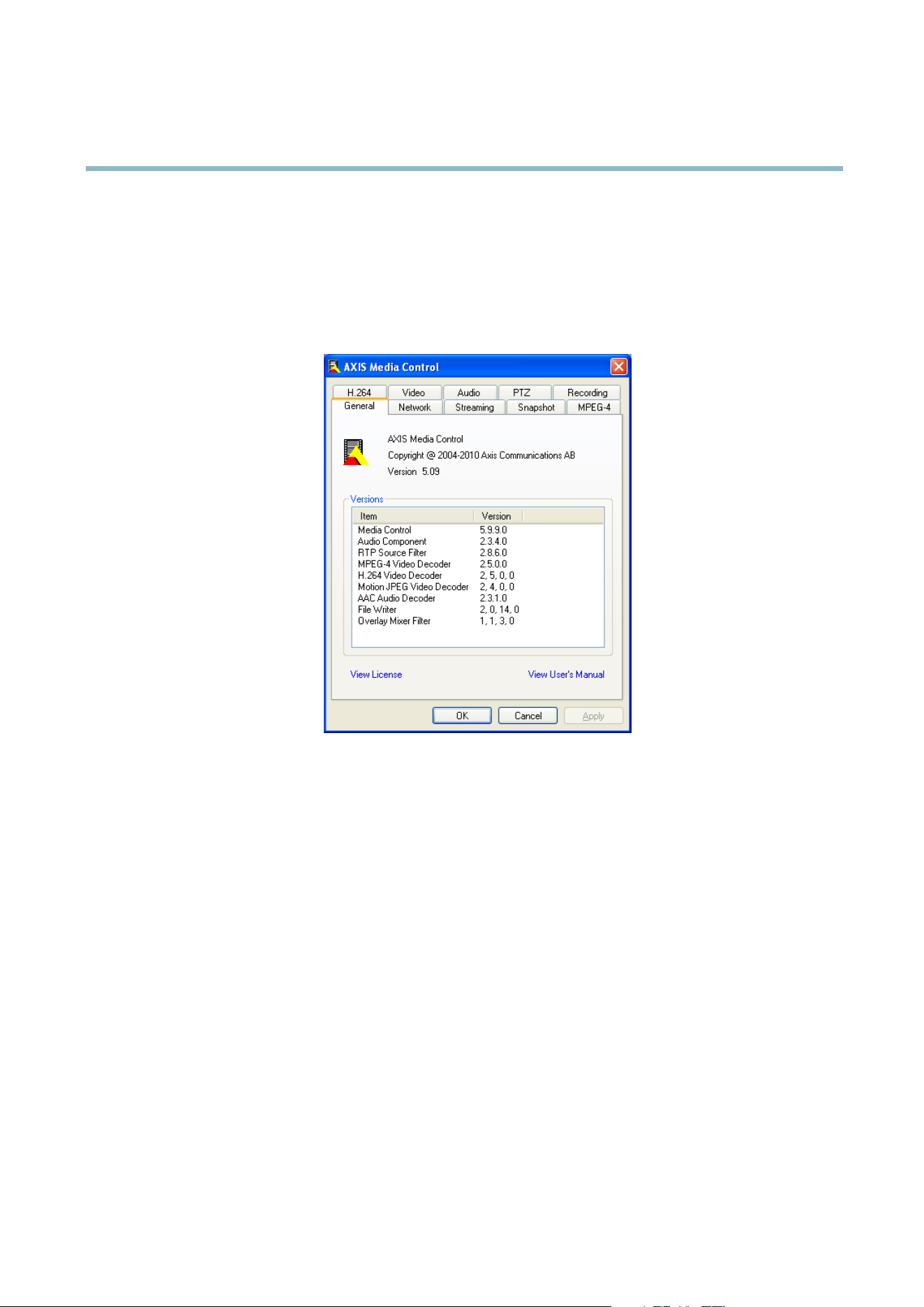
TheAMCControlPanelcanbeusedtoconfigure various video and audio settings. Pl ease see the AXIS Media Control User’s
Manual for more information.
The AMC Control Panel is automatically installed on first use, after which it can be configured. Open the AMC Control Panel from:
• Windows Control Panel (from the Start menu)
• Alternatively, right-click the video image in Internet Explorer and c lick Settings.
Alternative methods of accessing the video stream
You can also access video and images from the Axis product in the following ways:
• Motion JPEG server push (if supported by the client, Firefox, for example). This option maintains an open HTTP connection
to the browser and sends data as and when required, for as long as required.
• Still JPEG images in a browser.Enterthepathhttp://<ip>/axis-cgi/jpg/image.cgi
• Windows Media Player. This requires AXIS Media Control and the H.264 decoder to be installed. The following paths
can be u sed:
-UnicastviaRTP:axrtpu://<ip>/axis-media/media.amp
- Unicast via RTSP: axrtsp://<ip>/axis-media/media.amp
- Unicast via RTSP, tunneled via HTTP: axrtsphttp://<ip>/axis-media/media.amp
-Multicast:axrtpm://<ip>/axis-media/media.amp
• QuickTime
TM
. The following paths can be used:
- rtsp://<ip>/axis-media/media.amp
- rtsp://<ip>/axis-media/media.3gp
13

AXIS P3367–VE Fixed Dome Network Camera
Media s treams
Note
• <ip>= IP addess
• The Axis product supports QuickTime 6.5.1 and later.
• QuickTime adds latency to the video stream.
• It may be possible to use other players to view the H.264 stream using the paths a bove, although Axis does not guarantee
this.
Accessing audio streams
The Live View page provides access to audio through AXIS Media Control; in addition audio can be accessed in the following ways:
• VAPIX® Application Programming Interface (API) For more information, visit www.axis.com/techsup
• Windows Media Player supports simplex audio. The follo wing paths can be used:
-UnicastviaRTP:axrtpu://<ip>/axis-media/media.amp
- Unicast via RTSP: axrtsp://<ip>/axis-media/media.amp
- Unicast via RTSP, tunneled via HTTP: axrtsphttp://<ip>/axis-media/media.amp
-Multicast:axrtpm://<ip>/axis-media/media.amp
• QuickTime
TM
supports G.711 and AAC audio encoding. The following paths can be used:
- rtsp://<ip>/axis-media/media.amp
- rtsp://<ip>/axis-media/media.3gp
•TheJava applet supports simplex audio with G.711 encoding.
14

AXIS P3367–VE Fixed Dome Network Camera
Setting up the product
Setting up the product
The Axis product can be configured by users with administrator or operator rights. Click Setup in the top right-hand corner of
theLiveViewpage.
• Administrators have unrestricted access to all s ettings.
• Operators have access to all settings except System Options
See also the online help
.
Basic Setup
Basic Setup provides shortcuts to the settings thatshouldbemadebeforeusingtheAxisproduct:
1. Users. See page 34.
2. TCP/IP. See page 36.
3. Date & Time. See page 35.
4. Video Stream. See page 16.
5. Focus & Zoom. See page 20.
7. Audio Settings. See page 21.
The Basic Setup menu can be disabled from System Options > Security > U sers.
15
AXIS P3367–VE Fixed Dome Network Camera
Video and Audio
Video and Audio
The video and audio s ettings can be used to optimize v ide o and audio quality. You can configure the following:
• Video stream settings. See page 16.
•Streamprofiles. See page 17.
• Camera settings. See pag e 17.
•Viewareas.Seepage 19.
• Overlay imag e. See page 20.
•Privacymask.Seepage 20.
• Focus and zoom. See page 20.
• Audio settings. See page 21.
• Audio clips. See page 22.
Video Stream
You can define the following video stream settings from Video & Audio > Video Stream:
•Image.Seepage 17.
• H.264. See page 17.
•MJPEG.Seepage 17.
16

AXIS P3367–VE Fixed Dome Network Camera
Video and Audio
Image
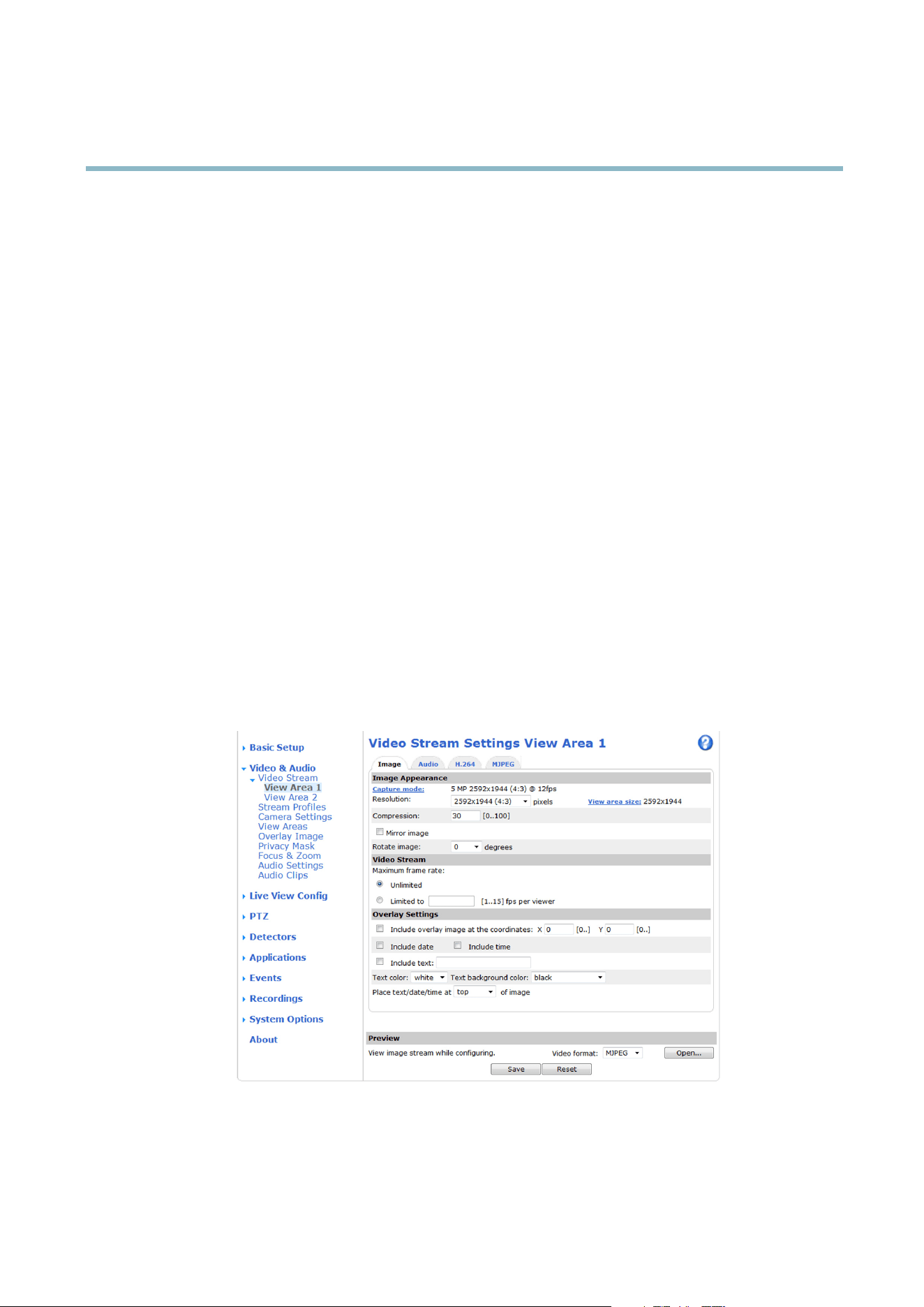
You can modify the image resolution and compression, a nd rotate the image from the Image tab (Video & Audio > Video Stream).
Setting the compression level affects the image quality and bandwidth; the lower the compression, the higher the image quality
with higher bandwidth requirements.
To avoid bandwidth problem s on the network, you can limit the frame rate allowed to each viewer. The maximum frame ra te can be
set to Unlimited, or you can limit the frame rate to a value.
An image or text can be superimposed over the image as overlay. See Overlay, on page 20.
Save your settings before they can take effect.
H.264
H.264, also known as MPEG-4 Part 10/AVC, is a video compression standard that provides high quality video streams at low bit rates.
An H.264 video stream consists of different types of frames such as I-fra mes, P-frames and B-frames. An I-frame is a complete image
whereas P-frames and B-frames only contain the differences from previous/future frames.
The GOV length is the number of frames between two consecutive I-frames. Increasing the GOV length saves considerably on
bandwidth but may have an adverse affect on image quality.
The Axis product supports two H.264 profiles.TheMainprofile provides higher compression than the Baseline profile with the same
video quality, b ut requires more processing power to decode.
ThebitratecanbesetasVariable Bit Rate (VBR) or Constant Bit Rate (CBR). VBR adjusts the bit rate according to the image
complexity, using up more bandwidth for increased activity in the image, and less for lower image activity. CBR allows you to set a
fixed Target bit rate that consumes a predictable amount of bandwidth. As the bit rate would usually need to increase for increased
image activity, but in this case cannot, frame rate and image quality are affected negatively. To partly compensate for this, it is
possible to prioritize either frame rate or image quality. Not setting a priority means that frame rate and image quality are equally
affected. You must save your settings before they can take effect.
The current bit rate can be set to appear as text overlay. To do this, select the Includ
etextcheck box option under Overlay Settings
and enter the code #b in the field.
MJPEG
Sometimes the image size is large due to low light or complex scenery. Adjusting the maximum frame size helps to control the
bandwidth and storage used by the Motion JPEG video
stream in these situations. Setting the frame size to the Default setting
provides consistently good image quality at the expense of increased bandwidth and storage usage in lo w light. Limiting the frame
size optimizes bandwidth and storage usage, but may give poor image quality. To prevent i ncreased bandwidth and storage usage,
the maximum frame size should be set to an opti
mal value.
Stream Profiles
There are four pre-programmed s tream profiles available for quick set up. The settings for these can be adjusted. New cus tomize d
profiles can also be created. Each profile has a descriptive name, indicating its p urpose.
•Thestreamprofiles can be accessed from the Stream profile drop-down list in the Live View pag e.
• To add, copy, modify, and remove stream profiles go to Video & Audio > Stream Profiles.
• To select the default stream profile go to Live View Config > Stream Profile and choose the profile from the drop-down list.
For
more information see the online help
on this page.
Camera Settings
The Video & Audio > Camera Settings page provides access to advanced image settings for the Axis product.
17

AXIS P3367–VE Fixed Dome Network Camera
Video and Audio
Capture mode
Capturemodedefines how imag e data is taken from the image sensor in regards to resolution and frame rate , prior itizing either one
or the other. The capture mode is set the first time the camera is accessed. See Configure capture mod e, on page 9 .
To change the capture mode setting, select the desired Capture M ode from the drop-dow n list and click OK. When the capture mode
setting is changed, most other settings, for example motion detection windows a n d action rules, will be removed or reset. Stop all
video s treams before changing the capture mode.
Image Appearance
Increasing the Color level increases the color saturation. The value 100 gives maximum color saturation. The v alue 0 gives a
black and white image.
The image Brightness can be adjusted in the range 0–100, where a higher value produces a brighter image.
Increasing the Sharpness can increase bandwidth usage. A sha rper image m ight incre ase image noise es pecially in lo w light
conditions. A lower setting reduces image noise, but the whole image will appear less sharp.
The Contrast can be adjusted using the slidebar.
White balance
White balance is used to make colors in the image appear the sa m e regardless of the color temperature of the light source. The Axis
product can b e set to automatically identify the light source and compensate for its color. Alternatively, select the type of light
source from the drop-down list. For a descr iption of each avai lable setting, see the online help
.
Wide Dynamic Range
Wide dynamic range can improve the exposure when there is a considerable contrast between light and dark areas in the image.
Exposure Settings
Configure the exposure s ettings to suit the image quality requirements in relation to lighting, frame rate and bandwidth
considerations.
Exposure value - Click in the bar to fine-tune the exposure.
Exposure control - These settings is used to adapt to the amount of light used. Automatic is the default settings can be used in most
situations. The shutter speed is automatically set to produce optimum image quality. Flicker-free 50 or 60 Hz is used to remove
flicker which can be caused by fluorescent and other light sources. The Hold current option locks the current exposure settings.
Enable Backlight compensation - Enable this option if a bright spot of light, for example a light bulb, causes other a reas in
the image to appear too dark.
Exposure zones - This settings determines which part of the image is used to calculate the exposure. For most situations, the Auto
setting can be used. For particular requirement, select a predefined area.
Shutter & Gain
The shutter and gain settings affect the amount of motion blur and noise in the image. To adapt to different lighting, a v ailable
storage space and bandwidth, it is often necess ary to prioritize either low motion blur or low noise. The Axis product allows
using different prioritization in normal light and in low light.
Shutter speed is related to the amount of time the s hutter is opened and is measured in seconds (s). A slow shutter speed allows
more light to reach the sensor and can help produce a brighter image in low light situations. On the other hand, a slow shutter
speed can cause moving ob jects to appear blurry.
Set Shutter to
18

AXIS P3367–VE Fixed Dome Network Camera
Video and Audio
• Auto to set the shutter speed automatically. If required, use Max shutter to limit the shutter speed to prevent the frame
rate from being reduced. For example, to get 30 fps, set Max s hutter to 1/30.
• Fixed to use a fixed shutter speed.
Gain, measured in decibel (dB), is the amount of amplification applied t o t he image. A high gain may provide a better image in low
light situations but will increase the amount of image noise.
Set Gain to
• Auto to set the gain automatically. If required, use Max gain to limit the applied gain.
• Fixed to use a fixed gain.
When Shutter and Gain are both set to Auto, it is possible to set the Priority between low motion blur and low noise manually and to
use a different Priority in Normal Light and in Low Light.
Example
Consider an area where people or vehicles move during the day, but where there should be no movements during night. To be able to,
for example, re c ognize faces or license plates, m ove the normal light priority slider toward low motion blur. At nighttime, motion
detection is more important than identification. Motion blur is acceptable and since low light ca n cause a lot of noise, move
the low light priority slider toward low noise.
Example
If storage space or bandwidth is limited, try using a lower ga in. This will red uce image noise and produce smaller im age fi les.
Iris adjustment
Select Enable automatic iris adjustment to a u tomatically compensate for changing light conditions. This option is not available
if a fixed iris is used.
Use the Iris adjustment slider to set the preferred F-value. The scale represents the amount the iris is open. If set to 0, the iris
is opened a s much as possible. If set to 100, the iris is closed a s much as possible. The actual F-value is shown b elow the
slider. If automatic iris ad justment is enabled, the iris will stay at this pos
ition as long as light conditions are favorable. If light
conditions change, the iris will ad just itself to the bes t iris setting s. If automatic iris adjustment is disabled, the iris will lock on
the set position regardless of light conditions
Day/Night
The IR cut filter prevents infrared (IR) light from reaching the image sensor. In poor lighting conditions, for example at nig ht, or
when using an IR lamp, set the IR cut filter to Off. This increases light sensitivity and allows the product to “see” infrared light. The
image is shown in black and white when the IR cut filter is off.
If using a utomatic Exposure control,settheIRcutfilter to Auto to automatically switch between On and Off accordingtothe
lighting conditions.
If using IR illuminations, select Enable focus adjustment for IR illumination.
View Areas
A view area is a cropped part of the full view. Each view area is treated as a video source in Live View and has its own video
stream and PTZ settings.
To enable view areas, go to Video & Audio > Camera Settings and select Enable View Areas.
When setting up a view area it is recommended that the video stream resolution is the same size as o r s maller than the view area
size. S etting the video stream resolution larger than the view area size implies digitally s c aled up video after sensor capture,
requiring more bandwidth without adding image information.
To add a new view area:
1. Go to Video & Audio > View Areas.
19

AXIS P3367–VE Fixed Dome Network Camera
Video and Audio
2. Click Add.
3. The new view area appears under Selected view area. Enter a descriptive name in the Name fi eld.
4. Select an Aspect ratio and a Video stream resolution.
5. A new view area covers the whole image. Usethemousetomoveandresizetheviewarea.
6. Check Enable PTZ to enable digital PTZ for this view area.
7. Click Save to save the settings.
To modify a view area, select the view area in the list and modify the settings a s required. Click Save.
To remove a view area, select the view area and click Remove.
Overlay
Overlays can be used to provide extra information and are superimposed over the video image. With overlay text it is possible to
include date and time or view the current bit rate as overlay text.
To include the current bit rate as overlay text go to Video & Audio > Video Stream > Overlay Settings,selecttheInclude text check
box option, and enter the code #b in the field. See the online help
for supported formats.
Overlay image
An overlay image can be used to provide extra information, or to mask a part of the video i mage .
To use your own image, such as a logo, fi rst upload the image to the Axis product. G o to Video & Audio > Overla y Image,browsefor
anduploadtheimagefile on the computer. The filecanthenbeselectedfromtheUse overlay image drop-down list.
To place an overlay image at specificcoordinates,gotoVideo & Audio > Video Stream and select the Include overlay image at
coordinates check box option and enter the X and Y coordinates.
For more information see the online help
Privacy Mask
A privacy mask is an area of solid color that prohibits use rs from viewing parts of the monitored area. Privacy masks cannot be
bypassed via the VAPIX® A pplication Program ming Interface (API).
The Privacy Mask List (Video & Audio > Privacy Mask) shows all the masks that are currently configured in the Axis product and
indicates if the
yareenabled.
You can ad
d a new mask, re-size the mask with the mouse, chooseacolorforthemask,andgivethemaskaname.
For more information, see the online help
Focus & Zoom
Focus and zoom should only be configured when installing or reinstalling the pro duct. For installation instructions, refer to the
product’s Installation Guide.
To set focus and zoom:
1. Install the camera as described in the Installation Guide.
2. Go to Video & Audio > Focus & Zoom.
20

AXIS P3367–VE Fixed Dome Network Camera
Video and Audio
3. On the Basic tab, set the zoom level using the slider. The buttons < and > move the zoom position one step in either
direction. The buttons << and >> move the zoom position in multiple steps in either direction.
4. Click Perform auto focus to focus the camera automatically.
5. If more adjustments are needed, go to the Advanced tab.
Note
• Changing the zoom level moves the focus position. Focus should always be adjusted after changing the zoom.
• Movements in front of the camera should be avoided during automatic focusing.
The Pixel counter shows the number of pixels in an area of the image and can be used to ensure that the size of the image
fulfills certain requirem ents, for example for face recognition. Use the mouse to move a nd resize the pixel counter, or enter the
number of pixels i n the Width and Height fields and click Apply.
On the Advanced tab, focus can be a djuste d manually:
1. Click Open iris to open the iris to its m ax imum position. This gives the smallest depth of field and provides the best
conditions for focusing.
2. FocusissetintheFocus window. Use the mouse to move and resize the focus window.
3. Set the zoom level using the slider and click Perform auto focus to focus the camera automatically.
4. Click in the Focus position bar to focus on a desired location. The buttons < and > move the focus position one step in
either direction. The buttons << and >> move the focus position in multiple steps in either direction.
5. When satisfied, click Enable iris to enable the iris.
Audio Settings
The audio functionality for each video stream is e nabled under Video & Audio > Video Stream > Audio.
Audio Channels
Select the type of audio transmission from the Audio mode: drop-down list ( Video & Audio> Audio Settings). The different types are:
Full duplex - Simultaneous two-way audio allowing you to transmit and receive audio (talk and listen) at the same time. There is no
echo cancellation; if feedback loops appear, try moving the microphone or the speaker.
Half-duplex - Audio can be transmitted in both directions between the Axis product and the client computer, but only in one
direction at a time. You mu
st actively receive sound using the Talk/Listen button visible in the Live View page (see AXIS Media
Control viewer toolbar). In Push-To-Talk mode, click and hold the button t o speak and release it when done. In Toggle mode, click
once to switch between speaking and listening.
The Talk/Listen
mode is configured from the Audio tab in the AMC control panel (see AXIS Media Control on page 12),
Simplex - Network Camera speaker only - Audio is transm itted from the client to the Axis product and played by the speaker
connected to the product. To send audio, the Talk and Microphone buttons in the AMC toolbar must both be e nabled. Click either
button to stop audio transmissio n.
Si
mplex - Network Camera microphone only - Audio c aptured by the microphone connected to the Axis product is transmitted from
theproducttooneormoreclients.
For more information about these settings, please see the online help
.
21

AXIS P3367–VE Fixed Dome Network Camera
Video and Audio
Audio Input
An external microphone or a line source can be connected to the product’s Audio-in connector. Configure the audio input settings
under Video & Audio > Audio Settings.
Source - Select Microphone for an external microphone or Line for a Line in device, e.g. an audio mixer for multiple microphones or
a microphone with a built-in amplifier.
Microphone power - Micropho ne power should only be used with electric micropho nes that have no battery. This setting should not
be enabled when using a d ynamic or battery powered micropho ne.
Input gain - Control the volume (dB Full Scale) of the audio input. If the sound is too low, choose a higher dB. If the sound is too
high, choose a lower dB. The Level bar gives a visual representation of the audio signal in dB Full Scale.
• Green — the signal is at a good level.
• Yellow — the signal is becoming distor ted.
• Red — The signal is distorted
Encoding - Select digital audio encoding format.
• G711 is an unlicensed standard codec that is useful when integrating audio into a VoIP system.
• G726 is an unlicensed speech codec that is most commonly used within the security industry.
• ACC requires a license for both encoding and decoding. AAC is the least complicated and most widely u s ed codec. If
achieving the best possible audio quality is a priority, AAC is the recommended codec to use. An AAC license is included
in the Axis product.
Sample rate - The number of times per second the sound is sampled. A higher sample rate will provide better audio quality, but
also requires a greater bandwidth.
Bit rate - Set the required bit rate depend ing on the selected encoding. A highe r bit rate will give better audio qua lity. A lower bit
rate may have latency or delay, but will require less b andwidth.
For more information about these settings, plea
se see the online help
.
Audio Output
An external speaker c an be connected to the product’s Audio-out connector. Configure the audio output settings under Video
&Audio> Audio Settings.
Output gain - Control the volume (dB Full Scale) of the line audio output. The output can be used with high impedance headphones or
connected to another amp
lifier with speakers. If the sound is to o low, choose a higher dB. If the sound is too high, choose a lower dB.
Audio Clips
An audio clip is a sound file that can be played either when an e vent occurs or manually from the Live View page. Audio clips can
be uploaded to the product or recorded by a microphone connected to the product.
You can add, play, download, modify and remove audio clips from Video & Audio > Audio Clips. For more information see the
online help
.
Note
Audio clips cannot be used if the product’s audio functionality is enabled. The audio functionality is enabled on the Audio
tab under Video & Audio > Video Stream.
22
AXIS P3367–VE Fixed Dome Network Camera
Live View Config
Live View Config
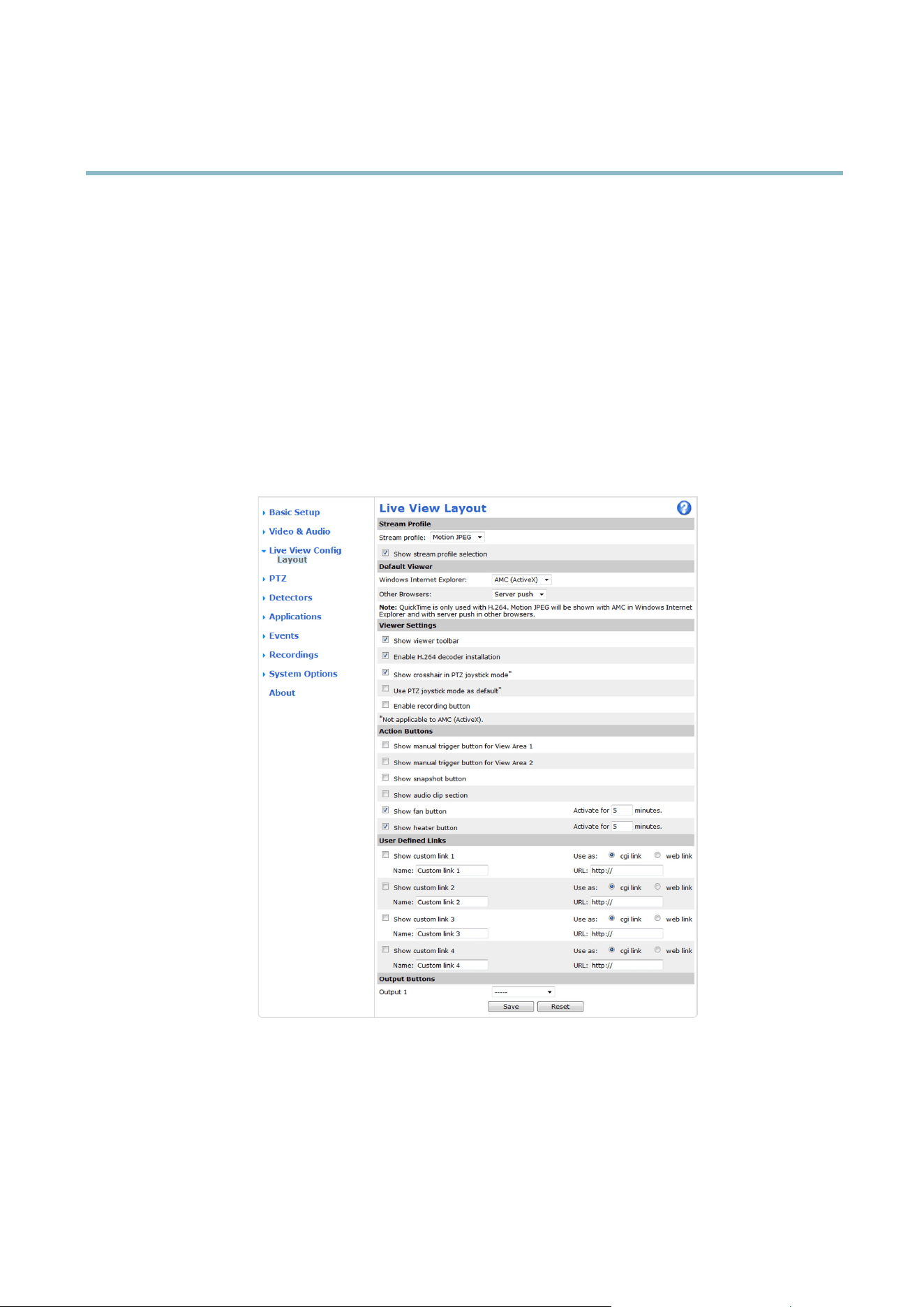
You can customize the Live View page and alter it to suit your requirements. It is possible to define the following features of
theLiveViewpage.
•StreamProfile. See page 17.
• Default Viewer for Browser. See page 23.
• Viewer Settings. See page 24.
• Action Buttons. These are the buttons described in Controls on the Live View page, on page 9 .
•UserDefined Links. See page 24.
• Output Buttons. See page 24.
Default viewer for browsers
From Live View Config > Default Viewer select the default method for viewing video images in your browser. The product attempts
to show the video images in the selected video format and viewer. If this is not possible, the product overrides the settings and
selects the best available combination.
23

AXIS P3367–VE Fixed Dome Network Camera
Live View Config
Browser Viewer Description
AMC
Recommended viewer in Internet Explorer (H.264/Motion JPEG)
QuickTime
H.264
Java applet
A slower imaging alternative to AMC. Requires one of the following installed
on the client:
• JVM (J2SE) 1.4.2 or higher
• JRE (J2SE) 5.0 o r higher
Windows Internet Explorer
Still image Displays still images only. Click the Refresh button in your browser to view a
new image
Server Push
Recommended viewer for other browsers (Motion JPEG).
QuickTime
H.264
Java applet
A slower imaging a lter n ative to Server Push (Motion JPEG only).
Other browsers
Still image Displays still images only. Click the Refresh button in your browser to view a
new image
For m ore information, please see the online help .
Viewer Settings
Options for the viewer are configured under Live View Config > Viewer Settings.
•TheShow viewer toolbar option will display the AXIS Media Control (AMC) or the QuickTime viewer toolbar unde r the
video image in your browser.
• H.264 decoder installation. The administrator can d isable install
ation of the H.264 decoder included with AXIS Media
Control. This is used to prevent installation of unlicensed c opies. Further decod er licenses can be purchased from your
Axis res eller.
•SelectShow crosshair in PTZ joystick mode to enable a cross that will indicate the center of the image in PTZ joystick mode.
•SelectUse PTZ joystick mode as default to enable joystick mode. The mode can be changed temporarily f rom the PTZ
control panel.
• You can enable recording fro
m the Live View page. The recordings are saved to the location specified in the AMC Control
Panel. See A X IS Media Control (AMC), on page 12.
User Defined Links
To display user-defined links in the Live View page, select the Show custom link option, give the link a name and then enter the URL
to link to. Wh
en defining a web link do not remove the 'http://' from the URL address. Custom links can be used to run scripts or
activate external devices connected to the product, or they can link to a web page. C ustom links defined as cgi links will run the
script in the background, in a hidden frame. Defining the link as a web link w ill open the link in a new window.
Outpu
t Buttons
An
output on the Axis product can be controlled directly from the Live View page, by enabling the display of output buttons. To
display the output buttons in the Live View page, select the type of control to use for the port from the drop-down list under
Live View Config > Output Buttons:
• Pulse activates the output for a defined period of time. The pulse time can be s et as short as 1/100 second, and as
long as 60 seconds
• Active/Inactive displays two buttons (on/off). The output ports must first be configured under System Options> Ports &
Devices > I/O Ports.SeeI/O Ports, on page 41.
24
AXIS P3367–VE Fixed Dome Network Camera
PTZ (Pan Tilt Zoom)
PTZ (Pan Tilt Zoom)
The PTZ menu is available if digital PTZ (pan, tilt and zoom) is enabled in at least one view area. For more information on view area s,
see View Areas, on page 19.
Preset positions
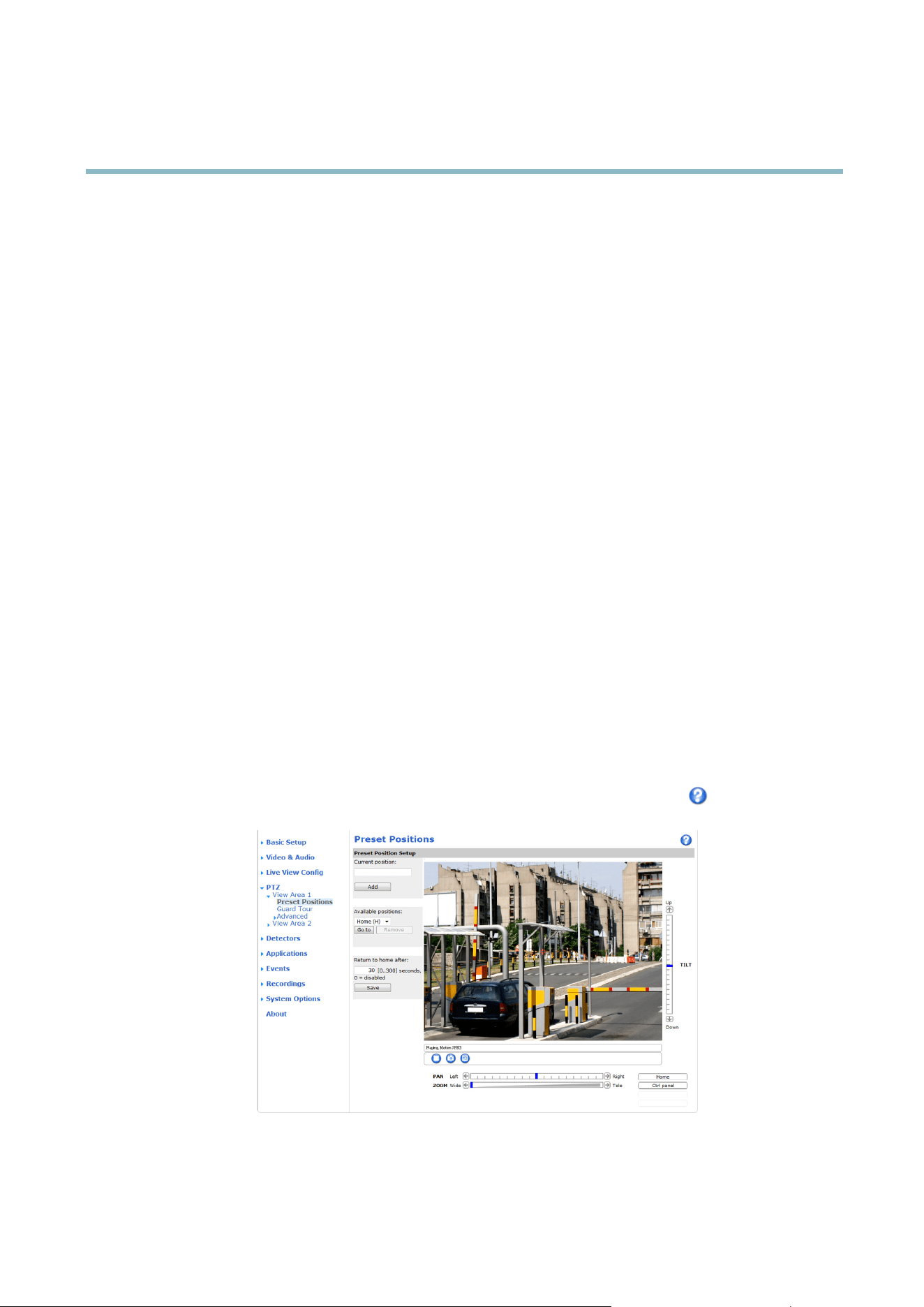
A preset position is a predefined view that can be used to quickly steer the camera to a specific location. Preset positions can
be accessed in several ways:
• By selecting the preset from the Preset positions drop-down list in the Live View Page.
• When setting up action rules. See page 31.
• When setting up Guard Tour. See page 26.
Each view area has its own preset positions.
To add a preset position:
1. Go to PTZ > Preset Positions.
2. Use the pan, tilt and zoom controls to steer the camera view to the desired position.
3. Enter a descriptive name in the Current position field.
4. Click Add . The camera’s position is saved as a preset position.
TheentireviewareaistreatedastheHome position which is readily accessible by clicking the Home buttonontheLiveView
page and in the Preset Positions setup windo w.
The product can be configured to return to the Home position when the PTZ functionality has been inactive for a specified length of
time. Enter the length of time in the Return to home after fiel d and click Save. Setthetimetozerotopreventtheproductfrom
automatically returning to the Home position.
To include the preset position name in the overlay text, go to Video & Audio,selectInclude overlay text and enter the modifier #P in
the field. For more information about modifiers, see File Naming & Date/Time Formats intheonlinehelp
.
25

AXIS P3367–VE Fixed Dome Network Camera
PTZ (Pan Tilt Zoom)
Guard Tour
A guard tour di splays the video stre am from different preset positions, one-by-one, in a predetermined order or at random and for
configurable time periods. The enabled guard tour will keep running after the user has logged off or closed the browser.
Toaddaguardtour:
1. Go to PTZ>GuardTourand click Add.
2. Enter a descriptive name.
3. Specify the pause length between runs.
4. Select an available preset position and click Apply.
5. Specify the Move speed.
6. Specify the View Time in seconds or minutes.
7. Specify the View order or select the Random view order check box option.
8. Click Save.
To modify or remove guard tours, go to PTZ>GuardTour, select the guard tour in the Guard Tour List and click Modify/Remove.
For more information see the online help
.
Advanced
Controls
Panel Shortcut Command Buttons can be configured to provide direct access to commands issued via the VAPIX® Application
Programming Interface. The buttons will be disp layed in the PTZ control panel, which is available in the Live View page though
the Ctrl panel button, see page 10.
26

AXIS P3367–VE Fixed Dome Network Camera
Detectors
Detectors
Camera Tampering
Camera Tampering can generate an alarm w henever the camera is repositioned, or when the lens is c o vered, sprayed or severely
defocused. To send an alarm, for example an email, an action rule must be set up.
To configure tampering:
1. Go to Detectors > Camera Tampering.
2. Set the Minim um duration, that is, the time that must elapse before an alarm is generated. This can help prevent fals e
alarms for known conditions that affect the image.
3. Select Alarm for dark images if an alarm should be generated if lights are dimmed or turned off, or if the lens is sprayed,
covered, or rendered seve rel y out of focus.
4. Click Save.
To configure the product to send an alarm when tampering occurs:
1. Go to Events > Action Rules.
2. Click Add to set up a new action rule.
3. Enter a Name for the action rule.
4. Under Condition,selectDetectors from the Trigger list.
5. Select Tampering from the list of detectors.
6. Optionally, select a sche dule and set additional conditions.
7. Select the action. To send an email, select Send Notification a
nd select a Recipient from the list of defined recipients.
For more information on actions rules, see Events, o n
page 31.
Motion detection
Motion detection is used t
ogenerateanalarmwhenevermovementoccurs(orstops)intheview.Upto10IncludeandExclude
windows can be configured:
• Include windows — target specific areas within the whole video image
• Exclude windows —defi ne areas within an Include window that should be ignored (areas outside Include windows
are automatically ignored)
Once configured, motion detection windows appear in the list of Detectors in Action rule setup. See Setting up an Action Rule, on
p
age 31.
Note
Using the motion detection feature may decrease the product’s overal l performance.
27
AXIS P3367–VE Fixed Dome Network Camera
Detectors
Set up motion detection
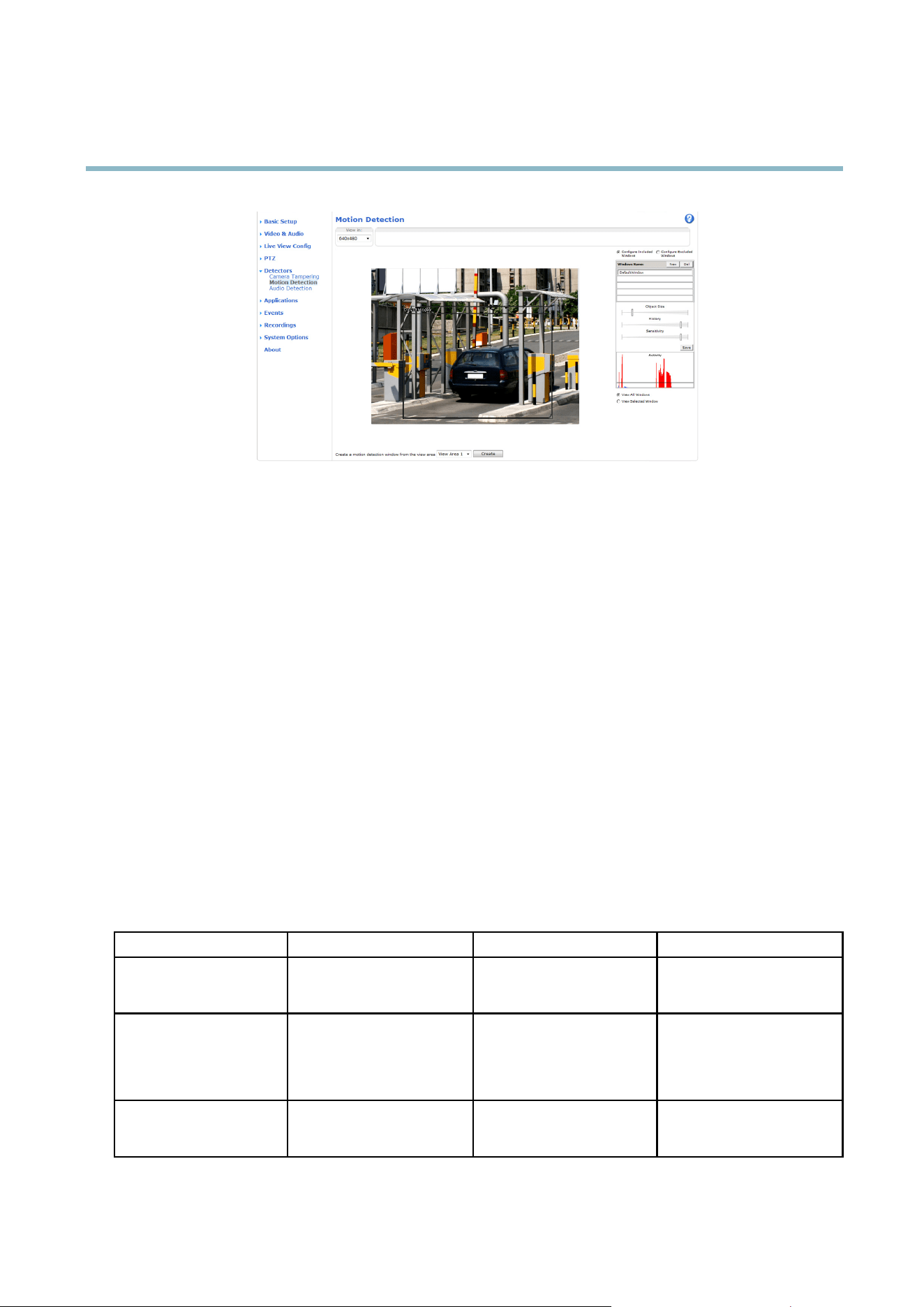
To set up a motion detection Include Window, follow t hes e instructions:
1. Go to Detectors > Motion Detection.
2. Select a d es ired resolution f or viewing while setting up Motio n Detection from the View in list.
3. Select the Configure Included Windows option and click New. Select the new window in the list of windows and enter
adescriptivename.
4. Adjust the size (drag the bottom right-hand corner) and the po sition (click on the text at the top and drag to the desired
position) of the active window (window with red frame).
5. Adjust the Object Size, History and Sensitivity profile slide rs (see Motion detection parameters for details). Any detected
motion within an active window is indicated by red peaks in the Activity window.
6. Click Save.
To exclude parts of the include window, select the Configure Excluded Windows and position the exclude window within the
include window.
To delete an include or exclude window, select the window in the list of windows and click Del.
It is also possible c reate a motion detection window from a view area. Select the view area and click Create.
Motion detection parameters
The parameters controlling motion detection are described in the table below:
Parameter
Object Size
History
Sensitivity
Description
Object size relative to window
size.
Object memory length.
Difference in lumi
nance
between background and
object.
High level (
100%)
Only very l
arge objects trigger
motion detection.
An object that appears in
the window triggers motion
detection for a long time
before it is considered as
non-moving.
Ordinary c
olored objects on
ordinary backgrounds trigger
motion detectio n.
Medium level (50%)
A large difference in luminance
is required to trigge r motion
detection.
28

AXIS P3367–VE Fixed Dome Network Camera
Detectors
Low level (0%)
Even very small objects trigger
motion detection.
An object that appears in
the window triggers motion
detection only for a very short
time before it is considered as
non-moving.
Only ver y bright objects on
a dark background trigger
motion detectio n.
Recommended values
5–15% 60–90% 75–95%
Default values
15% 90% 90%
Tips:
• To trigger on small objects or movements, use several small motion detection windows rather than one large window
and select a low object size.
• To avoid triggering on small objects, select a high object s ize .
• If no objects should appear in the Include Window, select a high history level. This will cause motion detection to trigger as
long as the object is present in the window.
• To only detect flashing light, select a low sensitivity. In other cases high sensitivity is recommended.
Audio d etection
The Axis product can be configured to generate an alarm when audio rises above, falls below or passes the audio alarm level.The
alarm level can be set in the range 0–100 where 0 is the most sensitive and 100 the least sensitive.
1. Go to Detectors > Audio Detection.
2. Set the audio alarm level and click Save.
3. Go to Events > Action Rules a n d set up an action rule, see Setting up an Action Rule, on page 31.
29

AXIS P3367–VE Fixed Dome Network Camera
Applications
Applications
Third party applications can be uploaded to and installed on the Axis product. For more inf ormation, go to www.axis.com/applications
To upload an application, go to Applications > Packages, click Browse to locate the file and then click Upload Package. Click on the
uploaded application’s name to open the menu options Settings, License and About.Forconfigura tion instructions, ple ase refer to
the documentation provided with the application.
Most applications need a license to run. To install the license, select the License menu option. If the product is connected
to the Internet, Automatic Installation appears in the web page. If the produ ct is not connected to the Internet, go to
www.axis.com/applications to acquire a License key. You w ill need a license code and the product’s serial number (found on the label
and under System Options > Support > System Overview) to receive a license key.
Installed Applications lists installed applications with information about the version and the vendor, the status of the application
(running or not running), and information about the license.
Use the Start and Stop buttons to start and stop the application.
To generate a log file f or the a ppli cation, select the applica tion and click Log.
Note
It is recommended to run one application at a time. A void running applications when motion detection is active.
30

AXIS P3367–VE Fixed Dome Network Camera
Events
Events
The Axis product can be configured to perform actions w hen different events occur, for example , start a recording when motion is
detected. The set of conditions that defines how and when the action is triggered is called an Action Rule. The action rule will apply
at specific periods called Schedules. It is possible to specify how often the action rule will recur. This is called Recurrences.
Available Action Rule triggers include:
• Detectors, for example audio detection and motion detection
• Hardware — if the temperature falls outside the operating range of the product
• Input Signal — when the product’s I/O port receives a signal from an external device, such as a smoke detector or switch
• PTZ — when the product’s pan/tilt/zoom controls are activated or when the vie w stops at a preset position
• Storage — when a storage device is available, locked or full
• System — when the pro duct is started
•Time,seeRecurrences, on page 32
Possible actions include:
• Day/Night Vision Mode
• Output Port — activate an output to, for example, sound an alarm or lock a door
• Play Audio Clip
•PTZControl
• Record Video — record video and save to a selected storage
•SendImagesandNotificatio ns — once recipients have been set up, a notifi cation can be sent that an event has occurred
•StatusLED
Setting up an Action Rule
An action rule defines the conditions that must be met for the product to perform an action, for example record video or send email
notifications. If mult
iple conditions are de fined, all must be met to trigger the action.
The following ex
ample describes how to set up an action rule to send an email if there is m ovement in the product’s field of view:
1. Go to Eve
nts > Action Rules and click Add.
2. Sel
ect the Enable rule option and enter a descriptive name for the rule.
3. Select Detectors from the Trigger drop-down list.
4. Select Motion Detection from the drop-down list.
5. Set one of the available pre-programmed time intervals from the Schedule drop-down list.
6. Select Send Notification from the Type drop-down list.
7. Select where to send the notification from the Recipient drop-down list.
To add additional criteria, select the Additional conditions option. Add and select the desired options as described above.
To copy, modify or remove an action rule, select the action rule in the Action Rule List and click Copy, Modify or Remove.
31

AXIS P3367–VE Fixed Dome Network Camera
Events
For more information, see the online help .
Recipients
Recipients receive image files and notification messages. A recipient can be an FTP, HTTP or TCP server, a network share or an email
address. TCP servers are used for notification messages o nly.
To add a recipient:
1. Go to Events > Recipients and click Add.
2. Enter a descriptive name
3. Select a recipient Type.
4. Enter the information needed for the recipient type.
5. Click Test to test the c onnectio n to the recipient.
6. Click OK.
Schedules
An action can be set up to occur on a schedule. Included in the list a re predefined schedules for after and during office hours,
weekdays or weekends.
To create a new schedule:
1. Go to Events > Schedules and click Add.
2. Enter a descriptive name and the information needed for a daily, weekl
y, monthly or yearly schedule.
3. Click OK.
To use the schedule in an Action Rule, select the schedu
le from the Schedule drop-down list in the Action Rule Setup page.
Recurrences
An action can be set up to re
cur a specific number of times in a period, for example every 2 minutes or every hour.
To set up a recurrenc
e:
1. Go to Events > R
ecurrences and c lick Add.
2. Enter a
descriptive name and recurrence pattern.
3. Cl
ick OK.
To use the recurrence in an Action Rule, first select Time from the Trigger drop-down list in the Action Rule Setup page a nd
then select the recurrence from the second drop-down list.
To modify or remove recurrences, select the recurrence in the Recurrences List and click Modify or Remove.
32

AXIS P3367–VE Fixed Dome Network Camera
Recordings
Recordings
TheAxisproductcanbeconfigured to record video continuously or according to an action rule:
• To start a continuous recording, see page 33.
• To set up action rules, see pa ge 31.
• To access recordings, see Recording List, on page 33.
•Toconfigure camera controlle d storage, see Storage, on page 40.
Recording List
Recordings made to the SD card and network share are listed on the Recordings > List page. The list shows each recor ding’s start
date a nd time, duration and the e v ent that triggered the recording.
To play or download a continuous recording, follow these steps:
1. Go to Recordings > List.
2. Use the filter to narrow the list of recordings. Enter the desired filter criteria and click Filter. Some filters may take
a long time to complete.
3. Select the recording.
4. Click Play to play the recording, or click Download to download the recording.
Multiple recordings can be downloaded at the same time. Select the recordings and click Download. The downloaded file is a zip file
containing a minimum of three files, of which the Matroska (mkv) files are the actual recordings. The recordings are time-stamped
with the date and time they were downloaded (that is, not the date the
recordings we re made).
Note
To play recordings in Windows Media Player, AXIS Matroska File Splitter must be installed. AXIS Matroska File Splitter
can be downloaded from www.axis.com/techsup/software
For detailed recording and video information, select a recording and click Properties.
To remove a recording, s elect the recording and click Remove.
Continuous recording
The Axis product can be configured to continuously save video to an SD card or network share. To prevent the disk from becoming
full, it is recommende d to configure the disk to automatically remove old recordings see Storage, on page 40.
To start a continuous recording, follow these steps:
1. Go to Recordings > Continuous.
2. Select Enabled.
3. Select from the SD card or network share from the Disk list.
4. Select a Stream profile to use for continuous recordings.
5. Click Save to save and start the recording.
Note
An ongoing recording will be restarted and all previous continuous recordings will be removed if a new stream pro file is
selected.
33

AXIS P3367–VE Fixed Dome Network Camera
System Options
System Options
Security
Users
User access control is enabled by default and can be configured under System Options > Security > Users. A n administrator can
set up other users by giving them user names and passwords. It is also possible to allow anonymous viewer login, which means
that anybody may access the Live V iew page.
The user list displays authorized users and user groups (access levels):
Viewer - Access to the Live View page
Operator - Access to the Live View page and to all settings except System Options
Administrator - Unrestricted access to all settings; can add, modify and remove other users.
Under HTTP/RTSPPasswordSettings, select the type of password to allow. You may need to allow unencrypted passwords if there
are viewing clients that do not support encryption, or if you upgraded the firmware and existing clients support encryption but need
to log in again and be configuredtousethisfunctionality.
Under User Settings, select the enable anonymous viewer login option to allow anonymous usersaccesstotheLiveViewpage.
Deselect the option Enable Basic Setup to hide the Basic Setup menu. Basic Setup provides quick access to settings that should be
made before using the Axis product.
ONVIF
ONVIF (Open Network Video Interface Forum) is a global interface standard that makes it easier for end users, integrators, consultants,
and m anufacturers to take advantage of the possibilities offered by network video technology. ONVIF enables interoperablity between
different vendor products, increased fl exibility, reduced cos
t and future-proof systems.
By creating a user you automatically enable ONVIF commu
nication. Use the user name and password with all ONVIF communication
with the product. For more information see the Developer pages at www.axis.com
IP Address Filter
IP address filtering is enabled on the System Options > Security > IP Address Filter page. Once enabled, the listed IP address are
allowed or denied access to th
e Axis product. Select Allow or Deny from the li st and click Apply to enable IP address filtering.
The administrator can a
dd up to 256 IP address entries to the list (a single entry can contain multiple IP addres ses). The users from
these IP addresses need to be specified in the user list with the appropriate access rights. See System Options > Security > Users.
HTTPS
The Axis product supports encrypted browsing using HTTPS. This is configured on the System Options > Security > HTTPS page.
A self-sign ed certificate can be used until a Certificate Autho rity-issued certificate has been obtained. Click Create self-signed
cert
ificate to install a self-signed c ertificate. Although self-signed certificates are free and offer some protection, true security is only
implemented after the installation of a signed certificate issu ed by a Certificate Authority.
To obtain a signed certificate from an issuing Certificate Authority, click Create Certificate Request. When the signed certificate
is returned, click Install signed certificate to import the certificate. The properties of any certificate request currently resident in
the pro duct or installed can be viewed by clicking Properties.
To enable HTTPS in the Axis product, the HTTPS Connection Policy must be set for each user group.
For more information, see the online help
.
34

AXIS P3367–VE Fixed Dome Network Camera
System Options
IEEE 802.1X
IEEE 802.1X is a standard for port-based Network Admission Control providing secure authentication of wired and wireless network
devices. IEEE 802.1X is based on EAP (Extensible Authentication Protocol).
To access a network protected by IEEE 802.1X, devices must authenticate themselves. The authentication is performed by a
third-party e ntity called an authe ntication server , typically a RADIUS server, examples of which are FreeRADIUS and Microsoft
Internet Authentication Service.
In Axis' implementation, the network device and the authentication server authenticate themselves with the h elp of digital
certificates using EAP-TLS (Extensible Authentication Protocol - Transport Layer Security). The certificates are provided by an
Certification Authority (CA). You need:
•aCAcertificate to validate the identity of the authentication server
• a CA-signed client certificate and a private key to authenticate the network device.
To allow the netwo rk device to access a network protected by IEEE 802.1X:
1. Obtain a CA certificate, a client certificate and a client private key (contact your network administrator).
2. Go to Setup > System Options > Security > IEEE 802.1X and upload the CA certificate, the client certificate and the
client private key.
3. Under Settings, select the EAPOL version, provide your EAP identity and private key password.
4. Check the box to enable IEEE 802.1X and click Save.
Certificates
CA Certificate The CA certificate is used to validate the identity of the authentication server. Enter the path to
the certificate directly, or locate the file using the Brow se button. Then click U
pload.Toremove
acertificate , click Remove.
Client certificate
Client private key
The c lie nt certificate and private key a re used to authenticate the network device. They can be
uploaded as separate files or in one combined file (e .g. a PFX file or a PEM file). Use the Client
private k ey field if uploading one combined file. For each file, enter the path to the file, or locate the
fi
le using the Browse button. Then click Upload.Toremoveafile, click Remove.
Settings
EAPOL version
SelecttheEAPOLversion(1or2)asusedinyournetworkswitch.
EAP identity
Enter the user identity (maximum 16 characters) associated with your certificate.
Private key password
Enter the password (maximum
16 characters) for the private key.
Enable IEEE 802.1X
Check the box to enable the IEEE 802.1X protocol.
Audio Support
Select Enable audio support to allow clients to retrieve audio streams from the Axis product. For information on how to configure
audio settings, se e Audio Settings, on page 21.
Note
Deselecting this option will disable audio globally in the Axis product, for configured events and profiles with audio as well.
Date & Time
The Axis product’s date and time s ettings are configured under System Options > Date & Time.
Current Server Time displays the current date and time (24h clock). The time can be displayed in 12h clock in the text overlay (see
below).
35

AXIS P3367–VE Fixed Dome Network Camera
System Options
To change the date and time settings, select the preferred Time mode under New Serve r Time:
• Synchronize with computer time sets date and time according to the computer’s clock. With this option, date a nd
time are set once and will not be updated automatically.
• Synchronize with NTP Server obtains date a nd time from an NTP server. With this option, date and time settings are
updated continuously. For information on NTP settings, see NTP Configuration, on page 37.
If using a host name for the NTP server, a DNS server must be configured. See DNS Configuration, on pa ge 37.
• Set m anually allows you to m anually set date a n d time.
If using an NTP server, select your Time zone from the drop-down list. If required, check Automatically adjust for daylight saving
time changes.
The Date & Time Format Used in Images is the date and time format displayed as a text overlay in the video stream. Use the
predefined formats or see File Naming & Date/Time Formats in the online help
for information on how to create custom date and
time formats. To include date and time in the overlay text, go to Video & Audio and select Include date and Include t ime.
Network
Basic TCP/IP Settings
The Axis product supports IP version 4 and IP version 6. Both versions can be enabled simultaneously, and at least one version
must always be enabled.
IPv4 Address Configuration
By default, the Axis product is set to use IPv4 (IP version 4) and to obtain the IP address automatically via DHCP. The IPv4 settings are
configured under System Options > Network > TCP/IP > Basic.
DHCP (Dynamic Host Configuration Protocol) allows network administrators to centrally manage and a utomate the assignment of IP
addresses. DHCP should only be enabled if using dynamic IP address notification,oriftheDCHPcanupdateaDNSserver,which
when allows you to access the Axis product by name (host name).
If DH CP is enabled and the product cannot be accessed, ru n AXIS IP Utility to search the network for connected Axis products, or reset
the product to the factory default settings (see page 43) and then perform the installation again.
To use a static IP address, check Use the following IP address and specify the IP address, subnet mask and default router.
IPv6 Address Con figuration
If IPv6 (IP version 6) is ena ble d, the Axis product will receive an IP address according to the configuration in the network router.
To enable IPv6, go to System Options > Network > TCP/IP > Basic. Other settings for IPv6 should be configured in the network router.
ARP/Ping
The IP address can be set using ARP a nd Ping. Fo r instructions, see the product’s Installation Guide.
ARP/Ping is enabled by default. To disable, uncheck the box under System Options > Network > TCP/IP > Basic.
The ARP/Ping service is automatically disabled two minutes after the product is started, or as soon as an IP address is set. To reset the
IP address, the product must be restarted to activate ARP/Ping for an additional two minutes.
Pinging the product is still possible when this service is disabled.
36

AXIS P3367–VE Fixed Dome Network Camera
System Options
AXIS Video Hosting System (AVHS)
AVHS used in conjunction with an AVHS service, provides easy and secure Internet access to live and recorded video accessible from
any location. For more information and h elp to find a local AVHS Service Provider go to www.axis.com/hosting
AVHS is enabled by default. The settings are configured under System Options > Network > TCP IP > Basic.
One-click e nabled - Press the product’s control button (see Hardware overview, on page 4 ) to connect to an AVHS service over the
Internet. Once registered, Always will be enabled and the Axis product stays connected to the AVHS service. If the product is not
registered within 24 hours from when the button is pressed, the product will disconnect from the AVHS service.
Always - The Axis product will constantly attempt to connect to the AVHS service over the Internet. Once registered the product will
stay connected to the service. This option can be used when the product is already installed and it is not convenient to use the
one-click installation.
AXIS Internet Dynamic DNS Service
AXIS Internet Dynamic DNS Service assigns a host name for easy acce ss to the product. For more information, see www.axiscam.net
To register the Axis product with AXIS Internet Dynamic DNS Service, go to System Options > Network > TCP/IP > Basic.Under
Services, click the AXIS Internet Dynamic DNS Service Settings button (requires access to the Internet). The domain name currently
registered at AXIS Internet Dynamic D NS service for the product can at any time be removed.
Advanced TCP/IP Settings
DNS Configuration
DNS (Domain Name Service) provides the translation of host names to IP addresses. The DNS settings are configured under System
Options > Network > TCP/IP > Advanced.
Select Obtain DNS server address via DHCP to use the DNS settings pro vided by the DHCP server.
To make manual settings, select Use the following DNS server address and specify the following:
Domain name - Enter the domain(s) to search for the host name used by the Ax is product. Multiple domains can be separated by
semicolons. The host name is always the firstpartofafullyqualified domain name, for example, myserver is the h ost nam e in the
fully qualified domain name myserver.mycompany.com whe re mycompany.com is the domain name.
Primary/Secondary DNS server - Enter the IP addresses of the primary and secondary DNS servers. The secondary DNS server is
optional and will be used if the primary is unavailable.
NTP Configuration
NTP (Network Time Protocol) is used to synchronize the clock times of devices in a network. The NTP settings are configured under
System Options > Network > TCP/IP > Advanced.
Select Obtain NTP server address via DHCP to use the NTP settings provided by the DHCP server.
To make manual settings, select Use the following NTP server address and enter the host name or IP address of the NTP server.
Host Name Configuration
The Axis product can be accessed using a host name instead of an IP address. The host name is usually the same as the assigned DNS
name. The host name is configured under System Options > Network > TCP/IP > Advanced.
Select Obtain host name via IPv4 DHCP to use host name provided by the DHCP server running on IPv4.
Select Use the host name to set the host name manually.
Select Enable dynamic DNS updates to dynamically update local DNS servers whenever the Axis product’s IP address changes.
For more information, see the online help
.
37

AXIS P3367–VE Fixed Dome Network Camera
System Options
Link-Local IPv4 Address
Link-Local Address is enabled by default and a ssigns the Axis product an additional IP address which can be used to a ccess
the p roduct from other hosts on the same segment on the local network. The product can have a Link-Local IP and a static
or DHCP-supplied IP address at the sam e time.
This function can be disabled und er System Options > N etwork > TCP/IP > Advanced.
HTTP
The HTTP port used by the Axis product can be changed under System Options > Network > TCP/IP > Advanced. Any port in the
range 1024–65536 can be used. The default setting is 80.
HTTPS
The HTTPS port used by the Axis product can be changed under System Options > Network > TCP/IP > A dvanced. Any port in the
range 1024–65536 can be used. The default setting is 443.
To enable HTTPS, go to System Options > Security > HTTPS. For more information, see page 34.
NAT traversal (port mapping) for IPv4
A network router allows devices on a private network (LAN) to share a single connection to the Internet. This is done by forwa rding
network traffic from the private network to the “outside”, that is, the Internet. Security on the private network (LAN ) is increased
since most routers are pre-configured to stop attempts to access the private network (LAN) from the public network (Internet).
Use NAT traversal when the Axis product is located on an intranet (LAN) and you wish to make it available from the other
(WAN) s ide of a NAT router. With NAT traversal properly configured, all HTTP traffic to an external HTTP port in the NA T router
isforwardedtotheproduct.
NAT traversal is configured under System Options > Network > TCP/IP > Advanced.
Note
• For NAT trave rs al to work, this must b e supported by the router. The router must also support UPnP
TM
.
• The router has many different names: “NAT route r”, “Network router”, “Internet Gateway”, ”Broadband router”, “Broadband
sharing device” or “Home firewall” but the essential purpose of the device is the sa
me.
Enable/Disable - When enabled, the Axis product attempts to configure po rt mapping in a N AT router on your network, using UPnP
TM
.
Note that UPnP
TM
must be enabled in the product (see System Options > Network > UPnP).
Use manually selected NAT router - Select this option to manually select a NAT router and enter the IP address f or the router in
the field. If no router is specified, the product automatically searches for NAT routers on your network. If more than one router is
found, the default router is selected.
Alternative HTTP port - Select this option to manually define an external HTTP port. Enter the port number in the field. If no port is
entered here, a port number is automa t ically selected when NA T traversal is enabled.
Note
• An alternative HTTP port ca n be used or be active even if NAT traversal is disabled. This is useful if your NAT router doe s
not support UPnP a nd you need to manually configure port forwarding in the NAT router.
• If you attempt to man
ually enter a port that is already in use, another available port is automatically selected.
• When the port is selected automatically it is displayed in this field. To change this, enter a new port number and click Save.
FTP
The FTP server running in the Axis product enables upload of new firmware, user applications, etc. The FTP server can be disabled
under System Options > Network > TCP/IP > Advanced.
38

AXIS P3367–VE Fixed Dome Network Camera
System Options
Note
This FTP server has nothing to do with the product’s ability to transfer images via FTP to other locations and servers.
RTSP
The RTSP server running in the Axis product allows a connecting client to start an H.264 stream. The RTSP port number can be
changed under System Options > Network > TCP/IP > Advanced. The default port is 554.
Note
H.264 vide o streams will not be available if t he RTSP server is disabled.
SOCKS
SOCKS is a networking proxy protocol. The Axis product can be configured to use a SOCKS server to reach networks on the other
side of a firewall or proxy server. This functionality is useful if the Axis product is located on a local network behind a firewall, and
notifications, uploads, alarms, etc need to be send to a destination outside the local network (for example the Internet).
SOCKS is configured under System Options > Network > SOCKS. For more information, see the online help
.
QoS (Quality of Service)
QoS (Quality of Service) guarantees a certain level of a specified resource to selected traffic on a network. A QoS-aware network
prioritizes network traffic and provides a greater network reliability by controlling the amount of bandwidth an application may use.
TheQoSsettingsareconfigured under System Options > N etwork > QoS. Using DSCP (Differentiated Services Codepoint) values, the
Axis product can mark the following types of traffic: live video, live audio, e vent/alarm traffic and m anag ement traf fic.
Note
Live audio DSCP will be equal to live video DSCP if H.264 over RTSP is used.
SMTP (email)
To send event and error email messages from the Axis product via SMTP (Simple Mail Transfer Protocol), an SMTP mail server must be
set up. This is done under System Options > Network > SMTP (email).
Enter the host names or IP addresses and port numbers for the primary and secondary mail servers in the fields provided. A From
email address is also required. If the mail server requires a
uthentication, check Use authentication to log in to this server and enter
the necessary information.
SNMP
The Simple Network Management Protocol (SNM P) allows remote management of network devices. A n SNMP com munity is the
group of devices and management stati
on running SNMP. Com munity name s are used to identify groups.
The Axis product can be configured
to support SNMP on the System Options > Network > SNMP page.
Depending on the level of sec
urity required, select the version on SNM P to use.
SNMP v1/v2 provides the
lowest level of security. The community name can be specified as a password for re ad or read/write
access to all supported SNMP devices. The default password for the Read community is public and the default password for the
Write community is write.
Note
If HTTPS is enabled, SNMP v1 and SNMP v2c should be disabled.
Traps for SNMP v1/v2 ar e used by the Axis product to s end messages to a management system on im portant events and status
change
s. Check Enable traps and enter the IP address where the trap message should be sent and the Trap community that
should receive the message.
39

AXIS P3367–VE Fixed Dome Network Camera
System Options
The following traps are available:
•Coldstart
•Warmstart
•Linkup
• Authentication failed
SNMP v3 provides encryption and secure passwords. To use traps with SNMP v3, an SNMP v3 management application is required.
To use SNMP v3, HTTPS must be e nabled, see HTTPS, on page 34. To enable SNMP v3, check the box and provide the initial user
password.
Note
The initial password can only be set once. If the password is lost, the Axis product must be reset to factory default, see
Reset to factory default s ettings, on page 43.
UPnP
TM
The Axis product includes support for UPnP
TM
.UPnP
TM
is enabled by default and the product is automatically detected by operating
systems and clients that support this protocol.
UPnP
TM
can be disa bled under System Options > Network > UPnP
TM
.
RTP/H.264
The RTP port range and multicast settings are configured under System Options > Network > RTP .
The RTP port range de fines the range of ports from which the video/audio ports are auto
matically selected. For multicast streams,
only certain IP addresses and port numbers should be used.
Bonjour
The Axis product includes support for Bonjour. Bonjour is enabled by default and the prod uct is automatically detected by operating
systems and clients that support this protocol.
Bonjour can be disabled under System Options
>Network>Bonjour.
Storage
SD card
The SD/SDHC memory card (not included) is managed on the System Options > Storage page. Click SD card to open Storage
Management.
Mounting is done automatically when the card is inserted or when the product boots. SD cards are normally preformatted when
purchased, but if needed, click Format to format the card.
Note
To pre
vent corruption of recordings, the SD card should always be unmounted before removal.
If the card’s status shows as failed, c lick Check disk to see if the problem c an be found and then try Repair.
To avoid filling the card, it is recommended to remove recordings continuously. Under Recording Settings, select Remove recordings
older than and select the number of days or weeks.
To stop writing to the share and protect recordings from being removed, select Lock und er Recording Settings.
40

AXIS P3367–VE Fixed Dome Network Camera
System Options
For more information, see the online help .
Network Share
Network share allows you to add network storage such as a NAS (Network Attached Storage) or any server that uses CIFS (Common
Internet File System) and use them for storage of recordings.
To add a network share:
1. Go to System Options > Storage.
2. Click Network Share.
3. Enter the IP address, DNS or Bonjour name to the host server in the Host field.
4. Enter the name of the share in the Share field.
5. If required, select The share requires login and enter the user name and password.
6. Click Connect.
To clear all recordings and data from the A xis product’s folder on the designated share, click Clear under Storage T ools.
To avoid filling the share, it is recommended to re move recordings continuously. Under Recording Settings,selectRemove recordings
older than and select the number of days or weeks.
To stop writing to the share and protect recordings from being removed, select Lock und er Recording Settings.
Ports & Devices
I/O Ports
The Axis product provides o ne input port and one output port for co
nnection of exte rna l devices. For information on how to
connect external devices, see Connectors, on page 5 .
The I/ O ports are configured under System Options > Ports & Devices > I/O Ports. The ports can be given descriptive names and their
Normal states can be configured as Open circuit or Grounded circuit.
Port Status
The list on the System Options >
Ports & Devices > Port Status page shows the status of the product’s input and output ports.
Maintenance
The Axis prod
uct provides several maintenance functions. These are available under System Options > Maintenance.
Click Re
start to perform a co rrect restart if the Axis product is not behaving as expected. This will not affect any of the current
settings.
Click Restore to reset most settings to the factory default values. The following settings are not affected:
• the boot protocol (DHCP or static)
• the static IP address
• the default router
• the subnet mask
•thesystemtime
41

AXIS P3367–VE Fixed Dome Network Camera
System Options
• the IEEE 802.1X settings
Click Default to reset all settings, including the IP address, to the f actory default values. This button should be used with caution. The
Axis product can also be reset to factory default using the control button, see Reset to factory default settings, on page 43.
To reset the optics to the factory default position, click Calibrate under Optics. This may be necessary in situations where the optics
has lost its calibration during transport or has been exposed to extreme vibrations.
To identify the product or test the Status LED, click Flash LED under Identify and specify the duration in seconds, minutes or hours.
This can be useful for id entif yin g the product am ong other products ins talle d in the same location.
For information about firmwa re upgrade, see Upgrading the firmware, on page 45.
Support
Support Overview
The System Options > Support > Support Overview page provides information on troubleshooting and contact information,
should you require technical assistance.
See also Troubleshooting, on page 45.
System Overview
To get an overview of the Axis product’s status and settings, go to System Options > Support > System Overview. Information that
can be found here includes firmware version, IP address, network and security settings, event settings, image settings and recent log
items. Many of the captions are links to the proper Setup page.
Logs & Reports
The System Options > Support > Logs & R eports page generates logs and reports usefu
l for system analysis and troubleshooting. If
contacting Axis Support, please provide a v alid Server Report with your query.
System Log - Provides information about system events.
Access Log - Lists all failed attempts to access the product. The Access Log can also be configured to list all connections to the
product (see below).
Server Report - Provides information about the product status in a popup window. The Access Log is automatically included
in the Server Report.
You can view or download the server report. Downloading the server report creates a .zip file that contains a complete server report
text file in UTF–8 format. Select the Include snapshot with default image settings option to include a snapshot of the product’s
Live View that also shows the settings specified under Video Stream>Image>Image Appearance. The server report .zip file should
always be included when contacting support.
Parameter L ist - Shows the product's parameters and their current settings. This may prove useful when troub leshooting or
when contacting Axis Suppo rt.
Connection List - List s all clients that are currently accessing media streams.
Crash Report - Generates an archive with debugging informa tion. The repo rt takes several minutes to generate.
The log levels for the System Log and the Access Log are set under System Options > Support > Logs & Reports > Configuration.
The Access Log can be configured to list all connections to the product (select Critical, Warnings & I nfo). If re quired, a different log
level can be used w h en sending emails.
42
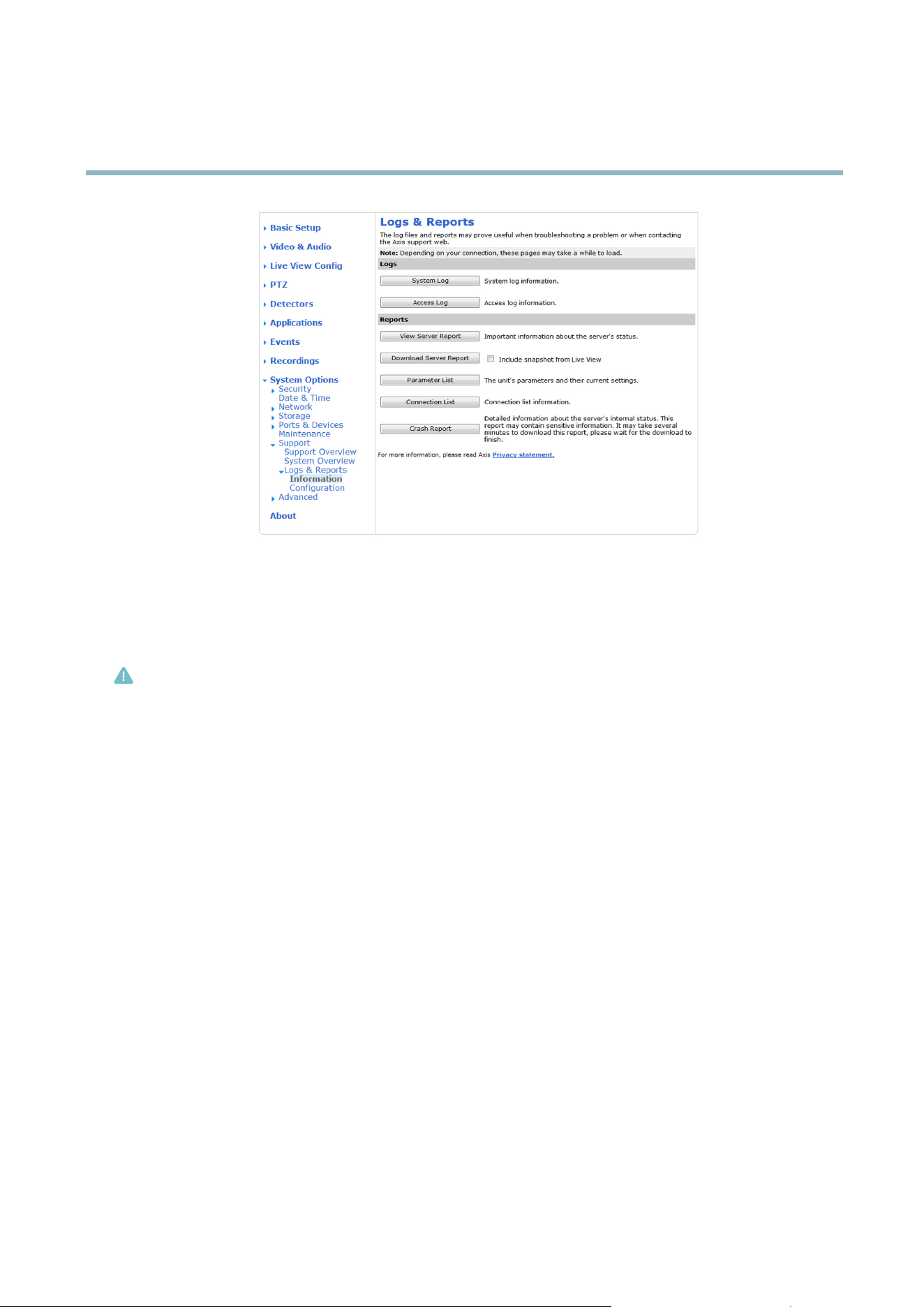
AXIS P3367–VE Fixed Dome Network Camera
System Options
Advanced
Scripting
Scripting a llow s experienced users to customize and use their own scripts.
Caution
Improper use may cause unexpected behavio r and loss of contact with the Axis product.
Axis strongly recommends that you do not use this function unless you understand the consequences. Axis Support does not provide
assistance for problems wit h customized scripts.
To open the Script Editor, go to System Options > Advanced > Scripting. It is recommended to create a backup file be fore
customizing the scripts. If a script causes problems, reset the product to its factory default settings, see page 43.
For m ore information, see www.axis.com/developer
File Upload
Files, f or example web pages and images, can be uploaded to the Axis product and used as custom settings. To upload a file, go
to System Options > Advanced > File Upload.
Uploaded files are accessed through http://<ip address>/local/<user>/<file name> where <user> is the
selected user group ( viewer, operator or administrator) for the uploaded fi le.
Plain Config
Plain Config is for advanced users with experience of Axis product configuration. All parameters can be set and modified from this
page. Help is a vailable from the standard help pages.
To open Plain Config, go to System Option s > Advanced > Plain Config .
Reset to f
actory default settings
This will reset all paramete rs, including the IP address, to the factory default settings:
1. Disconnect power from the product.
43

AXIS P3367–VE Fixed Dome Network Camera
System Options
2. Press and hold the Control button and reconnect power (see Hardware overview, on page 4 ).
3. Keep the Control b utton pressed for about 15 seconds until the Status indicator flashes amber.
4. Release the Control button. The process is complete after about 1 minute (when the Status indicator turns green). The
product has been reset to the factory default settings. The default IP address is 192.168.0.90
5. Re-assign the IP address.
It is also possible to reset parameters to factory default via the web interface. Go to Setup > System Options > Maintenance.
44
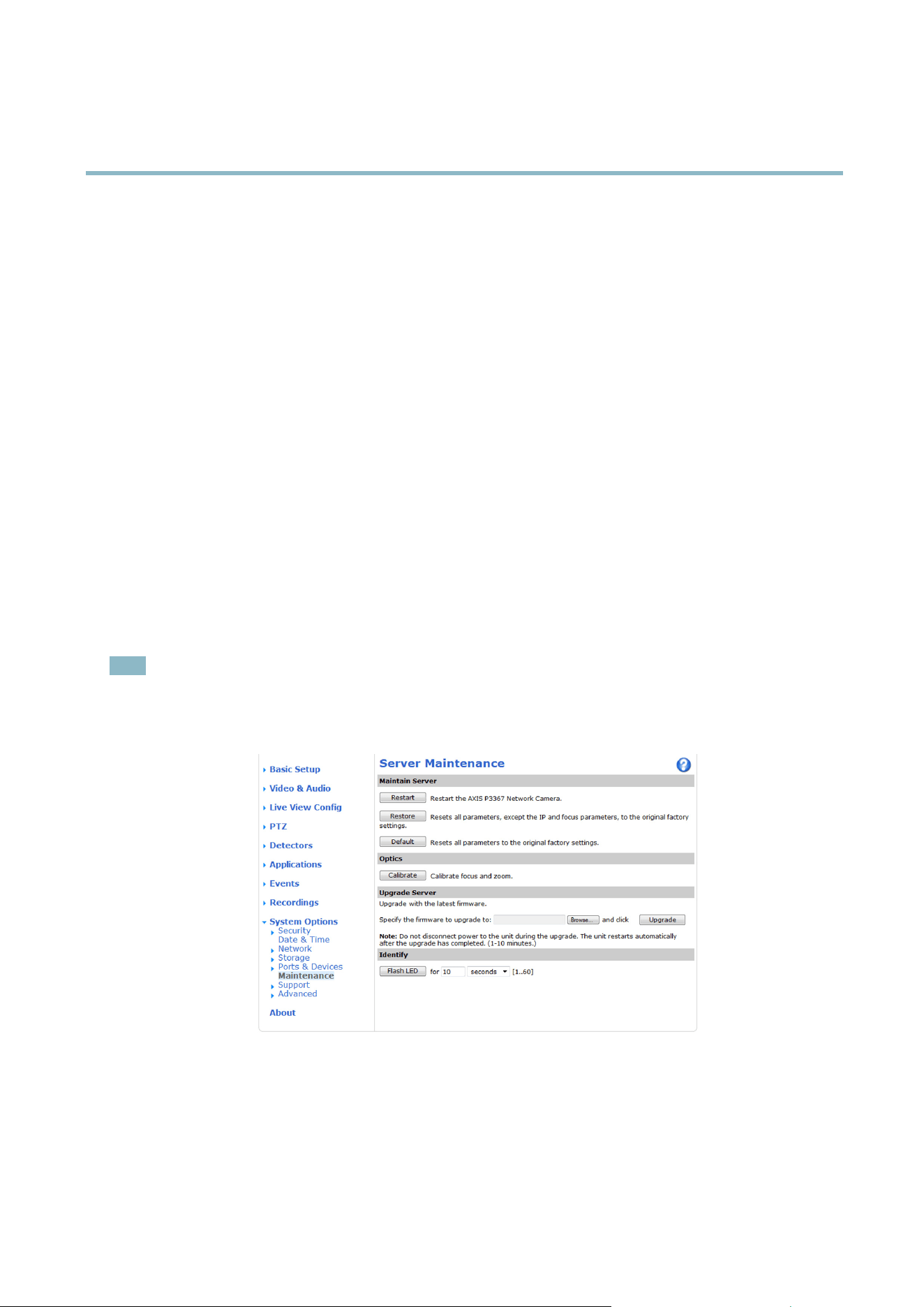
AXIS P3367–VE Fixed Dome Network Camera
Troubleshooting
Troubleshooting
Checking the firmware
Firmware is software that determines the functionali ty of network devices. One of your first actions when troubleshooting a problem
should be to check the current firmware version. The l ate st v ersion may contain a correction that fixes your particular problem. The
current firmware version in the Axis product is displayed in the page Setup > Basic Setup and in Setup > System Options > About.
Upgrading the firmware
When you upgrade the product with the latest firmware from Axis web site , the product re ceives the latest functionality available.
Always read the upgrade instructions and release notes available with each new release, before upgrading the firmware.
To upgrade, follow these instructions:
1. Save the firmware file to your computer. The latest version of the firmware is available free of charge from Axis website
at www.axis.com/techsup
2. Go to Setup > System Options > Maintenance in the products web pages.
3. Under Upgrade Server, click Browse and locate the file on your computer. Click Upgrade.
After s tarting the upgrade process, always wait at least 5–10 minutes before restarting the p roduct, even if you suspect the
upgrade has failed.
AXIS Camera M anag eme nt can be used f or multiple upgrades. See www.axis.com for more information.
Note
• Your dealer reserves the right to charge for any repair attributable to faulty upgrade by the user.
•Preconfigured and customized settings are saved when the firmware is upgraded (providing the features are available in
the new firmware) although this is not guaranteed by Axis Communications AB.
Emerge
ncy recovery procedure
If power or network connection is lost during the upgrade, the process fails and the product becomes unresponsive. Flashing red Status
indicator indicates a failed upgrade. To recover the product, follow the steps below. The serial number is found on the product’s label.
1. In UNIX/Linux, type the following f rom the command line:
45

AXIS P3367–VE Fixed Dome Network Camera
Troubleshooting
arp -s <IP address> <serial number> temp
ping -s 408 <IP address>
In Windows, type the following from a command/DOS prompt:
arp -s <IP address> <serial number>
ping -l 408 -t <IP address>
2. If the product does not reply within a few seconds, restart it and wait for a reply. Press CTRL+C to stop Ping.
3. Open a browser and type in the product’s IP address. In the page that appears, use the Browse button to select the upgrade
file to use . Then click Load to restart the upgrade process.
4. After the upgrade is complete (1–10 minutes), the product automatically restarts and shows a steady green on the Status
indicator.
5. Reinstall the product, referring to the Installation Guide.
If the emergency recovery procedure does not get the product up and running again, contact Axis support at www.axis.com/techsup/
Symptoms, possible causes and remedial actions
Problems setting the IP address
When using ARP/Ping
Try the installation again. The IP address must be set within two minutes after power has been
applied to the product. Ensure the Ping length is set to 408. See the Installation Guide for
detailed instructions.
The product is locate d on a
different subnet
If the IP address intended for the product and the IP address of the computer used to access the
product are located on different subnets, you will not be able to s et the IP address. Contact your
network adm inistrator to obtain an IP address.
The IP address is being u sed
by another device
Disconnect the Axis product from the network. Run the Ping command (in a Command/DOS
window, type ping and the IP address of the product:
•Ifyoureceive:Reply from <IP address>: bytes=32; time=10...
this means that the IP address may already be in use by another device on the network.
Obtain a new IP address from the network administrator and reinstall the product.
•Ifyoureceive:Request timed out, this means that the IP address is available for
use with the Axis product. Check all cabling and reinstall the product.
Possible IP address conflict
with another device on the
same subnet.
The static IP a ddress in the Axis product is used before the DHCP server s ets a dynamic address.
This means that if the same default static IP addressisalsousedbyanotherdevice,theremay
be problems accessing the product.
The product cannot be accessed from a browser
Cannot log in
When HTTPS is enabled, ensure that the correct protocol (HTTP or HTTPS) is used when attempting
to log in. You may need to manually type http or https in the browser’s address field.
The IP address has been
changed by DHCP
If the pro
duct and the client are on the sam e network, run AXIS IP Utility to locate the product.
Identify the product using its model or serial number.
Move the Axis product to an isolated network, or to one with no DHCP or BOOTP server. Set the IP
address again, using AXIS IP Utility or ARP/Ping (see the Installation Guide ). Open the Setup page s
and disabled DHCP in the TCP/IP settings. Return the product to the main network. The product
now h as a fixed IP address that will not change.
Certificate error when using
IEEE 802.1X
For authentication to work properly, the date and time settings in the Axis product should be
synchronized with an NTP server. See Date & Time, on page 35.
46

AXIS P3367–VE Fixed Dome Network Camera
Troubleshooting
The product is accessible locally but not externally
Router configuration To configure your router to allow incoming data traffic to the Axis product, enable the NAT-traversal
feature which will atte mpt to automatically configure the router to allow access to the Axis
product, see NAT traversal (port m apping) for IPv4, on page 38. The router must support UPnP
TM
.
Firewall protection
Check the Internet firewall with your network administrator.
Default routers required
Check if you need to configure the router settings.
Problems with the H.264 format
No H.264 displayed i n the
client
Check that the relevant H.264 connection methods and correct interf ace are enabled in the AMC
Control Pa n el (streaming tab). See AXIS Media Control (AMC), on page 12.
In the AMC Control Panel, select the H.264 tab and click Set to default H.264 decoder.
Check that RTSP is enabled under System Options > Network > TCP/IP > Advanced.
No multicast H.264
displayed in the client
Check with your network administrator that the multicast addresses used by the Axis product
arevalidforyournetwork.
Check with your network administrator to see if there is a firewall preventing viewing.
Multicast H.264 only
accessible by local clients
Check if your router supports multicasting, or if the router settings between the client and the
product need to be configured. The TTL (Time T o Live) value may need to be increased.
Poor rendering of H.264
images
Color depth set incorrectly on clients. Set to 16–bit or 32–bit color.
If text overlays are b lurred, or if there are other rendering problems, you may need to enable
Advanced Video Rendering fromv the Video tab in the AMC Control Panel.
Ensure that your gr aphics card is using the latest driver. The latest drivers can usually be
downloaded from the manufacturer’s website.
Color saturation is different
in H.264 and Motion JPEG
Modify the settings for your graphics adapter. Refer to the adapter’s documentation for more
information.
Lower frame rate than
expected
Reduce the numb er of applications running on the client computer.
Limit the number of simultaneous viewers.
Check with the network administrator that there is enough bandwidth available.
Check in the AMC Control Panel (H.264 tag) that video processing is NOT set to Decode only
key frames.
Lower the image resolution.
Why do I not get maximum
f
rames per second?
See Perform ance considerations, on page 52.
Set a Capture Mode that prioritizes frame rate. Changing the capture mode to prioritize frame rate
will lower the maximum resolution. SeeCapture mode, on page 18.
Image degeneration
Decrease the GOV length. Go to Video & Audio > Video Stream and select the H.264 tab
to modify the GOV length.
Status and Network indicator LEDs are flashing red rapidly
Hardware failure
Contact you Axis reseller.
47

AXIS P3367–VE Fixed Dome Network Camera
Troubleshooting
Status indicator LED is flashing red and the product is inaccessible
A firmware upgrade has
been interrupted or the
firmware has othe rwise been
damaged
See Emergency recovery p rocedure, on p age 45.
No images displayed on web page
Problems w ith AXIS Media
Control (Internet Explorer
only)
To enable the updating of video images in Internet Explorer, set the browser to allow ActiveX
controls. Also, make sure that AXIS Media Control is installed on your computer.
Installation of additional
ActiveX component
restricted or prohibited
Configure the Axis product to use a Java applet for updating video images in Internet Explorer. Go
to Setup > Live View Config and select Java applet under Default viewer.
Video and image problems, general
Image too dark or too light
Check the video stream and camera settings under Setup > Video & Audio > Video Stream and
Setup > Video & Audio > Camera Settings.
Missing images in uploads This can occur whe n trying to use a larger image buffe r than is actually ava ilable. Try lowering
the frame rate or the upload period.
Slow image up date Configuring pre-buffe rs, motion detectio n, high-resolution images or high frame ra t es will affect
the performance of the Axis product.
Poor performance Poor performance may be caused by heavy network traffic, multiple use rs accessing the product,
low performance clients, use of features such as m otion detection, event handling or uploaded
applications.
Poor quality snapshot images
Screen incorrectly
configured on your computer
Configure your screen to show at least 65000 colors, that is, at least 16 bits. Using only 16 or 256
colors will produce dithering artifacts in the image.
Overlay image is not displayed
Incorrect size or location of
overlay image
The overlay image may have been positioned incorrectly or may be too large. See Overlay I mage
Settings in the online hel p for more information.
Privacy mask is not displayed
Incorrect size or location of
privacy mask
The privacy mask may have been positioned incorrectly or may be too large.
Browser freezes
Firefox 1.4 (or later) can
sometimes freeze on a slow
computer
Lower the image resolution
Problems uploading files
Limited space There is only li mited space available for the upload of your own file s. Delete existing files t o free
up space.
48

AXIS P3367–VE Fixed Dome Network Camera
Troubleshooting
Motion Detection triggers unexpectedly
Changes in luminance
Motion detection is based on changes in luminance in the image. This means that if there a re
sudden changes in the lighting, motion detection may trigger mi sta ke nly. Lower the sensitivity
setting to avoid problems with luminance.
No audio
Incorrect s etup
Check the sound card in the computer. En sure that mute is not selected a nd that the volume
settings are correct.
No audio or very poor audio
quality
Check that Enable audio support is selected under Setup > System Options > Security > A udio
Support.
Check that the correct Audio Input source is selected under Setup > Video & Audio > Audio
Settings.
Poor audio quality
CPU overloaded
Reduce the number of listeners and viewers. Decrease image resolution and compression.
Unsynchronized audio and
video
Synchronize the product’s date and timesettingswithanNTPserver. GotoSetup > System
Options > Date & Time.
Distorted audio
Check that the correct Audio Input source is selected under Setup > Video & Audio > Audio
Settings.
Feedback loops Feedback lo ops might appear in full-duplex mode. Try moving the microphone or the speaker, or
use half-duplex mode instead.
Storage and disk management problems
Video cannot be recorded
Check that the SD card is not write protected (that is, read only).
SD card cannot be mounted Reformat the SD card and then click Mount.
49

AXIS P3367–VE Fixed Dome Network Camera
Technical Specifications
Technical Specifications
Function/group
Item
Specifications
Models
AXIS P3367–VE, 5 MP/HDTV 1080p, vandal-resistant, outdoor
Image sensor
Progressive scan R GB CMOS 1/3.2'‘
Lens Varifocal with remote zoom and focus, IR corrected, megapixel resolution
3 – 9 mm, F1.2, P-iris
Horizontal angle of view: 84° — 30°
Vertical angle of view: 63° — 22°
Diagonall angle of view: 105° — 37°
Day and Night Automatically removable infrared-cut filter
Minimum
illumination
Color: 0.2 lux at 30 IRE F1.2
B/W: 0.04 lux at 30 IRE F1.2
Shutter time
1/28000 s to 2 s
Camera
Camera angle
adjustment
Pan 360°, tilt 160°, rotation 340°
Video
compression
H.264 Baseline and Main Profile (MPEG-4 Part 10/AVC)
Motion JPEG
Resolutions
2592x1944 (5 MP) to 160x90
Frame rate H.264 5 MP mode: 1 2 fps in all resolutions
3 MP mode: 20 fps in all resolutions
HDTV 1080p (1920x1080) mode: 30 fps in all resolutions
2 MP 4:3 (1600x1200) mode: 30 fps in all resolutions
Frame rate
Motion JPEG
5 MP mode: 12 fps in all resolutions
3 MP mode: 20 fps in all resolutions
HDTV 1080p (1920x1080) mode: 30 fps in all resolutions
2 MP 4:3 (1600x1200) mode: 30 fps in all resolutions
Video streaming
Multiple, individually configurable streams in H.264 and Motion JPEG
H.264andMotionJPEG:1streaminresolutionandframerateasspecified above. More
streams i f identical or limited in
frame rate or resolution
Controllable frame rate and bandwidth
VBR/CBR H .264
Multiview
streaming
Up to 8 individually cropped out view areas. When streaming 4 view areas and 1 overview
in VGA resolution, the frame rate is 12 fps per stream (5 MP capture mode) or 20 fps
per s tream (3 MP capture mode)
Pan/Tilt/Zoom
Digital PTZ
, preset positions, guard tour
Video
Image settings
Compression, color, brightness, sharpness, contrast, white balance, exposure control,
exposure zones, backlight compensation, fine tuning of behavior at low light, wide
dynamic range — dynamic contrast
Rotation: 0°, 90°, 180°, 270°, including Corridor Format
TM
Mirroring of im age s
Text and image overlay
Privacy mask
50

AXIS P3367–VE Fixed Dome Network Camera
Technical Specifications
Function/group
Item
Specifications
Audio streaming Two-way
Audio
compression
AACLC8kHz32kbit/s,16kHz64kbit/s
G.711 PCM 8 kHz 64 kbit/s
G.726 ADPCM 8 kHz 32 kbit/s or 24 kbit/s
Configurable bit rate
Audio
Audio
input/output
External microphone input or line input, line output
Security Password protection, IP address filtering, HTTPS encryption*, IEEE 802.1X network access
control*, digest authentication, user access log
*This product includes software developed by the Open SSL Project for use in the Open
SSL Toolkit (www.openssl.org)
Network
Supported
protocols
IPv4/v6, HTTP, HTTPS *, SSL/TLS*, QoS Layer 3 DiffServ, FTP, SMTP, Bonjour, UPnP,
SNMPv1/v2c/v3(MIB-II), DNS, DynDNS, NTP, RTSP, RTP, TCP, UDP, IGMP, RTCP, ICMP,
DHCP,ARP,SOCKS,etc
*This product includes software developed by the Open SSL Project for use in the Open
SSL Toolkit (www.openssl.org)
Application
Programming
Interface
Open API for software integration, including ONVIF, specification available at
www.onvif.org, as well as VAPIX® and AXIS Camera Application Platform from Axis
Communications, specifications available at www.axis.com
Support for AXIS Video Hosting System (AVHS) w ith One-Click Camera Connectio n
Event trigger data in video stream
Embedded Linux operating system
Intelligent video Video motion detection, active tampering alarm, audio detection
Support for AXIS Camera Application Platform enabling installation o f additional
applications
Alarm triggers Intelligent video, external input, temperature, memory card full, on boot
Alarm actions File upload via FTP, HTTP and email
Notification via email, HTTP and TCP
Video and audio recording to edge storage
External output activation
Go to PTZ preset
Run guard tour
Play audio clip
Video buffer
96 MB pre- and post a larm
Video access from
web browser
Camera live view
Video recording to file (ASF)
Customizable HTML pages
Windows 7, Windows Vista, Windows XP, Windows Server 2008, Windows S erver 2003
DirectX 9c or higher
For other operating systems and b rowsers, s ee www.axis.com/techsup
Installation aids
in soft
ware
Remote zo om, remote focus, pixel counter
System
Integration
Installation,
management and
maintenance
AXIS Camera Management tool on CD and web-based confi guration
Configuration of backup and restore
Firmware upgrades over HTTP or FTP, firmware available on www.axis.com
51

AXIS P3367–VE Fixed Dome Network Camera
Technical Specifications
Function/group
Item
Specifications
Casing
Polycarbonate transparent cover
Aluminum inner camera module with encapsulated electronics
IP66– and NEMA 4X-rated, IK10 impact-resistant aluminum casing with integrated
dehumidifying membrane
Color: white NCS S 1002–B
Processor,
memory
ARTPEC-4, 512 M B RAM, 128 MB Flash
Battery backed-up real-time clock
Power
Power over Ethernet IEEE 802.3.af Class 3
Connectors
RJ-45 10BASE-T/100BASE-TX Po E
3.5 mm jack for mic in (max 80 mVpp) or line mono input (max 6.4 Vpp)
3.5 mm jack for line mono output (max 2.0 Vpp) to active speaker
Terminal block for 1 alarm input a nd 1 output
Edge storage
SD/SDHC memory card slot (card not included)
Support for recording to network share (Network Attached Storage or file server)
Operating
conditions
Temperature: –40 °C to 55 °C (–40 °F to 131 °F)
Humidity 15–100% RH (non-condensing)
Approvals
EN 55022 Class B, EN 61000–3–2, EN 61000–3–3, EN 61000–6–1, EN 61000–6–2,
EN 50121–4:2006, EN 55024
FCC Part 15 Subpart B Class B
ICES-003 Class B
VCCI Class B
C-tick AS/NZS CISPR 22
EN 60950–22
IEC 60529 IP66, NEMA 250 Type 4X, IEC 62262 IK10, EN 50121–4, IEC 62236–4
Dimensions
(HxWxD)
Camera: 117 mm x 178 mm x 178 mm (4.6'‘ x 7.0'‘ x 7.0'‘)
Camera with weather shield: 123 m m x 178 mm x 178 mm (4.8'‘ x 7.0'‘ x 7.0'‘)
Weight
Camera: 1.6 kg (3.5 lb)
Camera with weather shield: 1.7 kg (3.7 lb)
General
Included
accessories
Mounting and connector kits, mounting bracket, weather shield, cable shield, 5 m (16’‘)
network cable with premounted gasket, cl
ear and smoked dome cover, Installation Guide,
CD with User Manual, recording software, installation and management tools, Windows
decoder 1–user license
Video
management
software (not
included)
AXIS Camera Station — Video man
agementsoftwareforviewingandrecordingupto50
cameras
See www.axis.com/products/video/software/ for more software applications via partners
Optional
accessories
Multi-user decoder license pack
AXIS T8412 Installation Display
AXIS PoE Mids
pans
AXIS P8221 Network I/O Audio Mod ule
AXIS T90A Illuminators
Pendant
kit including weather shield
Audio I/O cable with premounted gasket
P
erformance considerations
When settings up your system, it is important to consider how various settings and situations will affect performance. So me factors
affect the amount of bandwidth (the bit rate) required, others can affe ct the frame rate, and some affect both. If the load on the
CPU reaches its maximum, this will also affect the frame rate.
The following factors are among the most important to consider:
52

AXIS P3367–VE Fixed Dome Network Camera
Technical Specifications
• High image res o lution and/or lower c ompression levels result in larger images. Bandw idth affected.
• Access by large numbers of Motion JPEG and/or unicast H.264 clients. Bandwidth affected.
• Simultaneous viewing of different streams (resolution, compression) by different clients. Effect on fram e rate and bandwidth.
• Accessing Motion JPEG a nd H.264 video streams simultaneous ly. Frame rate and bandwidth affected.
• Heavy usage of event settings a ffect the product’s CPU load. Frame rate affected.
• Heavy network utilization due to poor infra structure. Bandwidth affected.
• Viewing on poorly performing client computers lowers perceived performance. Frame rate affected.
53

User Manual Ver. M2.2
AXIS P3367–
VE Fixed Dome Network Camera Date: July 2011
© Axis Communications AB, 2011
Part No. 43
973