i
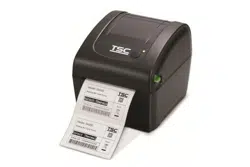
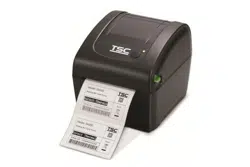
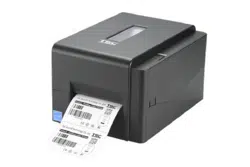
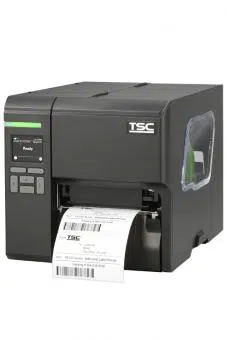
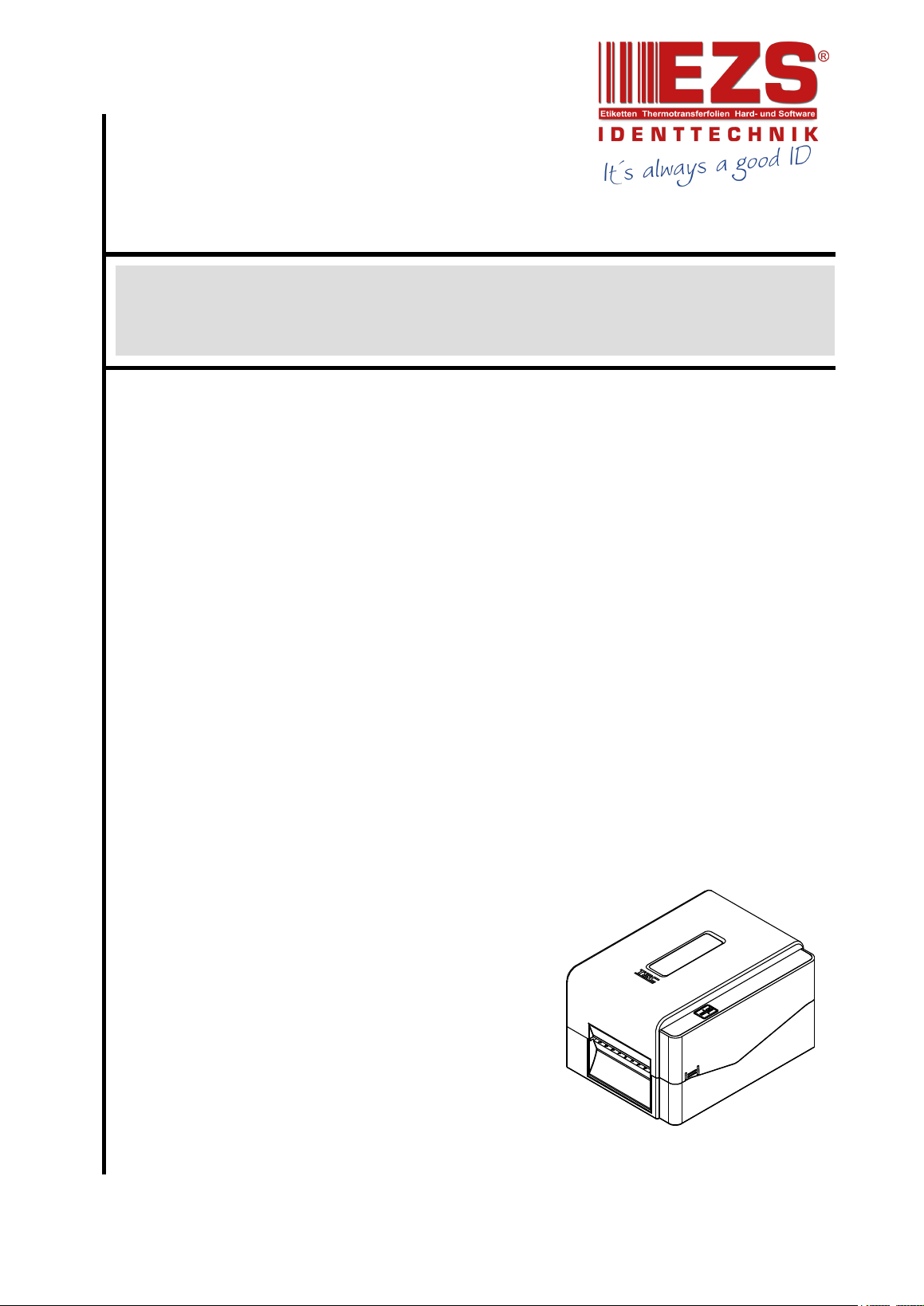
TE200/TE210/TE300/TE310 Series
SERVICE
MANUAL
THERMAL TRANSFER / DIRECT THERMAL
BAR CODE PRINTER

ii
TE200/TE210/TE300/TE310 Series
Bar Code Printer
Service Manual
TABLE OF CONTENT
1. OVERVIEW ................................................................................................................ 1
1.1 Front View ............................................................................................................... 1
1.2 Interior View ............................................................................................................ 2
1.3 Rear View ................................................................................................................. 3
2. ELECTRONICS .......................................................................................................... 4
2.1 Summary of Board Connectors ............................................................................. 4
2.2 Pin Configuration .................................................................................................. 10
3. MECHANISM ........................................................................................................... 12
3.1 Replacing the Print Engine Mechanism .............................................................. 12
3.2 Replacing the Main Board .................................................................................... 15
3.3 Replacing the Stepping Motor Module ................................................................ 16
3.4 Replacing the Gap Sensor Module ...................................................................... 18
3.5 Replacing the Black-mark Sensor Module ......................................................... 20
3.6 Replacing the Platen Roller Assembly ................................................................ 21
3.7 Replacing the Print Head Module ........................................................................ 23
3.8 Installing the Cutter Module (TE210/TE310 Series option) ................................ 26
3.9 Installing the Peeler Module (TE210/TE310 Series option) ............................... 28
3.10 Replacing the Key Module (LED Module/Option) ............................................. 30
3.11 Replacing the Print Head Open Sensor Assembly ........................................... 32
3.12 Replacing the Encoder Assembly ..................................................................... 33
3.13 Replacing the Label Guide Module ................................................................... 36
3.14 Replacing the Wi-Fi module Assembly (TE210/TE310 Series option) ............ 39
4. TROUBLESHOOTING ............................................................................................. 40
4.1 LED Status ............................................................................................................. 40
4.2 Print Quality .......................................................................................................... 41
5. MAINTENANCE ....................................................................................................... 44
UPDATE HISTORY ...................................................................................................... 46
1
TE200/TE210/TE300/TE310 Series
Bar Code Printer
Service Manual
1. OVERVIEW
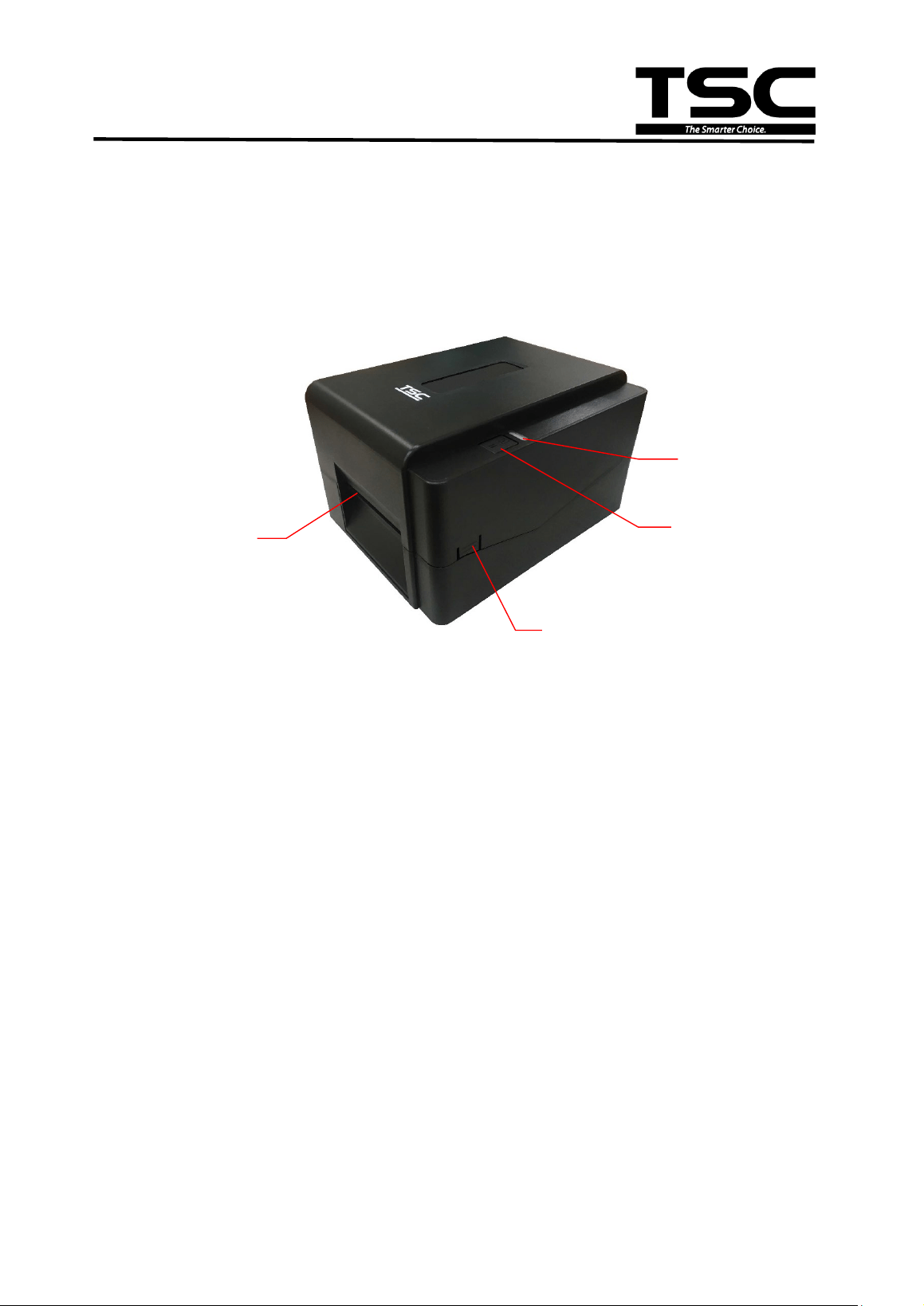
1.1 Front View
1. LED indicator
2. Feed/Pause button
3. Top cover open tab
4. Paper exit chute
1
2
4
3
2
TE200/TE210/TE300/TE310 Series
Bar Code Printer
Service Manual
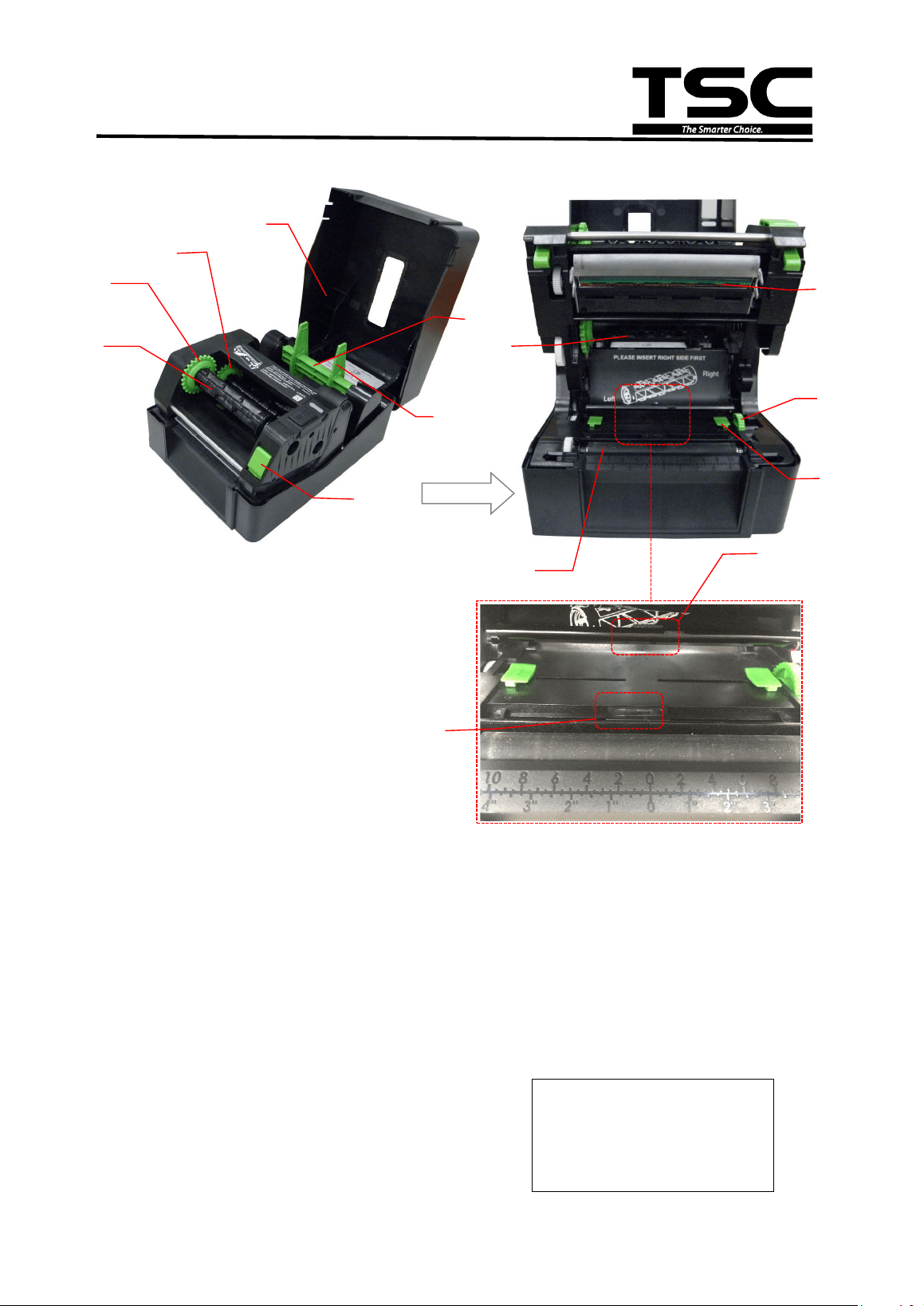
1.2 Interior View
1. Printer top cover 8. Ribbon supply spindle
2.
Ribbon supply hub
9.
Platen roller
3.
Ribbon rewind hub
10.
Black mark sensor
4. Ribbon rewind spindle
11. Gap sensor
5. Print head release button 12. Media guide
6.
Fixing tabs
13.
Media guide hub
7. Media supply spindle 14. Print head
WARNING
HAZARDOUS MOVING PARTS
KEEP FINGERS AND OTHER
BODY PARTS AWAY
OPEN
6
5
1
3
4
7
13
12
8
14
9
11
2
10
3
TE200/TE210/TE300/TE310 Series
Bar Code Printer
Service Manual
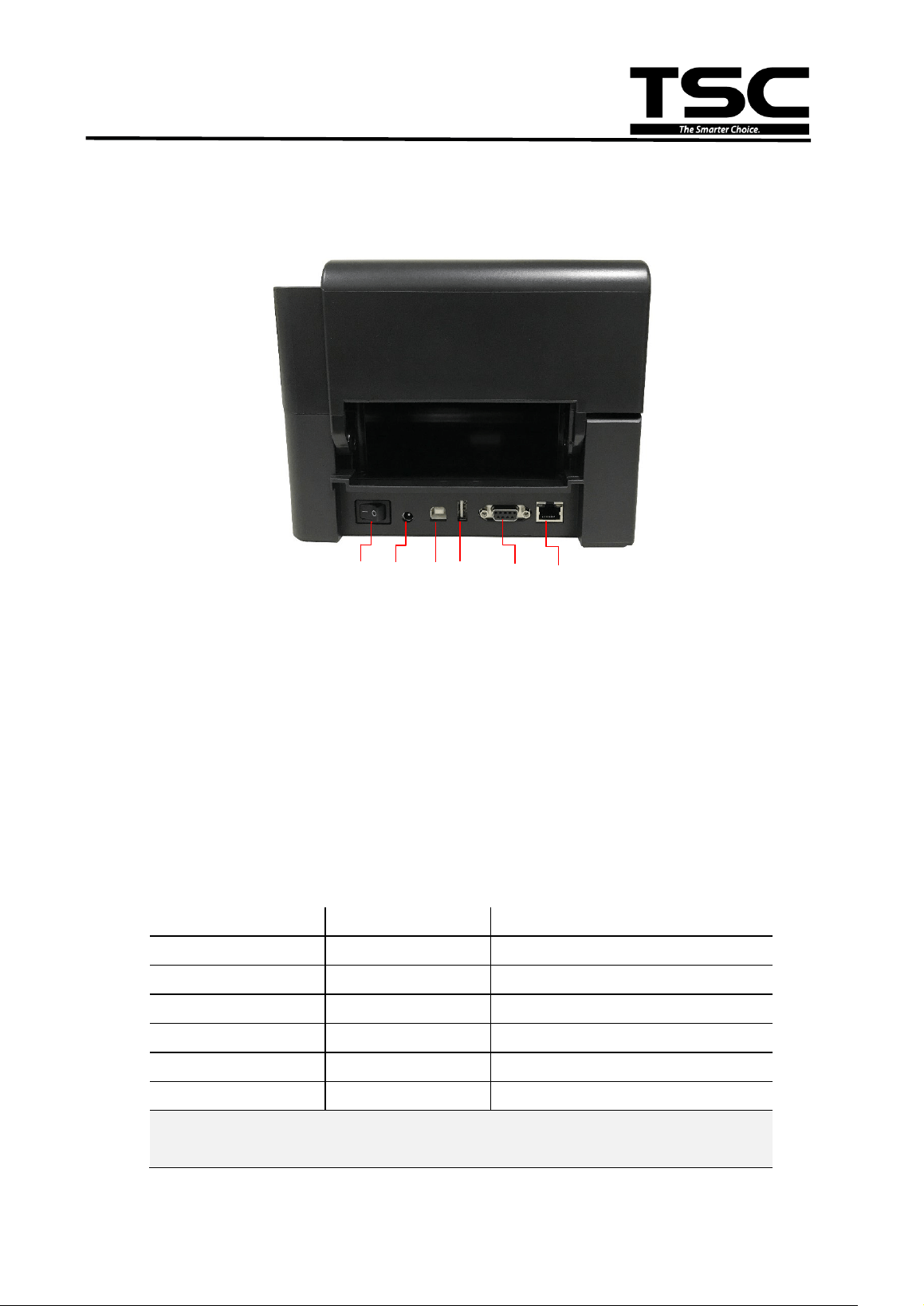
1.3 Rear View
1. Power switch
2. Power jack socket
3. USB interface (USB 2.0/Full speed mode)
4. USB host (TE210/TE310 Series only)
5. RS-232 interface (TE210/TE310 Series only)
6. Ethernet interface (TE210/TE310 Series only)
Note:
The interface picture here is for reference only. Please refer to the product specification for
the interfaces availability.
* Recommended SD card specification.
SD card spec SD card capacity Approved SD card manufacturer
V1.0, V1.1 microSD 128 MB Transcend, Panasonic
V1.0, V1.1 microSD 256 MB Transcend, Panasonic
V1.0, V1.1 microSD 512 MB Panasonic
V1.0, V1.1 microSD 1 GB Transcend, Panasonic
V2.0 SDHC CLASS 4 microSD 4 GB Panasonic
V2.0 SDHC CLASS 6 microSD 4 GB Transcend
- The DOS FAT file system is supported for the SD card.
- Folders/files stored in the SD card should be in the 8.3 filename format.
1
2 3
6 5
4
4
TE200/TE210/TE300/TE310 Series
Bar Code Printer
Service Manual
2. ELECTRONICS
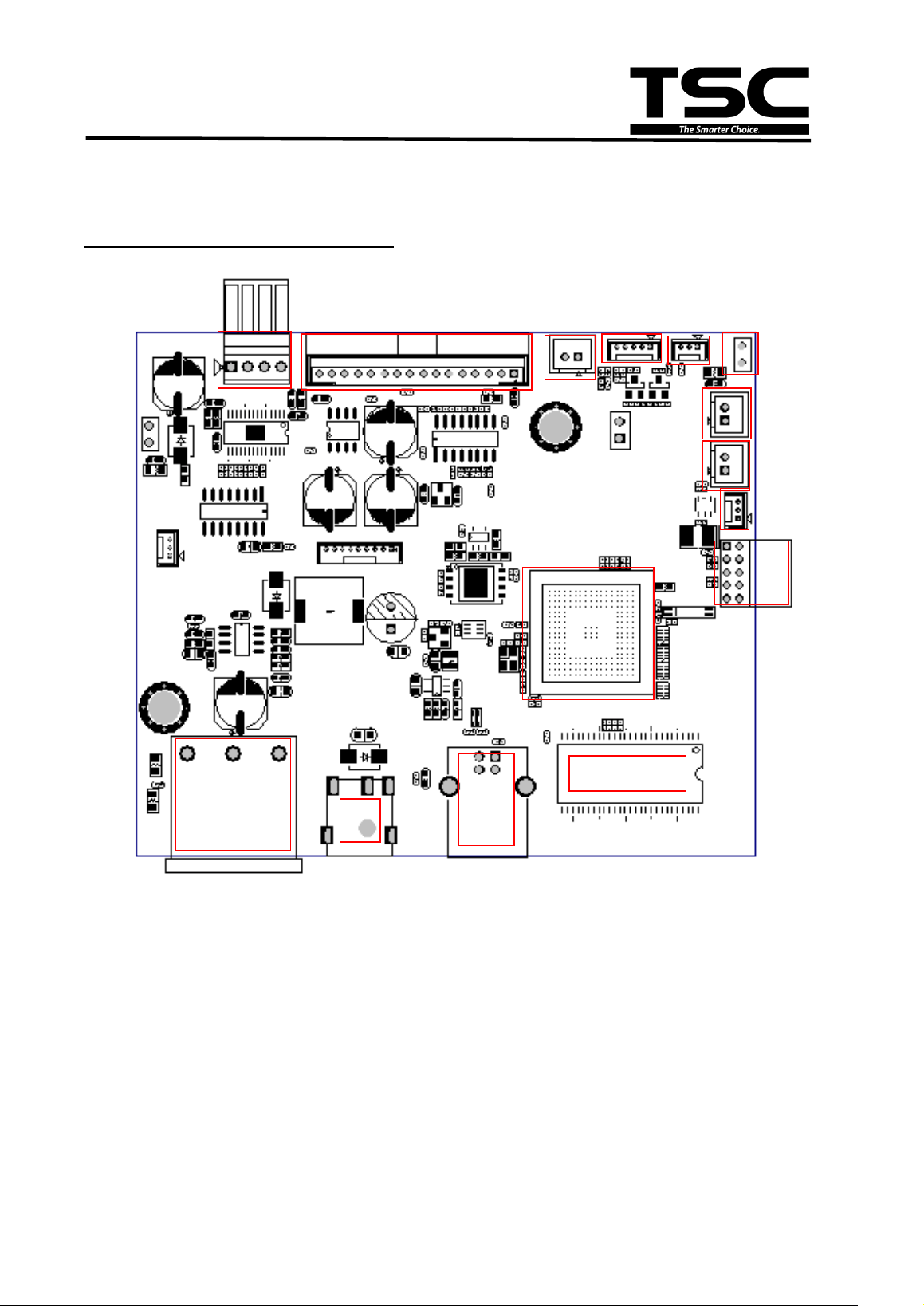
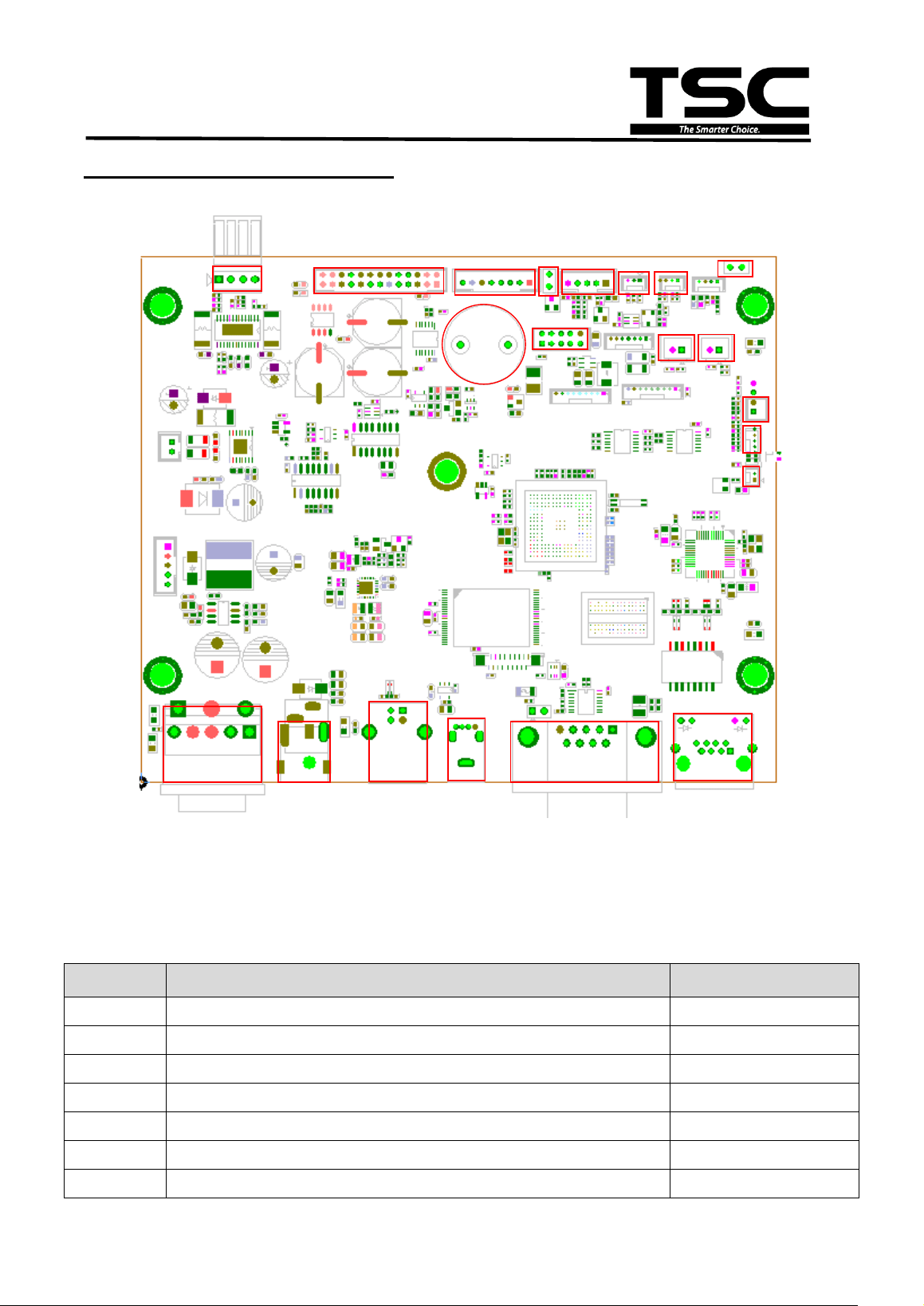
2.1 Summary of Board Connectors
Main board for TE200/TE300 Series
2
3
4
5
6
7
11
9
12
14
13
10
8
15
1
5
TE200/TE210/TE300/TE310 Series
Bar Code Printer
Service Manual
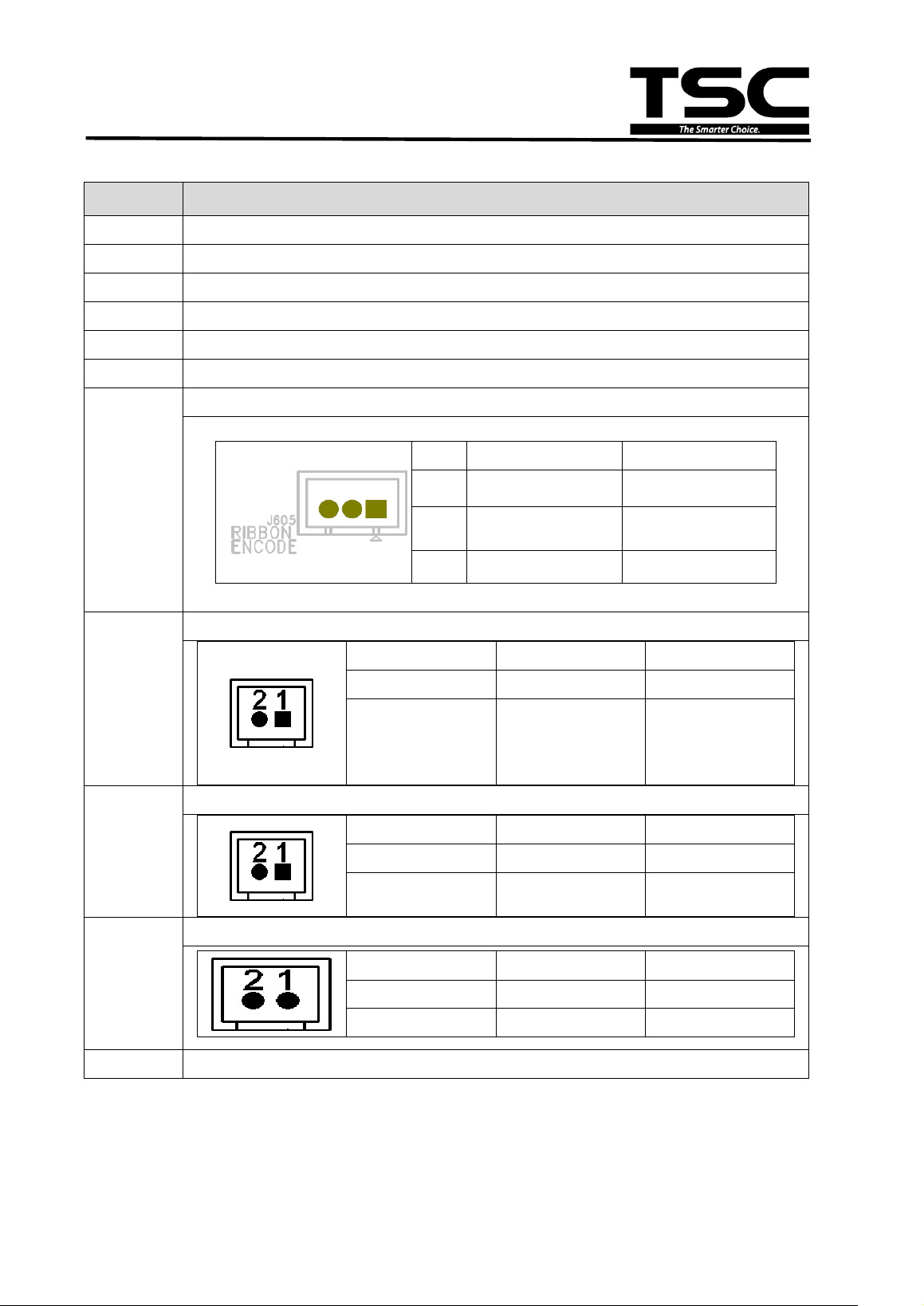
Connector
Description
1
Switch
2
DCIN
3
USB connector
4
SDRAM
5
MCU
6
BT connector
7
Ribbon Encode connector
Pin
Description
Voltage
1
Power 3.3V
2
Encoder signal 3.3V
3
GND 0V
8
Gap sensor emit connector
Pin
Description
Voltage
1
Power 3.3V
2
Gap sensor
emitter
Emitter on :
2.1~2.3V
Emitter off:
2.6~2.8V
9
Gap sensor receive connector
Pin
Description
Voltage
1
Power 3.3V
2
Gap sensor
receiver AD
0~3.3V
10
ESD_GND_PIN
Pin
Description
Voltage
1
GND
0V
2
GND 0V
11
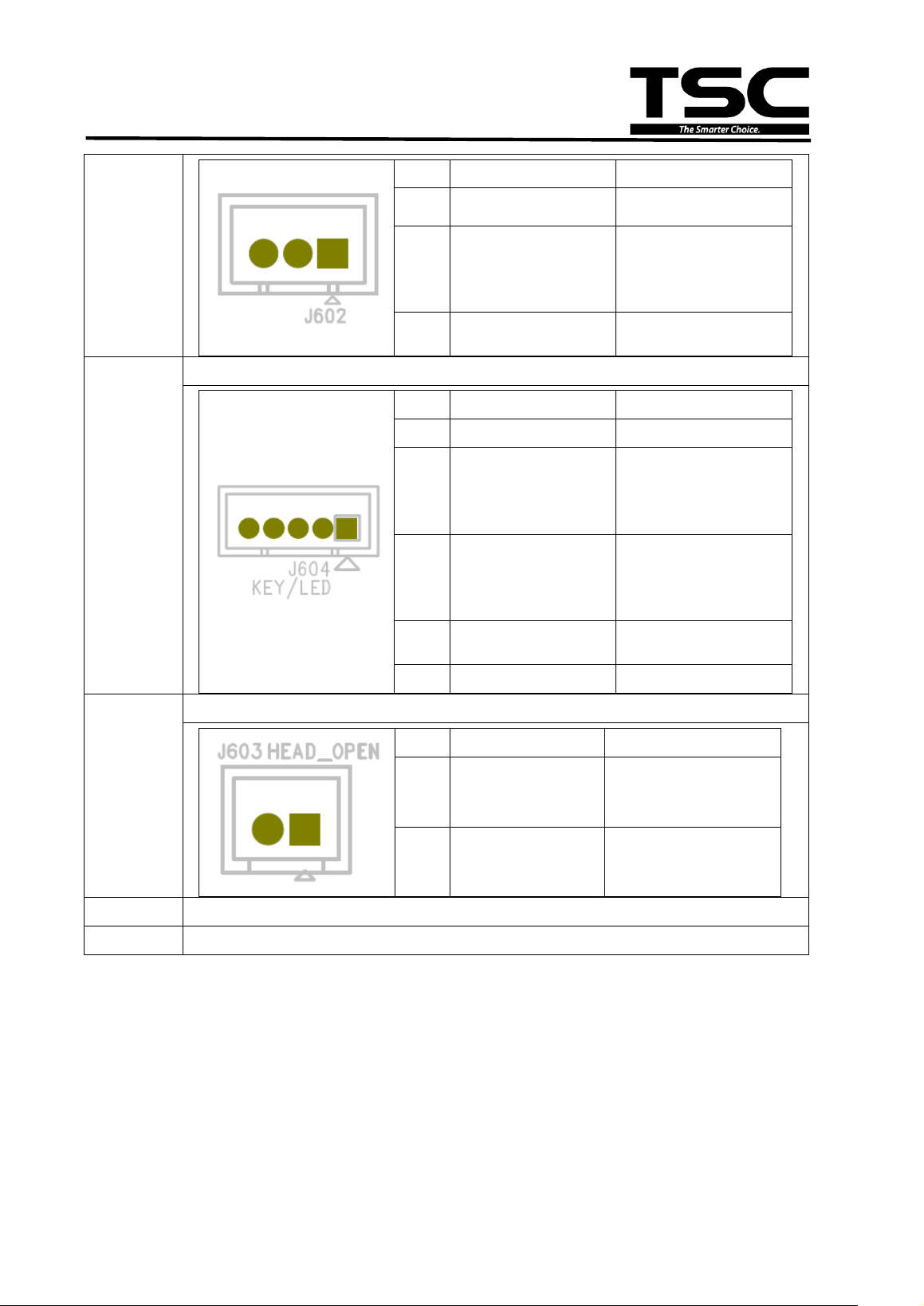
BM sensor connector
6
TE200/TE210/TE300/TE310 Series
Bar Code Printer
Service Manual
Pin
Description
Voltage
1
Power 3.3V
2
BM sensor
emitter
2.1~2.2V: Emitter
on
2.6~2.7V: Emitter
off
3
BM sensor
receiver
A/D : 0~3.3V
12
Key& LED connector
Pin
Description
Voltage
1
POWER 3.3V
2
LED Green
LED light
on:1.1~1.4V
LED light
off:1.6~1.9V
3
LED Red
LED light
on:1.4~1.7V
LED light
off:1.8~2.1V
4
KEY
0V: Push key
3.3V: Stand-by
5
GND 0V
13
Head open sensor connector
Pin
Description
Voltage
1
Head open
switch
0V : Head close
3.3V : Head open
2
GND 0V
14
KPZ-108-8TAE1-TSCA
15
Step motor connector
7
TE200/TE210/TE300/TE310 Series
Bar Code Printer
Service Manual
Main board for TE210/TE310 Series
Connector
Description Remark
1
Power switch connector
SW1
2
Power supply (24V DC) connector
DCIN1
3
USB Device connector
USB1
4
USB Host connector
USB2
5
RS-232C connector
RS1
6
Ethernet connector
LAN1
7
RTC battery connector
BT1
1
2
4
5
7
8
9
12
10
11
14
16 15 17 18
19
20
21
13
3
6
8
TE200/TE210/TE300/TE310 Series
Bar Code Printer
Service Manual
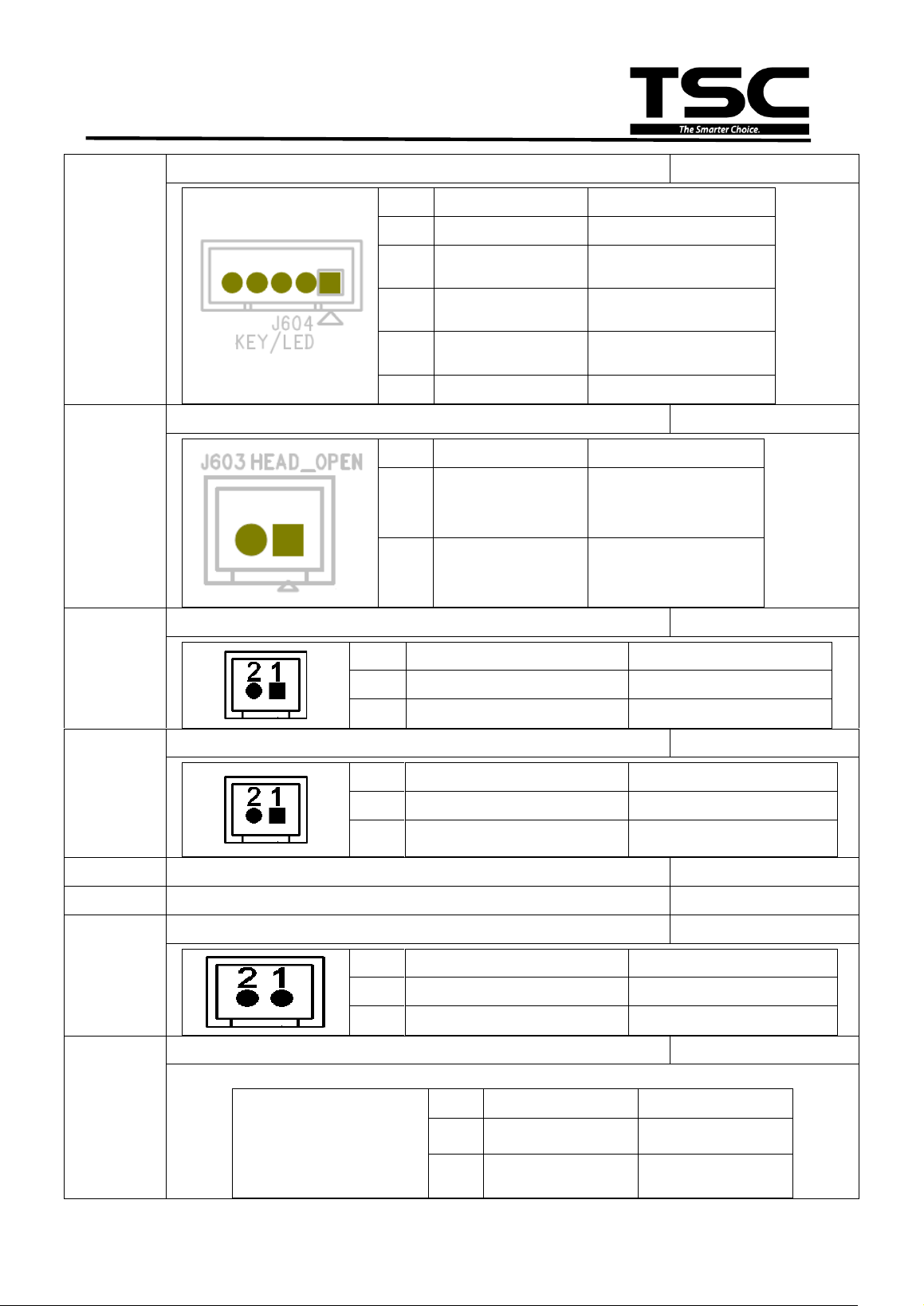
8
LED & KEY connector
CON19
Pin Description Voltage
1
POWER 3.3V
2
LED Green
LED light on:1.1~1.4V
LED light off:1.6~1.9V
3
LED Red
LED light on:1.4~1.7V
LED light off:1.8~2.1V
4
KEY
0V: Push key
3.3V: Stand-by
5
GND 0V
9
Head open sensor connector
CON1
Pin Description Voltage
1
Head open switch
0V : Head close
3.3V : Head open
2
GND 0V
10
Gap sensor receiver connector
CON5
Pin
Description
Voltage
1
Power 3.3V
2
Gap sensor receiver AD 0~3.3V
11
GAP sensor connector (for Transmit signals)
CON20
Pin
Description
Voltage
1
Power 3.3V
2
Gap sensor emitter
Emitter on : 2.1~2.3V
Emitter off: 2.6~2.8V
12
Wi-Fi / Bluetooth connector
CON13
13
Buzzer (Factory option)
BZ1
14
ESD_GND_PIN
JP1
Pin
Description
Voltage
1
GND 0V
2
GND 0V
15
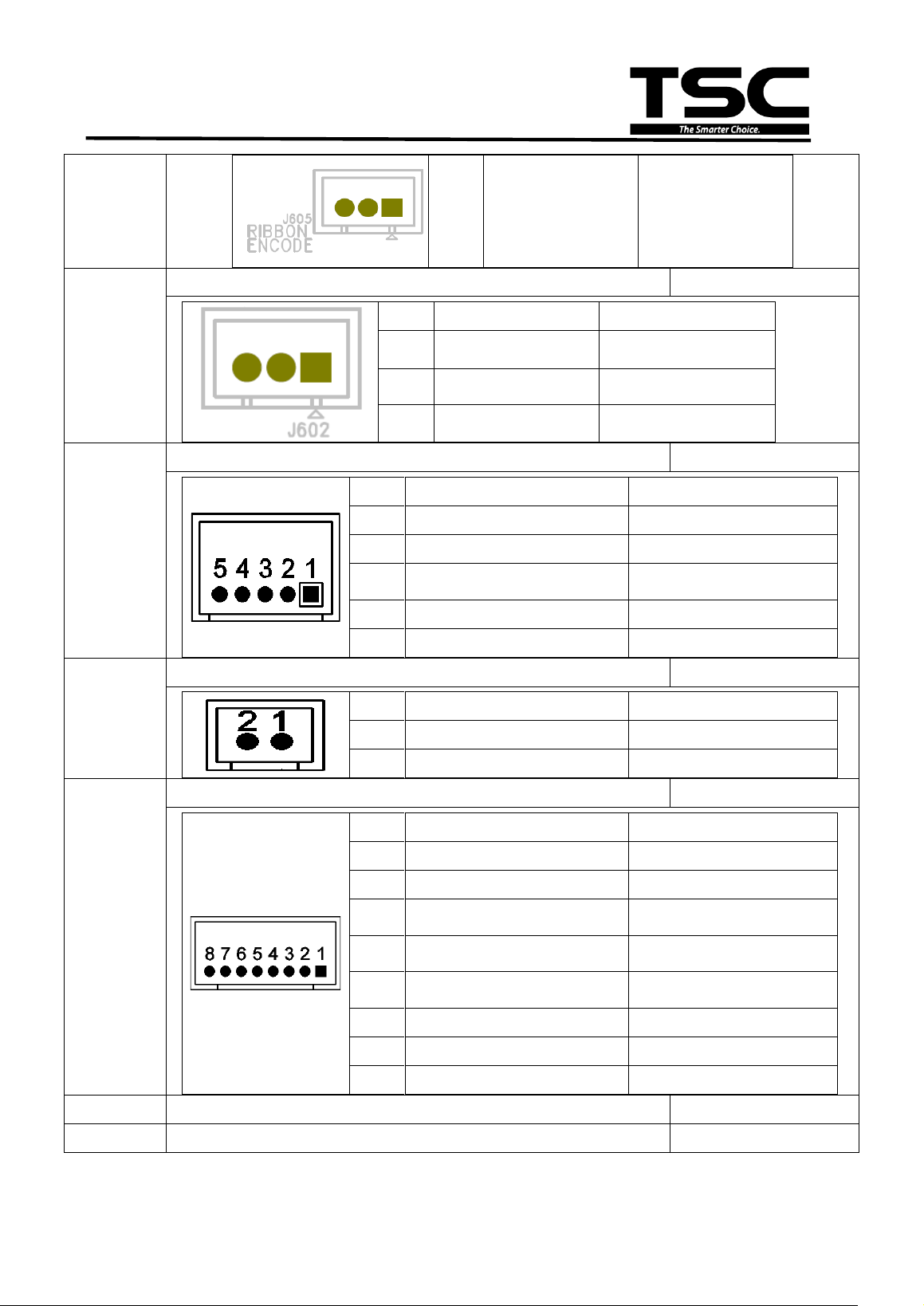
Ribbon Encode connector
CON12
Pin Description Voltage
1
Power 3.3V
2 Encoder signal 3.3V
9
TE200/TE210/TE300/TE310 Series
Bar Code Printer
Service Manual
3
GND 0V
16
BM sensor connector
CON21
Pin Description Voltage
1
Power 3.3V
2
BM sensor emitter
2.1~2.2V: Emitter on
2.6~2.7V: Emitter off
3
BM sensor receiver A/D : 0~3.3V
17
PEEL sensor connector
CON10
Pin
Description
Voltage
1
Power 3.3V
2
Reserved
3
Peel sensor emitter
Emitter on : 2.1~2.3V
Emitter off: 2.6~2.8V
4
Peel sensor receiver AD 0~3.3V
5
GND 0V
18
ESD_GND_PIN
JP2
Pin
Description
Voltage
1
GND 0V
2
GND 0V
19
Cutter connector
CON6
Pin
Description
Voltage
1
Cutter power 24V
2
GND 0V
3
Cutter direction
0V: Cutter positive cut
5V: Cutter negative cut
4
Cutter enable
0V: Cutter work
5V: Cutter stop
5
Cutter position sensor switch
0V: Cutter stop
3.3V: Cutter work
6
GND 0V
7
Logic power 5V
8
Reserved
20
Print head connector (TE-210 / TX-310)
CON24
21
STEP_MOTOR connector
CON16
10
TE200/TE210/TE300/TE310 Series
Bar Code Printer
Service Manual
2.2 Pin Configuration
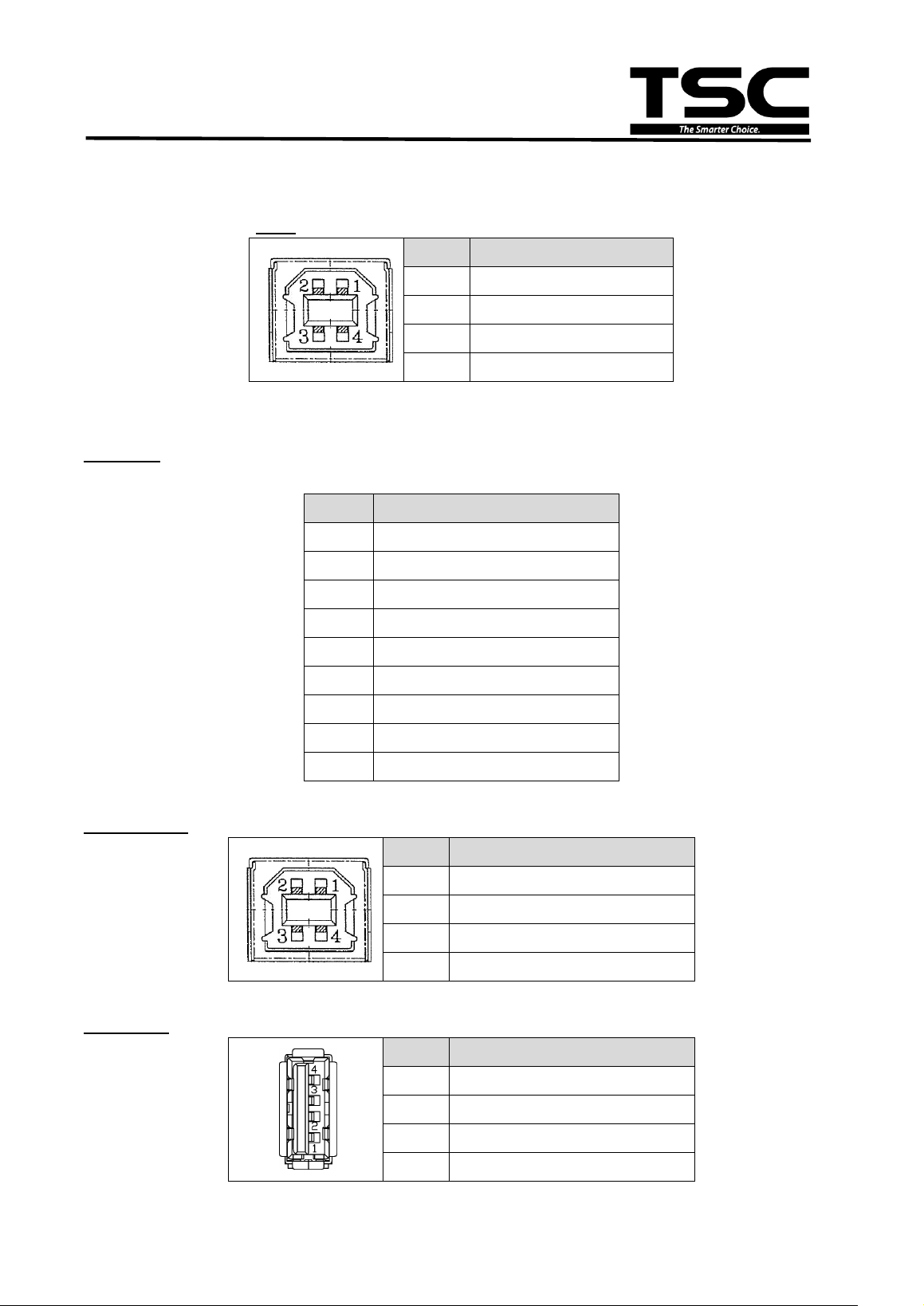
USB
PIN
CONFIGURATION
1 N/C
2
D-
3 D+
4
GND
TE210/TE310 Series only:
RS-232C
PIN
CONFIGURATION
1 +5 V
2
TXD
3 RXD
4
CTS
5 GND
6
RTS
7 N/C
8
RTS
9 N/C
USB Device
PIN
CONFIGURATION
1
N/C
2 D-
3
D+
4 GND
USB Host
PIN
CONFIGURATION
1
5V
2 D-
3
D+
4 GND

11
TE200/TE210/TE300/TE310 Series
Bar Code Printer
Service Manual
Ethernet
PIN
CONFIGURATION
1
Tx+
2
Tx-
3
Rx+
4
N/C
5
N/C
6
Rx-
7
N/C
8
N/C
12
TE200/TE210/TE300/TE310 Series
Bar Code Printer
Service Manual
3. MECHANISM
Please turn off the power switch and unplug the power adapter before replacing parts.
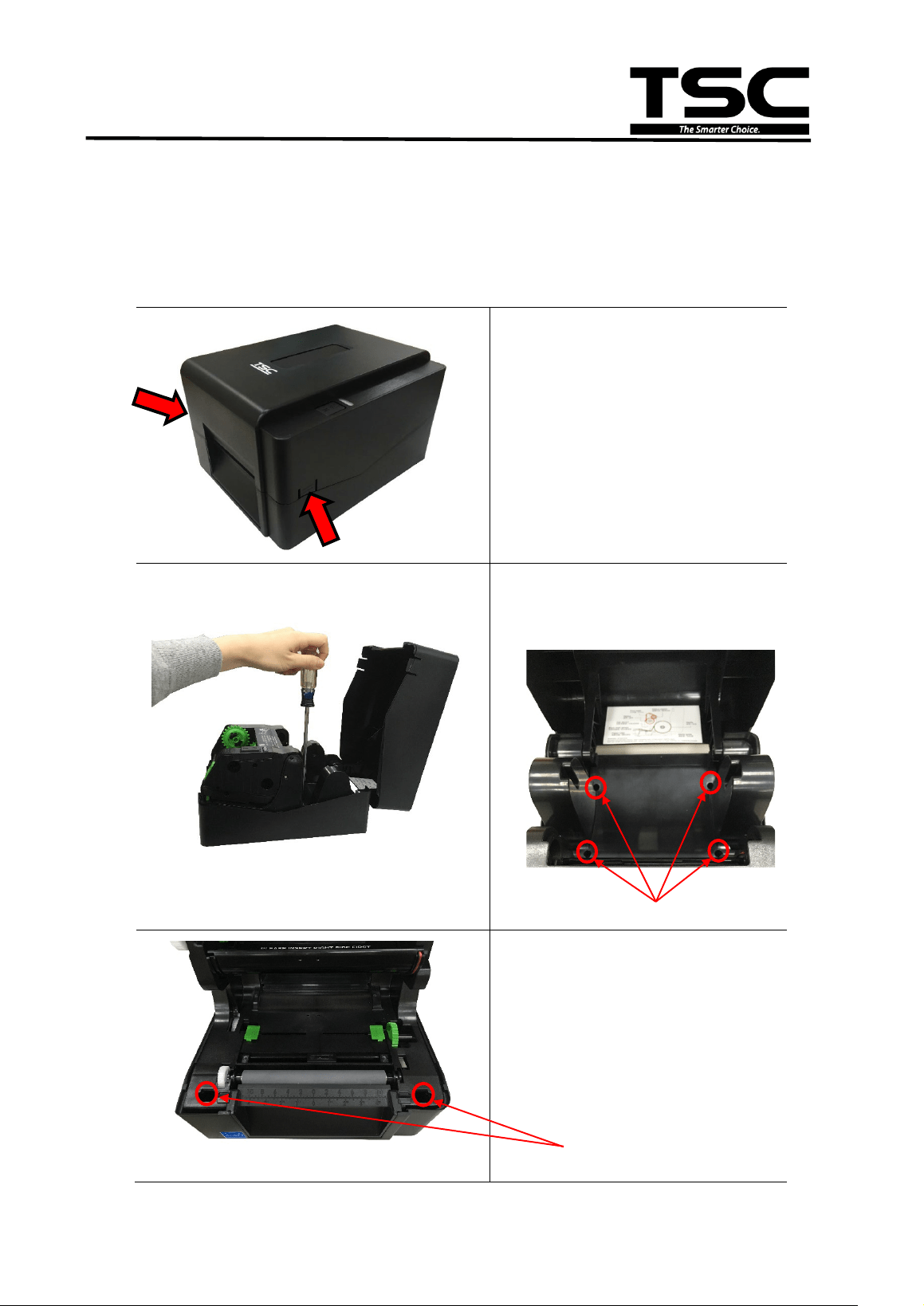
3.1 Replacing the Print Engine Mechanism
1. Open the printer top cover by
pressing the top cover open
tabs located on each side of
the printer.
2. Remove the four screws on
media holder and disengage
it.
3. Remove the two screws on
the print engine which
besides the platen roller.
Screws
Screws
13
TE200/TE210/TE300/TE310 Series
Bar Code Printer
Service Manual
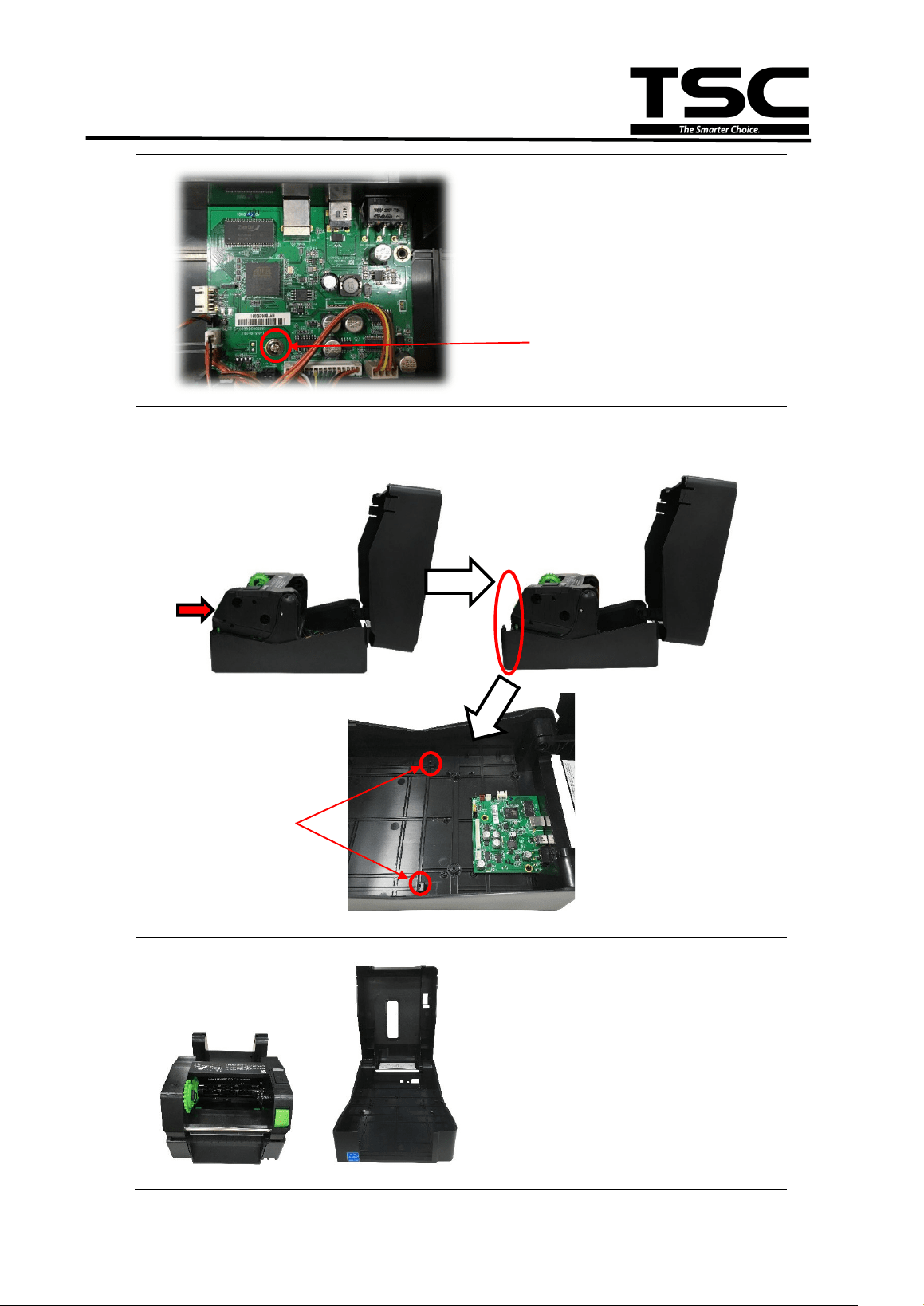
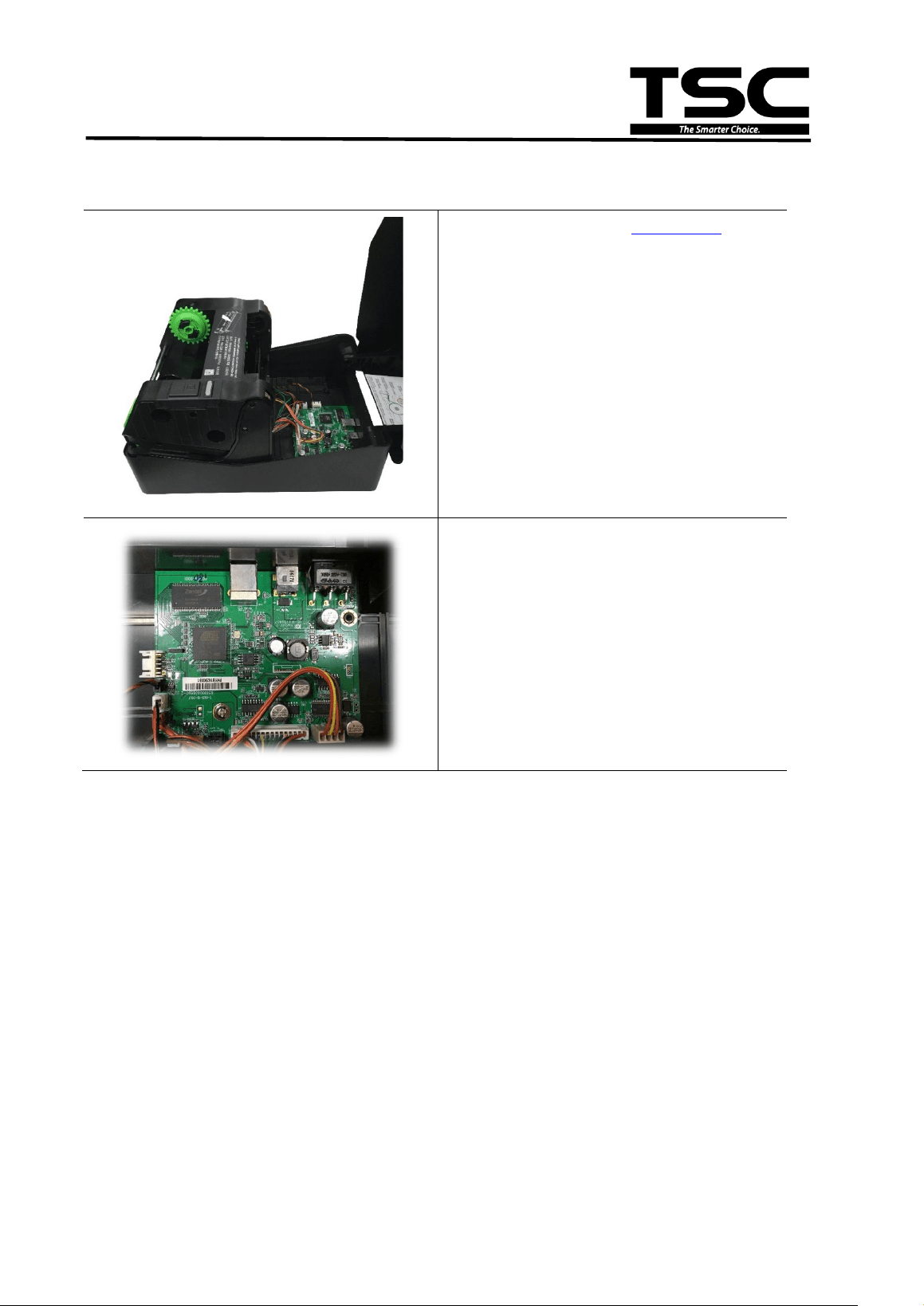
4. Please remove the screw
and all of the cables
connected to the main board
and disengage the print
engine.
5. Push the print engine forward and leave the slots, then lift it up to
disconnect the print cover assembly.
6. Reassemble the parts in the
reverse procedure.
Slots
Screw
14
TE200/TE210/TE300/TE310 Series
Bar Code Printer
Service Manual
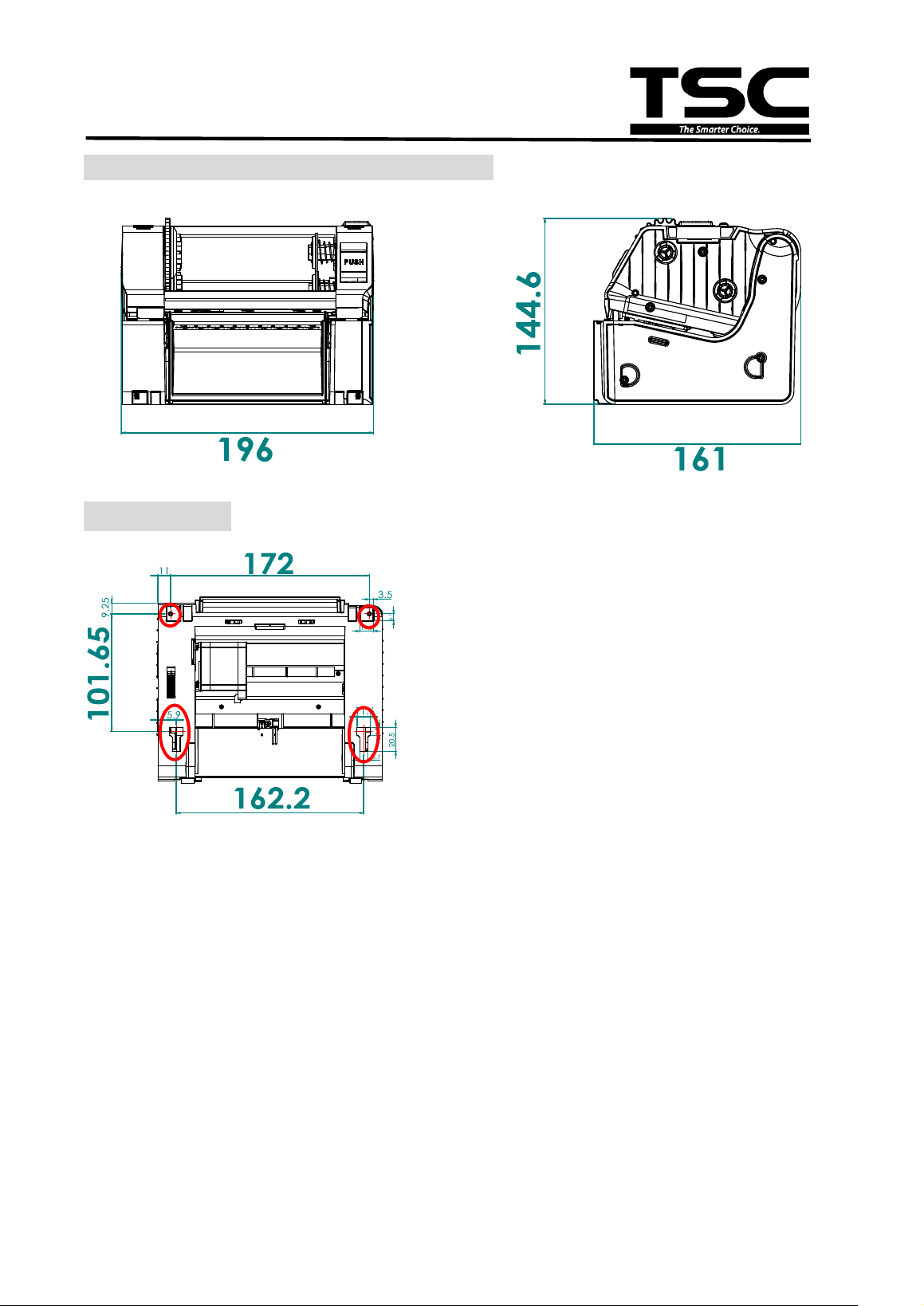
Print engine mechanism measurements
Bottom view
Note:
1. All dimensions in millimeters.
2. There are 4 location holes in this print
engine mechanism, the fixing location
holes are marked in red on bottom view
drawing which can be fixed by the
customer’s reference.
16
TE200/TE210/TE300/TE310 Series
Bar Code Printer
Service Manual
3.3 Replacing the Stepping Motor Module
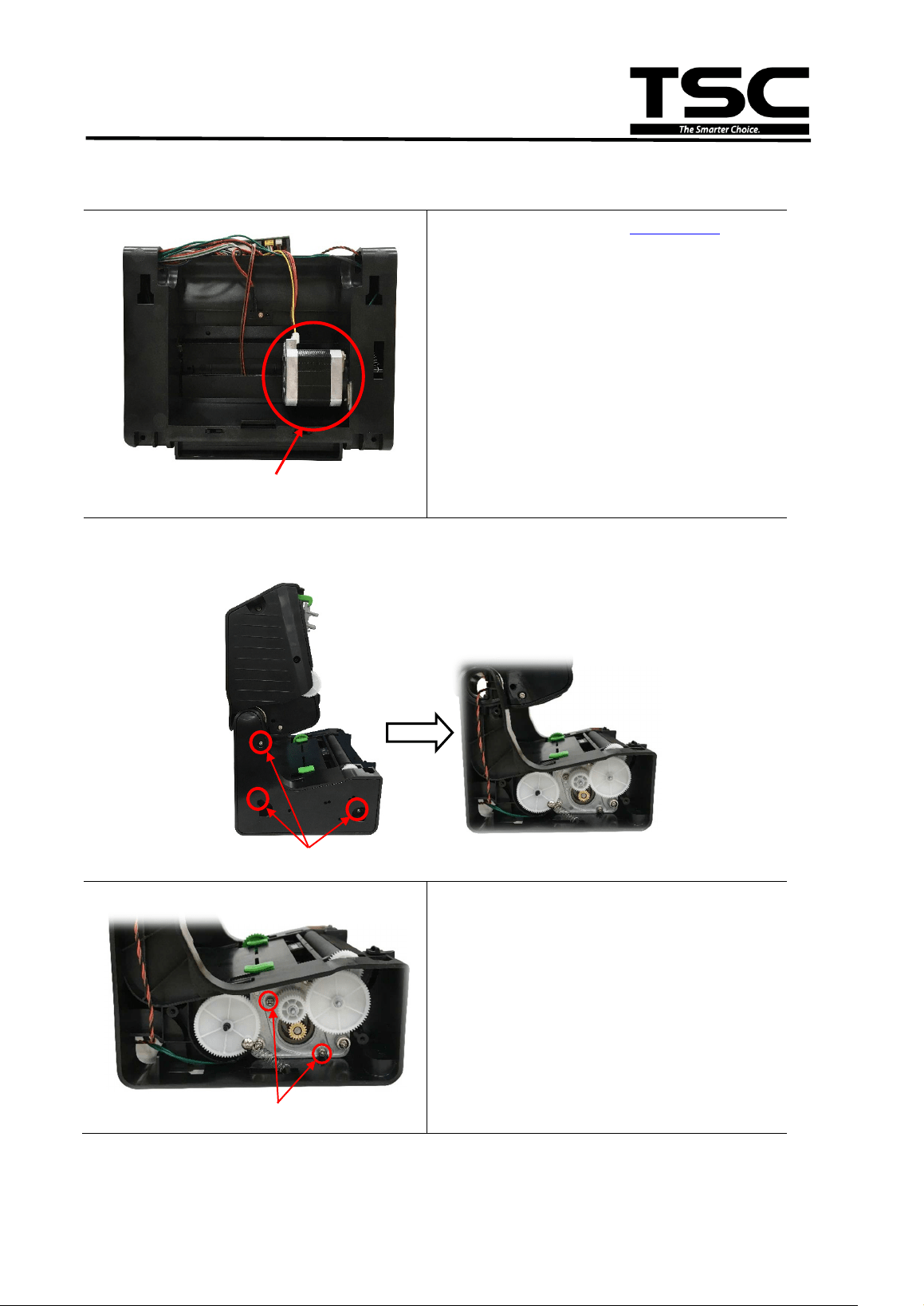
1. Please refer to the section 3.1 to
remove the print engine mechanism.
2. Turn the print engine mechanism
upside down and the stepping motor
is installed below as indicated.
3. Remove the three screws on the left side lower cover and open it.
4. After the stepping motor left side
lower cover opened, please remove
the two screws as indicated to
disengage the stepping motor
module.
Screws
Screws
Stepping Motor
17
TE200/TE210/TE300/TE310 Series
Bar Code Printer
Service Manual
Stepping Motor
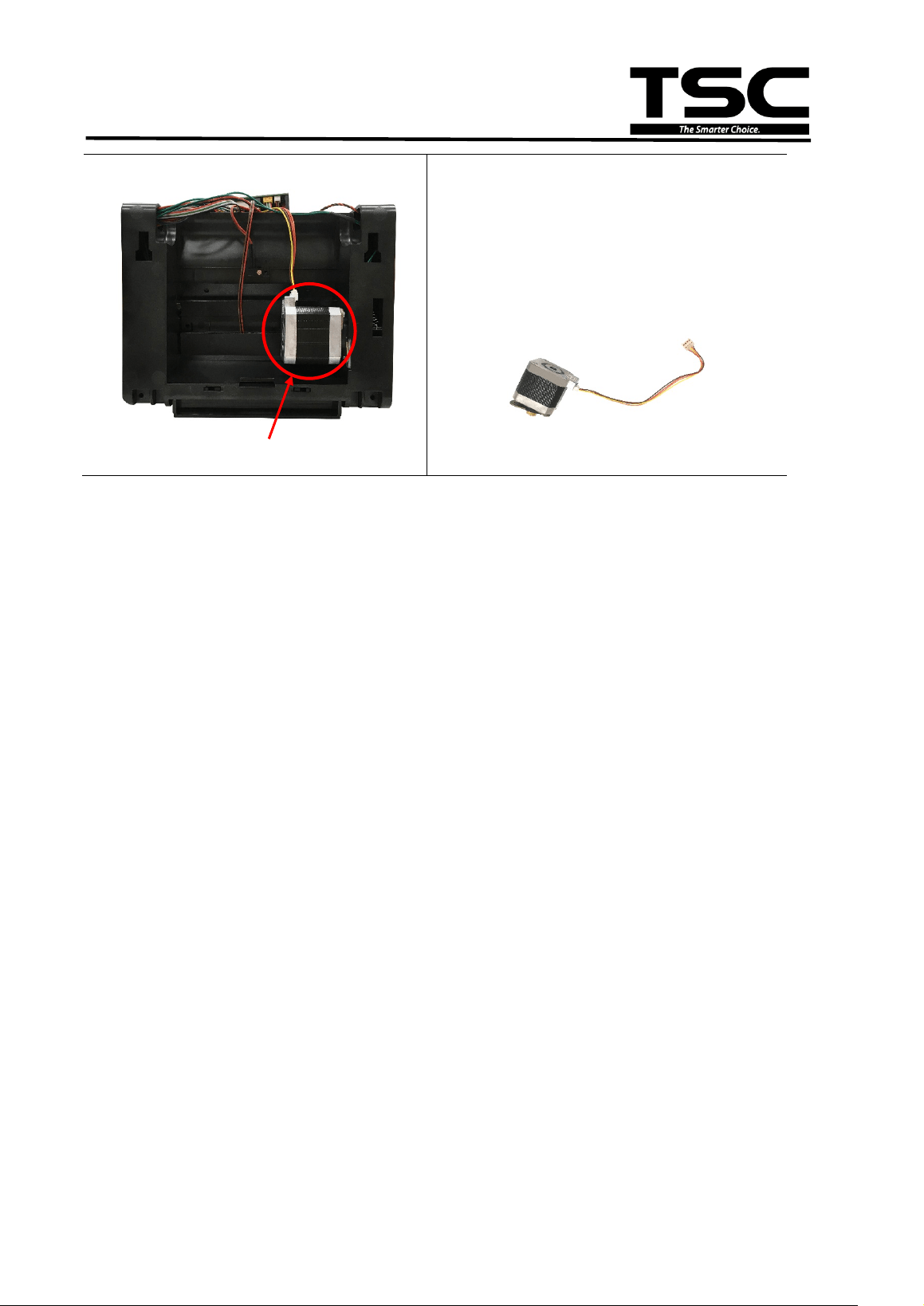
5. Disconnect the stepping motor
connectors on the main board.
6. Remove/replace the stepping motor
module.
7. Reassemble the parts in the reverse
procedure.
Steeping motor module
18
TE200/TE210/TE300/TE310 Series
Bar Code Printer
Service Manual
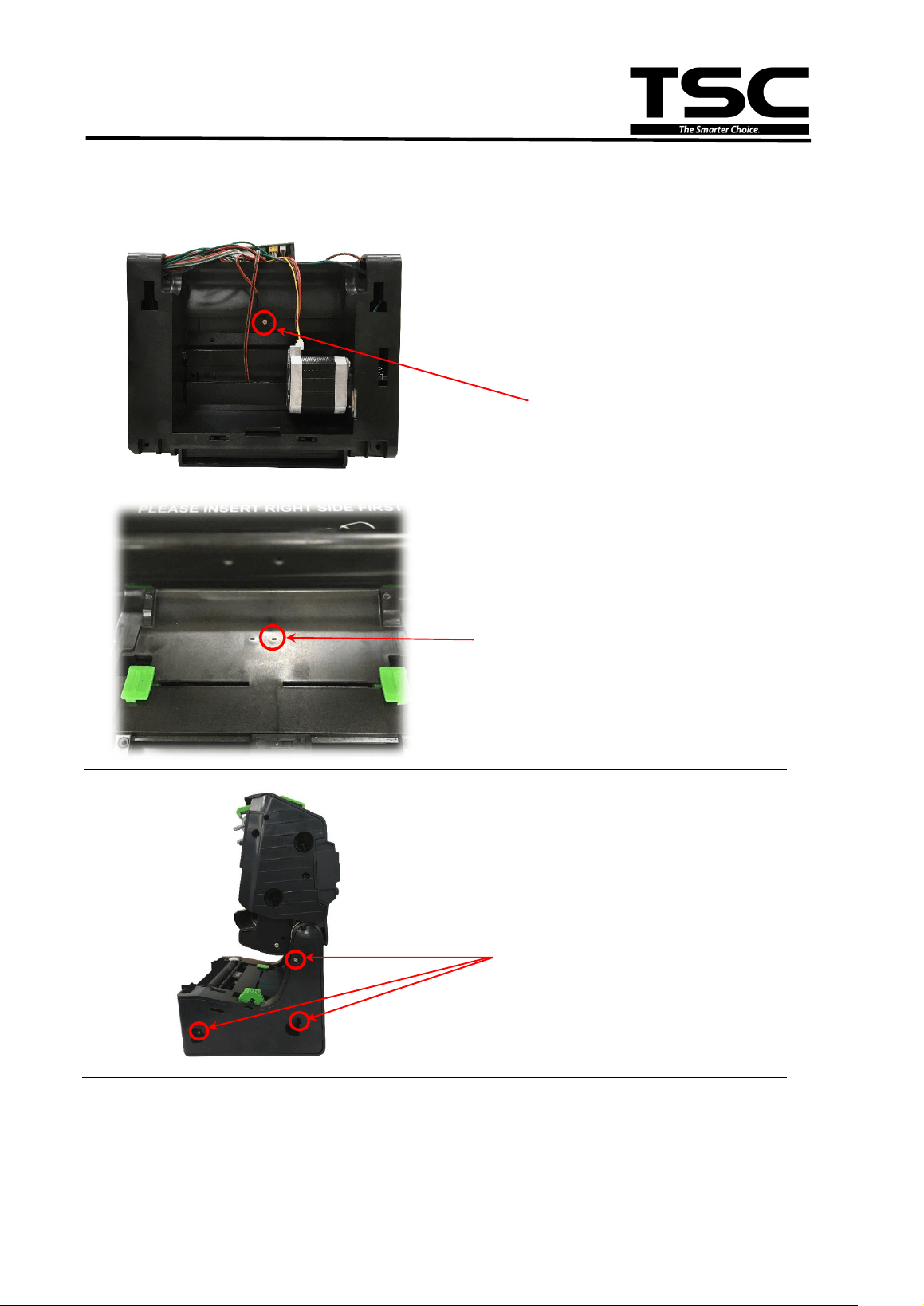
3.4 Replacing the Gap Sensor Module
1. Please refer to the section 3.1 to
remove the print engine.
2. Turn the print engine upside down
and remove the screw as indicated.
3. Remove/replace the gap sensor
(receiver).
4. Remove the three screws on lower
print engine right side cover as
indicated and open it.
Screw on Gap Sensor
(receiver)
Gap sensor (receiver)
(Fixed position, shift 4 mm to right)
Screws
19
TE200/TE210/TE300/TE310 Series
Bar Code Printer
Service Manual
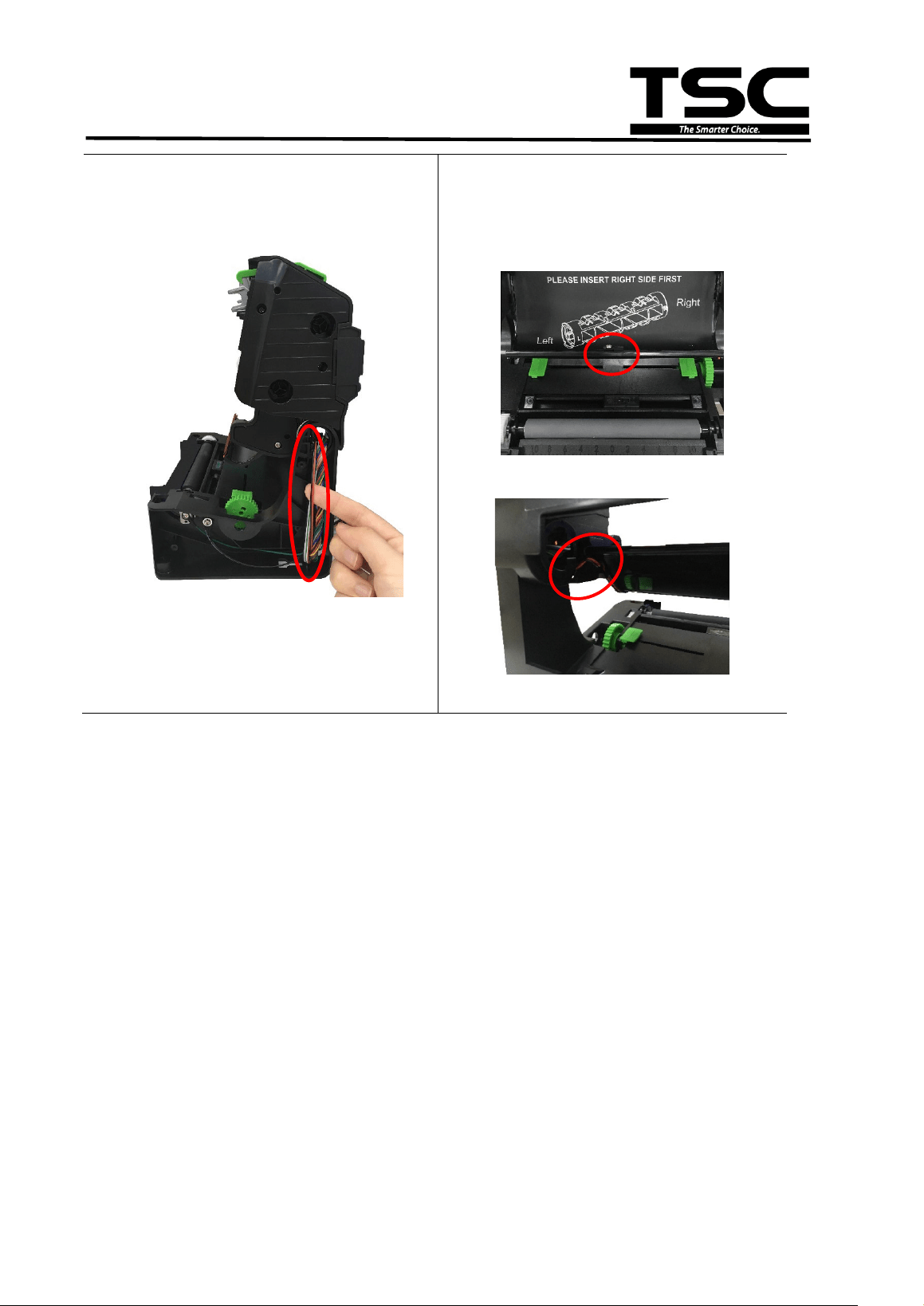
Cable of gap sensor emitter
(black with red)
5. Remove/replace the gap sensor
emitter.
6. Reassemble the parts in the
reverse procedure.
Gap sensor (transmitter)
Cable of gap sensor (transmitter)
20
TE200/TE210/TE300/TE310 Series
Bar Code Printer
Service Manual
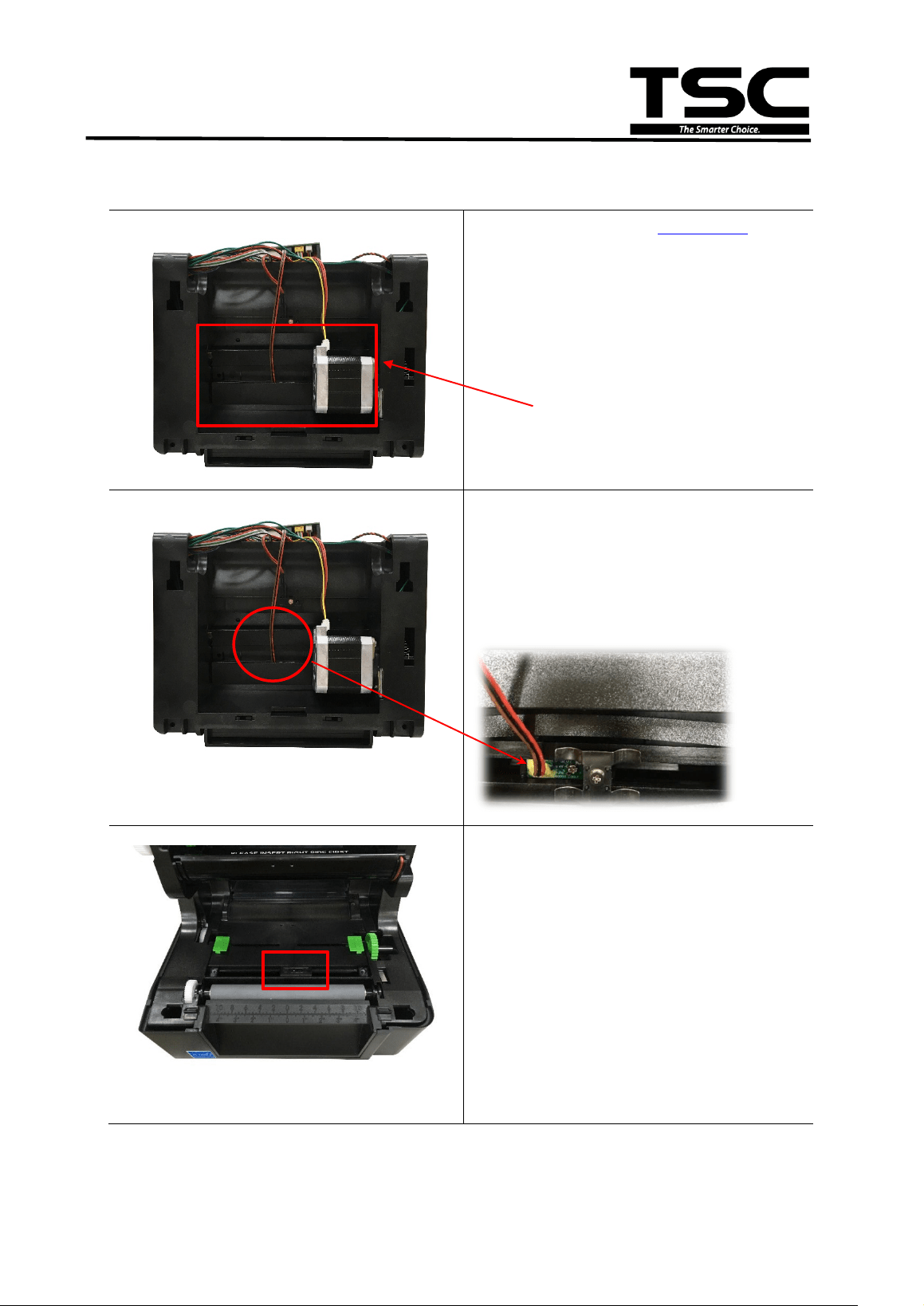
3.5 Replacing the Black-mark Sensor Module
1. Please refer to the section 3.3 to
remove the stepping motor module.
2. Open the Mylar film cover.
3. Remove the screw on the black-
mark sensor module.
Remove/replace the black-mark
sensor module.
4. Reassemble the parts in the reverse
procedure.
Mylar film
Black-mark sensor
21
TE200/TE210/TE300/TE310 Series
Bar Code Printer
Service Manual
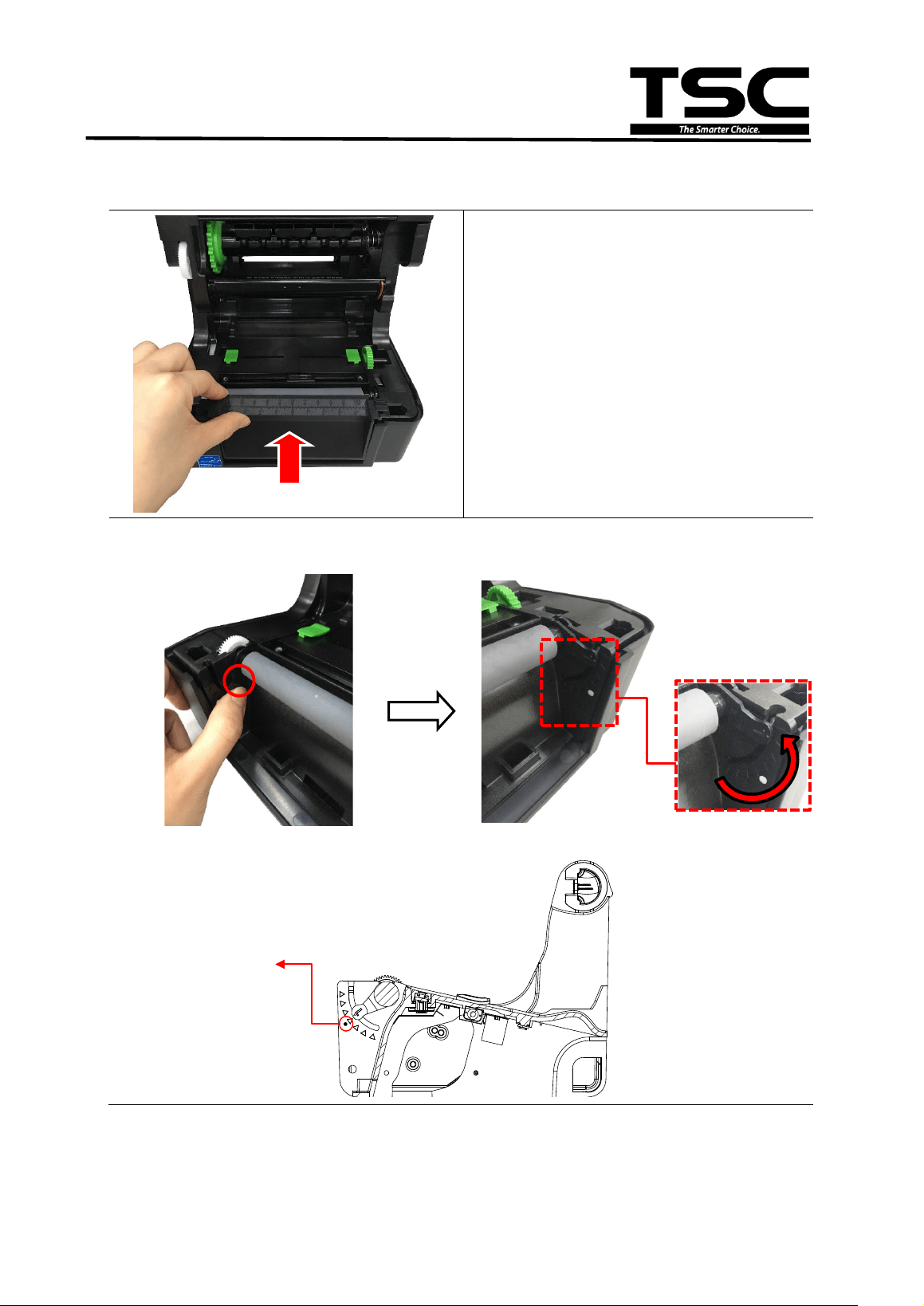
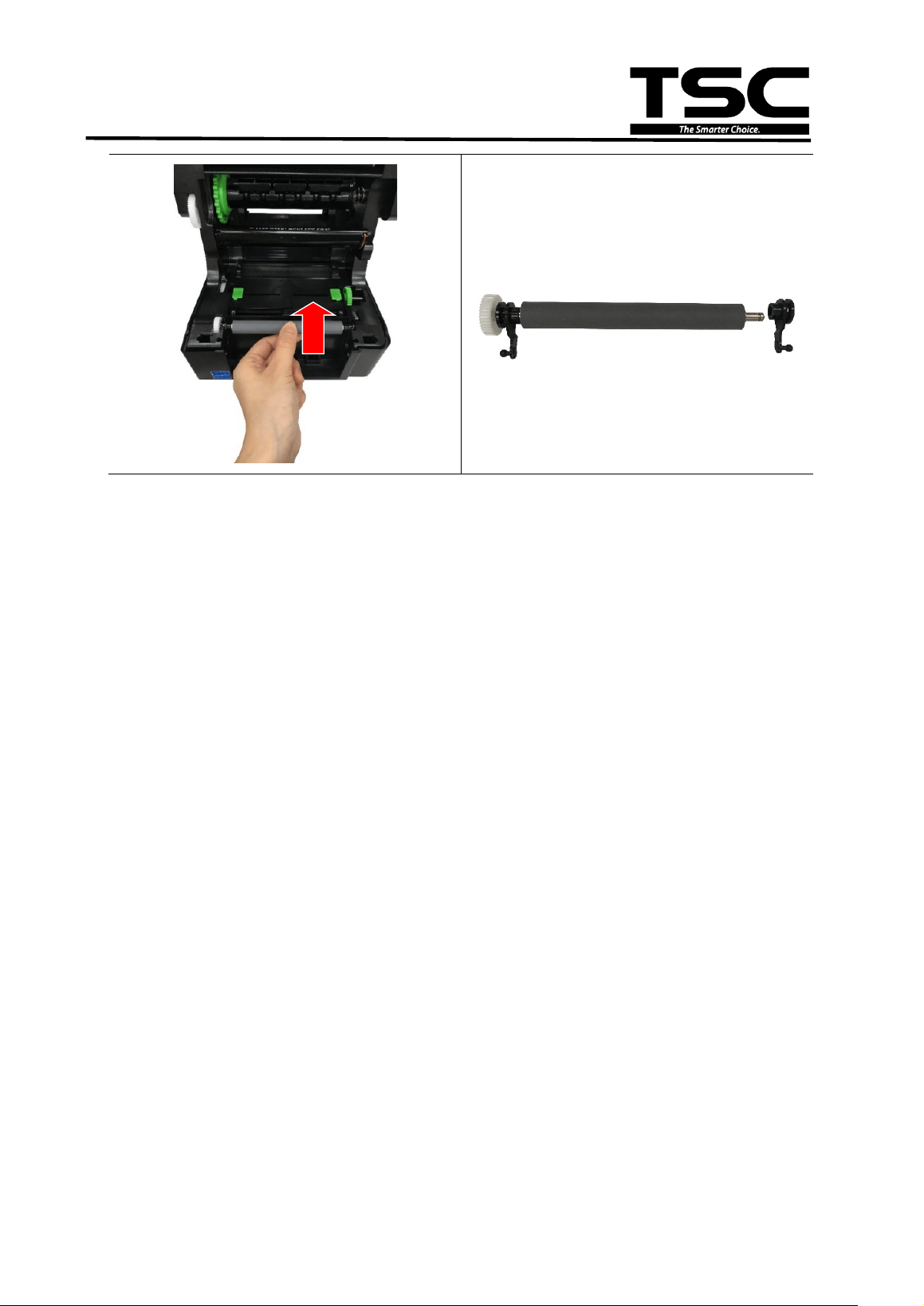
3.6 Replacing the Platen Roller Assembly
1. Open the printer top cover then push
the print head release button to open
the print head mechanism.
2. Remove the lower front panel.
3. Disengage the platen roller by pulling out the tabs located on each side. Rotate
the tabs into the upward position. (see pictures below)
Note: The white mark is the default setting of tab position
Default setting
22
TE200/TE210/TE300/TE310 Series
Bar Code Printer
Service Manual
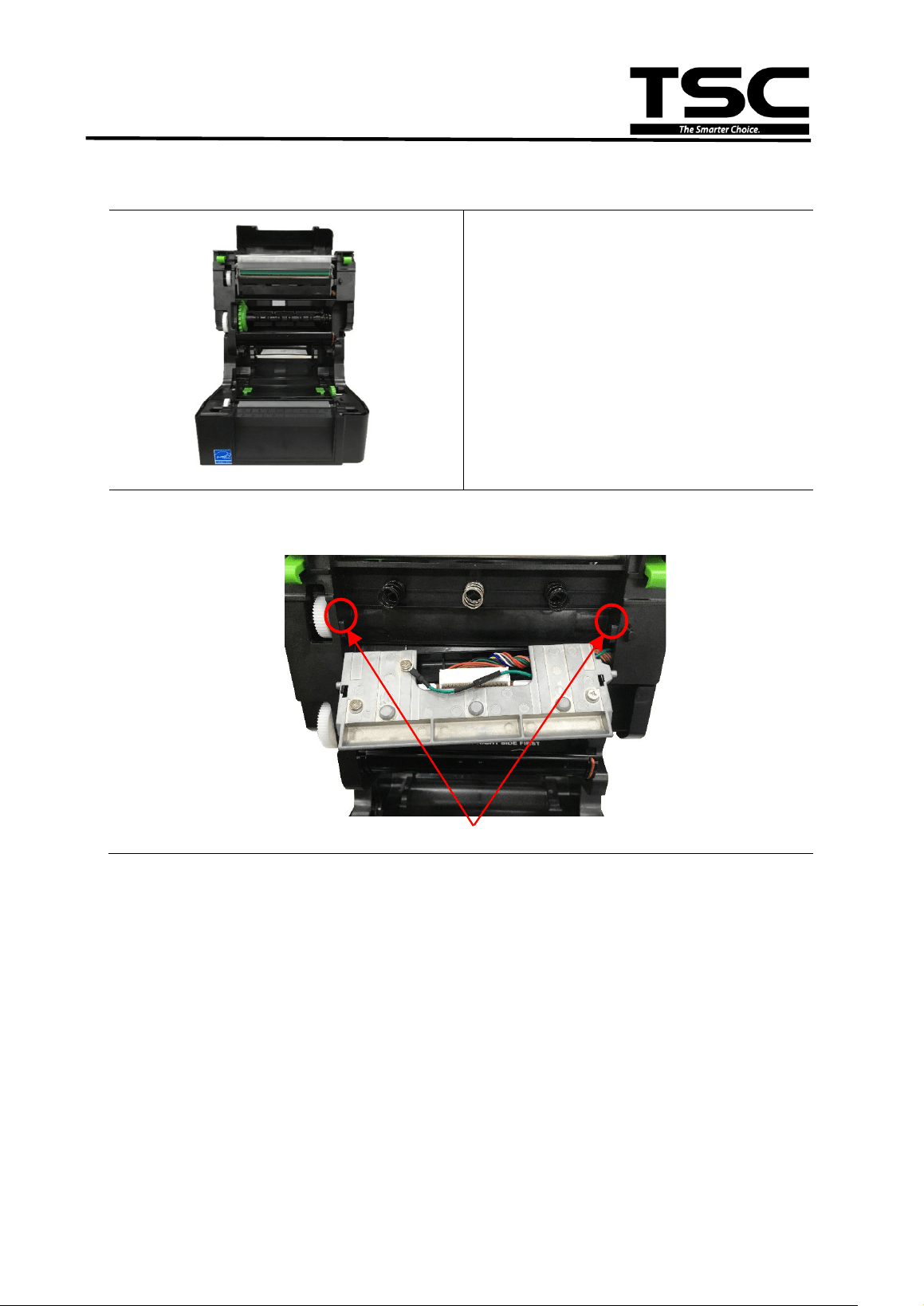
4. Pulling upward to remove/replace
the platen roller assembly.
5. Reassemble the parts in the
reverse procedure.
Platen roller module
23
TE200/TE210/TE300/TE310 Series
Bar Code Printer
Service Manual
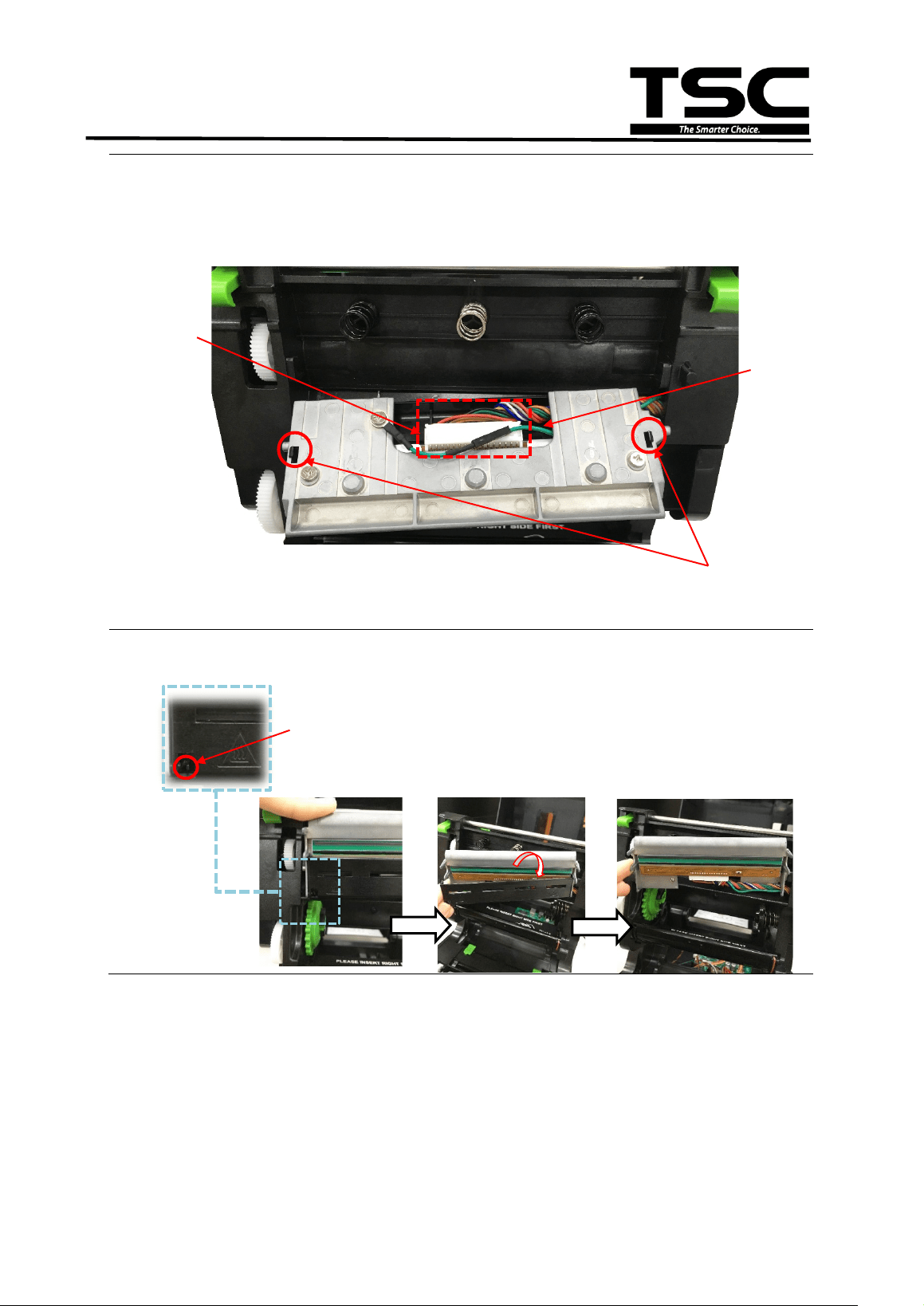
3.7 Replacing the Print Head Module
1. Open the printer top cover and press
the print head release button to open
the print head mechanism.
2. Disengage the print head module by push it forward and leave the slots as
indicated.
Slots
24
TE200/TE210/TE300/TE310 Series
Bar Code Printer
Service Manual
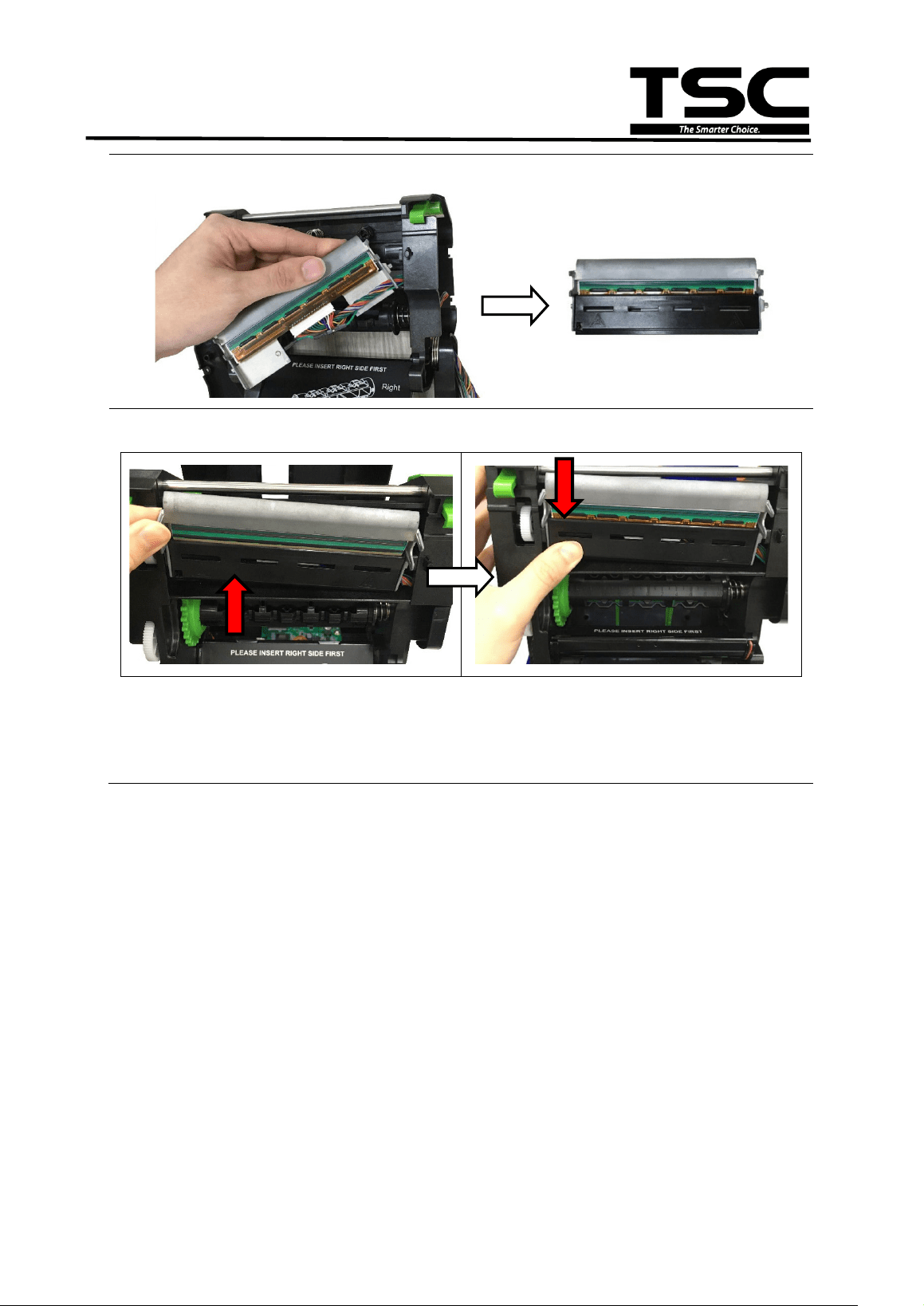
3. Disconnect the ground line (green cable) and print head harness.
4. Push down and release the print head bracket hooks as indicated.
5. Push the front tab of the print head bracket to the right side and open the print
head bracket as pictured.
Front tab
Print head
bracket hooks
Ground line
Print head
harness
25
TE200/TE210/TE300/TE310 Series
Bar Code Printer
Service Manual
6. Remove/Replace the print head assembly.
7. Reassemble the parts in the reverse procedures.
Note: If the print quality became poor after changed the print head, please
switch the calibration on the print head engine to adjust the print quality.
Print head assembly
26
TE200/TE210/TE300/TE310 Series
Bar Code Printer
Service Manual
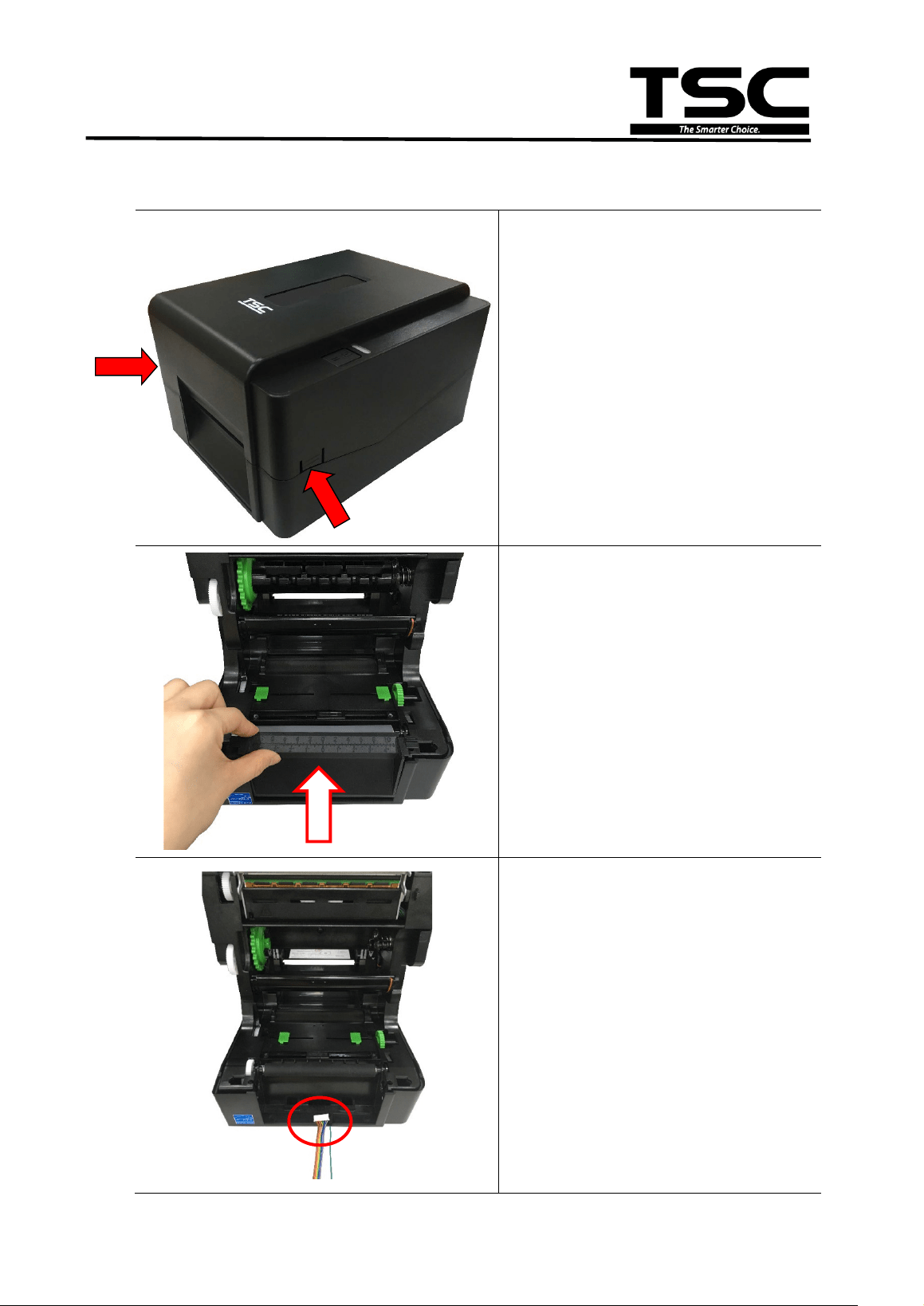
3.8 Installing the Cutter Module (TE210/TE310 Series option)
1. Open the printer top cover by
pressing the top cover open
tabs located on each side of the
printer.
2. Push the print head release
button to open the print head
mechanism.
3. Remove the lower front panel.
4. Insert the cable and ground line
of cutter module through the
hole as indicated to the main
board.
5. Remove the four screws on
media holder and disengage it.
27
TE200/TE210/TE300/TE310 Series
Bar Code Printer
Service Manual
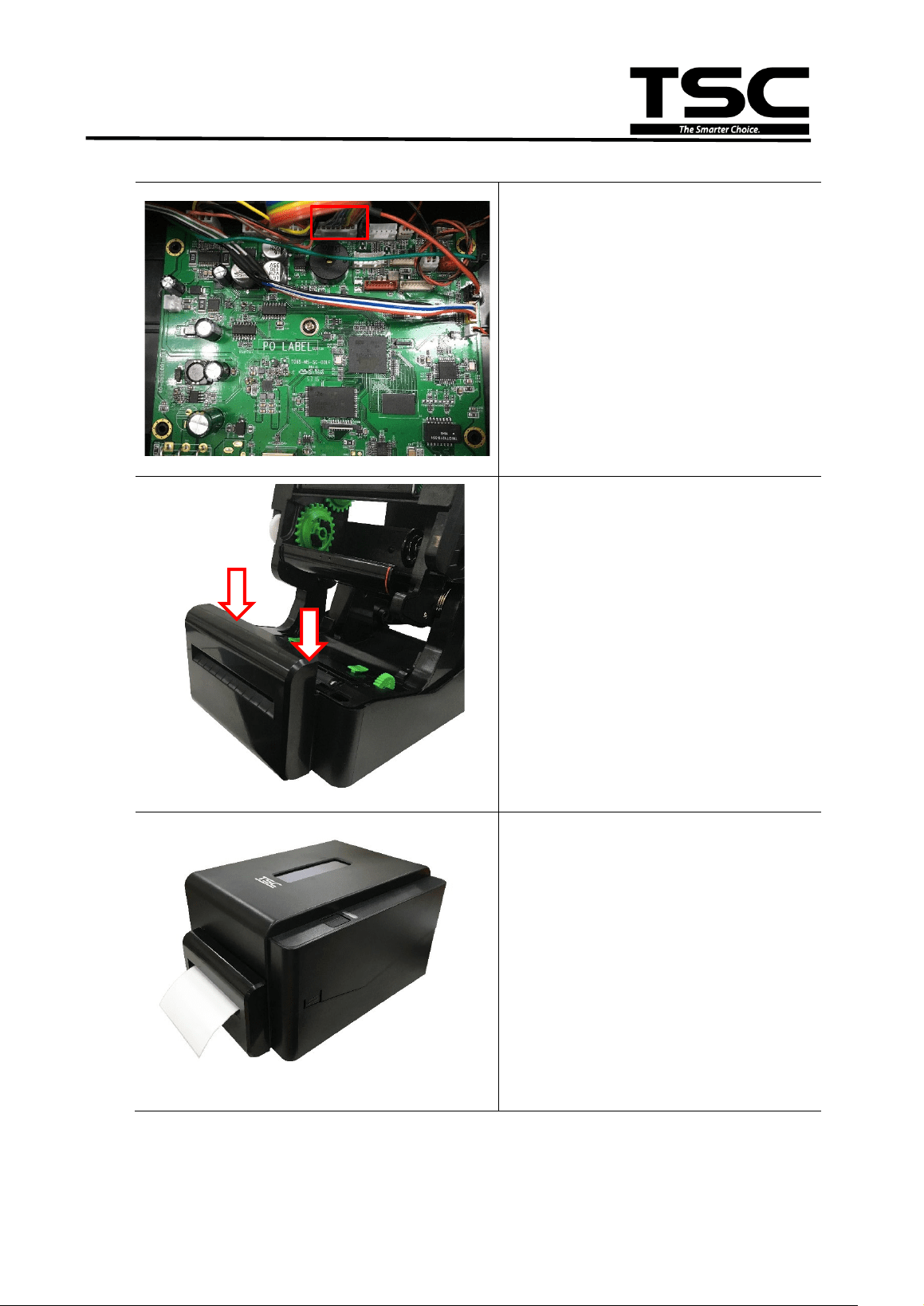
6. Connect the cable and ground
line to the socket on main board
as indicated.
7. Push down the cutter module
and fix on the lower front panel
location hole.
8. Complete the installation of
cutter module.
9. Reassemble the parts in the
reverse procedures.
28
TE200/TE210/TE300/TE310 Series
Bar Code Printer
Service Manual
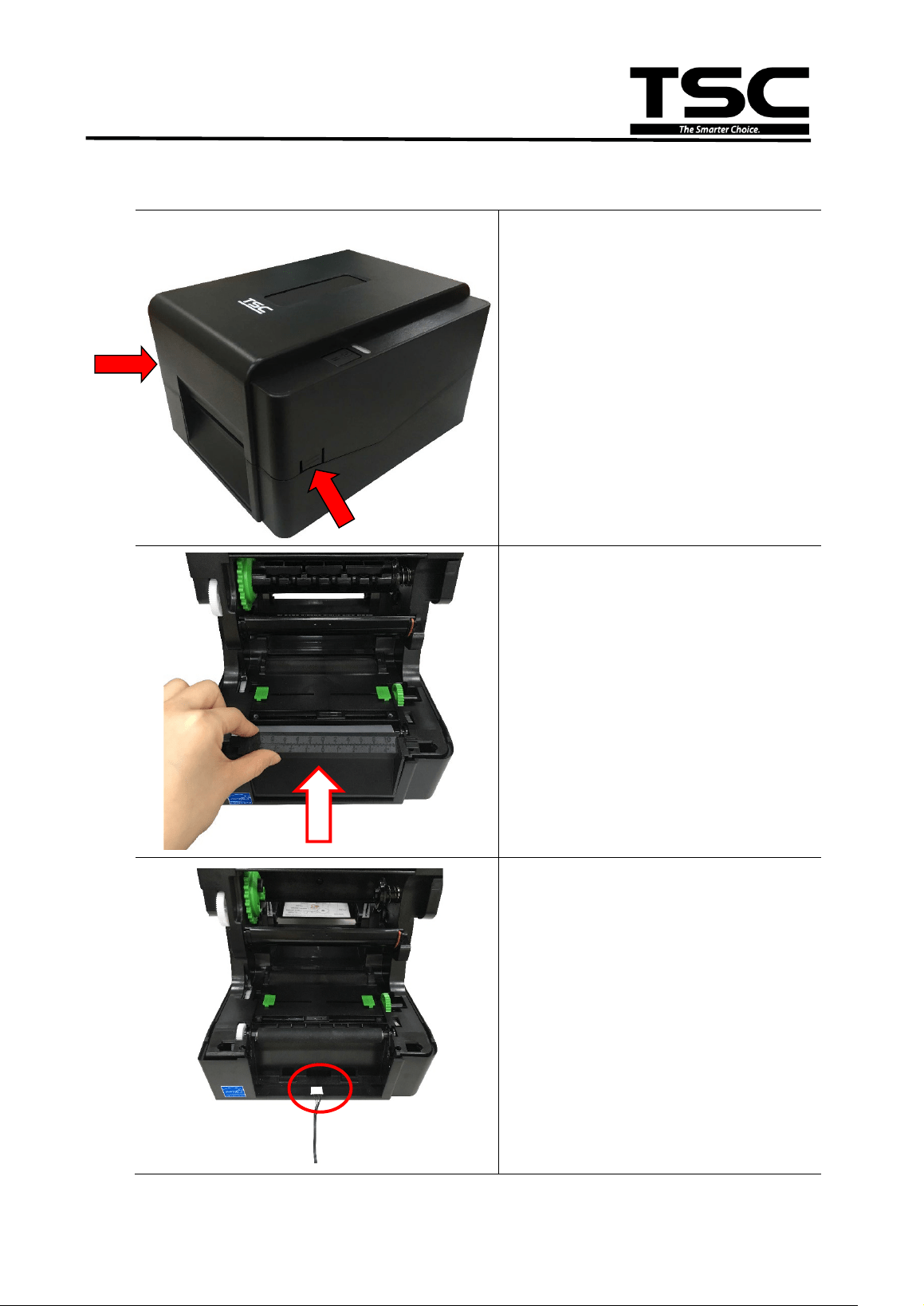
3.9 Installing the Peeler Module (TE210/TE310 Series option)
1. Open the printer top cover by
pressing the top cover open
tabs located on each side of the
printer.
2. Push the print head release
button to open the print head
mechanism and remove the
lower front panel.
3. Insert the cable of peeler
module through the hole as
indicated to the main board.
4. Remove the four screws on
media holder and disengage it.
29
TE200/TE210/TE300/TE310 Series
Bar Code Printer
Service Manual
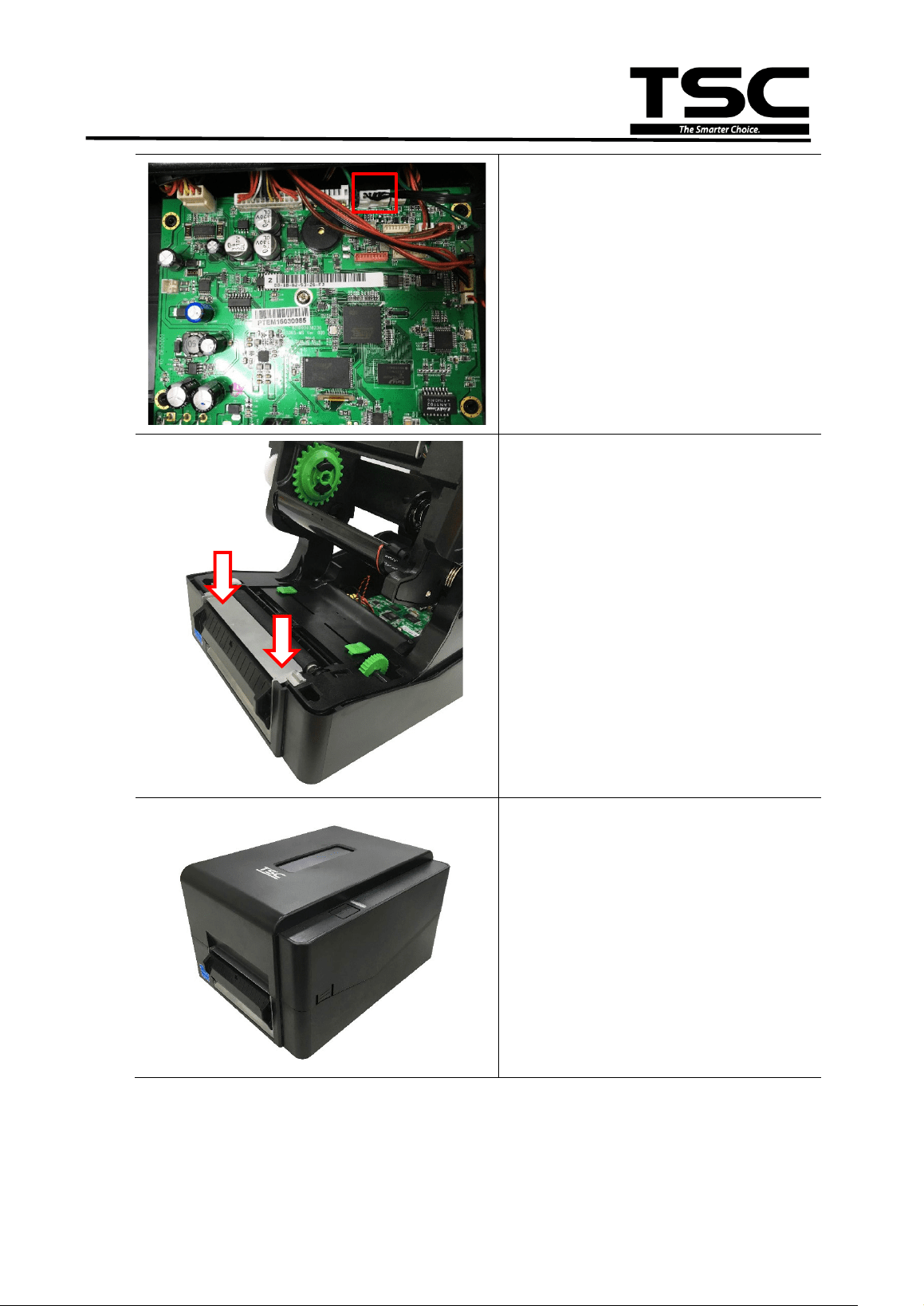
5. Connect the cable to the socket
on main board as indicated.
6. Push down the peeler module
and fix on the lower front panel
location hole.
7. Close the print head mechanism
and printer cover.
8. Close the media cover and
complete peeler module
installation.
9. Reassemble the parts in the
reverse procedures.
30
TE200/TE210/TE300/TE310 Series
Bar Code Printer
Service Manual
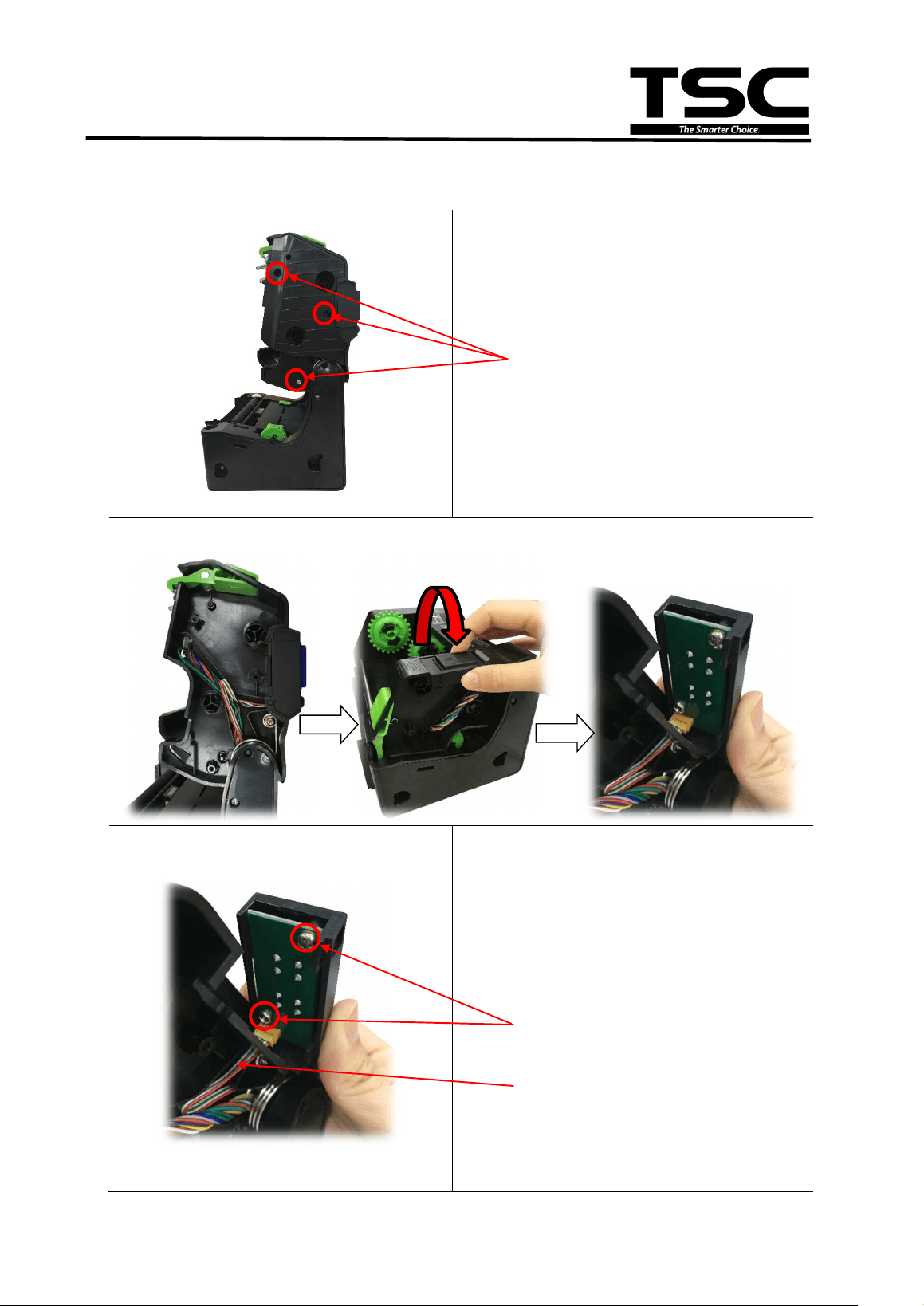
3.10 Replacing the Key Module (LED Module/Option)
1. Please refer to the
section 3.1 to take
out the print engine mechanism.
2. Remove the three screws on right
side upper cover and open it.
3. After the right side upper cover opened, please disengage the LED module.
4. Remove the two screws and cable on
the LED key module.
5. Remove/replace the LED key module.
Screws
Screws
Cable
31
TE200/TE210/TE300/TE310 Series
Bar Code Printer
Service Manual
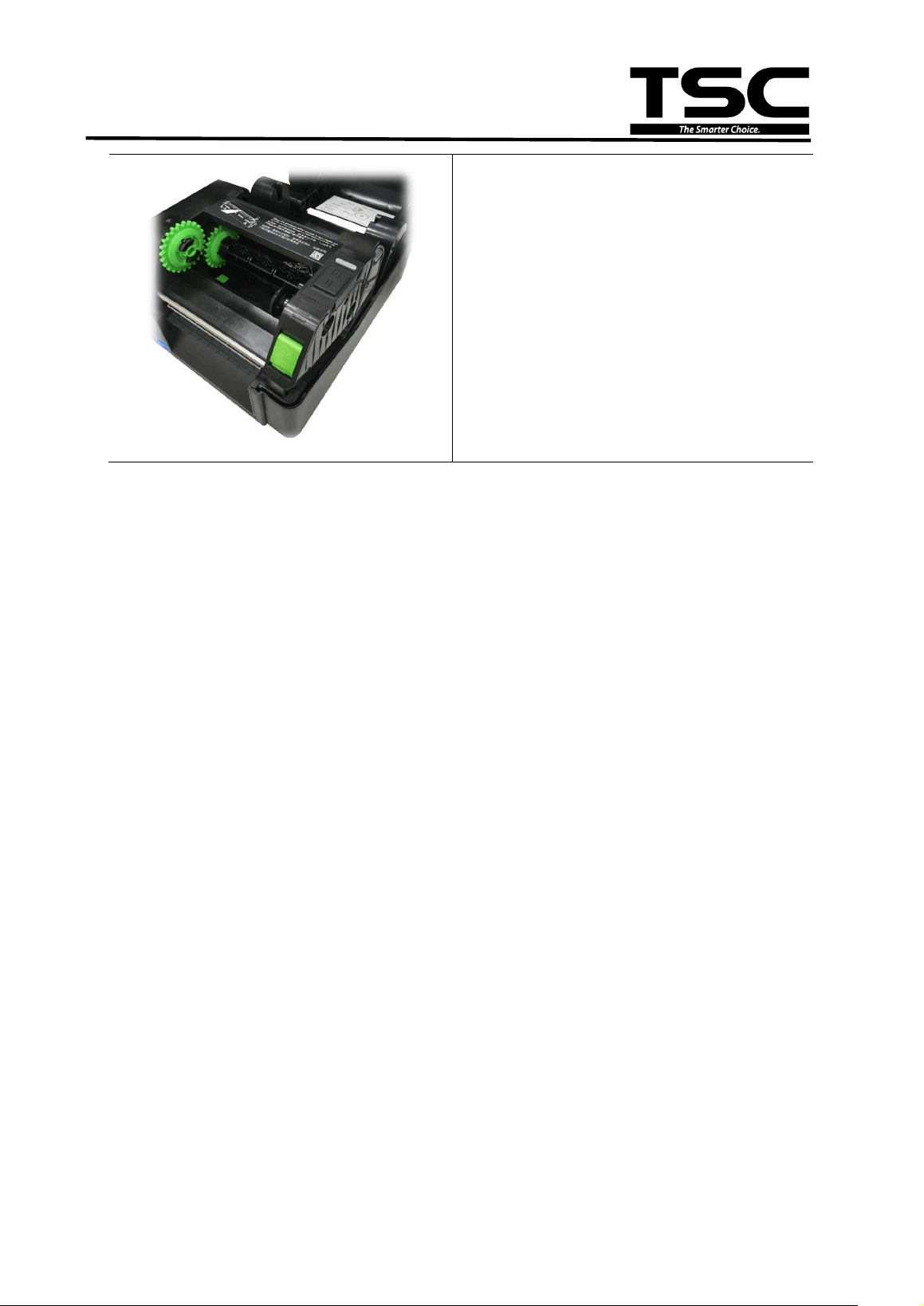
6. Reassemble the parts in the reverse
procedures.
32
TE200/TE210/TE300/TE310 Series
Bar Code Printer
Service Manual
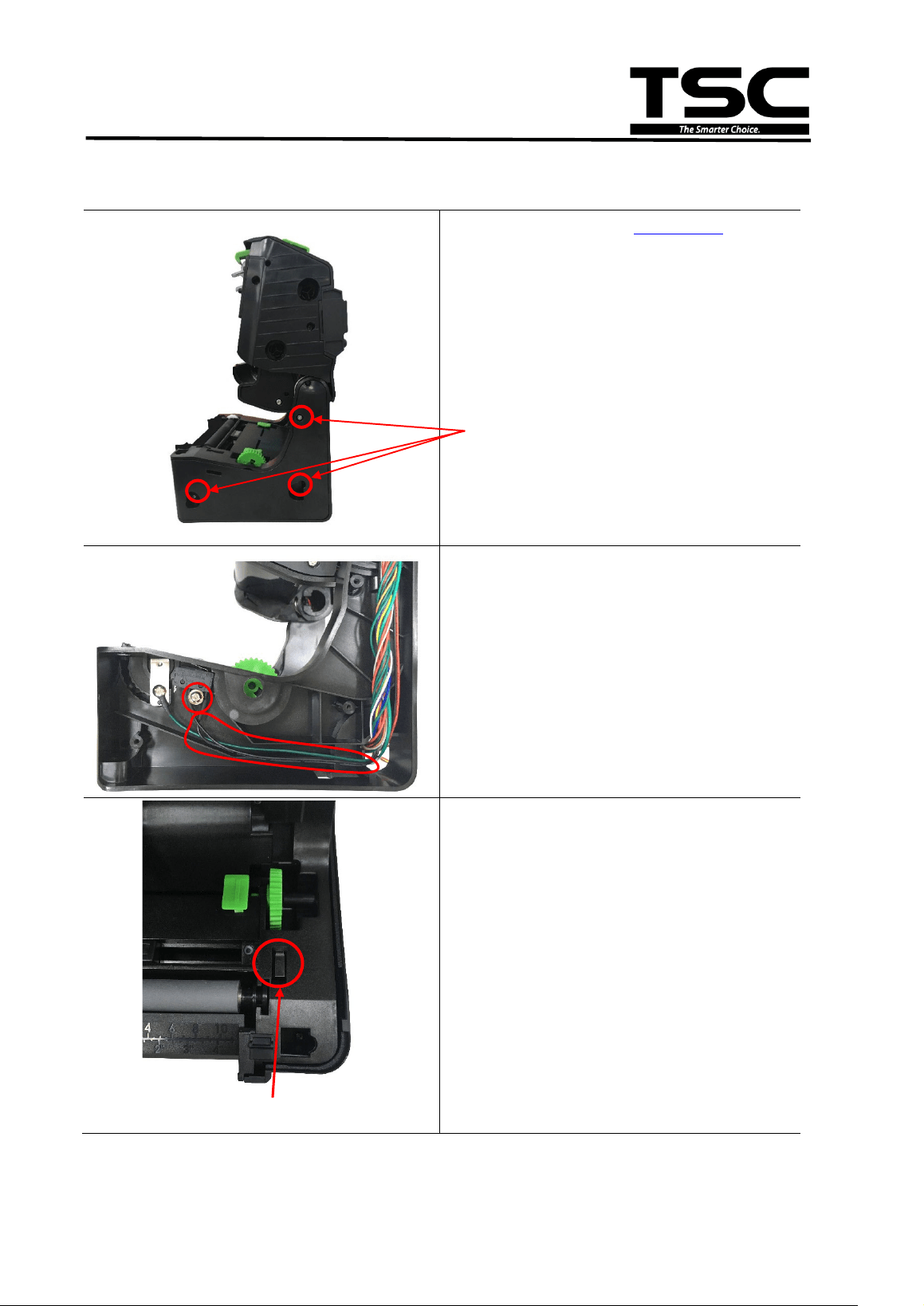
3.11 Replacing the Print Head Open Sensor Assembly
1. Please refer to the
section 3.1 to
remove the print engine.
2. Disconnect the three screws to
remove the right side lower cover.
3. Remove the print head open sensor
by disengage the screw and cable
(black) as indicated.
Print Head Open Sensor
4. Reassemble the parts in the reverse
procedure.
Screws
33
TE200/TE210/TE300/TE310 Series
Bar Code Printer
Service Manual
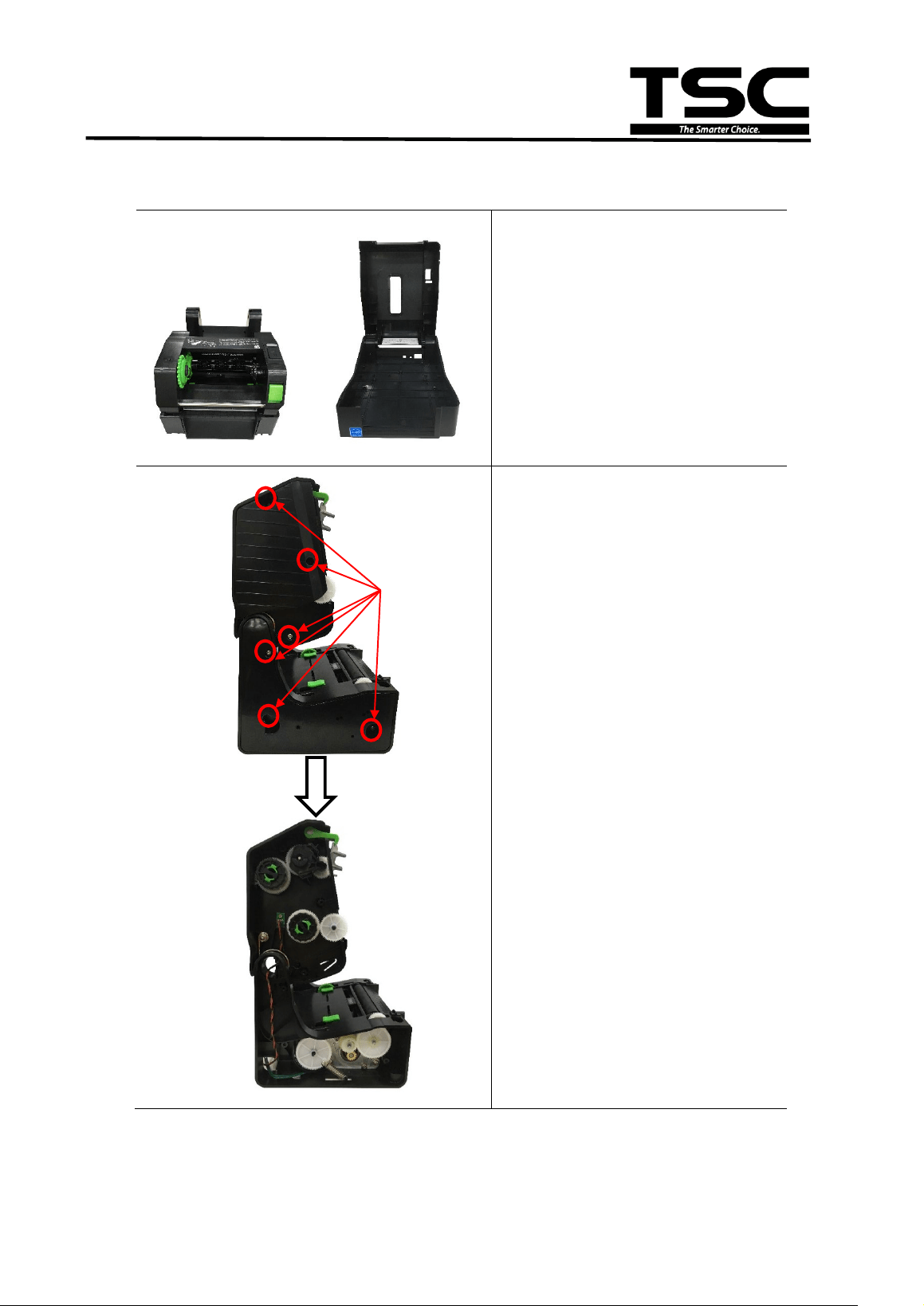
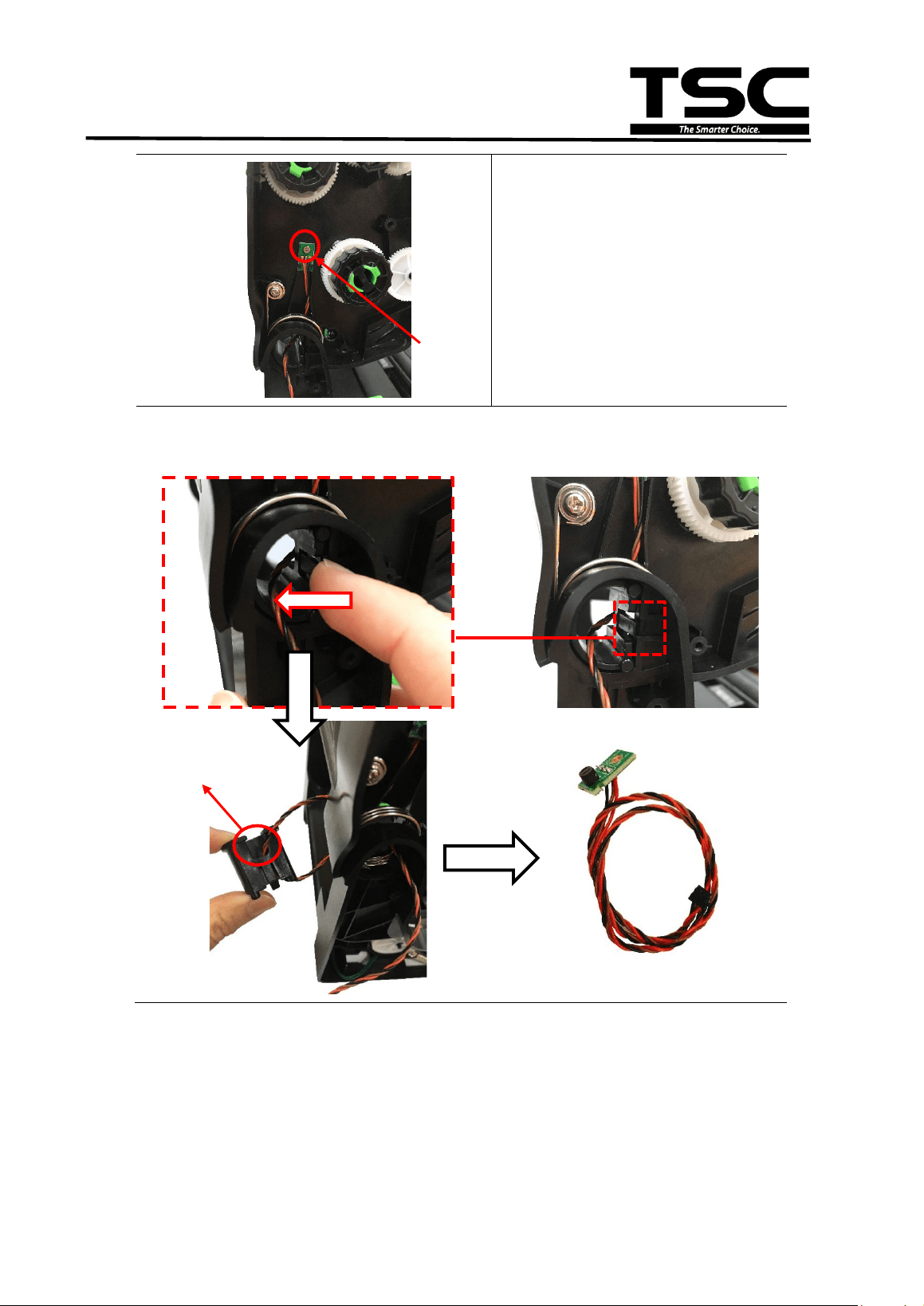
3.12 Replacing the Encoder Assembly
1. Please refer to Ch.3.1 to
uninstall the print engine
mechanism.
2. Open the print engine
mechanism, and then turn to
left side to disconnect six
screws as indicated to remove
upper and lower cover.
Screws
34
TE200/TE210/TE300/TE310 Series
Bar Code Printer
Service Manual
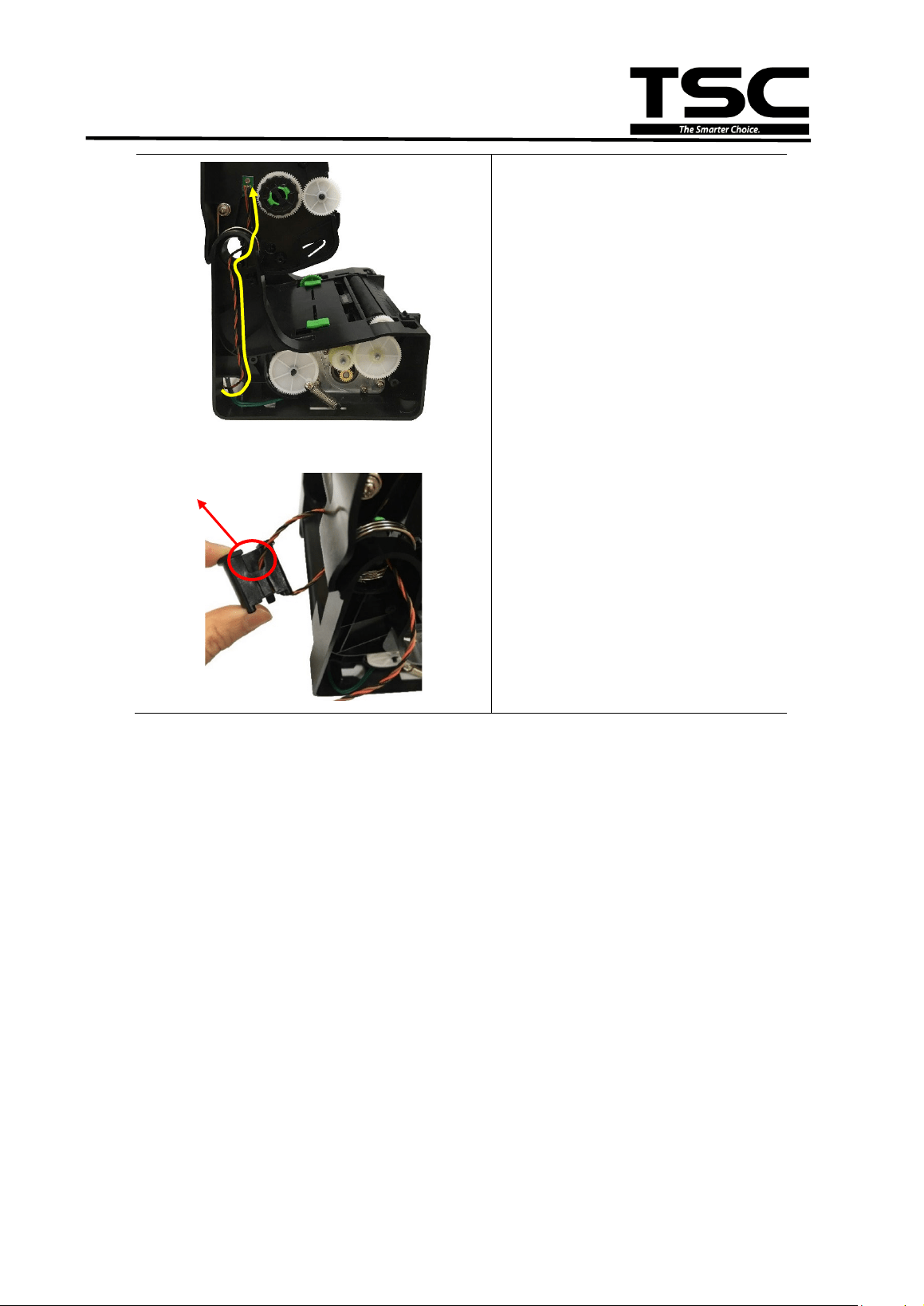
3. Remove the screw on the
Encoder assembly.
4. Push the latch on ribbon base hinge to left side, pull out the ribbon base
hinge and remove the Encoder assembly.
Screw
PUSH
Slot
35
TE200/TE210/TE300/TE310 Series
Bar Code Printer
Service Manual
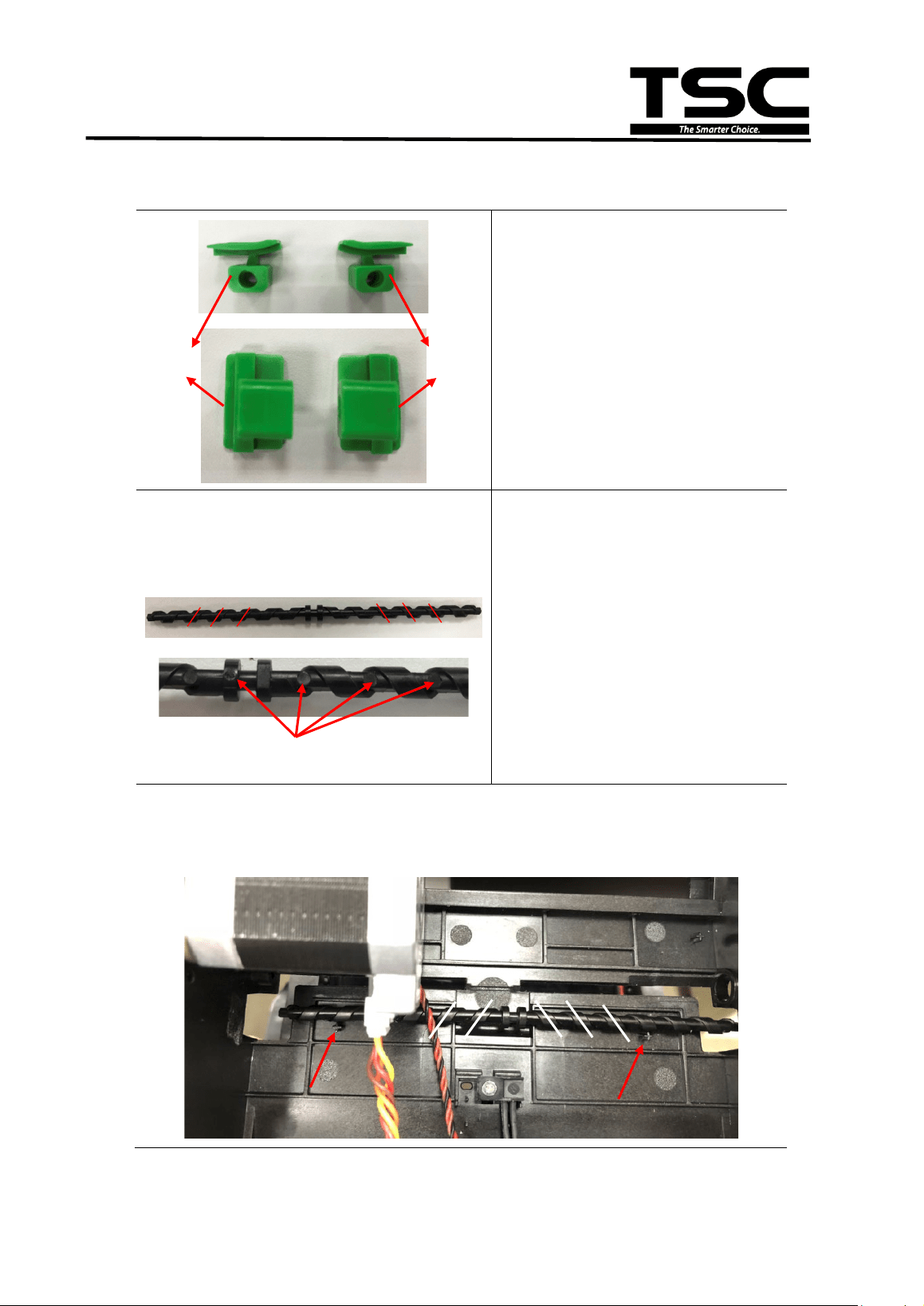
Loading path
5. Reassemble the parts in the
reverse procedure.
Note:
1. Please install the Encoder
assembly through the loading
path as indicated.
2. When installing ribbon base
hinge, please insert the cable
across the slot as indicated.
Slot
36
TE200/TE210/TE300/TE310 Series
Bar Code Printer
Service Manual
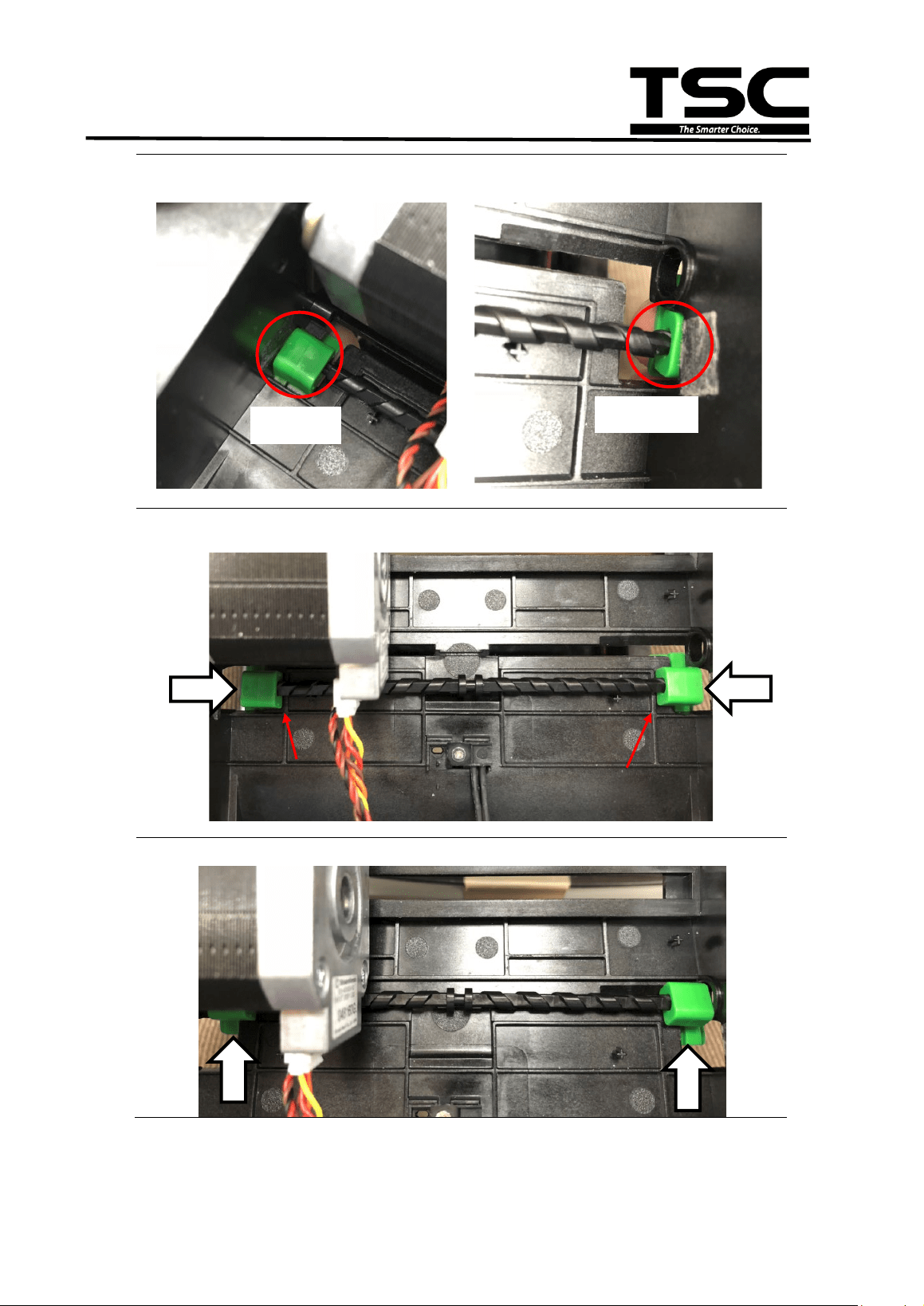
3.13 Replacing the Label Guide Module
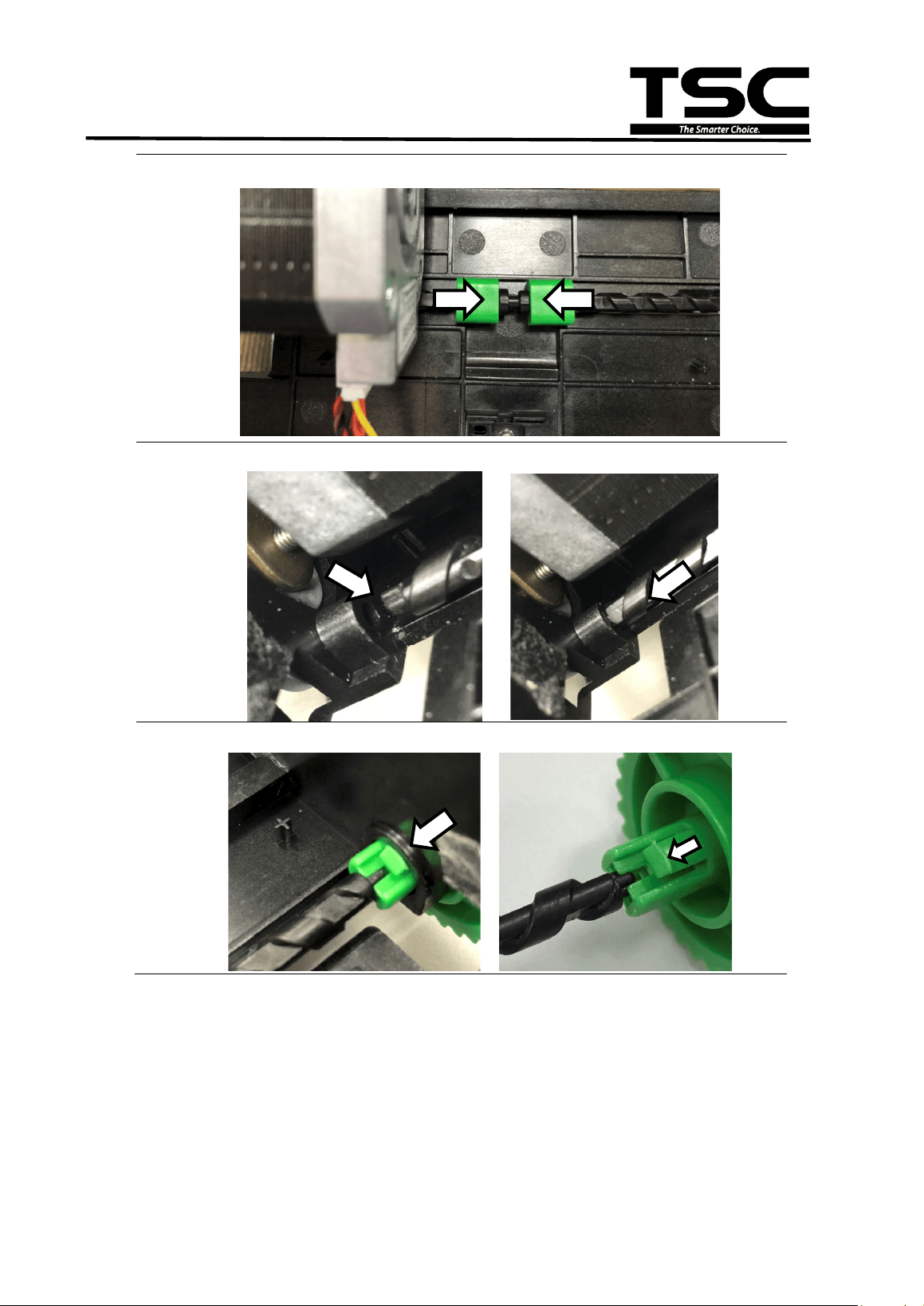
1. Please check the direction of
label guide (L: Left; R: Right).
Label guide shaft:
2. Check label guide shaft
direction. The bottom side has
round marks as indicated.
3. Place the label guide shaft as below. The round mark is at the bottom
side. Please notice about the placement position 1, 2, and 3 at right side
and left side.
L (Left)
R (Right)
Bottom of label guide shaft
1
2
3
1
2
37
TE200/TE210/TE300/TE310 Series
Bar Code Printer
Service Manual
4. Push the label guide R and L to the shaft.
5. Push the label guide R and L to the shaft and touch the cover.
6. Push the label guide R and L upward.
L (Left)
R (Right)
38
TE200/TE210/TE300/TE310 Series
Bar Code Printer
Service Manual
7. Push the label guides to the end of center.
8. Check if the shaft is fit to the fix hole of the mechanism.
9. Install the knob to the shaft.
39
TE200/TE210/TE300/TE310 Series
Bar Code Printer
Service Manual
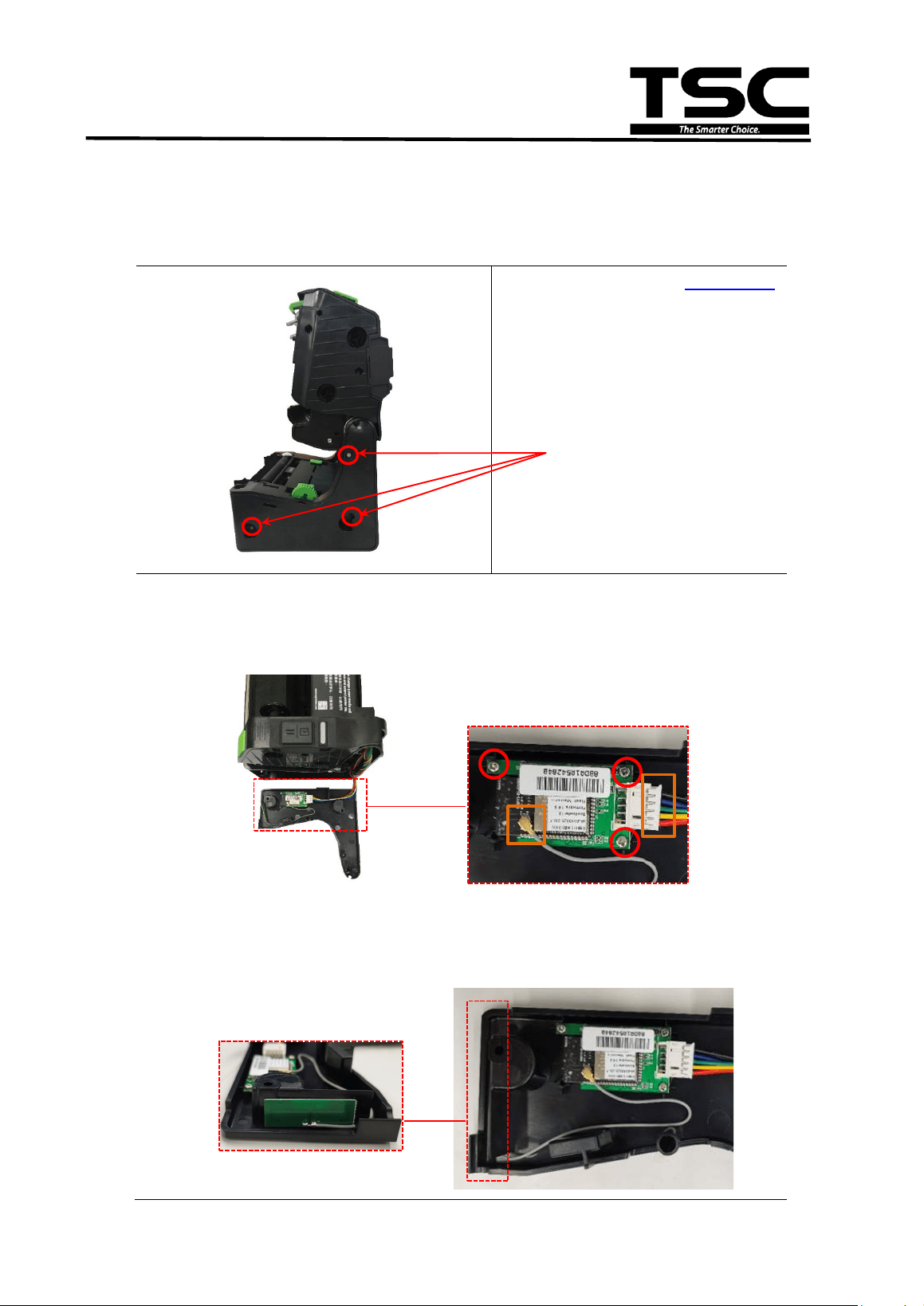
3.14 Replacing the Wi-Fi module Assembly (TE210/TE310 Series
option)
1. Please refer to the section 3.1
to remove the print engine.
2. Remove the three screws on
lower print engine right side
cover as indicated and open
it.
3. Remove the three screws on Wi-Fi module assembly and disconnect the
connectors.Remove/Replace the Wi-Fi module assembly. Reassemble
the parts in the reverse procedure.
Note:
- The Wi-Fi module and bluetooth module are not coexistence.
- When install the Wi-Fi module assembly, please follow the cable loading path as
shown.
Screws

40
TE200/TE210/TE300/TE310 Series
Bar Code Printer
Service Manual
4. TROUBLESHOOTING
The following guide lists the most common problems that might be encountered when
operating this bar code printer. If the printer still does not function after all suggested
solutions have been invoked, please contact the Customer Service Department of your
purchased reseller or distributor for assistance.
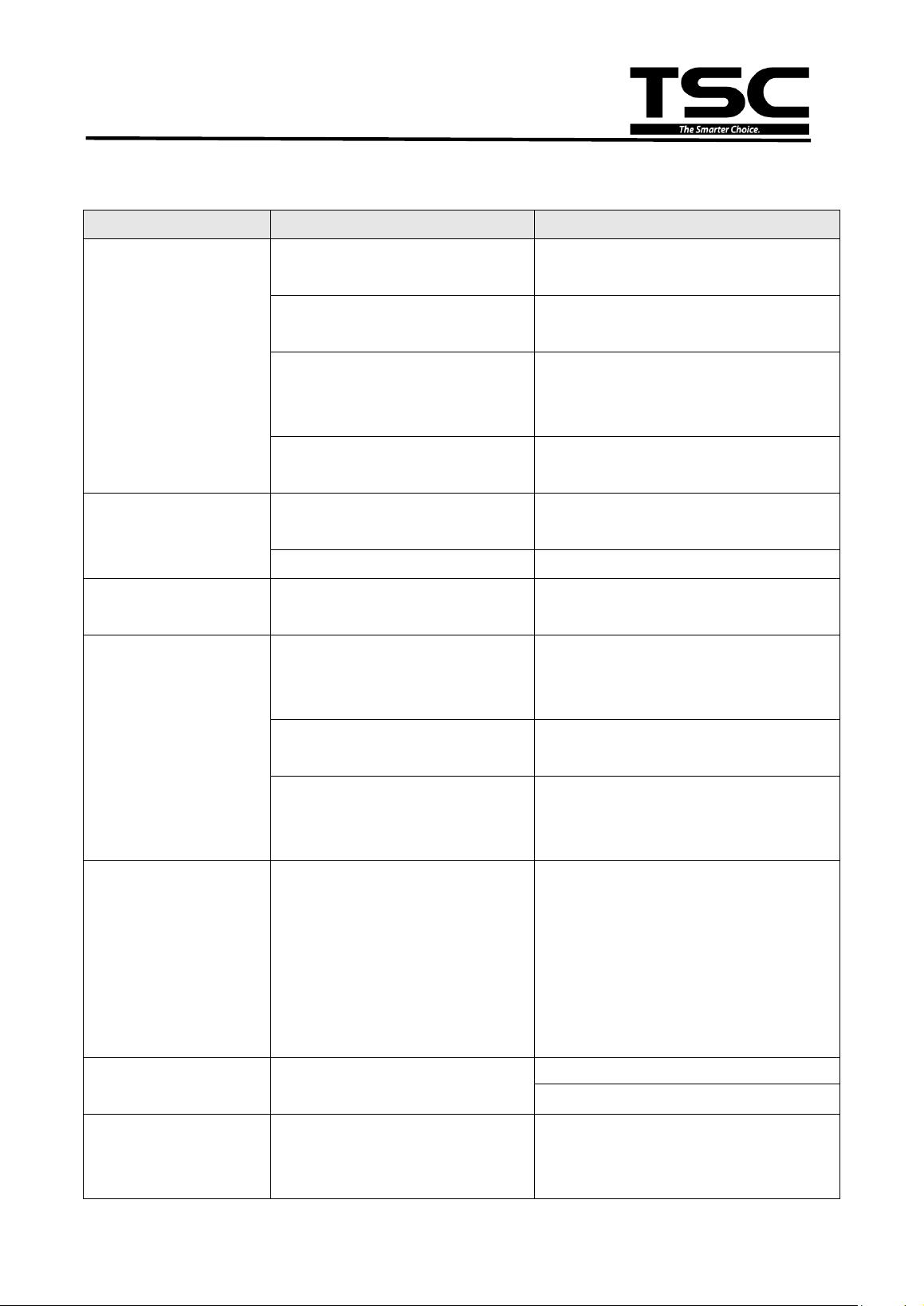
4.1 LED Status
This section lists the common problems that according to the LED status and other
problems you may encounter when operating the printer. Also, it provides solutions.
LED Status
/ Color
Printer
Status
Possible Cause Recovery Procedure
OFF No response No power * Turn on the power switch.
*
Check if the green LED is lit on power supply. If
it is not lit on, power supply is broken.
* Check both power connections from the power
cord to the power supply and from the power
supply to the printer power jack if they are
connected securely.
Solid Green ON
The printer is ready to
use.
* No action necessary.
Green with
blinking
Pause The printer is paused.
* Press the FEED button to resume for printing.
Red with
blinking
Error The out of label or
ribbon or the printer
setting is not correct.
1. Out of label or ribbon
* Load a roll of label
and follow the instructions in
loading the media then press the FEED button
to resume for printing.
* Load a roll of ribbon and follow the instructions
in loading the ribbon then press the FEED
button to resume for printing.
2. Printer setting is not correct
* Initialize the printer by instructions in “Power on
Utility” or “Diagnostic Tool”.
Note:
Printer status can be easily shown on the Diagnostic Tool. For more information about the
Diagnostic Tool, please refer to the quick start guide of diagnostic utility on
TSC official website.
41
TE200/TE210/TE300/TE310 Series
Bar Code Printer
Service Manual
4.2 Print Quality
Problem
Possible Cause
Recovery Procedure
Not Printing
Check if interface cable is well
connected to the interface connector.
Re-connect cable to interface or change
a
new cable.
The serial port cable pin configuration
is not pin to pin connected.
Please replace the cable with pin to pin
connected.
The serial port setting is not
consistent between host and printer.
Please reset the serial port setting.
Check the baud rate setting. The default
baud rate setting of printer is 9600,n,8,1.
The port specified in the Windows
driver is not correct.
Select the correct printer port in the driver.
No print on the label
Label or ribbon loaded not correctly.
Follow the instructions in loading the media
or loading the ribbon.
Ribbon run out. Loading the ribbon.
Continuous feeding
labels
The printer setting may go wrong.
Please do the initialization and gap/black
mark calibration.
- The printer status from
DiagTool shows “Paper
Jam”.
Gap/black mark sensor sensitivity is
not set properly (sensor sensitivity is
not enough)
Calibrate the gap/black mark sensor.
Make sure label size is set properly. Set label size exactly as installed paper in
the labeling software or program.
Labels may be stuck inside the
printer mechanism near the sensor
area.
Remove the stuck label.
Poor Print Quality
* Ribbon and media is loaded
incorrectly
* Dust or adhesive accumulation on
the print head.
* Print density is not set properly.
* Printhead element is damaged.
* Ribbon and media are incompatible.
* The printhead pressure is not set
properly.
* Reload the supply.
* Clean the print head.
* Clean the platen roller.
* Adjust the print density and print speed.
* Run printer self-test and check the print
head test pattern if there is dot missing in
the pattern.
* Change proper ribbon or proper label
media.
* The print head mechanism does not latch
the print head properly.
Power indicator does
not illuminate
The power cord is not properly
connected.
Plug the power cord in printer and outlet.
Switch the printer on.
- The printer status from
DiagTool shows “Head
Open”.
The printer carriage is open. Please close the print carriage.
42
TE200/TE210/TE300/TE310 Series
Bar Code Printer
Service Manual
- The printer status from
DiagTool shows “
Ribbon
End Err.” Or “Ribbon
Encoder Err.”
Running out of ribbon.
Supply a new ribbon roll.
The ribbon is installed incorrectly.
Please re-install the ribbon.
- The printer status from
DiagTool shows “Out of
Paper”.
Running out of label. Supply a new label roll.
The label is installed incorrectly. Please reinstall the label roll.
Gap/black mark sensor is not
calibrated.
Calibrate the gap/black mark sensor.
Memory full
( FLASH / DRAM )
* The space of FLASH/DRAM is full.
* Delete unused files in the FLASH/DRAM.
MicroSD card is unable
to use
* microSD card is damaged.
* microSD card doesn’t insert
correctly.
* Use the non-approved microSD
card manufacturer.
* Use the supported capacity microSD card.
* Insert the microSD card again.
* The supported microSD card spec and
the approved microSD card
manufacturers, please refer to section
1.3.
Skip labels when
printing
* Label size is not specified properly.
* Sensor sensitivity is not set
properly.
* The media sensor is covered with
dust.
* Check if label size is setup correctly.
* Calibrate the sensor by Auto Gap or
Manual Gap options.
* Clear the GAP/Black mark sensor by
blower.
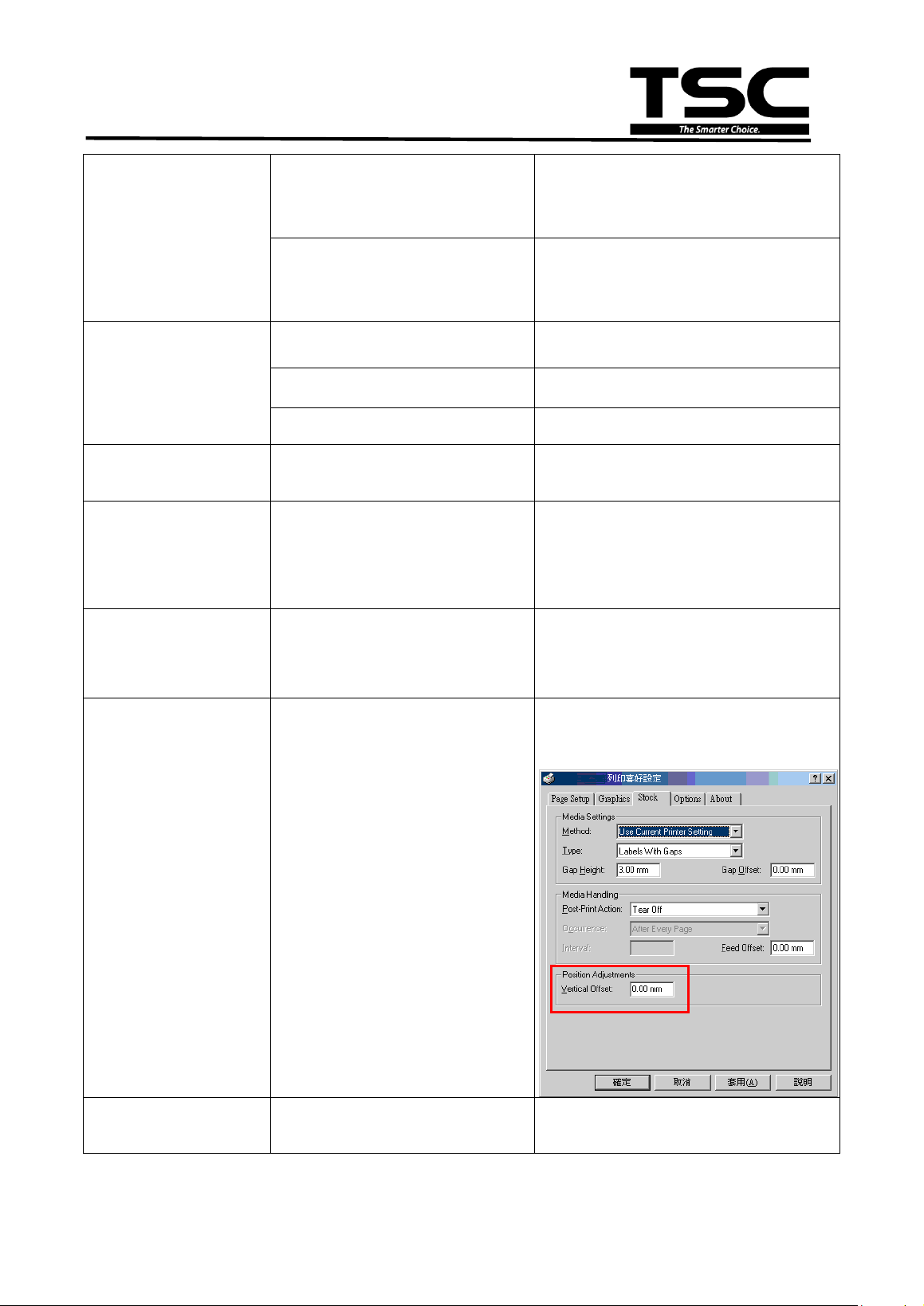
The printing position of
small label is incorrect
* Media sensor sensitivity is not set
properly.
* Label size is incorrect.
*
The parameter Shift Y in the LCD
menu is incorrect.
* The vertical offset setting in the
driver is incorrect.
* Calibrate the sensor sensitivity again.
* Set the correct label size and gap size.
* If using the software BarTender, please
set the vertical offset in the driver.
Missing printing on the
left or right side of label
* Wrong label size setup. * Set the correct label size.

43
TE200/TE210/TE300/TE310 Series
Bar Code Printer
Service Manual
Wrinkle problem
* Ribbon installation is incorrect.
* Media installation is incorrect.
* Print density is incorrect.
* Media feeding is incorrect.
* Please set the suitable density to have
good print quality.
* Make sure the label guide touch the ed
ge
of the media guide.
Gray line on the blank
label
* The print head is dirty.
* The platen roller is dirty.
* Clean the print head.
* Clean the platen roller.
Irregular printing
* The printer is in Hex Dump mode.
* Turn off and on the printer to skip the
dump mode.
44
TE200/TE210/TE300/TE310 Series
Bar Code Printer
Service Manual
5. MAINTENANCE
This session presents the clean tools and methods to maintain your printer.
1. Please use one of following material to clean the printer.
Cotton swab (Head cleaner pen)
Lint-free cloth
Vacuum / Blower brush
100% ethanol
2. The cleaning process is described as following
Printer Part
Method
Interval
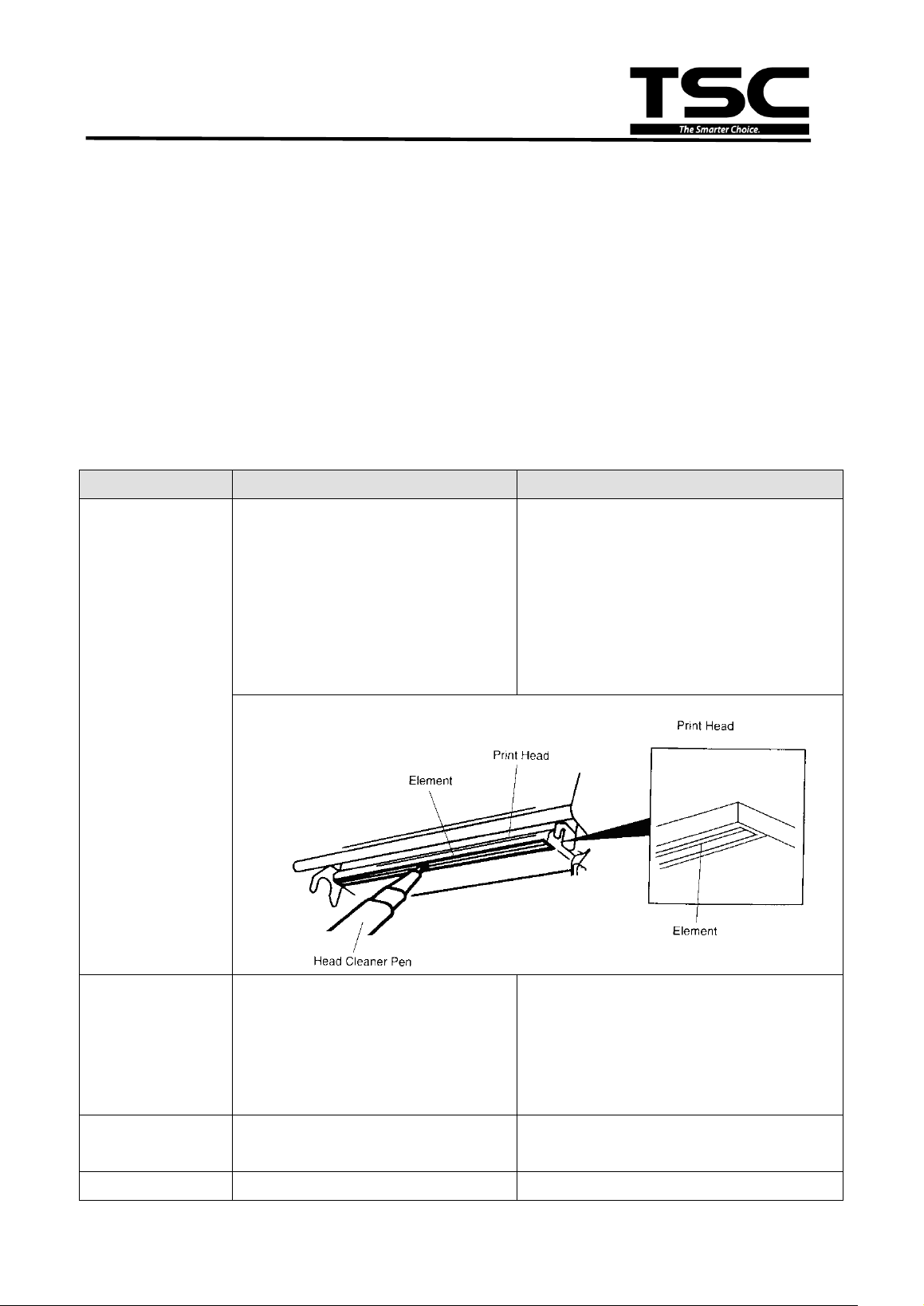
Print Head
1. Always turn off the printer
before cleaning the print head.
2. Allow the print head to cool for
a minimum of one minute.
3. Use a cotton swab (Head
cleaner pen) and 100% ethanol
to clean the print head surface.
Clean the print head when changing a
new label roll
Platen Roller
1. Turn the power off.
2. Rotate the platen roller and
wipe it thoroughly with 100%
ethanol and a cotton swab, or
lint-free cloth.
Clean the platen roller when changing
a new label roll
Tear Bar/Peel
Bar
Use the lint-free cloth with 100%
ethanol to wipe it.
As needed
Sensor
Compressed air or vacuum
Monthly

45
TE200/TE210/TE300/TE310 Series
Bar Code Printer
Service Manual
Exterior
Wipe it with water-dampened
cloth
As needed
Interior
Brush or vacuum
As needed
Note:
Do not touch printer head by hand. If you touch it careless, please use ethanol to
clean it.
Please use 100% Ethenol. DO NOT use medical alcohol, which may damage the
printer head.
Regularly clean the print head and supply sensors once change a new ribbon to
keep printer performance and extend printer life.
The maximum printing ratio per dot line is 15% for this printer. To print the full web
black line, the maximum black line height is limited to 40 dots, which is 5mm for 203
DPI resolution printer and 3.3mm for 300 DPI resolution printer.
46
TE200/TE210/TE300/TE310 Series
Bar Code Printer
Service Manual
UPDATE HISTORY
Date Content Editor
2018/3/1
Add Ch.3.12 Replacing the Encoder Assembly Kate
2018/5/4
Add Ch.3.13 Replacing the Label Guide Assembly Kate
2018/6/5
Add Ch.3.14 Replacing the Wi-Fi module Assembly
(TE210/TE310 Series option)
Kate
2018/9/10
Revise Ch.
3.8 Installing the Cutter Module (TE210/TE310
Series option)
Revise Ch.
3.9 Installing the Peeler Module (TE210/TE310
Series option)
Kate
2019/3/21
Add note on Ch. 5. MAINTENANCE Kate
2020/4/21
Modify Ch. 3.14 (Replacing the Wi-Fi module Assembly) Camille
2020/5/11
Modify Ch. 3.3 (Replacing the Stepping Motor Module) Camille

47
TE200/TE210/TE300/TE310 Series
Bar Code Printer
Service Manual
Corporate Headquarters Li Ze Plant
9F., No.95, Minquan Rd., Xindian Dist., No.35, Sec. 2, Ligong 1st Rd., Wujie Township,
New Taipei City 23141, Taiwan (R.O.C.) Yilan County 26841, Taiwan (R.O.C.)
TEL: +886-2-2218-6789 TEL: +886-3-990-6677
FAX: +886-2-2218-5678 FAX: +886-3-990-5577
Web site: www.tscprinters.com
E-mail: printer_sales@tscprinters.com
tech_support@tscprinters.com
TSC Auto ID Technology Co., Ltd.