R&S
®
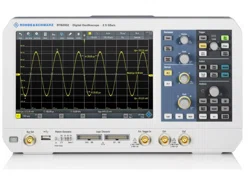
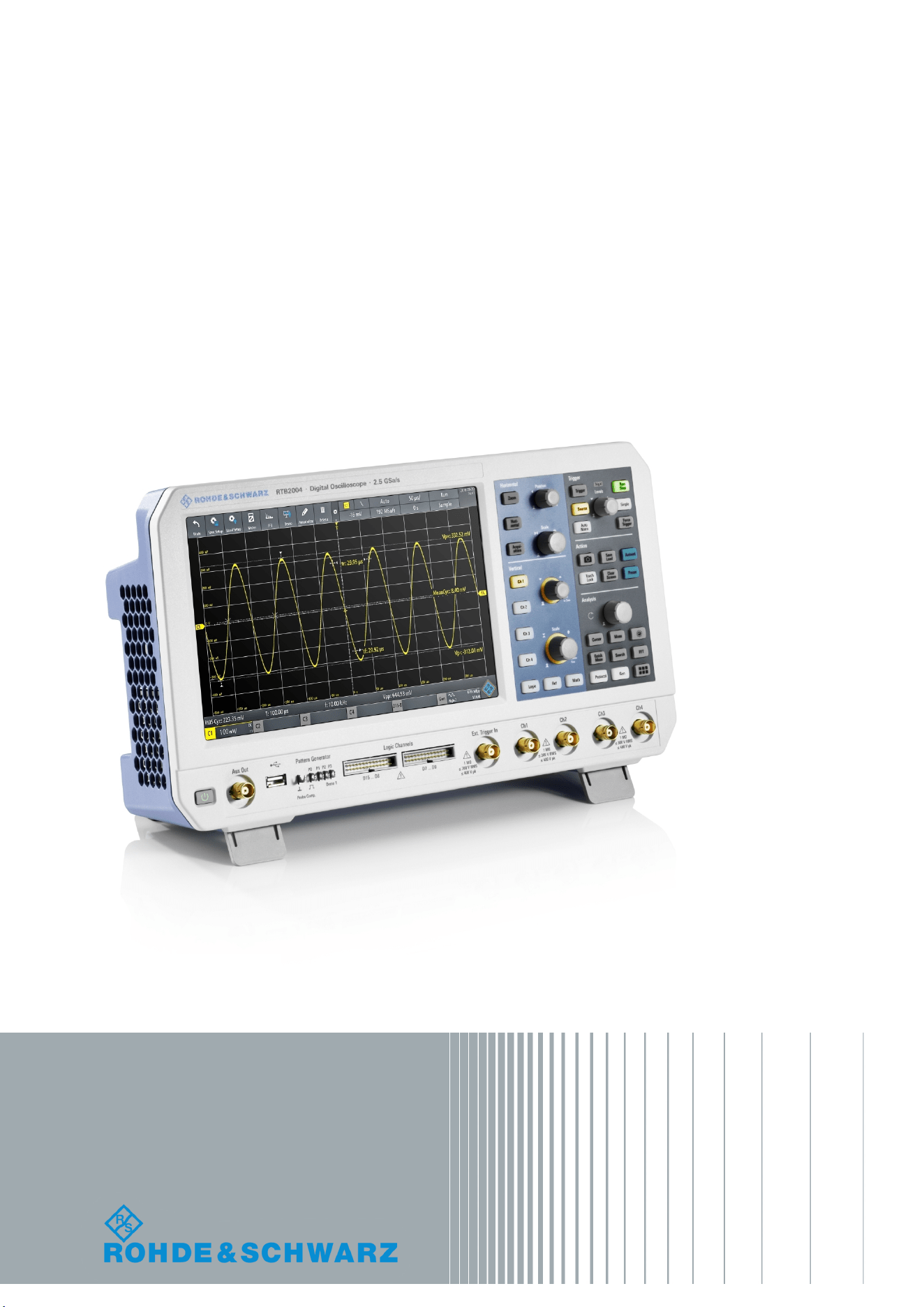
RTB2000
Digital Oscilloscope
User Manual
User Manual
1333.1611.02 ─ 03
(=Q@;2)

This manual describes the following R&S
®
RTB2000 models:
●
R&S
®
RTB2002 (1333.1005K02)
●
R&S
®
RTB2004 (1333.1005K04)
© 2017 Rohde & Schwarz GmbH & Co. KG
Mühldorfstr. 15, 81671 München, Germany
Phone: +49 89 41 29 - 0
Fax: +49 89 41 29 12 164
Email:
Internet: www.rohde-schwarz.com
Subject to change – Data without tolerance limits is not binding.
R&S
®
is a registered trademark of Rohde & Schwarz GmbH & Co. KG.
Trade names are trademarks of their owners.
Throughout this manual, products from Rohde & Schwarz are indicated without the
®
symbol, e.g. R&S
®
RTB is indicated as
R&S RTB2000.
1171.0000.42 - 09 Page 1
Basic Safety Instructions
Always read through and comply with the following safety instructions!
All plants and locations of the Rohde & Schwarz group of companies make every effort to keep the safety
standards of our products up to date and to offer our customers the highest possible degree of safety. Our
products and the auxiliary equipment they require are designed, built and tested in accordance with the
safety standards that apply in each case. Compliance with these standards is continuously monitored by
our quality assurance system. The product described here has been designed, built and tested in
accordance with the EC Certificate of Conformity and has left the manufacturer’s plant in a condition fully
complying with safety standards. To maintain this condition and to ensure safe operation, you must
observe all instructions and warnings provided in this manual. If you have any questions regarding these
safety instructions, the Rohde & Schwarz group of companies will be happy to answer them.
Furthermore, it is your responsibility to use the product in an appropriate manner. This product is designed
for use solely in industrial and laboratory environments or, if expressly permitted, also in the field and must
not be used in any way that may cause personal injury or property damage. You are responsible if the
product is used for any purpose other than its designated purpose or in disregard of the manufacturer's
instructions. The manufacturer shall assume no responsibility for such use of the product.
The product is used for its designated purpose if it is used in accordance with its product documentation
and within its performance limits (see data sheet, documentation, the following safety instructions). Using
the product requires technical skills and, in some cases, a basic knowledge of English. It is therefore
essential that only skilled and specialized staff or thoroughly trained personnel with the required skills be
allowed to use the product. If personal safety gear is required for using Rohde & Schwarz products, this
will be indicated at the appropriate place in the product documentation. Keep the basic safety instructions
and the product documentation in a safe place and pass them on to the subsequent users.
Observing the safety instructions will help prevent personal injury or damage of any kind caused by
dangerous situations. Therefore, carefully read through and adhere to the following safety instructions
before and when using the product. It is also absolutely essential to observe the additional safety
instructions on personal safety, for example, that appear in relevant parts of the product documentation. In
these safety instructions, the word "product" refers to all merchandise sold and distributed by the Rohde &
Schwarz group of companies, including instruments, systems and all accessories. For product-specific
information, see the data sheet and the product documentation.
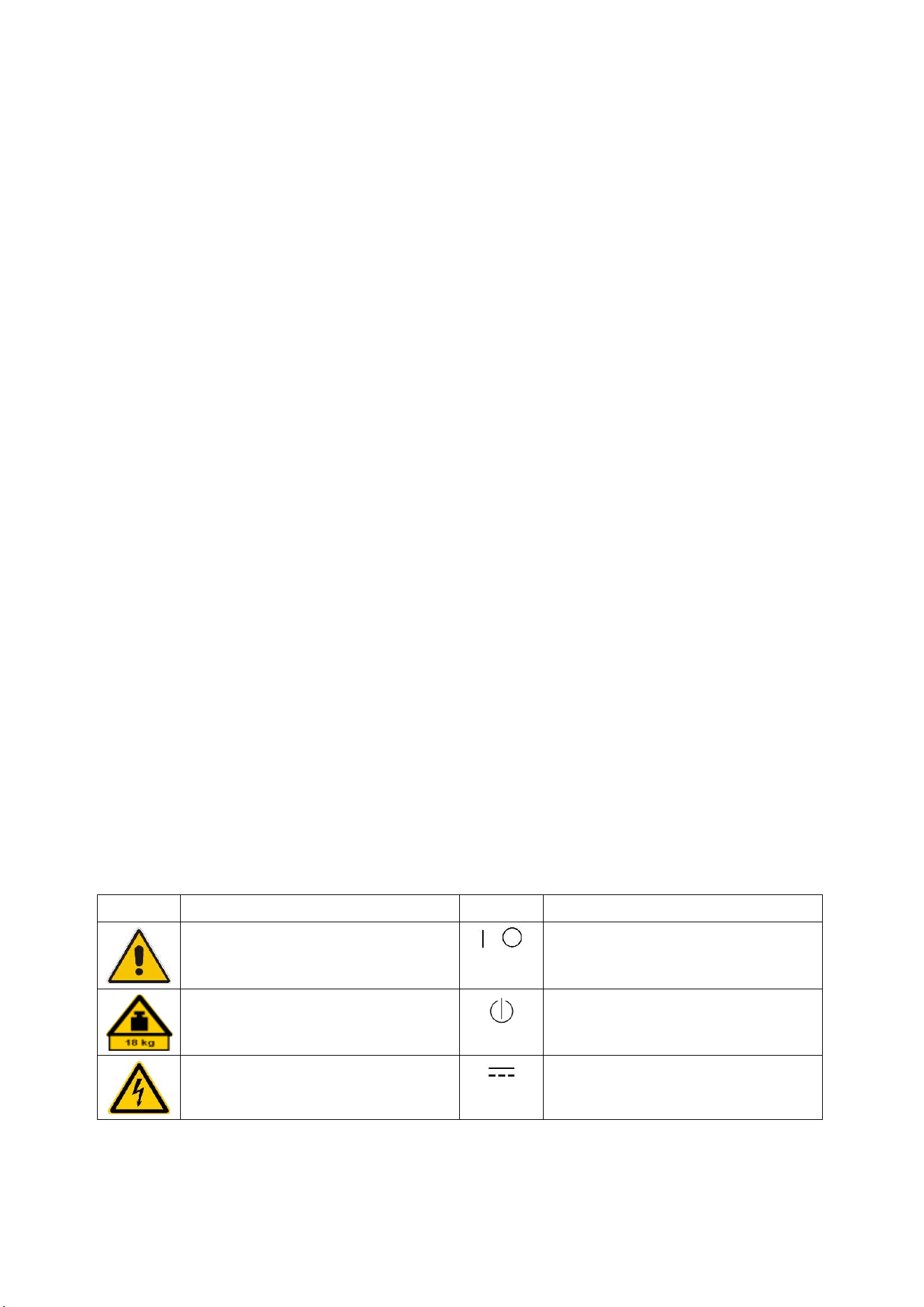
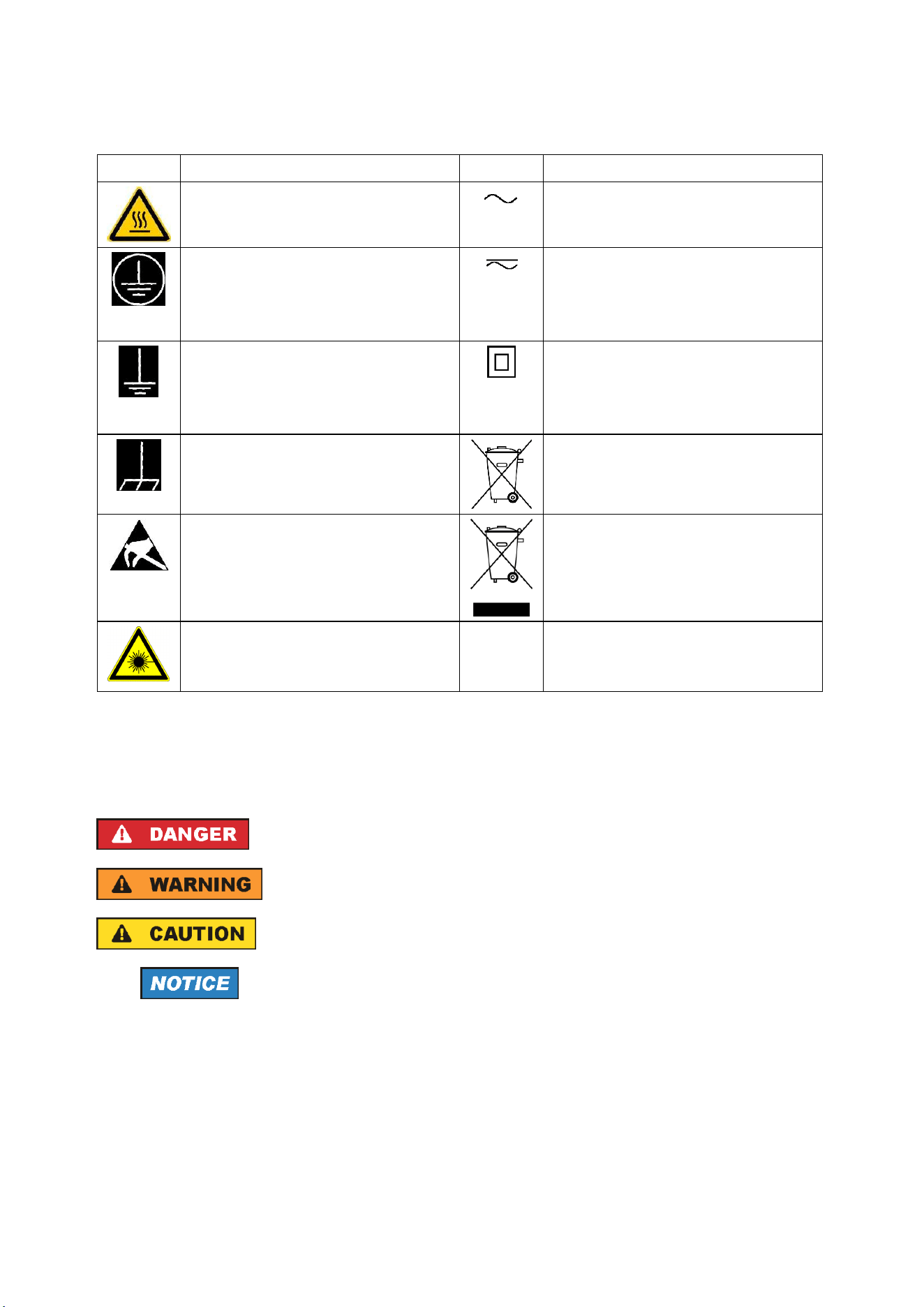
Safety labels on products
The following safety labels are used on products to warn against risks and dangers.
Symbol
Meaning
Symbol
Meaning
Notice, general danger location
Observe product documentation
ON/OFF Power
Caution when handling heavy equipment
Standby indication
Danger of electric shock
Direct current (DC)
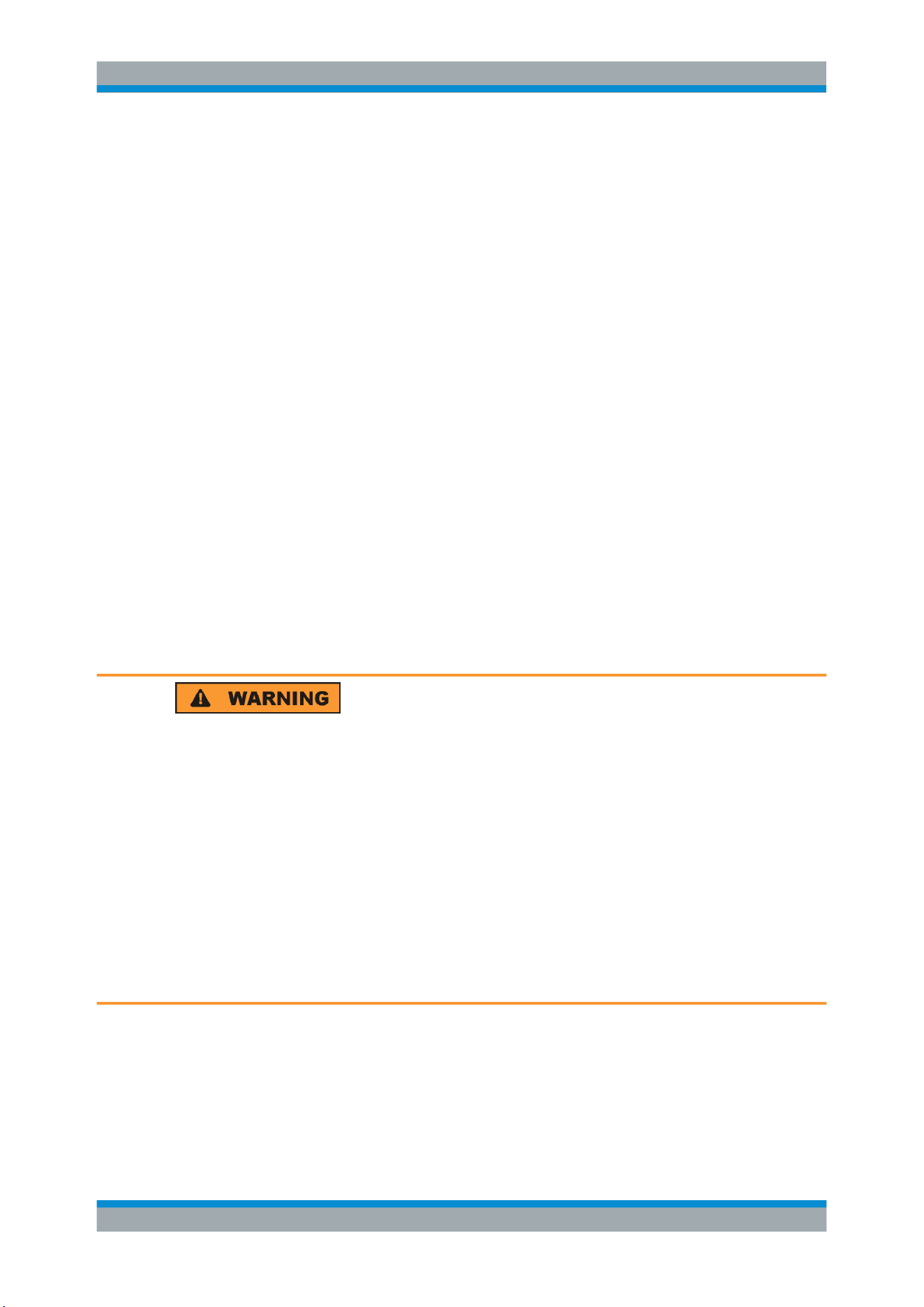
Basic Safety Instructions
1171.0000.42 - 09 Page 2
Symbol
Meaning
Symbol
Meaning
Caution ! Hot surface
Alternating current (AC)
Protective conductor terminal
To identify any terminal which is intended for
connection to an external conductor for
protection against electric shock in case of a
fault, or the terminal of a protective earth
Direct/alternating current (DC/AC)
Earth (Ground)
Class II Equipment
to identify equipment meeting the safety
requirements specified for Class II equipment
(device protected by double or reinforced
insulation)
Frame or chassis Ground terminal
EU labeling for batteries and accumulators
For additional information, see section "Waste
disposal/Environmental protection", item 1.
Be careful when handling electrostatic sensitive
devices
EU labeling for separate collection of electrical
and electronic devices
For additional information, see section "Waste
disposal/Environmental protection", item 2.
Warning! Laser radiation
For additional information, see section
"Operation", item 7.
Signal words and their meaning
The following signal words are used in the product documentation in order to warn the reader about risks
and dangers.
Indicates a hazardous situation which, if not avoided, will result in death or
serious injury.
Indicates a hazardous situation which, if not avoided, could result in death or
serious injury.
Indicates a hazardous situation which, if not avoided, could result in minor or
moderate injury.
Indicates information considered important, but not hazard-related, e.g.
messages relating to property damage.
In the product documentation, the word ATTENTION is used synonymously.
These signal words are in accordance with the standard definition for civil applications in the European
Economic Area. Definitions that deviate from the standard definition may also exist in other economic
areas or military applications. It is therefore essential to make sure that the signal words described here
are always used only in connection with the related product documentation and the related product. The
use of signal words in connection with unrelated products or documentation can result in misinterpretation
and in personal injury or material damage.

Basic Safety Instructions
1171.0000.42 - 09 Page 3
Operating states and operating positions
The product may be operated only under the operating conditions and in the positions specified by the
manufacturer, without the product's ventilation being obstructed. If the manufacturer's specifications are
not observed, this can result in electric shock, fire and/or serious personal injury or death. Applicable local
or national safety regulations and rules for the prevention of accidents must be observed in all work
performed.
1. Unless otherwise specified, the following requirements apply to Rohde & Schwarz products:
predefined operating position is always with the housing floor facing down, IP protection 2X, use only
indoors, max. operating altitude 2000 m above sea level, max. transport altitude 4500 m above sea
level. A tolerance of ±10 % shall apply to the nominal voltage and ±5 % to the nominal frequency,
overvoltage category 2, pollution degree 2.
2. Do not place the product on surfaces, vehicles, cabinets or tables that for reasons of weight or stability
are unsuitable for this purpose. Always follow the manufacturer's installation instructions when
installing the product and fastening it to objects or structures (e.g. walls and shelves). An installation
that is not carried out as described in the product documentation could result in personal injury or
even death.
3. Do not place the product on heat-generating devices such as radiators or fan heaters. The ambient
temperature must not exceed the maximum temperature specified in the product documentation or in
the data sheet. Product overheating can cause electric shock, fire and/or serious personal injury or
even death.
Electrical safety
If the information on electrical safety is not observed either at all or to the extent necessary, electric shock,
fire and/or serious personal injury or death may occur.
1. Prior to switching on the product, always ensure that the nominal voltage setting on the product
matches the nominal voltage of the mains-supply network. If a different voltage is to be set, the power
fuse of the product may have to be changed accordingly.
2. In the case of products of safety class I with movable power cord and connector, operation is
permitted only on sockets with a protective conductor contact and protective conductor.
3. Intentionally breaking the protective conductor either in the feed line or in the product itself is not
permitted. Doing so can result in the danger of an electric shock from the product. If extension cords
or connector strips are implemented, they must be checked on a regular basis to ensure that they are
safe to use.
4. If there is no power switch for disconnecting the product from the mains, or if the power switch is not
suitable for this purpose, use the plug of the connecting cable to disconnect the product from the
mains. In such cases, always ensure that the power plug is easily reachable and accessible at all
times. For example, if the power plug is the disconnecting device, the length of the connecting cable
must not exceed 3 m. Functional or electronic switches are not suitable for providing disconnection
from the AC supply network. If products without power switches are integrated into racks or systems,
the disconnecting device must be provided at the system level.
5. Never use the product if the power cable is damaged. Check the power cables on a regular basis to
ensure that they are in proper operating condition. By taking appropriate safety measures and
carefully laying the power cable, ensure that the cable cannot be damaged and that no one can be
hurt by, for example, tripping over the cable or suffering an electric shock.

Basic Safety Instructions
1171.0000.42 - 09 Page 4
6. The product may be operated only from TN/TT supply networks fuse-protected with max. 16 A (higher
fuse only after consulting with the Rohde & Schwarz group of companies).
7. Do not insert the plug into sockets that are dusty or dirty. Insert the plug firmly and all the way into the
socket provided for this purpose. Otherwise, sparks that result in fire and/or injuries may occur.
8. Do not overload any sockets, extension cords or connector strips; doing so can cause fire or electric
shocks.
9. For measurements in circuits with voltages V
rms
> 30 V, suitable measures (e.g. appropriate
measuring equipment, fuse protection, current limiting, electrical separation, insulation) should be
taken to avoid any hazards.
10. Ensure that the connections with information technology equipment, e.g. PCs or other industrial
computers, comply with the IEC 60950-1 / EN 60950-1 or IEC 61010-1 / EN 61010-1 standards that
apply in each case.
11. Unless expressly permitted, never remove the cover or any part of the housing while the product is in
operation. Doing so will expose circuits and components and can lead to injuries, fire or damage to the
product.
12. If a product is to be permanently installed, the connection between the protective conductor terminal
on site and the product's protective conductor must be made first before any other connection is
made. The product may be installed and connected only by a licensed electrician.
13. For permanently installed equipment without built-in fuses, circuit breakers or similar protective
devices, the supply circuit must be fuse-protected in such a way that anyone who has access to the
product, as well as the product itself, is adequately protected from injury or damage.
14. Use suitable overvoltage protection to ensure that no overvoltage (such as that caused by a bolt of
lightning) can reach the product. Otherwise, the person operating the product will be exposed to the
danger of an electric shock.
15. Any object that is not designed to be placed in the openings of the housing must not be used for this
purpose. Doing so can cause short circuits inside the product and/or electric shocks, fire or injuries.
16. Unless specified otherwise, products are not liquid-proof (see also section "Operating states and
operating positions", item 1). Therefore, the equipment must be protected against penetration by
liquids. If the necessary precautions are not taken, the user may suffer electric shock or the product
itself may be damaged, which can also lead to personal injury.
17. Never use the product under conditions in which condensation has formed or can form in or on the
product, e.g. if the product has been moved from a cold to a warm environment. Penetration by water
increases the risk of electric shock.
18. Prior to cleaning the product, disconnect it completely from the power supply (e.g. AC supply network
or battery). Use a soft, non-linting cloth to clean the product. Never use chemical cleaning agents such
as alcohol, acetone or diluents for cellulose lacquers.
Operation
1. Operating the products requires special training and intense concentration. Make sure that persons
who use the products are physically, mentally and emotionally fit enough to do so; otherwise, injuries
or material damage may occur. It is the responsibility of the employer/operator to select suitable
personnel for operating the products.

Basic Safety Instructions
1171.0000.42 - 09 Page 5
2. Before you move or transport the product, read and observe the section titled "Transport".
3. As with all industrially manufactured goods, the use of substances that induce an allergic reaction
(allergens) such as nickel cannot be generally excluded. If you develop an allergic reaction (such as a
skin rash, frequent sneezing, red eyes or respiratory difficulties) when using a Rohde & Schwarz
product, consult a physician immediately to determine the cause and to prevent health problems or
stress.
4. Before you start processing the product mechanically and/or thermally, or before you take it apart, be
sure to read and pay special attention to the section titled "Waste disposal/Environmental protection",
item 1.
5. Depending on the function, certain products such as RF radio equipment can produce an elevated
level of electromagnetic radiation. Considering that unborn babies require increased protection,
pregnant women must be protected by appropriate measures. Persons with pacemakers may also be
exposed to risks from electromagnetic radiation. The employer/operator must evaluate workplaces
where there is a special risk of exposure to radiation and, if necessary, take measures to avert the
potential danger.
6. Should a fire occur, the product may release hazardous substances (gases, fluids, etc.) that can
cause health problems. Therefore, suitable measures must be taken, e.g. protective masks and
protective clothing must be worn.
7. Laser products are given warning labels that are standardized according to their laser class. Lasers
can cause biological harm due to the properties of their radiation and due to their extremely
concentrated electromagnetic power. If a laser product (e.g. a CD/DVD drive) is integrated into a
Rohde & Schwarz product, absolutely no other settings or functions may be used as described in the
product documentation. The objective is to prevent personal injury (e.g. due to laser beams).
8. EMC classes (in line with EN 55011/CISPR 11, and analogously with EN 55022/CISPR 22,
EN 55032/CISPR 32)
Class A equipment:
Equipment suitable for use in all environments except residential environments and environments
that are directly connected to a low-voltage supply network that supplies residential buildings
Note: Class A equipment is intended for use in an industrial environment. This equipment may
cause radio disturbances in residential environments, due to possible conducted as well as
radiated disturbances. In this case, the operator may be required to take appropriate measures to
eliminate these disturbances.
Class B equipment:
Equipment suitable for use in residential environments and environments that are directly
connected to a low-voltage supply network that supplies residential buildings
Repair and service
1. The product may be opened only by authorized, specially trained personnel. Before any work is
performed on the product or before the product is opened, it must be disconnected from the AC supply
network. Otherwise, personnel will be exposed to the risk of an electric shock.

Basic Safety Instructions
1171.0000.42 - 09 Page 6
2. Adjustments, replacement of parts, maintenance and repair may be performed only by electrical
experts authorized by Rohde & Schwarz. Only original parts may be used for replacing parts relevant
to safety (e.g. power switches, power transformers, fuses). A safety test must always be performed
after parts relevant to safety have been replaced (visual inspection, protective conductor test,
insulation resistance measurement, leakage current measurement, functional test). This helps ensure
the continued safety of the product.
Batteries and rechargeable batteries/cells
If the information regarding batteries and rechargeable batteries/cells is not observed either at all or to the
extent necessary, product users may be exposed to the risk of explosions, fire and/or serious personal
injury, and, in some cases, death. Batteries and rechargeable batteries with alkaline electrolytes (e.g.
lithium cells) must be handled in accordance with the EN 62133 standard.
1. Cells must not be taken apart or crushed.
2. Cells or batteries must not be exposed to heat or fire. Storage in direct sunlight must be avoided.
Keep cells and batteries clean and dry. Clean soiled connectors using a dry, clean cloth.
3. Cells or batteries must not be short-circuited. Cells or batteries must not be stored in a box or in a
drawer where they can short-circuit each other, or where they can be short-circuited by other
conductive materials. Cells and batteries must not be removed from their original packaging until they
are ready to be used.
4. Cells and batteries must not be exposed to any mechanical shocks that are stronger than permitted.
5. If a cell develops a leak, the fluid must not be allowed to come into contact with the skin or eyes. If
contact occurs, wash the affected area with plenty of water and seek medical aid.
6. Improperly replacing or charging cells or batteries that contain alkaline electrolytes (e.g. lithium cells)
can cause explosions. Replace cells or batteries only with the matching Rohde & Schwarz type (see
parts list) in order to ensure the safety of the product.
7. Cells and batteries must be recycled and kept separate from residual waste. Rechargeable batteries
and normal batteries that contain lead, mercury or cadmium are hazardous waste. Observe the
national regulations regarding waste disposal and recycling.
8. Follow the transport stipulations of the carrier (IATA-DGR, IMDG-Code, ADR, RID) when returning
lithium batteries to Rohde & Schwarz subsidiaries.
Transport
1. The product may be very heavy. Therefore, the product must be handled with care. In some cases,
the user may require a suitable means of lifting or moving the product (e.g. with a lift-truck) to avoid
back or other physical injuries.
2. Handles on the products are designed exclusively to enable personnel to transport the product. It is
therefore not permissible to use handles to fasten the product to or on transport equipment such as
cranes, fork lifts, wagons, etc. The user is responsible for securely fastening the products to or on the
means of transport or lifting. Observe the safety regulations of the manufacturer of the means of
transport or lifting. Noncompliance can result in personal injury or material damage.

Instrucciones de seguridad elementales
1171.0000.42 - 09 Page 7
3. If you use the product in a vehicle, it is the sole responsibility of the driver to drive the vehicle safely
and properly. The manufacturer assumes no responsibility for accidents or collisions. Never use the
product in a moving vehicle if doing so could distract the driver of the vehicle. Adequately secure the
product in the vehicle to prevent injuries or other damage in the event of an accident.
Waste disposal/Environmental protection
1. Specially marked equipment has a battery or accumulator that must not be disposed of with unsorted
municipal waste, but must be collected separately. It may only be disposed of at a suitable collection
point or via a Rohde & Schwarz customer service center.
2. Waste electrical and electronic equipment must not be disposed of with unsorted municipal waste, but
must be collected separately.
Rohde & Schwarz GmbH & Co. KG has developed a disposal concept and takes full responsibility for
take-back obligations and disposal obligations for manufacturers within the EU. Contact your
Rohde & Schwarz customer service center for environmentally responsible disposal of the product.
3. If products or their components are mechanically and/or thermally processed in a manner that goes
beyond their intended use, hazardous substances (heavy-metal dust such as lead, beryllium, nickel)
may be released. For this reason, the product may only be disassembled by specially trained
personnel. Improper disassembly may be hazardous to your health. National waste disposal
regulations must be observed.
4. If handling the product releases hazardous substances or fuels that must be disposed of in a special
way, e.g. coolants or engine oils that must be replenished regularly, the safety instructions of the
manufacturer of the hazardous substances or fuels and the applicable regional waste disposal
regulations must be observed. Also observe the relevant safety instructions in the product
documentation. The improper disposal of hazardous substances or fuels can cause health problems
and lead to environmental damage.
For additional information about environmental protection, visit the Rohde & Schwarz website.

1171.0200.22-06.00
Customer Support
Technical support – where and when you need it
For quick, expert help with any Rohde & Schwarz equipment, contact one of our Customer Support
Centers. A team of highly qualified engineers provides telephone support and will work with you to find a
solution to your query on any aspect of the operation, programming or applications of Rohde & Schwarz
equipment.
Up-to-date information and upgrades
To keep your instrument up-to-date and to be informed about new application notes related to your
instrument, please send an e-mail to the Customer Support Center stating your instrument and your wish.
We will take care that you will get the right information.
Europe, Africa, Middle East
Phone +49 89 4129 12345
North America
Phone 1-888-TEST-RSA (1-888-837-8772)
Latin America
Phone +1-410-910-7988
Asia/Pacific
Phone +65 65 13 04 88
China
Phone +86-800-810-8228 /
+86-400-650-5896

Contents
R&S
®
RTB2000
3User Manual 1333.1611.02 ─ 03
Contents
1 Preface.................................................................................................. 13
1.1 For Your Safety........................................................................................................... 13
1.2 Documentation Overview........................................................................................... 14
1.2.1 Manuals and Instrument Help....................................................................................... 14
1.2.2 Data Sheet and Brochure..............................................................................................15
1.2.3 Calibration Certificate....................................................................................................15
1.2.4 Release Notes and Open Source Acknowledgment..................................................... 16
1.3 Conventions Used in the Documentation.................................................................16
1.3.1 Typographical Conventions...........................................................................................16
1.3.2 Conventions for Procedure Descriptions.......................................................................16
1.3.3 Notes on Screenshots...................................................................................................17
2 Getting Started..................................................................................... 18
2.1 Preparing for Use........................................................................................................ 18
2.1.1 Unpacking and Checking the Instrument...................................................................... 18
2.1.2 Positioning the Instrument.............................................................................................18
2.1.3 Starting the Instrument..................................................................................................19
2.1.4 Replacing the Fuses..................................................................................................... 21
2.2 Instrument Tour...........................................................................................................22
2.2.1 Front Panel....................................................................................................................22
2.2.2 Rear Panel.................................................................................................................... 24
3 Operating Basics..................................................................................26
3.1 Display Overview........................................................................................................ 26
3.2 Selecting the Application........................................................................................... 27
3.3 Using the Touchscreen.............................................................................................. 27
3.3.1 Accessing Functionality Using the Main Menu..............................................................27
3.3.2 Accessing Functionality Using Shortcuts...................................................................... 29
3.3.3 Entering Data................................................................................................................ 29
3.3.4 Using Gestures............................................................................................................. 30
3.4 Front Panel Keys.........................................................................................................31
3.4.1 Action Controls..............................................................................................................31
3.4.2 Analysis Controls.......................................................................................................... 32

Contents
R&S
®
RTB2000
4User Manual 1333.1611.02 ─ 03
3.5 Using the Toolbar........................................................................................................33
3.6 Getting Help.................................................................................................................34
4 Waveform Setup...................................................................................36
4.1 Connecting Probes and Displaying a Signal............................................................36
4.2 Vertical Setup.............................................................................................................. 37
4.2.1 VERTICAL Controls...................................................................................................... 38
4.2.2 Short Menu for Analog Channels.................................................................................. 39
4.2.3 Vertical Settings............................................................................................................ 40
4.2.4 Probe Settings...............................................................................................................43
4.2.5 Threshold Settings........................................................................................................ 44
4.2.6 Label Settings............................................................................................................... 45
4.3 Horizontal Setup..........................................................................................................45
4.3.1 HORIZONTAL Controls.................................................................................................46
4.3.2 Shortcuts for Horizontal Settings...................................................................................47
4.3.3 Horizontal Settings........................................................................................................ 48
4.4 Acquisition Setup........................................................................................................49
4.4.1 Shortcuts for Acquisition Settings................................................................................. 49
4.4.2 Acquisition Settings.......................................................................................................50
5 Trigger...................................................................................................53
5.1 Trigger Controls.......................................................................................................... 53
5.2 Shortcuts for Trigger Settings................................................................................... 55
5.3 General Trigger Settings............................................................................................ 56
5.4 Edge Trigger................................................................................................................ 58
5.5 Width Trigger...............................................................................................................59
5.6 Video Trigger............................................................................................................... 62
5.7 Pattern Trigger............................................................................................................ 64
5.8 Timeout Trigger...........................................................................................................66
6 Waveform Analysis..............................................................................69
6.1 Zoom............................................................................................................................ 69
6.1.1 Using the Zoom.............................................................................................................69
6.1.2 Zoom Settings............................................................................................................... 71
6.2 Mathematics................................................................................................................ 71

Contents
R&S
®
RTB2000
5User Manual 1333.1611.02 ─ 03
6.2.1 Math Waveform Settings...............................................................................................72
6.3 Reference Waveforms................................................................................................ 74
6.3.1 Using References..........................................................................................................74
6.3.2 Settings for Reference Waveforms............................................................................... 76
6.4 History and Segmented Memory (Option R&S
RTB-K15)....................................... 78
6.4.1 Segmented Memory......................................................................................................78
6.4.2 Segment Table..............................................................................................................79
6.4.3 Displaying History Segments........................................................................................ 80
6.4.4 Exporting History Data.................................................................................................. 81
6.5 Search.......................................................................................................................... 84
6.5.1 Search Conditions and Results.....................................................................................84
6.5.2 General Search Settings............................................................................................... 87
6.5.3 Edge Search................................................................................................................. 89
6.5.4 Width Search.................................................................................................................90
6.5.5 Peak Search..................................................................................................................91
6.5.6 Rise/Fall Time Search...................................................................................................91
6.5.7 Runt Setup.................................................................................................................... 93
6.5.8 Data2Clock....................................................................................................................94
6.5.9 Pattern Search.............................................................................................................. 96
7 Measurements......................................................................................99
7.1 Quick Measurements.................................................................................................. 99
7.2 Automatic Measurements........................................................................................ 100
7.2.1 Measurement Results................................................................................................. 100
7.2.2 Measurement Types................................................................................................... 101
7.2.3 Settings for Automatic Measurements........................................................................ 105
7.3 Cursor Measurements.............................................................................................. 107
7.3.1 Cursor Settings........................................................................................................... 109
8 Applications........................................................................................112
8.1 Mask Testing............................................................................................................. 112
8.1.1 About Masks and Mask Testing.................................................................................. 112
8.1.2 Using Masks................................................................................................................113
8.1.3 Mask Window..............................................................................................................115
8.1.4 Mask Menu..................................................................................................................116

Contents
R&S
®
RTB2000
6User Manual 1333.1611.02 ─ 03
8.2 FFT Analysis..............................................................................................................118
8.2.1 FFT Display.................................................................................................................119
8.2.2 Performing FFT Analysis.............................................................................................120
8.2.3 FFT Setup................................................................................................................... 120
8.3 XY-Diagram................................................................................................................124
8.4 Digital Voltmeter........................................................................................................126
8.4.1 Using the Meter...........................................................................................................126
8.4.2 Meter Settings............................................................................................................. 127
8.5 Trigger Counter......................................................................................................... 128
9 Documenting Results........................................................................ 130
9.1 Saving and Loading Instrument Settings............................................................... 131
9.2 Exporting Waveforms............................................................................................... 132
9.2.1 Waveform Export Settings.......................................................................................... 133
9.2.2 Waveform File Formats...............................................................................................134
9.3 Annotations............................................................................................................... 136
9.4 Screenshots...............................................................................................................137
9.5 Quick Save with OneTouch......................................................................................139
9.6 Export and Import..................................................................................................... 140
10 General Instrument Setup................................................................. 142
10.1 Instrument Settings.................................................................................................. 142
10.2 Display Settings........................................................................................................ 145
10.3 Resetting the Instrument..........................................................................................148
10.4 Locking the Touchscreen.........................................................................................148
10.5 Performing a Self-Alignment....................................................................................148
10.6 Setting the Data, Time and Language..................................................................... 149
10.7 Adjusting Passive Probes........................................................................................ 150
10.8 Options.......................................................................................................................151
10.8.1 Activating Options....................................................................................................... 152
10.9 Updating the Firmware............................................................................................. 152
11 Network Connections and Remote Operation.................................154
11.1 LAN Connection........................................................................................................ 154
11.2 USB Connection........................................................................................................156

Contents
R&S
®
RTB2000
7User Manual 1333.1611.02 ─ 03
11.3 Remote Access Using a Web Browser................................................................... 158
11.3.1 Accessing the Instrument Using a Web Browser........................................................ 158
11.3.2 Instrument Home.........................................................................................................158
11.3.3 Screenshot.................................................................................................................. 159
11.3.4 SCPI Device Control................................................................................................... 160
11.3.5 Save/Recall................................................................................................................. 161
11.3.6 Network Settings......................................................................................................... 162
11.3.7 Change Password.......................................................................................................163
11.3.8 Livescreen...................................................................................................................163
11.3.9 Remote Front Panel.................................................................................................... 163
12 Serial Bus Analysis............................................................................164
12.1 Basics of Protocol Analysis.....................................................................................164
12.1.1 Protocol - Common Settings....................................................................................... 165
12.1.2 Display Settings.......................................................................................................... 167
12.1.3 Bus Table: Decode Results.........................................................................................167
12.1.4 Bus Labels.................................................................................................................. 168
12.1.5 Label List.....................................................................................................................169
12.2 SPI/SSPI Bus (Option R&S
RTB-K1)........................................................................172
12.2.1 The SPI Protocol......................................................................................................... 172
12.2.2 SPI/SSPI Configuration...............................................................................................173
12.2.3 SPI/SSPI Trigger.........................................................................................................176
12.2.4 SPI/SSPI Decode Results ..........................................................................................178
12.3 I²C (Option R&S
RTB-K1)..........................................................................................179
12.3.1 The I²C Protocol.......................................................................................................... 180
12.3.2
I
2
C Configuration.........................................................................................................182
12.3.3
I
2
C Trigger...................................................................................................................183
12.3.4
I
2
C Decode Results ....................................................................................................186
12.3.5
I
2
C Label List...............................................................................................................187
12.4 UART / RS232 (Option R&S
RTB-K2)...................................................................... 188
12.4.1 The UART / RS232 Interface...................................................................................... 189
12.4.2 UART Configuration.................................................................................................... 189
12.4.3 UART Trigger.............................................................................................................. 191
12.4.4 UART Decode Results ............................................................................................... 194

Contents
R&S
®
RTB2000
8User Manual 1333.1611.02 ─ 03
12.5 CAN (Option R&S
RTB-K3).......................................................................................195
12.5.1 CAN Configuration...................................................................................................... 195
12.5.2 CAN Trigger................................................................................................................ 197
12.5.3 CAN Decode Results.................................................................................................. 201
12.5.4 Search on Decoded CAN Data................................................................................... 203
12.5.5 CAN Label List............................................................................................................ 205
12.6 LIN (Option R&S
RTB-K3).........................................................................................207
12.6.1 The LIN Protocol......................................................................................................... 207
12.6.2 LIN Configuration........................................................................................................ 209
12.6.3 LIN Trigger.................................................................................................................. 210
12.6.4 LIN Decode Results ................................................................................................... 214
12.6.5 Search on Decoded LIN Data..................................................................................... 215
12.6.6 LIN Label List.............................................................................................................. 217
13 Logic Analyzer (Option R&S
RTB-B1, MSO)....................................220
13.1 Short Menu for Logic Channels...............................................................................220
13.2 Logic Analyzer Settings........................................................................................... 221
13.3 Triggering on Logic Channels................................................................................. 223
13.4 Analyzing Logic Channels....................................................................................... 223
13.5 Parallel Buses............................................................................................................224
13.5.1 Parallel Bus Configuration...........................................................................................224
13.5.2 Decode Results...........................................................................................................226
14 Signal Generation (Option R&S
RTB-B6).........................................228
14.1 Function Generator...................................................................................................228
14.1.1 Basic Function Generator Settings............................................................................. 229
14.1.2 Sweep Settings........................................................................................................... 231
14.1.3 Modulation Settings.....................................................................................................232
14.1.4 Arbitrary Setup Settings.............................................................................................. 233
14.2 Pattern Generator......................................................................................................234
14.2.1 Pattern Selection.........................................................................................................234
14.2.2 Settings for Square Wave Pattern...............................................................................235
14.2.3 Settings for Counter Pattern........................................................................................236
14.2.4 Settings for Arbitrary Pattern.......................................................................................236
14.2.5 Settings for Manual Pattern.........................................................................................239

Contents
R&S
®
RTB2000
9User Manual 1333.1611.02 ─ 03
14.2.6 Settings for Serial Buses.............................................................................................239
15 Remote Control Commands..............................................................240
15.1 Conventions used in Command Description......................................................... 240
15.2 Programming Examples........................................................................................... 241
15.2.1 Documenting Results.................................................................................................. 241
15.2.2 Firmware Update.........................................................................................................245
15.2.3 Search.........................................................................................................................246
15.2.4 Function Generator..................................................................................................... 247
15.3 Common Commands................................................................................................ 247
15.4 Waveform Setup........................................................................................................250
15.4.1 Automatic Setup..........................................................................................................250
15.4.2 Starting and Stopping Acquisition............................................................................... 250
15.4.3 Vertical Settings.......................................................................................................... 252
15.4.4 Probes.........................................................................................................................258
15.4.5 Horizontal Settings...................................................................................................... 258
15.4.6 Acquisition Settings.....................................................................................................260
15.4.7 Waveform Data........................................................................................................... 265
15.5 Trigger........................................................................................................................266
15.5.1 General Trigger Settings............................................................................................. 266
15.5.2 Edge Trigger............................................................................................................... 268
15.5.3 Width Trigger...............................................................................................................269
15.5.4 Video/TV Trigger......................................................................................................... 271
15.5.5 Pattern Trigger............................................................................................................ 272
15.5.6 Timeout Trigger...........................................................................................................275
15.6 Waveform Analysis................................................................................................... 276
15.6.1 Zoom........................................................................................................................... 276
15.6.2 Mathematics................................................................................................................277
15.6.3 Reference Waveforms................................................................................................ 278
15.6.4 Search.........................................................................................................................281
15.6.5 History (Option R&S RTB2000-K15)...........................................................................296
15.7 Measurements........................................................................................................... 306
15.7.1 Quick Measurements.................................................................................................. 306
15.7.2 Automatic Measurements........................................................................................... 307

Contents
R&S
®
RTB2000
10User Manual 1333.1611.02 ─ 03
15.7.3 Cursor Measurements.................................................................................................317
15.8 Applications...............................................................................................................323
15.8.1 Mask Testing...............................................................................................................323
15.8.2 FFT Analysis............................................................................................................... 327
15.8.3 XY-Waveforms............................................................................................................ 334
15.8.4 Digital Voltmeter..........................................................................................................335
15.8.5 Trigger Counter........................................................................................................... 337
15.9 Documenting Results............................................................................................... 338
15.9.1 Transfer of Waveform Data.........................................................................................338
15.9.2 Waveform Data Export to File..................................................................................... 349
15.9.3 Screenshots................................................................................................................ 350
15.9.4 Instrument Settings: Mass MEMomory Subsystem.................................................... 352
15.10 General Instrument Setup........................................................................................ 359
15.10.1 Display Settings.......................................................................................................... 359
15.10.2 System Settings.......................................................................................................... 363
15.10.3 LAN Settings............................................................................................................... 367
15.10.4 USB Settings...............................................................................................................369
15.10.5 Trigger Out.................................................................................................................. 369
15.11 Serial Bus Analysis...................................................................................................370
15.11.1 General....................................................................................................................... 371
15.11.2 SPI and SSPI (Option R&S RTB-K1).......................................................................... 373
15.11.3 I²C............................................................................................................................... 384
15.11.4 UART (Option R&S RTB-K2)...................................................................................... 395
15.11.5 CAN.............................................................................................................................402
15.11.6 LIN (Option R&S RTB-K3).......................................................................................... 418
15.12 Mixed Signal Option (Option R&S
RTB-B1)............................................................431
15.12.1 Logic Channels........................................................................................................... 431
15.12.2 Parallel Buses............................................................................................................. 437
15.13 Signal Generation (Option R&S
RTB-B6)................................................................442
15.13.1 Function Generator..................................................................................................... 442
15.13.2 Pattern Generator....................................................................................................... 448
15.14 Status Reporting....................................................................................................... 454
15.14.1 STATus:OPERation Register......................................................................................454

Contents
R&S
®
RTB2000
11User Manual 1333.1611.02 ─ 03
15.14.2 STATus:QUEStionable Registers............................................................................... 456
16 Maintenance....................................................................................... 460
16.1 Cleaning..................................................................................................................... 460
16.2 Storing and Packing................................................................................................. 461
16.3 Replacing the Fuses................................................................................................. 461
16.4 Data Security............................................................................................................. 462
Annex.................................................................................................. 463
A SCPI Command Structure................................................................. 463
A.1 Syntax for Common Commands............................................................................. 463
A.2 Syntax for Device-Specific Commands.................................................................. 464
A.2.1 Long and short form.................................................................................................... 464
A.2.2 Numeric Suffixes......................................................................................................... 465
A.2.3 Optional Mnemonics................................................................................................... 465
A.3 SCPI Parameters....................................................................................................... 466
A.3.1 Numeric Values...........................................................................................................466
A.3.2 Special Numeric Values.............................................................................................. 467
A.3.3 Boolean Parameters................................................................................................... 467
A.3.4 Text Parameters..........................................................................................................467
A.3.5 Character Strings........................................................................................................ 468
A.3.6 Block Data...................................................................................................................468
A.4 Overview of Syntax Elements.................................................................................. 468
A.5 Structure of a Command Line..................................................................................469
A.6 Responses to Queries.............................................................................................. 470
B Command Sequence and Synchronization..................................... 472
B.1 Preventing Overlapping Execution......................................................................... 472
C Status Reporting System.................................................................. 474
C.1 Structure of a SCPI Status Register........................................................................ 474
C.2 Hierarchy of status registers................................................................................... 475
C.3 Contents of the Status Registers............................................................................ 477
C.3.1 Status Byte (STB) and Service Request Enable Register (SRE)................................477
C.3.2 Event Status Register (ESR) and Event Status Enable Register (ESE)..................... 478
C.3.3 STATus:OPERation Register......................................................................................479

Contents
R&S
®
RTB2000
12User Manual 1333.1611.02 ─ 03
C.3.4 STATus:QUEStionable Register................................................................................. 479
C.4 Application of the Status Reporting System.......................................................... 482
C.4.1 Service Request..........................................................................................................482
C.4.2 Serial Poll.................................................................................................................... 483
C.4.3 Query of an instrument status..................................................................................... 483
C.4.4 Error Queue................................................................................................................ 484
C.5 Reset Values of the Status Reporting System....................................................... 484
List of Commands..............................................................................486
Preface
R&S
®
RTB2000
13User Manual 1333.1611.02 ─ 03
1 Preface
1.1 For Your Safety
The R&S RTB2000 digital oscilloscope is designed for measurements on circuits that
are only indirectly connected to the mains or not connected at all. It is not rated for any
measurement category.
The instrument is intended for use in industrial areas. When used in residential areas,
radio disturbances caused by the instrument can exceed given limits. Additional shield-
ing can be required.
The instrument must be controlled by personnel familiar with the potential risks of mea-
suring electrical quantities. Applicable local or national safety regulations and rules for
the prevention of accidents must be observed.
Safety information is part of the product documentation. It warns you about the poten-
tial dangers and gives instructions how to prevent personal injury or damage caused
by dangerous situations. Safety information is provided as follows:
●
The "Basic Safety Instructions" in different languages are delivered as a printed
brochure with the instrument.
●
Throughout the documentation, safety instructions are provided when you need to
take care during setup or operation.
Risk of injury
The instrument must be used in an appropriate manner to prevent electric shock, per-
sonal injury, fire, or damage:
●
Do not open the instrument casing.
●
Do not use the instrument if the instrument casing, the display or any accessory
are damaged. If you detect or suspect any damage, have the instrument or acces-
sory inspected by qualified service personnel.
●
Do not operate the instrument in wet, damp or explosive atmospheres. Make sure
that the instrument, cables and connectors are completely dry before connecting
the inputs.
●
Do not exceed the voltage limits given in
Chapter 2.2.1.1, "Input Connectors",
on page 23.
For Your Safety
Preface
R&S
®
RTB2000
14User Manual 1333.1611.02 ─ 03
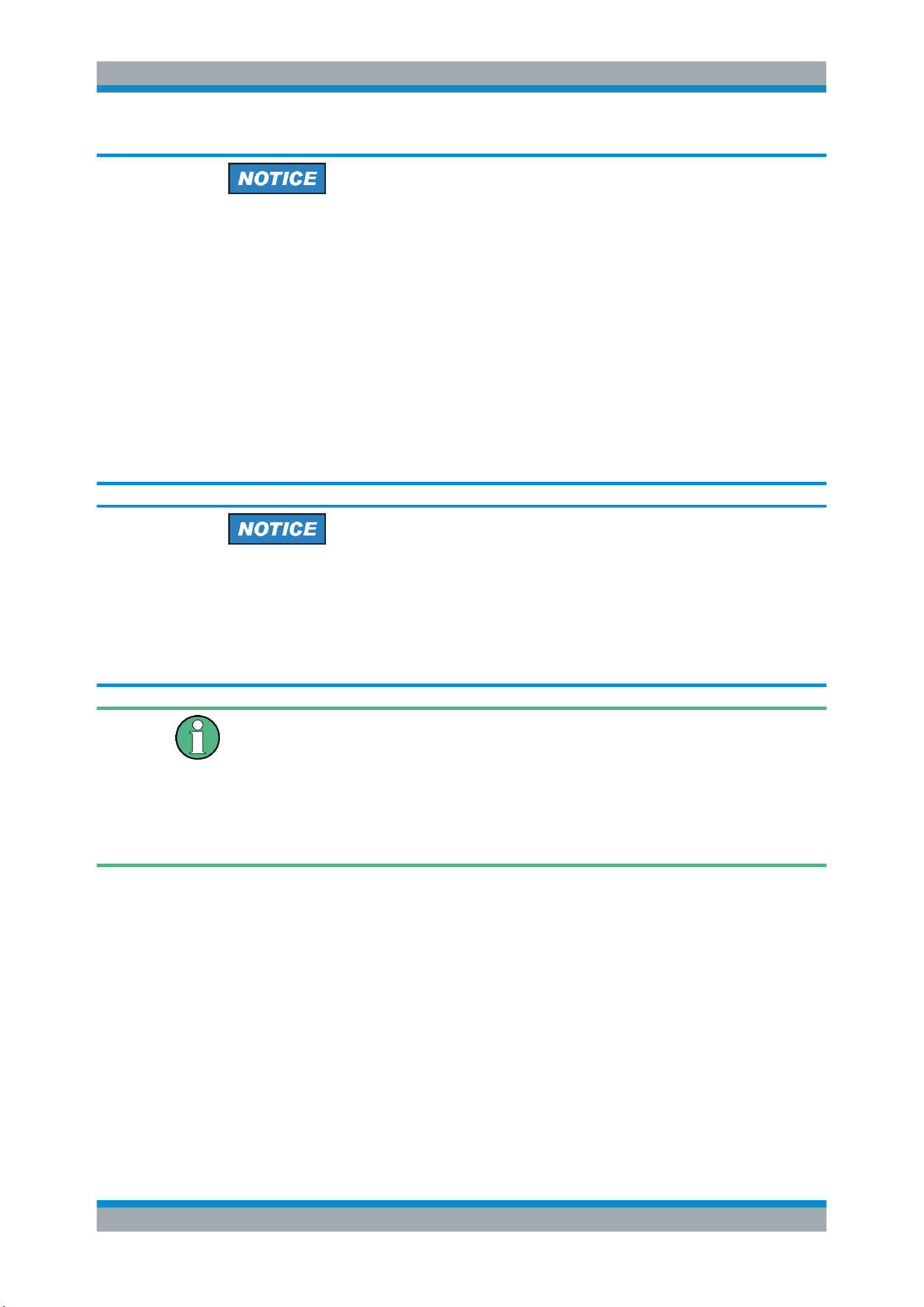
Risk of instrument damage
An unsuitable operating site or test setup can damage the instrument and connected
devices. Ensure the following operating conditions before you switch on the instrument:
●
Read and observe the "Basic Safety Instructions" brochure and the safety instruc-
tions in the manuals.
●
Observe the operating conditions specified in the data sheet. Note that the general
safety instructions also contain information on operating conditions.
●
Position the instrument as described in the following sections.
Make sure that all fan openings are unobstructed and the airflow perforations are
unimpeded. The minimum distance from the wall is 10 cm.
●
Signal levels at the input connectors are all within the specified ranges.
●
Signal outputs are correctly connected and are not overloaded.
Instrument damage caused by electrostatic discharge
Electrostatic discharge (ESD) can damage the electronic components of the instrument
and the device under test (DUT). Electrostatic discharge is most likely to occur when
you connect or disconnect a DUT or test fixture to the instrument's test ports. To pre-
vent electrostatic discharge, use a wrist strap and cord and connect yourself to the
ground, or use a conductive floor mat and heel strap combination.
Electromagnetic interference (EMI) may affect the measurement results.
To suppress generated electromagnetic interference (EMI):
●
Use suitable shielded cables of high quality. For example, use double-shielded RF
and LAN cables.
●
Always terminate open cable ends.
●
Note the EMC classification in the data sheet.
1.2 Documentation Overview
This section provides an overview of the R&S RTB2000 user documentation.
1.2.1 Manuals and Instrument Help
You find the manuals on the product page at:
www.rohde-schwarz.com/manual/rtb2000
Documentation Overview

Preface
R&S
®
RTB2000
15User Manual 1333.1611.02 ─ 03
Getting started manual
Introduces the R&S RTB2000 and describes how to set up the product. A printed Eng-
lish version is included in the delivery.
User manual
Contains the description of all instrument modes and functions. It also provides an
introduction to remote control, a complete description of the remote control commands
with programming examples, and information on maintenance and instrument interfa-
ces. Includes the contents of the getting started manual.
The online version of the user manual provides the complete contents for immediate
display on the internet.
Instrument help
The help offers quick, context-sensitive access to the functional description directly on
the instrument.
Basic safety instructions
Contains safety instructions, operating conditions and further important information.
The printed document is delivered with the instrument.
Instrument security procedures manual
Deals with security issues when working with the R&S RTB2000 in secure areas.
Service manual
Describes the performance test for checking the rated specifications, module replace-
ment and repair, firmware update, troubleshooting and fault elimination, and contains
mechanical drawings and spare part lists. The service manual is available for regis-
tered users on the global Rohde & Schwarz information system (GLORIS,
https://
gloris.rohde-schwarz.com
).
1.2.2 Data Sheet and Brochure
The data sheet contains the technical specifications of the R&S RTB2000. It also lists
the options with their order numbers and optional accessories. The brochure provides
an overview of the instrument and deals with the specific characteristics.
See
www.rohde-schwarz.com/brochure-datasheet/rtb2000
1.2.3 Calibration Certificate
The document is available on
https://gloris.rohde-schwarz.com/calcert. You need the
device ID of your instrument, which you can find on a label on the rear panel.
Documentation Overview
Preface
R&S
®
RTB2000
16User Manual 1333.1611.02 ─ 03
1.2.4 Release Notes and Open Source Acknowledgment
The release notes list new features, improvements and known issues of the current
firmware version, and describe the firmware installation. The open source acknowledg-
ment document provides verbatim license texts of the used open source software.
See
www.rohde-schwarz.com/firmware/rtb2000. The open source acknowledgment
documant can also be read directly on the instrument.
1.3 Conventions Used in the Documentation
1.3.1 Typographical Conventions
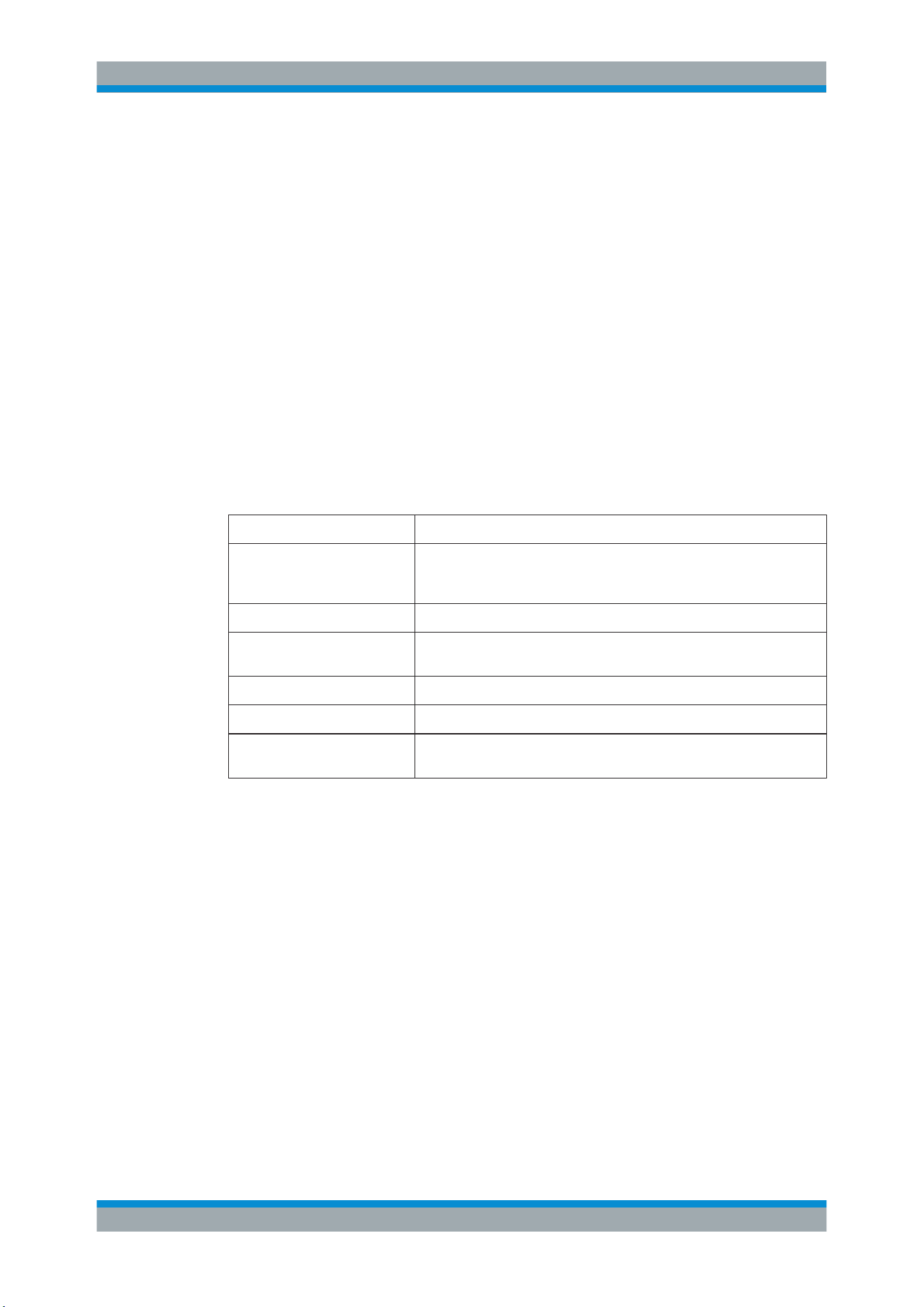
The following text markers are used throughout this documentation:
Convention Description
"Graphical user interface ele-
ments"
All names of graphical user interface elements on the screen, such as
dialog boxes, menus, options, buttons, and softkeys are enclosed by
quotation marks.
KEYS Key names are written in capital letters.
File names, commands,
program code
File names, commands, coding samples and screen output are distin-
guished by their font.
Input Input to be entered by the user is displayed in italics.
Links Links that you can click are displayed in blue font.
"References" References to other parts of the documentation are enclosed by quota-
tion marks.
1.3.2 Conventions for Procedure Descriptions
When operating the instrument, several alternative methods may be available to per-
form the same task. In this case, the procedure using the touchscreen is described.
Any elements that can be activated by touching can also be clicked using an addition-
ally connected mouse. The alternative procedure using the keys on the instrument or
the on-screen keyboard is only described if it deviates from the standard operating pro-
cedures.
The term "select" may refer to any of the described methods, i.e. using a finger on the
touchscreen, a mouse pointer in the display, or a key on the instrument or on a key-
board.
Conventions Used in the Documentation

Preface
R&S
®
RTB2000
17User Manual 1333.1611.02 ─ 03
1.3.3 Notes on Screenshots
When describing the functions of the product, we use sample screenshots. These
screenshots are meant to illustrate as much as possible of the provided functions and
possible interdependencies between parameters. The shown values may not represent
realistic usage scenarios.
The screenshots usually show a fully equipped product, that is: with all options instal-
led. Thus, some functions shown in the screenshots may not be available in your par-
ticular product configuration.
Conventions Used in the Documentation
Getting Started
R&S
®
RTB2000
18User Manual 1333.1611.02 ─ 03
2 Getting Started
2.1 Preparing for Use
2.1.1 Unpacking and Checking the Instrument
1. Inspect the package for damage.
If the packaging material shows any signs of stress, notify the carrier who delivered
the instrument.
2. Carefully unpack the instrument and the accessories.
3. Check the equipment for completeness. See section
"Delivery contents"
on page 18.
4. Check the equipment for damage.
If there is damage, or anything is missing, immediately contact the carrier as well
as your distributor. Make sure not to discard the box and packing material.
Packing material
Retain the original packing material. If the instrument needs to be transported or ship-
ped later, you can use the material to protect the control elements and connectors.
Delivery contents
The delivery package contains the following items:
●
R&S RTB2000 digital oscilloscope
●
R&S RT-ZP03 probes (2x for R&S RTB2002; 4x for R&S RTB2004)
●
Country-specific power cable
●
Printed "Getting Started" manual
●
Printed "Basic Safety Instructions" brochure
2.1.2 Positioning the Instrument
The instrument is designed for use under laboratory conditions. It can be used in
standalone operation on a bench top or can be installed in a rack.
For standalone operation, place the instrument on a horizontal bench with even, flat
surface. The instrument can be used in horizontal position, or with the support feet on
the bottom extended.
Preparing for Use
Getting Started
R&S
®
RTB2000
19User Manual 1333.1611.02 ─ 03
The instrument can be installed in a 19" rack mount using a rack mount kit. The order
number of the rack mount kit is given in the data sheet. The installation instructions are
part of the rack mount kit.
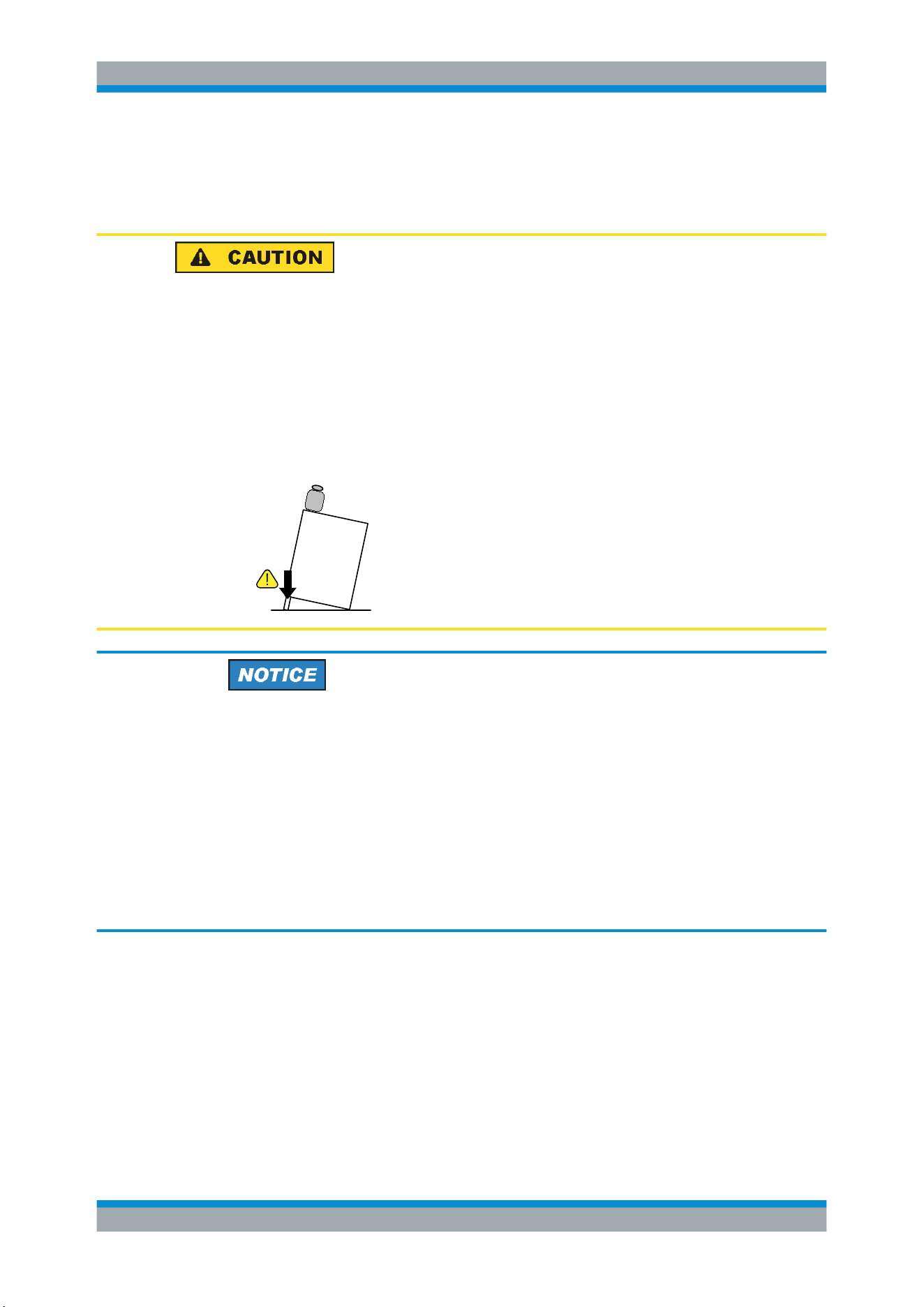
Risk of injury if feet are folded out
The feet can fold in if they are not folded out completely or if the instrument is shifted.
This can cause damage or injury.
●
Fold the feet completely in or out to ensure stability of the instrument. Never shift
the instrument when the feet are folded out.
●
When the feet are folded out, do not work under the instrument or place anything
underneath.
●
The feet can break if they are overloaded. The overall load on the folded-out feet
must not exceed 200 N.
F
max
Risk of instrument damage due to overheating
An insufficient airflow can cause the R&S RTB2000 to overheat, which can impair the
measurement results, disturb the operation, and even cause damage.
●
Ensure that all fan openings are unobstructed and that the airflow perforations are
unimpeded. The minimum distance to a wall is 10 cm.
●
When placing several instruments side by side, keep a minimum distance of 20 cm
between the instruments. Ensure that the instruments do not draw in the preheated
air from their neighbors.
●
When mounting the instrument in a rack, observe the instructions of the rack man-
ufacturer to ensure sufficient airflow and avoid overheating.
2.1.3 Starting the Instrument
2.1.3.1 Powering On
The R&S RTB2000 can be used with different AC power voltages and adapts itself
automatically to it.
Preparing for Use
Getting Started
R&S
®
RTB2000
20User Manual 1333.1611.02 ─ 03
The nominal ranges are:
●
100 V to 240 V AC at 50 Hz to 60 Hz
●
0.95 A to 0.5 A
●
max. 60 W
Risk of injury
Connect the instrument only to an outlet that has a ground contact.
Do not use an isolating transformer to connect the instrument to the AC power supply.
1. Connect the power cable to the AC power connector on the rear panel of the
R&S RTB2000.
2. Connect the power cable to the socket outlet.
3. Switch the main power switch at the rear of the instrument to position I.
The STANDBY key lights up. The key is located in the bottom left corner of the
front panel.
You can leave the main power switch on to preserve your last instrument settings. To
disconnect from power supply, power off the instrument.
2.1.3.2 Starting Up and Shutting Down
To start up the instrument
1. Make sure that the R&S RTB2000 is connected to the AC power supply and the
main power switch on the rear panel is in position I.
2. Press the STANDBY key. The key is located in the bottom left corner of the front
panel.
The instrument performs a system check and starts the firmware. If the previous
session was terminated regularly, the oscilloscope uses the last settings.
Table 2-1: Colors of the STANDBY key
Green Instrument is on: firmware is working
Yellow Standby: instrument is off, main power switch is on
Warm-up and prepare the instrument
Make sure that the instrument has been running and warming up before you start the
self-alignment and the measurements. The minimum warm-up time is about 20 min.
Preparing for Use
Getting Started
R&S
®
RTB2000
21User Manual 1333.1611.02 ─ 03
To shut down the instrument to standby state
► Press the STANDBY key.
All current settings are saved, and the software shuts down. Now it is safe to power
off the instrument.
2.1.3.3 Powering Off
Powering off is required only if the instrument must be disconnected from all power
supplies.
1. If the instrument is running, press the STANDBY key on the front panel to shut
down the instrument.
2. Switch the main power switch at the rear of the instrument to position 0.
3. Disconnect the AC power cable from the AC power supply.
Risk of losing data
If you switch off the running instrument using the rear panel switch or by disconnecting
the power cord, the instrument loses its current settings. Furthermore, program data
can be lost.
Press the Standby key first to shut down the application properly.
2.1.4 Replacing the Fuses
The instrument is protected by a fuse. You can find it on the rear panel between the
main power switch and AC power supply.
Type of fuse: Size 5x20 mm, 250V~, T2.5H (slow-blow), IEC60127-2/5
Risk of electric shock
The fuse is part of the main power supply. Therefore, handling the fuse while power is
on can lead to electric shock. Before opening the fuse holder, make sure that the
instrument is switched off and disconnected from all power supplies.
Always use fuses supplied by Rohde & Schwarz as spare parts, or fuses of the same
type and rating.
1. Pull the fuse holder out of its slot on the rear panel.
2. Exchange the fuse.
Preparing for Use
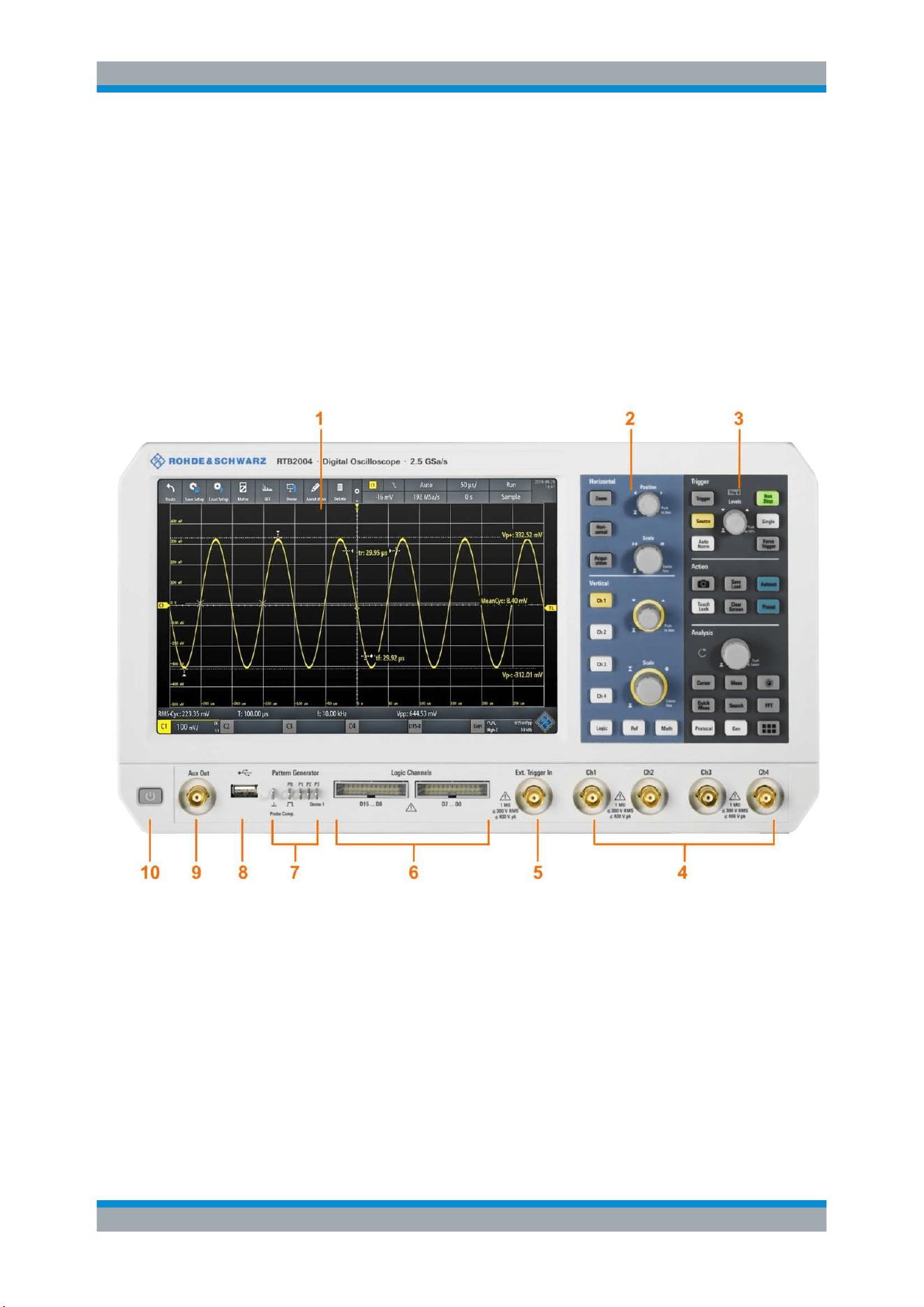
Getting Started
R&S
®
RTB2000
22User Manual 1333.1611.02 ─ 03
3. Insert the fuse holder carefully back in its slot until it latches.
2.2 Instrument Tour
2.2.1 Front Panel
Figure 2-1 shows the front panel of the R&S RTB2000. The function keys are grouped
in functional blocks to the right of the display.
Figure 2-1: Front panel of R&S
RTB2004 with 4 input channels
1 = Display
2 = Horizontal and vertical setup controls
3 = Trigger settings, action and analysis controls
4 = Analog input channels (2 channels at R&S RTB2002, 4 channels at R&S RTB2004)
5 = External trigger input
6 = Logic probe connectors (option R&S RTB-B1)
7 = Connectors for probe compensation and optional pattern generator (R&S RTB-B6)
8 = USB connector
9 = Aux Out connector
10 = STANDBY key
Instrument Tour
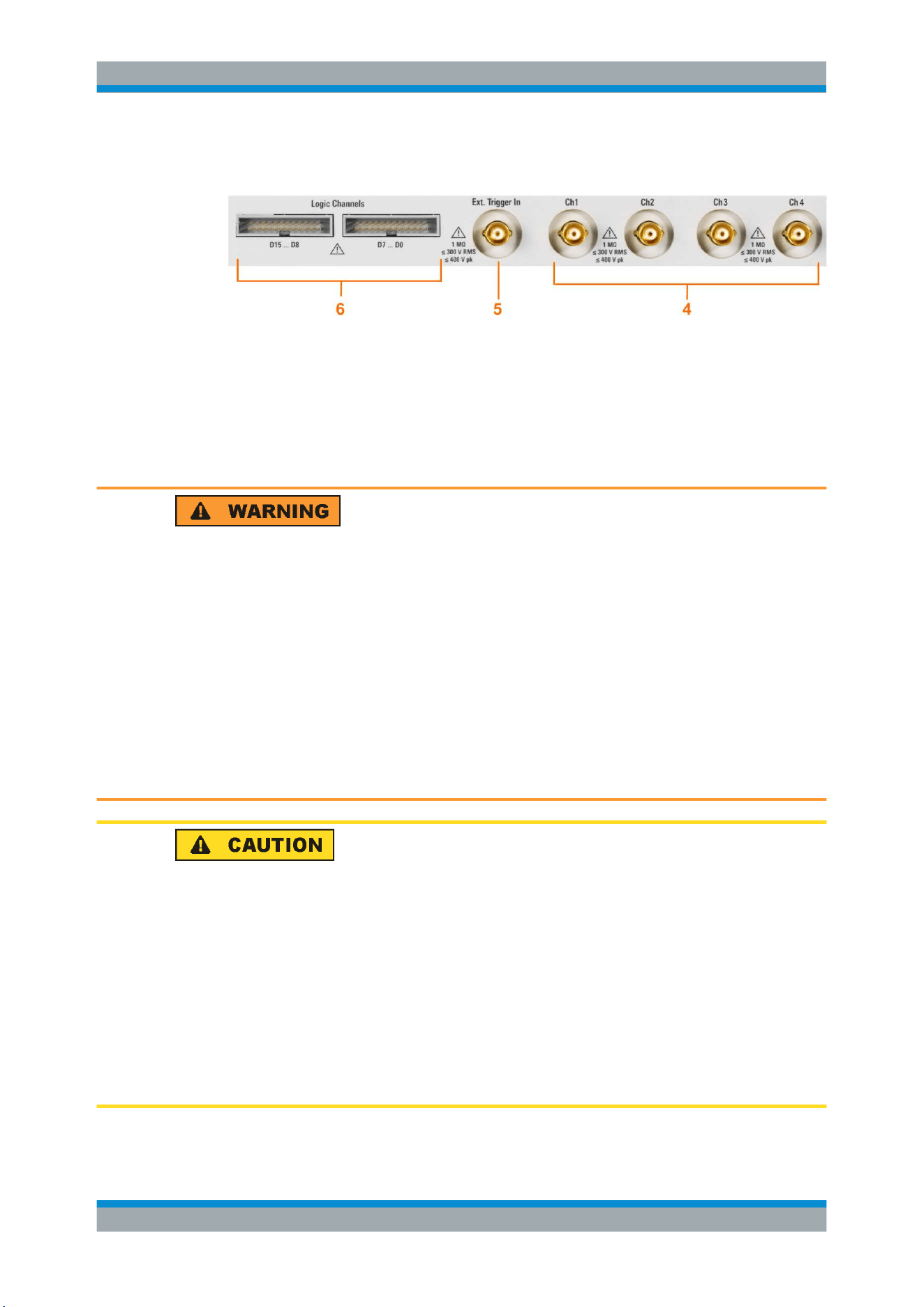
Getting Started
R&S
®
RTB2000
23User Manual 1333.1611.02 ─ 03
2.2.1.1 Input Connectors
BNC inputs (4 and 5)
The R&S RTB2000 has two or four channel inputs (4) to connect the input signals. The
external trigger input (5) is used to control the measurement by an external signal. The
trigger level can be set from -5 V to 5 V.
The input impedance of all BNC inputs is 1 MΩ.
Risk of electrical shock - maximum input voltages
The maximum input voltage on channel inputs must not exceed 400 V (peak) and
300 V (RMS).
For the external trigger input, the maximum input voltage is 400 V (peak) and
300 V (RMS).
Transient overvoltages must not exceed 400 V (peak).
Voltages higher than 30 V (RMS) or 42 V (peak) or 60 V DC are regarded as hazard-
ous contact voltages. When working with hazardous contact voltages, use appropriate
protective measures to preclude direct contact with the measurement setup:
●
Use only insulated voltage probes, test leads and adapters.
●
Do not touch voltages higher than 30 V (RMS) or 42 V (peak) or 60 V DC.
Risk of injury and instrument damage
The instrument is not rated for any measurement category. When measuring in circuits
with transient overvoltages of category II, III or IV circuits, make sure that no such
overvoltages reach the R&S RTB2000 input. Therefore, use only probes that comply
with DIN EN 61010-031. When measuring in category II, III or IV circuits, always insert
a probe that appropriately reduces the voltage so that no transient overvoltages higher
than 400 V (peak) are applied to the instrument. For detailed information, refer to the
documentation and safety information of the probe manufacturer.
Explanation: According to section AA.2.4 of EN 61010-2-030, measuring circuits with-
out any measurement category are intended for measurements on circuits which are
not directly connected to the mains.
Instrument Tour
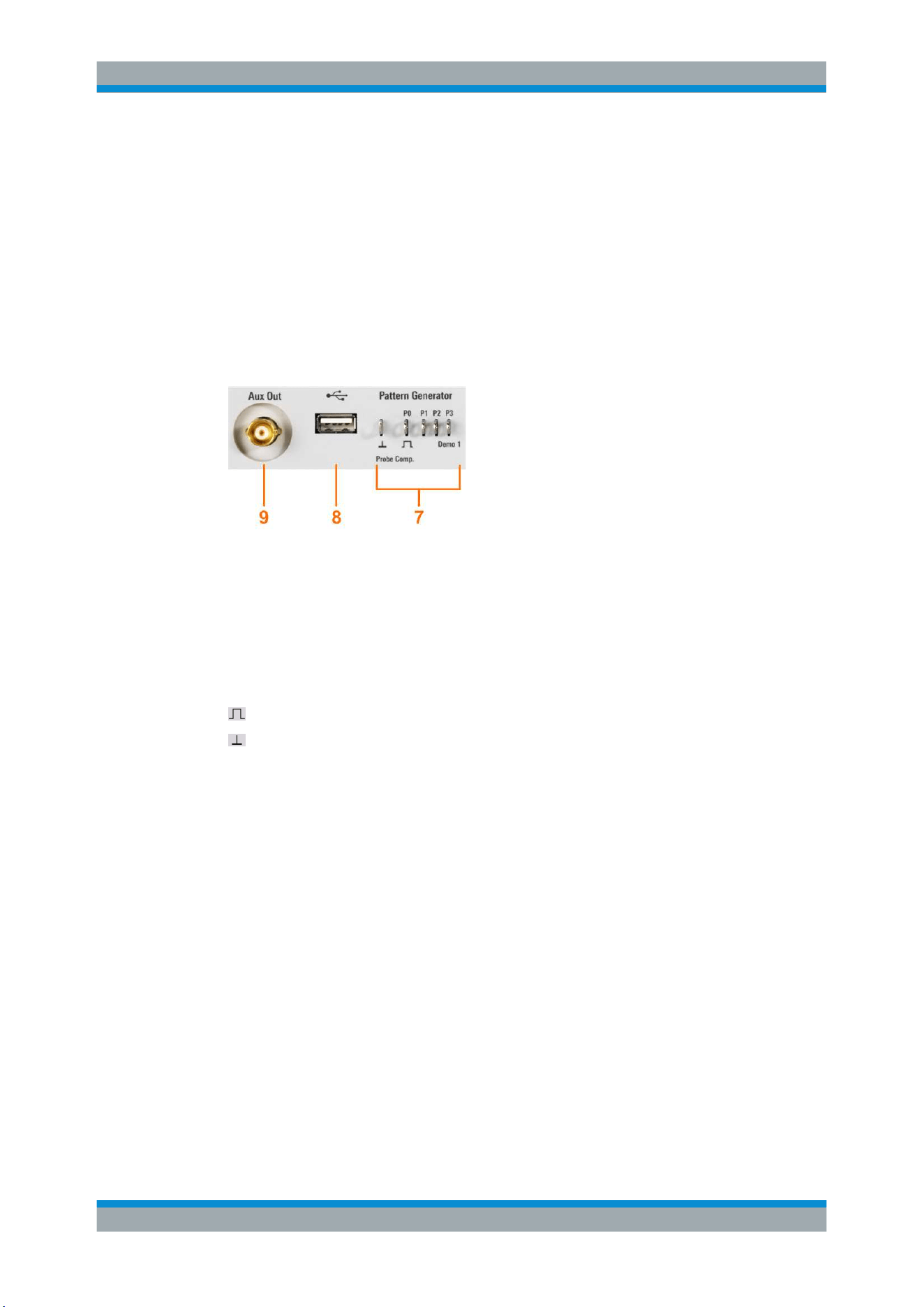
Getting Started
R&S
®
RTB2000
24User Manual 1333.1611.02 ─ 03
Logic probe (6)
The connectors for logic channels can be used if the Mixed Signal Option R&S RTB-B1
is installed. The option provides connectors for two logical probes with 8 digital chan-
nels each (D0 to D7 and D8 to D15).
The maximum input voltage is 40 V (peak) at 100 kΩ input impedance. The maximum
input frequency for a signal with the minimum input voltage swing and medium hystere-
sis of 800 mV (Vpp) is 300 MHz.
2.2.1.2 Other Connectors on the Front Panel
PATTERN GENERATOR (7)
Connectors for the pattern generator P0, P1, P2, P3.
The "Demo 1" signal is intended for demonstration purposes.
PROBE COMP. (7)
Probe compensation terminal to support adjustment of passive probes to the oscillo-
scope channel.
Square wave signal for probe compensation.
Ground connector for probes.
USB type A (8)
USB 2.0 type A interface to connect a mouse or a keyboard, or a USB flash drive for
storing and reloading instrument settings and measurement data, and to update the
firmware.
AUX OUT (9)
Multi-purpose BNC output that can function as pass/fail and trigger output, output of
10 MHz reference frequency, and as waveform generator (with option R&S RTB-B6).
2.2.2 Rear Panel
Figure 2-2 shows the rear panel of the R&S RTB2000 with its connectors.
Instrument Tour
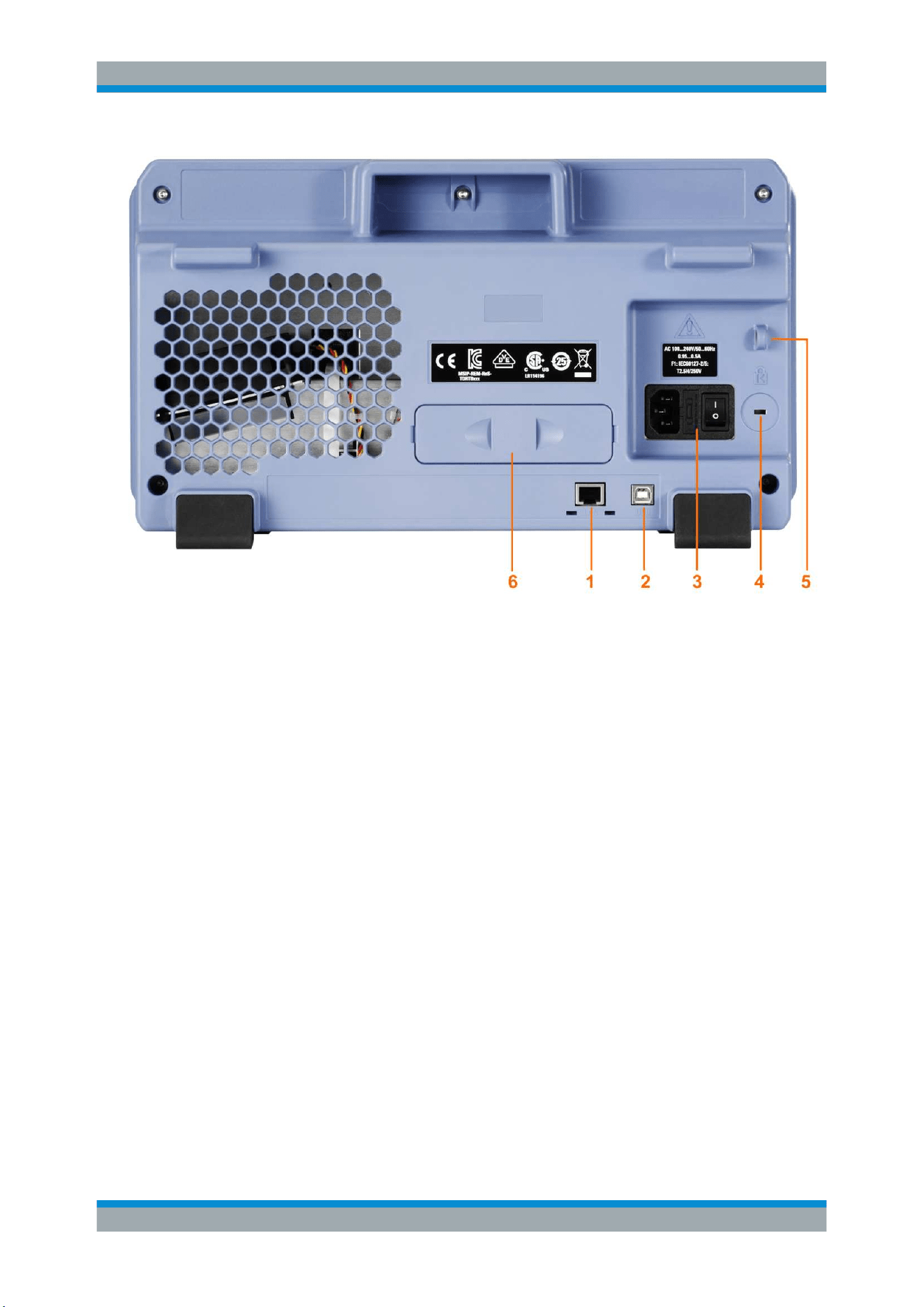
Getting Started
R&S
®
RTB2000
25User Manual 1333.1611.02 ─ 03
Figure 2-2: Rear panel view of R&S
RTB2000
1 = LAN connector
2 = USB connector, type B
3 = AC power supply connector and main power switch
4 = Kensington lock slot to secure the instrument against theft
5 = Loop for lock to secure the instrument against theft
6 = not used
LAN (1)
8-pin connector RJ-45 used to connect the instrument to a Local Area Network (LAN).
It supports up to 1 Gbit/s.
USB type B (2)
USB 2.0 interface of type B (device USB) for remote control of the instrument.
Note: Electromagnetic interference (EMI) can affect the measurement results. To
avoid any impact, use only USB connecting cables with a maximum length of 1 m.
AC supply: mains connector and main power switch (3)
The instrument supports a wide range power supply. It automatically adjusts to the cor-
rect range for the applied voltage. There is no line voltage selector.
The AC main power switch disconnects the instrument from the AC power line.
Instrument Tour
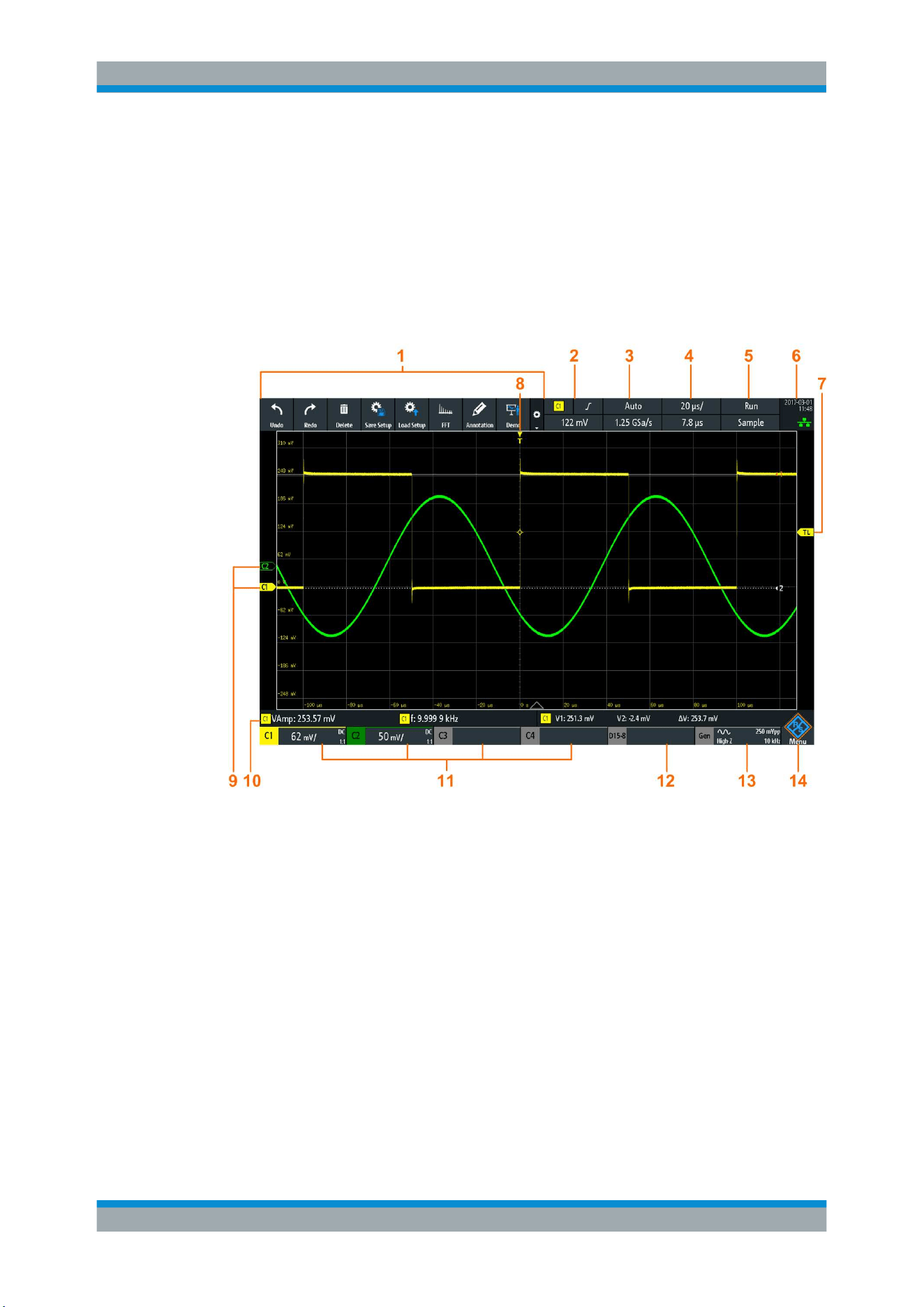
Operating Basics
R&S
®
RTB2000
26User Manual 1333.1611.02 ─ 03
3 Operating Basics
3.1 Display Overview
The touchscreen display of the instrument shows the waveforms and measurement
results, and also information and everything that you need to control the instrument.
Figure 3-1: Display of the R&S
RTB2004
1 = toolbar
2 = trigger source, main trigger parameter (here: slope for edge trigger), trigger level
3 = trigger mode and sample rate
4 = horizontal scale (time scale) and horizontal position
5 = acquisition status and acquisition mode
6 = date, time, education mode if active (here: off), LAN connection status (green = connected, grey = not
connected, yellow = connecting)
7 = trigger level marker, has the color of the trigger source
8 = trigger position marker, has the color of the trigger source
9 = channel markers indicate the ground levels; channel C1 is selected, i.e. it has the focus
10 = measurement results (here: automatic measurements on the left, cursor measurements on the right)
11 = vertical settings of active analog channels: vertical scale, bandwidth limitation (no indicator = full band-
width, B
W
= limited frequency), coupling (AC, DC, ground), probe attenuation. Channel 1 is selected.
12 = logic channels (requires option R&S RTB-B1)
13 = waveform generator settings (requires option R&S RTB-B6)
14 = menu button
Display Overview
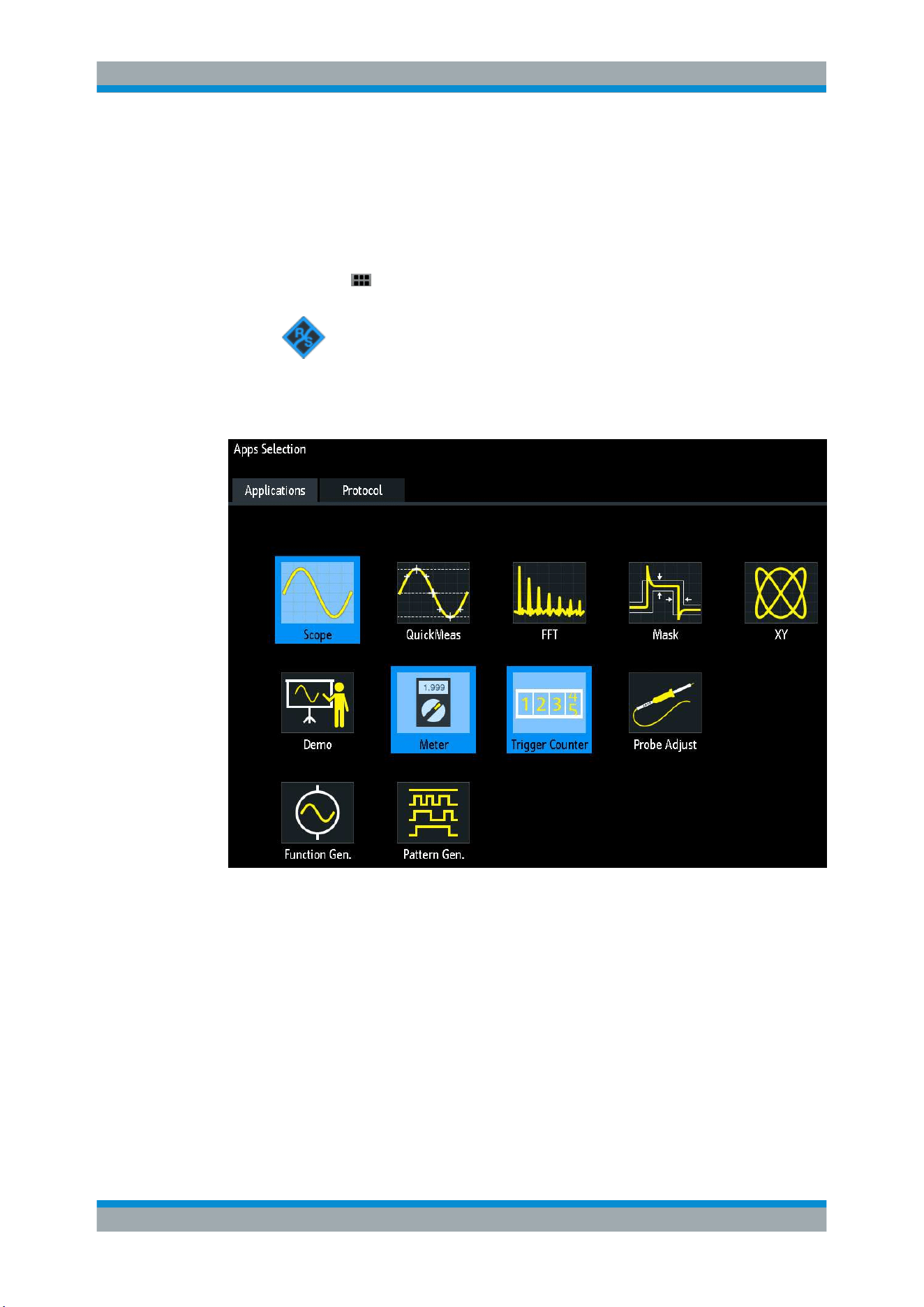
Operating Basics
R&S
®
RTB2000
27User Manual 1333.1611.02 ─ 03
3.2 Selecting the Application
The "Apps Selection" dialog provides fast access to all available applications.
► There are several ways to open the "Apps Selection" dialog:
●
Press the
APPS SELECTION key.
● Tap the "Menu" rhomb icon in the lower right corner of the screen.
Scroll down.
Select "Apps".
3.3 Using the Touchscreen
3.3.1 Accessing Functionality Using the Main Menu
Using the touchscreen of the R&S RTB2000 is as easy as using your mobile phone. To
open the main menu, tap the "Menu" button - that is the R&S logo in the right bottom
corner of the display.
Using the Touchscreen
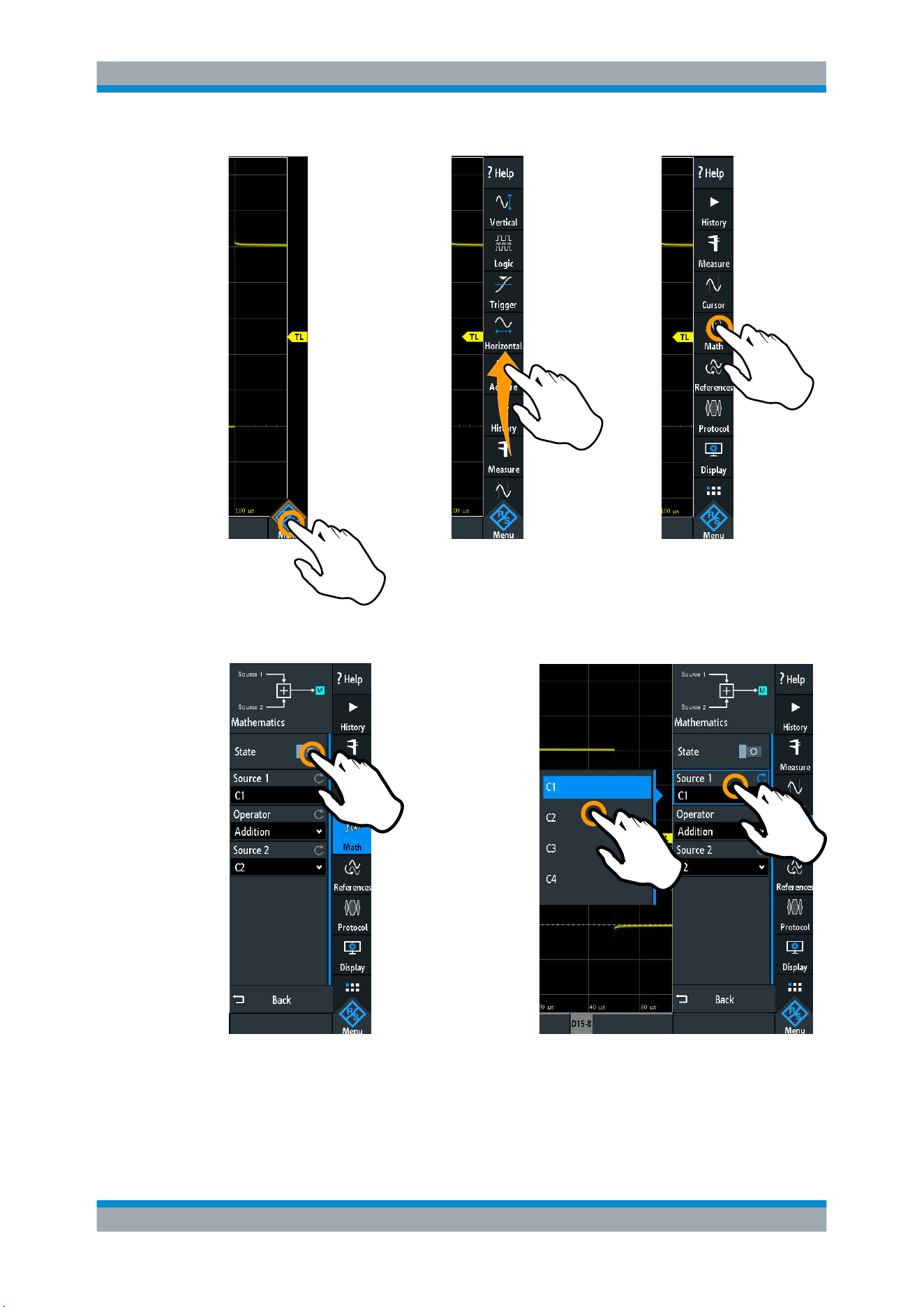
Operating Basics
R&S
®
RTB2000
28User Manual 1333.1611.02 ─ 03
2
3
1
Figure 3-2: Open the main menu and select a menu item
1
1
2
Figure 3-3: Switch on or off (left) and select a parameter value (right)
► To close the menu:
Using the Touchscreen
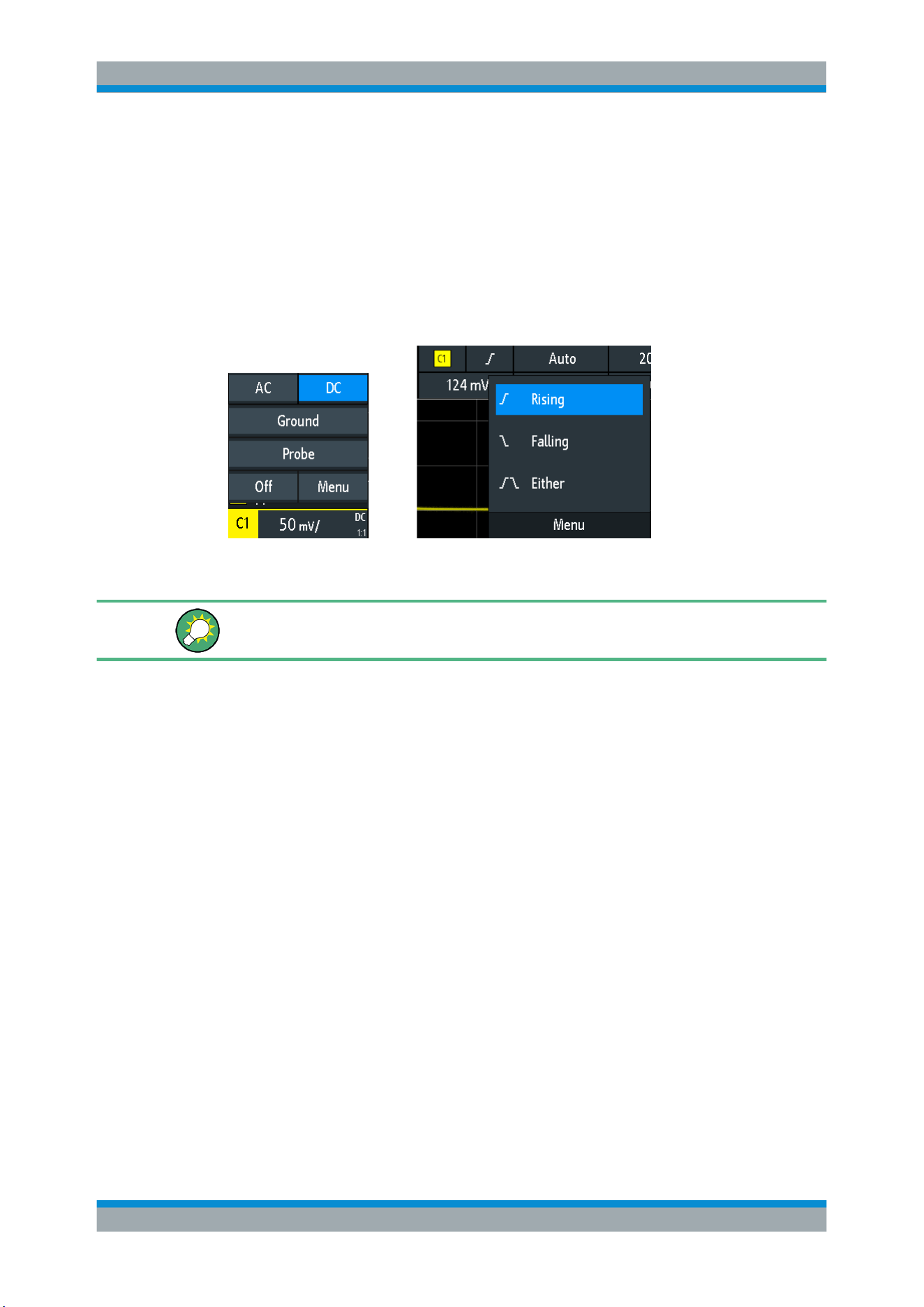
Operating Basics
R&S
®
RTB2000
29User Manual 1333.1611.02 ─ 03
Tap "Back", or tap into the diagram outside the menu.
3.3.2 Accessing Functionality Using Shortcuts
The labels in information bar at the top of the display, the channel labels and also the
results at the bottom provide shortcuts to the most important settings. If you tap a label,
a short menu opens, the keypad for numerical entry, the setting toggles, or the corre-
sponding menu opens. The response depends on the selected parameter.
Figure 3-4: Short menus for channel (left) and trigger slope (right)
From the short menu, you can also open the corresponding comprehensive menu.
You can also switch off the channels.
3.3.3 Entering Data
To enter exact numerical values, the instrument provides an on-screen keypad. For
text input, the on-screen keyboard works in the same way.
Using the Touchscreen
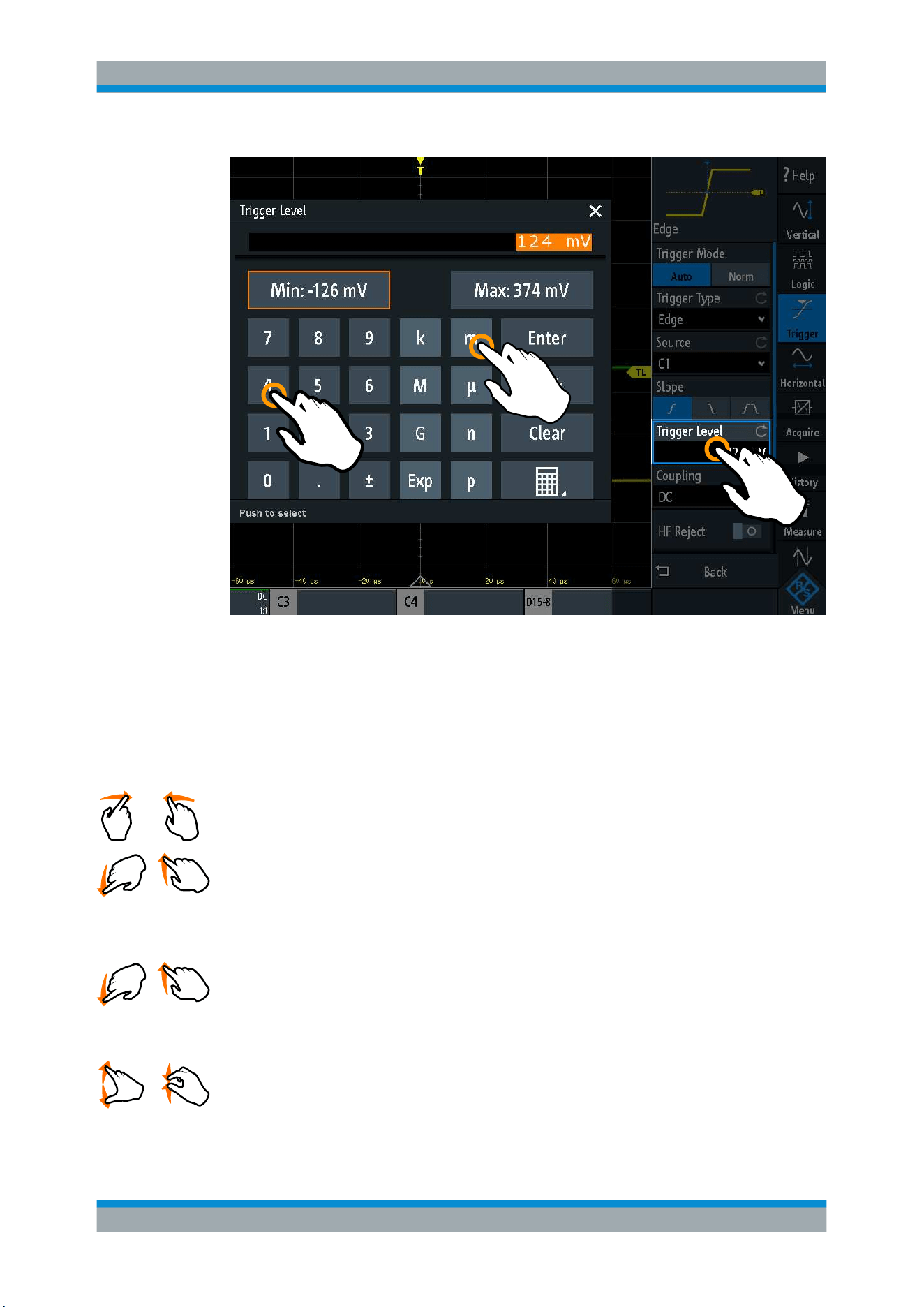
Operating Basics
R&S
®
RTB2000
30User Manual 1333.1611.02 ─ 03
1
2
3
Figure 3-5: Enter numerical value and unit
3.3.4 Using Gestures
Drag one finger
Drag horizontally in the diagram to change the horizontal position of all waveforms. In
frequency domain, the center frequency is changed.
Drag vertically in the diagram to change the vertical position of the selected waveform.
To adjust the vertical position of each waveform, the trigger level, and the trigger posi-
tion, drag the corresponding marker on the display.
To drag a cursor line, tap the line and drag it to the required position.
Swipe one finger
Swipe in the menu to scroll it.
Spread and pinch two fingers
Spread or pinch two fingers in vertical direction to change the vertical scale of the
selected waveform.
Using the Touchscreen
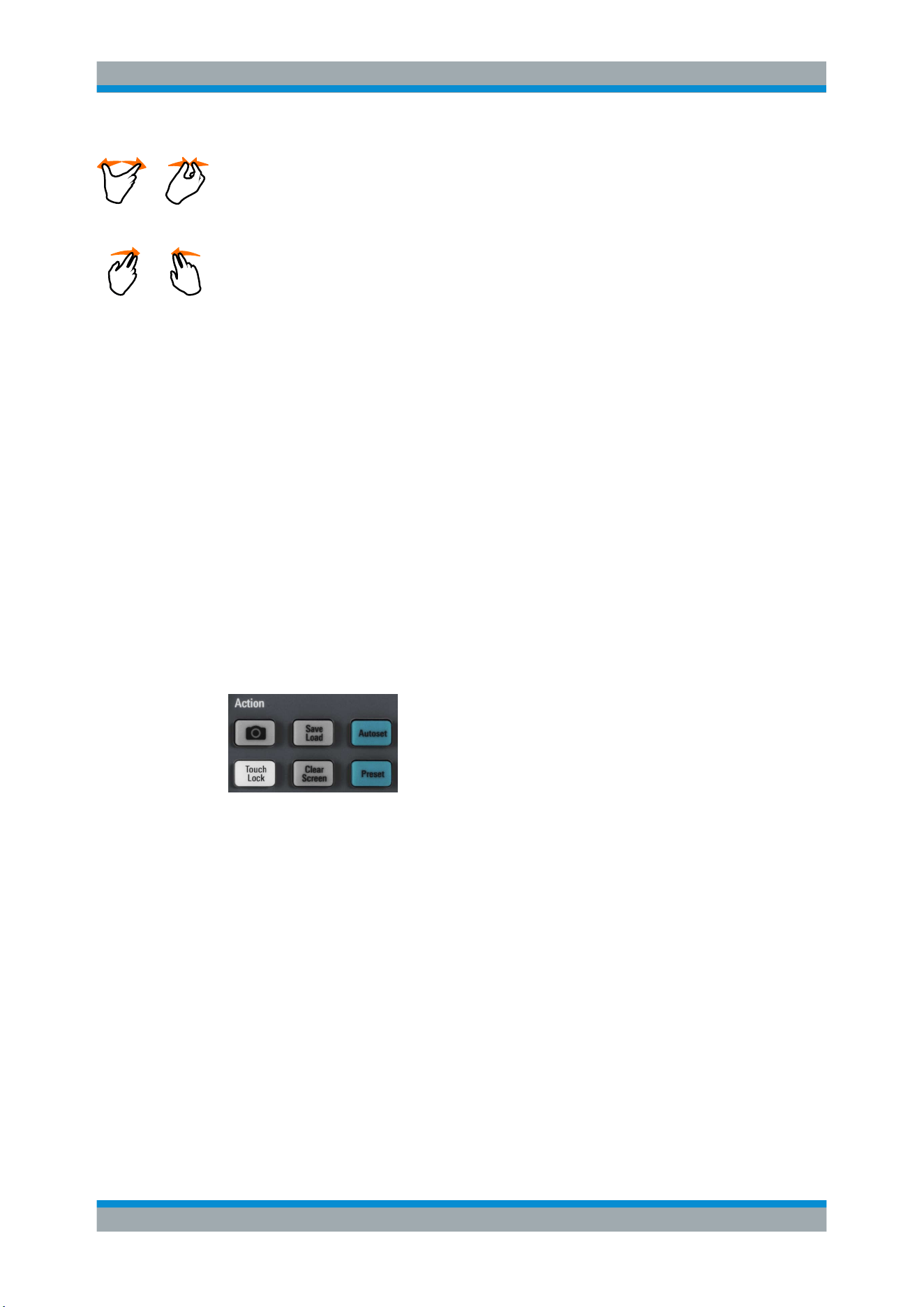
Operating Basics
R&S
®
RTB2000
31User Manual 1333.1611.02 ─ 03
Spread or pinch two fingers in horizontal direction to change the horizontal scale of all
waveforms. In frequency domain, the frequency span is changed.
Swipe two fingers
If the history option R&S RTB-K15 is installed, swipe two fingers in the diagram to
scrolls through the history segments.
3.4 Front Panel Keys
For an overview of the front panel keys, see
figure 2-1 on page 22.
The keys and knobs at the front panel are grouped in functional blocks:
●
Horizontal section: see
Chapter 4.3.1, "HORIZONTAL Controls", on page 46.
●
Vertical section: see
Chapter 4.2.1, "VERTICAL Controls", on page 38.
●
Trigger section: see
Chapter 5.1, "Trigger Controls", on page 53
●
Action section, see
Chapter 3.4.1, "Action Controls", on page 31.
●
Analysis section, see
Chapter 3.4.2, "Analysis Controls", on page 32.
3.4.1 Action Controls
The Action keys set the instrument to a defined state, and provide save and load func-
tions.
CAMERA
Saves screenshots, waveforms and/or settings according to the configuration in SAVE
LOAD > "onetouch".
SAVE LOAD
Opens the "File" menu, where you can:
●
Save instrument settings, waveforms, reference waveforms, and screenshots
●
Restore (load) data which were saved before
●
Import and export settings and reference waveforms
●
Configure the screenshot output
●
Configure the behavior of the CAMERA key
TOUCH LOCK
Locks the touchscreen to prevent unintended use. When the touchscreen is off, the
key is illuminated. Press again to unlock the touchscreen.
Front Panel Keys

Operating Basics
R&S
®
RTB2000
32User Manual 1333.1611.02 ─ 03
CLEAR SCREEN
Deletes all waveforms, annotations and the measurement results of deleted wave-
forms. All settings remain unchanged.
Remote command:
DISPlay:CLEar[:SCReen] on page 360
3.4.2 Analysis Controls
The controls in the ANALYSIS functional block open various menus for signal analysis.
NAVIGATION
The function of this universal rotary knob depends on the usage context:
●
If selection menu is open: turn the knob to select a value.
●
If a numerical value is selected in the menu, and the keypad is closed: turn the
knob to set a value.
●
If the cursors are selected, press the key to select a cursor line. Turn the knob to
change the position of the selected cursor line.
●
If an on-screen keypad or on-screen keyboard is open: turn the knob until the
required character is highlighted, then press the knob to apply the selection.
CURSOR
Enables the cursor with the last configured cursor setup. The second keypress opens
the "Cursor" menu. If the menu is open, pressing the key turns off the cursor and
closes the menu.
MEAS
Opens the "Measure" menu, where you can configure up to 4 parallel measurements.
Available measurement types depend on the type of the selected waveform.
INTENSITY
Opens the "Intensities" menu to adjust the luminosity of display elements and the per-
sistence.
QUICKMEAS
Displays the results of basic automatic measurements for the selected channel below
the grid and directly on the waveform.
Press the key to stop quick measurements.
Front Panel Keys
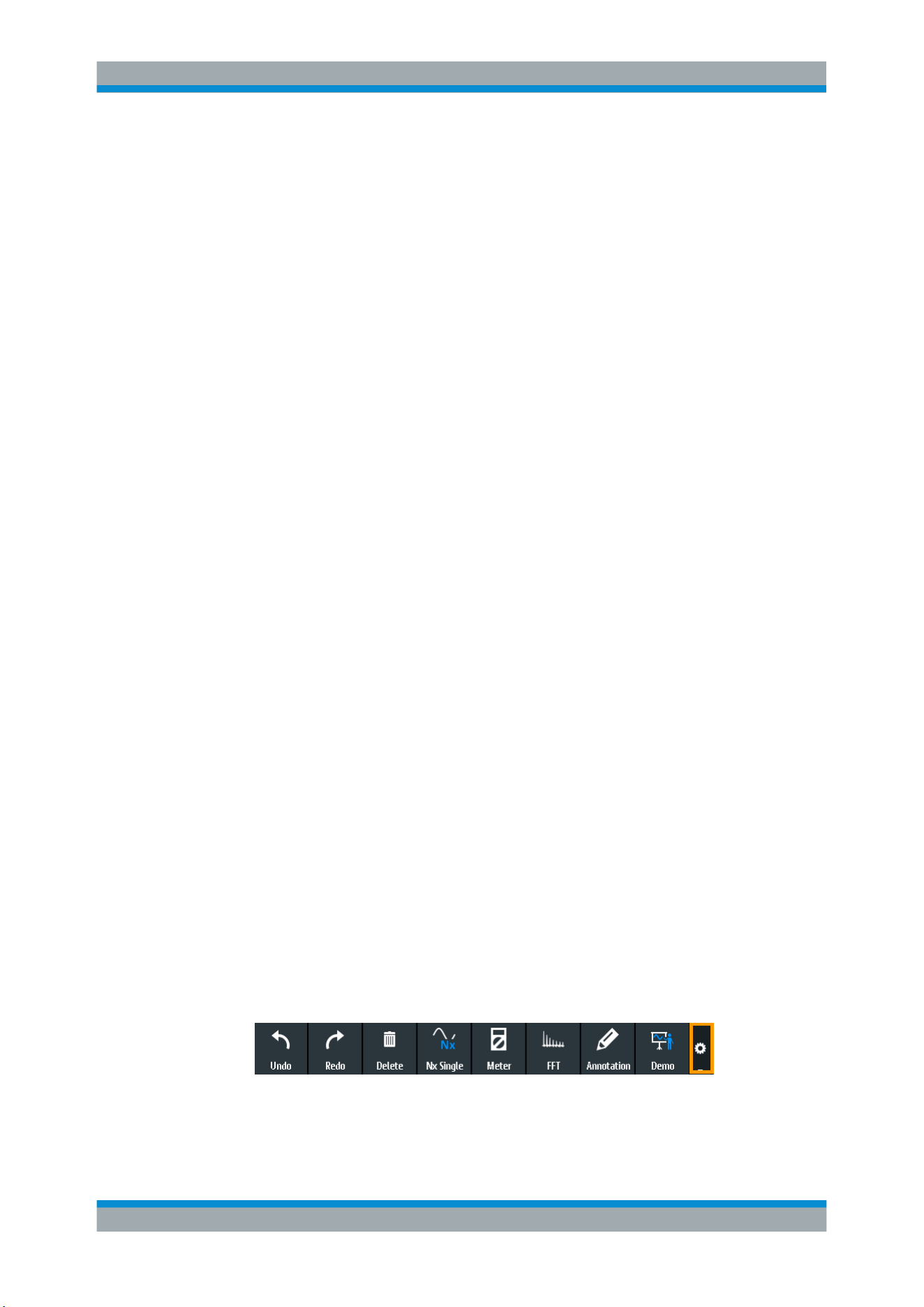
Operating Basics
R&S
®
RTB2000
33User Manual 1333.1611.02 ─ 03
Note: Channels other than the selected one are switched off in quick measurement
mode. When you activate quick measurements, cursor measurements are automati-
cally deactivated. Deactivate quick measurements before selecting the cursors.
SEARCH
Enables the search with the last configured setup. The second keypress opens the
"Search" menu, where you can perform a search for various events in an acquisition -
for example, peaks or specific width conditions - and analyze the search results.
FFT
Activates the spectrum analysis functions with the last configured setup. The second
keypress opens the "FFT" menu.
To deactivate spectrum analysis, press the FFT key until the time domain waveform is
displayed.
PROTOCOL
Opens the "Bus" menu, which contains the configuration of serial and parallel buses
and the settings for decoding the signals. Key function requires at least one of the pro-
tocol options R&S RTB-B1, R&S RTB-K1, -K2, or -K3.
GEN
Opens the "Function Generator" menu, where you can create various waveforms. Key
function requires option R&S RTB-B6.
APPS SELECTION
Opens the "Apps Selection" dialog where you can select the required application or
protocol for your task, for example, mask testing or CAN protocol.
3.5 Using the Toolbar
The toolbar at the top of the display provides direct access to important control and
measurement functions. The selected function is highlighted. By default, the toolbar
shows the most frequently used functions. You can configure the content of the toolbar
so that only the required functions are displayed..
Some of the toolbar functions are one-click actions. These actions are performed
immediately when you tap the icon. Other toolbar functions are interactive actions.
When you tap an interactive action, a message informs you what to do next.
Configuring the Toolbar
1. Tap the "Toolbar Setup" icon.
2. Disable the functions that you do not need.
3. Tap the functions that you need. You can select maximum 8 functions.
Using the Toolbar
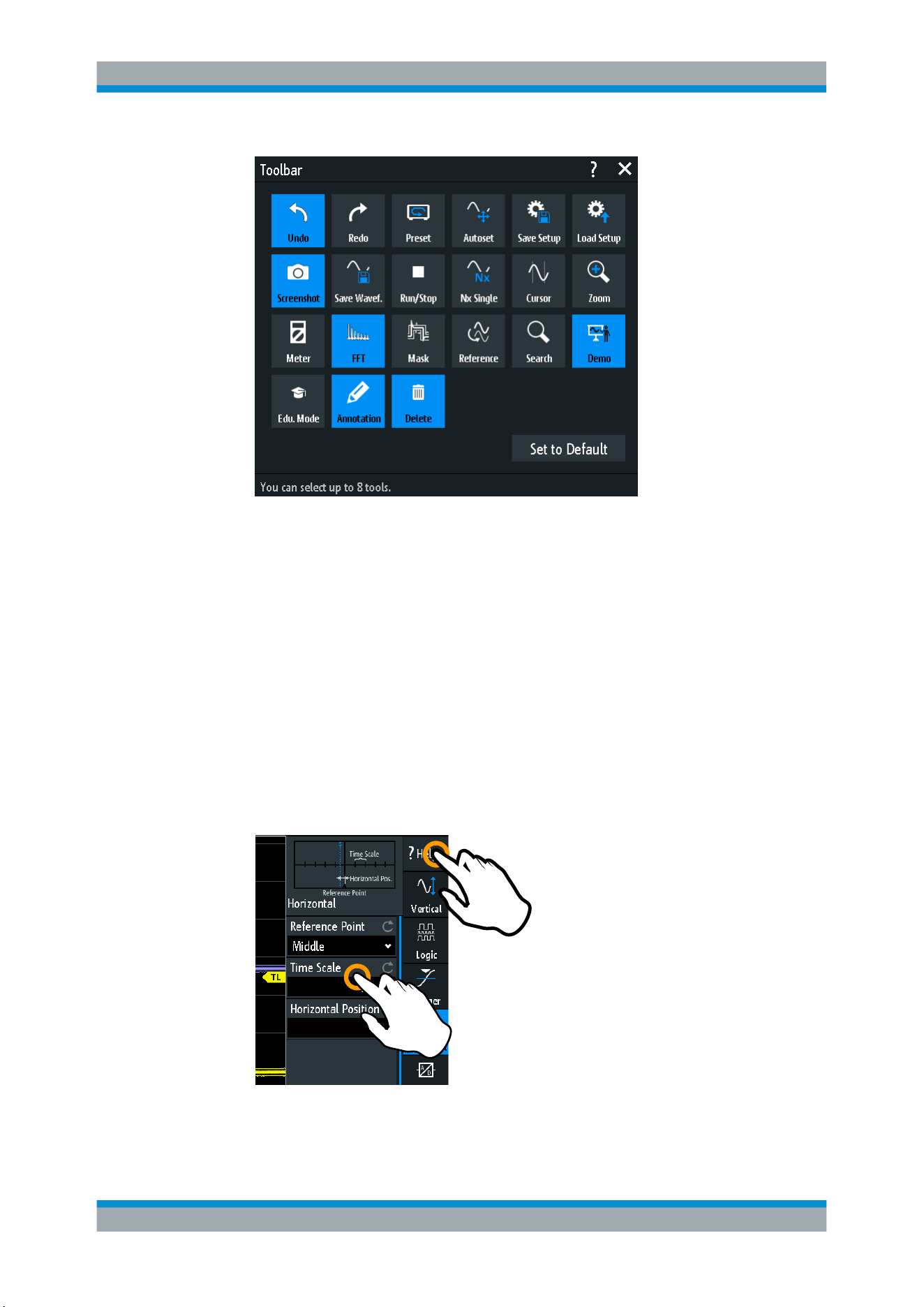
Operating Basics
R&S
®
RTB2000
34User Manual 1333.1611.02 ─ 03
4. Close the dialog box.
3.6 Getting Help
In most menus and dialogs, graphics explain the meaning of the selected setting. For
further information, you can open the help, which provides functional description of
selected setting.
To open the help window
1. Tap the "Menu" icon in the lower right corner of the screen.
2. Tap "Help" on the top of the main menu.
3. Tap the setting for which you need information.
2
3
Getting Help

Operating Basics
R&S
®
RTB2000
35User Manual 1333.1611.02 ─ 03
To close the help window
► Tap "Help" on the top of the main menu, or tap the "Close" icon in the upper right
corner of the help window.
Getting Help
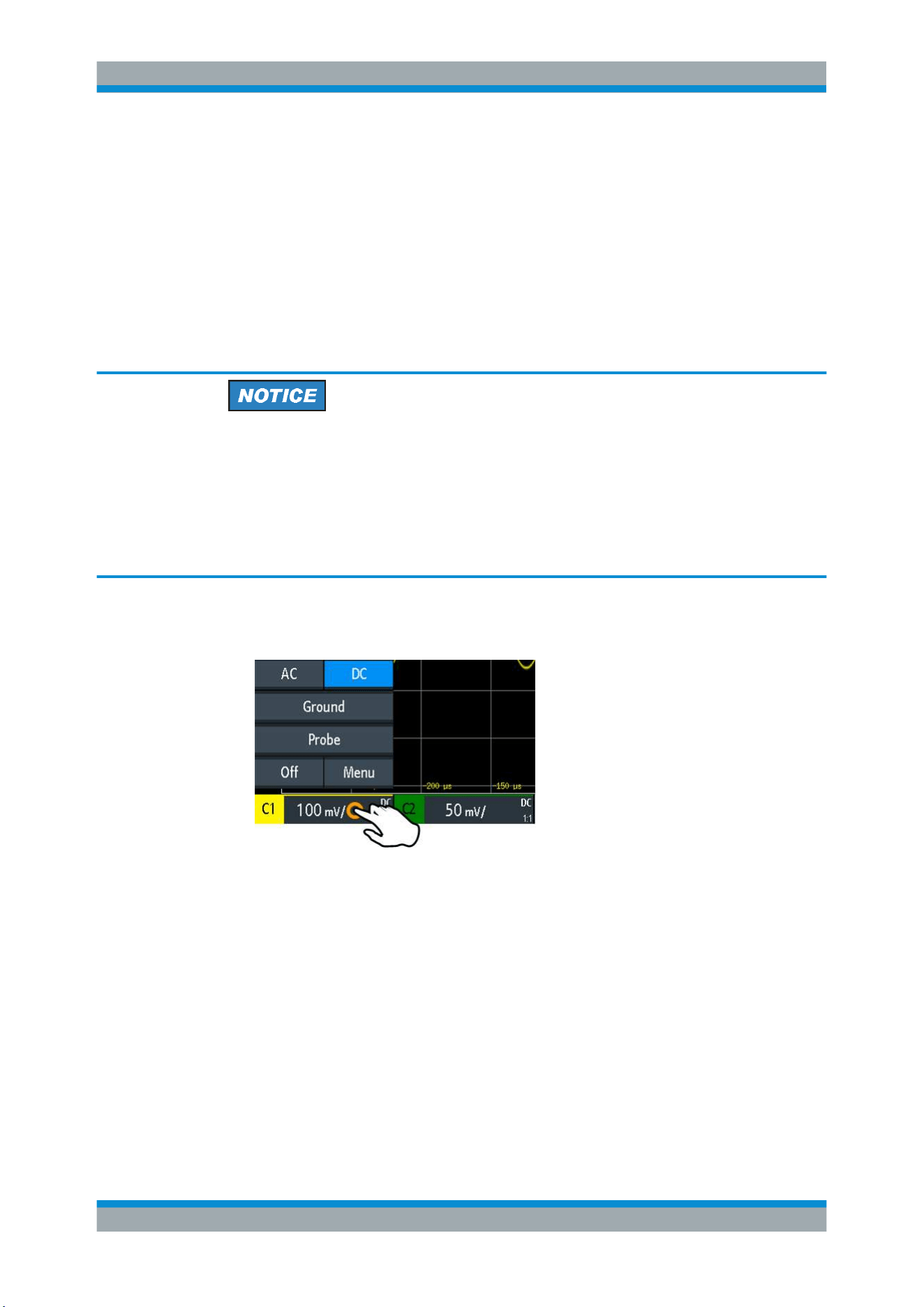
Waveform Setup
R&S
®
RTB2000
36User Manual 1333.1611.02 ─ 03
4 Waveform Setup
This chapter describes how to connect and set up probes, to adjust the horizontal and
vertical settings, and to control the acquisition.
4.1 Connecting Probes and Displaying a Signal
Risk of instrument damage
Make sure to set the attenuation factor on the instrument according to the probe being
used. Otherwise, the measurement results do not reflect the actual voltage level, and
you might misjudge the actual risk.
The attenuation of the probes that are delivered with the instrument, and the default
attenuation factor of the instrument are 10:1. If you use only the delivered probes and
did not change the attenuation factor, no attenuation adjustment is required.
1. Connect the probes first to the channel inputs, and then to the DUT.
2. Tap the label of the used channel in the bottom line of the display.
3. Tap "Probe".
4. Select the attenuation factor of the probe.
The probe's attenuation factor is indicated on the probe.
Note: If you measure current using a shunt resistor as a current sensor, you have
to multiply the V/A-value of the resistor by the attenuation of the probe. For exam-
ple, if a 1 Ω resistor and a 10:1 probe is used, the V/A-value of the resistor is 1 V/A.
The attenuation factor of the probe is 0.1, and the resulting current probe attenua-
tion is 100 mV/A.
5. If you connect several probes, repeat steps 2 to 4 for the remaining channels.
6. Press the PRESET key.
7. Press the AUTOSET key.
Connecting Probes and Displaying a Signal
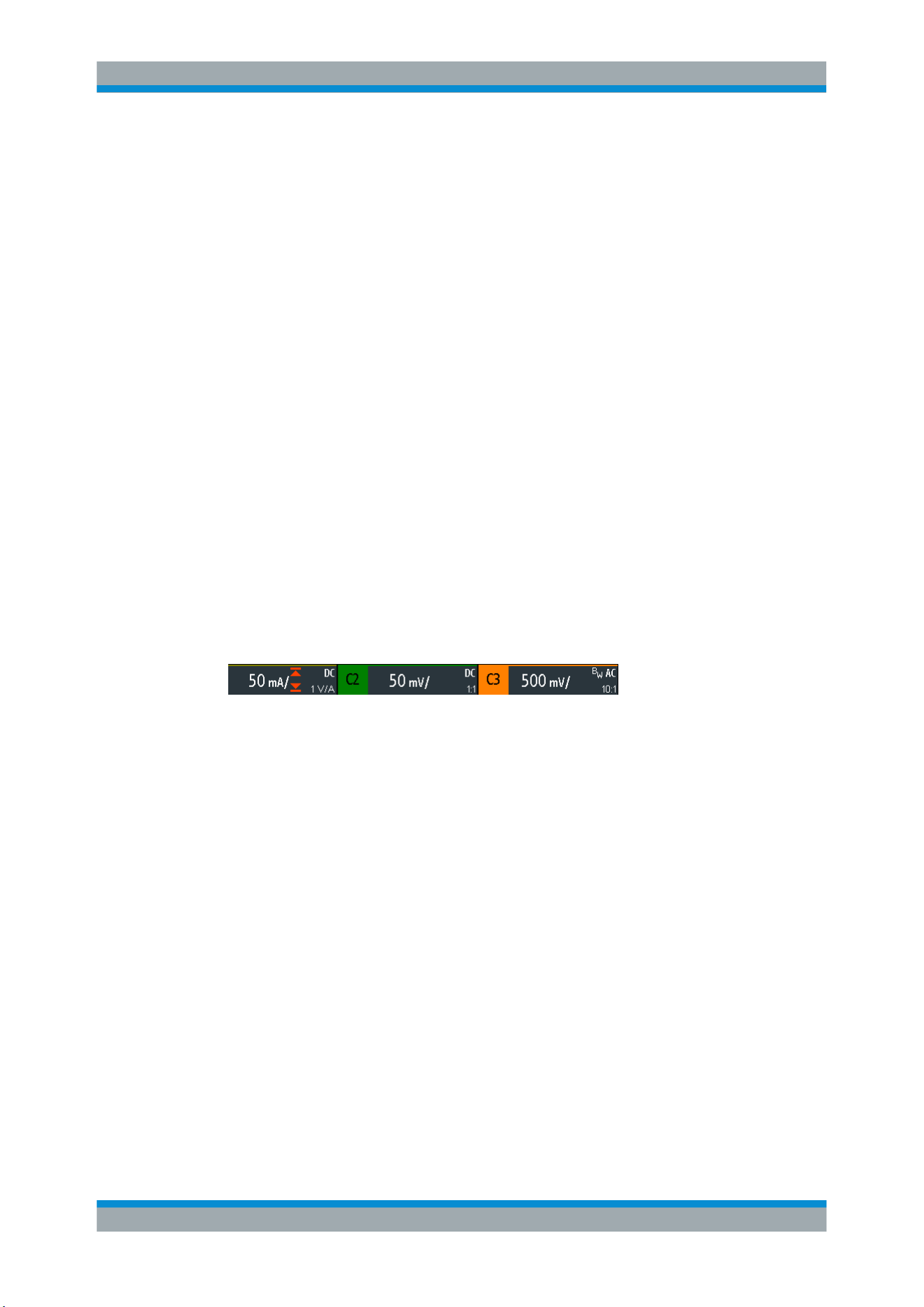
Waveform Setup
R&S
®
RTB2000
37User Manual 1333.1611.02 ─ 03
PRESET
Resets the instrument to the default state, without analyzing the signal. The previous
user-defined configuration is removed and all channels except for channel 1 are dis-
abled.
Remote command:
*RST
AUTOSET
Analyzes the enabled analog channel signals, and adjusts the horizontal, vertical, and
trigger settings to display stable waveforms.
Remote command:
AUToscale on page 250
4.2 Vertical Setup
The controls and parameters of the vertical system adjust the vertical scale and posi-
tion of the waveform, and the waveform display. The probe settings also belong to the
vertical setup.
The channel labels at the bottom of the display show the basic vertical settings: vertical
scale (for example, channel 3 in the figure below: 500 mV/div), coupling (AC), probe
attenuation (10:1), and bandwidth (if limited). Clipping of a waveform is indicated by
orange arrows. The label of the selected channel has a brighter colored line on the top.
Figure 4-1: Channel labels. Channel 3 is selected. Channel 1 waveform is clipped.
There are several ways to adjust vertical settings:
●
Use the controls in the Vertical functional block of the front panel to select the
channel, to scale the waveform, and to set the offset.
●
Drag one finger vertically on the screen to change the offset of the selected chan-
nel waveform.
●
spread or pinch two fingers in vertical direction to change the vertical scale of the
selected waveform.
●
Use the short menu to adjust coupling and the probe.
●
Use the comprehensive menu to adjust all vertical settings.
Vertical Setup
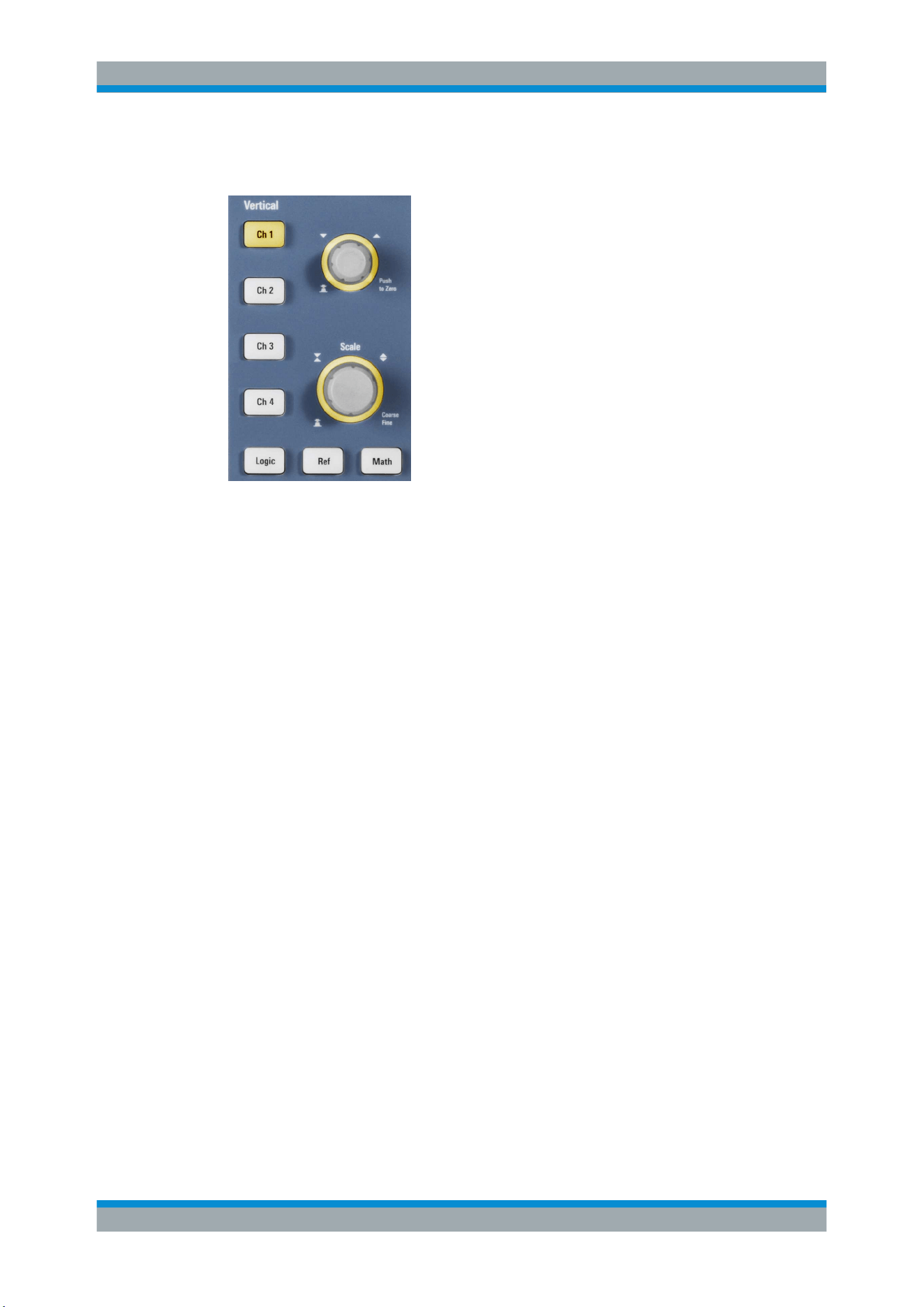
Waveform Setup
R&S
®
RTB2000
38User Manual 1333.1611.02 ─ 03
4.2.1 VERTICAL Controls
CH <N>
For each analog channel, a channel key is available. The key is illuminated in the
channel color, if the channel is on.
The effect of the keypress depends on state of the channel:
●
If channel is off: Turns on the channel and selects it. The rotary knobs alongside
light up in the channel color.
●
If the channel is on and in focus (selected): Opens its vertical setup menu of the
channel.
●
If the channel is on but not in focus (not selected): Selects the channel waveform.
●
If the channel is selected and the menu is open: Pressing the key turns off the
channel.
Remote command:
CHANnel<m>:STATe on page 252
OFFSET / POSITION (UPPER KNOB)
The rotary knob adjusts the offset of an analog channel, or the vertical position of a
math or reference waveform, serial bus, or logic pod.
The knob lights up in the color of the selected waveform. Turn clockwise to move up
the waveform. Pressing the key sets the value to zero.
Remote command:
CHANnel<m>:OFFSet on page 254
CALCulate:QMATh:POSition on page 278
REFCurve<m>:VERTical:POSition on page 281
SCALE
Sets the vertical scale in Volts per division to change the displayed amplitude of the
selected waveform. For analog waveforms, the scale value is shown in the waveform
label at the bottom. The knob lights up in the color of the selected waveform.
Turn SCALE clockwise to stretch the waveform. Doing so, the scale value V/div
decreases. Press the knob to toggle between fine and coarse adjustment.
Vertical Setup
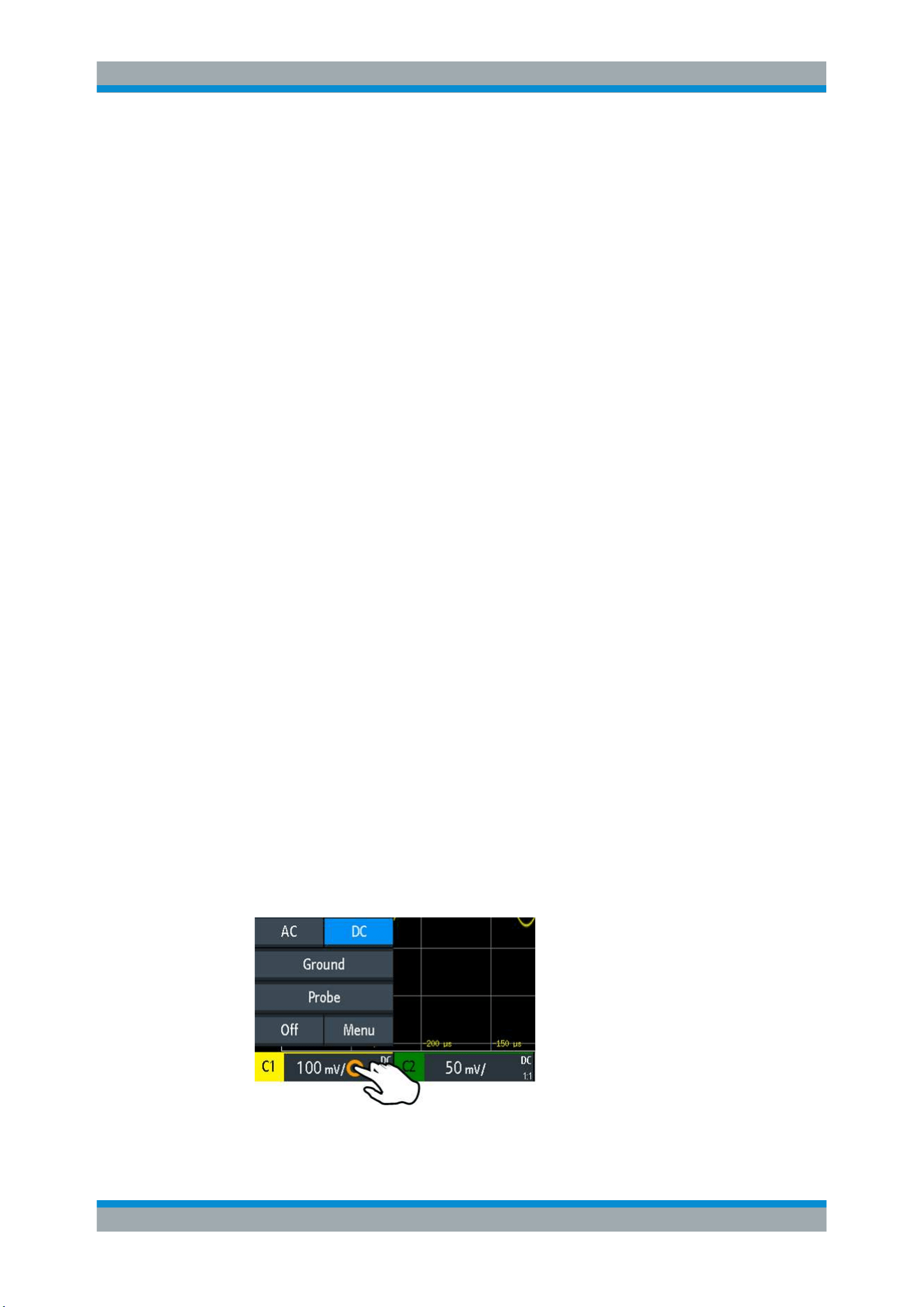
Waveform Setup
R&S
®
RTB2000
39User Manual 1333.1611.02 ─ 03
To get the maximum resolution of the waveform amplitude, make sure that the wave-
forms cover most of the screen's height.
Remote command:
CHANnel<m>:SCALe on page 253
CALCulate:QMATh:SCALe on page 278
REFCurve<m>:VERTical:SCALe on page 281
LOGIC
Enables the logic channels. The second keypress opens the menu, where you can
select and configure digital channels for analysis. If the menu is open, pressing the key
disables the logic channels.
Key function requires MSO option R&S RTB-B1.
Logic analyzer functions are described in
Chapter 13, "Logic Analyzer (Option
R&S RTB-B1, MSO)"
, on page 220.
REF
Displays the reference waveforms with their last configuration. The key works in the
same way as the channel keys, see
"CH <N>" on page 38.
Reference wavforms are described in
Chapter 6.3, "Reference Waveforms",
on page 74.
MATH
Enables the math waveform, a waveform calculated from the captured data. The key
works in the same way as the channel keys, see
"CH <N>" on page 38.
Mathematics is described in
Chapter 6.2, "Mathematics", on page 71.
4.2.2 Short Menu for Analog Channels
To adjust the probe and the coupling, you can use the short menu. Here you can also
open the comprehensive menu, and switch off the channel.
► To open the short menu for a channel, tap the channel label in the bottom line of
the display.
If the channel was not selected, tap twice: Once to select the waveform, and next
to open the short menu.
Vertical Setup
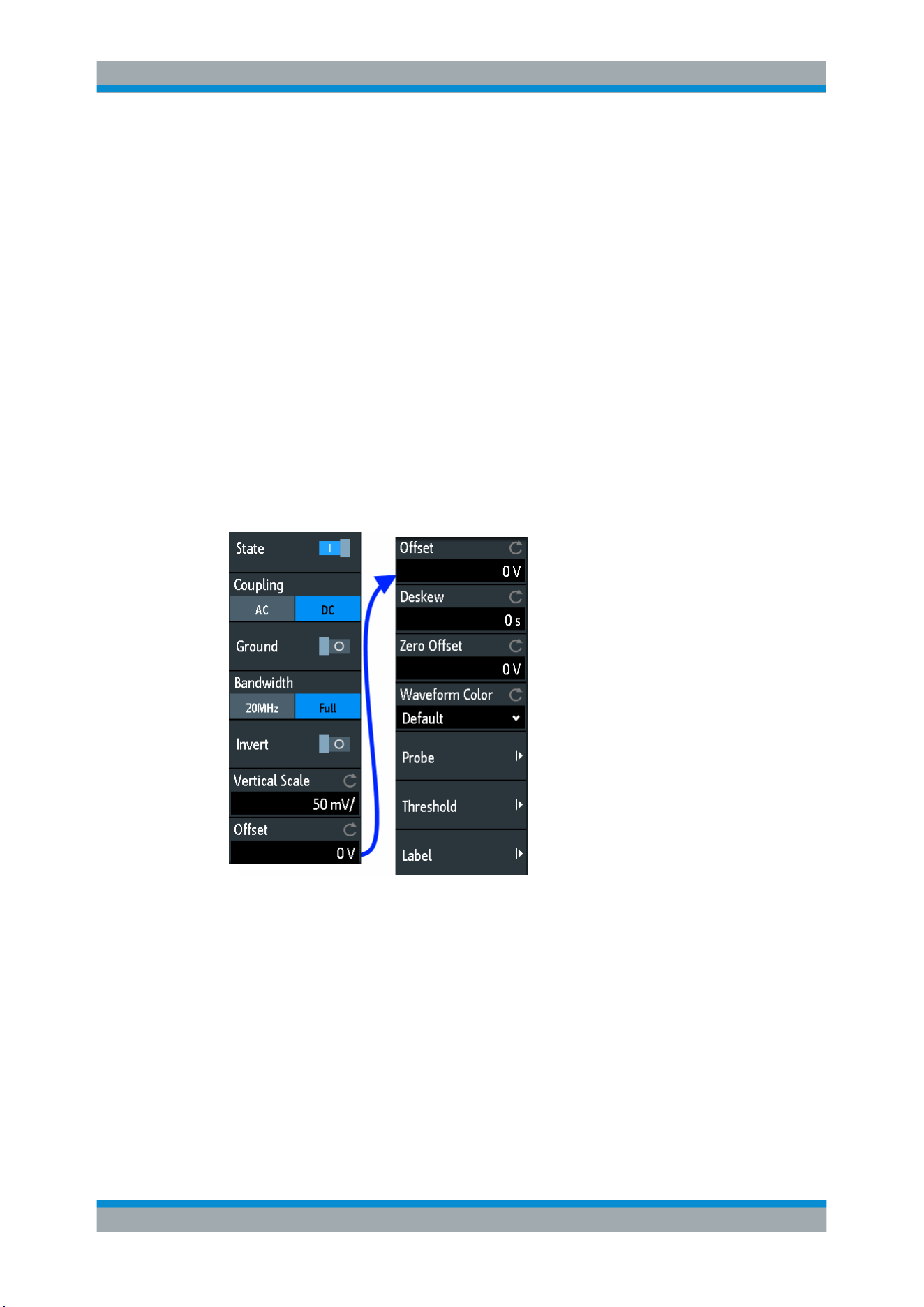
Waveform Setup
R&S
®
RTB2000
40User Manual 1333.1611.02 ─ 03
Functions in the short menu:
●
"AC | DC": see
"Coupling" on page 40
●
"Ground" on page 41
●
"Probe": opens the "Probe" menu, see
●
"Off": turns off the channel.
●
"Menu": opens the comprehensive "Vertical" menu.
4.2.3 Vertical Settings
The comprehensive "Vertical" menu contains all vertical settings.
► To open the menu for a channel, press the corresponding channel key.
If the channel was active but not selected, press twice: Once to select the wave-
form, and next to open the short menu.
The "Vertical" menu is also available in the main menu.
Figure 4-2: Vertical setup dialog, here split into two halves
State
Switches the selected channel on or off.
Remote command:
CHANnel<m>:STATe on page 252
Coupling
Selects the input coupling, which influences the signal path between input connector
and the following internal signal stage. The current coupling of each channel is shown
in the waveform labels below the grid.
Vertical Setup

Waveform Setup
R&S
®
RTB2000
41User Manual 1333.1611.02 ─ 03
"AC"
AC coupling is useful if the DC component of a signal is of no inter-
est. AC coupling blocks the DC component of the signal so that the
waveform is centered on zero volts.
"DC"
With DC coupling, the input signal passes unchanged, all signal com-
ponents are shown.
Remote command:
CHANnel<m>:COUPling on page 254
Ground
Connects the input to a virtual ground. All channel data is set to 0 V. Ground connec-
tion is labeled with
. The coupling is not affected by the ground setting.
Remote command:
CHANnel<m>:COUPling on page 254
Bandwidth
Selects the bandwidth limit. The specified full bandwidth indicates the range of fre-
quencies that the instrument can acquire and display accurately with less than 3 dB
attenuation.
For analog applications, the highest signal frequency determines the required oscillo-
scope bandwidth. The oscilloscope bandwidth should be at least 3 times higher than
the maximum frequency included in the analog test signal to measure the amplitude
without aliasing.
Most test signals are more complex than a simple sine wave and include several spec-
tral components. A digital signal, for example, is built up of several odd harmonics. For
digital signals, the oscilloscope bandwidth should be at least 5 times higher than the
clock frequency to be measured.
The oscilloscope is not an autonomous system. You need a probe to measure the sig-
nal, and the probe has a limited bandwidth, too. The combination of oscilloscope and
probe creates a system bandwidth. To reduce the effect of the probe on the system
bandwidth, the probe bandwidth should exceed the bandwidth of the oscilloscope, the
recommended factor is 1.5 x oscilloscope bandwidth.
"20 MHz"
Frequency limit. Higher frequencies are removed to reduce noise.
Limited bandwidth is indicated by "B
W
" in the waveform label.
"Full"
At full bandwidth, all frequencies in the specified range are acquired
and displayed. Full bandwidth is used for most applications.
Remote command:
CHANnel<m>:BANDwidth on page 254
Invert
Turns the inversion of the signal amplitude on or off. To invert means to reflect the volt-
age values of all signal components against the ground level. Inversion affects only the
display of the signal but not the trigger.
For example: if the oscilloscope triggers on the rising edge, the trigger is not changed
by inversion, but the actually rising edge is displayed as falling edge.
Inversion is indicated in the waveform labels by line above the channel name.
Vertical Setup

Waveform Setup
R&S
®
RTB2000
42User Manual 1333.1611.02 ─ 03
Remote command:
CHANnel<m>:POLarity on page 255
Vertical Scale
Sets the vertical scale in Volts per division to change the displayed amplitude of the
selected waveform. The current value is shown in the waveform label below the grid.
Vertical scale directly affects the resolution of the waveform amplitude. To get the full
resolution of the ADC, set up the waveforms to cover most of the height of the dia-
gram.
Remote command:
CHANnel<m>:SCALe on page 253
Offset
The offset voltage is used to correct an offset-affected signal. The vertical center of the
selected channel is shifted by the offset value and the signal is repositioned within the
diagram area. To set the offset automatically, use Autoset.
Use the offset to measure small AC voltages that are overlaid by higher DC voltages.
Unlike AC coupling, the DC part of the signal is not lost with offset setting.
Remote command:
CHANnel<m>:OFFSet on page 254
Deskew
Sets a time delay for the selected channel.
Deskew compensates delay differences between channels caused by the different
length of cables, probes, and other sources. Correct deskew values are important for
accurate triggering. Signals that are routed over lines with different lengths have a dif-
ferent propagation delay. This delay may lead to a non-synchronous waveform display.
For example, a coax cable with a length of 1 meter has a propagation delay of typically
5.3 ns.
Remote command:
CHANnel<m>:SKEW on page 255
Zero Offset
Differences in DUT and oscilloscope ground levels can cause larger zero errors, which
affect the waveform. If the DUT is ground-referenced, the "Zero Offset" corrects the
zero error and sets the probe to the zero level.
You can assess the zero error by measuring the mean value of a signal that returns
zero.
Remote command:
CHANnel<m>:ZOFFset[:VALue] on page 255
Waveform Color
Selects the color scale for the display of the waveform. Each scale comprises a set of
colors, where each color represents a certain frequency of occurrence.
"Temperature"
Display in temperature colors. Blue corresponds to rare occurrences
of the samples, while white indicates frequent ones.
Vertical Setup
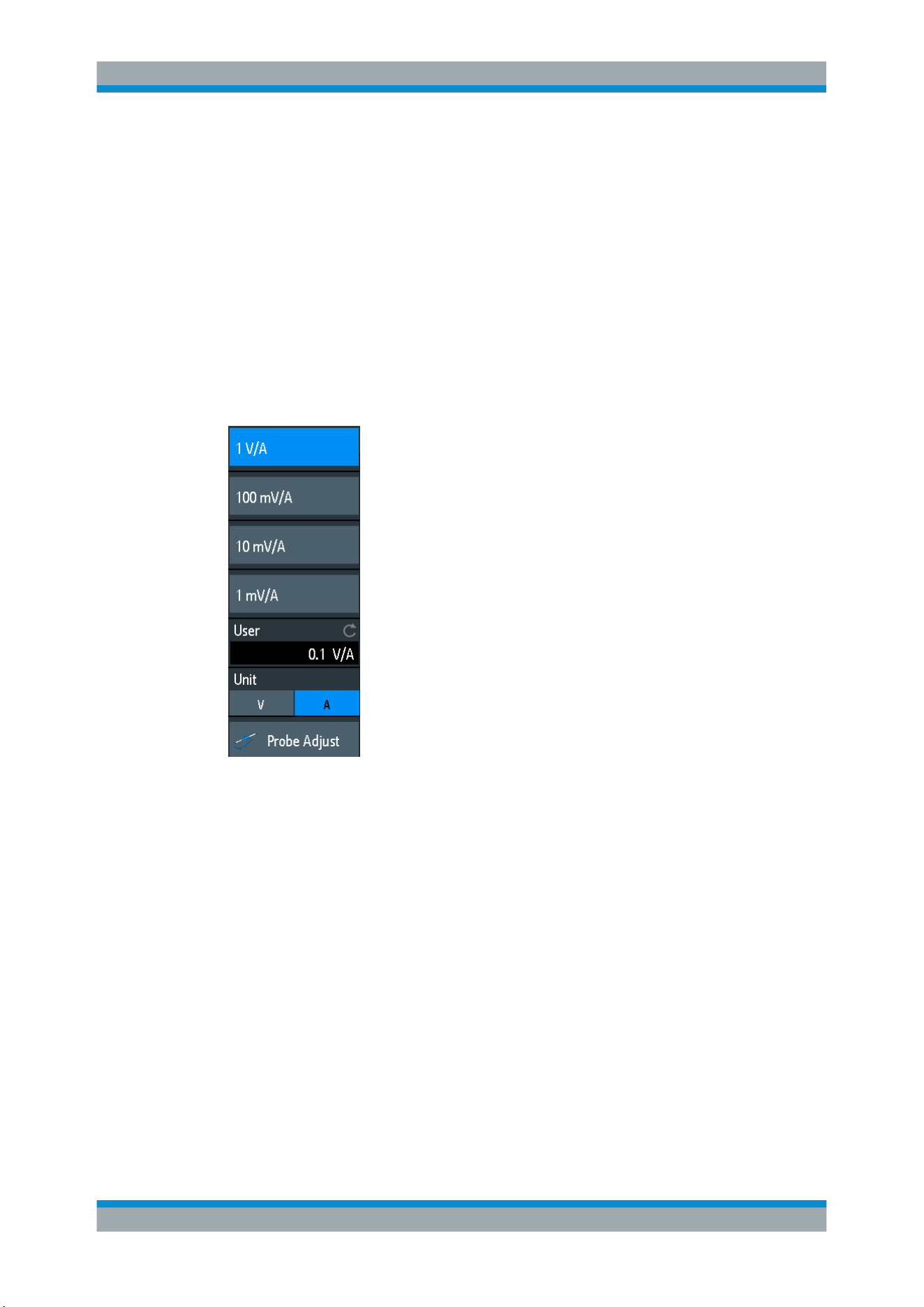
Waveform Setup
R&S
®
RTB2000
43User Manual 1333.1611.02 ─ 03
"Rainbow"
Display in rainbow colors. Blue corresponds to rare occurrences of
the samples, while red indicates frequent ones.
"Fire"
Display in fire colors. Yellow corresponds to rare occurrences of the
samples, while red indicates frequent ones.
"Default"
Displays the waveform in its default monochrome color.
4.2.4 Probe Settings
In the probe menu, you set the probe attenuation for the selected channel. You can
select a default factor, for example "10:1", or enter a user-defined value.
Access: CH <N> > "Probe" (scroll down). Or: short menu > "Probe"
User
If default values do not fit, you can enter an arbitrary attenuation factor in the range
between 0.001:1 and 1000:1. The vertical scaling and measured values are multiplied
by this factor so that the displayed values are equal to the undivided measured signal
values.
Remote command:
PROBe<m>:SETup:ATTenuation:MANual on page 258
Unit
Selects the unit that the probe can measure.
●
V - for voltage measurements
●
A - for current measurements
Remote command:
PROBe<m>:SETup:ATTenuation:UNIT on page 258
Probe Adjust
Starts the probe adjustment procedure. A wizard explains the adjustment step by step.
Vertical Setup
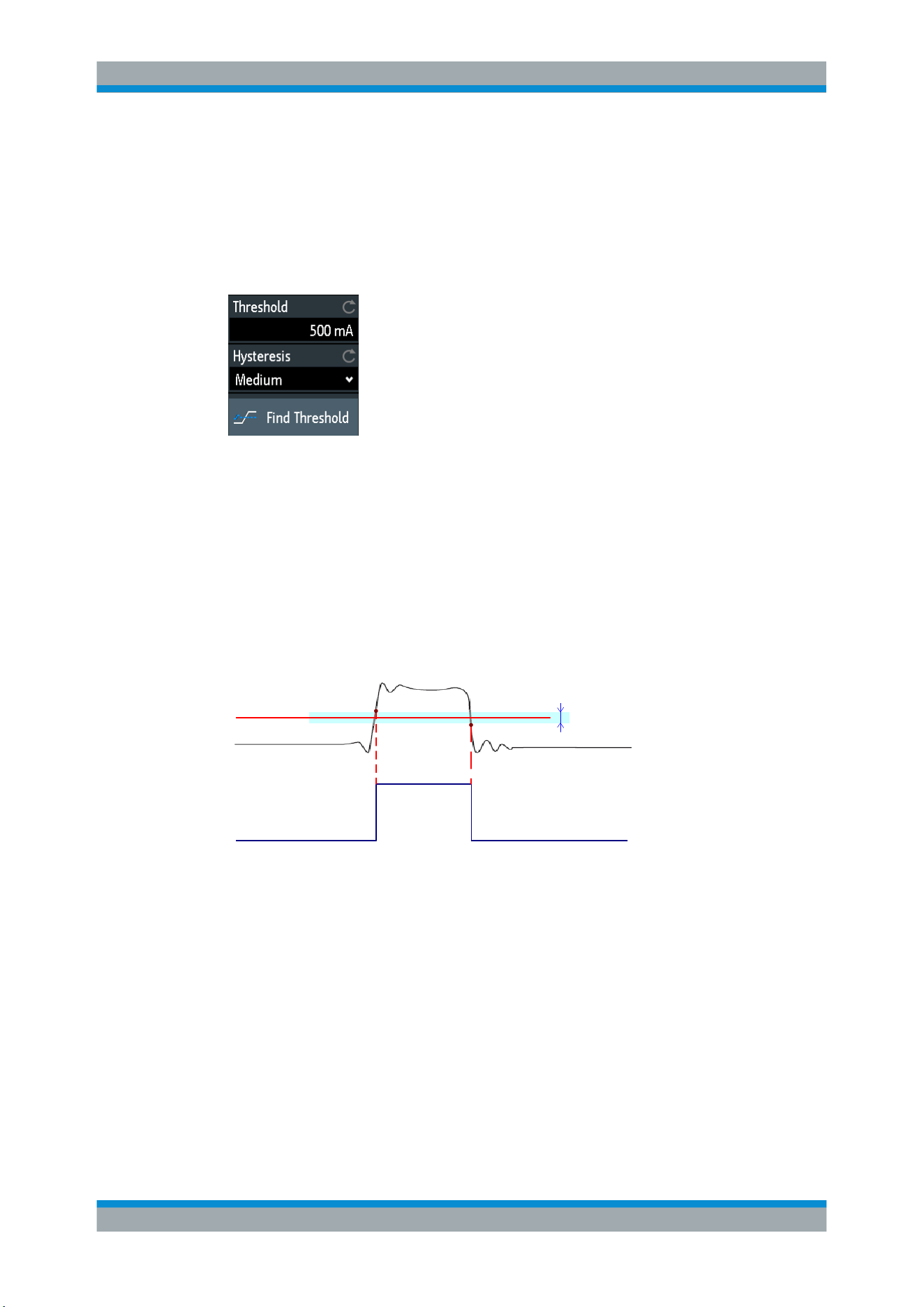
Waveform Setup
R&S
®
RTB2000
44User Manual 1333.1611.02 ─ 03
4.2.5 Threshold Settings
A threshold is used for digitization of analog signals. If the signal value is higher than
the threshold, the signal state is high (1 or true for the Boolean logic). Otherwise, the
signal state is considered low (0 or false) if the signal value is below the threshold.
Access: CH <N> > "Threshold" (scroll down).
Threshold
A threshold is used for digitization of analog signals. If the signal value is higher than
the threshold, the signal state is high (1 or true for the Boolean logic). Otherwise, the
signal state is considered low (0 or false) if the signal value is below the threshold.
Remote command:
CHANnel<m>:THReshold on page 256
Hysteresis
To avoid the change of signal states due to noise, set the hysteresis. If the signal jitters
inside the hysteresis range and crosses the threshold, no state transition occurs.
Threshold
Logic 0 Logic 1 Logic 0
Hysteresis
The numerical values of "Small", "Medium", and "Large" hysteresis correspond to the
vertical scale.
Remote command:
CHANnel<m>:THReshold:HYSTeresis on page 257
Find Threshold
The instrument analyzes the channel and sets the threshold for digitization. If no level
can be found, the existing value remains unchanged, and you can set the thresholds
manually.
Remote command:
CHANnel<m>:THReshold:FINDlevel on page 256
Vertical Setup
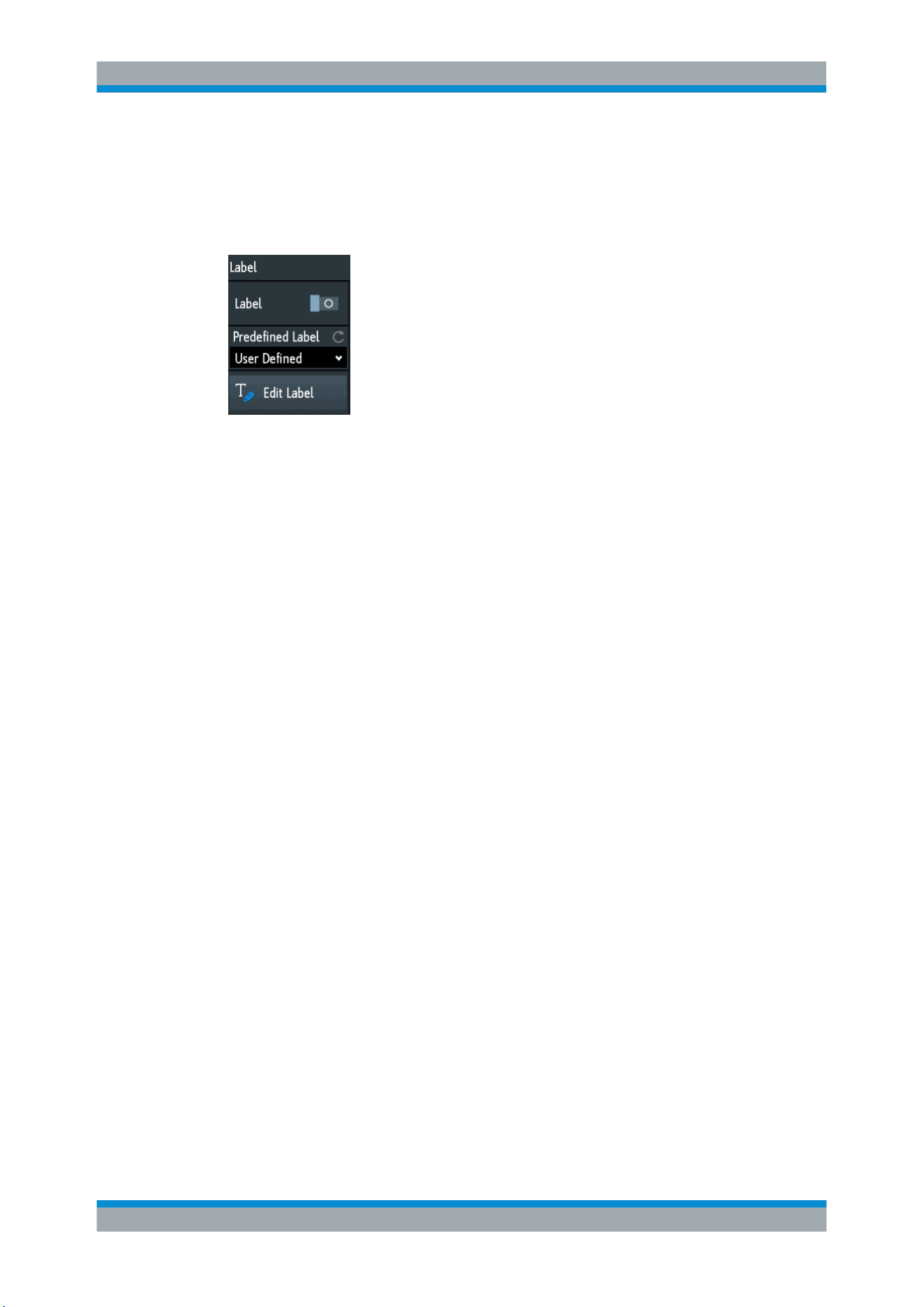
Waveform Setup
R&S
®
RTB2000
45User Manual 1333.1611.02 ─ 03
4.2.6 Label Settings
In the "Label" menu, you can define a name label for the selected waveform.
Access: CH <N> > "Label" (scroll down).
Label
Activates or deactivates the label display. The label is shown at the waveform on the
right edge of the display.
Remote command:
CHANnel<m>:LABel:STATe on page 257
Predefined Label
Selects a predefined label text. You can edit the text with "Edit Label".
Edit Label
Opens on-screen keypad to enter a label text. If you previously have selected a text
from the library, it is already written in the entry line, and you can modify it.
The maximum name length is 8 characters, and only ASCII characters provided on the
on-screen keypad can be used.
Remote command:
CHANnel<m>:LABel on page 257
4.3 Horizontal Setup
Horizontal settings, also known as timebase settings, adjust the waveforms in horizon-
tal direction.
Typically, the trigger is the determining point of the waveform record. In many scenar-
ios, you want to analyze the waveform some time before or after the trigger. To adjust
the horizontal acquisition window to the waveform section of interest, you can use the
following parameters:
●
The horizontal position defines the time distance of the trigger point (the zero
point of the diagram) to the reference point. Changing the horizontal position, you
can move the trigger point, even outside the screen.
●
The reference point is the rescaling center of the time scale on the screen. If you
modify the time scale, the reference point remains fixed on the screen, and the
scale is stretched or compressed to both sides of the reference point.
Horizontal Setup
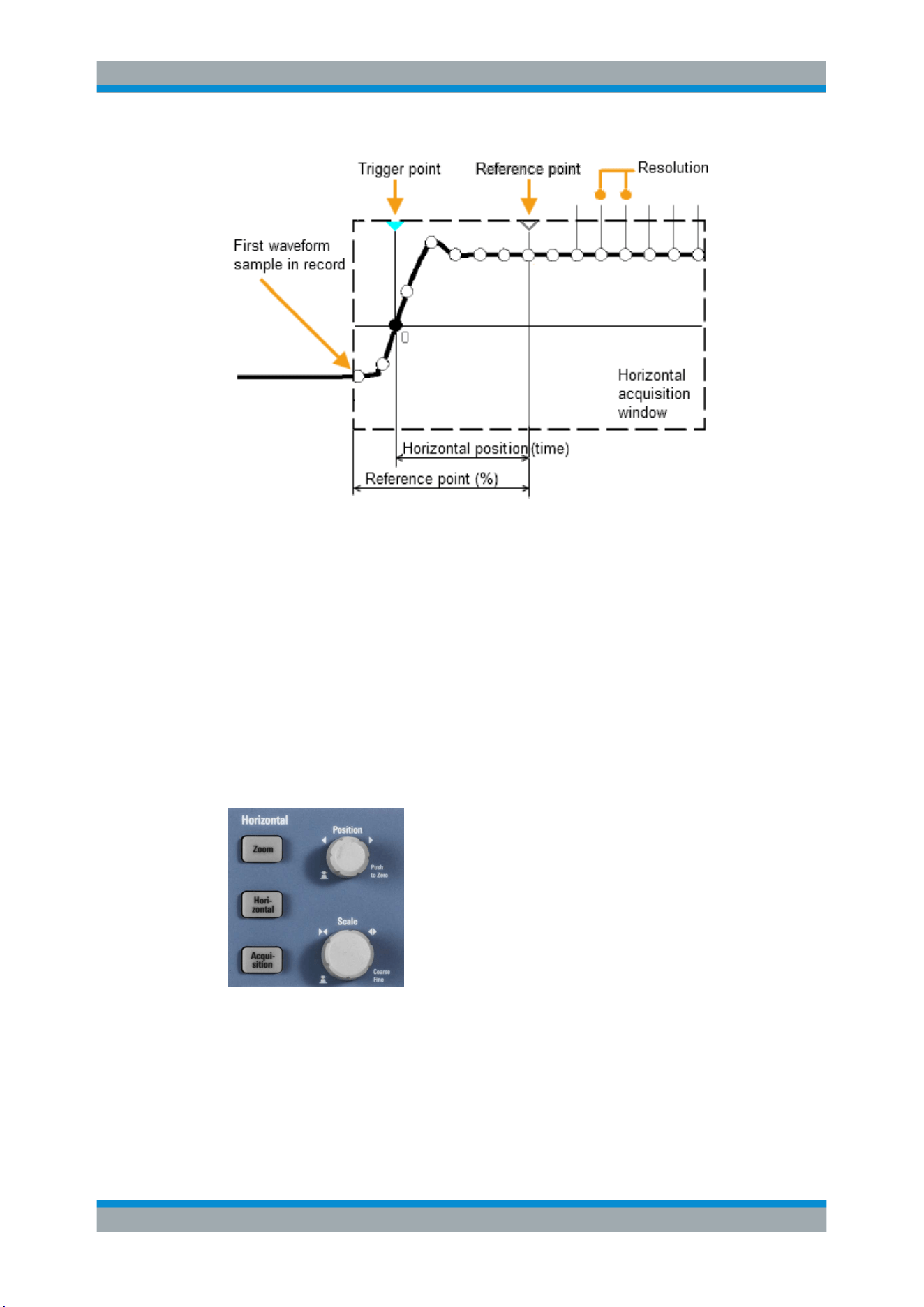
Waveform Setup
R&S
®
RTB2000
46User Manual 1333.1611.02 ─ 03
Unlike vertical settings, which are waveform-specific, the horizontal settings apply to all
active waveforms.
There are several ways to adjust horizontal settings:
●
Use the controls in the Horizontal functional block of the front panel to scale the
waveforms, and to set the position.
●
Drag one finger horizontally on the screen to change the horizontal position.
Spread or pinch two fingers to change the horizontal scale.
●
Use shortcuts to adjust scale and position.
●
Use the comprehensive menu to adjust all horizontal settings.
4.3.1 HORIZONTAL Controls
POSITION
Changes the trigger position, the time distance from the trigger point to the reference
point (trigger offset). The trigger point is the zero point of the diagram. Thus, you can
set the trigger point even outside the diagram and analyze the signal some time before
or after the trigger.
Horizontal Setup

Waveform Setup
R&S
®
RTB2000
47User Manual 1333.1611.02 ─ 03
Turn clockwise to move the position to the right, and press the knob to reset the value
to zero. The current value is shown in the information bar.
In zoom and FFT, the knob sets the position in the active diagram. Tap the diagram
that you want to adjust. If a zoom is active, either the position of the zoom window or
the trigger position is changed. In an FFT diagram, the knob changes the center fre-
quency in frequency domain, or the trigger position in time domain.
Remote command:
TIMebase:POSition on page 259
REFCurve<m>:HORizontal:POSition on page 281
TIMebase:ZOOM:TIME on page 276
SCALE
Adjusts the time scale of the horizontal axis for all signals, also known as timebase.
Turn clockwise to stretch the waveforms - the scale value time/div decreases. Press
the knob to toggle between coarse and fine scale adjustment. The current value is
shown in the information bar.
In a zoom diagram, the knob changes the zoom scale. In an FFT diagram, the knob
changes the span. Tap the diagram that you want to adjust.
Remote command:
TIMebase:SCALe on page 258
REFCurve<m>:HORizontal:SCALe on page 281
TIMebase:ZOOM:SCALe on page 276
ZOOM
Enables or disables the zoom with the last configuration.
See also:
Chapter 6.1, "Zoom", on page 69.
Remote command:
TIMebase:ZOOM:STATe on page 276
HORIZONTAL
Opens the menu to configure horizontal scale, position, and reference point. The cur-
rent scale and position is shown in the top information bar.
If zoom is active, you can find also the zoom scale and zoom position in this menu.
ACQUISITION
Opens the "Acquisition" menu. Here you control the data processing - how the wave-
form is built from the captured samples. The current acquisition mode is shown in the
top information bar.
See also:
Chapter 4.4, "Acquisition Setup", on page 49.
4.3.2 Shortcuts for Horizontal Settings
To adjust the horizontal scale and the position, you can use the shortcuts on the top of
the display. The labels show the current values.
Horizontal Setup
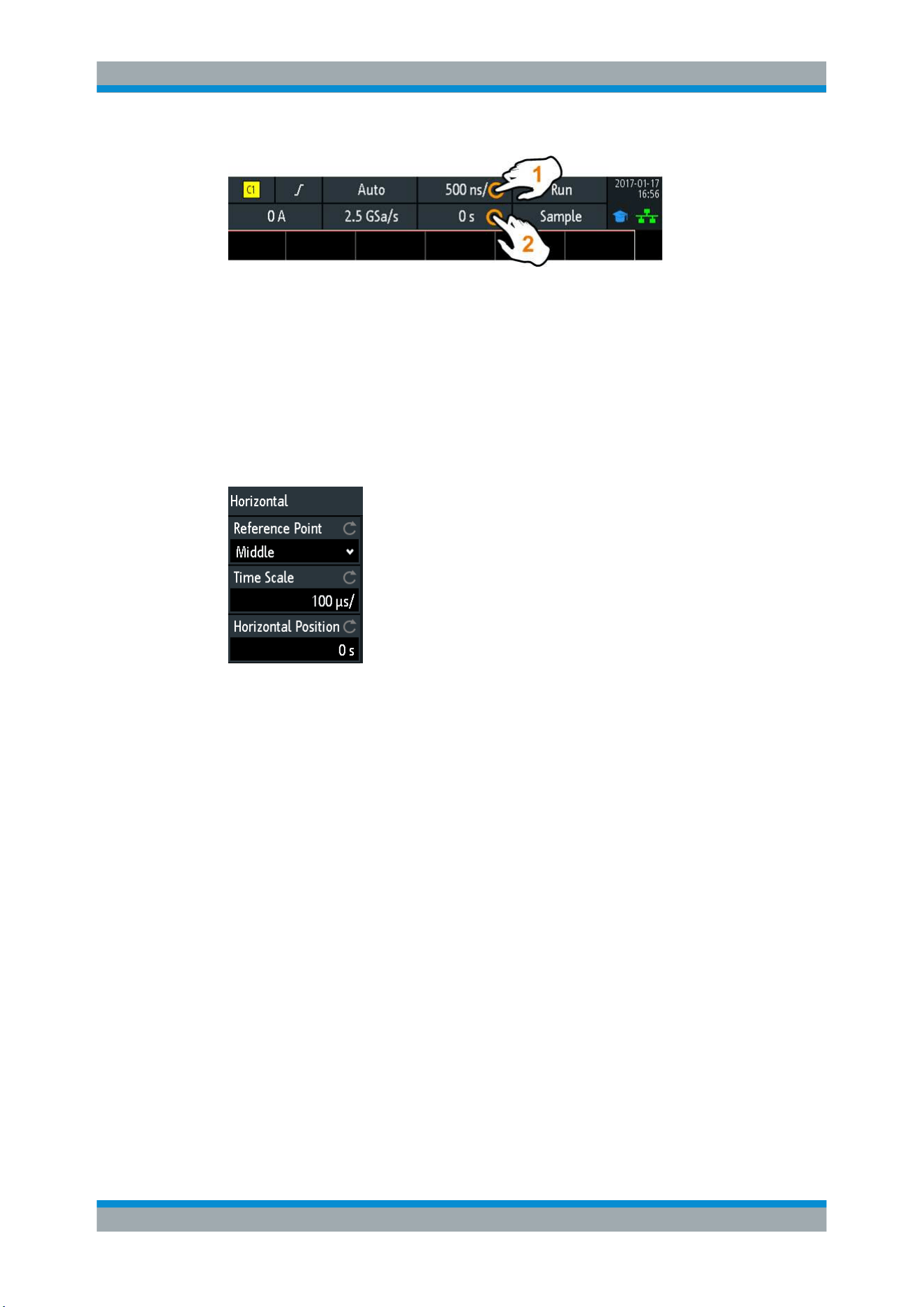
Waveform Setup
R&S
®
RTB2000
48User Manual 1333.1611.02 ─ 03
1 = adjust horizontal scale
2 = adjust horizontal position
4.3.3 Horizontal Settings
The comprehensive "Horizontal" menu contains all horizontal settings. In zoom mode,
also zoom settings are listed in the menu.
► To open the menu, press the HORIZONTAL key.
Reference Point
Defines the time reference point in the diagram. It is indicated by a gray triangle outline
at the bottom of the diagram.
The reference point defines which part of the waveform is shown. By default, the refer-
ence point is displayed in the center of the window, and you can move it to the left or
right.
The reference point is the rescaling center of the time scale on the screen. If you mod-
ify the time scale using the SCALE knob, the reference point remains fixed on the
screen, and the scale is stretched or compressed to both sides of the reference point.
If you spread and pinch two fingers on the touchscreen to change the time scale, then
the reference point is set between the fingers.
Remote command:
TIMebase:REFerence on page 259
Time Scale
Defines the time scale of the horizontal axis for all signals, also known as timebase.
The scaling is indicated in the information bar above the grid.
Remote command:
TIMebase:SCALe on page 258
Horizontal Setup

Waveform Setup
R&S
®
RTB2000
49User Manual 1333.1611.02 ─ 03
Horizontal Position
Defines the trigger position, the time distance from the trigger point to the reference
point (trigger offset). The trigger point is the zero point of the diagram. Changing the
horizontal position, you can move the trigger, even outside the screen.
If you want to see a section of the waveform some time before or after the trigger,
enter this time as horizontal position. The requested waveform section is shown
around the reference point. Use positive values to see waveform sections after the trig-
ger - the waveform and the diagram origin move to the left.
The value is indicated in the information bar above the grid.
Remote command:
TIMebase:POSition on page 259
4.4 Acquisition Setup
During an acquisition, the R&S RTB2000 captures the signal and converts it to digital
samples. The digital samples are processed according to the acquisition settings. The
result is a waveform record that is displayed on the screen and stored in memory.
The number of waveform samples in one waveform record is called the record length.
The rate of recording waveform samples - the number of waveform samples per sec-
ond - is the sample rate. The higher the sample rate, the better is the resolution and
the more details of the waveform are visible.
A sufficient resolution is essential for correct reconstruction of the waveform. If the sig-
nal is undersampled, aliasing occurs - a false waveform is displayed. To avoid aliasing
and accurately reconstruct a signal, the sample rate must be at least 3 to 5 times the
fastest frequency component of the signal.
There are several ways to adjust and control acquisition:
●
Use the controls in the Trigger functional block of the front panel to start and stop
acquisition. See
Chapter 5.1, "Trigger Controls", on page 53.
●
Use shortcuts to adjust the acquisition mode, and to perform a single acquisition.
●
Use the comprehensive menu to adjust all acquisition settings.
► To start or stop acquisition, use the RUN STOP and SINGLE keys in the Trigger
section at the front panel.
4.4.1 Shortcuts for Acquisition Settings
To adjust the acquisition mode, and to perform a single acquisition, you can use the
shortcuts on the top of the display. The labels show the current values.
Acquisition Setup
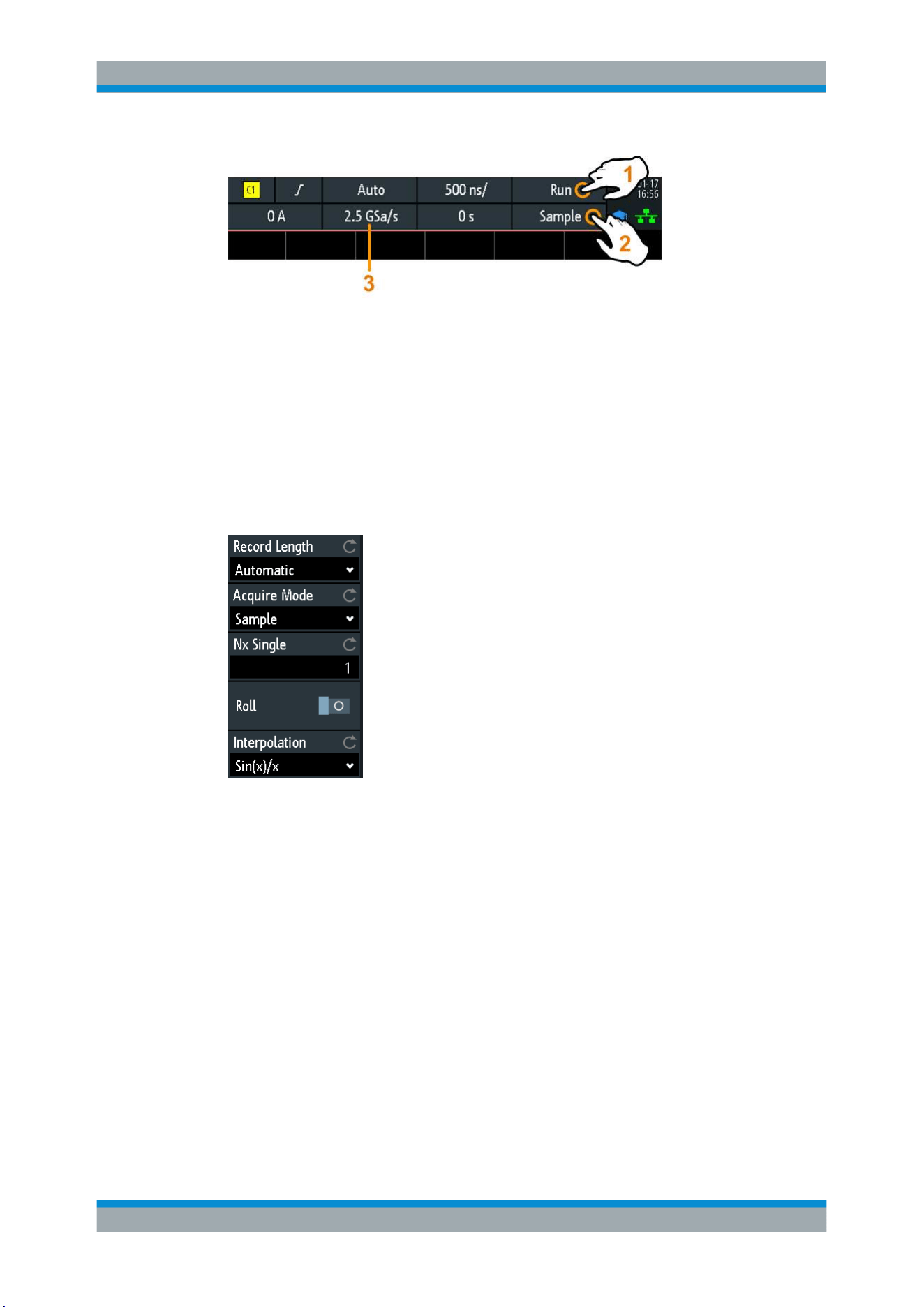
Waveform Setup
R&S
®
RTB2000
50User Manual 1333.1611.02 ─ 03
1 = start or stop a continuous acquisition, or start a single acquisition if SINGLE is active
2 = adjust the acquisition mode
3 = shows the current sample rate for information
4.4.2 Acquisition Settings
Acquisition settings define the processing of the captured samples in the instrument.
The current acquisition mode and sample rate are shown in the top information bar.
► To adjust acquisition settings, press the ACQUISITION key.
Record Length
The instrument acquires the signals with an either automatically or selected record
length. Record length is the number of waveform samples that are stored in one wave-
form record.
With automatic record length, the instrument combines sample rate and record length
to acquire at maximum sample rate. In connection with persistence, this mode can dis-
play rare signal anomalies.
Each predefined record length corresponds to a maximum number of history seg-
ments, which are stored in the instrument's memory. If option R&S RTB-K15 is instal-
led, you can display the history segments.
Remote command:
ACQuire:POINts:AUTomatic on page 260
ACQuire:POINts[:VALue] on page 261
Acquisition Setup

Waveform Setup
R&S
®
RTB2000
51User Manual 1333.1611.02 ─ 03
Acquire Mode
Defines how the waveform is built from the captured samples. There are two general
methods to build the waveform record: sample decimation and waveform arithmetic.
Sample decimation reduces the data stream of the ADC to a stream of waveform
points with lower sample rate and a less precise time resolution. The R&S RTB2000
uses decimation, if the waveform sample rate is less than the ADC sample rate. The
acquisition modes "Peak Detect" and "High Resolution" are decimation methods.
Waveform arithmetic builds the resulting waveform from several consecutive acquisi-
tions of the signal. The acquisition modes "Average" and "Envelope" are arithmetic
methods.
"Sample"
Usually, most signals are displayed optimally with this acquisition
mode but very short glitches might remain undiscovered by this
method. If the sample rate of the waveform is less than the ADC sam-
ple rate, the instrument reduces the number of samples: one of n
samples in a sample interval is recorded as waveform point, the other
samples are discarded (decimation). Conversely, if the sample rate of
the waveform is higher than the ADC sample rate, the instrument
adds waveform points to the captured samples using an interpolation
method.
"Peak Detect"
The minimum and the maximum of n samples are recorded as wave-
form points, the other samples are discarded. Thus the instrument
can detect fast signal peaks at slow time scale settings that would be
missed with other acquisition modes.
"High Resolu-
tion"
The average of n captured sample points is recorded as one wave-
form sample. Averaging reduces the noise, the result is a more pre-
cise waveform with higher vertical resolution.
"Average"
The average is calculated from the data of the current acquisition and
a number of consecutive acquisitions before. The method reduces
random noise. It requires a stable, triggered and repetitive signal.
The number of acquisitions for average calculation is defined with
"No. of Averages" on page 52.
"Envelope"
Each acquisition is done in sample decimation mode, and the mini-
mum and maximum values over some consecutive acquisitions build
the envelope. The resulting diagram shows two envelope waveforms
below and above the normal waveform: the minimums (floor) and
maximums (roof), representing the borders in which the signal
occurs. this method is useful, for example, if the waveform is noisy
but the noise is not relevant for the measurement.
"Enve-
lope + PD"
Each acquisition is done in peak detect decimation mode, and the
most extreme values of all consecutive acquisitions build the enve-
lope. This method is more precise than "Envelope".
Remote command:
ACQuire:TYPE on page 262
CHANnel<m>:ARIThmetics on page 262
CHANnel<m>:TYPE on page 261
ACQuire:PEAKdetect on page 263
ACQuire:HRESolution on page 263
Acquisition Setup

Waveform Setup
R&S
®
RTB2000
52User Manual 1333.1611.02 ─ 03
No. of Averages
Defines the number of waveforms used to calculate the average waveform, if "Acquire
Mode" = "Average". The higher the number, the better the noise is reduced.
To restart the average calculation, press the CLEAR SCREEN key.
Remote command:
ACQuire:AVERage:COUNt on page 263
ACQuire:AVERage:RESet on page 264
Nx Single
Sets the number of waveforms that are acquired with a SINGLE acquisition.
Remote command:
ACQuire:NSINgle:COUNt on page 251
Roll
Enables the roll mode.
The roll mode displays the untriggered, continuous signal. The roll mode moves the
captured input data on the display from the right to the left. The instrument shows the
waveform immediately, without waiting for the complete acquisition of the waveform
record.
Remote command:
TIMebase:ROLL:ENABle on page 264
Interpolation
Selects the interpolation method if interpolation is required to get the defined record
length.
"Sin(x)/x"
Two adjacent ADC sample points are connected by a sin(x)/x curve,
and also the adjoining sample points are considered by this curve.
The interpolated points are placed on the resulting curve. This inter-
polation method is the default method. It is precise and shows the
best signal curve.
"Linear"
Two adjacent ADC sample points are connected by a straight line,
the interpolated points are placed on the line. You see a polygonal
waveform similar to the real signal, and also the ADC sample points
as vertexes.
"Sample-Hold"
The ADC sample points are displayed like a histogram. For each
sample interval, the voltage is taken from the sample point and con-
sidered as constant, and the intervals are connected with vertical
lines. Thus, you see the discrete values of the ADC.
Remote command:
ACQuire:INTerpolate on page 264
Acquisition Setup

Trigger
R&S
®
RTB2000
53User Manual 1333.1611.02 ─ 03
5 Trigger
Triggering means to capture the interesting part of the relevant waveforms. Choosing
the right trigger type and configuring all trigger settings correctly allows you to detect
various incidents in signals.
A trigger occurs if the trigger conditions are fulfilled. The instrument acquires continu-
ously and keeps the sample points to fill the pretrigger part of the waveform record.
When the trigger occurs, the instrument continues acquisition until the posttrigger part
of the waveform record is filled. Then it stops acquiring and displays the waveform.
When a trigger is recognized, the instrument does not accept another trigger until the
acquisition is complete.
Trigger conditions include:
●
Source of the trigger signal (channel)
●
Trigger type and its setup
●
Trigger mode
In addition, the horizontal position of the trigger point and the reference point are
important to display the interesting part of the signal. See
Chapter 4.3, "Horizontal
Setup"
, on page 45.
The trigger level and position are marked in the grid. The markers have the color of the
trigger source. Information on the most important trigger settings is shown in the upper
information bar.
There are several ways to set up the trigger:
●
Use the controls in the Trigger functional block of the front panel.
●
Use shortcuts to adjust the trigger source, trigger mode, and main parameters of
the trigger type.
●
Use the comprehensive menu to select the trigger type and to adjust all trigger set-
tings.
●
Trigger Controls...................................................................................................... 53
●
Shortcuts for Trigger Settings................................................................................. 55
●
General Trigger Settings.........................................................................................56
●
Edge Trigger........................................................................................................... 58
●
Width Trigger...........................................................................................................59
●
Video Trigger...........................................................................................................62
●
Pattern Trigger........................................................................................................ 64
●
Timeout Trigger.......................................................................................................66
5.1 Trigger Controls
The keys and the rotary knob in the Trigger functional block adjust the trigger and start
or stop acquisition.
The green LED above the LEVELS knob lights up when the instrument triggers.
Trigger Controls
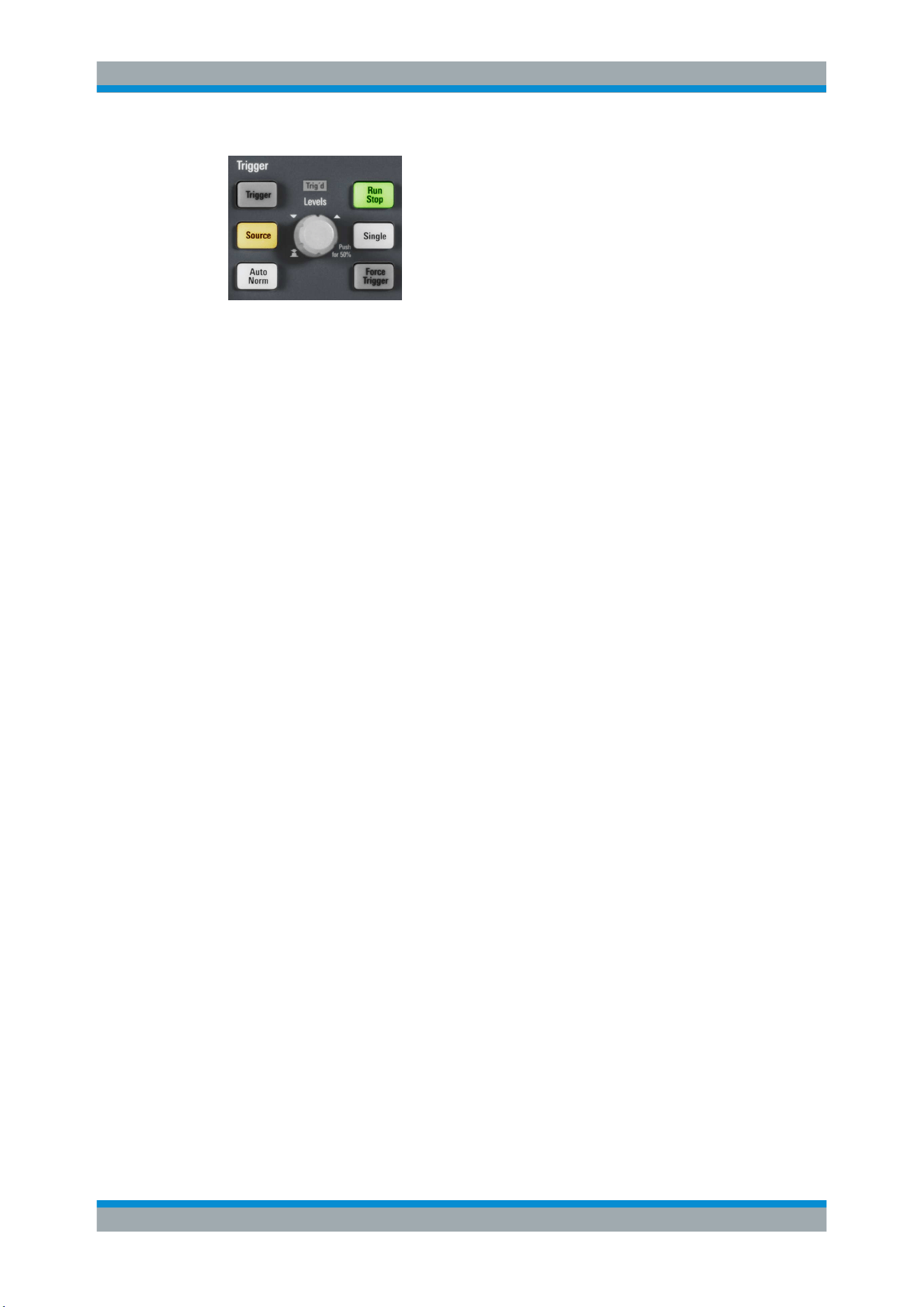
Trigger
R&S
®
RTB2000
54User Manual 1333.1611.02 ─ 03
TRIGGER
Opens the "Trigger" menu.
SOURCE
Changes the analog trigger source. Press the key repeatedly until the required analog
source is selected. If a digital source or serial bus was selected in the "Trigger" menu,
or if the "Trigger Type" is set to "Pattern", the key opens the menu.
The key lights up in the color of the selected channel, and the selected source is
shown in the information bar.
Remote command:
TRIGger:A:SOURce on page 266
AUTO NORM
Toggles the trigger mode between "Auto" and "Norm". The key lights up in white if the
trigger mode is "Norm". The current mode is also shown in the information bar.
"Auto"
The instrument triggers repeatedly after a time interval if the trigger
conditions are not fulfilled. If a real trigger occurs, it takes prece-
dence. This mode helps to see the waveform even before the trigger
is set. The waveform on the screen is not synchronized, and succes-
sive waveforms are not triggered at the same point of the waveform.
"Norm"
The instrument acquires a waveform only if a trigger occurs, that is, if
all trigger conditions are fulfilled. If no trigger occurs, no waveform is
acquired and the last acquired waveform is displayed. If no waveform
was captured before, nothing is displayed.
Remote command:
TRIGger:A:MODE on page 266
LEVELS
The rotary knob changes the trigger level. Turn clockwise to move up the trigger level.
Pressing the knob sets the level to 50% of the signal amplitude.
Remote command:
TRIGger:A:LEVel<n>[:VALue] on page 268
TRIGger:A:FINDlevel on page 268
FORCE TRIGGER
Provokes an immediate single acquisition. Use this key if the acquisition is running in
normal mode and no valid trigger occurs. Thus you can confirm that a signal is availa-
ble and use the waveform display to determine how to trigger on it.
Trigger Controls
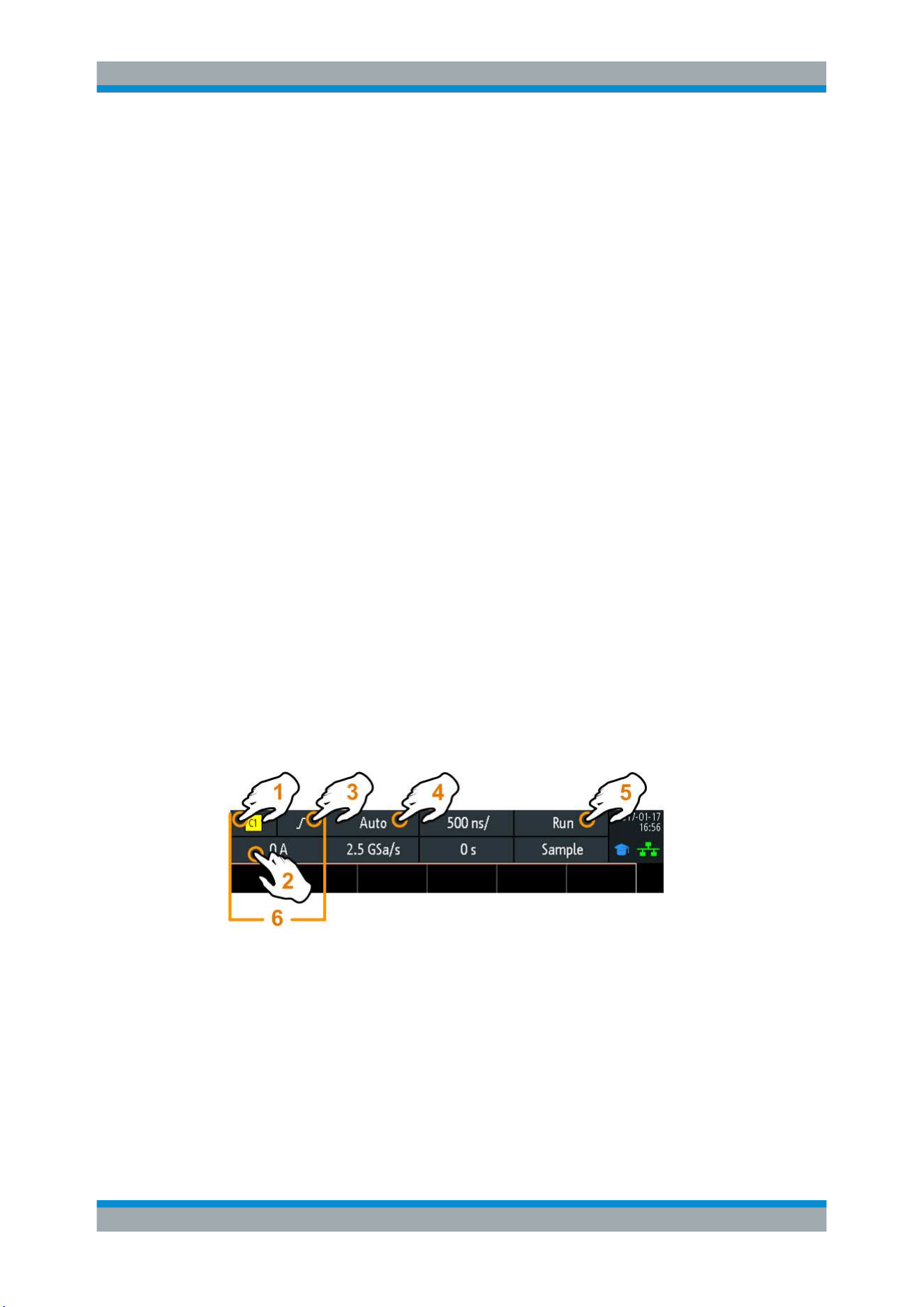
Trigger
R&S
®
RTB2000
55User Manual 1333.1611.02 ─ 03
RUN STOP
Starts and stops the continuous acquisition. A green light indicates a running acquisi-
tion. A red light shows that acquisition is stopped. At slow timebases, a yellow light
indicates that the acquisition is ongoing.
The status is shown also at the right end of the information bar: "Run", "Complete",
"Trig?" (waiting for trigger, in normal trigger mode) or "Not ready" (working). For slow
timebases, the status "Pre" or "Post" is shown together with an indicator that shows the
filling level of the buffer.
Remote command:
RUN on page 251
RUNContinous on page 251
STOP on page 251
ACQuire:STATe on page 251
SINGLE
Starts a specified number of acquisitions. A white light indicates that the instrument is
in single mode. The information bar shows "Complete" if the acquisition has been fin-
ished.
To set the number of acquisitions, press the ACQUISITION key and enter "Nx Single".
Remote command:
SINGle on page 251
RUNSingle on page 251
5.2 Shortcuts for Trigger Settings
To adjust the trigger source, mode, and trigger type specific settings, you can use the
shortcuts on the top of the display. The labels show the current values.
1 = adjust the trigger source
2 = open the keypad to enter the value of the trigger level or threshold
3 = adjust slope or polarity
4 = adjust the trigger mode
5 = start or stop a continuous acquisition, or start a single acquisition if SINGLE is active
6 = available settings depend on the trigger type
Shortcuts for Trigger Settings
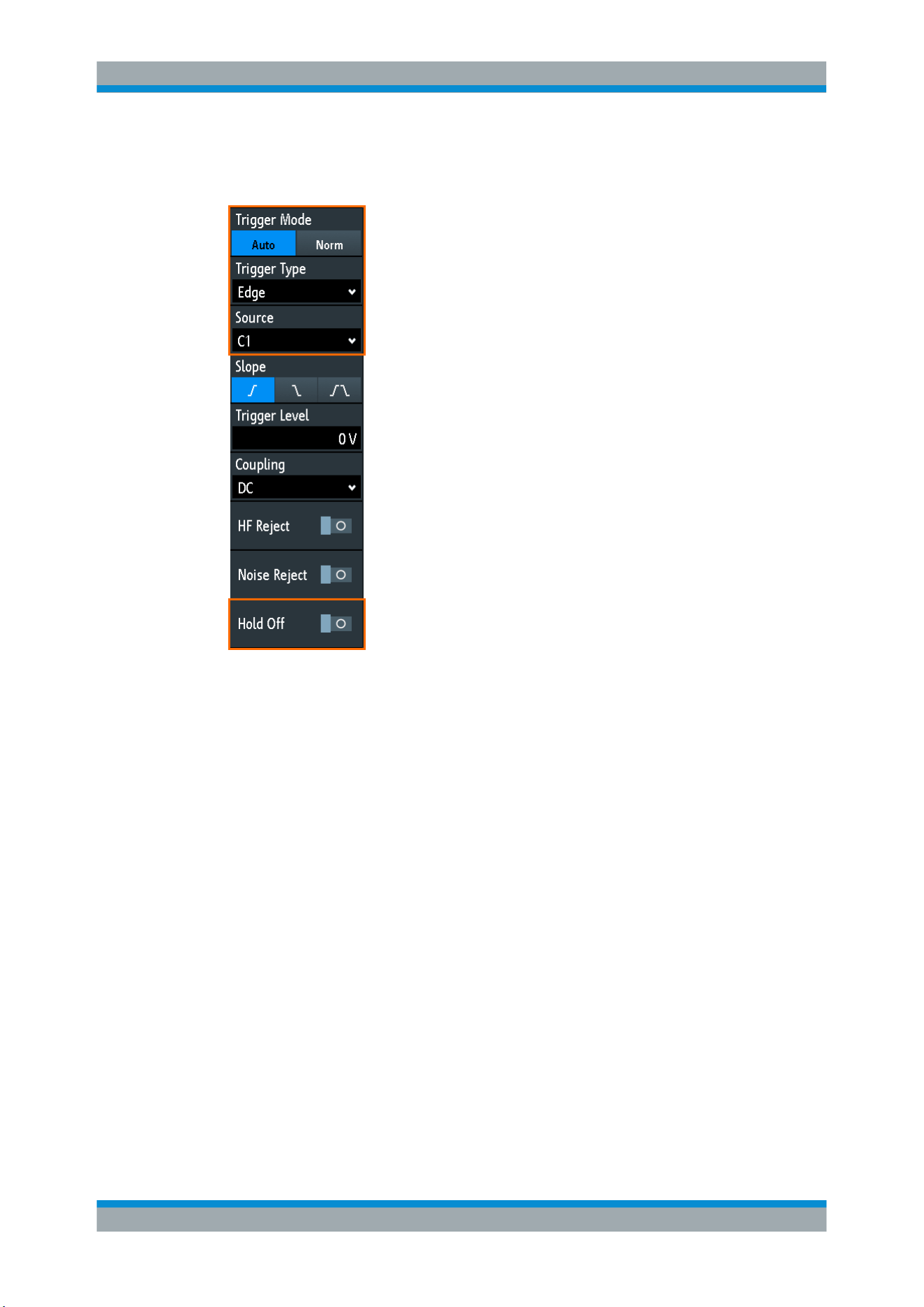
Trigger
R&S
®
RTB2000
56User Manual 1333.1611.02 ─ 03
5.3 General Trigger Settings
General trigger settings are independent of the trigger type. They are highlighted in the
above figure and described in the current section. The other trigger settings are spe-
cific for individual trigger types, and they are described in the following sections.
Trigger Mode
Toggles the trigger mode between "Auto" and "Auto". The trigger mode determines the
behavior of the instrument if no trigger occurs. The current setting is shown in the infor-
mation bar.
"Auto"
The instrument triggers repeatedly after a time interval if the trigger
conditions are not fulfilled. If a real trigger occurs, it takes prece-
dence. This mode helps to see the waveform even before the trigger
is set. The waveform on the screen is not synchronized, and succes-
sive waveforms are not triggered at the same point of the waveform.
"Norm"
The instrument acquires a normal waveform only, if a trigger occurs,
that is, if all trigger conditions are fulfilled. If no trigger occurs, no
waveform is acquired and the last acquired waveform is displayed. If
no waveform was captured before, nothing is displayed.
Remote command:
TRIGger:A:MODE on page 266
Trigger Type
Selects the trigger type.
General Trigger Settings

Trigger
R&S
®
RTB2000
57User Manual 1333.1611.02 ─ 03
"Edge"
Triggers on signal edges.
See
Chapter 5.4, "Edge Trigger", on page 58.
"Width"
Triggers on pulse width.
See
Chapter 5.5, "Width Trigger", on page 59.
"Video"
Triggers on various PAL, NTSC and HDTV standard video signals.
See
Chapter 5.6, "Video Trigger", on page 62.
"Pattern"
Triggers on logical combinations of the input channels.
See
Chapter 5.7, "Pattern Trigger", on page 64.
"Timeout"
Triggers on signal level timeout.
See
Chapter 5.8, "Timeout Trigger", on page 66.
"Line"
The line trigger uses the waveform of the power supply's alternating
line voltage (typically 50 Hz or 60 Hz AC) as the trigger signal source.
Use this trigger to detect issues related to the frequency of the power
grid.
The line trigger does not have any settings.
"Serial Bus"
Triggers on a serial bus. Requires that at least one protocol option
R&S RTB-K1, -K2, or -K3 is installed, a serial bus is configured, and
a decoded signal is available.
See
Chapter 12.1.1, "Protocol - Common Settings", on page 165.
Remote command:
TRIGger:A:TYPE on page 267
Source
Selects the trigger source.
"C1, C2, C3,
C4"
Select one of the analog input channels as trigger source.
"D0 to D15"
Select one of the digital channels as trigger source if MSO option
R&S RTB-B1 is installed.
"Extern"
Sets the external trigger input on the front panel as trigger source.
"B1, B2"
Serial buses 1 or 2, used for triggering on protocols. Only available, if
the trigger type "Serial Bus" is selected.
Remote command:
TRIGger:A:SOURce on page 266
Hold Off, Hold Off Time
Enables the hold off and defines the "Hold Off Time". The next trigger occurs only after
the hold off time has passed.
The trigger hold off defines when the next trigger event is recognized after the current
trigger event. Thus, it affects the next trigger to occur after the current one. Hold off
helps to obtain stable triggering when the oscilloscope is triggering on undesired
events.
Remote command:
TRIGger:A:HOLDoff:MODE on page 267
TRIGger:A:HOLDoff:TIME on page 268
General Trigger Settings
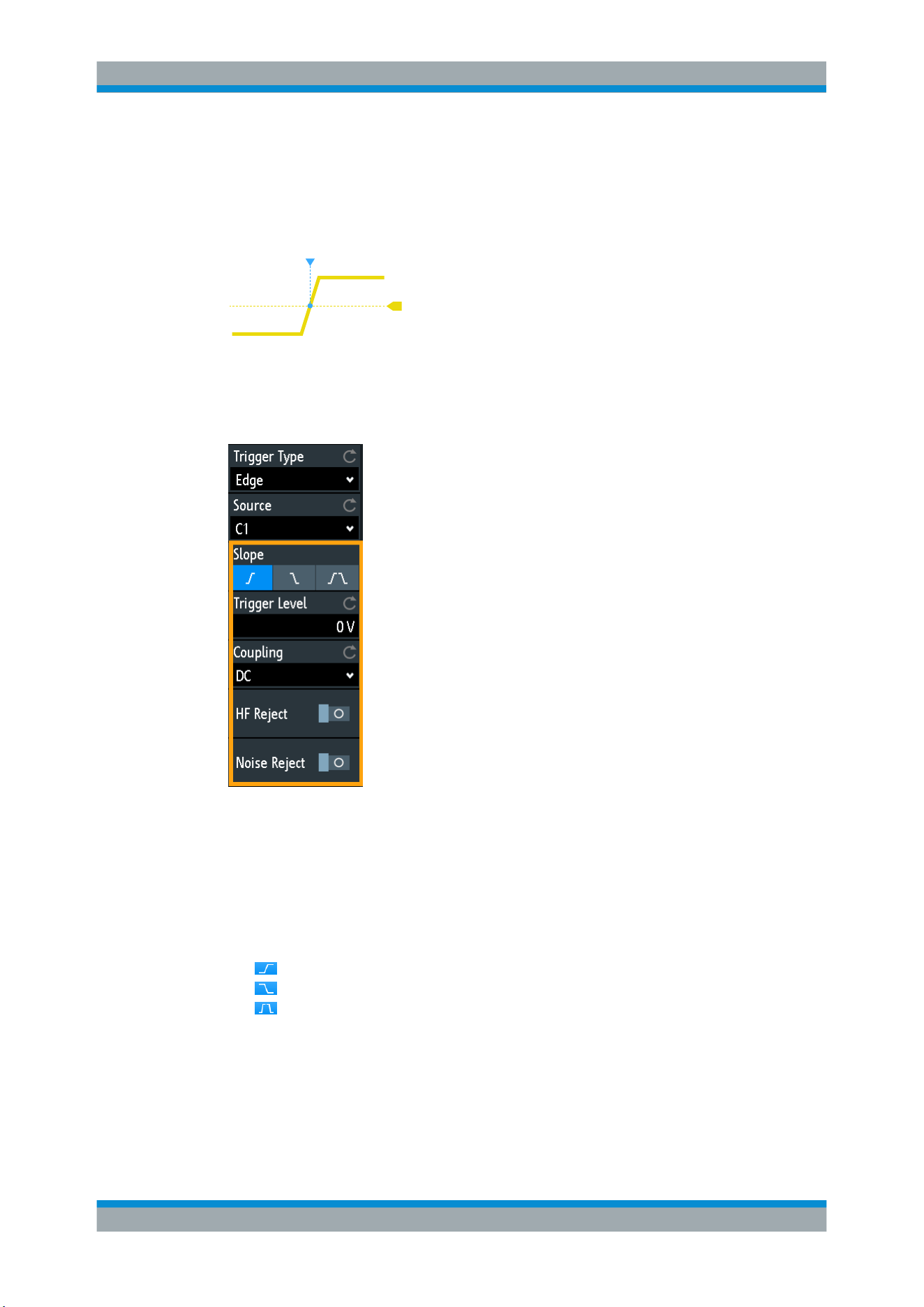
Trigger
R&S
®
RTB2000
58User Manual 1333.1611.02 ─ 03
5.4 Edge Trigger
The edge trigger is the most common trigger type. The trigger occurs when the signal
from the trigger source passes the trigger level in the specified direction (slope).
Figure 5-1: Edge trigger event with positive slope (rising edge)
► TRIGGER > "Trigger Type" = "Edge"
Slope.............................................................................................................................58
Trigger Level, Threshold............................................................................................... 58
Coupling........................................................................................................................59
HF Reject...................................................................................................................... 59
Noise Reject..................................................................................................................59
Slope
Sets the edge direction for the trigger. You can trigger on:
●
rising edge, that is a positive voltage change
●
falling edge, that is a negative voltage change
●
rising and falling edge. After starting an acquisition, the instrument triggers on
the first identified edge.
Remote command:
TRIGger:A:EDGE:SLOPe on page 268
Trigger Level, Threshold
Sets the voltage level or threshold for the trigger.
Edge Trigger

Trigger
R&S
®
RTB2000
59User Manual 1333.1611.02 ─ 03
You can also drag the trigger level marker on the display, or turn the Levels knob. To
set the trigger level to 50% of the signal amplitude, press the Levels knob.
For width and timeout trigger, the trigger level is the threshold of the trigger source.
Remote command:
TRIGger:A:LEVel<n>[:VALue] on page 268
TRIGger:A:FINDlevel on page 268
Coupling
Sets the coupling for the trigger source.
"AC"
Alternating current coupling. A highpass filter removes the DC offset
voltage from the trigger signal.
"DC"
Direct current coupling. The trigger signal remains unchanged.
"LF Reject"
Sets the trigger coupling to high frequency. A 15 kHz highpass filter
removes lower frequencies from the trigger signal. Use this mode
only with very high frequency signals.
Remote command:
TRIGger:A:EDGE:COUPling on page 269
HF Reject
Enables or disables an additional 5 kHz lowpass filter in the trigger path. This filter
removes higher frequencies and is available with AC and DC coupling.
You can use either "HF Reject" or "Noise Reject".
Remote command:
TRIGger:A:EDGE:FILTer:HFReject on page 269
Noise Reject
Extends the hysteresis to avoid unwanted trigger events caused by noise oscillation
around the trigger level.
You can use either "HF Reject" or "Noise Reject".
Remote command:
TRIGger:A:EDGE:FILTer:NREJect on page 269
5.5 Width Trigger
The width trigger compares the pulse width (duration) with given time limits. It detects
pulses with an exact pulse width, pulses shorter or longer than a given time, and also
pulses inside or outside the allowable time range. The pulse width is measured at the
trigger level.
You can use the width trigger, for example, to trigger on glitches.
Width Trigger
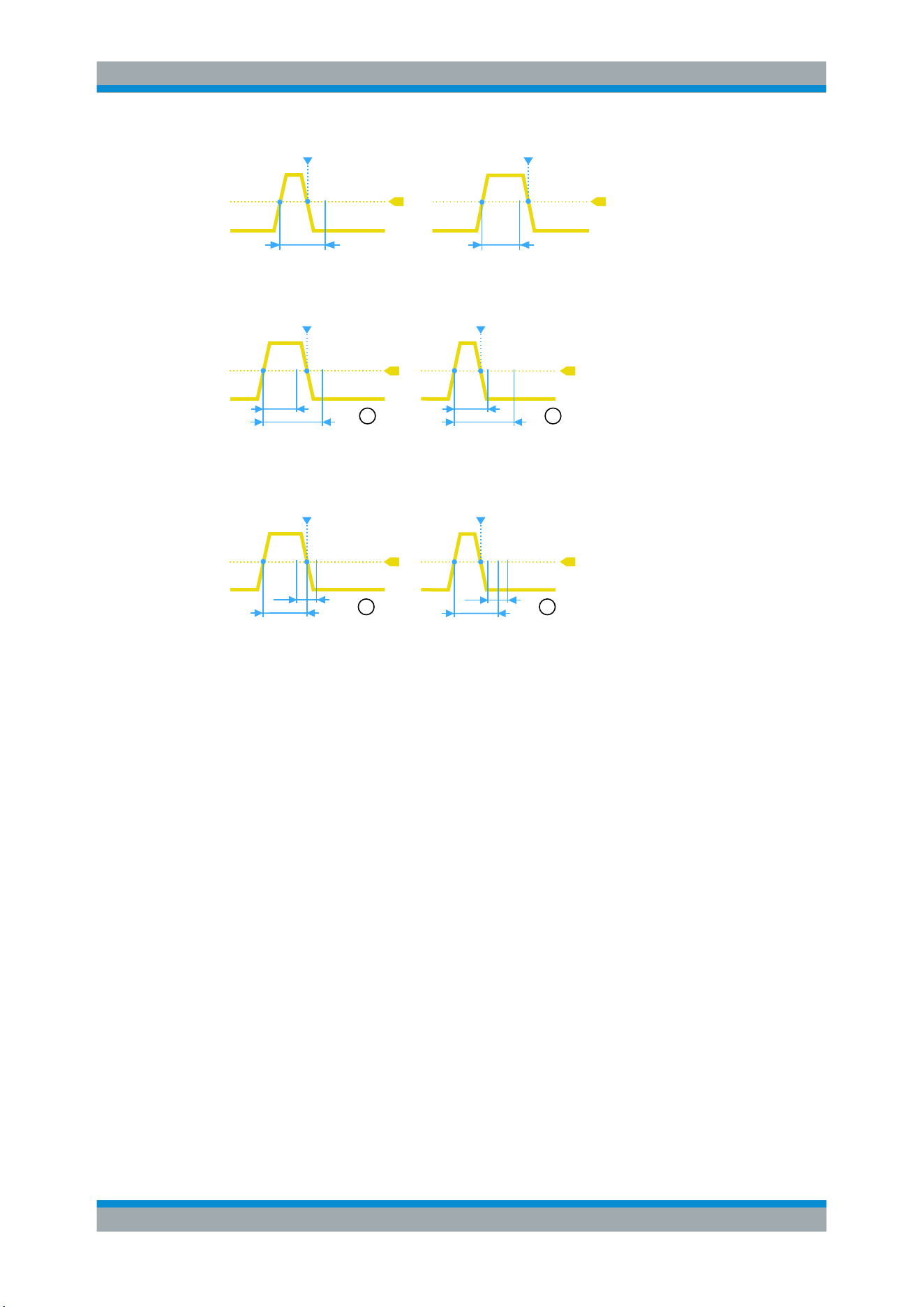
Trigger
R&S
®
RTB2000
60User Manual 1333.1611.02 ─ 03
Figure 5-2: Pulse width is shorter (left) or longer (right) than a given duration (also known as glitch
trigger)
min
max
min
max
1 2
Figure 5-3: Pulse width is inside or outside an allowable time range
1 = Inside: min width < pulse < max width
2 = Outside: pulse < min width OR pulse > max width
±Δ
1 2
±Δ
Figure 5-4: Pulse width is equal or unequal to a given duration, with optional variation (
Δ
)
1 = Equal: (width - variation) < pulse < (width + variation)
2 = Unequal: pulse < (width - variation) OR pulse > (width + variation)
► TRIGGER > "Trigger Type" = "Width"
Width Trigger
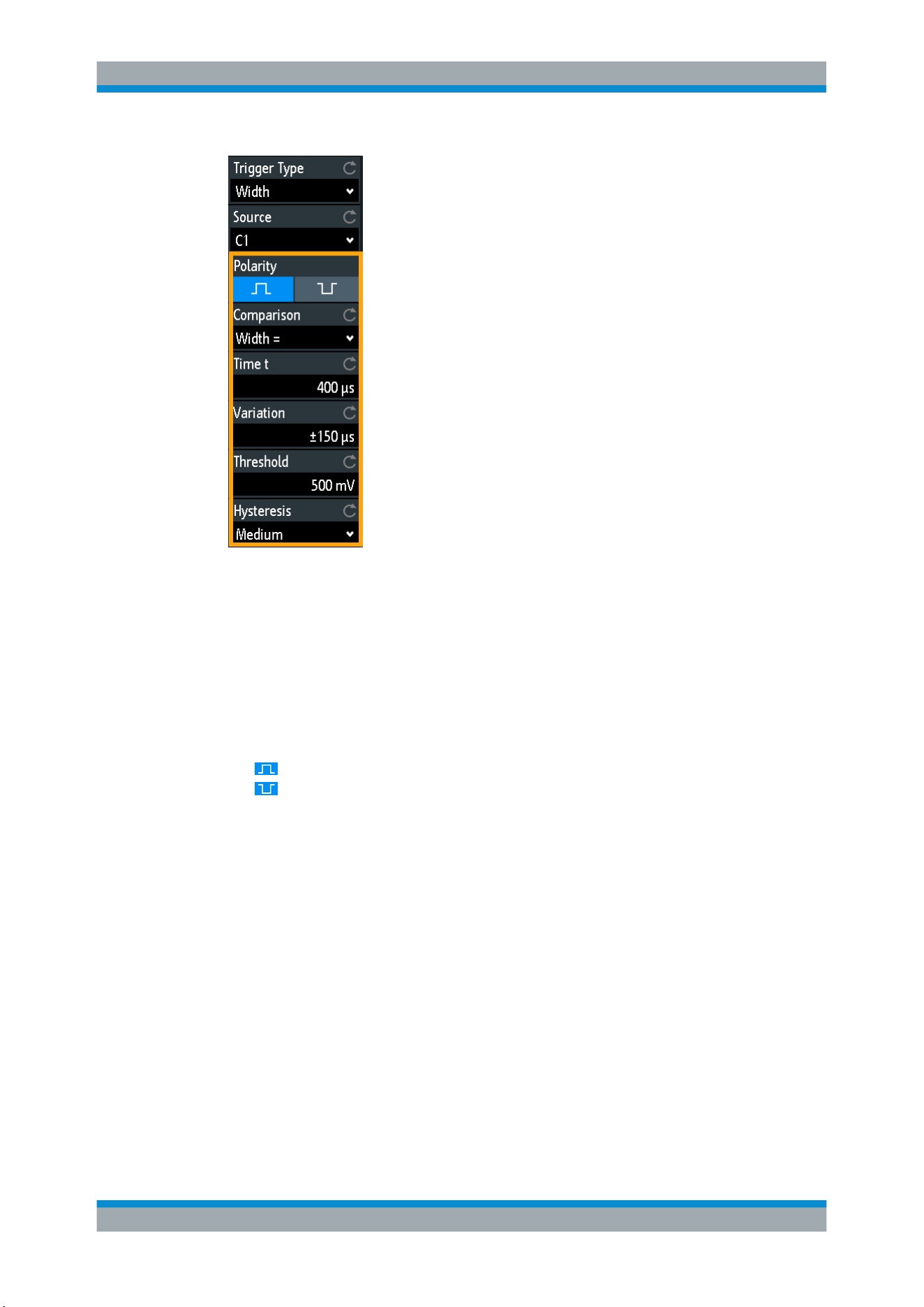
Trigger
R&S
®
RTB2000
61User Manual 1333.1611.02 ─ 03
Polarity.......................................................................................................................... 61
Comparison...................................................................................................................61
Time t............................................................................................................................ 62
Variation........................................................................................................................62
Time t1, Time t2............................................................................................................ 62
Threshold...................................................................................................................... 62
Hysteresis..................................................................................................................... 62
Polarity
Sets the polarity of the pulse. You can trigger on:
●
positive going pulse, the width is defined from the rising to the falling slopes.
●
negative going pulse, the width is defined from the falling to the rising slopes.
Remote command:
TRIGger:A:WIDTh:POLarity on page 270
Comparison
Sets how the measured pulse width is compared with the given limits.
"Width >"
Triggers on pulse width longer than the reference "Time t".
"Width <"
Triggers on pulse width shorter than the reference "Time t".
"Width ="
Triggers on pulse width equal to the reference "Time t" if "Variation"
Δt = 0.
If "Variation" ≠ 0, this setting triggers on pulses within the range t±Δt.
"Width ≠"
Triggers on pulses unequal to the reference "Time t", if "Variation"
Δt = 0.
If "Variation" ≠ 0, this setting triggers on pulses outside a range t
±
Δ
t.
Width Trigger

Trigger
R&S
®
RTB2000
62User Manual 1333.1611.02 ─ 03
"Inside", "Out-
side"
Triggers on pulses inside or outside a range specified with "Time t1"
and "Time t2".
This method is an alternative setting to the range definition with
"Time t" and "Variation". The values are interdependent. "Variation"
and "Time t" are adjusted, if you change t1 and t2, and vice versa.
Remote command:
TRIGger:A:WIDTh:RANGe on page 270
Time t
Sets the reference time, the nominal value for comparison settings "Width >",
"Width <", "Width =", and "Width ≠".
Remote command:
TRIGger:A:WIDTh:WIDTh on page 270
Variation
Sets a range Δt to the reference "Time t", if comparison is set to "Width =" or "Width ≠".
The instrument triggers on pulses inside or outside the range t±Δt.
Remote command:
TRIGger:A:WIDTh:DELTa on page 271
Time t1, Time t2
Set the lower and upper time limits defining the time range if "Width =" or "Width ≠" is
set for comparison. "Time t" and "Variation" are adjusted accordingly.
Remote command:
TRIGger:A:WIDTh:RANGe on page 270
TRIGger:A:WIDTh:DELTa on page 271
Threshold
Threshold of the trigger source channel, used as trigger level for the width trigger.
See also "Threshold" on page 44 and "Trigger Level, Threshold" on page 58.
Remote command:
TRIGger:A:LEVel<n>[:VALue] on page 268
CHANnel<m>:THReshold on page 256
Hysteresis
Hysteresis of the trigger source channel, see
"Hysteresis" on page 44.
Remote command:
CHANnel<m>:THReshold:HYSTeresis on page 257
5.6 Video Trigger
The video or TV trigger is used to analyze analog baseband video signals. You can
trigger on baseband video signals from standard definition and high definition stand-
ards connected to an analog channel input or to the external trigger input.
The instrument triggers on the sync pulses.
Video Trigger
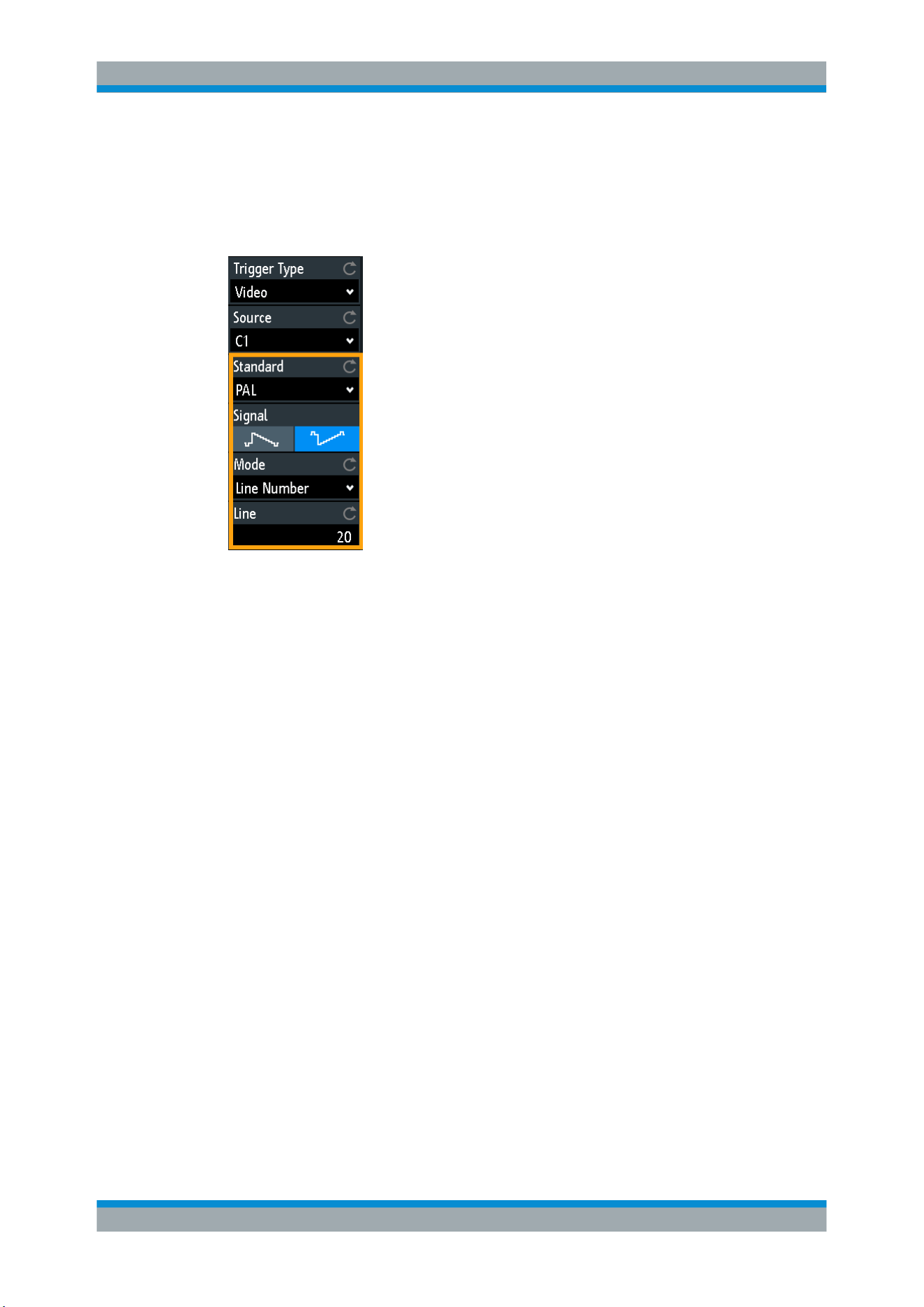
Trigger
R&S
®
RTB2000
63User Manual 1333.1611.02 ─ 03
First select the standard and the signal polarity, then decide to trigger on lines or fields
and enter the specific settings.
► TRIGGER > "Trigger Type" = "Video"
Figure 5-5: Video trigger menu
Standard........................................................................................................................63
Signal............................................................................................................................ 64
Mode............................................................................................................................. 64
Line............................................................................................................................... 64
Standard
Selects the color television standard.
You can trigger on various standard-definition television (SDTV) signals:
●
"PAL"
●
"NTSC"
●
"SECAM"
●
"PAL-M"
●
"SDTV 576i" (PAL and SECAM)
High-definition television (HDTV) standards are indicated by the number of active lines
and the scanning system:
●
"HDTV 720p"
●
"HDTV 1080p" (p for progressive scanning)
●
"HDTV 1080i" (i for interlaced scanning)
Remote command:
TRIGger:A:TV:STANdard on page 271
Video Trigger
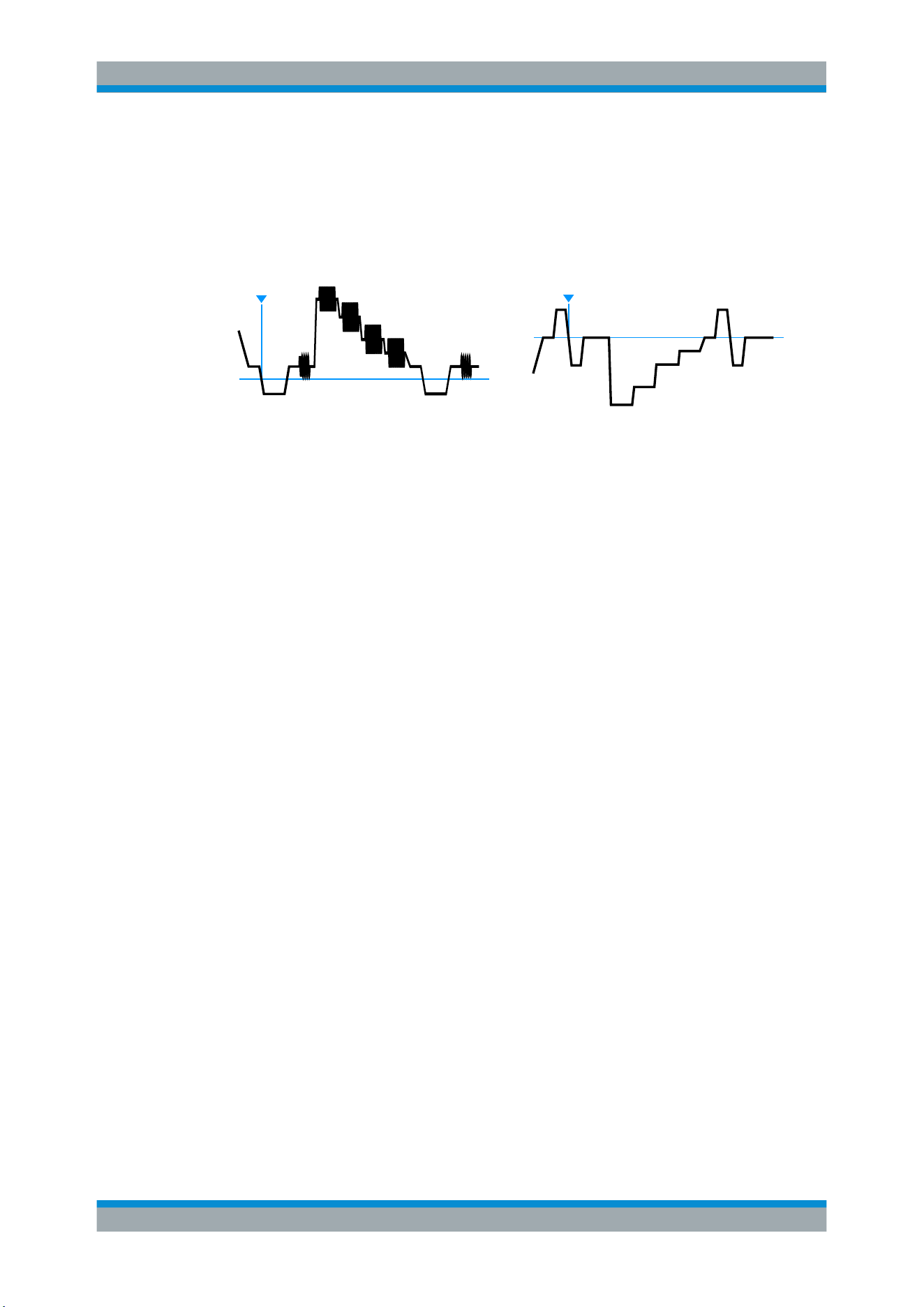
Trigger
R&S
®
RTB2000
64User Manual 1333.1611.02 ─ 03
Signal
Selects the polarity of the signal. Note that the sync pulse has the opposite polarity. If
the video modulation is positive, the sync pulses are negative. If the modulation is neg-
ative, sync pulses are positive. The edges of the sync pulses are used for triggering,
therefore incorrect polarity setting causes a sporadic triggering by the video informa-
tion.
T
T
Figure 5-6: Positive video signal with negative bi-level sync pulse (SDTV, left) and negative signal
with positive tri-level sync pulse (HDTV, right)
Remote command:
TRIGger:A:TV:POLarity on page 271
Mode
Selects from the following the trigger conditions:
"All Frames"
The oscilloscope triggers on the beginning of all video signal frames.
"Odd Frames"
The oscilloscope triggers on the beginning of video signal frames with
an odd frame number.
"Even Frames"
The oscilloscope triggers on the beginning of video signal frames with
an even frame number.
"All Lines"
The oscilloscope triggers on the beginning of all video signal lines.
"Line Number"
Enables triggerin on an exact "Line" number.
Remote command:
TRIGger:A:TV:FIELd on page 272
Line
Sets an exact line number if "Mode" is "Line Number". The oscilloscope triggers exactly
on the beginning of the selected line in any field.
Remote command:
TRIGger:A:TV:LINE on page 272
5.7 Pattern Trigger
The pattern trigger is a logic trigger. It provides any logical combination of the input
channels and supports you in verifying the operation of digital logic. Additionally, you
can set a time limitation to the pattern. Thus you can also trigger on bus patterns of
parallel buses.
The channel pattern is configured in the "Logic Editor" dialog box.
Pattern Trigger
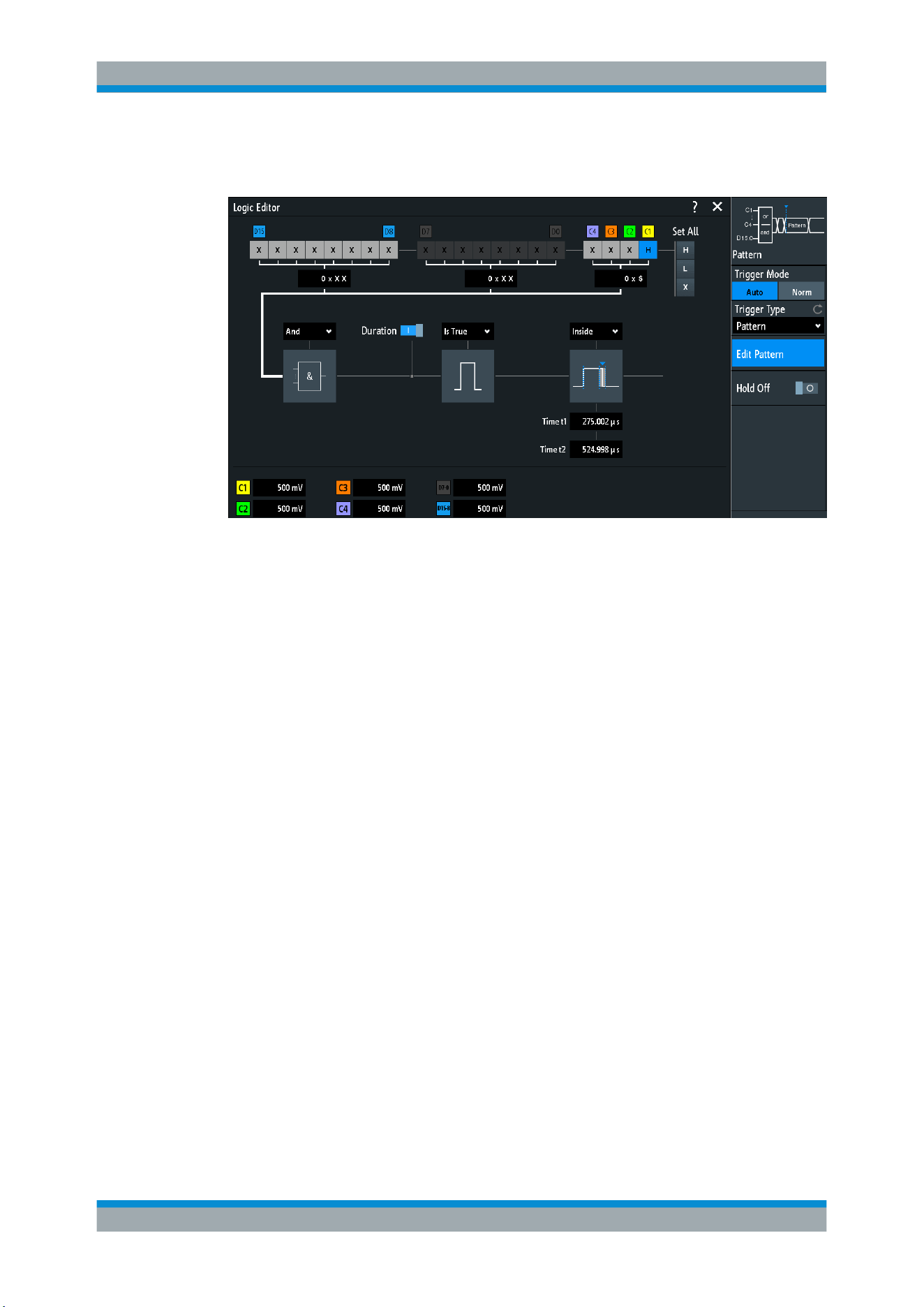
Trigger
R&S
®
RTB2000
65User Manual 1333.1611.02 ─ 03
► TRIGGER > "Trigger Type" = "Pattern" > "Edit Pattern"
Figure 5-7: Pattern trigger with logic editor
H | L | X, Set All.............................................................................................................65
And | Or.........................................................................................................................65
Duration.........................................................................................................................66
True | False................................................................................................................... 66
Time limitation...............................................................................................................66
H | L | X, Set All
Defines the pattern by selecting the state "H" (high), "L" (low) or "X" (do not care) for
each active analog and digital channel.
The word length of the pattern depends on the number of available analog and digital
channels.
Analog channels: 2 bit for 2-channel instruments, 4 bit for 4-channel instruments.
Digital (16 bit): the logic channels D0, D1,...,D15 are only available with MSO option
R&S RTB-B1.
Thus the pattern can have 2, 4, 18, or 20 bits.
Use "Set All" to set all channels to the same state.
Remote command:
TRIGger:A:PATTern:SOURce on page 273
And | Or
Sets the logical combination of the channel states.
"AND"
All defined states must be true.
"OR"
At least one of the defined states must be true.
Remote command:
TRIGger:A:PATTern:FUNCtion on page 273
Pattern Trigger

Trigger
R&S
®
RTB2000
66User Manual 1333.1611.02 ─ 03
Duration
The switch has the following two effects:
●
Selects the mode of the
True | False comparison.
●
Enables or disables the
Time limitation.
True | False
Defines whether the instrument triggers on fulfillment of the logical condition, or on vio-
lation.
●
If
Duration = on, the instrument triggers when the logic combination "Is True" or
"Is False" for a specified time duration.
●
If
Duration = off, the instrument triggers when the logic combination is found in the
signal ("Goes True"), or if it disappears ("Goes False").
Remote command:
TRIGger:A:PATTern:CONDition on page 273
Time limitation
To set a time limitation for the pattern, you have several possibilities. They are similar
to the setting of a pulse width, see Chapter 5.5, "Width Trigger", on page 59.
●
"Timeout" and "Time t"
Define a minimum time during which the signals match the pattern condition.
●
"Width >" or "Width <" and "Time t"
Triggers if the pattern condition changes before or after the specified time.
●
"Width =", "Time t1" and "Variation"
Triggers if the pattern condition is fulfilled for a duration "Time t1" ± "Variation".
●
"Width ≠", "Time t1" and "Variation"
Triggers if the pattern condition is fulfilled for a duration shorter than "Time t1" -
"Variation", or longer than "Time t1" + "Variation".
●
"Inside", "Time t1" and "Time t2"
Triggers if the pattern condition is fulfilled for a duration between "Time t1" and
"Time t2". These settings are an alternative setting to the definition with "Width =".
The time values are interdependent and adjusted accordingly.
●
"Outside", "Time t1" and "Time t2"
Triggers if the pattern condition is fulfilled for a duration shorter than "Time t1", or
longer than "Time t2". These settings are an alternative setting to the definition with
"Width ≠". The time values are interdependent and adjusted accordingly.
Remote command:
TRIGger:A:PATTern:MODE on page 274
TRIGger:A:PATTern:WIDTh:RANGe on page 274
TRIGger:A:PATTern:WIDTh[:WIDTh] on page 275
TRIGger:A:PATTern:WIDTh:DELTa on page 275
5.8 Timeout Trigger
The timeout trigger checks if the signal stays above or below the threshold voltage for
a specified time lapse. In other words, the trigger occurs if the trigger source signal
does not cross the threshold during the specified time.
Timeout Trigger
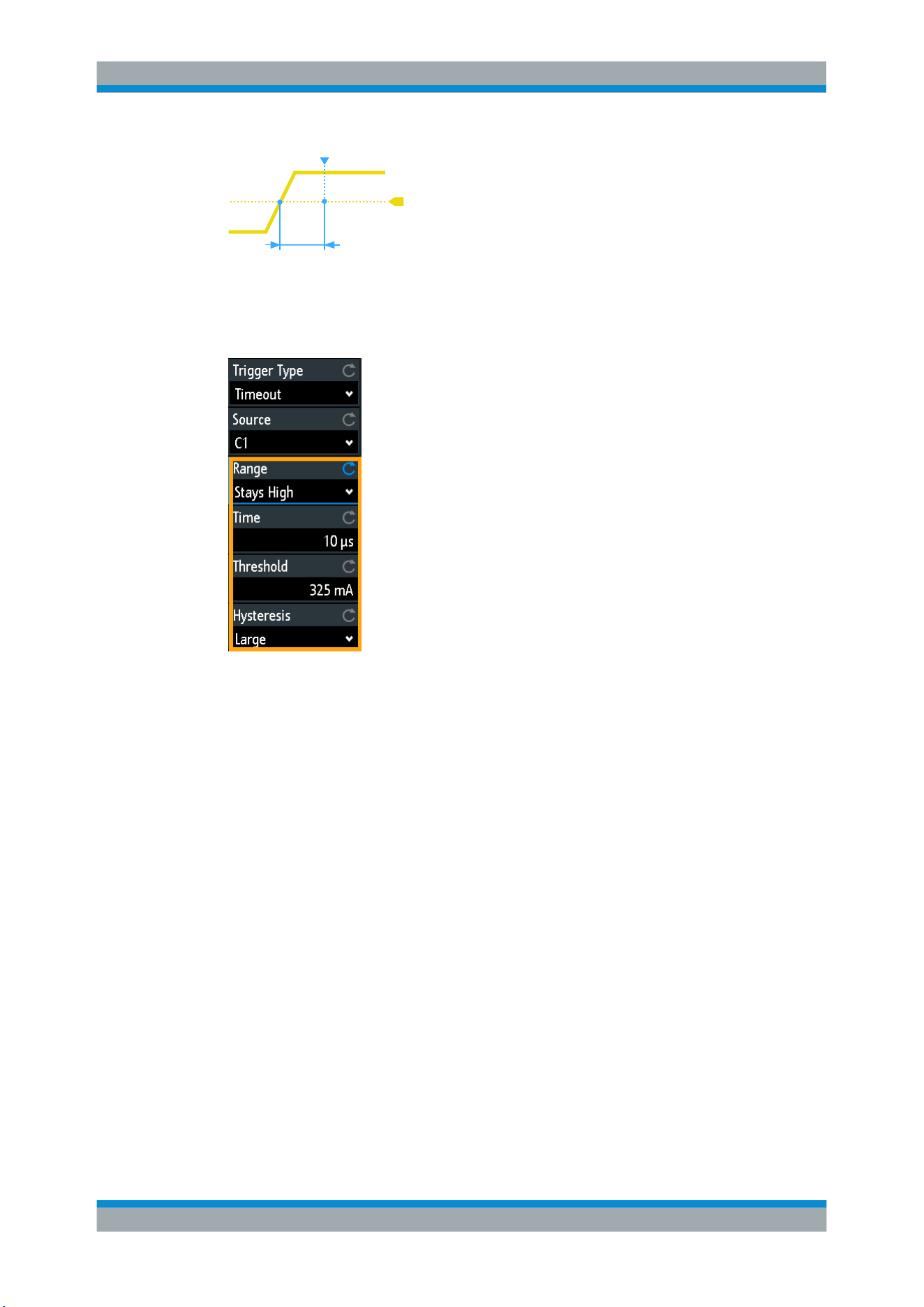
Trigger
R&S
®
RTB2000
67User Manual 1333.1611.02 ─ 03
time
Figure 5-8: Timeout trigger with range Stays
High
► TRIGGER > "Trigger Type" = "Timeout"
Figure 5-9: Timeout trigger menu
Range
Selects the relation of the signal level to the threshold:
Stays High
The signal level stays above the trigger level.
Stays Low
The signal level stays below the trigger level.
Stays High|Low
The signal level stays above or below the trigger level.
Remote command:
TRIGger:A:TIMeout:RANGe on page 275
Time
Defines the time limit for the timeout at which the instrument triggers.
Remote command:
TRIGger:A:TIMeout:TIME on page 275
Threshold
Threshold of the trigger source channel, used as trigger level for the timeout trigger.
See also "Threshold" on page 44 and "Trigger Level, Threshold" on page 58.
Timeout Trigger


Waveform Analysis
R&S
®
RTB2000
69User Manual 1333.1611.02 ─ 03
6 Waveform Analysis
● Zoom.......................................................................................................................69
●
Mathematics............................................................................................................71
●
Reference Waveforms............................................................................................ 74
●
History and Segmented Memory (Option R&S RTB-K15)...................................... 78
●
Search.....................................................................................................................84
6.1 Zoom
The zoom magnifies a part of the waveform to view more details. The zoom is applied
to all active analog and digital channels and math waveforms. The waveforms are dis-
played with a shorter time scale while the vertical scale remains unchanged.
► To activate the zoom, press the ZOOM key.
When you activate the zoom, two windows are displayed: the original waveform dia-
gram at the top, and the zoom window at the bottom.
6.1.1 Using the Zoom
There are several ways to adjust the zoom:
●
Use finger gestures on the screen.
●
Use the horizontal SCALE and POSITION knobs.
●
Use the menu to enter exact numerical values. See
Chapter 6.1.2, "Zoom Set-
tings"
, on page 71.
Alternatively, tap the zoom scale or zoom position label in the zoom window and
enter a value on the keypad.
Zoom
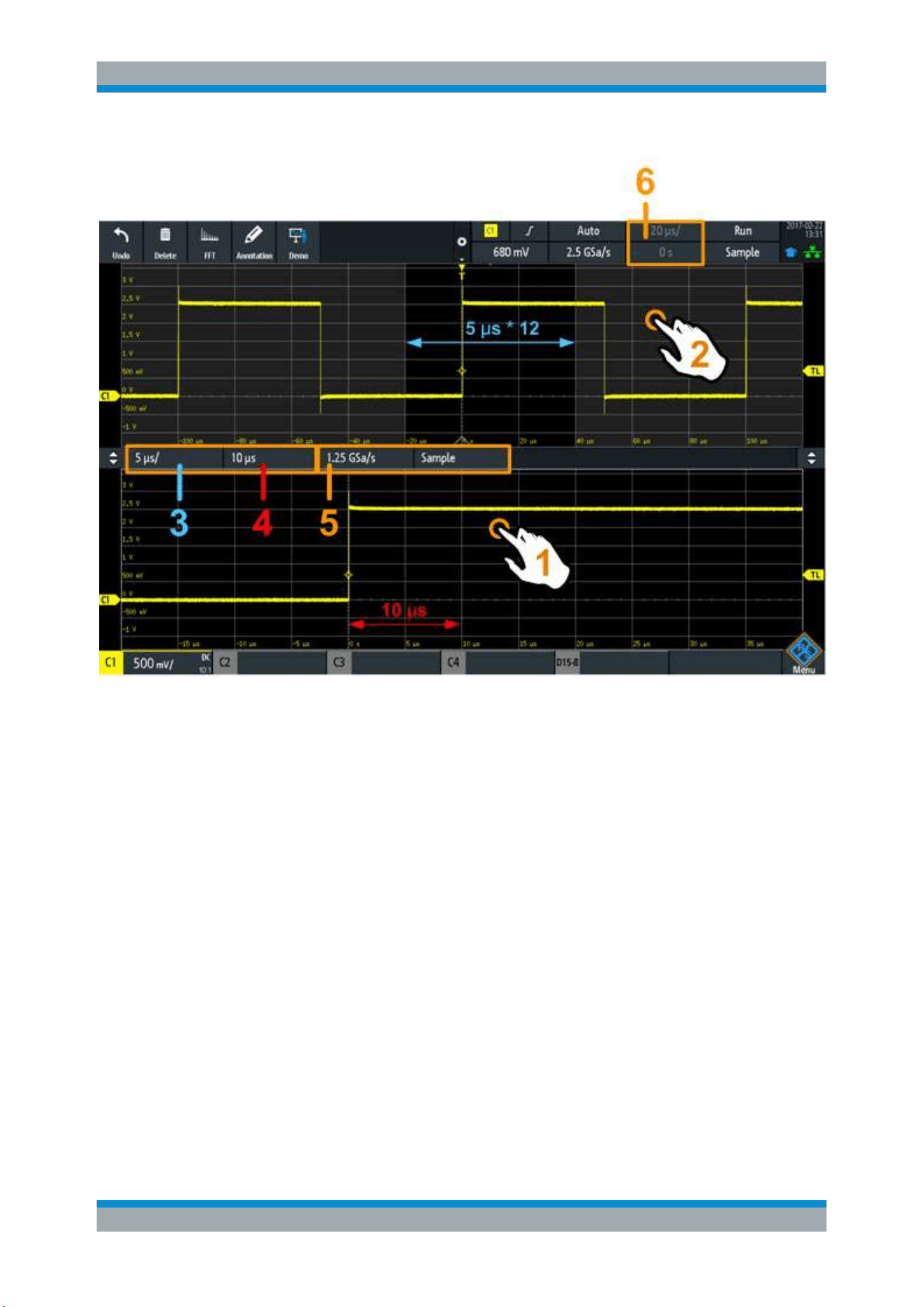
Waveform Analysis
R&S
®
RTB2000
70User Manual 1333.1611.02 ─ 03
Figure 6-1: Zoom display: zoom is in the bottom window, normal waveform in the upper window
1 = tap to activate zoom settings
2 = tap to activate normal waveform settings
3 (blue) = zoom scale and width of the zoom area
4 (red) = zoom position
5 = Sample rate in zoom window
6 = horizontal scale and position of the normal waveform
To adjust the zoom using gestures
1. To change the zoom position, drag one finger horizontally in the zoom window.
2. To change the zoom scale and width of the zoom area, spread or pinch two fingers
in horizontal direction.
To adjust the zoom using the horizontal rotary knobs
1. To set the focus to the zoom window (lower window), tap in the zoom.
2. To change the zoom scale and width of the zoom area, turn the horizontal SCALE
scale knob.
3. To change the zoom position, turn the POSITION knob.
4. To set the focus to the normal waveform, tap the upper window.
Zoom
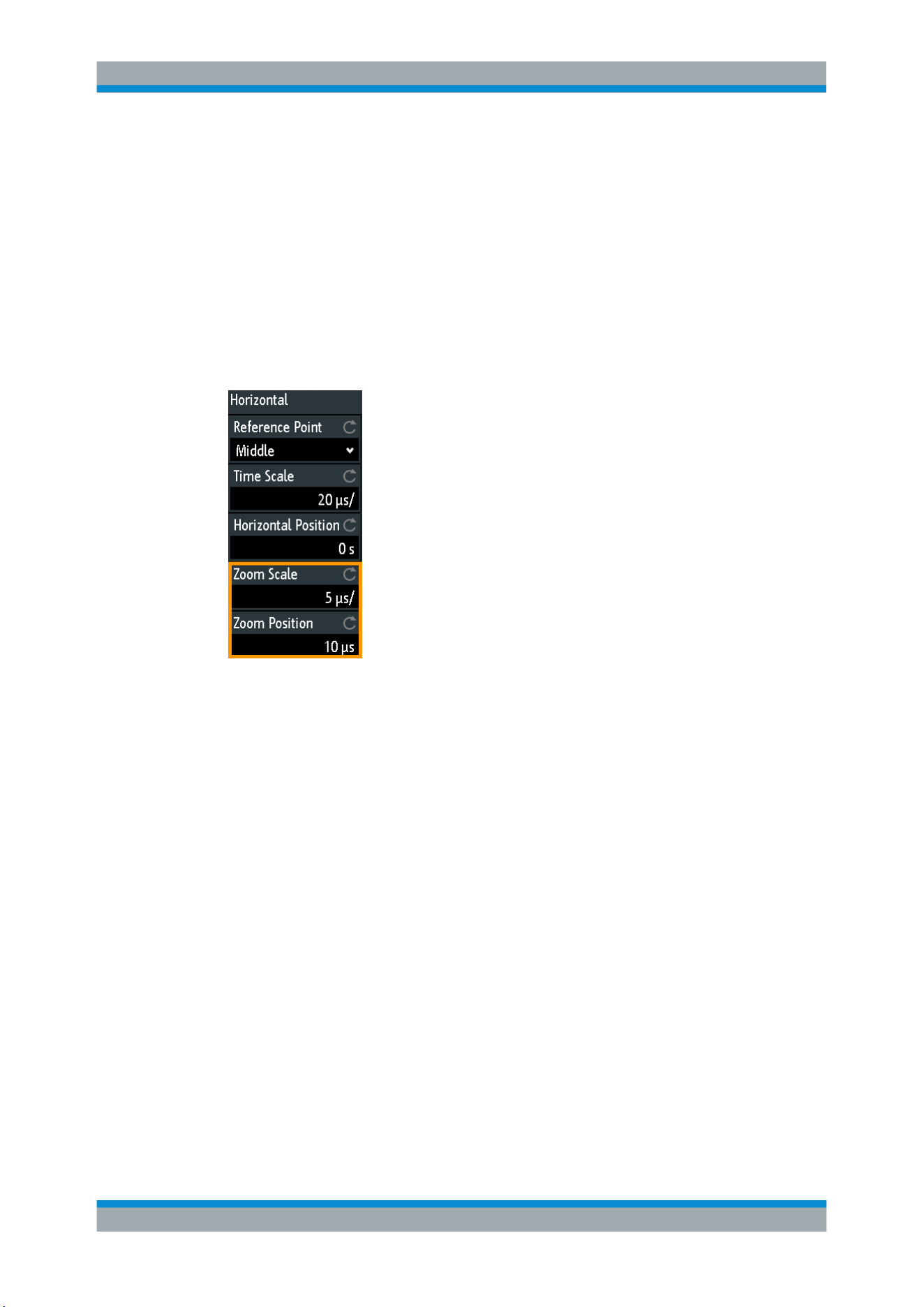
Waveform Analysis
R&S
®
RTB2000
71User Manual 1333.1611.02 ─ 03
Now the knobs are applied to the normal waveform and adjust time scale and hori-
zontal position of the waveform.
6.1.2 Zoom Settings
Zoom settings are listed in the "Horizontal" menu.
1. If the zoom is off, press the ZOOM key to activate the zoom.
2. Press the HORIZONTAL key.
Zoom Scale
Defines the horizontal scale for the zoom window in seconds per division. The scaling
determines the width of the zoom area (12 divisions * scaling per division), the time-
base of the zoom window. The zoom area is indicated in the original waveform win-
dow.
Remote command:
TIMebase:ZOOM:SCALe on page 276
Zoom Position
Defines the distance of the trigger point to the reference point in the zoom window. The
value determines the position of the zoom area in the upper window.
Remote command:
TIMebase:ZOOM:TIME on page 276
6.2 Mathematics
A math waveform is a calculated waveform. You can calculate it out of two analog
channels using several predefined operations.
The waveform label at the bottom of the display shows the main settings of the math
waveform: sources, operation, and vertical scale.
Mathematics
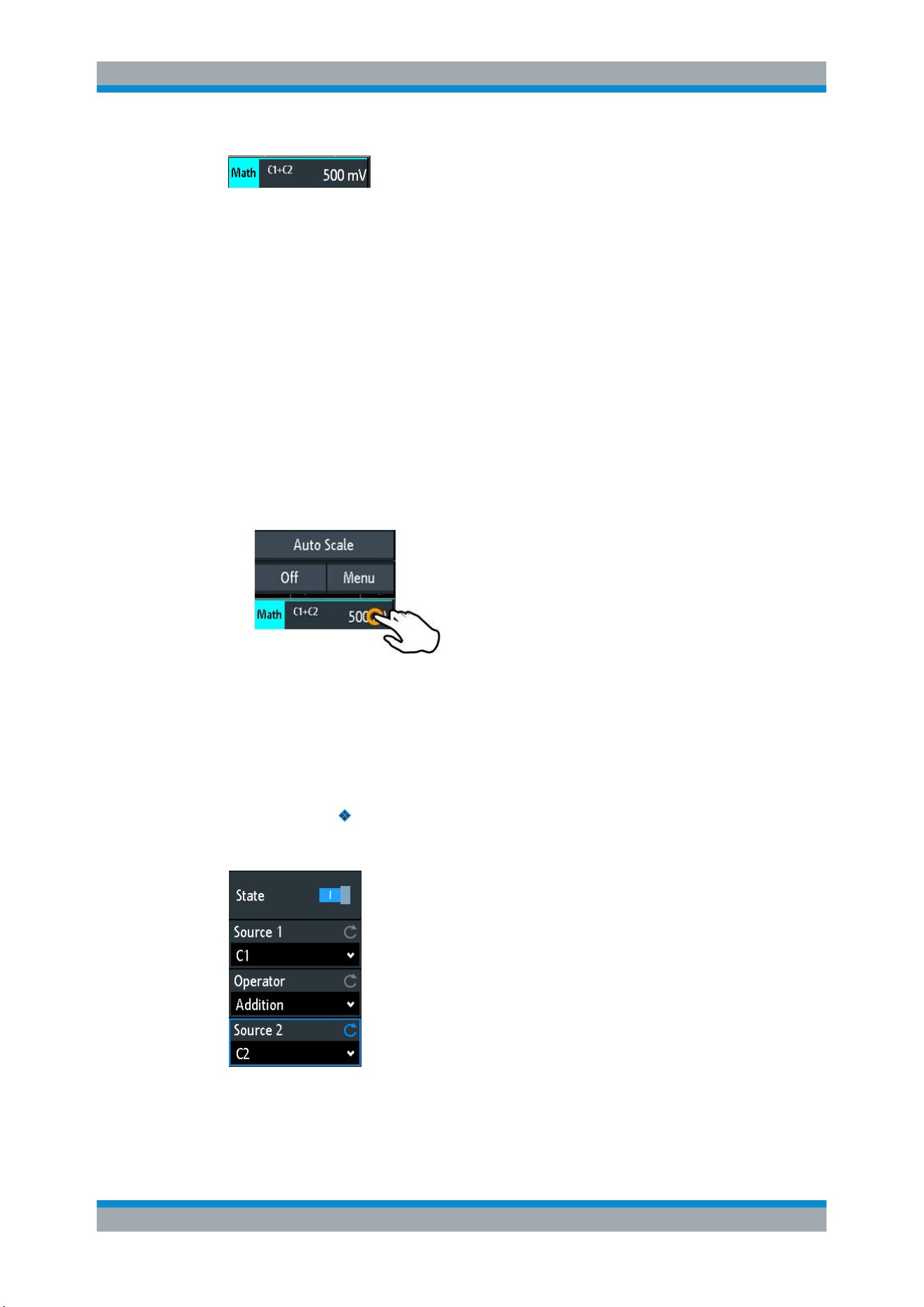
Waveform Analysis
R&S
®
RTB2000
72User Manual 1333.1611.02 ─ 03
You can analyze math waveforms in the same way as channel waveforms: use zoom,
perform automatic and cursor measurements, and save as reference waveform.
To configure math waveforms
1. To enable the math waveform, press the MATH key.
2. To define the math waveform:
a) Press the MATH key to open the "Math" menu.
b) Select the source (operands).
c) Select the mathematical operation.
See also: Chapter 6.2.1, "Math Waveform Settings", on page 72.
3. To adjust vertical scale and position, use the rotary knobs in the Vertical section of
the front panel. See: Chapter 4.2.1, "VERTICAL Controls", on page 38.
4. To autoscale the math waveform, use the short menu.
6.2.1 Math Waveform Settings
The "Math" menu provides functions to configure a calculated waveform.
► To open the "Math" menu:
a)
Tap the
menu icon in the lower right corner of the screen.
b) Scroll down. Select "Math".
State
Activates the mathematics function and displays the resulting math waveform.
Mathematics
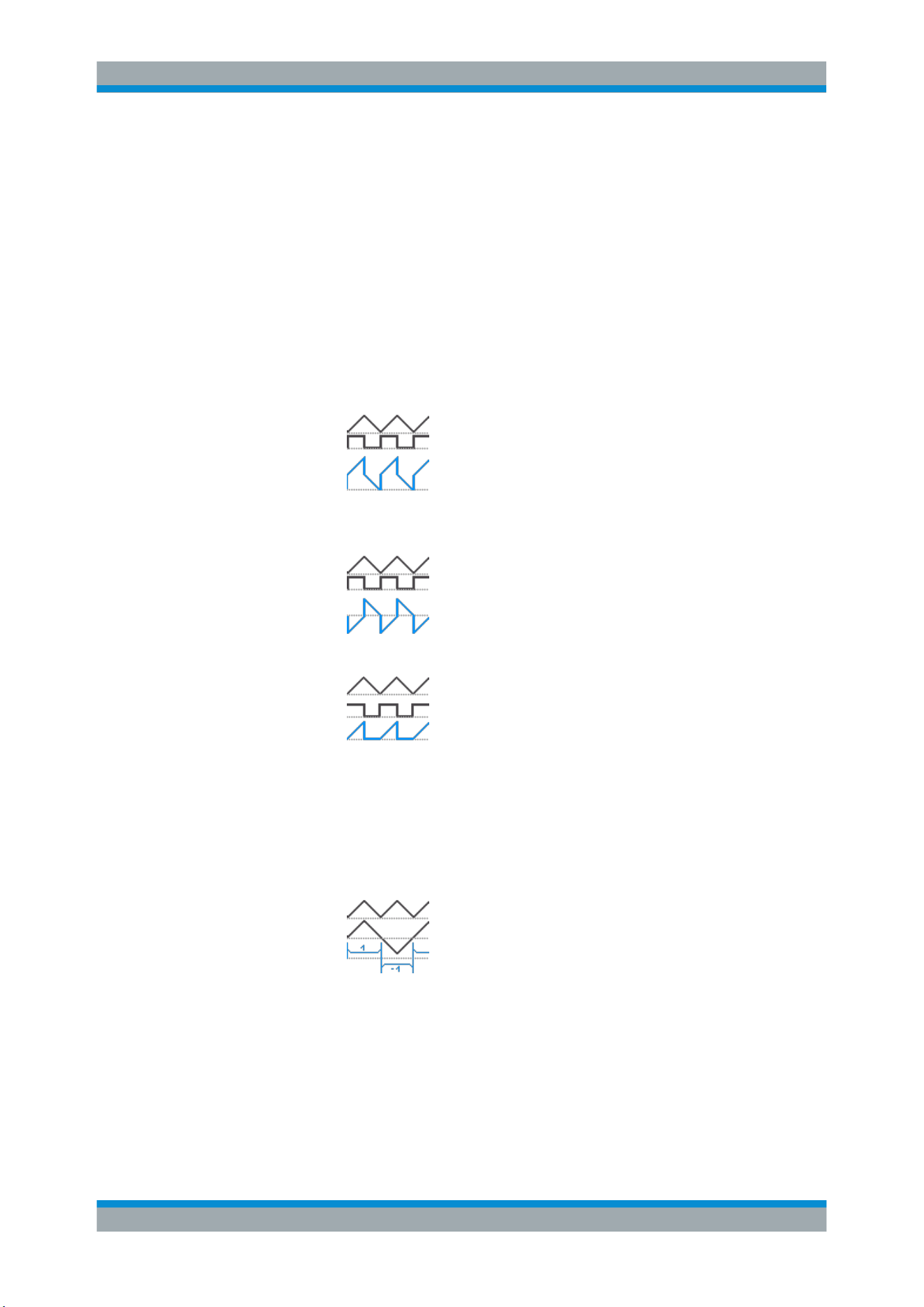
Waveform Analysis
R&S
®
RTB2000
73User Manual 1333.1611.02 ─ 03
Remote command:
CALCulate:QMATH:STATe on page 277
Source 1, Source 2
Define the first and the second source for the mathematical operation (operands). The
sources can be any active analog channel.
Remote command:
CALCulate:QMATh:SOURce<m> on page 277
Operator
Defines the operation to be performed on the specified sources.
"Addition"
Adds the values of the two sources: Source1 + Source2.
"Subtraction"
Subtracts the values of source 2 from the values of source 1:
Source1 - Source2
"Multiplication"
Multiplies the values of the two sources: Source1 * Source2
"Division"
Divides the values of the first source by the values of the second
source: Source1 / Source2
If the second source has small amplitudes, the math result increases
quickly. If the second source crosses zero, the result would be a
range of +∞ to -∞. In this case, instead of 0 V, the calculation function
uses the value that the least significant bit (LSB) of the second oper-
and represents. For an 8-bit value, for example, 1/256 is used.
Remote command:
CALCulate:QMATh:OPERation on page 278
Mathematics
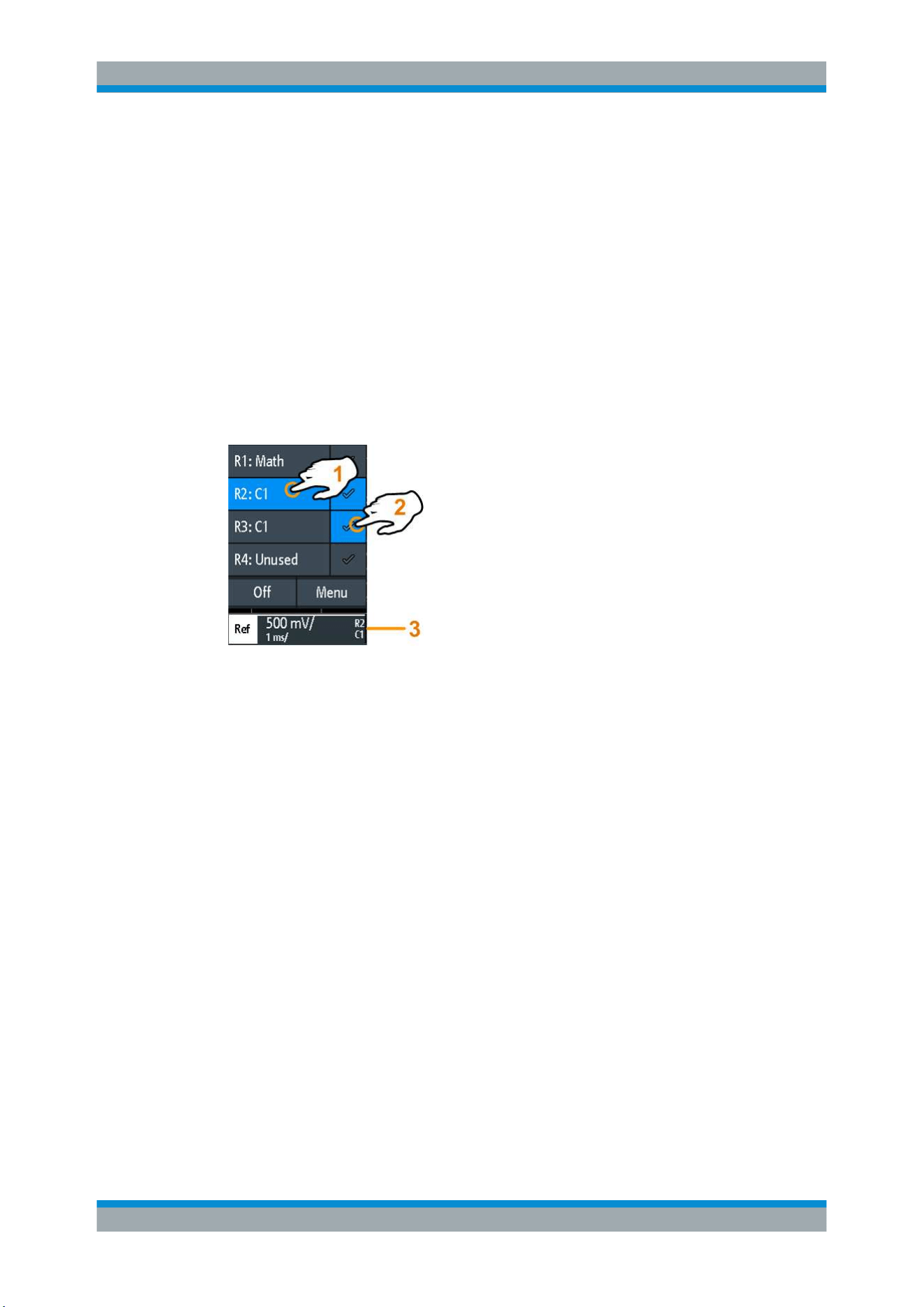
Waveform Analysis
R&S
®
RTB2000
74User Manual 1333.1611.02 ─ 03
6.3 Reference Waveforms
To compare waveforms and analyze differences between them, you can display refer-
ence waveforms.
Reference waveforms are waveform data stored in the internal reference storages.
Four reference waveforms are available and can be displayed: R1 to R4.
The display of a reference waveform is independent from the display of the source
waveform; you can change the vertical and also horizontal scales and positions. The
current scale values are shown in the waveform label of the reference waveform.
Short menu
The short menu shows the status of all reference waveforms.
1 = select a reference waveform
2 = display a reference waveform
3 = Reference waveform label with vertical and horizontal scale, reference number and source waveform
File format
Waveforms can be saved as reference waveforms. The file format is TRF. Files can be
saved to and loaded from internal memory or external USB flash device.
TRF is the specific binary format for reference waveforms of the R&S RTB2000. It con-
tains the amplitude value of each sample that is displayed on the screen (8 bit or 16 bit
long). For peak-detect waveforms, 2 values per sample are saved. The file contains
also time information (time of the first sample and the sample interval) and current
instrument settings.
The data can be loaded as reference waveform for further use on the instrument. It is
not intended for analysis outside the R&S RTB2000.
6.3.1 Using References
To create and display a reference waveform
1. To activate the reference waveform and open the "References" menu, press the
REF key twice.
Reference Waveforms

Waveform Analysis
R&S
®
RTB2000
75User Manual 1333.1611.02 ─ 03
2. To create a reference waveform from an active waveform:
a) Select the "Source" waveform.
b) Select the target "Reference".
c) Tap "Copy"
The new reference waveform is created on top of its origin, and it has the focus.
3. To change the scaling and position, use the horizontal and vertical POSITION and
SCALE knobs.
See also:
●
Chapter 4.2.1, "VERTICAL Controls", on page 38
● Chapter 4.3.1, "HORIZONTAL Controls", on page 46
To save a waveform as reference waveform
You can save any active waveform directly as reference waveform to a file.
1.
To open the "References" menu, tap the
menu icon and select "References".
2. Tap "Save Reference".
3. Select the waveform that you want to save: "Source".
4. Tap "Destination".
5. Select the "Location" (internal or USB).
6. If you save the file on USB flash device, you can set a target folder.
a) Double-tap the target folder. If the folder does not exist, you can create a new
one.
The folder opens.
b) Tap "Accept Dir." .
7. If necessary, change the "File Name".
8. Optionally, add a comment.
9. Tap "Save"
10. Close the dialog box.
To load a reference waveform
1.
To open the "References" menu, tap the
menu icon and select "References".
2. Select the target "Reference" waveform.
3. Tap "Load Reference".
4. Select the "Location", the folder, and the reference file.
5. Tap "Load".
The instrument writes the waveform data to the selected reference waveform and
displays it.
Reference Waveforms
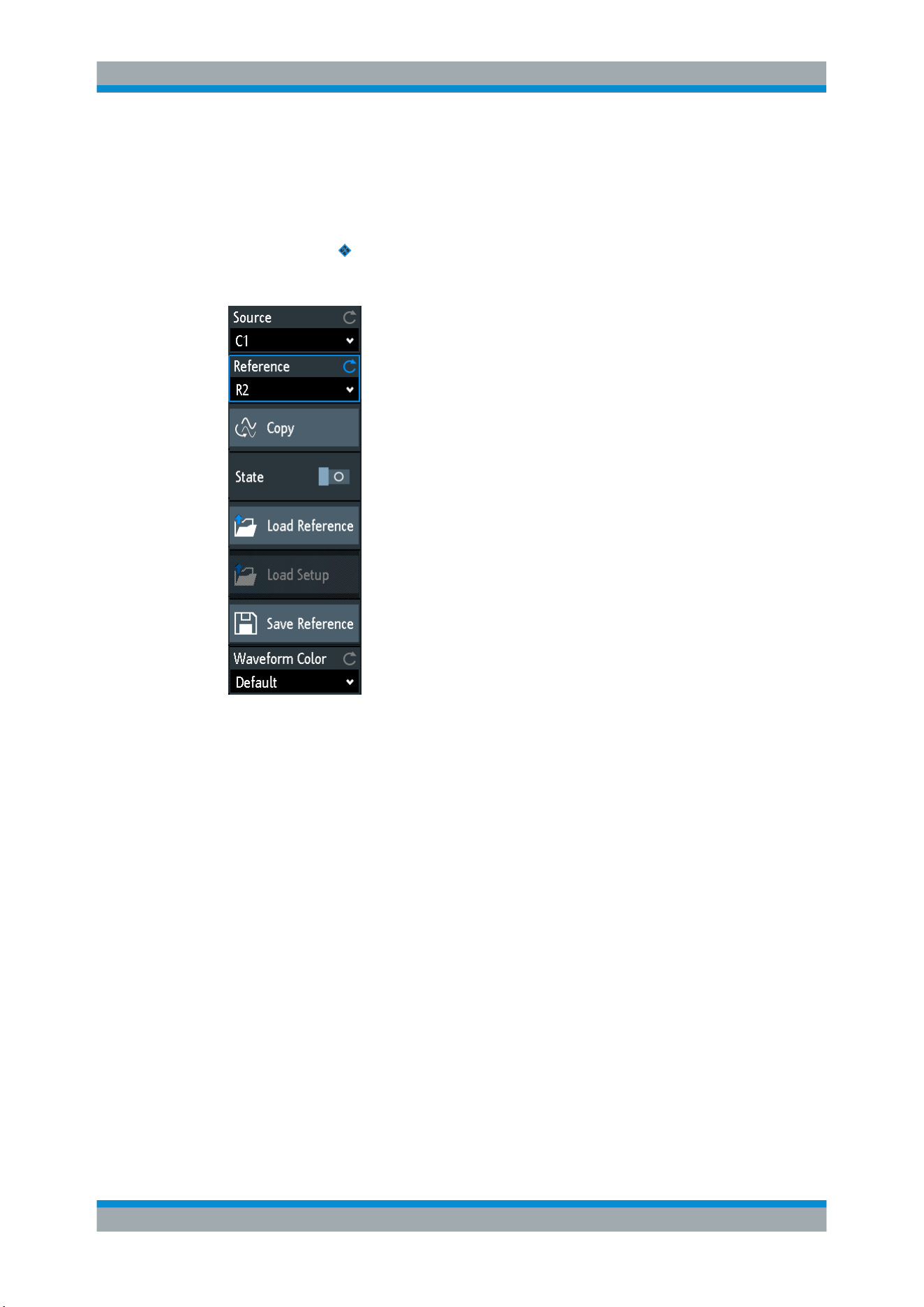
Waveform Analysis
R&S
®
RTB2000
76User Manual 1333.1611.02 ─ 03
6.3.2 Settings for Reference Waveforms
► To open the "References" menu:
a)
Tap the
menu icon in the lower right corner of the screen.
b) Scroll down. Select "References".
Source...........................................................................................................................76
Reference......................................................................................................................76
Copy..............................................................................................................................77
State..............................................................................................................................77
Load Reference.............................................................................................................77
Load Setup....................................................................................................................77
Save Reference............................................................................................................ 77
Waveform Color............................................................................................................ 77
Source
Defines the source of the reference waveform. Any active channel, math or reference
waveform can be selected.
Remote command:
REFCurve<m>:SOURce on page 279
REFCurve<m>:SOURce:CATalog? on page 279
Reference
Selects one of the four possible reference waveforms.
Reference Waveforms

Waveform Analysis
R&S
®
RTB2000
77User Manual 1333.1611.02 ─ 03
Copy
Copies the "Source" waveform to the selected reference waveform. The reference
waveform is kept until you update it or load another waveform to the reference.
Remote command:
REFCurve<m>:UPDate on page 280
State
Activates the reference waveform and displays it.
Remote command:
REFCurve<m>:STATe on page 279
Load Reference
Provides functions to load a reference waveform.
Select the "Location" of the waveform file (internal or USB), and the file. Tap "Load
Reference".
You can also delete obsolete files in the dialog box.
Remote command:
REFCurve<m>:LOAD on page 280
Load Setup
Loads the device settings that were used to obtain the stored reference waveform. The
settings are only available if the file was stored to the internal storage and never written
to a USB flash device.
Load the reference waveform first, and then the settings. If settings were not stored,
"Load Setup" is not active.
Remote command:
REFCurve<m>:LOAD:STATe on page 280
Save Reference
Opens a dialog box to save a waveform as reference waveform:
"Source"
Select the waveform to be saved. You can save any active analog
channel, math or reference waveform, or logic pod.
"Destination"
Select the "Location" (internal directory or USB flash device), and the
target directory.
"File Name"
Enter the filename. If a file with the same filename already exists in
the destination directory, it will be overwritten without notification.
"Comment"
Optionally, enter text to describe the waveform.
"Save"
Saves the data.
Remote command:
REFCurve<m>:SAVE on page 280
Waveform Color
Selects a color for the reference waveform. The default color is white. You can select
another monochrome color, or a color scale.
The color scales are described in
"Waveform Color" on page 42.
Reference Waveforms
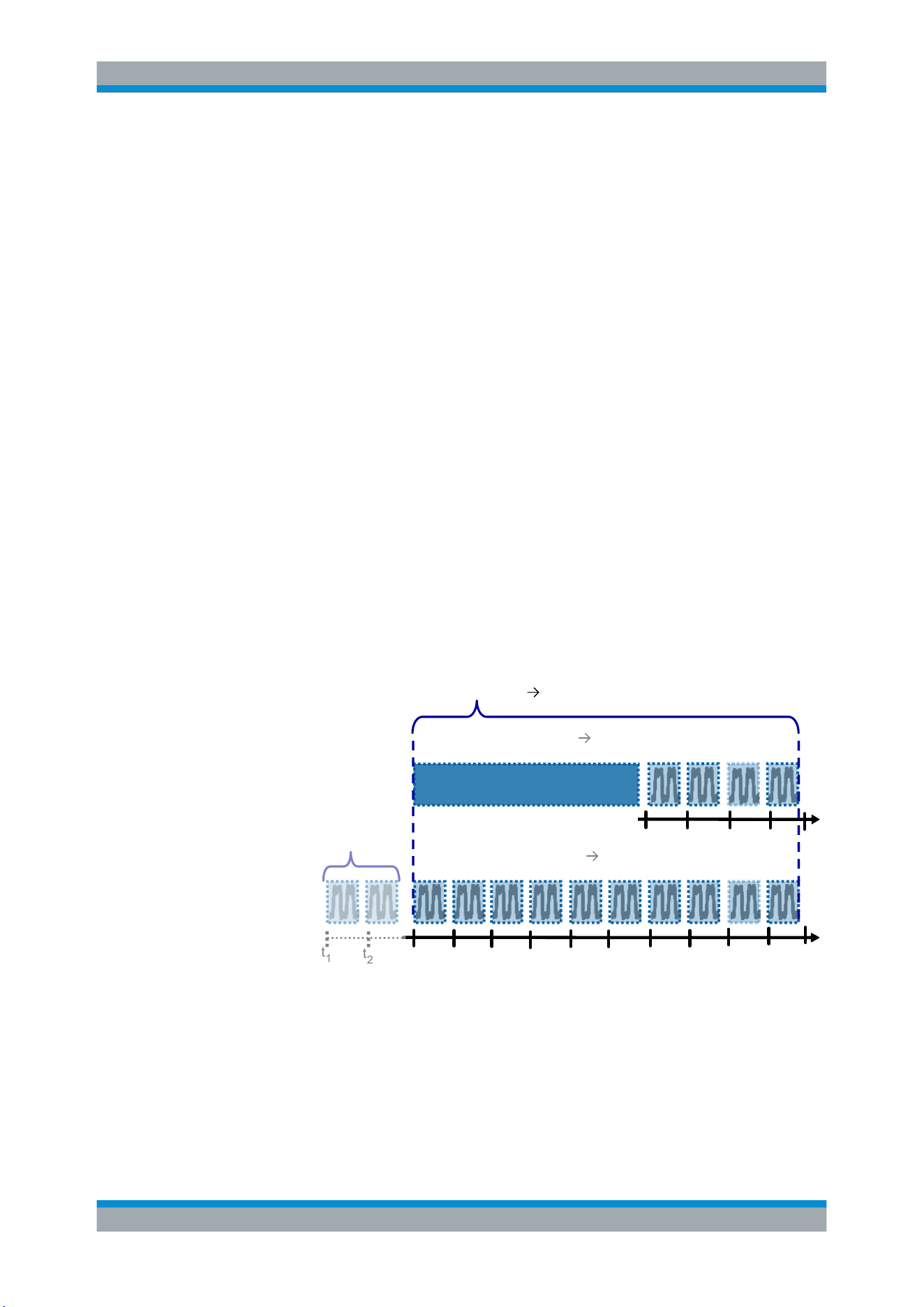
Waveform Analysis
R&S
®
RTB2000
78User Manual 1333.1611.02 ─ 03
6.4 History and Segmented Memory (Option R&S
RTB-
K15)
The option R&S RTB-K15, history and segmented memory, accesses the data of previ-
ously acquired waveforms and provides them for further analysis. Using this option,
you can analyze, for example, signals that occur in short bursts with long idle times,
packet communication on serial buses, radar pulses, and laser pulses. The option uses
the segmented memory to store the waveforms and provides a segment table to ana-
lyze the stored waveforms.
You can analyze history segments in the same way as the waveform of the latest
acquisition. All R&S RTB2000 measurement and analysis tools are available: zoom,
cursor measurements, quick and automatic measurements, mask test, serial protocol
analysis, mixed-signal functions and so on.
The segment table and the waveform data of history segments can be saved to file.
6.4.1 Segmented Memory
If an acquisition runs, the instrument stores the captured data in the memory, pro-
cesses the data and displays the waveform. The segmented memory keeps the data of
the displayed waveform and also the data of the waveforms that have been captured
before. Each stored waveform is called a segment. The record length of the segments
can be defined. The number of segments depends on the record length. The shorter
the record length, the more segments can be saved.
t
3
t
4
t
5
t
6
t
7
t
8
t
9
t
10
t
11
t
12
t
1
t
2
Segmented
memory at
time = t
5
-3
-2
-1 0
t
1
t
2
t
3
t
4
4 waveforms acquired 4 segments
Total memory 10 segments
Discarded
earlier
waveforms
t
13
t
5
12 waveforms acquired 10 segments
Segmented
memory at
time = t
13
-3
-2
-1 0
-6
-5
-4
-9
-8
-7
Figure 6-2: Segmented memory. In this example, the memory can store 10 segments.
Each segment has a time stamp time to identify when the events took place.
The history can access the stored segments and display them. When you start a new
acquisition, the memory is cleared and the segments are written anew.
The history stores the following data during acquisition:
●
All active analog channels.
History and Segmented Memory (Option R&S RTB-K15)
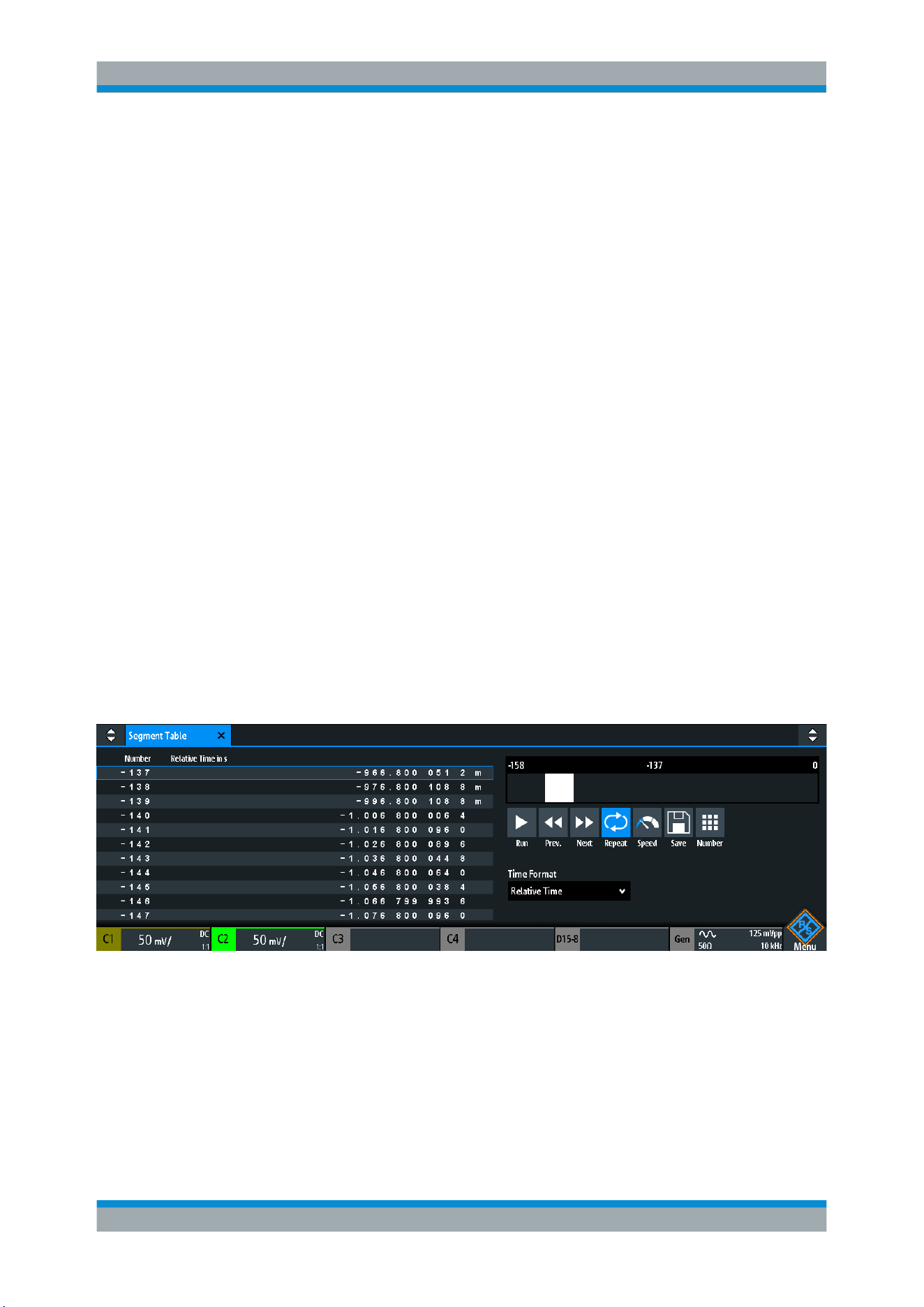
Waveform Analysis
R&S
®
RTB2000
79User Manual 1333.1611.02 ─ 03
●
All logic channels if at least one logic is active (with option R&S RTB-B1).
●
Decoded bus data if the bus is active (with at least one serial protocol option
R&S RTB-K1, -K2, or -K3).
To set the number of segments
1. Press the ACQUISITION key in the Horizontal area of the front panel.
2. Select the "Record Length". The number of available segments depends on the
record length.
See also:
"Record Length" on page 50.
6.4.2 Segment Table
The memory segments are always written when an acquisition is running. When you
activate the history, the acquisition stops and the segment table opens. The segment
table shows the index and timestamp of all history segments, and also all functions to
view the segments that are stored in the memory.
The history segments store the data of the currently active channels. You can acquire
several channels at once, and display and analyze the channels individually.
To activate the history
1. Tap the "Menu" icon.
2. Select "History".
The acquisition stops, and the segment table is shown.
Run / Stop
Starts and stops the playback of the history segments.
Remote command:
...:HISTory:STATe
Prev.
Steps back to the next older segment.
History and Segmented Memory (Option R&S RTB-K15)

Waveform Analysis
R&S
®
RTB2000
80User Manual 1333.1611.02 ─ 03
Next
Steps forward to the next newer segment.
Repeat
If selected, the playback of the selected history segments repeats automatically.
Remote command:
...:HISTory:REPLay
Speed
Sets the speed of the history playback: automatic, slow, middle, or fast.
Remote command:
...:HISTory:SPEed
Save
Saves the segment table to a CSV file. The file contains all timestamps: relative time,
time to previous, and absolute time. To save the waveform segments, use SAVE
LOAD key > "Waveforms".
See also:
Chapter 6.4.4, "Exporting History Data", on page 81.
Remote command:
EXPort:ATABle:NAME on page 304
EXPort:ATABle:SAVE on page 304
Number
Accesses a particular history segment in the memory to display it. The newest acquisi-
tion segment has always the index "0". Older segments have a negative index. You
can also drag the slider, which is above the icons. The current segment is shown in the
index bar.
Remote command:
...:HISTory:CURRent
Time Format
Sets the format of the timestamp. The timestamp shows the time of the currently dis-
played history segment. Thus, the time relation between acquisitions is always availa-
ble. More precisely, the timestamp is the time of the trigger event.
The timestamp can be absolute or relative:
●
Absolute: Date and daytime of the trigger event of the displayed segment.
Depending on the horizontal position, the waveform can be captured up to 100,000
seconds after the trigger event, and thus after the displayed timestamp. The instru-
ment considers this delay automatically, all measurements are related to the trigger
event.
●
Relative: time difference of the current segment to the newest segment (index = 0).
Remote command:
Chapter 15.6.5.3, "Timestamps", on page 300
6.4.3 Displaying History Segments
You can show all history segments in sequence, or display a single segment.
History and Segmented Memory (Option R&S RTB-K15)

Waveform Analysis
R&S
®
RTB2000
81User Manual 1333.1611.02 ─ 03
1. Activate the history.
2. Set the "Time Format" to be shown in the table: absolute or relative time.
3. Set the "Speed".
4. To play back all segments once, tap "Run".
5. To play back all segments repeatedly:
a) Enable the "Repeat" button.
b) Tap "Run".
6. To access a particular segment, you can:
● Tap the segment in the segment table.
● Drag the slider until the required segment number is shown.
● Tap "Number" and enter the segment number. The newest segment has
always the number "0". Older segments have a negative number.
● Use "Prev." and "Next" to show the adjacent segment.
7. If the history segments contain the data of several channels and you want to ana-
lyze only one or several channels, disable all channels that you do not need.
6.4.4 Exporting History Data
History segments can be saved to files on a USB flash drive even if the history is not
activate. You can select to save all visible channels, or one channel. In addition, you
can save the complete time information of the segment table.
6.4.4.1 Saving History to File
Before you can save history data, acquire the waveform and activate the history, so
that the segment table is visible.
To save the waveform history segments
1. Connect a USB flash drive to the instrument.
2. Press the SAVE LOAD key.
3. Select "Waveforms" in the menu.
4. Under "Points", select "History Data".
5. Under "Source", select whether you want to store all visible channels, or one of
them.
6. Enter the "File Name". This name is the name of the folder that contains the seg-
ment files.
The file format is CSV.
History and Segmented Memory (Option R&S RTB-K15)
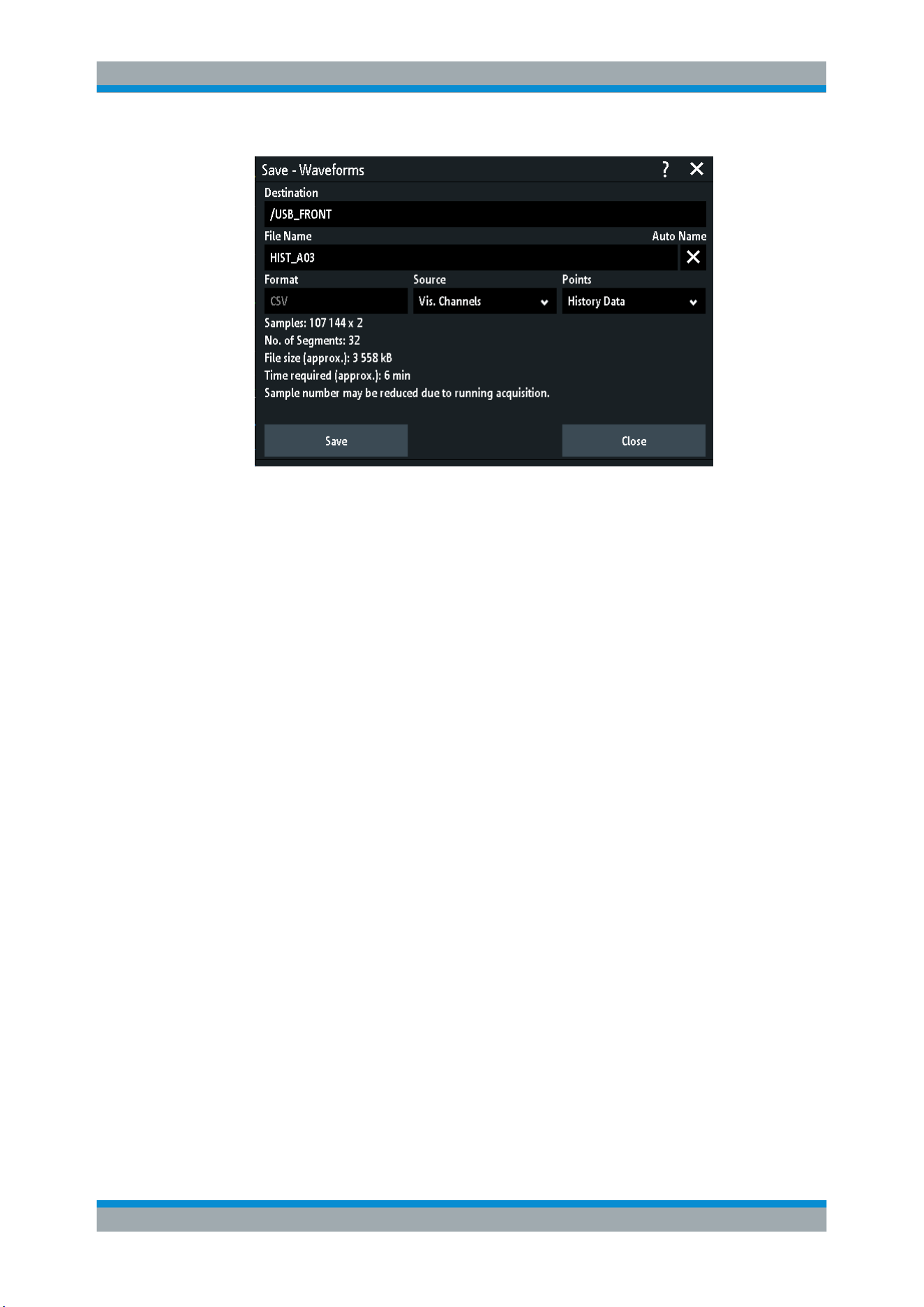
Waveform Analysis
R&S
®
RTB2000
82User Manual 1333.1611.02 ─ 03
7. To select the target folder, tap the "Destination" field.
The location is always "/USB_FRONT", saving to internal storage is not provided.
8. Tap "Save".
A message shows the progress of the saving process.
9. Close the dialog box.
To save the segment table
1. Connect a USB flash drive to the instrument.
2. In the segment table window, tap "Save".
3. To select the target folder, double-tap it.
4. Tap "New File".
5. Enter the filename.
6. Tap "Enter".
The file is saved immediately, and the window is closed.
6.4.4.2 File Organization and Content
The segment table and history segments are saved to CSV files.
Segment table
The segment table file contains all timestamps: relative time, time to previous, and
absolute time.
History and Segmented Memory (Option R&S RTB-K15)
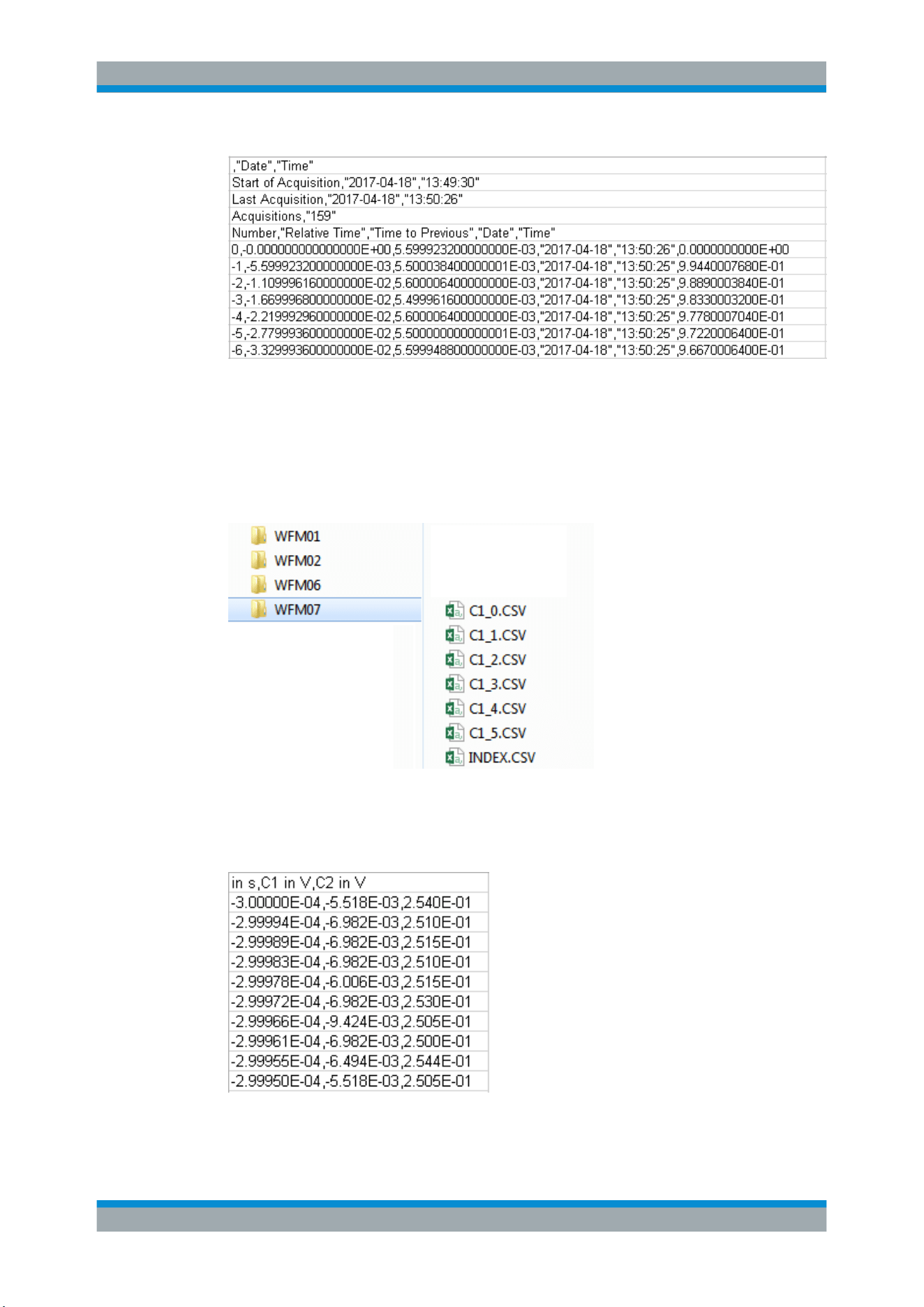
Waveform Analysis
R&S
®
RTB2000
83User Manual 1333.1611.02 ─ 03
Figure 6-3: Content of a segment table file
Waveforms
Each history segment is saved to a separate file, and all segment files are written to a
folder that contains only the files of the saved acquisition. You can specify the name of
the folder. The names of the data files include the segment index.
Figure 6-4: Content of a history waveform folder
The data files contain the time and voltage data of the samples. If you save all visible
channels, the voltages of all channels are written into one file.
Figure 6-5: Content of a history segment file, two channels are saved
History and Segmented Memory (Option R&S RTB-K15)
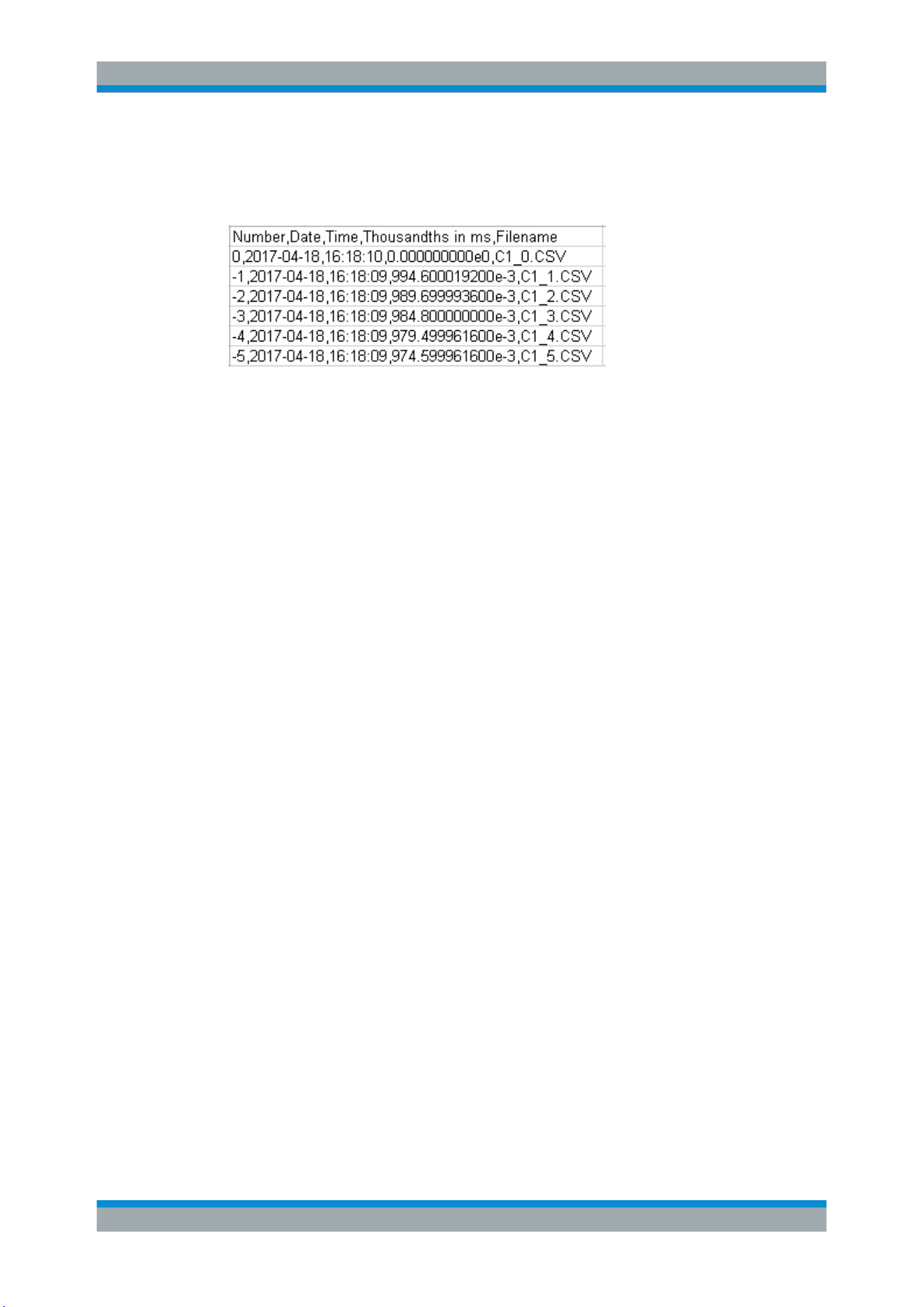
Waveform Analysis
R&S
®
RTB2000
84User Manual 1333.1611.02 ─ 03
In addition to the data files, an index file is written. The index file delivers information
on the files and the segments. For each segment, the segment index, save date and
time, and the filename is listed.
Figure 6-6: Content of a history index file
6.5 Search
6.5.1 Search Conditions and Results
The search functions of R&S RTB2000 can find all edges, pulse widths, peaks, or
other events in an acquisition that match the search conditions. For each search type,
specific settings are available. Searches can be performed on channel, math or refer-
ence waveforms, available sources depend on the search type.
To configure the search
1. Press the SEARCH key.
2. Select the waveform that you want to search for events: "Source".
3. Select the event type that you want to find: "Search Type".
4. Configure the search conditions: "Setup".
The found events and the search conditions are shown in the result table at the bottom
of the display. The table shows the following result values: result number, time value,
and optional value depending on the search type (voltage, width).
During running acquisition, the results in the table are updated continuously, and the
events are marked at the top of the diagram by a brown triangle outline.
Search
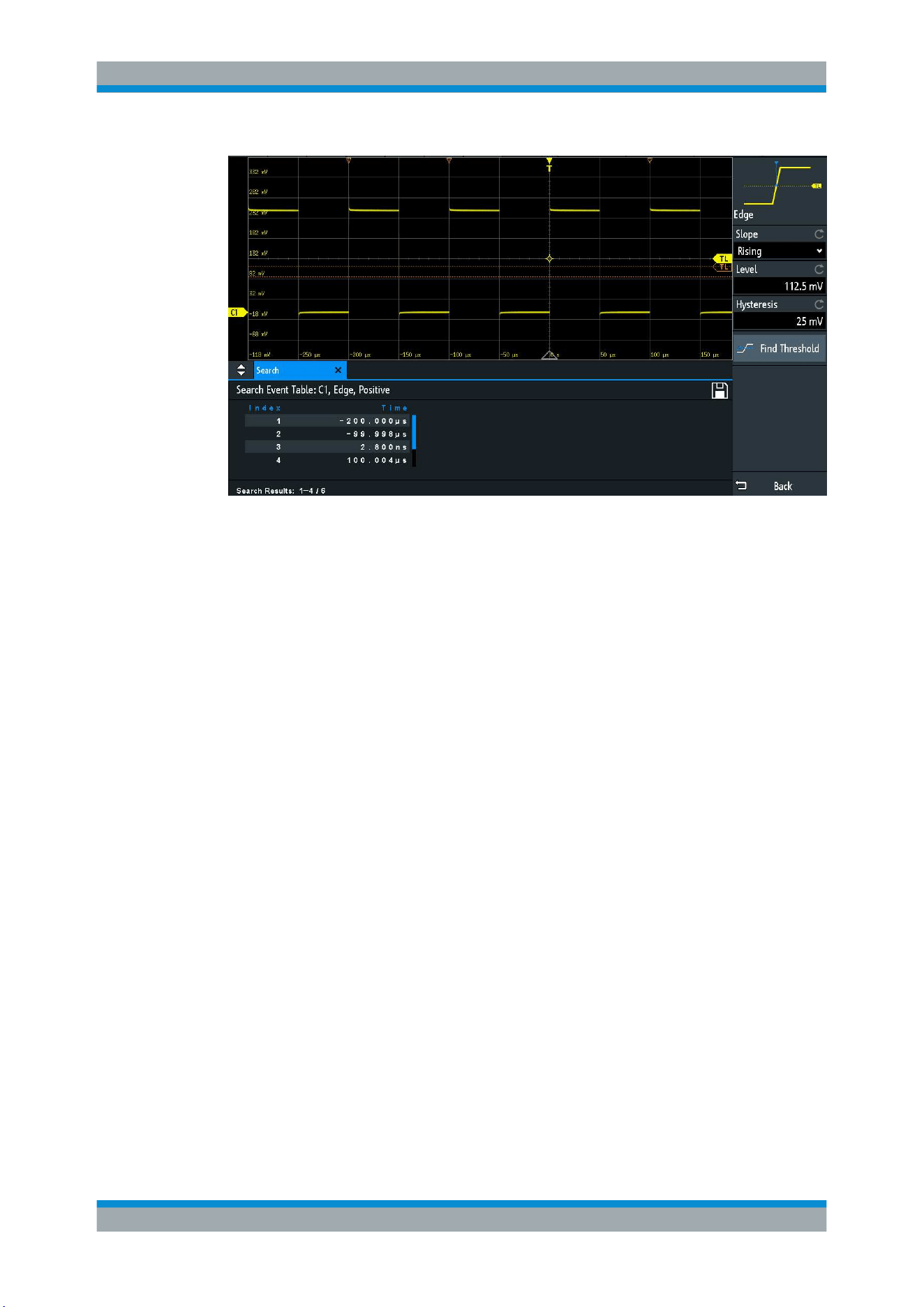
Waveform Analysis
R&S
®
RTB2000
85User Manual 1333.1611.02 ─ 03
Figure 6-7: Search results and settings during running acquisition
Remote commands to get search results:
●
SEARch:RCOunt? on page 295
●
SEARch:RESult:ALL? on page 294
●
SEARch:RESult<n>? on page 295
●
SEARch:RESDiagram:SHOW on page 294
●
SEARch:RESult:BCOunt? on page 294
To display search results
When the acquisition is stopped, you can browse the search results.
1. Stop the acquisition.
2. Tap the search result that you want to analyze. If necessary, scroll the list.
The selected event is marked by a filled triangle and a magnifying glass.
Search
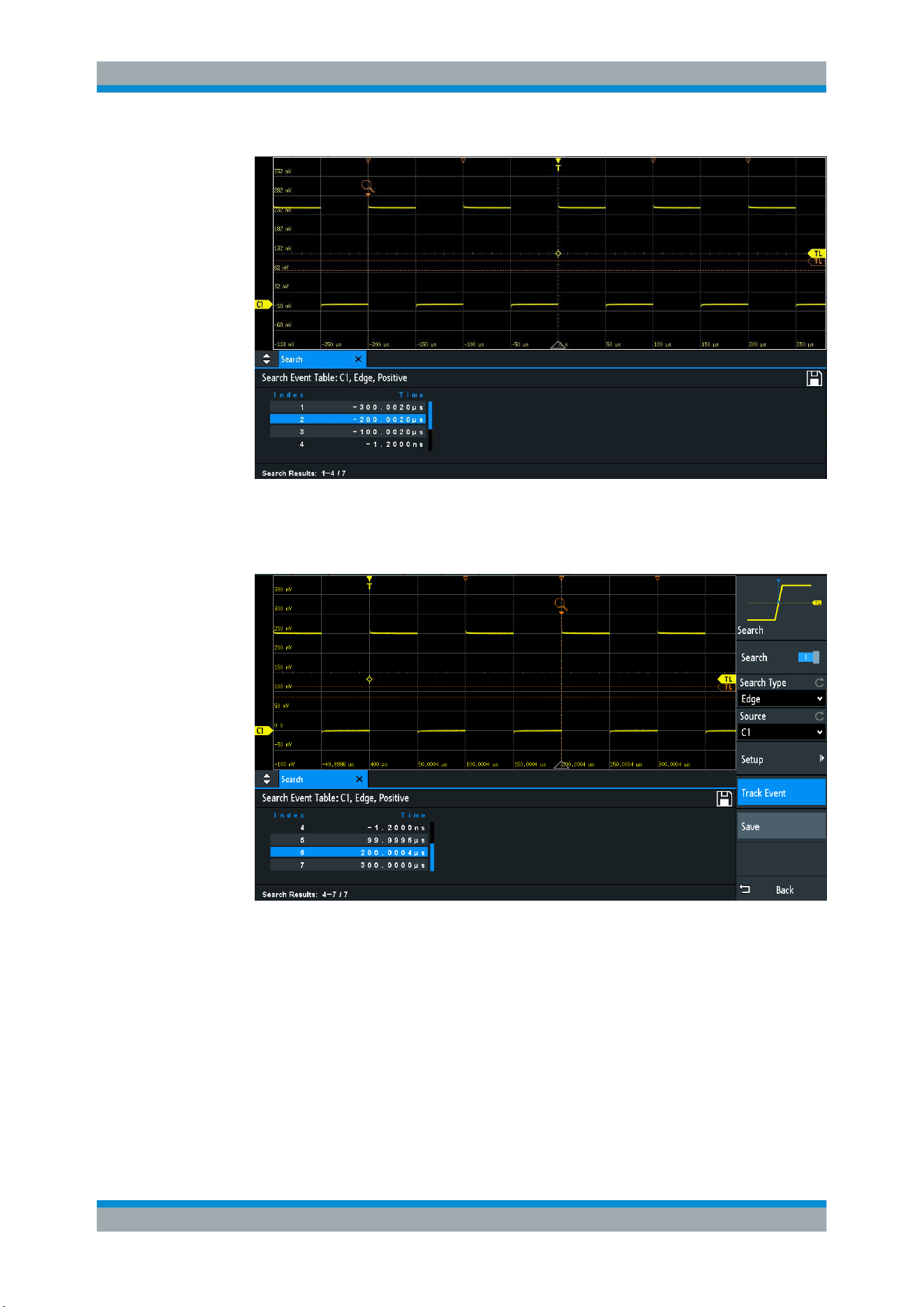
Waveform Analysis
R&S
®
RTB2000
86User Manual 1333.1611.02 ─ 03
3. In the "Search" menu, select "Track event".
The selected event is moved to the reference point. If you select another event, it is
shown at the same position.
To save search results
1. In the upper right corner of the search result table, tap the "Save" symbol.
2. Connect a USB flash drive if you want to save the data outside the instrument.
3. Select the correct "Destination" and the path.
You can also store the data on the instrument. Therefore, select the "Destination"
"/INT/SEARCH".
4. If necessary, change the filename and enter a comment.
Search
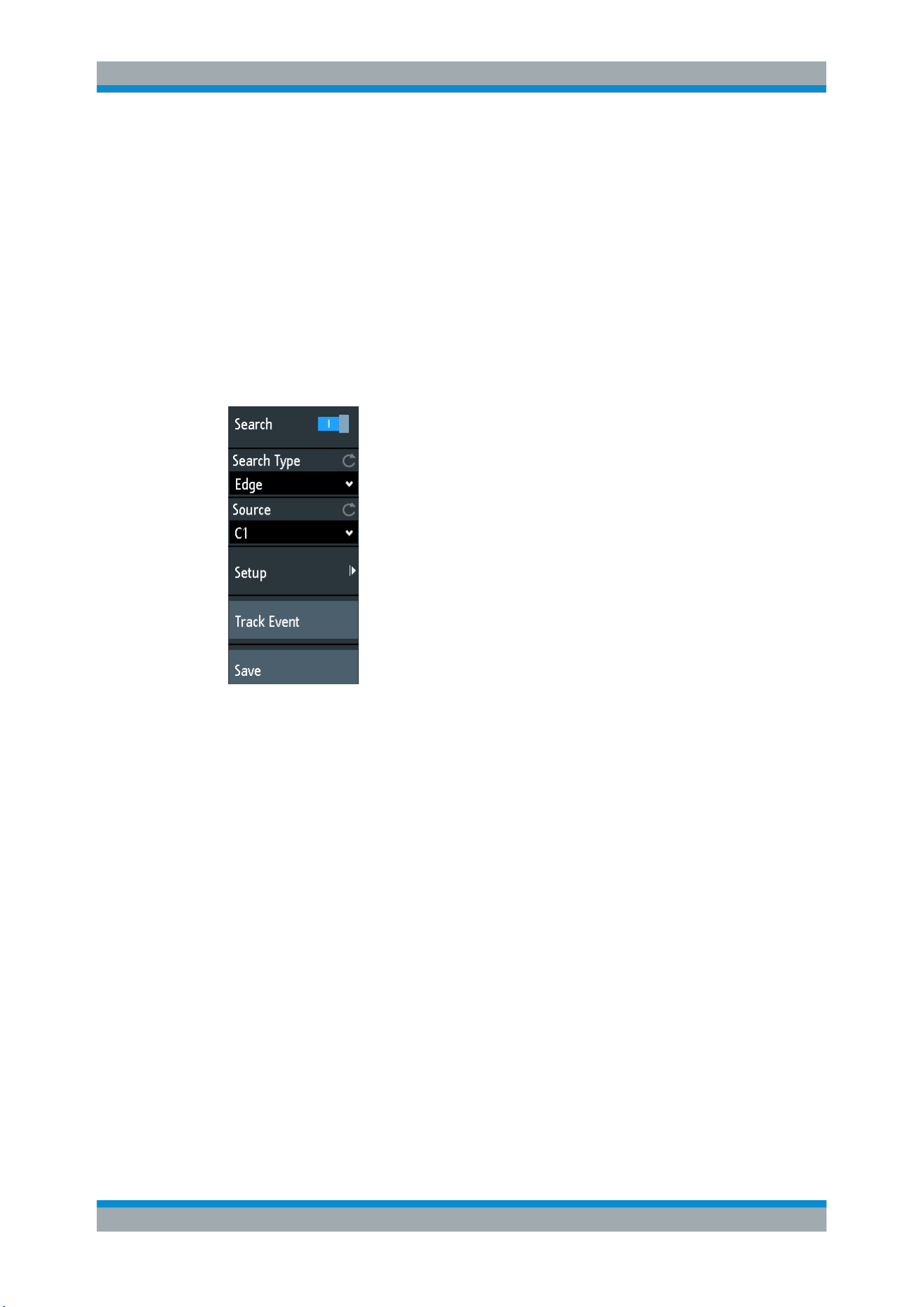
Waveform Analysis
R&S
®
RTB2000
87User Manual 1333.1611.02 ─ 03
5. Tap "Save".
The data is saved to a CSV file.
6.5.2 General Search Settings
General search settings are independent of the search type. They are described in the
current section. The specific settings for individual search types are described in the
following sections.
► To open the "Search" menu, press the SEARCH key.
Search
Enables and disables the search mode.
Remote command:
SEARch:STATe on page 282
Search Type
Selects the event type you want to search for.
"Edge"
Similar to the edge trigger, an edge search result is found when the
waveform passes the given level in the specified direction.
For settings, see
Chapter 6.5.3, "Edge Search", on page 89.
"Width"
The width search finds pulses with an exact pulse width, or pulses
shorter or longer than a given time, or pulses inside or outside the
given time range. It is similar to the width trigger.
For settings, see
Chapter 6.5.4, "Width Search", on page 90.
"Peak"
The peak search finds pulses exceeding a given peak-to peak value.
For settings, see
Chapter 6.5.5, "Peak Search", on page 91.
Search

Waveform Analysis
R&S
®
RTB2000
88User Manual 1333.1611.02 ─ 03
"Rise/Fall time"
The rise or fall time search finds slopes with an exact rise or fall time,
or rise/fall times shorter or longer than a given limit, or rise/fall times
inside or outside a given time range.
For settings, see
Chapter 6.5.6, "Rise/Fall Time Search",
on page 91.
"Runt"
The runt search finds pulses lower than normal in amplitude. In addi-
tion, you can define a time limit for the runt.
For settings, see
Chapter 6.5.7, "Runt Setup", on page 93.
"Data2Clock"
The Data2Clock search - also known as setup/hold - finds violation of
setup and hold times. It analyzes the relative timing between two sig-
nals: a data signal and the synchronous clock signal.
For settings, see
Chapter 6.5.8, "Data2Clock", on page 94.
"Pattern"
The pattern search finds logical combinations of channel states inside
or outside a specified time range. For each channel, its state and
threshold level is defined. The states are combined logically, and the
time of true pattern results is compared with a specified time range.
For settings, see
Chapter 6.5.9, "Pattern Search", on page 96.
"Protocol"
The protocol search finds various events in decoded data serial sig-
nals. The events are protocol-specific and correspond to the trigger
settings of the serial protocol.
Remote command:
SEARch:CONDition on page 282
Source
Selects the waveform to be analyzed by search. Available sources depend on the
selected search type.
Edge, width and pattern search you can perform on analog and logic channels. Peak,
rise/fall and runt search are possible on active analog channels, math and reference
waveforms. For Data2Clock search, you need two active analog channels.
For protocol search, select the configured bus.
Remote command:
SEARch:SOURce on page 284
Setup
Opens a menu to define the search parameters for the selected search type.
Track event
If enabled, the selected result is moved to the reference point. Thus you can always
see the selected event in the diagram.
Save
Opens a dialog box to save the search results. The file format is CSV.
Remote command:
EXPort:SEARch:NAME on page 295
EXPort:SEARch:SAVE on page 296
Search
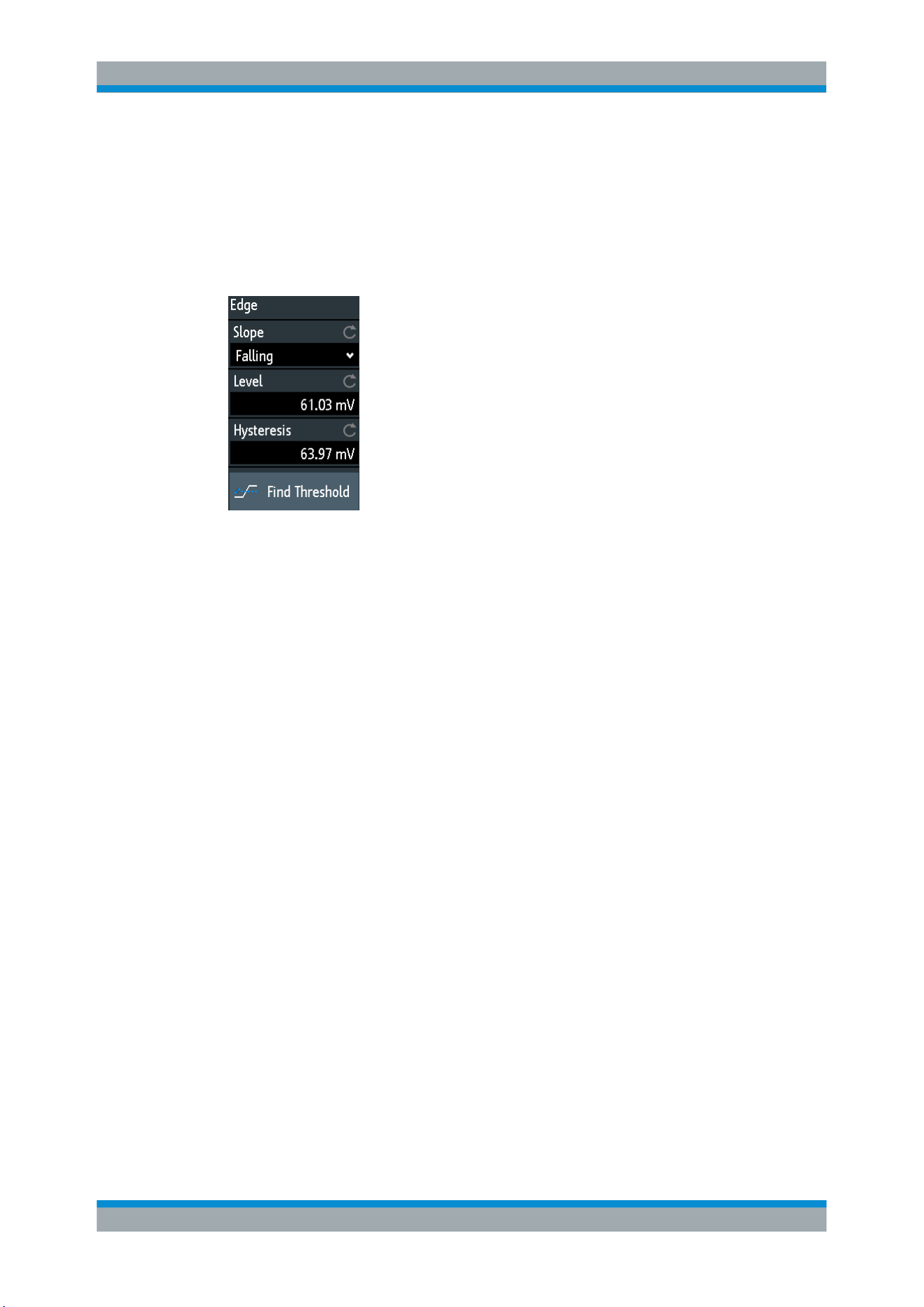
Waveform Analysis
R&S
®
RTB2000
89User Manual 1333.1611.02 ─ 03
6.5.3 Edge Search
Similar to the edge trigger, an edge search result is found when the waveform passes
the given level in the specified direction.
► SEARCH > "Search Type" = "Edge" > "Setup"
Slope
Sets the slope to be found: rising, falling, or both slopes.
Remote command:
SEARch:TRIGger:EDGE:SLOPe on page 284
Level
Sets the voltage level for the search. To let the instrument set the level, tap "Find
Threshold".
Remote command:
SEARch:TRIGger:EDGE:LEVel on page 284
Hysteresis
Sets a hysteresis range to the search level to avoid unwanted search results caused
by noise oscillation around the level. To let the instrument set the hysteresis, tap "Find
Threshold".
For a rising edge, the hysteresis is below the search level. Otherwise, for a falling edge
the hysteresis is above the level.
Remote command:
SEARch:TRIGger:EDGE:LEVel:DELTa on page 284
Find Threshold
Analyzes the signal, sets the level to 50% of the signal amplitude, and also sets the
hysteresis.
Search
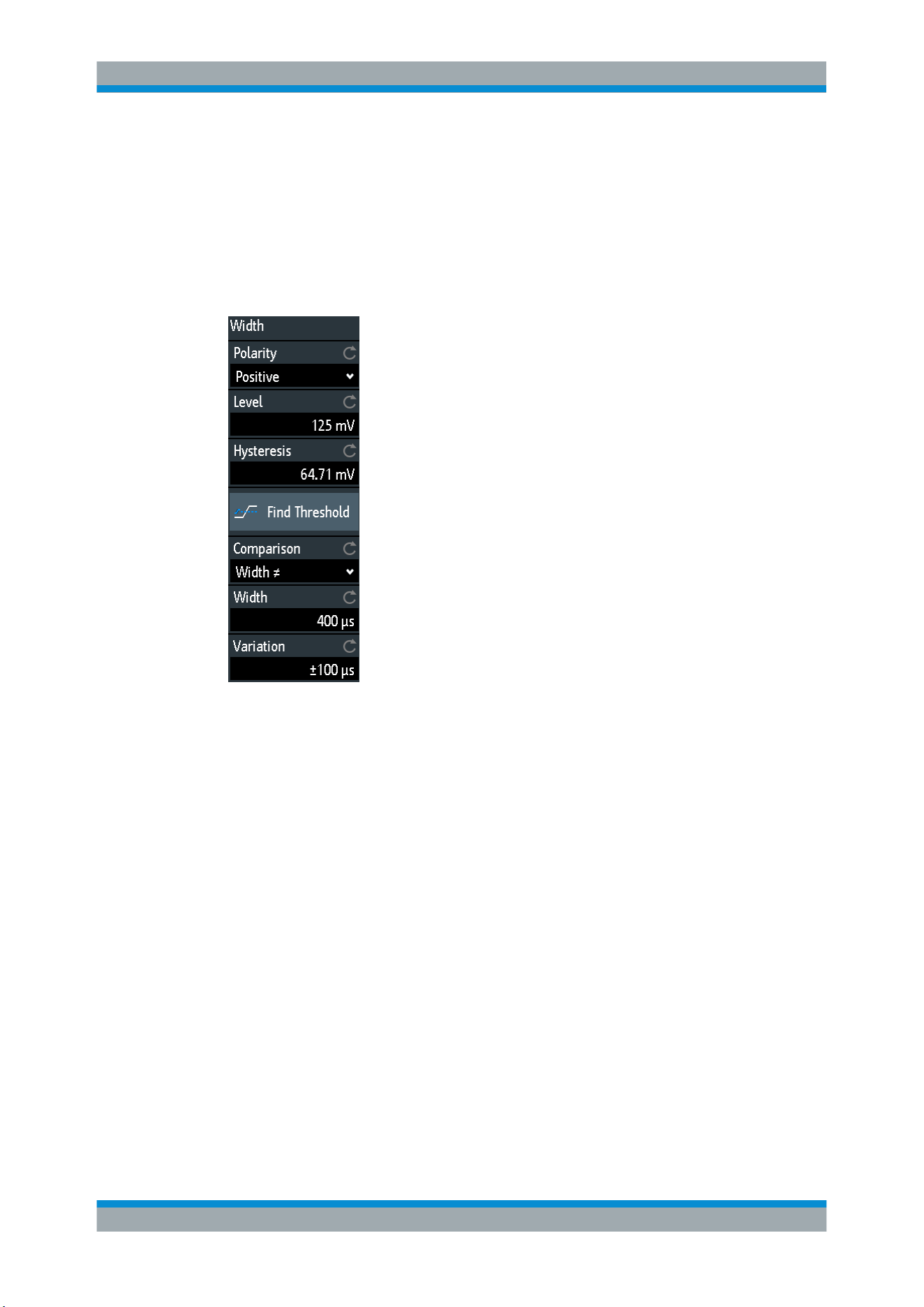
Waveform Analysis
R&S
®
RTB2000
90User Manual 1333.1611.02 ─ 03
6.5.4 Width Search
The width search finds pulses with an exact pulse width, or pulses shorter or longer
than a given time, or pulses inside or outside the allowable time range. It is similar to
the width trigger.
► SEARCH > "Search Type" = "Width" > "Setup"
Polarity
Indicates the polarity of the pulse to be searched for.
Remote command:
SEARch:TRIGger:WIDTh:POLarity on page 285
Level
Sets the voltage level on which the pulse width is measured. To let the instrument set
the level, tap "Find Threshold".
Remote command:
SEARch:TRIGger:WIDTh:LEVel on page 285
Hysteresis
Sets a hysteresis range to the search level to avoid unwanted search results caused
by noise oscillation around the level. To let the instrument set the hysteresis, tap "Find
Threshold".
Remote command:
SEARch:TRIGger:WIDTh:LEVel:DELTa on page 285
Comparison
Sets the condition how the measured pulse width is compared with the given limits.
Search

Waveform Analysis
R&S
®
RTB2000
91User Manual 1333.1611.02 ─ 03
The comparison works like the comparison of the width trigger, see
Chapter 5.5,
"Width Trigger"
, on page 59.
Remote command:
SEARch:TRIGger:WIDTh:RANGe on page 285
Width
Sets the reference pulse width, the nominal value for comparisons.
Remote command:
SEARch:TRIGger:WIDTh:WIDTh on page 286
Variation
Sets a range Δt to the reference "Width" if comparison is set to "Equal" or "Not equal".
The instrument finds pulses inside or outside the range width ± Δt.
Remote command:
SEARch:TRIGger:WIDTh:DELTa on page 286
6.5.5 Peak Search
The peak search finds pulses exceeding a given peak-to-peak value (magnitude).
► SEARCH > "Search Type" = "Peak" > "Setup"
Polarity
Indicates the polarity of the pulse to be searched for a peak.
Remote command:
SEARch:MEASure:PEAK:POLarity on page 286
Magnitude
Sets the peak-to-peak limit. If the signal exceeds this limit, a search event is listed.
Remote command:
SEARch:MEASure:LEVel:PEAK:MAGNitude on page 287
6.5.6 Rise/Fall Time Search
The rise or fall time search finds slopes with an exact rise or fall time, or rise/fall times
shorter or longer than a given limit, or rise/fall times inside or outside the allowable time
range.
Search
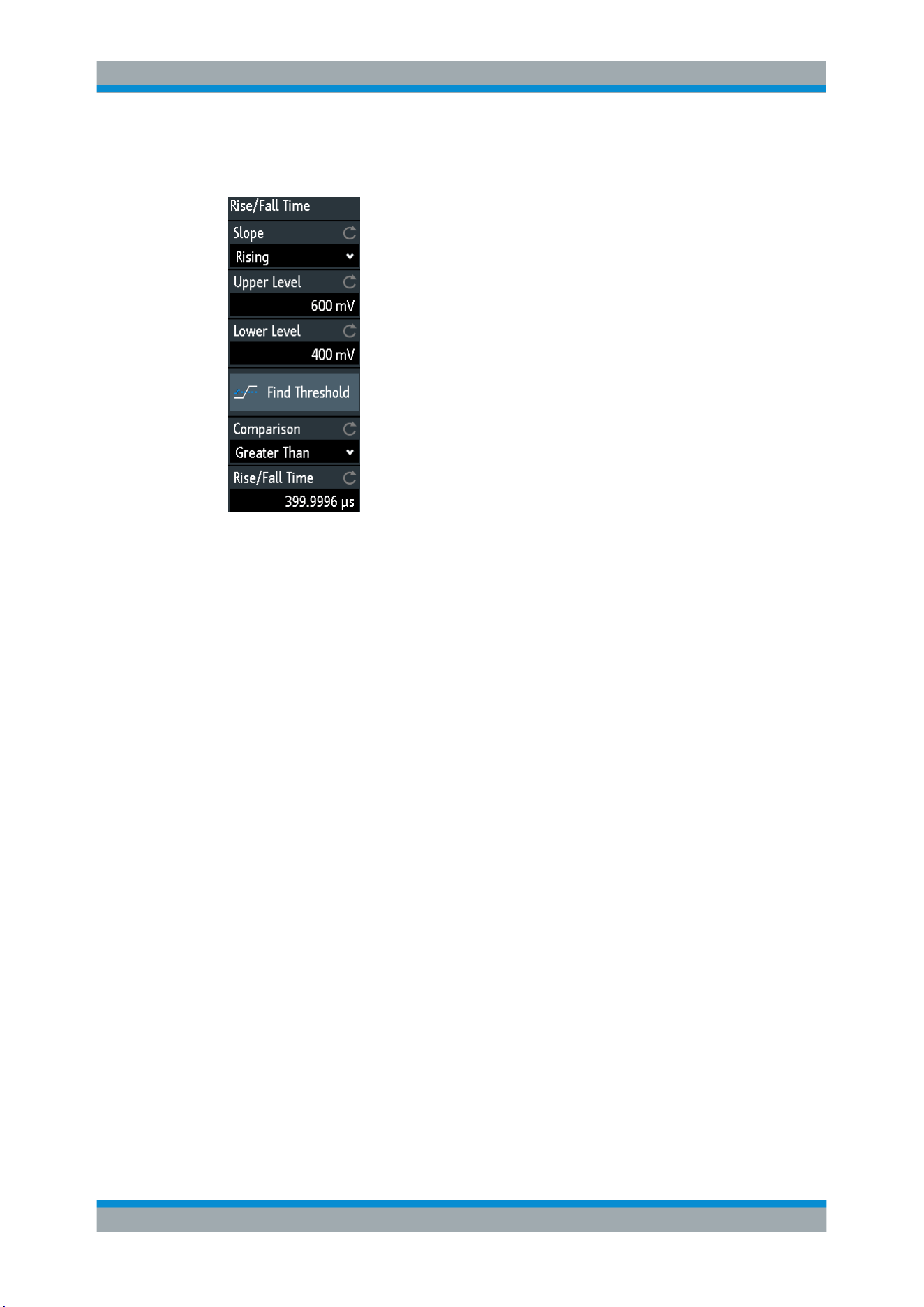
Waveform Analysis
R&S
®
RTB2000
92User Manual 1333.1611.02 ─ 03
► SEARCH > "Search Type" = "Rise/Fall Time" > "Setup"
Edge
Sets the slope to be found:
●
"Rising" to search for rise time
●
"Falling" to search for fall time
●
"Both" to search for rise and fall time
Remote command:
SEARch:TRIGger:RISetime:SLOPe on page 287
Upper level, Lower level
Set the upper and lower voltage thresholds. When the signal crosses the first level, the
rise/fall time measurement starts. It stops when the signal crosses the second level. To
let the instrument set the levels, tap "Find Threshold".
Remote command:
SEARch:TRIGger:LEVel:RISetime:LOWer on page 287
SEARch:TRIGger:LEVel:RISetime:UPPer on page 287
Comparison
Sets how the measured rise or fall time is compared with the given limits.
"Greater than"
Finds rise/fall times longer than the given "Rise/Fall Time".
"Lower than"
Finds rise/fall times shorter than the given "Rise/Fall Time".
"Equal"
Finds rise/fall times equal to the reference "Rise/Fall Time" if "Varia-
tion" Δt = 0.
If "Variation" ≠ 0, the setting finds rise/fall times within the range time
± Δt.
"Not equal"
Finds rise/fall times unequal to the reference value if "Variation" Δt =
0.
If "Variation" ≠ 0, the setting finds rise/fall times outside the range
time ± Δt.
Search
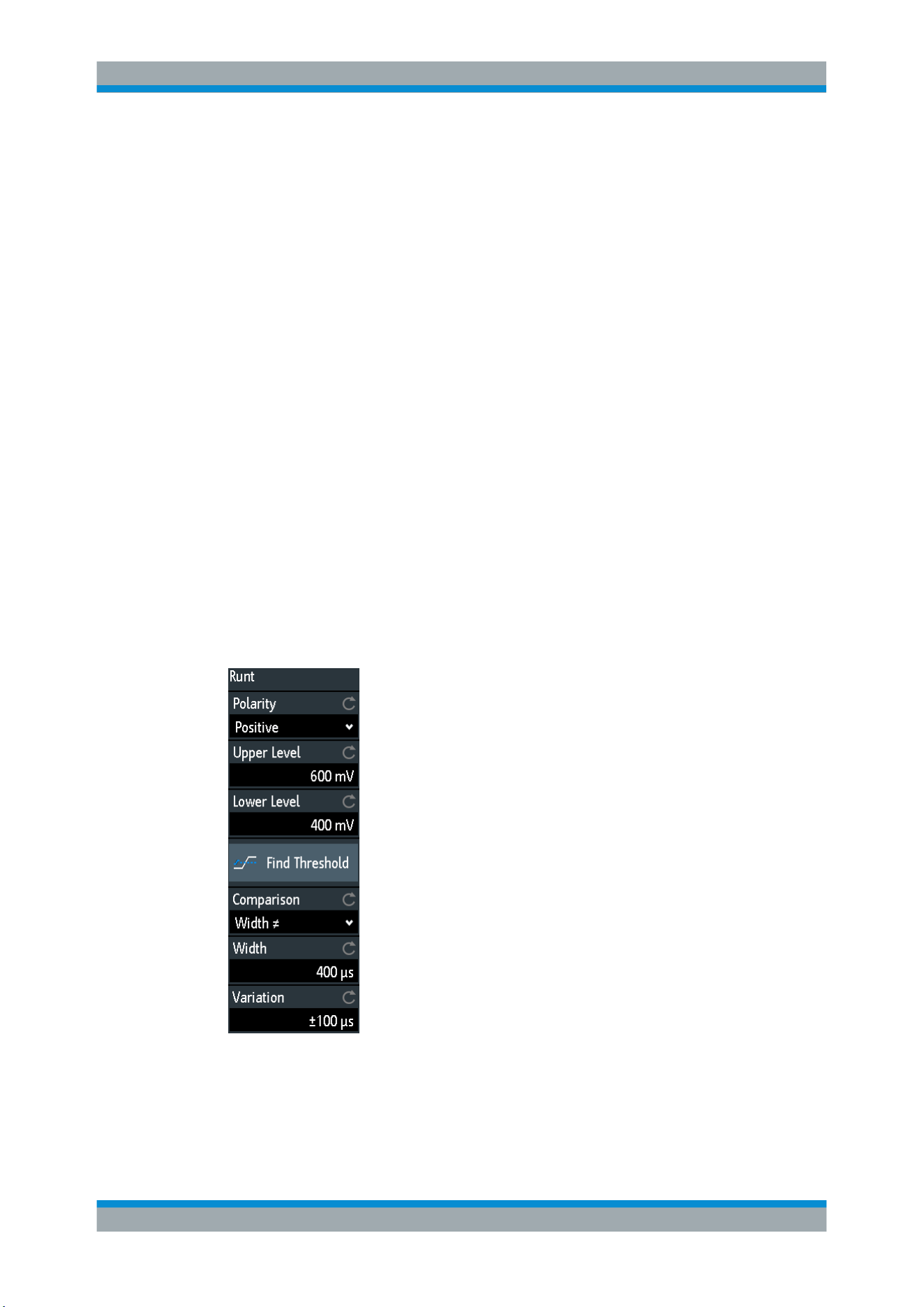
Waveform Analysis
R&S
®
RTB2000
93User Manual 1333.1611.02 ─ 03
Remote command:
SEARch:TRIGger:RISetime:RANGe on page 287
Rise/Fall Time
Sets the reference rise or fall time, the nominal value for comparisons.
Remote command:
SEARch:TRIGger:RISetime:TIME on page 288
Variation
Sets a range Δt to the reference "Rise/Fall Time" if comparison is set to "Equal" or "Not
equal". The instrument finds rise/fall times inside or outside the range width ± Δt.
Remote command:
SEARch:TRIGger:RISetime:DELTa on page 288
6.5.7 Runt Setup
The runt search finds pulses lower than normal in amplitude. The amplitude crosses
the first threshold twice without crossing the second one. In addition to the threshold
amplitudes, you can define a time limit for the runt in the same way as for width search:
runts with exact width, shorter or longer than a given time, or runts inside or outside the
allowable time range.
► SEARCH > "Search Type" = "Runt" > "Setup"
Polarity
Indicates the polarity of the pulse to be searched for.
Remote command:
SEARch:TRIGger:RUNT:POLarity on page 288
Search

Waveform Analysis
R&S
®
RTB2000
94User Manual 1333.1611.02 ─ 03
Upper level
Sets the upper voltage threshold for runt detection. A negative runt crosses the upper
level twice without crossing the lower level.
Remote command:
SEARch:TRIGger:LEVel:RUNT:UPPer on page 289
Lower level
Sets the lower voltage threshold for runt detection. A positive runt crosses the lower
level twice without crossing the upper level.
Remote command:
SEARch:TRIGger:LEVel:RUNT:LOWer on page 289
Comparison
Sets the condition how the measured runt width is compared with the given limits.
The comparison works like the comparison of the width trigger, see Chapter 5.5,
"Width Trigger"
, on page 59.
Remote command:
SEARch:TRIGger:RUNT:RANGe on page 289
Width
Sets the reference runt pulse width, the nominal value for comparisons.
Remote command:
SEARch:TRIGger:RUNT:WIDTh on page 289
Variation
Sets a range Δt to the reference "Width" if comparison is set to "Equal" or "Not equal".
The instrument finds pulses inside or outside the range width ± Δt.
Remote command:
SEARch:TRIGger:RUNT:DELTa on page 290
6.5.8 Data2Clock
The Data2Clock search - also known as setup/hold search - finds violation of setup
and hold times. It analyzes the relative timing between two signals: a data signal and
the synchronous clock signal.
Many systems require, that the data signal must be steady for some time before and
after the clock edge. Setup time is the time that the data signal is steady before clock
edge. Hold time is the time that the data signal is steady after clock edge.
► SEARCH > "Search Type" = "Data2Clock" > "Setup"
The settings for Data2Clock search are provided in two menus. In the "Setup" menu,
you define the clock polarity, setup and hold times; and in the "Source Setup" menu
you define the waveforms to be used, and the levels and hysteresis for each source.
Search
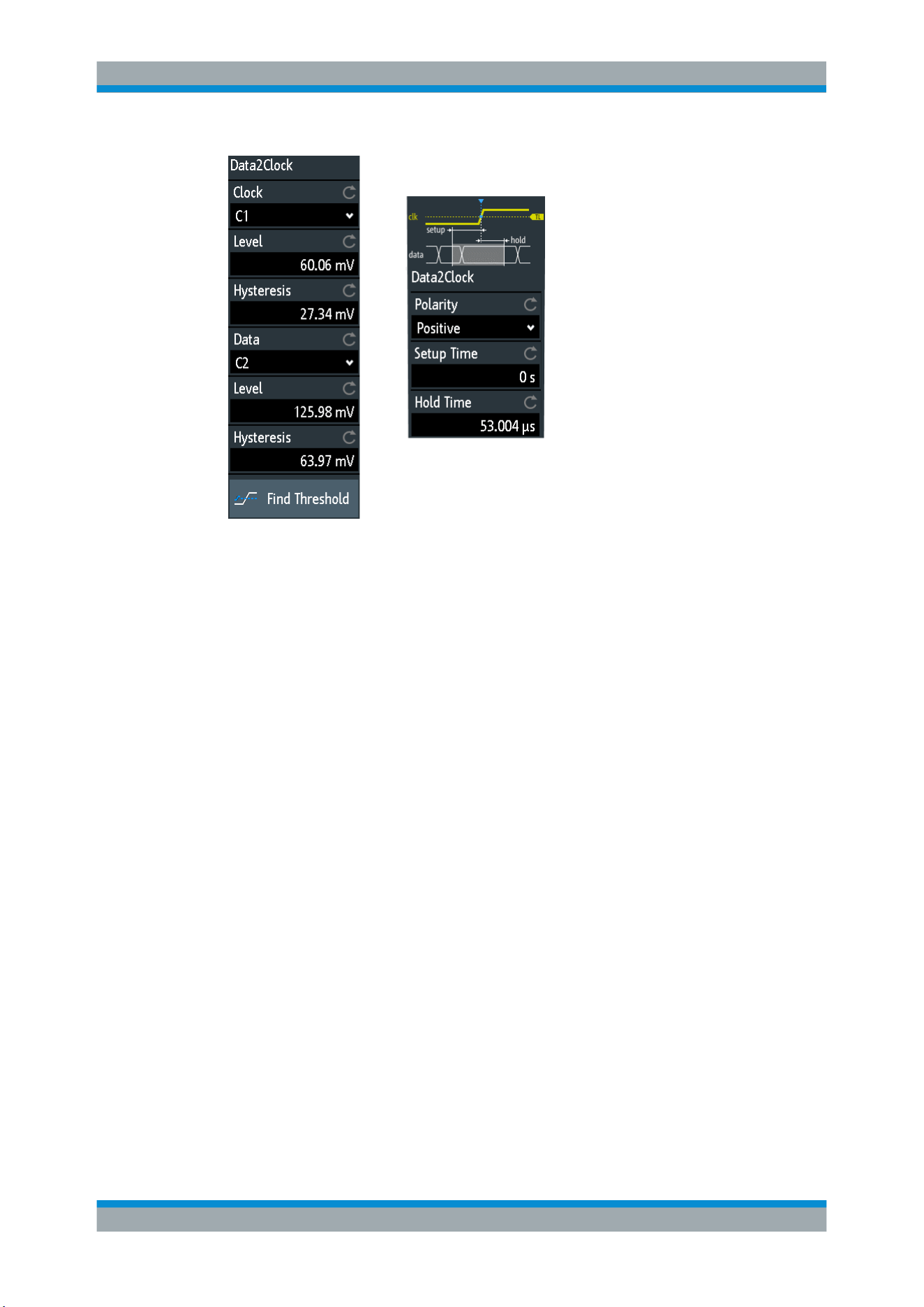
Waveform Analysis
R&S
®
RTB2000
95User Manual 1333.1611.02 ─ 03
Clock
Selects the input channel of the clock signal.
Remote command:
SEARch:TRIGger:DATatoclock:CSOurce on page 290
Data
Selects the input channel of the data signal.
Remote command:
SEARch:SOURce on page 284
Level
Set the voltage levels for clock and data signals. The crossing of clock level and clock
edge defines the start point for setup and hold time. The data level defines the thresh-
old for data transition. To let the instrument set the level, tap "Find Threshold".
Remote command:
SEARch:TRIGger:DATatoclock:CLEVel on page 290
SEARch:TRIGger:DATatoclock:DLEVel on page 290
Hysteresis
Sets a hysteresis range to the search level of the selected signal to avoid unwanted
search results caused by noise oscillation around the level. To let the instrument set
the hysteresis, tap "Find Threshold".
Remote command:
SEARch:TRIGger:DATatoclock:CLEVel:DELTa on page 291
SEARch:TRIGger:DATatoclock:DLEVel:DELTa on page 291
Polarity
Sets the edge of the clock signal to define the start point for the setup and hold time.
Search

Waveform Analysis
R&S
®
RTB2000
96User Manual 1333.1611.02 ─ 03
"Rising"
Only positive clock edges are considered.
"Falling"
Only negative clock edges are considered.
"Either"
The clock edges next to the data edge are considered regardless of
the clock slope. Use this setting, for example, for signals with double
data rate.
Remote command:
SEARch:TRIGger:DATatoclock:CEDGe on page 291
Setup Time
Sets the minimum time before the clock edge while the data signal must stay steady
above or below the data level.
Remote command:
SEARch:TRIGger:DATatoclock:STIMe on page 291
Hold Time
Sets the minimum time after the clock edge while the data signal must stay steady
above or below the data level.
Remote command:
SEARch:TRIGger:DATatoclock:HTIMe on page 291
6.5.9 Pattern Search
For pattern search, up to four analog channels can be used as source. If MSO option
R&S RTB-B1 is installed, also digital channels can be included in the pattern. For each
channel, you define the state. The states are combined logically, and the time of true
pattern results is compared with a specified time range. Thus you can find state transi-
tions inside or outside this time range.
► Select SEARCH > "Search Type" = "Pattern" > "Setup".
Search
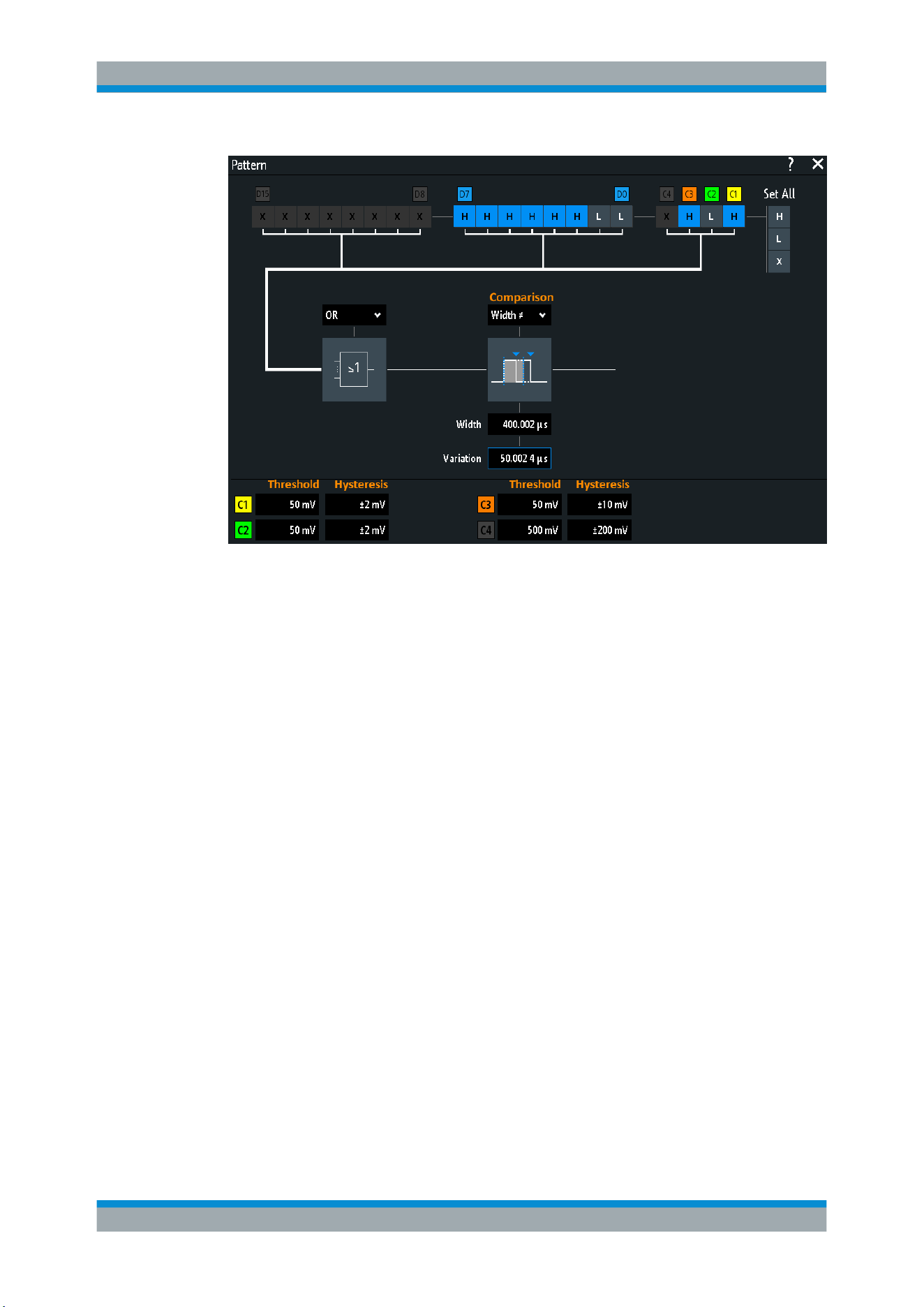
Waveform Analysis
R&S
®
RTB2000
97User Manual 1333.1611.02 ─ 03
Threshold, Hysteresis
Sets the search threshold value for each analog channel. If the signal value is higher
than the threshold, the signal state is high. Otherwise, the signal state is considered
low.
For each analog channel, set a hysteresis to avoid unwanted search results caused by
noise oscillation of the signal.
Remote command:
SEARch:TRIGger:PATTern:LEVel<n> on page 292
SEARch:TRIGger:PATTern:LEVel<n>:DELTa on page 293
H | L | X, Set All
Defines the pattern by selecting the state "H" (high), "L" (low) or "X" (do not care, the
channel does not affect the search) for each active analog and digital channel.
The word length of the pattern depends on the number of available analog and digital
channels. Logic channels are only available with MSO option R&S RTB-B1. Use "Set
All" to set all channels to the same state.
Remote command:
SEARch:TRIGger:PATTern:SOURce on page 292
AND, OR, NAND, NOR
Sets the logical combination of the channel states.
"AND"
The required states of all channels must appear in the input signal at
the same time.
"OR"
At least one of the channels must have the required state.
"NAND"
"Not and" operator, at least one of the channels does not have the
required state.
Search

Waveform Analysis
R&S
®
RTB2000
98User Manual 1333.1611.02 ─ 03
"NOR"
"Not or" operator, no channel has the required state.
Remote command:
SEARch:TRIGger:PATTern:FUNCtion on page 292
Comparison
Sets the condition how the duration of a steady pattern is compared with the given
limit. The three settings "Width" "Variation" and "Comparison" define the time range
how long the true result of the state pattern must be valid.
The comparison works like the comparison of the width trigger, see
Chapter 5.5,
"Width Trigger"
, on page 59.
Remote command:
SEARch:TRIGger:PATTern:WIDTh:RANGe on page 293
Width
Sets the limit time of a steady pattern, the nominal value for comparisons.
Remote command:
SEARch:TRIGger:PATTern:WIDTh[:WIDTh] on page 293
Variation
Sets a range Δt to the reference "Width" if comparison is set to "Equal" or "Not equal".
The instrument finds true results of the state pattern inside or outside the range width ±
Δt.
Remote command:
SEARch:TRIGger:PATTern:WIDTh:DELTa on page 293
Search
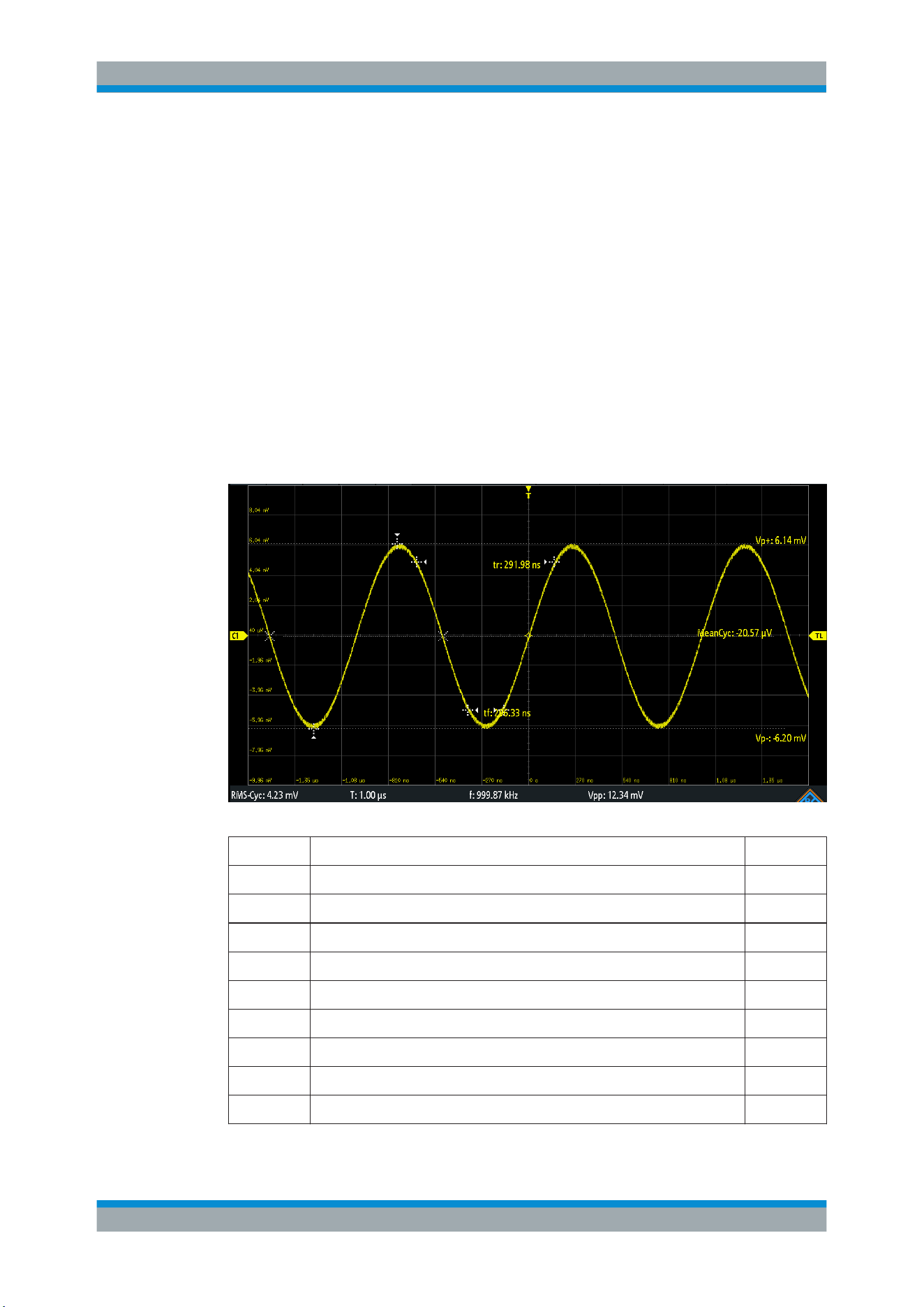
Measurements
R&S
®
RTB2000
99User Manual 1333.1611.02 ─ 03
7 Measurements
7.1 Quick Measurements
Quick measurement performs a set of automatic measurements on the selected input
channel. The measurements cannot be configured. The results are displayed directly
at the waveform (WF) or in the bottom result line (L) and are updated continuously.
If the instrument detects a period in the signal, the quick measurement measures the
first cycle and displays the results. If no period is detected, it measures the complete
waveform.
► Press the QUICKMEAS key to activate quick measurement.
Table 7-1: Results of quick measurement
Label Description Display
Vp+ Positive peak value WF
Vp- Negative peak value WF
tr Rising time of the first rising edge WF
tf Falling time of the first falling edge WF
MeanCyc Mean value WF
RMS-Cyc RMS L
T Period length L
f Frequency L
Vpp Peak to peak value L
Quick Measurements

Measurements
R&S
®
RTB2000
100User Manual 1333.1611.02 ─ 03
Quick measurement is not available on math and reference waveforms. Channels
other than the selected one are switched off in quick measurement mode. When quick
measurement is active, cursor measurements are not possible, but you can use auto-
matic measurements in parallel.
► Press the QUICKMEAS key again to deactivate quick measurement.
The results are deleted on the display.
Remote commands:
●
MEASurement<m>:AON on page 306
●
MEASurement<m>:AOFF on page 306
●
MEASurement<m>:ALL[:STATe] on page 306
●
MEASurement<m>:ARESult? on page 306
7.2 Automatic Measurements
You can perform up to four different measurements simultaneously.
To configure automatic measurements in the Measure menu
1. Press the MEAS key.
2. In the menu, select the "Meas. Place", the number of the measurement that you
want to configure.
3. If the measurement is off, enable "Measure <n>".
4. Select the measurement type:
a) Tap "Type"
b) Select the tab of the required measurement category.
c) Select the measurement type.
The measurement types are described in
Chapter 7.2.2, "Measurement Types",
on page 101.
5. Select the "Source".
The selection list shows all possible sources. If the waveform is not active, it is acti-
vated automatically when selected as measurement source.
6. Some measurement types require additional settings. Scroll down the menu, and
adjust the additional settings if necessary.
See also:
Chapter 7.2.3, "Settings for Automatic Measurements", on page 105.
7.2.1 Measurement Results
The measurement results are shown in a line below the grid.
Automatic Measurements
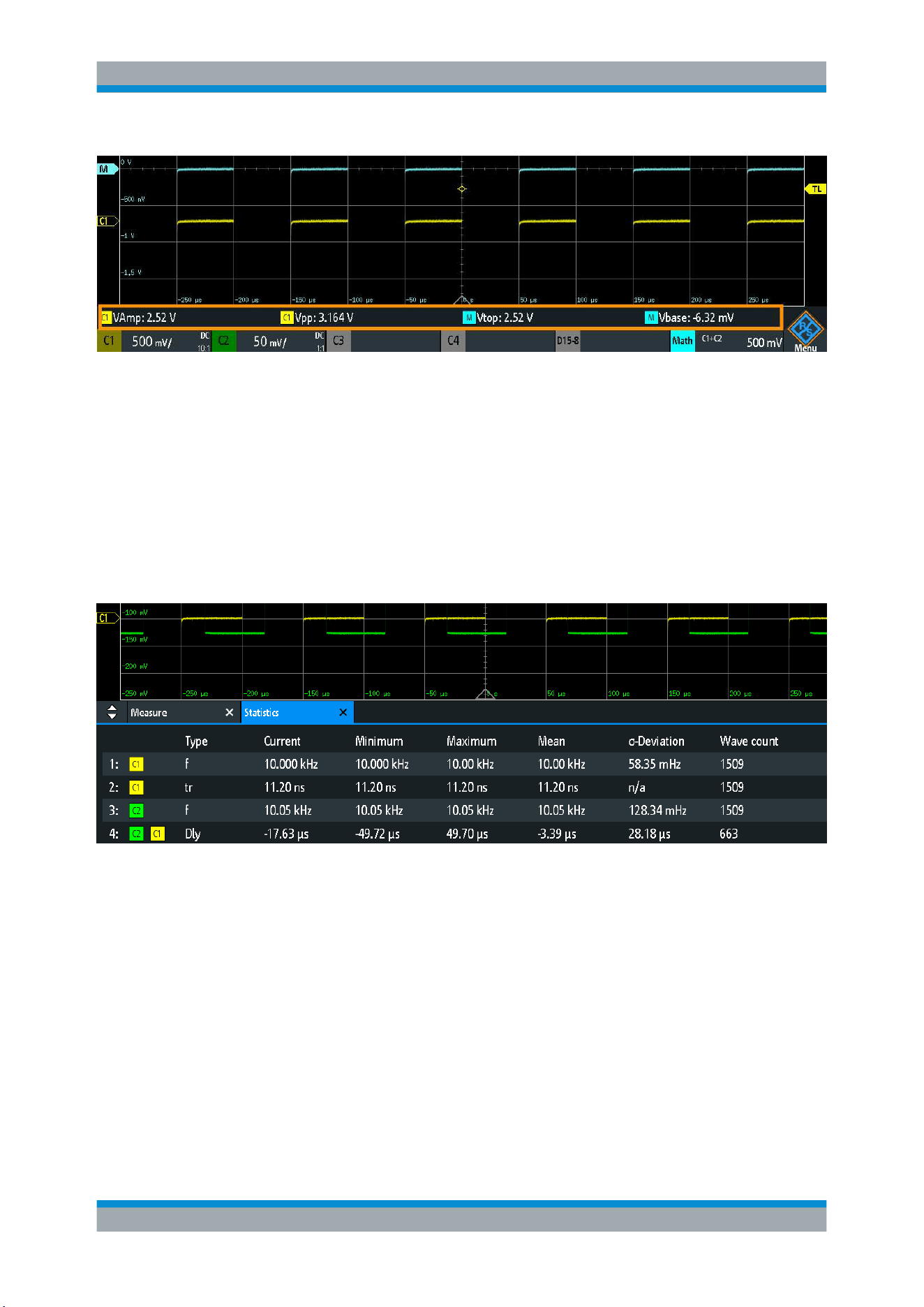
Measurements
R&S
®
RTB2000
101User Manual 1333.1611.02 ─ 03
Figure 7-1: Results of four active measurements
If a result cannot be determined, "?" is displayed. Adjust the horizontal and vertical set-
tings if the instrument cannot measure.
If the measurement result is outside the measurement range and clipping occurs, the
results are marked with "clipping+" or "clipping-". Adjust the vertical scale to get valid
results.
In addition to the current measurement results, you can enable a statistic evaluation. It
returns the current, minimum and maximum measurement values, the average and
standard deviation, and the number of measured waveforms. The results are shown in
a separate tab below the grid.
Figure 7-2: Statistic results of four active measurements
Remote commands are described in:
●
Chapter 15.7.2.2, "Measurements Results", on page 311
7.2.2 Measurement Types
The R&S RTB2000 provides many measurement types to measure time and amplitude
characteristics, and to count pulses and edges.
Automatic Measurements
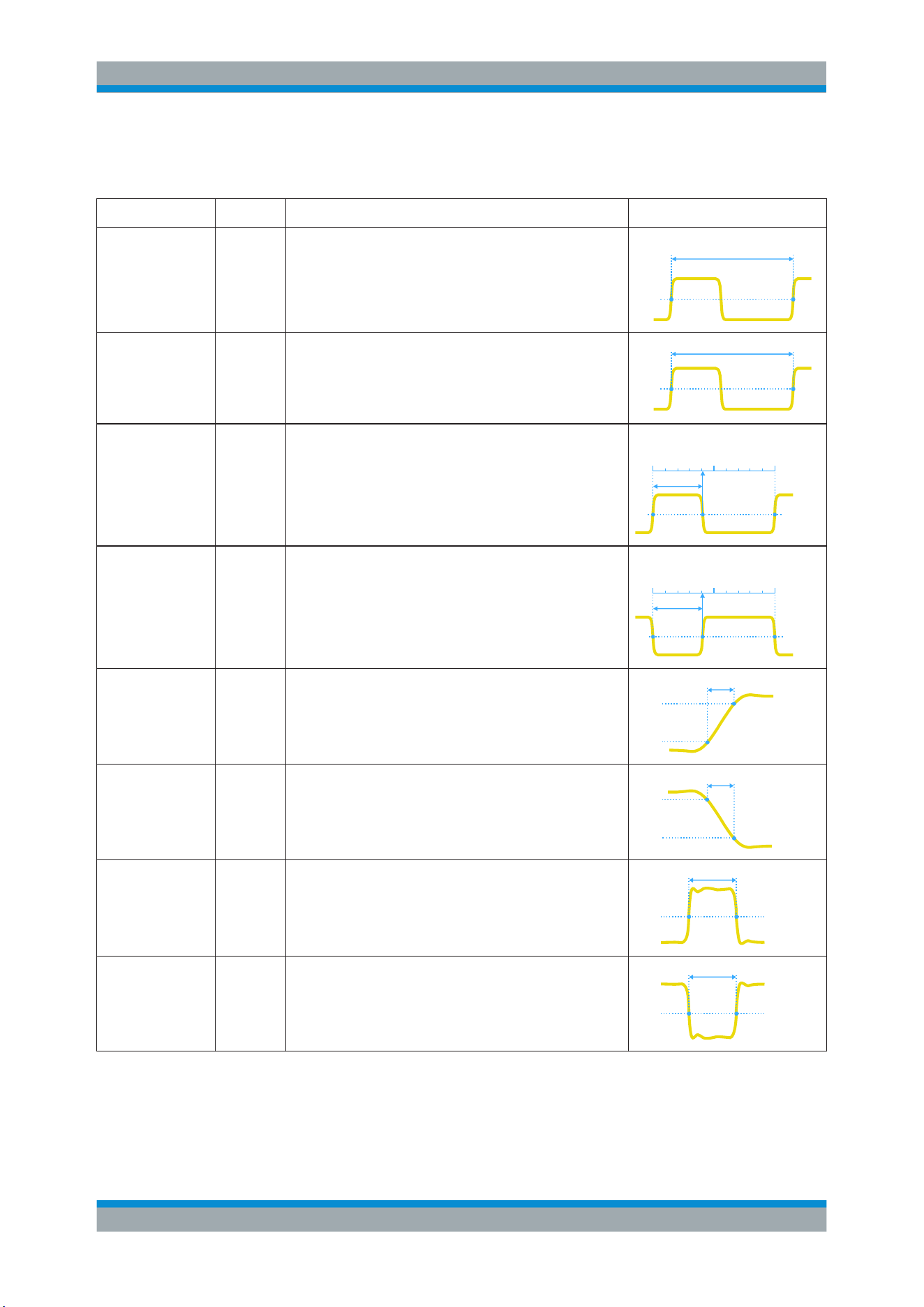
Measurements
R&S
®
RTB2000
102User Manual 1333.1611.02 ─ 03
7.2.2.1 Horizontal Measurements (Time)
Meas. type Symbol Description Graphic / formula
Frequency f
in Hz
Frequency of the signal, reciprocal value of the measured
first period.
T
f = 1 / T
50%
Period T
in s
Time of the first period, measured on the 50% level. The
measurement requires at least one complete period of the
signal.
T
50%
Duty cycle + Dty+
in %
Width of the first positive pulse in relation to the period in %.
The measurement requires at least one complete period of
the signal.
Dty+ = t+ / T * 100%
100%0% T
t+
Duty cycle - Dty-
in %
Width of the first negative pulse in relation to the period in
%. The measurement requires at least one complete period
of the signal.
Dty- = t- / T * 100%
100%0% T
t-
Rise time tr
in s
Rise time of the first rising edge, the time it takes the signal
to rise from the 10% level to the 90% level.
90%
10%
Rise
Fall time tf
in s
Fall time of the first falling edge, the time it takes the signal
to fall from the 90% level to the 10% level.
90%
10%
Fall
Positive pulse
width
PW+
in s
Duration of the first positive pulse: time between a rising
edge and the following falling edge measured on the 50%
level.
50%
t+
Negative pulse
width
PW-
in s
Duration of the first negative pulse: time between a falling
edge and the following rising edge measured on the 50%
level.
50%
t-
Automatic Measurements
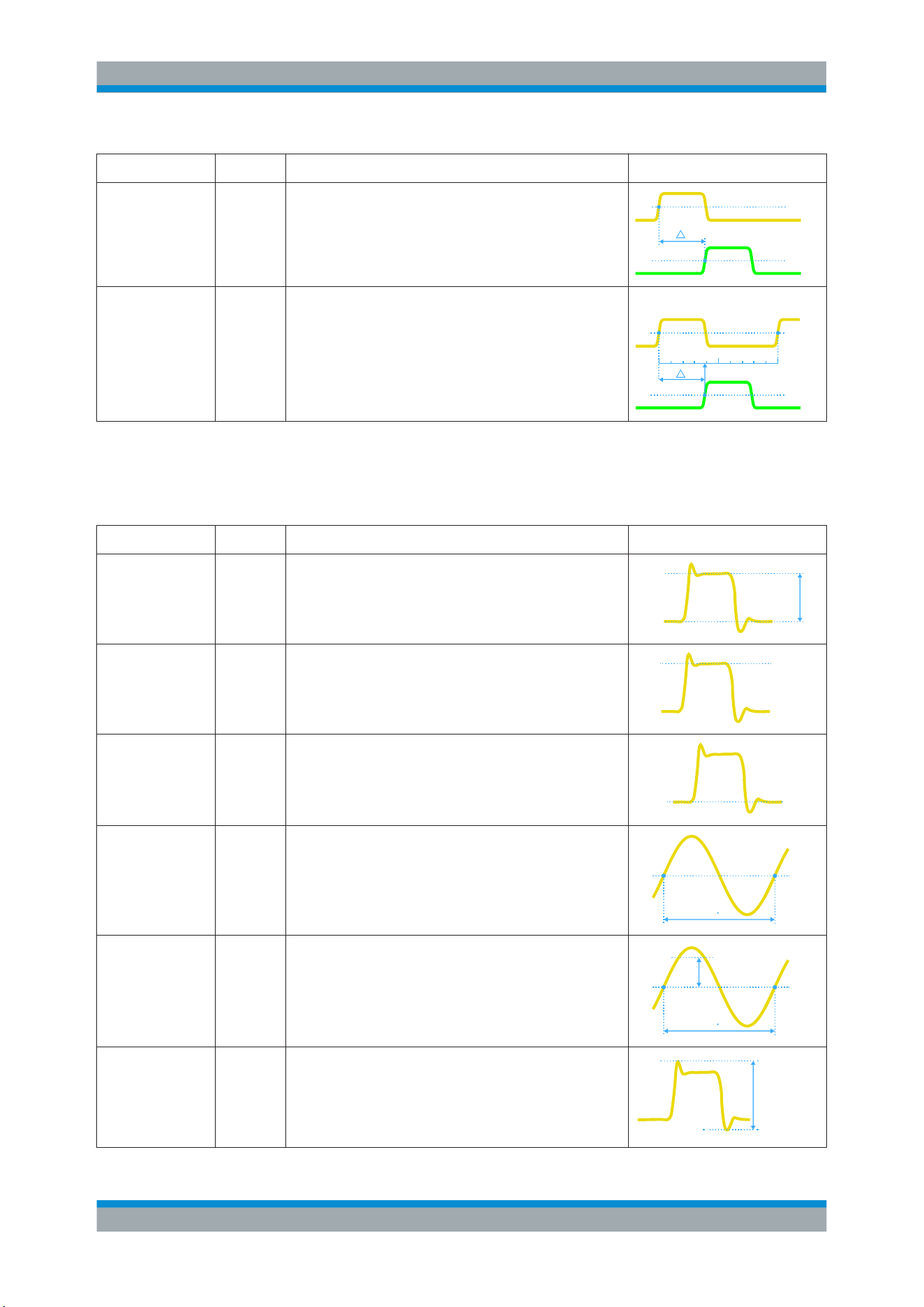
Measurements
R&S
®
RTB2000
103User Manual 1333.1611.02 ─ 03
Meas. type Symbol Description Graphic / formula
Delay Dly
in s
Time difference between two slopes of the same or different
waveforms, measured on the 50% level.
Not available for cursor measurements
t
S2
S1
Phase Phs
in °
Phase difference between two waveforms, measured on the
50% level.
Not available for cursor measurements
Phase = Δt / T * 360°
t
S2
S1
100%0%
7.2.2.2 Vertical Measurements (Amplitude)
The unit of most amplitude measurement results depends on the measured source.
Meas. type Symbol Description Graphic / formula
Amplitude VAmp Difference between the top level and the base level of the
signal. The measurement requires at least one complete
period of the signal.
Top
Base
Amplitude
Top level Vtop High level of the displayed waveform - the upper maximum
of the sample distribution, or the mean value of the high
level of a square wave without overshoot. The measure-
ment requires at least one complete period of the signal.
Top
Base level Vbase Low level of the displayed waveform - the lower maximum
of the sample distribution, or the mean value of the low level
of a square wave without overshoot. The measurement
requires at least one complete period of the signal.
Base
Mean cycle MeanCyc
in V
Mean value of the left-most signal period.
DC
N T
RMS cycle RMS-Cyc
in V
RMS (root mean square) value of the voltage of the left-
most signal period.
DC
AC
N T
Peak to peak Vpp Difference of maximum and minimum values.
Max
Min
Pk-Pk
Automatic Measurements
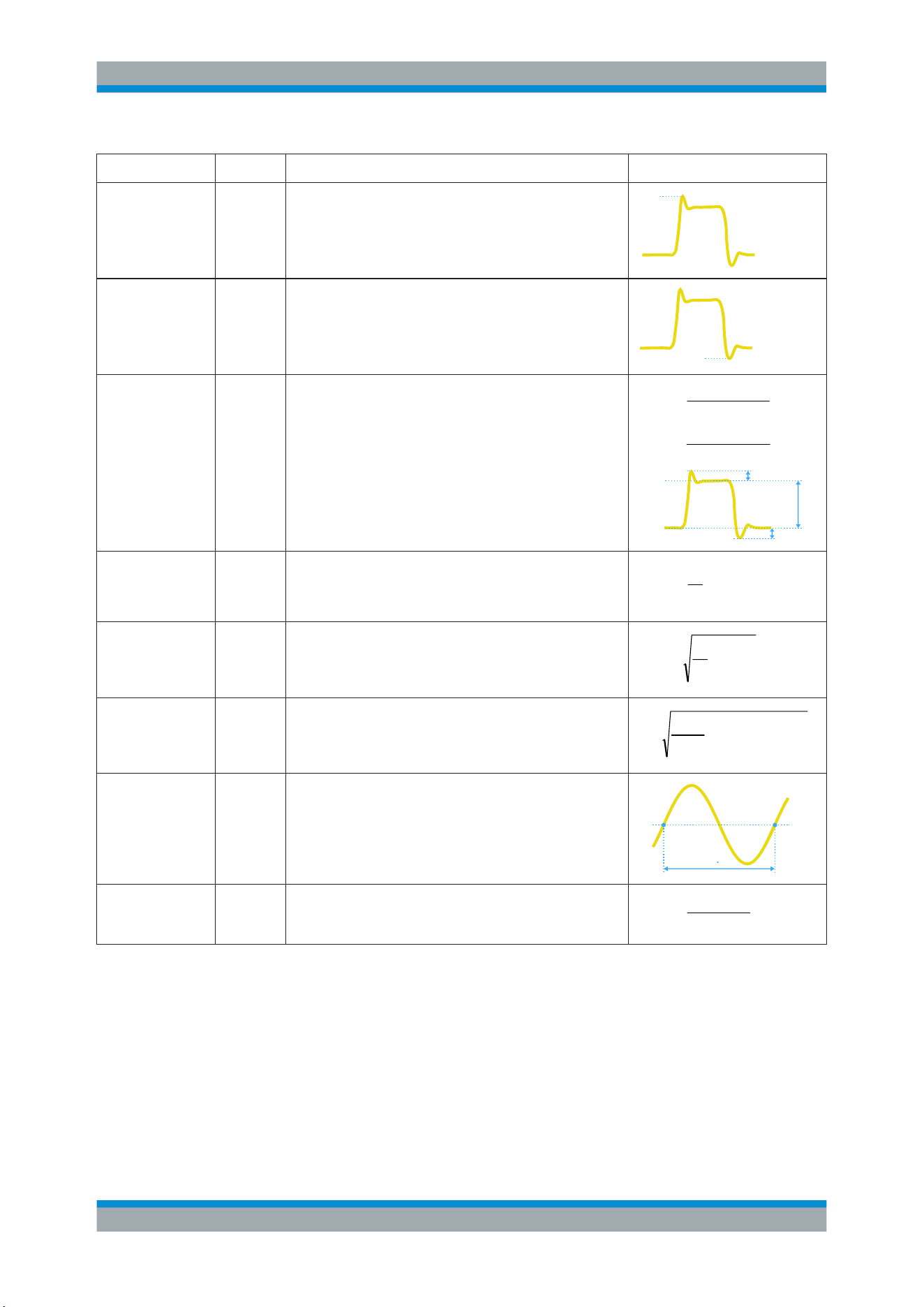
Measurements
R&S
®
RTB2000
104User Manual 1333.1611.02 ─ 03
Meas. type Symbol Description Graphic / formula
Peak+ Vp+ Maximum value within the displayed waveform.
Max
Peak- Vp- Minimum value within the displayed waveform.
Min
Overshoot +Ovr
-Ovr
in %
Overshoot of a square wave after a rising or falling edge. It
is calculated from measurement values top level, base level,
local maximum, local minimum, and amplitude.
%100
Amplitude
TopMax
Over
local
%100
Amplitude
Min Base
Over
local
Top
Base
Amplitude
Over+
Over-
Mean value Mean Arithmetic average of the complete displayed waveform.
N
k
k
x
N
1
1
Mean
RMS value RMS RMS (root mean square) value of the voltage of the com-
plete displayed waveform.
N
k
k
x
N
1
2
1
RMS
σ-Std. deviation
σ
Standard deviation of the displayed waveform.
N
k
k
x
N
1
2
Mean
1
1
σ
σ-Std. dev. cycle σ-Cyc Standard deviation of one cycle, usually of the first, left-most
signal period.
N T
σ
Crest factor Crest The crest factor is also known as peak-to-average ratio. It is
the maximum value divided by the RMS value of the dis-
played waveform.
RMS
||Max
Crest
k
x
Automatic Measurements
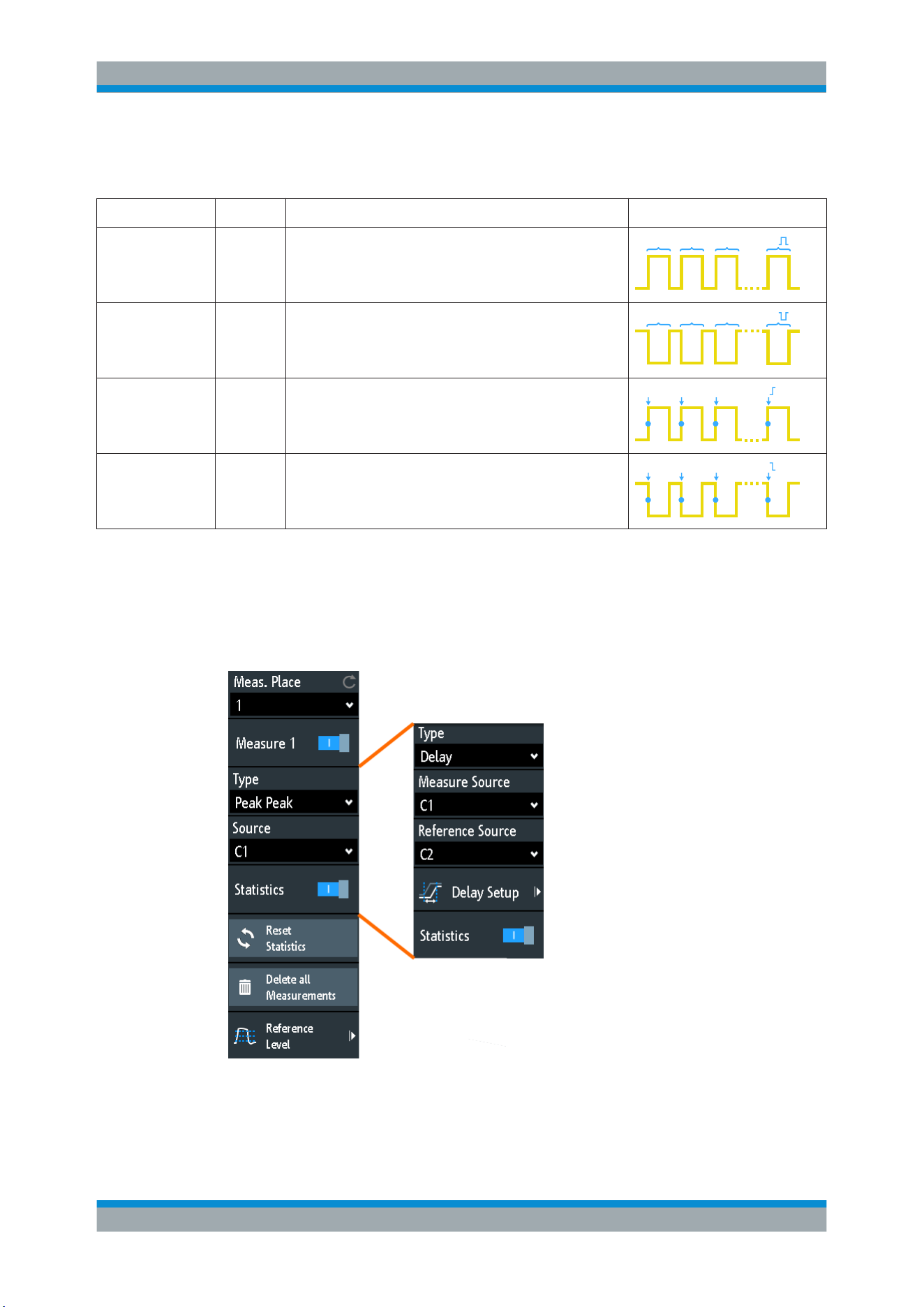
Measurements
R&S
®
RTB2000
105User Manual 1333.1611.02 ─ 03
7.2.2.3 Counting
Meas. type Symbol Description Graphic / formula
Positive pulse CntP+ Number of positive pulses on the display. The mean value
of the signal is determined. If the signal passes the mean
value, an edge is counted. A positive pulse is counted if a
rising edge and a following falling edge are detected.
N321
Negative pulse CntP- Number of negative pulses on the display. The mean value
of the signal is determined. If the signal passes the mean
value, an edge is counted. A negative pulse is counted if a
falling edge and a following rising edge are detected.
N321
Positive slope CntS+ Number of rising edges on the display. The instrument
determines the mean value of the signal and counts an
edge every time the signal passes the mean value in the
specified direction.
N321
Negative slope CntS- Number of falling edges on the display. The instrument
determines the mean value of the signal and counts an
edge every time the signal passes the mean value in the
specified direction.
N321
7.2.3 Settings for Automatic Measurements
► To open the "Measure" menu, press the MEAS key.
In the measurement menu, you can configure up to 4 parallel measurements (also
called measurement places). Available measurement types depend on the type of the
selected waveform.
Automatic Measurements

Measurements
R&S
®
RTB2000
106User Manual 1333.1611.02 ─ 03
Meas. Place
Selects one of the four available measurement places to be configured or activated.
Measure <n>
Activates or deactivates the selected measurement.
Remote command:
MEASurement<m>[:ENABle] on page 307
Type
Defines the measurement type to be performed on the selected source. Depending on
the type, different results are displayed in the result line.
Select the tab of the required measurement category, and then the measurement type.
The "Basic" tab provides the most common measurements: peak to peak, period, fre-
quency, rise time, fall time, mean cycle, and RMS cycle.
Remote command:
MEASurement<m>:MAIN on page 307
Source
Selects an analog channel, reference or math waveform as the source of the selected
measurement. If MSO option R&S RTB-B1 is installed, active digital channels are
available as measurement sources.
If the waveform is not active, it is activated automatically when selected as measure-
ment source.
Remote command:
MEASurement<m>:SOURce on page 309
Measure Source, Reference Source
Set the source waveforms for delay and phase measurement, where two sources are
required.
Remote command:
MEASurement<m>:SOURce on page 309
Delay Setup: Measure Source and Reference Source
Set the edges to be used for delay measurement. You can measure the delay between
two rising edges, two falling edges, between rising and next falling edge, and vice
versa.
Remote command:
MEASurement<m>:DELay:SLOPe on page 310
Statistics
Activates or deactivates the statistical evaluation for the selected measurement.
Remote command:
MEASurement<m>:STATistics[:ENABle] on page 310
Reset Statistics
Deletes the statistical results for all measurements, and starts a new statistical evalua-
tion if the acquisition is running.
Automatic Measurements
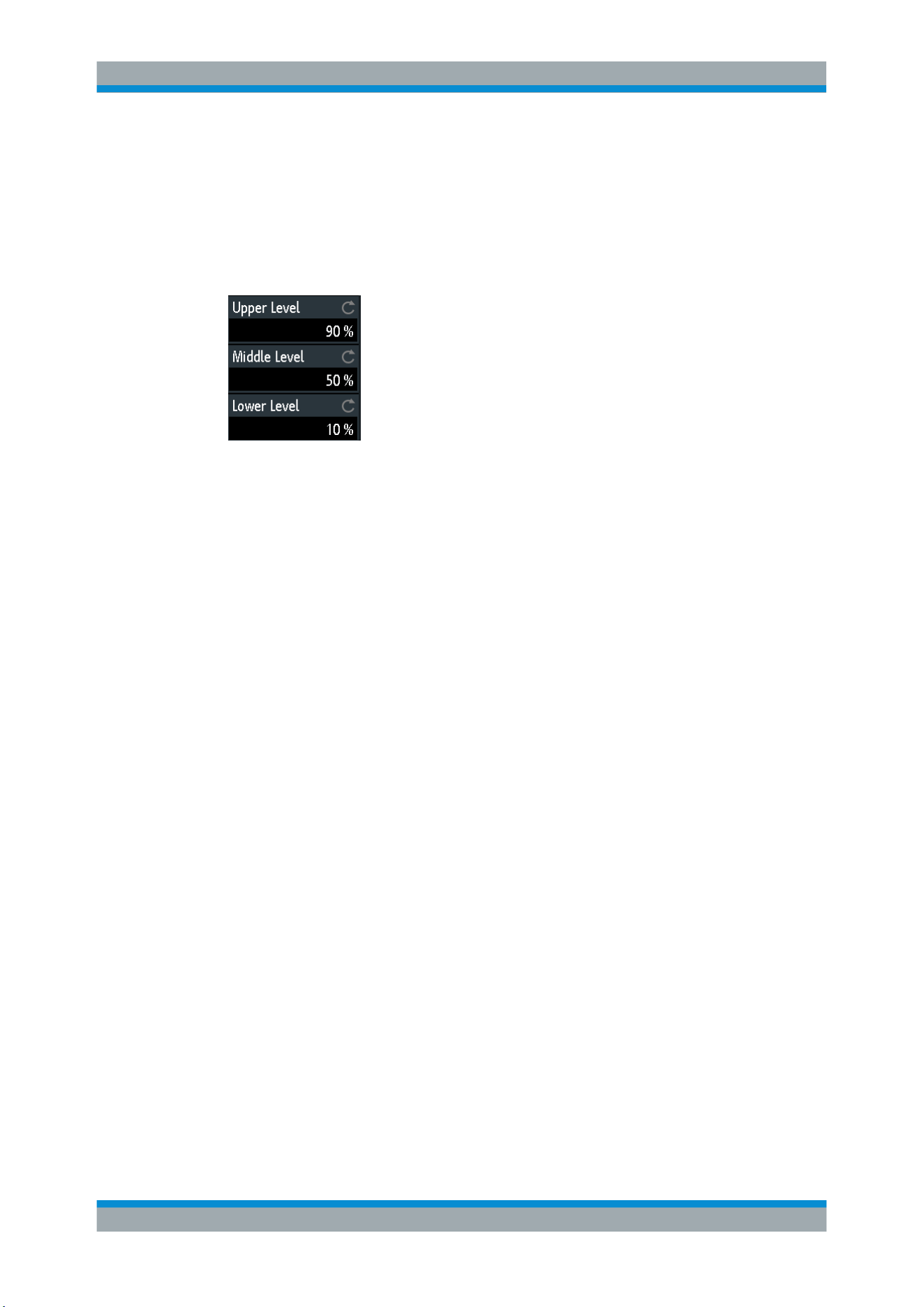
Measurements
R&S
®
RTB2000
107User Manual 1333.1611.02 ─ 03
Remote command:
MEASurement<m>:STATistics:RESet on page 311
Delete all Measurements
Deactivates all active measurements.
Reference Level
Set the lower and upper reference levels for rise and fall time measurements. Sets also
the middle reference level used for phase and delay measurements. The levels are
defined as percentages of the high signal level. The settings are valid for all measure-
ment places.
Remote command:
REFLevel:RELative:MODE on page 316
REFLevel:RELative:LOWer on page 316
REFLevel:RELative:MIDDle on page 317
REFLevel:RELative:UPPer on page 316
7.3 Cursor Measurements
The cursor measurement determines the results at the current cursor positions. You
can set the cursor lines manually at fixed positions, or they can follow the waveform.
Available results depend on the cursor type and the type of the waveform.
Cursor Measurements
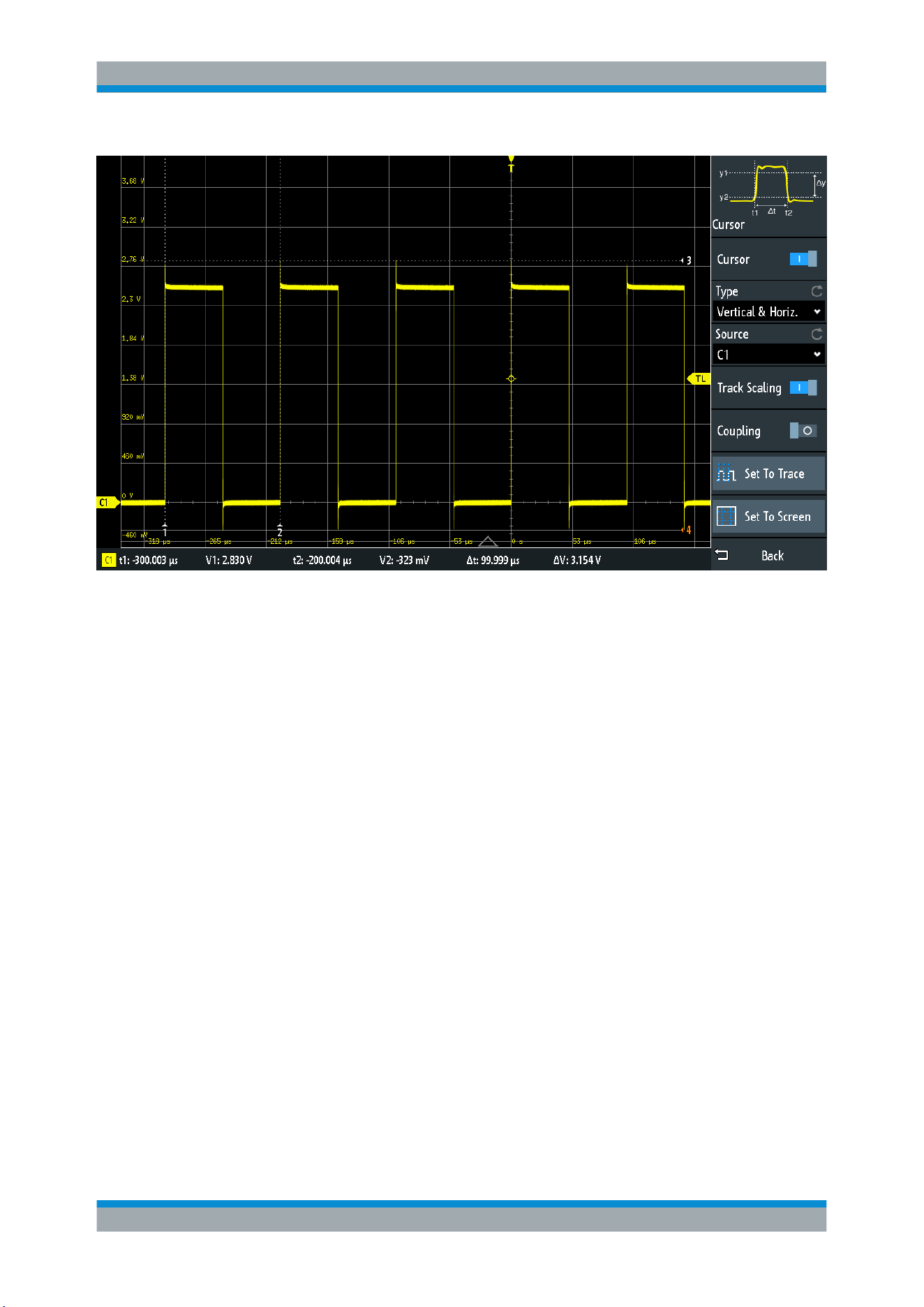
Measurements
R&S
®
RTB2000
108User Manual 1333.1611.02 ─ 03
Figure 7-3: Cursor measurement with vertical and horizontal cursors and Set To Trace
Results = below the grid
Cursor lines 1, 2, 3 = not active
Cursor line 4 = active, can be moved by turning the NAVIGATION knob
To configure cursor measurements
1. Press the CURSOR key.
The cursors are activated with the latest setting.
2. Press the CURSOR key again.
The "Cursor" menu opens.
3. Select the cursor "Type".
4. Select the "Source", the waveform you want to measure.
5. Set additional settings if necessary:
Track Scaling, Coupling, Set To Trace, or Set
To Screen.
6. To change the position of a cursor line, you can use several methods:
● Drag the cursor line on the screen.
● Press the NAVIGATION knob repeatedly until the required cursor line is active
(marked with a solid line).
Turn the knob to move the line.
● Tap the corresponding result value in the result line at the bottom.
The keypad opens, and you can enter an exact value.
Cursor Measurements
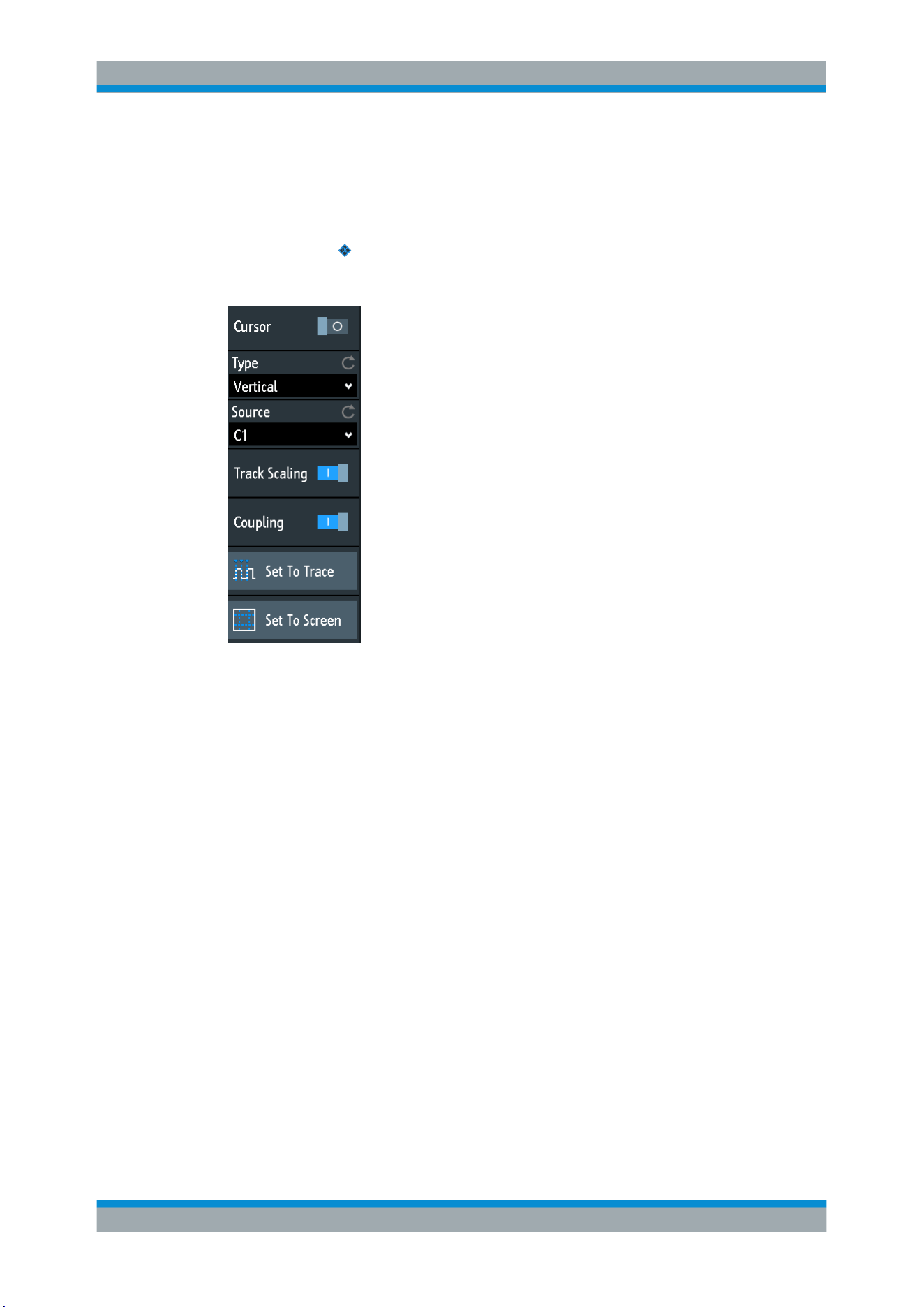
Measurements
R&S
®
RTB2000
109User Manual 1333.1611.02 ─ 03
7.3.1 Cursor Settings
► To open the "Cursor" menu:
a)
Tap the
"Menu" icon in the lower right corner of the screen.
b) Scroll down. Select "Cursor".
Cursor
Activates or deactivates the cursor measurement.
Remote command:
CURSor<m>:STATe on page 317
Type
Selects the cursor type. Depending on the type, different results are displayed in the
result line at the bottom of the display.
The cursor lines can be set to the required position using the "Navigation" rotary knob,
or by dragging a cursor line on the screen.
"Horizontal"
Sets two horizontal cursor lines and measures the voltage values at
the cursor positions, and the difference between the cursor lines.
Results: V1, V2, ΔV (for current measurements: A1, A2, ΔA, for FFT
measurements: L in dBm)
"Vertical"
Sets two vertical cursor lines and measures the time from the trigger
point to each cursor line, the time between the cursor lines and the
frequency calculated from that time.
Results: t1, t2, Δt, 1/Δt (for FFT measurements: frequencies)
Cursor Measurements

Measurements
R&S
®
RTB2000
110User Manual 1333.1611.02 ─ 03
"Vertical &
Horiz."
Combines the "Horizontal" cursor and "Vertical" cursor measure-
ments. Two horizontal and two vertical cursor lines are set. The vol-
tages and times are measured at the cursor positions, as well as the
delta of the voltage and time values.
Results: t1, t2, Δt, V1, V2, ΔV
"V-Marker"
Sets two vertical cursors and measures the values of the waveform at
the crossing points of the cursor lines and the waveform. Also, the dif-
ferences of the two values in x- and y-direction are displayed.
Results: t1, V1, t2, V2, Δt, ΔV
Remote command:
CURSor<m>:FUNCtion on page 318
CURSor<m>:TRACking[:STATe] on page 319 (V-Marker)
Source
Defines the source of the cursor measurement as one of the active waveforms.
You can use cursors on analog input signals, math waveform, reference waveforms,
XY-diagram, and FFT waveform.
If option R&S RTB -B1 is installed, you can use the vertical cursor to measure individ-
ual logic channels, and the V-Marker to measure pods.
Remote command:
CURSor<m>:SOURce on page 318
Track Scaling
If enabled, the cursor lines are adjusted when the vertical or horizontal scales are
changed. The cursor lines keep their relative position to the waveform.
If disabled, the cursor lines remain on their position on the display if the scaling is
changed.
Remote command:
CURSor<m>:TRACking:SCALe[:STATe] on page 320
Coupling
If enabled, the cursors lines are coupled and moved together.
Press the NAVIGATION key to select whether both cursors or one cursor is moved. If
coupling is disabled, pressing the NAVIGATION key toggles the single cursor lines.
Remote command:
CURSor<m>:XCOupling on page 320
CURSor<m>:YCOupling on page 320
Set To Trace
Autoset for cursor lines, sets the cursor lines to typical points of the waveform depend-
ing on the selected cursor type. For example, for voltage measurement ("Horizontal"),
the cursor lines are set to the upper and lower peaks of the waveform. For time mea-
surement ("Vertical"), the cursor lines are set to the edges of two consecutive positive
or two consecutive negative pulses.
Remote command:
CURSor<m>:SWAVe on page 320
Cursor Measurements

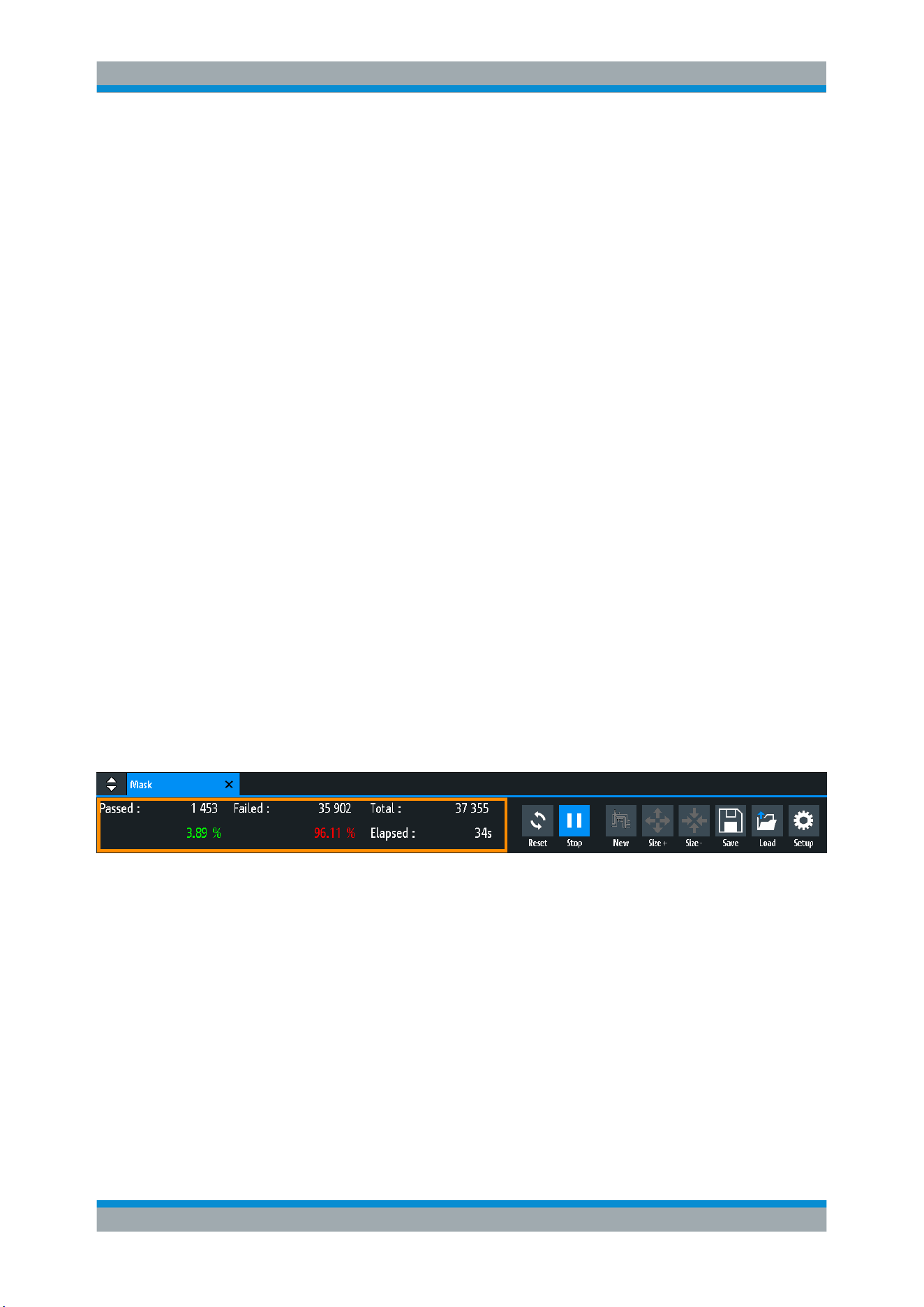
Applications
R&S
®
RTB2000
112User Manual 1333.1611.02 ─ 03
8 Applications
8.1 Mask Testing
Masks are used to determine whether the amplitude of a signal remains within speci-
fied limits, e.g. to detect errors or test compliance of digital signals.
8.1.1 About Masks and Mask Testing
Masks
A mask is specified by an upper and a lower limit line. The signal must run inside these
limit lines, otherwise a mask violation occurs.
A new mask is created from an existing signal: Mask limits are created by copying the
envelope waveform, and the limits are moved and stretched. The result is a tolerance
tube around the signal that is used as mask.
The mask is displayed in the color used for reference waveforms.
Once a mask has been defined, the copied envelope is kept in the instrument until the
next mask is defined or loaded. If you need more than one mask, you can save the
mask to internal storage and load it at a later time.
Mask testing results
The mask testing analyzes whether tested signal runs inside the mask. The overall test
result is shown in the mask window:
left column = absolute number and percentage of acquisitions that passed the test
middle column = absolute number and percentage of acquisitions that violated the mask
right column = number of tested acquisitions and test duration
During a mask test, various actions can be executed when mask violations occur: noti-
fication by a sound, stop of acquisition, saving a screenshot, saving the waveform
data, sending a pulse.
Remote commands:
●
MASK:STATe on page 323 to start the mask application
●
MASK:COUNt? on page 327
●
MASK:VCOunt? on page 327
Mask Testing
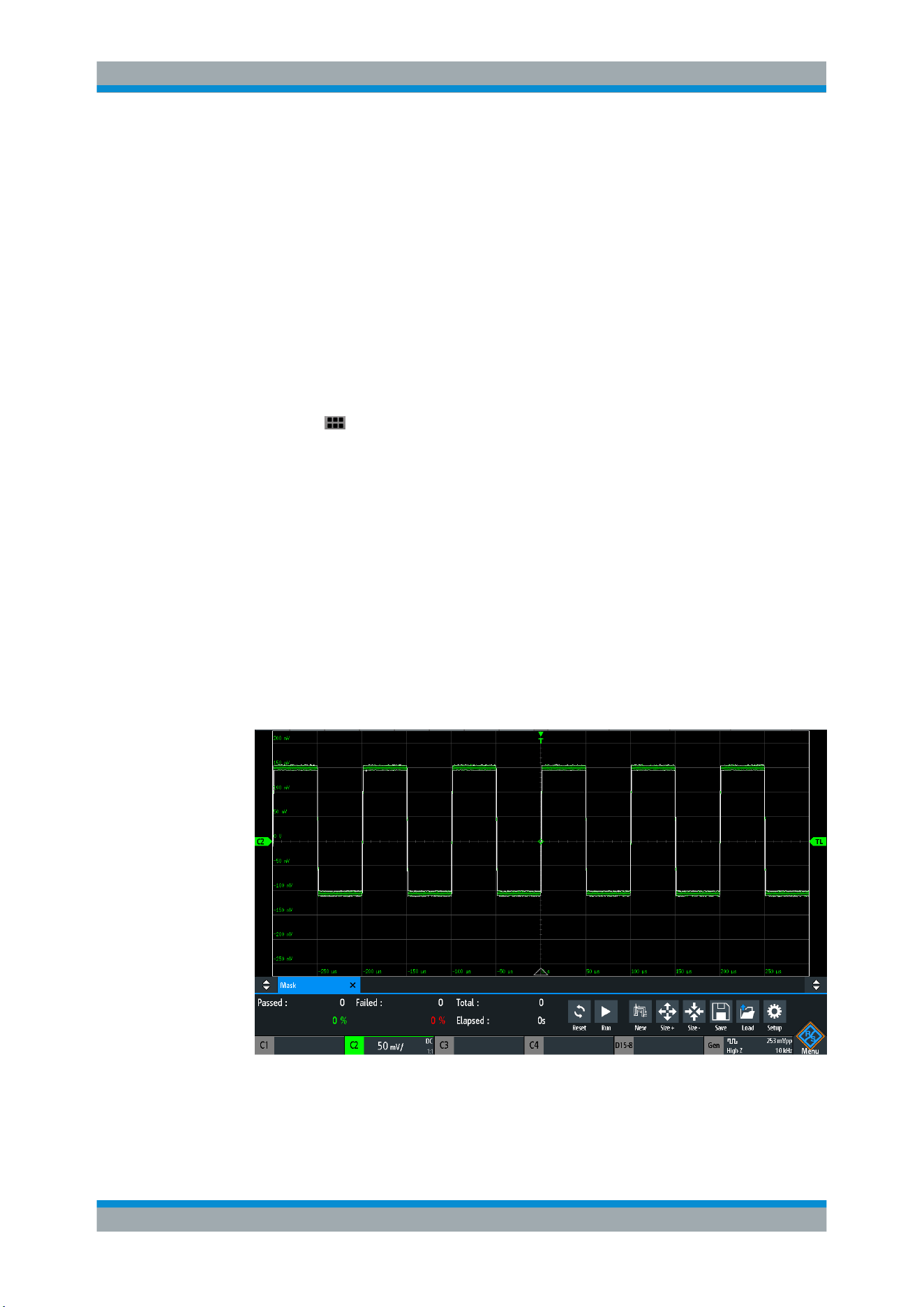
Applications
R&S
®
RTB2000
113User Manual 1333.1611.02 ─ 03
File format for masks: MSK
MSK is the specific binary format for masks of the R&S RTB2000. It contains pairs of
amplitude values (in divisions) , their sample indexes and current instrument settings.
Thus, the amplitude values are not related to time and voltage. The mask data is saved
in the internal storage and can be loaded back when needed. The format is not inten-
ded for analysis outside the R&S RTB2000.
8.1.2 Using Masks
Starting the mask application
1.
Press the
APPS SELECTION key.
2. Tap "Mask".
You can also add the mask icon to the toolbar and start the application from the
toolbar. See "Configuring the Toolbar" on page 33.
To create and set up a mask
You create a mask based on a channel waveform, then optimize it by changing its
position and proportions, and save it.
1. Select and adjust the channel waveform that you want to use as basis for the
mask. Run continuous acquisition.
2. Start the mask application.
3. In the mask window, tap "New".
4. Adjust the size of the mask:
● For simple setup, use "Size+" and "Size-" to change the mask dimensions in x-
and y direction.
Mask Testing
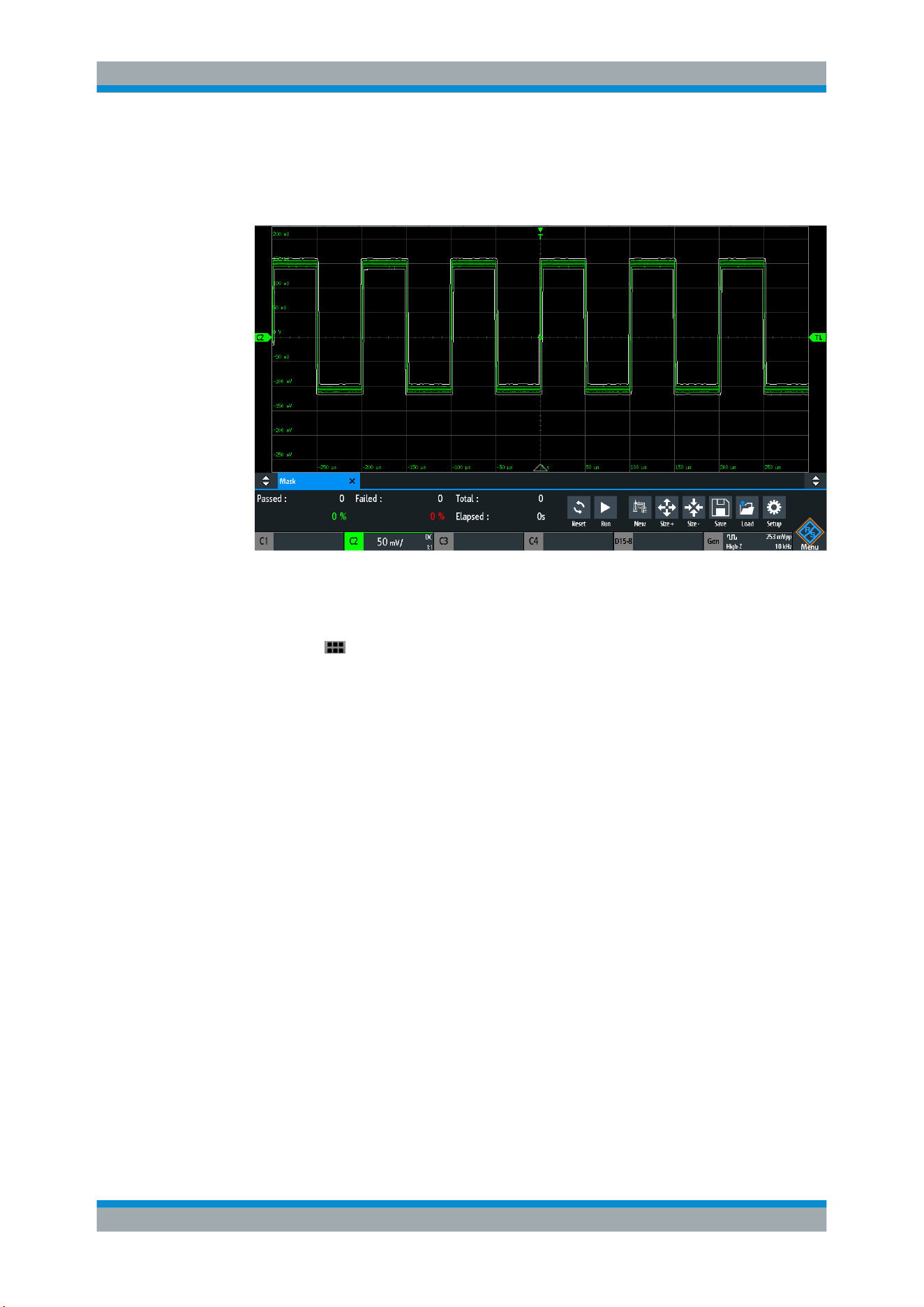
Applications
R&S
®
RTB2000
114User Manual 1333.1611.02 ─ 03
● For detailed setup:
– Tap "Setup" to open the "Mask" menu.
– Change "Width Y", "Width X" and/or "Stretch Y".
5. To save the mask for later use, tap "Save".
To load a mask
1.
Press the
APPS SELECTION key.
2. Tap "Mask".
3. Tap "Load".
4. Select the mask file.
5. Tap "Load".
To perform a mask testing
1. Set up the waveform that you want to test.
2. Create or load a mask. See:
●
"To create and set up a mask" on page 113
● "To load a mask" on page 114
3. If necessary, tap "Setup" and adjust the y-position of the mask
4. Set the "Actions" to be performed on violation.
5. In the mask window, tap "Run".
If the mask limits are violated, the specified action is taken. The overall result is
shown in the mask window.
Mask Testing
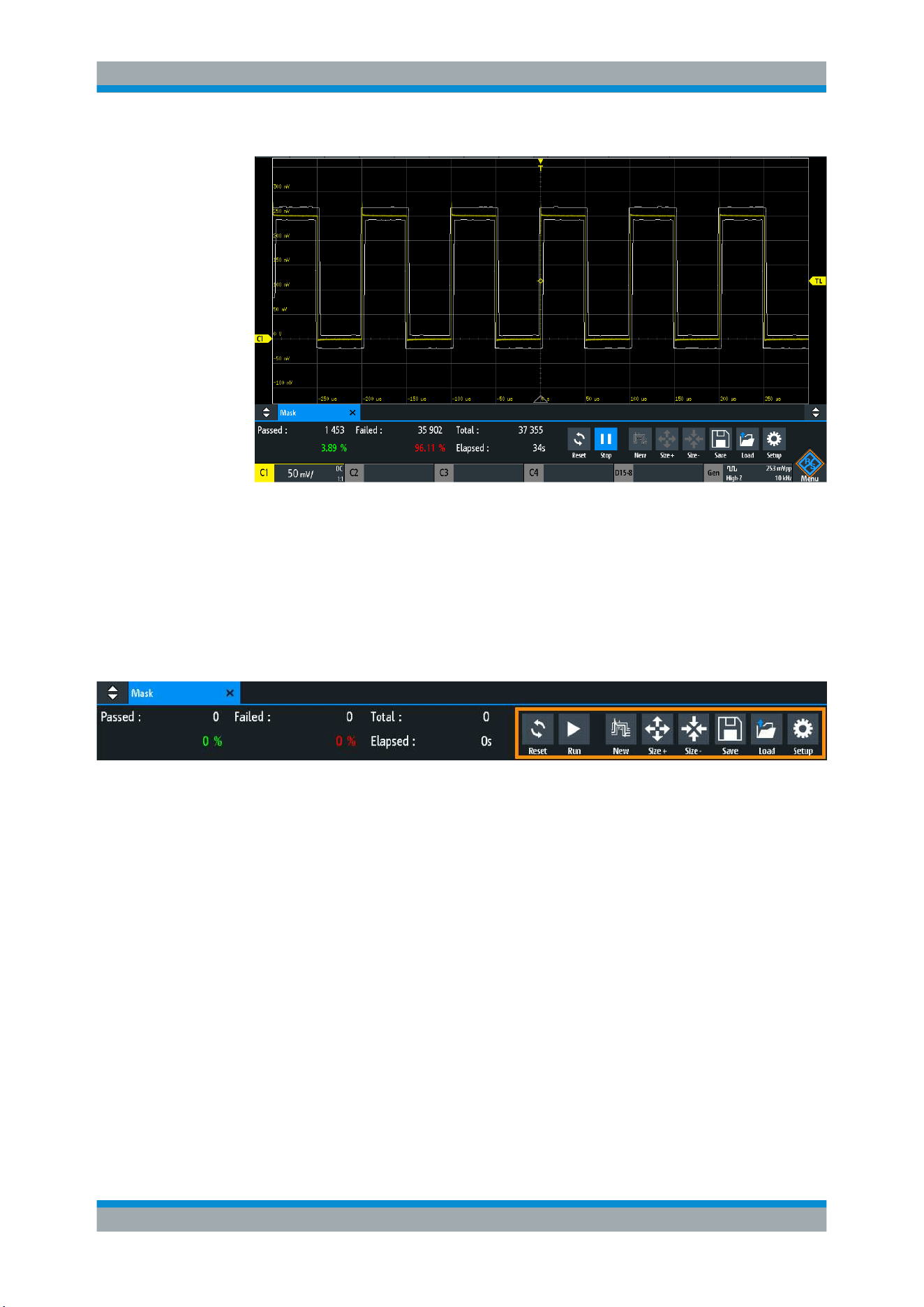
Applications
R&S
®
RTB2000
115User Manual 1333.1611.02 ─ 03
6. Tap "Reset" to delete the results.
7. To finish the test, tap "Stop".
8.1.3 Mask Window
The mask window provides the most important function to set up a mask, and to run
the test.
Reset
Deletes all test results.
Remote command:
MASK:RESet:COUNter on page 327
Run, Stop
Starts or finishes the mask test.
Remote command:
MASK:TEST on page 326
New
Creates a mask from the envelope of the selected channel waveform.
Remote command:
MASK:SOURce on page 323
MASK:CHCopy on page 323
Mask Testing
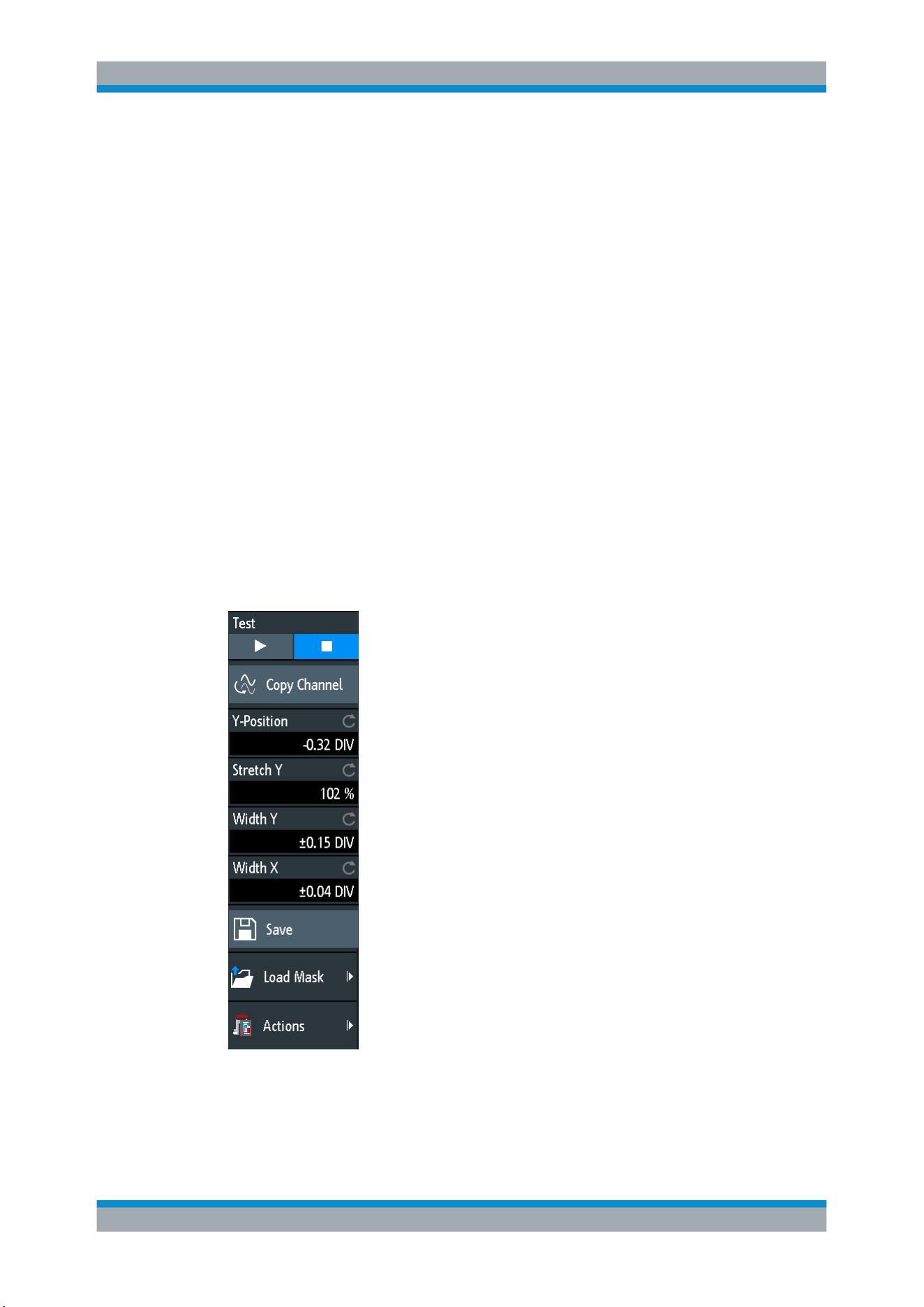
Applications
R&S
®
RTB2000
116User Manual 1333.1611.02 ─ 03
Size+, Size-
Enlarges or decreases the mask in x- and y-direction.
Save, Load
Saves the created mask to file, or loads a previously saved mask. The file format is
MSK.
Remote command:
MASK:SAVE on page 324
MASK:LOAD on page 324
Setup
Opens the "Setup" menu to define exact mask dimensions and the actions to be exe-
cuted on violation of the mask.
8.1.4 Mask Menu
► To open the "Mask" setup menu:
● Tap the "Setup" button in the mask window.
● Tap the "Menu" icon. Select "Mask".
Mask Testing

Applications
R&S
®
RTB2000
117User Manual 1333.1611.02 ─ 03
Test
Performs a mask test for the selected signal, i.e. the signal amplitudes are compared
with the specified mask. If the amplitude exceeds the limits of the mask, a violation is
detected.
Remote command:
MASK:TEST on page 326
Copy Channel
Creates a mask from the envelope waveform of the selected channel and stores it in
the instrument.
Remote command:
MASK:SOURce on page 323
MASK:CHCopy on page 323
Y-Position
Moves the mask vertically within the display. The current position is given in divisions.
Remote command:
MASK:YPOSition on page 323
Stretch Y
Changes the vertical scaling to stretch or compress the mask in y-direction.
Remote command:
MASK:YSCale on page 324
Width X
Changes the width of the mask in horizontal direction. The specified factor in divisions
is added to the positive x-values and subtracted from the negative x-values of the
mask limits in relation to the mask center. Thus, the left half of the mask is pulled to the
left, the right half is pulled to the right.
Remote command:
MASK:XWIDth on page 324
Width Y
Changes the width of the mask in vertical direction. The specified number of divisions
is added to the y-values of the upper mask limit and subtracted from the y-values of the
lower mask limit. Thus, the upper half of the mask is pulled upwards, the lower half is
pulled down, and the overall height of the mask is twice the "Width Y".
Remote command:
MASK:YWIDth on page 324
Save
Saves the mask in an instrument-specific format (MSK). The complete mask definition
- envelope waveform with width, stretch and position settings - is stored.
Remote command:
MASK:SAVE on page 324 and commands described in Chapter 15.9.1.4, "Masks",
on page 345.
Mask Testing

Applications
R&S
®
RTB2000
118User Manual 1333.1611.02 ─ 03
Load Mask
Opens a file explorer to select a previously stored mask. The selected mask is loaded
and can be used for a subsequent test.
Remote command:
MASK:LOAD on page 324
Actions
Opens a submenu to select the actions to be taken when a violation against the mask
limits occurs.
"Sound"
Generates a beep sound at each violation.
"Stop"
Stops the waveform acquisition. Set the number of the stop violation.
Thus, you can ignore a number of violations before stop.
"Pulse"
Creates a pulse on the AUX OUT connector. This selection sets the
configuration of the AUX OUT connector to "Mask Violation".
"Screenshot"
Saves a screenshot according to the settings in "File" > "Screen-
shots".
"Save Wave-
form"
Saves the waveform data according to the settings in "File" > "Wave-
forms".
Remote command:
MASK:ACTion:SOUNd:EVENt:MODE on page 325
MASK:ACTion:STOP:EVENt:MODE on page 325
MASK:ACTion:STOP:EVENt:COUNt on page 325
MASK:ACTion:PULSe:EVENt:MODE on page 325
MASK:ACTion:SCRSave:EVENt:MODE on page 325
MASK:ACTion:WFMSave:EVENt:MODE on page 325
8.2 FFT Analysis
The R&S RTB2000 provides basic FFT calculation, which is included in the firmware.
► To enable the FFT analysis, press the FFT key.
Short menu for FFT
To select which type of waveforms are displayed in the FFT diagram, you can use the
FFT short menu. Also you can set a full span and disable the FFT analysis.
► To open the short menu for an FFT, tap the FFT label in the bottom line of the dis-
play. The label is only available, if the FFT analysis is enabled.
FFT Analysis
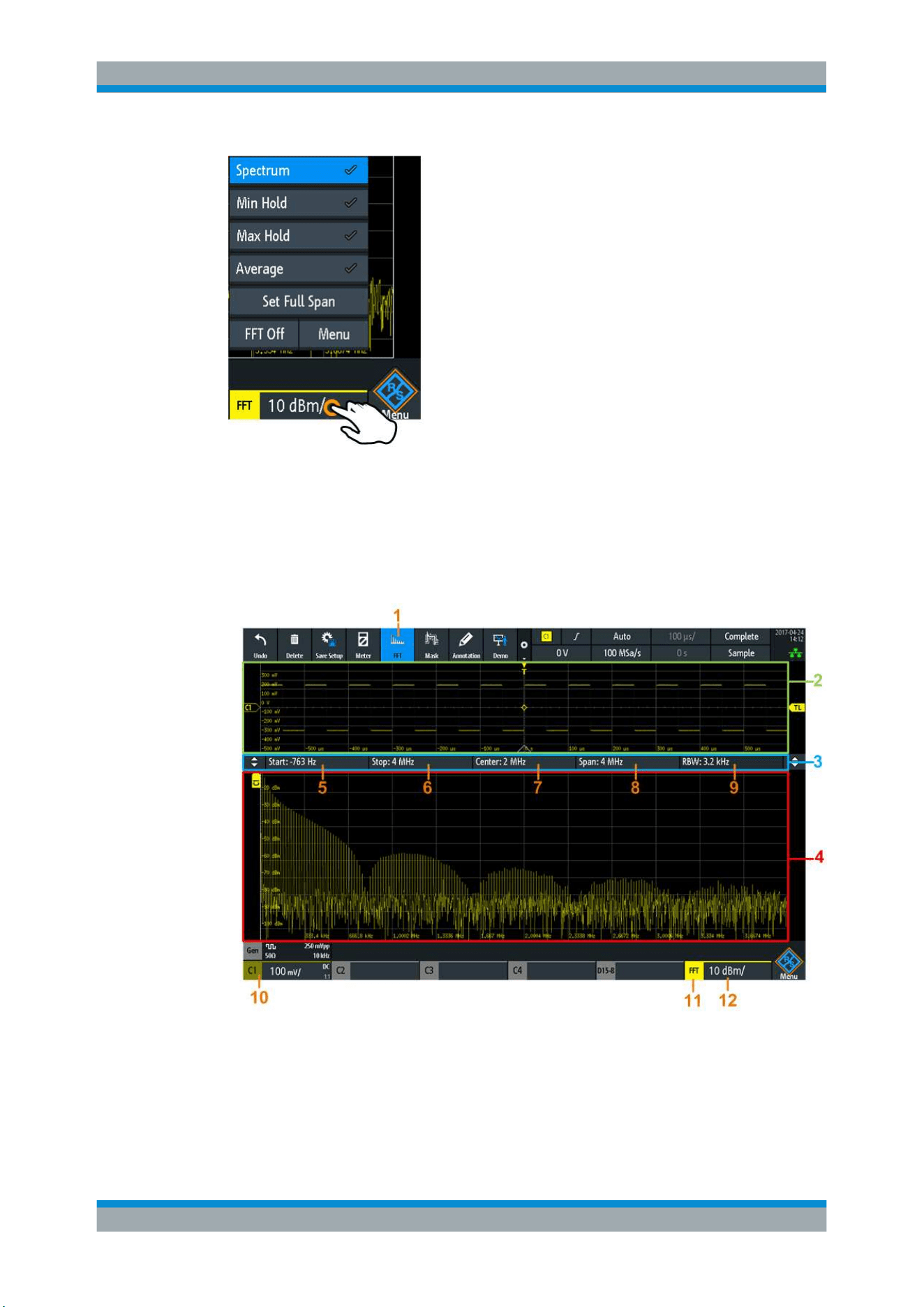
Applications
R&S
®
RTB2000
119User Manual 1333.1611.02 ─ 03
8.2.1 FFT Display
When you activate FFT display, two windows are displayed: the signal vs. time at the
top, the result of the FFT analysis at the bottom. In addition, FFT-specific parameters
can be set in the FFT shortcuts.
1 = Enable FFT
2 = Signal vs. time display
3 = FFT shortcuts
4 = Result of the FFT analysis
5 = Start frequency
6 = Stop frequency
7 = Center frequency
8 = Span
FFT Analysis

Applications
R&S
®
RTB2000
120User Manual 1333.1611.02 ─ 03
9 = Resolution bandwidth
10 = Channel providing input data
11 = Opens the FFT short menu
12 = Amplitude vertical scale (range per division)
Data source
FFT analysis is performed on the data captured from one of the active input channels,
or on ona of the active math or reference waveforms. Analysis can only be performed
on one channel at a time.
Time base
FFT analysis is performed on the data captured during the entire data acquisition. To
restrict the time base for which FFT analysis is to be performed (thus reducing calcula-
tion time), you must increase the resolution bandwidth (see
"RBW" on page 124).
Frequency range
The display can be restricted to the results for a specified frequency range.
8.2.2 Performing FFT Analysis
1. To adjust the instrument settings to the current input signal automatically, press
AUTOSET.
2. Press the FFT key twice to open the FFT menu.
3. Select the "FFT Window" type according to the signal characteristics that are most
relevant for your measurement task (see
"FFT Window" on page 121).
4. In the "Waveform" menu, enable the waveforms you want to display (see "Wave-
form" on page 122).
From each waveform type, you can also create a reference waveform for further
analysis.
5. In the shortcuts for FFT, set the "Start" frequency, "Stop" frequency, "Span" and
"RBW".
6. To start and stop FFT analysis, press the RUN STOP key.
8.2.3 FFT Setup
You can set the parameters for the FFT analysis in the FFT menu and in the shortcuts
for FFT.
► To open the menu, press the FFT key.
If the FFT analysis was not enabled, tap twice: Once to enable FFT, and next to
open the menu.
The FFT menu opens and the shortcuts are displayed on the screen.
FFT Analysis
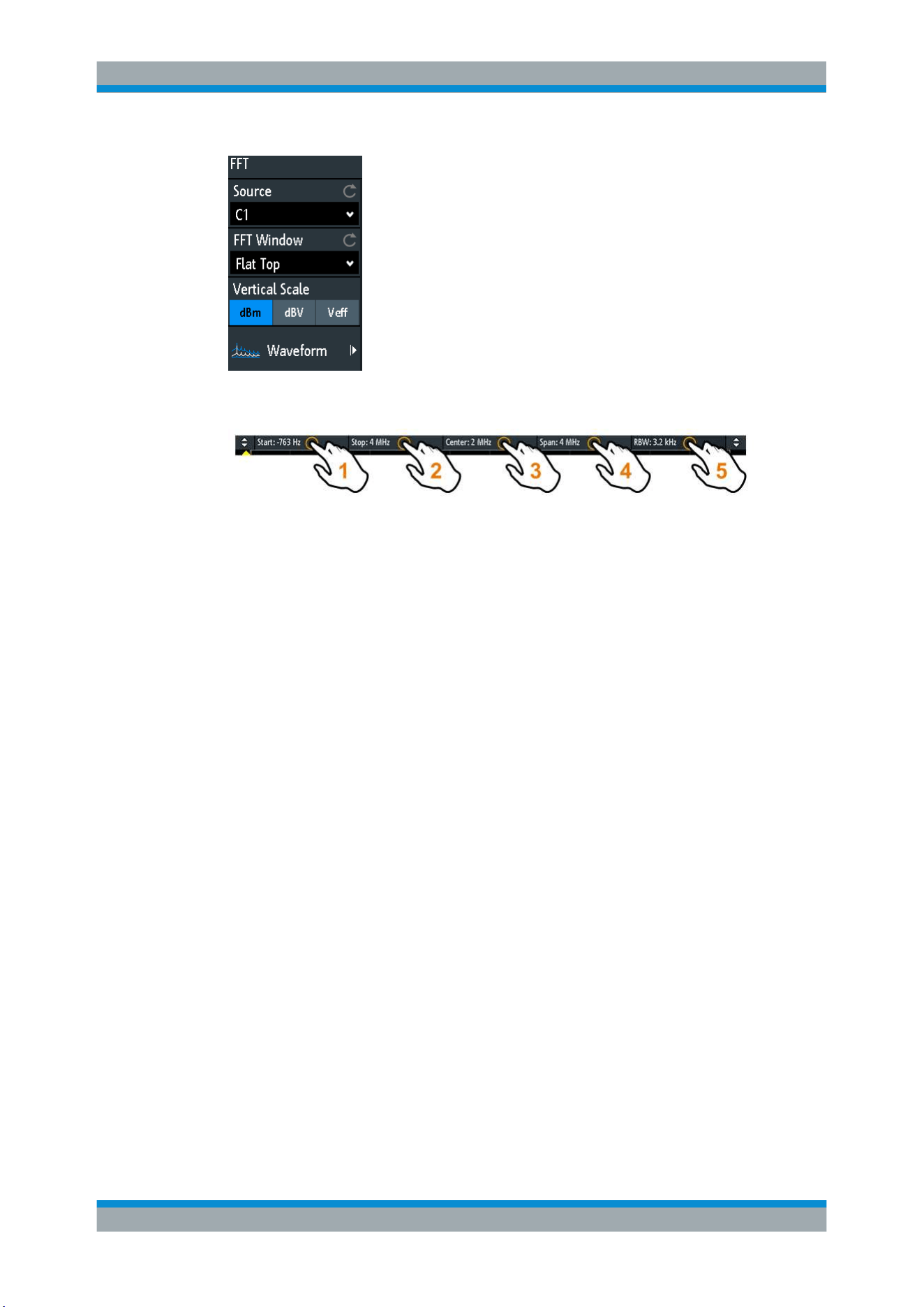
Applications
R&S
®
RTB2000
121User Manual 1333.1611.02 ─ 03
Shortcuts for FFT
1 = Start frequency
2 = Stop frequency
3 = Center
4 = Span
5 = Resolution bandwidth (RBW)
Source
Selects the channel for which the captured data is analyzed for the FFT. You can
select one of the active input channels, math or reference waveforms.
Remote command:
SPECtrum:SOURce on page 328
FFT Window
Windowing helps minimize the discontinuities at the end of the measured signal inter-
val and thus reduces the effect of spectral leakage, increasing the frequency resolu-
tion.
Various different window functions are provided in the R&S RTB2000 to suit different
input signals. Each of the window functions has specific characteristics, including some
advantages and some trade-offs. Consider these characteristics carefully to find the
optimum solution for the measurement task.
"Hanning"
The Hanning window is bell shaped. Unlike the Hamming window, its
value is zero at the borders of the measuring interval. Thus, the noise
level within the spectrum is reduced and the width of the spectral
lines enlarges.
Use this window to measure amplitudes of a periodical signal pre-
cisely.
FFT Analysis

Applications
R&S
®
RTB2000
122User Manual 1333.1611.02 ─ 03
"Hamming"
The Hamming window is bell shaped. Its value is not zero at the bor-
ders of the measuring interval. Thus, the noise level inside the spec-
trum is higher than Hanning or Blackman, but smaller than the rectan-
gular window. The width of the spectral lines is thinner than the other
bell-shaped functions.
Use this window to measure amplitudes of a periodical signal pre-
cisely.
"Blackman"
The Blackman window is bell shaped and has the steepest fall in its
wave shape of all other available functions. Its value is zero at both
borders of the measuring interval. In the Blackman window, the
amplitudes can be measured very precisely. However, determining
the frequency is more difficult.
Use this window to measure signals with single frequencies to detect
harmonics and accurate single-tone measurements.
"Flat Top"
The flat top window has low amplitude measurement errors but a
poor frequency resolution.
Use this window for accurate single-tone measurements and for mea-
surement of amplitudes of sinusoidal frequency components.
"Rectangle"
The rectangular window multiplies all points by one. The result is a
high frequency accuracy with thin spectral lines, but also with
increased noise.
Use this function for measurements of separation of two tones with
almost equal amplitudes and a small frequency distance.
Remote command:
SPECtrum:FREQuency:WINDow:TYPE on page 328
Vertical Scale
Defines the scaling unit for the vertical scale.
The displayed values refer to a 50 Ohm terminating resistor. You can use an external
terminating resistor parallel to the high impedance input.
"dBm"
Logarithmic scaling; related to 1 mW
"dBV"
Logarithmic scaling; related to 1 Veff.
"Veff"
Linear scaling; displays the RMS value of the voltage.
Remote command:
SPECtrum:FREQuency:MAGNitude:SCALe on page 329
Waveform
Determines which of the acquired data is displayed. Several types of waveforms can
be displayed in parallel, but at least one waveform must be selected. By default, the
"Spectrum" waveform is selected. From each waveform type, you can also create a
reference waveform for further analysis.
When a new mode is selected, statistical evaluation is restarted.
To clear the results of previous measurements used for statistical evaluation, select
"Reset".
FFT Analysis
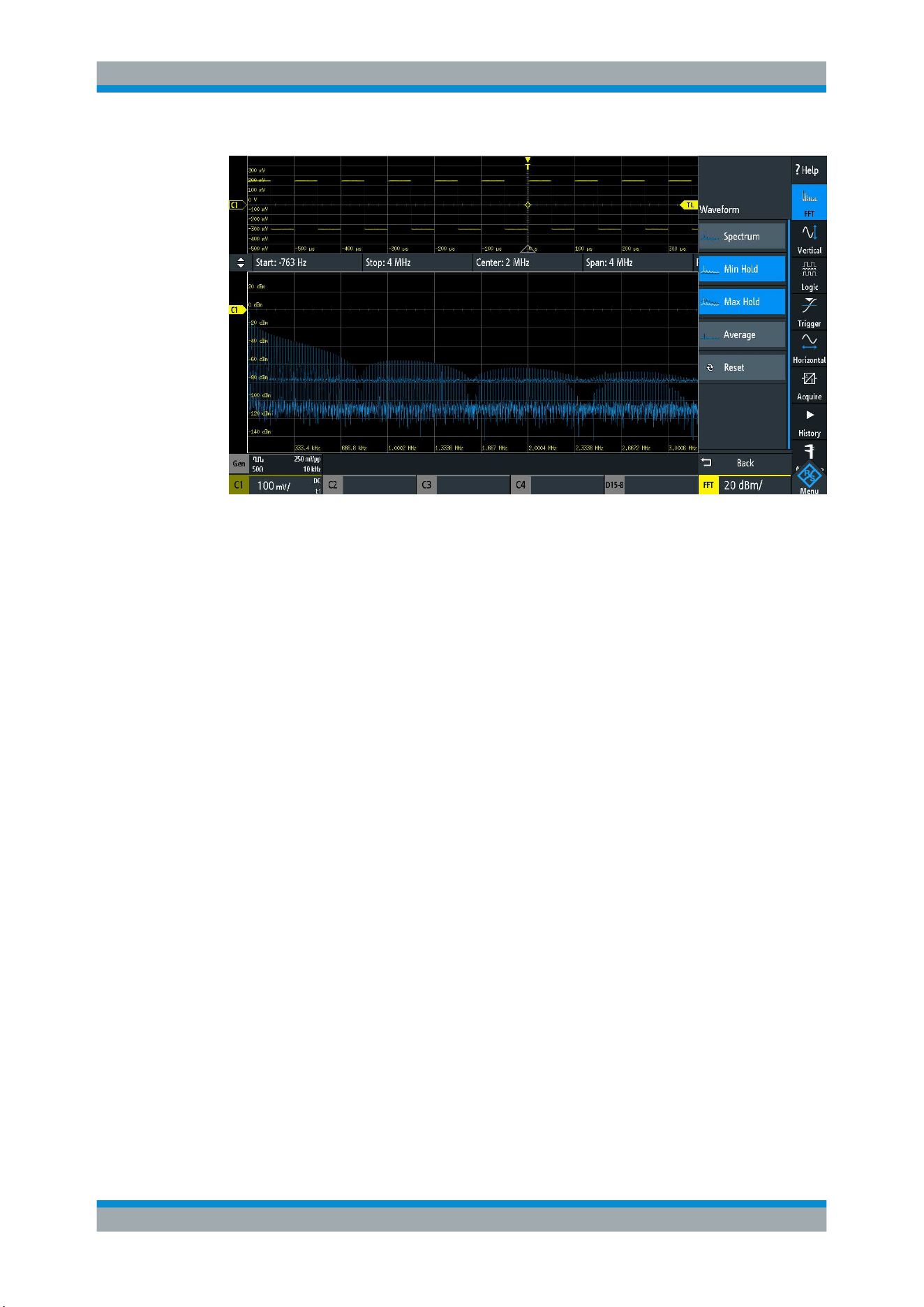
Applications
R&S
®
RTB2000
123User Manual 1333.1611.02 ─ 03
"Spectrum"
The currently measured value for each frequency is displayed.
"Min Hold"
The minimum value for each frequency over all measurements is dis-
played.
Using the min hold trace mode is a good way to highlight signals
within noise or suppress intermittent signals.
"Max Hold"
The maximum value for each frequency over all measurements is dis-
played.
Using the max hold trace mode is a good way to detect intermittent
signals or the maximum values of fluctuating signals, for example.
"Average"
The average value for each frequency in the waveform over the
specified "# Averages" is calculated.
Averaging reduces the effects of noise, but has no effects on sine sig-
nals. Using the trace averaging therefore is a good way to detect sig-
nals near noise.
Remote command:
SPECtrum:WAVeform:SPECtrum[:ENABle] on page 332
SPECtrum:WAVeform:MINimum[:ENABle] on page 332
SPECtrum:WAVeform:MAXimum[:ENABle] on page 332
SPECtrum:WAVeform:AVERage[:ENABle] on page 332
SPECtrum:FREQuency:AVERage:COUNt on page 330
Reset
Clears the results for previous measurements used in statistical evaluation, see
Wave-
form
.
Remote command:
SPECtrum:FREQuency:RESet on page 330
Start
Defines the start frequency of the displayed frequency span.
FFT Analysis

Applications
R&S
®
RTB2000
124User Manual 1333.1611.02 ─ 03
Remote command:
SPECtrum:FREQuency:STARt on page 331
Stop
Defines the stop frequency of the displayed frequency span.
Remote command:
SPECtrum:FREQuency:STOP on page 331
Center
Defines the frequency in the center of the displayed span.
To set the center frequency, you can also use the Position keys.
Remote command:
SPECtrum:FREQuency:CENTer on page 330
Span
The span is specified in Hertz and defines the width of the displayed frequency range,
which is (Center - Span/2) to (Center + Span/2). The position of the span is defined
using the
Center setting.
Remote command:
SPECtrum:FREQuency:SPAN on page 331
RBW
The resolution bandwidth (RBW) determines the resolution of the spectrum, that is: the
minimum distance between two distinguishable peaks. The higher the resolution (the
smaller the ratio), the more peaks are detected, but the longer the measurement
requires to finish.
Remote command:
SPECtrum:FREQuency:BANDwidth[:RESolution][:VALue] on page 331
8.3 XY-Diagram
XY-diagrams combine the voltage levels of two waveforms in one diagram. They use
the amplitude of a second waveform as the x-axis, rather than a timebase. Thus, you
can measure phase shift, for example. With harmonically related signals, the resulting
XY-diagrams are Lissajous patterns. XY-diagrams can also be used to display the IQ
representation of a signal.
Together with the XY-diagram, the time diagrams of the source signals are displayed in
separate grids. It is also possible to define two source signals in y-direction for compar-
ison.
1.
Press the
APPS SELECTION key.
2. Select "XY".
3. Make sure that the signals, the trigger, and the acquisition are set up correctly. The
required menus are available in XY-mode.
XY-Diagram
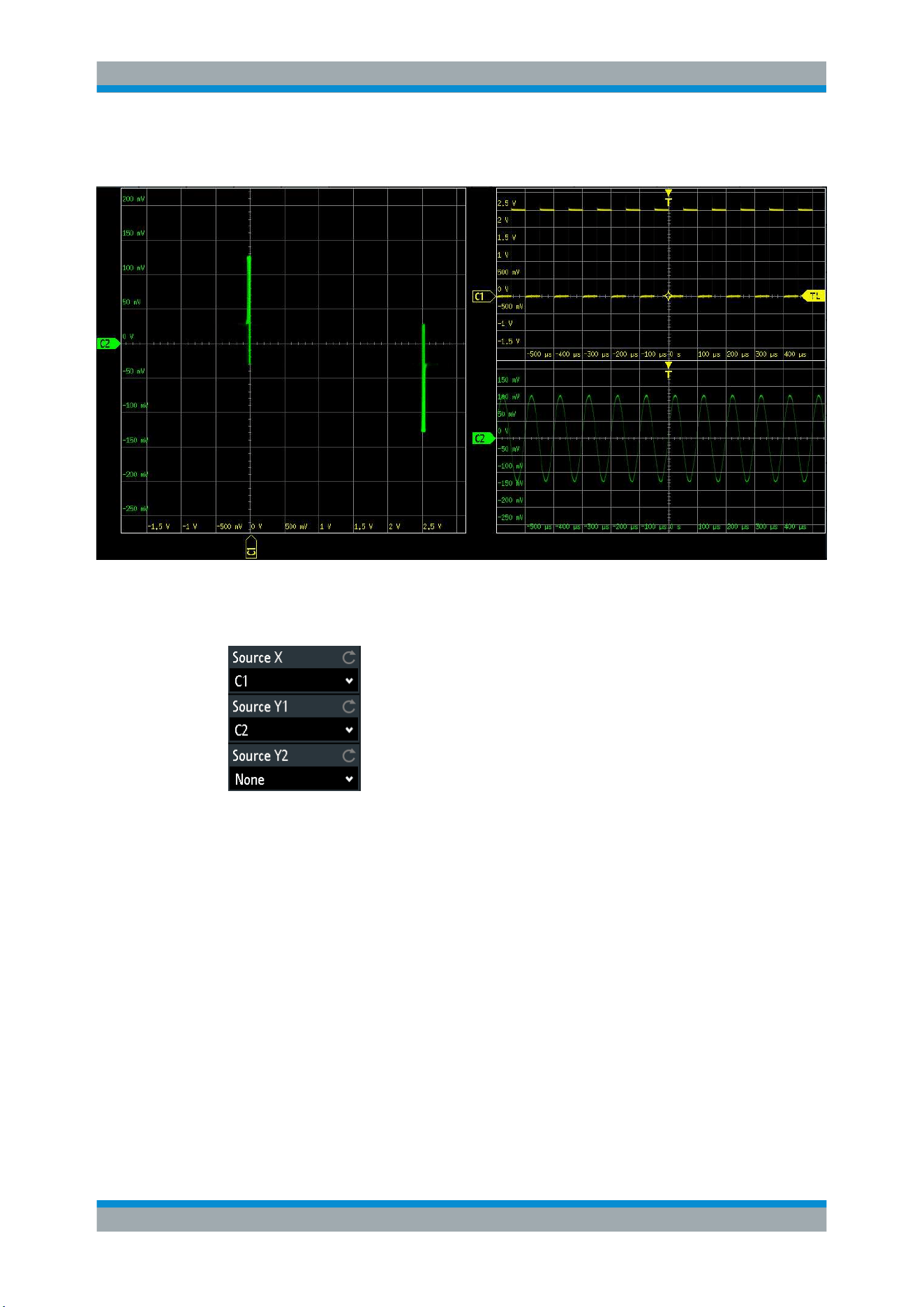
Applications
R&S
®
RTB2000
125User Manual 1333.1611.02 ─ 03
Remote command:
DISPlay:MODE on page 334
To analyze the signal in the XY-diagram, you can use cursor measurements. You can
select specific cursor measurement types:"Voltage X", "Voltage Y1", "Voltage Y2" use
2 cursor lines, "Voltage X-Y1" and "Voltage X-Y2" use 4 cursor lines.
Source X
Defines the source to be displayed in x-direction in an XY-diagram, replacing the usual
timebase. The source can be any of the analog channels.
Remote command:
DISPlay:XY:XSOurce on page 335
Source Y1
Defines the first signal to be displayed in y-direction in an XY-diagram. The source can
be any of the active analog channels.
Remote command:
DISPlay:XY:Y1Source on page 335
Source Y2
Defines an optional second source to be displayed in y-direction in an XY-diagram.
The source can be any of the analog channels. The setting is only relevant for 4-chan-
nel R&S RTB2000 instruments.
XY-Diagram
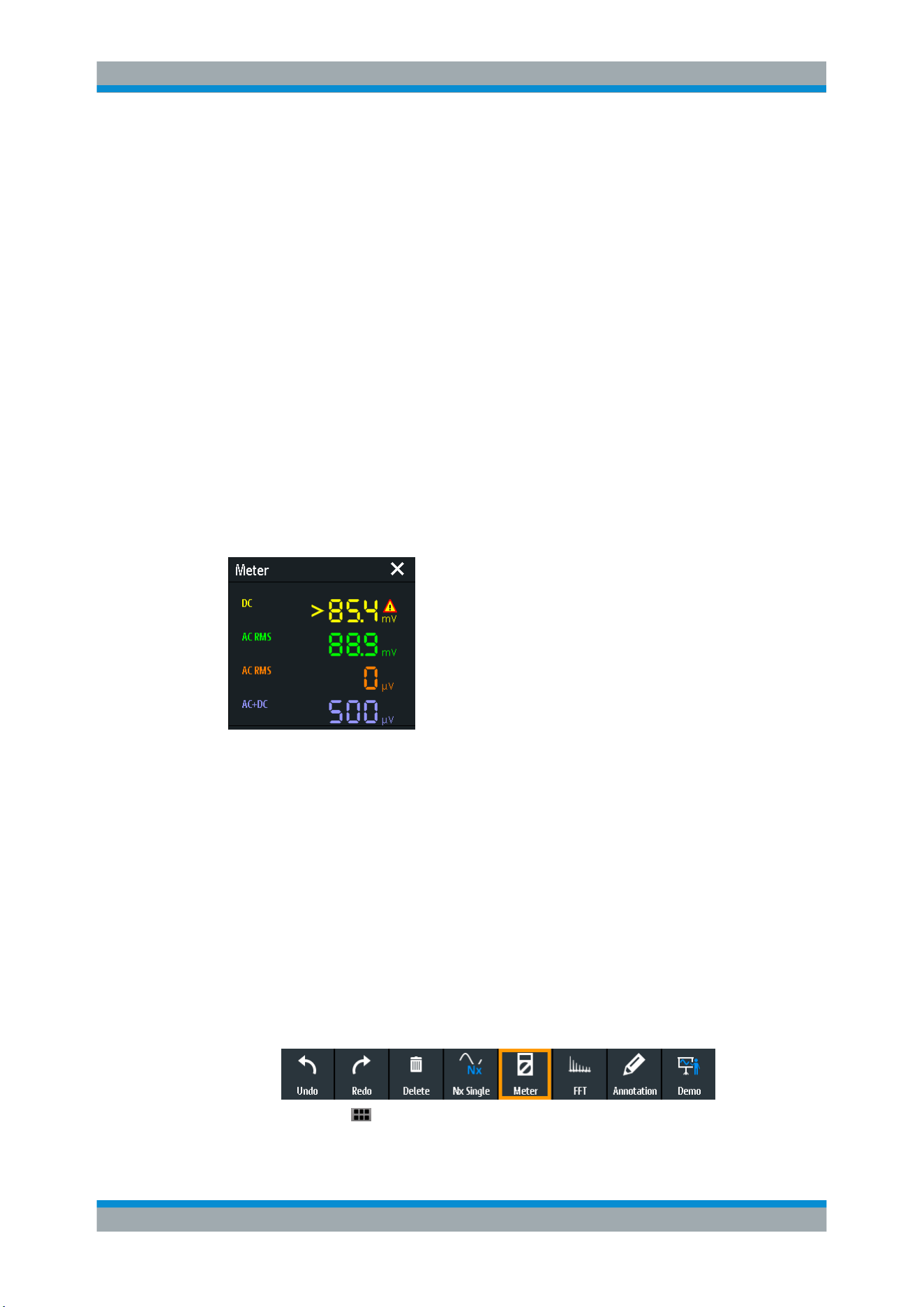
Applications
R&S
®
RTB2000
126User Manual 1333.1611.02 ─ 03
Remote command:
DISPlay:XY:Y2Source on page 335
8.4 Digital Voltmeter
The integrated three-digit digital voltmeter simplifies measurements, in particular for
service personnel. You can measure up to four parameters on different sources at the
same time and define the position of the measurement results.
The following DVM measurements are available:
●
DC: mean value of the signal
●
AC+DC RMS: RMS value of the signal
●
AC RMS: RMS value of the signal's AC component
The digital voltmeter captures input data with the selected vertical sensitivity and the
basic accuracy of the ADC. It is independent from the capture settings and the post
processing. All measurements are based on a measurement interval, which ensures
reliable results over the defined frequency range.
Figure 8-1: Results of 4 meter measurements. The measurement source is indicated by the channel
color. The source of meter 1 is channel 1, and it is clipped.
Remote commands to read meter results:
●
DVM<m>:RESult[:ACTual]? on page 336
●
DVM<m>:RESult[:ACTual]:STATus? on page 337
8.4.1 Using the Meter
To activate meter measurements
► Use one of the following ways:
● Tap the "Meter" icon on the toolbar.
●
Press the
APPS SELECTION key.
Tap "Meter".
Digital Voltmeter
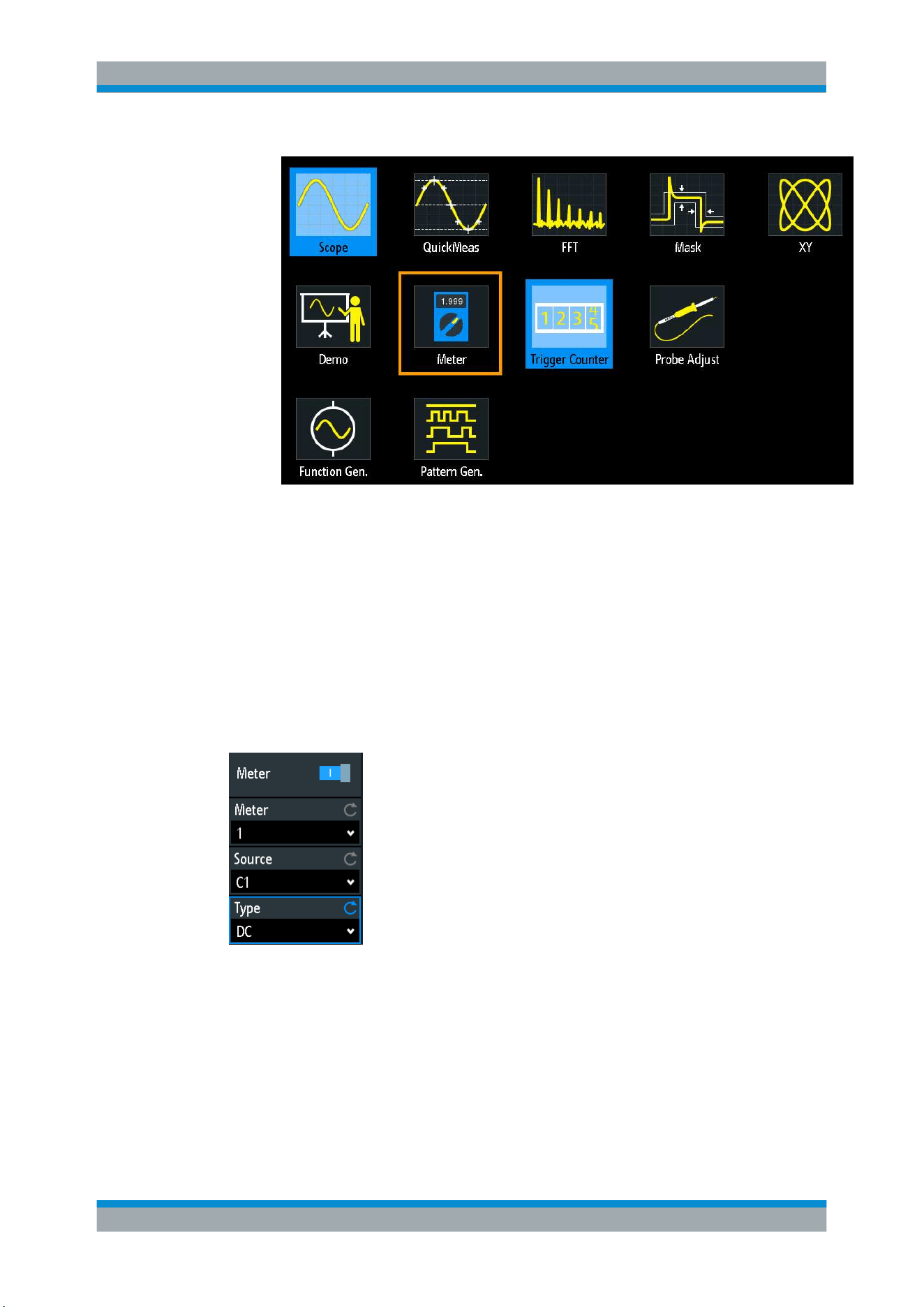
Applications
R&S
®
RTB2000
127User Manual 1333.1611.02 ─ 03
To deactivate meter measurements
► Use one of the following ways:
● Tap the "Meter" icon on the toolbar again.
● Close the "Meter" result box.
8.4.2 Meter Settings
► To open the "Meter" configuration menu, tap inside the "Meter" result box.
Meter (on/off)
Activates or deactivates the digital voltmeter with the last configuration. Preset deletes
the voltmeter configuration.
Remote command:
DVM<m>:ENABle on page 336
Digital Voltmeter
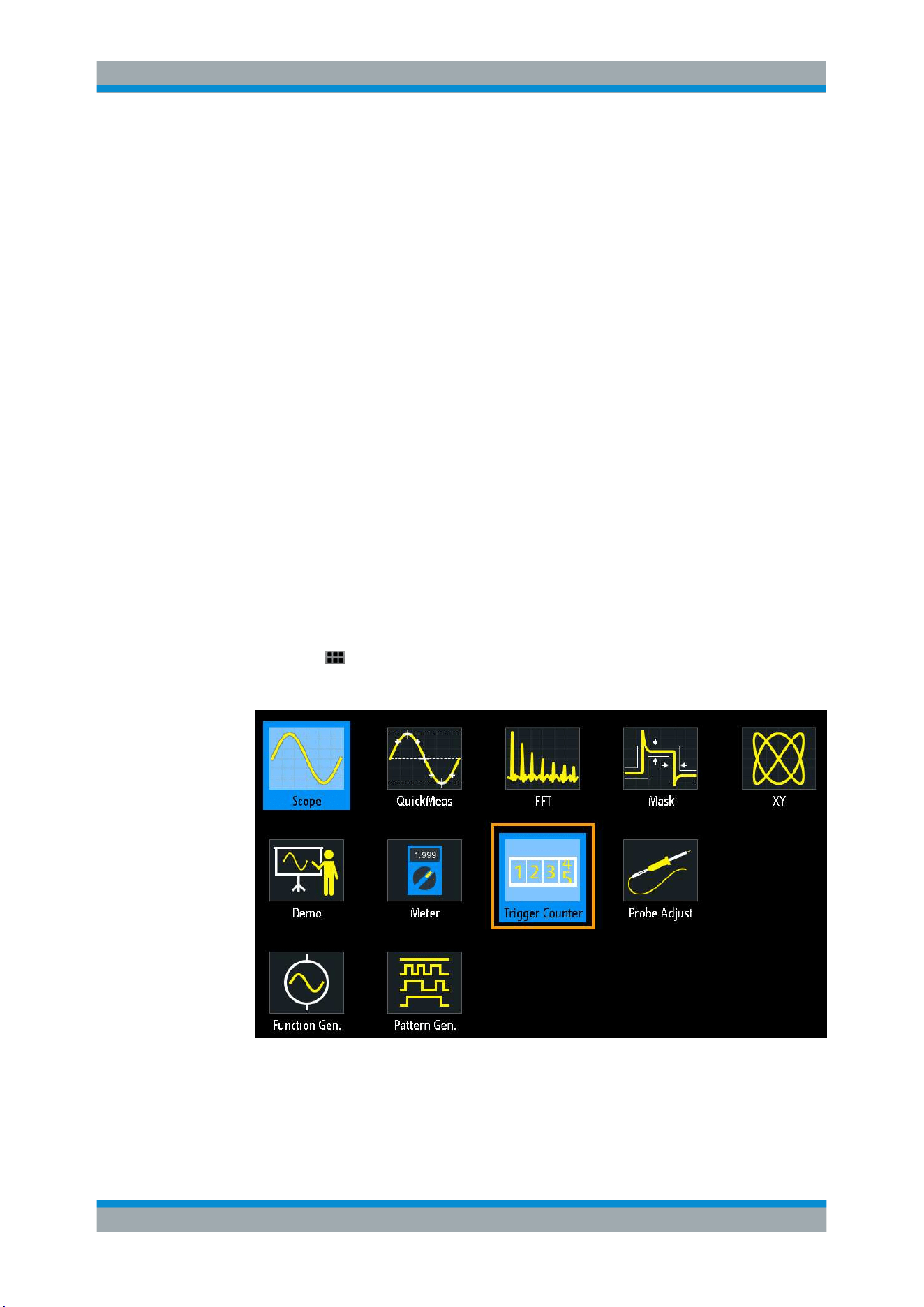
Applications
R&S
®
RTB2000
128User Manual 1333.1611.02 ─ 03
Meter
Selects one of the four available meter measurements. The configuration of the
selected meter is displayed in the menu.
Source
Selects an analog channel as the source of the selected meter measurement.
Remote command:
DVM<m>:SOURce on page 336
Type
Defines the measurement type to be performed on the selected source:
●
DC: mean value of the signal
●
AC+DC RMS: RMS value of the signal
●
AC RMS: RMS value of the signal's AC component
Select "Off" to disable the selected meter measurement.
Remote command:
DVM<m>:TYPE on page 336
8.5 Trigger Counter
The counter shows two basic parameters of the trigger source: frequency and period.
1.
Press the
APPS SELECTION key.
2. Tap "Trigger Counter".
A result box shows the trigger source, and the frequency and period of the trigger
source. Tap inside the box to toggle the values. You can drag the box on the screen to
move it to the best position.
Trigger Counter
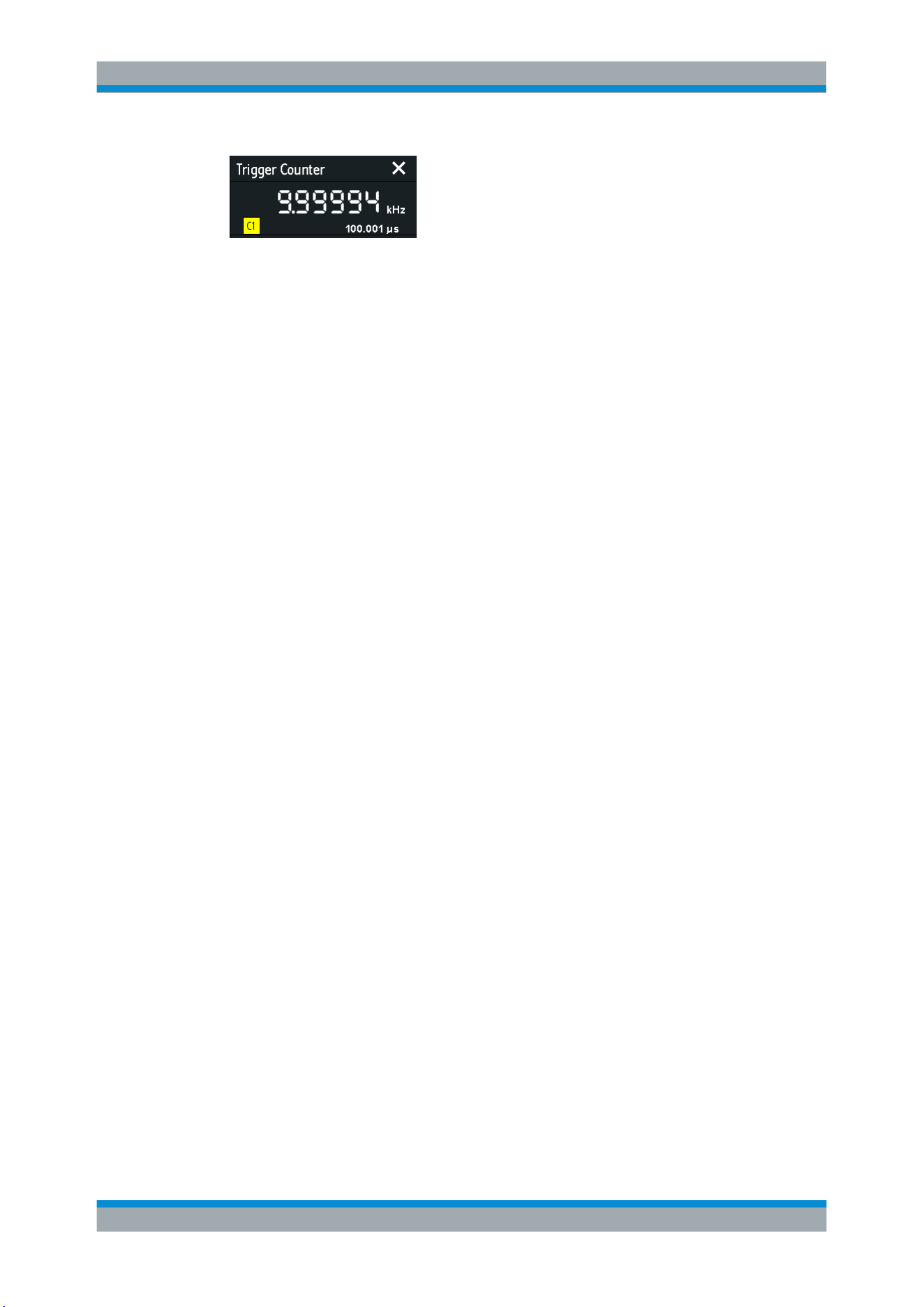
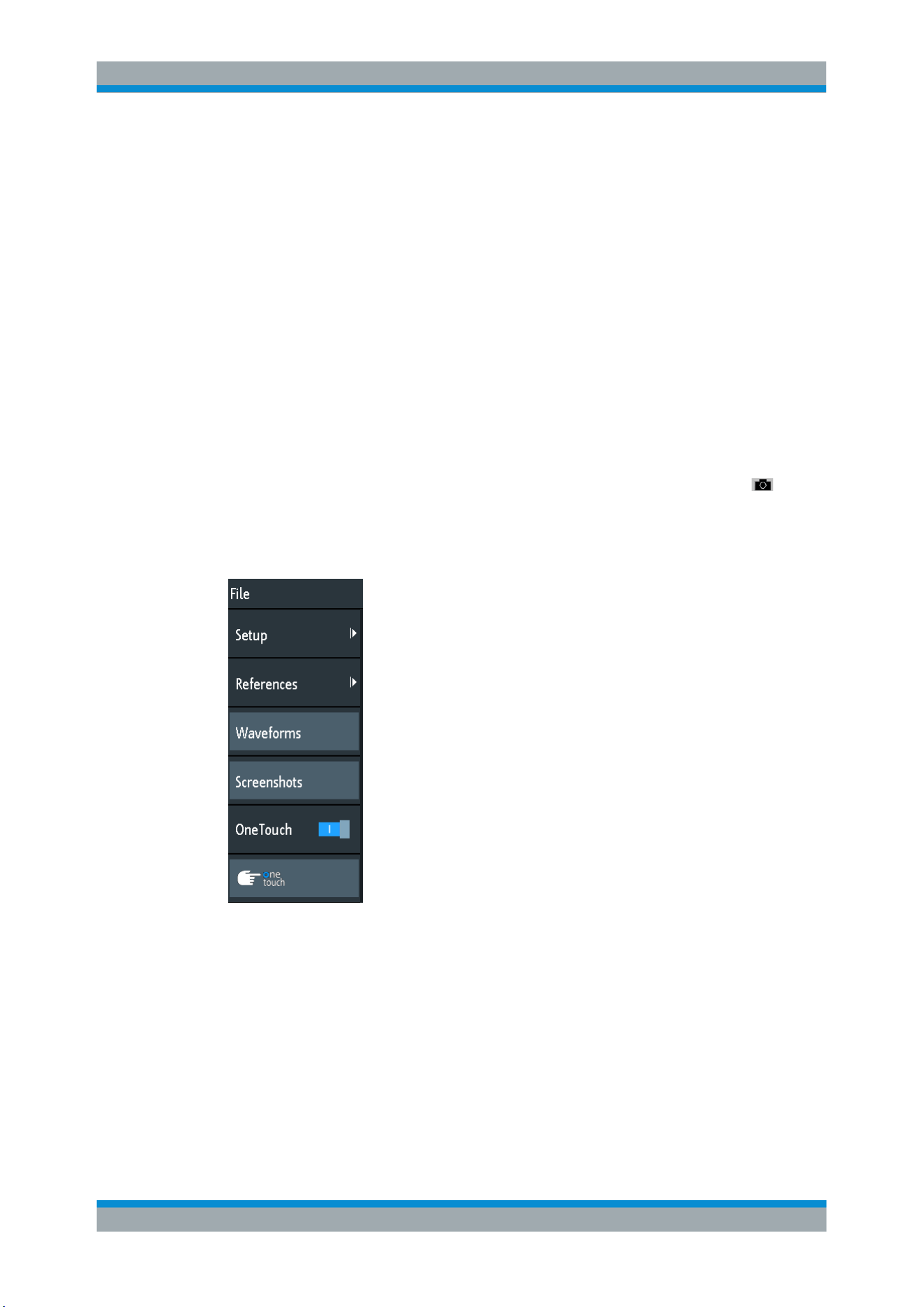
Documenting Results
R&S
®
RTB2000
130User Manual 1333.1611.02 ─ 03
9 Documenting Results
The R&S RTB2000 can store various data to files for further usage, analysis and
reporting:
●
Instrument settings:
Chapter 9.1, "Saving and Loading Instrument Settings",
on page 131
●
Waveforms:
Chapter 9.2, "Exporting Waveforms", on page 132
●
Screenshots:
Chapter 9.4, "Screenshots", on page 137
●
Reference waveforms
–
Chapter 6.3, "Reference Waveforms", on page 74
– Export and import:
Chapter 9.6, "Export and Import", on page 140
●
Search results, bus table with decode results, and statistics:
Chapter 9.5, "Quick
Save with OneTouch"
, on page 139
You can also combine these data and save it to a compressed file using the
key,
see
Chapter 9.5, "Quick Save with OneTouch", on page 139
► To save and load data, press the SAVE LOAD key.
Storage locations
Waveform data, screenshots and results, which are intended for analysis outside the
oscilloscope, are always saved to a USB flash drive. The USB flash drive is the exter-
nal storage location (USB_FRONT). This location is only available if the USB flash
drive is connected.
Reference waveforms and instrument settings, which are intended for further use on
the instrument, are usually saved to the internal storage (/INT). You can also store
them to the external storage, or move them to the other location using the export and
import function.
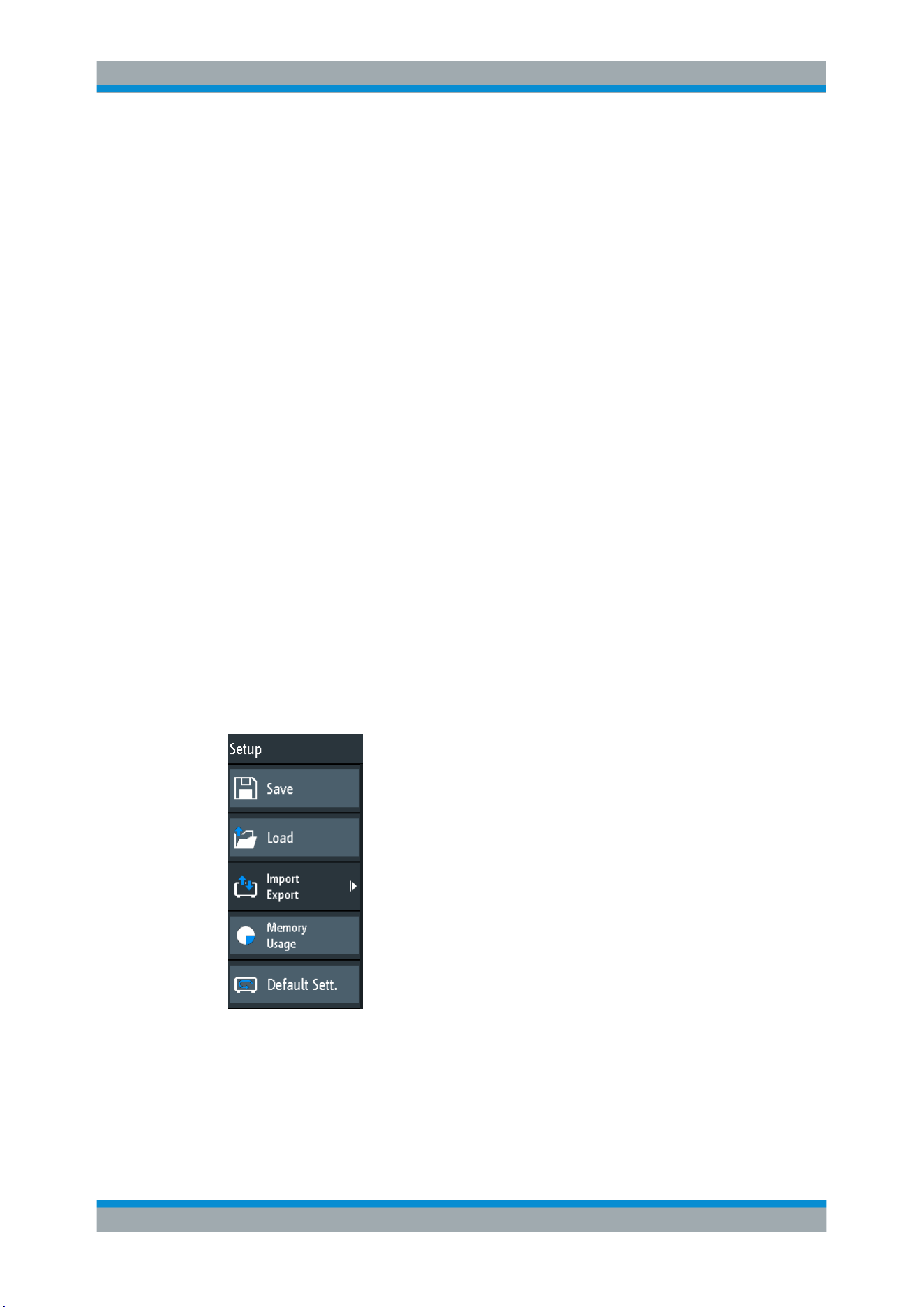
Documenting Results
R&S
®
RTB2000
131User Manual 1333.1611.02 ─ 03
The supported file system in all storage locations is FAT.
9.1 Saving and Loading Instrument Settings
To repeat measurements or tests at different times or perform similar measurements
with different test data, you can save the used configuration settings. Furthermore, it
can be helpful to refer to the configuration settings of a particular measurement when
analyzing the results. Therefore, you can easily save the complete measurement con-
figuration including the display settings. The settings are saved together with a small
screenshot of the display for better identification of the setup files.
By default, instrument settings are saved to the internal storage /INT/SETTINGS, but
you can also save them to USB flash drive.
If you often save and load instrument settings, try the following shortcuts:
●
The "Save Setup" toolbar icon saves the current settings to a file according to the
settings in "File" menu > "Setup". The "Load Setup" toolbar icon opens a dialog to
select and load a setup. See also
"Configuring the Toolbar" on page 33.
●
Configure OneTouch to save instrument settings. See
Chapter 9.5, "Quick Save
with OneTouch"
, on page 139.
To save, load, reset, export and import instrument settings
1. Press the SAVE LOAD key.
2. Select "Setup"
3. Select the required function.
Save
Opens a dialog box to save the current instrument setup to file.
To change the storage location, select "Destination" > "Location".
Change the filename if the auto name does not fit. The file extension SET is set auto-
matically. You can enter an optional comment that describes the setup.
Saving and Loading Instrument Settings

Documenting Results
R&S
®
RTB2000
132User Manual 1333.1611.02 ─ 03
Tap "Save" to start writing the data.
Remote command:
MMEMory:STORe:STATe on page 358
Load
Opens a file explorer to select an instrument setup file to be loaded to the instrument.
To change the storage location, select "Destination" > "Location".
Tap "Load" to change the settings.
Remote command:
MMEMory:LOAD:STATe on page 358
Import Export
Opens a menu to copy data between the instrument's internal storage "/INT/
SETTINGS" and a USB flash drive.
Make sure that the USB flash drive is connected.
See
Chapter 9.6, "Export and Import", on page 140 for a procedure description.
Memory Usage
Shows free memory space (absolute and relative) in the instrument's internal storage "/
INT" and used space per subdirectory in kbyte.
If a USB flash drive is detected, the free memory space in this device is also shown.
Factory Default
Resets the instrument to the factory settings.
Remote command:
SYSTem:PRESet
9.2 Exporting Waveforms
Waveform data is always saved to USB flash drive. The waveform export provides the
following possibilities:
●
Store either one waveform or all active waveforms.
●
Option R&S RTB-K15: Save history data.
●
Option R&S RTB-B1: Save logic channels.
To save waveforms:
1. Activate the waveforms that you want to export.
2. Press the SAVE LOAD key.
3. Select "Waveforms".
4. Adjust the settings in the dialog box.
5. Tap "Save".
Exporting Waveforms
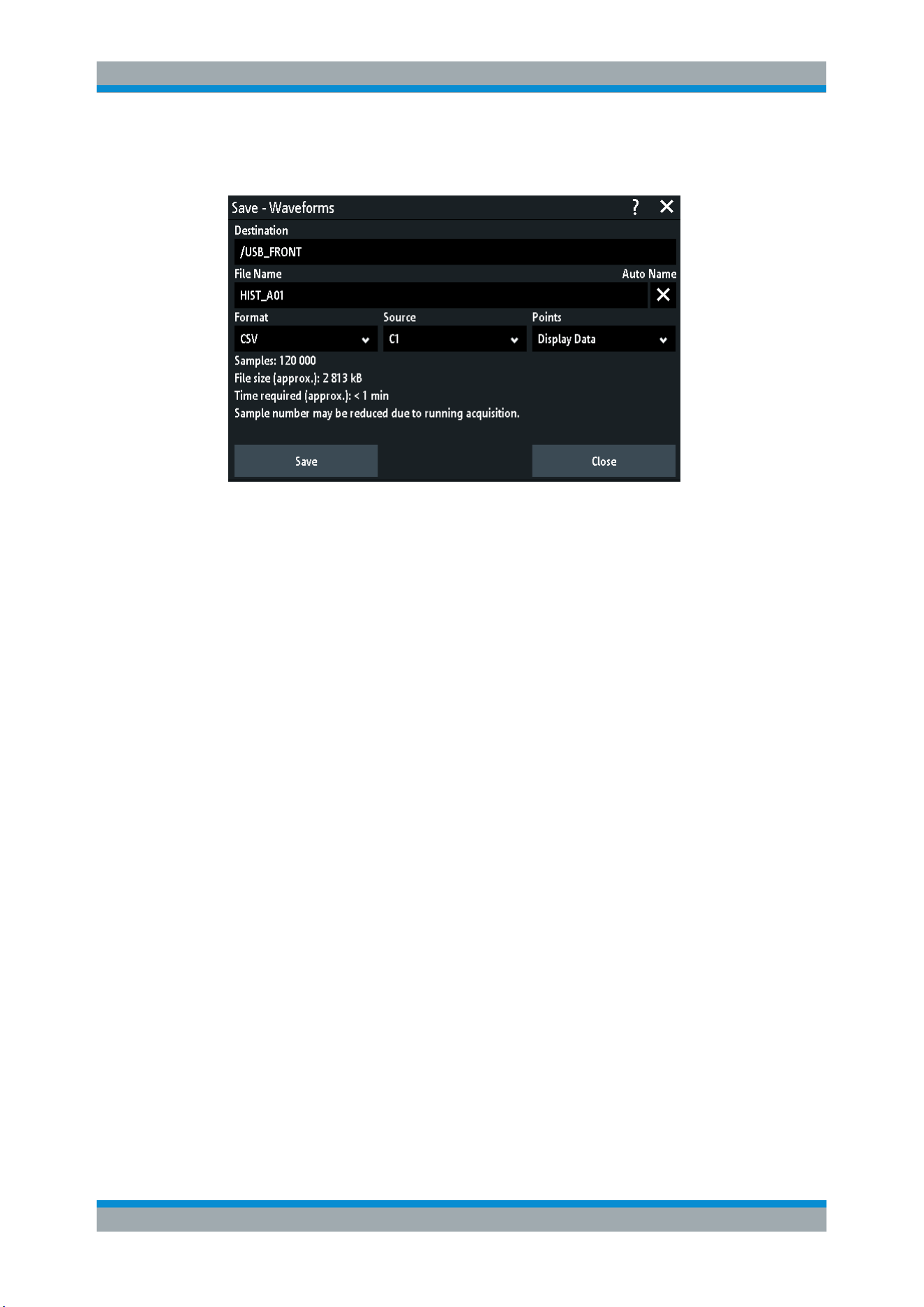
Documenting Results
R&S
®
RTB2000
133User Manual 1333.1611.02 ─ 03
9.2.1 Waveform Export Settings
Destination
The destination /USB_FRONT is only active, if a USB flash drive is connected to the
front USB port.
Tap the field and select the target folder. Tap "Accept Dir." to confirm selection.
Remote command:
EXPort:WAVeform:NAME on page 350
File Name
Specifies the name of the file to be saved. The default is TRACE01 or a higher number,
depending on existing files in the target directory.
Remote command:
EXPort:WAVeform:NAME on page 350
Format
Selects the file format.
●
"BIN - MSB": Binary data, most significant byte first
●
"BIN - LSB": Binary data, least significant byte first
●
"FLT - MSB": Floating point format, most significant byte first
●
"FLT - LSB": Floating point format, least significant byte first
●
"CSV": Comma-separated values (= default)
●
"TXT": Text file format
To reload waveform data as a reference waveform, it must be stored in TRF or CSV
format.
For a description of the file formats, see
Chapter 9.2.2, "Waveform File Formats",
on page 134.
Source
Select the channels to be saved: either one active channel, or all active channels
together.
Exporting Waveforms
Documenting Results
R&S
®
RTB2000
134User Manual 1333.1611.02 ─ 03
Remote command:
EXPort:WAVeform:SOURce on page 349
Points
Selects the number of data points to be saved in the waveform file.
●
"Display Data": Saves all currently displayed waveform samples.
●
"Acq. Memory": Saves all data samples that are stored in the acquisition memory.
This setting takes effect only for stopped acquisitions. For running acquisitions,
only always display data can be saved.
●
"History Data": Saves the waveform data of the history segments.
See also
Chapter 6.4.4, "Exporting History Data", on page 81.
Remote command:
CHANnel<m>:DATA:POINts on page 341
Save
Saves the data to the selected storage directory. The used path and file name are dis-
played when the storage is completed.
Saving is not possible if "Points" is set to "Acq. Memory" or "History Data" and the
acquisition is running.
Remote command:
EXPort:WAVeform:SAVE on page 350
9.2.2 Waveform File Formats
Data of all waveforms is saved as a succession of values or pairs of values. Pairs of
values are written as two consecutive single values. Depending on the file format, only
amplitude values are stored, or the amplitude values are stored together with their time
value, or frequency value in FFT mode.
With export/import, you can change the target file format and convert the data.
To reload waveform data as a reference waveform, it must be stored in TRF or CSV
format.
9.2.2.1 CSV Format
In a Comma Separated Values text file, the waveform is stored in a two-columned
table. Columns are separated by a comma, and the lines are separated by line breaks
\r\n (0x0D 0x0A). Values are listed in scientific notation.
The first column contains the time values of the samples in relation to the trigger point,
and the second column contains the associated amplitude values. The first line indi-
cates the units of the values in each column, and the name of the waveform. Pairs of
values are listed as two single values with the same time value (minimum and maxi-
mum).
The data can be loaded back to the instrument for further use.
Exporting Waveforms

Documenting Results
R&S
®
RTB2000
135User Manual 1333.1611.02 ─ 03
Example CSV1: Waveform of channel 1, single values
in s,CH1 in V
-1.1996E-02,1.000E-02
-1.1992E-02,1.000E-02
-1.1988E-02,1.000E-02
-1.1984E-02,1.000E-02
Example CSV2: Waveform of channel 1, pairs of values
in s,CH1 in V
-2.9980E+00,2.000E-05
-2.9980E+00,1.400E-04
-2.9960E+00,-1.800E-04
-2.9960E+00,1.400E-04
-2.9940E+00,-1.800E-04
-2.9940E+00,1.400E-04
Example CSV3: FFT
in Hz,FFT in dBm
0.000000E+00,1.03746E+01
1.525879E+02,7.49460E+00
3.051758E+02,-1.19854E+01
4.577637E+02,-1.56854E+01
Import of CSV files: If you import a CSV file as reference waveform from a USB flash
drive to the instrument, the import converts the data to TRF format. The instrument
reads the first and the last time value and calculates the total time of the waveform,
and it counts the number of values. Then all amplitude values are read one by one and
written with an equidistant time distribution to the TRF file. If the first two time values
are identical, the waveform is considered to consist of pairs of values.
9.2.2.2 TXT Format
TXT files are ASCII files that contain only amplitude values but no time values. Ampli-
tude values are separated by commas. Pairs of values are listed as two subsequent
single values, without any identification. Amplitude values are given in scientific nota-
tion. There is no comma at the end of the file.
Amplitude values are given in scientific notation.
Example: TXT file
1.000E-02,1.000E-02,1.000E-02,1.000E-02,3.000E-02
9.2.2.3 BIN Format
BIN files contain only binary amplitude values but no time values. Each value has a
word size of 8, or 16, or 32 bit, the word size is the same throughout the file.
Exporting Waveforms

Documenting Results
R&S
®
RTB2000
136User Manual 1333.1611.02 ─ 03
You can set the word order: BIN MSBF saves data in Big Endian order - beginning with
the MSB (Most Significant Byte) and ending with the LSB (Least Significant Byte). BIN
LSBF saves data beginning with the LSB and ending with the MSB. Pairs of values are
listed as two subsequent single values, without any identification.
9.2.2.4 FLT Format
FLT files contain amplitude values in float format, where 4 successive bytes are saved
in a 32-bit float value.
You can set the word order: FLT MSBF saves data in Big Endian order - beginning
with the MSB (Most Significant Byte) and ending with the LSB (Least Significant Byte).
FLT LSBF saves data beginning with the LSB and ending with the MSB.
9.2.2.5 TRF Format
TRF is the specific binary format for reference waveforms of the R&S RTB2000. It con-
tains the amplitude value of each sample that is displayed on the screen (8 bit or 16 bit
long). For peak-detect waveforms, 2 values per sample are saved. The file contains
also time information (time of the first sample and the sample interval) and current
instrument settings.
The data can be loaded as reference waveform for further use on the instrument. It is
not intended for analysis outside the R&S RTB2000.
9.3 Annotations
Using the annotation tool, you can mark important places in the diagram and add text.
Then you can save the annotated diagram in a screenshot.
To create annotations
1. Tap the "Annotation" icon in the toolbar.
2. Use the annotation tools to draw and write on the screen.
Annotations
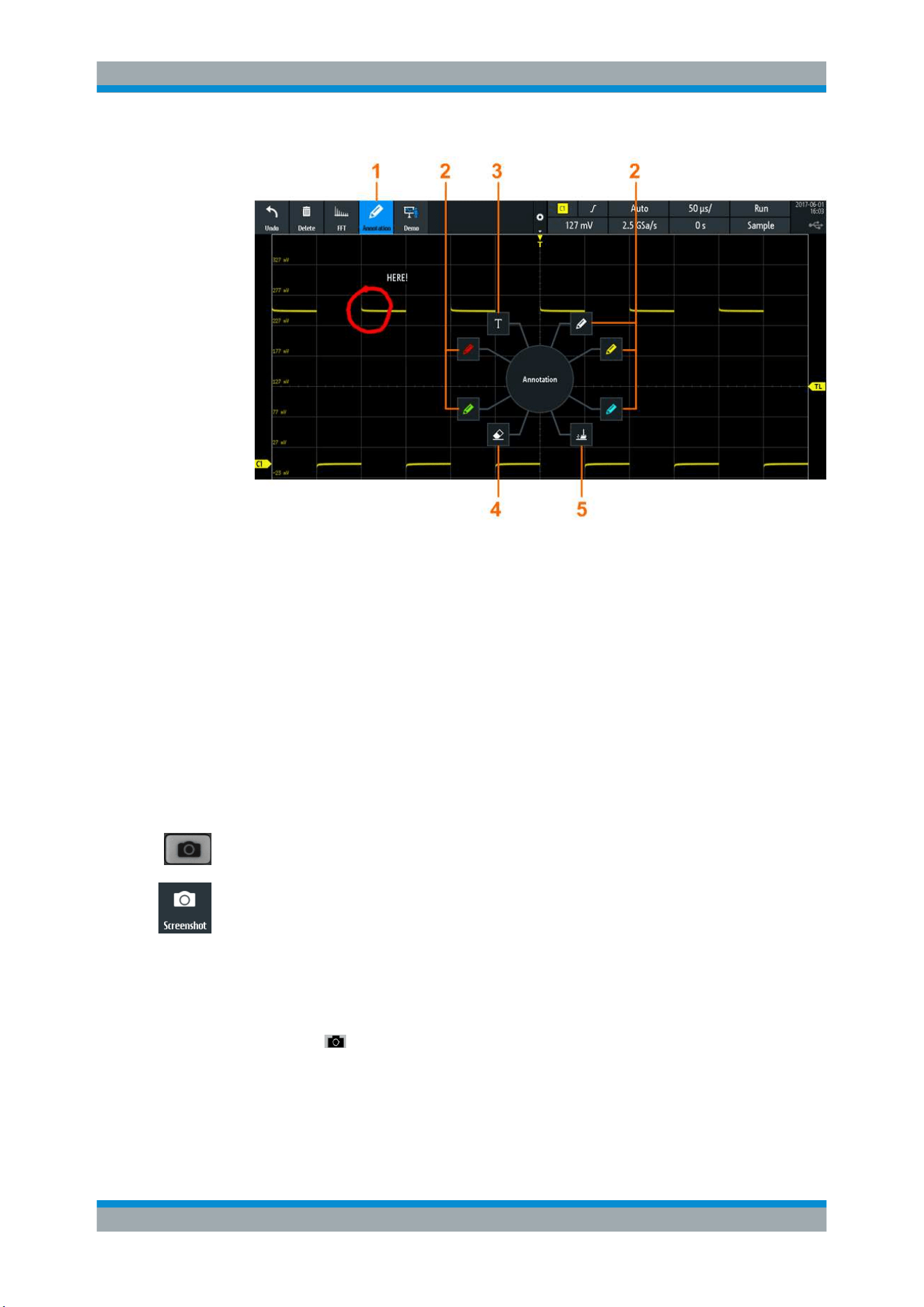
Documenting Results
R&S
®
RTB2000
137User Manual 1333.1611.02 ─ 03
1 = Annotations on / off
2 = Drawing tools
3 = Text tool
4 = Eraser to delete single lines
5 = Remover to delete all annotations
3. To finish, tap the "Annotation" icon in the toolbar again.
9.4 Screenshots
You can create and save screenshots of the current display of your waveforms and
measurement results. The R&S RTB2000 saves screenshots to USB flash drive. To
save screenshots quickly, you can use the "Screenshot" toolbar icon or the CAMERA
key.
You can configure the CAMERA key to save screenshots by a single keypress. See
also
Chapter 9.5, "Quick Save with OneTouch", on page 139.
The "Screenshot" toolbar icon saves the current display to a file according to the set-
tings in "File" menu > "Screenshots". See also
"Configuring the Toolbar" on page 33.
To save screenshots:
1. Press the SAVE LOAD key.
2. Disable "OneTouch"
3.
Press the
key each time when you want to save a screenshot.
Alternatively, tap the "Screenshot" toolbar icon. To see the icon, add it to the tool-
bar.
Screenshots
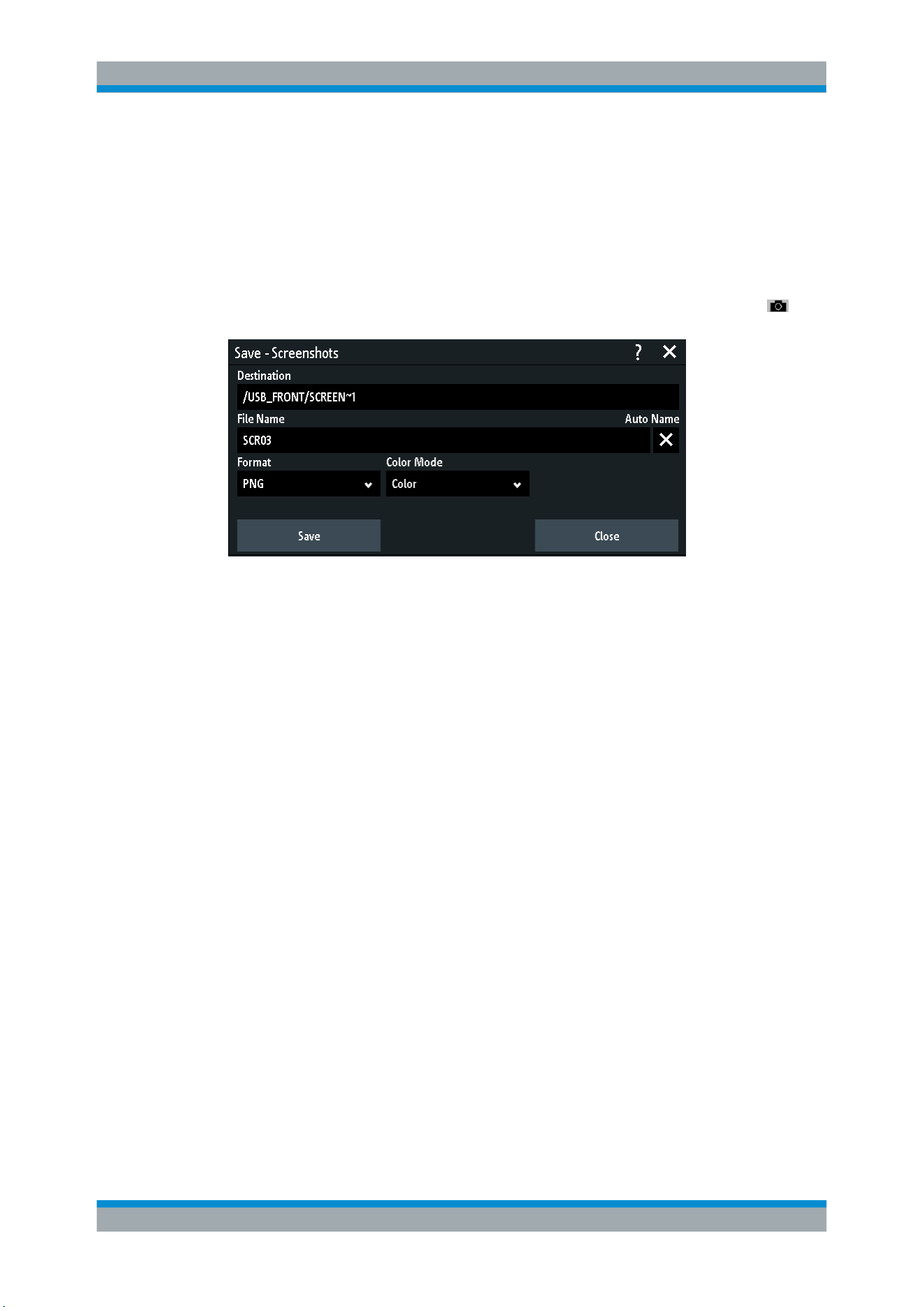
Documenting Results
R&S
®
RTB2000
138User Manual 1333.1611.02 ─ 03
To configure screenshots:
1. Press the SAVE LOAD key.
2. Select "Screenshots".
3. Adjust the target directory ("Destination"), filename, format, and color mode.
You can save the current display with "Save", or close the dialog box. The screen-
shot settings are saved and applied when you create screenshots with the
key.
Destination
The destination /USB_FRONT is only active, if a USB flash drive is connected to the
front USB port.
Tap and select the target folder. Tap "Accept Dir." to confirm selection.
Remote command:
MMEMory:CDIRectory on page 354
File Name
Specifies the name of the file to be saved. The default is SCR01 or a higher number,
depending on existing files in the target directory.
Remote command:
MMEMory:NAME on page 351
Format
Selects the file format.
●
"BMP": Bitmap is an uncompressed format, files are large and saving can take
some time.
●
"PNG": Portable Network Graphics is a graphic format with lossless data compres-
sion.
Remote command:
HCOPy:FORMat on page 351
Color Mode
Selects the color settings for the screenshot to be saved.
●
"Grayscale": Converts the display colors to a monochrome image
●
"Color": Keeps the original display colors in the screenshot.
Screenshots

Documenting Results
R&S
®
RTB2000
139User Manual 1333.1611.02 ─ 03
●
"Inverted": Inverts the colors of the output, so that a dark waveform is printed on a
white background.
●
"Inverted (gray)": Inverts the colors of the output, and converts to a monochrome
image.
Remote command:
HCOPy:COLor:SCHeme on page 352
Save
Saves the screenshot to the specified file. The used path and file name are displayed
when the storage is completed.
Remote command:
HCOPy[:IMMediate] on page 351
9.5 Quick Save with OneTouch
The
key initiates one or more assigned saving actions. By default, the key saves a
screenshot.
If OneTouch is enabled, you can assign the following actions to the key:
●
Save instrument settings.
●
Save a screenshot.
●
Save waveforms.
●
Save reference waveforms.
●
Save search results.
●
Decoded bus data ("Bus Table", requires at least one protocol option for serial bus
(R&S RTB-K1 to K3).
●
Statistical results. OneTouch is the only way to save statistical results.
All data is saved to a ZIP file on the connected USB flash drive.
To configure and use OneTouch:
1. Connect the USB flash drive.
2. Press the SAVE LOAD key.
3. Enable "OneTouch".
4. Tap "onetouch".
5. Select the target directory ("Destination"), filename, and data to be saved.
Quick Save with OneTouch
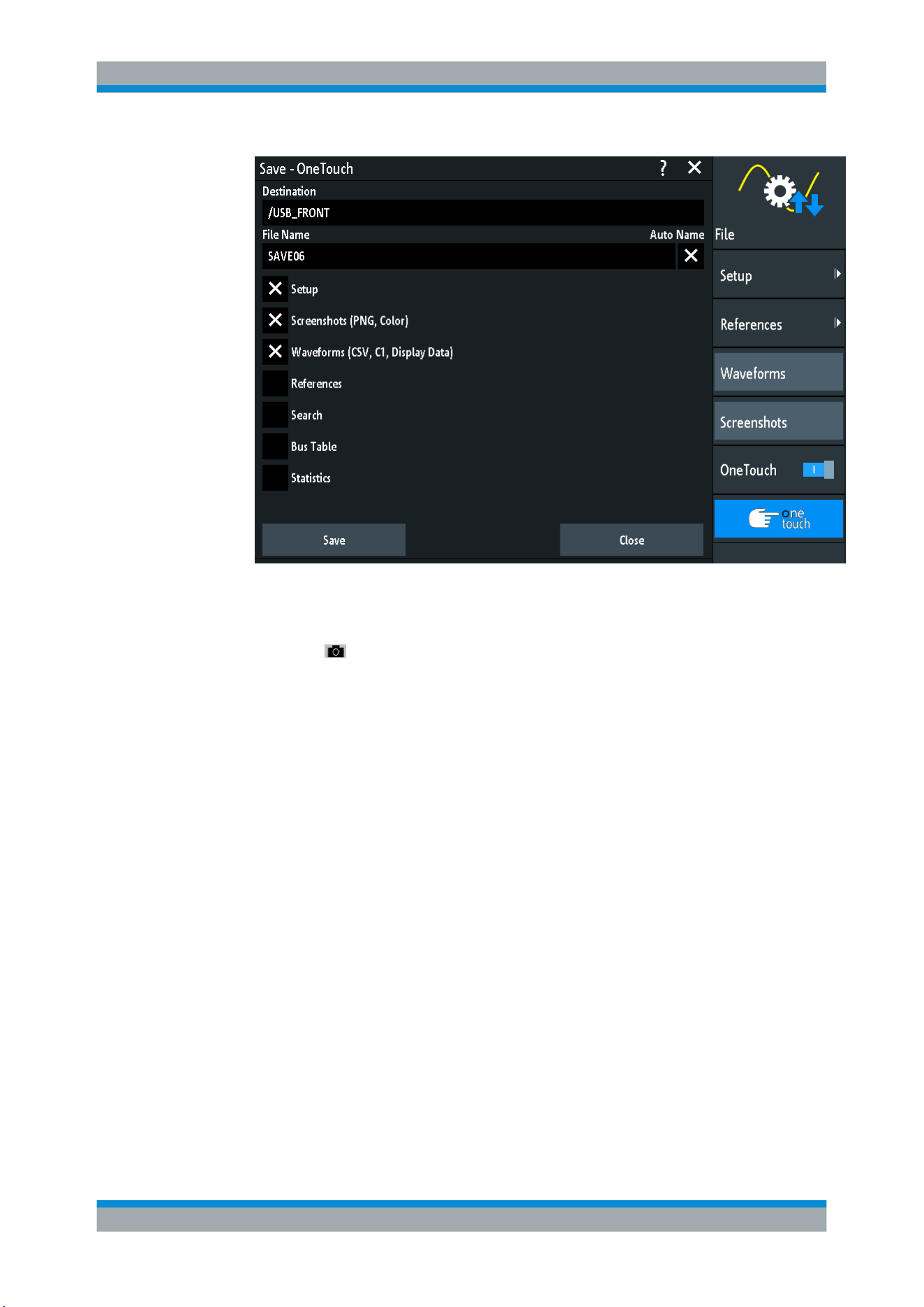
Documenting Results
R&S
®
RTB2000
140User Manual 1333.1611.02 ─ 03
6. To save the data now, tap "Save".
7. Close the dialog.
8.
Press the
key each time when you want to save the data.
9.6 Export and Import
To copy reference waveforms and instrument settings from the internal storage to USB
flash drive or vice versa, the "Import Export" functions are used.
The name of the target file can be changed, so you can copy and rename in one oper-
ation. For references, you can also change the target file format and convert the data
during export/import.
1. Connect the USB flash drive.
2. Press the SAVE LOAD key.
3. To copy setup files, select "Setup" > "Import Export".
To copy reference waveforms, select "References".
Export and Import
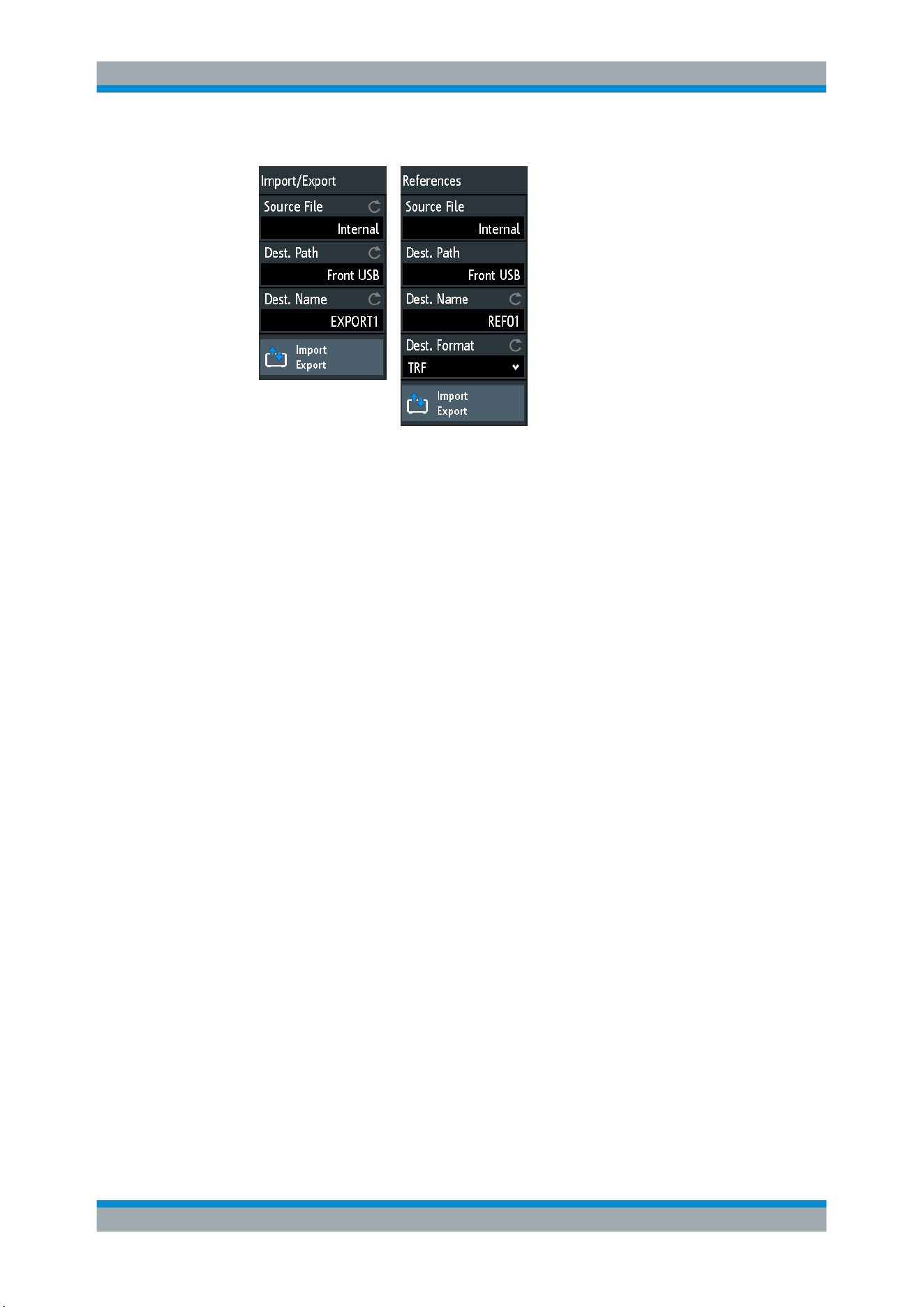
Documenting Results
R&S
®
RTB2000
141User Manual 1333.1611.02 ─ 03
Import/export menu for
instrument settings
Import/export menu for
reference waveforms
4. Define the source file for the copy operation:
a) Tap "Source File".
b) If necessary, change the storage location with "Location".
c) Select the folder that contains the source file.
d) Select the file. A small screenshot helps to identify the file.
e) Tap "Load".
The source file is selected, but not loaded to the R&S RTB2000.
5. Define the target directory.
a) Tap "Dest. Path".
b) If necessary, change the storage location with "Location".
c) Select the target folder. You can also create a folder here.
d) Tap "Accept Dir.".
6. If necessary, change the name of the target file in "Dest. Name".
Note: If a file with the same file name already exists in the destination directory, it
will be overwritten without notification.
7. For reference waveforms, you can change the file format in "Dest. Format".
8. Tap "Import Export".
The source file is copied to the destination directory with the specified name and
format.
Export and Import
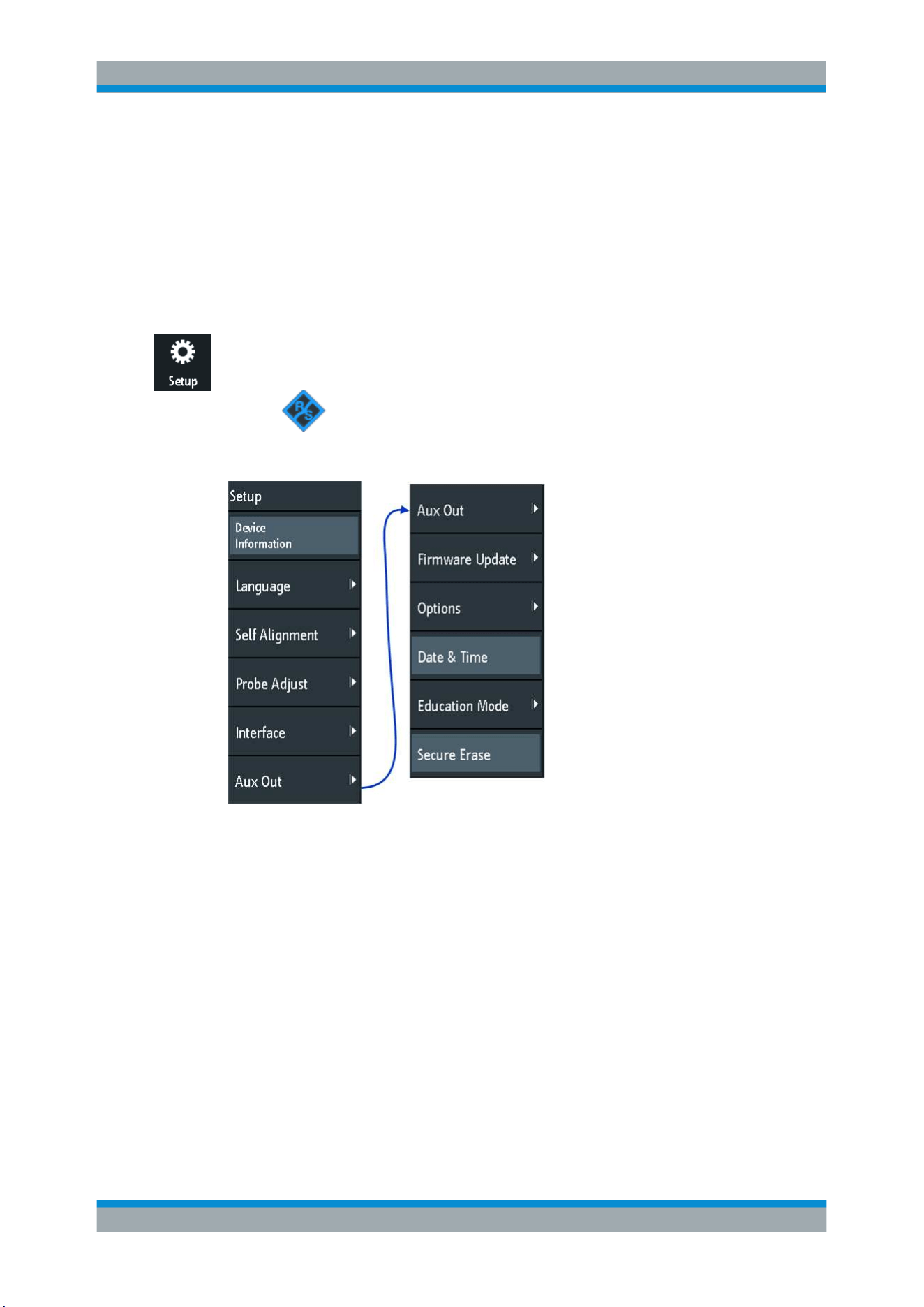
General Instrument Setup
R&S
®
RTB2000
142User Manual 1333.1611.02 ─ 03
10 General Instrument Setup
The general instrument settings are available in all operating modes.
10.1 Instrument Settings
► To open the "Setup" menu:
a) Tap the "Menu" rhomb icon in the lower right corner of the screen.
b) Scroll down. Select "Setup".
Device Information
Displays information on the instrument, such as its serial number, the installed firm-
ware version and hardware information. This information is required if you have a sup-
port request. The dialog also contains a link to the "Open Source Acknowledgment".
Language
See
Chapter 10.6, "Setting the Data, Time and Language", on page 149.
Self Alignment
See
Chapter 10.5, "Performing a Self-Alignment", on page 148.
Probe Adjust
Opens the wizard for probe compensation. You can find this function also when you
press the APPS SELECTION key.
See:
Chapter 10.7, "Adjusting Passive Probes", on page 150.
Instrument Settings
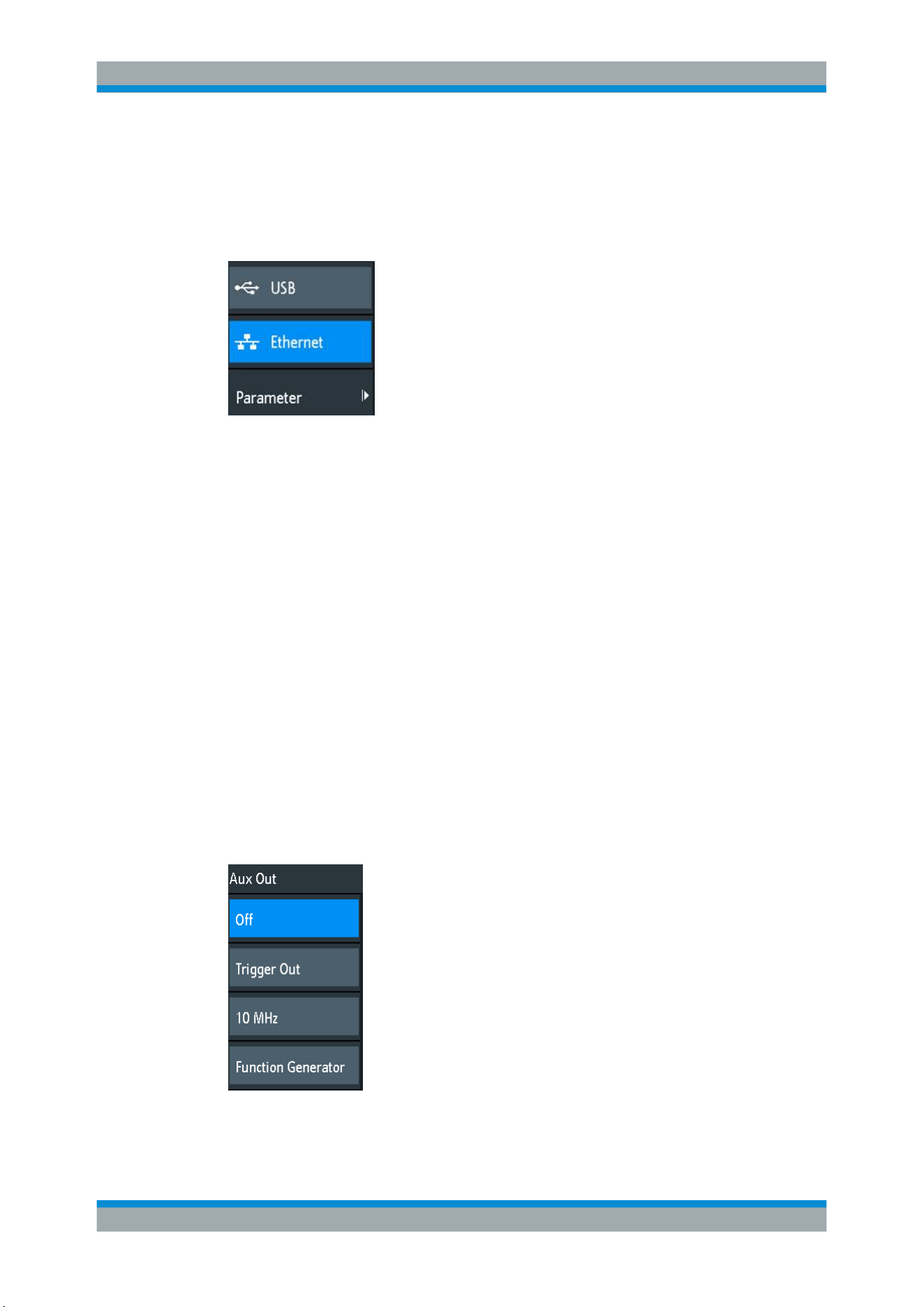
General Instrument Setup
R&S
®
RTB2000
143User Manual 1333.1611.02 ─ 03
Interface
Activates or deactivates additional instrument interfaces. Use these interfaces to com-
municate with the instrument, for example to read out data or automate the measuring
station. USB and Ethernet (LAN) interfaces are installed in the rear panel. After select-
ing an interface, tap "Parameter" to define additional parameters.
USB ← Interface
Activates the type B USB interface on the rear panel for remote control. This USB
interface provides a simple way to connect the instrument to a PC. The USB 2.0 stan-
dard is supported. Use a connection cable that is suitable for a type B USB interface.
See also:
Chapter 11.2, "USB Connection", on page 156.
Ethernet ← Interface
Activates the Ethernet interface on the rear panel, which allows connecting the instru-
ment to various other devices. Access to the instrument is controlled via its IP address.
By default, the instrument is set to use DHCP. If the instrument cannot find a DHCP
server, it takes about two minutes until the Ethernet parameters are available.
See also:
Chapter 11.1, "LAN Connection", on page 154.
Parameter ← Interface
Opens a dialog to configure Ethernet parameters, or to select the USB connection
depending on the selected interface.
Aux Out
Opens the "Aux Out" menu to define which signals are generated at the AUX OUT
front connector.
"Off"
Disables the auxiliary output.
"Trigger Out"
Outputs a pulse when the instrument triggers.
Instrument Settings
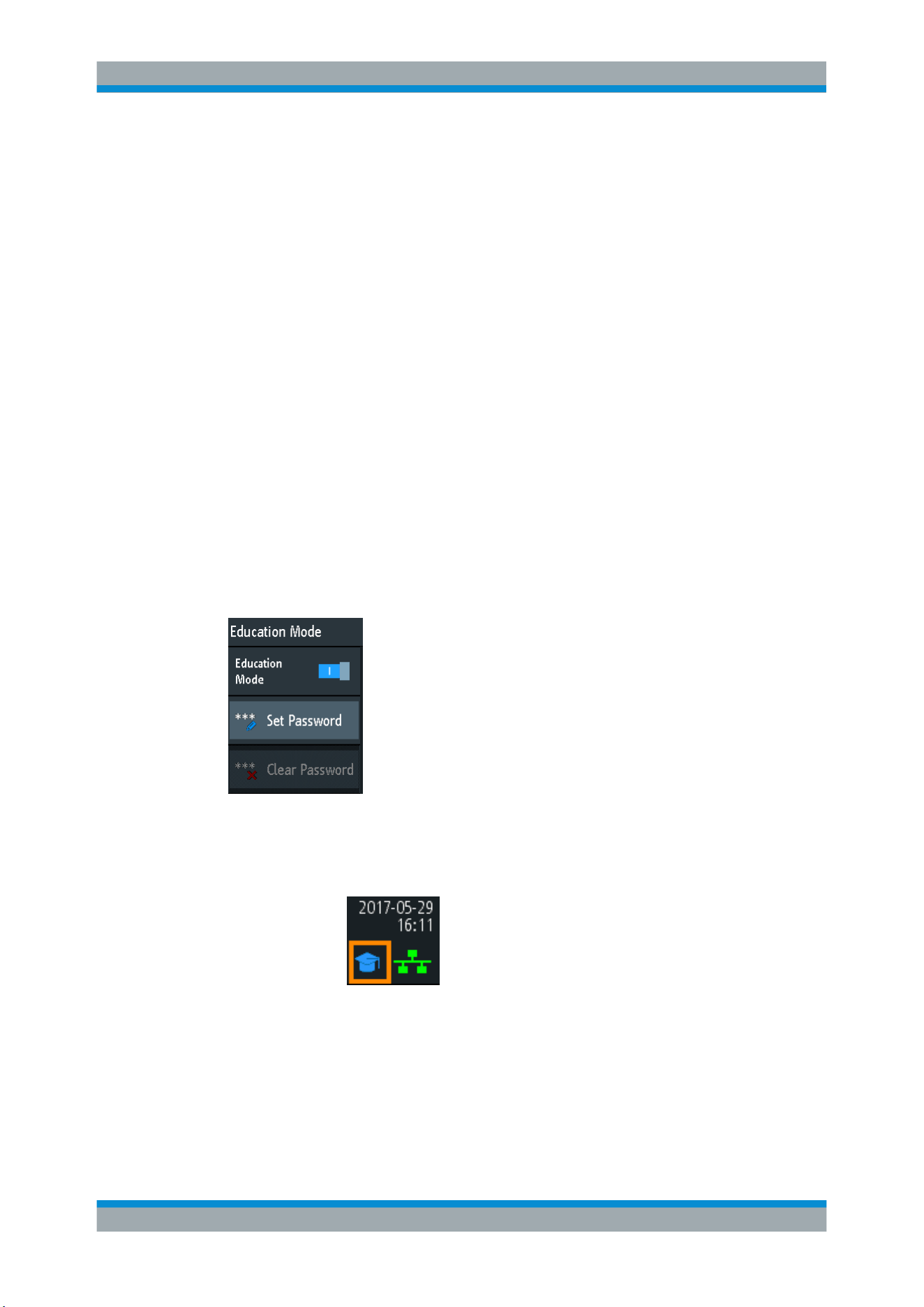
General Instrument Setup
R&S
®
RTB2000
144User Manual 1333.1611.02 ─ 03
"10 MHz"
Outputs a 10 MHz reference frequency.
"Function Generator"
Outputs the waveform specified in the "Function Generator" dialog.
"Mask Violation"
Outputs a pulse when a mask is violated.
This setting is only available if a mask is specified in the "Mask" dia-
log.
Remote command:
TRIGger:OUT:MODE on page 369
Firmware Update
See
Chapter 10.9, "Updating the Firmware", on page 152.
Options
See
Chapter 10.8, "Options", on page 151.
Date & Time
See
Chapter 10.6, "Setting the Data, Time and Language", on page 149.
Education Mode
Disables several functions for educational purposes or enables these functions for nor-
mal usage.
"Education Mode"
If enabled, the autoset, quick measurement and automatic measure-
ment are disabled and not available. The active education mode is
indicated in the upper right corner by a doctoral cap icon.
"Set Password"
You can enter a password to prevent unauthorized activation or deac-
tivation of the education mode.
Instrument Settings
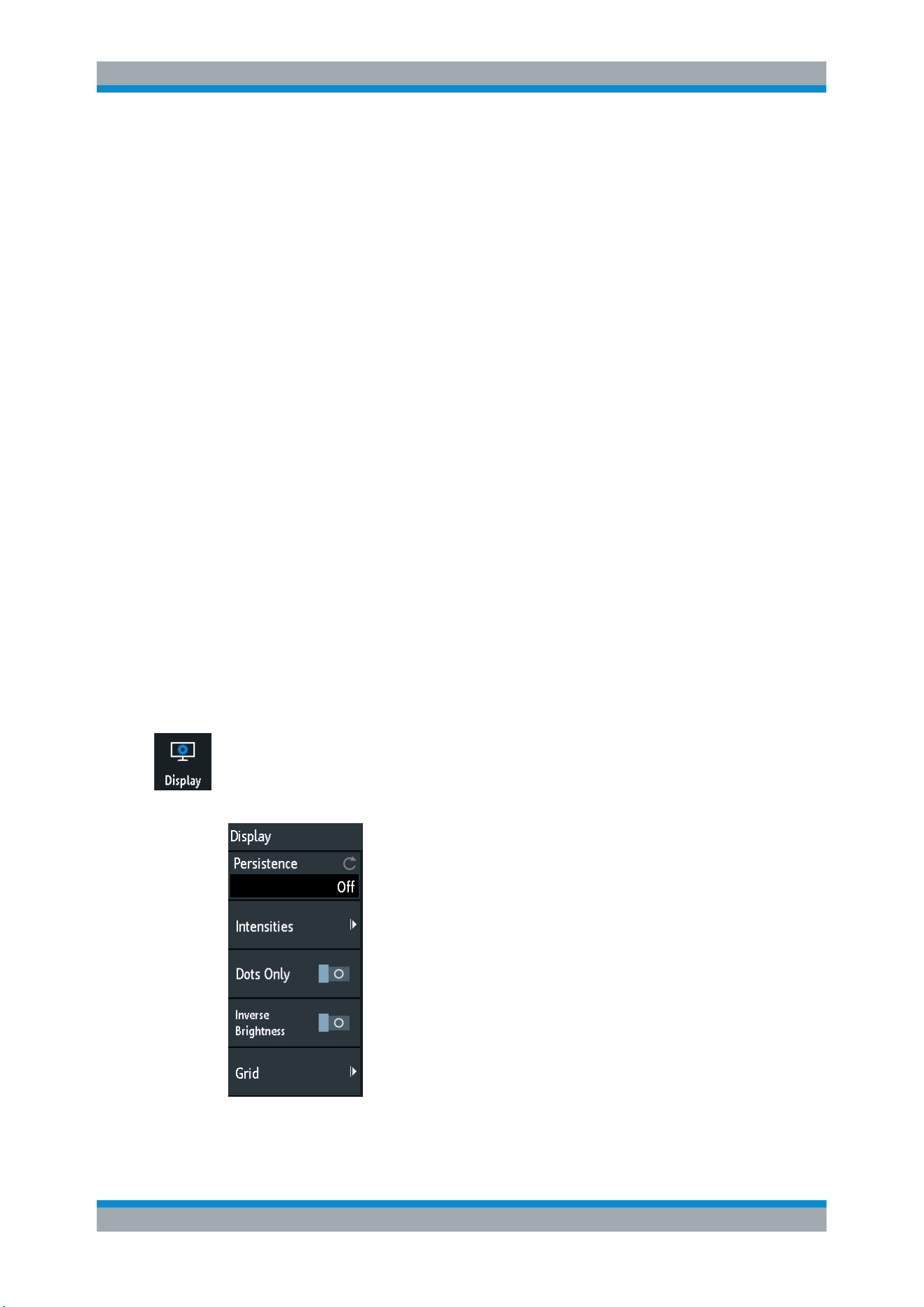
General Instrument Setup
R&S
®
RTB2000
145User Manual 1333.1611.02 ─ 03
"Clear Password"
Deletes the password and allows all users enabling or disabling the
education mode. You have to enter the password first before you can
delete it.
Using the remote command, you can clear the education mode pass-
word without using the password.
Remote command:
SYSTem:EDUCation:PRESet on page 366
Secure Erase
Deletes current instrument configuration data and user data from the internal storage
(for example, reference files, equation sets, masks). Calibration data remains in the
storage.
Use this function before you send the instrument to the service. If the instrument is
used in a secured environment, the function ensures that all sensitive data is removed
before the instrument leaves the secured area.
Unintended "Secure Erase" is prevented by a notification that explains what happens if
you proceed. To start "Secure Erase", select "Yes", otherwise select "No". Do not turn
off the instrument before the erasing process has been completed.
10.2 Display Settings
► To delete all waveforms and measurement results from the display, press the
CLEAR SCREEN key.
► To open the "Display" menu:
a) Tap the "Menu" icon in the lower right corner of the screen.
b) Scroll down. Select "Display".
Display Settings
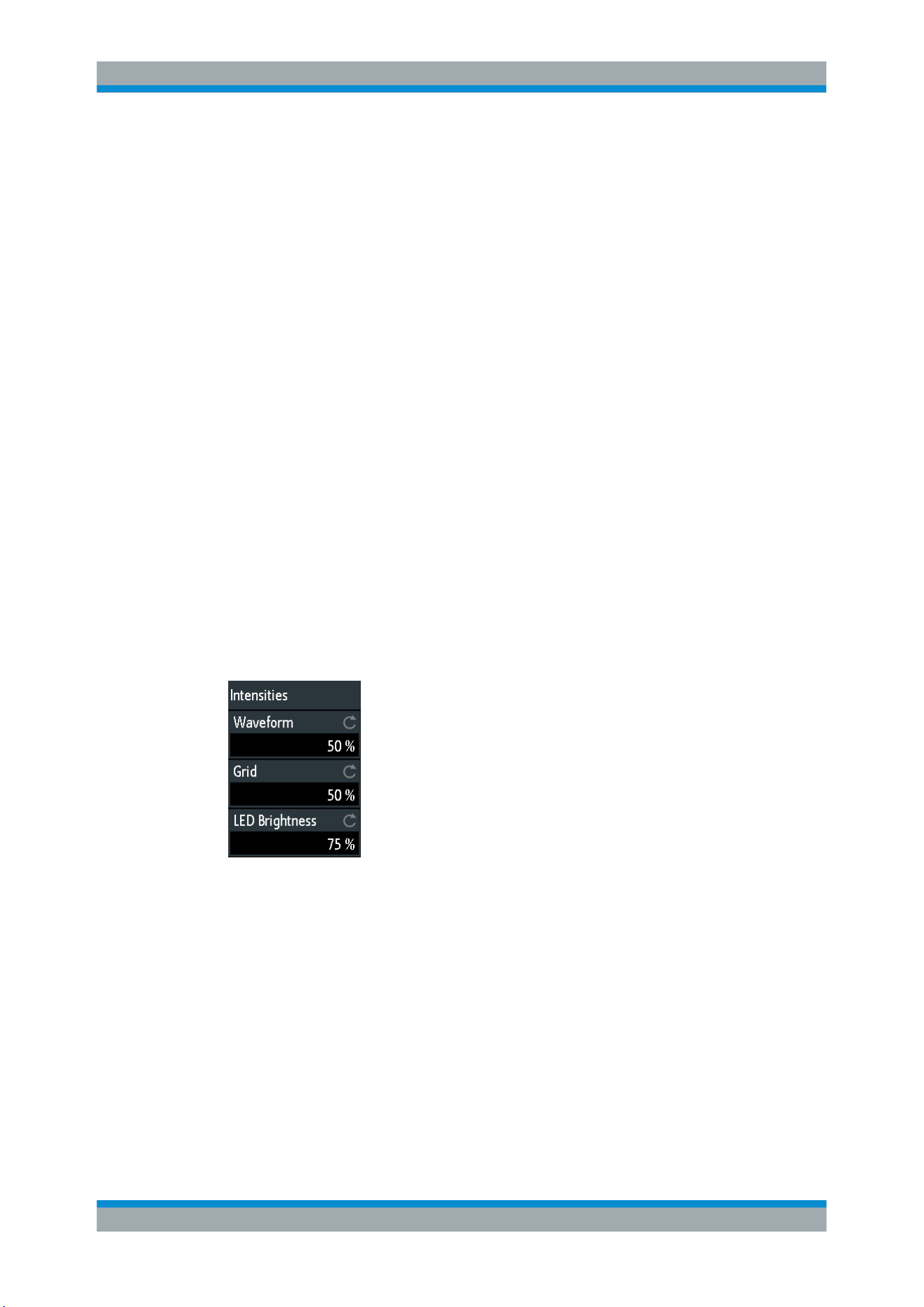
General Instrument Setup
R&S
®
RTB2000
146User Manual 1333.1611.02 ─ 03
► To remove all waveforms and results from the display, press the CLEAR SCREEN
key at the front panel.
Persistence
Defines the persistence (afterglow effect) of the waveform on the display.
"Off"
Deactivates persistence.
"Manual"
User-defined persistence according to "Time" setting.
"Infinite"
Activates persistence with infinite duration. Each new data point
remains on the screen infinitely until this setting is changed or the
persistence is cleared
Remote command:
DISPlay:PERSistence:TYPE on page 360
Time ← Persistence
Specifies the afterglow duration if "Persistence" is set to "Manual". Each new data
point remains on the screen for the time defined here. Values range from 50 ms (=
default) to 12.8 s.
Remote command:
DISPlay:PERSistence:TIME on page 360
Intensities
Provides functions to define the brightness (relative luminous intensity) of display ele-
ments and control LEDs.
You can also open this menu directly using the INTENSITY key.
Waveform ← Intensities
Defines the brightness of the waveform lines in the diagram. Enter a percentage
between 0 (barely visible) and 100% or turn the NAVIGATION knob to adjust the wave-
form brightness directly. The default value is 50%.
Remote command:
DISPlay:INTensity:WAVeform on page 362
Grid ← Intensities
Defines the brightness of the grid lines in the diagram. Enter a percentage between 0
(barely visible) and 100% or turn the NAVIGATION knob to adjust the grid brightness
directly. The default value is 50%.
Display Settings
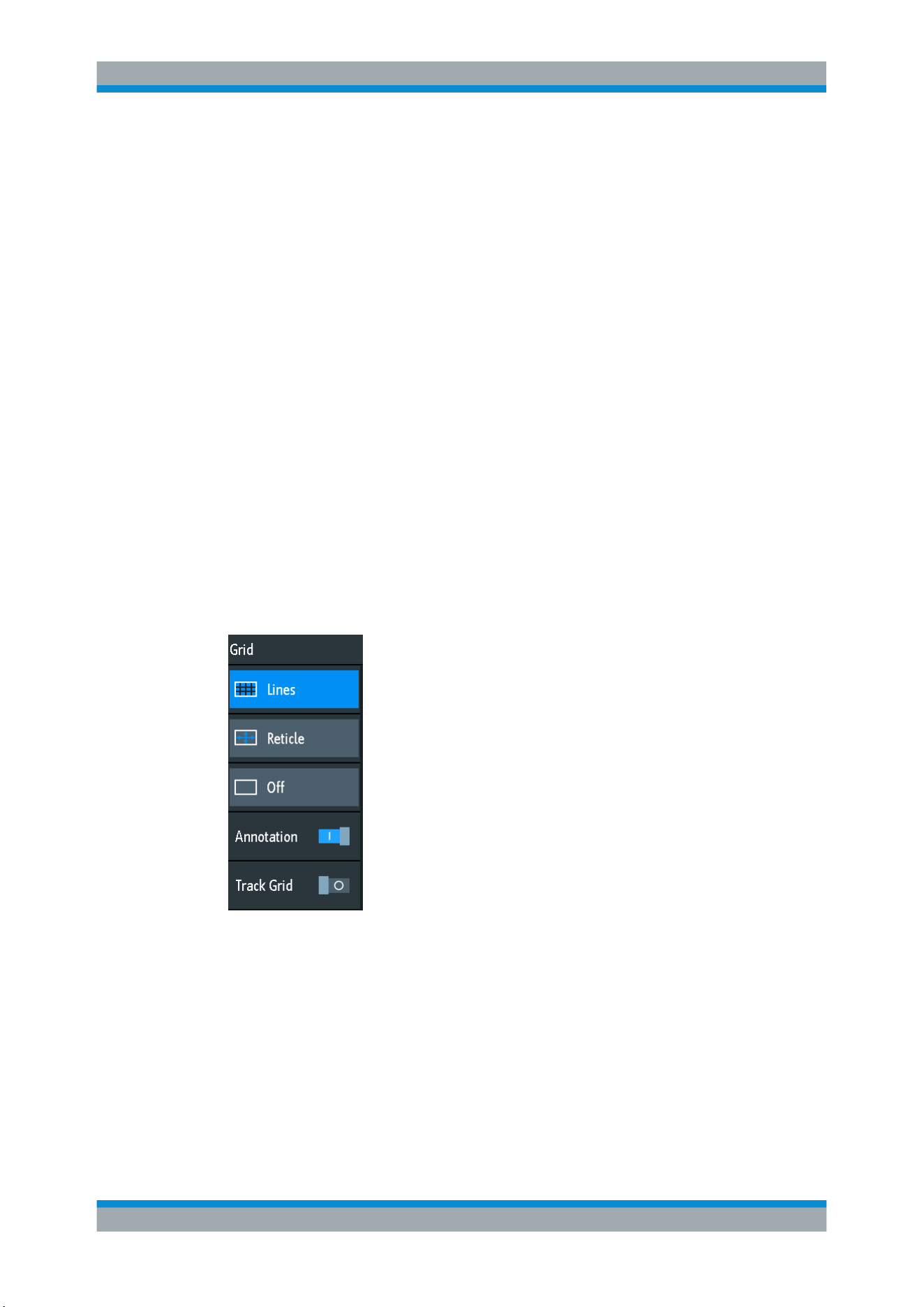
General Instrument Setup
R&S
®
RTB2000
147User Manual 1333.1611.02 ─ 03
Remote command:
DISPlay:INTensity:GRID on page 362
LED Brightness ← Intensities
Defines the intensity of illuminated front panel keys and rotary knobs in percent.
Remote command:
DISPlay:INTensity:BACKlight on page 362
Dots Only
If activated, only the individual data points are displayed. If deactivated, the individual
data points are connected by a line.
Remote command:
DISPlay:STYLe on page 363
Inverse Brightness
Inverts the brightness level of the signals. Normally, values that occur frequently are
brighter than rare values. This setting inverts this behavior: Rare values are brighter
than frequent values. Use this setting in combination with persistence to detect rare
values within the waveform.
Remote command:
DISPlay:PALette on page 362
Grid
Defines how the grid is displayed.
"Lines"
Displays the grid as horizontal and vertical lines.
"Reticle"
Displays crosshairs instead of a grid.
"Off"
Removes the grid from the display.
Remote command:
DISPlay:GRID:STYLe on page 361
Annotation ← Grid
Enables or disables display of scale values and units for the x-axis and y-axis at the
grid lines. Per default, grid labels are enabled.
Display Settings

General Instrument Setup
R&S
®
RTB2000
148User Manual 1333.1611.02 ─ 03
Track Grid ← Grid
If enabled, the grid moves with the waveforms, if you change the waveform's position
in horizontal or vertical direction.
If disabled (= default), the grid remains centered on the display, if you change the
waveform's position.
10.3 Resetting the Instrument
Reset is helpful if the instrument is in undefined condition and cannot be operated.
To reset all waveform and measurement settings:
► Press Preset.
Preset does not change the display settings, for example, intensities and brightness.
To reset these settings, restore the factory settings.
To restore the factory settings:
1. Press Save Load.
2. Tap "Setup".
3. Tap "Factory Default".
10.4 Locking the Touchscreen
The Touch Lock key locks the touchscreen to prevent unintended use. When the
touchscreen is off, the key is illuminated. Press again to unlock the touchscreen.
10.5 Performing a Self-Alignment
The self-alignment aligns the data from several input channels vertically and horizon-
tally to synchronize the timebases, amplitudes and positions.
Recommendation on performing the self-alignment:
●
When putting the instrument into operation for the first time
●
After a firmware update
●
Once a week
●
When major temperature changes occur (> 5°)
Performing a Self-Alignment
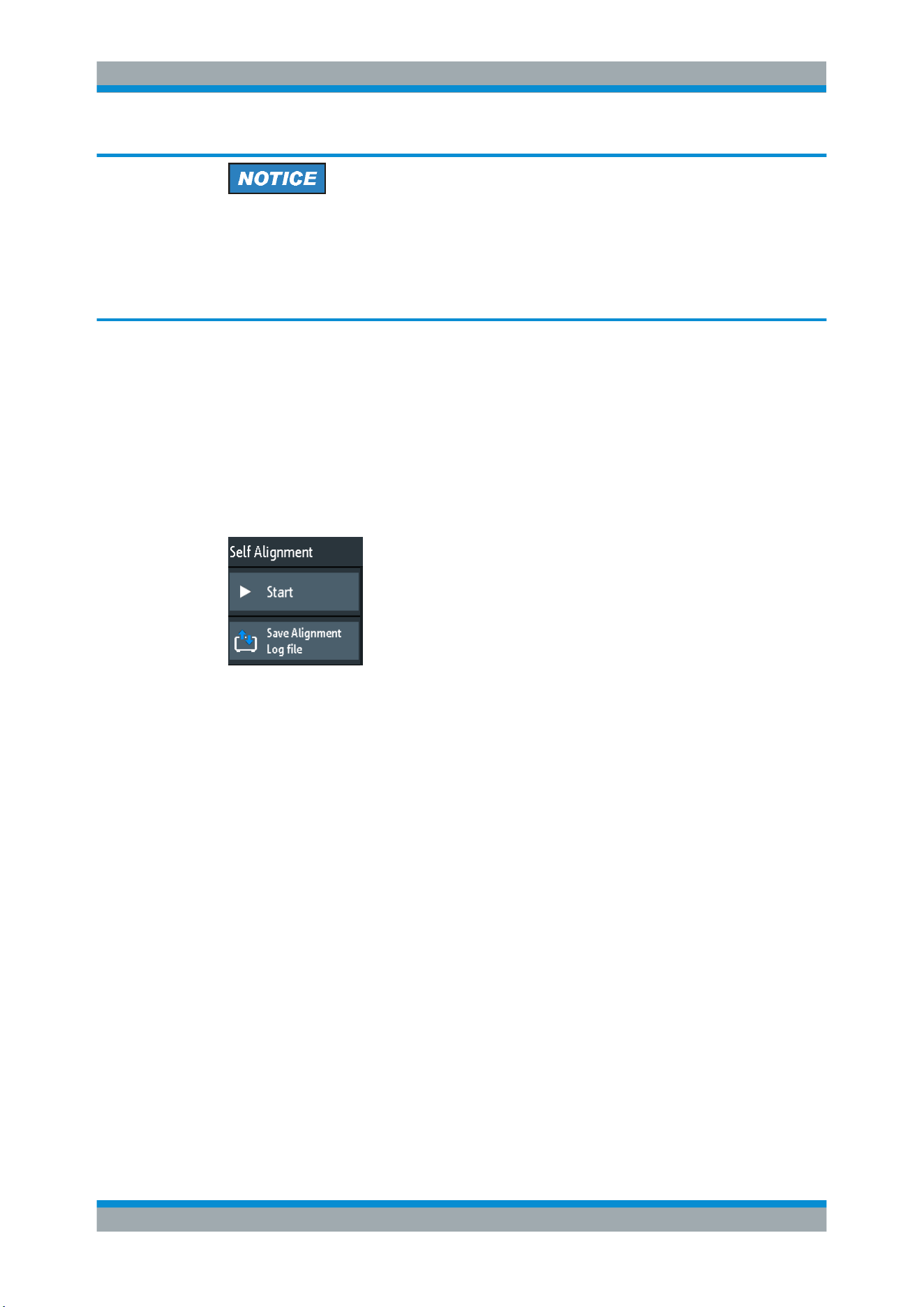
General Instrument Setup
R&S
®
RTB2000
149User Manual 1333.1611.02 ─ 03
Preparing the instrument for self-alignment
Make sure that the instrument has been running and warming up before you start the
self-alignment. The minimum warm-up time is indicated in the data sheet.
Before the self-alignment, remove all probes, leads, and other connected lines from the
instrument input.
1. Remove all probes, leads, and other connected lines from the instrument inputs.
2. Open the "Setup" menu.
3. Tap "Self Alignment"
4. Tap "Start".
The alignment can take up to 15 minutes.
Description of settings
Start
Starts the internal self-calibration of the instrument. Status information is displayed on
the screen.
Remote command:
CALibration on page 364
Save Alignment Log file
The log file records the results of the self-alignment. You save the log file.
Remote command:
CALibration:STATe? on page 364
10.6 Setting the Data, Time and Language
The instrument has a date and time clock. You can adjust the clock to the local time,
and you can select the display language. Supported languages are listed in the data
sheet. The help is provided in English. A reboot of the instrument is not necessary.
To set date and time
1. Open the "Setup" menu.
Setting the Data, Time and Language
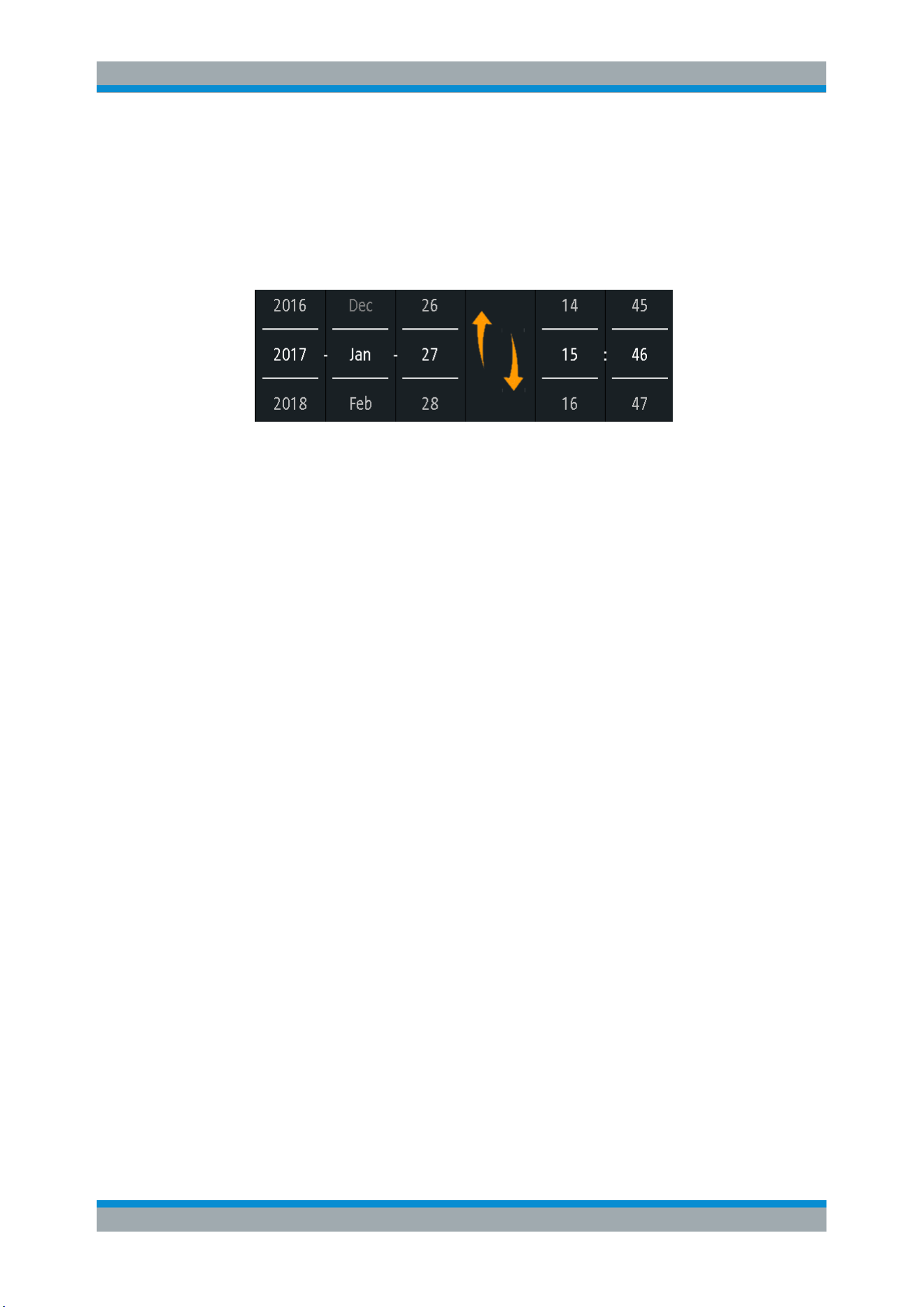
General Instrument Setup
R&S
®
RTB2000
150User Manual 1333.1611.02 ─ 03
2. Scroll down the menu. Tap "Date & Time".
3. Select the date: Scroll the year, month, and day columns until the required date is
displayed.
4. Select the time: Scroll the hour and minute columns until the required time is dis-
played.
5. Tap "Save".
To set the language
1. Open the "Setup" menu.
2. Tap "Language".
3. Select the language.
The language is changed immediately.
Description of settings
Language
Selects the language in which the button labels and other screen information is dis-
played. The help is available only in English.
Remote command:
DISPlay:LANGuage on page 359
Date & Time
Provides a dialog to set the current date and time in the instrument.
Remote command:
SYSTem:DATE on page 364
SYSTem:TIME on page 365
10.7 Adjusting Passive Probes
Passive probes, which are delivered with the instrument, are already pre-compensated
to the R&S RTB2000 characteristics, and a compensation procedure is not required.
If you use another passive probe, it is necessary to compensate it when it is connected
to the instrument the first time. Compensation matches the probe cable capacitance to
the oscilloscope input capacitance to assure good amplitude accuracy from DC to
upper bandwidth limit frequencies. A poorly compensated probe reduces the perform-
Adjusting Passive Probes
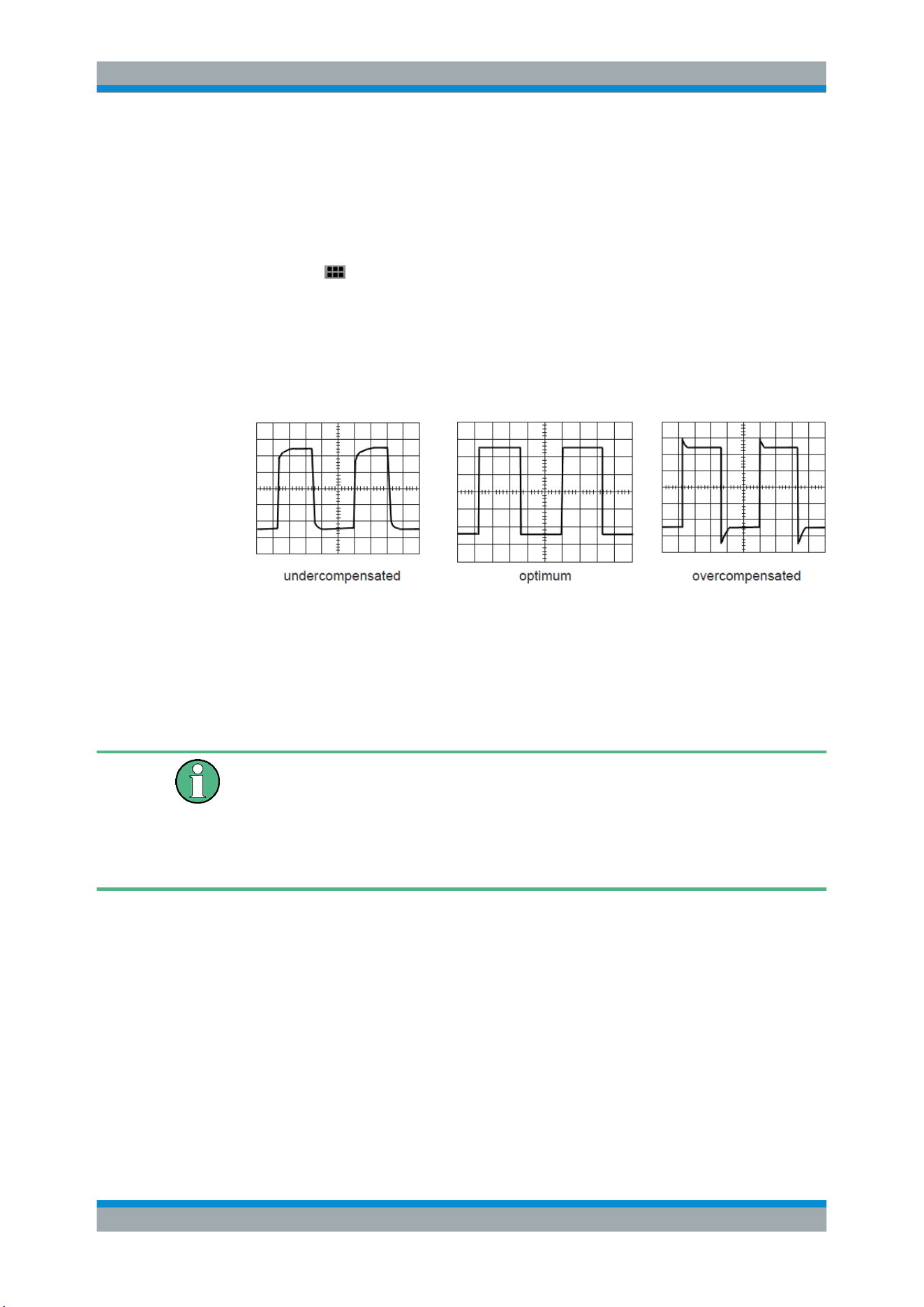
General Instrument Setup
R&S
®
RTB2000
151User Manual 1333.1611.02 ─ 03
ance of the probe-oscilloscope system and introduces measurement errors resulting in
distorted waveforms and inaccurate results.
Two connector pins for compensation are located at the front panel. The left pin is on
ground level. The next pin supplies a square wave signal for the adjustment.
1.
Press the
APPS SELECTION key.
2. Tap "Probe Adjust".
3. Follow the instructions of the wizard. It guides you through the compensation proc-
ess.
Use the compensation trimmer of the probe to get optimum square wave response.
For details, refer to the documentation of your probe.
10.8 Options
All options are activated by license keys. No additional installation or hardware change
is required.
Unregistered licenses
Unregistered licenses are not assigned to a particular instrument. The instrument
accepts only registered licenses. If your license is delivered unregistered, use the
online tool R&S License Manager to register the license for your instrument. The regis-
tration of a permanent license is irreversible, so ensure that you register it for the cor-
rect instrument. The address of the tool is
https://extranet.rohde-schwarz.com/service.
The "Active Options" tab provides information on installed software options. Here you
can install new options or deactivate existing options using license keys.
The "Inactive Options" tab lists all deactivated and expired options.
The "Deactivated Options" tab shows all deactivated options with their deactivation
information and provides a function to export the deactivation response. The response
is required by the R&S License Manager.
Options
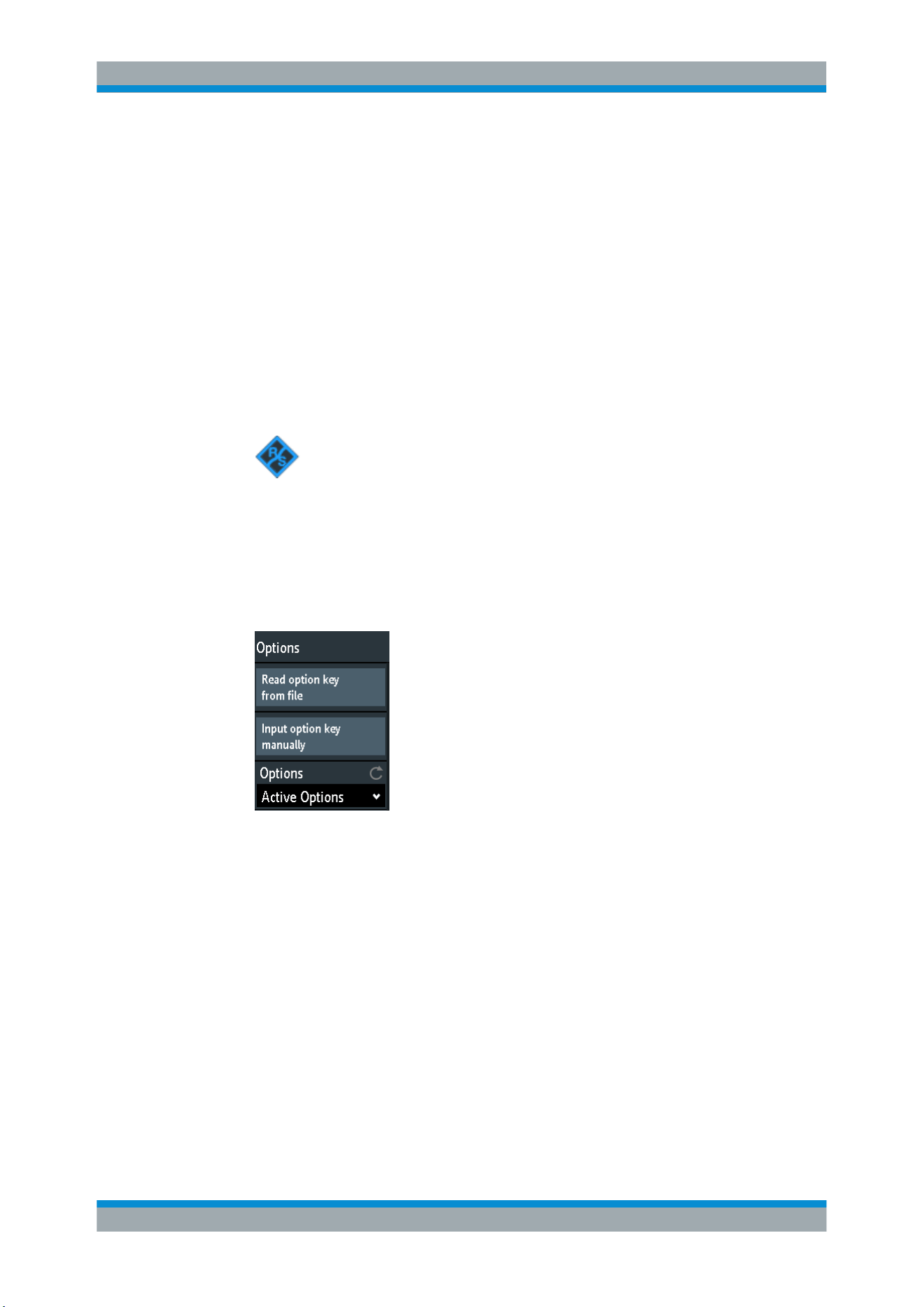
General Instrument Setup
R&S
®
RTB2000
152User Manual 1333.1611.02 ─ 03
10.8.1 Activating Options
Consult your sales representative and provide the material number, serial number, and
the device ID of your instrument to get a license key. You find this information in
"Setup" menu > "Device Information".
The license key is provided in written form or in a file. Unregistered licenses must be
registered in the R&S License Manager before they can be activated on the instru-
ment.
1. If you received the option key in a file, save the file to a USB flash drive.
2. Connect the drive to the R&S RTB2000.
3. Tap the "Menu" icon in the lower right corner of the screen.
4. Scroll down the menu. Tap "Setup".
5. Select "Options".
6. If you received a key in written form, tap "Input option key manually". Enter the key.
If you received a key in digital form as a file, tap "Read option key from file". Select
path /USB_FRONT and the option key file.
7. If you want to activate several options, repeat step 5 for each option.
8. Restart the instrument.
10.9 Updating the Firmware
Your instrument is delivered with the latest firmware version. Firmware updates are
provided on the Internet at
www.rohde-schwarz.com/firmware/rtb2000. Along with the
firmware file, you find the Release Notes describing the improvements and modifica-
tions.
Make sure to update the firmware if a new version is available.
1. Download the firmware installation file RTB200*.fwu to a USB flash drive.
Updating the Firmware

General Instrument Setup
R&S
®
RTB2000
153User Manual 1333.1611.02 ─ 03
2. Connect the USB flash drive to the USB connector at the front of the instrument.
3. Tap the "Menu" icon in the lower right corner of the screen.
4. Scroll down the menu. Tap "Setup".
5. Select "Firmware Update"
Now you can see an info window with information about the installed and new firm-
ware and front controller firmware. If you have no newer firmware than the installed
one, a message appears.
6. Tap "Execute" to start the firmware update.
Wait until the update has finished. After installation, the instrument restarts auto-
matically.
Updating the Firmware
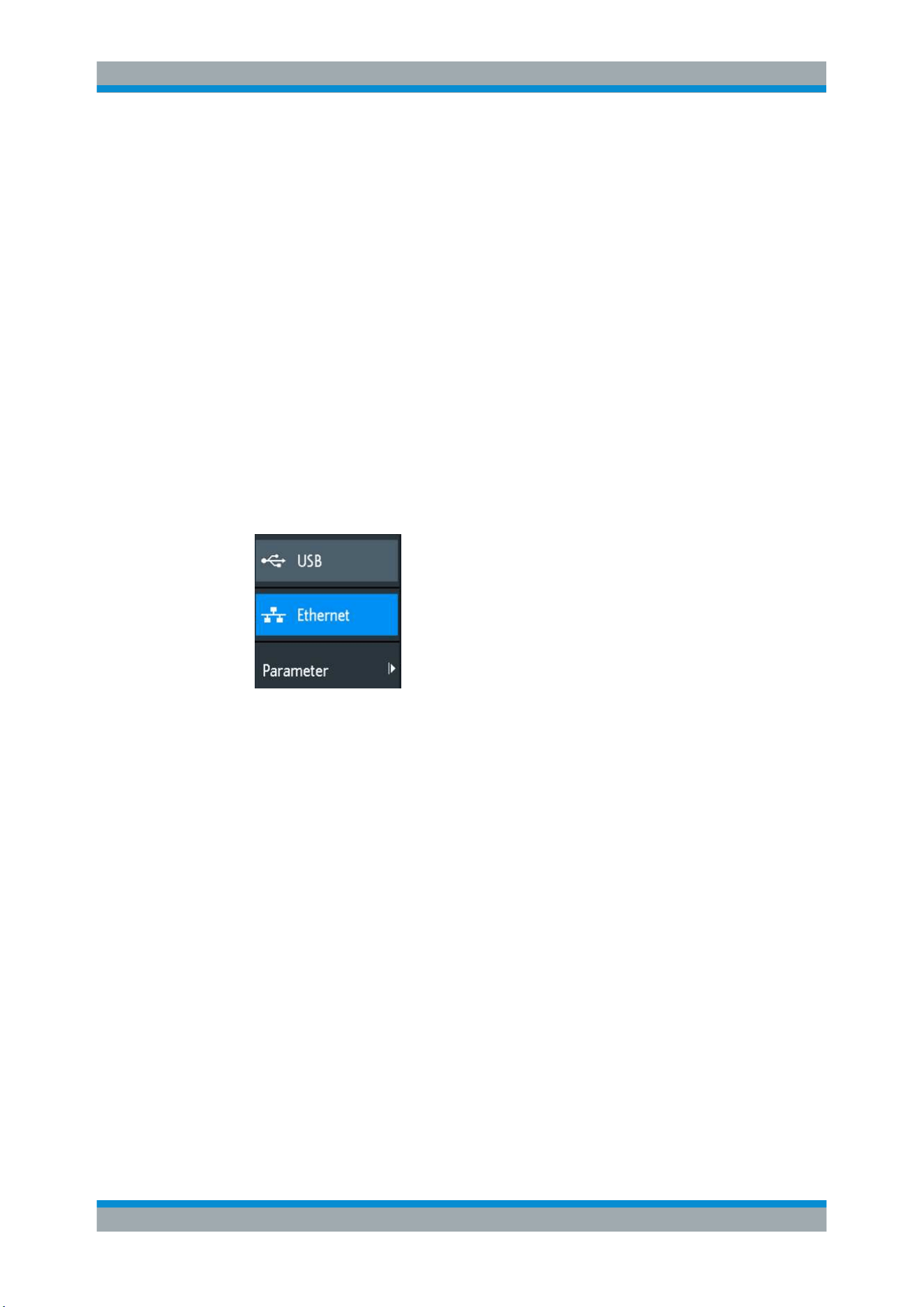
Network Connections and Remote Operation
R&S
®
RTB2000
154User Manual 1333.1611.02 ─ 03
11 Network Connections and Remote Opera-
tion
11.1 LAN Connection
The R&S RTB2000 is equipped with a network interface and can be connected to an
Ethernet LAN (local area network). A LAN connection is necessary for remote control
of the instrument, and for access from a computer using a web browser.
Connecting the instrument to the LAN
1. Connect the LAN cable to the LAN connector at the rear panel of the instrument.
2. Open the "Setup" menu.
3. Tap "Interface".
If the menu items are grayed, the connection failed. Check the connection of the
LAN cable and the network availability.
4. Tap "Ethernet" to select LAN connection.
5. Tap "Parameter".
You see all connection details on the display, and you can save them to a file.
LAN Connection
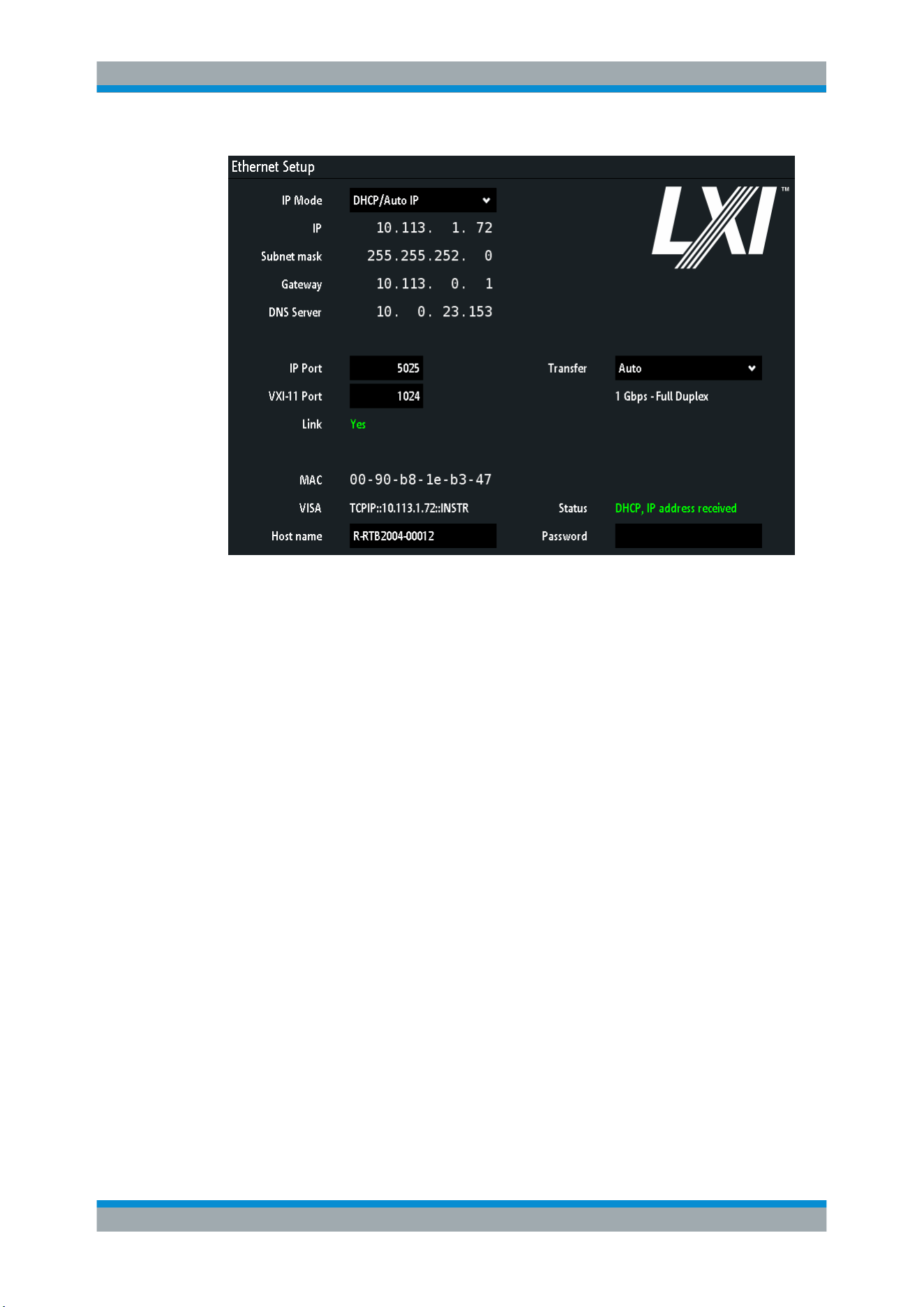
Network Connections and Remote Operation
R&S
®
RTB2000
155User Manual 1333.1611.02 ─ 03
Figure 11-1: Example of the Ethernet setup dialog with various address settings
Description of settings
IP Mode
Selects the Internet protocol mode:
●
"Manual": To be used if the network does not support dynamic host configuration
protocol (DHCP). The addresses must be set manually.
●
"DHCP/Auto IP" enables DHCP for automatic network parameter distribution and
shows the values of these parameters. By default, the instrument is configured to
use dynamic configuration and obtain all address information automatically. Thus,
it is safe to establish a physical connection to the LAN without any previous instru-
ment configuration.
Note that refreshing the values (for example after disconnecting the LAN cable and
reconnecting it) may take a while, depending on the network responsiveness.
Remote command:
SYSTem:COMMunicate:INTerface:ETHernet:DHCP on page 367
IP, Subnet mask, Gateway, DNS Server
Show or specify:
●
The instrument's IP address.
●
The IP subnet mask used by the instrument.
●
The IP gateway used by the instrument.
●
The address of the domain name server.
Remote command:
SYSTem:COMMunicate:INTerface:ETHernet:IPADdress on page 368
SYSTem:COMMunicate:INTerface:ETHernet:SUBNet on page 368
SYSTem:COMMunicate:INTerface:ETHernet:GATeway on page 368
LAN Connection

Network Connections and Remote Operation
R&S
®
RTB2000
156User Manual 1333.1611.02 ─ 03
IP Port, VXI-11 Port
Specify the IP port number (default = 5025) and the VXI-11 port number (default =
1024).
Remote command:
SYSTem:COMMunicate:INTerface:ETHernet:IPPort on page 368
SYSTem:COMMunicate:INTerface:ETHernet:HTTPport on page 368
Link
"Yes", if the instrument is connected to a local area network via the LAN interface on
the rear panel.
"No", if no LAN connection is detected.
Transfer
Enables automatic transfer speed selection and shows the currently selected value.
Alternatively, you can select one of the predefined settings that corresponds to your
network data rate.
Remote command:
SYSTem:COMMunicate:INTerface:ETHernet:TRANsfer on page 368
MAC, VISA
Show the instrument's media access control address, and the virtual instrument soft-
ware architecture (VISA) address that is used to address the instrument in remote con-
trol.
Remote command:
SYSTem:COMMunicate:INTerface:ETHernet:MACaddress? on page 369
Host name
Shows or specifies the name of the instrument, which the instrument can use to con-
nect to the DHCP server.
Status
Shows the connection status, for example "Allocating network address" or "DHCP, IP
address received".
Password
Specifies an optional password for remote access to the instrument.
11.2 USB Connection
In addition to a LAN connection, you can use the USB connector at the rear panel to
access the instrument via USB.
Connecting the instrument using USB
1. Connect the USB cable to the USB type B connector at the rear panel of the instru-
ment, and to the computer.
USB Connection
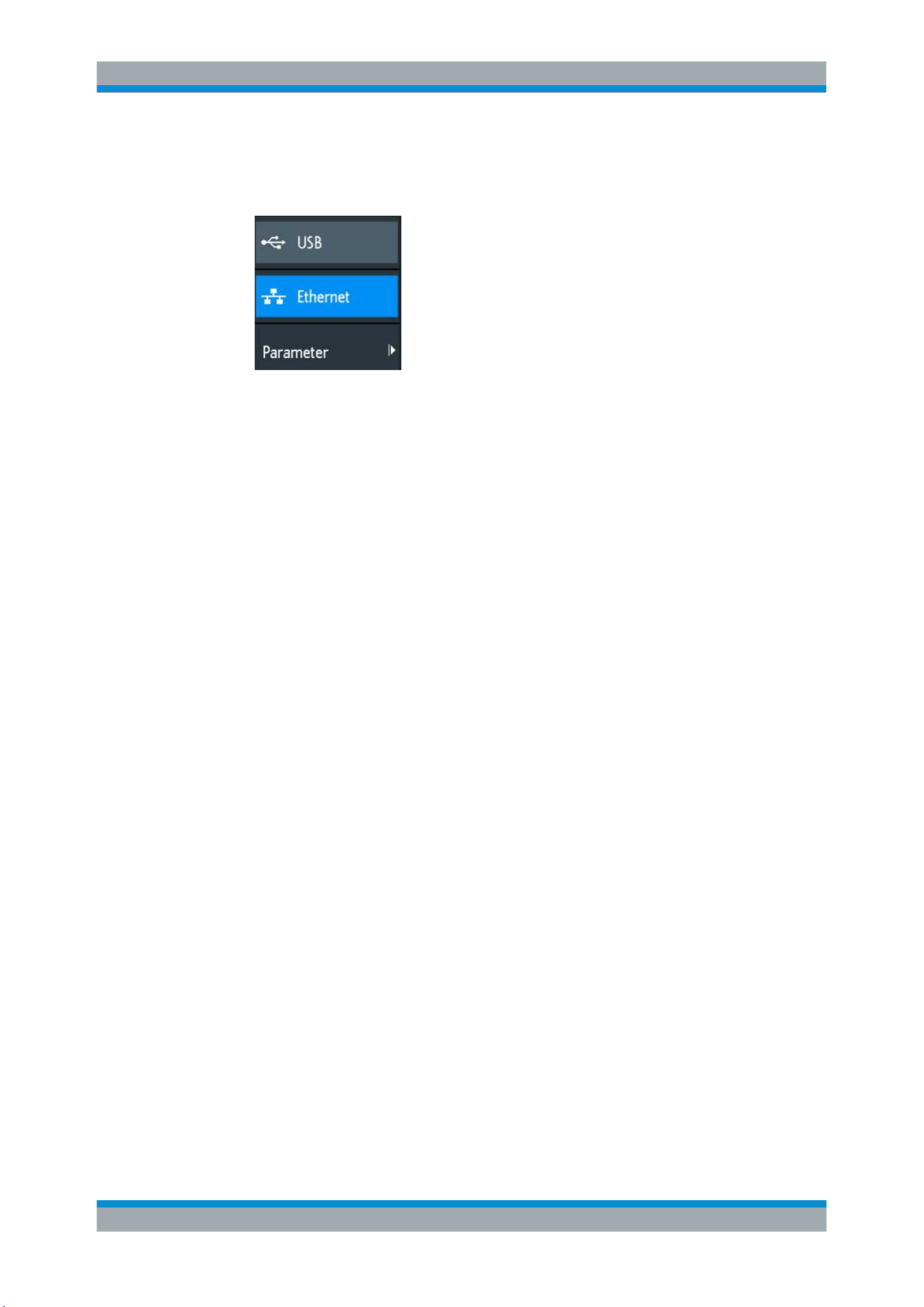
Network Connections and Remote Operation
R&S
®
RTB2000
157User Manual 1333.1611.02 ─ 03
2. Open the "Setup" menu.
3. Tap "Interface".
4. Tap "USB" to select USB connection.
5. Tap "Parameter".
6. Select the USB mode.
● USB TMC (Test & Measurement Class)
● USB VCP (Virtual Com Port)
● USB MTP (Media Transfer Protocol)
USB TMC
USB TMC means USB Test & Measurement Class. You can use this interface for
remote control of the instrument using SCPI commands. USB TMC requires a VISA
installation on the controlling computer. VISA is used to access the instrument and to
send remote commands.
Rohde & Schwarz provides the standardized I/O software library R&S VISA for com-
munication via TCP/IP (LAN: HiSlip, VXI-11) or USB (USBTMC) interfaces. R&S VISA
is available for download at the Rohde & Schwarz website
www.rohde-schwarz.com/
rsvisa
.
USB VCP
USB VCP uses the virtual COM port (VCP) to communicate with the measuring instru-
ment. You can use any terminal program to send SCPI commands. USB VCP requires
the installation of the USB VCP driver on the controlling computer. The driver is availa-
ble for download at the Rohde & Schwarz website (
www.rohde-schwarz.com/de/
treiber/hmo/
, HO720).
USB MTP
USB MTP is the USB media transfer protocol. It is a solution to load data from the
oscilloscope to the computer. USB MTP does not need a driver installation. If the
instrument and the computer are connected with a USB cable and USB MTP is
selected as interface, you can see the oscilloscope in the computer's Device Manager
as portable instrument.
USB Connection
Network Connections and Remote Operation
R&S
®
RTB2000
158User Manual 1333.1611.02 ─ 03
11.3 Remote Access Using a Web Browser
The R&S RTB2000 firmware contains a web server. If a LAN connection is estab-
lished, you can access the instrument remotely using a web browser on the control
computer.
The browser access allows you to:
●
Check instrument data
●
Control the instrument remotely
●
Print screenshots
●
Send remote commands
●
Save waveform and instrument data
●
Check network settings
11.3.1 Accessing the Instrument Using a Web Browser
To access the R&S RTB2000, you need a LAN connection and the IP address of the
instrument.
1. Obtain the IP address of the R&S RTB2000:
● Tap the green network icon in the top right corner of the screen.
● "Setup" menu > "Interface" > "Ethernet" > "Parameter" > "IP".
2. Open an Internet browser on the control computer.
3. Enter the IP address of the R&S RTB2000 in the address line:
http//:xxx.yyy.zzz.xxx.
The "Instrument Home" page opens.
11.3.2 Instrument Home
The "Instrument Home" page provides information on the instrument and the LAN con-
nection.
Remote Access Using a Web Browser
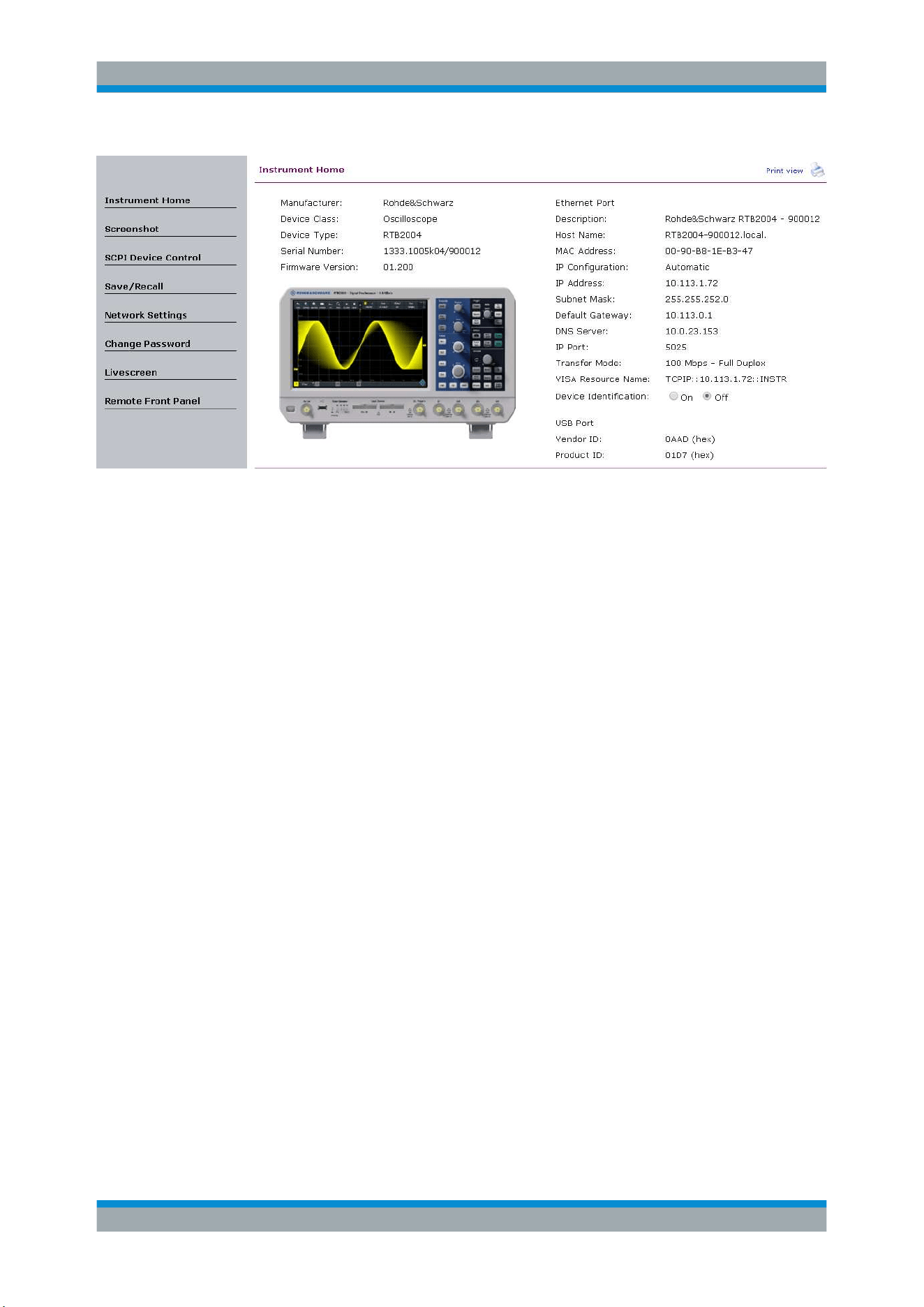
Network Connections and Remote Operation
R&S
®
RTB2000
159User Manual 1333.1611.02 ─ 03
11.3.3 Screenshot
The "Screenshot" page shows a copy of the instrument's display. It also provides
instrument control functions and screenshot settings.
Instrument control
●
"Run" and "Stop" = start and stop continuous acquisition, same as RUN STOP key
on the instrument.
●
"Single" = Single key on the instrument
●
"Autoset" = AUTOSET key on the instrument
●
"Preset" = PRESET key on the instrument
Remote Access Using a Web Browser
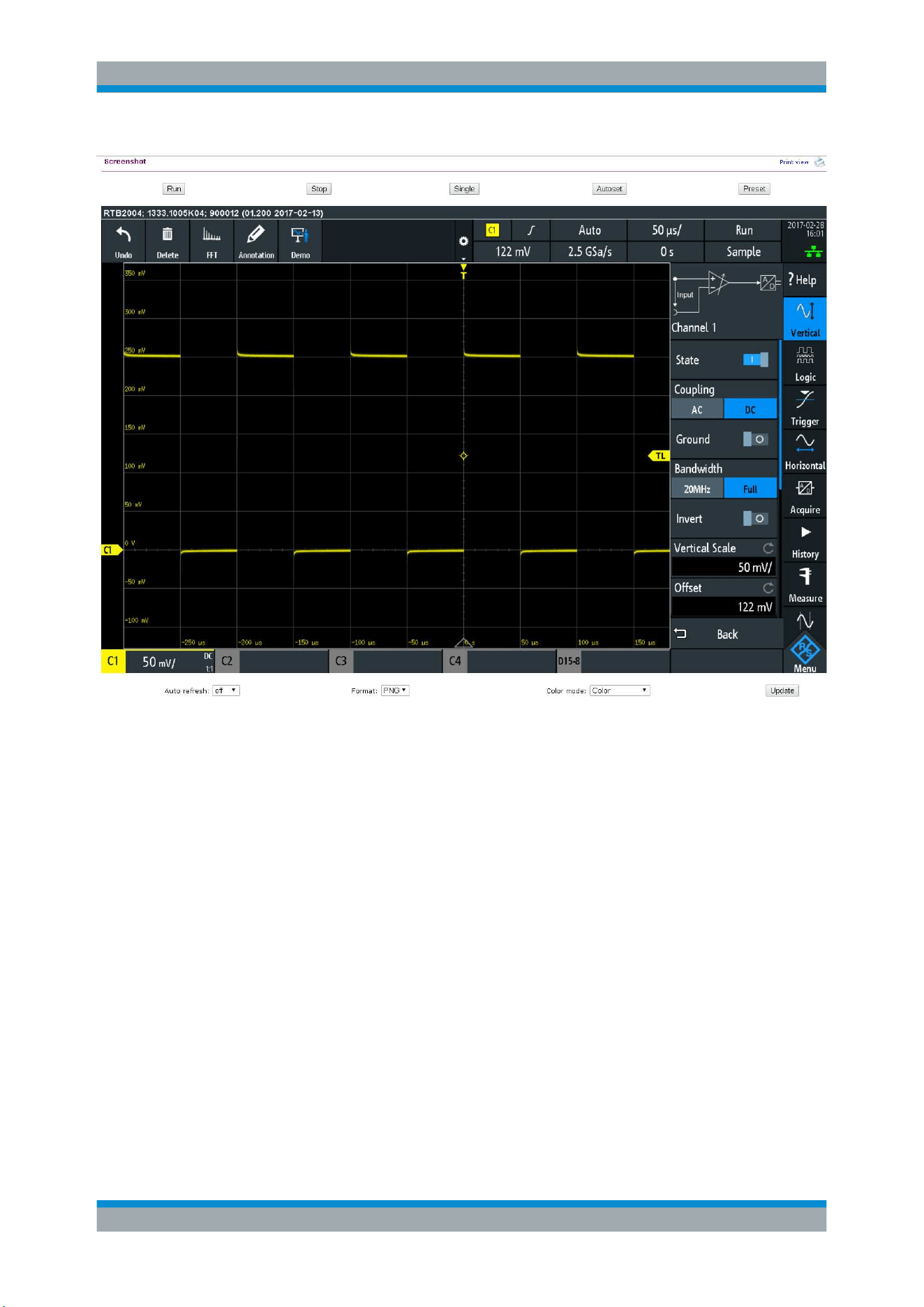
Network Connections and Remote Operation
R&S
®
RTB2000
160User Manual 1333.1611.02 ─ 03
Screenshots
●
"Auto refresh" and "Update"
Get the current screen content from the instrument. With "Auto refresh", you can
set the interval of automatic updates.
●
"Format" and "Color mode":
●
Set the file format and color mode of the screenshot.
► To save the screenshot, right-click the picture and select "Save image as".
11.3.4 SCPI Device Control
On the "SCPI Device Control" page, you can check how the transfer of remote com-
mands is working.
You can enter a single command, for example; *IDN?, and transmit it with "Send". Do
not press the ENTER key.
If the sent command has an error, an error message is created in the background, and
you do not get any response. You can see the error messages using "Last Error Mes-
sage" and "All Error Messages"
Remote Access Using a Web Browser
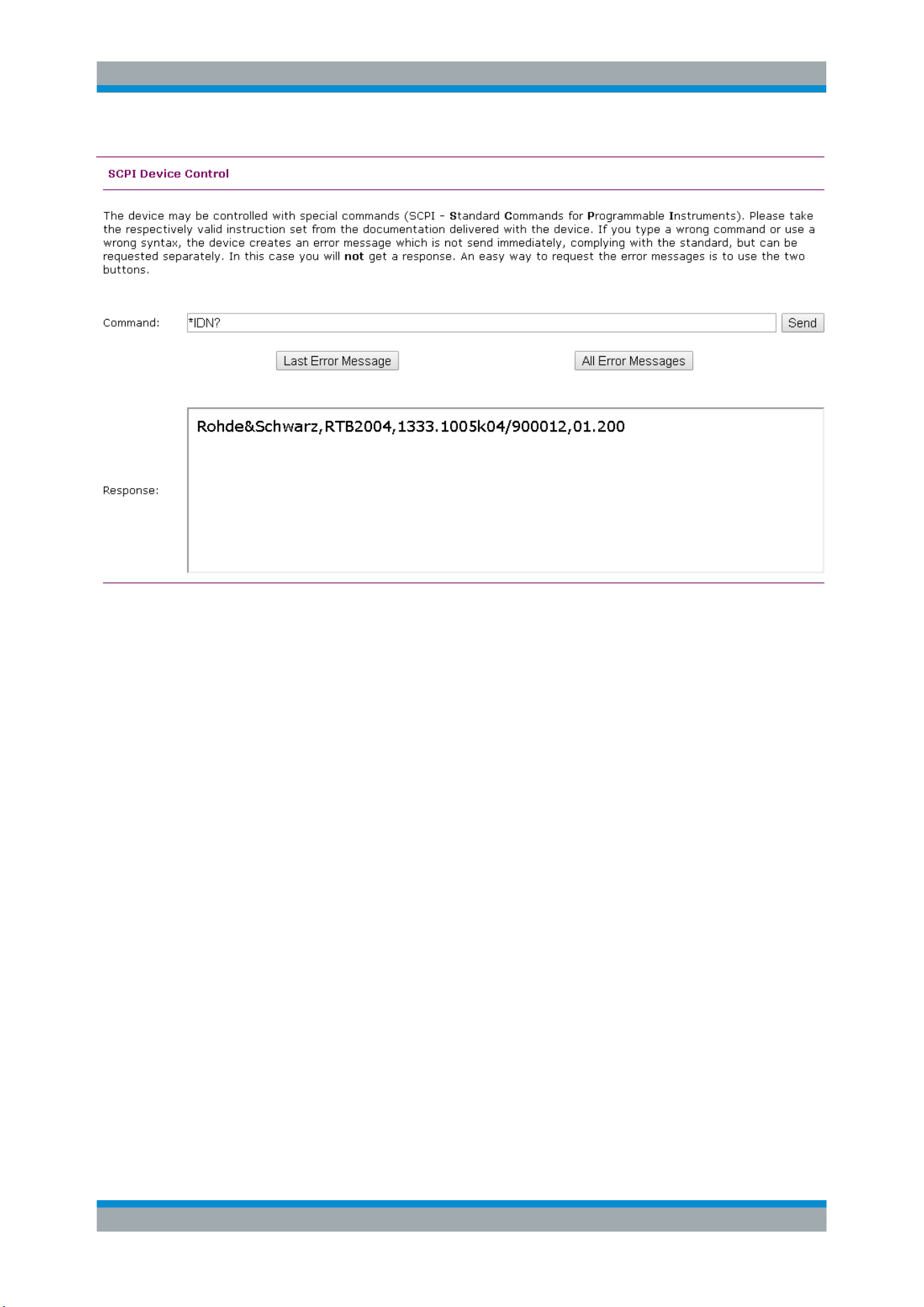
Network Connections and Remote Operation
R&S
®
RTB2000
161User Manual 1333.1611.02 ─ 03
11.3.5 Save/Recall
On the "Save/Recall" page, you can save waveform data and instrument settings to a
file - either on the computer (local file) or on the instrument (remote device). On the
computer, the default storage directory is the download folder, but you can change the
directory using the download functions of your browser. On the instrument, the files are
saved in the internal storage.
You can also load reference waveforms and instrument settings from file to the instru-
ment.
To save data to a file on the computer
1. Select the waveform or the device settings in the "Source" list.
2. Select the file "Format".
See also:
●
Chapter 6.3, "Reference Waveforms", on page 74
3. For analog and digital channels, select the "Data" scope to be written.
4. Click "Save".
Remote Access Using a Web Browser
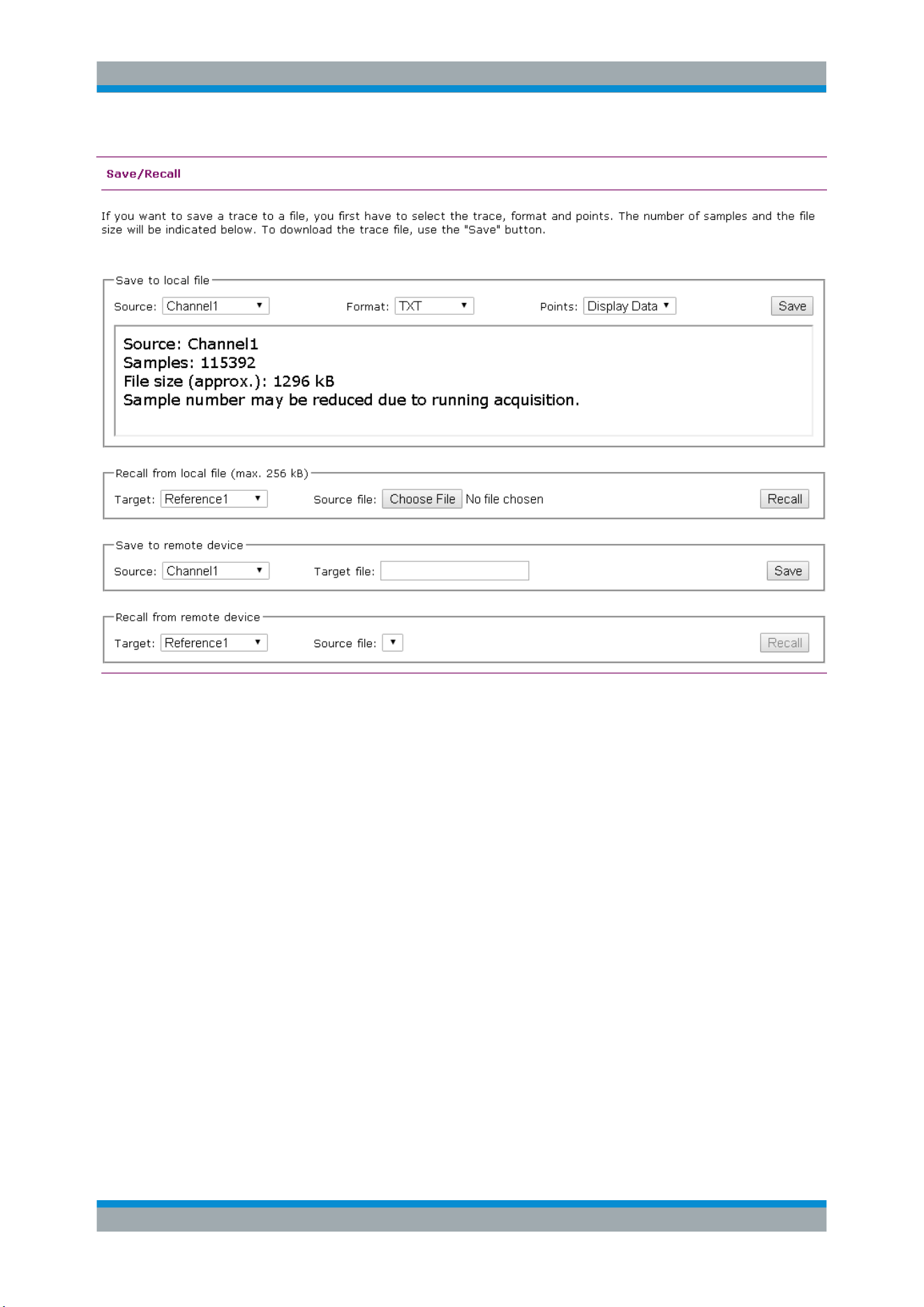
Network Connections and Remote Operation
R&S
®
RTB2000
162User Manual 1333.1611.02 ─ 03
11.3.6 Network Settings
On the "Network Setting" page, you can change the port settings, switch off DHCP
address and enter an IP address in a more comfortable way than directly on the instru-
ment. To take effect of the changes, "Submit" them to the instrument.
"Reset" removes all modified values that were not yet sent to the instrument.
Remote Access Using a Web Browser
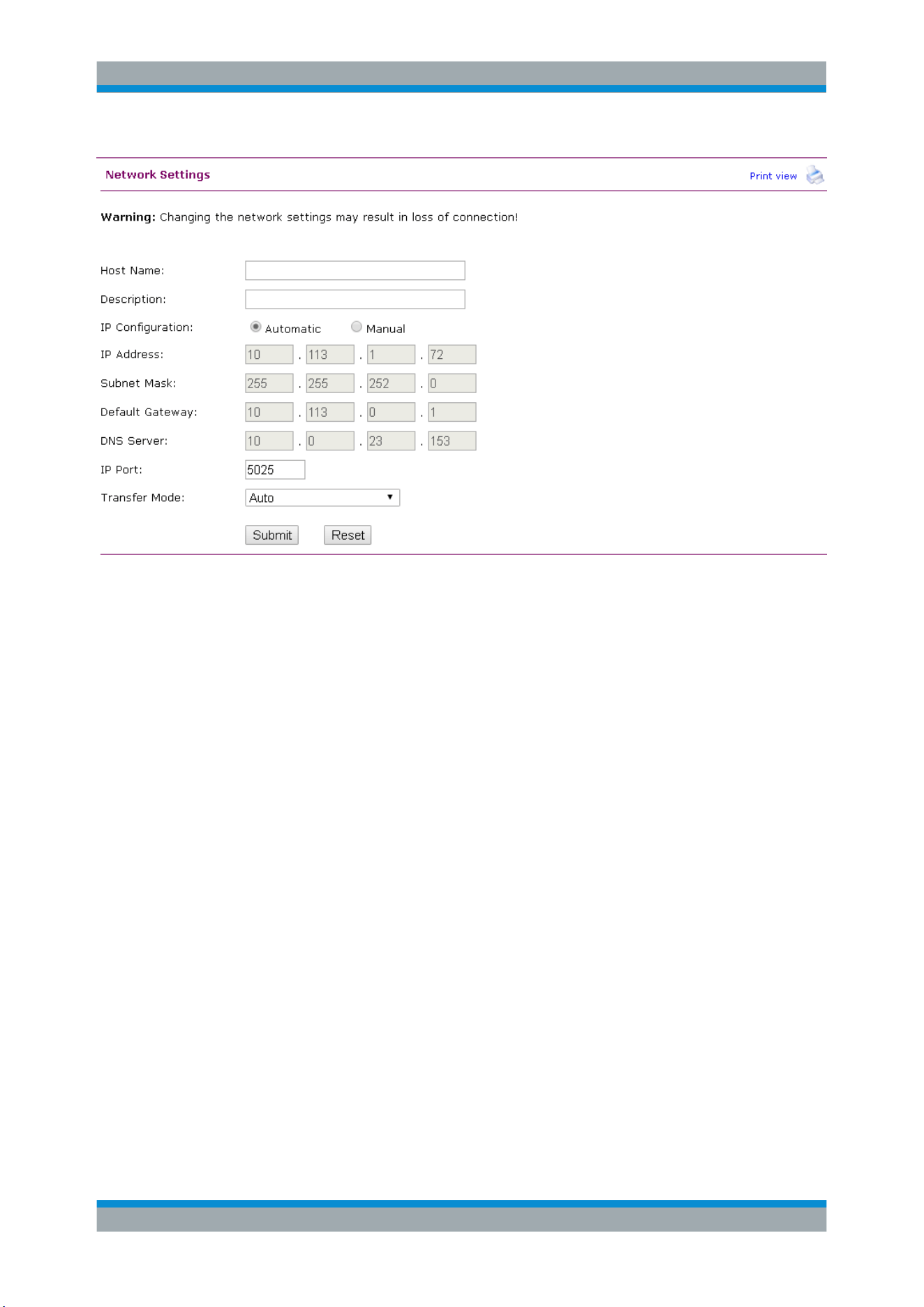
Network Connections and Remote Operation
R&S
®
RTB2000
163User Manual 1333.1611.02 ─ 03
11.3.7 Change Password
On the "Change Password" page, you can change or remove the password to protect
remote access to the instrument. Alternatively, you can change the password in the
Ethernet settings dialog on the instrument.
11.3.8 Livescreen
You see a live image of the instrument's display. Controlling the instrument is not pos-
sible. Use this page for demo purposes, for example.
To return to the page menu, click "Back".
11.3.9 Remote Front Panel
On the "Remote Front Panel" page, you can remotely operate the instrument using the
emulated front panel. A live image of the instrument is shown. You can use the keys,
the knobs and the menus in the same way as directly on the instrument.
To return to the page menu, click "Back".
Remote Access Using a Web Browser

Serial Bus Analysis
R&S
®
RTB2000
164User Manual 1333.1611.02 ─ 03
12 Serial Bus Analysis
Using the R&S RTB2000 and additional options, you can analyze the following serial
protocols:
●
SPI (Serial Peripheral Interface with 3 lines) and SSPI (Serial Peripheral Interface
with 2 lines) - requires option R&S RTB-K1
See
Chapter 12.2, "SPI/SSPI Bus (Option R&S RTB-K1)", on page 172.
●
I²C (Inter-Integrated Circuit bus) - requires option R&S RTB-K1
See
Chapter 12.3, "I²C (Option R&S RTB-K1)", on page 179.
●
UART/RS232 (EIA-232 serial interface) - requires option R&S RTB-K2
See
Chapter 12.4, "UART / RS232 (Option R&S RTB-K2)", on page 188.
●
CAN (Controller Area Network) - requires option R&S RTB-K3
See
Chapter 12.5, "CAN (Option R&S RTB-K3)", on page 195.
●
LIN (Local Interconnect Network) - requires option R&S RTB-K3
●
See
Chapter 12.6, "LIN (Option R&S RTB-K3)", on page 207.
To analyze parallel buses, you need MSO option R&S RTB-B1 to get the logic chan-
nels. See Chapter 13, "Logic Analyzer (Option R&S RTB-B1, MSO)", on page 220.
12.1 Basics of Protocol Analysis
The analysis of serial data consists of the following main steps:
●
Protocol configuration:
Select the protocol type, configure the input lines and the protocol-specific settings.
●
Decoding:
Select the display format of the decoded data. The digitized signal is displayed on
the screen together with the decoded content of the messages in combs. You can
scale the signal display and zoom into it to see it in more detail.
You can also list the decoded results in tabular form in the bus table.
●
Triggering:
You can trigger on various events that are typical for the configured bus type. For
example, trigger on start or stop of messages, or on serial patterns.
●
Search:
On CAN and LIN buses, you can search for events. The search events are similar
to the trigger events. The search finds all matching events in an acquisition, while
the trigger finds only the trigger event.
Analysis can be performed on analog and digital input channels. Digital channels
require if MSO option R&S RTB-B1.
You can configure 2 protocol buses and select one of the configured buses for analy-
sis.
Basics of Protocol Analysis
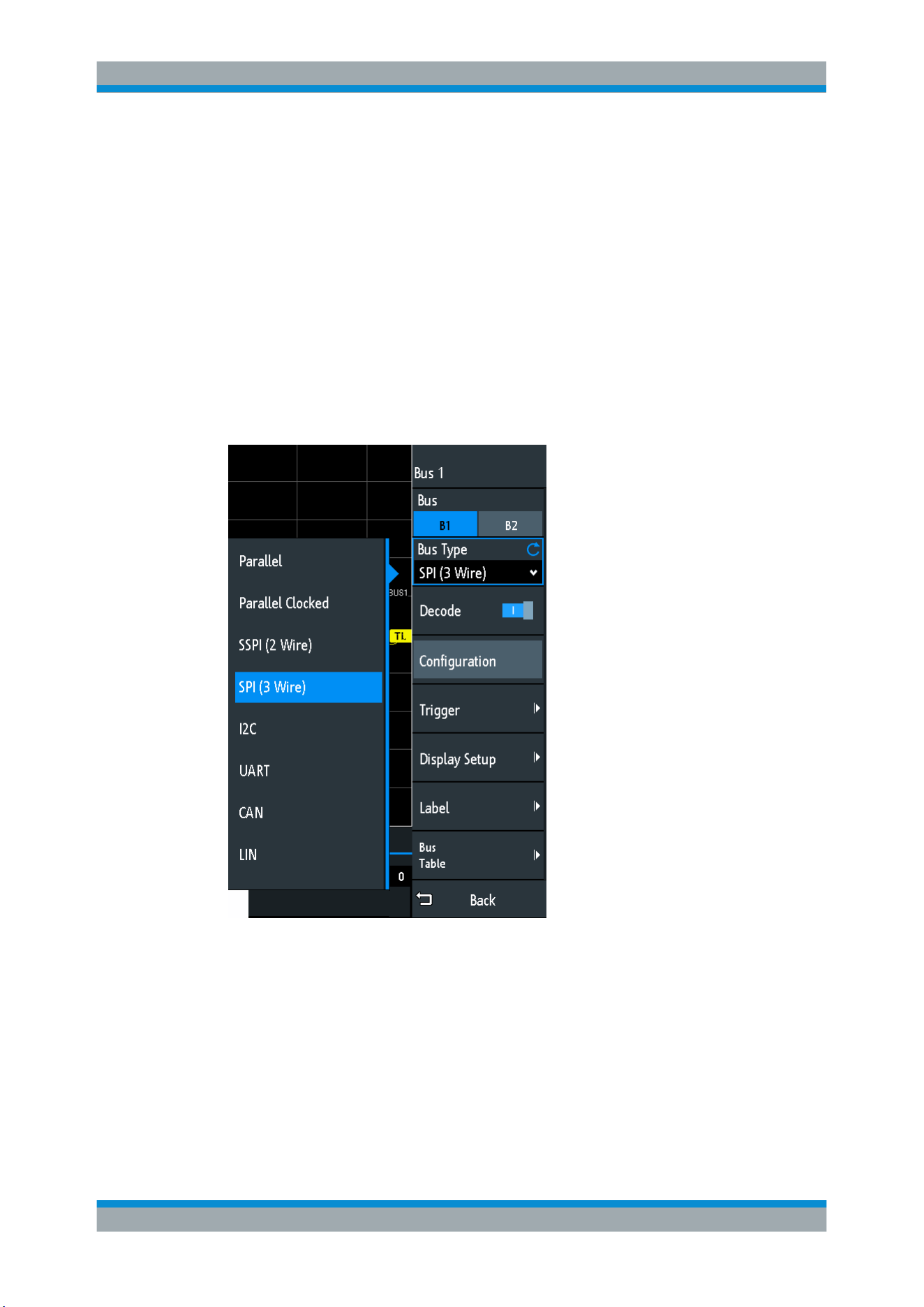
Serial Bus Analysis
R&S
®
RTB2000
165User Manual 1333.1611.02 ─ 03
●
Protocol - Common Settings................................................................................. 165
●
Display Settings.................................................................................................... 167
●
Bus Table: Decode Results...................................................................................167
●
Bus Labels............................................................................................................ 168
●
Label List...............................................................................................................169
12.1.1 Protocol - Common Settings
► To open the protocol setup, press the PROTOCOL key.
The common settings in the "Protocol" menu define the bus type and open further
menus to adjust the display of the decoded bus signal.
Figure 12-1: Protocol menu with bus types expanded
Bus
Selects the bus to be configured and analyzed.
Bus Type
Defines the bus or interface type for analysis.
The following bus or interface types are available with a full set of options:
●
Parallel
●
Parallel clocked
Basics of Protocol Analysis

Serial Bus Analysis
R&S
®
RTB2000
166User Manual 1333.1611.02 ─ 03
●
SPI (2 wires)
●
SSPI (3 wires)
●
I
2
C
●
UART
●
CAN
●
LIN
Remote command:
BUS<b>:TYPE on page 371
Decode
Enables protocol decoding for the selected bus.
Remote command:
BUS<b>:STATe on page 371
Configuration
Opens or closes the dialog box with configuration settings of the selected bus.
The following chapters describe manual protocol configuration:
●
Chapter 13.5, "Parallel Buses", on page 224
●
Chapter 12.2.2, "SPI/SSPI Configuration", on page 173
●
Chapter 12.3.2, "I
2
C Configuration", on page 182
●
Chapter 12.4.2, "UART Configuration", on page 189
●
Chapter 12.5.1, "CAN Configuration", on page 195
●
Chapter 12.6.2, "LIN Configuration", on page 209
Trigger
Opens the trigger setup for the selected protocol.
The following chapters describe protocol triggering:
●
Chapter 12.2.3, "SPI/SSPI Trigger", on page 176
●
Chapter 12.3.3, "I
2
C Trigger", on page 183
●
Chapter 12.4.3, "UART Trigger", on page 191
●
Chapter 12.5.2, "CAN Trigger", on page 197
●
Chapter 12.6.3, "LIN Trigger", on page 210
Triggering on parallel buses is not possible.
Note: Selecting "Trigger" in the protocol menu automatically enables protocol decod-
ing.
Display Setup
Opens a menu to define display settings, e.g. data formats. Display settings are valid
for all protocol types.
See
Chapter 12.1.2, "Display Settings", on page 167.
Label List
Opens a menu to load and apply a list with symbolic names of addresses or identifiers.
Only available for CAN and LIN.
See
Chapter 12.1.5, "Label List", on page 169.
Basics of Protocol Analysis
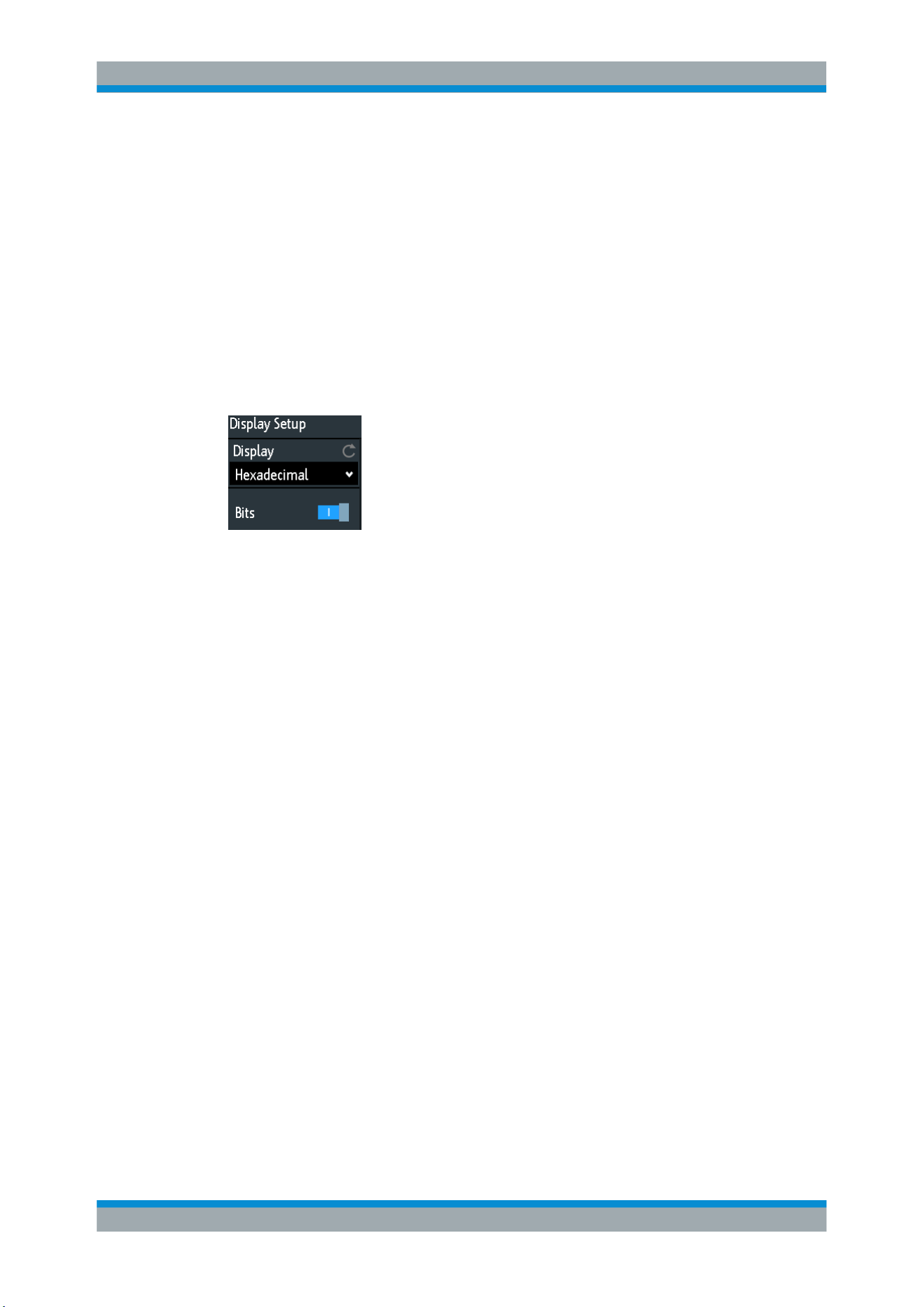
Serial Bus Analysis
R&S
®
RTB2000
167User Manual 1333.1611.02 ─ 03
Bus Table
Opens a menu to define bus table settings for the decoded frames of the acquisition.
See
Chapter 12.1.3, "Bus Table: Decode Results", on page 167.
Label
Opens a menu to define a label for the selected bus.
See
Chapter 12.1.4, "Bus Labels", on page 168.
12.1.2 Display Settings
Access: PROTOCOL > "Display Setup"
Display
Selects the decoding format of the data: binary, hexadecimal, decimal, octal or ASCII.
The setting applies to the data in the combs of the decoded bus line, but not to the bus
table.
Remote command:
BUS<b>:FORMat on page 371
Bits
Enables the display of the individual bit lines above the decoded bus line.
Remote command:
BUS<b>:DSIGnals on page 372
12.1.3 Bus Table: Decode Results
The bus table shows the detailed decoded data for each frame of the acquisition. At
running acquisition, the table results are updated continuously. In stop mode, you can
access the individual frames and analyze them.
To open the bus table
1. In the "Bus" menu, select "Bus Table".
2. Select "Bus Table".
The menu entry gets highlighted, and the bus table is shown below the diagram.
To navigate in the bus table
1. To adjust the table size, drag up or down one of the arrow buttons on the left or
right.
Basics of Protocol Analysis
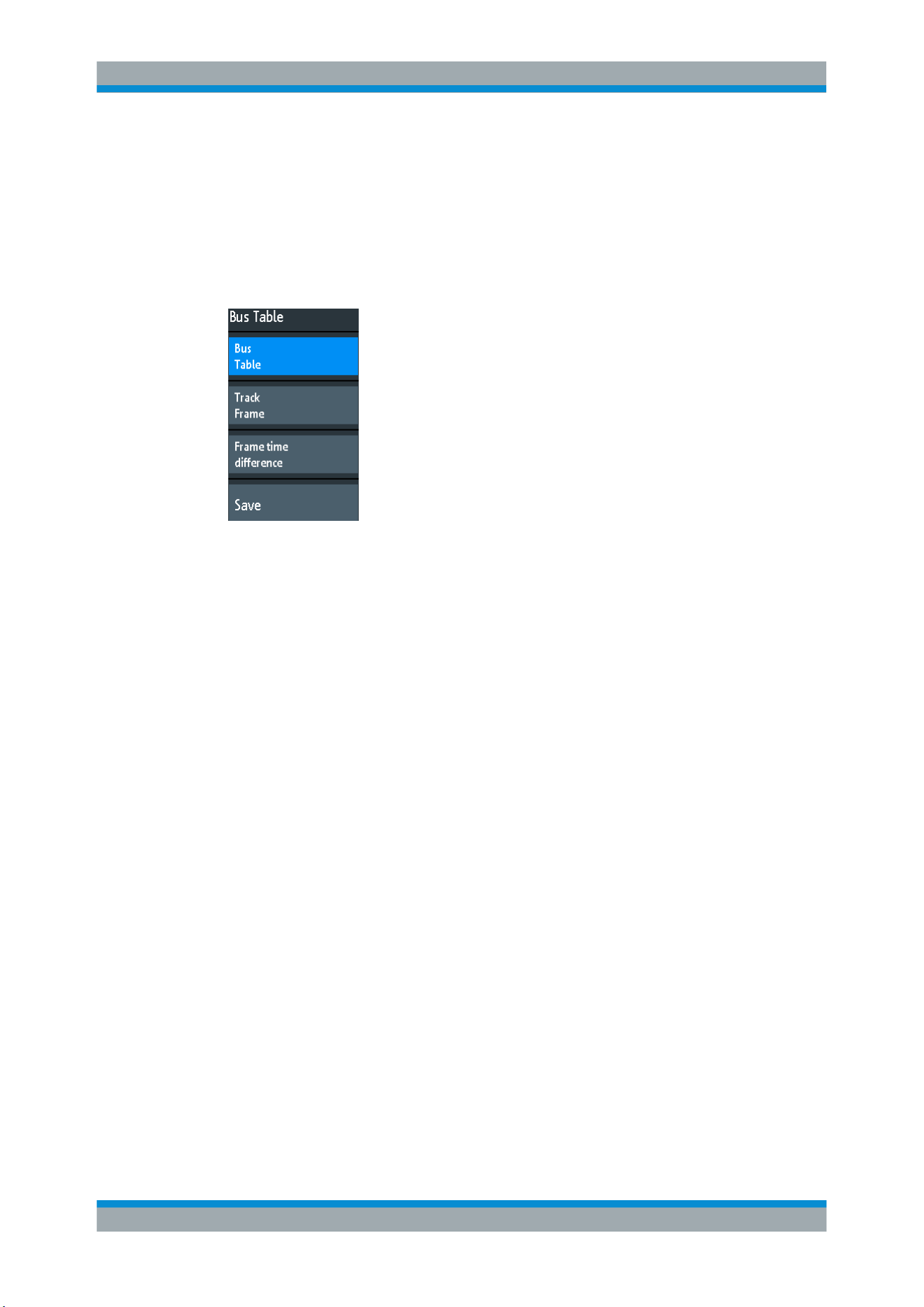
Serial Bus Analysis
R&S
®
RTB2000
168User Manual 1333.1611.02 ─ 03
2. Stop the acquisition.
3. In the "Bus Table" menu, select "Track Frame".
4. Tap a frame in the bus table.
The start of the selected frame is marked by a line and a rhomb. This marker is
moved to the center of the diagram, followed by the decoded data.
Bus Table
Displays or hides a table of decoded signal data.
Remote command:
BUS<b>:RESult on page 373
Track Frame
If enabled, the selected frame in the bus table is automatically synchronized with the
waveform display.
The function is only available if the acquisition has been stopped.
Frame time difference
If selected, the time column in the bus table shows the frame's time difference to the
previous frame. The column is indicated with "Time diff.". If the setting is disabled, the
absolute time in relation to the trigger point is shown in the "Start Time" column.
Save
Opens the "Save" menu to save the decoded data in a CSV file (comma-separated
list).
12.1.4 Bus Labels
A bus label is a name of a bus. The bus label is shown on the right side of the display
at the bus signal, and in the bus table.
Do not confuse "Label" and "Label List". The "Label" names the bus, while the "Label
List" contains the names of bus nodes identified by addresses or identifiers.
Access: PROTOCOL > "Label"
Basics of Protocol Analysis
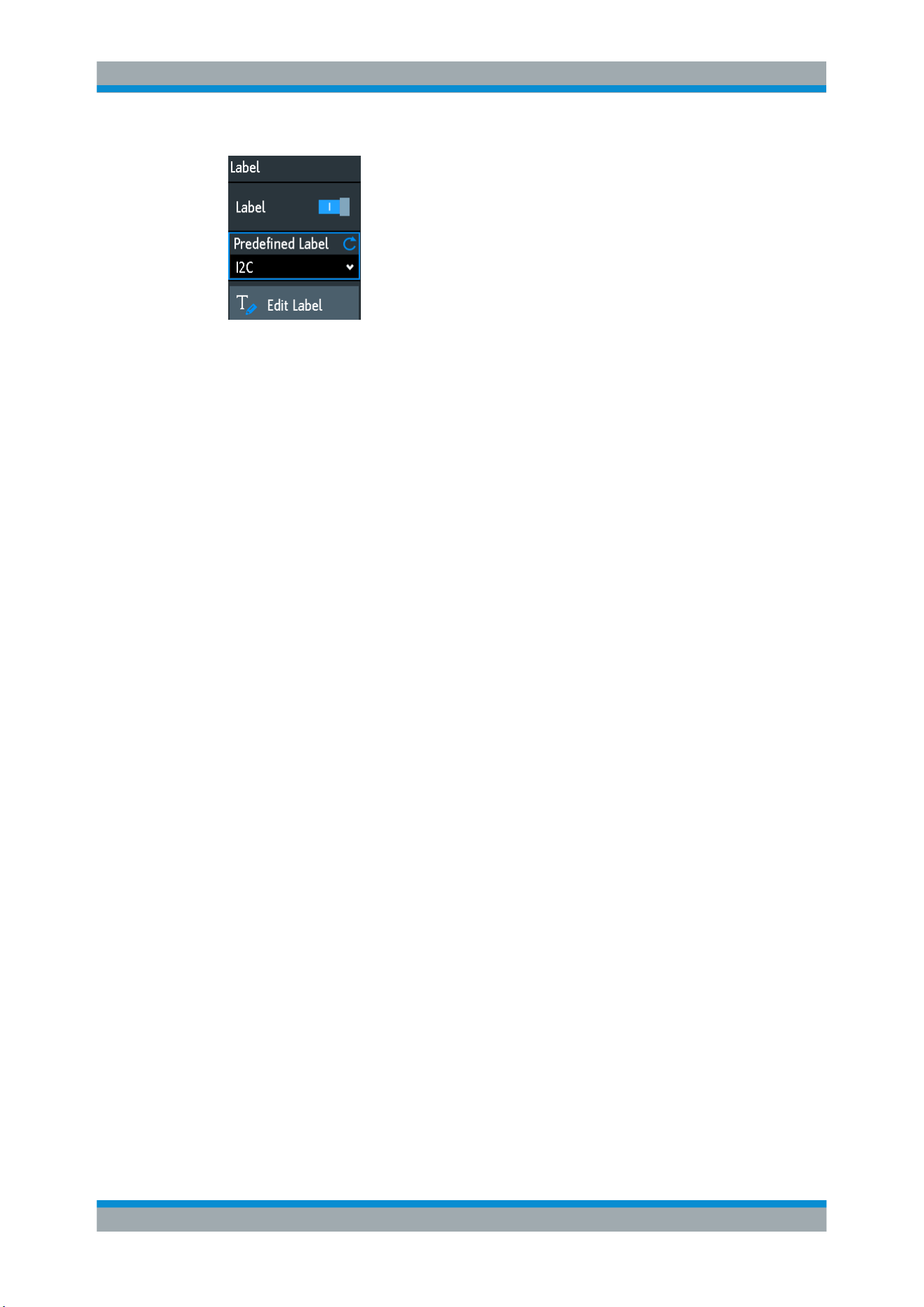
Serial Bus Analysis
R&S
®
RTB2000
169User Manual 1333.1611.02 ─ 03
Label
Displays or hides the bus label. The bus label is shown on the right side of the display
at the bus signal, and in the bus table. The bus and its label are only visible, if
"Decode" is enabled.
You can enter a label text in several ways:
●
Select a string from the library list at "Predefined Label".
●
Enter a user-defined text using "Edit Label".
Remote command:
BUS<b>:LABel:STATe on page 372
Predefined Label
Selects a bus label from the following list:
●
SPI
●
SSPI
●
I2C
●
UART
●
CAN
●
LIN
●
PARALLEL
●
ADDRESS
●
DATA
●
RS232
Edit Label
Enter a user-defined name for the bus. The maximum name length is 8 characters.
You can use only ASCII characters provided on the on-screen keyboard.
Remote command:
BUS<b>:LABel on page 371
12.1.5 Label List
For all protocols using ID or address identification, it is possible to create label lists
containing addresses or IDs, a symbolic name for each node (symbolic label), and
some protocol-specific information.
You can load label lists, and activate its usage for decoding. As a result, the decoded
signal shows the symbolic label instead of the ID or address values, so it is easy to
identify the messages of the different bus nodes.
Basics of Protocol Analysis
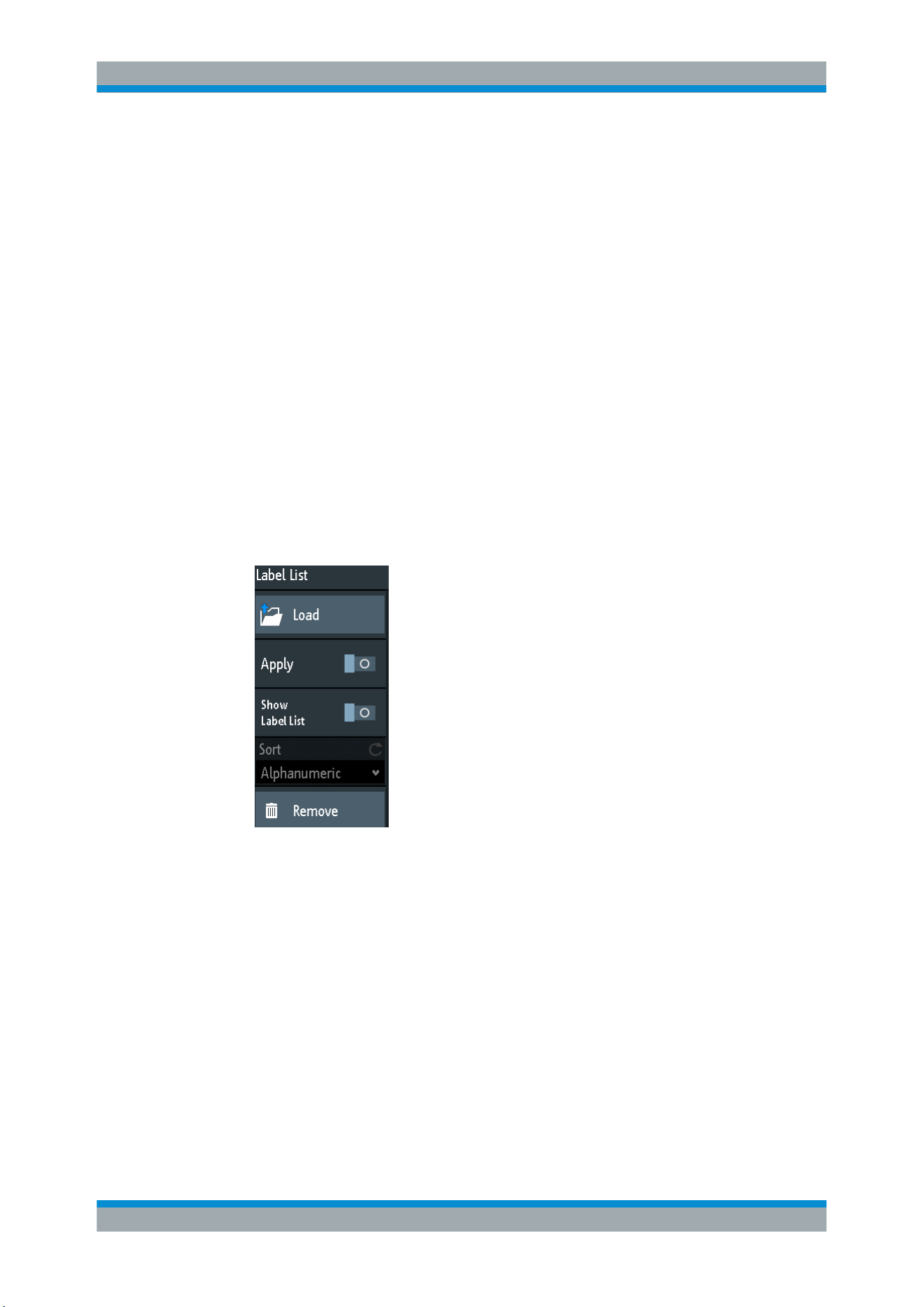
Serial Bus Analysis
R&S
®
RTB2000
170User Manual 1333.1611.02 ─ 03
You can also also use the label list to trigger on an identifier or address. Instead of
entering the value, you select the name, which is defined in the label list.
The format of label list files is PTT.
Label lists are protocol-specific. They are described in the corresponding protocol
chapters:
●
Chapter 12.5.5, "CAN Label List", on page 205
●
Chapter 12.6.6, "LIN Label List", on page 217
12.1.5.1 Using Label Lists
To load a label list and display the labels
1. Save the label list file on a USB flash drive.
2. Press the PROTOCOL key.
3. Configure the protocol.
4. In the "Bus" menu, select "Label List".
5. Select "Load".
6. Navigate to the label list file, select it, and tap "Load".
7. To read the label list, tap "Show Label List".
8. To see the node labels in the display of the decoded data, tap "Apply".
To trigger on an identifier or address using the label
Prerequisites: The bus is configured, decoding is enabled, and a decoded signal is visi-
ble.
1. Open the "Bus" menu.
2. Select "Trigger".
3. Set the following trigger settings:
Basics of Protocol Analysis

Serial Bus Analysis
R&S
®
RTB2000
171User Manual 1333.1611.02 ─ 03
a) "<Protocol> Trigger" = "Identifier", or "Identifier + Data", or "Address", or
"Address and Data".
b) Tap "Symbolic ID".
c) Select the label. The list provides all symbolic names that are defined in the
loaded file.
4. Close the dialog.
5. Set the trigger mode to "Normal".
12.1.5.2 Content and Format of the PTT File
Label lists are stored as PTT (protocol translation table) files. The PTT file format is an
extension of the CSV format (comma-separated values). You can edit it with standard
editors, for example, with MS Excel or a text editor.
The PTT file has three types of lines:
●
Comment lines begin with a hash character #. A hash character at any other posi-
tion in the line is treated like a standard character.
●
Command lines begin with a commercial at character @. An @ character at any
other position in the line is treated like a standard character.
●
Standard lines are the lines that not qualify as comment or command lines. They
build the core of the label list.
Command lines
Command lines define the version of the PTT file and the protocol name:
●
@FILE_VERSION: must appear exactly once in the file
●
@PROTOCOL_NAME: must appear at least once in the file. Thus, one file can
contain several label lists for different protocols.
# --- Start of PTT file
@FILE_VERSION = 1.0
@PROTOCOL_NAME = i2c
[... Label list for I2C]
@PROTOCOL_NAME = can
[... Label list for CAN]
# --- End of PTT file
Standard lines
Standard lines define the contents of the label list. The rules for standard lines follow
the csv convention, they are:
●
Values are separated by commas
●
Space characters following a delimiter are ignored
●
Values with a special character (comma, newline, or double quote) must be
enclosed in double quotes
●
Text in double quotes must be escaped by double quote characters
Basics of Protocol Analysis
Serial Bus Analysis
R&S
®
RTB2000
172User Manual 1333.1611.02 ─ 03
The format of the numeric value is indicated by a suffix. The following formats are sup-
ported:
Format Suffix Example
Decimal <empty>
d
106, DeviceName
106d, DeviceName
Hexadecimal h
6Ah, DeviceName
or prefix: 0x6A, DeviceName
Octal o
152o, DeviceName
Binary b
01101010b, DeviceName
The maximum supported word size for (unsigned) integers is 64 bits.
# --- Start of PTT file
@FILE_VERSION = 1.0
@PROTOCOL_NAME = i2c
# Following two lines are equal:
7,01h,Temperature
7,01h, Temperature
# A comma must be enclosed in double quotes:
7,01h,"Temperature, Pressure, and Volume"
# A double quote must also be enclosed in double quotes:
7,7Fh,"Highspeed ""Master"" 01"
# Following lines yield the same result:
7d,0x11,Pressure
7h,11h,Pressure
0x7,17d,Pressure
7,17,Pressure
12.2 SPI/SSPI Bus (Option R&S
RTB-K1)
●
The SPI Protocol...................................................................................................172
●
SPI/SSPI Configuration.........................................................................................173
●
SPI/SSPI Trigger...................................................................................................176
●
SPI/SSPI Decode Results ....................................................................................178
12.2.1 The SPI Protocol
A 4-channel instrument is required for full support of the SPI protocol, or the MSO
option R&S RTB-B1.
The Serial Peripheral Interface SPI is used for communication with slow peripheral
devices, in particular, for transmission of data streams.
SPI/SSPI Bus (Option R&S RTB-K1)
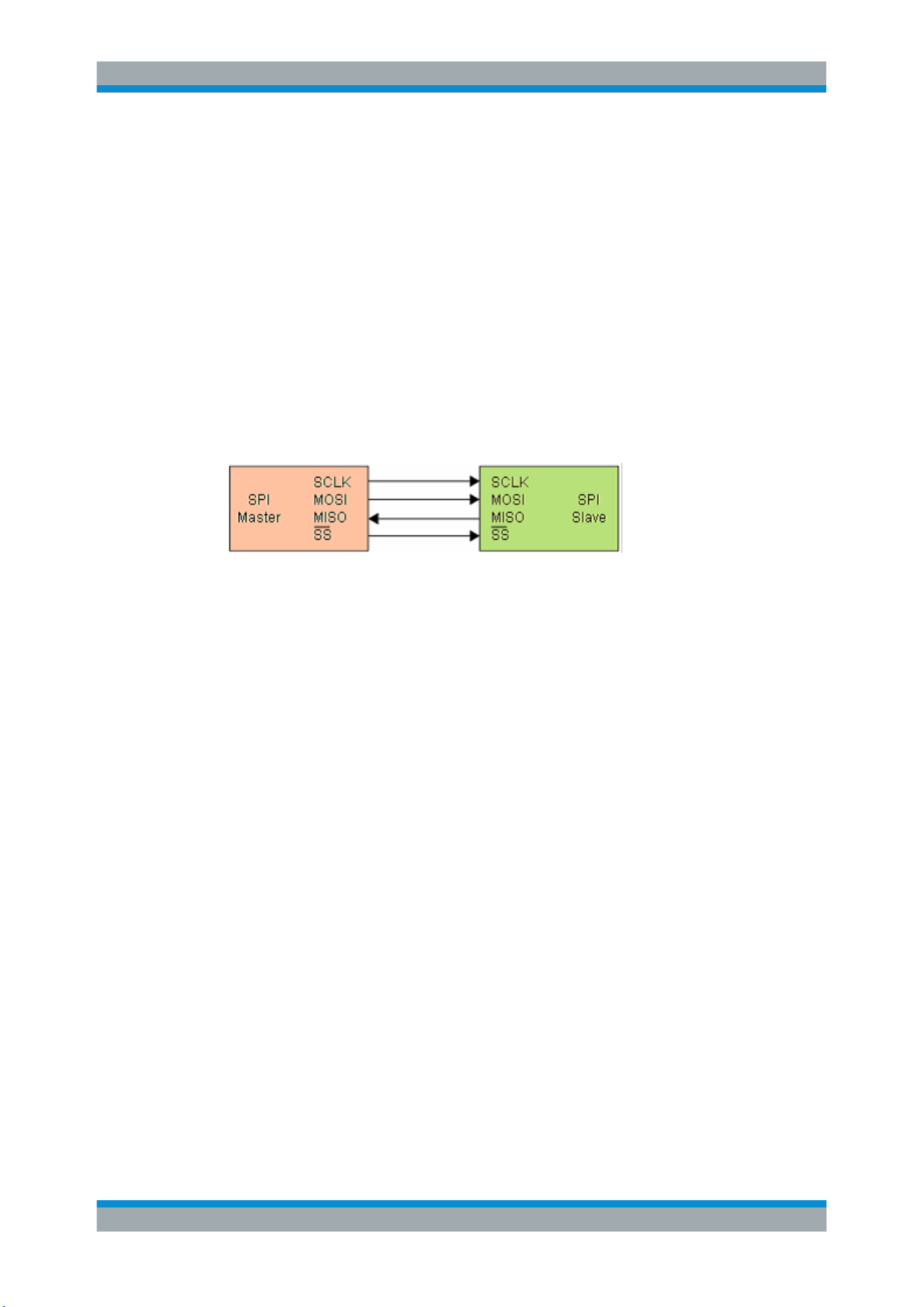
Serial Bus Analysis
R&S
®
RTB2000
173User Manual 1333.1611.02 ─ 03
Main characteristics of SPI are:
●
Master-slave communication
●
No device addressing; The slave is accessed by a chip select, or slave select line.
●
No acknowledgement mechanism to confirm receipt of data
●
Duplex capability
Most SPI buses have four lines, two data and two control lines:
●
Clock line to all slaves (SCLK)
●
Slave Select or Chip Select line (SS or CS)
●
Master data output, slave data input (MOSI or SDI)
●
Master data input, slave data output (MISO or SDO)
When the master generates a clock and selects a slave device, data may be transfer-
red in either or both directions simultaneously.
Figure 12-2: Simple configuration of SPI bus
The data bits of a message are grouped by following criteria:
●
A word contains a number of successive bits. The word length is defined in the pro-
tocol configuration.
●
A frame contains a number of successive words, at least one word.
For SPI buses, the R&S RTB2000 provides the following trigger possibilities:
●
On frame start
●
On frame end
●
On a specified bit in the message
●
On a serial pattern at a specified position
12.2.2 SPI/SSPI Configuration
The correct setup of the protocol parameters and the threshold is the condition for
decoding the signal.
To set up and decode an SPI or SSPI signal
1. Press the PROTOCOL key in the Analysis area of the front panel.
2. Select the bus that you want to use: B1 or B2.
3. Select the "Bus Type" = SSPI or SPI.
4. Select "Configuration".
SPI/SSPI Bus (Option R&S RTB-K1)
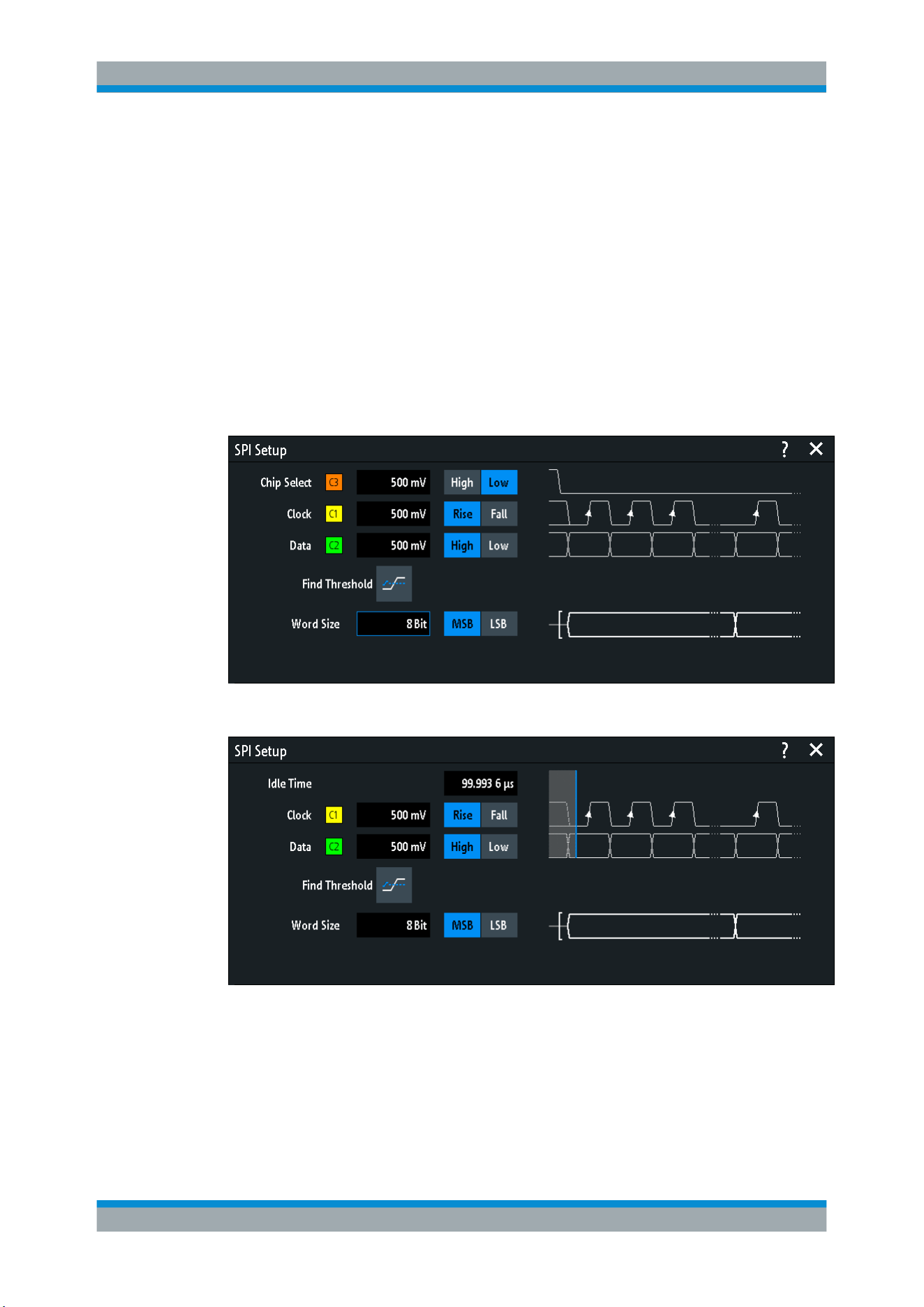
Serial Bus Analysis
R&S
®
RTB2000
174User Manual 1333.1611.02 ─ 03
5. Select the sources of the signal lines, the channels to which the lines are connec-
ted.
6. Set the threshold. Use one of the following methods:
● Tap "Find Threshold". The instrument evaluates the signal and sets the thresh-
old.
● Enter the threshold value in the numeric field.
7. Set the other signal parameters according to the signal characteristics. All settings
are described below.
8. In the "Bus" menu, enable "Decode".
SPI/SSPI configuration settings
Figure 12-3: SPI (3 wire) setup
Figure 12-4: SSPI (2 wire) setup
Chip Select..................................................................................................................175
Clock........................................................................................................................... 175
Slope...........................................................................................................................175
Data.............................................................................................................................175
Polarity........................................................................................................................ 175
SPI/SSPI Bus (Option R&S RTB-K1)

Serial Bus Analysis
R&S
®
RTB2000
175User Manual 1333.1611.02 ─ 03
Threshold, Find Threshold.......................................................................................... 175
Word Size....................................................................................................................176
Idle Time..................................................................................................................... 176
Chip Select
Selects the input channel of the chip select (CS) line. Only available in the SPI setup.
If the MSO option R&S RTB-B1 is installed, you can use logic channels as source.
Remote command:
BUS<b>:SPI:CS:SOURce on page 374
Clock
Selects the input channel of the SPI or SSPI clock line.
If the MSO option R&S RTB-B1 is installed, you can use logic channels as source.
Remote command:
BUS<b>:SPI:CLOCk:SOURce on page 374
BUS<b>:SSPI:CLOCk:SOURce on page 376
Slope
Selects if data is sampled on the rising or falling slope of the clock. The clock slope
marks the begin of a new bit.
Remote command:
BUS<b>:SPI:CLOCk:POLarity on page 374
BUS<b>:SSPI:CLOCk:POLarity on page 376
Data
Selects the input channel of the data line (MOSI or MISO line).
If the MSO option R&S RTB-B1 is installed, you can use logic channels as source.
Remote command:
BUS<b>:SPI:DATA:SOURce on page 375
BUS<b>:SSPI:DATA:SOURce on page 377
Polarity
Selects if the transmitted data or the chip select signal is high active (high = 1) or low
active (low = 1).
For CS, the default is low active.
For data, the default is high active.
Remote command:
BUS<b>:SPI:DATA:POLarity on page 375
BUS<b>:SSPI:DATA:POLarity on page 377
Threshold, Find Threshold
Set the signal threshold for the source channel. Enter a value, or use "Find Threshold"
to set the threshold to the middle reference level of the measured amplitude.
For analog channels, you can find the value also in the "Vertical" menu > "Chan-
nel <n>" >"Threshold"
For logic channels, you can find the value also in the "Logic" menu > "Threshold".
SPI/SSPI Bus (Option R&S RTB-K1)

Serial Bus Analysis
R&S
®
RTB2000
176User Manual 1333.1611.02 ─ 03
Remote command:
CHANnel<m>:THReshold on page 256
CHANnel<m>:THReshold:FINDlevel on page 256
DIGital<m>:THReshold on page 433
Word Size
Sets the word length (or symbol size), which is the number of bits in a message. The
maximum word length is 32 bit.
You can also define the bit order, which determines if the data of the messages starts
with "MSB" (most significant bit) or "LSB" (least significant bit).
Remote command:
BUS<b>:SPI:SSIZe on page 376
BUS<b>:SSPI:SSIZe on page 378
BUS<b>:SPI:BORDer on page 375
BUS<b>:SSPI:BORDer on page 378
Idle Time
Sets the burst idle time, during which the data and clock lines are low. Only available in
the SSPI setup.
A new frame begins when the idle time has expired and the clock line has been inac-
tive during that time. If the time interval between the data words is shorter than the idle
time, the words are part of the same frame.
Remote command:
BUS<b>:SSPI:BITime on page 377
12.2.3 SPI/SSPI Trigger
Before you set up the trigger, make sure that the bus is configured correctly. See
Chapter 12.2.2, "SPI/SSPI Configuration", on page 173.
To trigger on SPI and SSPI signals:
1. Press the PROTOCOL key in the Analysis area of the front panel.
2. Select the bus that is configured for SPI or SSPI.
3. Select "Trigger".
This selection has several effects:
● Enables decoding, if necessary.
● Sets the "Trigger Type" to "Serial Bus" and the trigger source to the selected
bus.
● Displays the "SPI Trigger" condition in the dialog box, below the protocol setup.
4. At "SPI Trigger", select the required trigger type:
● "Frame Start": beginning of the message
● "Frame End": end of the message
● "Bit <x>": a specified bit inside the message
SPI/SSPI Bus (Option R&S RTB-K1)
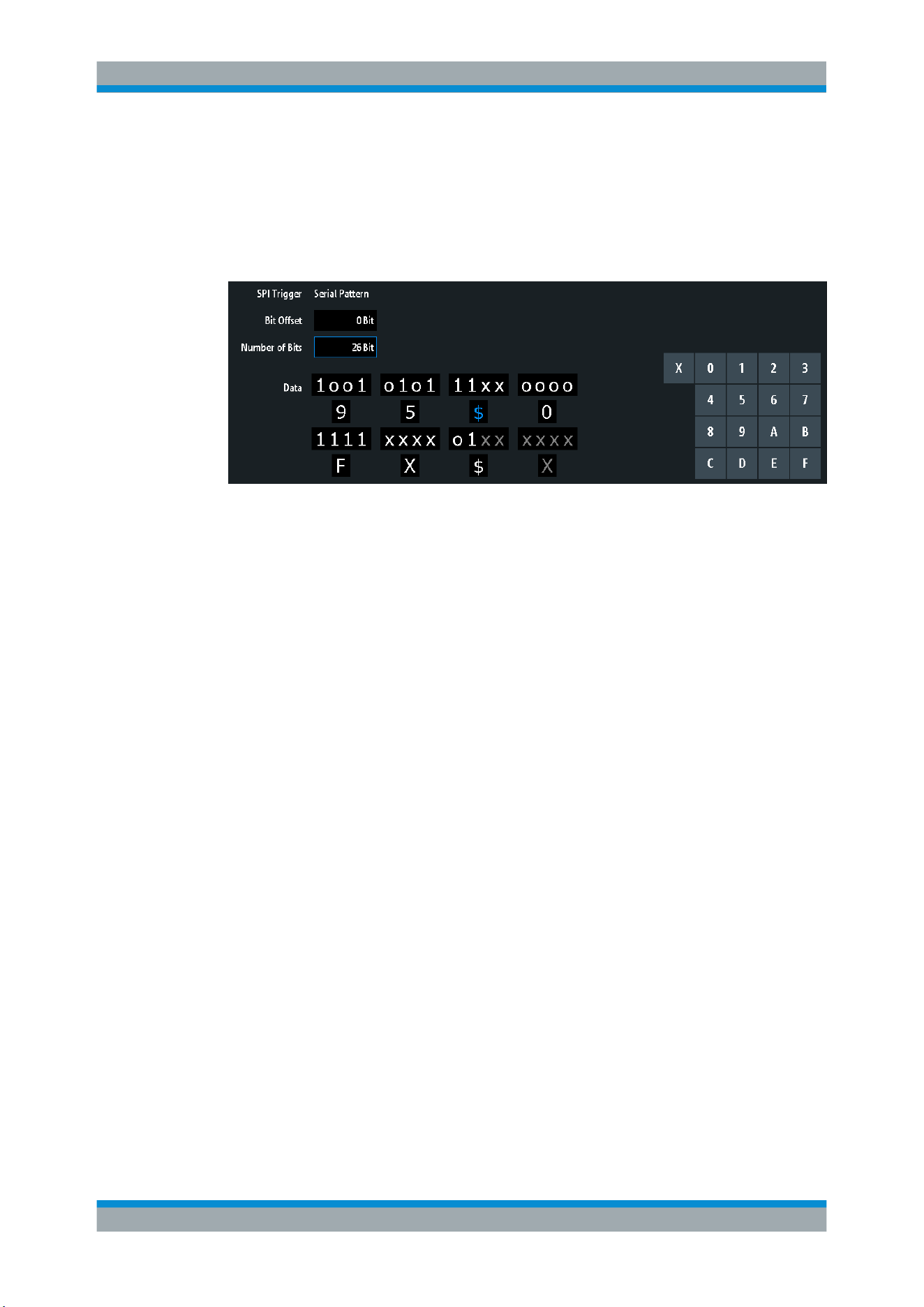
Serial Bus Analysis
R&S
®
RTB2000
177User Manual 1333.1611.02 ─ 03
● "Serial Pattern": a bit pattern in the message
5. If "Serial Pattern" is selected, the SPI trigger setup dialog expands to define the
serial pattern.
SPI/SSPI trigger settings
Figure 12-5: UART trigger settings with an example of an SPI or SSPI serial pattern
9 =
Hex value of the 1
st
nibble, with the binary value 1001
$ (blue) =
Hex value of the 3
rd
nibble, which includes some "X" bits. The blue color indicates that the key-
pad is active for this nibble.
X (white) =
The 6
th
nibble is a "don't care" nibble, as it consists of "X" bits, only
$ (white) =
The 7
th
nibble is only half contained in the specified pattern length of 26 bits
X (gray) =
The 8
th
nibble is not contained in the specified pattern
SPI Trigger..................................................................................................................177
Bit Offset..................................................................................................................... 178
Number of Bits............................................................................................................ 178
Data.............................................................................................................................178
SPI Trigger
Selects the trigger condition.
"Frame Start"
Sets the trigger to the start of the message:
●
For SPI, the frame starts when the chip select signal CS changes
to the active state.
●
For SSPI, the frame starts when the idle time has expired.
"Frame End"
Sets the trigger to the end of the message.
●
For SPI, the frame ends when the chip select signal CS changes
to the inactive state.
●
For SSPI, the frame ends when the idle time has expired after the
last clock and no new clock appeared during that time.
"Bit <x>"
Sets the trigger to the bit number specified with
"Bit Offset"
on page 178.
"Serial Pattern"
Expands the trigger setup dialog to configure the bit pattern to be trig-
gered at. Set
"Number of Bits" on page 178 and "Data" on page 178
to define the pattern, and
"Bit Offset" on page 178 to define the pat-
tern position.
SPI/SSPI Bus (Option R&S RTB-K1)

Serial Bus Analysis
R&S
®
RTB2000
178User Manual 1333.1611.02 ─ 03
Remote command:
TRIGger:A:SPI:MODE on page 378
Bit Offset
Specifies the number of bits before the first bit of the pattern. These bits are ignored.
The first bit after frame start is Bit 1. For example, with bit offset = 2, Bit 1 and Bit 2 are
ignored, and the pattern starts with Bit 3.
If "SPI Trigger" is set to "Bit <x>", the trigger is set to the next bit that follows the offset
bits. For example, if the bit offset is 4, the instrument triggers on the start of the 5th bit.
Remote command:
TRIGger:A:SPI:POFFset on page 380
Number of Bits
Defines the length of the serial pattern in bits.
Note: Entering data bits beyond the specified length of the pattern automatically
adjusts the "Number of Bits" to include all entered bits.
Remote command:
TRIGger:A:SPI:PLENgth on page 379
Data
Specifies the data pattern if "SPI Trigger" is set to "Serial Pattern". When the instru-
ment detects the specified data pattern, it sets the trigger to the first bit of this pattern.
An example of pattern definition is shown in
Figure 12-5.
To enter the binary value of any bit, tap this bit. To enter the hexadecimal value, tap
one of the nibbles (half byte) in the lower data line.
If a nibble (half byte) contains 1, 2 or 3 "X" bits (don't care), the nibble value is repre-
sented by the character "$". If all 4 bits of a nibble are "X", the nibble itself is "don't
care", represented by the character "X".
Remote command:
TRIGger:A:SPI:PATTern on page 379
12.2.4 SPI/SSPI Decode Results
When the configuration of the serial bus is complete, the signal can be decoded:
1. In the "Bus" menu, enable "Decode".
2. In the "Display" menu, select the result display settings.
See
Chapter 12.1.2, "Display Settings", on page 167.
3. In the "Bus Table" menu, enable the "Bus Table". Adjust the table settings.
See also: Chapter 12.1.3, "Bus Table: Decode Results", on page 167
The instrument captures and decodes the signal according to the protocol definition
and the configuration settings.
SPI/SSPI Bus (Option R&S RTB-K1)
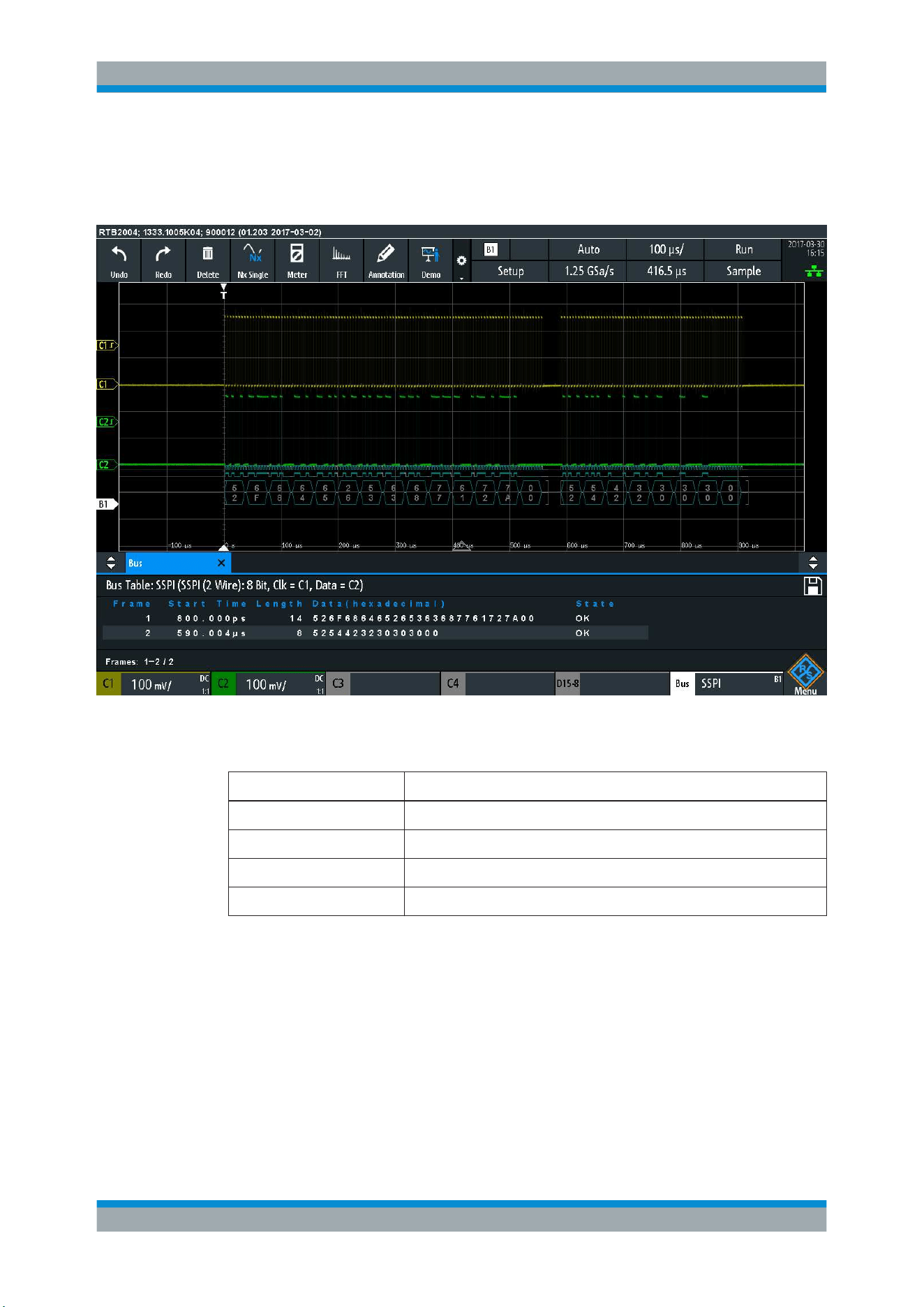
Serial Bus Analysis
R&S
®
RTB2000
179User Manual 1333.1611.02 ─ 03
The color-coding of the various protocol sections and errors simplifies the interpretation
of the visual display. The decode information condenses or expands, depending on the
horizontal scale. Various data formats are available to show the result values.
Figure 12-6: Decoded SSPI signal with Bus Table. The first frame has fourteen words and the second
eight words.
Table 12-1: Content of the SPI/SSPI bus table
Column Description
Start time Time of the frame start in relation to the trigger point
Length Number of words in the frame
Data Hexadecimal values of the data words
State Overall state of the frame
Remote commands are described in Chapter 15.11.2.4, "SPI and SSPI - Decode
Results"
, on page 380.
12.3 I²C (Option R&S
RTB-K1)
The Inter-Integrated Circuit is a simple, low-bandwidth, low-speed protocol used for
communication between on-board devices, for example, in LCD and LED drivers,
RAM, EEPROM, and others.
I²C (Option R&S RTB-K1)

Serial Bus Analysis
R&S
®
RTB2000
180User Manual 1333.1611.02 ─ 03
●
The I²C Protocol....................................................................................................180
●
I
2
C Configuration...................................................................................................182
●
I
2
C Trigger.............................................................................................................183
●
I
2
C Decode Results ..............................................................................................186
●
I
2
C Label List.........................................................................................................187
12.3.1 The I²C Protocol
This chapter provides an overview of protocol characteristics, data format, address
types and trigger possibilities. For detailed information, read the "I2C-bus specification
and user manual" available on the NXP manuals web page at
http://www.nxp.com/.
I²C characteristics
Main characteristics of I²C are:
●
Two-wire design: serial clock (SCL) and serial data (SDA) lines
●
Master-slave communication: the master generates the clock and addresses the
slaves. Slaves receive the address and the clock. Both master and slaves can
transmit and receive data.
●
Addressing scheme: each slave device is addressable by a unique address. Multi-
ple slave devices can be linked together and can be addressed by the same mas-
ter.
●
Read/write bit: specifies if the master will read (=1) or write (=0) the data.
●
Acknowledge: takes place after every byte. The receiver of the address or data
sends the acknowledge bit to the transmitter.
The R&S RTB2000 supports all operating speed modes: high-speed, fast mode plus,
fast mode, and standard mode.
Data transfer
The format of a simple I²C message (frame) with 7 bit addressing consists of the fol-
lowing parts:
●
Start condition: a falling slope on SDA while SCL is high
●
7-bit address of the slave device that either will be written to or read from
●
R/W bit: specifies if the data will be written to or read from the slave
●
ACKnowledge bits: is issued by the receiver of the previous byte if the transfer was
successful
Exception: At read access, the master terminates the data transmission with a
NACK bit after the last byte.
●
Data: a number of data bytes with an ACK bit after every byte
●
Stop condition: a rising slope on SDA while SCL is high
I²C (Option R&S RTB-K1)
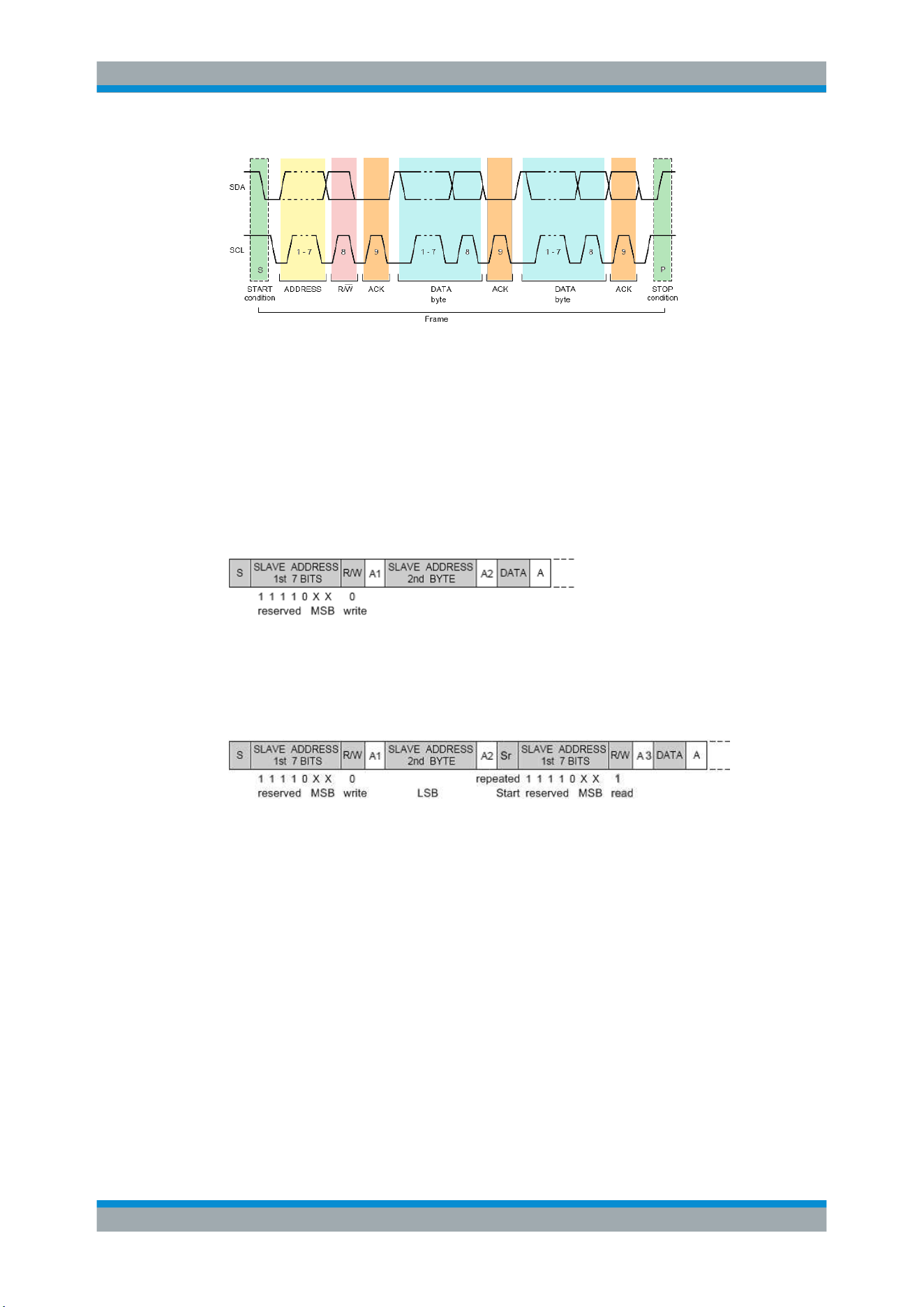
Serial Bus Analysis
R&S
®
RTB2000
181User Manual 1333.1611.02 ─ 03
Figure 12-7: I2C write access with 7-bit address
Address types: 7-bit and 10-bit
Slave addresses can be 7 or 10 bits long. A 7-bit address requires one byte, 7 bits for
the address followed by the R/W bit.
A 10-bit address for write access requires two bytes: the first byte starts with the
reserved sequence 11110, followed by the two MSB of the address and the write bit.
The second byte contains the remaining 8 LSB of the address. The slave acknowl-
edges each address byte.
Figure 12-8: 10-bit address, write access
A 10-bit address for read access requires three bytes. The first two bytes are identical
to the write access address. The third byte repeats the address bits of the first byte and
sets the read bit.
Figure 12-9: 10-bit address, read access
Trigger
The R&S RTB2000 can trigger on various parts of I²C messages. The data and clock
lines must be connected to the input channels, triggering on math and reference wave-
forms is not possible.
You can trigger on:
●
Start or stop condition
●
Repeated start condition
●
Transfer direction (read or write)
●
Bytes with missing acknowledge bit
●
Specific slave address
●
Specific data pattern in the message
I²C (Option R&S RTB-K1)
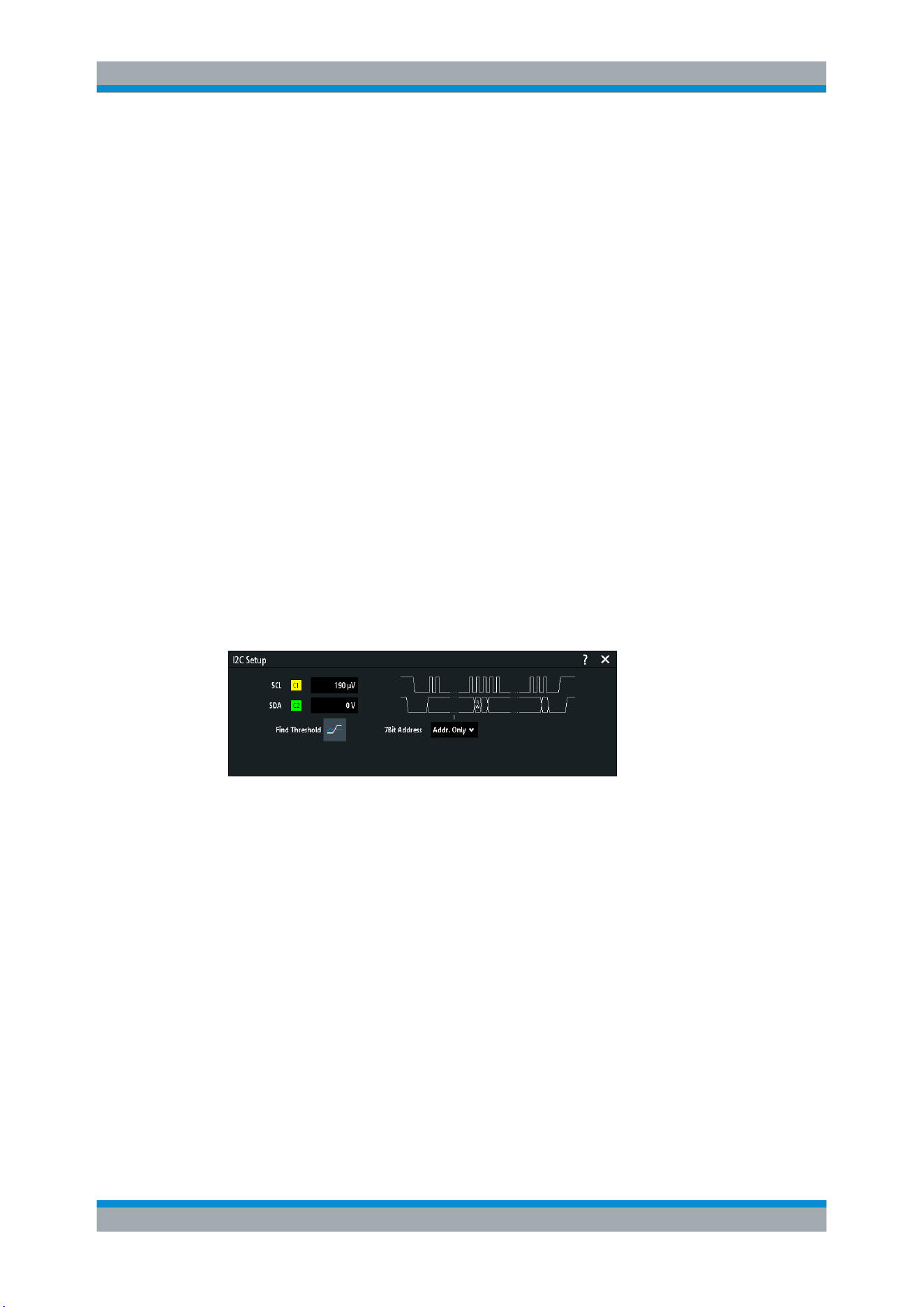
Serial Bus Analysis
R&S
®
RTB2000
182User Manual 1333.1611.02 ─ 03
12.3.2
I
2
C Configuration
The correct setup of the protocol parameters and the threshold is the condition for
decoding the signal.
To set up and decode an I
2
C signal
1. Press the PROTOCOL key in the Analysis area of the front panel.
2. Select the bus that you want to use: B1 or B2.
3. Select the "Bus Type" = I2C.
4. Select "Configuration".
5. Select the "SCL", the channel to which the clock line is connected.
6. Select the "SDA", the channel to which the data line is connected.
7. Set the threshold. Use one of these methods:
● Tap "Find Threshold". The instrument evaluates the signal and sets the thresh-
old.
● Enter the threshold value in the numeric field.
8. In the "Bus" menu, enable "Decode".
I
2
C configuration settings
Figure 12-10: I2C setup dialog
SCL............................................................................................................................. 182
SDA.............................................................................................................................182
Threshold, Find Threshold.......................................................................................... 183
SCL
Selects the source channel to which the clock line is connected.
If the MSO option R&S RTB-B1 is installed, you can use logic channels as source.
Remote command:
BUS<b>:I2C:CLOCk:SOURce on page 384
SDA
Selects the source channel to which the data line is connected.
If the MSO option R&S RTB-B1 is installed, you can use logic channels as source.
I²C (Option R&S RTB-K1)

Serial Bus Analysis
R&S
®
RTB2000
183User Manual 1333.1611.02 ─ 03
Remote command:
BUS<b>:I2C:DATA:SOURce on page 384
Threshold, Find Threshold
Set the signal threshold for the source channel. Enter a value, or use "Find Threshold"
to set the threshold to the middle reference level of the measured amplitude.
For analog channels, you can find the value also in the "Vertical" menu > "Chan-
nel <n>" >"Threshold"
For logic channels, you can find the value also in the "Logic" menu > "Threshold".
Remote command:
CHANnel<m>:THReshold on page 256
CHANnel<m>:THReshold:FINDlevel on page 256
DIGital<m>:THReshold on page 433
12.3.3
I
2
C Trigger
Before you set up the trigger, make sure that the bus is configured correctly. See
Chapter 12.3.2, "I
2
C Configuration", on page 182.
To trigger on I
2
C signals:
1. Press the PROTOCOL key in the Analysis area of the front panel.
2. Select the bus that is configured for I2C.
3. Select "Trigger".
This selection has several effects:
● Enables decoding, if necessary.
● Sets the "Trigger Type" to "Serial Bus" and the trigger source to the selected
bus.
● Displays the trigger conditions in the dialog box, below the protocol setup.
4. At "I2C Trigger", select the required trigger type:
● "Start": beginning of the message
● "Stop": end of the message
● "Restart": repeated start condition
● "~Acknowledge": transfer of data bits is not acknowledged
● "Address and Data": address pattern and/or up to 3 data bytes
5. If "Identifier" or "Identifier and Data" is selected, the CAN trigger setup dialog
expands to define the serial pattern.
6.
If "Address and Data" is selected, the I
2
C trigger setup dialog expands to define the
serial patterns.
I²C (Option R&S RTB-K1)
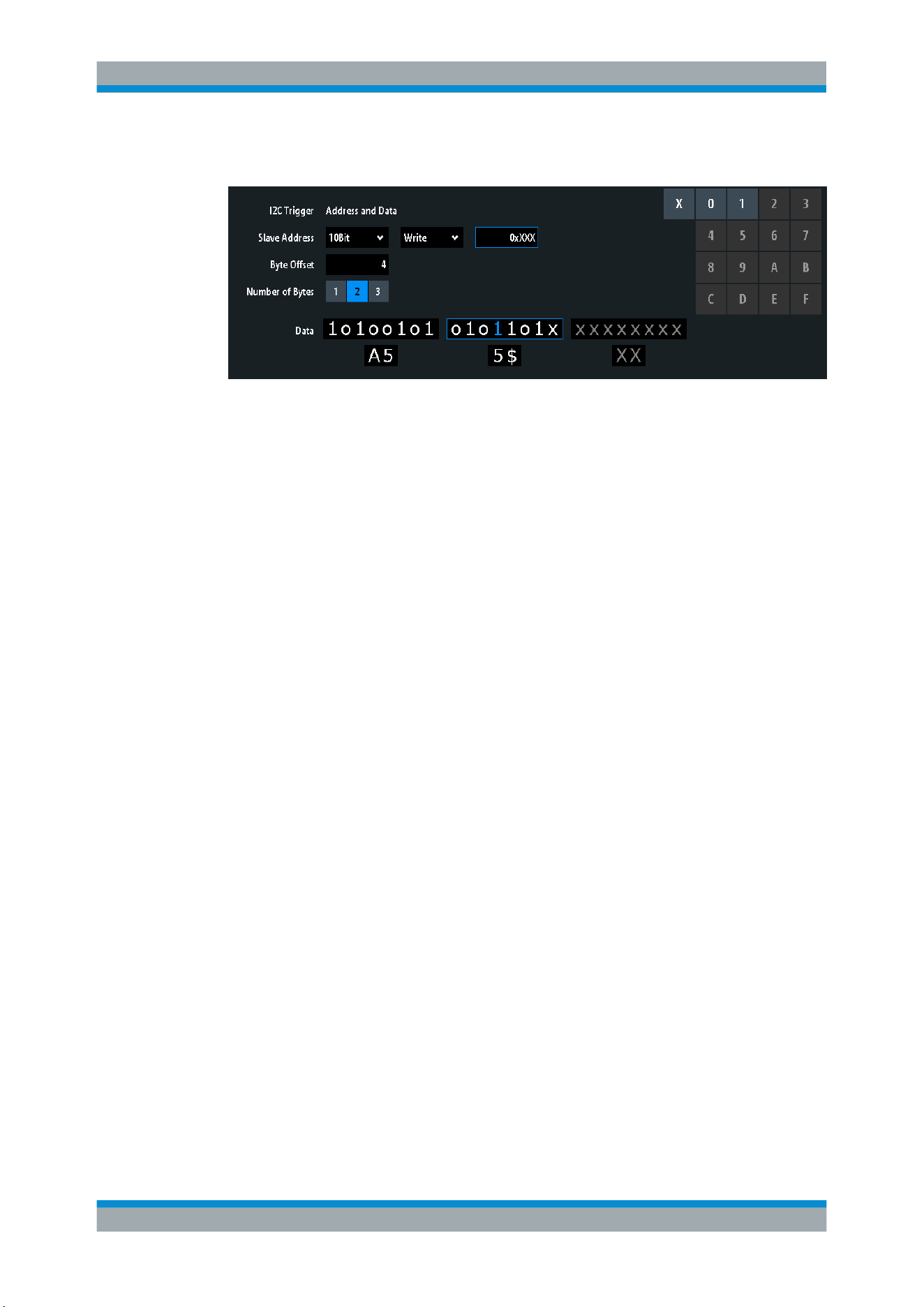
Serial Bus Analysis
R&S
®
RTB2000
184User Manual 1333.1611.02 ─ 03
I2C trigger settings
Figure 12-11: Trigger setup dialog to trigger on a combination of address and data
A5 =
Hex value of the 1
st
byte, with the binary value 10100101
5$ =
Hex value of the 2
nd
byte, where the 1
st
nibble has the binary value 0101 and the 2
nd
nibble is
represented by the "$" character, as it includes one "X" bit (don't care)
1 (blue) =
Selected bit in the 2
nd
byte, where the blue color indicates that the keypad is active for this bit
XX (gray) =
The 3
rd
byte is not contained in the specified pattern
I2C Trigger.................................................................................................................. 184
Slave Address.............................................................................................................185
Symbolic ID.................................................................................................................185
Data condition............................................................................................................. 185
└
Byte Offset.................................................................................................... 185
└
Number of Bytes........................................................................................... 185
└
Data: Bin / Hex pattern..................................................................................185
I2C Trigger
Selects the trigger condition.
"Start"
Sets the trigger to the start of the message. The start condition is a
falling slope on SDA while SCL is high.
"Stop"
Sets the trigger to the end of the message. The stop condition is a ris-
ing slope on SDA while SCL is high.
"Restart"
Sets the trigger to a repeated start - when the start condition occurs
without previous stop condition. This can happen when a master
sends multiple messages without releasing the bus.
"~Acknowl-
edge"
Missing acknowledgement: the instrument triggers, if the slave does
not send the acknowledge bit. Acknowledging takes place after every
byte. If the transfer failed, at the moment of the acknowledge bit, the
SDA line is on high level during the high period of the clock pulse.
"Address and
Data"
Sets the trigger to a address or data pattern, or a combination of
both.
See
"Slave Address" on page 185 and "Data condition"
on page 185.
Remote command:
TRIGger:A:I2C:MODE on page 385
I²C (Option R&S RTB-K1)

Serial Bus Analysis
R&S
®
RTB2000
185User Manual 1333.1611.02 ─ 03
Slave Address
Sets the slave address to be triggered on. If you want to trigger only on a data pattern
and the address is not relevant, enable "Any Address".
To specify the slave address, set the following properties:
●
Toggles the length of the slave address: "7Bit" or "10Bit".
●
Toggles the trigger condition between "Read" and "Write" access of the master.
The read/write bit is the 8
th
bit of the first address byte of a frame.
●
Sets the address of the slave device. To set an address, enter the binary or hexa-
decimal address value. You need an exact address, "X" bits (don't care) are not
allowed.
Remote command:
TRIGger:A:I2C:AMODe on page 386
TRIGger:A:I2C:ACCess on page 386
TRIGger:A:I2C:ADDRess on page 387
Symbolic ID
If a label list with symbolic names was loaded and applied in the bus configuration, you
can select a symbolic name from the list instead of specifying the address. When you
select a name, the adress fields are update with its address value.
Data condition
The data condition consists of the following settings:
●
Byte offset (position of the data pattern)
●
Length of the data pattern
●
Data pattern, see
"Bin / Hex pattern" on page 200
If you want to trigger only on an address, and the data is not relevant, set all data bits
to "X".
Byte Offset ← Data condition
Sets the number of offset bytes to be ignored after the end of the address bytes. The
first byte of interest is the first byte after the offset bytes.
The minimum offset is 0 Byte, the maximum offset is 4,095 Bytes.
Remote command:
TRIGger:A:I2C:POFFset on page 388
Number of Bytes ← Data condition
Sets the number of full bytes you want to trigger on. Maximum 3 bytes are possible.
Note: Entering data bits beyond the specified length of the pattern automatically
adjusts the "Number of Bytes" to include defined bytes.
Remote command:
TRIGger:A:I2C:PLENgth on page 387
Data: Bin / Hex pattern ← Data condition
Defines the data pattern in binary and hexadecimal format. To set an individual binary
bit or hex nibble (half byte), tap it and enter the value on the on-screen keypad. The
maximum pattern length is 3 bytes.
I²C (Option R&S RTB-K1)
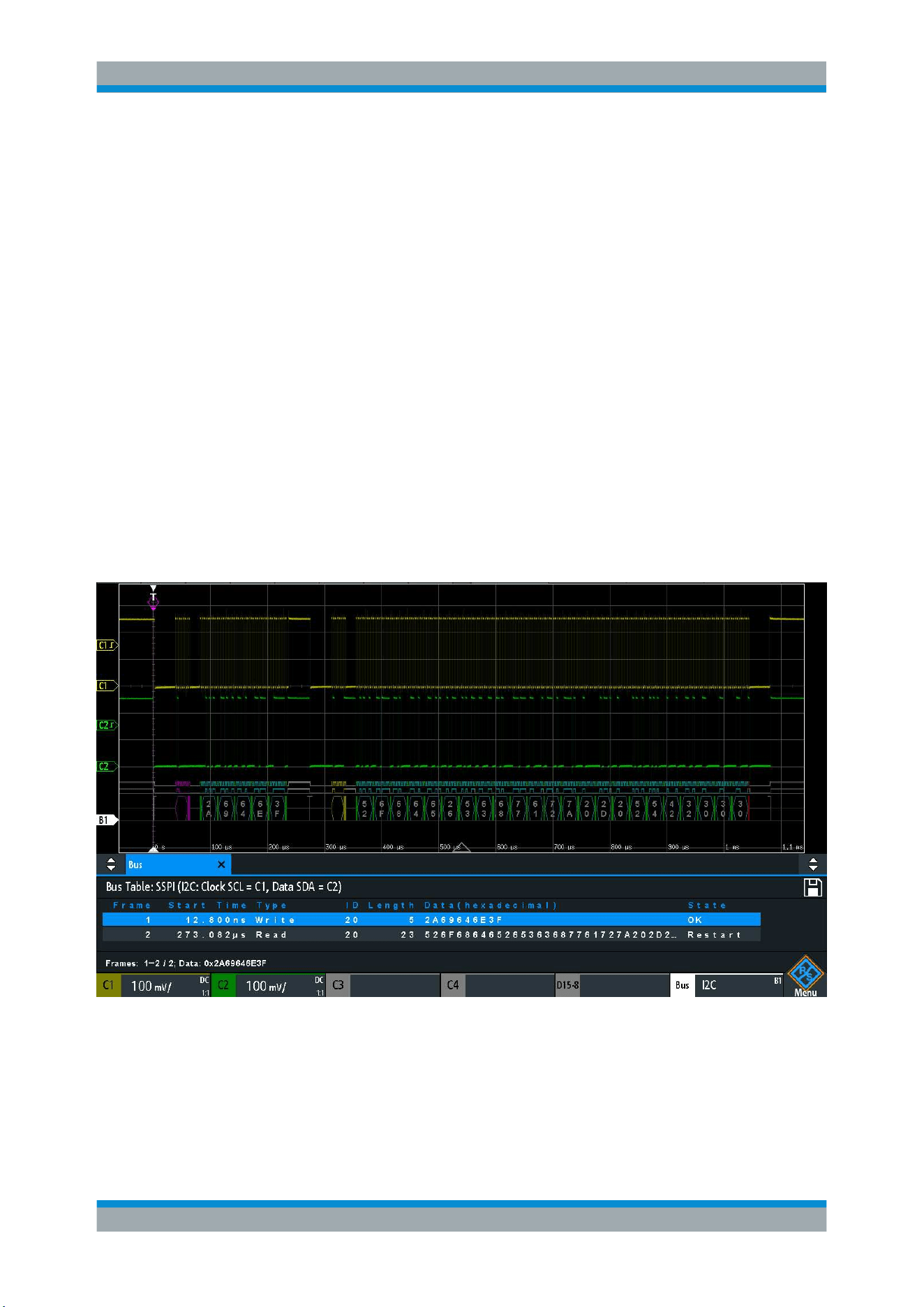
Serial Bus Analysis
R&S
®
RTB2000
186User Manual 1333.1611.02 ─ 03
Remote command:
TRIGger:A:I2C:PATTern on page 387
12.3.4
I
2
C Decode Results
When the configuration of the serial bus is complete, the signal can be decoded:
1. In the "Bus" menu, enable "Decode".
2. In the "Display" menu, select the result display settings.
See
Chapter 12.1.2, "Display Settings", on page 167.
3. In the "Bus Table" menu, enable the "Bus Table". Adjust the table settings.
See also: Chapter 12.1.3, "Bus Table: Decode Results", on page 167
The instrument captures and decodes the signal according to the protocol definition
and the configuration settings.
The color-coding of the various protocol sections and errors simplifies the interpretation
of the visual display. The decode information condenses or expands, depending on the
horizontal scale. Various data formats are available to show the result values.
Figure 12-12: Decoded CAN signal with bus table, trigger on frame start
gray brackets = start and end of the frame
violet = address
blue = correct data words
green = acknowledge bit, ok
The figure above shows a decoded I2C signal and the "Bus Table".
I²C (Option R&S RTB-K1)

Serial Bus Analysis
R&S
®
RTB2000
187User Manual 1333.1611.02 ─ 03
Table 12-2: Content of the I
2
C frame table
Column Description
Start time Time of the frame start in relation to the trigger point
Type Value of the R/W bit, read or write access
ID Hexadecimal value of the address
Length Number of words in the frame
Data Hexadecimal values of the data words
State Overall state of the frame
Remote commands are described in Chapter 15.11.3.3, "I²C - Decode Results",
on page 388.
12.3.5
I
2
C Label List
Label lists are protocol-specific. Label lists for
2
C are available in CSV and PTT format.
An I
2
C label file contains three values for each address:
●
Address type, 7-bit or 10-bit long
●
Address value
●
Symbolic label: name of the address, specifiing its function in the bus network.
Example: I
2
C PTT file
# ----------------------------------------------------------------------------
@FILE_VERSION = 1.00
@PROTOCOL_NAME = i2c
# ---------------------------------------------------------------------------
# Labels for I2C protocol
# Column order: Identifier type, Identifier value, Label
# ---------------------------------------------------------------------------
7,0x1E,Voltage
7,38h,Pressure
7,2Ah,Temperature
7,16h,Speed
7,118,Acceleration
7,07h,HighSpeed_Master_0x3
7,51h,EEPROM
10,3A2h,DeviceSetup
10,1A3h,GatewayStatus
10,06Eh,LeftSensor
# ----------------------------------------------------------------------------
For general information on label lists, see
Chapter 12.1, "Basics of Protocol Analysis",
on page 164.
I²C (Option R&S RTB-K1)
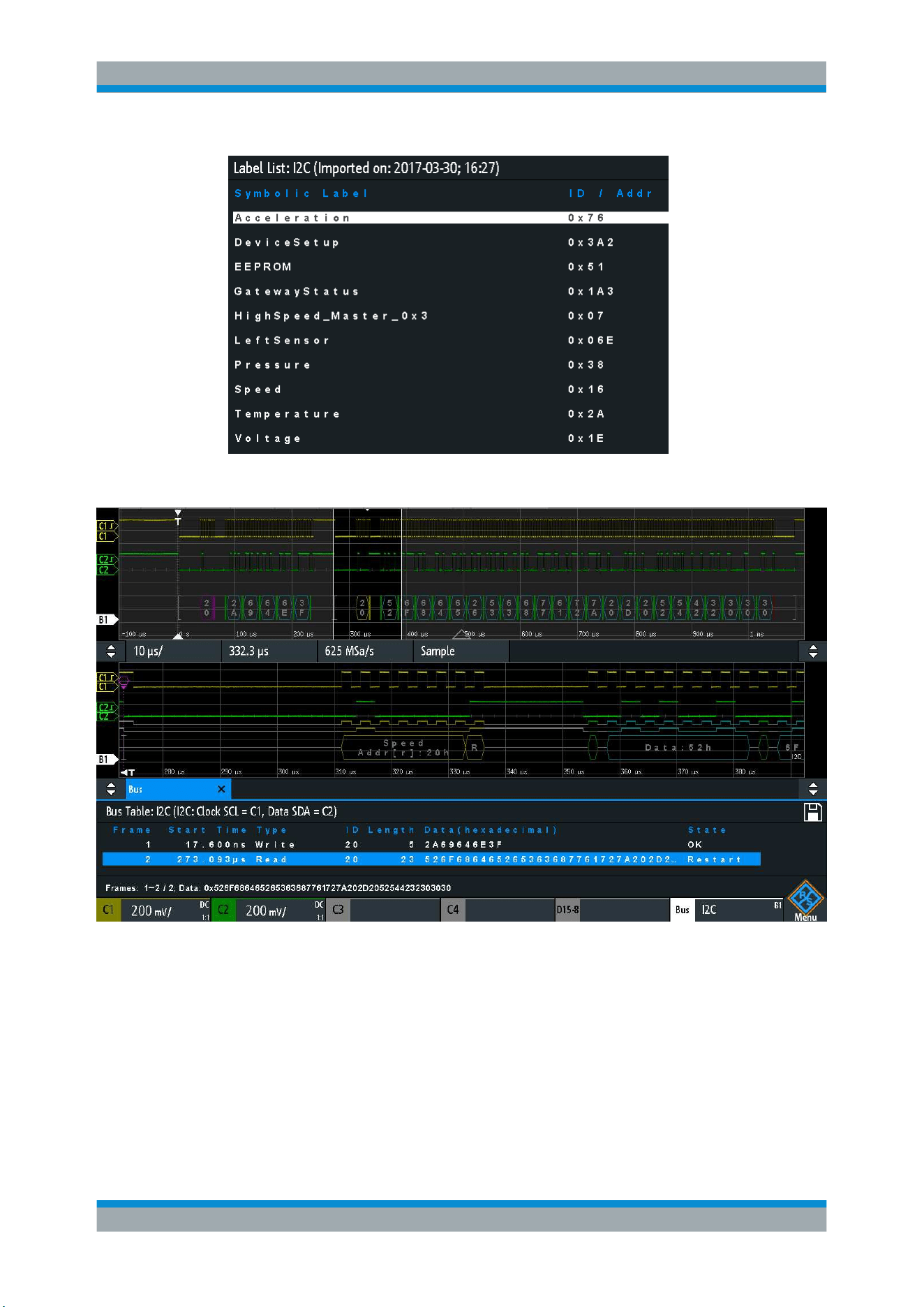
Serial Bus Analysis
R&S
®
RTB2000
188User Manual 1333.1611.02 ─ 03
Figure 12-13: Label list for I2C
Figure 12-14: Decoded I2C signal with applied label list and zoom on second frame
12.4 UART / RS232 (Option R&S
RTB-K2)
●
The UART / RS232 Interface................................................................................ 189
●
UART Configuration..............................................................................................189
●
UART Trigger........................................................................................................191
●
UART Decode Results .........................................................................................194
UART / RS232 (Option R&S RTB-K2)

Serial Bus Analysis
R&S
®
RTB2000
189User Manual 1333.1611.02 ─ 03
12.4.1 The UART / RS232 Interface
The Universal Asynchronous Receiver/Transmitter UART converts a word of data into
serial data, and vice versa. It is the base of many serial protocols like of RS-232. The
UART uses only one line, or two lines for transmitter and receiver.
Data transfer
[Data8]
[Parity]
Stop[Data7][Data6][Data5]
Data4Data3Data2Data1Data0
Start
Figure 12-15: Bit order in a UART word (symbol)
●
The start bit is a logic 0.
●
The stop bits and the idle state are always logic 1.
The UART protocol has no clock for synchronization. The receiver synchronizes by
means of the start and stop bits, and the bit rate that must be known to the receiver.
Trigger
The R&S RTB2000 can trigger on specified parts of UART serial signals:
●
Start bit
●
Parity errors, and breaks
●
A serial pattern at any or a specified position
12.4.2 UART Configuration
The correct setup of the protocol parameters and the threshold is the condition for
decoding the signal.
To set up and decode a UART signal
1. Press the PROTOCOL key in the Analysis area of the front panel.
2. Select the bus that you want to use: B1 or B2.
3. Select the "Bus Type" = UART.
4. Select "Configuration".
5. Select the "Source", the channel to which the input signal is connected.
6. Set the threshold. Use one of the following methods:
● Tap "Find Threshold". The instrument evaluates the signal and sets the thresh-
old.
● Enter the threshold value in the numeric field.
7. Set the other signal parameters according to the signal characteristics. All settings
are described below.
8. In the "Bus" menu, enable "Decode".
UART / RS232 (Option R&S RTB-K2)
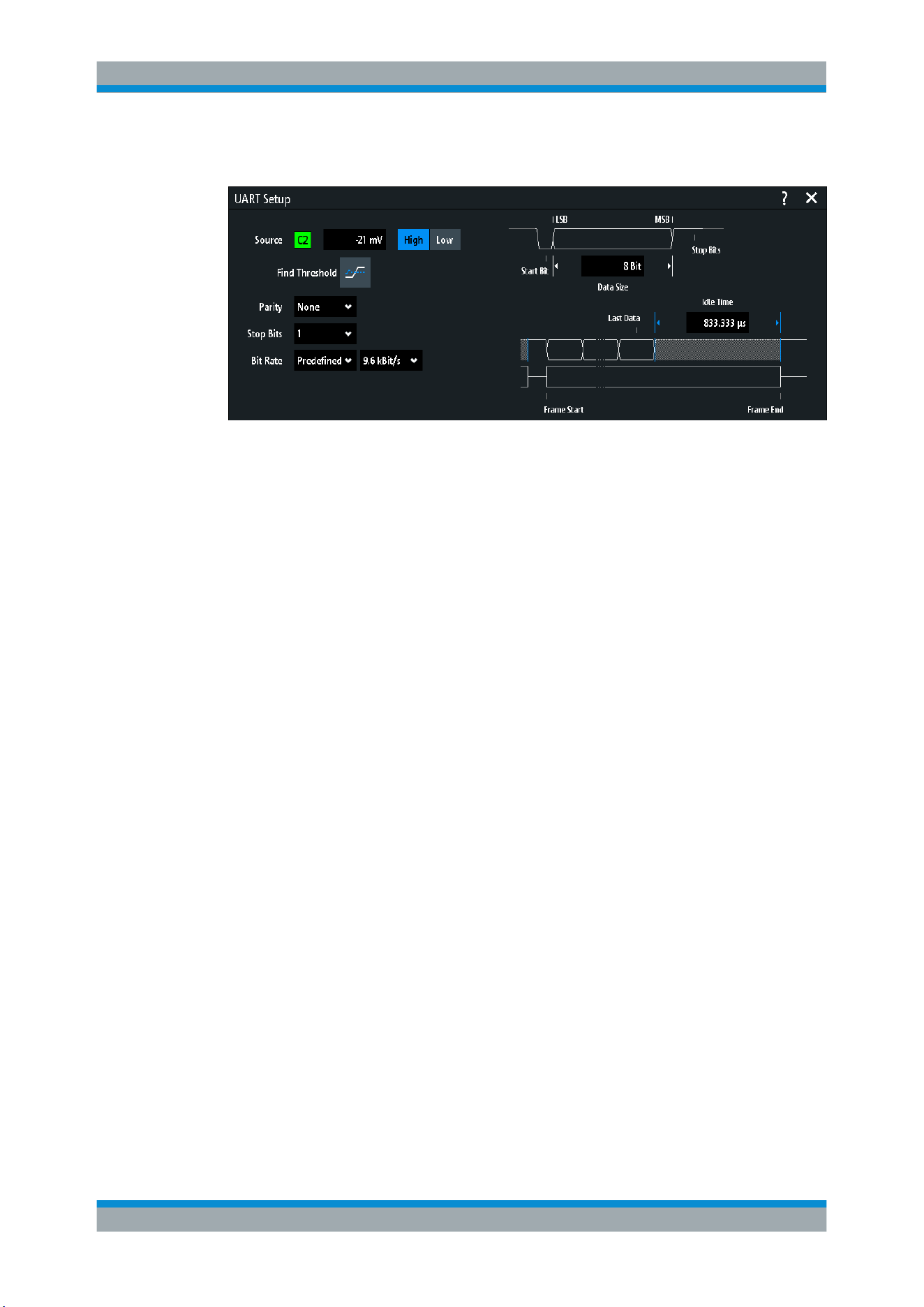
Serial Bus Analysis
R&S
®
RTB2000
190User Manual 1333.1611.02 ─ 03
UART configuration settings
Figure 12-16: UART setup dialog
Source.........................................................................................................................190
Polarity........................................................................................................................ 190
Threshold, Find Threshold.......................................................................................... 190
Parity...........................................................................................................................191
Stop Bits......................................................................................................................191
Bit Rate....................................................................................................................... 191
Data Size.....................................................................................................................191
Idle Time..................................................................................................................... 191
Source
Selects the input channel of the UART line. This can be the receive line (Rx), the trans-
mit line (Tx), or of the data line if only one data line is used.
If the MSO option R&S RTB-B1 is installed, you can use logic channels as source.
Remote command:
BUS<b>:UART:DATA:SOURce on page 395
Polarity
Selects if the transmitted data is high active (high = 1) or low active (low = 1).
High active is used, for example, for control signals, while low active is defined for data
lines (RS-232).
Remote command:
BUS<b>:UART:DATA:POLarity on page 396
BUS<b>:UART:POLarity on page 395
Threshold, Find Threshold
Set the signal threshold for the source channel. Enter a value, or use "Find Threshold"
to set the threshold to the middle reference level of the measured amplitude.
For analog channels, you can find the value also in the "Vertical" menu > "Chan-
nel <n>" >"Threshold"
For logic channels, you can find the value also in the "Logic" menu > "Threshold".
UART / RS232 (Option R&S RTB-K2)

Serial Bus Analysis
R&S
®
RTB2000
191User Manual 1333.1611.02 ─ 03
Remote command:
CHANnel<m>:THReshold on page 256
CHANnel<m>:THReshold:FINDlevel on page 256
DIGital<m>:THReshold on page 433
Parity
Defines the optional parity bit that is used for error detection.
"None"
No parity bit is used.
"Even"
The parity bit is set to "1" if the number of data bits set to "1" is odd.
Adding the parity bit makes the data word's parity even.
"Odd"
The parity bit is set to "1" if the number of data bits set to "1" is even.
Adding the parity bit makes the data word's parity odd.
Remote command:
BUS<b>:UART:PARity on page 396
Stop Bits
Sets the number of stop bits: 1 or 1.5 or 2 stop bits are possible.
Remote command:
BUS<b>:UART:SBIT on page 397
Bit Rate
Sets the number of transmitted bits per second.
"Predefined"
Selects from a list of predefined bit rates between 300 Bit/s and
1 MBit/s.
"User"
Specifies an individual bit rate with values between 150 and
39,062,500.
Remote command:
BUS<b>:UART:BAUDrate on page 397
Data Size
Sets the number of data bits of a word in a range from 5 to 9 bits.
Remote command:
BUS<b>:UART:SSIZe on page 396
Idle Time
Sets the minimal time between two data frames (packets), that is, between the last
stop bit and the start bit of the next frame.
Remote command:
BUS<b>:UART:BITime on page 397
12.4.3 UART Trigger
Before you set up the trigger, make sure that the bus is configured correctly. See
Chapter 12.4.2, "UART Configuration", on page 189.
UART / RS232 (Option R&S RTB-K2)
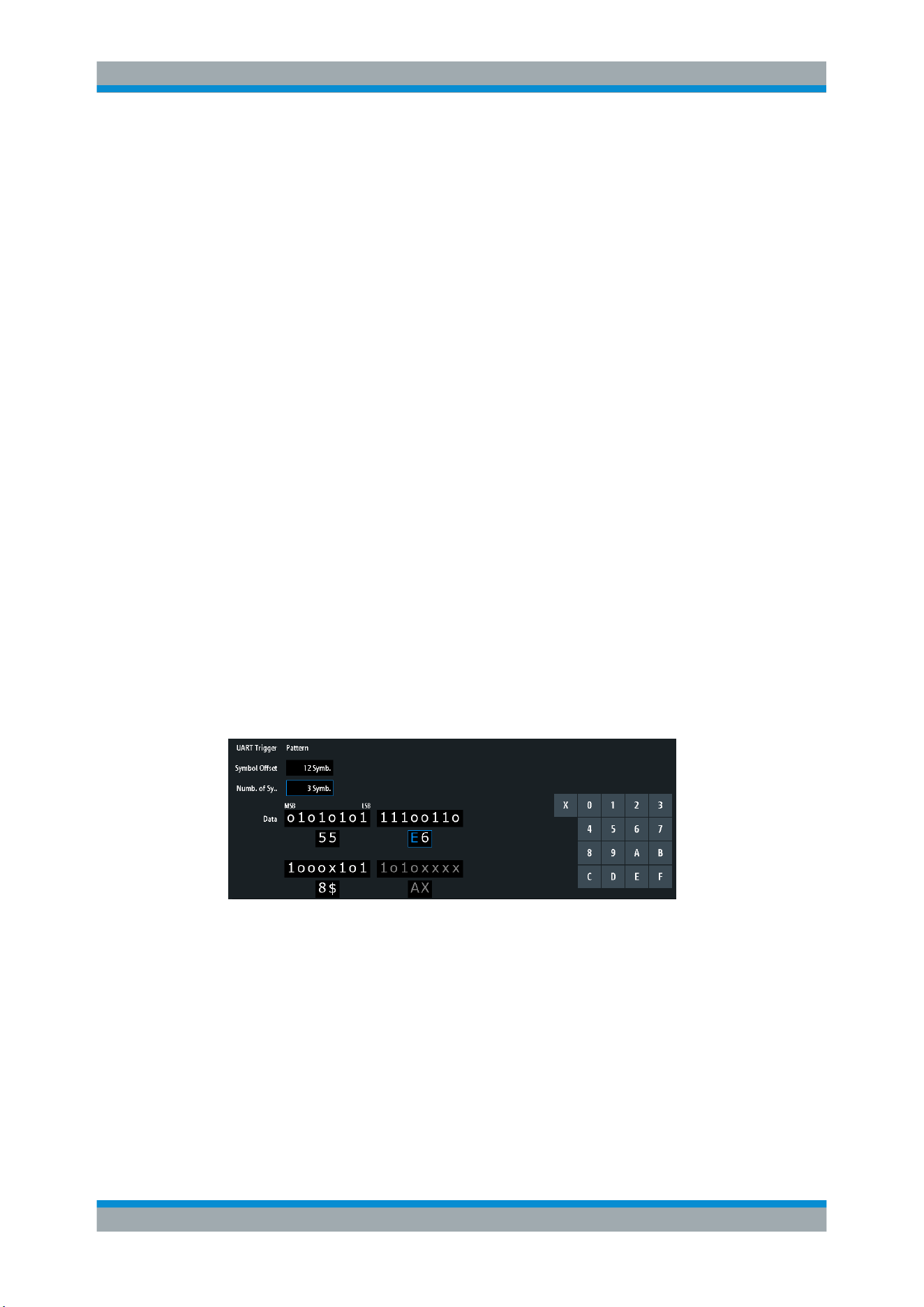
Serial Bus Analysis
R&S
®
RTB2000
192User Manual 1333.1611.02 ─ 03
To trigger on UART signals:
1. Press the PROTOCOL key in the Analysis area of the front panel.
2. Select the bus that is configured for UART.
3. Select "Trigger".
This selection has several effects:
● Enables decoding, if necessary.
● Sets the "Trigger Type" to "Serial Bus" and the trigger source to the selected
bus.
● Displays the "UART Trigger" condition in the dialog box, below the protocol
setup.
4. At "UART Trigger", select the required trigger condition:
● "Start Bit" or "Frame Start": next start bit or first start bit after idle time
● "Frame Start"
● "Frame Error"
● "Symbol <n>": frame number in a data stream
● "Break": a start bit not followed by a stop bit
● "Parity Error"
● "Pattern": serial pattern of 1, 2, 3 or 4 symbols at a defined position in the data
stream
● "Any Symbol": pattern of data bits anywhere in a data stream
5. If "Pattern" or "Any Symbol" is selected, the UART trigger setup dialog expands to
define the serial pattern or the symbol.
UART trigger settings
Figure 12-17: Trigger setup dialog with an example of a UART serial pattern
55 =
Hex value of the 1
st
symbol, with the binary value 01010101
E6 =
Hex value of the 2
nd
symbol, with the binary value 11100110
E (blue) =
Selected nibble in the 2
nd
symbol. The blue color indicates that the keypad is active for this nib-
ble.
8$ =
Hex value of the 3
rd
symbol, where the 1
st
nibble has the binary value 1000 and the 2
nd
nibble is
represented by the "$" character, as it includes one "X" bit (don't care)
AX (gray) =
The 4
th
symbol is not contained in the specified pattern
UART Trigger..............................................................................................................193
Symbol Offset..............................................................................................................193
Numb. of Symb........................................................................................................... 193
Data.............................................................................................................................193
UART / RS232 (Option R&S RTB-K2)

Serial Bus Analysis
R&S
®
RTB2000
193User Manual 1333.1611.02 ─ 03
UART Trigger
Selects the trigger condition.
"Start Bit"
Sets the trigger to the start bit. The start bit is the first logical 0 after a
stop bit.
"Frame Start"
Sets the trigger to the beginning of a frame. The frame start is the first
start bit after the idle time.
"Frame Error"
The instrument triggers, if a frame error occurs.
"Symbol <n>"
Sets the trigger to the specified symbol - the n-th word - in a frame
(package). Specify the
"Symbol Offset" on page 193.
"Break"
Triggers if a start bit is not followed by a stop bit, the data line
remains at logic 0 for longer than a UART word.
"Parity Error"
Triggers on a parity error indicating a transmission error.
"Pattern"
Triggers on a data pattern at a specified position.
The pattern setup consists of the
"Symbol Offset" on page 193, the
"Numb. of Symb." on page 193, and the "Data" on page 193.
"Any Symbol"
Triggers on a pattern that occurs in one symbol at any position in a
frame.
See
"Data" on page 193.
Remote command:
TRIGger:A:UART:MODE on page 398
Symbol Offset
Sets the number of symbols to be ignored before the serial pattern after the end of the
address byte. The first symbol of interest is the first byte after the offset symbols.
The minimum offset is 0 symbol, the maximum offset is 4,095 symbols.
Remote command:
TRIGger:A:UART:POFFset on page 399
Numb. of Symb.
Sets the number of symbols (full bytes) you want to trigger on. The minimum is 1 sym-
bol, a maximum of 4 symbols is possible.
Note: Entering data bits beyond the specified length of the pattern automatically
adjusts the "Number of Bytes" to include all specified bytes.
Remote command:
TRIGger:A:UART:PLENgth on page 398
Data
Specifies the data pattern if "UART Trigger" is set to "Pattern" or "Any Symbol".
An example of pattern definition is shown in Figure 12-17.
To enter the binary value of any bit, tap this bit. To enter the hexadecimal value, tap
one of the nibbles (half byte) in the lower data line.
If a nibble (half byte) contains 1, 2 or 3 "X" bits (don't care), the nibble value is repre-
sented by the character "$". If all 4 bits of a nibble are "X", the nibble itself is "don't
care", represented by the character "X".
UART / RS232 (Option R&S RTB-K2)
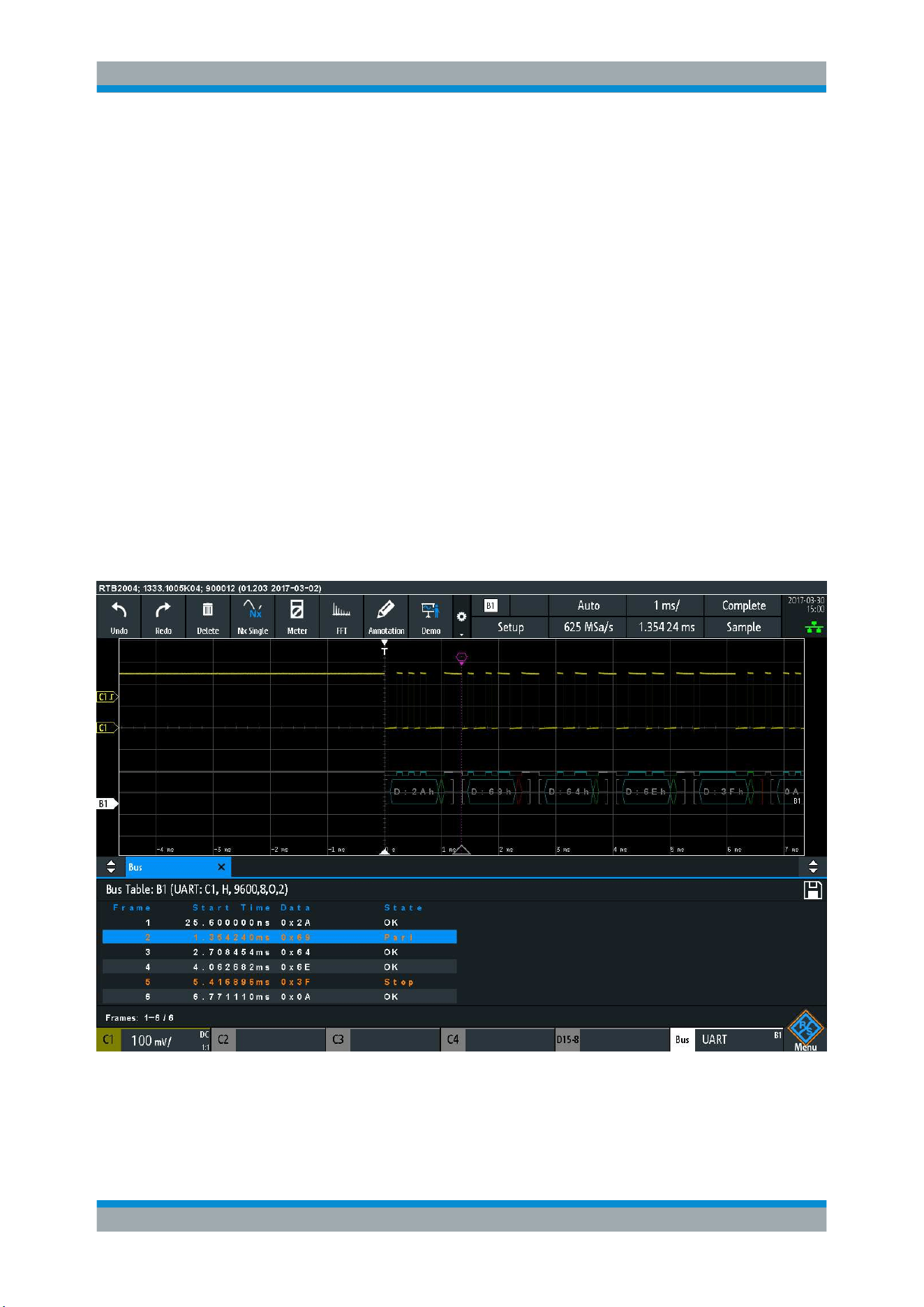
Serial Bus Analysis
R&S
®
RTB2000
194User Manual 1333.1611.02 ─ 03
Remote command:
TRIGger:A:UART:PATTern on page 398
12.4.4 UART Decode Results
When the configuration of the serial bus is complete, the signal can be decoded:
1. In the "Bus" menu, enable "Decode".
2. In the "Display" menu, select the result display settings.
See
Chapter 12.1.2, "Display Settings", on page 167.
3. In the "Bus Table" menu, enable the "Bus Table". Adjust the table settings.
See also:
Chapter 12.1.3, "Bus Table: Decode Results", on page 167
The instrument captures and decodes the signal according to the protocol definition
and the configuration settings.
The color-coding of the various protocol sections and errors simplifies the interpretation
of the visual display. The decode information condenses or expands, depending on the
horizontal scale. Various data formats are available to show the result values.
Figure 12-18: Decoded UART signal
The figure above shows six frames of a UART signal and the "Bus Table".
UART / RS232 (Option R&S RTB-K2)

Serial Bus Analysis
R&S
®
RTB2000
195User Manual 1333.1611.02 ─ 03
Table 12-3: Content of the UART frame table
Column Description
Start time Time of the frame start in relation to the trigger point
Data Hexadecimal values of the data words
State Overall state of the frame
Remote commands are described in Chapter 15.11.4.3, "UART - Decode Results",
on page 399.
12.5 CAN (Option R&S
RTB-K3)
CAN is the Controller Area Network, a bus system designed by Bosch for use within
automotive network architecture, for example, for brake, power train and engine man-
agement. Today, it is also used in many other systems, for example, in industrial
machines, aerospace, subsea, merchant marine .
●
CAN Configuration................................................................................................ 195
●
CAN Trigger.......................................................................................................... 197
●
CAN Decode Results............................................................................................ 201
●
Search on Decoded CAN Data............................................................................. 203
●
CAN Label List...................................................................................................... 205
12.5.1 CAN Configuration
The correct setup of the protocol parameters and the threshold is the condition for
decoding the signal.
To set up and decode a CAN signal
1. Press the PROTOCOL key in the Analysis area of the front panel.
2. Select the bus that you want to use: B1 or B2.
3. Select the "Bus Type" = CAN.
4. Select "Configuration".
5. Select the "Source", the channel to which the input signal is connected.
6. Set the threshold. Use one of the following methods:
● Tap "Find Threshold". The instrument evaluates the signal and sets the thresh-
old.
● Enter the threshold value in the numeric field.
7. Set the other signal parameters according to the signal characteristics. All settings
are described below.
8. In the "Bus" menu, enable "Decode".
CAN (Option R&S RTB-K3)
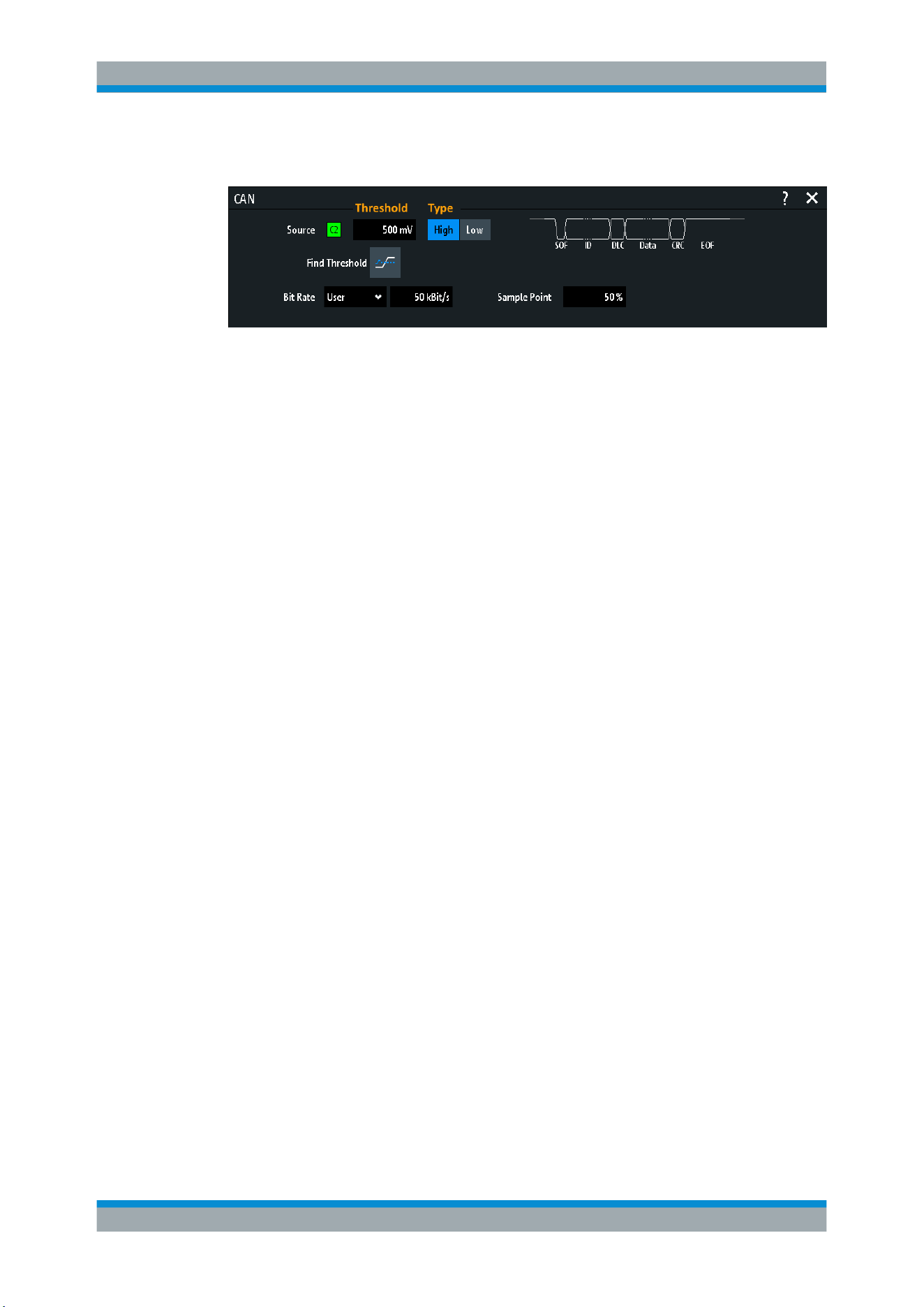
Serial Bus Analysis
R&S
®
RTB2000
196User Manual 1333.1611.02 ─ 03
CAN configuration settings
Source.........................................................................................................................196
Threshold, Find Threshold.......................................................................................... 196
Type............................................................................................................................ 196
Bit Rate....................................................................................................................... 196
Sample Point...............................................................................................................197
Source
Sets the source of the data line. All channel waveforms can be used.
If the MSO option R&S RTB-B1 is installed, you can use logic channels as source.
Remote command:
BUS<b>:CAN:DATA:SOURce on page 403
Threshold, Find Threshold
Set the signal threshold for the source channel. Enter a value, or use "Find Threshold"
to set the threshold to the middle reference level of the measured amplitude.
For analog channels, you can find the value also in the "Vertical" menu > "Chan-
nel <n>" >"Threshold"
For logic channels, you can find the value also in the "Logic" menu > "Threshold".
Remote command:
CHANnel<m>:THReshold on page 256
CHANnel<m>:THReshold:FINDlevel on page 256
DIGital<m>:THReshold on page 433
Type
Selects the CAN-High or CAN-Low line. CAN uses both lines for differential signal
transmission.
If you measure with a differential probe, connect the probe to both CAN-H and CAN-L
lines and select "High".
If you use a single-ended probe, connect the probe to either CAN_L or CAN_H and
select "High" or "Low" accordingly.
Remote command:
BUS<b>:CAN:TYPE on page 403
Bit Rate
Sets the number of transmitted bits per second. The maximum bit rate for High Speed
CAN is 1 Mbit/s. The bit rate is uniform and fixed for a given CAN bus.
CAN (Option R&S RTB-K3)

Serial Bus Analysis
R&S
®
RTB2000
197User Manual 1333.1611.02 ─ 03
"Predefined"
To select a bit rate from the list of predefined values, set "Bit rate" to
"Predefined" and select a value from the list.
"User"
To set another value, set "Bit rate" to "User" and enter a bit/s value.
Remote command:
BUS<b>:CAN:BITRate on page 404
Sample Point
Sets the position of the sample point within the bit in percent of the nominal bit time.
The sample point divides the nominal bit period into two distinct time segments, which
are used for resynchronization of the clock.
The CAN bus interface uses an asynchronous transmission scheme. The standard
specifies a set of rules to resynchronize the local clock of a CAN node to the message.
Remote command:
BUS<b>:CAN:SAMPlepoint on page 403
12.5.2 CAN Trigger
Before you set up the trigger, make sure that the bus is configured correctly. See
Chapter 12.5.1, "CAN Configuration", on page 195.
To trigger on CAN signals:
1. Press the PROTOCOL key in the Analysis area of the front panel.
2. Select the bus that is configured for CAN.
3. Select "Trigger".
This selection has several effects:
● Enables decoding, if necessary.
● Sets the "Trigger Type" to "Serial Bus" and the trigger source to the selected
bus.
● Displays the "CAN Trigger" condition in the dialog box, below the protocol
setup.
4. At "CAN Trigger", select the required trigger type:
● "Start of Frame": first edge of synchronization bit
● "End of Frame": frame number in a data stream
● "Frame": error, overload, data or remote frame
● "Error": stuff bit, form, acknowledgment, CRC
● "Identifier": specific message identifier or identifier range
CAN (Option R&S RTB-K3)
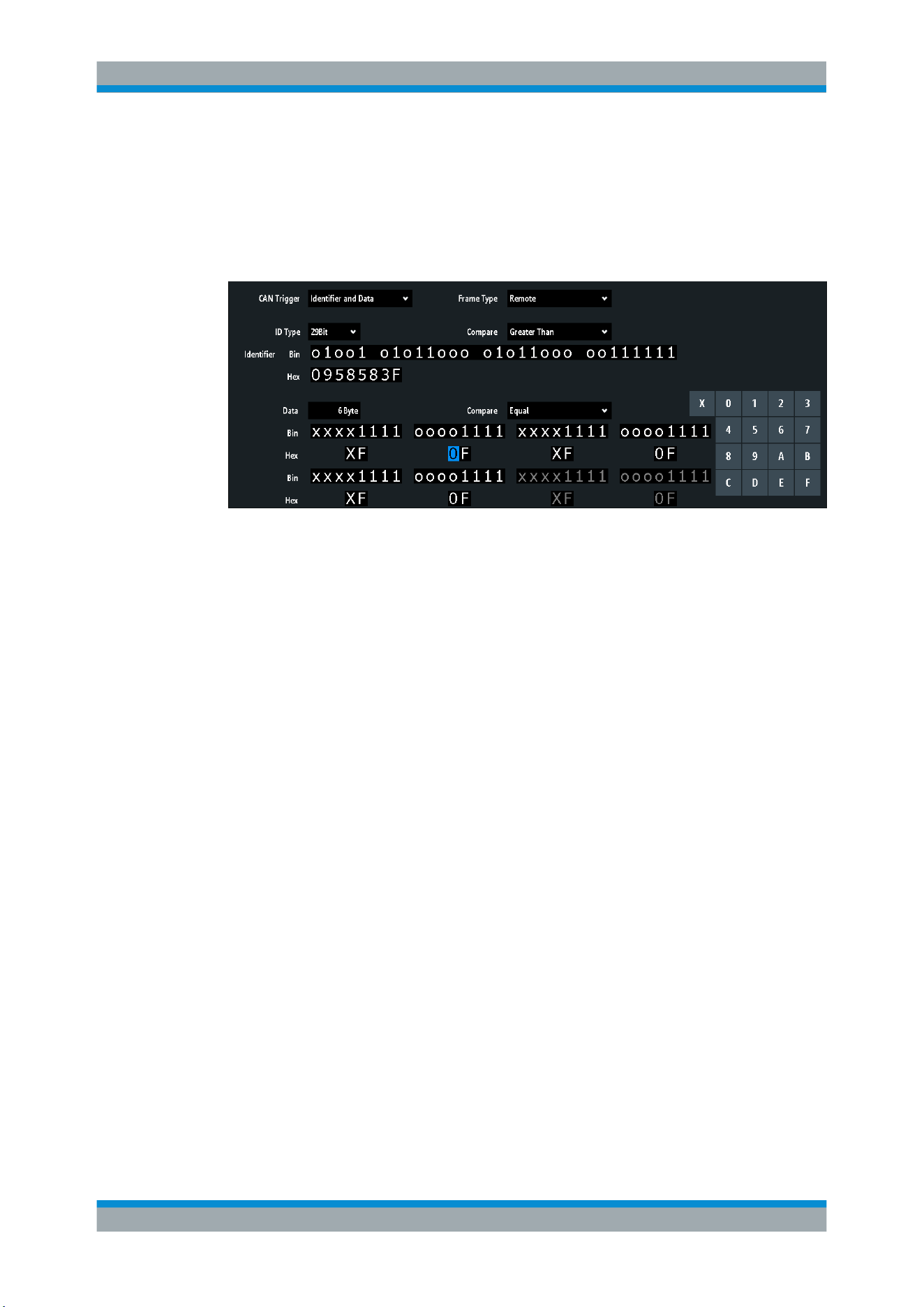
Serial Bus Analysis
R&S
®
RTB2000
198User Manual 1333.1611.02 ─ 03
● "Identifier and Data": combination of identifier and data condition
5. If "Identifier" or "Identifier and Data" is selected, the CAN trigger setup dialog
expands to define the serial pattern.
CAN trigger settings
Figure 12-19: Trigger setup dialog with an example of CAN identifier and data patterns
"CAN Trigger" = trigger on "Identifier and Data"
"Identifier" = trigger on 29-bit identifiers greater than the specified identifier
"Data" = trigger on the specified 6-byte data pattern
0 (blue) =
Selected nibble in the 2
nd
byte of the data pattern, where the blue color indicates that the
keypad is active for this nibble
CAN Trigger
Selects the trigger mode.
"Start of
Frame"
Triggers on the first edge of the dominant SOF bit (synchronization
bit).
"End of Frame"
Triggers on the end of the frame (7 recessive bits).
"Frame"
Triggers on the frame type that is selected with "Frame"
See:
"Frame" on page 199.
"Error"
Triggers on a frame error. An error frame is sent by a node that has
detected an error.
See:
"Error" on page 199.
"Identifier"
Triggers on a specific message identifier or an identifier range.
If a label list with node names was loaded and applied in the bus con-
figuration, you can select simply the "Symbolic ID" instead of entering
the numeric identifier.
See:
"Identifier condition" on page 200.
"Identifier and
Data"
Triggers on a combination of identifier and data condition. The instru-
ment triggers at the end of the last byte of the specified data pattern.
See:
"Identifier condition" on page 200 and "Data condition"
on page 200.
Remote command:
TRIGger:A:CAN:TYPE on page 404
CAN (Option R&S RTB-K3)

Serial Bus Analysis
R&S
®
RTB2000
199User Manual 1333.1611.02 ─ 03
Frame
Select the frame type to be triggered on.
"Data"
Frame for data transmission.
The identifier format ("ID Type") is also considered.
"Remote"
A remote frame initiates the transmission of data by another node.
The frame format is the same as of data frames, but without the data
field.
The identifier format ("ID Type") is also considered.
"Data or
Remote"
Triggers on remote frames and on data frames.
The identifier format ("ID Type") is also considered.
"Error"
Triggers on any error frame.
"Overload"
An overload frame is sent by a node that needs a delay between data
and/or remote frames.
Remote command:
TRIGger:A:CAN:FTYPe on page 405
ID Type
Selects the length of the identifier: 11 bit for CAN base frames or 29 bits for CAN
extended frames. Select "Any" if the identifier type is not relevant.
Remote command:
TRIGger:A:CAN:ITYPe on page 405
Error
Identifies various errors in the frame. You can select one or more error types as trigger
condition.
Remote command:
TRIGger:A:CAN:TYPE on page 404
Stuff Bit ← Error
The following frame segments are coded by the bit stuffing method:
●
Start of frame
●
Arbitration field
●
Control field
●
Data field
●
CRC sequence
The transmitter automatically inserts a complementary bit into the bitstream when it
detects five consecutive bits of identical value in the bitstream to be transmitted. A stuff
error occurs when the 6
th
consecutive equal bit level in the mentioned fields is detec-
ted.
Remote command:
TRIGger:A:CAN:BITSterror on page 407
Form ← Error
A form error occurs when a fixed-form bit field contains one or more illegal bits.
Remote command:
TRIGger:A:CAN:FORMerror on page 408
CAN (Option R&S RTB-K3)

Serial Bus Analysis
R&S
®
RTB2000
200User Manual 1333.1611.02 ─ 03
Acknowledge ← Error
An acknowledgment error occurs when the transmitter does not receive an acknowl-
edgment - a dominant bit during the "Ack" slot.
Remote command:
TRIGger:A:CAN:ACKerror on page 407
CRC ← Error
CAN uses the Cyclic Redundancy Check (CRC), which is a complex checksum calcu-
lation method. The transmitter calculates the CRC and sends the result in the CRC
sequence. The receiver calculates the CRC in the same way. A CRC error occurs
when the calculated result differs from the received value in the CRC sequence.
Remote command:
TRIGger:A:CAN:CRCerror on page 407
Identifier condition
The identifier condition consists of the following settings:
●
ID Type
●
Comparison
●
Identifier value
Compare ← Identifier condition
Sets the identifier comparison condition: If the identifier pattern contains at least one X
(do not care), you can trigger on values equal or not equal to the specified value. If the
pattern contains only 0 and 1, you can also trigger on a range greater than or lower
than the specified value.
Remote command:
TRIGger:A:CAN:ICONdition on page 406
Bin / Hex pattern ← Identifier condition
Defines the identifier or data pattern in binary and hexadecimal format. To set an indi-
vidual binary bit or hex nibble (half byte), tap it and enter it via the on-screen keypad.
"Bin"
String containing the binary pattern with a maximum of 64 bits. Char-
acters 0, 1 and X are allowed.
"Hex"
String containing the hexadecimal pattern with a maximum of 8 bytes.
Characters 0 to F and X are allowed.
Remote command:
TRIGger:A:CAN:IDENtifier on page 406
TRIGger:A:CAN:DATA on page 407
Symbolic ID ← Identifier condition
If a label list with symbolic names was loaded and applied in the bus configuration, you
can select a symbolic name from the list instead of entering the numeric identifier. The
instrument triggers on the identifier of the selected node.
Data condition
The data condition consists of the following settings:
●
Length of the data pattern
●
Comparison
CAN (Option R&S RTB-K3)

Serial Bus Analysis
R&S
®
RTB2000
201User Manual 1333.1611.02 ─ 03
●
Data pattern, see
"Bin / Hex pattern" on page 200
Data ← Data condition
Defines the length of the data pattern - the number of bytes in the pattern.
Remote command:
TRIGger:A:CAN:DLC on page 406
Compare ← Data condition
Sets the data comparison condition. If the pattern contains at least one X (do not care),
you can trigger on values equal or not equal to the specified value. If the pattern con-
tains only 0 and 1, you can also trigger on a range greater than or lower than the speci-
fied value.
Remote command:
TRIGger:A:CAN:DCONdition on page 406
12.5.3 CAN Decode Results
When the configuration of the serial bus is complete, the signal can be decoded:
1. In the "Bus" menu, enable "Decode".
2. In the "Display" menu, select the result display settings.
See
Chapter 12.1.2, "Display Settings", on page 167.
3. In the "Bus Table" menu, enable the "Bus Table". Adjust the table settings.
See also: Chapter 12.1.3, "Bus Table: Decode Results", on page 167
The instrument captures and decodes the signal according to the protocol definition
and the configuration settings.
The color-coding of the various protocol sections and errors simplifies the interpretation
of the visual display. The decode information condenses or expands, depending on the
horizontal scale. Various data formats are available to show the result values.
CAN (Option R&S RTB-K3)
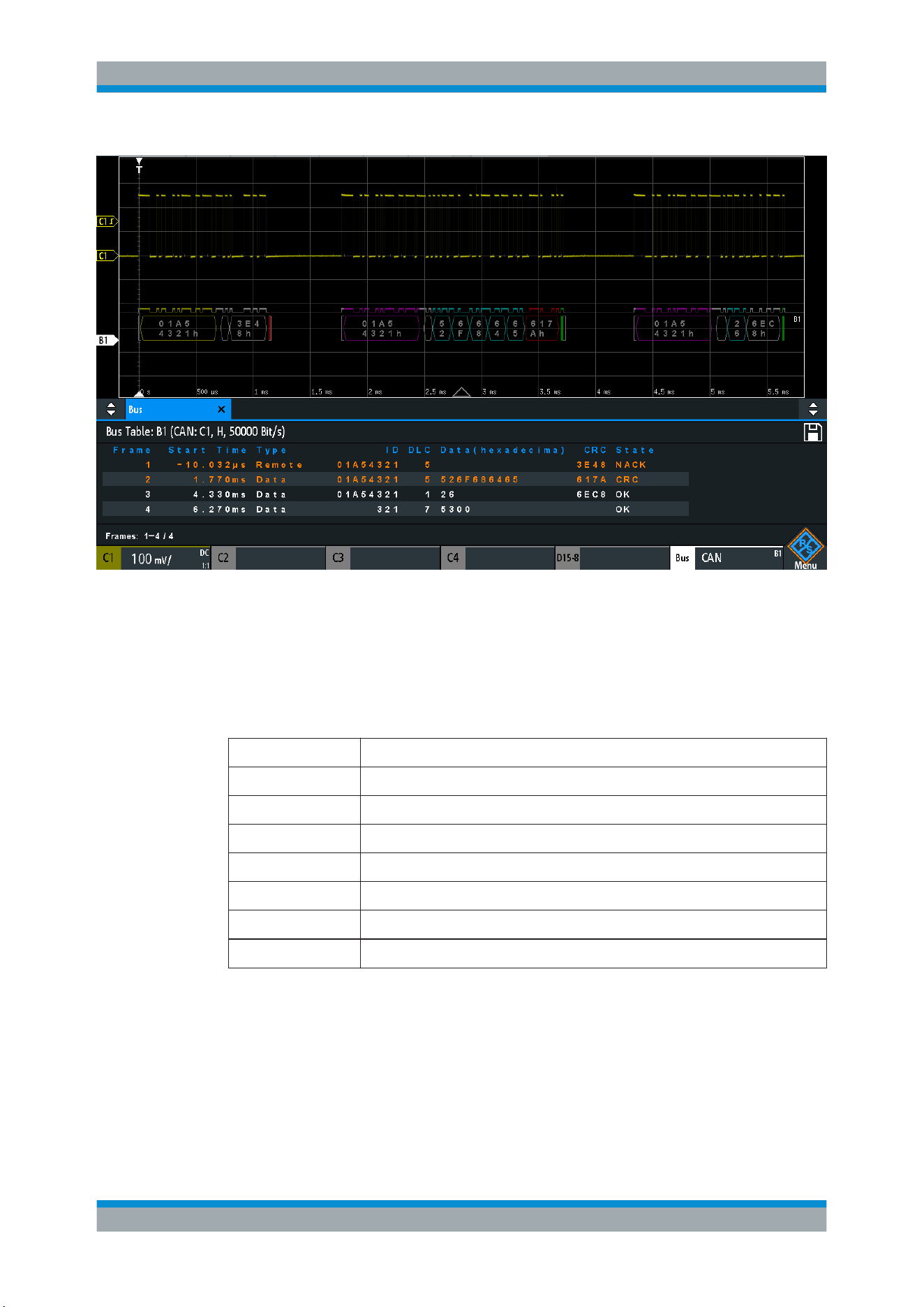
Serial Bus Analysis
R&S
®
RTB2000
202User Manual 1333.1611.02 ─ 03
Figure 12-20: Decoded CAN signal with bus table, trigger on frame start
violet = identifier
gray = DLC, data length code
blue = data words
red = error occured, error frame
The figure above shows a decoded CAN signal and the "Bus Table".
Table 12-4: Content of the CAN frame table
Column Description
Time Diff. Time of frame start in relation to the trigger point
Type Frame type: Data, Remote, Error, or Overload
ID Identifier value, hexadecimal value
DLC Data length code, number of data bytes
Data Hexadecimal values of the data bytes
CRC Hexadecimal value of the Cyclic Redundance Check (checksum)
State Overall state of the frame.
Remote commands are described in Chapter 15.11.5.3, "CAN - Decode Results",
on page 408.
CAN (Option R&S RTB-K3)
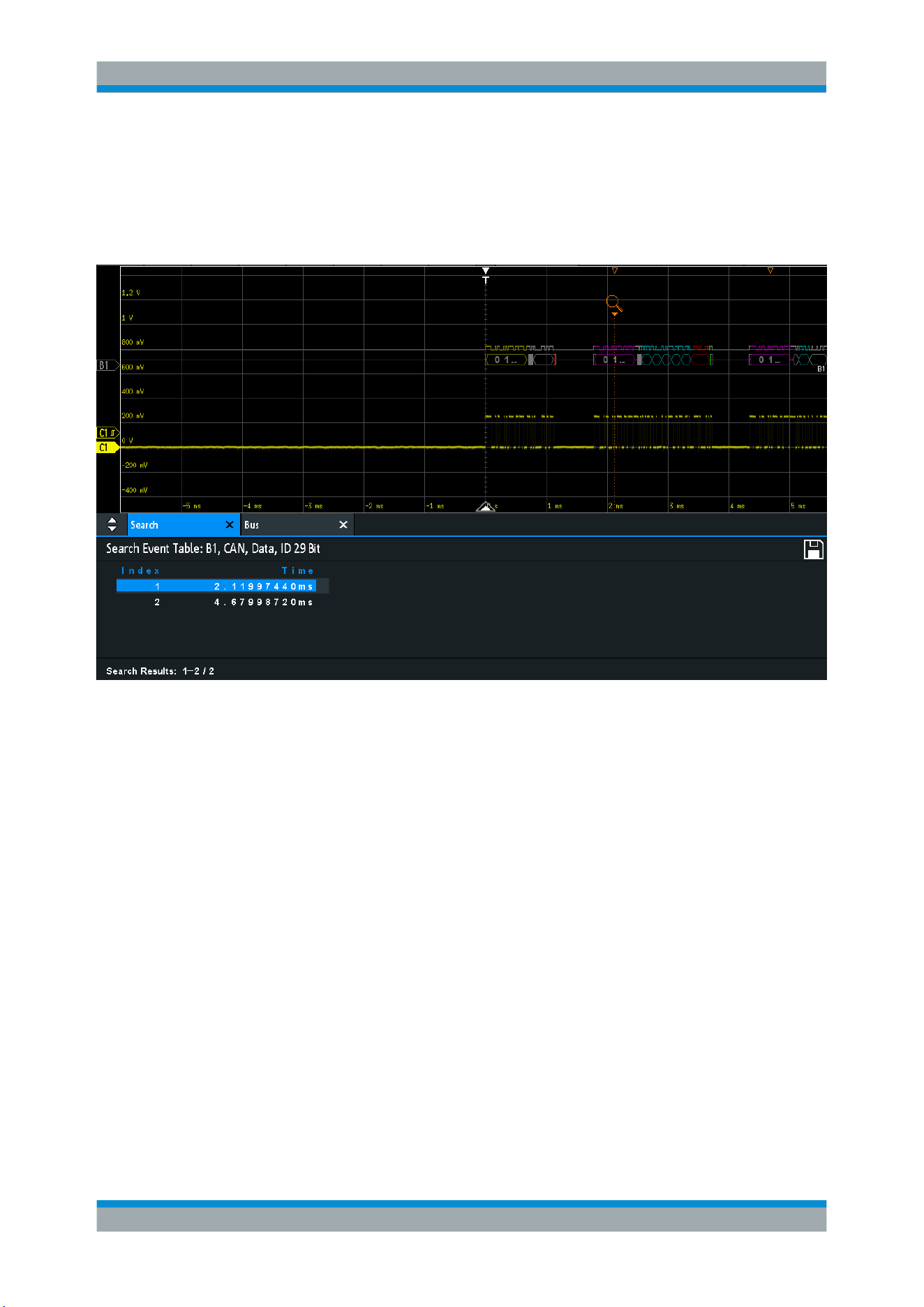
Serial Bus Analysis
R&S
®
RTB2000
203User Manual 1333.1611.02 ─ 03
12.5.4 Search on Decoded CAN Data
Using the search functionality, you can find the same events in the decoded data which
you also can trigger on. Unlike trigger, the search finds all events in an acquisition that
fulfill the search condition. The results are listed in a table and and can be saved to file.
Figure 12-21: Search on a CAN bus for data frames with 29 bit ID
To search for events in a CAN signal
1. Configure and decode the bus correctly.
2. Acquire decoded data.
3. Press the Search key.
4. Select the "Search Type" = "Protocol".
5. Select the "Source": the bus that is configured for CAN protocol.
6. Select the "Event" you want to search for.
7. Enter additional settings, depending on the event.
CAN (Option R&S RTB-K3)
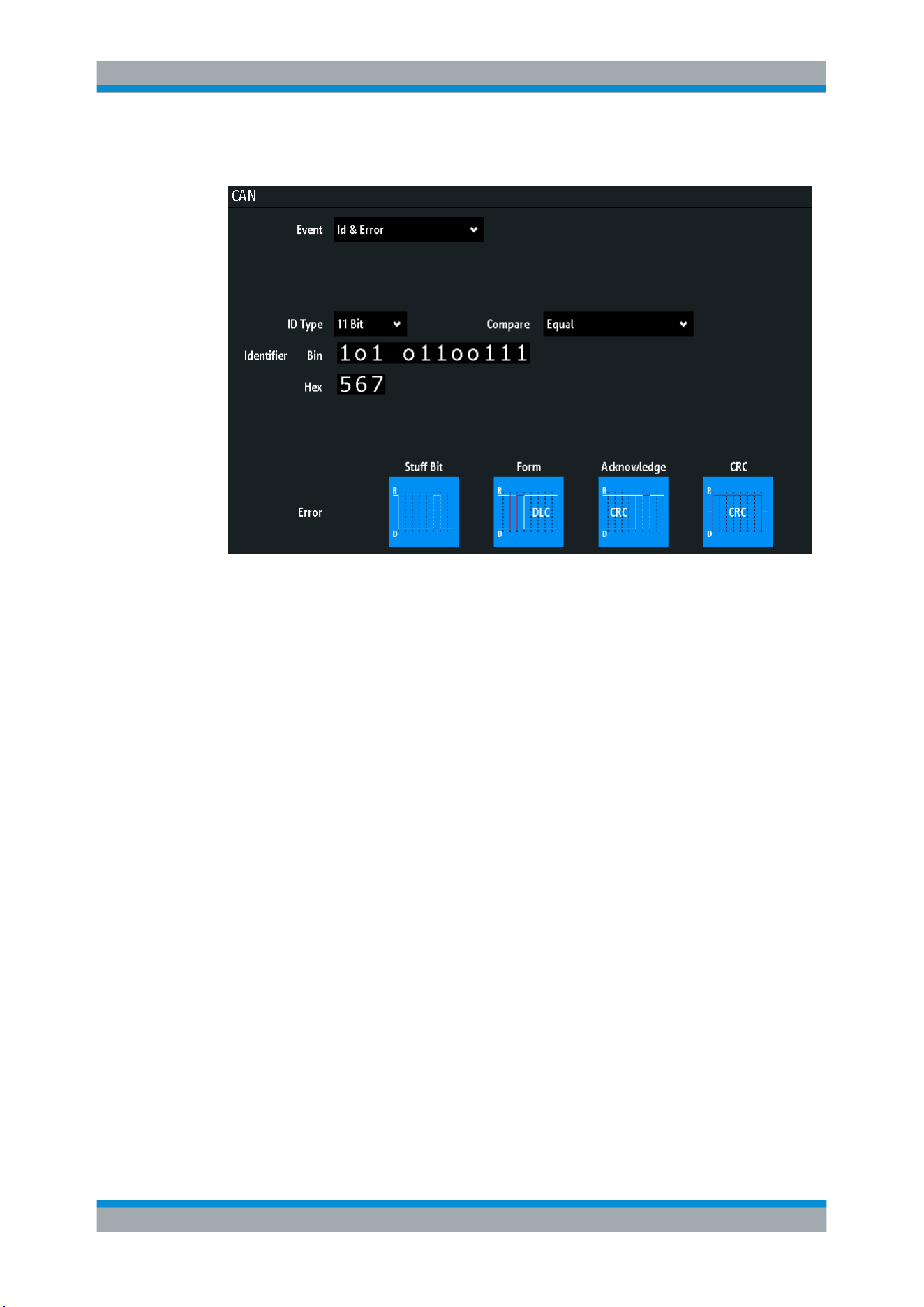
Serial Bus Analysis
R&S
®
RTB2000
204User Manual 1333.1611.02 ─ 03
CAN search settings
Figure 12-22: Settings for search on CAN bus for frames with identifier 567 (hex) that have an error
Event
Sets the event or combination of events to be searched for. For example, you can
search for frames, errors, data, or IDs. Depending on the selected event, additional
settings are displayed.
Remote command:
SEARch:PROTocol:CAN:CONDition on page 414
Frame Setup
Selects the frame type to be searched for.
If you search for remote or data frames, the search considers also the ID type, the
length of the identifier. The setting is only available if "Event" = "Frame" is selected.
Remote command:
SEARch:PROTocol:CAN:FRAMe on page 415
Error
Selects the error type to be searched for. You can select one or more error types as
search condition. The error types are the same as in the CAN trigger setup, see Chap-
ter 12.5.2, "CAN Trigger"
, on page 197.
The setting is only available if "Event" = "Error" or "Error & ID" is selected.
Remote command:
SEARch:PROTocol:CAN:ACKerror on page 416
SEARch:PROTocol:CAN:BITSterror on page 416
SEARch:PROTocol:CAN:CRCerror on page 416
SEARch:PROTocol:CAN:FORMerror on page 416
CAN (Option R&S RTB-K3)

Serial Bus Analysis
R&S
®
RTB2000
205User Manual 1333.1611.02 ─ 03
Frame Type
Selects the frame type to be searched for, if "Event" = "Identifier" is selected. You can
search for data and/or remote frames.
Remote command:
SEARch:PROTocol:CAN:FTYPe on page 417
Identifier condition
Settings to define the identifier pattern, if "Event" = "Identifier" or "ID & Data" or "ID &
Error" is selected.
After setting the "ID Type" and the "Compare" condition, you can enter the identifier
value by setting the state high, low, or X (do not care) for each single bit. Alternatively,
you can enter a hexadecimal value for each half byte. The settings are the same as for
the setup of the identifier trigger, see also "Identifier condition" on page 200.
If a label list with node names was loaded and applied in the bus configuration, you
can select the node name from the list instead of entering the numeric identifier. The
instrument triggers on the identifier of the selected node.
Remote command:
SEARch:PROTocol:CAN:ITYPe on page 417
SEARch:PROTocol:CAN:ICONdition on page 417
SEARch:PROTocol:CAN:IDENtifier on page 417
Data condition
Settings to define the data pattern to be searched, if "Event" = "ID & Data" is selected.
After setting the "Data" length and the "Compare" condition, you can enter the data
value by setting the state high, low, or X (do not care) for each single bit. Alternatively,
you can enter a hexadecimal value for each half byte. The settings are the same as for
the setup of the data trigger, see also
"Data condition" on page 200.
Remote command:
SEARch:PROTocol:CAN:DLENgth on page 417
SEARch:PROTocol:CAN:DCONdition on page 418
SEARch:PROTocol:CAN:DATA on page 418
12.5.5 CAN Label List
For general information on label lists and how to trigger on symbolic IDs, see
Chap-
ter 12.1.5, "Label List"
, on page 169.
Label list files are protocol-specific. A PTT label file for CAN protocols contains three
values for each identifier:
●
Identifier type, 11-bit or 29-bit long
●
Identifier value
●
Label, symbolic name of the identifier, specifying its function in the bus network.
Example: CAN PTT file
# ----------------------------------------------------------------------------
@FILE_VERSION = 1.00
CAN (Option R&S RTB-K3)
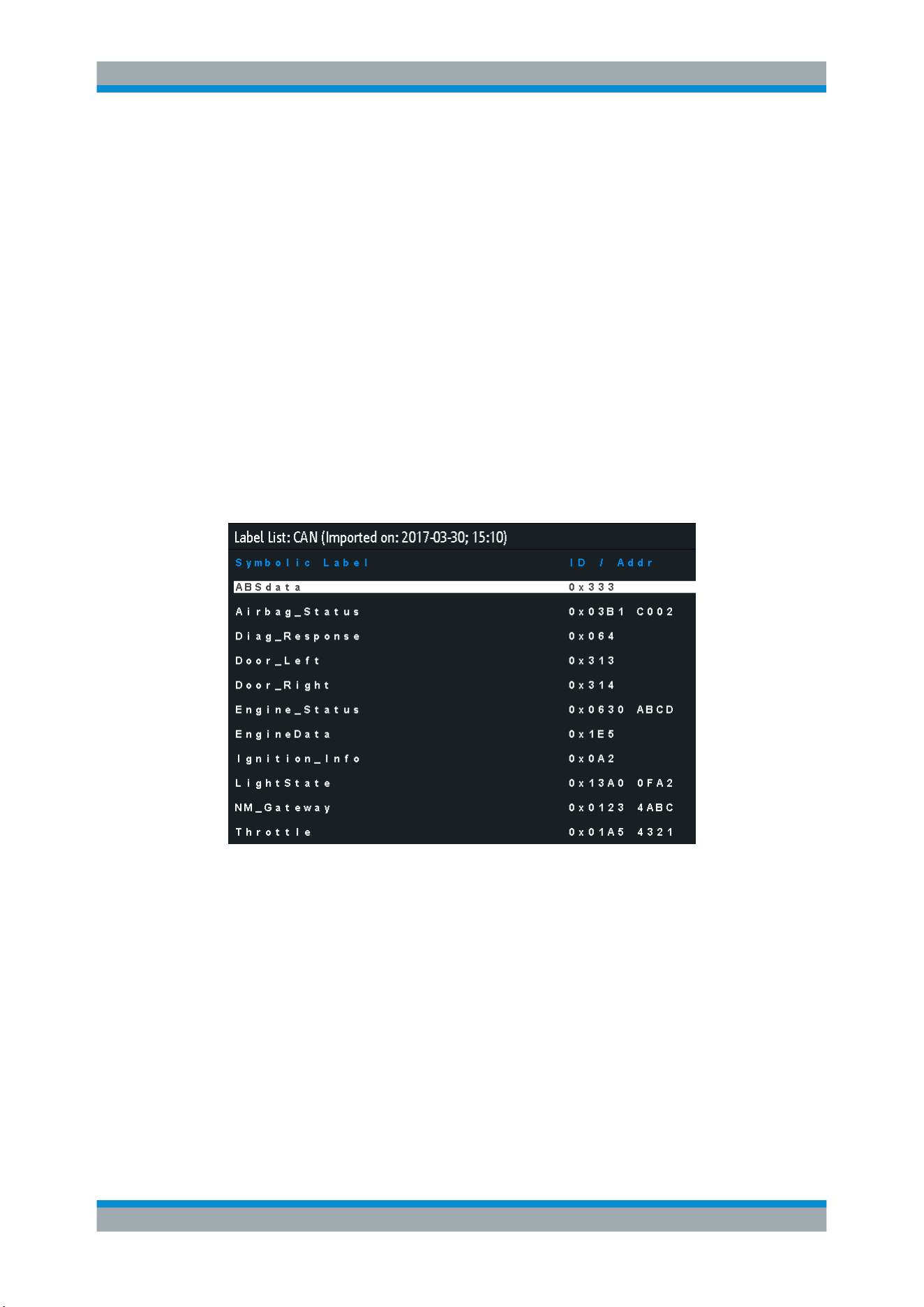
Serial Bus Analysis
R&S
®
RTB2000
206User Manual 1333.1611.02 ─ 03
@PROTOCOL_NAME = can
# ---------------------------------------------------------------------------
# Labels for CAN protocol
# Column order: Identifier type, Identifier value, Label
# ---------------------------------------------------------------------------
11,064h,Diag_Response
11,1E5h,EngineData
11,0A2h,Ignition_Info
11,1BCh,TP_Console
11,333h,ABSdata
11,313h,Door_Left
11,314h,Door_Right
29,01A54321h,Throttle
29,13A00FA2h,LightState
29,0630ABCDh,Engine_Status
29,03B1C002h,Airbag_Status
29,01234ABCh,NM_Gateway
# ----------------------------------------------------------------------------
Figure 12-23: Label list for CAN
CAN (Option R&S RTB-K3)
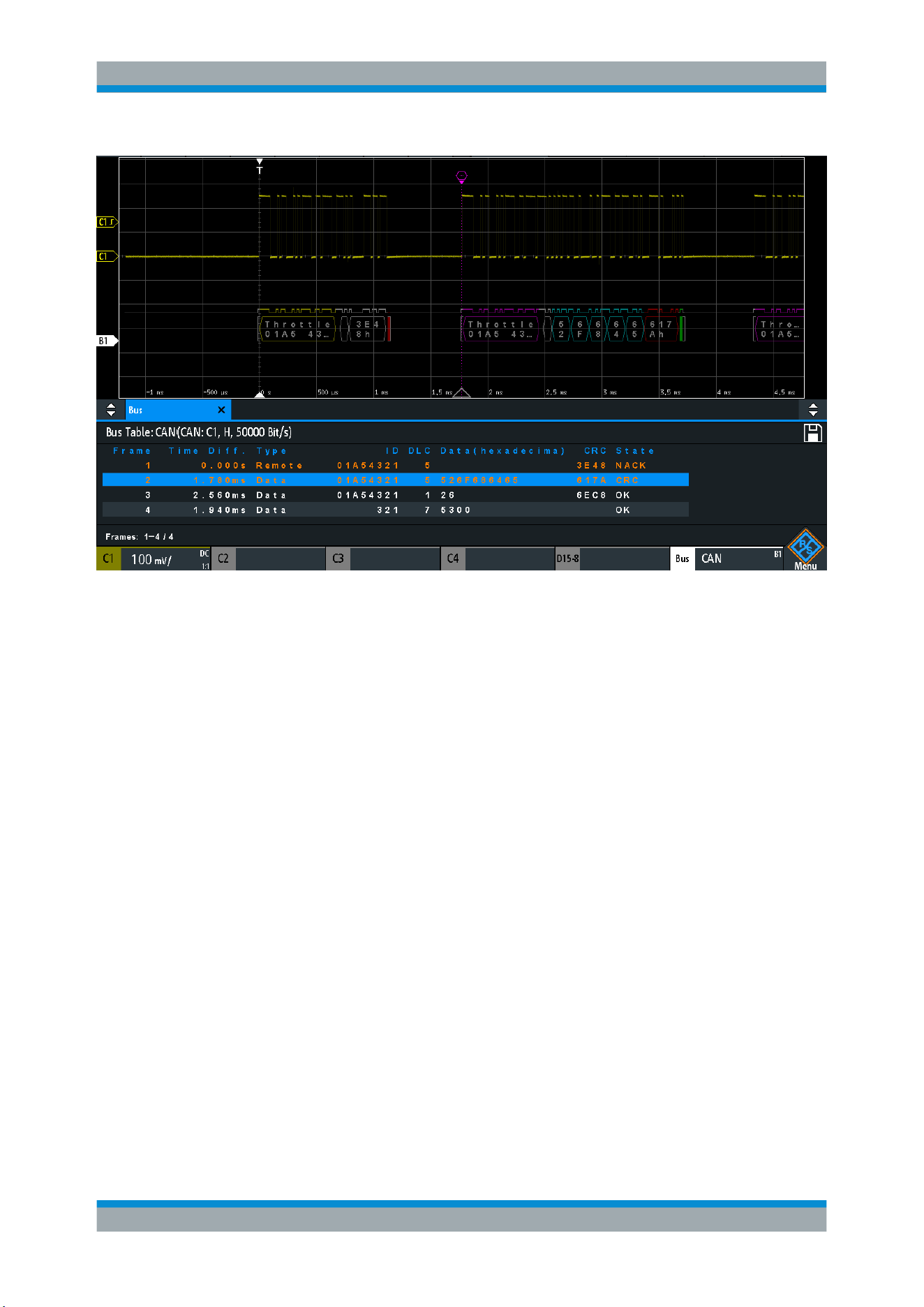
Serial Bus Analysis
R&S
®
RTB2000
207User Manual 1333.1611.02 ─ 03
Figure 12-24: Decoded CAN signal with bus table and applied label list
12.6 LIN (Option R&S
RTB-K3)
The Local Interconnect Network (LIN) is a simple, low-cost bus system used within
automotive network architectures. LIN is usually a sub-network of a CAN bus. The pri-
mary purpose of LIN is the integration of uncritical sensors and actuators with low
bandwidth requirements. Common applications in a motor vehicle are the control of
doors, windows, wing mirrors, and wipers.
●
The LIN Protocol................................................................................................... 207
●
LIN Configuration.................................................................................................. 209
●
LIN Trigger............................................................................................................ 210
●
LIN Decode Results ............................................................................................. 214
●
Search on Decoded LIN Data............................................................................... 215
●
LIN Label List........................................................................................................ 217
12.6.1 The LIN Protocol
This chapter provides an overview of protocol characteristics, frame format, identifiers
and trigger possibilities. For detailed information, order the LIN specification on
http://
www.lin-subbus.org/
(free of charge).
LIN (Option R&S RTB-K3)
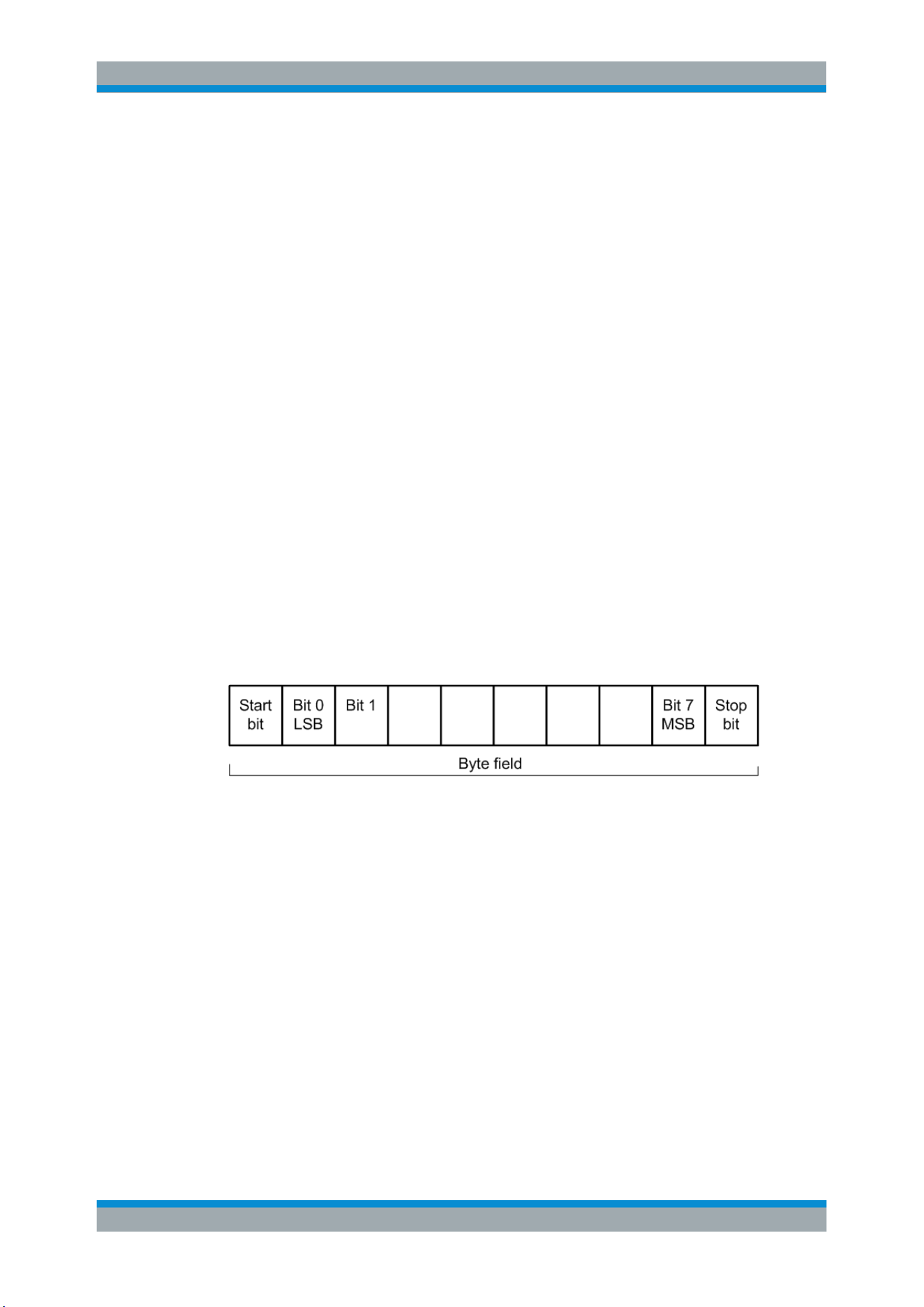
Serial Bus Analysis
R&S
®
RTB2000
208User Manual 1333.1611.02 ─ 03
LIN characteristics
Main characteristics of LIN are:
●
Single-wire serial communications protocol, based on the UART byte-word inter-
face
●
Single master, multiple slaves - usually up to 12 nodes
●
Master-controlled communication: master coordinates communication with the LIN
schedule and sends identifier to the slaves
●
Synchronization mechanism for clock recovery by slave nodes without crystal or
ceramics resonator
The R&S RTB2000 supports several versions of the LIN standard: v1.3, v2.0, v2.1 and
the American SAE J2602.
Data transfer
Basic communication concept of LIN:
●
Communication in an active LIN network is always initiated by the master.
●
Master sends a message header including the synchronization break, the synchro-
nization byte, and the message identifier.
●
The identified node sends the message response: one to eight data bytes and one
checksum byte.
●
Header and response form the message frame.
The data is transmitted in bytes using the UART byte-word interface without the parity
bit. Each byte consists of a start bit, 8 bits and a stop bit.
Figure 12-25: Structure of a byte field
Data bytes are transmitted LSB first.
The identifier byte consists of 6 bits for the frame identifier and two parity bits. This
combination is known as protected identifier.
Trigger
The R&S RTB2000 can trigger on various parts of LIN frames. The data line must be
connected to an input channel, triggering on math and reference waveforms is not pos-
sible.
You can trigger on:
●
Frame start (synchronization field)
●
Specific slave identifier or identifier range
●
Data pattern in the message
●
Wake up signal
LIN (Option R&S RTB-K3)
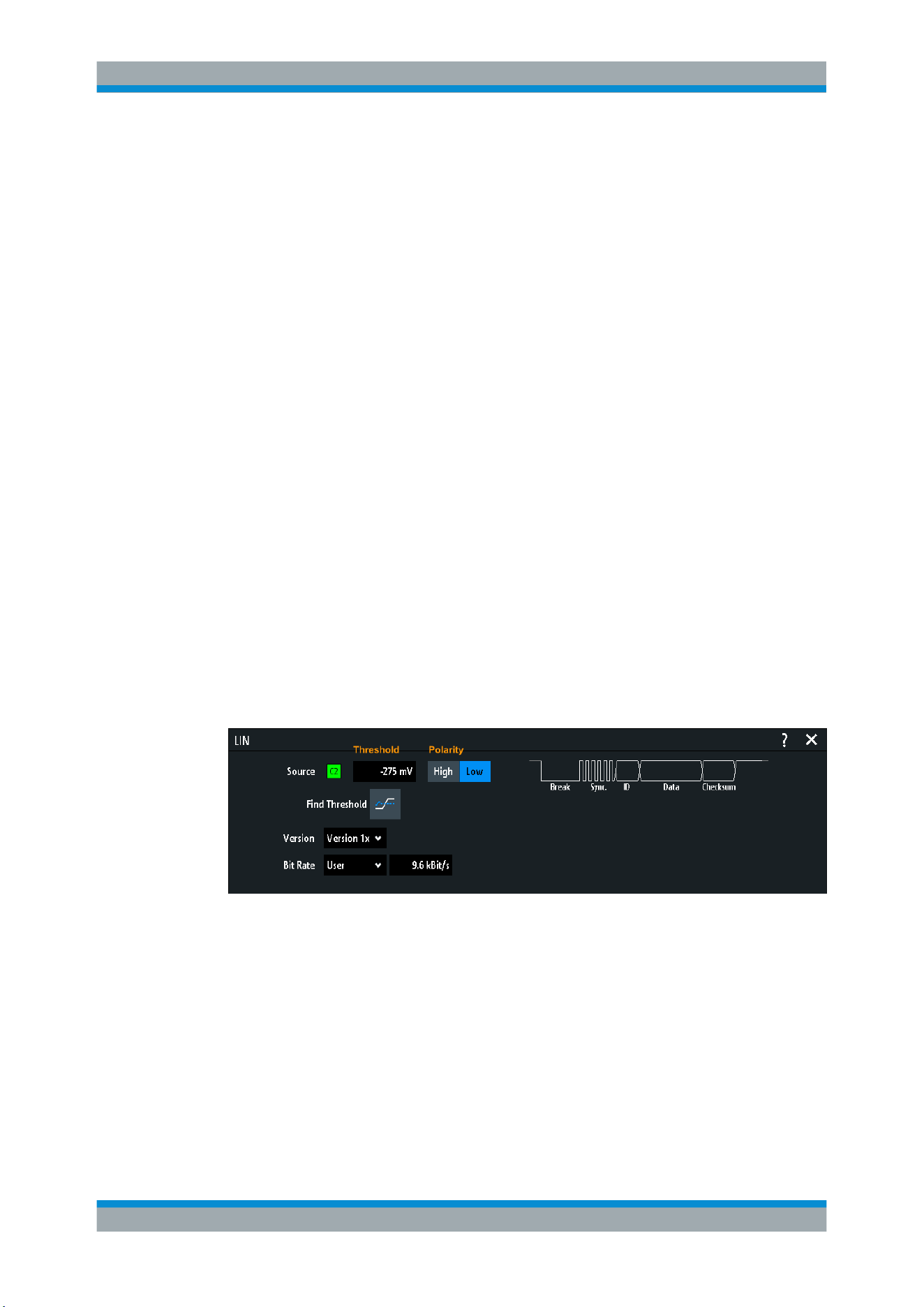
Serial Bus Analysis
R&S
®
RTB2000
209User Manual 1333.1611.02 ─ 03
●
Checksum error (error in data), parity error (error in identifier)
12.6.2 LIN Configuration
The correct setup of the protocol parameters and the threshold is the condition for
decoding the signal.
To set up and decode a LIN signal
1. Press the PROTOCOL key in the Analysis area of the front panel.
2. Select the bus that you want to use: B1 or B2.
3. Select the "Bus Type" = LIN.
4. Select "Configuration".
5. Select the "Source", the channel to which the input signal is connected.
6. Set the threshold:
● Tap "Find Threshold". The instrument evaluates the signal and sets the thresh-
old.
● Enter the threshold value in the numeric field.
7. Set the other signal parameters according to the signal characteristics. All settings
are described below.
8. In the "Bus" menu, enable "Decode".
LIN Configuration Settings
Figure 12-26: LIN setup dialog
Source.........................................................................................................................209
Polarity........................................................................................................................ 210
Threshold, Find Threshold.......................................................................................... 210
Version........................................................................................................................210
Bit Rate....................................................................................................................... 210
Source
Sets the source of the data line. All channel waveforms can be used.
If the MSO option R&S RTB-B1 is installed, you can use logic channels as source.
LIN (Option R&S RTB-K3)

Serial Bus Analysis
R&S
®
RTB2000
210User Manual 1333.1611.02 ─ 03
Remote command:
BUS<b>:LIN:DATA:SOURce on page 419
Polarity
Defines the idle state of the bus. The idle state is the recessive state and corresponds
to a logic 1.
Remote command:
BUS<b>:LIN:POLarity on page 419
Threshold, Find Threshold
Set the signal threshold for the source channel. Enter a value, or use "Find Threshold"
to set the threshold to the middle reference level of the measured amplitude.
For analog channels, you can find the value also in the "Vertical" menu > "Chan-
nel <n>" >"Threshold"
For logic channels, you can find the value also in the "Logic" menu > "Threshold".
Remote command:
CHANnel<m>:THReshold on page 256
CHANnel<m>:THReshold:FINDlevel on page 256
DIGital<m>:THReshold on page 433
Version
Selects the version of the LIN standard that is used in the DUT. The setting mainly
defines the checksum version used during decoding.
The most common version is LIN 2.x. For mixed networks, or if the standard is
unknown, set the LIN standard to "Any".
Remote command:
BUS<b>:LIN:STANdard on page 419
Bit Rate
Sets the number of transmitted bits per second. The LIN standard defines a maximum
bit rate of 20 kbit/s.
"Predefined"
To select a bit rate from the list of predefined values, set "Bit rate" to
"Predefined" and select a value from the list.
"User"
To set another value, set "Bit rate" to "User" and enter a bit/s value.
Remote command:
BUS<b>:LIN:BITRate on page 419
12.6.3 LIN Trigger
Before you set up the trigger, make sure that the bus is configured correctly. See
Chapter 12.6.2, "LIN Configuration", on page 209.
To trigger on LIN signals:
1. Press the PROTOCOL key in the Analysis area of the front panel.
LIN (Option R&S RTB-K3)
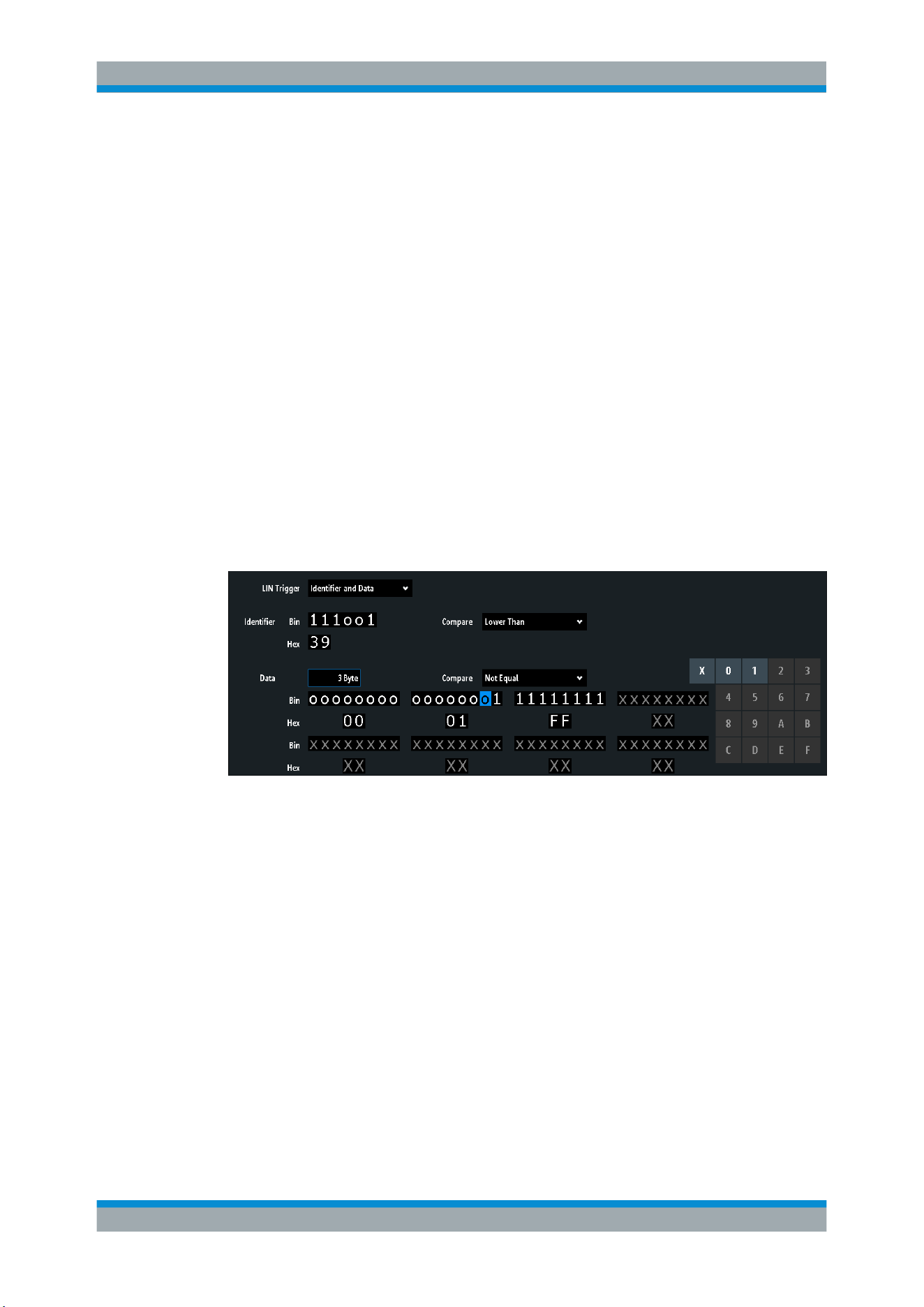
Serial Bus Analysis
R&S
®
RTB2000
211User Manual 1333.1611.02 ─ 03
2. Select the bus that is configured for LIN.
3. Select "Trigger".
This selection has several effects:
● Enables decoding, if necessary.
● Sets the "Trigger Type" to "Serial Bus" and the trigger source to the selected
bus.
● Displays the "LIN Trigger" condition in the dialog box, below the protocol setup.
4. At "LIN Trigger", select the required trigger type:
● "Start of Frame": stop bit of the sync field
● "Wake Up": after a wakeup frame
● "Error": checksum, parity or synchronization
● "Identifier": specific message identifier or identifier range
● "Identifier and Data": combination of identifier and data condition
5. If "Identifier" or "Identifier and Data" is selected, the LIN trigger setup dialog
expands to define the serial pattern.
LIN Trigger Settings
Figure 12-27: Trigger setup to trigger on identifier and data patterns
o (blue) =
Selected bit in the 2
nd
byte of the data pattern, where the blue color indicates that the keypad is
active for this bit
LIN Trigger.................................................................................................................. 212
Error............................................................................................................................ 212
└
Checksum.....................................................................................................212
└
Parity.............................................................................................................212
└
Synchronization............................................................................................ 212
Identifier condition.......................................................................................................212
└
Identifier........................................................................................................ 213
└
Compare....................................................................................................... 213
└
Symbolic ID...................................................................................................213
Data condition............................................................................................................. 213
└
Data.............................................................................................................. 213
└
Compare....................................................................................................... 213
└
Bin / Hex....................................................................................................... 213
LIN (Option R&S RTB-K3)

Serial Bus Analysis
R&S
®
RTB2000
212User Manual 1333.1611.02 ─ 03
LIN Trigger
Selects the trigger mode.
"Start of
Frame"
Triggers on the stop bit of the synchronization field.
"Wake Up"
Triggers after a wakeup frame.
"Error"
Identifies various errors in the frame. You can select one or more
error types as trigger condition.
See
"Error" on page 212.
"Identifier"
Sets the trigger to a specific message identifier or an identifier range.
Only the 6 bit identifier without parity bits is considered, not the pro-
tected identifier.
See
"Identifier condition" on page 212.
"Identifier and
Data"
Triggers on a combination of identifier and data condition. The instru-
ment triggers at the end of the last byte of the specified data pattern.
An example is shown in
Figure 12-27.
See
"Identifier condition" on page 212 and "Data condition"
on page 213.
Remote command:
TRIGger:A:LIN:TYPE on page 420
Error
Select one or more error types as trigger condition.
Checksum ← Error
Triggers on a checksum error. The checksum verifies the correct data transmission. It
is the last byte of the frame response. The checksum includes not only the data but
also the protected identifier (PID).
Remote command:
TRIGger:A:LIN:CHKSerror on page 421
Parity ← Error
Triggers on a parity error. Parity bits are the bits 6 and 7 of the identifier. They verify
the correct transmission of the identifier.
Remote command:
TRIGger:A:LIN:IPERror on page 421
Synchronization ← Error
Triggers if synchronization caused an error.
Remote command:
TRIGger:A:LIN:SYERror on page 421
Identifier condition
The identifier condition consists of the following settings:
●
Identifier value
●
Comparison
LIN (Option R&S RTB-K3)

Serial Bus Analysis
R&S
®
RTB2000
213User Manual 1333.1611.02 ─ 03
Identifier ← Identifier condition
Defines the identifier pattern in binary and hexadecimal format. To set an individual
binary bit or hex nibble (half byte), tap it and enter it via the on-screen keypad.
"Bin"
String containing the binary pattern with a maximum of 64 bits. Char-
acters 0, 1 and X are allowed.
"Hex"
String containing the hexadecimal pattern with a maximum of 8 bytes.
Characters 0 to F and X are allowed.
Remote command:
TRIGger:A:LIN:IDENtifier on page 421
Compare ← Identifier condition
Sets the identifier comparison condition: If the identifier pattern contains at least one X
(don't care), you can trigger on values equal or not equal to the specified value. If the
pattern contains only 0 and 1, you can also trigger on a range greater than or lower
than the specified value.
Remote command:
TRIGger:A:LIN:ICONdition on page 421
Symbolic ID ← Identifier condition
If a label list with symbolic names was loaded and applied in the bus configuration, you
can select a symbolic name from the list instead of entering the numeric identifier. The
instrument triggers on the identifier of the selected node.
Data condition
The data condition consists of the following settings:
●
Length of the data pattern
●
Comparison
●
Data pattern
Data ← Data condition
Defines the length of the data pattern - the number of bytes in the pattern.
Remote command:
TRIGger:A:LIN:DLENgth on page 422
Compare ← Data condition
Sets the comparison condition: If the pattern contains at least one X (don't care), you
can trigger on values equal or not equal to the specified value. If the pattern contains
only 0 and 1, you can also trigger on a range greater than or lower than the specified
value.
Remote command:
TRIGger:A:LIN:DCONdition on page 422
Bin / Hex ← Data condition
Specifies the data pattern to be triggered. To set an individual binary bit or hexadeci-
mal nibble (half byte), tap it and enter it via the on-screen keypad. Make sure to specify
complete bytes.
LIN (Option R&S RTB-K3)

Serial Bus Analysis
R&S
®
RTB2000
214User Manual 1333.1611.02 ─ 03
"Bin"
String containing the binary pattern with a maximum of 64 bits. Char-
acters 0, 1 and X are allowed.
"Hex"
String containing the hexadecimal pattern with a maximum of 8 bytes.
Characters 0 to F and X are allowed.
Remote command:
TRIGger:A:LIN:DATA on page 422
12.6.4 LIN Decode Results
When the configuration of the serial bus is complete, the signal can be decoded:
1. In the "Bus" menu, enable "Decode".
2. In the "Display" menu, select the result display settings.
See Chapter 12.1.2, "Display Settings", on page 167.
3. In the "Bus Table" menu, enable the "Bus Table". Adjust the table settings.
See also: Chapter 12.1.3, "Bus Table: Decode Results", on page 167
The instrument captures and decodes the signal according to the protocol definition
and the configuration settings.
The color-coding of the various protocol sections and errors simplifies the interpretation
of the visual display. The decode information condenses or expands, depending on the
horizontal scale. Various data formats are available to show the result values.
Figure 12-28: Decoded LIN signal with bus table, trigger on frame start
LIN (Option R&S RTB-K3)
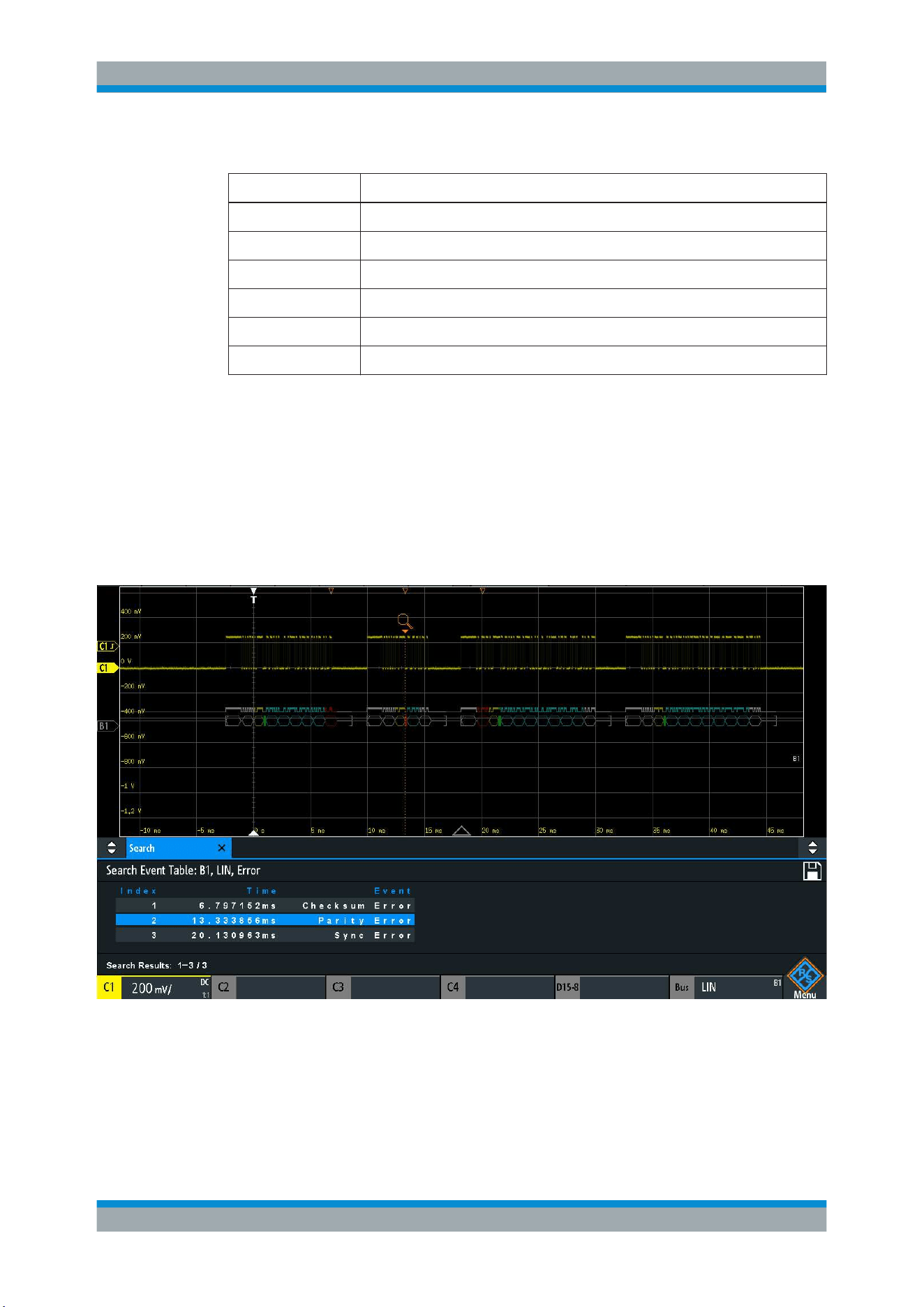
Serial Bus Analysis
R&S
®
RTB2000
215User Manual 1333.1611.02 ─ 03
Table 12-5: Content of the LIN frame table
Column Description
Start time Time of frame start in relation to the trigger point
ID Identifier value, hexadecimal value
Length Number of data bytes
Data Hexadecimal values of the data bytes
Chks Checksum value
State Overall state of the frame.
Remote commands are described in Chapter 15.11.6.3, "LIN - Decode Results",
on page 422.
12.6.5 Search on Decoded LIN Data
Using the search functionality, you can find the same events in the decoded data which
you also can trigger on. Unlike trigger, the search finds all events in an acquisition that
fulfill the search condition. The results are listed in a table and and can be saved to file.
Figure 12-29: Search on a LIN bus for errors
To search for events in a LIN signal
1. Configure and decode the bus correctly.
2. Acquire decoded data.
LIN (Option R&S RTB-K3)
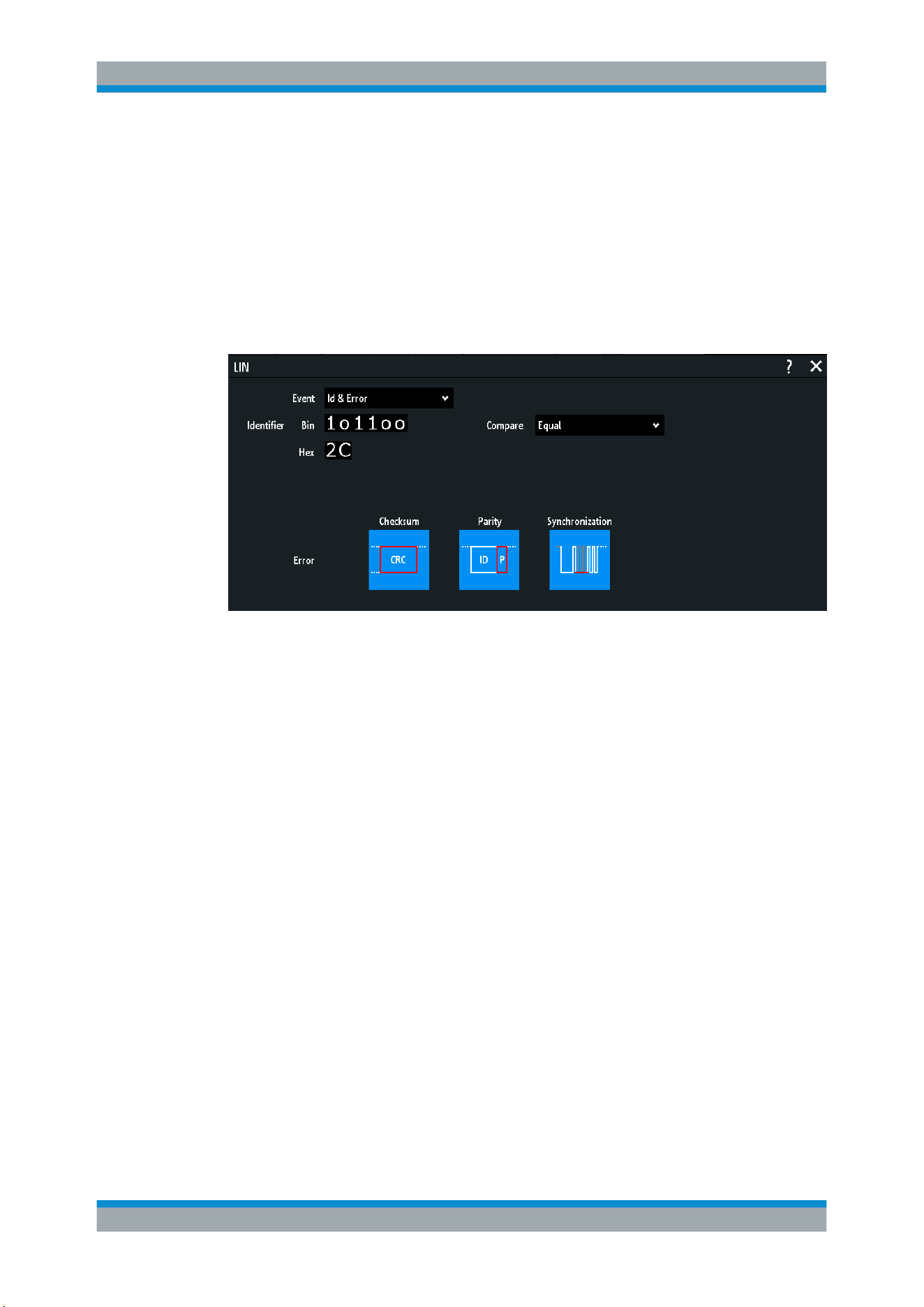
Serial Bus Analysis
R&S
®
RTB2000
216User Manual 1333.1611.02 ─ 03
3. Press the Search key.
4. Select the "Search Type" = "Protocol".
5. Select the "Source": the bus that is configured for LIN protocol.
6. Select the "Event" you want to search for.
7. Enter additional settings, depending on the event.
LIN Search Settings
Figure 12-30: Search on LIN bus for frames with identifier 2C (hex) that have an error
Event...........................................................................................................................216
Frame Setup............................................................................................................... 216
Error............................................................................................................................ 216
Identifier condition.......................................................................................................217
Data condition............................................................................................................. 217
Event
Sets the event or combination of events to be searched for. Depending on the selected
event, additional settings are displayed.
Remote command:
SEARch:PROTocol:LIN:CONDition on page 428
Frame Setup
Selects the frame type to be searched for.
Remote command:
SEARch:PROTocol:CAN:FRAMe on page 415
Error
Selects the error type to be searched for. You can select one or more error types as
search condition. The error types are the same as in the LIN trigger setup.
See also
"Error" on page 212.
The setting is only available if "Event" = "Error" or "ID & Error" is selected.
LIN (Option R&S RTB-K3)

Serial Bus Analysis
R&S
®
RTB2000
217User Manual 1333.1611.02 ─ 03
Remote command:
SEARch:PROTocol:LIN:CHKSerror on page 429
SEARch:PROTocol:LIN:IPERror on page 429
SEARch:PROTocol:LIN:SYERror on page 429
Identifier condition
Settings to define the identifier pattern, if "Event" = "Identifier" or "ID & Data" or "ID &
Error" is selected.
After setting the "Compare" condition, you can enter the identifier value by setting the
state high, low, or X (do not care) for each single bit. Alternatively, you can enter a hex-
adecimal value for each half byte.
The settings are the same as for the setup of the identifier trigger, see also "Identifier
condition"
on page 212.
If a label list with node names was loaded and applied in the bus configuration, you
can select the node name from the list instead of entering the numeric identifier. The
instrument triggers on the identifier of the selected node.
Remote command:
SEARch:PROTocol:LIN:ICONdition on page 430
SEARch:PROTocol:LIN:IDENtifier on page 430
Data condition
Settings to define the data pattern to be searched, if "Event" = "ID & Data" is selected.
After setting the "Data" length and the "Compare" condition, you can enter the data
value by setting the state high, low, or X (do not care) for each single bit. Alternatively,
you can enter a hexadecimal value for each half byte.
The settings are the same as for the setup of the data trigger, see also
"Data condition"
on page 213.
Remote command:
SEARch:PROTocol:LIN:DLENgth on page 430
SEARch:PROTocol:LIN:DCONdition on page 430
SEARch:PROTocol:LIN:DATA on page 431
12.6.6 LIN Label List
For general information on label lists and how to trigger on symbolic IDs, see
Chap-
ter 12.1, "Basics of Protocol Analysis"
, on page 164.
Label lists are protocol-specific. Label lists for LIN are available in CSV and PTT for-
mat.
A LIN label file contains two values for each identifier:
●
Identifier value
●
Symbolic name for the identifier
Example of a LIN PTT file
# ----------------------------------------------------------------------------
@FILE_VERSION = 1.0
LIN (Option R&S RTB-K3)
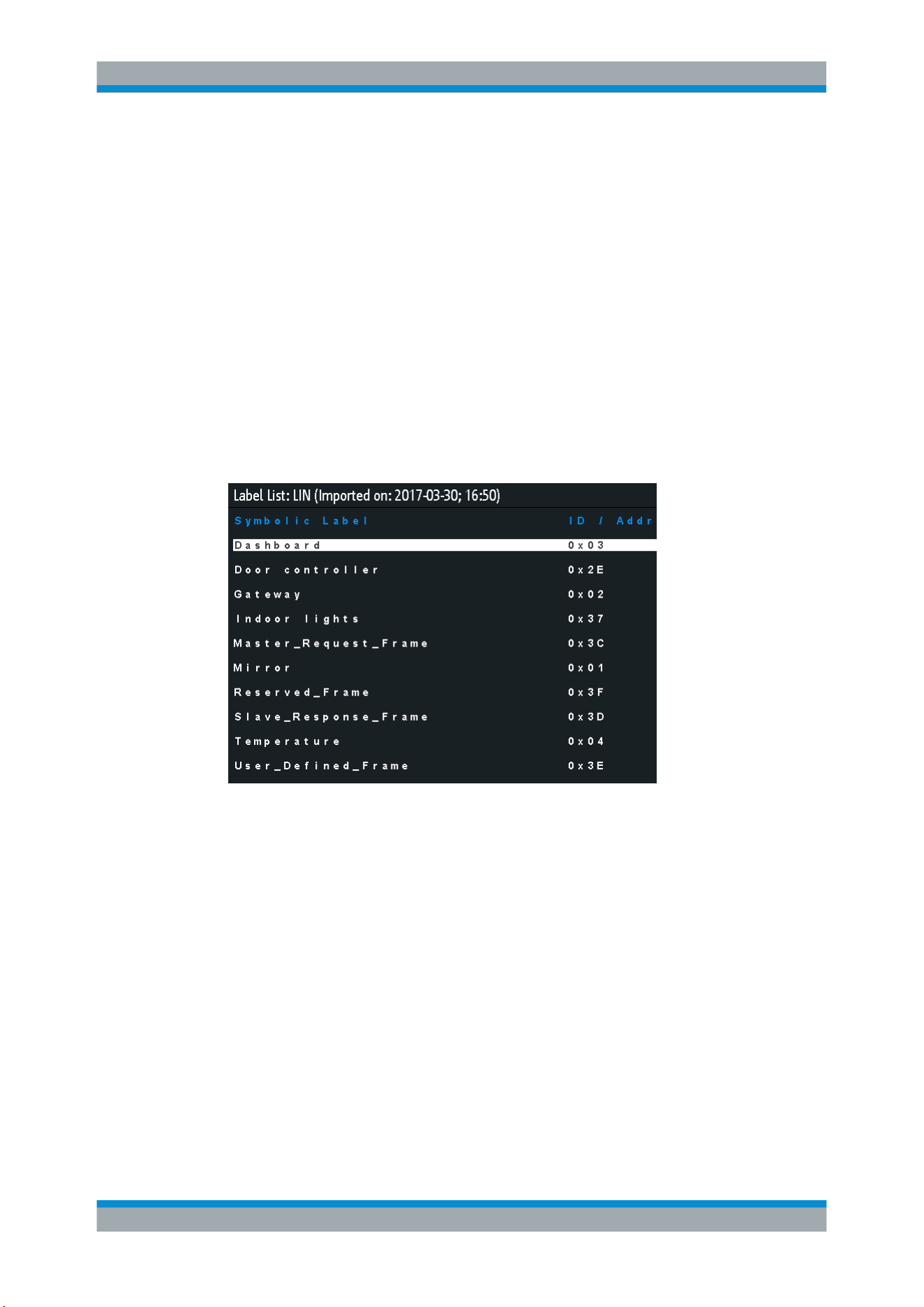
Serial Bus Analysis
R&S
®
RTB2000
218User Manual 1333.1611.02 ─ 03
@PROTOCOL_NAME = lin
# ----------------------------------------------------------------------------
# Labels for LIN protocol
# Column order: Identifier, Label
# ----------------------------------------------------------------------------
# Labels for standard addresses
0x3F,Temperature
1Ch,Left brake
20h,Right brake
# Following ID is provided as integer
33,Mirror
0x37,Indoor lights
# Labels for reserved addresses
0x3C,Master_Request_Frame
0x3D,Slave_Response_Frame
# ----------------------------------------------------------------------------
Figure 12-31: Label list for LIN
LIN (Option R&S RTB-K3)
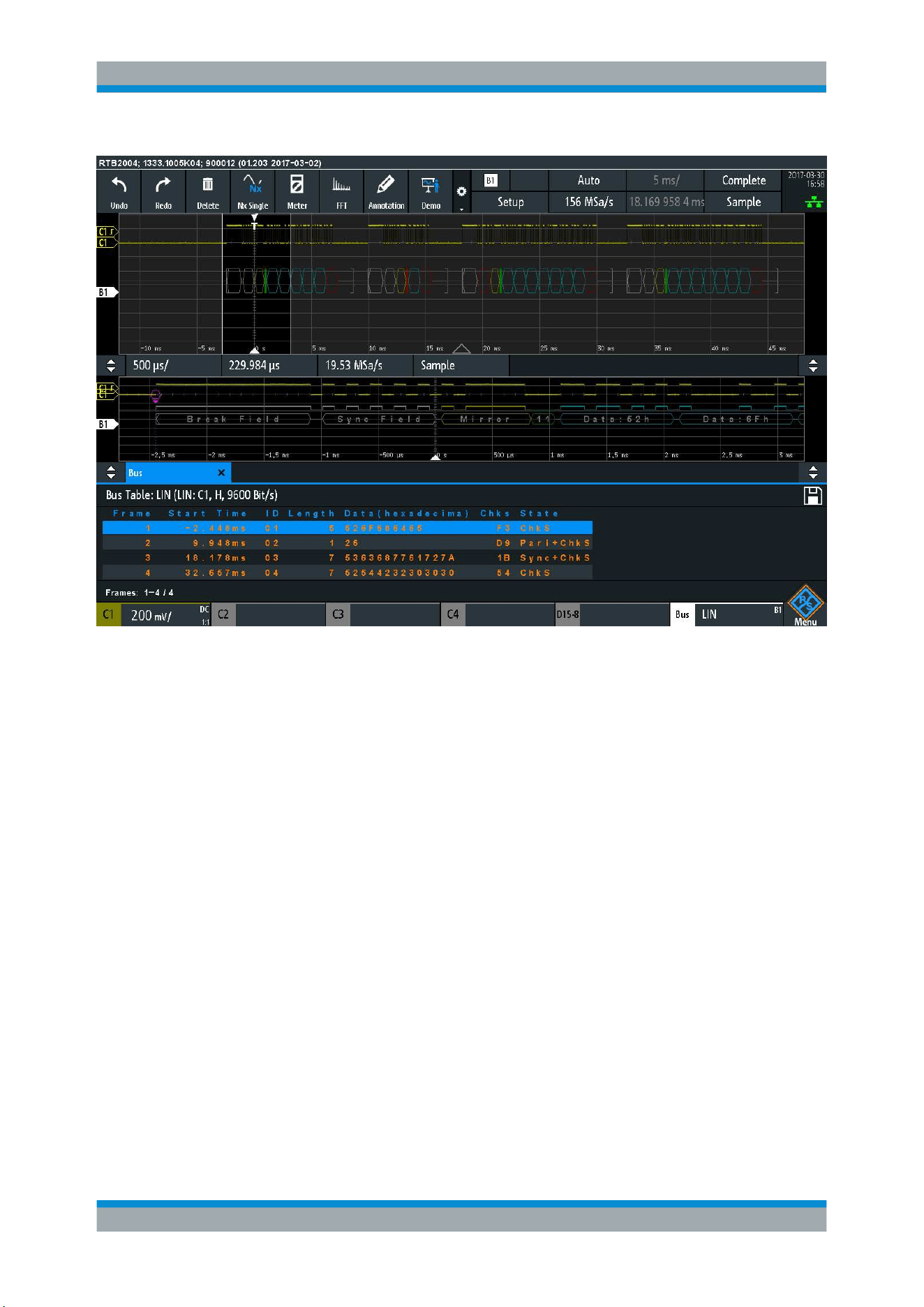
Serial Bus Analysis
R&S
®
RTB2000
219User Manual 1333.1611.02 ─ 03
Figure 12-32: Decoded LIN signal with frame table and applied label list
gray = synchronization break, synchronization byte, correct checksum
yellow = identifier
green = parity bits
blue = data words (UART words)
LIN (Option R&S RTB-K3)
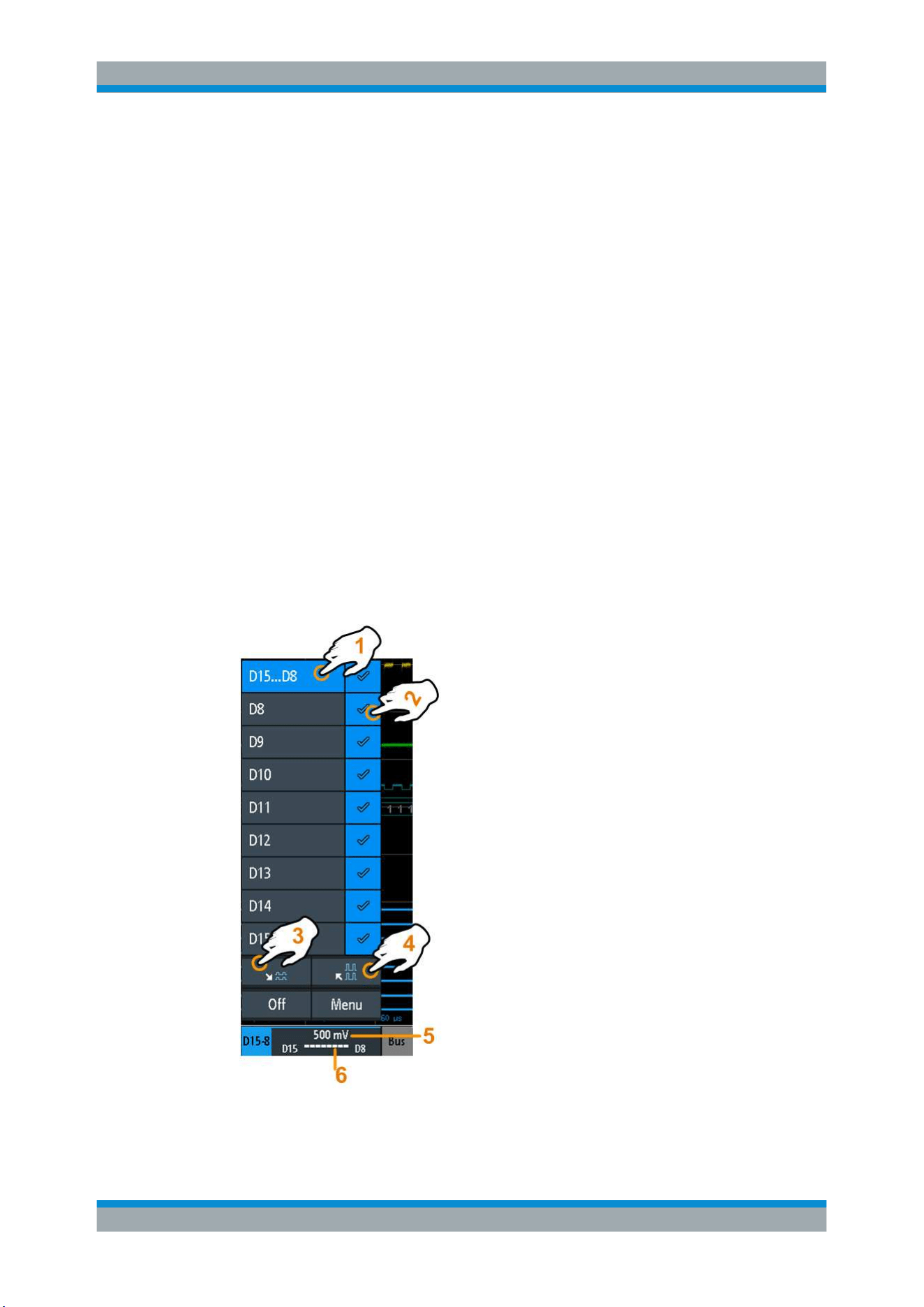
Logic Analyzer (Option R&S RTB-B1, MSO)
R&S
®
RTB2000
220User Manual 1333.1611.02 ─ 03
13 Logic Analyzer (Option R&S RTB-B1, MSO)
The Mixed Signal Option R&S RTB -B1 adds logic analyzer functions to the classical
oscilloscope functions. Using the logic analyzer, you can analyze and debug embed-
ded systems with mixed-signal designs that use analog signals and time-correlated
digital signals simultaneously. The option provides 16 logic channels grouped in two
logic probes (pods) with 8 channels each. The instrument ensures that analog and digi-
tal waveforms are time-aligned and synchronized so that critical timing interactions
between analog and digital signals can be displayed and tested.
13.1 Short Menu for Logic Channels
There are two short menus that show the status of the logic channels, one for the pod
"D7...D0" and one for the pod "D15...D8".
► To open the short menu for the pod for the logic channels, tap the pod label in the
bottom line of the display.
If the pod was not selected, tap twice: once to select the pod, and next to open the
short menu.
1 = selects all/one logic channel
2 = displays the logic channel
3 = scales all visible channels to a minimum
Short Menu for Logic Channels
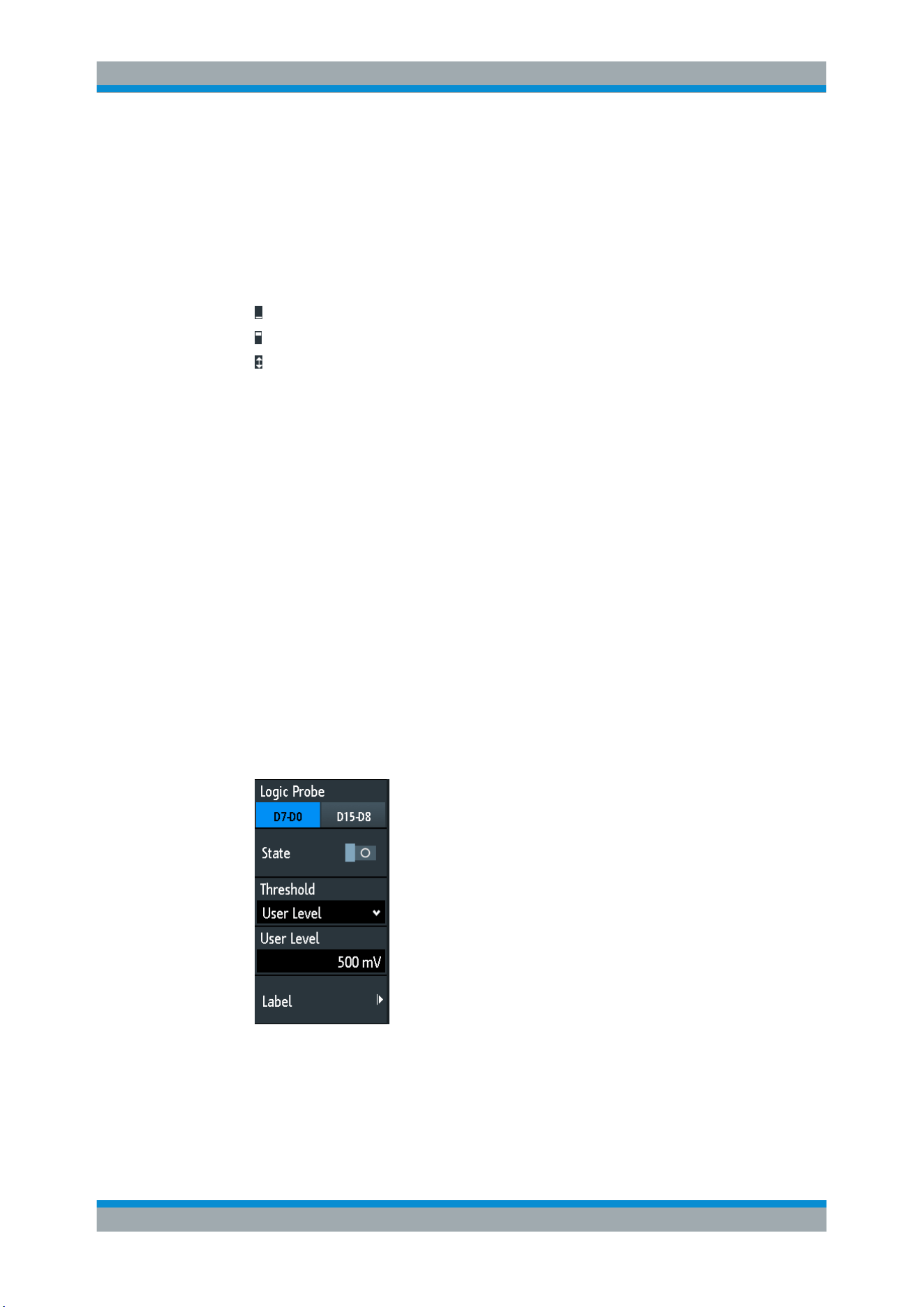
Logic Analyzer (Option R&S RTB-B1, MSO)
R&S
®
RTB2000
221User Manual 1333.1611.02 ─ 03
4 = scales all visible channels to a maximum
5 = shows the threshold of the channels
6 = shows the activity of the logic channel
Logic channels - activity display
The activity symbols of the logic channel show the current status of all logic channels
and can have the following values:
●
: logic channel is low
●
: logic channel is high
●
: a change in the state of the logic channel has occurred during the measuring
interval
Remote commands:
●
DIGital<m>:CURRent:STATe:MINimum? on page 431
●
DIGital<m>:CURRent:STATe:MAXimum? on page 431
●
LOGic<p>:CURRent:STATe:MINimum? on page 431
●
LOGic<p>:CURRent:STATe:MAXimum? on page 431
13.2 Logic Analyzer Settings
To activate the logic analyzer
Prerequisite: a logic probe is connected to the instrument.
1. Press the LOGIC key.
The "Logic" menu opens.
2. Press "Logic Probe" to select the logic channels group you want to activate.
3. Enable the "State".
Logic Analyzer Settings

Logic Analyzer (Option R&S RTB-B1, MSO)
R&S
®
RTB2000
222User Manual 1333.1611.02 ─ 03
Logic Probe
Toggles between the pods, the logic pods: "D7...D0" and "D15...D8".
State
Switches the selected logic pod on or off.
You can also set the state of each logic channel separately in the short menu, see
Chapter 13, "Logic Analyzer (Option R&S RTB-B1, MSO)", on page 220.
Remote command:
LOGic<p>:STATe on page 434
Threshold
Selects the types of threshold levels: three predefined threshold levels or one user-
defined threshold are available.
"TTL: 1.4V"
Sets the threshold to 1.4 V, which is typically used in transistor–tran-
sistor logic (TTL).
"CMOS: 2.5V"
Sets the threshold to 2.5 V, which is typically used in complementary
metal-oxide–semiconductor technology (CMOS).
"ECL: -1.3V"
Sets the threshold to -1.3 V, which is typically used in emitter-coupled
logic (ECL).
"User Level"
Selects the user-defined threshold.
Enter the value in
User Level.
Remote command:
DIGital<m>:TECHnology on page 432
User Level
Sets the threshold level value between -2 V and +8 V in steps of 10 mV.
Remote command:
DIGital<m>:THReshold on page 433
LOGic<p>:THReshold on page 433
Label
Opens a menu to specify user-defined text labels for the individual logic channels.
Remote command:
DIGital<m>:LABel on page 434
Bit ← Label
Selects the logic channel or "Bit" for labeling.
●
If "Logic Probe" = "D7...D0", you can select bit "D0", "D1", "D2", ... or "D7".
●
If "Logic Probe" = "D15...D8", you can select bit "D8", "D9", "D10", ... or "D15".
Label ← Label
Enables or disables the user-defined label for the selected logic channel.
Remote command:
DIGital<m>:LABel:STATe on page 434
Logic Analyzer Settings

Logic Analyzer (Option R&S RTB-B1, MSO)
R&S
®
RTB2000
223User Manual 1333.1611.02 ─ 03
Predefined Label ← Label
Selects a predefined label text. You can edit the text with "Edit Label"
Edit Label ← Label
Opens on-screen keypad to enter a label text. If you previously have selected a text
from the library, it is already written in the entry line, and you can modify it.
The maximum name length is 8 characters, and only ASCII characters provided on the
on-screen keypad can be used.
13.3 Triggering on Logic Channels
Each logic channel can be used as trigger source. Using the pattern trigger, you can
trigger on logical combinations of analog and digital channels. Also, you can define a
trigger holdoff time.
If you trigger on logic channels, the threshold is used as trigger level.
The following trigger types are available if the trigger source is a logic channel:
●
Edge
●
Width
●
Pattern: the pattern can use all active logic channels
●
Timeout
For analysis of serial protocols, you configure the protocol using logic channels as
sources, and trigger on trigger type "Serial Bus". For details, see the chapter describ-
ing the relevant bus.
13.4 Analyzing Logic Channels
The main analysis tools for logic channels are serial protocol analysis (PROTOCOL)
and the pattern triggers.
Furthermore, you can display all logic channels and change the vertical scale position.
You can also zoom into the display (ZOOM).
To measure logic channels, you can use automatic and cursor measurements as
usual.
See also
Chapter 7.2, "Automatic Measurements", on page 100 and Chapter 7.3, "Cur-
sor Measurements"
, on page 107.
You can also export the waveform data: SAVE LOAD key > "Waveforms"
Analyzing Logic Channels
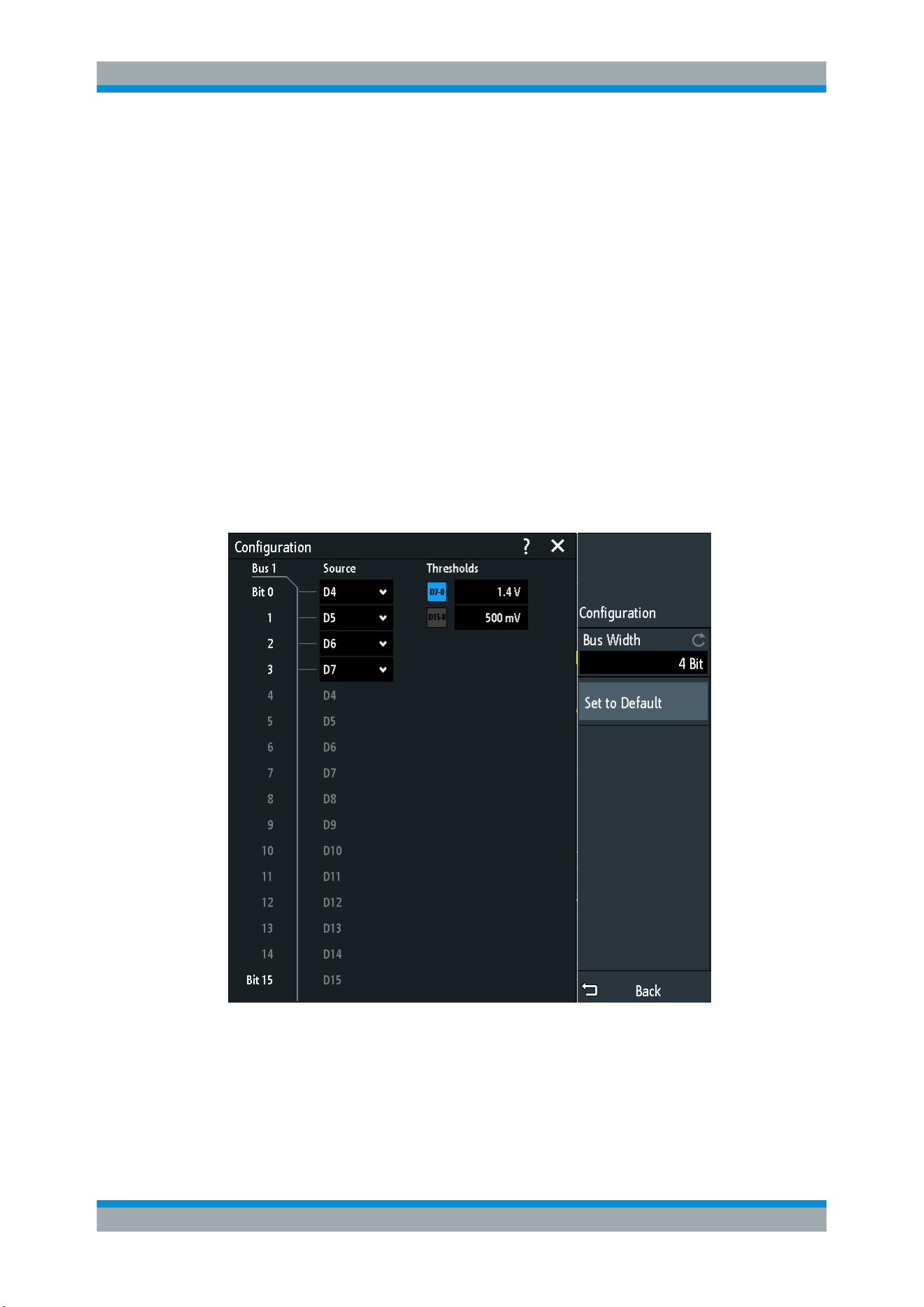
Logic Analyzer (Option R&S RTB-B1, MSO)
R&S
®
RTB2000
224User Manual 1333.1611.02 ─ 03
13.5 Parallel Buses
The R&S RTB2000 can display and decode up to 16 lines of a parallel bus. You can
assign the logic channels to the bus bits individually. To trigger on parallel buses, use
the pattern trigger.
See
Chapter 5.7, "Pattern Trigger", on page 64.
●
Parallel Bus Configuration.....................................................................................224
●
Decode Results.....................................................................................................226
13.5.1 Parallel Bus Configuration
You can configure a parallel bus or a parallel clocked bus. For the parallel clocked bus,
a clock line and an optional chip select line are defined in addition to the other settings.
Access: PROTOCOL > "Bus Type" = "Parallel" / "Parallel Clocked" > "Configuration"
The following configuration menu opens:
Figure 13-1: Configuration menu Parallel bus
Parallel Buses
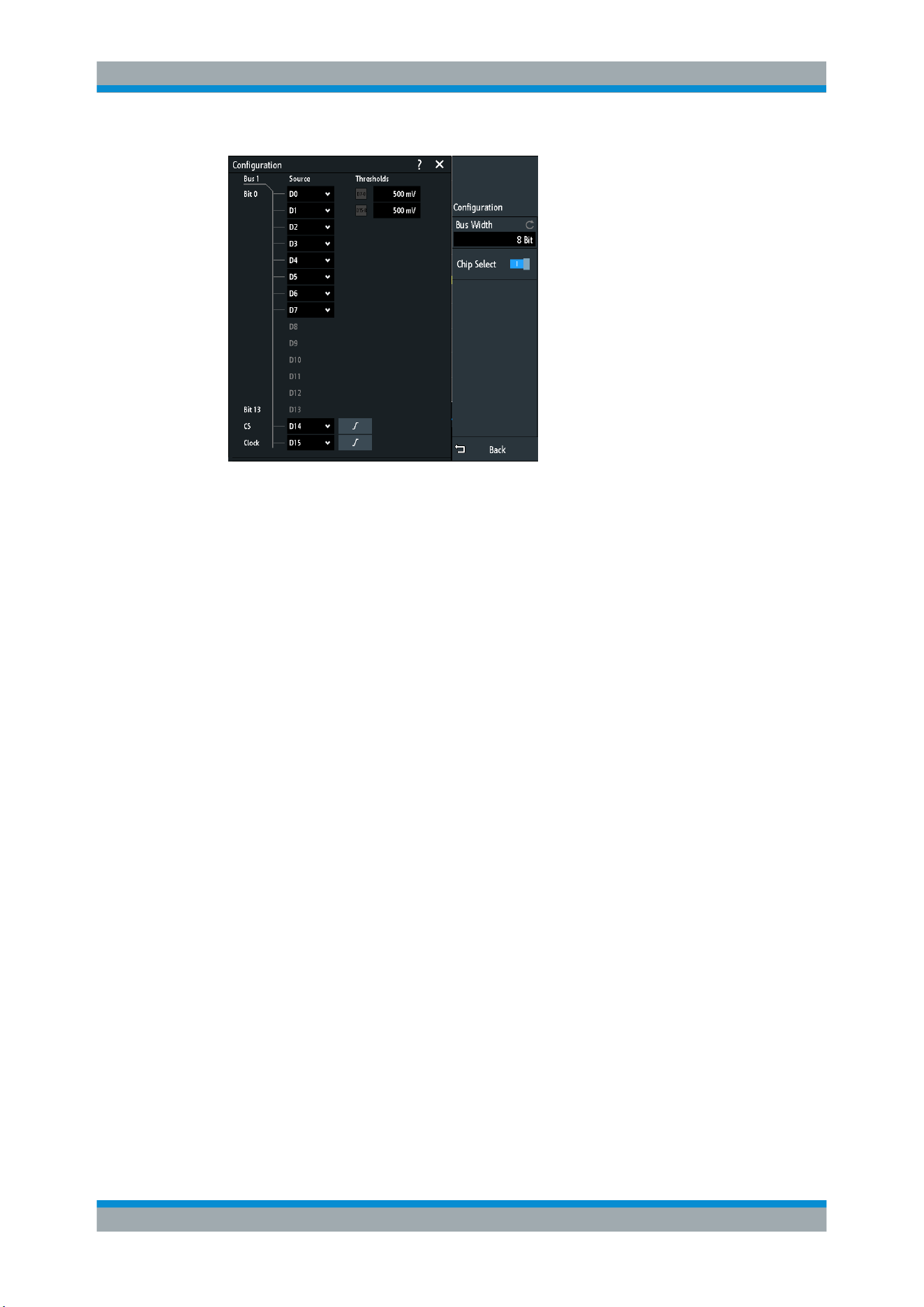
Logic Analyzer (Option R&S RTB-B1, MSO)
R&S
®
RTB2000
225User Manual 1333.1611.02 ─ 03
Figure 13-2: Configuration menu Parallel clocked bus
The menus offer the following settings:
Bus Width....................................................................................................................225
Thresholds.................................................................................................................. 225
Source.........................................................................................................................225
Set to Default.............................................................................................................. 226
Chip Select..................................................................................................................226
Polarity........................................................................................................................ 226
Slope...........................................................................................................................226
Bus Width
Sets the number of lines (bits) of the logic channels D0 to D15 to be analyzed in the
parallel or clocked parallel bus. The maximum number is the number of logic input
lines.
Remote command:
BUS<b>:PARallel:WIDTh on page 437
BUS<b>:CPARallel:WIDTh on page 438
Thresholds
Separately sets the thresholds for the source lines D0 to D7 and for the source lines
D8 to D15 of the parallel or clocked parallel bus.
Remote command:
LOGic<p>:THReshold:UDLevel on page 435
Source
Selects the input line for each bit of the parallel or clocked parallel bus.
If you use a clocked parallel bus, in the last two lines you can select the source for the
"Clock" and "CS".
Remote command:
BUS<b>:PARallel:DATA<m>:SOURce on page 438
BUS<b>:CPARallel:DATA<m>:SOURce on page 438
Parallel Buses

Logic Analyzer (Option R&S RTB-B1, MSO)
R&S
®
RTB2000
226User Manual 1333.1611.02 ─ 03
BUS<b>:CPARallel:CLOCk:SOURce on page 439
BUS<b>:CPARallel:CS:SOURce on page 439
Set to Default
Resets the data lines of the parallel bus to the default order D0...D15.
Chip Select
Enables the chip select line for the parallel clocked bus.
Remote command:
BUS<b>:CPARallel:CS:ENABle on page 439
Polarity
For the parallel clocked bus, selects if the chip select signal is high active (
high =
1) or low active (
low = 1).
Remote command:
BUS<b>:CPARallel:CS:POLarity on page 440
Slope
For the parallel clocked bus, selects if the data is sampled on the rising (
) or falling
(
) slope of the clock, or on both edges ( ) of a double data rate clock. The clock
slope marks the begin of a new bit.
Remote command:
BUS<b>:CPARallel:CLOCK:SLOPe on page 439
13.5.2 Decode Results
When the configuration of the parallel bus is complete, the signal can be decoded:
1. In the "Bus" menu, enable "Decode".
2. In the "Display" menu, select the result display settings.
See Chapter 12.1.2, "Display Settings", on page 167.
3. In the "Bus Table" menu, enable the "Bus Table". Adjust the table settings.
See also: Chapter 12.1.3, "Bus Table: Decode Results", on page 167
Parallel Buses
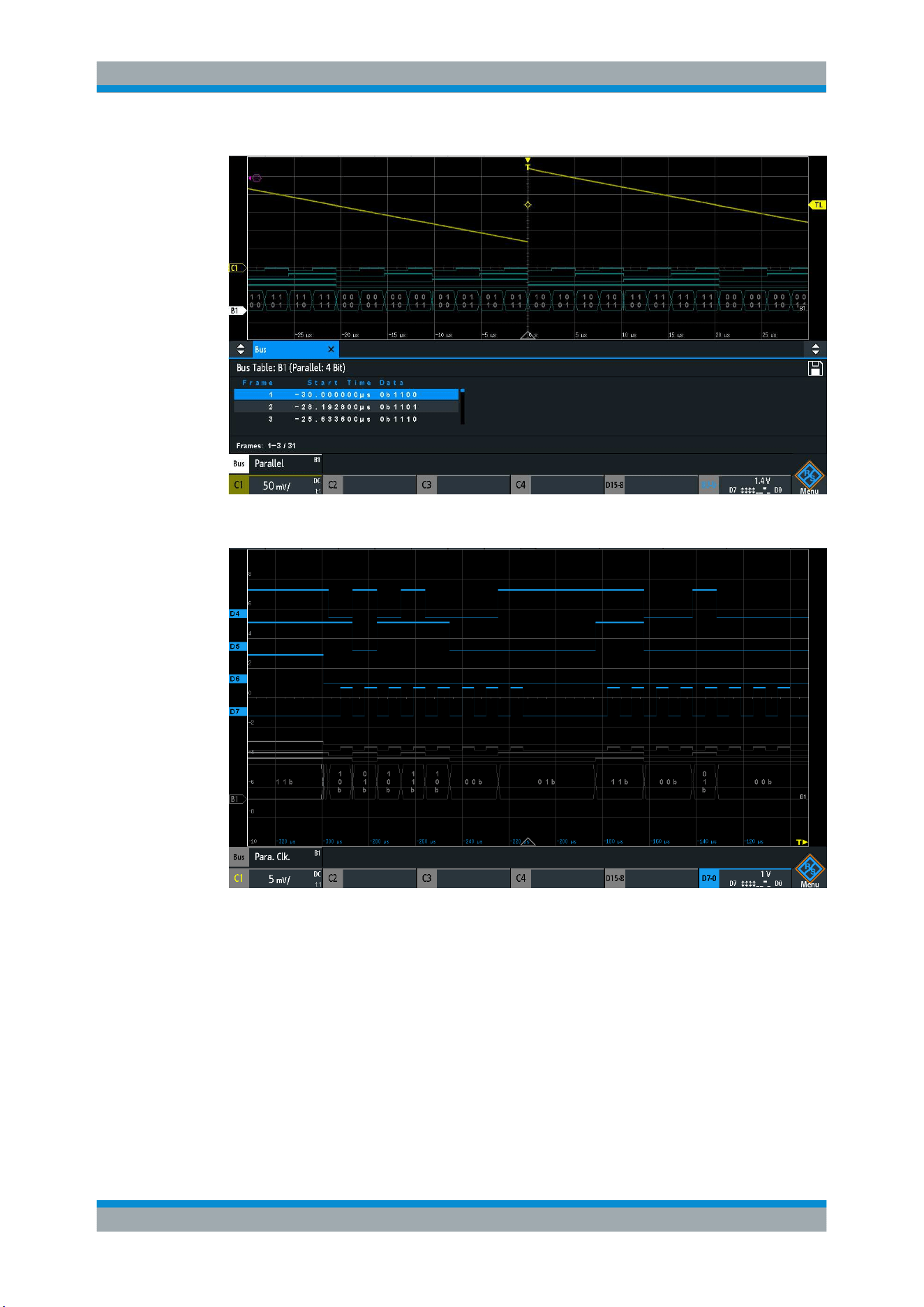
Logic Analyzer (Option R&S RTB-B1, MSO)
R&S
®
RTB2000
227User Manual 1333.1611.02 ─ 03
Figure 13-3: Decoded Parallel bus signal with frame table
Figure 13-4: Decoded Parallel clocked bus signal
The frame table shows the data of decoded frames and the corresponding start time.
Remote commands are described in
Chapter 15.12.2.3, "Parallel Buses - Decode
Results"
, on page 440.
Parallel Buses
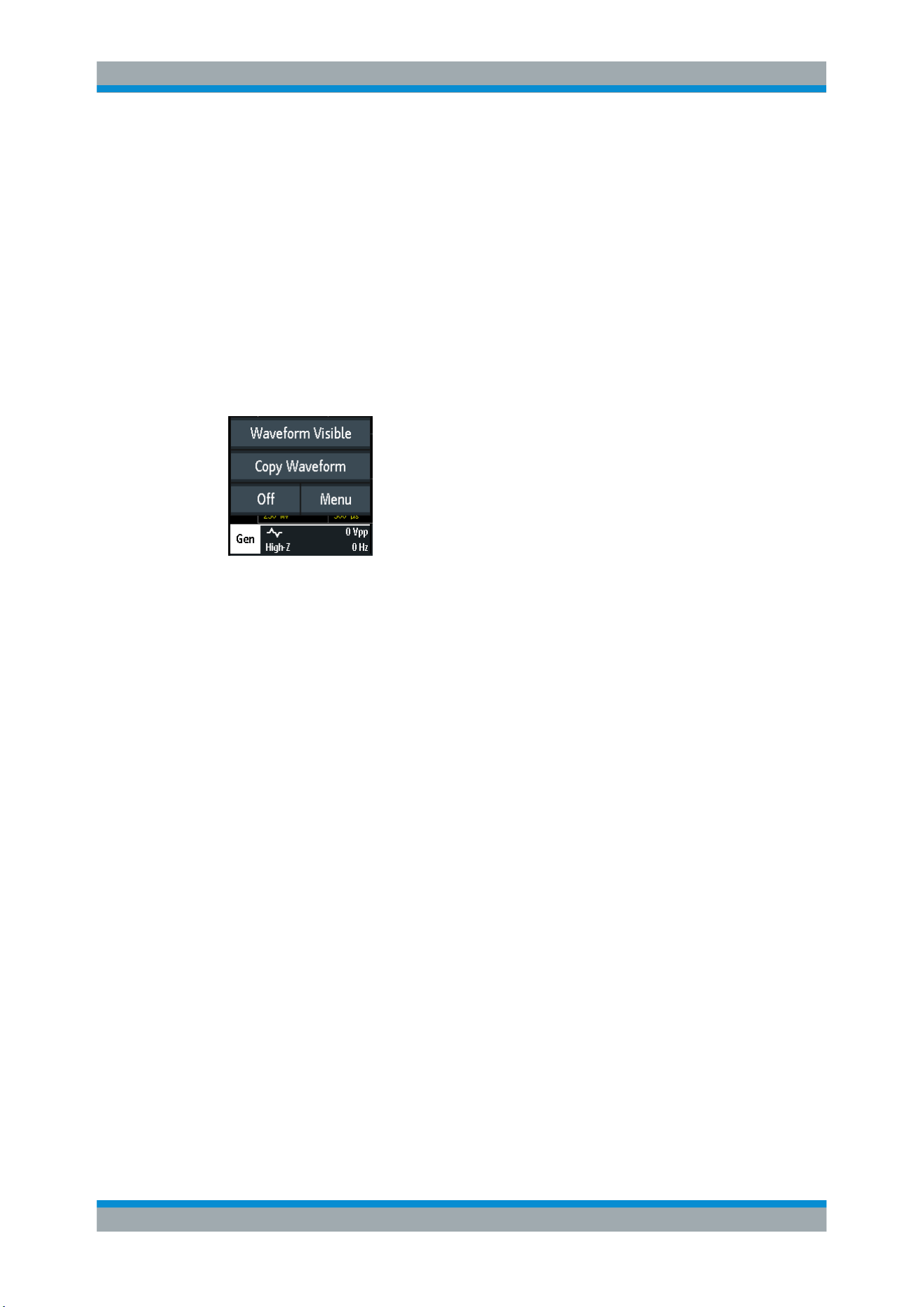
Signal Generation (Option R&S RTB-B6)
R&S
®
RTB2000
228User Manual 1333.1611.02 ─ 03
14 Signal Generation (Option R&S RTB-B6)
The R&S RTB2000 has an integrated function generator which can generate input sig-
nals while testing circuits, for instance. You can output simple functions, modulated
sine waveform, arbitrary waveforms and sweep waveforms. With the integrated pattern
generator, you can generate individual or cycle patterns and simple bus signal pat-
terns.
Short Menu
In the short menu for the function generator you can copy a waveform and turn off the
function generator.
14.1 Function Generator
► Press the GEN key.
Function Generator
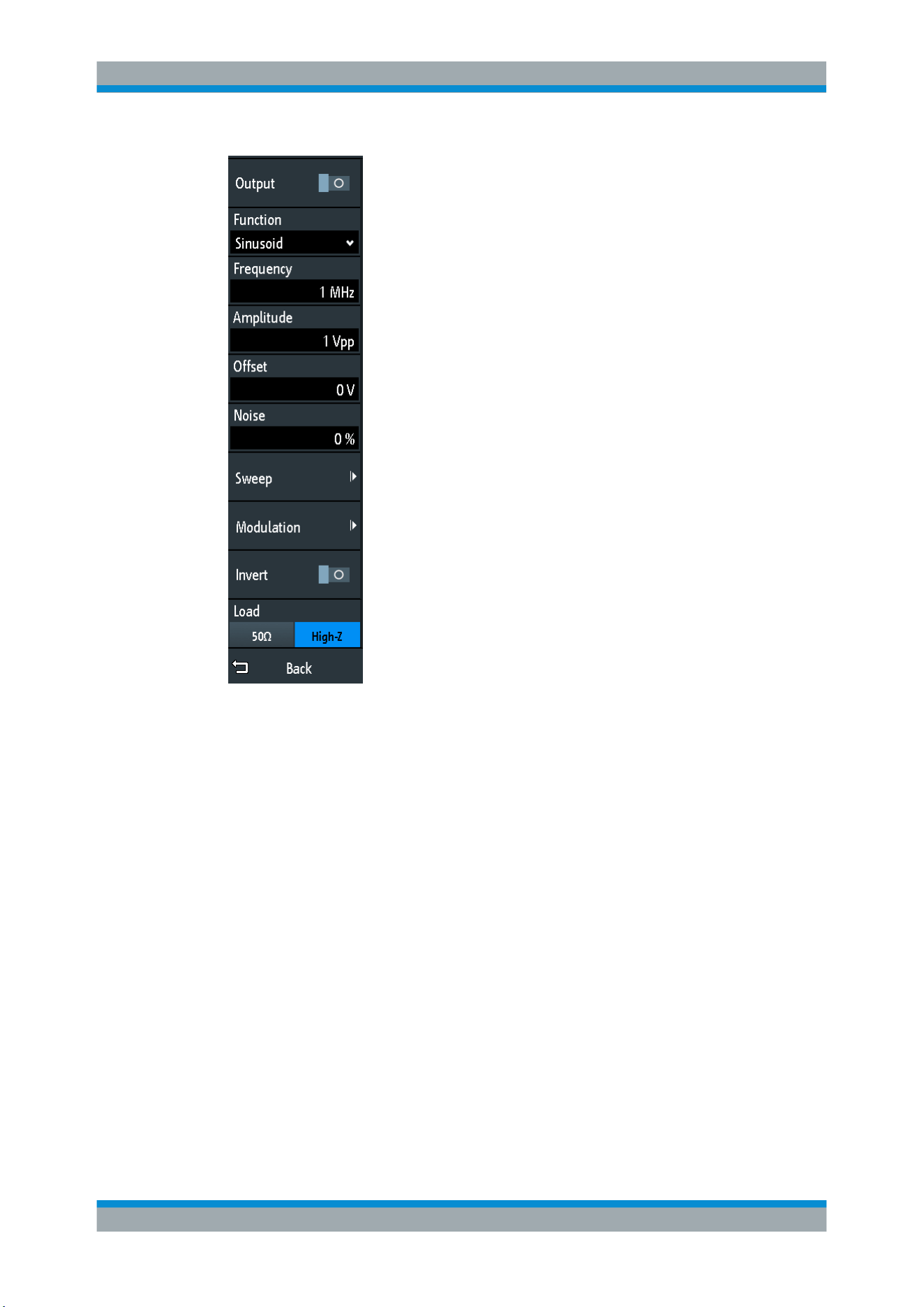
Signal Generation (Option R&S RTB-B6)
R&S
®
RTB2000
229User Manual 1333.1611.02 ─ 03
14.1.1 Basic Function Generator Settings
Output
Enables the function generator.
Remote command:
WGENerator:OUTPut[:ENABle] on page 447
Function
Selects the type of waveform to be generated.
"DC"
Generates a direct current (DC) signal.
"Sine"
Generates a sine wave. You can set the
Frequency.
"SinC"
Generates a cardinal sine wave. You can set the
Frequency.
"Rectangle"
Generates a square wave. You can set the
Frequency.
"Pulse"
Generates a pulse signal. You can set the
Frequency, the Duty Cycle
and the Edge Time.
"Traingle"
Generates a triangle signal. You can set the
Frequency.
"Ramp"
Generates a ramp signal. You can set the
Frequency and Polarity.
Function Generator

Signal Generation (Option R&S RTB-B6)
R&S
®
RTB2000
230User Manual 1333.1611.02 ─ 03
"Exponential"
Generates an exponential rise signal. You can set the
Frequency and
Polarity.
Remote command:
WGENerator:FUNCtion on page 443
Frequency
Sets the frequency of the waveform. The available frequency range depends on the
selected function. For more details refer to the datasheet.
Remote command:
WGENerator:FREQuency on page 443
Polarity
Sets the polarity.
For the "Exponential" function, you can choose between a rising or falling exponential.
For the "Ramp" function, you can set a positive or negative polarity.
Remote command:
WGENerator:FUNCtion:EXPonential:POLarity on page 444
WGENerator:FUNCtion:RAMP:POLarity on page 444
Edge Time
Sets the pulse edge time.
Remote command:
WGENerator:FUNCtion:PULSe:ETIMe on page 444
Duty Cycle
Sets the duty cycle for the pulse function. The duty cycle expresses for what percent-
age of the period, the signal state is high.
Remote command:
WGENerator:FUNCtion:PULSe:DCYCle on page 443
Amplitude
Sets the amplitude of the waveform.
Remote command:
WGENerator:VOLTage on page 443
Offset
Sets the vertical offset of the generated waveform.
Remote command:
WGENerator:VOLTage:OFFSet on page 443
Noise
Sets the noise of the generated waveform.
Remote command:
WGENerator:NOISe:ABSolute on page 447
WGENerator:NOISe:RELative on page 447
Function Generator

Signal Generation (Option R&S RTB-B6)
R&S
®
RTB2000
231User Manual 1333.1611.02 ─ 03
Sweep
Opens a menu to configure the sweep.
See
Chapter 14.1.2, "Sweep Settings", on page 231.
Modulation
Opens a menu to configure the modulation.
See
Chapter 14.1.3, "Modulation Settings", on page 232.
Invert
Inverts the waveform at the offset level.
Load
Select the user load, the load of the DUT at its connection. You can select either a
"50Ω" or a "High-Z" (high input impedance) load.
Remote command:
WGENerator:OUTPut:LOAD on page 447
14.1.2 Sweep Settings
In the sweep mode, the R&S RTB2000 generates a signal whose frequency gradually
changes from the
Sweep Settings to the Stop Frequency for a certain Sweep Time.
Sweep
Enables or disables the sweeping.
Remote command:
WGENerator:SWEep[:ENABle] on page 448
Start Frequency
Sets the start frequency of the sweep signal.
Remote command:
WGENerator:SWEep:FSTart on page 448
Stop Frequency
Sets the stop frequency of the sweep signal.
Remote command:
WGENerator:SWEep:FEND on page 448
Sweep Time
Sets the duration of the sweep.
Remote command:
WGENerator:SWEep:TIME on page 448
Sweep
Sets the type of the sweep, a linear or logarithmic change of the frequency.
Remote command:
WGENerator:SWEep:TYPE on page 448
Function Generator

Signal Generation (Option R&S RTB-B6)
R&S
®
RTB2000
232User Manual 1333.1611.02 ─ 03
14.1.3 Modulation Settings
Modulation is the variation of properties of an original periodic waveform according to a
second modulating signal. The type of modulation determines which properties are
changed.
Modulation
Enables or disables modulation.
Remote command:
WGENerator:MODulation[:ENABLE] on page 445
Modulation Type
Selects the modulation type, which defines how the carrier signal is modified.
"AM"
Amplitude modulation. The amplitude of the carrier signal is varied
according to the modulation signal.
"FM"
Frequency modulation. The frequency of the carrier signal is varied
according to the modulation signal.
"ASK"
Amplitude shift keying (ASK) modulation. The amplitude switches
between 100% and the "ASK Depth" amplitude with a defined modu-
lating "Frequency".
"FSK"
Frequency shift keying (FSK) modulation. The signal frequency
switches between the carrier "Frequency" and the "Hop. Frequency"
at a "FSK Rate".
Remote command:
WGENerator:MODulation:TYPE on page 445
Function
Selects the type of the modulating signal for AM or FM modulation.
Remote command:
WGENerator:MODulation:FUNCtion on page 445
Frequency
Sets the frequency of the modulating waveform for AM/FM/ASK modulation.
Remote command:
WGENerator:MODulation:AM:FREQuency on page 446
WGENerator:MODulation:FM:FREQuency on page 446
WGENerator:MODulation:ASK:FREQuency on page 446
AM Depth
Sets the modulation depth, the percentage of the amplitude range that is used for AM
modulation.
Remote command:
WGENerator:MODulation:AM:DEPTh on page 446
Deviation
Sets the frequency deviation, the maximum difference between the FM modulated sig-
nal and the carrier signal.
Function Generator

Signal Generation (Option R&S RTB-B6)
R&S
®
RTB2000
233User Manual 1333.1611.02 ─ 03
Remote command:
WGENerator:MODulation:FM:DEViation on page 446
ASK Depth
Sets the modulation depth, the percentage of the amplitude range that is used for ASK
modulation.
Remote command:
WGENerator:MODulation:ASK:DEPTh on page 446
Polarity
Sets the polarity of the ramp function for AM and FM modulation.
Remote command:
WGENerator:MODulation:RAMP:POLarity on page 447
Hop. Frequency
Sets the second frequency of the FSK-modulated signal.
Remote command:
WGENerator:MODulation:FSK:HFREquency on page 446
FSK Rate
Sets the rate at which signal switches between the carrier frequency and the hopping
frequency.
Remote command:
WGENerator:MODulation:FSK:RATE on page 447
14.1.4 Arbitrary Setup Settings
Visible
Enables the display of the ARB waveform.
Source
Selects the arbitrary waveform source. You can load an existing file or load the current
oscilloscope waveform.
Remote command:
WGENerator:ARBitrary:SOURce on page 444
Copy
Loads the waveform from the selected "Signal source".
Remote command:
WGENerator:ARBitrary:UPDate on page 444
Load
Opens a file selection dialog box and loads the selected file. The instrument sup-
ports .trf and .csv file formats, the same formats like for reference waveforms.
Function Generator
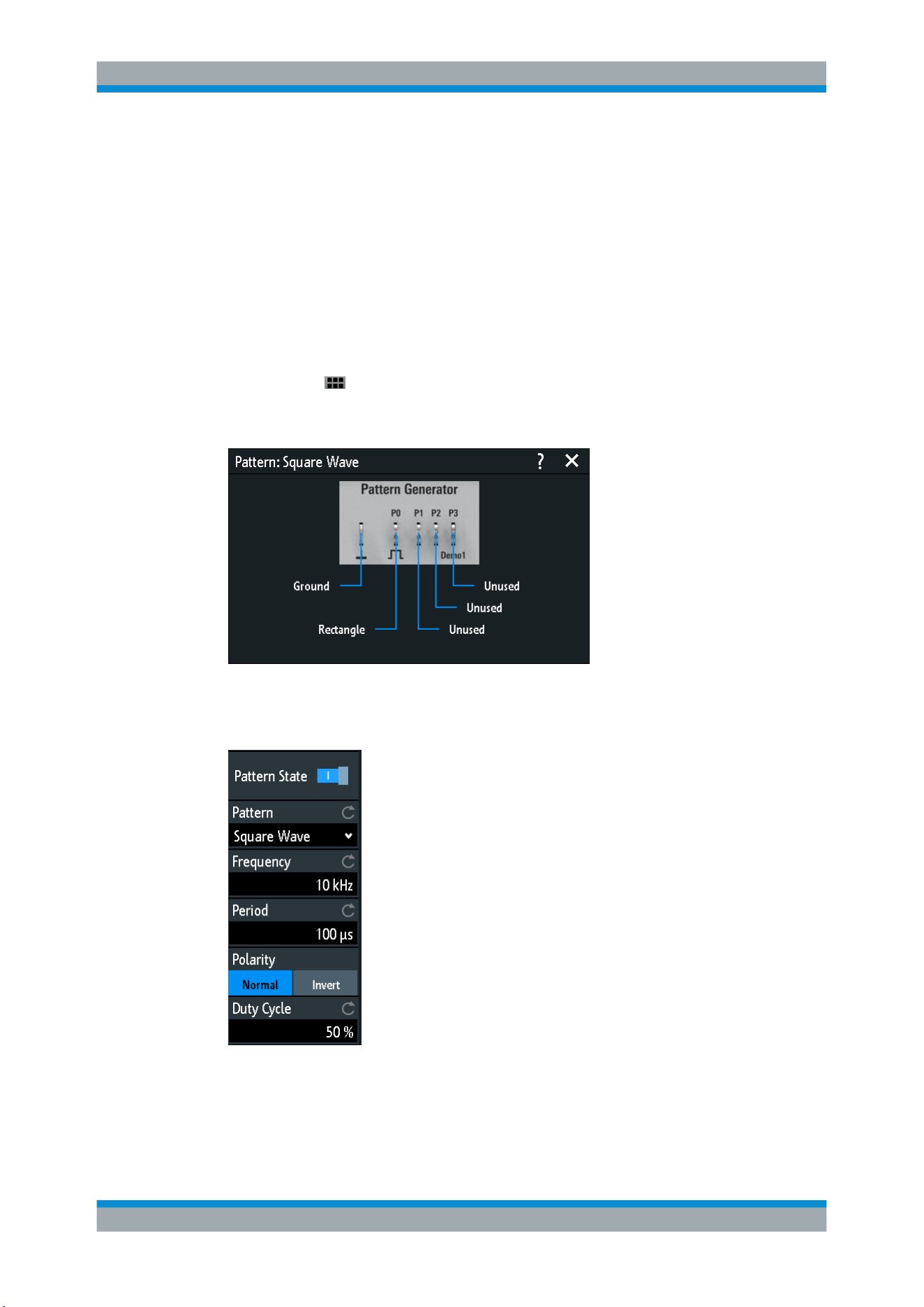
Signal Generation (Option R&S RTB-B6)
R&S
®
RTB2000
234User Manual 1333.1611.02 ─ 03
Remote command:
WGENerator:ARBitrary[:FILE]:NAME on page 444
WGENerator:ARBitrary[:FILE]:OPEN on page 445
14.2 Pattern Generator
The pattern generator includes the output of parallel patterns on the four pins P0 to P3
on the front panel of the instrument
1.
Press the
APPS SELECTION key.
2. Tap "Pattern Gen.".
14.2.1 Pattern Selection
Pattern State
Enables or disables the pattern output at the pins P0 to P3.
Pattern Generator

Signal Generation (Option R&S RTB-B6)
R&S
®
RTB2000
235User Manual 1333.1611.02 ─ 03
Remote command:
PGENerator:PATTern:STATe on page 449
Pattern
Selects the pattern type.
"Square Wave"
Generates a square wave pattern at pin P0.
"Counter"
Generates a 4-bit wide counter pattern at pins P0 to P3.
"Arbitrary"
Creates, saves or loads an arbitrary 4-bit wide pattern and outputs it
at pins P0 to P3.
"Manual"
Sets the high or low state for each pin.
"UART, SPI,
I2C, CAN, LIN"
Generates a bus signal for measurements without measurement
object.
Remote command:
PGENerator:FUNCtion on page 449
14.2.2 Settings for Square Wave Pattern
Frequency
Sets the frequency of the square wave.
The values of the "Frequency" and "Period" depend on each other, as:
Period = 1/ Frequency
If you change the value, the "Period" is adjusted accordingly.
Remote command:
PGENerator:PATTern:FREQuency on page 450
Period
Sets the period of the square wave. If you change the value, the "Frequency" is adjus-
ted accordingly.
Remote command:
PGENerator:PATTern:PERiod on page 450
Polarity
Sets normal or inverted polarity.
Remote command:
PGENerator:PATTern:SQUarewave:POLarity on page 453
Duty Cycle
Sets the duty cycle of the square wave from 1% to 99%.The duty cycle expresses for
what percentage of the period, the signal state is high.
Remote command:
PGENerator:PATTern:SQUarewave:DCYCle on page 453
Pattern Generator

Signal Generation (Option R&S RTB-B6)
R&S
®
RTB2000
236User Manual 1333.1611.02 ─ 03
14.2.3 Settings for Counter Pattern
Frequency
Sets the switching frequency, how fast the pattern condition changes. The square
waveforms at the pins have the following resulting frequencies:
●
P0: f/2
●
P1: f/4
●
P2: f/8
●
P3: f/16
Remote command:
PGENerator:PATTern:COUNter:FREQuency on page 453
Direction
Changes the counting direction.
Remote command:
PGENerator:PATTern:COUNter:DIRection on page 453
14.2.4 Settings for Arbitrary Pattern
14.2.4.1 General Settings
Save
Opens a dialog box to save a waveform as an ARB pattern. The text files contatining
remote commands are saved in *.scp format.
You can select the "Location" to which the waveform file (internal or USB) is saved.
Tap "Save" to save the file under the current name.
Tap "New File" and enter the name of the new file you want to save.
You can also delete obsolete files in the dialog box.
Load
Provides functions to load an ARB waveform.
Select the "Location" of the waveform file (internal or USB), and the file. Tap "Load".
You can also delete obsolete files in the dialog box.
Pattern trigger
Selects the mode for the trigger for the ARB pattern. You can select an automatic con-
tinuous trigger or a manual one time trigger.
Remote command:
PGENerator:PATTern:TRIGger:MODE on page 451
Pattern Generator
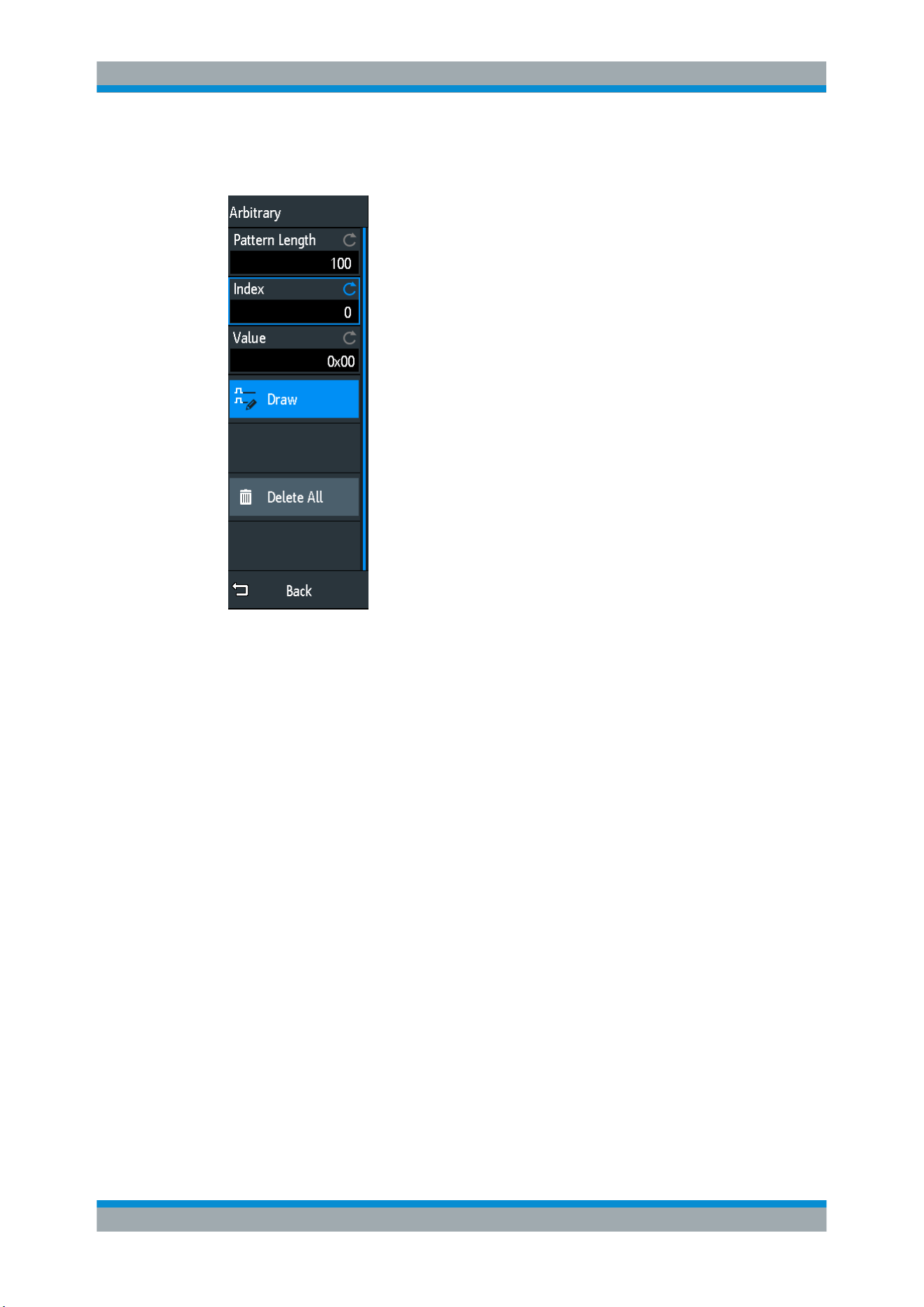
Signal Generation (Option R&S RTB-B6)
R&S
®
RTB2000
237User Manual 1333.1611.02 ─ 03
14.2.4.2 Pattern Setup
Pattern Length
Sets the pattern length, the number of samples for the pattern.
Remote command:
PGENerator:PATTern:ARBitrary:DATA:LENGth on page 453
Index
Selects a sample. The selected sample is shown in the information box as a light blue
line. Around the index, ±8 bits are displayed.
Remote command:
PGENerator:PATTern:ARBitrary:DATA:APPend:INDex on page 452
Value
Sets the value of the currently selected "Index".
Draw
If enabled, you can draw large sample amounts with the same value.
Delete All
Deletes the pattern. Also, resets the "Pattern Length" to 1 and the "Value" to 0.
Pattern Generator
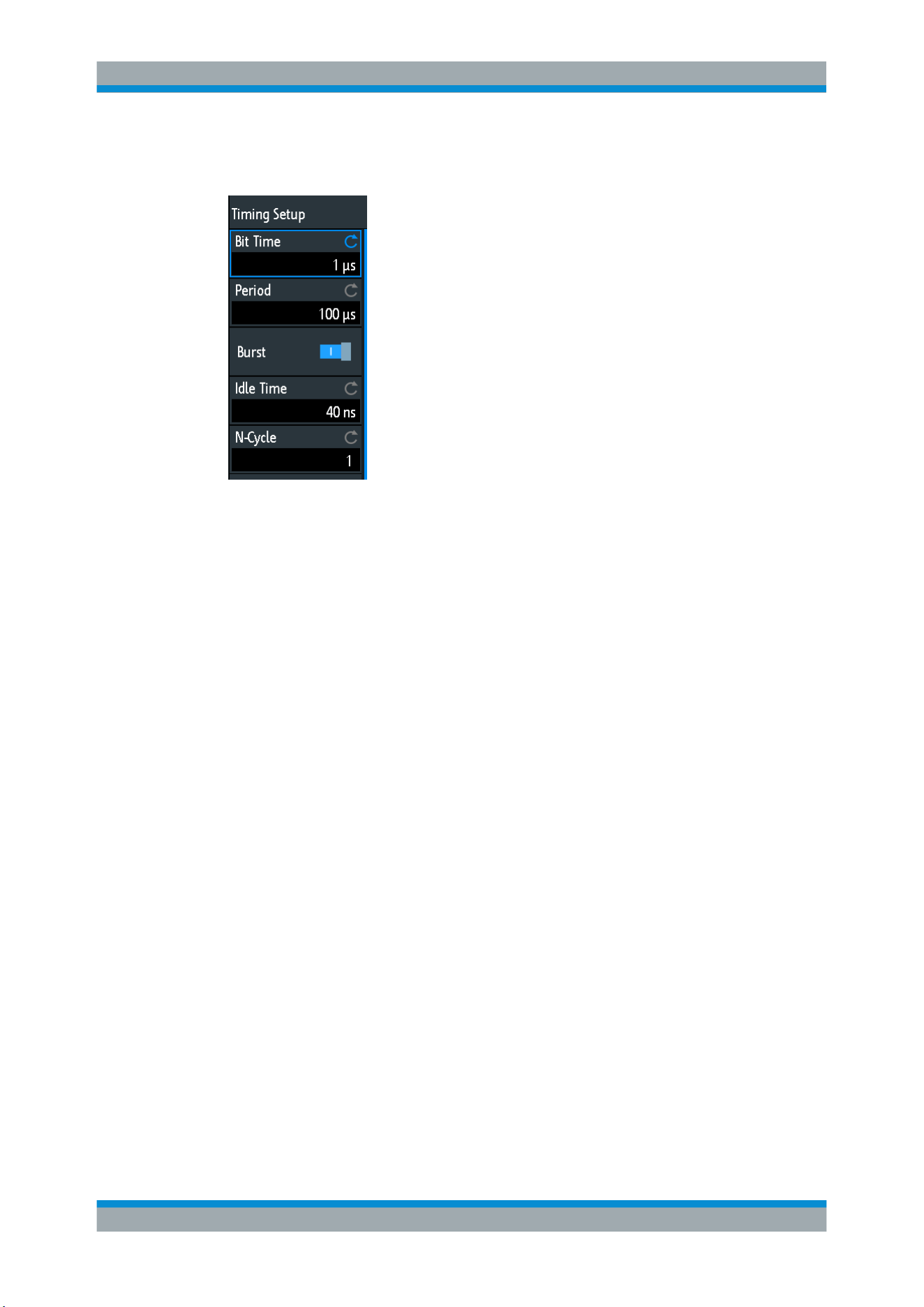
Signal Generation (Option R&S RTB-B6)
R&S
®
RTB2000
238User Manual 1333.1611.02 ─ 03
14.2.4.3 Timing Setup
Bit Time
Sets the time at which each sample is applied. The time is identical for all samples.
Remote command:
PGENerator:PATTern:STIMe on page 450
Period
Sets the period of the sample. It applies to the whole pattern. Period= Pattern Length *
Bit Time
Remote command:
PGENerator:PATTern:PERiod on page 450
Burst
If activated, the instrument pauses after each issued pattern for the duration of the "Idle
Time".
Remote command:
PGENerator:PATTern:BURSt:STATe on page 450
Idle Time
Sets the idle time, the time for which the instrument pauses after each issued pattern.
The "Idle Time" between the patterns can be set from 20 ns to 42 s in increments of 10
ns.
Remote command:
PGENerator:PATTern:ITIMe on page 450
N-Cycle
Sets the number of times the pattern is generated.
Remote command:
PGENerator:PATTern:BURSt:NCYCle on page 451
Pattern Generator
Signal Generation (Option R&S RTB-B6)
R&S
®
RTB2000
239User Manual 1333.1611.02 ─ 03
14.2.5 Settings for Manual Pattern
P0/P1/P2/P3
Sets the states to high or low for the respective pin of the manual pattern.
Remote command:
PGENerator:MANual:STATe<s> on page 454
14.2.6 Settings for Serial Buses
You can use the pattern generator to generate BUS signals.
The signals of the BUS signal source are pseudo random pattern and are not adapta-
ble. Only the BUS type and the data rate can be selected.
The contact at the upper left is always ground and the signal levels are about 1 V. The
following table shows how the four outputs P0, P1, P2 and P3 are used, depending on
the signal.
Signal P0 P1 P2 P3
UART Tx Rx Unused Unused
SPI Clock Mosi Miso Chip Select
I2C Clock SCL Data SDA Unused Unused
CAN CAN H CAN L Unused Unused
LIN High Low Unused Unused
Data Rate
Select the data rate of the bus signal.
The following values are available for the specific bus:
●
UART: 9600 Bit/s, 115.2 kBit/s, 1 MBit/s
●
SPI: 100 kBit/s, 250 kBit/s, 1 MBit/s
●
I2C: 100 kBit/s, 400 kBit/s, 1000 kBit/s, 3400 kBit/s,
●
CAN: 50 kBit, 100 kBit, 1 MBit,
●
LIN: 9.6 kBit, 10.417 kBit, 19.200 kBit
Active
Sets the polarity for the UART bus.
Pattern Generator

Remote Control Commands
R&S
®
RTB2000
240User Manual 1333.1611.02 ─ 03
15 Remote Control Commands
This chapter provides the description of all remote commands available for
R&S RTB2000. The commands are sorted according to the menu structure of the
instrument. A list of commands in alphabetical order ist given in the "List of Com-
mands" at the end of this documentation.
Processing of remote control commands
The response time on remote commands depends on several factors:
●
Number of active channels
●
Number of active measurements
●
Size of the acquisition memory
●
Timebase
●
Trigger frequency
The R&S RTB2000 processes measurement queries in the following way:
●
In stop mode or with slow trigger frequency if no new data since last value calcula-
tion is available, the oscilloscope sends the measured value in the response.
●
Otherwise, if new data since last value calculation is available, the oscilloscope cal-
culates and sends the response.
●
Conventions used in Command Description.........................................................240
●
Programming Examples........................................................................................241
●
Common Commands............................................................................................ 247
●
Waveform Setup................................................................................................... 250
●
Trigger...................................................................................................................266
●
Waveform Analysis............................................................................................... 276
●
Measurements...................................................................................................... 306
●
Applications...........................................................................................................323
●
Documenting Results............................................................................................338
●
General Instrument Setup.....................................................................................359
●
Serial Bus Analysis............................................................................................... 370
●
Mixed Signal Option (Option R&S RTB-B1)..........................................................431
●
Signal Generation (Option R&S RTB-B6)............................................................. 442
●
Status Reporting................................................................................................... 454
15.1 Conventions used in Command Description
Note the following conventions used in the remote command descriptions:
●
Command usage
If not specified otherwise, commands can be used both for setting and for querying
parameters.
If a command can be used for setting or querying only, or if it initiates an event, the
usage is stated explicitly.
●
Parameter usage
Conventions used in Command Description

Remote Control Commands
R&S
®
RTB2000
241User Manual 1333.1611.02 ─ 03
If not specified otherwise, a parameter can be used to set a value and it is the
result of a query.
Parameters required only for setting are indicated as Setting parameters.
Parameters required only to refine a query are indicated as Query parameters.
Parameters that are only returned as the result of a query are indicated as Return
values.
●
Conformity
Commands that are taken from the SCPI standard are indicated as SCPI con-
firmed. All commands used by the R&S RTB2000 follow the SCPI syntax rules.
●
Asynchronous commands
A command which does not automatically finish executing before the next com-
mand starts executing (overlapping command) is indicated as an Asynchronous
command.
●
Reset values (*RST)
Default parameter values that are used directly after resetting the instrument (*RST
command) are indicated as *RST values, if available.
●
Default unit
This is the unit used for numeric values if no other unit is provided with the parame-
ter.
15.2 Programming Examples
●
Documenting Results............................................................................................241
●
Firmware Update...................................................................................................245
●
Search...................................................................................................................246
●
Function Generator............................................................................................... 247
15.2.1 Documenting Results
●
Saving Screenshots to File................................................................................... 241
●
Saving, Copying, and Loading Setup Data........................................................... 242
●
Reading Waveform Data in Real Format.............................................................. 243
●
Reading Waveform Data in Unsigned Integer Format.......................................... 243
15.2.1.1 Saving Screenshots to File
Save two display images in png format to the PIX folder on a USB flash drive that is
connected to the front panel. One screenshot is colored and the other is grayscaled.
Finally, the data of the gray screenshot is read for further user on the control computer.
Command description in: Chapter 15.9.3, "Screenshots", on page 350.
*RST
MMEM:CDIR "/USB_FRONT"
MMEM:MDIR "/USB_FRONT/PIX"
MMEM:CDIR "/USB_FRONT/PIX/"
Programming Examples

Remote Control Commands
R&S
®
RTB2000
242User Manual 1333.1611.02 ─ 03
HCOP:LANG PNG
HCOP:COL:SCH COL
MMEM:NAME "COLORED"
HCOP:IMM
HCOP:COL:SCH GRAY
MMEM:NAME "GRAY"
HCOP:IMM
MMEM:CAT? "*.PNG"
MMEM:DATA? "GRAY.PNG"
15.2.1.2 Saving, Copying, and Loading Setup Data
Save instrument settings to a file on internal storage device, duplicate this file and save
it to a USB stick attached to the front panel. Finally, there are three setup files on the
internal storage /INT/SETTINGS, and one file on the USB flash device.
Command description in: Chapter 15.9.4, "Instrument Settings: Mass MEMomory Sub-
system"
, on page 352.
CHAN1:STAT ON // Turn channel 1 on
CHAN2:STAT ON // Turn channel 2 on
TIM:ZOOM:STAT ON // Show zoom diagram
MMEM:CDIR "/INT/SETTINGS" // Set storage device and directory
MMEM:STOR:STAT 1,"ZOOM_A.SET" // Save settings to internal storage
MMEM:CAT? "*.SET" // Check
<-- 332112,8633856,"ZOOM_A.SET,,2759"
MMEM:COPY "ZOOM_A.SET","ZOOM_B.SET" // Copy file
MMEM:CAT? "*.SET" // Check
<-- 332112,8633856,"ZOOM_A.SET,,2759","ZOOM_B.SET,,2759"
MMEM:COPY "/INT/SETTINGS/ZOOM_B.SET","/USB_FRONT/ZOOM_B.SET"
// Save copied file to USB stick
MMEM:CDIR "/USB_FRONT" // Check
MMEM:CAT? "*.SET"
<-- 4890624,-641765376,"ZOOM_B.SET,,2759"
MMEM:COPY "/USB_FRONT/ZOOM_B.SET","/USB_FRONT/ZOOM_USB.SET"
// Duplicate file on USB stick
MMEM:CAT? "*.SET" // Check
<-- 4890624,-641765376,"ZOOM_B.SET,,2759","ZOOM_USB.SET,,2759"
MMEM:DEL "ZOOM_B.SET" // Delete original file
MMEM:CAT? "*.SET" // Check
<-- 4886528,-641765376,"ZOOM_USB.SET,,2759"
MMEM:COPY "/USB_FRONT/ZOOM_USB.SET","/INT/SETTINGS/"
// Copy new file to the instrument
MMEM:CDIR "/INT/SETTINGS" // Check
MMEM:CAT? "*.SET"
<-- 332112,8633856,"ZOOM_A.SET,,2759","ZOOM_B.SET,,2759","ZOOM_USB.SET,,2759"
*RST;*OPC?
<-- 1
Programming Examples

Remote Control Commands
R&S
®
RTB2000
243User Manual 1333.1611.02 ─ 03
MMEM:CDIR "/INT/SETTINGS"
MMEM:LOAD:STAT 1,"ZOOM_USB.SET" // Load settings
15.2.1.3 Reading Waveform Data in Real Format
Set data format and sample range, read channel header and data.
Command description in
Chapter 15.9.1, "Transfer of Waveform Data", on page 338.
* Connected to: TCPIP0::192.168.1.1::inst0::INSTR
SYST:ERR?
<-- 0,"No error"
*IDN?
<-- Rohde&Schwarz,RTM1052,1305.0008K52/101489,04.502
*RST
CHAN:TYPE HRES // Set high resolution mode (16 bit data)
TIM:SCAL 1E-7 // Set time base
FORM REAL // Set REAL data format
FORM:BORD LSBF // Set little endian byte order
CHAN:DATA:POIN DMAX // Set sample range to memory data in displayed time range
SING;*OPC? // Start single acquisition
<-- 1
CHAN:DATA:HEAD? // Read header
<-- -4.9980E-07,5.0000E-07,5000,1 // Xstart, Xstop, record length in samples
CHAN:DATA? // Read channel data
<-- #520000>??[>??[>??[>??[>??[>??... // Binary block data,
// 4-byte floating point number/sample
15.2.1.4 Reading Waveform Data in Unsigned Integer Format
Read the channel header, the waveform conversion data, set the UINT binary data for-
mat and read the channel data.
Command description in:
Chapter 15.9.1, "Transfer of Waveform Data", on page 338.
*RST
TIM:SCAL 1E-7
CHAN:DATA:POIN DMAX // Set data range
SING;*OPC?
<-- 1
CHAN:DATA:HEAD? // Read header
<-- -4.9980E-07,5.0000E-07,5000,1 // Xstart, Xstop, record length in samples
CHAN:DATA:YRES? // Read vertical resolution
<-- 8
CHAN:DATA:YOR? // Read voltage value for binary value 0
<-- -2.549999943E-2
CHAN:DATA:XOR? // Read time of the first sample
<-- -4.998000058E-7
CHAN:DATA:XINC? // Read time between two adjacent samples
<-- 2.000000023E-10
Programming Examples

Remote Control Commands
R&S
®
RTB2000
244User Manual 1333.1611.02 ─ 03
FORM UINT,8;FORM? // Set data format to unsigned integer, 8 bit
<-- UINT,8
CHAN:DATA:YINC? // Read voltage value per bit
<-- 1.999999949E-4
CHAN:DATA? // Read channel data
<-- 128,125,120... // 5000 bytes total
FORM UINT,16;FORM? // Change data format to unsigned integer, 16 bit
<-- UINT,16
CHAN:DATA:YINC? // Read voltage value per bit
<-- 7.812499803E-7
CHAN:DATA? // Read channel data
<-- 32768,32000,30720... // 10000 bytes total
Note the following correlations:
●
The number of received data values matches the number of samples indicated in
the header.
●
The time of the first sample (XORigin) matches the start time Xstart indicated in the
header.
●
The Y-increment adjusts to the data length defined in the data format (8 or 16 bit).
Data conversion
Definition: the sample numbers start with 0 and end with record length - 1.
Sample time
t
n
= n * xIncrement + xOrigin
First sample: t
0
= -4.998000058E-7 (= Xstart)
Last sample: t
4999
= 4999 * 2E
−10
− 4.998E
−7
= 5.0 E
−7
(= Xstop)
Sample value
Y
n
= yOrigin + (yIncrement * byteValue
n
)
The format UINT,8 has the data range 0 to 255. The voltage value for byte value 128
is:
Y
n
= −2.55E
-2
+ (2E
−4
* 128) = 0.0001
The center of the display at position 0 div always has the byte value 127.5. The corre-
sponding voltage value is:
Y
n
= −2.55E
-2
+ (2E
−4
* 127.5) = 0
8-bit and 16-bit data
At the end of the above example, the 8-bit waveform is read as 16-bit data, for exam-
ple, 0xFF is read 0xFF00, or 0x1A is read 0x1A00. The yOrigin value is the same in
both cases, but the yIncrement differs.
Programming Examples

Remote Control Commands
R&S
®
RTB2000
245User Manual 1333.1611.02 ─ 03
8-bit data 16-bit data Result
yIncrement * byteValue
n
2e
-4
* 128 7,8125E
-7
* 32768
0,0256 V
2e
-4
* 125 7,8125E
-7
* 32000
0,025 V
In the reverse case, if a 16-bit waveform is read with 8-bit data format, data precision
may be reduced. Data values ar truncated, and only the more significiant bits remain.
For example, the 16-bit data 0xabcd is read 0xab in 8-bit format, and cd is lost.
15.2.2 Firmware Update
There are two ways to update the firmware on the instrument remotely. The web
browser does not yet include firmware update functionality.
To prepare the remote update, configure the instrument's interface to Ethernet, USB
TMC or USB VCP. Connect to the R&S RTB2000 using a socket connection, Visa or a
terminal program.
15.2.2.1 Using MMEM:DATA + DIAGnostic:UPDate:LOAD
1. Send the firmware update file data to the internal storage of the instrument:
:MMEM:DATA "/INT/RTB2000.FWU",blockdata\n
In SCPI, block data is composed of a header #nm containing the length of the data
followed by the data in raw binary format. Here, m is the length of the data in byte,
and n is the number of digits in m. The firmware update file has to be sent in a sin-
gle transfer.
2. Start the firmware update:
:DIAG:UPD:LOAD "/INT/RTB2000.FWU"\n
The instrument loads, checks and executes the firmware update, and restarts.
3. After restart, delete the firmware update file in the internal storage:
:MMEM:DEL "/INT/RTB2000.FWU"\n
15.2.2.2 Using DIAGnostic:UPDdate:TRANsfer
1. Open a data transfer for the firmware update file, and check for errors:
:DIAG:UPD:TRAN:OPEN FIRM\n
:SYST:ERR:ALL?
2. Send the firmware update file data to the internal RAM of the instrument:
:DIAG:UPD:TRAN:DATA offset,checksum,blockdata\n
The offset parameter specifies the byte offset of the blockdata in the file. The
checksum parameter is a CRC-16-CCITT type checksum calculated for the raw
binary data in blockdata. In SCPI, block data is composed of a header #nm con-
Programming Examples

Remote Control Commands
R&S
®
RTB2000
246User Manual 1333.1611.02 ─ 03
taining the length of the data followed by the data in raw binary format. Here, m is
the length of the data in byte, and n is the number of digits in m.
The firmware update file can be split into multiple blocks, where each block has to
be transferred with the above command. You can also transfer the file in a single
block.
Example to send all data at once, without CRC:
DUT#sendRAW DIAG:UPD:TRAN:DATA 0,0,#822393104
DUT#sendFileContent "W:\RTB2002.FWU"
DUT#sendByte 10 //end of command '\n'
3. Close the transfer:
:DIAG:UPD:TRAN:CLOSE\n
4. Start the firmware update:
:DIAG:UPD:INST ""\n
The instrument checks and executes the firmware update.
15.2.3 Search
15.2.3.1 Searching for a Pulse of Specified Width
Search for positive pulses with pulse width 12 ± 10 µs (2 µs to 22 µs).
Command description in:
Chapter 15.6.4, "Search", on page 281.
SEAR:STAT ON // Turn on search
SEAR:COND WIDTH // Select search condition
SEAR:SOUR CH2 // Configure search source
SEAR:TRIG:WIDT:POL POS // Configure search parameters: Polarity
SEAR:TRIG:WIDT:RANG WITH // Configure search parameters: Condition = within
SEAR:TRIG:WIDT:WIDT 12e-6 // Configure search parameters: Pulse width
SEAR:TRIG:WIDT:DELT 10e-6 // Configure search parameters: +/- delta
SEAR:RESD:SHOW ON // Show result table
SEAR:RCO? // Get number of search events found
<-- 1.400E+01
SEAR:RES:ALL? // Get all search results
<-- 1,5.201200e-06,0,WIDTH,POSITIVE,1.220160e-05,2,4.120040e-05,0,WIDTH,
POSITIVE,3.076800e-06,3,4.732480e-05,0,WIDTH,POSITIVE,9.127200e-06,4,
6.499960e-05,0,WIDTH,POSITIVE,1.835160e-05,5,8.634920e-05,0,WIDTH,POSITIVE,
3.052000e-06,6,1.293984e-04,0,WIDTH,POSITIVE,9.176800e-06,7,1.477228e-04,0,
WIDTH,POSITIVE,3.052000e-06,8,1.623224e-04,0,WIDTH,POSITIVE,3.102000e-06,9,
1.684724e-04,0,WIDTH,POSITIVE,1.215160e-05,10,1.953216e-04,0,WIDTH,POSITIVE,
3.027200e-06,11,2.044716e-04,0,WIDTH,POSITIVE,6.052000e-06,12,2.252212e-04,0,
WIDTH,POSITIVE,3.052000e-06,13,2.435456e-04,0,WIDTH,POSITIVE,3.027200e-06,14,
2.496456e-04,0,WIDTH,POSITIVE,6.702000e-06
Programming Examples
Remote Control Commands
R&S
®
RTB2000
247User Manual 1333.1611.02 ─ 03
15.2.4 Function Generator
Configure and output a sine waveform.
Command description in:
Chapter 15.13.1, "Function Generator", on page 442.
*RST
:WGEN:FUNC SIN // Selects Sine function
:WGEN:VOLT 700E-3 // Sets the amplitude
:WGEN:FREQ 1.00E+06 // Sets the frequency
:WGEN:OUTP:LOAD R50 // Sets the user load
:WGEN:OUTP 1 // Outputs the sine waveform
15.3 Common Commands
Common commands are described in the IEEE 488.2 (IEC 625-2) standard. These
commands have the same effect and are employed in the same way on different devi-
ces. The headers of these commands consist of "*" followed by three letters. Many
common commands are related to the Status Reporting System.
Available common commands:
*CAL?...........................................................................................................................247
*CLS.............................................................................................................................247
*ESE.............................................................................................................................248
*ESR?...........................................................................................................................248
*IDN?............................................................................................................................248
*OPC............................................................................................................................248
*OPT?...........................................................................................................................248
*PSC............................................................................................................................ 249
*RST.............................................................................................................................249
*SRE............................................................................................................................ 249
*STB?...........................................................................................................................249
*TRG............................................................................................................................ 250
*WAI.............................................................................................................................250
*CAL?
Performs a self-alignment of the instrument and then generates a status response.
Return values ≠ 0 indicate an error.
Usage: Query only
*CLS
Clear status
Sets the status byte (STB), the standard event register (ESR) and the EVENt part of
the QUEStionable and the OPERation registers to zero. The command does not
alter the mask and transition parts of the registers. It clears the output buffer.
Common Commands
Remote Control Commands
R&S
®
RTB2000
248User Manual 1333.1611.02 ─ 03
Usage: Setting only
*ESE <Value>
Event status enable
Sets the event status enable register to the specified value. The query returns the con-
tents of the event status enable register in decimal form.
Parameters:
<Value> Range: 0 to 255
*ESR?
Event status read
Returns the contents of the event status register in decimal form and subsequently
sets the register to zero.
Return values:
<Contents> Range: 0 to 255
Usage: Query only
*IDN?
Identification
Returns the instrument identification.
Return values:
<ID> "Rohde&Schwarz,<device type>,<serial number>,<firmware ver-
sion>"
Example:
Rohde&Schwarz,RTB2004,1333.1005k04/900012,
01.203
Usage: Query only
*OPC
Operation complete
Sets bit 0 in the event status register when all preceding commands have been execu-
ted. This bit can be used to initiate a service request. The query form writes a "1" into
the output buffer as soon as all preceding commands have been executed. This is
used for command synchronization.
*OPT?
Option identification query
Common Commands
Remote Control Commands
R&S
®
RTB2000
249User Manual 1333.1611.02 ─ 03
Queries the options included in the instrument. For a list of all available options and
their description refer to the data sheet.
Return values:
<Options> The query returns a list of options. The options are returned at
fixed positions in a comma-separated string. A zero is returned
for options that are not installed.
Usage: Query only
*PSC <Action>
Power on status clear
Determines whether the contents of the ENABle registers are preserved or reset when
the instrument is switched on. Thus a service request can be triggered when the instru-
ment is switched on, if the status registers ESE and SRE are suitably configured. The
query reads out the contents of the "power-on-status-clear" flag.
Parameters:
<Action> 0 | 1
0
The contents of the status registers are preserved.
1
Resets the status registers.
*RST
Reset
Sets the instrument to a defined default status. The default settings are indicated in the
description of commands.
Usage: Setting only
*SRE <Contents>
Service request enable
Sets the service request enable register to the indicated value. This command deter-
mines under which conditions a service request is triggered.
Parameters:
<Contents> Contents of the service request enable register in decimal form.
Bit 6 (MSS mask bit) is always 0.
Range: 0 to 255
*STB?
Status byte query
Reads the contents of the status byte in decimal form.
Common Commands
Remote Control Commands
R&S
®
RTB2000
250User Manual 1333.1611.02 ─ 03
Usage: Query only
*TRG
Trigger
Triggers all actions waiting for a trigger event. In particular, *TRG generates a manual
trigger signal. This common command complements the commands of the TRIGger
subsystem.
Usage: Event
*WAI
Wait to continue
Prevents servicing of the subsequent commands until all preceding commands have
been executed and all signals have settled (see also command synchronization and
*OPC).
Usage: Event
15.4 Waveform Setup
●
Automatic Setup....................................................................................................250
●
Starting and Stopping Acquisition......................................................................... 250
●
Vertical Settings.................................................................................................... 252
●
Probes...................................................................................................................258
●
Horizontal Settings................................................................................................258
●
Acquisition Settings...............................................................................................260
●
Waveform Data..................................................................................................... 265
15.4.1 Automatic Setup
AUToscale
Performs an autoset process for analog channels: analyzes the enabled analog chan-
nel signals, and adjusts the horizontal, vertical, and trigger settings to display stable
waveforms
Usage: Event
Asynchronous command
15.4.2 Starting and Stopping Acquisition
RUN............................................................................................................................. 251
RUNContinous...............................................................................................................251
Waveform Setup
Remote Control Commands
R&S
®
RTB2000
251User Manual 1333.1611.02 ─ 03
SINGle..........................................................................................................................251
RUNSingle.................................................................................................................... 251
ACQuire:NSINgle:COUNt................................................................................................251
STOP........................................................................................................................... 251
ACQuire:STATe.............................................................................................................251
RUN
RUNContinous
Starts the continuous acquisition.
Usage: Event
Asynchronous command
SINGle
RUNSingle
Starts a defined number of acquisitions. The number of acquisitions is set with
ACQuire:NSINgle:COUNt.
Usage: Event
Asynchronous command
ACQuire:NSINgle:COUNt <NSingleCount>
Sets the number of waveforms acquired with
RUNSingle.
Parameters:
<NSingleCount> Number of waveforms.
Range: 1 to maximum number that depends on the record
length.
*RST: 1
STOP
Stops the running acquistion.
Usage: Event
Asynchronous command
ACQuire:STATe
Sets or queries the acquisition state of the instrument.
Waveform Setup

Remote Control Commands
R&S
®
RTB2000
252User Manual 1333.1611.02 ─ 03
Parameters:
<AcquisitionState> RUN | STOPping | COMPlete | BREak
RUN | STOP | COMPlete | BREak
RUN
Set: Starts the acquisition.
Read: The acquisition is running.
STOPping
Set: Stops the acquisition when it is finished.
Read: Acquisition is stopped.
COMPlete
Set: Not available.
Read: The current acquisition is finished and completed.
BREak
Set: Immediate interrupt of current acquisition.
Read: acquisition is finished but interrupted.
15.4.3 Vertical Settings
CHANnel<m>:STATe..................................................................................................... 252
CHANnel<m>:AON........................................................................................................ 253
CHANnel<m>:AOFF.......................................................................................................253
CHANnel<m>:SCALe..................................................................................................... 253
CHANnel<m>:RANGe.................................................................................................... 253
CHANnel<m>:OFFSet....................................................................................................254
CHANnel<m>:COUPling.................................................................................................254
CHANnel<m>:BANDwidth...............................................................................................254
CHANnel<m>:POLarity...................................................................................................255
CHANnel<m>:SKEW......................................................................................................255
CHANnel<m>:ZOFFset[:VALue]...................................................................................... 255
CHANnel<m>:OVERload................................................................................................ 256
CHANnel<m>:THReshold............................................................................................... 256
CHANnel<m>:THReshold:FINDlevel................................................................................256
CHANnel<m>:THReshold:HYSTeresis.............................................................................257
CHANnel<m>:LABel.......................................................................................................257
CHANnel<m>:LABel:STATe............................................................................................257
CHANnel<m>:STATe <State>
Switches the channel signal on or off.
Suffix:
<m>
.
1..4
Selects the input channel. The number of channels depends on
the instrument.
Parameters:
<State> ON | OFF
Waveform Setup
Remote Control Commands
R&S
®
RTB2000
253User Manual 1333.1611.02 ─ 03
CHANnel<m>:AON
Switches all analog channels on.
Suffix:
<m>
.
The suffix is irrelevant.
Usage: Event
CHANnel<m>:AOFF
Switches all analog channels off.
Suffix:
<m>
.
The suffix is irrelevant.
Usage: Event
CHANnel<m>:SCALe <Scale>
Sets the vertical scale for the indicated channel.
Suffix:
<m>
.
1..4
Selects the input channel. The number of channels depends on
the instrument.
Parameters:
<Scale> Scale value, given in Volts per division.
Range: 1e-3 to 10 (without probe attenuation)
*RST: 5e-3
Default unit: V/div
CHANnel<m>:RANGe <Range>
Sets the voltage range across the all vertical divisions of the diagram. Use the com-
mand alternatively instead of
CHANnel<m>:SCALe.
Suffix:
<m>
.
1..4
Selects the input channel. The number of channels depends on
the instrument.
Parameters:
<Range> Voltage range value
Range: 8e-3 to 80 (without probe attenuation)
*RST: 40e-3
Default unit: V
Waveform Setup
Remote Control Commands
R&S
®
RTB2000
254User Manual 1333.1611.02 ─ 03
CHANnel<m>:OFFSet <Offset>
Sets the offset voltage, which is subtracted to correct an offset-affected signal.
Suffix:
<m>
.
1..4
Selects the input channel. The number of channels depends on
the instrument.
Parameters:
<Offset> Offset value
Range: Depend on vertical scale and probe attenuation.
Increment: Depends on vertical scale and probe attenuation.
*RST: 0
Default unit: V
CHANnel<m>:COUPling <Coupling>
Selects the connection of the indicated channel signal - coupling and termination.
Suffix:
<m>
.
1..4
Selects the input channel. The number of channels depends on
the instrument.
Parameters:
<Coupling> DCLimit | ACLimit | GND
DCLimit
DC coupling passes the input signal unchanged.
ACLimit
Removes the DC offset voltage from the input signal.
GND
Connection to a virtual ground. All channel data is set to o V.
CHANnel<m>:BANDwidth <BandwidthLimit>
Selects the bandwidth limit for the indicated channel.
Suffix:
<m>
.
1..4
Selects the input channel. The number of channels depends on
the instrument.
Waveform Setup
Remote Control Commands
R&S
®
RTB2000
255User Manual 1333.1611.02 ─ 03
Parameters:
<BandwidthLimit> FULL | B20
FULL
Use full bandwidth.
B20
Limit to 20 MHz. Higher frequencies are removed to reduce
noise.
*RST: FULL
CHANnel<m>:POLarity <Polarity>
Turns the inversion of the signal amplitude on or off. To invert means to reflect the volt-
age values of all signal components against the ground level. Inversion affects only the
display of the signal but not the trigger.
Suffix:
<m>
.
1..4
Selects the input channel. The number of channels depends on
the instrument.
Parameters:
<Polarity> NORMal | INVerted
*RST: NORM
CHANnel<m>:SKEW <Skew>
Sets a delay for the selected channel.
Deskew compensates delay differences between channels caused by the different
length of cables, probes, and other sources. Correct deskew values are important for
accurate triggering.
Suffix:
<m>
.
1..4
Selects the input channel. The number of channels depends on
the instrument.
Parameters:
<Skew> Deskew value
Default unit: s
CHANnel<m>:ZOFFset[:VALue] <ZeroOffset>
Sets the zero offset.
Differences in DUT and oscilloscope ground levels may cause larger zero errors affect-
ing the waveform. If the DUT is ground-referenced, the "Zero Offset" corrects the zero
error and sets the probe to the zero level.
You can assess the zero error by measuring the mean value of a signal that should
return zero.
Waveform Setup
Remote Control Commands
R&S
®
RTB2000
256User Manual 1333.1611.02 ─ 03
Suffix:
<m>
.
1..4
Selects the input channel. The number of channels depends on
the instrument.
Parameters:
<ZeroOffset> *RST: 0
Default unit: V
CHANnel<m>:OVERload <Overload>
Retrieves the overload status of the specified channel from the status bit. When the
overload problem is solved, the command resets the status bit.
Suffix:
<m>
.
1..4
Selects the input channel. The number of channels depends on
the instrument.
Parameters:
<Overload> ON | OFF
Use OFF to reset the overload status bit.
*RST: OFF
Example:
CHANnel2:OVERload?
Queries the overload status of channel 2.
CHANnel2:OVERload OFF
Resets the overload status bit.
CHANnel<m>:THReshold <Threshold>
Threshold value for digitization of analog signals. If the signal value is higher than the
threshold, the signal state is high (1 or true for the Boolean logic). Otherwise, the signal
state is considered low (0 or false) if the signal value is below the threshold.
Suffix:
<m>
.
1..4
Selects the input channel. The number of channels depends on
the instrument.
Parameters:
<Threshold> Often used values are:
TTL: 1.4 V
ECL: -1.3 V
CMOS: 2.5 V
Default unit: V
CHANnel<m>:THReshold:FINDlevel
The instrument analyzes the channel and sets the threshold for digitization.
Waveform Setup
Remote Control Commands
R&S
®
RTB2000
257User Manual 1333.1611.02 ─ 03
Suffix:
<m>
.
1..4
Selects the input channel. The number of channels depends on
the instrument.
Usage: Event
CHANnel<m>:THReshold:HYSTeresis <ThresholdHysteresis>
Defines the size of the hysteresis to avoid the change of signal states due to noise.
Suffix:
<m>
.
1..4
Selects the input channel. The number of channels depends on
the instrument.
Parameters:
<ThresholdHysteresis>SMALl | MEDium | LARGe
Values correspond to the vertical scale
*RST: SMAL
CHANnel<m>:LABel <Label>
Specifies a name for the selected channel.
Suffix:
<m>
.
1..4
Selects the input channel. The number of channels depends on
the instrument.
Parameters:
<Label> String value
String with max. 8 characters, only ASCII characters can be
used
CHANnel<m>:LABel:STATe
Shows or hides the channel name.
Suffix:
<m>
.
1..4
Selects the input channel. The number of channels depends on
the instrument.
Parameters:
<State> ON | OFF
*RST: OFF
Waveform Setup
Remote Control Commands
R&S
®
RTB2000
258User Manual 1333.1611.02 ─ 03
15.4.4 Probes
PROBe<m>:SETup:ATTenuation:UNIT............................................................................ 258
PROBe<m>:SETup:ATTenuation:MANual........................................................................ 258
PROBe<m>:SETup:ATTenuation:UNIT <Unit>
Selects the unit that the probe can measure.
Suffix:
<m>
.
1..4
Selects the input channel. The number of channels depends on
the instrument.
Parameters:
<Unit> V | A
PROBe<m>:SETup:ATTenuation:MANual <ManualAttenuation>
Sets the attenuation or gain of the probe.
Suffix:
<m>
.
1..4
Selects the input channel. The number of channels depends on
the instrument.
Parameters:
<ManualAttenuation> Range: 0.001 to 10000
*RST: 1
15.4.5 Horizontal Settings
TIMebase:SCALe...........................................................................................................258
TIMebase:POSition........................................................................................................ 259
TIMebase:REFerence.....................................................................................................259
TIMebase:ACQTime.......................................................................................................259
TIMebase:RANGe..........................................................................................................259
TIMebase:DIVisions?..................................................................................................... 259
TIMebase:RATime?....................................................................................................... 260
TIMebase:SCALe <TimeScale>
Sets the horizontal scale for all channel and math waveforms.
Parameters:
<TimeScale> Range: 1e-9 to 50; lower limits are possible if zoom or
FFT is enabled.
Increment: 1e-9
*RST: 100e-6
Default unit: s/div
Waveform Setup
Remote Control Commands
R&S
®
RTB2000
259User Manual 1333.1611.02 ─ 03
TIMebase:POSition <Offset>
Defines the trigger position, the time distance from the trigger point to the reference
point (trigger offset). The trigger point is the zero point of the diagram. Changing the
horizontal position, you can move the trigger, even outside the screen.
See also:
TIMebase:REFerence on page 259
Parameters:
<Offset> Range: Depends on time base setting
Increment: 0.01
*RST: 0
Default unit: s
TIMebase:REFerence <ReferencePoint>
Defines the time reference point in the diagram. The reference point is the rescaling
center of the time scale on the screen. If you modify the time scale, the reference point
remains fixed on the screen, and the scale is stretched or compressed to both sides of
the reference point.
The reference point defines which part of the waveform is shown. By default, the refer-
ence point is displayed in the center of the window, and you can move it to the left or
right.
See also:
TIMebase:POSition on page 259
Parameters:
<ReferencePoint> 8.33 | 50 | 91.67
8.33 = left position (1 div); 50 = middle position; 91.67 = right
position (11 div).
*RST: 50
Default unit: %
TIMebase:ACQTime <AcquisitionTime>
TIMebase:RANGe <AcquisitionTime>
Defines the time of one acquisition, that is the time across the 10 divisions of the dia-
gram: Timebase Scale*10.
Parameters:
<AcquisitionTime> Range and increment depend on time base and other settings
Range: 250e-12 to 500
Increment: 1e-12
Default unit: s
TIMebase:DIVisions?
Queries the number of horizontal divisions on the screen.
Waveform Setup
Remote Control Commands
R&S
®
RTB2000
260User Manual 1333.1611.02 ─ 03
Return values:
<HorizDivCount> Returns 12 divisions.
Usage: Query only
TIMebase:RATime?
Queries the real acquisition time used in the hardware. If FFT analysis is performed,
the value can differ from the adjusted acquisition time (
TIMebase:ACQTime).
Return values:
<HWAcqTime> Range: Depends on various settings
Default unit: s
Usage: Query only
15.4.6 Acquisition Settings
ACQuire:POINts:AUTomatic............................................................................................260
ACQuire:POINts[:VALue]................................................................................................ 261
CHANnel<m>:TYPE.......................................................................................................261
ACQuire:TYPE.............................................................................................................. 262
CHANnel<m>:ARIThmetics.............................................................................................262
ACQuire:PEAKdetect..................................................................................................... 263
ACQuire:HRESolution.................................................................................................... 263
ACQuire:NSINgle:COUNt................................................................................................263
ACQuire:AVERage:COUNt............................................................................................. 263
ACQuire:AVERage:RESet.............................................................................................. 264
ACQuire:AVERage:COMPlete?....................................................................................... 264
TIMebase:ROLL:ENABle................................................................................................ 264
ACQuire:INTerpolate......................................................................................................264
ACQuire:POINts:ARATe?............................................................................................... 265
ACQuire:SRATe?...........................................................................................................265
ACQuire:POINts:AUTomatic <AutoRecordLength>
Enables or disables the automatic record length. The instrument sets a value that fits
to the selected timebase.
If you set a specific value with
ACQuire:POINts[:VALue], the automatic assign-
ment of a record length is turned off.
Parameters:
<AutoRecordLength> ON | OFF
Waveform Setup

Remote Control Commands
R&S
®
RTB2000
261User Manual 1333.1611.02 ─ 03
Example:
ACQ:POIN:AUT ON
TIM:SCAL 1e-9
ACQ:POIN?;:SYST:ERR:ALL?
-> received 10000;0,"No error"
TIM:SCAL 5e-3
ACQ:POIN?;:SYST:ERR:ALL?
-> received 20000000;0,"No error"
ACQuire:POINts[:VALue]
Defines a record length value, the number of recorded waveform points in a segment.
The command turns
ACQuire:POINts:AUTomatic OFF.
If
ACQuire:POINts:AUTomatic is turned ON, the query ACQuire:POINts? returns
the automatically set record length.
Each predefined record length corresponds to a maximum number of history seg-
ments, which are stored in the instrument's memory. If option R&S RTB-K15 is instal-
led, you can display the history segments.
Available record length values are:
●
10 kSa (13107 history segments)
●
20 kSa (6553 history segments)
●
50 kSa (2621 history segments)
●
100 kSa (1456 history segments)
●
200 kSa (771 history segments)
●
500 kSa (319 history segments)
●
1 MSa (159 history segments)
●
2 MSa (80 history segments)
●
5 MSa (32 history segments)
●
10 MSa (16 history segments)
●
20 MSa (8 history segments)
Parameters:
<RecordLength> Record length in Sa.
If the entered value differs from the predefined values, the
instrument sets the closest value.
CHANnel<m>:TYPE <DecimationMode>
Selects the method to reduce the data stream of the ADC to a stream of waveform
points with lower sample rate.
Suffix:
<m>
.
1..4
The command affects all channels regardless of the indicated
channel number. The suffix can be omitted.
Waveform Setup
Remote Control Commands
R&S
®
RTB2000
262User Manual 1333.1611.02 ─ 03
Parameters:
<DecimationMode> SAMPle | PDETect | HRESolution
SAMPle
Input data is acquired with a sample rate which is aligned to the
time base (horizontal scale) and the record length.
PDETect
Peak Detect: the minimum and the maximum of n samples in a
sample interval are recorded as waveform points.
HRESolution
High resolution: The average of n sample points is recorded as
waveform point.
*RST: SAMPle
ACQuire:TYPE <AcquisitionType>
Sets the type of the aquisition mode.
Parameters:
<AcquisitionType> REFresh | AVERage | ENVelope
REFresh
The aquisitions are displayed as they are done.
AVERage
The aquisitions are averaged.
ENVelope
The envelope of a repetitive signal is shown, representing the
borders in which the signal occurs.
CHANnel<m>:ARIThmetics <TrArith>
Selects the method to build the resulting waveform from several consecutive acquisi-
tions of the signal.
Suffix:
<m>
.
1..4
The command affects all channels regardless of the indicated
channel number. The suffix can be omitted.
Waveform Setup
Remote Control Commands
R&S
®
RTB2000
263User Manual 1333.1611.02 ─ 03
Parameters:
<TrArith> OFF | ENVelope | AVERage
OFF
The data of the current acquisition is recorded according to the
decimation settings.
ENVelope
Detects the minimum and maximum values in an sample interval
over a number of acquisitions.
AVERage
Calculates the average from the data of the current acquisition
and a number of acquisitions before. The number of used
acquisitions is set with
ACQuire:AVERage:COUNt.
*RST: OFF
ACQuire:PEAKdetect <PeakDetect>
Enables or disables the peak detect acquisition mode.
You can use this command alternatively to
CHANnel<m>:TYPE.
Parameters:
<PeakDetect> AUTO | OFF
*RST: OFF
ACQuire:HRESolution <HighRes>
Enables or disables the high resolution acquisition mode.
You can use this command alternatively to
CHANnel<m>:TYPE.
Parameters:
<HighRes> AUTO | OFF
*RST: OFF
ACQuire:NSINgle:COUNt <NSingleCount>
Sets the number of waveforms acquired with
RUNSingle.
Parameters:
<NSingleCount> Number of waveforms.
Range: 1 to maximum number that depends on the record
length.
*RST: 1
ACQuire:AVERage:COUNt
Defines the number of waveforms used to calculate the average waveform. The higher
the number, the better the noise is reduced.
Waveform Setup
Remote Control Commands
R&S
®
RTB2000
264User Manual 1333.1611.02 ─ 03
Parameters:
<AverageCount> Range: 2 to 100,000
*RST: 2
ACQuire:AVERage:RESet
Deletes the waveform and restarts the average calculation.
Usage: Event
ACQuire:AVERage:COMPlete?
Returns the state of averaging.
Return values:
<AverageComplete> 0 | 1
0
The number of acquired waveforms is less than the number
required for average calculation. See
ACQuire:AVERage:
COUNt
on page 263.
1
The instrument acquired a sufficient number of waveforms to
determine the average.
Usage: Query only
TIMebase:ROLL:ENABle <Roll>
Enables the roll mode.
Parameters:
<Roll> ON | OFF
*RST: OFF
ACQuire:INTerpolate <InterpolationType>
Defines the interpolation mode.
See also: "Interpolation" on page 52
Parameters:
<InterpolationType> SINX | LINear | SMHD
LINear
Linear interpolation between two adjacent sample points.
SINX
Interpolation by means of a sin(x)/x curve.
SMHD
Sample & hold causes a histogram-like interpolation.
*RST: SINX
Waveform Setup

Remote Control Commands
R&S
®
RTB2000
265User Manual 1333.1611.02 ─ 03
ACQuire:POINts:ARATe?
Retrieves the sample rate of the ADC, that is the number of points that are sampled by
the ADC in one second.
Return values:
<ACDsampleRate> ADC sample rate
Default unit: Hz
Usage: Query only
ACQuire:SRATe? <SampleRate>
Returns the sample rate, that is the number of recorded waveform samples per sec-
ond.
Parameters:
<SampleRate> Default unit: Sa/s
Usage: Query only
15.4.7 Waveform Data
Use the following commands are described in
Chapter 15.9.1.1, "Analog Channels",
on page 338:
●
FORMat[:DATA] on page 339
●
CHANnel<m>:DATA? on page 340
●
CHANnel<m>:DATA:HEADer? on page 341
●
CHANnel<m>:DATA:POINts on page 341
●
CHANnel<m>:DATA:ENVelope? on page 342
●
CHANnel<m>:DATA:ENVelope:HEADer? on page 343
●
CHANnel<m>:DATA:XINCrement? on page 347
●
CHANnel<m>:DATA:XORigin? on page 347
●
CHANnel<m>:DATA:YINCrement? on page 348
●
CHANnel<m>:DATA:YORigin? on page 348
●
CHANnel<m>:DATA:YRESolution? on page 349
●
CHANnel<m>:DATA:ENVelope:XINCrement? on page 347
●
CHANnel<m>:DATA:ENVelope:XORigin? on page 347
●
CHANnel<m>:DATA:ENVelope:YINCrement? on page 348
●
CHANnel<m>:DATA:ENVelope:YORigin? on page 348
●
CHANnel<m>:DATA:ENVelope:YRESolution? on page 349
Waveform Setup
Remote Control Commands
R&S
®
RTB2000
266User Manual 1333.1611.02 ─ 03
15.5 Trigger
●
General Trigger Settings.......................................................................................266
●
Edge Trigger......................................................................................................... 268
●
Width Trigger.........................................................................................................269
●
Video/TV Trigger...................................................................................................271
●
Pattern Trigger...................................................................................................... 272
●
Timeout Trigger.....................................................................................................275
15.5.1 General Trigger Settings
This section describes general trigger commands that are independent of the trigger
type.
TRIGger:A:MODE.......................................................................................................... 266
TRIGger:A:SOURce....................................................................................................... 266
TRIGger:A:TYPE........................................................................................................... 267
TRIGger:A:HOLDoff:MODE.............................................................................................267
TRIGger:A:HOLDoff:TIME...............................................................................................268
TRIGger:A:MODE <TriggerMode>
Sets the trigger mode. The trigger mode determines the behavior of the instrument if
no trigger occurs.
Parameters:
<TriggerMode> AUTO | NORMal
AUTO
The instrument triggers repeatedly after a time interval if the trig-
ger conditions are not fulfilled. If a real trigger occurs, it takes
precedence.
NORMal
The instrument acquires a waveform only if a trigger occurs.
*RST: AUTO
TRIGger:A:SOURce <Source>
Sets the trigger source for the selected A trigger type.
Trigger
Remote Control Commands
R&S
®
RTB2000
267User Manual 1333.1611.02 ─ 03
Parameters:
<Source> CH1 | CH2 | CH3 | CH4 | EXTernanalog | LINE | SBUS1 |
SBUS2 | D0..D15
CH1 | CH2 | CH3 | CH4
One of the analog input channels is the trigger source. Available
channels depend on the instrument type.
EXTernanalog
External trigger input on the front panel
LINE
AC power supply line for the line trigger
SBUS1 | SBUS2
Serial bus 1 or 2
Requires at least one protocol option for serial bus (R&S RTB-
K1 to K3)
D0..D15
Digital channels D0 to D15, can be used as trigger sources for
edge, width, timeout and pattern trigger. Require MSO option
R&S RTB-B1.
TRIGger:A:TYPE <Type>
Sets the trigger typer.
Parameters:
<Type> EDGE | WIDTh | TV | BUS | LOGic | LINE
EDGE
Edge trigger
WIDTh
Width trigger
TV
Video trigger
BUS
Requires at least one protocol option for serial bus (R&S RTB-
K1 to K3)
LOGic
Pattern trigger, logic trigger
LINE
Trigger on power supply line
TRIGger:A:HOLDoff:MODE <HoldOffMode>
Enables or disables the holdoff time.
Parameters:
<HoldOffMode> TIME | OFF
*RST: Off
Trigger
Remote Control Commands
R&S
®
RTB2000
268User Manual 1333.1611.02 ─ 03
TRIGger:A:HOLDoff:TIME <HoldOffTime>
Defines the holdoff time. The next trigger occurs only after the holdoff time has passed.
Parameters:
<HoldOffTime> Default unit: s
15.5.2 Edge Trigger
TRIGger:A:EDGE:SLOPe............................................................................................... 268
TRIGger:A:LEVel<n>[:VALue]......................................................................................... 268
TRIGger:A:FINDlevel......................................................................................................268
TRIGger:A:EDGE:COUPling........................................................................................... 269
TRIGger:A:EDGE:FILTer:HFReject..................................................................................269
TRIGger:A:EDGE:FILTer:NREJect...................................................................................269
TRIGger:A:EDGE:SLOPe <Slope>
Sets the slope for the edge trigger.
Parameters:
<Slope> POSitive | NEGative | EITHer
POSitive
Rising edge, a positive voltage change
NEGative
Falling edge, a negative voltage change
EITHer
The rising as well as the falling edge
*RST: POSitive
TRIGger:A:LEVel<n>[:VALue] <Level>
Sets the trigger threshold voltage for edge, width, and timeout trigger.
Suffix:
<n>
.
1..5
Selects the trigger input. 1...4 select the corresponding analog
channel, 5 is the external trigger input. The number of channels
depends on the instrument.
Parameters:
<Level> Range: Depends on vertical scale.
Default unit: V
TRIGger:A:FINDlevel
Sets the trigger level to 50% of the signal amplitude.
Usage: Event
Trigger
Remote Control Commands
R&S
®
RTB2000
269User Manual 1333.1611.02 ─ 03
TRIGger:A:EDGE:COUPling <Coupling>
Sets the coupling for the trigger source.
Parameters:
<Coupling> DC | AC | LFReject
DC
Direct current coupling. The trigger signal remains unchanged.
AC
Alternating current coupling. A highpass filter removes the DC
offset voltage from the trigger signal.
LFReject
Sets the trigger coupling to high frequency. A 15 kHz highpass
filter removes lower frequencies from the trigger signal. Use this
mode only with very high frequency signals.
*RST: DC
TRIGger:A:EDGE:FILTer:HFReject <State>
Enables or disables an additional 5 kHz lowpass filter in the trigger path. This filter
removes higher frequencies and is available with AC and DC coupling.
To folter out higher frequencies, you can use either this command or
TRIGger:A:
EDGE:FILTer:NREJect
.
Parameters:
<State> ON | OFF
*RST: OFF
TRIGger:A:EDGE:FILTer:NREJect <State>
Turns an additional 100 MHz lowpass filter in the trigger path on or off. This filter
removes higher frequencies and is available with AC and DC coupling.
To folter out higher frequencies, you can use either this command or
TRIGger:A:
EDGE:FILTer:HFReject
.
Parameters:
<State> ON | OFF
*RST: OFF
15.5.3 Width Trigger
To set the trigger level (threshold), use:
●
TRIGger:A:LEVel<n>[:VALue] on page 268
CHANnel<m>:THReshold on page 256
●
TRIGger:A:FINDlevel on page 268
CHANnel<m>:THReshold:FINDlevel on page 256
Trigger
Remote Control Commands
R&S
®
RTB2000
270User Manual 1333.1611.02 ─ 03
●
CHANnel<m>:THReshold:HYSTeresis on page 257
TRIGger:A:WIDTh:POLarity............................................................................................ 270
TRIGger:A:WIDTh:RANGe..............................................................................................270
TRIGger:A:WIDTh:WIDTh...............................................................................................270
TRIGger:A:WIDTh:DELTa...............................................................................................271
TRIGger:A:WIDTh:POLarity <Polarity>
Sets the polarity of the pulse.
Parameters:
<Polarity> POSitive | NEGative
POSitive
Positive going pulse, the width is defined from the rising to the
falling slopes.
NEGative
Negative going pulse, the width is defined from the falling to the
rising slopes.
*RST: POSitive
TRIGger:A:WIDTh:RANGe <RangeMode>
Defines how the measured pulse width is compared with the given limits.
Parameters:
<RangeMode> WITHin | OUTSide | SHORter | LONGer
WITHin | OUTSide
Triggers on pulses inside or outside a range defined by time ±
delta. The time is specified with
TRIGger:A:WIDTh:WIDTh,
the range around is defined with
TRIGger:A:WIDTh:DELTa.
To trigger on an exact value ("Width =" or "Width ≠", set the
range to 0 ("Variation",
TRIGger:A:WIDTh:DELTa).
SHORter | LONGer
Triggers on pulses shorter or longer than a time set with
TRIGger:A:WIDTh:WIDTh.
*RST: LONGer
TRIGger:A:WIDTh:WIDTh <Time1>
For the ranges WITHin and OUTSide (defined using
TRIGger:A:WIDTh:RANGe), the
<Time1> defines the center of a range which is defined by the limits ±<Delta> (set with
TRIGger:A:WIDTh:DELTa).
For the ranges SHORter and LONGer, the width defines the maximum and minimum
pulse width, respectively.
Trigger
Remote Control Commands
R&S
®
RTB2000
271User Manual 1333.1611.02 ─ 03
Parameters:
<Time1> Center value, maximum value or minimum value depending on
the defined range type.
Range: 20E-9 to 6.87194685440
Increment: Depends on the <Time1> value
*RST: 20E-9
TRIGger:A:WIDTh:DELTa <Delta>
Defines a variation range around the width value specified using TRIGger:A:WIDTh:
WIDTh
.
Parameters:
<Delta> Variation ±Δt
Range: Minimum is 0. Maximum depends on the defined
pulse width (TRIG:A:WIDTH:WITDH).
15.5.4 Video/TV Trigger
TRIGger:A:TV:STANdard................................................................................................271
TRIGger:A:TV:POLarity.................................................................................................. 271
TRIGger:A:TV:FIELd...................................................................................................... 272
TRIGger:A:TV:LINE........................................................................................................272
TRIGger:A:TV:STANdard <Standard>
Selects the color television standard.
Parameters:
<Standard> PAL | NTSC | SECam | PALM | I576 | P720 | P1080 | I1080
PALM = PAL-M
I576 = SDTV 576i (PAL and SECAM)
P720 | P1080 = HDTV 720/1080p (progressive scanning)
I1080 = HDTV 1080i (interlaced scanning)
*RST: PAL
TRIGger:A:TV:POLarity <Polarity>
Selects the polarity of the signal. Note that the sync pulse has the opposite polarity.
The edges of the sync pulses are used for triggering,
See also:
"Signal" on page 64
Trigger
Remote Control Commands
R&S
®
RTB2000
272User Manual 1333.1611.02 ─ 03
Parameters:
<Polarity> POSitive | NEGative
POSitive
If the video modulation is positive, the sync pulses are negative.
NEGative
If the modulation is negative, sync pulses are positive.
*RST: NEGative
TRIGger:A:TV:FIELd <Field>
Sets the trigger on the beginning of the video signal fields, or on the beginning of video
signal lines.
Parameters:
<Field> EVEN | ODD | ALL | LINE | ALINe
EVEN | ODD
Triggers only on the field start of even or odd fields. Only availa-
ble for interlaced scanning.
ALL
All fields, triggers on the frame start (progressive scanning) or
any field start (interlaced scanning).
LINE
Triggers on the beginning of a specified line in any field. The line
number is set with
TRIGger:A:TV:LINE.
ALINe
Triggers on the beginning of all video signal lines.
*RST: ALL
TRIGger:A:TV:LINE <Line>
Sets an exact line number if
TRIGger:A:TV:FIELd is set to LINE.
Parameters:
<Line> Range: 1 to 525 (NTSC, PAL-M); 625 (PAL, SECAM,
SDTV I-576); 750 (HDTV P720); 1125 (HDTV
I1080, HDTV P1080)
Increment: 1
*RST: 1
15.5.5 Pattern Trigger
●
Pattern Definition...................................................................................................273
●
Time Limitation......................................................................................................274
Trigger
Remote Control Commands
R&S
®
RTB2000
273User Manual 1333.1611.02 ─ 03
15.5.5.1 Pattern Definition
TRIGger:A:PATTern:SOURce
......................................................................................... 273
TRIGger:A:PATTern:FUNCtion........................................................................................273
TRIGger:A:PATTern:CONDition.......................................................................................273
TRIGger:A:PATTern:SOURce <SourceString>
Sets the state for each channel.
Parameters:
<SourceString> String containing 0, 1, or X for each channel.
1: high, the signal voltage is higher than the trigger level.
0: low, the signal voltage is lower than the trigger level.
X: Don't care. the channel does not affect the trigger.
Without MSO option R&S RTB-B1, the pattern has 4 or 2 bits,
depending on the number of channels: <C1><C2>[<C3><C4>].
With MSO option, the pattern has 20 or 18 bits:
<C1><C2>[<C3><C4>]<D0><D1><D2>...<D15>.
Example: Without MSO option:
TRIG:A:PATT:SOUR "1X10"
C1 and C3 is set to high, C4 to low, and C2 does not matter
(don't care).
Example: With MSO option:
TRIG:A:PATT:SOUR "XXXX111101010011XXXX"
Analog channels C1 to C4 do not matter (don't care). Digital
channels D0 to D11 are set to high or low, D12 to D15 do not
matter.
TRIGger:A:PATTern:FUNCtion <Function>
Sets the logical combination of the channel states .
Parameters:
<Function> AND | OR
AND
The required states of all channels must appear in the input sig-
nal at the same time.
OR
At least one of the channels must have the required state.
*RST: AND
TRIGger:A:PATTern:CONDition <ConditionString>
Defines whether the instrument triggers on fulfillment of the logical condition, or on vio-
lation.
Trigger
Remote Control Commands
R&S
®
RTB2000
274User Manual 1333.1611.02 ─ 03
Parameters:
<ConditionString> ""TRUE"" | ""FALSE""
String parameter
*RST: ""TRUE""
15.5.5.2 Time Limitation
TRIGger:A:PATTern:MODE
............................................................................................ 274
TRIGger:A:PATTern:WIDTh:RANGe................................................................................274
TRIGger:A:PATTern:WIDTh[:WIDTh]............................................................................... 275
TRIGger:A:PATTern:WIDTh:DELTa.................................................................................275
TRIGger:A:PATTern:MODE <PatternMode>
Disables the time limitation or sets the time comparison mode.
Parameters:
<PatternMode> OFF | TIMeout | WIDTh
OFF
Disables the time limitation.
TIMeout
Defines how long at least the result of the state pattern condition
must be true or false.
WIDTh
Defines a time range for keeping up the true result of the pattern
condition. The range is defined using
TRIGger:A:PATTern:
WIDTh:RANGe
.
TRIGger:A:PATTern:WIDTh:RANGe <PatternRange>
Selects how the time limit for the pattern condition is defined.
The time is specified using TRIGger:A:PATTern:WIDTh[:WIDTh], the range
around is specified using
TRIGger:A:PATTern:WIDTh:DELTa.
Parameters:
<PatternRange> WITHin | OUTSide | SHORter | LONGer
WITHin
Triggers if the pattern condition remains unchanged longer than
Time - Delta and shorter than Time + Delta.
OUTSide
Triggers if the pattern condition remains unchanged either
shorter than Time - Delta or longer than Time + Delta.
SHORter | LONGer
Triggers if the pattern condition changes before or after the
specified time.
Trigger
Remote Control Commands
R&S
®
RTB2000
275User Manual 1333.1611.02 ─ 03
TRIGger:A:PATTern:WIDTh[:WIDTh] <PatternWidth>
For the ranges WITHin and OUTSide, the <PatternWidth> defines the center of a
range which is defined by the limits ±<Delta>.
For the ranges SHORter and LONGer, the pattern width defines the maximum and
minimum values, respectively.
Parameters:
<PatternWidth> Default unit: s
TRIGger:A:PATTern:WIDTh:DELTa <PatternDelta>
Defines a range around the pattern width value specified using
TRIGger:A:
PATTern:WIDTh[:WIDTh]
.
Parameters:
<PatternDelta> Default unit: s
15.5.6 Timeout Trigger
To set the trigger level (threshold), use:
●
TRIGger:A:LEVel<n>[:VALue] on page 268
CHANnel<m>:THReshold on page 256
●
TRIGger:A:FINDlevel on page 268
CHANnel<m>:THReshold:FINDlevel on page 256
●
CHANnel<m>:THReshold:HYSTeresis on page 257
TRIGger:A:TIMeout:RANGe............................................................................................275
TRIGger:A:TIMeout:TIME............................................................................................... 275
TRIGger:A:TIMeout:RANGe <Range>
Sets the relation of the signal level to the threshold.
Parameters:
<Range> HIGH | LOW | EITHer
HIGH
The signal level stays above the trigger level.
LOW
The signal level stays below the trigger level.
EITHer
The signal level stays above or below the trigger level.
*RST: HIGH
TRIGger:A:TIMeout:TIME <Time>
Sets the time limit for the timeout at which the instrument triggers.
Trigger
Remote Control Commands
R&S
®
RTB2000
276User Manual 1333.1611.02 ─ 03
Parameters:
<Time> Range: 6.4e-9 to 13.7439
*RST: 10e-6
15.6 Waveform Analysis
●
Zoom.....................................................................................................................276
●
Mathematics..........................................................................................................277
●
Reference Waveforms.......................................................................................... 278
●
Search...................................................................................................................281
●
History (Option R&S RTB2000-K15).....................................................................296
15.6.1 Zoom
TIMebase:ZOOM:STATe................................................................................................ 276
TIMebase:ZOOM:SCALe................................................................................................ 276
TIMebase:ZOOM:TIME...................................................................................................276
TIMebase:ZOOM:POSition..............................................................................................277
TIMebase:ZOOM:STATe <ZoomState>
Switches the zoom on or off.
Parameters:
<ZoomState> ON | OFF
*RST: OFF
TIMebase:ZOOM:SCALe <ZoomScale>
Defines the horizontal scale for the zoom window in seconds per division, the timebase
of the zoom window. The scaling determines the width of the zoom area (12 divisions *
scaling per division).
Parameters:
<ZoomScale> Range: Depends on various settings
*RST: 50e-6
Default unit: s/div
TIMebase:ZOOM:TIME <Time>
Defines the distance of the trigger point to the reference point in the zoom window. The
value determines the position of the zoom area that is displayed in the zoom window.
Parameters:
<Time> *RST: 0
Default unit: s
Waveform Analysis
Remote Control Commands
R&S
®
RTB2000
277User Manual 1333.1611.02 ─ 03
TIMebase:ZOOM:POSition <Position>
Defines the position of the zoom window in the upper window.
Parameters:
<Position> Range: Depends on the zoom time base, from nearly 0 to
100 % for large zoom.
*RST: 50
Default unit: %
15.6.2 Mathematics
To get the data of a math waveform, use the following commands, which are described
in :
●
CALCulate:QMATh:DATA? on page 344
●
CALCulate:QMATh:DATA:HEADer? on page 344
●
CALCulate:QMATh:DATA:XINCrement? on page 347
●
CALCulate:QMATh:DATA:XORigin? on page 347
●
CALCulate:QMATh:DATA:YINCrement? on page 348
●
CALCulate:QMATh:DATA:YORigin? on page 348
●
CALCulate:QMATh:DATA:YRESolution? on page 349
CALCulate:QMATH:STATe.............................................................................................277
CALCulate:QMATh:SOURce<m>.................................................................................... 277
CALCulate:QMATh:OPERation....................................................................................... 278
CALCulate:QMATh:POSition...........................................................................................278
CALCulate:QMATh:SCALe............................................................................................. 278
CALCulate:QMATH:STATe <State>
Activates the mathematics function and displays the resulting math waveform.
Parameters:
<State> ON | OFF
CALCulate:QMATh:SOURce<m> <Source>
Defines the first and the second source for the mathematical operation (operands). The
sources can be any active analog channel.
Suffix:
<m>
.
1..2
Selects the source.
Parameters:
<Source> CH1 | CH2 | CH3 | CH4
Example:
CALC:QMAT:SOUR1 CH2
CALC:QMAT:SOUR2 CH1
Waveform Analysis
Remote Control Commands
R&S
®
RTB2000
278User Manual 1333.1611.02 ─ 03
CALCulate:QMATh:OPERation <Operation>
Defines the operation that calculates the math waveform
Parameters:
<Operation> ADD | SUB | MUL | DIV
Example:
CALC:QMAT:SOUR1 CH2
CALC:QMAT:SOUR2 CH1
CALC:QMAT:OPER SUB
Subtracts the values of channel 1 from the values of channel 2.
CALCulate:QMATh:POSition <Position>
Sets the vertical position of the math waveform.
Parameters:
<Position> Position value, given in divisions.
CALCulate:QMATh:SCALe <Scale>
Sets the vertical scale of the math waveform.
Parameters:
<Scale> Scale value, given in Volts per division
15.6.3 Reference Waveforms
In all REFCurve:... commands, the suffix <m> selects the reference waveform.
To get the waveform data, use the following commands:
●
REFCurve<m>:DATA? on page 344
●
REFCurve<m>:DATA:HEADer? on page 345
●
REFCurve<m>:DATA:XINCrement? on page 347
●
REFCurve<m>:DATA:Xorigin? on page 347
●
REFCurve<m>:DATA:YINCrement? on page 348
●
REFCurve<m>:DATA:Yorigin? on page 348
●
REFCurve<m>:DATA:YRESolution? on page 349
REFCurve<m>:SOURce.................................................................................................279
REFCurve<m>:SOURce:CATalog?..................................................................................279
REFCurve<m>:STATe....................................................................................................279
REFCurve<m>:UPDate.................................................................................................. 280
REFCurve<m>:SAVE..................................................................................................... 280
REFCurve<m>:LOAD.....................................................................................................280
REFCurve<m>:LOAD:STATe..........................................................................................280
REFCurve<m>:HORizontal:POSition................................................................................281
Waveform Analysis
Remote Control Commands
R&S
®
RTB2000
279User Manual 1333.1611.02 ─ 03
REFCurve<m>:HORizontal:SCALe..................................................................................281
REFCurve<m>:VERTical:POSition...................................................................................281
REFCurve<m>:VERTical:SCALe..................................................................................... 281
REFCurve<m>:SOURce <Source>
Defines the source of the reference waveform.
Suffix:
<m>
.
1..4
Selects the reference waveform
Parameters:
<Source> CH1 | CH2 | CH3 | CH4 | QMA | RE1 | RE2 | RE3 | RE4 | D70 |
D158 | SPEC | MINH | MAXH | AVER
CH1 | CH2 | CH3 | CH4 | QMA | RE1 | RE2 | RE3 | RE4
Any active channel, math, or reference waveform. CH3 and CH4
are only available with 4-channel R&S RTB2000 oscilloscopes.
D70 | D158
Logic probes, sources require MSO option R&S RTB-B1.
SPEC | MINH | MAXH | AVER
FFT waveforms: spectrum, min hold, max hold, average.
*RST: CH1
REFCurve<m>:SOURce:CATalog?
Returns the source waveform.
Suffix:
<m>
.
1..4
Selects the reference waveform.
Parameters:
<Source Catalogue> CH1 | CH2 | CH3 | CH4 | QMA | RE1 | RE2 | RE3 | RE4 | D70 |
D158 | SPEC | MINH | MAXH | AVER
See
REFCurve<m>:SOURce on page 279.
Usage: Query only
REFCurve<m>:STATe
Displays or hides the selected reference waveform.
Suffix:
<m>
.
1..4
Selects the reference waveform.
Parameters:
<State> ON | OFF
*RST: OFF
Waveform Analysis
Remote Control Commands
R&S
®
RTB2000
280User Manual 1333.1611.02 ─ 03
REFCurve<m>:UPDate
Updates the selected reference by the waveform defined with
REFCurve<m>:SOURce.
Suffix:
<m>
.
1..4
Selects the reference waveform.
Usage: Event
REFCurve<m>:SAVE <Filename>
Stores the reference waveform in the specified file.
Suffix:
<m>
.
1..4
Selects the reference waveform.
Setting parameters:
<Filename> String with path and file name
Usage: Setting only
REFCurve<m>:LOAD <Filename>
Loads the waveform data from the indicated reference file to the reference waveform.
To load the correspondent instrument settings, use
REFCurve<m>:LOAD:STATe
on page 280.
Suffix:
<m>
.
1..4
Selects the reference waveform.
Setting parameters:
<Filename> String with path and file name
Usage: Setting only
REFCurve<m>:LOAD:STATe
Loads the instrument settings in addition to the reference waveform data. The wave-
form data must be loaded before the settings, see REFCurve<m>:LOAD on page 280.
The settings are only available if the file was stored to the internal storage and never
written to a USB flash device.
Suffix:
<m>
.
1..4
Selects the reference waveform.
Usage: Event
Waveform Analysis
Remote Control Commands
R&S
®
RTB2000
281User Manual 1333.1611.02 ─ 03
REFCurve<m>:HORizontal:POSition <Position>
Changes the horizontal position of the reference waveform independently of the chan-
nel waveform settings.
Suffix:
<m>
.
1..4
Selects the reference waveform.
Parameters:
<Position> Default unit: s
REFCurve<m>:HORizontal:SCALe <Scale>
Changes the horizontal scale (timebase) of the reference waveform independently of
the channel waveform settings.
Suffix:
<m>
.
1..4
Selects the reference waveform.
Parameters:
<Scale> Default unit: s/div
REFCurve<m>:VERTical:POSition <Position>
Changes the vertical position of the reference waveform.
Suffix:
<m>
.
1..4
Selects the reference waveform.
Parameters:
<Position> Default unit: div
REFCurve<m>:VERTical:SCALe <Scale>
Changes the vertical scale of the reference waveform.
Suffix:
<m>
.
1..4
Selects the reference waveform.
Parameters:
<Scale> Default unit: V/div
15.6.4 Search
●
General Search Settings.......................................................................................282
●
Edge Search Configuration...................................................................................284
●
Width Search Configuration.................................................................................. 285
●
Peak Search Configuration................................................................................... 286
Waveform Analysis
Remote Control Commands
R&S
®
RTB2000
282User Manual 1333.1611.02 ─ 03
●
Rise/Fall Time Search Configuration.................................................................... 287
●
Runt Search Configuration....................................................................................288
●
Data2Clock Search Configuration.........................................................................290
●
Pattern Search Configuration................................................................................291
●
Search Results......................................................................................................294
15.6.4.1 General Search Settings
SEARch:STATe
.............................................................................................................282
SEARch:CONDition........................................................................................................282
SEARch:SOURce.......................................................................................................... 284
SEARch:STATe <SearchState>
Enables and disables the search mode.
Parameters:
<SearchState> ON | OFF
*RST: OFF
Example:
Chapter 15.2.3.1, "Searching for a Pulse of Specified Width",
on page 246
SEARch:CONDition <SearchCondition>
Selects the event you want to search for.
Waveform Analysis

Remote Control Commands
R&S
®
RTB2000
283User Manual 1333.1611.02 ─ 03
Parameters:
<SearchCondition> EDGE | WIDTh | PEAK | RUNT | RTIMe | DATatoclock |
PATTern | PROTocol
EDGE
An edge search result is found when the waveform passes the
given level in the specified direction.
WIDTH
A width search finds pulses with an exact pulse width, or pulses
shorter or longer than a given time, or pulses inside or outside
the allowable time range.
PEAK
The peak search finds pulses exceeding a given amplitude.
RUNT
The runt search finds pulses lower than normal in amplitude.
The amplitude crosses the first threshold twice without crossing
the second one. In addition to the threshold amplitudes, you can
define a time limit for the runt in the same way as for width
search: runts with exact width, shorter or longer than a given
time, or runts inside or outside the allowable time range.
RTIMe
The rise or fall time search finds slopes with an exact rise or fall
time, or rise/fall times shorter or longer than a given limit, or rise/
fall times inside or outside the allowable time range.
DATatoclock
The Data2Clock search - also known as setup/hold - finds viola-
tion of setup and hold times. It analyzes the relative timing
between two signals: a data signal and the synchronous clock
signal. Setup time is the time that the data signal is steady
before clock edge. Hold time is the time that the data signal is
steady after clock edge.
PATTern
The pattern search finds logical combinations of channel states
inside or outside a specified time range. For each channel, its
state and threshold level is defined. The states are combined
logically, and the time of true pattern results is compared with a
specified time range.
PROTocol
The protocol search finds various events in decoded data of
CAN or LIN signals, for example, a specified frame type, identi-
fier, data, and errors. Available search settings depend on the
configured bus type. For bus types PARallel, I2C, SPI, SSPI,
and UART no search is available.
See also:
BUS<b>:TYPE on page 371
*RST: EDGE
Waveform Analysis
Remote Control Commands
R&S
®
RTB2000
284User Manual 1333.1611.02 ─ 03
SEARch:SOURce <SearchSource>
Selects the waveform to be analyzed.
Parameters:
<SearchSource> CH1 | CH2 | CH3 | CH4 | QMA | RE1 | RE2 | RE3 | RE4
Any active channel, math, or reference waveform can be
searched.
For protocol search on CAN and LIN signals, an active serial
bus is the search source.
*RST: CH1
Example: Chapter 15.2.3.1, "Searching for a Pulse of Specified Width",
on page 246
15.6.4.2 Edge Search Configuration
SEARch:TRIGger:EDGE:SLOPe
..................................................................................... 284
SEARch:TRIGger:EDGE:LEVel....................................................................................... 284
SEARch:TRIGger:EDGE:LEVel:DELTa............................................................................ 284
SEARch:TRIGger:EDGE:SLOPe <Slope>
Sets the slope to be searched for.
Parameters:
<Slope> POSitive | NEGative | EITHer
*RST: POS
SEARch:TRIGger:EDGE:LEVel <Level>
Sets the voltage level for the edge search.
Parameters:
<Level> *RST: 0.5 V
SEARch:TRIGger:EDGE:LEVel:DELTa <DeltaLevel>
Sets a hysteresis range above and below the search level to avoid unwanted search
results caused by noise oscillation around the level.
Parameters:
<DeltaLevel> Range: Lower limit depends on vertical scale and other set-
tings, no upper limit
*RST: 0.2 V
Waveform Analysis
Remote Control Commands
R&S
®
RTB2000
285User Manual 1333.1611.02 ─ 03
15.6.4.3 Width Search Configuration
SEARch:TRIGger:WIDTh:POLarity
.................................................................................. 285
SEARch:TRIGger:WIDTh:LEVel...................................................................................... 285
SEARch:TRIGger:WIDTh:LEVel:DELTa........................................................................... 285
SEARch:TRIGger:WIDTh:RANGe....................................................................................285
SEARch:TRIGger:WIDTh:WIDTh.....................................................................................286
SEARch:TRIGger:WIDTh:DELTa.....................................................................................286
SEARch:TRIGger:WIDTh:POLarity <Polarity>
Indicates the polarity of the pulse to be searched for.
Parameters:
<Polarity> POSitive | NEGative
*RST: POS
Example:
Chapter 15.2.3.1, "Searching for a Pulse of Specified Width",
on page 246
SEARch:TRIGger:WIDTh:LEVel <Level>
Sets the voltage level on which the pulse width is measured.
Parameters:
<Level> *RST: 500 mV
SEARch:TRIGger:WIDTh:LEVel:DELTa <DeltaLevel>
Sets a hysteresis range above and below the search level to avoid unwanted search
results caused by noise oscillation around the level.
Parameters:
<DeltaLevel> Range: Lower limit depends on vertical scale and other set-
tings, no upper limit
*RST: 200 mV
SEARch:TRIGger:WIDTh:RANGe <Range>
Sets how the measured pulse width is compared with the given limit(s).
To set the width, use SEARch:TRIGger:WIDTh:WIDTh.
To set the range ± Δt, use
SEARch:TRIGger:WIDTh:DELTa.
Waveform Analysis
Remote Control Commands
R&S
®
RTB2000
286User Manual 1333.1611.02 ─ 03
Parameters:
<Range> WITHin | OUTSide | SHORter | LONGer
WITHin
Finds pulses inside the range width ± Δt.
OUTSide
Finds pulses outside the range width ± Δt.
SHORter
Finds pulses shorter than the given width.
LONGer
Finds pulses longer than the given width.
*RST: WITH
Example:
Chapter 15.2.3.1, "Searching for a Pulse of Specified Width",
on page 246
SEARch:TRIGger:WIDTh:WIDTh <Width>
Sets the reference pulse width, the nominal value for comparisons.
Parameters:
<Width> Default unit: s
Example:
Chapter 15.2.3.1, "Searching for a Pulse of Specified Width",
on page 246
SEARch:TRIGger:WIDTh:DELTa <DeltaWidth>
Sets a range Δt to the reference pulse width set with
SEARch:TRIGger:WIDTh:
WIDTh
, if SEARch:TRIGger:WIDTh:RANGe is set to WITHin or OUTSide.
Parameters:
<DeltaWidth> Range: Lower limit depends on the resolution, practically no
upper limit
Example:
Chapter 15.2.3.1, "Searching for a Pulse of Specified Width",
on page 246
15.6.4.4 Peak Search Configuration
SEARch:MEASure:PEAK:POLarity
.................................................................................. 286
SEARch:MEASure:LEVel:PEAK:MAGNitude.....................................................................287
SEARch:MEASure:PEAK:POLarity <Polarity>
Indicates the polarity of a the pulse to be searched for a peak.
Parameters:
<Polarity> POSitive | NEGative | EITHer
*RST: POS
Waveform Analysis
Remote Control Commands
R&S
®
RTB2000
287User Manual 1333.1611.02 ─ 03
SEARch:MEASure:LEVel:PEAK:MAGNitude <Magnitude>
Sets the peak-to-peak limit. If the signal exceeds this limit, a search event is listed.
Parameters:
<Magnitude> Default unit: V
15.6.4.5 Rise/Fall Time Search Configuration
SEARch:TRIGger:RISetime:SLOPe
................................................................................. 287
SEARch:TRIGger:LEVel:RISetime:LOWer........................................................................287
SEARch:TRIGger:LEVel:RISetime:UPPer........................................................................ 287
SEARch:TRIGger:RISetime:RANGe................................................................................ 287
SEARch:TRIGger:RISetime:TIME....................................................................................288
SEARch:TRIGger:RISetime:DELTa................................................................................. 288
SEARch:TRIGger:RISetime:SLOPe <Polarity>
Sets the slope to be found.
Parameters:
<Polarity> POSitive | NEGative | EITHer
POSitive: to search for rise time.
NEGative: to search for fall time.
EITHer: to search for rise and fall time.
*RST: POS
SEARch:TRIGger:LEVel:RISetime:LOWer <LowerLevel>
Sets the lower voltage threshold. When the signal crosses this level, the rise time mea-
surement starts or stops depending on the selected slope.
Parameters:
<LowerLevel> *RST: 400 mV
Default unit: V
SEARch:TRIGger:LEVel:RISetime:UPPer <UpperLevel>
Sets the upper voltage threshold. When the signal crosses this level, the rise/fall time
measurement starts or stops depending on the selected slope.
Parameters:
<UpperLevel> *RST: 600 mV
Default unit: V
SEARch:TRIGger:RISetime:RANGe <Range>
Sets how the measured rise or fall time is compared with the given limit(s).
To set the rise/fall time, use SEARch:TRIGger:RISetime:TIME.
Waveform Analysis
Remote Control Commands
R&S
®
RTB2000
288User Manual 1333.1611.02 ─ 03
To set the range ± Δt, use
SEARch:TRIGger:RISetime:DELTa.
Parameters:
<Range> LONGer | SHORter | WITHin | OUTSide
LONGer
Finds rise/fall times longer than the given time.
SHORter
Finds rise/fall times shorter than the given time.
WITHin
Finds rise/fall times inside the range time ± Δt.
OUTSide
Finds rise/fall times outside the range time ± Δt.
*RST: LONG
SEARch:TRIGger:RISetime:TIME <Time>
Sets the reference rise or fall time, the nominal value for comparisons.
Parameters:
<Time> Range: Depends on various settings, mainly time base and
sample rate
*RST: 400e-6
Default unit: s
SEARch:TRIGger:RISetime:DELTa <DeltaTime>
Sets a range Δt to the reference rise/fall time set with
SEARch:TRIGger:RISetime:
TIME
, if SEARch:TRIGger:RISetime:RANGe is set to Within or Outside. The
instrument finds rise/fall times inside or outside the range time ± Δt.
Parameters:
<DeltaTime> Range: Depends on various settings, mainly time base and
sample rate
*RST: 100e-6
Default unit: s
15.6.4.6 Runt Search Configuration
SEARch:TRIGger:RUNT:POLarity
................................................................................... 288
SEARch:TRIGger:LEVel:RUNT:LOWer............................................................................ 289
SEARch:TRIGger:LEVel:RUNT:UPPer.............................................................................289
SEARch:TRIGger:RUNT:RANGe.....................................................................................289
SEARch:TRIGger:RUNT:WIDTh......................................................................................289
SEARch:TRIGger:RUNT:DELTa......................................................................................290
SEARch:TRIGger:RUNT:POLarity <Polarity>
Indicates the polarity of a the runt to be searched for.
Waveform Analysis
Remote Control Commands
R&S
®
RTB2000
289User Manual 1333.1611.02 ─ 03
Parameters:
<Polarity> POSitive | NEGative | EITHer
*RST: POS
SEARch:TRIGger:LEVel:RUNT:LOWer <LowerLevel>
Sets the lower voltage threshold for runt detection. A positive runt crosses the lower
level twice without crossing the upper level.
Parameters:
<LowerLevel> *RST: 400 mV
Default unit: V
SEARch:TRIGger:LEVel:RUNT:UPPer <UpperLevel>
Sets the upper voltage threshold for runt detection. A negative runt crosses the upper
level twice without crossing the lower level.
Parameters:
<UpperLevel> *RST: 600 mV
Default unit: V
SEARch:TRIGger:RUNT:RANGe <Range>
Sets how the measured pulse width is compared with the given limit(s).
To set the width, use SEARch:TRIGger:RUNT:WIDTh.
To set the range ± Δt, use
SEARch:TRIGger:RUNT:DELTa.
Parameters:
<Range> LONGer | SHORter | WITHin | OUTSide
LONGer
Finds pulses longer than the given width.
SHORter
Finds pulses shorter than the given width.
WITHin
Finds pulses inside the range width ± Δt.
OUTSide
Finds pulses outside the range width ± Δt.
*RST: LONG
SEARch:TRIGger:RUNT:WIDTh <Width>
Sets the reference runt pulse width, the nominal value for comparisons.
Waveform Analysis
Remote Control Commands
R&S
®
RTB2000
290User Manual 1333.1611.02 ─ 03
Parameters:
<Width> Range: Depends on various settings, mainly time base and
sample rate
*RST: 400e-6
Default unit: s
SEARch:TRIGger:RUNT:DELTa <DeltaWidth>
Sets a range Δt to the reference pulse width set with
SEARch:TRIGger:RUNT:WIDTh
, if SEARch:TRIGger:RUNT:RANGe is set to WITHin or OUTSide.
Parameters:
<DeltaWidth> Range: Depends on various settings, mainly time base and
sample rate
*RST: 100e-6
Default unit: s
15.6.4.7 Data2Clock Search Configuration
SEARch:TRIGger:DATatoclock:CSOurce
......................................................................... 290
SEARch:TRIGger:DATatoclock:CLEVel............................................................................290
SEARch:TRIGger:DATatoclock:DLEVel............................................................................290
SEARch:TRIGger:DATatoclock:CLEVel:DELTa.................................................................291
SEARch:TRIGger:DATatoclock:DLEVel:DELTa.................................................................291
SEARch:TRIGger:DATatoclock:CEDGe........................................................................... 291
SEARch:TRIGger:DATatoclock:HTIMe.............................................................................291
SEARch:TRIGger:DATatoclock:STIMe.............................................................................291
SEARch:TRIGger:DATatoclock:CSOurce <ClockSource>
Selects the input channel of the clock signal.
Parameters:
<ClockSource> CH1 | CH2 | CH3 | CH4
*RST: CH1
SEARch:TRIGger:DATatoclock:CLEVel <ClockLevel>
Sets the voltage level for the clock signal. The crossing of clock level and clock edge
defines the start point for setup and hold time.
Parameters:
<ClockLevel> Range: Depends on vertical scale
SEARch:TRIGger:DATatoclock:DLEVel <DataLevel>
Sets the voltage level for the data signal. The data lavel defines the threshold for data
transition.
Waveform Analysis
Remote Control Commands
R&S
®
RTB2000
291User Manual 1333.1611.02 ─ 03
Parameters:
<DataLevel> Range: Depends on vertical scale
SEARch:TRIGger:DATatoclock:CLEVel:DELTa <LevelDelta>
SEARch:TRIGger:DATatoclock:DLEVel:DELTa <LevelDelta>
Set a hysteresis range to the clock and data levels in order to avoid unwanted search
results caused by noise oscillation around the level.
Parameters:
<LevelDelta> Range: Lower limit depends on vertical scale and other set-
tings, no upper limit
SEARch:TRIGger:DATatoclock:CEDGe <ClockEdge>
Sets the edge of the clock signal to define the start point for the setup and hold time.
Parameters:
<ClockEdge> POSitive | NEGative | EITHer
*RST: POS
SEARch:TRIGger:DATatoclock:HTIMe <HoldTime>
Sets the minimum time after the clock edge while the data signal must stay steady
above or below the data level. The hold time can be negative. In this case, the hold
time ends before the clock edge, and the setup time must be positive and longer than
the absolute value of the hold time.
Parameters:
<HoldTime> Range: Depends on time base and sample interval
SEARch:TRIGger:DATatoclock:STIMe <SetupTime>
Sets the minimum time before the clock edge while the data signal must stay steady
above or below the data level. The setup time can be negative. In this case, the setup
interval starts after the clock edge, and the hold time must be positive and longer than
the absolute value of the setup time.
Parameters:
<SetupTime> Range: Depends on time base and sample interval
15.6.4.8 Pattern Search Configuration
SEARch:TRIGger:PATTern:SOURce
............................................................................... 292
SEARch:TRIGger:PATTern:FUNCtion..............................................................................292
SEARch:TRIGger:PATTern:LEVel<n>..............................................................................292
SEARch:TRIGger:PATTern:LEVel<n>:DELTa...................................................................293
Waveform Analysis
Remote Control Commands
R&S
®
RTB2000
292User Manual 1333.1611.02 ─ 03
SEARch:TRIGger:PATTern:WIDTh:RANGe......................................................................293
SEARch:TRIGger:PATTern:WIDTh[:WIDTh]..................................................................... 293
SEARch:TRIGger:PATTern:WIDTh:DELTa.......................................................................293
SEARch:TRIGger:PATTern:SOURce <Pattern>
Specifies the search pattern - the state for each channel.
Parameters:
<Pattern> String parameter
String containing 0, 1, X|x for each channel. The order of chan-
nels is fixed: CH1 CH2 [CH3 CH4] D0 D1 D2 D3 ...
Example:
SEAR:TRIG:PATT:SOUR '1X10'
CH1, CH3 are high, CH4 is low. These states are logically com-
bined with
SEARch:TRIGger:PATTern:FUNCtion. CH2 does
not matter (don't care).
SEARch:TRIGger:PATTern:FUNCtion <Function>
Sets the logical combination of the channel states.
Parameters:
<Function> AND | OR | NAND | NOR
AND
The required states of all channels must appear in the input sig-
nal at the same time.
OR
At least one of the channels must have the required state.
NAND
"Not and" operator, at least one of the channels does not have
the required state.
NOR
"Not or" operator, none of the channels has the required state.
*RST: AND
SEARch:TRIGger:PATTern:LEVel<n> <ThresholdLevel>
Sets the threshold value for the specified source channel. You can set different levels
for the channels
Suffix:
<n>
.
1..4
Selects the input channel. The number of channels depends on
the instrument.
Parameters:
<ThresholdLevel> Range: Depends on vertical scale
Waveform Analysis
Remote Control Commands
R&S
®
RTB2000
293User Manual 1333.1611.02 ─ 03
SEARch:TRIGger:PATTern:LEVel<n>:DELTa <LevelDelta>
Sets a hysteresis range to the threshold of the specified source channel to avoid
unwanted search results caused by noise oscillation around the level.
Suffix:
<n>
.
1..4
Selects the input channel. The number of channels depends on
the instrument.
Parameters:
<LevelDelta> Range: Lower limit depends on vertical scale and other set-
tings, no upper limit
SEARch:TRIGger:PATTern:WIDTh:RANGe <Range>
Sets the condition how the duration of a steady pattern is compared with the given ref-
erence time.
To set the reference value width, use
SEARch:TRIGger:PATTern:WIDTh[:WIDTh]
.
To set a range Δt, use
SEARch:TRIGger:PATTern:WIDTh:DELTa
Parameters:
<Range> WITHin | OUTSide | LONGer | SHORter
WITHin
Finds patterns steady for a time range width ± Δt.
OUTSide
Finds patterns outside a time range width ± Δt.
LONGer
Finds patterns steady for at least the given width.
SHORter
Finds patterns shorter than the given width.
*RST: LONG
SEARch:TRIGger:PATTern:WIDTh[:WIDTh] <Width>
Sets the reference time of a steady pattern, the nominal value for comparisons.
Parameters:
<Width> Default unit: s
SEARch:TRIGger:PATTern:WIDTh:DELTa <DeltaTime>
Sets a range Δt to the reference pattern duration set with
SEARch:TRIGger:
PATTern:WIDTh[:WIDTh]
, if SEARch:TRIGger:PATTern:WIDTh:RANGe is set to
WITHin or OUTSide.
Waveform Analysis
Remote Control Commands
R&S
®
RTB2000
294User Manual 1333.1611.02 ─ 03
Parameters:
<DeltaTime> Default unit: s
15.6.4.9 Search Results
SEARch:RESult:BCOunt?
...............................................................................................294
SEARch:RESDiagram:SHOW......................................................................................... 294
SEARch:RESult:ALL?.....................................................................................................294
SEARch:RESult<n>?......................................................................................................295
SEARch:RCOunt?..........................................................................................................295
EXPort:SEARch:NAME...................................................................................................295
EXPort:SEARch:SAVE................................................................................................... 296
SEARch:RESult:BCOunt?
Returns the maximum number of search results, which the instrument can store.
Return values:
<BufferedCount> Maximum number of search results
Usage: Query only
SEARch:RESDiagram:SHOW <ResultShow>
Shows or hides the table of search results.
Parameters:
<ResultShow> ON | OFF
*RST: OFF
Example:
Chapter 15.2.3.1, "Searching for a Pulse of Specified Width",
on page 246
SEARch:RESult:ALL?
Returns all result values of the search.
Return values:
<AllResults> List of results items seperated by comma
For each result, six values are returned:
1. Result number as indicated in the search results table
2. X-position (time) of the search result
3. Y-position of the search result, currently not relevant
4. Type of the search result (Edge, Peak, ...)
5. Slope or polarity of the search result
6. For peak searches, the value contains the peak voltage. For
width searches, it contains the pulse width. For edge searches,
the value is not relevant.
Waveform Analysis
Remote Control Commands
R&S
®
RTB2000
295User Manual 1333.1611.02 ─ 03
Example:
SEARch:RESult:ALL?
Returns all four results of a peak search:
1,-4.7750e-04,0,PEAK,NEGATIVE,-1.530e-02,2,
-4.4630e-04,0,PEAK,NEGATIVE,-1.530e-02,3,
-4.1660e-04,0,PEAK,NEGATIVE,-1.530e-02,4,
-3.8690e-04,0,PEAK,NEGATIVE,-1.530e-02
Example:
Chapter 15.2.3.1, "Searching for a Pulse of Specified Width",
on page 246
Usage: Query only
SEARch:RESult<n>?
Returns the result values of the specified search result.
See also:
SEARch:RESult:ALL?
Suffix:
<n>
.
*
Number of the search result
Return values:
<Result> Comma-separated value list
Meaning of the values:
Result number, time value, y-position (not relevant), search type,
slope or polarity, optional value: voltage for peak search, pulse
width for width search.
Example:
SEARch:RESult3?
Returns the result values of the third search result.
3,-4.1660e-04,0,PEAK,NEGATIVE,-1.530e-02
Usage: Query only
SEARch:RCOunt?
Returns the number of search results.
Return values:
<ResultCount> *RST: 0
Example:
Chapter 15.2.3.1, "Searching for a Pulse of Specified Width",
on page 246
Usage: Query only
EXPort:SEARch:NAME <FileName>
Defines the path and filename for search results that will be saved with
EXPort:
SEARch:SAVE
. The file format is CSV, the filename is incremented automatically.
You can change the file name manually in the SEARCH > "Save" dialog. Remote con-
trol uses the recent settings.
Waveform Analysis
Remote Control Commands
R&S
®
RTB2000
296User Manual 1333.1611.02 ─ 03
Parameters:
<FileName> String parameter
Example:
EXPort:SEARch:NAME "/USB_FRONT/SEARCH/RESULT"
On first save, the search results are saved to RESULT.CSV, on
second save to RESULT01.CSV, the third to RESULT02.CSV ...
EXPort:SEARch:SAVE
Saves the search results to the path and file defined by
EXPort:SEARch:NAME.
Usage: Setting only
15.6.5 History (Option R&S RTB2000-K15)
●
Segmented Memory..............................................................................................296
●
Displaying History Segments................................................................................ 297
●
Timestamps...........................................................................................................300
●
Export of History Data...........................................................................................304
15.6.5.1 Segmented Memory
ACQuire:POINts:AUTomatic <AutoRecordLength>
Enables or disables the automatic record length. The instrument sets a value that fits
to the selected timebase.
If you set a specific value with
ACQuire:POINts[:VALue], the automatic assign-
ment of a record length is turned off.
Parameters:
<AutoRecordLength> ON | OFF
Example:
ACQ:POIN:AUT ON
TIM:SCAL 1e-9
ACQ:POIN?;:SYST:ERR:ALL?
-> received 10000;0,"No error"
TIM:SCAL 5e-3
ACQ:POIN?;:SYST:ERR:ALL?
-> received 20000000;0,"No error"
ACQuire:POINts[:VALue]
Defines a record length value, the number of recorded waveform points in a segment.
The command turns ACQuire:POINts:AUTomatic OFF.
If
ACQuire:POINts:AUTomatic is turned ON, the query ACQuire:POINts? returns
the automatically set record length.
Waveform Analysis
Remote Control Commands
R&S
®
RTB2000
297User Manual 1333.1611.02 ─ 03
Each predefined record length corresponds to a maximum number of history seg-
ments, which are stored in the instrument's memory. If option R&S RTB-K15 is instal-
led, you can display the history segments.
Available record length values are:
●
10 kSa (13107 history segments)
●
20 kSa (6553 history segments)
●
50 kSa (2621 history segments)
●
100 kSa (1456 history segments)
●
200 kSa (771 history segments)
●
500 kSa (319 history segments)
●
1 MSa (159 history segments)
●
2 MSa (80 history segments)
●
5 MSa (32 history segments)
●
10 MSa (16 history segments)
●
20 MSa (8 history segments)
Parameters:
<RecordLength> Record length in Sa.
If the entered value differs from the predefined values, the
instrument sets the closest value.
ACQuire:COUNt?
Returns the maximum number of segments that can be captured with the current con-
figuration.
Return values:
<NoOfAcquisitions> Number of available segments in the memory
Usage: Query only
ACQuire:AVAilable?
Returns the number of segments that are currently saved in the memory. This number
is available for history viewing.
Parameters:
<Acquisitions> Number of captured segments
Usage: Query only
15.6.5.2 Displaying History Segments
The commands in this chapter use numeric suffixes:
●
CHANnel<m>: Selects the analog input channel.
●
DIGital<m>: Selects the logic channel, range 0..15
●
LOGic<p>: Selects the logic pod, range 1..2
Waveform Analysis

Remote Control Commands
R&S
®
RTB2000
298User Manual 1333.1611.02 ─ 03
●
BUS<b>: Selects the bus, range 1..4
BUS<b>:HISTory:CURRent............................................................................................ 298
DIGital<m>:HISTory:CURRent........................................................................................ 298
LOGic<p>:HISTory:CURRent..........................................................................................298
SPECtrum:HISTory:CURRent......................................................................................... 298
CHANnel<m>:HISTory:CURRent.....................................................................................298
BUS<b>:HISTory:PALL.................................................................................................. 299
DIGital<m>:HISTory:PALL.............................................................................................. 299
LOGic<p>:HISTory:PALL................................................................................................299
SPECtrum:HISTory:PALL............................................................................................... 299
CHANnel<m>:HISTory:PALL...........................................................................................299
BUS<b>:HISTory:STARt.................................................................................................299
DIGital<m>:HISTory:STARt.............................................................................................299
LOGic<p>:HISTory:STARt.............................................................................................. 299
SPECtrum:HISTory:STARt..............................................................................................299
CHANnel<m>:HISTory:STARt.........................................................................................299
BUS<b>:HISTory:STOP..................................................................................................299
DIGital<m>:HISTory:STOP............................................................................................. 299
LOGic<p>:HISTory:STOP...............................................................................................299
SPECtrum:HISTory:STOP.............................................................................................. 299
CHANnel<m>:HISTory:STOP..........................................................................................299
BUS<b>:HISTory:PLAYer:SPEed.................................................................................... 299
DIGital<m>:HISTory:PLAYer:SPEed................................................................................299
LOGic<p>:HISTory:PLAYer:SPEed..................................................................................300
SPECtrum:HISTory:PLAYer:SPEed................................................................................. 300
CHANnel<m>:HISTory:PLAYer:SPEed............................................................................ 300
BUS<b>:HISTory:REPLay.............................................................................................. 300
DIGital<m>:HISTory:REPLay.......................................................................................... 300
LOGic<p>:HISTory:REPLay............................................................................................300
SPECtrum:HISTory:REPLay........................................................................................... 300
CHANnel<m>:HISTory:REPLay.......................................................................................300
BUS<b>:HISTory:PLAYer:STATe.................................................................................... 300
DIGital<m>:HISTory:PLAYer:STATe................................................................................300
LOGic<p>:HISTory:PLAYer:STATe..................................................................................300
SPECtrum:HISTory:PLAYer:STATe................................................................................. 300
CHANnel<m>:HISTory:PLAYer:STATe............................................................................ 300
BUS<b>:HISTory:CURRent <CurrentAcquisition>
DIGital<m>:HISTory:CURRent <CurrentAcquisition>
LOGic<p>:HISTory:CURRent <CurrentAcquisition>
SPECtrum:HISTory:CURRent <CurrentAcquisition>
CHANnel<m>:HISTory:CURRent <CurrentAcquisition>
Accesses a particular history segment in the memory to display it. The query returns
the index of the segment that is shown.
Waveform Analysis
Remote Control Commands
R&S
®
RTB2000
299User Manual 1333.1611.02 ─ 03
Parameters:
<CurrentAcquisition> Segment index. There are two ways to enter the index.
Negative index count: the newest segment has the index "0",
older segments have a negative index: -(n-1), .... -1 , 0
Positive index count: the oldest segment has the index 1, and
the newest segment has the index n: 1, 2,..., n
where n is the number of acquired segments.
BUS<b>:HISTory:PALL <PlayAll>
DIGital<m>:HISTory:PALL <PlayAll>
LOGic<p>:HISTory:PALL <PlayAll>
SPECtrum:HISTory:PALL <PlayAll>
CHANnel<m>:HISTory:PALL <PlayAll>
Enables the replay of all acquired segments.
Parameters:
<PlayAll> ON | OFF
If set to OFF, define the range of segments to be shown using
CHANnel<m>:HISTory:STARt and CHANnel<m>:HISTory:
STOP
*RST: ON
BUS<b>:HISTory:STARt <StartAcquisition>
DIGital<m>:HISTory:STARt <StartAcquisition>
LOGic<p>:HISTory:STARt <StartAcquisition>
SPECtrum:HISTory:STARt <StartAcquisition>
CHANnel<m>:HISTory:STARt <StartAcquisition>
Sets the index of the oldest segment to be displayed.
Parameters:
<StartAcquisition> Start index. You can enter a positive or negative index, see
CHANnel<m>:HISTory:CURRent .
BUS<b>:HISTory:STOP <StopAcquisition>
DIGital<m>:HISTory:STOP <StopAcquisition>
LOGic<p>:HISTory:STOP <StopAcquisition>
SPECtrum:HISTory:STOP <StopAcquisition>
CHANnel<m>:HISTory:STOP <StopAcquisition>
Sets the index of the latest segment to be displayed.
Parameters:
<StopAcquisition> Stop index. You can enter a positive or negative index, see
CHANnel<m>:HISTory:CURRent.
BUS<b>:HISTory:PLAYer:SPEed <PlayerSpeed>
DIGital<m>:HISTory:PLAYer:SPEed <PlayerSpeed>
Waveform Analysis
Remote Control Commands
R&S
®
RTB2000
300User Manual 1333.1611.02 ─ 03
LOGic<p>:HISTory:PLAYer:SPEed <PlayerSpeed>
SPECtrum:HISTory:PLAYer:SPEed <PlayerSpeed>
CHANnel<m>:HISTory:PLAYer:SPEed <PlayerSpeed>
Sets the speed of the history replay.
Parameters:
<PlayerSpeed> SLOW | MEDium | FAST | AUTO
*RST: AUTO
BUS<b>:HISTory:REPLay <Replay>
DIGital<m>:HISTory:REPLay <Replay>
LOGic<p>:HISTory:REPLay <Replay>
SPECtrum:HISTory:REPLay <Replay>
CHANnel<m>:HISTory:REPLay <Replay>
If set to ON, the replay of the selected history segments repeats automatically.
Parameters:
<Replay> ON | OFF
*RST: STOP
BUS<b>:HISTory:PLAYer:STATe <PlayerState>
DIGital<m>:HISTory:PLAYer:STATe <PlayerState>
LOGic<p>:HISTory:PLAYer:STATe <PlayerState>
SPECtrum:HISTory:PLAYer:STATe <PlayerState>
CHANnel<m>:HISTory:PLAYer:STATe <PlayerState>
Starts and stops the replay of the history segments.
Parameters:
<PlayerState> RUN | STOP
*RST: STOP
15.6.5.3 Timestamps
You can query the timestamps of history segments in two ways:
●
Query for the timestamps of all history segments using ...:HISTory:...:ALL
commands.
●
Query for the timestamp of a specific segment using ...:HISTory:... com-
mands. Select the segment of interest using
CHANnel<m>:HISTory:CURRent
appropriate command.
The commands in this chapter use numeric suffixes:
●
CHANnel<m>: Selects the analog input channel.
●
DIGital<m>: Selects the logic channel, range 0..15
●
LOGic<p>: Selects the logic pod, range 1..2
●
BUS<b>: Selects the bus, range 1..4
Waveform Analysis
Remote Control Commands
R&S
®
RTB2000
301User Manual 1333.1611.02 ─ 03
CHANnel<m>:HISTory:TMODe?..................................................................................... 301
BUS<b>:HISTory:TSRelative?.........................................................................................301
DIGital<m>:HISTory:TSRelative?.....................................................................................301
LOGic<p>:HISTory:TSRelative?...................................................................................... 301
SPECtrum:HISTory:TSRelative?......................................................................................302
CHANnel<m>:HISTory:TSRelative?.................................................................................302
BUS<b>:HISTory:TSRelative:ALL?..................................................................................302
DIGital<m>:HISTory:TSRelative:ALL?..............................................................................302
LOGic<p>:HISTory:TSRelative:ALL?............................................................................... 302
SPECtrum:HISTory:TSRelative:ALL?...............................................................................302
CHANnel<m>:HISTory:TSRelative:ALL?.......................................................................... 302
BUS<b>:HISTory:TSABsolute?....................................................................................... 302
DIGital<m>:HISTory:TSABsolute?................................................................................... 302
LOGic<p>:HISTory:TSABsolute?.....................................................................................302
SPECtrum:HISTory:TSABsolute?.................................................................................... 302
CHANnel<m>:HISTory:TSABsolute?................................................................................302
BUS<b>:HISTory:TSABsolute:ALL?.................................................................................303
DIGital<m>:HISTory:TSABsolute:ALL?.............................................................................303
LOGic<p>:HISTory:TSABsolute:ALL?.............................................................................. 303
SPECtrum:HISTory:TSABsolute:ALL?..............................................................................303
CHANnel<m>:HISTory:TSABsolute:ALL?.........................................................................303
BUS<b>:HISTory:TSDate?..............................................................................................303
DIGital<m>:HISTory:TSDate?......................................................................................... 303
LOGic<p>:HISTory:TSDate?...........................................................................................303
SPECtrum:HISTory:TSDate?.......................................................................................... 303
CHANnel<m>:HISTory:TSDate?......................................................................................303
BUS<b>:HISTory:TSDate:ALL?.......................................................................................303
DIGital<m>:HISTory:TSDate:ALL?...................................................................................303
LOGic<p>:HISTory:TSDate:ALL?.................................................................................... 303
SPECtrum:HISTory:TSDate:ALL?....................................................................................303
CHANnel<m>:HISTory:TSDate:ALL?............................................................................... 303
CHANnel<m>:HISTory:TMODe? <TableMode>
Returns the the type of the timestamp that is shown the segment table.
Parameters:
<TableMode> RELative | ABSolute
RELative
Time difference of the current segment to the newest segment
(index = 0).
ABSolute
Date and daytime of the trigger event of the segments.
Usage: Query only
BUS<b>:HISTory:TSRelative?
DIGital<m>:HISTory:TSRelative?
LOGic<p>:HISTory:TSRelative?
Waveform Analysis
Remote Control Commands
R&S
®
RTB2000
302User Manual 1333.1611.02 ─ 03
SPECtrum:HISTory:TSRelative?
CHANnel<m>:HISTory:TSRelative?
Returns the time difference of the selected segment to the newest segment. To select
a segment, use
CHANnel<m>:HISTory:CURRent.
Return values:
<TimeToNewestAcq> Time to newest acquisition
Example:
CHAN:HIST:CURR -5
CHAN:HIST:TSR?
--> -1.138757760000E-02
Returns the relative time of the sixth segment. The newest seg-
ment has index 0.
Usage: Query only
BUS<b>:HISTory:TSRelative:ALL?
DIGital<m>:HISTory:TSRelative:ALL?
LOGic<p>:HISTory:TSRelative:ALL?
SPECtrum:HISTory:TSRelative:ALL?
CHANnel<m>:HISTory:TSRelative:ALL?
Returns the time differences to the newest acquisition of all history segments.
Return values:
<TimeToNewestAcq> List of Values
The list starts with the oldest segment, and the newest segment
is the last one.
Example:
CHANnel2:HISTory:TSRelative:ALL?
--> -4.184565632000E-01,-4.094896352000E-01,-4.005227104000E-01,
-3.915557824000E-01, ...,-8.966924800000E-03,-0.000000000000E+00
Usage: Query only
BUS<b>:HISTory:TSABsolute?
DIGital<m>:HISTory:TSABsolute?
LOGic<p>:HISTory:TSABsolute?
SPECtrum:HISTory:TSABsolute?
CHANnel<m>:HISTory:TSABsolute?
Returns the absolute daytime of the selected acquisition (
CHANnel<m>:HISTory:
CURRent
).
Return values:
<Hour>, <Minute>,
<Seconds>
Comma-separated list
Example:
CHAN:HIST:CURR -1
CHAN:HIST:TSAB?
--> 16,24,3.302100000000E+01
Usage: Query only
Waveform Analysis
Remote Control Commands
R&S
®
RTB2000
303User Manual 1333.1611.02 ─ 03
BUS<b>:HISTory:TSABsolute:ALL?
DIGital<m>:HISTory:TSABsolute:ALL?
LOGic<p>:HISTory:TSABsolute:ALL?
SPECtrum:HISTory:TSABsolute:ALL?
CHANnel<m>:HISTory:TSABsolute:ALL?
Returns the absolute daytimes of all history segments.
Return values:
<Hour>, <Minute>,
<Second>
Comma-separated list of hour, minute, and second values.
Example:
CHANnel2:HISTory:TSABsolute:ALL?
--> 14,59,4.558154343680E+01,14,59,4.559051036480E+01,
14,59,4.559947728960E+01,...
Usage: Query only
BUS<b>:HISTory:TSDate?
DIGital<m>:HISTory:TSDate?
LOGic<p>:HISTory:TSDate?
SPECtrum:HISTory:TSDate?
CHANnel<m>:HISTory:TSDate?
Returns the date of the selected acquisition (
CHANnel<m>:HISTory:CURRent).
Return values:
<Year>, <Month>,
<Day>
Comma-separated list
Example:
CHAN:HIST:CURR -5
CHAN:HIST:TSD?
--> 2014,7,1
Usage: Query only
BUS<b>:HISTory:TSDate:ALL?
DIGital<m>:HISTory:TSDate:ALL?
LOGic<p>:HISTory:TSDate:ALL?
SPECtrum:HISTory:TSDate:ALL?
CHANnel<m>:HISTory:TSDate:ALL?
Returns the dates of all history segments.
Return values:
<Year>, <Month>,
<Day>
Comma-separated list of year, month, and day values.
The list starts with the oldest segment, and the newest segment
is the last one.
Example:
CHANnel2:HISTory:TSDate:ALL?
--> 2014,11,26,2014,11,26,2014,11,26,2014,11,26,...
Usage: Query only
Waveform Analysis
Remote Control Commands
R&S
®
RTB2000
304User Manual 1333.1611.02 ─ 03
15.6.5.4 Export of History Data
The commands in this chapter use numeric suffixes:
●
CHANnel<m>: Selects the analog input channel.
●
DIGital<m>: Selects the logic channel, range 0..15
●
LOGic<p>: Selects the logic pod, range 1..2
●
BUS<b>: Selects the bus, range 1..4
EXPort:ATABle:NAME....................................................................................................304
EXPort:ATABle:SAVE.....................................................................................................304
BUS<b>:HISTory:EXPort:NAME......................................................................................305
DIGital<m>:HISTory:EXPort:NAME..................................................................................305
SPECtrum:HISTory:EXPort:NAME...................................................................................305
CHANnel<m>:HISTory:EXPort:NAME.............................................................................. 305
BUS<b>:HISTory:EXPort:SAVE.......................................................................................305
DIGital<m>:HISTory:EXPort:SAVE.................................................................................. 305
SPECtrum:HISTory:EXPort:SAVE................................................................................... 305
CHANnel<m>:HISTory:EXPort:SAVE...............................................................................305
EXPort:ATABle:NAME <ExportPath>
Parameters:
<ExportPath> String parameter
Example:
EXPort:ATABle:NAME "/USB_FRONT/EXPORT/TIMES"
EXPort:ATABle:SAVE
Saves the acquisition timestamps table to the file that is defined by the
EXPort:
ATABle:NAME
command.
Waveform Analysis
Remote Control Commands
R&S
®
RTB2000
305User Manual 1333.1611.02 ─ 03
Example:
EXPort:ATABle:SAVE
The file contains the following timestamp values:
"","Date","Time"
"Start of Acquisition","2014-11-24","14:35:59"
"Last Acquisition","2014-11-24","14:36:01"
"Acquisitions","150"
"Number","Relative Time","Time to previous",
"Date","Time"
"0","-0.000000000000000E+00","1.009638400000000E-02",
"2014-11-24","14:36:01","0.0000000000E+00"
"-1","-1.009638400000000E-02","2.000568800000000E-02",
"2014-11-24","14:36:00","9.8990361600E-01"
"-2","-3.010207200000000E-02","2.000216800000000E-02",
"2014-11-24","14:36:00","9.6989792800E-01"
"-3","-5.010424000000000E-02","2.001423200000000E-02",
"2014-11-24","14:36:00","9.4989576000E-01"
"-4","-7.011847200000000E-02","2.000044000000000E-02",
"2014-11-24","14:36:00","9.2988152800E-01"
"-5","-9.011891200000001E-02","9.917412000000000E-03",
"2014-11-24","14:36:00","9.0988108800E-01"
"-6","-1.000363240000000E-01","1.009686000000000E-02",
"2014-11-24","14:36:00","8.9996367600E-01".....
Usage: Event
BUS<b>:HISTory:EXPort:NAME <ExportPath>
DIGital<m>:HISTory:EXPort:NAME <ExportPath>
SPECtrum:HISTory:EXPort:NAME <ExportPath>
CHANnel<m>:HISTory:EXPort:NAME <ExportPath>
Parameters:
<ExportPath> string
BUS<b>:HISTory:EXPort:SAVE
DIGital<m>:HISTory:EXPort:SAVE
SPECtrum:HISTory:EXPort:SAVE
CHANnel<m>:HISTory:EXPort:SAVE
Usage: Event
Waveform Analysis
Remote Control Commands
R&S
®
RTB2000
306User Manual 1333.1611.02 ─ 03
15.7 Measurements
15.7.1 Quick Measurements
In the quick measurement commands, the numeric suffix <m> is irrelevant, omit it.
MEASurement<m>:AON.................................................................................................306
MEASurement<m>:AOFF............................................................................................... 306
MEASurement<m>:ARESult?..........................................................................................306
MEASurement<m>:ALL[:STATe]..................................................................................... 306
MEASurement<m>:AON
Starts the quick measurement.
Usage: Event
MEASurement<m>:AOFF
Stops the quick measurement.
Usage: Event
MEASurement<m>:ARESult?
Returns the results of the quick measurement.
Return values:
<Data> List of values
Quick measurement results are listed in the following order:
PEAK (Vpp), UPE (Vp+), LPE (Vp-), CYCR (RMS-Cyc), CYCM
(MeanCyc), PER (T), FREQ (f), RTIM (tr), FTIM (tf).
Usage: Query only
MEASurement<m>:ALL[:STATe]
Starts or stops the quick measurement and sets the status bit.
Suffix:
<m>
.
1..4
The suffix is irrelevant.
Parameters:
<State> ON | OFF
*RST: OFF
Measurements
Remote Control Commands
R&S
®
RTB2000
307User Manual 1333.1611.02 ─ 03
15.7.2 Automatic Measurements
15.7.2.1 Measurement Settings
MEASurement<m>[:ENABle]
...........................................................................................307
MEASurement<m>:MAIN................................................................................................307
MEASurement<m>:SOURce...........................................................................................309
MEASurement<m>:DELay:SLOPe...................................................................................310
MEASurement<m>:STATistics[:ENABle].......................................................................... 310
MEASurement<m>:STATistics:RESet.............................................................................. 311
MEASurement<m>[:ENABle] <State>
Activates or deactivates the selected measurement.
Suffix:
<m>
.
1..4
Selects the measurement.
Parameters:
<State> ON | OFF
*RST: OFF
MEASurement<m>:MAIN <MeasType>
Defines the measurement type to be performed on the selected source. To query the
results, use MEASurement<m>:RESult[:ACTual]?.
Suffix:
<m>
.
1..4
Selects the measurement.
Measurements

Remote Control Commands
R&S
®
RTB2000
308User Manual 1333.1611.02 ─ 03
Parameters:
<MeasType> FREQuency | PERiod | PEAK | UPEakvalue | LPEakvalue |
PPCount | NPCount | RECount | FECount | HIGH | LOW |
AMPLitude | MEAN | RMS | RTIMe | FTIMe | PDCYcle |
NDCYcle | PPWidth | NPWidth | CYCMean | CYCRms |
STDDev | CYCStddev | DELay | PHASe | BWIDth |
POVershoot | NOVershoot
See also: Chapter 7.2.2, "Measurement Types", on page 101.
FREQuency
Frequency of the signal. The result is based on the length of the
left-most signal period within the displayed section of the wave-
form of the selected channel.
PERiod
Length of the left-most signal period within the displayed section
of the waveform of the selected channel.
PEAK
Peak-to-peak value within the displayed section of the waveform
of the selected channel.
UPEakvalue
Maximum (upper) value within the displayed section of the
waveform of the selected channel.
LPEakvalue
Minimum (lower) value within the displayed section of the wave-
form of the selected channel.
PPCount | NPCount
Counts positive or negative pulses.
RECount | FECount
Counts the number of rising or falling edges.
HIGH | LOW
Mean value of the high or low level of a square wave.
AMPLitude
Amplitude of a square wave.
MEAN
Mean voltage value of the complete displayed waveform of the
selected channel.
RMS
RMS (root mean square) voltage value of the complete dis-
played waveform of the selected channel.
RTIMe | FTIMe
Rise or falling time of the left-most rising edge within the dis-
played section of the waveform of the selected channel. The ref-
erence level for this measurement is set with
REFLevel:
RELative:MODE
.
PDCycle | NDCycle
Positive or negative duty cycle.
PPWidth | NPWidth
Measurements

Remote Control Commands
R&S
®
RTB2000
309User Manual 1333.1611.02 ─ 03
Width of positive or negative pulses.
CYCMean
Mean voltage value of the left-most signal period of the wave-
form of the selected channel.
CYCRms
RMS (root mean square) voltage value of the left-most signal
period of the waveform of the selected channel.
STDDev
Standard deviation of the waveform.
CYCStddev
Standard deviation of one cycle, usually of the first, left-most sig-
nal period.
DELay
Time difference between two edges of the same or different
waveforms. The waveforms are selected with
MEASurement<m>:SOURce, and the edges with
MEASurement<m>:DELay:SLOPe.
PHASe
Phase difference between two waveforms (time difference/
period * 360). The waveforms are selected with
MEASurement<m>:SOURce.
BWIDth
Burst width, the duration of one burst, measured from the first
edge to the last edge that crosses the middle reference level.
POVershoot | NOVershoot
Positive and negative overshoot of a square wave.
*RST: PEAK
MEASurement<m>:SOURce <SignalSource>[,<SignalSource2>]
Selects one of the active signal, reference or math channels as the source(s) of the
selected measurement. Available sources depend on the selected measurement type.
Suffix:
<m>
.
1..4
Selects the measurement place.
Measurements
Remote Control Commands
R&S
®
RTB2000
310User Manual 1333.1611.02 ─ 03
Parameters:
<SignalSource> CH1..4 | MA1 | RE1..4 | D0..15
Waveform to be measured, required for all measurement types.
For delay and phase measurements, it is the "Measure Source".
CH1 | CH2 | CH3 | CH4
Active signal channels 1 to 4
MA1
Active math channel
RE1 | RE2 | RE3 | RE4
Active reference channels 1 to 4
D0..D15
Active digital channels D0...D15. Only available, if MSO option
R&S RTB-B1 is installed.
<SignalSource2> None | CH1..4 | MA1 | RE1..4 | D0..15
Second waveform, reference source that is required for delay
and phase mesurements ("Reference Source").
MEASurement<m>:DELay:SLOPe <SignalSlope>,<ReferenceSlope>
Sets the edges to be used for delay measurement. The associated waveforms are
defined with
MEASurement<m>:SOURce.
Parameters:
<SignalSlope> POSitive | NEGative
Slope of first waveform ("Measure Source").
*RST: POS
<ReferenceSlope> POSitive | NEGative
Slope of the reference waveform ("Reference Source").
*RST: POS
MEASurement<m>:STATistics[:ENABle] <StatisticEnable>
Activates or deactivates the statistical evaluation for all active measurements.
Suffix:
<m>
.
1..4
The suffix is irrelevant.
Parameters:
<StatisticEnable> ON | OFF
*RST: OFF
Measurements

Remote Control Commands
R&S
®
RTB2000
311User Manual 1333.1611.02 ─ 03
MEASurement<m>:STATistics:RESet
Deletes the statistical results for all measurements, and starts a new statistical evalua-
tion if the acquisition is running. The waveform count is set to 0 and all measurement
values are set to NAN.
Suffix:
<m>
.
1..4
The suffix is irrelevant.
Usage: Event
15.7.2.2 Measurements Results
You can query the statistical results using the MEAS:STAT commands.
To export statistical results to a csv file, use the EXP:MEAS:STAT commands. Note
that export of statistics is possible only remotely, but not in manual operation.
MEASurement<m>:RESult[:ACTual]?.............................................................................. 311
MEASurement<m>:RESult:AVG?.................................................................................... 312
MEASurement<m>:RESult:STDDev?...............................................................................312
MEASurement<m>:RESult:NPEak?.................................................................................312
MEASurement<m>:RESult:PPEak?................................................................................. 312
MEASurement<m>:RESult:WFMCount?...........................................................................313
MEASurement<m>:STATistics:WEIGht............................................................................ 313
MEASurement<m>:STATistics:VALue:ALL?..................................................................... 313
MEASurement<m>:STATistics:VALue<n>?...................................................................... 314
EXPort:MEASurement<m>:STATistics:NAME...................................................................314
EXPort:MEASurement<m>:STATistics:SAVE....................................................................314
EXPort:MEASurement:STATistics:ALL:NAME...................................................................314
EXPort:MEASurement:STATistics:ALL:SAVE................................................................... 315
MEASurement<m>:RESult[:ACTual]? [<MeasType>]
Returns the result of the specified measurement type.
Suffix:
<m>
.
1..4
Selects the measurement place.
Query parameters:
<MeasType> FREQuency | PERiod | PEAK | UPEakvalue | LPEakvalue |
PPCount | NPCount | RECount | FECount | HIGH | LOW |
AMPLitude | MEAN | RMS | RTIMe | FTIMe | PDCYcle |
NDCYcle | PPWidth | NPWidth | CYCMean | CYCRms |
STDDev | CYCStddev | DELay | PHASe | BWIDth |
POVershoot | NOVershoot
Specifies the measurement type, see
MEASurement<m>:MAIN
on page 307. If you omit the parameter, the result of the last
measurement setup is returned.
Measurements
Remote Control Commands
R&S
®
RTB2000
312User Manual 1333.1611.02 ─ 03
Return values:
<Value> Measurement result. If no measurement was executed, no value
(NAN) is returned.
Usage: Query only
MEASurement<m>:RESult:AVG? <AverageValue>
Returns the average value of the current measurement series.
The number of waveforms used for calculation is defined with
MEASurement<m>:
STATistics:WEIGht
.
Suffix:
<m>
.
1..4
Selects the measurement place.
Query parameters:
<AverageValue> Statistic value
Usage: Query only
MEASurement<m>:RESult:STDDev? <StandardDeviation>
Returns the statistical standard deviation of the current measurement series.
The number of waveforms used for calculation is defined with MEASurement<m>:
STATistics:WEIGht
.
Suffix:
<m>
.
1..4
Selects the measurement place.
Query parameters:
<StandardDeviation> Statistic value
Usage: Query only
MEASurement<m>:RESult:NPEak? <NegativePeak>
Returns the minimum measurement result of the current measurement series.
Suffix:
<m>
.
1..4
Selects the measurement place.
Query parameters:
<NegativePeak> Minimum measurement result
Usage: Query only
MEASurement<m>:RESult:PPEak? <PositivePeak>
Returns the maximum measurement result of the current measurement series.
Measurements
Remote Control Commands
R&S
®
RTB2000
313User Manual 1333.1611.02 ─ 03
Suffix:
<m>
.
1..4
Selects the measurement place.
Query parameters:
<PositivePeak> Maximum measurement result
Usage: Query only
MEASurement<m>:RESult:WFMCount? <WaveformCount>
Returns the current number of measured waveforms.
The query for MIN and MAX values is not possible.
Suffix:
<m>
.
1..4
Selects the measurement place.
Query parameters:
<WaveformCount> Number of measured waveforms
Usage: Query only
MEASurement<m>:STATistics:WEIGht <AverageCount>
Sets the number of measured waveforms used for calculation of average and standard
deviation. Sets also the size of the statistics buffer.
Suffix:
<m>
.
1..4
Selects the measurement place.
Parameters:
<AverageCount> Range: 2 to 1000
Increment: 1
*RST: 1000
MEASurement<m>:STATistics:VALue:ALL?
Returns all values from the statistics buffer.
Note: Valid buffered values can only be read if the acquisition is stopped. As long as
the acquisition is running, the buffer contents is changing and the buffered values are
not valid for reading.
Suffix:
<m>
.
1..4
Selects the measurement place.
Return values:
<ValueList> Comma separated List of Values
Comma-separated list of statistical values
Measurements
Remote Control Commands
R&S
®
RTB2000
314User Manual 1333.1611.02 ─ 03
Usage: Query only
MEASurement<m>:STATistics:VALue<n>?
Returns the n
th
statistical value from the indicated buffer place.
Note: Valid buffered values can only be read if the acquisition is stopped. As long as
the acquisition is running, the buffer contents is changing and the buffered values are
not valid for reading.
Suffix:
<m>
.
1..4
Selects the measurement place.
<n> *
Buffer place. The buffer size is limited by MEASurement<m>:
STATistics:WEIGht
.
Return values:
<StatisticValue> Statistical value
Usage: Query only
EXPort:MEASurement<m>:STATistics:NAME
Defines the path and filename of the statistics file. The file format is CSV. If the file
already exists, it will be overwritten without notice.
Suffix:
<m>
.
1..4
Selects the measurement place.
Parameters:
<FileName> String parameter
EXPort:MEASurement<m>:STATistics:SAVE
Saves statistical results of the indicated measurement place to the file that is defined
by the EXPort:MEASurement<m>:STATistics:NAME command.
Suffix:
<m>
.
1..4
Selects the measurement place.
Usage: Event
See also:
EXPort:MEASurement:STATistics:ALL:SAVE on page 315.
EXPort:MEASurement:STATistics:ALL:NAME
Defines the path and filename of the statistics file. The file format is CSV. If the file
already exists, it will be overwritten.
Measurements

Remote Control Commands
R&S
®
RTB2000
315User Manual 1333.1611.02 ─ 03
Parameters:
<FileName> String parameter
EXPort:MEASurement:STATistics:ALL:SAVE
Saves statistical results of all measurement places to the file that is defined by the
EXPort:MEASurement:STATistics:ALL:NAME command.
Example: The file contains general information, statistical results, long
term statistics, and the individual values that are used to calcu-
late the statistics. The number of values is "Average No."
"Vendor","Rohde&Schwarz",
"Device/Mat.-No.","RTM2022 / 5710.0999k22",
"Serial No.","900001",
"Firmware Version","01.601",
"Date","2016-11-18 / 16:40:27",
"Meas. Place",,"1",,"2",,"3",,
"Type",,"Frequency",,"Mean Value",,"Frequency",,
"Source 1",,"CH1",,"CH1",,"CH2",,
"Source 2",,,,,,,,,,
"Wave count",,42,,39,,37,,
"Current",,4.998250e+05,,5.648727e-01,,4.998250e+05,,
"Average No.",,1.000000e+03,,1.000000e+03,,1.000000e+03,,
"Minimum",,4.997501e+05,,5.633875e-01,,4.997501e+05,,
"Maximum",,4.998250e+05,,5.650349e-01,,4.998250e+05,,
"Mean",,4.998179e+05,,5.642045e-01,,4.998169e+05,,
"σ-Deviation",,2.199706e+01,,3.677224e-04,,2.326898e+01,,
"Time of first value",,,,,,,,,,
"Time of last value",,,,,,,,,,
"Long term Minimum",,4.997501e+05,,5.633875e-01,,4.997501e+05,,
"Long term Maximum",,4.998250e+05,,5.650349e-01,,4.998250e+05,,
"Long term Mittelwert",,4.998179e+05,,5.642045e-01,,4.998169e+05,,
"Long term σ-Deviation",,2.226370e+01,,3.725295e-04,,2.358995e+01,,
"Long term start time",,,,,,,,,,
"Long term end Time",,,,,,,,,,
"Index","Time Offset","Value","Time Offset","Value",
"Time Offset","Value",
1,,4.998250e+05,,5.649274e-01,,4.997501e+05,
2,,4.998250e+05,,5.649072e-01,,4.998250e+05,
3,,4.998250e+05,,5.650349e-01,,4.998250e+05,
4,,4.998250e+05,,5.641094e-01,,4.998250e+05,
5,,4.998250e+05,,5.640586e-01,,4.998250e+05,
6,,4.997501e+05,,5.642784e-01,,4.998250e+05,
7,,4.998250e+05,,5.637245e-01,,4.998250e+05,...
Usage: Event
Measurements

Remote Control Commands
R&S
®
RTB2000
316User Manual 1333.1611.02 ─ 03
15.7.2.3 Reference Levels
REFLevel:RELative:MODE
............................................................................................. 316
REFLevel:RELative:LOWer.............................................................................................316
REFLevel:RELative:UPPer..............................................................................................316
REFLevel:RELative:MIDDle............................................................................................ 317
REFLevel:RELative:MODE <RelativeMode>
Sets the lower and upper reference levels for rise and fall time mesurements (cursor
and automatic mesurements) as well as the middle reference level for phase and delay
measurements. The levels are defined as percentages of the high signal level. The set-
ting is valid for all measurement places.
Parameters:
<RelativeMode> TEN | TWENty | FIVE | USER
TEN: 10, 50 and 90%
TWENty: 20, 50 and 80%
FIVE: 5, 50 and 95 %
USER: levels are defined with
REFLevel:RELative:LOWer,
REFLevel:RELative:MIDDle and REFLevel:RELative:
UPPer
.
*RST: TEN
Example:
REFL:REL:MODE TWENty
MEAS2:MAIN RTIM
Sets the reference levels for all measurements and measures
the rise time between these levels for measurement place 2:
lower reference level = 20% of high signal level
upper reference level = 80% of high signal level
REFLevel:RELative:LOWer <LowerLevel>
REFLevel:RELative:UPPer <UpperLevel>
Set the lower and upper reference levels for rise and fall time mesurements (cursor
and automatic mesurements) if
REFLevel:RELative:MODE is set to USER. The lev-
els are defined as percentages of the high signal level. They are valid for all measure-
ments.
Parameters:
<LowerLevel> *RST: 10
Default unit: %
<UpperLevel> *RST: 90
Default unit: %
Measurements
Remote Control Commands
R&S
®
RTB2000
317User Manual 1333.1611.02 ─ 03
REFLevel:RELative:MIDDle <MiddleLevel>
Set the middle reference level that is used for phase and delay measurements, if
REFLevel:RELative:MODE is set to USER. The level is defined as percentages of
the high signal level. The setting is valid for all measurements.
Parameters:
<MiddleLevel> *RST: 50
Default unit: %
15.7.3 Cursor Measurements
15.7.3.1 Cursor Settings
CURSor<m>:AOFF
........................................................................................................ 317
CURSor<m>:STATe.......................................................................................................317
CURSor<m>:SOURce....................................................................................................318
CURSor<m>:FUNCtion...................................................................................................318
CURSor<m>:TRACking[:STATe]..................................................................................... 319
CURSor<m>:X1Position................................................................................................. 319
CURSor<m>:X2Position................................................................................................. 319
CURSor<m>:Y1Position................................................................................................. 319
CURSor<m>:Y2Position................................................................................................. 319
CURSor<m>:YCOupling................................................................................................. 320
CURSor<m>:XCOupling................................................................................................. 320
CURSor<m>:SWAVe..................................................................................................... 320
CURSor<m>:SSCReen.................................................................................................. 320
CURSor<m>:TRACking:SCALe[:STATe].......................................................................... 320
CURSor<m>:SPPeak<n>................................................................................................321
CURSor<m>:SNPeak<n>............................................................................................... 321
CURSor<m>:AOFF
Switches the cursor off.
Suffix:
<m>
.
1, the suffix is irrelevant.
Usage: Event
CURSor<m>:STATe <State>
Activates or deactivates the cursor measurement.
Suffix:
<m>
.
1, the suffix is irrelevant.
Measurements
Remote Control Commands
R&S
®
RTB2000
318User Manual 1333.1611.02 ─ 03
Parameters:
<State> ON | OFF
*RST: OFF
CURSor<m>:SOURce <Source>
Defines the source of the cursor measurement.
Suffix:
<m>
.
1, the suffix is irrelevant.
Parameters:
<Source> CH1 | CH2 | CH3 | CH4 | MA1 | RE1 | RE2 | RE3 | RE4 | XY1 |
XY2 | D70 | D158 | D0..15
CH1 | CH2 | CH3 | CH4
Active analog channel waveform 1 to 4
MA1
Active math waveform
RE1 | RE2 | RE3 | RE4
Active reference waveform 1 to 4
XY1 | XY2
Active XY-waveform
D0..15
Active digital channels D0 to D15, available if MSO option
R&S RTB-B1 is installed.
On individual digital channels, only vertical (time) cursor mea-
surements are possible.
D70 | D158
Active digital channels D0...D7 (pod 1) and D8...D15 (pod 2).
Only available, if MSO option R&S RTB-B1 is installed. On pods,
only V-marker measurement is possible.
CURSor<m>:FUNCtion <Type>
Defines the cursor measurement type.
Suffix:
<m>
.
1, the suffix is irrelevant.
Parameters:
<Type> HORizontal | VERTical | HVERtical
To set the V-marker measurement, use
CURSor<m>:
TRACking[:STATe]
.
*RST: VERTical
Measurements
Remote Control Commands
R&S
®
RTB2000
319User Manual 1333.1611.02 ─ 03
Value Description Queries for results
HORizontal Sets two horizontal cursor lines and measures the
voltages at the two cursor positions and the delta
of the two values.
CURSor<m>:Y1Position
CURSor<m>:Y2Position
CURSor<m>:YDELta[:VALue]?
CURSor<m>:YDELta:SLOPe?
VERTical Sets two vertical cursor lines and measures the
time from the trigger point to each cursor, the time
between the two cursors and the frequency calcu-
lated from that time.
CURSor<m>:X1Position
CURSor<m>:X2Position
CURSor<m>:XDELta[:VALue]?
CURSor<m>:XDELta:INVerse?
HVERtical Combines the HORizontal cursor and VERTical
cursor measurements. Two horizontal and two
vertical cursor lines are set and the voltages and
time from the trigger point are measured at the
cursor positions, as well as the delta of the voltage
and time values.
CURSor<m>:Y1Position
CURSor<m>:Y2Position
CURSor<m>:YDELta[:VALue]?
CURSor<m>:X1Position
CURSor<m>:X2Position
CURSor<m>:XDELta[:VALue]?
CURSor<m>:TRACking[:STATe] <State>
If set to ON, the V-Marker cursor measurement is enabled.
Suffix:
<m>
.
1, the suffix is irrelevant.
Parameters:
<State> ON | OFF
*RST: OFF
CURSor<m>:X1Position <Xposition1>
CURSor<m>:X2Position <Xposition2>
The commands specify or return the positions of vertical cursor lines on the x-axis
(time, frequency for FFT).
Suffix:
<m>
.
1, the suffix is irrelevant.
Parameters:
<Xposition1>
<Xposition2>
Range: Depends on the current instrument settings, for
example, horizontal position.
Default unit: s
CURSor<m>:Y1Position <Yposition1>
CURSor<m>:Y2Position <Yposition2>
The commands specify or return the positions of horizontal cursor lines on the y-axis
(voltage, current, level for FFT).
Measurements
Remote Control Commands
R&S
®
RTB2000
320User Manual 1333.1611.02 ─ 03
Suffix:
<m>
.
1, the suffix is irrelevant.
Parameters:
<Yposition2> Range: Depends on the current instrument settings.
Increment: 0.01
Default unit: V
CURSor<m>:YCOupling <Coupling>
CURSor<m>:XCOupling <Coupling>
If enabled, the cursor lines are coupled so that the distance between the two lines
remains the same if one cursor is moved.
Suffix:
<m>
.
1, the suffix is irrelevant.
Parameters:
<Coupling> ON | OFF
*RST: OFF
CURSor<m>:SWAVe
Autoset for cursor lines, sets the cursor lines to typical points of the waveform depend-
ing on the selected cursor type. For example, for voltage measurement ("Horizontal"),
the cursor lines are set to the upper and lower peaks of the waveform. For time mea-
surement ("Vertical"), the cursor lines are set to the edges of two consecutive positive
or two consecutive negative pulses.
Suffix:
<m>
.
1, the suffix is irrelevant.
Usage: Event
CURSor<m>:SSCReen
Resets the cursors to their initial positions. This is helpful if the cursors have disap-
peared from the display or need to be moved for a larger distance.
Suffix:
<m>
.
1, the suffix is irrelevant.
Usage: Event
CURSor<m>:TRACking:SCALe[:STATe] <State>
Enables the adjustment of cursor lines if the vertical or horizontal scales are changed.
Suffix:
<m>
.
1, the suffix is irrelevant.
Measurements

Remote Control Commands
R&S
®
RTB2000
321User Manual 1333.1611.02 ─ 03
Parameters:
<State> ON | OFF
ON
Cursor lines keep their relative position to the waveform.
OFF
Cursor lines remain on their position on the display if the scaling
is changed.
*RST: OFF
CURSor<m>:SPPeak<n>
CURSor<m>:SNPeak<n>
Set the cursor line to the previous / next peak, respectively. The command is only
available for FFT waveforms.
Suffix:
<m>
.
1, the suffix is irrelevant.
<n> 1..2
Selects the cursor line.
Usage: Event
15.7.3.2 Cursor Measurement Results
To get the measurement values of vertical cursor lines (time, frequency for FFT), use:
●
CURSor<m>:X1Position on page 319
●
CURSor<m>:X2Position on page 319
To get the measurement values of horizontal cursor lines (voltage, current, level for
FFT), use:
●
CURSor<m>:Y1Position on page 319
●
CURSor<m>:Y2Position on page 319
CURSor<m>:RESult?.....................................................................................................321
CURSor<m>:XDELta[:VALue]?....................................................................................... 322
CURSor<m>:XDELta:INVerse?....................................................................................... 322
CURSor<m>:YDELta[:VALue]?....................................................................................... 322
CURSor<m>:YDELta:SLOPe?.........................................................................................322
CURSor<m>:RESult?
Returns the measurement result. Make sure to set
CURSor<m>:FUNCtion correctly.
Suffix:
<m>
.
1, the suffix is irrelevant.
Return values:
<Value> Measurement result
Usage: Query only
Measurements
Remote Control Commands
R&S
®
RTB2000
322User Manual 1333.1611.02 ─ 03
CURSor<m>:XDELta[:VALue]?
Returns the time difference between two vertical cursor lines (Δt).
Suffix:
<m>
.
1, the suffix is irrelevant.
Return values:
<Delta> Range: -100E24 to 100E24
Increment: 0.1
Default unit: s
Usage: Query only
CURSor<m>:XDELta:INVerse?
Returns the inverse time difference between the two cursors (1/Δt, frequency).
Suffix:
<m>
.
1, the suffix is irrelevant.
Return values:
<DeltaInverse> Range: -100E24 to 100E24
Increment: 0.1
Default unit: 1/s
Usage: Query only
CURSor<m>:YDELta[:VALue]?
Queries the delta of the values in y-direction at the two cursor lines.
Suffix:
<m>
.
1, the suffix is irrelevant.
Return values:
<YDelta> Delta value
Usage: Query only
CURSor<m>:YDELta:SLOPe?
Returns the inverse value of the vertical difference (e.g. voltage difference) - the recip-
rocal of the vertical distance of two horizontal cursor lines: 1/
Δ
V.
Suffix:
<m>
.
1, the suffix is irrelevant.
Return values:
<Slope> Inverse value
Usage: Query only
Measurements
Remote Control Commands
R&S
®
RTB2000
323User Manual 1333.1611.02 ─ 03
15.8 Applications
15.8.1 Mask Testing
15.8.1.1 Mask Setup
MASK:STATe
................................................................................................................ 323
MASK:SOURce............................................................................................................. 323
MASK:CHCopy..............................................................................................................323
MASK:YPOSition........................................................................................................... 323
MASK:YSCale............................................................................................................... 324
MASK:XWIDth...............................................................................................................324
MASK:YWIDth...............................................................................................................324
MASK:SAVE..................................................................................................................324
MASK:LOAD................................................................................................................. 324
MASK:STATe <State>
Turns the mask test application on or off. When turning off, any temporarily stored
masks are deleted.
Parameters:
<State> ON | OFF
*RST: OFF
MASK:SOURce <Source>
Defines the channel to be compared with the mask, and also the channel from which
the mask is created.
Parameters:
<Source> CH1 | CH2 | CH3 | CH4
CH3 and CH4 are only available on 4-channel models.
*RST: CH1
MASK:CHCopy
Creates a mask from the envelope waveform of the source set with
MASK:SOURce.
Usage: Event
MASK:YPOSition <Yposition>
Moves the mask vertically within the display.
Applications
Remote Control Commands
R&S
®
RTB2000
324User Manual 1333.1611.02 ─ 03
Parameters:
<Yposition> Mask offset from the vertical center
Default unit: div
MASK:YSCale <Yscale>
Changes the vertical scaling to stretch or compress the mask in y-direction.
Parameters:
<Yscale> A value over 100% stretches the amplitudes; a value less than
100% compresses the amplitudes.
Default unit: %
MASK:XWIDth <Xaddition>
Changes the width of the mask in horizontal direction.
Parameters:
<Xaddition> The value is added to the positive x-values and subtracted from
the negative x-values of the mask limits in relation to the mask
center.
Default unit: div
MASK:YWIDth <Yaddition>
Changes the width of the mask in vertical direction.
Parameters:
<Yaddition> The value is added to the y-values of the upper mask limit and
subtracted from the y-values of the lower mask limit.
Default unit: div
MASK:SAVE <Filename>
Saves the current mask in the specified file.
Setting parameters:
<Filename> String parameter
Path and file name
Usage: Setting only
MASK:LOAD <Filename>
Loads a stored mask from the specified file.
Setting parameters:
<Filename> String parameter
Path and file name
Applications
Remote Control Commands
R&S
®
RTB2000
325User Manual 1333.1611.02 ─ 03
Usage: Setting only
15.8.1.2 Actions on Violation
MASK:ACTion:SOUNd:EVENt:MODE
.............................................................................. 325
MASK:ACTion:STOP:EVENt:MODE................................................................................ 325
MASK:ACTion:SCRSave:EVENt:MODE...........................................................................325
MASK:ACTion:WFMSave:EVENt:MODE.......................................................................... 325
MASK:ACTion:PULSe:EVENt:MODE...............................................................................325
MASK:ACTion:STOP:EVENt:COUNt................................................................................325
MASK:ACTion:SCRSave:DESTination............................................................................. 326
MASK:ACTion:WFMSave:DESTination............................................................................ 326
MASK:ACTion:YOUT:ENABle......................................................................................... 326
MASK:ACTion:SOUNd:EVENt:MODE <EventMode>
MASK:ACTion:STOP:EVENt:MODE <EventMode>
MASK:ACTion:SCRSave:EVENt:MODE <EventMode>
MASK:ACTion:WFMSave:EVENt:MODE <EventMode>
MASK:ACTion:PULSe:EVENt:MODE <EventMode>
Defines when and how often the action will be executed.
●
SOUNd: Generates a beep sound on mask violation.
●
STOP: Stops the waveform acquisition on mask violation.
●
Creates a pulse on the AUX OUT connector. This selection sets the configuration
of the AUX OUT connector to "Mask Violation".
●
SCRSave: Saves a screenshot on mask violation. To set path and filename of the
screenshot, use
MASK:ACTion:SCRSave:DESTination.
●
WFMSave: Saves the waveform data on mask violation. To set path and filename
of the data file, use
MASK:ACTion:WFMSave:DESTination.
Parameters:
<EventMode> OFF | EACH
OFF
No action is executed.
EACH
The selected action is executed on each violation of the mask.
*RST: OFF
MASK:ACTion:STOP:EVENt:COUNt <EventCount>
Sets the number of mask violations after which the action is executed.
Parameters:
<EventCount> Integer value, number of the violations that executes the action.
Applications
Remote Control Commands
R&S
®
RTB2000
326User Manual 1333.1611.02 ─ 03
MASK:ACTion:SCRSave:DESTination <File>
Defines the path and filename for a screenshot that will be saved on mask violation.
The file format is PNG, the filename is incremented automatically.
Parameters:
<File> String parameter
Example:
MASK:ACT:SCRS:DEST "/USB_FRONT/MASKS/VIOL"
On first violation, the screeenshot is saved to VIOL.PNG, on
second violation to VIOL01.PNG, the third to VIOL02.PNG ...
MASK:ACTion:WFMSave:DESTination <File>
Defines the path and filename for a waveform data that will be saved on mask viola-
tion. The file format is CSV, the filename is incremented automatically
You can also change the storage location, file name and/or file format manually in the
"File" > "Waveforms" menu. Remote control uses the recent settings.
Parameters:
<File> String parameter
Example:
MASK:ACT:WFMS:DEST "/USB_FRONT/MASKS/VIOL"
On first violation, the waveform data is saved to VIOL.CSV, on
second violation to VIOL01.CSV, the third to VIOL02.CSV ...
MASK:ACTion:YOUT:ENABle <Yout>
Creates a pulse on the AUX OUT connector if the mask is violated. This selection sets
the configuration of the AUX OUT connector to "Mask Violation".
Same as
MASK:ACTion:PULSe:EVENt:MODE on page 325.
Parameters:
<Yout> ON | OFF
*RST: OFF
15.8.1.3 Mask Test
MASK:TEST
..................................................................................................................326
MASK:RESet:COUNter...................................................................................................327
MASK:COUNt?..............................................................................................................327
MASK:VCOunt?.............................................................................................................327
MASK:TEST <Test>
Starts, finishes or interrupts a mask test.
Parameters:
<Test> RUN | STOP | PAUSe
*RST: STOP
Applications
Remote Control Commands
R&S
®
RTB2000
327User Manual 1333.1611.02 ─ 03
MASK:RESet:COUNter
Sets the counters of passed and failed acquisitions to Zero.
Usage: Event
MASK:COUNt?
Returns the number of tested acquisitions.
Return values:
<TotalCount> Total number of tested acquisitions
Usage: Query only
MASK:VCOunt?
Returns the number of acquistions that hit the mask.
Return values:
<ViolationCount> Total number of violations
Usage: Query only
15.8.1.4 Mask Data
Use the following commands that are described in Chapter 15.9.1.4, "Masks",
on page 345:
●
MASK:DATA? on page 345
●
MASK:DATA:HEADer? on page 346
●
MASK:DATA:XINCrement? on page 347
●
MASK:DATA:XORigin? on page 347
●
MASK:DATA:YINCrement? on page 348
●
MASK:DATA:YORigin? on page 348
●
MASK:DATA:YRESolution? on page 349
15.8.2 FFT Analysis
●
General Settings................................................................................................... 327
●
Frequency Settings............................................................................................... 330
●
Waveform Settings................................................................................................331
15.8.2.1 General Settings
SPECtrum[:STATe]
........................................................................................................ 328
SPECtrum:SOURce....................................................................................................... 328
SPECtrum:FREQuency:WINDow:TYPE........................................................................... 328
Applications
Remote Control Commands
R&S
®
RTB2000
328User Manual 1333.1611.02 ─ 03
SPECtrum:FREQuency:MAGNitude:SCALe......................................................................329
SPECtrum:FREQuency:AVERage:COMPlete?..................................................................329
SPECtrum:FREQuency:AVERage:COUNt........................................................................330
SPECtrum:FREQuency:POSition.....................................................................................330
SPECtrum:FREQuency:RESet........................................................................................ 330
SPECtrum:FREQuency:SCALe....................................................................................... 330
SPECtrum[:STATe]
Switches on the spectrum analysis.
Parameters:
<State> ON | OFF
SPECtrum:SOURce
Selects the source for the spectrum analysis diagrams.
Parameters:
<Source> CH1 | CH2 | CH3 | CH4
SPECtrum:FREQuency:WINDow:TYPE
Window functions are multiplied with the input values and thus can improve the spec-
trum analysis display.
Applications
Remote Control Commands
R&S
®
RTB2000
329User Manual 1333.1611.02 ─ 03
Parameters:
<WindowFunction> RECTangular | HAMMing | HANNing | BLACkmanharris |
FLATtop
RECTangular
The rectangular window has high frequency accuracy with thin
spectral lines, but with increased noise. Use this function pref-
erably with pulse response tests where start and end values are
zero.
HAMMing
The Hamming window has higher noise level inside the spec-
trum than Hann or Blackman, but smaller than the rectangular
window. The width of the spectral lines is thinner than the other
bell-shaped functions. Use this window to measure amplitudes
of a periodical signal precisely.
HANNing
The noise level within the spectrum is reduced and the width of
the spectral lines enlarges. Use this window to measure ampli-
tudes of a periodical signal precisely.
BLACkmanharris
In the Blackman window the amplitudes can be measured very
precisely. However, determining the frequency is more difficult.
Use this window to measure amplitudes of a periodical signal
precisely.
FLATtop
The flat top window has low amplitude measurement errors but
a poor frequency resolution. Use this window for accurate sin-
gle-tone measurements and for measurement of amplitudes of
sinusoidal frequency components.
SPECtrum:FREQuency:MAGNitude:SCALe <MagnitudeScale>
Defines the scaling unit of the y-axis.
Parameters:
<MagnitudeScale> LINear | DBM | DBV
LINear
Linear scaling, displays the RMS value of the voltage.
DBM
Logarithmic scaling, related to 1 mW.
DBV
Logarithmic scaling, related to 1 V
eff
.
SPECtrum:FREQuency:AVERage:COMPlete?
Returns the state of spectrum averaging.
Parameters:
<AverageComplete>
Applications
Remote Control Commands
R&S
®
RTB2000
330User Manual 1333.1611.02 ─ 03
Usage: Query only
SPECtrum:FREQuency:AVERage:COUNt <AverageCount>
Defines the number of spectrums used for averaging.
Parameters:
<AverageCount>
SPECtrum:FREQuency:POSition
Defines the position of the spectrum.
Parameters:
<Position>
SPECtrum:FREQuency:RESet
Resets the Min Hold, Max Hold, Spectrum and Average waveforms to the current
waveform.
Usage: Event
SPECtrum:FREQuency:SCALe
Sets the scaling of the spectrum analysis waveform.
Parameters:
<Scale>
15.8.2.2 Frequency Settings
SPECtrum:FREQuency:CENTer
......................................................................................330
SPECtrum:FREQuency:FULLspan...................................................................................331
SPECtrum:FREQuency:SPAN.........................................................................................331
SPECtrum:FREQuency:STARt........................................................................................331
SPECtrum:FREQuency:STOP.........................................................................................331
SPECtrum:FREQuency:BANDwidth[:RESolution][:VALue]..................................................331
SPECtrum:FREQuency:CENTer
Defines the position of the displayed frequency domain, which is (Center - Span/2) to
(Center + Span/2). The width of the domain is defined using the command
SPECtrum:
FREQuency:SPAN
.
Parameters:
<CenterFrequency>
Applications
Remote Control Commands
R&S
®
RTB2000
331User Manual 1333.1611.02 ─ 03
SPECtrum:FREQuency:FULLspan
Performs the spectrum analysis calculation for the full frequency span.
Usage: Event
SPECtrum:FREQuency:SPAN
The span is specified in Hertz and defines the width of the displayed frequency range,
which is (Center - Span/2) to (Center + Span/2).
Parameters:
<Span>
SPECtrum:FREQuency:STARt
Defines the start frequency of the displayed frequency domain at the left display edge:
Center - Span/2
You can set start and stop frequency instead of defining a center frequency and span.
Parameters:
<StartFrequency> Range: Depends on various other settings, mainly on time
base, span/RBW ratio, and center frequency.
SPECtrum:FREQuency:STOP
Defines the stop frequency of the displayed frequency domain at the right display
edge: Center + Span/2
You can set start and stop frequency instead of defining a center frequency and span.
Parameters:
<StopFrequency> Range: Depends on various other settings, mainly on time
base, span/RBW ratio, and center frequency.
SPECtrum:FREQuency:BANDwidth[:RESolution][:VALue] <ResolutionBandwidth>
Defines the resolution bandwidth - the minimum frequency step at which the individual
components of a spectrum can be distinguished.
Parameters:
<ResolutionBandwidth>Range: Depends on various other settings.
15.8.2.3 Waveform Settings
SPECtrum:WAVeform:AVERage[:ENABle]
....................................................................... 332
SPECtrum:WAVeform:MAXimum[:ENABle].......................................................................332
SPECtrum:WAVeform:MINimum[:ENABle]........................................................................332
SPECtrum:WAVeform:SPECtrum[:ENABle]...................................................................... 332
SPECtrum:WAVeform:AVERage:DATA?..........................................................................332
Applications
Remote Control Commands
R&S
®
RTB2000
332User Manual 1333.1611.02 ─ 03
SPECtrum:WAVeform:MAXimum:DATA?......................................................................... 332
SPECtrum:WAVeform:MINimum:DATA?.......................................................................... 332
SPECtrum:WAVeform:SPECtrum:DATA?.........................................................................332
SPECtrum:WAVeform:AVERage:DATA:HEADer?............................................................. 333
SPECtrum:WAVeform:MAXimum:DATA:HEADer?............................................................ 333
SPECtrum:WAVeform:MINimum:DATA:HEADer?..............................................................333
SPECtrum:WAVeform:SPECtrum:DATA:HEADer?............................................................ 333
SPECtrum:WAVeform:AVERage:DATA:POINts?...............................................................333
SPECtrum:WAVeform:MAXimum:DATA:POINts?..............................................................333
SPECtrum:WAVeform:MINimum:DATA:POINts?...............................................................333
SPECtrum:WAVeform:SPECtrum:DATA:POINts?..............................................................333
SPECtrum:WAVeform:AVERage:DATA:XINCrement?....................................................... 333
SPECtrum:WAVeform:MAXimum:DATA:XINCrement?...................................................... 333
SPECtrum:WAVeform:MINimum:DATA:XINCrement?........................................................333
SPECtrum:WAVeform:SPECtrum:DATA:XINCrement?...................................................... 333
SPECtrum:WAVeform:AVERage:DATA:XORigin?.............................................................333
SPECtrum:WAVeform:MAXimum:DATA:XORigin?............................................................ 333
SPECtrum:WAVeform:MINimum:DATA:XORigin?............................................................. 333
SPECtrum:WAVeform:SPECtrum:DATA:XORigin?............................................................333
SPECtrum:WAVeform:AVERage:DATA:YINCrement?....................................................... 334
SPECtrum:WAVeform:MAXimum:DATA:YINCrement?...................................................... 334
SPECtrum:WAVeform:MINimum:DATA:YINCrement?........................................................334
SPECtrum:WAVeform:SPECtrum:DATA:YINCrement?...................................................... 334
SPECtrum:WAVeform:AVERage:DATA:YORigin?.............................................................334
SPECtrum:WAVeform:MAXimum:DATA:YORigin?............................................................ 334
SPECtrum:WAVeform:MINimum:DATA:YORigin?............................................................. 334
SPECtrum:WAVeform:SPECtrum:DATA:YORigin?............................................................334
SPECtrum:WAVeform:AVERage:DATA:YRESolution?.......................................................334
SPECtrum:WAVeform:MAXimum:DATA:YRESolution?......................................................334
SPECtrum:WAVeform:MINimum:DATA:YRESolution?.......................................................334
SPECtrum:WAVeform:SPECtrum:DATA:YRESolution?......................................................334
SPECtrum:WAVeform:AVERage[:ENABle] <WaveformEnable>
SPECtrum:WAVeform:MAXimum[:ENABle] <WaveformEnable>
SPECtrum:WAVeform:MINimum[:ENABle] <WaveformEnable>
SPECtrum:WAVeform:SPECtrum[:ENABle] <WaveformEnable>
Enables/diables the indicated waveform.
Parameters:
<WaveformEnable> ON | OFF
*RST: ON
SPECtrum:WAVeform:AVERage:DATA?
SPECtrum:WAVeform:MAXimum:DATA?
SPECtrum:WAVeform:MINimum:DATA?
SPECtrum:WAVeform:SPECtrum:DATA?
Returns the data of the indicated waveform points for transmission from the instrument
to the controlling computer. The waveform data can be used in MATLAB, for example.
Applications
Remote Control Commands
R&S
®
RTB2000
333User Manual 1333.1611.02 ─ 03
Return values:
<Data> List of values
Usage: Query only
SPECtrum:WAVeform:AVERage:DATA:HEADer?
SPECtrum:WAVeform:MAXimum:DATA:HEADer?
SPECtrum:WAVeform:MINimum:DATA:HEADer?
SPECtrum:WAVeform:SPECtrum:DATA:HEADer?
Returns information on the indicated waveform.
Return values:
<Header> StringData
Usage: Query only
SPECtrum:WAVeform:AVERage:DATA:POINts?
SPECtrum:WAVeform:MAXimum:DATA:POINts?
SPECtrum:WAVeform:MINimum:DATA:POINts?
SPECtrum:WAVeform:SPECtrum:DATA:POINts?
Returns the number of data samples that are returned with
SPECtrum:WAVeform:xxx:DATA for the indicated waveform.
Return values:
<DataPoints>
Usage: Query only
SPECtrum:WAVeform:AVERage:DATA:XINCrement?
SPECtrum:WAVeform:MAXimum:DATA:XINCrement?
SPECtrum:WAVeform:MINimum:DATA:XINCrement?
SPECtrum:WAVeform:SPECtrum:DATA:XINCrement?
Return the level difference between two adjacent samples of the indicated waveform.
Return values:
<Xincrement>
Usage: Query only
SPECtrum:WAVeform:AVERage:DATA:XORigin?
SPECtrum:WAVeform:MAXimum:DATA:XORigin?
SPECtrum:WAVeform:MINimum:DATA:XORigin?
SPECtrum:WAVeform:SPECtrum:DATA:XORigin?
Returns the frequency of the first sample of the indicated waveform.
Return values:
<Xorigin>
Usage: Query only
Applications
Remote Control Commands
R&S
®
RTB2000
334User Manual 1333.1611.02 ─ 03
SPECtrum:WAVeform:AVERage:DATA:YINCrement?
SPECtrum:WAVeform:MAXimum:DATA:YINCrement?
SPECtrum:WAVeform:MINimum:DATA:YINCrement?
SPECtrum:WAVeform:SPECtrum:DATA:YINCrement?
Returns the voltage value per bit of the indicated waveform.
Return values:
<Yincrement>
Usage: Query only
SPECtrum:WAVeform:AVERage:DATA:YORigin?
SPECtrum:WAVeform:MAXimum:DATA:YORigin?
SPECtrum:WAVeform:MINimum:DATA:YORigin?
SPECtrum:WAVeform:SPECtrum:DATA:YORigin?
Returns the vertical bit resolution of the indicated waveform.
Return values:
<Yorigin>
Usage: Query only
SPECtrum:WAVeform:AVERage:DATA:YRESolution?
SPECtrum:WAVeform:MAXimum:DATA:YRESolution?
SPECtrum:WAVeform:MINimum:DATA:YRESolution?
SPECtrum:WAVeform:SPECtrum:DATA:YRESolution?
Returns the vertical bit resolution of the indicated waveform.
Return values:
<Yresolution>
Usage: Query only
15.8.3 XY-Waveforms
DISPlay:MODE..............................................................................................................334
DISPlay:XY:XSOurce..................................................................................................... 335
DISPlay:XY:Y1Source.................................................................................................... 335
DISPlay:XY:Y2Source.................................................................................................... 335
DISPlay:MODE <Mode>
Sets the diagram mode.
Applications
Remote Control Commands
R&S
®
RTB2000
335User Manual 1333.1611.02 ─ 03
Parameters:
<Mode> YT | XY
YT
Default time diagram with a time axis in x-direction and the sig-
nal amplitudes displayed in y-direction.
XY
XY-diagram, combines the voltage levels of two waveforms in
one diagram.
*RST: YT
DISPlay:XY:XSOurce <Source>
Defines the source to be displayed in x-direction in an XY-diagram, replacing the usual
time base.
Parameters:
<Source> CH1 | CH2 | CH3 | CH4
CH3 and CH4 are only available with 4-channel R&S RTB2000
oscilloscopes.
*RST: CH1
DISPlay:XY:Y1Source <Source>
Defines the first source to be displayed in y-direction in an XY-diagram.
Parameters:
<Source> CH1 | CH2 | CH3 | CH4
CH3 and CH4 are only available with 4-channel R&S RTB2000
oscilloscopes.
*RST: CH2
DISPlay:XY:Y2Source <Source>
Defines an optional second source to be displayed in y-direction in an XY-diagram.
The command is only relevant for 4-channel R&S RTB2000 instruments.
Parameters:
<Source> NONE | CH1 | CH2 | CH3 | CH4
*RST: NONE
15.8.4 Digital Voltmeter
The DVM suffix <m> sets the number of the DVM measurement (measurement place).
Applications
Remote Control Commands
R&S
®
RTB2000
336User Manual 1333.1611.02 ─ 03
DVM<m>:ENABle.......................................................................................................... 336
DVM<m>:SOURce.........................................................................................................336
DVM<m>:TYPE............................................................................................................. 336
DVM<m>:RESult[:ACTual]?............................................................................................ 336
DVM<m>:RESult[:ACTual]:STATus?................................................................................337
DVM<m>:ENABle <VoltmeterEnable>
Enables and disables all configured meter measurements.
Suffix:
<m>
.
1..4
The suffix is irrelevant.
Parameters:
<VoltmeterEnable> ON | OFF
*RST: OFF
DVM<m>:SOURce <Source>
Selects an analog channel as the source of the selected meter measurement.
Suffix:
<m>
.
1..4
Sets the number of the meter measurement.
Parameters:
<Source> CH1 | CH2 | CH3 | CH4
CH3 and CH4 are only available with 4-channel instruments.
DVM<m>:TYPE <MeasurementType>
Sets the measurement type for the indicated DVM measurement.
Set OFF to disable the measurement.
Suffix:
<m>
.
1..4
Sets the number of the meter measurement.
Parameters:
<MeasurementType> DC | ACDCrms | ACRMs | OFF
DC: mean value of the signal
ACDCrms: RMS value of the signal (AC+DC RMS)
ACRMs: RMS value of the signal's AC component (AC RMS)
OFF: disables the selected meter measurement.
*RST: OFF
DVM<m>:RESult[:ACTual]?
Returns the current value of the selected meter measurement.
Applications
Remote Control Commands
R&S
®
RTB2000
337User Manual 1333.1611.02 ─ 03
Suffix:
<m>
.
1..4
Sets the number of the meter measurement.
Example:
DVM2:SOUR CH2
DVM2:TYPE DCRMs
DVM2:RES?
<-- 7.089E-01
An RMS measurement is performed on measurement place 2,
on channel 2. The result is 708.9 mV.
Usage: Query only
DVM<m>:RESult[:ACTual]:STATus?
Returns the result value and the status of the result.
The status is the decimal representation of a 4-bit register value:
●
Bit 0 = 1: result is valid
●
Bit 1 = 1: no result available
●
Bit 2 = 1: clipping occurs
●
Bit 3 = 1: no period found
Suffix:
<m>
.
1..4
Sets the number of the meter measurement.
Return values:
<CurrentValue> Measured value
<Status> Decimal status value
Example:
DVM:SOUR CH1
DVM:TYPE MEAN
DVM:RES:STAT?
<-- 4.968E-01,5
The result value of the mean measurement on channel 1 is
496.1 mV. The result status is 5 (decimal) = 0101 (binary). That
means, the result is valid (bit 0 = 1), and the signal is clipped by
the limits of the ADC range (bit 3 = 1).
Usage: Query only
15.8.5 Trigger Counter
TCOunter:ENABle..........................................................................................................338
TCOunter:RESult[:ACTual]:FREQuency?......................................................................... 338
TCOunter:RESult[:ACTual]:PERiod?................................................................................338
Applications
Remote Control Commands
R&S
®
RTB2000
338User Manual 1333.1611.02 ─ 03
TCOunter:ENABle <Enable>
Enables or disables the trigger counter measurements.
Parameters:
<Enable> ON | OFF
TCOunter:RESult[:ACTual]:FREQuency?
Returns the frequency of the trigger source.
Return values:
<FrequencyValue> Default unit: Hz
Usage: Query only
TCOunter:RESult[:ACTual]:PERiod?
Returns the period of the trigger source.
Return values:
<PeriodValue> Default unit: s
Usage: Query only
15.9 Documenting Results
This chapter describes commands on how to transfer data from the instrument to a
computer, how to export data to file, how to print and save screenshots, and how to
manage measurement settings.
●
Transfer of Waveform Data...................................................................................338
●
Waveform Data Export to File...............................................................................349
●
Screenshots.......................................................................................................... 350
●
Instrument Settings: Mass MEMomory Subsystem.............................................. 352
15.9.1 Transfer of Waveform Data
This chapter describes data transfer commands that have effect on other commands in
different applications of the instrument, and transfer commands that work in the same
way.
15.9.1.1 Analog Channels
FORMat[:DATA]
.............................................................................................................339
FORMat:BORDer...........................................................................................................340
CHANnel<m>:DATA?.....................................................................................................340
CHANnel<m>:DATA:HEADer?........................................................................................ 341
Documenting Results

Remote Control Commands
R&S
®
RTB2000
339User Manual 1333.1611.02 ─ 03
CHANnel<m>:DATA:POINts........................................................................................... 341
CHANnel<m>:DATA:ENVelope?..................................................................................... 342
CHANnel<m>:DATA:ENVelope:HEADer?.........................................................................343
FORMat[:DATA] <DataFormat>,<Accuracy>
Defines the format for data export with
●
CHANnel<m>:DATA? on page 340
●
CHANnel<m>:DATA:ENVelope? on page 342
●
CALCulate:QMATh:DATA? on page 344
●
REFCurve<m>:DATA? on page 344
Parameters:
<DataFormat> ASCii | REAL | UINTeger
ASCii
List of values, for example, 1.23,1.22,1.24,..
<Accuracy> is 0 which means that the instrument selects the
number of digits to be returned. The query returns ASC,0.
REAL
Binary format. <Accuracy> is 32. The query returns REAL,32.
The data is stored as binary data (Definite Length Block Data
according to IEEE 488.2). Each waveform value is formatted in
32 Bit IEEE 754 Floating-Point-Format.
The schema of the result string is as follows:
#41024<value1><value2>…<value n> with:
#4 = number of digits of the following number (= 4 in the exam-
ple)
1024 = number of following data bytes (= 1024 in the example)
<value> = 4-byte floating point values
UINTeger
Unsigned integer format, binary values with length 8 bit (1 byte
per sample), 16 bit (2 bytes per sample) or 32 bit (4 bytes per
sample): UINT,8 or UINT,16 or UINT,32.
The data range for UINT,8 is 0 to 255, the data range for
UINT,16 is 0 to 65.535 and for UINT,32 is 2
32
- 1.
The schema of the result string is the same as for REAL format.
For data conversion, you need the results of following com-
mands:
...:DATA:XORigin?; ...:DATA:XINCrement?; ..:DATA:
Yorigin?; ...:DATA:YINCrement?; ...:DATA:
YRESolution?. They are described below in this chapter. The
way of data conversion is described in
Chapter 15.2.1.4, "Read-
ing Waveform Data in Unsigned Integer Format"
, on page 243.
32 bit data is relevant for average waveforms if averaging 512 or
1024 waveforms. The resulting data is 17 bits long (512 wave-
forms) or 18 bit (1024 waveforms).
*RST: ASC
Documenting Results
Remote Control Commands
R&S
®
RTB2000
340User Manual 1333.1611.02 ─ 03
<Accuracy> 0 | 8 | 16 | 32
Length of a data value in bit
0 - for ASC only
32 - for REAL
8 | 16 | 32 - for UINT
*RST: 0
Example: Set the ASCII data format:
FORM ASC
Example: Query for data format:
FORM?
-> ASC,0
Example: Set the unsigned integer format, 16 bit data length:
FORM UINT,16
FORMat:BORDer <ByteOrder>
Defines the byte order for binary data export if
FORMat[:DATA] is set to REAL or
UINT,16|32.
Parameters:
<ByteOrder> MSBFirst | LSBFirst
MSBFirst
Big endian, most significant byte first
LSBFirst
Little endian, least significant byte first
*RST: MSBF
Example:
Reading Waveform Data in Real Format
ByteOrder 8 bit 16 bit 32 bit
MSBF 0xab 0xAB CD 0xAB CD 00 00
LSBF not relevant 0xCD AB 0x00 00 CD AB
CHANnel<m>:DATA?
Returns the data of the analog channel waveform for transmission from the instrument
to the controlling computer. The waveforms data can be used in MATLAB, for example.
To set the export format, use
FORMat[:DATA] on page 339.
To set the range of samples to be returned, use
CHANnel<m>:DATA:POINts.
For envelope waveforms, use the
CHANnel<m>:DATA:ENVelope? command.
Suffix:
<m>
.
1..4
Selects the input channel. The number of channels depends on
the instrument.
Documenting Results
Remote Control Commands
R&S
®
RTB2000
341User Manual 1333.1611.02 ─ 03
Return values:
<Data> List of values according to the format settings - the voltages of
recorded waveform samples.
Example:
FORM ASC
CHAN1:DATA?
-0.125000,-0.123016,-0.123016,-0.123016,
-0.123016,-0.123016,...
Example: See
Chapter 15.2.1.3, "Reading Waveform Data in Real For-
mat"
, on page 243 and Chapter 15.2.1.4, "Reading Waveform
Data in Unsigned Integer Format"
, on page 243
Usage: Query only
CHANnel<m>:DATA:HEADer?
Returns information on the channel waveform. For envelope waveforms, use the
CHANnel<m>:DATA:ENVelope:HEADer? command.
Table 15-1: Header data
Position Meaning Example
1 XStart in s -9.477E-008 = - 94,77 ns
2 XStop in s 9.477E-008 = 94,77 ns
3 Record length of the waveform in Samples 120000
4 Number of values per sample interval, usually 1. 1
Suffix:
<m>
.
1..4
Selects the input channel. The number of channels depends on
the instrument.
Parameters:
<DataHeader> Comma-separated value list
Example: -9.477E-008,9.477E-008,120000,1
Usage: Query only
CHANnel<m>:DATA:POINts <PointSelection>
As a setting, the command selects a range of samples that will be returned with
CHANnel<m>:DATA? and CHANnel<m>:DATA:ENVelope?. As a query, it returns the
number of returned samples for the selected range.
Depending on the current settings, the memory can contains more data samples than
the screen is able to display. In this case, you can decide which data will be saved:
samples stored in the memory or only the displayed samples.
Documenting Results

Remote Control Commands
R&S
®
RTB2000
342User Manual 1333.1611.02 ─ 03
Note: The sample range can only be changed in STOP mode. If the acquisition is run-
ning, DEF is always used automatically. If the acquisition has been stopped, data can
be read from the memory, and all settings are available.
Suffix:
<m>
.
1..4
The command affects all channels, and the suffix is irrelevant.
Setting parameters:
<PointSelection> DEFault | MAXimum | DMAXimum
Sets the range for data queries.
DEFault
Waveform points that are visible on the screen. At maximum
waveform rate, the instrument stores more samples than visible
on the screen, and DEF returns less values than acquired.
MAXimum
All waveform samples that are stored in the memory. Only avail-
able if acquisition is stopped.
DMAXimum
Display maximum: Waveform samples stored in the current
waveform record but only for the displayed time range. At maxi-
mum waveform rate, the instrument stores more samples than
visible on the screen, and DMAX returns more values than DEF.
Only available if acquisition is stopped.
*RST: DEFault
Return values:
<Points> Number of data points in the selected range.
Default unit: Samples
Example:
CHAN:DATA:POIN DEF
CHAN:DATA:POIN?;:CHAN2:DATA:POIN?
Returned values: 10416;10416
CHAN:DATA:POIN DMAX
CHAN:DATA:POIN?;:CHAN2:DATA:POIN?
Returned values: 124992;124992
CHAN:DATA:POIN MAX
CHAN:DATA:POIN?;:CHAN2:DATA:POIN?
Returned values: 4194302;4194302
Example: See
Chapter 15.2.1.3, "Reading Waveform Data in Real For-
mat"
, on page 243
CHANnel<m>:DATA:ENVelope?
Returns the data of the envelope. The envelope consists of two waveforms. The wave-
forms data can be used in MATLAB, for example.
Use this command only for envelope waveforms. For other channel waveforms use
CHANnel<m>:DATA?.
Documenting Results
Remote Control Commands
R&S
®
RTB2000
343User Manual 1333.1611.02 ─ 03
To set the export format, use
FORMat[:DATA].
To set the range of samples to be returned, use
CHANnel<m>:DATA:POINts.
Suffix:
<m>
.
1..4
Selects the input channel. The number of channels depends on
the instrument.
Parameters:
<EnvelopeData> List of values according to the format settings - the voltages of
the envelope points. The list contains two values for each sam-
ple interval.
Usage: Query only
CHANnel<m>:DATA:ENVelope:HEADer?
Returns information on the envelope waveform.
Use this command only for envelope waveforms. for all other channel waveforms use
CHANnel<m>:DATA:HEADer?.
Table 15-2: Header data
Position Meaning Example
1 XStart in s -9.477E-008 = - 94,77 ns
2 XStop in s 9.477E-008 = 94,77 ns
3 Number of samples 120000
4 Number of values per sample interval. For envelope
waveforms the value is 2.
2
Suffix:
<m>
.
1..4
Selects the input channel. The number of channels depends on
the instrument.
Parameters:
<EnvelopeHeader> Comma-separated value list
Example: -9.477E-008,9.477E-008,200000,2
Usage: Query only
15.9.1.2 Math Waveforms
In addition to the commands described below, consider also the following commands:
●
CALCulate:QMATh:DATA:XINCrement? on page 347
●
CALCulate:QMATh:DATA:XORigin? on page 347
●
CALCulate:QMATh:DATA:YINCrement? on page 348
●
CALCulate:QMATh:DATA:YORigin? on page 348
Documenting Results
Remote Control Commands
R&S
®
RTB2000
344User Manual 1333.1611.02 ─ 03
●
CALCulate:QMATh:DATA:YRESolution? on page 349
CALCulate:QMATh:DATA?
Returns the data of the math waveform points for transmission from the instrument to
the controlling computer. The waveforms data can be used in MATHLAB, for example.
To set the export format, use FORMat[:DATA] on page 339.
Return values:
<Data> List of values according to the format settings - voltages, or
magnitudes of a spectrum.
Usage: Query only
CALCulate:QMATh:DATA:HEADer?
Returns information on the math waveform.
Table 15-3: Header data
Position Meaning Example
1 XStart in s -9.477E-008 = - 94,77 ns
2 XStop in s 9.477E-008 = 94,77 ns
3 Record length of the waveform in Samples 120000
4 Number of values per sample interval, usually 1. 1
Parameters:
<Header> Comma-separated value list
Example: -9.477E-008,9.477E-008,120000,1
Usage: Query only
15.9.1.3 Reference Waveforms
In addition to the commands described below, consider also the following commands:
●
REFCurve<m>:DATA:XINCrement? on page 347
●
REFCurve<m>:DATA:Xorigin? on page 347
●
REFCurve<m>:DATA:YINCrement? on page 348
●
REFCurve<m>:DATA:Yorigin? on page 348
●
REFCurve<m>:DATA:YRESolution? on page 349
REFCurve<m>:DATA?
Returns the data of the reference waveform for transmission from the instrument to the
controlling computer. The waveforms data can be used in MATLAB, for example.
To set the export format, use FORMat[:DATA] on page 339.
Documenting Results
Remote Control Commands
R&S
®
RTB2000
345User Manual 1333.1611.02 ─ 03
Suffix:
<m>
.
1..4
Selects the reference waveform, the internal reference storage.
Return values:
<Data> List of values according to the format settings.
Usage: Query only
REFCurve<m>:DATA:HEADer?
Returns information on the reference waveform.
Table 15-4: Header data
Position Meaning Example
1 XStart in s -9.477E-008 = - 94,77 ns
2 XStop in s 9.477E-008 = 94,77 ns
3 Record length of the waveform in Samples 200000
4 Number of values per sample interval, usually 1. 1
Suffix:
<m>
.
1..4
Selects the reference waveform, the internal reference storage.
Parameters:
<Header> Comma-separated value list
Example: -9.477E-008,9.477E-008,200000,1
Usage: Query only
15.9.1.4 Masks
In addition to the commands described below, consider also the following commands:
●
MASK:DATA:XINCrement? on page 347
●
MASK:DATA:XORigin? on page 347
●
MASK:DATA:YINCrement? on page 348
●
MASK:DATA:YORigin? on page 348
●
MASK:DATA:YRESolution? on page 349
MASK:DATA?
Returns the data of the mask. The mask consists of two limit curves.
To set the export format, use
FORMat[:DATA] on page 339.
Return values:
<Data> List of values according to the format settings - the y-values of
the mask points. The list contains two values for each sample
interval.
Documenting Results
Remote Control Commands
R&S
®
RTB2000
346User Manual 1333.1611.02 ─ 03
Usage: Query only
MASK:DATA:HEADer?
Returns information on the mask data that is delivered with
MASK:DATA?.
Table 15-5: Header data
Position Meaning Example
1 XStart in s -9.477E-008 = - 94,77 ns
2 XStop in s 9.477E-008 = 94,77 ns
3 Number of samples 200000
4 Number of values per sample interval. For masks
the value is 2.
2
Return values:
<DataHeader> Comma-separated value list
Example: -9.477E-008,9.477E-008,200000,2
Usage: Query only
15.9.1.5 Logic Channels
See Chapter 15.12.1.3, "Logic Channels - Waveform Data", on page 435
15.9.1.6 Parameters for Data Evaluation
To analyze waveform data, you need some parameters, which are queried using the
following commands.
CHANnel<m>:DATA:XORigin?........................................................................................347
CHANnel<m>:DATA:ENVelope:XORigin?........................................................................ 347
CALCulate:QMATh:DATA:XORigin?................................................................................ 347
MASK:DATA:XORigin?...................................................................................................347
LOGic<p>:DATA:XORigin?............................................................................................. 347
DIGital<m>:DATA:XORigin?............................................................................................347
REFCurve<m>:DATA:Xorigin?........................................................................................ 347
CHANnel<m>:DATA:XINCrement?.................................................................................. 347
CHANnel<m>:DATA:ENVelope:XINCrement?...................................................................347
CALCulate:QMATh:DATA:XINCrement?.......................................................................... 347
MASK:DATA:XINCrement?.............................................................................................347
LOGic<p>:DATA:XINCrement?....................................................................................... 347
DIGital<m>:DATA:XINCrement?......................................................................................347
REFCurve<m>:DATA:XINCrement?.................................................................................347
CHANnel<m>:DATA:YORigin?........................................................................................348
CHANnel<m>:DATA:ENVelope:YORigin?........................................................................ 348
CALCulate:QMATh:DATA:YORigin?................................................................................ 348
MASK:DATA:YORigin?...................................................................................................348
LOGic<p>:DATA:YORigin?............................................................................................. 348
Documenting Results
Remote Control Commands
R&S
®
RTB2000
347User Manual 1333.1611.02 ─ 03
DIGital<m>:DATA:YORigin?............................................................................................348
REFCurve<m>:DATA:Yorigin?........................................................................................ 348
CHANnel<m>:DATA:YINCrement?.................................................................................. 348
CHANnel<m>:DATA:ENVelope:YINCrement?...................................................................348
CALCulate:QMATh:DATA:YINCrement?.......................................................................... 348
MASK:DATA:YINCrement?.............................................................................................348
LOGic<p>:DATA:YINCrement?....................................................................................... 348
DIGital<m>:DATA:YINCrement?......................................................................................348
REFCurve<m>:DATA:YINCrement?.................................................................................348
CHANnel<m>:DATA:YRESolution?..................................................................................349
CHANnel<m>:DATA:ENVelope:YRESolution?.................................................................. 349
CALCulate:QMATh:DATA:YRESolution?..........................................................................349
MASK:DATA:YRESolution?............................................................................................ 349
LOGic<p>:DATA:YRESolution?.......................................................................................349
DIGital<m>:DATA:YRESolution?..................................................................................... 349
REFCurve<m>:DATA:YRESolution?................................................................................349
CHANnel<m>:DATA:XORigin?
CHANnel<m>:DATA:ENVelope:XORigin?
CALCulate:QMATh:DATA:XORigin?
MASK:DATA:XORigin?
LOGic<p>:DATA:XORigin?
DIGital<m>:DATA:XORigin?
REFCurve<m>:DATA:Xorigin?
Return the time of the first sample of the indicated waveform.
The commands are relevant for data conversion if binary data format is defined
(
FORM UINT, 8|16|32).
Suffix:
<m>
.
1..4
Return values:
<Xorigin> Time in s
Example: See
Chapter 15.2.1.4, "Reading Waveform Data in Unsigned
Integer Format"
, on page 243
Usage: Query only
CHANnel<m>:DATA:XINCrement?
CHANnel<m>:DATA:ENVelope:XINCrement?
CALCulate:QMATh:DATA:XINCrement?
MASK:DATA:XINCrement?
LOGic<p>:DATA:XINCrement?
DIGital<m>:DATA:XINCrement?
REFCurve<m>:DATA:XINCrement?
Return the time difference between two adjacent samples of the indicated waveform.
The commands are relevant for data conversion if binary data format is defined
(
FORM UINT, 8|16|32).
Documenting Results
Remote Control Commands
R&S
®
RTB2000
348User Manual 1333.1611.02 ─ 03
Suffix:
<m>
.
1..4
Return values:
<Xincrement> Time in s
Example: See
Chapter 15.2.1.4, "Reading Waveform Data in Unsigned
Integer Format"
, on page 243
Usage: Query only
CHANnel<m>:DATA:YORigin?
CHANnel<m>:DATA:ENVelope:YORigin?
CALCulate:QMATh:DATA:YORigin?
MASK:DATA:YORigin?
LOGic<p>:DATA:YORigin?
DIGital<m>:DATA:YORigin?
REFCurve<m>:DATA:Yorigin?
Return the voltage value for binary value 0 of the indicated waveform.
The commands are relevant for data conversion if binary data format is defined
(
FORM UINT, 8|16|32).
Suffix:
<m>
.
1..4
Return values:
<Yorigin> Voltage in V
Example: See
Chapter 15.2.1.4, "Reading Waveform Data in Unsigned
Integer Format"
, on page 243
Usage: Query only
CHANnel<m>:DATA:YINCrement?
CHANnel<m>:DATA:ENVelope:YINCrement?
CALCulate:QMATh:DATA:YINCrement?
MASK:DATA:YINCrement?
LOGic<p>:DATA:YINCrement?
DIGital<m>:DATA:YINCrement?
REFCurve<m>:DATA:YINCrement?
Return the voltage value per bit of the indicated waveform.
The commands are relevant for data conversion if binary data format is defined
(
FORM UINT, 8|16|32).
Suffix:
<m>
.
1..4
Return values:
<Yincrement> Voltage in V
Documenting Results

Remote Control Commands
R&S
®
RTB2000
349User Manual 1333.1611.02 ─ 03
Example: See
Chapter 15.2.1.4, "Reading Waveform Data in Unsigned
Integer Format"
, on page 243
Usage: Query only
CHANnel<m>:DATA:YRESolution?
CHANnel<m>:DATA:ENVelope:YRESolution?
CALCulate:QMATh:DATA:YRESolution?
MASK:DATA:YRESolution?
LOGic<p>:DATA:YRESolution?
DIGital<m>:DATA:YRESolution?
REFCurve<m>:DATA:YRESolution?
Return the vertical bit resolution of the indicated waveform.
The commands are relevant for data conversion if binary data format is defined
(
FORM UINT, 8|16|32).
Suffix:
<m>
.
1..4
Return values:
<Yresolution> For default waveforms, the resolution is 8 bit.
If high resolution, average or filter are set for the waveform, the
resolution is 16 bit.
Example: See
Chapter 15.2.1.4, "Reading Waveform Data in Unsigned
Integer Format"
, on page 243
Usage: Query only
15.9.2 Waveform Data Export to File
EXPort:WAVeform:SOURce............................................................................................349
EXPort:WAVeform:NAME............................................................................................... 350
EXPort:WAVeform:SAVE................................................................................................350
EXPort:WAVeform:SOURce <WaveformSource>
Defines the waveform to be exported.
Documenting Results
Remote Control Commands
R&S
®
RTB2000
350User Manual 1333.1611.02 ─ 03
Parameters:
<WaveformSource> CH1..4 | D70 | D158 | MA1 | RE1..4
CH1..4
Analog channels CH1 | CH2 | CH3 | CH4
D70
Pod 1, digital channels D0 to D7 are exported together
D158
Pod 2, digital channels D8 to D15 are exported together.
MA1
Mathematic waveform
RE1..4
Reference waveforms RE1 | RE2 | RE3 | RE4
EXPort:WAVeform:NAME <FileName>
Defines the path and filename for a waveform data file that will be saved with
EXPort:
WAVeform:SAVE
. The data format and file extension is defined using FORMat[:
DATA]
.
Existing files will be overwritten.
You can change the storage location, file name and/or file format manually in the FILE
> "Waveforms" menu. Remote control uses the recent settings.
Parameters:
<FileName> String parameter
Example:
FORMAT CSV
EXPort:WAVeform:NAME "/USB_FRONT/WAVEFORMS/WFM01"
EXPort:WAVeform:SAVE
The waveform data is saved to WFM01.CSV.
EXPort:WAVeform:SAVE
Executes saving a waveform, for which the path and filename have been defined by
EXPort:WAVeform:NAME.
Usage: Event
15.9.3 Screenshots
This chapter describes remote commands used to save screenshots.
MMEMory:NAME........................................................................................................... 351
HCOPy[:IMMediate]....................................................................................................... 351
HCOPy:DATA?..............................................................................................................351
HCOPy:FORMat............................................................................................................ 351
HCOPy:LANGuage........................................................................................................ 351
Documenting Results
Remote Control Commands
R&S
®
RTB2000
351User Manual 1333.1611.02 ─ 03
HCOPy:SIZE:X?............................................................................................................ 352
HCOPy:SIZE:Y?............................................................................................................ 352
HCOPy:COLor:SCHeme.................................................................................................352
MMEMory:NAME <file_name>
Defines the file name to store an image of the display with
HCOPy[:IMMediate].
Parameters:
<file_name> String parameter
Example: see Chapter 15.2.1.1, "Saving Screenshots to File", on page 241
HCOPy[:IMMediate]
Saves a screenshot to external memory.
Before starting, make sure that:
●
The path for storage is defined correctly by
MMEMory:CDIRectory
●
The file name for storage is defined by
MMEMory:NAME.
Example: see
Chapter 15.2.1.1, "Saving Screenshots to File", on page 241
Usage: Event
HCOPy:DATA?
Returns the data of the image file. The file format is defined using
HCOPy:LANGuage
(BMP | PNG)
Return values:
<ScreenShot> 488.2 block data
Usage: Query only
HCOPy:FORMat <Format>
HCOPy:LANGuage <Format>
Defines the format of the screenshot.
Parameters:
<Format> BMP | PNG
BMP | PNG | GIF
File formats for saved screenshots.
BMP: Windows Bitmap Format
PNG: Portable Network Graphic
*RST: PNG
Example: see
Chapter 15.2.1.1, "Saving Screenshots to File", on page 241
Documenting Results
Remote Control Commands
R&S
®
RTB2000
352User Manual 1333.1611.02 ─ 03
HCOPy:SIZE:X?
Returns the number of horizontal pixels of the oscilloscope screen.
Return values:
<Xsize> Numeric value
Usage: Query only
HCOPy:SIZE:Y?
Returns the number of vertical pixels of the oscilloscope screen.
Return values:
<Ysize> Numeric value
Usage: Query only
HCOPy:COLor:SCHeme <ColorScheme>
Defines the color mode for saved and printed screenshots.
Parameters:
<ColorScheme> COLor | GRAYscale | INVerted
INVerted inverts the colors of the output, i.e. a dark waveform is
printed on a white background.
*RST: COLor
Example: see
Chapter 15.2.1.1, "Saving Screenshots to File", on page 241
15.9.4 Instrument Settings: Mass MEMomory Subsystem
The Mass MEMomory subsystem provides commands to access the storage media
and to save and reload instrument settings and data.
The R&S RTB2000 has the following storage devices indicated as drives:
●
/INT: internal storage with default directories for each data type
●
/USB_FRONT: USB connector on the front panel
Common computer and network drives like C:, D:, \\server\share are not availa-
ble.
Name conventions
The names of files and directories have to meet the following rules:
●
Only the 8.3 format with ASCI characters is supported.
●
No special characters are allowed.
●
Use / (slash) instead of \ (backslash).
Documenting Results
Remote Control Commands
R&S
®
RTB2000
353User Manual 1333.1611.02 ─ 03
MMEMory:DRIVes?........................................................................................................353
MMEMory:MSIS.............................................................................................................353
MMEMory:MDIRectory................................................................................................... 353
MMEMory:CDIRectory....................................................................................................354
MMEMory:RDIRectory....................................................................................................354
MMEMory:DCATalog?....................................................................................................354
MMEMory:DCATalog:LENGth?....................................................................................... 355
MMEMory:CATalog?...................................................................................................... 355
MMEMory:CATalog:LENGth?..........................................................................................356
MMEMory:COPY........................................................................................................... 357
MMEMory:MOVE...........................................................................................................357
MMEMory:DELete..........................................................................................................357
MMEMory:DATA............................................................................................................358
MMEMory:STORe:STATe...............................................................................................358
MMEMory:LOAD:STATe.................................................................................................358
MMEMory:DRIVes?
Returns the storage devices available on the R&S RTB2000.
Parameters:
<Drive> List of strings, for example, ""/INT"",""/USB_FRONT""
/INT: internal storage
/USB_FRONT: USB connector on the front panel
Usage: Query only
MMEMory:MSIS <Drive>
Changes the default storage location (drive).
Parameters:
<Drive> One of the available drives: /INT, or /USB_FRONT
Example:
MMEM:MSIS '/USB_FRONT'
Sets the USB flash drive connected to the front panel as storage
location.
MMEMory:MDIRectory <DirectoryName>
Creates a new directory with the specified name.
Setting parameters:
<DirectoryName> String parameter
Absolute path including the storage device, or relative to the cur-
rent directory.
Example: Create directory DATA on the front USB flash device, with abso-
lute path:
MMEM:MDIR "/USB_FRONT/DATA"
Documenting Results
Remote Control Commands
R&S
®
RTB2000
354User Manual 1333.1611.02 ─ 03
Example: Create directory JANUARY in the DATA directory, with relative
path:
MMEM:CDIR "/USB_FRONT/DATA/"
MMEM:MDIR "JANUARY"
Usage: Setting only
MMEMory:CDIRectory <DirectoryName>
Specifies the current directory for file access. Before using the command, create the
directory with
MMEMory:MDIRectory.
Setting parameters:
<DirectoryName> String parameter to specify the directory, including the storage
device.
Example:
MMEM:CDIR "/USB_FRONT/DATA"
Example:
Chapter 15.2.1.2, "Saving, Copying, and Loading Setup Data",
on page 242
MMEMory:RDIRectory <DirectoryName>
Deletes the specified directory.
Note: All subdirectories and all files in the specified directory and in the subdirectories
will be deleted!
You cannot delete the current directory or a superior directory. In this case, the instru-
ment returns an execution error.
Setting parameters:
<DirectoryName> String parameter, absolute path or relative to the current direc-
tory
Example:
MMEM:RDIR "/INT/TEST"
Deletes the directory TEST in the internal storage device, and all
files and subdirectories in the directory.
Usage: Setting only
MMEMory:DCATalog? <PathName>
Returns the subdirectories of the specified directory. The result corresponds to the
number of strings returned by the MMEMory:DCATalog:LENgth? command.
Query parameters:
<PathName> String parameter
Specifies the directory.
Documenting Results
Remote Control Commands
R&S
®
RTB2000
355User Manual 1333.1611.02 ─ 03
Return values:
<FileEntry> String parameter
List of subdirectory strings separated by commas. If the speci-
fied directory does not have any subdirectory, the current and
the parent directories are returned (".,,0","..,,0")
Example: Query for directories with absolute path:
MMEM:DCAT? "/USB_FRONT/*"
received ".,,0","..,,0","DATA,,0","DATA_NEW,,
0","SCREENSHOTS,,0"
MMEM:DCAT:LENG? "/USB_FRONT/*"
received 5
Example: Query for directories in the current directory:
MMEM:CDIR "/USB_FRONT/DATA/"
MMEM:DCAT? "*"
received ".,,0","..,,0","JANUARY,,0",
"FEBRUARY,,0"
MMEM:DCAT:LENG? "*"
received 4
Example: Query with filter:
MMEM:DCAT? "/USB_FRONT/DA*"
received "DATA,,0","DATA_NEW,,0"
MMEM:DCAT:LENG? "/USB_FRONT/DA*"
received 2
Usage: Query only
MMEMory:DCATalog:LENGth? <PathName>
Returns the number of directories in specified directory. The result corresponds to the
number of strings returned by the MMEMory:DCATalog? command.
Query parameters:
<PathName> String parameter
Specifies the directory.
Return values:
<DirCount> Number of directories.
Example:
MMEMory:DCATalog?
Usage: Query only
MMEMory:CATalog? <PathName>[,<Format>]
Returns the a list of files contained in the specified directory. The result corresponds to
the number of files returned by the MMEMory:CATalog:LENgth? command.
Documenting Results

Remote Control Commands
R&S
®
RTB2000
356User Manual 1333.1611.02 ─ 03
Query parameters:
<PathName> String parameter
Specifies the directory. A filter can be used to list, for example,
only files of a given file type.
<Format> ALL | WTIMe
ALL: Extended result including file, date, time and attributes
WTIMe: Result including file, date, time
Return values:
<UsedMemory> Total amount of storage currently used in the directory, in bytes.
<FreeMemory> Total amount of storage available in the directory, in bytes.
<FileEntry> String parameter
All files of the directory are listed with their file name, format and
size in bytes.
Example: Query for files in the DATA directory, with absolute path:
MMEM:CAT? "/USB_FRONT/DATA/*.*"
received: 511104,8633856,"MONDAY.TXT,,8",
"TUESDAY.CSV,,8"
Example: Query for TXT files in the DATA directory, with relative path:
MMEM:CDIR "/USB_FRONT/DATA"'
MMEM:CAT? "*.TXT"
received: 511104,8633856,"MONDAY.TXT,,8"
MMEM:CAT:LENGTH? "*.TXT"
received 1
Example: Chapter 15.2.1.2, "Saving, Copying, and Loading Setup Data",
on page 242
Usage: Query only
MMEMory:CATalog:LENGth? <PathName>
Returns the number of files in the specified directory. The result corresponds to the
number of files returned by the MMEMory:CATalog? command.
Query parameters:
<PathName> String parameter
Directory to be queried, absolute or relative path
Return values:
<Count> Number of files.
Example:
MMEMory:CATalog?
Usage: Query only
Documenting Results
Remote Control Commands
R&S
®
RTB2000
357User Manual 1333.1611.02 ─ 03
MMEMory:COPY <FileSource>,<FileDestination>
Copies data to another directory on the same or different storage device. The file name
can be changed, too.
Setting parameters:
<FileSource> String parameter
Name and path of the file to be copied
<FileDestination> String parameter
Name and path of the new file. If the file already exists, it is over-
written without notice.
Example:
MMEM:COPY "/INT/SETTINGS/SET001.SET",
"/USB_FRONT/SETTINGS/TESTSET1.SET"
Example:
Chapter 15.2.1.2, "Saving, Copying, and Loading Setup Data",
on page 242
Usage: Setting only
MMEMory:MOVE <FileSource>,<FileDestination>
Moves an existing file to a new location.
Setting parameters:
<FileSource> String parameter
Path and name of the file to be moved
<FileDestination> String parameter
Path and name of the new file
Example:
MMEM:MOVE "/INT/SETTINGS/SET001.SET",
"/USB_FRONT/SETTINGS/SET001.SET"
Usage: Setting only
MMEMory:DELete <FileSource>
Removes a file from the specified directory.
Setting parameters:
<FileSource> String parameter
File name and path of the file to be removed. If the path is omit-
ted, the specified file will be deleted in the current directory. Fil-
ters are not allowed.
Example:
Chapter 15.2.1.2, "Saving, Copying, and Loading Setup Data",
on page 242
Usage: Setting only
Documenting Results
Remote Control Commands
R&S
®
RTB2000
358User Manual 1333.1611.02 ─ 03
MMEMory:DATA <FileName>,<Data>
Writes data to the specified file in the current directory
MMEMory:CDIRectory, or
reads the data.
Parameters:
<Data> 488.2 block data
The block begins with character '#'. The next digit is the length of
the length information, followed by this given number of digits
providing the number of bytes in the binary data attached.
Parameters for setting and query:
<FileName> String parameter containing the file name
Example:
MMEM:DATA "abc.txt", #216This is the file
#2: the length infomation has two digits
16: the binary data has 16 bytes.
MMEM:DATA? "abc.txt"
received: This is the file
Example:
Chapter 15.2.1.2, "Saving, Copying, and Loading Setup Data",
on page 242
MMEMory:STORe:STATe <StateNumber>,<FileName>
Saves the current device settings to the specified file in the current directory.
Setting parameters:
<StateNumber> Range: 1 to 1
Increment: 0
*RST: 1
<FileName> String parameter
File name, with or without file extension
Example:
MMEM:CDIR "/USB_FRONT/DATA"'
MMEM:STOR:STAT 1,"MORNING.SET"
Example:
Chapter 15.2.1.2, "Saving, Copying, and Loading Setup Data",
on page 242
Usage: Setting only
MMEMory:LOAD:STATe <StateNumber>,<FileName>
Loads the device settings from the specified file in the current directory.
Setting parameters:
<StateNumber> Range: 1 to 1
Increment: 0
*RST: 1
<FileName> String parameter
File name, with or without file extension
Documenting Results

Remote Control Commands
R&S
®
RTB2000
359User Manual 1333.1611.02 ─ 03
Example:
MMEM:CDIR "/USB_FRONT/DATA"'
MMEM:LOAD:STAT 1,"MORNING"
Example: see
Chapter 15.2.1.2, "Saving, Copying, and Loading Setup
Data"
, on page 242
Usage: Setting only
15.10 General Instrument Setup
●
Display Settings.................................................................................................... 359
●
System Settings.................................................................................................... 363
●
LAN Settings......................................................................................................... 367
●
USB Settings.........................................................................................................369
●
Trigger Out............................................................................................................369
15.10.1 Display Settings
DISPlay:LANGuage........................................................................................................359
DISPlay:CLEar[:SCReen]................................................................................................360
DISPlay:PERSistence:TYPE........................................................................................... 360
DISPlay:PERSistence:TIME............................................................................................360
DISPlay:PERSistence:CLEar.......................................................................................... 360
DISPlay:PERSistence[:STATe]........................................................................................360
DISPlay:PERSistence:INFinite.........................................................................................361
DISPlay:DIALog:CLOSe................................................................................................. 361
DISPlay:DIALog:MESSage............................................................................................. 361
DISPlay:GRID:STYLe.....................................................................................................361
DISPlay:INTensity:BACKlight.......................................................................................... 362
DISPlay:INTensity:GRID.................................................................................................362
DISPlay:INTensity:WAVeform......................................................................................... 362
DISPlay:PALette............................................................................................................ 362
DISPlay:STYLe..............................................................................................................363
DISPlay:LANGuage <Language>
Selects the language in which the button labels and other screen information is dis-
played.
Parameters:
<Language> ENGLish | GERMan | FRENch | SPANish | RUSSian |
SCHinese | TCHinese | JAPanese | KORean | ITALian |
PORTuguese | CZECh | POLish
Supported languages are listed in the "Specifications" data
sheet.
*RST: ENGL
General Instrument Setup
Remote Control Commands
R&S
®
RTB2000
360User Manual 1333.1611.02 ─ 03
DISPlay:CLEar[:SCReen]
Deletes all waveforms and measurement results.
Usage: Event
DISPlay:PERSistence:TYPE <Type>
Defines how long every new data point remains on the screen.
Parameters:
<Type> OFF | TIME | INFinite
OFF
Deactivates persistence.
TIME
Data points remain on the screen for the duration defined with
DISPlay:PERSistence:TIME.
INF
Data points remain on the screen infinitely until persistence is
set to OFF.
*RST: OFF
DISPlay:PERSistence:TIME <Time>
Persistence time if persistence is active (
DISPlay:PERSistence[:STATe] is set to
TIME.
Each new data point in the diagram area remains on the screen for the duration
defined here. .
Parameters:
<Time> Persistence time
Range: 50e-3 to 12.8
Increment: 50e-3
*RST: 50e-3
Default unit: s
DISPlay:PERSistence:CLEar
Removes the displayed persistent waveform from the screen.
Usage: Event
DISPlay:PERSistence[:STATe] <State>
Defines whether the waveform persists on the screen or whether the screen is
refreshed continuously.
General Instrument Setup
Remote Control Commands
R&S
®
RTB2000
361User Manual 1333.1611.02 ─ 03
Parameters:
<State> ON | OFF
ON
The waveform persists for the time defined using
DISPlay:
PERSistence:TIME
.
OFF
The waveform does not persist on the screen. Only the currently
measured values are displayed.
*RST: OFF
DISPlay:PERSistence:INFinite <InfinitePersistence>
Sets the persistence time to infinite if
DISPlay:PERSistence[:STATe] is ON. each
new data point remains on the screen infinitely until this setting is changed or the per-
sistence is cleared.
Parameters:
<InfinitePersistence> ON | OFF
*RST: OFF
DISPlay:DIALog:CLOSe
Closes an open message box.
Usage: Event
DISPlay:DIALog:MESSage <MessageText>
Sends a message text to the instrument and displays it in a message box.
To close the message box, use DISPlay:DIALog:CLOSe.
Setting parameters:
<MessageText> String
String that contains the message.
Example:
DISP:DIAL:MESS 'My message'
DISP:DIAL:CLOS
Usage: Setting only
DISPlay:GRID:STYLe <Style>
Defines how the grid is displayed.
General Instrument Setup
Remote Control Commands
R&S
®
RTB2000
362User Manual 1333.1611.02 ─ 03
Parameters:
<Style> LINes | RETicle | NONE
LINes
Displays the grid as horizontal and vertical lines.
RETicle
Displays crosshairs instead of a grid.
NONE
No grid is displayed.
*RST: LIN
DISPlay:INTensity:BACKlight <Intensity>
Defines the intensity of illuminated front panel keys and rotary knobs.
Parameters:
<Intensity> Value in percent
Range: 10 to 100
Increment: 1
*RST: not available, *RST does not change the intensity
Default unit: %
DISPlay:INTensity:GRID <Intensity>
Defines the brightness of the grid lines in the diagram.
Parameters:
<Intensity> Range: 0 to 100
Increment: 1
*RST: not available, *RST does not change the intensity
Default unit: %
DISPlay:INTensity:WAVeform <Intensity>
Defines the brightness of the waveform lines in the diagram.
Parameters:
<Intensity> Range: 0 to 100
Increment: 1
*RST: not available, *RST does not change the intensity
Default unit: %
DISPlay:PALette <Palette>
Sets the color and brightness of the displayed waveform samples depending on their
cumulative occurance.
General Instrument Setup
Remote Control Commands
R&S
®
RTB2000
363User Manual 1333.1611.02 ─ 03
Parameters:
<Palette> NORMal | INVerse
NORMal
Values that occur frequently are brighter than rare values.
INVerse
Rare values are brighter than frequent values, inverse to the
NORMal brightness.
FColor
Rare values are displayed in blue, while more frequent values
are red and very frequent values are displayed in yellow or
white, with various colors inbetween.
IFColor
Inverses the FColor setting: rare values are yellow or white while
frequent values are blue.
*RST: NORM
DISPlay:STYLe <Style>
Defines how the waveform data is displayed
Parameters:
<Style> VECTors | DOTS
VECTors
Individual data points are connected by a line.
DOTS
Only the data points are displayed.
*RST: VECT
15.10.2 System Settings
CALibration................................................................................................................... 364
CALibration:STATe?.......................................................................................................364
SYSTem:NAME.............................................................................................................364
SYSTem:DATE..............................................................................................................364
SYSTem:TIME...............................................................................................................365
SYSTem:COMMunicate:INTerface[:SELect]..................................................................... 365
SYSTem:BEEPer:CONTrol:STATe.................................................................................. 365
SYSTem:BEEPer:ERRor:STATe..................................................................................... 365
SYSTem:BEEPer:TRIG:STATe....................................................................................... 365
SYSTem:BEEPer[:IMMediate].........................................................................................365
SYSTem:SET................................................................................................................ 366
SYSTem:ERRor[:NEXT]?................................................................................................366
SYSTem:ERRor:ALL?.................................................................................................... 366
SYSTem:PRESet...........................................................................................................366
SYSTem:EDUCation:PRESet..........................................................................................366
SYSTem:DFPRint?........................................................................................................ 367
SYSTem:TREE?............................................................................................................367
General Instrument Setup
Remote Control Commands
R&S
®
RTB2000
364User Manual 1333.1611.02 ─ 03
CALibration
Calibration starts the self-alignment process. It can take several minutes. Consider
your timeout settings.
Calibration? returns information on the state of the self-alignment. Return values ≠
0 indicate an error.
Same as *CAL?.
Return values:
<SelfAlignment> Numeric status indicator
CALibration:STATe?
Returns the overall state of the self-alignment.
Return values:
<SelfAlignmentState> NOALignment | RUN | ERRor | OK | ABORt
NOALignment: no self-aligment was performed. Relevant for
service operations.
RUN: self-aligment is running
ERRor: an error occured.
OK: self-aligment has been performed successfully
ABORt: self-aligment has been cancelled
Usage: Query only
SYSTem:NAME
Defines an instrument name.
Parameters:
<Name> String with max. 20 characters
SYSTem:DATE <Year>,<Month>,<Day>
Specifies the internal date for the instrument.
Parameters:
<Year> Increment: 1
Default unit: a
<Month> Range: 1 to 12
Increment: 1
<Day> Range: 1 to 31
Increment: 1
Default unit: d
Usage: SCPI confirmed
General Instrument Setup
Remote Control Commands
R&S
®
RTB2000
365User Manual 1333.1611.02 ─ 03
SYSTem:TIME <Hour>,<Minute>,<Second>
Specifies the internal time for the instrument.
Parameters:
<Hour> Range: 0 to 23
Increment: 1
Default unit: h
<Minute> Range: 0 to 59
Increment: 1
Default unit: min
<Second> Range: 0 to 59
Increment: 1
Default unit: s
Usage: SCPI confirmed
SYSTem:COMMunicate:INTerface[:SELect]
Selects the interface for remote control and web browser access ( ETHernet only).
Parameters:
<Interface> USB | ETHernet
SYSTem:BEEPer:CONTrol:STATe
Enables or disables a sound for general control events, e.g. changing the measure-
ment type in the "Measure" menu.
Parameters:
<ControlBeep> ON | OFF
SYSTem:BEEPer:ERRor:STATe
Enables or disables the beep if an error occurs.
Parameters:
<ErrorBeep> ON | OFF
SYSTem:BEEPer:TRIG:STATe
Enables or disables the beep if a trigger occurs.
Parameters:
<TriggerBeep> ON | OFF
SYSTem:BEEPer[:IMMediate]
Generates an immediate beep. You can use this command, for example, to locate the
instrument.
General Instrument Setup
Remote Control Commands
R&S
®
RTB2000
366User Manual 1333.1611.02 ─ 03
Usage: Event
SYSTem:SET <Setup>
Defines or queries the device settings that can be saved and load manually with FILE >
"Device Settings".
Parameters:
<Setup> 488.2 block data
Usage: SCPI confirmed
SYSTem:ERRor[:NEXT]?
Returns the oldest item of the error/event queue and removes it from the queue.
Return values:
<Error> Error/event_number,"Error/event_description>[;Device-depend-
ent info]"
Example:
0,"No error"
Usage: Query only
SCPI confirmed
SYSTem:ERRor:ALL?
Returns a list of all error/event numbers and their description, and removes it from the
error/event queue.
Return values:
<ErrorList> List of ErrorFormat
List of: Error/event_number,"Error/event_description>[;Device-
dependent info]"
If the queue is empty, the response is 0,"No error"
Usage: Query only
SCPI confirmed
SYSTem:PRESet
Resets the instrument to the default state, has the same effect as *RST.
Usage: Event
SYSTem:EDUCation:PRESet
Deletes the password of the education mode.
Usage: Event
General Instrument Setup
Remote Control Commands
R&S
®
RTB2000
367User Manual 1333.1611.02 ─ 03
SYSTem:DFPRint?
Returns the device footprint of the instrument. The device footprint contains the config-
uration of the instrument, installed modules, installed software and software licenses.
This information is written in the device footprint xml file might be useful in case of
maintenance or support request.
Return values:
<DeviceFootprint> Block Data
Information as block data.
Usage: Query only
SYSTem:TREE?
REturns a list of the implemented remote commands.
Return values:
<SystemTree> List of commands
Usage: Query only
15.10.3 LAN Settings
The following commands take effect if
SYSTem:COMMunicate:INTerface[:
SELect]
is set to ETHernet.
SYSTem:COMMunicate:INTerface:ETHernet:DHCP..........................................................367
SYSTem:COMMunicate:INTerface:ETHernet:IPADdress................................................... 368
SYSTem:COMMunicate:INTerface:ETHernet:SUBNet....................................................... 368
SYSTem:COMMunicate:INTerface:ETHernet:GATeway.....................................................368
SYSTem:COMMunicate:INTerface:ETHernet:IPPort..........................................................368
SYSTem:COMMunicate:INTerface:ETHernet:HTTPport.....................................................368
SYSTem:COMMunicate:INTerface:ETHernet:TRANsfer.....................................................368
SYSTem:COMMunicate:INTerface:ETHernet:MACaddress?.............................................. 369
SYSTem:COMMunicate:INTerface:ETHernet:DHCP
Enables DHCP for automatic network parameter distribution.
Parameters:
<DHCP> ON | OFF
OFF
Use the following commands to specify connection parameters:
SYSTem:COMMunicate:INTerface:ETHernet:IPADdress
on page 368
SYSTem:COMMunicate:INTerface:ETHernet:SUBNet
on page 368
SYSTem:COMMunicate:INTerface:ETHernet:GATeway
on page 368
General Instrument Setup
Remote Control Commands
R&S
®
RTB2000
368User Manual 1333.1611.02 ─ 03
SYSTem:COMMunicate:INTerface:ETHernet:IPADdress
SYSTem:COMMunicate:INTerface:ETHernet:SUBNet
SYSTem:COMMunicate:INTerface:ETHernet:GATeway
Return or specify.
●
IP address of the instrument.
●
IP subnet mask used by the instrument.
●
IP gateway used by the instrument.
Parameters:
<FirstByte> Range: 0 to 255
Increment: 1
<SecondByte> Range: 0 to 255
Increment: 1
<ThirdByte> Range: 0 to 255
Increment: 1
<FourthByte> Range: 0 to 255
Increment: 1
SYSTem:COMMunicate:INTerface:ETHernet:IPPort <IPPort>
Returns or specifies the IP port number (default = 5025).
Parameters:
<IPPort> Range: 1024 to 65535
SYSTem:COMMunicate:INTerface:ETHernet:HTTPport <HTTPport>
Returns or specifies the VXI-11 port number (default = 1024).
Parameters:
<HTTPport> Range: 0 to 65535
SYSTem:COMMunicate:INTerface:ETHernet:TRANsfer <TransferMode>
Enables automatic transfer speed selection, or selects one of the predefined settings
that corresponds to your network data rate.
Parameters:
<TransferMode> AUTO | FD10 | FD100 | HD10 | HD100
AUTO
Automatic transfer speed
FD10 | FD100 | HD10 | HD100
FD = full duplex, HD = half duplex
10 = 10 Mbps, 100 = 100 Mbps
General Instrument Setup
Remote Control Commands
R&S
®
RTB2000
369User Manual 1333.1611.02 ─ 03
SYSTem:COMMunicate:INTerface:ETHernet:MACaddress?
Returns the instrument's media access control address.
Return values:
<MACaddress> String data
String parameter
Usage: Query only
15.10.4 USB Settings
The following command takes effect if SYSTem:COMMunicate:INTerface[:
SELect]
is set to USB.
SYSTem:COMMunicate:INTerface:USB:CLASs
Selects the USB mode.
●
USB TMC (Test & Measurement Class)
●
USB VCP (Virtual Com Port)
●
USB MTP (Media Transfer Protocol)
Parameters:
<USBClass> TMC | VCP | MTP
15.10.5 Trigger Out
TRIGger:OUT:MODE..................................................................................................... 369
TRIGger:OUT:PLENgth.................................................................................................. 370
TRIGger:OUT:POLarity...................................................................................................370
TRIGger:OUT:MODE <OutputMode>
Defines which signals are generated at the AUX OUT front connector.
General Instrument Setup
Remote Control Commands
R&S
®
RTB2000
370User Manual 1333.1611.02 ─ 03
Parameters:
<OutputMode> OFF | TRIGger | REFerence | MASK | GENerator
OFF
No output
TRIGger
Outputs a pulse when the instrument triggers.
Outputs a 10 MHz reference frequency.
MASK
Outputs a pulse when a mask is violated. This function is only
available if a mask is specified.
GENerator
Outputs the waveform specified using the function generator
(requires option R&S RTB-B6)
*RST: OFF
TRIGger:OUT:PLENgth <PulseLength>
Defines the pulse width of the pulse at the AUX OUT front connector (at trigger event
or mask viaolation).
Parameters:
<PulseLength> *RST: 1E-6
TRIGger:OUT:POLarity <Polarity>
Defines the polarity of the pulse at the AUX OUT front connector (at trigger event or
mask viaolation).
Parameters:
<Polarity> POSitive | NEGative
*RST: POS
15.11 Serial Bus Analysis
●
General................................................................................................................. 371
●
SPI and SSPI (Option R&S RTB-K1)....................................................................373
●
I²C......................................................................................................................... 384
●
UART (Option R&S RTB-K2)................................................................................ 395
●
CAN.......................................................................................................................402
●
LIN (Option R&S RTB-K3).................................................................................... 418
Serial Bus Analysis
Remote Control Commands
R&S
®
RTB2000
371User Manual 1333.1611.02 ─ 03
15.11.1 General
BUS<b>:TYPE...............................................................................................................371
BUS<b>:STATe.............................................................................................................371
BUS<b>:FORMat...........................................................................................................371
BUS<b>:LABel.............................................................................................................. 371
BUS<b>:LABel:STATe................................................................................................... 372
BUS<b>:DSIGnals......................................................................................................... 372
BUS<b>:DSIZe..............................................................................................................372
BUS<b>:POSition.......................................................................................................... 372
BUS<b>:RESult.............................................................................................................373
BUS<b>:TYPE <Type>
Defines the bus or interface type for analysis. All buses require special option to the
instrument.
Suffix:
<b>
.
1 | 2
Parameters:
<Type> PARallel | CPARallel | I2C | SPI | SSPI | UART | CAN | LIN
*RST: PARallel
BUS<b>:STATe <State>
Switches protocol decoding on or off.
Suffix:
<b>
.
1 | 2
Parameters:
<State> ON | OFF
*RST: OFF
BUS<b>:FORMat <Format>
Sets the decoding format for the display on the screen.
Suffix:
<b>
.
1 | 2
Parameters:
<Format> ASCii | HEXadecimal | BINary | DECimal | OCTal
*RST: HEX
BUS<b>:LABel <Label>
Defines an additional name label for the selected bus. The maximum name length is 8
characters, and only ASCII characters provided on the on-screen keypad can be used.
Serial Bus Analysis
Remote Control Commands
R&S
®
RTB2000
372User Manual 1333.1611.02 ─ 03
Suffix:
<b>
.
1..2
Selects the bus.
Parameters:
<Label> String value
BUS<b>:LABel:STATe <State>
Displays or hides the bus label. The bus label is shown on the the right side of the dis-
play.
Suffix:
<b>
.
1..2
Selects the bus.
Parameters:
<State> ON | OFF
*RST: ON
BUS<b>:DSIGnals <BitsSignals>
Displays the individual bit lines above the decoded bus line.
Suffix:
<b>
.
1 | 2
Parameters:
<BitsSignals> ON | OFF
*RST: ON
BUS<b>:DSIZe <DisplaySize>
Sets the height of the decoded bus signal on the screen.
Suffix:
<b>
.
1 | 2
Parameters:
<DisplaySize> SMALl | MEDium | LARGe | DIV2 | DIV4
DIV2 | DIV4
2 or 4 divisions
SMALl | MEDium | LARGe
Size of indicated bus is smaller than 2 div.
*RST: MEDium
BUS<b>:POSition <Position>
Sets the vertical position of the decoded bus signal in divisions on the screen.
Serial Bus Analysis

Remote Control Commands
R&S
®
RTB2000
373User Manual 1333.1611.02 ─ 03
Suffix:
<b>
.
1 | 2
Parameters:
<Position> Range: 5 to -5
Increment: 0.02
*RST: -3.5
Default unit: DIV
BUS<b>:RESult <ShowResultTable>
Displays or hides the table of decode results.
Suffix:
<b>
.
1 | 2
Parameters:
<ShowResultTable> ON | OFF
15.11.2 SPI and SSPI (Option R&S RTB-K1)
The Serial Peripheral Interface (SPI) is used for communication with slow peripheral
devices, in particular, for transmission of data streams.
SSPI is a Simplified SPI configuration without chip select line.
A 4-channel instrument is required for full support of the SPI and SSPI protocols.
The SPI/SSPI protocol requires two bus lines (bus 1 and 2 or bus 3 and 4), so the
number of buses (suffix <b>) is reduced. Bus 2 and/or bus 4 is not available.
●
SPI - Configuration................................................................................................373
●
SSPI - Configuration............................................................................................. 376
●
SPI and SSPI - Trigger..........................................................................................378
●
SPI and SSPI - Decode Results............................................................................380
15.11.2.1 SPI - Configuration
Start the bus configuration with the threshold setting. Use one of the following com-
mands:
●
CHANnel<m>:THReshold:FINDlevel on page 256
●
CHANnel<m>:THReshold on page 256
In all BUS<b>:SPI... commands, the suffix <b> selects the bus.
BUS<b>:SPI:CS:SOURce...............................................................................................374
BUS<b>:SPI:CS:POLarity...............................................................................................374
BUS<b>:SPI:CLOCk:SOURce.........................................................................................374
BUS<b>:SPI:CLOCk:POLarity.........................................................................................374
BUS<b>:SPI:MOSI:SOURce...........................................................................................375
BUS<b>:SPI:MISO:SOURce...........................................................................................375
BUS<b>:SPI:DATA:SOURce...........................................................................................375
Serial Bus Analysis
Remote Control Commands
R&S
®
RTB2000
374User Manual 1333.1611.02 ─ 03
BUS<b>:SPI:MOSI:POLarity........................................................................................... 375
BUS<b>:SPI:MISO:POLarity........................................................................................... 375
BUS<b>:SPI:DATA:POLarity...........................................................................................375
BUS<b>:SPI:BORDer.....................................................................................................375
BUS<b>:SPI:SSIZe........................................................................................................376
BUS<b>:SPI:CS:SOURce <Source>
Selects the input channel of the chip select line.
Suffix:
<b>
.
1 | 2
Parameters:
<Source> CH1 | CH2 | CH3 | CH4 | D0..D15
*RST: CH1
BUS<b>:SPI:CS:POLarity <Polarity>
Selects whether the chip select signal is high active (high = 1) or low active (low = 1).
Suffix:
<b>
.
1 | 2
Parameters:
<Polarity> POSitive | NEGative
POSitive = high active
NEGative = low active
*RST: NEGative
BUS<b>:SPI:CLOCk:SOURce <Source>
Selects the input channel of the clock line.
Suffix:
<b>
.
1 | 2
Parameters:
<Source> CH1 | CH2 | CH3 | CH4 | D0..D15
*RST: CH1
BUS<b>:SPI:CLOCk:POLarity <Polarity>
Selects if data is stored with the rising or falling slope of the clock. The slope marks the
begin of a new bit.
Suffix:
<b>
.
1 | 2
Serial Bus Analysis
Remote Control Commands
R&S
®
RTB2000
375User Manual 1333.1611.02 ─ 03
Parameters:
<Polarity> POSitive | NEGative
POSitive: rising slope
NEGative: falling slope
*RST: POS
BUS<b>:SPI:MOSI:SOURce <MosiSource>
BUS<b>:SPI:MISO:SOURce <MisoSource>
BUS<b>:SPI:DATA:SOURce <Source>
Selects the input channel of the data line.
Suffix:
<b>
.
1 | 2
Parameters:
<Source> CH1 | CH2 | CH3 | CH4 | D0..D15
D0..D15: requires MSO option R&S RTB2000-B1
*RST: CH1
BUS<b>:SPI:MOSI:POLarity <MosiPolarity>
BUS<b>:SPI:MISO:POLarity <MisoPolarity>
BUS<b>:SPI:DATA:POLarity <Polarity>
Selects whether transmitted data is high active (high = 1) or low active (low = 1) on the
data line.
Suffix:
<b>
.
1 | 2
Parameters:
<Polarity> POSitive | NEGative
POSitive = high active
NEGative = low active
*RST: POSitive
BUS<b>:SPI:BORDer <BitOrder>
Defines if the data of the messages starts with MSB (most significant bit) or LSB (least
significant bit).
Suffix:
<b>
.
1 | 2
Parameters:
<BitOrder> MSBFirst | LSBFirst
*RST: MSBFirst
Serial Bus Analysis
Remote Control Commands
R&S
®
RTB2000
376User Manual 1333.1611.02 ─ 03
BUS<b>:SPI:SSIZe <SymbolSize>
Sets the word length, the number of bits in a message.
Suffix:
<b>
.
1 | 2
Parameters:
<SymbolSize> Range: 4 to 32
Increment: 1
*RST: 8
Default unit: Bit
15.11.2.2 SSPI - Configuration
Start the bus configuration with the threshold setting. Use one of the following com-
mands:
●
CHANnel<m>:THReshold:FINDlevel on page 256
●
CHANnel<m>:THReshold on page 256
In all BUS<b>:SSPI... commands, the suffix <b> selects the bus.
BUS<b>:SSPI:CLOCk:SOURce.......................................................................................376
BUS<b>:SSPI:CLOCk:POLarity.......................................................................................376
BUS<b>:SSPI:MOSI:SOURce.........................................................................................377
BUS<b>:SSPI:MISO:SOURce.........................................................................................377
BUS<b>:SSPI:DATA:SOURce.........................................................................................377
BUS<b>:SSPI:MOSI:POLarity.........................................................................................377
BUS<b>:SSPI:MISO:POLarity.........................................................................................377
BUS<b>:SSPI:DATA:POLarity.........................................................................................377
BUS<b>:SSPI:BITime.....................................................................................................377
BUS<b>:SSPI:BORDer...................................................................................................378
BUS<b>:SSPI:SSIZe......................................................................................................378
BUS<b>:SSPI:CLOCk:SOURce <Source>
Selects the input channel of the clock line.
Suffix:
<b>
.
1 | 2
Parameters:
<Source> CH1 | CH2 | CH3 | CH4 | D0..D15
CH3 and CH4 are only available with 4-channel R&S RTB2000
oscilloscopes.
*RST: CH1
BUS<b>:SSPI:CLOCk:POLarity <Polarity>
Selects if data is stored with the rising or falling slope of the clock. The slope marks the
begin of a new bit.
Serial Bus Analysis
Remote Control Commands
R&S
®
RTB2000
377User Manual 1333.1611.02 ─ 03
Suffix:
<b>
.
1 | 2
Parameters:
<Polarity> POSitive | NEGative
POSitive: rising slope
NEGative: falling slope
*RST: POSitive
BUS<b>:SSPI:MOSI:SOURce <MosiSource>
BUS<b>:SSPI:MISO:SOURce <MisoSource>
BUS<b>:SSPI:DATA:SOURce <Source>
Selects the input channel of the data line.
Suffix:
<b>
.
1 | 2
Parameters:
<Source> CH1 | CH2 | CH3 | CH4 | D0..D15
CH3 and CH4 are only available with 4-channel instrument.
*RST: CH1
BUS<b>:SSPI:MOSI:POLarity <MosiPolarity>
BUS<b>:SSPI:MISO:POLarity <MisoPolarity>
BUS<b>:SSPI:DATA:POLarity <Polarity>
Selects whether transmitted data is high active (high = 1) or low active (low = 1) on the
data line.
Suffix:
<b>
.
1 | 2
Parameters:
<Polarity> POSitive | NEGative
POSitive = high active
NEGative = low active
*RST: POSitive
BUS<b>:SSPI:BITime <BurstIdleTime>
Within the idle time the data and clock lines are low. A new frame begins when the idle
time has expired and the clock line has been inactive during that time. If the time inter-
val between the data words is shorter than the idle time, the words are part of the
same frame.
Suffix:
<b>
.
1 | 2
Serial Bus Analysis
Remote Control Commands
R&S
®
RTB2000
378User Manual 1333.1611.02 ─ 03
Parameters:
<BurstIdleTime> Range: 16e-9 to 838.832e-6
Increment: 16e-9
*RST: 100e-6
Default unit: s
BUS<b>:SSPI:BORDer <BitOrder>
Defines if the data of the messages starts with MSB (most significant bit) or LSB (least
significant bit).
Suffix:
<b>
.
1 | 2
Parameters:
<BitOrder> MSBFirst | LSBFirst
*RST: MSBFirst
BUS<b>:SSPI:SSIZe <SymbolSize>
Sets the word length, the number of bits in a message.
Suffix:
<b>
.
1 | 2
Parameters:
<SymbolSize> Range: 4 to 32
Increment: 1
*RST: 8
Default unit: Bit
15.11.2.3 SPI and SSPI - Trigger
To configure the protocol trigger, make sure to set first:
●
TRIGger:A:TYPE to BUS
●
TRIGger:A:SOURce to SBUS1 | SBUS2
TRIGger:A:SPI:MODE....................................................................................................378
TRIGger:A:SPI:PATTern.................................................................................................379
TRIGger:A:SPI:PLENgth.................................................................................................379
TRIGger:A:SPI:POFFset.................................................................................................380
TRIGger:A:SPI:MODE <Mode>
Specifies the trigger mode for SPI/SSPI protocols.
Serial Bus Analysis
Remote Control Commands
R&S
®
RTB2000
379User Manual 1333.1611.02 ─ 03
Parameters:
<Mode> BSTart | BEND | NTHBit | PATTern
BSTart
Burst start, sets the trigger event to the start of the frame. The
frame starts when the chip select signal CS changes to the
active state.
BEND
Burst end, sets the trigger event to the end of the message.
NTHBit
Sets the trigger event to the specified bit number. To define the
bit number, use
TRIGger:A:SPI:POFFset.
PATTern
Sets the trigger event to a serial pattern. To define the pattern,
use TRIGger:A:SPI:PATTern.
For a complete configuration of the pattern mode, you also have
to set
TRIGger:A:SPI:PLENgth and TRIGger:A:SPI:
POFFset
.
*RST: BSTart
TRIGger:A:SPI:PATTern <DataPattern>
Defines the bit pattern as trigger condition. The pattern length is adjusted to the num-
ber of bits defined in the pattern.
Parameters:
<DataPattern> String with max. 32 characters (4 byte + 8 bit) . Characters 0, 1
and X are allowed.
Example:
TRIG:A:SPI:PATT "0011XXXX0110"
Sets a 12bit pattern.
TRIGger:A:SPI:PLENgth <PatternLength>
Returns the number of bits in the previously defined bit pattern (
TRIGger:A:SPI:
PATTern
). The command can also be used to shorten a previously defined bit pattern.
Parameters:
<PatternLength> Range: 1 to 32
Increment: 1
*RST: 4
Example:
TRIG:A:SPI:PATT "0011XXXX0110"
TRIG:A:SPI:PLEN?
12
TRIG:A:SPI:PLEN 4
TRIG:A:SPI:PATT?
"0011"
Serial Bus Analysis
Remote Control Commands
R&S
®
RTB2000
380User Manual 1333.1611.02 ─ 03
TRIGger:A:SPI:POFFset <PatternBitOffset>
Sets the number of bits before the first bit of the pattern.
Parameters:
<PatternBitOffset> Number of ignored bits
Range: 0 to 4095
Increment: 1
*RST: 0
15.11.2.4 SPI and SSPI - Decode Results
In all BUS<b>:SPI... and BUS<b>:SSPI... commands, the suffix <b> selects the
bus.
BUS<b>:SPI:FCOunt?....................................................................................................380
BUS<b>:SPI:FRAME<n>:STATus?..................................................................................380
BUS<b>:SPI:FRAME<n>:STARt?....................................................................................381
BUS<b>:SPI:FRAME<n>:STOP?.....................................................................................381
BUS<b>:SPI:FRAME<n>:DATA:MOSI?............................................................................381
BUS<b>:SPI:FRAME<n>:DATA:MISO?............................................................................382
BUS<b>:SPI:FRAME<n>:WCOunt?.................................................................................382
BUS<b>:SPI:FRAME<n>:WORD<o>:STARt?................................................................... 382
BUS<b>:SPI:FRAME<n>:WORD<o>:STOP?....................................................................383
BUS<b>:SPI:FRAME<n>:WORD<o>:MOSI?.................................................................... 383
BUS<b>:SPI:FRAME<n>:WORD<o>:MISO?.................................................................... 383
BUS<b>:SPI:FCOunt?
Returns the number of decoded frames.
Suffix:
<b>
.
1 | 2
Return values:
<FrameCount> Total number of decoded frames.
Usage: Query only
BUS<b>:SPI:FRAME<n>:STATus?
Returns the overall state of the specified frame.
Suffix:
<b>
.
1 | 2
<n> *
Selects the frame.
Serial Bus Analysis
Remote Control Commands
R&S
®
RTB2000
381User Manual 1333.1611.02 ─ 03
Return values:
<Status> OK | INCFirst | INCLast | INSufficient
INCFirst
First frame is incomplete
INCLast
Last frame is incomplete
Usage: Query only
BUS<b>:SPI:FRAME<n>:STARt?
Returns the start time of the specified frame.
Suffix:
<b>
.
1 | 2
<n> *
Return values:
<StartTime> Range: depends on sample rate, record length, and time
base
Increment: depends on the time base
Default unit: s
Usage: Query only
BUS<b>:SPI:FRAME<n>:STOP?
Returns the end time of the specified frame.
Suffix:
<b>
.
1 | 2
<n> *
Selects the frame.
Return values:
<StopTime> Range: depends on sample rate, record length, and time
base
Increment: depends on the time base
Default unit: s
Usage: Query only
BUS<b>:SPI:FRAME<n>:DATA:MOSI?
Returns the data words of the specified frame of the MOSI line.
Suffix:
<b>
.
1 | 2
<n> *
Selects the frame.
Serial Bus Analysis
Remote Control Commands
R&S
®
RTB2000
382User Manual 1333.1611.02 ─ 03
Return values:
<DataMosi> List of decimal values of data bytes
Example:
BUS:SPI:FRAM3:DATA:MOSI?
-> 94,177,171,60,242,219,100,0
Usage: Query only
BUS<b>:SPI:FRAME<n>:DATA:MISO?
Returns the data words of the specified frame of the MISO line.
Suffix:
<b>
.
1 | 2
<n> *
Selects the frame.
Return values:
<DataMiso> List of decimal values of data bytes
Example:
BUS:SPI:FRAM3:DATA:MISO?
-> 94,177,171,60,242,219,100,0
Usage: Query only
BUS<b>:SPI:FRAME<n>:WCOunt?
Returns the number of words in the specified frame.
Suffix:
<b>
.
1 | 2
<n> *
Selects the frame.
Return values:
<WordCount> Number of words
Usage: Query only
BUS<b>:SPI:FRAME<n>:WORD<o>:STARt?
Returns the start time of the specified data word.
Suffix:
<b>
.
1 | 2
<n> *
Selects the frame.
<o> *
Selects the word number.
Serial Bus Analysis
Remote Control Commands
R&S
®
RTB2000
383User Manual 1333.1611.02 ─ 03
Return values:
<StartTime> Range: depends on sample rate, record length, and time
base
Increment: depends on the time base
Default unit: s
Usage: Query only
BUS<b>:SPI:FRAME<n>:WORD<o>:STOP?
Returns the end time of the specified data word.
Suffix:
<b>
.
1 | 2
<n> *
Selects the frame.
<o> *
Selects the word number.
Return values:
<StopTime> Range: depends on sample rate, record length, and time
base
Increment: depends on the time base
Default unit: s
Usage: Query only
BUS<b>:SPI:FRAME<n>:WORD<o>:MOSI?
Returns the data value of the specified word on the MOSI line.
Use this command if only one line is defined.
Suffix:
<b>
.
1 | 2
<n> *
Selects the frame (1...n)
<o> *
Selects the word number (1...o)
Return values:
<Data> Decimal value of the data word
Usage: Query only
BUS<b>:SPI:FRAME<n>:WORD<o>:MISO?
Returns the data value of the specified word on the optional MISO line.
Suffix:
<b>
.
1 | 2
Serial Bus Analysis
Remote Control Commands
R&S
®
RTB2000
384User Manual 1333.1611.02 ─ 03
<n> *
Selects the frame (1...n)
<o> *
Selects the word number (1...o)
Return values:
<Data> Decimal value of the data word
Usage: Query only
15.11.3 I²C
The Inter-Integrated Circuit is a simple, low-bandwidth, low-speed protocol used for
communication between on-board devices, for example, in LCD and LED drivers,
RAM, EEPROM, and others.
●
I²C - Configuration (Option R&S RTB-K1).............................................................384
●
I²C - Trigger...........................................................................................................385
●
I²C - Decode Results.............................................................................................388
15.11.3.1 I²C - Configuration (Option R&S RTB-K1)
Start the bus configuration with the threshold setting. Use one of the following com-
mands:
●
CHANnel<m>:THReshold:FINDlevel on page 256
●
CHANnel<m>:THReshold on page 256
In all BUS<b>:I2C... commands, the suffix <b> selects the bus.
BUS<b>:I2C:CLOCk:SOURce.........................................................................................384
BUS<b>:I2C:DATA:SOURce...........................................................................................384
BUS<b>:I2C:CLOCk:SOURce <Source>
Sets the input channel to which the clock line is connected.
Suffix:
<b>
.
1 | 2
Parameters:
<Source> CH1 | CH2 | CH3 | CH4 | D0..D15
CH3 and CH4 are only available with 4-channel R&S RTB2000
oscilloscopes.
*RST: CH1
BUS<b>:I2C:DATA:SOURce <Source>
Sets the input channel to which the data line is connected.
Serial Bus Analysis

Remote Control Commands
R&S
®
RTB2000
385User Manual 1333.1611.02 ─ 03
Suffix:
<b>
.
1 | 2
Parameters:
<Source> CH1 | CH2 | CH3 | CH4 | D0..D15
CH3 and CH4 are only available with 4-channel R&S RTB2000
oscilloscopes.
*RST: CH1
15.11.3.2 I²C - Trigger
To configure the protocol trigger, make sure to set first:
●
TRIGger:A:TYPE to BUS
●
TRIGger:A:SOURce to SBUS1 | SBUS2
TRIGger:A:I2C:MODE.................................................................................................... 385
TRIGger:A:I2C:ACCess..................................................................................................386
TRIGger:A:I2C:AMODe.................................................................................................. 386
TRIGger:A:I2C:ADDRess................................................................................................387
TRIGger:A:I2C:PATTern.................................................................................................387
TRIGger:A:I2C:PLENgth.................................................................................................387
TRIGger:A:I2C:POFFset.................................................................................................388
TRIGger:A:I2C:MODE <Mode>
Specifies the trigger mode for I²C.
Serial Bus Analysis
Remote Control Commands
R&S
®
RTB2000
386User Manual 1333.1611.02 ─ 03
Parameters:
<Mode> STARt | RESTart | STOP | MACKnowledge | PATTern
STARt
Start of the message. The start condition is a falling slope on
SDA while SCL is high.
RESTart
Restarted message. The restart is a repeated start condition.
STOP
End of the message. The stop condition is a rising slope on SDA
while SCL is high.
MACKnowledge
Missing acknowledge. If the transfer failed, at the moment of the
acknowledge bit the SCL and the SDA lines are both on high
level.
PATTern
Triggers on a set of trigger conditions: read or write access of
the master, to an address, or/and to a bit pattern in the mes-
sage.
For a complete configuration of the pattern mode, you have to
set:
TRIGger:A:I2C:ACCess (read/write access), and
TRIGger:A:I2C:AMODe and TRIGger:A:I2C:ADDRess
(address), and/or
TRIGger:A:I2C:POFFset and TRIGger:A:I2C:PLENgth
and TRIGger:A:I2C:PATTern (pattern)
*RST: STARt
TRIGger:A:I2C:ACCess <Access>
Toggles the trigger condition between Read and Write access of the master.
Parameters:
<Access> READ | WRITe
*RST: READ
TRIGger:A:I2C:AMODe <AdrMode>
Sets the lenght of the slave address.
Parameters:
<AdrMode> NORMal | EXTended
NORMal: 7 bit address
EXTended: 10 bit address
*RST: NORMal
Serial Bus Analysis
Remote Control Commands
R&S
®
RTB2000
387User Manual 1333.1611.02 ─ 03
TRIGger:A:I2C:ADDRess <AddressString>
Sets the address of the slave device. The address can have 7 bits or 10 bits.
Parameters:
<AddressString> String with max. 7 or 10 characters, depending on the address
length. Characters 0, 1, and X are allowed, but X cannot be
assigned to a specified bit. If at least one X occurs in the
address, the complete address is set to X.
Example:
TRIG:A:I2C:AMOD NORM
TRIG:A:I2C:ADDR "1011"
TRIG:A:I2C:ADDR?
Return value (7bit address): "0001011"
Example:
TRIG:A:I2C:AMOD EXT
TRIG:A:I2C:ADDR "10X1"
TRIG:A:I2C:ADDR?
Return value (10bit address): "XXXXXXXXXX"
TRIGger:A:I2C:PATTern <DataPattern>
Defines the bit pattern as trigger condition. Make sure that the correct pattern length
has been defined before with TRIGger:A:I2C:PLENgth.
Parameters:
<DataPattern> String with max. 24 characters (3 byte * 8 bit). Characters 0, 1,
and X are allowed. X can be assigned to a specified bit. If you
define a pattern shorter than the pattern length, the missing LSB
are filled with X. If you define a pattern longer than the pattern
length, the pattern string is not valid
Example:
TRIG:A:I2C:PLEN 2
TRIG:A:I2C:PATT "10X10000XXXX1111"
TRIG:A:I2C:PATT?
Return value (2 bytes): "10X10000XXXX1111"
Example:
TRIG:A:I2C:PLEN 1
TRIG:A:I2C:PATT "110"
TRIG:A:I2C:PATT?
Return value (1 byte): "110XXXXX"
TRIGger:A:I2C:PLENgth <PatternLength>
Defines how many bytes are considered in the trigger condition. To set the pattern for
these bytes, use
TRIGger:A:I2C:PATTern.
Parameters:
<PatternLength> Number of bytes
Range: 1 to 3
Increment: 1
*RST: 1
Serial Bus Analysis
Remote Control Commands
R&S
®
RTB2000
388User Manual 1333.1611.02 ─ 03
TRIGger:A:I2C:POFFset <PatternByteOffset>
Sets the number of bytes before the first byte of interest, relating to the end of the
address bytes.
Parameters:
<PatternByteOffset> Number of ignored bytes
Range: 0 to 4095
Increment: 1
*RST: 0
15.11.3.3 I²C - Decode Results
In all BUS<b>:I2C... commands, the suffix <b> selects the bus.
BUS<b>:I2C:FCOunt?....................................................................................................388
BUS<b>:I2C:FRAMe<n>:DATA?..................................................................................... 388
BUS<b>:I2C:FRAMe<n>:STATus?.................................................................................. 389
BUS<b>:I2C:FRAMe<n>:STARt?.................................................................................... 389
BUS<b>:I2C:FRAMe<n>:STOP?..................................................................................... 389
BUS<b>:I2C:FRAMe<n>:AACCess?................................................................................390
BUS<b>:I2C:FRAMe<n>:ACCess?..................................................................................390
BUS<b>:I2C:FRAMe<n>:ACOMplete?............................................................................. 390
BUS<b>:I2C:FRAMe<n>:ADBStart?................................................................................ 391
BUS<b>:I2C:FRAMe<n>:ADDRess?................................................................................391
BUS<b>:I2C:FRAMe<n>:ADEVice?.................................................................................391
BUS<b>:I2C:FRAMe<n>:AMODe?.................................................................................. 392
BUS<b>:I2C:FRAMe<n>:ASTart?....................................................................................392
BUS<b>:I2C:FRAMe<n>:BCOunt?.................................................................................. 392
BUS<b>:I2C:FRAMe<n>:BYTE<o>:ACCess?................................................................... 393
BUS<b>:I2C:FRAMe<n>:BYTE<o>:ACKStart?................................................................. 393
BUS<b>:I2C:FRAMe<n>:BYTE<o>:COMPlete?................................................................393
BUS<b>:I2C:FRAMe<n>:BYTE<o>:STARt?..................................................................... 394
BUS<b>:I2C:FRAMe<n>:BYTE<o>:VALue?..................................................................... 394
BUS<b>:I2C:FCOunt?
Returns the number of received frames.
Suffix:
<b>
.
1 | 2
Return values:
<FrameCount> Total number of decoded frames.
Usage: Query only
BUS<b>:I2C:FRAMe<n>:DATA?
Returns the data words of the specified frame.
Serial Bus Analysis
Remote Control Commands
R&S
®
RTB2000
389User Manual 1333.1611.02 ─ 03
Suffix:
<b>
.
1 | 2
<n> *
Selects the frame.
Return values:
<DataWords> Comma-separated list of decimal values of the data bytes.
Example:
BUS:I2C:FRAM2:DATA?
returns four data bytes:
-> 69,158,174,161
Usage: Query only
BUS<b>:I2C:FRAMe<n>:STATus?
Returns the overall state of the frame.
Suffix:
<b>
.
1 | 2
<n> *
Selects the frame.
Return values:
<State> INComplete | OK | UNEXpstop | INSufficient | ADDifferent
INComplete
The frame is not completely contained in the acquisition.
Usage: Query only
BUS<b>:I2C:FRAMe<n>:STARt?
Returns the start time of the specified frame.
Suffix:
<b>
.
1 | 2
<n> *
Selects the frame.
Return values:
<StartTime> Range: depends on sample rate, record length, and time
base
Increment: depends on the time base
Default unit: s
Usage: Query only
BUS<b>:I2C:FRAMe<n>:STOP?
Returns the end time of the specified frame.
Serial Bus Analysis
Remote Control Commands
R&S
®
RTB2000
390User Manual 1333.1611.02 ─ 03
Suffix:
<b>
.
1 | 2
<n> *
Selects the frame.
Return values:
<EndTime> Range: depends on sample rate, record length, and time
base
Increment: depends on the time base
Default unit: s
Usage: Query only
BUS<b>:I2C:FRAMe<n>:AACCess?
Returns the address acknowledge bit value for the indicated frame.
Suffix:
<b>
.
1 | 2
<n> *
Selects the frame.
Return values:
<Acknowledge> INComplete | ACK | NACK | EITHer
Usage: Query only
BUS<b>:I2C:FRAMe<n>:ACCess?
Returns the transfer direction - read or write access from master to slave.
Suffix:
<b>
.
1 | 2
<n> *
Selects the frame.
Return values:
<Access> INComplete | READ | WRITE | EITHer | UNDF
INComplete
The frame is not completely contained in the acquisition.
UNDF
Access is not defined.
Usage: Query only
BUS<b>:I2C:FRAMe<n>:ACOMplete?
Returns the state of the address.
Suffix:
<b>
.
1 | 2
Serial Bus Analysis
Remote Control Commands
R&S
®
RTB2000
391User Manual 1333.1611.02 ─ 03
<n> *
Selects the frame.
Return values:
<AddressComplete> ON | OFF
ON
Address was received completely.
Usage: Query only
BUS<b>:I2C:FRAMe<n>:ADBStart?
Returns the start time of the address acknowledge bit.
Suffix:
<b>
.
1 | 2
<n> *
Selects the frame.
Return values:
<AckStartTime> Range: depends on sample rate, record length, and time
base
Increment: depends on the time base
Default unit: s
Usage: Query only
BUS<b>:I2C:FRAMe<n>:ADDRess?
Returns the decimal address value of the indicated frame including the R/W bit.
Suffix:
<b>
.
1 | 2
<n> *
Selects the frame.
Return values:
<AddressValue> Decimal value
Range: 0 to 2047
Increment: 1
Usage: Query only
BUS<b>:I2C:FRAMe<n>:ADEVice?
Returns the decimal address value of the indicated frame without R/W bit.
Suffix:
<b>
.
1 | 2
<n> *
Selects the frame.
Serial Bus Analysis
Remote Control Commands
R&S
®
RTB2000
392User Manual 1333.1611.02 ─ 03
Return values:
<SlaveAddress> Decimal value
Range: 0 to 1023
Increment: 1
Usage: Query only
BUS<b>:I2C:FRAMe<n>:AMODe?
Returns the address length.
Suffix:
<b>
.
1 | 2
<n> *
Selects the frame.
Return values:
<AddressMode> BIT7 | BIT10
Usage: Query only
BUS<b>:I2C:FRAMe<n>:ASTart?
Returns the start time of the address for the indicated frame.
Suffix:
<b>
.
1 | 2
<n> *
Selects the frame.
Return values:
<StartTime> Range: depends on sample rate, record length, and time
base
Increment: depends on the time base
Default unit: s
Usage: Query only
BUS<b>:I2C:FRAMe<n>:BCOunt?
Returns the number of data bytes in the specified frame.
Suffix:
<b>
.
1 | 2
<n> *
Selects the frame.
Return values:
<ByteCount im
Frame>
Number of words (bytes)
Serial Bus Analysis
Remote Control Commands
R&S
®
RTB2000
393User Manual 1333.1611.02 ─ 03
Example:
BUS:I2C:FRAM2:BCO?
-> 4
Usage: Query only
BUS<b>:I2C:FRAMe<n>:BYTE<o>:ACCess?
Returns the acknowledge bit value of the specified data byte.
Suffix:
<b>
.
1 | 2
<n> *
Selects the frame.
<o> *
Selects the byte number.
Return values:
<Acknowledge> INComplete | ACK | NACK | EITHer
Usage: Query only
BUS<b>:I2C:FRAMe<n>:BYTE<o>:ACKStart?
Returns the start time of the acknowledge bit of the specified byte.
Suffix:
<b>
.
1 | 2
<n> *
Selects the frame.
<o> *
Selects the byte number.
Return values:
<AckStartTime> Range: depends on sample rate, record length, and time
base
Increment: depends on the time base
Default unit: s
Usage: Query only
BUS<b>:I2C:FRAMe<n>:BYTE<o>:COMPlete?
Returns the state of the byte.
Suffix:
<b>
.
1 | 2
<n> *
Selects the frame.
Serial Bus Analysis
Remote Control Commands
R&S
®
RTB2000
394User Manual 1333.1611.02 ─ 03
<o> *
Selects the byte number.
Return values:
<ByteComplete> ON | OFF
ON
Data byte was received completely.
Usage: Query only
BUS<b>:I2C:FRAMe<n>:BYTE<o>:STARt?
Returns the start time of the specified data byte.
Suffix:
<b>
.
1 | 2
<n> *
Selects the frame.
<o> *
Selects the byte number.
Return values:
<StartTime> Range: depends on sample rate, record length, and time
base
Increment: depends on the time base
Default unit: s
Usage: Query only
BUS<b>:I2C:FRAMe<n>:BYTE<o>:VALue?
Returns the decimal value of the specified byte.
Suffix:
<b>
.
1 | 2
<n> *
Selects the frame.
<o> *
Selects the byte number.
Return values:
<ByteValue> Decimal value
Range: 0 to 255
Increment: 1
Example:
BUS:I2C:FRAM2:BYTE2:VAL?
-> 158
Usage: Query only
Serial Bus Analysis
Remote Control Commands
R&S
®
RTB2000
395User Manual 1333.1611.02 ─ 03
15.11.4 UART (Option R&S
RTB-K2)
The Universal Asynchronous Receiver/Transmitter (UART) converts a word of data
into serial data, and vice versa.
●
UART - Configuration............................................................................................395
●
UART - Trigger......................................................................................................397
●
UART - Decode Results........................................................................................399
15.11.4.1 UART - Configuration
Start the bus configuration with the threshold setting. Use one of the following com-
mands:
●
CHANnel<m>:THReshold:FINDlevel on page 256
●
CHANnel<m>:THReshold on page 256
In all BUS<b>:UART... commands, the suffix <b> selects the bus.
BUS<b>:UART:RX:SOURce........................................................................................... 395
BUS<b>:UART:TX:SOURce............................................................................................395
BUS<b>:UART:DATA:SOURce....................................................................................... 395
BUS<b>:UART:POLarity.................................................................................................395
BUS<b>:UART:DATA:POLarity....................................................................................... 396
BUS<b>:UART:SSIZe.................................................................................................... 396
BUS<b>:UART:PARity................................................................................................... 396
BUS<b>:UART:SBIT...................................................................................................... 397
BUS<b>:UART:BAUDrate...............................................................................................397
BUS<b>:UART:BITime................................................................................................... 397
BUS<b>:UART:RX:SOURce <Source>
BUS<b>:UART:TX:SOURce <Source>
BUS<b>:UART:DATA:SOURce <Source>
Selects the input channel of the data line.
Suffix:
<b>
.
1 | 2
Parameters:
<Source> CH1 | CH2 | CH3 | CH4 | D0..D15
CH3 and CH4 are only available with 4-channel R&S RTB2000
oscilloscopes.
*RST: CH1
BUS<b>:UART:POLarity <IdleState>
Defines the logic levels of the bus. The idle state corresponds to a logic 1, and the start
bit to a logic 0.
Alternative command for
BUS<b>:UART:DATA:POLarity
Serial Bus Analysis
Remote Control Commands
R&S
®
RTB2000
396User Manual 1333.1611.02 ─ 03
Suffix:
<b>
.
1 | 2
Parameters:
<IdleState> IDLLow | IDLHigh
IDLLow: idle low, low = 1
IDLHigh: idle high, high = 1
*RST: IDLH
BUS<b>:UART:DATA:POLarity <Polarity>
Defines if the transmitted data on the bus is high (high = 1) or low (low = 1) active.
Alternative command for
BUS<b>:UART:POLarity .
Suffix:
<b>
.
1 | 2
Parameters:
<Polarity> POSitive | NEGative
POSitive = high active
NEGative = low active
*RST: POS
BUS<b>:UART:SSIZe <SymbolSize>
Sets the number of data bits in a message.
Suffix:
<b>
.
1 | 2
Parameters:
<SymbolSize> Range: 5 to 9
Increment: 1
*RST: 8
Default unit: Bit
BUS<b>:UART:PARity <Parity>
Defines the optional parity bit that is used for error detection.
Suffix:
<b>
.
1..2
Selects the bus.
Note: SPI/SSPI and UART protocols occupy two bus lines.
Parameters:
<Parity> ODD | EVEN | NONE
*RST: NONE
Serial Bus Analysis
Remote Control Commands
R&S
®
RTB2000
397User Manual 1333.1611.02 ─ 03
BUS<b>:UART:SBIT <StopBitNumber>
Sets the stop bits.
Suffix:
<b>
.
1..2
Selects the bus.
Note: SPI/SSPI and UART protocols occupy two bus lines.
Parameters:
<StopBitNumber> B1 | B1_5 | B2
1 stop bit, 1.5 stop bits or 2 stop bits are possible.
*RST: B1
BUS<b>:UART:BAUDrate <Baudrate>
Sets the number of transmitted bits per second.
Suffix:
<b>
.
1 | 2
Parameters:
<Baudrate> Range: 100 to 78.1E6
Increment: 100
*RST: 115200
Default unit: Bit
BUS<b>:UART:BITime <BurstIdleTime>
Sets the minimal time between two data frames (packets), that is, between the last
stop bit and the start bit of the next frame.
Suffix:
<b>
.
1 | 2
Parameters:
<BurstIdleTime> Range: Range depends on the bus configuration, mainly on
bit rate and symbol size.
Default unit: s
15.11.4.2 UART - Trigger
To configure the protocol trigger, make sure to set first:
●
TRIGger:A:TYPE to BUS
●
TRIGger:A:SOURce to SBUS1 | SBUS2
TRIGger:A:UART:MODE................................................................................................ 398
TRIGger:A:UART:PATTern............................................................................................. 398
TRIGger:A:UART:PLENgth............................................................................................. 398
TRIGger:A:UART:POFFset............................................................................................. 399
Serial Bus Analysis
Remote Control Commands
R&S
®
RTB2000
398User Manual 1333.1611.02 ─ 03
TRIGger:A:UART:MODE <Mode>
Specifies the trigger mode for UART/RS-232 interfaces.
See also:
"UART trigger settings" on page 192.
Parameters:
<Mode> BSTart | SBIT | NTHSymbol | SYMBol | PATTern | PRERror |
FERRor | BREak
BSTart
Burst start. Sets the trigger to the begin of a data frame. The
frame start is the first start bit after the idle time.
SBIT
Start bit. The start bit is the first low bit after a stop bit.
NTHSymbol
Sets the trigger to the n-th symbol of a burst.
SYMBol
Triggers if a pattern occurs in a symbol at any position in a burst.
PATTern
Triggers on a serial pattern at a defined position in the burst.
To define the pattern, use
TRIGger:A:UART:PLENgth and
TRIGger:A:UART:PATTern.
To define the position, use
TRIGger:A:UART:POFFset.
PRERror
Parity Error: Triggers if a bit error occured in transmission.
FERRor
Triggers on frame error.
BREak
Triggers if a start bit is not followed by a stop bit within a defined
time. During the break the stop bits are at low state.
*RST: SBIT
TRIGger:A:UART:PATTern <DataPattern>
Defines the bit pattern as trigger condition.
Parameters:
<DataPattern> Binary pattern with max. 32 bit. Characters 0, 1, and X are
allowed.
*RST: 1 = "00000001"
TRIGger:A:UART:PLENgth <PatternLength>
Defines how many symbols build up the serial pattern.
Serial Bus Analysis
Remote Control Commands
R&S
®
RTB2000
399User Manual 1333.1611.02 ─ 03
Parameters:
<PatternLength> Number of symbols
Range: 1 to 4
Increment: 1
*RST: 1
TRIGger:A:UART:POFFset <PatternByteOffset>
Sets the number of symbols before the first symbol of the pattern.
Parameters:
<PatternByteOffset> Number of ignored symbols
Range: 0 to 4095
Increment: 1
*RST: 0
15.11.4.3 UART - Decode Results
In all BUS<b>:UART... commands, the suffix <b> selects the bus.
BUS<b>:UART:FCOunt?................................................................................................ 399
BUS<b>:UART:RX:FCOunt?...........................................................................................399
BUS<b>:UART:TX:FCOunt?........................................................................................... 399
BUS<b>:UART:FRAMe<n>:WCOunt?..............................................................................400
BUS<b>:UART:RX:FRAMe<n>:WCOunt?........................................................................ 400
BUS<b>:UART:TX:FRAMe<n>:WCOunt?.........................................................................400
BUS<b>:UART:FRAMe<n>:WORD<o>:STATe?............................................................... 400
BUS<b>:UART:RX:FRAMe<n>:WORD<o>:STATe?..........................................................400
BUS<b>:UART:TX:FRAMe<n>:WORD<o>:STATe?.......................................................... 400
BUS<b>:UART:FRAMe<n>:WORD<o>:STARt?................................................................401
BUS<b>:UART:RX:FRAMe<n>:WORD<o>:STARt?.......................................................... 401
BUS<b>:UART:TX:FRAMe<n>:WORD<o>:STARt?...........................................................401
BUS<b>:UART:FRAMe<n>:WORD<o>:STOP?.................................................................401
BUS<b>:UART:RX:FRAMe<n>:WORD<o>:STOP?........................................................... 401
BUS<b>:UART:TX:FRAMe<n>:WORD<o>:STOP?............................................................401
BUS<b>:UART:RX:FRAMe<n>:WORD<o>:VALue?.......................................................... 401
BUS<b>:UART:TX:FRAMe<n>:WORD<o>:VALue?...........................................................401
BUS<b>:UART:FRAMe<n>:WORD<o>:VALue?................................................................402
BUS<b>:UART:FRAMe<n>:WORD<o>:RXValue?.............................................................402
BUS<b>:UART:FRAMe<n>:WORD<o>:TXValue?.............................................................402
BUS<b>:UART:FCOunt?
BUS<b>:UART:RX:FCOunt?
BUS<b>:UART:TX:FCOunt?
Return the number of decoded frames on the data line.
Suffix:
<b>
.
1 | 2
Serial Bus Analysis

Remote Control Commands
R&S
®
RTB2000
400User Manual 1333.1611.02 ─ 03
Return values:
<FrameCount> Total number of decoded frames.
Usage: Query only
BUS<b>:UART:FRAMe<n>:WCOunt?
BUS<b>:UART:RX:FRAMe<n>:WCOunt?
BUS<b>:UART:TX:FRAMe<n>:WCOunt?
Returns the number of symbols in the specified frame.
Suffix:
<b>
.
1 | 2
<n> *
Selects the frame.
<o> *
Return values:
<WordCount> Number of words (symbols, characters)
Usage: Query only
BUS<b>:UART:FRAMe<n>:WORD<o>:STATe?
BUS<b>:UART:RX:FRAMe<n>:WORD<o>:STATe?
BUS<b>:UART:TX:FRAMe<n>:WORD<o>:STATe?
Returns the status of the specified symbol (word).
Suffix:
<b>
.
1 | 2
<n> *
Selects the frame.
<o> *
Selects the word number.
Return values:
<Status> OK | FRSTart | FRENd | FRMError | STERror | SPERror |
PRERror | INSufficient | BREak
OK: the frame is valid.
FRSTart: frame start not found
FRENd: frame end not found
FRMError: error in frame
STERror: start error, no start bit found.
SPERror: stop error, no stop condition found.
PRERror: parity error, which indicates a transmission error.
INSufficient: the frame is not completely contained in the
acquisition. The acquired part of the frame is valid.
BREak: break condition found. A start bit is not followed by a
stop bit, and the data line remains at logic 0 for longer than a
UART word.
Serial Bus Analysis
Remote Control Commands
R&S
®
RTB2000
401User Manual 1333.1611.02 ─ 03
Usage: Query only
BUS<b>:UART:FRAMe<n>:WORD<o>:STARt?
BUS<b>:UART:RX:FRAMe<n>:WORD<o>:STARt?
BUS<b>:UART:TX:FRAMe<n>:WORD<o>:STARt?
Returns the start time of the specified symbol (word).
Suffix:
<b>
.
1 | 2
<n> *
Selects the frame.
<o> *
Selects the word number.
Return values:
<StartTime> Range: depends on sample rate, record length, and time
base
Increment: depends on the time base
Default unit: s
Usage: Query only
BUS<b>:UART:FRAMe<n>:WORD<o>:STOP?
BUS<b>:UART:RX:FRAMe<n>:WORD<o>:STOP?
BUS<b>:UART:TX:FRAMe<n>:WORD<o>:STOP?
Returns the end time of the specified symbol (word).
Suffix:
<b>
.
1 | 2
<n> *
Selects the frame.
<o> *
Selects the word number.
Return values:
<StopTime> Range: depends on sample rate, record length, and time
base
Increment: depends on the time base
Default unit: s
Usage: Query only
BUS<b>:UART:RX:FRAMe<n>:WORD<o>:VALue?
BUS<b>:UART:TX:FRAMe<n>:WORD<o>:VALue?
Return the value of the specified symbol (word) on the Rx line and Tx line, respec-
tively.
Serial Bus Analysis

Remote Control Commands
R&S
®
RTB2000
402User Manual 1333.1611.02 ─ 03
Suffix:
<b>
.
1..2
Selects the bus.
Note: SPI/SSPI and UART protocols occupy two bus lines.
<n> *
Selects the frame.
<o> *
Selects the word number.
Return values:
<Value> Range: 0 to 511
Increment: 1
Usage: Query only
BUS<b>:UART:FRAMe<n>:WORD<o>:VALue?
BUS<b>:UART:FRAMe<n>:WORD<o>:RXValue?
BUS<b>:UART:FRAMe<n>:WORD<o>:TXValue?
Suffix:
<p>
.
1..2
<n> *
<o> *
Return values:
<TxValue>
Usage: Query only
15.11.5 CAN
CAN is the Controller Area Network, a bus system used within automotive network
architecture.
●
CAN - Configuration..............................................................................................402
●
CAN - Trigger........................................................................................................404
●
CAN - Decode Results..........................................................................................408
●
CAN - Search........................................................................................................414
15.11.5.1 CAN - Configuration
Start the bus configuration with the threshold setting. Use one of the following com-
mands:
●
CHANnel<m>:THReshold:FINDlevel on page 256
●
CHANnel<m>:THReshold on page 256
In all BUS<b>:CAN... commands, the suffix <b> selects the bus.
Serial Bus Analysis
Remote Control Commands
R&S
®
RTB2000
403User Manual 1333.1611.02 ─ 03
BUS<b>:CAN:DATA:SOURce.........................................................................................403
BUS<b>:CAN:TYPE.......................................................................................................403
BUS<b>:CAN:SAMPlepoint.............................................................................................403
BUS<b>:CAN:BITRate................................................................................................... 404
BUS<b>:CAN:DATA:SOURce <Source>
Sets the source of the data line. All channel waveforms can be used.
Suffix:
<b>
.
1 | 2
Parameters:
<Source> CH1 | CH2 | CH3 | CH4 | D0..D15
Logic channels D0..D15 are available if MSO option R&S RTB-
B1 is installed.
*RST: CH1
BUS<b>:CAN:TYPE <SignalType>
Selects the CAN-High or CAN-Low line. CAN uses both lines for differential signal
transmission.
If you measure with a differential probe, connect the probe to both CAN-H and CAN-L
lines, and set the type CANH.
If you use a single-ended probe, connect the probe to either CAN_L or CAN_H, and
select the type accordingly.
Suffix:
<b>
.
1 | 2
Parameters:
<SignalType> CANH | CANL
*RST: CANH
BUS<b>:CAN:SAMPlepoint <SamplePoint>
Sets the position of the sample point within the bit in percent of the nominal bit time.
See also: "Sample Point" on page 197.
Suffix:
<b>
.
1 | 2
Parameters:
<SamplePoint> Range: 10 to 90
Increment: 1
*RST: 50
Default unit: %
Serial Bus Analysis

Remote Control Commands
R&S
®
RTB2000
404User Manual 1333.1611.02 ─ 03
BUS<b>:CAN:BITRate <BitRate>
Sets the number of transmitted bits per second.
Suffix:
<b>
.
1 | 2
Parameters:
<BitRate> Range: 100 to 5,04E06
Increment: Depends on the bit rate value
*RST: 50E03
Default unit: Bit/s
15.11.5.2 CAN - Trigger
To configure the protocol trigger, make sure to set first:
●
TRIGger:A:TYPE to BUS
●
TRIGger:A:SOURce to SBUS1 | SBUS2
TRIGger:A:CAN:TYPE....................................................................................................404
TRIGger:A:CAN:FTYPe..................................................................................................405
TRIGger:A:CAN:ITYPe................................................................................................... 405
TRIGger:A:CAN:ICONdition............................................................................................ 406
TRIGger:A:CAN:IDENtifier.............................................................................................. 406
TRIGger:A:CAN:DCONdition...........................................................................................406
TRIGger:A:CAN:DLC......................................................................................................406
TRIGger:A:CAN:DATA................................................................................................... 407
TRIGger:A:CAN:ACKerror...............................................................................................407
TRIGger:A:CAN:BITSterror............................................................................................. 407
TRIGger:A:CAN:CRCerror.............................................................................................. 407
TRIGger:A:CAN:FORMerror............................................................................................408
TRIGger:A:CAN:TYPE <TriggerType>
Specifies the trigger mode for CAN.
Serial Bus Analysis
Remote Control Commands
R&S
®
RTB2000
405User Manual 1333.1611.02 ─ 03
Parameters:
<TriggerType> STOFrame | EOFrame | ID | IDDT | FTYPe | ERRCondition
STOFrame
Start of frame
EOFrame
End of frame
ID
Sets the trigger to a specific message "Identifier" or an "Identi-
fier" range.
Specify the identifier with
TRIGger:A:CAN:ITYPe, TRIGger:
A:CAN:ICONdition
and TRIGger:A:CAN:IDENtifier.
IDDT
Sets the trigger to a combination of "Identifier and Data" condi-
tion. The instrument triggers at the end of the last byte of the
specified data pattern.
Specify the "Identifier" (see ID), and the "Data" with
TRIGger:
A:CAN:DLC
, TRIGger:A:CAN:DCONdition and TRIGger:A:
CAN:DATA
.
FTYPe
Triggers on a specified "Frame".
Specify the frame type with TRIGger:A:CAN:FTYPe.
ERRCondition
Identifies various errors in the frame.
Specify the "Error" with
TRIGger:A:CAN:ACKerror,
TRIGger:A:CAN:BITSterror, TRIGger:A:CAN:CRCerror
and TRIGger:A:CAN:FORMerror.
*RST: STOF
TRIGger:A:CAN:FTYPe <FrameType>
Specifies the frame type to be triggered on if TRIGger:A:CAN:TYPE is set to FTYPe.
Parameters:
<FrameType> DATA | REMote | ERRor | OVERload | ANY
*RST: ERR
TRIGger:A:CAN:ITYPe <IdentifierType>
Selects the length of the identifier: 11 bit for CAN base frames, or 29 bits for CAN
extended frames.
The command is relevant if
TRIGger:A:CAN:TYPE is set to ID, IDDT, or FTYPe (data
and remote frames).
Serial Bus Analysis
Remote Control Commands
R&S
®
RTB2000
406User Manual 1333.1611.02 ─ 03
Parameters:
<IdentifierType> B11 | B29 | ANY
ANY: use if the identifier length is not relevant. Not available for
trigger type ID.
*RST: B11
TRIGger:A:CAN:ICONdition <IdentifierCondition>
Sets the comparison condition: If the pattern contains at least one X (don't care), you
can trigger on values equal or not equal to the specified value. If the pattern contains
only 0 and 1, you can also trigger on a range greater than or lower than the specified
value.
The command is relevant, if TRIGger:A:CAN:TYPE is set to ID or IDDT.
Parameters:
<IdentifierCondition> EQUual | NEQual | GTHan | LTHan
*RST: EQ
TRIGger:A:CAN:IDENtifier <Identifier>
Defines the identifier pattern. The pattern length is defined with
TRIGger:A:CAN:
ITYPe
.
The command is relevant if
TRIGger:A:CAN:TYPE is set to ID or IDDT.
Parameters:
<Identifier> String containing binary pattern with 11 bit or 29 bit. Characters
0, 1, and X are allowed.
TRIGger:A:CAN:DCONdition <DataCondition>
Sets the comparison condition for data: If the pattern contains at least one X (don't
care), you can trigger on values equal or not equal to the specified value. If the pattern
contains only 0 and 1, you can also trigger on a range greater than or lower than the
specified value.
The command is relevant if
TRIGger:A:CAN:TYPE is set to IDDT.
Parameters:
<DataCondition> EQUal | NEQual | GTHan | LTHan
*RST: EQ
TRIGger:A:CAN:DLC <DataLength>
Defines the length of the data pattern - the number of bytes in the pattern.
The command is relevant if
TRIGger:A:CAN:TYPE is set to IDDT.
Serial Bus Analysis
Remote Control Commands
R&S
®
RTB2000
407User Manual 1333.1611.02 ─ 03
Parameters:
<DataLength> Range: 0 to 8
Increment: 1
*RST: 1
Default unit: Byte
TRIGger:A:CAN:DATA <Data>
Defines the data pattern. The number of bytes in the data pattern is defined with
TRIGger:A:CAN:DLC.
The command is relevant if
TRIGger:A:CAN:TYPE is set to IDDT.
Parameters:
<Data> String containing binary pattern with max. 64 bit. Characters 0,
1, and X are allowed. Make sure to enter complete bytes.
TRIGger:A:CAN:ACKerror <AcknowledgeError>
Triggers on acknowledgement errors. An acknowledgement error occurs when the
transmitter does not receive an acknowledgment - a dominant bit during the Ack Slot.
The command is relevant if
TRIGger:A:CAN:TYPE is set to ERRCondition.
Parameters:
<AcknowledgeError> ON | OFF
*RST: OFF
TRIGger:A:CAN:BITSterror <BitStuffingError>
Triggers on bit stuffing errors.
See also:
"Stuff Bit" on page 199.
The command is relevant if
TRIGger:A:CAN:TYPE is set to ERRCondition.
Parameters:
<BitStuffingError> ON | OFF
*RST: ON
TRIGger:A:CAN:CRCerror <CRCerror>
Triggers on errors in the Cyclic Redundancy Check.
The command is relevant if TRIGger:A:CAN:TYPE is set to ERRCondition.
Parameters:
<CRCerror> ON | OFF
*RST: OFF
Serial Bus Analysis
Remote Control Commands
R&S
®
RTB2000
408User Manual 1333.1611.02 ─ 03
TRIGger:A:CAN:FORMerror <FormError>
Triggers on form errors. A form error occurs when a fixed-form bit field contains one or
more illegal bits.
The command is relevant if
TRIGger:A:CAN:TYPE is set to ERRCondition.
Parameters:
<FormError> ON | OFF
*RST: OFF
15.11.5.3 CAN - Decode Results
In all BUS<b>:CAN... commands, the suffix <b> selects the bus.
BUS<b>:CAN:FCOunt?.................................................................................................. 408
BUS<b>:CAN:FRAMe<n>:TYPE?....................................................................................408
BUS<b>:CAN:FRAMe<n>:STATus?................................................................................ 409
BUS<b>:CAN:FRAMe<n>:STARt?...................................................................................409
BUS<b>:CAN:FRAMe<n>:STOP?................................................................................... 410
BUS<b>:CAN:FRAMe<n>:DATA?................................................................................... 410
BUS<b>:CAN:FRAMe<n>:ACKState?..............................................................................410
BUS<b>:CAN:FRAMe<n>:ACKValue?............................................................................. 410
BUS<b>:CAN:FRAMe<n>:CSSTate?...............................................................................411
BUS<b>:CAN:FRAMe<n>:CSValue?............................................................................... 411
BUS<b>:CAN:FRAMe<n>:DLCState?.............................................................................. 411
BUS<b>:CAN:FRAMe<n>:DLCValue?............................................................................. 412
BUS<b>:CAN:FRAMe<n>:IDSTate?................................................................................ 412
BUS<b>:CAN:FRAMe<n>:IDTYpe?................................................................................. 412
BUS<b>:CAN:FRAMe<n>:IDValue?.................................................................................412
BUS<b>:CAN:FRAMe<n>:BSEPosition?.......................................................................... 413
BUS<b>:CAN:FRAMe<n>:BCOunt?.................................................................................413
BUS<b>:CAN:FRAMe<n>:BYTE<o>:STATe?................................................................... 413
BUS<b>:CAN:FRAMe<n>:BYTE<o>:VALue?................................................................... 414
BUS<b>:CAN:FCOunt?
Returns the number of received frames.
Suffix:
<b>
.
1 | 2
Return values:
<FrameCount> Total number of decoded frames.
Usage: Query only
BUS<b>:CAN:FRAMe<n>:TYPE?
Returns the type of the specified frame.
Serial Bus Analysis
Remote Control Commands
R&S
®
RTB2000
409User Manual 1333.1611.02 ─ 03
Suffix:
<b>
.
1 | 2
<n> *
Selects the frame (1...n).
Return values:
<FrameType> DATA | REMote | ERR | OVLD
Data, remote, error or overload frame
Usage: Query only
BUS<b>:CAN:FRAMe<n>:STATus?
Returns the overall state of the specified frame.
Suffix:
<b>
.
1 | 2
<n> *
Selects the frame (1...n).
Return values:
<FrameStatus> OK | BTST | CRCD | ACKD | CRC | EOFD | NOACk |
INSufficient
OK: frame is valid.
BTST: bit stuffing error occured
CRCD: wrong CRC delimiter occured
ACKD: Wrong ACK delimiter occured
CRC: cyclic redundancy check failed
EOFD: wrong end of frame
NOACk: acknowlegde is missing
INSufficient: frame is not completely contained in the acquisition.
The acquired part of the frame is valid.
Usage: Query only
BUS<b>:CAN:FRAMe<n>:STARt?
Returns the start time of the specified frame.
Suffix:
<b>
.
1 | 2
<n> *
Selects the frame (1...n).
Return values:
<StartTime> Default unit: s
Usage: Query only
Serial Bus Analysis
Remote Control Commands
R&S
®
RTB2000
410User Manual 1333.1611.02 ─ 03
BUS<b>:CAN:FRAMe<n>:STOP?
Returns the end time of the specified frame.
Suffix:
<b>
.
1 | 2
<n> *
Selects the frame (1...n).
Return values:
<StopTime> Default unit: s
Usage: Query only
BUS<b>:CAN:FRAMe<n>:DATA?
Returns the data words of the specified frame.
Suffix:
<b>
.
1 | 2
<n> *
Selects the frame (1...n).
Return values:
<FrameData> Comma-separated list of decimal values of the data bytes.
Usage: Query only
BUS<b>:CAN:FRAMe<n>:ACKState?
Returns the state of the acknowledge field.
Suffix:
<b>
.
1 | 2
<n> *
Selects the frame (1...n).
Return values:
<AcknowledgeState> OK | UNDF
UNDF: Undefined
Usage: Query only
BUS<b>:CAN:FRAMe<n>:ACKValue?
Returns the value of the acknowledge field.
Suffix:
<b>
.
1 | 2
<n> *
Selects the frame (1...n).
Serial Bus Analysis
Remote Control Commands
R&S
®
RTB2000
411User Manual 1333.1611.02 ─ 03
Return values:
<AcknowledgeValue> Decimal value
Usage: Query only
BUS<b>:CAN:FRAMe<n>:CSSTate?
Returns the state of the checksum.
Suffix:
<b>
.
1 | 2
<n> *
Selects the frame (1...n).
Return values:
<ChecksumState> OK | UNDF
UNDF: Undefined
Usage: Query only
BUS<b>:CAN:FRAMe<n>:CSValue?
Returns the checksum value.
Suffix:
<b>
.
1 | 2
<n> *
Selects the frame (1...n).
Return values:
<ChecksumValue> Decimal value
Usage: Query only
BUS<b>:CAN:FRAMe<n>:DLCState?
Returns the state of the data length code.
Suffix:
<b>
.
1 | 2
<n> *
Selects the frame (1...n).
Return values:
<DLCState> OK | UNDF
UNDF: Undefined
Usage: Query only
Serial Bus Analysis
Remote Control Commands
R&S
®
RTB2000
412User Manual 1333.1611.02 ─ 03
BUS<b>:CAN:FRAMe<n>:DLCValue?
Returns the number of data bytes in the specified frame.
Suffix:
<b>
.
1 | 2
<n> *
Selects the frame (1...n).
Return values:
<DLCValue> Non-negative integer
Usage: Query only
BUS<b>:CAN:FRAMe<n>:IDSTate?
Returns the state of the identifier.
Suffix:
<b>
.
1 | 2
<n> *
Selects the frame (1...n).
Return values:
<IdentifierState> OK | UNDF
UNDF: Undefined
Usage: Query only
BUS<b>:CAN:FRAMe<n>:IDTYpe?
Returns the length of the identifier: 11 bits for CAN base frames, 29 bits for CAN exten-
ded frames.
Suffix:
<b>
.
1 | 2
<n> *
Selects the frame (1...n).
Return values:
<IdentifierType> ANY | B11 | B29
Usage: Query only
BUS<b>:CAN:FRAMe<n>:IDValue?
Returns the identifier of the specified frame.
Suffix:
<b>
.
1 | 2
Serial Bus Analysis
Remote Control Commands
R&S
®
RTB2000
413User Manual 1333.1611.02 ─ 03
<n> *
Selects the frame (1...n).
Return values:
<IdentifierValue> Decimal value
Usage: Query only
BUS<b>:CAN:FRAMe<n>:BSEPosition?
Returns the position of the bit stuffing error in the specified frame (if available).
Suffix:
<b>
.
1 | 2
<n> *
Selects the frame (1...n).
Return values:
<ErrorPosition> *RST: 0
Default unit: s
Usage: Query only
BUS<b>:CAN:FRAMe<n>:BCOunt?
Returns the number of data bytes in the specified frame.
Suffix:
<b>
.
1 | 2
<n> *
Selects the frame (1...n).
Return values:
<ByteCount> Number of words (bytes)
Usage: Query only
BUS<b>:CAN:FRAMe<n>:BYTE<o>:STATe?
Returns the state of the specified data byte.
Suffix:
<b>
.
1 | 2
<n> *
Selects the frame (1...n).
<o> *
Selects the byte number (1...m).
Return values:
<ByteStatus> OK | UNDF
UNDF: Undefined
Serial Bus Analysis
Remote Control Commands
R&S
®
RTB2000
414User Manual 1333.1611.02 ─ 03
Usage: Query only
BUS<b>:CAN:FRAMe<n>:BYTE<o>:VALue?
Returns the decimal value of the specified byte.
Suffix:
<b>
.
1 | 2
<n> *
Selects the frame (1...n).
<o> *
Selects the byte number (1...m).
Return values:
<ByteValue> Decimal value
Usage: Query only
15.11.5.4 CAN - Search
SEARch:PROTocol:CAN:CONDition
................................................................................414
SEARch:PROTocol:CAN:FRAMe.....................................................................................415
SEARch:PROTocol:CAN:ACKerror..................................................................................416
SEARch:PROTocol:CAN:BITSterror.................................................................................416
SEARch:PROTocol:CAN:CRCerror..................................................................................416
SEARch:PROTocol:CAN:FORMerror............................................................................... 416
SEARch:PROTocol:CAN:FTYPe..................................................................................... 417
SEARch:PROTocol:CAN:ITYPe.......................................................................................417
SEARch:PROTocol:CAN:ICONdition................................................................................417
SEARch:PROTocol:CAN:IDENtifier..................................................................................417
SEARch:PROTocol:CAN:DLENgth.................................................................................. 417
SEARch:PROTocol:CAN:DCONdition.............................................................................. 418
SEARch:PROTocol:CAN:DATA.......................................................................................418
SEARch:PROTocol:CAN:CONDition <SearchCondition>
Sets the event or combination of events to be searched for. Depending on the selected
event, further settings are required.
Serial Bus Analysis

Remote Control Commands
R&S
®
RTB2000
415User Manual 1333.1611.02 ─ 03
Parameters:
<SearchCondition> FRAMe | ERRor | IDENtifier | IDData | IDERror
FRAMe
Search for a frame type. Set the frame type with
SEARch:
PROTocol:CAN:FRAMe
.
ERRor
Search for errors of one or more error types. Set the error types
with SEARch:PROTocol:CAN:ACKerror, SEARch:
PROTocol:CAN:BITSterror
, SEARch:PROTocol:CAN:
CRCerror
and SEARch:PROTocol:CAN:FORMerror.
IDENtifier
Search for identifier.
Specifiy the identifier with SEARch:PROTocol:CAN:FTYPe,
SEARch:PROTocol:CAN:ITYPe, SEARch:PROTocol:CAN:
ICONdition
and SEARch:PROTocol:CAN:IDENtifier.
IDData
Search for identifier and data.
Set the identifier (see IDENtifier) and the data with SEARch:
PROTocol:CAN:DLENgth
, SEARch:PROTocol:CAN:
DCONdition
and SEARch:PROTocol:CAN:DATA.
IDERror
Search for errors that occur with a specified identifier.
Set the identifier (see IDENtifier) and the errors to be found (see
ERRor)
*RST: FRAM
SEARch:PROTocol:CAN:FRAMe <Frame>
Selects the frame type to be searched for.
The command is relevant if
SEARch:PROTocol:CAN:CONDition is set to FRAMe.
Parameters:
<Frame> SOF | EOF | OVERload | ERRor | DTA11 | DTA29 | REM11 |
REM29
SOF: start of frame
EOF: end of frame
OVERload: overload frame
ERRor: error frame
DTA11: data frame with 11bit identifier
DTA29: data frame with 29bit identifier
REM11: remote frame with 11bit identifier
REM29: remote frame with 29bit identifier
*RST: SOF
Serial Bus Analysis
Remote Control Commands
R&S
®
RTB2000
416User Manual 1333.1611.02 ─ 03
SEARch:PROTocol:CAN:ACKerror <AcknowledgeError>
Searches for acknowledgement errors. An acknowledgement error occurs when the
transmitter does not receive an acknowledgment - a dominant bit during the Ack Slot.
The command is relevant if
SEARch:PROTocol:CAN:CONDition is set to ERRor or
IDERror.
Parameters:
<AcknowledgeError> ON | OFF
*RST: OFF
SEARch:PROTocol:CAN:BITSterror <BitStuffingError>
Searches for bit stuffing errors.
See also:
"Stuff Bit" on page 199.
The command is relevant if
SEARch:PROTocol:CAN:CONDition is set to ERRor or
IDERror.
Parameters:
<BitStuffingError> ON | OFF
*RST: OFF
SEARch:PROTocol:CAN:CRCerror <CRCerror>
Searches for errors in the Cyclic Redundancy Check.
The command is relevant if SEARch:PROTocol:CAN:CONDition is set to ERRor or
IDERror.
Parameters:
<CRCerror> ON | OFF
*RST: OFF
SEARch:PROTocol:CAN:FORMerror <FormError>
Searches for form errors. A form error occurs when a fixed-form bit field contains one
or more illegal bits.
The command is relevant if
SEARch:PROTocol:CAN:CONDition is set to ERRor or
IDERror.
Parameters:
<FormError> ON | OFF
*RST: OFF
Serial Bus Analysis
Remote Control Commands
R&S
®
RTB2000
417User Manual 1333.1611.02 ─ 03
SEARch:PROTocol:CAN:FTYPe <FrameType>
Specifies the frame type to be searched for if
SEARch:PROTocol:CAN:CONDition is
set to IDENtifier.
Parameters:
<FrameType> DATA | REMote | ANY
SEARch:PROTocol:CAN:ITYPe <IdType>
Selects the length of the identifier: 11 bit for CAN base frames, or 29 bits for CAN
extended frames.
The command is relevant if
SEARch:PROTocol:CAN:CONDition is set to
IDENtifier, IDData, or IDERror.
Parameters:
<IdType> B11 | B29
*RST: B11
SEARch:PROTocol:CAN:ICONdition <IdCondition>
Sets the comparison condition for the identifier: If the pattern contains at least one X
(don't care), you can trigger on values equal or not equal to the specified value. If the
pattern contains only 0 and 1, you can also trigger on a range greater than or lower
than the specified value.
The command is relevant if
SEARch:PROTocol:CAN:CONDition is set to
IDENtifier, IDData, or IDERror.
Parameters:
<IdCondition> EQUal | NEQual | GTHan | LTHan
*RST: EQU
SEARch:PROTocol:CAN:IDENtifier <Identifier>
Defines the identifier pattern. The pattern length is defined with
SEARch:PROTocol:
CAN:ITYPe
.
The command is relevant if
SEARch:PROTocol:CAN:CONDition is set to
IDENtifier, IDData, or IDERror.
Parameters:
<Identifier> String containing binary pattern with max. 29 bit. Characters 0,
1, and X are allowed.
SEARch:PROTocol:CAN:DLENgth <DataLength>
Defines the length of the data pattern - the number of bytes in the pattern.
The command is relevant if
SEARch:PROTocol:CAN:CONDition is set to IDData.
Serial Bus Analysis
Remote Control Commands
R&S
®
RTB2000
418User Manual 1333.1611.02 ─ 03
Parameters:
<DataLength> Range: 0 to 8
Increment: 1
*RST: 1
Default unit: Byte
SEARch:PROTocol:CAN:DCONdition <DataCondition>
Sets the comparison condition for data: If the pattern contains at least one X (don't
care), you can trigger on values equal or not equal to the specified value. If the pattern
contains only 0 and 1, you can also trigger on a range greater than or lower than the
specified value.
The command is relevant if
SEARch:PROTocol:CAN:CONDition is set to IDData.
Parameters:
<DataCondition> EQUal | NEQual | GTHan | LTHan
*RST: EQU
SEARch:PROTocol:CAN:DATA <Data>
Defines the data pattern. The pattern length is defined with
SEARch:PROTocol:CAN:
DLENgth
.
The command is relevant if
SEARch:PROTocol:CAN:CONDition is set to IDData.
Parameters:
<Data> String containing binary pattern with max. 64 bit. Characters 0,
1, and X are allowed. Make sure to enter complete bytes.
15.11.6 LIN (Option R&S RTB-K3)
The Local Interconnect Network (LIN) is a simple, low-cost bus system used within
automotive network architectures.
Note: SPI/SSPI and UART protocols occupy two bus lines (bus 1 and 2 or bus 3 and
4). If one of these buses is configured, the number of buses (suffix <b>) is reduced.
Bus 2 and/or bus 4 is not available.
●
LIN - Configuration................................................................................................418
●
LIN - Trigger..........................................................................................................420
●
LIN - Decode Results............................................................................................422
●
LIN - Search..........................................................................................................428
15.11.6.1 LIN - Configuration
Start the bus configuration with the threshold setting. Use one of the following com-
mands:
●
CHANnel<m>:THReshold:FINDlevel on page 256
Serial Bus Analysis
Remote Control Commands
R&S
®
RTB2000
419User Manual 1333.1611.02 ─ 03
●
CHANnel<m>:THReshold on page 256
In all BUS<b>:LIN... commands, the suffix <b> selects the bus.
BUS<b>:LIN:DATA:SOURce...........................................................................................419
BUS<b>:LIN:POLarity.....................................................................................................419
BUS<b>:LIN:STANdard..................................................................................................419
BUS<b>:LIN:BITRate..................................................................................................... 419
BUS<b>:LIN:DATA:SOURce <Source>
Sets the source of the data line. All channel waveforms can be used.
Suffix:
<b>
.
1 | 2
Parameters:
<Source> CH1 | CH2 | CH3 | CH4 | D0..D15
*RST: CH1
BUS<b>:LIN:POLarity <Polarity>
Defines the idle state of the bus. The idle state is the recessive state and corresponds
to a logic 1.
Suffix:
<b>
.
1 | 2
Parameters:
<Polarity> IDLHigh | IDLLow
IDLHigh: Low active, negative polarity
IDLLow: High active, positive polarity
*RST: IDLL
BUS<b>:LIN:STANdard <Standard>
Selects the version of the LIN standard that is used in the DUT. The setting mainly
defines the checksum version used during decoding.
The most common version is LIN 2.x. For mixed networks, or if the standard is
unknown, set the LIN standard to AUTO.
Suffix:
<b>
.
1 | 2
Parameters:
<Standard> V1X | V2X | J2602 | AUTO
*RST: V1X
BUS<b>:LIN:BITRate <BitRate>
Sets the number of transmitted bits per second.
Serial Bus Analysis

Remote Control Commands
R&S
®
RTB2000
420User Manual 1333.1611.02 ─ 03
Suffix:
<b>
.
1 | 2
Parameters:
<BitRate> *RST: 9,6E03
Default unit: Bit/s
15.11.6.2 LIN - Trigger
To configure the protocol trigger, make sure to set first:
●
TRIGger:A:TYPE to BUS
●
TRIGger:A:SOURce to SBUS1 | SBUS2
TRIGger:A:LIN:TYPE..................................................................................................... 420
TRIGger:A:LIN:CHKSerror.............................................................................................. 421
TRIGger:A:LIN:IPERror.................................................................................................. 421
TRIGger:A:LIN:SYERror................................................................................................. 421
TRIGger:A:LIN:ICONdition.............................................................................................. 421
TRIGger:A:LIN:IDENtifier................................................................................................ 421
TRIGger:A:LIN:DATA..................................................................................................... 422
TRIGger:A:LIN:DCONdition.............................................................................................422
TRIGger:A:LIN:DLENgth.................................................................................................422
TRIGger:A:LIN:TYPE <TriggerType>
Specifies the trigger mode for LIN.
Parameters:
<TriggerType> SYNC | WKFRame | ID | IDDT | ERRCondition
SYNC
Start of frame, triggers on the stop bit of the sync field.
WKFRame
Triggers after a wakeup frame.
ID
Sets the trigger to a specific identifier or an identifier range.
Set the identifier with
TRIGger:A:LIN:ICONdition and
TRIGger:A:LIN:IDENtifier.
IDDT
Set the identifier (see ID) and the data with
TRIGger:A:LIN:
DLENgth
, TRIGger:A:LIN:DCONdition and TRIGger:A:
LIN:DATA
.
ERRCondition
Identifies various errors in the frame. You can select one or
more error types as trigger condition.
Select the error types with
TRIGger:A:LIN:CHKSerror,
TRIGger:A:LIN:IPERror and TRIGger:A:LIN:SYERror.
*RST: SYNC
Serial Bus Analysis
Remote Control Commands
R&S
®
RTB2000
421User Manual 1333.1611.02 ─ 03
TRIGger:A:LIN:CHKSerror <ChecksumError>
Triggers on a checksum error. The checksum verifies the correct data transmission. It
is the last byte of the frame response. The checksum includes not only the data but
also the protected identifier (PID).
The command is relevant if
TRIGger:A:LIN:TYPE is set to ERRCondition.
Parameters:
<ChecksumError> ON | OFF
*RST: ON
TRIGger:A:LIN:IPERror <IdParityError>
Triggers on a parity error. Parity bits are the bits 6 and 7 of the identifier. They verify
the correct transmission of the identifier.
The command is relevant if
TRIGger:A:LIN:TYPE is set to ERRCondition.
Parameters:
<IdParityError> ON | OFF
*RST: OFF
TRIGger:A:LIN:SYERror <SyncError>
Triggers if synchronization caused an error.
The command is relevant if
TRIGger:A:LIN:TYPE is set to ERRCondition.
Parameters:
<SyncError> ON | OFF
*RST: OFF
TRIGger:A:LIN:ICONdition <IdentifierCondition>
Sets the comparison condition for the identifier: If the pattern contains at least one X
(don't care), you can trigger on values equal or not equal to the specified value. If the
pattern contains only 0 and 1, you can also trigger on a range greater than or lower
than the specified value.
The command is relevant if
TRIGger:A:LIN:TYPE is set to ID or IDDT.
Parameters:
<IdentifierCondition> EQUal | NEQual | GTHan | LTHan
*RST: EQ
TRIGger:A:LIN:IDENtifier <Identifier>
Defines the identifier pattern.
The command is relevant if TRIGger:A:LIN:TYPE is set to ID or IDDT.
Serial Bus Analysis
Remote Control Commands
R&S
®
RTB2000
422User Manual 1333.1611.02 ─ 03
Parameters:
<Identifier> String containing binary pattern. Characters 0, 1, and X are
allowed. Enter the 6 bit identifier without parity bits, not the pro-
tected identifier.
TRIGger:A:LIN:DATA <Data>
Defines the data pattern. The number of bytes in the data pattern is defined with
TRIGger:A:LIN:DLENgth.
The command is relevant if
TRIGger:A:LIN:TYPE is set to IDDT.
Parameters:
<Data> String containing binary pattern with max. 64 bit. Characters 0,
1, and X are allowed. Make sure to enter complete bytes.
TRIGger:A:LIN:DCONdition <DataCondition>
Sets the comparison condition for data: If the pattern contains at least one X (don't
care), you can trigger on values equal or not equal to the specified value. If the pattern
contains only 0 and 1, you can also trigger on a range greater than or lower than the
specified value.
The command is relevant if
TRIGger:A:LIN:TYPE is set to IDDT.
Parameters:
<DataCondition> EQUal | NEQual | GTHan | LTHan
*RST: EQ
TRIGger:A:LIN:DLENgth <DataLength>
Defines the length of the data pattern - the number of bytes in the pattern.
The command is relevant if TRIGger:A:LIN:TYPE is set to IDDT.
Parameters:
<DataLength> Range: 1 to 8
Increment: 1
*RST: 1
Default unit: Byte
15.11.6.3 LIN - Decode Results
In all BUS<b>:LIN... commands, the suffix <b> selects the bus.
BUS<b>:LIN:FCOunt?....................................................................................................423
BUS<b>:LIN:FRAMe<n>:DATA?..................................................................................... 423
BUS<b>:LIN:FRAMe<n>:STATus?.................................................................................. 423
BUS<b>:LIN:FRAMe<n>:STARt?.................................................................................... 424
BUS<b>:LIN:FRAMe<n>:STOP?..................................................................................... 424
BUS<b>:LIN:FRAMe<n>:CSSTate?.................................................................................424
Serial Bus Analysis
Remote Control Commands
R&S
®
RTB2000
423User Manual 1333.1611.02 ─ 03
BUS<b>:LIN:FRAMe<n>:CSValue?................................................................................. 425
BUS<b>:LIN:FRAMe<n>:IDPValue?................................................................................ 425
BUS<b>:LIN:FRAMe<n>:IDSTate?..................................................................................425
BUS<b>:LIN:FRAMe<n>:IDValue?.................................................................................. 425
BUS<b>:LIN:FRAMe<n>:SYSTate?.................................................................................426
BUS<b>:LIN:FRAMe<n>:SYValue?................................................................................. 426
BUS<b>:LIN:FRAMe<n>:VERSion?.................................................................................426
BUS<b>:LIN:FRAMe<n>:BCOunt?.................................................................................. 427
BUS<b>:LIN:FRAMe<n>:BYTE<o>:STATe?.....................................................................427
BUS<b>:LIN:FRAMe<n>:BYTE<o>:VALue?..................................................................... 427
BUS<b>:LIN:FCOunt?
Returns the number of received frames of the active LIN bus.
Suffix:
<b>
.
1 | 2
Return values:
<FrameCount> Total number of decoded frames.
Usage: Query only
BUS<b>:LIN:FRAMe<n>:DATA?
Returns the data bytes of the specified frame.
Suffix:
<b>
.
1 | 2
<n> *
Selects the frame (1...n).
Return values:
<FrameData> Comma-separated list of decimal values of the data bytes.
Usage: Query only
BUS<b>:LIN:FRAMe<n>:STATus?
Returns the overall state of the specified frame.
Suffix:
<b>
.
1 | 2
<n> *
Selects the frame (1...n).
Return values:
<FrameStatus> OK | UART | CHCKsum | PRERror | SYERror | WAKeup |
INSufficient | ERR | LENer
Usage: Query only
Serial Bus Analysis
Remote Control Commands
R&S
®
RTB2000
424User Manual 1333.1611.02 ─ 03
BUS<b>:LIN:FRAMe<n>:STARt?
Returns the start time of the specified frame.
Suffix:
<b>
.
1 | 2
<n> *
Selects the frame (1...n).
Return values:
<StartTime> Range: depends on sample rate, record length, and time
base
Increment: depends on the time base
Default unit: s
Usage: Query only
BUS<b>:LIN:FRAMe<n>:STOP?
Returns the end time of the specified frame.
Suffix:
<b>
.
1 | 2
<n> *
Selects the frame (1...n).
Return values:
<StopTime> Range: depends on sample rate, record length, and time
base
Increment: depends on the time base
Default unit: s
Usage: Query only
BUS<b>:LIN:FRAMe<n>:CSSTate?
Returns the checksum state of the specified frame.
Suffix:
<b>
.
1 | 2
<n> *
Selects the frame (1...n).
Return values:
<ChecksumState> OK | ERR | UNDF
ERR: error
UNDF: undefined
Usage: Query only
Serial Bus Analysis
Remote Control Commands
R&S
®
RTB2000
425User Manual 1333.1611.02 ─ 03
BUS<b>:LIN:FRAMe<n>:CSValue?
Returns the checksum value.
Suffix:
<b>
.
1 | 2
<n> *
Selects the frame (1...n).
Return values:
<ChecksumValue> Decimal value
Usage: Query only
BUS<b>:LIN:FRAMe<n>:IDPValue?
Returns the parity value.
Suffix:
<b>
.
1 | 2
<n> *
Selects the frame (1...n).
Return values:
<IdentifierParityValue>Decimal value
Usage: Query only
BUS<b>:LIN:FRAMe<n>:IDSTate?
Returns the identifier state of the selected frame.
Suffix:
<b>
.
1 | 2
<n> *
Selects the frame (1...n).
Return values:
<IdentifierState> OK | PRERror | UVAL | INSufficient
PRERror: parity error
UVAL: unexpected value
INSufficient: the frame is not completely contained in the acqui-
sition. The decoded part of the frame is valid.
Usage: Query only
BUS<b>:LIN:FRAMe<n>:IDValue?
Returns the identifier value (address)
Suffix:
<b>
.
1 | 2
Serial Bus Analysis
Remote Control Commands
R&S
®
RTB2000
426User Manual 1333.1611.02 ─ 03
<n> *
Selects the frame (1...n).
Return values:
<IdentifierValue> Decimal value
Usage: Query only
BUS<b>:LIN:FRAMe<n>:SYSTate?
Returns the state of the sync field for the specified frame.
Suffix:
<b>
.
1 | 2
<n> *
Selects the frame (1...n).
Return values:
<SyncFieldState> OK | ERR | UNDF
ERR: error
UNDF: undefined
Usage: Query only
BUS<b>:LIN:FRAMe<n>:SYValue?
Returns the value of the synchronization field.
Suffix:
<b>
.
1 | 2
<n> *
Selects the frame (1...n).
Return values:
<SyncFieldValue> Decimal value
Usage: Query only
BUS<b>:LIN:FRAMe<n>:VERSion?
Returns the version of the LIN standard for the specified frame.
Suffix:
<b>
.
1 | 2
<n> *
Selects the frame (1...n).
Return values:
<FrameVersion> V1X | V2X | UNK
UNK: Unknown
Usage: Query only
Serial Bus Analysis
Remote Control Commands
R&S
®
RTB2000
427User Manual 1333.1611.02 ─ 03
BUS<b>:LIN:FRAMe<n>:BCOunt?
Returns the number of data bytes in the specified frame.
Suffix:
<b>
.
1 | 2
<n> *
Selects the frame (1...n).
Return values:
<ByteCount> Number of words (bytes)
Usage: Query only
BUS<b>:LIN:FRAMe<n>:BYTE<o>:STATe?
Returns the state of the specified data byte.
Suffix:
<b>
.
1 | 2
<n> *
Selects the frame (1...n).
<o> *
Selects the byte number (1...o).
Return values:
<ByteStatus> OK | INS | UART
INS
Insufficient, the byte is not completely contained in the acquisi-
tion.
UART
At least one UART error occured. LIN uses UART words without
parity bit.
Usage: Query only
BUS<b>:LIN:FRAMe<n>:BYTE<o>:VALue?
Returns the decimal value of the specified byte.
Suffix:
<b>
.
1 | 2
<n> *
Selects the frame (1...n).
<o> *
Selects the byte number (1...o).
Return values:
<ByteValue> Decimal value
Serial Bus Analysis

Remote Control Commands
R&S
®
RTB2000
428User Manual 1333.1611.02 ─ 03
Usage: Query only
15.11.6.4 LIN - Search
SEARch:PROTocol:LIN:CONDition
..................................................................................428
SEARch:PROTocol:LIN:FRAMe...................................................................................... 429
SEARch:PROTocol:LIN:IPERror......................................................................................429
SEARch:PROTocol:LIN:CHKSerror................................................................................. 429
SEARch:PROTocol:LIN:SYERror.....................................................................................429
SEARch:PROTocol:LIN:ICONdition................................................................................. 430
SEARch:PROTocol:LIN:IDENtifier................................................................................... 430
SEARch:PROTocol:LIN:DLENgth.................................................................................... 430
SEARch:PROTocol:LIN:DCONdition................................................................................430
SEARch:PROTocol:LIN:DATA.........................................................................................431
SEARch:PROTocol:LIN:CONDition <SearchCondition>
Sets the event or combination of events to be searched for. Depending on the selected
event, further settings are required.
Parameters:
<SearchCondition> FRAMe | ERRor | IDENtifier | IDData | IDERror
FRAMe
Search for a frame type.
Set the frame type with
SEARch:PROTocol:LIN:FRAMe.
ERRor
Search for errors of one or more error types.
Set the error types withSEARch:PROTocol:LIN:CHKSerror ,
SEARch:PROTocol:LIN:IPERror and SEARch:PROTocol:
LIN:SYERror
.
IDENtifier
Search for identifier.
Specifiy the identifier with SEARch:PROTocol:LIN:
ICONdition
and SEARch:PROTocol:LIN:IDENtifier.
IDData
Search for identifier and data.
Set the identifier (see IDENtifier) and the data with SEARch:
PROTocol:LIN:DLENgth
, SEARch:PROTocol:LIN:
DCONdition
and SEARch:PROTocol:LIN:DATA.
IDERror
Search for errors that occur with a specified identifier. Set the
identifier (see IDENtifier) and the errors to be found (see
ERRor).
*RST: FRAM
Serial Bus Analysis
Remote Control Commands
R&S
®
RTB2000
429User Manual 1333.1611.02 ─ 03
SEARch:PROTocol:LIN:FRAMe <Frame>
Selects the frame type to be searched for.
The command is relevant if
SEARch:PROTocol:LIN:CONDition is set to FRAMe.
Parameters:
<Frame> SOF | WAKeup
SOF: start of frame
WAKeup: Wakeup frame
*RST: SOF
SEARch:PROTocol:LIN:IPERror <IdParityError>
Searches for parity errors.
The command is relevant if SEARch:PROTocol:LIN:CONDition is set to ERRor or
IDERror.
Parameters:
<IdParityError> ON | OFF
*RST: OFF
SEARch:PROTocol:LIN:CHKSerror <ChecksumError>
Searches for checksum errors.
The command is relevant if SEARch:PROTocol:LIN:CONDition is set to ERRor or
IDERror.
Parameters:
<ChecksumError> ON | OFF
*RST: OFF
SEARch:PROTocol:LIN:SYERror <SyncError>
Searches for synchronization errors.
The command is relevant if
SEARch:PROTocol:LIN:CONDition is set to ERRor or
IDERror.
Parameters:
<SyncError> ON | OFF
*RST: OFF
Serial Bus Analysis
Remote Control Commands
R&S
®
RTB2000
430User Manual 1333.1611.02 ─ 03
SEARch:PROTocol:LIN:ICONdition <IdCondition>
Sets the comparison condition for the identifier: If the pattern contains at least one X
(don't care), you can trigger on values equal or not equal to the specified value. If the
pattern contains only 0 and 1, you can also trigger on a range greater than or lower
than the specified value.
The command is relevant if
SEARch:PROTocol:LIN:CONDition is set to
IDENtifier, IDData or IDERror.
Parameters:
<IdCondition> EQUal | NEQual | GTHan | LTHan
*RST: EQU
SEARch:PROTocol:LIN:IDENtifier <Identifier>
Defines the identifier pattern.
The command is relevant if SEARch:PROTocol:LIN:CONDition is set to
IDENtifier, IDData or IDERror.
Parameters:
<Identifier> String containing binary pattern. Characters 0, 1, and X are
allowed. Enter the 6 bit identifier without parity bits, not the pro-
tected identifier.
SEARch:PROTocol:LIN:DLENgth <DataLength>
Defines the length of the data pattern - the number of bytes in the pattern.
The command is relevant if SEARch:PROTocol:LIN:CONDition is set to IDData.
Parameters:
<DataLength> Range: 1 to 8
Increment: 1
*RST: 1
Default unit: Byte
SEARch:PROTocol:LIN:DCONdition <DataCondition>
Sets the comparison condition for data: If the pattern contains at least one X (don't
care), you can trigger on values equal or not equal to the specified value. If the pattern
contains only 0 and 1, you can also trigger on a range greater than or lower than the
specified value.
The command is relevant if
SEARch:PROTocol:LIN:CONDition is set to IDData.
Parameters:
<DataCondition> EQUal | NEQual | GTHan | LTHan
*RST: EQU
Serial Bus Analysis
Remote Control Commands
R&S
®
RTB2000
431User Manual 1333.1611.02 ─ 03
SEARch:PROTocol:LIN:DATA <Data>
Defines the data pattern. The pattern length is defined with
SEARch:PROTocol:LIN:
DLENgth
.
The command is relevant if
SEARch:PROTocol:LIN:CONDition is set to IDData.
Parameters:
<Data> String containing binary pattern with max. 64 bit. Characters 0,
1, and X are allowed. Make sure to enter complete bytes.
15.12 Mixed Signal Option (Option R&S RTB-B1)
●
Logic Channels..................................................................................................... 431
●
Parallel Buses....................................................................................................... 437
15.12.1 Logic Channels
Two different sets of commands are described in this chapter:
●
LOGic<p>:xxx:xxx:
Refer to the logic pod 1 ("D7...D0") or logic pod 2 ("D8...D15"). The suffix <p>
selects the logic pod, range 1..2.
●
DIGital<m>:xxx:xxx:
Refer to a specific logic channel. The suffix <m> selects the logic channel, range
0..15.
●
Logic Channels - Activity Display..........................................................................431
●
Logic Analyzer Configuration................................................................................ 432
●
Logic Channels - Waveform Data......................................................................... 435
15.12.1.1 Logic Channels - Activity Display
LOGic<p>:CURRent:STATe:MAXimum?
DIGital<m>:CURRent:STATe:MAXimum?
LOGic<p>:CURRent:STATe:MINimum?
DIGital<m>:CURRent:STATe:MINimum?
Both commands together return the current status of the indicated logic channel/pod
regardless of the trigger settings, and even without any acquisition.
xxx:CURR:STAT:MIN returns xxx:CURR:STAT:MAX returns Signal
0 0 Low
1 1 High
0 1 Toggle
Mixed Signal Option (Option R&S RTB-B1)
Remote Control Commands
R&S
®
RTB2000
432User Manual 1333.1611.02 ─ 03
Suffix:
<m>
.
0..15
Selects the logic channel
<p> 1..2
Selects the logic pod
Return values:
<CurrentState> Range: 0 | 1
Usage: Query only
15.12.1.2 Logic Analyzer Configuration
DIGital<m>:DISPlay....................................................................................................... 432
DIGital<m>:TECHnology.................................................................................................432
LOGic<p>:THReshold.................................................................................................... 433
DIGital<m>:THReshold...................................................................................................433
LOGic<p>::HYSTeresis.................................................................................................. 433
DIGital<m>:HYSTeresis..................................................................................................433
DIGital<m>:SIZE............................................................................................................433
DIGital<m>:POSition...................................................................................................... 434
DIGital<m>:LABel.......................................................................................................... 434
DIGital<m>:LABel:STATe............................................................................................... 434
LOGic<p>:STATe...........................................................................................................434
LOGic<p>:THReshold:UDLevel....................................................................................... 435
DIGital<m>:DISPlay <State>
Enables and displays the indicated logic channel, or disables it.
Suffix:
<m>
.
0..15
Number of the logic channel
Parameters:
<State> ON | OFF
*RST: OFF
DIGital<m>:TECHnology <ThresholdMode>
Selects the threshold voltage for various types of integrated circuits and applies it to
the channel group to which the indicated logic channel belongs.
Suffix:
<m>
.
0..15
Number of the logic channel
Mixed Signal Option (Option R&S RTB-B1)
Remote Control Commands
R&S
®
RTB2000
433User Manual 1333.1611.02 ─ 03
Parameters:
<ThresholdMode> TTL | ECL | CMOS | MANual
TTL: 1.4 V
ECL: -1.3 V
CMOS: 2.5 V
MANual: Set a user-defined threshold value with
DIGital<m>:
THReshold
*RST: MAN
LOGic<p>:THReshold
DIGital<m>:THReshold <ThresholdLevel>
Sets the logical threshold for the logic pod to which the indicated logic channel
belongs.
Suffix:
<m>
.
0..15
Number of the logic channel
<p> 1..2
Selects the logic pod
Parameters:
<ThresholdLevel> *RST: 1.4
Default unit: V
LOGic<p>::HYSTeresis
DIGital<m>:HYSTeresis <Hysteresis>
Defines the size of the hysteresis to avoid the change of signal states due to noise.
The setting applys to the logic pod to which the indicated logic channel belongs.
Suffix:
<m>
.
0..15
Selects the logic channel.
<p> 1..2
Selects the logic pod.
Parameters:
<Hysteresis> SMALl | MEDium | LARGe
DIGital<m>:SIZE <Size>
Sets the size of the indicated vertical channel.
Suffix:
<m>
.
0..15
Number of the logic channel
Mixed Signal Option (Option R&S RTB-B1)
Remote Control Commands
R&S
®
RTB2000
434User Manual 1333.1611.02 ─ 03
Parameters:
<Size> Specifies the number of divisions per logic channel.
Range: 0.2 to 8
Increment: 0.1
*RST: 0.3
Default unit: DIV
DIGital<m>:POSition <Position>
Sets the vertical position of the indicated vertical channel.
Suffix:
<m>
.
0..15
Number of the logic channel
Parameters:
<Position> Vertical position in divisions
Default unit: DIV
DIGital<m>:LABel <Label>
Defines a label for the indicated logic channel.
Suffix:
<m>
.
0..15
Number of the logic channel
Parameters:
<Label> String value
String parameter
Example:
DIGital4:LABel "Data"
Defines the label "Data" for logic channel D4.
DIGital<m>:LABel:STATe <State>
Displays or hides the label of the indicated logic channel.
Suffix:
<m>
.
0..15
Number of the logic channel
Parameters:
<State> ON | OFF
*RST: OFF
LOGic<p>:STATe
Switches the logic pod on or off.
Mixed Signal Option (Option R&S RTB-B1)

Remote Control Commands
R&S
®
RTB2000
435User Manual 1333.1611.02 ─ 03
Suffix:
<p>
.
1..2
Selects the logic pod
Parameters:
<State> ON | OFF
*RST: OFF
LOGic<p>:THReshold:UDLevel
Sets the threshold for the logic pod.
Suffix:
<p>
.
1..2
Parameters:
<ThresholdLevel>
15.12.1.3 Logic Channels - Waveform Data
For data queries and conversion, consider also the following commands:
●
FORMat[:DATA] on page 339
●
DIGital<m>:DATA:XINCrement? on page 347
●
DIGital<m>:DATA:XORigin? on page 347
●
DIGital<m>:DATA:YINCrement? on page 348
●
DIGital<m>:DATA:YORigin? on page 348
●
DIGital<m>:DATA:YRESolution? on page 349
●
LOGic<p>:DATA:XINCrement? on page 347
●
LOGic<p>:DATA:XORigin? on page 347
●
LOGic<p>:DATA:YINCrement? on page 348
●
LOGic<p>:DATA:YORigin? on page 348
●
LOGic<p>:DATA:YRESolution? on page 349
LOGic<p>:DATA?.......................................................................................................... 435
DIGital<m>:DATA?.........................................................................................................435
LOGic<p>:DATA:HEADer?............................................................................................. 436
DIGital<m>:DATA:HEADer?............................................................................................436
LOGic<p>:DATA:POINts.................................................................................................436
DIGital<m>:DATA:POINts...............................................................................................436
LOGic<p>:DATA?
DIGital<m>:DATA?
Returns the data of the specified logic channel/pod for transmission from the instru-
ment to the controlling computer. The waveforms data can be used in MATLAB, for
example.
To set the export format, use
FORMat[:DATA].
Mixed Signal Option (Option R&S RTB-B1)
Remote Control Commands
R&S
®
RTB2000
436User Manual 1333.1611.02 ─ 03
To set the range of samples to be returned, use
DIGital<m>:DATA:POINts.
Suffix:
<m>
.
0..15
Selects the logic channel
<p> 1..2
Selects the logic pod
Parameters:
<WaveformData> List of values according to the format settings.
Example:
FORM ASC,0
DIG1:DATA?
1,1,1,1,1,1,0,0,0,0,0,0,...
Usage: Query only
LOGic<p>:DATA:HEADer?
DIGital<m>:DATA:HEADer?
Returns information on the waveform of the specified logic channel/pod.
Table 15-6: Header data
Position Meaning Example
1 XStart in s -9.477E-008 = - 94,77 ns
2 XStop in s 9.477E-008 = 94,77 ns
3 Record length of the waveform in Samples 200000
4 Number of values per sample interval, usually 1. 1
Suffix:
<m>
.
0..15
Selects the logic channel
<p> 1..2
Selects the logic pod
Parameters:
<Header> Comma-separated value list
Example: -9.477E-008,9.477E-008,200000,1
Usage: Query only
LOGic<p>:DATA:POINts <PointSelection>
DIGital<m>:DATA:POINts <PointSelection>
As a setting, the command selects a range of samples that will be returned with
DIGital<m>:DATA?. As a query, it returns the number of returned samples for the
selected range.
Mixed Signal Option (Option R&S RTB-B1)

Remote Control Commands
R&S
®
RTB2000
437User Manual 1333.1611.02 ─ 03
Depending on the current settings, the memory can contain more data samples than
the screen is able to display. In this case, you can decide which data will be saved:
samples stored in the memory or only the displayed samples.
Note: The sample range can be changed only in STOP mode. If the acquisition is run-
ning, DEF is always used automatically. If the acquisition has been stopped, data can
be read from the memory, and all settings are available.
Suffix:
<m>
.
0..15
Selects the logic channel
<p> 1..2
Selects the logic pod
Setting parameters:
<PointSelection> DEFault | MAXimum | DMAXimum
Sets the range for data queries.
DEFault
Waveform points that are visible on the screen. At maximum
waveform rate, the instrument stores more samples than visible
on the screen, and DEF returns less values than acquired.
MAXimum
All waveform samples that are stored in the memory. Only avail-
able if acquisition is stopped.
DMAXimum
Display maximum: Waveform samples stored in the current
waveform record but only for the displayed time range. At maxi-
mum waveform rate, the instrument stores more samples than
visible on the screen, and DMAX returns more values than DEF.
Only available if acquisition is stopped.
*RST: DEFault
Return values:
<Points> Number of data points in the selected range.
Default unit: Samples
See also:
CHANnel<m>:DATA:POINts
15.12.2 Parallel Buses
● Parallel Bus - Line Configuration...........................................................................437
●
Parallel Clocked Bus Configuration.......................................................................439
●
Parallel Buses - Decode Results...........................................................................440
15.12.2.1 Parallel Bus - Line Configuration
BUS<b>:PARallel:WIDTh <BusWidth>
Sets the number of lines to be analyzed for the parallel bus.
Mixed Signal Option (Option R&S RTB-B1)
Remote Control Commands
R&S
®
RTB2000
438User Manual 1333.1611.02 ─ 03
Suffix:
<b>
.
1..2
Selects the parallel bus.
Parameters:
<BusWidth> Maximum number is the number of input channels.
Range: 1 to 4
Increment: 1
*RST: 4
Default unit: Bit
BUS<b>:CPARallel:WIDTh <BusWidth>
Sets the number of lines to be analyzed for the parallel clocked bus.
Suffix:
<b>
.
1..2
Selects the parallel bus.
Parameters:
<BusWidth> Range: 1 to 15 (clock only) or 14 (clock and CS)
Increment: 1
*RST: 4
Default unit: Bit
BUS<b>:PARallel:DATA<m>:SOURce <DataSource>
BUS<b>:CPARallel:DATA<m>:SOURce <DataSource>
Defines the logic channel that is assigned to the selected bit.
Use the command for each bit of the bus.
Suffix:
<b>
.
1..2
Selects the parallel bus.
<m> Sets the bit number.
Parameters:
<DataSource> D0..D15
Example:
BUS:PARallel:Width 4
BUS:PARallel:DATA0:SOURce D8
BUS:PARallel:DATA1:SOURce D9
BUS:PARallel:DATA2:SOURce D10
BUS:PARallel:DATA3:SOURce D11
Mixed Signal Option (Option R&S RTB-B1)
Remote Control Commands
R&S
®
RTB2000
439User Manual 1333.1611.02 ─ 03
15.12.2.2 Parallel Clocked Bus Configuration
BUS<b>:CPARallel:CLOCk:SOURce
............................................................................... 439
BUS<b>:CPARallel:CLOCK:SLOPe.................................................................................439
BUS<b>:CPARallel:CS:ENABle.......................................................................................439
BUS<b>:CPARallel:CS:SOURce..................................................................................... 439
BUS<b>:CPARallel:CS:POLarity..................................................................................... 440
BUS<b>:CPARallel:CLOCk:SOURce <ClockSource>
Selects the logic channel that is used as clock line.
Suffix:
<b>
.
1..2
Selects the parallel bus.
Parameters:
<ClockSource> D0..D15
*RST: D0
BUS<b>:CPARallel:CLOCK:SLOPe <ClockSlope>
Selects if the data is sampled on the rising or falling slope of the clock, or on both
edges (EITHer). The clock slope marks the begin of a new bit.
Suffix:
<b>
.
1..2
Selects the parallel bus.
Parameters:
<ClockSlope> POSitive | NEGative | EITHer
BUS<b>:CPARallel:CS:ENABle <ChipSelectEnable>
Enables and disables the chip select line.
Suffix:
<b>
.
1..2
Selects the parallel bus.
Parameters:
<ChipSelectEnable> ON | OFF
*RST: ON
BUS<b>:CPARallel:CS:SOURce <ChipSelectSource>
Selects the logic channel that is used as chip select line.
Suffix:
<b>
.
1..2
Selects the parallel bus.
Mixed Signal Option (Option R&S RTB-B1)
Remote Control Commands
R&S
®
RTB2000
440User Manual 1333.1611.02 ─ 03
Parameters:
<ChipSelectSource> D0..D15
*RST: D1
BUS<b>:CPARallel:CS:POLarity <Polarity>
Selects if the chip select signal is high active (high = 1) or low active (low = 1).
Suffix:
<b>
.
1..2
Selects the parallel bus.
Parameters:
<Polarity> POSitive | NEGative
POSitive = high active
NEGative = low active
15.12.2.3 Parallel Buses - Decode Results
The commands to query results of decoded parallel clocked and unclocked buses are
similar and described together in this chapter..
BUS<b>:PARallel:FCOunt?.............................................................................................440
BUS<b>:CPARallel:FCOunt?.......................................................................................... 440
BUS<b>:PARallel:FRAMe<n>:DATA?..............................................................................440
BUS<b>:CPARallel:FRAMe<n>:DATA?............................................................................440
BUS<b>:PARallel:FRAMe<n>:STATe?............................................................................ 441
BUS<b>:CPARallel:FRAMe<n>:STATe?.......................................................................... 441
BUS<b>:PARallel:FRAMe<n>:STARt?.............................................................................441
BUS<b>:CPARallel:FRAMe<n>:STARt?...........................................................................441
BUS<b>:PARallel:FRAMe<n>:STOP?..............................................................................441
BUS<b>:CPARallel:FRAMe<n>:STOP?........................................................................... 441
BUS<b>:PARallel:FCOunt?
BUS<b>:CPARallel:FCOunt?
Returns the number of decoded frames.
Suffix:
<b>
.
1..2
Selects the parallel bus.
Return values:
<FrameCount> Total number of decoded frames.
Usage: Query only
BUS<b>:PARallel:FRAMe<n>:DATA?
BUS<b>:CPARallel:FRAMe<n>:DATA?
Returns the data words of the specified frame.
Mixed Signal Option (Option R&S RTB-B1)
Remote Control Commands
R&S
®
RTB2000
441User Manual 1333.1611.02 ─ 03
Suffix:
<b>
.
1..2
Selects the parallel bus.
<n> *
Selects the frame.
Return values:
<FrameData> List of decimal values of data words
Usage: Query only
BUS<b>:PARallel:FRAMe<n>:STATe?
BUS<b>:CPARallel:FRAMe<n>:STATe?
Returns the overall state of the specified frame.
Suffix:
<b>
.
1..2
Selects the parallel bus.
<n> *
Selects the frame.
Return values:
<FrameStatus> OK | ERRor | INSufficient
Usage: Query only
BUS<b>:PARallel:FRAMe<n>:STARt?
BUS<b>:CPARallel:FRAMe<n>:STARt?
Returns the start time of the specified frame.
Suffix:
<b>
.
1..2
Selects the parallel bus.
<n> *
Selects the frame.
Return values:
<StartTime> Default unit: s
Usage: Query only
BUS<b>:PARallel:FRAMe<n>:STOP?
BUS<b>:CPARallel:FRAMe<n>:STOP?
Returns the end time of the specified frame.
Suffix:
<b>
.
1..2
Selects the parallel bus.
Mixed Signal Option (Option R&S RTB-B1)

Remote Control Commands
R&S
®
RTB2000
442User Manual 1333.1611.02 ─ 03
<n> *
Selects the frame.
Return values:
<StopTime> Default unit: s
Usage: Query only
15.13 Signal Generation (Option R&S
RTB-B6)
15.13.1 Function Generator
WGENerator:FUNCtion...................................................................................................443
WGENerator:VOLTage...................................................................................................443
WGENerator:VOLTage:OFFSet.......................................................................................443
WGENerator:FREQuency............................................................................................... 443
WGENerator:FUNCtion:PULSe:DCYCle...........................................................................443
WGENerator:FUNCtion:PULSe:ETIMe.............................................................................444
WGENerator:FUNCtion:EXPonential:POLarity.................................................................. 444
WGENerator:FUNCtion:RAMP:POLarity...........................................................................444
WGENerator:ARBitrary:SOURce..................................................................................... 444
WGENerator:ARBitrary:UPDate.......................................................................................444
WGENerator:ARBitrary[:FILE]:NAME............................................................................... 444
WGENerator:ARBitrary[:FILE]:OPEN............................................................................... 445
WGENerator:MODulation[:ENABLE]................................................................................ 445
WGENerator:MODulation:FUNCtion.................................................................................445
WGENerator:MODulation:TYPE...................................................................................... 445
WGENerator:MODulation:AM:FREQuency....................................................................... 446
WGENerator:MODulation:AM:DEPTh...............................................................................446
WGENerator:MODulation:FM:FREQuency........................................................................446
WGENerator:MODulation:FM:DEViation...........................................................................446
WGENerator:MODulation:ASK:FREQuency......................................................................446
WGENerator:MODulation:ASK:DEPTh.............................................................................446
WGENerator:MODulation:FSK:HFREquency.................................................................... 446
WGENerator:MODulation:FSK:RATE...............................................................................447
WGENerator:MODulation:RAMP:POLarity........................................................................447
WGENerator:NOISe:ABSolute.........................................................................................447
WGENerator:NOISe:RELative.........................................................................................447
WGENerator:OUTPut:DESTination..................................................................................447
WGENerator:OUTPut:LOAD........................................................................................... 447
WGENerator:OUTPut[:ENABle]....................................................................................... 447
WGENerator:SWEep:FEND............................................................................................ 448
WGENerator:SWEep:FSTart...........................................................................................448
Signal Generation (Option R&S RTB-B6)
Remote Control Commands
R&S
®
RTB2000
443User Manual 1333.1611.02 ─ 03
WGENerator:SWEep:TIME............................................................................................. 448
WGENerator:SWEep:TYPE............................................................................................ 448
WGENerator:SWEep[:ENABle]........................................................................................448
WGENerator:FUNCtion <Function>
Selects the function to be generated.
Parameters:
<Function> DC | SINusoid | SQUare | PULSe | TRIangle | RAMP | SINC |
ARBitrary | EXPonential
WGENerator:VOLTage <Amplitude>
Defines the amplitude value (peak-to-peak value) of the selected generator function.
Parameters:
<Amplitude> Numeric value
Range: 6.0000E-02 to 6.00000E+00
*RST: 5.0000E-01
Default unit: Vpp
WGENerator:VOLTage:OFFSet <Offset>
Sets the DC offset of the selected generator function.
Parameters:
<Offset> Numeric value
Range: -3.00000E+00 to 3.00000E+00
*RST: 0.00E+00
Default unit: V
WGENerator:FREQuency <Frequency>
Defines the frequency value of the selected generator function.
Parameters:
<Frequency> Numeric value depending on the selected generator function
Range: 1.000E-01 to 5.000000000E+4 (sine / square)
1.000E-01 to 1.000000000E+4 (pulse / triangle /
ramp)
*RST: 1.00000000E+3
WGENerator:FUNCtion:PULSe:DCYCle <DutyCycle>
Defines the duty cycle value of the generator function pulse.
Signal Generation (Option R&S RTB-B6)
Remote Control Commands
R&S
®
RTB2000
444User Manual 1333.1611.02 ─ 03
Parameters:
<DutyCycle> Numeric value
Range: 1.000E+01 to 9.000E+01
*RST: 2.500E+01
Default unit: %
WGENerator:FUNCtion:PULSe:ETIMe <EdgeTime>
Sets the pulse edge time.
Parameters:
<EdgeTime>
WGENerator:FUNCtion:EXPonential:POLarity <Polarity>
Sets the polarity of the generator function exponential.
Parameters:
<Polarity> POSitive | NEGative
WGENerator:FUNCtion:RAMP:POLarity <Polarity>
Sets the polarity of the generator function ramp.
Parameters:
<Polarity> POSitive | NEGative
*RST: NEG
WGENerator:ARBitrary:SOURce <Source>
Selects the input channel for an arbitrary function to be generated.
Parameters:
<Source> CH1 | CH2 | CH3 | CH4
*RST: CH1
WGENerator:ARBitrary:UPDate
Loads the waveform from the selected signal source (
WGENerator:ARBitrary:
SOURce
).
Usage: Event
WGENerator:ARBitrary[:FILE]:NAME <FilePath>
Sets the file path and the file for an arbitrary waveform to be loaded.
Signal Generation (Option R&S RTB-B6)
Remote Control Commands
R&S
®
RTB2000
445User Manual 1333.1611.02 ─ 03
Parameters:
<FilePath> string
*RST: "
WGENerator:ARBitrary[:FILE]:OPEN
Loads the arbitrary waveform, that is selected with the
WGENerator:ARBitrary[:
FILE]:NAME
command.
Usage: Event
WGENerator:MODulation[:ENABLE] <Enable>
Activates or deactivates modulation of the function generator output. To define the
modulation function, see
WGENerator:MODulation:FUNCtion.
Parameters:
<Enable> ON | OFF
WGENerator:MODulation:FUNCtion <ModulationFunction>
Selects a function for the modulation.
Parameters:
<ModulationFunction>SINusiod | SQUare | TRIangle | RAMP
WGENerator:MODulation:TYPE <ModulationType>
Sets the modulation type, which defines how the carrier signal is modified.
Parameters:
<ModulationType> AM | FM | ASK | FSK
AM
Amplitude modulation. The amplitude of the carrier signal is var-
ied according to the modulation signal.
FM
Frequency modulation. The frequency of the carrier signal is var-
ied according to the modulation signal.
ASK
Amplitude shift keying (ASK) modulation. The amplitude
switches between 100% and the
WGENerator:MODulation:
ASK:DEPTh
amplitude with a defined modulating WGENerator:
MODulation:ASK:FREQuency
.
FSK
Frequency shift keying (FSK) modulation. The signal frequency
switches between the carrier frequency and the WGENerator:
MODulation:FSK:HFREquency
at a WGENerator:
MODulation:FSK:RATE
.
Signal Generation (Option R&S RTB-B6)
Remote Control Commands
R&S
®
RTB2000
446User Manual 1333.1611.02 ─ 03
WGENerator:MODulation:AM:FREQuency <Frequency>
Sets the frequency of the modulating waveform for AM modulation.
Parameters:
<Frequency>
WGENerator:MODulation:AM:DEPTh <ModulationDepth>
Sets the modulation depth, the percentage of the amplitude range that is used for AM
modulation.
Parameters:
<ModulationDepth>
WGENerator:MODulation:FM:FREQuency <Frequency>
Sets the frequency of the modulating waveform for FM modulation.
Parameters:
<Frequency>
WGENerator:MODulation:FM:DEViation <Deviation>
Sets the frequency deviation, the maximum difference between the FM modulated sig-
nal and the carrier signal.
Parameters:
<Deviation>
WGENerator:MODulation:ASK:FREQuency <Frequency>
Sets the frequency of the modulating waveform for ASK modulation.
Parameters:
<Frequency>
WGENerator:MODulation:ASK:DEPTh <ModulationDepth>
Sets the modulation depth, the percentage of the amplitude range that is used for ASK
modulation.
Parameters:
<ModulationDepth>
WGENerator:MODulation:FSK:HFREquency <HoppingFrequency>
Sets the second frequency of the FSK-modulated signal.
Parameters:
<HoppingFrequency>
Signal Generation (Option R&S RTB-B6)
Remote Control Commands
R&S
®
RTB2000
447User Manual 1333.1611.02 ─ 03
WGENerator:MODulation:FSK:RATE <Rate>
Sets the rate at which signal switches between the carrier frequency and the hopping
frequency.
Parameters:
<Rate>
WGENerator:MODulation:RAMP:POLarity <Polarity>
Sets the polarity for the ramp function for a modulation waveform.
Parameters:
<Polarity> POSitive | NEGative
WGENerator:NOISe:ABSolute <AbsoluteNoise>
Sets the noise of the waveform in volts.
Parameters:
<AbsoluteNoise>
WGENerator:NOISe:RELative <RelativeNoise>
Sets the noise of the generated waveform in percentage of the amplitude.
Parameters:
<RelativeNoise>
WGENerator:OUTPut:DESTination <Destination>
Sets the output connector for the function generator waveform.
Parameters:
<Destination> BNC | P3
WGENerator:OUTPut:LOAD <Load>
Select the user load, the load of the DUT at its connection. You can select either a
"50Ω" or a "High-Z" (high input impedance) load.
Parameters:
<Load> HIGHz | R50
WGENerator:OUTPut[:ENABle] <OutputEnable>
Enables the function generator and outputs the waveform.
Parameters:
<OutputEnable> ON | OFF
Signal Generation (Option R&S RTB-B6)
Remote Control Commands
R&S
®
RTB2000
448User Manual 1333.1611.02 ─ 03
WGENerator:SWEep:FEND <StopFrequency>
Sets the stop frequency of the sweep signal.
Parameters:
<StopFrequency>
WGENerator:SWEep:FSTart <StartFrequency>
Sets the start frequency of the sweep signal.
Parameters:
<StartFrequency>
WGENerator:SWEep:TIME <SweepTime>
Sets the duration of the sweep.
Parameters:
<SweepTime>
WGENerator:SWEep:TYPE <SweepType>
Sets the type of the sweep, a linear or logarithmic change of the frequency.
Parameters:
<SweepType> LINear | LOGarithmic
WGENerator:SWEep[:ENABle] <SweepEnable>
Enables or disables sweeping.
Parameters:
<SweepEnable> ON | OFF
15.13.2 Pattern Generator
PGENerator:FUNCtion................................................................................................... 449
PGENerator:PATTern:STATe..........................................................................................449
PGENerator:PATTern:STIMe.......................................................................................... 450
PGENerator:PATTern:PERiod.........................................................................................450
PGENerator:PATTern:FREQuency.................................................................................. 450
PGENerator:PATTern:ITIMe............................................................................................450
PGENerator:PATTern:BURSt:STATe...............................................................................450
PGENerator:PATTern:BURSt:NCYCle............................................................................. 451
PGENerator:PATTern:TRIGger:MODE.............................................................................451
PGENerator:PATTern:TRIGger:SINGle............................................................................ 451
PGENerator:PATTern:TRIGger:EXTern:SLOPe................................................................ 451
Signal Generation (Option R&S RTB-B6)
Remote Control Commands
R&S
®
RTB2000
449User Manual 1333.1611.02 ─ 03
PGENerator:PATTern:ARBitrary:DATA[:SET]................................................................... 452
PGENerator:PATTern:ARBitrary:DATA:APPend................................................................452
PGENerator:PATTern:ARBitrary:DATA:APPend:BOR........................................................452
PGENerator:PATTern:ARBitrary:DATA:APPend:BAND......................................................452
PGENerator:PATTern:ARBitrary:DATA:APPend:INDex......................................................452
PGENerator:PATTern:ARBitrary:DATA:LENGth................................................................453
PGENerator:PATTern:COUNter:FREQuency....................................................................453
PGENerator:PATTern:COUNter:DIRection....................................................................... 453
PGENerator:PATTern:SQUarewave:POLarity................................................................... 453
PGENerator:PATTern:SQUarewave:DCYCle....................................................................453
PGENerator:MANual:STATe<s>......................................................................................454
PGENerator:FUNCtion <PatternFunction>
Selects the pattern generator function.
Parameters:
<PatternFunction> SQUarewave | COUNter | ARBitrary | SPI | I2C | UART | CAN |
LIN | MANual
SQUarewave
Square wave function (e.g. for manual probe compensation).
COUNter
Definition of a 4-bit wide counter pattern.
ARBitrary
Definition of a 4-bit wide and 2048 samples deep pattern.
SPI
SPI BUS signals for measurements without measurement
object. Data rate 100 kBit/s, 250 kBit/s or 1 MBit/s.
I2C
I
2
C BUS signals for measurements without measurement object.
Data rate 100 kBit/s, 400 kBit/s, 1 MBit/s or 3.4 MBit/s.
UART
UART BUS signals for measurements without measurement
object. Data rate 9600 Bit/s, 115.2 kBit/s and 1 MBit/s.
CAN
CAN BUS signals for measurements without measurement
object up to 50 MBit/s.
LIN
LIN BUS signals for measurements without measurement object
up to 50 MBit/s.
MANual
Manual pattern mode.
*RST: SQUarewave
PGENerator:PATTern:STATe <State>
Activates or deactivates the pattern.
Signal Generation (Option R&S RTB-B6)
Remote Control Commands
R&S
®
RTB2000
450User Manual 1333.1611.02 ─ 03
Parameters:
<State> ON | OFF
Range: OFF
PGENerator:PATTern:STIMe <SampleTime>
Sets the time at which each sample is applied for the pattern generator function.
Parameters:
<SampleTime> Numeric value
Range: 2.000E-08 to 4.200E+01
*RST: 2.000E-08
Default unit: s
PGENerator:PATTern:PERiod <PatternPeriod>
Defines the period of the pattern generator function.
Parameters:
<PatternPeriod> Numeric value (Period = Pattern length * Bit time)
Range: MIN 1 Sample * 20ns = 20ns to MAX 2048 Sam-
ples * 42s = 10416s (approx. 2.89h)
*RST: 2.000E-06
Default unit: s
PGENerator:PATTern:FREQuency <PatternFrequency>
Defines the frequency (period) value of the pattern generator function.
Parameters:
<PatternFrequency> Numeric value
Default unit: Hz
PGENerator:PATTern:ITIMe <IdleTime>
Defines the idle time of the pattern generator function. The idle time can be only
defined with activated BURST function.
Parameters:
<IdleTime> Numeric value
Range: 2.000E-08 to 4.200000000000E+01
*RST: 2.5000000000E-01
Default unit: s
PGENerator:PATTern:BURSt:STATe <BurstState>
Turns the BURST function on or off.
Signal Generation (Option R&S RTB-B6)
Remote Control Commands
R&S
®
RTB2000
451User Manual 1333.1611.02 ─ 03
Parameters:
<BurstState> ON | OFF
*RST: OFF
PGENerator:PATTern:BURSt:NCYCle <PatternCycles>
Defines the BURST pattern cycles. The cycles can be only defined with activated
BURST function.
Parameters:
<PatternCycles> Numeric value
Range: 1 to 4096
*RST: 1
PGENerator:PATTern:TRIGger:MODE <TriggerMode>
Defines the arbitrary trigger mode of the pattern generator function.
Parameters:
<TriggerMode> CONTinuous | SINGle
CONTinuous
The CONT function (continuous trigger) issues the pattern con-
tinuously.
SINGle
If the SING setting is activated, the pattern is issued manually.
*RST: CONT
PGENerator:PATTern:TRIGger:SINGle
Manual output of a pattern (single trigger).
Usage: Event
PGENerator:PATTern:TRIGger:EXTern:SLOPe
Defines the slope of the external arbitrary pattern trigger.
Parameters:
<ExternSlope> POSitive | NEGative | EITHer
POSitive
Rising edge (rise).
NEGative
Falling edge (fall).
EITHer
Rising as well as the falling edge (both).
*RST: POSitive
Signal Generation (Option R&S RTB-B6)
Remote Control Commands
R&S
®
RTB2000
452User Manual 1333.1611.02 ─ 03
PGENerator:PATTern:ARBitrary:DATA[:SET] <ArbitraryData>
Defines the arbitrary pattern.
Parameters:
<ArbitraryData> List of Values
Example: PGEN:PATT:ARB:DATA 0,1,1,1,2,0,3,1,4,0
PGENerator:PATTern:ARBitrary:DATA:APPend <AppendData>
Defines the arbitrary pattern.
Setting parameters:
<AppendData> List of Values
Example: PGEN:PATT:ARB:DATA:APP 4
From
index = n, the oscilloscope appends a 4 in HEX to the pat-
tern.
Usage: Setting only
PGENerator:PATTern:ARBitrary:DATA:APPend:BOR <AppendData>
From
index = n, data will be integrated in existing pattern via OR combination.
Setting parameters:
<AppendData> List of Values
Usage: Setting only
PGENerator:PATTern:ARBitrary:DATA:APPend:BAND <AppendData>
From
index = n, data will be integrated in existing pattern via AND combination.
Setting parameters:
<AppendData> List of Values
Usage: Setting only
PGENerator:PATTern:ARBitrary:DATA:APPend:INDex <AppendIndex>
Defines the index of the arbitrary pattern.
Parameters:
<AppendIndex> Numeric value
Example: PGEN:PATT:ARB:DATA:APP:IND 5
PGEN:PATT:ARB:DATA:APP 4
From index = n, a pattern length of 6 will be defined with last
high bit 4.
Signal Generation (Option R&S RTB-B6)
Remote Control Commands
R&S
®
RTB2000
453User Manual 1333.1611.02 ─ 03
PGENerator:PATTern:ARBitrary:DATA:LENGth <PatternLength>
Defines the arbitrary pattern length.
Parameters:
<PatternLength> Numeric value
Range: 1 to 2048
*RST: 1
PGENerator:PATTern:COUNter:FREQuency <Period>
Defines the frequency value of the pattern generator counter function. The user fre-
quency always refers to the switching of the pattern condition. This results in square
waveforms for individual pins.
Pin Frequency
S0 f/2
S1 f/4
S2 f/8
S3 f/16
Parameters:
<Period> Numeric value
Range: 2.380952425301E-02 to 2.500000000000E+07
*RST: 1.000000000000E+05
Default unit: Hz
PGENerator:PATTern:COUNter:DIRection <CountDirection>
Sets the pattern generator counter direction.
Parameters:
<CountDirection> UPWard | DOWNward
*RST: UPW
PGENerator:PATTern:SQUarewave:POLarity <Polarity>
Defines the polarity of the pattern generator square wave function.
Parameters:
<Polarity> NORMal | INVerted
*RST: NORM
PGENerator:PATTern:SQUarewave:DCYCle <DutyCycle>
Sets the duty cycle of the square wave function.
Signal Generation (Option R&S RTB-B6)

Remote Control Commands
R&S
®
RTB2000
454User Manual 1333.1611.02 ─ 03
Parameters:
<DutyCycle> Numeric value
Range: 1.00E+00 to 9.900E+01
*RST: 5.000E+01
Default unit: %
Example: PGEN:PATT:SQU:DCYC 20
Sets the duty cycle of the square wave function to 20%.
PGENerator:MANual:STATe<s> <State>
Selects the pins S0 to S3 manually and sets their states to high (H) or low (L).
Suffix:
<s>
.
0..3
Pins S0 to S3
Parameters:
<State> ON | OFF
ON
Pin state is set to high (H).
OFF
Pin state is set to low (L).
*RST: OFF
Example: PGEN:MAN:STAT2 ON
Sets the state of pin S2 to high (H).
15.14 Status Reporting
15.14.1 STATus:OPERation Register
The commands of the STATus:OPERation subsystem control the status reporting
structures of the STATus:OPERation register:
See also:
●
Chapter C.1, "Structure of a SCPI Status Register", on page 474
●
Chapter C.3.3, "STATus:OPERation Register", on page 479
The following commands are available:
STATus:OPERation:CONDition?..................................................................................... 455
STATus:OPERation:ENABle........................................................................................... 455
STATus:OPERation:NTRansition.....................................................................................455
STATus:OPERation:PTRansition.....................................................................................455
STATus:OPERation[:EVENt]?......................................................................................... 455
Status Reporting
Remote Control Commands
R&S
®
RTB2000
455User Manual 1333.1611.02 ─ 03
STATus:OPERation:CONDition?
Returns the of the CONDition part of the operational status register.
Return values:
<Condition> Condition bits in decimal representation. ALIGnment (bit 0) ,
SELFtest (bit 1) , AUToset (bit 2), WTRigger (bit 3).
Range: 1 to 65535
Increment: 1
Usage: Query only
STATus:OPERation:ENABle <Enable>
Controls the ENABle part of the STATus:OPERation register. The ENABle defines
which events in the EVENt part of the status register are forwarded to the OPERation
summary bit (bit 7) of the status byte. The status byte can be used to create a service
request.
Parameters:
<Enable> Range: 1 to 65535
Increment: 1
Example:
STATus:OPERation:ENABle 5
The ALIGnment event (bit 0) and AUToset event (bit 2) are for-
warded to the OPERation summary bit of the status byte.
STATus:OPERation:NTRansition <NegativeTransition>
Parameters:
<NegativeTransition> Range: 1 to 65535
Increment: 1
STATus:OPERation:PTRansition <PositiveTransition>
Parameters:
<PositiveTransition> Range: 1 to 65535
Increment: 1
STATus:OPERation[:EVENt]?
Return values:
<Event> Range: 1 to 65535
Increment: 1
Usage: Query only
Status Reporting
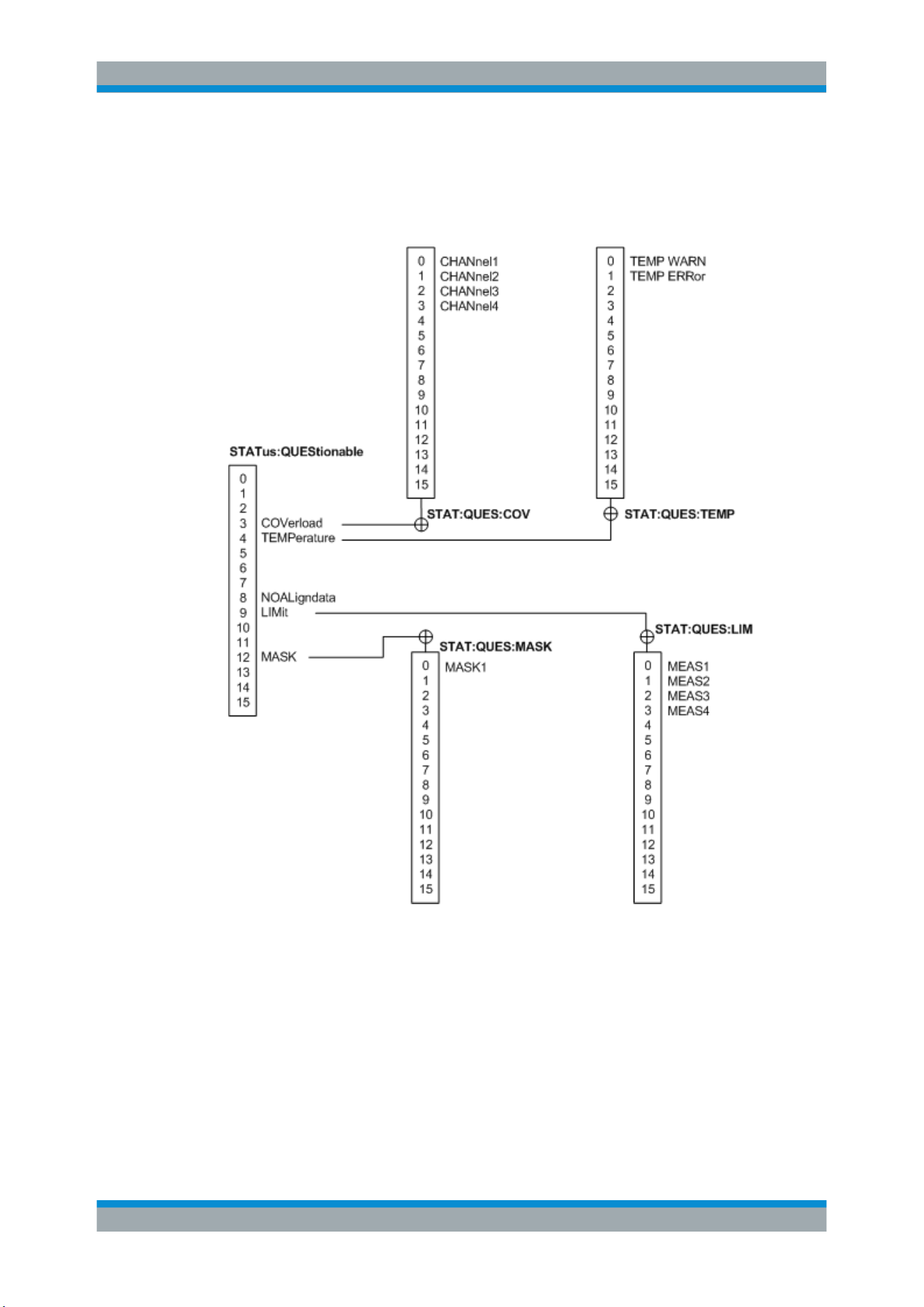
Remote Control Commands
R&S
®
RTB2000
456User Manual 1333.1611.02 ─ 03
15.14.2 STATus:QUEStionable Registers
The commands of the STATus:QUEStionable subsystem control the status reporting
structures of the STATus:QUEStionable registers:
Figure 15-1: Structure of the STATus:QUEStionable register
See also:
●
Chapter C.1, "Structure of a SCPI Status Register", on page 474
●
Chapter C.3.4, "STATus:QUEStionable Register", on page 479
The following commands are available:
STATus:PRESet............................................................................................................ 457
STATus:QUEStionable:CONDition?.................................................................................457
STATus:QUEStionable:COVerload:CONDition?................................................................457
STATus:QUEStionable:LIMit:CONDition?.........................................................................457
Status Reporting
Remote Control Commands
R&S
®
RTB2000
457User Manual 1333.1611.02 ─ 03
STATus:QUEStionable:MASK:CONDition?.......................................................................457
STATus:QUEStionable:ENABle.......................................................................................457
STATus:QUEStionable:COVerload:ENABle......................................................................457
STATus:QUEStionable:LIMit:ENABle...............................................................................457
STATus:QUEStionable:MASK:ENABle.............................................................................457
STATus:QUEStionable[:EVENt]?.....................................................................................458
STATus:QUEStionable:COVerload[:EVENt]?....................................................................458
STATus:QUEStionable:LIMit[:EVENt]?.............................................................................458
STATus:QUEStionable:MASK[:EVENt]?...........................................................................458
STATus:QUEStionable:NTRansition................................................................................ 458
STATus:QUEStionable:COVerload:NTRansition............................................................... 458
STATus:QUEStionable:LIMit:NTRansition........................................................................ 458
STATus:QUEStionable:MASK:NTRansition...................................................................... 458
STATus:QUEStionable:PTRansition.................................................................................458
STATus:QUEStionable:COVerload:PTRansition................................................................458
STATus:QUEStionable:LIMit:PTRansition.........................................................................458
STATus:QUEStionable:MASK:PTRansition...................................................................... 458
STATus:PRESet
Resets all STATUS:QUESTIONALBLE registers.
Usage: Event
STATus:QUEStionable:CONDition?
STATus:QUEStionable:COVerload:CONDition?
STATus:QUEStionable:LIMit:CONDition?
STATus:QUEStionable:MASK:CONDition?
Returns the contents of the CONDition part of the status register to check for question-
able instrument or measurement states. Reading the CONDition registers does not
delete the contents.
Return values:
<Condition> Condition bits in decimal representation
Range: 1 to 65535
Increment: 1
Usage: Query only
STATus:QUEStionable:ENABle <Enable>
STATus:QUEStionable:COVerload:ENABle <Enable>
STATus:QUEStionable:LIMit:ENABle <Enable>
STATus:QUEStionable:MASK:ENABle <Enable>
Sets the ENABle part that allows true conditions in the EVENt part to be reported in the
summary bit. If a bit is set to 1 in the enable part and its associated event bit transitions
to true, a positive transition occurs in the summary bit and is reported to the next
higher level.
Status Reporting
Remote Control Commands
R&S
®
RTB2000
458User Manual 1333.1611.02 ─ 03
Parameters:
<Enable> Bit mask in decimal representation
Range: 1 to 65535
Increment: 1
Example:
STATus:QUEStionable:MASK:ENABle 24
Set bits no. 3 and 4 of the STATus:QUEStiona-
ble:MASK:ENABle register part: 24 = 8 + 16 = 2
3
+ 2
4
STATus:QUEStionable[:EVENt]?
STATus:QUEStionable:COVerload[:EVENt]?
STATus:QUEStionable:LIMit[:EVENt]?
STATus:QUEStionable:MASK[:EVENt]?
Returns the contents of the EVENt part of the status register to check whether an
event has occurred since the last reading. Reading an EVENt register deletes its con-
tents.
Return values:
<Event> Event bits in decimal representation
Range: 1 to 65535
Increment: 1
Usage: Query only
STATus:QUEStionable:NTRansition <NegativeTransition>
STATus:QUEStionable:COVerload:NTRansition <NegativeTransition>
STATus:QUEStionable:LIMit:NTRansition <NegativeTransition>
STATus:QUEStionable:MASK:NTRansition <NegativeTransition>
Sets the negative transition filter. If a bit is set, a 1 to 0 transition in the corresponding
bit of the condition register causes a 1 to be written in the corresponding bit of the
event register.
Parameters:
<NegativeTransition> Bit mask in decimal representation
Range: 1 to 65535
Increment: 1
Example:
STATus:QUEStionable:MASK:NTRansition 24
Set bits no. 3 and 4 of the STATus:QUEStiona-
ble:MASK:NTRansition register part: 24 = 8 + 16 = 2
3
+ 2
4
STATus:QUEStionable:PTRansition <PositiveTransition>
STATus:QUEStionable:COVerload:PTRansition <PositiveTransition>
STATus:QUEStionable:LIMit:PTRansition <PositiveTransition>
STATus:QUEStionable:MASK:PTRansition <PositiveTransition>
Sets the positive transition filter. If a bit is set, a 0 to 1 transition in the corresponding
bit of the condition register causes a 1 to be written in the corresponding bit of the
event register.
Status Reporting

Remote Control Commands
R&S
®
RTB2000
459User Manual 1333.1611.02 ─ 03
Parameters:
<PositiveTransition> Bit mask in decimal representation
Range: 1 to 65535
Increment: 1
Example:
STATus:QUEStionable:MASK:PTRansition 24
Set bits no. 3 and 4 of the STATus:QUEStiona-
ble:MASK:PTRansition register part: 24 = 8 + 16 = 2
3
+ 2
4
Status Reporting
Maintenance
R&S
®
RTB2000
460User Manual 1333.1611.02 ─ 03
16 Maintenance
The instrument does not need a periodic maintenance. Only the cleaning of the instru-
ment is essential.
To protect the front panel and to transport the instrument to another workplace safely
and easily, several accessories are provided. The type designations and order num-
bers are listed in the data sheet.
In case of instrument damage, contact the nearest Rohde & Schwarz service center. A
list of all service centers is available on
www.services.rohde-schwarz.com.
The addresses of Rohde & Schwarz support centers can be found at
www.customer-
support.rohde-schwarz.com
.
16.1 Cleaning
Risk of electric shock
If moisture enters the casing, for example if you clean the instrument using a moist
cloth, contact with the instrument can lead to electric shock. Before cleaning the instru-
ment other than with a dry cloth, make sure that the instrument is switched off and dis-
connected from all power supplies.
Instrument damage caused by cleaning agents
Cleaning agents contain substances such as solvents (thinners, acetone, etc.), acids,
bases, or other substances. Solvents can damage the front panel labeling, plastic
parts, or screens, for example.
Never use cleaning agents to clean the outside of the instrument. Use a soft, dry, lint-
free dust cloth instead.
Risk of instrument damage due to obstructed fans
If the instrument is operated in dusty areas, the fans become obstructed by dust or
other particles over time. Check and clean the fans regularly to ensure that they always
operate properly. If the instrument is run with obstructed fans for a longer period, the
instrument overheats, which can disturb the operation and even cause damage.
1. Clean the outside of the instrument using a soft, dry, lint-free dust cloth.
Cleaning
Maintenance
R&S
®
RTB2000
461User Manual 1333.1611.02 ─ 03
2. Check and clean the fans regularly to ensure that they always operate properly.
3. Clean the touchscreen as follows:
a) Apply a small amount of standard screen cleaner to a soft cloth.
b) Wipe the screen gently with the moist, but not wet, cloth.
c) If necessary, remove any excess moisture with a dry, soft cloth.
16.2 Storing and Packing
The storage temperature range of the instrument is given in the data sheet. If the
instrument is to be stored for a longer period of time, it must be protected against dust.
Repack the instrument as it was originally packed when transporting or shipping. The
two protective foam plastic parts prevent the control elements and connectors from
being damaged. The antistatic packing foil avoids any undesired electrostatic charging
to occur.
If you do not use the original packaging, use a sturdy cardboard box of suitable size
and provide for sufficient padding to prevent the instrument from slipping inside the
package. Wrap antistatic packing foil around the instrument to protect it from electro-
static charging.
16.3 Replacing the Fuses
The instrument is protected by a fuse. You can find it on the rear panel between the
main power switch and AC power supply.
Type of fuse: Size 5x20 mm, 250V~, T2.5H (slow-blow), IEC60127-2/5
Risk of electric shock
The fuse is part of the main power supply. Therefore, handling the fuse while power is
on can lead to electric shock. Before opening the fuse holder, make sure that the
instrument is switched off and disconnected from all power supplies.
Always use fuses supplied by Rohde & Schwarz as spare parts, or fuses of the same
type and rating.
1. Pull the fuse holder out of its slot on the rear panel.
2. Exchange the fuse.
3. Insert the fuse holder carefully back in its slot until it latches.
Replacing the Fuses

Maintenance
R&S
®
RTB2000
462User Manual 1333.1611.02 ─ 03
16.4 Data Security
If you have to send the instrument to the service, or if the instrument is used in a
secured environment, consider the document "Instrument Security Procedures" that is
available on the R&S RTB2000 internet web page.
You can delete all current instrument configuration data and user data with "Setup"
menu > "Secure Erase".
Data Security
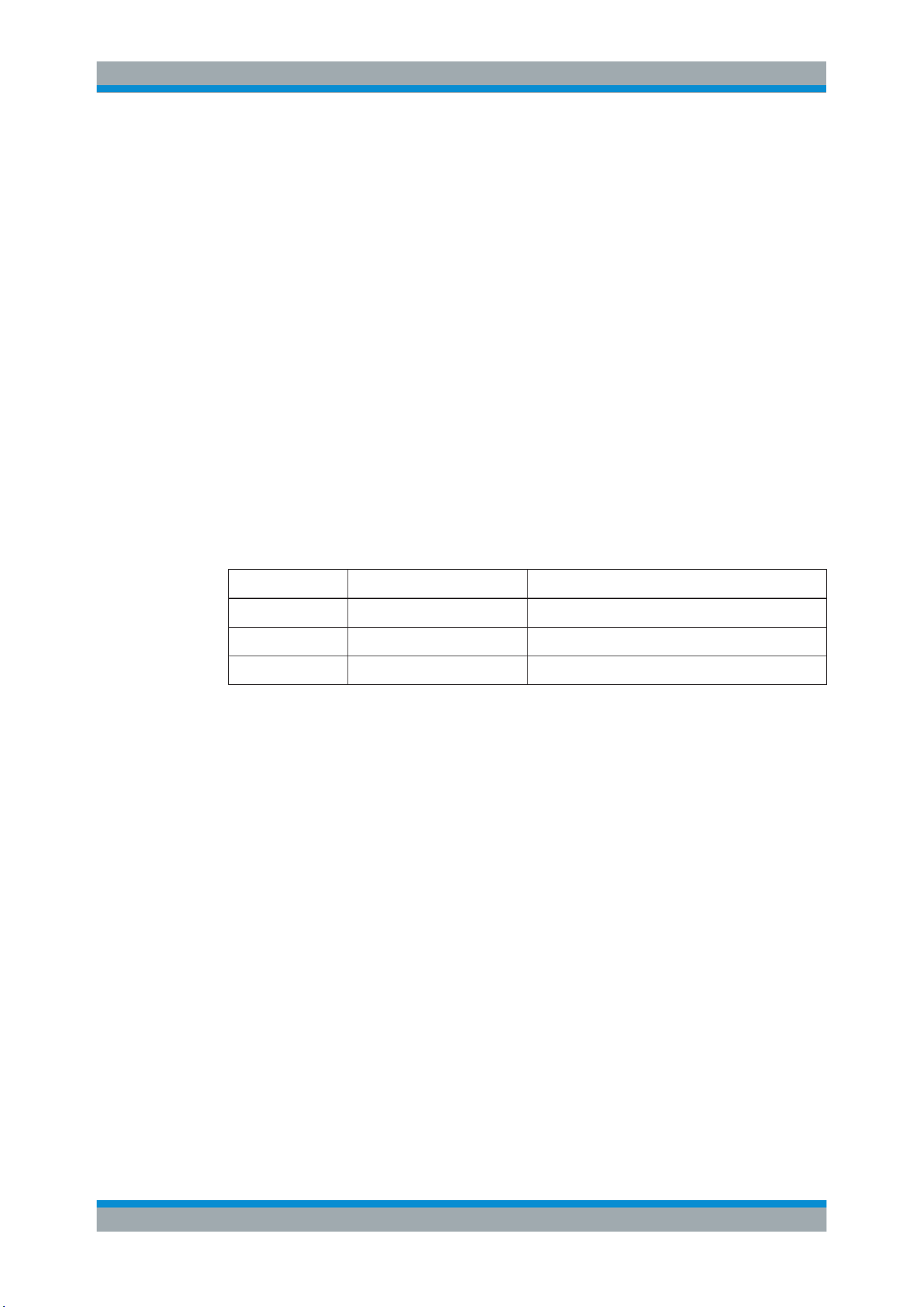
SCPI Command Structure
R&S
®
RTB2000
463User Manual 1333.1611.02 ─ 03
Annex
A SCPI Command Structure
SCPI commands consist of a header and, in most cases, one or more parameters. The
header and the parameters are separated by a "white space" (ASCII code 0 to 9, 11 to
32 decimal, e.g. blank). The headers may consist of several mnemonics (keywords).
Queries are formed by appending a question mark directly to the header.
The commands can be either device-specific or device-independent (common com-
mands). Common and device-specific commands differ in their syntax.
A.1 Syntax for Common Commands
Common (= device-independent) commands consist of a header preceded by an aster-
isk (*), and possibly one or more parameters.
Table A-1: Examples of common commands
*RST RESET Resets the instrument.
*ESE EVENT STATUS ENABLE Sets the bits of the event status enable registers.
*ESR? EVENT STATUS QUERY Queries the contents of the event status register.
*IDN? IDENTIFICATION QUERY Queries the instrument identification string.
Syntax for Common Commands
SCPI Command Structure
R&S
®
RTB2000
464User Manual 1333.1611.02 ─ 03
A.2 Syntax for Device-Specific Commands
Not all commands used in the following examples are necessarily implemented in the
instrument. For demonstration purposes only, assume the existence of the following
commands for this section:
●
DISPlay[:WINDow<1...4>]:MAXimize <Boolean>
●
FORMat:READings:DATA <type>[,<length>]
●
HCOPy:DEVice:COLor <Boolean>
●
HCOPy:DEVice:CMAP:COLor:RGB <red>,<green>,<blue>
●
HCOPy[:IMMediate]
●
HCOPy:ITEM:ALL
●
HCOPy:ITEM:LABel <string>
●
HCOPy:PAGE:DIMensions:QUADrant[<N>]
●
HCOPy:PAGE:ORIentation LANDscape | PORTrait
●
HCOPy:PAGE:SCALe <numeric value>
●
MMEMory:COPY <file_source>,<file_destination>
●
SENSE:BANDwidth|BWIDth[:RESolution] <numeric_value>
●
SENSe:FREQuency:STOP <numeric value>
●
SENSe:LIST:FREQuency <numeric_value>{,<numeric_value>}
● Long and short form..............................................................................................464
●
Numeric Suffixes...................................................................................................465
●
Optional Mnemonics............................................................................................. 465
A.2.1 Long and short form
The mnemonics feature a long form and a short form. The short form is marked by
upper case letters, the long form corresponds to the complete word. Either the short
form or the long form can be entered; other abbreviations are not permitted.
Example:
HCOPy:DEVice:COLor ON is equivalent to HCOP:DEV:COL ON.
Case-insensitivity
Upper case and lower case notation only serves to distinguish the two forms in the
manual, the instrument itself is case-insensitive.
Syntax for Device-Specific Commands
SCPI Command Structure
R&S
®
RTB2000
465User Manual 1333.1611.02 ─ 03
A.2.2 Numeric Suffixes
If a command can be applied to multiple instances of an object, e.g. specific channels
or sources, the required instances can be specified by a suffix added to the command.
Numeric suffixes are indicated by angular brackets (<1...4>, <n>, <i>) and are replaced
by a single value in the command. Entries without a suffix are interpreted as having the
suffix 1.
Example:
Definition: HCOPy:PAGE:DIMensions:QUADrant[<N>]
Command: HCOP:PAGE:DIM:QUAD2
This command refers to the quadrant 2.
Different numbering in remote control
For remote control, the suffix may differ from the number of the corresponding selec-
tion used in manual operation. SCPI prescribes that suffix counting starts with 1. Suffix
1 is the default state and used when no specific suffix is specified.
Some standards define a fixed numbering, starting with 0. If the numbering differs in
manual operation and remote control, it is indicated for the corresponding command.
A.2.3 Optional Mnemonics
Some command systems permit certain mnemonics to be inserted into the header or
omitted. These mnemonics are marked by square brackets in the description. The
instrument must recognize the long command to comply with the SCPI standard. Some
commands are considerably shortened by these optional mnemonics.
Example:
Definition: HCOPy[:IMMediate]
Command: HCOP:IMM is equivalent to HCOP
Optional mnemonics with numeric suffixes
Do not omit an optional mnemonic if it includes a numeric suffix that is relevant for the
effect of the command.
Example:
Definition:DISPlay[:WINDow<1...4>]:MAXimize <Boolean>
Command: DISP:MAX ON refers to window 1.
In order to refer to a window other than 1, you must include the optional WINDow
parameter with the suffix for the required window.
DISP:WIND2:MAX ON refers to window 2.
Syntax for Device-Specific Commands

SCPI Command Structure
R&S
®
RTB2000
466User Manual 1333.1611.02 ─ 03
A.3 SCPI Parameters
Many commands are supplemented by a parameter or a list of parameters. The
parameters must be separated from the header by a "white space" (ASCII code 0 to 9,
11 to 32 decimal, e.g. blank).
The parameters required for each command and the allowed range of values are
specified in the command description.
Allowed parameters are:
● Numeric Values.....................................................................................................466
●
Special Numeric Values........................................................................................467
●
Boolean Parameters............................................................................................. 467
●
Text Parameters....................................................................................................467
●
Character Strings.................................................................................................. 468
●
Block Data.............................................................................................................468
A.3.1 Numeric Values
Numeric values can be entered in any form, i.e. with sign, decimal point and exponent.
Values exceeding the resolution of the instrument are rounded up or down. The man-
tissa may comprise up to 255 characters, the exponent must lie inside the value range
-32000 to 32000. The exponent is introduced by an "E" or "e". Entry of the exponent
alone is not allowed.
Example:
SENS:FREQ:STOP 1500000 = SENS:FREQ:STOP 1.5E6
Units
For physical quantities, the unit can be entered. If the unit is missing, the basic unit is
used. Allowed unit prefixes are:
●
G (giga)
●
MA (mega), MOHM, MHZ
●
K (kilo)
●
M (milli)
●
U (micro)
●
N (nano)
Example:
SENSe:FREQ:STOP 1.5GHz = SENSe:FREQ:STOP 1.5E9
Some settings allow relative values to be stated in percent. According to SCPI, this unit
is represented by the PCT string.
SCPI Parameters
SCPI Command Structure
R&S
®
RTB2000
467User Manual 1333.1611.02 ─ 03
Example:
HCOP:PAGE:SCAL 90PCT
A.3.2 Special Numeric Values
The following mnemonics are special numeric values. In the response to a query, the
numeric value is provided.
●
MIN and MAX: denote the minimum and maximum value.
●
DEF: denotes a preset value which has been stored in the EPROM. This value
conforms to the default setting, as it is called by the *RST command.
●
NAN: Not A Number (NAN) represents the value 9.91E37. NAN is only sent as a
instrument response. This value is not defined. Possible causes are the division of
zero by zero, the subtraction of infinite from infinite and the representation of miss-
ing values.
Example:
Setting command: SENSe:LIST:FREQ MAXimum
Query: SENS:LIST:FREQ?
Response: 3.5E9
Queries for special numeric values
The numeric values associated to MAXimum/MINimum/DEFault can be queried by
adding the corresponding mnemonic after the quotation mark.
Example: SENSe:LIST:FREQ? MAXimum
Returns the maximum numeric value as a result.
A.3.3 Boolean Parameters
Boolean parameters represent two states. The "ON" state (logically true) is represen-
ted by "ON" or a numeric value 1. The "OFF" state (logically untrue) is represented by
"OFF" or the numeric value 0. The numeric values are provided as the response for a
query.
Example:
Setting command: HCOPy:DEV:COL ON
Query: HCOPy:DEV:COL?
Response: 1
A.3.4 Text Parameters
Text parameters observe the syntactic rules for mnemonics, i.e. they can be entered
using a short or long form. Like any parameter, they have to be separated from the
SCPI Parameters

SCPI Command Structure
R&S
®
RTB2000
468User Manual 1333.1611.02 ─ 03
header by a white space. In the response to a query, the short form of the text is provi-
ded.
Example:
Setting command: HCOPy:PAGE:ORIentation LANDscape
Query: HCOP:PAGE:ORI?
Response: LAND
A.3.5 Character Strings
Strings must always be entered in quotation marks (' or ").
Example:
HCOP:ITEM:LABel "Test1"
HCOP:ITEM:LABel 'Test1'
A.3.6 Block Data
Block data is a format which is suitable for the transmission of large amounts of data.
For example, a command using a block data parameter has the following structure:
FORMat:READings:DATA #45168xxxxxxxx
The ASCII character # introduces the data block. The next number indicates how many
of the following digits describe the length of the data block. In the example the 4 follow-
ing digits indicate the length to be 5168 bytes. The data bytes follow. During the trans-
mission of these data bytes all end or other control signs are ignored until all bytes are
transmitted.
#0 specifies a data block of indefinite length. The use of the indefinite format requires a
NL^END message to terminate the data block. This format is useful when the length of
the transmission is not known or if speed or other considerations prevent segmentation
of the data into blocks of definite length.
A.4 Overview of Syntax Elements
The following tables provide an overview of the syntax elements and special charac-
ters.
Table A-2: Syntax elements
: The colon separates the mnemonics of a command.
; The semicolon separates two commands of a command line. It does not alter the path.
, The comma separates several parameters of a command.
? The question mark forms a query.
Overview of Syntax Elements
SCPI Command Structure
R&S
®
RTB2000
469User Manual 1333.1611.02 ─ 03
* The asterisk marks a common command.
' '
"
Quotation marks introduce a string and terminate it (both single and double quotation marks are
possible).
# The hash symbol introduces binary, octal, hexadecimal and block data.
●
Binary: #B10110
●
Octal: #O7612
●
Hexa: #HF3A7
●
Block: #21312
A "white space" (ASCII-Code 0 to 9, 11 to 32 decimal, e.g. blank) separates the header from the
parameters.
Table A-3: Special characters
|
Parameters
A vertical stroke in parameter definitions indicates alternative possibilities in the sense of "or". The
effect of the command differs, depending on which parameter is used.
Example:
Definition:HCOPy:PAGE:ORIentation LANDscape | PORTrait
Command HCOP:PAGE:ORI LAND specifies landscape orientation
Command HCOP:PAGE:ORI PORT specifies portrait orientation
Mnemonics
A selection of mnemonics with an identical effect exists for several commands. These mnemonics are
indicated in the same line; they are separated by a vertical stroke. Only one of these mnemonics
needs to be included in the header of the command. The effect of the command is independent of
which of the mnemonics is used.
Example:
DefinitionSENSE:BANDwidth|BWIDth[:RESolution] <numeric_value>
The two following commands with identical meaning can be created:
SENS:BAND:RES 1
SENS:BWID:RES 1
[ ] Mnemonics in square brackets are optional and may be inserted into the header or omitted.
Example: HCOPy[:IMMediate]
HCOP:IMM is equivalent to HCOP
{ } Parameters in curly brackets are optional and can be inserted once or several times, or omitted.
Example: SENSe:LIST:FREQuency <numeric_value>{,<numeric_value>}
The following are valid commands:
SENS:LIST:FREQ 10
SENS:LIST:FREQ 10,20
SENS:LIST:FREQ 10,20,30,40
A.5 Structure of a Command Line
A command line may consist of one or several commands. It is terminated by one of
the following:
●
<New Line>
Structure of a Command Line

SCPI Command Structure
R&S
®
RTB2000
470User Manual 1333.1611.02 ─ 03
●
<New Line> with EOI
●
EOI together with the last data byte
Several commands in a command line must be separated by a semicolon ";".
Example:
MMEM:COPY "Test1","MeasurementXY";:HCOP:ITEM ALL
This command line contains two commands. The first command belongs to the MMEM
system, the second command belongs to the HCOP system. If the next command
belongs to a different command system, the semicolon is followed by a colon.
Example:
HCOP:ITEM ALL;:HCOP:IMM
This command line contains two commands. Both commands are part of the HCOP
command system, i.e. they have one level in common.
If the successive commands belong to the same system, having one or several levels
in common, the command line can be abbreviated. When abbreviating the command
line, the second command begins with the level below HCOP. The colon after the sem-
icolon is omitted. The abbreviated form of the command line reads as follows:
HCOP:ITEM ALL;IMM
Example:
HCOP:ITEM ALL
HCOP:IMM
A new command line always begins with the complete path.
A.6 Responses to Queries
A query is defined for each setting command unless explicitly specified otherwise. It is
formed by adding a question mark to the associated setting command. According to
SCPI, the responses to queries are partly subject to stricter rules than in standard
IEEE 488.2.
●
The requested parameter is transmitted without a header.
Example: HCOP:PAGE:ORI?, Response: LAND
●
Maximum values, minimum values and all other quantities that are requested via a
special text parameter are returned as numeric values.
Example: SENSe:FREQuency:STOP? MAX, Response: 3.5E9
●
Numeric values are output without a unit. Physical quantities are referred to the
basic units or to the units set using the Unit command. The response 3.5E9 in
the previous example stands for 3.5 GHz.
●
Truth values (Boolean values) are returned as 0 (for OFF) and 1 (for ON).
Example:
Setting command: HCOPy:DEV:COL ON
Query: HCOPy:DEV:COL?
Responses to Queries

SCPI Command Structure
R&S
®
RTB2000
471User Manual 1333.1611.02 ─ 03
Response: 1
●
Text (character data) is returned in a short form.
Example:
Setting command: HCOPy:PAGE:ORIentation LANDscape
Query: HCOP:PAGE:ORI?
Response: LAND
●
Invalid numerical results
In some cases, particularly when a result consists of multiple numeric values, inva-
lid values are returned as 9.91E37 (not a number).
Responses to Queries
Command Sequence and Synchronization
R&S
®
RTB2000
472User Manual 1333.1611.02 ─ 03
B Command Sequence and Synchronization
IEEE 488.2 defines a distinction between overlapped (asynchronous) and sequential
commands:
●
A sequential command finishes executing before the next command starts execut-
ing. Commands that are processed quickly are usually implemented as sequential
commands.
●
An overlapping or asynchronous command does not automatically finish executing
before the next command starts executing. Usually, overlapping commands take
longer to process and allow the program to do other tasks while being executed. If
overlapping commands must be executed in a defined order, e.g. to avoid wrong
measurement results, they must be serviced sequentially. This method is called
synchronization between the controller and the instrument.
As a rule, send commands and queries in different program messages, i.e. in separate
command lines.
Do not combine queries with commands that affect the queried value in one program
message because the response to the query is not predictable.
The following messages always return correct results:
:CHAN:SCAL 0.01;POS 1
:CHAN:SCAL?
Result: 0.01 (10 mV/div)
Reason: Setting commands within one command line, even though they are implemen-
ted as sequential commands, are not necessarily serviced in the order in which they
have been received.
For further information, refer to:
●
rohde-schwarz.com/rckb: Rohde & Schwarz web page that provides information on
instrument drivers and remote control.
●
"Automatic Measurement Control - A tutorial on SCPI and IEEE 488.2" from John
M. Pieper (R&S order number 0002.3536.00). The book offers detailed information
on concepts and definitions of SCPI.
B.1 Preventing Overlapping Execution
To prevent an overlapping execution of commands, one of the commands *OPC,
*OPC? or *WAI can be used. All three commands cause a certain action only to be
carried out after the hardware has been set. The controller can be forced to wait for the
corresponding action to occur.
Preventing Overlapping Execution
Command Sequence and Synchronization
R&S
®
RTB2000
473User Manual 1333.1611.02 ─ 03
Table B-1: Synchronization using *OPC, *OPC? and *WAI
Com-
mand
Action Programming the controller
*OPC Sets the Operation Complete bit in the ESR
after all previous commands have been exe-
cuted.
●
Setting bit 0 in the ESE
●
Setting bit 5 in the SRE
●
Waiting for service request (SRQ)
*OPC? Stops command processing until 1 is
returned. This occurs when all pending opera-
tions are completed.
Send *OPC? directly after the command
whose processing must be terminated before
other commands can be executed.
*WAI Stops further command processing until all
commands sent before *WAI have been exe-
cuted.
Send *WAI directly after the command whose
processing must be terminated before other
commands are executed.
Command synchronization using *WAI or *OPC? is a good choice if the overlapped
command takes only little time to process. The two synchronization commands simply
block overlapped execution of the command. Append the synchronization command to
the overlapping command, for example:
SINGle; *OPC?
For time consuming overlapped commands, you can allow the controller or the instru-
ment to do other useful work while waiting for command execution. Use one of the fol-
lowing methods:
*OPC with a service request
1. Set the OPC mask bit (bit no. 0) in the ESE: *ESE 1
2. Set bit no. 5 in the SRE: *SRE 32 to enable ESB service request.
3. Send the overlapped command with *OPC .
4. Wait for a service request.
The service request indicates that the overlapped command has finished.
*OPC? with a service request
1. Set bit no. 4 in the SRE: *SRE 16 to enable MAV service request.
2. Send the overlapped command with *OPC?.
3. Wait for a service request.
The service request indicates that the overlapped command has finished.
Event status register (ESE)
1. Set the OPC mask bit (bit no. 0) in the ESE: *ESE 1
2. Send the overlapped command without *OPC, *OPC? or *WAI.
3. Poll the operation complete state periodically (with a timer) using the sequence:
*OPC; *ESR?
A return value (LSB) of 1 indicates that the overlapped command has finished.
Preventing Overlapping Execution
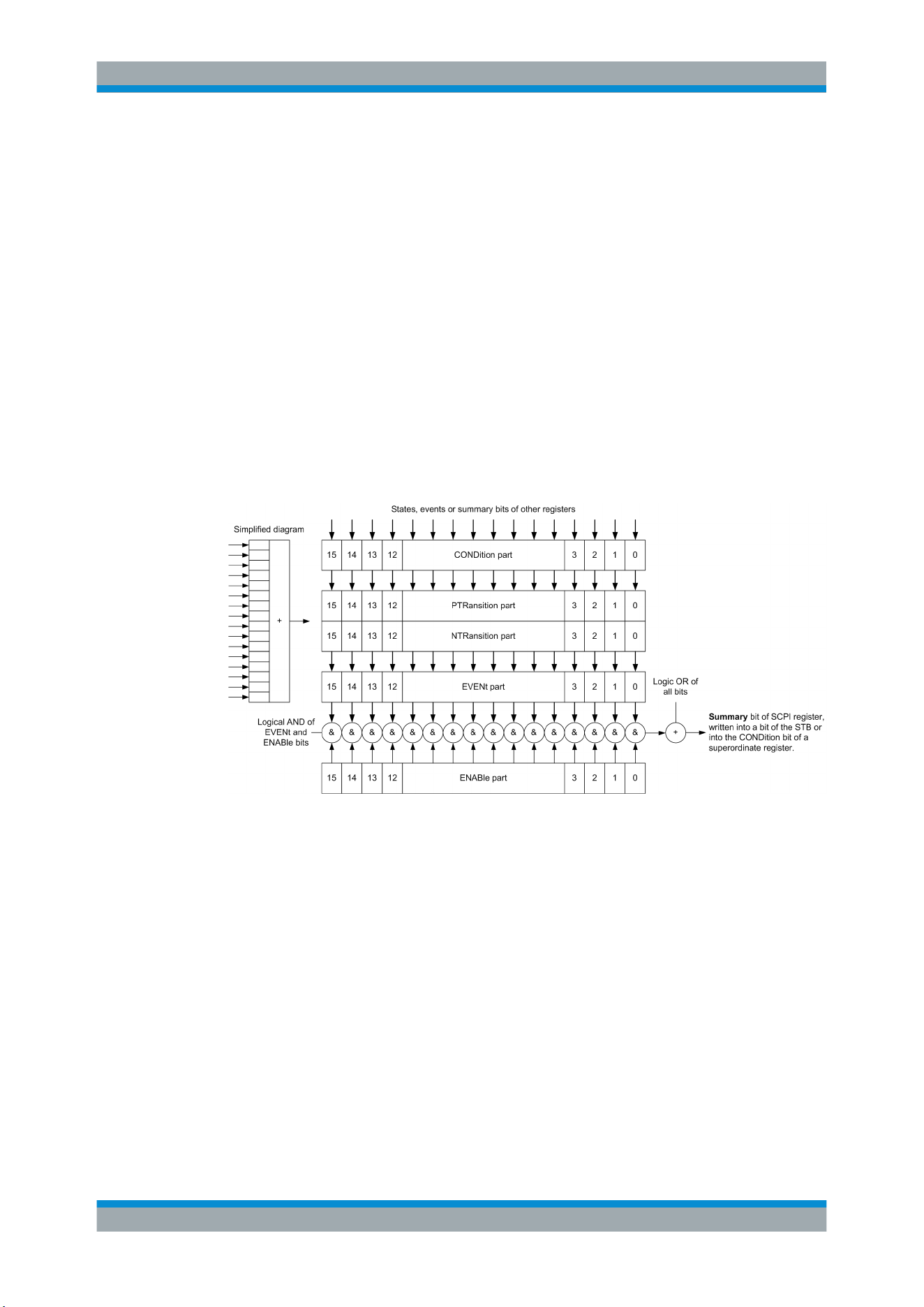
Status Reporting System
R&S
®
RTB2000
474User Manual 1333.1611.02 ─ 03
C Status Reporting System
The status reporting system stores all information on the current operating state of the
instrument, and on errors which have occurred. This information is stored in the status
registers and in the error queue. Both can be queried via GPIB bus or LAN interface
(STATus... commands).
C.1 Structure of a SCPI Status Register
Each standard SCPI register consists of 5 parts. Each part has a width of 16 bits and
has different functions. The individual bits are independent of each other, i.e. each
hardware status is assigned a bit number which is valid for all five parts. Bit 15 (the
most significant bit) is set to zero for all parts. Thus the contents of the register parts
can be processed by the controller as positive integers.
Figure C-1: The status-register model
Description of the five status register parts
The five parts of a SCPI register have different properties and functions:
●
CONDition
The CONDition part is written into directly by the hardware or the sum bit of the
next lower register. Its contents reflect the current instrument status. This register
part can only be read, but not written into or cleared. Its contents are not affected
by reading.
●
PTRansition / NTRansition
The two transition register parts define which state transition of the CONDition
part (none, 0 to 1, 1 to 0 or both) is stored in the EVENt part.
The Positive-TRansition part acts as a transition filter. When a bit of the
CONDition part is changed from 0 to 1, the associated PTR bit decides whether
the EVENt bit is set to 1.
Structure of a SCPI Status Register

Status Reporting System
R&S
®
RTB2000
475User Manual 1333.1611.02 ─ 03
– PTR bit =1: the EVENt bit is set.
– PTR bit =0: the EVENt bit is not set.
This part can be written into and read as required. Its contents are not affected by
reading.
The Negative-TRansition part also acts as a transition filter. When a bit of the
CONDition part is changed from 1 to 0, the associated NTR bit decides whether
the EVENt bit is set to 1.
– NTR bit =1: the EVENt bit is set.
– NTR bit =0: the EVENt bit is not set.
This part can be written into and read as required. Its contents are not affected by
reading.
●
EVENt
The EVENt part indicates whether an event has occurred since the last reading, it
is the "memory" of the condition part. It only indicates events passed on by the
transition filters. It is permanently updated by the instrument. This part can only be
read by the user. Reading the register clears it. This part is often equated with the
entire register.
●
ENABle
The ENABle part determines whether the associated EVENt bit contributes to the
sum bit (see below). Each bit of the EVENt part is "ANDed" with the associated
ENABle bit (symbol '&'). The results of all logical operations of this part are passed
on to the sum bit via an "OR" function (symbol '+').
ENABle bit = 0: the associated EVENt bit does not contribute to the sum bit
ENABle bit = 1: if the associated EVENt bit is "1", the sum bit is set to "1" as well.
This part can be written into and read by the user as required. Its contents are not
affected by reading.
Sum bit
The sum bit is obtained from the EVENt and ENABle part for each register. The result
is then entered into a bit of the CONDition part of the higher-order register.
The instrument automatically generates the sum bit for each register. Thus an event
can lead to a service request throughout all levels of the hierarchy.
C.2 Hierarchy of status registers
As shown in the following figure, the status information is of hierarchical structure.
Hierarchy of status registers
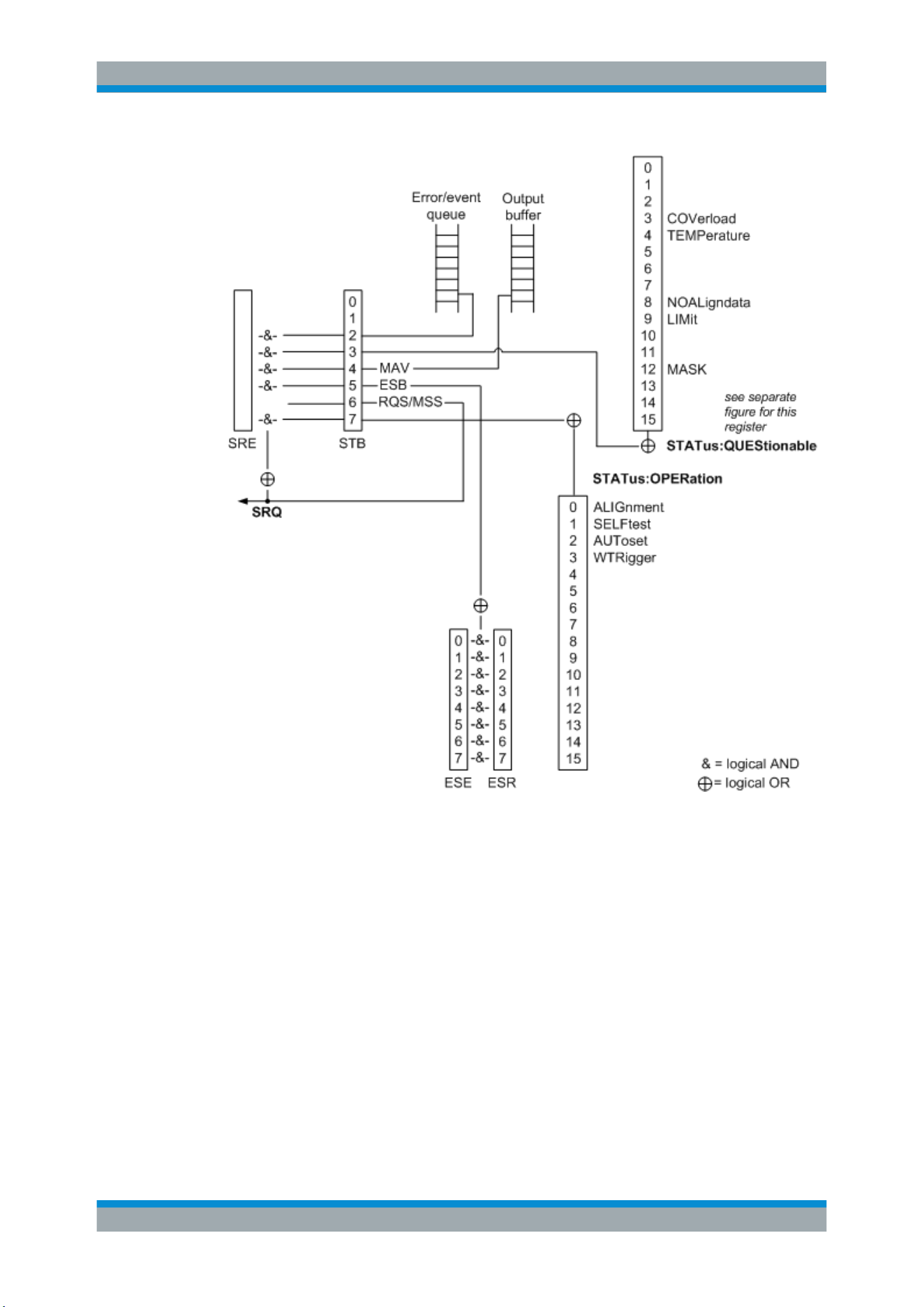
Status Reporting System
R&S
®
RTB2000
476User Manual 1333.1611.02 ─ 03
Figure C-2: Overview of the status registers hierarchy
●
STB, SRE
The STatus Byte (STB) register and its associated mask register Service Request
Enable (SRE) form the highest level of the status reporting system. The STB pro-
vides a rough overview of the instrument status, collecting the information of the
lower-level registers.
●
ESR, SCPI registers
The STB receives its information from the following registers:
– The Event Status Register (ESR) with the associated mask register standard
Event Status Enable (ESE).
– The STATus:OPERation and STATus:QUEStionable registers which are
defined by SCPI and contain detailed information on the instrument.
●
Output buffer
Hierarchy of status registers
Status Reporting System
R&S
®
RTB2000
477User Manual 1333.1611.02 ─ 03
The output buffer contains the messages the instrument returns to the controller. It
is not part of the status reporting system but determines the value of the MAV bit in
the STB and thus is represented in the overview.
All status registers have the same internal structure.
SRE, ESE
The service request enable register SRE can be used as ENABle part of the STB if the
STB is structured according to SCPI. By analogy, the ESE can be used as the ENABle
part of the ESR.
C.3 Contents of the Status Registers
In the following sections, the contents of the status registers are described in more
detail.
C.3.1 Status Byte (STB) and Service Request Enable Register (SRE)
The STatus Byte (STB) is already defined in IEEE 488.2. It provides a rough over-
view of the instrument status by collecting the pieces of information of the lower regis-
ters. A special feature is that bit 6 acts as the sum bit of the remaining bits of the status
byte.
The STB can thus be compared with the CONDition part of an SCPI register and
assumes the highest level within the SCPI hierarchy.
The STB is read using the command
*STB? or a serial poll.
The STatus Byte (STB) is linked to the Service Request Enable (SRE) register.
Each bit of the STB is assigned a bit in the SRE. Bit 6 of the SRE is ignored. If a bit is
set in the SRE and the associated bit in the STB changes from 0 to 1, a service
request (SRQ) is generated. The SRE can be set using the command
*SRE and read
using the command *SRE?.
Table C-1: Meaning of the bits used in the status byte
Bit No. Meaning
0...1 Not used
2 Error Queue not empty
The bit is set when an entry is made in the error queue. If this bit is enabled by the SRE, each
entry of the error queue generates a service request. Thus an error can be recognized and
specified in greater detail by polling the error queue. The poll provides an informative error mes-
sage. This procedure is to be recommended since it considerably reduces the problems
involved with remote control.
3 QUEStionable status register summary bit
The bit is set if an EVENt bit is set in the QUEStionable status register and the associated
ENABle bit is set to 1. A set bit indicates a questionable instrument status, which can be speci-
fied in greater detail by querying the STATus:QUEStionable status register.
Contents of the Status Registers
Status Reporting System
R&S
®
RTB2000
478User Manual 1333.1611.02 ─ 03
Bit No. Meaning
4 MAV bit (message available)
The bit is set if a message is available in the output queue which can be read. This bit can be
used to enable data to be automatically read from the instrument to the controller.
5 ESB bit
Sum bit of the event status register. It is set if one of the bits in the event status register is set
and enabled in the event status enable register. Setting of this bit indicates a serious error which
can be specified in greater detail by polling the event status register.
6 MSS bit (master status summary bit)
The bit is set if the instrument triggers a service request. This is the case if one of the other bits
of this registers is set together with its mask bit in the service request enable register SRE.
7 STATus:OPERation status register summary bit
The bit is set if an EVENt bit is set in the OPERation status register and the associated
ENABle bit is set to 1. A set bit indicates that the instrument is just performing an action. The
type of action can be determined by querying the STATus:OPERation status register.
C.3.2 Event Status Register (ESR) and Event Status Enable Register
(ESE)
The ESR is defined in IEEE 488.2. It can be compared with the EVENt part of a SCPI
register. The event status register can be read out using command
*ESR?.
The ESE corresponds to the ENABle part of a SCPI register. If a bit is set in the ESE
and the associated bit in the ESR changes from 0 to 1, the ESB bit in the STB is set.
The ESE register can be set using the command *ESE and read using the command
*ESE?.
Table C-2: Meaning of the bits used in the event status register
Bit No. Meaning
0 Operation Complete
This bit is set on receipt of the command *OPC exactly when all previous commands have been
executed.
1 Not used
2 Query Error
This bit is set if either the controller wants to read data from the instrument without having sent a
query, or if it does not fetch requested data and sends new instructions to the instrument
instead. The cause is often a query which is faulty and hence cannot be executed.
3 Device-dependent Error
This bit is set if a device-dependent error occurs. An error message with a number between
-300 and -399 or a positive error number, which denotes the error in greater detail, is entered
into the error queue.
4 Execution Error
This bit is set if a received command is syntactically correct but cannot be performed for other
reasons. An error message with a number between -200 and -300, which denotes the error in
greater detail, is entered into the error queue.
Contents of the Status Registers
Status Reporting System
R&S
®
RTB2000
479User Manual 1333.1611.02 ─ 03
Bit No. Meaning
5 Command Error
This bit is set if a command is received, which is undefined or syntactically incorrect. An error
message with a number between -100 and -200, which denotes the error in greater detail, is
entered into the error queue.
6 User Request
This bit is set when the instrument is switched over to manual control.
7 Power On (supply voltage on)
This bit is set on switching on the instrument.
C.3.3 STATus:OPERation Register
In the CONDition part, this register contains information on which actions the instru-
ment is being executing. In the EVENt part, it contains information on which actions the
instrument has executed since the last reading. It can be read using the commands
STATus:OPERation:CONDition? or STATus:OPERation[:EVENt]?.
See also:
Figure C-2
The remote commands for the STATus:OPERation register are described in Chap-
ter 15.14.1, "STATus:OPERation Register"
, on page 454.
Table C-3: Bits in the STATus:OPERation register
Bit No. Meaning
0
ALIGnment
This bit is set as long as the instrument is performing a self alignment.
1
SELFtest
This bit is set while the selftest is running.
2
AUToset
This bit is set while the instrument is performing an auto setup.
3
WTRIgger
This bit is set while the instrument is waiting for the trigger.
4 to 14 Not used
15 This bit is always 0.
C.3.4 STATus:QUEStionable Register
This register contains information about indefinite states which may occur if the unit is
operated without meeting the specifications. It can be read using the commands
STATus:QUEStionable:CONDition? on page 457 and STATus:
QUEStionable[:EVENt]?
on page 458
Contents of the Status Registers
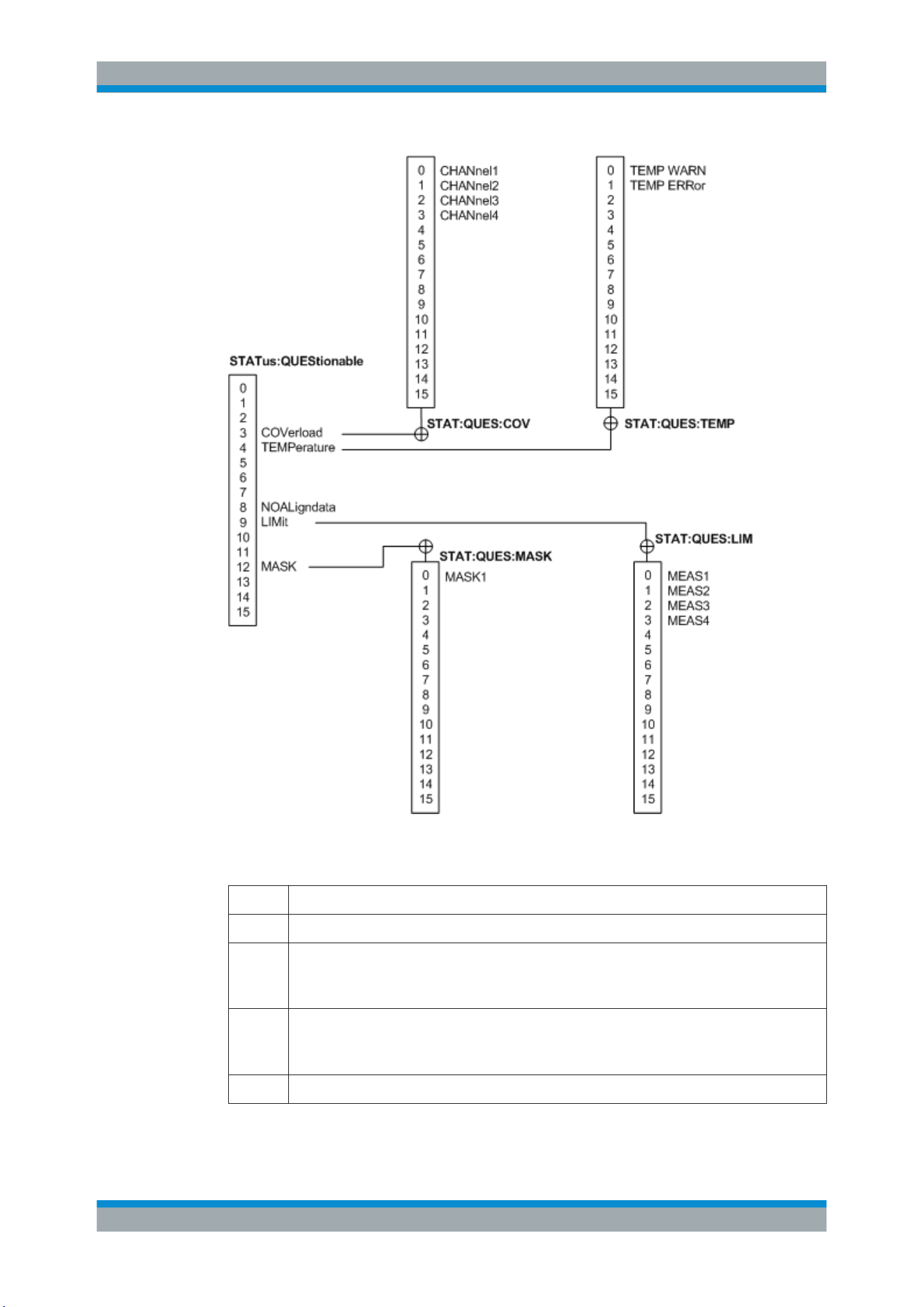
Status Reporting System
R&S
®
RTB2000
480User Manual 1333.1611.02 ─ 03
Figure C-3: Overview of the STATus:QUEStionable register
Table C-4: Bits in the STATus:QUEStionable register
Bit No. Meaning
0 to 2 not used
3
COVerload
This bit is set if a questionable channel overload occurs (see
Chapter C.3.4.1, "STATus:QUES-
tionable:COVerload register", on page 481).
4
TEMPerature
This bit is set if a questionable temperature occurs (see
Chapter C.3.4.2, "STATus:QUEStiona-
ble:TEMPerature register", on page 481).
5 to 7 Not used
Contents of the Status Registers
Status Reporting System
R&S
®
RTB2000
481User Manual 1333.1611.02 ─ 03
Bit No. Meaning
8
NOALigndata
This bit is set if no alignment data is available - the instrument is uncalibrated.
9
LIMit
This bit is set if a limit value is violated (see
Chapter C.3.4.3, "STATus:QUEStionable:LIMit reg-
ister", on page 481).
10 to 11 Not used
12
MASK
This bit is set if a mask value is violated (see
Chapter C.3.4.4, "STATus:QUEStionable:MASK
register", on page 482
13 to 14 Not used
15 This bit is always 0.
C.3.4.1 STATus:QUEStionable:COVerload register
This register contains all information about overload of the channels. The bit is set if
the assigned channel is overloaded.
Table C-5: Bits in the STATus:QUEStionable:COVerload register
Bit No. Meaning
0
CHANnel1
1
CHANnel2
2
CHANnel3
3
CHANnel4
C.3.4.2 STATus:QUEStionable:TEMPerature register
This register contains information about the instrument's temperature.
Table C-6: Bits in the STATus:QUEStionable:TEMPerature register
Bit No. Meaning
0
TEMP WARN
This bit is set if a temperature warning on channel 1, 2, 3 or 4 occured.
1
TEMP ERRor
This bit is set if a temperature error on channel 1, 2, 3 or 4 occured.
C.3.4.3 STATus:QUEStionable:LIMit register
This register contains information about the observance of the limits of measurements.
This bit is set if the limits of the main or additional measurement of the assigned mea-
surement are violated.
Contents of the Status Registers
Status Reporting System
R&S
®
RTB2000
482User Manual 1333.1611.02 ─ 03
Table C-7: Bits in the STATus:QUEStionable:LIMit register
Bit No. Meaning
0
MEAS1
1
MEAS2
2
MEAS3
3
MEAS4
C.3.4.4 STATus:QUEStionable:MASK register
This register contains information about the violation of masks. This bit is set if the
assigned mask is violated.
Table C-8: Bits in the STATus:QUEStionable:MASK register
Bit No. Meaning
0
MASK1
C.4 Application of the Status Reporting System
The purpose of the status reporting system is to monitor the status of one or several
devices in a measuring system. To do this and react appropriately, the controller must
receive and evaluate the information of all devices. The following standard methods
are used:
●
Service request (SRQ) initiated by the instrument
●
Serial poll of all devices in the bus system, initiated by the controller in order to
find out who sent a SRQ and why
●
Parallel poll of all devices
●
Query of a specific instrument status by means of commands
●
Query of the error queue
C.4.1 Service Request
Under certain circumstances, the instrument can send a service request (SRQ) to the
controller. Usually this service request initiates an interrupt at the controller, to which
the control program can react appropriately. As evident from
Figure C-2, an SRQ is
always initiated if one or several of bits 2, 3, 4, 5 or 7 of the status byte are set and
enabled in the SRE. Each of these bits combines the information of a further register,
the error queue or the output buffer. The ENABle parts of the status registers can be
set such that arbitrary bits in an arbitrary status register initiate an SRQ. In order to
make use of the possibilities of the service request effectively, all bits should be set to
"1" in enable registers SRE and ESE.
Application of the Status Reporting System
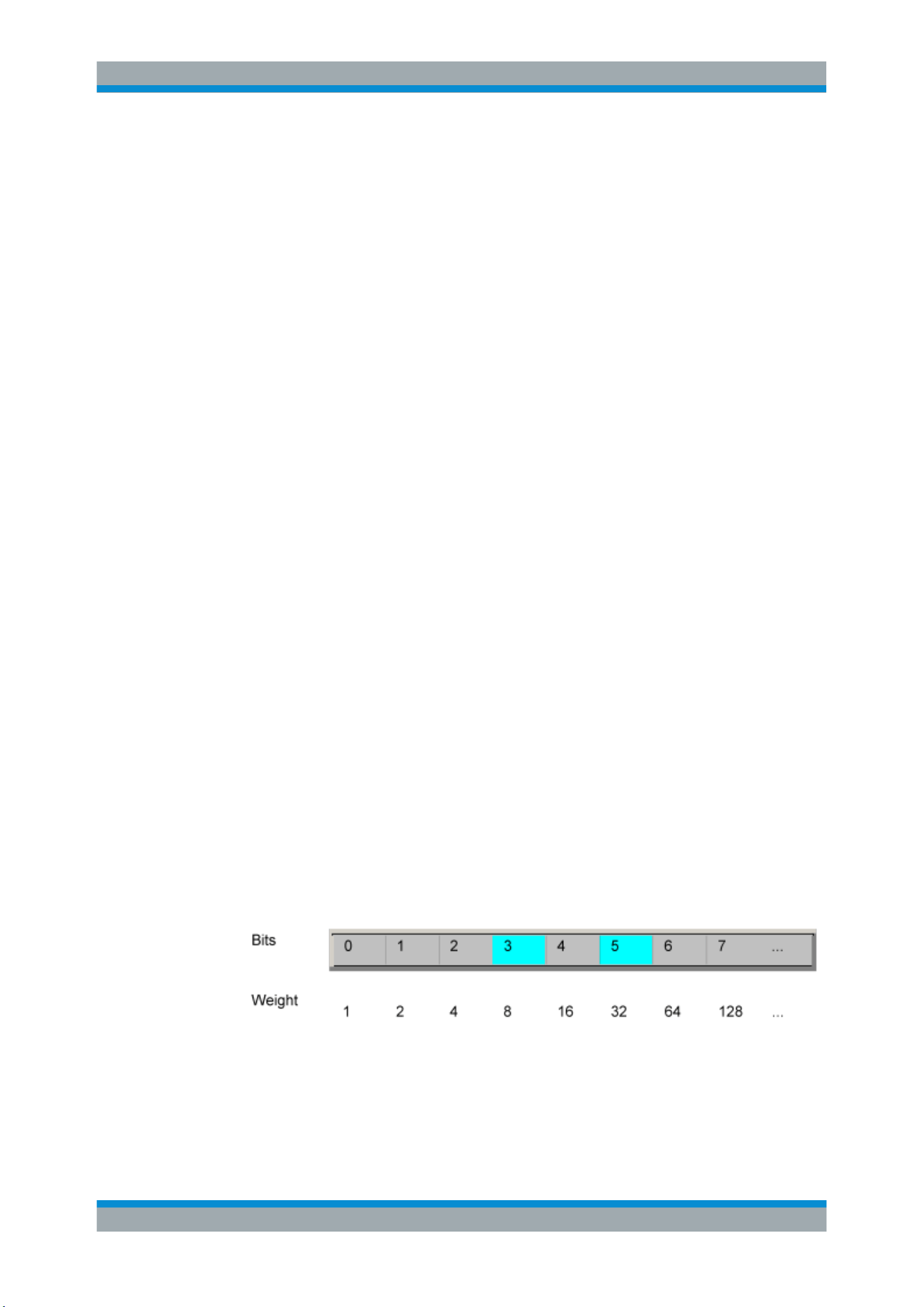
Status Reporting System
R&S
®
RTB2000
483User Manual 1333.1611.02 ─ 03
The SRQ is the only possibility for the instrument to become active on its own. Each
controller program should cause the instrument to initiate a service request if errors
occur. The program should react appropriately to the service request.
C.4.2 Serial Poll
In a serial poll, just as with command *STB, the status byte of an instrument is queried.
However, the query is realized via interface messages and is thus clearly faster.
The serial poll method is defined in IEEE 488.1 and used to be the only standard pos-
sibility for different instruments to poll the status byte. The method also works for
instruments which do not adhere to SCPI or IEEE 488.2.
The serial poll is mainly used to obtain a fast overview of the state of several instru-
ments connected to the controller.
C.4.3 Query of an instrument status
Each part of any status register can be read using queries. There are two types of
commands:
●
The common commands *ESR?, *IDN?, *IST?, *STB? query the higher-level
registers.
●
The commands of the STATus system query the SCPI registers
(STATus:QUEStionable...)
The returned value is always a decimal number that represents the bit pattern of the
queried register. This number is evaluated by the controller program.
Queries are usually used after an SRQ in order to obtain more detailed information on
the cause of the SRQ.
C.4.3.1 Decimal representation of a bit pattern
The STB and ESR registers contain 8 bits, the SCPI registers 16 bits. The contents of
a status register are specified and transferred as a single decimal number. To make
this possible, each bit is assigned a weighted value. The decimal number is calculated
as the sum of the weighted values of all bits in the register that are set to 1.
Application of the Status Reporting System
Status Reporting System
R&S
®
RTB2000
484User Manual 1333.1611.02 ─ 03
Example:
The decimal value 40 = 32 + 8 indicates that bits no. 3 and 5 in the status register (e.g.
the QUEStionable status summary bit and the ESB bit in the STatus Byte ) are set.
C.4.4 Error Queue
Each error state in the instrument leads to an entry in the error queue. The entries of
the error queue are detailed plain text error messages that can be looked up in the
Error Log or queried via remote control using SYSTem:ERRor[:NEXT]?. Each call of
SYSTem:ERRor[:NEXT]? provides one entry from the error queue. If no error mes-
sages are stored there any more, the instrument responds with 0, "No error".
The error queue should be queried after every SRQ in the controller program as the
entries describe the cause of an error more precisely than the status registers. Espe-
cially in the test phase of a controller program the error queue should be queried regu-
larly since faulty commands from the controller to the instrument are recorded there as
well.
C.5 Reset Values of the Status Reporting System
The following table contains the different commands and events causing the status
reporting system to be reset. None of the commands, except *RST and
SYSTem:PRESet, influence the functional instrument settings. In particular, DCL does
not change the instrument settings.
Table C-9: Resest of the status reporting system
Event Switching on supply
voltage
Power-On-Status-
Clear
DCL,
SDC
(Device
Clear,
Selected
Device
Clear)
*RST or
SYS-
Tem:PRE-
Set
STA-
Tus:PRE-
Set
*CLS
Effect 0 1
Clear STB, ESR - yes - - - yes
Clear SRE, ESE - yes - - - -
Clear EVENt parts of the regis-
ters
- yes - - - yes
Clear ENABle parts of all
OPERation and QUEStionable
registers;
Fill ENABle parts of all other
registers with "1".
- yes - - yes -
Fill PTRansition parts with "1";
Clear NTRansition parts
- yes - - yes -
Clear error queue yes yes - - - yes
Reset Values of the Status Reporting System
Status Reporting System
R&S
®
RTB2000
485User Manual 1333.1611.02 ─ 03
Event Switching on supply
voltage
Power-On-Status-
Clear
DCL,
SDC
(Device
Clear,
Selected
Device
Clear)
*RST or
SYS-
Tem:PRE-
Set
STA-
Tus:PRE-
Set
*CLS
Effect 0 1
Clear output buffer yes yes yes 1) 1) 1)
Clear command processing
and input buffer
yes yes yes - - -
1) The first command in a command line that immediately follows a <PROGRAM MESSAGE TERMINA-
TOR> clears the output buffer.
Reset Values of the Status Reporting System

List of Commands
R&S
®
RTB2000
486User Manual 1333.1611.02 ─ 03
List of Commands
*CAL?.............................................................................................................................................................247
*CLS...............................................................................................................................................................247
*ESE.............................................................................................................................................................. 248
*ESR?............................................................................................................................................................ 248
*IDN?............................................................................................................................................................. 248
*OPC..............................................................................................................................................................248
*OPT?............................................................................................................................................................ 248
*PSC.............................................................................................................................................................. 249
*RST.............................................................................................................................................................. 249
*SRE.............................................................................................................................................................. 249
*STB?.............................................................................................................................................................249
*TRG..............................................................................................................................................................250
*WAI...............................................................................................................................................................250
ACQuire:AVAilable?.......................................................................................................................................297
ACQuire:AVERage:COMPlete?.....................................................................................................................264
ACQuire:AVERage:COUNt............................................................................................................................263
ACQuire:AVERage:RESet.............................................................................................................................264
ACQuire:COUNt?...........................................................................................................................................297
ACQuire:HRESolution....................................................................................................................................263
ACQuire:INTerpolate..................................................................................................................................... 264
ACQuire:NSINgle:COUNt.............................................................................................................................. 251
ACQuire:NSINgle:COUNt.............................................................................................................................. 263
ACQuire:PEAKdetect.....................................................................................................................................263
ACQuire:POINts:ARATe?..............................................................................................................................265
ACQuire:POINts:AUTomatic..........................................................................................................................260
ACQuire:POINts:AUTomatic..........................................................................................................................296
ACQuire:POINts[:VALue]...............................................................................................................................261
ACQuire:POINts[:VALue]...............................................................................................................................296
ACQuire:SRATe?...........................................................................................................................................265
ACQuire:STATe.............................................................................................................................................251
ACQuire:TYPE...............................................................................................................................................262
AUToscale..................................................................................................................................................... 250
BUS<b>:CAN:BITRate...................................................................................................................................404
BUS<b>:CAN:DATA:SOURce.......................................................................................................................403
BUS<b>:CAN:FCOunt?................................................................................................................................. 408
BUS<b>:CAN:FRAMe<n>:ACKState?...........................................................................................................410
BUS<b>:CAN:FRAMe<n>:ACKValue?..........................................................................................................410
BUS<b>:CAN:FRAMe<n>:BCOunt?..............................................................................................................413
BUS<b>:CAN:FRAMe<n>:BSEPosition?...................................................................................................... 413
BUS<b>:CAN:FRAMe<n>:BYTE<o>:STATe?...............................................................................................413
BUS<b>:CAN:FRAMe<n>:BYTE<o>:VALue?...............................................................................................414
BUS<b>:CAN:FRAMe<n>:CSSTate?............................................................................................................411
BUS<b>:CAN:FRAMe<n>:CSValue?............................................................................................................ 411
BUS<b>:CAN:FRAMe<n>:DATA?.................................................................................................................410
BUS<b>:CAN:FRAMe<n>:DLCState?...........................................................................................................411
BUS<b>:CAN:FRAMe<n>:DLCValue?..........................................................................................................412
BUS<b>:CAN:FRAMe<n>:IDSTate?............................................................................................................. 412

List of Commands
R&S
®
RTB2000
487User Manual 1333.1611.02 ─ 03
BUS<b>:CAN:FRAMe<n>:IDTYpe?.............................................................................................................. 412
BUS<b>:CAN:FRAMe<n>:IDValue?..............................................................................................................412
BUS<b>:CAN:FRAMe<n>:STARt?................................................................................................................409
BUS<b>:CAN:FRAMe<n>:STATus?............................................................................................................. 409
BUS<b>:CAN:FRAMe<n>:STOP?.................................................................................................................410
BUS<b>:CAN:FRAMe<n>:TYPE?.................................................................................................................408
BUS<b>:CAN:SAMPlepoint...........................................................................................................................403
BUS<b>:CAN:TYPE...................................................................................................................................... 403
BUS<b>:CPARallel:CLOCK:SLOPe..............................................................................................................439
BUS<b>:CPARallel:CLOCk:SOURce............................................................................................................439
BUS<b>:CPARallel:CS:ENABle.................................................................................................................... 439
BUS<b>:CPARallel:CS:POLarity...................................................................................................................440
BUS<b>:CPARallel:CS:SOURce...................................................................................................................439
BUS<b>:CPARallel:DATA<m>:SOURce.......................................................................................................438
BUS<b>:CPARallel:FCOunt?........................................................................................................................ 440
BUS<b>:CPARallel:FRAMe<n>:DATA?........................................................................................................440
BUS<b>:CPARallel:FRAMe<n>:STARt?.......................................................................................................441
BUS<b>:CPARallel:FRAMe<n>:STATe?...................................................................................................... 441
BUS<b>:CPARallel:FRAMe<n>:STOP?........................................................................................................441
BUS<b>:CPARallel:WIDTh............................................................................................................................438
BUS<b>:DSIGnals.........................................................................................................................................372
BUS<b>:DSIZe.............................................................................................................................................. 372
BUS<b>:FORMat...........................................................................................................................................371
BUS<b>:HISTory:CURRent...........................................................................................................................298
BUS<b>:HISTory:EXPort:NAME................................................................................................................... 305
BUS<b>:HISTory:EXPort:SAVE.................................................................................................................... 305
BUS<b>:HISTory:PALL................................................................................................................................. 299
BUS<b>:HISTory:PLAYer:SPEed..................................................................................................................299
BUS<b>:HISTory:PLAYer:STATe..................................................................................................................300
BUS<b>:HISTory:REPLay.............................................................................................................................300
BUS<b>:HISTory:STARt................................................................................................................................299
BUS<b>:HISTory:STOP................................................................................................................................ 299
BUS<b>:HISTory:TSABsolute:ALL?..............................................................................................................303
BUS<b>:HISTory:TSABsolute?..................................................................................................................... 302
BUS<b>:HISTory:TSDate:ALL?.....................................................................................................................303
BUS<b>:HISTory:TSDate?............................................................................................................................303
BUS<b>:HISTory:TSRelative:ALL?............................................................................................................... 302
BUS<b>:HISTory:TSRelative?.......................................................................................................................301
BUS<b>:I2C:CLOCk:SOURce.......................................................................................................................384
BUS<b>:I2C:DATA:SOURce.........................................................................................................................384
BUS<b>:I2C:FCOunt?................................................................................................................................... 388
BUS<b>:I2C:FRAMe<n>:AACCess?.............................................................................................................390
BUS<b>:I2C:FRAMe<n>:ACCess?............................................................................................................... 390
BUS<b>:I2C:FRAMe<n>:ACOMplete?..........................................................................................................390
BUS<b>:I2C:FRAMe<n>:ADBStart?............................................................................................................. 391
BUS<b>:I2C:FRAMe<n>:ADDRess?.............................................................................................................391
BUS<b>:I2C:FRAMe<n>:ADEVice?..............................................................................................................391
BUS<b>:I2C:FRAMe<n>:AMODe?................................................................................................................392
BUS<b>:I2C:FRAMe<n>:ASTart?................................................................................................................. 392
BUS<b>:I2C:FRAMe<n>:BCOunt?................................................................................................................392

List of Commands
R&S
®
RTB2000
488User Manual 1333.1611.02 ─ 03
BUS<b>:I2C:FRAMe<n>:BYTE<o>:ACCess?...............................................................................................393
BUS<b>:I2C:FRAMe<n>:BYTE<o>:ACKStart?.............................................................................................393
BUS<b>:I2C:FRAMe<n>:BYTE<o>:COMPlete?........................................................................................... 393
BUS<b>:I2C:FRAMe<n>:BYTE<o>:STARt?................................................................................................. 394
BUS<b>:I2C:FRAMe<n>:BYTE<o>:VALue?.................................................................................................394
BUS<b>:I2C:FRAMe<n>:DATA?...................................................................................................................388
BUS<b>:I2C:FRAMe<n>:STARt?..................................................................................................................389
BUS<b>:I2C:FRAMe<n>:STATus?............................................................................................................... 389
BUS<b>:I2C:FRAMe<n>:STOP?...................................................................................................................389
BUS<b>:LABel...............................................................................................................................................371
BUS<b>:LABel:STATe...................................................................................................................................372
BUS<b>:LIN:BITRate.....................................................................................................................................419
BUS<b>:LIN:DATA:SOURce.........................................................................................................................419
BUS<b>:LIN:FCOunt?................................................................................................................................... 423
BUS<b>:LIN:FRAMe<n>:BCOunt?................................................................................................................427
BUS<b>:LIN:FRAMe<n>:BYTE<o>:STATe?.................................................................................................427
BUS<b>:LIN:FRAMe<n>:BYTE<o>:VALue?.................................................................................................427
BUS<b>:LIN:FRAMe<n>:CSSTate?..............................................................................................................424
BUS<b>:LIN:FRAMe<n>:CSValue?.............................................................................................................. 425
BUS<b>:LIN:FRAMe<n>:DATA?...................................................................................................................423
BUS<b>:LIN:FRAMe<n>:IDPValue?............................................................................................................. 425
BUS<b>:LIN:FRAMe<n>:IDSTate?............................................................................................................... 425
BUS<b>:LIN:FRAMe<n>:IDValue?................................................................................................................425
BUS<b>:LIN:FRAMe<n>:STARt?..................................................................................................................424
BUS<b>:LIN:FRAMe<n>:STATus?............................................................................................................... 423
BUS<b>:LIN:FRAMe<n>:STOP?...................................................................................................................424
BUS<b>:LIN:FRAMe<n>:SYSTate?..............................................................................................................426
BUS<b>:LIN:FRAMe<n>:SYValue?.............................................................................................................. 426
BUS<b>:LIN:FRAMe<n>:VERSion?..............................................................................................................426
BUS<b>:LIN:POLarity....................................................................................................................................419
BUS<b>:LIN:STANdard.................................................................................................................................419
BUS<b>:PARallel:DATA<m>:SOURce..........................................................................................................438
BUS<b>:PARallel:FCOunt?...........................................................................................................................440
BUS<b>:PARallel:FRAMe<n>:DATA?...........................................................................................................440
BUS<b>:PARallel:FRAMe<n>:STARt?..........................................................................................................441
BUS<b>:PARallel:FRAMe<n>:STATe?.........................................................................................................441
BUS<b>:PARallel:FRAMe<n>:STOP?.......................................................................................................... 441
BUS<b>:PARallel:WIDTh.............................................................................................................................. 437
BUS<b>:POSition.......................................................................................................................................... 372
BUS<b>:RESult............................................................................................................................................. 373
BUS<b>:SPI:BORDer....................................................................................................................................375
BUS<b>:SPI:CLOCk:POLarity.......................................................................................................................374
BUS<b>:SPI:CLOCk:SOURce.......................................................................................................................374
BUS<b>:SPI:CS:POLarity..............................................................................................................................374
BUS<b>:SPI:CS:SOURce............................................................................................................................. 374
BUS<b>:SPI:DATA:POLarity.........................................................................................................................375
BUS<b>:SPI:DATA:SOURce.........................................................................................................................375
BUS<b>:SPI:FCOunt?...................................................................................................................................380
BUS<b>:SPI:FRAME<n>:DATA:MISO?........................................................................................................382
BUS<b>:SPI:FRAME<n>:DATA:MOSI?........................................................................................................381

List of Commands
R&S
®
RTB2000
489User Manual 1333.1611.02 ─ 03
BUS<b>:SPI:FRAME<n>:STARt?................................................................................................................. 381
BUS<b>:SPI:FRAME<n>:STATus?...............................................................................................................380
BUS<b>:SPI:FRAME<n>:STOP?..................................................................................................................381
BUS<b>:SPI:FRAME<n>:WCOunt?..............................................................................................................382
BUS<b>:SPI:FRAME<n>:WORD<o>:MISO?................................................................................................383
BUS<b>:SPI:FRAME<n>:WORD<o>:MOSI?................................................................................................383
BUS<b>:SPI:FRAME<n>:WORD<o>:STARt?...............................................................................................382
BUS<b>:SPI:FRAME<n>:WORD<o>:STOP?............................................................................................... 383
BUS<b>:SPI:MISO:POLarity......................................................................................................................... 375
BUS<b>:SPI:MISO:SOURce......................................................................................................................... 375
BUS<b>:SPI:MOSI:POLarity......................................................................................................................... 375
BUS<b>:SPI:MOSI:SOURce......................................................................................................................... 375
BUS<b>:SPI:SSIZe........................................................................................................................................376
BUS<b>:SSPI:BITime....................................................................................................................................377
BUS<b>:SSPI:BORDer..................................................................................................................................378
BUS<b>:SSPI:CLOCk:POLarity.................................................................................................................... 376
BUS<b>:SSPI:CLOCk:SOURce.................................................................................................................... 376
BUS<b>:SSPI:DATA:POLarity.......................................................................................................................377
BUS<b>:SSPI:DATA:SOURce...................................................................................................................... 377
BUS<b>:SSPI:MISO:POLarity.......................................................................................................................377
BUS<b>:SSPI:MISO:SOURce.......................................................................................................................377
BUS<b>:SSPI:MOSI:POLarity.......................................................................................................................377
BUS<b>:SSPI:MOSI:SOURce.......................................................................................................................377
BUS<b>:SSPI:SSIZe..................................................................................................................................... 378
BUS<b>:STATe............................................................................................................................................. 371
BUS<b>:TYPE...............................................................................................................................................371
BUS<b>:UART:BAUDrate............................................................................................................................. 397
BUS<b>:UART:BITime.................................................................................................................................. 397
BUS<b>:UART:DATA:POLarity.....................................................................................................................396
BUS<b>:UART:DATA:SOURce.....................................................................................................................395
BUS<b>:UART:FCOunt?...............................................................................................................................399
BUS<b>:UART:FRAMe<n>:WCOunt?.......................................................................................................... 400
BUS<b>:UART:FRAMe<n>:WORD<o>:RXValue?....................................................................................... 402
BUS<b>:UART:FRAMe<n>:WORD<o>:STARt?...........................................................................................401
BUS<b>:UART:FRAMe<n>:WORD<o>:STATe?.......................................................................................... 400
BUS<b>:UART:FRAMe<n>:WORD<o>:STOP?............................................................................................401
BUS<b>:UART:FRAMe<n>:WORD<o>:TXValue?........................................................................................402
BUS<b>:UART:FRAMe<n>:WORD<o>:VALue?...........................................................................................402
BUS<b>:UART:PARity...................................................................................................................................396
BUS<b>:UART:POLarity................................................................................................................................395
BUS<b>:UART:RX:FCOunt?.........................................................................................................................399
BUS<b>:UART:RX:FRAMe<n>:WCOunt?.................................................................................................... 400
BUS<b>:UART:RX:FRAMe<n>:WORD<o>:STARt?.....................................................................................401
BUS<b>:UART:RX:FRAMe<n>:WORD<o>:STATe?.................................................................................... 400
BUS<b>:UART:RX:FRAMe<n>:WORD<o>:STOP?......................................................................................401
BUS<b>:UART:RX:FRAMe<n>:WORD<o>:VALue?.....................................................................................401
BUS<b>:UART:RX:SOURce......................................................................................................................... 395
BUS<b>:UART:SBIT......................................................................................................................................397
BUS<b>:UART:SSIZe....................................................................................................................................396
BUS<b>:UART:TX:FCOunt?......................................................................................................................... 399

List of Commands
R&S
®
RTB2000
490User Manual 1333.1611.02 ─ 03
BUS<b>:UART:TX:FRAMe<n>:WCOunt?.....................................................................................................400
BUS<b>:UART:TX:FRAMe<n>:WORD<o>:STARt?..................................................................................... 401
BUS<b>:UART:TX:FRAMe<n>:WORD<o>:STATe?.....................................................................................400
BUS<b>:UART:TX:FRAMe<n>:WORD<o>:STOP?...................................................................................... 401
BUS<b>:UART:TX:FRAMe<n>:WORD<o>:VALue?..................................................................................... 401
BUS<b>:UART:TX:SOURce..........................................................................................................................395
CALCulate:QMATh:DATA:HEADer?............................................................................................................. 344
CALCulate:QMATh:DATA:XINCrement?.......................................................................................................347
CALCulate:QMATh:DATA:XORigin?............................................................................................................. 347
CALCulate:QMATh:DATA:YINCrement?.......................................................................................................348
CALCulate:QMATh:DATA:YORigin?............................................................................................................. 348
CALCulate:QMATh:DATA:YRESolution?...................................................................................................... 349
CALCulate:QMATh:DATA?............................................................................................................................344
CALCulate:QMATh:OPERation..................................................................................................................... 278
CALCulate:QMATh:POSition.........................................................................................................................278
CALCulate:QMATh:SCALe............................................................................................................................278
CALCulate:QMATh:SOURce<m>..................................................................................................................277
CALCulate:QMATH:STATe........................................................................................................................... 277
CALibration.................................................................................................................................................... 364
CALibration:STATe?......................................................................................................................................364
CHANnel<m>:AOFF...................................................................................................................................... 253
CHANnel<m>:AON........................................................................................................................................253
CHANnel<m>:ARIThmetics........................................................................................................................... 262
CHANnel<m>:BANDwidth............................................................................................................................. 254
CHANnel<m>:COUPling................................................................................................................................254
CHANnel<m>:DATA:ENVelope:HEADer?.....................................................................................................343
CHANnel<m>:DATA:ENVelope:XINCrement?.............................................................................................. 347
CHANnel<m>:DATA:ENVelope:XORigin?.....................................................................................................347
CHANnel<m>:DATA:ENVelope:YINCrement?.............................................................................................. 348
CHANnel<m>:DATA:ENVelope:YORigin?.....................................................................................................348
CHANnel<m>:DATA:ENVelope:YRESolution?..............................................................................................349
CHANnel<m>:DATA:ENVelope?...................................................................................................................342
CHANnel<m>:DATA:HEADer?......................................................................................................................341
CHANnel<m>:DATA:POINts..........................................................................................................................341
CHANnel<m>:DATA:XINCrement?............................................................................................................... 347
CHANnel<m>:DATA:XORigin?......................................................................................................................347
CHANnel<m>:DATA:YINCrement?............................................................................................................... 348
CHANnel<m>:DATA:YORigin?......................................................................................................................348
CHANnel<m>:DATA:YRESolution?...............................................................................................................349
CHANnel<m>:DATA?.................................................................................................................................... 340
CHANnel<m>:HISTory:CURRent.................................................................................................................. 298
CHANnel<m>:HISTory:EXPort:NAME...........................................................................................................305
CHANnel<m>:HISTory:EXPort:SAVE............................................................................................................305
CHANnel<m>:HISTory:PALL.........................................................................................................................299
CHANnel<m>:HISTory:PLAYer:SPEed.........................................................................................................300
CHANnel<m>:HISTory:PLAYer:STATe.........................................................................................................300
CHANnel<m>:HISTory:REPLay.................................................................................................................... 300
CHANnel<m>:HISTory:STARt.......................................................................................................................299
CHANnel<m>:HISTory:STOP........................................................................................................................299
CHANnel<m>:HISTory:TMODe?...................................................................................................................301

List of Commands
R&S
®
RTB2000
491User Manual 1333.1611.02 ─ 03
CHANnel<m>:HISTory:TSABsolute:ALL?..................................................................................................... 303
CHANnel<m>:HISTory:TSABsolute?.............................................................................................................302
CHANnel<m>:HISTory:TSDate:ALL?............................................................................................................303
CHANnel<m>:HISTory:TSDate?................................................................................................................... 303
CHANnel<m>:HISTory:TSRelative:ALL?.......................................................................................................302
CHANnel<m>:HISTory:TSRelative?..............................................................................................................302
CHANnel<m>:LABel...................................................................................................................................... 257
CHANnel<m>:LABel:STATe..........................................................................................................................257
CHANnel<m>:OFFSet................................................................................................................................... 254
CHANnel<m>:OVERload...............................................................................................................................256
CHANnel<m>:POLarity..................................................................................................................................255
CHANnel<m>:RANGe................................................................................................................................... 253
CHANnel<m>:SCALe.................................................................................................................................... 253
CHANnel<m>:SKEW..................................................................................................................................... 255
CHANnel<m>:STATe.....................................................................................................................................252
CHANnel<m>:THReshold..............................................................................................................................256
CHANnel<m>:THReshold:FINDlevel.............................................................................................................256
CHANnel<m>:THReshold:HYSTeresis..........................................................................................................257
CHANnel<m>:TYPE...................................................................................................................................... 261
CHANnel<m>:ZOFFset[:VALue]....................................................................................................................255
CURSor<m>:AOFF........................................................................................................................................317
CURSor<m>:FUNCtion..................................................................................................................................318
CURSor<m>:RESult?.................................................................................................................................... 321
CURSor<m>:SNPeak<n>..............................................................................................................................321
CURSor<m>:SOURce................................................................................................................................... 318
CURSor<m>:SPPeak<n>.............................................................................................................................. 321
CURSor<m>:SSCReen................................................................................................................................. 320
CURSor<m>:STATe...................................................................................................................................... 317
CURSor<m>:SWAVe.....................................................................................................................................320
CURSor<m>:TRACking:SCALe[:STATe]...................................................................................................... 320
CURSor<m>:TRACking[:STATe]...................................................................................................................319
CURSor<m>:X1Position................................................................................................................................ 319
CURSor<m>:X2Position................................................................................................................................ 319
CURSor<m>:XCOupling................................................................................................................................320
CURSor<m>:XDELta:INVerse?.....................................................................................................................322
CURSor<m>:XDELta[:VALue]?..................................................................................................................... 322
CURSor<m>:Y1Position................................................................................................................................ 319
CURSor<m>:Y2Position................................................................................................................................ 319
CURSor<m>:YCOupling................................................................................................................................320
CURSor<m>:YDELta:SLOPe?...................................................................................................................... 322
CURSor<m>:YDELta[:VALue]?..................................................................................................................... 322
DIGital<m>:CURRent:STATe:MAXimum?.....................................................................................................431
DIGital<m>:CURRent:STATe:MINimum?......................................................................................................431
DIGital<m>:DATA:HEADer?..........................................................................................................................436
DIGital<m>:DATA:POINts..............................................................................................................................436
DIGital<m>:DATA:XINCrement?................................................................................................................... 347
DIGital<m>:DATA:XORigin?..........................................................................................................................347
DIGital<m>:DATA:YINCrement?................................................................................................................... 348
DIGital<m>:DATA:YORigin?..........................................................................................................................348
DIGital<m>:DATA:YRESolution?...................................................................................................................349

List of Commands
R&S
®
RTB2000
492User Manual 1333.1611.02 ─ 03
DIGital<m>:DATA?........................................................................................................................................ 435
DIGital<m>:DISPlay.......................................................................................................................................432
DIGital<m>:HISTory:CURRent...................................................................................................................... 298
DIGital<m>:HISTory:EXPort:NAME...............................................................................................................305
DIGital<m>:HISTory:EXPort:SAVE................................................................................................................305
DIGital<m>:HISTory:PALL.............................................................................................................................299
DIGital<m>:HISTory:PLAYer:SPEed.............................................................................................................299
DIGital<m>:HISTory:PLAYer:STATe.............................................................................................................300
DIGital<m>:HISTory:REPLay........................................................................................................................ 300
DIGital<m>:HISTory:STARt...........................................................................................................................299
DIGital<m>:HISTory:STOP............................................................................................................................299
DIGital<m>:HISTory:TSABsolute:ALL?......................................................................................................... 303
DIGital<m>:HISTory:TSABsolute?.................................................................................................................302
DIGital<m>:HISTory:TSDate:ALL?................................................................................................................303
DIGital<m>:HISTory:TSDate?....................................................................................................................... 303
DIGital<m>:HISTory:TSRelative:ALL?...........................................................................................................302
DIGital<m>:HISTory:TSRelative?..................................................................................................................301
DIGital<m>:HYSTeresis.................................................................................................................................433
DIGital<m>:LABel.......................................................................................................................................... 434
DIGital<m>:LABel:STATe..............................................................................................................................434
DIGital<m>:POSition......................................................................................................................................434
DIGital<m>:SIZE............................................................................................................................................433
DIGital<m>:TECHnology............................................................................................................................... 432
DIGital<m>:THReshold..................................................................................................................................433
DISPlay:CLEar[:SCReen].............................................................................................................................. 360
DISPlay:DIALog:CLOSe................................................................................................................................ 361
DISPlay:DIALog:MESSage............................................................................................................................361
DISPlay:GRID:STYLe....................................................................................................................................361
DISPlay:INTensity:BACKlight........................................................................................................................ 362
DISPlay:INTensity:GRID................................................................................................................................362
DISPlay:INTensity:WAVeform....................................................................................................................... 362
DISPlay:LANGuage....................................................................................................................................... 359
DISPlay:MODE.............................................................................................................................................. 334
DISPlay:PALette............................................................................................................................................ 362
DISPlay:PERSistence:CLEar.........................................................................................................................360
DISPlay:PERSistence:INFinite...................................................................................................................... 361
DISPlay:PERSistence:TIME.......................................................................................................................... 360
DISPlay:PERSistence:TYPE......................................................................................................................... 360
DISPlay:PERSistence[:STATe]......................................................................................................................360
DISPlay:STYLe..............................................................................................................................................363
DISPlay:XY:XSOurce.....................................................................................................................................335
DISPlay:XY:Y1Source................................................................................................................................... 335
DISPlay:XY:Y2Source................................................................................................................................... 335
DVM<m>:ENABle.......................................................................................................................................... 336
DVM<m>:RESult[:ACTual]:STATus?.............................................................................................................337
DVM<m>:RESult[:ACTual]?...........................................................................................................................336
DVM<m>:SOURce.........................................................................................................................................336
DVM<m>:TYPE............................................................................................................................................. 336
EXPort:ATABle:NAME...................................................................................................................................304
EXPort:ATABle:SAVE....................................................................................................................................304

List of Commands
R&S
®
RTB2000
493User Manual 1333.1611.02 ─ 03
EXPort:MEASurement:STATistics:ALL:NAME.............................................................................................. 314
EXPort:MEASurement:STATistics:ALL:SAVE...............................................................................................315
EXPort:MEASurement<m>:STATistics:NAME.............................................................................................. 314
EXPort:MEASurement<m>:STATistics:SAVE............................................................................................... 314
EXPort:SEARch:NAME..................................................................................................................................295
EXPort:SEARch:SAVE.................................................................................................................................. 296
EXPort:WAVeform:NAME..............................................................................................................................350
EXPort:WAVeform:SAVE...............................................................................................................................350
EXPort:WAVeform:SOURce..........................................................................................................................349
FORMat:BORDer...........................................................................................................................................340
FORMat[:DATA].............................................................................................................................................339
HCOPy:COLor:SCHeme................................................................................................................................352
HCOPy:DATA?.............................................................................................................................................. 351
HCOPy:FORMat............................................................................................................................................ 351
HCOPy:LANGuage........................................................................................................................................351
HCOPy:SIZE:X?............................................................................................................................................ 352
HCOPy:SIZE:Y?............................................................................................................................................ 352
HCOPy[:IMMediate].......................................................................................................................................351
LOGic<p>::HYSTeresis................................................................................................................................. 433
LOGic<p>:CURRent:STATe:MAXimum?...................................................................................................... 431
LOGic<p>:CURRent:STATe:MINimum?........................................................................................................431
LOGic<p>:DATA:HEADer?............................................................................................................................436
LOGic<p>:DATA:POINts............................................................................................................................... 436
LOGic<p>:DATA:XINCrement?..................................................................................................................... 347
LOGic<p>:DATA:XORigin?............................................................................................................................347
LOGic<p>:DATA:YINCrement?..................................................................................................................... 348
LOGic<p>:DATA:YORigin?............................................................................................................................348
LOGic<p>:DATA:YRESolution?.....................................................................................................................349
LOGic<p>:DATA?..........................................................................................................................................435
LOGic<p>:HISTory:CURRent........................................................................................................................298
LOGic<p>:HISTory:PALL...............................................................................................................................299
LOGic<p>:HISTory:PLAYer:SPEed...............................................................................................................300
LOGic<p>:HISTory:PLAYer:STATe...............................................................................................................300
LOGic<p>:HISTory:REPLay.......................................................................................................................... 300
LOGic<p>:HISTory:STARt.............................................................................................................................299
LOGic<p>:HISTory:STOP..............................................................................................................................299
LOGic<p>:HISTory:TSABsolute:ALL?...........................................................................................................303
LOGic<p>:HISTory:TSABsolute?.................................................................................................................. 302
LOGic<p>:HISTory:TSDate:ALL?..................................................................................................................303
LOGic<p>:HISTory:TSDate?......................................................................................................................... 303
LOGic<p>:HISTory:TSRelative:ALL?............................................................................................................ 302
LOGic<p>:HISTory:TSRelative?....................................................................................................................301
LOGic<p>:STATe.......................................................................................................................................... 434
LOGic<p>:THReshold....................................................................................................................................433
LOGic<p>:THReshold:UDLevel.....................................................................................................................435
MASK:ACTion:PULSe:EVENt:MODE............................................................................................................325
MASK:ACTion:SCRSave:DESTination..........................................................................................................326
MASK:ACTion:SCRSave:EVENt:MODE....................................................................................................... 325
MASK:ACTion:SOUNd:EVENt:MODE...........................................................................................................325
MASK:ACTion:STOP:EVENt:COUNt.............................................................................................................325

List of Commands
R&S
®
RTB2000
494User Manual 1333.1611.02 ─ 03
MASK:ACTion:STOP:EVENt:MODE............................................................................................................. 325
MASK:ACTion:WFMSave:DESTination.........................................................................................................326
MASK:ACTion:WFMSave:EVENt:MODE...................................................................................................... 325
MASK:ACTion:YOUT:ENABle....................................................................................................................... 326
MASK:CHCopy.............................................................................................................................................. 323
MASK:COUNt?.............................................................................................................................................. 327
MASK:DATA:HEADer?..................................................................................................................................346
MASK:DATA:XINCrement?........................................................................................................................... 347
MASK:DATA:XORigin?..................................................................................................................................347
MASK:DATA:YINCrement?........................................................................................................................... 348
MASK:DATA:YORigin?..................................................................................................................................348
MASK:DATA:YRESolution?...........................................................................................................................349
MASK:DATA?................................................................................................................................................ 345
MASK:LOAD..................................................................................................................................................324
MASK:RESet:COUNter..................................................................................................................................327
MASK:SAVE.................................................................................................................................................. 324
MASK:SOURce..............................................................................................................................................323
MASK:STATe.................................................................................................................................................323
MASK:TEST...................................................................................................................................................326
MASK:VCOunt?.............................................................................................................................................327
MASK:XWIDth............................................................................................................................................... 324
MASK:YPOSition........................................................................................................................................... 323
MASK:YSCale................................................................................................................................................324
MASK:YWIDth............................................................................................................................................... 324
MEASurement<m>:ALL[:STATe]...................................................................................................................306
MEASurement<m>:AOFF..............................................................................................................................306
MEASurement<m>:AON................................................................................................................................306
MEASurement<m>:ARESult?........................................................................................................................306
MEASurement<m>:DELay:SLOPe................................................................................................................310
MEASurement<m>:MAIN.............................................................................................................................. 307
MEASurement<m>:RESult:AVG?..................................................................................................................312
MEASurement<m>:RESult:NPEak?..............................................................................................................312
MEASurement<m>:RESult:PPEak?.............................................................................................................. 312
MEASurement<m>:RESult:STDDev?............................................................................................................312
MEASurement<m>:RESult:WFMCount?.......................................................................................................313
MEASurement<m>:RESult[:ACTual]?........................................................................................................... 311
MEASurement<m>:SOURce......................................................................................................................... 309
MEASurement<m>:STATistics:RESet...........................................................................................................311
MEASurement<m>:STATistics:VALue:ALL?.................................................................................................313
MEASurement<m>:STATistics:VALue<n>?.................................................................................................. 314
MEASurement<m>:STATistics:WEIGht.........................................................................................................313
MEASurement<m>:STATistics[:ENABle].......................................................................................................310
MEASurement<m>[:ENABle].........................................................................................................................307
MMEMory:CATalog:LENGth?........................................................................................................................356
MMEMory:CATalog?......................................................................................................................................355
MMEMory:CDIRectory...................................................................................................................................354
MMEMory:COPY........................................................................................................................................... 357
MMEMory:DATA............................................................................................................................................358
MMEMory:DCATalog:LENGth?..................................................................................................................... 355
MMEMory:DCATalog?...................................................................................................................................354

List of Commands
R&S
®
RTB2000
495User Manual 1333.1611.02 ─ 03
MMEMory:DELete..........................................................................................................................................357
MMEMory:DRIVes?....................................................................................................................................... 353
MMEMory:LOAD:STATe................................................................................................................................358
MMEMory:MDIRectory...................................................................................................................................353
MMEMory:MOVE...........................................................................................................................................357
MMEMory:MSIS.............................................................................................................................................353
MMEMory:NAME........................................................................................................................................... 351
MMEMory:RDIRectory...................................................................................................................................354
MMEMory:STORe:STATe............................................................................................................................. 358
PGENerator:FUNCtion...................................................................................................................................449
PGENerator:MANual:STATe<s>................................................................................................................... 454
PGENerator:PATTern:ARBitrary:DATA:APPend...........................................................................................452
PGENerator:PATTern:ARBitrary:DATA:APPend:BAND................................................................................452
PGENerator:PATTern:ARBitrary:DATA:APPend:BOR..................................................................................452
PGENerator:PATTern:ARBitrary:DATA:APPend:INDex................................................................................452
PGENerator:PATTern:ARBitrary:DATA:LENGth........................................................................................... 453
PGENerator:PATTern:ARBitrary:DATA[:SET]...............................................................................................452
PGENerator:PATTern:BURSt:NCYCle..........................................................................................................451
PGENerator:PATTern:BURSt:STATe............................................................................................................450
PGENerator:PATTern:COUNter:DIRection................................................................................................... 453
PGENerator:PATTern:COUNter:FREQuency................................................................................................453
PGENerator:PATTern:FREQuency............................................................................................................... 450
PGENerator:PATTern:ITIMe..........................................................................................................................450
PGENerator:PATTern:PERiod.......................................................................................................................450
PGENerator:PATTern:SQUarewave:DCYCle................................................................................................453
PGENerator:PATTern:SQUarewave:POLarity...............................................................................................453
PGENerator:PATTern:STATe........................................................................................................................449
PGENerator:PATTern:STIMe........................................................................................................................ 450
PGENerator:PATTern:TRIGger:EXTern:SLOPe........................................................................................... 451
PGENerator:PATTern:TRIGger:MODE......................................................................................................... 451
PGENerator:PATTern:TRIGger:SINGle.........................................................................................................451
PROBe<m>:SETup:ATTenuation:MANual.................................................................................................... 258
PROBe<m>:SETup:ATTenuation:UNIT.........................................................................................................258
REFCurve<m>:DATA:HEADer?.................................................................................................................... 345
REFCurve<m>:DATA:XINCrement?..............................................................................................................347
REFCurve<m>:DATA:Xorigin?...................................................................................................................... 347
REFCurve<m>:DATA:YINCrement?..............................................................................................................348
REFCurve<m>:DATA:Yorigin?...................................................................................................................... 348
REFCurve<m>:DATA:YRESolution?.............................................................................................................349
REFCurve<m>:DATA?.................................................................................................................................. 344
REFCurve<m>:HORizontal:POSition............................................................................................................ 281
REFCurve<m>:HORizontal:SCALe............................................................................................................... 281
REFCurve<m>:LOAD.................................................................................................................................... 280
REFCurve<m>:LOAD:STATe........................................................................................................................280
REFCurve<m>:SAVE.................................................................................................................................... 280
REFCurve<m>:SOURce................................................................................................................................279
REFCurve<m>:SOURce:CATalog?...............................................................................................................279
REFCurve<m>:STATe...................................................................................................................................279
REFCurve<m>:UPDate................................................................................................................................. 280
REFCurve<m>:VERTical:POSition................................................................................................................281

List of Commands
R&S
®
RTB2000
496User Manual 1333.1611.02 ─ 03
REFCurve<m>:VERTical:SCALe...................................................................................................................281
REFLevel:RELative:LOWer........................................................................................................................... 316
REFLevel:RELative:MIDDle...........................................................................................................................317
REFLevel:RELative:MODE............................................................................................................................316
REFLevel:RELative:UPPer............................................................................................................................316
RUN............................................................................................................................................................... 251
RUNContinous...............................................................................................................................................251
RUNSingle..................................................................................................................................................... 251
SEARch:CONDition....................................................................................................................................... 282
SEARch:MEASure:LEVel:PEAK:MAGNitude................................................................................................ 287
SEARch:MEASure:PEAK:POLarity............................................................................................................... 286
SEARch:PROTocol:CAN:ACKerror............................................................................................................... 416
SEARch:PROTocol:CAN:BITSterror..............................................................................................................416
SEARch:PROTocol:CAN:CONDition.............................................................................................................414
SEARch:PROTocol:CAN:CRCerror...............................................................................................................416
SEARch:PROTocol:CAN:DATA.....................................................................................................................418
SEARch:PROTocol:CAN:DCONdition...........................................................................................................418
SEARch:PROTocol:CAN:DLENgth................................................................................................................417
SEARch:PROTocol:CAN:FORMerror............................................................................................................416
SEARch:PROTocol:CAN:FRAMe..................................................................................................................415
SEARch:PROTocol:CAN:FTYPe...................................................................................................................417
SEARch:PROTocol:CAN:ICONdition.............................................................................................................417
SEARch:PROTocol:CAN:IDENtifier...............................................................................................................417
SEARch:PROTocol:CAN:ITYPe.................................................................................................................... 417
SEARch:PROTocol:LIN:CHKSerror...............................................................................................................429
SEARch:PROTocol:LIN:CONDition...............................................................................................................428
SEARch:PROTocol:LIN:DATA.......................................................................................................................431
SEARch:PROTocol:LIN:DCONdition.............................................................................................................430
SEARch:PROTocol:LIN:DLENgth..................................................................................................................430
SEARch:PROTocol:LIN:FRAMe....................................................................................................................429
SEARch:PROTocol:LIN:ICONdition...............................................................................................................430
SEARch:PROTocol:LIN:IDENtifier.................................................................................................................430
SEARch:PROTocol:LIN:IPERror................................................................................................................... 429
SEARch:PROTocol:LIN:SYERror..................................................................................................................429
SEARch:RCOunt?......................................................................................................................................... 295
SEARch:RESDiagram:SHOW....................................................................................................................... 294
SEARch:RESult:ALL?....................................................................................................................................294
SEARch:RESult:BCOunt?............................................................................................................................. 294
SEARch:RESult<n>?.....................................................................................................................................295
SEARch:SOURce.......................................................................................................................................... 284
SEARch:STATe............................................................................................................................................. 282
SEARch:TRIGger:DATatoclock:CEDGe........................................................................................................291
SEARch:TRIGger:DATatoclock:CLEVel........................................................................................................290
SEARch:TRIGger:DATatoclock:CLEVel:DELTa............................................................................................291
SEARch:TRIGger:DATatoclock:CSOurce..................................................................................................... 290
SEARch:TRIGger:DATatoclock:DLEVel........................................................................................................290
SEARch:TRIGger:DATatoclock:DLEVel:DELTa............................................................................................291
SEARch:TRIGger:DATatoclock:HTIMe......................................................................................................... 291
SEARch:TRIGger:DATatoclock:STIMe..........................................................................................................291
SEARch:TRIGger:EDGE:LEVel.....................................................................................................................284

List of Commands
R&S
®
RTB2000
497User Manual 1333.1611.02 ─ 03
SEARch:TRIGger:EDGE:LEVel:DELTa.........................................................................................................284
SEARch:TRIGger:EDGE:SLOPe...................................................................................................................284
SEARch:TRIGger:LEVel:RISetime:LOWer....................................................................................................287
SEARch:TRIGger:LEVel:RISetime:UPPer.....................................................................................................287
SEARch:TRIGger:LEVel:RUNT:LOWer.........................................................................................................289
SEARch:TRIGger:LEVel:RUNT:UPPer......................................................................................................... 289
SEARch:TRIGger:PATTern:FUNCtion.......................................................................................................... 292
SEARch:TRIGger:PATTern:LEVel<n>.......................................................................................................... 292
SEARch:TRIGger:PATTern:LEVel<n>:DELTa.............................................................................................. 293
SEARch:TRIGger:PATTern:SOURce............................................................................................................292
SEARch:TRIGger:PATTern:WIDTh:DELTa...................................................................................................293
SEARch:TRIGger:PATTern:WIDTh:RANGe..................................................................................................293
SEARch:TRIGger:PATTern:WIDTh[:WIDTh].................................................................................................293
SEARch:TRIGger:RISetime:DELTa...............................................................................................................288
SEARch:TRIGger:RISetime:RANGe............................................................................................................. 287
SEARch:TRIGger:RISetime:SLOPe.............................................................................................................. 287
SEARch:TRIGger:RISetime:TIME................................................................................................................. 288
SEARch:TRIGger:RUNT:DELTa................................................................................................................... 290
SEARch:TRIGger:RUNT:POLarity.................................................................................................................288
SEARch:TRIGger:RUNT:RANGe.................................................................................................................. 289
SEARch:TRIGger:RUNT:WIDTh................................................................................................................... 289
SEARch:TRIGger:WIDTh:DELTa.................................................................................................................. 286
SEARch:TRIGger:WIDTh:LEVel....................................................................................................................285
SEARch:TRIGger:WIDTh:LEVel:DELTa........................................................................................................285
SEARch:TRIGger:WIDTh:POLarity............................................................................................................... 285
SEARch:TRIGger:WIDTh:RANGe.................................................................................................................285
SEARch:TRIGger:WIDTh:WIDTh.................................................................................................................. 286
SINGle........................................................................................................................................................... 251
SPECtrum:FREQuency:AVERage:COMPlete?.............................................................................................329
SPECtrum:FREQuency:AVERage:COUNt....................................................................................................330
SPECtrum:FREQuency:BANDwidth[:RESolution][:VALue]........................................................................... 331
SPECtrum:FREQuency:CENTer................................................................................................................... 330
SPECtrum:FREQuency:FULLspan................................................................................................................331
SPECtrum:FREQuency:MAGNitude:SCALe................................................................................................. 329
SPECtrum:FREQuency:POSition.................................................................................................................. 330
SPECtrum:FREQuency:RESet......................................................................................................................330
SPECtrum:FREQuency:SCALe.....................................................................................................................330
SPECtrum:FREQuency:SPAN.......................................................................................................................331
SPECtrum:FREQuency:STARt......................................................................................................................331
SPECtrum:FREQuency:STOP.......................................................................................................................331
SPECtrum:FREQuency:WINDow:TYPE........................................................................................................328
SPECtrum:HISTory:CURRent....................................................................................................................... 298
SPECtrum:HISTory:EXPort:NAME................................................................................................................305
SPECtrum:HISTory:EXPort:SAVE.................................................................................................................305
SPECtrum:HISTory:PALL..............................................................................................................................299
SPECtrum:HISTory:PLAYer:SPEed.............................................................................................................. 300
SPECtrum:HISTory:PLAYer:STATe.............................................................................................................. 300
SPECtrum:HISTory:REPLay..........................................................................................................................300
SPECtrum:HISTory:STARt............................................................................................................................ 299
SPECtrum:HISTory:STOP.............................................................................................................................299

List of Commands
R&S
®
RTB2000
498User Manual 1333.1611.02 ─ 03
SPECtrum:HISTory:TSABsolute:ALL?.......................................................................................................... 303
SPECtrum:HISTory:TSABsolute?..................................................................................................................302
SPECtrum:HISTory:TSDate:ALL?................................................................................................................. 303
SPECtrum:HISTory:TSDate?.........................................................................................................................303
SPECtrum:HISTory:TSRelative:ALL?............................................................................................................302
SPECtrum:HISTory:TSRelative?................................................................................................................... 302
SPECtrum:SOURce.......................................................................................................................................328
SPECtrum:WAVeform:AVERage:DATA:HEADer?........................................................................................333
SPECtrum:WAVeform:AVERage:DATA:POINts?..........................................................................................333
SPECtrum:WAVeform:AVERage:DATA:XINCrement?................................................................................. 333
SPECtrum:WAVeform:AVERage:DATA:XORigin?........................................................................................333
SPECtrum:WAVeform:AVERage:DATA:YINCrement?................................................................................. 334
SPECtrum:WAVeform:AVERage:DATA:YORigin?........................................................................................334
SPECtrum:WAVeform:AVERage:DATA:YRESolution?.................................................................................334
SPECtrum:WAVeform:AVERage:DATA?...................................................................................................... 332
SPECtrum:WAVeform:AVERage[:ENABle]................................................................................................... 332
SPECtrum:WAVeform:MAXimum:DATA:HEADer?....................................................................................... 333
SPECtrum:WAVeform:MAXimum:DATA:POINts?.........................................................................................333
SPECtrum:WAVeform:MAXimum:DATA:XINCrement?.................................................................................333
SPECtrum:WAVeform:MAXimum:DATA:XORigin?.......................................................................................333
SPECtrum:WAVeform:MAXimum:DATA:YINCrement?.................................................................................334
SPECtrum:WAVeform:MAXimum:DATA:YORigin?.......................................................................................334
SPECtrum:WAVeform:MAXimum:DATA:YRESolution?................................................................................334
SPECtrum:WAVeform:MAXimum:DATA?..................................................................................................... 332
SPECtrum:WAVeform:MAXimum[:ENABle].................................................................................................. 332
SPECtrum:WAVeform:MINimum:DATA:HEADer?........................................................................................ 333
SPECtrum:WAVeform:MINimum:DATA:POINts?..........................................................................................333
SPECtrum:WAVeform:MINimum:DATA:XINCrement?..................................................................................333
SPECtrum:WAVeform:MINimum:DATA:XORigin?........................................................................................ 333
SPECtrum:WAVeform:MINimum:DATA:YINCrement?..................................................................................334
SPECtrum:WAVeform:MINimum:DATA:YORigin?........................................................................................ 334
SPECtrum:WAVeform:MINimum:DATA:YRESolution?................................................................................. 334
SPECtrum:WAVeform:MINimum:DATA?.......................................................................................................332
SPECtrum:WAVeform:MINimum[:ENABle]....................................................................................................332
SPECtrum:WAVeform:SPECtrum:DATA:HEADer?.......................................................................................333
SPECtrum:WAVeform:SPECtrum:DATA:POINts?........................................................................................ 333
SPECtrum:WAVeform:SPECtrum:DATA:XINCrement?................................................................................ 333
SPECtrum:WAVeform:SPECtrum:DATA:XORigin?.......................................................................................333
SPECtrum:WAVeform:SPECtrum:DATA:YINCrement?................................................................................ 334
SPECtrum:WAVeform:SPECtrum:DATA:YORigin?.......................................................................................334
SPECtrum:WAVeform:SPECtrum:DATA:YRESolution?................................................................................334
SPECtrum:WAVeform:SPECtrum:DATA?.....................................................................................................332
SPECtrum:WAVeform:SPECtrum[:ENABle]..................................................................................................332
SPECtrum[:STATe]........................................................................................................................................328
STATus:OPERation:CONDition?...................................................................................................................455
STATus:OPERation:ENABle......................................................................................................................... 455
STATus:OPERation:NTRansition.................................................................................................................. 455
STATus:OPERation:PTRansition.................................................................................................................. 455
STATus:OPERation[:EVENt]?....................................................................................................................... 455
STATus:PRESet............................................................................................................................................ 457

List of Commands
R&S
®
RTB2000
499User Manual 1333.1611.02 ─ 03
STATus:QUEStionable:CONDition?..............................................................................................................457
STATus:QUEStionable:COVerload:CONDition?........................................................................................... 457
STATus:QUEStionable:COVerload:ENABle..................................................................................................457
STATus:QUEStionable:COVerload:NTRansition...........................................................................................458
STATus:QUEStionable:COVerload:PTRansition...........................................................................................458
STATus:QUEStionable:COVerload[:EVENt]?................................................................................................458
STATus:QUEStionable:ENABle.....................................................................................................................457
STATus:QUEStionable:LIMit:CONDition?..................................................................................................... 457
STATus:QUEStionable:LIMit:ENABle............................................................................................................457
STATus:QUEStionable:LIMit:NTRansition.....................................................................................................458
STATus:QUEStionable:LIMit:PTRansition.....................................................................................................458
STATus:QUEStionable:LIMit[:EVENt]?..........................................................................................................458
STATus:QUEStionable:MASK:CONDition?...................................................................................................457
STATus:QUEStionable:MASK:ENABle......................................................................................................... 457
STATus:QUEStionable:MASK:NTRansition.................................................................................................. 458
STATus:QUEStionable:MASK:PTRansition.................................................................................................. 458
STATus:QUEStionable:MASK[:EVENt]?....................................................................................................... 458
STATus:QUEStionable:NTRansition............................................................................................................. 458
STATus:QUEStionable:PTRansition..............................................................................................................458
STATus:QUEStionable[:EVENt]?.................................................................................................................. 458
STOP............................................................................................................................................................. 251
SYSTem:BEEPer:CONTrol:STATe............................................................................................................... 365
SYSTem:BEEPer:ERRor:STATe...................................................................................................................365
SYSTem:BEEPer:TRIG:STATe.....................................................................................................................365
SYSTem:BEEPer[:IMMediate].......................................................................................................................365
SYSTem:COMMunicate:INTerface:ETHernet:DHCP.................................................................................... 367
SYSTem:COMMunicate:INTerface:ETHernet:GATeway...............................................................................368
SYSTem:COMMunicate:INTerface:ETHernet:HTTPport...............................................................................368
SYSTem:COMMunicate:INTerface:ETHernet:IPADdress............................................................................. 368
SYSTem:COMMunicate:INTerface:ETHernet:IPPort.................................................................................... 368
SYSTem:COMMunicate:INTerface:ETHernet:MACaddress?........................................................................369
SYSTem:COMMunicate:INTerface:ETHernet:SUBNet................................................................................. 368
SYSTem:COMMunicate:INTerface:ETHernet:TRANsfer...............................................................................368
SYSTem:COMMunicate:INTerface:USB:CLASs........................................................................................... 369
SYSTem:COMMunicate:INTerface[:SELect]................................................................................................. 365
SYSTem:DATE..............................................................................................................................................364
SYSTem:DFPRint?........................................................................................................................................367
SYSTem:EDUCation:PRESet........................................................................................................................366
SYSTem:ERRor:ALL?................................................................................................................................... 366
SYSTem:ERRor[:NEXT]?.............................................................................................................................. 366
SYSTem:NAME............................................................................................................................................. 364
SYSTem:PRESet...........................................................................................................................................366
SYSTem:SET.................................................................................................................................................366
SYSTem:TIME...............................................................................................................................................365
SYSTem:TREE?............................................................................................................................................367
TCOunter:ENABle..........................................................................................................................................338
TCOunter:RESult[:ACTual]:FREQuency?..................................................................................................... 338
TCOunter:RESult[:ACTual]:PERiod?.............................................................................................................338
TIMebase:ACQTime...................................................................................................................................... 259
TIMebase:DIVisions?.....................................................................................................................................259

List of Commands
R&S
®
RTB2000
500User Manual 1333.1611.02 ─ 03
TIMebase:POSition........................................................................................................................................259
TIMebase:RANGe..........................................................................................................................................259
TIMebase:RATime?.......................................................................................................................................260
TIMebase:REFerence....................................................................................................................................259
TIMebase:ROLL:ENABle...............................................................................................................................264
TIMebase:SCALe...........................................................................................................................................258
TIMebase:ZOOM:POSition............................................................................................................................277
TIMebase:ZOOM:SCALe...............................................................................................................................276
TIMebase:ZOOM:STATe...............................................................................................................................276
TIMebase:ZOOM:TIME..................................................................................................................................276
TRIGger:A:CAN:ACKerror............................................................................................................................. 407
TRIGger:A:CAN:BITSterror............................................................................................................................407
TRIGger:A:CAN:CRCerror.............................................................................................................................407
TRIGger:A:CAN:DATA...................................................................................................................................407
TRIGger:A:CAN:DCONdition.........................................................................................................................406
TRIGger:A:CAN:DLC.....................................................................................................................................406
TRIGger:A:CAN:FORMerror..........................................................................................................................408
TRIGger:A:CAN:FTYPe.................................................................................................................................405
TRIGger:A:CAN:ICONdition...........................................................................................................................406
TRIGger:A:CAN:IDENtifier.............................................................................................................................406
TRIGger:A:CAN:ITYPe.................................................................................................................................. 405
TRIGger:A:CAN:TYPE...................................................................................................................................404
TRIGger:A:EDGE:COUPling..........................................................................................................................269
TRIGger:A:EDGE:FILTer:HFReject...............................................................................................................269
TRIGger:A:EDGE:FILTer:NREJect................................................................................................................269
TRIGger:A:EDGE:SLOPe..............................................................................................................................268
TRIGger:A:FINDlevel.....................................................................................................................................268
TRIGger:A:HOLDoff:MODE...........................................................................................................................267
TRIGger:A:HOLDoff:TIME............................................................................................................................. 268
TRIGger:A:I2C:ACCess.................................................................................................................................386
TRIGger:A:I2C:ADDRess.............................................................................................................................. 387
TRIGger:A:I2C:AMODe................................................................................................................................. 386
TRIGger:A:I2C:MODE................................................................................................................................... 385
TRIGger:A:I2C:PATTern................................................................................................................................387
TRIGger:A:I2C:PLENgth................................................................................................................................387
TRIGger:A:I2C:POFFset................................................................................................................................388
TRIGger:A:LEVel<n>[:VALue]....................................................................................................................... 268
TRIGger:A:LIN:CHKSerror.............................................................................................................................421
TRIGger:A:LIN:DATA.....................................................................................................................................422
TRIGger:A:LIN:DCONdition...........................................................................................................................422
TRIGger:A:LIN:DLENgth................................................................................................................................422
TRIGger:A:LIN:ICONdition.............................................................................................................................421
TRIGger:A:LIN:IDENtifier...............................................................................................................................421
TRIGger:A:LIN:IPERror................................................................................................................................. 421
TRIGger:A:LIN:SYERror................................................................................................................................421
TRIGger:A:LIN:TYPE.....................................................................................................................................420
TRIGger:A:MODE..........................................................................................................................................266
TRIGger:A:PATTern:CONDition.................................................................................................................... 273
TRIGger:A:PATTern:FUNCtion......................................................................................................................273
TRIGger:A:PATTern:MODE...........................................................................................................................274

List of Commands
R&S
®
RTB2000
501User Manual 1333.1611.02 ─ 03
TRIGger:A:PATTern:SOURce....................................................................................................................... 273
TRIGger:A:PATTern:WIDTh:DELTa..............................................................................................................275
TRIGger:A:PATTern:WIDTh:RANGe.............................................................................................................274
TRIGger:A:PATTern:WIDTh[:WIDTh]............................................................................................................275
TRIGger:A:SOURce.......................................................................................................................................266
TRIGger:A:SPI:MODE................................................................................................................................... 378
TRIGger:A:SPI:PATTern................................................................................................................................379
TRIGger:A:SPI:PLENgth................................................................................................................................379
TRIGger:A:SPI:POFFset................................................................................................................................380
TRIGger:A:TIMeout:RANGe.......................................................................................................................... 275
TRIGger:A:TIMeout:TIME..............................................................................................................................275
TRIGger:A:TV:FIELd......................................................................................................................................272
TRIGger:A:TV:LINE....................................................................................................................................... 272
TRIGger:A:TV:POLarity................................................................................................................................. 271
TRIGger:A:TV:STANdard.............................................................................................................................. 271
TRIGger:A:TYPE........................................................................................................................................... 267
TRIGger:A:UART:MODE............................................................................................................................... 398
TRIGger:A:UART:PATTern............................................................................................................................398
TRIGger:A:UART:PLENgth............................................................................................................................398
TRIGger:A:UART:POFFset............................................................................................................................399
TRIGger:A:WIDTh:DELTa............................................................................................................................. 271
TRIGger:A:WIDTh:POLarity...........................................................................................................................270
TRIGger:A:WIDTh:RANGe............................................................................................................................ 270
TRIGger:A:WIDTh:WIDTh............................................................................................................................. 270
TRIGger:OUT:MODE.....................................................................................................................................369
TRIGger:OUT:PLENgth................................................................................................................................. 370
TRIGger:OUT:POLarity..................................................................................................................................370
WGENerator:ARBitrary:SOURce...................................................................................................................444
WGENerator:ARBitrary:UPDate.................................................................................................................... 444
WGENerator:ARBitrary[:FILE]:NAME............................................................................................................444
WGENerator:ARBitrary[:FILE]:OPEN............................................................................................................ 445
WGENerator:FREQuency..............................................................................................................................443
WGENerator:FUNCtion..................................................................................................................................443
WGENerator:FUNCtion:EXPonential:POLarity..............................................................................................444
WGENerator:FUNCtion:PULSe:DCYCle....................................................................................................... 443
WGENerator:FUNCtion:PULSe:ETIMe..........................................................................................................444
WGENerator:FUNCtion:RAMP:POLarity....................................................................................................... 444
WGENerator:MODulation:AM:DEPTh........................................................................................................... 446
WGENerator:MODulation:AM:FREQuency................................................................................................... 446
WGENerator:MODulation:ASK:DEPTh..........................................................................................................446
WGENerator:MODulation:ASK:FREQuency..................................................................................................446
WGENerator:MODulation:FM:DEViation....................................................................................................... 446
WGENerator:MODulation:FM:FREQuency....................................................................................................446
WGENerator:MODulation:FSK:HFREquency................................................................................................446
WGENerator:MODulation:FSK:RATE............................................................................................................447
WGENerator:MODulation:FUNCtion..............................................................................................................445
WGENerator:MODulation:RAMP:POLarity....................................................................................................447
WGENerator:MODulation:TYPE....................................................................................................................445
WGENerator:MODulation[:ENABLE]............................................................................................................. 445
WGENerator:NOISe:ABSolute.......................................................................................................................447

List of Commands
R&S
®
RTB2000
502User Manual 1333.1611.02 ─ 03
WGENerator:NOISe:RELative.......................................................................................................................447
WGENerator:OUTPut:DESTination............................................................................................................... 447
WGENerator:OUTPut:LOAD..........................................................................................................................447
WGENerator:OUTPut[:ENABle].....................................................................................................................447
WGENerator:SWEep:FEND.......................................................................................................................... 448
WGENerator:SWEep:FSTart......................................................................................................................... 448
WGENerator:SWEep:TIME............................................................................................................................448
WGENerator:SWEep:TYPE...........................................................................................................................448
WGENerator:SWEep[:ENABle]......................................................................................................................448
WGENerator:VOLTage..................................................................................................................................443
WGENerator:VOLTage:OFFSet.................................................................................................................... 443