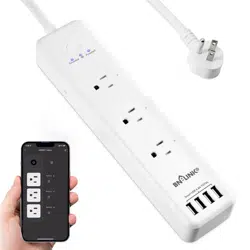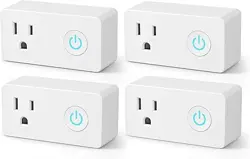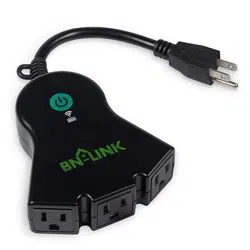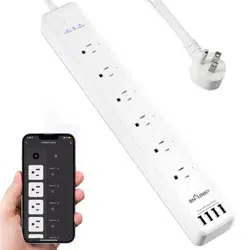
NOTE: Hold ON/OFF button for 5 seconds while it is plugged in to restore
the factory setting if you want to erase the plug's current settings.
Indicator Light Status
Blue light blinks every 0.5 second-Easy Mode connection
Blue light blinks every 2 seconds- AP Mode connection
Blue light- Power is OFF
Parameter
AC Input:125VAC 60Hz
AC Output:15A
TYPEC-2:PD20W
Combined USB Output Rating:5V 3AIndividual USB Output Rating:5V 2.4A
Power Cable Length:1.2M/3.93FT
USB Charging Ports:2 USB-A 2TYPECSurge Joule Rating:1200J
Radio Protocol: Wi-Fi2.4GHz
Wireless IEEE standards: IEEE802.1 b/g/n
Do not exceed electrical ratings
Install the “BN-LINK Smart” App
1. Search for BN-LINK Smart App on App store/Google Play Store, or just scan the QR
code below to download.(For iPhone, you can use build-in camera to scan the QR
code. For Android, you may need barcode scanner to do that.Please confirm the App
icon before downloading.)
PS: You can also add this smart plug to bn-link smart app directly if you already have
it on your phone, it is compatible and works the same way.
2. Register an account and memorize the password, enter your email address or your
phone number, then obtain verification code to complete the registry.
Connect with Your Cellphone
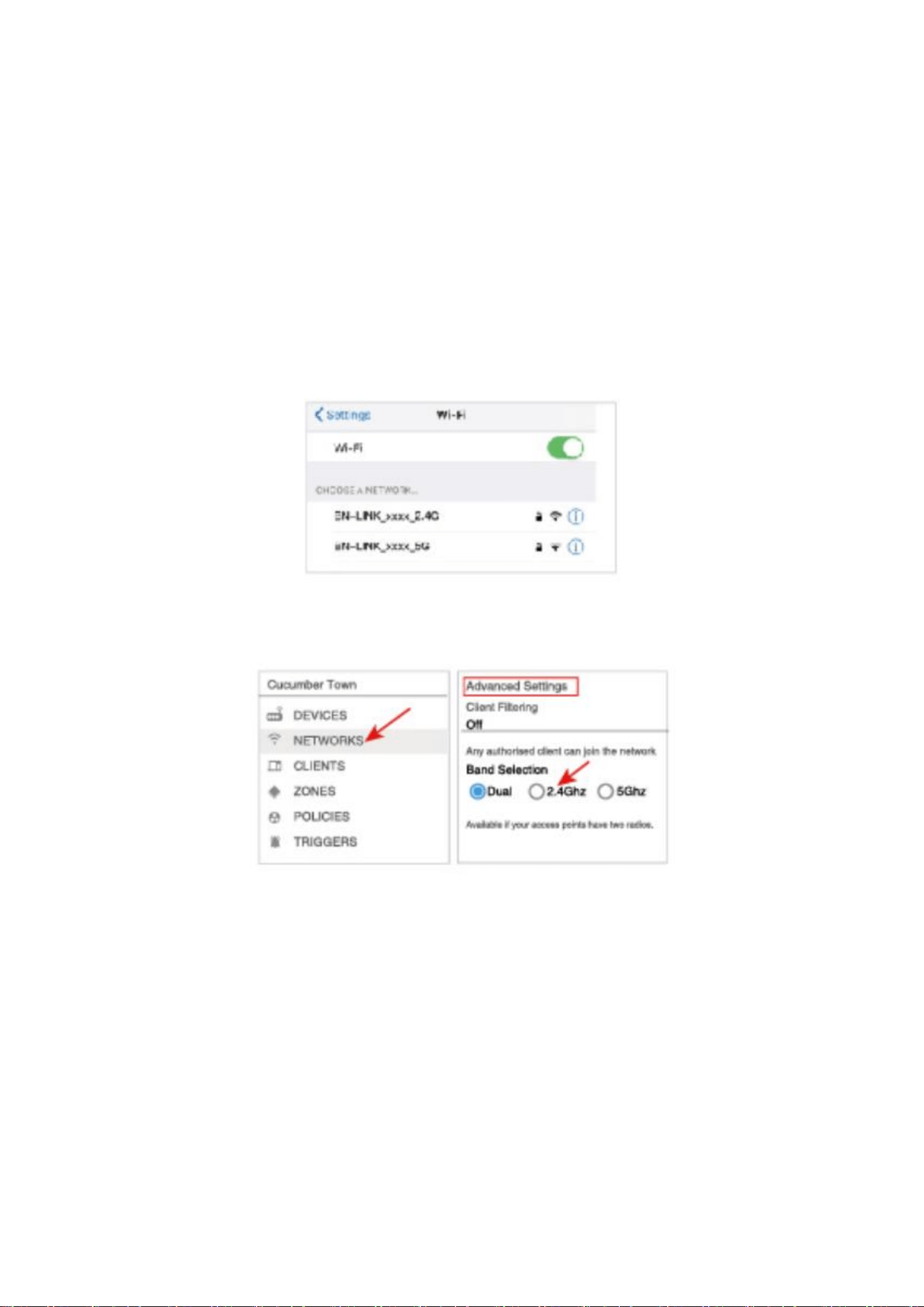
Requirements: 2.4GHz Wi-Fi network
Please note:
1. If you only have 5GHz Wi-Fi router,you will not be able to complete the
connection.
2. If you are using a dual Wi-Fi router and it broadcast 2 Wi-Fi signals, make sure that
your phone is connected with the 2.4GHz Wi-Fi signal, it should be the Wi-Fi signal
that next to “5G”.
3. If you are using a dual-band Wi-Fi router but it broadcast only 1 Wi-Fi signal, you
will have to manage your Wi-Fi router and change the settings to have 2.4GHz Wi-Fi.
A: Connection via Bluetooth-Blue indicator light blinks rapidly (twice a second)
Confirm that the Bluetooth on the smart phone is activated. If you are using an
Android device, the location permission must be allowed.
Confirm that the smart plug is plugged into a live outlet.
Open BN-LINK Smart app.
A dialogue box will pop up, indicating that the device has been discovered. Tap“Go to
add”
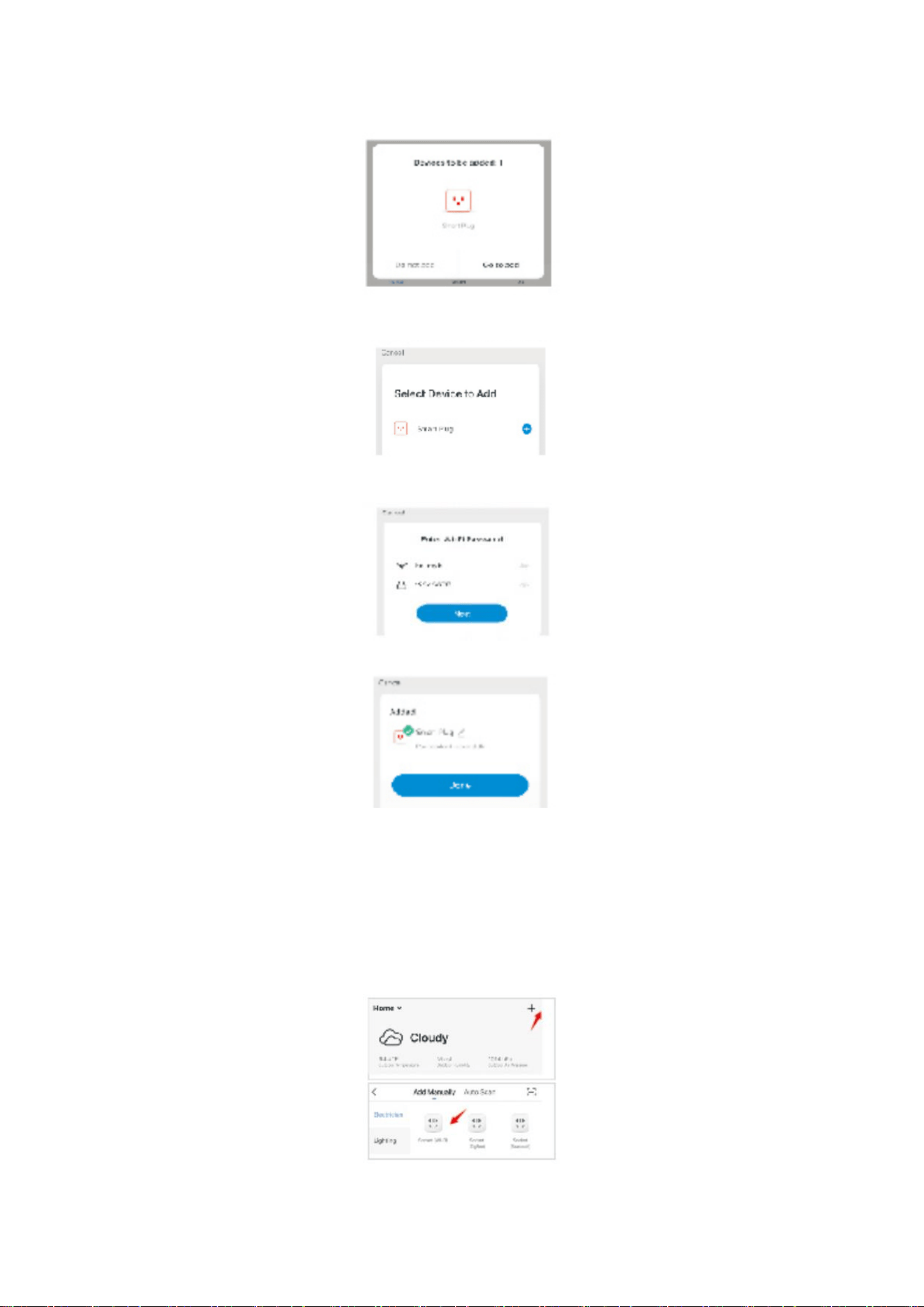
Select the device you are to add
Follow this instruction on the phone to complete the connection.
You can rename the device when it is successfully added.
B: For Easy Mode Connection- Blue indicator Light Blink Rapidly ( Twice a second )
---> Confirm the smart plug is plugged into a live outlet
--->Open BN-LINK Smart app
--->Choose the“+"symbol
--->“Socket(wifi)”
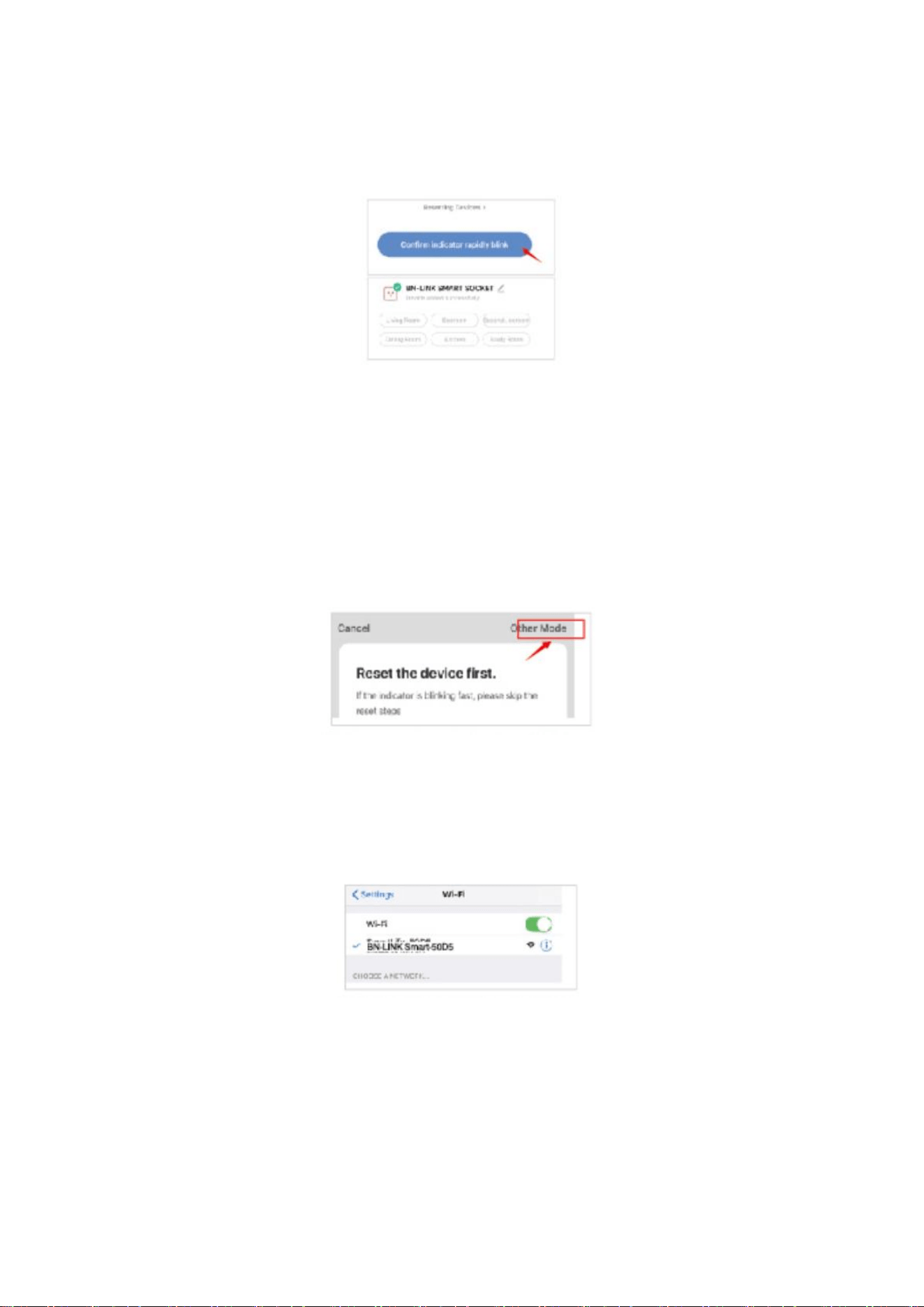
---> Confirm the light status on your plug and follow the App guide. (If you don't see
blue light quickly blinking, press On/Off button to reset.)
---> Set a unique name for this smart plug, choose the room location.
C: AP Mode(Indicator light blinks once every 2 seconds)
If the Easy mode connection failed, please remove and install the smart plug into
your power outlet again. When the indicator is blinking quickly, it is in Easy mode.
Hold the power button for about 7 seconds to enter into AP mode. Once you seethe
indicator light slowly blinking(every2 seconds), you can start to try the AP mode
connection.
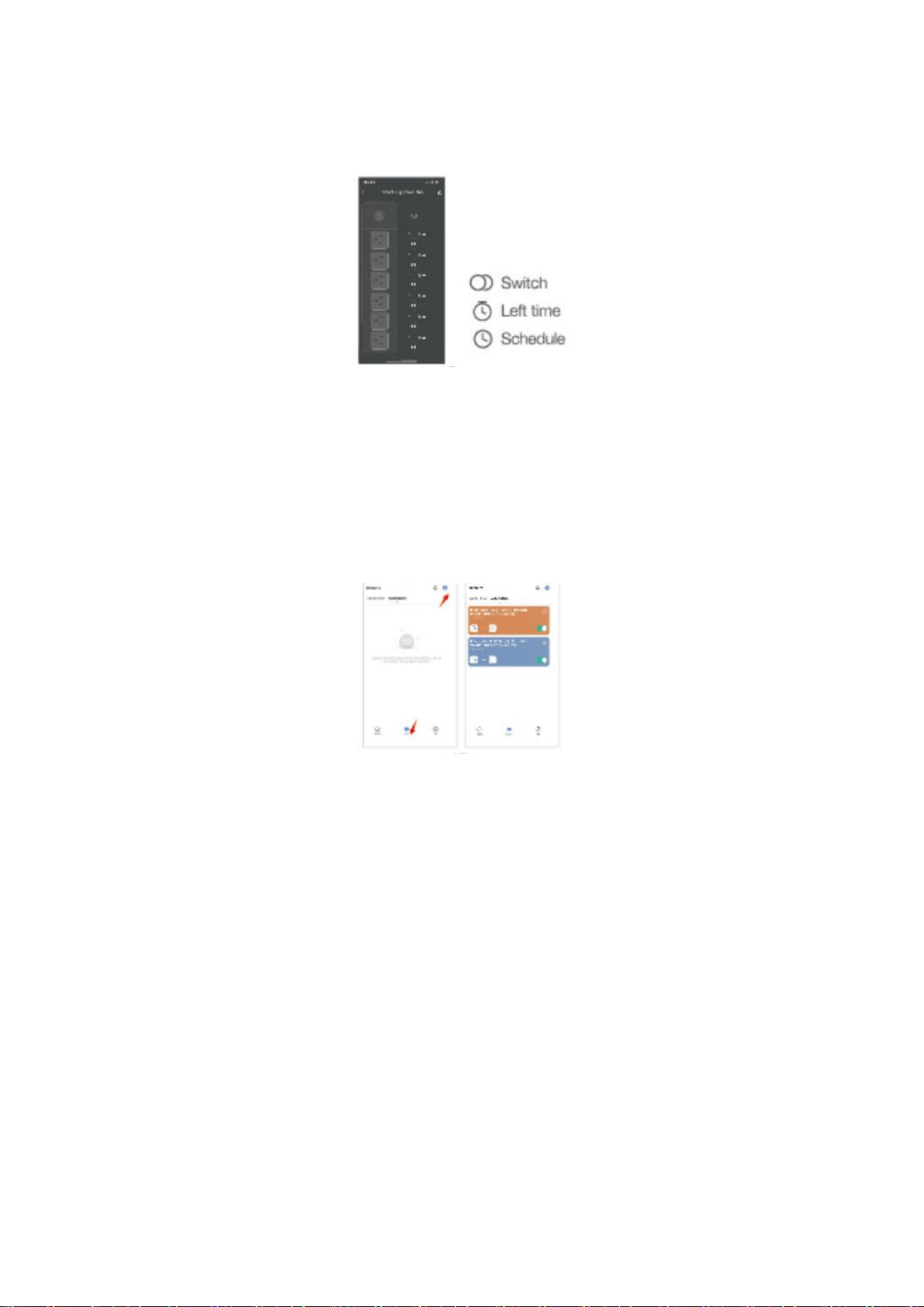
---> First go back to the Add Device “+interface."Socket Wifi). Then choose the
“Other Mode" in the top right corner and choose AP Mode.
--->Make sure the indicator light is flashing slowly and confirm it in App;
--->Choose your 2.4G Wi-Fi and enter the password and confirm it in App;
--->Tap“Connect now" and choose Wi-Fi hotspot named“BN-LINK Smart-xxx then go
back to BN-LINK Smart application;
--->Wait till successful configuration and then tap“Completed”.
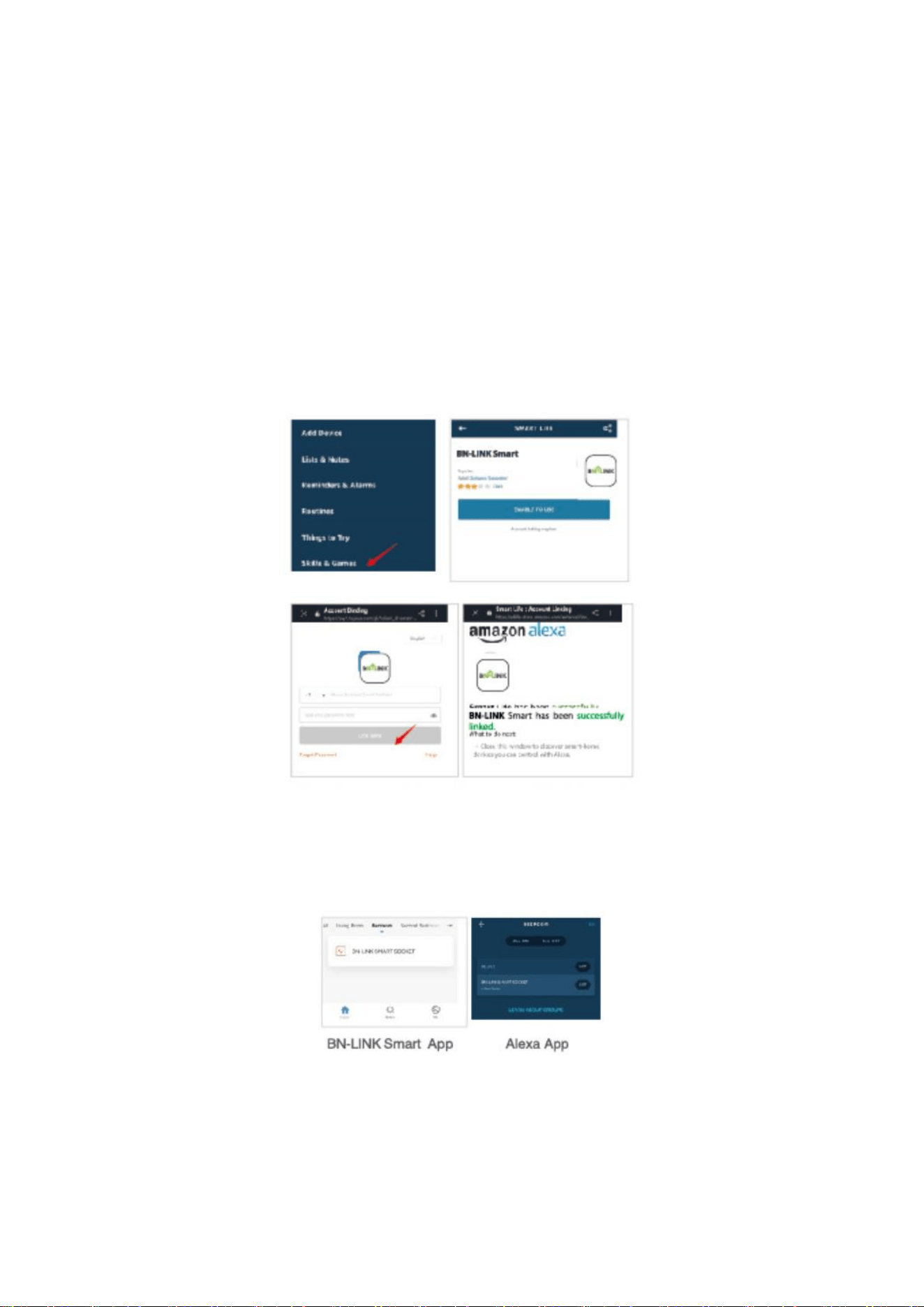
Getting to know BN-LINK Smart App
Note: edit the default names in this interface for better management.
Create Automations/Groups
You can create certain scenes and groups on BN-LINK Smart App,it allows you to
control different smart devices in different rooms at the same time.
Device Sharing
If you want to give others the permission to control your smart plug, you can
authorize that by activating the device sharing function.
Go to the BN-LINK Smart app
--->Choose the device you want to share
--->Choose Edit Button
--->Choose shared devices
--->Add sharing
--->Enter his/her BN-LINK Smart account
--->Search and complete.
How To Connect with Amazon Alexa
Requirements:
1. Amazon Alexa Device and Alexa App
2. The Smart Plug connected with BN-LINK Smart App
3. BN-LINK Smart App user ID and password
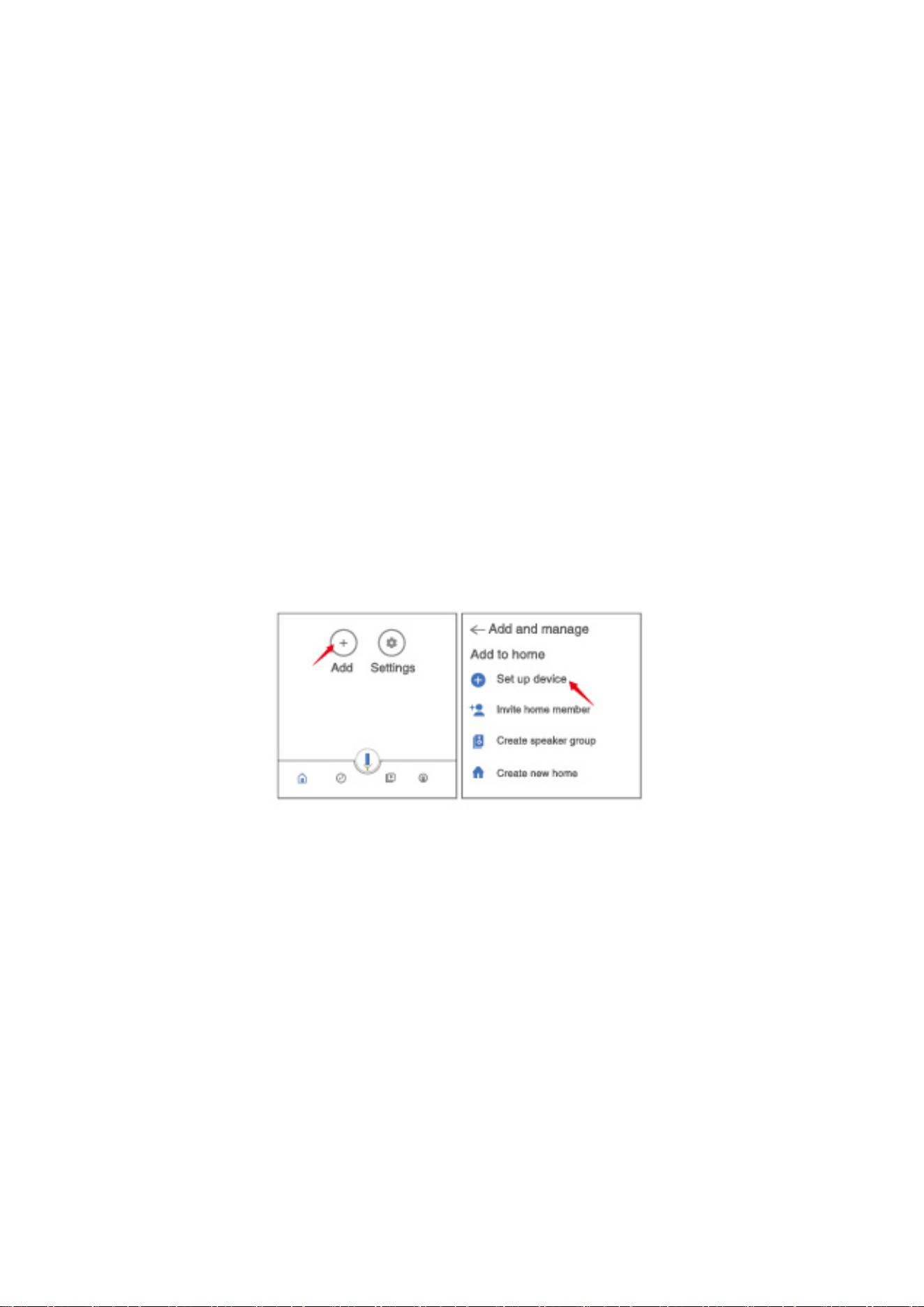
Add BN-LINK Smart as a“Skill” for Alexa
Open ALexa app and choose Skills & Games
---> Search for BN-LINK Smart
---> ENABLE TO USE
---> Enter the BN-LINK Smart account
--->Authorize to use
--->Choose BN-LINK Smart And then, the devices you added on will sync to Alexa App.
You can also ask Alexa to discover new devices for you in this moment.
How to ask Alexa to turn on/off Smart Plug
First, you will need to make sure the names for the plug are the same on the Alexa
app and on the BN-LINK Smart app. If they are not the same, Alexa will not be able to
identify the plug.
Things you can do with Alexa
* Voice Control the smart plug
* Remote Control the smart plug via Alexa App.
*Add the smart plug to certain groups on Alexa App. You should make sure all the
smart devices' names at your home are non-repetitive and recognizable for Alexa.
For other questions about Alexa, please find out with Amazon Alexa support page, or
contact us for help directly by email.
Tips for using Alexa Voice Control
Please make sure the device name you set for the smart plug is unique and
recognizable for Alexa voice assistant. You should make sure all the smart devices
names at your home are non-repetitive and recognizable for Alexa. Voice assistant
system needs the exact command to do the work.
How To Connect with Google Home
After you've connected the smart plugs with the BN-LINK Smart app successfully, you
can start to link them to Google Home app:Open Google Home app and find "Setup
device”
--->Click“Works with Google”
--->Search BN-LINK Smart
--->Enter your BN-LINK Smart account
--->Authorize to use.
After that, you will see the smart plug at the home page of Google Home as"Linked
to you", but you still haven't set the device name and assign a home or a room for it.
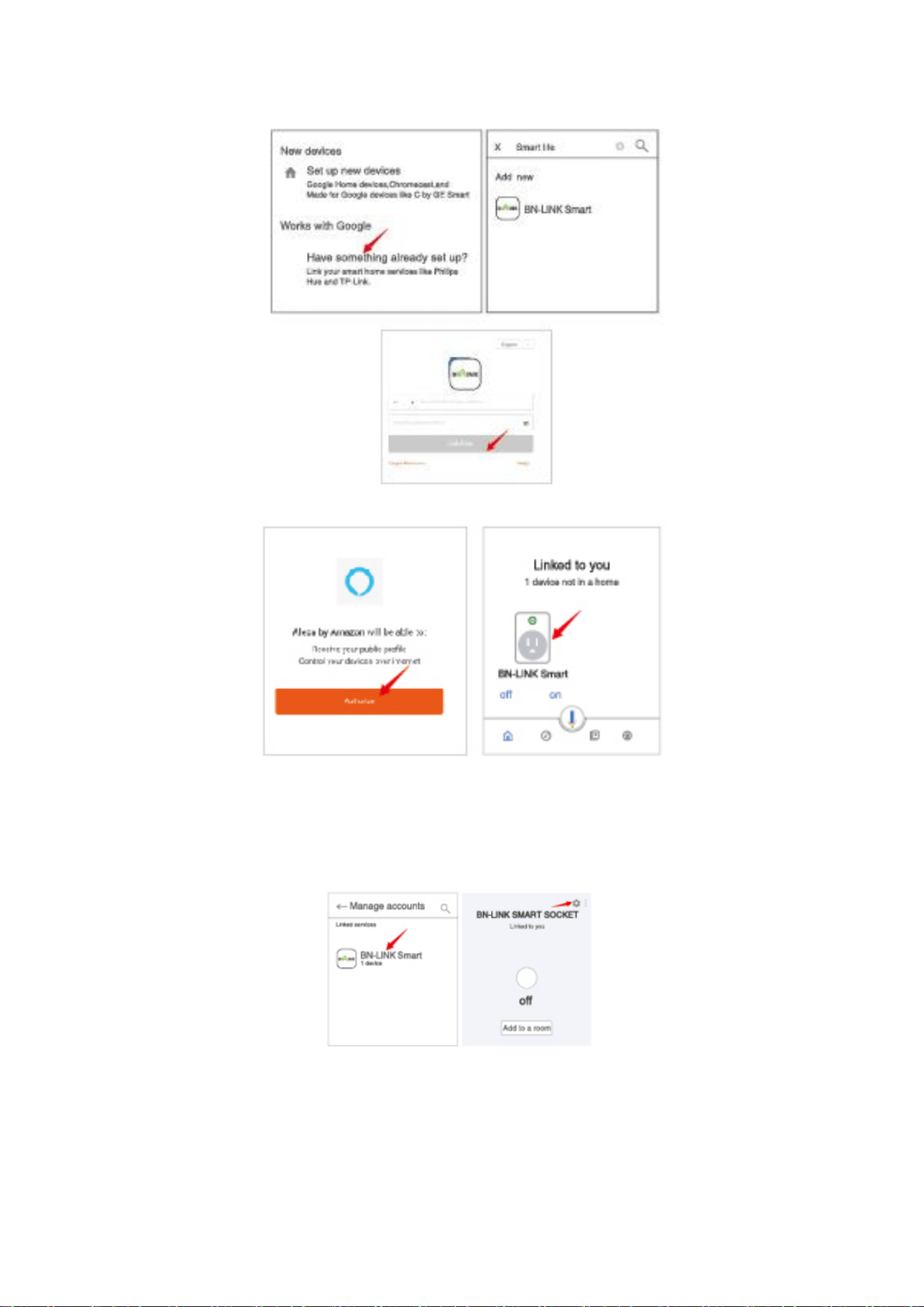
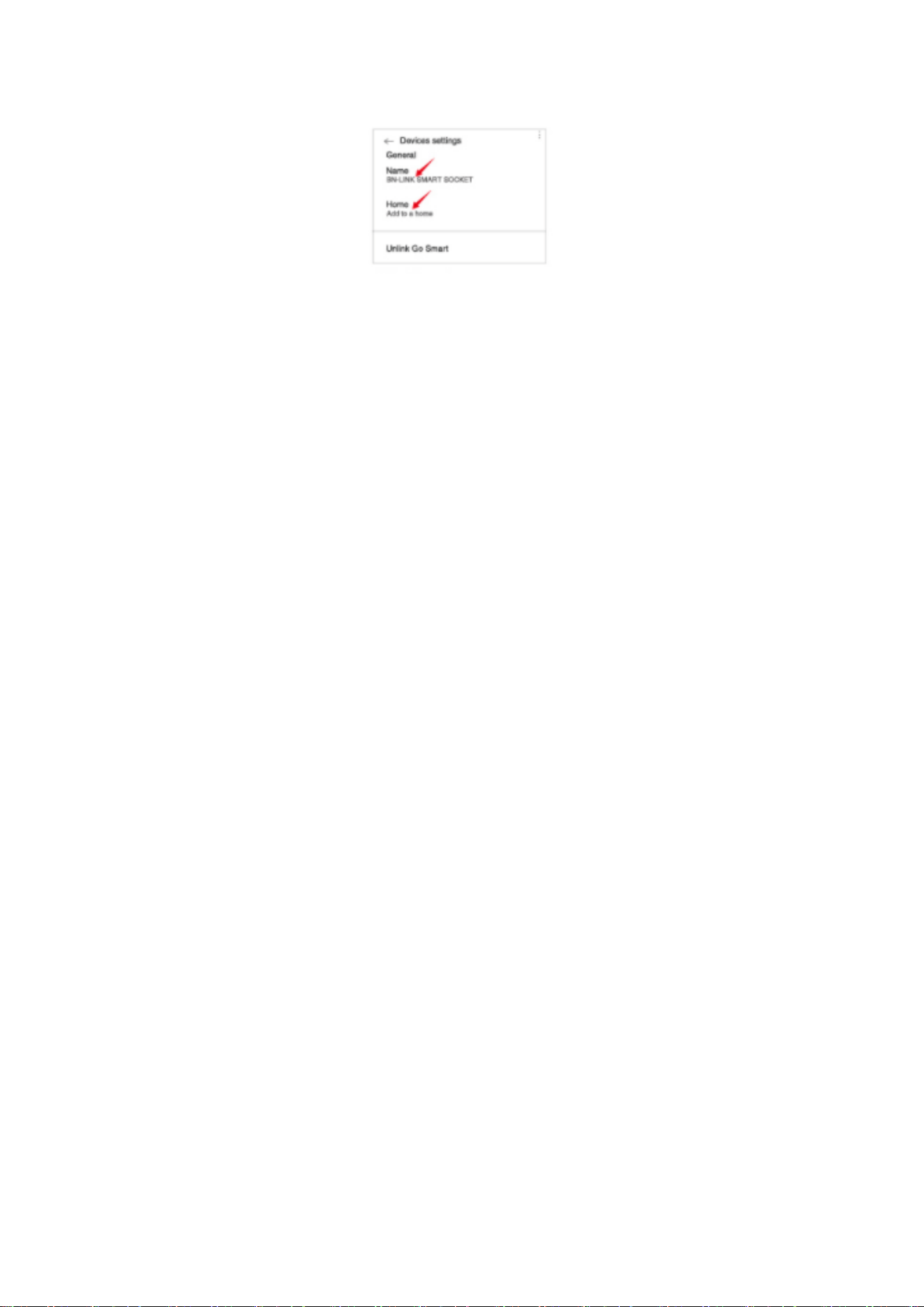
Now click the device that “Linked to you” or open “Works with Google" again to
manage your linked devices, follow the steps below and set up the device names,
rooms and home for the smart plug, you won't be able to voice control it before you
complete that.
Trouble Shooting
Q: Why did my phone connection fail?
A: * You should try both Easy Mode and AP Mode, read page 5-page 11, make sure to
follow the guide and try again.
*Confirm your home Wi-Fi is 2.4GHzand that you've entered the correct password
during the connection.
* Remove& Install the smart plug to start again. Contact the customer support team
for assistance if you still have problems with the connection after following the steps
above.
Q: Why can't I voice control the plug with my Alexa/Google
A: * Make sure the smart plug is connected successfully on the BN-LINK Smart app.
Ensure that they are working well by testing to see if you can turn the plug on and off
through the app.
* Make sure the same account is linked on the BN-LINK Smart as a skill on
Alexa/Google App.
* Make sure your Alexa/Google device is working fine.Check the device names that
you set for this smart plug, it should be non-repetitive and recognizable for voice
assistant. Also, please make sure your native language is available for Alexa. If you
still have trouble controlling our smart plug through voice control after following all
instructions, do not hesitate to contact us for help.
Q: Do I need to set up the device again if I changed my router?
A: Yes, you must set up the smart plug again if there are any changes to the current
wifi status.(i.e changing the name of the wifi, changing the router/modem). There is
no need to set the device up again if you are just changing the placement of the
router in the same house.
Q: Why does it turns on/off or comes offline surprisingly ?
A: Make sure your connection to the wifi is not interrupted. Check to see if there
were any timers/schedules set for the plug. If everything looks fine, reset the plug
and install it again on the app.Email us at support@bn-link.com if the problem still
persists.
Safety Information
This device is for indoor use only. Please keep the device dry and away from
hot,humid, and/or other extreme environments. Please ensure that the appliance

used with our plug is in compliance with our product's rating. Do not attempt to
disassemble the device. Be aware of the safety risks and product damage done to the
plug. This device meets UL94 V-0flammability standard.
Warranty
30 days money-back guarantee:
If you're not satisfied with this purchase, you can choose to refund this order within
30 days
15 months warranty:
*The device was used in proper technical working condition.
* Failures and defects not from human errors
Risk of Damage:
Not suitable for appliances that exceed 15A, be careful. Not covered if the device was
found to be disassembled from use.
Contact Us
Friendly reminder: Using a different app from BN-LINK Smart may lead to differences
in the interface, but the functionality of the plug should still be the same. For any
questions or concerns about our products, please contact us at support@bn-ink.com
BN-LINKINC.
Customer Service Assistance: 1.909592.1881
E-mail: support@bn-link.com
Http://www.bn-link.com
Hours: 9AM - 5PM PST, Mon - Fri
Made in China