This equipment has been tested and found to comply with
the limits for a Class B digital device, pursuant to part 15
of the FCC rules. These limits are designed to provide
reasonable protection against harmful interference in a
residential installation. This equipment generates, uses,
and can radiate radio frequency energy and, if not used
in accordance with the instructions, may cause harmful
interference to radio communications.
There is guarantee that interference will not occur in a
particular installation. If this equipment does cause harmful
interference to radio or television reception, the user is
encouraged to try to correct the interference by one or more
of the following measures:
• Reorientorrelocatethereceivingantenna.
• Increaseordecreasetheseparationbetweenthe
equipment and receiver.
• Connecttheequipmentintoanoutletonacircuit
dierent from that which the receiver is connected.
• Consultthedealeroranexperiencedremotecontrol
/TV technician for help.
• ItisstronglyrecommendedthattheTVbeplugged
into a separate wall outlet.
The user is cautioned that changes and modications made
to this equipment without the approval of the manufacturer
could void the user’s authority to operate this equipment.
This device complies with part 15 of the FCC rules. Operation
is subject to the following two conditions: (1) This device
may not cause harmful interference, and (2) this device must
accept any interference received, including interference that
may cause undesired operation.
“Caution”:ExposuretoRadioFrequencyRadiation.Antenna
shall be mounted in such a manner to minimize the potential
for human contact during operation to avoid the possibility of
exceedingtheFCCradiofrequencyexposurelimit.
RadioExposureStatement:Thisequipmentcomplieswith
theFCCradiationexposurelimitssetforthfordevices
operating in an uncontrolled environment. This equipment
should be operated with a minimum distance of 2 cm
between the radiator and front of face. This equipment
should not be placed directly on the ear when the speaker
is active.
FCC Compliance Statement
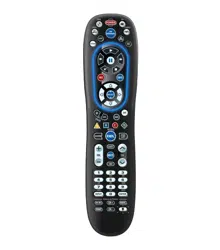
1 MeetYourRemote 2 TurnOnYourRemote 3 PairYourRemoteforVoiceControl 4 Control Your TV’s Power and Volume 5 Test Voice Control
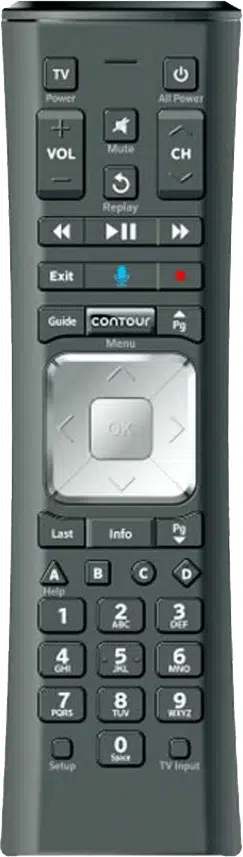
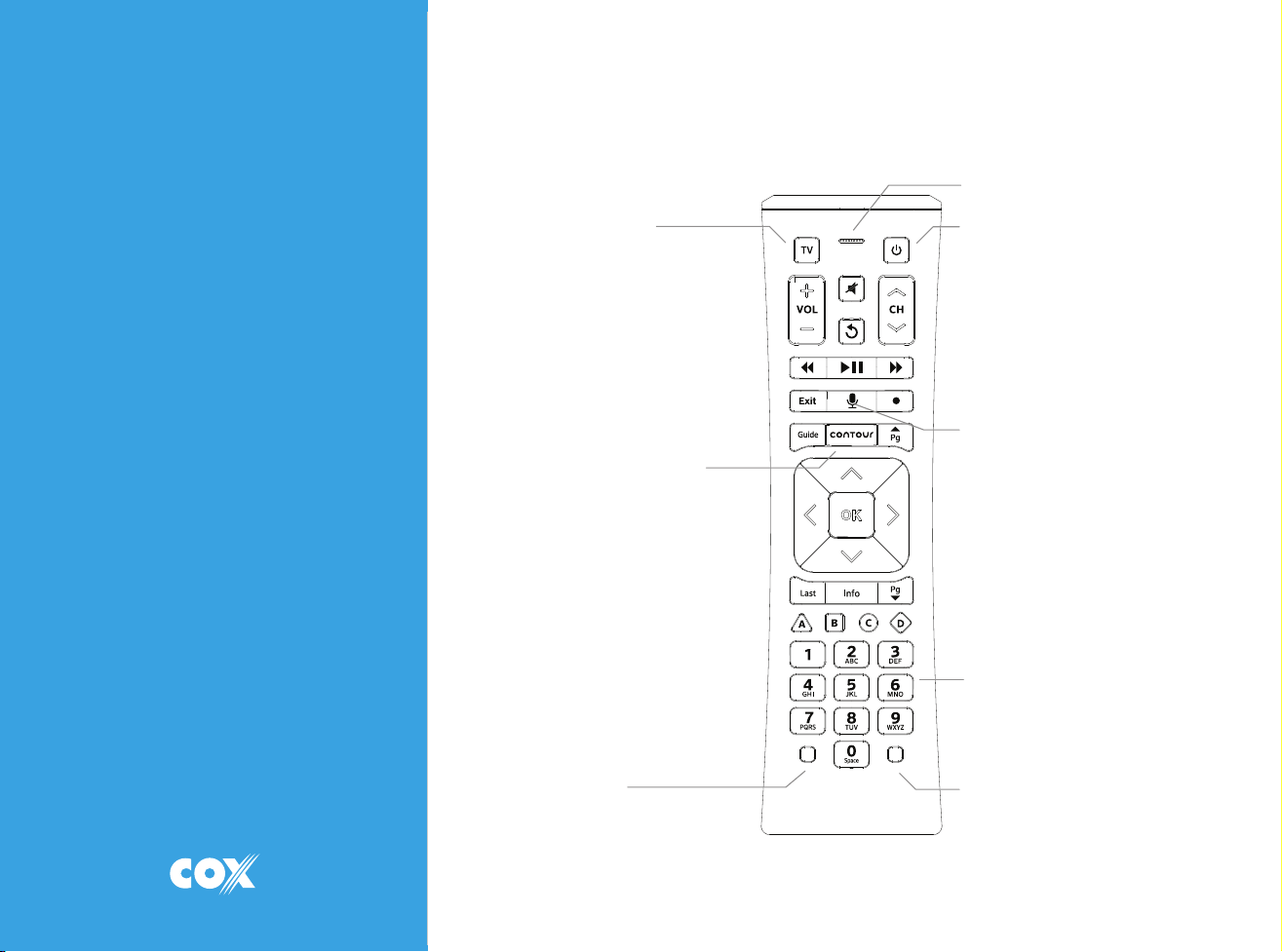
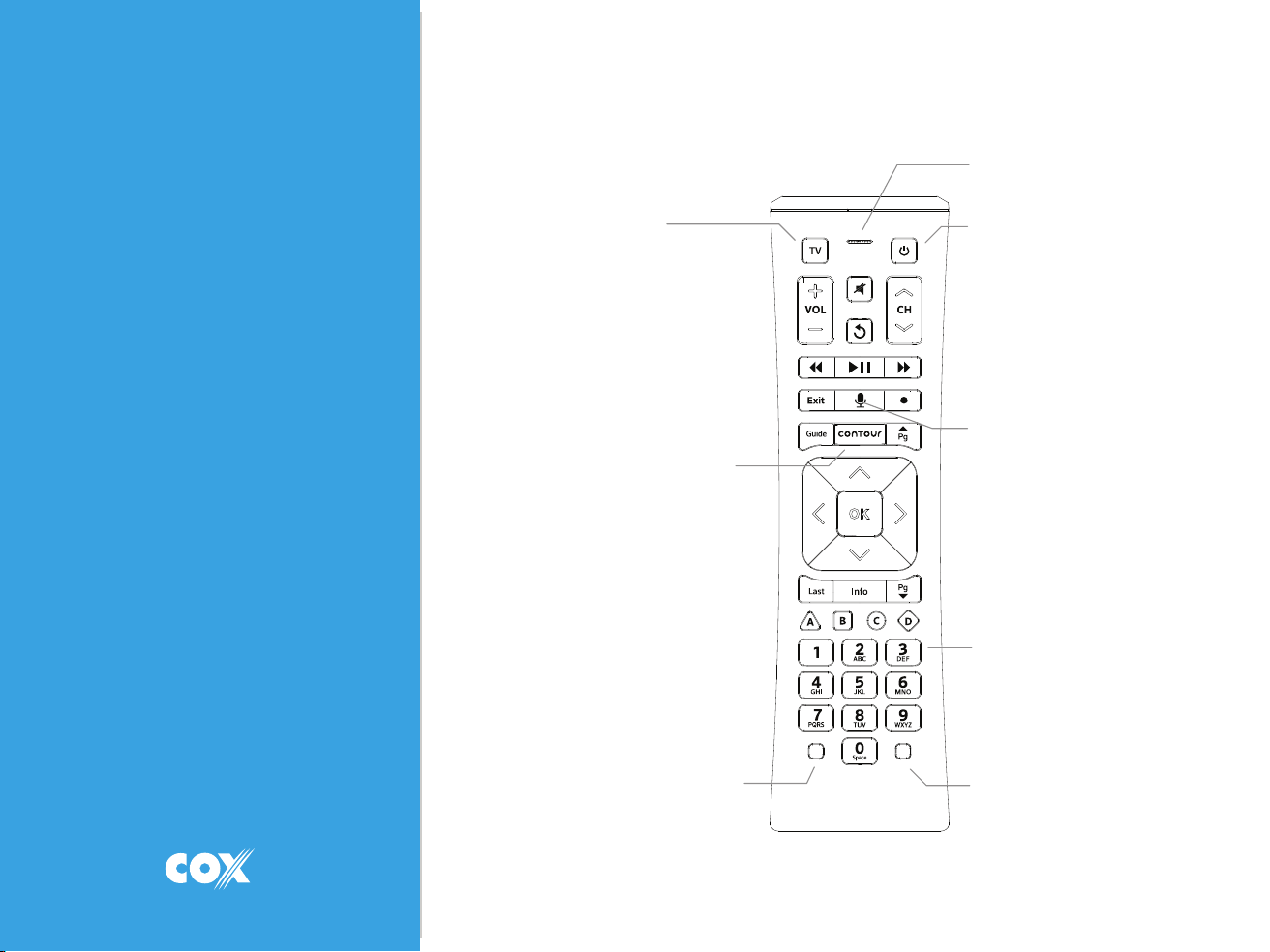
Mic / Status LED
All Power
Voice Control
Push and hold to talk.
Discover content by
channel, program or key
words.
Number Keys
Usepredicitvetext(T9)to
quickly search for content.
TV Input
Changestothenext
available input on your TV
(ifprogrammedinStep4)
TV Power
CONTOUR / Menu
AccessGuide,Saved,
VideoOnDEMAND,Apps,
SearchandSettings.
Setup
ProgramremoteforAim
Anywhereortocontrolyour
TV or audio device.
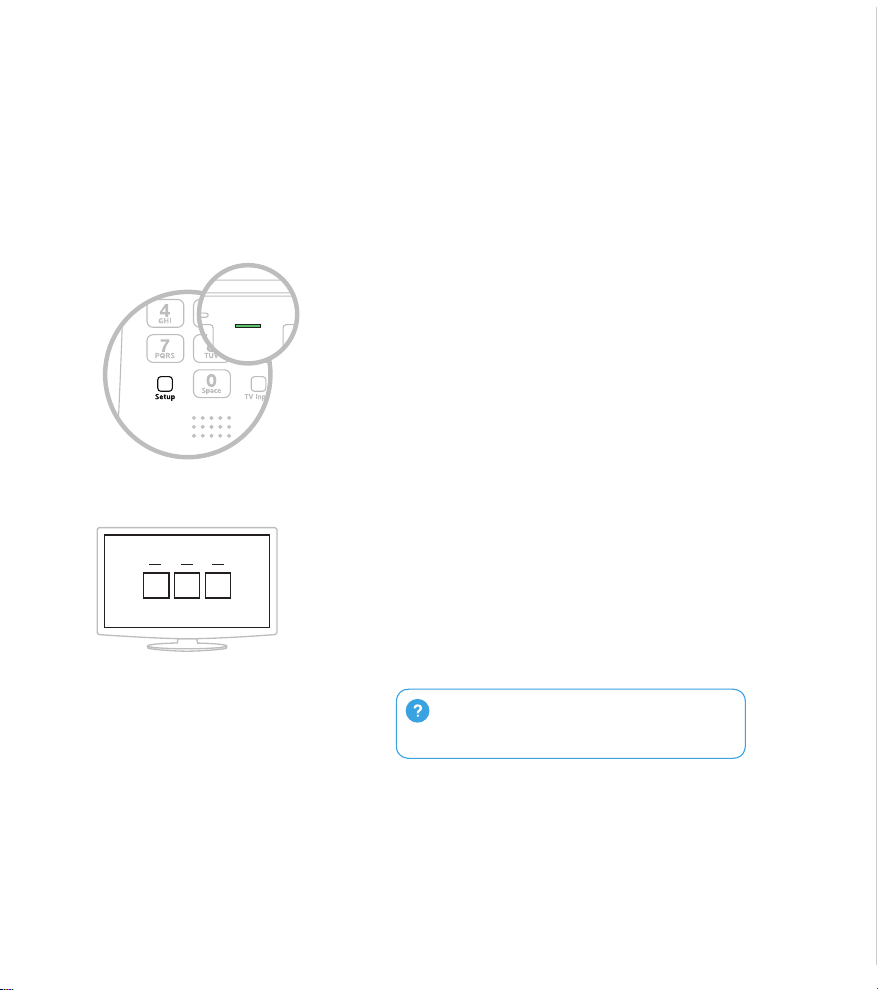
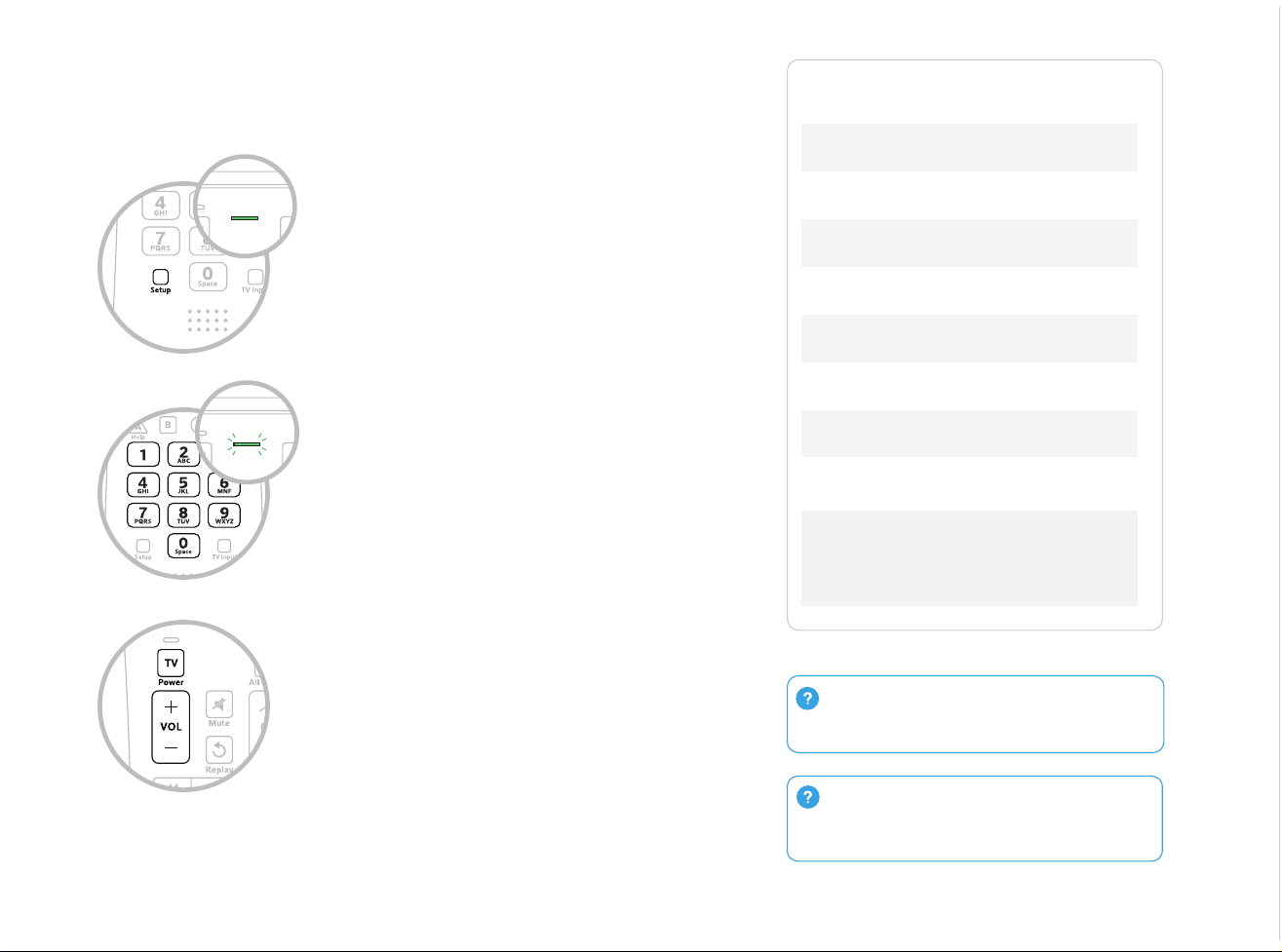
Press and hold the Setup button (about 3
seconds) until the StatusLED changes from red
to green.
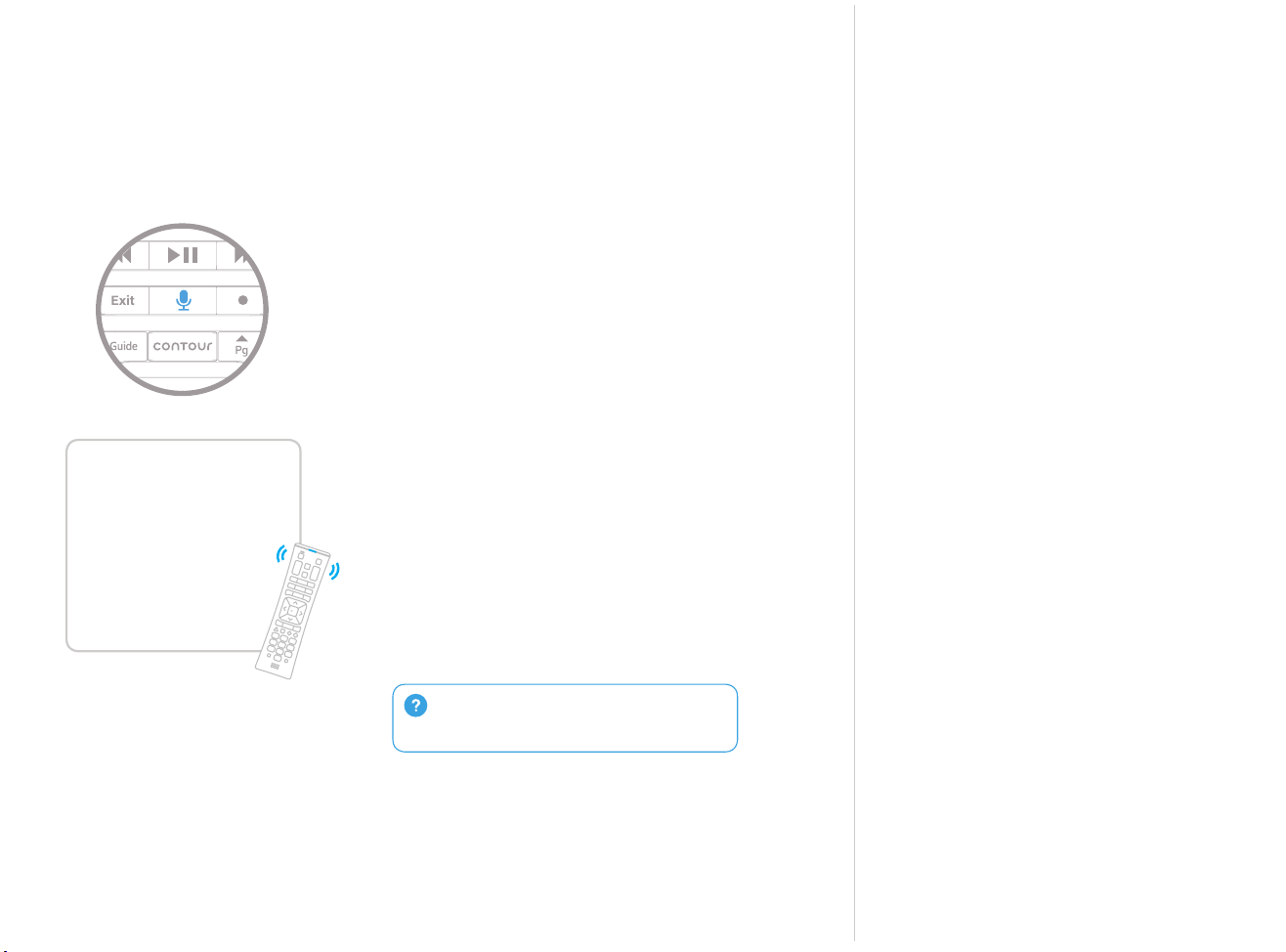
Press the CONTOUR button.
Follow the on-screen instructions to enter the
3-digit code that appears.
Once the code is correctly entered, your
CONTOURRemoteispairedwiththedevice.
A
B
C
Use voice control to search for networks and shows, set DVR recordings,
and get recommendations. See Step 5 of this guide for examples.
Using the list on the right, nd the rst 5-
digit code for your TV manufacturer.
Press and hold the Setup button (about 3
seconds) until the StatusLED changes
from red to green.
Enter the rst 5-digit code for your TV
manufacturer.TheStatusLEDshouldash
green twice.
Verify that the code was accepted by using
your remote to adjust volume and turn the
TV on and o.
A
B
C
D
Press and hold the Voice button until you
hear the audio tone.
Speak a voice command to the remote
while continuing to hold down the button.
Try one of the suggestions to the left. The
StatusLEDwillbesolid blue while you
speak your command.
ReleasetheVoice button when your
commandiscomplete.LookattheTVfor
the results of your voice command.
A
B
C
Once your remote is paired with your set-top box, you can use voice control.
Not working? Make sure you’re pressing the
Voice button while you speak into the remote,
and release it when complete.
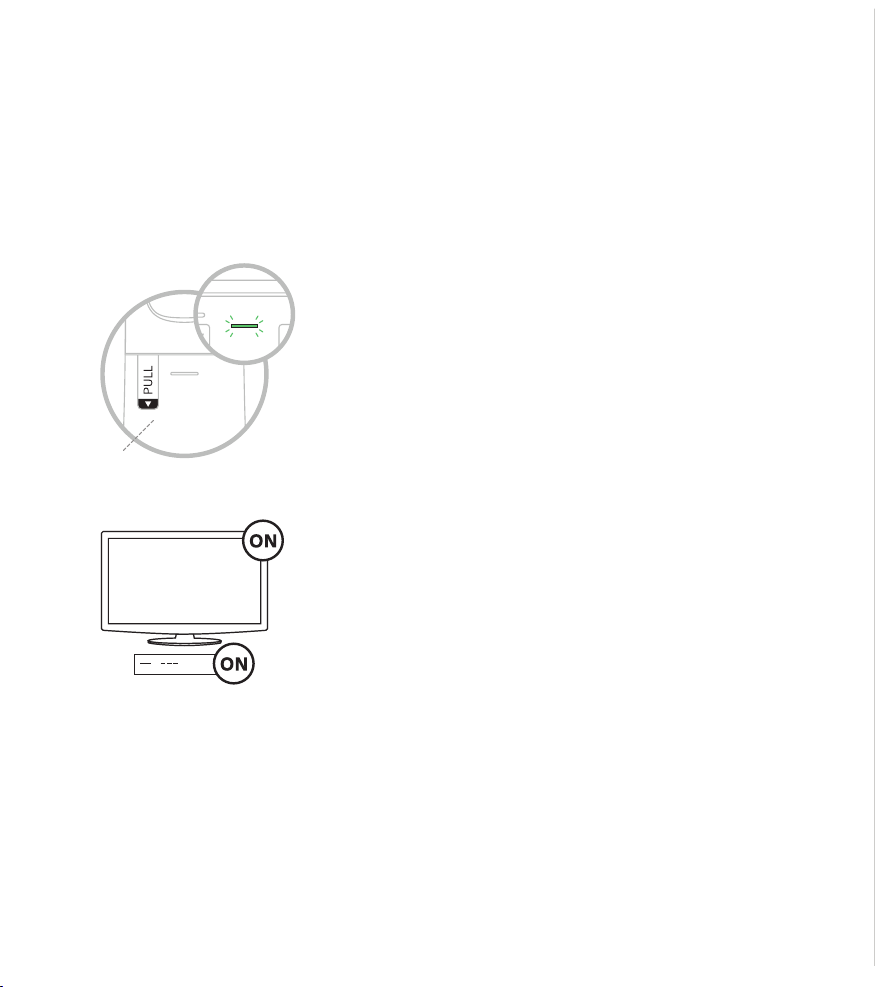
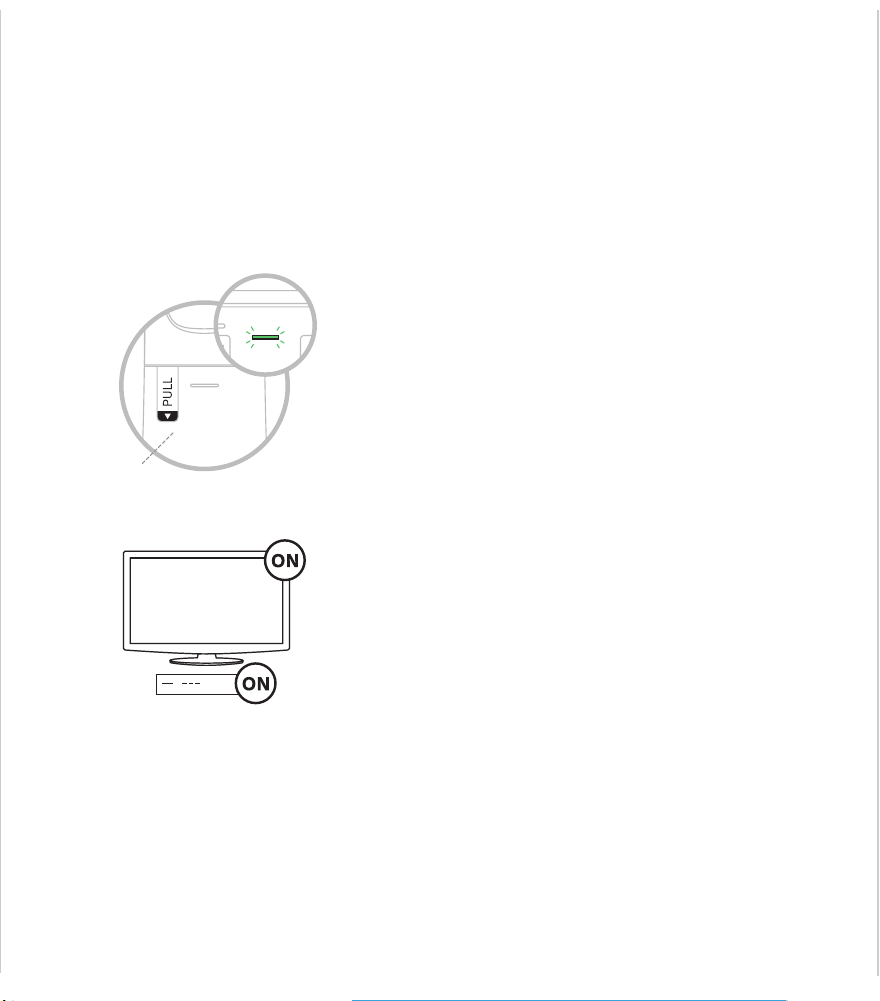
Pick up your remote and remove the “Pull” tab
(on back) by pulling away from the remote. The
StatusLEDwillblink green four times as the
remote powers up (about 5 seconds).
Turn on your TV.
Turn on your set-top box.
A
B
C
Your remote arrives with the AA batteries already installed, but not
activated. Here is how to power it on for the rst time.
Not working? Make sure the battery tab from
your remote is removed, your TV is on and you are
entering the correct 3-digit code on your TV screen.
Back
WATCH CNBC
FIND The Voice
SHOW ME all Eagles games
SHOW ME all kids movies on HBO
RECORD TheBiggestLoser
KIDSZONE
GUIDE
WHAT SHOULD I WATCH?
WHAT’S ON NOW?
VoiceRemote
Start
If your code isn’t listed or you would
like to control an audio device, visit
remotes.cox.com.
Popular TV Manufacturer Codes
LG 10178 , 11265
Panasonic 10051, 10250
Samsung 10812, 10060
Sanyo 10154,10159
Sony 10000, 11100
Sharp 10093,10165
Toshiba 10156, 1115 6
Vizio 11758 , 11756
Not working? Try the second code listed. Still
not working? Visit remotes.cox.com for a complete
list of codes.
Have an Audio Receiver or Sound Bar? If you
would like to setup your remote to control your
audio device or sound bar, visit remotes.cox.com.
®
xr11_GSG_152mm_Aug.indd 1 8/4/15 11:30 AM
This equipment has been tested and found to comply with
the limits for a Class B digital device, pursuant to part 15
of the FCC rules. These limits are designed to provide
reasonable protection against harmful interference in a
residential installation. This equipment generates, uses,
and can radiate radio frequency energy and, if not used
in accordance with the instructions, may cause harmful
interference to radio communications.
There is guarantee that interference will not occur in a
particular installation. If this equipment does cause harmful
interference to radio or television reception, the user is
encouraged to try to correct the interference by one or more
of the following measures:
• Reorientorrelocatethereceivingantenna.
• Increaseordecreasetheseparationbetweenthe
equipment and receiver.
• Connecttheequipmentintoanoutletonacircuit
dierent from that which the receiver is connected.
• Consultthedealeroranexperiencedremotecontrol
/TV technician for help.
• ItisstronglyrecommendedthattheTVbeplugged
into a separate wall outlet.
The user is cautioned that changes and modications made
to this equipment without the approval of the manufacturer
could void the user’s authority to operate this equipment.
This device complies with part 15 of the FCC rules. Operation
is subject to the following two conditions: (1) This device
may not cause harmful interference, and (2) this device must
accept any interference received, including interference that
may cause undesired operation.
“Caution”:ExposuretoRadioFrequencyRadiation.Antenna
shall be mounted in such a manner to minimize the potential
for human contact during operation to avoid the possibility of
exceedingtheFCCradiofrequencyexposurelimit.
RadioExposureStatement:Thisequipmentcomplieswith
theFCCradiationexposurelimitssetforthfordevices
operating in an uncontrolled environment. This equipment
should be operated with a minimum distance of 2 cm
between the radiator and front of face. This equipment
should not be placed directly on the ear when the speaker
is active.
FCC Compliance Statement
1 MeetYourRemote 2 TurnOnYourRemote 3 PairYourRemoteforVoiceControl 4 Control Your TV’s Power and Volume 5 Test Voice Control
Mic / Status LED
All Power
Voice Control
Push and hold to talk.
Discover content by
channel, program or key
words.
Number Keys
Usepredicitvetext(T9)to
quickly search for content.
TV Input
Changestothenext
available input on your TV
(ifprogrammedinStep4)
TV Power
CONTOUR / Menu
AccessGuide,Saved,
VideoOnDEMAND,Apps,
SearchandSettings.
Setup
ProgramremoteforAim
Anywhereortocontrolyour
TV or audio device.
Press and hold the Setup button (about 3
seconds) until the StatusLED changes from red
to green.
Press the CONTOUR button.
Follow the on-screen instructions to enter the
3-digit code that appears.
Once the code is correctly entered, your
CONTOURRemoteispairedwiththedevice.
A
B
C
Use voice control to search for networks and shows, set DVR recordings,
and get recommendations. See Step 5 of this guide for examples.
Using the list on the right, nd the rst 5-
digit code for your TV manufacturer.
Press and hold the Setup button (about 3
seconds) until the StatusLED changes
from red to green.
Enter the rst 5-digit code for your TV
manufacturer.TheStatusLEDshouldash
green twice.
Verify that the code was accepted by using
your remote to adjust volume and turn the
TV on and o.
A
B
C
D
Press and hold the Voice button until you
hear the audio tone.
Speak a voice command to the remote
while continuing to hold down the button.
Try one of the suggestions to the left. The
StatusLEDwillbesolid blue while you
speak your command.
ReleasetheVoice button when your
commandiscomplete.LookattheTVfor
the results of your voice command.
A
B
C
Once your remote is paired with your set-top box, you can use voice control.
Not working? Make sure you’re pressing the
Voice button while you speak into the remote,
and release it when complete.
Pick up your remote and remove the “Pull” tab
(on back) by pulling away from the remote. The
StatusLEDwillblink green four times as the
remote powers up (about 5 seconds).
Turn on your TV.
Turn on your set-top box.
A
B
C
Your remote arrives with the AA batteries already installed, but not
activated. Here is how to power it on for the rst time.
Not working? Make sure the battery tab from
your remote is removed, your TV is on and you are
entering the correct 3-digit code on your TV screen.
Back
WATCH CNBC
FIND The Voice
SHOW ME all Eagles games
SHOW ME all kids movies on HBO
RECORD TheBiggestLoser
KIDSZONE
GUIDE
WHAT SHOULD I WATCH?
WHAT’S ON NOW?
VoiceRemote
Start
If your code isn’t listed or you would
like to control an audio device, visit
remotes.cox.com.
Popular TV Manufacturer Codes
LG 10178 , 11265
Panasonic 10051, 10250
Samsung 10812, 10060
Sanyo 10154,10159
Sony 10000, 11100
Sharp 10093,10165
Toshiba 10156, 11156
Vizio 11758 , 11756
Not working? Try the second code listed. Still
not working? Visit remotes.cox.com for a complete
list of codes.
Have an Audio Receiver or Sound Bar? If you
would like to setup your remote to control your
audio device or sound bar, visit remotes.cox.com.
®
xr11_GSG_152mm_Aug.indd 1 8/4/15 11:30 AM
This equipment has been tested and found to comply with
the limits for a Class B digital device, pursuant to part 15
of the FCC rules. These limits are designed to provide
reasonable protection against harmful interference in a
residential installation. This equipment generates, uses,
and can radiate radio frequency energy and, if not used
in accordance with the instructions, may cause harmful
interference to radio communications.
There is guarantee that interference will not occur in a
particular installation. If this equipment does cause harmful
interference to radio or television reception, the user is
encouraged to try to correct the interference by one or more
of the following measures:
• Reorientorrelocatethereceivingantenna.
• Increaseordecreasetheseparationbetweenthe
equipment and receiver.
• Connecttheequipmentintoanoutletonacircuit
dierent from that which the receiver is connected.
• Consultthedealeroranexperiencedremotecontrol
/TV technician for help.
• ItisstronglyrecommendedthattheTVbeplugged
into a separate wall outlet.
The user is cautioned that changes and modications made
to this equipment without the approval of the manufacturer
could void the user’s authority to operate this equipment.
This device complies with part 15 of the FCC rules. Operation
is subject to the following two conditions: (1) This device
may not cause harmful interference, and (2) this device must
accept any interference received, including interference that
may cause undesired operation.
“Caution”:ExposuretoRadioFrequencyRadiation.Antenna
shall be mounted in such a manner to minimize the potential
for human contact during operation to avoid the possibility of
exceedingtheFCCradiofrequencyexposurelimit.
RadioExposureStatement:Thisequipmentcomplieswith
theFCCradiationexposurelimitssetforthfordevices
operating in an uncontrolled environment. This equipment
should be operated with a minimum distance of 2 cm
between the radiator and front of face. This equipment
should not be placed directly on the ear when the speaker
is active.
FCC Compliance Statement
1 MeetYourRemote 2 TurnOnYourRemote 3 PairYourRemoteforVoiceControl 4 Control Your TV’s Power and Volume 5 Test Voice Control
Mic / Status LED
All Power
Voice Control
Push and hold to talk.
Discover content by
channel, program or key
words.
Number Keys
Usepredicitvetext(T9)to
quickly search for content.
TV Input
Changestothenext
available input on your TV
(ifprogrammedinStep4)
TV Power
CONTOUR / Menu
AccessGuide,Saved,
VideoOnDEMAND,Apps,
SearchandSettings.
Setup
ProgramremoteforAim
Anywhereortocontrolyour
TV or audio device.
Press and hold the Setup button (about 3
seconds) until the StatusLED changes from red
to green.
Press the CONTOUR button.
Follow the on-screen instructions to enter the
3-digit code that appears.
Once the code is correctly entered, your
CONTOURRemoteispairedwiththedevice.
A
B
C
Use voice control to search for networks and shows, set DVR recordings,
and get recommendations. See Step 5 of this guide for examples.
Using the list on the right, nd the rst 5-
digit code for your TV manufacturer.
Press and hold the Setup button (about 3
seconds) until the StatusLED changes
from red to green.
Enter the rst 5-digit code for your TV
manufacturer.TheStatusLEDshouldash
green twice.
Verify that the code was accepted by using
your remote to adjust volume and turn the
TV on and o.
A
B
C
D
Press and hold the Voice button until you
hear the audio tone.
Speak a voice command to the remote
while continuing to hold down the button.
Try one of the suggestions to the left. The
StatusLEDwillbesolid blue while you
speak your command.
ReleasetheVoice button when your
commandiscomplete.LookattheTVfor
the results of your voice command.
A
B
C
Once your remote is paired with your set-top box, you can use voice control.
Not working? Make sure you’re pressing the
Voice button while you speak into the remote,
and release it when complete.
Pick up your remote and remove the “Pull” tab
(on back) by pulling away from the remote. The
StatusLEDwillblink green four times as the
remote powers up (about 5 seconds).
Turn on your TV.
Turn on your set-top box.
A
B
C
Your remote arrives with the AA batteries already installed, but not
activated. Here is how to power it on for the rst time.
Not working? Make sure the battery tab from
your remote is removed, your TV is on and you are
entering the correct 3-digit code on your TV screen.
Back
WATCH CNBC
FIND The Voice
SHOW ME all Eagles games
SHOW ME all kids movies on HBO
RECORD TheBiggestLoser
KIDSZONE
GUIDE
WHAT SHOULD I WATCH?
WHAT’S ON NOW?
VoiceRemote
Start
If your code isn’t listed or you would
like to control an audio device, visit
remotes.cox.com.
Popular TV Manufacturer Codes
LG 10178 , 11265
Panasonic 10051, 10250
Samsung 10812, 10060
Sanyo 10154,10159
Sony 10000, 11100
Sharp 10093,10165
Toshiba 10156, 11156
Vizio 11758 , 11756
Not working? Try the second code listed. Still
not working? Visit remotes.cox.com for a complete
list of codes.
Have an Audio Receiver or Sound Bar? If you
would like to setup your remote to control your
audio device or sound bar, visit remotes.cox.com.
®
xr11_GSG_152mm_Aug.indd 1 8/4/15 11:30 AM
This equipment has been tested and found to comply with
the limits for a Class B digital device, pursuant to part 15
of the FCC rules. These limits are designed to provide
reasonable protection against harmful interference in a
residential installation. This equipment generates, uses,
and can radiate radio frequency energy and, if not used
in accordance with the instructions, may cause harmful
interference to radio communications.
There is guarantee that interference will not occur in a
particular installation. If this equipment does cause harmful
interference to radio or television reception, the user is
encouraged to try to correct the interference by one or more
of the following measures:
• Reorientorrelocatethereceivingantenna.
• Increaseordecreasetheseparationbetweenthe
equipment and receiver.
• Connecttheequipmentintoanoutletonacircuit
dierent from that which the receiver is connected.
• Consultthedealeroranexperiencedremotecontrol
/TV technician for help.
• ItisstronglyrecommendedthattheTVbeplugged
into a separate wall outlet.
The user is cautioned that changes and modications made
to this equipment without the approval of the manufacturer
could void the user’s authority to operate this equipment.
This device complies with part 15 of the FCC rules. Operation
is subject to the following two conditions: (1) This device
may not cause harmful interference, and (2) this device must
accept any interference received, including interference that
may cause undesired operation.
“Caution”:ExposuretoRadioFrequencyRadiation.Antenna
shall be mounted in such a manner to minimize the potential
for human contact during operation to avoid the possibility of
exceedingtheFCCradiofrequencyexposurelimit.
RadioExposureStatement:Thisequipmentcomplieswith
theFCCradiationexposurelimitssetforthfordevices
operating in an uncontrolled environment. This equipment
should be operated with a minimum distance of 2 cm
between the radiator and front of face. This equipment
should not be placed directly on the ear when the speaker
is active.
FCC Compliance Statement
1 MeetYourRemote 2 TurnOnYourRemote 3 PairYourRemoteforVoiceControl 4 Control Your TV’s Power and Volume 5 Test Voice Control
Mic / Status LED
All Power
Voice Control
Push and hold to talk.
Discover content by
channel, program or key
words.
Number Keys
Usepredicitvetext(T9)to
quickly search for content.
TV Input
Changestothenext
available input on your TV
(ifprogrammedinStep4)
TV Power
CONTOUR / Menu
AccessGuide,Saved,
VideoOnDEMAND,Apps,
SearchandSettings.
Setup
ProgramremoteforAim
Anywhereortocontrolyour
TV or audio device.
Press and hold the Setup button (about 3
seconds) until the StatusLED changes from red
to green.
Press the CONTOUR button.
Follow the on-screen instructions to enter the
3-digit code that appears.
Once the code is correctly entered, your
CONTOURRemoteispairedwiththedevice.
A
B
C
Use voice control to search for networks and shows, set DVR recordings,
and get recommendations. See Step 5 of this guide for examples.
Using the list on the right, nd the rst 5-
digit code for your TV manufacturer.
Press and hold the Setup button (about 3
seconds) until the StatusLED changes
from red to green.
Enter the rst 5-digit code for your TV
manufacturer.TheStatusLEDshouldash
green twice.
Verify that the code was accepted by using
your remote to adjust volume and turn the
TV on and o.
A
B
C
D
Press and hold the Voice button until you
hear the audio tone.
Speak a voice command to the remote
while continuing to hold down the button.
Try one of the suggestions to the left. The
StatusLEDwillbesolid blue while you
speak your command.
ReleasetheVoice button when your
commandiscomplete.LookattheTVfor
the results of your voice command.
A
B
C
Once your remote is paired with your set-top box, you can use voice control.
Not working? Make sure you’re pressing the
Voice button while you speak into the remote,
and release it when complete.
Pick up your remote and remove the “Pull” tab
(on back) by pulling away from the remote. The
StatusLEDwillblink green four times as the
remote powers up (about 5 seconds).
Turn on your TV.
Turn on your set-top box.
A
B
C
Your remote arrives with the AA batteries already installed, but not
activated. Here is how to power it on for the rst time.
Not working? Make sure the battery tab from
your remote is removed, your TV is on and you are
entering the correct 3-digit code on your TV screen.
Back
WATCH CNBC
FIND The Voice
SHOW ME all Eagles games
SHOW ME all kids movies on HBO
RECORD TheBiggestLoser
KIDSZONE
GUIDE
WHAT SHOULD I WATCH?
WHAT’S ON NOW?
VoiceRemote
Start
If your code isn’t listed or you would
like to control an audio device, visit
remotes.cox.com.
Popular TV Manufacturer Codes
LG 10178 , 11265
Panasonic 10051, 10250
Samsung 10812, 10060
Sanyo 10154,10159
Sony 10000, 11100
Sharp 10093,10165
Toshiba 10156, 1115 6
Vizio 11758 , 11756
Not working? Try the second code listed. Still
not working? Visit remotes.cox.com for a complete
list of codes.
Have an Audio Receiver or Sound Bar? If you
would like to setup your remote to control your
audio device or sound bar, visit remotes.cox.com.
®
xr11_GSG_152mm_Aug.indd 1 8/4/15 11:30 AM
This equipment has been tested and found to comply with
the limits for a Class B digital device, pursuant to part 15
of the FCC rules. These limits are designed to provide
reasonable protection against harmful interference in a
residential installation. This equipment generates, uses,
and can radiate radio frequency energy and, if not used
in accordance with the instructions, may cause harmful
interference to radio communications.
There is guarantee that interference will not occur in a
particular installation. If this equipment does cause harmful
interference to radio or television reception, the user is
encouraged to try to correct the interference by one or more
of the following measures:
• Reorientorrelocatethereceivingantenna.
• Increaseordecreasetheseparationbetweenthe
equipment and receiver.
• Connecttheequipmentintoanoutletonacircuit
dierent from that which the receiver is connected.
• Consultthedealeroranexperiencedremotecontrol
/TV technician for help.
• ItisstronglyrecommendedthattheTVbeplugged
into a separate wall outlet.
The user is cautioned that changes and modications made
to this equipment without the approval of the manufacturer
could void the user’s authority to operate this equipment.
This device complies with part 15 of the FCC rules. Operation
is subject to the following two conditions: (1) This device
may not cause harmful interference, and (2) this device must
accept any interference received, including interference that
may cause undesired operation.
“Caution”:ExposuretoRadioFrequencyRadiation.Antenna
shall be mounted in such a manner to minimize the potential
for human contact during operation to avoid the possibility of
exceedingtheFCCradiofrequencyexposurelimit.
RadioExposureStatement:Thisequipmentcomplieswith
theFCCradiationexposurelimitssetforthfordevices
operating in an uncontrolled environment. This equipment
should be operated with a minimum distance of 2 cm
between the radiator and front of face. This equipment
should not be placed directly on the ear when the speaker
is active.
FCC Compliance Statement
1 MeetYourRemote 2 TurnOnYourRemote 3 PairYourRemoteforVoiceControl 4 Control Your TV’s Power and Volume 5 Test Voice Control
Mic / Status LED
All Power
Voice Control
Push and hold to talk.
Discover content by
channel, program or key
words.
Number Keys
Usepredicitvetext(T9)to
quickly search for content.
TV Input
Changestothenext
available input on your TV
(ifprogrammedinStep4)
TV Power
CONTOUR / Menu
AccessGuide,Saved,
VideoOnDEMAND,Apps,
SearchandSettings.
Setup
ProgramremoteforAim
Anywhereortocontrolyour
TV or audio device.
Press and hold the Setup button (about 3
seconds) until the StatusLED changes from red
to green.
Press the CONTOUR button.
Follow the on-screen instructions to enter the
3-digit code that appears.
Once the code is correctly entered, your
CONTOURRemoteispairedwiththedevice.
A
B
C
Use voice control to search for networks and shows, set DVR recordings,
and get recommendations. See Step 5 of this guide for examples.
Using the list on the right, nd the rst 5-
digit code for your TV manufacturer.
Press and hold the Setup button (about 3
seconds) until the StatusLED changes
from red to green.
Enter the rst 5-digit code for your TV
manufacturer.TheStatusLEDshouldash
green twice.
Verify that the code was accepted by using
your remote to adjust volume and turn the
TV on and o.
A
B
C
D
Press and hold the Voice button until you
hear the audio tone.
Speak a voice command to the remote
while continuing to hold down the button.
Try one of the suggestions to the left. The
StatusLEDwillbesolid blue while you
speak your command.
ReleasetheVoice button when your
commandiscomplete.LookattheTVfor
the results of your voice command.
A
B
C
Once your remote is paired with your set-top box, you can use voice control.
Not working? Make sure you’re pressing the
Voice button while you speak into the remote,
and release it when complete.
Pick up your remote and remove the “Pull” tab
(on back) by pulling away from the remote. The
StatusLEDwillblink green four times as the
remote powers up (about 5 seconds).
Turn on your TV.
Turn on your set-top box.
A
B
C
Your remote arrives with the AA batteries already installed, but not
activated. Here is how to power it on for the rst time.
Not working? Make sure the battery tab from
your remote is removed, your TV is on and you are
entering the correct 3-digit code on your TV screen.
Back
WATCH CNBC
FIND The Voice
SHOW ME all Eagles games
SHOW ME all kids movies on HBO
RECORD TheBiggestLoser
KIDSZONE
GUIDE
WHAT SHOULD I WATCH?
WHAT’S ON NOW?
VoiceRemote
Start
If your code isn’t listed or you would
like to control an audio device, visit
remotes.cox.com.
Popular TV Manufacturer Codes
LG 10178 , 11265
Panasonic 10051, 10250
Samsung 10812, 10060
Sanyo 10154,10159
Sony 10000, 11100
Sharp 10093,10165
Toshiba 10156, 1115 6
Vizio 11758 , 11756
Not working? Try the second code listed. Still
not working? Visit remotes.cox.com for a complete
list of codes.
Have an Audio Receiver or Sound Bar? If you
would like to setup your remote to control your
audio device or sound bar, visit remotes.cox.com.
®
xr11_GSG_152mm_Aug.indd 1 8/4/15 11:30 AM
RemotewithVoiceControl
Start
Need help ?
Visitremotes.cox.com
Keep for future reference, but if you
decide to toss, please recycle.
Quick Start Guide v.1.0
1698397C Printed in China
Micrófono / Luz LED
de estado
All Power
(Todo encendido)
Voice Control
(Control por voz)
Manténgalo presionado
para hablar. Busque
contenido por canal,
programa o palabras clave.
Teclas de números
Useeltextopredictivo(T9)
para buscar contenido
rápidamente.
TV Input (Entrada
de TV)
Cambios para la siguiente
entrada disponible en su
televisor (si se programó en
elpaso4).
TV Power
(Encendido
del televisor)
CONTOUR / Menu
(CONTOUR / Menú)
AccessGuide,Saved,
VideoOnDEMAND,Apps,
SearchandSettings
(Guíadeacceso,Guardado,
VideoOnDEMAND,Apps,
Buscar y Conguraciones).
Setup (Congurar)
Programe su control
remotoparaAimAnywhere
o para controlar su equipo
de audio o televisión.
Mantenga presionado el botón Setup (Congurar)
unos 3segundos, hasta que la luzLEDdeestado
cambie de rojo a verde.
Presione el botón CONTOUR.
Sigalasinstruccionesenpantallaparaingresarel
código de 3dígitos que aparece.
Una vez que el código se haya ingresado
correctamente,sucontrolremotodeCONTOUR
quedará sincronizado con el aparato.
A
B
C
Utilice el control por voz para buscar cadenas y shows, programar
grabaciones en su DVR y obtener recomendaciones. Vea el paso5
de esta guía para ver ejemplos.
¿No funciona? Asegúrese de que ha retirado
la pestaña junto a las baterías de su control remoto, su
televisor está encendido y ha ingresado el código de 3
dígitos correctamente en la pantalla del televisor.
Tome su control remoto y quite la pestaña “Pull”
(situada en la parte posterior) separándola del
controlremoto.LaluzLEDdeestadoparpadeará
en verde cuatro veces mientras se enciende el
control remoto (unos 5segundos).
Encienda su televisor.
Encienda su decodicador.
A
B
C
Su control remoto se le entrega con baterías AA ya instaladas, pero
no activado. A continuación se muestra cómo debe encenderlo la
primera vez.
1 Conozca su control remoto 2 Encienda su control remoto
3 Conecte su control remoto para utilizarlo con
la voz
4 Controle el encendido y el volumen
del televisor
5 Control por voz de prueba
Atrás
¿Tiene un receptor de audio o barra de sonido? Si
quiere congurar su control remoto para controlar su
equipo de audio o barra de sonido, visite remotes.
cox.com.
¿No funciona? Pruebe el segundo código de la lista.
¿Aún no funciona? Visite remotes.cox.com para
obtener una lista completa de códigos.
En la lista de la derecha, encuentre
el primer código de 5 dígitos para
el fabricante de su televisor.
Mantenga presionado el botón Setup
(Congurar) unos 3segundos, hasta que la
luzLEDdeestado cambie
de rojo a verde.
Ingrese el primercódigode5dígitos
correspondiente al fabricante de su televisor.
LaluzLEDdeestadodebeparpadear en
color verde dos veces.
Verique que el código ha sido aceptado
usando su control remoto para ajustar el
volumen y encender y apagar el televisor.
A
B
C
D
Códigos de fabricantes de televisores
más comunes
LG 10178 , 11265
Panasonic 10051, 10250
Samsung 10812, 10060
Sanyo 10154,10159
Sony 10000, 11100
Sharp 10093,10165
Toshiba 10156, 1115 6
Vizio 11758 , 11756
Sisucódigonoestáenlalistaole
gustaríacontrolarunequipodeaudio,
visite remotes.cox.com.
Control remoto por voz
Inicio
Una vez que su control remoto esté conectado con
su decodicador, puede usar el control por voz.
A
B
C
Mantenga presionado el botón de voz
hasta que escuche un tono.
Diga un comando de voz al control remoto
mientras continúa presionando el botón.
Pruebe con una de las sugerencias de la
izquierda.LaluzLEDdeestadoestarája
en azul mientras dice el comando.
Suelteelbotón de voz cuando termine el
comando. Mire en su televisor para ver los
resultados del comando de voz.
WATCH CNBC (MIRARCNBC)
FIND The Voice (BUSCARTheVoice)
SHOW ME all Eagles games
(MOSTRARMEtodoslospartidosde
los Eagles)
SHOW ME all kids movies on HBO
(MOSTRARMEtodaslaspelículas
para niños en HBO)
RECORD The Biggest Loser
(GRABARTheBiggestLoser)
KIDSZONE
GUIDE (GUÍA)
WHAT SHOULD I WATCH?
(¿QUE PUEDO VER?)
WHAT’S ON NOW?
(¿QUÉ HAY PARA VER?)
¿No funciona? Asegúrese de presionar el
botón de Voz mientras habla y suéltelo cuando
termine.
®
xr11_GSG_152mm_Aug.indd 2 8/4/15 11:30 AM
RemotewithVoiceControl
Start
Need help ?
Visitremotes.cox.com
Keep for future reference, but if you
decide to toss, please recycle.
Quick Start Guide v.1.0
1698397C Printed in China
Micrófono / Luz LED
de estado
All Power
(Todo encendido)
Voice Control
(Control por voz)
Manténgalo presionado
para hablar. Busque
contenido por canal,
programa o palabras clave.
Teclas de números
Useeltextopredictivo(T9)
para buscar contenido
rápidamente.
TV Input (Entrada
de TV)
Cambios para la siguiente
entrada disponible en su
televisor (si se programó en
elpaso4).
TV Power
(Encendido
del televisor)
CONTOUR / Menu
(CONTOUR / Menú)
AccessGuide,Saved,
VideoOnDEMAND,Apps,
SearchandSettings
(Guíadeacceso,Guardado,
VideoOnDEMAND,Apps,
Buscar y Conguraciones).
Setup (Congurar)
Programe su control
remotoparaAimAnywhere
o para controlar su equipo
de audio o televisión.
Mantenga presionado el botón Setup (Congurar)
unos 3segundos, hasta que la luzLEDdeestado
cambie de rojo a verde.
Presione el botón CONTOUR.
Sigalasinstruccionesenpantallaparaingresarel
código de 3dígitos que aparece.
Una vez que el código se haya ingresado
correctamente,sucontrolremotodeCONTOUR
quedará sincronizado con el aparato.
A
B
C
Utilice el control por voz para buscar cadenas y shows, programar
grabaciones en su DVR y obtener recomendaciones. Vea el paso5
de esta guía para ver ejemplos.
¿No funciona? Asegúrese de que ha retirado
la pestaña junto a las baterías de su control remoto, su
televisor está encendido y ha ingresado el código de 3
dígitos correctamente en la pantalla del televisor.
Tome su control remoto y quite la pestaña “Pull”
(situada en la parte posterior) separándola del
controlremoto.LaluzLEDdeestadoparpadeará
en verde cuatro veces mientras se enciende el
control remoto (unos 5segundos).
Encienda su televisor.
Encienda su decodicador.
A
B
C
Su control remoto se le entrega con baterías AA ya instaladas, pero
no activado. A continuación se muestra cómo debe encenderlo la
primera vez.
1 Conozca su control remoto 2 Encienda su control remoto
3 Conecte su control remoto para utilizarlo con
la voz
4 Controle el encendido y el volumen
del televisor
5 Control por voz de prueba
Atrás
¿Tiene un receptor de audio o barra de sonido? Si
quiere congurar su control remoto para controlar su
equipo de audio o barra de sonido, visite remotes.
cox.com.
¿No funciona? Pruebe el segundo código de la lista.
¿Aún no funciona? Visite remotes.cox.com para
obtener una lista completa de códigos.
En la lista de la derecha, encuentre
el primer código de 5 dígitos para
el fabricante de su televisor.
Mantenga presionado el botón Setup
(Congurar) unos 3segundos, hasta que la
luzLEDdeestado cambie
de rojo a verde.
Ingrese el primercódigode5dígitos
correspondiente al fabricante de su televisor.
LaluzLEDdeestadodebeparpadear en
color verde dos veces.
Verique que el código ha sido aceptado
usando su control remoto para ajustar el
volumen y encender y apagar el televisor.
A
B
C
D
Códigos de fabricantes de televisores
más comunes
LG 10178 , 11265
Panasonic 10051, 10250
Samsung 10812, 10060
Sanyo 10154,10159
Sony 10000, 11100
Sharp 10093,10165
Toshiba 10156, 1115 6
Vizio 11758 , 11756
Sisucódigonoestáenlalistaole
gustaríacontrolarunequipodeaudio,
visite remotes.cox.com.
Control remoto por voz
Inicio
Una vez que su control remoto esté conectado con
su decodicador, puede usar el control por voz.
A
B
C
Mantenga presionado el botón de voz
hasta que escuche un tono.
Diga un comando de voz al control remoto
mientras continúa presionando el botón.
Pruebe con una de las sugerencias de la
izquierda.LaluzLEDdeestadoestarája
en azul mientras dice el comando.
Suelteelbotón de voz cuando termine el
comando. Mire en su televisor para ver los
resultados del comando de voz.
WATCH CNBC (MIRARCNBC)
FIND The Voice (BUSCARTheVoice)
SHOW ME all Eagles games
(MOSTRARMEtodoslospartidosde
los Eagles)
SHOW ME all kids movies on HBO
(MOSTRARMEtodaslaspelículas
para niños en HBO)
RECORD The Biggest Loser
(GRABARTheBiggestLoser)
KIDSZONE
GUIDE (GUÍA)
WHAT SHOULD I WATCH?
(¿QUE PUEDO VER?)
WHAT’S ON NOW?
(¿QUÉ HAY PARA VER?)
¿No funciona? Asegúrese de presionar el
botón de Voz mientras habla y suéltelo cuando
termine.
®
xr11_GSG_152mm_Aug.indd 2 8/4/15 11:30 AM
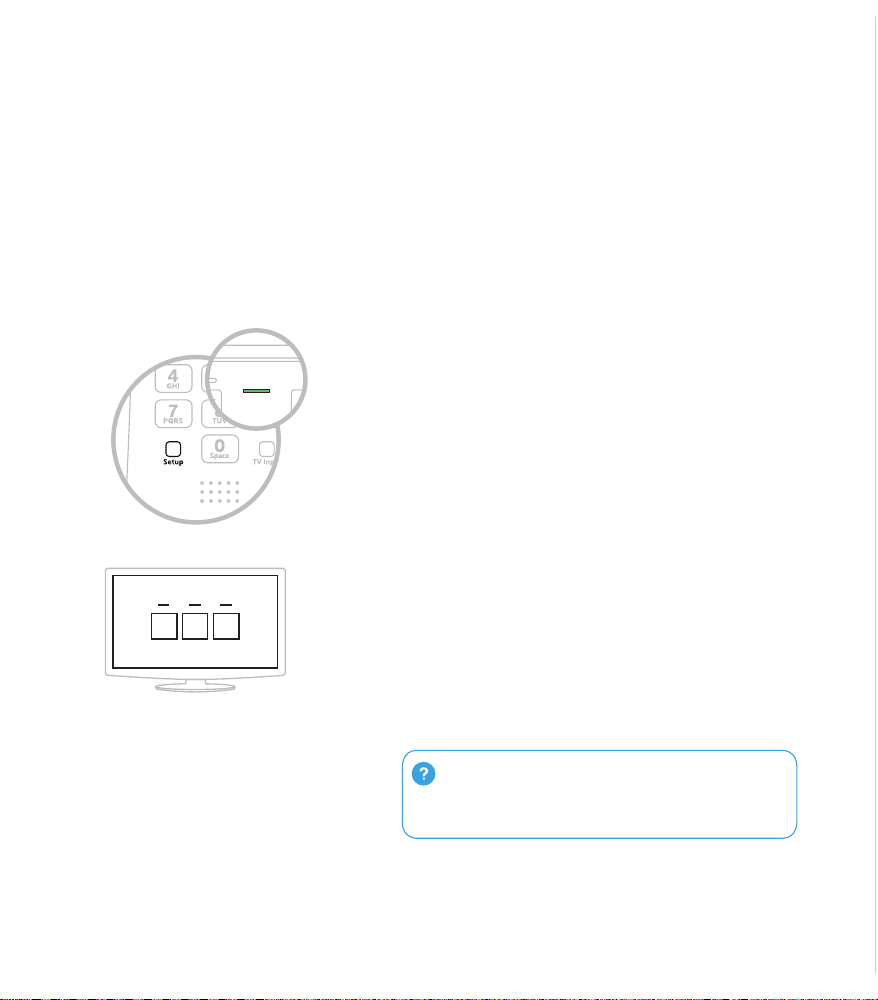
RemotewithVoiceControl
Start
Need help ?
Visitremotes.cox.com
Keep for future reference, but if you
decide to toss, please recycle.
Quick Start Guide v.1.0
1698397C Printed in China
Micrófono / Luz LED
de estado
All Power
(Todo encendido)
Voice Control
(Control por voz)
Manténgalo presionado
para hablar. Busque
contenido por canal,
programa o palabras clave.
Teclas de números
Useeltextopredictivo(T9)
para buscar contenido
rápidamente.
TV Input (Entrada
de TV)
Cambios para la siguiente
entrada disponible en su
televisor (si se programó en
elpaso4).
TV Power
(Encendido
del televisor)
CONTOUR / Menu
(CONTOUR / Menú)
AccessGuide,Saved,
VideoOnDEMAND,Apps,
SearchandSettings
(Guíadeacceso,Guardado,
VideoOnDEMAND,Apps,
Buscar y Conguraciones).
Setup (Congurar)
Programe su control
remotoparaAimAnywhere
o para controlar su equipo
de audio o televisión.
Mantenga presionado el botón Setup (Congurar)
unos 3segundos, hasta que la luzLEDdeestado
cambie de rojo a verde.
Presione el botón CONTOUR.
Sigalasinstruccionesenpantallaparaingresarel
código de 3dígitos que aparece.
Una vez que el código se haya ingresado
correctamente,sucontrolremotodeCONTOUR
quedará sincronizado con el aparato.
A
B
C
Utilice el control por voz para buscar cadenas y shows, programar
grabaciones en su DVR y obtener recomendaciones. Vea el paso5
de esta guía para ver ejemplos.
¿No funciona? Asegúrese de que ha retirado
la pestaña junto a las baterías de su control remoto, su
televisor está encendido y ha ingresado el código de 3
dígitos correctamente en la pantalla del televisor.
Tome su control remoto y quite la pestaña “Pull”
(situada en la parte posterior) separándola del
controlremoto.LaluzLEDdeestadoparpadeará
en verde cuatro veces mientras se enciende el
control remoto (unos 5segundos).
Encienda su televisor.
Encienda su decodicador.
A
B
C
Su control remoto se le entrega con baterías AA ya instaladas, pero
no activado. A continuación se muestra cómo debe encenderlo la
primera vez.
1 Conozca su control remoto 2 Encienda su control remoto
3 Conecte su control remoto para utilizarlo con
la voz
4 Controle el encendido y el volumen
del televisor
5 Control por voz de prueba
Atrás
¿Tiene un receptor de audio o barra de sonido? Si
quiere congurar su control remoto para controlar su
equipo de audio o barra de sonido, visite remotes.
cox.com.
¿No funciona? Pruebe el segundo código de la lista.
¿Aún no funciona? Visite remotes.cox.com para
obtener una lista completa de códigos.
En la lista de la derecha, encuentre
el primer código de 5 dígitos para
el fabricante de su televisor.
Mantenga presionado el botón Setup
(Congurar) unos 3segundos, hasta que la
luzLEDdeestado cambie
de rojo a verde.
Ingrese el primercódigode5dígitos
correspondiente al fabricante de su televisor.
LaluzLEDdeestadodebeparpadear en
color verde dos veces.
Verique que el código ha sido aceptado
usando su control remoto para ajustar el
volumen y encender y apagar el televisor.
A
B
C
D
Códigos de fabricantes de televisores
más comunes
LG 10178 , 11265
Panasonic 10051, 10250
Samsung 10812, 10060
Sanyo 10154,10159
Sony 10000, 11100
Sharp 10093,10165
Toshiba 10156, 11156
Vizio 11758 , 11756
Sisucódigonoestáenlalistaole
gustaríacontrolarunequipodeaudio,
visite remotes.cox.com.
Control remoto por voz
Inicio
Una vez que su control remoto esté conectado con
su decodicador, puede usar el control por voz.
A
B
C
Mantenga presionado el botón de voz
hasta que escuche un tono.
Diga un comando de voz al control remoto
mientras continúa presionando el botón.
Pruebe con una de las sugerencias de la
izquierda.LaluzLEDdeestadoestarája
en azul mientras dice el comando.
Suelteelbotón de voz cuando termine el
comando. Mire en su televisor para ver los
resultados del comando de voz.
WATCH CNBC (MIRARCNBC)
FIND The Voice (BUSCARTheVoice)
SHOW ME all Eagles games
(MOSTRARMEtodoslospartidosde
los Eagles)
SHOW ME all kids movies on HBO
(MOSTRARMEtodaslaspelículas
para niños en HBO)
RECORD The Biggest Loser
(GRABARTheBiggestLoser)
KIDSZONE
GUIDE (GUÍA)
WHAT SHOULD I WATCH?
(¿QUE PUEDO VER?)
WHAT’S ON NOW?
(¿QUÉ HAY PARA VER?)
¿No funciona? Asegúrese de presionar el
botón de Voz mientras habla y suéltelo cuando
termine.
®
xr11_GSG_152mm_Aug.indd 2 8/4/15 11:30 AM
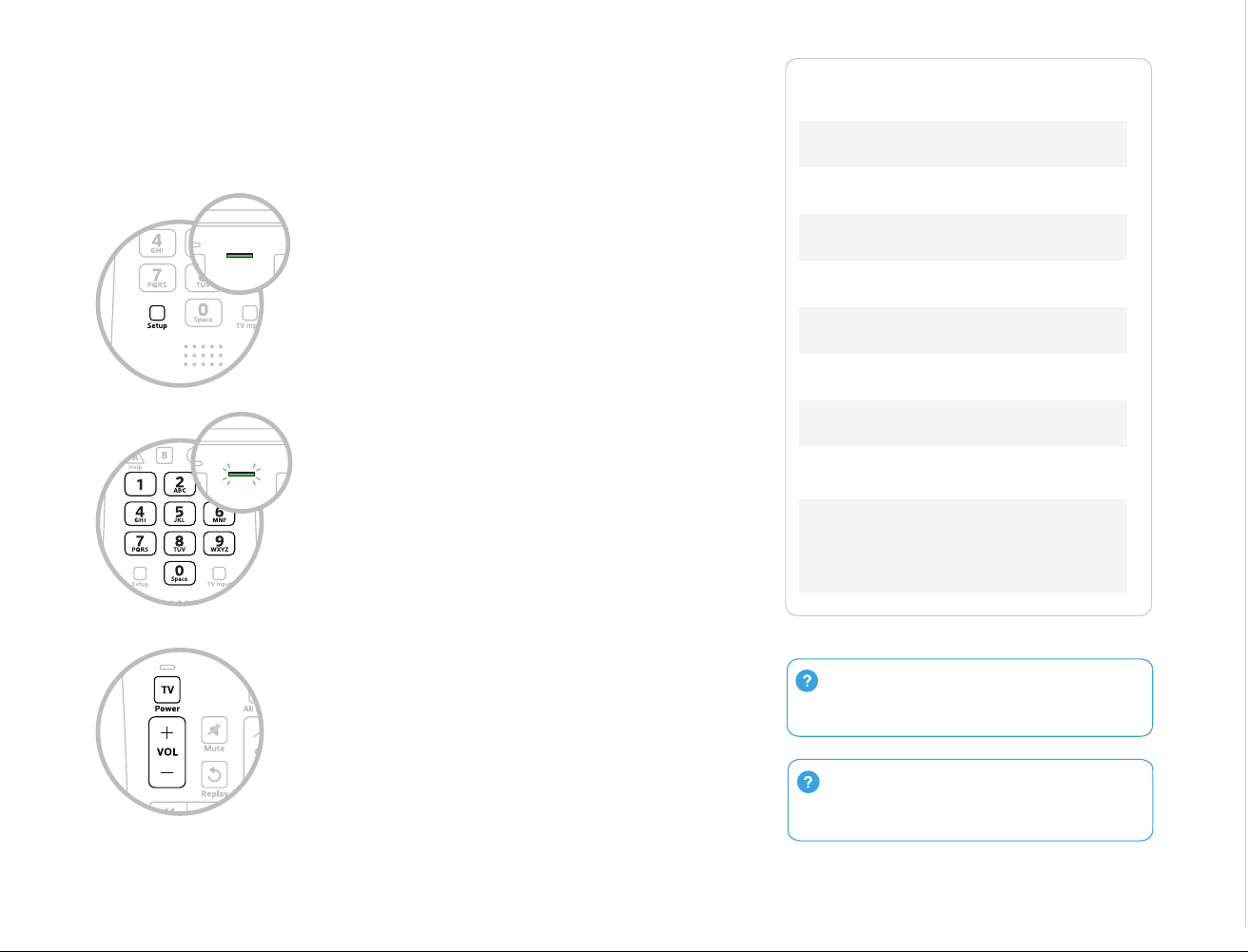
RemotewithVoiceControl
Start
Need help ?
Visitremotes.cox.com
Keep for future reference, but if you
decide to toss, please recycle.
Quick Start Guide v.1.0
1698397C Printed in China
Micrófono / Luz LED
de estado
All Power
(Todo encendido)
Voice Control
(Control por voz)
Manténgalo presionado
para hablar. Busque
contenido por canal,
programa o palabras clave.
Teclas de números
Useeltextopredictivo(T9)
para buscar contenido
rápidamente.
TV Input (Entrada
de TV)
Cambios para la siguiente
entrada disponible en su
televisor (si se programó en
elpaso4).
TV Power
(Encendido
del televisor)
CONTOUR / Menu
(CONTOUR / Menú)
AccessGuide,Saved,
VideoOnDEMAND,Apps,
SearchandSettings
(Guíadeacceso,Guardado,
VideoOnDEMAND,Apps,
Buscar y Conguraciones).
Setup (Congurar)
Programe su control
remotoparaAimAnywhere
o para controlar su equipo
de audio o televisión.
Mantenga presionado el botón Setup (Congurar)
unos 3segundos, hasta que la luzLEDdeestado
cambie de rojo a verde.
Presione el botón CONTOUR.
Sigalasinstruccionesenpantallaparaingresarel
código de 3dígitos que aparece.
Una vez que el código se haya ingresado
correctamente,sucontrolremotodeCONTOUR
quedará sincronizado con el aparato.
A
B
C
Utilice el control por voz para buscar cadenas y shows, programar
grabaciones en su DVR y obtener recomendaciones. Vea el paso5
de esta guía para ver ejemplos.
¿No funciona? Asegúrese de que ha retirado
la pestaña junto a las baterías de su control remoto, su
televisor está encendido y ha ingresado el código de 3
dígitos correctamente en la pantalla del televisor.
Tome su control remoto y quite la pestaña “Pull”
(situada en la parte posterior) separándola del
controlremoto.LaluzLEDdeestadoparpadeará
en verde cuatro veces mientras se enciende el
control remoto (unos 5segundos).
Encienda su televisor.
Encienda su decodicador.
A
B
C
Su control remoto se le entrega con baterías AA ya instaladas, pero
no activado. A continuación se muestra cómo debe encenderlo la
primera vez.
1 Conozca su control remoto 2 Encienda su control remoto
3 Conecte su control remoto para utilizarlo con
la voz
4 Controle el encendido y el volumen
del televisor
5 Control por voz de prueba
Atrás
¿Tiene un receptor de audio o barra de sonido? Si
quiere congurar su control remoto para controlar su
equipo de audio o barra de sonido, visite remotes.
cox.com.
¿No funciona? Pruebe el segundo código de la lista.
¿Aún no funciona? Visite remotes.cox.com para
obtener una lista completa de códigos.
En la lista de la derecha, encuentre
el primer código de 5 dígitos para
el fabricante de su televisor.
Mantenga presionado el botón Setup
(Congurar) unos 3segundos, hasta que la
luzLEDdeestado cambie
de rojo a verde.
Ingrese el primercódigode5dígitos
correspondiente al fabricante de su televisor.
LaluzLEDdeestadodebeparpadear en
color verde dos veces.
Verique que el código ha sido aceptado
usando su control remoto para ajustar el
volumen y encender y apagar el televisor.
A
B
C
D
Códigos de fabricantes de televisores
más comunes
LG 10178 , 11265
Panasonic 10051, 10250
Samsung 10812, 10060
Sanyo 10154,10159
Sony 10000, 11100
Sharp 10093,10165
Toshiba 10156, 1115 6
Vizio 11758 , 11756
Sisucódigonoestáenlalistaole
gustaríacontrolarunequipodeaudio,
visite remotes.cox.com.
Control remoto por voz
Inicio
Una vez que su control remoto esté conectado con
su decodicador, puede usar el control por voz.
A
B
C
Mantenga presionado el botón de voz
hasta que escuche un tono.
Diga un comando de voz al control remoto
mientras continúa presionando el botón.
Pruebe con una de las sugerencias de la
izquierda.LaluzLEDdeestadoestarája
en azul mientras dice el comando.
Suelteelbotón de voz cuando termine el
comando. Mire en su televisor para ver los
resultados del comando de voz.
WATCH CNBC (MIRARCNBC)
FIND The Voice (BUSCARTheVoice)
SHOW ME all Eagles games
(MOSTRARMEtodoslospartidosde
los Eagles)
SHOW ME all kids movies on HBO
(MOSTRARMEtodaslaspelículas
para niños en HBO)
RECORD The Biggest Loser
(GRABARTheBiggestLoser)
KIDSZONE
GUIDE (GUÍA)
WHAT SHOULD I WATCH?
(¿QUE PUEDO VER?)
WHAT’S ON NOW?
(¿QUÉ HAY PARA VER?)
¿No funciona? Asegúrese de presionar el
botón de Voz mientras habla y suéltelo cuando
termine.
®
xr11_GSG_152mm_Aug.indd 2 8/4/15 11:30 AM
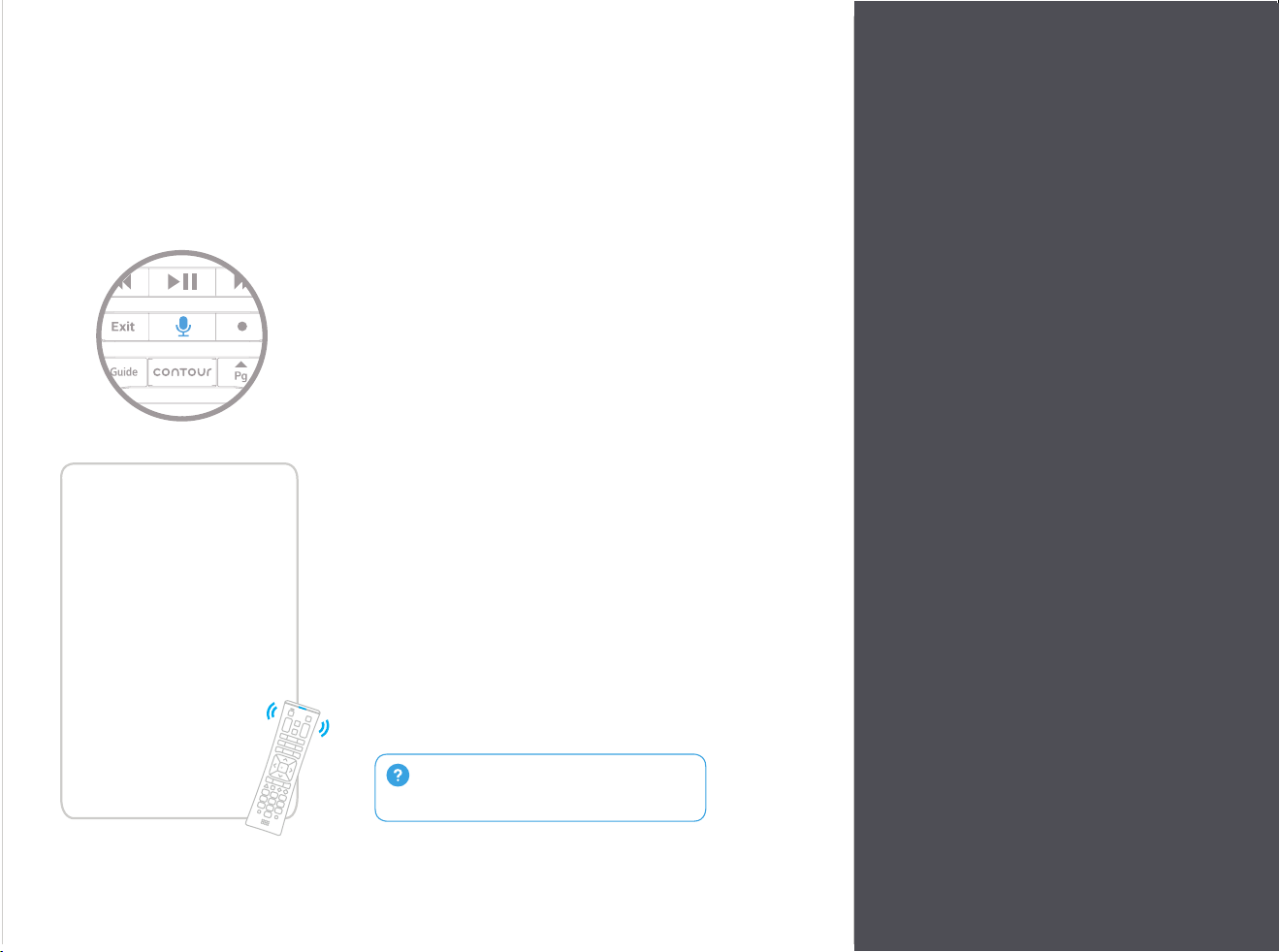
RemotewithVoiceControl
Start
Need help ?
Visitremotes.cox.com
Keep for future reference, but if you
decide to toss, please recycle.
Quick Start Guide v.1.0
1698397C Printed in China
Micrófono / Luz LED
de estado
All Power
(Todo encendido)
Voice Control
(Control por voz)
Manténgalo presionado
para hablar. Busque
contenido por canal,
programa o palabras clave.
Teclas de números
Useeltextopredictivo(T9)
para buscar contenido
rápidamente.
TV Input (Entrada
de TV)
Cambios para la siguiente
entrada disponible en su
televisor (si se programó en
elpaso4).
TV Power
(Encendido
del televisor)
CONTOUR / Menu
(CONTOUR / Menú)
AccessGuide,Saved,
VideoOnDEMAND,Apps,
SearchandSettings
(Guíadeacceso,Guardado,
VideoOnDEMAND,Apps,
Buscar y Conguraciones).
Setup (Congurar)
Programe su control
remotoparaAimAnywhere
o para controlar su equipo
de audio o televisión.
Mantenga presionado el botón Setup (Congurar)
unos 3segundos, hasta que la luzLEDdeestado
cambie de rojo a verde.
Presione el botón CONTOUR.
Sigalasinstruccionesenpantallaparaingresarel
código de 3dígitos que aparece.
Una vez que el código se haya ingresado
correctamente,sucontrolremotodeCONTOUR
quedará sincronizado con el aparato.
A
B
C
Utilice el control por voz para buscar cadenas y shows, programar
grabaciones en su DVR y obtener recomendaciones. Vea el paso5
de esta guía para ver ejemplos.
¿No funciona? Asegúrese de que ha retirado
la pestaña junto a las baterías de su control remoto, su
televisor está encendido y ha ingresado el código de 3
dígitos correctamente en la pantalla del televisor.
Tome su control remoto y quite la pestaña “Pull”
(situada en la parte posterior) separándola del
controlremoto.LaluzLEDdeestadoparpadeará
en verde cuatro veces mientras se enciende el
control remoto (unos 5segundos).
Encienda su televisor.
Encienda su decodicador.
A
B
C
Su control remoto se le entrega con baterías AA ya instaladas, pero
no activado. A continuación se muestra cómo debe encenderlo la
primera vez.
1 Conozca su control remoto 2 Encienda su control remoto
3 Conecte su control remoto para utilizarlo con
la voz
4 Controle el encendido y el volumen
del televisor
5 Control por voz de prueba
Atrás
¿Tiene un receptor de audio o barra de sonido? Si
quiere congurar su control remoto para controlar su
equipo de audio o barra de sonido, visite remotes.
cox.com.
¿No funciona? Pruebe el segundo código de la lista.
¿Aún no funciona? Visite remotes.cox.com para
obtener una lista completa de códigos.
En la lista de la derecha, encuentre
el primer código de 5 dígitos para
el fabricante de su televisor.
Mantenga presionado el botón Setup
(Congurar) unos 3segundos, hasta que la
luzLEDdeestado cambie
de rojo a verde.
Ingrese el primercódigode5dígitos
correspondiente al fabricante de su televisor.
LaluzLEDdeestadodebeparpadear en
color verde dos veces.
Verique que el código ha sido aceptado
usando su control remoto para ajustar el
volumen y encender y apagar el televisor.
A
B
C
D
Códigos de fabricantes de televisores
más comunes
LG 10178 , 11265
Panasonic 10051, 10250
Samsung 10812, 10060
Sanyo 10154,10159
Sony 10000, 11100
Sharp 10093,10165
Toshiba 10156, 1115 6
Vizio 11758 , 11756
Sisucódigonoestáenlalistaole
gustaríacontrolarunequipodeaudio,
visite remotes.cox.com.
Control remoto por voz
Inicio
Una vez que su control remoto esté conectado con
su decodicador, puede usar el control por voz.
A
B
C
Mantenga presionado el botón de voz
hasta que escuche un tono.
Diga un comando de voz al control remoto
mientras continúa presionando el botón.
Pruebe con una de las sugerencias de la
izquierda.LaluzLEDdeestadoestarája
en azul mientras dice el comando.
Suelteelbotón de voz cuando termine el
comando. Mire en su televisor para ver los
resultados del comando de voz.
WATCH CNBC (MIRARCNBC)
FIND The Voice (BUSCARTheVoice)
SHOW ME all Eagles games
(MOSTRARMEtodoslospartidosde
los Eagles)
SHOW ME all kids movies on HBO
(MOSTRARMEtodaslaspelículas
para niños en HBO)
RECORD The Biggest Loser
(GRABARTheBiggestLoser)
KIDSZONE
GUIDE (GUÍA)
WHAT SHOULD I WATCH?
(¿QUE PUEDO VER?)
WHAT’S ON NOW?
(¿QUÉ HAY PARA VER?)
¿No funciona? Asegúrese de presionar el
botón de Voz mientras habla y suéltelo cuando
termine.
®
xr11_GSG_152mm_Aug.indd 2 8/4/15 11:30 AM