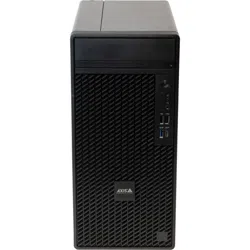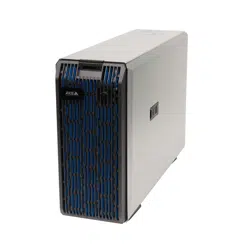


AXISCameraStationS1232TowerRecordingServer
TableofContents
Aboutyourdevice...........................................3
Getstarted................................................4
Installyourdevice..........................................5
Beforeinstallation...............................................5
Congureyourdevice........................................7
InitialAxisrecordersetup.........................................7
CongureAXISCameraStation....................................7
Licenseasystemonline..........................................11
Licenseasystemofine..........................................11
ManageWindows®useraccounts..............................13
Createauseraccount............................................13
Createanadministratoraccount...................................13
Createalocalusergroup.........................................13
Deleteauseraccount............................................13
Changeauseraccount'spassword..................................14
Createapasswordresetdiskforauseraccount.......................14
ManageAXISCameraStationuseraccounts.....................15
Congureuserpermissions........................................15
Addusersorgroups..............................................15
Userorgroupprivileges..........................................16
Manageyourdevice.........................................18
UpdateWindows®...............................................18
CongureWindowsupdatesettings................................18
ChangetheRAID................................................19
CongureiDRAC................................................19
Troubleshooting............................................21
CheckthecurrentBIOSversion....................................
21
UpgradeBIOS..................................................21
Rundiagnostics.................................................21
Performasystemrecovery........................................
21
ExportaSupportAssistcollection...................................22
Troubleshootthepowersupplyunit.................................22
Troubleshootmemoryerrors.......................................
23
TroubleshootAXISCameraStation..................................
23
Productoverview...........................................24
Frontandrearsides..............................................
24
Specications..................................................25
Needmorehelp?............................................27
Usefullinks....................................................
27
Contactsupport.................................................27
2

AXISCameraStationS1232TowerRecordingServer
Aboutyourdevice
Aboutyourdevice
AXISCameraStationS12Recorderseriesconsistofout-of-the-boxreadyrackserversandworkstationsvalidatedforreliable
high-denitionsurveillanceupto4K.Forquickandeasyinstallation,therecorderseriesispreconguredandpreloadedwithAXIS
CameraStationvideomanagementsoftwareincludinglicensesplusallnecessarysystemsoftware.Thesystemcongurationcan
easilybeimportedfromAXISSiteDesigner,andAXISCameraStationletsyoutakefulladvantageofAxiswiderangeofvideo
surveillancedevices.Withenterprise-gradeharddisks,operatingsystemstoredonsolid-statedrive,therecorderseriesprovides
high-performanceandreliabilityforyoursystem.
3

AXISCameraStationS1232TowerRecordingServer
Getstarted
Getstarted
ThestandardworkowtocongureanAXISCameraStationrecordingserveris:
1.Installyourdevice
2.InitialWindows®setup:Afterinstallingyourdevice,youareguidedthroughafewstepstosetuptheregion,language,
keyboardlayout,anadministratoraccountanditspassword.
3.InitialAxisrecordersetup:AftertheinitialWindowssetup,AXISRecorderToolboxisopenedandyouareguidedthrougha
fewstepstosetupbasicandnecessarysettings,forexample,computername,dateandtime,andnetwork.SeeInitialAxis
recordersetuponpage7.
4.CongureWindows.Werecommendto:
-UpdateWindowstothelatestversion.SeeUpdateWindows®onpage18.
-Createastandarduseraccount.SeeCreateauseraccountonpage13.
5.UpdateAXISCameraStationtothelatestversion.
-Ifyoursystemisonline:opentheAXISRecorderToolboxappandclickUpdateAXISCameraStation.
-Ifyoursystemisofine:gotoaxis.comanddownloadthelatestversion.
6.CongureAXISCameraStation
7.RegisteryourAXISCameraStationlicenses.
-Licenseasystemonlineonpage1 1
-Licenseasystemofineonpage1 1
8.ConnectyoursystemtotheAXISCameraStationmobileviewingapp.SeeConnecttoAXISCameraStationserver.
Towatchthisvideo,gotothewebversionofthisdocument.
www.axis.com/products/online-manual/76438#t10176303
4

AXISCameraStationS1232TowerRecordingServer
Installyourdevice
Installyourdevice
Beforeinstallation
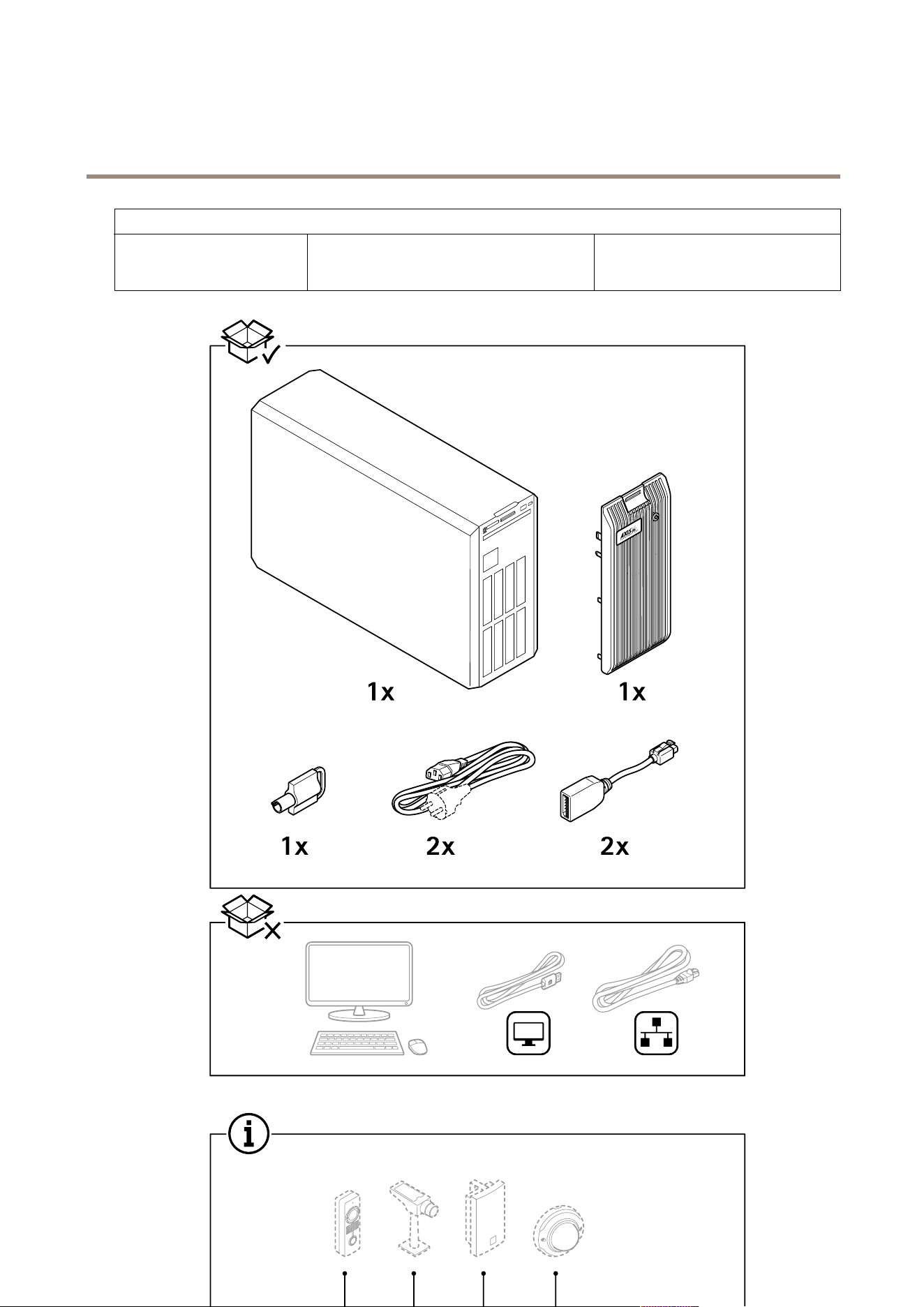
•Prepareadditionalaccessoriesusedforinstallation:monitor,mouse,keyboardandnetworkcable.
•Understandtheusageofdifferentuseraccounts.
Thefollowingtableliststheuseraccountsthatcanbeusedforinstallation,congurationandoperationofyourAxissystem.
UseraccountDescriptionNote
MyAxisUsedtodownloadthelatestsoftware,accessthe
licensesystem,AxisSecureRemoteAccess,and
SystemHealthMonitoring.
Registeredfrommy.axis.com.
Windows®
WindowsadministratorAdministratorprivilegesinWindows.We
recommendyoudonotuseitasAXISCamera
Stationadministrator.
CreatedduringinitialWindowssetup.
WindowsuserwithAXISCamera
Stationadministratorprivileges
AWindowsusergrantedwithadministrator
privilegesinAXISCameraStationtobeusedby
systemintegratororsystemadministratorfor
congurationortroubleshooting.
CreatedinWindowssettings.
WindowsuserwithAXISCamera
Stationoperatororviewer
privileges
AWindowsusergrantedwithoperatororviewer
privilegesinAXISCameraStation.
CreatedinWindowssettings.
Hardwaremanagement
iDRAC
UsedtoaccesstheiDRAC(IntegratedDellRemote
AccessController)tool.
Username:root
Password:Printedonthebackofthe
informationtag.
5
AXISCameraStationS1232TowerRecordingServer
Installyourdevice
Device
DeviceadministratorUsedbytheadministratortoaccessthecamera
fromthevideomanagementsystemordevice
webpage.
Createdfromthedevicewebpageor
whenyouaddthedevicetoAXISCamera
Station.
6

AXISCameraStationS1232TowerRecordingServer
Configureyourdevice
Configureyourdevice
InitialAxisrecordersetup
Towatchthisvideo,gotothewebversionofthisdocument.
www.axis.com/products/online-manual/76438#t10176301
AfteryouhaveconguredWindows®,AXISRecorderToolboxisopenedautomaticallyandyouareguidedthroughtherst-time
congurationwizard.Inthiswizard,youcancongureseveralbasicandnecessarysettingsbeforeyoumanageyourdevicein
AXISRecorderToolbox.
1.ChangethecomputernameifyouwantandclickNext.
2.UnderDateandtime,congurethefollowingsettingsandclickNext.
-Selectatimezone.
-TosetupanNTPserver,selectNTPserverandentertheNTPserveraddress.
-Tosetmanually,selectManualandselectadateandtime.
3.UnderNetworksettings,congurethefollowingsettingsandclickNext.
-UseautomaticIPsettings(DHCP)andUseautomaticDNSsettingsareturnedonbydefault.
-IfyourdeviceisconnectedtoanetworkwithaDHCPserver,theassignedIPaddress,subnetmask,gateway,and
preferredDNSareautomaticallydisplayed.
-IfyourdeviceisnotconnectedtoanetworkorthereisnoDHCPserveravailable,entertheIPaddress,subnet
mask,gateway,andpreferredDNSmanuallydependingonthenetworkrequirements.
4.ClickFinish.Ifyouhavechangedthecomputername,AXISRecorderToolboxwillpromptyoutorestartthedevice.
CongureAXISCameraStation
ThisGetstartedtutorialwillwalkyouthroughthebasicstepstomakeyoursystemupandrunning.
Beforeyoustart,youmayneedto:
•Congureyournetworkdependingonyourinstallation.SeeNetworkconguration.
•Congureyourserverportsifneeded.SeeServerportconguration.
•Considersecurityissues.SeeSecurityconsiderations.
Afternecessarycongurations,youcanstarttoworkwithAXISCameraStation:
1.StartAXISCameraStation
7

AXISCameraStationS1232TowerRecordingServer
Configureyourdevice
2.Adddevices
3.Congurerecordingmethodonpage8
4.Liveviewcamerasonpage8
5.Playbackrecordingsonpage9
6.Addbookmarksonpage9
7.Exportrecordingsonpage9
8.PlayandverifyrecordingsinAXISFilePlayeronpage9
StartAXISCameraStation
AXISCameraStationServiceControlautomaticallystartsaftertheinstallationiscomplete.
Double-clicktheAXISCameraStationclienticontostarttheAXISCameraStationclient.Whenstartingtheclientforthersttime,
itautomaticallyattemptstologintotheAXISCameraStationserverinstalledonthesamecomputerastheclient.
YoucanconnecttomultipleAXISCameraStationserversindifferentways.
Adddevices
ThersttimeyoustartyourAXISCameraStation,youarenavigatedtotheAdddevicespage.AXISCameraStationautomatically
searchesthenetworkforconnecteddevicesanddisplaysalistofdevicesfound.
1.Selectthecamerastoaddfromthelist.
Ifyourcameraisnotlisted,clickManualsearch.
2.ClickAdd.
3.SelectQuickcongurationorSiteDesignerconguration.ClickNext.
4.UsethedefaultsettingsandensuretherecordingmethodissettoNone.ClickInstall.
Congurerecordingmethod
1.GotoConguration>Recordingandevents>Recordingmethod.
2.Ifyouwanttoenablemotiondetectionrecording:
2.1Selectacamera.
2.2TurnonMotiondetection.
2.3ClickApply.
3.Ifyouwanttoenablecontinuousrecording:
3.1Selectacamera.
3.2TurnonContinuous.
3.3ClickApply.
Liveviewcameras
1.ClicktheLiveviewtabtonavigatetothecameraliveview.
2.Clickacameratonavigatetotheliveviewofthatcamera.
Abluedotafterthecameranameshowsthatcontinuousrecordingisinprogress.Areddotafterthecameranameshows
thatmotiondetectionrecordingisinprogress.
8

AXISCameraStationS1232TowerRecordingServer
Configureyourdevice
3.ClicktonavigatefromLiveviewtoRecordings.
Aredlineinthetimelineshowsthatmotiondetectionrecordinghasbeentakenforthatperiod.Abluelineinthe
timelineshowsthatcontinuousrecordingisinprogress.
Playbackrecordings
1.GototheRecordingtab.
2.Inthetimelineofthecamera,usethemousewheeltozoominandoutanddragthetimelinetomakethemarker
pointingatyourdesiredposition.
3.Tostartplayingtherecordingfromthedesiredposition,click
.
Addbookmarks
1.GototheRecordingtab.
2.Inthetimelineofthecamera,usethemousewheeltozoominandoutanddragthetimelinetomakethemarker
pointingatyourdesiredposition.
3.Click
.
4.Enterthebookmarknameanddescription.Usekeywordsinthedescriptiontomakethebookmarkeasytondand
recognized.
5.SelectPreventrecordingdeletiontolocktherecording.Alockedrecordingcan'tbedeletedunlessactivelyunlocked.
6.ClickOK.Abookmarkiconisdisplayedatyourdesiredpositioninthetimeline.
Exportrecordings
1.GototheRecordingtab.
2.Inthetimelineofthecamera,usethemousewheeltozoominandout.
3.Click
todisplaytheselectionmarkers.
4.Dragthemarkerstoincludetherecordingsthatyouwanttoexport.
5.Click
toopentheExporttab.
6.IntheExporttab,youcandothefollowingifdesired.
-Click
toaddanotefortherecording.
-ClickBrowsetoselectthelocationtoexporttherecordings.
-SelectIncludeAxisFilePlayer,Includenotes,andAdddigitalsignature.
7.ClickExport.
8.SelectUsepasswordandenteryourpasswordforthedigitalsignature.ClickOK.
PlayandverifyrecordingsinAXISFilePlayer
1.Gotothefolderthatyouhavespeciedfortheexportedrecordings.
9

AXISCameraStationS1232TowerRecordingServer
Configureyourdevice
Inthisexample,theexportedlesincludetherecordingsinthe.asfformat,thenotesinthe.txtformat,andAXISFilePlayer.
2.Double-clickAXISFilePlayer.Theexportedrecordingswillbeautomaticallyplayed.
3.Click
toshowthenotesaddedtotherecordings.
4.Toverifythedigitalsignature:
4.1GotoTools>Verifydigitalsignature.
4.2SelectValidatewithpasswordandenteryourpassword.
4.3ClickVerify.Thevericationresultpageisdisplayed.
Networkconguration
WhenAXISCameraStationclient,AXISCameraStationserver,andtheconnectednetworkdevicesareinstalledondifferentnetworks,
youmightneedtocongureproxyorrewallsettingsbeforeusingAXISCameraStation.
Clientproxysettings
Whentheclientandtheserverareseparatedbyaproxyserver,conguretheclientproxysettings.
1.Double-clicktheAXISCameraStationclienticon.
2.ClickChangeclientproxysettings.
3.Changetheclientproxysettings.
4.ClickOK.
Serverproxysettings
Whennetworkdevicesandtheserverareseparatedbyaproxyserver,conguretheserverproxysettings.
1.Double-clicktheAXISServiceControliconinWindowsnoticationarea.
2.SelectModifysettings.
3.IntheProxysettingssection,usethedefaultSystemaccountinternetoptionorselectUsemanualproxysettings.
4.ClickSave.
NATandFirewall
WhentheclientandtheserverareseparatedbyaNAT,rewallorsimilar,conguretheNATorrewalltoensurethattheHTTPport,
TCPport,andstreamingportspeciedinAXISCameraStationServiceControlareallowedtopassthroughtherewalland/orNAT.
ForinstructionshowtoconguretheNATorrewall,contactthenetworkadministrator.
Serverportconguration
Theports55752(HTTP),55754(TCP),55756(mobilecommunication),and55757(mobilestreaming)areusedonAXISCamera
Stationserverforcommunicationbetweentheserverandtheclient.Ifrequired,theportscanbechangedfromAXISCamera
StationServiceControl.
Securityconsiderations
Topreventunauthorizedaccesstocamerasandrecordings,keepthefollowinginmind:
•Usestrongpasswordsforallnetworkdevices(cameras,videoencodersandauxiliarydevices).
10

AXISCameraStationS1232TowerRecordingServer
Configureyourdevice
•InstallAXISCameraStationserver,cameras,videoencoders,andauxiliarydevicesonasecurenetworkseparated
fromtheofcenetwork.AXISCameraStationclientcanbeinstalledonacomputeronanothernetwork,forexample
anetworkwithInternetaccess.
•Ensureallusershavestrongpasswords.UsingWindowsActiveDirectoryahighlevelofsecuritycanbeimplemented.
Licenseasystemonline
BoththeAXISCameraStationclientandtheservermustbeconnectedtotheinternet.
1.IntheAXISCameraStationclient,
1.1GotoConguration>Licenses>Management.
1.2Managelicensesonlineisturnedonbydefault.
1.3ClickGotoAXISLicensePortal.
2.IntheAXISLicensePortalwww.axis.com/licenses,
2.1SigninwithyourMyAxisaccount.
2.2ThelicensekeyisautomaticallygeneratedandshownunderLicensekeys.
2.3Ifyouhavepurchasedlicensekeysseparately,enteryourlicensekeyunderAddlicensekeyandclickAdd.
3.IntheAXISCameraStationclient,checkthatyourlicensekeysareshownunderConguration>Licenses>Keys.
Towatchthisvideo,gotothewebversionofthisdocument.
www.axis.com/products/online-manual/76438#t10129696
AXISCameraStationonlinelicenseregistration
Licenseasystemofine
1.IntheAXISCameraStationclient,exportthesystemle.
1.1GotoConguration>Licenses>Management.
1.2IfAXISCameraStationisonline,turnoffManagelicensesonlineandclickExportsystemle.
1.3IfAXISCameraStationisofine,clickExportsystemle.
1.4SaveyoursystemleonaUSBashdrive.
2.IntheAXISLicensePortalwww.axis.com/licenses,
2.1SigninwithyourMyAxisaccount.
2.2ClickUploadsystemletouploadthesystemlethatyouexportedtoyourUSBashdrive.
2.3ThelicensekeyisautomaticallygeneratedandshownunderLicensekeys.
11

AXISCameraStationS1232TowerRecordingServer
Configureyourdevice
2.4Ifyouhavepurchasedlicensekeysseparately,enteryourlicensekeyunderAddlicensekeyandclickAdd.
2.5UnderLicensekeys,clickDownloadlicenseleandsavetheletoaUSBashdrive.
3.IntheAXISCameraStationclient,importthelicensele.
3.1GotoConguration>Licenses>Management.
3.2ClickImportlicenseleandselectthelicenseleonyourUSBashdrive.
3.3CheckthatyourlicensekeysareshownunderConguration>Licenses>Keys.
Towatchthisvideo,gotothewebversionofthisdocument.
www.axis.com/products/online-manual/76438#t10129682
AXISCameraStationofinelicenseregistration
12

AXISCameraStationS1232TowerRecordingServer
ManageWindows®useraccounts
ManageWindows®useraccounts
Createauseraccount
Tohelpkeepyourpersonaldataandinformationmoresecure,werecommendthatyouaddapasswordforeachlocalaccount.
Important
Onceyoucreateapasswordforalocalaccount,don'tforgetit.There’snowaytorecoveralostpasswordforlocalaccounts.
1.GotoSettings>Accounts>Otherpeople>AddsomeoneelsetothisPC.
2.ClickIdon’thavethisperson’ssign-ininformation.
3.ClickAddauserwithoutaMicrosoftaccount.
4.Enterausername,passwordandpasswordhint.
5.ClickNextandfollowtheinstructions.
Createanadministratoraccount
1.GotoSettings>Accounts>Otherpeople.
2.GototheaccountyouwanttochangeandclickChangeaccounttype.
3.GotoAccounttypeandselectAdministrator.
4.ClickOK.
5.Restartyourdeviceandsigninwiththenewadministratoraccount.
Createalocalusergroup
1.GotoComputerManagement.
2.GotoLocalUsersandGroups>Group.
3.Right-clickGroupandselectNewGroup.
4.Enteragroupnameandadescription.
5.Addgroupmembers:
5.1ClickAdd.
5.2ClickAdvanced.
5.3Findtheuseraccount(s)youwanttoaddtothegroupandclickOK.
5.4ClickOKagain.
6.ClickCreate.
Deleteauseraccount
Important
Whenyoudeleteanaccountyouremovetheuseraccountfromtheloginscreen.Youalsoremoveallles,settingsand
programdatastoredontheuseraccount.
13

AXISCameraStationS1232TowerRecordingServer
ManageWindows®useraccounts
1.GotoSettings>Accounts>Otherpeople.
2.GototheaccountyouwanttoremoveandclickRemove.
Changeauseraccount'spassword
1.Loginwithanadministratoraccount.
2.GotoUserAccounts>UserAccounts>Manageanotheraccountinsequence.
You’llseealistwithalluseraccountsonthedevice.
3.Selecttheuseraccountwhosepasswordyouwouldliketochange.
4.ClickChangethepassword.
5.EnterthenewpasswordandclickChangepassword.
Createapasswordresetdiskforauseraccount
WerecommendtocreateapasswordresetdiskusingaUSBashdrive.Then,ifyouforgetyourpassword,youcanresetthe
password.WithoutaUSBresetdisk,youcan’tresetthepassword.
Ifyou’reusingWindows10,youcanaddsecurityquestionstoyourlocalaccountincaseyouforgetyourpassword,soyoudon'tneed
tocreateapasswordresetdisk.Todothis,gottoStartandclickSettings>Sign-inoptions>Updateyoursecurityquestions.
1.Signintoyourdevicewithalocaluseraccount.Youcan’tcreateapasswordresetdiskforaconnectedaccount.
2.PlugaUSBashdriveintoyourdevice.
3.Ifthere’sanydataontheUSBashdrive,backitup.
4.FromtheWindows®searcheld,gotoCreateapasswordresetdisk.
5.IntheForgottenPasswordwizard,clickNext.
6.SelectyourUSBashdriveandclickNext.
7.TypeyourcurrentpasswordandclickNext.
8.Followtheonscreeninstructions.
9.RemovetheUSBashdriveandkeepitinasafeplacewhereyou'llrememberit.Youdon'thavetocreateanewdiskwhen
youchangeyourpasswordevenifyouchangeitseveraltimes.
14

AXISCameraStationS1232TowerRecordingServer
ManageAXISCameraStationuseraccounts
ManageAXISCameraStationuseraccounts
Congureuserpermissions
GotoConguration>Security>UserpermissionstoviewalistoftheusersandgroupsthathavebeenaddedtoAXISCamera
Station.
Note
AdministratorsofthecomputeronwhichtheAXISCameraStationserverisinstalledareautomaticallygivenadministrator
privilegestoAXISCameraStation.Youcan’tchangeorremovetheadministratorsgroup'sprivileges.
Beforeauserorgroupcanbeadded,theuserorgroupmustberegisteredonthelocalcomputerorhaveanWindowsActiveDirectory
useraccount.UsingWindowsActiveDirectory,ahighlevelofsecuritycanbeimplemented.
Whenauserispartofagroup,theusergetsthehighestrolepermissionthatisassignedtotheindividualandthegroup.
Whenauserispartofagroup,theusergetstheaccessgrantedasanindividualandalsoreceivestherightsaspartofagroup.For
example,auserisgivenaccesstocameraXasanindividual.Theuserisalsoamemberofagroup.Thegroupisgivenaccessto
camerasYandZ.TheuserthenhasaccesstocamerasX,YandZ.
IftherearesecurityconcernsregardingtheaccesstothecomputerbyadesignatedAXISCameraStationuser,createastandarduser
accountthatyouthenuseforaccesstoAxisCameraStation.YoucanthenelevatetheaccounttoadministratorinConguration>
Security>Userpermissions.
Thelistconsistsofthefollowinginformation:
ItemDescription
IconIndicatestheentryisagrouporasingleuser.
NameUsernameasitappearsinthelocalcomputerorActiveDirectory.
DomainDomainnamewheretheuserorgroupisregistered.
RoleTheaccessrolegiventotheuserorgroup.
Possiblevalues:Administrator,Operator,andViewer.
DetailsDetaileduserinformationasitappearsinthelocalcomputerorActiveDirectory.
ServerServernamewheretheuserorgroupisregistered.Onlyavailablewhenconnectingto
multipleAXISCameraStationservers.
Toaddusersorgroups,seeAddusersorgroups.
Tochangeuseraccessrightsforauserorgroup,clicktheuserorgroupandmakechanges.ClickApply.
Toremoveauserorgroup,selecttheuserorgroupandclickRemove.Inthepop-updialog,clickOKtoremovetheuserorgroup.
Addusersorgroups
UseraccountsinMicrosoftWindowsandActiveDirectoryusersandgroupscanaccessAXISCameraStation.ToaddausertoAXIS
CameraStation,youhavetoaddusersoragrouptoWindows.
ToaddauserorgroupinMicrosoftWindows:AddingauserinWindowsmayvarydependingonwhichversionofWindowsyou
arerunning.FollowtheinstructionsonMicrosoft'ssite.IfyouareconnectedtoanActiveDirectorydomainnetwork,consult
yournetworkadministrator.
Addusersorgroups
1.GotoConguration>Security>UserpermissionsandclickAdd.
15

AXISCameraStationS1232TowerRecordingServer
ManageAXISCameraStationuseraccounts
2.WhenconnectingtomultipleAXISCameraStationservers,selectaserverfromtheSelectedserverdrop-downlist.
3.SelectServertosearchforusersorgroupsonthelocalcomputer,orselectDomaintosearchforActiveDirectoryusersor
groups.WhenconnectingtomultipleAXISCameraStationservers,youcanselectwhichservertosearchfor.
4.SelectUsersorGroupstosearchforonlyusersorgroups.
5.Thelistofusersorgroupsisdisplayed.UsersandgroupsthathavealreadybeenaddedtoAXISCameraStationarenotlisted.
-Iftherearetoomanyusersorgroups,thesearchresultisnotdisplayed.UsetheTypetosearcheldtorene
thesearchandndaspecicuserorgroup.
-Ifthedomainusersearchfails,theServicelogonaccountmustbechanged.
6.SelecttheusersorgroupsandclickAdd.Theusersorgroupsareaddedtothelistandshowninitalics.
Congureauserorgroup
1.Selectauserorgroupinthelist.
2.UnderRole,selectAdministrator,Operator,orViewer.
3.IfyouhaveselectedOperatororViewer,youcanconguretheuserorgroupprivileges.SeeUserorgroupprivileges.
4.ClickSave.Theuserorgroupinthelistisnotinitalicsandreadytobeused.
Userorgroupprivileges
Therearethreerolesthatcanbegiventoauserorgroup.Forhowtodeneaccessprivilegesforauserorgroup,seeAddusersor
groups.
•Administrator:Fullaccesstotheentiresystem,includingaccesstoliveandrecordedvideoofallcameras,accesstoallI/O
portsandviews.Therefore,youdonotneedtospecifyanycamera,I/Oorviewprivilegesforauserwiththisrole.Thisrole
isrequiredinordertocongureanythinginthesystem.
•Operator:AccesstoliveandrecordedvideoofselectedcamerasandaccesstoselectedI/Oportsandviews.Anoperator
hasfullaccesstoallfunctionalityofAXISCameraStationexceptsystemconguration.
•Viewer:AccesstolivevideoofselectedcamerasandaccesstoselectedI/Oportsandviews.Aviewerdoesnothaveaccess
torecordedvideoorsystemconguration.
Cameras
ThefollowingaccessprivilegesareavailableforusersorgroupswiththeOperatororViewerrole.
•Access:Allowaccesstothecameraandallcamerafeatures.
•Video:Allowaccesstolivevideofromthecamera.
•Audiolisten:Allowaccesstolistenfromthecamera.
•Audiospeak:Allowaccesstospeaktothecamera.
•ManualRecording:Allowtostartandstoprecordingsmanually.
•MechanicalPTZ:AllowaccesstomechanicalPTZcontrols.OnlyavailableforcameraswithmechanicalPTZ.
•PTZpriority:SetthePTZpriority.Alowernumbermeansahigherpriority.0meansthatnopriorityisassigned.An
administratorhasthehighestpriority.WhenarolewithhigherpriorityoperatesaPTZcamera,otherscan’toperatethe
samecamerafor10secondsbydefault.OnlyavailableforcameraswithmechanicalPTZandMechanicalPTZisselected.
Views
16

AXISCameraStationS1232TowerRecordingServer
ManageAXISCameraStationuseraccounts
ThefollowingaccessprivilegesareavailableforusersorgroupswiththeOperatororViewerrole.Youcanselectmultipleviews
andsettheaccessprivileges.
•Access:AllowaccesstotheviewsinAXISCameraStation.
•Edit:AllowtoedittheviewsinAXISCameraStation.
I/O
ThefollowingaccessprivilegesareavailableforusersorgroupswiththeOperatororViewerrole.TheI/Oportsarelistedbydevice.
•Access:AllowfullaccesstotheI/Oport.
•Read:AllowtoviewthestateoftheI/Oport.Theuserisnotabletochangetheportstate.
•Write:AllowtochangethestateoftheI/Oport.
System
Theaccessprivilegesthatcan’tbeconguredaregreyedoutandlistedunderRoleprivileges.Theprivilegeswithcheckmarkmeans
theuserorgrouphavethisprivilegebydefault.
ThefollowingaccessprivilegesareavailableforusersorgroupswiththeOperatorrole.
•Takesnapshots:Allowtakingsnapshotsintheliveviewandrecordingsmodes.
•Exportrecordings:Allowexportingrecordings.
•Generateincidentreport:Allowgeneratingincidentreports.
•Preventaccesstorecordingsolderthan:Preventaccessingrecordingsolderthanthespeciednumberofminutes.When
usingsearch,theuserwillnotndrecordingsolderthanthespeciedtime.Recordingsandbookmarksolderthan
thespeciedtimecan'tbeplayed.
•AccessSystemHealthMonitoring:AllowaccessingSystemHealthMonitoring.
ThefollowingaccessprivilegesareavailableforusersorgroupswiththeViewerrole.
•Takesnapshots:Allowtakingsnapshotsintheliveviewandrecordingsmodes.
17

AXISCameraStationS1232TowerRecordingServer
Manageyourdevice
Manageyourdevice
UpdateWindows®
Windows®10periodicallychecksforupdates.Whenanupdateisavailable,yourdeviceautomaticallydownloadstheupdatebut
you'vetoinstallitmanually.
Note
Recordingwillbeinterruptedduringascheduledsystemrestart.
Tomanuallycheckforupdates:
1.GotoSettings>Update&Security>WindowsUpdate.
2.ClickCheckforupdates.
CongureWindowsupdatesettings
SometimesyoumightwanttochangehowandwhenWindows
®
updates.
Note
Allongoingrecordingsstopduringascheduledsystemrestart.
1.OpentheRunapp.
-GotoWindowsSystem>Run,or
-pressWINandR.
2.Typegpedit.mscandclickOK.TheLocalGroupPolicyEditoropens.
3.GotoComputerConguration>AdministrativeTemplates>WindowsComponents>WindowsUpdate.
4.Congurethesettingsasrequired,seeexample.
Example
Toautomaticallydownloadandinstallupdateswithoutanyuserinteractionandhavethedevicerestartifnecessaryoutofofce
hoursusethefollowingconguration:
1.OpenAlwaysautomaticallyrestartatthescheduledtimeandselect:
1.1Enabled
1.2Therestarttimerwillgiveusersthismuchtimetosavetheirwork(minutes):15.
1.3ClickOK.
2.OpenCongureAutomaticUpdatesandselect:
2.1Enabled
2.2CongureAutomaticupdates:Autodownloadandscheduletheinstall
2.3ScheduleInstallday:EverySunday
2.4ScheduleInstalltime:00:00
2.5ClickOK.
3.OpenAllowAutomaticUpdatesimmediateinstallationandselect:
18

AXISCameraStationS1232TowerRecordingServer
Manageyourdevice
3.1Enabled
3.2ClickOK.
ChangetheRAID
CAUTION
ChangingtheRAIDdeletesalldatafromyourdisks.
1.BootLifecycleController:
1.1Poweronyourdevice.
1.2WhenyouseetheAXISsplashscreen,pressF10.
2.IntheLifecycleController,gotoHardwareConguration>CongurationWizardsandselectRAIDConguration.
3.SelecttheRAIDControlleronwhichyouwanttohavetheRAIDcreated.Detailsofanyvirtualdisk(s)availableonthe
selectedcontrollerwillbeshowninthetabledisplayedonthepagebelowthecontrollerlist.ForeignCongurationwillbe
displayedifthereareanyforeignoruninitializedHDD(s)availableontheserver.
Note
•ClearforeigncongurationclearsalltheforeignHDDsavailableontheRAIDcontrollerselected.
•IgnoreforeignCongurationignorestheforeignHDDsavailableontheRAIDcontrollerwhilecreatingtheRAID.
4.ClearorignoreforeignHDDsanduninitializedHDDs.
Ifyouwant,youcaninitializetheuninitializeddisks:
4.1Inthelistofallnon-RAID(uninitialized)HDDs,selecttheHDDsyouwanttoconverttoRAIDcapable(initialize)
andclickNexttoinitializethem.
4.2SelectthecorrespondingoptionontheCongurationWizards:RAIDCongurationpage.
5.SelectaRAIDlevel.
6.SelectthephysicaldisksfromthetableandclickNext.
Iftheyou’veselectedIgnoreforeignconguration,theforeignHDDsarenotdisplayedinthetable.
7.Enterthevirtualdiskattributes.
8.ClickNext.
9.ReviewthesettingsandclickFinish.
10.LifecycleControllerdisplaysamessagetoindicatethatallthecurrentdataaboutthevirtualdisksavailableonthe
controllerwillbelost.ClickOKtocontinue.
11.ClickOKandFinish.
12.Exitthewizardandrebootthesystem.
CongureiDRAC
TheIntegratedDellRemoteAccessController9(iDRAC9)withLifecycleControllerisdesignedtomakesystemadministratorsmore
productiveandimprovetheoverallavailabilityofDellsystems.iDRACalertsadministratorstosystemissues,helpthemperform
remotesystemmanagementandreducestheneedforphysicalaccesstothesystem.Youmustconguretheinitialnetworksettings
basedonyournetworkinfrastructuretoenablethecommunicationtoandfromiDRAC.
1.PressF10duringPower-onSelf-test(POST).
19

AXISCameraStationS1232TowerRecordingServer
Manageyourdevice
Note
TheLifecycleControllerInitialSetupWizardwillbedisplayedonlyforthersttime.UsetheInitialSetupWizardtoselectthe
languageandkeyboard,congurenetworksettings,iDRACnetworksettings,credentialconguration,andviewthesummary
ofthesettings.Tomakecongurationchangeslater,selectSettingsfromtheLifecycleControllerhomepage.
2.Congurethelanguageandkeyboard,andclickNext.
3.ChecktheproductoverviewandclickNext.
4.CongureLifecycleControllernetworksettings:
4.1FromtheNICCarddrop-downlist,selecttheNICporttocongure.
4.2FromtheIPV4NetworkSettings>IPAddressSourcedrop-downlist,selectoneofthefollowingoptions:
-DHCP:indicatesthattheNICmustbeconguredbyusinganIPaddressfromaDHCPserver.DHCPisthedefault
optionandtheDHCPIPaddressisdisplayedontheNetworkSettingspage.
-StaticIP:indicatesthattheNICmustbeconguredbyusingastaticIP.TypetheIPaddresspropertiesincluding
IPAddress,SubnetMask,DefaultGateway,andDNSAddress.Ifyoudonothavethisinformation,contactyour
networkadministrator.
-NoConguration:indicatesthattheNICmustnotbecongured.
4.4IfVLANisused,clickEnabledandtypetheVLANIDandPriorityunderLifecycleControllerVLANSettingsto
conguretheVLANsettingsofaNIC.
4.5ClickNext.IfLifecycleControllersettingsarenotcorrectlycongured,anerrormessageisdisplayed.
5.CongureiDRACnetworkandcredentials:
5.1GotoIPV4Conguration>IPAddressSourceandselectoneofthefollowingoptions:
-Static:indicatesthatthenetworkmustbeconguredbyusingastaticIP.TypetheIPaddressproperties
includingIPAddress,SubnetMask,DefaultGateway,DNSAddressSourceandDNSAddress.Ifyoudonot
havethisinformation,contactyournetworkadministrator.
-DHCP:indicatesthattheNICmustbeconguredbyusinganIPaddressfromaDHCPserver.DHCPisthedefault
optionandtheDHCPIPaddressisdisplayedontheNetworkSettingspage.
5.3UnderCredentials,enterAccountUsernameandPasswordtoaccessiDRACnetwork.
5.4ClickNext.
6.VerifythesummaryoftheLifecycleControllerandiDRACnetworkcongurationandclickFinish.
20

AXISCameraStationS1232TowerRecordingServer
Troubleshooting
Troubleshooting
CheckthecurrentBIOSversion
TocheckthecurrentBIOS:
1.Poweronthedevice.
2.WaituntilyouseetheAxissplashscreen.You’llseetheversionnumberabovethesplashscreen.
UpgradeBIOS
YoushouldupgradetheBIOSonlywhenyouareinstructedbyAxistechnicalsupport.
Ifyoudon’thaveaccesstoWindows®:updatepackageinstructionsforEFI
1.Gotothesupportpagesondell.comandenteryourservicetag.GotoDrivers&Downloadsanddownloadthe.ele.
2.CopytheletoaUSBdevice.
3.PlugintheUSBdeviceandpressF11duringPOSTtoenterBIOSBootManager.
4.GotoSystemUtilitiesmenu>BIOSUpdateFileExplorer.
5.SelecttheUSBdeviceandnavigatethroughthedirectorycontentstondtheexecutable(.e).
6.Launchtheexecutableandfollowtheinstructionsprovidedbytheashutility.
IfyouhaveaccesstoWindows®:updatepackageinstructionsforWindows®Dup
1.Browsetothelocationwhereyoudownloadedtheleanddouble-clickthenewle.
2.Readoverthereleaseinformationinthedialogwindow.
3.Downloadandinstallanyprerequisitesidentiedinthedialogwindowbeforeproceeding.
4.InstallanynecessaryEmbeddedSystemsManagementrmwarepriortothisBIOSupdate.
5.ClickInstall.
6.Followtheonscreeninstructions.
Rundiagnostics
Runningdiagnosticshelpyoutoidentifythecauseforasystemissue.Thediagnosticstestyoursystemhardwarewithoutrequiring
additionalequipmentorriskingdataloss.
1.Whilethesystemisbooting,pressF10toenterLifecycleController.
2.GotoHardwareDiagnosticsandclickRunHardwareDiagnostics.
3.NotetheerrorcodeandcontactAxistechnicalsupport.
Performasystemrecovery
Ifthedevicehashadacompletesystemfailure,youmustusearecoveryimagetorecreatetheWindows®system.Todownloadthe
AXISRecoveryKit,contactAxistechnicalsupportandsupplytheserialnumberofyourdevice.
1.DownloadtheAXISRecoveryKitandAXISISOtoUSBTool.
21

AXISCameraStationS1232TowerRecordingServer
Troubleshooting
2.InsertaUSBdriveintoyourcomputer.
-UseaUSBdrivewithaminimumof16GBto32GB.
-TheUSBdrivewillbeformatted,andallexistingdatawillbeerased.
3.RuntheAXISISOtoUSBToolandfollowtheonscreeninstructions.
WritingdatatotheUSBdrivetakesapproximately10to15min.Don’tremovetheUSBdriveuntiltheprocessiscomplete.
4.AftertheISOtoUSBtooliscomplete,taketheUSBdriveandplugitintoyourdevice.
5.Startyourdevice.
6.WhenyouseetheAXISsplashscreen,pressF1 1.
7.ClickOne-shotUEFIBootMenu.
8.NavigatetoyourUSBdriveandpressENTER.ThesystembootsintotheAXISRecoveryKit.
9.ClickReinstallOperatingSystem.
Therecoverytakesroughly10to15mintocomplete.Younddetailedinstructionsinthedownloadfortherecoverykit.
ExportaSupportAssistcollection
YoucanexporttheSupportAssistcollectiontoaUSBdriveoranetworkshare(CIFS/NFS).Thecollectionincludesthefollowingdata:
•Hardware
•RAIDcontrollerlogs
ToexporttheSupportAssistcollection:
1.DuringPower-on-self-test(POST),pressF10tostartLifecycleController.
2.GotoHardwareDiagnostics>ExportSupportAssistcollection.
3.ReadthetermsandconditionsandclickNext.
YoumustacceptthetermsandconditionstoallowtechnicalsupporttousetheSupportAssistcollectiondata.
4.SelectthedataoptionswhichyouwanttoincludeintheSupportAssistcollectionandclickNext.
5.EntertherequiredexportsettingsinformationandclickNext.
-ToexporttoaUSBdrive:selecttheUSBdriveoptionandthenselectthenameoftheUSBDriveandenterthe
lepathdetailstowherethecollectionistoexport.
-ToexporttoNFS:selecttheNFSoptionandentertherequiredinformation.
-ToexporttoCIFS:selecttheCIFSoptionandentertherequiredinformation.
ClickTestNetworkConnectiontoverifyiftheLifecycleControllercanconnecttotheIPaddressthatisprovided.
Bydefault,itpingstheGatewayIP,DNSServerIP,hostIPandProxyIP.
6.VerifyyourselectionandclickFinish.
LifecycleControllerretrievestheselectedcollectiondataandexportstothespeciedlocation.Thiscantakeafewminutes.
22

AXISCameraStationS1232TowerRecordingServer
Troubleshooting
Troubleshootthepowersupplyunit
Note
Afterinstallingapowersupplyunit,allowseveralsecondsforthesystemtorecognizethepowersupplyunitanddetermineif
itthepowersupplyworksproperly.
1.Ensurethatnolooseconnectionsexist.Forexample,loosepowercables.
2.EnsurethatthepowersupplyhandleLEDindicatesthatthepowersupplyisworkingproperly.
3.Checkthestatusofthepowerindicatoronthepowersupplyunit.SeeSpecicationsonpage25.
4.Ifyouhavearedundantpowersupplyconguration,ensurethatbothpowersupplyunitsareofthesametypeandwattage.
5.EnsurethatyouuseonlypowersupplyunitswiththeExtendedPowerPerformance(EPP)labelontheback.
6.Resetthepowersupplyunit.
7.Iftheproblempersists,contactAxistechnicalsupport.
Troubleshootmemoryerrors
1.UpgradetheBIOStothelatestversion.
2.Iftheerrorspersist,contactAxistechnicalsupport.
TroubleshootAXISCameraStation
ForinformationabouthowtotroubleshootAXISCameraStation,gototheAXISCameraStationusermanual.
23
AXISCameraStationS1232TowerRecordingServer
Productoverview
Productoverview
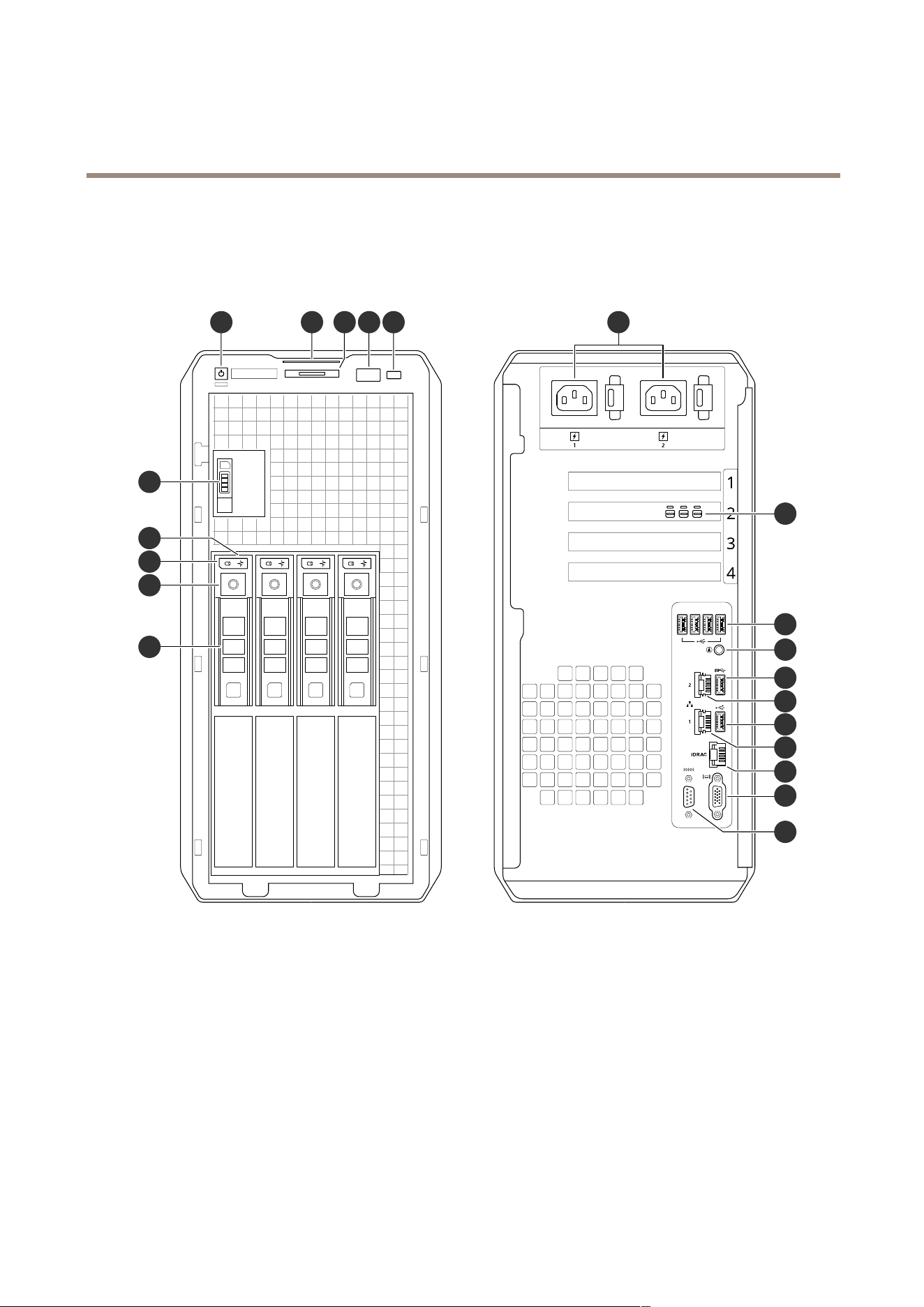
Frontandrearsides
8 9
4
2
1
16
18
19
17
20
21
12
116 7 10
3
5
13
14
15
1
Harddrivetray
2
Harddrivetrayreleasebutton
3
HarddriveactivityLED
4
HarddrivestatusLED
5
Solidstatedrivetray
6
Powerbutton/powerLED
7
Informationtag
8
Systemidenticationbuttonandindicator
9
USB3.0port
10
iDRACdirectport
11
Powersupplyunits
12
MiniDisplayPortconnectors
13
USB2.0ports
14
Systemidenticationbuttonandindicator
15
USB3.0port
24

AXISCameraStationS1232TowerRecordingServer
Productoverview
16
1GbEEthernetport2
17
USB2.0port
18
1GbEEthernetport1
19
iDRACdedicatedEthernetport
20
VGAport(Donotuse)
21
Serialport
Specications
SystemhealthandIDindicators
LEDDescriptionAction
Solidblue
Thesystemispoweredon,ishealthy,and
systemIDmodeisnotactive.
PressthesystemhealthandsystemID
buttontoswitchtosystemIDmode.
BlinkingblueThesystemIDmodeisactive.PressthesystemhealthandsystemID
buttontoswitchtosystemhealthmode.
Solidamber
Thesystemisinfail-safemode.
BlinkingamberThesystemisexperiencingafault.
Checkthesystemeventlogforthe
specicerrormessage.
iDRACdirectLEDindicators
LEDDescription
Solidgreenfortwoseconds
Thelaptoportabletisconnected.
Blinkinggreen(onfortwosecondsandofffortwoseconds)
Thelaptoportabletconnectedisrecognized.
Off
Thelaptoportabletisunplugged.
NICindicators
LEDDescription
Linkandactivityindicatorsareoff
TheNICisnotconnectedtothenetwork.
Linkindicatorisgreenandactivityindicatorisblinkinggreen
TheNICisconnectedtoavalidnetworkatitsmaximumport
speedanddataisbeingsentorreceived.
Linkindicatorisamberandactivityindicatorisblinkinggreen
TheNICisconnectedtoavalidnetworkatlessthanits
maximumportspeedanddataisbeingsentorreceived.
Linkindicatorisgreenandactivityindicatorisoff
TheNICisconnectedtoavalidnetworkatitsmaximumport
speedanddataisnotbeingsentorreceived.
Linkindicatorisamberandactivityindicatorisoff
TheNICisconnectedtoavalidnetworkatlessthatits
maximumportspeedanddataisnotbeingsentorreceived.
Powersupplyunit(PSU)indicators
LEDDescription
GreenAvalidpowersourceisconnectedtothePSUandthePSU
isoperational.
Blinkingamber
ThereisaproblemwiththePSU.
Notpoweredon
PowerisnotconnectedtothePSU.
25
AXISCameraStationS1232TowerRecordingServer
Productoverview
Blinkinggreen
ThermwareofthePSUisbeingupdated.
CAUTION
Donotdisconnectthepowercordorunplugthe
PSUwhenupdatingrmware.Ifrmwareupdateis
interrupted,thePSUswillnotfunction.
Blinkinggreenandpowersoff
Whenhot-pluggingaPSU,itblinksgreenvetimesatarate
of4Hzandpowersoff.ThisindicatesaPSUmismatchdueto
efciency,featureset,healthstatus,orsupportedvoltage.
CAUTION
•IftwoPSUsareinstalled,boththePSUsmusthave
thesametypeoflabel.Forexample,ExtendedPower
Performance(EPP)label.MixingPSUsfromprevious
generationsofPowerEdgeserversisnotsupported,
evenifthePSUshavethesamepowerrating.This
resultsinaPSUmismatchconditionorfailureto
poweronthesystem.
•IftwoPSUsareused,theymustbeofthesametype
andhavethesamemaximumoutputpower.
•WhencorrectingaPSUmismatch,replacethePSU
withtheblinkingindicator.SwappingthePSUtomake
amatchedpaircanresultinanerrorconditionandan
unexpectedsystemshutdown.Tochangefromahigh
outputcongurationtoalowoutputcongurationor
viceversa,youmustpoweroffthesystem.
Driveindicators
LEDDescription
BlinksgreentwicepersecondThedriveisbeingidentiedorpreparingforremoval.
Off
Thedriveisreadyforremoval.
Note
Thedrivestatusindicatorremainsoffuntilalldrivesare
initializedafterthesystemispoweredon.Drivesare
notreadyforremovalduringthistime.
Blinksgreen,amber,andthenpowersoffThereisanunexpecteddrivefailure.
BlinksamberfourtimespersecondThedrivehasfailed.
BlinksgreenslowlyThedriveisrebuilding.
Solidgreen
Thedriveisonline.
Blinksgreenforthreeseconds,amberforthreeseconds,and
thenpowersoffaftersixseconds
Therebuildhasstopped.
26


UserManualVer.M1.8
AXISCameraStationS1232TowerRecordingServerDate:September2022
©AxisCommunicationsAB,2022
PartNo.T10177843