
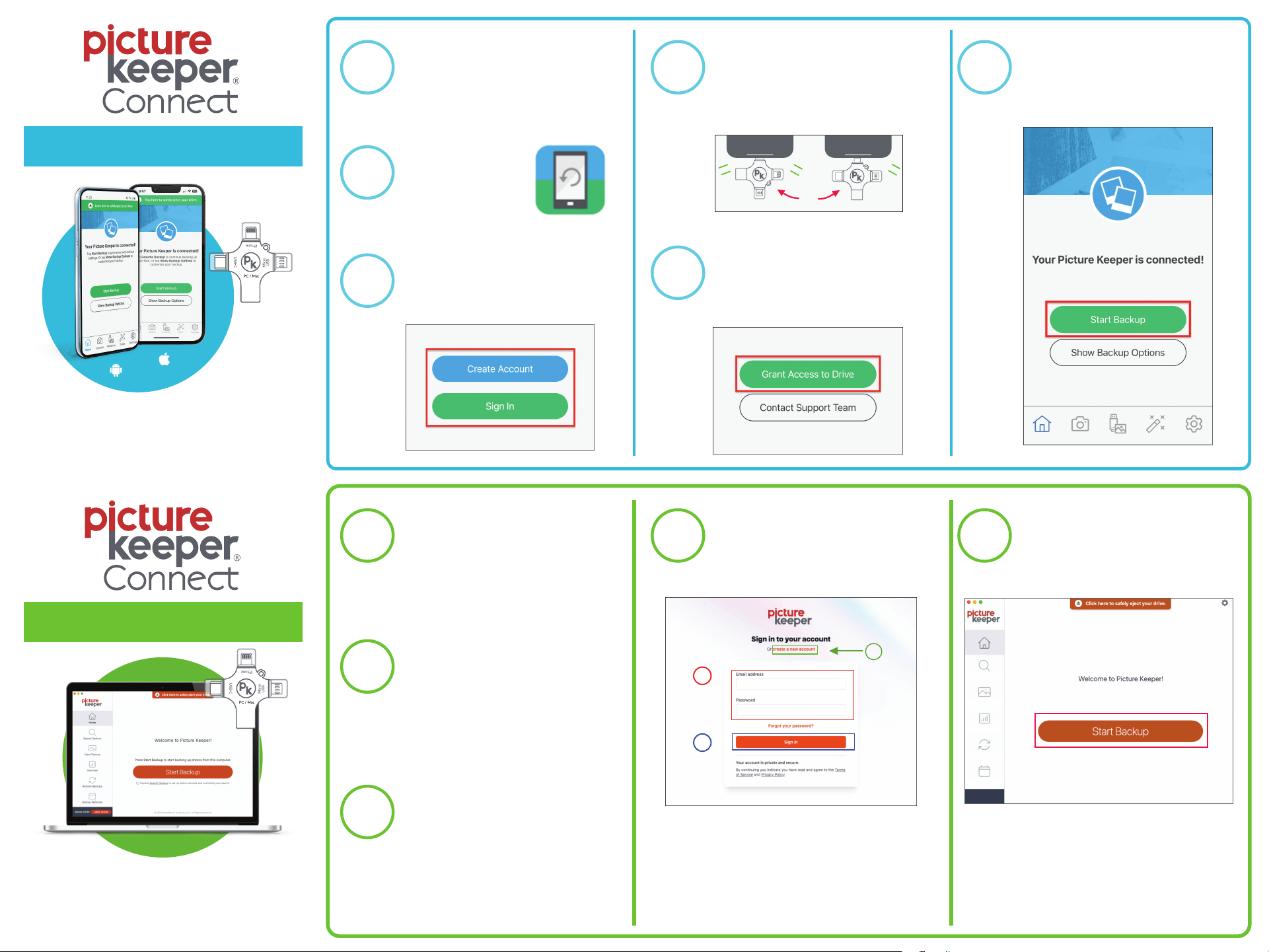
Download the
Picture Keeper Connect
app from the Apple App
Store or Google Play Store
Open the App
Create an account, or sign
into an existing account
Follow the on-screen
instructions to connect
your Picture Keeper
Continue to follow the
on-screen instructions to
Grant Access to Drive
and/or Open Drive Picker
Computer Instructions
2.
4.
Phone Instructions
1 4 6
5
2
3
1 4 5
2
3
Connect your
Picture Keeper
to your computer
Look for an external drive
called "PKBACKUP" to
appear, and open it
Double-click "Launch
PictureKeeper" on Windows,
or "PictureKeeperForMac"
on Mac to open the app
Sign in to your
Picture Keeper account,
OR create a new account
If prompted, be sure to
install the latest update,
then click Start Backup
Tap Start Backup, and
follow any prompts to
allow full access to photos
1
2
OR
OR
Have Questions? Need Help?
Visit us at picturekeeper.com/help
Email us at [email protected]
Call us at +1 (877) 382-0949
Have Questions? Need Help?
Visit us at picturekeeper.com/help
Email us at [email protected]
Call us at +1 (877) 382-0949
Additional Info
Key Terms
Phone Tips
Computer Tips
Make sure the Picture Keeper Connect
app is updated to the latest version
Make sure your phone or tablet
is fully charged, and running the
latest version of iOS or Android
Close any other open apps
If Picture Keeper isn't detected, restart
your phone, and remove your case
To avoid data loss, always eject before
disconnecting, and keep a second copy
of your photos/videos on another device
(like a computer, or another Picture Keeper)
Connect your Picture Keeper directly
to your computer, not to a USB hub
or any other computer accessories
Always install updates when prompted
If Picture Keeper isn't detected, restart
your computer, try another USB port
and disable any anti-virus software
To avoid data loss, always eject before
disconnecting, and keep a second copy
of your photos/videos on another device
(like a phone, or another Picture Keeper)
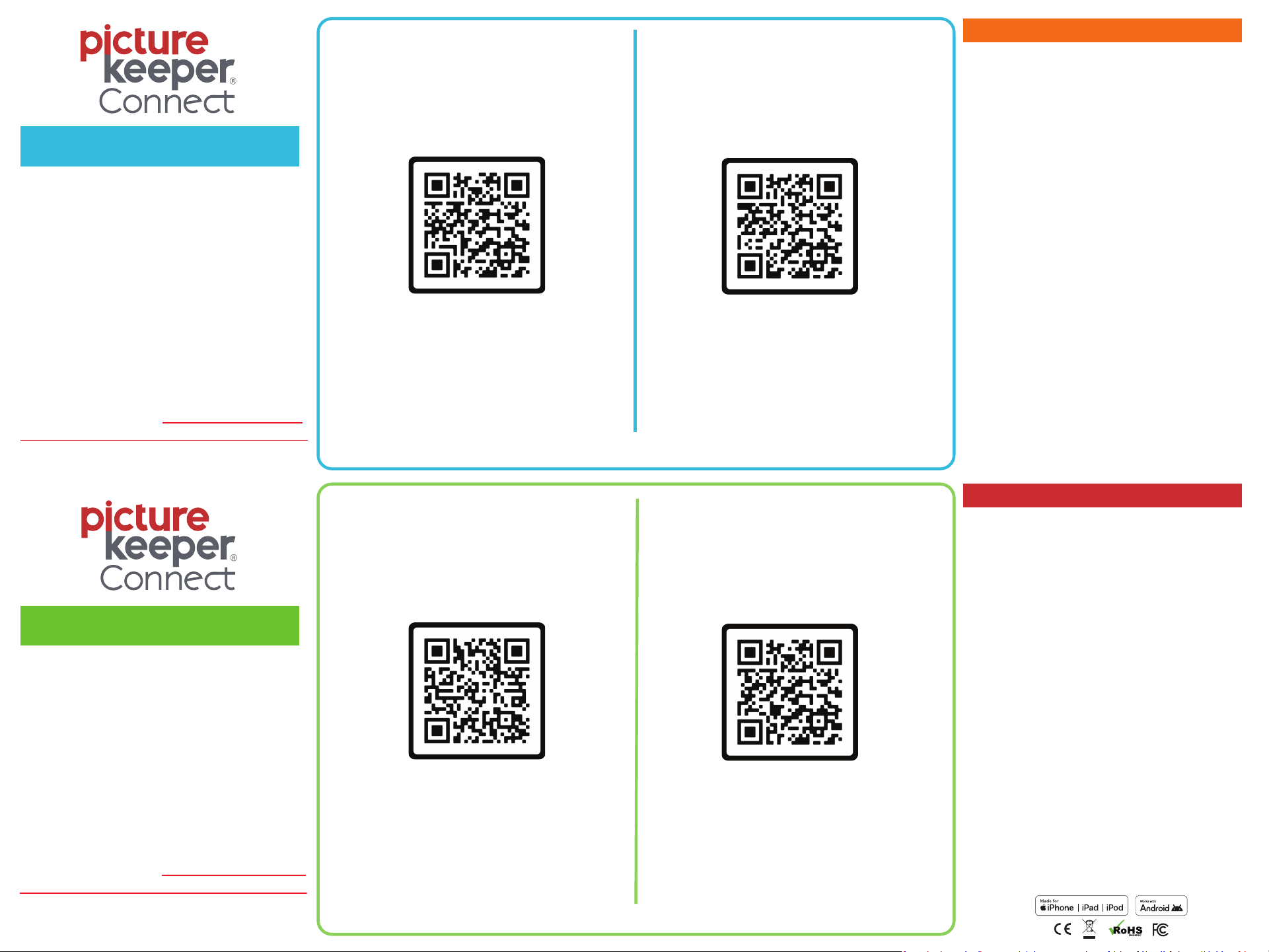
iPhone / iPad Guides Android Guides
Windows Guides Mac Guides
Scan the QR code(s) above using your phone camera, or type the URL(s) into your internet browser
Scan the QR code(s) above using your phone camera, or type the URL(s) into your internet browser
Didn't purchase from picturekeeper.com?
That's OK! Please contact our U.S. support team
directly for help with your Picture Keeper product.
Microsoft and Windows are either registered
trademarks or trademarks of Microsoft Corporation
in the United States and/or other countries.
Apple, Mac, macOS, and iOS are either registered
trademarks or trademarks of Apple Corporation in
the United States and/or other countries. Android
is either registered trademark or trademark of
Google Corporation in the United States
and/or other countries.
"Made for iPhone", "Made for iPad" and "Made for
iPod" means that an accessory has been designed to
connect specifically to an iPhone, iPad, and iPod and
has been certified by the developer to meet Apple
performance standards. Apple is not responsible
for the operation of this device or its compliance
with safety and regulatory standards. Please note
that the use of this accessory with an iPhone, iPad,
or iPod may aect wireless performance.
© 2024 Simplified IT Products, LLC
To access our Limited Warranty or End-User License
Agreement visit picturekeeper.com/warranty and
picturekeeper.com/user-agreement
The process of copying files from
your phone, tablet, or computer
to your Picture Keeper
The process of copying files from
your Picture Keeper, back to your
phone, tablet, or computer
Tells Picture Keeper to ignore any
backup records, and instead start
the backup from the beginning
The safe way to disconnect
Picture Keeper before unplugging
Show Backup Options or Search
Options are where you can adjust
where and what will be backed up
Shows your drive stats, such as
how much storage is available
A file Picture Keeper has previously
backed up from the device in use
Erases your files and/or backup
records from your Picture Keeper
picturekeeper.com/pkc-mac
picturekeeper.com/pkc-windows
picturekeeper.com/pkc-android
picturekeeper.com/pkc-ios
Backup
Restore
Clone
Eject
Options
Overview
Duplicate
Reset