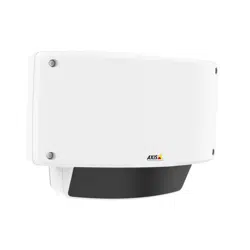

AXISD2050-VENetworkRadarDetector
UserManual

AXISD2050-VENetworkRadarDetector
TableofContents
Systemoverview............................................3
Productoverview...........................................4
Wheretoinstalltheproduct......................................4
Mountingdirection..............................................5
Mountingheight................................................5
Howtoaccesstheproduct....................................6
Howtoaccesstheproductfromabrowser...........................6
Aboutsecurepasswords..........................................6
Setup.....................................................8
Abouttheproduct'sbuilt-inhelp...................................8
Congurethedetector...........................................8
Howtocongurethedetector.....................................9
Howtoinstallmultipledetectors...................................9
Aboutevents...................................................9
Howtorecordvideofromacamerawhenmotionisdetected............10
Howtorecordradardatawhenmotionisdetected....................10
Howtoturnonalightwhenmotionisdetected......................11
HowtocontrolaPTZcamerawiththedetector.......................11
Aboutdetectionzones...........................................11
Howtominimizefalsealarms.....................................12
Troubleshooting............................................14
Howtoresettofactorydefaultsettings.............................14
Howtocheckthecurrentrmware.................................14
Howtoupgradethermware.....................................14
Technicalissues,cluesandsolutions................................15
Performanceconsiderations.......................................15
Specications..............................................17
SDcardslot....................................................17
Buttons.......................................................17
Connectors....................................................17
Operatingconditions.............................................19
Powerconsumption..............................................19
2
AXISD2050-VENetworkRadarDetector
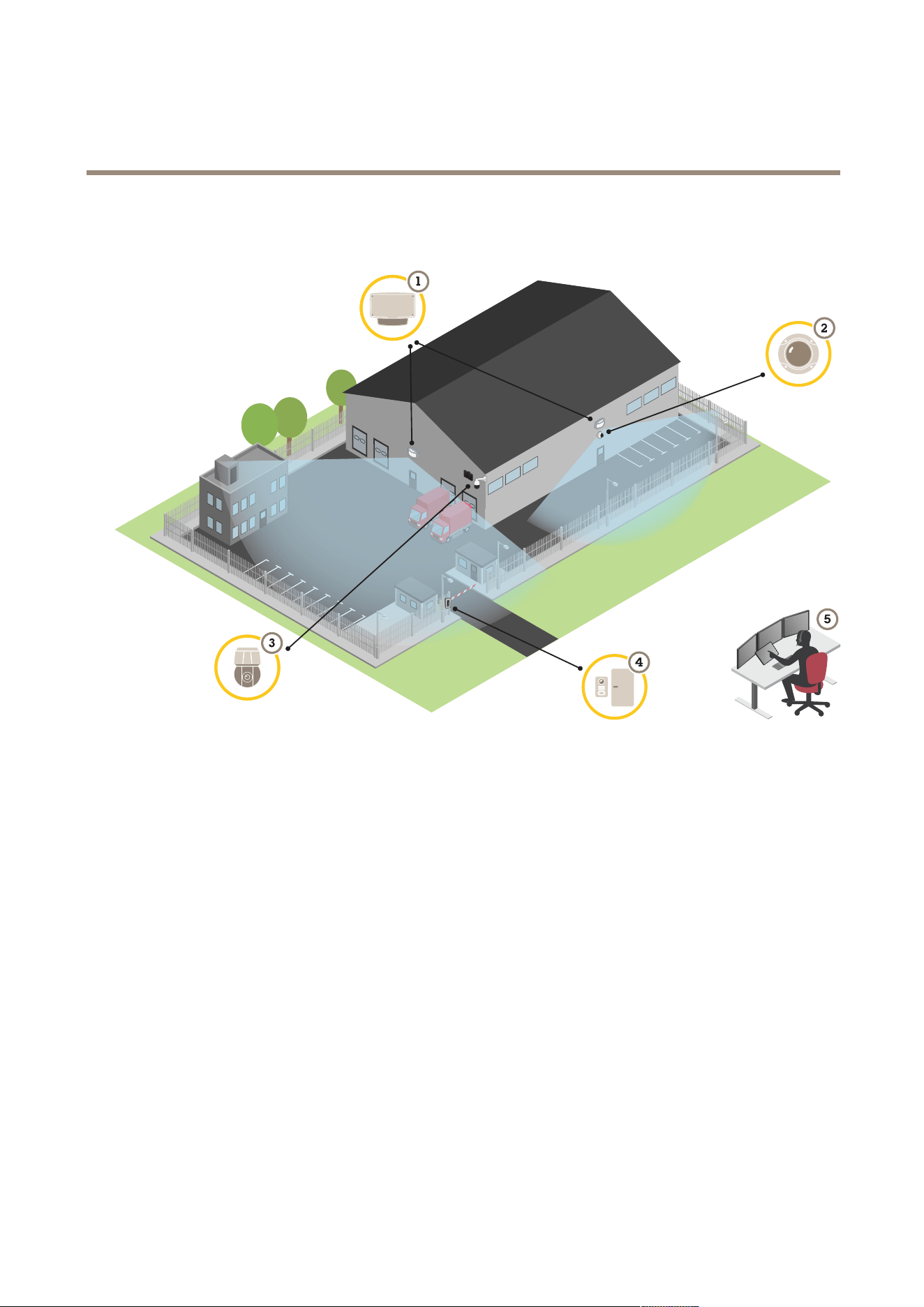
Systemoverview
Systemoverview
1
AXISD2050-VE
2
Fixeddomecamera
3
PTZcameraandilluminator
4
Doorcontroller
5
Surveillancecenter
3

AXISD2050-VENetworkRadarDetector
Productoverview
Productoverview
1
Relayconnector
2
Groundingscrew
3
Networkconnector
4
Radarmodule
5
Intrusionalarmswitch
6
Controlbutton
7
I/Oconnector
8
microSDcardslot
9
PowerLED
10
StatusLED
11
NetworkLED
Wheretoinstalltheproduct
Thedetectorisintendedformonitoringopenareas.Anysolidobject(suchasatreeorabush)inthecoverageareawillcreatea
blindspot(radarshadow)behindit.
Installthedetectoronapole,oronaspotonawallwheretherearenootherobjectsorinstallationsclosetoit.
Tobeabletocorrectlyidentifymovementinthecoveragearea,thedetectorneedstobeinstalledonastablemount.Donot
installthedetectoronaswayingpole.
Iftworadardetectorsofaremountedclosetogethertheymayinterferewitheachother,seeHowtoinstallmultipledetectorson
page9.
Attherecommendedmountingheight,theneardetectionlimitis4.5m(15ft).
Iftherearealotofmetalobjectsintheeldofviewtherewillbealotofreectionsimpactingtheperformance.
Note
Donotrepaintthedetector.Thepaintmayseriouslyimpactthedetector’sperformance.
4

AXISD2050-VENetworkRadarDetector
Productoverview
Mountingdirection
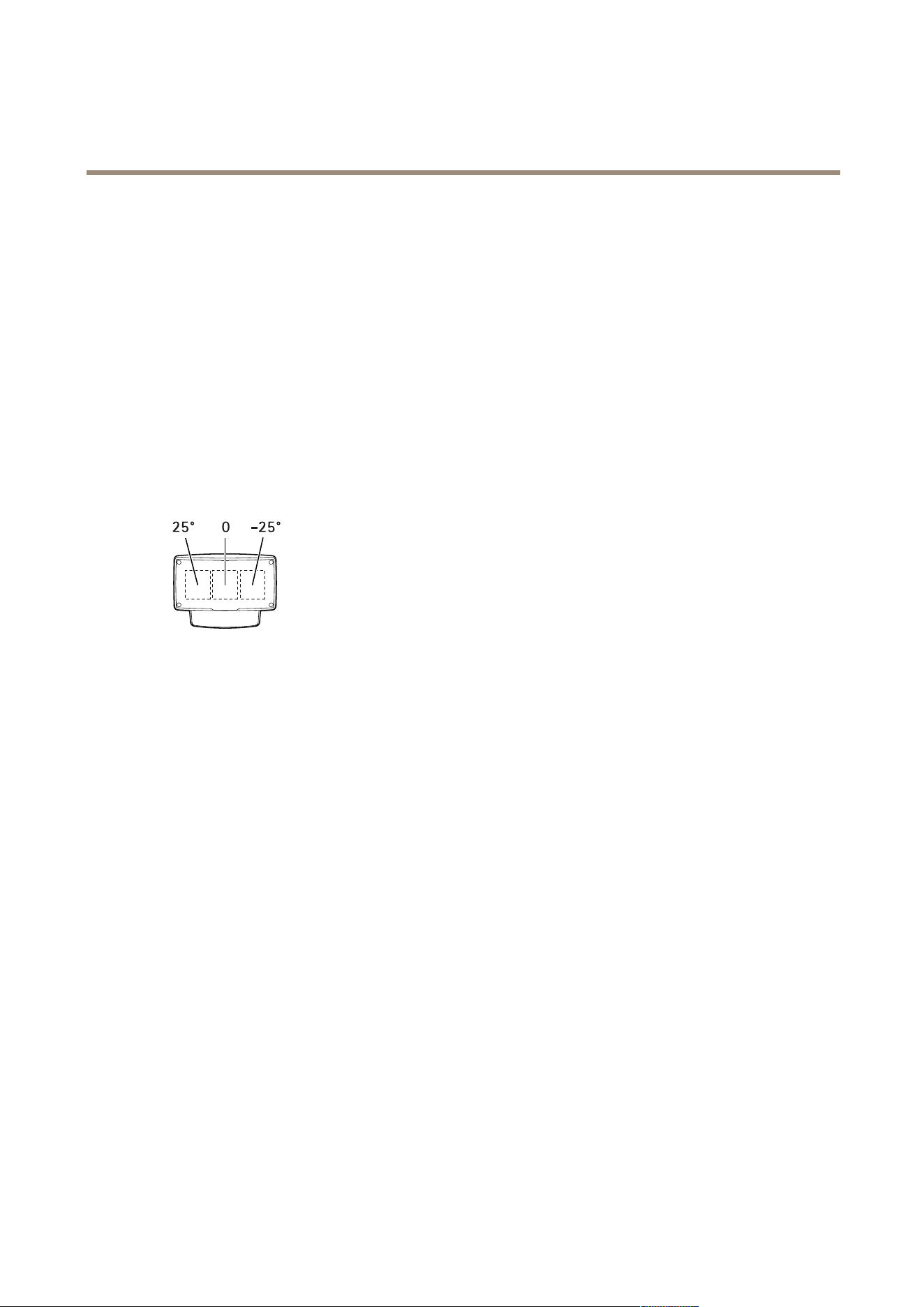
Thedetectorcoversanangleof±60°fromitscentralaxis.Thismeansthatifyoumountitonawallthereisablindspottoeach
sideofthedetector.
Tocoverthewallyoucanmovetheradarmoduleinsidethedetector.
1
-25°mountingdirection
2
0°mountingdirection
3
25°mountingdirection
Mountingheight
Foroptimalperformance,installthedetector3.5m(1 1ft)aboveground.
Note
Ifyouinstallthedetectoratadifferentheight,entertheactualmountingheightintheproduct’swebpagesbefore
calibratingtheradar.
Thefollowingtableshowsthedetectionrangeatdifferentmountingheightswhendetectinga1.8m(6ft)tallpersonwalking.
Mountingheight
3.5m(11ft)4m(13ft)4.5m(15ft)5m(16ft)
Neardetectionlimit
4.5m(15ft)6m(20ft)7m(23ft)8.5m(28ft)
Fardetectionlimit(max.values)49m(161ft)51m(167ft)51m(167ft)52m(171ft)
5

AXISD2050-VENetworkRadarDetector
Howtoaccesstheproduct
Howtoaccesstheproduct
AXISIPUtilityandAXISCameraManagementarerecommendedmethodsforndingAxisproductsonthenetworkandassigning
themIPaddressesinWindows®.Bothapplicationsarefreeandcanbedownloadedfromaxis.com/support
Theproductcanbeusedwiththefollowingbrowsers:
•Chrome
TM
(recommended),Firefox
®
,Edge
®
,orOpera
®
withWindows
®
•Chrome
TM
(recommended)orSafari
®
withOSX
®
•Chrome
TM
orFirefox
®
withotheroperatingsystems.
Ifyouneedmoreinformationaboutrecommendedbrowsers,gotoaxis.com/browser-support
Howtoaccesstheproductfromabrowser
1.Startawebbrowser.
2.EntertheIPaddressorhostnameoftheAxisproductinthebrowser’saddresseld.
ToaccesstheproductfromaMaccomputer(OSX),gotoSafari,clickonBonjourandselecttheproductfromthe
drop-downlist.ToaddBonjourasabrowserbookmark,gotoSafari>Preferences.
IfyoudonotknowtheIPaddress,useAXISIPUtilitytolocatetheproductonthenetwork.Forinformationabout
howtodiscoverandassignanIPaddress,seethedocumentAssignanIPAddressandAccesstheVideoStreamonAxis
Supportwebataxis.com/support
3.Enteryourusernameandpassword.Ifthisisthersttimetheproductisaccessed,therootpasswordmustrstbe
congured.
4.Theproduct’sliveviewpageopensinyourbrowser.
Aboutsecurepasswords
Important
Whensettingtheinitialpassword,thepasswordissentincleartextoverthenetwork.Ifthereisariskofnetworksnifng,
rstsetupasecureandencryptedHTTPSconnectionbeforeresettingthepasswords.
Thedevicepasswordistheprimaryprotectionforthedataandservices.Axis’productsdonotimposeapasswordpolicyasproducts
maybeusedinvarioustypesofinstallations,buttoprotectyourdatadothefollowing:
•Don’tusethedefaultpasswordthatcomeswiththeproducts.
•Useapasswordwithatleast8characters,preferablyusingapasswordgenerator.
•Don’texposethepassword.
•Changepasswordatarecurringinterval,atleastonceayear.
Setapasswordfortherootaccount
Important
Thedefaultadministratorusernamerootcannotbedeleted.Ifthepasswordforrootislost,theproductmustberesetto
thefactorydefaultsettings.
Thedefaultrootaccounthasfullprivilegesandshouldbereservedforadministrativetasks.Alwayscreateauseraccountwithlimited
privilegesfordailyuse.Thisreducestheexposureoftheadministrativeaccount.
6

AXISD2050-VENetworkRadarDetector
Setup
Setup
Abouttheproduct'sbuilt-inhelp
Youcanaccessthebuilt-inhelpthroughyourproduct’swebpage.Thehelpprovidesmoredetailedinformationontheproduct’s
featuresandtheirsettings.
Congurethedetector
Thedetectorisreadytouseassoonasitisinstalled.Thedefaultliveviewwillshowtheradarcoverageandanydetectedmovement,
andyoucanadddetectionzonesandactionrulesrightaway.
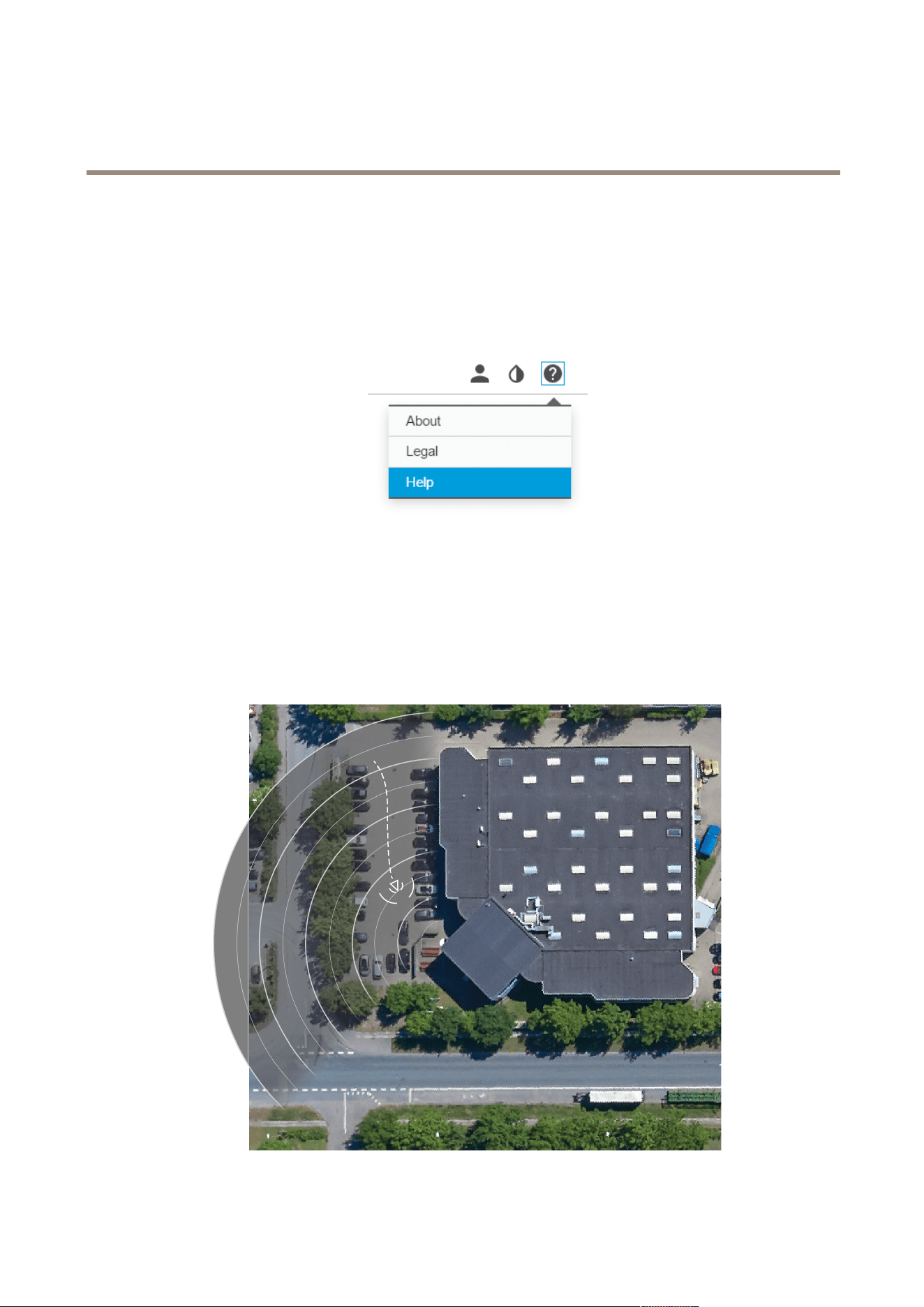
Tomakeiteasiertoseewhereobjectsaremoving,youcanuploadareferencemap,forexampleagroundplanoranaerialphoto,
thatshowstheareacoveredbytheradardetector.
8
AXISD2050-VENetworkRadarDetector
Setup
Imagerequirements:
•Supportedleformatsarejpegandpng.
•Useanimagewiththesameproportions(16:9)orresolution(1920x1080)astheliveview.Iftheimageissmalleritwillbe
scaledtotthewindow.Iftheproportionsarewrong,theimagewillnotlltheentirevideostream.
•Croptheimagetotthecoverageoftheradarascloselyaspossiblebeforeuploadingit.
•Theorientationisnotimportant,sincetheradarcoverageshapewillbemovedtoadapttotheimageduringcalibration.
Afteruploadingthereferencemapyouneedtocalibratetheradarsothattheactualradarcoveragetstheposition,directionand
scaleofthereferencemap.
Therearetwomethodsforcalibratingthereferencemap:
•Calibrationusingpins:Thecalibrationisperformedinthewebinterfacebydroppingpinsinknowlocationsinthe
referencemapandsettingthedistancebetweenthepins.
Whencalibratingusingpins,youneedtoselectthemountingpositionoftheradarmoduleinsidethedetector.
•Calibrationusingtracks:Thecalibrationmethodrequiresapersontomoveinfrontoftheradar.
Youcandothisyourselfwhileaccessingthewebinterfacefromamobiledevice,orhavesomeoneelsemoveand
followyourinstructions.
Whenmovingaroundinthedifferentsteps,movetoplacesthatareeasytondinthereferencemap.
Howtocongurethedetector
1.Touploadareferencemap,gotoSettings>Radar>Referencemap.SelectBrowsetondanimagele,andselect
Uploadtoplacetheimageintheliveview.
2.Tocalibratethereferencemap,gotoSettings>Radar>Referencemapcalibration.SelectStartcalibrationand
followtheinstructions.
Howtoinstallmultipledetectors
Iftworadardetectorsofaremountedclosetogethertheymayinterferewitheachother.Toavoidproblems,selectdifferent
channelsforthedetectors.
1.GotoSettings>Radar>GeneralandselectChannel.
Aboutevents
Theeventpagesallowyoutocongureyourproducttoperformactionswhendifferenteventsoccur.Forexample,theproduct
canstartarecordingorsendanemailnoticationwhenmotionisdetected.Thesetofconditionsthatdeneshowandwhen
theactionistriggerediscalledanactionrule.
9

AXISD2050-VENetworkRadarDetector
Setup
Howtorecordvideofromacamerawhenmotionisdetected
ThisexampleexplainshowtosetupthedetectorandacamerasothatthecamerastartsrecordingtotheSDcardveseconds
beforethedetectordetectsmotionandtostoponeminuteafter.
Connectthedevices:
1.ConnectacablefromanI/OoutputonthedetectortoanI/Oinputonthecamera.
ConguretheI/Oportofthedetector:
2.GotoSettings>System>I/OportsandconguretheI/Oportasanoutputandselectthenormalstate.
Createanactionruleinthedetector:
3.GotoSettings>System>Eventsandaddanactionrule.
4.Typeanamefortheactionrule.
5.Fromthelistoftriggers,selectDetectorsandthenselectoneoftheRMD(RadarMotionDetection)includezones.Toset
upanincludezone,seeAddanincludezoneonpage12
6.Fromthelistofactions,selectOutputPortandthenselecttheportthatisconnectedtothecamera.
7.SettheDurationtoGotooppositestatewhentheruleisnolongeractive.
8.ClickOk.
ConguretheI/Oportofthecamera:
9.GotoSettings>System>I/OportsandconguretheI/Oportasaninputandselectthenormalstate.
Createanactionruleinthecamera:
10.GotoSettings>System>Eventsandaddanactionrule.
11.Typeanamefortheactionrule.
12.Fromthelistoftriggers,selectDigitalInputPortandthenselecttheportthatshouldtriggertherule.
13.Fromthelistofactions,selectRecordvideo.
14.Selectanexistingstreamproleorcreateanewone.
15.Setthepre-triggertimeto5seconds.
16.Setthepost-triggertimeto60seconds.
17.SelectSDcardfromthelistofstorageoptions.
18.ClickOk.
Howtorecordradardatawhenmotionisdetected
ThisexampleexplainshowtosetupthedetectortostartrecordingtotheSDcardvesecondsbeforeitdetectsmotionandto
stoponeminuteafter.
Therecordingwillshowthereferencemapwiththetrailofthemovingobject.
Createanactionrule:
1.GotoSettings>System>Eventsandaddanactionrule.
2.Typeanamefortheactionrule.
10

AXISD2050-VENetworkRadarDetector
Setup
3.Fromthelistoftriggers,selectDetectorsandthenselectoneoftheRMD(RadarMotionDetection)includezones.Toset
upanincludezone,seeAddanincludezoneonpage12
4.Fromthelistofactions,selectRecordvideo.
5.Selectanexistingstreamproleorcreateanewone.
6.Setthepre-triggertimeto5seconds.
7.Setthepost-triggertimeto60seconds.
8.SelectSDcardfromthelistofstorageoptions.
9.ClickOk.
Howtoturnonalightwhenmotionisdetected
Turningonalightwhenanintruderentersthedetectionzonecanhaveadeterringeffect,andwillalsoimprovetheimagequalityof
avisualcamerarecordingtheintrusion.
Thisexampleexplainshowtosetupthedetectorandanilluminatorsothattheilluminatorturnsonwhenthedetectordetects
motionandturnsoffafteroneminute.
Connectthedevices:
1.Connectoneoftheilluminatorcablestothepowersupplyviatherelayportonthedetector.Connecttheothercable
directlybetweenthepowersupplyandtheilluminator.
Conguretherelayportofthedetector:
2.GotoSettings>System>I/OportsandselectOpencircuitasthenormalstate.
Createanactionruleinthedetector:
3.GotoSettings>System>Eventsandaddanactionrule.
4.Typeanamefortheactionrule.
5.Fromthelistoftriggers,selectDetectorsandthenselectoneoftheRMD(RadarMotionDetection)includezones.Toset
upanincludezone,seeAddanincludezoneonpage12
6.Fromthelistofactions,selectOutputPortandthenselecttherelayport.
7.SelectActive.
8.SettheDurationtoGotooppositestateafter1minute.
9.ClickOk.
HowtocontrolaPTZcamerawiththedetector
Itispossibletousetheinformationaboutobjects’positionsfromthedetectortomakeaPTZcameratrackobjects.
Todothis,installtheapplicationAXISRadarAutotrackingforPTZonyourVMSserver(oranothercomputerwithaccesstoboththe
cameraandthedetector),andfollowtheinstructionsintheapplication.
TodownloadAXISRadarAutotrackingforPTZ,gotoaxis.com
Aboutdetectionzones
Todeterminewheretodetectmotion,youcanaddmultiplezones.Differentzonescanbeusedtotriggerdifferentactions.
11

AXISD2050-VENetworkRadarDetector
Setup
Therearetwotypesofzones:
•Anincludezoneisanareainwhichmovingobjectswilltriggeractionrules.Thedefaultincludezonematchesthe
entireareacoveredbythedetector.
•Anexcludezoneisanareainwhichmovingobjectswillbeignored.Useexcludezonesifthereareareasinsideaninclude
zonethattriggeralotofunwantedalarms.
Addanincludezone
1.GotoSettings>RMDzonesandclick
2.SelectIncludezone.
3.Select
tomodifythesettingsofthezone.Formoreinformation,seetheproduct’sbuiltinhelp.
4.Modifytheshapeoftheincludezone,seeModifyadetectionzoneonpage12
Addanexcludezone
1.GotoSettings>RMDzonesandclick
2.SelectExcludezone.
3.Modifytheshapeoftheexcludezone,seeModifyadetectionzoneonpage12
Modifyadetectionzone
Usethemousetomoveandshapethezonesothatitcoversthedesiredpartofthereferencemap.
•Toaddanewcorner,clickonthezoneborder.Dragthecornertothedesiredposition.
•Toremoveacorner,right-clickonthecorner.
•Tomoveacorner,clickanddragthecornertothenewposition.
•Tomovethezone,placethepointerinsidethezoneanddragthezonetothenewposition.
Howtominimizefalsealarms
Ifyounoticethatyougettoomanyfalsealarms,youcanlteroutcertaintypesofmovementorobjects,orchangethecoverage.
Testwhichsettingworksbestforyourenvironment.
•Modifytheincludeandexcludezones:
Iftheincludezoneincludeshardsurfaces,suchasametalwall,theremaybereectionsthatcausesmultipledetectionsfor
asinglephysicalobject.Inthiscase,modifytheincludezone,seeModifyadetectionzoneonpage12,oraddanexclude
zonethatmaskseverythingbehindthesurface,seeAddanexcludezoneonpage12
•Filteronmovement:
GotoSettings>Radar>DetectionandselectIgnoreswayingobjects.Thissettingwillminimizefalsealarmsfromtrees,
bushes,andagpolesinthecoveragezone.
•Filterontime:
GotoSettings>RMDzonesandselectazonetomodifyit’ssettings.
EnableShort-livedobjectandsetadelaytimefromwhentheradarstartstrackinganobjectuntilitcantriggerandalarm.
Thetimerstartswhentheradarrstdetectstheobject,notwhentheobjectenterstheincludezone.
12

AXISD2050-VENetworkRadarDetector
Setup
•Filteronobjecttype:
Thedetectorwillclassifyobjectsdependingontheradarechothattheyproduce.Ifitcan’tdeterminetheobjecttype,
theobjectwillbeclassiedasUnidentied.
GotoSettings>RMDzonesandselectazonetomodifyit’ssettings.
Toavoidtriggeringonspecicobjecttypes,enablethelteranddeselecttheobjecttypesthatshouldnottriggerevents
inthiszone.
13

AXISD2050-VENetworkRadarDetector
Troubleshooting
Troubleshooting
Howtoresettofactorydefaultsettings
Important
Resettofactorydefaultshouldbeusedwithcaution.Aresettofactorydefaultresetsallsettings,includingtheIPaddress,to
thefactorydefaultvalues.
Toresettheproducttothefactorydefaultsettings:
1.Disconnectpowerfromtheproduct.
2.Pressandholdthecontrolbuttonwhilereconnectingpower.SeeProductoverview.
3.Keepthecontrolbuttonpressedfor15–30secondsuntilthestatusLEDindicatorashesamber.
4.Releasethecontrolbutton.TheprocessiscompletewhenthestatusLEDindicatorturnsgreen.Theproducthasbeenreset
tothefactorydefaultsettings.IfnoDHCPserverisavailableonthenetwork,thedefaultIPaddressis192.168.0.90
5.UsetheinstallationandmanagementsoftwaretoolstoassignanIPaddress,setthepassword,andaccessthevideostream.
Theinstallationandmanagementsoftwaretoolsareavailablefromthesupportpagesonaxis.com/support
Itisalsopossibletoresetparameterstofactorydefaultviathewebinterface.GotoSettings>System>Maintenanceand
clickDefault.
Howtocheckthecurrentrmware
Firmwareisthesoftwarethatdeterminesthefunctionalityofnetworkdevices.Oneofyourrstactionswhentroubleshootinga
problemshouldbetocheckthecurrentrmwareversion.Thelatestversionmaycontainacorrectionthatxesyourparticular
problem.
Tocheckthecurrentrmware:
1.Gototheproduct’swebpage.
2.Clickonthehelpmenu.
3.ClickAbout.
Howtoupgradethermware
Important
Preconguredandcustomizedsettingsaresavedwhenthermwareisupgraded(providedthatthefeaturesareavailablein
thenewrmware)althoughthisisnotguaranteedbyAxisCommunicationsAB.
Important
Makesuretheproductremainsconnectedtothepowersourcethroughouttheupgradeprocess.
Note
Whenyouupgradetheproductwiththelatestrmware,theproductreceivesthelatestfunctionalityavailable.Alwaysread
theupgradeinstructionsandreleasenotesavailablewitheachnewreleasebeforeupgradingthermware.Tondthelatest
rmwareandthereleasenotes,gotoaxis.com/support/rmware
1.Downloadthelatestrmwareletoyourcomputer,availablefreeofchargeataxis.com/support/rmware
14

AXISD2050-VENetworkRadarDetector
Troubleshooting
2.Logintotheproductasanadministrator.
3.GotoSettings>System>Maintenanceintheproduct’swebpageandfollowtheinstructions.Whentheupgradehas
nished,theproductrestartsautomatically.
Technicalissues,cluesandsolutions
Ifyoucan’tndwhatyou’relookingforhere,trythetroubleshootingsectionataxis.com/support
Problemsupgradingthermware
FirmwareupgradefailureIfthermwareupgradefails,theproductreloadsthepreviousrmware.Themostcommonreason
isthatthewrongrmwarelehasbeenuploaded.Checkthatthenameofthermwarele
correspondstoyourproductandtryagain.
ProblemssettingtheIPaddress
Theproductislocatedona
differentsubnet
IftheIPaddressintendedfortheproductandtheIPaddressofthecomputerusedtoaccessthe
productarelocatedondifferentsubnets,youcannotsettheIPaddress.Contactyournetwork
administratortoobtainanIPaddress.
TheIPaddressisbeingused
byanotherdevice
DisconnecttheAxisproductfromthenetwork.Runthepingcommand(inaCommand/DOS
window,typepingandtheIPaddressoftheproduct):
•Ifyoureceive:Replyfrom<IPaddress>:bytes=32;time=10...
thismeansthattheIPaddressmayalreadybeinusebyanotherdeviceonthenetwork.
ObtainanewIPaddressfromthenetworkadministratorandreinstalltheproduct.
•Ifyoureceive:Requesttimedout,thismeansthattheIPaddressisavailable
forusewiththeAxisproduct.Checkallcablingandreinstalltheproduct.
PossibleIPaddressconict
withanotherdeviceonthe
samesubnet
ThestaticIPaddressintheAxisproductisusedbeforetheDHCPserversetsadynamicaddress.
ThismeansthatifthesamedefaultstaticIPaddressisalsousedbyanotherdevice,theremay
beproblemsaccessingtheproduct.
Theproductcannotbeaccessedfromabrowser
Cannotlogin
WhenHTTPSisenabled,ensurethatthecorrectprotocol(HTTPorHTTPS)isusedwhenattempting
tologin.Youmayneedtomanuallytypehttporhttpsinthebrowser’saddresseld.
Ifthepasswordfortheuserrootislost,theproductmustberesettothefactorydefaultsettings.
SeeHowtoresettofactorydefaultsettings.
TheIPaddresshasbeen
changedbyDHCP
Theproductisaccessiblelocallybutnotexternally
Routerconguration
CheckthatyourrouterallowsincomingdatatrafctotheAxisproduct.Theroutermustsupport
UPnP
®
.
Firewallprotection
ChecktheInternetrewallwithyournetworkadministrator.
Performanceconsiderations
Whensettingupyoursystem,itisimportanttoconsiderhowvarioussettingsandsituationsaffecttheperformance.Somefactors
affecttheamountofbandwidth(thebitrate)required,otherscanaffecttheframerate,andsomeaffectboth.Iftheloadonthe
CPUreachesitsmaximum,thisalsoaffectstheframerate.
Thefollowingfactorsarethemostimportanttoconsider:
15

AXISD2050-VENetworkRadarDetector
Troubleshooting
•Highimageresolutionorlowercompressionlevelsresultinimagescontainingmoredatawhichinturnaffectsthe
bandwidth.
•AccessbylargenumbersofMotionJPEGorunicastH.264clientsaffectsthebandwidth.
•Simultaneousviewingofdifferentstreams(resolution,compression)bydifferentclientsaffectsbothframerateand
bandwidth.
Useidenticalstreamswhereverpossibletomaintainahighframerate.Streamprolescanbeusedtoensurethat
streamsareidentical.
•AccessingMotionJPEGandH.264videostreamssimultaneouslyaffectsbothframerateandbandwidth.
•Heavyusageofeventsettingsaffectstheproduct’sCPUloadwhichinturnaffectstheframerate.
•UsingHTTPSmayreduceframerate,inparticularifstreamingMotionJPEG.
•Heavynetworkutilizationduetopoorinfrastructureaffectsthebandwidth.
•Viewingonpoorlyperformingclientcomputerslowersperceivedperformanceandaffectsframerate.
•RunningmultipleAXISCameraApplicationPlatform(ACAP)applicationssimultaneouslymayaffecttheframerateand
thegeneralperformance.
16

AXISD2050-VENetworkRadarDetector
Specifications
Specifications
Tondthelatestversionoftheproduct’sdatasheet,gototheproductpageonaxis.comandlocateSupport&Documentation.
LEDIndicators
StatusLED
Indication
GreenSteadygreenfornormaloperation.
Amber
Steadyduringstartup.Flasheswhenrestoringsettings.
NetworkLEDIndication
Green
Steadyforconnectiontoa100Mbit/snetwork.Flashesfornetworkactivity.
Amber
Steadyforconnectiontoa10Mbit/snetwork.Flashesfornetworkactivity.
UnlitNonetworkconnection.
PowerLEDIndication
Green
Normaloperation.
Amber
Flashesgreen/amberduringrmwareupgrade.
SDcardslot
ForSDcardrecommendations,seeaxis.com
Buttons
Controlbutton
Forlocationofthecontrolbutton,seeProductoverviewonpage4.
Thecontrolbuttonisusedfor:
•Resettingtheproducttofactorydefaultsettings.Seepage14.
•ConnectingtoanAXISVideoHostingSystemservice.See.Toconnect,pressandholdthebuttonforabout3seconds
untiltheStatusLEDashesgreen.
Connectors
Networkconnector
RJ45EthernetconnectorwithPoweroverEthernetPlus(PoE+).
I/Oconnector
UsetheI/Oconnectorwithexternaldevicesincombinationwith,forexample,motiondetection,eventtriggering,andalarm
notications.Inadditiontothe0VDCreferencepointandpower(DCoutput),theI/Oconnectorprovidestheinterfaceto:
Digitalinput-Forconnectingdevicesthatcantogglebetweenanopenandclosedcircuit,forexamplePIRsensors,door/window
contacts,andglassbreakdetectors.
17

AXISD2050-VENetworkRadarDetector
Specifications
Digitaloutput-ForconnectingexternaldevicessuchasrelaysandLEDs.ConnecteddevicescanbeactivatedbytheVAPIX®
ApplicationProgrammingInterfaceorintheproduct’swebpage.
6-pinterminalblock
1
0VDC(-)
2
DCoutput12V,max50mA
A
I/Oconguredasinput
B
I/Oconguredasoutput
Relayconnector
CAUTION
Usesinglecorewiresfortherelayconnector.
Function
Specications
TypeNormallyopen
Rating
24VDC
Max.current5A
Isolationfromothercircuitry2.5kV
Electricalendurance
24VDC,25000operationsat+70°C(158°F)
18
AXISD2050-VENetworkRadarDetector
Specifications
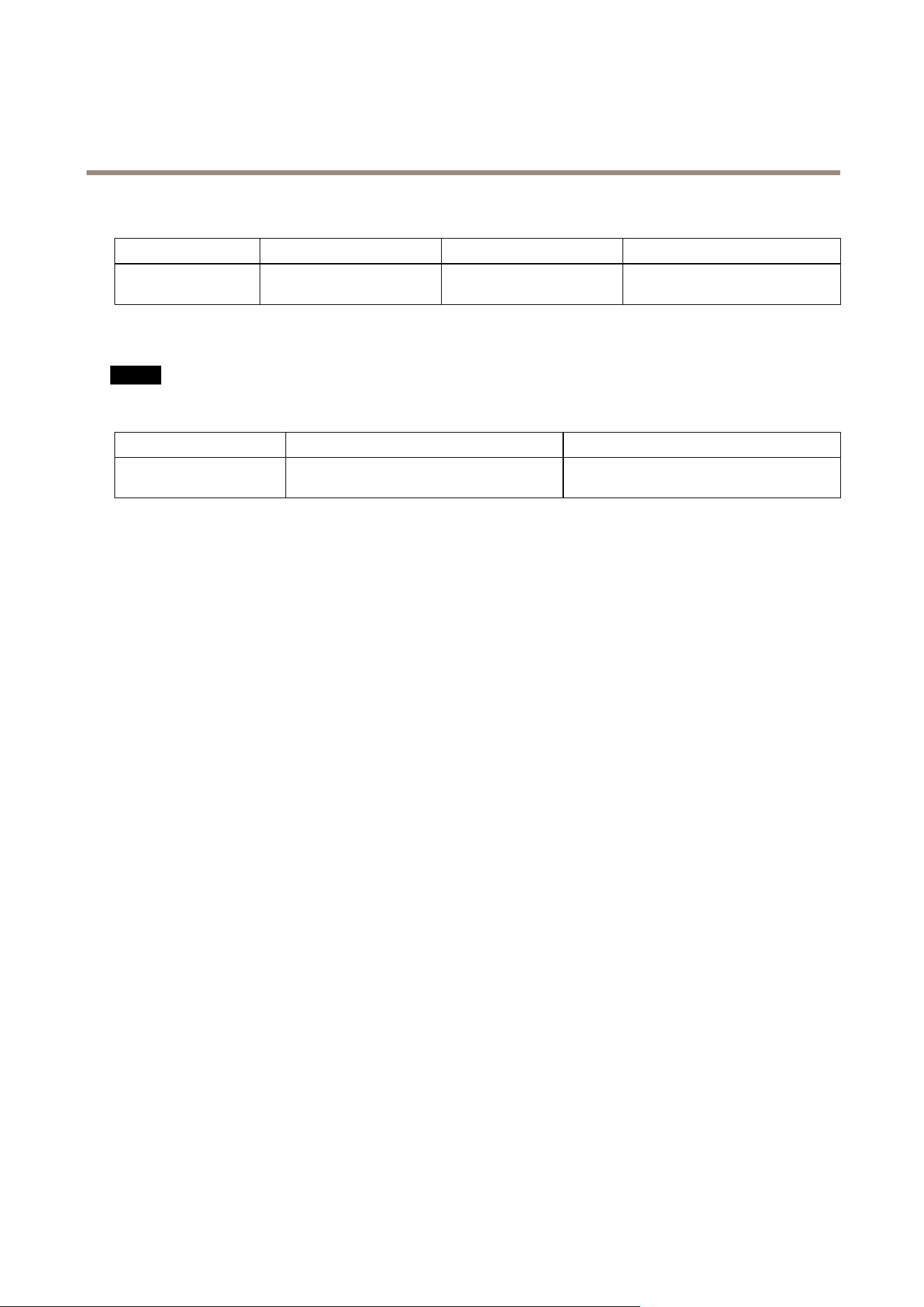
Operatingconditions
Product
Classication
TemperatureHumidity
AXISD2050-VEIEC60529IP66
NEMA250Type4X
-40°Cto60°C
(-40°Fto140°F)
10–100%RH(condensing)
Powerconsumption
NO NO
NO
TICE TICE
TICE
UseaSafetyExtraLowVoltage(SELV)compliantlimitedpowersource(LPS)witheitheraratedoutputpowerlimited
to≤100Woraratedoutputcurrentlimitedto≤5A.
ProductPoweroverEthernetPower
AXISD2050-VEIEEE802.3at,Type2Class4
Typical9W
Max.15W
19

UserManualVer.M2.4
AXISD2050-VENetworkRadarDetectorDate:September2017
©AxisCommunicationsAB,2017
PartNo.1716185