
© 2022 GeoVision, Inc. All rights reserved.
Under the copyright laws, this manual may not be copied, in whole or in part,
without the written consent of GeoVision.
Every effort has been made to ensure that the information in this manual is
accurate. GeoVision, Inc. makes no expressed or implied warranty of any kind
and assumes no responsibility for errors or omissions. No liability is assumed
for incidental or consequential damages arising from the use of the information
or products contained herein. Features and specifications are subject to
change without notice.
GeoVision, Inc.
9F, No. 246, Sec. 1, Neihu Rd.,
Neihu District, Taipei, Taiwan
Tel: +886-2-8797-8377
Fax: +886-2-8797-8335
http://www.geovision.com.tw
Trademarks used in this manual: GeoVision, the GeoVision logo and GV
series products are trademarks of GeoVision, Inc. Windows is the registered
trademark of Microsoft Corporation.
June 2022
Scan the following QR codes for product warranty and technical support
policy:
[Warranty] [Technical Support Policy]

Preface
Welcome to the GV-IP Panoramic Cameras’ User’s Manual.
The features described in the manual vary among camera models and versions. Some
features may not be available in your camera.
This manual is designed for the following camera models:
Model
Model Number
Panoramic IR Fixed Bullet IP Camera
GV-PBL8800
Panoramic IR Fixed Rugged IP Dome
GV-PDR8800

Table of Contents
Preface .................................................................................................................................... 1
Chapter 1. Introduction ......................................................................................................... 1
Safety Instruction ........................................................................................................................... 1
Chapter 2. Product Description ........................................................................................... 2
2.1 Product Overview ............................................................................................................... 2
2.2 Key Features ....................................................................................................................... 2
2.3 System Requirements ........................................................................................................ 4
Chapter 3. Configuration Flow ............................................................................................. 5
Chapter 4. Network Connection ........................................................................................... 7
4.1 Setting the Camera over the LAN ..................................................................................... 7
4.1.1 Connect via a Switch or Router ........................................................................................................... 7
4.2 Dynamic IP Connection ...................................................................................................... 8
Chapter 5. Accessing the Network Camera ....................................................................... 9
5.1 Assigning an IP Address ................................................................................................... 9
5.1.1 Assigning an IP Address Using GV-IP Device Utility ....................................................................... 9
5.1.2 Assigning an IP Address via Browser ............................................................................................... 10
5.2 Accessing from the Web Browser .................................................................................. 13
Chapter 6. Live View ............................................................................................................ 14
6.1 Live Video .......................................................................................................................... 14
Chapter 7. Playback ............................................................................................................. 17
Chapter 8. Settings .............................................................................................................. 21
8.1 Media .................................................................................................................................. 21
8.1.1 Video ...................................................................................................................................................... 21
8.1.2 Image ..................................................................................................................................................... 25
8.2 Network .............................................................................................................................. 42
8.2.1 Basic ...................................................................................................................................................... 42
8.2.2 Advanced .............................................................................................................................................. 52
8.3 Storage ............................................................................................................................... 62
8.3.1 Storage Management .......................................................................................................................... 62
8.3.2 Record Settings.................................................................................................................................... 63
8.3.3 Snapshot Settings ............................................................................................................................... 65
8.3.4 Explorer ................................................................................................................................................. 67
8.4 Event................................................................................................................................... 68
8.4.1 Basic Event ........................................................................................................................................... 68
8.4.2 VCA Event ............................................................................................................................................ 75
8.4.3 People Counting .................................................................................................................................. 97
8.4.4 Heat Map ............................................................................................................................................. 129
8.5 System ............................................................................................................................. 135
8.5.1 System Setting ................................................................................................................................... 135
8.5.2 Security ............................................................................................................................................... 137
8.5.3 Logs ..................................................................................................................................................... 143

1
Chapter 1. Introduction
Safety Instruction
These instructions are intended to ensure that user can use the product correctly to
avoid danger or property loss. The precaution measures are divided into “Warnings” and
“Cautions”
Warnings: Serious injury or death may be caused if any of these warnings is neglected.
• This installation must be conducted by a qualified service person and should strictly
comply with the electrical safety regulations of the local region
• To avoid risk of fire and electric shock, do keep the product away from rain and
moisture before installed.
• Do not touch components such as heat sinks, power regulators, and processors,
which may be hot
• Source with DC 12V or PoE
• Please make sure the plug is firmly inserted into the power socket
• When the product is installed on a wall or ceiling, the device should be firmly fixed
• If the product does not work properly, please contact your dealer. Never attempt to
disassemble the camera by yourself
Cautions: Injury or equipment damage may be caused if any of these cautions are neglected.
• Make sure that the power supply voltage is correct before using the camera
• Do not store or install the device in extremely hot or cold temperatures, dusty or damp
locations, and do not expose it to high electromagnetic radiation
• Only use components and parts recommended by manufacturer
• Do not drop the camera or subject it to physical shock
• To prevent heat accumulation, do not block air circulation around the camera
• Laser beams may damage image sensors. The surface of image sensors should not
be exposed to where a laser beam equipment is used
• Use a blower to remove dust from the lens cover
• Use a soft, dry cloth to clean the surface of the camera. Stubborn stains can be
removed using a soft cloth dampened with a small quantity of detergent solution, then
wipe dry
• Do not use volatile solvents such as alcohol, benzene or thinners as they may
damage the surface finishes
• Save the package to ensure availability of shipping containers for future transportation

2
Chapter 2. Product Description
2.1 Product Overview
GeoVision provides a consistent range of cost-effective and reliable network cameras to
fully meet your requirements. Based on embedded Linux operating system, GeoVision’s
panoramic IP camera series could be easily accessed and managed either locally or
remotely with great reliability. With built-in high-performance DSP video processing
modules, the cameras pride on low power consumption and high stability. They support
state-of-the-art H.265/ H.264/ MJPEG video compression algorithm and industry-leading
HD dual-stream technology to achieve the highest level of video image quality under the
limited network resources. It is fully functional, supporting for flexible and comprehensive
alarm linkage mechanism, day and night auto switch and privacy masking, etc.
In practical applications, GeoVision’s IP cameras could either work independently in the
LAN, or be networked to form a powerful safety monitoring system. It is widely used in
fields such as finance, education, industrial production, civil defense, health care for
security’s sake.
2.2 Key Features
System
• Built-in WEB server, support IE/ Firefox/ Chrome/ Safari browser
• Based on Linux OS with high reliability
• Support Plugin-Free mode
• Support activation and set-up of the security questions for cameras
• Support ONVIF Profile G & Q & S & T
• Different privilege levels of users for flexible management
• Micro SD/SDHC/SDXC card local storage support, expand the edge storage
Image
• 0.012 Lux Ultra Low Light
• Smart IR technology
• 8 MP Video Viewing Experience
• WDR Pro
• Support HLC
• Support BLC
• ICR filter with auto switch, true day/night
• Corridor Mode

3
Video
• H.265/ H.264/ MJPEG video compression capability
• Support Primary Stream/ Secondary Stream/ Tertiary Stream
• Support Smart Stream by 10-level adjustable H.265+
• Bandwidth saved by Smart Stream with stable network connection
• Real-time video electronic amplification
Audio
• G.711 audio compression capability
Network
• UPnP protocol for the easy management of camera
• Support DDNS
• FTP upload, SMTP upload, SD card record and SIP phone
Advanced Function
• Motion Detection, Privacy Masking, and ROI
• Support AI Video Content Analysis
• Support People Counting function
• Support Heat Map function
Hardware
• Support PoE for power supply
• Built-in Microphone
• IK10 vandal-proof metal cover, and IP67-rated weather-proof housing
4
2.3 System Requirements
Operating System: Windows XP/Vista/7/8/10/11
CPU: 1.66GHz or higher
RAM: 1G or higher
Graphic memory: 128MB or more
Internet protocol: TCP/IP (IPv4/IPv6)
Web Browsers: Internet Explorer 8.0 and above version, Mozilla Firefox, Google
Chrome and Safari.
5
Chapter 3. Configuration Flow
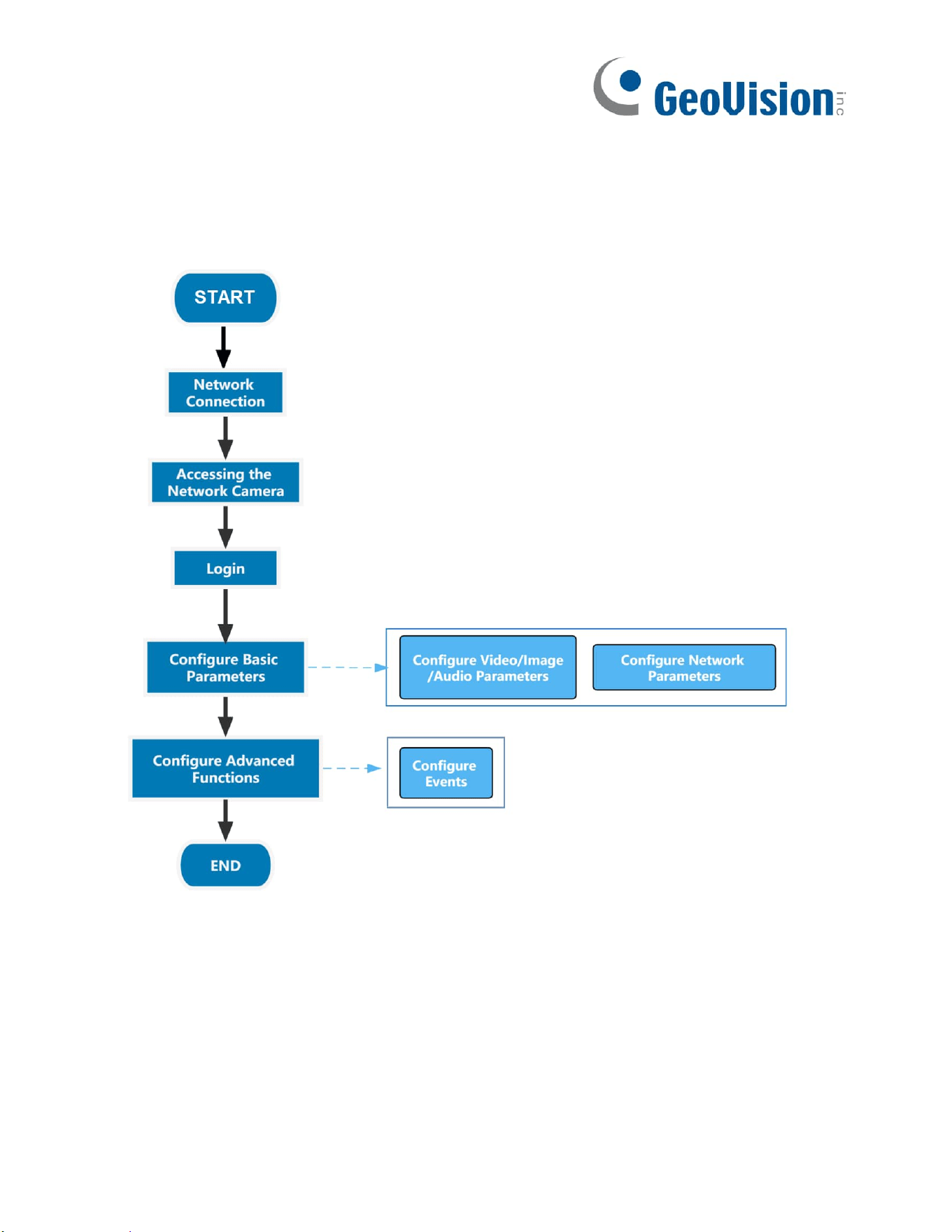
The configuration flow of cameras is shown in the following figure.
Note: The configuration must be based on the actual situation of different models.
More configuration details are shown in the following table.

6
Table 1. Description of flow
Configuration
Description
Reference
Network Connection
Connect the network
camera. You can set the
camera over the LAN or
dynamic IP connection.
4.1 Setting the Camera over
the LAN
Accessing the Network
Camera
Accessing from IP
address, web browser
and back-end software
are available.
5.1 Assigning An IP
Address
Configure Basic
Parameters
After logging in the camera,
you can adjust the
video/image/audio/network
parameters as needed.
8.1.1 Video
Configure Advanced
Functions
Configure the advanced
functions, such as VCA and
people counting.
8.4.2 VCA Event

7
Chapter 4. Network Connection
4.1 Setting the Camera over the LAN
Connecting the camera to a switch or a router is the most common connection method.
The camera must be assigned an IP address that is compatible with its LAN.
4.1.1 Connect via a Switch or Router
Refer to the following figure to set network camera over the LAN via the switch or router.

8
4.2 Dynamic IP Connection
Step 1: Connect the network camera to a router;
Step 2: On the camera, assign a LAN IP address, the Subnet mask and the Gateway;
Step 3: On the router, set port forwarding. E.g. 80, 8000 and 554 ports. The steps for port
forwarding vary depending on different routers. Please look up the router's user
manual for assistance with port forwarding.
Step 4: Apply a domain name from a domain name provider.
Step 5: Configure the DDNS settings in the setting interface of the router.
Step 6: Visit the camera via the domain name.

9
Chapter 5. Accessing the Network Camera
5.1 Assigning an IP Address
The Network Camera must be assigned an IP address to be accessible. The default IP
address of the network camera is 192.168.0.10.
You can change the IP address of the camera via GV-IP Device Utility, via browser, or from
the web browser. Please connect the camera in the same LAN of your computer.
5.1.1 Assigning an IP Address Using GV-IP Device Utility
See Chapter 5 Advanced Settings here for assigning an IP address using GV-IP Device Utility.
Note that this function is only applicable on GV-IP Device Utility V8.9.7.0 or later.

10
5.1.2 Assigning an IP Address via Browser
Follow the steps to change the IP address of the camera via browser:
Step 1: Change the IP address of computer to 192.168.0.10 segment, here are two ways as
below:
a. Start → Control Panel → Network and Internet Connection → Network Connection →
Local Area Connection, and double click it;

11
b. Click “Advanced”, and then click “IP settings”--> “IP address”--> “Add”. In the pop-up
window, enter an IP address that in the same segment with the camera (e.g. 192.168.0.60),
but please note that this IP address shall not conflict with the IP address on the existing
network);
Step 2: Start the browser. In the address bar, enter the default IP address of the camera:
http://192.168.0.10

12
Step 3: You need to set the password first when using it for the first time. And you can also
set three security questions for your device after activation. Then you can log in to the camera
with the default user name (admin) and a custom password.
Note:
• Password must be 8 to 32 characters long, contain at least one number and one letter.
• You can click the “Forget Password?” on the login page to reset the password by
answering three security questions when you forget the password, if you set the
security questions in advance.
Step 4: After login, please select “Settings” → “Network” → “Basic” → “TCP/IP”. The
Network Settings page appears (Shown as below);
Step5: Change the IP address or other network values. Then click “Save” button;
Step6: The change of default IP address is completed.

13
5.2 Accessing from the Web Browser
The camera can be used with the most standard operating systems and browsers. And
the camera was upgraded to support Plugin-Free Mode. In Plugin-Free Mode, you can
preview the video on the browser without plugin. Currently Plugin-Free Mode is supported
in Firefox & Google Chrome & Safari & Edge browser for Windows system, MAC system,
iOS system and Android system.
Both H.265 & H.264 video codecs are supported in Plugin-Free Mode for camera, and it
will play the secondary stream by default.

14
Chapter 6. Live View
6.1 Live Video
After logging in the network camera web GUI successfully, user is allowed to view live
video as follows.
Table 2. Description of the buttons
No.
Parameter
Description
1
Live Video
Click to access the live view page.
2
Playback
Click to access the playback page.

15
3
Settings
Click to access the configuration page.
4
Click to select system language.
5
Display the user name and click to logout.
6
Choose the stream (Primary/Secondary/Tertiary)
to show on the current video window.
7
Choose the options (Hide Detection
Region/Region Entrance/ Region
Exiting/Advanced Motion/Line
Crossing/Loitering/ People Counting/Object
Left/Object Remove/Regional People Counting)
to hide/display detection region on the current
video window.
8
Recording
When recording, the icon appears.
9
Alarm
When an alarm of VCA event was triggered, the
icon appears.
10
Alarm
When an alarm of people counting was triggered,
the icon appears.
11
Alarm
When an alarm of Motion Detection was triggered,
the icon appears.
12
Alarm
Except for the three kinds of alarms above, when
other alarms were triggered, the icon appears.
16
13
/
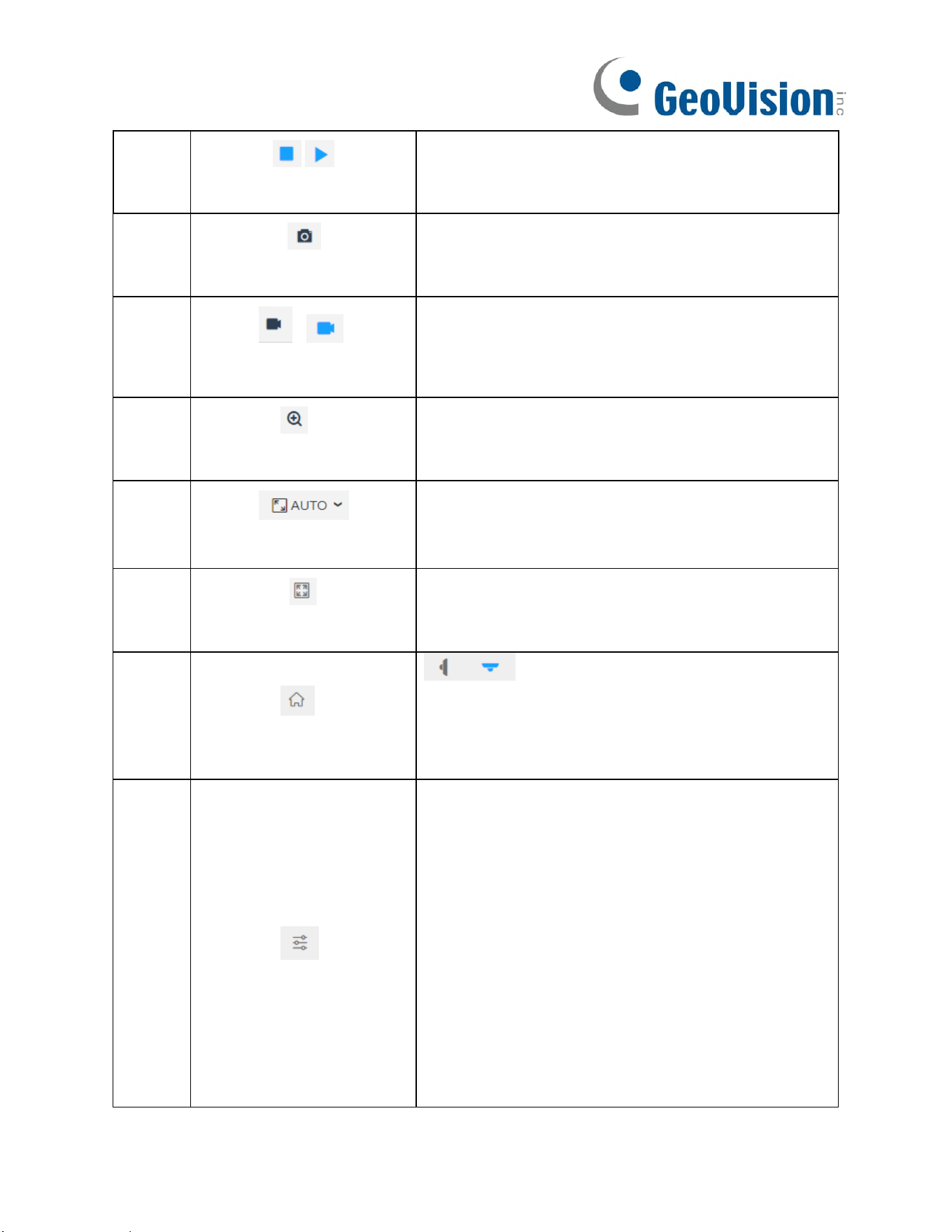
Stop/Play
Stop/Play live view.
14
Snapshot
Click to capture the current image and save to
the configured path.
15
/
Start/Stop
Recording
Click to Start Recording video and save to the
configured path. Click again to Stop
Recording.
16
Digital Zoom
When enabled, you can zoom in in a specific
area of video image with your mouse wheel.
17
Window Size
Click to display images at a window size.
18
Full Screen
Click to display images at full-screen.
19
Home
Wall/Ceiling Installation
Click to access installation. The AI algorithm will
change according to the installation (Wall
algorithm/Ceiling algorithm).
20
Brightness: Adjust the Brightness of the scene.
Contrast: Adjust the color and light contrast.
Saturation: Adjust the saturation of the image.
Higher saturation makes colors appear “purer”
while lower one appears more “washed-out”.
Sharpness: Adjust the sharpness of image.
Higher sharpness sharpens the pixel boundary
and makes the image look “clearer”.
2D DNR/3D DNR: Adjust the noise reduction
level.
Default: Restore brightness, contrast and
saturation to default settings.
17
Chapter 7. Playback
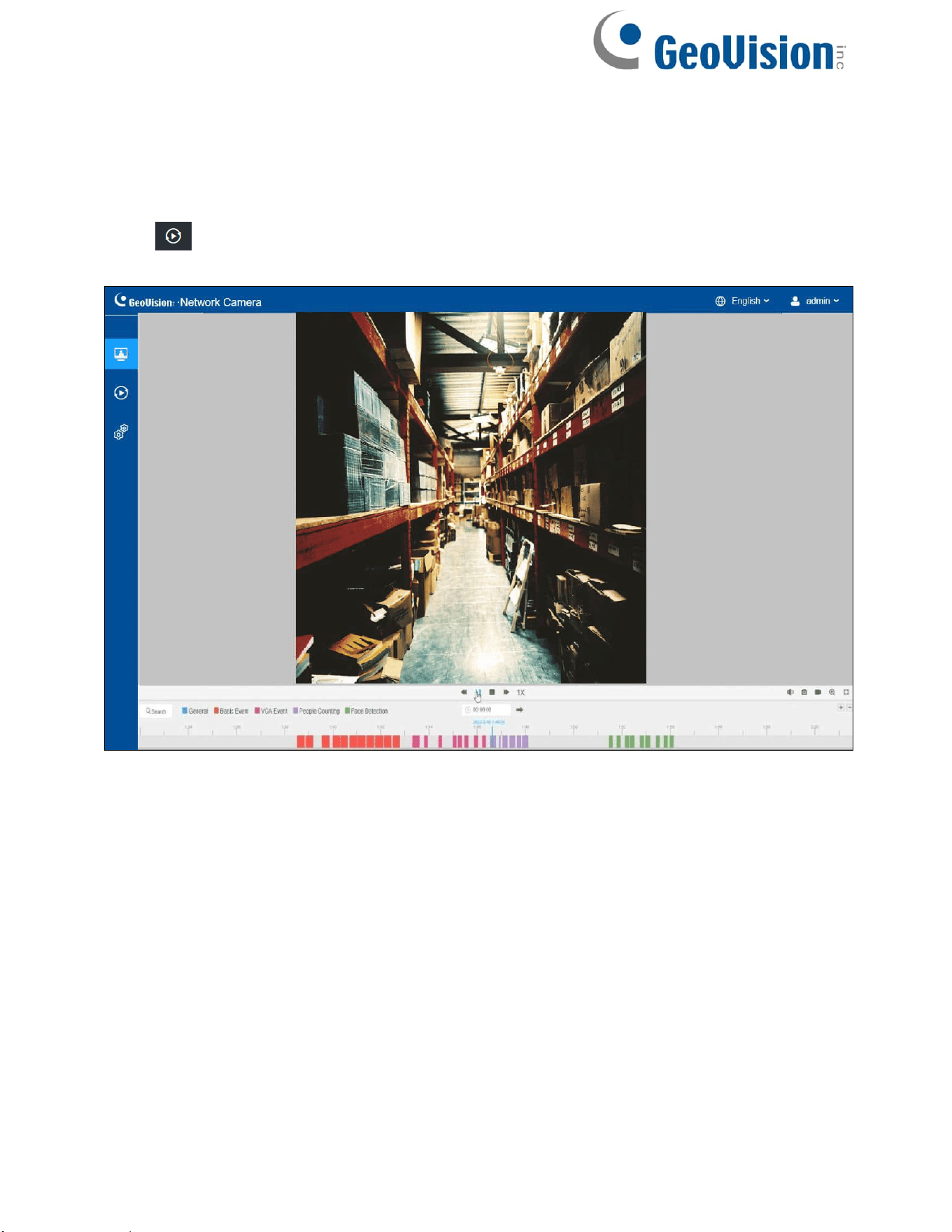
Click to enter playback interface. In this part, you can search and playback the
recorded video files stored in SD cards or NAS. The Playback interface is as below:
18
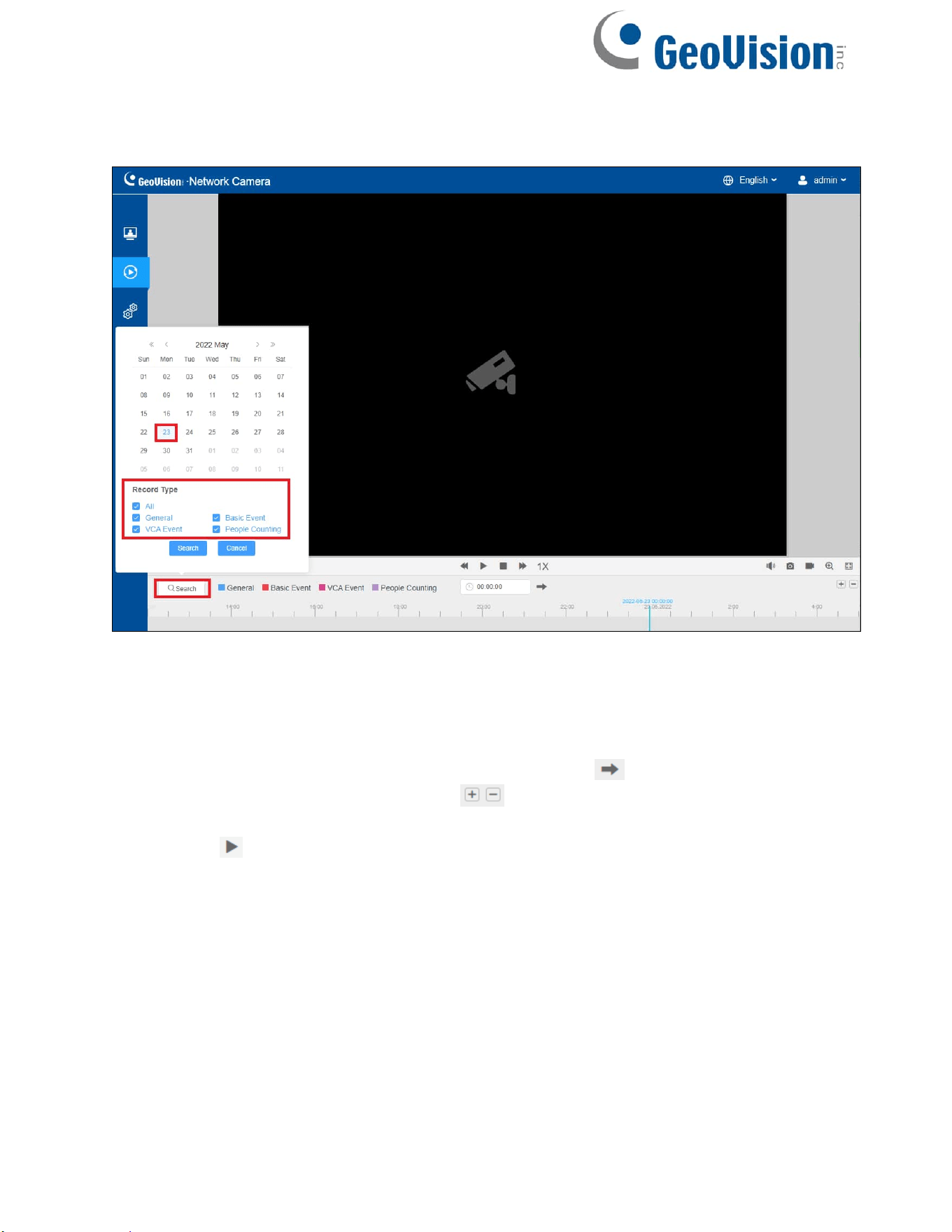
Step 1: Click the “Search” button, choose the date and record type when the window pops
up.
Step 2: The timeline displays the video files for the day and show different colors
according to selected record type. Drag the progress bar with the mouse to locate the
exact playback point as needed.
Note: You can also input the time and click the Jump button to locate the
playback point in the file. You can also click to zoom in/out the progress bar.
Step 3: Click to play the video files found on this date. The toolbar on the button of
playback interface can be used to control playing progress.
19
Table 3. Description of the buttons
No.
Parameter
Description
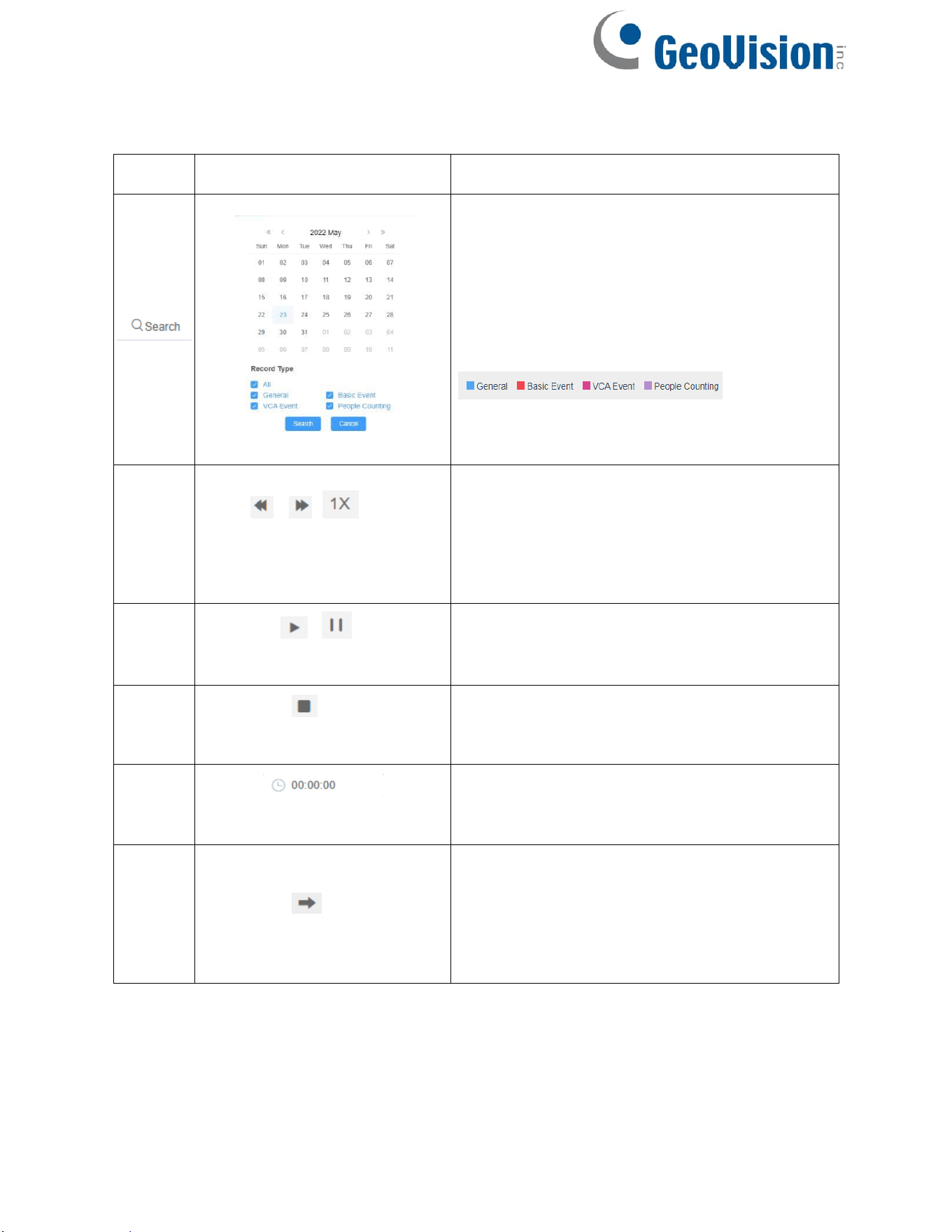
Choose date to search recorded videos.
Search the recorded videos by record type
( All/General/Basic Event/VCA
Event/People Counting). The timeline will
show different colors according to selected
record type as below:
1
/ /
Speed Down/Speed
Up/Speed
Adjust the speed of video playback.
Speed Down: Includes 0.5X and 0.25X for
Play.
Speed Up: Includes 2X and 4X for Play.
Speed: The default playback speed is 1X
2
/
Play/Pause
Play/Pause the video.
3
Stop
Stop the video.
4
Search Time
Select the time that want to locate.
5
Jump
Go To.
20
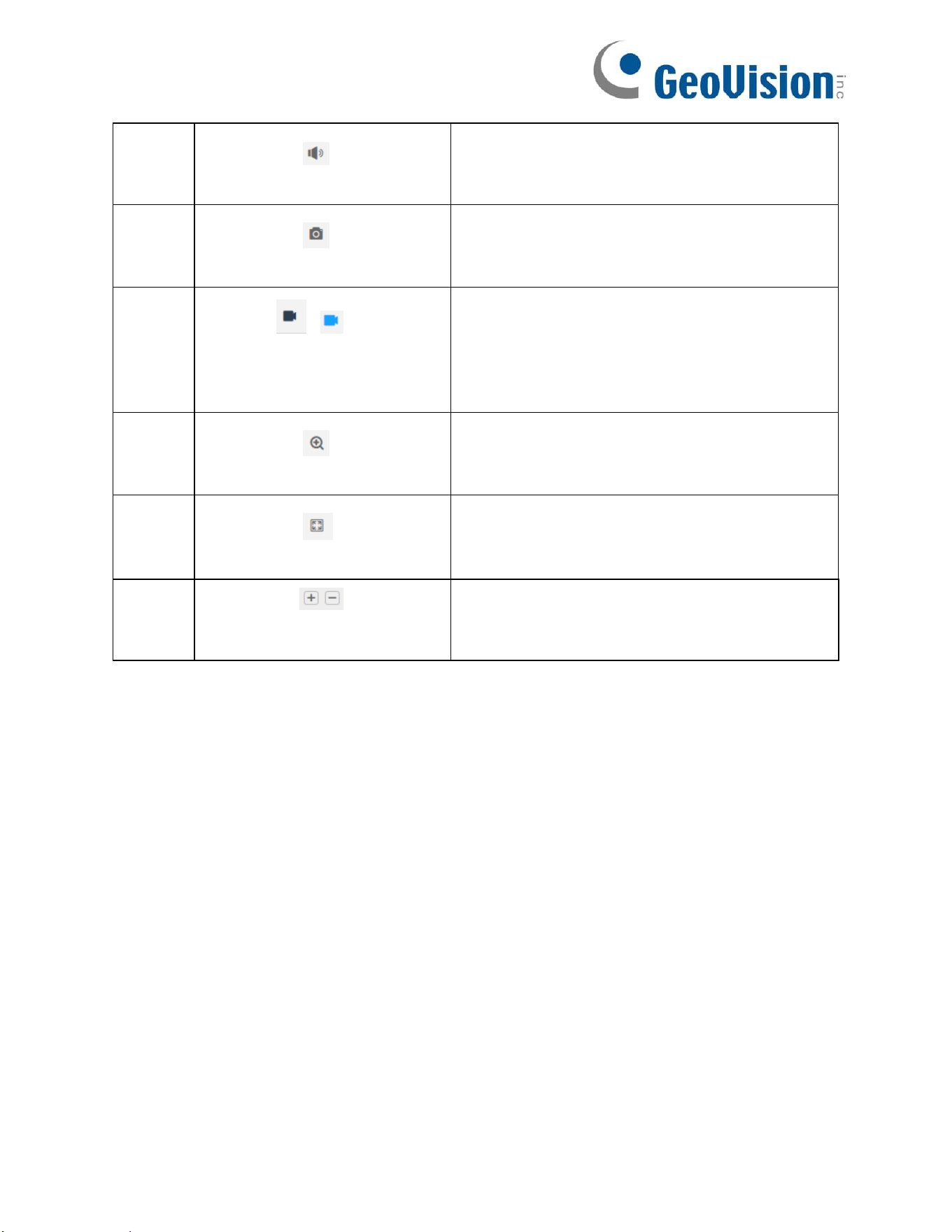
6
Mute
Click to enable the audio.
7
Snapshot
Click to take a snapshot.
8
/
Start/Stop
recording
Click to start/stop recording.
9
Digital Zoom
Click to zoom in/off.
10
Full Screen
Full Screen.
11
Time
Expand/Narrow
Time narrow/expand.
21
Chapter 8. Settings
8.1 Media
8.1.1 Video
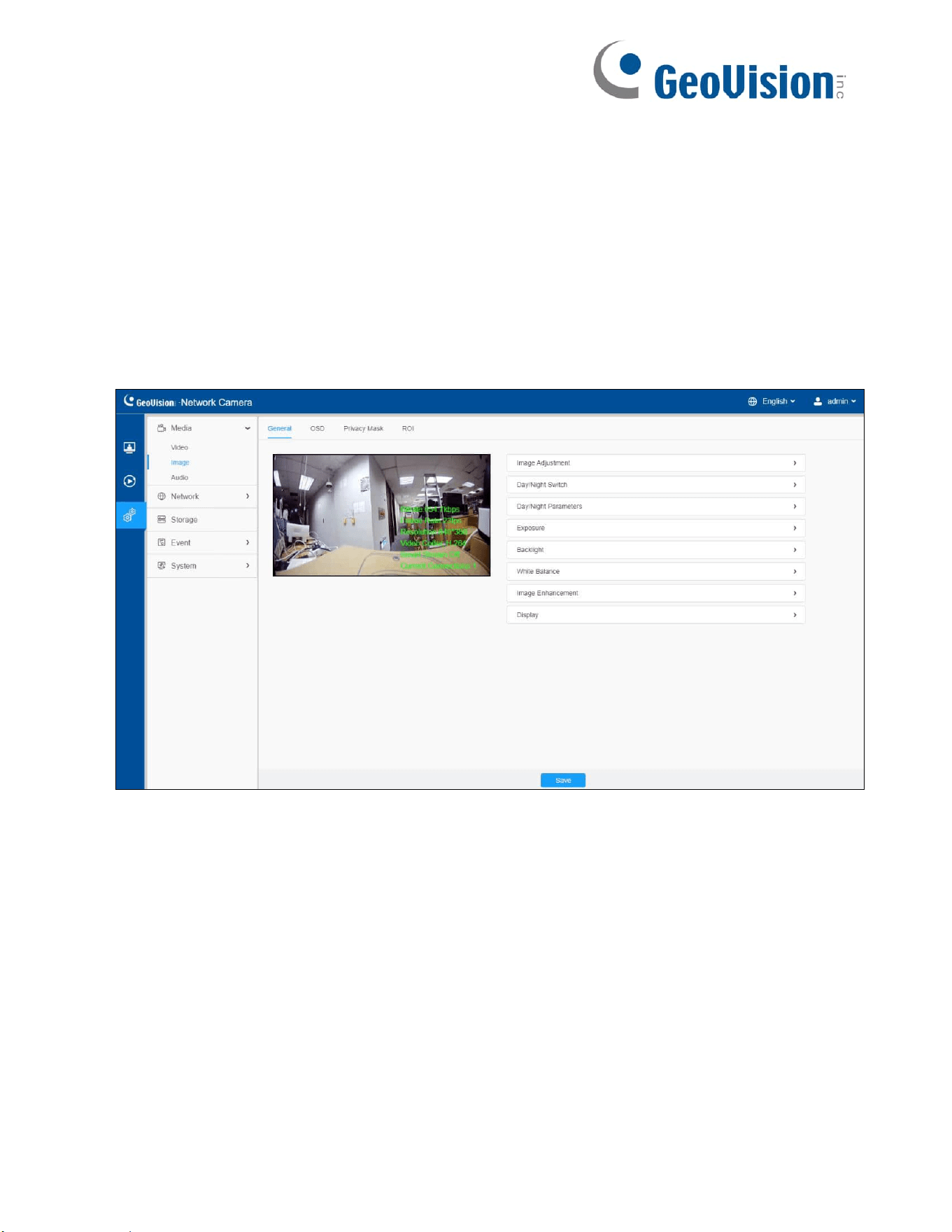
Stream parameters can be set in this module, adapting to different network
environments and demands.
Primary Stream Settings

22
Secondary Stream Settings
Tertiary Stream Settings

23
Table 4. Description of the buttons
Parameters
Function
Introduction
Record Stream
Type
General & Event are available only for Primary Stream.
General refers to continuous record video, while Event
includes events that can trigger alarms, such as Motion,
Exception, and so on.
This item can separately set different bit rate and frame rate
for different Recording Stream Types. If user chooses Event,
video will be recorded according to the configuration of video
stream type when an event happens, thereby greatly reducing
the recording storage space.
Enable Event
Stream
This item is optional only if you selected the Event.
Video Codec
H.265/H.264/MJPEG are available.
Frame Size
Primary Stream includes 3840 x 2160, 3456 x 1936, 3200 x
1800, 2880 x 1624, 2560 x 1440, 1920 x 1080, 1280 x 720.
For Secondary Stream, it includes 704 x 576, 640 x 480, 640 x
360, 352 x 288, 320 x 240.
For Tertiary Stream, it includes 1280 x 720, 704 x 576, 640 x
480, 640 x 360, 352 x 288, 320 x 240.
Note: The options of Frame Size are variable according to the
model.
Maximum Frame
Rate
Maximum refresh frame rate of per second and it is variable
according to the mode.
Bit Rate
Transmitting bits of data per second, this item is optional only if
you select the H.265/ H.264
Set the bitrate to 16 ~ 16384 Kbps. The higher value
corresponds to the higher video quality, and the higher
bandwidth is required as well.
Smart Stream
Optionally turn On/Off Smart Stream mode. Smart Stream
mode remarkably reduces the bandwidth and the data storage
requirements for network cameras while ensuring the high
quality of images, and it is a 10-level adjustable codec.
Level: Level 1~10 is available as needed.

24
Bit Rate Control
CBR: Constant Bitrate. The rate of CBR output is constant.
VBR: Variable Bitrate. VBR files vary the amount of output data
per time segment.
Image Quality
Low/Medium/High are available, this item is optional only if you
select VBR.
Profile
The option is for H.264, Main/High/Base can be selected as
needed.
I-frame
Interval
Set the I-frame interval to 1~120, 50 for the default. This item is
optional only if you select the H.265/H.264. The number must
be a multiple of the number of frames.
25
8.1.2 Image
General settings of image including the image adjustment, day/night setting and image
enhancement can be set in this module. OSD (On Screen Display) content, privacy
mask and video time can be displayed to rich the image information.
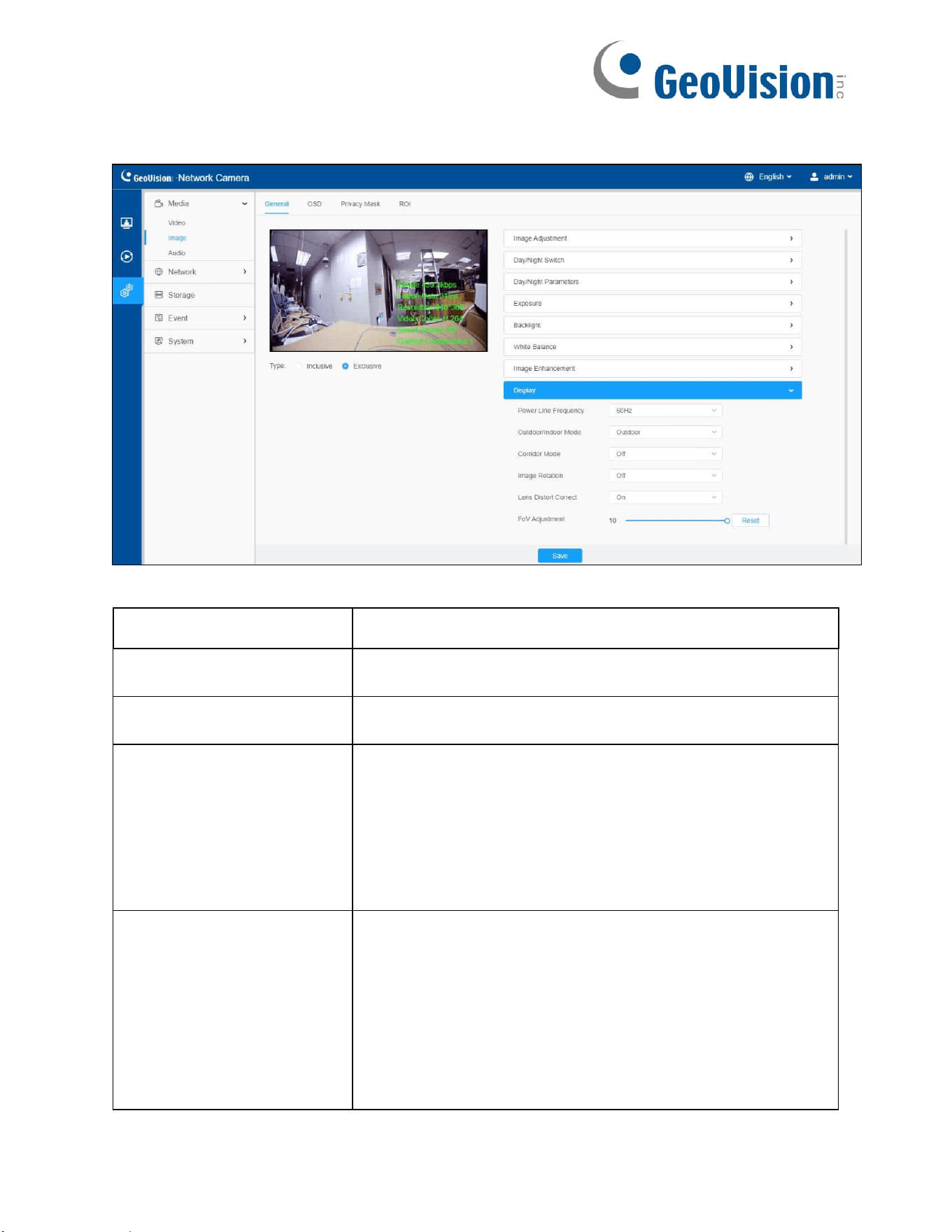
8.1.2.1 General
General settings of image including Image Adjustment, Day/Night Switch, Day/Night
Parameters, Exposure, Backlight, White Balance, Image Enhancement and Display can
be set in this module.

26
[Image Adjustment]
Table 5. Description of the buttons
Parameters
Function Introduction
Brightness
Adjust the Brightness of the scene.
Contrast
Adjust the color and light contrast.
Saturation
Adjust the Saturation of the image. Higher Saturation
makes colors appear “purer” while lower one appears
more “washed-out”.
Sharpness
Adjust the Sharpness of image. Higher Sharpness
sharpens the pixel boundary and makes the image looks
“clearer”.
2D DNR/3D DNR
Adjust the noise reduction level.
Restore brightness, contrast and saturation to default
settings.

27
[Day/Night Switch]
Table 6. Description of the buttons
Parameters
Function Introduction
Day/Night Switch
Night Mode: Shown in live view based on Night Mode settings.
Day Mode: Shown in live view based on Day Mode settings.
Auto Mode: Shown in live view based on environment, set the
sensitivity for switching Day Mode to Night Mode, or Night
Mode to Day Mode.
Customize: Shown in live view based on your own settings’
time to start/end Night Mode.
Note: There are several parameters such as Exposure Level,
Maximum Exposure Time and IR-CUT Interval, etc.,
associated with the modes.
Day to Night Sensitivity: You can set the sensitivity for
switching Day Mode to Night Mode. When IR Light Sensor
Current Value is lower than this value, it will switch Day Mode
to Night Mode. You can click to reset the value to
36.

28
Day/Night Switch
Night to Day Sensitivity: This is the sensitivity for switching
Night Mode to Day Mode. When IR Light Sensor Current Value
is higher than this value, it will switch Night Mode to Day Mode.
Note: The three buttons are optional only if you select Auto
Mode.
Start Time of Night: You can set the time for start the Night
Mode.
End Time of Night: You can set the time for start the Day
Mode.
Note: The two buttons are optional only if you select Customize.
Smart IR Mode
Support for Customize mode.
IR LED Level: The current LED light value.
[Day/Night Parameters]

29
Table 7. Description of the buttons
Parameters
Function Introduction
Exposure
Level
Level 0~10 is available to meet your need.
Minimum
Shutter
Minimum Shutter is the same as Maximum Exposure Time.
Set the minimum Shutter to 1~1/100000s.
Maximum
Shutter
Maximum Shutter is the same as Minimum Exposure Time.
Set the maximum Shutter to 1~1/100000 s.
Limit Gain
Level
Set the Limit Gain Level to 1~100.
IR-CUT
Latency
The interval time of switching one mode to another.
IR-CUT
Turn on/off IR-CUT.
IR LED
Turn on/off IR-LED.
Color Mode
Select B/W or Color mode.
Advanced
Schedule Mode
Here you can customize your special demands for different
time, then the Day mode and Night mode will switch
automatically according to your settings.

30
[Exposure]
Table 8. Description of the buttons
Parameters
Function Introduction
Exposure Mode
Auto Mode, Manual Mode and Schedule Mode are
available.
Auto Mode: The camera will adjust the brightness
according to the light environment automatically.
Manual Mode: The camera will adjust the brightness
according to the value you set, you can set the exposure
time from 1~1/100000 s, the higher the value is, the
brighter the image is.
Schedule Mode: You can customize the schedule to
enable/disable Auto Mode and Manual Mode.

31
[Backlight]

32
Table 9. Description of the buttons
Parameters
Function Introduction
Backlight Mode
Single Mode: Set single mode for BLC/WDR/HLC.
Note: WDR and General HLC are not supported while
High Frame Rate is enabled.
Day/Night Mode: Support BLC/WDR/HLC on Day
Mode/Night Mode separately.
Schedule Mode: Set schedule mode for BLC/WDR/HLC.
You can customize the schedule to enable/disable
BLC/WDR/HLC mode.
Configuration: Three options are available:
BLC/WDR/HLC.

33
[White Balance]
Table 10. Description of the buttons
Parameters
Function Introduction
White Balance
To restore white objects, removed color distortion caused
by the light of the environment.
Auto White Balance: This option will automatically
enable the White Balance function.
Manual White Balance: Set Red Gain Level and Blue
Gain Level manually.
Incandescent Lamp: Select this option when light is
similar with incandescent lamp.
Warm Light Lamp: Select this option when light is
similar with warm light lamp.
Natural Light: Select this option when there is no other
light but natural light.
Fluorescent Lamp: Select this option when light is similar
with Fluorescent Lamp.

34
White Balance
Schedule mode: Select this option to customize the
schedule to enable/ disable above modes.
[Image Enhancement]
Table 11. Description of the buttons
Parameters
Function Introduction
IR Balance Mode
There is an option to turn On/Off the IR LED.
IR Balance Mode would avoid the problem of overexposure
and darkness, and the IR LED will change according to the
actual illumination.
Reduce Motion Blur
Enable this function to reduce the motion blur of objects
effectively. You can adjust the Deblur Level from 1 to 100.
35
[Display]
Table 12. Description of the buttons
Parameters
Function Introduction
Power Line
Frequency
60Hz and 50Hz are available.
Outdoor/Indoor
Mode
Select Indoor or Outdoor mode to meet your needs.
Corridor Mode
There are three options available, you can select one to
meet your need.
Off: Keep the image in normal direction.
Clockwise 90°: Rotate the image by 90° clockwise.
Anticlockwise90°: Rotate the image by 90° anticlockwise.
Image Rotation
There are four options available, you can select one to meet
your need.
Off: Keep the image in normal direction.
Rotating 180°: Upside down the image.
Flip Horizontal: Flip the image horizontally.
Flip Vertical: Flip the image vertically.

36
Lens Distort Correct
With this option enabled, the camera will prevent the image
from distortion when resolution ratio is changed.
FoV Adjustment
Set the value from 1 to 10.
37
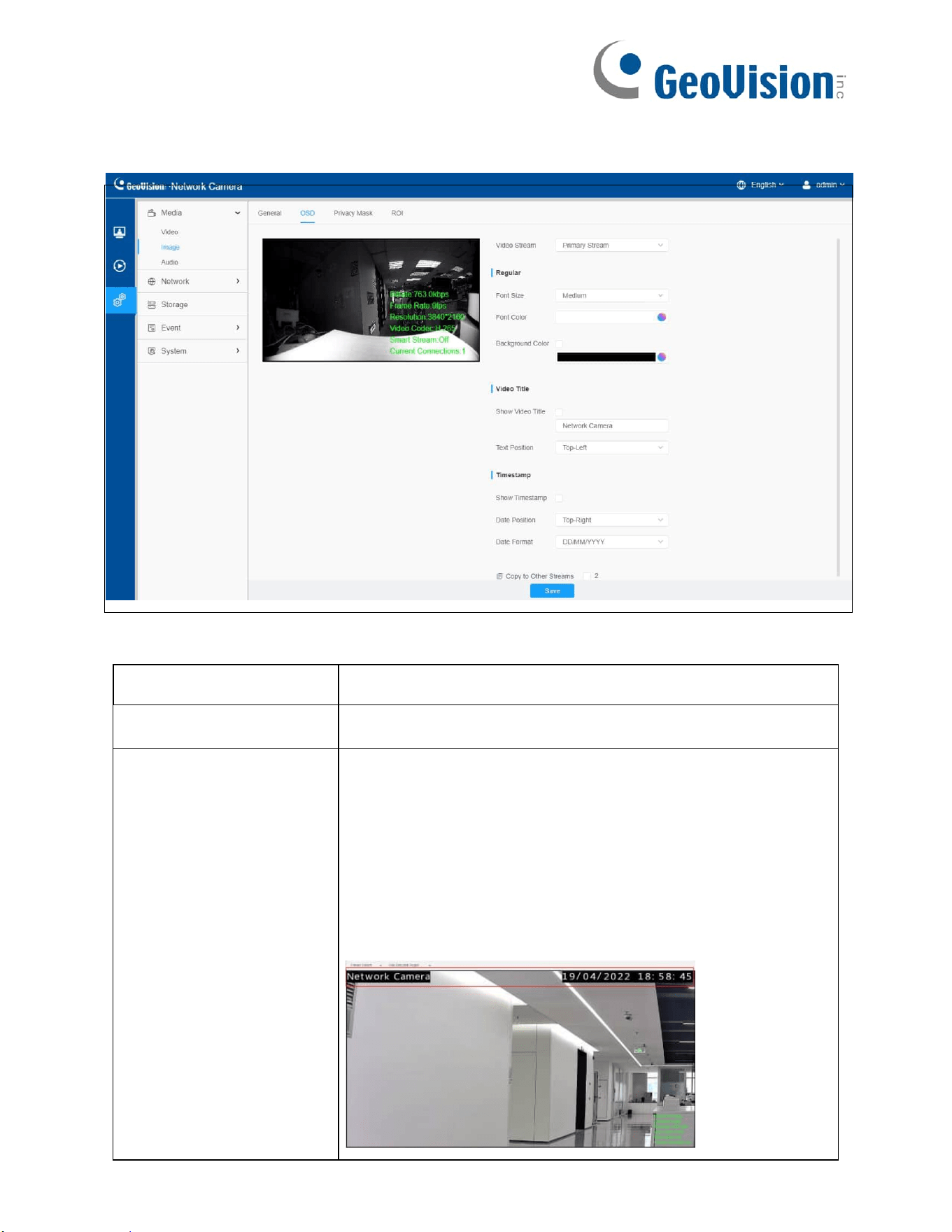
8.1.2.2 OSD
Table 13. Description of the buttons
Parameters Function Introduction
Video Stream
Enable to set OSD for primary stream and secondary stream.
Regular
Font Size: Smallest/Small/Medium/Large/Largest/Auto are
available for title and date.
Font Color: Enable to set different color for title and date.
Background Color: Enable to set different colors for display
information background on screen.
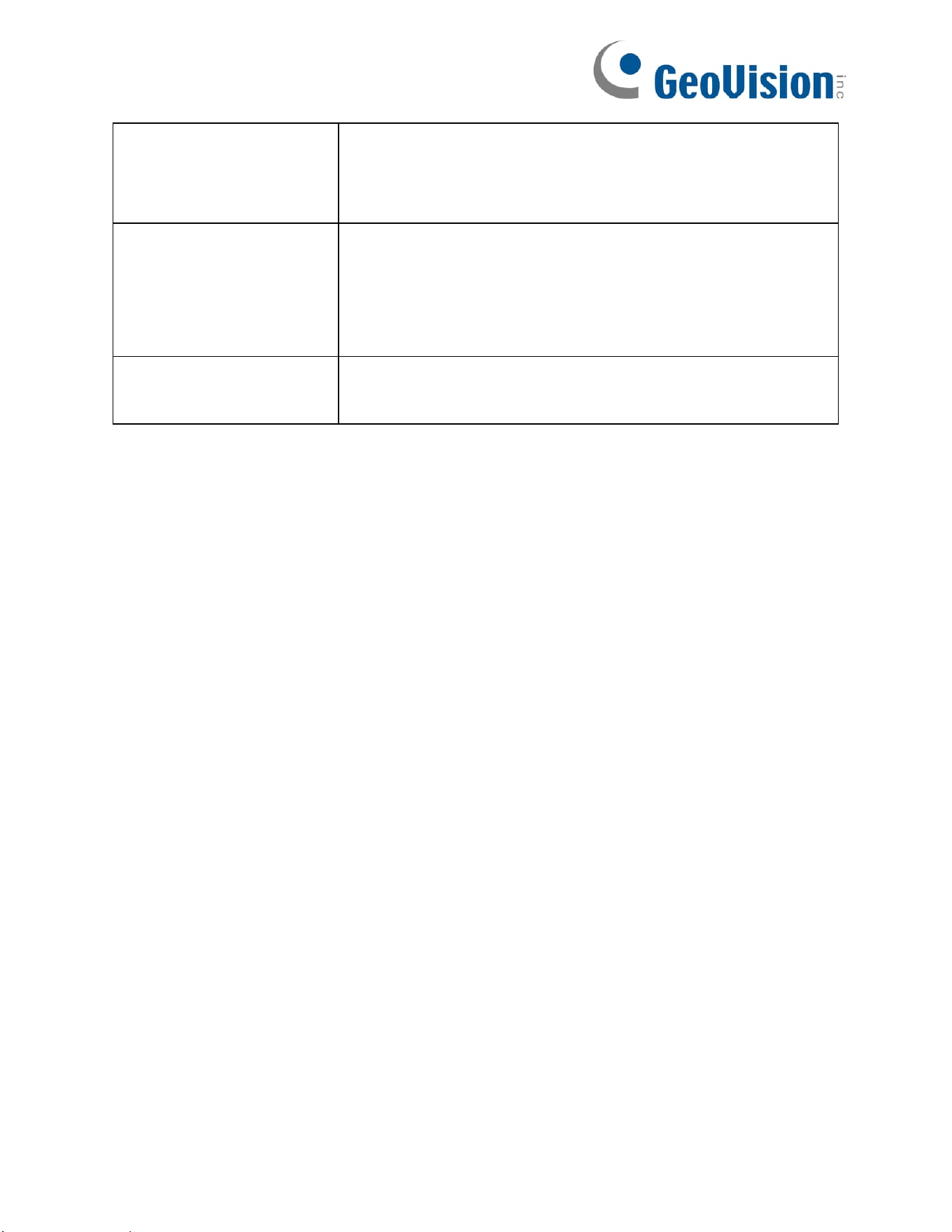
You can set different colors for font and background of
image, then the image OSD will show as below:
38
Video Title
Show Video Title: Check the check box to show video title
and customize the OSD content.
Text Position: OSD display position on the image.
Timestamp
Show Timestamp: Check the checkbox to display date on
the image.
Date Position: Date display position on the image.
Date Format: The format of date.
Copy to
Other
Streams
Copy the settings to other streams.

39
8.1.2.3 Privacy Mask
Privacy mask enables to cover certain areas on the live video to prevent certain
spots in the surveillance area from being viewed and recorded.
[Privacy Mask]
You can select the color to cover certain areas on the live video.
Note: Up to 8 privacy mask areas are supported for GV-PBL8800/PDR8800.
Table 14. Description of the buttons
Parameters
Function Introduction
Enable
Check the check box to enable the Privacy Mask function.
Draw a privacy area on the live video as needed.
Clear the area you draw on the live video.
Delete All
Clear all areas you draw before.
Operation
Click the Edit button before proceeding with the following
configurations:
• Type: Change the color of mask area. There are eight
colors available: White, Black, Blue, Yellow, Green,
Brown, Red, and Purple.
• Enable/Disable / : Enable/disable the selected
ROI areas.
• Delete : Delete the selected privacy mask area.

40
8.1.2.4 ROI
Region of interest (often abbreviated as ROI), is a selected subset of samples within a
dataset identified for a particular purpose. Users can select up to 8 key regions of a scene
to transmit through separate streams for targeted preview and recording.
By using the ROI technology, more than 50% of bit rate can be saved and therefore less
bandwidth demanded and the storage usage reduced. So according to this, you can set a
small bit rate for high resolution.
Table 15. Description of the buttons
Parameters
Function Introduction
Enable
Check the checkbox to enable the ROI function.
Video
Stream
Choose the Video Stream.
Operation
After drawing the ROI key regions on the live view, click Save.
• Enable/Disable / : Enable/disable the selected ROI
areas.
• Delete : Delete the selected ROI areas.
Delete All
Clear all areas you drew before.
Note: You can set a low bit rate. For example, you can set a bit rate with 512 Kbps and a
resolution with 1080P, then you can see the image quality of ROI is clearer and more
fluent than the other region.
41
8.1.3 Audio
8.1.3.1 Audio
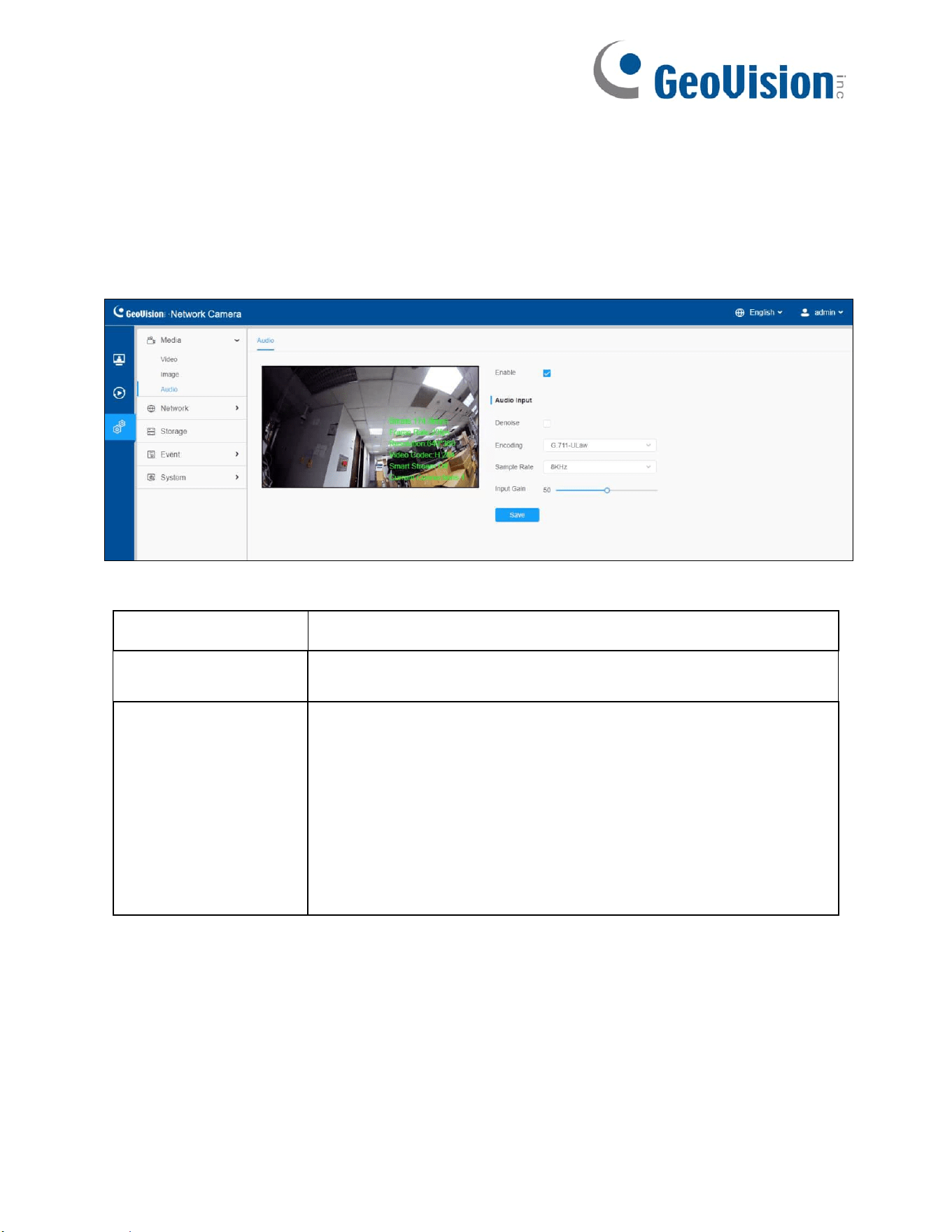
This audio function allows you to hear the sound from the camera or transmit your sound to
the camera side. Alarm can be triggered when the audio input is above a certain alarm
level you set, and configured audio can be played when an alarm occurs.
Table 16. Description of the buttons
Parameters
Function Introduction
Enable
Check on the checkbox to enable audio feature.
Audio
Input
Denoise: Set it as On/Off. When you set the function on, the
noise detected can be filtered.
Encoding: G.711-ULaw, and G.711-ALaw are available.
Sample Rate: 8KHz, 16KHz, 32KHz, and 48KHz are available.
Input Gain: Input audio gain level, 0-100.

42
8.2 Network
8.2.1 Basic
8.2.1.1 TCP/IP
Table 17. Description of the buttons
Parameters
Function Introduction
IPv4
Type: Static Type and DHCP Type are optional for user to get
IPv4 address automatically or use fixed IP address.
IP Address: An address that used to identify a network camera
on the network.
Note: The Test button is used to test if the IP is conflicting.
IPv4 Subnet Mask: It is used to identify the subnet where the
network camera is located.
IPv4 Default Gateway: The default router address.
Preferred DNS Server: The DNS Server translates the domain
name to IP address.

43
IPv6
IPv6 Mode: Choose different modes for IPv6: Manual/Route
Advertisement/ DHCPv6.
IPv6 Address: IPv6 Address used to identify a network camera
on the network.
IPv6 Prefix: Define the prefix length of IPv6 address.
IPv6 Default Gateway: The default router IPv6 address.
MTU
Maximum Transmission Unit. The default value is 1500. You
can customize the value from 1200 to 1500 as needed.
Save the configuration.
8.2.1.2 HTTP
Table 18. Description of the buttons
Parameters
Function Introduction
HTTP
Enable: Start or stop using HTTP.
Port: Web GUI login port, the default is 80, the same with
ONVIF port.

44
HTTPs
Enable: Start or stop using HTTPs.
Port: Web GUI login port via HTTPS, the default is 443.
Installed Certificate/Attributes/Installation Type: Upload and
set the SSL certificate.
Save the configuration.
Table 19. HTTP URL are as below:
Stream
URL
Main Stream
http://username:password@IP:port/ipcam/mjpeg.cgi
Secondary Stream
http://username:password@IP:port/ipcam/mjpegcif.cgi
Tertiary
Stream
http://username:password@IP:port/ipcam/mjpegthird.cgi
Note: You need to change the codec type of streams to MJPEG.
8.2.1.3 RTSP

45
Table 20. Description of the buttons
Parameters
Function Introduction
RTSP Port
The port of RTSP, the default is 554.
Playback Port
Playback Port The port of playback, the default is 555.
Note: Port 0 means closing playback function.
RTP Packet
There are Better Compatibility and Better Performance two
options, if an issue occurs on your camera’s image, please
switch this option.
Multicast Group
Address
Support multicast function.
QoS DSCP
The valid value range of the DSCP is 0-63.
Save the configuration.
Table 21. RTSP URL are as below:
Stream
URL
Primary Stream
rtsp://IP:RTSP Port/main
Secondary Stream
rtsp://IP:RTSP Port/sub
Tertiary
Stream
rtsp://IP:RTSP Port/third
Note:
• DSCP refers to the Differentiated Service Code Point; and the DSCP value is used in
the IP header to indicate the priority of the data.
• A reboot is required for the settings to take effect.

46
8.2.1.4 UPnP
Universal Plug and Play (UPnP) is a networking architecture that provides compatibility
among networking equipment, software and other hardware devices. The UPnP
protocol allows devices to connect seamlessly and to simplify the implementation of
networks in the home and corporate
environments. With the function enabled, you don’t need to configure the port mapping for
each port, and the camera is connected to the Wide Area Network via the router.
Table 22. Description of the buttons
Parameters
Function Introduction
Enable
Check the checkbox to enable the UPnP function.
Port Mapping
Enable Port Mapping: Check the checkbox to enable the Port
Mapping.
Name: The name of the device detected online can be edited.
Type:
• Auto: Automatically obtain the corresponding HTTP and
RTSP port, without any settings.
• Manual: Need to manually set the appropriate HTTP port
and RTSP Port. When choose Manual, you can
customize the value of the port number by yourself.

47
Save the configuration.
8.2.1.5 DDNS
DDNS allows you to access the camera via domain names instead of IP address. It
manages to change IP address and update your domain information dynamically. You need
to register an account from a provider.
For details on registering for DDNS, see Chapter 3, GV-IP Camera User’s Manual.
Table 23. Description of the buttons
Parameters
Function Introduction
Enable
DDNS
Check the checkbox to enable DDNS service.
Note: Recommend to enable and configure UPnP ports which
can be used directly in DDNS.
Provider
Get support from DDNS provider: freedns.org, dyndns.org,
www.no-ip.com, www.zoneedit.com.
You can also customize the provider for DDNS.
Hash
A string used for verifying, only for "freedns.afraid.org".
User
Name
Account name from the DDNS provider, unavailable for
"freedns.afraid.org".
Password
Account password, unavailable for "freedns.afraid.org".
Host
Name
DDNS name enabled in the account.
48
Status
Display DDNS running status.
Save the configuration.
Note:
• Make sure that the internal and the external port number of RTSP are the same.
• Please do the Port Forwarding of HTTP Port and RTSP Port before proceeding with
DDNS configurations.
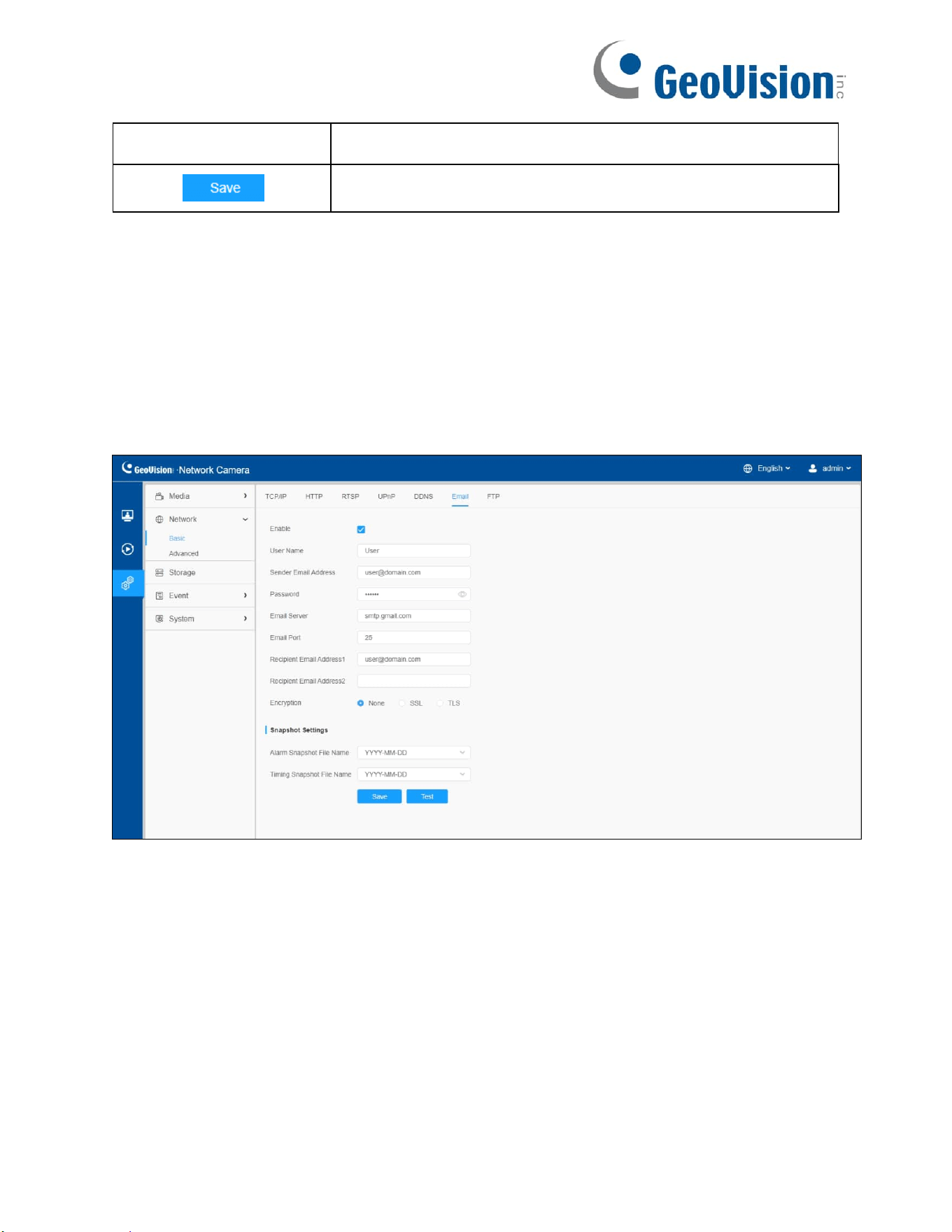
8.2.1.6 Email
Alarm video files can be sent to specific mail account through SMTP server. You must
configure the email settings correctly before using it.

49
Table 24. Description of the buttons
Parameters
Function Introduction
Enable
Check the checkbox to enable Email function.
User Name
The sender's name. It is usually the same as the account
name.
Sender Email
Address
Email address to send video files attached emails.
Password
The password of the sender.
Email Server
The email server IP address or host name.
Email Port
The default TCP/IP port for SMTP is 25 (not secured). For
SSL/TLS port, it depends on the mail you use.
Recipient Email
Address1/
Recipient Email
Address2
Email address to receive video files.
Encryption
Select the options of None, SSL or TLS if it is required
by the SMTP server.
Snapshot Settings
Alarm Snapshot File Name: The format of YYYY-MM-
DD is set by default. Other options include MM-DD-
YYYY/ DD- MM-YYYY/ Add prefix.
Timing Snapshot File Name: The format of YYYY-MM-
DD is set by default. Other options include MM-DD-
YYYY/ DD- MM-YYYY/ Add prefix.
Save the configuration.
Test whether the configuration is successful.
Note: You can refer to the following file name tip to customize the file name.
File name tip
&Device – Device Name &s – second
&Y – Year &ms – millisecond
&M – Month
&D – Day
&h – hour
&m – minute

50
8.2.1.7 FTP
Alarm video files can be sent to specific FTP server. You must configure the FTP settings
correctly before using it.
Table 25. Description of the buttons
Parameters
Function Introduction
FTP Server
Settings
FTP Type
FTP and SFTP are optional.
Server
Address
FTP/SFTP server address.
Server Port
Generally, the port of the FTP server is 21, while
the port of the SFTP server is 22.
User Name
User name used to log in to the FTP/SFTP sever.
Password
User password.
FTP over
SSL/TSL
(FTPS)
Check the box to enable the function.

51
FTP
Storage
Settings
Storage
Path
Storage Path where video and image will be
uploaded to the FTP server.
Four FTP storage path types are available, including
Root Directory, Parent Directory, Child Directory
and Customize.
Parent
Directory
Choose IP Address/ Device Name/Date as the
folder name of Parent Directory, or customize the
folder name.
Child
Directory
Choose IP Address/ Device Name/Date as the
folder name of Child Directory, or customize the
folder name.
FTP
Storage
Settings
Multilevel
Folder
Name
If the storage path is more than two levels, enter
Multilevel FTP storage path here manually.
Alarm
Action
File
Name
Choose the default (YYYY-MM-DD) or customize
the alarm action file name.
Timing
Snapshot File
Name
Default (YYYY-MM-DD)/MM-DD-YYYY/DD-MM-
YYYY/Add prefix/Overwrite with the base file name
are available.
Pre-record
Reserve the record time before alarm, 0~10 sec.
Save the configuration.
Test whether the configuration is successful.
Note: Parent Directory will be under Root Directory, and Child Directory will be under Parent
Directory.

52
8.2.2 Advanced
8.2.2.1 VLAN
A virtual LAN (VLAN) is any broadcast domain that is partitioned and isolated in a
computer network at the data link layer (OSI layer 2). LAN is an abbreviation of local area
network. VLANs allow network administrators to group hosts together even if the hosts
are not on the same network switch. This can greatly simplify network design and
deployment, because VLAN membership can be configured through software. Without
VLANs, grouping hosts according to their resource needs necessitates the labor of
relocating nodes or rewiring data links.
Note: About how to set up VLAN in switches, please refers to your switches user manual.

53
8.2.2.2 PPPoE
This camera supports the PPPoE auto dial-up function. The camera gets a public IP
address by ADSL dial-up after the camera is connected to a modem. You need to configure
the PPPoE parameters of the network camera.
Note:
• The obtained IP address is dynamically assigned via PPPoE, so the IP address always
changes after rebooting the camera. To solve the inconvenience of the dynamic IP, you
need to get a domain name from the DDNS provider.
• The user name and password should be assigned by your ISP.
8.2.2.3 SNMP
You can set the SNMP function to get camera status, parameters and alarm related
information and manage the camera remotely when it is connected to the network.
Before setting the SNMP, please download the SNMP software and manage to receive
the camera information via SNMP port.

54
Table 26. Description of the buttons
Parameters
Function Introduction
SNMP Port
The port of SNMP, the
default is 161.
SNMP v1/v2c
The version of SNMP, please select the version of your SNMP
software.
Enable SNMP V1: Provide no security.
Enable SNMP V2c: Require password for access.
Write Community: Input the name of Write Community.
Read Community: Input the name of Read Community.
SNMP v3
Enable SNMP V3: Provide encryption and the HTTPS protocol
must be enabled.
Read Security Name: Input the name of Read Security
Community.
Level of Security: There are three levels available: (auth,
priv), (auth, no priv) and (no auth, no priv).
Write Security Name: Input the name of Write Security
Community.
Level of Security: There are three levels available: (auth,
priv), (auth, no priv) and (no auth, no priv).

55
SNMP Port
The port of SNMP, the default is 161.
Save the configuration.
Note:
• The settings of SNMP software should be the same as the settings you configure on
the web browser.
• A reboot is required for the settings to take effect.
8.2.2.4 802.1x
The IEEE 802.1X standard is supported by the network cameras, and when the feature is
enabled, the camera data is secured and user authentication is needed when connecting
the camera to the network protected by the IEEE 802.1X.
8.2.2.5 Bonjour
Bonjour is based on Apple's multicast DNS service. Bonjour devices can automatically
broadcast their service information and listen to the service information of other devices.
If you don't know the camera information, you can use the Bonjour service on the
same LAN to search for network camera devices and then to access the devices.

56
8.2.2.6 RTMP
Real-Time Messaging Protocol (RTMP) was initially a proprietary protocol for streaming
audio, video and data over the Internet, between a Flash player and a server. RTMP is a
TCP-based protocol which maintains persistent connections and allows low-latency
communication. It can realize the function of live broadcast so that customers can log in to
the camera wherever there is a network.
Note:
• For YouTube live broadcast, if you use a newly created account to live broadcast,
you need to wait for 24hrs to activate the account for using live function.
• When using RTMP for YouTube live broadcast, make sure to select H.264 codec.
Note that audio is not applicable.
• Server Address in Network Camera RTMP interface needs to be filled with the format:
rtmp://<Server URL>/<Stream key>. Remember it needs “/” to connect between
<Server URL> and <Stream key>.
8.2.2.7 SIP
The Session Initiation Protocol(SIP) is a signaling communications protocol, widely used
for controlling multimedia communication sessions such as voice and video calls over
Internet Protocol (IP) networks. This page allows user to configure SIP related parameters.
The cameras can be configured as SIP endpoint to call out when alarm triggered; or allow
permitted number to call in to check the video if the video IP phone is used.
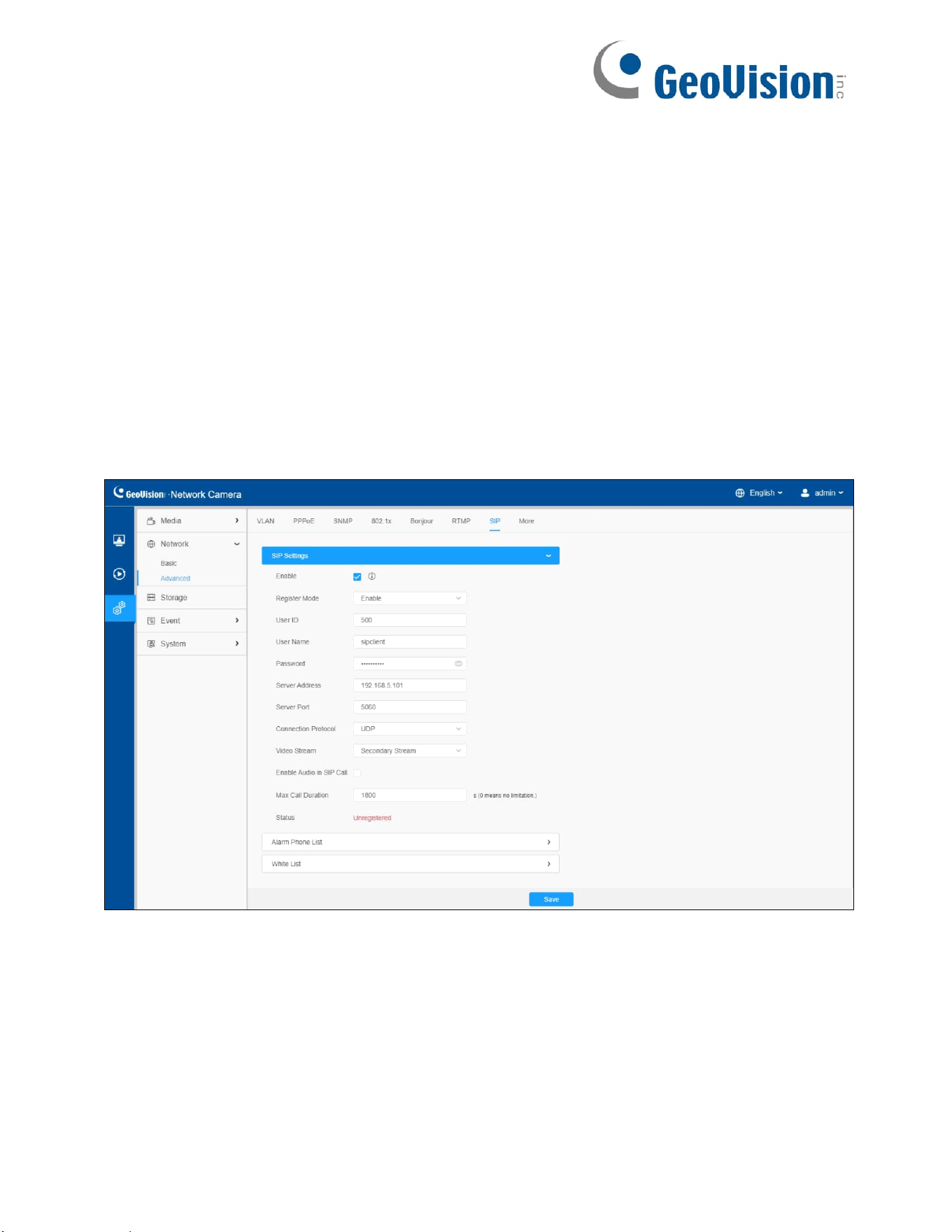
To use this function, the settings in SIP page must be configured properly. There are two
ways to get video through SIP, one is to dial the IP address directly, the other is account
registration mode. the details are as follows:
57
Method 1: IP Direct mode
Dial on the camera’s IP address directly through SIP phone, so you can see the video.
Note: SIP phone and the camera should in the same network segment.
Method 2: Account registration mode
• Before using the SIP, you need to register an account for the camera from the SIP server;
• Register another user account for the SIP device from the same SIP server;
• Call the camera User ID from the SIP device, you will get the video on the SIP device.
[SIP Settings]
58
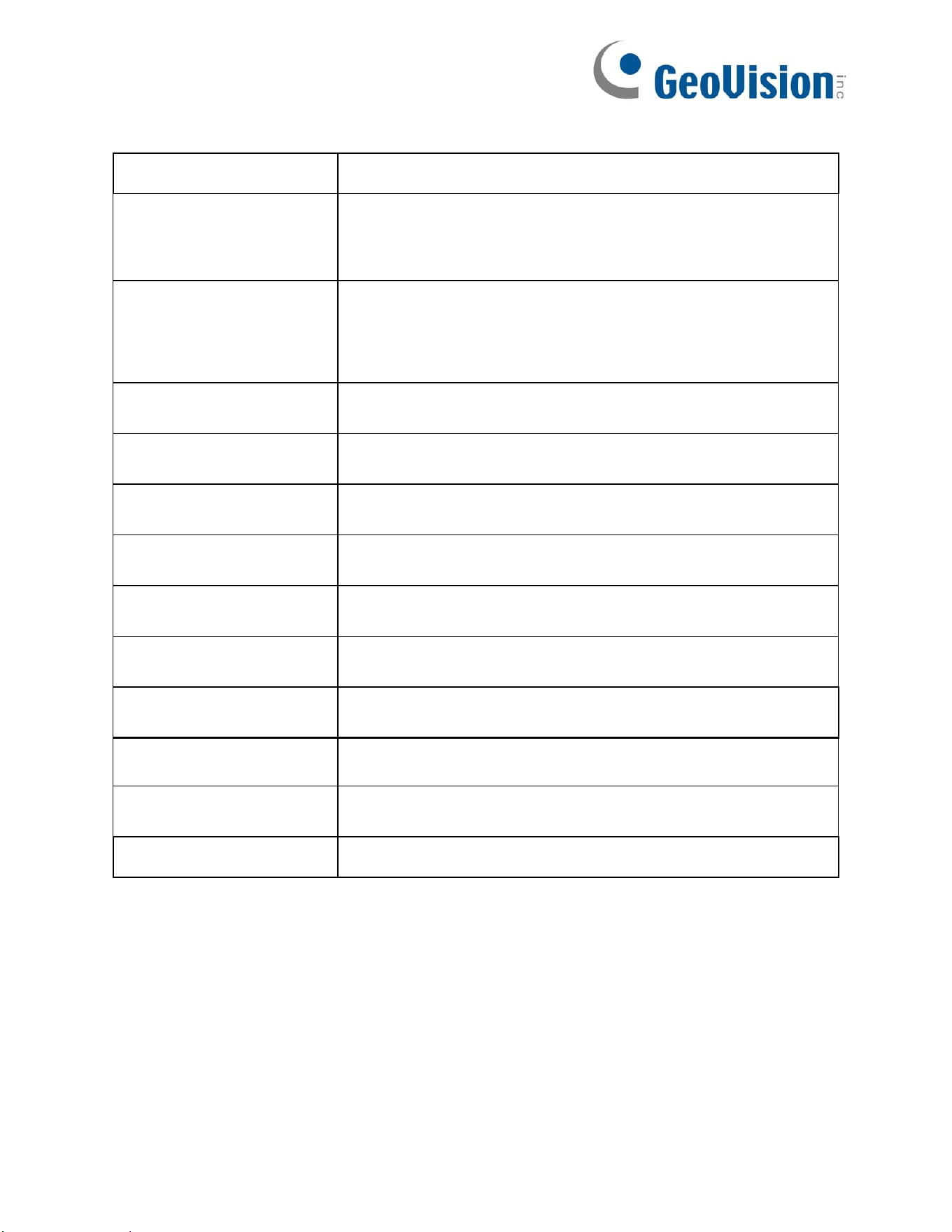
Table 27. Description of the buttons
Parameters
Function Introduction
Enable
Start or stop using SIP.
Note: SIP supports Direct IP call.
Register Mode
Choose to use Enable mode or Disable mode. Enable
mode means to use SIP with register account. Disable
mode refers to use SIP without register account, just use
the IP address to call.
User ID
SIP ID.
User Name
SIP account name.
Password
SIP account password.
Server Address
Server IP address.
Server Port
Server port.
Connection Protocol
UDP/TCP.
Video Stream
Choose the video stream.
Enable Audio in SIP
Call
Enable/disable audio in SIP call.
Max Call Duration
The max call duration when use SIP.
Status
SIP registration status. Display “Unregistered” or “Registered”.

59
[Alarm Phone List]
Table 28. Description of the buttons
Parameters
Function Introduction
Add alarm phone to the camera.
Phone Type: Phone Number (Call by phone number) &
Direct IP Call (Check to accept peer to peer IP call).
To Phone Number/IP Address: Call by phone number or IP
address.
Remark Name: Display name.
Duration: The time schedule to use SIP.
Delete the selected alarm phone.
Delete all added alarm phone.

60
[White List]
Table 29. Description of the buttons
Parameters
Function Introduction
Enable White List
Number Filter
When enabled, only the designated phone number or IP
address can visit.
Phone Type: Phone Number (Call by phone number) &
Direct IP Call.
Phone Number/IP Address: Including the phone number
or IP address on the white list.
61
8.2.2.8 More
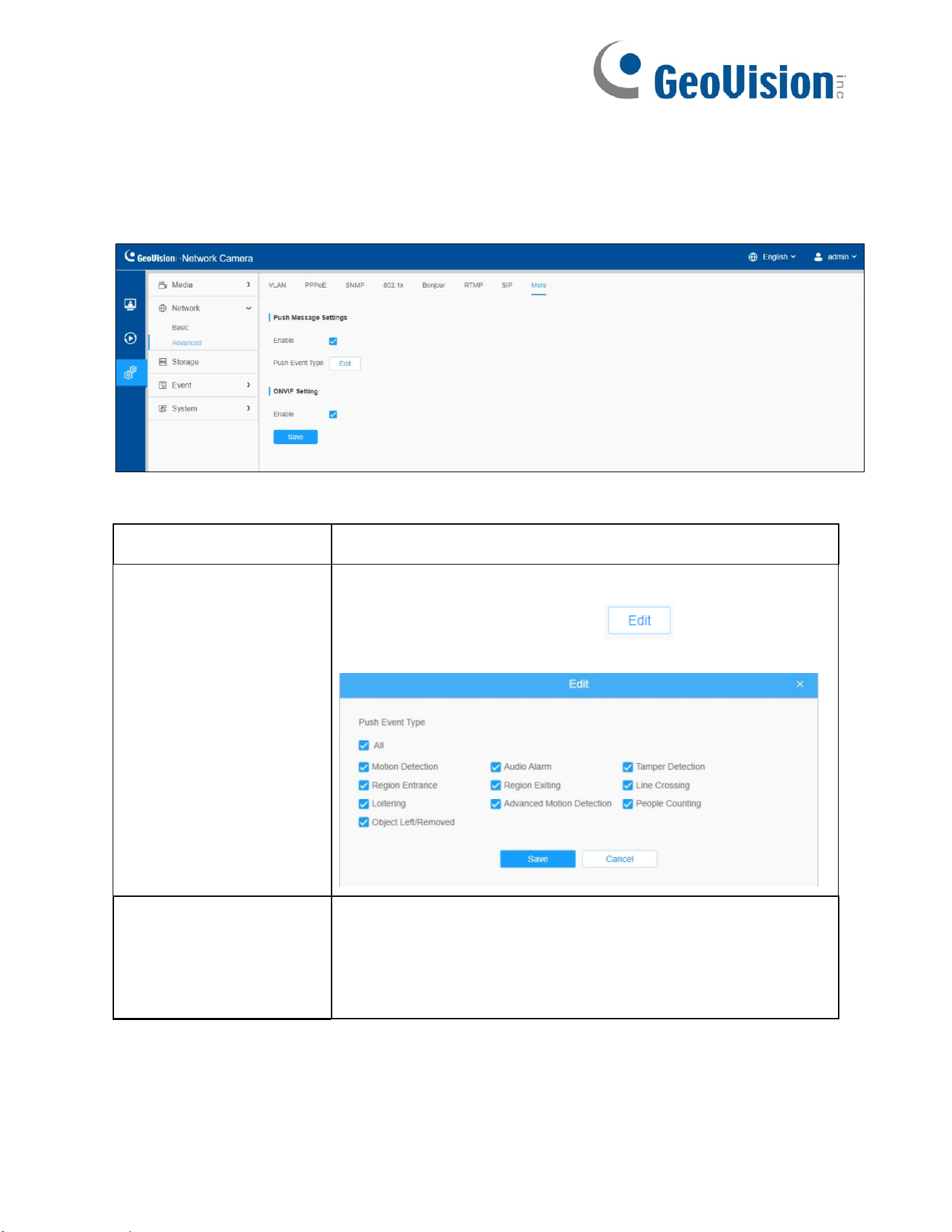
Here you can set more functions, like Push Message Settings and ONVIF Settings. Note that
Push Message is currently not functional.
Table 30. Description of the buttons
Parameters
Function Introduction
Push Message
Settings
Enable: Enable/disable the Push Message function.
Push Event Type: You can click to choose the types
of Event message as shown below:
ONVIF
Setting
Here you can choose whether to enable or disable camera
ONVIF function. If camera ONVIF function is enabled, it can
be searched out, added and connected by third-party
software through ONVIF protocols. Generally, the default
status of ONVIF function is enabled.

62
8.3 Storage
8.3.1 Storage Management
Table 31. Description of the buttons
Parameters
Function Introduction
SD Card
Format: Format SD card, the files in SD card will be
removed.
NAS
The network disk should be available within the network
and properly configured to store the recorded files, etc.
NAS (Network-Attached Storage), connecting the storage
devices to the existing network, provides data and files
services.
Server Address: IP address of NAS server.
Directory: Input the NAS directory, e.g. “\path”.
Mounting Type: NFS and SMB/CIFS are available. You can
set the user name and password to guarantee the security if
SMB/CIFS is selected.
Note: Up to 5 NAS disks can be connected to the camera.

63
8.3.2
8.3.2 Record Settings
Table 32. Description of the buttons
Parameters
Function Introduction
Enable Recycle
Storage
Enable/Disable Recycle Storage. If you enable this option, it will delete
the files when the free disk space reaches a certain value.
Pre
Second
Reserve the record time before alarm, 0~10 sec.
Schedule
Settings
Edit record schedule as needed. Intuitive scheduling by drawing the
time bar directly.

64
Schedule
Settings
Copy the schedule area to another date.
Select all schedule.
Clear all schedule.
Save the configuration.
Note: SD Card or NAS are available.

65
8.3.3 Snapshot Settings
Table 33. Description of the buttons
Parameters
Function Introduction
Snapshot
Settings
Enable Timing Snapshot: Check the checkbox to enable the Timing
Snapshot function.
Interval: Set the snapshots interval, input the number and choose
the unit (millisecond, second, minute, hour, day).
Save To Storage: Save the snapshots to SD card or NAS, and
choose the file name to add time suffix or overwrite the base file
name.
Save Into NAS: Save the snapshots to NAS, and choose the file
name to add time suffix or overwrite the base file name.
Upload Via FTP: Upload the snapshots via FTP.
Upload Via Email: Upload the snapshots via Email.
Note: If you choose to add time suffix, every snapshot picture will be
saved, but if you choose to overwrite the base file name, only the
latest picture will be saved. When you choose Overwrite the Base
File Name and save it to SD Card or NAS, it will create a file named
“Snapshot” to place the snapshot.
HTTP Post: Upload the snapshots via HTTP Post. Support
uploading the snapshots to specified HTTP URL.

66
Schedule
Settings
Edit record schedule as needed. Intuitive scheduling by drawing the
time bar directly.
Schedule Settings
Copy the schedule area to another date.
Select all schedule.
Clear all schedule.
Save the configuration.

67
8.3.4
8.3.4 Explorer
Files will be seen on this page when they are configured to save into SD card or NAS.
You can set time schedule every day for recording videos and save video files to your
desired location.
Note: Files are visible once SD card is inserted. Don’t insert or pull out SD card when power
on.
Video files are arranged by date. Set file type and start/end time to search out files. Each
day files will be displayed under the corresponding date, from here you can copy and
delete files etc. You can visit the files in SD card by ftp, for example,
ftp://username:password@IP (the default user name is admin and the IP followed is the IP
of your device.).

68
8.4 Event
8.4.1 Basic Event
8.4.1.1 Motion Detection
Settings steps are shown as follows:
Step 1: Check the checkbox to enable the motion detection.
Step 2: Check the check box to enable the motion analysis.
Step 3: Select the detection mode.
Step 4: Set motion region.

69
Table 34. Description of the buttons
Parameters
Function Introduction
Enable
Detection
Check the checkbox to enable Motion Detection function.
Enable Motion
Analysis
When Motion Analysis is enabled, the moving region will
turn yellow so that the user can know exactly where the
motion occurred.
Note: Only support when HTTP is selected in Live View.
Click the button, the motion in the area will be detected.
Click the button, the area drawn before will be removed.
Save the configuration.
[Basic Settings]
70
Table 35. Description of the buttons
Parameters
Function Introduction
Detection Mode
Normal Mode and Advanced Mode are available for the
option. When Advanced Mode is selected, users can
configure up to 4 detection regions and sensitivity for each
detection region.
Sensitivity
Sensitivity level, 1~10.
Onvif Motion
ActiveCells Settings
Normal and Compatible are available for the option. If the
setting of motion region of the third-party software is different
from the camera’s, please set this option to Compatible.
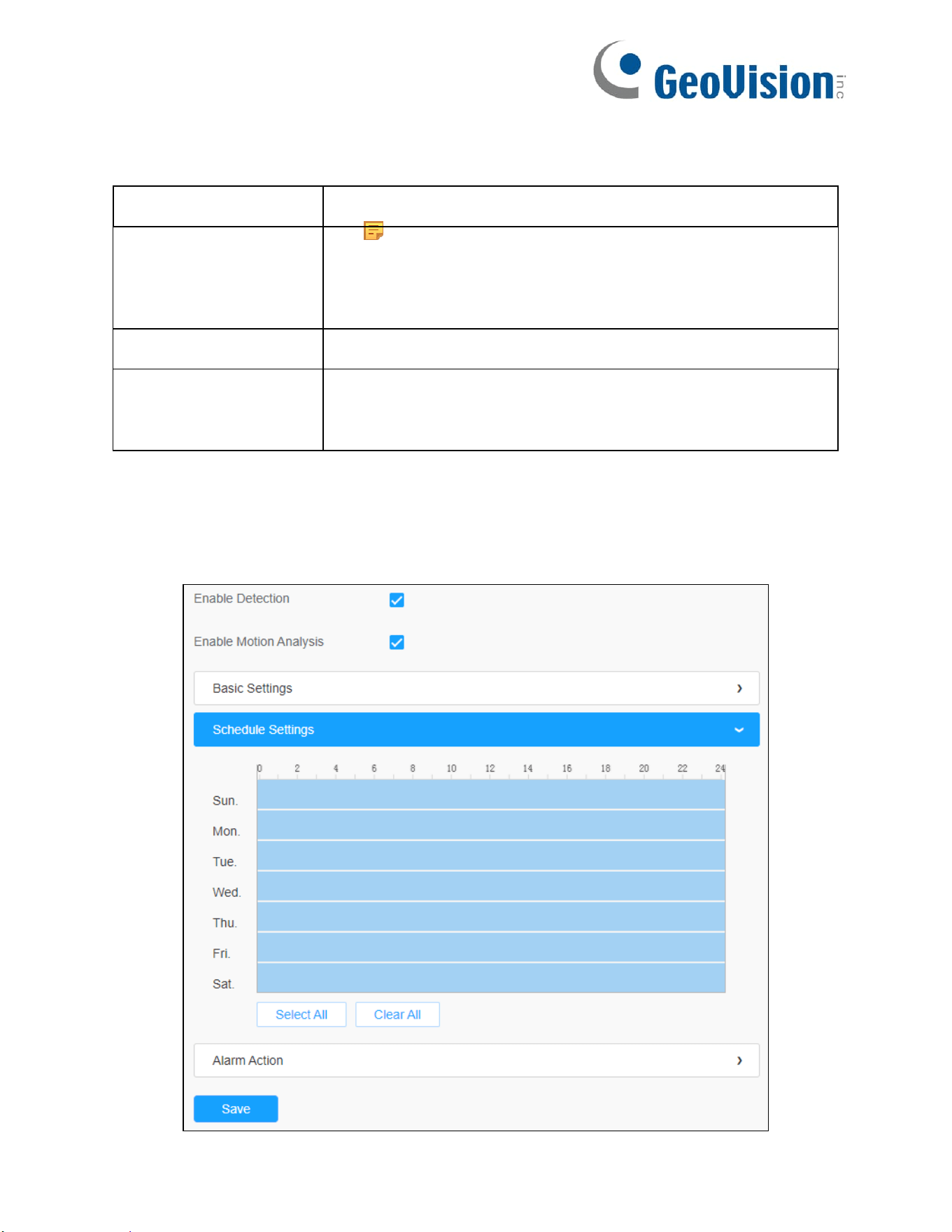
[Schedule Settings]
Step 5: Set motion detection schedule.

71
Table 36. Description of the buttons
Parameters
Function Introduction
Copy the schedule area to another date.
Select all schedule.
Clear all schedule.
[Alarm Action]
Step 6: Set alarm action.
72
Table 37. Description of the buttons
Parameters
Function Introduction
Record
Duration: Selected the duration time of alarm. 5 s/10 s/
15 s/20 s/25 s/30 s are available.
Linkage: Save alarm recording files to SD Card or NAS or
upload the recording files via FTP.
Snapshot
Number: The number of snapshots, 1~5 are available.
Interval: This cannot be edited unless you choose more than 1
to Snapshot.
Linkage: Save alarm recording files to SD Card or NAS,
upload the recording files via FTP, or send alarm emails.
Alarm to SIP
Phone
Support to call the SIP phone after enable the SIP function.
HTTP
Notification
Support to pop up the alarm news to specified HTTP URL.
Note:
• Three HTTP notifications at most can be added to the same
event.
• HTTP Notification supports Basic & Digest authentication.
8.4.1.2 Audio Alarm
Check the check box to enable the Audio Alarm function.
Note: Enable the Audio Mic before using Audio Alarm function.

73
[Basic Settings]
Table 38. Description of the buttons
Parameters
Function Introduction
Alarm
Threshold
Audio Alarm will be triggered when the thresholds
reach to a certain value from 0 to 100.
Audio Sample
Value
The current value of the audio sample.
[Schedule Settings]
Refer to Table 36 of 8.4.1.1 Motion for details.
[Alarm Action]
Refer to Table 37 of 8.4.1.1 Motion for details.
74
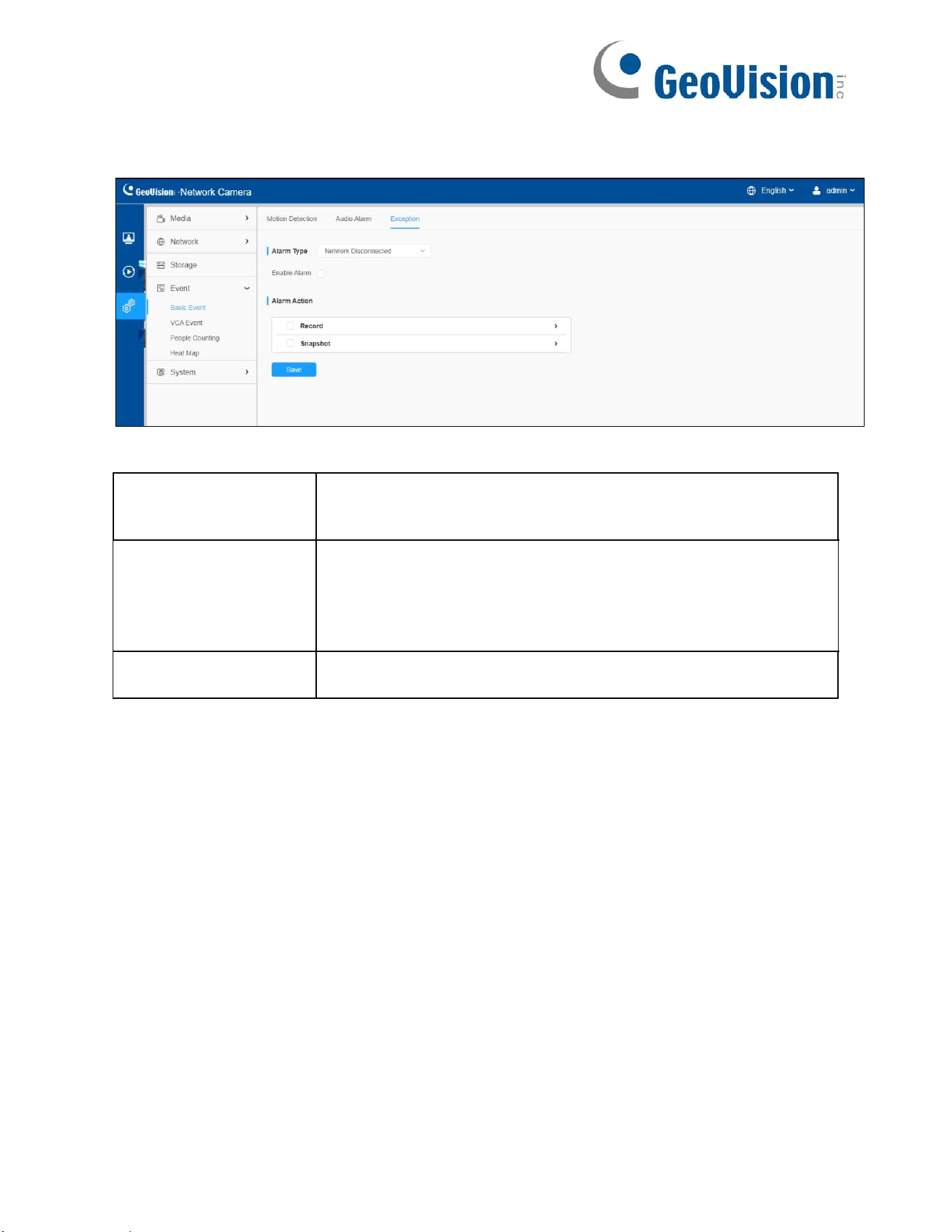
8.4.1.3 Exception
Table 39. Description of the buttons
Parameters
Function Introduction
Alarm Type
Network Disconnected, IP Address Conflicted, Record
Failed, SD Card Full, SD Card Uninitialized, SD Card Error
and No SD Card are available.
Check the checkbox to enable the alarm type you selected
Alarm Action
Refer to Table 37 of 8.4.1.1 Motion for details.

75
8.4.2 VCA Event
Smart Event uses VCA (Video Content Analysis) technology, which provides advanced,
accurate smart video analysis. Powered by AI chip, the new generation video analytics is
capable of recognizing vast attributes of human, vehicle, and object pattern recognition
models. As vehicle and human related events are very important in security monitoring, the
filtering is supported to better optimize the efficiency.
8.4.2.1 Region Entrance
Region entrance helps to protect a special area from potential threat of suspicious person’s
or object’s entrance. An alarm will be triggered when objects enter the selected regions by
enabling region entrance.
Settings steps are shown as follows:
[Detection Settings]
Note: General Settings will take effect in all detection regions/lines!
Step 1: Selected Detection Region and enable region entrance detection;

76
Step 2: Choose detection object. Check Human or Vehicle attribute, and the camera will
alarm once detecting people or vehicle and triggering related events;
[General Settings]
Step 3: Set detecting sensitivity and object size limits;

77
Table 40. Description of the buttons
Parameters
Function Introduction
Sensitivity
Level 1~10 is available, the default level is 5. The higher the
sensitivity, the easier it is for moving objects to be recorded in
the results.
Min. Size
Draw the screen or input pixel number to set the minimum
size of the detected object. When the object is smaller than
this size, it will not be detected. The default minimum size is
3*3.
Max. Size
Draw the screen or input pixel number to set the maximum
size of the detected object. When the object is larger than this
size, it will not be detected. The default maximum size is
320*240.
[Schedule Settings]
Step 4: Set detection schedule;

78
Table 41. Description of the buttons
Parameters
Function Introduction
Copy the schedule area to another date.
Select all schedule.
Clear all schedule.
[Alarm Action]
Step 5: Set alarm action;
79
Table 42. Description of the buttons
Parameters
Function Introduction
Record
Duration: Selected the duration time of alarm. 5 s/10 s/
15 s/20 s/25 s/30 s are available.
Linkage: Save alarm recording files to SD Card or NAS
or upload the recording files via FTP.
Snapshot
Number: The number of snapshots, 1~5 is available.
Interval: This cannot be edited unless you choose more
than 1 to Snapshot.
Linkage: Save alarm recording files to SD Card or NAS,
upload the recording files via FTP, or send alarm emails.
Alarm to SIP Phone
Support to call the SIP phone after enabling the SIP
function.
Note: Please open the SIP.
HTTP Notification
Support to pop up the alarm news to specified HTTP URL.
80
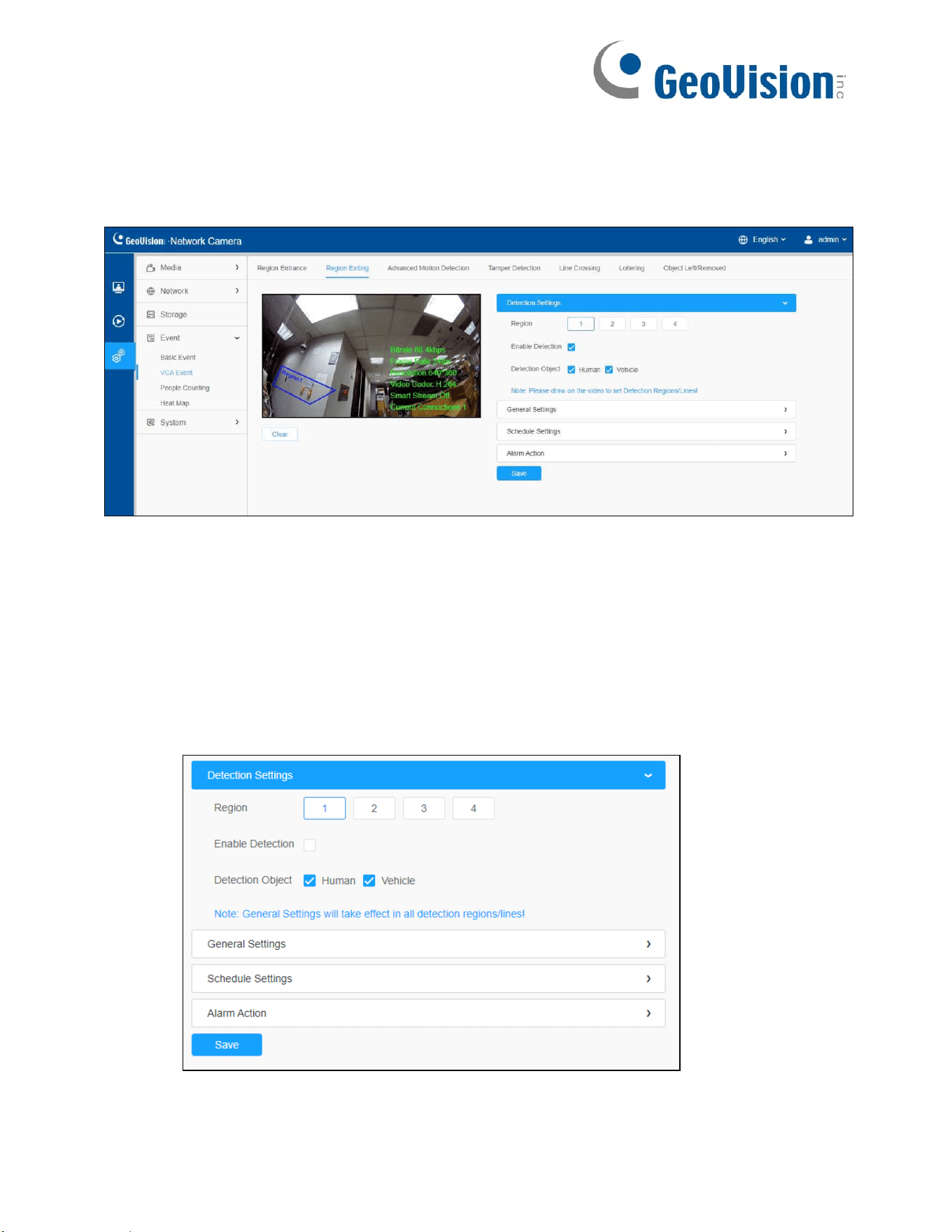
8.4.2.2 Region Exiting
Region exiting is to make sure that any person or object won't exit the area that is being
monitored. Any exit of people or objects will trigger an alarm.
Settings steps are shown as follows:
[Detection Settings]
Note: General Settings will take effect in all detection regions/lines!
Step 1: Draw the detection region and enable region exiting detection;
Step 2: Choose detection object. Check Human or Vehicle attribute, and the camera will
alarm once detecting people or vehicle and triggering related events;
[General Settings]
Step 3: Set detecting sensitivity and object size limits;

81
Table 43. Description of the buttons
Parameters
Function Introduction
Sensitivity
Level 1~10 is available, the default level is 5. The higher the
sensitivity, the easier it is for moving objects to be recorded
in the results.
Min. Size
Draw the screen or input pixel number to set the minimum
size of the detected object. When the object is smaller than
this size, it will not be detected. The default minimum size is
3*3.
Max. Size
Draw the screen or input pixel number to set the maximum
size of the detected object. When the object is larger than this
size, it will not be detected. The default maximum size is
320*240.
[Schedule Settings]
Step 4: Set detection schedule;
Note: Refer to Table 41 of 8.4.2.1 Region Entrance for details.

82
[Alarm Action]
Step 5: Set alarm action;
Note: Refer to Table 42 of 8.4.2.1 Region Entrance for details.
83
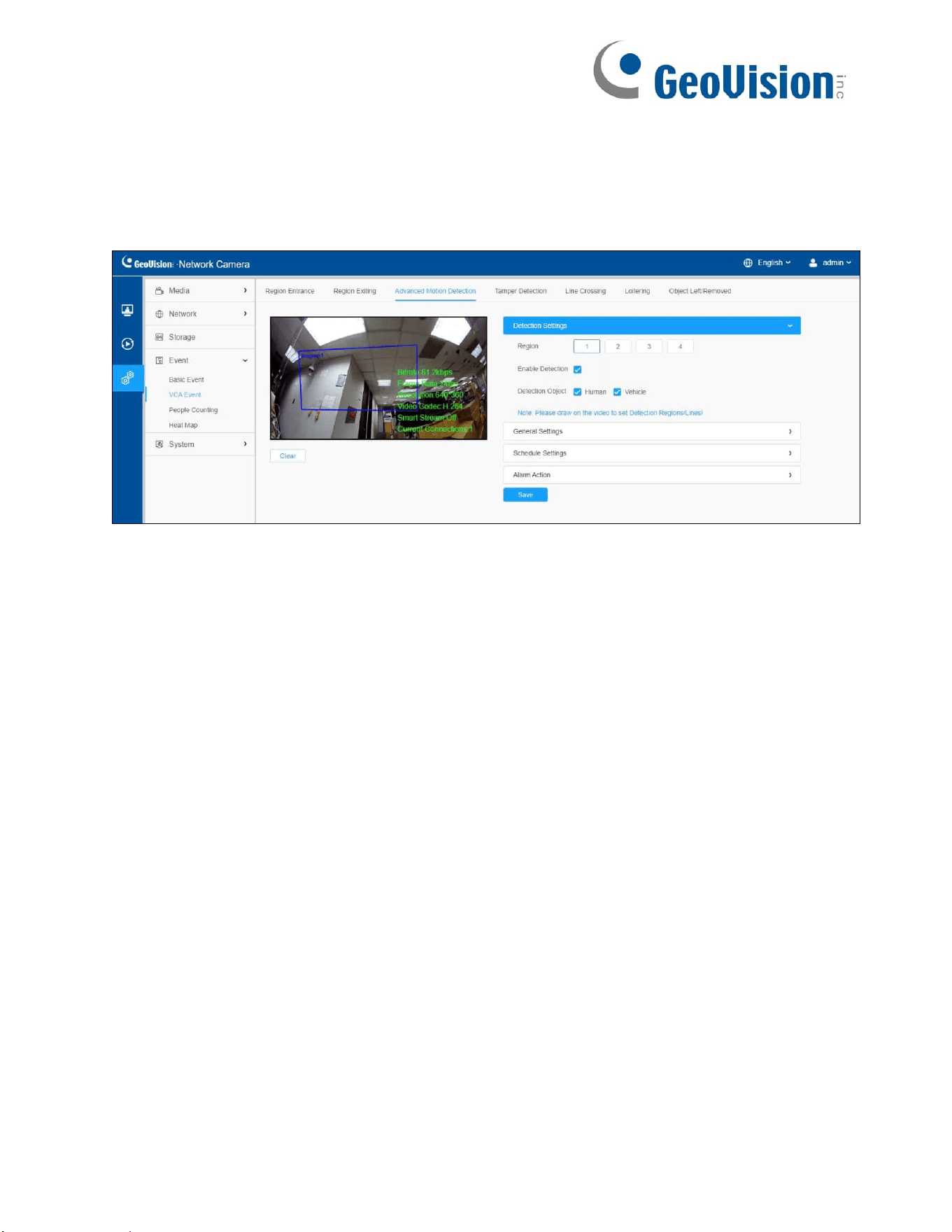
8.4.2.3 Advanced Motion Detection
Different from traditional motion detection, advanced motion detection can filter out
“noise” such as lighting changes, natural tree movements, etc. When an object moves in
the selected area, it will trigger alarm.
Settings steps are shown as follows:
Step 1: Draw the detection region and enable advanced motion detection;
Step 2: Choose detection object. Check Human or Vehicle attribute, and the camera will
alarm once detecting people or vehicle and triggering related events;
[General Settings]
Step 3: Set Ignore Short-Lived Motion time. If you set the time, when the moving
duration of an object is within the setting time, the alarm will not be triggered;

84
Step 4: Set detecting sensitivity and object size limits;
Table 44. Description of the buttons
Parameters
Function Introduction
Ignore Short-Lived
Motion
The alarm will not be triggered when the moving duration of an
object is within the setting time. Off/1 s/2 s/3 s/4 s/5 s are
available.
Note: Ignore Short-Lived Motion time is to avoid false alarm
caused by instant object movement within time setting.
Sensitivity
Level 1~10 is available, the default level is 5. The higher the
sensitivity, the easier it is for moving objects to be recorded
in the results.
Note: The sensitivity can be configured to detect various
movement according to different requirements. When the
level of sensitivity is low, slight movement won’t trigger the
alarm.
Min. Size
Draw the screen or input pixel number to set the minimum
size of the detected object. When the object is smaller than
this size, it will not be detected. The default minimum size is
3*3.

85
Max. Size
Draw the screen or input pixel number to set the maximum
size of the detected object. When the object is larger than this
size, it will not be detected. The default maximum size is
320*240.
[Schedule Settings]
Step5: Set detection schedule;
Note: Refer to Table 41 of 8.4.2.1 Region Entrance for details.
[Alarm Action]
Step6: Set alarm action;
Note: Refer to Table 42 of 8.4.2.1 Region Entrance for details.
86
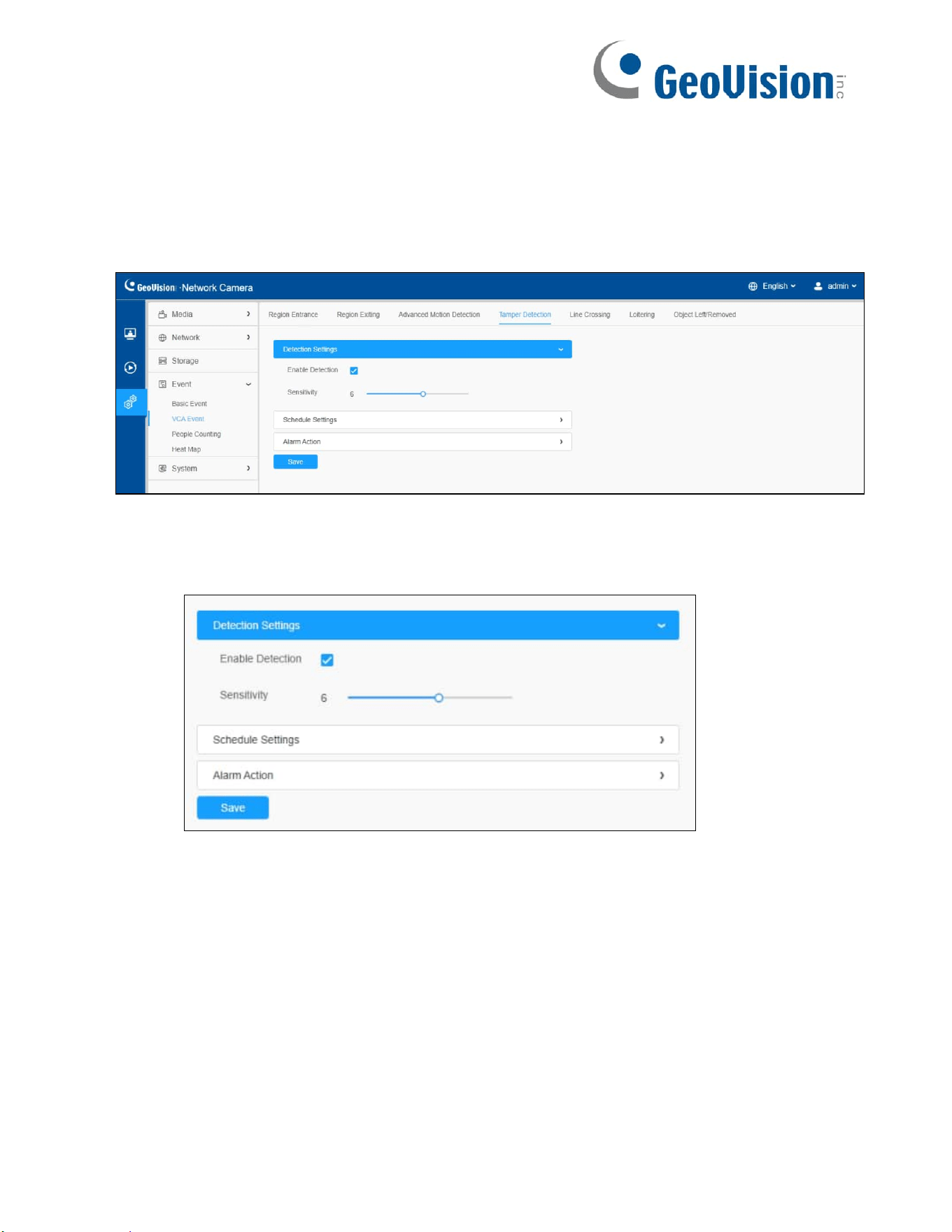
8.4.2.4 Tamper Detection
Tamper Detection is used to detect possible tampering like the camera being unfocused,
obstructed or moved. This functionality alerts security staff immediately when any above-
mentioned actions occur.
Settings steps are shown as follows:
Step 1: Enable Tamper Detection and set detecting sensitivity;
[Schedule Settings]
Step 2: Set detection schedule;
Note: Refer to Table 41 of 8.4.2.1 Region Entrance for details.

87
[Alarm Action]
Step3: Set alarm action;
Note:
• Refer to Table 41 of 8.4.2.1 Region Entrance for details.
• The algorithm supports defocus detection in Tamper Detection function.

88
8.4.2.5 Line Crossing
Line Crossing detection is designed to work in most indoor and outdoor environment. An
event will be triggered every time when the camera detects objects crossing a defined
virtual line.
Settings steps are shown as follows:
[Detection Settings]
Step 1: Draw the detection line, enable line crossing detection, and define its direction;
Note: Allows to set up to four lines at a time. There are three direction modes to choose for
triggering alarm. “A→B” means when there is any object crossing the line from the “A” side to
the “B” side, the alarm will be triggered. “B→A” vice versa. “A ↔ B” means that the alarm will
be triggered when objects cross line from either side.

89
Step 2: Choose detection object. Check Human or Vehicle attribute, and the camera will
alarm once detecting people or vehicle and triggering related events;
[General Settings]
Step 3: Set detecting sensitivity and object size limits;
Note: Refer to Table 40 of 8.4.2.1 Region Entrance for details.
90
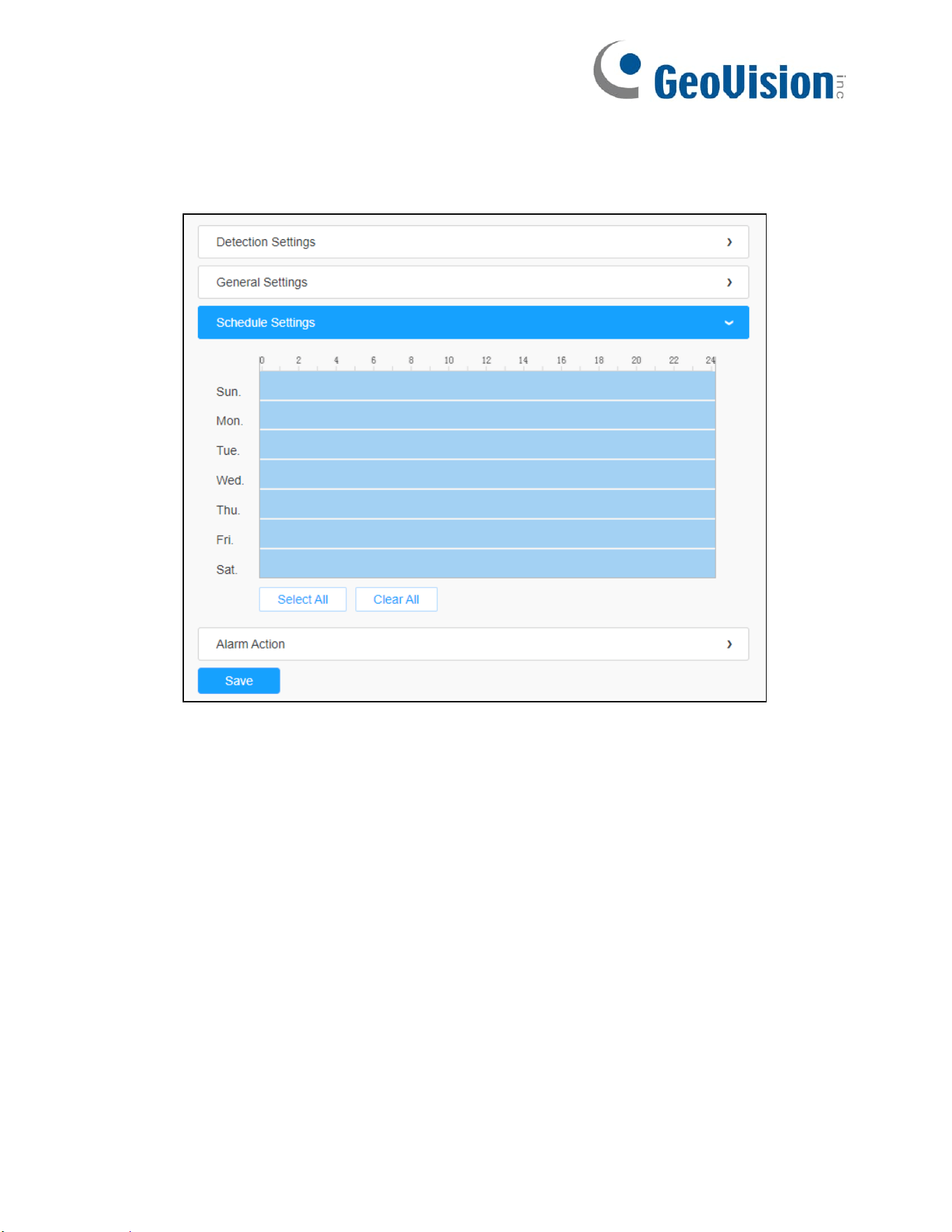
[Schedule Settings]
Step 4: Set detection schedule;
Note: Refer to Table 41 of 8.4.2.1 Region Entrance for details.
[Alarm Action]
Step 5: Set alarm action;
Note: Refer to Table 42 of 8.4.2.1 Region Entrance for details.
91
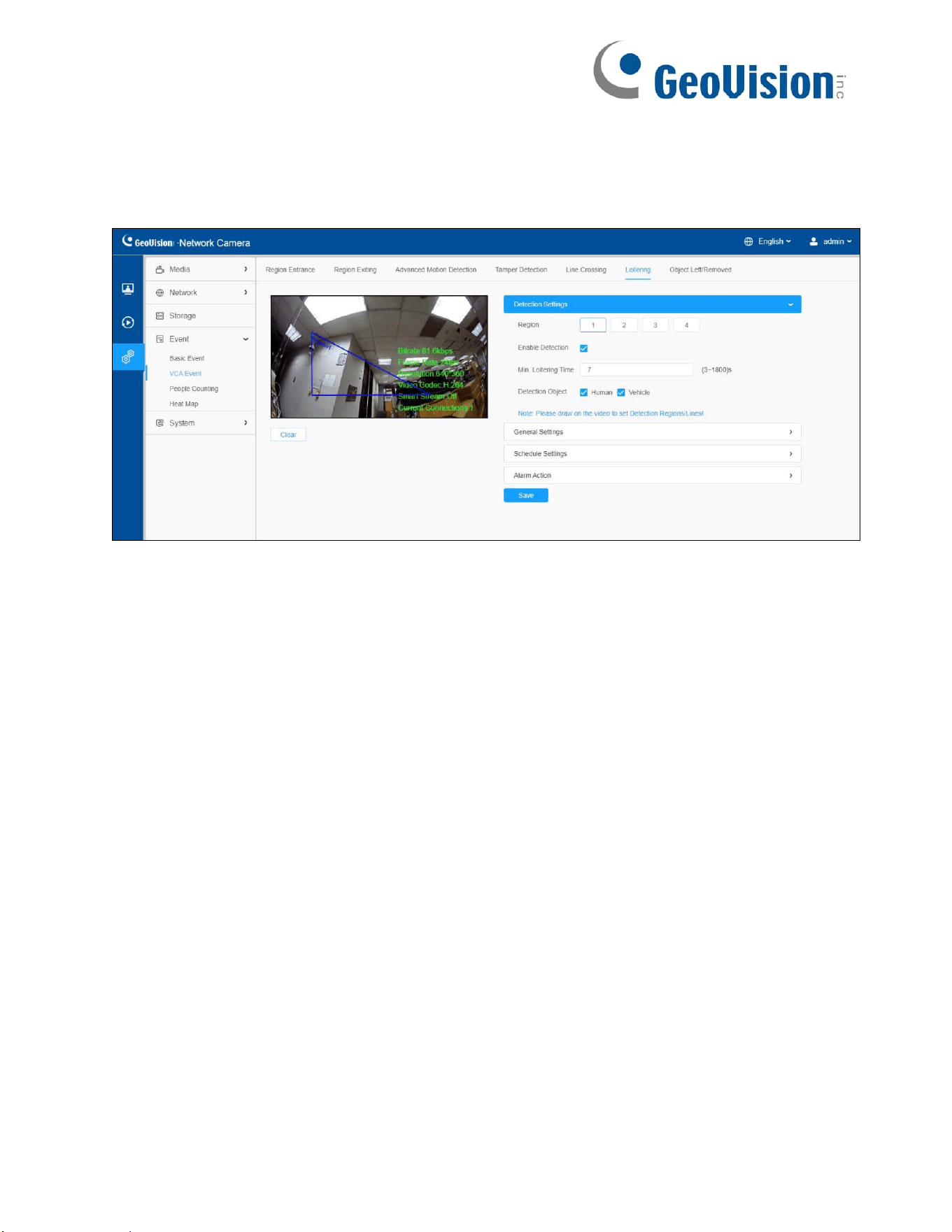
8.4.2.6 Loitering
When objects are loitering in a defined area for a specific period of time, it would trigger an
alarm.
Settings steps are shown as follows:
[Detection Settings]
Note: General Settings will take effect in all detection regions/lines!
Step 1: Draw the detection region and enable loitering detection;
Step 2: Set Min. Loitering Time. After setting minimum loitering time from 3s to 1800s,
any objects loitering in the selected area over the minimum loitering time will trigger the
alarm;
Step 3: Choose detection object. Check Human or Vehicle attribute, and the camera will
alarm once detecting people or vehicle and triggering related events;

92
[General Settings]
Step 4: Set object size limits;

93
Table 45. Description of the buttons
Parameters
Function Introduction
Min. Size
Draw the screen or input pixel number to set the minimum
size of the detected object. When the object is smaller than
this size, it will not be detected. The default minimum size is
3*3.
Max. Size
Draw the screen or input pixel number to set the maximum
size of the detected object. When the object is larger than this
size, it will not be detected. The default maximum size is
320*240.
[Schedule Settings]
Step 5: Set detection schedule;
Note: Refer to Table 41 of 8.4.2.1 Region Entrance for details.
[Alarm Action]
Step 6: Set alarm action;
Note: Refer to Table 42 of 8.4.2.1 Region Entrance for details.
94
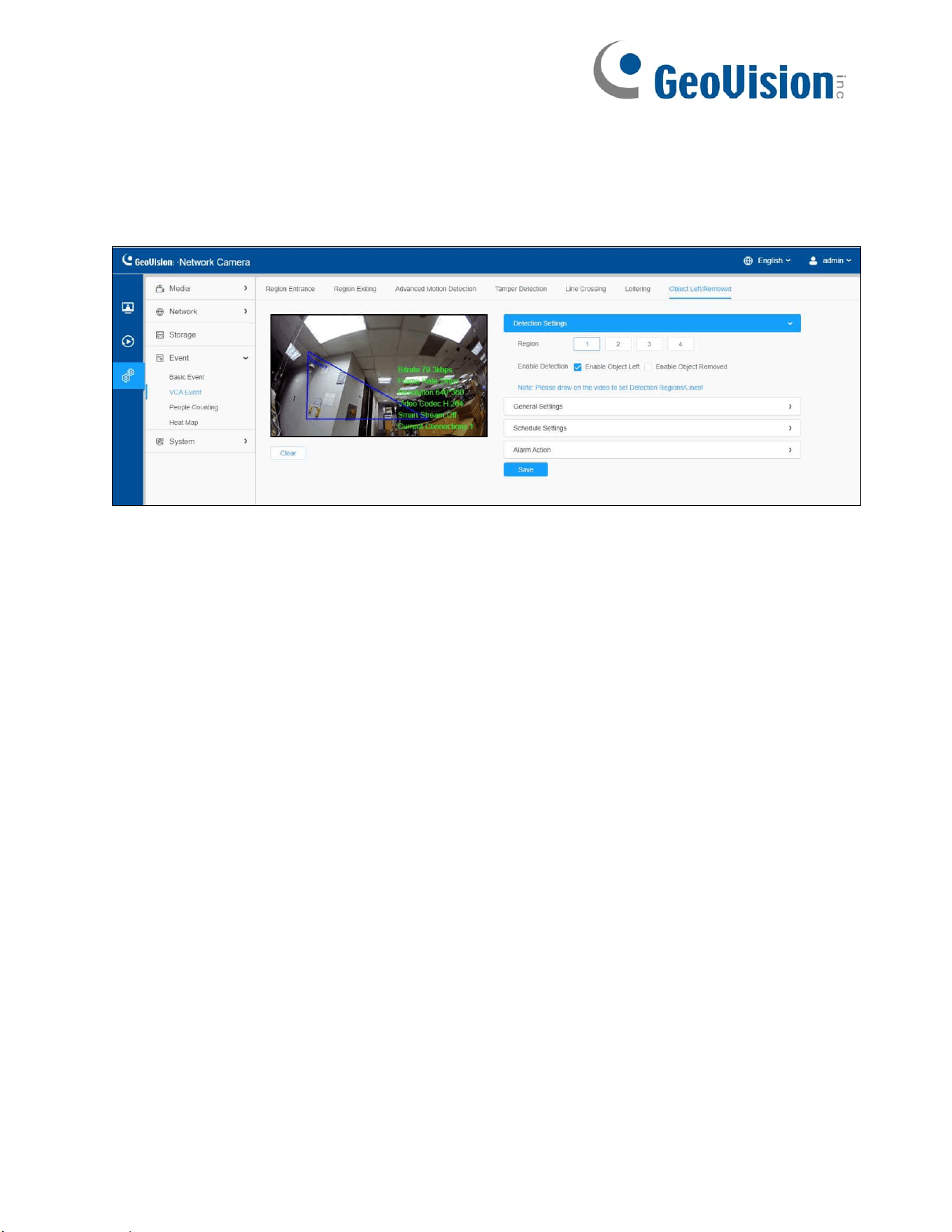
8.4.2.7 Object Left/ Removed
Object Left can detect and prompt an alarm if an object is left in a pre-defined region.
Object Removed can detect and prompt an alarm if an object is removed from a pre-
defined region.
Settings steps are shown as follows:
[Detection Settings]
Note: General Settings will take effect in all detection regions/lines!

95
Step 1: Draw the detection region and enable object left/removed detection (Or enable
both features at the same time);
[General Settings]
Step 2: Set Min. time, detecting sensitivity and object size limits.

96
Table 46. Description of the buttons
Parameters
Function
Introduction
Min. Time
After setting Min. time from 5s to 1800s, any objects are left
in the selected area or removed from the selected area over
the minimum time will trigger the alarm.
Sensitivity
Level 1~10 is available, the default level is 5. The higher the
sensitivity, the easier it is for moving objects to be recorded
in the results.
Note: The sensitivity can be configured to detect various
movement according to different requirements. When the
level of sensitivity is low, slight movement won’t trigger the
alarm.
Min. Size
Draw the screen or input pixel number to set the minimum
size of the detected object. When the object is smaller than
this size, it will not be detected. The default minimum size is
3*3.
Max. Size
Draw the screen or input pixel number to set the maximum
size of the detected object. When the object is larger than this
size, it will not be detected. The default maximum size is
320*240.
[Schedule Settings]
Step 3: Set detection schedule;
Note: Refer to Table 41 of 8.4.2.1 Region Entrance for details.
[Alarm Action]
Step 4: Set alarm action;
Note: Refer to Table 42 of 8.4.2.1 Region Entrance for details.

97
8.4.3 People Counting
8.4.3.1 People Counting
People Counting is able to count how many people enter or exit during the setting period.
Settings steps are as shown below:
Step 1: Enable People Counting Detection;
Step 2: Draw the detection line and select the detection direction.
Note:
• Crossing along the direction of the arrow will be recorded as “In”, opposite is “Out”.
• Support up to 4 detection lines.

98
[General Settings]
Step 3: Set sensitivity and object size limits.

99
Table 47. Description of the buttons
Parameters
Function
Introduction
Sensitivity
Level 1~10 is available, the default level is 5. The higher the
sensitivity, the easier it is for moving objects to be recorded
in the results.
Min. Size
Draw the screen or input pixel number to set the minimum
size of the detected object. When the object is smaller than
this size, it will not be detected. The default minimum size is
3*3.
Max. Size
Draw the screen or input pixel number to set the maximum
size of the detected object. When the object is larger than this
size, it will not be detected. The default maximum size is
320*240.
[Schedule Settings]
Step 4: Set detection schedule;
Note: Refer to Table 41 of 8.4.2.1 Region Entrance for details.
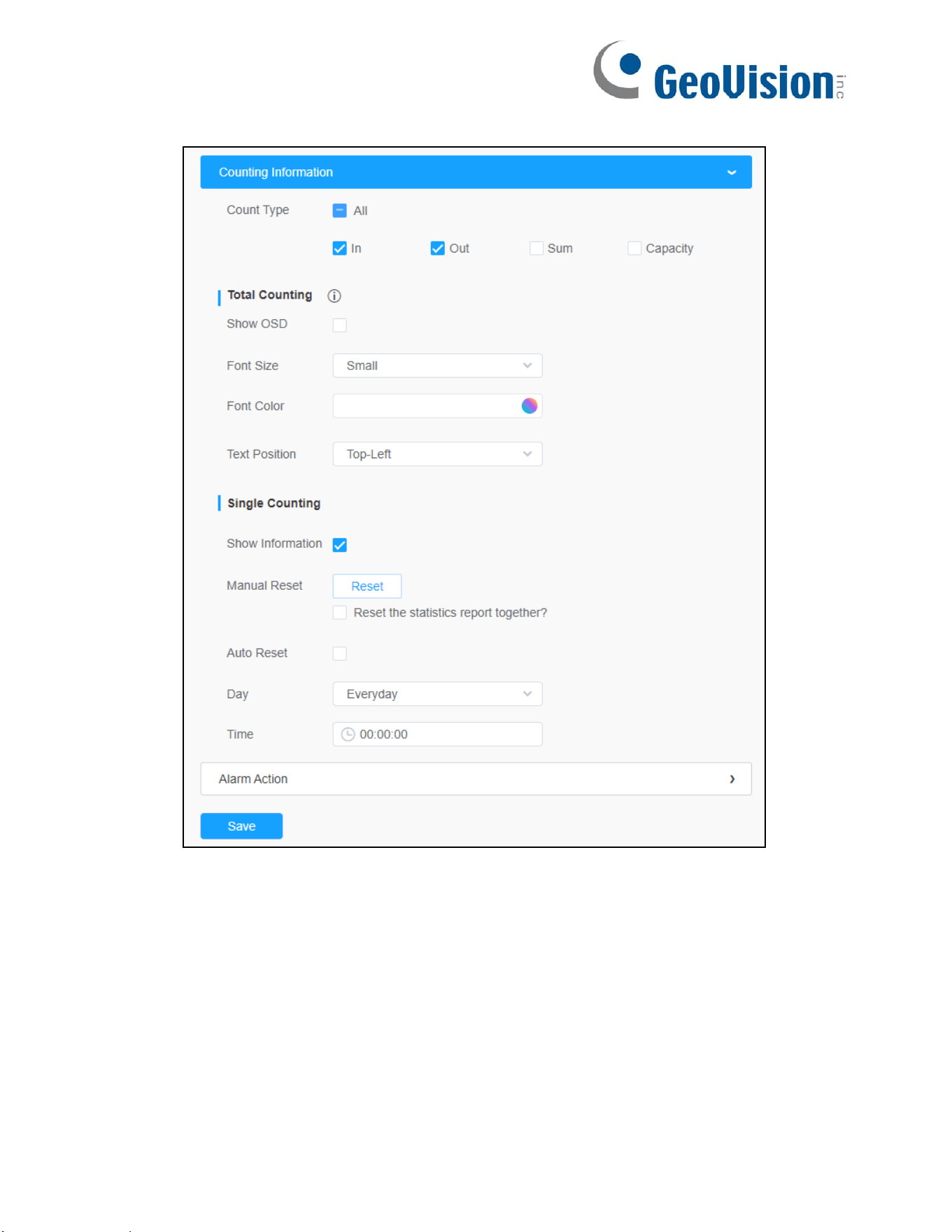
[Counting Information]
100
Step 5: Set counting information;

101
Table 48. Description of the buttons
Parameters
Function Introduction
Count Type
Users can choose the information they want to display in Live
Video.
Total
Counting
Set counting OSD.
Note: The Total Counting OSD configuration is linked in all
detection lines.
Show OSD: Click to enable/disable the OSD shown.
Font Size: The font size of the OSD display.
Font Color: The font color of the OSD display.
Text Position: The text position of the OSD display.
Single
Counting
Set Single Counting.
Note: The Total Counting OSD configuration is linked in all
detection lines.
Show Information: Click to show the information.
Manual Reset: Reset the counting of each single line. You
can choose to reset the statistics report together.
Auto Reset: It is used to automatically clear the single
counting information.
Day: The day of Auto Reset.
Time: The time of Auto Reset.

102
[Alarm Action]
Step 6: Set alarm trigger and alarm action;

103
Table 49. Description of the buttons
Parameters
Function
Introduction
Alarm
Trigger
Alarm will be triggered when the thresholds reaches to a
certain value from 1 to 9999. Total Counting and Single
Counting are available. You can set the Thresholds of
In/Out/Capacity/Sum.
Note:
• For Total Counting, the thresholds are the sum of
the total number of 4 detection lines.
• For Single Counting, the threshold is for the selected
detection line.
Alarm Action
Refer to Table 42 of 8.4.2.1 Region Entrance for details.
Note: The alarm action is effective on 4 detection lines
simultaneously.

104
8.4.3.2 Regional People Counting
When enabling Regional People Counting, users can check the real-time number of
people and the time of each person's stay in the detection region.
Note:
• Support up to 4 detection regions for regional people counting.
• Users can check the real-time number of people and the time of each person's stay in
the detection region on Live View interface.
Settings steps are as shown below:
Step 1: Draw the detection region and enable regional people counting detection;
[Basic Settings]

105
Step 2: Set sensitivity and object size limits.
Table 50. Description of the buttons
Parameters
Function Introduction
Sensitivity
Level 1~10 is available, the default level is 5. The higher the
sensitivity, the easier it is for moving objects to be recorded
in the results.
Object Size Limits
Min. Size: Draw the screen or input pixel number to set the
minimum size of the detected object. When the object is
smaller than this size, it will not be detected. The default
minimum size is 3*3.
Max. Size: Draw the screen or input pixel number to set the
maximum size of the detected object. When the object is
larger than this size, it will not be detected. The default
maximum size is 320*240.

106
[Schedule Settings]
Step4: Set detection schedule;
Note: Refer to Table 41 of 8.4.2.1 Region Entrance for details.
[Alarm Action]
Step6: Set alarm trigger and alarm action;

107
Table 51. Description of the buttons
Parameters
Function Introduction
Alarm
Trigger
Alarm will be triggered when the Max./Min. Stay/Max. Length
of Stay thresholds reaches to the value.
Note: The value must be in the range of 1 to 60.
Alarm Action
Refer to Table 42 of 8.5.2.1 Region Entrance for details.
Note: The alarm action is effective on 4 detection regions
simultaneously.

108
8.4.3.3 Statistics Report
The results during the enabling period will be displayed on “Statistics Report” interface.
Step 1: Select Main Type;
Step2: Select Report Type including Daily Report, Weekly Report, Monthly Report
and Annual Report;
Step3: For People Counting, select Statistics Type including In, Out or Sum. For
Regional People Counting, select Length of Stay including All, More Than or Less
Than and set the time of more than/less then.
Note: For Regional People Counting, check the check boxes next to Region to search
the report of regions as needed.
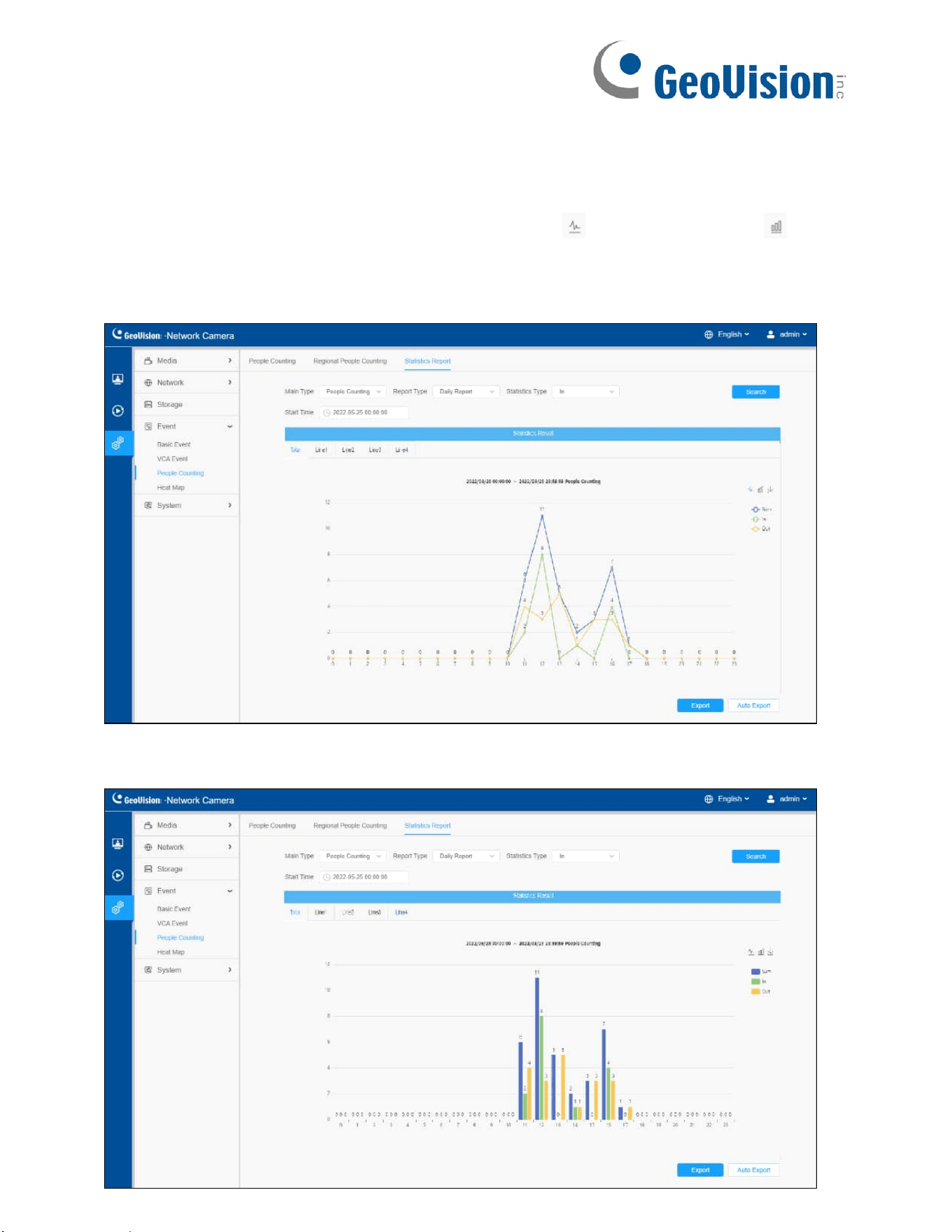
122
Step4: Select Start Time, then click "Search" button. The camera will automatically count
the data for the day/week/month/year (based on the report type selected) from the start
time and generate the corresponding report.
Step5: Moreover, you can also click "Line Chart" button or "Bar Chart" button to
switch display mode of Statistics Report as shown below.
[People Counting-Statistics Report (Line Chart)]
[People Counting-Statistics Report (Bar Chart)]
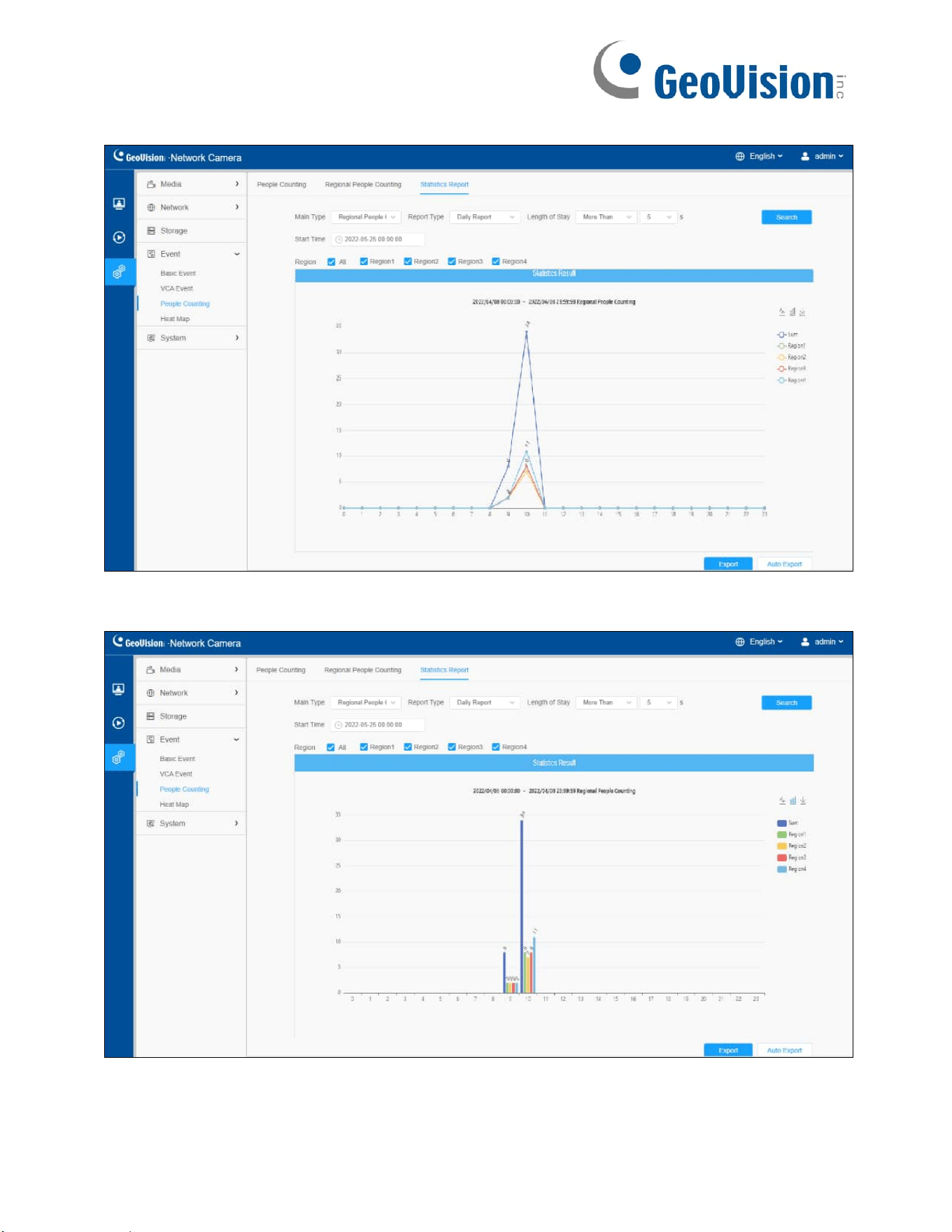
123
[Regional People Counting-Statistics Report (Line Chart)]
[Regional People Counting-Statistics Report (Bar Chart)]

124
Step6: Click "Download" button to download the screenshot of the statistical report chart.
Step7: Click Export to pop up the Export window as shown below, and you can choose
File Format to export the report to local. For People Counting Statistics Report, you can
check the check box to export the report of different lines as needed.
[People Counting-Export]
[Regional People Counting-Export]
Step8: Click Auto Export to pop up the Statistics Report Settings as shown below.

125
[People Counting-Auto Export]
• Check the check box to enable the auto export of People Counting, then select
the lines as needed.
• Set Day. Choose Everyday to export daily reports, or choose other options to
export reports on a specific day of the week;

126
• Set Time. User can choose the time of day to export the Statistics Report
automatically, click the calendar icon to pop up the following Quick Selection;
• Set Export Time Range;
• Set the destination path of the automatically exported report. The report can be exported
to FTP/ Email/Storage automatically as the form of an Excel spreadsheet according to
the day, time and export time range previously set. Then click Save.
Note: If the current Statistics Report is generated, it will be saved as a csv form.

127
[Regional People Counting-Auto Export]
• Check the check box to enable the auto export of Regional People Counting.
• Set Day. User can choose Everyday to export daily reports, or choose other
options to export reports on a specific day of the week;
• Set Length of Stay.

128
• Set Time. User can choose the time of day to export the Statistics Report
automatically, click the calendar icon to pop up the following Quick Selection;
• Set Export Time Range;
• Set the destination path of the automatically exported report. The report can be
exported to FTP/ Email/Storage automatically as the form of an Excel
spreadsheet according to the day, time and export time range previously set.
Then click Save.
Note: If the current Statistics Report is generated, it will be saved as a csv form.

129
8.4.4 Heat Map
8.4.4.1 Heat Map
Heat Map function can analyze customers movement to reveal insights for better
business management with the intuitive and accurate statistical analysis results in
time or space pattern as needed.
Note: Only allowed to view reports within 7 days without a SD card or NAS.
Step 1: Enable Heat Map function.

130
[Basic Settings]
Table 52. Description of the buttons
Parameters
Function Introduction
Sensitivity
Level 1~10 is available, the default level is 5. The higher the
sensitivity, the easier it is for moving objects to be recorded
in the results.
Min. Object
Size
Set the minimum object size from 1 to 100, the default value is
10. Objects smaller than this value will not be recorded in the
result.
Min. Dwell
Time
Set the minimum dwell time from 1 to 300, the default value is
30. If the object stays in the area longer than the set
"Minimum Dwell Time", it will not be recorded in the result.
Scene Change
Adaptability
Level 1~10 is available, the default level is 5. Scene Change
Adaptability indicates the camera's adaptability to scene
changes, which can increase the accuracy of detection. The
camera adapts to faster changing scenes better if the value
is higher.
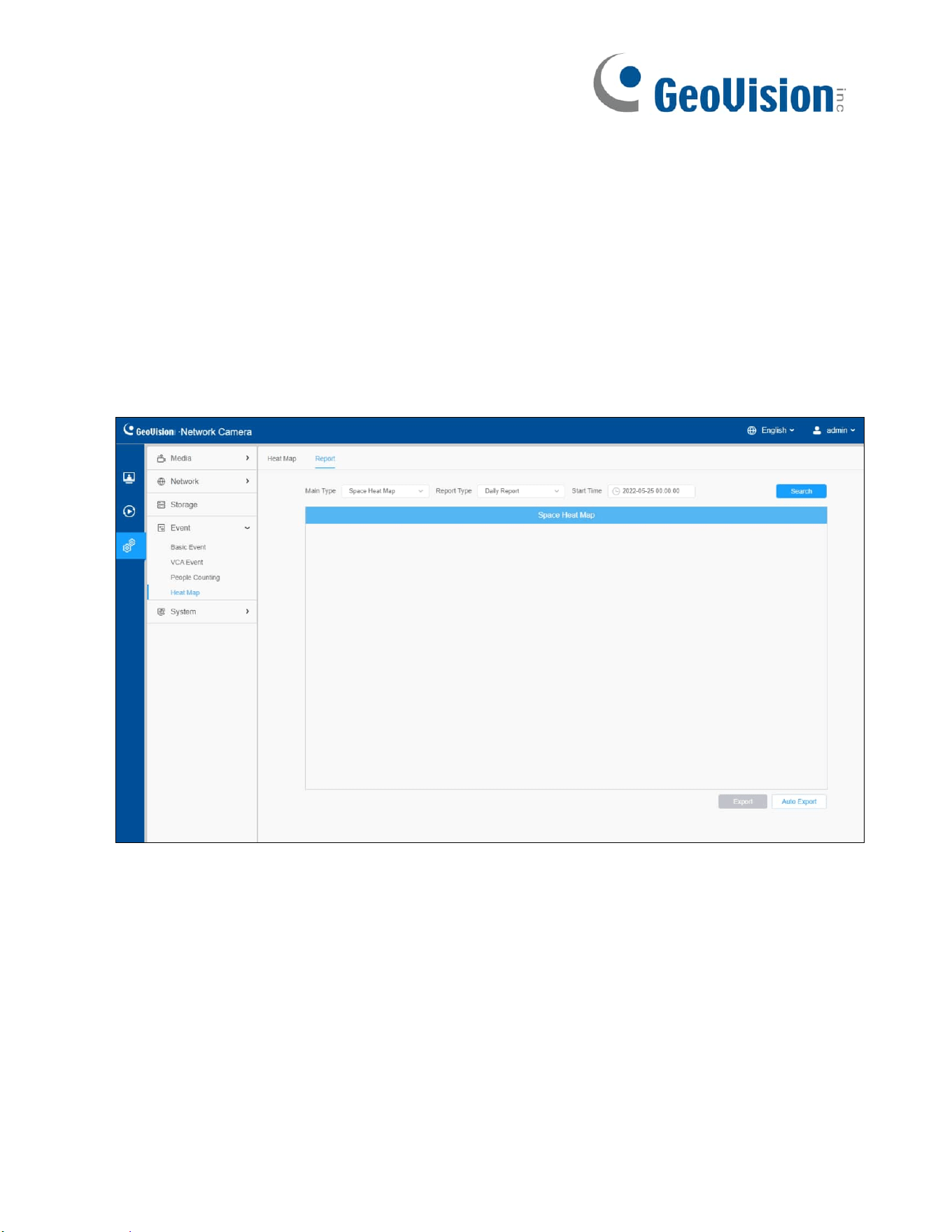
131
Step 2: Set Heat Map Region. Draw the screen to set the detection area. You can click
“Select All” button to select all areas, or "Clear All" button to remove the current drawn
area.
[Schedule Settings]
Step3: Schedule Settings.
Note: Refer to Table 41 of 8.5.2.1 Region Entrance for details.
8.4.4.2 Report
The heat map results will be displayed on this interface.
Step 1: Select Main Type for Heat Map.
[Space Heat Map]: Space Heat Map will be presented as a picture with different colors.
Different colors represent different heat values. Red represents the highest and blue
represents the lowest.
[Time Heat Map]: Time Heat Map will be presented as a line chart to show the heat at
different times.
Step 2: Select Report Type, including Hourly Report, Daily Report, Weekly Report,
Monthly Report and Annual Report.
Step 3: Select Start Time, then click the "Search" button, the camera will automatically
count the data for the hour/day/ week/ month/ year (based on the report type selected) from
the start time and generate the corresponding report as shown below.

132
[Space Heat Map]
[Time Heat Map]
Step 4: Click the "Export" button to export the report locally.
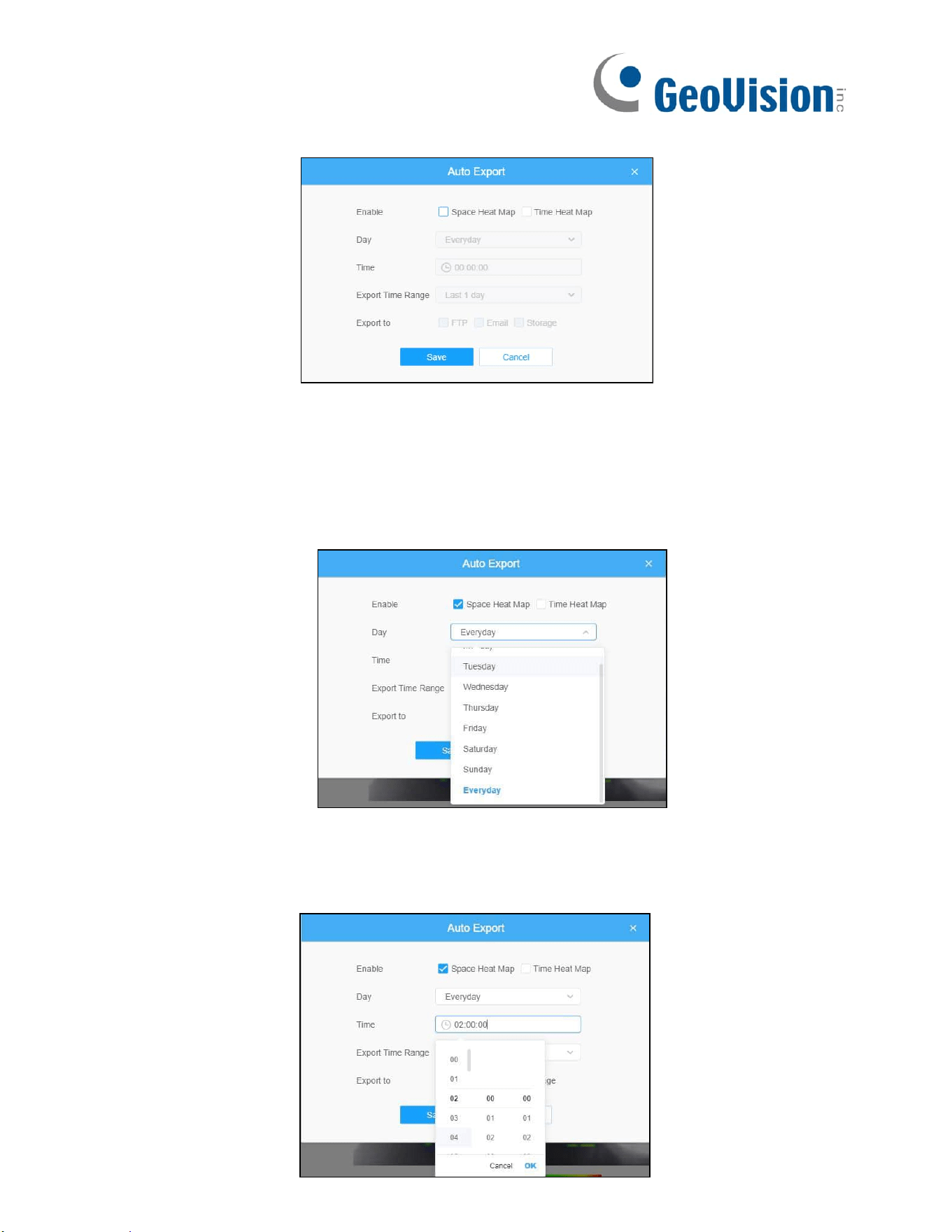
133
Step 5: Click the "Auto Export" button to pop up the Heat Map Report Settings as shown below.
• Set Export Type. User can check Space Heat Map or Time Heat Map or both. When
either Space Heat Map or Time Heat Map is checked, the gray item becomes editable
as shown below;
• Set Day. User can choose Everyday to export daily reports, or choose other options to
export reports on a specific day of the week;
• Set Time. User can choose the time of day to export the heat map automatically, click
the calendar icon to pop up the following Quick Selection;

134
• Set Export Time Range.
• Set the destination path of the automatically exported report. The report can be
exported to FTP/ Email/Storage automatically as the form of an Excel spreadsheet or a
picture according to the day, time and export time range previously set. Then click
“Save”.
If the current Space Heat Map is generated, it will be saved as a png image. If the current
Time Heat Map is generated, it will be saved as a csv form.

135
8.5 System
8.5.1 System Setting
8.5.1.1 System info
Table 53. Description of the buttons
Parameters
Function Introduction
Device Name
The device name can be customized. It will be seen in file
names of video files.
Product Model
The product model of the camera.
Hardware
Version
The hardware version of the camera.
Software
Version
The software version of the camera can be upgraded.
MAC Address
Media Access Control address.
S/N
Stock Number.
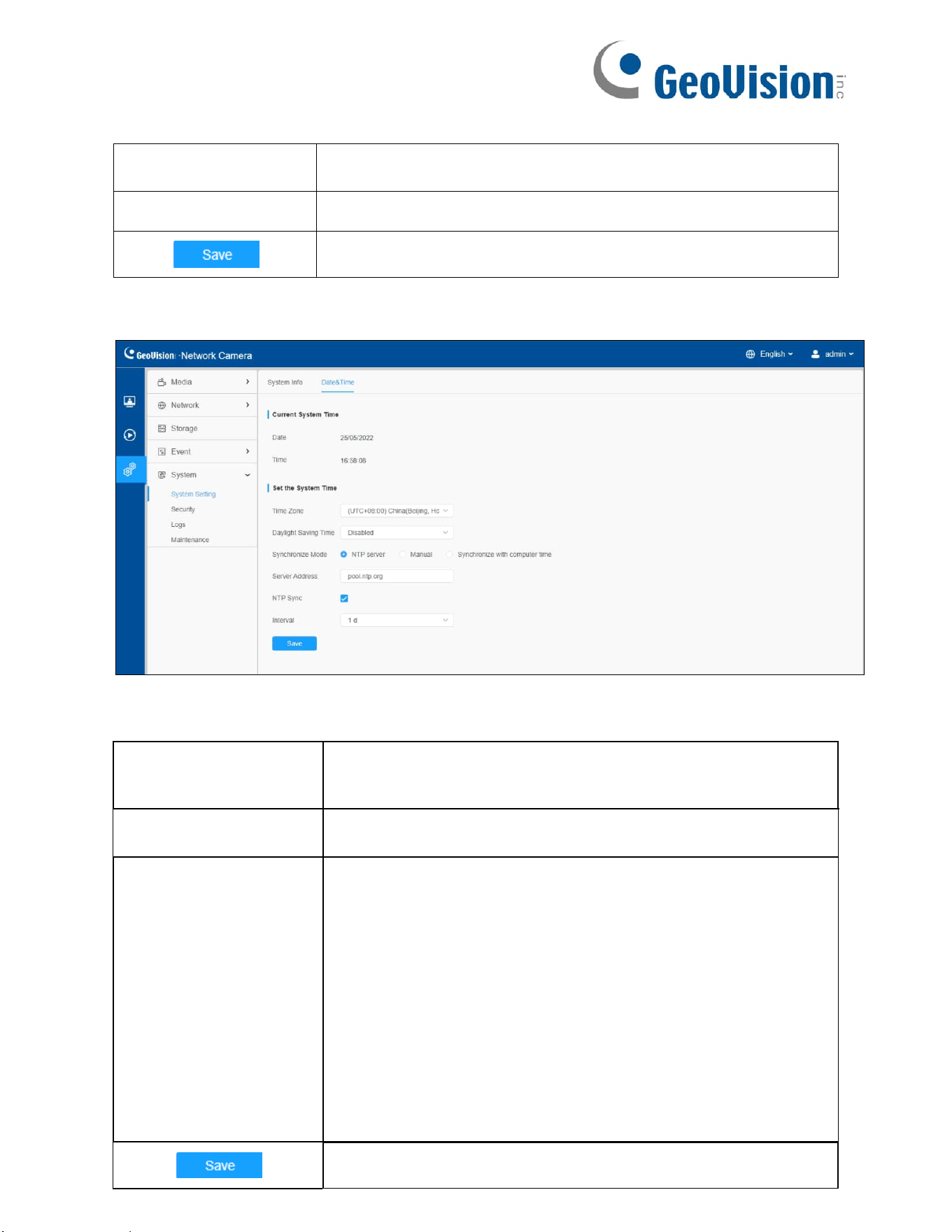
136
Device
Information
The device information.
Uptime
The elapsed time since the last restarted of the device.
Save the configuration.
8.5.1.2 Date&Time
Table 54. Description of the buttons
Parameters
Function Introduction
Current System
Time
Current date & time of the system.
Set the System Time
Time Zone: Choose a time zone for your location.
Daylight Saving Time: Enable the daylight saving time.
Synchronize Mode: NTP server, Manual and Synchronize
with computer time are optional.
Server Address: Input the address of NTP server (only
required when NTP Server is selected Synchronize Mode).
NTP Sync: Regularly update your time according to the interval
time.
Interval: Only required when NTP Server is selected for
Synchronize Mode.
Save the configuration.
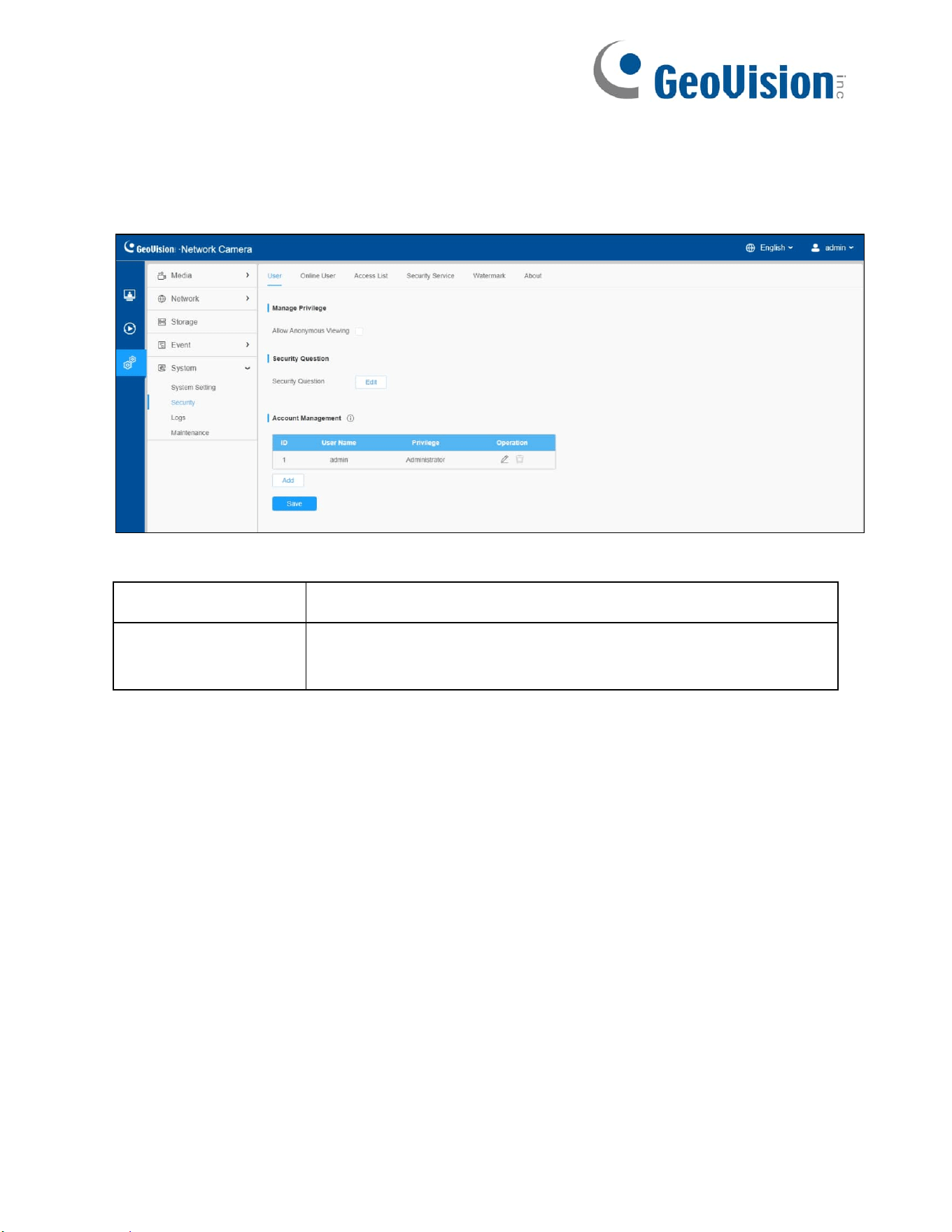
137
8.5.2 Security
8.5.2.1 User
Table 55. Description of the buttons
Parameters
Function Introduction
Manage
Privilege
Allow Anonymous Viewing: Check the checkbox to enable
visit from whom doesn’t have account of the device.

138
Security
Question
Click “Edit” button to set three security questions for your
camera. In case that you forget the password, you can click
“Forget Password?” button on login page to reset the password
by answering three security questions correctly.
There are twelve default questions. You can also customize the
security questions.
Account
Management
Click “Add” button, a pop-up window will appear. You can add
an account to the camera by filling in Admin Password, User
Level, User Name, New Password, Confirm, and edit user
privilege by checking the check boxes below. The added
account will be displayed in the account list.
Admin Password: You can add an account only after you enter
the correct admin password.
User Level: Set the privilege for the account.
User Name: Input user name for creating an account.
New Password: Input password for the account.
Confirm: Confirm the password.
You can edit and delete the account in the account list under
the admin account. For the default admin account, you can
only change the password, and it cannot be deleted.
Note:
• Support up to 20 users, including a default user and 19
custom added users.
• The operator privilege is all checked by default.

139
8.5.2.2 Online User
Here real-time status of user logging in camera will be shown.
Table 56. Description of the buttons
Parameters
Function Introduction
Refresh
Click to get latest status of user accessing to camera.
ID
Record serial number of user logging in camera.
Note:
• There are at most 30 records shown at the list.
• There is only one record if the same user logging on
camera by the same IP address.
User
Name
Name of user logging in camera.
User
Level
Level of user logging in camera.
IP
Address
Device IP address where user logging in camera web located.
Login
Time
Camera system time of user logging in camera.
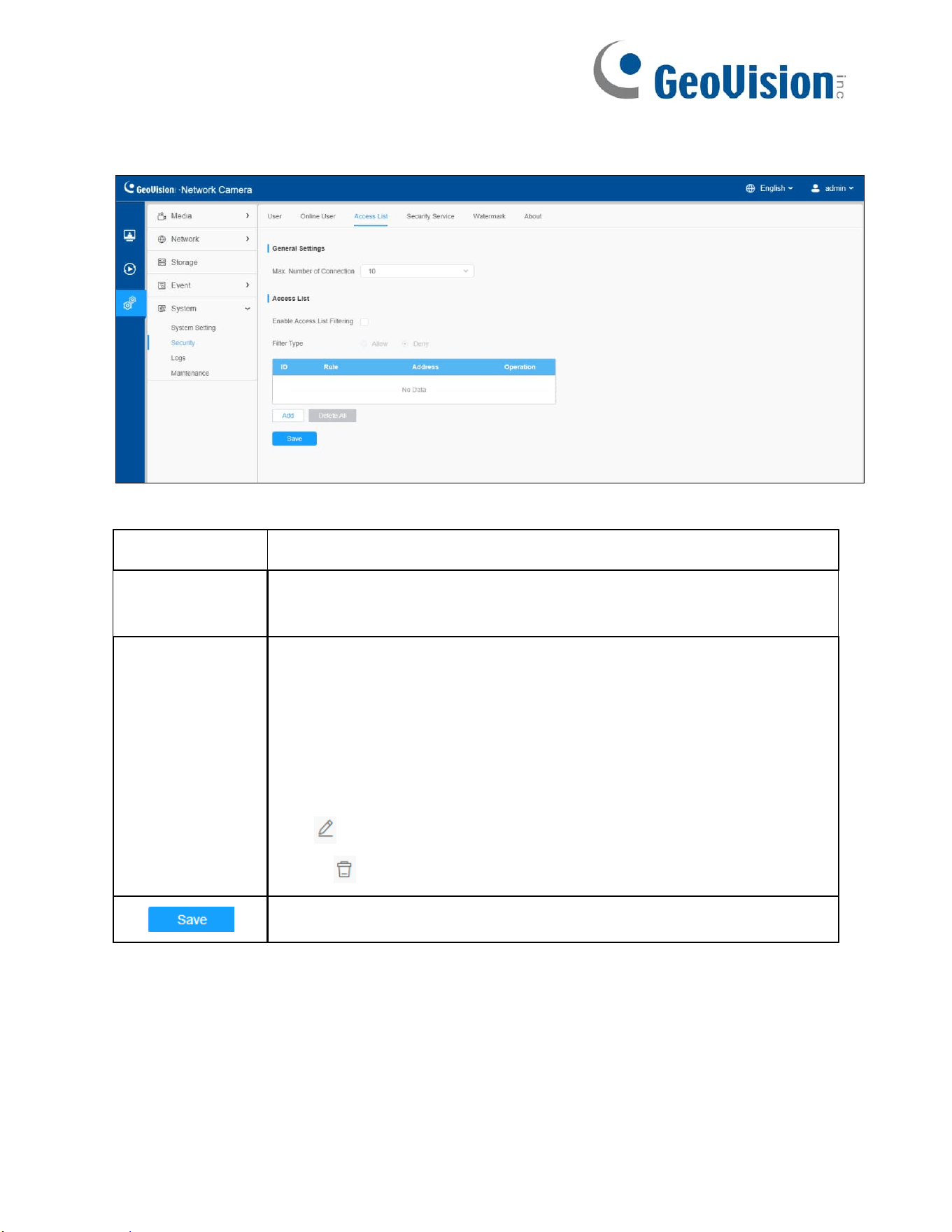
140
8.5.2.3 Access List
Table 57. Description of the buttons
Parameters
Function Introduction
General
Settings
Max. Number of Connection: Select the maximum number of
concurrent streaming. Options include No Limit, 1~10.
Access
List
Enable Access List Filtering: Able to access or restrict access for
some IP address.
Filter type: Allow or deny access.
Add: Rule: Single, Network and Range are available.
IP address: Input the address to get the access to the device.
Delete All: Delete all the access list.
Edit : Edit the selected IP on access list.
Delete : Delete the selected IP on access list.
Save the configuration.

141
8.5.2.4 Security Service
Table 58. Description of the buttons
Parameters
Function Introduction
SSH Settings
Secure Shell (SSH) has many functions: It can replace
Telnet and also provides a secure channel for FTP,
POP, even for PPP.

142
8.5.2.5 Watermark
Watermarking is an effective method to protect information security, realizing anti-
counterfeiting traceability and copyright protection.
8.5.2.6 About
User can view some open source software licenses about the camera by clicking the
View Licenses button.

143
8.5.3 Logs
The logs contain the information about the time and IP that has accessed the camera through
web.
Table 59. Description of the buttons
Parameters
Function Introduction
Main
Type
There are five main log types: All Type, Event,
Operation, Information, Exception and Smart.
Sub
Type
On the premise that main type has been selected, select
the sub type to narrow the range of logs.
Start
Time
The time log starts.
End
Time
The time log ends.
Search the logs.
Export the logs.
Go to
Input the number of logs’ page.

144
8.5.4 Maintenance
8.5.4.1 System Maintenance
Table 60. Description of the buttons
Parameters
Function Introduction
System Upgrade
Software Version: The software version of the camera.
Local Upgrade: Click the “Browse” button and select
the upgrading file. Then click the “Upgrade” button to
upgrade. After the system reboots successfully, the update
is done.
You can check “Reset after Upgrading” to reset the
camera after upgrading it.
Note: Do not disconnect the power of the device during the
update. The device will be restarted to complete the
upgrading.

145
Maintenance
Reset: Click “Reset” button to reset the camera to factory
default settings.
Keep the IP Configuration: Check this option to keep the
IP configuration when resetting the camera.
Keep the User information: Check this option to keep the
user information when resetting the camera.
Export Config File: Click this button and a window will pop
up.
You need to enter and confirm password again, then click
save button to export configuration file.
Import Config File: Click the “Browse” button , then a
window will pop up and you can click "OK" to update the
configuration.
It will pop up a window to prompt "Input the password of
config file", then enter password and click save button to
import configuration file.
Note: Export and import the same configuration file.
Password must be the same.
Reboot
Click “Reboot” button to restart the device immediately.
8.5.4.2 Auto Reboot
Set the date and time to enable Auto Reboot function, and the camera will reboot automatically
according to the customized time in case that camera overloads after running a long time.