
1 2 3 4
65 7 8
An iOS (Version 12.0 or later) or Android (Version
8.0 or later) mobile device.
NOTE: Make sure Wi-Fi and Bluetooth are enabled
on your mobile device.
A My Leviton cloud account
(set up through the My Leviton app).
A 2.4GHz Wi-Fi network with high-speed internet.
Installation requires electrical knowledge.
If you are unsure of any steps, consult an electrician.
At a glance
Features Before you installMotion Sensing
What you need to make
it work:
Your Motion Dimmer
works with:
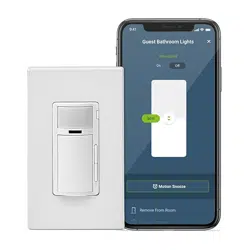
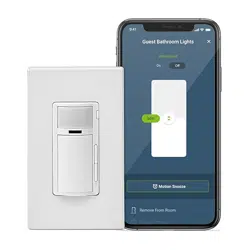
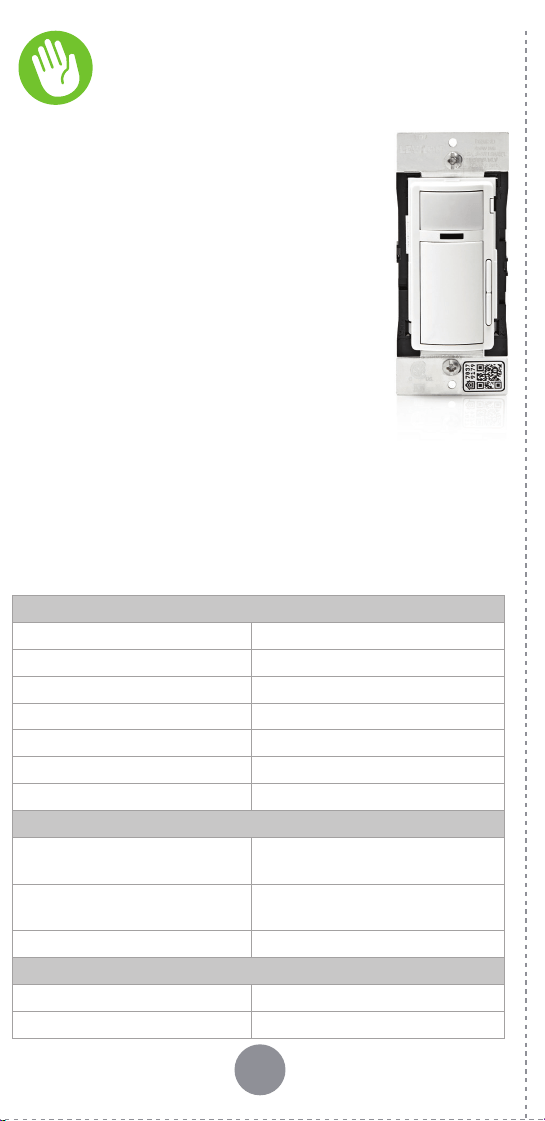
Leviton’s Decora Smart Wi-Fi 2nd Gen Motion Sensing
Dimmer makes it easy and convenient to control
lighting in your home automatically, with ON/OFF,
Dim/Bright control, and built-in motion and ambient
light detection.
To save energy, the dimmer
can be set to turn lights on
when motion is detected, and
to turn lights off when the
room is unoccupied. You can
also have the lights come on
at a lower level at night or
utilize the guidelight feature
to illuminate your way in the
dark. You can even use the
Motion Dimmer to control
multiple Decora Smart devices
in a room together, based on
occupancy, with the
My Leviton app.
Control lighting how you want with built-in sensing.
Use your voice with Amazon Alexa, Google Assistant,
or Apple Siri, or use the My Leviton app, even when
you are away from home.
• Dimmable LED, dimmable CFL,
incandescent, and MLV lighting.
• For ON/OFF control of non-dimmable
bulbs, such as fluorescent loads, select
“Non-dimmable” bulb type in the My
Leviton app, under device settings.
•
Do not use your dimmer with electronic
low-voltage or motor loads.
• This device responds to temperature changes;
do not mount directly above a heat source or in a
location where hot or cold drafts will blow directly
on the sensor.
•
For compatible LED bulbs, go to: leviton.com/LED
RATINGS
General Use 120VAC, 60Hz
LED / CFL
300W
Incandescent 450W
MLV 450VA
Operating Temperature 0°C - 40°C (32°F - 104°F)
Operating Humidity 10% - 90% non-condensing
Storage Temperature Range -10°C – 85°C
NETWORK
Wi-Fi
802.11 b/g/n netw
orks -
2.4GHz only
Security
WPA, WPA2, or WPA3 security,
or open
Bluetooth v5.0
MY LEVITON APP
iOS version 12.0 or later
Andr
oid version 8.0 or later
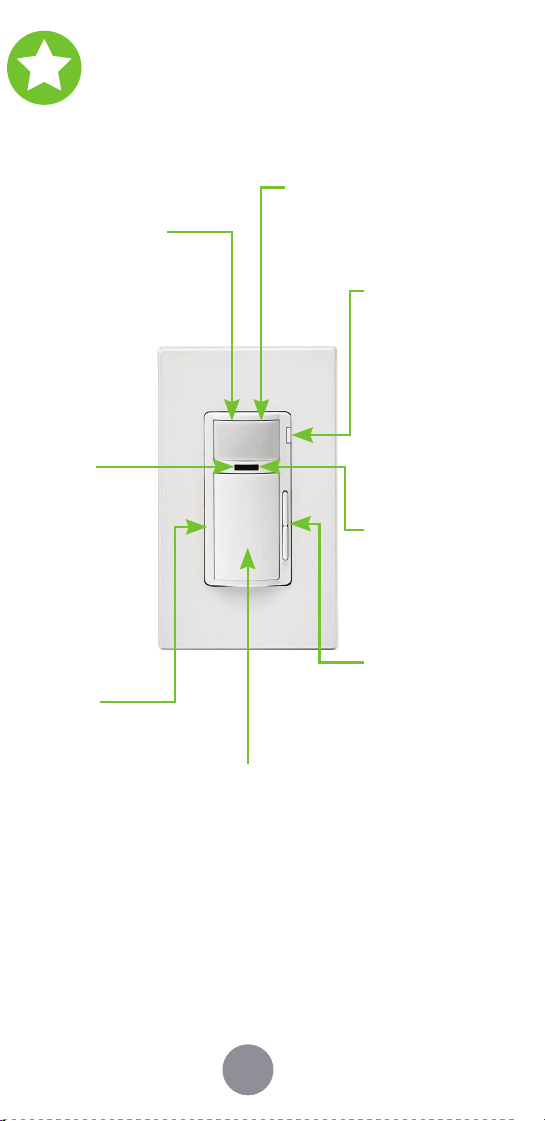
Guidelight
• Enable in the app to turn on
a guidelight at night instead
of the room lights when
motion is detected.
Air gap switch
•
This feature will
stop power to the
dimmer. Gently
pull out the tab to
remove power to the
dimmer and lights.
After servicing is
complete, push
back in for normal
operation.
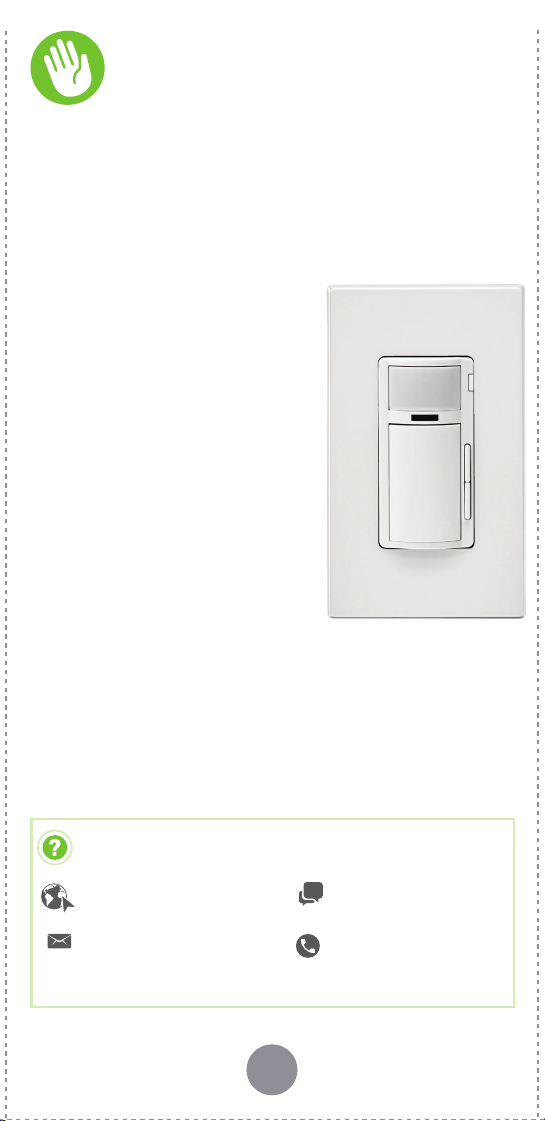
PIR Motion Sensor
• Detects motion to determine
occupancy status.
• Optional Red LED feedback
to indicate motion is
detected (configurable in
the My Leviton app).
Brightness
indicator lights
•
Displays light level
when adjusting
brightness.
Status LED
• Provides
connectivity and
device status
feedback.
• Illuminates when
the lights are OFF
so you can find the
dimmer in the dark
(configurable in the
My Leviton app).
Check your wall box:
1. Remove wallplate and disconnect existing switch.
2. Restore power. Carefully test wires with voltage
tester to find the Line (Hot) wire.
3. Turn off power at the circuit breaker.
4. Mark the wires as shown below. Please note Neutral
wires are required to operate this device.
Quick tip: Neutral wires are typically white and will
be found bundled inside the electrical box.
Identify your wires
Welcome
Things to consider:
To control the motion dimmer from more than one
location, such as in a 3-way or multi-way, you will
need either a wired DD00R or DD0SR Companion
device, or a wire-free DAWDC or DAWSC Anywhere
Companion device (see page 14).
Learn more about Companion devices and find
connection instructions at
leviton.com/decorasmart
.
If your wall box looks different,
call an electrician.
WARNING: TO AVOID FIRE, SHOCK, OR DEATH, turn
off power at the circuit breaker.
Easy Wi-Fi lighting
control for the
whole home
CHAT
www.leviton.com/support
CALL
1-800-824-3005 (USA)
1-800-405-5320 (Canada)
ONLINE
decorasmartsupport.leviton.com
EMAIL
dssupport@leviton.com
We are here to help
GROUND
GROUND
NEUTRAL
LOADLOAD
LINELINE
To Light
To Light
FromFrom
Branch Circuit
Branch Circuit
DI-000-D2MSD-02A
Getting Started Guide
Cat. No. D2MSD
MOTION SENSING DIMMER
2
ND
GEN
• Not for use with aluminum wire.
• Installation in metal wall boxes or
with metal wall plates may result in
poor RF performance.
Leviton Manufacturing Co., Inc.
201 North Service Road, Melville, NY 11747
© 2022 Leviton Manufacturing Co., Inc. All rights reserved.
Specifications subject to change at any time without notice.
FCC COMPLIANCE STATEMENT
The enclosed device complies with Part 15 of the FCC Rules. Operation is subject to
the following two conditions: (i.) This device may not cause harmful interference (ii.)
This device must accept any interference received, including interference that may
cause undesired operation. Any changes or modifications not expressly approved by
Leviton could void the user’s authority to operate this equipment. This equipment
has been tested and found to comply with the limits for a Class B digital device,
pursuant to part 15 of the FCC Rules. These limits are designed to provide reasonable
protection against harmful interference in a residential installation. This equipment
generates uses and can radiate radio frequency energy and, if not installed and
used in accordance with the instructions, may cause harmful interference to radio
communications. However, there is no guarantee that interference will not occur in a
particular installation. If this equipment does cause harmful interference to radio or
television reception, which can be determined by turning the equipment off and on,
the user is encouraged to try to correct the interference by one or more of the
following measures:
• Reorient or relocate the receiving antenna.
• Connect the equipment into an outlet on a circuit different from that to which the
r
eceiver is connected.
• Increase the separation between the equipment and receiver.
• Consult the dealer or an experienced radio/TV technician for help.
FC
C CAUTION
Any changes or modifications not expressly approved by Leviton Manufacturing Co.,
Inc., could void the user’s authority to operate the equipment.
RF EXPOSURE AND CO-LOCATION
To comply with FCC OET Bulletin 65 and ISED RF exposure limits for general population
and uncontrolled exposure, this device shall be installed and operated with a minimum
distance of 7.9 inches (20 cm) between the radiator and your body. Also, must not be
co-located or operated in conjunction with any other antenna or transmitter.
Copyright and Trademark Information
Decora and Decora Smart are the registered trademarks of Leviton Manufacturing Co.,
Inc., registered in the U.S., Canada, Mexico and China.
Google and Google Play are trademarks of Google LLC. Alexa, and related logos are
trademarks of Amazon.com, Inc. or its affiliates. Apple
®
, HomeKit
®
, and Siri
®
are
trademarks of Apple Inc., registered in the U.S. and other countries.
Use of the Works with Apple badge means that an accessory has been designed to
work specifically with the technology identified in the badge and has been certified by
the developer to meet Apple performance standards. Apple is not responsible for the
operation of this device or its compliance with safety and regulatory standards.
Use herein of other third party trademarks, service marks, trade names, brand names
and/or product names are for informational purposes only, are/may be the trademarks
of their respective owners; such use is not meant to imply affiliation, sponsorship, or
endorsement. No part of this document may be reproduced, transmitted or transcribed
without the express written permission of Leviton Manufacturing Co., Inc.
Patents covering this product, if any, can be found on Leviton.com/patents.
IC STATEMENT
This device complies with Industry Canada license-exempt RSS standard(s).
Operation is subject to the following two conditions: (1) this device may not
cause interference, and (2) this device must accept any interference, including
interference that may cause undesired operation of the device.
FCC SUPPLIER’S DECLARATION OF CONFORMITY
Model D2MSD Wi-Fi Motion Sensing Dimmer is manufactured by Leviton
Manufacturing Co., Inc. 201 N. Service Road, Melville, NY 11747. www.leviton.com
This device complies with part 15 of the FCC Rules. Operation is subject to the
following two conditions: (1) This device may not cause harmful interference, and (2)
this device must accept any interference received, including interference that may
cause undesired operation.
• For indoor use only.
• Hands-free; automatically turns lights ON/OFF
when motion is detected.
• Voice control works with Hey Google, Amazon
Alexa, or Apple Siri.
• Easy app-based configuration of motion sensor
settings and modes.
•
Allows other connected Decora Smart Wi-Fi devices
in a room to be activated based on room occupancy.
• Supports 3-Way/Multi-location with Wired
Companions and Wireless Anywhere
Companions.
• Use the app to enable a Guidelight, that turns
ON when motion is detected at night, to
illuminate your way in the dark.
• Advanced settings for:
• Fade rates
• Pre-set light level or Return to last level
• Minimum dim / Maximum brightness
• Bulb types including non-dimmable loads
Ambient Light
Sensor
•
Detects amount of
ambient light in the
space.
Dim/bright bar
•
Manually adjust light
levels.
ON / OFF Button
• Press to toggle the lights
ON or OFF
.
OFF means OFF
• Ensures low-wattage LED
bulbs always turn OFF.
For more information and features, visit:
leviton.com/decorasmart.
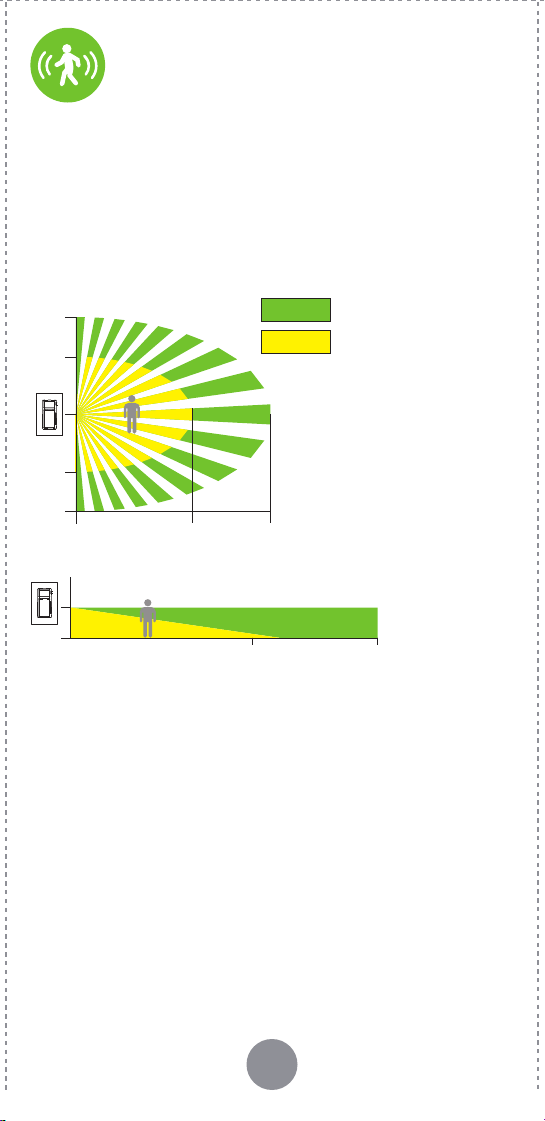
• The D2MSD’s PIR Motion Sensor has a 180° field-of-
view, with a maximum sensor coverage area of 900
sq. ft. (30 x 30 ft).
• Motion Sensor Calibration: can be used in the My
Leviton app to test the Motion Sensor’s coverage
area, customize the sensor sensitivity, and enable
ambient light settings.
Sensor modes can be configured under device
settings in the My Leviton app:
• Occupancy Mode: will automatically turn lights on
when motion is detected, and will turn lights off
when no motion is detected.
• Vacancy Mode*: requires you to manually turn
lights on, but will still turn the lights off when no
motion is detected.
• Guidelight: can be enabled to turn on at night and
softly illuminate a space when motion is detected,
instead of turning on the room lights.
* Pro Tip: Vacancy mode can be used to comply
with 2019 Title 24, Part 6 Vacancy Control Device
Requirements.
15 FT.
10 FT.
Horizontal field of view
10 FT.
15 FT.
20 FT.
30 FT.
Wall
Floor
20 FT. 30 FT.
Vertical field of view
2
Minor motion coverage 400 ft
2
Major motion coverage 900 ft
NOTE: Device should be installed on the wall, 40-48
inches above the floor.
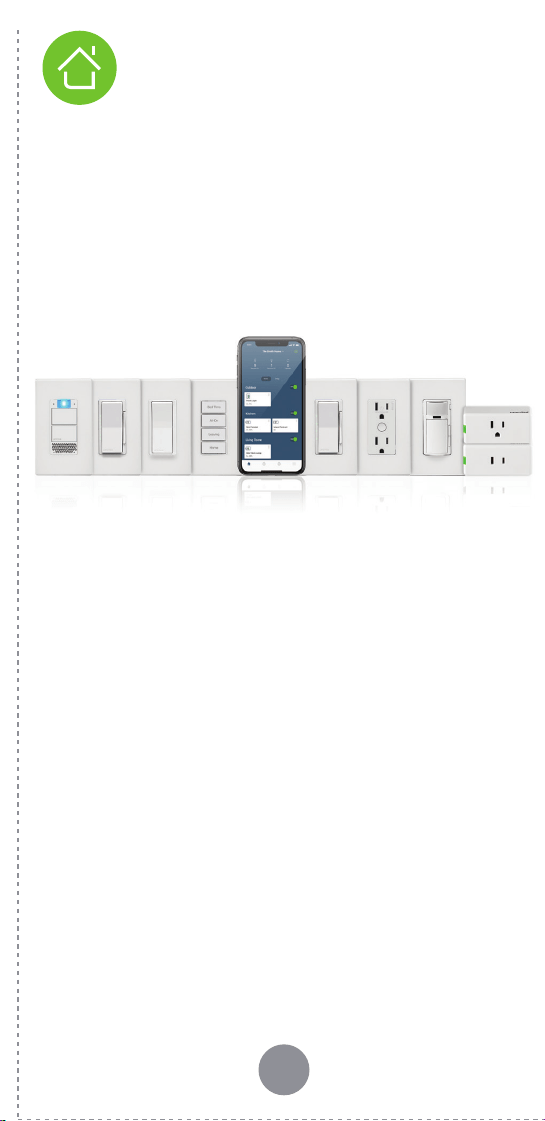
See the complete line of My Leviton
TM
app compatible
dimmers, switches, plug-ins, and controllers at:
leviton.com/decorasmart
WEB VERSION
1 2 3 4
65 7 8
An iOS (Version 12.0 or later) or Android (Version
8.0 or later) mobile device.
NOTE: Make sure Wi-Fi and Bluetooth are enabled
on your mobile device.
A My Leviton cloud account
(set up through the My Leviton app).
A 2.4GHz Wi-Fi network with high-speed internet.
Installation requires electrical knowledge.
If you are unsure of any steps, consult an electrician.
At a glance
Features Before you installMotion Sensing
What you need to make
it work:
Your Motion Dimmer
works with:
Leviton’s Decora Smart Wi-Fi 2nd Gen Motion Sensing
Dimmer makes it easy and convenient to control
lighting in your home automatically, with ON/OFF,
Dim/Bright control, and built-in motion and ambient
light detection.
To save energy, the dimmer
can be set to turn lights on
when motion is detected, and
to turn lights off when the
room is unoccupied. You can
also have the lights come on
at a lower level at night or
utilize the guidelight feature
to illuminate your way in the
dark. You can even use the
Motion Dimmer to control
multiple Decora Smart devices
in a room together, based on
occupancy, with the
My Leviton app.
Control lighting how you want with built-in sensing.
Use your voice with Amazon Alexa, Google Assistant,
or Apple Siri, or use the My Leviton app, even when
you are away from home.
• Dimmable LED, dimmable CFL,
incandescent, and MLV lighting.
• For ON/OFF control of non-dimmable
bulbs, such as fluorescent loads, select
“Non-dimmable” bulb type in the My
Leviton app, under device settings.
•
Do not use your dimmer with electronic
low-voltage or motor loads.
• This device responds to temperature changes;
do not mount directly above a heat source or in a
location where hot or cold drafts will blow directly
on the sensor.
•
For compatible LED bulbs, go to: leviton.com/LED
RATINGS
General Use 120VAC, 60Hz
LED / CFL
300W
Incandescent 450W
MLV 450VA
Operating Temperature 0°C - 40°C (32°F - 104°F)
Operating Humidity 10% - 90% non-condensing
Storage Temperature Range -10°C – 85°C
NETWORK
Wi-Fi
802.11 b/g/n netw
orks -
2.4GHz only
Security
WPA, WPA2, or WPA3 security,
or open
Bluetooth v5.0
MY LEVITON APP
iOS version 12.0 or later
Andr
oid version 8.0 or later
Guidelight
• Enable in the app to turn on
a guidelight at night instead
of the room lights when
motion is detected.
Air gap switch
•
This feature will
stop power to the
dimmer. Gently
pull out the tab to
remove power to the
dimmer and lights.
After servicing is
complete, push
back in for normal
operation.
PIR Motion Sensor
• Detects motion to determine
occupancy status.
• Optional Red LED feedback
to indicate motion is
detected (configurable in
the My Leviton app).
Brightness
indicator lights
•
Displays light level
when adjusting
brightness.
Status LED
• Provides
connectivity and
device status
feedback.
• Illuminates when
the lights are OFF
so you can find the
dimmer in the dark
(configurable in the
My Leviton app).
Check your wall box:
1. Remove wallplate and disconnect existing switch.
2. Restore power. Carefully test wires with voltage
tester to find the Line (Hot) wire.
3. Turn off power at the circuit breaker.
4. Mark the wires as shown below. Please note Neutral
wires are required to operate this device.
Quick tip: Neutral wires are typically white and will
be found bundled inside the electrical box.
Identify your wires
Welcome
Things to consider:
To control the motion dimmer from more than one
location, such as in a 3-way or multi-way, you will
need either a wired DD00R or DD0SR Companion
device, or a wire-free DAWDC or DAWSC Anywhere
Companion device (see page 14).
Learn more about Companion devices and find
connection instructions at
leviton.com/decorasmart
.
If your wall box looks different,
call an electrician.
WARNING: TO AVOID FIRE, SHOCK, OR DEATH, turn
off power at the circuit breaker.
Easy Wi-Fi lighting
control for the
whole home
CHAT
www.leviton.com/support
CALL
1-800-824-3005 (USA)
1-800-405-5320 (Canada)
ONLINE
decorasmartsupport.leviton.com
EMAIL
dssupport@leviton.com
We are here to help
GROUND
GROUND
NEUTRAL
LOADLOAD
LINELINE
To Light
To Light
FromFrom
Branch Circuit
Branch Circuit
DI-000-D2MSD-02A
Getting Started Guide
Cat. No. D2MSD
MOTION SENSING DIMMER
2
ND
GEN
• Not for use with aluminum wire.
• Installation in metal wall boxes or
with metal wall plates may result in
poor RF performance.
Leviton Manufacturing Co., Inc.
201 North Service Road, Melville, NY 11747
© 2022 Leviton Manufacturing Co., Inc. All rights reserved.
Specifications subject to change at any time without notice.
FCC COMPLIANCE STATEMENT
The enclosed device complies with Part 15 of the FCC Rules. Operation is subject to
the following two conditions: (i.) This device may not cause harmful interference (ii.)
This device must accept any interference received, including interference that may
cause undesired operation. Any changes or modifications not expressly approved by
Leviton could void the user’s authority to operate this equipment. This equipment
has been tested and found to comply with the limits for a Class B digital device,
pursuant to part 15 of the FCC Rules. These limits are designed to provide reasonable
protection against harmful interference in a residential installation. This equipment
generates uses and can radiate radio frequency energy and, if not installed and
used in accordance with the instructions, may cause harmful interference to radio
communications. However, there is no guarantee that interference will not occur in a
particular installation. If this equipment does cause harmful interference to radio or
television reception, which can be determined by turning the equipment off and on,
the user is encouraged to try to correct the interference by one or more of the
following measures:
• Reorient or relocate the receiving antenna.
• Connect the equipment into an outlet on a circuit different from that to which the
r
eceiver is connected.
• Increase the separation between the equipment and receiver.
• Consult the dealer or an experienced radio/TV technician for help.
FC
C CAUTION
Any changes or modifications not expressly approved by Leviton Manufacturing Co.,
Inc., could void the user’s authority to operate the equipment.
RF EXPOSURE AND CO-LOCATION
To comply with FCC OET Bulletin 65 and ISED RF exposure limits for general population
and uncontrolled exposure, this device shall be installed and operated with a minimum
distance of 7.9 inches (20 cm) between the radiator and your body. Also, must not be
co-located or operated in conjunction with any other antenna or transmitter.
Copyright and Trademark Information
Decora and Decora Smart are the registered trademarks of Leviton Manufacturing Co.,
Inc., registered in the U.S., Canada, Mexico and China.
Google and Google Play are trademarks of Google LLC. Alexa, and related logos are
trademarks of Amazon.com, Inc. or its affiliates. Apple
®
, HomeKit
®
, and Siri
®
are
trademarks of Apple Inc., registered in the U.S. and other countries.
Use of the Works with Apple badge means that an accessory has been designed to
work specifically with the technology identified in the badge and has been certified by
the developer to meet Apple performance standards. Apple is not responsible for the
operation of this device or its compliance with safety and regulatory standards.
Use herein of other third party trademarks, service marks, trade names, brand names
and/or product names are for informational purposes only, are/may be the trademarks
of their respective owners; such use is not meant to imply affiliation, sponsorship, or
endorsement. No part of this document may be reproduced, transmitted or transcribed
without the express written permission of Leviton Manufacturing Co., Inc.
Patents covering this product, if any, can be found on Leviton.com/patents.
IC STATEMENT
This device complies with Industry Canada license-exempt RSS standard(s).
Operation is subject to the following two conditions: (1) this device may not
cause interference, and (2) this device must accept any interference, including
interference that may cause undesired operation of the device.
FCC SUPPLIER’S DECLARATION OF CONFORMITY
Model D2MSD Wi-Fi Motion Sensing Dimmer is manufactured by Leviton
Manufacturing Co., Inc. 201 N. Service Road, Melville, NY 11747. www.leviton.com
This device complies with part 15 of the FCC Rules. Operation is subject to the
following two conditions: (1) This device may not cause harmful interference, and (2)
this device must accept any interference received, including interference that may
cause undesired operation.
• For indoor use only.
• Hands-free; automatically turns lights ON/OFF
when motion is detected.
• Voice control works with Hey Google, Amazon
Alexa, or Apple Siri.
• Easy app-based configuration of motion sensor
settings and modes.
•
Allows other connected Decora Smart Wi-Fi devices
in a room to be activated based on room occupancy.
• Supports 3-Way/Multi-location with Wired
Companions and Wireless Anywhere
Companions.
• Use the app to enable a Guidelight, that turns
ON when motion is detected at night, to
illuminate your way in the dark.
• Advanced settings for:
• Fade rates
• Pre-set light level or Return to last level
• Minimum dim / Maximum brightness
• Bulb types including non-dimmable loads
Ambient Light
Sensor
•
Detects amount of
ambient light in the
space.
Dim/bright bar
•
Manually adjust light
levels.
ON / OFF Button
• Press to toggle the lights
ON or OFF
.
OFF means OFF
• Ensures low-wattage LED
bulbs always turn OFF.
For more information and features, visit:
leviton.com/decorasmart.
• The D2MSD’s PIR Motion Sensor has a 180° field-of-
view, with a maximum sensor coverage area of 900
sq. ft. (30 x 30 ft).
• Motion Sensor Calibration: can be used in the My
Leviton app to test the Motion Sensor’s coverage
area, customize the sensor sensitivity, and enable
ambient light settings.
Sensor modes can be configured under device
settings in the My Leviton app:
• Occupancy Mode: will automatically turn lights on
when motion is detected, and will turn lights off
when no motion is detected.
• Vacancy Mode*: requires you to manually turn
lights on, but will still turn the lights off when no
motion is detected.
• Guidelight: can be enabled to turn on at night and
softly illuminate a space when motion is detected,
instead of turning on the room lights.
* Pro Tip: Vacancy mode can be used to comply
with 2019 Title 24, Part 6 Vacancy Control Device
Requirements.
15 FT.
10 FT.
Horizontal field of view
10 FT.
15 FT.
20 FT.
30 FT.
Wall
Floor
20 FT. 30 FT.
Vertical field of view
2
Minor motion coverage 400 ft
2
Major motion coverage 900 ft
NOTE: Device should be installed on the wall, 40-48
inches above the floor.
See the complete line of My Leviton
TM
app compatible
dimmers, switches, plug-ins, and controllers at:
leviton.com/decorasmart
WEB VERSION
1 2 3 4
65 7 8
An iOS (Version 12.0 or later) or Android (Version
8.0 or later) mobile device.
NOTE: Make sure Wi-Fi and Bluetooth are enabled
on your mobile device.
A My Leviton cloud account
(set up through the My Leviton app).
A 2.4GHz Wi-Fi network with high-speed internet.
Installation requires electrical knowledge.
If you are unsure of any steps, consult an electrician.
At a glance
Features Before you installMotion Sensing
What you need to make
it work:
Your Motion Dimmer
works with:
Leviton’s Decora Smart Wi-Fi 2nd Gen Motion Sensing
Dimmer makes it easy and convenient to control
lighting in your home automatically, with ON/OFF,
Dim/Bright control, and built-in motion and ambient
light detection.
To save energy, the dimmer
can be set to turn lights on
when motion is detected, and
to turn lights off when the
room is unoccupied. You can
also have the lights come on
at a lower level at night or
utilize the guidelight feature
to illuminate your way in the
dark. You can even use the
Motion Dimmer to control
multiple Decora Smart devices
in a room together, based on
occupancy, with the
My Leviton app.
Control lighting how you want with built-in sensing.
Use your voice with Amazon Alexa, Google Assistant,
or Apple Siri, or use the My Leviton app, even when
you are away from home.
• Dimmable LED, dimmable CFL,
incandescent, and MLV lighting.
• For ON/OFF control of non-dimmable
bulbs, such as fluorescent loads, select
“Non-dimmable” bulb type in the My
Leviton app, under device settings.
•
Do not use your dimmer with electronic
low-voltage or motor loads.
• This device responds to temperature changes;
do not mount directly above a heat source or in a
location where hot or cold drafts will blow directly
on the sensor.
•
For compatible LED bulbs, go to: leviton.com/LED
RATINGS
General Use 120VAC, 60Hz
LED / CFL
300W
Incandescent 450W
MLV 450VA
Operating Temperature 0°C - 40°C (32°F - 104°F)
Operating Humidity 10% - 90% non-condensing
Storage Temperature Range -10°C – 85°C
NETWORK
Wi-Fi
802.11 b/g/n netw
orks -
2.4GHz only
Security
WPA, WPA2, or WPA3 security,
or open
Bluetooth v5.0
MY LEVITON APP
iOS version 12.0 or later
Andr
oid version 8.0 or later
Guidelight
• Enable in the app to turn on
a guidelight at night instead
of the room lights when
motion is detected.
Air gap switch
•
This feature will
stop power to the
dimmer. Gently
pull out the tab to
remove power to the
dimmer and lights.
After servicing is
complete, push
back in for normal
operation.
PIR Motion Sensor
• Detects motion to determine
occupancy status.
• Optional Red LED feedback
to indicate motion is
detected (configurable in
the My Leviton app).
Brightness
indicator lights
•
Displays light level
when adjusting
brightness.
Status LED
• Provides
connectivity and
device status
feedback.
• Illuminates when
the lights are OFF
so you can find the
dimmer in the dark
(configurable in the
My Leviton app).
Check your wall box:
1. Remove wallplate and disconnect existing switch.
2. Restore power. Carefully test wires with voltage
tester to find the Line (Hot) wire.
3. Turn off power at the circuit breaker.
4. Mark the wires as shown below. Please note Neutral
wires are required to operate this device.
Quick tip: Neutral wires are typically white and will
be found bundled inside the electrical box.
Identify your wires
Welcome
Things to consider:
To control the motion dimmer from more than one
location, such as in a 3-way or multi-way, you will
need either a wired DD00R or DD0SR Companion
device, or a wire-free DAWDC or DAWSC Anywhere
Companion device (see page 14).
Learn more about Companion devices and find
connection instructions at
leviton.com/decorasmart
.
If your wall box looks different,
call an electrician.
WARNING: TO AVOID FIRE, SHOCK, OR DEATH, turn
off power at the circuit breaker.
Easy Wi-Fi lighting
control for the
whole home
CHAT
www.leviton.com/support
CALL
1-800-824-3005 (USA)
1-800-405-5320 (Canada)
ONLINE
decorasmartsupport.leviton.com
EMAIL
We are here to help
GROUND
GROUND
NEUTRAL
LOADLOAD
LINELINE
To Light
To Light
FromFrom
Branch Circuit
Branch Circuit
DI-000-D2MSD-02A
Getting Started Guide
Cat. No. D2MSD
MOTION SENSING DIMMER
2
ND
GEN
• Not for use with aluminum wire.
• Installation in metal wall boxes or
with metal wall plates may result in
poor RF performance.
Leviton Manufacturing Co., Inc.
201 North Service Road, Melville, NY 11747
© 2022 Leviton Manufacturing Co., Inc. All rights reserved.
Specifications subject to change at any time without notice.
FCC COMPLIANCE STATEMENT
The enclosed device complies with Part 15 of the FCC Rules. Operation is subject to
the following two conditions: (i.) This device may not cause harmful interference (ii.)
This device must accept any interference received, including interference that may
cause undesired operation. Any changes or modifications not expressly approved by
Leviton could void the user’s authority to operate this equipment. This equipment
has been tested and found to comply with the limits for a Class B digital device,
pursuant to part 15 of the FCC Rules. These limits are designed to provide reasonable
protection against harmful interference in a residential installation. This equipment
generates uses and can radiate radio frequency energy and, if not installed and
used in accordance with the instructions, may cause harmful interference to radio
communications. However, there is no guarantee that interference will not occur in a
particular installation. If this equipment does cause harmful interference to radio or
television reception, which can be determined by turning the equipment off and on,
the user is encouraged to try to correct the interference by one or more of the
following measures:
• Reorient or relocate the receiving antenna.
• Connect the equipment into an outlet on a circuit different from that to which the
r
eceiver is connected.
• Increase the separation between the equipment and receiver.
• Consult the dealer or an experienced radio/TV technician for help.
FC
C CAUTION
Any changes or modifications not expressly approved by Leviton Manufacturing Co.,
Inc., could void the user’s authority to operate the equipment.
RF EXPOSURE AND CO-LOCATION
To comply with FCC OET Bulletin 65 and ISED RF exposure limits for general population
and uncontrolled exposure, this device shall be installed and operated with a minimum
distance of 7.9 inches (20 cm) between the radiator and your body. Also, must not be
co-located or operated in conjunction with any other antenna or transmitter.
Copyright and Trademark Information
Decora and Decora Smart are the registered trademarks of Leviton Manufacturing Co.,
Inc., registered in the U.S., Canada, Mexico and China.
Google and Google Play are trademarks of Google LLC. Alexa, and related logos are
trademarks of Amazon.com, Inc. or its affiliates. Apple
®
, HomeKit
®
, and Siri
®
are
trademarks of Apple Inc., registered in the U.S. and other countries.
Use of the Works with Apple badge means that an accessory has been designed to
work specifically with the technology identified in the badge and has been certified by
the developer to meet Apple performance standards. Apple is not responsible for the
operation of this device or its compliance with safety and regulatory standards.
Use herein of other third party trademarks, service marks, trade names, brand names
and/or product names are for informational purposes only, are/may be the trademarks
of their respective owners; such use is not meant to imply affiliation, sponsorship, or
endorsement. No part of this document may be reproduced, transmitted or transcribed
without the express written permission of Leviton Manufacturing Co., Inc.
Patents covering this product, if any, can be found on Leviton.com/patents.
IC STATEMENT
This device complies with Industry Canada license-exempt RSS standard(s).
Operation is subject to the following two conditions: (1) this device may not
cause interference, and (2) this device must accept any interference, including
interference that may cause undesired operation of the device.
FCC SUPPLIER’S DECLARATION OF CONFORMITY
Model D2MSD Wi-Fi Motion Sensing Dimmer is manufactured by Leviton
Manufacturing Co., Inc. 201 N. Service Road, Melville, NY 11747. www.leviton.com
This device complies with part 15 of the FCC Rules. Operation is subject to the
following two conditions: (1) This device may not cause harmful interference, and (2)
this device must accept any interference received, including interference that may
cause undesired operation.
• For indoor use only.
• Hands-free; automatically turns lights ON/OFF
when motion is detected.
• Voice control works with Hey Google, Amazon
Alexa, or Apple Siri.
• Easy app-based configuration of motion sensor
settings and modes.
•
Allows other connected Decora Smart Wi-Fi devices
in a room to be activated based on room occupancy.
• Supports 3-Way/Multi-location with Wired
Companions and Wireless Anywhere
Companions.
• Use the app to enable a Guidelight, that turns
ON when motion is detected at night, to
illuminate your way in the dark.
• Advanced settings for:
• Fade rates
• Pre-set light level or Return to last level
• Minimum dim / Maximum brightness
• Bulb types including non-dimmable loads
Ambient Light
Sensor
•
Detects amount of
ambient light in the
space.
Dim/bright bar
•
Manually adjust light
levels.
ON / OFF Button
• Press to toggle the lights
ON or OFF
.
OFF means OFF
• Ensures low-wattage LED
bulbs always turn OFF.
For more information and features, visit:
leviton.com/decorasmart.
• The D2MSD’s PIR Motion Sensor has a 180° field-of-
view, with a maximum sensor coverage area of 900
sq. ft. (30 x 30 ft).
• Motion Sensor Calibration: can be used in the My
Leviton app to test the Motion Sensor’s coverage
area, customize the sensor sensitivity, and enable
ambient light settings.
Sensor modes can be configured under device
settings in the My Leviton app:
• Occupancy Mode: will automatically turn lights on
when motion is detected, and will turn lights off
when no motion is detected.
• Vacancy Mode*: requires you to manually turn
lights on, but will still turn the lights off when no
motion is detected.
• Guidelight: can be enabled to turn on at night and
softly illuminate a space when motion is detected,
instead of turning on the room lights.
* Pro Tip: Vacancy mode can be used to comply
with 2019 Title 24, Part 6 Vacancy Control Device
Requirements.
15 FT.
10 FT.
Horizontal field of view
10 FT.
15 FT.
20 FT.
30 FT.
Wall
Floor
20 FT. 30 FT.
Vertical field of view
2
Minor motion coverage 400 ft
2
Major motion coverage 900 ft
NOTE: Device should be installed on the wall, 40-48
inches above the floor.
See the complete line of My Leviton
TM
app compatible
dimmers, switches, plug-ins, and controllers at:
leviton.com/decorasmart
WEB VERSION
1 2 3 4
65 7 8
An iOS (Version 12.0 or later) or Android (Version
8.0 or later) mobile device.
NOTE: Make sure Wi-Fi and Bluetooth are enabled
on your mobile device.
A My Leviton cloud account
(set up through the My Leviton app).
A 2.4GHz Wi-Fi network with high-speed internet.
Installation requires electrical knowledge.
If you are unsure of any steps, consult an electrician.
At a glance
Features Before you installMotion Sensing
What you need to make
it work:
Your Motion Dimmer
works with:
Leviton’s Decora Smart Wi-Fi 2nd Gen Motion Sensing
Dimmer makes it easy and convenient to control
lighting in your home automatically, with ON/OFF,
Dim/Bright control, and built-in motion and ambient
light detection.
To save energy, the dimmer
can be set to turn lights on
when motion is detected, and
to turn lights off when the
room is unoccupied. You can
also have the lights come on
at a lower level at night or
utilize the guidelight feature
to illuminate your way in the
dark. You can even use the
Motion Dimmer to control
multiple Decora Smart devices
in a room together, based on
occupancy, with the
My Leviton app.
Control lighting how you want with built-in sensing.
Use your voice with Amazon Alexa, Google Assistant,
or Apple Siri, or use the My Leviton app, even when
you are away from home.
• Dimmable LED, dimmable CFL,
incandescent, and MLV lighting.
• For ON/OFF control of non-dimmable
bulbs, such as fluorescent loads, select
“Non-dimmable” bulb type in the My
Leviton app, under device settings.
•
Do not use your dimmer with electronic
low-voltage or motor loads.
• This device responds to temperature changes;
do not mount directly above a heat source or in a
location where hot or cold drafts will blow directly
on the sensor.
•
For compatible LED bulbs, go to: leviton.com/LED
RATINGS
General Use 120VAC, 60Hz
LED / CFL
300W
Incandescent 450W
MLV 450VA
Operating Temperature 0°C - 40°C (32°F - 104°F)
Operating Humidity 10% - 90% non-condensing
Storage Temperature Range -10°C – 85°C
NETWORK
Wi-Fi
802.11 b/g/n netw
orks -
2.4GHz only
Security
WPA, WPA2, or WPA3 security,
or open
Bluetooth v5.0
MY LEVITON APP
iOS version 12.0 or later
Andr
oid version 8.0 or later
Guidelight
• Enable in the app to turn on
a guidelight at night instead
of the room lights when
motion is detected.
Air gap switch
•
This feature will
stop power to the
dimmer. Gently
pull out the tab to
remove power to the
dimmer and lights.
After servicing is
complete, push
back in for normal
operation.
PIR Motion Sensor
• Detects motion to determine
occupancy status.
• Optional Red LED feedback
to indicate motion is
detected (configurable in
the My Leviton app).
Brightness
indicator lights
•
Displays light level
when adjusting
brightness.
Status LED
• Provides
connectivity and
device status
feedback.
• Illuminates when
the lights are OFF
so you can find the
dimmer in the dark
(configurable in the
My Leviton app).
Check your wall box:
1. Remove wallplate and disconnect existing switch.
2. Restore power. Carefully test wires with voltage
tester to find the Line (Hot) wire.
3. Turn off power at the circuit breaker.
4. Mark the wires as shown below. Please note Neutral
wires are required to operate this device.
Quick tip: Neutral wires are typically white and will
be found bundled inside the electrical box.
Identify your wires
Welcome
Things to consider:
To control the motion dimmer from more than one
location, such as in a 3-way or multi-way, you will
need either a wired DD00R or DD0SR Companion
device, or a wire-free DAWDC or DAWSC Anywhere
Companion device (see page 14).
Learn more about Companion devices and find
connection instructions at
leviton.com/decorasmart
.
If your wall box looks different,
call an electrician.
WARNING: TO AVOID FIRE, SHOCK, OR DEATH, turn
off power at the circuit breaker.
Easy Wi-Fi lighting
control for the
whole home
CHAT
www.leviton.com/support
CALL
1-800-824-3005 (USA)
1-800-405-5320 (Canada)
ONLINE
decorasmartsupport.leviton.com
EMAIL
dssupport@leviton.com
We are here to help
GROUND
GROUND
NEUTRAL
LOADLOAD
LINELINE
To Light
To Light
FromFrom
Branch Circuit
Branch Circuit
DI-000-D2MSD-02A
Getting Started Guide
Cat. No. D2MSD
MOTION SENSING DIMMER
2
ND
GEN
• Not for use with aluminum wire.
• Installation in metal wall boxes or
with metal wall plates may result in
poor RF performance.
Leviton Manufacturing Co., Inc.
201 North Service Road, Melville, NY 11747
© 2022 Leviton Manufacturing Co., Inc. All rights reserved.
Specifications subject to change at any time without notice.
FCC COMPLIANCE STATEMENT
The enclosed device complies with Part 15 of the FCC Rules. Operation is subject to
the following two conditions: (i.) This device may not cause harmful interference (ii.)
This device must accept any interference received, including interference that may
cause undesired operation. Any changes or modifications not expressly approved by
Leviton could void the user’s authority to operate this equipment. This equipment
has been tested and found to comply with the limits for a Class B digital device,
pursuant to part 15 of the FCC Rules. These limits are designed to provide reasonable
protection against harmful interference in a residential installation. This equipment
generates uses and can radiate radio frequency energy and, if not installed and
used in accordance with the instructions, may cause harmful interference to radio
communications. However, there is no guarantee that interference will not occur in a
particular installation. If this equipment does cause harmful interference to radio or
television reception, which can be determined by turning the equipment off and on,
the user is encouraged to try to correct the interference by one or more of the
following measures:
• Reorient or relocate the receiving antenna.
• Connect the equipment into an outlet on a circuit different from that to which the
r
eceiver is connected.
• Increase the separation between the equipment and receiver.
• Consult the dealer or an experienced radio/TV technician for help.
FC
C CAUTION
Any changes or modifications not expressly approved by Leviton Manufacturing Co.,
Inc., could void the user’s authority to operate the equipment.
RF EXPOSURE AND CO-LOCATION
To comply with FCC OET Bulletin 65 and ISED RF exposure limits for general population
and uncontrolled exposure, this device shall be installed and operated with a minimum
distance of 7.9 inches (20 cm) between the radiator and your body. Also, must not be
co-located or operated in conjunction with any other antenna or transmitter.
Copyright and Trademark Information
Decora and Decora Smart are the registered trademarks of Leviton Manufacturing Co.,
Inc., registered in the U.S., Canada, Mexico and China.
Google and Google Play are trademarks of Google LLC. Alexa, and related logos are
trademarks of Amazon.com, Inc. or its affiliates. Apple
®
, HomeKit
®
, and Siri
®
are
trademarks of Apple Inc., registered in the U.S. and other countries.
Use of the Works with Apple badge means that an accessory has been designed to
work specifically with the technology identified in the badge and has been certified by
the developer to meet Apple performance standards. Apple is not responsible for the
operation of this device or its compliance with safety and regulatory standards.
Use herein of other third party trademarks, service marks, trade names, brand names
and/or product names are for informational purposes only, are/may be the trademarks
of their respective owners; such use is not meant to imply affiliation, sponsorship, or
endorsement. No part of this document may be reproduced, transmitted or transcribed
without the express written permission of Leviton Manufacturing Co., Inc.
Patents covering this product, if any, can be found on Leviton.com/patents.
IC STATEMENT
This device complies with Industry Canada license-exempt RSS standard(s).
Operation is subject to the following two conditions: (1) this device may not
cause interference, and (2) this device must accept any interference, including
interference that may cause undesired operation of the device.
FCC SUPPLIER’S DECLARATION OF CONFORMITY
Model D2MSD Wi-Fi Motion Sensing Dimmer is manufactured by Leviton
Manufacturing Co., Inc. 201 N. Service Road, Melville, NY 11747. www.leviton.com
This device complies with part 15 of the FCC Rules. Operation is subject to the
following two conditions: (1) This device may not cause harmful interference, and (2)
this device must accept any interference received, including interference that may
cause undesired operation.
• For indoor use only.
• Hands-free; automatically turns lights ON/OFF
when motion is detected.
• Voice control works with Hey Google, Amazon
Alexa, or Apple Siri.
• Easy app-based configuration of motion sensor
settings and modes.
•
Allows other connected Decora Smart Wi-Fi devices
in a room to be activated based on room occupancy.
• Supports 3-Way/Multi-location with Wired
Companions and Wireless Anywhere
Companions.
• Use the app to enable a Guidelight, that turns
ON when motion is detected at night, to
illuminate your way in the dark.
• Advanced settings for:
• Fade rates
• Pre-set light level or Return to last level
• Minimum dim / Maximum brightness
• Bulb types including non-dimmable loads
Ambient Light
Sensor
•
Detects amount of
ambient light in the
space.
Dim/bright bar
•
Manually adjust light
levels.
ON / OFF Button
• Press to toggle the lights
ON or OFF
.
OFF means OFF
• Ensures low-wattage LED
bulbs always turn OFF.
For more information and features, visit:
leviton.com/decorasmart.
• The D2MSD’s PIR Motion Sensor has a 180° field-of-
view, with a maximum sensor coverage area of 900
sq. ft. (30 x 30 ft).
• Motion Sensor Calibration: can be used in the My
Leviton app to test the Motion Sensor’s coverage
area, customize the sensor sensitivity, and enable
ambient light settings.
Sensor modes can be configured under device
settings in the My Leviton app:
• Occupancy Mode: will automatically turn lights on
when motion is detected, and will turn lights off
when no motion is detected.
• Vacancy Mode*: requires you to manually turn
lights on, but will still turn the lights off when no
motion is detected.
• Guidelight: can be enabled to turn on at night and
softly illuminate a space when motion is detected,
instead of turning on the room lights.
* Pro Tip: Vacancy mode can be used to comply
with 2019 Title 24, Part 6 Vacancy Control Device
Requirements.
15 FT.
10 FT.
Horizontal field of view
10 FT.
15 FT.
20 FT.
30 FT.
Wall
Floor
20 FT. 30 FT.
Vertical field of view
2
Minor motion coverage 400 ft
2
Major motion coverage 900 ft
NOTE: Device should be installed on the wall, 40-48
inches above the floor.
See the complete line of My Leviton
TM
app compatible
dimmers, switches, plug-ins, and controllers at:
leviton.com/decorasmart
WEB VERSION
1 2 3 4
65 7 8
An iOS (Version 12.0 or later) or Android (Version
8.0 or later) mobile device.
NOTE: Make sure Wi-Fi and Bluetooth are enabled
on your mobile device.
A My Leviton cloud account
(set up through the My Leviton app).
A 2.4GHz Wi-Fi network with high-speed internet.
Installation requires electrical knowledge.
If you are unsure of any steps, consult an electrician.
At a glance
Features Before you installMotion Sensing
What you need to make
it work:
Your Motion Dimmer
works with:
Leviton’s Decora Smart Wi-Fi 2nd Gen Motion Sensing
Dimmer makes it easy and convenient to control
lighting in your home automatically, with ON/OFF,
Dim/Bright control, and built-in motion and ambient
light detection.
To save energy, the dimmer
can be set to turn lights on
when motion is detected, and
to turn lights off when the
room is unoccupied. You can
also have the lights come on
at a lower level at night or
utilize the guidelight feature
to illuminate your way in the
dark. You can even use the
Motion Dimmer to control
multiple Decora Smart devices
in a room together, based on
occupancy, with the
My Leviton app.
Control lighting how you want with built-in sensing.
Use your voice with Amazon Alexa, Google Assistant,
or Apple Siri, or use the My Leviton app, even when
you are away from home.
• Dimmable LED, dimmable CFL,
incandescent, and MLV lighting.
• For ON/OFF control of non-dimmable
bulbs, such as fluorescent loads, select
“Non-dimmable” bulb type in the My
Leviton app, under device settings.
•
Do not use your dimmer with electronic
low-voltage or motor loads.
• This device responds to temperature changes;
do not mount directly above a heat source or in a
location where hot or cold drafts will blow directly
on the sensor.
•
For compatible LED bulbs, go to: leviton.com/LED
RATINGS
General Use 120VAC, 60Hz
LED / CFL
300W
Incandescent 450W
MLV 450VA
Operating Temperature 0°C - 40°C (32°F - 104°F)
Operating Humidity 10% - 90% non-condensing
Storage Temperature Range -10°C – 85°C
NETWORK
Wi-Fi
802.11 b/g/n netw
orks -
2.4GHz only
Security
WPA, WPA2, or WPA3 security,
or open
Bluetooth v5.0
MY LEVITON APP
iOS version 12.0 or later
Andr
oid version 8.0 or later
Guidelight
• Enable in the app to turn on
a guidelight at night instead
of the room lights when
motion is detected.
Air gap switch
•
This feature will
stop power to the
dimmer. Gently
pull out the tab to
remove power to the
dimmer and lights.
After servicing is
complete, push
back in for normal
operation.
PIR Motion Sensor
• Detects motion to determine
occupancy status.
• Optional Red LED feedback
to indicate motion is
detected (configurable in
the My Leviton app).
Brightness
indicator lights
•
Displays light level
when adjusting
brightness.
Status LED
• Provides
connectivity and
device status
feedback.
• Illuminates when
the lights are OFF
so you can find the
dimmer in the dark
(configurable in the
My Leviton app).
Check your wall box:
1. Remove wallplate and disconnect existing switch.
2. Restore power. Carefully test wires with voltage
tester to find the Line (Hot) wire.
3. Turn off power at the circuit breaker.
4. Mark the wires as shown below. Please note Neutral
wires are required to operate this device.
Quick tip: Neutral wires are typically white and will
be found bundled inside the electrical box.
Identify your wires
Welcome
Things to consider:
To control the motion dimmer from more than one
location, such as in a 3-way or multi-way, you will
need either a wired DD00R or DD0SR Companion
device, or a wire-free DAWDC or DAWSC Anywhere
Companion device (see page 14).
Learn more about Companion devices and find
connection instructions at
leviton.com/decorasmart
.
If your wall box looks different,
call an electrician.
WARNING: TO AVOID FIRE, SHOCK, OR DEATH, turn
off power at the circuit breaker.
Easy Wi-Fi lighting
control for the
whole home
CHAT
www.leviton.com/support
CALL
1-800-824-3005 (USA)
1-800-405-5320 (Canada)
ONLINE
decorasmartsupport.leviton.com
EMAIL
dssupport@leviton.com
We are here to help
GROUND
GROUND
NEUTRAL
LOADLOAD
LINELINE
To Light
To Light
FromFrom
Branch Circuit
Branch Circuit
DI-000-D2MSD-02A
Getting Started Guide
Cat. No. D2MSD
MOTION SENSING DIMMER
2
ND
GEN
• Not for use with aluminum wire.
• Installation in metal wall boxes or
with metal wall plates may result in
poor RF performance.
Leviton Manufacturing Co., Inc.
201 North Service Road, Melville, NY 11747
© 2022 Leviton Manufacturing Co., Inc. All rights reserved.
Specifications subject to change at any time without notice.
FCC COMPLIANCE STATEMENT
The enclosed device complies with Part 15 of the FCC Rules. Operation is subject to
the following two conditions: (i.) This device may not cause harmful interference (ii.)
This device must accept any interference received, including interference that may
cause undesired operation. Any changes or modifications not expressly approved by
Leviton could void the user’s authority to operate this equipment. This equipment
has been tested and found to comply with the limits for a Class B digital device,
pursuant to part 15 of the FCC Rules. These limits are designed to provide reasonable
protection against harmful interference in a residential installation. This equipment
generates uses and can radiate radio frequency energy and, if not installed and
used in accordance with the instructions, may cause harmful interference to radio
communications. However, there is no guarantee that interference will not occur in a
particular installation. If this equipment does cause harmful interference to radio or
television reception, which can be determined by turning the equipment off and on,
the user is encouraged to try to correct the interference by one or more of the
following measures:
• Reorient or relocate the receiving antenna.
• Connect the equipment into an outlet on a circuit different from that to which the
r
eceiver is connected.
• Increase the separation between the equipment and receiver.
• Consult the dealer or an experienced radio/TV technician for help.
FC
C CAUTION
Any changes or modifications not expressly approved by Leviton Manufacturing Co.,
Inc., could void the user’s authority to operate the equipment.
RF EXPOSURE AND CO-LOCATION
To comply with FCC OET Bulletin 65 and ISED RF exposure limits for general population
and uncontrolled exposure, this device shall be installed and operated with a minimum
distance of 7.9 inches (20 cm) between the radiator and your body. Also, must not be
co-located or operated in conjunction with any other antenna or transmitter.
Copyright and Trademark Information
Decora and Decora Smart are the registered trademarks of Leviton Manufacturing Co.,
Inc., registered in the U.S., Canada, Mexico and China.
Google and Google Play are trademarks of Google LLC. Alexa, and related logos are
trademarks of Amazon.com, Inc. or its affiliates. Apple
®
, HomeKit
®
, and Siri
®
are
trademarks of Apple Inc., registered in the U.S. and other countries.
Use of the Works with Apple badge means that an accessory has been designed to
work specifically with the technology identified in the badge and has been certified by
the developer to meet Apple performance standards. Apple is not responsible for the
operation of this device or its compliance with safety and regulatory standards.
Use herein of other third party trademarks, service marks, trade names, brand names
and/or product names are for informational purposes only, are/may be the trademarks
of their respective owners; such use is not meant to imply affiliation, sponsorship, or
endorsement. No part of this document may be reproduced, transmitted or transcribed
without the express written permission of Leviton Manufacturing Co., Inc.
Patents covering this product, if any, can be found on Leviton.com/patents.
IC STATEMENT
This device complies with Industry Canada license-exempt RSS standard(s).
Operation is subject to the following two conditions: (1) this device may not
cause interference, and (2) this device must accept any interference, including
interference that may cause undesired operation of the device.
FCC SUPPLIER’S DECLARATION OF CONFORMITY
Model D2MSD Wi-Fi Motion Sensing Dimmer is manufactured by Leviton
Manufacturing Co., Inc. 201 N. Service Road, Melville, NY 11747. www.leviton.com
This device complies with part 15 of the FCC Rules. Operation is subject to the
following two conditions: (1) This device may not cause harmful interference, and (2)
this device must accept any interference received, including interference that may
cause undesired operation.
• For indoor use only.
• Hands-free; automatically turns lights ON/OFF
when motion is detected.
• Voice control works with Hey Google, Amazon
Alexa, or Apple Siri.
• Easy app-based configuration of motion sensor
settings and modes.
•
Allows other connected Decora Smart Wi-Fi devices
in a room to be activated based on room occupancy.
• Supports 3-Way/Multi-location with Wired
Companions and Wireless Anywhere
Companions.
• Use the app to enable a Guidelight, that turns
ON when motion is detected at night, to
illuminate your way in the dark.
• Advanced settings for:
• Fade rates
• Pre-set light level or Return to last level
• Minimum dim / Maximum brightness
• Bulb types including non-dimmable loads
Ambient Light
Sensor
•
Detects amount of
ambient light in the
space.
Dim/bright bar
•
Manually adjust light
levels.
ON / OFF Button
• Press to toggle the lights
ON or OFF
.
OFF means OFF
• Ensures low-wattage LED
bulbs always turn OFF.
For more information and features, visit:
leviton.com/decorasmart.
• The D2MSD’s PIR Motion Sensor has a 180° field-of-
view, with a maximum sensor coverage area of 900
sq. ft. (30 x 30 ft).
• Motion Sensor Calibration: can be used in the My
Leviton app to test the Motion Sensor’s coverage
area, customize the sensor sensitivity, and enable
ambient light settings.
Sensor modes can be configured under device
settings in the My Leviton app:
• Occupancy Mode: will automatically turn lights on
when motion is detected, and will turn lights off
when no motion is detected.
• Vacancy Mode*: requires you to manually turn
lights on, but will still turn the lights off when no
motion is detected.
• Guidelight: can be enabled to turn on at night and
softly illuminate a space when motion is detected,
instead of turning on the room lights.
* Pro Tip: Vacancy mode can be used to comply
with 2019 Title 24, Part 6 Vacancy Control Device
Requirements.
15 FT.
10 FT.
Horizontal field of view
10 FT.
15 FT.
20 FT.
30 FT.
Wall
Floor
20 FT. 30 FT.
Vertical field of view
2
Minor motion coverage 400 ft
2
Major motion coverage 900 ft
NOTE: Device should be installed on the wall, 40-48
inches above the floor.
See the complete line of My Leviton
TM
app compatible
dimmers, switches, plug-ins, and controllers at:
leviton.com/decorasmart
WEB VERSION

1 2 3 4
65 7 8
An iOS (Version 12.0 or later) or Android (Version
8.0 or later) mobile device.
NOTE: Make sure Wi-Fi and Bluetooth are enabled
on your mobile device.
A My Leviton cloud account
(set up through the My Leviton app).
A 2.4GHz Wi-Fi network with high-speed internet.
Installation requires electrical knowledge.
If you are unsure of any steps, consult an electrician.
At a glance
Features Before you installMotion Sensing
What you need to make
it work:
Your Motion Dimmer
works with:
Leviton’s Decora Smart Wi-Fi 2nd Gen Motion Sensing
Dimmer makes it easy and convenient to control
lighting in your home automatically, with ON/OFF,
Dim/Bright control, and built-in motion and ambient
light detection.
To save energy, the dimmer
can be set to turn lights on
when motion is detected, and
to turn lights off when the
room is unoccupied. You can
also have the lights come on
at a lower level at night or
utilize the guidelight feature
to illuminate your way in the
dark. You can even use the
Motion Dimmer to control
multiple Decora Smart devices
in a room together, based on
occupancy, with the
My Leviton app.
Control lighting how you want with built-in sensing.
Use your voice with Amazon Alexa, Google Assistant,
or Apple Siri, or use the My Leviton app, even when
you are away from home.
• Dimmable LED, dimmable CFL,
incandescent, and MLV lighting.
• For ON/OFF control of non-dimmable
bulbs, such as fluorescent loads, select
“Non-dimmable” bulb type in the My
Leviton app, under device settings.
•
Do not use your dimmer with electronic
low-voltage or motor loads.
• This device responds to temperature changes;
do not mount directly above a heat source or in a
location where hot or cold drafts will blow directly
on the sensor.
•
For compatible LED bulbs, go to: leviton.com/LED
RATINGS
General Use 120VAC, 60Hz
LED / CFL
300W
Incandescent 450W
MLV 450VA
Operating Temperature 0°C - 40°C (32°F - 104°F)
Operating Humidity 10% - 90% non-condensing
Storage Temperature Range -10°C – 85°C
NETWORK
Wi-Fi
802.11 b/g/n netw
orks -
2.4GHz only
Security
WPA, WPA2, or WPA3 security,
or open
Bluetooth v5.0
MY LEVITON APP
iOS version 12.0 or later
Andr
oid version 8.0 or later
Guidelight
• Enable in the app to turn on
a guidelight at night instead
of the room lights when
motion is detected.
Air gap switch
•
This feature will
stop power to the
dimmer. Gently
pull out the tab to
remove power to the
dimmer and lights.
After servicing is
complete, push
back in for normal
operation.
PIR Motion Sensor
• Detects motion to determine
occupancy status.
• Optional Red LED feedback
to indicate motion is
detected (configurable in
the My Leviton app).
Brightness
indicator lights
•
Displays light level
when adjusting
brightness.
Status LED
• Provides
connectivity and
device status
feedback.
• Illuminates when
the lights are OFF
so you can find the
dimmer in the dark
(configurable in the
My Leviton app).
Check your wall box:
1. Remove wallplate and disconnect existing switch.
2. Restore power. Carefully test wires with voltage
tester to find the Line (Hot) wire.
3. Turn off power at the circuit breaker.
4. Mark the wires as shown below. Please note Neutral
wires are required to operate this device.
Quick tip: Neutral wires are typically white and will
be found bundled inside the electrical box.
Identify your wires
Welcome
Things to consider:
To control the motion dimmer from more than one
location, such as in a 3-way or multi-way, you will
need either a wired DD00R or DD0SR Companion
device, or a wire-free DAWDC or DAWSC Anywhere
Companion device (see page 14).
Learn more about Companion devices and find
connection instructions at
leviton.com/decorasmart
.
If your wall box looks different,
call an electrician.
WARNING: TO AVOID FIRE, SHOCK, OR DEATH, turn
off power at the circuit breaker.
Easy Wi-Fi lighting
control for the
whole home
CHAT
www.leviton.com/support
CALL
1-800-824-3005 (USA)
1-800-405-5320 (Canada)
ONLINE
decorasmartsupport.leviton.com
EMAIL
dssupport@leviton.com
We are here to help
GROUND
GROUND
NEUTRAL
LOAD
LOAD
LINE
LINE
To Light
To Light
From
From
Branch Circuit
Branch Circuit
DI-000-D2MSD-02A
Getting Started Guide
Cat. No. D2MSD
MOTION SENSING DIMMER
2
ND
GEN
• Not for use with aluminum wire.
• Installation in metal wall boxes or
with metal wall plates may result in
poor RF performance.
Leviton Manufacturing Co., Inc.
201 North Service Road, Melville, NY 11747
© 2022 Leviton Manufacturing Co., Inc. All rights reserved.
Specifications subject to change at any time without notice.
FCC COMPLIANCE STATEMENT
The enclosed device complies with Part 15 of the FCC Rules. Operation is subject to
the following two conditions: (i.) This device may not cause harmful interference (ii.)
This device must accept any interference received, including interference that may
cause undesired operation. Any changes or modifications not expressly approved by
Leviton could void the user’s authority to operate this equipment. This equipment
has been tested and found to comply with the limits for a Class B digital device,
pursuant to part 15 of the FCC Rules. These limits are designed to provide reasonable
protection against harmful interference in a residential installation. This equipment
generates uses and can radiate radio frequency energy and, if not installed and
used in accordance with the instructions, may cause harmful interference to radio
communications. However, there is no guarantee that interference will not occur in a
particular installation. If this equipment does cause harmful interference to radio or
television reception, which can be determined by turning the equipment off and on,
the user is encouraged to try to correct the interference by one or more of the
following measures:
• Reorient or relocate the receiving antenna.
• Connect the equipment into an outlet on a circuit different from that to which the
r
eceiver is connected.
• Increase the separation between the equipment and receiver.
• Consult the dealer or an experienced radio/TV technician for help.
FC
C CAUTION
Any changes or modifications not expressly approved by Leviton Manufacturing Co.,
Inc., could void the user’s authority to operate the equipment.
RF EXPOSURE AND CO-LOCATION
To comply with FCC OET Bulletin 65 and ISED RF exposure limits for general population
and uncontrolled exposure, this device shall be installed and operated with a minimum
distance of 7.9 inches (20 cm) between the radiator and your body. Also, must not be
co-located or operated in conjunction with any other antenna or transmitter.
Copyright and Trademark Information
Decora and Decora Smart are the registered trademarks of Leviton Manufacturing Co.,
Inc., registered in the U.S., Canada, Mexico and China.
Google and Google Play are trademarks of Google LLC. Alexa, and related logos are
trademarks of Amazon.com, Inc. or its affiliates. Apple
®
, HomeKit
®
, and Siri
®
are
trademarks of Apple Inc., registered in the U.S. and other countries.
Use of the Works with Apple badge means that an accessory has been designed to
work specifically with the technology identified in the badge and has been certified by
the developer to meet Apple performance standards. Apple is not responsible for the
operation of this device or its compliance with safety and regulatory standards.
Use herein of other third party trademarks, service marks, trade names, brand names
and/or product names are for informational purposes only, are/may be the trademarks
of their respective owners; such use is not meant to imply affiliation, sponsorship, or
endorsement. No part of this document may be reproduced, transmitted or transcribed
without the express written permission of Leviton Manufacturing Co., Inc.
Patents covering this product, if any, can be found on Leviton.com/patents.
IC STATEMENT
This device complies with Industry Canada license-exempt RSS standard(s).
Operation is subject to the following two conditions: (1) this device may not
cause interference, and (2) this device must accept any interference, including
interference that may cause undesired operation of the device.
FCC SUPPLIER’S DECLARATION OF CONFORMITY
Model D2MSD Wi-Fi Motion Sensing Dimmer is manufactured by Leviton
Manufacturing Co., Inc. 201 N. Service Road, Melville, NY 11747. www.leviton.com
This device complies with part 15 of the FCC Rules. Operation is subject to the
following two conditions: (1) This device may not cause harmful interference, and (2)
this device must accept any interference received, including interference that may
cause undesired operation.
• For indoor use only.
• Hands-free; automatically turns lights ON/OFF
when motion is detected.
• Voice control works with Hey Google, Amazon
Alexa, or Apple Siri.
• Easy app-based configuration of motion sensor
settings and modes.
•
Allows other connected Decora Smart Wi-Fi devices
in a room to be activated based on room occupancy.
• Supports 3-Way/Multi-location with Wired
Companions and Wireless Anywhere
Companions.
• Use the app to enable a Guidelight, that turns
ON when motion is detected at night, to
illuminate your way in the dark.
• Advanced settings for:
• Fade rates
• Pre-set light level or Return to last level
• Minimum dim / Maximum brightness
• Bulb types including non-dimmable loads
Ambient Light
Sensor
•
Detects amount of
ambient light in the
space.
Dim/bright bar
•
Manually adjust light
levels.
ON / OFF Button
• Press to toggle the lights
ON or OFF
.
OFF means OFF
• Ensures low-wattage LED
bulbs always turn OFF.
For more information and features, visit:
leviton.com/decorasmart.
• The D2MSD’s PIR Motion Sensor has a 180° field-of-
view, with a maximum sensor coverage area of 900
sq. ft. (30 x 30 ft).
• Motion Sensor Calibration: can be used in the My
Leviton app to test the Motion Sensor’s coverage
area, customize the sensor sensitivity, and enable
ambient light settings.
Sensor modes can be configured under device
settings in the My Leviton app:
• Occupancy Mode: will automatically turn lights on
when motion is detected, and will turn lights off
when no motion is detected.
• Vacancy Mode*: requires you to manually turn
lights on, but will still turn the lights off when no
motion is detected.
• Guidelight: can be enabled to turn on at night and
softly illuminate a space when motion is detected,
instead of turning on the room lights.
* Pro Tip: Vacancy mode can be used to comply
with 2019 Title 24, Part 6 Vacancy Control Device
Requirements.
15 FT.
10 FT.
Horizontal field of view
10 FT.
15 FT.
20 FT.
30 FT.
Wall
Floor
20 FT. 30 FT.
Vertical field of view
2
Minor motion coverage 400 ft
2
Major motion coverage 900 ft
NOTE: Device should be installed on the wall, 40-48
inches above the floor.
See the complete line of My Leviton
TM
app compatible
dimmers, switches, plug-ins, and controllers at:
leviton.com/decorasmart
WEB VERSION
1 2 3 4
65 7 8
An iOS (Version 12.0 or later) or Android (Version
8.0 or later) mobile device.
NOTE: Make sure Wi-Fi and Bluetooth are enabled
on your mobile device.
A My Leviton cloud account
(set up through the My Leviton app).
A 2.4GHz Wi-Fi network with high-speed internet.
Installation requires electrical knowledge.
If you are unsure of any steps, consult an electrician.
At a glance
Features Before you installMotion Sensing
What you need to make
it work:
Your Motion Dimmer
works with:
Leviton’s Decora Smart Wi-Fi 2nd Gen Motion Sensing
Dimmer makes it easy and convenient to control
lighting in your home automatically, with ON/OFF,
Dim/Bright control, and built-in motion and ambient
light detection.
To save energy, the dimmer
can be set to turn lights on
when motion is detected, and
to turn lights off when the
room is unoccupied. You can
also have the lights come on
at a lower level at night or
utilize the guidelight feature
to illuminate your way in the
dark. You can even use the
Motion Dimmer to control
multiple Decora Smart devices
in a room together, based on
occupancy, with the
My Leviton app.
Control lighting how you want with built-in sensing.
Use your voice with Amazon Alexa, Google Assistant,
or Apple Siri, or use the My Leviton app, even when
you are away from home.
• Dimmable LED, dimmable CFL,
incandescent, and MLV lighting.
• For ON/OFF control of non-dimmable
bulbs, such as fluorescent loads, select
“Non-dimmable” bulb type in the My
Leviton app, under device settings.
•
Do not use your dimmer with electronic
low-voltage or motor loads.
• This device responds to temperature changes;
do not mount directly above a heat source or in a
location where hot or cold drafts will blow directly
on the sensor.
•
For compatible LED bulbs, go to: leviton.com/LED
RATINGS
General Use 120VAC, 60Hz
LED / CFL
300W
Incandescent 450W
MLV 450VA
Operating Temperature 0°C - 40°C (32°F - 104°F)
Operating Humidity 10% - 90% non-condensing
Storage Temperature Range -10°C – 85°C
NETWORK
Wi-Fi
802.11 b/g/n netw
orks -
2.4GHz only
Security
WPA, WPA2, or WPA3 security,
or open
Bluetooth v5.0
MY LEVITON APP
iOS version 12.0 or later
Andr
oid version 8.0 or later
Guidelight
• Enable in the app to turn on
a guidelight at night instead
of the room lights when
motion is detected.
Air gap switch
•
This feature will
stop power to the
dimmer. Gently
pull out the tab to
remove power to the
dimmer and lights.
After servicing is
complete, push
back in for normal
operation.
PIR Motion Sensor
• Detects motion to determine
occupancy status.
• Optional Red LED feedback
to indicate motion is
detected (configurable in
the My Leviton app).
Brightness
indicator lights
•
Displays light level
when adjusting
brightness.
Status LED
• Provides
connectivity and
device status
feedback.
• Illuminates when
the lights are OFF
so you can find the
dimmer in the dark
(configurable in the
My Leviton app).
Check your wall box:
1. Remove wallplate and disconnect existing switch.
2. Restore power. Carefully test wires with voltage
tester to find the Line (Hot) wire.
3. Turn off power at the circuit breaker.
4. Mark the wires as shown below. Please note Neutral
wires are required to operate this device.
Quick tip: Neutral wires are typically white and will
be found bundled inside the electrical box.
Identify your wires
Welcome
Things to consider:
To control the motion dimmer from more than one
location, such as in a 3-way or multi-way, you will
need either a wired DD00R or DD0SR Companion
device, or a wire-free DAWDC or DAWSC Anywhere
Companion device (see page 14).
Learn more about Companion devices and find
connection instructions at
leviton.com/decorasmart
.
If your wall box looks different,
call an electrician.
WARNING: TO AVOID FIRE, SHOCK, OR DEATH, turn
off power at the circuit breaker.
Easy Wi-Fi lighting
control for the
whole home
CHAT
www.leviton.com/support
CALL
1-800-824-3005 (USA)
1-800-405-5320 (Canada)
ONLINE
decorasmartsupport.leviton.com
EMAIL
dssupport@leviton.com
We are here to help
GROUND
GROUND
NEUTRAL
LOAD
LOAD
LINE
LINE
To Light
To Light
From
From
Branch Circuit
Branch Circuit
DI-000-D2MSD-02A
Getting Started Guide
Cat. No. D2MSD
MOTION SENSING DIMMER
2
ND
GEN
• Not for use with aluminum wire.
• Installation in metal wall boxes or
with metal wall plates may result in
poor RF performance.
Leviton Manufacturing Co., Inc.
201 North Service Road, Melville, NY 11747
© 2022 Leviton Manufacturing Co., Inc. All rights reserved.
Specifications subject to change at any time without notice.
FCC COMPLIANCE STATEMENT
The enclosed device complies with Part 15 of the FCC Rules. Operation is subject to
the following two conditions: (i.) This device may not cause harmful interference (ii.)
This device must accept any interference received, including interference that may
cause undesired operation. Any changes or modifications not expressly approved by
Leviton could void the user’s authority to operate this equipment. This equipment
has been tested and found to comply with the limits for a Class B digital device,
pursuant to part 15 of the FCC Rules. These limits are designed to provide reasonable
protection against harmful interference in a residential installation. This equipment
generates uses and can radiate radio frequency energy and, if not installed and
used in accordance with the instructions, may cause harmful interference to radio
communications. However, there is no guarantee that interference will not occur in a
particular installation. If this equipment does cause harmful interference to radio or
television reception, which can be determined by turning the equipment off and on,
the user is encouraged to try to correct the interference by one or more of the
following measures:
• Reorient or relocate the receiving antenna.
• Connect the equipment into an outlet on a circuit different from that to which the
r
eceiver is connected.
• Increase the separation between the equipment and receiver.
• Consult the dealer or an experienced radio/TV technician for help.
FC
C CAUTION
Any changes or modifications not expressly approved by Leviton Manufacturing Co.,
Inc., could void the user’s authority to operate the equipment.
RF EXPOSURE AND CO-LOCATION
To comply with FCC OET Bulletin 65 and ISED RF exposure limits for general population
and uncontrolled exposure, this device shall be installed and operated with a minimum
distance of 7.9 inches (20 cm) between the radiator and your body. Also, must not be
co-located or operated in conjunction with any other antenna or transmitter.
Copyright and Trademark Information
Decora and Decora Smart are the registered trademarks of Leviton Manufacturing Co.,
Inc., registered in the U.S., Canada, Mexico and China.
Google and Google Play are trademarks of Google LLC. Alexa, and related logos are
trademarks of Amazon.com, Inc. or its affiliates. Apple
®
, HomeKit
®
, and Siri
®
are
trademarks of Apple Inc., registered in the U.S. and other countries.
Use of the Works with Apple badge means that an accessory has been designed to
work specifically with the technology identified in the badge and has been certified by
the developer to meet Apple performance standards. Apple is not responsible for the
operation of this device or its compliance with safety and regulatory standards.
Use herein of other third party trademarks, service marks, trade names, brand names
and/or product names are for informational purposes only, are/may be the trademarks
of their respective owners; such use is not meant to imply affiliation, sponsorship, or
endorsement. No part of this document may be reproduced, transmitted or transcribed
without the express written permission of Leviton Manufacturing Co., Inc.
Patents covering this product, if any, can be found on Leviton.com/patents.
IC STATEMENT
This device complies with Industry Canada license-exempt RSS standard(s).
Operation is subject to the following two conditions: (1) this device may not
cause interference, and (2) this device must accept any interference, including
interference that may cause undesired operation of the device.
FCC SUPPLIER’S DECLARATION OF CONFORMITY
Model D2MSD Wi-Fi Motion Sensing Dimmer is manufactured by Leviton
Manufacturing Co., Inc. 201 N. Service Road, Melville, NY 11747. www.leviton.com
This device complies with part 15 of the FCC Rules. Operation is subject to the
following two conditions: (1) This device may not cause harmful interference, and (2)
this device must accept any interference received, including interference that may
cause undesired operation.
• For indoor use only.
• Hands-free; automatically turns lights ON/OFF
when motion is detected.
• Voice control works with Hey Google, Amazon
Alexa, or Apple Siri.
• Easy app-based configuration of motion sensor
settings and modes.
•
Allows other connected Decora Smart Wi-Fi devices
in a room to be activated based on room occupancy.
• Supports 3-Way/Multi-location with Wired
Companions and Wireless Anywhere
Companions.
• Use the app to enable a Guidelight, that turns
ON when motion is detected at night, to
illuminate your way in the dark.
• Advanced settings for:
• Fade rates
• Pre-set light level or Return to last level
• Minimum dim / Maximum brightness
• Bulb types including non-dimmable loads
Ambient Light
Sensor
•
Detects amount of
ambient light in the
space.
Dim/bright bar
•
Manually adjust light
levels.
ON / OFF Button
• Press to toggle the lights
ON or OFF
.
OFF means OFF
• Ensures low-wattage LED
bulbs always turn OFF.
For more information and features, visit:
leviton.com/decorasmart.
• The D2MSD’s PIR Motion Sensor has a 180° field-of-
view, with a maximum sensor coverage area of 900
sq. ft. (30 x 30 ft).
• Motion Sensor Calibration: can be used in the My
Leviton app to test the Motion Sensor’s coverage
area, customize the sensor sensitivity, and enable
ambient light settings.
Sensor modes can be configured under device
settings in the My Leviton app:
• Occupancy Mode: will automatically turn lights on
when motion is detected, and will turn lights off
when no motion is detected.
• Vacancy Mode*: requires you to manually turn
lights on, but will still turn the lights off when no
motion is detected.
• Guidelight: can be enabled to turn on at night and
softly illuminate a space when motion is detected,
instead of turning on the room lights.
* Pro Tip: Vacancy mode can be used to comply
with 2019 Title 24, Part 6 Vacancy Control Device
Requirements.
15 FT.
10 FT.
Horizontal field of view
10 FT.
15 FT.
20 FT.
30 FT.
Wall
Floor
20 FT. 30 FT.
Vertical field of view
2
Minor motion coverage 400 ft
2
Major motion coverage 900 ft
NOTE: Device should be installed on the wall, 40-48
inches above the floor.
See the complete line of My Leviton
TM
app compatible
dimmers, switches, plug-ins, and controllers at:
leviton.com/decorasmart
WEB VERSION
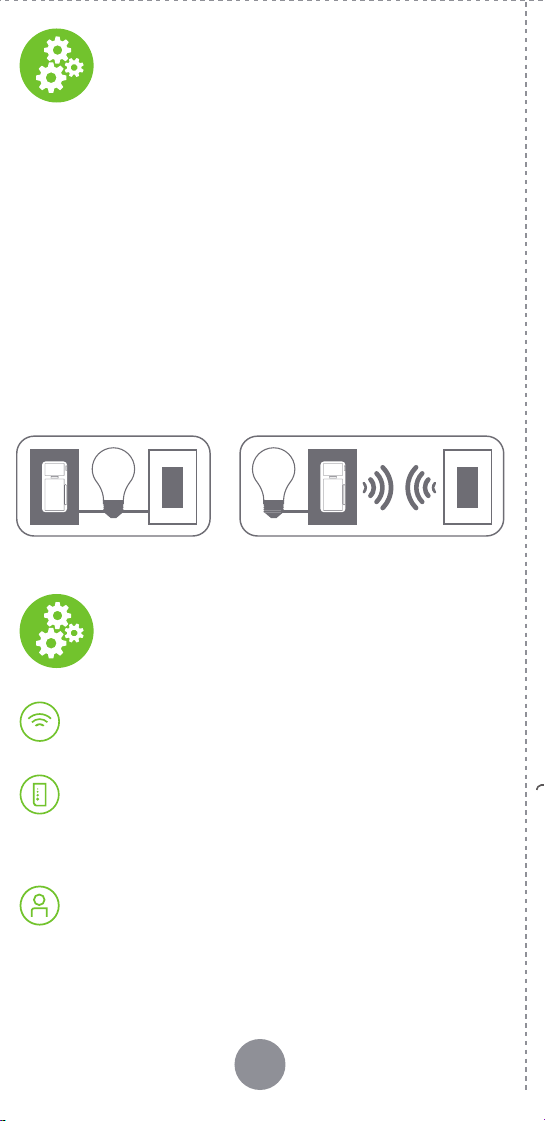
1 2 3 4
65 7 8
An iOS (Version 12.0 or later) or Android (Version
8.0 or later) mobile device.
NOTE: Make sure Wi-Fi and Bluetooth are enabled
on your mobile device.
A My Leviton cloud account
(set up through the My Leviton app).
A 2.4GHz Wi-Fi network with high-speed internet.
Installation requires electrical knowledge.
If you are unsure of any steps, consult an electrician.
At a glance
Features Before you installMotion Sensing
What you need to make
it work:
Your Motion Dimmer
works with:
Leviton’s Decora Smart Wi-Fi 2nd Gen Motion Sensing
Dimmer makes it easy and convenient to control
lighting in your home automatically, with ON/OFF,
Dim/Bright control, and built-in motion and ambient
light detection.
To save energy, the dimmer
can be set to turn lights on
when motion is detected, and
to turn lights off when the
room is unoccupied. You can
also have the lights come on
at a lower level at night or
utilize the guidelight feature
to illuminate your way in the
dark. You can even use the
Motion Dimmer to control
multiple Decora Smart devices
in a room together, based on
occupancy, with the
My Leviton app.
Control lighting how you want with built-in sensing.
Use your voice with Amazon Alexa, Google Assistant,
or Apple Siri, or use the My Leviton app, even when
you are away from home.
• Dimmable LED, dimmable CFL,
incandescent, and MLV lighting.
• For ON/OFF control of non-dimmable
bulbs, such as fluorescent loads, select
“Non-dimmable” bulb type in the My
Leviton app, under device settings.
•
Do not use your dimmer with electronic
low-voltage or motor loads.
• This device responds to temperature changes;
do not mount directly above a heat source or in a
location where hot or cold drafts will blow directly
on the sensor.
•
For compatible LED bulbs, go to: leviton.com/LED
RATINGS
General Use 120VAC, 60Hz
LED / CFL
300W
Incandescent 450W
MLV 450VA
Operating Temperature 0°C - 40°C (32°F - 104°F)
Operating Humidity 10% - 90% non-condensing
Storage Temperature Range -10°C – 85°C
NETWORK
Wi-Fi
802.11 b/g/n netw
orks -
2.4GHz only
Security
WPA, WPA2, or WPA3 security,
or open
Bluetooth v5.0
MY LEVITON APP
iOS version 12.0 or later
Andr
oid version 8.0 or later
Guidelight
• Enable in the app to turn on
a guidelight at night instead
of the room lights when
motion is detected.
Air gap switch
•
This feature will
stop power to the
dimmer. Gently
pull out the tab to
remove power to the
dimmer and lights.
After servicing is
complete, push
back in for normal
operation.
PIR Motion Sensor
• Detects motion to determine
occupancy status.
• Optional Red LED feedback
to indicate motion is
detected (configurable in
the My Leviton app).
Brightness
indicator lights
•
Displays light level
when adjusting
brightness.
Status LED
• Provides
connectivity and
device status
feedback.
• Illuminates when
the lights are OFF
so you can find the
dimmer in the dark
(configurable in the
My Leviton app).
Check your wall box:
1. Remove wallplate and disconnect existing switch.
2. Restore power. Carefully test wires with voltage
tester to find the Line (Hot) wire.
3. Turn off power at the circuit breaker.
4. Mark the wires as shown below. Please note Neutral
wires are required to operate this device.
Quick tip: Neutral wires are typically white and will
be found bundled inside the electrical box.
Identify your wires
Welcome
Things to consider:
To control the motion dimmer from more than one
location, such as in a 3-way or multi-way, you will
need either a wired DD00R or DD0SR Companion
device, or a wire-free DAWDC or DAWSC Anywhere
Companion device (see page 14).
Learn more about Companion devices and find
connection instructions at
leviton.com/decorasmart
.
If your wall box looks different,
call an electrician.
WARNING: TO AVOID FIRE, SHOCK, OR DEATH, turn
off power at the circuit breaker.
Easy Wi-Fi lighting
control for the
whole home
CHAT
www.leviton.com/support
CALL
1-800-824-3005 (USA)
1-800-405-5320 (Canada)
ONLINE
decorasmartsupport.leviton.com
EMAIL
dssupport@leviton.com
We are here to help
GROUND
GROUND
NEUTRAL
LOAD
LOAD
LINE
LINE
To Light
To Light
From
From
Branch Circuit
Branch Circuit
DI-000-D2MSD-02A
Getting Started Guide
Cat. No. D2MSD
MOTION SENSING DIMMER
2
ND
GEN
• Not for use with aluminum wire.
• Installation in metal wall boxes or
with metal wall plates may result in
poor RF performance.
Leviton Manufacturing Co., Inc.
201 North Service Road, Melville, NY 11747
© 2022 Leviton Manufacturing Co., Inc. All rights reserved.
Specifications subject to change at any time without notice.
FCC COMPLIANCE STATEMENT
The enclosed device complies with Part 15 of the FCC Rules. Operation is subject to
the following two conditions: (i.) This device may not cause harmful interference (ii.)
This device must accept any interference received, including interference that may
cause undesired operation. Any changes or modifications not expressly approved by
Leviton could void the user’s authority to operate this equipment. This equipment
has been tested and found to comply with the limits for a Class B digital device,
pursuant to part 15 of the FCC Rules. These limits are designed to provide reasonable
protection against harmful interference in a residential installation. This equipment
generates uses and can radiate radio frequency energy and, if not installed and
used in accordance with the instructions, may cause harmful interference to radio
communications. However, there is no guarantee that interference will not occur in a
particular installation. If this equipment does cause harmful interference to radio or
television reception, which can be determined by turning the equipment off and on,
the user is encouraged to try to correct the interference by one or more of the
following measures:
• Reorient or relocate the receiving antenna.
• Connect the equipment into an outlet on a circuit different from that to which the
r
eceiver is connected.
• Increase the separation between the equipment and receiver.
• Consult the dealer or an experienced radio/TV technician for help.
FC
C CAUTION
Any changes or modifications not expressly approved by Leviton Manufacturing Co.,
Inc., could void the user’s authority to operate the equipment.
RF EXPOSURE AND CO-LOCATION
To comply with FCC OET Bulletin 65 and ISED RF exposure limits for general population
and uncontrolled exposure, this device shall be installed and operated with a minimum
distance of 7.9 inches (20 cm) between the radiator and your body. Also, must not be
co-located or operated in conjunction with any other antenna or transmitter.
Copyright and Trademark Information
Decora and Decora Smart are the registered trademarks of Leviton Manufacturing Co.,
Inc., registered in the U.S., Canada, Mexico and China.
Google and Google Play are trademarks of Google LLC. Alexa, and related logos are
trademarks of Amazon.com, Inc. or its affiliates. Apple
®
, HomeKit
®
, and Siri
®
are
trademarks of Apple Inc., registered in the U.S. and other countries.
Use of the Works with Apple badge means that an accessory has been designed to
work specifically with the technology identified in the badge and has been certified by
the developer to meet Apple performance standards. Apple is not responsible for the
operation of this device or its compliance with safety and regulatory standards.
Use herein of other third party trademarks, service marks, trade names, brand names
and/or product names are for informational purposes only, are/may be the trademarks
of their respective owners; such use is not meant to imply affiliation, sponsorship, or
endorsement. No part of this document may be reproduced, transmitted or transcribed
without the express written permission of Leviton Manufacturing Co., Inc.
Patents covering this product, if any, can be found on Leviton.com/patents.
IC STATEMENT
This device complies with Industry Canada license-exempt RSS standard(s).
Operation is subject to the following two conditions: (1) this device may not
cause interference, and (2) this device must accept any interference, including
interference that may cause undesired operation of the device.
FCC SUPPLIER’S DECLARATION OF CONFORMITY
Model D2MSD Wi-Fi Motion Sensing Dimmer is manufactured by Leviton
Manufacturing Co., Inc. 201 N. Service Road, Melville, NY 11747. www.leviton.com
This device complies with part 15 of the FCC Rules. Operation is subject to the
following two conditions: (1) This device may not cause harmful interference, and (2)
this device must accept any interference received, including interference that may
cause undesired operation.
• For indoor use only.
• Hands-free; automatically turns lights ON/OFF
when motion is detected.
• Voice control works with Hey Google, Amazon
Alexa, or Apple Siri.
• Easy app-based configuration of motion sensor
settings and modes.
•
Allows other connected Decora Smart Wi-Fi devices
in a room to be activated based on room occupancy.
• Supports 3-Way/Multi-location with Wired
Companions and Wireless Anywhere
Companions.
• Use the app to enable a Guidelight, that turns
ON when motion is detected at night, to
illuminate your way in the dark.
• Advanced settings for:
• Fade rates
• Pre-set light level or Return to last level
• Minimum dim / Maximum brightness
• Bulb types including non-dimmable loads
Ambient Light
Sensor
•
Detects amount of
ambient light in the
space.
Dim/bright bar
•
Manually adjust light
levels.
ON / OFF Button
• Press to toggle the lights
ON or OFF
.
OFF means OFF
• Ensures low-wattage LED
bulbs always turn OFF.
For more information and features, visit:
leviton.com/decorasmart.
• The D2MSD’s PIR Motion Sensor has a 180° field-of-
view, with a maximum sensor coverage area of 900
sq. ft. (30 x 30 ft).
• Motion Sensor Calibration: can be used in the My
Leviton app to test the Motion Sensor’s coverage
area, customize the sensor sensitivity, and enable
ambient light settings.
Sensor modes can be configured under device
settings in the My Leviton app:
• Occupancy Mode: will automatically turn lights on
when motion is detected, and will turn lights off
when no motion is detected.
• Vacancy Mode*: requires you to manually turn
lights on, but will still turn the lights off when no
motion is detected.
• Guidelight: can be enabled to turn on at night and
softly illuminate a space when motion is detected,
instead of turning on the room lights.
* Pro Tip: Vacancy mode can be used to comply
with 2019 Title 24, Part 6 Vacancy Control Device
Requirements.
15 FT.
10 FT.
Horizontal field of view
10 FT.
15 FT.
20 FT.
30 FT.
Wall
Floor
20 FT. 30 FT.
Vertical field of view
2
Minor motion coverage 400 ft
2
Major motion coverage 900 ft
NOTE: Device should be installed on the wall, 40-48
inches above the floor.
See the complete line of My Leviton
TM
app compatible
dimmers, switches, plug-ins, and controllers at:
leviton.com/decorasmart
WEB VERSION
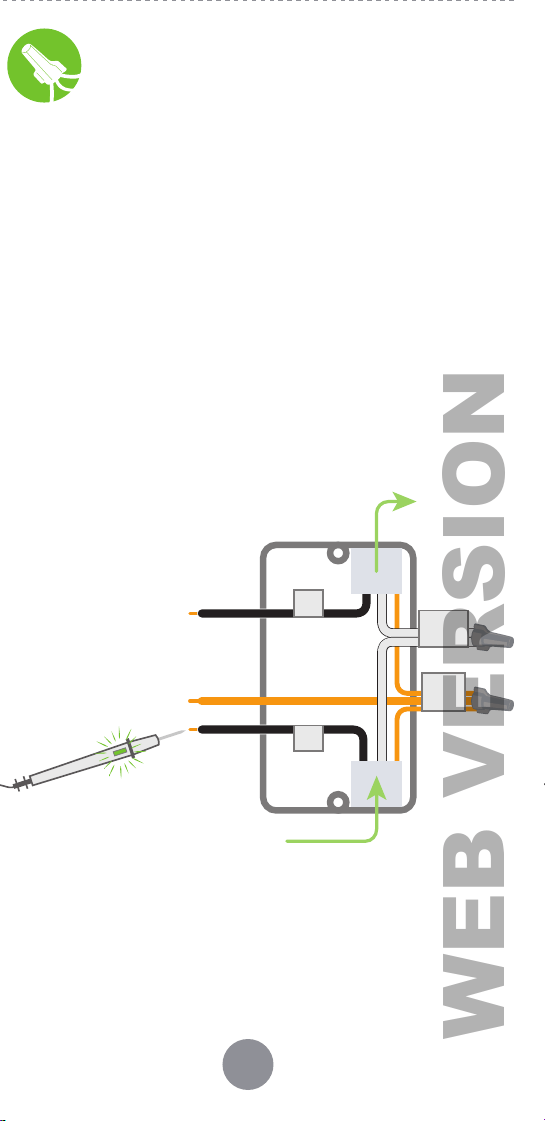
1 2 3 4
65 7 8
An iOS (Version 12.0 or later) or Android (Version
8.0 or later) mobile device.
NOTE: Make sure Wi-Fi and Bluetooth are enabled
on your mobile device.
A My Leviton cloud account
(set up through the My Leviton app).
A 2.4GHz Wi-Fi network with high-speed internet.
Installation requires electrical knowledge.
If you are unsure of any steps, consult an electrician.
At a glance
Features Before you installMotion Sensing
What you need to make
it work:
Your Motion Dimmer
works with:
Leviton’s Decora Smart Wi-Fi 2nd Gen Motion Sensing
Dimmer makes it easy and convenient to control
lighting in your home automatically, with ON/OFF,
Dim/Bright control, and built-in motion and ambient
light detection.
To save energy, the dimmer
can be set to turn lights on
when motion is detected, and
to turn lights off when the
room is unoccupied. You can
also have the lights come on
at a lower level at night or
utilize the guidelight feature
to illuminate your way in the
dark. You can even use the
Motion Dimmer to control
multiple Decora Smart devices
in a room together, based on
occupancy, with the
My Leviton app.
Control lighting how you want with built-in sensing.
Use your voice with Amazon Alexa, Google Assistant,
or Apple Siri, or use the My Leviton app, even when
you are away from home.
• Dimmable LED, dimmable CFL,
incandescent, and MLV lighting.
• For ON/OFF control of non-dimmable
bulbs, such as fluorescent loads, select
“Non-dimmable” bulb type in the My
Leviton app, under device settings.
•
Do not use your dimmer with electronic
low-voltage or motor loads.
• This device responds to temperature changes;
do not mount directly above a heat source or in a
location where hot or cold drafts will blow directly
on the sensor.
•
For compatible LED bulbs, go to: leviton.com/LED
RATINGS
General Use 120VAC, 60Hz
LED / CFL
300W
Incandescent 450W
MLV 450VA
Operating Temperature 0°C - 40°C (32°F - 104°F)
Operating Humidity 10% - 90% non-condensing
Storage Temperature Range -10°C – 85°C
NETWORK
Wi-Fi
802.11 b/g/n netw
orks -
2.4GHz only
Security
WPA, WPA2, or WPA3 security,
or open
Bluetooth v5.0
MY LEVITON APP
iOS version 12.0 or later
Andr
oid version 8.0 or later
Guidelight
• Enable in the app to turn on
a guidelight at night instead
of the room lights when
motion is detected.
Air gap switch
•
This feature will
stop power to the
dimmer. Gently
pull out the tab to
remove power to the
dimmer and lights.
After servicing is
complete, push
back in for normal
operation.
PIR Motion Sensor
• Detects motion to determine
occupancy status.
• Optional Red LED feedback
to indicate motion is
detected (configurable in
the My Leviton app).
Brightness
indicator lights
•
Displays light level
when adjusting
brightness.
Status LED
• Provides
connectivity and
device status
feedback.
• Illuminates when
the lights are OFF
so you can find the
dimmer in the dark
(configurable in the
My Leviton app).
Check your wall box:
1. Remove wallplate and disconnect existing switch.
2. Restore power. Carefully test wires with voltage
tester to find the Line (Hot) wire.
3. Turn off power at the circuit breaker.
4. Mark the wires as shown below. Please note Neutral
wires are required to operate this device.
Quick tip: Neutral wires are typically white and will
be found bundled inside the electrical box.
Identify your wires
Welcome
Things to consider:
To control the motion dimmer from more than one
location, such as in a 3-way or multi-way, you will
need either a wired DD00R or DD0SR Companion
device, or a wire-free DAWDC or DAWSC Anywhere
Companion device (see page 14).
Learn more about Companion devices and find
connection instructions at
leviton.com/decorasmart
.
If your wall box looks different,
call an electrician.
WARNING: TO AVOID FIRE, SHOCK, OR DEATH, turn
off power at the circuit breaker.
Easy Wi-Fi lighting
control for the
whole home
CHAT
www.leviton.com/support
CALL
1-800-824-3005 (USA)
1-800-405-5320 (Canada)
ONLINE
decorasmartsupport.leviton.com
EMAIL
dssupport@leviton.com
We are here to help
GROUND
GROUND
NEUTRAL
LOAD
LOAD
LINE
LINE
To Light
To Light
From
From
Branch Circuit
Branch Circuit
DI-000-D2MSD-02A
Getting Started Guide
Cat. No. D2MSD
MOTION SENSING DIMMER
2
ND
GEN
• Not for use with aluminum wire.
• Installation in metal wall boxes or
with metal wall plates may result in
poor RF performance.
Leviton Manufacturing Co., Inc.
201 North Service Road, Melville, NY 11747
© 2022 Leviton Manufacturing Co., Inc. All rights reserved.
Specifications subject to change at any time without notice.
FCC COMPLIANCE STATEMENT
The enclosed device complies with Part 15 of the FCC Rules. Operation is subject to
the following two conditions: (i.) This device may not cause harmful interference (ii.)
This device must accept any interference received, including interference that may
cause undesired operation. Any changes or modifications not expressly approved by
Leviton could void the user’s authority to operate this equipment. This equipment
has been tested and found to comply with the limits for a Class B digital device,
pursuant to part 15 of the FCC Rules. These limits are designed to provide reasonable
protection against harmful interference in a residential installation. This equipment
generates uses and can radiate radio frequency energy and, if not installed and
used in accordance with the instructions, may cause harmful interference to radio
communications. However, there is no guarantee that interference will not occur in a
particular installation. If this equipment does cause harmful interference to radio or
television reception, which can be determined by turning the equipment off and on,
the user is encouraged to try to correct the interference by one or more of the
following measures:
• Reorient or relocate the receiving antenna.
• Connect the equipment into an outlet on a circuit different from that to which the
r
eceiver is connected.
• Increase the separation between the equipment and receiver.
• Consult the dealer or an experienced radio/TV technician for help.
FC
C CAUTION
Any changes or modifications not expressly approved by Leviton Manufacturing Co.,
Inc., could void the user’s authority to operate the equipment.
RF EXPOSURE AND CO-LOCATION
To comply with FCC OET Bulletin 65 and ISED RF exposure limits for general population
and uncontrolled exposure, this device shall be installed and operated with a minimum
distance of 7.9 inches (20 cm) between the radiator and your body. Also, must not be
co-located or operated in conjunction with any other antenna or transmitter.
Copyright and Trademark Information
Decora and Decora Smart are the registered trademarks of Leviton Manufacturing Co.,
Inc., registered in the U.S., Canada, Mexico and China.
Google and Google Play are trademarks of Google LLC. Alexa, and related logos are
trademarks of Amazon.com, Inc. or its affiliates. Apple
®
, HomeKit
®
, and Siri
®
are
trademarks of Apple Inc., registered in the U.S. and other countries.
Use of the Works with Apple badge means that an accessory has been designed to
work specifically with the technology identified in the badge and has been certified by
the developer to meet Apple performance standards. Apple is not responsible for the
operation of this device or its compliance with safety and regulatory standards.
Use herein of other third party trademarks, service marks, trade names, brand names
and/or product names are for informational purposes only, are/may be the trademarks
of their respective owners; such use is not meant to imply affiliation, sponsorship, or
endorsement. No part of this document may be reproduced, transmitted or transcribed
without the express written permission of Leviton Manufacturing Co., Inc.
Patents covering this product, if any, can be found on Leviton.com/patents.
IC STATEMENT
This device complies with Industry Canada license-exempt RSS standard(s).
Operation is subject to the following two conditions: (1) this device may not
cause interference, and (2) this device must accept any interference, including
interference that may cause undesired operation of the device.
FCC SUPPLIER’S DECLARATION OF CONFORMITY
Model D2MSD Wi-Fi Motion Sensing Dimmer is manufactured by Leviton
Manufacturing Co., Inc. 201 N. Service Road, Melville, NY 11747. www.leviton.com
This device complies with part 15 of the FCC Rules. Operation is subject to the
following two conditions: (1) This device may not cause harmful interference, and (2)
this device must accept any interference received, including interference that may
cause undesired operation.
• For indoor use only.
• Hands-free; automatically turns lights ON/OFF
when motion is detected.
• Voice control works with Hey Google, Amazon
Alexa, or Apple Siri.
• Easy app-based configuration of motion sensor
settings and modes.
•
Allows other connected Decora Smart Wi-Fi devices
in a room to be activated based on room occupancy.
• Supports 3-Way/Multi-location with Wired
Companions and Wireless Anywhere
Companions.
• Use the app to enable a Guidelight, that turns
ON when motion is detected at night, to
illuminate your way in the dark.
• Advanced settings for:
• Fade rates
• Pre-set light level or Return to last level
• Minimum dim / Maximum brightness
• Bulb types including non-dimmable loads
Ambient Light
Sensor
•
Detects amount of
ambient light in the
space.
Dim/bright bar
•
Manually adjust light
levels.
ON / OFF Button
• Press to toggle the lights
ON or OFF
.
OFF means OFF
• Ensures low-wattage LED
bulbs always turn OFF.
For more information and features, visit:
leviton.com/decorasmart.
• The D2MSD’s PIR Motion Sensor has a 180° field-of-
view, with a maximum sensor coverage area of 900
sq. ft. (30 x 30 ft).
• Motion Sensor Calibration: can be used in the My
Leviton app to test the Motion Sensor’s coverage
area, customize the sensor sensitivity, and enable
ambient light settings.
Sensor modes can be configured under device
settings in the My Leviton app:
• Occupancy Mode: will automatically turn lights on
when motion is detected, and will turn lights off
when no motion is detected.
• Vacancy Mode*: requires you to manually turn
lights on, but will still turn the lights off when no
motion is detected.
• Guidelight: can be enabled to turn on at night and
softly illuminate a space when motion is detected,
instead of turning on the room lights.
* Pro Tip: Vacancy mode can be used to comply
with 2019 Title 24, Part 6 Vacancy Control Device
Requirements.
15 FT.
10 FT.
Horizontal field of view
10 FT.
15 FT.
20 FT.
30 FT.
Wall
Floor
20 FT. 30 FT.
Vertical field of view
2
Minor motion coverage 400 ft
2
Major motion coverage 900 ft
NOTE: Device should be installed on the wall, 40-48
inches above the floor.
See the complete line of My Leviton
TM
app compatible
dimmers, switches, plug-ins, and controllers at:
leviton.com/decorasmart
WEB VERSION
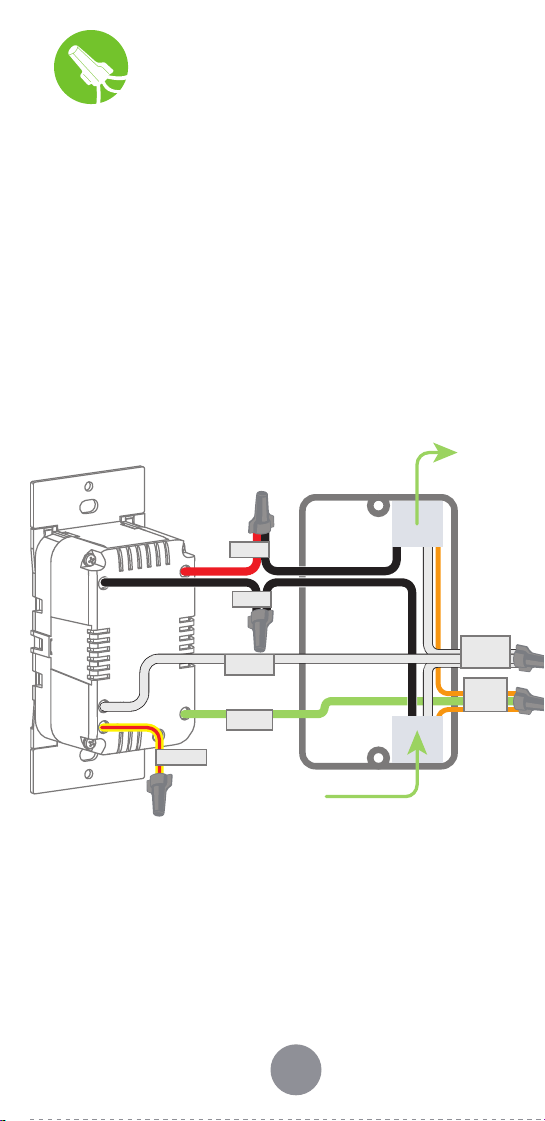
9 10 11 12 13
1514 16 17
What to do if...
Visit leviton.com/decorasmart or contact Technical Services
for additional help.
Learn more about Companion devices and find connection
instructions at leviton.com/decorasmart.
When power is applied, the manual buttons do not control the
lights and the lights do not turn ON when motion is present:
• Verify that the wiring connections are secure.
• For proper operation, the Motion Dimmer needs a Line (Hot),
Neutral, Load, and Ground connection.
When power is applied, the light turns ON, but Motion
Dimmer is not able to change the light level:
• Confirm that the white conductor is a Neutral.
• If using LED or CFL bulbs, make sure they are dimmable.
Motion Dimmer does not dim low enough, or begins to
flicker at the low end of the dimming range:
• Use the My Leviton app to increase the minimum dim level
to the point that it does not cause the LED bulb to flicker.
Lights do not turn ON when motion is detected:
•
Motion may be beyond sensing range - move closer to device.
• Go to Motion Sensor Calibration in the My Leviton app to
increase the sensor sensitivity and coverage area, or adjust
the ambient light settings.
• Make sure you are in Occupancy mode.
Lights always stay ON:
• Check app settings for how long the Motion Dimmer waits
before turning the lights OFF after no motion is detected.
• Check that Dimmer is not installed near a heat source or
detecting motion from an adjacent area (e.g., hallway traffic)
• Make sure you are in Occupancy mode.
Intermittent dimmer operation:
• Confirm that the Load does not exceed its ratings.
Not connected to Wi-Fi:
• If your device is set up in the My Leviton app, select your
device, and then select “Device Settings“. On the “Device
Settings” screen, select “Reconfigure Wireless“. Follow
prompts to reconfigure device and update Wi-Fi settings.
How do I clean my device?
• To clean use a damp cloth with mild soap. DO NOT use
disinfecting products, including foggers, sprays or other
types of atomized cleaning agents.
Factory default reset
Status LED
Diagnostic LED
Pair an Anywhere
Companion
If your device is not connecting to the My Leviton
app, the Status LED can be used as a diagnostic
tool. Press the ON/OFF button for at least 2 seconds
(but no more than 7 seconds), and then release. The
Status LED will blink a diagnostic code for 2 seconds.
COLOR ACTIVITY STATUS
Green Flashing
In Setup mode and r
eady to be added
to a Wi-Fi network.
Green Slow Blink
Connecting to a Wi-Fi network on
power up.
Green or
Off
Solid
Normal operation. Can be configured
in a setup.
Amber Slow Blink
Device is not connected to the Wi-
Fi network, but is attempting to
reconnect.
Green/
Amber
Alternating
Blink
Device is in wireless Anywhere
Companion Pairing mode.
Red Blink
Wireless Anywhere Companion
devices have unpaired or are at max
number of paired devices.
Green/Red/
Amber
Alternating
Blink
Identify feature triggered from the
My Leviton app.
COLO R STATU S
Amber Not connected to Wi-Fi.
Re
d
Connected to Wi-Fi, but unable to connect to
the My Leviton cloud.
Green/Amber,
Alternating
Connected to Wi-Fi and My Leviton cloud, but
unable to set the time from the internet.
Green
Connected to Wi-Fi, and the My Leviton cloud is
working properly.
Setup mode
3. Gently push wires
into wall box.
Screw Motion
Dimmer to box.
4. Snap on Decora
®
wallplate
and restore power.
Turn off power at the circuit
breaker before screwing in your
Motion Dimmer.
Once power is restored, the status
LED will blink GREEN, indicating
your device is in Setup mode. See
page 16 if your status LED is not
blinking GREEN.
Congratulations!
Your Decora Smart Motion Sensing
Dimmer is ready to control your lights.
To download the app,
visit my.leviton.com and select the link, or s
can
the QR code below for your device.
Get the app Device setup
Add your device to
My Leviton
• The Decora Smart Wi-Fi 2
nd
Gen Motion Sensing
Dimmer can be connected to the My Leviton
service, Apple HomeKit, or both.
• For voice control with Amazon Alexa or Google
Assistant, you will need to set up the device with
My Leviton.
• For voice control with Siri, you will need to connect
your device to Apple HomeKit. See page 15 for
instructions on how to add your device to
Apple HomeKit.
1. Make sure the device is in Setup mode (status LED
should be blinking GREEN). If the status LED is not
blinking GREEN, see page 16 for instructions on
how to put the device in Setup mode.
2. Launch the My Leviton app.
3. Log in or choose “Sign Up” to create a new account.
4. Follow the instructions on the screen.
5. Once logged in, tap the “+” in the upper right corner
and select “Add Device.”
6. Follow the app instructions to add your device and
to connect it to your home Wi-Fi network.
Connect to My Leviton
partners (optional)
Visit my.leviton.com for a complete list of
compatible smart home products.
Hey Google
works with
Add your device to Apple
HomeKit (optional)
NOTE: Skip Step 1 if your device is already enrolled in
My Leviton and on your Wi-Fi network.
1. Make sure the device is in Setup mode (status LED
should be blinking GREEN). If the status LED is not
blinking GREEN, see page 16 for instructions on how
to put the device into setup mode.
2.
Using an iOS device, open the Apple Home app and select
“Add Accessory”
.
3. Locate and scan the HomeKit setup code on your
device or on the front page of this Getting
Started Guide.
4. Follow the instructions in the Apple Home app.
5. Once the device is set up, you will be able to voice
control your Decora Smart Wi-Fi Motion Sensing
Dimmer with Apple Siri.
1. Place the Anywhere Companion in Pairing
mode by pressing the top rocker 5 times. Its
Status LED will blink GREEN.
2. Place the primary Decora Smart Wi-Fi Motion
Sensing Dimmer into Pairing mode by
pressing the ON/OFF button 5 times.
The Status LED will flash GREEN/AMBER.
3. The Decora Smart Wi-Fi Motion Sensing
Dimmer will automatically pair to the
Anywhere Companion in Pairing mode in
wireless RF range. Once paired, the Status
LED will quickly flash GREEN to show a
successful connection.
1.
Hold the ON/OFF button for 7 seconds
until the status light turns AMBER.
Then release.
2. The status light will flash GREEN.
The device is now in Setup mode.
NOTE: To exit, hold ON/OFF button
for 7 seconds while in Setup mode.
1.
Hold the ON/OFF button for 14 seconds.
2. After the first 7 seconds, the status light will turn
AMBER. Continue to hold.
3. After 7 more seconds, the status light will quickly
flash RED/AMBER.
4. Release the ON/OFF button and the device will reset.
1. Tap menu icon in
lower right corner.
2. Tap Integrations, locate the
desired service, select it, and
follow the instructions.
Single pole installation:
1. Work only one connection at a time.
2. Connect wires as shown, using the included
wire connectors.
Wire your Motion
Dimmer
If your wall box contains a different wiring
configuration, contact Leviton’s Technical
Support team or consult an electrician.
NOTES:
• Neutral connection is required.
• The YELLOW/RED Traveler wire is only used in hard-
wired 3-way applications. Remember to put a wire
connector on the YELLOW/RED Traveler even if not in
use.
LINE
LOAD
GND
GROUNDGROUND
LOADLOAD
To LightTo Light
LINE
LINE
GROUNDGROUND
NEUTRAL
TRAV
TRAVELER
TRAVELER
NEUTRAL
NEUTRAL
From From
Branch Circuit
Branch Circuit
1. Restore power. Status LED should flash GREEN.
This will indicate that your Motion Dimmer is ready
to be enrolled.
2. After powering on
the Motion Dimmer
to confirm it is
receiving power, turn
the power back
off again at the
breaker. Do this prior
to completing the
installation.
Test and install
Safety first
Limited 2 Year Warranty & Exclusions
For Leviton’s limited product warranty, go to www.leviton.com. For a
printed copy of the warranty, call 1-800-824-3005.
FOR CANADA ONLY
For warranty information and/or product returns, residents of Canada
should contact Leviton in writing at Leviton Manufacturing of Canada
ULC, to the attention of the Quality Assurance Department, 165 Hymus
Blvd, Pointe-Claire (Quebec), Canada H9R 1E9, or by telephone
at 1-800-405-5320.
WARNINGS:
• TO AVOID FIRE, SHOCK, OR DEATH, TURN OFF POWER a
t circuit
breaker or fuse and test that power is off before wiring!
• TO AVOID FIRE, PERSONAL INJURY, OR PROPERTY DAMAGE,
DO
NOT install to control a receptacle, a motor, or transformer
operated appliance.
• This product is to be installed and/or used in accordance with
e
lectrical codes and regulations.
• For indoor use only.
•
If you are unsure about any part of these instructions, consult
an electrician.
CAUTIONS:
• Use with compatible 120V dimmable LED/CFL bulbs, incandescent,
h
alogen, or magnetic low-voltage (MLV) fixtures. For ON/OFF control of
non-dimmable bulbs, such as fluorescent lighting, the non-dimmable
bulb type must be selected in the My Leviton app. Use a Leviton
electronic low-voltage dimmer to control electronic (solid state) low-
voltage transformers. For a list of compatible LED and CFL bulbs, refer
to www.leviton.com.
•
DO NOT mix bulb types when multiple bulbs are used with one dimmer.
Using the same make/model of each bulb will enhance
dimmer performance.
• The Decora Smart D2MSD dimmer is not compatible with standard
3-way or 4-way switches. It must be used with up to 4 Decora
®
Smart
DD00R-DL or DD0SR companions for wired multi-location dimming.
• Maximum wire length from dimmer to all installed companion devices
c
annot exceed 300 ft (90m).
• Save this instruction sheet. It contains important technical data,
a
long with testing and troubleshooting information, which will be
useful after installation is complete.
• Dimmer may feel warm to the touch during normal operation.
• Recommended minimum wall box depth is 2-3/4 in.
• Use this dimmer with copper or copper-clad wire only.
• Leviton Wi-Fi enabled devices rely on Wi-Fi communication.
Fo
r customers looking to install a large number of devices, it is
recommended to consult the wireless network’s access point
specifications to determine the maximum number of supported
Wi-Fi devices. In some cases, for example large installations, it may
be necessary to upgrade to newer high-performance wireless grade
access points to ensure proper operation.
ADDITIONAL RATINGS:
• Purpose of Control: Operating Control
• Action Control Type: 1
• Pollution Degree: 2
• Impulse Voltage: 2500V
• Disconnection Type: Micro
1. Open the My Leviton app.
2. Tap icon to turn the
Motion Sensing
Dimmer ON/OFF.
Test My Leviton
app control
Quick tips
• The My Leviton app includes many features such
as: room occupancy based on motion, room scenes,
whole-house activities, remote control, Vacation
mode, and advanced options for bulb type, fade
rates, preset light level, and minimum dim/maximum
brightness.
• Self-service support options can be found in the My
Leviton app or at decorasmartsupport.leviton.com.
Changing Sensor mode
You can use the My Leviton app to adjust all Motion
Sensor settings. If you do not have Wi-Fi available, you
can switch between Occupancy and Vacancy mode on
the device if needed. The Motion Sensing Dimmer is
defaulted to Occupancy mode.
NOTE: The default Vacancy settings can be used to
comply with 2019 Title 24, Part 6 Vacancy Control
Device requirements.
1. Press the ON/OFF button 7 times in sequence.
2. The device will change Sensor mode and the Status
LED will briefly flash:
• GREEN, if in Occupancy mode
• RED, if in Vaccancy mode
WEB VERSION
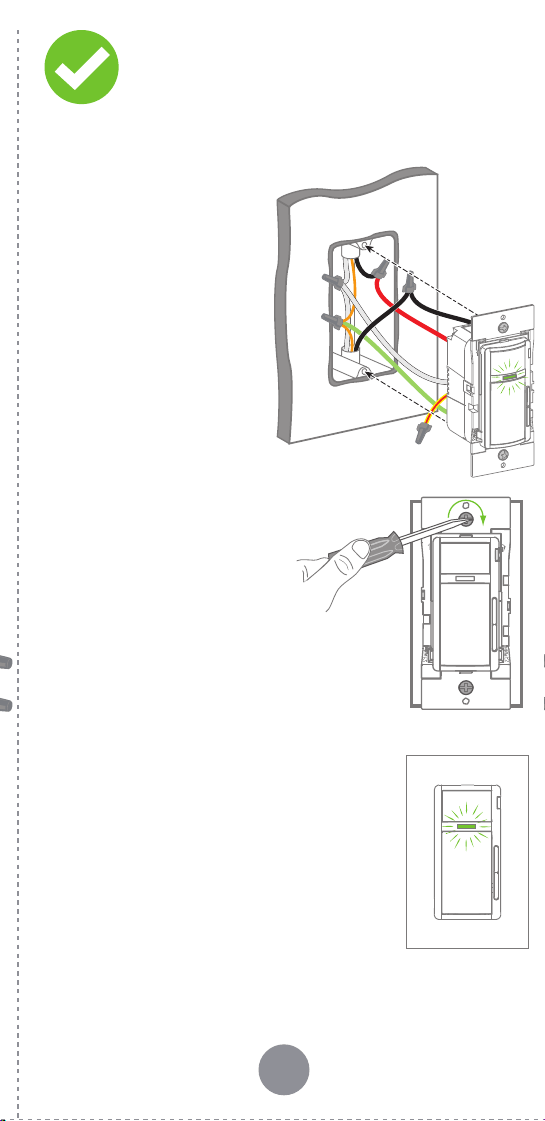
9 10 11 12 13
1514 16 17
What to do if...
Visit leviton.com/decorasmart or contact Technical Services
for additional help.
Learn more about Companion devices and find connection
instructions at leviton.com/decorasmart.
When power is applied, the manual buttons do not control the
lights and the lights do not turn ON when motion is present:
• Verify that the wiring connections are secure.
• For proper operation, the Motion Dimmer needs a Line (Hot),
Neutral, Load, and Ground connection.
When power is applied, the light turns ON, but Motion
Dimmer is not able to change the light level:
• Confirm that the white conductor is a Neutral.
• If using LED or CFL bulbs, make sure they are dimmable.
Motion Dimmer does not dim low enough, or begins to
flicker at the low end of the dimming range:
• Use the My Leviton app to increase the minimum dim level
to the point that it does not cause the LED bulb to flicker.
Lights do not turn ON when motion is detected:
•
Motion may be beyond sensing range - move closer to device.
• Go to Motion Sensor Calibration in the My Leviton app to
increase the sensor sensitivity and coverage area, or adjust
the ambient light settings.
• Make sure you are in Occupancy mode.
Lights always stay ON:
• Check app settings for how long the Motion Dimmer waits
before turning the lights OFF after no motion is detected.
• Check that Dimmer is not installed near a heat source or
detecting motion from an adjacent area (e.g., hallway traffic)
• Make sure you are in Occupancy mode.
Intermittent dimmer operation:
• Confirm that the Load does not exceed its ratings.
Not connected to Wi-Fi:
• If your device is set up in the My Leviton app, select your
device, and then select “Device Settings“. On the “Device
Settings” screen, select “Reconfigure Wireless“. Follow
prompts to reconfigure device and update Wi-Fi settings.
How do I clean my device?
• To clean use a damp cloth with mild soap. DO NOT use
disinfecting products, including foggers, sprays or other
types of atomized cleaning agents.
Factory default reset
Status LED
Diagnostic LED
Pair an Anywhere
Companion
If your device is not connecting to the My Leviton
app, the Status LED can be used as a diagnostic
tool. Press the ON/OFF button for at least 2 seconds
(but no more than 7 seconds), and then release. The
Status LED will blink a diagnostic code for 2 seconds.
COLOR ACTIVITY STATUS
Green Flashing
In Setup mode and r
eady to be added
to a Wi-Fi network.
Green Slow Blink
Connecting to a Wi-Fi network on
power up.
Green or
Off
Solid
Normal operation. Can be configured
in a setup.
Amber Slow Blink
Device is not connected to the Wi-
Fi network, but is attempting to
reconnect.
Green/
Amber
Alternating
Blink
Device is in wireless Anywhere
Companion Pairing mode.
Red Blink
Wireless Anywhere Companion
devices have unpaired or are at max
number of paired devices.
Green/Red/
Amber
Alternating
Blink
Identify feature triggered from the
My Leviton app.
COLO R STATU S
Amber Not connected to Wi-Fi.
Re
d
Connected to Wi-Fi, but unable to connect to
the My Leviton cloud.
Green/Amber,
Alternating
Connected to Wi-Fi and My Leviton cloud, but
unable to set the time from the internet.
Green
Connected to Wi-Fi, and the My Leviton cloud is
working properly.
Setup mode
3. Gently push wires
into wall box.
Screw Motion
Dimmer to box.
4. Snap on Decora
®
wallplate
and restore power.
Turn off power at the circuit
breaker before screwing in your
Motion Dimmer.
Once power is restored, the status
LED will blink GREEN, indicating
your device is in Setup mode. See
page 16 if your status LED is not
blinking GREEN.
Congratulations!
Your Decora Smart Motion Sensing
Dimmer is ready to control your lights.
To download the app,
visit my.leviton.com and select the link, or s
can
the QR code below for your device.
Get the app Device setup
Add your device to
My Leviton
• The Decora Smart Wi-Fi 2
nd
Gen Motion Sensing
Dimmer can be connected to the My Leviton
service, Apple HomeKit, or both.
• For voice control with Amazon Alexa or Google
Assistant, you will need to set up the device with
My Leviton.
• For voice control with Siri, you will need to connect
your device to Apple HomeKit. See page 15 for
instructions on how to add your device to
Apple HomeKit.
1. Make sure the device is in Setup mode (status LED
should be blinking GREEN). If the status LED is not
blinking GREEN, see page 16 for instructions on
how to put the device in Setup mode.
2. Launch the My Leviton app.
3. Log in or choose “Sign Up” to create a new account.
4. Follow the instructions on the screen.
5. Once logged in, tap the “+” in the upper right corner
and select “Add Device.”
6. Follow the app instructions to add your device and
to connect it to your home Wi-Fi network.
Connect to My Leviton
partners (optional)
Visit my.leviton.com for a complete list of
compatible smart home products.
Hey Google
works with
Add your device to Apple
HomeKit (optional)
NOTE: Skip Step 1 if your device is already enrolled in
My Leviton and on your Wi-Fi network.
1. Make sure the device is in Setup mode (status LED
should be blinking GREEN). If the status LED is not
blinking GREEN, see page 16 for instructions on how
to put the device into setup mode.
2.
Using an iOS device, open the Apple Home app and select
“Add Accessory”
.
3. Locate and scan the HomeKit setup code on your
device or on the front page of this Getting
Started Guide.
4. Follow the instructions in the Apple Home app.
5. Once the device is set up, you will be able to voice
control your Decora Smart Wi-Fi Motion Sensing
Dimmer with Apple Siri.
1. Place the Anywhere Companion in Pairing
mode by pressing the top rocker 5 times. Its
Status LED will blink GREEN.
2. Place the primary Decora Smart Wi-Fi Motion
Sensing Dimmer into Pairing mode by
pressing the ON/OFF button 5 times.
The Status LED will flash GREEN/AMBER.
3. The Decora Smart Wi-Fi Motion Sensing
Dimmer will automatically pair to the
Anywhere Companion in Pairing mode in
wireless RF range. Once paired, the Status
LED will quickly flash GREEN to show a
successful connection.
1.
Hold the ON/OFF button for 7 seconds
until the status light turns AMBER.
Then release.
2. The status light will flash GREEN.
The device is now in Setup mode.
NOTE: To exit, hold ON/OFF button
for 7 seconds while in Setup mode.
1.
Hold the ON/OFF button for 14 seconds.
2. After the first 7 seconds, the status light will turn
AMBER. Continue to hold.
3. After 7 more seconds, the status light will quickly
flash RED/AMBER.
4. Release the ON/OFF button and the device will reset.
1. Tap menu icon in
lower right corner.
2. Tap Integrations, locate the
desired service, select it, and
follow the instructions.
Single pole installation:
1. Work only one connection at a time.
2. Connect wires as shown, using the included
wire connectors.
Wire your Motion
Dimmer
If your wall box contains a different wiring
configuration, contact Leviton’s Technical
Support team or consult an electrician.
NOTES:
• Neutral connection is required.
• The YELLOW/RED Traveler wire is only used in hard-
wired 3-way applications. Remember to put a wire
connector on the YELLOW/RED Traveler even if not in
use.
LINE
LOAD
GND
GROUNDGROUND
LOADLOAD
To LightTo Light
LINE
LINE
GROUNDGROUND
NEUTRAL
TRAV
TRAVELER
TRAVELER
NEUTRAL
NEUTRAL
From From
Branch Circuit
Branch Circuit
1. Restore power. Status LED should flash GREEN.
This will indicate that your Motion Dimmer is ready
to be enrolled.
2. After powering on
the Motion Dimmer
to confirm it is
receiving power, turn
the power back
off again at the
breaker. Do this prior
to completing the
installation.
Test and install
Safety first
Limited 2 Year Warranty & Exclusions
For Leviton’s limited product warranty, go to www.leviton.com. For a
printed copy of the warranty, call 1-800-824-3005.
FOR CANADA ONLY
For warranty information and/or product returns, residents of Canada
should contact Leviton in writing at Leviton Manufacturing of Canada
ULC, to the attention of the Quality Assurance Department, 165 Hymus
Blvd, Pointe-Claire (Quebec), Canada H9R 1E9, or by telephone
at 1-800-405-5320.
WARNINGS:
• TO AVOID FIRE, SHOCK, OR DEATH, TURN OFF POWER a
t circuit
breaker or fuse and test that power is off before wiring!
• TO AVOID FIRE, PERSONAL INJURY, OR PROPERTY DAMAGE,
DO
NOT install to control a receptacle, a motor, or transformer
operated appliance.
• This product is to be installed and/or used in accordance with
e
lectrical codes and regulations.
• For indoor use only.
•
If you are unsure about any part of these instructions, consult
an electrician.
CAUTIONS:
• Use with compatible 120V dimmable LED/CFL bulbs, incandescent,
h
alogen, or magnetic low-voltage (MLV) fixtures. For ON/OFF control of
non-dimmable bulbs, such as fluorescent lighting, the non-dimmable
bulb type must be selected in the My Leviton app. Use a Leviton
electronic low-voltage dimmer to control electronic (solid state) low-
voltage transformers. For a list of compatible LED and CFL bulbs, refer
to www.leviton.com.
•
DO NOT mix bulb types when multiple bulbs are used with one dimmer.
Using the same make/model of each bulb will enhance
dimmer performance.
• The Decora Smart D2MSD dimmer is not compatible with standard
3-way or 4-way switches. It must be used with up to 4 Decora
®
Smart
DD00R-DL or DD0SR companions for wired multi-location dimming.
• Maximum wire length from dimmer to all installed companion devices
c
annot exceed 300 ft (90m).
• Save this instruction sheet. It contains important technical data,
a
long with testing and troubleshooting information, which will be
useful after installation is complete.
• Dimmer may feel warm to the touch during normal operation.
• Recommended minimum wall box depth is 2-3/4 in.
• Use this dimmer with copper or copper-clad wire only.
• Leviton Wi-Fi enabled devices rely on Wi-Fi communication.
Fo
r customers looking to install a large number of devices, it is
recommended to consult the wireless network’s access point
specifications to determine the maximum number of supported
Wi-Fi devices. In some cases, for example large installations, it may
be necessary to upgrade to newer high-performance wireless grade
access points to ensure proper operation.
ADDITIONAL RATINGS:
• Purpose of Control: Operating Control
• Action Control Type: 1
• Pollution Degree: 2
• Impulse Voltage: 2500V
• Disconnection Type: Micro
1. Open the My Leviton app.
2. Tap icon to turn the
Motion Sensing
Dimmer ON/OFF.
Test My Leviton
app control
Quick tips
• The My Leviton app includes many features such
as: room occupancy based on motion, room scenes,
whole-house activities, remote control, Vacation
mode, and advanced options for bulb type, fade
rates, preset light level, and minimum dim/maximum
brightness.
• Self-service support options can be found in the My
Leviton app or at decorasmartsupport.leviton.com.
Changing Sensor mode
You can use the My Leviton app to adjust all Motion
Sensor settings. If you do not have Wi-Fi available, you
can switch between Occupancy and Vacancy mode on
the device if needed. The Motion Sensing Dimmer is
defaulted to Occupancy mode.
NOTE: The default Vacancy settings can be used to
comply with 2019 Title 24, Part 6 Vacancy Control
Device requirements.
1. Press the ON/OFF button 7 times in sequence.
2. The device will change Sensor mode and the Status
LED will briefly flash:
• GREEN, if in Occupancy mode
• RED, if in Vaccancy mode
WEB VERSION
9 10 11 12 13
1514 16 17
What to do if...
Visit leviton.com/decorasmart or contact Technical Services
for additional help.
Learn more about Companion devices and find connection
instructions at leviton.com/decorasmart.
When power is applied, the manual buttons do not control the
lights and the lights do not turn ON when motion is present:
• Verify that the wiring connections are secure.
• For proper operation, the Motion Dimmer needs a Line (Hot),
Neutral, Load, and Ground connection.
When power is applied, the light turns ON, but Motion
Dimmer is not able to change the light level:
• Confirm that the white conductor is a Neutral.
• If using LED or CFL bulbs, make sure they are dimmable.
Motion Dimmer does not dim low enough, or begins to
flicker at the low end of the dimming range:
• Use the My Leviton app to increase the minimum dim level
to the point that it does not cause the LED bulb to flicker.
Lights do not turn ON when motion is detected:
•
Motion may be beyond sensing range - move closer to device.
• Go to Motion Sensor Calibration in the My Leviton app to
increase the sensor sensitivity and coverage area, or adjust
the ambient light settings.
• Make sure you are in Occupancy mode.
Lights always stay ON:
• Check app settings for how long the Motion Dimmer waits
before turning the lights OFF after no motion is detected.
• Check that Dimmer is not installed near a heat source or
detecting motion from an adjacent area (e.g., hallway traffic)
• Make sure you are in Occupancy mode.
Intermittent dimmer operation:
• Confirm that the Load does not exceed its ratings.
Not connected to Wi-Fi:
• If your device is set up in the My Leviton app, select your
device, and then select “Device Settings“. On the “Device
Settings” screen, select “Reconfigure Wireless“. Follow
prompts to reconfigure device and update Wi-Fi settings.
How do I clean my device?
• To clean use a damp cloth with mild soap. DO NOT use
disinfecting products, including foggers, sprays or other
types of atomized cleaning agents.
Factory default reset
Status LED
Diagnostic LED
Pair an Anywhere
Companion
If your device is not connecting to the My Leviton
app, the Status LED can be used as a diagnostic
tool. Press the ON/OFF button for at least 2 seconds
(but no more than 7 seconds), and then release. The
Status LED will blink a diagnostic code for 2 seconds.
COLOR ACTIVITY STATUS
Green Flashing
In Setup mode and r
eady to be added
to a Wi-Fi network.
Green Slow Blink
Connecting to a Wi-Fi network on
power up.
Green or
Off
Solid
Normal operation. Can be configured
in a setup.
Amber Slow Blink
Device is not connected to the Wi-
Fi network, but is attempting to
reconnect.
Green/
Amber
Alternating
Blink
Device is in wireless Anywhere
Companion Pairing mode.
Red Blink
Wireless Anywhere Companion
devices have unpaired or are at max
number of paired devices.
Green/Red/
Amber
Alternating
Blink
Identify feature triggered from the
My Leviton app.
COLO R STATU S
Amber Not connected to Wi-Fi.
Re
d
Connected to Wi-Fi, but unable to connect to
the My Leviton cloud.
Green/Amber,
Alternating
Connected to Wi-Fi and My Leviton cloud, but
unable to set the time from the internet.
Green
Connected to Wi-Fi, and the My Leviton cloud is
working properly.
Setup mode
3. Gently push wires
into wall box.
Screw Motion
Dimmer to box.
4. Snap on Decora
®
wallplate
and restore power.
Turn off power at the circuit
breaker before screwing in your
Motion Dimmer.
Once power is restored, the status
LED will blink GREEN, indicating
your device is in Setup mode. See
page 16 if your status LED is not
blinking GREEN.
Congratulations!
Your Decora Smart Motion Sensing
Dimmer is ready to control your lights.
To download the app,
visit my.leviton.com and select the link, or s
can
the QR code below for your device.
Get the app Device setup
Add your device to
My Leviton
• The Decora Smart Wi-Fi 2
nd
Gen Motion Sensing
Dimmer can be connected to the My Leviton
service, Apple HomeKit, or both.
• For voice control with Amazon Alexa or Google
Assistant, you will need to set up the device with
My Leviton.
• For voice control with Siri, you will need to connect
your device to Apple HomeKit. See page 15 for
instructions on how to add your device to
Apple HomeKit.
1. Make sure the device is in Setup mode (status LED
should be blinking GREEN). If the status LED is not
blinking GREEN, see page 16 for instructions on
how to put the device in Setup mode.
2. Launch the My Leviton app.
3. Log in or choose “Sign Up” to create a new account.
4. Follow the instructions on the screen.
5. Once logged in, tap the “+” in the upper right corner
and select “Add Device.”
6. Follow the app instructions to add your device and
to connect it to your home Wi-Fi network.
Connect to My Leviton
partners (optional)
Visit my.leviton.com for a complete list of
compatible smart home products.
Hey Google
works with
Add your device to Apple
HomeKit (optional)
NOTE: Skip Step 1 if your device is already enrolled in
My Leviton and on your Wi-Fi network.
1. Make sure the device is in Setup mode (status LED
should be blinking GREEN). If the status LED is not
blinking GREEN, see page 16 for instructions on how
to put the device into setup mode.
2.
Using an iOS device, open the Apple Home app and select
“Add Accessory”
.
3. Locate and scan the HomeKit setup code on your
device or on the front page of this Getting
Started Guide.
4. Follow the instructions in the Apple Home app.
5. Once the device is set up, you will be able to voice
control your Decora Smart Wi-Fi Motion Sensing
Dimmer with Apple Siri.
1. Place the Anywhere Companion in Pairing
mode by pressing the top rocker 5 times. Its
Status LED will blink GREEN.
2. Place the primary Decora Smart Wi-Fi Motion
Sensing Dimmer into Pairing mode by
pressing the ON/OFF button 5 times.
The Status LED will flash GREEN/AMBER.
3. The Decora Smart Wi-Fi Motion Sensing
Dimmer will automatically pair to the
Anywhere Companion in Pairing mode in
wireless RF range. Once paired, the Status
LED will quickly flash GREEN to show a
successful connection.
1.
Hold the ON/OFF button for 7 seconds
until the status light turns AMBER.
Then release.
2. The status light will flash GREEN.
The device is now in Setup mode.
NOTE: To exit, hold ON/OFF button
for 7 seconds while in Setup mode.
1.
Hold the ON/OFF button for 14 seconds.
2. After the first 7 seconds, the status light will turn
AMBER. Continue to hold.
3. After 7 more seconds, the status light will quickly
flash RED/AMBER.
4. Release the ON/OFF button and the device will reset.
1. Tap menu icon in
lower right corner.
2. Tap Integrations, locate the
desired service, select it, and
follow the instructions.
Single pole installation:
1. Work only one connection at a time.
2. Connect wires as shown, using the included
wire connectors.
Wire your Motion
Dimmer
If your wall box contains a different wiring
configuration, contact Leviton’s Technical
Support team or consult an electrician.
NOTES:
• Neutral connection is required.
• The YELLOW/RED Traveler wire is only used in hard-
wired 3-way applications. Remember to put a wire
connector on the YELLOW/RED Traveler even if not in
use.
LINE
LOAD
GND
GROUNDGROUND
LOADLOAD
To LightTo Light
LINE
LINE
GROUNDGROUND
NEUTRAL
TRAV
TRAVELER
TRAVELER
NEUTRAL
NEUTRAL
From From
Branch Circuit
Branch Circuit
1. Restore power. Status LED should flash GREEN.
This will indicate that your Motion Dimmer is ready
to be enrolled.
2. After powering on
the Motion Dimmer
to confirm it is
receiving power, turn
the power back
off again at the
breaker. Do this prior
to completing the
installation.
Test and install
Safety first
Limited 2 Year Warranty & Exclusions
For Leviton’s limited product warranty, go to www.leviton.com. For a
printed copy of the warranty, call 1-800-824-3005.
FOR CANADA ONLY
For warranty information and/or product returns, residents of Canada
should contact Leviton in writing at Leviton Manufacturing of Canada
ULC, to the attention of the Quality Assurance Department, 165 Hymus
Blvd, Pointe-Claire (Quebec), Canada H9R 1E9, or by telephone
at 1-800-405-5320.
WARNINGS:
• TO AVOID FIRE, SHOCK, OR DEATH, TURN OFF POWER a
t circuit
breaker or fuse and test that power is off before wiring!
• TO AVOID FIRE, PERSONAL INJURY, OR PROPERTY DAMAGE,
DO
NOT install to control a receptacle, a motor, or transformer
operated appliance.
• This product is to be installed and/or used in accordance with
e
lectrical codes and regulations.
• For indoor use only.
•
If you are unsure about any part of these instructions, consult
an electrician.
CAUTIONS:
• Use with compatible 120V dimmable LED/CFL bulbs, incandescent,
h
alogen, or magnetic low-voltage (MLV) fixtures. For ON/OFF control of
non-dimmable bulbs, such as fluorescent lighting, the non-dimmable
bulb type must be selected in the My Leviton app. Use a Leviton
electronic low-voltage dimmer to control electronic (solid state) low-
voltage transformers. For a list of compatible LED and CFL bulbs, refer
to www.leviton.com.
•
DO NOT mix bulb types when multiple bulbs are used with one dimmer.
Using the same make/model of each bulb will enhance
dimmer performance.
• The Decora Smart D2MSD dimmer is not compatible with standard
3-way or 4-way switches. It must be used with up to 4 Decora
®
Smart
DD00R-DL or DD0SR companions for wired multi-location dimming.
• Maximum wire length from dimmer to all installed companion devices
c
annot exceed 300 ft (90m).
• Save this instruction sheet. It contains important technical data,
a
long with testing and troubleshooting information, which will be
useful after installation is complete.
• Dimmer may feel warm to the touch during normal operation.
• Recommended minimum wall box depth is 2-3/4 in.
• Use this dimmer with copper or copper-clad wire only.
• Leviton Wi-Fi enabled devices rely on Wi-Fi communication.
Fo
r customers looking to install a large number of devices, it is
recommended to consult the wireless network’s access point
specifications to determine the maximum number of supported
Wi-Fi devices. In some cases, for example large installations, it may
be necessary to upgrade to newer high-performance wireless grade
access points to ensure proper operation.
ADDITIONAL RATINGS:
• Purpose of Control: Operating Control
• Action Control Type: 1
• Pollution Degree: 2
• Impulse Voltage: 2500V
• Disconnection Type: Micro
1. Open the My Leviton app.
2. Tap icon to turn the
Motion Sensing
Dimmer ON/OFF.
Test My Leviton
app control
Quick tips
• The My Leviton app includes many features such
as: room occupancy based on motion, room scenes,
whole-house activities, remote control, Vacation
mode, and advanced options for bulb type, fade
rates, preset light level, and minimum dim/maximum
brightness.
• Self-service support options can be found in the My
Leviton app or at decorasmartsupport.leviton.com.
Changing Sensor mode
You can use the My Leviton app to adjust all Motion
Sensor settings. If you do not have Wi-Fi available, you
can switch between Occupancy and Vacancy mode on
the device if needed. The Motion Sensing Dimmer is
defaulted to Occupancy mode.
NOTE: The default Vacancy settings can be used to
comply with 2019 Title 24, Part 6 Vacancy Control
Device requirements.
1. Press the ON/OFF button 7 times in sequence.
2. The device will change Sensor mode and the Status
LED will briefly flash:
• GREEN, if in Occupancy mode
• RED, if in Vaccancy mode
WEB VERSION
9 10 11 12 13
1514 16 17
What to do if...
Visit leviton.com/decorasmart or contact Technical Services
for additional help.
Learn more about Companion devices and find connection
instructions at leviton.com/decorasmart.
When power is applied, the manual buttons do not control the
lights and the lights do not turn ON when motion is present:
• Verify that the wiring connections are secure.
• For proper operation, the Motion Dimmer needs a Line (Hot),
Neutral, Load, and Ground connection.
When power is applied, the light turns ON, but Motion
Dimmer is not able to change the light level:
• Confirm that the white conductor is a Neutral.
• If using LED or CFL bulbs, make sure they are dimmable.
Motion Dimmer does not dim low enough, or begins to
flicker at the low end of the dimming range:
• Use the My Leviton app to increase the minimum dim level
to the point that it does not cause the LED bulb to flicker.
Lights do not turn ON when motion is detected:
•
Motion may be beyond sensing range - move closer to device.
• Go to Motion Sensor Calibration in the My Leviton app to
increase the sensor sensitivity and coverage area, or adjust
the ambient light settings.
• Make sure you are in Occupancy mode.
Lights always stay ON:
• Check app settings for how long the Motion Dimmer waits
before turning the lights OFF after no motion is detected.
• Check that Dimmer is not installed near a heat source or
detecting motion from an adjacent area (e.g., hallway traffic)
• Make sure you are in Occupancy mode.
Intermittent dimmer operation:
• Confirm that the Load does not exceed its ratings.
Not connected to Wi-Fi:
• If your device is set up in the My Leviton app, select your
device, and then select “Device Settings“. On the “Device
Settings” screen, select “Reconfigure Wireless“. Follow
prompts to reconfigure device and update Wi-Fi settings.
How do I clean my device?
• To clean use a damp cloth with mild soap. DO NOT use
disinfecting products, including foggers, sprays or other
types of atomized cleaning agents.
Factory default reset
Status LED
Diagnostic LED
Pair an Anywhere
Companion
If your device is not connecting to the My Leviton
app, the Status LED can be used as a diagnostic
tool. Press the ON/OFF button for at least 2 seconds
(but no more than 7 seconds), and then release. The
Status LED will blink a diagnostic code for 2 seconds.
COLOR ACTIVITY STATUS
Green Flashing
In Setup mode and r
eady to be added
to a Wi-Fi network.
Green Slow Blink
Connecting to a Wi-Fi network on
power up.
Green or
Off
Solid
Normal operation. Can be configured
in a setup.
Amber Slow Blink
Device is not connected to the Wi-
Fi network, but is attempting to
reconnect.
Green/
Amber
Alternating
Blink
Device is in wireless Anywhere
Companion Pairing mode.
Red Blink
Wireless Anywhere Companion
devices have unpaired or are at max
number of paired devices.
Green/Red/
Amber
Alternating
Blink
Identify feature triggered from the
My Leviton app.
COLO R STATU S
Amber Not connected to Wi-Fi.
Re
d
Connected to Wi-Fi, but unable to connect to
the My Leviton cloud.
Green/Amber,
Alternating
Connected to Wi-Fi and My Leviton cloud, but
unable to set the time from the internet.
Green
Connected to Wi-Fi, and the My Leviton cloud is
working properly.
Setup mode
3. Gently push wires
into wall box.
Screw Motion
Dimmer to box.
4. Snap on Decora
®
wallplate
and restore power.
Turn off power at the circuit
breaker before screwing in your
Motion Dimmer.
Once power is restored, the status
LED will blink GREEN, indicating
your device is in Setup mode. See
page 16 if your status LED is not
blinking GREEN.
Congratulations!
Your Decora Smart Motion Sensing
Dimmer is ready to control your lights.
To download the app,
visit my.leviton.com and select the link, or s
can
the QR code below for your device.
Get the app Device setup
Add your device to
My Leviton
• The Decora Smart Wi-Fi 2
nd
Gen Motion Sensing
Dimmer can be connected to the My Leviton
service, Apple HomeKit, or both.
• For voice control with Amazon Alexa or Google
Assistant, you will need to set up the device with
My Leviton.
• For voice control with Siri, you will need to connect
your device to Apple HomeKit. See page 15 for
instructions on how to add your device to
Apple HomeKit.
1. Make sure the device is in Setup mode (status LED
should be blinking GREEN). If the status LED is not
blinking GREEN, see page 16 for instructions on
how to put the device in Setup mode.
2. Launch the My Leviton app.
3. Log in or choose “Sign Up” to create a new account.
4. Follow the instructions on the screen.
5. Once logged in, tap the “+” in the upper right corner
and select “Add Device.”
6. Follow the app instructions to add your device and
to connect it to your home Wi-Fi network.
Connect to My Leviton
partners (optional)
Visit my.leviton.com for a complete list of
compatible smart home products.
Hey Google
works with
Add your device to Apple
HomeKit (optional)
NOTE: Skip Step 1 if your device is already enrolled in
My Leviton and on your Wi-Fi network.
1. Make sure the device is in Setup mode (status LED
should be blinking GREEN). If the status LED is not
blinking GREEN, see page 16 for instructions on how
to put the device into setup mode.
2.
Using an iOS device, open the Apple Home app and select
“Add Accessory”
.
3. Locate and scan the HomeKit setup code on your
device or on the front page of this Getting
Started Guide.
4. Follow the instructions in the Apple Home app.
5. Once the device is set up, you will be able to voice
control your Decora Smart Wi-Fi Motion Sensing
Dimmer with Apple Siri.
1. Place the Anywhere Companion in Pairing
mode by pressing the top rocker 5 times. Its
Status LED will blink GREEN.
2. Place the primary Decora Smart Wi-Fi Motion
Sensing Dimmer into Pairing mode by
pressing the ON/OFF button 5 times.
The Status LED will flash GREEN/AMBER.
3. The Decora Smart Wi-Fi Motion Sensing
Dimmer will automatically pair to the
Anywhere Companion in Pairing mode in
wireless RF range. Once paired, the Status
LED will quickly flash GREEN to show a
successful connection.
1.
Hold the ON/OFF button for 7 seconds
until the status light turns AMBER.
Then release.
2. The status light will flash GREEN.
The device is now in Setup mode.
NOTE: To exit, hold ON/OFF button
for 7 seconds while in Setup mode.
1.
Hold the ON/OFF button for 14 seconds.
2. After the first 7 seconds, the status light will turn
AMBER. Continue to hold.
3. After 7 more seconds, the status light will quickly
flash RED/AMBER.
4. Release the ON/OFF button and the device will reset.
1. Tap menu icon in
lower right corner.
2. Tap Integrations, locate the
desired service, select it, and
follow the instructions.
Single pole installation:
1. Work only one connection at a time.
2. Connect wires as shown, using the included
wire connectors.
Wire your Motion
Dimmer
If your wall box contains a different wiring
configuration, contact Leviton’s Technical
Support team or consult an electrician.
NOTES:
• Neutral connection is required.
• The YELLOW/RED Traveler wire is only used in hard-
wired 3-way applications. Remember to put a wire
connector on the YELLOW/RED Traveler even if not in
use.
LINE
LOAD
GND
GROUNDGROUND
LOADLOAD
To LightTo Light
LINE
LINE
GROUNDGROUND
NEUTRAL
TRAV
TRAVELER
TRAVELER
NEUTRAL
NEUTRAL
From From
Branch Circuit
Branch Circuit
1. Restore power. Status LED should flash GREEN.
This will indicate that your Motion Dimmer is ready
to be enrolled.
2. After powering on
the Motion Dimmer
to confirm it is
receiving power, turn
the power back
off again at the
breaker. Do this prior
to completing the
installation.
Test and install
Safety first
Limited 2 Year Warranty & Exclusions
For Leviton’s limited product warranty, go to www.leviton.com. For a
printed copy of the warranty, call 1-800-824-3005.
FOR CANADA ONLY
For warranty information and/or product returns, residents of Canada
should contact Leviton in writing at Leviton Manufacturing of Canada
ULC, to the attention of the Quality Assurance Department, 165 Hymus
Blvd, Pointe-Claire (Quebec), Canada H9R 1E9, or by telephone
at 1-800-405-5320.
WARNINGS:
• TO AVOID FIRE, SHOCK, OR DEATH, TURN OFF POWER a
t circuit
breaker or fuse and test that power is off before wiring!
• TO AVOID FIRE, PERSONAL INJURY, OR PROPERTY DAMAGE,
DO
NOT install to control a receptacle, a motor, or transformer
operated appliance.
• This product is to be installed and/or used in accordance with
e
lectrical codes and regulations.
• For indoor use only.
•
If you are unsure about any part of these instructions, consult
an electrician.
CAUTIONS:
• Use with compatible 120V dimmable LED/CFL bulbs, incandescent,
h
alogen, or magnetic low-voltage (MLV) fixtures. For ON/OFF control of
non-dimmable bulbs, such as fluorescent lighting, the non-dimmable
bulb type must be selected in the My Leviton app. Use a Leviton
electronic low-voltage dimmer to control electronic (solid state) low-
voltage transformers. For a list of compatible LED and CFL bulbs, refer
to www.leviton.com.
•
DO NOT mix bulb types when multiple bulbs are used with one dimmer.
Using the same make/model of each bulb will enhance
dimmer performance.
• The Decora Smart D2MSD dimmer is not compatible with standard
3-way or 4-way switches. It must be used with up to 4 Decora
®
Smart
DD00R-DL or DD0SR companions for wired multi-location dimming.
• Maximum wire length from dimmer to all installed companion devices
c
annot exceed 300 ft (90m).
• Save this instruction sheet. It contains important technical data,
a
long with testing and troubleshooting information, which will be
useful after installation is complete.
• Dimmer may feel warm to the touch during normal operation.
• Recommended minimum wall box depth is 2-3/4 in.
• Use this dimmer with copper or copper-clad wire only.
• Leviton Wi-Fi enabled devices rely on Wi-Fi communication.
Fo
r customers looking to install a large number of devices, it is
recommended to consult the wireless network’s access point
specifications to determine the maximum number of supported
Wi-Fi devices. In some cases, for example large installations, it may
be necessary to upgrade to newer high-performance wireless grade
access points to ensure proper operation.
ADDITIONAL RATINGS:
• Purpose of Control: Operating Control
• Action Control Type: 1
• Pollution Degree: 2
• Impulse Voltage: 2500V
• Disconnection Type: Micro
1. Open the My Leviton app.
2. Tap icon to turn the
Motion Sensing
Dimmer ON/OFF.
Test My Leviton
app control
Quick tips
• The My Leviton app includes many features such
as: room occupancy based on motion, room scenes,
whole-house activities, remote control, Vacation
mode, and advanced options for bulb type, fade
rates, preset light level, and minimum dim/maximum
brightness.
• Self-service support options can be found in the My
Leviton app or at decorasmartsupport.leviton.com.
Changing Sensor mode
You can use the My Leviton app to adjust all Motion
Sensor settings. If you do not have Wi-Fi available, you
can switch between Occupancy and Vacancy mode on
the device if needed. The Motion Sensing Dimmer is
defaulted to Occupancy mode.
NOTE: The default Vacancy settings can be used to
comply with 2019 Title 24, Part 6 Vacancy Control
Device requirements.
1. Press the ON/OFF button 7 times in sequence.
2. The device will change Sensor mode and the Status
LED will briefly flash:
• GREEN, if in Occupancy mode
• RED, if in Vaccancy mode
WEB VERSION
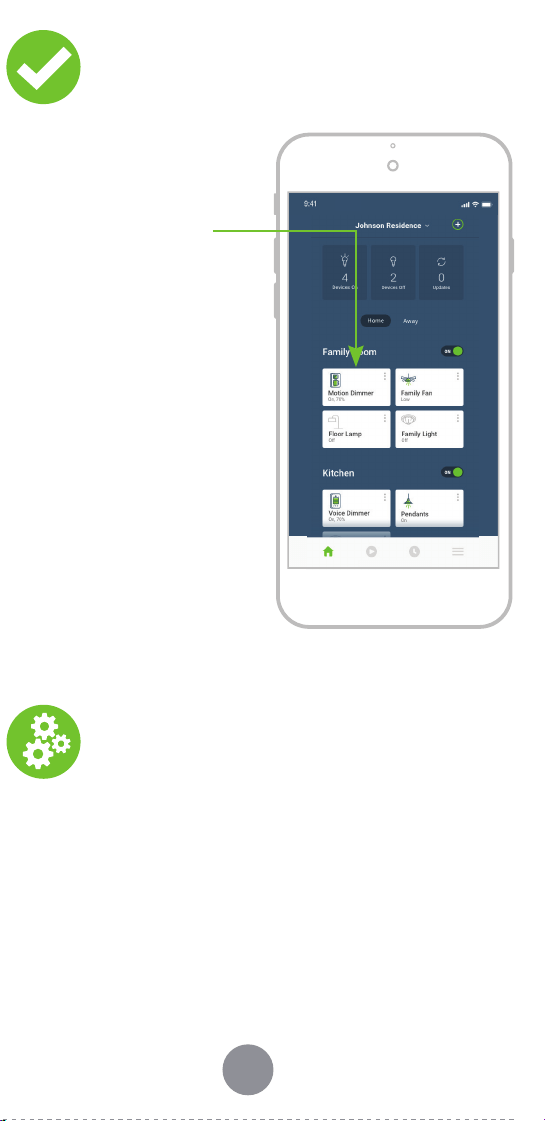
9 10 11 12 13
1514 16 17
What to do if...
Visit leviton.com/decorasmart or contact Technical Services
for additional help.
Learn more about Companion devices and find connection
instructions at leviton.com/decorasmart.
When power is applied, the manual buttons do not control the
lights and the lights do not turn ON when motion is present:
• Verify that the wiring connections are secure.
• For proper operation, the Motion Dimmer needs a Line (Hot),
Neutral, Load, and Ground connection.
When power is applied, the light turns ON, but Motion
Dimmer is not able to change the light level:
• Confirm that the white conductor is a Neutral.
• If using LED or CFL bulbs, make sure they are dimmable.
Motion Dimmer does not dim low enough, or begins to
flicker at the low end of the dimming range:
• Use the My Leviton app to increase the minimum dim level
to the point that it does not cause the LED bulb to flicker.
Lights do not turn ON when motion is detected:
•
Motion may be beyond sensing range - move closer to device.
• Go to Motion Sensor Calibration in the My Leviton app to
increase the sensor sensitivity and coverage area, or adjust
the ambient light settings.
• Make sure you are in Occupancy mode.
Lights always stay ON:
• Check app settings for how long the Motion Dimmer waits
before turning the lights OFF after no motion is detected.
• Check that Dimmer is not installed near a heat source or
detecting motion from an adjacent area (e.g., hallway traffic)
• Make sure you are in Occupancy mode.
Intermittent dimmer operation:
• Confirm that the Load does not exceed its ratings.
Not connected to Wi-Fi:
• If your device is set up in the My Leviton app, select your
device, and then select “Device Settings“. On the “Device
Settings” screen, select “Reconfigure Wireless“. Follow
prompts to reconfigure device and update Wi-Fi settings.
How do I clean my device?
• To clean use a damp cloth with mild soap. DO NOT use
disinfecting products, including foggers, sprays or other
types of atomized cleaning agents.
Factory default reset
Status LED
Diagnostic LED
Pair an Anywhere
Companion
If your device is not connecting to the My Leviton
app, the Status LED can be used as a diagnostic
tool. Press the ON/OFF button for at least 2 seconds
(but no more than 7 seconds), and then release. The
Status LED will blink a diagnostic code for 2 seconds.
COLOR ACTIVITY STATUS
Green Flashing
In Setup mode and r
eady to be added
to a Wi-Fi network.
Green Slow Blink
Connecting to a Wi-Fi network on
power up.
Green or
Off
Solid
Normal operation. Can be configured
in a setup.
Amber Slow Blink
Device is not connected to the Wi-
Fi network, but is attempting to
reconnect.
Green/
Amber
Alternating
Blink
Device is in wireless Anywhere
Companion Pairing mode.
Red Blink
Wireless Anywhere Companion
devices have unpaired or are at max
number of paired devices.
Green/Red/
Amber
Alternating
Blink
Identify feature triggered from the
My Leviton app.
COLO R STATU S
Amber Not connected to Wi-Fi.
Re
d
Connected to Wi-Fi, but unable to connect to
the My Leviton cloud.
Green/Amber,
Alternating
Connected to Wi-Fi and My Leviton cloud, but
unable to set the time from the internet.
Green
Connected to Wi-Fi, and the My Leviton cloud is
working properly.
Setup mode
3. Gently push wires
into wall box.
Screw Motion
Dimmer to box.
4. Snap on Decora
®
wallplate
and restore power.
Turn off power at the circuit
breaker before screwing in your
Motion Dimmer.
Once power is restored, the status
LED will blink GREEN, indicating
your device is in Setup mode. See
page 16 if your status LED is not
blinking GREEN.
Congratulations!
Your Decora Smart Motion Sensing
Dimmer is ready to control your lights.
To download the app,
visit my.leviton.com and select the link, or s
can
the QR code below for your device.
Get the app Device setup
Add your device to
My Leviton
• The Decora Smart Wi-Fi 2
nd
Gen Motion Sensing
Dimmer can be connected to the My Leviton
service, Apple HomeKit, or both.
• For voice control with Amazon Alexa or Google
Assistant, you will need to set up the device with
My Leviton.
• For voice control with Siri, you will need to connect
your device to Apple HomeKit. See page 15 for
instructions on how to add your device to
Apple HomeKit.
1. Make sure the device is in Setup mode (status LED
should be blinking GREEN). If the status LED is not
blinking GREEN, see page 16 for instructions on
how to put the device in Setup mode.
2. Launch the My Leviton app.
3. Log in or choose “Sign Up” to create a new account.
4. Follow the instructions on the screen.
5. Once logged in, tap the “+” in the upper right corner
and select “Add Device.”
6. Follow the app instructions to add your device and
to connect it to your home Wi-Fi network.
Connect to My Leviton
partners (optional)
Visit my.leviton.com for a complete list of
compatible smart home products.
Hey Google
works with
Add your device to Apple
HomeKit (optional)
NOTE: Skip Step 1 if your device is already enrolled in
My Leviton and on your Wi-Fi network.
1. Make sure the device is in Setup mode (status LED
should be blinking GREEN). If the status LED is not
blinking GREEN, see page 16 for instructions on how
to put the device into setup mode.
2.
Using an iOS device, open the Apple Home app and select
“Add Accessory”
.
3. Locate and scan the HomeKit setup code on your
device or on the front page of this Getting
Started Guide.
4. Follow the instructions in the Apple Home app.
5. Once the device is set up, you will be able to voice
control your Decora Smart Wi-Fi Motion Sensing
Dimmer with Apple Siri.
1. Place the Anywhere Companion in Pairing
mode by pressing the top rocker 5 times. Its
Status LED will blink GREEN.
2. Place the primary Decora Smart Wi-Fi Motion
Sensing Dimmer into Pairing mode by
pressing the ON/OFF button 5 times.
The Status LED will flash GREEN/AMBER.
3. The Decora Smart Wi-Fi Motion Sensing
Dimmer will automatically pair to the
Anywhere Companion in Pairing mode in
wireless RF range. Once paired, the Status
LED will quickly flash GREEN to show a
successful connection.
1.
Hold the ON/OFF button for 7 seconds
until the status light turns AMBER.
Then release.
2. The status light will flash GREEN.
The device is now in Setup mode.
NOTE: To exit, hold ON/OFF button
for 7 seconds while in Setup mode.
1.
Hold the ON/OFF button for 14 seconds.
2. After the first 7 seconds, the status light will turn
AMBER. Continue to hold.
3. After 7 more seconds, the status light will quickly
flash RED/AMBER.
4. Release the ON/OFF button and the device will reset.
1. Tap menu icon in
lower right corner.
2. Tap Integrations, locate the
desired service, select it, and
follow the instructions.
Single pole installation:
1. Work only one connection at a time.
2. Connect wires as shown, using the included
wire connectors.
Wire your Motion
Dimmer
If your wall box contains a different wiring
configuration, contact Leviton’s Technical
Support team or consult an electrician.
NOTES:
• Neutral connection is required.
• The YELLOW/RED Traveler wire is only used in hard-
wired 3-way applications. Remember to put a wire
connector on the YELLOW/RED Traveler even if not in
use.
LINE
LOAD
GND
GROUNDGROUND
LOADLOAD
To LightTo Light
LINE
LINE
GROUNDGROUND
NEUTRAL
TRAV
TRAVELER
TRAVELER
NEUTRAL
NEUTRAL
From From
Branch Circuit
Branch Circuit
1. Restore power. Status LED should flash GREEN.
This will indicate that your Motion Dimmer is ready
to be enrolled.
2. After powering on
the Motion Dimmer
to confirm it is
receiving power, turn
the power back
off again at the
breaker. Do this prior
to completing the
installation.
Test and install
Safety first
Limited 2 Year Warranty & Exclusions
For Leviton’s limited product warranty, go to www.leviton.com. For a
printed copy of the warranty, call 1-800-824-3005.
FOR CANADA ONLY
For warranty information and/or product returns, residents of Canada
should contact Leviton in writing at Leviton Manufacturing of Canada
ULC, to the attention of the Quality Assurance Department, 165 Hymus
Blvd, Pointe-Claire (Quebec), Canada H9R 1E9, or by telephone
at 1-800-405-5320.
WARNINGS:
• TO AVOID FIRE, SHOCK, OR DEATH, TURN OFF POWER a
t circuit
breaker or fuse and test that power is off before wiring!
• TO AVOID FIRE, PERSONAL INJURY, OR PROPERTY DAMAGE,
DO
NOT install to control a receptacle, a motor, or transformer
operated appliance.
• This product is to be installed and/or used in accordance with
e
lectrical codes and regulations.
• For indoor use only.
•
If you are unsure about any part of these instructions, consult
an electrician.
CAUTIONS:
• Use with compatible 120V dimmable LED/CFL bulbs, incandescent,
h
alogen, or magnetic low-voltage (MLV) fixtures. For ON/OFF control of
non-dimmable bulbs, such as fluorescent lighting, the non-dimmable
bulb type must be selected in the My Leviton app. Use a Leviton
electronic low-voltage dimmer to control electronic (solid state) low-
voltage transformers. For a list of compatible LED and CFL bulbs, refer
to www.leviton.com.
•
DO NOT mix bulb types when multiple bulbs are used with one dimmer.
Using the same make/model of each bulb will enhance
dimmer performance.
• The Decora Smart D2MSD dimmer is not compatible with standard
3-way or 4-way switches. It must be used with up to 4 Decora
®
Smart
DD00R-DL or DD0SR companions for wired multi-location dimming.
• Maximum wire length from dimmer to all installed companion devices
c
annot exceed 300 ft (90m).
• Save this instruction sheet. It contains important technical data,
a
long with testing and troubleshooting information, which will be
useful after installation is complete.
• Dimmer may feel warm to the touch during normal operation.
• Recommended minimum wall box depth is 2-3/4 in.
• Use this dimmer with copper or copper-clad wire only.
• Leviton Wi-Fi enabled devices rely on Wi-Fi communication.
Fo
r customers looking to install a large number of devices, it is
recommended to consult the wireless network’s access point
specifications to determine the maximum number of supported
Wi-Fi devices. In some cases, for example large installations, it may
be necessary to upgrade to newer high-performance wireless grade
access points to ensure proper operation.
ADDITIONAL RATINGS:
• Purpose of Control: Operating Control
• Action Control Type: 1
• Pollution Degree: 2
• Impulse Voltage: 2500V
• Disconnection Type: Micro
1. Open the My Leviton app.
2. Tap icon to turn the
Motion Sensing
Dimmer ON/OFF.
Test My Leviton
app control
Quick tips
• The My Leviton app includes many features such
as: room occupancy based on motion, room scenes,
whole-house activities, remote control, Vacation
mode, and advanced options for bulb type, fade
rates, preset light level, and minimum dim/maximum
brightness.
• Self-service support options can be found in the My
Leviton app or at decorasmartsupport.leviton.com.
Changing Sensor mode
You can use the My Leviton app to adjust all Motion
Sensor settings. If you do not have Wi-Fi available, you
can switch between Occupancy and Vacancy mode on
the device if needed. The Motion Sensing Dimmer is
defaulted to Occupancy mode.
NOTE: The default Vacancy settings can be used to
comply with 2019 Title 24, Part 6 Vacancy Control
Device requirements.
1. Press the ON/OFF button 7 times in sequence.
2. The device will change Sensor mode and the Status
LED will briefly flash:
• GREEN, if in Occupancy mode
• RED, if in Vaccancy mode
WEB VERSION
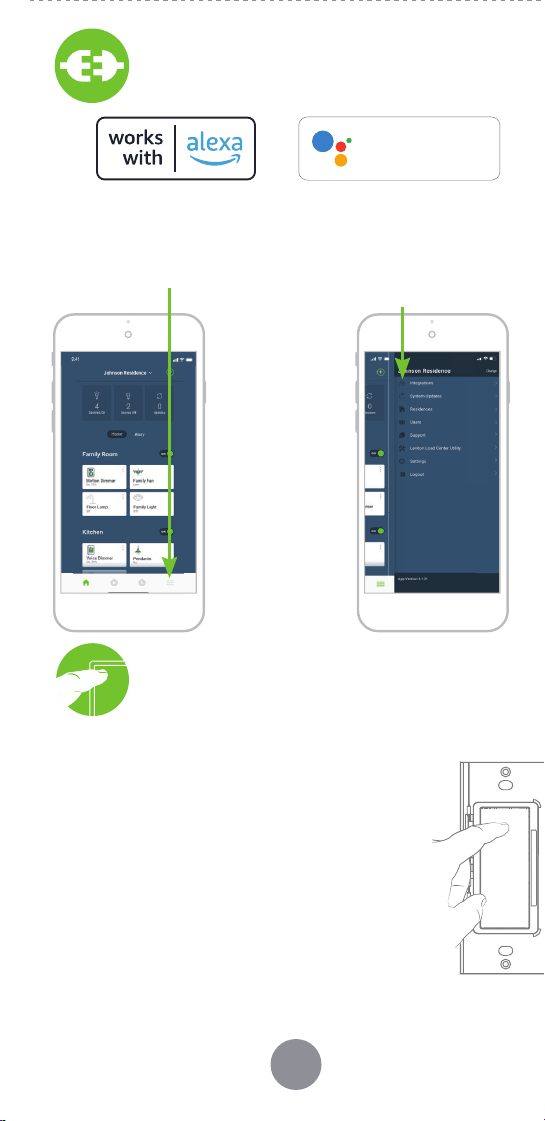
9 10 11 12 13
1514 16 17
What to do if...
Visit leviton.com/decorasmart or contact Technical Services
for additional help.
Learn more about Companion devices and find connection
instructions at leviton.com/decorasmart.
When power is applied, the manual buttons do not control the
lights and the lights do not turn ON when motion is present:
• Verify that the wiring connections are secure.
• For proper operation, the Motion Dimmer needs a Line (Hot),
Neutral, Load, and Ground connection.
When power is applied, the light turns ON, but Motion
Dimmer is not able to change the light level:
• Confirm that the white conductor is a Neutral.
• If using LED or CFL bulbs, make sure they are dimmable.
Motion Dimmer does not dim low enough, or begins to
flicker at the low end of the dimming range:
• Use the My Leviton app to increase the minimum dim level
to the point that it does not cause the LED bulb to flicker.
Lights do not turn ON when motion is detected:
•
Motion may be beyond sensing range - move closer to device.
• Go to Motion Sensor Calibration in the My Leviton app to
increase the sensor sensitivity and coverage area, or adjust
the ambient light settings.
• Make sure you are in Occupancy mode.
Lights always stay ON:
• Check app settings for how long the Motion Dimmer waits
before turning the lights OFF after no motion is detected.
• Check that Dimmer is not installed near a heat source or
detecting motion from an adjacent area (e.g., hallway traffic)
• Make sure you are in Occupancy mode.
Intermittent dimmer operation:
• Confirm that the Load does not exceed its ratings.
Not connected to Wi-Fi:
• If your device is set up in the My Leviton app, select your
device, and then select “Device Settings“. On the “Device
Settings” screen, select “Reconfigure Wireless“. Follow
prompts to reconfigure device and update Wi-Fi settings.
How do I clean my device?
• To clean use a damp cloth with mild soap. DO NOT use
disinfecting products, including foggers, sprays or other
types of atomized cleaning agents.
Factory default reset
Status LED
Diagnostic LED
Pair an Anywhere
Companion
If your device is not connecting to the My Leviton
app, the Status LED can be used as a diagnostic
tool. Press the ON/OFF button for at least 2 seconds
(but no more than 7 seconds), and then release. The
Status LED will blink a diagnostic code for 2 seconds.
COLOR ACTIVITY STATUS
Green Flashing
In Setup mode and r
eady to be added
to a Wi-Fi network.
Green Slow Blink
Connecting to a Wi-Fi network on
power up.
Green or
Off
Solid
Normal operation. Can be configured
in a setup.
Amber Slow Blink
Device is not connected to the Wi-
Fi network, but is attempting to
reconnect.
Green/
Amber
Alternating
Blink
Device is in wireless Anywhere
Companion Pairing mode.
Red Blink
Wireless Anywhere Companion
devices have unpaired or are at max
number of paired devices.
Green/Red/
Amber
Alternating
Blink
Identify feature triggered from the
My Leviton app.
COLO R STATU S
Amber Not connected to Wi-Fi.
Re
d
Connected to Wi-Fi, but unable to connect to
the My Leviton cloud.
Green/Amber,
Alternating
Connected to Wi-Fi and My Leviton cloud, but
unable to set the time from the internet.
Green
Connected to Wi-Fi, and the My Leviton cloud is
working properly.
Setup mode
3. Gently push wires
into wall box.
Screw Motion
Dimmer to box.
4. Snap on Decora
®
wallplate
and restore power.
Turn off power at the circuit
breaker before screwing in your
Motion Dimmer.
Once power is restored, the status
LED will blink GREEN, indicating
your device is in Setup mode. See
page 16 if your status LED is not
blinking GREEN.
Congratulations!
Your Decora Smart Motion Sensing
Dimmer is ready to control your lights.
To download the app,
visit my.leviton.com and select the link, or s
can
the QR code below for your device.
Get the app Device setup
Add your device to
My Leviton
• The Decora Smart Wi-Fi 2
nd
Gen Motion Sensing
Dimmer can be connected to the My Leviton
service, Apple HomeKit, or both.
• For voice control with Amazon Alexa or Google
Assistant, you will need to set up the device with
My Leviton.
• For voice control with Siri, you will need to connect
your device to Apple HomeKit. See page 15 for
instructions on how to add your device to
Apple HomeKit.
1. Make sure the device is in Setup mode (status LED
should be blinking GREEN). If the status LED is not
blinking GREEN, see page 16 for instructions on
how to put the device in Setup mode.
2. Launch the My Leviton app.
3. Log in or choose “Sign Up” to create a new account.
4. Follow the instructions on the screen.
5. Once logged in, tap the “+” in the upper right corner
and select “Add Device.”
6. Follow the app instructions to add your device and
to connect it to your home Wi-Fi network.
Connect to My Leviton
partners (optional)
Visit my.leviton.com for a complete list of
compatible smart home products.
Hey Google
works with
Add your device to Apple
HomeKit (optional)
NOTE: Skip Step 1 if your device is already enrolled in
My Leviton and on your Wi-Fi network.
1. Make sure the device is in Setup mode (status LED
should be blinking GREEN). If the status LED is not
blinking GREEN, see page 16 for instructions on how
to put the device into setup mode.
2.
Using an iOS device, open the Apple Home app and select
“Add Accessory”
.
3. Locate and scan the HomeKit setup code on your
device or on the front page of this Getting
Started Guide.
4. Follow the instructions in the Apple Home app.
5. Once the device is set up, you will be able to voice
control your Decora Smart Wi-Fi Motion Sensing
Dimmer with Apple Siri.
1. Place the Anywhere Companion in Pairing
mode by pressing the top rocker 5 times. Its
Status LED will blink GREEN.
2. Place the primary Decora Smart Wi-Fi Motion
Sensing Dimmer into Pairing mode by
pressing the ON/OFF button 5 times.
The Status LED will flash GREEN/AMBER.
3. The Decora Smart Wi-Fi Motion Sensing
Dimmer will automatically pair to the
Anywhere Companion in Pairing mode in
wireless RF range. Once paired, the Status
LED will quickly flash GREEN to show a
successful connection.
1.
Hold the ON/OFF button for 7 seconds
until the status light turns AMBER.
Then release.
2. The status light will flash GREEN.
The device is now in Setup mode.
NOTE: To exit, hold ON/OFF button
for 7 seconds while in Setup mode.
1.
Hold the ON/OFF button for 14 seconds.
2. After the first 7 seconds, the status light will turn
AMBER. Continue to hold.
3. After 7 more seconds, the status light will quickly
flash RED/AMBER.
4. Release the ON/OFF button and the device will reset.
1. Tap menu icon in
lower right corner.
2. Tap Integrations, locate the
desired service, select it, and
follow the instructions.
Single pole installation:
1. Work only one connection at a time.
2. Connect wires as shown, using the included
wire connectors.
Wire your Motion
Dimmer
If your wall box contains a different wiring
configuration, contact Leviton’s Technical
Support team or consult an electrician.
NOTES:
• Neutral connection is required.
• The YELLOW/RED Traveler wire is only used in hard-
wired 3-way applications. Remember to put a wire
connector on the YELLOW/RED Traveler even if not in
use.
LINE
LOAD
GND
GROUND
GROUND
LOAD
LOAD
To Light
To Light
LINE
LINE
GROUND
GROUND
NEUTRAL
TRAV
TRAVELER
TRAVELER
NEUTRAL
NEUTRAL
From
From
Branch Circuit
Branch Circuit
1. Restore power. Status LED should flash GREEN.
This will indicate that your Motion Dimmer is ready
to be enrolled.
2. After powering on
the Motion Dimmer
to confirm it is
receiving power, turn
the power back
off again at the
breaker. Do this prior
to completing the
installation.
Test and install
Safety first
Limited 2 Year Warranty & Exclusions
For Leviton’s limited product warranty, go to www.leviton.com. For a
printed copy of the warranty, call 1-800-824-3005.
FOR CANADA ONLY
For warranty information and/or product returns, residents of Canada
should contact Leviton in writing at Leviton Manufacturing of Canada
ULC, to the attention of the Quality Assurance Department, 165 Hymus
Blvd, Pointe-Claire (Quebec), Canada H9R 1E9, or by telephone
at 1-800-405-5320.
WARNINGS:
• TO AVOID FIRE, SHOCK, OR DEATH, TURN OFF POWER a
t circuit
breaker or fuse and test that power is off before wiring!
• TO AVOID FIRE, PERSONAL INJURY, OR PROPERTY DAMAGE,
DO
NOT install to control a receptacle, a motor, or transformer
operated appliance.
• This product is to be installed and/or used in accordance with
e
lectrical codes and regulations.
• For indoor use only.
•
If you are unsure about any part of these instructions, consult
an electrician.
CAUTIONS:
• Use with compatible 120V dimmable LED/CFL bulbs, incandescent,
h
alogen, or magnetic low-voltage (MLV) fixtures. For ON/OFF control of
non-dimmable bulbs, such as fluorescent lighting, the non-dimmable
bulb type must be selected in the My Leviton app. Use a Leviton
electronic low-voltage dimmer to control electronic (solid state) low-
voltage transformers. For a list of compatible LED and CFL bulbs, refer
to www.leviton.com.
•
DO NOT mix bulb types when multiple bulbs are used with one dimmer.
Using the same make/model of each bulb will enhance
dimmer performance.
• The Decora Smart D2MSD dimmer is not compatible with standard
3-way or 4-way switches. It must be used with up to 4 Decora
®
Smart
DD00R-DL or DD0SR companions for wired multi-location dimming.
• Maximum wire length from dimmer to all installed companion devices
c
annot exceed 300 ft (90m).
• Save this instruction sheet. It contains important technical data,
a
long with testing and troubleshooting information, which will be
useful after installation is complete.
• Dimmer may feel warm to the touch during normal operation.
• Recommended minimum wall box depth is 2-3/4 in.
• Use this dimmer with copper or copper-clad wire only.
• Leviton Wi-Fi enabled devices rely on Wi-Fi communication.
Fo
r customers looking to install a large number of devices, it is
recommended to consult the wireless network’s access point
specifications to determine the maximum number of supported
Wi-Fi devices. In some cases, for example large installations, it may
be necessary to upgrade to newer high-performance wireless grade
access points to ensure proper operation.
ADDITIONAL RATINGS:
• Purpose of Control: Operating Control
• Action Control Type: 1
• Pollution Degree: 2
• Impulse Voltage: 2500V
• Disconnection Type: Micro
1. Open the My Leviton app.
2. Tap icon to turn the
Motion Sensing
Dimmer ON/OFF.
Test My Leviton
app control
Quick tips
• The My Leviton app includes many features such
as: room occupancy based on motion, room scenes,
whole-house activities, remote control, Vacation
mode, and advanced options for bulb type, fade
rates, preset light level, and minimum dim/maximum
brightness.
• Self-service support options can be found in the My
Leviton app or at decorasmartsupport.leviton.com.
Changing Sensor mode
You can use the My Leviton app to adjust all Motion
Sensor settings. If you do not have Wi-Fi available, you
can switch between Occupancy and Vacancy mode on
the device if needed. The Motion Sensing Dimmer is
defaulted to Occupancy mode.
NOTE: The default Vacancy settings can be used to
comply with 2019 Title 24, Part 6 Vacancy Control
Device requirements.
1. Press the ON/OFF button 7 times in sequence.
2. The device will change Sensor mode and the Status
LED will briefly flash:
• GREEN, if in Occupancy mode
• RED, if in Vaccancy mode
WEB VERSION
9 10 11 12 13
1514 16 17
What to do if...
Visit leviton.com/decorasmart or contact Technical Services
for additional help.
Learn more about Companion devices and find connection
instructions at leviton.com/decorasmart.
When power is applied, the manual buttons do not control the
lights and the lights do not turn ON when motion is present:
• Verify that the wiring connections are secure.
• For proper operation, the Motion Dimmer needs a Line (Hot),
Neutral, Load, and Ground connection.
When power is applied, the light turns ON, but Motion
Dimmer is not able to change the light level:
• Confirm that the white conductor is a Neutral.
• If using LED or CFL bulbs, make sure they are dimmable.
Motion Dimmer does not dim low enough, or begins to
flicker at the low end of the dimming range:
• Use the My Leviton app to increase the minimum dim level
to the point that it does not cause the LED bulb to flicker.
Lights do not turn ON when motion is detected:
•
Motion may be beyond sensing range - move closer to device.
• Go to Motion Sensor Calibration in the My Leviton app to
increase the sensor sensitivity and coverage area, or adjust
the ambient light settings.
• Make sure you are in Occupancy mode.
Lights always stay ON:
• Check app settings for how long the Motion Dimmer waits
before turning the lights OFF after no motion is detected.
• Check that Dimmer is not installed near a heat source or
detecting motion from an adjacent area (e.g., hallway traffic)
• Make sure you are in Occupancy mode.
Intermittent dimmer operation:
• Confirm that the Load does not exceed its ratings.
Not connected to Wi-Fi:
• If your device is set up in the My Leviton app, select your
device, and then select “Device Settings“. On the “Device
Settings” screen, select “Reconfigure Wireless“. Follow
prompts to reconfigure device and update Wi-Fi settings.
How do I clean my device?
• To clean use a damp cloth with mild soap. DO NOT use
disinfecting products, including foggers, sprays or other
types of atomized cleaning agents.
Factory default reset
Status LED
Diagnostic LED
Pair an Anywhere
Companion
If your device is not connecting to the My Leviton
app, the Status LED can be used as a diagnostic
tool. Press the ON/OFF button for at least 2 seconds
(but no more than 7 seconds), and then release. The
Status LED will blink a diagnostic code for 2 seconds.
COLOR ACTIVITY STATUS
Green Flashing
In Setup mode and r
eady to be added
to a Wi-Fi network.
Green Slow Blink
Connecting to a Wi-Fi network on
power up.
Green or
Off
Solid
Normal operation. Can be configured
in a setup.
Amber Slow Blink
Device is not connected to the Wi-
Fi network, but is attempting to
reconnect.
Green/
Amber
Alternating
Blink
Device is in wireless Anywhere
Companion Pairing mode.
Red Blink
Wireless Anywhere Companion
devices have unpaired or are at max
number of paired devices.
Green/Red/
Amber
Alternating
Blink
Identify feature triggered from the
My Leviton app.
COLO R STATU S
Amber Not connected to Wi-Fi.
Re
d
Connected to Wi-Fi, but unable to connect to
the My Leviton cloud.
Green/Amber,
Alternating
Connected to Wi-Fi and My Leviton cloud, but
unable to set the time from the internet.
Green
Connected to Wi-Fi, and the My Leviton cloud is
working properly.
Setup mode
3. Gently push wires
into wall box.
Screw Motion
Dimmer to box.
4. Snap on Decora
®
wallplate
and restore power.
Turn off power at the circuit
breaker before screwing in your
Motion Dimmer.
Once power is restored, the status
LED will blink GREEN, indicating
your device is in Setup mode. See
page 16 if your status LED is not
blinking GREEN.
Congratulations!
Your Decora Smart Motion Sensing
Dimmer is ready to control your lights.
To download the app,
visit my.leviton.com and select the link, or s
can
the QR code below for your device.
Get the app Device setup
Add your device to
My Leviton
• The Decora Smart Wi-Fi 2
nd
Gen Motion Sensing
Dimmer can be connected to the My Leviton
service, Apple HomeKit, or both.
• For voice control with Amazon Alexa or Google
Assistant, you will need to set up the device with
My Leviton.
• For voice control with Siri, you will need to connect
your device to Apple HomeKit. See page 15 for
instructions on how to add your device to
Apple HomeKit.
1. Make sure the device is in Setup mode (status LED
should be blinking GREEN). If the status LED is not
blinking GREEN, see page 16 for instructions on
how to put the device in Setup mode.
2. Launch the My Leviton app.
3. Log in or choose “Sign Up” to create a new account.
4. Follow the instructions on the screen.
5. Once logged in, tap the “+” in the upper right corner
and select “Add Device.”
6. Follow the app instructions to add your device and
to connect it to your home Wi-Fi network.
Connect to My Leviton
partners (optional)
Visit my.leviton.com for a complete list of
compatible smart home products.
Hey Google
works with
Add your device to Apple
HomeKit (optional)
NOTE: Skip Step 1 if your device is already enrolled in
My Leviton and on your Wi-Fi network.
1. Make sure the device is in Setup mode (status LED
should be blinking GREEN). If the status LED is not
blinking GREEN, see page 16 for instructions on how
to put the device into setup mode.
2.
Using an iOS device, open the Apple Home app and select
“Add Accessory”
.
3. Locate and scan the HomeKit setup code on your
device or on the front page of this Getting
Started Guide.
4. Follow the instructions in the Apple Home app.
5. Once the device is set up, you will be able to voice
control your Decora Smart Wi-Fi Motion Sensing
Dimmer with Apple Siri.
1. Place the Anywhere Companion in Pairing
mode by pressing the top rocker 5 times. Its
Status LED will blink GREEN.
2. Place the primary Decora Smart Wi-Fi Motion
Sensing Dimmer into Pairing mode by
pressing the ON/OFF button 5 times.
The Status LED will flash GREEN/AMBER.
3. The Decora Smart Wi-Fi Motion Sensing
Dimmer will automatically pair to the
Anywhere Companion in Pairing mode in
wireless RF range. Once paired, the Status
LED will quickly flash GREEN to show a
successful connection.
1.
Hold the ON/OFF button for 7 seconds
until the status light turns AMBER.
Then release.
2. The status light will flash GREEN.
The device is now in Setup mode.
NOTE: To exit, hold ON/OFF button
for 7 seconds while in Setup mode.
1.
Hold the ON/OFF button for 14 seconds.
2. After the first 7 seconds, the status light will turn
AMBER. Continue to hold.
3. After 7 more seconds, the status light will quickly
flash RED/AMBER.
4. Release the ON/OFF button and the device will reset.
1. Tap menu icon in
lower right corner.
2. Tap Integrations, locate the
desired service, select it, and
follow the instructions.
Single pole installation:
1. Work only one connection at a time.
2. Connect wires as shown, using the included
wire connectors.
Wire your Motion
Dimmer
If your wall box contains a different wiring
configuration, contact Leviton’s Technical
Support team or consult an electrician.
NOTES:
• Neutral connection is required.
• The YELLOW/RED Traveler wire is only used in hard-
wired 3-way applications. Remember to put a wire
connector on the YELLOW/RED Traveler even if not in
use.
LINE
LOAD
GND
GROUND
GROUND
LOAD
LOAD
To Light
To Light
LINE
LINE
GROUND
GROUND
NEUTRAL
TRAV
TRAVELER
TRAVELER
NEUTRAL
NEUTRAL
From
From
Branch Circuit
Branch Circuit
1. Restore power. Status LED should flash GREEN.
This will indicate that your Motion Dimmer is ready
to be enrolled.
2. After powering on
the Motion Dimmer
to confirm it is
receiving power, turn
the power back
off again at the
breaker. Do this prior
to completing the
installation.
Test and install
Safety first
Limited 2 Year Warranty & Exclusions
For Leviton’s limited product warranty, go to www.leviton.com. For a
printed copy of the warranty, call 1-800-824-3005.
FOR CANADA ONLY
For warranty information and/or product returns, residents of Canada
should contact Leviton in writing at Leviton Manufacturing of Canada
ULC, to the attention of the Quality Assurance Department, 165 Hymus
Blvd, Pointe-Claire (Quebec), Canada H9R 1E9, or by telephone
at 1-800-405-5320.
WARNINGS:
• TO AVOID FIRE, SHOCK, OR DEATH, TURN OFF POWER a
t circuit
breaker or fuse and test that power is off before wiring!
• TO AVOID FIRE, PERSONAL INJURY, OR PROPERTY DAMAGE,
DO
NOT install to control a receptacle, a motor, or transformer
operated appliance.
• This product is to be installed and/or used in accordance with
e
lectrical codes and regulations.
• For indoor use only.
•
If you are unsure about any part of these instructions, consult
an electrician.
CAUTIONS:
• Use with compatible 120V dimmable LED/CFL bulbs, incandescent,
h
alogen, or magnetic low-voltage (MLV) fixtures. For ON/OFF control of
non-dimmable bulbs, such as fluorescent lighting, the non-dimmable
bulb type must be selected in the My Leviton app. Use a Leviton
electronic low-voltage dimmer to control electronic (solid state) low-
voltage transformers. For a list of compatible LED and CFL bulbs, refer
to www.leviton.com.
•
DO NOT mix bulb types when multiple bulbs are used with one dimmer.
Using the same make/model of each bulb will enhance
dimmer performance.
• The Decora Smart D2MSD dimmer is not compatible with standard
3-way or 4-way switches. It must be used with up to 4 Decora
®
Smart
DD00R-DL or DD0SR companions for wired multi-location dimming.
• Maximum wire length from dimmer to all installed companion devices
c
annot exceed 300 ft (90m).
• Save this instruction sheet. It contains important technical data,
a
long with testing and troubleshooting information, which will be
useful after installation is complete.
• Dimmer may feel warm to the touch during normal operation.
• Recommended minimum wall box depth is 2-3/4 in.
• Use this dimmer with copper or copper-clad wire only.
• Leviton Wi-Fi enabled devices rely on Wi-Fi communication.
Fo
r customers looking to install a large number of devices, it is
recommended to consult the wireless network’s access point
specifications to determine the maximum number of supported
Wi-Fi devices. In some cases, for example large installations, it may
be necessary to upgrade to newer high-performance wireless grade
access points to ensure proper operation.
ADDITIONAL RATINGS:
• Purpose of Control: Operating Control
• Action Control Type: 1
• Pollution Degree: 2
• Impulse Voltage: 2500V
• Disconnection Type: Micro
1. Open the My Leviton app.
2. Tap icon to turn the
Motion Sensing
Dimmer ON/OFF.
Test My Leviton
app control
Quick tips
• The My Leviton app includes many features such
as: room occupancy based on motion, room scenes,
whole-house activities, remote control, Vacation
mode, and advanced options for bulb type, fade
rates, preset light level, and minimum dim/maximum
brightness.
• Self-service support options can be found in the My
Leviton app or at decorasmartsupport.leviton.com.
Changing Sensor mode
You can use the My Leviton app to adjust all Motion
Sensor settings. If you do not have Wi-Fi available, you
can switch between Occupancy and Vacancy mode on
the device if needed. The Motion Sensing Dimmer is
defaulted to Occupancy mode.
NOTE: The default Vacancy settings can be used to
comply with 2019 Title 24, Part 6 Vacancy Control
Device requirements.
1. Press the ON/OFF button 7 times in sequence.
2. The device will change Sensor mode and the Status
LED will briefly flash:
• GREEN, if in Occupancy mode
• RED, if in Vaccancy mode
WEB VERSION
9 10 11 12 13
1514 16 17
What to do if...
Visit leviton.com/decorasmart or contact Technical Services
for additional help.
Learn more about Companion devices and find connection
instructions at leviton.com/decorasmart.
When power is applied, the manual buttons do not control the
lights and the lights do not turn ON when motion is present:
• Verify that the wiring connections are secure.
• For proper operation, the Motion Dimmer needs a Line (Hot),
Neutral, Load, and Ground connection.
When power is applied, the light turns ON, but Motion
Dimmer is not able to change the light level:
• Confirm that the white conductor is a Neutral.
• If using LED or CFL bulbs, make sure they are dimmable.
Motion Dimmer does not dim low enough, or begins to
flicker at the low end of the dimming range:
• Use the My Leviton app to increase the minimum dim level
to the point that it does not cause the LED bulb to flicker.
Lights do not turn ON when motion is detected:
•
Motion may be beyond sensing range - move closer to device.
• Go to Motion Sensor Calibration in the My Leviton app to
increase the sensor sensitivity and coverage area, or adjust
the ambient light settings.
• Make sure you are in Occupancy mode.
Lights always stay ON:
• Check app settings for how long the Motion Dimmer waits
before turning the lights OFF after no motion is detected.
• Check that Dimmer is not installed near a heat source or
detecting motion from an adjacent area (e.g., hallway traffic)
• Make sure you are in Occupancy mode.
Intermittent dimmer operation:
• Confirm that the Load does not exceed its ratings.
Not connected to Wi-Fi:
• If your device is set up in the My Leviton app, select your
device, and then select “Device Settings“. On the “Device
Settings” screen, select “Reconfigure Wireless“. Follow
prompts to reconfigure device and update Wi-Fi settings.
How do I clean my device?
• To clean use a damp cloth with mild soap. DO NOT use
disinfecting products, including foggers, sprays or other
types of atomized cleaning agents.
Factory default reset
Status LED
Diagnostic LED
Pair an Anywhere
Companion
If your device is not connecting to the My Leviton
app, the Status LED can be used as a diagnostic
tool. Press the ON/OFF button for at least 2 seconds
(but no more than 7 seconds), and then release. The
Status LED will blink a diagnostic code for 2 seconds.
COLOR ACTIVITY STATUS
Green Flashing
In Setup mode and r
eady to be added
to a Wi-Fi network.
Green Slow Blink
Connecting to a Wi-Fi network on
power up.
Green or
Off
Solid
Normal operation. Can be configured
in a setup.
Amber Slow Blink
Device is not connected to the Wi-
Fi network, but is attempting to
reconnect.
Green/
Amber
Alternating
Blink
Device is in wireless Anywhere
Companion Pairing mode.
Red Blink
Wireless Anywhere Companion
devices have unpaired or are at max
number of paired devices.
Green/Red/
Amber
Alternating
Blink
Identify feature triggered from the
My Leviton app.
COLO R STATU S
Amber Not connected to Wi-Fi.
Re
d
Connected to Wi-Fi, but unable to connect to
the My Leviton cloud.
Green/Amber,
Alternating
Connected to Wi-Fi and My Leviton cloud, but
unable to set the time from the internet.
Green
Connected to Wi-Fi, and the My Leviton cloud is
working properly.
Setup mode
3. Gently push wires
into wall box.
Screw Motion
Dimmer to box.
4. Snap on Decora
®
wallplate
and restore power.
Turn off power at the circuit
breaker before screwing in your
Motion Dimmer.
Once power is restored, the status
LED will blink GREEN, indicating
your device is in Setup mode. See
page 16 if your status LED is not
blinking GREEN.
Congratulations!
Your Decora Smart Motion Sensing
Dimmer is ready to control your lights.
To download the app,
visit my.leviton.com and select the link, or s
can
the QR code below for your device.
Get the app Device setup
Add your device to
My Leviton
• The Decora Smart Wi-Fi 2
nd
Gen Motion Sensing
Dimmer can be connected to the My Leviton
service, Apple HomeKit, or both.
• For voice control with Amazon Alexa or Google
Assistant, you will need to set up the device with
My Leviton.
• For voice control with Siri, you will need to connect
your device to Apple HomeKit. See page 15 for
instructions on how to add your device to
Apple HomeKit.
1. Make sure the device is in Setup mode (status LED
should be blinking GREEN). If the status LED is not
blinking GREEN, see page 16 for instructions on
how to put the device in Setup mode.
2. Launch the My Leviton app.
3. Log in or choose “Sign Up” to create a new account.
4. Follow the instructions on the screen.
5. Once logged in, tap the “+” in the upper right corner
and select “Add Device.”
6. Follow the app instructions to add your device and
to connect it to your home Wi-Fi network.
Connect to My Leviton
partners (optional)
Visit my.leviton.com for a complete list of
compatible smart home products.
Hey Google
works with
Add your device to Apple
HomeKit (optional)
NOTE: Skip Step 1 if your device is already enrolled in
My Leviton and on your Wi-Fi network.
1. Make sure the device is in Setup mode (status LED
should be blinking GREEN). If the status LED is not
blinking GREEN, see page 16 for instructions on how
to put the device into setup mode.
2.
Using an iOS device, open the Apple Home app and select
“Add Accessory”
.
3. Locate and scan the HomeKit setup code on your
device or on the front page of this Getting
Started Guide.
4. Follow the instructions in the Apple Home app.
5. Once the device is set up, you will be able to voice
control your Decora Smart Wi-Fi Motion Sensing
Dimmer with Apple Siri.
1. Place the Anywhere Companion in Pairing
mode by pressing the top rocker 5 times. Its
Status LED will blink GREEN.
2. Place the primary Decora Smart Wi-Fi Motion
Sensing Dimmer into Pairing mode by
pressing the ON/OFF button 5 times.
The Status LED will flash GREEN/AMBER.
3. The Decora Smart Wi-Fi Motion Sensing
Dimmer will automatically pair to the
Anywhere Companion in Pairing mode in
wireless RF range. Once paired, the Status
LED will quickly flash GREEN to show a
successful connection.
1.
Hold the ON/OFF button for 7 seconds
until the status light turns AMBER.
Then release.
2. The status light will flash GREEN.
The device is now in Setup mode.
NOTE: To exit, hold ON/OFF button
for 7 seconds while in Setup mode.
1.
Hold the ON/OFF button for 14 seconds.
2. After the first 7 seconds, the status light will turn
AMBER. Continue to hold.
3. After 7 more seconds, the status light will quickly
flash RED/AMBER.
4. Release the ON/OFF button and the device will reset.
1. Tap menu icon in
lower right corner.
2. Tap Integrations, locate the
desired service, select it, and
follow the instructions.
Single pole installation:
1. Work only one connection at a time.
2. Connect wires as shown, using the included
wire connectors.
Wire your Motion
Dimmer
If your wall box contains a different wiring
configuration, contact Leviton’s Technical
Support team or consult an electrician.
NOTES:
• Neutral connection is required.
• The YELLOW/RED Traveler wire is only used in hard-
wired 3-way applications. Remember to put a wire
connector on the YELLOW/RED Traveler even if not in
use.
LINE
LOAD
GND
GROUND
GROUND
LOAD
LOAD
To Light
To Light
LINE
LINE
GROUND
GROUND
NEUTRAL
TRAV
TRAVELER
TRAVELER
NEUTRAL
NEUTRAL
From
From
Branch Circuit
Branch Circuit
1. Restore power. Status LED should flash GREEN.
This will indicate that your Motion Dimmer is ready
to be enrolled.
2. After powering on
the Motion Dimmer
to confirm it is
receiving power, turn
the power back
off again at the
breaker. Do this prior
to completing the
installation.
Test and install
Safety first
Limited 2 Year Warranty & Exclusions
For Leviton’s limited product warranty, go to www.leviton.com. For a
printed copy of the warranty, call 1-800-824-3005.
FOR CANADA ONLY
For warranty information and/or product returns, residents of Canada
should contact Leviton in writing at Leviton Manufacturing of Canada
ULC, to the attention of the Quality Assurance Department, 165 Hymus
Blvd, Pointe-Claire (Quebec), Canada H9R 1E9, or by telephone
at 1-800-405-5320.
WARNINGS:
• TO AVOID FIRE, SHOCK, OR DEATH, TURN OFF POWER a
t circuit
breaker or fuse and test that power is off before wiring!
• TO AVOID FIRE, PERSONAL INJURY, OR PROPERTY DAMAGE,
DO
NOT install to control a receptacle, a motor, or transformer
operated appliance.
• This product is to be installed and/or used in accordance with
e
lectrical codes and regulations.
• For indoor use only.
•
If you are unsure about any part of these instructions, consult
an electrician.
CAUTIONS:
• Use with compatible 120V dimmable LED/CFL bulbs, incandescent,
h
alogen, or magnetic low-voltage (MLV) fixtures. For ON/OFF control of
non-dimmable bulbs, such as fluorescent lighting, the non-dimmable
bulb type must be selected in the My Leviton app. Use a Leviton
electronic low-voltage dimmer to control electronic (solid state) low-
voltage transformers. For a list of compatible LED and CFL bulbs, refer
to www.leviton.com.
•
DO NOT mix bulb types when multiple bulbs are used with one dimmer.
Using the same make/model of each bulb will enhance
dimmer performance.
• The Decora Smart D2MSD dimmer is not compatible with standard
3-way or 4-way switches. It must be used with up to 4 Decora
®
Smart
DD00R-DL or DD0SR companions for wired multi-location dimming.
• Maximum wire length from dimmer to all installed companion devices
c
annot exceed 300 ft (90m).
• Save this instruction sheet. It contains important technical data,
a
long with testing and troubleshooting information, which will be
useful after installation is complete.
• Dimmer may feel warm to the touch during normal operation.
• Recommended minimum wall box depth is 2-3/4 in.
• Use this dimmer with copper or copper-clad wire only.
• Leviton Wi-Fi enabled devices rely on Wi-Fi communication.
Fo
r customers looking to install a large number of devices, it is
recommended to consult the wireless network’s access point
specifications to determine the maximum number of supported
Wi-Fi devices. In some cases, for example large installations, it may
be necessary to upgrade to newer high-performance wireless grade
access points to ensure proper operation.
ADDITIONAL RATINGS:
• Purpose of Control: Operating Control
• Action Control Type: 1
• Pollution Degree: 2
• Impulse Voltage: 2500V
• Disconnection Type: Micro
1. Open the My Leviton app.
2. Tap icon to turn the
Motion Sensing
Dimmer ON/OFF.
Test My Leviton
app control
Quick tips
• The My Leviton app includes many features such
as: room occupancy based on motion, room scenes,
whole-house activities, remote control, Vacation
mode, and advanced options for bulb type, fade
rates, preset light level, and minimum dim/maximum
brightness.
• Self-service support options can be found in the My
Leviton app or at decorasmartsupport.leviton.com.
Changing Sensor mode
You can use the My Leviton app to adjust all Motion
Sensor settings. If you do not have Wi-Fi available, you
can switch between Occupancy and Vacancy mode on
the device if needed. The Motion Sensing Dimmer is
defaulted to Occupancy mode.
NOTE: The default Vacancy settings can be used to
comply with 2019 Title 24, Part 6 Vacancy Control
Device requirements.
1. Press the ON/OFF button 7 times in sequence.
2. The device will change Sensor mode and the Status
LED will briefly flash:
• GREEN, if in Occupancy mode
• RED, if in Vaccancy mode
WEB VERSION

9 10 11 12 13
1514 16 17
What to do if...
Visit leviton.com/decorasmart or contact Technical Services
for additional help.
Learn more about Companion devices and find connection
instructions at leviton.com/decorasmart.
When power is applied, the manual buttons do not control the
lights and the lights do not turn ON when motion is present:
• Verify that the wiring connections are secure.
• For proper operation, the Motion Dimmer needs a Line (Hot),
Neutral, Load, and Ground connection.
When power is applied, the light turns ON, but Motion
Dimmer is not able to change the light level:
• Confirm that the white conductor is a Neutral.
• If using LED or CFL bulbs, make sure they are dimmable.
Motion Dimmer does not dim low enough, or begins to
flicker at the low end of the dimming range:
• Use the My Leviton app to increase the minimum dim level
to the point that it does not cause the LED bulb to flicker.
Lights do not turn ON when motion is detected:
•
Motion may be beyond sensing range - move closer to device.
• Go to Motion Sensor Calibration in the My Leviton app to
increase the sensor sensitivity and coverage area, or adjust
the ambient light settings.
• Make sure you are in Occupancy mode.
Lights always stay ON:
• Check app settings for how long the Motion Dimmer waits
before turning the lights OFF after no motion is detected.
• Check that Dimmer is not installed near a heat source or
detecting motion from an adjacent area (e.g., hallway traffic)
• Make sure you are in Occupancy mode.
Intermittent dimmer operation:
• Confirm that the Load does not exceed its ratings.
Not connected to Wi-Fi:
• If your device is set up in the My Leviton app, select your
device, and then select “Device Settings“. On the “Device
Settings” screen, select “Reconfigure Wireless“. Follow
prompts to reconfigure device and update Wi-Fi settings.
How do I clean my device?
• To clean use a damp cloth with mild soap. DO NOT use
disinfecting products, including foggers, sprays or other
types of atomized cleaning agents.
Factory default reset
Status LED
Diagnostic LED
Pair an Anywhere
Companion
If your device is not connecting to the My Leviton
app, the Status LED can be used as a diagnostic
tool. Press the ON/OFF button for at least 2 seconds
(but no more than 7 seconds), and then release. The
Status LED will blink a diagnostic code for 2 seconds.
COLOR ACTIVITY STATUS
Green Flashing
In Setup mode and r
eady to be added
to a Wi-Fi network.
Green Slow Blink
Connecting to a Wi-Fi network on
power up.
Green or
Off
Solid
Normal operation. Can be configured
in a setup.
Amber Slow Blink
Device is not connected to the Wi-
Fi network, but is attempting to
reconnect.
Green/
Amber
Alternating
Blink
Device is in wireless Anywhere
Companion Pairing mode.
Red Blink
Wireless Anywhere Companion
devices have unpaired or are at max
number of paired devices.
Green/Red/
Amber
Alternating
Blink
Identify feature triggered from the
My Leviton app.
COLO R STATU S
Amber Not connected to Wi-Fi.
Re
d
Connected to Wi-Fi, but unable to connect to
the My Leviton cloud.
Green/Amber,
Alternating
Connected to Wi-Fi and My Leviton cloud, but
unable to set the time from the internet.
Green
Connected to Wi-Fi, and the My Leviton cloud is
working properly.
Setup mode
3. Gently push wires
into wall box.
Screw Motion
Dimmer to box.
4. Snap on Decora
®
wallplate
and restore power.
Turn off power at the circuit
breaker before screwing in your
Motion Dimmer.
Once power is restored, the status
LED will blink GREEN, indicating
your device is in Setup mode. See
page 16 if your status LED is not
blinking GREEN.
Congratulations!
Your Decora Smart Motion Sensing
Dimmer is ready to control your lights.
To download the app,
visit my.leviton.com and select the link, or s
can
the QR code below for your device.
Get the app Device setup
Add your device to
My Leviton
• The Decora Smart Wi-Fi 2
nd
Gen Motion Sensing
Dimmer can be connected to the My Leviton
service, Apple HomeKit, or both.
• For voice control with Amazon Alexa or Google
Assistant, you will need to set up the device with
My Leviton.
• For voice control with Siri, you will need to connect
your device to Apple HomeKit. See page 15 for
instructions on how to add your device to
Apple HomeKit.
1. Make sure the device is in Setup mode (status LED
should be blinking GREEN). If the status LED is not
blinking GREEN, see page 16 for instructions on
how to put the device in Setup mode.
2. Launch the My Leviton app.
3. Log in or choose “Sign Up” to create a new account.
4. Follow the instructions on the screen.
5. Once logged in, tap the “+” in the upper right corner
and select “Add Device.”
6. Follow the app instructions to add your device and
to connect it to your home Wi-Fi network.
Connect to My Leviton
partners (optional)
Visit my.leviton.com for a complete list of
compatible smart home products.
Hey Google
works with
Add your device to Apple
HomeKit (optional)
NOTE: Skip Step 1 if your device is already enrolled in
My Leviton and on your Wi-Fi network.
1. Make sure the device is in Setup mode (status LED
should be blinking GREEN). If the status LED is not
blinking GREEN, see page 16 for instructions on how
to put the device into setup mode.
2.
Using an iOS device, open the Apple Home app and select
“Add Accessory”
.
3. Locate and scan the HomeKit setup code on your
device or on the front page of this Getting
Started Guide.
4. Follow the instructions in the Apple Home app.
5. Once the device is set up, you will be able to voice
control your Decora Smart Wi-Fi Motion Sensing
Dimmer with Apple Siri.
1. Place the Anywhere Companion in Pairing
mode by pressing the top rocker 5 times. Its
Status LED will blink GREEN.
2. Place the primary Decora Smart Wi-Fi Motion
Sensing Dimmer into Pairing mode by
pressing the ON/OFF button 5 times.
The Status LED will flash GREEN/AMBER.
3. The Decora Smart Wi-Fi Motion Sensing
Dimmer will automatically pair to the
Anywhere Companion in Pairing mode in
wireless RF range. Once paired, the Status
LED will quickly flash GREEN to show a
successful connection.
1.
Hold the ON/OFF button for 7 seconds
until the status light turns AMBER.
Then release.
2. The status light will flash GREEN.
The device is now in Setup mode.
NOTE: To exit, hold ON/OFF button
for 7 seconds while in Setup mode.
1.
Hold the ON/OFF button for 14 seconds.
2. After the first 7 seconds, the status light will turn
AMBER. Continue to hold.
3. After 7 more seconds, the status light will quickly
flash RED/AMBER.
4. Release the ON/OFF button and the device will reset.
1. Tap menu icon in
lower right corner.
2. Tap Integrations, locate the
desired service, select it, and
follow the instructions.
Single pole installation:
1. Work only one connection at a time.
2. Connect wires as shown, using the included
wire connectors.
Wire your Motion
Dimmer
If your wall box contains a different wiring
configuration, contact Leviton’s Technical
Support team or consult an electrician.
NOTES:
• Neutral connection is required.
• The YELLOW/RED Traveler wire is only used in hard-
wired 3-way applications. Remember to put a wire
connector on the YELLOW/RED Traveler even if not in
use.
LINE
LOAD
GND
GROUND
GROUND
LOAD
LOAD
To Light
To Light
LINE
LINE
GROUND
GROUND
NEUTRAL
TRAV
TRAVELER
TRAVELER
NEUTRAL
NEUTRAL
From
From
Branch Circuit
Branch Circuit
1. Restore power. Status LED should flash GREEN.
This will indicate that your Motion Dimmer is ready
to be enrolled.
2. After powering on
the Motion Dimmer
to confirm it is
receiving power, turn
the power back
off again at the
breaker. Do this prior
to completing the
installation.
Test and install
Safety first
Limited 2 Year Warranty & Exclusions
For Leviton’s limited product warranty, go to www.leviton.com. For a
printed copy of the warranty, call 1-800-824-3005.
FOR CANADA ONLY
For warranty information and/or product returns, residents of Canada
should contact Leviton in writing at Leviton Manufacturing of Canada
ULC, to the attention of the Quality Assurance Department, 165 Hymus
Blvd, Pointe-Claire (Quebec), Canada H9R 1E9, or by telephone
at 1-800-405-5320.
WARNINGS:
• TO AVOID FIRE, SHOCK, OR DEATH, TURN OFF POWER a
t circuit
breaker or fuse and test that power is off before wiring!
• TO AVOID FIRE, PERSONAL INJURY, OR PROPERTY DAMAGE,
DO
NOT install to control a receptacle, a motor, or transformer
operated appliance.
• This product is to be installed and/or used in accordance with
e
lectrical codes and regulations.
• For indoor use only.
•
If you are unsure about any part of these instructions, consult
an electrician.
CAUTIONS:
• Use with compatible 120V dimmable LED/CFL bulbs, incandescent,
h
alogen, or magnetic low-voltage (MLV) fixtures. For ON/OFF control of
non-dimmable bulbs, such as fluorescent lighting, the non-dimmable
bulb type must be selected in the My Leviton app. Use a Leviton
electronic low-voltage dimmer to control electronic (solid state) low-
voltage transformers. For a list of compatible LED and CFL bulbs, refer
to www.leviton.com.
•
DO NOT mix bulb types when multiple bulbs are used with one dimmer.
Using the same make/model of each bulb will enhance
dimmer performance.
• The Decora Smart D2MSD dimmer is not compatible with standard
3-way or 4-way switches. It must be used with up to 4 Decora
®
Smart
DD00R-DL or DD0SR companions for wired multi-location dimming.
• Maximum wire length from dimmer to all installed companion devices
c
annot exceed 300 ft (90m).
• Save this instruction sheet. It contains important technical data,
a
long with testing and troubleshooting information, which will be
useful after installation is complete.
• Dimmer may feel warm to the touch during normal operation.
• Recommended minimum wall box depth is 2-3/4 in.
• Use this dimmer with copper or copper-clad wire only.
• Leviton Wi-Fi enabled devices rely on Wi-Fi communication.
Fo
r customers looking to install a large number of devices, it is
recommended to consult the wireless network’s access point
specifications to determine the maximum number of supported
Wi-Fi devices. In some cases, for example large installations, it may
be necessary to upgrade to newer high-performance wireless grade
access points to ensure proper operation.
ADDITIONAL RATINGS:
• Purpose of Control: Operating Control
• Action Control Type: 1
• Pollution Degree: 2
• Impulse Voltage: 2500V
• Disconnection Type: Micro
1. Open the My Leviton app.
2. Tap icon to turn the
Motion Sensing
Dimmer ON/OFF.
Test My Leviton
app control
Quick tips
• The My Leviton app includes many features such
as: room occupancy based on motion, room scenes,
whole-house activities, remote control, Vacation
mode, and advanced options for bulb type, fade
rates, preset light level, and minimum dim/maximum
brightness.
• Self-service support options can be found in the My
Leviton app or at decorasmartsupport.leviton.com.
Changing Sensor mode
You can use the My Leviton app to adjust all Motion
Sensor settings. If you do not have Wi-Fi available, you
can switch between Occupancy and Vacancy mode on
the device if needed. The Motion Sensing Dimmer is
defaulted to Occupancy mode.
NOTE: The default Vacancy settings can be used to
comply with 2019 Title 24, Part 6 Vacancy Control
Device requirements.
1. Press the ON/OFF button 7 times in sequence.
2. The device will change Sensor mode and the Status
LED will briefly flash:
• GREEN, if in Occupancy mode
• RED, if in Vaccancy mode
WEB VERSION

9 10 11 12 13
1514 16 17
What to do if...
Visit leviton.com/decorasmart or contact Technical Services
for additional help.
Learn more about Companion devices and find connection
instructions at leviton.com/decorasmart.
When power is applied, the manual buttons do not control the
lights and the lights do not turn ON when motion is present:
• Verify that the wiring connections are secure.
• For proper operation, the Motion Dimmer needs a Line (Hot),
Neutral, Load, and Ground connection.
When power is applied, the light turns ON, but Motion
Dimmer is not able to change the light level:
• Confirm that the white conductor is a Neutral.
• If using LED or CFL bulbs, make sure they are dimmable.
Motion Dimmer does not dim low enough, or begins to
flicker at the low end of the dimming range:
• Use the My Leviton app to increase the minimum dim level
to the point that it does not cause the LED bulb to flicker.
Lights do not turn ON when motion is detected:
•
Motion may be beyond sensing range - move closer to device.
• Go to Motion Sensor Calibration in the My Leviton app to
increase the sensor sensitivity and coverage area, or adjust
the ambient light settings.
• Make sure you are in Occupancy mode.
Lights always stay ON:
• Check app settings for how long the Motion Dimmer waits
before turning the lights OFF after no motion is detected.
• Check that Dimmer is not installed near a heat source or
detecting motion from an adjacent area (e.g., hallway traffic)
• Make sure you are in Occupancy mode.
Intermittent dimmer operation:
• Confirm that the Load does not exceed its ratings.
Not connected to Wi-Fi:
• If your device is set up in the My Leviton app, select your
device, and then select “Device Settings“. On the “Device
Settings” screen, select “Reconfigure Wireless“. Follow
prompts to reconfigure device and update Wi-Fi settings.
How do I clean my device?
• To clean use a damp cloth with mild soap. DO NOT use
disinfecting products, including foggers, sprays or other
types of atomized cleaning agents.
Factory default reset
Status LED
Diagnostic LED
Pair an Anywhere
Companion
If your device is not connecting to the My Leviton
app, the Status LED can be used as a diagnostic
tool. Press the ON/OFF button for at least 2 seconds
(but no more than 7 seconds), and then release. The
Status LED will blink a diagnostic code for 2 seconds.
COLOR ACTIVITY STATUS
Green Flashing
In Setup mode and r
eady to be added
to a Wi-Fi network.
Green Slow Blink
Connecting to a Wi-Fi network on
power up.
Green or
Off
Solid
Normal operation. Can be configured
in a setup.
Amber Slow Blink
Device is not connected to the Wi-
Fi network, but is attempting to
reconnect.
Green/
Amber
Alternating
Blink
Device is in wireless Anywhere
Companion Pairing mode.
Red Blink
Wireless Anywhere Companion
devices have unpaired or are at max
number of paired devices.
Green/Red/
Amber
Alternating
Blink
Identify feature triggered from the
My Leviton app.
COLO R STATU S
Amber Not connected to Wi-Fi.
Re
d
Connected to Wi-Fi, but unable to connect to
the My Leviton cloud.
Green/Amber,
Alternating
Connected to Wi-Fi and My Leviton cloud, but
unable to set the time from the internet.
Green
Connected to Wi-Fi, and the My Leviton cloud is
working properly.
Setup mode
3. Gently push wires
into wall box.
Screw Motion
Dimmer to box.
4. Snap on Decora
®
wallplate
and restore power.
Turn off power at the circuit
breaker before screwing in your
Motion Dimmer.
Once power is restored, the status
LED will blink GREEN, indicating
your device is in Setup mode. See
page 16 if your status LED is not
blinking GREEN.
Congratulations!
Your Decora Smart Motion Sensing
Dimmer is ready to control your lights.
To download the app,
visit my.leviton.com and select the link, or s
can
the QR code below for your device.
Get the app Device setup
Add your device to
My Leviton
• The Decora Smart Wi-Fi 2
nd
Gen Motion Sensing
Dimmer can be connected to the My Leviton
service, Apple HomeKit, or both.
• For voice control with Amazon Alexa or Google
Assistant, you will need to set up the device with
My Leviton.
• For voice control with Siri, you will need to connect
your device to Apple HomeKit. See page 15 for
instructions on how to add your device to
Apple HomeKit.
1. Make sure the device is in Setup mode (status LED
should be blinking GREEN). If the status LED is not
blinking GREEN, see page 16 for instructions on
how to put the device in Setup mode.
2. Launch the My Leviton app.
3. Log in or choose “Sign Up” to create a new account.
4. Follow the instructions on the screen.
5. Once logged in, tap the “+” in the upper right corner
and select “Add Device.”
6. Follow the app instructions to add your device and
to connect it to your home Wi-Fi network.
Connect to My Leviton
partners (optional)
Visit my.leviton.com for a complete list of
compatible smart home products.
Hey Google
works with
Add your device to Apple
HomeKit (optional)
NOTE: Skip Step 1 if your device is already enrolled in
My Leviton and on your Wi-Fi network.
1. Make sure the device is in Setup mode (status LED
should be blinking GREEN). If the status LED is not
blinking GREEN, see page 16 for instructions on how
to put the device into setup mode.
2.
Using an iOS device, open the Apple Home app and select
“Add Accessory”
.
3. Locate and scan the HomeKit setup code on your
device or on the front page of this Getting
Started Guide.
4. Follow the instructions in the Apple Home app.
5. Once the device is set up, you will be able to voice
control your Decora Smart Wi-Fi Motion Sensing
Dimmer with Apple Siri.
1. Place the Anywhere Companion in Pairing
mode by pressing the top rocker 5 times. Its
Status LED will blink GREEN.
2. Place the primary Decora Smart Wi-Fi Motion
Sensing Dimmer into Pairing mode by
pressing the ON/OFF button 5 times.
The Status LED will flash GREEN/AMBER.
3. The Decora Smart Wi-Fi Motion Sensing
Dimmer will automatically pair to the
Anywhere Companion in Pairing mode in
wireless RF range. Once paired, the Status
LED will quickly flash GREEN to show a
successful connection.
1.
Hold the ON/OFF button for 7 seconds
until the status light turns AMBER.
Then release.
2. The status light will flash GREEN.
The device is now in Setup mode.
NOTE: To exit, hold ON/OFF button
for 7 seconds while in Setup mode.
1.
Hold the ON/OFF button for 14 seconds.
2. After the first 7 seconds, the status light will turn
AMBER. Continue to hold.
3. After 7 more seconds, the status light will quickly
flash RED/AMBER.
4. Release the ON/OFF button and the device will reset.
1. Tap menu icon in
lower right corner.
2. Tap Integrations, locate the
desired service, select it, and
follow the instructions.
Single pole installation:
1. Work only one connection at a time.
2. Connect wires as shown, using the included
wire connectors.
Wire your Motion
Dimmer
If your wall box contains a different wiring
configuration, contact Leviton’s Technical
Support team or consult an electrician.
NOTES:
• Neutral connection is required.
• The YELLOW/RED Traveler wire is only used in hard-
wired 3-way applications. Remember to put a wire
connector on the YELLOW/RED Traveler even if not in
use.
LINE
LOAD
GND
GROUND
GROUND
LOAD
LOAD
To Light
To Light
LINE
LINE
GROUND
GROUND
NEUTRAL
TRAV
TRAVELER
TRAVELER
NEUTRAL
NEUTRAL
From
From
Branch Circuit
Branch Circuit
1. Restore power. Status LED should flash GREEN.
This will indicate that your Motion Dimmer is ready
to be enrolled.
2. After powering on
the Motion Dimmer
to confirm it is
receiving power, turn
the power back
off again at the
breaker. Do this prior
to completing the
installation.
Test and install
Safety first
Limited 2 Year Warranty & Exclusions
For Leviton’s limited product warranty, go to www.leviton.com. For a
printed copy of the warranty, call 1-800-824-3005.
FOR CANADA ONLY
For warranty information and/or product returns, residents of Canada
should contact Leviton in writing at Leviton Manufacturing of Canada
ULC, to the attention of the Quality Assurance Department, 165 Hymus
Blvd, Pointe-Claire (Quebec), Canada H9R 1E9, or by telephone
at 1-800-405-5320.
WARNINGS:
• TO AVOID FIRE, SHOCK, OR DEATH, TURN OFF POWER a
t circuit
breaker or fuse and test that power is off before wiring!
• TO AVOID FIRE, PERSONAL INJURY, OR PROPERTY DAMAGE,
DO
NOT install to control a receptacle, a motor, or transformer
operated appliance.
• This product is to be installed and/or used in accordance with
e
lectrical codes and regulations.
• For indoor use only.
•
If you are unsure about any part of these instructions, consult
an electrician.
CAUTIONS:
• Use with compatible 120V dimmable LED/CFL bulbs, incandescent,
h
alogen, or magnetic low-voltage (MLV) fixtures. For ON/OFF control of
non-dimmable bulbs, such as fluorescent lighting, the non-dimmable
bulb type must be selected in the My Leviton app. Use a Leviton
electronic low-voltage dimmer to control electronic (solid state) low-
voltage transformers. For a list of compatible LED and CFL bulbs, refer
to www.leviton.com.
•
DO NOT mix bulb types when multiple bulbs are used with one dimmer.
Using the same make/model of each bulb will enhance
dimmer performance.
• The Decora Smart D2MSD dimmer is not compatible with standard
3-way or 4-way switches. It must be used with up to 4 Decora
®
Smart
DD00R-DL or DD0SR companions for wired multi-location dimming.
• Maximum wire length from dimmer to all installed companion devices
c
annot exceed 300 ft (90m).
• Save this instruction sheet. It contains important technical data,
a
long with testing and troubleshooting information, which will be
useful after installation is complete.
• Dimmer may feel warm to the touch during normal operation.
• Recommended minimum wall box depth is 2-3/4 in.
• Use this dimmer with copper or copper-clad wire only.
• Leviton Wi-Fi enabled devices rely on Wi-Fi communication.
Fo
r customers looking to install a large number of devices, it is
recommended to consult the wireless network’s access point
specifications to determine the maximum number of supported
Wi-Fi devices. In some cases, for example large installations, it may
be necessary to upgrade to newer high-performance wireless grade
access points to ensure proper operation.
ADDITIONAL RATINGS:
• Purpose of Control: Operating Control
• Action Control Type: 1
• Pollution Degree: 2
• Impulse Voltage: 2500V
• Disconnection Type: Micro
1. Open the My Leviton app.
2. Tap icon to turn the
Motion Sensing
Dimmer ON/OFF.
Test My Leviton
app control
Quick tips
• The My Leviton app includes many features such
as: room occupancy based on motion, room scenes,
whole-house activities, remote control, Vacation
mode, and advanced options for bulb type, fade
rates, preset light level, and minimum dim/maximum
brightness.
• Self-service support options can be found in the My
Leviton app or at decorasmartsupport.leviton.com.
Changing Sensor mode
You can use the My Leviton app to adjust all Motion
Sensor settings. If you do not have Wi-Fi available, you
can switch between Occupancy and Vacancy mode on
the device if needed. The Motion Sensing Dimmer is
defaulted to Occupancy mode.
NOTE: The default Vacancy settings can be used to
comply with 2019 Title 24, Part 6 Vacancy Control
Device requirements.
1. Press the ON/OFF button 7 times in sequence.
2. The device will change Sensor mode and the Status
LED will briefly flash:
• GREEN, if in Occupancy mode
• RED, if in Vaccancy mode
WEB VERSION

1 2 3 4
65 7 8
An iOS (Version 12.0 or later) or Android (Version
8.0 or later) mobile device.
NOTE: Make sure Wi-Fi and Bluetooth are enabled
on your mobile device.
A My Leviton cloud account
(set up through the My Leviton app).
A 2.4GHz Wi-Fi network with high-speed internet.
Installation requires electrical knowledge.
If you are unsure of any steps, consult an electrician.
At a glance
Features Before you installMotion Sensing
What you need to make
it work:
Your Motion Dimmer
works with:
Leviton’s Decora Smart Wi-Fi 2nd Gen Motion Sensing
Dimmer makes it easy and convenient to control
lighting in your home automatically, with ON/OFF,
Dim/Bright control, and built-in motion and ambient
light detection.
To save energy, the dimmer
can be set to turn lights on
when motion is detected, and
to turn lights off when the
room is unoccupied. You can
also have the lights come on
at a lower level at night or
utilize the guidelight feature
to illuminate your way in the
dark. You can even use the
Motion Dimmer to control
multiple Decora Smart devices
in a room together, based on
occupancy, with the
My Leviton app.
Control lighting how you want with built-in sensing.
Use your voice with Amazon Alexa, Google Assistant,
or Apple Siri, or use the My Leviton app, even when
you are away from home.
• Dimmable LED, dimmable CFL,
incandescent, and MLV lighting.
• For ON/OFF control of non-dimmable
bulbs, such as fluorescent loads, select
“Non-dimmable” bulb type in the My
Leviton app, under device settings.
•
Do not use your dimmer with electronic
low-voltage or motor loads.
• This device responds to temperature changes;
do not mount directly above a heat source or in a
location where hot or cold drafts will blow directly
on the sensor.
•
For compatible LED bulbs, go to: leviton.com/LED
RATINGS
General Use 120VAC, 60Hz
LED / CFL
300W
Incandescent 450W
MLV 450VA
Operating Temperature 0°C - 40°C (32°F - 104°F)
Operating Humidity 10% - 90% non-condensing
Storage Temperature Range -10°C – 85°C
NETWORK
Wi-Fi
802.11 b/g/n netw
orks -
2.4GHz only
Security
WPA, WPA2, or WPA3 security,
or open
Bluetooth v5.0
MY LEVITON APP
iOS version 12.0 or later
Andr
oid version 8.0 or later
Guidelight
• Enable in the app to turn on
a guidelight at night instead
of the room lights when
motion is detected.
Air gap switch
•
This feature will
stop power to the
dimmer. Gently
pull out the tab to
remove power to the
dimmer and lights.
After servicing is
complete, push
back in for normal
operation.
PIR Motion Sensor
• Detects motion to determine
occupancy status.
• Optional Red LED feedback
to indicate motion is
detected (configurable in
the My Leviton app).
Brightness
indicator lights
•
Displays light level
when adjusting
brightness.
Status LED
• Provides
connectivity and
device status
feedback.
• Illuminates when
the lights are OFF
so you can find the
dimmer in the dark
(configurable in the
My Leviton app).
Check your wall box:
1. Remove wallplate and disconnect existing switch.
2. Restore power. Carefully test wires with voltage
tester to find the Line (Hot) wire.
3. Turn off power at the circuit breaker.
4. Mark the wires as shown below. Please note Neutral
wires are required to operate this device.
Quick tip: Neutral wires are typically white and will
be found bundled inside the electrical box.
Identify your wires
Welcome
Things to consider:
To control the motion dimmer from more than one
location, such as in a 3-way or multi-way, you will
need either a wired DD00R or DD0SR Companion
device, or a wire-free DAWDC or DAWSC Anywhere
Companion device (see page 14).
Learn more about Companion devices and find
connection instructions at
leviton.com/decorasmart
.
If your wall box looks different,
call an electrician.
WARNING: TO AVOID FIRE, SHOCK, OR DEATH, turn
off power at the circuit breaker.
Easy Wi-Fi lighting
control for the
whole home
CHAT
www.leviton.com/support
CALL
1-800-824-3005 (USA)
1-800-405-5320 (Canada)
ONLINE
decorasmartsupport.leviton.com
EMAIL
dssupport@leviton.com
We are here to help
GROUND
GROUND
NEUTRAL
LOAD
LOAD
LINE
LINE
To Light
To Light
From
From
Branch Circuit
Branch Circuit
DI-000-D2MSD-02A
Getting Started Guide
Cat. No. D2MSD
MOTION SENSING DIMMER
2
ND
GEN
• Not for use with aluminum wire.
• Installation in metal wall boxes or
with metal wall plates may result in
poor RF performance.
Leviton Manufacturing Co., Inc.
201 North Service Road, Melville, NY 11747
© 2022 Leviton Manufacturing Co., Inc. All rights reserved.
Specifications subject to change at any time without notice.
FCC COMPLIANCE STATEMENT
The enclosed device complies with Part 15 of the FCC Rules. Operation is subject to
the following two conditions: (i.) This device may not cause harmful interference (ii.)
This device must accept any interference received, including interference that may
cause undesired operation. Any changes or modifications not expressly approved by
Leviton could void the user’s authority to operate this equipment. This equipment
has been tested and found to comply with the limits for a Class B digital device,
pursuant to part 15 of the FCC Rules. These limits are designed to provide reasonable
protection against harmful interference in a residential installation. This equipment
generates uses and can radiate radio frequency energy and, if not installed and
used in accordance with the instructions, may cause harmful interference to radio
communications. However, there is no guarantee that interference will not occur in a
particular installation. If this equipment does cause harmful interference to radio or
television reception, which can be determined by turning the equipment off and on,
the user is encouraged to try to correct the interference by one or more of the
following measures:
• Reorient or relocate the receiving antenna.
• Connect the equipment into an outlet on a circuit different from that to which the
r
eceiver is connected.
• Increase the separation between the equipment and receiver.
• Consult the dealer or an experienced radio/TV technician for help.
FC
C CAUTION
Any changes or modifications not expressly approved by Leviton Manufacturing Co.,
Inc., could void the user’s authority to operate the equipment.
RF EXPOSURE AND CO-LOCATION
To comply with FCC OET Bulletin 65 and ISED RF exposure limits for general population
and uncontrolled exposure, this device shall be installed and operated with a minimum
distance of 7.9 inches (20 cm) between the radiator and your body. Also, must not be
co-located or operated in conjunction with any other antenna or transmitter.
Copyright and Trademark Information
Decora and Decora Smart are the registered trademarks of Leviton Manufacturing Co.,
Inc., registered in the U.S., Canada, Mexico and China.
Google and Google Play are trademarks of Google LLC. Alexa, and related logos are
trademarks of Amazon.com, Inc. or its affiliates. Apple
®
, HomeKit
®
, and Siri
®
are
trademarks of Apple Inc., registered in the U.S. and other countries.
Use of the Works with Apple badge means that an accessory has been designed to
work specifically with the technology identified in the badge and has been certified by
the developer to meet Apple performance standards. Apple is not responsible for the
operation of this device or its compliance with safety and regulatory standards.
Use herein of other third party trademarks, service marks, trade names, brand names
and/or product names are for informational purposes only, are/may be the trademarks
of their respective owners; such use is not meant to imply affiliation, sponsorship, or
endorsement. No part of this document may be reproduced, transmitted or transcribed
without the express written permission of Leviton Manufacturing Co., Inc.
Patents covering this product, if any, can be found on Leviton.com/patents.
IC STATEMENT
This device complies with Industry Canada license-exempt RSS standard(s).
Operation is subject to the following two conditions: (1) this device may not
cause interference, and (2) this device must accept any interference, including
interference that may cause undesired operation of the device.
FCC SUPPLIER’S DECLARATION OF CONFORMITY
Model D2MSD Wi-Fi Motion Sensing Dimmer is manufactured by Leviton
Manufacturing Co., Inc. 201 N. Service Road, Melville, NY 11747. www.leviton.com
This device complies with part 15 of the FCC Rules. Operation is subject to the
following two conditions: (1) This device may not cause harmful interference, and (2)
this device must accept any interference received, including interference that may
cause undesired operation.
• For indoor use only.
• Hands-free; automatically turns lights ON/OFF
when motion is detected.
• Voice control works with Hey Google, Amazon
Alexa, or Apple Siri.
• Easy app-based configuration of motion sensor
settings and modes.
•
Allows other connected Decora Smart Wi-Fi devices
in a room to be activated based on room occupancy.
• Supports 3-Way/Multi-location with Wired
Companions and Wireless Anywhere
Companions.
• Use the app to enable a Guidelight, that turns
ON when motion is detected at night, to
illuminate your way in the dark.
• Advanced settings for:
• Fade rates
• Pre-set light level or Return to last level
• Minimum dim / Maximum brightness
• Bulb types including non-dimmable loads
Ambient Light
Sensor
•
Detects amount of
ambient light in the
space.
Dim/bright bar
•
Manually adjust light
levels.
ON / OFF Button
• Press to toggle the lights
ON or OFF
.
OFF means OFF
• Ensures low-wattage LED
bulbs always turn OFF.
For more information and features, visit:
leviton.com/decorasmart.
• The D2MSD’s PIR Motion Sensor has a 180° field-of-
view, with a maximum sensor coverage area of 900
sq. ft. (30 x 30 ft).
• Motion Sensor Calibration: can be used in the My
Leviton app to test the Motion Sensor’s coverage
area, customize the sensor sensitivity, and enable
ambient light settings.
Sensor modes can be configured under device
settings in the My Leviton app:
• Occupancy Mode: will automatically turn lights on
when motion is detected, and will turn lights off
when no motion is detected.
• Vacancy Mode*: requires you to manually turn
lights on, but will still turn the lights off when no
motion is detected.
• Guidelight: can be enabled to turn on at night and
softly illuminate a space when motion is detected,
instead of turning on the room lights.
* Pro Tip: Vacancy mode can be used to comply
with 2019 Title 24, Part 6 Vacancy Control Device
Requirements.
15 FT.
10 FT.
Horizontal field of view
10 FT.
15 FT.
20 FT.
30 FT.
Wall
Floor
20 FT. 30 FT.
Vertical field of view
2
Minor motion coverage 400 ft
2
Major motion coverage 900 ft
NOTE: Device should be installed on the wall, 40-48
inches above the floor.
See the complete line of My Leviton
TM
app compatible
dimmers, switches, plug-ins, and controllers at:
leviton.com/decorasmart
WEB VERSION