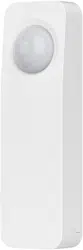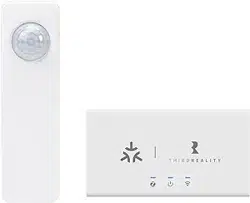
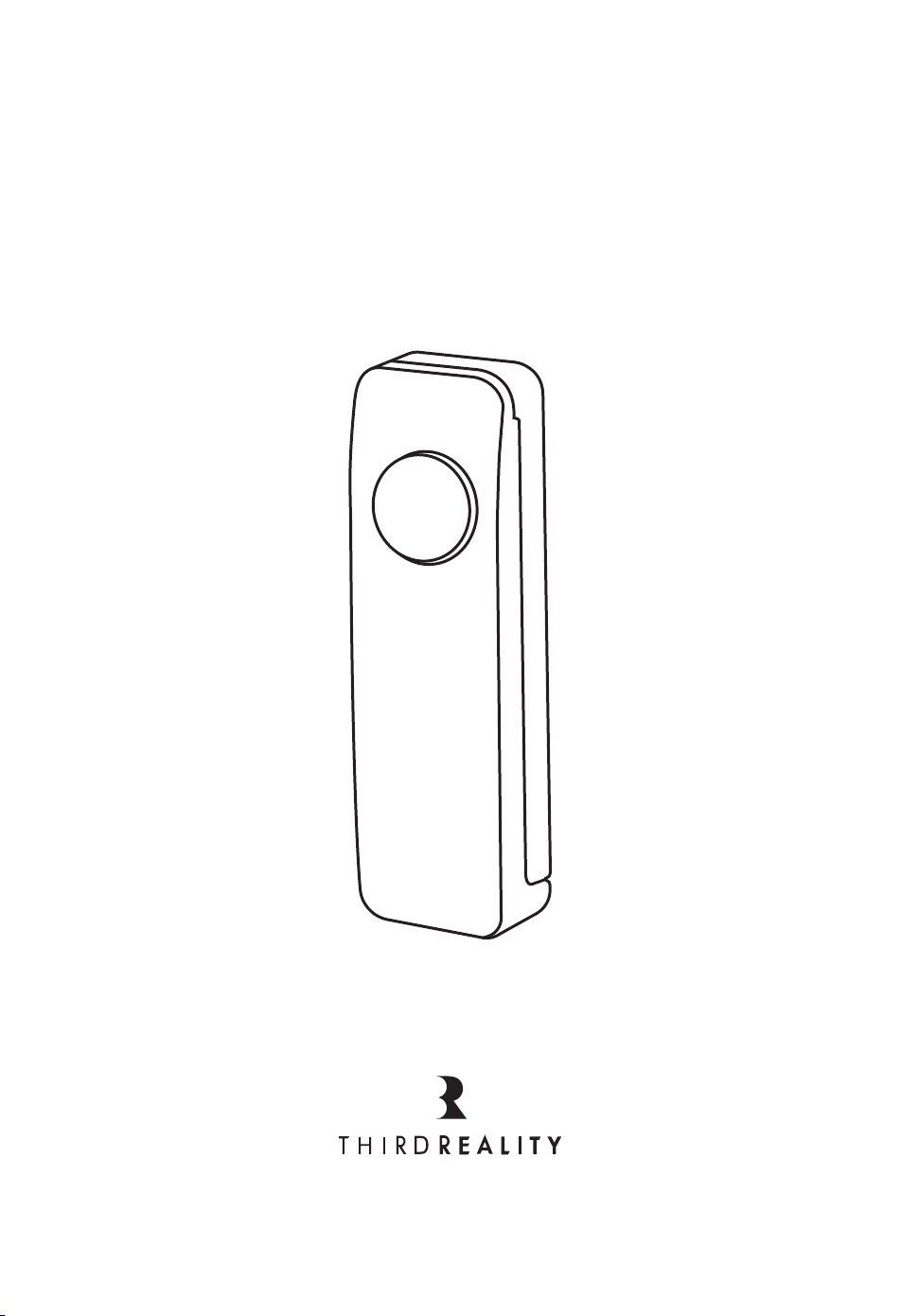
Motion Sensor
User Guide

Contents
Mounting Kit
Setting up Wireless Motion Sensor
Using Wireless Motion Sensor
Pairing with Amazon Echo
Pairing with Smart Things
Pairing with Eero
Pairing with Third Reality Hub
Pairing with Home Assistant
Pairing with Hubitat
1
1
2
3
4
5
6
7
8

Screw x2 Battery x2 Double-sided Tape
Mounting Kit
Setting up your Wireless Motion Sensor
Follow instructions and get your compatible Zigbee hub setup.1.
Slide the rear cover up to open the Wireless Motion Sensor.
Then insert two AAA batteries inside the sensor(Figure 1).
2.
1

Using your Wireless Motion Sensor
Certain environmental conditions can cause false triggers. Avoid
placing the Wireless Motion Sensor in direct sunlight or near heat
sources like hot air vents or portable heaters or steam from show-
ers.
Clean and dry the installation surface. Remove the protective
layer of double-sided tape and adhere sensor in your desired
installation area.
* Wireless motion sensor can only be applied indoors.
1.
When motion is detected, you will receive a message alert on
your phone.
2.
Configure the Wireless Motion Sensor with your Zigbee hub.
(For help and troubleshooting related to configure device with
Zigbee hub, visit the hub’s user manual. We have illustrated
some paring steps of different brands for you to reference on
page 3-8.)
3.
To factory reset the sensor,long press the inside button of the
sensor to place it in pairing mode(Figure 2). Release the hold
until you see the red LED turn on. After you release the hold,
LED will change to a fast blinking blue light that indicates the
sensor is now ready to be setup.
4.
Replace the sensor’s rear cover and make sure it is closed
well.
5.
2

Pairing with Amazon Echo
Pairing Steps:
Compatible Device: Echo (4th Gen), Echo Plus (1st Gen & 2nd Gen),
Echo Show10 (2nd Gen & 3rd Gen) and Echo studio
App: Amazon Alexa App
Slide the rear cover up to open the Motion Sensor, insert two
AAA batteries and then long press the inside button of the
sensor release it until the red LED light turns on and flashes in
blue rapidly, indicating that it is in pairing mode.
1.
Just give Alexa a voice command, Say “Alexa, discover my
devices”. Or you can open Alexa App, go to device page, tap
“+” on top right, choose “Add Device”, then click “other” by
sliding down, tap “DISCOVER DEVICES”, wait for few seconds,
the motion sensor will be paired to Alexa.
2.
After the pairing is successful, you can rename it and set the
Routines in Alexa App.
3.
3

Pairing with SmartThings
Pairing Steps:
Compatible Devices: SmartThings Hub 2015 & 2018, Aeotec
App: SmartThings App
Open “SmartThings” App, go to the devices page
.
1.
Tap “+” icon on top right, click “Add device”.2.
Slide the rear cover up to open the Motion Sensor, insert two
AAA batteries and then long press the inside button of the
sensor release it until the red LED light turns on and flashes in
blue rapidly, indicating that it is in pairing mode.
3.
Then choose “Scan for nearby devices”, SmartThings is scan-
ning.
4.
The “Motion Sensor” icon will show on the page, indicating
that the pairing is completed.
5.
You can rename the Motion sensor.6.
4

Pairing Steps:
Pairing with Eero
Compatible Devices: Eero 6 & Eero 6 Pro
App: Eero App Alexa App
Make sure that the Eero App account is logged in and the
gateway is properly connected.
1.
Open Alexa App and register your account, then enable Eero
Skill to Alexa App.
2.
Slide the rear cover up to open the Motion Sensor, insert two
AAA batteries and then long press the inside button of the
sensor release it until the red LED light turns on and flashes in
blue rapidly, indicating that it is in pairing mode.
3.
Before Pairing, make sure the Echo devices have updated to
the latest version, then directly say “Alexa, discover my devic-
es”. Or you can open Alexa App, go to device page, tap “+” on
top right, choose “Add Device”, then click ‘other’ by sliding
down, tap “DISCOVER DEVICES”, wait for few seconds, the
motion sensor will be paired to Alexa.
4.
After the pairing is successful, you can rename the it and set
the Routines in Alexa App.
5.
5

Pairing Steps:
Pairing with Third Reality Hub
Compatible Devices: Third Reality Smart Hub
App: Third Reality App
Slide the rear cover up to open the Motion Sensor, insert two
AAA batteries and then long press the inside button of the
sensor release it until the red LED light turns on and flashes in
blue rapidly, indicating that it is in pairing mode.
1.
Open Third Reality App, go to device page, tap “+” belongs to
the Hub, choose “Motion Sensor”, then click “Pair”.
2.
After the pairing is successful, tap “Complete”, then back to
main interface.
3.
Tap “Motion Sensor” icon on device page, you can see the
details, such as Battery, History Records and etc.
4.
Open Alexa App and log in your account, follow the prompts to
enable “Third Reality Skill” and tap “DISCOVER DEVICES”,
then you can set Routines through Alexa App or Echo Devices.
5.
6

Pairing Steps:
Pairing with Home Assistant
Slide the rear cover up to open the Motion Sensor, insert two
AAA batteries and then long press the inside button of the
sensor release it until the red LED light turns on and flashes in
blue rapidly, indicating that it is in pairing mode.
1.
Make sure Home Assistant Integrations ZigBee Home Automa-
tion Setup is ready, then click “+ Add Device” on Device Page.
2.
After the pairing is successful, it will show as “Third Reality, Inc
3RSB016BZ” on the page.
3.
Back to “Devices & Services” page, click the device list under
the “HubZ Smart Home Controller” button, then you can find
the Motion Sensor added before.
4.
You can add “Automated Actions” and check device status
information on the “Device” page.
5.
7

Pairing with Hubitat
Website: http://find.hubitat.com/
Pairing Steps:
Slide the rear cover up to open the Motion Sensor, insert two
AAA batteries and then long press the inside button of the
sensor release it until the red LED light turns on and flashes in
blue rapidly, indicating that it is in pairing mode
1.
Log in the website, click ‘Connect to Hub’.2.
After pairing with Hub, choose “Devices”, then click “Discover
Devices”, Tap “ZigBee”, Choose “Start ZigBee Pairing”.
2.
After the pairing is successful, it will shows on page as “Gener-
ic Zigbee Motion Sensor (no temp)”.
4.
Back to the Device page, you will see the Motion Sensor and
click in, you can rename it and see the details information.
5.
8

Trouble Shooting
Answer: Slide the rear cover up to open the Motion Sensor,
long press the inside button of the sensor, release it until the
red LED light turns on and flashes in blue rapidly, indicating
that it is in pairing mode.
Answer: Make sure your Echo Speaker is compatible with
wireless motion sensor and update to latest version, Compati-
ble Echo speakers include Echo (4th Gen), Echo Plus (1st Gen &
2nd Gen), Echo Show10 (2nd Gen & 3rd Gen) and Echo studio.
Factory reset1.
Doesn’t pair with Echo Devices2.
Reboot the Echo speaker by unplugging the power and
plugging it back in, then try to pair the motion sensor with
it again.
Factory reset the Echo speaker (Press and hold the Action
button for 25 seconds. The light ring will pulse orange,
then turn off. Wait for the light ring to turn back on and
turn blue. The light ring then turns orange again and the
device enters the set up mode), then try to pair the motion
sensor with it again.
9
Answer: Make sure the SmartThings Hub is online and update
to the latest version, so as the SmartThings App. And make
sure the motion sensor is close to Hub as possible.
Doesn’t pair with SmartThings3.

This device complies with Part 15 of the FCC Rules. Operation is
subject to the following two conditions:
(1) This device may not cause harmful interference.
(2) This device must accept any interference received, including
interference that may cause undesired operation.
For more information, visit www.3reality.com/devicesupport
FCC regulatory conformance
Answer: Open Third Reality App, tap the icon of wireless
motion sensor to enter in the details page, you can see the
History Records and battery level.
Answer: This is a software compatible issue with the current
firmware, you can simply times 2 of the battery level, that is
your “real” battery. We will fix this issue in future software
release as soon as possible.
Check Histories and Battery Level4.
The battery level is too low.5.
Reboot the SmartThings Hub by unplugging the power
and plugging it back in, then try to pair the motion sensor
with it again.
Factory reset the SmartThings Hub, then try to pair the
motion sensor with it again.
10