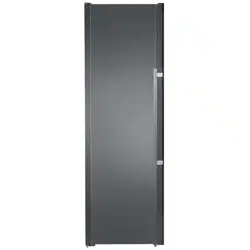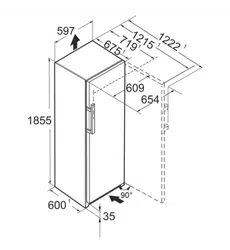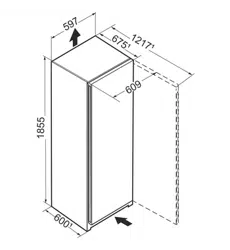

User Guide
Quality, Design and Innovation
home.liebherr.com/fridge-manuals
Contents
1 Appliance at a glance............................................ 3
1.1 Scope of delivery.......................................................... 3
1.2 Overview of the appliance and equipment.............. 3
1.3 SmartDevice.................................................................. 3
1.4 Appliance range of use............................................... 3
1.5 Conformity..................................................................... 4
2 General safety instructions.................................. 4
3 Functionality of the Touch display....................... 5
3.1 Navigation and symbol explanation......................... 6
3.2 Menus............................................................................. 6
3.3 Sleep mode................................................................... 7
4 Putting into operation........................................... 7
4.1 Switching on appliance (first use)............................ 7
4.2 Starting the EasyTwist-Ice for the first time........... 7
5 Storage.................................................................. 7
5.1 Information regarding storage................................... 7
5.2 Freezer compartment.................................................. 7
5.3 Storage times............................................................... 8
6 Saving energy........................................................ 8
7 Controls................................................................. 8
7.1 Controls and displays.................................................. 8
7.1.1 Status display............................................................. 8
7.1.2 Display symbols.......................................................... 9
7.2 Appliance functions..................................................... 9
7.2.1 Notes on the appliance functions............................9
Turn off appliance.......................................................9
WiFi.............................................................................. 9
Temperature...............................................................10
Temperature unit......................................................10
SuperFrost.................................................................10
Start defrosting cycle.............................................. 11
PartyMode .................................................................11
SabbathMode............................................................ 11
E-Saver ......................................................................12
Display brightness................................................... 12
Door alarm.................................................................13
Input lock...................................................................13
Device information...................................................14
Software.................................................................... 14
Demo mode............................................................... 14
Resetting to factory settings.................................15
7.3 Fault messages............................................................ 15
7.3.1 Warnings.................................................................... 15
8 Features................................................................. 15
8.1 Drawers.......................................................................... 15
8.2 EasyTwist-Ice................................................................ 16
8.3 VarioSpace.................................................................... 17
9 Maintenance.......................................................... 17
9.1 Disassembling / assembling pull-out systems...... 17
9.2 Defrosting the appliance............................................ 18
9.3 Cleaning the appliance............................................... 18
10 Customer help....................................................... 20
10.1 Technical specifications............................................. 20
10.2 Operating noises.......................................................... 20
10.3 Technical fault.............................................................. 21
10.4 Customer Service......................................................... 22
10.5 Model plate................................................................... 22
11 Shutting down....................................................... 22
12 Disposal................................................................. 22
12.1 Preparing appliance for disposal.............................. 22
12.2 Disposing of the appliance in an environmentally
friendly manner............................................................ 22
The manufacturer is continually working on the further
development of all types and models. Please be aware that
we reserve the right to make changes to the shape, equip‐
ment and technology.
Symbol
Explanation
Read instructions
Please read the information in these instruc‐
tions carefully to understand all of the benefits
of your new appliance.
Full instructions on the internet
You can find detailed instructions on the
internet using the QR code on the front
of these instruction or by entering the
service number at home.liebherr.com/fridge-
manuals.
The service number can be found on the serial
tag:
Fig.Example illustration
Check appliance
Check all parts for transport damage. If you
have any complaints, please contact your
agent or customer service.
Differences
These instructions apply to a range of models,
so differences are possible. Sections that
apply to certain models only are marked with
an asterisk (*).
Instructions and results
Instructions are marked with a .
Results are marked with a .
Videos
Videos about the appliances are available on
the YouTube channels of Liebherr-Hausgeräte.
These operating instructions apply to:
2 * Depending on model and options
SFN sd h 5227
Note
If your appliance has an N in its appliance designation, it is
a NoFrost appliance.
1 Appliance at a glance
1.1 Scope of delivery
Check all parts for transport damage. Contact your
dealer or customer service in the event of complaints.
(see 10.4 Customer Service)
Your new appliance comes with the following parts:
-
Standalone appliance
-
Features (depending on the model)
-
Installation materials (depending on the model)
-
“Quick Start Guide”
-
“Installation Guide”
1.2 Overview of the appliance and
equipment
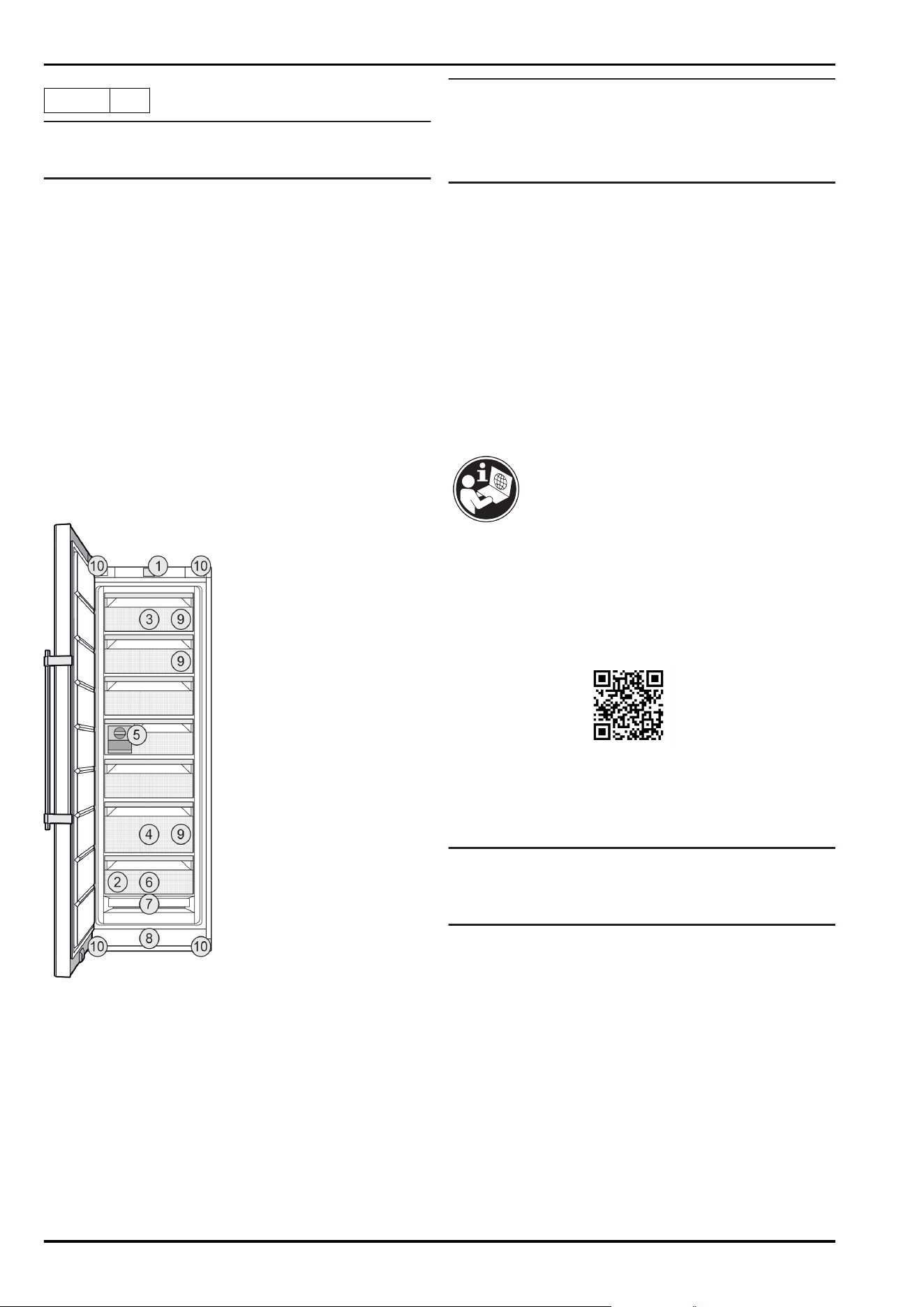
Fig. 1 Example illustration
Equipment
(1)
Controls (6) Freezer tray
(2) Serial tag (7) NoFrost
(3) Tilting drawer (8) Ventilation slit
(4) SpaceBox (9) VarioSpace
(5) EasyTwist-Ice (10) Adjustable feet (front),
transport castors (rear),
transport handles at the
top (rear) and at the
bottom (front)
Note
u
Shelves, drawers and baskets are arranged for optimum
energy efficiency when the appliance is delivered.
Changing how the shelves, for example, are inserted in
the fridge compartment does not have any impact on
energy consumption.
1.3 SmartDevice
SmartDevice is the networking solution for your freezer.
If your appliance SmartDevice-enabled or compatible, you
can quickly and easily connect your appliance to your
WiFi. With the SmartDevice app, you can operate your appli‐
ance from a mobile device. Additional functions and setting
options are available in the SmartDevice SmartDevice app.
SmartDevice-
compatible appli‐
ance:
Your appliance is compatible for use
with the SmartDeviceBox. You must
first purchase and install the Smart‐
DeviceBox. In order to connect your
appliance to the WiFi, you need to
download the SmartDevice app.
More information
about SmartDe‐
vice:
smartdevice.liebherr.com
Purchasing the
SmartDeviceBox
in the Liebherr-
Hausgeräte store:
home.liebherr.com/shop/de/deu/
smartdevicebox.html
Downloading the
SmartDevice app:
After installing and configuring the
SmartDevice, you can connect your
appliance to the WiFi using the
SmartDevice app and the WiFi appli‐
ance function (seeWiFi) .
Note
The SmartDevice function is not available in the following
countries: Russia, Belarus, Kazakhstan.
You cannot use the SmartDeviceBox.
1.4 Appliance range of use
Intended use
The appliance is only suitable for cooling
food products in a domestic or household-like
environment. This includes, for example, use:
-
in staff kitchens, bed and breakfast estab‐
lishments,
-
by guests in country houses, hotels, motels
and other accommodation,
-
for catering and similar services in the
wholesale trade.
Appliance at a glance
* Depending on model and options 3
The appliance is not suitable as a built-in
unit.
All other types of use are not permitted.
Foreseeable misuse
The following applications are expressly
forbidden:
-
Storing and refrigerating medicines, blood
plasma, laboratory preparations or similar
substances and products based on the
Medical Device Directive 2007/47/EC
-
Use in outdoor areas with very high
humidity
-
Use in areas at risk of explosions
Misusing the appliance may lead to damage
to the goods stored or they may spoil.
Climate classifications
Depending on the climate classification the
appliance is designed to operate in restricted
ambient temperatures. The climate classifica‐
tion applying to your appliance is printed on
the rating plate.
Note
u
Keep to the specified ambient tempera‐
tures in order to guarantee that the appli‐
ance works properly.
Climate clas‐
sification
for ambient temperatures of
SN 10°C to 32°C
N 16°C to 32°C
ST 16°C to 38°C
T 16°C to 43°C
SN-ST 10°C to 38°C
SN-T 10°C to 43°C
If your appliance does not have a fixed water
connection, then the appliance is guaranteed
to function correctly down to a lower ambient
temperature of -15°C.
1.5 Conformity
The refrigerant circuit has been tested for leaks. The appli‐
ance complies with the applicable safety regulations and
with the corresponding directives.
The full text of the EU Declaration of Conformity is available
on the following website: www.Liebherr.com
2 General safety instructions
Please keep these instructions in a safe place
and pass them on to any subsequent owners.
Read these operating instructions carefully
before use to ensure safe and correct use of
the appliance. Follow the instructions, safety
instructions and warning messages included
at all times. They are important for ensuring
you can operate and install the appliance
safely and without any problems.
Danger for the user:
-
This device can be used by children and
people with impaired physical, sensory or
mental abilities or with a lack of experi‐
ence and knowledge provided that they
are supervised or have received instruction
in the safe use of this device, and about
the resulting hazards. Children must not
play with this appliance. Cleaning and user
maintenance work must not be carried out
by children without adult supervision. Chil‐
dren aged between 3 and 8 are allowed
to load and unload the appliance. Children
below the age of 3 must be kept away from
the appliance unless they are under contin‐
uous adult supervision.
-
The socket must be easily accessible so
that the appliance can be disconnected
quickly from the electricity in an emer‐
gency. It must not be located in the area
behind the appliance.
-
When disconnecting the appliance from the
supply, always take hold of the plug. Do not
pull the cable.
-
In the event of a fault pull out the mains
plug or deactivate the fuse.
-
Do not damage the mains power cable. Do
not operate the appliance with a defective
mains power cable.
-
If the supply cord is damaged, it must be
replaced by a special cord or assembly
available from the manufacturer or its
service agent.
-
Only customer service or other specially
trained staff may repair or perform other
operations on the appliance.
-
Only assemble, connect and dispose of the
appliance according to the instructions.
-
Special lights, such as LED lights on the
appliance, are used to illuminate the inte‐
rior of the appliance and are not suitable
for room lighting.
Fire hazard:
-
This appliance contains a refrigerant
which is environmentally friendly, but flam‐
mable. Leaking refrigerant may ignite. It
is hazardous for anyone other than an
Authorised Service Person to service this
appliance. In Queensland, the authorised
Service Person MUST hold a Gas Work
Authorisation for hydrocarbon refrigerants,
General safety instructions
4 * Depending on model and options
to carry out Servicing or repairs where the
gas system is being opened or charged.
-
The coolant used (information on the model
plate) is ecofriendly but also flammable.
Any leaking coolant may ignite.
•
Do not damage the refrigerant circuit
pipes.
•
Do not handle ignition sources inside the
appliance.
•
Do not use electrical appliances inside
the appliance (e.g. steam cleaners,
heaters, ice cream makers, etc.).
•
If the refrigerant leaks: remove any naked
flames or ignition sources from the
vicinity of the leakage point. Properly air
the room. Inform customer services.
-
Do not store explosives or sprays using
combustible propellants such as butane,
propane, pentane, etc. in the appliance. To
identify these spray cans, look for the list
of contents printed on the can, or a flame
symbol. Gases possibly escaping may ignite
due to electrical components.
-
Keep burning candles, lamps and other
items with naked flames away from the
appliance so that they do not set the appli‐
ance on fire.
-
WARNING: Keep ventilation openings, in
the appliance enclosure or in the built-in
structure, clear of obstruction.
-
WARNING: Do not use mechanical devices
or other means to accelerate the defrosting
process, other than those recommended by
the manufacturer.
-
WARNING: Do not damage the refrigerant
circuit.
-
Please be sure to store alcoholic drinks
or other packaging containing alcohol in
tightly closed containers. Any alcohol that
leaks out may be ignited by electrical
components.
Danger of tipping and falling:
-
Do not misuse the plinth, drawers, doors
etc. as a step or for support. This applies
particularly to children.
Danger of food poisoning:
-
Do not consume food which has been
stored too long.
Danger of frostbite, numbness and pain:
-
Avoid prolonged skin contact with cold
surfaces or refrigerated/frozen goods or
take protective measures, e.g wear gloves.
-
Do not consume ice cream, water ice or
ice cubes immediately and do not consume
them too cold.
Danger of injury and damage:
-
Hot steam can lead to injury. Do not use
electrical heating or steam cleaning equip‐
ment, open flames or defrosting sprays to
defrost.
-
Do not use sharp implements to remove the
ice.
Risk of crushing:
-
Do not hold the hinge when opening and
closing the door. Fingers may get caught.
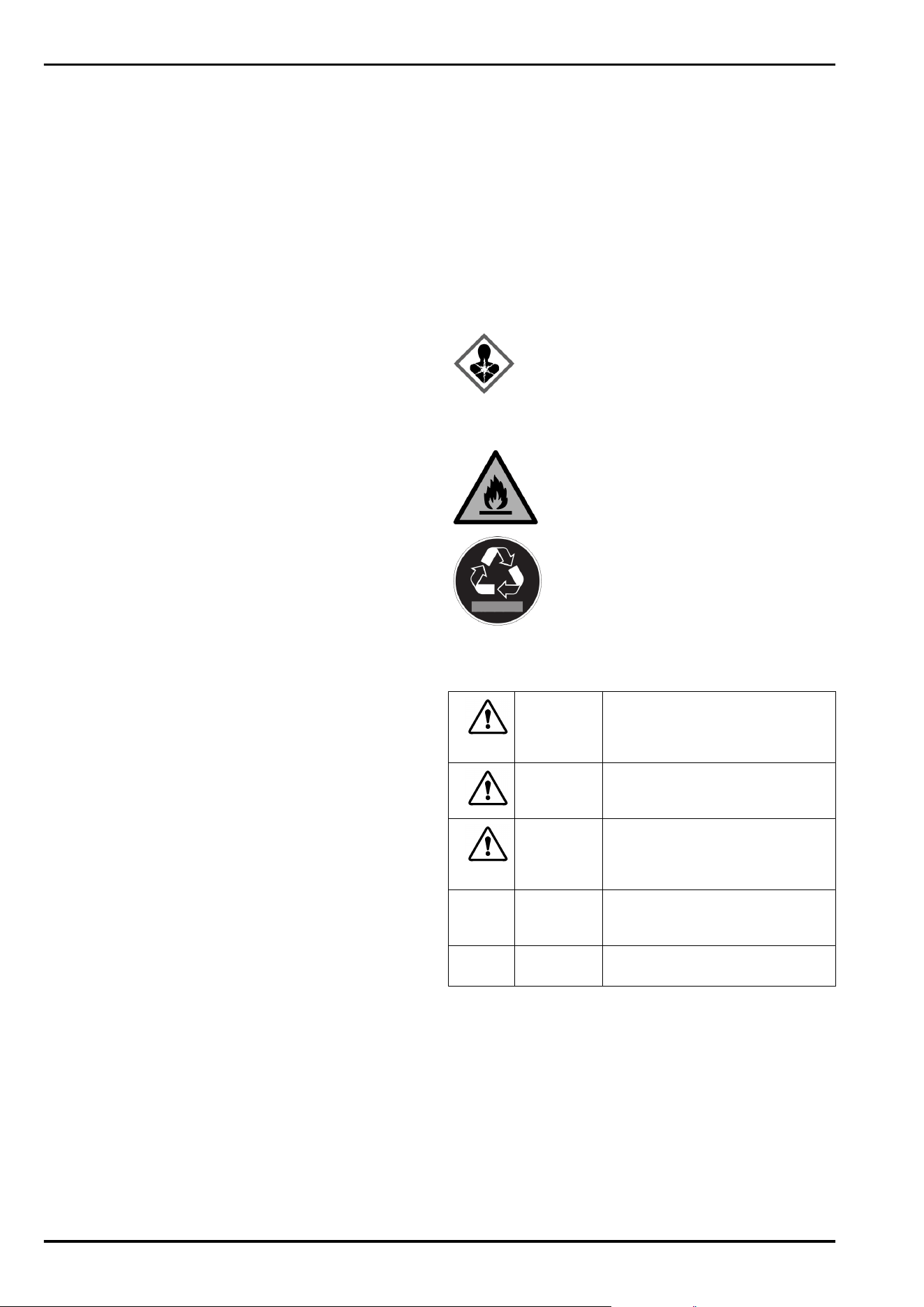
Symbols on the appliance:
This symbol may be located on the
compressor. It relates to the oil in the
compressor and makes reference to the
risk that: Swallowing or inhaling can be
fatal. This advice is only relevant to recy‐
cling. There is no danger in normal opera‐
tion.
This symbol is located on the compressor
and indicates the danger of flammable
materials. Do not remove the sticker.
This or a similar sticker may be located
on the rear of the appliance. This sticker
indicates that there are vacuum insulation
panels (VIP) or perlite panels in the door
and/or housing. This advice is only relevant
to recycling. Do not remove the sticker.
Please note the warning messages and other
specific advice in the other chapters:
DANGER
indicates an immediately
hazardous situation which will
lead to death or serious injuries if
it is not avoided.
WARNING indicates a hazardous situation
which may lead to death or serious
injuries if it is not avoided.
CAUTION indicates a hazardous situation
which may lead to minor or
moderate injuries if it is not
avoided.
NOTICE indicates a hazardous situation
which may lead to damage to
property if it is not avoided.
Note indicates useful instructions and
tips.
3 Functionality of the Touch
display
You operate your appliance using the Touch display. You
select appliance functions in the Touch display (hereafter
referred to as display) by tapping them. If you do not
perform any action on the display for 10 seconds, the
display either jumps back to the higher-level menu or
directly to the status display.
Functionality of the Touch display
* Depending on model and options 5
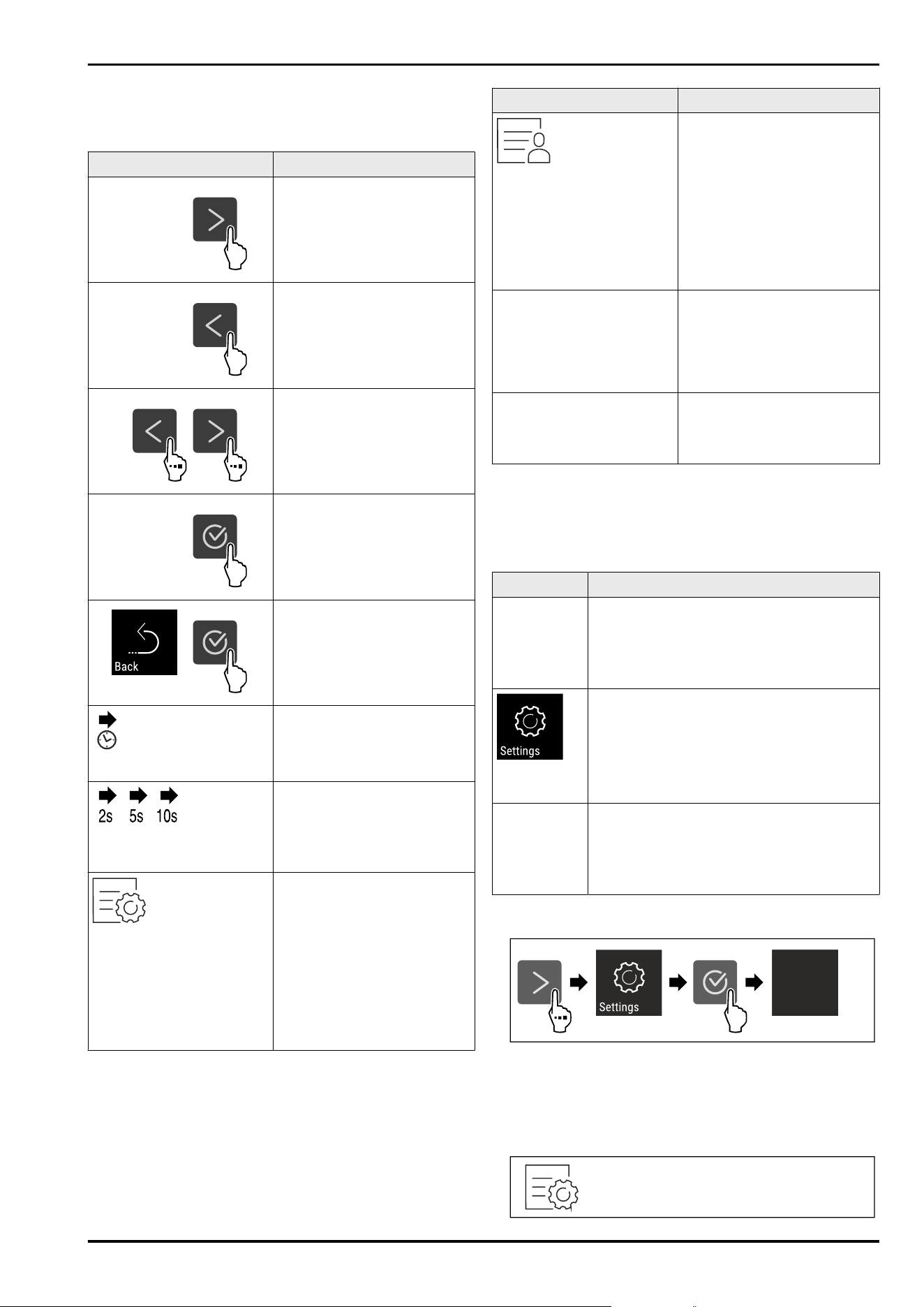
3.1 Navigation and symbol explanation
In the illustrations, different symbols are used to navigate
the display. The following table describes these symbols.
Symbol Description
Press the Next navigation
arrow:
Navigates to the next option
in the menu.
Press the Back navigation
arrow:
Jumps back one option in the
menu.
Press the navigation arrow
several times in succession:
Navigates in the menu to the
desired function.
Press the Confirm symbol:
Activates/deactivates func‐
tion.
Opens submenu.
Press the Confirm symbol
together with the back icon:
Jumps back one menu level.
Arrow with clock:
It takes more than 10seconds
for the following message to
appear in the display.
Arrow with a time indication:
It takes the specified amount
of time until the following
message appears in the
display.
“Open Settings menu”
symbol:
Navigates to the Settings
menu and opens the settings
menu.
If necessary: Navigate to
the desired function in the
Settings menu.
(see 3.2.1 Opening the
Settings menu)
Symbol Description
“Open Advanced menu”
symbol:
Navigates to the Advanced
menu and opens the
advanced menu.
If necessary: Navigate to
the desired function in the
Advanced menu.
(see 3.2.2 Opening the
Advanced menu)
No action for 10seconds If you do not perform any
action on the display for
10 seconds, the display either
jumps back to the higher-
level menu or directly to the
status display.
Opening door and closing it
again
If you open the door and
immediately close it again,
the display jumps directly
back to the status display.
Note: Illustrations of the display are shown in the English
version.
3.2 Menus
The appliance functions can be found in various menus.
Menu
Description
Main menu When you switch the appliance on, you are
automatically in the main menu.
From here you can navigate to the most
important appliance functions, to the
Settings menu and to the Advanced menu.
Settings
menu
The Settings menu contains additional
appliance functions for setting up your
appliance.
(see 3.2.1 Opening the Settings menu)
Advanced
menu
The advanced menu contains special appli‐
ance functions for setting up your appli‐
ance. Access to the Advanced menu is
protected by the numerical code 151.
(see 3.2.2 Opening the Advanced menu)
3.2.1 Opening the Settings menu
Fig. 2 Example illustration
u
Carry out action steps according to the illustration.
w
Settings menu is open.
u
If necessary: Navigate to the desired function.
3.2.2 Opening the Advanced menu
Functionality of the Touch display
6 * Depending on model and options
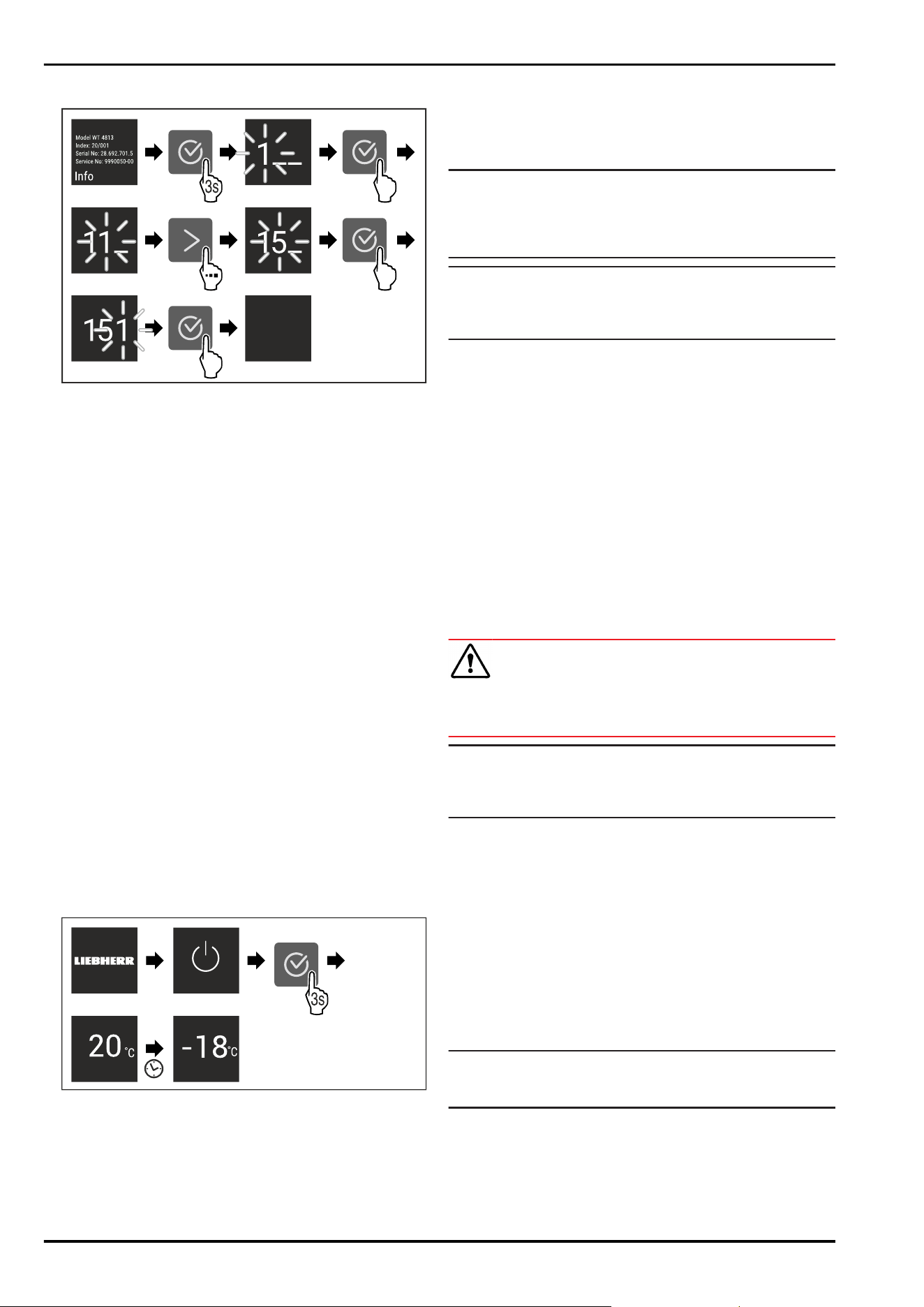
Fig.3
Fig. 4 Example illustration, access with numerical code 151
u
Carry out action steps according to the illustration.
w
The expanded menu is open.
u
If necessary: Navigate to the desired function.
3.3 Sleep mode
If you do not touch the display for 1 minute, the display
switches to sleep mode. In sleep mode, the display bright‐
ness is dimmed.
3.3.1 Ending sleep mode
u
Press any navigation key.
w
Sleep mode is ended.
4 Putting into operation
4.1 Switching on appliance (first use)
Make sure that the following requirements are fulfilled:
q
The appliance has been installed and connected in
accordance with the installation instructions.
q
All adhesive strips, adhesive and protective films and
transport locks are removed from inside and on the appli‐
ance.
q
All marketing leaflets are removed from the drawers.
q
You are familiar with the functionality of the Touch
display. (see3 Functionality of the Touch display)
u
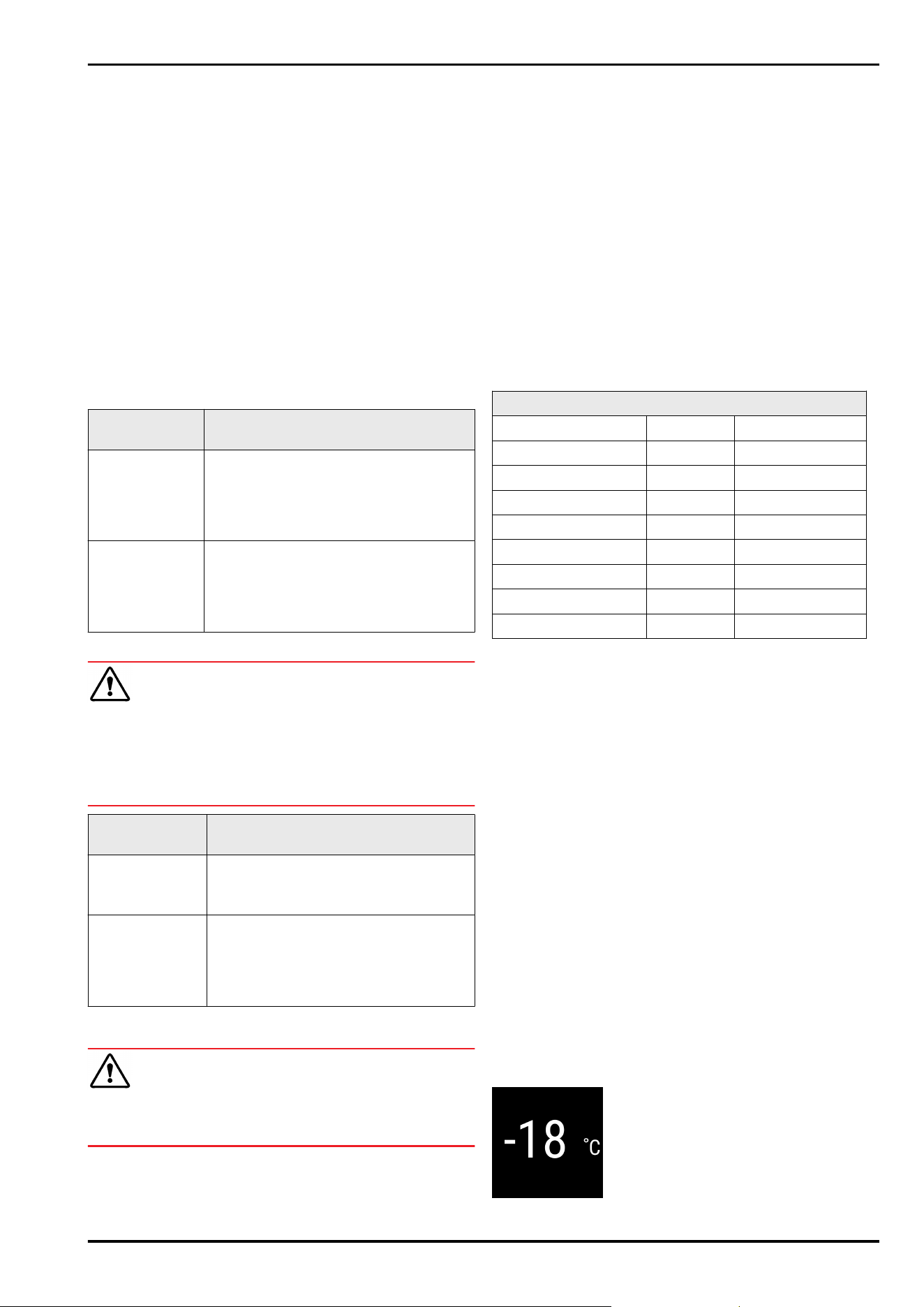
Switch on the appliance using the Touch display:
Fig. 5 Example illustration
w
The status display appears.
w
The appliance cools to the temperature set at the factory.
w
The appliance starts in demo mode (status display with
DEMO appears): If the appliance starts in demo mode,
you can deactivate demo mode within the next 5 minutes.
(seeDemo mode)
More information:
-
Start the EasyTwist-Ice for the first time. (see4.2Starting
the EasyTwist-Ice for the first time)
-
Start the SmartDevice for the first time. (see 1.3 Smart‐
Device) and (seeWiFi)
Note
The manufacturer recommends:
u
Store frozen foods at -18°C or colder.
u
Observe the notes on storing food. (see 5.1 Information
regarding storage)
Note
Accessories can be purchased from the Liebherr-
Hausgeräte store at home.liebherr.com/shop/de/deu/
zubehor.html.
4.2 Starting the EasyTwist-Ice for the
first time
If your appliance is equipped with EasyTwist-Ice, you must
clean the EasyTwist-Ice before using it for the first time.
Make sure that the following requirements are fulfilled:
q
The appliance is properly connected.
u
Clean the EasyTwist-Ice. (see 9.3.6 Cleaning the Easy‐
Twist-Ice)
u
Fill the water tank.
5 Storage
5.1 Information regarding storage
WARNING
Risk of fire
u
Do not use any electrical appliances in the food area of
the appliance unless recommended by the manufacturer.
Note
The energy consumption increases and the cooling power
goes down if ventilation is not sufficient.
u
Always keep air slots clear.
Observe the following specifications for storage:
-
Keep the air vents on the inside of the rear wall free.
-
Keep the air vents on the fan free.
-
Package food properly.
-
Package raw meat or fish in clean, closed containers.
This will prevent meat or fish from touching or dripping
onto other food.
-
Leave space between goods to ensure good air circula‐
tion.
-
Store food according to the instructions on the pack‐
aging.
-
Always observe the best-before date indicated on the
packaging.
Note
Failure to follow these guidelines can lead to foodstuffs
spoiling.
5.2 Freezer compartment
Here, a dry, frosty storage climate is created at -18 °C. The
frosty storage climate is suitable for storing frozen food for
several months, for making ice cubes or freezing fresh food.
Putting into operation
* Depending on model and options 7
5.2.1 Freezing food
Freezing quantity
The maximum amount of fresh food that you can
freeze within 24 hours is specified on the type plate
(see 10.5 Model plate) under “Freezing capacity ... kg/24h”.
To ensure that food quickly freezes through, adhere to the
following quantities per package:
-
Fruit and vegetables up to 1 kg
-
Meat up to 2.5 kg
Freezing food using SuperFrost
Depending on the quantity to be frozen, you can activate
SuperFrost before freezing in order to achieve lower freezing
temperatures. (see SuperFrost)
u
Activate SuperFrost if the amount of food you have to
freeze is more than approx. 2 kg.
The time at which you activate SuperFrost depends on the
amount of food you have to freeze:
Freezing quan‐
tity
Time at which you should activate
SuperFrost
Small amount of
food to freeze
Activate SuperFrost about 6 hours
before freezing.
You can place the food in the freezer
as soon as the appliance automatically
deactivates SuperFrost.
Maximum
amount of food
to freeze
Activate SuperFrost about 24 hours
before freezing.
You can place the food in the freezer
as soon as the appliance automatically
deactivates SuperFrost.
Arranging your food properly
CAUTION
Risk of injury from broken glass!
Bottles and cans with beverages can burst during freezing.
This applies in particular to carbonated beverages.
u
Only freeze bottles and cans with beverages if you have
activated the BottleTimer function in the SmartDevice
app.
Freezing quan‐
tity
Arranging your food properly
Small amount of
food to freeze
Place packaged food in the top drawer.
If possible, place groceries at the back
of the drawer near the rear wall.
Maximum
amount of food
to freeze
Distribute packaged groceries
throughout all drawers, but do not place
any groceries in the bottom drawer.
If possible, place groceries at the back
of the drawer near the rear wall.
5.2.2 Defrosting food
WARNING
Risk of food poisoning!
u
Do not re-freeze thawed food.
u
Use defrosted foodstuff as soon as possible.
You can defrost food in several ways:
-
In the fridge compartment
-
In the microwave
-
In the oven/fan-assisted oven
-
At room temperature
u
Take out only as much food as necessary.
5.2.3 Freezer tray
You can freeze berries, herbs, vegetables and other small
frozen food in the freezer tray without it all freezing
together. The frozen food is less likely to get squashed and
subsequent portioning is easier.
u
Distribute food on the freezer tray without packaging and
well spaced out.
5.3 Storage times
Refer to the specified storage times as a guide.
In the case of foods with a minimum shelf life, the date
indicated on the packaging still applies.
Recommended storage period for various types of food
Ice cream at -18°C 2 to 6 months
Sausages, ham at -18°C 2 to 3 months
Bread, baked goods at -18°C 2 to 6 months
Game, pork at -18°C 6 to 9 months
Fatty fish at -18°C 2 to 6 months
Lean fish at -18°C 6 to 8 months
Cheese at -18°C 2 to 6 months
Poultry, beef at -18°C 6 to 12 months
Vegetables, fruit at -18°C 6 to 12 months
6 Saving energy
-
Pay attention to good ventilation. Do not cover ventilation
holes or grids.
-
Always keep the fan air slits clear.
-
Do not install the appliance in direct sunlight, next to an
oven, radiator or similar.
-
Energy consumption depends on the installation condi‐
tions, e.g. the ambient temperature (see 1.4 Appliance
range of use) . A warmer ambient temperature can
increase the energy consumption.
-
Open the appliance for as short a time as possible.
-
The lower the temperature is set the higher the energy
consumption.
-
Keep all food properly packed and covered. This prevents
frost from forming.
-
Inserting warm food: allow to cool down to room temper‐
ature first.
7 Controls
7.1 Controls and displays
7.1.1 Status display
Saving energy
8 * Depending on model and options
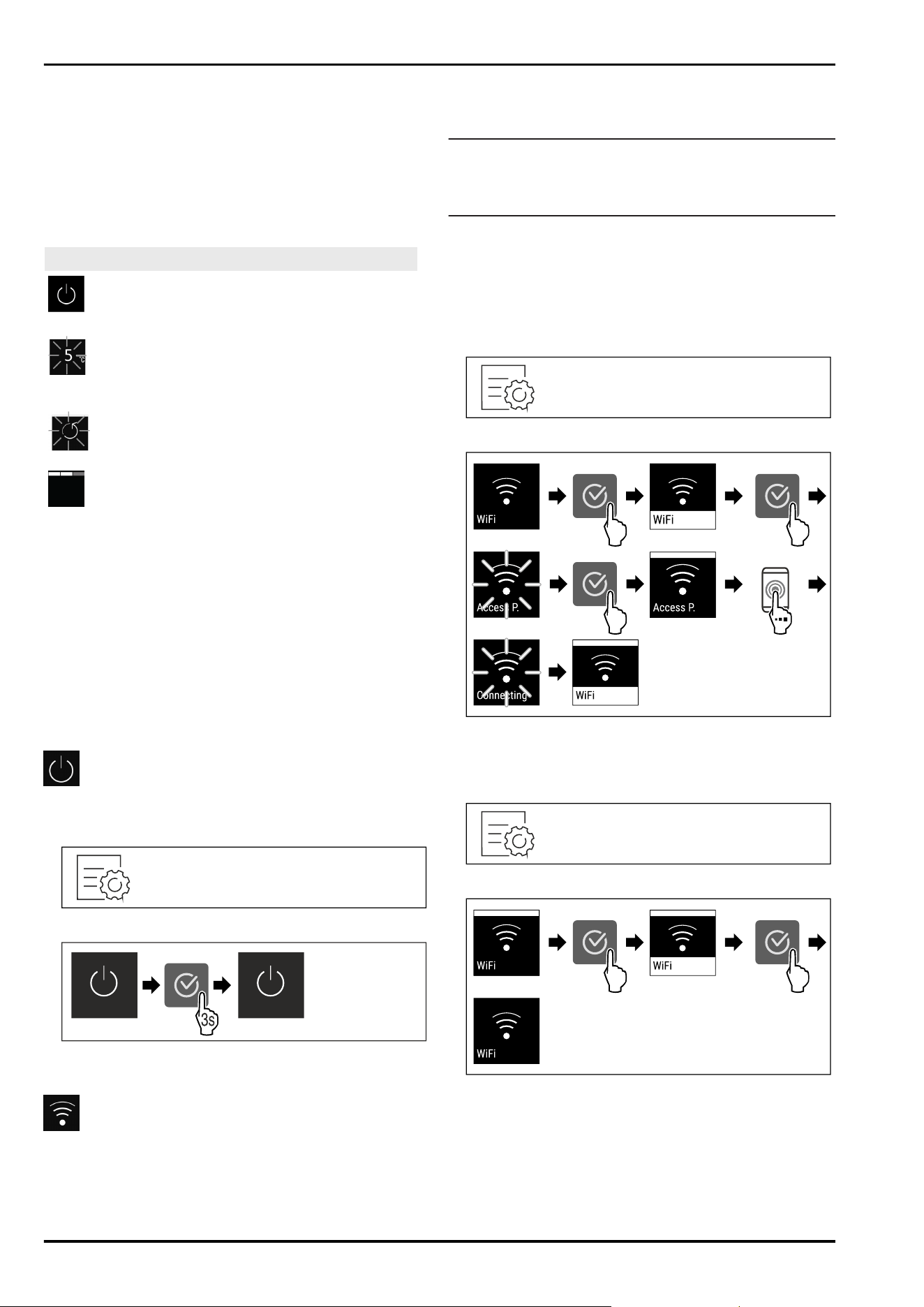
Fig.6
(1) Temperature display
The Status display shows the set temperature and is the
home display. From there, you can navigate to the options
and settings.
7.1.2 Display symbols
Display symbols provide information on the current appli‐
ance status:
Symbol Appliance status
Standby
The appliance or temperature zone
is switched off.
Flashing number
Appliance is working. Temperature
flashes until the set value is
reached.
Flashing symbol
Appliance is working. Setting is
made.
Bar grows steadily
Function is activated.
7.2 Appliance functions
7.2.1 Notes on the appliance functions
The appliance functions are set at the factory so that your
appliance is fully functional.
Before you alter, activate or deactivate the device functions,
make sure that the following requirements are met:
q
You have read and understood the descriptions of how
the display works.
q
You have familiarised yourself with the operating and
display elements of your appliance.
Turn off appliance
This setting turns off the whole appliance.
Switching off the entire appliance
Fig.7
Fig.8
w
Off: Display goes black.
WiFi
Use this function to connect your appliance to WiFi. You can
then operate it via the SmartDevice app on a mobile device.
You can also use this function to disconnect or reset the
WiFi connection.
To connect your device to WiFi, you need the SmartDevi‐
ceBox.
More information on the SmartDevice: (see 1.3 SmartDevice)
Note
The SmartDevice function is not available in the following
countries: Russia, Belarus, Kazakhstan.
You cannot use the SmartDeviceBox.
Establishing the WiFi connection for the first time
Make sure that the following requirements are fulfilled:
q
You have purchased and inserted a SmartDeviceBox.
(see 1.3 SmartDevice)
q
You have installed the SmartDevice app (see
apps.home.liebherr.com).
q
Registration in the SmartDevice app is completed.
Fig.9
Fig. 10
u
Carry out action steps according to the illustration.
w
Connection is established.
Disconnecting from the WiFi
Fig.11
Fig.12
u
Carry out action steps according to the illustration.
w
There is no connection.
Controls
* Depending on model and options 9
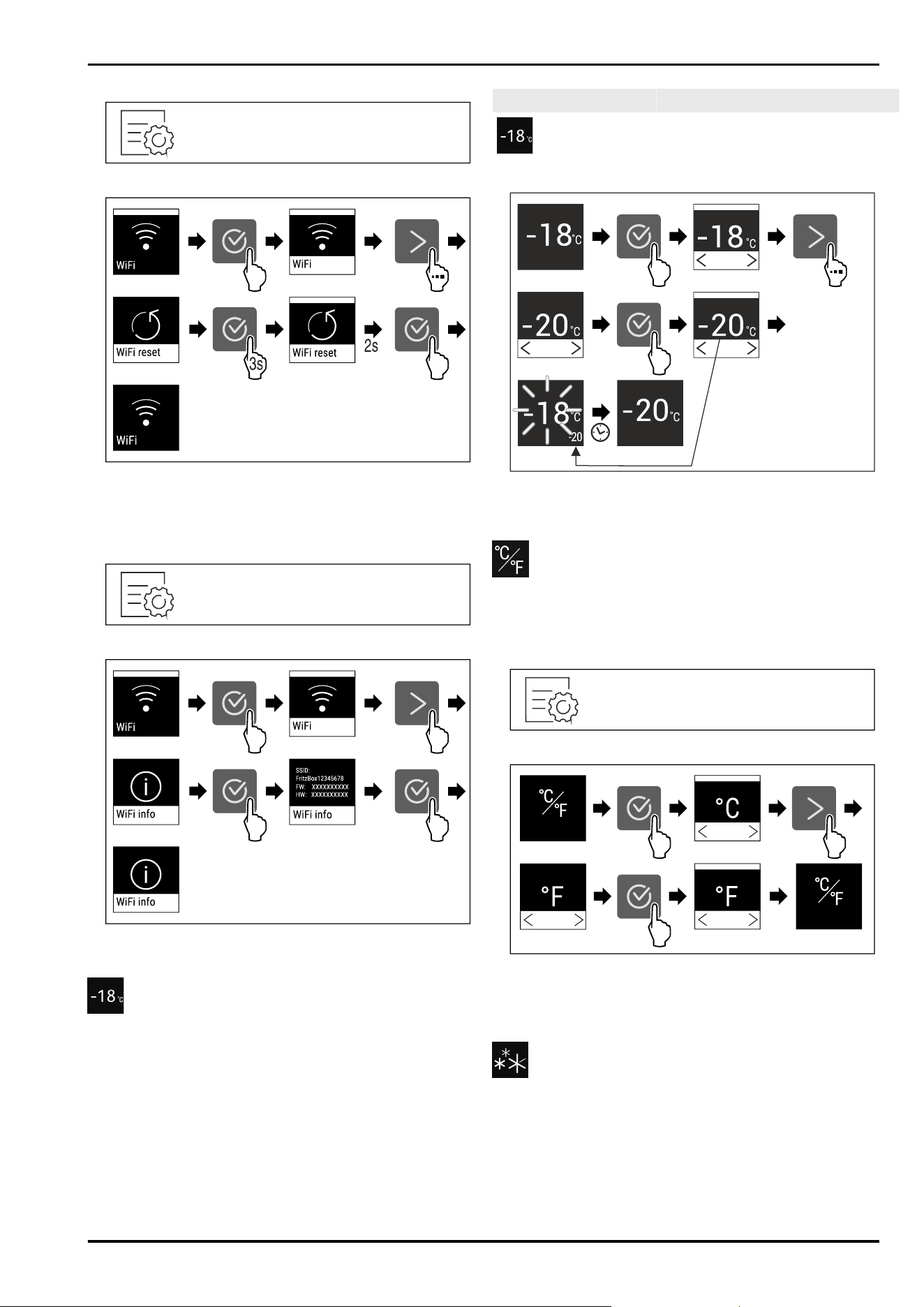
Resetting the WiFi connection
Fig.13
Fig. 14
u
Carry out action steps according to the illustration.
w
WiFi connection and other WiFi settings are reset to
factory settings.
Showing information about the WiFi connection
Fig. 15
Fig. 16
u
Carry out action steps according to the illustration.
Temperature
Use this function to set the temperature.
The temperature depends on the following factors:
-
How often the door is opened
-
How long the door is open for
-
The room temperature of the installation site
-
The type, temperature and amount of food
Freezer compartment
Recommended setting
-18°C
Setting temperature
Fig.17
u
Carry out action steps according to the illustration.
w
Temperature is set.
Temperature unit
Use this function to set the temperature unit. You can set
degrees Celsius or degrees Fahrenheit as the temperature
unit.
Setting the temperature unit
Fig. 18
Fig. 19 Example illustration: Switch from degrees Celsius to
degrees Fahrenheit.
u
Carry out action steps according to the illustration.
w
The temperature unit is set.
SuperFrost
This function selects the lowest freezing temperature. This
gives you colder storage temperatures.
Use:
-
For storing more than 2 kg fresh food every day.
-
Freezing fresh food quickly to the core.
-
Increasing the cold reserves in the stored goods before
defrosting the appliance.
Controls
10 * Depending on model and options
Activating/deactivating the function
With a small amount to freeze:
u
Activate 6 hours before use.
With a maximum amount to freeze:
u
Activate 24 hours before use.
u
Activating/deactivating.
The function automatically turns off. The appliance goes
back to normal mode. The temperature adjusts itself to the
set level.
Start defrosting cycle
Use this function to start the automatic defrosting cycle
manually if it does not start automatically in the event of a
fault.
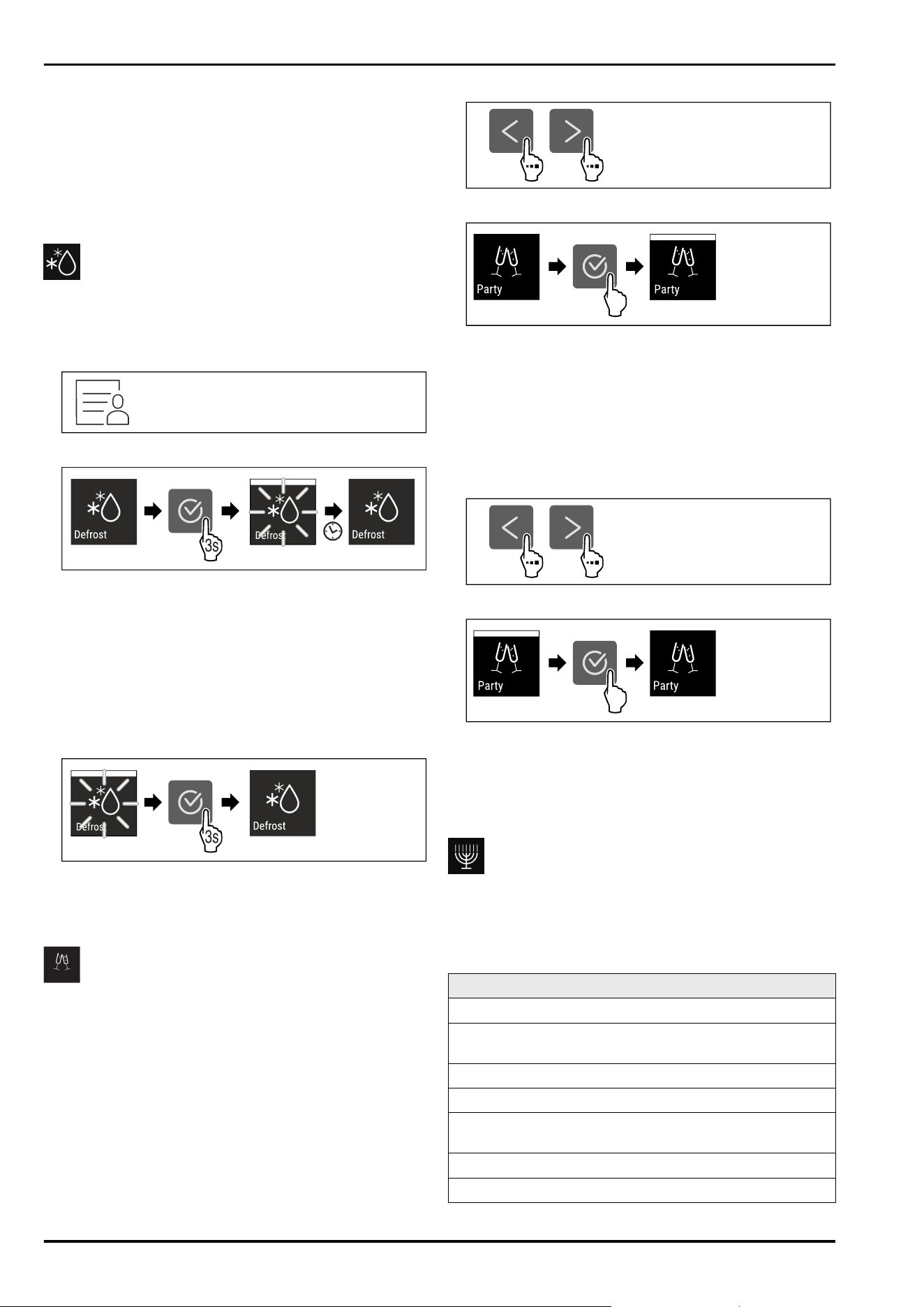
Starting defrosting cycle
Fig.20
Fig.21
u
Carry out action steps according to the illustration.
w
Defrosting cycle has started: Icon flashes until defrosting
cycle is automatically completed.
w
When defrosting cycle is finished: The device continues
to run in normal mode.
Cancelling defrosting cycle
The defrosting cycle will be stopped automatically. However,
you can also cancel the defrosting cycle at any time during
the defrosting process:
Fig.22
u
Carry out action steps according to the illustration.
w
Defrosting cycle is cancelled.
w
The device continues to run in normal mode.
PartyMode
You can use this function to activate or deactivate Party‐
Mode. PartyMode activates various functions that are useful
for a party.
PartyMode activates the following functions:
-
SuperFrost (see SuperFrost)
You can adjust all listed functions individually and flexibly.
When you deactivate PartyMode, all changes are discarded.
If the function is active, the device operates at higher
power. As a result, the device's operating noise may be
temporarily louder and energy consumption will increase.
Activating PartyMode
Fig.23
Fig. 24
u
Carry out action steps according to the illustration.
w
PartyMode and the associated functions are activated.
w
The current temperature flashes until the target tempera‐
ture is reached.
Deactivating PartyMode
The PartyMode is automatically deactivated after
24 seconds. However, you can also deactivate PartyMode
manually at any time:
Fig.25
Fig. 26
u
Carry out action steps according to the illustration.
w
PartyMode is deactivated.
w
The appliance cools to the temperature set previously:
The current temperature flashes until the target tempera‐
ture is reached.
SabbathMode
You can use this function to activate or deactivate
SabbathMode. If you activate this function, some electronic
functions are switched off. As a result, your device meets
the religious requirements for Jewish holidays such as
Sabbath and complies with STAR-K Kosher certification.
Device status when SabbathMode is active
The status display shows SabbathMode permanently.
All functions on the display are locked except for the
Deactivate SabbathMode function.
Active functions remain active.
The display remains bright when you close the door.
Reminders are not implemented. The set time interval
stops.
Reminders and warnings are not displayed.
There is no door alarm.
Controls
* Depending on model and options 11
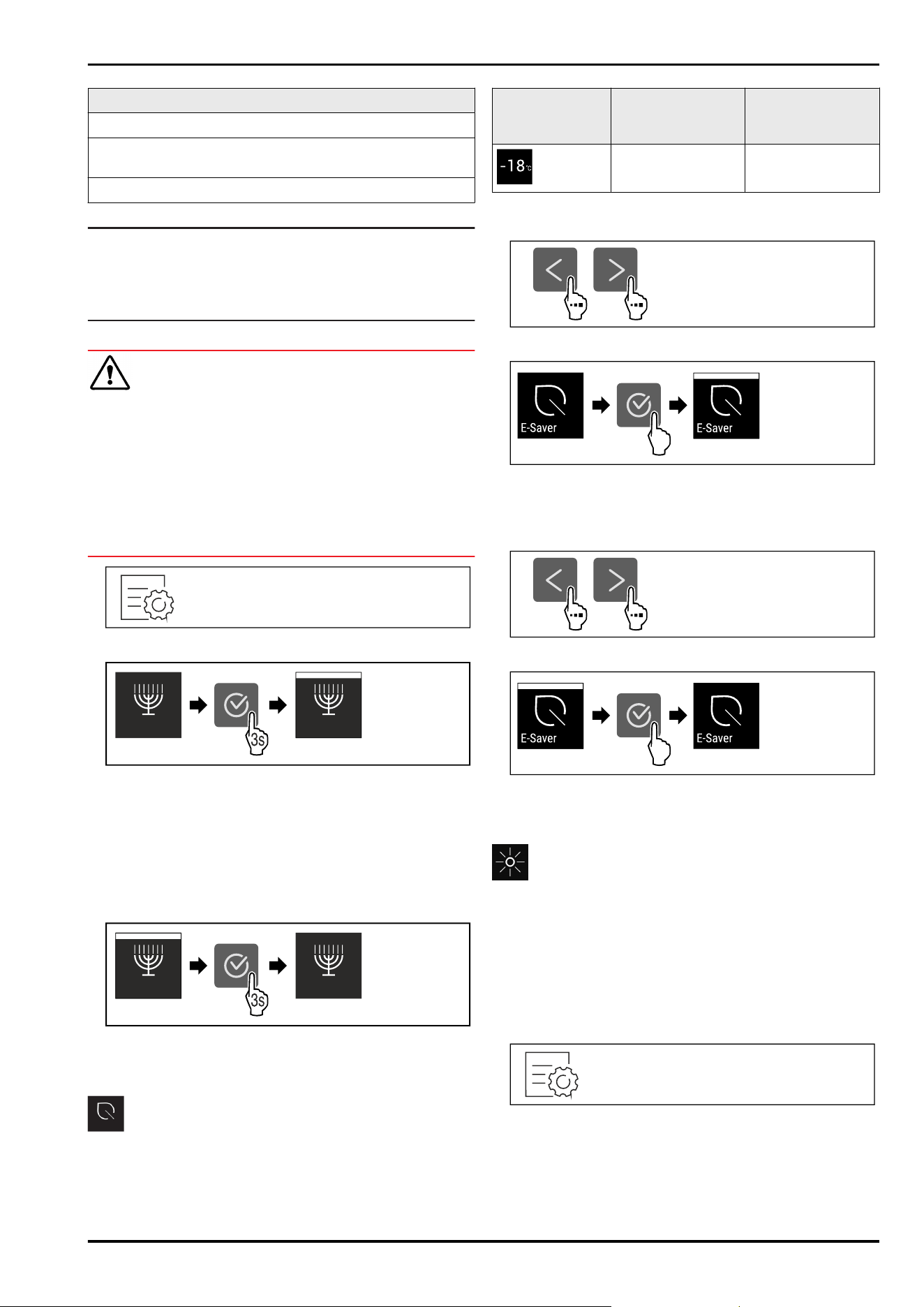
Device status when SabbathMode is active
There is no temperature alarm.
The defrosting cycle operates only for the specified time,
without considering the device consumption.
After a power failure, the device returns to SabbathMode.
Device status
Note
This appliance has certification from the “Institute for
Science and Halacha”. (www.machonhalacha.co.il)
You can find a list of STAR-K-certified appliances at
www.star-k.org/appliances.
Activating SabbathMode
WARNING
Danger of food poisoning from spoiled food!
If you have SabbathMode activated and a power failure
occurs, no message appears in the status display about the
power failure. Once the power is restored, the appliance
continues to operate in SabbathMode. The power failure
may mean that food spoils and the consumption of this food
could lead to food poisoning.
After a power failure:
u
Do not consume food that was frozen and has thawed
out.
Fig.27
Fig.28
u
Carry out action steps according to the illustration.
w
SabbathMode is activated.
w
The status display shows SabbathMode permanently.
Deactivating SabbathMode
The SabbathMode is automatically deactivated after
80 hours. However, you can also deactivate SabbathMode
manually at any time:
Fig.29
u
Carry out action steps according to the illustration.
w
SabbathMode is deactivated.
E-Saver
You can use this function to activate or deactivate Energy
saving mode. If energy saving mode is activated, the energy
consumption decreases and the temperature in the device
increases. The food remains fresh, but the shelf life is short‐
ened.
Temperature
zone
Recommended
setting
(see Temperature)
Temperature with
active E-Saver
-18°C -16°C
Temperatures
Activating E-Saver
Fig.30
Fig.31
u
Carry out action steps according to the illustration.
w
Energy saving mode is activated.
Deactivating E-Saver
Fig.32
Fig.33
u
Carry out action steps according to the illustration.
w
Energy saving mode is deactivated.
Display brightness
Use this function to set the display brightness in stages.
You can select the following brightness levels:
-
40%
-
60%
-
80%
-
100 % (pre-setting)
Setting the display brightness
Fig.34
Controls
12 * Depending on model and options
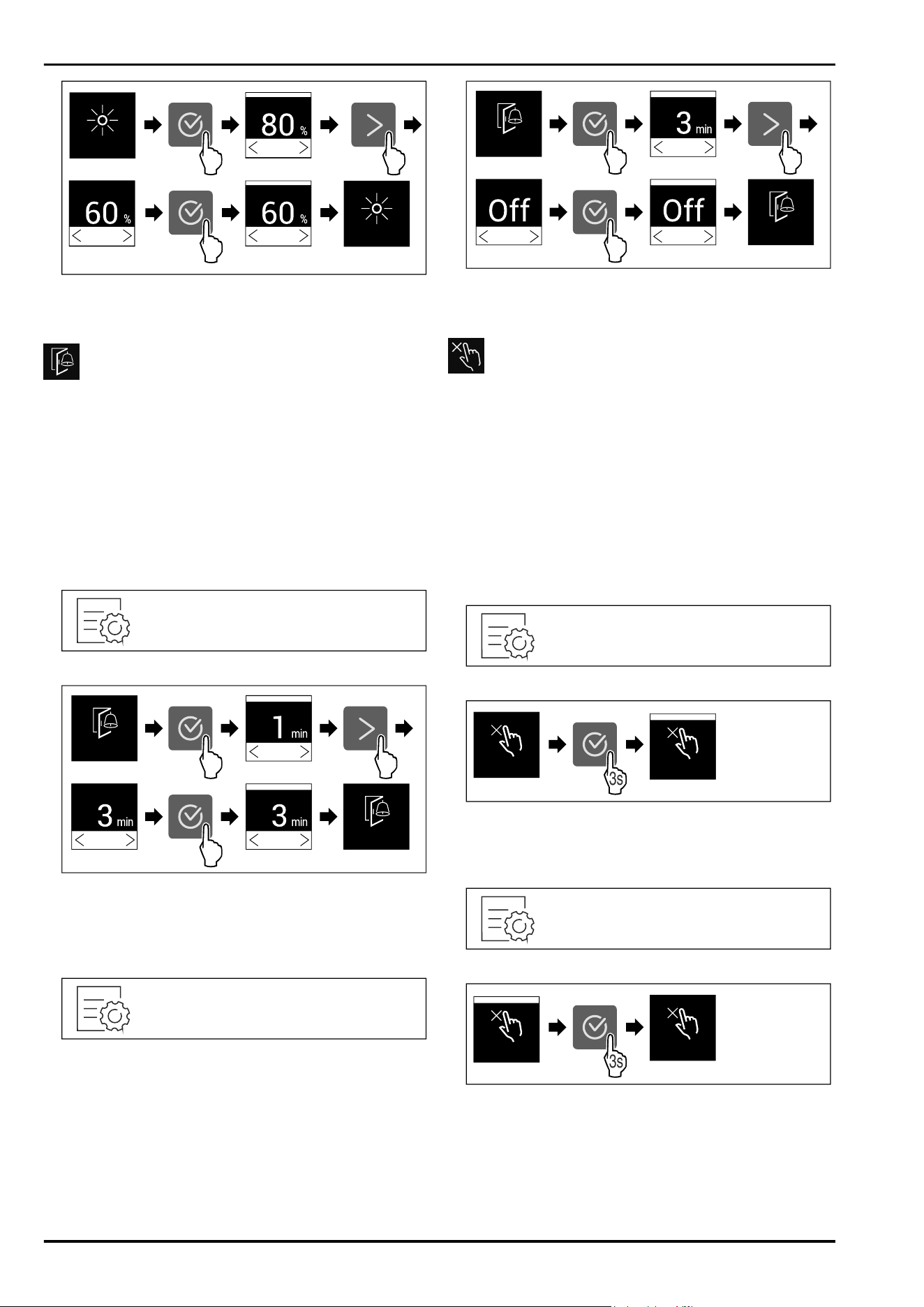
Fig. 35 Example illustration: Switch from 80 % to 60%.
u
Carry out action steps according to the illustration.
w
The display brightness is set.
Door alarm
Use this function to activate or deactivate the door alarm.
The door alarm sounds if the door is open for too long. The
door alarm is activated on delivery. You can set how long
the door may be open before the door alarm sounds.
The following values can be set:
-
1 minute
-
2 minutes
-
3 minutes
-
Off
Setting the door alarm
Fig.36
Fig. 37 Example illustration: Change door alarm from
1 minute to 3 minutes.
u
Carry out action steps according to the illustration.
w
The door alarm is set.
Deactivating the door alarm
Fig. 39
Fig.40
u
Carry out action steps according to the illustration.
w
The door alarm is deactivated.
Input lock
You can use this function to activate or deactivate the input
lock. The input lock prevents the appliance being operated
accidentally, e.g. by children.
Application:
-
Avoid unintentional modification of functions.
-
Avoid unintentional switching off of the device.
-
Avoid unintentional temperature setting.
Activating the input lock
If you activate the input lock, you can continue to navigate
in the menus but you cannot select or change other func‐
tions.
Fig. 41
3s
Displ. Lock
Displ. Lock
Fig. 42
u
Carry out action steps according to the illustration.
w
Input lock is activated.
Deactivating the input lock
Fig.43
3s
Displ. Lock
Displ. Lock
Fig.44
u
Carry out action steps according to the illustration.
w
Input lock is deactivated.
Controls
* Depending on model and options 13
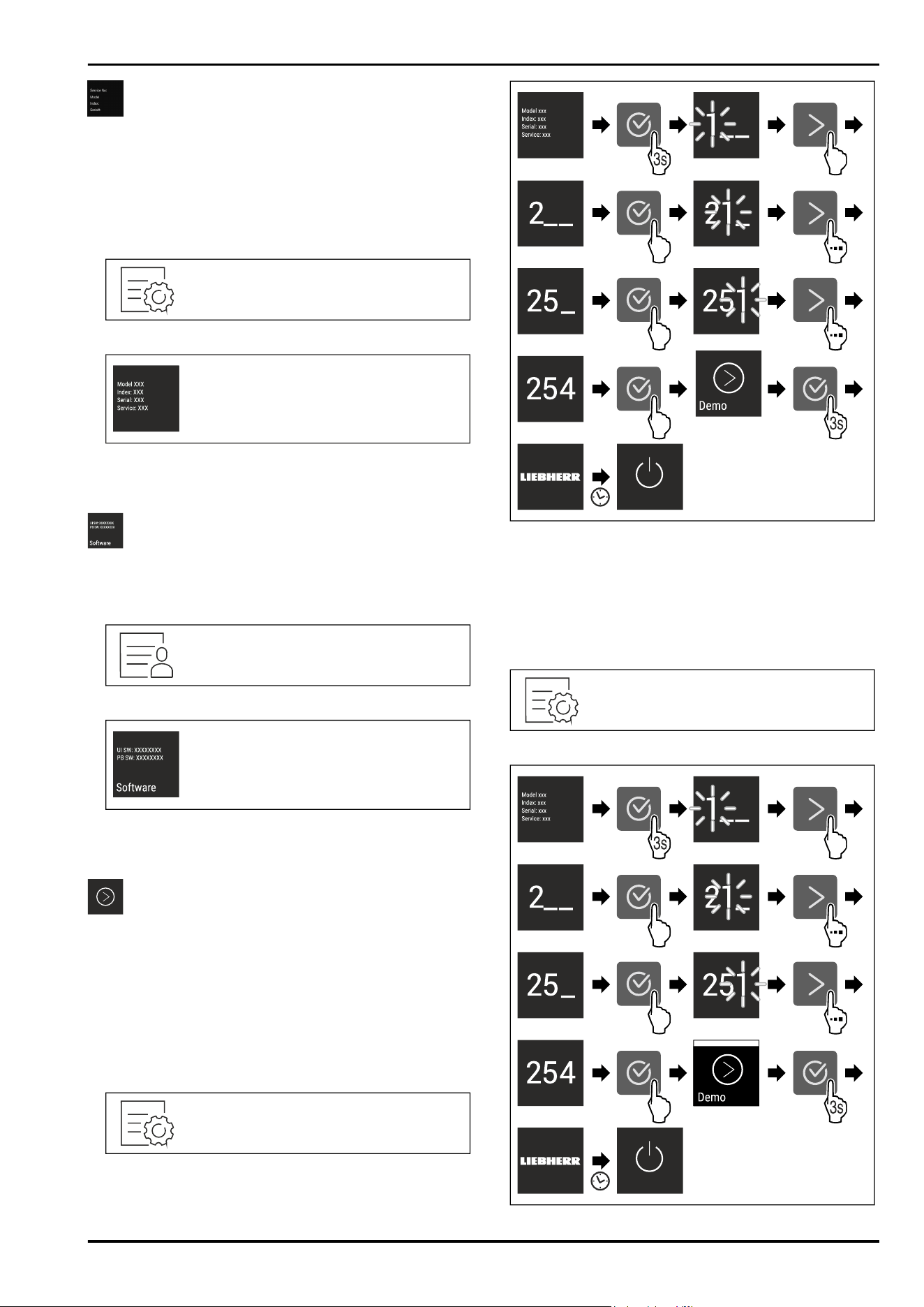
Device information
Use this function to indicate the model name, index, serial
number and service number of your device. You will need
the device information when you contact customer service.
(see 10.4 Customer Service)
This function also opens the Advanced menu. (see 3 Func‐
tionality of the Touch display)
Indicating the device information
Fig.45
Fig.46
u
Carry out action steps according to the illustration.
w
Display indicates device information.
Software
Use this function to indicate the software version of your
device.
Indicating the software version
Fig. 47
Fig.48
u
Carry out action steps according to the illustration.
w
Display indicates software version.
Demo mode
Demo mode is a special feature for dealers who want to
demonstrate appliance features. If you activate demo mode,
all refrigeration functions are deactivated.
If you switch on your appliance and “Demo” appears in the
status display, then demo mode is already activated.
If you activate and then deactivate demo mode, the appli‐
ance will be reset to factory defaults. (see Resetting to
factory settings)
Activating demo mode
Fig. 49
Fig.50
u
Carry out action steps according to the illustration.
w
Demo mode is activated.
w
Appliance is switched off.
u
Switch on the appliance. (see 4.1 Switching on appliance
(first use))
w
“DEMO” appears in the status display.
Deactivating demo mode
Fig.51
Controls
14 * Depending on model and options
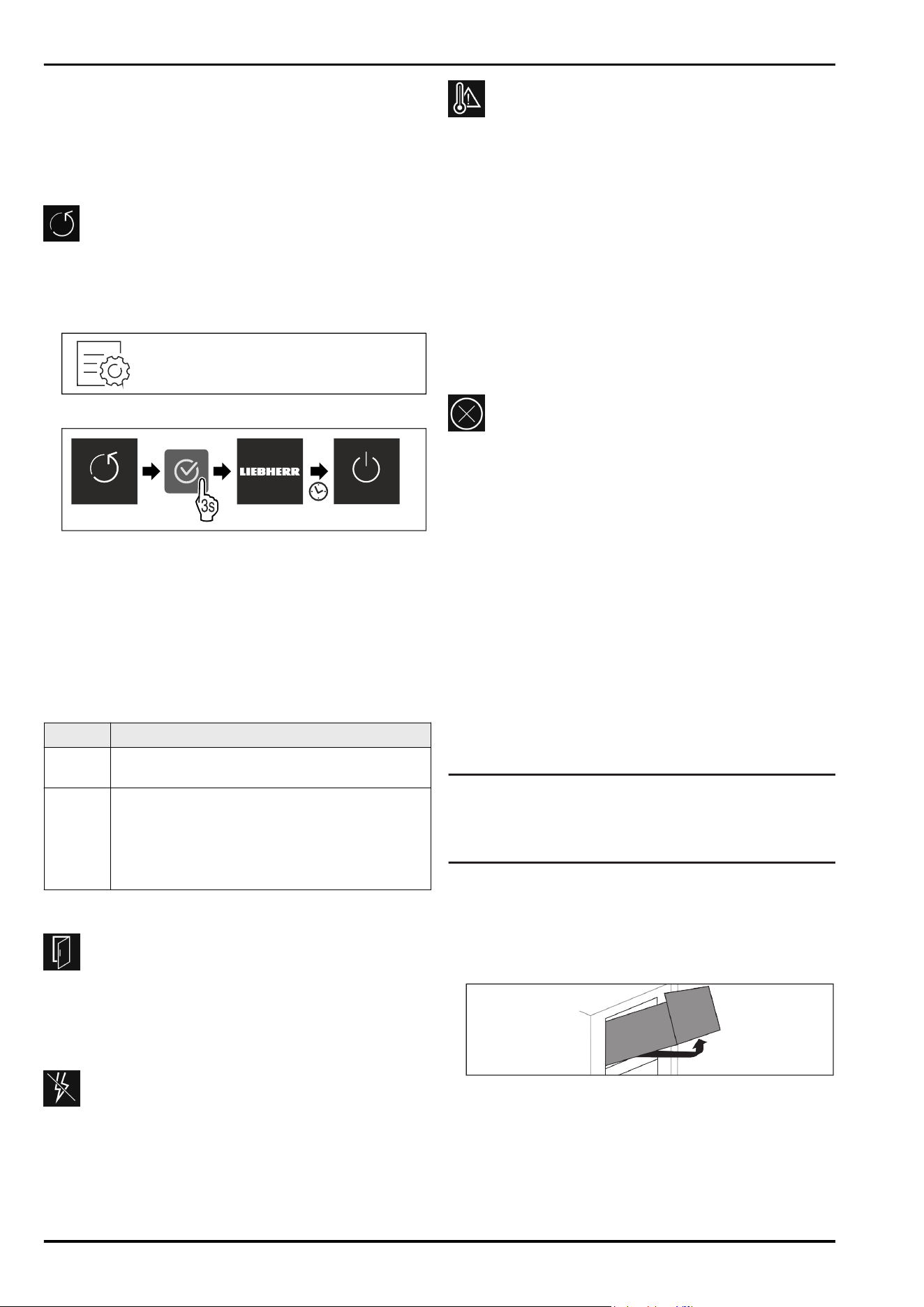
Fig.52
u
Carry out action steps according to the illustration.
w
Demo mode is deactivated.
w
Appliance is switched off.
u
Switch on the appliance. (see 4.1 Switching on appliance
(first use))
w
Appliance is reset to factory settings.
Resetting to factory settings
Use this function to reset all settings to factory defaults.
All settings you have made so far are reset to their original
settings.
Performing a reset
Fig.53
Fig.54
u
Carry out action steps according to the illustration.
w
Device is reset.
w
Device is switched off.
u
Restart the device. (see 4.1 Switching on appliance (first
use))
7.3 Fault messages
Fault messages appear in the display. There are two catego‐
ries of fault message:
Category
Meaning
Message Reminder of general procedures. You can carry
out these procedures to eliminate the message.
Warning Appears when there are malfunctions. A signal
sounds in addition to the display. The signal
becomes louder until you acknowledge by
tapping the display. You can eliminate simple
defects yourself. For more serious defects, you
must contact customer service.
7.3.1 Warnings
Close the door
This message appears if the door is open for too long.
You can set how long it takes for this message to appear .
u
Stop alarm: Confirm the message.
-or-
u
Close the door.
Power cut
This message appears if the freezer temperature increased
due to a power cut. After the power is restored, the appli‐
ance continues to work at the set temperature.
u
Stop alarm: Confirm the message.
w
Temperature alert appears (see Temperature alarm) .
Temperature alarm
This message appears if the temperature does not match
the set temperature.
Variations in temperature could be because:
-
Hot, fresh food was inserted.
-
Too much warm room air flowed in when rearranging and
removing food.
-
The power was cut off for a while.
-
The appliance is faulty.
When the fault is eliminated the appliance continues to
work at the set temperature.
u
Confirm the display.
w
The highest temperature is shown.
u
Confirm display again.
w
The status display is displayed.
w
The current temperature is shown.
Error
This message appears if there is a fault with the appliance.
An appliance component indicates a fault.
u
Open the door.
u
Note down the fault code.
u
Confirm the message.
w
The signal tone stops.
w
The status display appears.
u
Close the door.
u
Contact customer service. (see 10.4 Customer Service)
8 Features
8.1 Drawers
You can remove the drawers for cleaning.
You can remove the drawers to use VarioSpace.
The way to remove/insert the drawers varies depending
on the pull-out system. Your appliance can contain various
pull-out systems.
Note
The energy consumption increases and the cooling power
goes down if ventilation is not sufficient.
u
Leave the bottom drawer in the appliance!
u
Always leave the fan air vents clear on the back wall!
8.1.1 Top tilting drawer
When you pull out the top drawer, it tilts forward. This gives
you a better view into the drawer. The function depends on
the height of the appliance.
Removing drawer
Fig.55
u
Pull out drawer as far as it will go.
u
Lift drawer at the front.
u
Lift drawer from below.
u
Remove drawer to the front.
Features
* Depending on model and options 15
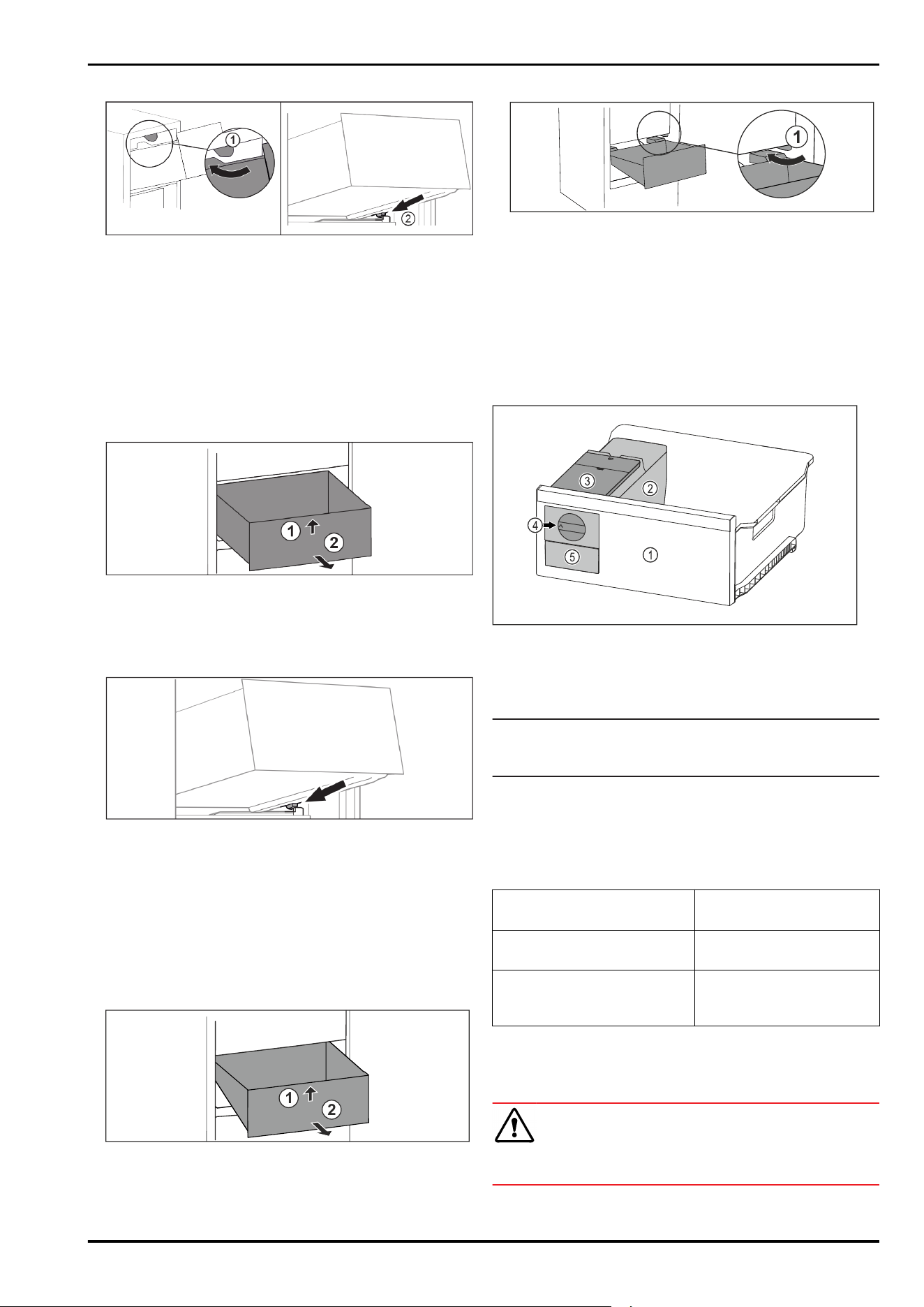
Inserting drawer
Fig.56
u
Guide drawer around the upper stoppers. Fig.56(1)
u
Place drawer at an angle behind the lower stoppers onto
moulded rib. Fig.56(2)
u
Lower drawer.
u
Slide to the back.
8.1.2 Drawer on moulded rib
The drawer runs directly on the moulded rib. There are no
rails.
Removing drawer
Fig.57
u
Pull out drawer as far as it will go.
u
Lift up drawer at the front. Fig.57(1)
u
Remove drawer to the front. Fig.57(2)
Inserting drawer
Fig.58
u
Place drawer at an angle behind the stoppers on the
moulded rib. (see Fig.58)
u
Lower drawer.
u
Slide in drawer to the back.
8.1.3 Bottom drawer
The drawer is the lowest drawer in the appliance. It runs
directly on the moulded rib. There are no rails.
Removing drawer
1
2
Fig. 59
u
Pull out drawer as far as it will go.
u
Lift up drawer at the front. Fig. 59(1).
u
Remove drawer to the front. Fig. 59(2).
Inserting drawer
1
Fig.60
u
Guide drawer in at an angle around the stoppers
Fig.60(1).
u
Lower drawer.
u
Slide in drawer to the back.
8.2 EasyTwist-Ice
With the EasyTwist-Ice you can make enough ice cubes for
the whole household. The EasyTwist-Ice is supplied with
water via a water tank.
Fig. 61 Example illustration
(1)
Freezer drawer with
EasyTwist-Ice
(4) Rotary knob
(2) Body with ice cube tray (5) Ice cube drawer
(3) Water tank
Note
Do not change the position of the freezer drawer with the
EasyTwist-Ice in the appliance.
8.2.1 Making ice cubes
The amount of ice cubes you can make in a given period of
time with the EasyTwist-Ice depends on the freezer temper‐
ature of the appliance. The lower the temperature in the
appliance, the more ice cubes you can make.
Maximum number of ice
cubes in the ice cube tray:
20 ice cubes
Maximum capacity of the ice
cube drawer:
40 ice cubes (equivalent to
two ice cube batches)
More information about the
time needed for ice cube
production:
(see 10.1 Technical specifi‐
cations)
Make sure that the following requirements are fulfilled:
q
Components of the EasyTwist-Ice have been cleaned.
Filling the water tank
WARNING
Risk of poisoning due to contaminated water!
u
Only fill the water tank with potable water.
Features
16 * Depending on model and options
NOTICE
Sugar-content liquids!
Damage to EasyTwist-Ice.
u
Only fill with cold drinking water.
Note
Using filtered, decarbonised water ensures the best-tasting
drinking water for your ice cubes.
This water quality can be achieved using a table water filter
of the kind available in trade retail outlets.
u
Always fill the water tank only with filtered, decarbonised
drinking water.
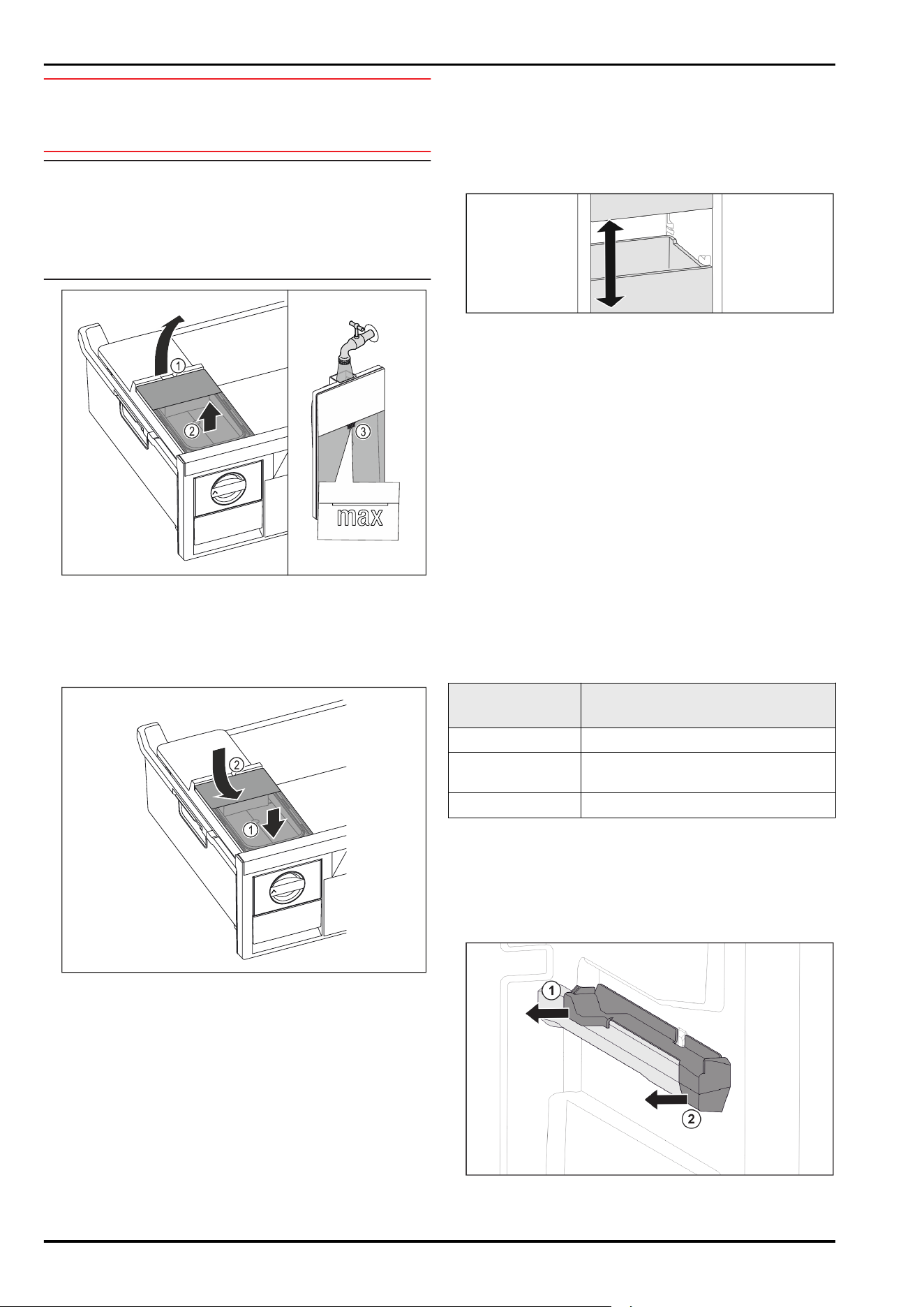
Fig. 62
u
Pull out freezer drawer as far as it will go.
u
Lift the water tank at the recess Fig. 62(1).
u
Remove the water tank by lifting it upwards. Fig. 62(2)
u
Fill the water tank with drinking water up to the mark
Fig. 62(3).
Fig.63
u
Position the water tank at the front. Fig.63(1)
u
Lower the water tank at the rear. Fig.63(2)
u
Slide in the freezer drawer.
Releasing the ice cubes
Make sure that the following requirements are fulfilled:
q
The required time for the production of ice cubes has
been observed. (see 10.1 Technical specifications)
q
Freezer drawer is fully inserted.
q
Ice cube drawer is fully inserted.
u
Turn the rotary knob Fig. 61 (4) clockwise as far as it will
go.
w
Ice cubes fall from the ice cube tray into the ice cube
drawer Fig.61(5).
If all the ice cubes do not come out of the ice cube tray:
u
Turn the rotary knob clockwise several times to the stop.
8.3 VarioSpace
Fig.64
You can remove drawers and glass panels from your appli‐
ance. This provides more room for large food items such as
poultry, joints of meat, large game, and tall baked products.
You can then freeze these items whole for later preparation.
u
Note the weight limits on the drawers and glass panels
(see 10.1 Technical specifications) .
9 Maintenance
9.1 Disassembling / assembling pull-
out systems
9.1.1 Notes on disassembly
You can disassemble some of the pull-out systems for
cleaning. Your appliance can contain a variety of pull-out
systems.
The following pull-out systems can be disassembled or
cannot be disassembled:
Pull-out system
can be disassembled/
cannot be disassembled
Top tilting drawer cannot be disassembled
Drawer on
moulded rib
can be disassembled
(see 9.1.2 Drawer on moulded rib)
Bottom drawer cannot be disassembled
9.1.2 Drawer on moulded rib
Disassembling pull-out system
Make sure the following prerequisites are met:
q
Drawer has been removed. (see 8.1.2 Drawer on moulded
rib)
Fig. 65 Attachment on the right moulded rib
u
Grab attachment at the back from below.
Maintenance
* Depending on model and options 17
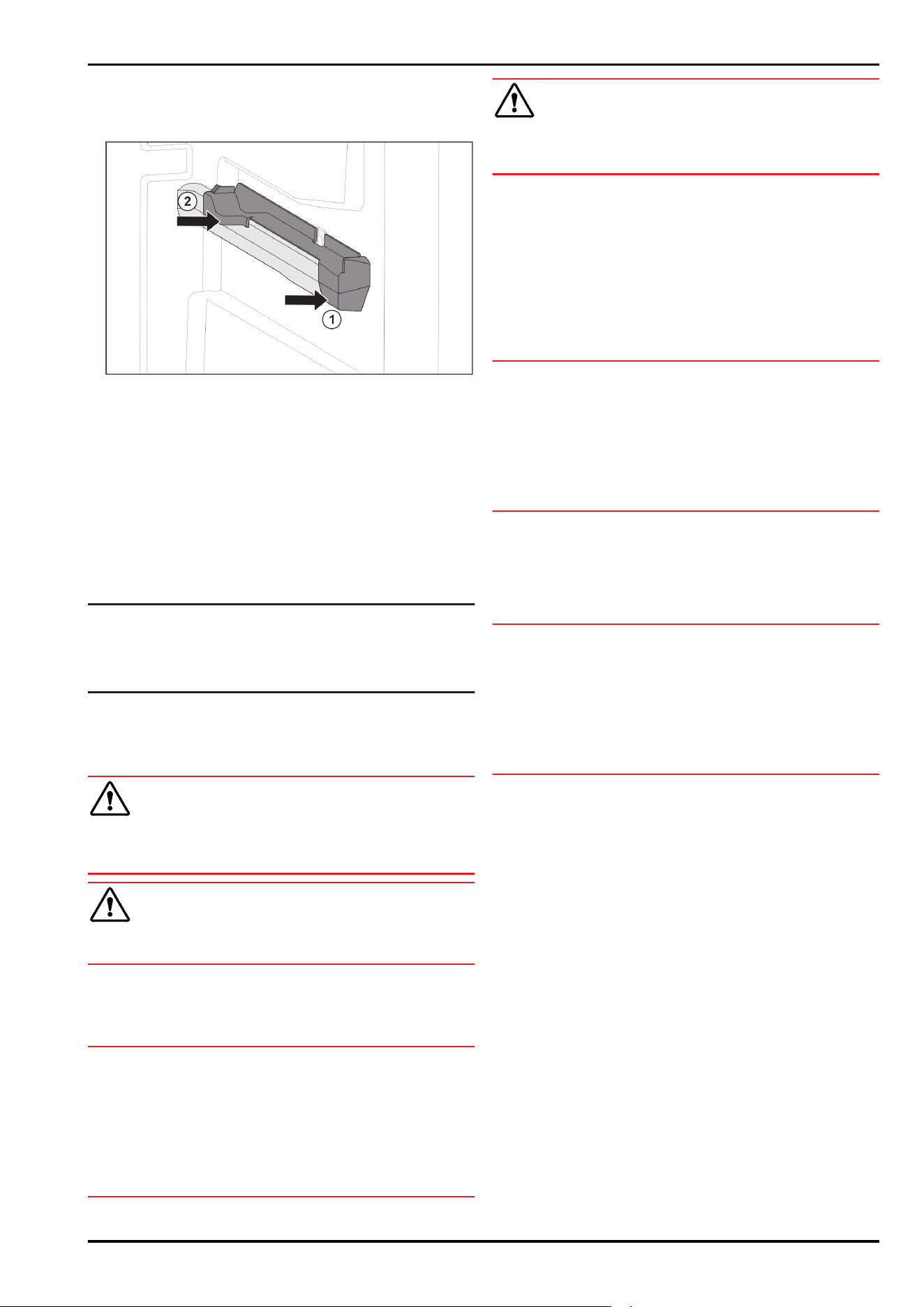
u
Pull off attachment at the back sideways. Fig.65(1)
u
Pull off attachment at the front sideways. Fig.65(2)
Installing pull-out system
Fig. 66 Attachment on the right moulded rib
u
Position attachment on moulded rib at the front.
Fig.66(1)
u
Press on attachment at the back. Fig.66(2)
9.2 Defrosting the appliance
9.2.1 Defrosting with NoFrost
Defrosting is performed automatically with the NoFrost
system. The moisture is deposited on the evaporator, is peri‐
odically defrosted and evaporates.
The appliance does not need to be defrosted.
Note
Water droplets may collect on the bottom of the appliance.
When you take the appliance out of operation:
u
Place a towel in front of the appliance to catch any drops
of water that may run out. (see11Shutting down)
9.3 Cleaning the appliance
9.3.1 Ready
WARNING
Danger of electric shock!
u
Remove the refrigerator connector or interrupt the power
supply.
WARNING
Risk of fire
u
Do not damage the refrigeration circuit.
u
Empty the appliance.
u
Remove mains connector.
9.3.2 Clean the housing
NOTICE
Improper cleaning!
Damage to the appliance.
u
Only use soft cleaning cloths and ph-neutral all-purpose
cleaners.
u
Do not uses abrasive sponges or steel wool which may
cause scratches.
u
Do not use any sharp or abrasive cleaning agents, nor
any that contain sand, chloride or acid.
WARNING
Risk of injury and damage as a result of hot steam!
Hot steam can lead to burns and can damage the surfaces.
u
Do not use any steam cleaners!
u
Wipe the housing down with soft, clean cloth. If very
dirty, use lukewarm water with a neutral cleaner. Glass
surfaces can also be cleaned with glass cleaner.
9.3.3 Cleaning the mosquito screen
u
Clean the mosquito screens regularly with a vacuum
cleaner.
u
Remove stubborn stains with a soft cloth.
9.3.4 Cleaning the interior
NOTICE
Improper cleaning!
Damage to the appliance.
u
Only use soft cleaning cloths and ph-neutral all-purpose
cleaners.
u
Do not uses abrasive sponges or steel wool which may
cause scratches.
u
Do not use any sharp or abrasive cleaning agents, nor
any that contain sand, chloride or acid.
u
Plastic surfaces: clean by hand with a soft clean cloth,
lukewarm water and a little detergent.
u
Metal surfaces: clean by hand with a soft clean cloth,
lukewarm water and a little detergent.
9.3.5 Clean the components
NOTICE
Improper cleaning!
Damage to the appliance.
u
Only use soft cleaning cloths and ph-neutral all-purpose
cleaners.
u
Do not uses abrasive sponges or steel wool which may
cause scratches.
u
Do not use any sharp or abrasive cleaning agents, nor
any that contain sand, chloride or acid.
Clean with a soft, clean cloth, lukewarm water and some
detergent:
- Drawer
- Freezer tray
- Components of the EasyTwist-Ice
u
To disassemble components: see the relevant section.
u
Clean the components.
9.3.6 Cleaning the EasyTwist-Ice
Clean the EasyTwist-Ice in the following situations:
-
First use
-
Not using for more than 48 hours
-
When cleaning is required
Dismantling the EasyTwist-Ice
Make sure that the following requirements are fulfilled:
q
The drawer has been removed. (see8.1 Drawers)
q
The drawer is placed on a table.
Maintenance
18 * Depending on model and options
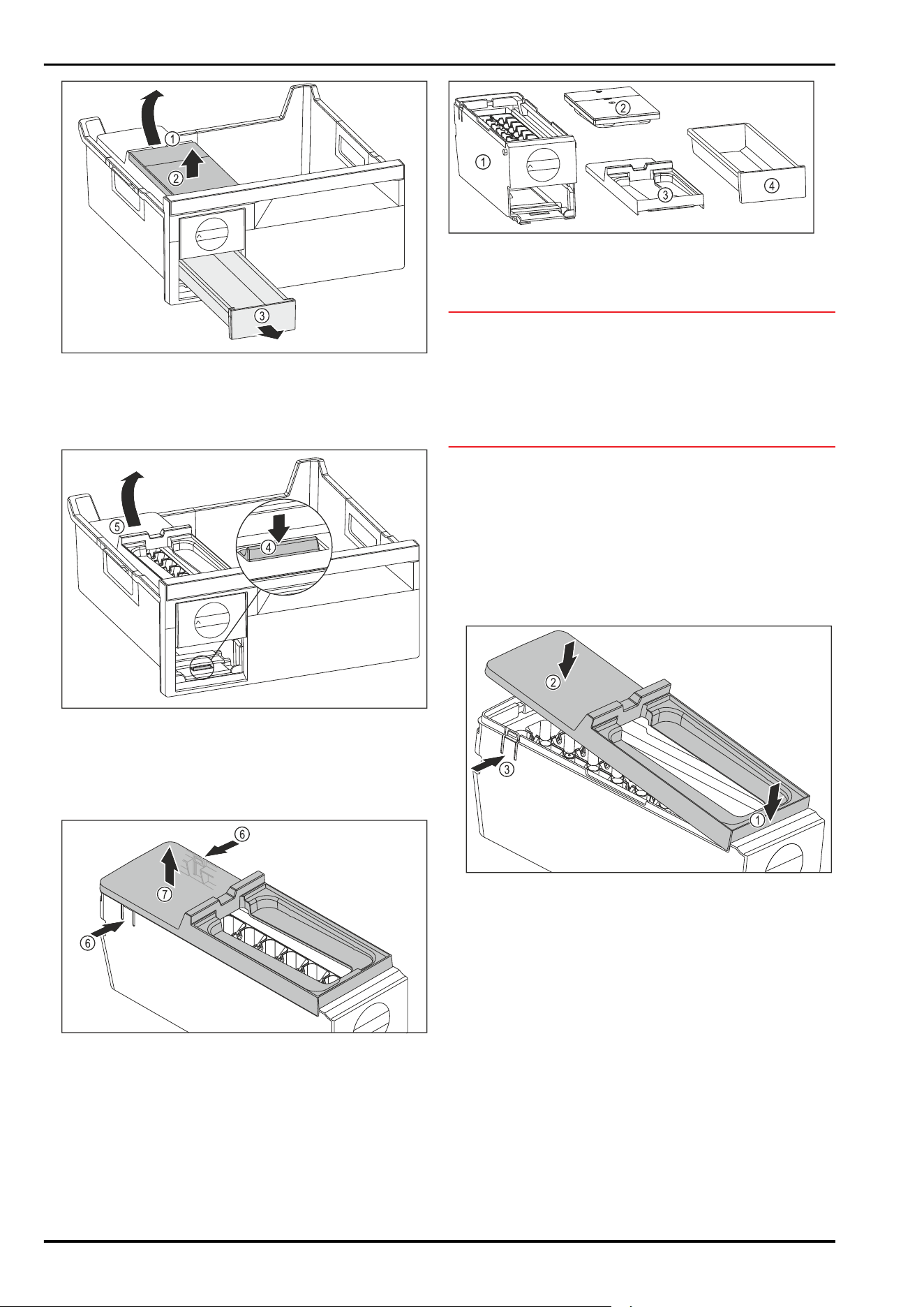
Fig. 67
u
Removing the water tank: Lift the water tank by the
recess Fig. 67(1).
u
Remove the water tank Fig. 67(2) upwards.
u
Remove the ice cube drawer Fig. 67(3) to the front.
Fig.68
u
Removing the EasyTwist-Ice body: Use your finger to
push the tab Fig. 68 (4) down and use your other hand
to lift the EasyTwist-Ice body Fig. 68 (5) from behind at
the same time.
u
Remove the EasyTwist-Ice body from the freezer drawer.
Fig. 69
u
Removing the EasyTwist-Ice body cover: Push the tabs
Fig. 69 (6) on both sides of the EasyTwist-Ice body with
one hand.
u
Use the other hand to remove the cover Fig. 69 (7)
upwards.
w
EasyTwist-Ice is dismantled into four parts. (see Fig.70)
Fig. 70 Components of the EasyTwist-Ice
(1) EasyTwist-Ice body
with ice cube tray
(3) Cover
(2) Water tank (4) Ice cube drawer
NOTICE
Risk of damage due to improper dismantling!
Equipment breaking, jumping and cracking. If you dismantle
the EasyTwist-Ice body further, you may damage the rotary
knob or other parts of the EasyTwist-Ice body.
u
Only dismantle the EasyTwist-Ice into the components
shown. (see Fig.70)
u
Clean the EasyTwist-Ice body Fig.70(1) as a whole.
Cleaning the EasyTwist-Ice
Make sure that the following requirements are fulfilled:
q
The EasyTwist-Ice is dismantled. (see Dismantling the
EasyTwist-Ice)
u
Clean the ice cube drawer, water tank, cover and Easy‐
Twist-Ice body with warm water and a little detergent.
u
Dry all cleaned components thoroughly with a dry cloth.
w
The EasyTwist-Ice is clean.
Installing the EasyTwist-Ice
Fig.71
u
Installing the EasyTwist-Ice body cover: Place the cover
on the front. Fig.71(1)
u
Lower the cover at the rear. Fig.71(2)
w
The cover locks into both tabs Fig.71(3) audibly.
Maintenance
* Depending on model and options 19
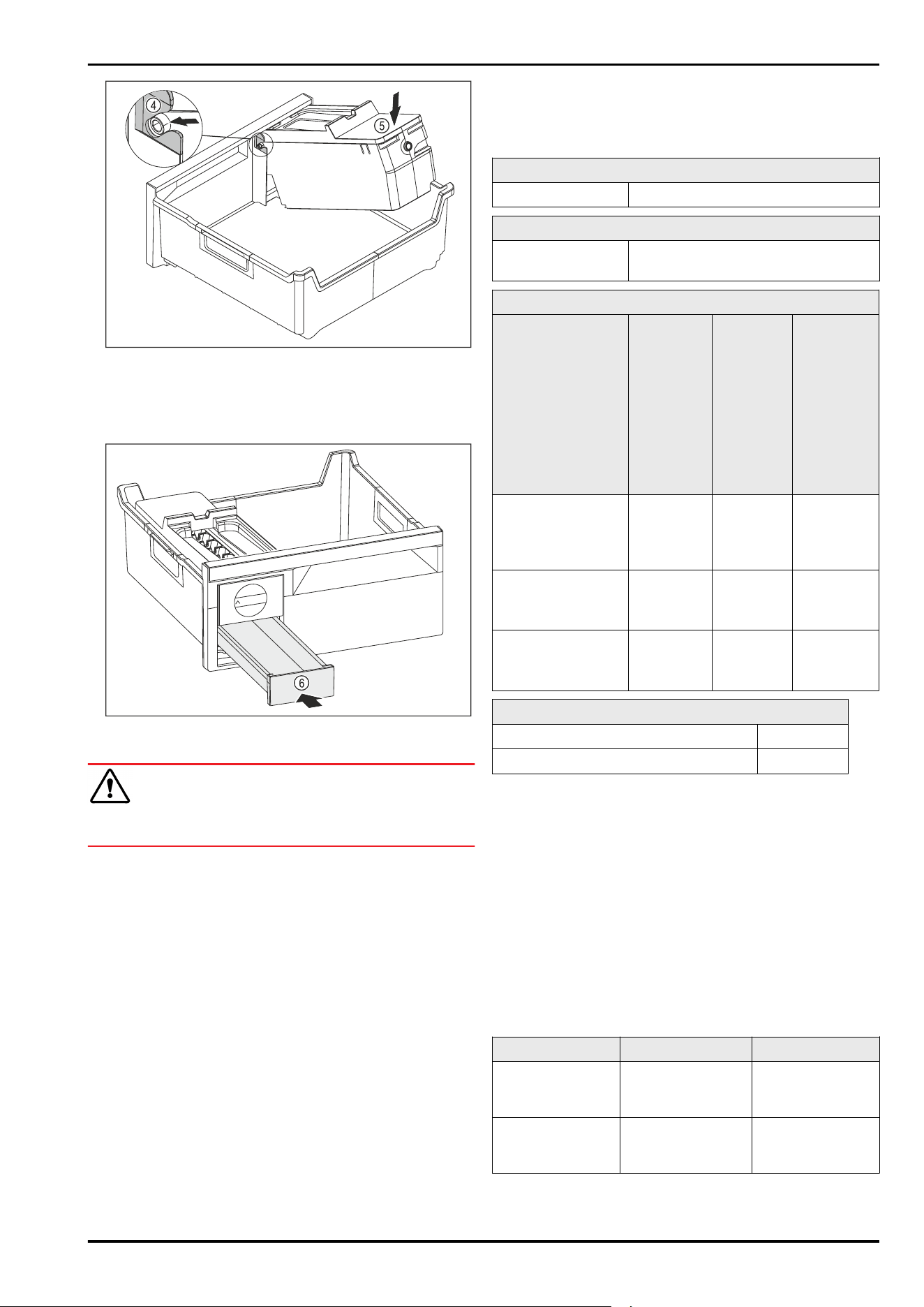
Fig.72
u
Installing the EasyTwist-Ice body: Push the axes for the
EasyTwist-Ice body into the guides Fig.72(4).
u
Press the EasyTwist-Ice body Fig.72(5) down at the back.
w
The EasyTwist-Ice body locks in audibly.
Fig.73
u
Insert the ice cube drawer Fig.73(6).
WARNING
Risk of poisoning due to contaminated water!
u
Only fill the water tank with potable water.
u
Fill the water tank with water.
u
Insert the water tank.
u
Insert the drawer. (see8.1 Drawers)
If you are using unfiltered water:
u
Dispose of ice cubes that were produced 24 hours after
initial ice cube production.
-or-
If you are using filtered water:
u
Dispose of ice cubes that were produced 48 hours after
initial ice cube production.
9.3.7 After cleaning
u
Wipe the appliance and the components dry.
u
Connect and switch on the appliance.
u
Activate SuperFrost (see 7.2Appliance functions) .
The temperature is cold enough:
u
Place the food inside.
u
Repeat cleaning regularly.
10 Customer help
10.1 Technical specifications
Temperature range
Freeze -28°C to -15°C
Maximum freezing quantity/24h
Freezer compart‐
ment
See “Freezing capacity …/24 h” on
the type plate
Maximum component capacity
Features Appliance
width
550 mm
(see instal‐
lation
instruc‐
tions,
appliance
dimen‐
sions)
Appliance
width
600 mm
(see
installa‐
tion
instruc‐
tions,
appliance
dimen‐
sions)
Appliance
width
700 mm
(see instal‐
lation
instruc‐
tions, appli‐
ance
dimen‐
sions)
Drawer on moulded
rib
(see 8.1.2 Drawer
on moulded rib)
14 kg 19 kg 19 kg
Bottom drawer
(see 8.1.3 Bottom
drawer)
-- 11 kg 19 kg
Top tilting drawer
(see8.1.1 Top tilting
drawer)
-- 19 kg 19 kg
Ice cube production with EasyTwist-Ice
Time required at -18°C approx. 5.5 h
Time required with SuperFrost activated approx. 3h
10.2 Operating noises
The appliance makes different noises when it is on.
-
At higher temperatures the appliance uses less energy
but works for longer. It is quieter.
-
At lower temperatures the food is cooled faster. It is
louder.
Examples:
•
Functions on (see 7.2Appliance functions)
•
Fan running
•
Food recently added
•
High ambient temperature
•
Door open for a while
Noise
Possible cause Type of noise
Bubbling and
splashing
Coolant flowing
into the cooling
circuit.
Normal operating
noise
Hissing Coolant sprays
into the cooling
circuit.
Normal operating
noise
Customer help
20 * Depending on model and options
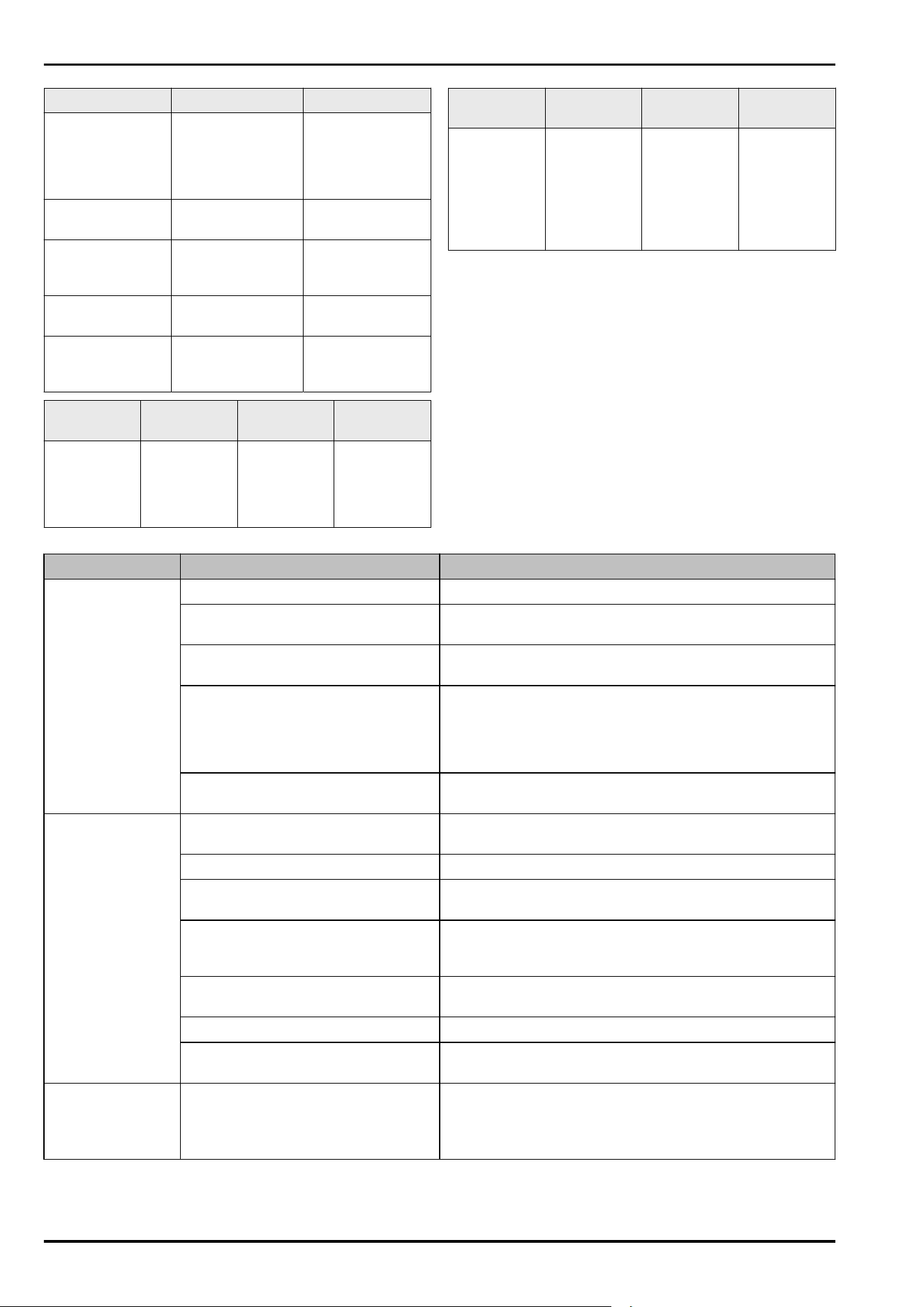
Noise Possible cause Type of noise
Humming The appliance
is cooling. The
volume depends
on the cooling
output.
Normal operating
noise
Humming and
rustling
The fan is running. Normal operating
noise
Clicking Components are
switched on and
off.
Normal switching
noise
Rattling or
humming
Valves or flaps are
working.
Normal switching
noise
Faint knocking,
humming or
buzzing*
The valve is active. Normal operating
noise
Noise Possible
cause
Type of noise Lifting
Vibration Improper
setup
Defective
noise
Level the
appliance
using the
adjustable
feet.
Noise Possible
cause
Type of noise Lifting
Rattling Components,
items inside
the appliance
Defective
noise
Secure
components.
Leave
enough
space
between the
items.
10.3 Technical fault
Your appliance is designed and built to ensure it works reli‐
ably and has a long service life. In the unlikely event that
a fault occurs during operation, please check whether it is
due to an operating error. If so, you will be charged for the
callout and repair costs even if it falls within the warranty
period.
You can fix the following faults yourself.
10.3.1 Appliance function
Defect
Cause Remedy
The appliance is
not working.
→ The appliance is not switched on.
u
Switch the appliance on.
→ The power plug is not properly
plugged into the socket.
u
Check the power plug.
→ There is something wrong with the
power outlet fuse.
u
Check the fuse.
→ Power cut
u
Keep the appliance closed.
u
Protecting food: Lay freezer packs on top of the food or
use another freezer if the power is off for a prolonged
period.
u
Do not re-freeze defrosted food,
→ The appliance plug does not fit the
appliance properly.
u
Check the appliance plug.
Temperature is not
cold enough.
→ The appliance door is not closed
properly.
u
Close the appliance door.
→ Not enough ventilation.
u
Keep ventilation grille clear, and clean it.
→ The ambient temperature is too
high.
u
Problem solution: (see1.4 Appliance range of use)
→ The appliance was opened too
many times or for too long.
u
Wait to see if the required temperature corrects itself.
If not, contact Customer Service. (see 10.4 Customer
Service)
→ Too much fresh food was placed
inside without SuperFrost.
u
Solution: (see SuperFrost)
→ The temperature is set incorrectly.
u
Turn down the temperature and check after 24 hours.
→ The appliance is too close to a heat
source (oven, radiator, etc).
u
Move the appliance or the heat source.
The door seal is
defective or needs
to be replaced for
another reason.
→ The door seal can be replaced. It
can be replaced without the need
for special tools.
u
Contact Customer Service. (see 10.4 Customer Service)
Customer help
* Depending on model and options 21
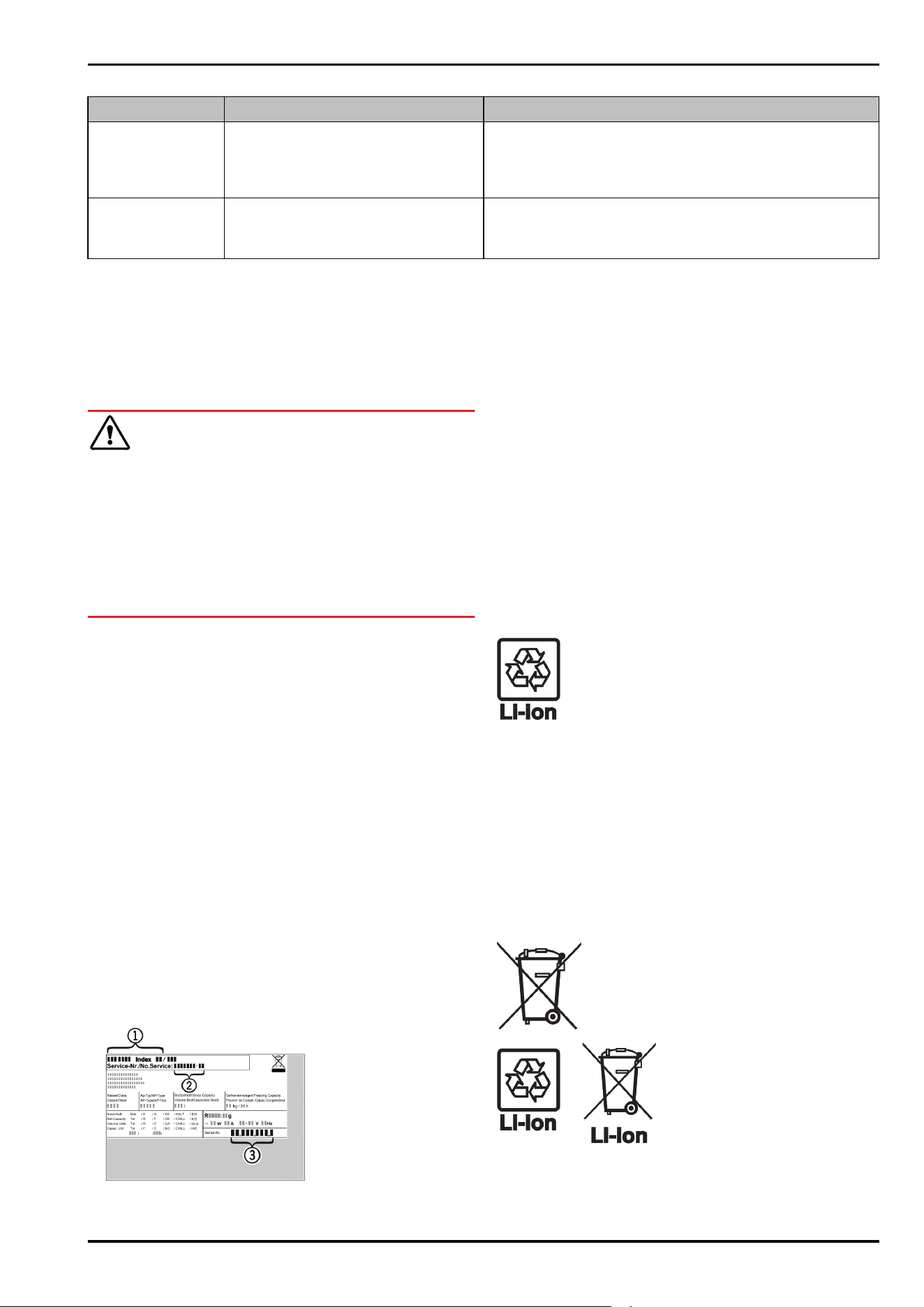
Defect Cause Remedy
The appliance
builds up too much
ice or condensa‐
tion.
→ The door seal may have slipped out
of its groove.
u
Check that the door seal is well fitted in the groove.
The appliance is
hot to touch on the
outside*.
→ The heat of the refrigeration circuit
is used to avoid condensation.
u
This is normal.
10.4 Customer Service
First check whether you can rectify the fault yourself
(see 10 Customer help) . If you cannot rectify the problem,
contact Customer Service.
You can find the address at home.liebherr.com/service.
WARNING
Unprofessional repair!
Injuries.
u
Have any repairs and action - not expressly specified -
on the appliance and mains cable carried out by service
personnel only. (see9 Maintenance)
u
A damaged mains cable may only be replaced by the
manufacturer, the manufacturer’s Customer Service or a
similarly qualified person.
u
In the case of appliances with an IEC connector, the
change may be made by the customer.
10.4.1 Contacting Customer Service
Make sure that the following appliance information is avail‐
able:
q
Appliance name (model and index)
q
Service no. (Service)
q
Serial no. (S no.)
u
Call up the appliance information via the display.
(see Device information)
-or-
u
Refer to the type plate for appliance information.
(see 10.5 Model plate)
u
Note down the appliance information.
u
Notify customer service: Report errors and the appliance
information.
w
This will help us to provide you with a faster, more accu‐
rate service.
u
Follow further instructions from Customer Service.
10.5 Model plate
The model plate is behind the drawers on the inside of the
appliance.
Fig. 74
(1)
Appliance description (3) Serial no.
(2) Service no.
u
Note the data on the model plate.
11 Shutting down
u
Empty the appliance.
u
Switch off appliance. (see Turn off appliance)
u
Remove mains connector.
u
Remove appliance connector if required: Remove and
move from left to right at the same time.
u
Place a towel in front of the appliance to catch any drops
of water that may run out.
u
Clean appliance. (see 9.3Cleaning the appliance)
u
Leave the door open, so that no unpleasant odours arise.
12 Disposal
12.1 Preparing appliance for disposal
Liebherr uses batteries in some of its appli‐
ances. In the EU, for environmental reasons,
legislation obliges the end user to remove
these batteries before disposing of old appli‐
ances. If your appliance contains batteries, a
corresponding notice is attached.
Lamps If you can remove the lamps yourself without
destroying them, also remove these before
disposal.
u
Take the appliance out of operation.
u
Appliances with batteries: remove the batteries. For
description, see Maintenance chapter.
u
If possible: remove lamps without destroying them.
12.2 Disposing of the appliance in an
environmentally friendly manner
The appliance still contains
valuable materials and must
be disposed of separately from
unsorted municipal waste.
Dispose of batteries separately
from the old appliance. To do
this, you can return the batteries
free of charge to retailers as
well as recycling centres and
collection centres for recyclable
materials.
Lamps Dispose of removed lamps
via the respective collection
systems.
Shutting down
22 * Depending on model and options
WARNING
Leaking coolant and oil!
Fire. The coolant contained in the appliance is eco-friendly,
but also flammable. The oil contained in the appliance
is flammable. Escaping coolant and oil can ignite if the
concentration is high enough and in contact with an
external heat source.
u
Do not damage the pipelines of the coolant circuit and
the compressor.
u
Transport the appliance without damaging it.
u
Dispose of batteries, lamps and the appliance according
to the above specifications.
Disposal
* Depending on model and options 23
home.liebherr.com/fridge-manuals
freezer
Issue date: 20240304
Part number index:7088353-00
Liebherr-Hausgeräte Ochsenhausen GmbH
Memminger Straße 77-79
88416Ochsenhausen
Deutschland