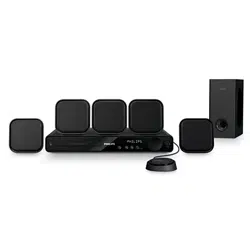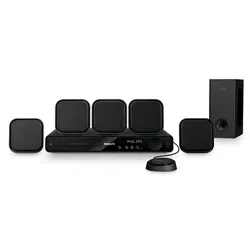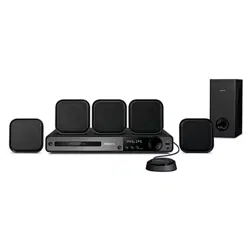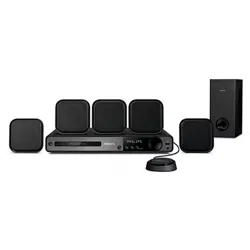
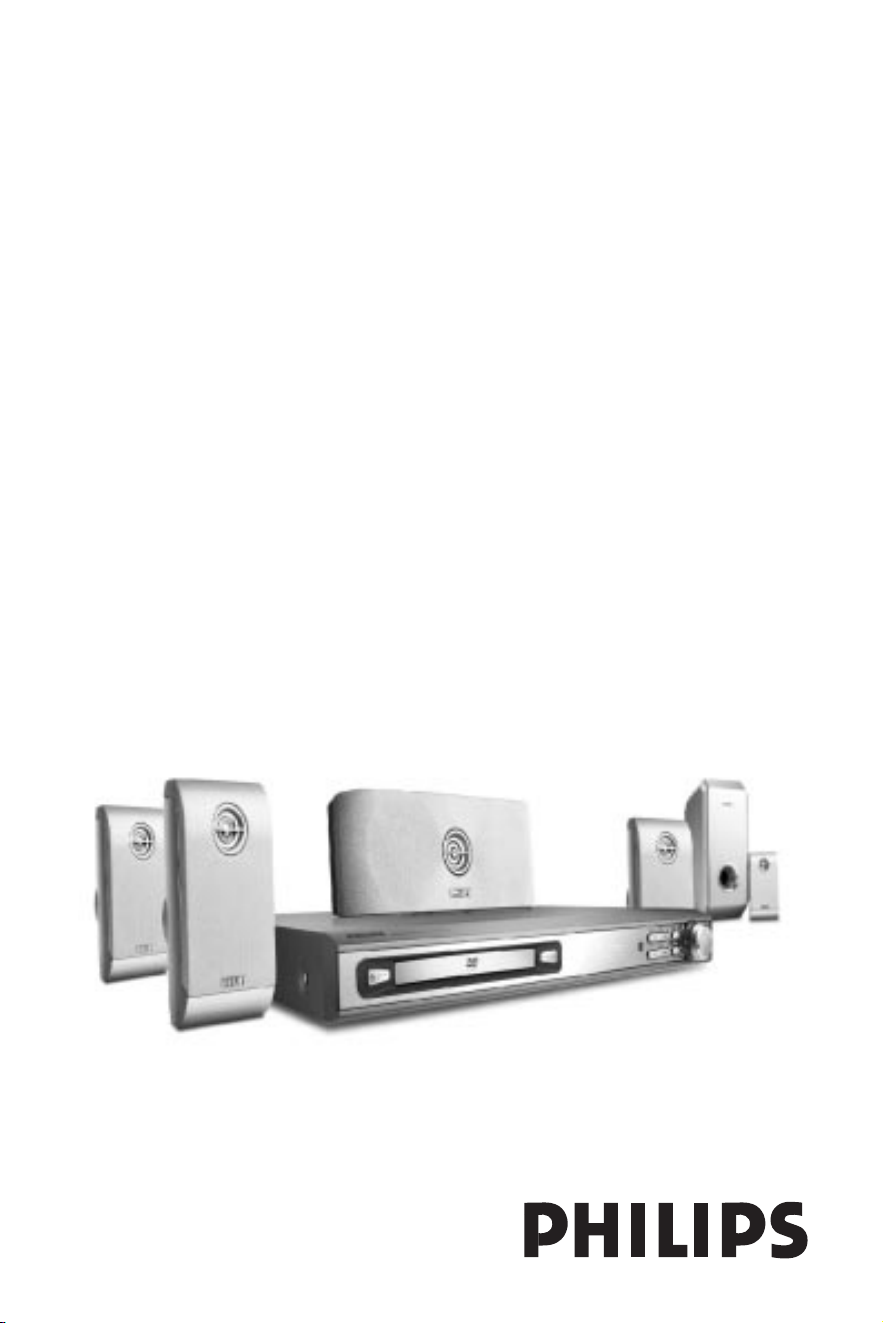
DVD HO ME THEATER SYSTEM
User manual
Thank you for choosing Philips.
Need help fast?
Read your Quick-Use Guide and/or User M anual first for quick
tips that make using your Philips product more enjoyable.
If you have read your instructions and still need assistance,
you may access our online help at www.philips.com/support
HTS3410D
2
Es necesario que lea cuidadosamente su instructivo de
manejo.
No abrir, riesgo de choque el ctrico
Verifique que el voltaje de alimentaci n
sea el requerido para su aparato
ATENCI N
Para evitar el riesgo de choque el ctrico, no quite la tapa.
En caso de requerir servicio, dirijase al personal calificado.
PRECAUCI N - ADVERTENCIA
Descripción: Sistema receptor/reproductor de DVD
Modelo : HTS3410D/55
Alimentación: 110–127 / 220–240V~; 50–60 Hz
Consumo: 180 W
Impor tador : Philips Mexicana, S.A. de C.V.
Domicilio: Av. La Palma No. 6
Col. San Fernando La Herradura
Huixquilucan
Localidad y Tel: Edo. de México C.P. 52784
Tel. 52 69 90 00
Expor tador : Philips Electronics HK, Ltd.
País de O rigen: China
N º de Serie: ______________________________
LEA CUIDADOSAMENTE ESTE INSTRUCTIVO
ANTES DE USAR SU APARATO.
AVISO IMPORTANTE
Philips M exicana, S.A. de C.V. no se hace
responsable por daños o desperfectos causados por:
– M altrato, descuido o mal uso, presencia de
insectos o roedores (cucarachas, ratones etc.).
– Cuando el aparato no haya sido operarado
de acuerdo con el instructivo del uso, fuera
de los valores nominales y tolerancias de las
tensiones (voltaje), frecuencia (ciclaje) de
alimentación eléctrica y las características
que deben reunir las instalaciones auxiliares.
– Por fenómenos naturales tales como:
temblores, inundaciones, incendios, descargas
eléctricas, rayos etc. o delitos causados por
terceros (choques asaltos, riñas, etc.).
CAUTION
Use of controls or adjustments
or performance of procedures
other than herein may result in
hazardous radiation exposure or
other unsafe operation.
ATENCIÓN
El uso de mando o ajustes o la
ejecucción de métodos que no
sean los aquí descritos puede
ocasionar peligro de exposición
a radiación.
3
Laser
Type Semiconductor laser GaAIAs
W ave length 650nm
Output Power 7mW
Beam divergence 60 degree
‘CON SUMERS SHO ULD NOTE THAT NOT ALL HIGH
DEFIN ITIO N TELEVISIO N SETS ARE FULLY
COMPATIBLE W ITH THIS PRO DUCT AN D MAY CAUSE
ARTIFACTS TO BE DISPLAYED IN THE PICTURE. IN
CASE OF 525 O R 625 PRO GRESSIVE SCAN PICTURE
PRO BLEMS, IT IS RECOMMEN DED THAT THE USER
SW ITCH THE CO NN ECTION TO THE ‘STANDARD
DEFIN ITIO N ’ O UTPUT. IF THERE ARE Q UESTION S
REGARDIN G OUR TV SET CO MPATIBILITY W ITH THIS
MO DEL 525p AN D 625p DVD PLAYER, PLEASE
CON TACT O UR CUSTOMER SERVICE CEN TRE’.
IM PO RTAN T NOTE
Due to the numerous versions of new
CD-Audio copy protection or
enhanced CD-Audio protection
recently available on certain discs,
Philips is unable to guarantee that
this DVD system is fully compatible
with such new discs. Should you have
difficulty playing such CD-Audio
discs, kindly refer them to your CD-
Audio disc retailer.
CAUTIO N
Apparatus shall not be exposed to
dripping or splashing and no objects
filled with liquids, such as vases, shall
be placed on the apparatus.
WARNIN G
To reduce the risk of fire or electric
shock, do not expose this appliance
to rain or moisture.
This product incorporates copyright
protection technology that is protected by
method claims of certain U.S. patents and
other intellectual property rights owned by
M acrovision Corporation and other rights
owners. Use of this copyright protection
technology must be authorized by
M acrovision Corporation, and is intended for
home and other limited viewing uses only
unless otherwise authorized by M acrovision
Corporation. Reverse engineering or
disassembly is prohibited.
M anufactured under license from
Dolby Laboratories. “Dolby”, “Pro-
Logic” and the double-D symbol are
trademarks of Dolby Laboratories.
“DTS” and “DTS Digital Surround”
are registered trademarks of Digital
Theater Systems, Inc.
English
English -------------------------------- 4
------------------------------37
Español
B.Português
Español
B.Português ------------------------70
Index

English
4
Contents
General Information
Supplied accessories ............................................ 5
Care and safety information .............................. 5
Connections
Step 1: Placing the speakers and subwoofer . 6
Step 2: Connecting speakers and subwoofer 7
Step 3: Connecting TV .................................... 8-9
Using Composite Video jack ........................ 8
Using Component Video jacks(Y Pb Pr) .... 8
Using S-Video .................................................. 9
Step 4: Connecting FM / AM antennas ........... 10
Step 5: Connecting the power cord .............. 10
Connections (optional)
Connecting a VCR or Cable/ Satellite Box ... 11
Viewing and listening to the playback ...... 11
Using the VCR for recording DVD
playback ........................................................... 11
Connecting digital audio equipment .............. 11
Digital Recording .......................................... 11
Functional Overview
Main unit and remote control ......................... 12
Control buttons available on the
remote only ................................................... 13
Getting Started
Step 1: Inserting batteries into the
remote control ................................................... 14
Using the remote control to operate
the system ...................................................... 14
Step 2: Setting the TV ........................................ 14
Selecting the colour system that
corresponds to your TV .............................. 15
Setting the TV shape .................................... 15
Step 3: Setting the speakers............................. 16
Test Tone – turning on/ off .......................... 16
Adjusting the delay time.............................. 16
Adjusting the speaker output levels ......... 16
Step 4: Setting language preferences ............. 17
On-screen display (OSD) language ........... 17
Audio, Subtitle and Disc Menu language . 17
Progressive Scan ................................................. 18
Disc Operations
Playable discs ....................................................... 19
Playing discs ......................................................... 19
Using the Disc Menu ......................................... 20
Basic playback controls ..................................... 20
Resuming playback from the last
stopped point (DVD /VCD / CD) .............. 20
Selecting various repeat functions.................. 20
Repeat play mode ......................................... 20
Repeating a section within a
title/track ........................................................ 21
Program favourite tracks
(audio CDs and VCDs) ..................................... 21
Clearing the progr am .................................. 21
Using the menu bar to progr am ..................... 21
Playing MP3/ Picture disc (Kodak, JPEG) ....... 22
DVD Setup Menu Options
Using the menu bar ........................................... 23
Using the Setup Menu ....................................... 24
Setting the video output ............................. 24
Progressive Scan – turning on/off ............. 25
Screen saver – turning on/ off .................... 25
Smart Power – turning on/off .................... 26
N ight mode – turning on/off ..................... 26
Restoring the original settings ................... 27
Restr icting playback by parental control . 27
Changing the password ............................... 28
Tuner Operations
Tuning to radio stations .................................... 29
Presetting radio stations................................... 29
Automatic presetting ................................... 29
Manual presetting ......................................... 29
Selecting a preset radio station....................... 29
Deleting a preset radio station .................. 29
Changing Tuning Grid ........................................ 29
Other Functions
Setting the Sleep timer ...................................... 30
Sound Control .................................................... 30
Selecting surround sound ........................... 30
Selecting digital sound effects .................... 31
Volume Control .................................................. 31
Dimming system’s display screen .................... 31
Using the remote to operate ‘Philips’
television ............................................................... 31
Specifications.......................................................... 32
Tr oubleshooting...........................................33–34
Glossary .................................................................35–36
English
5
General Information
Composite video
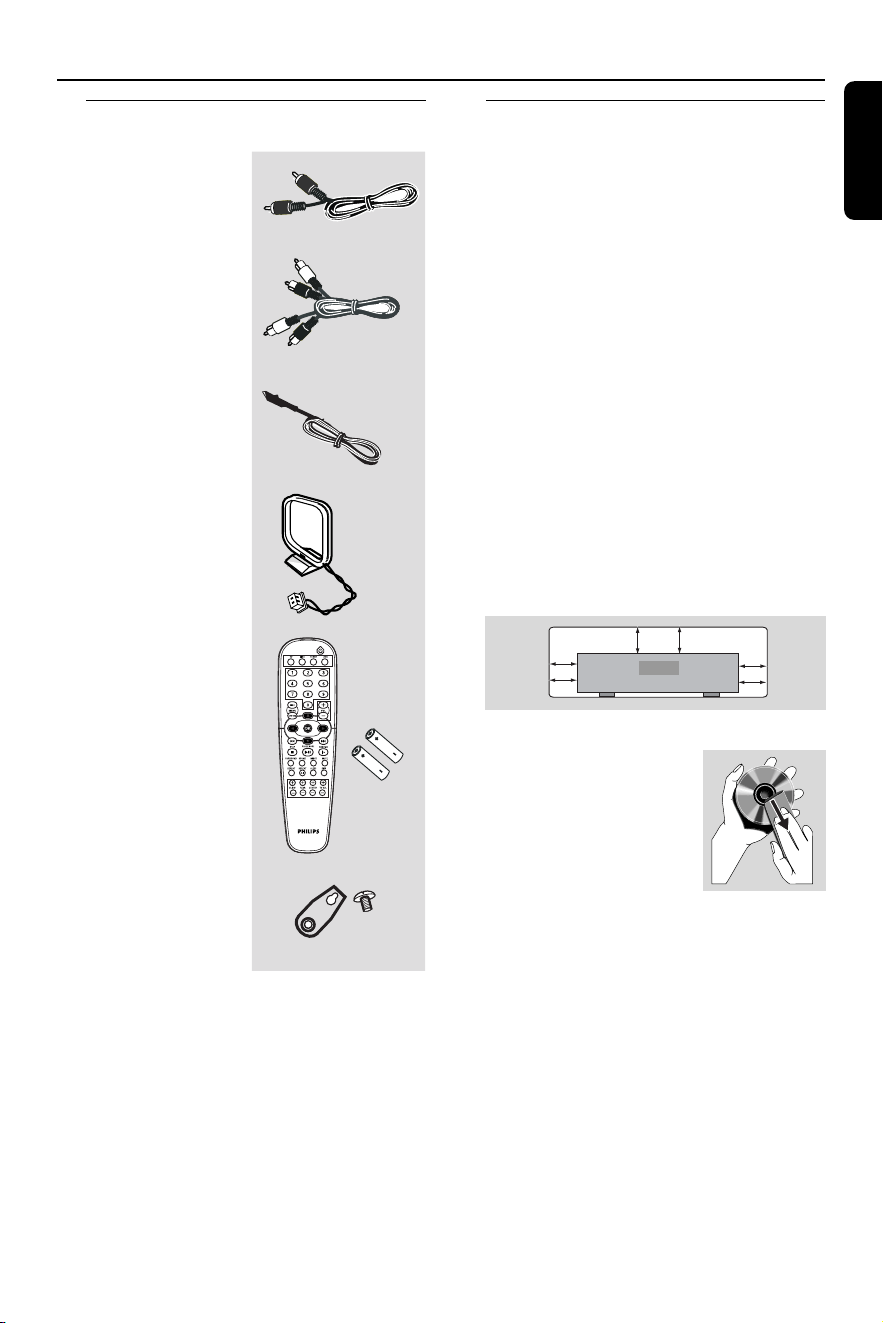
cable (yellow)
Audio cable
(white, red)
FM wire antenna
AM loop antenna
Remote Control
and two AA
batteries
Supplied accessories Care and safety information
Avoid high temperatures, moisture,
water and dust
– Do not expose the system, batteries
or discs to humidity, rain, sand or
excessive heat (caused by heating
equipment or direct sunlight). Always
keep the disc tray closed to avoid getting
dust on the lens.
Avoid condensation problem
– The lens may cloud over when the
player is suddenly moved from cold to
warm surroundings, making it impossible
to play a disc. Leave the player in the
warm environment until the moisture
evapor ates.
Do not block the vents
– Do not operate the DVD system in an
enclosed cabinet and allow about 10 cm
(4 inches) of free space all around the
player for adequate ventilation.
10 cm
(4 inches)
10 cm
(4 inches)
10 cm
(4 inches)
DVD Home Cinem a Sy stem
PHILIPS
Care of disc
–To clean a CD, wipe it
in a straight line from the
center toward the edge
using a soft, lint-free
cloth. Do not use
cleaning agents, as they
may damage the disc.
– W rite only on the printed side of a
CD-R/CD-RW and only with a soft felt-
tipped pen.
–Handle the disc by its edge, do not
touch the surface.
Care of the cabinet
– Use a soft cloth slightly moistened
with a mild detergent solution. Do not
use a solution containing alcohol, spirits,
ammonia or abrasives.
Finding a suitable location
– Place the player on a flat, hard, stable
surface.
Speaker screws
and brackets
(5x)
English
6
Connections
Step 1: Placing the speakers
and subwoofer
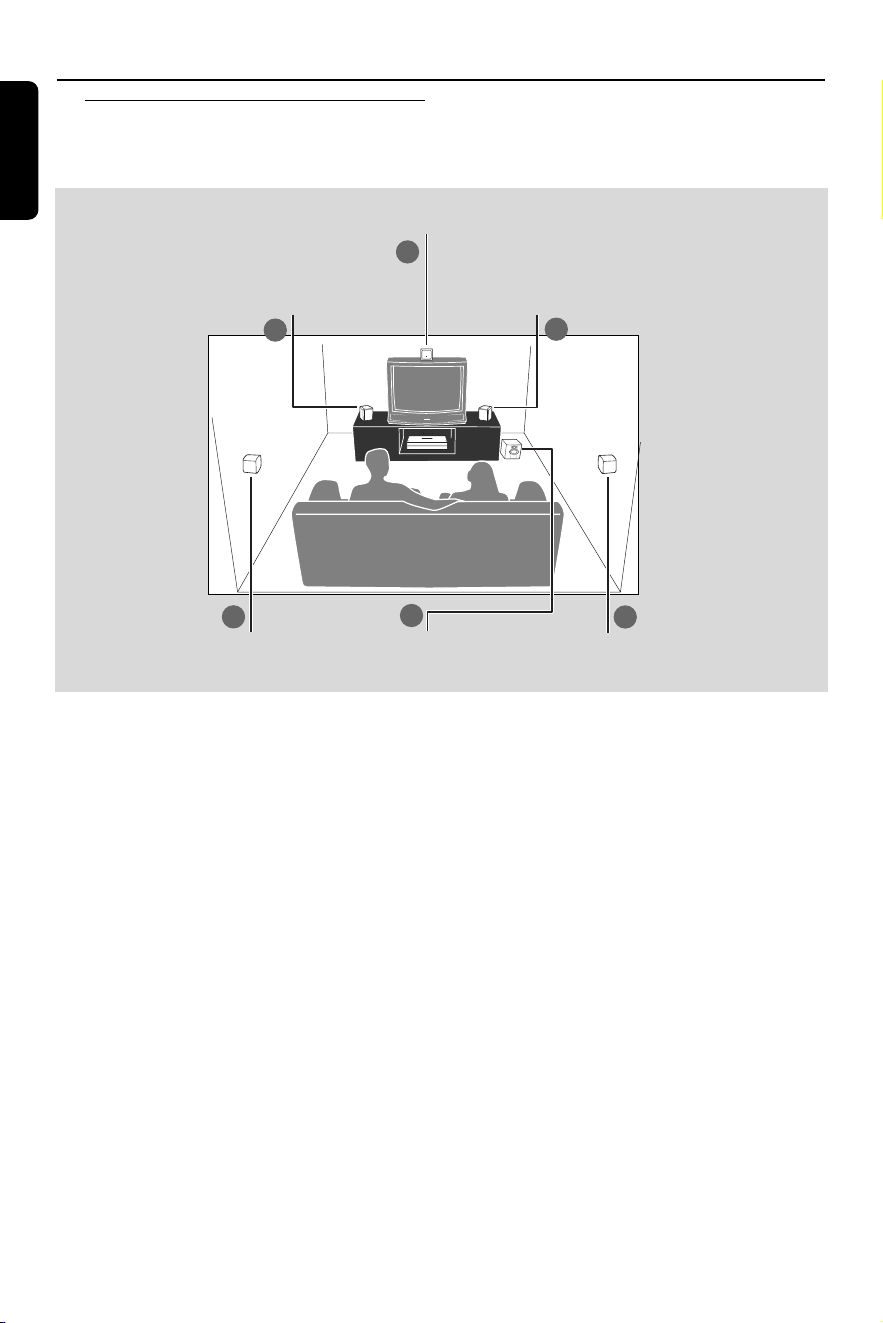
Center speaker
Front Speaker
(Left)
Front Speaker
(Right)
Rear Speaker
(Left)
Rear Speaker
(Right)
Subwoofer
For best possible surround sound, all the
speakers (except subwoofer ) should be
placed at the same distance from the
listening position.
1 Place the front left and right speakers at
equal distances from the TV and at an
angle of approximately 45 degrees from
the listening position.
2 Place the center speaker above the TV or
the DVD system so that the center
channel’s sound is localized.
3 Place the rear speakers at normal
listening ear level facing each other or
hang on the wall.
4 Place the subwoofer on the floor near
the TV.
Helpful H ints:
–To avoid magnetic interference, do not
position the front speakers too close to
your TV.
– Allow adequate ventilation around the
DVD system.
1
1
3
3
4
2
English
7
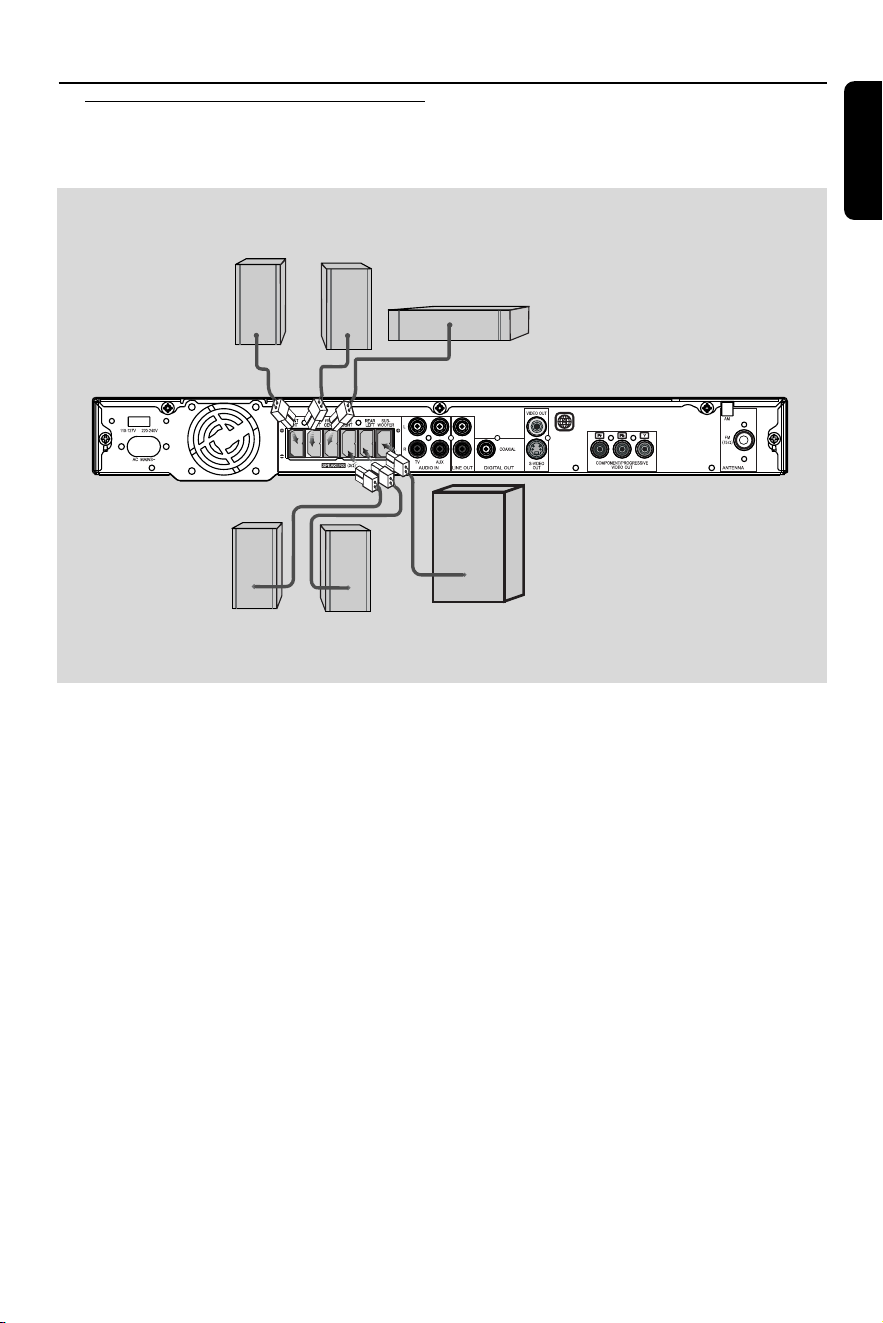
Step 2: Connecting speakers
and subwoofer
Connections
Front Speaker
(Right)
Front Speaker
(Left)
Rear Speaker
(Right)
Rear Speaker
(Left)
Subwoofer
Center
Speaker
Connect the supplied speaker systems
using the fixed speaker cables by
matching the colours of the jacks and
speaker cables.
Helpful H int:
– Ensure that the speaker cables are
correctly connected. Improper connections
may damage the system due to short-circuit.
SUBW OOFER
REAR L
REAR R
CENTER
FRON T L
FRON T R
English
8
Connections
Step 3: Connecting TV
* IMPORTANT!
–You only need to make
one video
connection from the following
options, depending on the
capabilities of your TV.
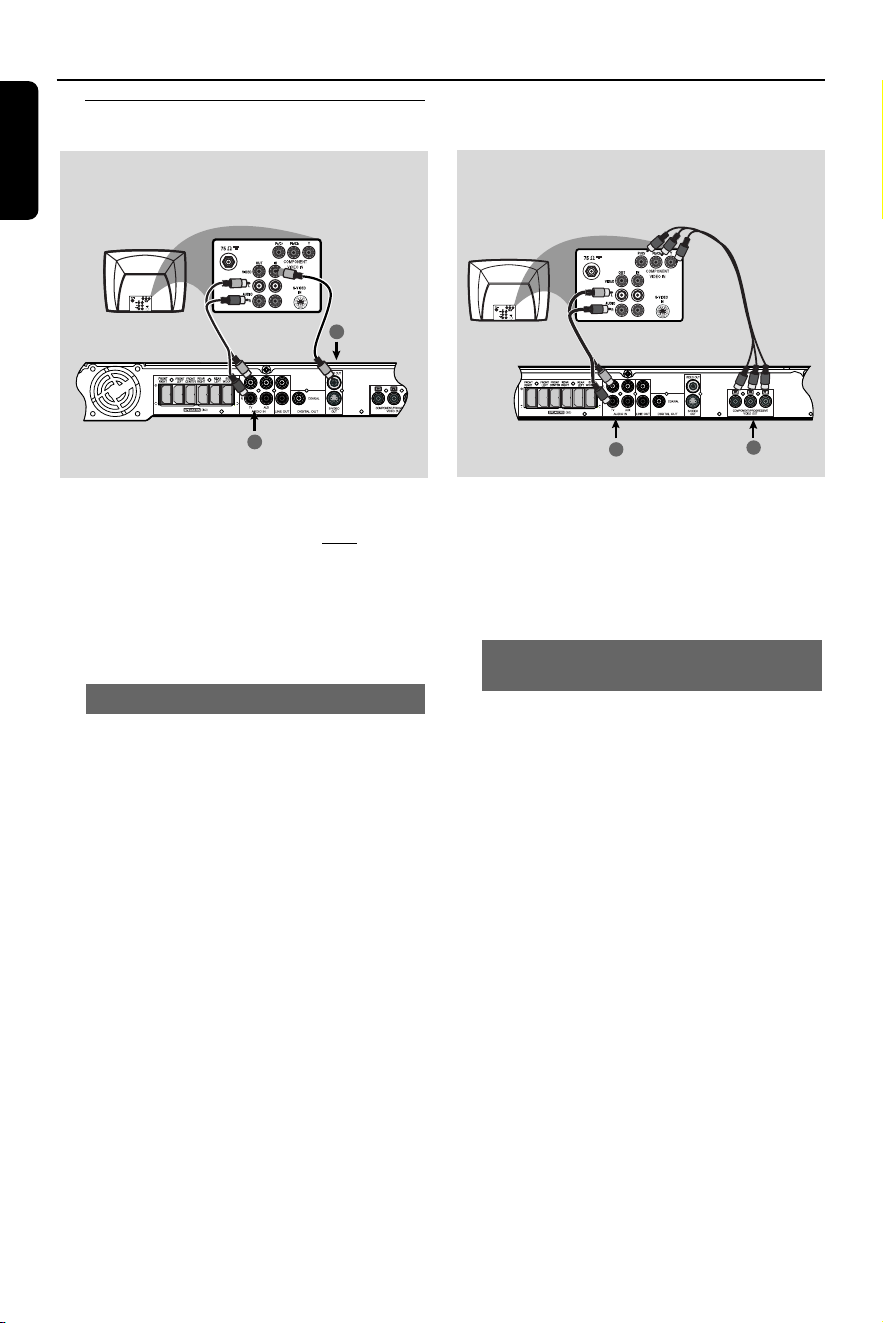
– Connect the DVD system directly
to the TV.
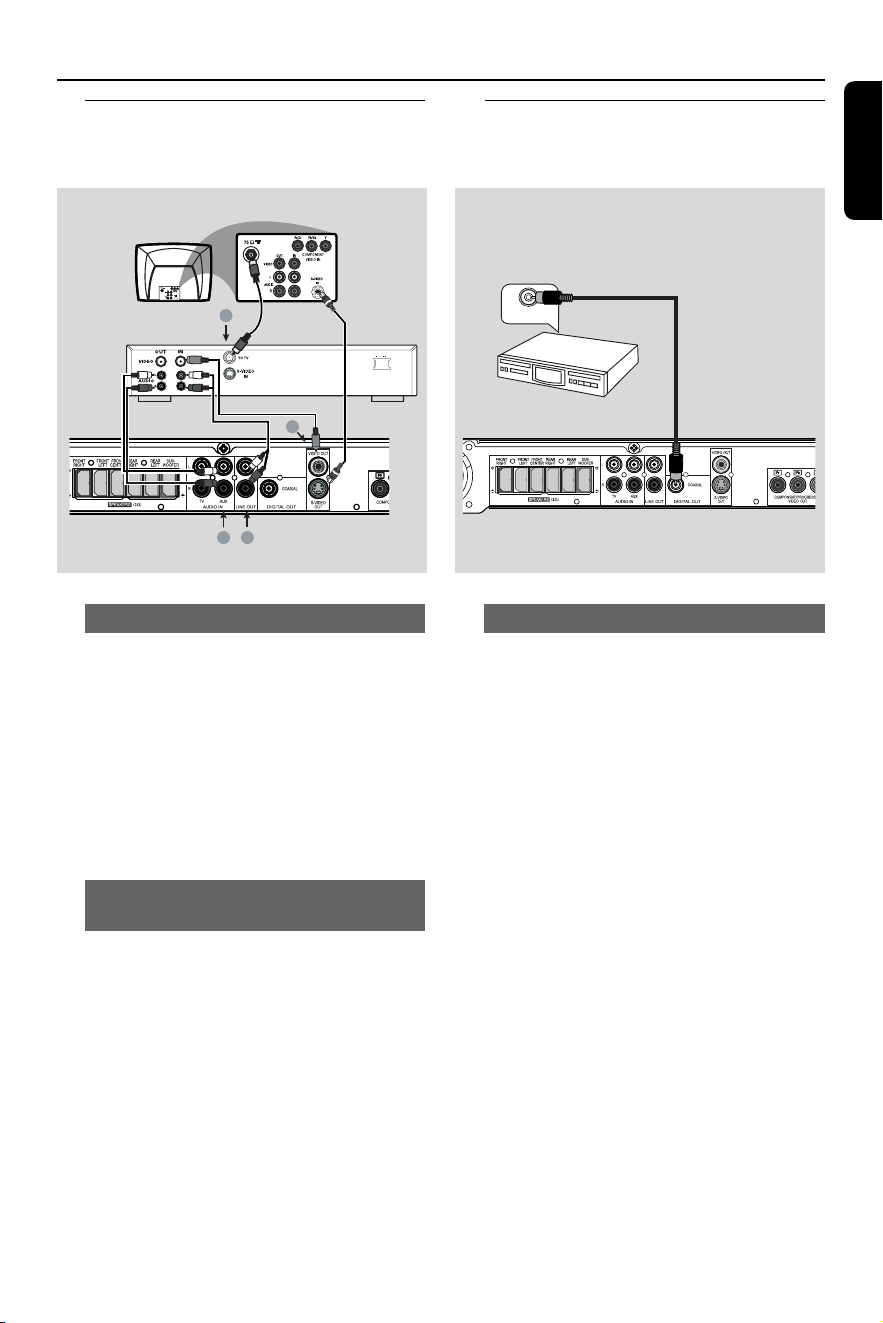
Using Composite Video jack
1 Use the supplied composite video cable
(yellow) to connect the DVD system’s
VIDEO OUT jack to the video input
jack (or labelled as A/V In, Video In,
CVBS, Composite or Baseband) on the
TV.
2 To hear the TV channels through this
DVD system, use the supplied audio
cables (white/ red) to connect AUDIO
IN-TV) jacks to the corresponding
AUDIO OUT jacks on the TV.
* IMPORTANT!
– The progressive scan video quality
is only possible when using Y Pb Pr,
and a progressive scan TV is
required.
Using Component Video jacks
(Y Pb Pr)
1 Use a component video cables (red/blue/
green - not supplied) to connect the
DVD syst
em’s Y Pb Pr jacks to the
corresponding Component video input
jacks (or labelled as Y Pb Pr or YUV) on
the TV.
2 To hear the TV channels through this
DVD system, use the supplied audio
cables (white/ red) to connect AUDIO
IN-TV jacks to the corresponding
AUDIO OUT jacks on the TV.
3 If you are using a Progressive Scan TV (TV
must indicate Progressive Scan or
ProScan capability), to activate TV
Progressive Scan, please refer to your
TV user manual. For DVD receiver
Progressive Scan function through
SYSTEM MEN U, See page 25.
Helpful H int:
– If your TV does not support Progressive
Scan, you will not be able to view the picture.
Press and hold O PEN/CLOSE key, and
press ‘1’ to deactivate progressive scan.
Option 1
Option 2
1
2
2
1
English
9
Connections
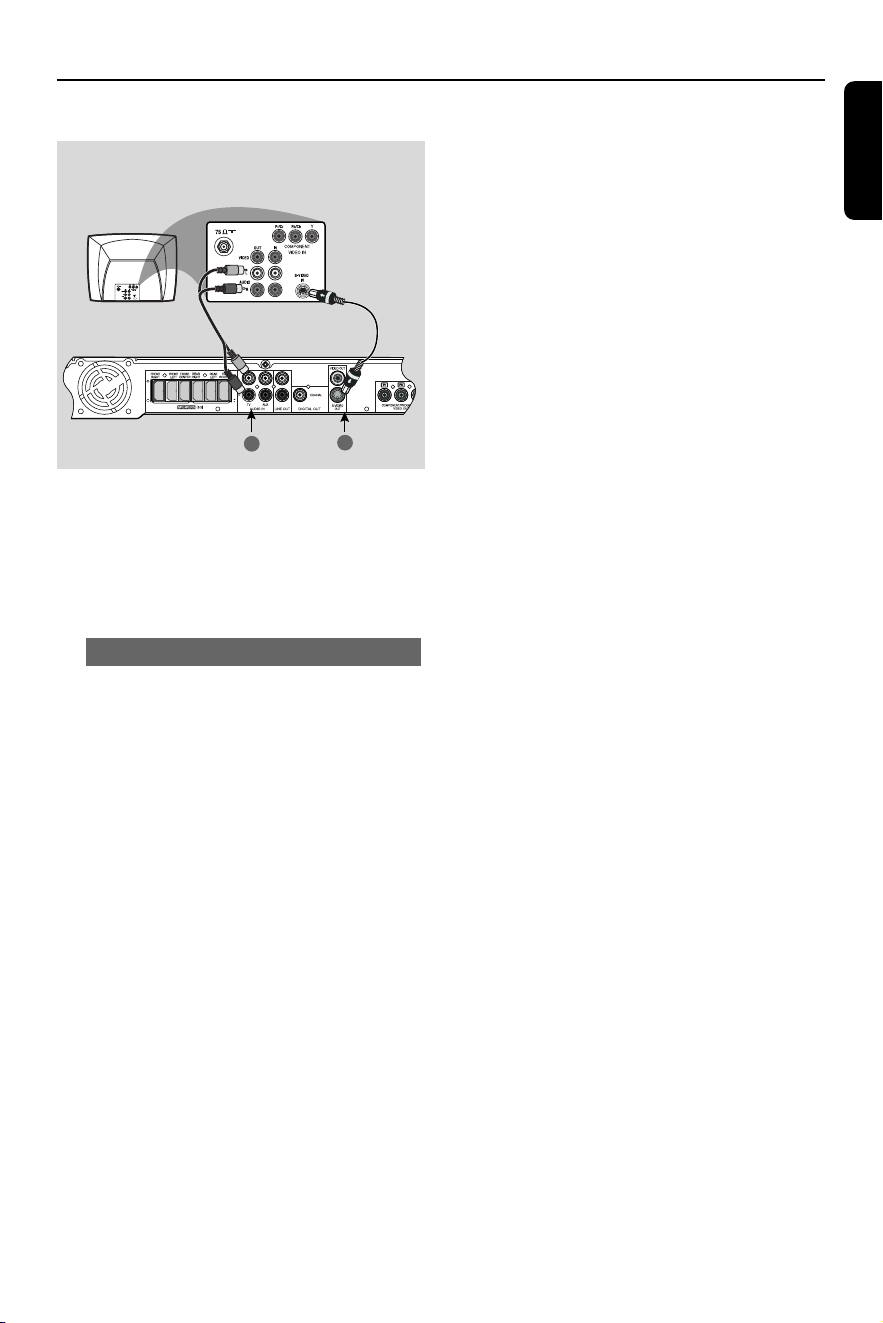
* IMPORTANT!
– If S-Video is used for DVD
playback, the system’s VIDEO OUT
setting will need to be changed
accordingly.
Using S-Video jack
1 Use an S-Video cable (not supplied) to
connect the DVD system’s S-Video
OUT jack to the S-Video input jack (or
labeled as Y/C or S-VHS) on the TV.
2 To hear the TV channels through this
DVD system, use the supplied audio
cables (white/ red) to connect AUDIO
IN-TV) jacks to the corresponding
AUDIO OUT jacks on the TV.
Option 3
2
1
English
10
Connections
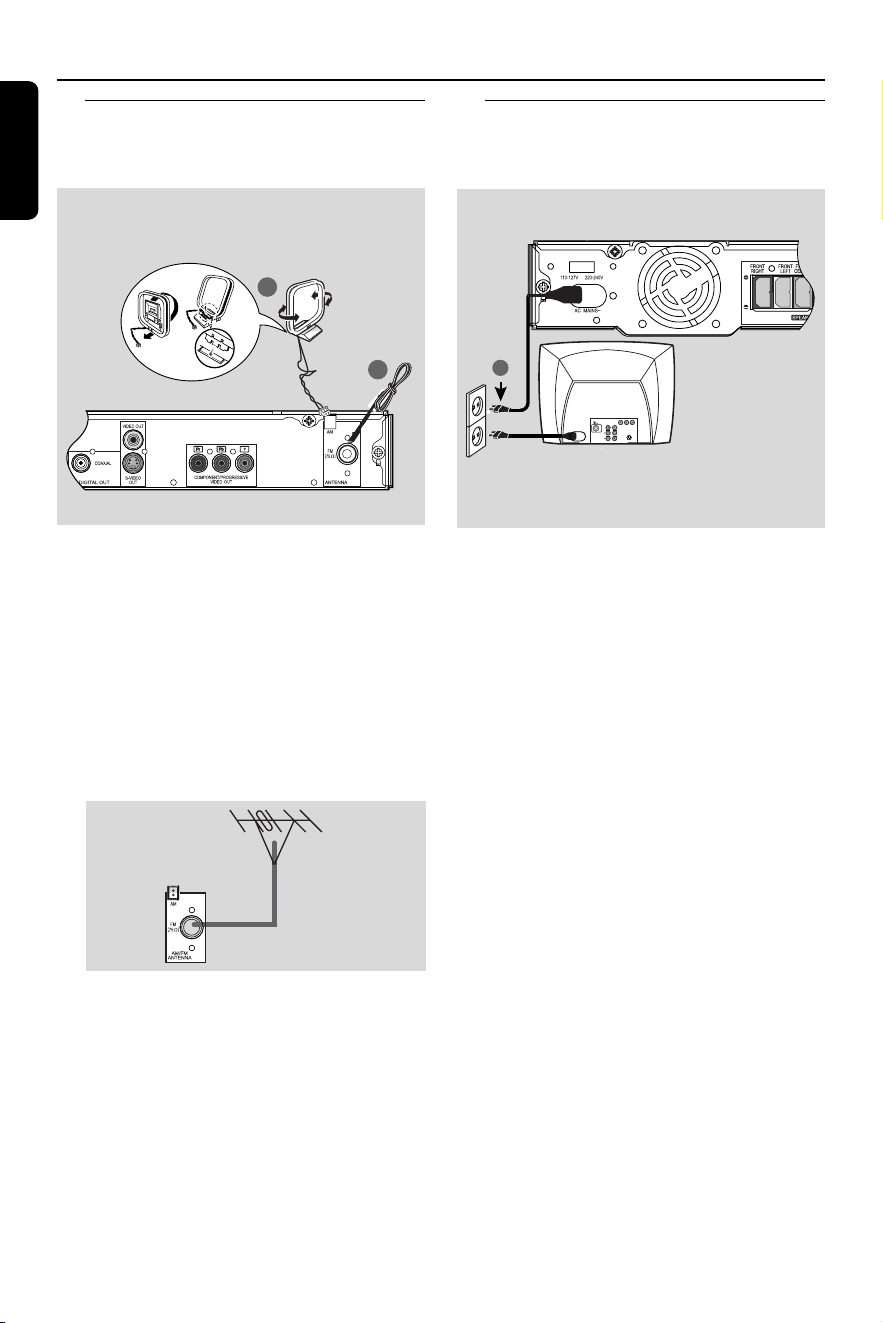
Step 4: Connecting FM /AM
antennas
Step 5: Connecting the
power cord
FM
antenna
AM
antenna
fix the claw into
the slot
Power Outlet
1 Connect the supplied AM loop antenna
to the AM jack. Place the AM loop
antenna on a shelf or attach it to a stand
or wall.
2 Connect the supplied FM antenna to the
FM (75Ω) jack. Extend the FM antenna
and fix its ends to the wall.
For better FM stereo reception, connect
an external FM antenna (not supplied).
Helpful H ints:
– Adjust the position of the antennas for
optimal reception.
–Position the antennas as far as possible
from your TV, VCR or other radiation source
to prevent unwanted interference.
After everything is connected
properly,
1 Plug in the AC power cord to the power
outlet.
2 Never make or change any connections
with the power switched on.
Helpful H int:
– Refer to the type plate on the rear or
bottom of the system for identification and
supply ratings.
1
2
➠
~ AC MAINS
1
English
11
Connections (optional)
Connecting a VCR or
Cable/Satellite Box
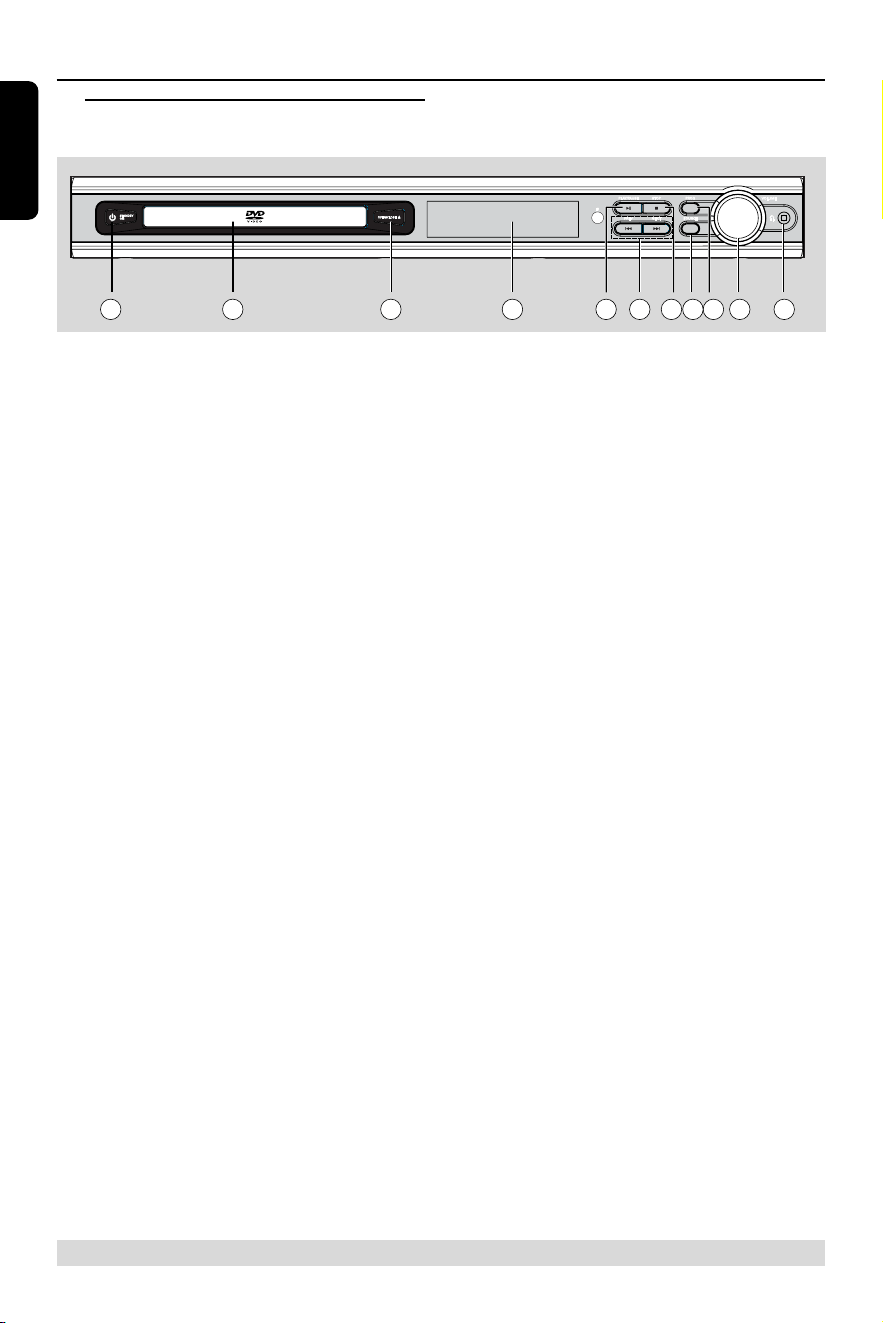
Connecting digital audio
equipment
(for example)
CD Recorder
Viewing and listening to the playback
1 Connect the VCR or Cable/ Satellite Box
to the TV as shown.
2 Connect the DVD system’s AUDIO IN-
AUX jacks to the AUDIO OUT jacks on
the VCR or cable/satellite box.
Before star ting operation, press AUX on
the remote to select “ AUX” in order to
activate the input source.
Using the VCR for recording DVD
playback
3 Connect the DVD system’s VIDEO OUT
jack to the VIDEO IN jack on the VCR.
4 Connect the DVD system’s LINE OUT
jacks to the AUDIO IN jacks on the VCR.
This will allow you to make analog stereo
(two channel, right and left) recordings.
T o view DVD playback while
recording, you must connect the DVD
system to your TV using S-VIDEO (as
shown above) or Component (Y Pb Pr)
connection.
Digital Recording
1 Connect the DVD system’s DIGITAL
OUT-COAX IAL jack to the DIGITAL
COAXIAL IN jack on a digital recording
device (such as Dolby Digital decoder,
CD recorder).
Before star ting operation, set the
DIGITAL O UTPUT according to the
audio connection.
Helpful H ints:
– Some DVDs are copy-protected. You
cannot record the disc through a VCR or
digital recording device.
– Always refer to the owner’s manual of the
other equipment for complete connection
and usage details.
VCR or Cable/
Satellite Box
2
1
4
3
L
R
~ AC MAINS
VCR or Cable/
Satellit e Box
DIGITAL IN
English
12
Functional Overview
* = Press and hold the button for more than two seconds.
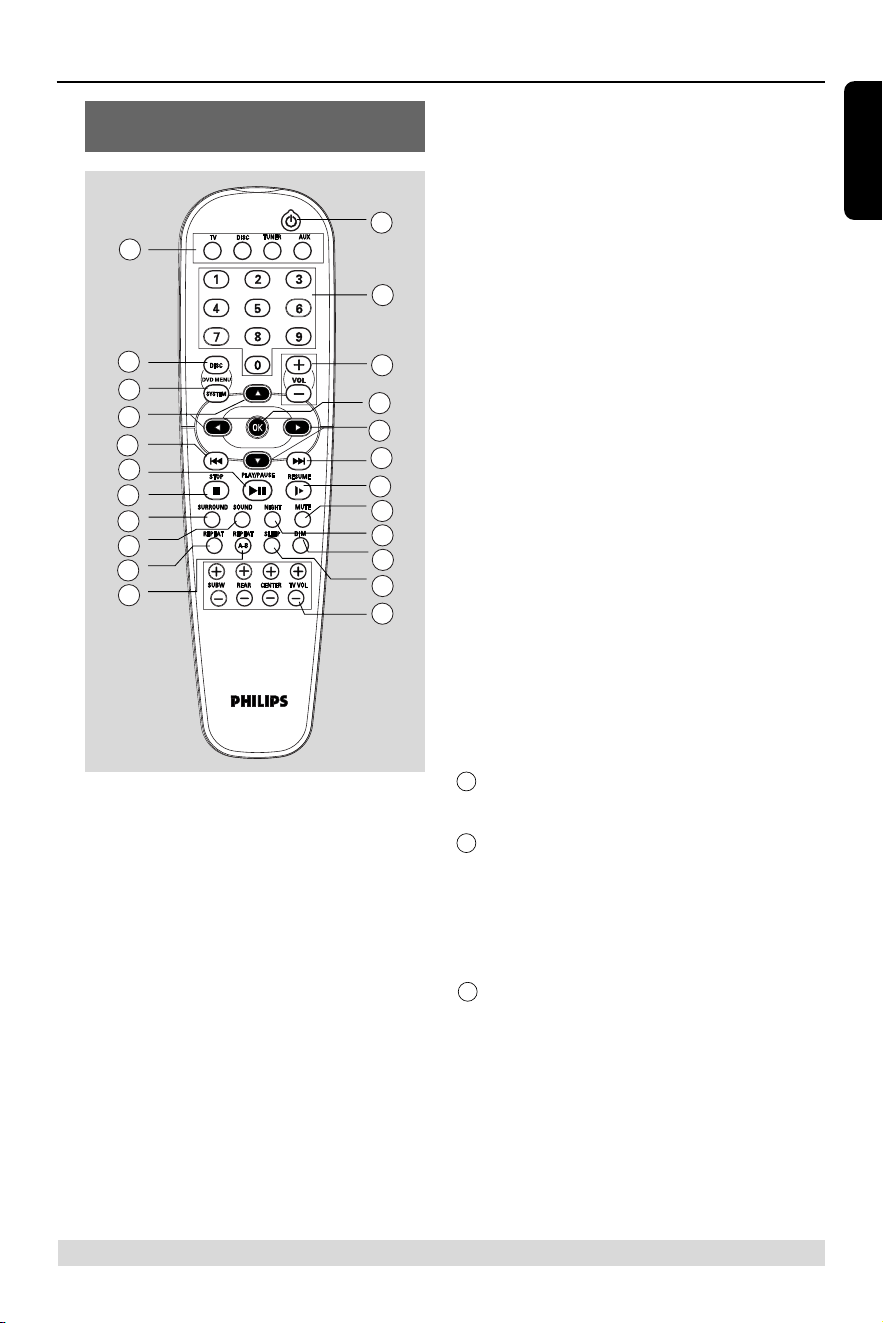
Main unit and remote control
1 STANDBY ON
– Switches to standby mode or turns on
the system.
2 Disc tray
3 OPEN /CLOSE 0 (DISC mode only)
– Opens/ Closes the disc tray.
4 System display panel
5 ÉÅ PLAY/PAUSE
– DISC: starts/pauses playback.
6 S PREV / T N EXT
– DISC: *searches backward/ for ward or
selects a track.
– TUNER: tunes the radio frequency
up/ down.
– TV: selects previous/next channel on
Philips TV (on remote only).
7 Ç STOP
– Exits an operation.
– DISC: stops playback or clears a program.
– TUNER: *erases a preset radio station.
8 SOURCE
– Selects the relevant active mode : TV,
DISC, TUNER (FM/AM) or AUX .
9 PROG
– DISC: star ts programming.
– TUNER: star ts manual preset
programming.
0 VOLUME (VOL +-)
– Adjusts the volume level.
! PHONES
–
For plugging in the headphones jack.
The speakers output will be cancelled.
1 2 3 4 567 98 1110
English
13
* = Press and hold the button for more than two seconds.
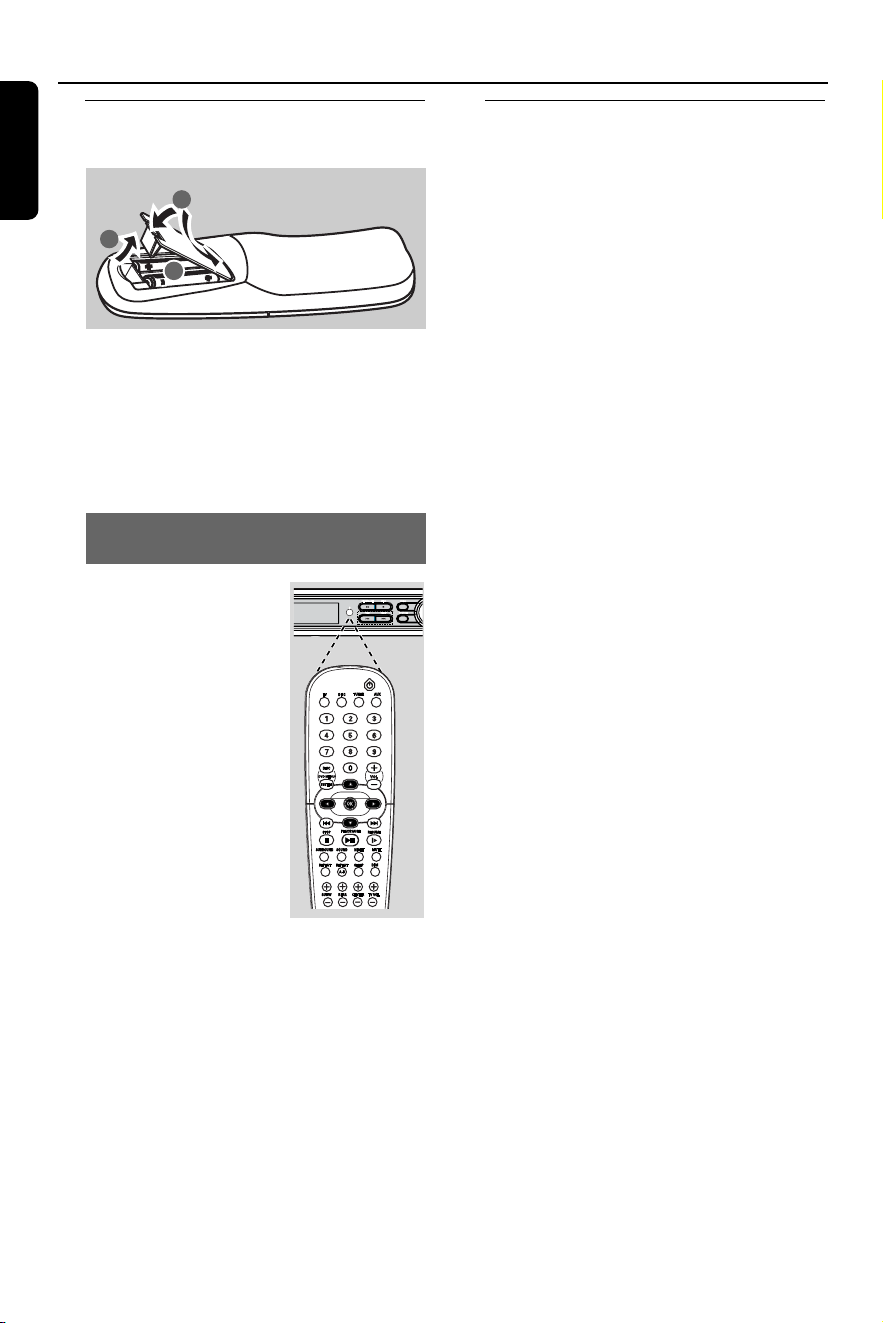
Control buttons available on the
remote only
8
12
13
14
6
5
7
15
16
14
6
23
22
21
20
17
18
10
26
27
19
25
24
@ DISC MENU
– Enters disc contents menu.
# SYSTEM MENU (DISC mode only)
– Enters or exits system setup menu.
$ 1 2 3 4
– Selects movement direction in the menu.
– Use 2 3 to select a preset radio
station.
% SURROUND
– Selects multichannel surround (Dolby
Digital, Dolby Pro Logic or Dolby Pro
Logic II) or stereo mode.
^ SOUND
– Selects a sound effect.
Functional Overview
& REPEAT
– Selects var ious repeat modes.
* REPEAT A-B
–
Repeats a specific section on a disc.
( SUBW +-
– Adjusts subwoofer’s sound level.
REAR +-
– Adjusts rear speakers’ sound level.
CENTER +-
– Adjusts center speaker’s sound level.
T V VO L +-
– Adjusts TV volume (Philips TV only).
) SLEEP
– Sets the sleep timer function.
¡ DIM
– Selects different levels of brightness for
display panel.
™ NIGHT (DVD mode only)
–Toggles between night mode on and off.
Selects night mode on to level out the
volume output.
£ MUTE
– Mutes or restores the volume.
24 RESUME
– Continues playback after an interruption.
25 OK
– Confirms a selection.
§ Numeric Keypad (0-9)
– Enters a tr ack/title number of the disc.
– Enters a number of a preset radio station.
27 B
– Switches to standby mode.
– In TV mode, switches Philips TV on/off.
English
14
Step 1: Inserting batteries into
the remote control
1
3
2
1 Open the battery compar tment.
2 Insert two batteries type R06 or AA,
following the indications (+-) inside
the compartment.
3 Close the cover.
Using the remote control to
operate the system
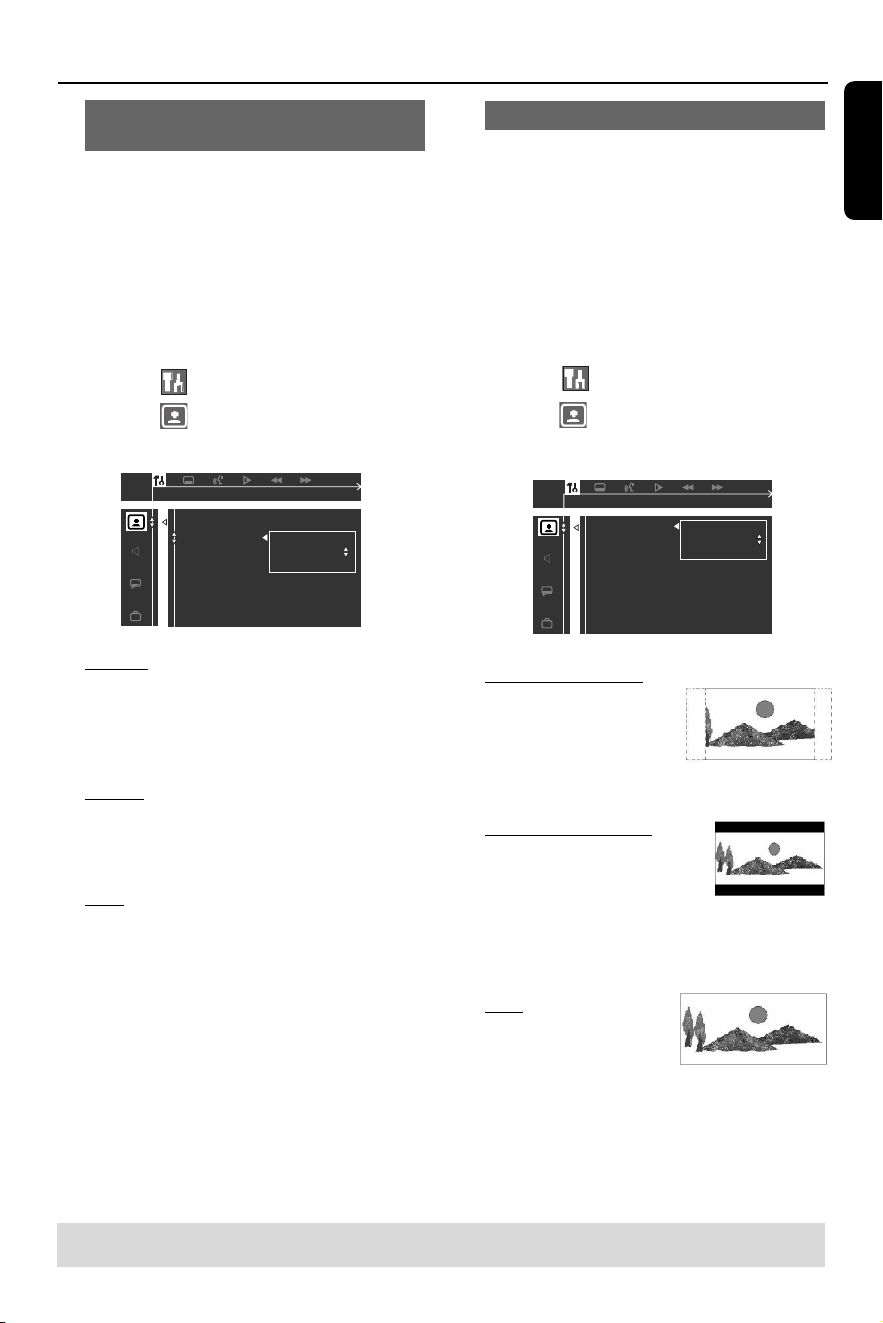
1 Aim the remote control
directly at the remote
sensor (iR) on the front
panel.
2 Select the source you
wish to control by
pressing one of the
source select buttons
on the
remote control
(for example TV,
TUNER.)
3 Then select the desired
function (for example
ÉÅ, S, T).
CAUTION!
– Remove batteries if they are
exhausted or if the remote is not to
be used for a long time.
– Do not use old and new or
different types of batteries in
combination.
– Batteries contain chemical
substances, so they should be
disposed of properly.
Step 2: Setting the TV
IMPORTANT!
Make sure you have completed all
the necessary connections. (See
pag
es 8–9 “ Connecting TV” ).
1 Press SOURCE control until “ DISC”
appears on the display panel (or press
DISC on the remote).
2 Turn on the TV and set to the correct
video-in channel. You should see the blue
DVD background screen on the TV.
➜Usually this channel is between the
lowest and highest channels and may be
called FRO N T, A/V IN or VIDEO. See
your TV manual for more details.
➜Or, you may go to channel 1 on your
TV, then press the Channel down button
repeatedly until you see the Video In
channel.
➜Or, the TV remote control may have a
button or switch that chooses different
video modes.
Getting Started
English
15
Selecting the colour system that
corresponds to your TV
In order for a DVD to play on this DVD
system, the colour system of the DVD,
the TV and the DVD player should match.
Before changing the TV system,
determine the colour system of your TV.
1 In disc mode, press SYSTEM MENU.
➜Use the 1 2 3 4 keys on the remote
to navigate in the menu.
2 Highlight icon and press 4.
Move to
and press 2.
Move to {TV SYSTEM} and press 2.
AUTO
NTSC
PAL
SET TO NTSC
TV SHAPE
TV SYSTEM
VIDEO OUT
PROGRESSIVE
SCR SAVER
SMART POWER
AUTO – Select this if the connected TV
is compatible with both NTSC and PAL
(multi-system). The output format will be
in accordance with the video signal of the
disc.
NTSC – Select this if the connected TV
has the N TSC system. It will change the
video signal of a PAL disc (VCD only) and
output it to NTSC format.
PAL – Select this if the connected TV has
the PAL system. It will change the video
signal of an N TSC disc and output it to
PAL format.
3 Press 34 to select a setting and press
OK to confirm.
➜Follow the instructions shown on the
TV to confirm the selection (if any).
➜If a blank/distor ted TV screen appears,
wait for 15 seconds for auto recover y.
Setting the TV shape
Set the aspect ratio of the DVD Player
according to the TV you have connected.
The format you select must be available
on the disc. If it is not, the setting for TV
display will not affect the picture during
playback.
1 In disc mode, press SYSTEM MENU.
➜Use the 1 2 3 4 keys on the remote
to navigate in the menu.
2 Highlight icon and press 4.
Move to
and press 2.
Move to {TV SHAPE} and press 2.
4:3 PS
4:3 LB
16:9
SET TO LETTER BOX
TV SHAPE
TV SYSTEM
VIDEO OUT
PROGRESSIVE
SCR SAVER
SMART POEWR
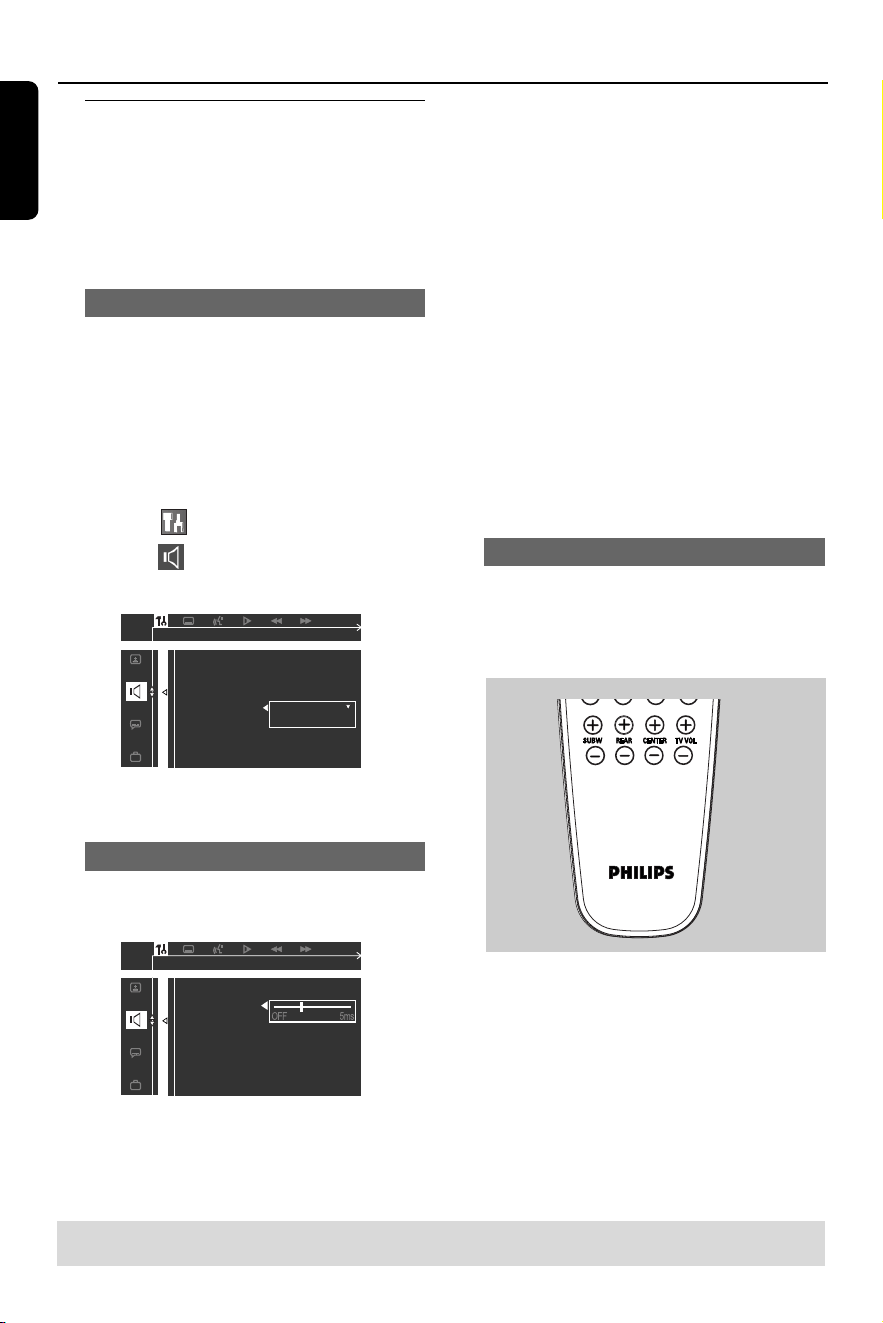
4:3 PS (PanScan) –
Select this if you have
a conventional TV and
want both sides of the
picture to be trimmed
or formatted to fit your TV screen.
4:3 LB (letterbox) –
Select this if you have a
conventional TV. In this
case, a wide picture with
black bands on the upper and lower
por tions of the TV screen will be
displayed.
16:9 – Select this if
you have a wide-
screen TV.
3 Press 34 to select a setting and press
OK to confirm.
Getting Started
TIPS:
To r eturn to the previous menu, press 1.
To
exit the menu, press SYSTEM MENU.
English
16
Step 3: Setting the speakers
You can adjust the delay time (center and
rear speakers only) and volume level for
individual speakers. These adjustments
let you optimise the sound according to
your surroundings and setup.
T e st Tone - Turning on/off
If you have turned on the test tone, the
test signal will be automatically generated
to help you judge the sound level of each
speaker.
1 In disc mode, press SYSTEM MENU.
➜Use the 1 2 3 4 keys on the remote
to navigate in the menu.
2 Highlight icon and press 4.
Move to
and press 2.
Move to {TEST TON E} and press 2.
OFF
ON
NIGHT MODE
CNTR DELAY
REAR DELAY
TEST TONE
TEST TONE
3 Press 34 to select a setting.
Adjusting the delay time
4 Press 34 to highlight one of the options
below at a time, then press 2.
NIGHT MODE
CNTR DELAY
REAR DELAY
TEST TONE
CENTER DELAY SET TO 1 MS
{CN TR DELAY} – Select this to set the
delay time in relation to the listening
position/dis
tance from the center speaker
(5ms, 3ms, 2ms, 1ms or OFF).
{REAR DELAY} – Select this to set the
delay time in relation to the listening
position/distance from the rear speakers
(15ms, 12ms, 9ms, 6ms,
3ms or OFF).
5 Press 1 2 to adjust the settings that
best suit your surround sound needs.
6 Press OK to confirm.
Helpful H int:
– Use longer delay time settings when the
rear speakers are closer to the listener than
the front speakers.
Adjusting the speaker output levels
You can adjust the rear speakers, center
speaker and subwoofer output levels by
comparing the sound from the front
speakers.
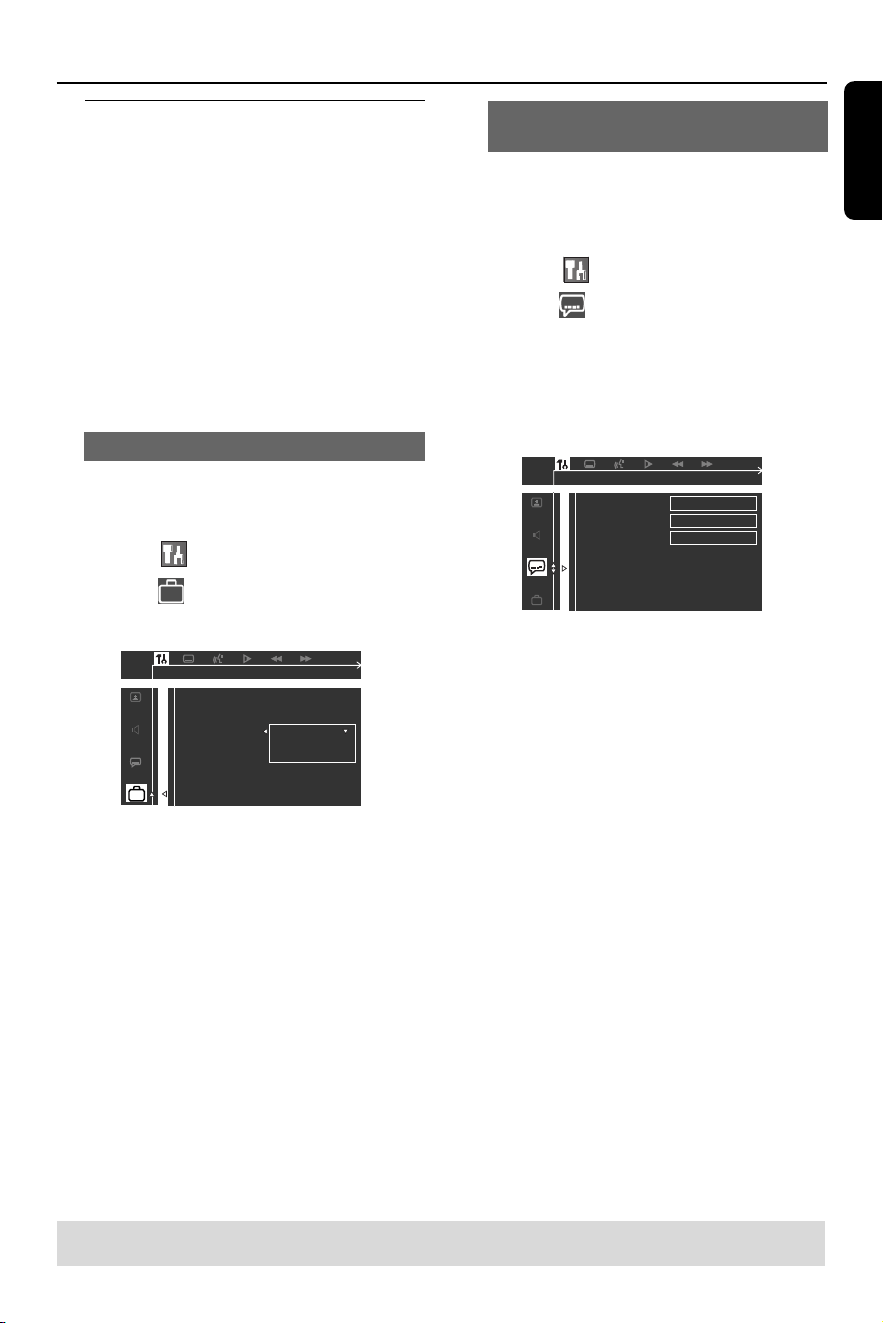
● Press the respective buttons on the
remote (REAR +-, CENTER +-
and SUBW +-) to adjust the output
level between -15dB ~ +10dB.
Helpful H int:
– If you have selected Stereo mode,
adjusting the center and rear speakers’
volume level will have no effect.
Getting Started
TIPS:
To r eturn to the previous menu, press 1.
T
o exit the menu, press SYSTEM MENU.
English
17
Step 4: Setting language
preferences
You can select your preferred language
settings so that this DVD system will
automatically switch to the language for you
whenever you load a disc. If the language
selected is not available on the disc, the
disc’s default setting language will be used
instead. The O SD (on-screen display)
language for the system menu will remain
as you set it, regardless of various disc
languages.
On-screen display (OSD) language
1 In disc mode, press SYSTEM MENU.
➜Use the 1 2 3 4 keys on the remote
to navigate in the menu.
2 Highlight icon and press 4.
Move to
and press 2.
Move to {MEN U LANG} and press 2.
ENGLISH
FRENCH
SPANISH
PARENTAL
PASSWORD
MENU LANG
DEFAULTS
OSD LANGUAGE SET TO ENGLISH
3 Press 34 to select a language and press
OK to confirm.
Audio, Subtitle and Disc menu
languages
1 In disc stop mode, press SYSTEM
MENU.
➜Use the 1 2 3 4 keys on the remote
to navigate in the menu.
2 Highlight icon and press 4.
Move to
and press 2.
Move to highlight one of the options
below at a time, then press 2.
–{AUDIO} (disc’s soundtrack)
–{SUBTITLE} (disc’s subtitles)
–{DISC MEN U} (disc’s menu)
AUDIO
SUBTITLE
DISC MENU
ENGLISH
ENGLISH
ENGLISH
GOTO LANGUAGE SETUP PAGE
3 Press 34 to select a language and press
OK to confirm.
4 Repeat steps 2~3 for other settings.
Getting Started
TIPS:
To r eturn to the previous menu, press 1.
T
o exit the menu, press SYSTEM MENU.

English
18
Getting Started
Progressive Scan
The progressive scan produces 60
complete frames per second, rather than
30 frames per second of interlaced
scanning (normal TV system). W ith near ly
double the number of lines, progressive
scan offers higher picture resolution,
eliminates bothersome motion ar tifacts
and jaggier edges on moving objects.
To enjoy the quality offered by
progressive scan, a progressive scan TV is
required. To activate pr
ogressive scan,
refer to "Progressive Scan on page 25".
Deactivate Progressive Scan
manually
W hen the progressive scan functiom is
activated, the TV screen may bo blank
because of the following reasons:
–Your TV suppor ts progressive scan,
but it is not activated. To activate it,
please refer to your TV user manual.
– The cables are not connected
accordingly. Refer to page 8 for proper
connections.
–You TV does not suppor t progressive
scan function. In that case, you can
deactivate progressive scan as below.
1 Press STANDBY ON on the front
panel to switch on the DVD receiver.
2 Press and hold OPEN/CLOSE 0 on
the front panel, while pressing down
OPEN/CLOSE 0, press numerical
keypad “ 1” on the remote control.
3 The blue Philips DVD background
appears on the TV."
English
19
Disc Operations
IMPORTANT!
– If the inhibit icon (or X)
appears on the TV screen
when a button is pressed, it
means the function is not available
on the current disc or at the current
time.
–DVD discs and players are
designed with regional restrictions.
Before playing a disc, make sure the
disc is for the same zone as your
player.
– Do not push on the disc tray or
put any objects other than discs on
the disc tray. Doing so may cause
the disc player to malfunction.
Playable discs
Your DVD home cinema system will
play:
– Digital Versatile Discs (DVDs)
– Video CDs (VCDs)
– Super Video CDs (SVCDs)
– Audio Compact Discs (CDs)
–MP3 discs, picture (Kodak, JPEG) files
on CD-R(W )
– JPEG / ISO 9660 format
– Maximum 12 characters display
– Suppor ted sampling frequencies :
32 kHz, 44.1 kHz, 48 kHz
– Suppor ted Bit-rates : 32~256 (kbps),
variable bit r ates
Region Codes
DVDs must be labelled for ALL
regions or for Region 4 in order
to play on this DVD system. You
cannot play discs that are labeled
for other regions.
Helpful H ints:
– It may not be possible to play CD-R/RW in
all cases due to the type of disc or condition
of the recording.
– If you are having trouble playing a certain
disc, remove the disc and try a different one.
Improperly formatted discs will not play on
this DVD system.
Playing discs
1 Press SOURCE control until “ DISC”
appears on the display panel (or press
DISC on the remote).
2 Turn on the TV power and set to the
correct Video I
n channel. (See page 14
“ Setting the TV”).
➜You should see the blue Philips DVD
background screen on the TV.
3 Press the OPEN /CLOSE 0 to open the
disc tray and load a disc, then press the
button again to close the disc tray.
➜Make sure the disc label is facing up.
For double-sided discs, load the side you
want to play face down.
4 Press ÉÅ to star t playback.
➜If a disc menu shows on the TV, see
next page on “ Using the Disc Menu”.
➜If the disc is locked by parental
control, you must enter your four-digit
password (see page 27).
ALL
TIPS:
The operating features described here might not be possible for cer tain discs. Always refer
to the instructions supplied with the discs.
4
English
20
Disc Operations
Using the Disc Menu
Depending on the disc, a menu may
appear on the TV screen once you load in
the disc.
T o select a playback feature or item
● Use the 1 2 3 4 keys or numeric
keypad (0-9) on the remote, then press
OK to star t playback.
T o access the menu
● Press DISC MENU on the remote.
For VCDs with Playback Control
(PBC) feature (version 2.0 only)
● During playback, pressing DISC MENU
will return to the menu screen (if PBC is
on).
Basic playback controls
Pausing playback
● Press ÉÅ.
➜To r esume normal playback, press
ÉÅ again.
Selecting another track/chapter
● Press S / T or use the numeric
keypad (0-9) to key in a track/chapter
number.
➜If repeat mode is active, pressing S
/ T will replay the same track/chapter.
Searching backward/forward
● Press and hold S / T, then press
ÉÅ to resume normal playback.
➜W hile searching, pressing and holding
S / T again will increase the
search speed.
Stopping playback
● Press Ç.
TIPS:
The operating features described here might not be possible for cer tain discs. Always refer
to the instructions supplied with the discs.
Resuming playback from the last
stopped point (DVD/VCD/CD)
● W hen play is stopped and the disc has
not been ejected, press RESUME.
T o cancel the resume mode
● W hen play is stopped, press Ç again.
Helpful H int:
– Opening the disc tray or disconnecting the
DVD system from the power supply will
cancel the resume option.
Selecting various repeat
functions
Repeat play mode
● W hile playing a disc, press REPEAT to
select var ious repeat mode.
➜"
REPEAT” icon will appear on the display,
except REPEAT O FF mode.
DVD
REPEAT CHAPTER ™ REPEAT TITLE
™ REPEAT O FF
VCD/SVCD/CD
REPEAT ON E (repeat the current
track) ™ REPEAT DISC ™
REPEAT-O FF
MP3
REPEAT ON E ™ REPEAT ALBUM ™
REPEAT DISC ™ REPEAT O FF
Helpful H int:
–For VCD, repeat playback is not possible if
the PBC mode is switched on.
English
21
Disc Operations
Repeating a section within a title/
track
1 W hile playing a disc, press REPEAT A-B
at the starting point.
2 Press REPEAT A-B again to end the
section.
➜The section A and B can be set only
within the same title/tr ack.
➜The section will now repeat
continuously.
3 Press REPEAT A-B again to resume
normal playback.
Program favourite tracks
(audio CDs and VCDs)
You can play the contents of the disc in
the order you want, by programming the
order of the tracks to be played. Up to
99 tracks can be stored.
1 Stop playback, then press PROG on the
front panel to enter program mode.
2 Use the numeric keypad (0-9) to enter
a valid track number.
➜"FULL" will appear if you have
programmed 99 tracks.
3 Press OK to store the tr ack.
4 Repeat steps 2~3 to select other tracks.
5 Press ÉÅ to star t program playback.
TIPS:
The operating features described here might not be possible for cer tain discs. Always refer
to the instructions supplied with the discs.
Clearing the program
● Stop playback, then press the Ç again.
➜"PROG CLR" appears.
Helpful H ints:
– If the DVD system is disconnected from
the power supply, it will erase the program.
–For VCD, the program option is only
possible if the PBC mode is turned off.
Using the menu bar to
program
IMPORTANT!
You have to turn on your TV and set
to the correct Video In channel. (See
page 14 “Setting the TV”).
1 Stop playback, then press SYSTEM
MENU.
➜The menu bar will appear across the
top of the TV screen.
2 Press 1 2 to select and press 4 to
enter the program menu.
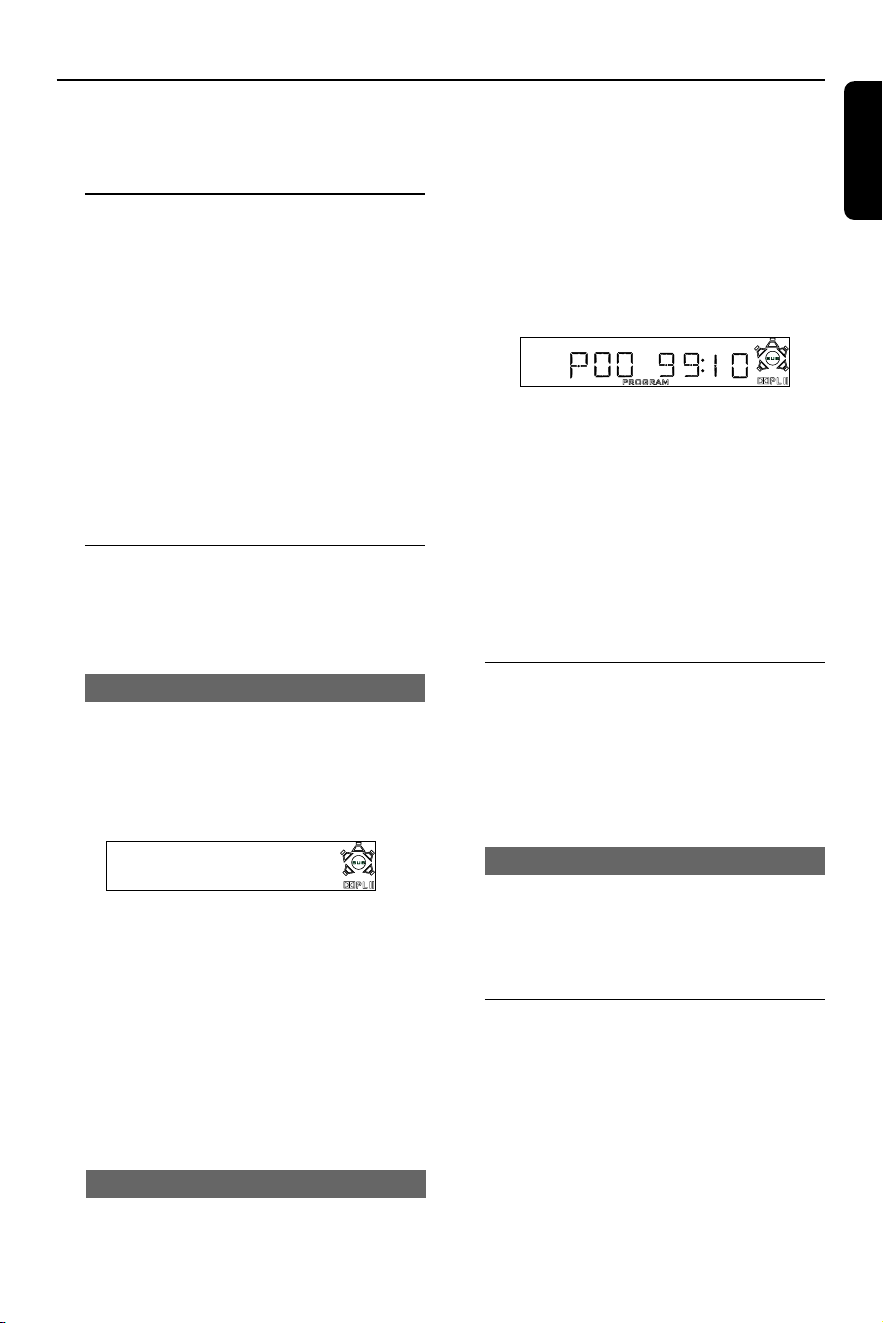
PROGRAM P 00 : 00
3 Use the numeric keypad (0-9) to enter
the track number to be progr ammed.
➜"FULL" will appear if you have
programmed 99 tracks.
4 Press ÉÅ to star t program playback.
T o clear the program
● Stop playback, then press Çagain.

English
22
Playing MP3/Picture disc
(Kodak, JPEG)
IMPORTANT!
You have to turn on your TV and set
to the correct Video In channel. (See
page 14 “Setting the TV”.)
MP3 / JPEG picture disc
1 Load an MP3/ JPEG Picture disc.
➜The disc reading time may exceed
30 seconds due to the complexity of the
director y/ file configuration.
2 The album/picture menu appears on the
TV screen. If not, press DISC MEN U on
the remote.
3 Use 1 2 3 4 keys to select a desired
album, then press OK to open the folder
(for MP3 disc only).
➜The title menu appears on the TV.
4 Use 1 2 3 4 keys to select a desired title,
then press OK to star t playback.
● You can also use the numeric keypad
(0-9) to enter your choice.
5 To stop playback, press Ç.
Kodak picture CD
1 Load a Kodak picture disc.
➜The disc reading time may exceed
30 seconds due to the complexity of the
director y/ file configuration.
2 Playback will star t automatically.
3 To stop playback, pressÇ.
➜ 9 thumbnail pictures will appear on
the TV.
➜ Use S / T to view the previous/
next page (if available).
4 Use 1 2 3 4 keys to navigate within the
menu and press OK to star t playback.
Disc Operations
TIPS:
The operating features described here might not be possible for cer tain discs. Always refer
to the instructions supplied with the discs.
During playback, you can;
● Press S / T to select another title/
picture in the current folder.
● Use 1 2 3 4 keys to rotate/ flip the
picture files.
● Select “ ZOO M ON ” , then press and hold
the S / T (or select Q R on
the system menu, then press 4 ) to zoom
the picture in or out.
● Press ÉÅ to pause/ resume playback.
Helpful H ints:
– Due to the recording nature of Digital Audio
M P3 (DAM ), only digital audio music will play.
– It is normal to experience an occasional
“ skip” while listening to your M P3 discs.
– It may not be possible to play certain M P3
or JPEG disc due to the configuration and
characteristics of the disc or condition of the
recording.
–For multi-session discs with different
formats, only the first session will be avalable.
JPEG and MP3 simultaneously
playback
1 Select a MP3 track and press NIGHT.
➜‘MP3 is selected’ appears on the TV.
2 Press 3 4 to select a picture file, then
press OK.
➜The picture will be played back in
sequence together with MP3 music.
3 To quit simultaneous playback, press Ç.
➜The picture and MP3 music playback
will stop.
Helpful H int:
– If the disc menu doesn’t appear on the TV
screen, press DISC M ENU to turn on the
disc menu.
English
23
DVD Setup Menu Options
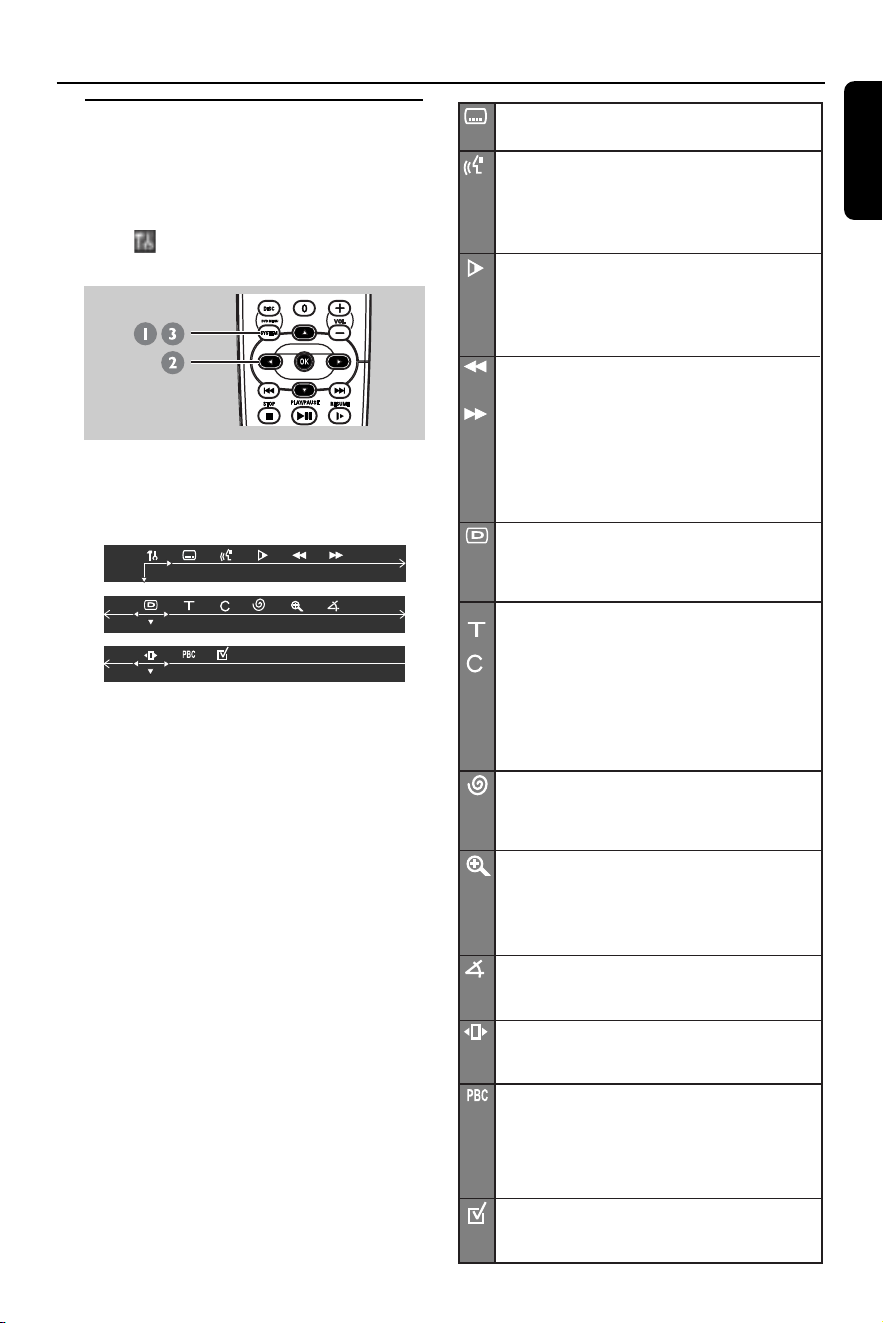
Using the menu bar
You can continue a number of operations
directly via the multiple menu bars on the
TV screen without interrupting the disc
playback. The exception is when you
enter
(SETUP MEN U), after which the
playback will pause.
,
1 In disc mode, press SYSTEM MENU.
➜The menu bar will appear across the
top of the TV screen.
2 Use 1 2 3 4 keys on the remote to
navigate in the menu.
➜Press 1 2 to move through the menu bar.
➜Press 4 to enter the selection. If
there are multiple choices available,
press 4 repeatedly to select.
3 Press SYSTEM MENU again to exit the
menu.
IMPORTANT!
– Some operations may be different
or restricted, depending on the disc
format. Refer to the jacket or case
of the disc you are playing.
– Changing the Subtitle Language
and Audio Language from the menu
bar will only apply to the current
disc, it will not change the default
preset.
SUBTITLE
Select a subtitle language that is available on the DVD.
LANGUAGE
DVD : Select an audio soundtrack language that is
available on the DVD.
VCD : Select audio channels : LEFT VOCAL,
RIGHT VOCAL, MON O LEFT,
MO N O RIGHT or STEREO .
SLOW MOTION
Select a slow playback speed. The volume will be
muted. To r esume normal playback, press
ÉÅ.
DVD : SF x2, SF x4, SF x8,
SR x2, SR x4, SR x8, PLAY.
VCD :
SF x1, SF x2, SF x3, PLAY.
(SF - Slow For ward, SR- Slow Rerverse)
FAST REVERSE (FR)
DVD / MP3 : FR x2, FR x4, FR x6, FR x8, PLAY.
VCD /CD : FR x1, FR x2, FR x3, FR x4, PLAY.
FAST FORW ARD (FF)
DVD / MP3 : FF x2, FF x4, FF x6, FF x8, PLAY.
VCD / CD : FF x1, FF x2, FF x3, FF x4, PLAY.
Select a search speed (FR - backwar d, FF - forwar d).
The volume will be muted. To r esume normal
playback, press
ÉÅ.
STATUS
Allows viewing of the current status of the disc
.
The infor mation will vary depending on the disc
for mat.
Available on DVD only
TITLE SEARCH (TITLE XX :YY")
Select a Title for playback to begin.
CHAPTER SEARCH (CHAPTER X X :YY)
Select a Chapter for playback to begin.
"
X X " - current title/chapter number.
"YY" - total number of title/chapter.
Use the
numeric keypad (0-9) to change the
"
X X " number, then press OK.
TIME SEARCH (TIME __:__:__)
Use the numeric keypad (0-9) to enter the
time (hours, minutes and seconds) at which you want
playback to begin (for DVD or VCD with PBC-O FF
only).
ZOOM
Select an enlarge picture ratio : x1.5, x2 or x4. You can
use
1 2 3 4 keys to move within the enlar ged picture
on the TV.
To r esume nor mal playback,
select 'ZOO M O FF' from the menu.
ANGLE (for DVD only)
Select to view the same scene from different angles
if the DVD is recor ded with multiple angles.
STEP FORW ARD
Select to advance the still picture one frame
for ward. To r esume nor mal playback, press
ÉÅ.
PBC ON/OFF (for VCD 2.0 with PBC feature)
Select between PBC O n and O ff.
'PBC O FF' - t he playback will start automatically.
PROGRAM
Stop playback, then select this to enter the program
menu (see page 21 "Using the menu bar to program").
'PBC O N ' - the disc menu (if available) will appear
on the TV. Use the
numeric keypad (0-9) to
enter your choice.
English
24
DVD Setup Menu Options
Using the Setup Menu
This DVD setup is carried out via the TV,
enabling you to customise the DVD
system to suit your particular
requirements.
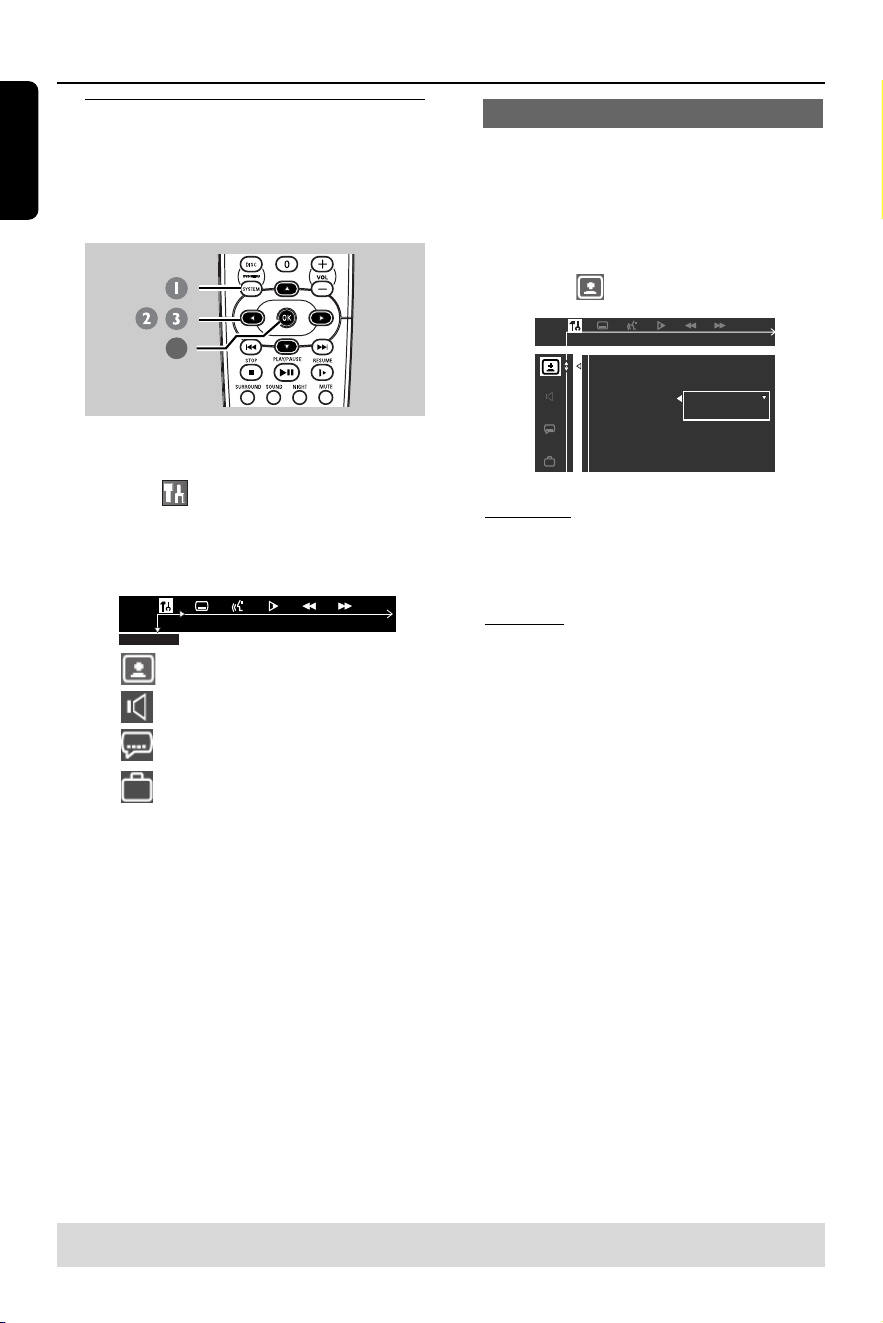
1 In disc mode, press SYSTEM MENU.
➜Playback will pause.
2 Highlight icon and press 4 to enter
the setup menu. Then press 3 4 to
select one of the setup menu options and
press 2 to enter the menu.
Picture Setup
Sound Setup
Language Setup
Feature Setup
3 Use 1 2 3 4 keys on the remote to
navigate in the menu.
4 Press OK to confirm your selection.
NOTE:
Some of the features in the Setup
Menu are described in “Getting
Started”.
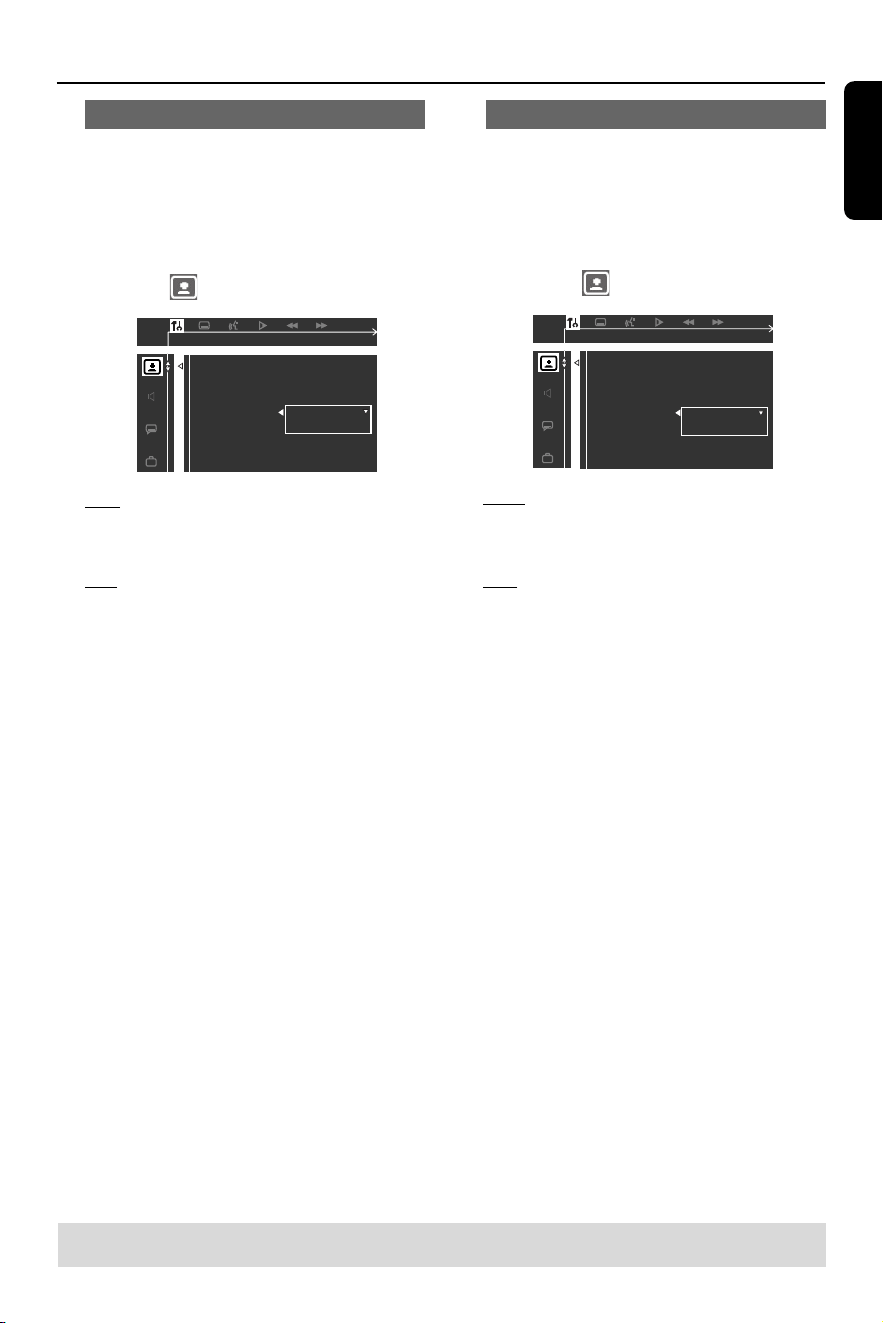
Setting the video output
Choose the type of video output that
matches the video connection between
the DVD system and your TV.
Stop playback, then follow the steps of
“ Using the Setup Menu” and select :
> VIDEO OUT
S-VIDEO
YPRPB
S-VIDEO
TV SHAPE
TV SYSTEM
VIDEO OUT
SCR SAVER
SMART POWER
S-VIDEO
Select this if you have connected the
DVD system to your TV using the
S-Video jack.
Y PR PB
Select this if you have connected the
DVD system to your TV using component
video jacks.
Helpful H int:
–You do not need to adjust the video output
setting if you are using CVBS jack (yellow) to
connect the DVD system to your TV.
– If the Progressive Scan is set to ON, this
item will not be available.
TIPS:
To r eturn to the previous menu, press 1.
To exit the menu, press SYSTEM MENU.
SYSTEM M ENU
,
4
English
25
DVD Setup Menu Options
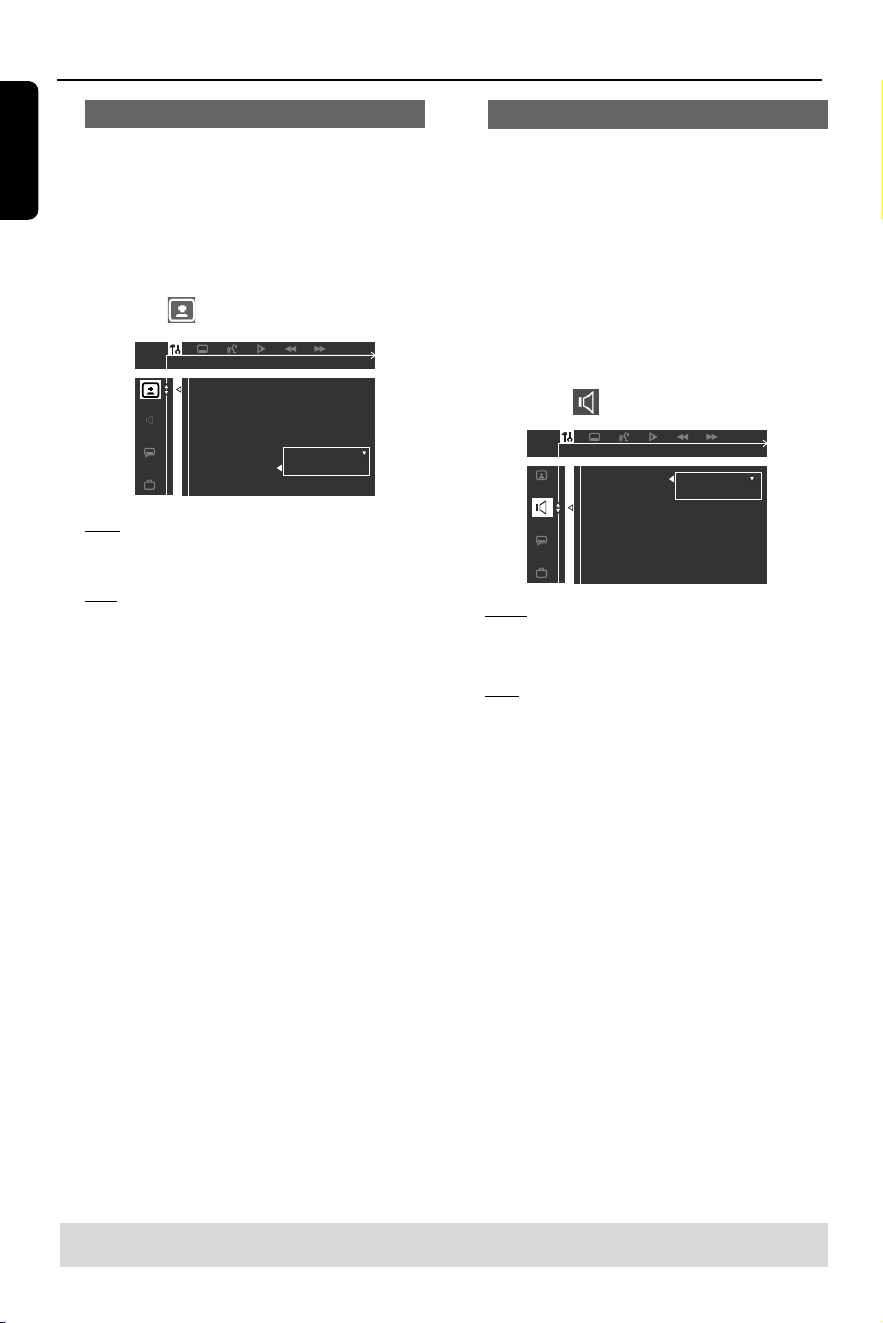
Progressive Scan – turn on/off
To select this item you must set “ Video
Output” to Y PR PB and ensure that your
TV has progressive scan (see page 9).
Follow the steps of “ Using the Setup
Menu” and select :
> PROGRESSIVE
OFF
ON
PROGRESSIVE NOW OFF
TV SHAPE
TV SYSTEM
VIDEO OUT
PROGRESSIVE
SCR SAVER
SMART POWER
OFF
Select this to disable Progressive scan
function.
ON
Select this to enable the Progressive scan
function.
Helpful H int:
– If a blank/distorted TV screen appears,
wait for 15 seconds for auto recovery.
–To deactivate the progressive function,
refer to the hint menu displayed on the TV
screen or see page 8 and 18.
Screen Saver – turning on/off
The screen saver will help to prevent
your TV display device from getting
damaged.
Follow the steps of “ Using the Setup
Menu” and select :
> SCR SAVER
OFF
ON
SCREEN SAVER NOW OFF
TV SHAPE
TV SYTEM
VIDEO OUT
PROGRESSIVE
SCR SAVER
SMART POWER
OFF
Select this to disable the screen saver
function.
ON
Select this if you wish to turn off the TV
screen when play is stopped or paused
for more than five (5) minutes.
TIPS:
To r eturn to the previous menu, press 1.
To exit the menu, press SYSTEM MENU.
English
26
DVD Setup Menu Options
Smart power – turn on/off
W hen in “ Stop” or “ N o Disc” mode, the
DVD system will switch to standby mode,
after 15 minutes of inactivity for energy
saving.
Follow the steps of “ Using the Setup
Menu” and select:
> SMART POW ER
OFF
ON
OFF
TV SHAPE
TV SYSTEM
VIDEO OUT
PROGRESSIVE
SCR SAVER
SMART POWER
OFF
Smar t Power is disabled.
ON
In STOP or NO DISC mode, if no actions
are performed for 15 minutes, the smar t
power will be activated.
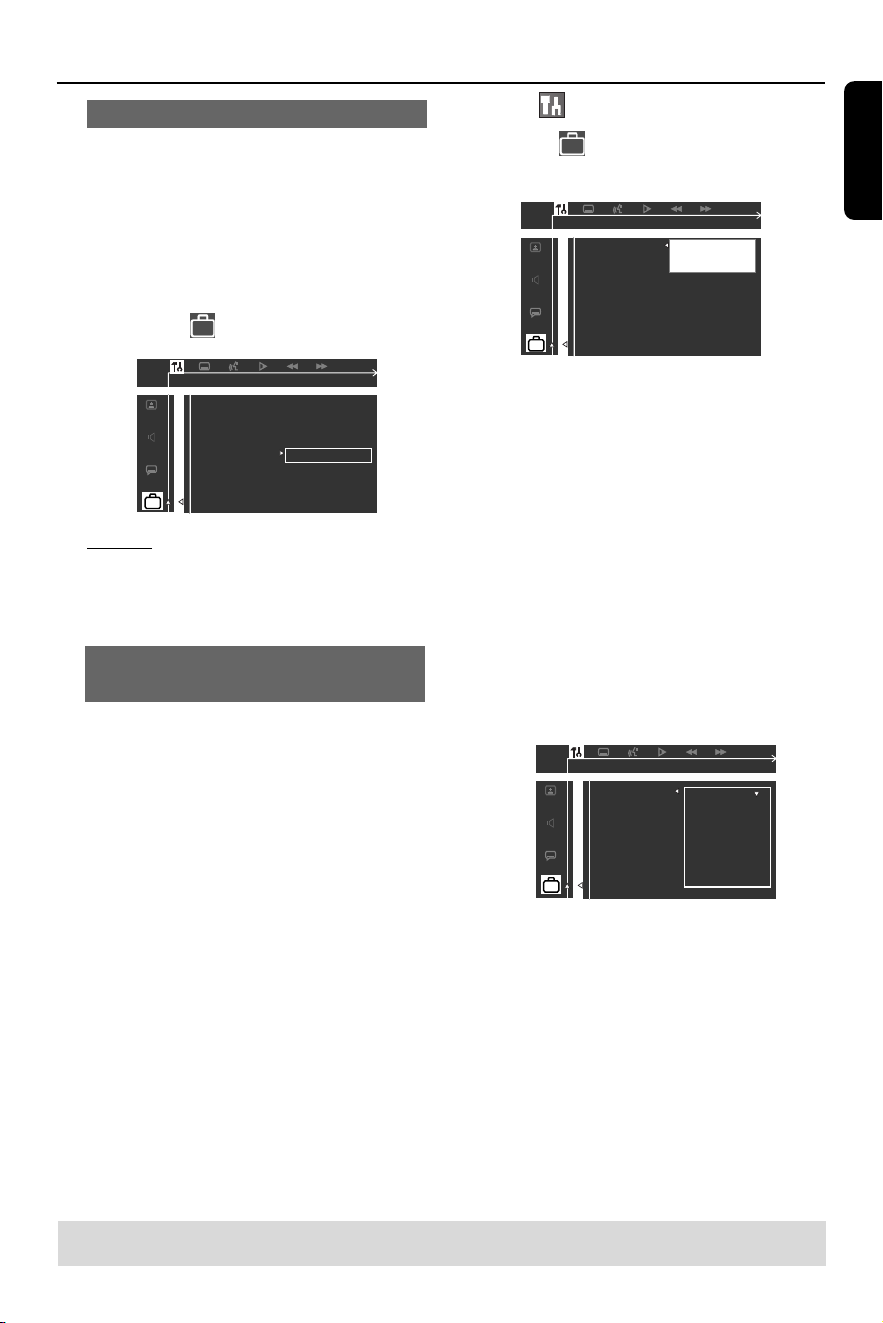
Night mode – turning on/off
W hen the night mode is activated, the
high volume outputs will be softened and
low volume outputs will be brought
upward to an audible level. It is useful for
watching your favourite action movie
without disturbing others at night.
This function can also be accessed via the
N IGHT button on the remote.
Follow the steps of “ Using the Setup
Menu” and select:
> NIGHT MODE
NIGHT MODE SET TO OFF
CNTR DELAY
REAR DELAY
TEST TONE
OFF
ON
NIGHT MODE
OFF
Select this when you want to enjoy the
full dynamic of surround sound.
ON
Select this to level out the volume.
This feature is only available for movies
with Dolby Digital mode.
TIPS:
To r eturn to the previous menu, press 1.
To exit the menu, press SYSTEM MENU.
English
27
DVD Setup Menu Options
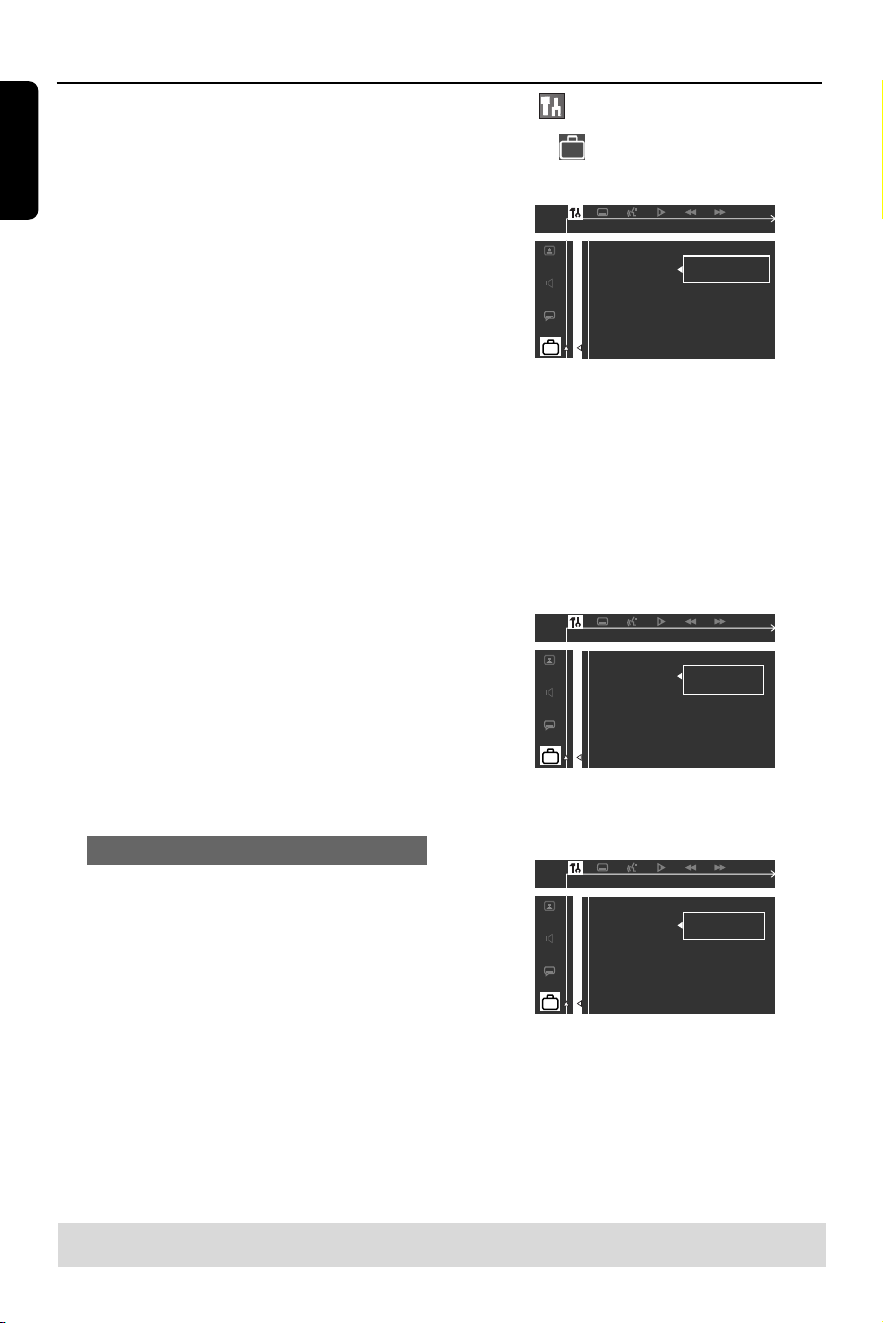
2 Select icon and press 4.
Move to
and press 2.
Move to {PAREN TAL} and press 2.
__ __ __ __
Enter code
PLEASE ENTER PASSWORD
PARENTAL
PASSWORD
MENU LANG
DEFAULTS
3 Use the numeric keypad (0-9) to enter
‘1234’ (default password) when you are
asked to enter the four-digit password.
You will have to enter the same code,
exactly, twice.
➜To change the password, see page 28
“ Changing the password”.
4 Select a rating level and press OK.
➜DVDs that are rated above the level
you selected will not play unless you
enter your four-digit password and
choose a higher level rating.
➜To disable Parental Controls and have
all discs play, choose ‘N O PAREN TAL’.
KID SAFE
PARENTAL
PASSWORD
MENU LANG
DEFAULTS
1 KID SAFE
2 G
3 PG
4 PG 13
5 PG-R
6 R
7 NC-17
8 AUDLT
5 Press SYSTEM MENU again to exit the
menu.
TIPS:
To r eturn to the previous menu, press 1.
To exit the menu, press SYSTEM MENU.
Restoring to original settings
Setting the DEFAULT function will reset
all options and your personal settings to
the factor y defaults, except your
password for Parental Control
and Video
O utput
.
Follow the steps of “ Using the Setup
Menu” and select :
> DEFAULTS
RESET
LOAD FACTORY SETTINGS
PARENTAL
PASSWORD
MENU LANG
DEFAULTS
RESET
Pressing 2 to select {RESET}, all settings
will now reset to factor y defaults.
Restricting playback by Parental
Control
Some DVDs may have a parental level
assigned to the complete disc or to
cer tain scenes on the disc. This feature
lets you set a playback limitation level.
The rating levels are from 1 to 8 and are
countr y dependent. You can prohibit the
playback of cer tain discs that are not
suitable for your children or have certain
discs played with alternative scenes.
1 In disc mode, press SYSTEM MENU.
➜Use the 1 2 3 4 keys on the remote
to navigate in the menu.
English
28
DVD Setup Menu Options
Rating explanations
NO PARENTAL – All discs will play.
8 ADULT – Mature material; should be
viewed only by adults due to
graphic sexual
material, violence, or language.
7 NC-17 – N o children under age 17; not
recommended viewing for
children under age 17.
5-6 PG-R – Parental Guidance - Restr icted;
recommended that parents
restrict children under 17 from
viewing or allow to view only
when supervised by a parent or
adult guardian.
4 PG13 – Material is unsuitable for children
under age 13.
3 PG – Parental Guidance suggested.
2 G – General Audience; recommended
as acceptable for viewers of all
ages.
1 KID SAFE – Kids material; recommended
especially for children and
viewers of all ages.
Helpful H ints:
– VCD, SVCD, CD have no level indication,
so parental control has no effect on these
type of discs. This also applies to most illegal
DVDs.
– Some DVDs are not encoded with a rating
though the movie rating may be printed on
the Disc cover. The rating level feature does
not prohibit playback of such Discs.
Changing the password
You can change the four-digit password
used for Parental Control. Enter your
four-digit password to play a prohibited
disc or if prompted for a password. The
default password is ‘1234.’
1 In disc mode, press SYSTEM MENU.
➜Use the 1 2 3 4 keys on the remote
to navigate in the menu.
2 Select icon and press 4.
Move to
and press 2.
Move to {PASSWO RD} and press 2.
__ __ __ __
Enter old code
PLEASE ENTER OLD PASSWORD
PARENTAL
PASSWORD
MENU LANG
DEFAULTS
3 Use the numeric keypad (0-9) to enter
your original four-digit password at “ Enter
old code” .
➜If you are asked to enter the code for
the first time, key in ‘1234’.
➜If you forget your password, press Ç
four times to restore to the default
password (1234).
4 Enter your new four-digit password.
__ __ __ __
Enter new code
PLEASE ENTER NEW PASSWORD
PARENTAL
PASSWORD
MENU LANG
DEFAULTS
5 Enter the same new four-digit password
again.
__ __ __ __
Confirm code
Confirm :
PARENTAL
PASSWORD
MENU LANG
DEFAULTS
6 Press SYSTEM MENU again to remove
the menu.
TIPS:
To r eturn to the previous menu, press 1.
To exit the menu, press SYSTEM MENU.
English
29
Tuner Operations
IMPORTANT!
Make sure the FM and AM antennas
are connected.
Tuning to radio stations
1 Press TUNER on the remote (or press
SOURCE control on front panel) to
select “FM” or “ AM” .
2 Press and hold S / T on the
remote until the frequency indication
star ts to change, then release.
➜The next r adio station will tune
automatically.
3 To tune a weak station, press S / T
briefly and repeatedly until an optimal
reception is found.
Presetting radio stations
You can store up to 40 preset radio
stations in the memory, star ting from FM
and followed by AM bands.
Automatic presetting
You can store all available radio stations
automatically.
● In tuner mode, press and hold PROG
until "AUTO PROG" appears.
AUTO PROG
➜All the available radio stations with
strong transmission signal will be stored.
➜Automatic preset will begin from
preset (1) and all your former presets will
be overridden.
➜If it reaches 40 presets, “ PROG FULL”
appears.
➜Once completed, “ PROG END”
appears.
Manual presetting
You can choose to store only your
favourite radio stations.
1 Tune to your desired radio station (see
“ Tuning to a radio station”).
2 Press PROG.
➜“ PROGRAM” icon appear s.
3 Use the numeric keypad (0-9) to
select a preset number.
➜If “
PROGRAM” icon goes off before you
select the desired preset number, press
PRO G again.
4 Press PROG again to store.
5 Repeat steps 1~4 to store other radio
stations.
Helpful H ints:
– If you attempt to program more than 40
preset radio stations, “ PROG FULL”
appears.
– The system will exit presetting mode if no
button is pressed within five seconds.
Selecting a preset radio
station
● Press 1 2 or use the numeric keypad
(0-9) to select a preset number.
➜The preset number, radio frequency,
and waveband will appear.
Deleting a preset radio station
● Press and hold Ç until “ PXX CLR”
appears.
➜The current preset radio station will
be deleted.
Changing tuning grid
In some countries, the frequency step
between adjacent channels in the AM/FM
band is 9K/50K(10/100K in some areas).
The preset frequency step in the factory
is 9K/50K.
● In tuner mode, press and hold PLAY/
PA USE on the front panel for more than
5 seconds, the display will show “ 9/
50KHZ” or “ 10/100KHZ” .
English
30
Setting the Sleep Timer
The sleep timer enables the system to
switch to standby mode automatically at a
preset time.
● Press SLEEP repeatedly until it reaches
the desired preset turn-off time.
➜The selections are as follows (time in
minutes):
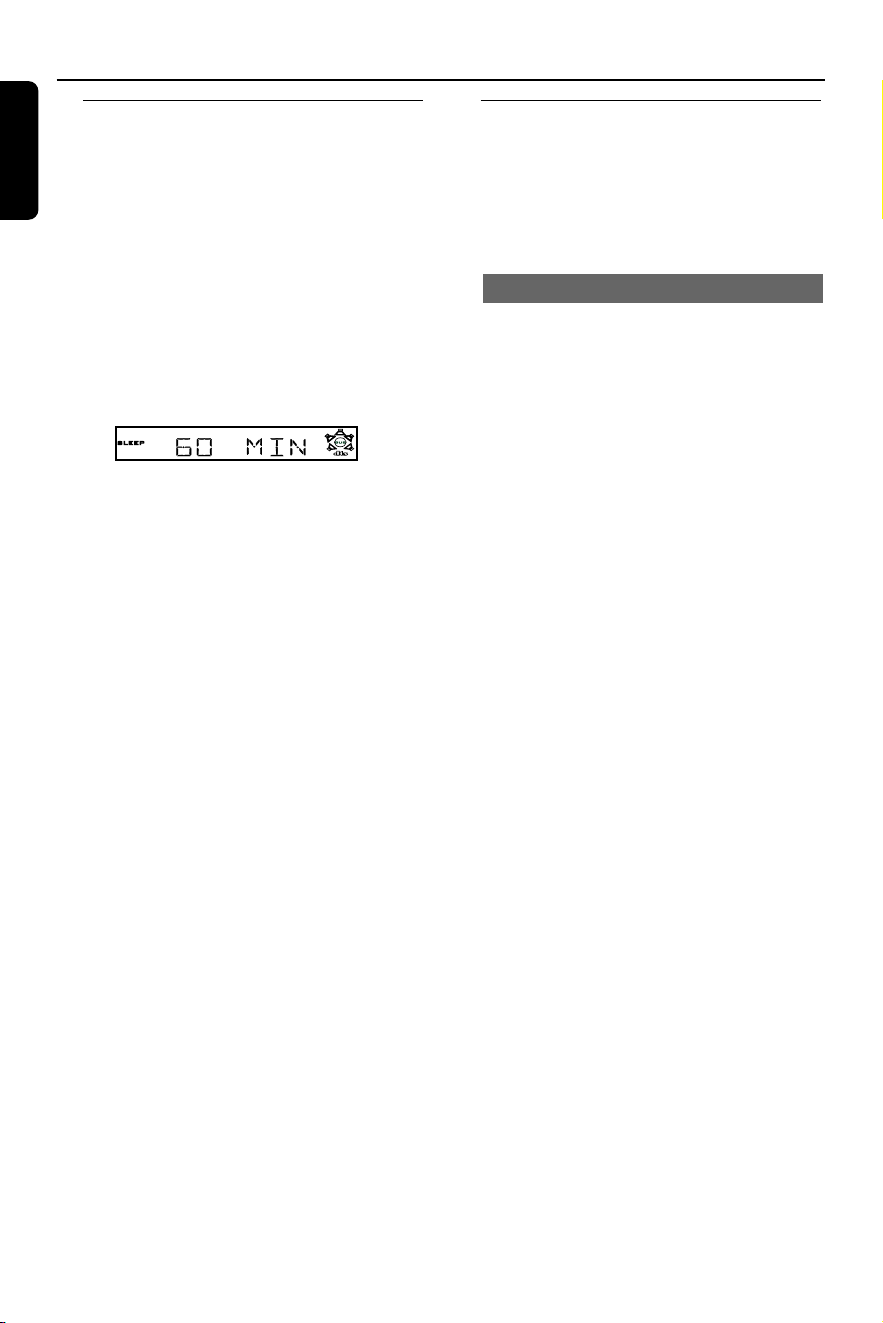
15 ™ 30 ™ 45 ™ 60 ™ 90 ™ 120
™ OFF ™ 15 …
➜“
SLEEP” icon will be shown on the
display, except if "OFF" is selected.
T o check or change the setting
● Press SLEEP once to show the
remaining time before switching off.
If you continue pressing the SLEEP
button, the next Sleep Timer option will
appear.
T o cancel the sleep timer
● Press SLEEP repeatedly until "OFF"
appears or press the STANDBY ON
button.
Other Functions
Sound Control
IMPORTANT!
For proper surround sound, make
sure the speakers and subwoofer are
connected (see page 7).
Selecting surround sound
● Press SURROUND to select
multichannel surround or stereo mode.
➜The availability of the various surround
sound modes depends on the number of
speakers used and the sound available on
the disc.
➜The center and surround speakers
operate only in Multi-channel surround
mode.
➜The available output modes for multi-
channel include: Dolby Digital, Dolby Pro
Logic or Dolby Pro Logic II surround
sound.
➜Stereo broadcasts or recordings will
produce some surround channel effects
when played in a surround mode.
However, mono (single channel sound)
sources will not produce any sound from
the rear speakers.

English
31
Sound Control
IMPORTANT!
For proper surround sound, make
sure the speakers and subwoofer are
connected (see page 7).
Selecting digital sound effects
Select a preset digital sound effects that
matches your disc’s content or that
optimises the sound of the musical style
you are playing.
● Press SOUND to select the available
sound effect.
W hen playing movie discs, you can select:
CON CERT, A CTIO N , DRAMA or SCI-FI.
W hen playing music discs or while in
TV, TUN ER or AUX mode, you can
select: DIGITAL, CLASSIC, ROCK or
JAZZ.
Helpful H int:
–For flat sound output, select CONCERT or
CLASSIC.
Volume control
● Adjust VOLUME control (or press
VOL +/-on the remote) to increase
or decrease the volume level.
➜"VOL XX" appears. “ XX” denotes the
volume level.
T o listen through the headphones
● Plug in the headphones to the PHONES
socket at the front of the DVD system.
➜The speakers will be muted.
T o turn off the volume temporarily
● Press MUTE.
➜Playback will continue without sound
and "MUTE" appears.
➜To r estore the volume, press MUTE
again or increase the volume level.
Dimming system’s display
screen
● In any active mode, press DIM to select
desired brightness : HIGH, MID or LOW.
Using the remote to operate
‘Philips’ television
1 Press TV .
2 Press S / T or use the numeric
keypad (0-9) to select the TV’s channel.
3 Press T V VOL +/- to adjust the TV’s
volume level.
4 Press B to turn off your TV.
Helpful H int:
– W hen listening to TV or AUX programs,
press the respective TV or AUX button on the
remote in order for the sound to be heard.
Other Functions

English
32
AMPLIFIER SECTION
PMPO Power 5000W
Total output power
Home Theat er Mode 700W
1% THD 330W
- Front 50W
1
x 2
- Rear 50W
1
x 2
- Center 50W
1
- Subwoofer 80 W
2
Frequency Response 180 Hz – 16 kHz / ±3 dB
Signal-to-N oise Ratio > 60 dB (A-weighted)
Input Sensitivity
- AUX In 500 mV
- TV In 500 mV
1 3 ohm, 140 Hz - 20 kHz, 1% THD
2 3 ohm, 40 Hz - 2 kHz, 1% THD
TUNER SECTION
Tuning Range FM 87.5 – 108 MHz
(50/100kHz steps)
AM 530 – 1710 kHz
(10kHz steps)
AM 531-1602kHz
(9kHz steps)
26 dB Quieting Sensitivity FM 22 dBf
26 dB Quieting Sensitivity AM 5000 µV/m
IF Rejection Ratio FM 60 dB
AM 24 dB
Signal-to-N oise Ratio FM 55 dB
AM 40dB
AM Suppression Ratio FM 30 dB
Harmonic Distortion FM Mono 3%
FM Stereo 3%
AM 5%
Frequency Response FM 180 Hz – 10 kHz /
±6 dB
Stereo Separation FM 26 dB (1 kHz)
Stereo Threshold FM 23.5 dB
DISC SECTION
Laser Type Semiconductor
Disc Diametre 12cm / 8cm
Video Decoding MPEG-2 / MPEG-1
Video DAC 10 Bits
Signal System PAL / NTSC
Video Format 4:3 / 16:9
Video S/N 56 dB (minimum)
Composit e Video O utput 1.0 Vp-p, 75 Ω
S-Video O utput Y - 1.0 Vp-p, 75 Ω
C - 0.286 Vp-p, 75 Ω
Audio DAC 24 Bits / 96 kHz
Frequency Response 4 Hz – 20 kHz (44.1 kHz)
4 Hz – 22 kHz (48 kHz)
4 Hz – 44 kHz (96 kHz)
Digital Output SPDIF (Sony Philips
digital interface) Coaxial
- PCM IEC 60958
- Dolby Digital IEC 60958, IEC 61937
MAIN UN IT
Power Supply Rating 110-127V / 220 - 240 V
50 - 60 Hz Switchable
Power Consumption 180 W
Dimensions (w x h x d) 435 x 53 x 365 (mm)
Weight 4.25 kg
SPEAKERS
Front/Rear speakers
System 2 ways
Impedance 3 Ω
Speaker drivers 3” full-range woofer, 1”
conical dome tweeter
Frequency response 140 Hz – 20 kHz
Dimensions (w x h x d) 93 x 169 x 65 (mm)
Weight 0.73 kg (Front speaker)
0.77 kg (Rear speaker)
(Front speakers are magnetically shielded)
CENTER SPEAKER
System 2 ways, magnetically
shielded
Impedance 3 Ω
Speaker drivers 2 x 3” full-range woofer,
1” conical dome tweeter
Frequency response 140 Hz – 20 kHz
Dimensions (w x h x d) 245 x 93 x 70 (mm)
Weight 1.37 kg
PASSIVE SUBW OOFER
Impedance 3 Ω
Speaker drivers 6.5” woofer
Frequency response 40 Hz – 2 kHz
Dimensions (w x h x d) 156 x 360 x 350 (mm)
Weight 4.3 kg
Specifications subject to change without prior
notice
Specifications

English
33
WARNING
Under no circumstances should you try to repair the system yourself, as this
will invalidate the warranty. Do not open the system as there is a risk of
electric shock.
If a fault occurs, first check the points listed below before taking the system for
repair. If you are unable to remedy a problem by following these hints, please
consult your dealer or Philips for help.
Tr oubleshooting
Problem
Solution
– Check if the AC power cord is properly
connected.
–Press the STANDBY O N on the front of the
DVD system to turn on the power.
– Refer to your TV’s manual for correct Video In
channel selection. Change the TV channel until
you see the DVD screen.
–Press DISC on the remote.
– Refer to description "Progr essive Scan" on the
next page.
– If this happens when you changing the setting
of the ‘TV SYSTEM’, wait for 15 seconds for
auto recovery.
– Check the video connection.
– Sometimes a small amount of picture distortion
may appear. This is not a malfunction.
– Clean the disc.
– The aspect r atio is fixed on the DVD disc.
– Depending on the TV, it may not be possible
to change the aspect ratio.
– Adjust the volume.
– Check the speaker connections and settings.
– Disconnect the headphones.
–Press the correct source button on the
remote (TV or AUX, for example) to choose
the equipment that you want to hear through
the DVD system.
– Disconnect the power cord from the power
outlet for a few minutes. Reconnect the
power cord and tr y to operate again as usual.
–Press and hold SOURCE button on the front
panel for more than two seconds, then press
PLAY button.
–Press DIM again.
– Place the DVD system as far away as possible
from electrical devices that may be causing
interference.
– The features may not be available on the DVD.
– Changing the language for the sound or
subtitle is prohibited on the DVD.
No power.
No picture.
Completely distorted picture or
black/white picture.
The aspect ratio of the screen cannot
be changed even though you have set
the TV display.
No sound or distorted sound.
The DVD system does not work.
The disc tray cannot open and “TRAY
LOCKED” is displayed.
The display panel is dark.
Low hum or buzz sound.
Cannot activate some features, such as
Angles, Subtitles, or multi-language
Audio.

English
34
Tr oubleshooting
Problem
Solution
– Inser t a readable disc with the playback side
facing down. The DVD+R/CD-R must be
finalised.
– Check the disc type, colour system and region
code.
– Check for any scratches or smudges on the disc.
–Press SYSTEM SETUP to turn off the setup
menu screen.
–You may need to enter the password in order
to change the parental control r ating level or
to unlock the disc for playback.
– Moisture has condensed inside the system.
Remove the disc and leave the system turned
on for about an hour.
–Press CEN TER +- or REAR +- to adjust
the volume level.
– Make sure the center and rear speakers are
connected correctly.
–Press SURRO UND button to select a cor rect
surround sound setting.
– Make sure the source you are playing is
recorded or broadcast in surround sound
(DPL II, Dolby Digital, etc.)
– If the signal is too weak, adjust the antenna or
connect an external antenna for better reception.
– Increase the distance between the system and
your TV or VCR.
–Tune in to the correct frequency.
– Place the antenna far ther away from any
equipment that may be causing the noise.
– Select the source (DISC or TUNER, for
example) before pressing the function button
(ÉÅ , S, T).
– Reduce the distance between the remote
control and the system.
– Replace the batteries with new ones.
–Point the remote control directly toward the
IR sensor.
– Check that the batteries are loaded correctly.
– Ensure that you have activated the progressive
scan function. To activate, reder to your TV
user manual.
– Ensure that your TV supports progressive scan,
if not see page 18 to deactivate it.
– Ensure that your cables ar e connected
correctly, See page 8 for propor connections.
The DVD player does not start playback.
There is no sound from the center and
rear speakers.
Radio reception is poor.
The remote control does not function
properly.
T he TV screen has no display when
progressive scan function is activated.

English
35
Analog: Sound that has not been turned into
numbers. Analog sound varies, while digital
sound has specific numer ical values. These
jacks send audio through two channels, the left
and right.
Aspect ratio: The r atio of vertical and
horizontal sizes of a displayed image. The
horizontal vs. vertical ratio of conventional
TVs. is 4:3, and that of wide-screens is 16:9.
AUDIO OUT Jacks: Red and white jacks on
the back of the DVD System that send audio
to another system (TV, Stereo, etc.)
Bit Rate: The amount of data used to hold a
given length of music; measured in kilobits per
second, or kbps. Or, the speed at which you
record. Generally, the higher the bit rate, or
the higher the recording speed, the better the
sound quality. However, higher bit rates use
more space on a Disc.
Chapter: Sections of a picture or a music
piece on a DVD that are smaller than titles.
A title is composed of sever al chapters. Each
chapter is assigned a chapter number enabling
you to locate the chapter you want.
Component Video Out Jacks: Red, blue,
and green jacks on the back of the DVD
System that send high-quality video to a TV
that has Component Video In jacks (R/G/B,
Y/Pb/Pr, YUV, etc.)
Disc menu: A screen display prepared for
allowing selection of images, sounds, subtitles,
multi-angles, etc recorded on a DVD.
Digital: Sound that has been converted into
numerical values. D igital sound is available
when you use the DIGITAL AUDIO OUT
COAXIAL or O PTICAL jacks. These jacks
send audio through multiple channels, instead
of just two channels as analog does.
Dolby Digital: A surround sound system
developed by Dolby Laboratories containing
up to six channels of digital audio (front left
and right, surround left and r ight, center and
subwoofer).
Dolby Pro Logic II: It creates five full-
bandwidth output channels from two-channel
sources. Decode only systems that derive 5.1
channels instead of the conventional four
channels of Dolby Pro Logic surround sound.
JPEG: A very common digital still picture
format. A still-picture data compression system
proposed by the Joint Photogr aphic Expert
Group, which features small decrease in image
quality in spite of its high compression ratio.
MP3: A file format with a sound data
compression system. “ MP3” is the abbreviation
of Motion Picture Experts Group 1 (or
MPEG-1) Audio Layer 3. By using the MP3
format. O ne CD-R or CD-RW can contain
about 10 times more data then a regular CD.
Parental control: Limits Disc play according
to the age of the users or the limitation level in
each countr y. The limitation varies from disc
to disc; when it is activated, playback will be
prohibited if the software’s level is higher than
the user-set level.
PCM (Pulse Code Modulation): A system
for converting analog sound signal to digital
signal for later processing, with no data
compression used in conversion.
Playback control (PBC): Refers to the
signal recorded on video CDs or SVCDs for
controlling playback. By using menu screens
recorded on a Video CD or SVCD that
supports PBC, you can enjoy interactive
playback and searching.
Progressive Scan: It displays all the
horizontal lines of a picture at one time, as a
single frame. This system can convert the
interlaced video from DVD into progressive
format when the DVD Player is connected to a
Progressive Scan TV. It dramatically increases
the vertical resolution and provides the best
picture.
Region code: A system allowing discs to be
played only in the region designated. This unit
will only play discs that have compatible region
codes. You can find the region code of your
unit by looking on the product label. Some
discs are compatible with more than one
region (or ALL regions).
Glossary

English
36
Glossary
S-Video: Produces a clear picture by sending
separate signals for the luminance and the
colour. You can use S-Video only if your TV
has an S-Video In jack.
Sampling Frequency: Frequency of
sampling data when analog data is converted to
digital data Sampling frequency numer ically
represents how many time the original analog
signal is sampled per second.
Surround: A system for creating realistic
three-dimensional sound fields full of realism
by arranging multiple speakers around the
listener.
Title: The longest section of a movie or
music feature on DVD. Each title is assigned a
title number, enabling you to locate the title
you want.
VIDEO OUT jack: Yellow jack on the back
of the DVD system that sends the DVD
picture video to a TV.