EcoFlow App
User Manual
V0.4
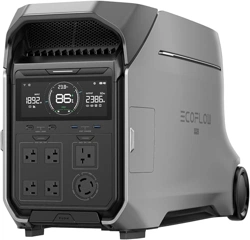
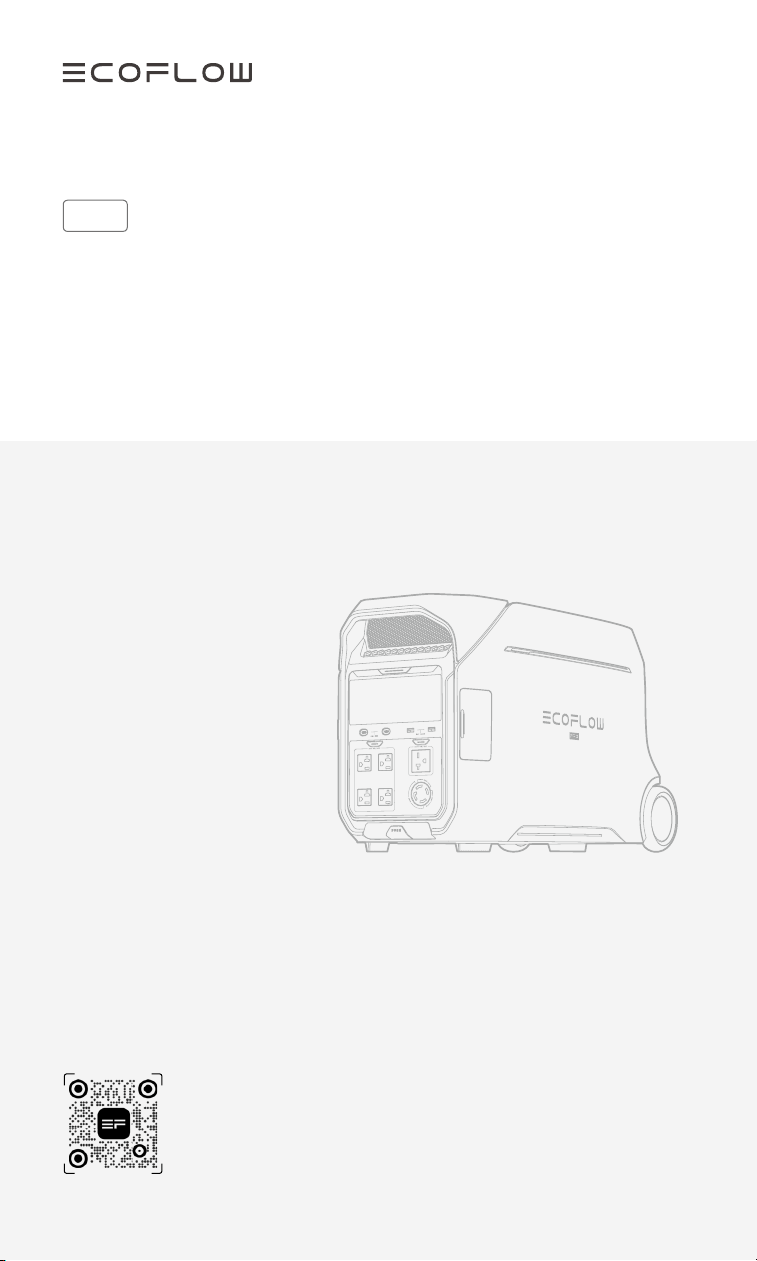
EcoFlow DELTA Pro 3
* This document is a beta version intended for prototype
tests only and is NOT for public distribution.
* Images are for demonstration only.

CONTENTS
01 Safety Instructions
03 What's in the Box
04 Overview
04 Appearance
06 Buttons and Switch
07 LED Indicators
08 Display Screen
09 Troubleshooting
10 Getting Started
10 Power On/Off
11 Power Your Appliances
14 Charge Your Power Station
17 Product Management
17 Download EcoFlow App
17 Bind EcoFlow Device
18 Expand Battery Capacity
18 X-Boost: Power the High-Wattage Appliances
19 UPS: Backup for Essential Devices
20 Storage and Maintenance
20 Storage
20 MAINTENANCE

01
Safety Instructions
DISCLAIMER
Please read the product document and ensure that you
understand it fully before using the product. After reading
this document, keep it for future reference. Improper use of
this product may cause serious injury to yourself or others,
or cause product damage and property loss. Once you use
this product, it is deemed that you understand, approve and
accept all the terms and content in this document. EcoFlow
is not liable for any loss caused by the user's failure to use
the product in compliance with the product document. In
compliance with laws and regulations, EcoFlow reserves
the right to the nal interpretation of this document and all
documents related to the product. This document is subject
to changes (updates, revisions, or termination) without prior
notice. Please visit EcoFlow's ofcial website to obtain the
latest product information:
https://www.ecoow.com/.
TRANSPORTATION
1. Do not subject this product to severe impacts, vibrations, or
drops.
2. Do not carry this product onto a plane.
ENVIRONMENT
3. Follow the environment temperature requirements specied
in the product specication to use or store the product. Avoid
degradation or damage to the product, or risks to personal
safety due to excessively high or low temperatures.
4. Do not use the product near a heat source, such as a re
source or a heating furnace.
5. Do not get the product wet or immerse it in any liquid. When
using the product in wet environments like rainy areas or
places near water, protect it with a waterproof bag.
6. Do not use the product in an environment with strong static
electricity or magnetic elds.
7. Keep the product out of reach of children and pets. If the
product is to be used near children, they should be closely
supervised.
8. Keep the product away from fumes, smoke, steam, and dust.
9. Store the product in a tidy, dry, and well-ventilated place.
OPERATION
10. Do not disassemble, repair, or modify this product by your-
self. For any maintenance or service, please contact EcoFlow
Customer Service.
11. Always disconnect the product from all external power
sources before attempting any service or maintenance.
12. To reduce risk of damage to the electric plug and cord, pull
the plug rather than the cord when disconnecting the prod-
uct.
13. Do not pierce the product with sharp objects.
14. Do not put ngers or hands into the product.
15. Do not insert wires or other metal objects into the product to
prevent short circuits.
16. Do not block or restrict the heat dissipation system of the
product during operation.
17. Do not use any unofcial or unrecommended components or
accessories. For any replacements, please contact EcoFlow
for further assistance.
18. Do not operate this product with a damaged cord or plug, or
a damaged output cable.
19. Do not stack any heavy objects on the product.
20. Place the product on a stable and at surface. Avoid damage
to the device or personal injury due to the product falling or
tipping over.
21. Use a soft, dry cloth to wipe and clean the product.
22. When the power supply is connected in normal mode to a
refrigerator, power uctuations may cause the power supply
to automatically shut down. When connecting the power
supply to a refrigerator that stores medicine, vaccines, or
other valuable items, it is recommended to set the AC output
to “Always on” in the app. This helps support a continuous
power supply and ensures a safe and efcient power con-
sumption state.
23. Medical Equipment Limit: This product is not recommend-
ed for powering medical emergency equipment related to
personal safety, including but not limited to medical grade
ventilators (hospital version CPAP: Continuous Positive
Airway Pressure), articial lungs (ECMO: Extracorporeal
Membrane Please follow your doctor’s instructions and
consult with the manufacturer for restrictions on the use of
the equipment. If used for general medical equipment, please
be sure to monitor the power status to ensure that the power
does not run out.
24. Medical Equipment Interference: When in use, power supply
products will generate electromagnetic elds, which are
likely to affect the normal operation of medical implants or
personal medical equipment such as pacemakers, cochlear
implants, hearing aids, debrillators, etc. If these types
of medical equipment are being used, please contact the
manufacturer to inquire about any restrictions on the use of
such equipment. These measures are fundamental to ensure
a safe distance between the medical implants (for example,
pacemakers, cochlear implants, hearing aids, debrillators,
etc.) and this product while in use.
25. Risk of Electric Shock: Never use the product to supply pow-
er tools to cut or access live parts or live wirings, or materials
that may contain live parts or live wirings inside, such as
building walls, etc.
26. GROUNDING INSTRUCTIONS: This product must be
grounded. If it should malfunction or breakdown, grounding
provides a path of least resistance for electric current to
reduce the risk of electric shock. For your safety, EcoFlow
provides a cord with an equipment grounding conductor and
a grounding plug. The plug must be plugged into an outlet
that is properly installed and grounded in accordance with all
local codes and ordinances.
WARNING – Improper connection of the equipment
grounding conductor can result in a risk of electric shock. If
you encounter the following situations, consult a qualied
electrician instead of modifying the plug provided with the
product:
- You are unsure whether the product is properly grounded;
- You nd that the plug provided with the product does not t
the outlet.
27. Use in Repair Facility: During use in a repair facility, do not
place the product on the oor, or at a height less than 457
mm (18 inches) above the oor.
IN CASE OF EMERGENCY
1. In case of emergency, take precautions against electric shock
before touching the product, such as wearing insulating
gloves.
2. If the product gets wet, stop using it immediately and refrain
from further operation or powering it on. Place the product in
a secure, waterproof, and well-ventilated area, then contact
EcoFlow Customer Service for assistance.
3. If the product falls into water, place it in a secure, waterproof,
and well-ventilated area, and keep it away from contact until
it is completely dry. The dried product should not be used
again and must be properly disposed of according to local
laws and regulations.
4. If the product catches fire, we recommend that you use the
fire extinguishers in the following order: water or water mist,
sand, fire blanket, dry powder, and finally a carbon dioxide
fire extinguisher.
RECYCLING AND DISPOSAL
1. The product with severe damage, malfunction, or depleted
battery life should be properly disposed of or recycled.
2. The product contains batteries. Please dispose of the product
following local laws and regulations for battery disposal and
recycling. Do not dispose of it with household waste to avoid
environmental pollution and safety hazards.
3. If possible, ensure the battery is completely discharged
(to 0% capacity) before disposing of the product. If not,
refrain from placing the battery directly into a battery
recycling box. Instead, contact a professional battery
recycling company for proper handling.

02
|03
What's in the Box
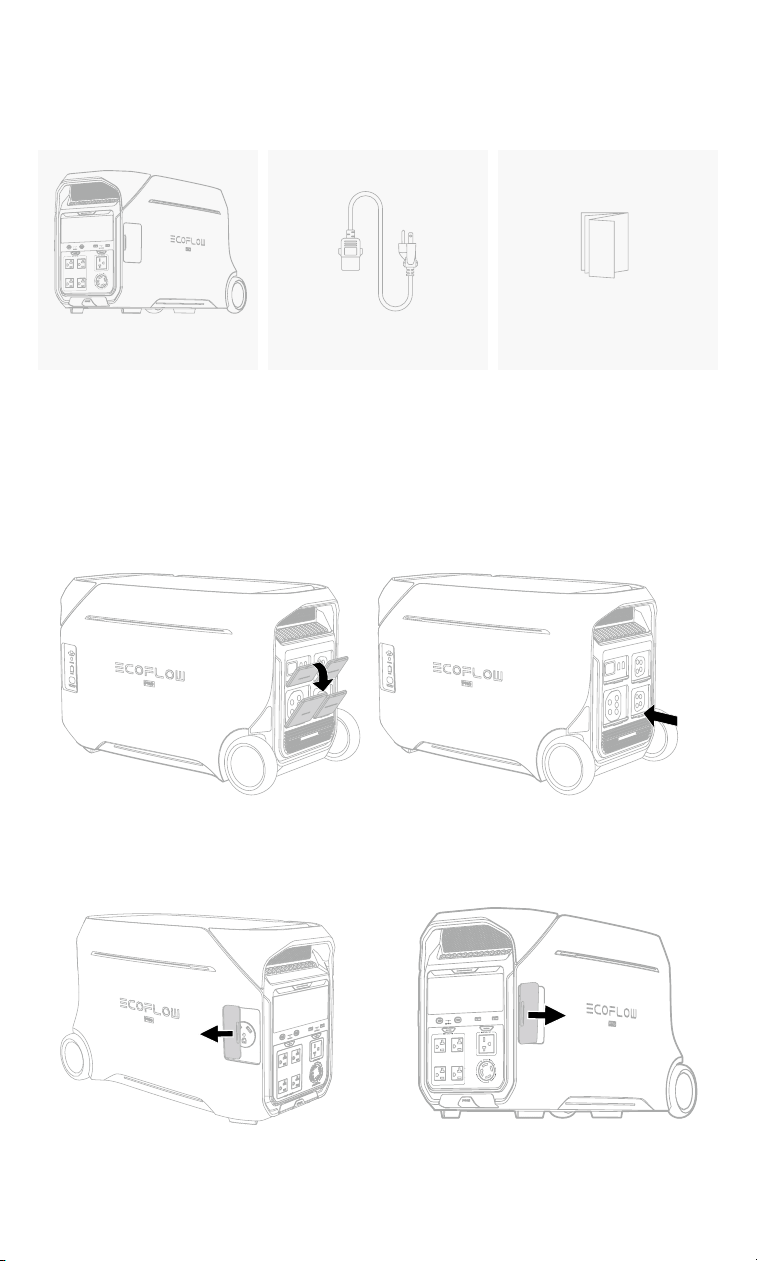
• If any item is damaged or missing, please reach out to EcoFlow Customer Service for
assistance.
• Reveal/Hide Electric Outlets: Slide the protective cover to reveal or hide electic
outlets. For unused ports and sockets, keep the protective cover to prevent dust,
moisture, or other contaminants.
Left-SideRight-Side
Rear Panel
EcoFlow DELTA Pro 3 AC Charging Cable Product Documents
04|
Overview
APPEARANCE
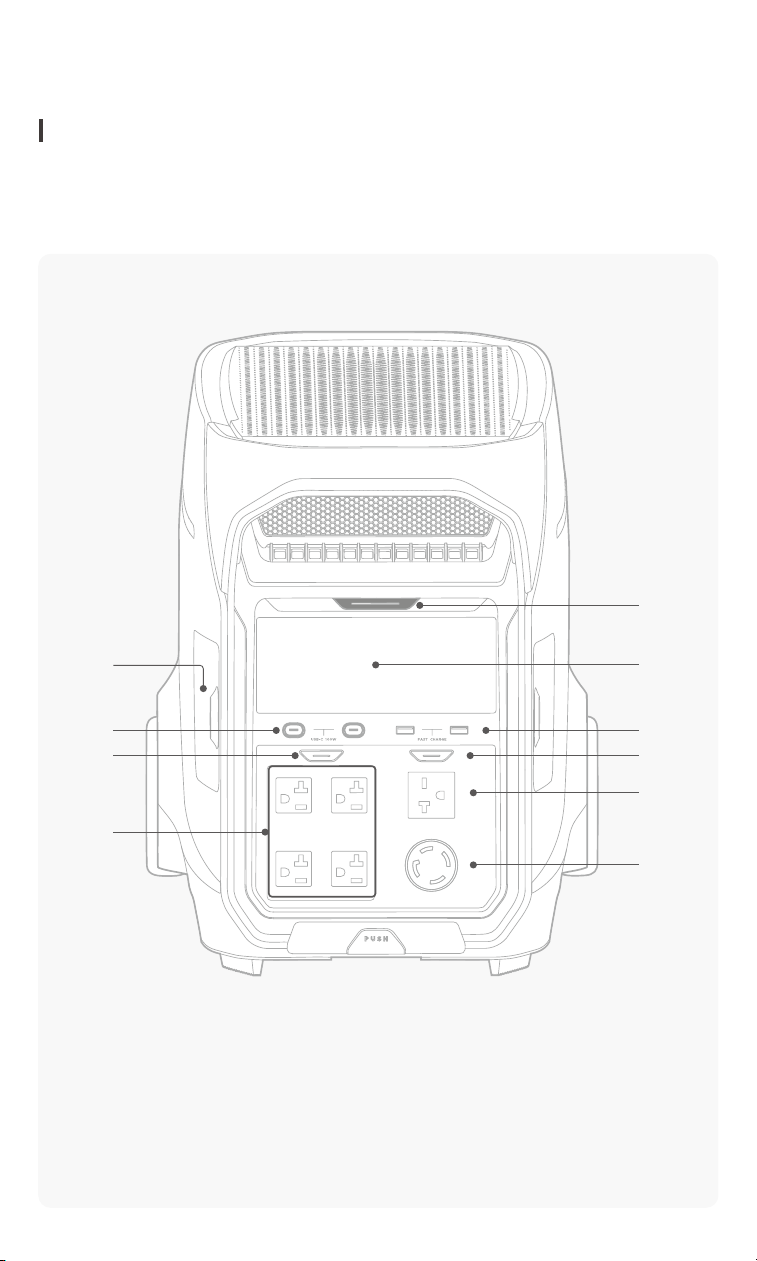
• Images displayed in this manual are for demonstration only. Product appearance
may vary by region and version.
①
③④
⑤
⑥
⑧
⑨
①
Main Power Button
②
Display Screen
③
USB-A Output ×2
④
USB-C Output ×2
⑤
AC Output Control (LV )
⑩
⑦
②
⑥
AC Output Socket (LV, NEMA 5-20R)×4
⑦
AC Output Socket (LV, NEMA TT-30)
⑧
AC Output Control (HV)
⑨
AC Output Socket (HV, NEMA 6-20R)
⑩
AC Output Socket (HV, NEMA L14-30R)
|05
⑭
⑪
⑫
⑬
⑪
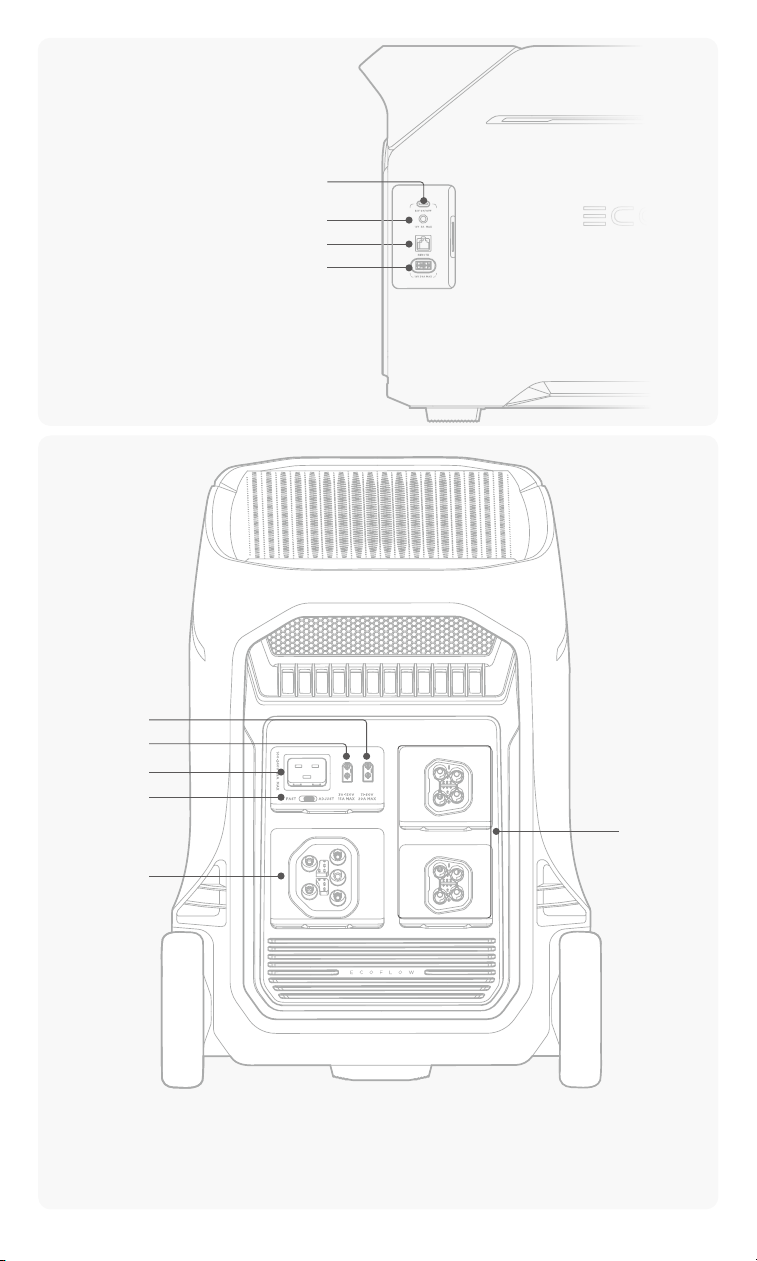
12V DC Output Control
⑫
DC5521 Port (12V)
⑬
REMOTE Port
⑭
Anderson Port (12V)
⑮
AC Input Socket
⑯
Charge Speed Switch
⑰
Solar Input (HV)
⑱
Solar Input (LV) / DC Input
⑲
AC Power IN/OUT Port
⑳
Extra Battery Port ×2
⑯
⑮
⑰
⑱
⑲
⑳

06|
BUTTONS AND SWITCH
• The product has built-in buzzers. Product operation will result in a buzzing sound as
a reminder. To disable it, switch it off in the EcoFlow app.
• There will be two AC output control buttons that control the output of different
voltage sockets.
AC Output Control (HV): 240V
,
120V/240V
AC Output Control (LV): 120V
• To ensure optimal power output, the AC Output Control (HV) and AC Output
Control (LV) can not be used simultaneously. When one is enabled, the other is
automatically disabled.
• Adjusting the Charge Speed Switch is only effective when the product is charging
via the AC Input Socket.
Name Description
Main Power Button
The button serves the following functions:
1. Power On: Long press the button for 2 seconds to
turn on the product.
2. Power Off: Short press the button for 1 second to turn
off the product.
3. Screen On/Off: Press once to toggle the display.
4. Reset IoT: In the powered-off state, long press the
button and keep holding for more than 5 seconds after
the screen turns on to reset the Bluetooth and Wi-Fi
connections.
AC Output Control
Button
The button serves the following functions:
1. AC Output On/Off: Press the button once to enable or
disable the corresponding power outputs.
2. Change AC Operating Frequency: Long press the
button for 10 seconds to change the frequency of the
AC supply.
12V DC Output
Control Button
The button serves the following functions:
1. DC Output On/Off: Press the button once to enable or
disable the corresponding power outputs.
2. Pair with EcoFlow Remote Control: Long press the
button for 5 seconds to pair with EcoFlow DELTA Pro
Remote Control(sold separately) via Bluetooth.
Charge Speed
Switch
Toggle to adjust the charging speed.
ADJ: charge the product at a customized power set in
the EcoFlow app.
FAST: charge the product at the supported maximum
power.
|07
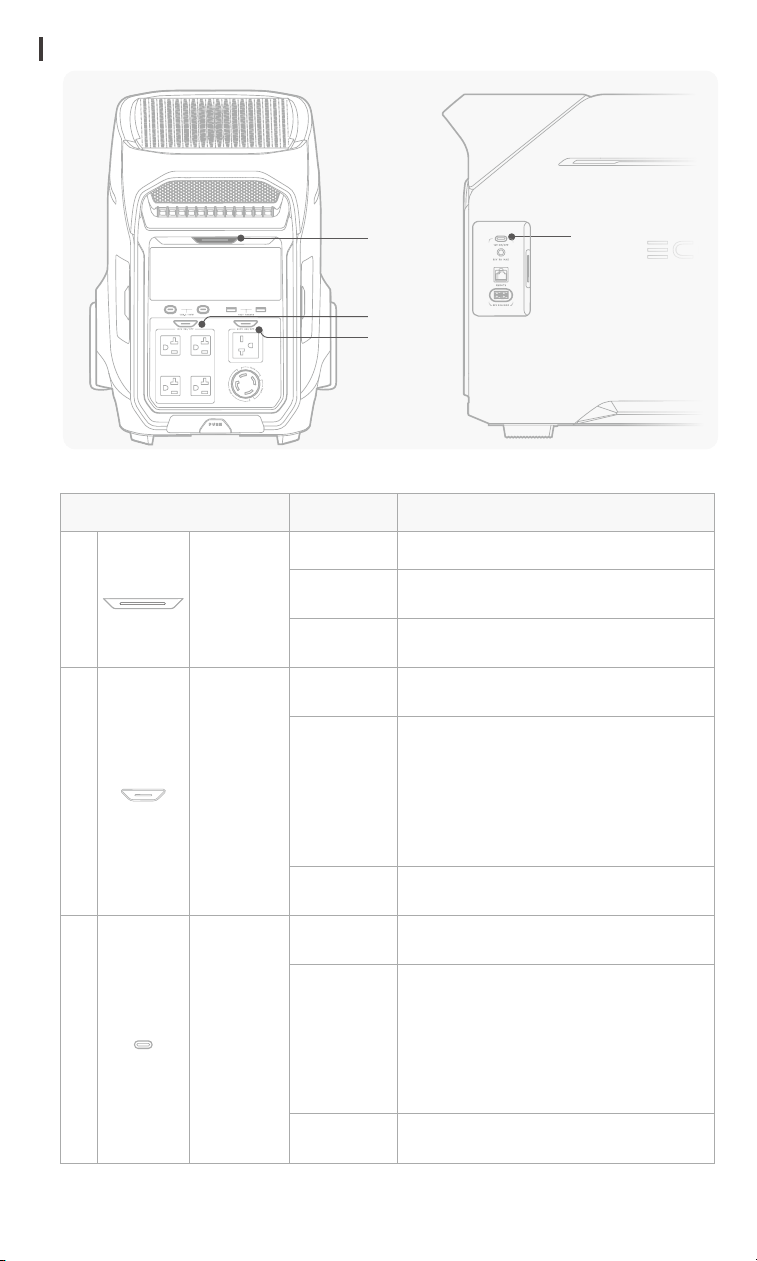
LED INDICATORS
①
③
②
②
LED Status Description
①
Main
Power LED
Off The product is powered off.
Breathing
White
The product is powered on and functions
normally.
Flashing
White
T
he product is updating rmware.
②
AC Output
LED
Off
The corresponding AC output sockets are
disabled.
Breathing
White
Abnormal power outputs and the
corresponding AC power output sockets
are about to be disabled. To continue,
press the button to re-enable it. If the
problem recurs, upgrade the rmware
version via the EcoFlow app and try
again.
Solid White
The corresponding AC output sockets
are enabled.
③
12V DC
Output
LED
Off
The corresponding DC output ports are
disabled.
Breathing
White
Abnormal power outputs and the
corresponding DC power output sockets
are about to be disabled. To continue,
press the button to re-enable it. If the
problem recurs, upgrade the rmware
version via the EcoFlow app and try
again.
Solid White
The corresponding DC power outputs
are enabled.
08|
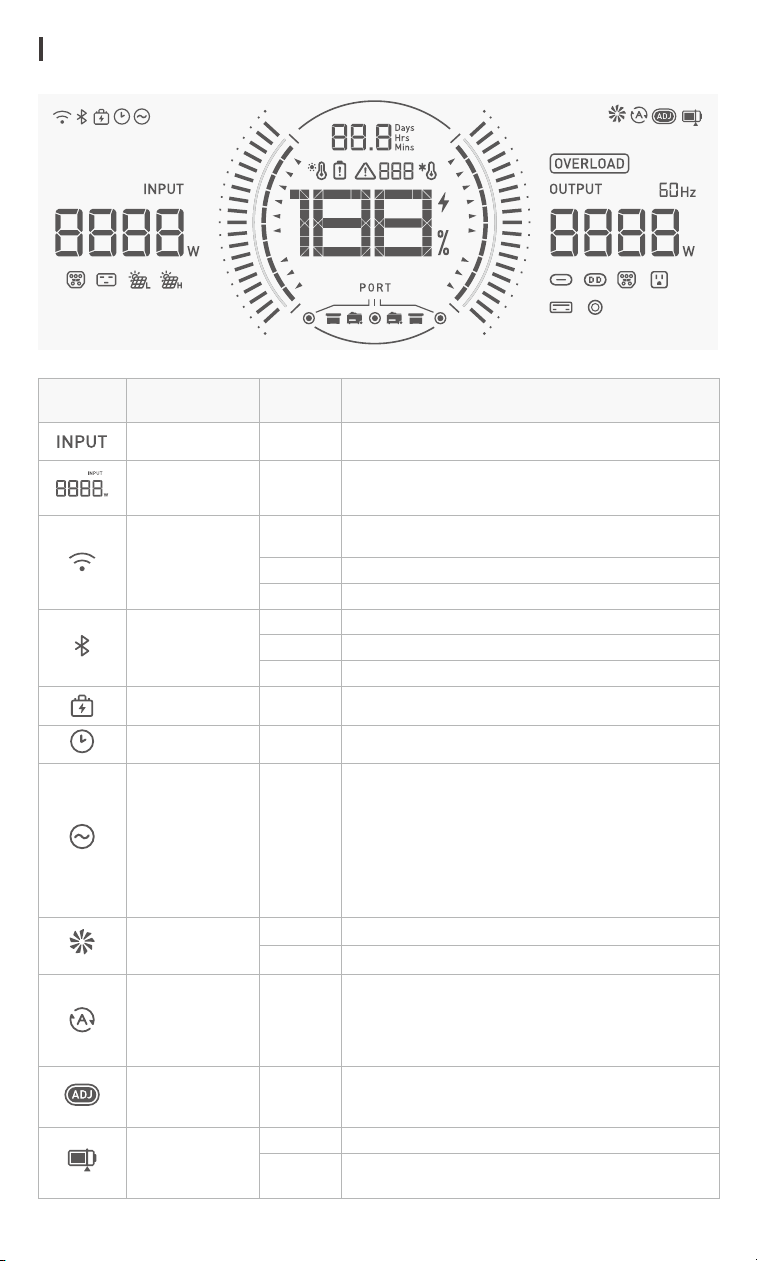
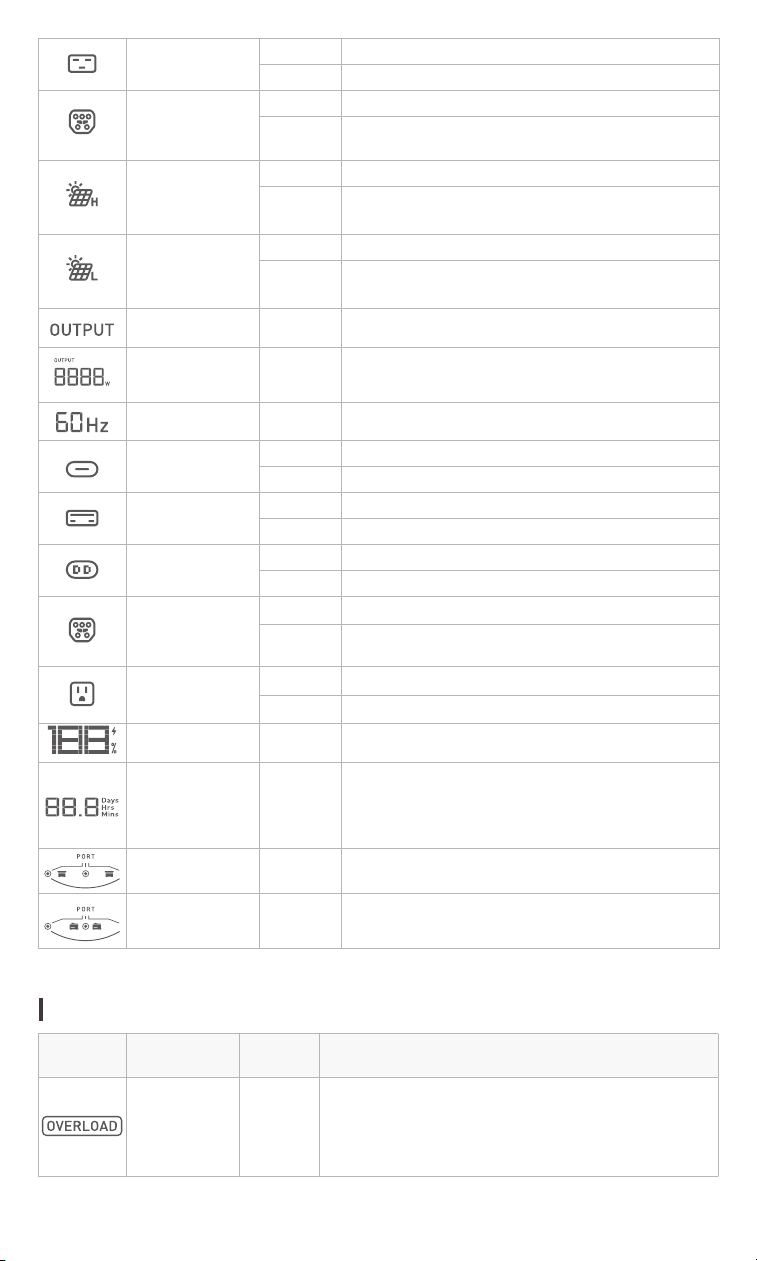
DISPLAY SCREEN
Icon Name Status Description
Input Icon
On
Display power input details.
Total Input
Power
On
Display total input power.
Wi-Fi
On
The product is connected to the internet via a wireless
network.
Blinking
The product is connected to a wireless network.
Off
Wi-Fi disconnected.
Bluetooth
On
The product is connected to a Bluetooth device.
Blinking
The product is in the Bluetooth pairing process.
Off
Bluetooth disconnected.
Backup Reserve
On
Backup reserve mode is enabled in the EcoFlow app.
Timer
On
At least one pending timer is congured in the EcoFlow app.
AC Always On
On
The AC always-on mode is enabled in the EcoFlow app.
When enabled, the product saves the last state of the AC
output. After being repowered, it restores this state to ensure
connected devices receive power automatically during
unexpected outages, without manual intervention.
Note: When using this feature, if the AC output is disabled via
the AC output button, the product will record the AC output
state as "Off".
Fan Status
On
The ventilation fan is running.
Blinking
Abnormal fan status.
Generator Auto
On/Off
On
The connected generator is set to start or shut down
automatically in the EcoFlow app.
Note: This feature is only applicable to the EcoFlow smart
generator when connected to this product via the Extra
Battery port.
Customized
Charging Speed
On
Charge Speed Switch is toggled to ADJ mode. The product
will be charged at a customized speed set in the EcoFlow
app.
Charging/
Discharging
Limit
On
The charge limit or discharge limit is set in the EcoFlow app.
Blinking
The discharge limit is reached. The AC output and 12V DC
output cannot be enabled.
|09
AC Input Socket
On
The socket is physically connected and has power input.
Blinking
Socket malfunction.
AC Power IN/
OUT Port
(input)
On
The port is physically connected and has power input.
Blinking
Port malfunction.
Solar Input (HV)
On
The port is physically connected and has power input.
Blinking
1. Indicates weak light protection is triggered, or
2. Indicates overvoltage or undervoltage.
Solar Input (LV)
/ DC Input
On
The port is physically connected and has power input.
Blinking
1. Indicates weak light protection is triggered, or
2. Indicates overvoltage or undervoltage.
Output Icon
On
Display power output details.
Total Output
Power
On
Display total output power.
Frequency
On
Display power operating frequency.
USB-C Output
On
The port is physically connected and has power output.
Blinking
Port malfunction.
USB-A Output
On
The port is physically connected and has power output.
Blinking
Port malfunction.
12V DC Output
On
The DC5521 and Anderson ports are enabled.
Blinking
Port malfunction.
AC Power IN/
OUT Port
(output)
On
The port is physically connected and has power output.
Blinking
Port malfunction.
AC Output
Socket
On
The AC output sockets are enabled.
Blinking
Socket malfunction.
Battery Level
On
Display current battery level.
Remaining
charging/
discharging
time
On
Display the remaining charging or discharging time.
Extra Battery
On
EcoFlow smart extra battery is connected via the Extra
Battery port.
Smart
Generator
On
EcoFlow smart generator is connected via the Extra
Battery port.
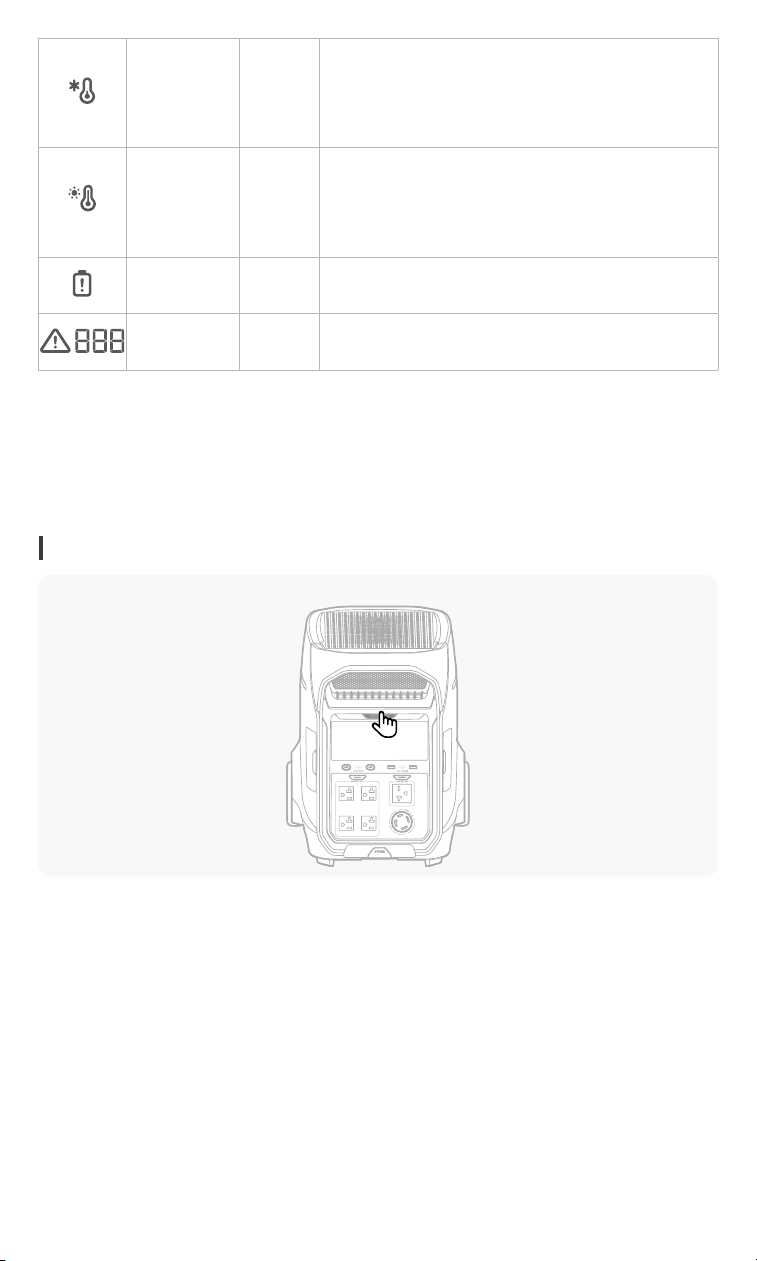
TROUBLESHOOTING
Icon
Name Status
Description
Overload
warning
Blinking
Overload protection is triggered.
Disconnect some devices connected to the product to decrease
the overall power output. The warning will disappear once the
power output returns to its usual level.
10|
Low
temperature
warning
Blinking
Low temperature protection is triggered.
Move the product to a warmer location to ensure usage
within the appropriate temperature range. The warning
will disappear once the product temperature returns to
normal operating levels.
Over
temperature
warning
Blinking
Over temperature protection is triggered.
Stop operation and place the product in a location away
from heat sources with good ventilation. The alarm will
disappear once the product temperature returns to normal
operating levels.
Battery error Blinking
An error has occurred. Check the EcoFlow in-app
instructions for troubleshooting.
Error Code On
An error has occurred. Check the EcoFlow in-app
instructions for troubleshooting.
Getting Started
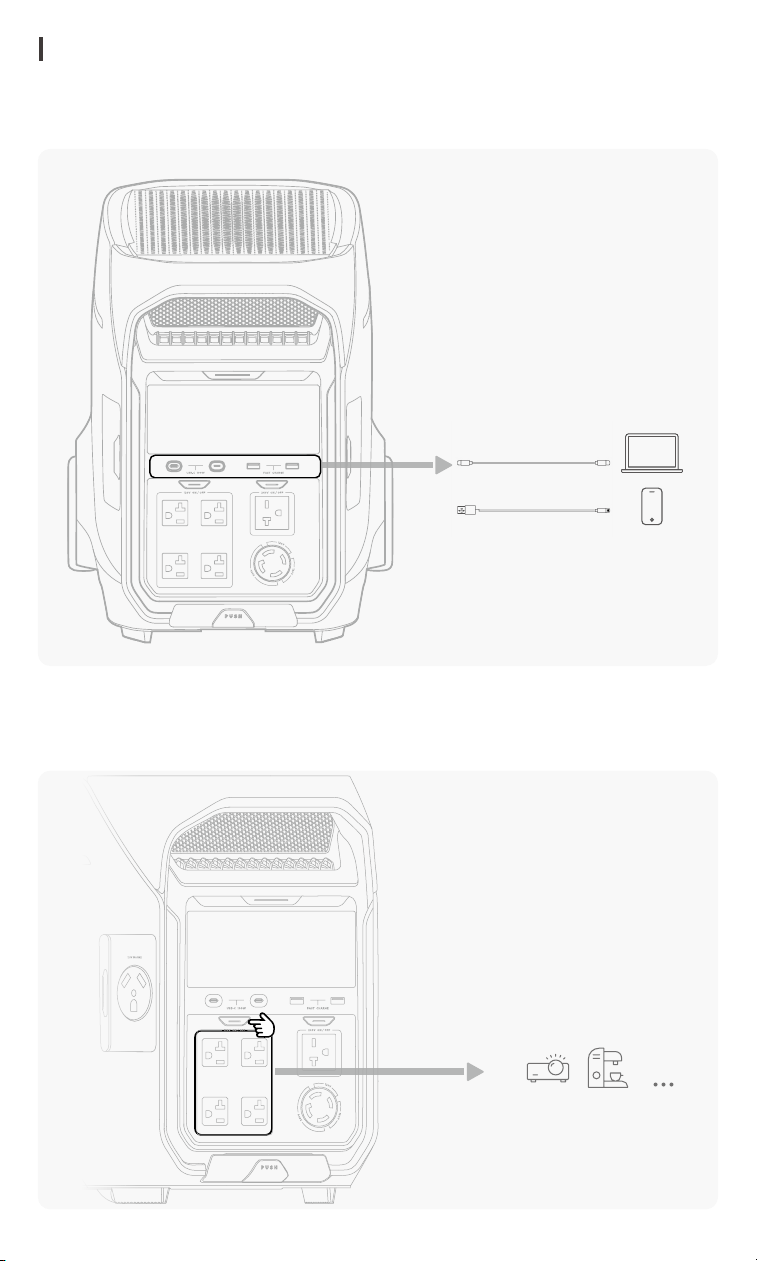
POWER ON/OFF
Power On: Long press the main power button (2 seconds) , and wait until the LED
indicator lights up.
Power Off: Long press the main power button (3 seconds) , and wait until the LED
indicator turns off.
Turn On/Off LCD Screen: Press the main power button once to turn on or turn off the
screen.
|11
❶
❷
POWER YOUR APPLIANCES
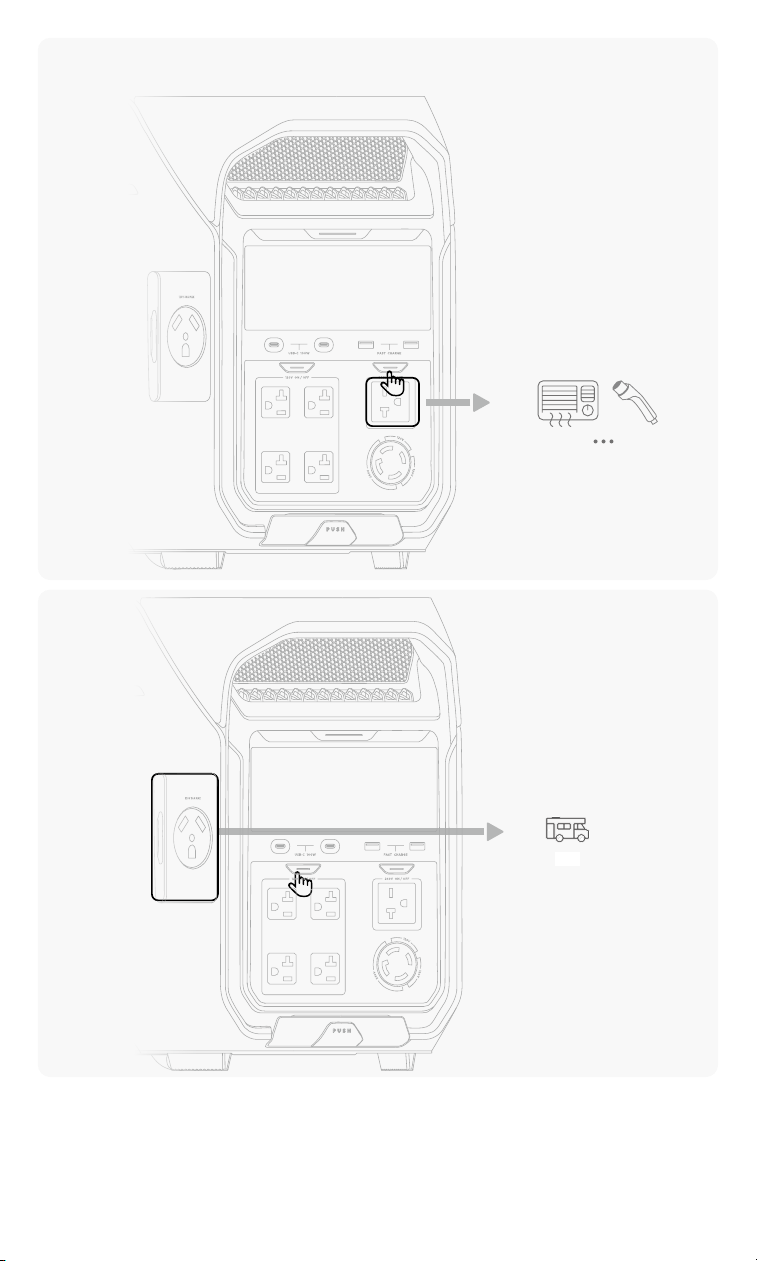
VIA USB PORTS
Connect your device to the USB port directly.
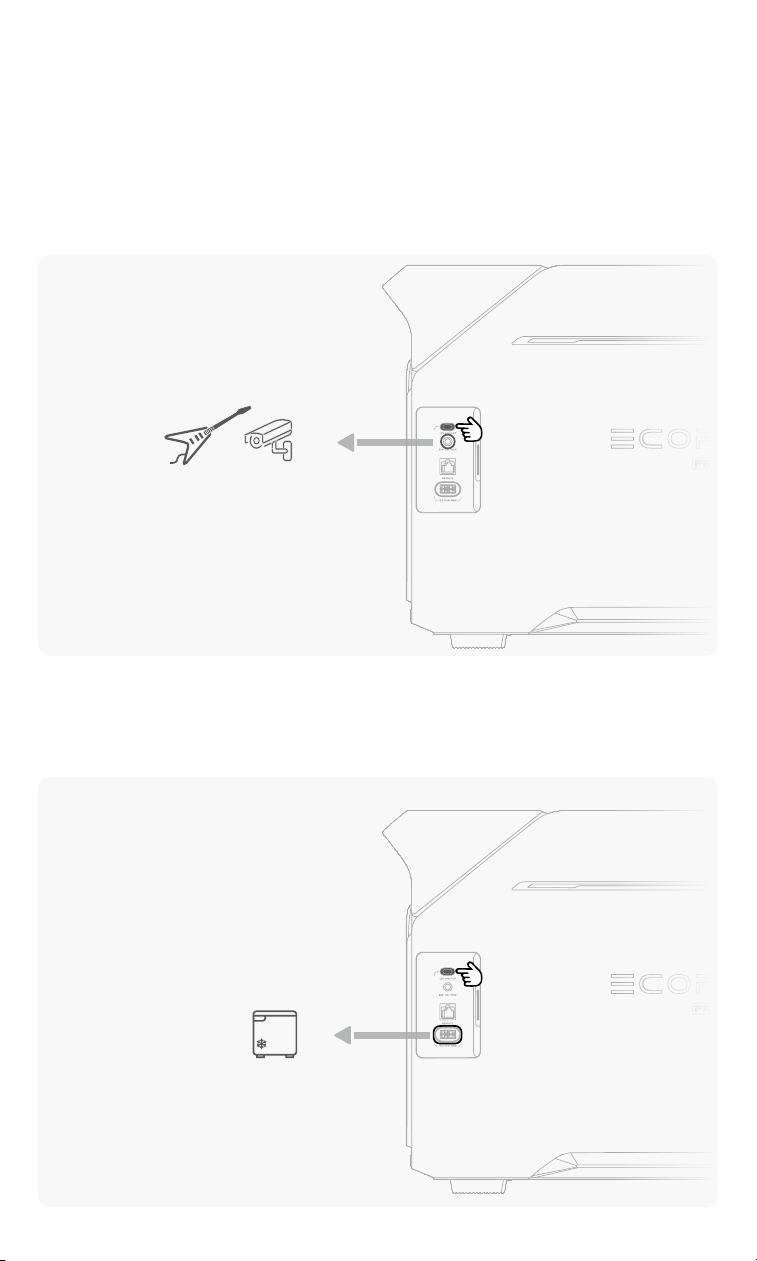
VIA AC OUTPUT SOCKETS
1. Press the AC output control button once to enable the power supply.
2. Connect your device to the AC output socket.
12|
Tips:
1. To ensure optimal power output, the AC output Button (HV) and AC output
Button (LV) can not be used simultaneously. When one is enabled, the other is
automatically disabled.
RV
❶
❷
❶
❷
|13
2. In the event of abnormal AC output, try the following steeps:
a. Press the button to re-enable the AC power output.
b. If the problem recurs, upgrade the rmware version via the EcoFlow app and try
again.
c. If the problem persists, please contact technical support.
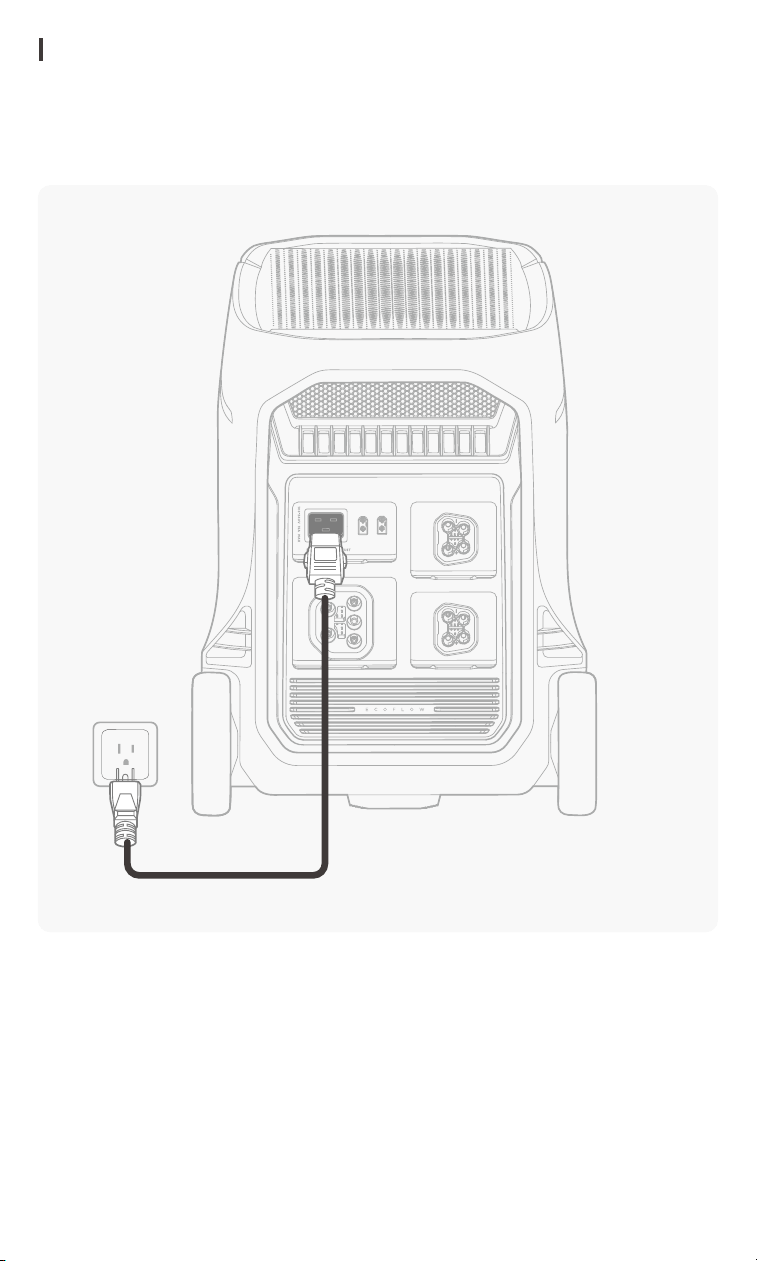
VIA DC5521 PORT
1. Press the 12V DC output control button once to enable the DC5521 Port.
2. Connect your device to the DC5521 port.
VIA ANDERSON PORT
1. Press the 12V DC output button once to enable the Anderson port.
2. Connect your device to the Anderson port.
❶
❷
❶
❷
14|
CHARGE YOUR POWER STATION
FROM WALL OUTLET
Connect the product's AC input socket to a wall outlet using the AC charging cable
provided.
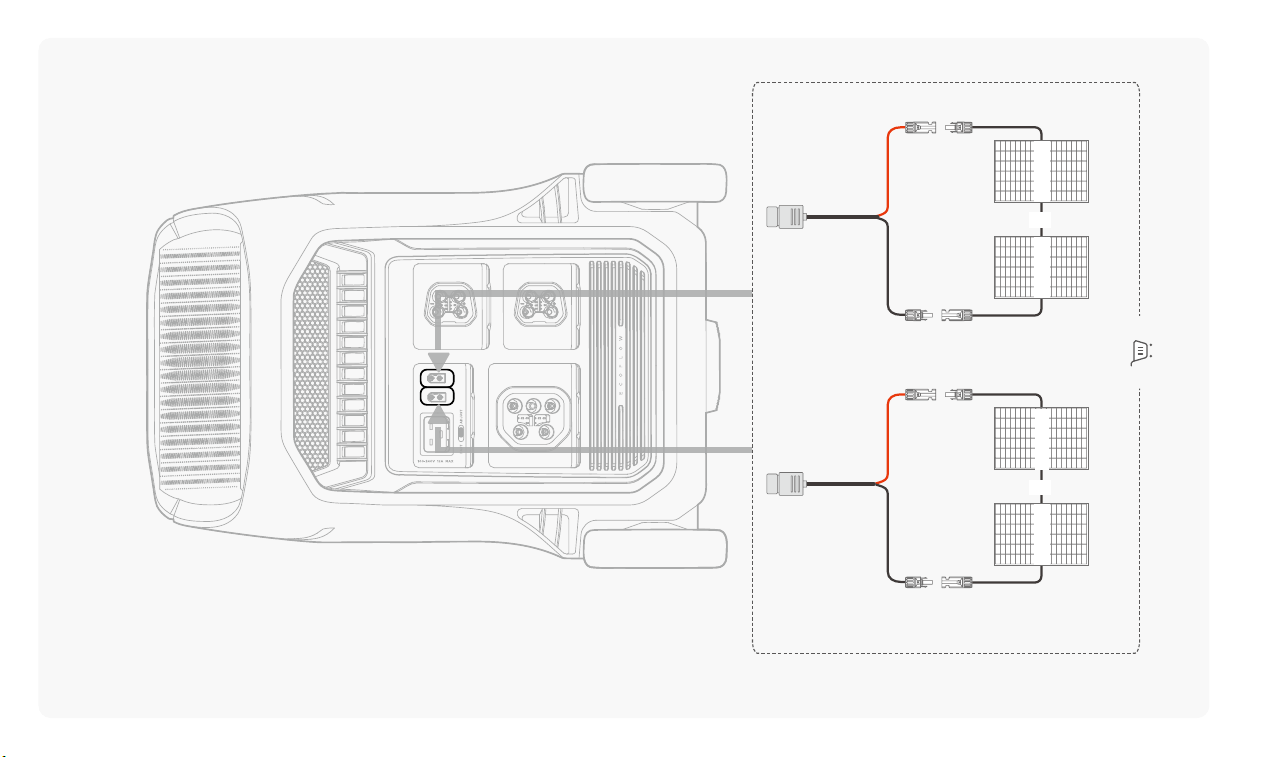
FROM SOLAR
Connect the product's solar input port to solar panels.
Tip: To ensure efficient charging, connect the solar panel correctly to the
corresponding high-voltage or low-voltage input of the power station. The power
station has input protection to prevent malfunctions even if different specifications
of solar power inputs are mixed. However, if you notice a mismatch between the
charging power and photovoltaic specification, adjust it to ensure proper charging.
|15
+ +
-
-
Solar 1
Solar n
......
+ +
-
-
Solar 1
Solar n
......
16|
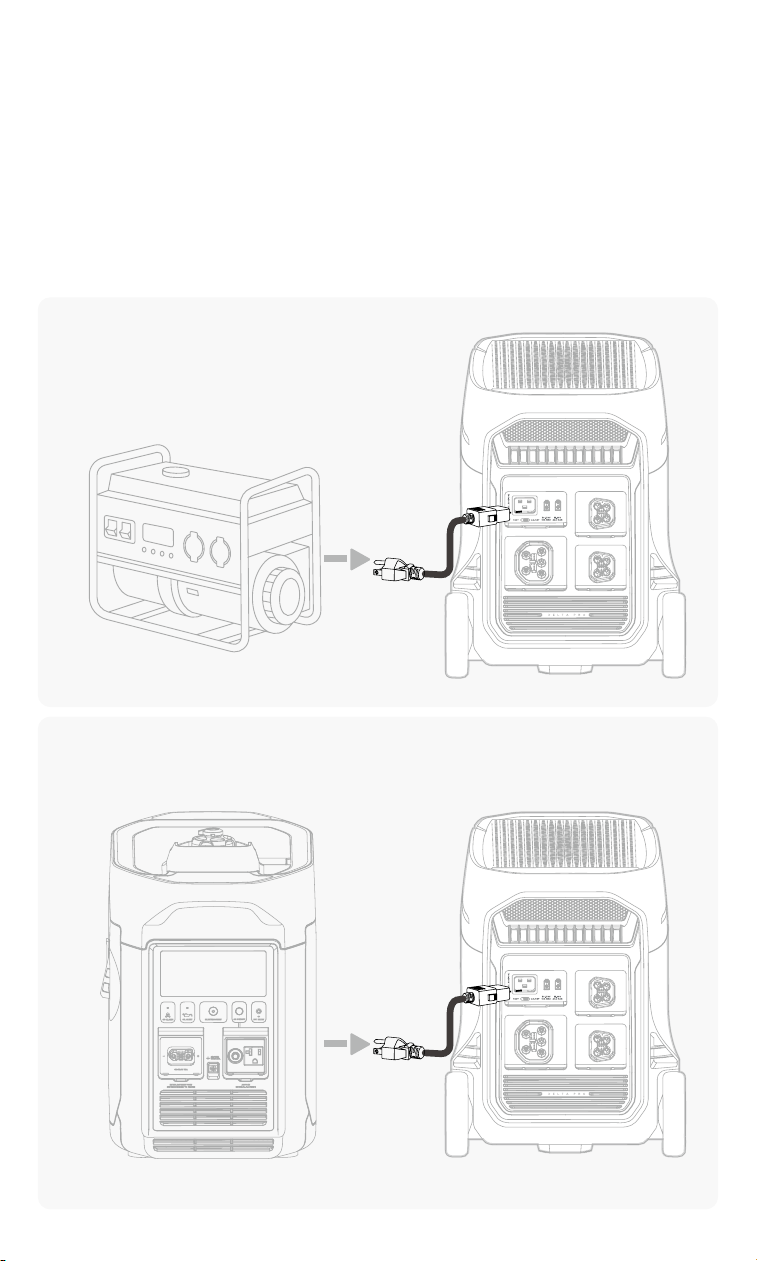
FROM GENERATOR
Method 1: via the AC Input socket
Connect the product's AC input socket to a generator using the AC charging cable
provided.
Method 2: via the Extra Battery port
(
EcoFlow generator only
)
a. Install the DELTA Pro to Smart Generator Adapter into the product's extra battery
port.
b. Connect the product to an EcoFlow generator‘s XT150 port via the extra battery
connection cable.
Applicable for third-party and EcoFlow generators
Applicable for EcoFlow Smart Generator only

|17
Product Management
DOWNLOAD ECOFLOW APP
EcoFlow offers a companion app for device management. With this mobile application,
you can:
- Enjoy all-in-one control of your EcoFlow devices from anywhere.
- Monitor power consumption details seamlessly with real-time updates.
- Personalize your energy scheme with an array of customizable options.
- Retrieve in-app technical support and rmware updates promptly, ensuring your
EcoFlow devices stay up-to-date and function optimally at all times.
BIND ECOFLOW DEVICE
1. Visit the EcoFlow app and log into your EcoFlow account. If you don't have an
account, create one rst.
2. Tap the Add Device button or
+
in the top right corner to search for new EcoFlow
devices.
3. Turn on the Bluetooth function on your phone and bind the device to your EcoFlow
account.
• Unable to discover this product via Bluetooth? Try the following steps:
1. Power-off: Long press the main power button for 3 seconds to turn off the product.
2. Reset Bluetooth: In the powered-off state, long press the button and keep holding
for more than 5 seconds after the screen turns on to reset Bluetooth pairing.
3. Power-on: Long-press the main power button for 2 seconds to turn on the product,
and start searching again.
4. If the problem persists, contact EcoFlow technical support.
• Bluetooth Standby Tip: During Bluetooth standby time, Bluetooth remains enabled
while the device is turned off, allowing the product to be powered on remotely
via Bluetooth from your phone. However, Bluetooth standby requires a certain
power consumption. If you don't need this feature or want to shorten the Bluetooth
standby time, please adjust the Bluetooth standby setting in the EcoFlow app.
18|
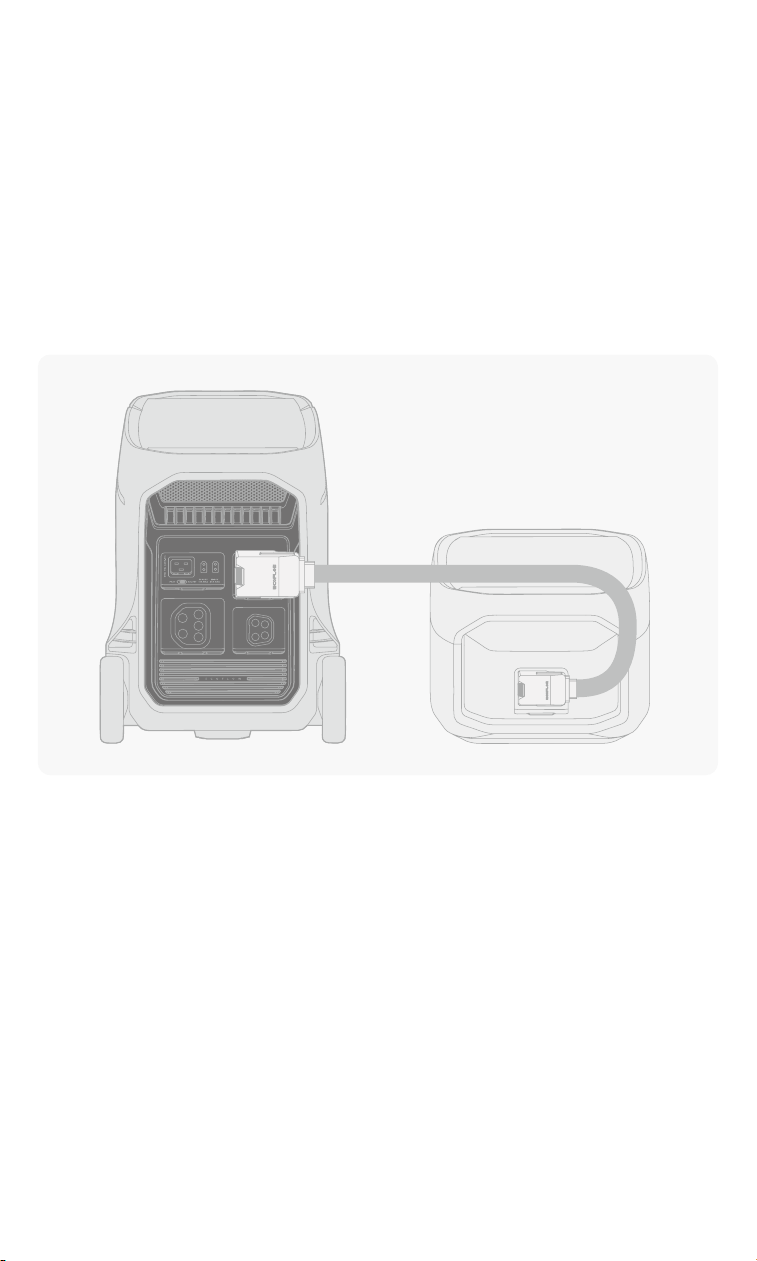
Expand Battery Capacity
If you frequently encounter power-intensive scenarios or require prolonged usage
during power outages, opting for higher battery capacity is a proactive choice. The
product supports connecting up to 2 extra batteries to expand capacity.
Tip: The power station is backward compatible with the DELTA Pro Smart Extra Battery.
To Connect the Extra Battery:
1. Power off both the power station and the extra battery.
2. Connect the extra battery to the product's extra battery port.
3. The extra battery is considered successfully installed once
the battery icon is
displayed on the screen.
X-Boost: Power the High-Wattage Appliances
X-Boost is an innovative tech exclusive to EcoFlow power stations. It allows the power
station to support appliances with a higher power requirement than its rated power.
How do I use this feature?
X-Boost is disabled by default. To use it, toggle it on in the EcoFlow app.
What kind of devices does X-Boost support?
X-Boost is more suitable for heating devices, such as an electric blanket, a water
heater, or a heat pump.
X-Boost does not support appliances with voltage protection (such as precise
instruments). The power station would not discharge when connected to such kinds of
devices.
Tip: X-Boost is unavailable when the power station is being charged via an AC power source
(when the product is in bypass mode).
|19
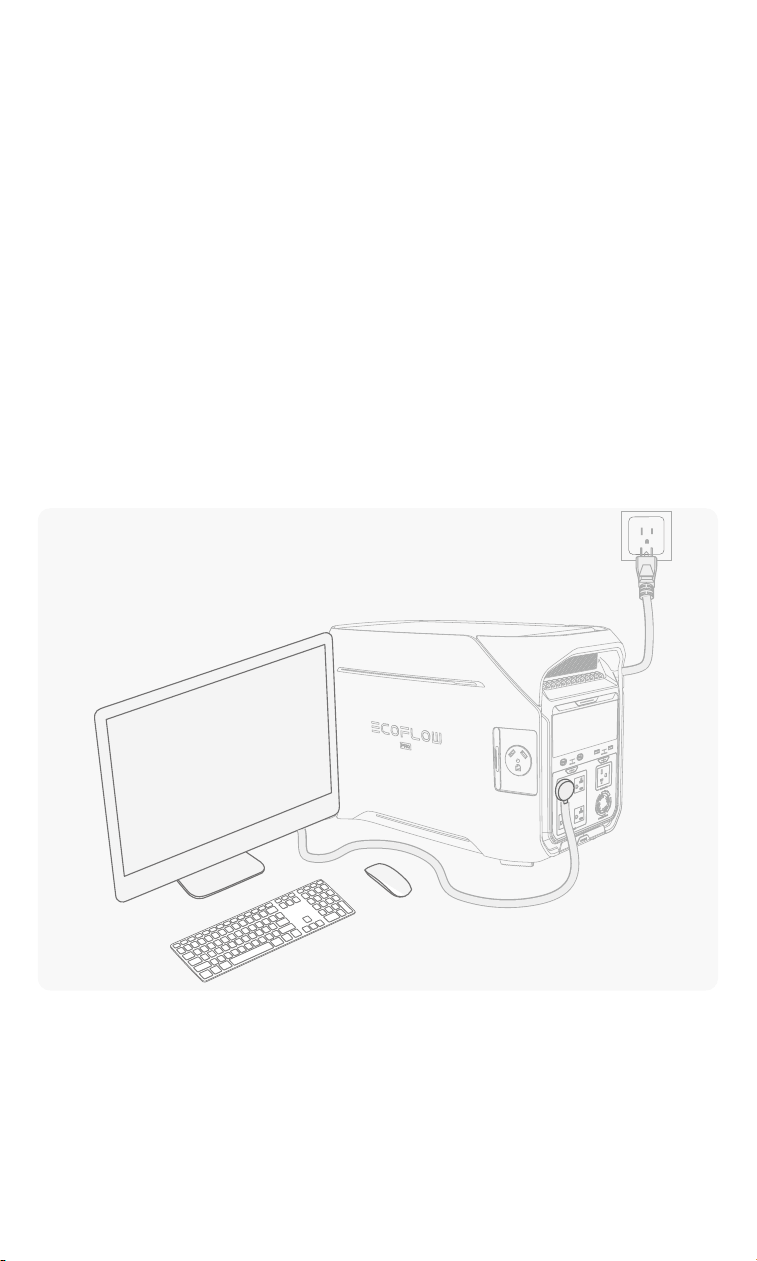
UPS: Backup for Essential Devices
A UPS (Uninterrupted Power Supply) is a device or system that provides continual
power supply as a backup when the grid electricity fails. You can use the power station
as a UPS to support essential household appliances.
The power station supports standby UPS (10 ms) to reconnect the appliances.
Normally, these appliances use electricity from the grid. When a power outage occurs,
the power station automatically switches the appliances to use its backup power.
How do I use this feature?
1. Connect the power station to the wall outlet to access grid power.
2. Connect the appliances to this power station to ensure those appliances remain
operational during a power outage.
Tip: In this setup, avoid connecting appliances with high power requirements. The power
station requires more incoming power than it provides to appliances to ensure that surplus
power is utilized for charging and maintaining the battery level. Otherwise, the power station
cannot work as a power source during blackouts.

20|
Storage and Maintenance
STORAGE
• Storage Temperature: 20°C-30°C (68°F-86°F)
• Do not store it in places where the temperature exceeds 113°F (45°C) or falls
below 14°F (–10°C).
• Store the product in a tidy, dry, and well-ventilated place.
• Keep the product away from water, intense heat, and sharp objects.
• For long-term storage of the power station, follow these steps every 3 months to
maintain battery health:
1. Discharge the power station to 0% battery level.
2. Fully charge the power station to 100% battery level.
3. Discharge the power station again to 60% battery level.
Note: the product will not be covered by the warranty if it is not charged or discharged
for more than 6 months.
MAINTENANCE
• Cleaning
Use a soft, dry cloth to wipe and clean the product.
• Maintain Battery Health
Avoid leaving the product unused for extended periods.
Charge and discharge the product every 3 months to get a longer lifespan.

|21

© 2024 EcoFlow Inc. All rights reserved.