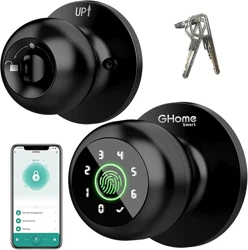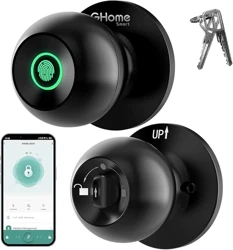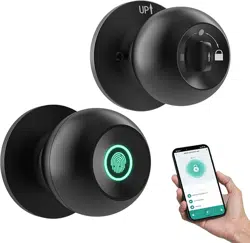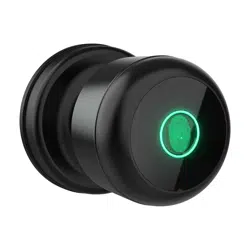
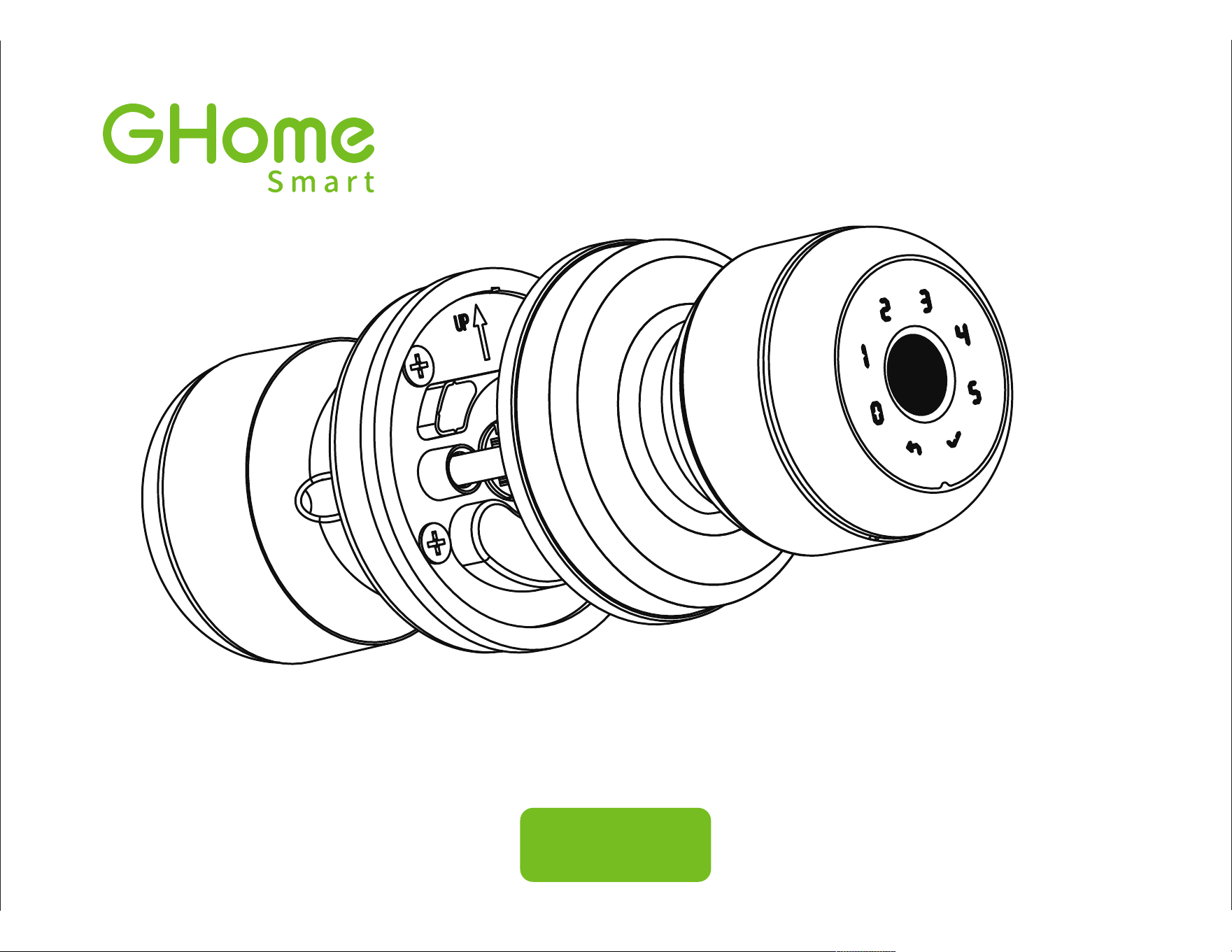
Smart Door Knob with Fingerprint & Keypad
K02APRO
Model: K02APRO
Color: Black
Working temperature: 23℉-131℉
Max number of fingerprints: 18pcs
Max number of password: 20pcs
Waterproof: IP54
Battery: 4 x ALKALINE AAA batteries required (not included)
Temporary power connector type: Type-C/5V 2A
(Emergency charging backup)
Specifications
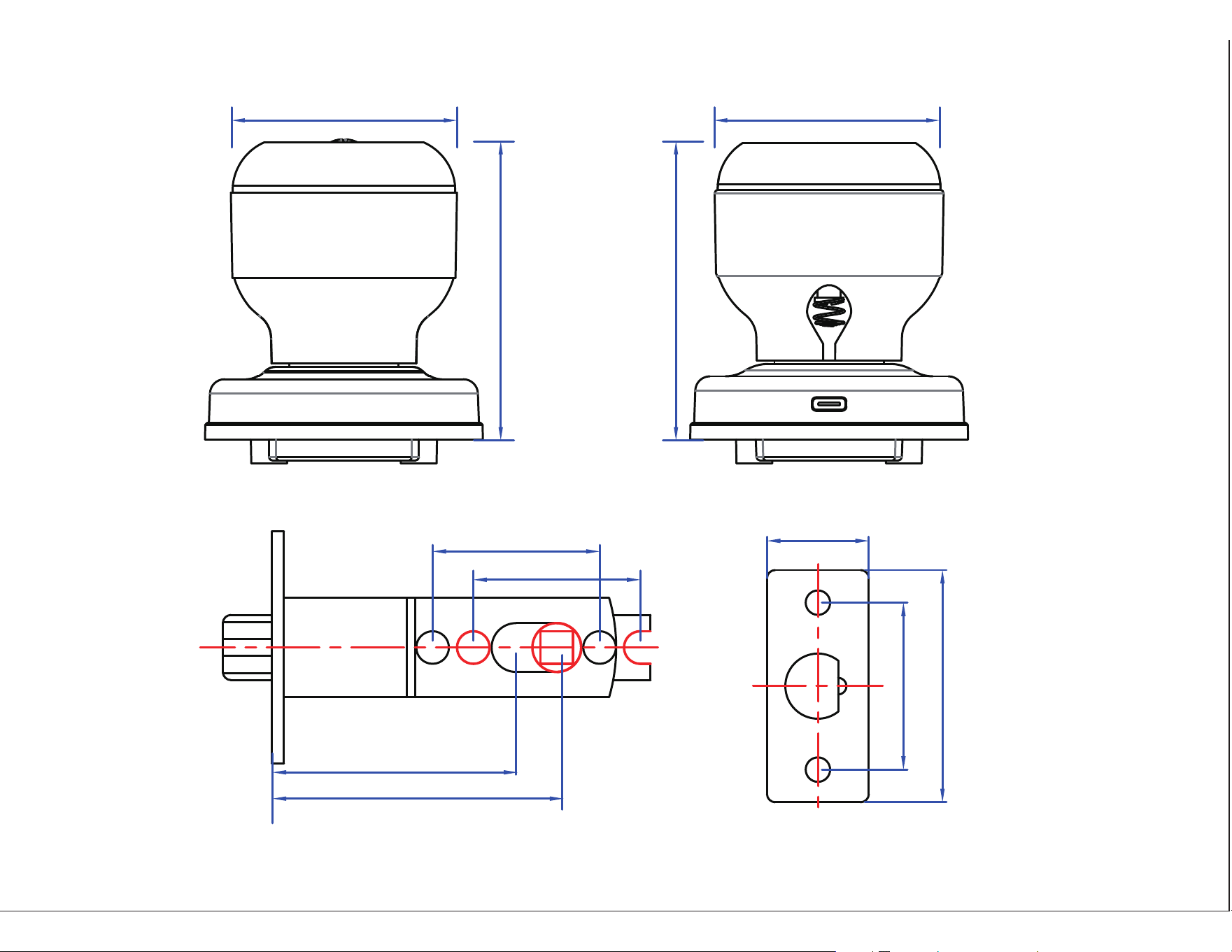
55mm/2.16'
Ø62mm/2.44' Ø62mm/2.44'
25mm/0.98'
42mm/1.65'
41mm/1.61'
41mm/1.61'
60mm/2.36'
70mm/2.75'
81mm/3.18'
81mm/3.18'
Suitable for doors with a thickness of 1-3/8” - 2-1/8” (35~55mm)
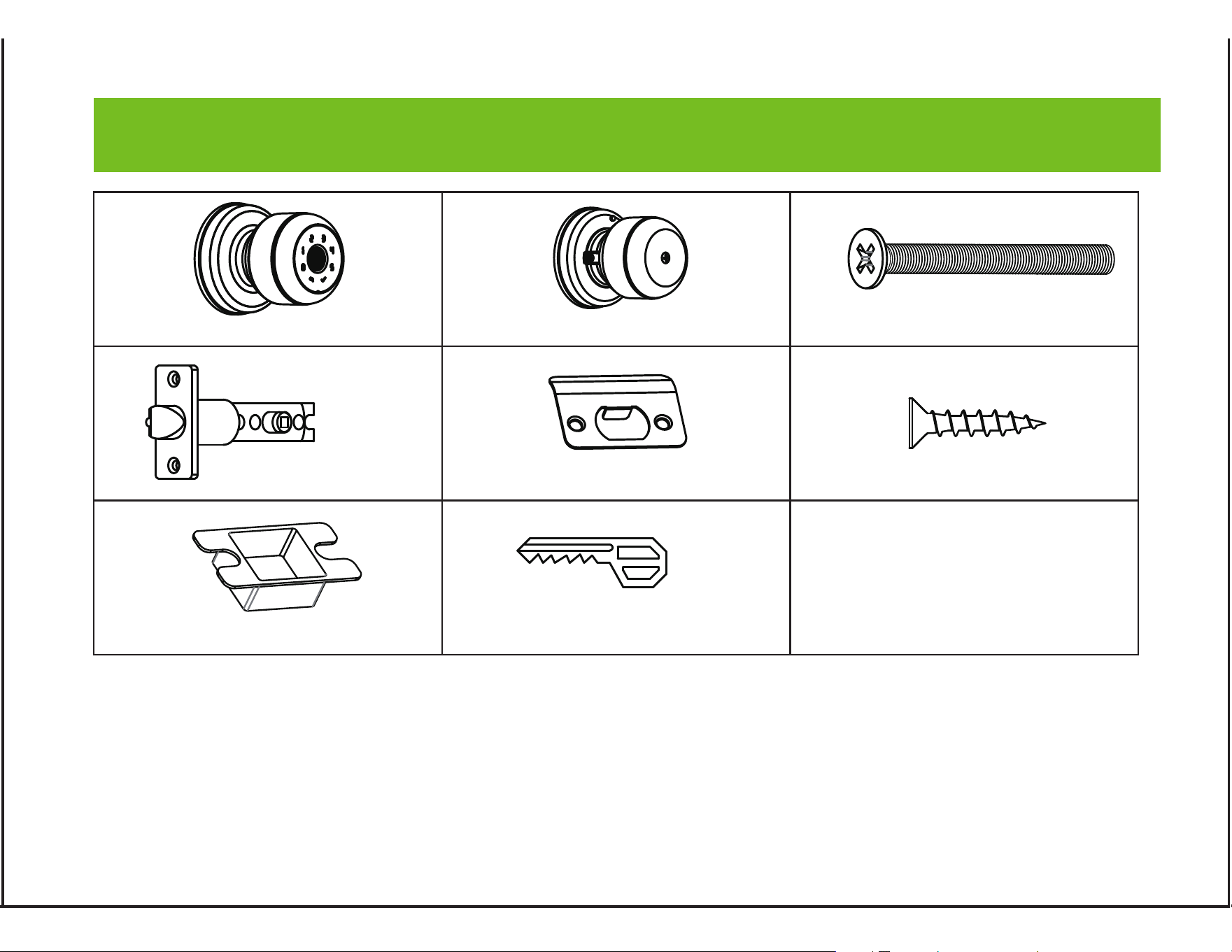
Exterior Knob X1 Interior Knob X1
Screw B X2
Latch X1 Strike Plate X1 Screw A X4
Strike Box X1 Key X2
User Manual X1
Before using this product, please check carefully whether the product package includes
the above items. If there is any item missing, please contact Customer Service Email:
Please read this manual carefully before installation and operation.
Components Included
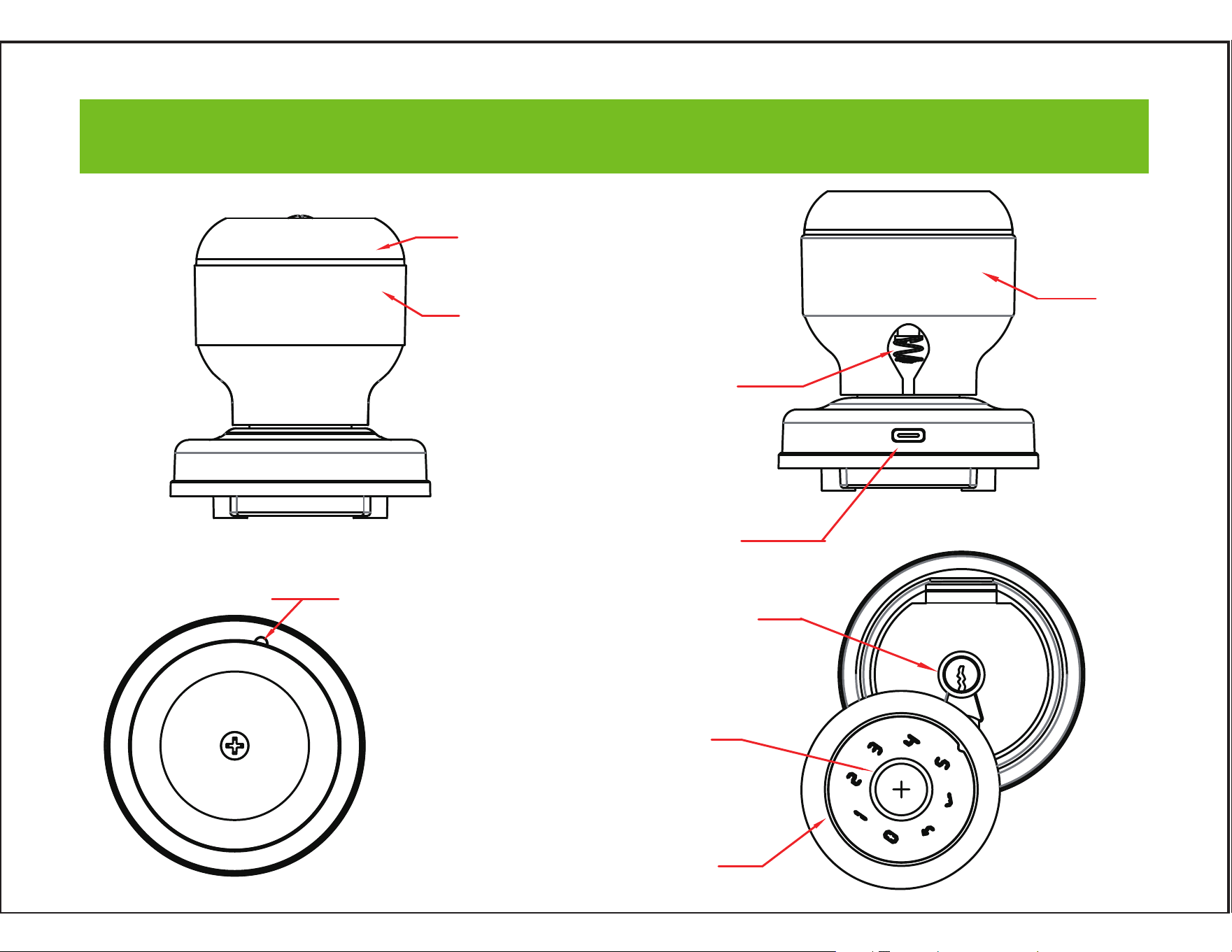
Battery cover
Interior knob
Set button / private mode
Exterior knob
Key hole button
Type-C emergency power
Fingerprint, Indicator Lights
Keypad
Mechanical key hole
Product Description
Blue indicator: Ready to Pair -Bluetooth connecting.
Red Indicator: Failed login attemps to use fingerprint or code.
Green indicator: If the fingerprint lights flash green, then it indicates that you have a
successful connection.
Green + Red indicator: The fingerprint head flashes green and then flashes red, it is time
to install new batteries.
Indicator Lights
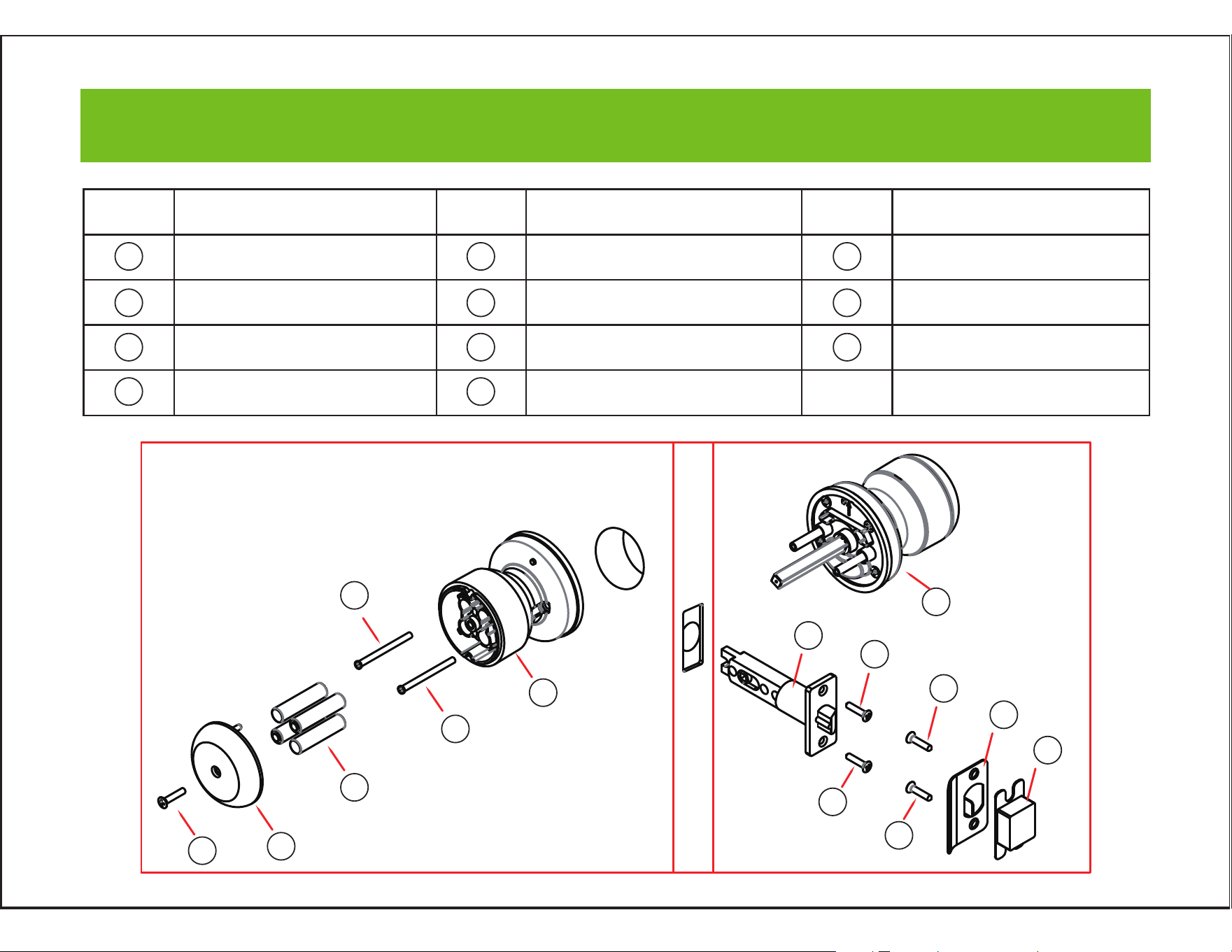
Item Description Item Description Item Description
Latch
Screw A
Exterior Knob
Interior Knob
Screw B
AAA Battery(not include)
Battery Cover
Screw C
Strike Box
Strike Plate
Screw A
1
2
3
4
5
6
7
8
9
10
11
1
2
2
3
4
5
5
6
7
8
9
10
11
11
Installation Guide
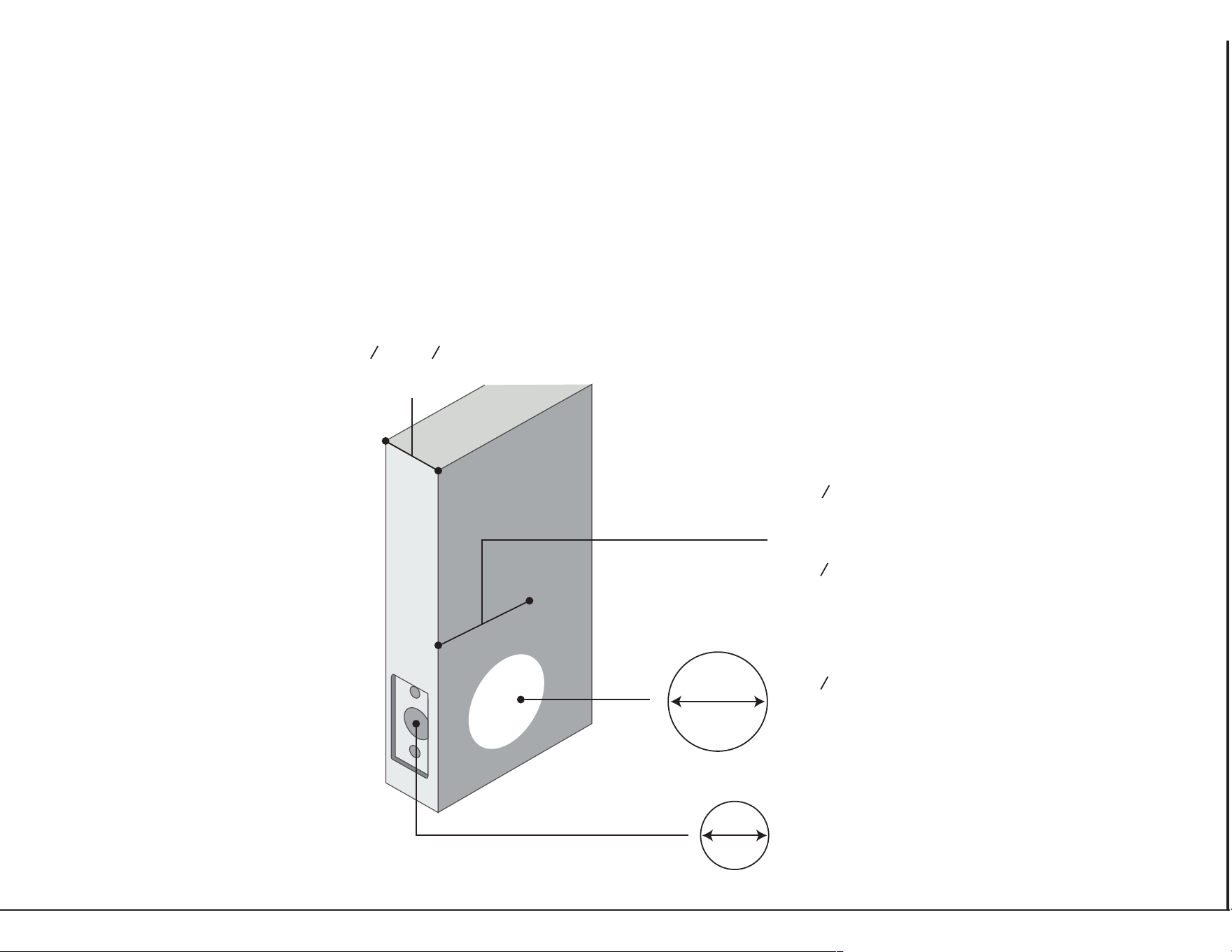
1.Check The Door’s Dimension
�1�Make sure the thickness of the door is between 1-3/8” and 2-1/8” (35~55mm).
�2�Make sure the diameter of the hole in the door is 2-1/8” (55mm).
�3�Make sure the backset (as shown below) is either 2-3/8” (60mm) or 2-3/4”(70mm).
�4�Make sure the hole diameter in the door edge is 1” (25mm).
backset
or
2 8”
(55mm)
1
1”
(25mm)
2 8”
(60mm)
3
2 4”
(70mm)
3
1 8” ~ 2 8”
(35~55mm)
3
1
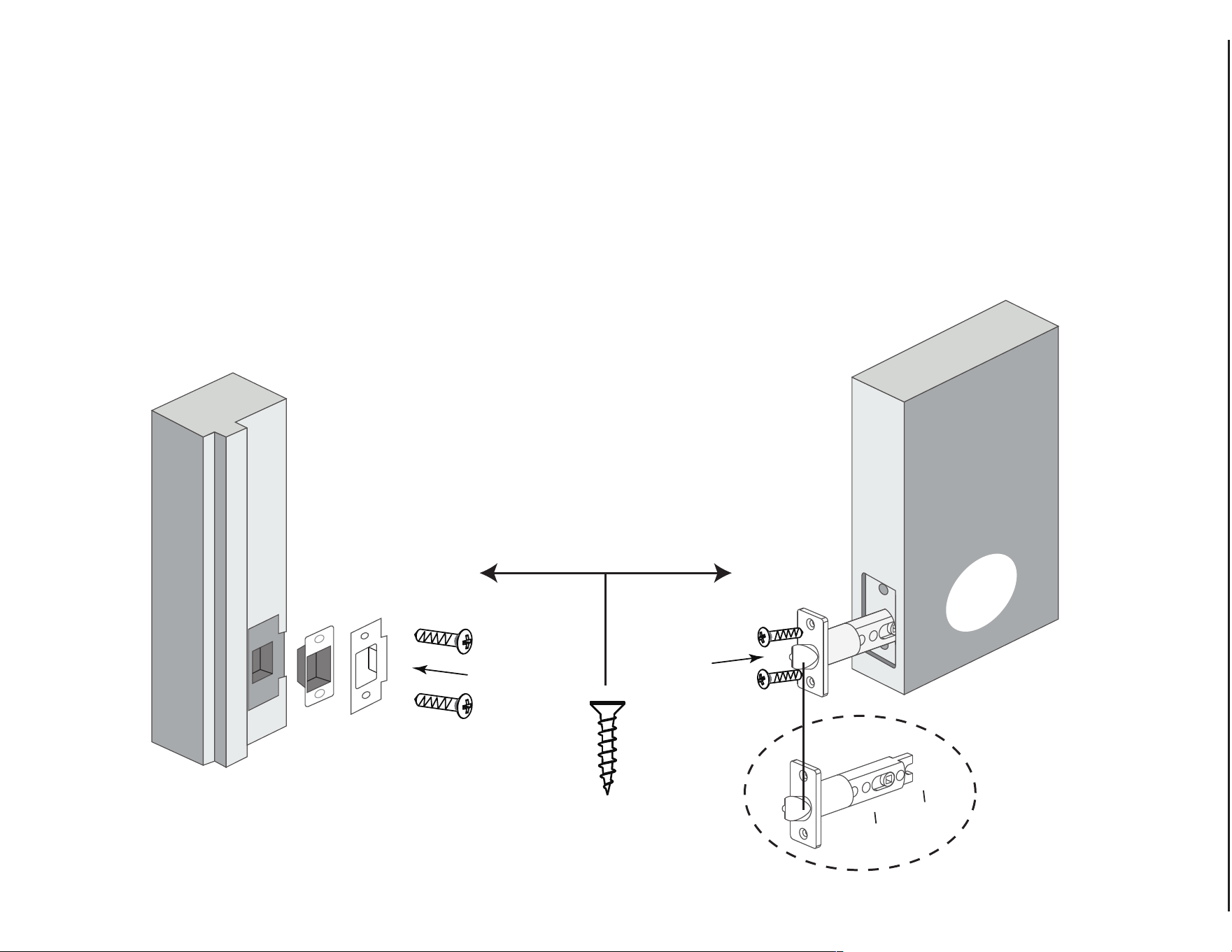
2.Install Latch and Strike
�1�Set the Latch backset to 60mm(2-3/8”) or 70mm(2-3/4”) to fit your door hole.
�2�Insert the Latch into the door hole and tighten the Screw A.
�3�Install Strike Box and Strike Plate, along with Screw A into the frame.
Screws A
8
””
2
3
4
2
-
3
60 OR 70mm
UP
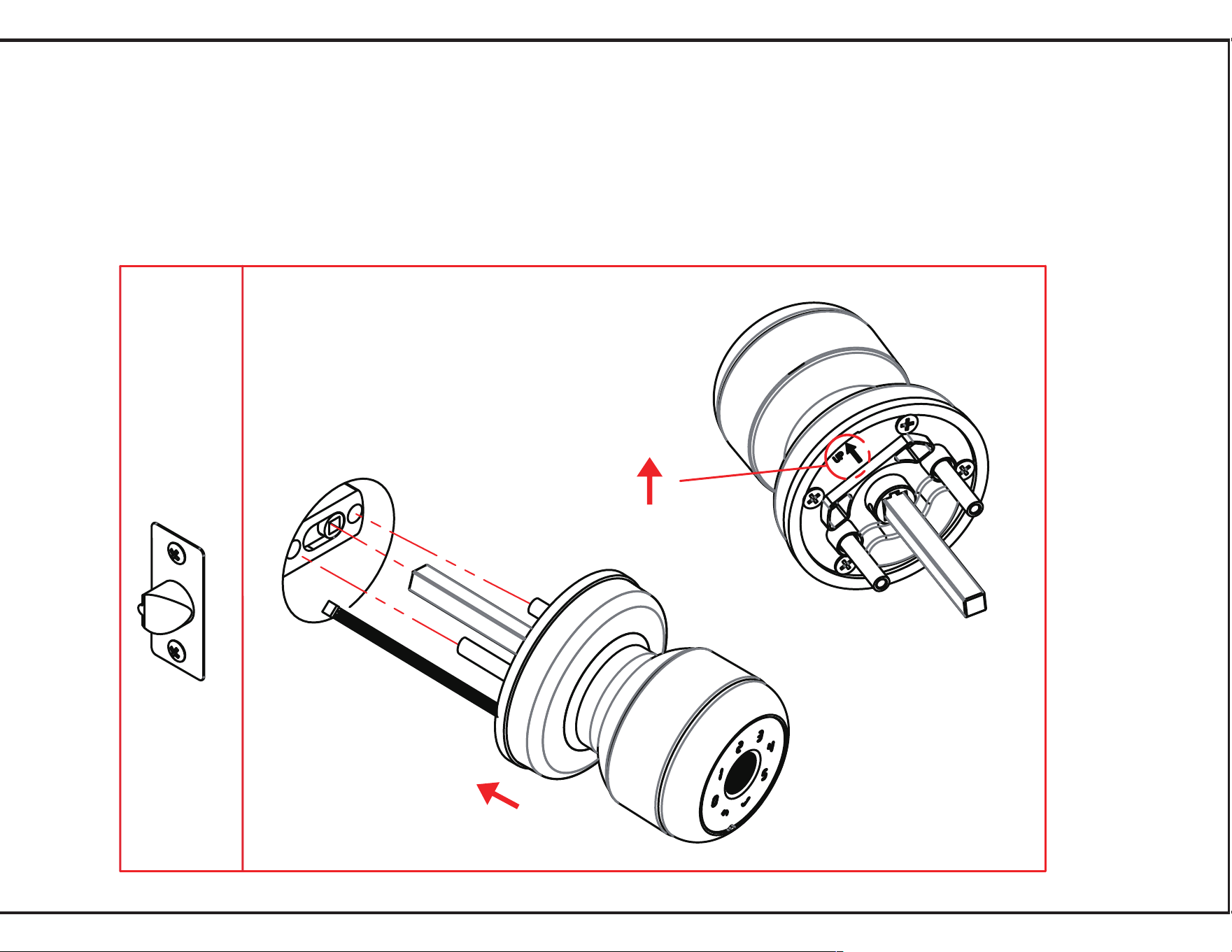
3.Install Exterior Knob & Interior Knob
�1�Install Exterior Knob (the lock body with Spindle and two Stems) from outside of your door and
make sure the Spindle and Stems go through the three holes of the Latch.
1
2
3
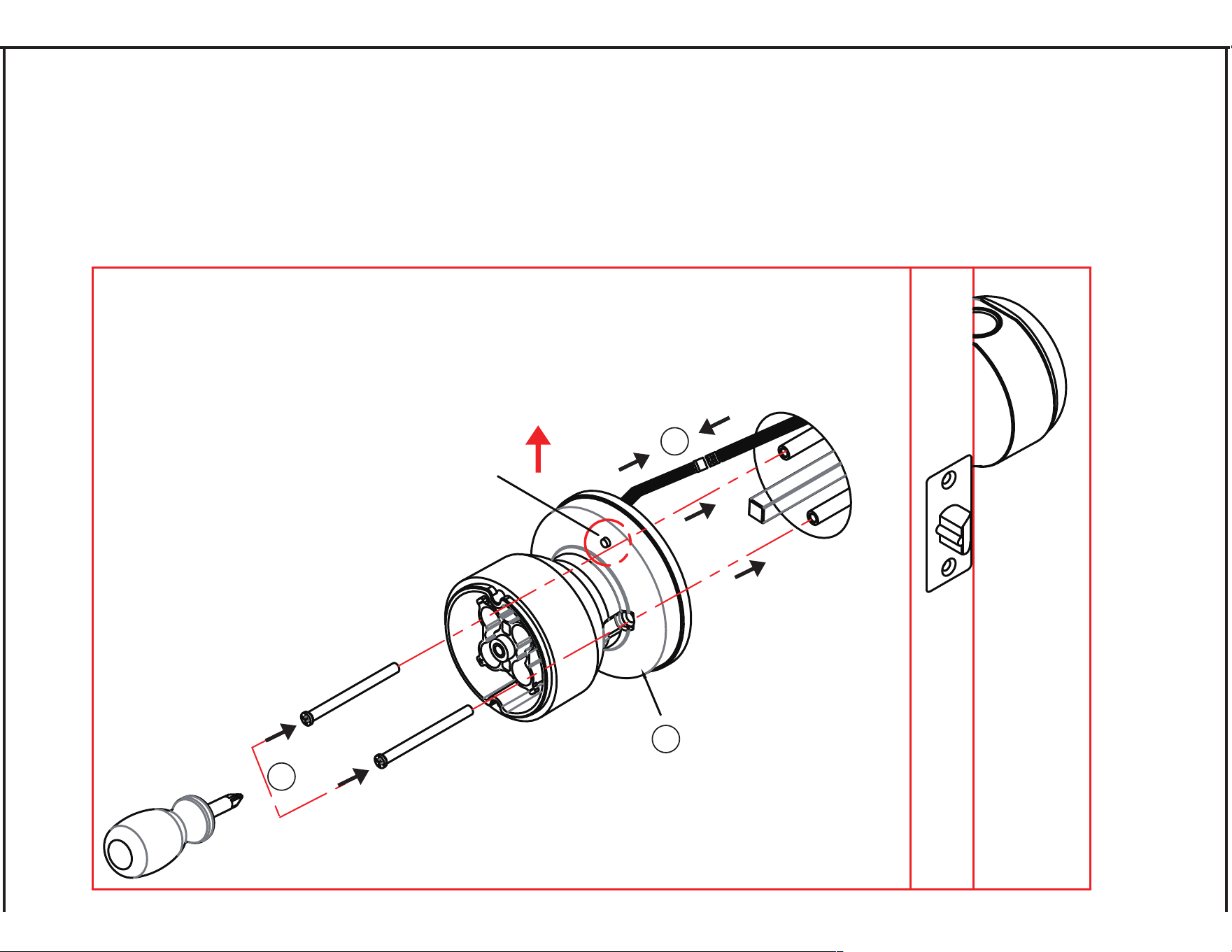
�2�Insert Interior Knob by aligning the two Stems with the screw holes,
connect the wire by inserting the connector into the socket, and tighten Screw B
as shown in below steps �-�-�.
SET BUTTON
4.Install Batteries
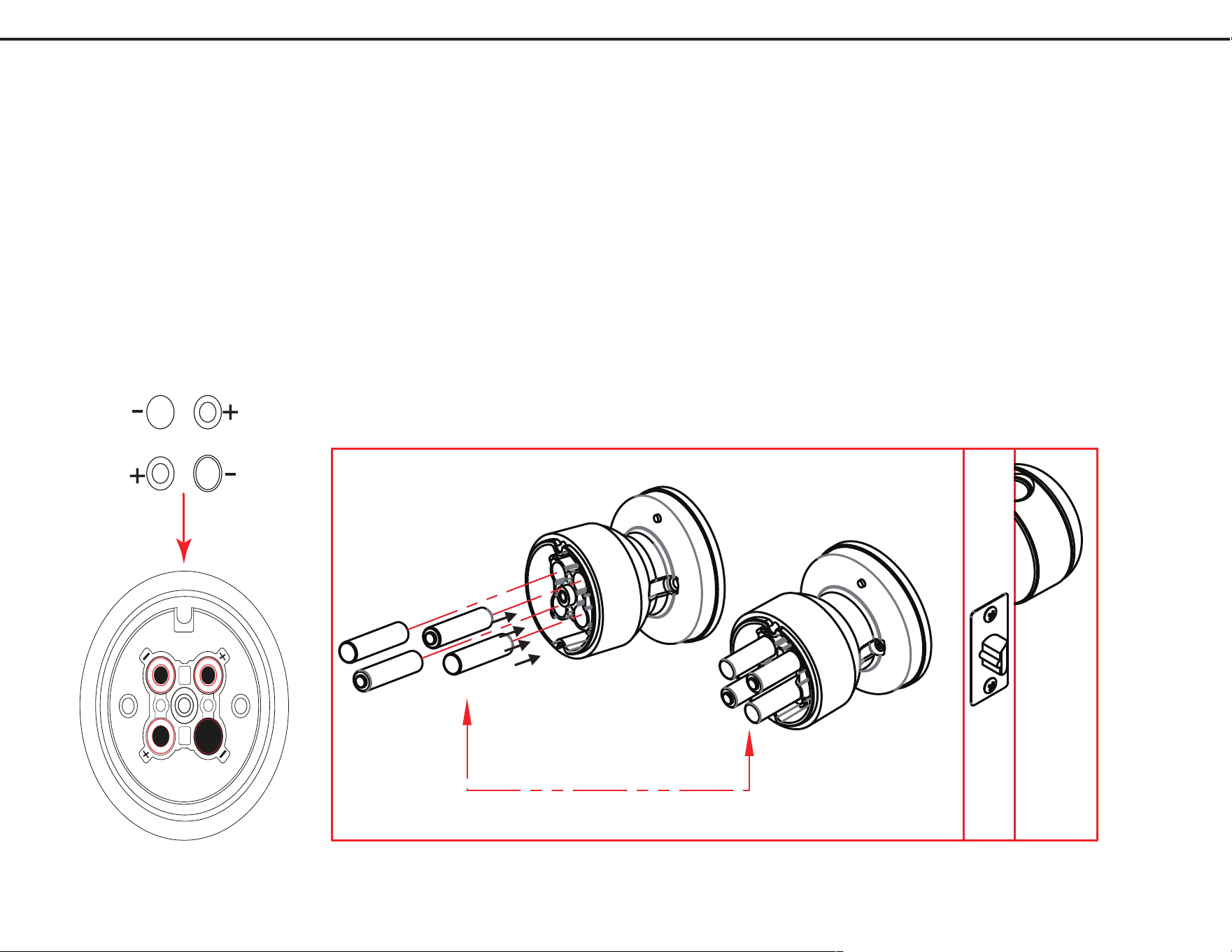
�1�Loosen the Screw C to remove the Battery Cover in the Interior Knob.
�2�Install 4 AAA batteries and tighten the Screw C to fix the Battery Cover.
PLEASE DO NOT USE LITHIUM BATTERIES OR RECHARGABLE BAT-
TERIES.
-
-
+
+
4*AAA Batteries
+
-
+
-
-
+
-
+
Q1: Bluetooth won't connect, is there any problem?
A: Please check whether you have authorized Bluetooth in the phone settings to allow access to the
Gosund App.
Q2: Does the lock need internet to continue working after setup?
A: No, it does not require internet. It uses Bluetooth only, but you need to get the lock close to it.
Q3: What if the battery dies?
A: 1, The lock has a Type C port, you can use power bank for emergency use to open the door. 2, Or
unlock it with the mechanical key, which comes with the lock.
Q4: What is the difference between administrator/user?
A: The first user who adds the knob to Gosund App is the administrator. The admin can manage the
fingerprint and password.
Q5: Why can't I open the door lock even though I have set the password in the app?
A�Please make sure that after you set the password, you must SAVE it to take effect.
Q6: Can I mute the Lock Volume?
A: Yes, you can mute keypad and fingerprint reminder buzzer (can't mute electric motor).
Q7: If I accidentally delete the lock on the APP, how can I reconnect it?
A�Press the "set button" (right above the interior lock) until you hear a beep, after that you can start
operation of the APP connection.
FAQ
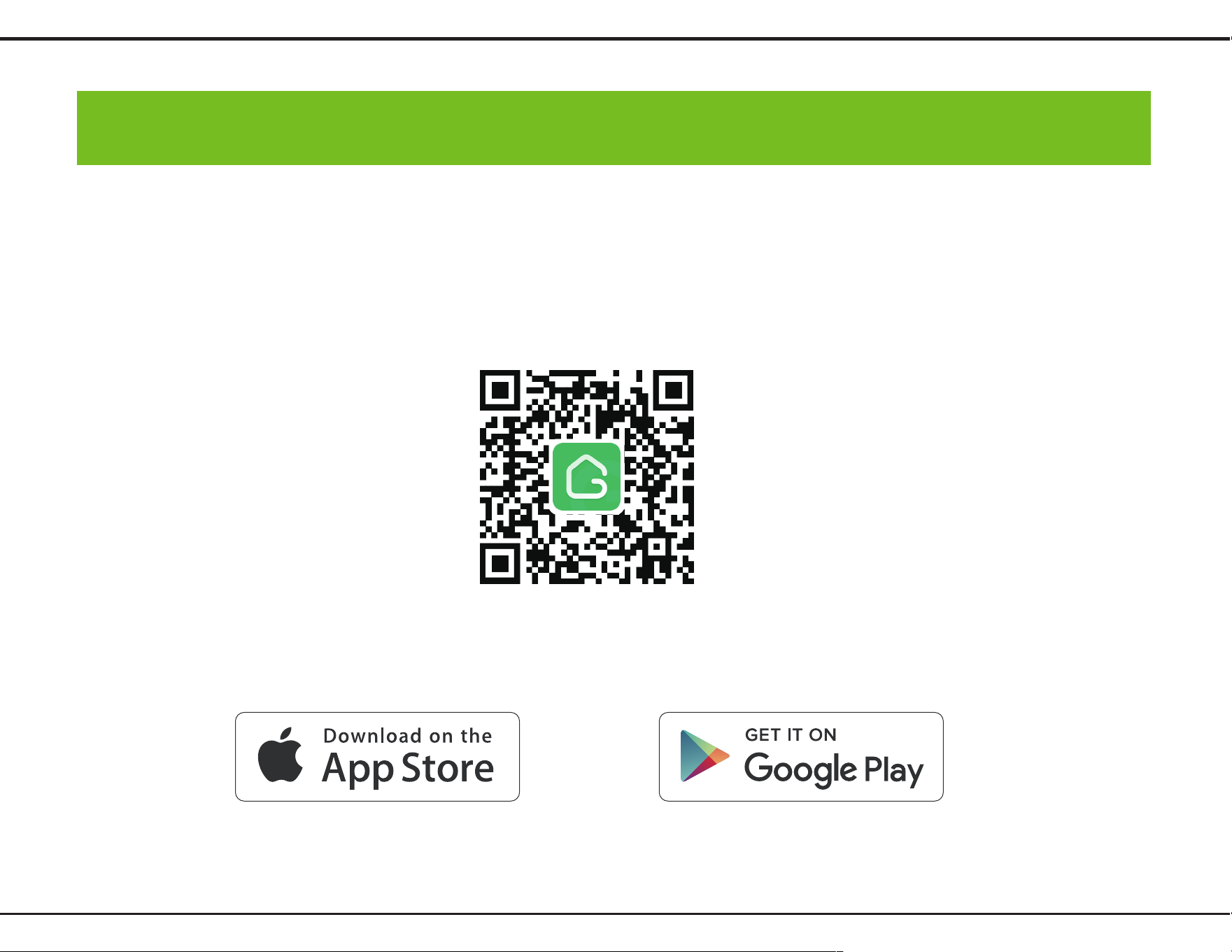
Scan the below QR code to download the Gosund App, or search “Gosund” in the APP Store(iOS) or
Google Play(Android) to install the APP.
How to Download the Gosund App
Download Gosund App
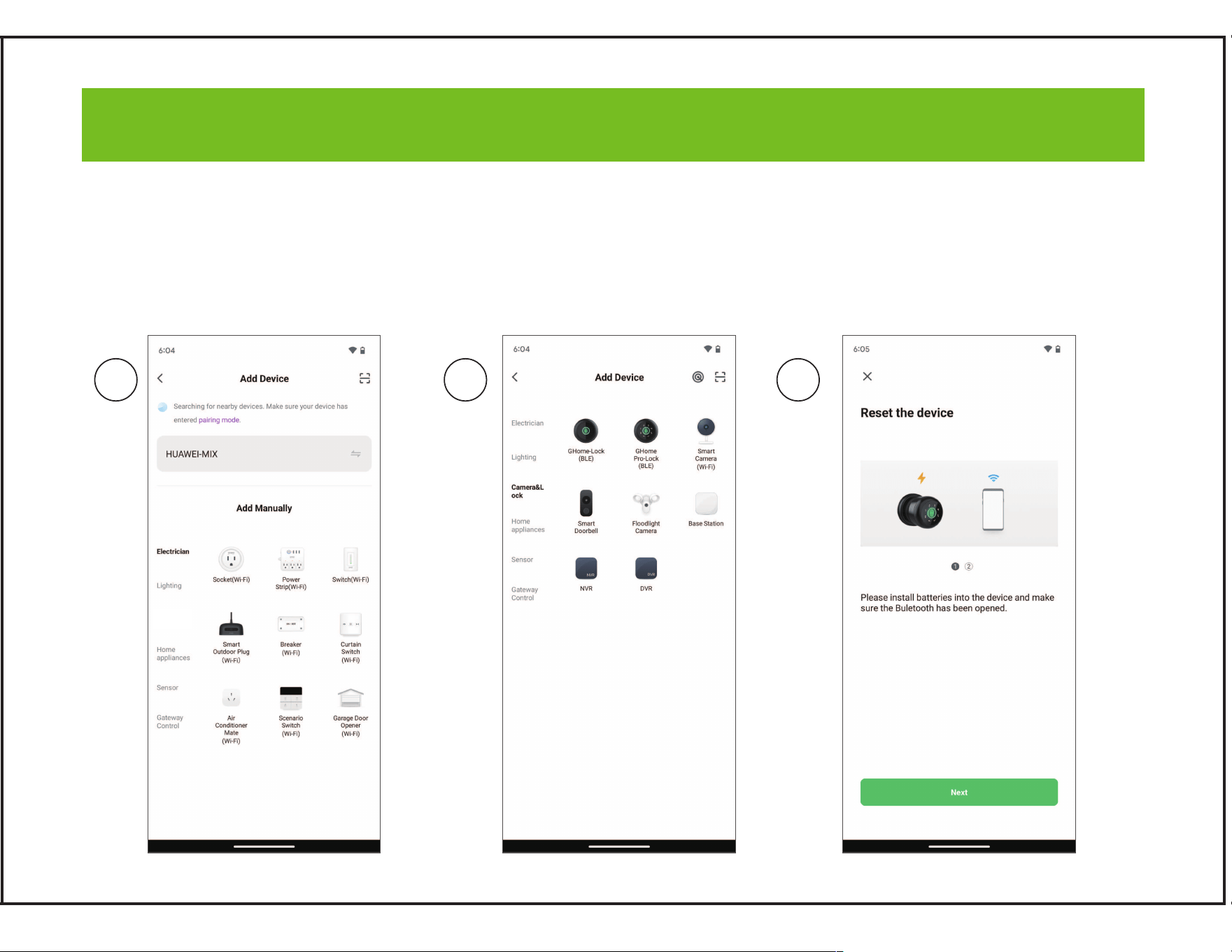
1 2 3
1, Open the Gosund APP and create your Account.
2, Click upper right corner “ to select Devices Camera & Lock > Ghome Pro-Lock(BLE)
3, Please ensure the batteries have installed in the door lock while turning on the Bluetooth and Wi-Fi
simultaneously.�Recommend to wake the lock to enable bluetooth by touching)
How to Connect to Gosund App
GHome
Pro-Lock(BLE)
GHome
Pro-Lock
(BLE)
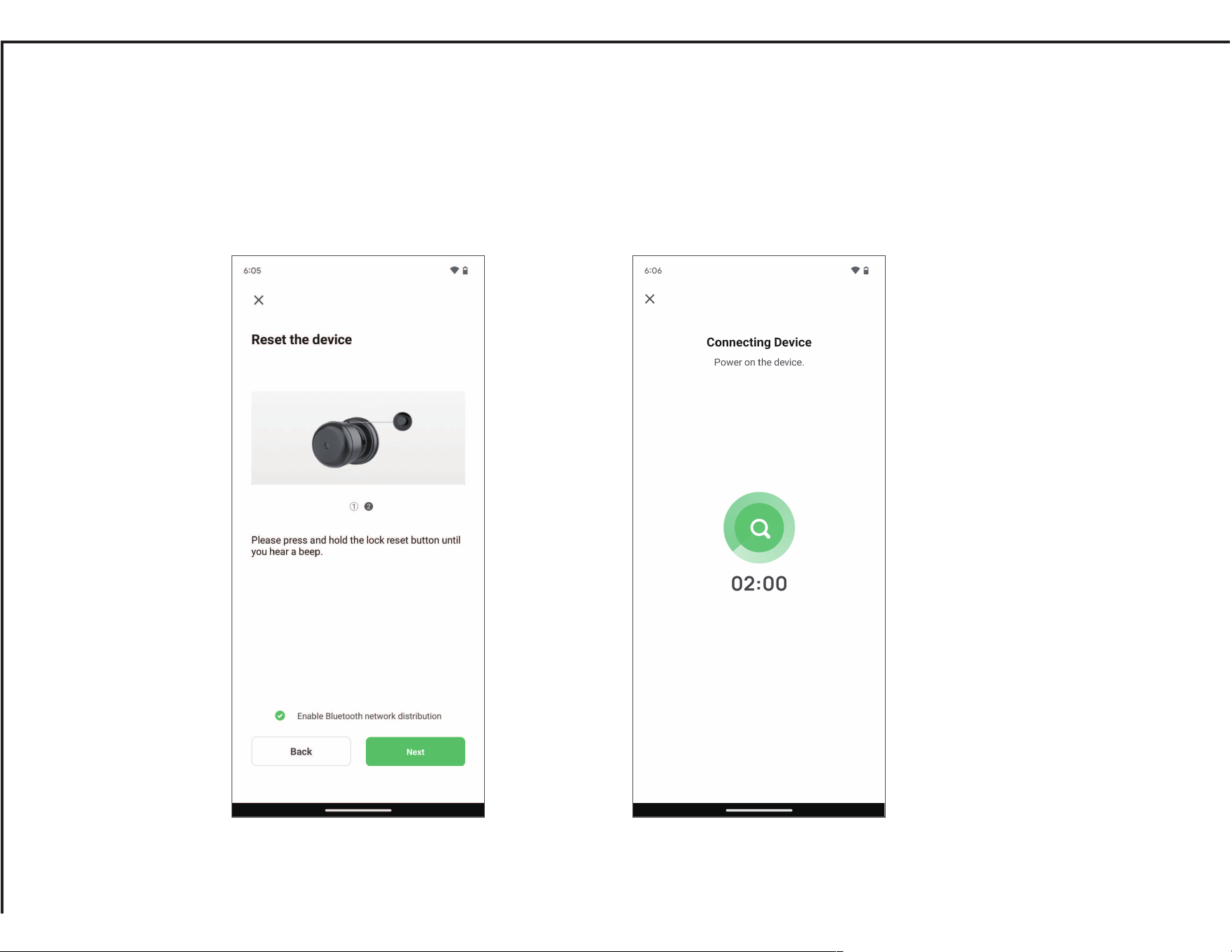
4, Please press and hold ”SET BUTTON“ (above the back of the interior lock) until you hear a beep.
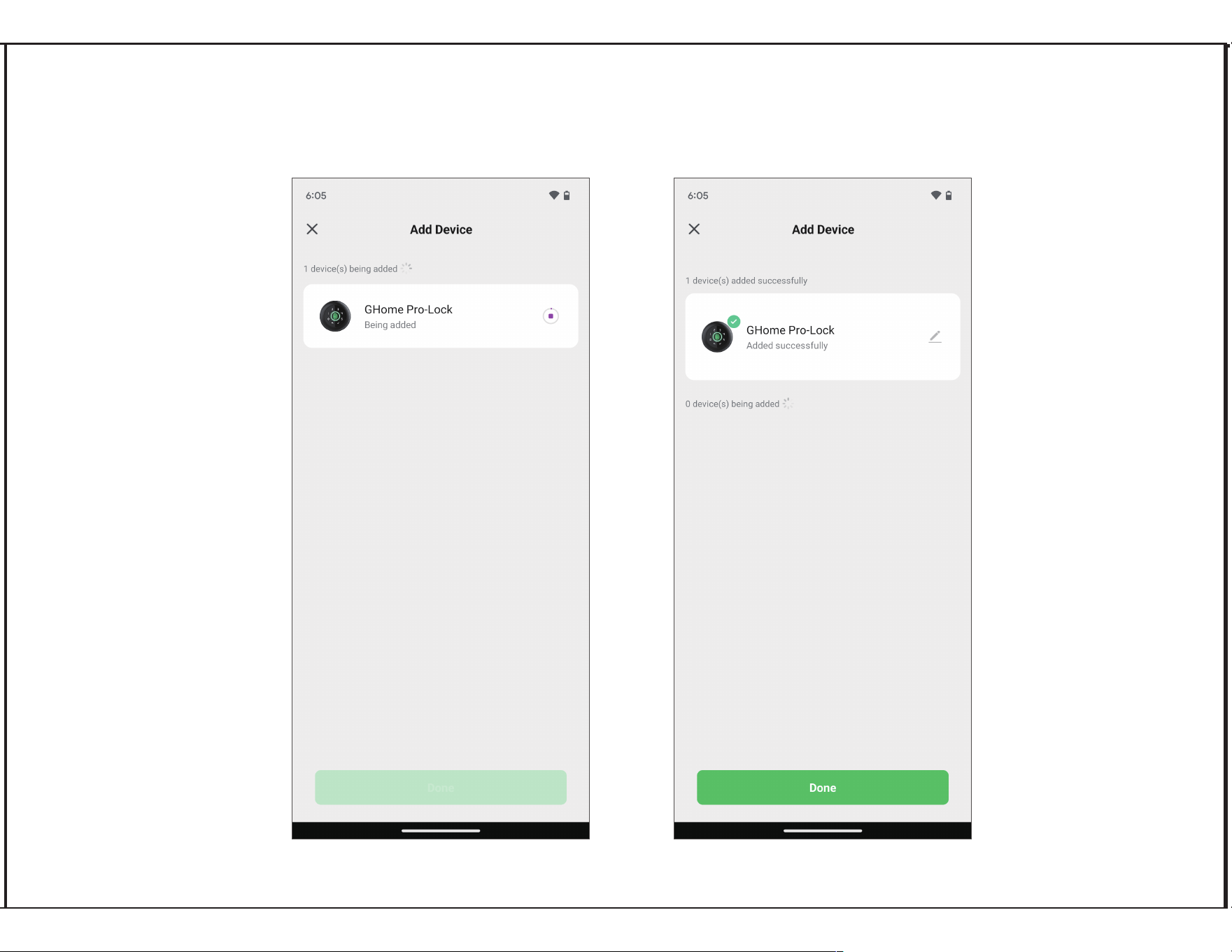
5, Find the lock, add it and wait for successful connection!
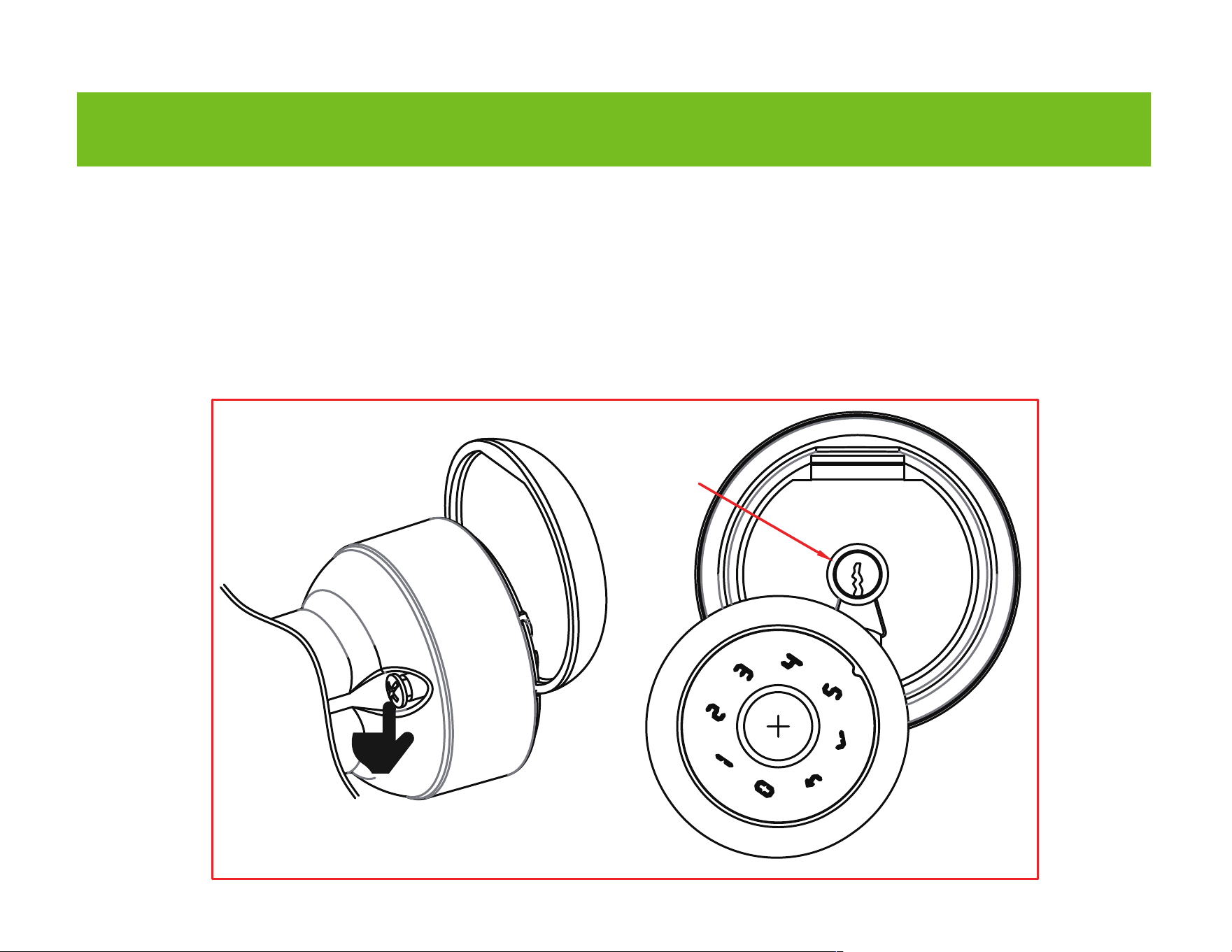
(1)Key to unlock
Press the screw in the back of the Exterior Knob, and the code head cover will come out for you to
easily pull and turn.
Pull out the code head cover, insert the key and turn the key 90° to unlock, then turn the Exterior
Knob to open the door.
Lock
cylinder
Operation Guide

Passage Mode
Press the SET BUTTON on the back of Interior Knob for 5 seconds and validate the
fingerprint to enable the passage mode.
Press the SET BUTTON once, or validate the fingerprint to disable the passage mode.
Low Power Indication
Once fingerprint/App unlock is done, the buzzer will beep once and the fingerprint head
flashes green and then flashes red. It is time to install new batteries, the app will also
remind you of low battery.
Restore Factory Settings
Press the SET BUTTON for 8 seconds, the buzzer will beep once, the fingerprint
head will flash green, and the lock will be reset to factory settings.
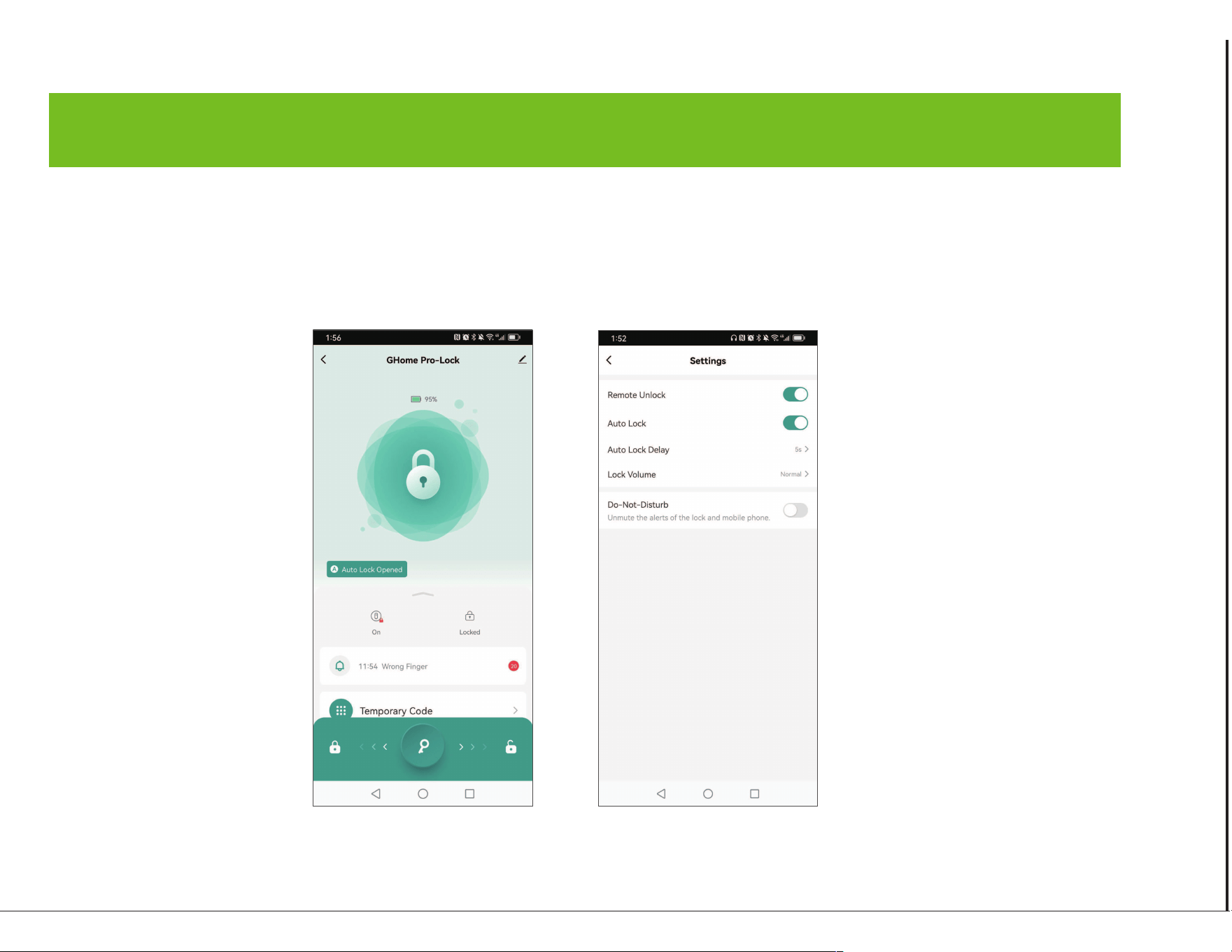
Auto Lock
Settings�Auto Lock (icon is on), Set the Auto Lock Delay time, the lock will be automatically closed
after the time elapses after unlocking; Auto-lock (icon is off), fingerprint or APP will not be automatically
locked after starting (normally open), allowing free access. After the fingerprint and APP are unlocked
again, the normally open mode will be automatically canceled (icon is on).
Please follow the prompts to perform other operations.
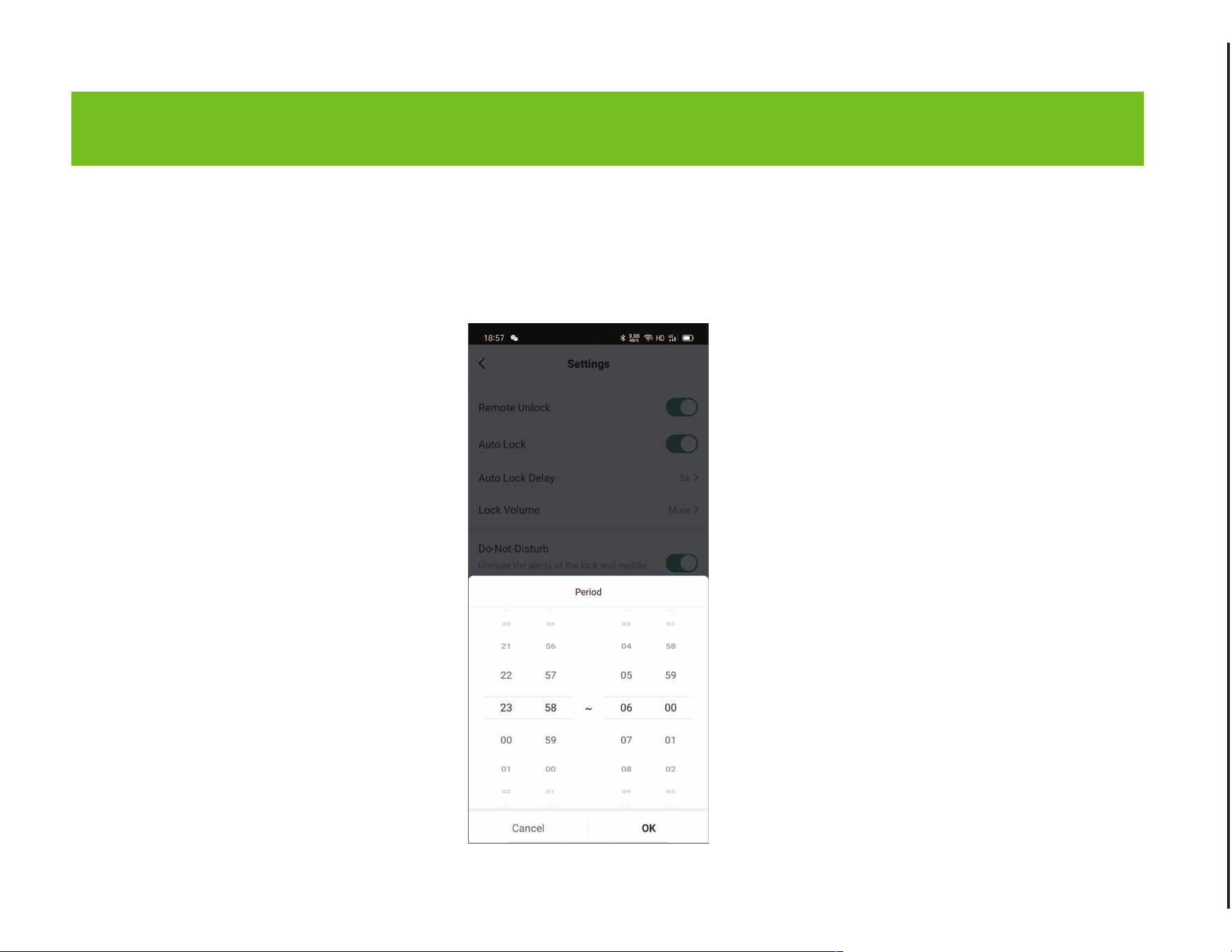
Privacy Mode
Settings � Do-Not-Disturb � Click (on) � Time Setting. During time setting, ordinary users cannot
unlock with fingerprints and passwords, only administrator can use fingerprints and passwords to
unlock, member/administrator can use Bluetooth to unlock.
Any Changes or modifications not expressly approved by the party responsible for compliance could
void the user's authority to operate the equipment.
Note: This equipment has been tested and found to comply with the limits for a Class B digital
device, pursuant to part 15 of the FCC Rules. These limits are designed to provide reasonable
protection against harmful interference in a residential installation. This equipment generates uses
and can radiate radio frequency energy and, if not installed and used in accordance with the
instructions, may cause harmful interference to radio communications. However, there is no
guarantee that interference will not occur in a particular installation. If this equipment does cause
harmful interference to radio or television reception, which can be determined by turning the
equipment off and on, the user is encouraged to try to correct the interference by one or more of the
following measures:
-Reorient or relocate the receiving antenna.
-Increase the separation between the equipment and receiver.
-Connect the equipment into an outlet on a circuit different from that to which the receiver is
connected. -Consult the dealer or an experienced radio/TV technician for help.
This device complies with part 15 of the FCC Rules. (Operation is subject to the following two
conditions:(1) This device may not cause harmful interference, and (2) this device must accept any
interference received, including interference that may cause undesired operation.
FCC WARNING
Manufacturer: Shenzhen Cuco Smart Technology Co., Ltd.
Address: Room 201, 301, Building A, No.12 Difu Road, Guxing Community, Xixiang Street,
Bao'an District, Shenzhen, 518000, Guangdong, P. R. China
MADE IN CHINA
Contact Information:
E-mail: [email protected]
Tel: 1-844-394-5218 PST 9am - 5pm (Monday-Friday)
Website: https://ghomesmart.com/