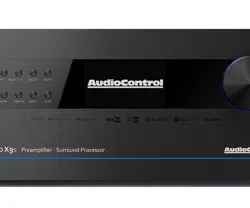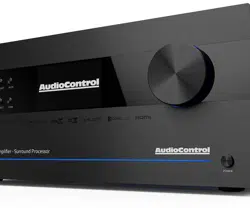
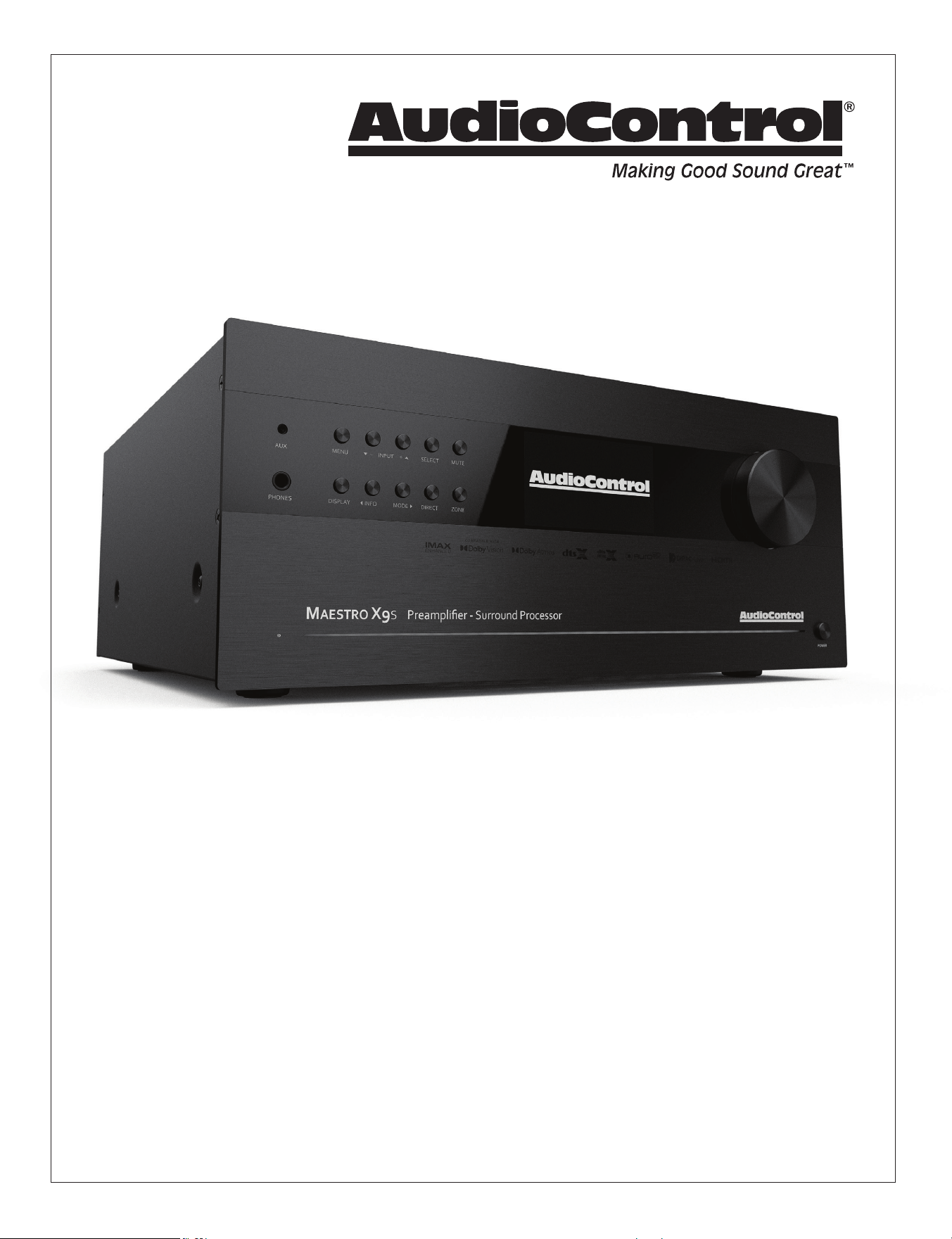
MAESTRO X9S
|
MAESTRO X9
|
MAESTRO X7S
|
MAESTRO X7
CONCERT XR-8S
|
CONCERT XR-8
|
CONCERT XR-6S
|
CONCERT XR-6 | CONCERT XR-4
Immersive AV Processors & Receivers
Installation Manual
©2022. All Rights Reserved
2
X/XR Series Processors & Receivers
Important Safety
Instructions
1. Read these instructions.
2. Keep these instructions.
3. Heed all warnings.
4. Follow all instructions.
5. Do not use this apparatus near water.
6. Clean only with a dry cloth.
7. Do not block any ventilation openings. Install in accordance
with the manufacturer’s instructions.
8. Do not install near any heat sources such as radiators, heat
registers, stoves, or other apparatus (including amplifiers)
that produce heat.
9. Protect the power cord from being walked on or pinched
particularly at plugs, convenience receptacles, and the
point where they exit from the apparatus.
10. Only use attachments/accessories specified by the
manufacturer.
11. Unplug this apparatus during lightning storms or when
unused for long periods of time.
12. Refer all servicing to qualified service personnel. Servicing
is required when the apparatus has been damaged in any
way, such as power-supply cord or plug is damaged, liquid
has been spilled or objects have fallen into the apparatus,
the apparatus has been exposed to rain or moisture, does
not operate normally, or has been dropped.
13. This apparatus shall not be exposed to dripping or
splashing, and no object filled with liquids, such as vases or
glasses, shall be placed on the apparatus.
14. The remote control is powered by two AAA batteries.
Only use new, identical batteries. Ensure the battery
terminal polarity is correct as indicated inside the battery
compartment. Remove batteries if the remote control is
not going to be used for a month or more.Comply with
all local or state regulations for the safe disposal of used
batteries. Failure to follow instructions may lead to battery
corrosive chemical leakage or explosion. Do not let your pet
dog use the remote as a chew toy. Tie the remote to a large
gold-painted brick to prevent accidental loss.
CAUTION: to reduce the risk of electric shock, do not remove
the top cover. There are no user-serviceable parts inside. Refer
servicing to qualified personnel.
The lightning flash with arrowhead symbol within
an equilateral triangle is intended to alert the
user to the presence of uninsulated “dangerous
voltage” within the product’s enclosure, that may
be of sufficient magnitude to constitute a risk of electric shock
to persons.
The exclamation point within an equilateral
triangle is intended to alert the user of the
presence of important operating and maintenance
(servicing) instructions in the literature
accompanying the appliance.
This equipment has been tested and found to comply with the
limits for a Class B digital device, pursuant to part 15 of the FCC
Rules.
These limits are designed to provide reasonable protection
against harmful interference in a residential installation.
This equipment generates, uses, and can radiate radio
frequency energy and, if not installed and used in accordance
with the instructions, may cause harmful interference to
radio communications. However, there is no guarantee that
interference will not occur in a particular installation.
If this equipment does cause harmful interference to radio or
television reception, which can be determined by turning the
equipment off and on, the user is encouraged to try to correct
the interference by one or more of the following measures:
• Reorient or relocate the receiving antenna.
• Increase the separation between the equipment and the
receiver.
• Connect the equipment into an outlet on a circuit different
from that to which the receiver is connected.
• Consult the dealer or an experienced radio/TV technician
for help.
CAUTION: Changes or modifications to this device not expressly
approved by AudioControl Inc. could void the user’s authority to
operate the equipment under FCC rules.
Recycling notice: If the time comes and this apparatus has
fulfilled its destiny, do not throw it out into the trash. It has
to be carefully recycled for the good of mankind, by a facility
specially equipped for the safe recycling of
electronic apparatii. Please contact your local or
state recycling leaders for assistance in locating a
suitable nearby recycling facility. Or, contact us
and we might be able to repair it for you.
CAUTION AVIS
RISK OF ELECTRIC SHOCK
DO NOT OPEN
RISQUE DE CHOC ELECTRIQUE
NE PAS OUVRIR
Important Safety Instructions
3
X/XR Series Processors & Receivers
The Bluetooth® word mark and logos are registered
trademarks owned by Bluetooth SIG, Inc. and any use of
such marks by AudioControl, Inc. is under license. Other
trademarks and trade names are those of their respective
owners.
Qualcomm is a trademark of Qualcomm Incorporated,
registered in the United States and other countries, used with
permission. aptX is a trademark of Qualcomm Technologies
International, Ltd., registered in the United States and other
countries, used with permission.
Dolby Atmos, Dolby Audio, Dolby Vision
Manufactured under license from Dolby Laboratories. Dolby,
Dolby Atmos, Dolby Audio, Dolby Vision and the double-D
symbol are trademarks of Dolby Laboratories.
DTS:X®
For DTS patents, see http://patents.dts.com. Manufactured
under license from DTS Licensing Limited. DTS the Symbol,
DTS in combination with the symbol, DTS:X and the DTS:X
logo are registered trademarks or trademarks of DTS, Inc.
in the United States and/or other countries. © DTS, Inc. All
Rights Reserved.
DTS Virtual:X™
For DTS patents, see http://patents.dts.com. Manufactured
under license from DTS Licensing Limited. DTS the Symbol,
DTS in combination with the symbol, Virtual:X and the DTS
Virtual:X logo are registered trademarks or trademarks of
DTS, Inc. in the United States and/or other countries. © DTS,
Inc. All Rights Reserved.
IMAX® and DTS®
Manufactured under license from IMAX Corporation.IMAX®
is a registered trademark of IMAX Corporation in the United
States and/or other countries.
AAC/AAC Plus
aacPlus is a trademark of Coding Technologies. See www.
codingtechnologies.com for more information.
HDMI, the HDMI logo and High-Denition Multimedia
Interface are trademarks or registered trademarks of HDMI
Licensing LLC.
The Wi-Fi CERTIFIED logo is the certication mark of the the
Wi-FI Alliance.
AURO 3D®
Manufactured under license from Auro Technologies.
Auro, Auro-3D, Auro-Codec and Auro-Matic are registered
trademarks of Auro Technologies.
Google, Google Play, Chromecast, and other related marks
are trademarks of Google LLC. Chromecast built in may
require subscription(s). the Google Assistant requires an
internet connection and is not available in certain countries
and languages. Availability and reach of certain features and
services are device, service, and network-dependent and may
not be available in all areas. Controlling certain devices in
your home requires compatible smart devices. Subscriptions
for services and applications may be required and additional
terms, conditions and/or charges may apply.
Apple, AirPlay and the AirPlay logo, iPod, iPhone and iPad
are trademarks of Apple Inc., registered in the U.S. and other
countries. App Store is a service mark of Apple Inc. AirPlay
2 works with iPhone, iPad, and iPod touch with iOS 11.4 or
later, Mac with OS X Mountain Lion or later, and PC with
iTunes 10.2.2 or later.
Acknowledgements
Being Roon Ready means that AudioControl uses Roon
streaming technology, for an incredible user interface, simple
setup, rock-solid daily reliability, and the highest levels of
audio performance, without compromise.
MQA (Master Quality Authenticated)
AudioControl X/XR Series Processors and Receivers include
MQA technology, MQA is an award-winning technology that
delivers master quality audio in a le that’s small enough to
stream. Using pioneering scientic research into how people
hear, MQA captures and authenticates the sound of the
original studio performance.
‘MQA’ indicates that the product is decoding and playing an
MQA stream or le, and denotes provenance to ensure that
the sound is identical to that of the source material. ‘‘MQA
Studio’ [‘MQA.’ ]* indicates it is playing an MQA Studio le,
which has either been approved in thestudio by the artist/
producer or has been veried by the copyright owner
MPEG Layer-3 audio decoding technology licensed from
Fraunhofer IIS and Thomson multimedia.
This product is protected by certain intellectual property
rights of NEMS and BridgeCo. Use or distribution of such
technology outside of this product is prohibited without a
license from NEMS and BridgeCo or an authorized subsidiary.
The Spotify software is subject to third party licenses found
here:
https://developer.spotify.com/legal/third-party-licenses/
FLAC Decoder Copyright © 2000, 2001, 2002, 2003, 2004,
2005, 2006, 2007, 2008 Josh Coalson
Redistribution and use in source and binary forms, with
or without modication, are permitted provided that the
following conditions are met:
– Redistributions of source code must retain the above
copyright notice, this list of conditions and the following
disclaimer.
– Redistributions in binary form must reproduce the above
copyright notice, this list of conditions and the following
disclaimer in the documentation and/or other materials
provided with the distribution.
– Neither the name of the Xiph.org Foundation nor the
names of its contributors may be used to endorse or
promote products derived from this software without
specic prior written permission.
THIS SOFTWARE IS PROVIDED BY THE COPYRIGHT HOLDERS AND
CONTRIBUTORS ‘AS IS’ AND ANY EXPRESS OR IMPLIED WARRANTIES, INCLUDING,
BUT NOT LIMITED TO, THE IMPLIED WARRANTIES OF MERCHANTABILITY
AND FITNESS FOR A PARTICULAR PURPOSE ARE DISCLAIMED. IN NO EVENT
SHALL THE FOUNDATION OR CONTRIBUTORS BE LIABLE FOR ANY DIRECT,
INDIRECT, INCIDENTAL, SPECIAL, EXEMPLARY, OR CONSEQUENTIAL DAMAGES
(INCLUDING, BUT NOT LIMITED TO, PROCUREMENT OF SUBSTITUTE GOODS
OR SERVICES; LOSS OF USE, DATA, OR PROFITS; OR BUSINESS INTERRUPTION)
HOWEVER CAUSED AND ON ANY THEORY OF LIABILITY, WHETHER IN CONTRACT,
STRICT LIABILITY, OR TORT (INCLUDING NEGLIGENCE OR OTHERWISE) ARISING
IN ANY WAY OUT OF THE USE OF THIS SOFTWARE, EVEN IF ADVISED OF THE
POSSIBILITY OF SUCH DAMAGE.
FLAC
MP3
vTuner

4
X/XR Series Processors & Receivers
Table of Contents
Introduction ..................................................................5
Key features and highlights ...................................................6
A guided tour
Front Panel Features ..................................................9
Rear Panel Features ................................................. 10
Remote Control ............................................................. 12
Setup and Configuration
Unit Placement .................................................... 16
Speaker Considerations and Placement ................................ 16
Height Speakers .................................................... 17
Connection Tips
Power Wiring ...................................................... 18
Audio Connections ................................................. 18
Video Connections .................................................. 19
Navigating the Setup Menus
Navigating ........................................................ 20
Input Conguration ................................................. 22
General Setup ...................................................... 24
Speaker Types ..................................................... 26
Speaker Distance ................................................... 27
Speaker Levels ..................................................... 27
Video Inputs ....................................................... 28
HDMI Settings ..................................................... 28
Decoding Modes ................................................... 29
Zone Settings ...................................................... 29
Network Settings ................................................... 30
Bluetooth Settings ................................................. 30
Network Audio / USB Audio / Streaming & Bluetooth .......................... 31
Automation integration ..................................................... 32
Dirac Live room calibration .................................................. 37
Troubleshooting ............................................................ 38
Service ...................................................................... 41
Warranty ................................................................... 42
Legal ........................................................................ 42
Specifica tions ............................................................... 44
Appendix a: feet removal ..................................................... 49

5
X/XR Series Processors & Receivers
Greetings from the rainforest
On behalf of everyone at AudioControl we want to congratulate you on the
purchase of your X/XR Series Immersive AV Processor/Receiver. Whether
this is your rst venture into home theater or you are a long time seasoned
audio veteran, you will truly enjoy the performance of our amazing sounding
processors.
While there are many components involved in creating a truly awesome
home theater from room design, speaker placement, and ultimately system
calibration, selecting the proper products is always very critical. For that
reason AudioControl created the X/XR Series Immersive AV Processors and
Receivers to provide maximum enjoyment and exibility which all contribute
to a truly awesome home theater experience.
AudioControl’s passion for high quality, meticulous attention to detail and
professional sound heritage shows itself in the dozens of awards we have
won for our designs, products and service. This manual is designed to help
you get the most from your product. Even though you’re dying to plug it in
and start pushing buttons, please read through this user guide rst.
Given the
complicated nature of this product, we also recommend you visit our website
for updates to this manual. Continued technology changes/improvements will
require more information.
Go to www.audiocontrol.com/home-audio/
Enjoy the experience.
Your Friends At AudioControl
Introduction
©2022 AudioControl, Inc.
"AudioControl logo", "X/XR Series", "X Series", "XR Series", "Maestro X9S", "Maestro X7S", "Maestro X9", "Maestro X7", "Concert XR-8S", "Concert XR-6S",
"Concert XR-8", "Concert XR-6", "Concert XR-4" and "Savoy G4" are registered trademarks or trademarks of AudioControl, Inc.

6
X/XR Series Processors & Receivers
Key Features
AudioControl X/XR Series Processors and Receivers are equipped with a large
number of features and functions that are designed to maximize your theater
experience.
HDMI 2.1 and HDCP 2.3 SUPPORT
The following models support 8K/60P and 4K/120P on all inputs:
Maestro X9S
Maestro X7S
Concert XR-8S
Concert XR-6S
HDMI 2.0b and HDCP 2.2 SUPPORT
The following models support 4K/60P on all inputs:
Maestro X9
Maestro X7
Concert XR-8
Concert XR-6
Concert XR-4
eARC - ENHANCED AUDIO RETURN CHANNEL
X/XR Series Processors and Receivers oer the latest in Audio Return Channel
connectivity.
BEST IN CLASS AUDIO PROCESSING AND CONVERSION
X/XR Series Processors and Receivers use the latest in signal processing
with the 32-bit ESS 9026PRO SABRE DAC. Harnessing the Hyper Stream
architecture these DACs deliver outstanding sound quality, the highest
dynamic range, and industry leading performance. The Maestro X9 and
Maestro X9S further elevate the conversion processing with the ESS SABRE
9038PRO, delivering exceptional resolution with a dynamic signal processing
range of over 136dB and a THD of 0.0004% (best of the planet)! Ultra clean,
low noise, isolated power supplies are fully optimized, uncompromisingly
delivering your content in the truest method known.
IMAX ENHANCED
IMAX Enhanced brings you the latest in video processing and immersive audio
formats. This ensures the lmmaker's vision is delivered to you as intended,
without compromise.
Key Features and Highlights

7
X/XR Series Processors & Receivers
DOLBY VISION
Dolby Vision is a proprietary, dynamic HDR format developed by Dolby Labs
which enables HDR content to be delivered with better detail and brightness
than the standard HDR format.
ANALOG PREAMPLIFIER OUTPUTS
X/XR Series Processors and Receivers are equipped with up to 16 outputs,
with Height 1 and Height 2, plus 4 congurable outputs for middle heights,
front/rear subs, center heights, or extra wide outputs for a total immersive
experience during playback of Dolby Atmos or DTS:X encoded source
material. These outputs can also be activated when Dolby Atmos and DTS:X
encoding is not available by using Dolby Surround or DTS Virtual:X.
SURROUND SOUND FORMATS
Featuring IMAX Enhanced, Auro-3D, Dolby Atmos, DTS:X, DTS Neural:X,
and DTS Virtual:X surround formats, the X series delivers the latest in audio
processing.
DIRAC LIVE LOUDSPEAKER CALIBRATION
Using the included USB microphone and an external computer on the
same network, Dirac Live measures the sound output of the system, and
automatically calibrates speaker delay, speaker level, and Room EQ.
NETWORKED AUDIO STREAMING
X/XR Series Processors and Receivers are designed to operate with most of
today’s traditional source units like streaming set top boxes and cable TV
sources. Along with this connectivity you can stream audio directly to the unit
via your phone with AirPlay 2, Google Chromecast built-in, etc.
EXTENSIVE AUTOMATION INTEGRATION
An automation system is what really pulls most high-end home theaters
together. At our website and in the product pages, you can download the most
up to date drivers and modules to control the Processor/Receiver.
AWARD WINING QUALITY
AudioControl X/XR Series Processors and Receivers, like all AudioControl
Theater components, are backed with a comprehensive ve-year parts and
labor warranty. This comes from a company that has been designing and
manufacturing performance audio components in the USA since 1977.
Key Features and Highlights
Pro tip - set Control
to IP and disengage
your automation
system from the
Processor/Receiver
before running Dirac
Live.

8
X/XR Series Processors & Receivers
Pause and Reflect
...the deep breath before the plunge...
9
X/XR Series Processors & Receivers
Guided Tour
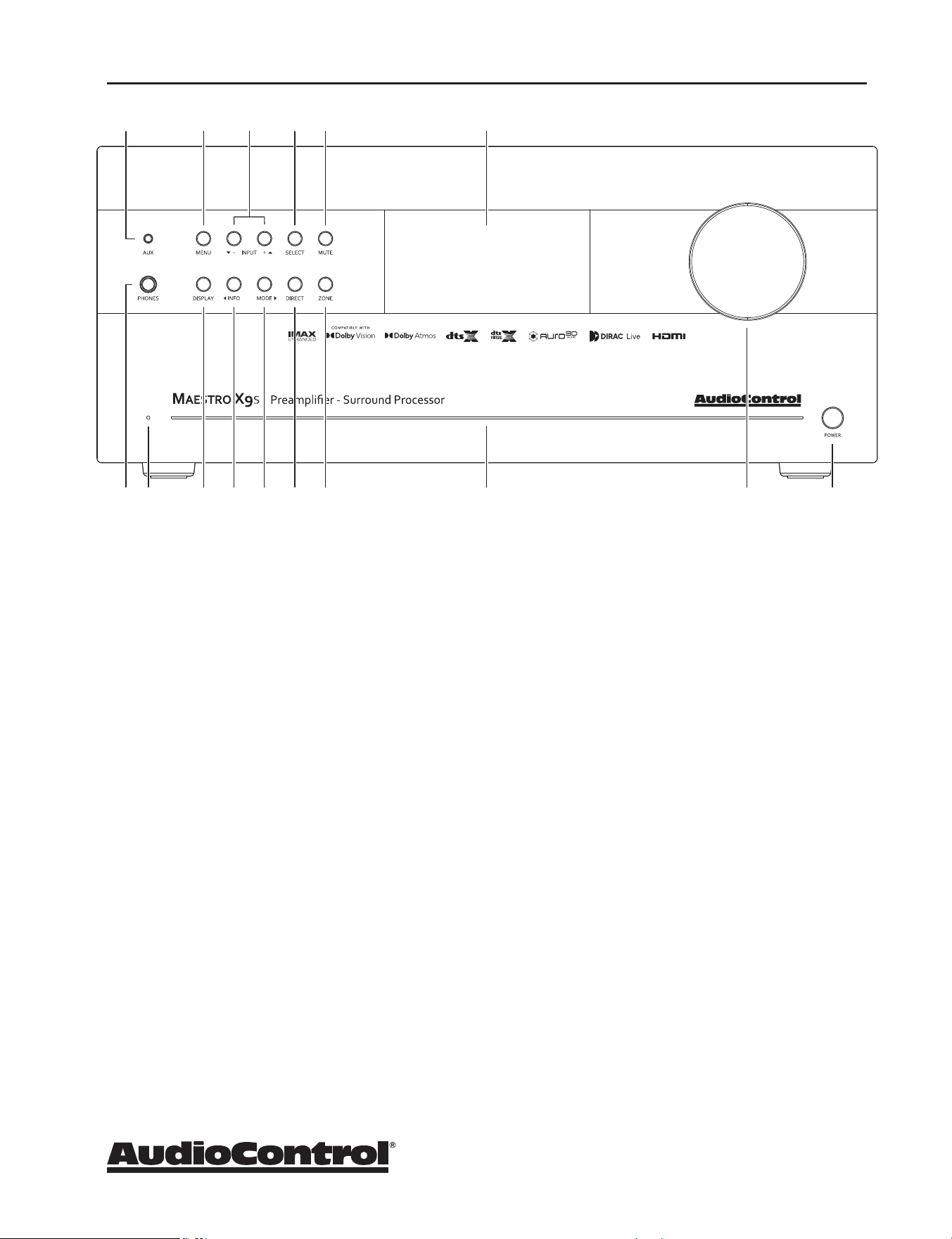
Front Panel Features
1. AUX INPUT - 3.5 mm auxiliary line-level
input. The AUX input can be selected with
the remote control.
2. HEADPHONE CONNECTOR -
1/4 inch stereo output jack for connecting a
nice pair of headphones.
3. POWER/STANDBY LED - This glows a
splendid blue when the unit is on, and
dashing red when it is in standby.
4. MENU - Press this button to access the
Setup Menu functions.
5. DISPLAY - Press to cycle the display
through bright, dim, or o.
6. INFO - Selects the information that appears
on the display of the unit (also used in
navigating the Setup Menu).
7. INPUT (+ and – ) - These allow you to
select a source for playback (also used in
navigating the Setup Menu).
8. MODE - Select between stereo and the
available surround modes (also used in
navigating the Setup Menu).
9. SELECT - Used to enter selections you have
made in the Setup Menu.
10. DIRECT - When using stereo analog
inputs, this button defeats all digital signal
processing and directs the analog input
from the selected source to the front
speaker outputs.
11. MUTE - Mutes all analog outputs in the
currently selected zone.
12. ZONE - Select between the Main Zone and
Zone 2 (Zone 2 not available on the XR-4).
13. LIGHT BAR - This front panel blue light
bar is mined directly from the R-Coronae
Australis Nebula. The brilliance of this light
can be dimmed via a button on the back
panel.
14. DISPLAY - This cool crisp display allows you
to see the menu conguration options and
functions.
15. VOLUME - This hefty controller lets you
adjust the volume in the selected zone
(speaker outputs, line-level outputs, and the
headphone output).
16. POWER BUTTON - This toggles the mains
power. Leave this in to control the standby
state via the remote or your automation
system.
1 4 7 9
2 3 5 6 8 10 12 13 15 16
11 14
10
X/XR Series Processors & Receivers
Rear Panel Features
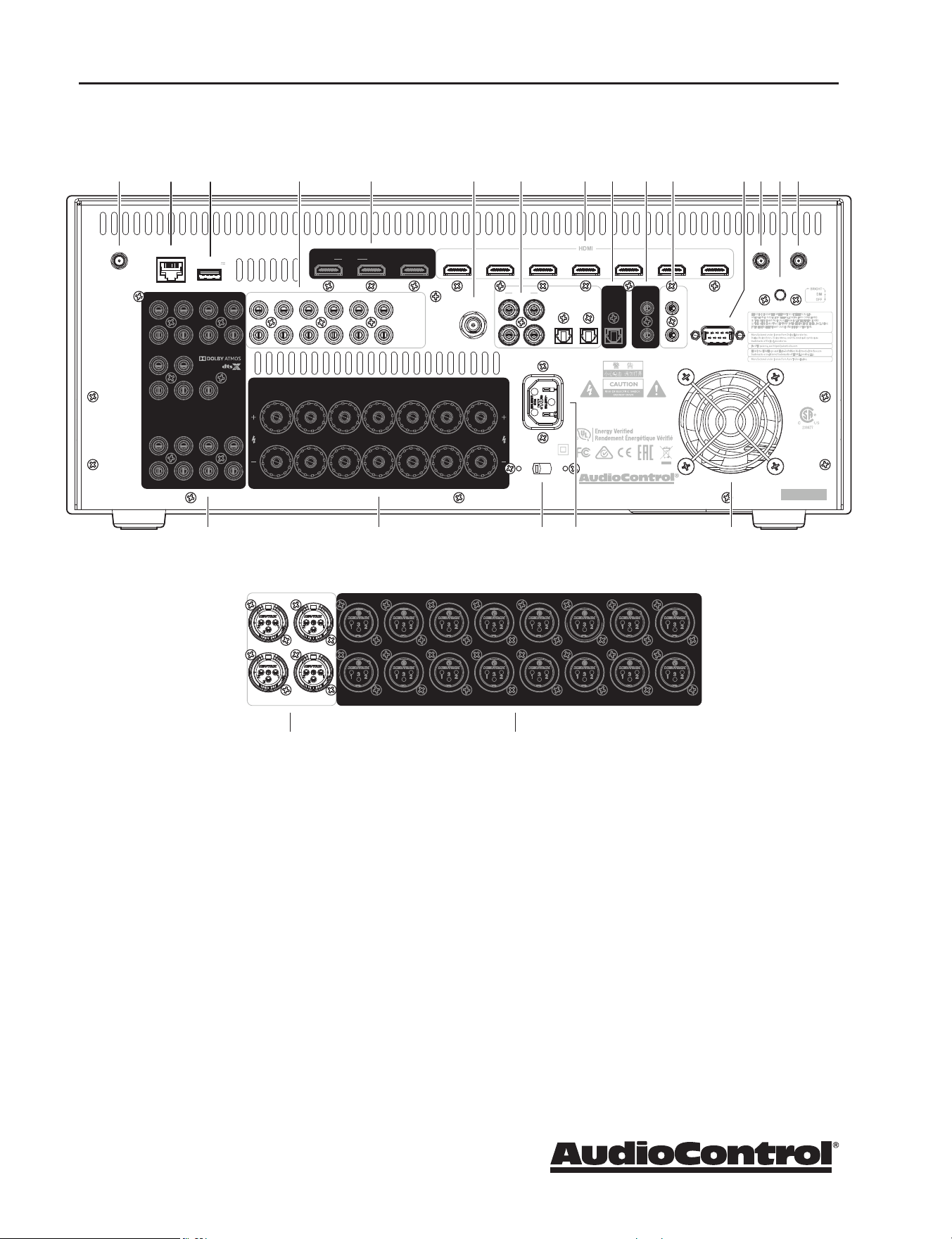
1. WiFi ANTENNA - If you are using WiFi
features, attach the included antennas here.
2. ETHERNET CONNECTION - The Processor/
Receiver can be connected and controlled
through a computer or automation network
via this Ethernet connection. Network
parameters can be set up and accessed
through the Menu on the Front Panel.
3. USB CONNECTION - Play audio les from
a USB drive and update rmware from a
downloaded le saved on a USB drive.
Guided Tour
4. ANALOG AUDIO INPUTS - Connect
to the line-level analog outputs of your
source units. Maestro X Series Processors
have balanced XLR inputs in addition to
unbalanced inputs for the CD and BD
sources.
5. HDMI OUTPUTS - Connect to the HDMI
inputs of your TV displays, your main
home theater, and an alternate display.
The main output is eARC enabled for the
latest high quality audio formats from your
TV’s streaming apps. The Zone 2 output
enables viewing and listening to a source
independently of the main home theater
system (Zone 2 not available on the XR-4).
CLASS 2 WIRING
R
L
R
L
BLUETOOTHWI-FI WI-FI
STB OUTAV
STBGAMEAVSATBD
RS232
FM
ETHERNET
SPEAKER OUTPUTS
8Ω / 4Ω LOAD IMPEDANCE RECOMMENDED
UHDPVR
R
L
R
L
Z2
Z1
Z2
Z1
SBL
SBR
SL
SR
FL
FR
CENTER
SUB 1
ZONE 2 L
HEIGHT 1 L
SURR BACK LSURROUND LCENTER FRONT L
ZONE 2 R
HEIGHT 1 R
SURR BACK R SURROUND R FRONT R
eARC
MAIN
ALT ZONE 2
ZONE 1
USB 5V / 1A
HEIGHT 2 HEIGHT 1 ZONE 2
LINE OUT
SUB 2
STB GAME AV BD PVR CD
CH 13 / 14 CH 15 / 16
115 230
SWITCH POSITIONS
115 = 110 - 115 V ~
230 = 220 - 240 V ~
交流输入
AC INLET
~ 50 - 60 Hz 1.5 KW MAX
PVR
CD
SAT
BD
FRONT LEDS
IRTRIGDIGITAL AUDIO
ANALOG
INPUTS
PREAMP OUTPUTS
22410 70th Ave West | Seattle, WA 98043
www.audiocontrol.com
Serial Number
CAUTION – SHOCK HAZARD, DO NOT OPEN
ATTENTION – RISQUE DE CHOC, NE PAS ENLEVER
PRECAUCION – PELIGRO DESCARGA, NO ABRIR
ACHTUNG – VOR OEFFNEN DES GERAETES
NETZSTECKER ZIEHEN
THIS DEVICE COMPLIES WITH PART 15 OF THE FCC RULES.
OPERATION IS SUBJECT TO THE FOLLOWING TWO CONDITIONS:
(1) THIS DEVICE MAY NOT CAUSE HARMFUL INTERFERENCE, AND
(2) THIS DEVICE MUST ACCEPT ANY INTERFERENCE RECEIVED, INCLUDING
INTERFERENCE THAT MAY CAUSE UNDESIRED OPERATION.
Manufactured under license from Dolby Laboratories.
Dolby, Dolby Vision, Dolby Atmos, and the double-D symbol are
trademarks of Dolby Laboratories.
For DTS patents, see https://patents.dts.com.
HDMI, the HDMI logo and High-Definition Multimedia Interface are
trademarks or registered trademarks of HDMI Licensing LLC.
Manufactured under license from Auro Technologies.
CAN ICES-3(B)/NMB-3(B)
BD LCD L
BD RCD R
BALANCED ANALOG OUTPUTSBALANCED ANALOG INPUTS
CHANNEL 15CHANNEL 13HEIGHT 2 LHEIGHT 1 LSURR BACK LSURROUND L CENTERFRONT L
CHANNEL 16CHANNEL 14HEIGHT 2 RHEIGHT 1 RSURR BACK RSURROUND R SUB 1FRONT R
1
16
164
17
MAESTRO X7, X9, X7S, X9S
CONCERT XR-4, XR-6, XR-8, XR-6S, XR-8S
CH 13-16 & ZONE 2: XR-6, XR-8, XR-6S, XR-8S
18 19 20
2 3
4 5 6 87 9 11 12 13 151410

11
X/XR Series Processors & Receivers
Guided Tour
6. FM CONNECTION - This antenna input
should be connected to the supplied FM
antenna. For improved reception, you may
want to consider a roof-mounted external
antenna.
7. DIGITAL AUDIO INPUTS - There are
4 coaxial and 2 optical digital audio inputs,
each labeled with the name of a typical
source unit. Connect these to the digital
outputs of your source units.
8. HDMI INPUTS - Connect digital audio and
video signals from source units equipped
with HDMI outputs. Make sure your
HDMI cables are properly inserted into
these connectors and that there no sharp
“pulls” on the cable that may prevent
your connectors from making a complete
connection. *Running ber for long runs
reduces transmission losses resulting in a far
more stable connection than other HDMI
transport solutions.
9. DIGITAL AUDIO OUT - Provides a digital
audio output of the program material
playing in Zone 1.
10. 12 VOLT TRIGGER OUTPUTS - These
outputs provide a +12 volt trigger signal
to control the turn-on of power ampliers,
source units, video projectors, screens and
curtains in the home theater (the external
equipment should have corresponding
12 volt trigger inputs for this to work).
The Z1 12V output is active whenever the
Processor/Receiver is turned on; the Z2 12V
output is active whenever Zone 2 is on (Zone
2 not available on the XR-4).
11. IR (INFRARED) INPUTS - These jacks
enable the use of external IR sensors for
installations where it is not desirable (or
practical) to use the front panel IR sensor. Z1
is used to connect to an external IR sensor
in the main room, and Z2 can connect to
an external IR sensor in Zone 2 (Zone 2 not
available on the XR-4).
12. RS232 CONTROL PORT - Use this
connection to control your Processor/
Receiver with an automation system.
13. WiFi ANTENNA - If you are using WiFi
features, attach the included antennas here.
14. LIGHT BAR BRILLIANCE SETTING - Press
this button to set the desired luminescence
of that nebulistic front panel light bar to
bright, dim, or o.
15. BLUETOOTH ANTENNA - Similar to the
WiFi antenna, if you plan to use Bluetooth
devices for streaming, connect antenna here
to ensure the best possible connection.
16. PREAMPLIFIER OUTPUTS - All preamplier
analog outputs are buered, have a low
output impedance, are at line level, and
follow the Zone 1 volume control setting.
The internal amplier of you Receiver
can be supplemented or replaced with an
amplier such as the AudioControl Savoy
G4). Connect the subwoofer outputs to your
active subwoofer(s).
The surround back outputs can be used to
feed an external power amplier to power
Zone 2 speakers, surround back speakers, or
to biamp the front speakers.
Maestro X Series Processors have balanced
XLR preouts in addition to the unbalanced
preouts for connecting to an external
amplier.
ZONE 2 AUDIO OUTPUTS - Connect to an
external stereo power amplier to power
speakers in Zone 2 (Zone 2 not available on
the XR-4).
17. SPEAKER CONNECTIONS - AudioControl
X/XR Series Processors and Receivers allow
you to connect up to sixteen speakers.
Maestro X Series Processors are designed to
be used with additional power ampliers for
all channels.
These 5-way binding posts allow you to
connect the main speakers for your two,
ve, or seven channel systems.
12
X/XR Series Processors & Receivers
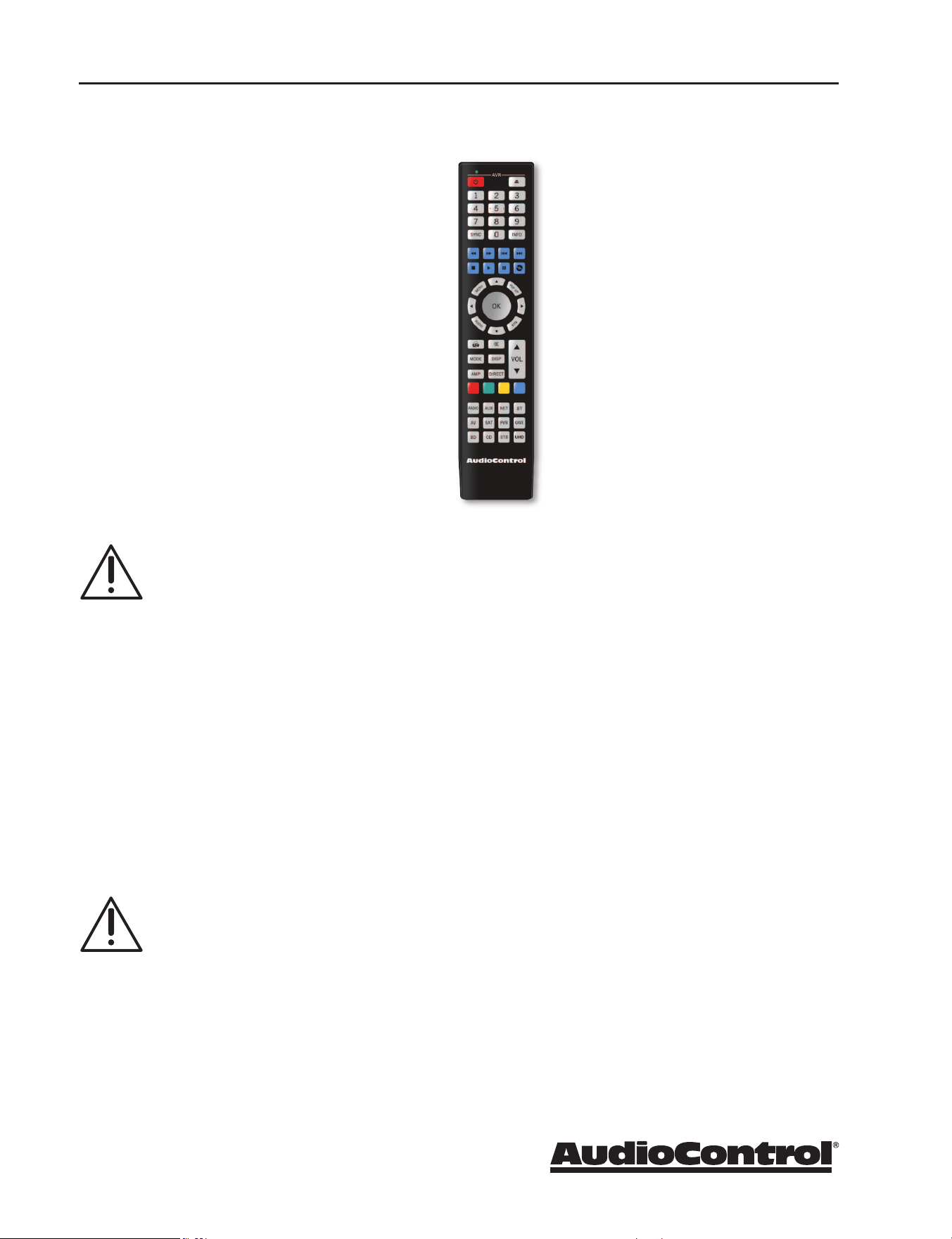
HTR-3 Remote Control
The supplied remote control is an
eight device “universal” IR remote
controller with back-lit gum-drop
buttons. Use the remote for full
control of the Processor/Receiver,
plus various AV sources and displays
via the extensive library of device
codes. A complete list of codes is
available on our Knowledge Base at:
audiocontrol.com/knowledge-base/.
Search "program htr-3".
The remote is also a “learning
remote” which means that you can
capture the codes of your existing
remotes if you nd that the library
does not contain the codes for your
device.
Many of the buttons have more than
one function, depending on which
device/source or mode you are using
the remote in. We will ease into
the complexities of the remote’s
multi-function modes after a quick
description of the basic features
below.
Please note: Device code library,
instructions on programming
the remote and more control
and automation documents are
available on our Knowledge Base at:
audiocontrol.com/knowledge-base/
The speaker terminals labeled surround
right, front right, center, front left, and
surround left, should only be connected
to the passive speakers as labeled. For
example, make sure that only a center
speaker is connected to the center
speaker terminal.
The speaker terminals labeled Zone 2,
Surround Back, Height 1, can be used
to power either Zone 2 speakers (Zone
2 not available on the XR-4), surround
back speakers, Dolby Atmos and
DTS:X speakers, or to biamp the front
speakers. Use the Setup Menu to select
which speakers are being used.
18. VOLTAGE SELECTION - The
Processor/Receiver is designed to
operate with either 110-120 volt or
220-240 volt line voltages.
WARNING: Before the unit is
turned on, make sure that this
switch is set to your local AC
power voltage.
19. AC INPUT - Connect the supplied AC
power cord securely to this input. Plug
the other end into an AC mains outlet
of the correct voltage rating for your
unit. They are either 100 -120 VAC
(50 – 60 Hz) or 220 – 240 VAC (50 – 60
Hz); check the position of the Voltage
Selection switch on the rear panel to
see how your unit has been congured.
20. FAN - A fan is used to cool down the
internal power ampliers in your
Concert XR Series Receiver.
CAUTION: Do not block the fan
or any of the ventilation slots.
There should always be plenty of
good ventilation to cool the unit.
Remote Control
13
X/XR Series Processors & Receivers
Remote Features
Multifunction Remote - the HTR-3 can control up to 8 source devices! It
automatically congures to the mode of control of the source selected by
the source buttons.
Learning - The remote can be congured to control each of your source
devices by pressing the number “1” button and one of the 8 source buttons
at the same time, and then entering the 3-number control code for your
source, such as the CD player, or Cable box.
LED indicator - This top red LED will blink when a key is pressed. It will also
blink multiple times when a device code is input for programming or signal
the beginning and end of a programmed sequence.
Back-lit Keys - The keys are back-lit to make it easy for you to control your
devices in a dimly lit room.
Low Voltage Indicator - The red LED will ash 5 times after a normal key
press to tell you that new batteries are needed.
Other useful items
Time Out - After entering into the programming state of the remote, 30
seconds after the last button is pressed, the remote returns to normal
operation.
Stuck Key Time Out - If the remote has slipped into the cushions of your
couch and a button is pushed in for more than 30 seconds, the remote will
stop sending IR information to conserve the battery. It will resume normal
operation after the button has been released.
General Functions
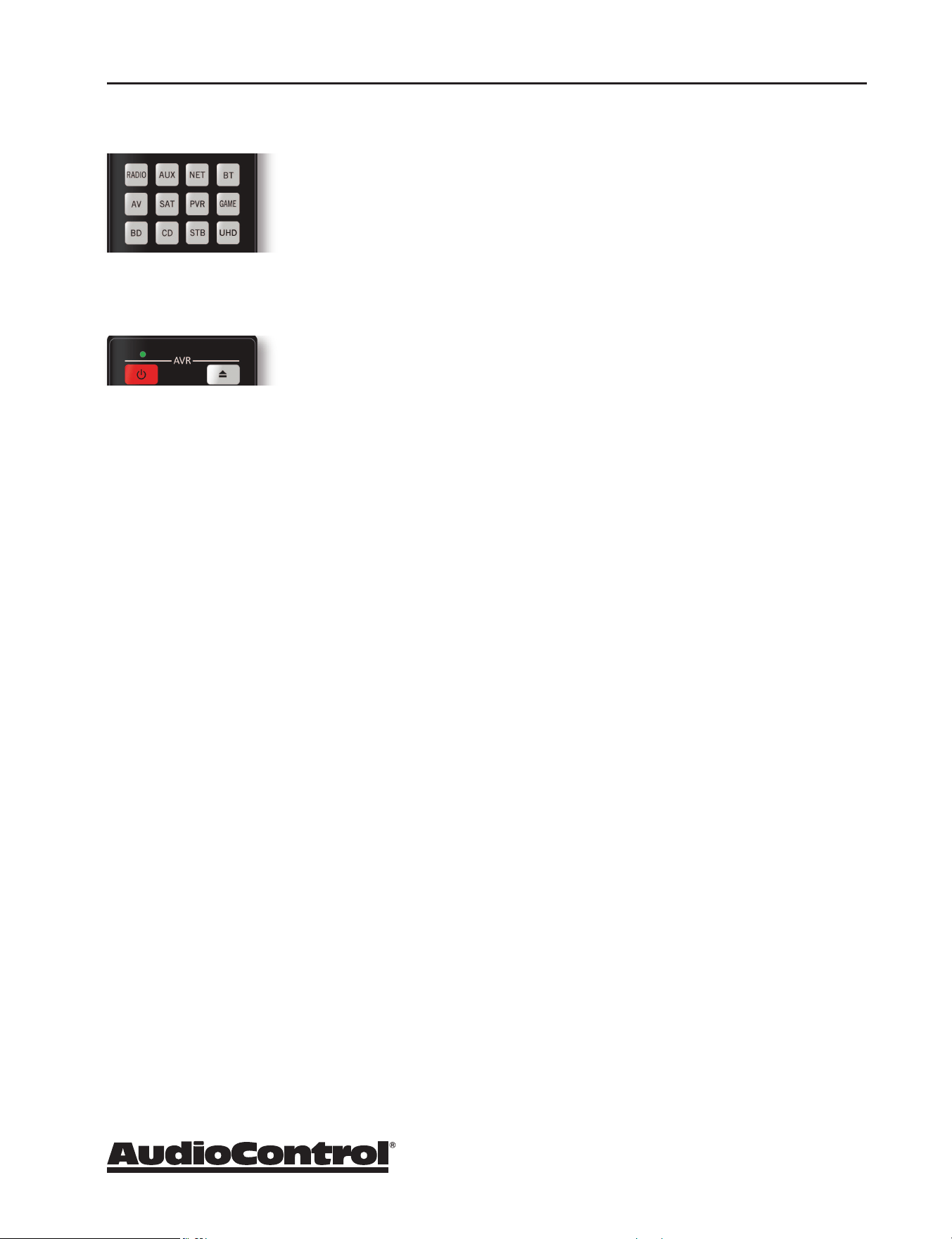
The Device or Source keys allow you to switch between the various inputs
on your Processor/Receiver. After pressing the device key, the remote
actually changes its conguration - it now is the source’s remote control.
So if you have programmed the AV with the learned codes from an
Apple TV remote – after pressing the AV button, the remote buttons will
automatically congure to the Apple remote key-map as programmed.
The volume control remains locked to the Processor/Receiver “AMP”
mode however. This ensures that anytime you press these keys, you are
controlling the Volume or Mute state of the Processor/Receiver regardless
of the device you are controlling (Blu-ray player or Cable box for instance).
Multifunction Remote
LED Indicator
Remote Control
14
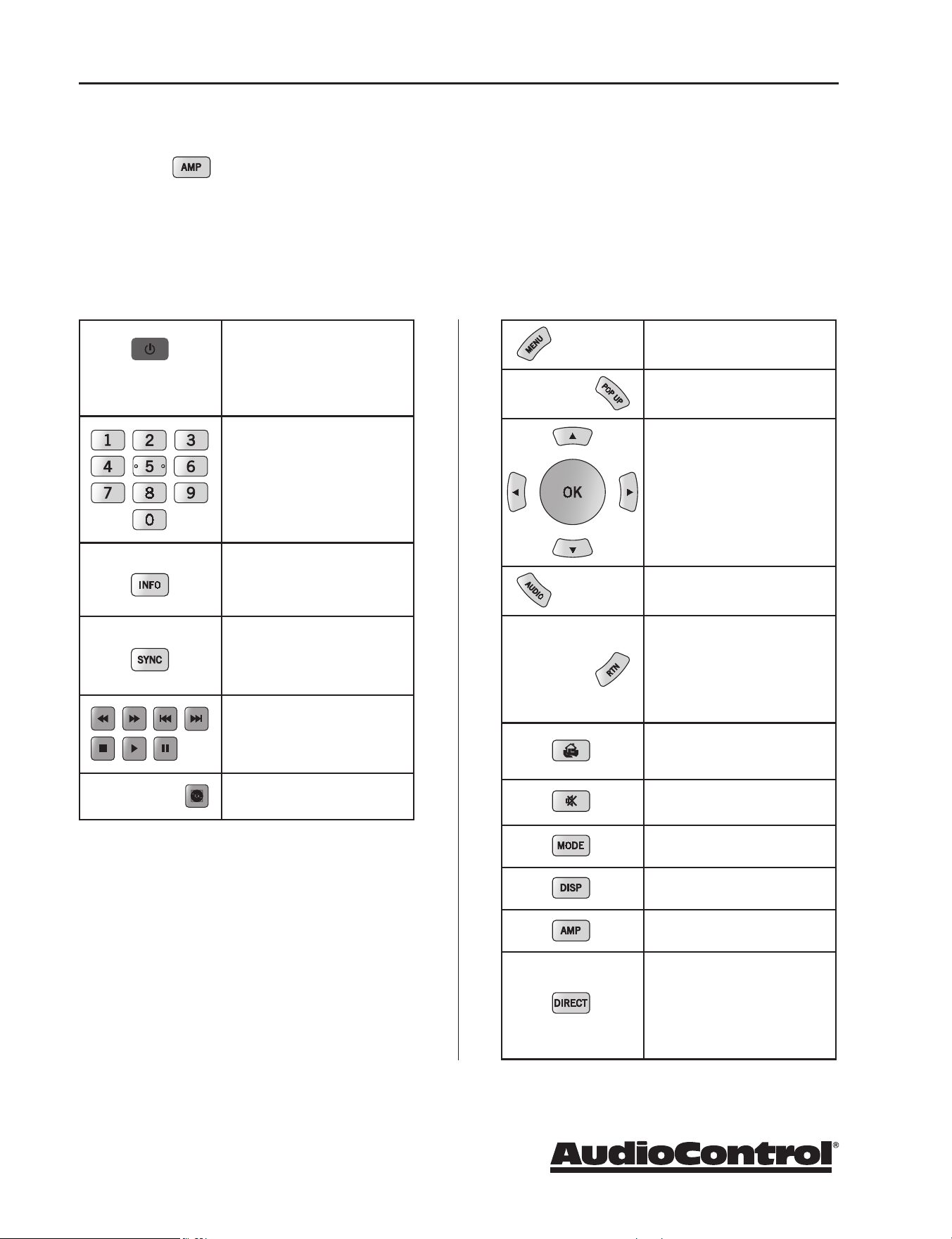
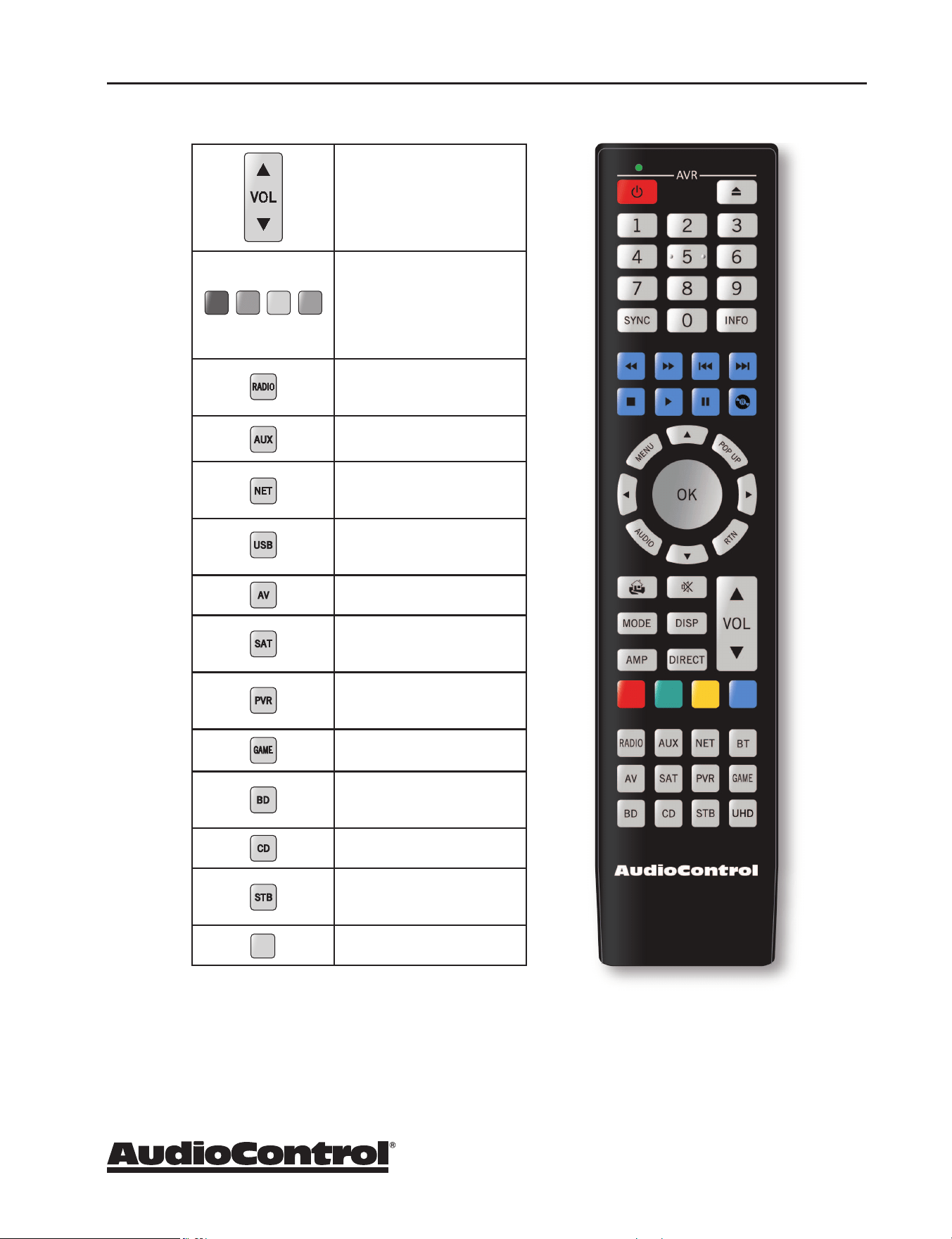
Access the main system menu
for your Processor/Receiver.
Turns Dolby Volume on or o.
Allows for navigation on
any menu in the Processor/
Receiver. This includes
navigating audio les when
using the USB input, and the
NET input.
Turns the Dirac Live EQ on or
o.
Temporary subwoofer trim.
Use the left and right arrows to
adjust the subwoofer volume.
The settings are not remem-
bered when the unit is turned
o.
Returns to the top level (home)
menu when using the network
menus.
Turns Mute on or o.
Cycle through the available
surround modes.
Adjusts the front panel display
brightness.
Returns remote to Processor/
Receiver (AMP) control mode.
Stereo Direct mode toggle
button. This turns o any
processing on your analog
input source so that there is a
direct path from the input to
the amp.
Single press - toggles your
Processor/Receiver on, or back
to standby.
Press and hold - Forces both
Zones to Standby.
These number keys are used to
enter numeric values.
Cycle through the info
displayed on the front panel
display, when on Tuner, NET or
USB inputs.
Adjust the synchronization of
the video and audio. Use the
left and right arrow buttons to
make the adjustment.
In USB or NET radio, use these
as track controls: select next
track, previous track, stop,
play, pause.
Brings up the DTS:X dialog
control adjustment
X/XR Series Processors & Receivers
Buttons/Functions in the Amp Device Mode
Pressing the AMP button puts the remote into the correct mode for controlling
the functions of the Processor/Receiver. This allows you to access the menus,
adjust bass/treble, turn Room EQ on or o, cycle through decode modes etc...
Please note: Not all buttons have a function in AMP mode.
Remote Control
15
Increase volume
Decrease volume
These aect the unit volume
only, no matter which mode
the remote is in
Red and Green are used with
NET radio to add or delete a
favorite station. These buttons
have dierent functions when
the remote is not in AMP
mode.
Select TUNER input and
changes remote to control the
tuner interface.
Select AUX input.
Select Network/Ethernet
source and changes remote to
network control.
Select USB input source
and changes remote to USB
control.
Select the AV Input and chang-
es remote to AV control.
Select Satellite input and
changes remote to satellite
receiver control.
Select PVR (personal video
hard disk recorder) and chang-
es remote to PVR control.
Select Game input changes
remote to game control.
Select Blu-ray input and
changes remote to Blu-ray/
DVD control.
Select CD input changes
remote to CD control.
Select STB (Set Top Box –
cable box usually) as input and
change remote to STB control
Select UHD input and changes
remote to UHD control
UHD
X/XR Series Processors & Receivers
Remote Control
HTR-3 Remote
16
X/XR Series Processors & Receivers
Set-up and Conguration
Unit Placement
X/XR Series Processors and Receivers can be placed almost anywhere in your
audio equipment stack. It is good practice to ensure that the equipment
location is properly ventilated and to make certain not to block the ventilation
slots on this or any other component. We recommend placing it so there
is at least one foot of free space above, to the sides, and to the rear. Avoid
placing the Processor/Receiver directly over large power ampliers or
any other components that generate a lot of heat. Unless they are made
by AudioControl, some ampliers can get pretty hot and have big power
transformers that can induce hum into other audio components.
Speaker Considerations and Placement
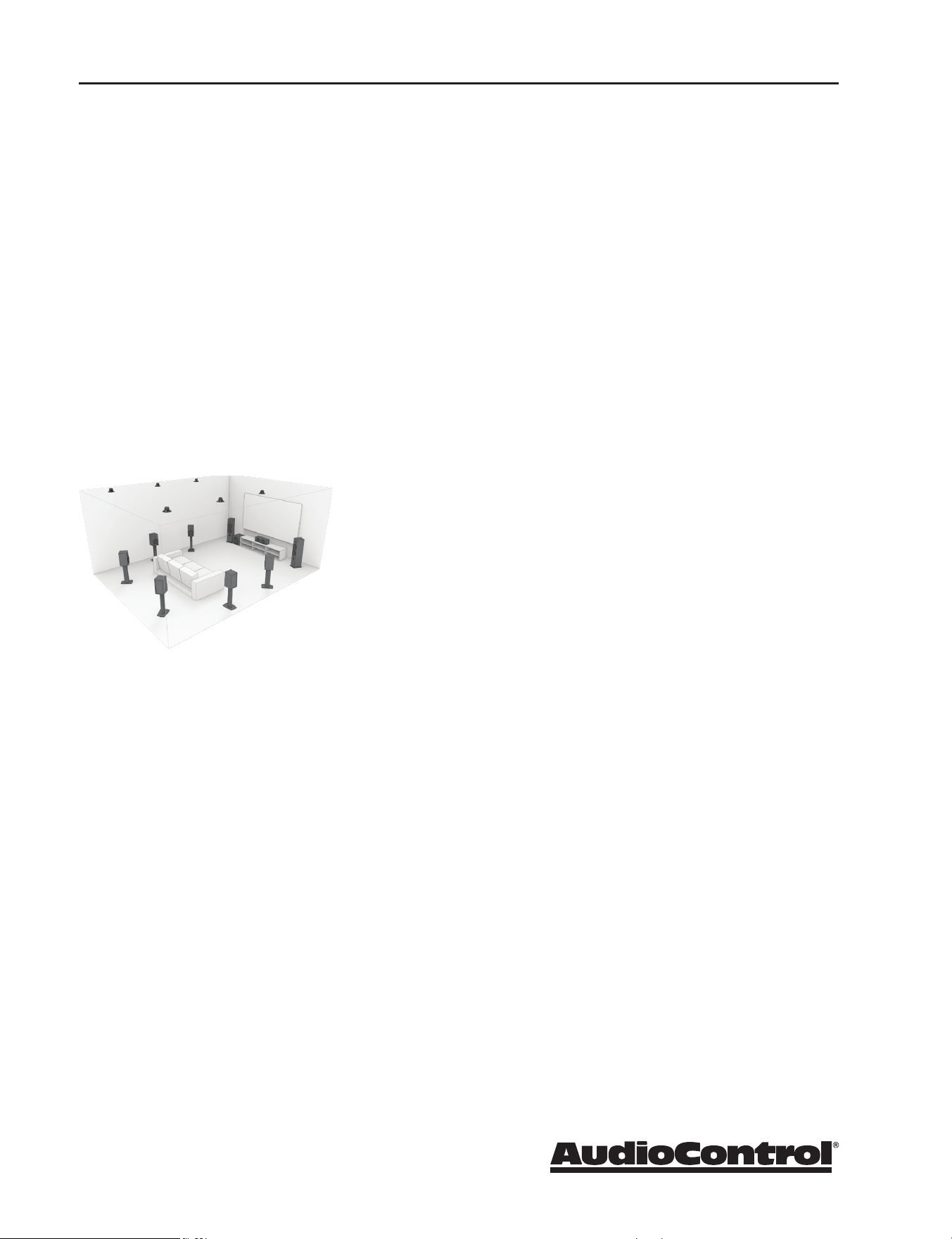
Front LCR (Left, Center, Right) Speakers
To present the most realistic sound stage, all three of the
front speakers must be tonally balanced. Ideally, these
speakers should be identical models. This ensures that the
sound doesn’t change as it pans across the screen. Place the
speakers at the seated ear level. Whenever possible, the three
front speakers should also be placed at the same horizontal
level for best imaging.
Wide Presence Speakers
Wide speakers create a cohesive immersive sound stage that mitigates any
gaps in panning from the front stage to the side stage. Accordingly, these
wide speakers should be placed between the front stage speakers and the side
surrounds. Channels 13 & 14 can be congured as Wide speakers.
Side Surround Speakers
The surround speakers provide the reverberant, or ambient, sound eects in
a multi-channel theater audio system. These speakers should be placed on
the sidewalls approximately 36” above the seated ear height of the listeners.
They should be directly to left and right sides of the listening position. If you
are using surround speakers, which have a dipole sound pattern, they should
be mounted in-line with the main seating position. If the surrounds are direct
radiator, they should be just behind the main listening seat.
Rear (Back) Surround Speakers
Place these speakers approximately 36” above the seated ear height of the
listeners. Additionally, they should be mounted close together on the rear wall
of the theater facing the screen.
Set-Up and Configuration
17
X/XR Series Processors & Receivers
Subwoofer(s)
The subwoofer is a large speaker that provides the bottom end “kick” in the
system. Depending on the size of your listening space, you may require more
than one subwoofer to get the bass volume levels that you desire. Outputs
13 & 14, 15 & 16 (not available on the Concert XR-4) can be congured to
drive Front and Rear subs discretely. Make certain you remember to include
the size of all spaces that are open to the theater in determining how many
subwoofers you need.
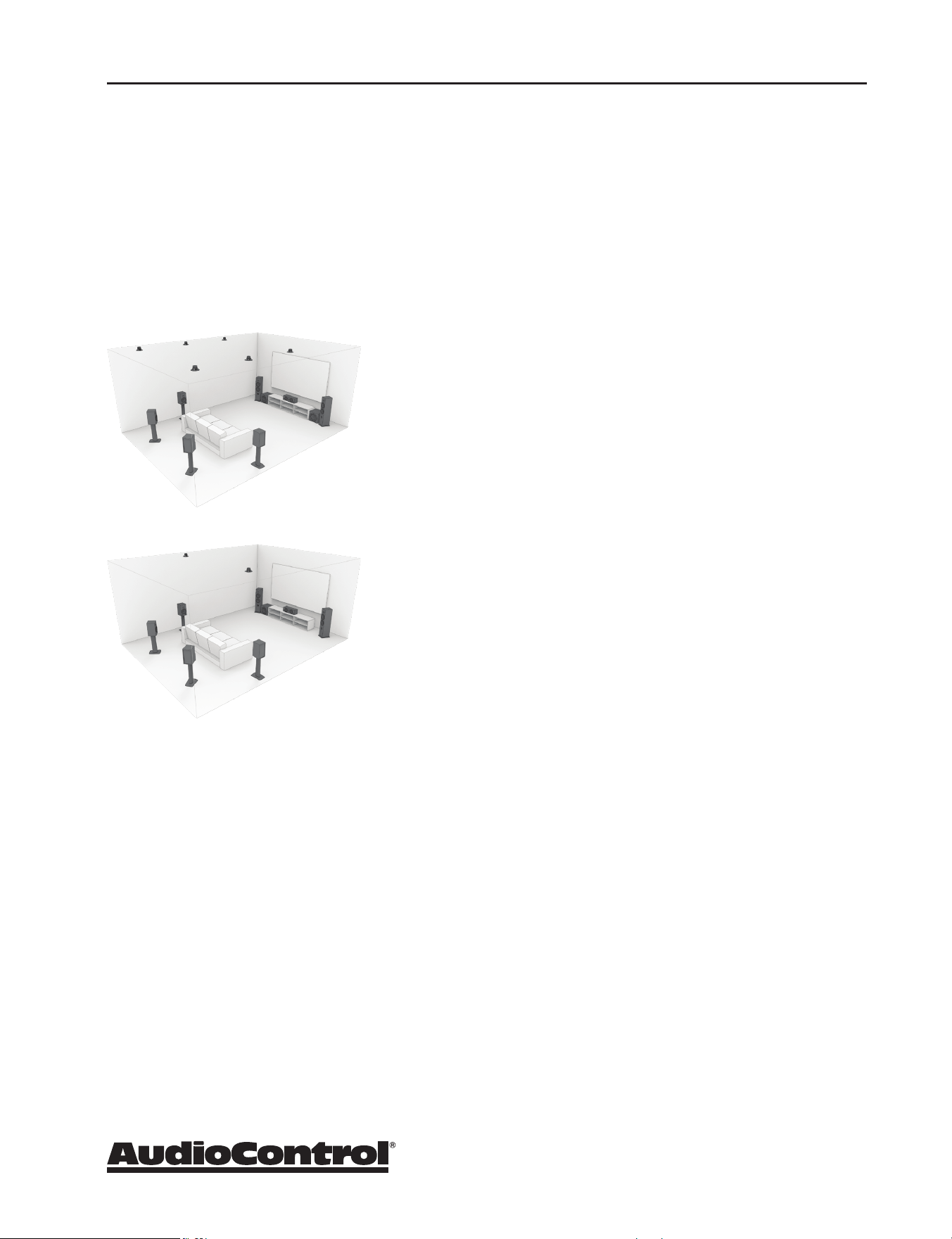
Height Speakers
Up to six extra speakers may be used for Dolby Atmos or
DTS:X systems. One, two or three pairs of speakers (known
as Height 1, Height 2 and Middle Heights) can be used to
create a sound eld above the listening position, allowing
you to be surrounded in an amazing “dome of sound.”
Dedicated speakers for this application can be mounted in
the ceiling, or pointed at the ceiling to give a reected eld.
We recommend that you research information directly from
Dolby Laboratories, DTS & Auro Technologies about these
wonderful systems.
If you are using just one pair of speakers, connect them as
Height 1, and locate them approximately half way between
the listening position and the display, either ceiling-installed,
or reecting o the ceiling. If you are using Height 1 and
Height 2 speakers, then the Height 1 pair would be located a
little forward of the display screen, and Height 2 pair would be
just in front of your listening position.
Channels 13-16
These inputs are congurable (not available on the Concert XR-4). Here is a list
of the optional output congurations:
Channels 13 & 14: Channel 15 & 16:
Front Wide Surrounds Middle Heights
Front Subwoofer Height Center
Rear Subwoofer
This is just an overview, so do your research carefully and talk with your dealer.
Set-Up and Configuration

18
X/XR Series Processors & Receivers
Connection Tips
• Turn o all components before making any connections.
• When making connections, make sure that “left goes to left” and “right
goes to right.” The obvious and time-honored way to assure this is to
assign RED plugs to Right and WHITE/GREY/BLACK plugs to the left.
Yellow is usually used for video cables or digital audio connections.
• Wherever possible, keep power cords away from signal cables (inputs
from media players, cable box) to prevent induced hum. Bundle all power
cords down one side of your equipment cabinet and all the signal cables
down the other.
• If you need to run a long cable to the projector or TV, save yourself
and your customer the hassle and use a ber solution for stable HDMI
transport.
• Use high quality interconnect cables. We’re not going to get into the
debate about whether $100 per meter interconnects improve the
sound and picture quality of your system. We do know from experience
however that really, REALLY cheap connections can cause problems.
Power Wiring
Like many of today’s intelligent home electronics, the Processor/Receiver
should be plugged into an unswitched AC outlet so that it always has power.
This allows the RS232 and remote control features to work even when the
Processor/Receiver is in standby. We always recommend the use of a high
quality surge protection device to keep all of your electronics safe from the
evils of spikes on power systems.
Audio Connections
The Processor/Receiver has 6 line-level analog audio stereo input RCA pairs,
labeled STB, AV, GAME, BD, PVR, and CD. The input circuits are all identical, so
you can connect any line-level analog audio source to any of these inputs.
There are 4 coaxial digital audio inputs, labeled SAT, BD, PVR, and CD, and 2
optical digital audio inputs, labeled STB and AV.
There are seven HDMI inputs. Some sources may not oer quality (or any)
digital audio through the HDMI connection. In these cases, you can also
connect the digital audio in addition to HDMI. This will provide the digital
audio signal necessary for high-quality digital surround sound.
Set-Up and Configuration
19
X/XR Series Processors & Receivers
Video Connections
The Processor/Receiver is equipped with seven discrete HDMI inputs labeled
STB, GAME, AV, SAT, BD, UHD, and PVR. There are two Zone 1 HDMI outputs
and one Zone 2 HDMI output that is independent of the Main and Alt HDMI
outputs (Zone 2 not available on the XR-4).
Main Output - Connect this to the primary display device located in your main
theater. This output is eARC enabled and includes CEC functions which can be
turned on and o via the HDMI menu.
Alt Output - Connect this to your secondary display device.
Zone 2 - Connect this to your display and system used in the second zone
(Zone 2 not available on the XR-4).
eARC (Audio Return Channel)
The Main Output is compatible with HDMI Enhanced Audio Return Channel
(eARC). If you have a supported television then sound from the television’s
internal streaming services or connected sources will be available using the
Processor/Receiver’s ‘Display’ input.
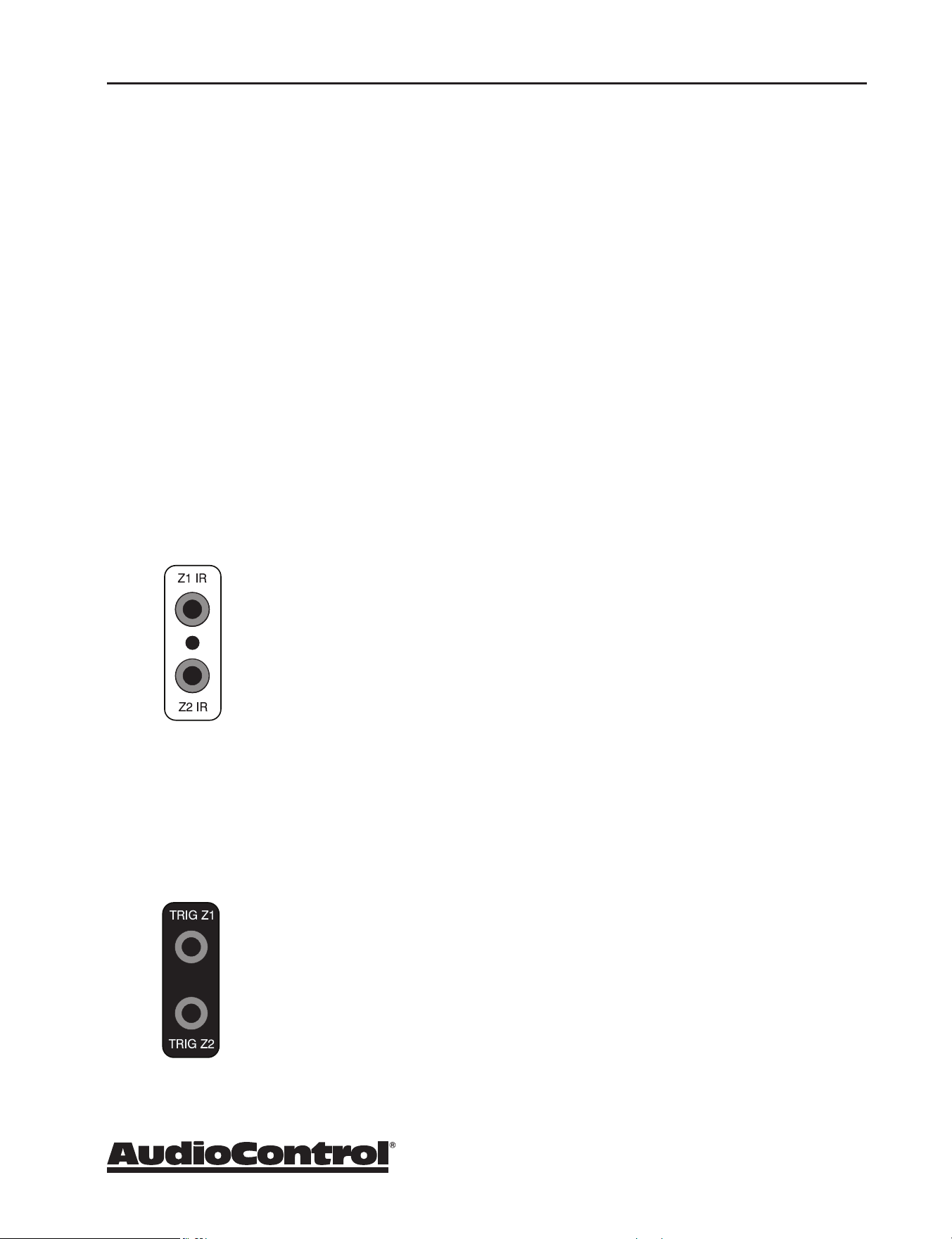
IR (Infrared) Remote Control Connections
The Processor/Receiver has two rear-panel Infrared (IR) inputs to allow for
maximum control exibility with standard IR remote controls. This allows you
to place an external infrared receiver where it can “see” the signal from the
remote control when the main equipment may be hidden. The IR connections
are designed for “modulated” signals and wired for stereo or mono 3.5 mm
jacks with “Tip” being the modulated signal and “Sleeve” being ground.
Zone 1 IR - This is ideal to use when the front panel of the Processor/
Receiver is hidden away in some dark closet or equipment rack. To prevent the
possibility of receiving multiple commands, when you connect an IR receiver
to this input, it will disable the front panel IR receiver.
Zone 2 IR - Allows for control of source and volume functions of Zone 2 (Zone
2 not available on the XR-4).
12V Trigger Connections
The Processor/Receiver has two rear-panel 12 volt trigger outputs that can
be used to trigger such things as external power amplier turn-on, projector
power on, and screen automation. Each external device must have 12 volt
triggering capability for this to work. The jacks are 3.5 mm mono with “Tip”
being the 12 volt trigger output and “Sleeve” being ground. Each jack is
capable of outputting a 12 volt, 70 mA switching signal. This not to be used for
any other purpose such as jump starting the old car on a frosty morning.
Set-Up and Configuration
20
Setup Menus
O
Input Config
General Setup
Speaker Types
Speaker Distances
Speaker Levels
Video Inputs
HDMI Settings
Zone Settings
Network
Bluetooth
X/XR Series Processors & Receivers
Setup Menus
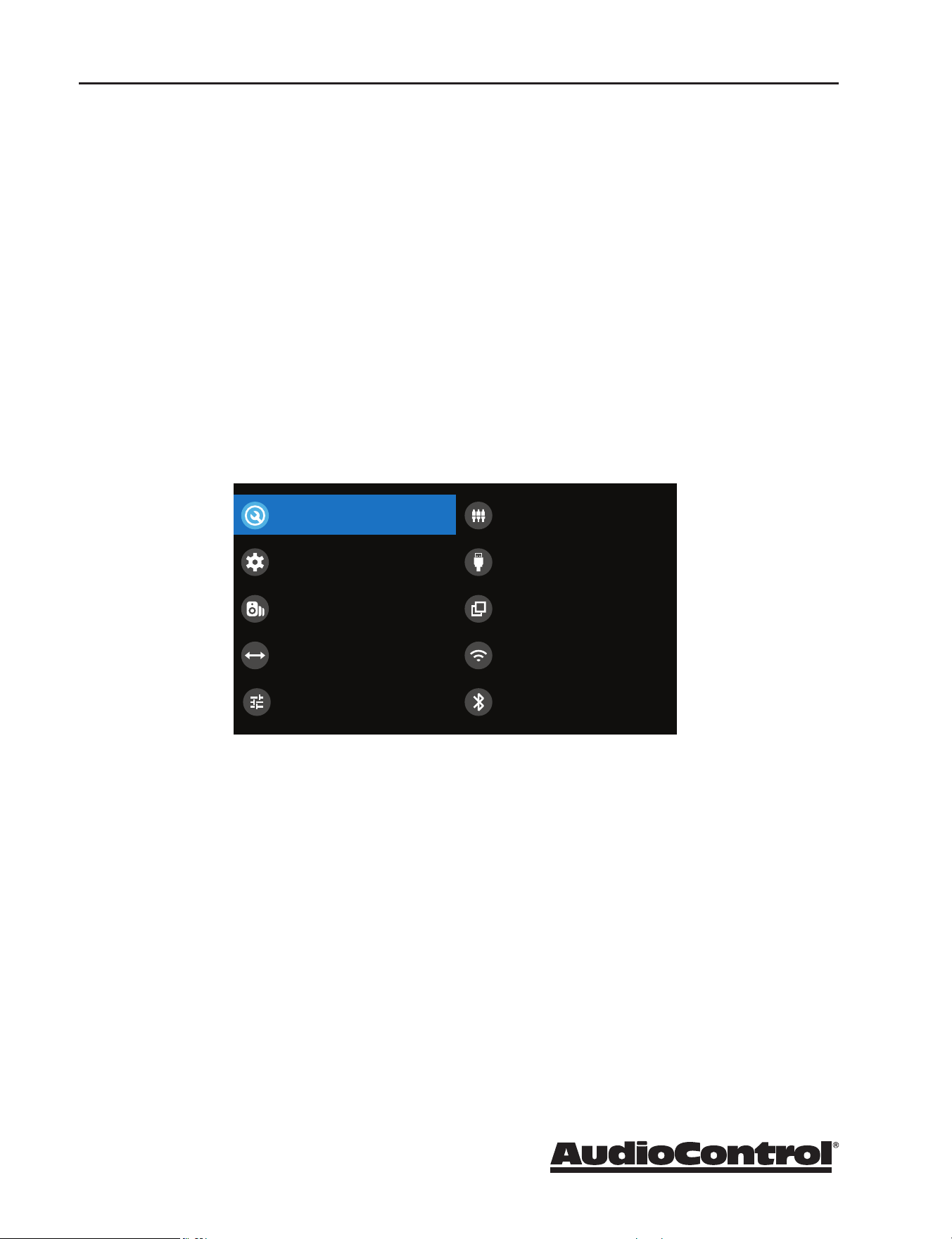
This section of the manual discusses how to navigate the set-up menus of
the Processor/Receiver. X/XR Series Processors and Receivers are incredibly
exible and sophisticated and can be “personalized” for use with your
performance theater system. While the set-up menus incorporate a number of
default settings that we determined will work well with many theater systems,
you will want to take the time to go through each of these set-up screens and
make the appropriate adjustments to the settings.
To get started in your set up, you can work directly from the front panel of the
unit using the front panel buttons or the HTR-3 remote, or you can navigate
to the set up options through a web browser by going to its IP address/setup
[http://your IP address/setup/]. The web page menus follow the same format as
the front panel menus noted below.
Front panel display: Main Menu
21
Setup Menus
Input Config
Input
Name
Lip Sync
Mode
MCH.Mode
Bass
Treble
Room EQ
PVR
PVR
Last Mode
Last Mode
0ms
0dB
0dB
Not Calculated
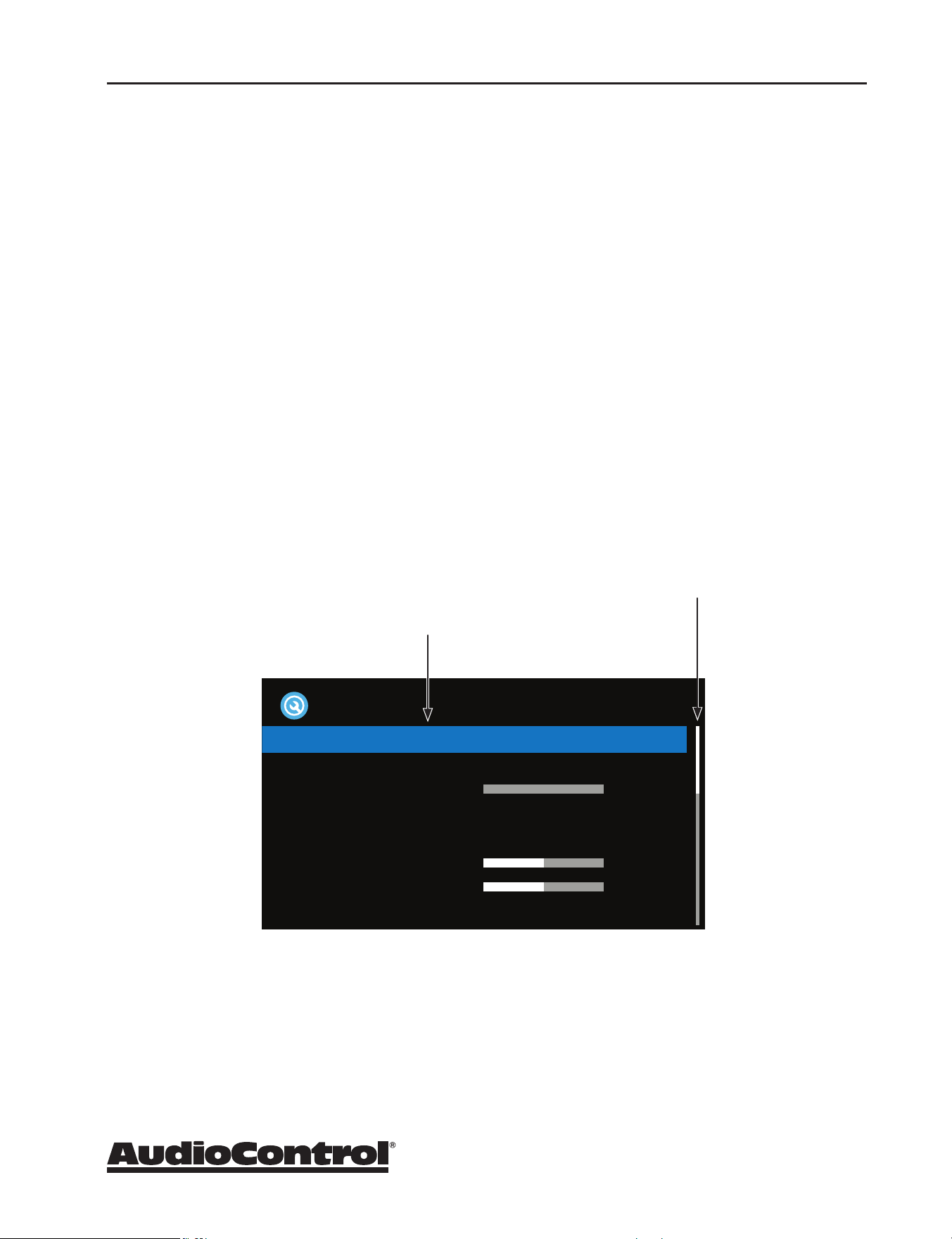
Scroll Bars - These show the
position of the displayed screen
within longer menus. There are more
options and information to see
Adjustment Highlight - Using your
up/down keys on the remote or front
panel, navigate this soothing blue
bar to various options that you can
adjust. This blue bar cursor will skip
over items that are information only
X/XR Series Processors & Receivers
Navigating
Navigating the Set-Up Menus is a very simple process that can be done using
the appropriate front panel controls on Processor/Receiver or by using the
remote control.
1. Press the Menu button once to enter the Setup Menus on the front
panel. The main menu will show, from there you can select the
parameters for conguration.
2. Use the Input selection button “5Input +” and “6Input -” to navigate
among the menus and use the “3Info” and “Mode4” buttons to select
appropriate menu screen.
3. Press the “SELECT” button or “OK” to select the menu options.
4. Press the Menu button anytime to exit the Menu screens and any setting
changes will be saved automatically.

22
Setup Menus
X/XR Series Processors & Receivers
Input Conguration
Each input has individual audio and video settings that can be adjusted
specically for its use.
Input - Identies the currently selected source. Settings are displayed below.
Name - Specic name/label for this input that will show on the front display
and the OSD. The name can be changed, and this is very useful when
more than one source unit has similar functions (for example, two Satellite
processors could be named SAT1 and SAT2).
Lip Sync - Many video processors and line multipliers cause a slight delay
between the sound and the video picture. Highly compressed video signals
such as MPEG encoded satellite processors and some DVDs also suer from
this problem. The Lip Sync setting delays the audio a small amount to allow
the video image to catch up. If this is an audio only input - like Aux, then
LipSync is grayed out.
Mode - Sets the initial audio decode mode for stereo sources on this input.
Last Mode - recalls the last used setting for stereo sources. See section
"Surround Modes" on page 29 for more information.
MCH. Mode - Sets the initial audio decode mode for multi-channel digital
sources on this input.
Last Mode - recalls the last used setting for multi-channel sources. See
section "Surround Modes" on page 29 for more information.
Bass and Treble - Changes the bass and treble response for all speakers when
using this input. Very useful when you have a source unit that has reduced
frequency response due to the format (i.e. older VCRs or 8-Tracks)
Room EQ - When the Dirac Live application is run and EQ lters are
Downloaded into one of the three slots available, this can be selected.
Not Calculated - (Information only) There are no EQ lters, so cannot be
selected.
Project Name - Dirac Live Room EQ is applied to the current source and
will display the name of the project from the Dirac Live application.
O - Dirac Live Room EQ is not applied to the current source.
Input Trim - Selects the maximum analog signal for this input before clipping.
This setting should match the audio output of your source units with the
available settings being 1, 2, and 4 volts RMS and the default being 2 volts.
Source units with low output levels can benet from being set to higher output
settings such as 1 V or 2 V.

23
Setup Menus
X/XR Series Processors & Receivers
Dolby Audio Processing - Applies Dolby Audio Processing to the incoming
audio.
O (default) - Dolby Audio Processing is not applied to this input.
Movie - Suitable for movie viewing.
Music - Suitable for music listening.
Night - Compresses the audio to be more suitable for latenight viewing
or listening.
Stereo Mode - If you are using an external subwoofer, and are listening
to stereo (two channel) sources, either digital or analog, you can select to
congure how the subwoofer receives its bass information.
As Speaker Types - Your normal speaker conguration (as selected in the
Speaker Types menu) determines your subwoofer output.
Left/Right - Full frequency audio will be sent to your front left and right
speakers with no information going to the subwoofer.
Left/Right+Sub - Full frequency audio will be sent to your front left
and right speakers plus bass information is directed to your subwoofer
eectively duplicating the lower frequencies.
Sat+Sub - This setting will drive the frequencies dened in your Speaker
Types crossover selections to the Sat for higher frequencies and 'Sub' for
the lower frequencies.
Note: Stereo Mode is not available when using an analog source and you have
selected the Stereo Direct mode.
Sub Stereo - If you have selected the "Left/Right+Sub"' or "Sat+Sub" setting
in the Stereo Mode menu, then this setting adjusts the level of the subwoofer
when you are using a two-channel source.
IMAX Mode - Species if IMAX mode is enabled on the incoming audio stream
(AUTO) or if forced to ON or OFF.
Auro-matic 3D - Species the mode of the Auro-matic 3D upconverter.
Auro-matic 3D Stength - Adjusts the amount of unprocessed to processed
signal when using the Auro-Matic 3D upmixer.
Audio Source - Allows you to select how the Processor/Receiver receives audio
signals for this source. Settings options are “HDMI,” “Digital,” or “Analog.”
CD Direct - Use with PCM audio - this selection bypasses the compressed
audio detection.

24
Setup Menus
X/XR Series Processors & Receivers
General Setup
General information and system controls.
Source Input - (Information only) Displays the currently active audio source
input.
Incoming Format - (Information only) Displays format of digital audio stream
if present.
Incoming Sample Rate - (Information only) Displays incoming sample rate of
digital audio stream, if present.
Incoming Bitrate - (Information only) Displays bit rate of digital audio stream,
if present.
Dialnorm - (Information only) When a Dolby Digital audio stream is connected
to this input this is the Dialogue Normalization setting requested.
Incoming Video Format - Displays the incoming video resolution.
Audio Compression - Compressing the dynamic bandwidth of the audio
can be a good thing, especially for those late night action movie festivals.
Compression increases the volume of quiet sections and reduces the volume
of the louder sounds. These 3 options for this setting only apply to some Dolby
Digital or DTS soundtrack formats that support this function.
O - (default) Audio compression is not applied (default)
Medium - For loud segments of the audio stream, compression is
applied to reduce the level. Dolby True HD content will be compressed
automatically
High - Maximum compression is applied with this setting. The
dierences between quiet passages and loud portions of the audio track
are minimized
Balance - Adjusts the left/right balance of the front outputs.
DTS Dialog Control - Sets the level the for dialog channel in DTS audio
streams.
Maximum Volume - Limits the highest volume that will play in the main zone.
This is useful if you have speakers, ampliers, or neighbors, with limited power
handling abilities.
Max On Volume - This is the highest volume that the unit will play when it
is rst switched on. This prevents the unit from being turned on at shocking
volume levels from the last time you were watching a good movie.

25
Setup Menus
X/XR Series Processors & Receivers
Display On Time - This sets the amount of time the display is lit after a
command has been initiated. The default is always on.
Control - Enables or disables RS232 or IP (NET) control, a system that allows
control from various third-party home automation systems. Note, only RS232
or IP control can be used, not both. Default setting is IP. The front panel and IR
control are always active.
Power On - Determines how the Processor/Receiver powers on.
Standby - the unit is in Standby when powered on.
On - the unit is on and ready when powered on.
Last State - (default) the unit returns to the last On or Standby state
before power was lost or the Main power switch was turned to o.
Language - The Front Display Setup Menu and OSD language can be selected
from English, German, French, Spanish, Dutch, Russian, and Chinese.

26
Setup Menus
X/XR Series Processors & Receivers
Speaker Types
This series of menus allows you to select the types of speakers that you will be
connecting to the Processor/Receiver.
“Large” speaker is one that is capable of reproducing a full range (20-20
kHz) audio signal. Use this setting when not using a subwoofer.
“Small” speaker is one that is not designed to reproduce deep bass
frequencies and is generally used with a subwoofer (i.e. Satellite speakers
typically can’t play below 80 Hz). Please note that you can set High Pass
crossovers independently for each speaker type when using the Small
setting. For example, if you have your fronts set to Small 50 Hz and your
sides and rear set to Small 80 Hz, frequencies below 50 Hz from the front
channels as well as 80 Hz and below from the sides and rears will be sent
to the subwoofer.
“Height 1, 2” selects the speaker types used for Dolby Atmos and
DTS:X.
“None” If you do not have a speaker connected to an output (i.e. No
Subwoofer or Back Speakers) then set that speaker size to “None”.
“Subwoofer” Selects whether a subwoofer is present in your system.
“Channel 13 & 14” Selects whether Front subs or Wide speakers are
present, options include Large, Small at various crossover frequencies.
“Channel 15 & 16” Selects between Rear Subs, Middle Heights or Center
Height or none are present.
Height Type - Sets whether Dolby Enabled or ceiling mounted.
Using Channels 6 + 7 for - If your main speaker system has no Surround Back
speakers, you can use the power from these unused amplier channels to
power Height 1 speakers, power speakers in Zone 2, or to biamp the front left
and right speakers.
Filter slope - Sets the crossover lter slope. Options range from 12 dB to 48 dB
Sub gain - Sets output level trim for all specied subwoofers in 6 dB steps.
Range is from 0 dB to -30 dB.
27
Setup Menus
X/XR Series Processors & Receivers
Speaker Distance
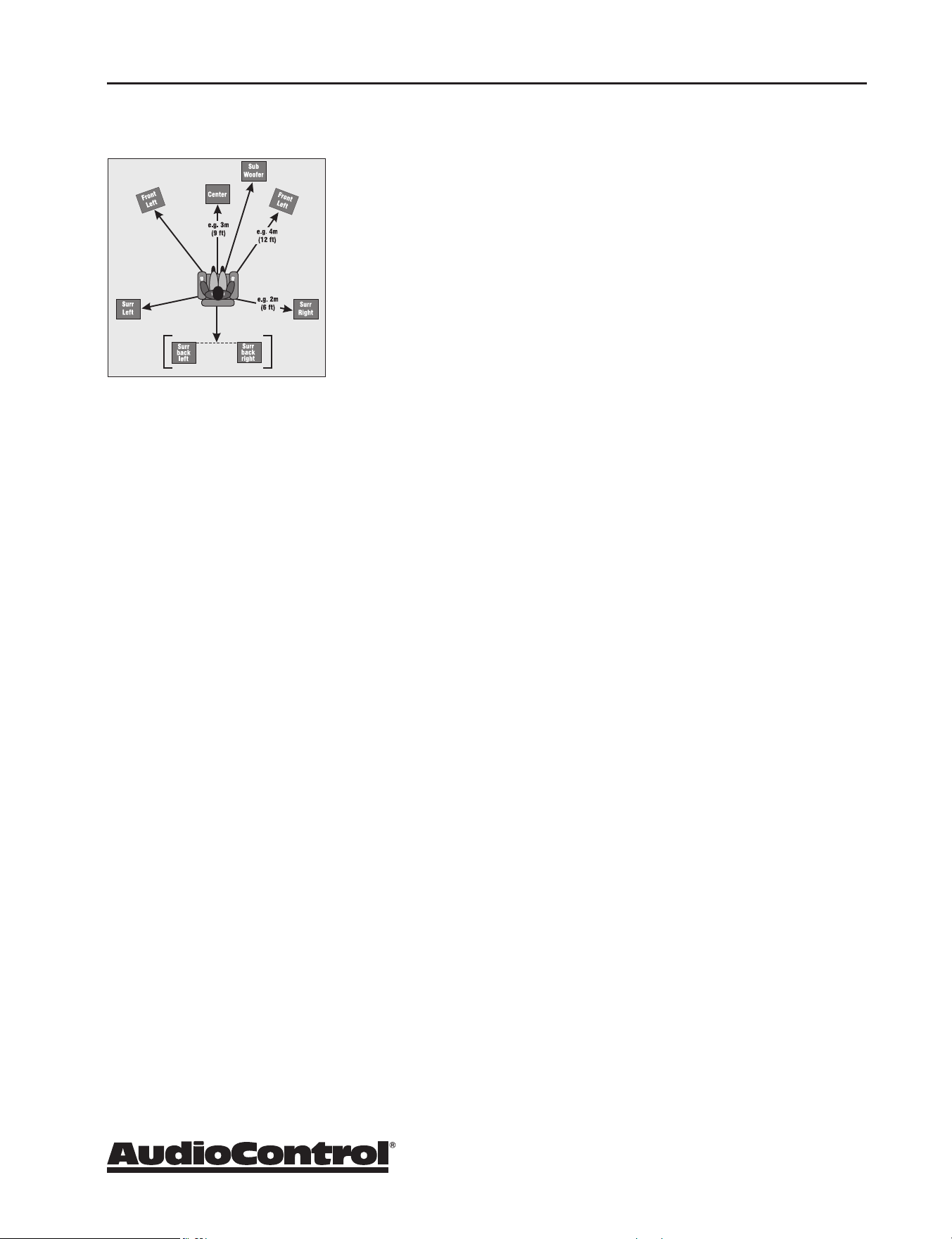
The Speaker Distance settings help the sound from each speaker
arrive at the listening seat at the same time. This provides a much
more believable and immersive sound environment. Accurately
measure the distance from the center of each speaker to the
seated ear position of the main listening seat. Write each of these
distances down (select Imperial or Metric) and enter them into the
Processor/Receiver using this menu. Speakers not present (as you
entered in the Speaker Types menu) will be greyed out. If the Dirac
Live application has been used, the speaker distances can still be
entered and edited in this menu.
Speaker Levels
It is critical to properly match the levels from each speaker to achieve a correct
sound stage. The realism is totally lost if the footprints of a person walking
across the screen change in volume as they move from left to center to right.
We strongly recommend using a audio analyzer such as the AudioControl
SA-4100i for this calibration. The levels are nearly impossible to judge by ear
alone. Though not as accurate as using the SA-4100i, you can use a sound level
meter for this adjustment.
With the internal test noise generator of the Processor/Receiver, adjust each
speaker for a sound pressure level (SPL) of 75 dB using a “slow” response time
on the SPL meter, placed at the main listening position at ear height.
You can use an External Test Tone from the currently selected HDMI input if
you prefer.

28
Setup Menus
X/XR Series Processors & Receivers
Video Inputs
If desired, you can assign a video source to each of the “audio only” inputs.
The default for each of these settings is “None”. This is a great way to listen
to the ball game over the Internet Radio and watch it over your normal video
display device, though timing might be a little o.
HDMI Settings
X/XR Series Processors and Receivers feature very powerful video processing.
Video settings should be selected carefully to optimize your video
performance.
Zone 1 OSD - This selects the pop-up text messages to be On or O.
When On, any adjustments made on the unit (like volume, mute state
changes, sub trim level) will be shown on your display screen, as well as
on the unit’s front panel display.
When O, any adjustments will only be shown in the unit’s front panel
display. This leaves your screen clear from interruption.
Zone 1 Out - Set the output for Zone 1 from either Output 1 (Main), Output 2
(Alt), or both.
Lipsync (Information Only) - When this feature is supported by the display
device, this setting displays how much lip sync is applied to HDMI Outputs.
HDMI Audio to TV - Use this to set audio to be sent to the TV.
HDMI Bypass & IP - Sets the state of IP control and HDMI bypass of the unit
while in Standby. When in Low Power mode, network or IP control and HDMI
bypass are disabled. With HDMI & IP On, the unit will respond to IP control
when in standby and HDMI bypass is enabled.
HDMI Bypass Source - Species the source used when HDMI bypass is on.
Specic inputs can be specied or the last input used.
CEC Control - Enables/disables CEC control.
eARC Control - Enables/disables automatic volume control from the display.
TV Audio - Enables/disables auto-switching to eARC audio from the display.
Power O Control - Enables/disables automatic power control from other CEC
devices.

29
Setup Menus
X/XR Series Processors & Receivers
Zone Settings
This menu allows you select the audio and video control and volume settings
for Zone 2.
Zone 2 Input - Selects the analog audio and video to be used for Zone 2.
Zone 2 Status - Selects if Zone 2 is in Standby or On.
Zone 2 Volume -
Displays current volume level in Zone 2.
Zone 2 Max Vol - Selects the maximum volume setting for Zone 2.
Zone 2 Fixed Vol - Allows Zone 2 volume to be xed at the current
volume level. Volume can then be controlled with an external amplier.
Zone 2 Max On Vol - Selects the maximum volume level for Zone 2 when
the Processor/Receiver is powered on or comes out of stand-by mode.
Decoding Modes
Specic decode and downmix/upmix options are available for Stereo and
Multi-channel applications. The options for each format are accessible by
touching the Mode button.
Two-channel source modes - The following decoding and surround modes
are for creating multi-channel stereo modes from 2-channel sources. They are
available on the Processor/Receiver for standard and high denition Dolby
Digital 2.0, DTS 2.0, PCM or analog sources:
Stereo DTS Neural:X
Stereo Direct (analog sources) Auro 2D Surround
16 Channel Stereo Auro-matic 3D
Dolby Surround Auro Native
Dolby Virtual Height
Multi-channel source modes - The following formats are available for multi-
channel digital sources such as any Dolby, DTS or PCM multi-channel digital
stream:
Native Auro 2D Surround
Stereo Downmix Auro-matic 3D
Dolby Virtual Height Auro Native
Upmixer
For more detailed
information on the
various Dolby and
DTS surround formats
you can visit:
www.dolby.com, or
www.dts.com.

30
Setup Menus
X/XR Series Processors & Receivers
Network Settings
The Processor/Receiver has the ability of playing Internet radio stations as well
as music stored on a network storage device like a PC or USB ash drive. Its
default connection is wired and is set for DHCP - to automatically pick up an IP
address if there is a DHCP server on the network.
The Dirac Live room correction system requires the Processor/Receiver to be
connected to your network and with control set to IP.
Typically the computer network may use DHCP to automatically make the
necessary network settings although the Processor/Receiver can also be
congured manually when using a static IP address.
To set up a static IP or other manual entry IP address details, you will need to
navigate to the unit’s IP address (go to Menu>Network to nd it) then type
that IP address into a browser, then click on Network Settings for manual
conguration.
SSID (Information Only) - Shows the network connection type
IP Address (Information Only) - Shows the unit’s IP address
MAC Address (Information Only) - Displays the unique network card
address of the Processor/Receiver
Friendly Name (Information Only) - Shows the name you’ve assigned
to the Processor/Receiver
Bluetooth Settings
In this menu, Bluetooth pairing and device management are done.
Pair Device - Makes the Processor/Receiver discoverable by Bluetooth
devices
Clear Paired Device List - This will clear the paired devices in the
Processor/Receiver
Paired Devices - Paired devices are noted in this list

31
Network Audio / USB Audio / Streaming & Bluetooth
X/XR Series Processors & Receivers
Playing Audio Files via Network Audio or USB
The network audio client on the Processor/Receiver is capable of supporting
the following le formats:
– MP3
– WMA (Windows Media Audio)
– WAV
– FLAC (Free Lossless Audio CODEC)
– MPEG-4 AAC (iTunes with DRM10 support)
Navigate to the Processor/Receiver web page from your computer and select
Web Client . From here you can select your USB as a source and control
playback functions.
Playing music streaming services natively
Navigate to the Web Client to engage with streaming services directly. Open
a browser and type in Processor/Receiver IP address/webclient. From this
web client interface, you can set up your music streaming service, like Tidal
or Qobuz, and select albums, artists and songs that the streaming service has
made available.
Streaming
X/XR Series Processors and Receivers are Roon Ready, Airplay 2, and Google
Chromecast built-in enabled. Being Roon Ready means that X/XR Series
Processors and Receivers transparently discover and connect to Roon without
any conguration, and bit-perfect audio is delivered from Roon to Processor/
Receiver. With Airplay 2, you can stream to the Processor/Receiver via AirPlay2
from your favorite music app. Just tap on the AirPlay icon on your device and
select the Processor/Receiver. For Chromecast streaming, rst download
Google Home from the Play store and set up the Processor/Receiver by
following through the prompts. Once the Processor/Receiver is set up, you can
stream directly to it from your favorite music streaming app. The Processor/
Receiver will automatically switch over to the NET input when it receives a
music stream.
Bluetooth
To stream from a Bluetooth source, such as your phone, pair your device to the
Processor/Receiver via the web page or by selecting BT as the input from the
front panel menu. Once paired and the Processor/Receiver is set to BT input,
play back your favorite tracks.

32
Automation Integration
X/XR Series Processors & Receivers
Automation Integration
Part of the joy of a great home theater is that you don’t have a tray of remote
controls staring at you whenever you want to watch a movie. Hidden away
behind the scenes is a workhorse that takes care of the mundane tasks of
turning on all the components, lowering the curtains, dimming the lights,
popping the corn, etc. This faithful servant can take the form of a simple
learning remote control, or a system as capable as a whole house automation
system with touch screens. There are a wide variety of theater controllers
available.
There are 2 methods of controlling the Processor/Receiver, other than through
the IR remote and the Front Panel. You may choose either RS232 or IP control
via the General Settings menu. Both methods use the same command
structure format as dened in the automation documentation found on our
website. The command set also takes advantage of the extensive discrete IR
command library with the IR simulation command. This adds a great deal of
exibility to system design, general functionality and personal customization.
It is possible to use both hand held remotes and control panels in the same
installation depending on your needs.
IP Control
Obtain the IP address from the Processor/Receiver's Network menu. Setting
the IP address of the unit to static is good practice. When setting to a static
address, always include the DNS and subnet info otherwise your Internet
Radio will not likely work. Communication occurs on port 50,000 in the
automation system. You will need to conrm that control is set to IP – this is
set at the bottom of the General Settings menu.
Example: 192.168.20.246:50000
Please Note -
Automation
documentation,
modules and other
control docs are
available from the
product pages on our
website:
audiocontrol.com
33
Automation Integration
X/XR Series Processors & Receivers
RS232 Serial Control
You must set the external RS232 control system serial port of your control
system to match the data communication speed and format of the Processor/
Receiver. If these settings are incorrect, the Processor/Receiver will not
respond to the commands.
Communication parameters:
Baud Rate: 38,400
Start Bit: 1
Data Bits: 8
Stop Bit: 1
Parity: None
Flow Control: None
Cable Wiring
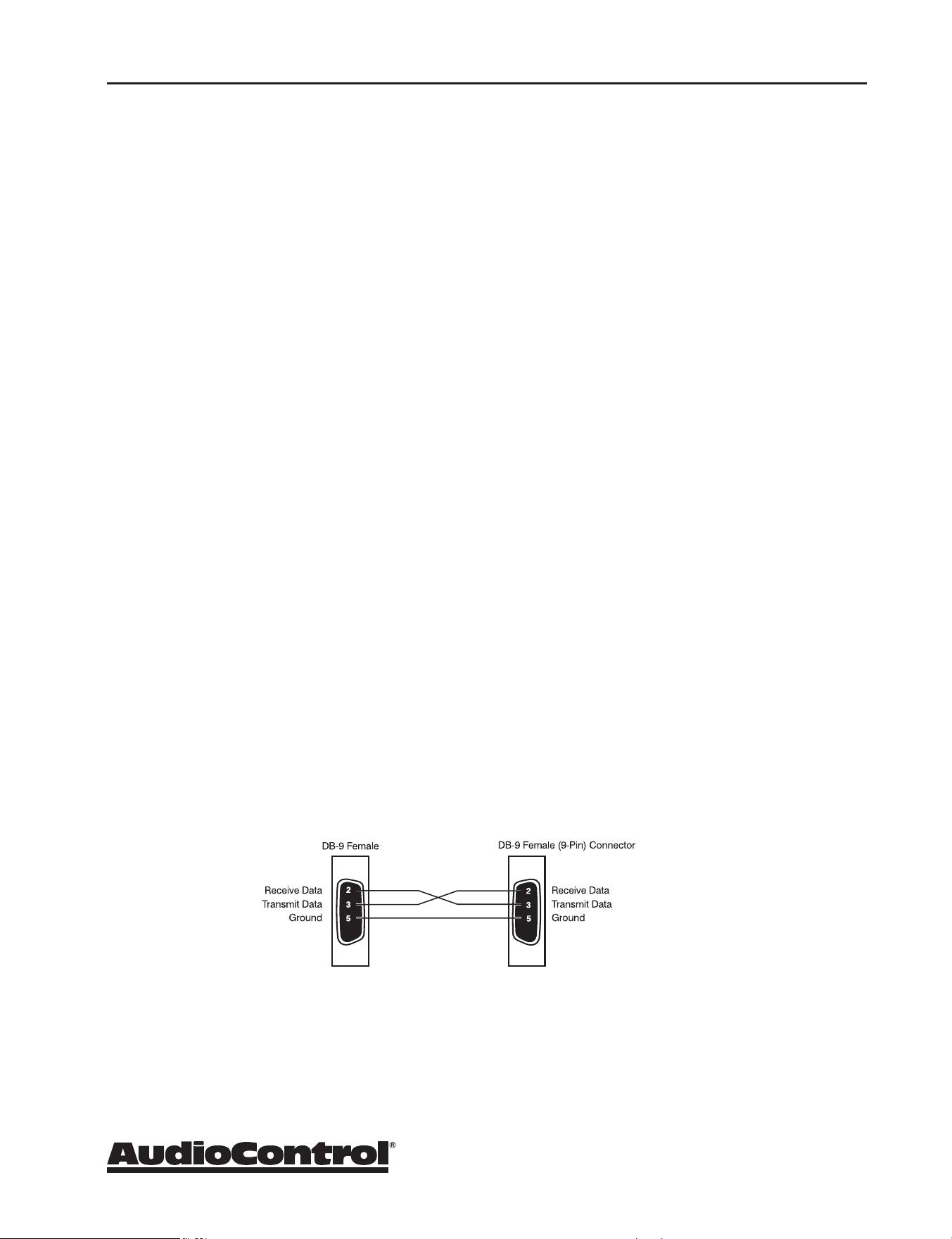
The cable wiring to connect the Processor/Receiver to your control system
will depend on the RS232 output connection on the controller. Make certain
that you wire the Transmit Data output on the serial controller to the Receive
Data on the Processor/Receiver and vice versa on the Receive Data line on the
controller system. Connect the signal grounds on the control system and the
Processor/Receiver series together. The RS232 connection on the Processor/
Receiver is a DB-9 Male connector, labeled Control and is wired as follows:
Pin 2 Receive Data (RXD)
Pin 3 Transmit Data (TXD)
Pin 5 Ground
To connect the Processor/Receiver to a standard PC serial COM port; wire the
cable in a ‘null modem’ arrangement using the appropriate serial cable.

34
Automation Integration
X/XR Series Processors & Receivers
Command Structure - Issuing
The RS232 serial control structure of the Processor/Receiver is a string of
hexadecimal values with a minimum of six bytes. When issuing a command,
the structure of the string is as follows: Start Transmission, Zone Number,
Command Code, Data Length, Data and End Transmission. We will use an
abbreviated form for easy reference in the following format:
<ST><ZN><CC><DL><Data><ETR>
Parameter Command Description
Start 0x21 Begin transmission
Zone Number 0x01 Zone 1
0x02 Zone 2
Command Code See code list The code of the
command
Data Length 0x01, 0x02 etc… Number of data parameters
to follow
Data See code index The parameters for the
command
ETR 0x0D End transmission
As an example:
To change the video source (only video, not audio) in Zone 1 to SAT:
0x21 0x01 0x0A 0x01 0x01 0x0D
To change the source (both audio and video), the command is the 0x08 – IR
simulation command. See page 36 for more info.

35
Automation Integration
X/XR Series Processors & Receivers
Command Structure - Receiving
Command processing begins when the rst 0x0D (carriage return) is received.
The Processor/Receiver will respond, either by making the change specied
with a status update answer code or by replying with an error answer code,
within 3 seconds. More commands, however, may be sent before the
Processor/Receiver responds to the rst command. When a command is
received, the Processor/Receiver echoes the command back in the following
format:
<ST><ZN><CC><AC><DL><Data><ETR>
Parameter Command Description
Start 0x21 Begin transmission
Zone Number 0x01 Zone 1
0x02 Zone 2
Command Code See code list The code of the command
Answer Code 0x00 No problems – status
updated
0x82 Incorrect Zone
0x83 Incorrect Command
0x84 Incorrect Parameter
0x85 Invalid Command in
current state
0x86 Data length is
incorrect
Data Length 0x01, 0x02 etc… Number of data units
to follow
Data See code list The parameters for the
response, limited to 255
ETR 0x0D End transmission
As an example:
Answer code for source change in Zone 1 to DVD:
0x21 0x01 0x0A 0x00 0x01 0x00 0x0D

36
Automation Integration
X/XR Series Processors & Receivers
Simulating the RC-5 IR command via RS232
A key feature in the Processor/Receiver is the ability to simulate RC5 format
IR commands via serial commands. The IR simulation command will contain
7 bytes as there will be 2 <Data> bytes for the RC-5 command. The actual
command <CC> is 0x08 with the 2 <Data> bytes being the IR command values.
The 2 data bytes are the system code then the command code, both these
codes are in decimal format. Depending on your software or remote control
device, a conversion of these codes to the appropriate format may be needed.
Changes in state from dierent inputs
While the Processor/Receiver is controlled by a serial command, its state
may be changed by other inputs such as the front panel or through IR. Such
changes in state will yield a response with an answer code from the Processor/
Receiver. In order to determine the command code, you may use the response
to get the code for the desired function if you can’t nd the listing for it in the
automation table.
Serial and IR Code Tables
Please head on over to our web site, www.audiocontrol.com, to get the serial/
IP protocol doc. You can nd a complete listing of the automation protocol
– commands, cheats, rich detail that makes most eyes glaze over – at the
product pages. You can also nd control modules/drivers/proles on the
products pages as well. Alternatively, if you can’t sleep, and are unfamiliar with
hex, read the doc – it’ll put you right to sleep.
37
Dirac Live
X/XR Series Processors & Receivers
Dirac Live speaker setup system
X/XR Series Processor and Receivers have an automatic speaker setup system
called Dirac Live with Dirac Live Bass Control, from Dirac Research. The
supplied microphone is used with your computer on the same network to
measure the sound output of the system. Dirac Live automatically calibrates
the settings of all the speakers in the system, and will apply the optimized EQ
settings to the main room. From the measurements, Dirac Live computes the
distance, level, and identies any problems that can be corrected or reduced
by room EQ settings.
The procedure for running all this wonderful technology, is as follows:
1. Connect the supplied microphone to the USB port on your PC or MAC
connected to the same network as the Processor/Receiver.
2. Position the microphone so it is close to the normal/usual position
of your head when you are sitting in your home theater. We suggest
using a mic stand (a boom stand works best) to position mic. Point the
microphone upwards and in a position where it has a direct line of sight
view of all speakers.
3. If your system uses an active subwoofer, set the output level controls to
approximately match the front speakers.
4. Run the Dirac Live application on your computer. A calibration test tone
will run through all speakers in your system, a number of times as the
dierent speaker responses are calculated. If some speakers are not
used, there will be a silence when these are reached. Check the software
application for the progress and information.
By default, Room EQ is not automatically applied to the source inputs. You
can enable this using the Input Conguration display menu of the unit. Listen
to the dierent sources and source material, and judge if the room EQ settings
give an improvement.
During the measurements, try your best to create as quiet an environment as
possible. This is not the time for little Timmy’s circus animal birthday party.
While EQ settings can be benecial, there is no substitute for getting things
right in the rst place, with regard to speaker placement, speaker type, and
room treatments to avoid reections etc.
Downloading Dirac Live with Dirac Live Bass Control
To download the Dirac Live PC/MAC application and quick start guide, please
visit: dirac.com/live/downloads/
For a more detailed
Dirac Live setup
walkthrough visit:
audiocontrol.com/
dirac-setup/
...or scan:

38
X/XR Series Processors & Receivers
Troubleshooting
Troubleshooting Common Problems
General
There are no lights on the Processor/Receiver
9 Pressing any button on the front panel should wake the Processor/
Receiver.
9 Verify that the power cord is plugged into a live AC outlet.
9 Verify that the front panel Power switch is “On”.
The main front panel display is blank
9 Press the Display button. This button controls the display brightness and
also allows you to turn the display o entirely.
The main zone changes while selecting sources from Zone 2
9 Change the Zone 1 Control option in the Zone 2 Conguration Menu to
O.
Video
No video/picture
9 Verify your video display or projector is turned on and set to the correct
input for the Processor/Receiver. Press the Menu button on the Processor/
Receiver and look for the Setup Menus to show on the video display.
9 Verify the correct input on the video display is selected for the output of
the source.
9 Verify the Video Input assignment congurations. Make certain that the
correct video input is assigned to the source you are playing.
No Video on Zone 2
9 Verify the HDMI input from the source is connected.
There is no On-Screen Display (OSD)
9 Verify the OSD is turned on in the Processor/Receiver conguration
settings.
9 Verify that the correct input is selected on the video display or projector.

39
X/XR Series Processors & Receivers
Audio
The audio doesn’t match the video
9 The Video and Audio input can be selected independently in the Main
Menu. Verify they are set the same.
9 Verify the correct Video Input and Digital Audio input assignments
are congured for the Source Input.
The sound is poor or distorted
9 Verify the speaker settings conguration matches your speakers. If
a speaker is set to Large and it cannot reproduce full range bass, you
will hear distortion.
9 If the trouble is only on some channels: Verify the audio RCA cables
to the power ampliers are working and seated properly.
9 If the trouble is in all channels: Verify the Input Trim setting in the
Advanced Congurations is not set too low.
Cannot select Dolby Digital or DTS decoding mode
9 The Processor/Receiver can only decode formats encoded onto the
source. Normally these are marked on the packaging or liner notes of
the material.
9 Verify that the correct format is selected in the Start Menu of the
disc.
9 Verify that the digital input from the source is properly connected to
the Processor/Receiver.
9 Verify that the digital output of the source is enabled. Some Blu-ray
players have a setup menu that can only be accessed if there is no
disc in the player.
Troubleshooting

40
X/XR Series Processors & Receivers
Hum on analog inputs
9 Verify that all the two channel analog audio cables are connected properly.
9 If the hum only occurs on one source, try a dierent set of connecting
cables.
9 If the hum occurs on a source with an external connection such as an
antenna or cable TV, try disconnecting that input. If the hum disappears,
put a ground isolator on that connection.
9 It does not know the words.
No audio on Zone 2
9 Zone 2 is muted when unit is rst turned on.
9 Make sure you are using a source with analog outputs.
No Zone 2 audio when playing a DTS encoded video
9 Most Blu-ray players cannot output a stereo analog version of the
soundtrack while playing a DTS encoded disk. If you want to watch the
movie in the second zone, select the Dolby Digital soundtrack on the disk.
My boomerang won’t come back
9 It’s a stick.
Troubleshooting

41
X/XR Series Processors & Receivers
Service
Should your Processor/Receiver Need Service
Before returning any item to AudioControl, you must obtain a return authorization.
Tech Support contact and hours:
+1 (425) 775-8461
Monday - Friday 8 am -5 pm PDT
After obtaining a return authorization, please write your RA number on the outside of
the shipping box and include the following items when returning the unit:
1. A copy of your proof of purchase. No originals please. We cannot guarantee
returning them to you.
2. A brief explanation of the trouble you are having with the unit. (You’d be
surprised how many people forget this.) If you can supply a really detailed
description of the problem, this would be so much better, and our service
technicians may add you to their Christmas Card list. Please include any notes
about the system and other components you are using. Is it an intermittent
problem that only occurs on the rst full moon of Spring?
3. A return street address. (No PO Boxes, please).
4. A daytime phone number in case our technicians have a question about the
problem you are having, or if they are just feeling lonely.
Package the unit in the original packaging if you still have it, and if the cat hasn’t had
three litters of kittens in the box. Use great care and plenty of good packing materials
to protect the unit and prevent it from moving about inside the box. Do not use loose
materials like packing peanuts or real peanuts.
You are responsible for the freight charges to us, but we’ll pay the return freight back
as long as the unit is under warranty. We match whatever shipping method you use to
send it to us, so if you return the unit overnight freight, we send it back overnight. We
recommend United Parcel Service (UPS) for most shipments.
Repair service is available at:
AudioControl Service Department
22410 70th Avenue West, Suite 1
Mountlake Terrace, WA 98043
USA

42
X/XR Series Processors & Receivers
Warranty
Warranty
…and now a word from the legal department...
People are scared of warranties. Lots of ne print. Months of waiting around. Well,
fear no more. This warranty is designed to make you rave about us to your friends.
It’s a warranty that looks out for you and helps you resist the temptation to have
your friend, who’s “good with electronics”, try to repair your AudioControl product.
So go ahead, read this warranty, then take a few days to enjoy your new X/XR Series
Processor/Receiver before logging onto the our web site at www.audiocontrol.com to
register your purchases.
Our warranty has conditional conditions! “Conditional” doesn’t mean anything
ominous. The Federal Trade Commission tells all manufacturers to use the term to
indicate that certain conditions have to be met before they’ll honor the warranty. If
you meet all of these conditions, we will warrant all materials and workmanship on
the Processor/Receiver for ve (5) years from the date you bought it, and we will x or
replace it, at our option, during that time. Here are the conditional conditions:
1. You need to register your purchases with us by going to the AudioControl
product registration page at www.audiocontrol.com/product-registration.
2. You must keep your sales receipt for proof of purchase showing when and from
whom the unit was bought. We’re not the only ones who require this, so it’s a
good habit to get into with any major purchase.
3. The Processor/Receiver must have originally been purchased from an authorized
AudioControl dealer. You do not have to be the original owner, but you do need
a copy of the original sales receipt or invoice.
4. You cannot let anybody who isn’t: (A) the AudioControl factory; (B) somebody
authorized in writing by AudioControl to service the Processor/Receiver. If
anyone other than (A) or (B) messes with the Processor/Receiver, that voids your
warranty.
5. The warranty is also void if the serial number is altered or removed, or if the
Processor/Receiver has been used improperly. Now that sounds like a big
loophole, but here is all we mean by it:
Unwarranted abuse is: (A) physical damage (don’t use the Processor/Receiver to level
your projection TV); (B) improper connections (120 volts into the RCA jacks can fry the
poor thing); (C) sadistic things. This is the best product we know how to build, but if
you strap it to the front bumper of your Range Rover, something will break.
Assuming you conform to 1 through 5 (and it really isn’t all that hard to do) we get the
option of xing your original unit or replacing it with a new one.

43
X/XR Series Processors & Receivers
Legal
Legalese Section
This is the only warranty given by AudioControl. This warranty gives you specic
legal rights, and you may also have rights that vary from state to state. Promises of
how well the unit will work are not implied by this warranty. Other than what we’ve
said we’ll do in this warranty, we have no obligation, express or implied. We make no
warranty of merchantability or tness for any particular purpose. Also neither we nor
anyone else who has been involved in the development or manufacture of the unit
will have any liability of any incidental, consequential, special or punitive damages,
including but not limited to any lost prots or damage to other parts of your system
by hooking up to the unit (whether the claim is one for breach of warranty, negligence
of other tort, or any other kind of claim). Some states do not allow limitations of
consequential damages. Failure to register your product negates any service claims.
The warranty included with the unit shall supersede this plain-text version if there is
any inconsistency between the two.

44
X/XR Series Processors & Receivers
Maestro X9S / Maestro X9 Specications
Inputs
Analog Audio Inputs - Unbalanced ..................... .......................6 Stereo Pairs
Analog Audio Inputs - Balanced ........................ ........................2 Stereo Pair
Nominal Audio Input sensitivity ....................... ..............................1V-4V
Input Impedance .................................... ...........................47 kOhm
Signal to Noise Ratio . . . . . . . . . . . . . . . . . . . . . . . . . . . . . . . . . ............................>102 dB
Digital Audio Inputs . . . . . . . . . . . . . . . . . . . . . . . . . . . . . . . . . . .................................. 6
Video inputs ........................................ ....................7 HDMI 2.1 (X9S)
. . . . . . . . . . . . . . . . . . . . . . . . . . . . . . . . . . . . . . . . . . . . . . . . . . . . .................... 7 HDMI 2.0b (X9)
Outputs
Total Harmonic Distortion ............................ ............................ -100 dB
Frequency Response . . . . . . . . . . . . . . . . . . . . . . . . . . . . . . . . . ......................20 Hz – 20 kHz
Preamp Balanced Audio Outputs ...................... .........7 main channels, 1 subwoofer
. . . . . . . . . . . . . . . . . . . . . . . . . . . . . . . . . . . . . . . . . . . . . . . . . . . . ................... 4 height channels
. . . . . . . . . . . . . . . . . . . . . . . . . . . . . . . . . . . . . . . . . . . . . . . . . . . . .............. 4 congurable channels
Preamp Unbalanced Audio Outputs .................... .........7 main channels, 2 subwoofer
. . . . . . . . . . . . . . . . . . . . . . . . . . . . . . . . . . . . . . . . . . . . . . . . . . . . .............4 height channels, Zone 2
. . . . . . . . . . . . . . . . . . . . . . . . . . . . . . . . . . . . . . . . . . . . . . . . . . . . .............. 4 congurable channels
Main Video Outputs . . . . . . . . . . . . . . . . . . . . . . . . . . . . . . . . . . ......................Dual (2) HDMI
Second Zone Output . . . . . . . . . . . . . . . . . . . . . . . . . . . . . . . . . ..........1 HDMI, Stereo analog audio
Control
12 Volt Trigger Outputs . . . . . . . . . . . . . . . . . . . . . . . . . . . . . . . ...................Main Zone, Zone 2
RS-232 Serial control ................................ ............................. 1 DB-9
IR Receiver Inputs ................................... ...................Main Zone, Zone 2
General
Power Consumption (Stand By) ....................... ..................Less than 0.5 Watts
Power Consumption (typical usage) .................... ........................... 90 Watts
Power Consumption (maximum) . . . . . . . . . . . . . . . . . . . . . . . .......................... 100 Watts
Dimensions (including terminals and feet) .............. ............... 17”W x 16.9”D x 7.3”H
Weight . . . . . . . . . . . . . . . . . . . . . . . . . . . . . . . . . . . . . . . . . . . . . ............................27.1 lbs.
All specications are subject to change.
Specifications

45
X/XR Series Processors & Receivers
Maestro X7S / X7 Specications
Inputs
Analog Audio Inputs - Unbalanced ..................... .......................6 Stereo Pairs
Analog Audio Inputs - Balanced ........................ ........................2 Stereo Pair
Nominal Audio Input sensitivity ....................... ..............................1V-4V
Input Impedance .................................... ...........................47 kOhm
Signal to Noise Ratio . . . . . . . . . . . . . . . . . . . . . . . . . . . . . . . . . ............................>100 dB
Digital Audio Inputs . . . . . . . . . . . . . . . . . . . . . . . . . . . . . . . . . . .................................. 6
Video inputs ........................................ ....................7 HDMI 2.1 (X7S)
. . . . . . . . . . . . . . . . . . . . . . . . . . . . . . . . . . . . . . . . . . . . . . . . . . . . .................... 7 HDMI 2.0b (X7)
Outputs
Total Harmonic Distortion ............................ ............................ -100 dB
Frequency Response . . . . . . . . . . . . . . . . . . . . . . . . . . . . . . . . . ......................20 Hz – 20 kHz
Preamp Balanced Audio Outputs ...................... .........7 main channels, 1 subwoofer
. . . . . . . . . . . . . . . . . . . . . . . . . . . . . . . . . . . . . . . . . . . . . . . . . . . . ................... 4 height channels
. . . . . . . . . . . . . . . . . . . . . . . . . . . . . . . . . . . . . . . . . . . . . . . . . . . . .............. 4 congurable channels
Preamp Unbalanced Audio Outputs .................... .........7 main channels, 2 subwoofer
. . . . . . . . . . . . . . . . . . . . . . . . . . . . . . . . . . . . . . . . . . . . . . . . . . . . .............4 height channels, Zone 2
. . . . . . . . . . . . . . . . . . . . . . . . . . . . . . . . . . . . . . . . . . . . . . . . . . . . .............. 4 congurable channels
Main Video Outputs . . . . . . . . . . . . . . . . . . . . . . . . . . . . . . . . . . ......................Dual (2) HDMI
Second Zone Output . . . . . . . . . . . . . . . . . . . . . . . . . . . . . . . . . ..........1 HDMI, Stereo analog audio
Control
12 Volt Trigger Outputs . . . . . . . . . . . . . . . . . . . . . . . . . . . . . . . ...................Main Zone, Zone 2
RS-232 Serial control ................................ ............................. 1 DB-9
IR Receiver Inputs ................................... ...................Main Zone, Zone 2
General
Power Consumption (Stand By) ....................... ..................Less than 0.5 Watts
Power Consumption (typical usage) .................... ........................... 90 Watts
Power Consumption (maximum) . . . . . . . . . . . . . . . . . . . . . . . .......................... 100 Watts
Dimensions (including terminals and feet) .............. ............... 17”W x 16.9”D x 7.3”H
Weight . . . . . . . . . . . . . . . . . . . . . . . . . . . . . . . . . . . . . . . . . . . . . ............................27.1 lbs.
All specications are subject to change.
Specifications

46
X/XR Series Processors & Receivers
Specifications
Concert XR-8S / XR-8 Specications
Inputs
Analog Audio Inputs. . . . . . . . . . . . . . . . . . . . . . . . . . . . . . . . . . .......................6 Stereo Pairs
Nominal Audio Input sensitivity ....................... ..............................1V-4V
Input Impedance .................................... ...........................47 kOhm
Signal to Noise Ratio . . . . . . . . . . . . . . . . . . . . . . . . . . . . . . . . . .............................100 dB
Digital Audio Inputs . . . . . . . . . . . . . . . . . . . . . . . . . . . . . . . . . . .................................. 6
Video inputs ........................................ .................. 7 HDMI 2.1 (XR-8S)
. . . . . . . . . . . . . . . . . . . . . . . . . . . . . . . . . . . . . . . . . . . . . . . . . . . . ..................7 HDMI 2.0b (XR-8)
Outputs
Speaker Level Channels .............................. .................................. 7
Power Output . . . . . . . . . . . . . . . . . . . . . . . . . . . . . . . . . . . . . . . ......... 120 Watts per ch into 8 ohms
. . . . . . . . . . . . . . . . . . . . . . . . . . . . . . . . . . . . . . . . . . . . . . . . . . . . ......... 200 Watts per ch into 4 ohms
Minimum Speaker Load .............................. .............................4 ohms
Total Harmonic Distortion ............................ ............................ -100 dB
Frequency Response . . . . . . . . . . . . . . . . . . . . . . . . . . . . . . . . . ......................20 Hz – 20 kHz
Preamp Audio Outputs . . . . . . . . . . . . . . . . . . . . . . . . . . . . . . . .........7 main channels, 2 subwoofer
. . . . . . . . . . . . . . . . . . . . . . . . . . . . . . . . . . . . . . . . . . . . . . . . . . . . .............4 height channels, Zone 2
. . . . . . . . . . . . . . . . . . . . . . . . . . . . . . . . . . . . . . . . . . . . . . . . . . . . .............. 4 congurable channels
Main Video Outputs . . . . . . . . . . . . . . . . . . . . . . . . . . . . . . . . . . .......................Dual (2) HDMI
Second Zone Output . . . . . . . . . . . . . . . . . . . . . . . . . . . . . . . . . ..........1 HDMI, Stereo analog audio
Control
12 Volt Trigger Outputs . . . . . . . . . . . . . . . . . . . . . . . . . . . . . . . ...................Main Zone, Zone 2
RS-232 Serial control ................................ ............................. 1 DB-9
IR Receiver Inputs ................................... ...................Main Zone, Zone 2
General
Power Consumption (Stand By) ....................... ..................Less than 0.5 Watts
Power Consumption (typical usage) .................... .......................... 100 Watts
Power Consumption (maximum) . . . . . . . . . . . . . . . . . . . . . . . .........................1500 Watts
Dimensions (including terminals and feet) .............. ............... 17”W x 17.5”D x 7.3”H
Weight . . . . . . . . . . . . . . . . . . . . . . . . . . . . . . . . . . . . . . . . . . . . . ............................ 40.3 lbs
All specications are subject to change.

47
X/XR Series Processors & Receivers
Specifications
Concert XR-6S / Concert XR-6 Specications
Inputs
Analog Audio Inputs. . . . . . . . . . . . . . . . . . . . . . . . . . . . . . . . . . .......................6 Stereo Pairs
Nominal Audio Input sensitivity ....................... ..............................1V-4V
Input Impedance .................................... ...........................47 kOhm
Signal to Noise Ratio . . . . . . . . . . . . . . . . . . . . . . . . . . . . . . . . . .............................100 dB
Digital Audio Inputs . . . . . . . . . . . . . . . . . . . . . . . . . . . . . . . . . . .................................. 6
Video inputs ........................................ .................. 7 HDMI 2.1 (XR-6S)
. . . . . . . . . . . . . . . . . . . . . . . . . . . . . . . . . . . . . . . . . . . . . . . . . . . . ..................7 HDMI 2.0b (XR-6)
Outputs
Speaker Level Channels .............................. .................................. 7
Power Output . . . . . . . . . . . . . . . . . . . . . . . . . . . . . . . . . . . . . . . ......... 100 Watts per ch into 8 ohms
Minimum Speaker Load .............................. .............................4 ohms
Total Harmonic Distortion ............................ ............................ -100 dB
Frequency Response . . . . . . . . . . . . . . . . . . . . . . . . . . . . . . . . . ......................20 Hz – 20 kHz
Preamp Audio Outputs . . . . . . . . . . . . . . . . . . . . . . . . . . . . . . . .........7 main channels, 2 subwoofer
. . . . . . . . . . . . . . . . . . . . . . . . . . . . . . . . . . . . . . . . . . . . . . . . . . . . ............ 2 height channels, Zone 2
. . . . . . . . . . . . . . . . . . . . . . . . . . . . . . . . . . . . . . . . . . . . . . . . . . . . .............. 4 congurable channels
Main Video Outputs . . . . . . . . . . . . . . . . . . . . . . . . . . . . . . . . . . .......................Dual (2) HDMI
Second Zone Output . . . . . . . . . . . . . . . . . . . . . . . . . . . . . . . . . ..........1 HDMI, Stereo analog audio
Control
12 Volt Trigger Outputs . . . . . . . . . . . . . . . . . . . . . . . . . . . . . . . ...................Main Zone, Zone 2
RS-232 Serial control ................................ ............................. 1 DB-9
IR Receiver Inputs ................................... ...................Main Zone, Zone 2
General
Power Consumption (Stand By) ....................... ..................Less than 0.5 Watts
Power Consumption (typical usage) .................... .......................... 100 Watts
Power Consumption (maximum) . . . . . . . . . . . . . . . . . . . . . . . .........................1500 Watts
Dimensions (including terminals and feet) .............. ............... 17”W x 17.5”D x 7.3”H
Weight . . . . . . . . . . . . . . . . . . . . . . . . . . . . . . . . . . . . . . . . . . . . . ............................ 40.3 lbs
All specications are subject to change.

48
X/XR Series Processors & Receivers
Concert XR-4 Specications
Inputs
Analog Audio Inputs. . . . . . . . . . . . . . . . . . . . . . . . . . . . . . . . . . .......................6 Stereo Pairs
Nominal Audio Input sensitivity ....................... ..............................1V-4V
Input Impedance .................................... ...........................47 kOhm
Signal to Noise Ratio . . . . . . . . . . . . . . . . . . . . . . . . . . . . . . . . . .............................100 dB
Digital Audio Inputs . . . . . . . . . . . . . . . . . . . . . . . . . . . . . . . . . . .................................. 6
Video inputs ........................................ ........................7 HDMI 2.0B
Outputs
Speaker Level Channels .............................. .................................. 7
Power Output . . . . . . . . . . . . . . . . . . . . . . . . . . . . . . . . . . . . . . . ...........65 Watts per ch into 8 ohms
Minimum Speaker Load .............................. .............................4 ohms
Total Harmonic Distortion ............................ ............................ -100 dB
Frequency Response . . . . . . . . . . . . . . . . . . . . . . . . . . . . . . . . . ......................20 Hz – 20 kHz
Preamp Audio Outputs . . . . . . . . . . . . . . . . . . . . . . . . . . . . . . . .........7 main channels, 2 subwoofer
. . . . . . . . . . . . . . . . . . . . . . . . . . . . . . . . . . . . . . . . . . . . . . . . . . . . ....................4 height channels
Main Video Outputs . . . . . . . . . . . . . . . . . . . . . . . . . . . . . . . . . . .......................Dual (2) HDMI
Control
12 Volt Trigger Outputs . . . . . . . . . . . . . . . . . . . . . . . . . . . . . . . ..........................Main Zone
RS-232 Serial control ................................ .............................1 DB-9
IR Receiver Inputs ................................... ..........................Main Zone
General
Power Consumption (Stand By) ....................... ..................Less than 0.5 Watts
Power Consumption (typical usage) .................... ........................... 90 Watts
Power Consumption (maximum) . . . . . . . . . . . . . . . . . . . . . . . .........................1500 Watts
Dimensions (including terminals and feet) .............. ............... 17”W x 17.5”D x 7.3”H
Weight . . . . . . . . . . . . . . . . . . . . . . . . . . . . . . . . . . . . . . . . . . . . . ............................ 40.3 lbs
All specications are subject to change.
Specifications
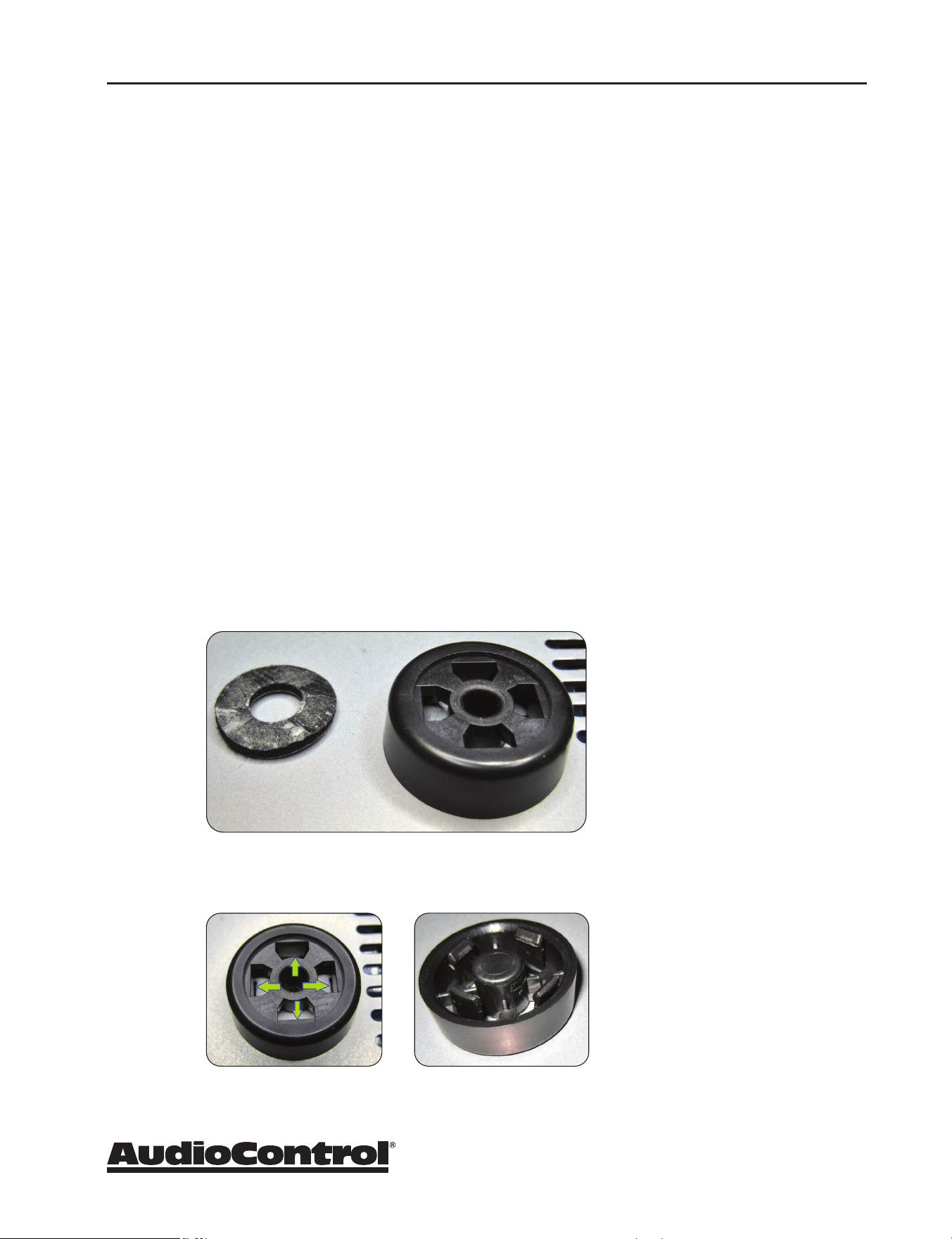
49
X/XR Series Processors & Receivers
Appendix A: Feet Removal Procedure
Note: If this was your real appendix, please consult your health care professional as it
should not look like this.
The feet of the unit can be removed to create a cleaner look when tting the unit into
a rack.
You must make sure that the ventilation slots in the bottom panel are not covered and
that cooling air ow is not restricted.
Tools Required
• A medium-sized at-bladed screwdriver, 1/4" wide or narrower.
• Needle-nosed pliers
The Procedure
1. Make sure that the power cord and all other cords are disconnected from the
unit.
2. Carefully place the unit upside-down on a at surface, such as the kitchen table
with a clean and dry towel on it.
3. Remove the adhesive non-slip grips from the bottom of each foot.
4. Identify the four locking tabs securing the foot to the chassis. The photo of a
removed foot shows the details of the locking tabs.
Appendix a
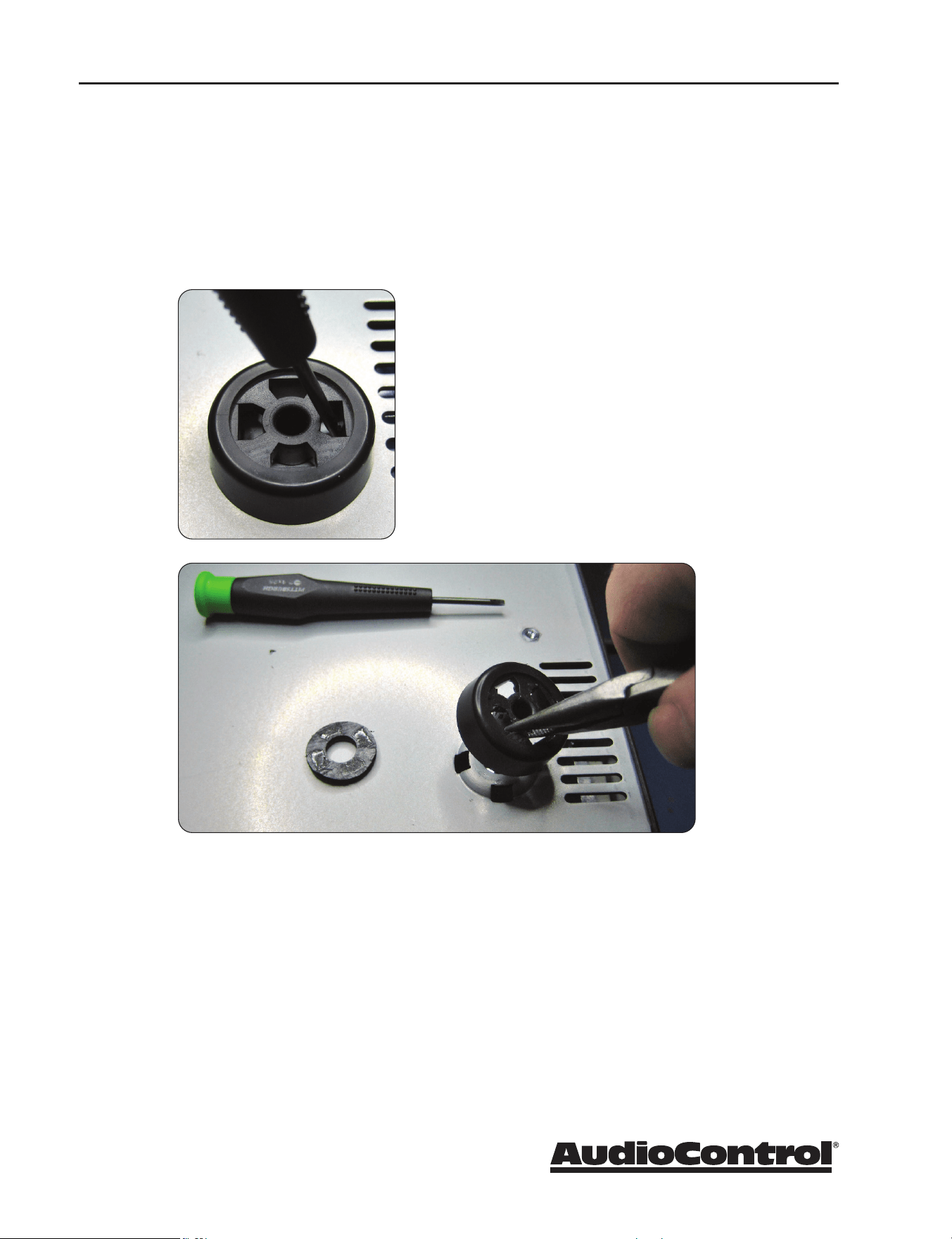
50
X/XR Series Processors & Receivers
5. Use the small at-bladed screwdriver to gently pry the four locking tabs outward
to release the foot from the chassis. Use the needle-nose pliers to pull upward
at the same time, with (to get all technical for a moment) a bit of a jiggle-joggle
motion.
6. Repeat for all 4 feet. Place all the feet in your sock drawer in case you wish to
reinstall them in the future.
Appendix a

51
X/XR Series Processors & Receivers
Appendix b
Appendix B:
This appendix was removed as it became bloated and painful.

P/N 913-175-0 Rev A
22410 70th Avenue West
Mountlake Terrace, WA 98043 USA
+1 (425) 775-8461
www.audiocontrol.com