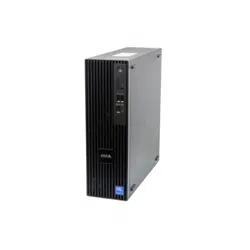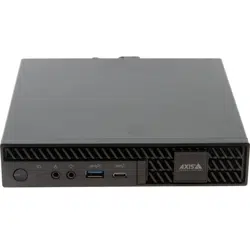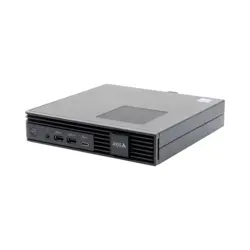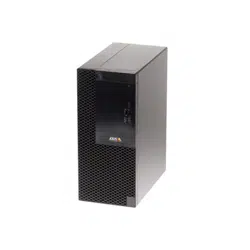


AXISCameraStationS9302Workstation
TableofContents
Aboutyourdevice...........................................3
Getstarted................................................4
Installyourdevice..........................................5
Beforeinstallation...............................................5
Installation....................................................5
Congureyourdevice........................................6
Downloadaudiodrivers..........................................6
InitialAxisrecordersetup.........................................6
CongureAXISCameraStation....................................6
ManageWindows®useraccounts..............................10
Createauseraccount............................................10
Createanadministratoraccount...................................10
Createalocalusergroup.........................................10
Deleteauseraccount............................................10
Changeauseraccount'spassword..................................1 1
Createapasswordresetdiskforauseraccount.......................1 1
ManageAXISCameraStationuseraccounts.....................12
Congureuserpermissions........................................12
Addusersorgroups..............................................
12
Userorgroupprivileges..........................................13
Manageyourdevice.........................................15
UpdateWindows®...............................................15
CongureWindowsupdatesettings................................15
Troubleshooting............................................17
CheckthecurrentBIOSversion....................................
17
UpgradeBIOS..................................................17
Performasystemrecovery........................................
17
TroubleshootAXISCameraStation..................................
18
Productoverview...........................................19
Needmorehelp?............................................21
Usefullinks....................................................
21
Contactsupport.................................................21
2

AXISCameraStationS9302Workstation
Aboutyourdevice
Aboutyourdevice
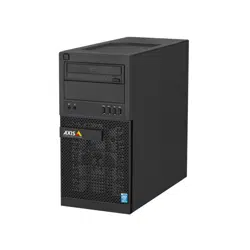
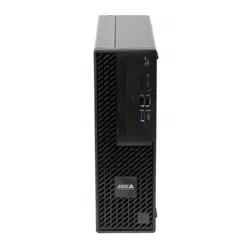
AXISCameraStationS9302Workstationisaworkstationforhigh-denitionsurveillancewithsupportforuptofoursimultaneous
4Kmonitors.TheworkstationispreloadedwithanAXISCameraStationclientandispreconguredtominimizeinstallationtime.
TogetherwithAxisrackservers,AXISS9302createshigh-endsurveillancesolutionsfordemandingscenarios.
3
AXISCameraStationS9302Workstation
Getstarted
Getstarted
ThestandardworkowtocongureanAXISCameraStationrecordingserveris:
1.Installyourdevice
2.InitialWindows®setup:Afterinstallingyourdevice,youareguidedthroughafewstepstosetuptheregion,language,
keyboardlayout,anadministratoraccountanditspassword.
3.InitialAxisrecordersetup:AftertheinitialWindowssetup,AXISRecorderToolboxisopenedandyouareguidedthrougha
fewstepstosetupbasicandnecessarysettings,forexample,computername,dateandtime,andnetwork.See.
4.CongureWindows.Werecommendto:
-UpdateWindowstothelatestversion.SeeUpdateWindows®onpage15.
-Createastandarduseraccount.SeeCreateauseraccountonpage10.
5.UpdateAXISCameraStationtothelatestversion.
-Ifyoursystemisonline:opentheAXISRecorderToolboxappandclickUpdateAXISCameraStation.
-Ifyoursystemisofine:gotoaxis.comanddownloadthelatestversion.
6.CongureAXISCameraStation
7.ConnectyoursystemtotheAXISCameraStationmobileviewingapp.SeeConnecttoAXISCameraStationserver.
Towatchthisvideo,gotothewebversionofthisdocument.
help.axis.com/?&piaId=81466§ion=about-your-device
4

AXISCameraStationS9302Workstation
Installyourdevice
Installyourdevice
Beforeinstallation
•Prepareadditionalaccessoriesusedforinstallation:monitor,mouse,keyboardandnetworkcable.
•Understandtheusageofdifferentuseraccounts.
Thefollowingtableliststheuseraccountsthatcanbeusedforinstallation,congurationandoperationofyourAxissystem.
UseraccountDescriptionNote
MyAxisUsedtodownloadthelatestsoftware,accessthe
licensesystem,AxisSecureRemoteAccess,and
SystemHealthMonitoring.
Registeredfrommy.axis.com.
Windows®
WindowsadministratorAdministratorprivilegesinWindows.We
recommendyoudonotuseitasAXISCamera
Stationadministrator.
CreatedduringinitialWindowssetup.
WindowsuserwithAXISCamera
Stationadministratorprivileges
AWindowsusergrantedwithadministrator
privilegesinAXISCameraStationtobeusedby
systemintegratororsystemadministratorfor
congurationortroubleshooting.
CreatedinWindowssettings.
WindowsuserwithAXISCamera
Stationoperatororviewer
privileges
AWindowsusergrantedwithoperatororviewer
privilegesinAXISCameraStation.
CreatedinWindowssettings.
Device
DeviceadministratorUsedbytheadministratortoaccessthecamera
fromthevideomanagementsystemordevice
webpage.
Createdfromthedevicewebpageor
whenyouaddthedevicetoAXISCamera
Station.
Installation
Forinstructionsonhowtoinstalltheproduct,seetheinstallationguideincludedintheboxorontheproduct’ssupportpage
onaxis.com.
5

AXISCameraStationS9302Workstation
Configureyourdevice
Configureyourdevice
Downloadaudiodrivers
Perdefault,oneofthe3.5mmaudiojacksfunctionsonlyasalinein/out,andtheother3.5mmaudiojackonlyfunctionsasaheadset
jack.Tobeabletoswitchfunctionalitybetweenthe3.5mmaudiojacks,youneedtoupdatetheaudiodrivers:
1.SeeDell’ssupportpageanddownloadthelatest.exele.
2.LaunchtheleinWindowsandfollowtheinstructionsprovidedonscreen.
InitialAxisrecordersetup
AfteryouhaveconguredWindows®,AXISRecorderToolboxisopenedautomaticallyandyouareguidedthroughtherst-time
congurationwizard.Inthiswizard,youcancongureseveralbasicandnecessarysettingsbeforeyoumanageyourdevicein
AXISRecorderToolbox.
1.SelectLightorDarkthemeandclickNext.
2.ChangethecomputernameifyouwantandclickNext.
3.UnderPowersettings,
-NeverputthecomputertosleepandNeverturnoffthedisplayareselectedbydefault.
-Werecommendthatyoukeepbothoptionsselectedtomaketheliveviewandrecordingsavailableallthetime.
YoucanalwaysgotoStart>Settings>System>Power&sleeptochangethesettings.
4.UnderDateandtime,congurethefollowingsettingsandclickNext.
-Selectatimezone.
-TosetupanNTPserver,selectNTPserverandentertheNTPserveraddress.
-Tosetmanually,selectManualandselectadateandtime.
5.UnderNetworksettings,congurethefollowingsettingsandclickNext.
-UseautomaticIPsettings(DHCP)andUseautomaticDNSsettingsareturnedonbydefault.
-IfyourdeviceisconnectedtoanetworkwithaDHCPserver,theassignedIPaddress,subnetmask,gateway,and
preferredDNSareautomaticallydisplayed.
-IfyourdeviceisnotconnectedtoanetworkorthereisnoDHCPserveravailable,entertheIPaddress,subnet
mask,gateway,andpreferredDNSmanuallydependingonthenetworkrequirements.
6.ClickFinish.Ifyouhavechangedthecomputername,AXISRecorderToolboxwillpromptyoutorestartthedevice.
CongureAXISCameraStation
ThisGetstartedtutorialwillwalkyouthroughthebasicstepstomakeyoursystemupandrunning.
Beforeyoustart,youmayneedto:
•Congureyournetworkdependingonyourinstallation.SeeNetworkconguration.
•Congureyourserverportsifneeded.SeeServerportconguration.
•Considersecurityissues.SeeSecurityconsiderations.
Afternecessarycongurations,youcanstarttoworkwithAXISCameraStation:
6

AXISCameraStationS9302Workstation
Configureyourdevice
1.StartAXISCameraStation
2.Adddevices
3.Congurerecordingmethodonpage7
4.Liveviewcamerasonpage7
5.Playbackrecordingsonpage8
6.Addbookmarksonpage8
7.Exportrecordingsonpage8
8.PlayandverifyrecordingsinAXISFilePlayeronpage8
StartAXISCameraStation
AXISCameraStationServiceControlautomaticallystartsaftertheinstallationiscomplete.
Double-clicktheAXISCameraStationclienticontostarttheAXISCameraStationclient.Whenstartingtheclientforthersttime,
itautomaticallyattemptstologintotheAXISCameraStationserverinstalledonthesamecomputerastheclient.
YoucanconnecttomultipleAXISCameraStationserversindifferentways.
Adddevices
ThersttimeyoustartyourAXISCameraStation,youarenavigatedtotheAdddevicespage.AXISCameraStationautomatically
searchesthenetworkforconnecteddevicesanddisplaysalistofdevicesfound.
1.Selectthecamerastoaddfromthelist.
Ifyourcameraisnotlisted,clickManualsearch.
2.ClickAdd.
3.SelectQuickcongurationorSiteDesignerconguration.ClickNext.
4.UsethedefaultsettingsandensuretherecordingmethodissettoNone.ClickInstall.
Congurerecordingmethod
1.GotoConguration>Recordingandevents>Recordingmethod.
2.Ifyouwanttoenablemotiondetectionrecording:
2.1Selectacamera.
2.2TurnonMotiondetection.
2.3ClickApply.
3.Ifyouwanttoenablecontinuousrecording:
3.1Selectacamera.
3.2TurnonContinuous.
3.3ClickApply.
Liveviewcameras
1.ClicktheLiveviewtabtonavigatetothecameraliveview.
7

AXISCameraStationS9302Workstation
Configureyourdevice
2.Clickacameratonavigatetotheliveviewofthatcamera.
Abluedotafterthecameranameshowsthatcontinuousrecordingisinprogress.Areddotafterthecameranameshows
thatmotiondetectionrecordingisinprogress.
3.Click
tonavigatefromLiveviewtoRecordings.
Aredlineinthetimelineshowsthatmotiondetectionrecordinghasbeentakenforthatperiod.Abluelineinthe
timelineshowsthatcontinuousrecordingisinprogress.
Playbackrecordings
1.GototheRecordingtab.
2.Inthetimelineofthecamera,usethemousewheeltozoominandoutanddragthetimelinetomakethemarker
pointingatyourdesiredposition.
3.Tostartplayingtherecordingfromthedesiredposition,click
.
Addbookmarks
1.GototheRecordingtab.
2.Inthetimelineofthecamera,usethemousewheeltozoominandoutanddragthetimelinetomakethemarker
pointingatyourdesiredposition.
3.Click
.
4.Enterthebookmarknameanddescription.Usekeywordsinthedescriptiontomakethebookmarkeasytondand
recognized.
5.SelectPreventrecordingdeletiontolocktherecording.Alockedrecordingcan'tbedeletedunlessactivelyunlocked.
6.ClickOK.Abookmarkiconisdisplayedatyourdesiredpositioninthetimeline.
Exportrecordings
1.GototheRecordingtab.
2.Inthetimelineofthecamera,usethemousewheeltozoominandout.
3.Click
todisplaytheselectionmarkers.
4.Dragthemarkerstoincludetherecordingsthatyouwanttoexport.
5.Click
toopentheExporttab.
6.ClickExport....
PlayandverifyrecordingsinAXISFilePlayer
1.Gotothefolderthatyouhavespeciedfortheexportedrecordings.Inthisexample,theexportedlesincludethe
recordingsinthe.asfformat,thenotesinthe.txtformat,andAXISFilePlayer.
2.Double-clickAXISFilePlayer.Theexportedrecordingswillbeautomaticallyplayed.
3.Clicktoshowthenotesaddedtotherecordings.
4.Toverifythedigitalsignature:
8

AXISCameraStationS9302Workstation
Configureyourdevice
4.1GotoTools>Verifydigitalsignature.
4.2SelectValidatewithpasswordandenteryourpassword.
4.3ClickVerify.Thevericationresultpageisdisplayed.
Note
DigitalsignatureisdifferentfromSignedvideo.Signedvideoallowsvideotobetracedbacktothecameraitoriginatedfrom,
makingitpossibletoverifythattherecordinghasn’tbeentamperedwithafteritleftthecamera.SeeSignedvideoandthe
camera’susermanualformoreinformation.
Networkconguration
WhenAXISCameraStationclient,AXISCameraStationserver,andtheconnectednetworkdevicesareinstalledondifferentnetworks,
youmightneedtocongureproxyorrewallsettingsbeforeusingAXISCameraStation.
Clientproxysettings
Whentheclientandtheserverareseparatedbyaproxyserver,conguretheclientproxysettings.
1.Double-clicktheAXISCameraStationclienticon.
2.ClickChangeclientproxysettings.
3.Changetheclientproxysettings.
4.ClickOK.
Serverproxysettings
Whennetworkdevicesandtheserverareseparatedbyaproxyserver,conguretheserverproxysettings.
1.Double-clicktheAXISServiceControliconinWindowsnoticationarea.
2.SelectModifysettings.
3.IntheProxysettingssection,usethedefaultSystemaccountinternetoptionorselectUsemanualproxysettings.
4.ClickSave.
NATandFirewall
WhentheclientandtheserverareseparatedbyaNAT,rewallorsimilar,conguretheNATorrewalltoensurethattheHTTPport,
TCPport,andstreamingportspeciedinAXISCameraStationServiceControlareallowedtopassthroughtherewalland/orNAT.
ForinstructionshowtoconguretheNATorrewall,contactthenetworkadministrator.
Serverportconguration
Theports55752(HTTP),55754(TCP),55756(mobilecommunication),and55757(mobilestreaming)areusedonAXISCamera
Stationserverforcommunicationbetweentheserverandtheclient.Ifrequired,theportscanbechangedfromAXISCamera
StationServiceControl.
Securityconsiderations
Topreventunauthorizedaccesstocamerasandrecordings,keepthefollowinginmind:
•Usestrongpasswordsforallnetworkdevices(cameras,videoencodersandauxiliarydevices).
•InstallAXISCameraStationserver,cameras,videoencoders,andauxiliarydevicesonasecurenetworkseparated
fromtheofcenetwork.AXISCameraStationclientcanbeinstalledonacomputeronanothernetwork,forexample
anetworkwithInternetaccess.
•Ensureallusershavestrongpasswords.UsingWindowsActiveDirectoryahighlevelofsecuritycanbeimplemented.
9

AXISCameraStationS9302Workstation
ManageWindows®useraccounts
ManageWindows®useraccounts
Createauseraccount
Tohelpkeepyourpersonaldataandinformationmoresecure,werecommendthatyouaddapasswordforeachlocalaccount.
Important
Onceyoucreateapasswordforalocalaccount,don'tforgetit.There’snowaytorecoveralostpasswordforlocalaccounts.
1.GotoSettings>Accounts>Otherpeople>AddsomeoneelsetothisPC.
2.ClickIdon’thavethisperson’ssign-ininformation.
3.ClickAddauserwithoutaMicrosoftaccount.
4.Enterausername,passwordandpasswordhint.
5.ClickNextandfollowtheinstructions.
Createanadministratoraccount
1.GotoSettings>Accounts>Otherpeople.
2.GototheaccountyouwanttochangeandclickChangeaccounttype.
3.GotoAccounttypeandselectAdministrator.
4.ClickOK.
5.Restartyourdeviceandsigninwiththenewadministratoraccount.
Createalocalusergroup
1.GotoComputerManagement.
2.GotoLocalUsersandGroups>Group.
3.Right-clickGroupandselectNewGroup.
4.Enteragroupnameandadescription.
5.Addgroupmembers:
5.1ClickAdd.
5.2ClickAdvanced.
5.3Findtheuseraccount(s)youwanttoaddtothegroupandclickOK.
5.4ClickOKagain.
6.ClickCreate.
Deleteauseraccount
Important
Whenyoudeleteanaccountyouremovetheuseraccountfromtheloginscreen.Youalsoremoveallles,settingsand
programdatastoredontheuseraccount.
10

AXISCameraStationS9302Workstation
ManageWindows®useraccounts
1.GotoSettings>Accounts>Otherpeople.
2.GototheaccountyouwanttoremoveandclickRemove.
Changeauseraccount'spassword
1.Loginwithanadministratoraccount.
2.GotoUserAccounts>UserAccounts>Manageanotheraccountinsequence.
You’llseealistwithalluseraccountsonthedevice.
3.Selecttheuseraccountwhosepasswordyouwouldliketochange.
4.ClickChangethepassword.
5.EnterthenewpasswordandclickChangepassword.
Createapasswordresetdiskforauseraccount
WerecommendtocreateapasswordresetdiskusingaUSBashdrive.Then,ifyouforgetyourpassword,youcanresetthe
password.WithoutaUSBresetdisk,youcan’tresetthepassword.
Ifyou’reusingWindows10,youcanaddsecurityquestionstoyourlocalaccountincaseyouforgetyourpassword,soyoudon'tneed
tocreateapasswordresetdisk.Todothis,gottoStartandclickSettings>Sign-inoptions>Updateyoursecurityquestions.
1.Signintoyourdevicewithalocaluseraccount.Youcan’tcreateapasswordresetdiskforaconnectedaccount.
2.PlugaUSBashdriveintoyourdevice.
3.Ifthere’sanydataontheUSBashdrive,backitup.
4.FromtheWindows®searcheld,gotoCreateapasswordresetdisk.
5.IntheForgottenPasswordwizard,clickNext.
6.SelectyourUSBashdriveandclickNext.
7.TypeyourcurrentpasswordandclickNext.
8.Followtheonscreeninstructions.
9.RemovetheUSBashdriveandkeepitinasafeplacewhereyou'llrememberit.Youdon'thavetocreateanewdiskwhen
youchangeyourpasswordevenifyouchangeitseveraltimes.
11

AXISCameraStationS9302Workstation
ManageAXISCameraStationuseraccounts
ManageAXISCameraStationuseraccounts
Congureuserpermissions
GotoConguration>Security>UserpermissionstoviewalistoftheusersandgroupsthathavebeenaddedtoAXISCamera
Station.
Note
AdministratorsofthecomputeronwhichtheAXISCameraStationserverisinstalledareautomaticallygivenadministrator
privilegestoAXISCameraStation.Youcan’tchangeorremovetheadministratorsgroup'sprivileges.
Beforeauserorgroupcanbeadded,theuserorgroupmustberegisteredonthelocalcomputerorhaveanWindowsActiveDirectory
useraccount.UsingWindowsActiveDirectory,ahighlevelofsecuritycanbeimplemented.
Whenauserispartofagroup,theusergetsthehighestrolepermissionthatisassignedtotheindividualandthegroup.
Whenauserispartofagroup,theusergetstheaccessgrantedasanindividualandalsoreceivestherightsaspartofagroup.For
example,auserisgivenaccesstocameraXasanindividual.Theuserisalsoamemberofagroup.Thegroupisgivenaccessto
camerasYandZ.TheuserthenhasaccesstocamerasX,YandZ.
IftherearesecurityconcernsregardingtheaccesstothecomputerbyadesignatedAXISCameraStationuser,createastandarduser
accountthatyouthenuseforaccesstoAxisCameraStation.YoucanthenelevatetheaccounttoadministratorinConguration>
Security>Userpermissions.
Thelistconsistsofthefollowinginformation:
ItemDescription
IconIndicatestheentryisagrouporasingleuser.
NameUsernameasitappearsinthelocalcomputerorActiveDirectory.
DomainDomainnamewheretheuserorgroupisregistered.
RoleTheaccessrolegiventotheuserorgroup.
Possiblevalues:Administrator,Operator,andViewer.
DetailsDetaileduserinformationasitappearsinthelocalcomputerorActiveDirectory.
ServerServernamewheretheuserorgroupisregistered.Onlyavailablewhenconnectingto
multipleAXISCameraStationservers.
Toaddusersorgroups,seeAddusersorgroups.
Tochangeuseraccessrightsforauserorgroup,clicktheuserorgroupandmakechanges.ClickApply.
Toremoveauserorgroup,selecttheuserorgroupandclickRemove.Inthepop-updialog,clickOKtoremovetheuserorgroup.
Addusersorgroups
UseraccountsinMicrosoftWindowsandActiveDirectoryusersandgroupscanaccessAXISCameraStation.ToaddausertoAXIS
CameraStation,youhavetoaddusersoragrouptoWindows.
ToaddauserorgroupinMicrosoftWindows:AddingauserinWindowsmayvarydependingonwhichversionofWindowsyou
arerunning.FollowtheinstructionsonMicrosoft'ssite.IfyouareconnectedtoanActiveDirectorydomainnetwork,consult
yournetworkadministrator.
Addusersorgroups
1.GotoConguration>Security>UserpermissionsandclickAdd.
12

AXISCameraStationS9302Workstation
ManageAXISCameraStationuseraccounts
2.WhenconnectingtomultipleAXISCameraStationservers,selectaserverfromtheSelectedserverdrop-downlist.
3.SelectServertosearchforusersorgroupsonthelocalcomputer,orselectDomaintosearchforActiveDirectoryusersor
groups.WhenconnectingtomultipleAXISCameraStationservers,youcanselectwhichservertosearchfor.
4.SelectUsersorGroupstosearchforonlyusersorgroups.
5.Thelistofusersorgroupsisdisplayed.UsersandgroupsthathavealreadybeenaddedtoAXISCameraStationarenotlisted.
-Iftherearetoomanyusersorgroups,thesearchresultisnotdisplayed.UsetheTypetosearcheldtorene
thesearchandndaspecicuserorgroup.
-Ifthedomainusersearchfails,theServicelogonaccountmustbechanged.
6.SelecttheusersorgroupsandclickAdd.Theusersorgroupsareaddedtothelistandshowninitalics.
Congureauserorgroup
1.Selectauserorgroupinthelist.
2.UnderRole,selectAdministrator,Operator,orViewer.
3.IfyouhaveselectedOperatororViewer,youcanconguretheuserorgroupprivileges.SeeUserorgroupprivileges.
4.ClickSave.Theuserorgroupinthelistisnotinitalicsandreadytobeused.
Userorgroupprivileges
Therearethreerolesthatcanbegiventoauserorgroup.Forhowtodeneaccessprivilegesforauserorgroup,seeAddusersor
groups.
•Administrator:Fullaccesstotheentiresystem,includingaccesstoliveandrecordedvideoofallcameras,accesstoallI/O
portsandviews.Therefore,youdonotneedtospecifyanycamera,I/Oorviewprivilegesforauserwiththisrole.Thisrole
isrequiredinordertocongureanythinginthesystem.
•Operator:AccesstoliveandrecordedvideoofselectedcamerasandaccesstoselectedI/Oportsandviews.Anoperator
hasfullaccesstoallfunctionalityofAXISCameraStationexceptsystemconguration.
•Viewer:AccesstolivevideoofselectedcamerasandaccesstoselectedI/Oportsandviews.Aviewerdoesnothaveaccess
torecordedvideoorsystemconguration.
Cameras
ThefollowingaccessprivilegesareavailableforusersorgroupswiththeOperatororViewerrole.
•Access:Allowaccesstothecameraandallcamerafeatures.
•Video:Allowaccesstolivevideofromthecamera.
•Audiolisten:Allowaccesstolistenfromthecamera.
•Audiospeak:Allowaccesstospeaktothecamera.
•ManualRecording:Allowtostartandstoprecordingsmanually.
•MechanicalPTZ:AllowaccesstomechanicalPTZcontrols.OnlyavailableforcameraswithmechanicalPTZ.
•PTZpriority:SetthePTZpriority.Alowernumbermeansahigherpriority.0meansthatnopriorityisassigned.An
administratorhasthehighestpriority.WhenarolewithhigherpriorityoperatesaPTZcamera,otherscan’toperatethe
samecamerafor10secondsbydefault.OnlyavailableforcameraswithmechanicalPTZandMechanicalPTZisselected.
Views
13

AXISCameraStationS9302Workstation
ManageAXISCameraStationuseraccounts
ThefollowingaccessprivilegesareavailableforusersorgroupswiththeOperatororViewerrole.Youcanselectmultipleviews
andsettheaccessprivileges.
•Access:AllowaccesstotheviewsinAXISCameraStation.
•Edit:AllowtoedittheviewsinAXISCameraStation.
I/O
ThefollowingaccessprivilegesareavailableforusersorgroupswiththeOperatororViewerrole.TheI/Oportsarelistedbydevice.
•Access:AllowfullaccesstotheI/Oport.
•Read:AllowtoviewthestateoftheI/Oport.Theuserisnotabletochangetheportstate.
•Write:AllowtochangethestateoftheI/Oport.
System
Theaccessprivilegesthatcan’tbeconguredaregreyedoutandlistedunderRoleprivileges.Theprivilegeswithcheckmarkmeans
theuserorgrouphavethisprivilegebydefault.
ThefollowingaccessprivilegesareavailableforusersorgroupswiththeOperatorrole.
•Takesnapshots:Allowtakingsnapshotsintheliveviewandrecordingsmodes.
•Exportrecordings:Allowexportingrecordings.
•Generateincidentreport:Allowgeneratingincidentreports.
•Preventaccesstorecordingsolderthan:Preventaccessingrecordingsolderthanthespeciednumberofminutes.When
usingsearch,theuserwillnotndrecordingsolderthanthespeciedtime.Recordingsandbookmarksolderthan
thespeciedtimecan'tbeplayed.
•AccessSystemHealthMonitoring:AllowaccessingSystemHealthMonitoring.
ThefollowingaccessprivilegesareavailableforusersorgroupswiththeViewerrole.
•Takesnapshots:Allowtakingsnapshotsintheliveviewandrecordingsmodes.
14

AXISCameraStationS9302Workstation
Manageyourdevice
Manageyourdevice
UpdateWindows®
Windows®10periodicallychecksforupdates.Whenanupdateisavailable,yourdeviceautomaticallydownloadstheupdatebut
you'vetoinstallitmanually.
Note
Recordingwillbeinterruptedduringascheduledsystemrestart.
Tomanuallycheckforupdates:
1.GotoSettings>Update&Security>WindowsUpdate.
2.ClickCheckforupdates.
CongureWindowsupdatesettings
SometimesyoumightwanttochangehowandwhenWindows
®
updates.
Note
Allongoingrecordingsstopduringascheduledsystemrestart.
1.OpentheRunapp.
-GotoWindowsSystem>Run,or
-pressWINandR.
2.Typegpedit.mscandclickOK.TheLocalGroupPolicyEditoropens.
3.GotoComputerConguration>AdministrativeTemplates>WindowsComponents>WindowsUpdate.
4.Congurethesettingsasrequired,seeexample.
Example
Toautomaticallydownloadandinstallupdateswithoutanyuserinteractionandhavethedevicerestartifnecessaryoutofofce
hoursusethefollowingconguration:
1.OpenAlwaysautomaticallyrestartatthescheduledtimeandselect:
1.1Enabled
1.2Therestarttimerwillgiveusersthismuchtimetosavetheirwork(minutes):15.
1.3ClickOK.
2.OpenCongureAutomaticUpdatesandselect:
2.1Enabled
2.2CongureAutomaticupdates:Autodownloadandscheduletheinstall
2.3ScheduleInstallday:EverySunday
2.4ScheduleInstalltime:00:00
2.5ClickOK.
3.OpenAllowAutomaticUpdatesimmediateinstallationandselect:
15

AXISCameraStationS9302Workstation
Manageyourdevice
3.1Enabled
3.2ClickOK.
16

AXISCameraStationS9302Workstation
Troubleshooting
Troubleshooting
CheckthecurrentBIOSversion
TocheckthecurrentBIOS:
1.PoweronthedeviceandrepeatedlypressF2untiltheAxislogoappears.
2.TheversionnumberisshownasrstentryunderOverview.
UpgradeBIOS
YoushouldupgradetheBIOSonlywhenyouareinstructedbyAxistechnicalsupport.
1.Gotothesupportpagesondell.comandenteryourservicetag.GotoDrivers&Downloads,lteronBIOS,anddownload
thelatest.exele.
2.LaunchtheexecutableinWindowsandfollowtheinstructionsprovidedonscreen.
Performasystemrecovery
Internalrecovery
Ifthedevicehashadasystemfailure,performaninternalrecoverytorestorethesystem.
1.OpenWindowsSettings.
2.SelectUpdate&Security.
3.Inthemenu,selectRecovery.
4.UnderResetthePCclickGetStarted.
5.SelectKeepmyles.
Important
ItisstronglyrecommendedthatyoudonotselectRemoveeverythingasthiswillremoveallAxisapplicationsand
congurations,includingAXISCameraStation.
6.Ifyouareconnectedtointernet,selectLocalreinstall,otherwisegodirecttostep7.
7.SelectNextwithoutdoinganychanges.
8.SelectReset.
Note
BeforeselectingReset,youcanviewalistofappsthatwillberemovedbythereset.Theseappswillberestoredafter
therecovery.
Important
Afterasuccessfulrecovery,it’simportantthatyoulogintoWindowswithanAdministratoraccounttonalizetherecovery
process.
Externalrecovery
Ifthedevicehashadacompletesystemfailure,youmustusearecoveryimagetorecreatetheWindows®system.Todownloadthe
AXISRecoveryKit,contactAXISTechnicalSupportandsupplytheserialnumberofyourdevice.
17

AXISCameraStationS9302Workstation
Troubleshooting
1.DownloadtheAXISRecoveryKitandAXISISOtoUSBTool.
2.InsertaUSBdriveintoyourcomputer.
-UseaUSBdrivewithaminimumof16GBto32GB.
-TheUSBdrivewillbeformatted,andallexistingdatawillbeerased.
3.RuntheAXISISOtoUSBToolandfollowtheonscreeninstructions.
WritingdatatotheUSBdrivetakesapproximately10to15min.Don’tremovetheUSBdriveuntiltheprocessiscomplete.
4.AftertheISOtoUSBtooliscomplete,taketheUSBdriveandplugitintoyourdevice.
5.StartyourdeviceandbeforetheAXISsplashscreenappearspressF12.WerecommendthatyoutaptheF12keyrepeatedly
asthedevicebootsfast.
6.NavigatetoyourUSBdriveandpressENTER.ThesystembootsintotheAXISRecoveryKit.
ForexampleitshouldsayUEFI:Sandisk.
7.ClickReinstallOperatingSystem.
Therecoverytakesroughly10to15mintocomplete.Younddetailedinstructionsinthedownloadfortherecoverykit.
TroubleshootAXISCameraStation
ForinformationabouthowtotroubleshootAXISCameraStation,gototheAXISCameraStationusermanual.
18
AXISCameraStationS9302Workstation
Productoverview
Productoverview
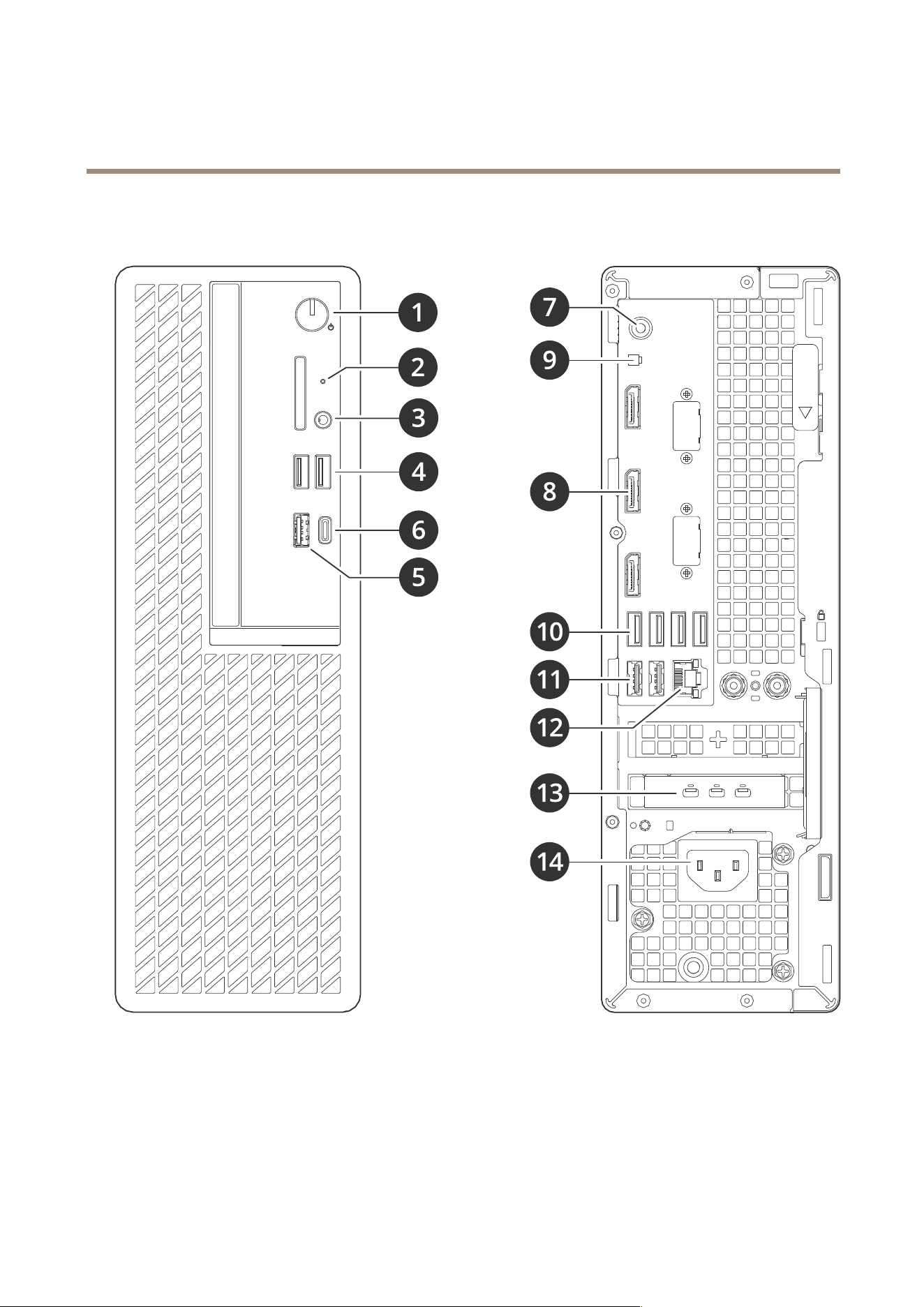
1
Powerbutton/powerLED
2
HarddriveactivityLED
3
Universalaudiojack
4
USB2.0ports
5
USB3.2port
6
USB3.2gen2x2USB-Cport
7
Universalaudiojack
8
DisplayPorts
™
9
Headerforremotepowerbutton
19

AXISCameraStationS9302Workstation
Productoverview
10
USB3.2ports
11
USB2.0ports
12
1GbEEthernetport
13
MiniDisplayPorts
™
14
Powerconnector
20


UserManualVer.M2.3
AXISCameraStationS9302Workstation
Date:January2023
©AxisCommunicationsAB,2023
PartNo.T10184929