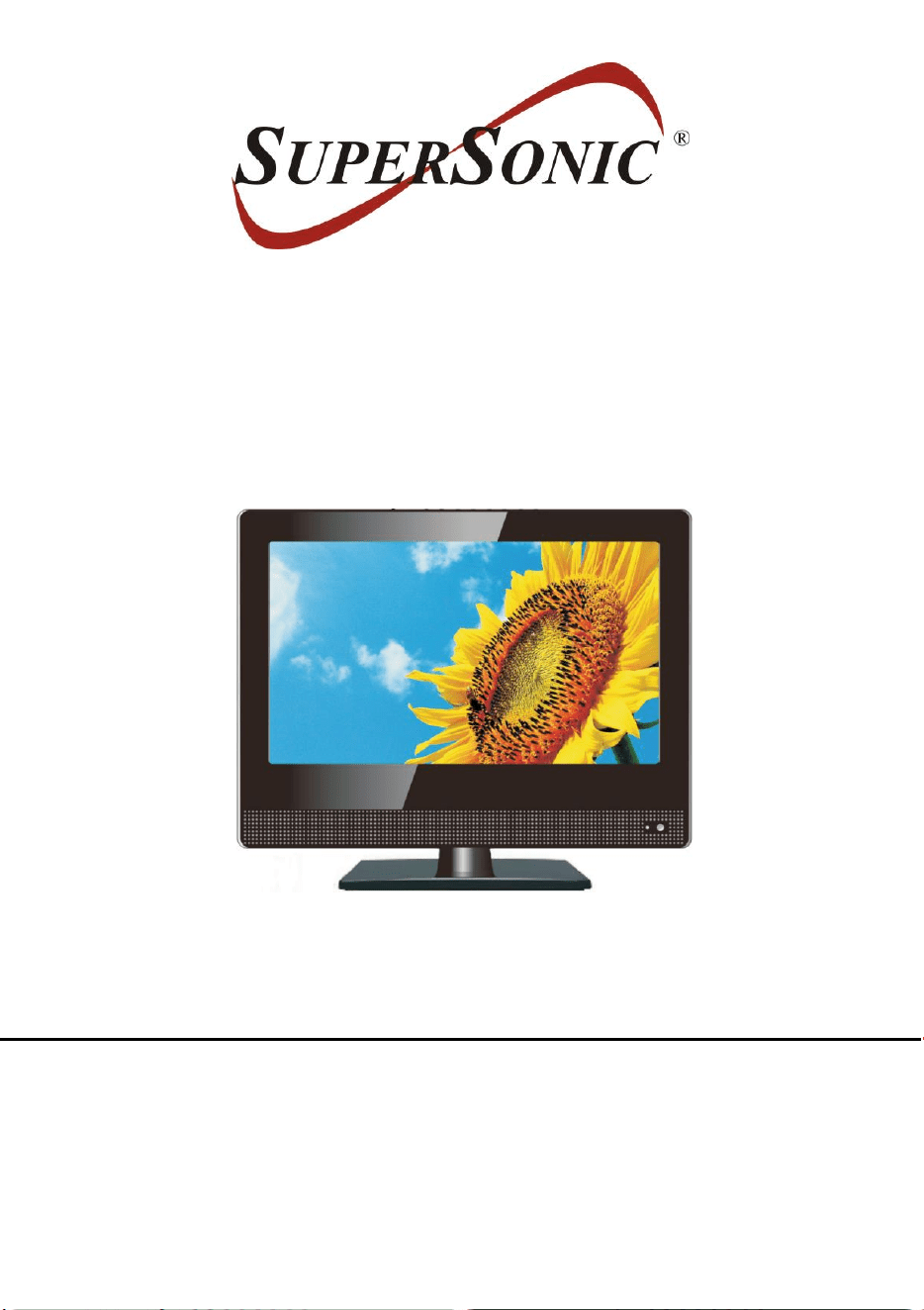
15.6” WIDESCREEN LED TV
MODEL NO.: SC-1520VTV
USER MANUAL
Please read this manual carefully before using,
and keep it for future reference.

1
SAFETY INSTRUCTIONS
WARNING – TO REDUCE THE RISK OF FIRE, ELECTRIC SHOCK, OR
SERIOUS PERSONAL INJURY:
● This product shall not be exposed to dripping or splashing and that no objects filled with
liquids, such as vases, shall be placed on the apparatus.
● Situate this product away from heat sources such as radiators, heat registers, stoves, or
other appliances (including amplifiers) that produce heat.
● Clean the product only as recommended by the manufacturer (see “Maintenance”
section for details). Unplug the power cord from the wall outlet before cleaning,
● Unplug the power plug from the wall outlet when left unused for an extended period.
● Prevent objects/liquids from falling or spilled on the product.
● Operate the product only with the supplied power cord. Route power cords so they are
not likely to be walked on or pinched by items placed upon or against them, paying
particular attention to plugs, convenience receptacles, and the point where they exit from
the product.
● Where the MAINS plug or an appliance coupler is used as the disconnect device, the
disconnect device shall remain readily operable.
● Do not operate this product under the following conditions.
- When the power-supply cord or plug is damaged.
- If liquid has been spilled into or objects have fallen into the product.
- If the product has been exposed to rain or water.
- If the product does not operate when used according to the operating instructions.
- If the product has been dropped or damaged in any way.
● Do not attempt to service the product; take it to the electronics repair shop of your choice
for any servicing or repair.
● Do not overload wall outlets, extension cords, or integral convenience receptacles.
IMPORTANT INSTRUCTIONS

2
● Connect this product to the power outlet which has protective earth connection.
CAUTION- TO REDUCE THE RISK OR PERSONAL INJURY OR
PRODUCT/PROPERTY DAMAGE:
● This product is intended solely for non-commercial, non-industrial, personal use as a
television. Do not use this product for any other purpose.
● Do not subject the product to violent shocks, extreme temperatures, or lengthy periods
of direct sunlight.
● Keep the product away from magnetic objects, motors, and transformers.
● Do not use outdoors in inclement weather.
● Do not use the TV while driving; this is dangerous and is illegal in some areas.
BATTERY HANDLING AND USAGE:
● Keep batteries away from children and pets. Only adults should handle batteries.
● Never throw batteries into a fire or expose them to fire or other heat sources.
● Follow the battery safety and usage instructions.
User Manual………………………………….……………………..………………………………1
Remote Control…………………………………………………………………………..…………1
Car Adaptor……………………………………………….…………………………………………1
All the pictures in this manual are just for your reference, appearance and display
should subject to the final product.
ACCESSORIES
At full volume, prolonged listening to the portable
audio device may damage the user’s hearing.

3
TABLE OF CONTENTS
GETTING STARTED
IMPORTANT INSTRUCTIONS...........................................................................................1-2
ACCESSORIES.....................................................................................................................2
FEATURES............................................................................................................................4
GENERAL PARTS..............................................................................................................5-6
REMOTE CONTROL........................................................................................................7-8
REMOTE CONTROL PREPARATION.................................................................................9
BASIC CONNECTION....................................................................................................10-13
OPERATIONS
BASIC OPERATIONS....................................................................................................14
L I V E
TV...........................................................................................................................15-17
CONNECTION...............................................................................................................18-22
MULTI-SCREEN.............................................................................................................22-23
SMART FUNCTIONS.....................................................................................................24-27
PICTURE AND SOUND.................................................................................................28-32
CHANNEL........................................................................................................................33
ACCESSIBILITY..........................................................................................................34
SYSTEM AND SUPPORT..............................................................................................35-38
FOR REFERENCE
MAINTENANCE...........................................................................................................39
WALL MOUNTING……………………………………………………………………..…........…39
STAND INSTALLATION……………………………………………………………………..……40
SPECIFICATIONS.......................................................................................................41
TROUBLESHOOTING........................................................................................................42

4
15.6" LED DISPLAY
This player has a built-in LED display window to provide clear vision and low radiation.
Support Auto Program Scanning Function
Support Digital Broadcasting Reception
Support EPG (Electronic Program Guide) Function
Compatible with USB for Music, Photo and Video Playback (TV Mode)
Support Multi-languages On Screen Display
Support Full Function Remote Control
Compatible with LAN, AV and HDMI Input
Compatible with EARPHONE and OPTICAL Output
With Detachable Stand Holder
With External Antenna Jack
With Built-in Speakers
With Noise Reduction Function
FEATURES
5
MAIN UNIT
Front View
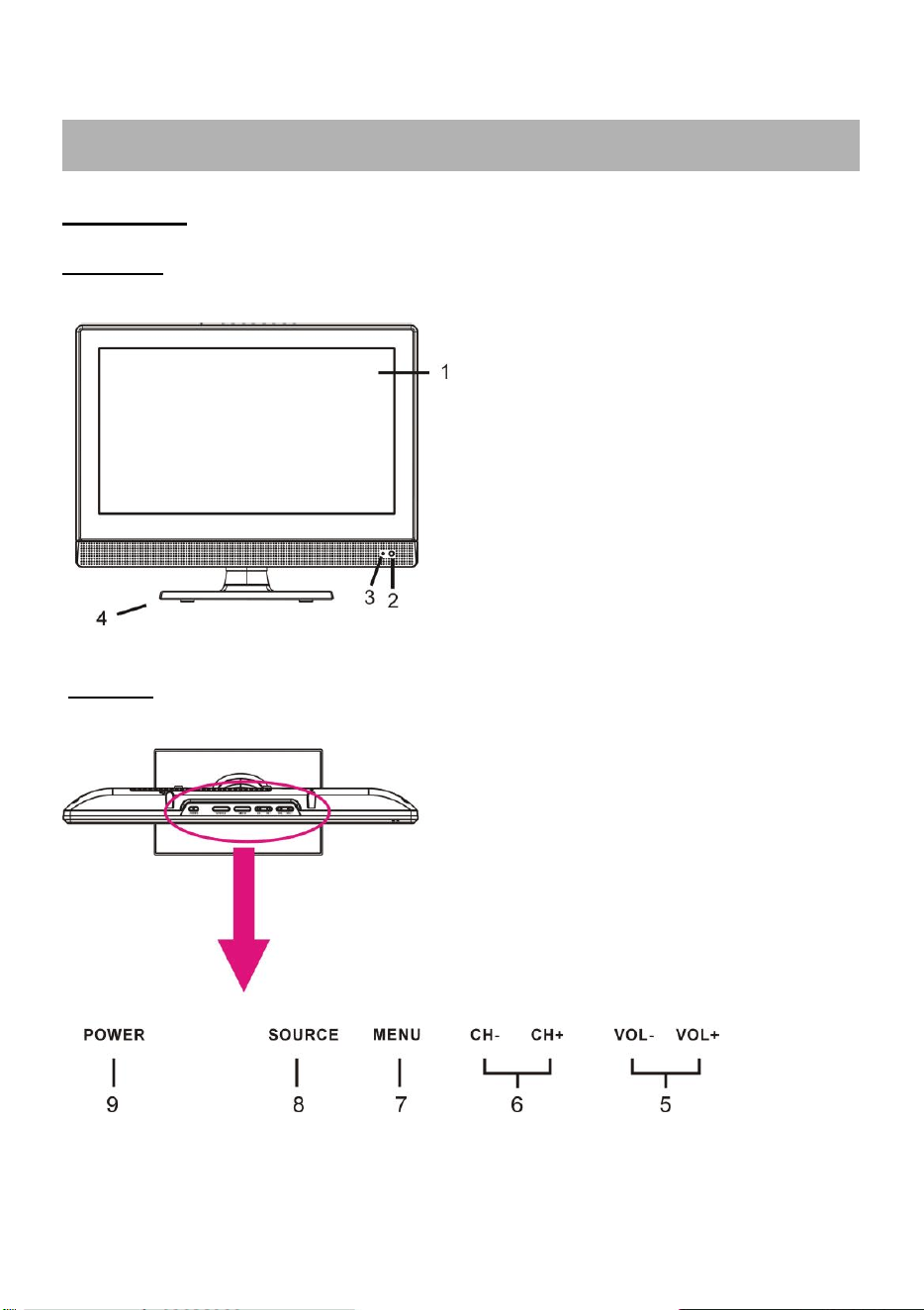
1. LED display screen
2. Remote control sensor
3. Power indicator- In standby mode the
indicator light will display red color; when
switching on the unit the indicator light will
display blue color.
4. Stand holder
5. VOL +/- button- To increase/decrease the
volume level or move left/right.
6. CH +/- button- To select next/previous
channel or move up/down.
7. MENU button- To enter menu setting
page.
8. SOURCE button- To select the input
source.
9. POWER button- To turn ON/OFF the TV.
GENERAL PARTS
Top View
6
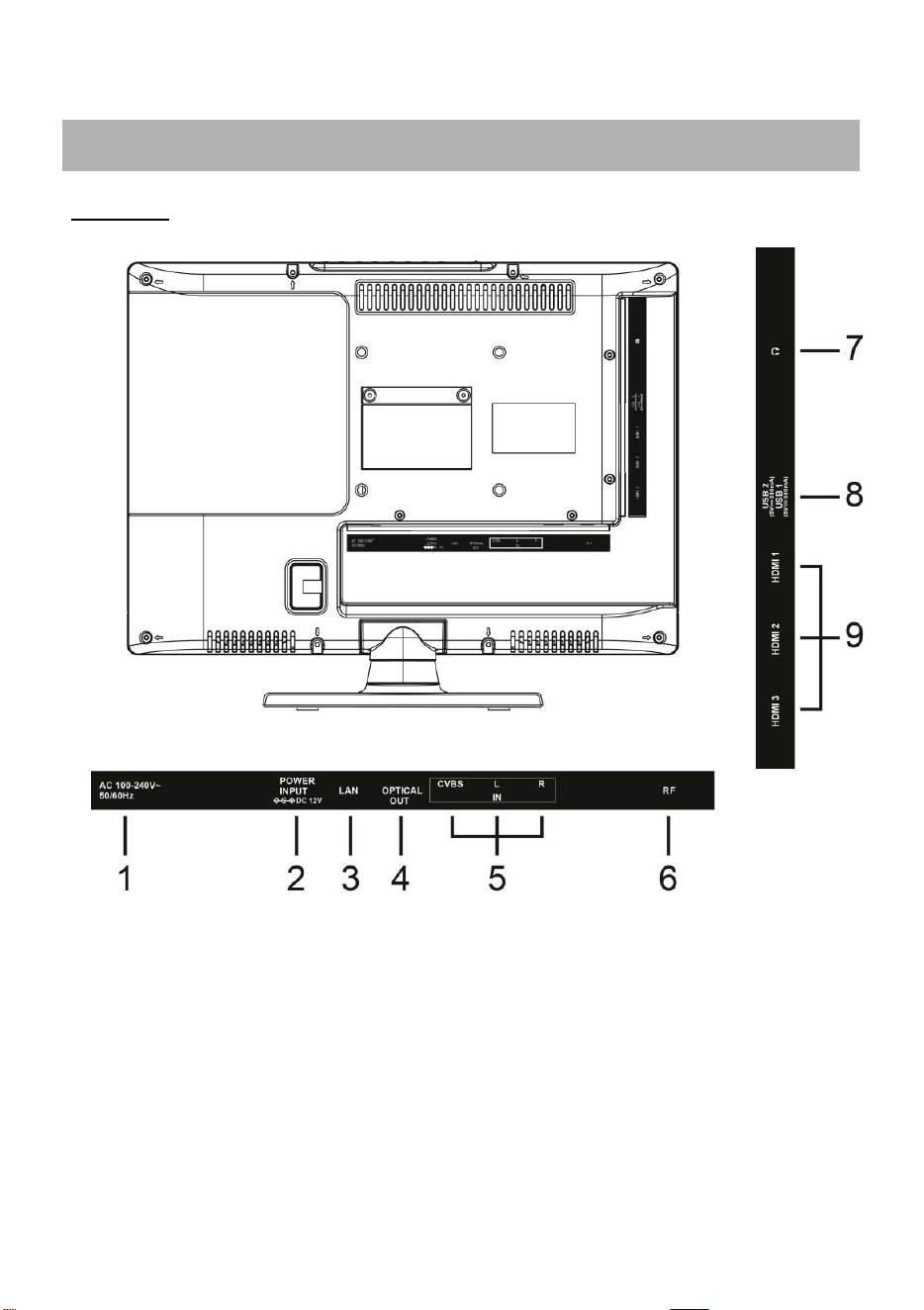
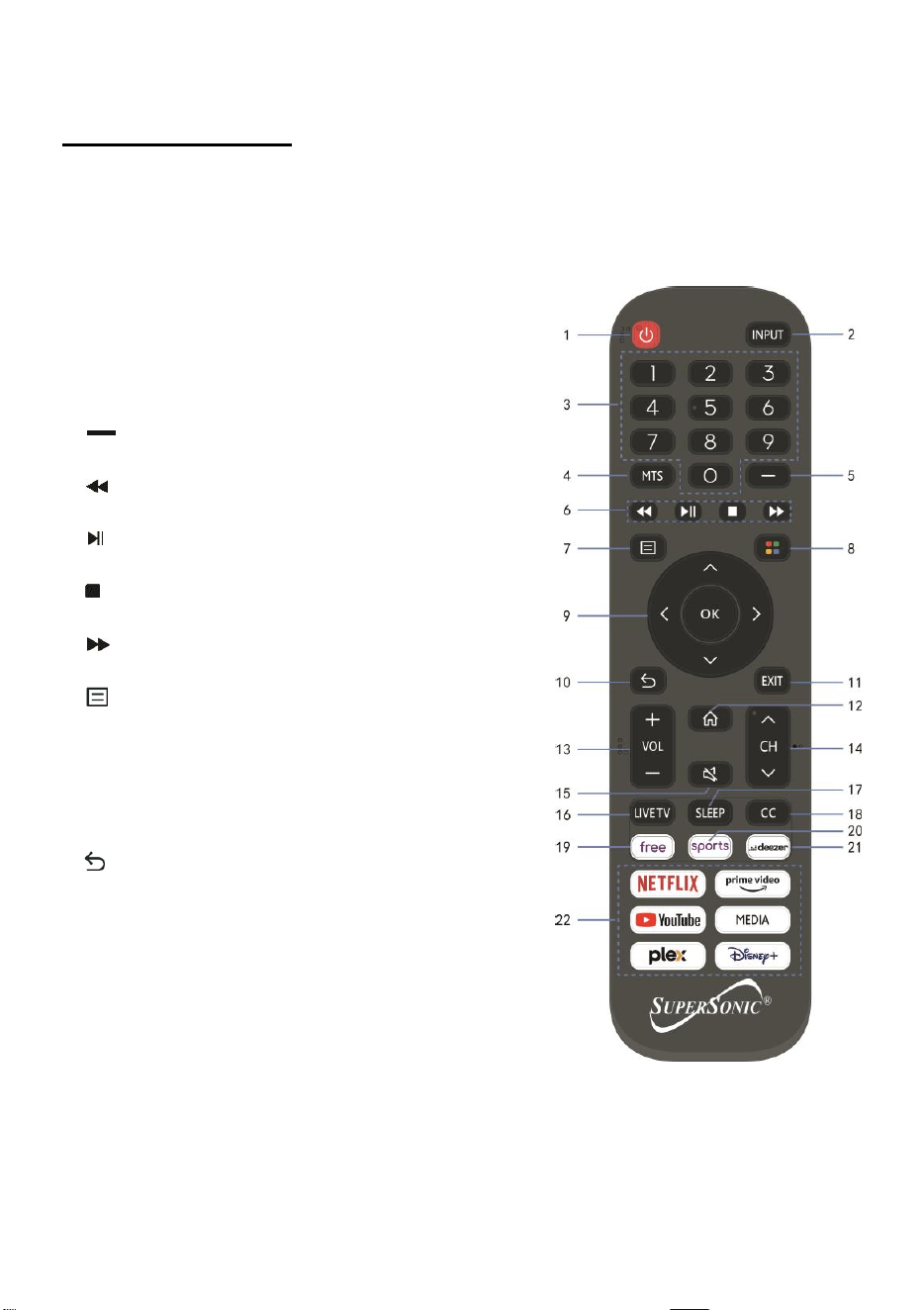
1. Power input (AC cord)
2. Power input (DC)
3. LAN input terminal
4. OPTICAL output terminal
5. AV INPUT
6. RF input terminal- To connect the external antenna.
7. EARPHONE output terminal
8. USB 1/2 input terminal (TV)
9. HDMI1/2/3 input terminal
GENERAL PARTS
Back View
7
REMOTE CONTROL
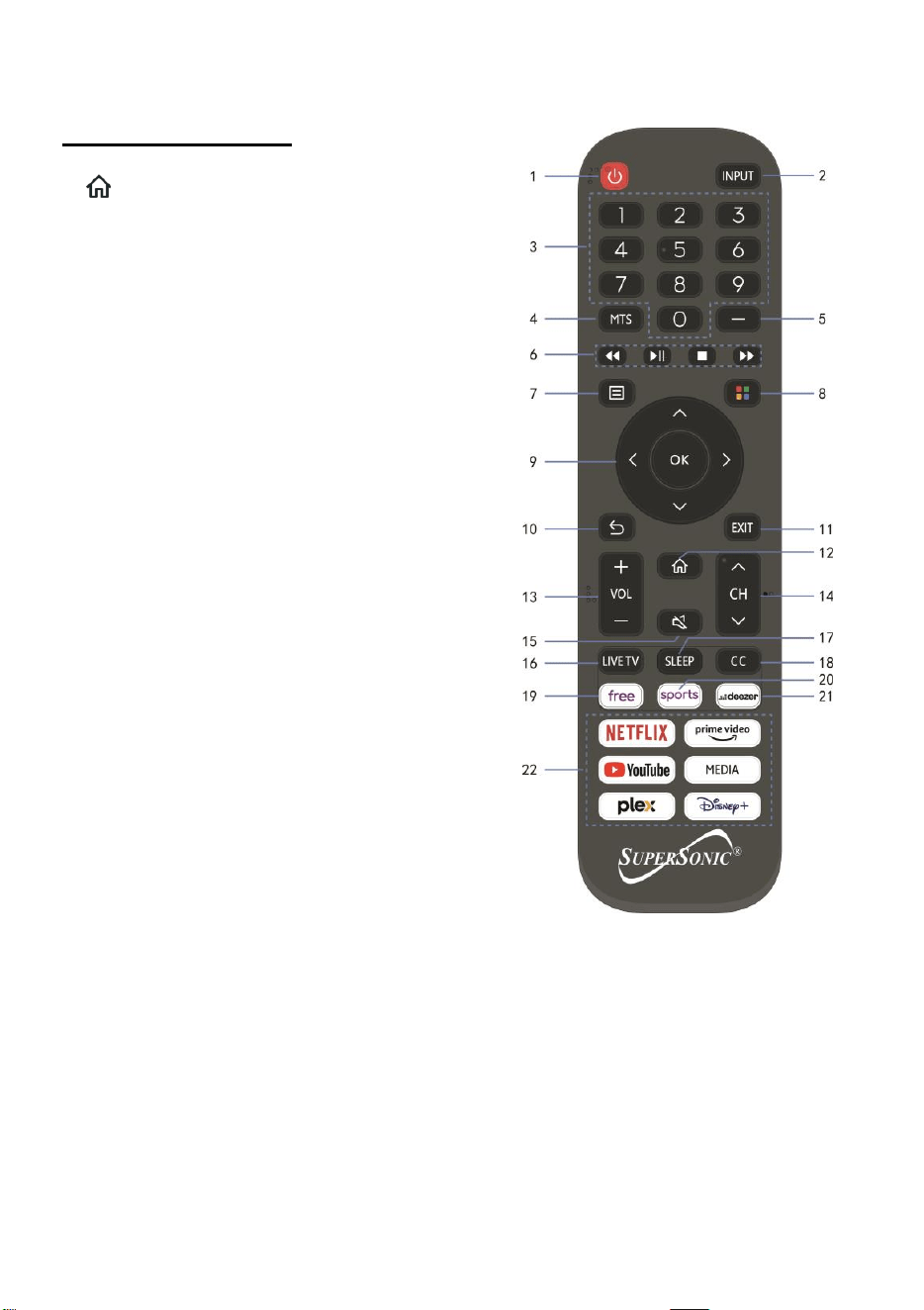
1 STANDBY(POWER)
Set the unit in standby mode; press it again to switch it on.
2 INPUT
Press to select desired input source.
3 Number buttons (0-9)
Input the number information, such as channel
number and so on.
4 MTS
To select desired soundtrack in TV mode.
5
Switch the digit when watching TV programs.
6
Move fast backward.
Start/pause playing.
Stop playing.
Move fast forward.
7 (MENU)
Call out the main menu or return to previous
8 4 Color
Customized in different page.
9 DIRECTION/OK
Move up, down, left, right/Confirm.
10
Return to the previous interface or menu.
11 EXIT
Exit the current interface or menu.
8
REMOTE CONTROL
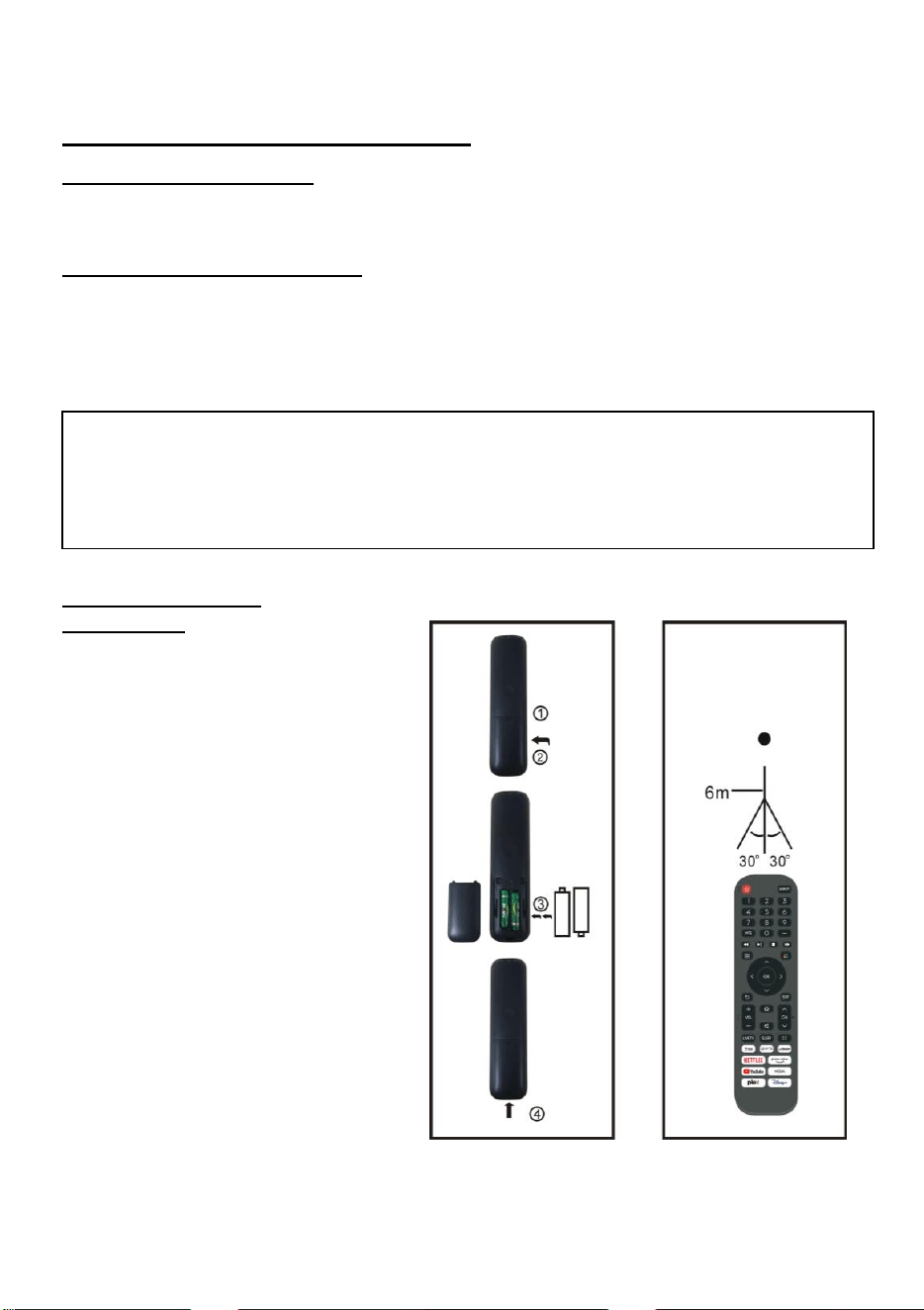
12 (HOME)
Press to enter home page.
13 VOL +/-
Increase/decrease the volume level.
14 CH +/-
Play the next/previous program.
15 MUTE
Mute the sound.
16 LIVE TV
TV source.
17 SLEEP
Set desired sleep time.
18 CC
CC in LIVE TV.
19 FREE
Press to enter the free video directly.
20 SPORTS
Press to enter the sport programme directly.
21 DEEZER
Press to enter the deezer directly.
22 Content area
Six buttons for CSP Apps.
Note: The marks and positions of remote control may vary depending on the model.
9
REMOTE CONTROL PREPARATION
BATTERY INSTALLATION
Install the batteries as the following pictures. Be sure + and – terminals are positioned
as indicated in the battery compartment (Fig1).
SERVICE LIFE OF BATTERIES
- The batteries normally last for one year although this depends on how often the
remote control is used.
- If the remote control fails to work even when it is operated near the player, replace the
batteries.
- Use two size AAA dry batteries.
NOTE:
● Do not drop, step on or otherwise impact the remote control. This may damage the
parts or lead to malfunction.
● If the remote control is not going to be used for a long time, remove the batteries.
REMOTE CONTROL
OPERATION
Point the remote control from no more
than about 6m from the remote control
sensor and within about 60°of the
front of the player (Fig2).
NOTES:
- The operating distance may vary
according to the brightness of the
room.
- Do not point bright light at remote
control sensor.
- Do not place objects between the
remote control and the remote control
sensor.
- Do not use this remote control while
simultaneously operating the remote
control of any other equipments.
Fig1 Fig2
Remote Control
Sensor
Push
Open
Press
10
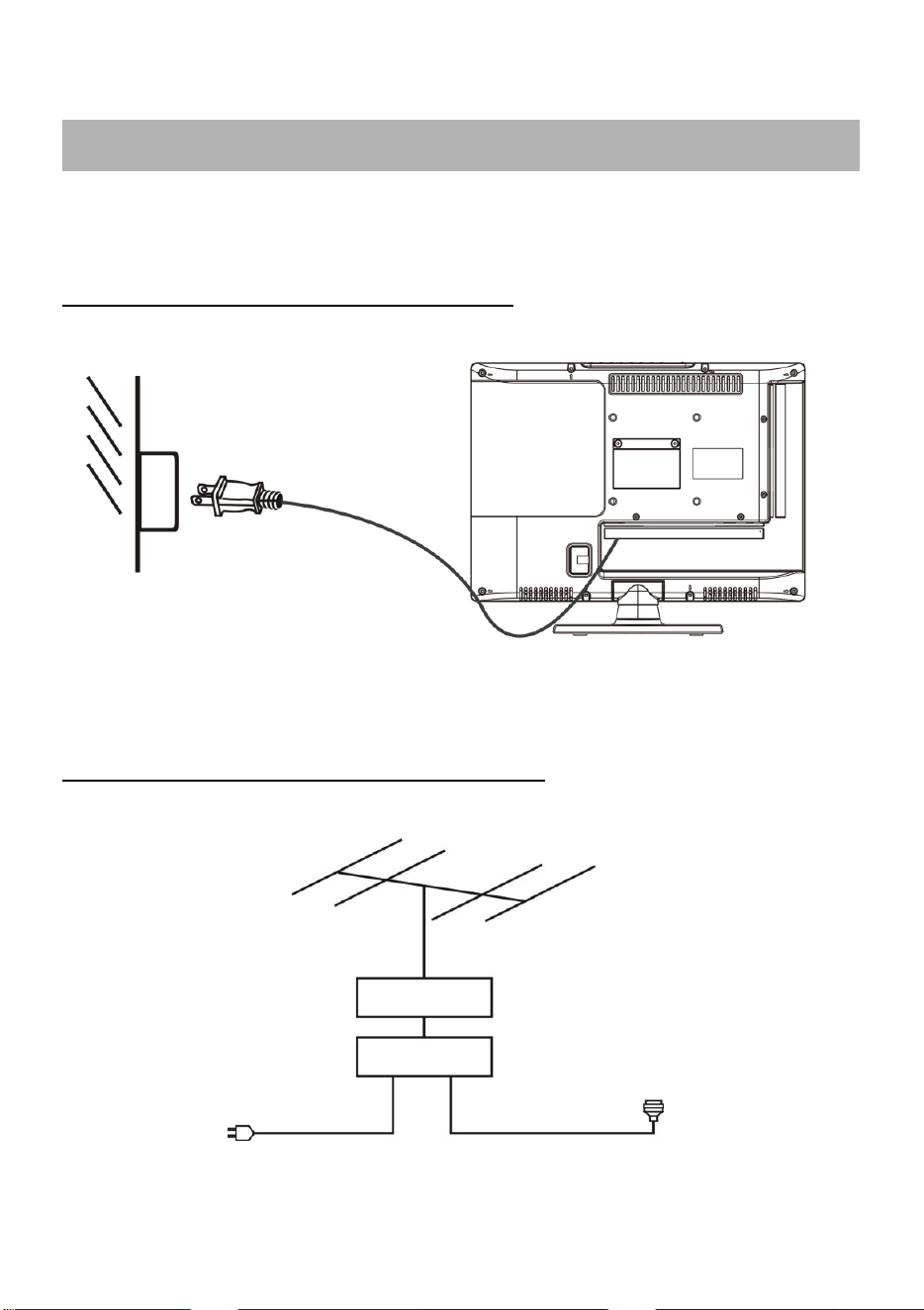
● Ensure all the cables are disconnected from the main unit before connecting to AC
power source.
● Read through the instructions before connecting other equipments.
CONNECTING TO AC POWER SOURCE
CONNECT EXTERNAL ANTENNA TO UNIT
Install external antenna into antenna jack for best picture.
BASIC CONNECTION
Antenna
Outdoor
antenna
amplifier
Indoor
antenna
amplifier
Power plug
of antenna
amplifier
75 OHM
antenna
plug
To power outlet
11
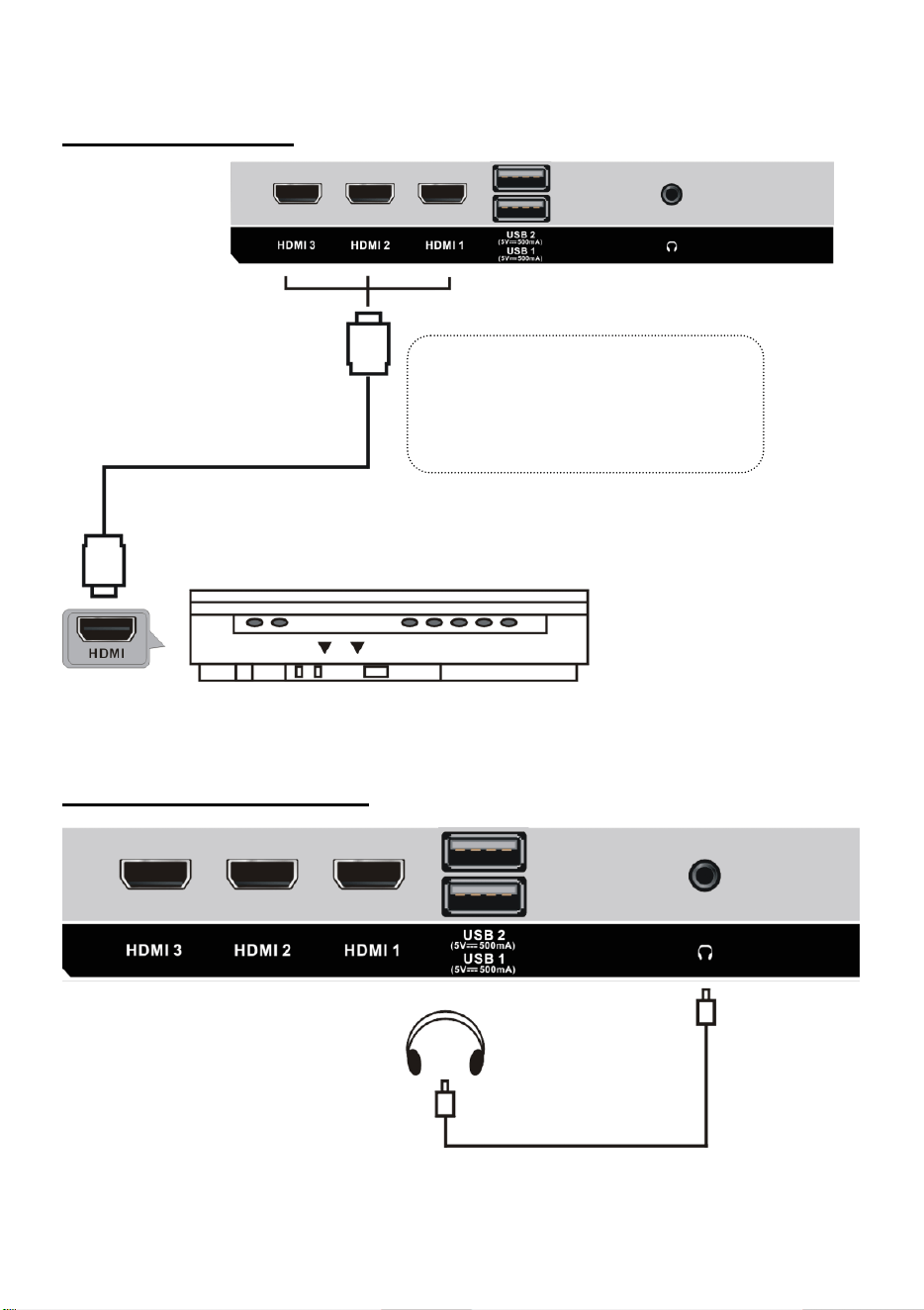
HDMI CONNECTION
EARPHONE CONNECTION
HDMI cable
(Not included)
Use HDMI cable to connect the unit with
other devices to receive high-definition
multimedia signal.
Back of DVD/VCR
Earphone cable
(Not included)
12
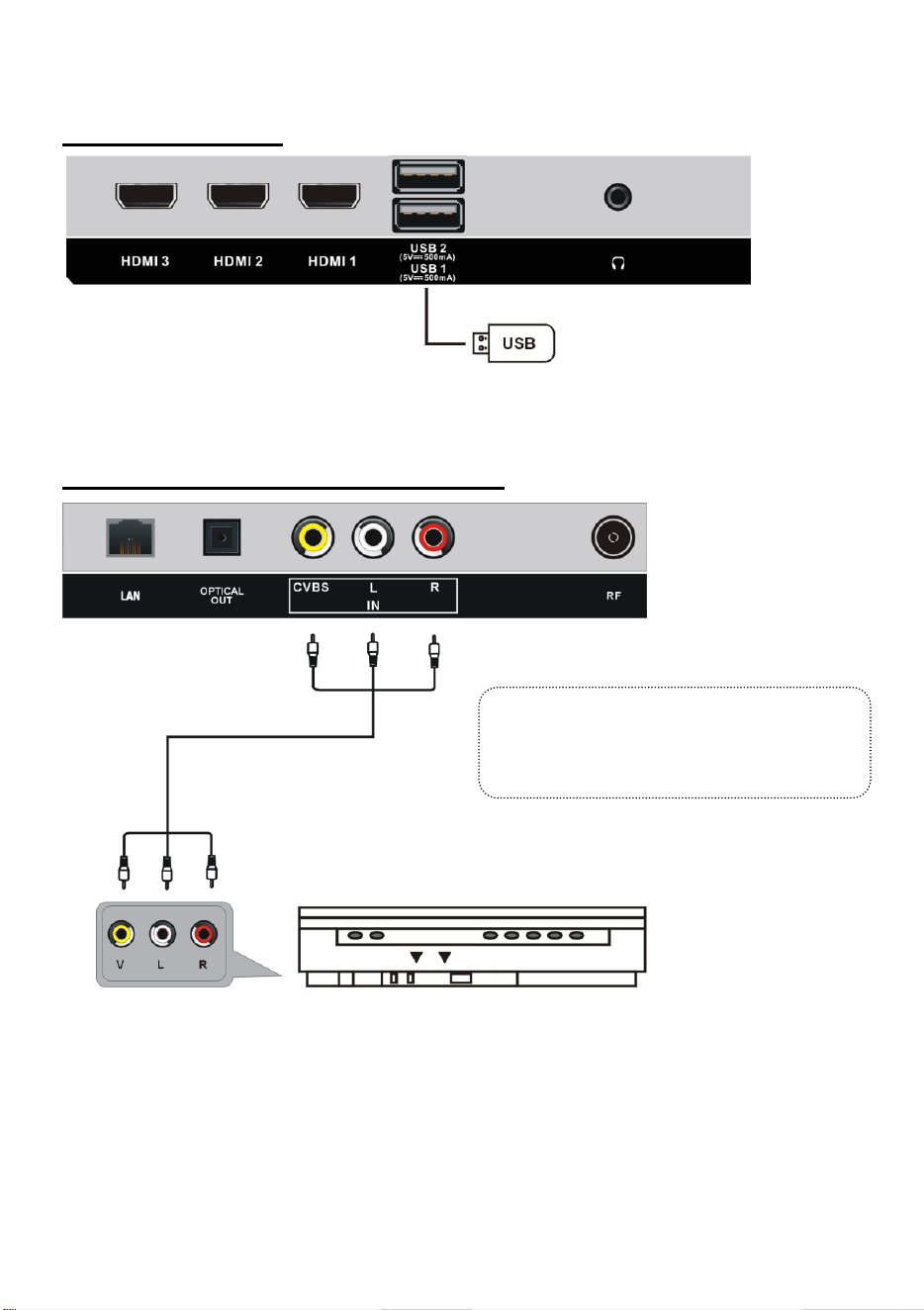
USB CONNECTION
COMPOSITE AV (CVBS) CONNECTION
USB Memory Device
(Not included)
Back of DVD/VCR
For basic connection, use the composite
Audio L/R (white/red) and CVBS (yellow)
cable to connect the unit with other devices.
AV cable
(Not included)
13
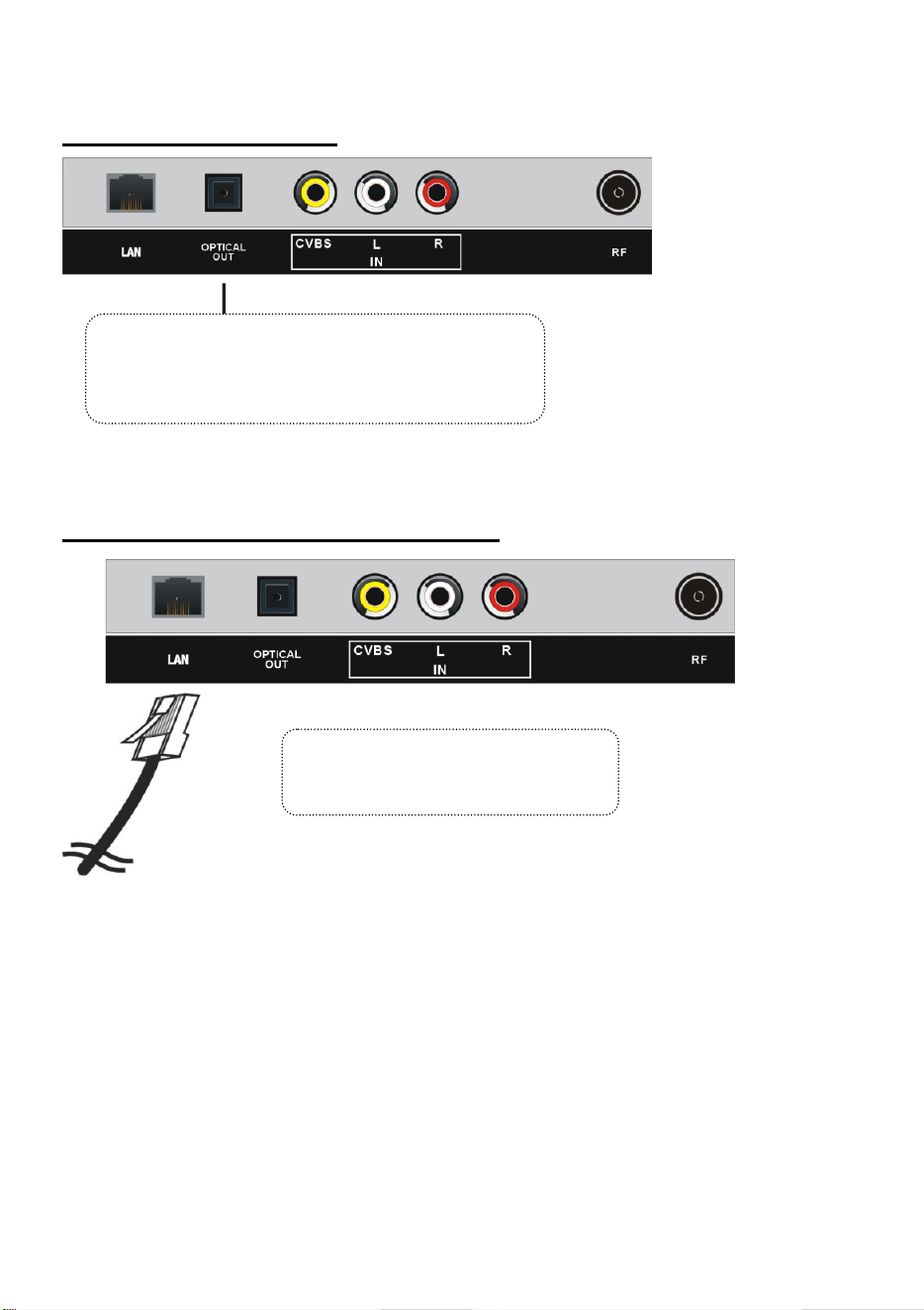
OPTICAL CONNECTION
LAN (Local Area Network) Connection
Use OPTICAL cable (not included) to connect the unit
with amplifier or other audio decoding devices for
coaxial audio signal output.
Use a LAN cable (not included) to
connect this TV with available network.

14
MAKE SURE ALL THE EQUIPMENTS AND POWER PLUG
ARE CONNECTED PROPERLY AND THE UNIT IS SET IN CORRECT
MODE BEFORE OPERATING.
- Press STANDBY button on the unit or remote control to power ON the unit
(indicator will glow blue); press it again to power OFF (standby mode) the unit
(indicator will glow red).
SELECT DESIRED PROGRAM
1. Press CH+ button to play next channel.
2. Press CH- button to play previous channel.
3. Press number buttons on remote control directly to select desired program.
VOLUME CONTROL
- Press VOL+ or VOL- to adjust the level of current volume.
Available range: 0-100.
MUTE CONTROL
- Press MUTE button to mute the sound, press it again to turn on the sound.
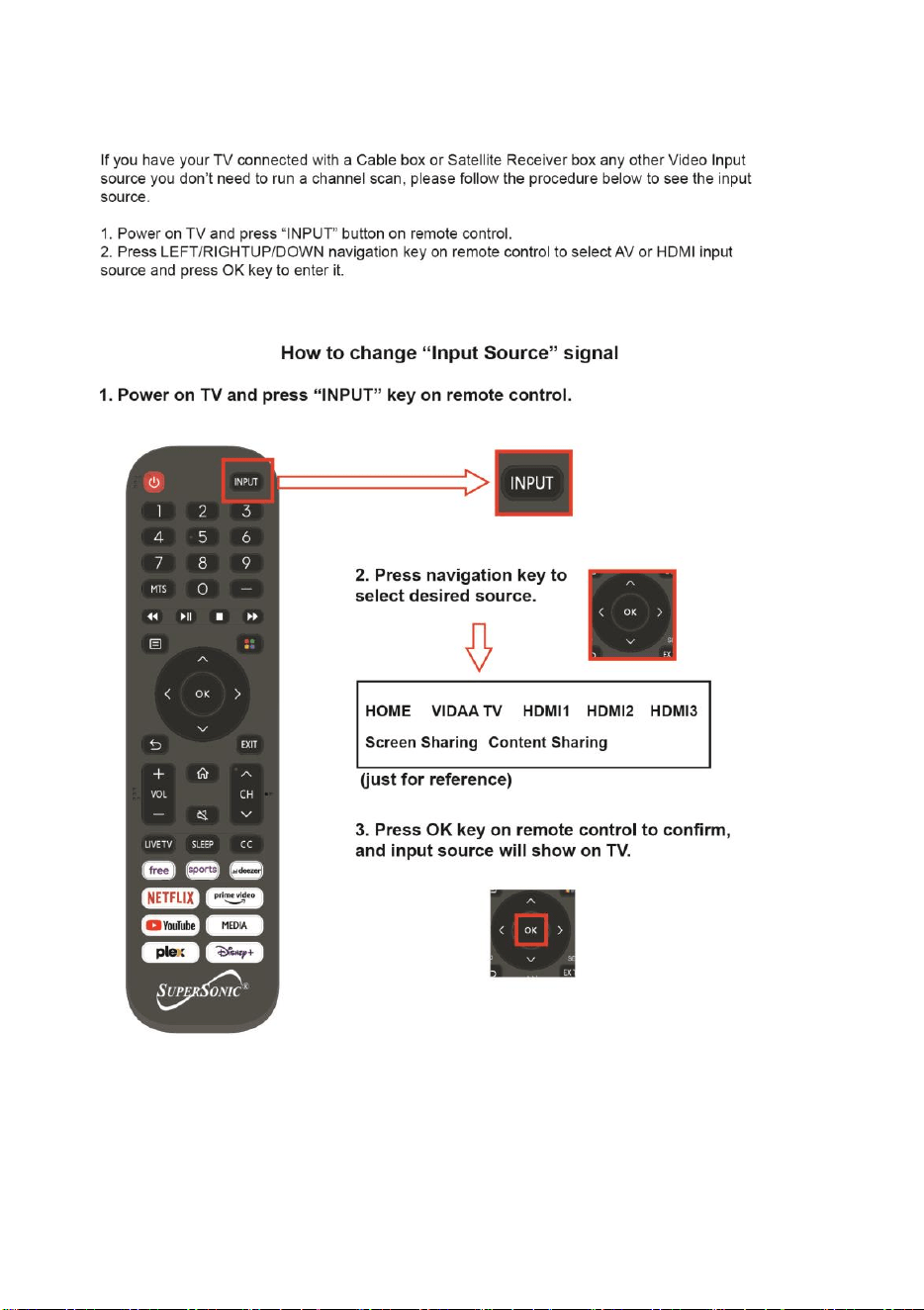
SOURCE SETTING
- Press INPUT button on the remote control to display the sources list.
- Press navigation buttons to select desired input source, and then press OK button to
confirm selection.
INFORMATION DISPLAY
- Press UP navigation button on remote control to display information of current program.
MEDIA PLAYBACK
- Insert a USB memory device into USB slot before following operations.
- Press INPUT button on remote control to switch the unit to USB mode.
- Press UP/DOWN/LEFT/RIGHT navigation button to move the cursor.
- Press BACK button to return to previous menu page.
BASIC OPERATIONS
15
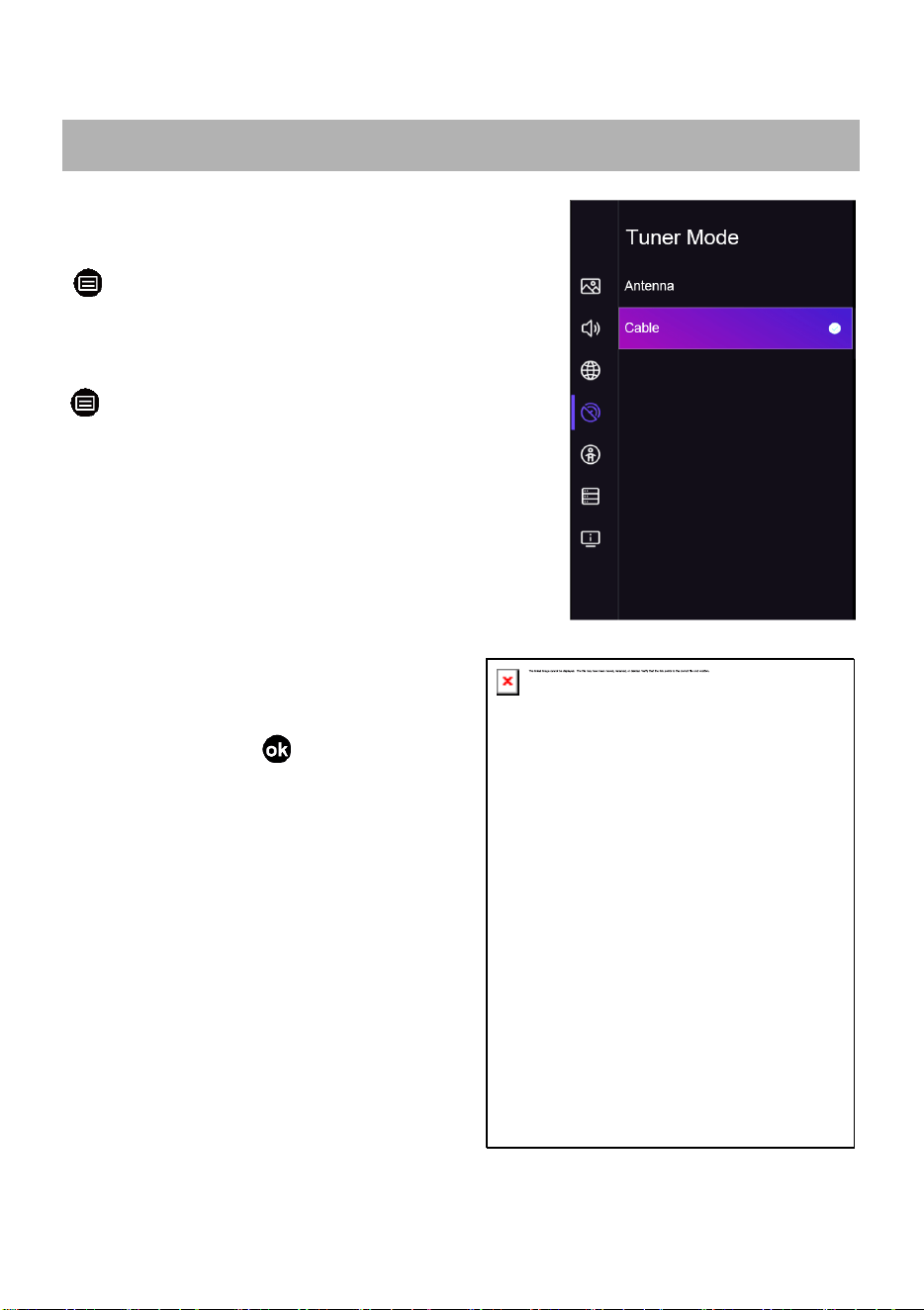
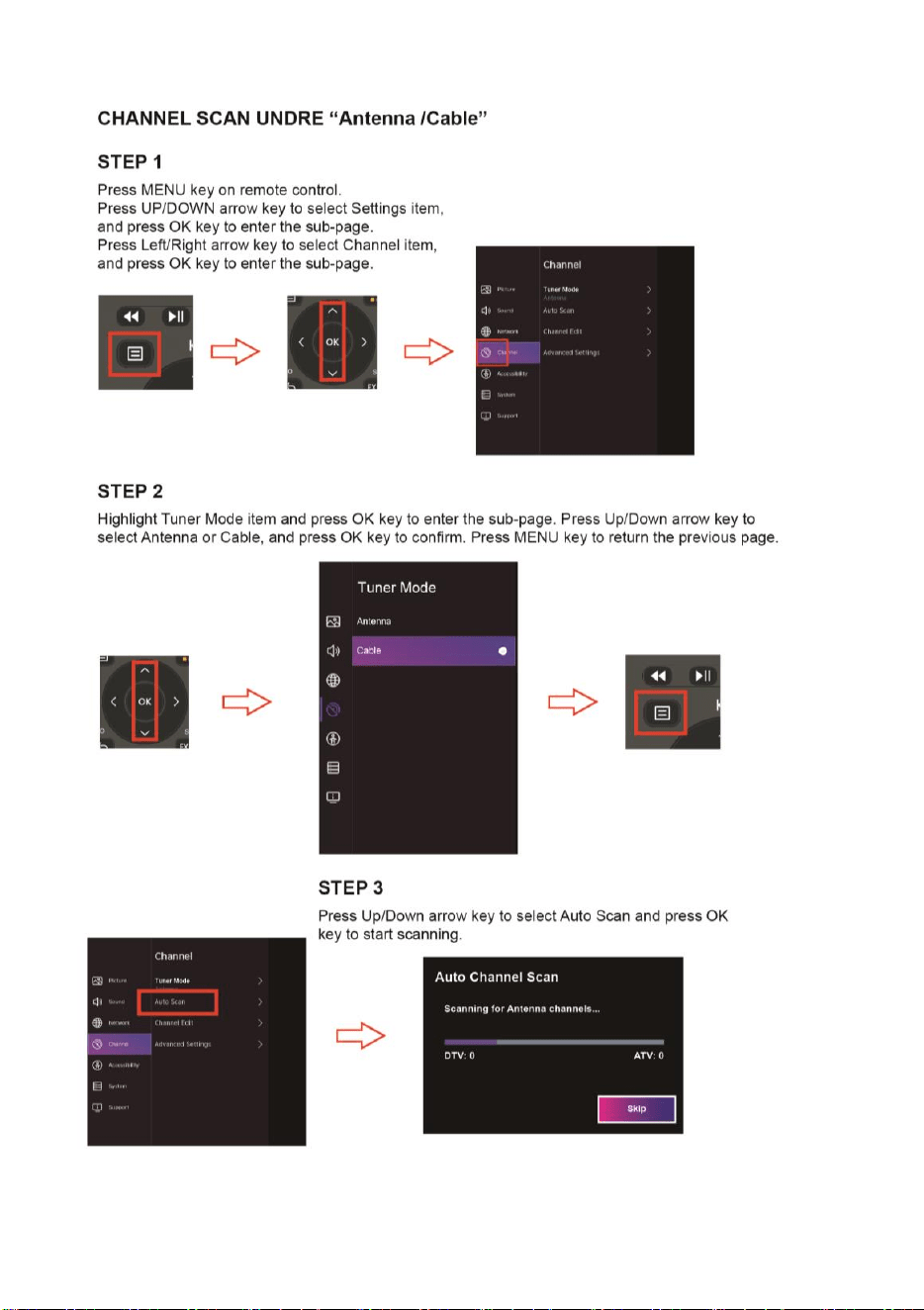
Channel Scan
Auto Channel Scan
> Settings > Channel > Auto Scan
Note:
Before you select Automatic Scan, you can press
> Settings >Channel > Tuner Mode,
press OK button into the sub-menu, select
Antenna or Cable.
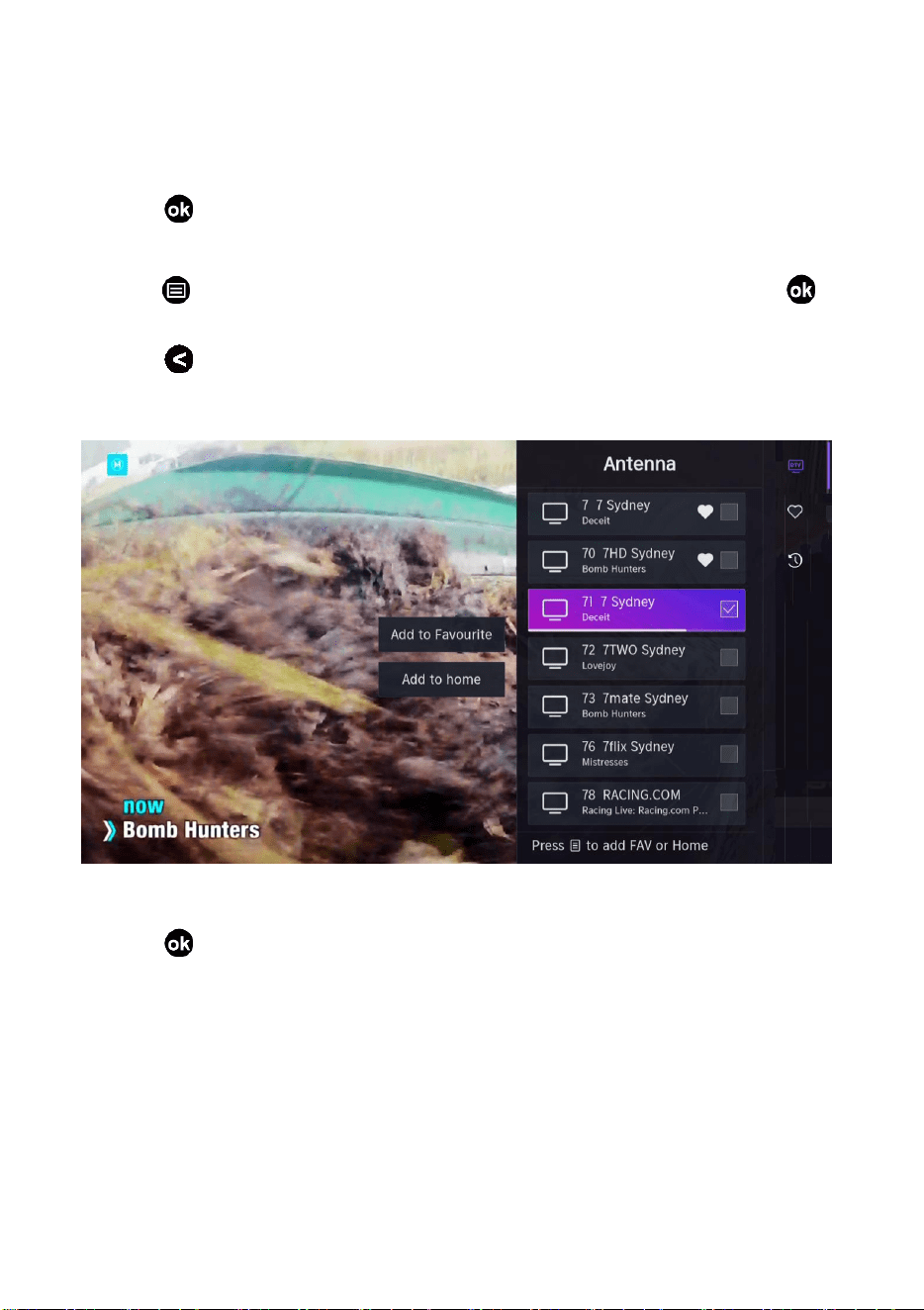
Channel List
•
Display the channel list
•
In Live TV, press button on the
remote control to display the channel
list menu.
LIVE TV
16
Favorite
Adding channels to your 'Favorites' list
•
Press button to call out the channel list, the channel list appears on the right side
of the screen.
•
Press button and Navigation button to select your favorite channel; Press
button to confirm.
•
Press and Choose Add to Favorite; press OK button and a heart-shaped icon will
appear next to your favorite channel.
Viewing your 'Favorites' list
•
Press to call out the channel list, the channel list appears on the right side of the
screen.
•
Press Navigation buttons to select Favorite icon and press OK button to confirm, then
your favorite channel with a heart-shaped icon will appear on the favorite list.
17
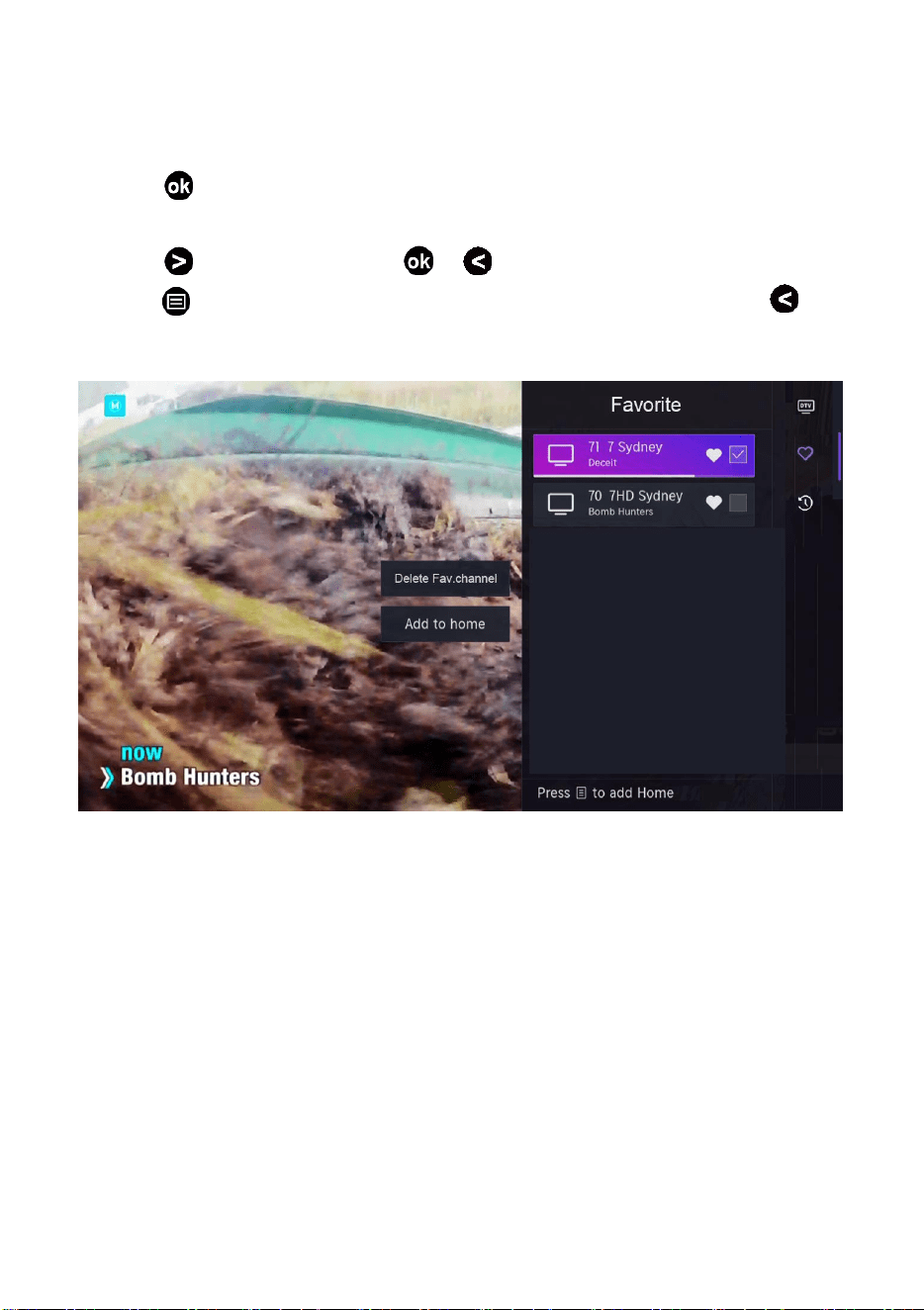
Deleting channels from your 'Favorite' list
•
Press to call out the channel list, the channel list appears on the right side of the
screen.
•
Press > Favorite, then press > to enter the Favorite list.
•
Press and Navigation button to choose the desired channel, then press to
choose Delete Fav. Channel and OK button to delete the selected channel.
Note:
These steps should be operated under TV inputs.
Before you edit the favorite lists, complete channel scan first.
18
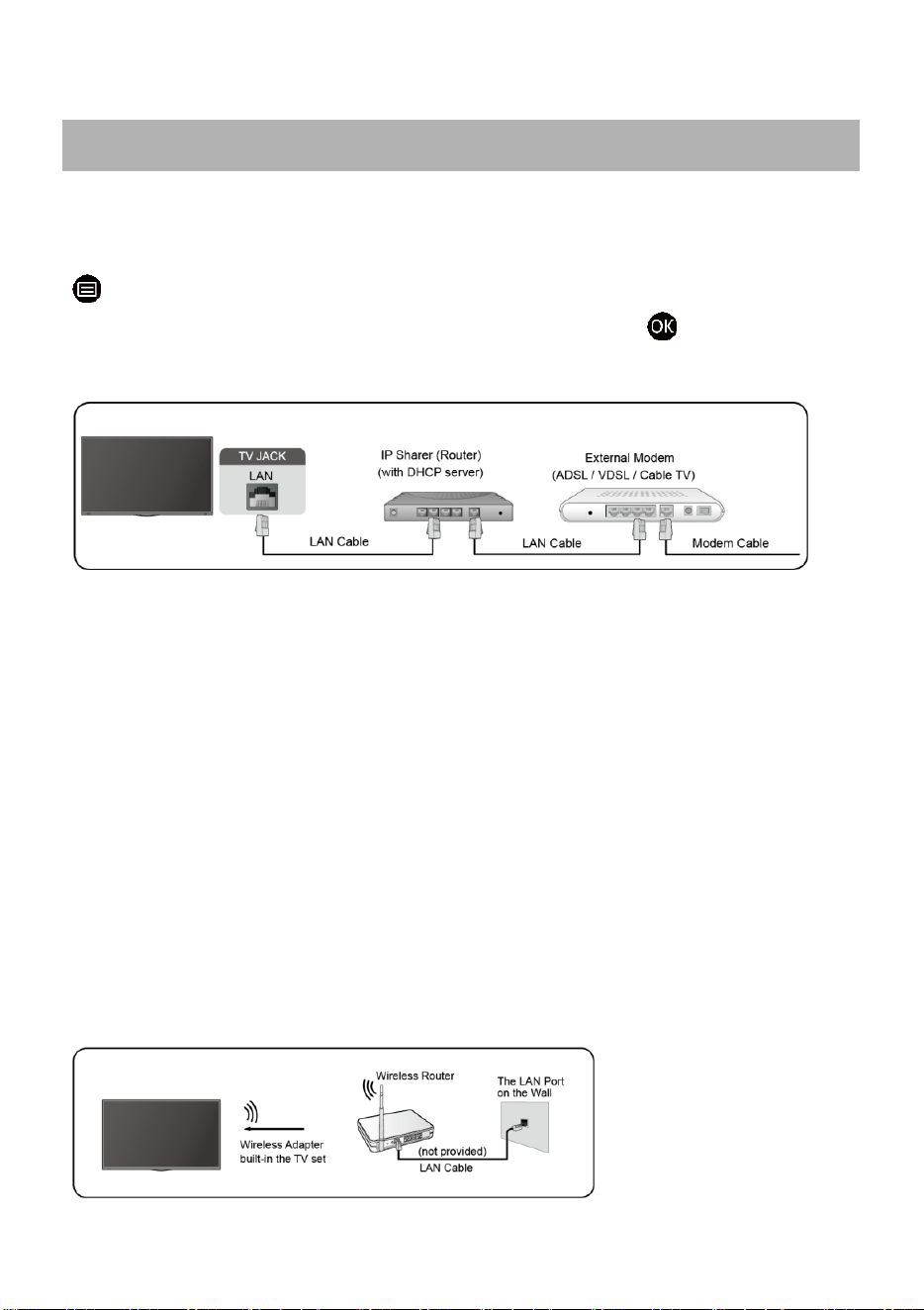
Wired LAN
Connecting to the Internet
> Settings > Network > Network Configuration
You set the TV network by selecting Configuration and press the button to enter the
sub-menu.
Automatically obtain an IP address
1. If you connect to the wired network, the TV will automatically obtain an IP address and
connect to the network.
2. If the connection fails, disconnected message will display for the Ethernet status. Retry
or enter the IP settings, and select Manual to input the information again.
Manually enter the IP address
1. Enter the IP settings to select Manual.
2. Enter the IP Address, Netmask, Gateway, DNS Server 1 and DNS Server 2 in the menu.
Note:
You get access to the Internet through your TV.
The default option of IP Settings Mode is DHCP.
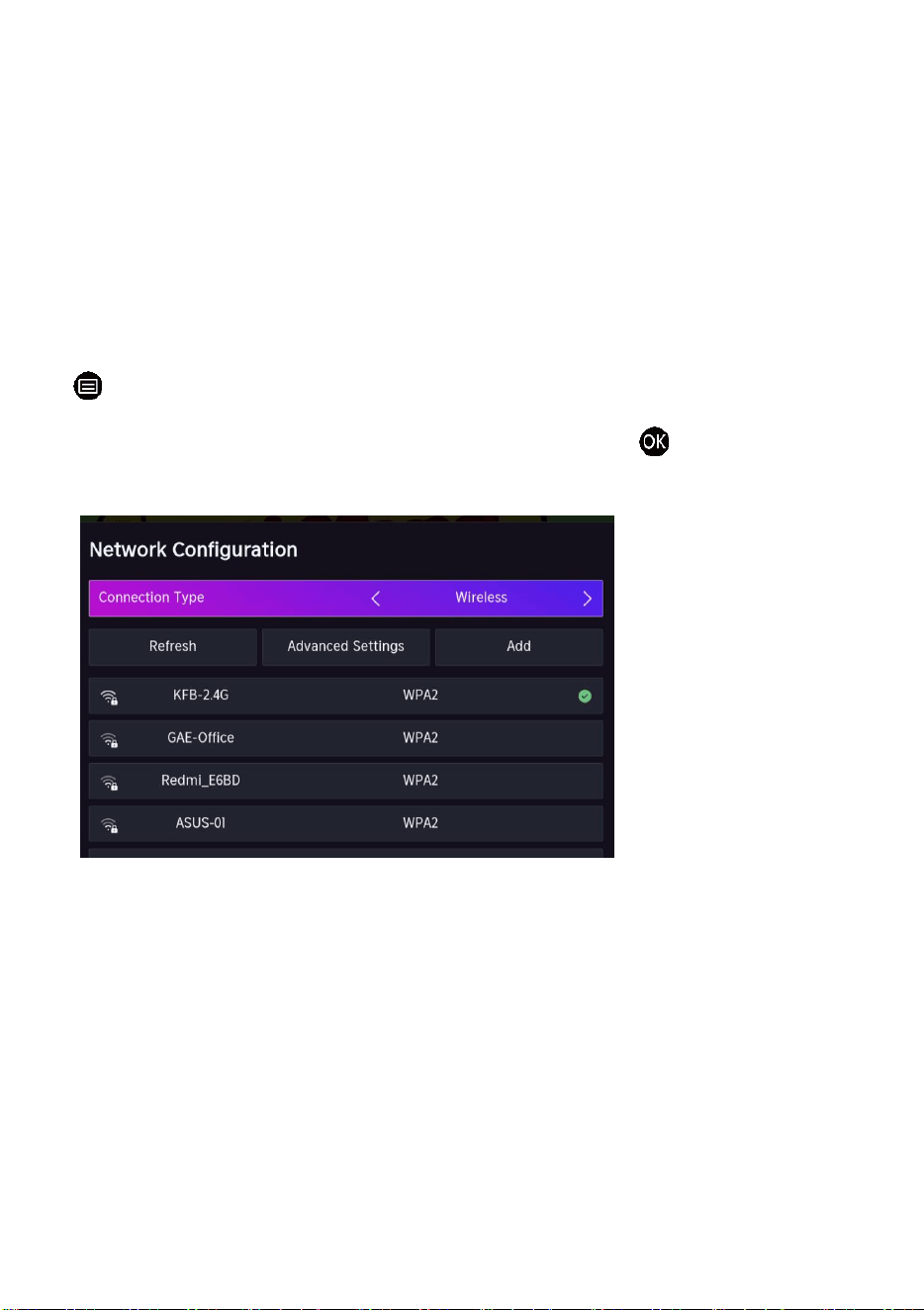
Wireless
Connecting to the Internet
CONNECTION
19
Note:
You get access to the Internet through your TV.
Connect to an available wireless network.
Make sure that you have the wireless router's SSID and password before attempting
to connect.
Connecting to a Wireless Network
> Settings > Network > Network Configuration
You set the TV network by selecting Configuration and press the button to
enter the
submenu.
Connection Type
Choose a wireless network connection to access the Internet.
Refresh
Refresh wireless network.
Advanced Settings
Configure the advanced wireless network settings for the TV.
Add
You can add wireless network.
20
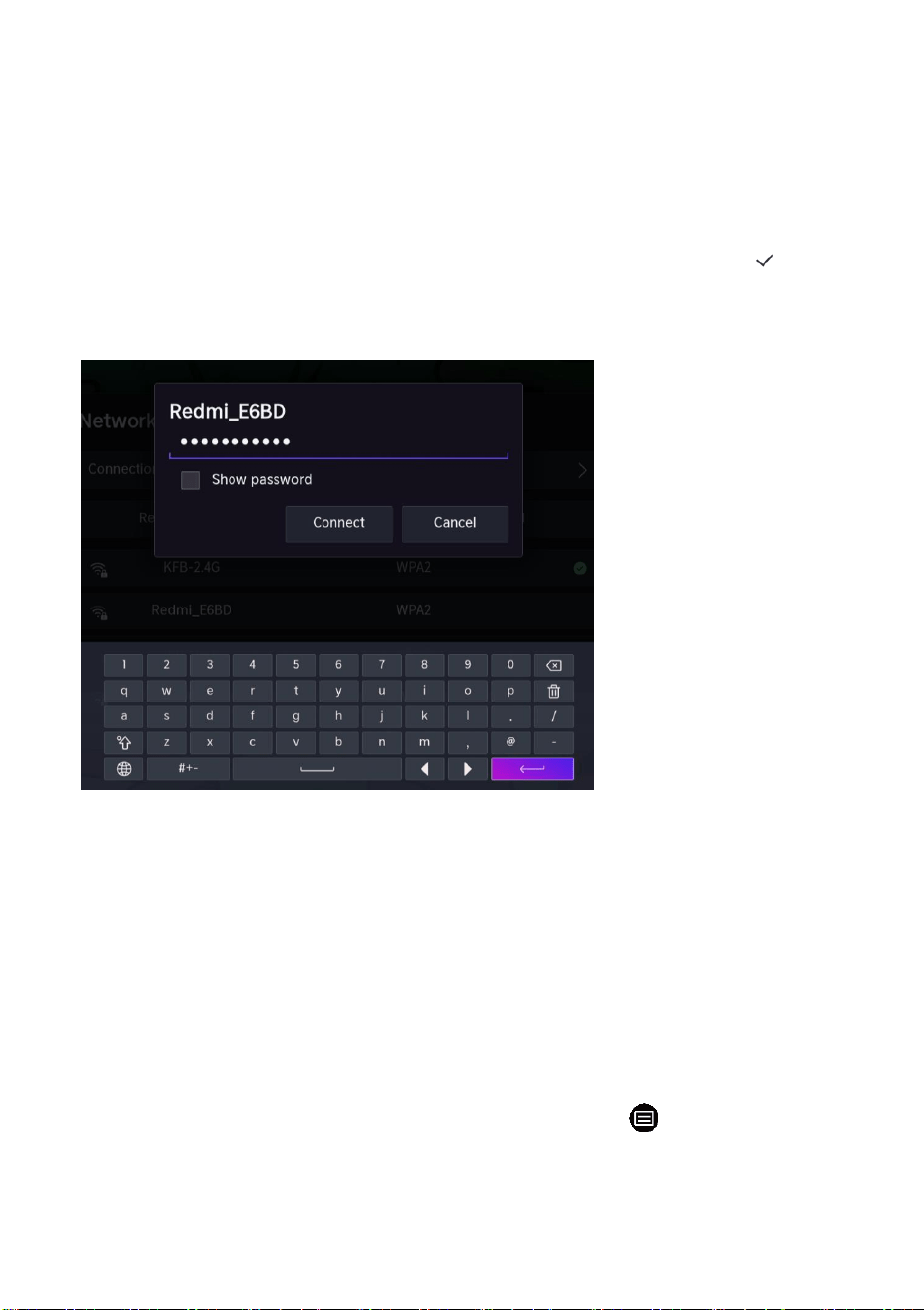
How to connect to WIFI network?
In Network Configuration menu page.
Press navigation button to select the desired wireless router of list below, and press
OK button to call out the password box. After input the password, press navigation
button to highlight the “Left Arrow” and press OK button to confirm. There is “ ”
showing on the right of wireless router means the WIFI connected successfully.
Note:
If no wireless router is found, select Add and enter the network name in the SSID.
If no wireless router is found, select Refresh.
HDMI-CEC
You can use your TV remote to control the external devices that are connected to the
TV by HDMI cable. The external devices need to support HDMI & CEC Function
(HDMI-CEC).
Connecting an external device through HDMI-CEC Function >
Settings > System > HDMI-CEC
1.
Set CEC control to On.
21
2.
Connect an HDMI-CEC-compliant device to the TV.
3.
Turn on the connected external device. The device is automatically
connected to
the TV. After connection is finished, you can access the
menu of the connected
device on your TV screen using your TV remote
and control the device.
Note:
HDMI cables must be used to connect HDMI CEC-compatible devices to your TV.
The HDMI CEC feature of the connected device must be turned on.
If you connect an HDMI device that is not HDMI CEC-compatible, all the HDMI-CEC
control features do not work.
Depending on the connected HDMI device, the HDMI-CEC Control feature may
not work.
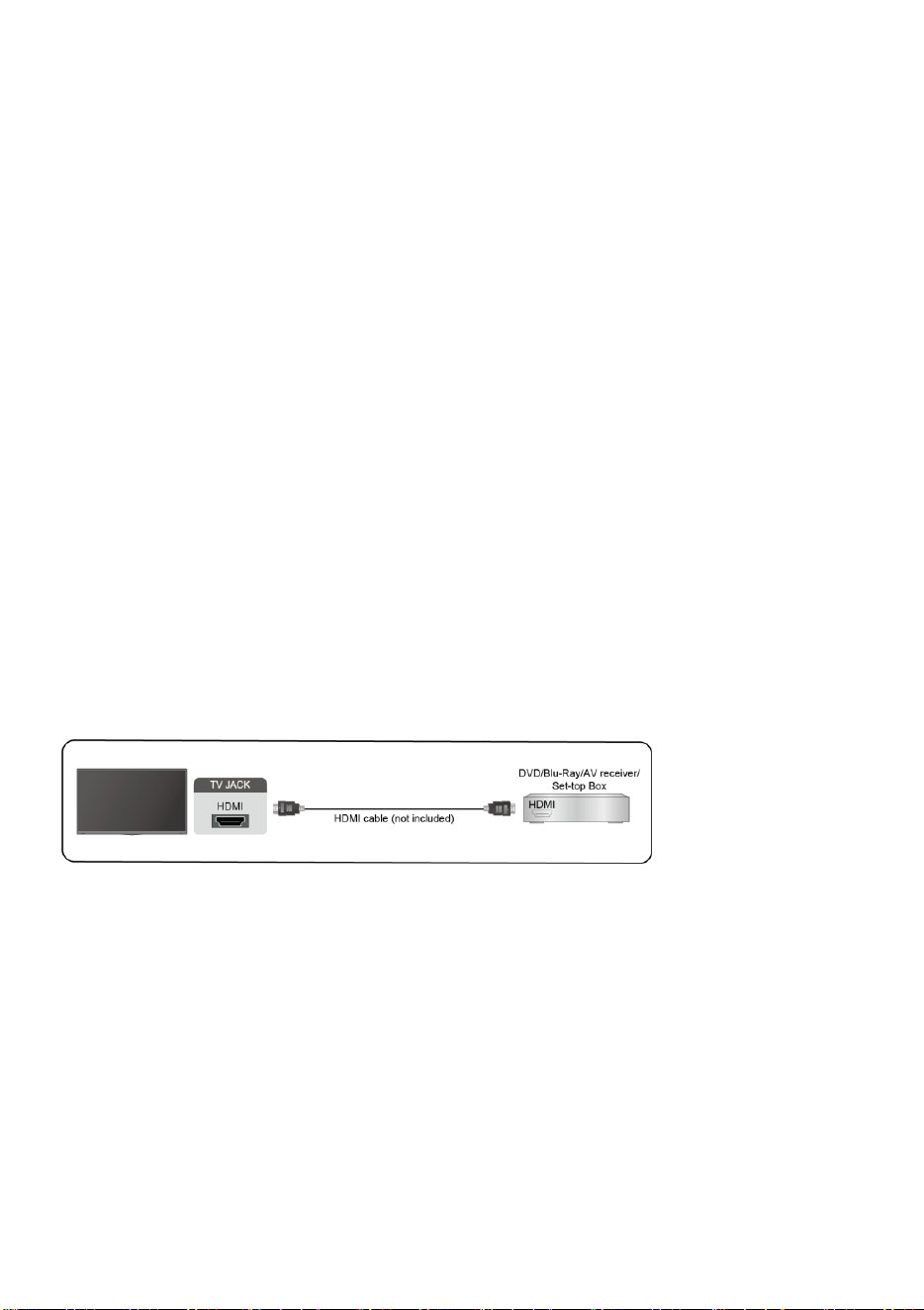
HDMI Device
Connect an HDMI cable from an external A/V equipment.
Some devices such as DVD player require HDMI signal to be set to output in the device's
settings. Please consult your device user manual for instructions.
Please note that the HDMI connector provides both video and audio signals, it's not
necessary to connect an audio cable.
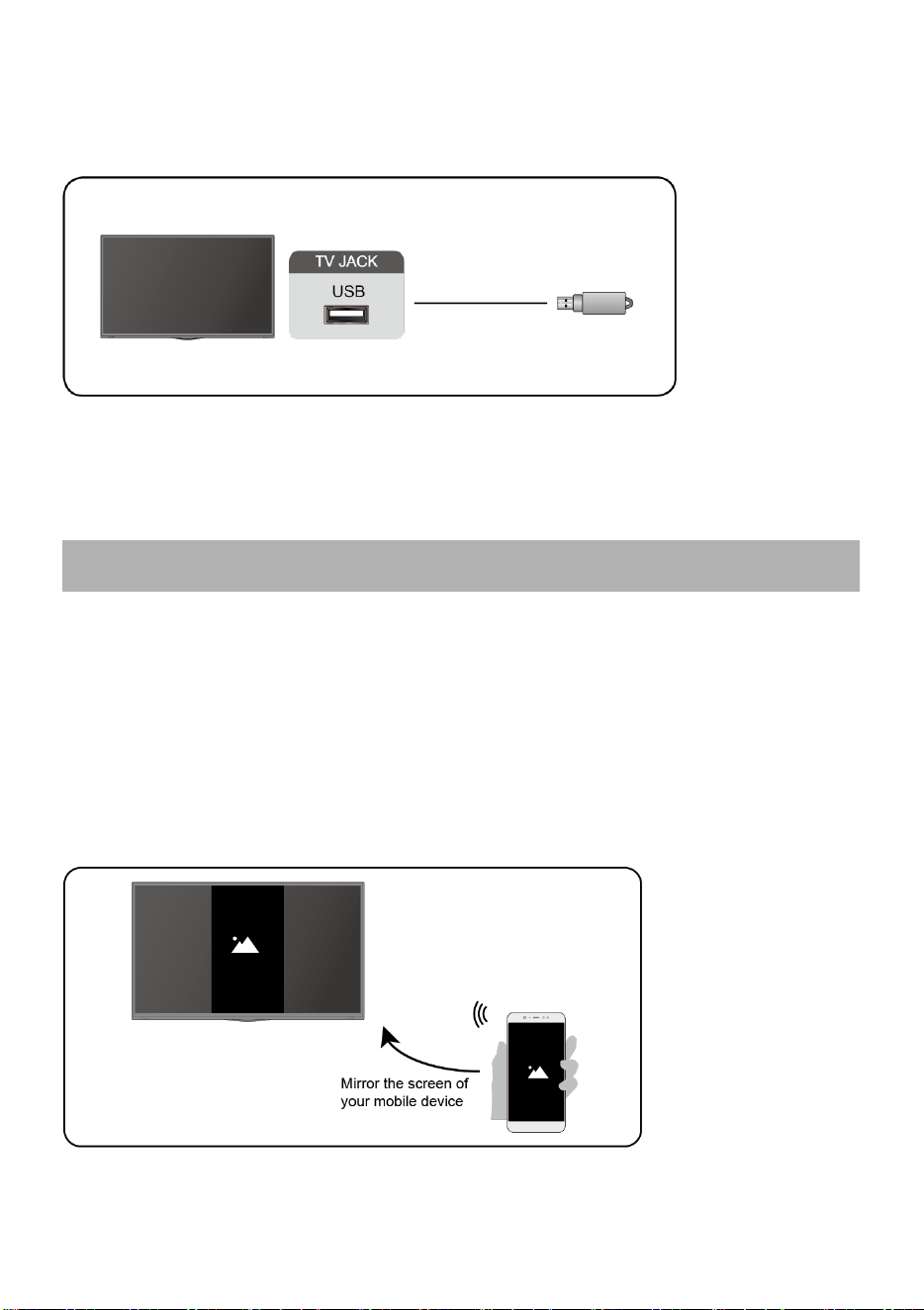
USB Device
Connect the USB devices such as hard drives, USB sticks and digital cameras for
browsing photos, listening to music.
22
Support format: FAT32.
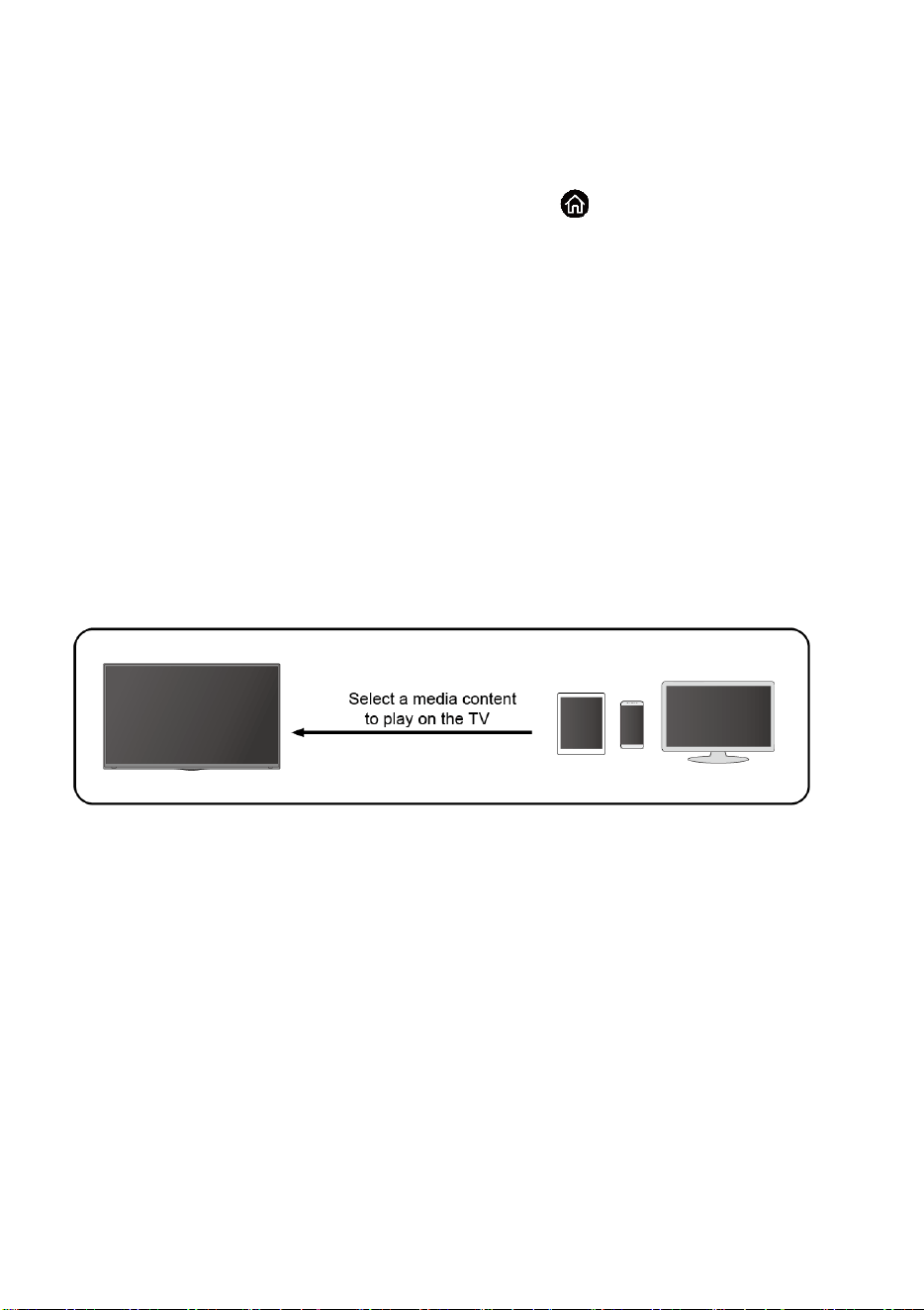
Screen Sharing
Mirror content from your device to the TV.
INPUT > Screen Sharing
Turn on the casting function of your Android/Windows10 device.
Find the TV name in the searching list of your device and select it. Wait for the
connection progress to complete and the content on your device will be displayed
on the TV.
Note:
Some Android devices may not support casting.
Multi-screen
23
Content Sharing
Share media content, like videos, music or photos, from your device to the TV screen.
Before you use this function, turn on Content Sharing at > Settings >
System > Mobile Device Connection > Content Sharing.
Establishing Content Sharing connection between the TV and your device
•
Turn on the content sharing function of your device.
•
Find the TV name in the searching list of your device and select it.
•
Wait for the connection progress to complete, and select the content you want to
share.
View media content of your device
Press INPUT button on your remote, and select a media content on the
screen.
Note:
•
Make sure our device and the TV are connected to the same network.
•
Some devices may not support content sharing. If your device doesn't support content
sharing, you can download an app that supports the function.
•
If you want to mirror content from your device, go to INPUT >Screen Sharing.
24
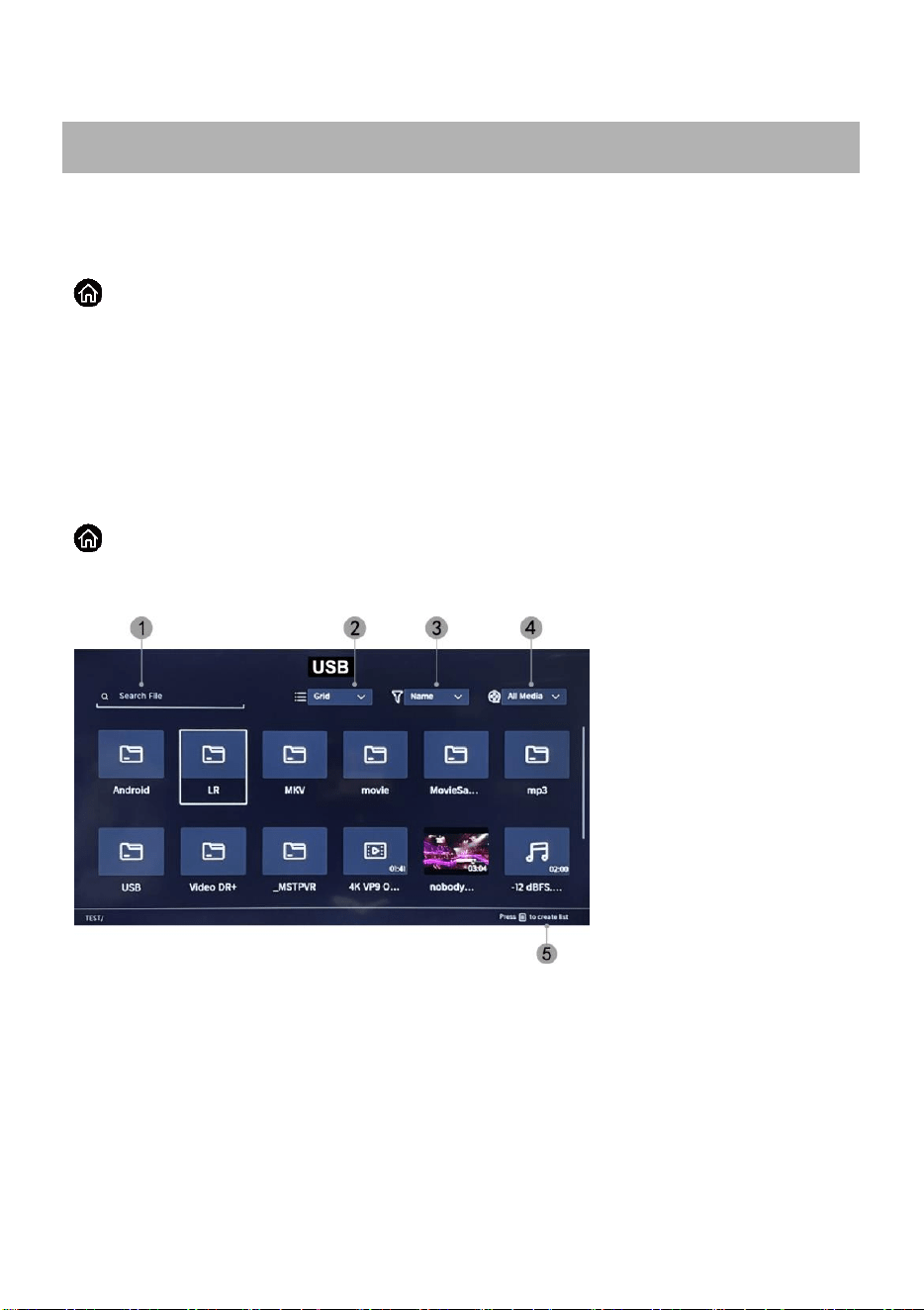
Media
Playing Media contents
> Media
By default, there are Content Sharing displayed on the Media screen. If your mobile
device is connected to the TV, its name also appears on the Media screen.
Note:
For more information about Content Sharing, refer to its detailed introduction.
> Media > connected device
Select the content you want to play on the screen, like pictures, videos and music.
1. Input the content name you want to play.
2. Arrange the content list by Grid, List.
3. Arrange the content list by Name, Date Modified, Size.
4. Filter the content list by All Media, Photo, Video, Music.
5. Create a photo, music, or video playlist.
Smart Functions
25
Playing background music during viewing pictures
You need to:
⚫ Choose a picture to playback.
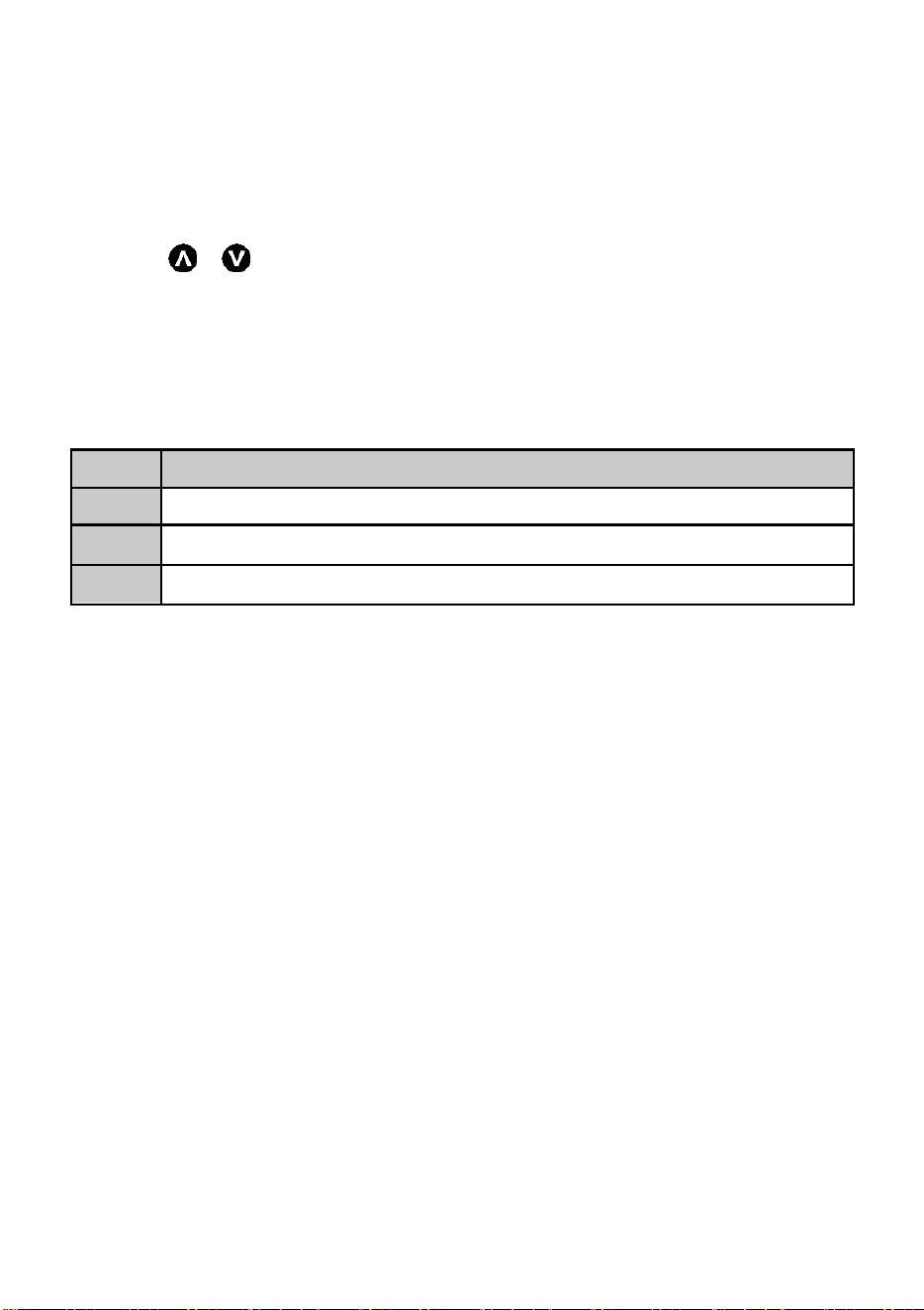
⚫ Press / button to call out playbar.
⚫ Select Background Music and choose your music to create a Music Playlist.
⚫ Play the background music during viewing pictures.
Note:
The TV may be support the following file formats:
Medium
File Format
Video
.MP4, .MOV, .MPG, .MPEG, .FLV
Picture
.jpg, .BMP, .PNG, .GIF
Music
.MP3, .AAC, .wav
•
For more information about connection to other device, refer to the detailed
introduction of each part.
26
Home
Getting familiar with the Home screen
Run the TV more conveniently by selecting the corresponding sections.
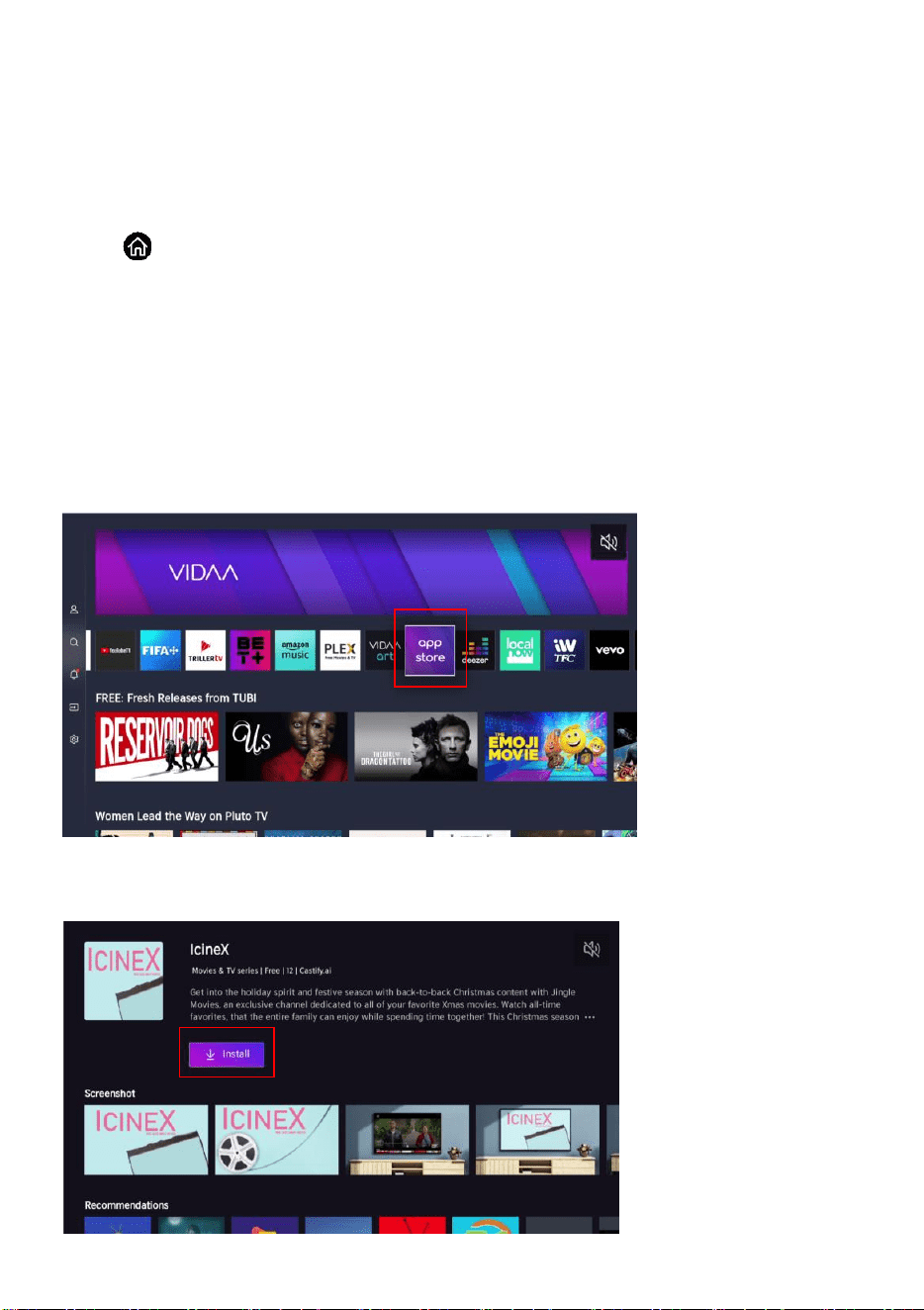
Press button to enter the Home Page.
Manage apps
Select the item you want to move, long press OK button on remote control to manage.
Download apps
In the HOME page, press navigation button to select “app store” and press OK button to
enter the sup-page.
Select the desired app and press OK button to confirm. Highlight “Install” and press OK
button to download the app.

27
VIDAA Account
Sign in your VIDAA account.
A VIDAA account gives you all the best feature of your smart TV and always keeps it up to
date.
Search
Search the app you want.
Notifications
Allow pop-up notifications to appear for useful information and events that occur with your
TV.
Select Notifications on the Home screen, and select Settings then display Advertising,
New Arrivals, Warnings And Legal Statements, System Message, from which you can
choose the types of notifications you would like to receive.
Inputs
Select the input you want.
Settings
Display the Settings menu.
28
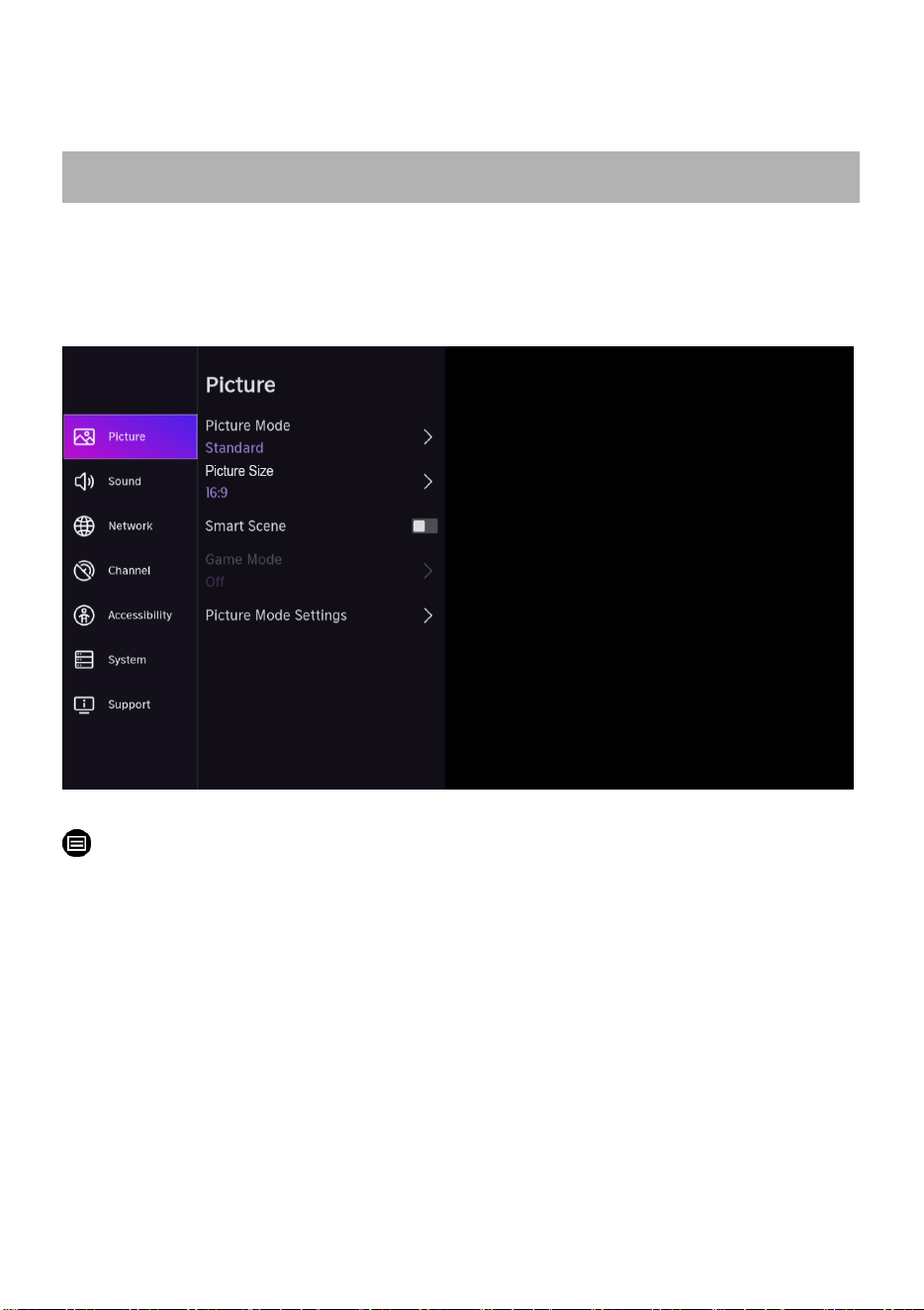
Adjusting the Picture Quality
Adjust current picture mode to apply to all sources or just current source.
The menu is only for reference. The following modes may differ from the actual product.
Choosing a picture mode
> Settings > Picture > Picture Mode
You can select the Picture Mode that provides the best viewing experience.
•
Vivid
•
Enhanced(ARC)
•
Standard
•
Energy Saving
•
Theater Day
•
Theater Night
•
Sports
Picture and Sound
29
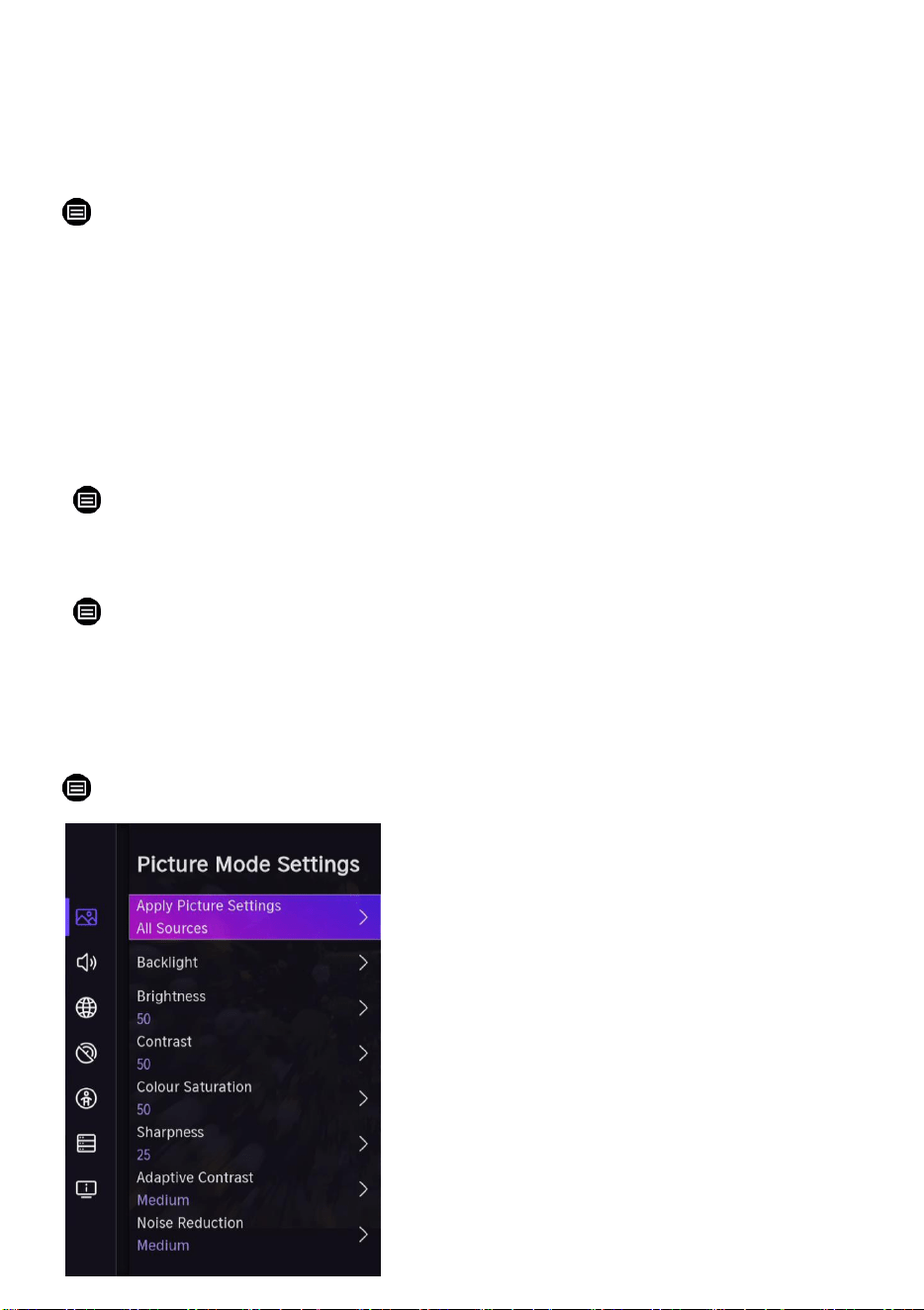
Choosing a Picture Size
> Settings > Picture > Picture Size
You can adjust the picture aspect ratio based on the content you are watching.
•
Auto
•
16:9
•
4:3
•
Movie Zoom
Smart Scene
> Settings > Picture > Smart Scene
Recognise the current scene and enhance the picture quality.
> Settings > Picture > Game Mode
Optimised for PC or Games consoles. Reduces Input Lag and improves
responsiveness. Choosing the Game Mode under ON/OFF
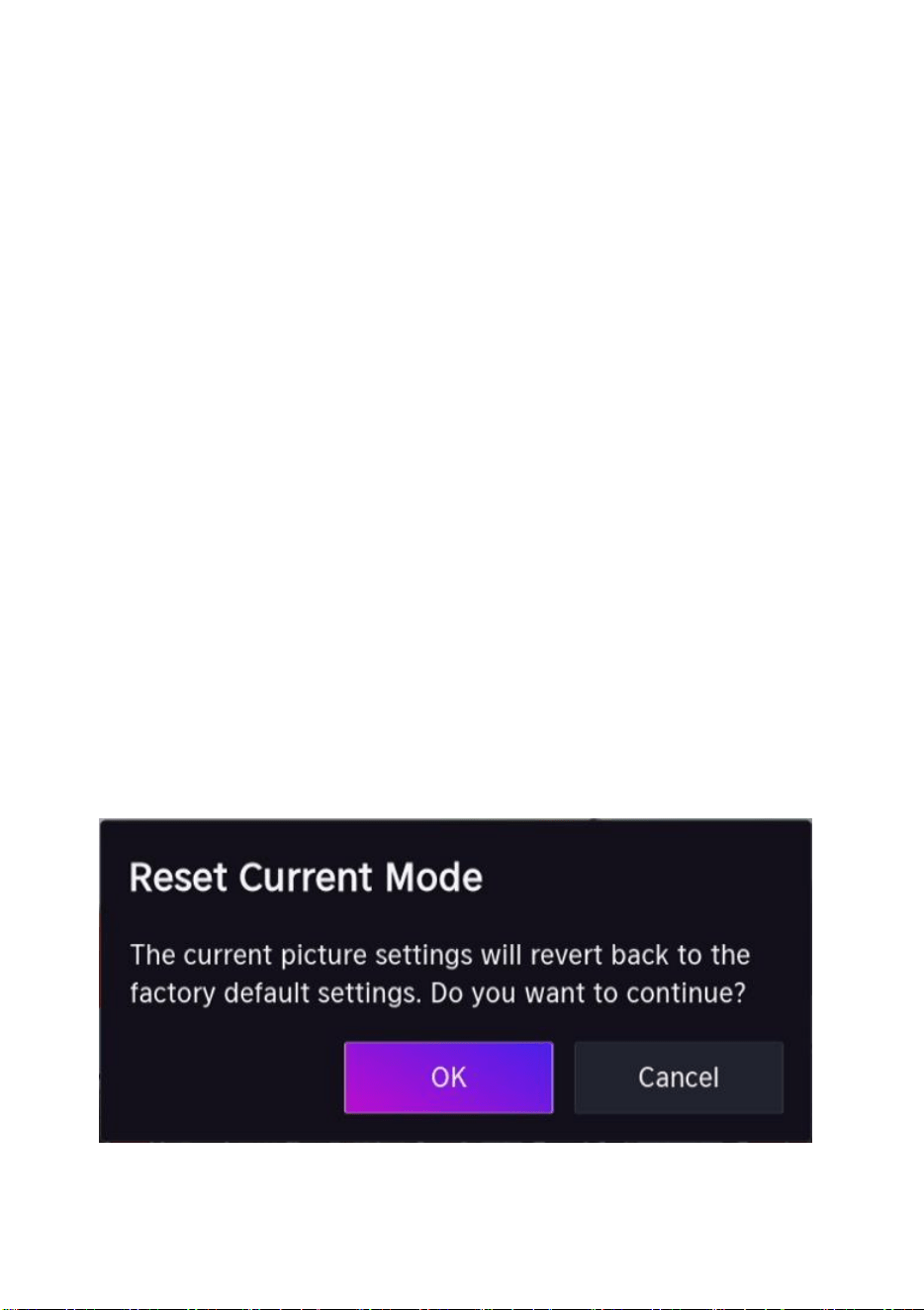
Configuring advanced picture settings
> Settings > Picture > Picture Mode Settings
30
Adjust display setting for each Picture Mode.
•
Apply Picture Settings: Adjust current picture mode to apply to all sources or just
current source.
•
Backlight: Adjust image backlight. (Optional: Off/Low/High).
•
Brightness Adjust image brightness.
•
Contrast: Adjust image contrast.
•
Color Saturation: Adjust image color density.
•
Sharpness: Adjust the image edge sharpness.
•
Adaptive Contrast: Automatically adjust dark areas and light areas of the image to
see more details. Press navigation button to select Off/Low/Medium/High.
•
Noise Reduction: Improve the picture quality by reducing noise. (Optional:
Off/Low/Medium/High).
•
MPEG Noise Reduction: Reduces MPEG block noise to provide clearer edge
transitions. (Optional: Off/Low/Medium/High).
•
Colour Temperature: Adjust the overall color of the image. (Optional:
Warm1/Warm2/Standard/Cool).
•
Expert Settings: Adjust the colour space and Gamma to best suit the content you’re
viewing.
•
Overscan: Change the video size setting to crop the edges of the displayed image.
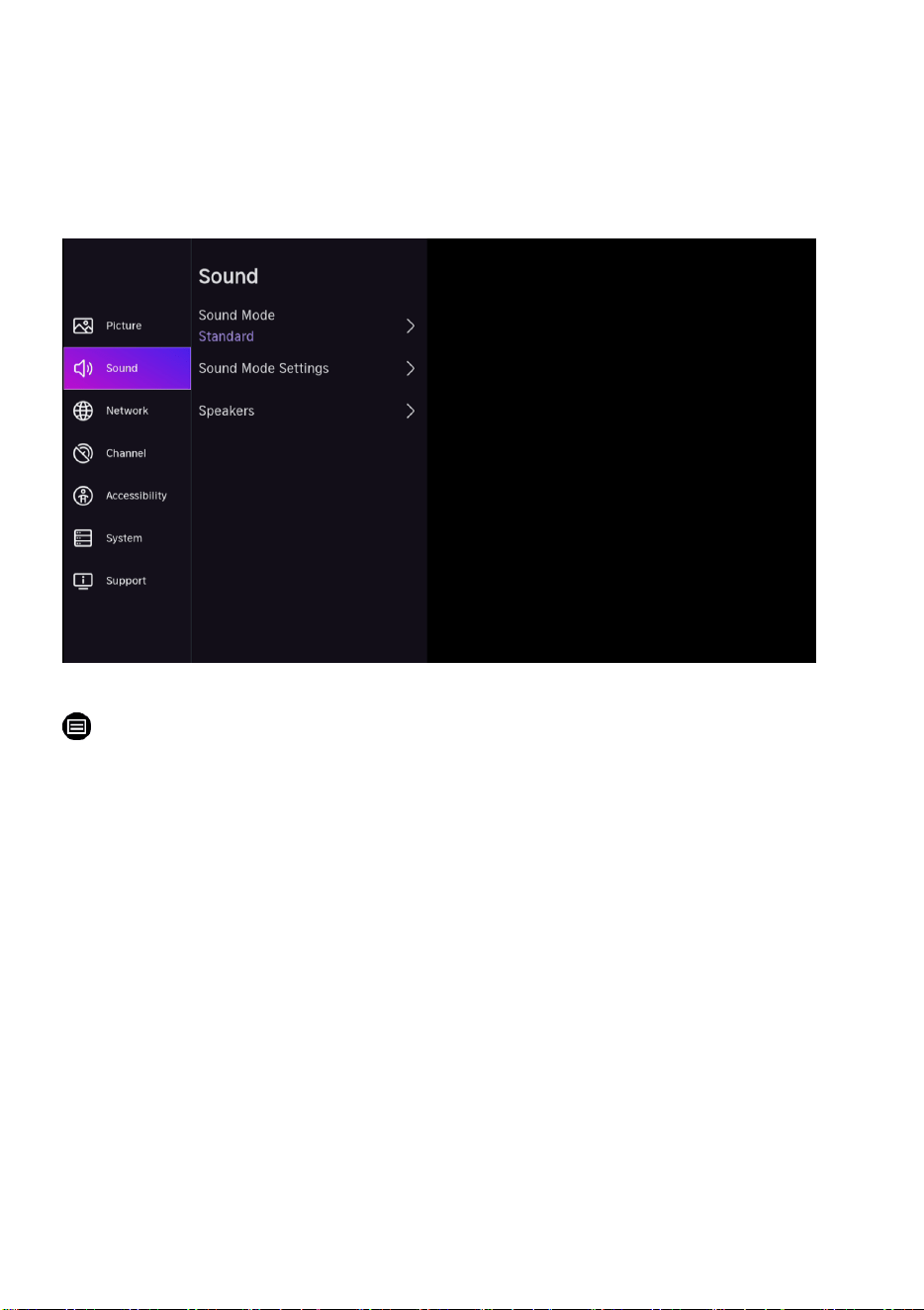
•
Reset Current Mode: Restore all the picture settings in the current picture mode to the
factory default values.
31
Adjusting the Sound Quality
Adjust current sound mode to apply to all sources or just current source.
The menu is only for reference. The following modes may differ from the actual product.
Choosing a sound mode
> Settings > Sound > Sound Mode
You can select a favorite sound mode suitable for the content type or the listening
environment.
•
Standard: Produced a balanced sound in all environment.
•
Enhanced(ARC): Enhance both image and sound quality for all input source
automatically.
•
Theater: Increase the surround sound effect and provides a more prominent
subwoofer response.
•
Music: Preserves the original sound. Good for musical programs.
•
Speech: Low and high frequencies are attenuated to improve the reproduction and
clarity of the human voice.
•
Late Night: Improve the reproduction and clarity of the human voice with a low volume
level.
•
Sports: Optimized sound for watching football.
32
> Settings > Sound > Sound Mode Settings
Customize selected Sound Mode.
> Settings > Sound > Speakers
Select the speakers which you want to use.
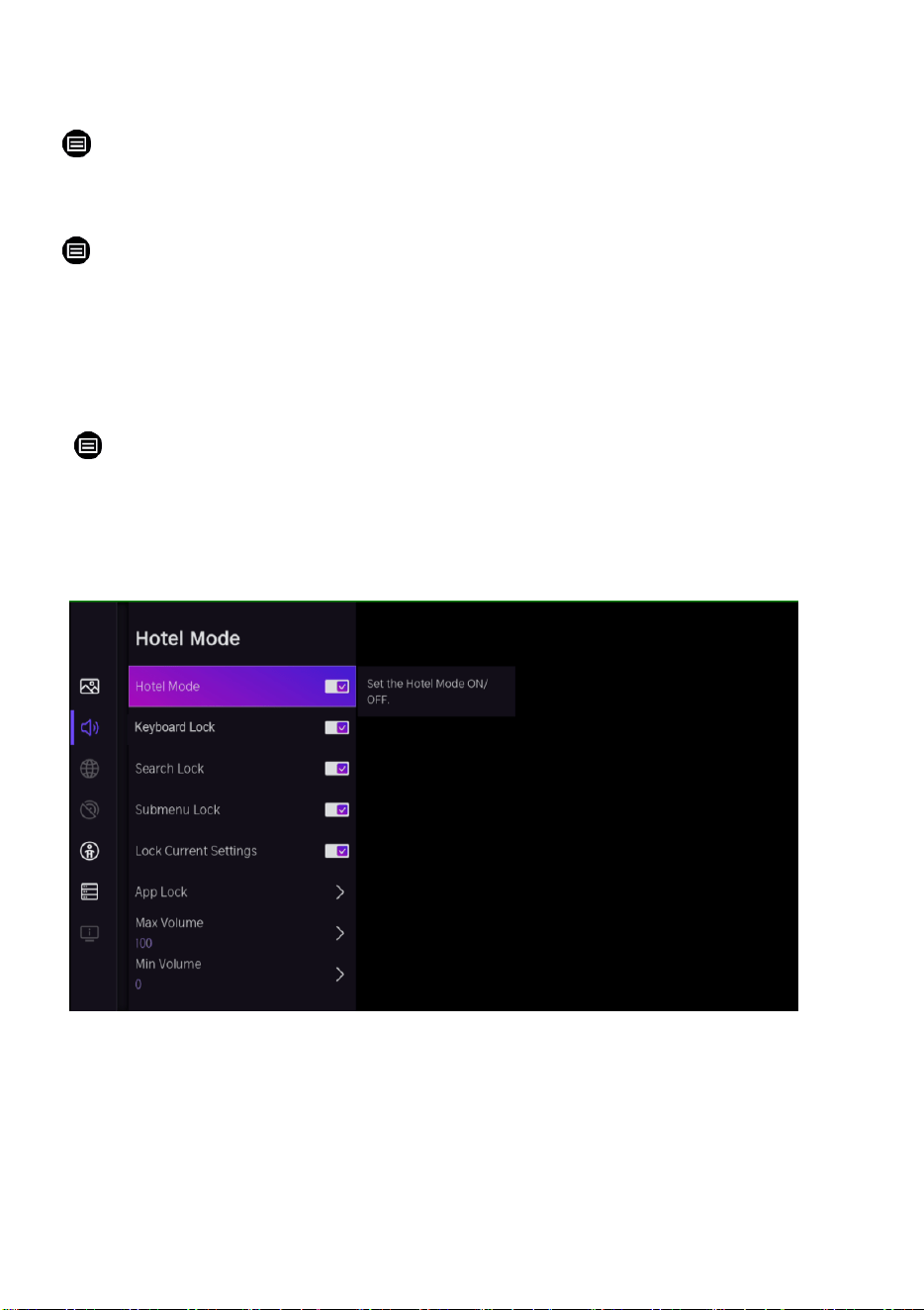
Hotel Mode
> Settings > Sound > Speakers>Balance
Press 0548, then the Hotel Mode will display.
Press OK to set the Hotel Mode On.
Press OK again to set the Hotel Mode OFF.
33
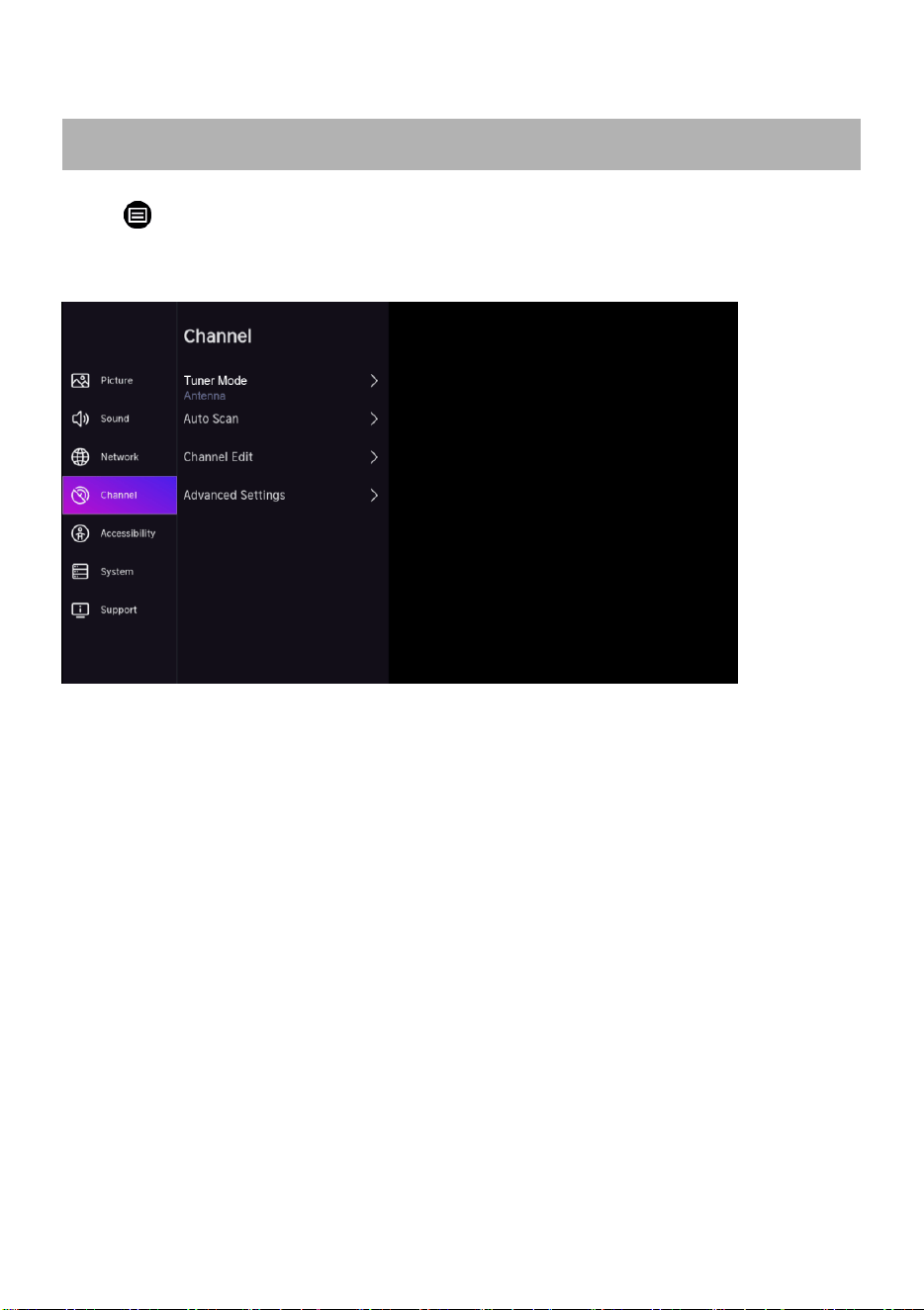
Press > Settings > Channel
Press Navigation buttons to select the option that you want to adjust in the Channel menu.
Press OK button to adjust.
Tuner Mode
Select if you receive TV channel over the air(antenna) or trough a cable set top box.
Auto Scan
Automatic search can search for effective program channel automatically.
Channel Edit
Manually edit the channel list to your preference.
Advanced Settings
Adjust advanced settings for channel.
Channel
34
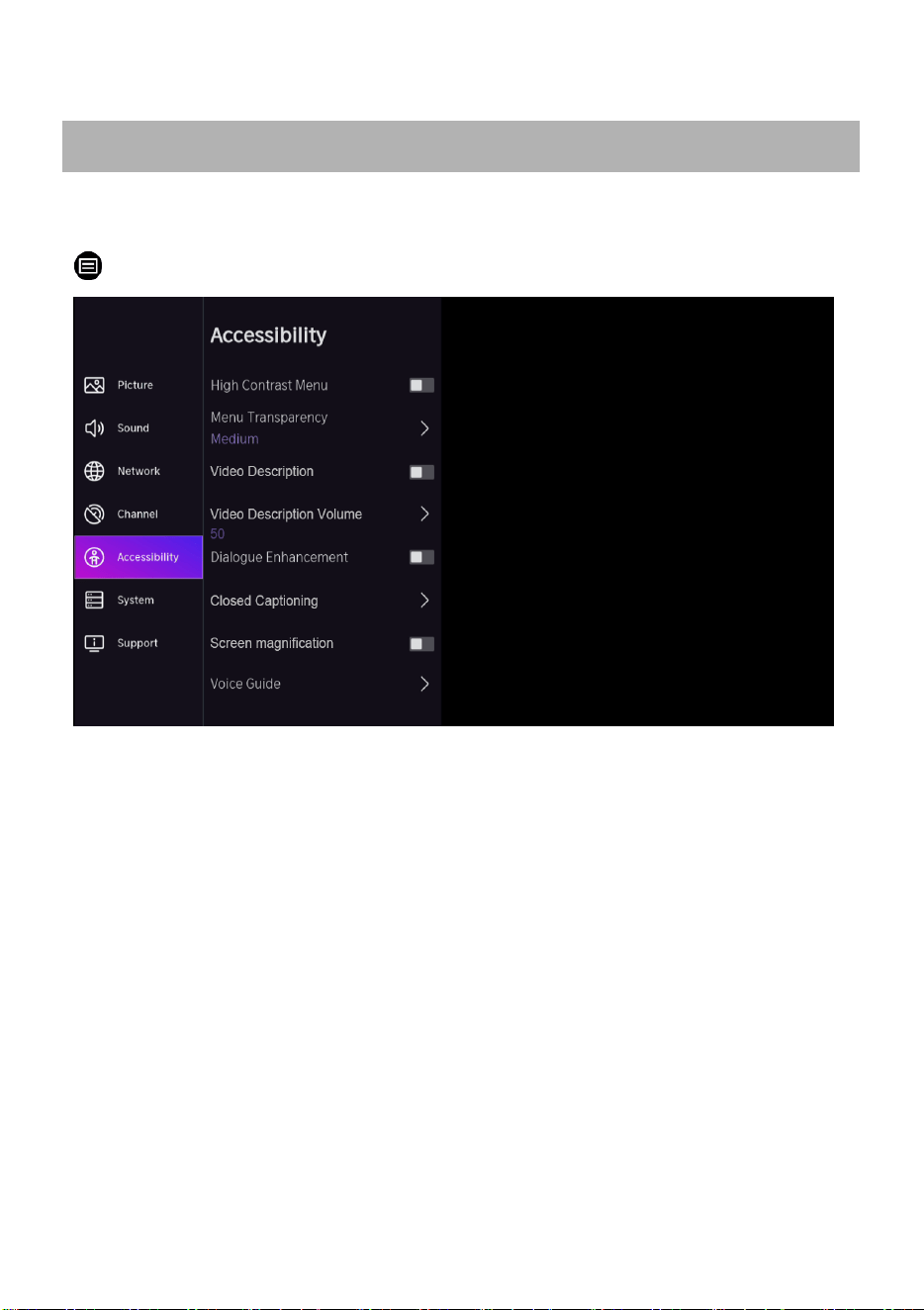
Press Navigation button to select Accessibility
> Settings > Accessibility
•
High Contrast Menu: Turn High Contrast Menu On or Off.
•
Menu Transparency: Set the transparency of menu. (Optional: Off/Medium/High)
•
Video Description: Enables broadcasted descriptive audio for visually impaired.
•
Video Description Volume: Independently adjust the volume of voice over.
•
Dialogue Enhancement: Enable or disable dialogue enhancement.
•
Closed Captioning: Allow customization of closed caption text display.
•
Screen Magnification: Allow visually impaired/partially sighted viewers to magnify an
area of the screen.
•
Voice Guide: Allows customization of spoken menu language.
Accessibility
35
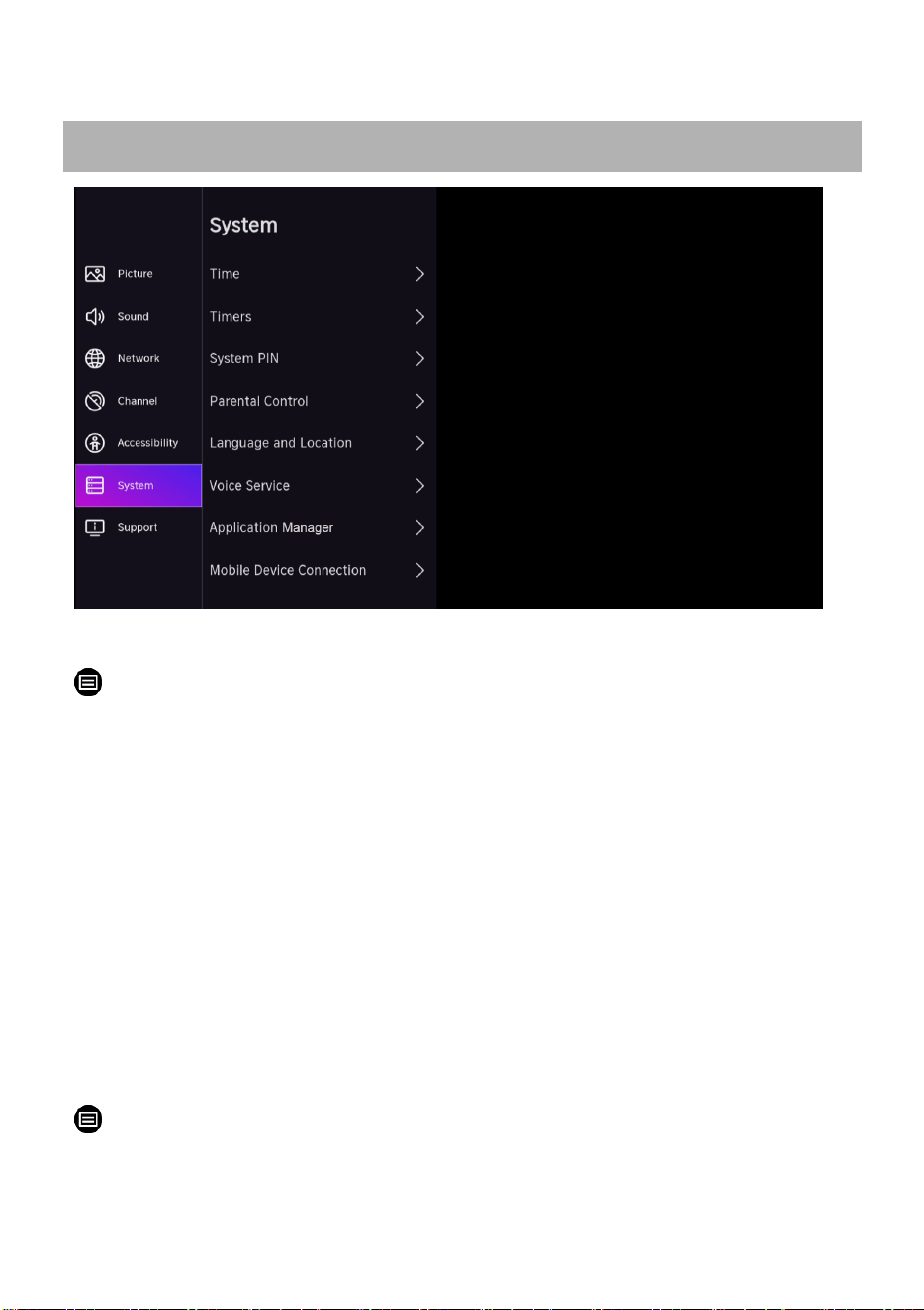
Setting Time
> Settings > System > Time
Set the current time based on your location.
•
Time Format
Set the time to display in a 12 or 24-hour format.
•
Date/Time
Set the date and time.
•
Time Zone
Set the time zone.
•
Daylight Savings
Select whether to apply Daylight Savings Time to the TV.
Using the timers
> Settings > System > Timer
Adjust the timer settings to suit your preference.
System and Support

36
•
Sleep Timer
Set the sleep timer to automatically turn the TV Off within a specified time: Off, 15 Minutes, 30
Minutes, 60 Minutes, 90 Minutes, 120 Minutes, User Defined.
•
Power On Timer
Set the clock for the time you want the TV to turn on automatically. You can set the time only
once or set the time in specified date weekly.
•
Power Off Timer
Set the clock for the time you want the TV to turn off automatically. You can set the time only
once or set the time in specified date weekly.
•
Menu Timeout
Set the amount of time that you would like for the menu to display: Off,10s, 20s,
30s, 60s.
•
Auto Sleep
Set the amount of time that you’d like for TV auto power off without any activity: Off, 3H,
4H.
•
Auto Standby with No Signal
TV will go to standby if there is no signal after the set time: Off, 15 minutes.
System PIN
> Settings > System > System PIN
Change the PIN that you use to access Parental Control, Auto Channel Scan and Reset
to Factory Default.
Parental Control
> Settings > System > Parental Control
Turn on Parental Controls to prevent children from being able to view certain content.
Language and Location
> Settings > System > Language and Location
Choose the language of the TV and your location.

37
Voice Service
> Settings > System > Voice Service
Download the VIDAA APP on your mobile, then you can use your voice to control the TV,
other smart home devices and more.
Application Manager
> Settings > System > Application Manager
Set up Application preferences.
Mobile Device Connection
> Settings > System > Mobile Device Connection
Connection management of a mobile device, smartphone, or personal computer.
HDMI & CEC
> Settings > System > HDMI & CEC
Control your TV and CEC- enabled devices with one remote.
Advanced Settings
> Settings > System > Advanced settings
Access the Advanced Settings menu.
38
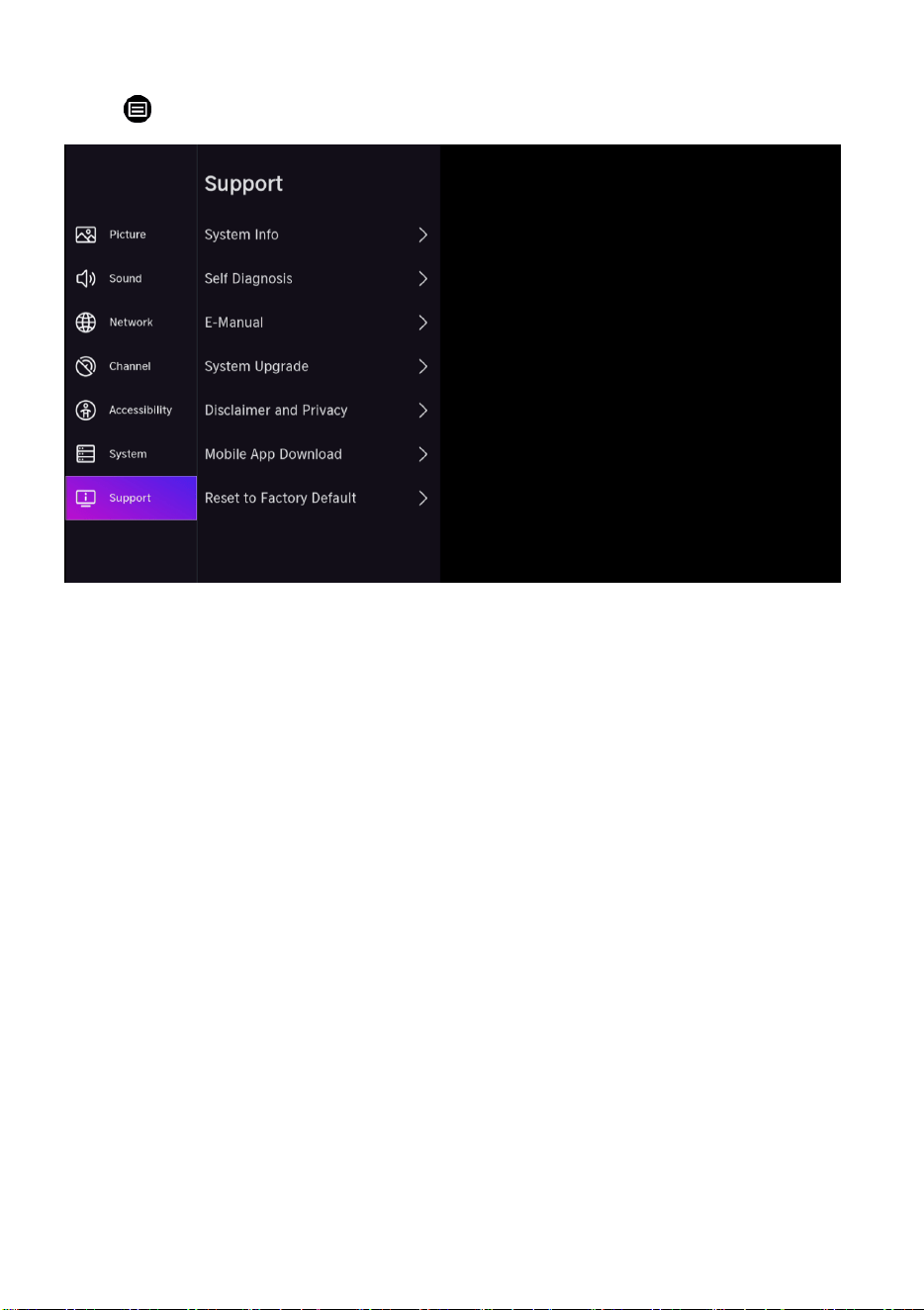
Press > Settings > Support
System Info
View System information.
Self Diagnosis
Perform self diagnosis to test sound, picture and connections.
E-Manual
Launch E-Manual and get to know more about your TV.
System Upgrade
Set your TV to receive the latest firmware.
Disclaimer and Privacy
Click to read our term and policy.
Mobile App Download
Install mobile app on your smartphone to control your TV. This app is available on both
Android and iOS.
Reset to Factory Default
Reset your TV to the factory settings.
39
● Be sure to press POWER button to set the player to the standby mode and disconnect
the power plug before maintaining the player.
● Wipe the player with a dry, soft cloth.
● If the surface is extremely dirty, wipe clean with a cloth which has been dipped in a
weak soap-water solution and wrung out thoroughly, and then wipe again with a dry
cloth.
● Never use alcohol, benzene, thinner, cleaning fluid or other chemicals. And do not
use compressed air to remove dust.
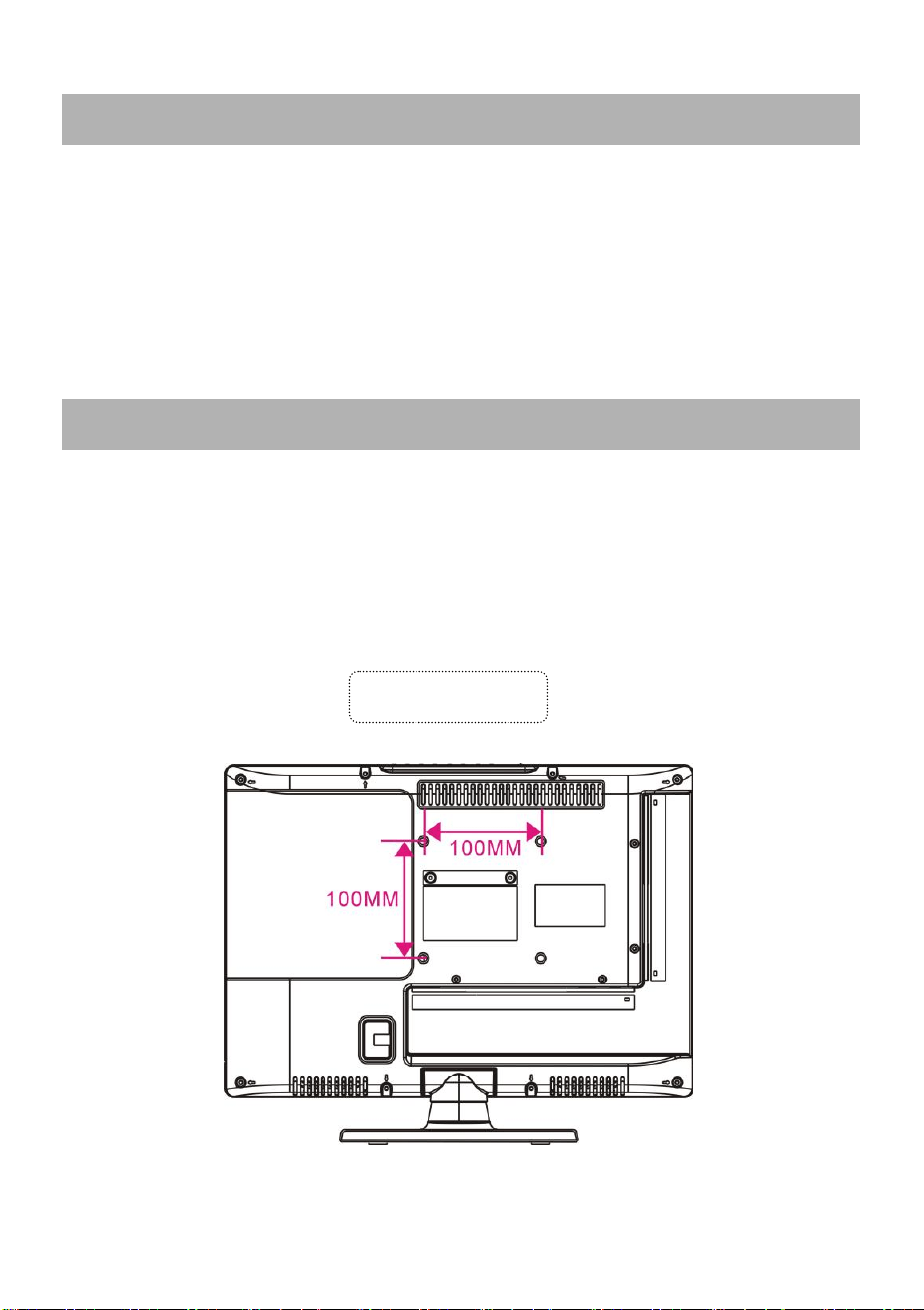
● Contact a professional for assistance when wall mounting your TV. We are not
responsible for any damage to the product or injury to yourself, if you mount the TV on your
own.
● Do not wall mount the TV while TV is turned on. It may cause personal injury due to
electric shock.
● Use standard M4*8mm screws (4 pieces) to mount this TV.
MAINTENANCE
WALL MOUNTING
Back of your TV
40
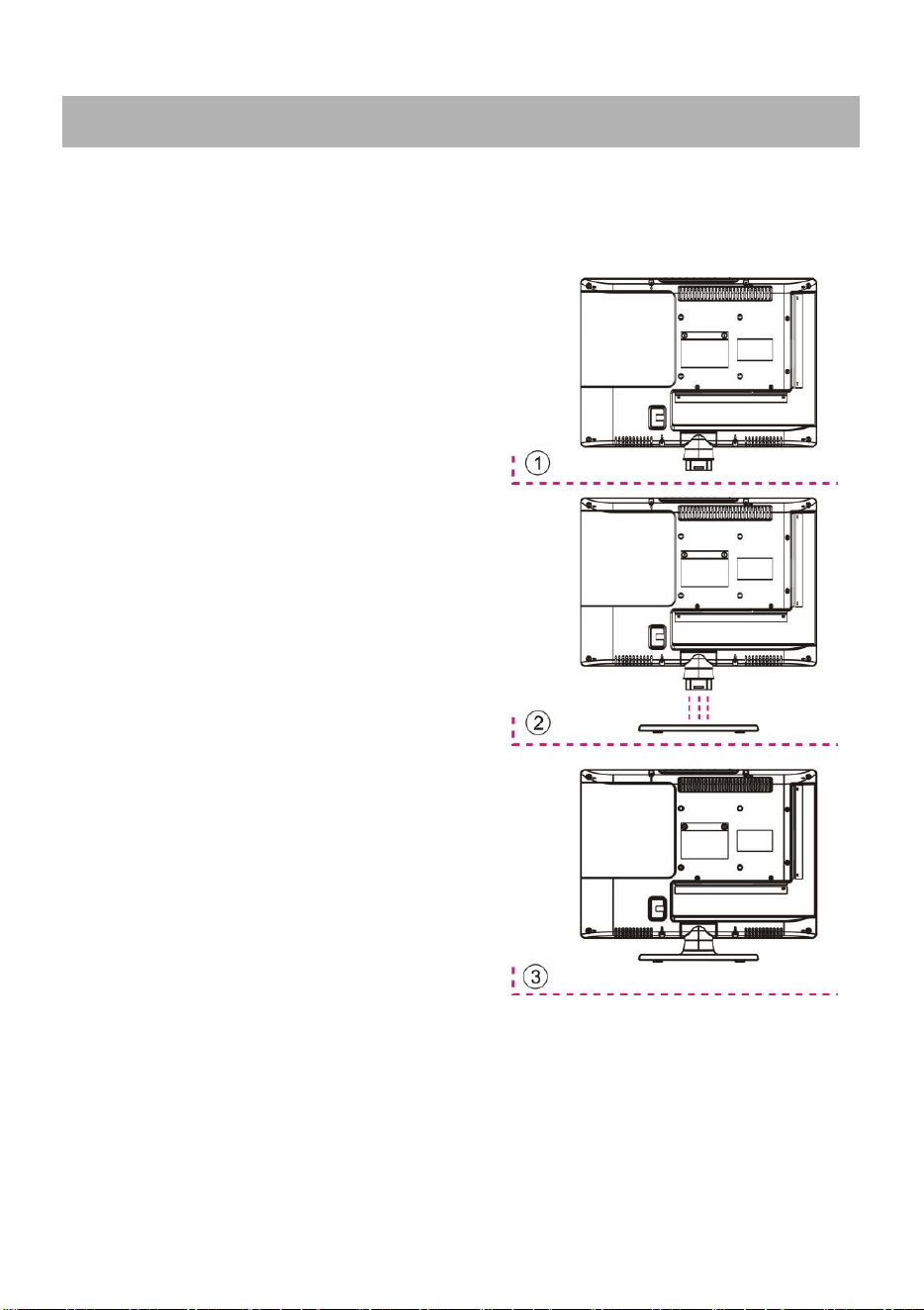
Your TV is packaged with the Stand and the Cabinet separated. Before enjoying this TV,
please carry out the Stand Installation according to the instructions below.
Step 1
Place the TV faced down on a soft cloth or
cushion to prevent the panel from being
damaged.
Step 2
Align the stand and the bottom of this TV.
Step 3
Attach the neck to the stand by inserting and
snapping the tabs on the neck into the slots in the
stand.
NOTES:
- Unplug the power plug first when installing or
removing the TV Stand.
- To avoid any damage to this TV, contact one or
more partner for assistance when installing or
removing the TV stand.
STAND INSTALLATION
41
Display Device
15.6 inch LED TV
Resolution
1920×1080
Display Colors
16.7M
Contrast Ratio
3000:1
Aspect Ratio
16:9
Life Time
30,000 Hrs
Multimedia Playback
Music
Photo
Video
POWER SOURCE
AC 100-240V, 50/60Hz + DC 12V
POWER
CONSUMPTION
Max.24W
OPERATION
TEMPERATURE
-5℃ to 45℃
MEASUREMENT
400(W)×121(D)×326(H) mm
WEIGHT
Approx. 1.645 kg
USB 2.0/Max 128G
Medium
File Format
Video
.MP4, .MOV, .MPG, .MPEG, .FLV
Picture
.jpg, .BMP, .PNG, .GIF
Music
.MP3, .AAC, .WAV
Specifications are subject to change without notice.
SPECIFICATIONS
42
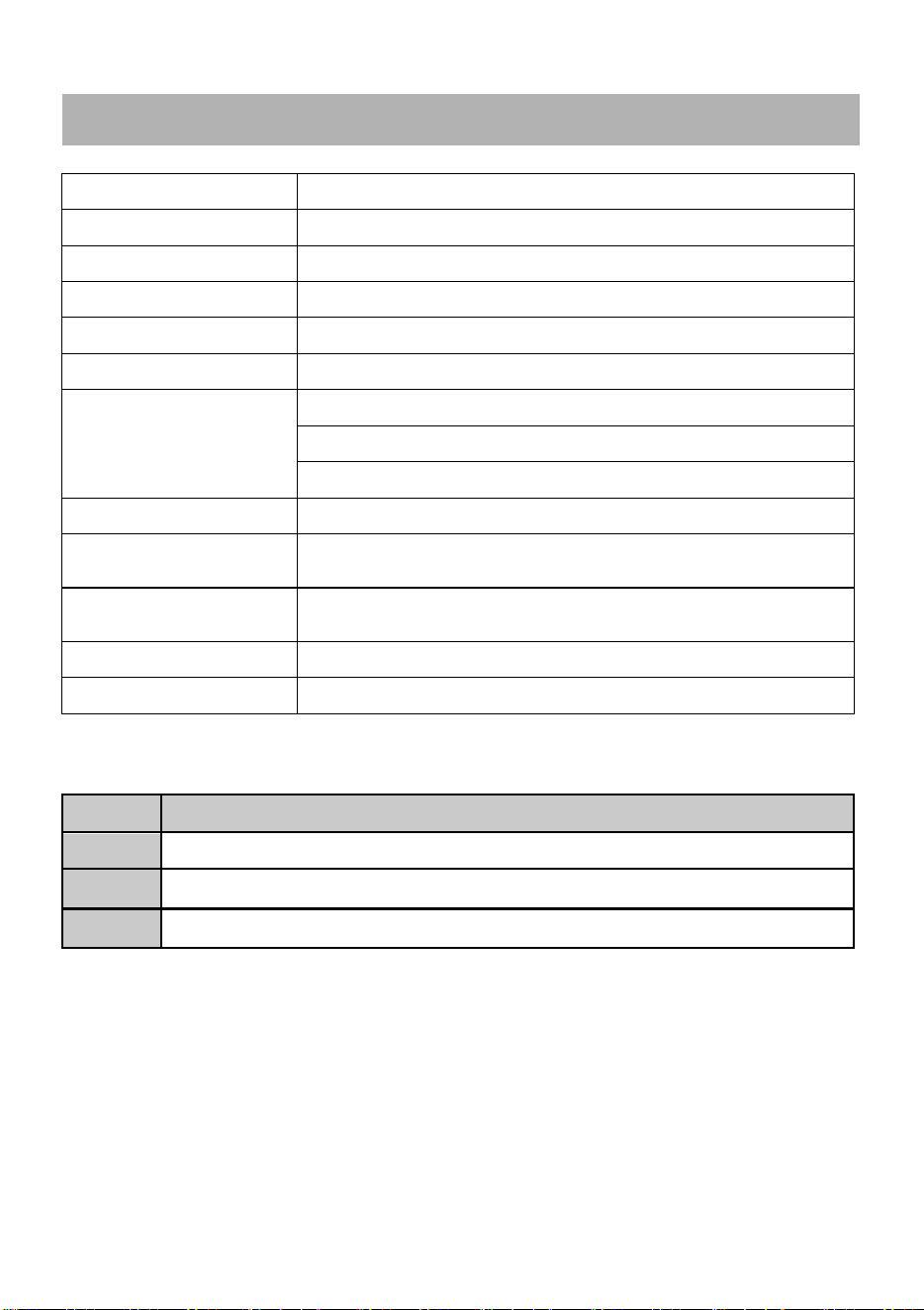
Check the following points before assuming malfunctions of this unit:
Symptom[COMMON]
Remedy
No power.
Insert the power plug securely into the power outlet.
No picture.
Ensure that the equipment is connected properly.
● No sound.
● Distorted sound.
● Ensure that the equipment is connected properly.
● Ensure that the input setting for the TV and stereo system are
correct.
● Adjust the master volume to a suitable volume by pressing
VOL+/VOL- button.
No operations can be
performed with the remote
control unit.
● Check the batteries are installed with the correct polarities.
● The batteries are exhausted: Replace them with new ones.
● Point remote control at the remote control sensor and operate it
again.
● Operate the remote control unit at a distance of no more than 6m
from the remote control sensor.
● Remove the obstacles between the remote control and remote
control sensor.
No key operation (by the
main unit and/or the remote
control unit) is effective.
Disconnect the power plug from power source and then reconnect it.
(This TV may not be operating properly due to lightning, static
electricity or some other factors.)
Symptom[TV]
Remedy
No or poor picture.
● Adjust antenna or use an external antenna.
● Relocate the unit near a window (if inside a building).
● Move units away from this product that causes interference.
● Do Auto Tuning again.
● Try another channel.
No sound or poor sound.
● Check the audio settings.
● Press MUTE button on remote control to cancel mute function.
● Unplug the headphone.
Noise or other interface.
Electronic equipment near the unit is causing interface. Relocate the
unit or move the equipment.
GENERAL TROUBLESHOOTING

Warranty
Basic Warranty Statement
Supersonic Inc.("Supersonic") warrants this product to the original purchaser ONLY, to be
free from defects in materials and workmanship under normal use, for ninety (90) DAYS
from the date of original purchase. Proof of purchase (receipt) required.
Please visit http://www.supersonicinc.com/warranty for additional information.