
User Manual
2024.01v1.0
2
©
2024 DJI All Rights Reserved.
Searching for Keywords
Search for keywords such as Battery or Install to find a topic. If you are using Adobe
Acrobat Reader to read this document, press Ctrl+F on Windows or Command+F on Mac
to begin a search.
Navigating to a Topic
View a complete list of topics in the table of contents. Click on a topic to navigate to that
section.
Printing this Document
This document supports high resolution printing.
This document is copyrighted by DJI with all rights reserved. Unless otherwise authorized by DJI,
you are not eligible to use or allow others to use the document or any part of the document by
reproducing, transferring, or selling the document. Users should only refer to this document
and the content thereof as instructions to operate DJI products. The document should not be
used for other purposes.

DJI Mic 2
User Manual
©
2024 DJI All Rights Reserved.
3
Using this Manual
Legends
Important Hints and Tips
Read Before Use
Read the following documents before using DJI™ Mic 2.
1. Safety Guidelines
2. Quick Start Guide
3. User Manual
It is recommended to watch all tutorial videos and read the safety guidelines before using for
the rst time. Make sure to review the Quick Start Guide before using for the rst time and refer
to this User Manual for more information.

4
©
2024 DJI All Rights Reserved.
Using this Manual 3
Legends 3
Read Before Use 3
Contents 4
Introduction 5
DJI Mic 2 Transmitter 5
Overview 5
LED Information 6
DJI Mic 2 Receiver 8
DJI Mic 2 Charging Case 9
Operation 10
Placing a Transmitter 10
Linking the Transmitter and Receiver 11
Using with a Camera 13
Using with a Mobile Device 14
Using with a Computer 15
Receiver Touchscreen Operation 16
Home Screen 16
Swipe Down-Control Menu 18
Swipe Up-Control the Transmitters 21
Connecting a Transmitter to a Bluetooth Device 22
Standalone Recording for Transmitters 23
Maintenance 24
Charging the Battery 24
Charging with the DJI Mic 2 Charging Case 24
Charging the Transmitters and Receiver 24
Storing DJI Mic 2 24
Updating Firmware 25
Accessories (Not Included) 26
DJI Lavalier Mic 26
Specifications 27
Contents
DJI Mic 2
User Manual
©
2024 DJI All Rights Reserved.
5
Introduction
DJI Mic 2 is a dual channel wireless microphone system, including two transmitters and one
receiver, which is able to record two sound sources simultaneously. Each transmitter has a built-
in omnidirectional microphone, which can be connected to DJI Osmo Pocket 3, mobile phones
and other devices via Bluetooth, and supports standalone recording and intelligent noise
cancelling. The transmitter is equipped with a clip for ease of portability, and accommodates
external microphones to meet o-camera recording needs while enhancing audio quality.
The receiver boasts an OLED touchscreen, on which users can view the real-time volume levels,
wireless signal strength, gain, recording modes, and more. By utilizing the expansion port, the
receiver can be connected to a camera or mobile device to capture high-quality audio, or can
be used as a microphone when connected to a computer. Additionally, an independent monitor
port on the receiver allows for real-time audio adjustments. The charging case provided is able
to charge the transmitters and receiver simultaneously and link them automatically.
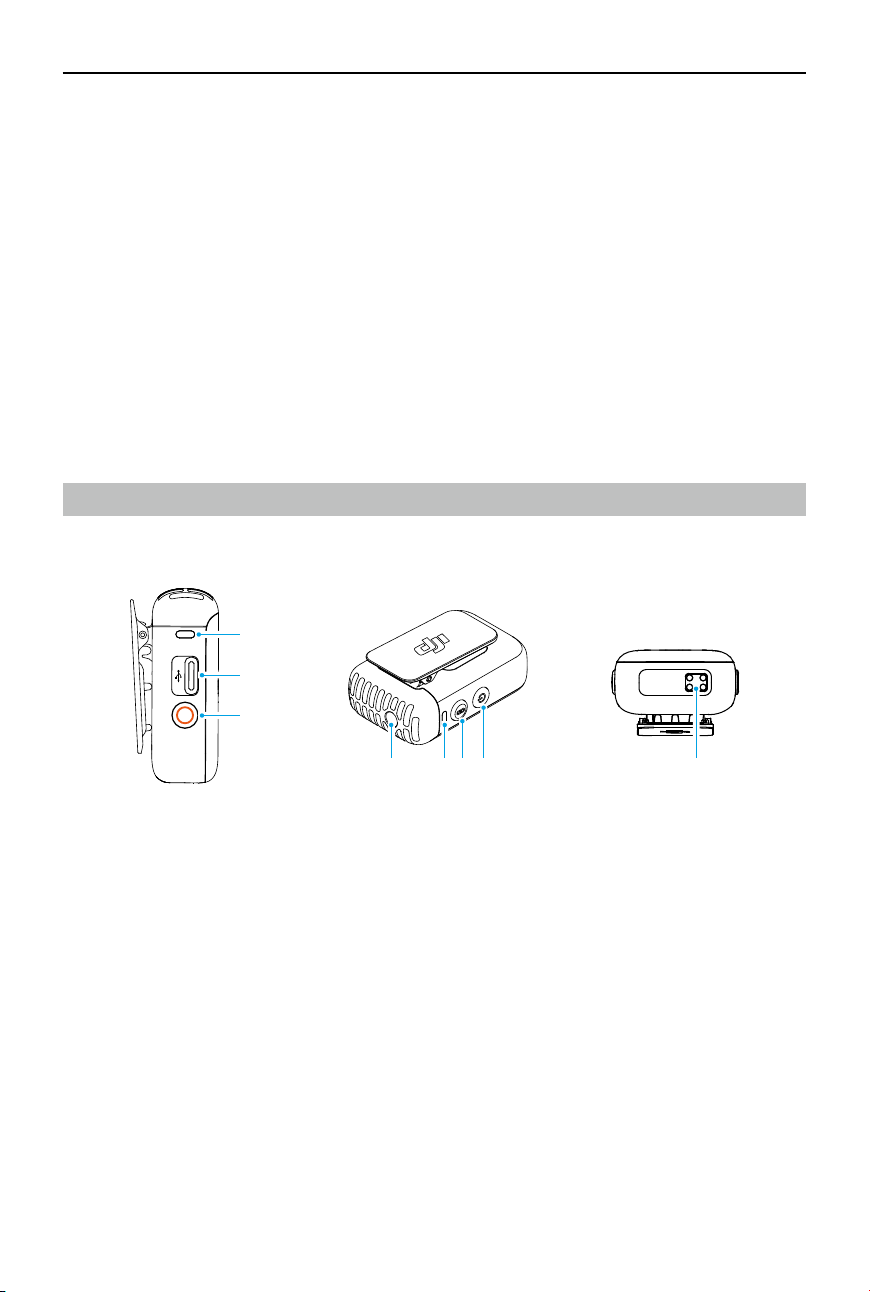
DJI Mic 2 Transmitter
Overview
1. Recording Status LED
Indicates the recording status of the transmitter.
2. Data Port (USB-C)
For copying audio or updating rmware after connecting to a computer. Can also be used
for charging.
3. Record Button
Press once to start or stop recording in standalone recording mode.
Press and hold the button for three seconds to switch between DJI Mic 2 receiver or
Bluetooth.
4. 3.5 mm TRS Input
For connecting an external microphone. DO NOT connect a microphone with a power supply
of 24 V or 48 V.
5. System Status LED
Indicates the system status of the transmitter.
1
2
3
4 5 6 7 8
DJI Mic 2
User Manual
6
©
2024 DJI All Rights Reserved.
6. Linking Button
Press and hold for two seconds to start linking to the receiver or mobile device via Bluetooth.
When connected to a mobile device, press once to take a photo or start or stop recording.
Note that only mobile devices where the volume button can be used to take a photo or start
and stop a video are supported.
7. Power Button
Press and hold for two seconds to power on or o. Press once to enable or disable noise
reduction.
8. Charging Pad
Charging will begin when the charging pad of a transmitter connects to the charging pins of
the DJI Mic 2 Charging Case.
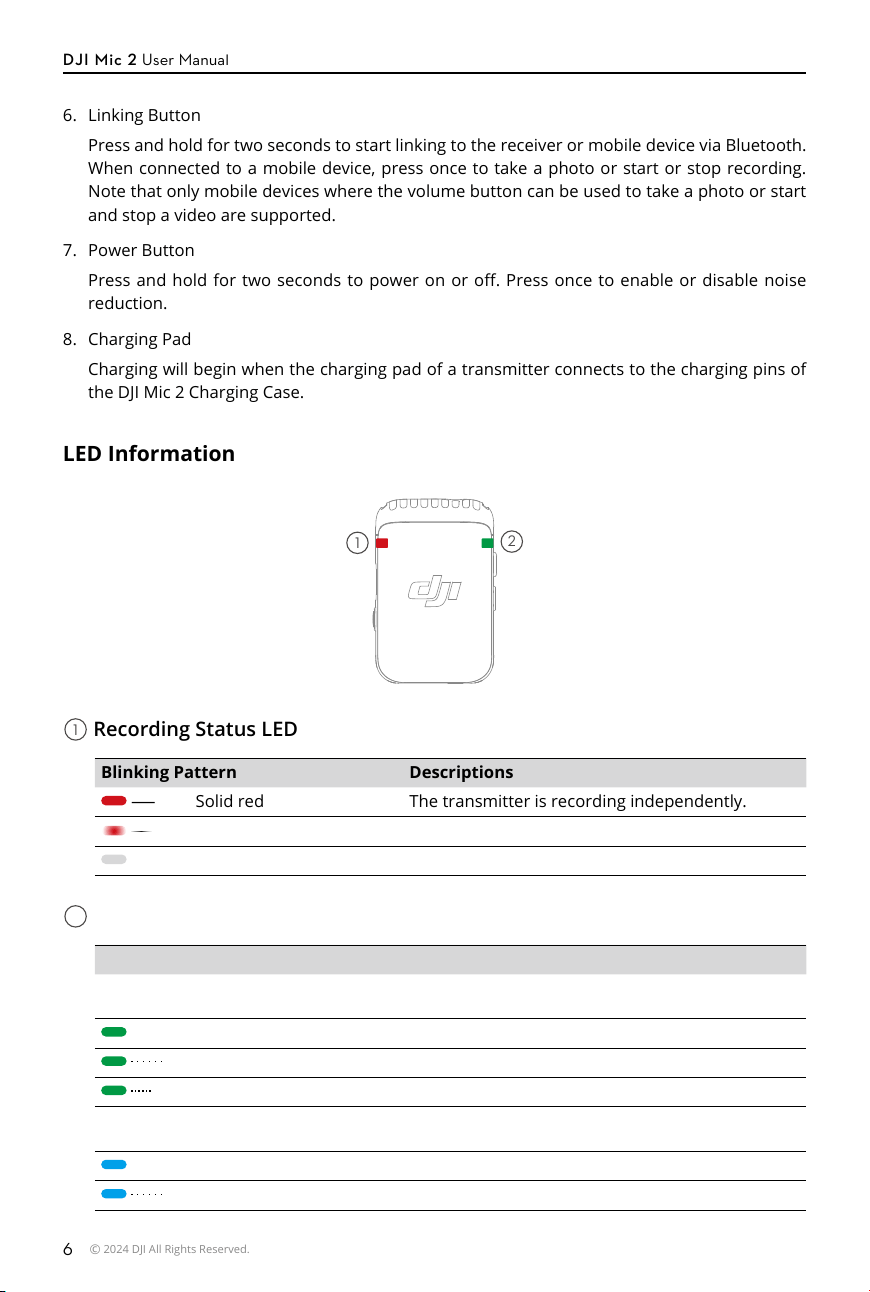
LED Information
1
2
1
Recording Status LED
Blinking Pattern Descriptions
—
Solid red The transmitter is recording independently.
Pulses red The transmitter has been muted.
O The transmitter is not recording independently.
2
System Status LED
Blinking Pattern Descriptions
Linking Status with DJI Mic 2 Receiver
—
Solid green Linked with the receiver
Blinks green slowly Not linked with the receiver
Blinks green quickly Linking
Linking Status via Bluetooth
—
Solid blue Linked with a Bluetooth device
Blinks blue slowly No Bluetooth device linked
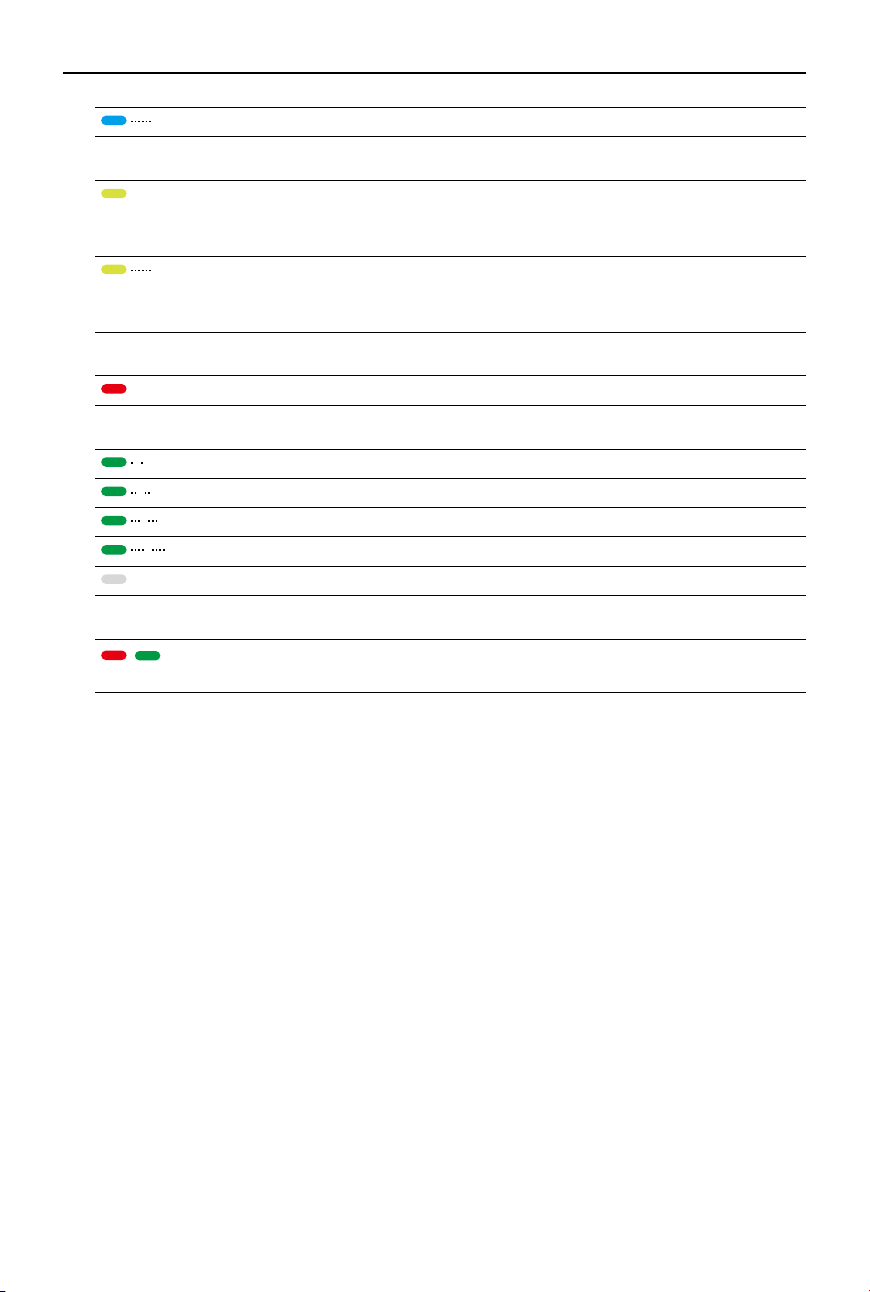
DJI Mic 2
User Manual
©
2024 DJI All Rights Reserved.
7
Blinks blue quickly Linking
Noise reduction
—
Solid yellow Noise reduction is enabled when the transmitter is
linked to the DJI Mic 2 receiver or other Bluetooth
devices.
Blinks yellow Noise reduction is enabled when the transmitter
is not linked to the DJI Mic 2 receiver or other
Bluetooth devices.
Battery Level Descriptions
—
Solid red 0-10%
Battery Level During Charging
Blinks green slowly 0-25%
Blinks green twice 26-50%
Blinks green three times 51-75%
Blinks green four times 76-100%
O Fully charged
Firmware Update
Blinks red and green
alternatively
Firmware updating
DJI Mic 2
User Manual
8
©
2024 DJI All Rights Reserved.
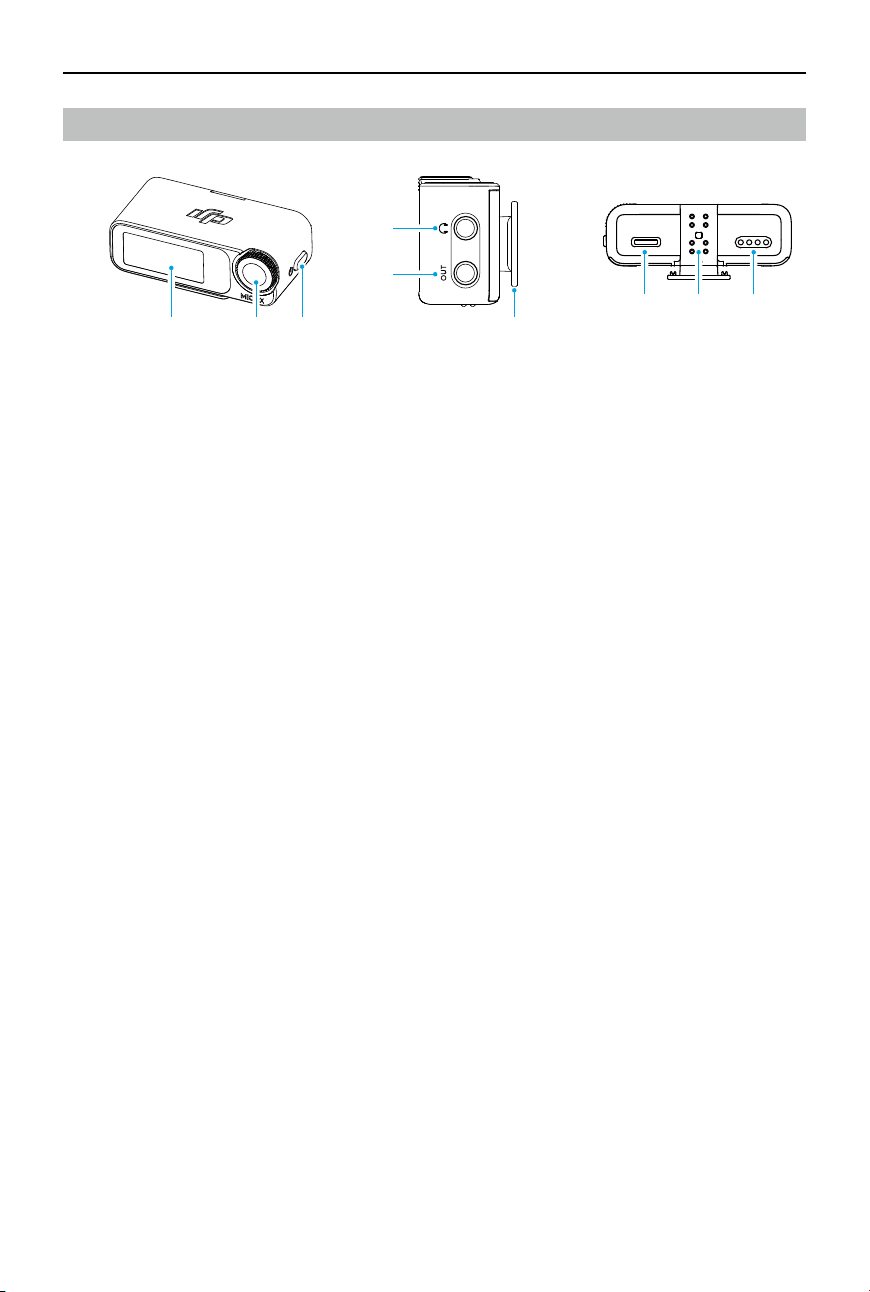
DJI Mic 2 Receiver
1. Touchscreen
Displays information such as real-time volume levels, battery levels of the receiver and
transmitters, charging status, wireless signal strength, gain, and recording modes. Swipe
up or down on the screen to access settings. Refer to Receiver Touchscreen Operation for
details.
2. Dial
When the receiver is on the home screen, press once then turn to adjust the transmitter or
receiver gain. Swipe down from the top of the screen to enter the Control Menu. Select and
conrm relevant settings by turning and pressing the dial.
3. Power Button
Press and hold to power on or off. Press once to lock or unlock the screen. When the
receiver screen is not on the home screen, press the power button once to return to the
home screen.
4. Monitor Port
Plug in 3.5 mm TRS headphones to monitor transmitter audio quality.
5. 3.5 mm TRS Output
For audio output.
6. Receiver Cold Shoe
For attaching the receiver to the cold shoe/hot shoe of a camera.
7. Data Port (USB-C)
After connecting to a computer, the data port can be used to update firmware or as a
microphone for the computer when paired with the transmitter. The data port can also be
used for charging.
8. Expansion Port
The receiver can be connected to a mobile device by inserting the mobile device adapter into
the expansion port.
9. Charging Pad
Charging will begin when the charging pad of the receiver connects to the charging pins of
the DJI Mic 2 Charging Case.
1 2 3
4
5
6
7 8 9
DJI Mic 2
User Manual
©
2024 DJI All Rights Reserved.
9
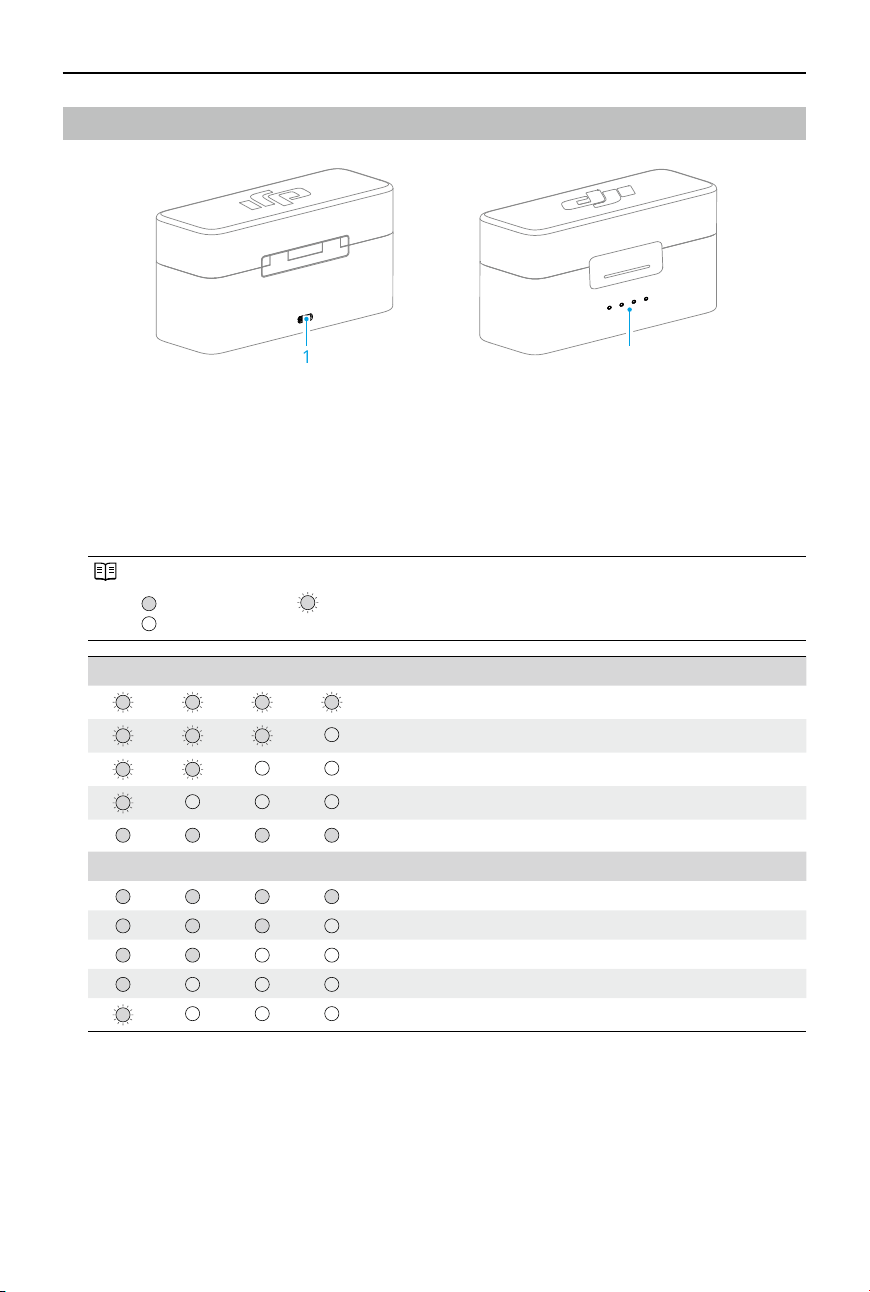
DJI Mic 2 Charging Case
1. Charging Port (USB-C)
For connecting to a USB-C changer.
2. Battery Level LEDs
Indicates the battery level of the charging case. See the chart below for more details.
Indicates the battery level of the charging case.
LED is on LED is ashing
LED is o
LED1 LED2 LED3 LED4 Battery Level During Charging (LEDs blink in sequence)
76~99%
51~75%
26~50%
≤25%
Fully charged (Power o)
LED1 LED2 LED3 LED4 Battery Level
76~100%
51~75%
26~50%
10~25%
<10%
1 2
DJI Mic 2
User Manual
10
©
2024 DJI All Rights Reserved.
Operation
Placing a Transmitter
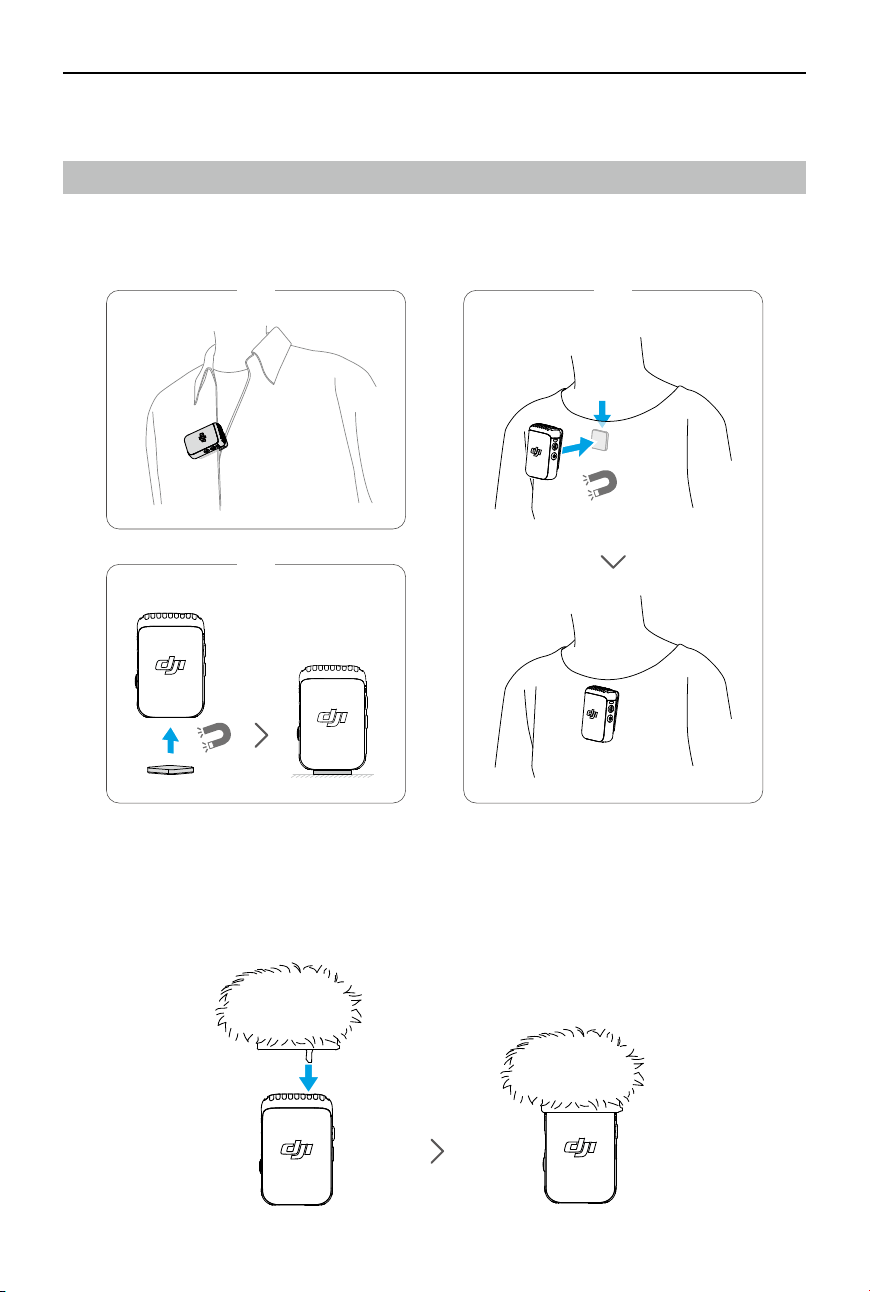
A transmitter can be attached to clothing using the magnet, or set upright on a stable surface.
The clip can also be used to attach a transmitter to clothes.
It is recommended to use the windscreen when using a transmitter outdoors or in a windy
environment. Attach the windscreen to a transmitter by first aligning it with the internal
microphone, then press down rmly on the windscreen to attach it.
AA BB
CC
DJI Mic 2
User Manual
©
2024 DJI All Rights Reserved.
11
Linking the Transmitter and Receiver
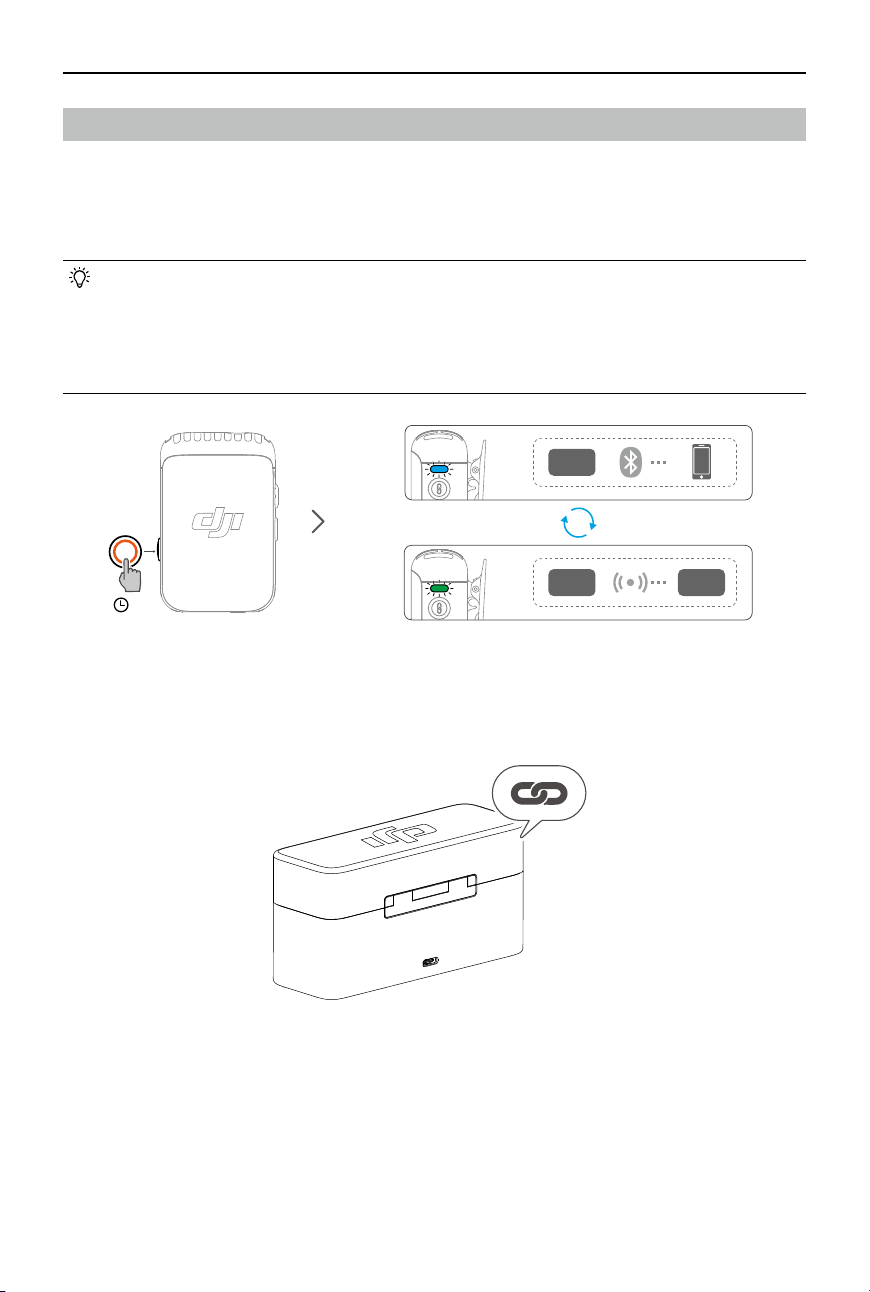
In the DJI Mic 2 (2 TX + 1 RX + Charging Case) combo and DJI Mic 2 (1 TX + 1 RX) combo,
the transmitters and the receiver are linked by default. Follow the steps below to link the
transmitters and receiver if they become unlinked. The transmitters and the receiver can be
linked automatically by placing them in the charging case, or they can be linked manually.
• Before linking, make sure that the transmitter is in linking mode with the receiver. In
this mode, the system status LED blinks green slowly. The transmitter is in Bluetooth
linking mode when the system status LED of the transmitter blinks blue.
• Press and hold the record button for three seconds to switch between linking with the
DJI Mic 2 receiver or Bluetooth.
Method 1: Link automatically in the charging case
Place the transmitters and the receiver in the charging case to link them automatically.
TX
RXTX
3s
1
1

DJI Mic 2
User Manual
12
©
2024 DJI All Rights Reserved.
Method 2: Link manually
1. When the system status LED on a transmitter blinks green slowly, press the linking button of
the transmitter for two seconds, after which the transmitter will start to search for nearby
receivers.
2. Swipe down on the receiver screen, select Receiver Settings > Link Device, and tap Link to
start linking. The transmitter is linked with the receiver when the system status LED is solid
green. Users can view the status of the transmitter on the receiver interface.
Link Device
DJI Mic 2
User Manual
©
2024 DJI All Rights Reserved.
13
Using with a Camera
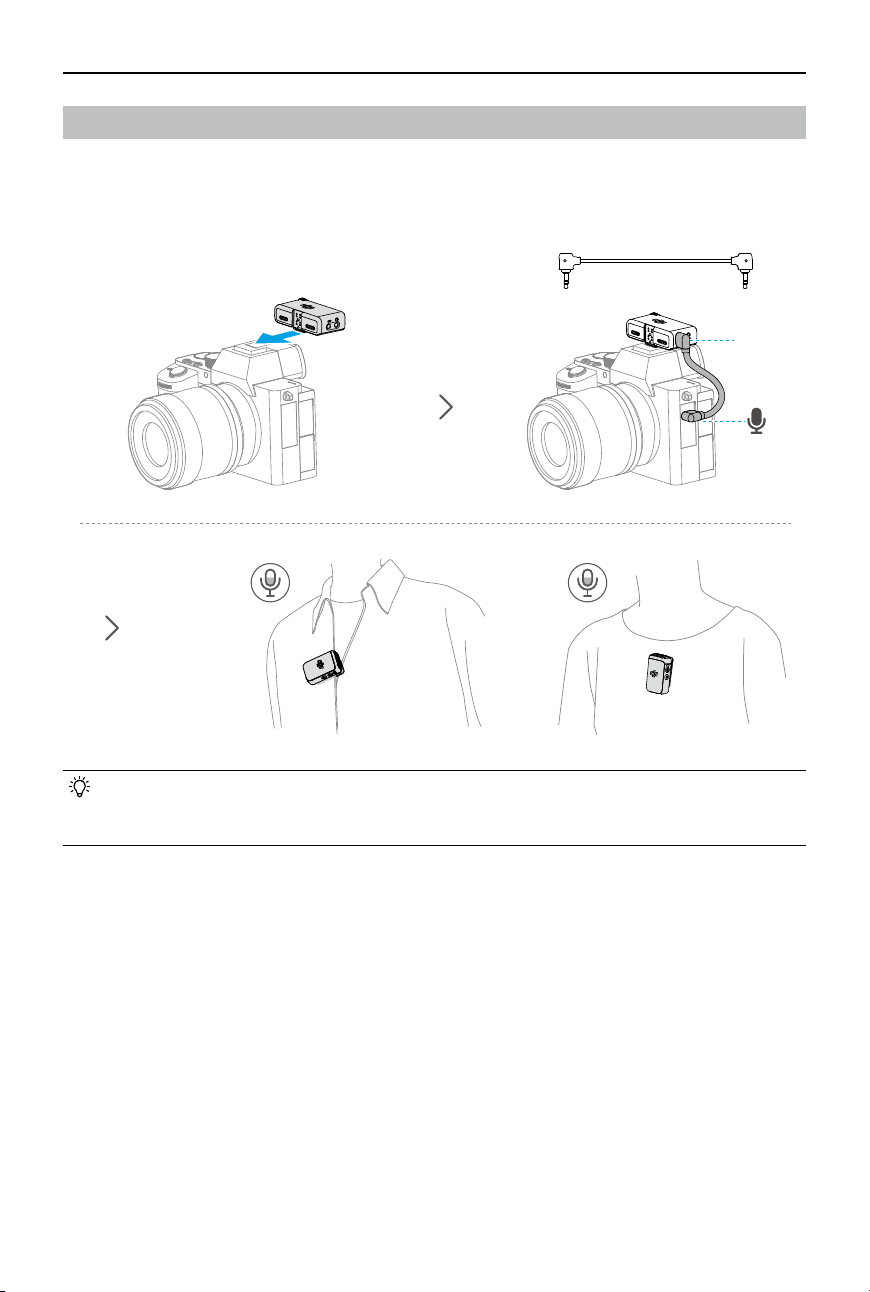
To record and transmit audio to a camera, attach the receiver to a camera using the cold shoe
on the receiver, then connect the receiver to the microphone port of the camera using the
camera cable provided, as shown below.
• When using the microphone with a camera, it is recommended to increase receiver
gain and decrease camera gain for enhanced audio capture. Refer to the Instructions
on Recommended Gain for Camera Setup for more information.
OUT
TX1TX1 TX2TX2
DJI Mic 2
User Manual
14
©
2024 DJI All Rights Reserved.
Using with a Mobile Device
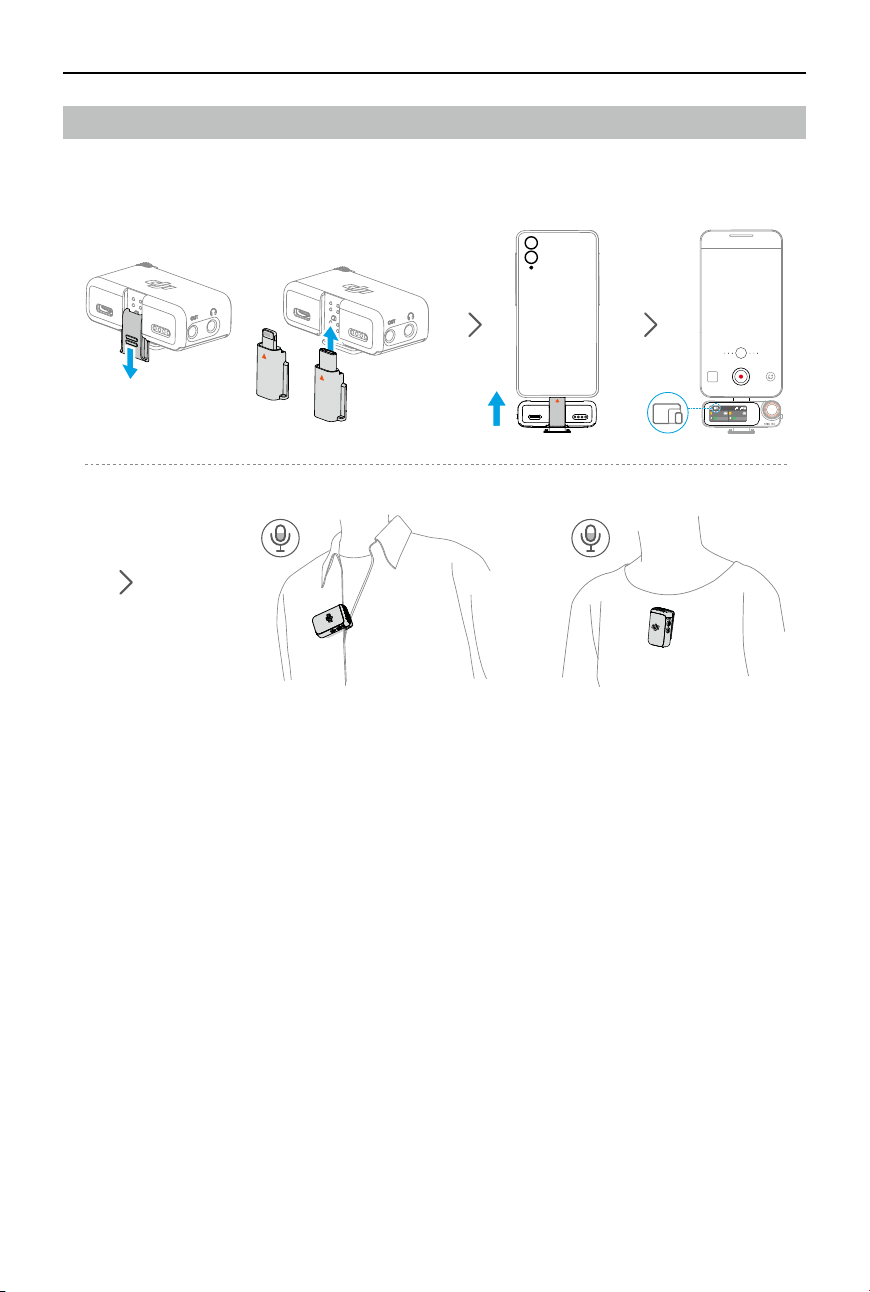
Record and transmit audio to a mobile device by attaching the receiver to a mobile device using
the mobile device adapter.
OR
00:00:00
1x
L
R
1
2
S
TX1TX1 TX2TX2
DJI Mic 2
User Manual
©
2024 DJI All Rights Reserved.
15
Using with a Computer
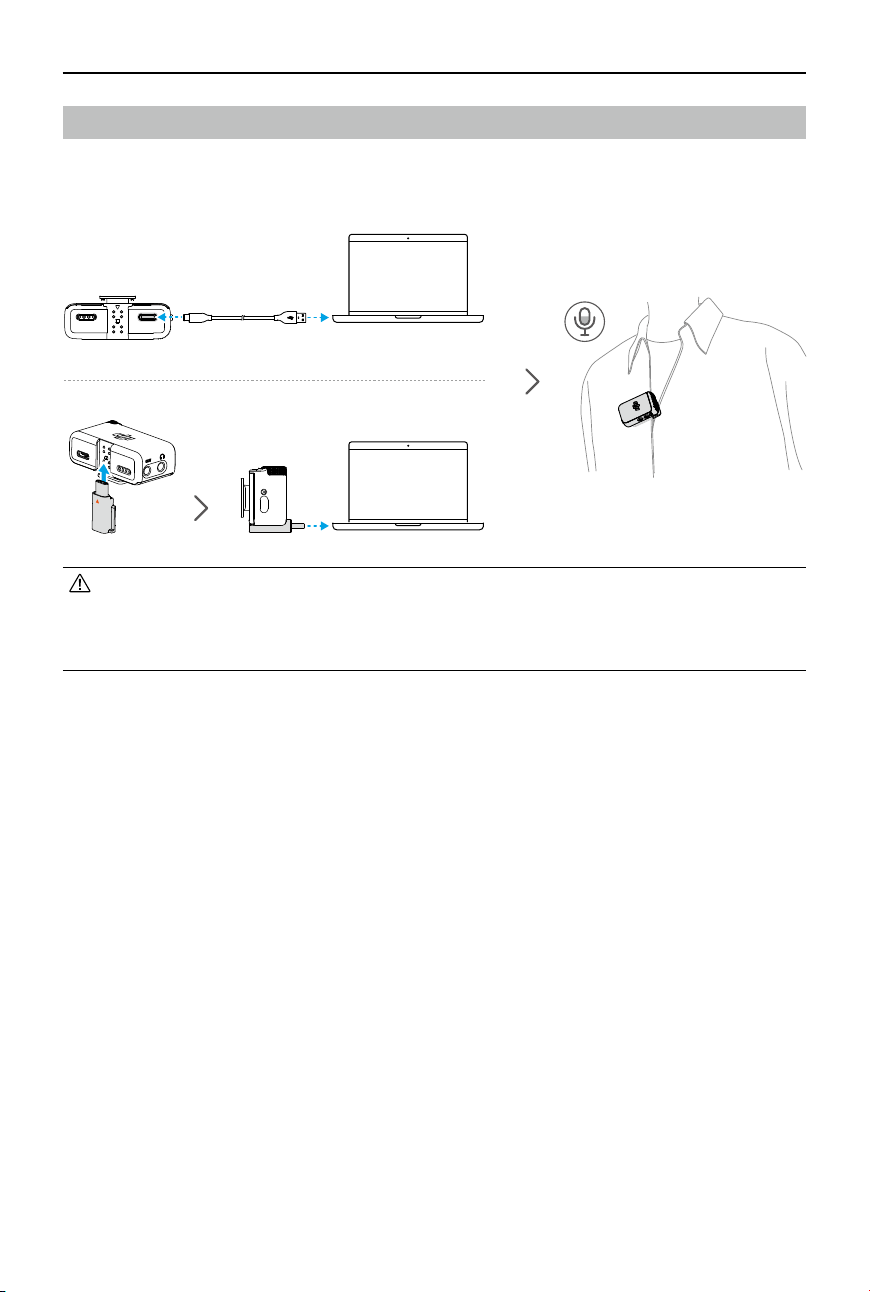
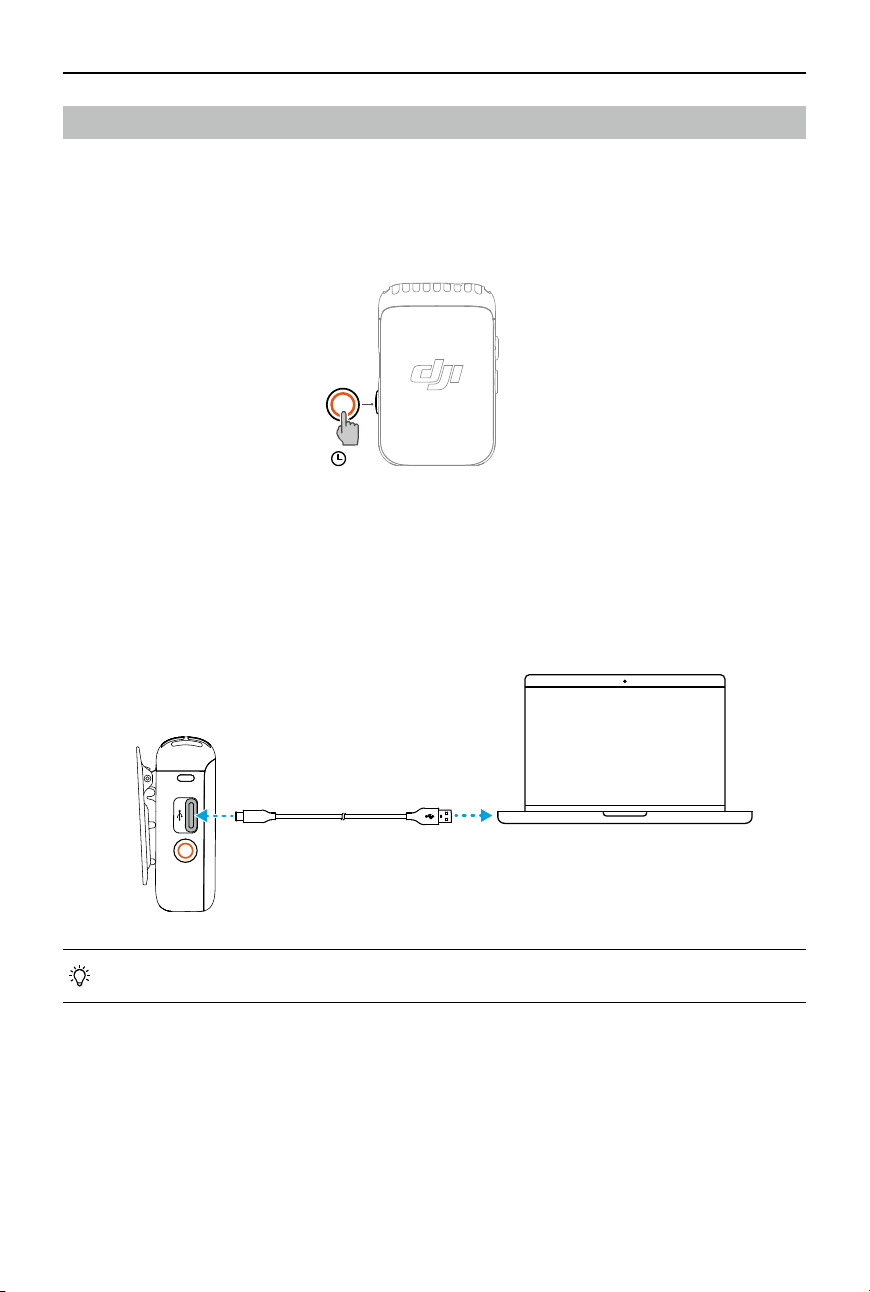
Connect the receiver to a computer via the USB-C port in order to use the transmitter as a
microphone.
• Use a standard charging cable or the DJI Mic 2 Mobile Phone Adapter (Type-C) to
connect DJI Mic 2 with a computer, and then enter the audio input settings for related
settings.
• DO NOT use the receiver for data storage. Otherwise, the data may be lost.
DJI Mic 2
User Manual
16
©
2024 DJI All Rights Reserved.
Receiver Touchscreen Operation
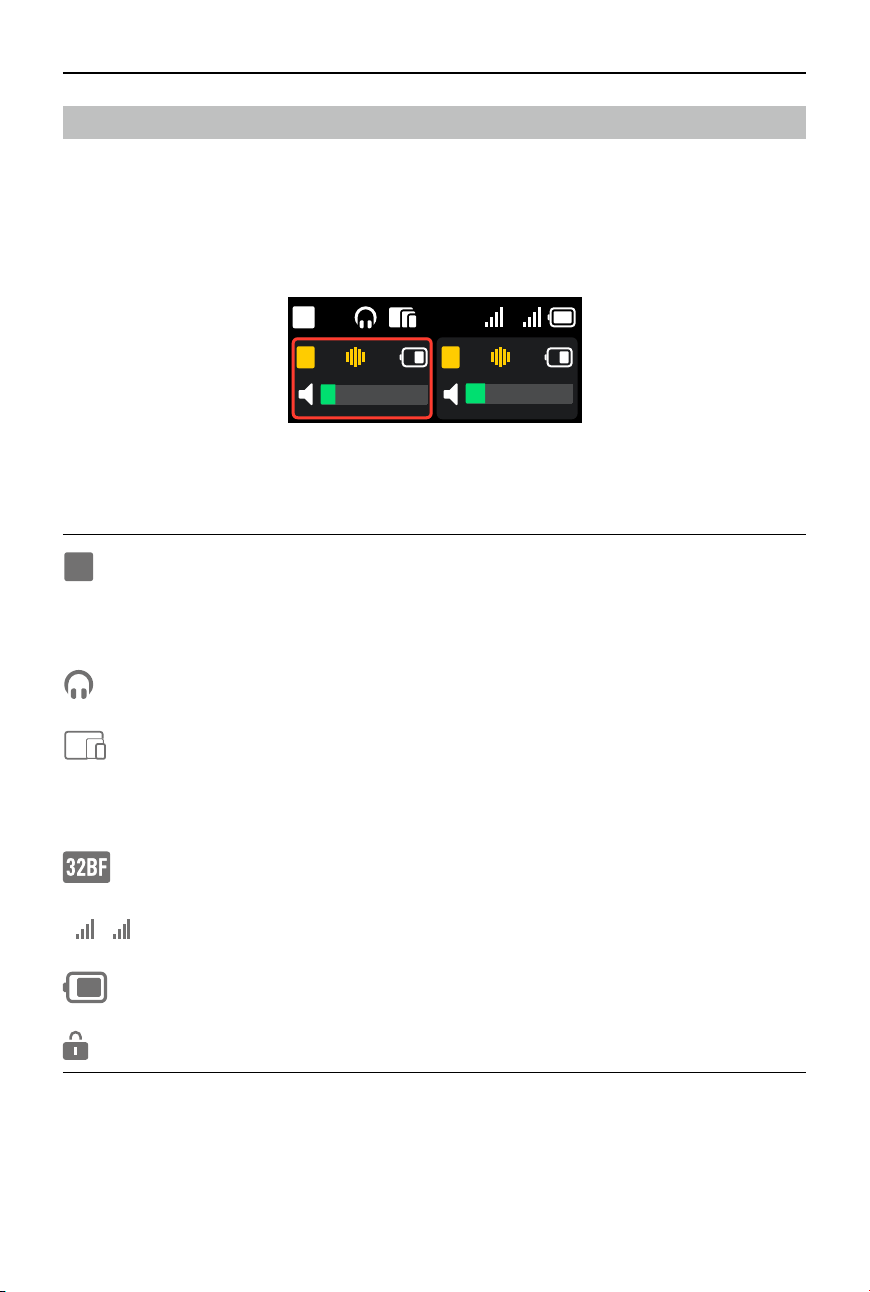
The touchscreen displays information such as the real-time volume levels, battery levels of the
receiver and transmitters, charging status, wireless signal strength, gain, and recording modes.
The touchscreen display may vary when linked to dierent devices. This display is for reference
only. The following is an example of the display when the receiver is linked to two transmitters
at the same time.
Home Screen
The top part of the screen indicates the status of the receiver.
S
Indicates the recording mode. Tap to select between S (Stereo), M (Mono), and Ms
(Safety Track).
+2
Indicates the receiver gain.
Indicates there are external headphones connected.
Indicates that a terminal device such as a mobile device or a computer has been
connected.
A7S3
Indicates the selected camera model.
Indicates that the transmitter has been powered on to record audio les in 32-bit oat
independently.
1
2
Indicates the wireless signal strength between Transmitter and the receiver.
Indicates the battery level of receiver.
Indicates that the receiver screen is locked.
+3
L
+2
R
1
2
S
+2
DJI Mic 2
User Manual
©
2024 DJI All Rights Reserved.
17
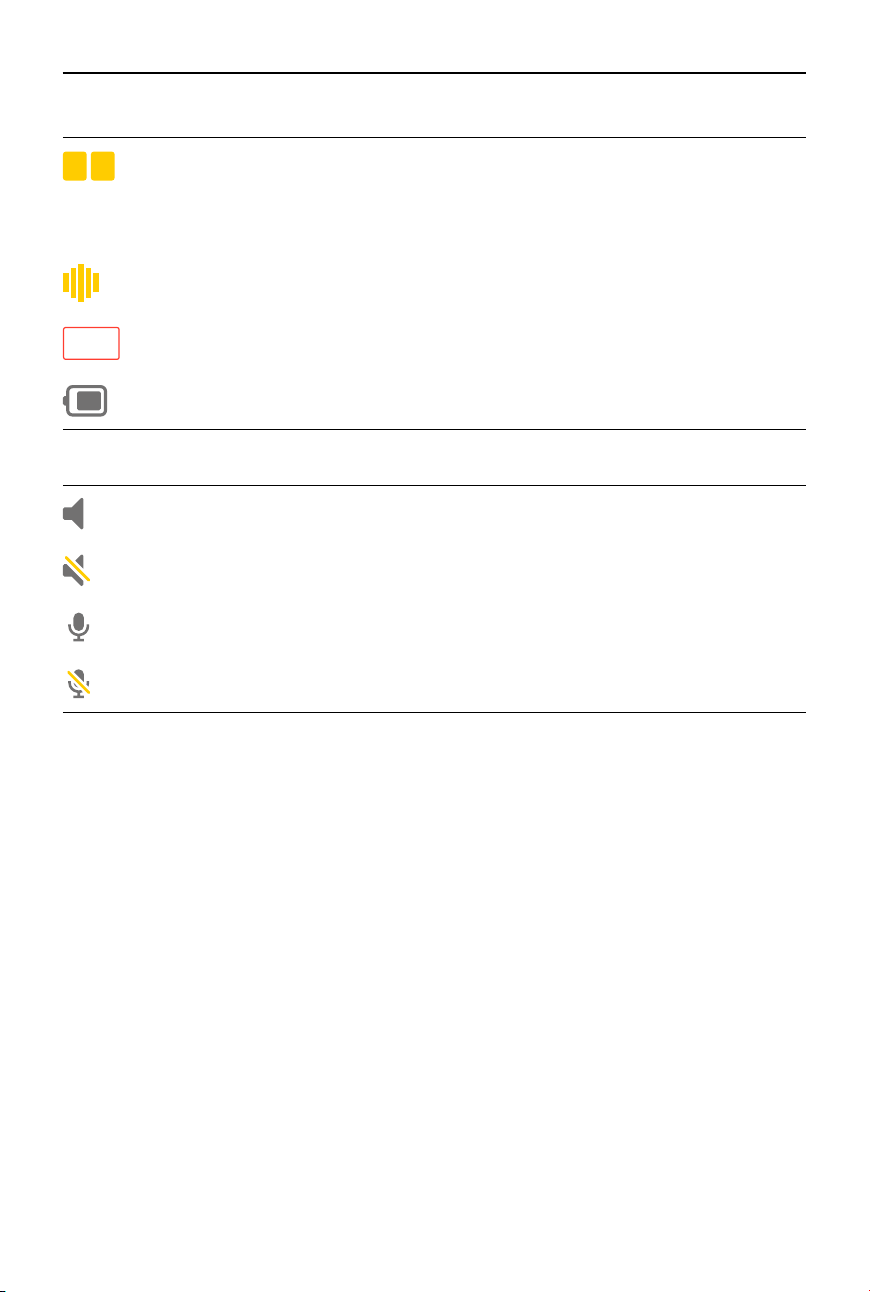
The middle of the screen indicates the status of the transmitters.
L
R
Indicates the sound channel.
+2
Indicates the transmitter gain.
Indicates that noise reduction is enabled.
Indicates that the transmitter is recording independently.
Indicates the battery level of transmitter.
The bottom of the screen indicates the real-time volume.
Audio volume from the built-in microphone on the transmitter.
The transmitter has been muted.
Audio volume from the external microphone connected to the transmitter.
The external microphone connected to the transmitter has been muted.
DJI Mic 2
User Manual
18
©
2024 DJI All Rights Reserved.
Recording Mode
Mono: Indicates that the left and right channel outputs of the receiver are identical.
Safety Track: Similar to when using Mono, the output gain of the right channel is 6 dB
less than that of the left channel to prevent overexposure.
Stereo: In Stereo mode, the audio will be separated into left and right channels.
Recommended Camera Settings
Tap to select the brand and model of the camera, and the receiver will be
automatically congured to best match the receiver gain. Preset receiver gain can help
with the poor sound pickup effect caused by different built-in microphone gains in
dierent cameras.
Receiver Gain
Tap to open the Receiver Gain slider and move the slider to adjust the receiver output
gain.
Volume
Tap to open the Volume slider and move the slider to adjust the monitoring volume.
Power On/O Camera Simultaneously
When enabled, the receiver will automatically power on and off with the camera
when connected to the camera via the 3.5 mm TRS cable. The receiver powers on
automatically in sync with the camera. When the camera is powered o or the selected
shooting mode does not record sound, then the receiver powers off automatically.
This feature provides a better audio recording experience and helps save power in
case the receiver was not powered o.
Receiver Auto O
When enabled, the receiver, when not linked to a transmitter within 30 minutes,
automatically shuts down after 30 minutes of no use.
Link Device
Tap to link the receiver with a transmitter. Note that previously linked devices will be
forgotten after tapping Link Device.
+12
L
+12
R
1
2
SettingsTransmitter SettingsReceiver Settings
Receiver Settings
Link DeviceReceiver Auto Off
Power On/Off Camera
Simultaneously
Receiver GainMono
Recommended
Camera Settings
Volume
Swipe Down-Control Menu
DJI Mic 2
User Manual
©
2024 DJI All Rights Reserved.
19
Transmitter Settings
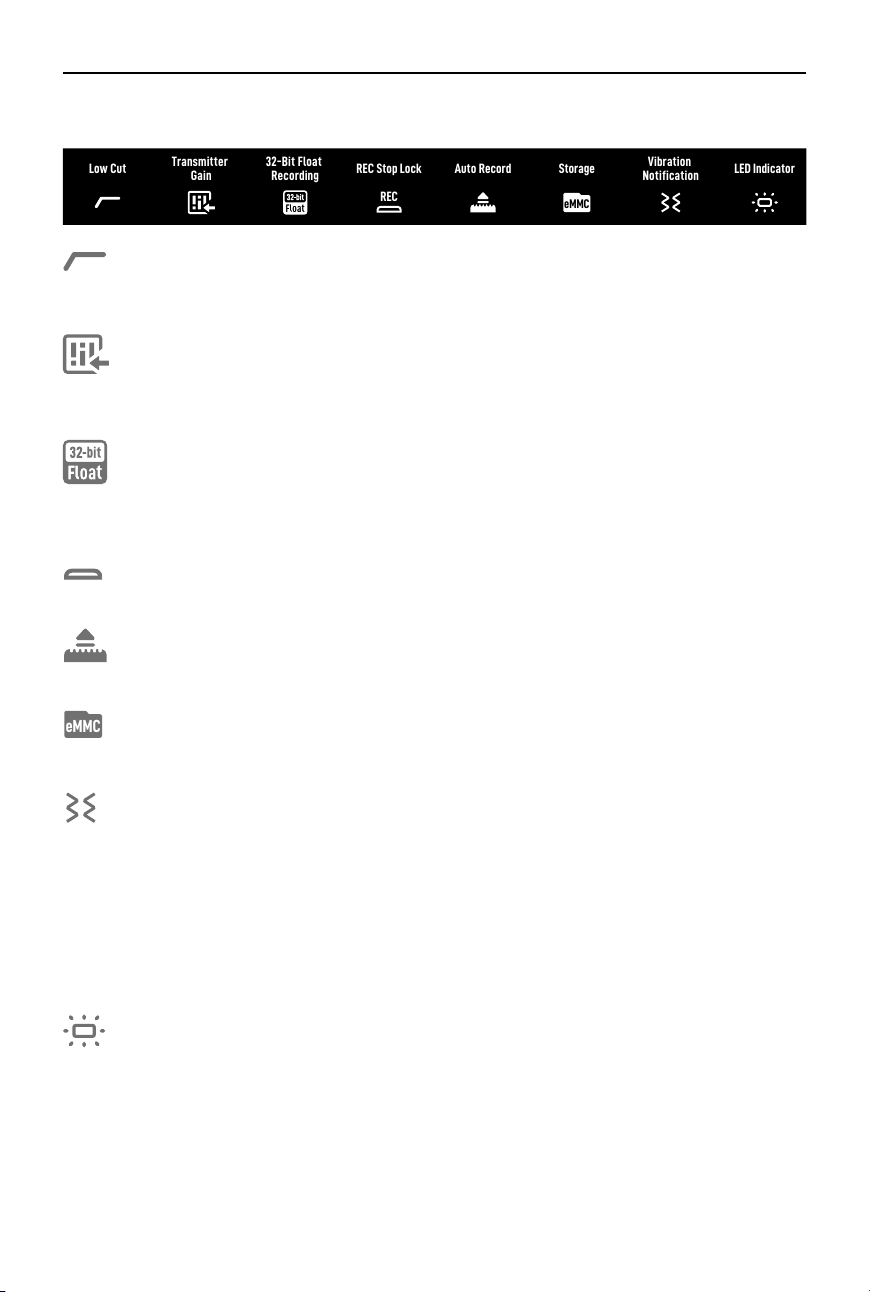
Low Cut
When enabled, the transmitter will automatically filter low-frequency (100 Hz and
below) sounds, thus reducing low-frequency noise and making for cleaner recordings.
Transmitter Gain
Adjusts the transmitter input gain. Tap to adjust the transmitter input gain according
to the real-time volume. Reduce the gain accordingly when the volume bar turns red.
Note that adjusting the transmitter gain will aect the local recording volume.
32-Bit Float Recording
When enabled, the transmitter can independently record audio files in 32-bit float,
which oers a wider dynamic range for audio post-editing. Note that the recording time
of the transmitter will be shorter when recording audio les in 32-bit oat is enabled.
REC
REC Stop Lock
Once enabled, users cannot stop the standalone recording of the transmitter via the
record button.
Auto Record
When enabled, the transmitter automatically starts recording independently as soon
as it is powered on or taken out of the charging case.
eMMC
Storage
Tap to view the independent recordable hours for Transmitters 1 and 2 respectively,
as well as the option to format the transmitters.
Vibration Notications
When enabled, the transmitter will generate a vibration notification when the
corresponding action is triggered.
• Power on: Vibrates for a short period.
• Power o: Vibrates for a longer period.
• Start recording independently: Vibrates for a short period.
• Stop recording independently: Vibrates twice.
• Enable/disable Noise reduction: Vibrates for a short period.
• Mute/unmute the transmitter: Vibrates for a short period.
LED Indicator
When enabled, the recording status LED and system status LED of the transmitter will
blink normally. When disabled, both status LED lights will be turned o.
Low Cut
LED Indicator
REC
REC Stop Lock Auto Record
32-Bit Float
Recording
eMMC
Storage
Vibration
Notification
Transmitter
Gain
DJI Mic 2
User Manual
20
©
2024 DJI All Rights Reserved.
Settings
Brightness
Language
Certificate
Reset
Time/Date
Version
3
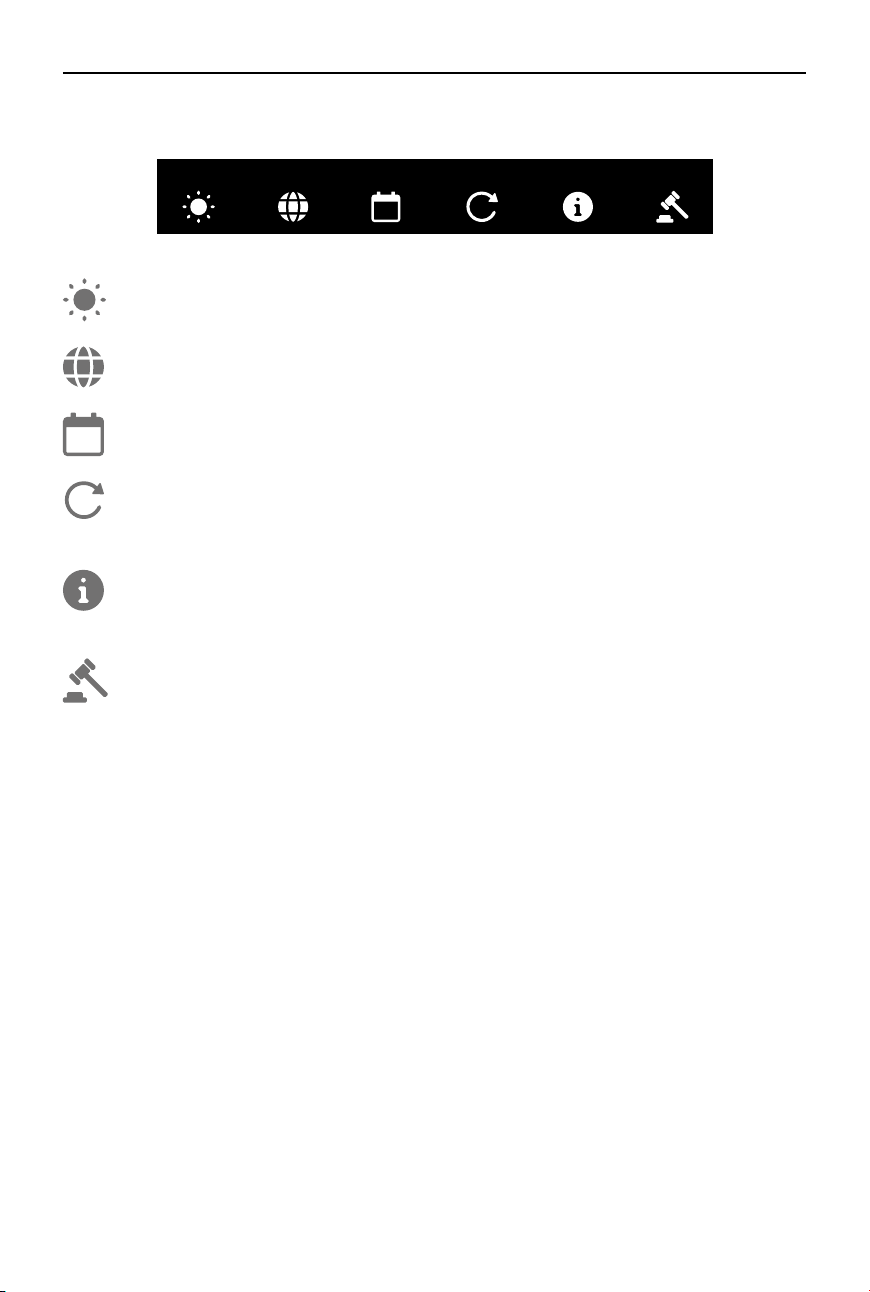
Brightness
Tap and move the slider to adjust the brightness.
Language
Tap to set the language.
3
Date/Time
Set the date and time for the recording le.
Factory Reset
Tap to reset to default settings. This will delete all current settings. The receiver will be
reset to the original factory settings and restart.
Version
Tap to view the SN, the receiver rmware version, and the linked transmitter rmware
version.
Compliance Info
View the compliance information.

DJI Mic 2
User Manual
©
2024 DJI All Rights Reserved.
21
Swipe Up-Control the Transmitters
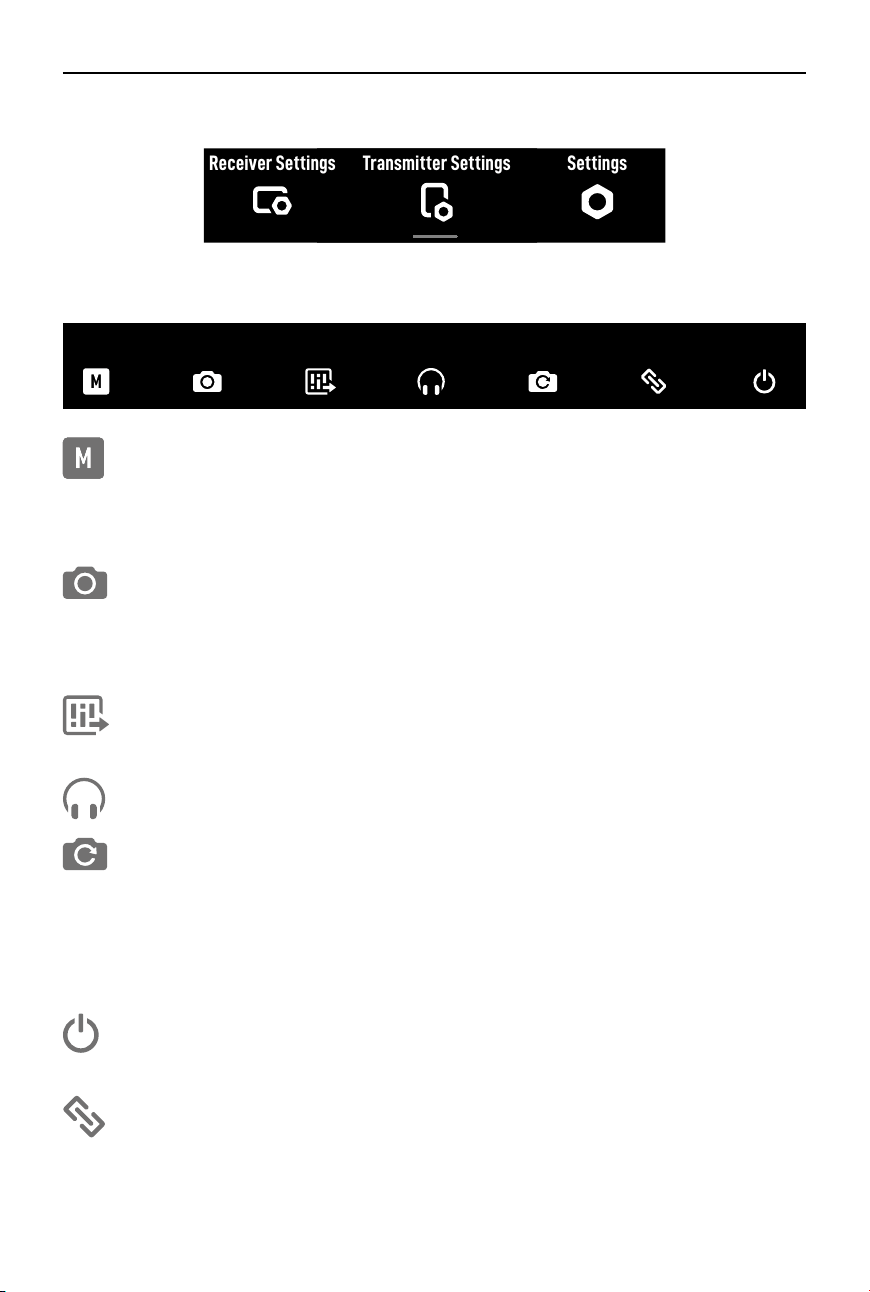
Swipe up on the home screen to view and control the recording status, mute status and enable
noise canceling. Swipe up on the left side of the home screen to control Transmitter 1, and
swipe up on the right side of the home screen to control Transmitter 2.
+12
L
+12
R
1
2
S
+12
A7S3
TX2
REC
TX2
REC
Tap to start standalone recording. When
TX2
REC
is displayed, the transmitter is recording
independently, tap again to stop recording.
Tap to mute the transmitter. When is displayed, the transmitter has been muted.
Tap again to unmute the transmitter.
Tap to enable or disable noise reduction. When is displayed, noise reduction has
been enabled. Tap again to disable noise reduction.
DJI Mic 2
User Manual
22
©
2024 DJI All Rights Reserved.
Connecting a Transmitter to a Bluetooth Device
The transmitter can be connected to DJI Osmo Pocket 3, mobile phones and other devices via
Bluetooth. Taking the transmitter connecting to a mobile phone as an example, the operation
steps are as follows:
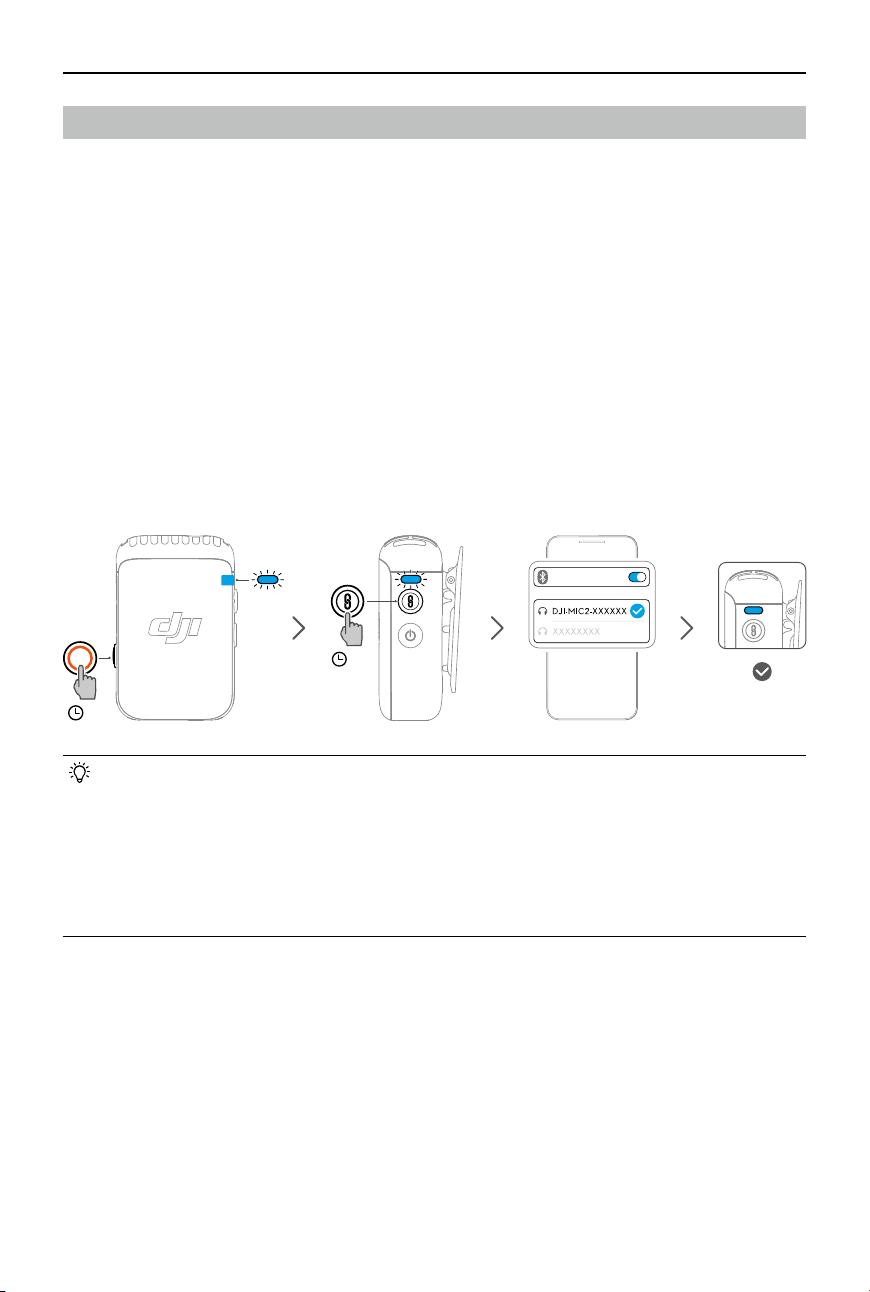
1. Make sure the transmitter is ready to link via Bluetooth after being powered on. The system
status LED of the transmitter blinks green when it is ready to be linked with the receiver.
Press and hold the record button of the transmitter for three seconds to put it in Bluetooth
linking mode, and the system status LED of the transmitter will blink blue slowly.
2. Press and hold the linking button of the transmitter for two seconds, the transmitter will
start searching for nearby Bluetooth devices. The system status LED of the transmitter will
blink blue quickly.
3. Enable Bluetooth on the mobile device and select DJI-MIC2-XXXXXX among the searched
Bluetooth devices for linking.
4. When the transmitter is successfully linked with the mobile device via Bluetooth, the system
status LED will be solid blue.
• For video recording via Bluetooth connection to the transmitter, third-party camera,
video chat, conference or livestreaming apps are recommended. Make sure native
camera supports Bluetooth audio input.
• When connected to a smartphone via Bluetooth, the standalone recording and noise
reduction functions of the transmitter are unavailable.
• The USB-C port of the transmitter allows for connection to digital signal headphones
for listening to audio from a mobile phone.
3s
21
1
3s2s
1
DJI Mic 2
User Manual
©
2024 DJI All Rights Reserved.
23
Standalone Recording for Transmitters
The transmitter supports standalone recording and comes with 8GB of storage, allowing for up
to 14 hours of 48 kHz 24-bit uncompressed audio.
When the transmitter is powered on, press record button to start standalone recording, and
press again to stop recording.
While recording 24-bit mono WAV audio, the total recording time of the transmitter is
approximately 14 hours. Files automatically split every 31 minutes. Recording stops when
storage is full. While recording 32-bit oat audio, the total recording time of the transmitter is
approximately 11 hours. Files automatically split every 23 minutes. The recorded audio can be
exported or deleted after connecting to a computer. Internal storage can also be formatted via
the receiver.
1s
1
1
• The le system of the transmitter supports only FAT32 with an allocation unit size not
exceeding 16 KB.
DJI Mic 2
User Manual
24
©
2024 DJI All Rights Reserved.
Maintenance
Charging the Battery
Charging with the DJI Mic 2 Charging Case
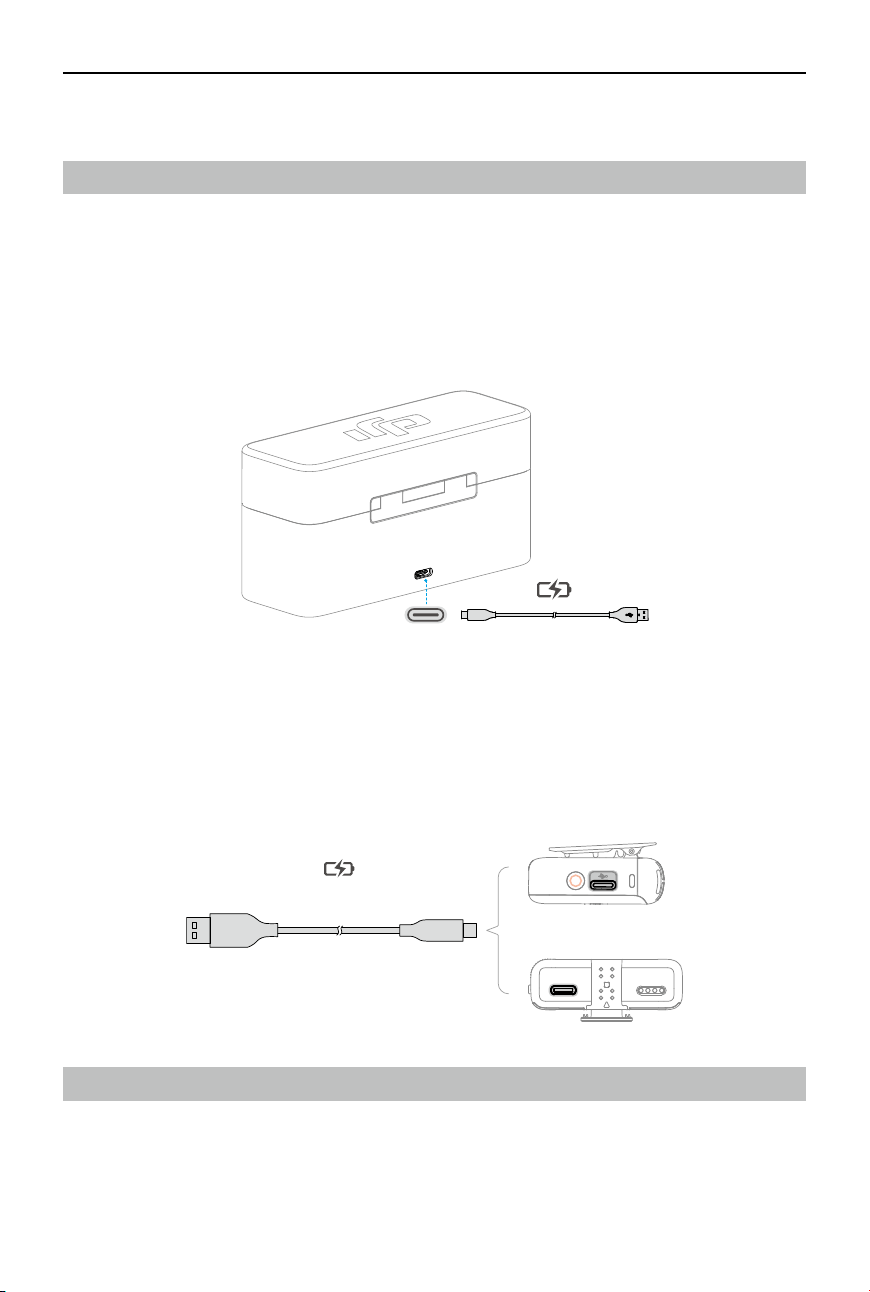
It is recommended to charge the charging case using a 5 V/2 A charger. The charging case has
a built-in battery with a 3250 mAh capacity. Place the transmitter and receiver into the charging
case to begin charging. When the charging case is open, the receiver displays the battery level
of the three devices and the remaining recording time of the transmitter. The transmitter and
receiver will automatically power on once removed from the charging case.
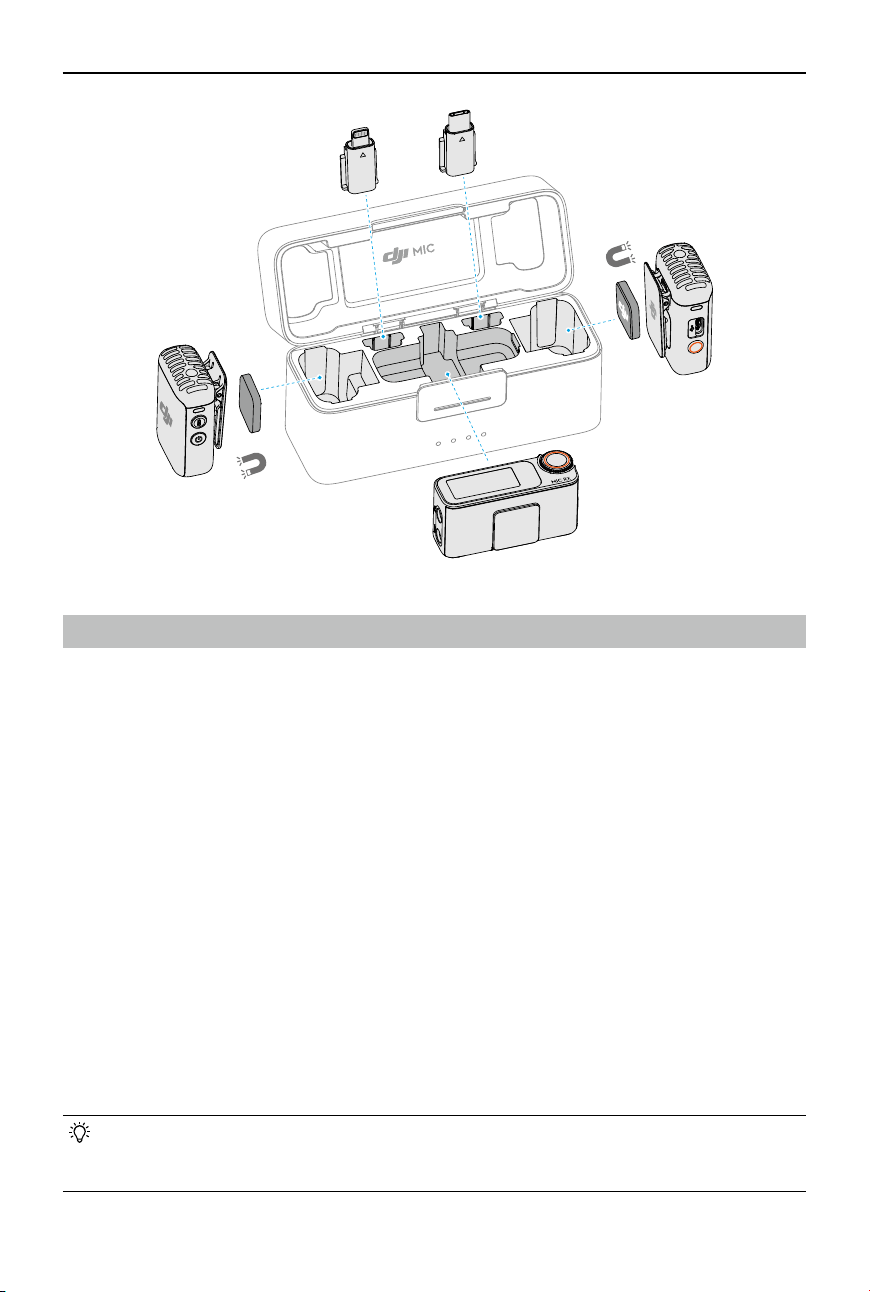
Storing DJI Mic 2
The DJI Mic 2 charging case holds two transmitters with clip magnets, two mobile device
adapters , and a receiver. The mobile device adapter can also be attached on the receiver and
placed together.
≥ 5 V/2 A
Charging the Transmitters and Receiver
It is recommended to use a charging brick with 5 V/1 A specications to charge the transmitters
and receiver via the DJI Mic USB-C Splitter Charging Cable. It takes about 70 minutes to fully
charge the transmitters and receiver.
DJI Mic 2
User Manual
©
2024 DJI All Rights Reserved.
25
Updating Firmware
When there is new rmware available, update the rmware by connecting the transmitters and
the receiver to the computer one at a time.
How to update rmware:
1. Download the rmware on the product page at www.dji.com/mic-2/downloads.
2. Connect a transmitter or the receiver to the computer using the USB-C cable provided. When
connecting to a computer, the receiver needs to be in the o state, and the transmitter can
be either in the on or o state.
3. Place the downloaded rmware update package .bin le under the root directories of the
transmitter or receiver.
4. After disconnecting from the computer, the receiver will start upgrading automatically. The
transmitter needs to be powered on to start upgrading automatically. The System Status LED
will blink red and green alternately during the upgrading process.
5. Once the upgrade is complete, the firmware version can be viewed on the receiver to
conrm that it has been successfully upgraded to the latest rmware.
If the rmware update fails, download the rmware again, restart the receiver or transmitter,
and repeat the steps above. After the rmware update is complete, check the rmware version
on the receiver to ensure the rmware has been updated successfully.
• If the rmware of the transmitter does not automatically update after powering on,
disable Auto Record on the receiver touchscreen after connecting the transmitter to
the receiver.
DJI Mic 2
User Manual
26
©
2024 DJI All Rights Reserved.
Accessories (Not Included)
DJI Lavalier Mic
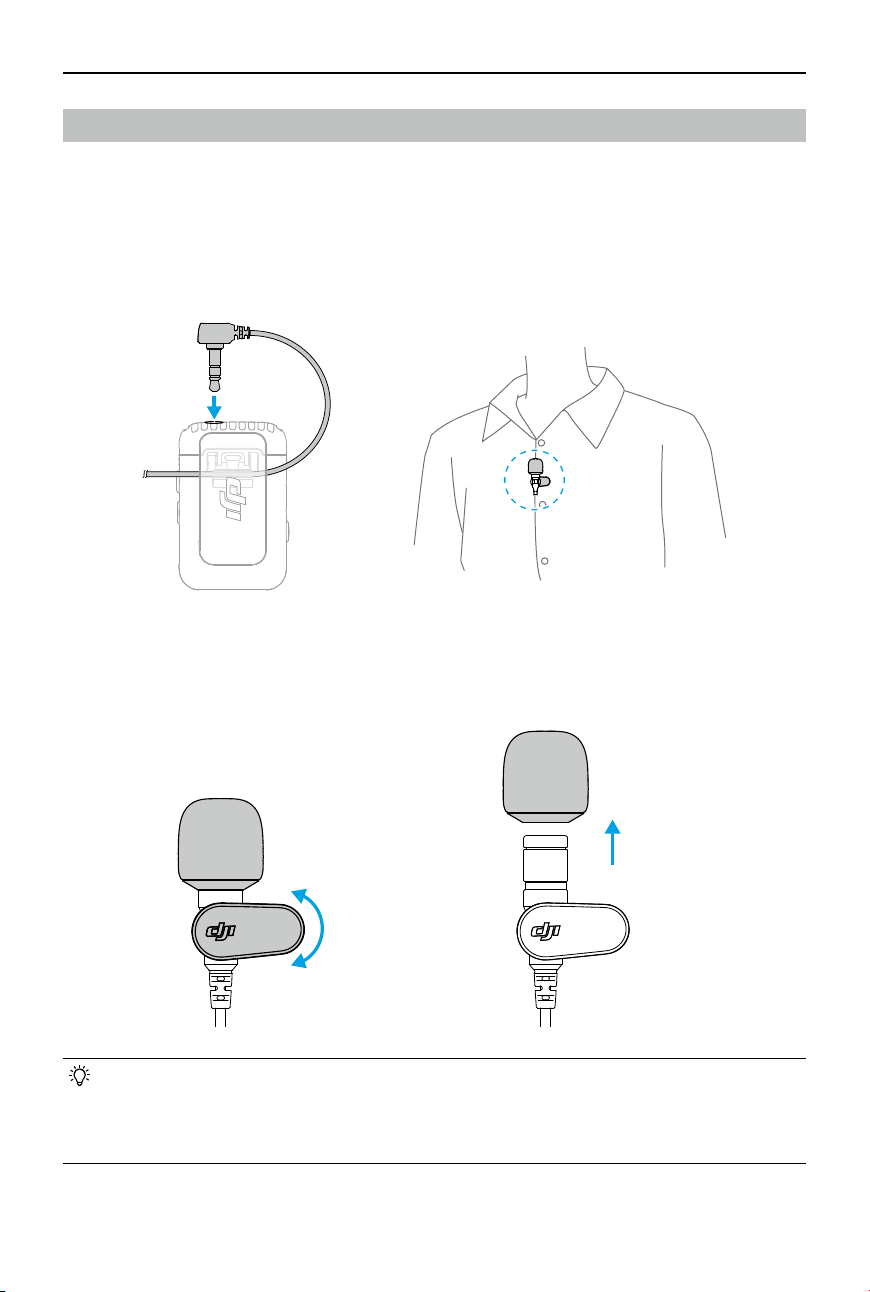
The DJI Mic 2 transmitter features a 3.5mm TRS input for use with DJI Lavalier Mics.
Insert the 3.5mm plug of the DJI Lavalier Mic into the 3.5mm input port when in use. The built-
in microphone of the transmitter will be unavailable and the DJI Lavalier Mic will be used as the
audio input.
When attaching the lavalier mic, clip it to the collar or the front of the shirt, and make sure that the
top of the lavalier mic is 15-20 cm away from the mouth. It is recommended that the microphone
cable be secured to the inside of the clothing to make sure the microphone stays in place.
• The lavalier mic can be rotated 360°, allowing for exible positioning of the collar clip
on clothes.
• The windscreen of the lavalier mic can be removed to make the mic less visually
noticeable.
360
°

DJI Mic 2
User Manual
©
2024 DJI All Rights Reserved.
27
Specications
DJI MIC 2 Transmitter
Model DMT02
Dimensions 46.06×30.96×21.83 mm (L×W×H)
Weight 28 g
Wireless Mode GFSK 1 Mbps and 2 Mbps
Equivalent Isotropic Radiated Power
(EIRP)
<20 dBm
Wireless Mode Operating Frequency 2.4000-2.4835 GHz
Bluetooth Protocol BR/EDR
Bluetooth Operating Frequency 2.4000-2.4835 GHz
Bluetooth Transmitter Power (EIRP) <20 dBm
Battery Type Li-ion
Battery Capacity 360 mAh
Battery Energy 1.39 Wh
Battery Voltage 3.87 V
Charging Temperature 5° to 45° C (41° to 113° F)
Operating Temperature -10° to 45° C (14° to 113° F)
Charging Time 70 mins
Operating Time 6 hours
[1]
DJI MIC 2 Receiver
Model DMR02
Dimensions 54.20×28.36×22.49 mm (L×W×H)
Weight 28 g
Wireless Mode GFSK 1 Mbps and 2Mbps
Equivalent Isotropic Radiated Power
(EIRP)
<20 dBm
Operating Frequency 2.4000-2.4835 GHz
Battery Type Li-ion
Battery Capacity 360 mAh
Battery Energy 1.39 Wh
Battery Voltage 3.87 V
Charging Temperature 5° to 45° C (41° to 113° F)
Operating Temperature -10° to 45° C (14° to 113° F)
Charging Time 70 mins
Operating Time 6 hours
[1]

DJI Mic 2
User Manual
28
©
2024 DJI All Rights Reserved.
DJI MIC 2 Charging Case
Model DMC02
Dimensions 116×41.5×59.72 mm (L×W×H)
Weight 200 g
Battery Type 18650 Li-ion
Battery Capacity 3250 mAh
Battery Energy 11.7 Wh
Battery Voltage 3.6 V
Charging Specication 5 V, 1.5-3 A
Charging Temperature 5° to 40° C (41° to 104° F)
Operating Temperature 5° to 40° C (41° to 104° F)
Charging Time 2 hours and 40 mins
Charging Cycles for TX and RX Approx. two cycles when charging two TXs and one RX
at the same time
General
Polar Pattern Omnidirectional
Frequency Response Low Cut O: 50 Hz - 20 kHz
Low Cut On: 100 Hz - 20 kHz
Max Sound Pressure Level (SPL) 120 dB SPL
Max Input Level (3.5 mm) -6 dBV (THD < 0.1%)
Equivalent Noise 21 dBA
Monitor Interface Output Power Max Output 12 mW@1 kHz, 32 Ω
Max Transmission Distance
[2]
250 m (FCC)
160 m (CE)
[1] Tested when both TXs are connected to the RX without recording backup clips internally, and the RX is
connected to a camera via Camera Audio Cable (3.5mm TRS).
[2] Measured in an unobstructed outdoor environment free of interference.

If you have any questions about this document, please contact
DJI by sending a message to [email protected].
DJI is a trademark of DJI.
Copyright © 2024 DJI All Rights Reserved.
WE ARE HERE FOR YOU
Contact
DJI SUPPORT
https://www.dji.com/mic-2/downloads
This content is subject to change without prior notice.