MV51
Digital Large-Diaphragm Condenser Micro-
phone
The Shure digital large-diaphragm condenser microphone, MV51, user guide.
Version: 6.0 (2021-J)

Shure Incorporated
2/14
Table of Contents
MV51 Digital Large-Diaphragm Condenser Microphone 3
General Description 3
Features 3
Mounting and Placement 3
Quick Setup 4
Touch Panel Interface Controls 5
Preset Modes 5
Advanced Mic Settings 6
Equalizer 6
Applications 6
Podcast and Voice Recording 7
Acoustic Instruments and Music 7
Bands and Loud Sources 7
Bypass EQ and Compression (Flat) 8
Additional Tips 8
Adjusting Microphone Level 8
Adjusting Headphone Level 8
Accessing the Control Panel 9
Input Meter Level 9
Monitoring with the MOTIV Device 9
Sampling Rate and Bit Depth 10
Troubleshooting 10
System Requirements 10
System Requirements and Compatibility: Mac 11
System Requirements and Compatibility: Windows 11
System Requirements and Compatibility: iOS 11
System Requirements and Compatibility: Android 11
Specifications 11
Accessories 13
Furnished Accessories 13
Certifications 13
Information to the user 13
Shure Incorporated
3/14
•
•
•
•
•
•
•
•
MV51
Digital Large-Diaphragm Condenser Microphone
General Description
TheShureMV51isaprofessional-qualityUSBcondensermicrophone,idealforhomerecording,podcasting,andvideoconfer-
encing. The attractive and durable all-metal design features an adjustable kickstand for desktop use, and can also mount onto
a microphone stand. A touch panel user interface provides control of microphone gain, headphone level, application modes,
and muting.
Features
Easily adjust settings with the intuitive touch panel interface
Compatible with most iDevices (iPhone, iPad, and iPod) through Lightning interface
Compatible with most computers, tablets and smart phones through USB interface
Large-diaphragm electret condenser microphone captures speech and music with excellent clarity
Sleek design includes all-metal housing for professional-grade durability
Headphone output allows real-time monitoring of the live signal and audio from the computer or device
Preset DSP modes include equalization and compression settings for specific applications
Desktop kickstand includes a removable tip for mounting onto a microphone stand
Mounting and Placement
Desktop
Aim the microphone towards the sound source by adjusting the kickstand.
Microphone Stand
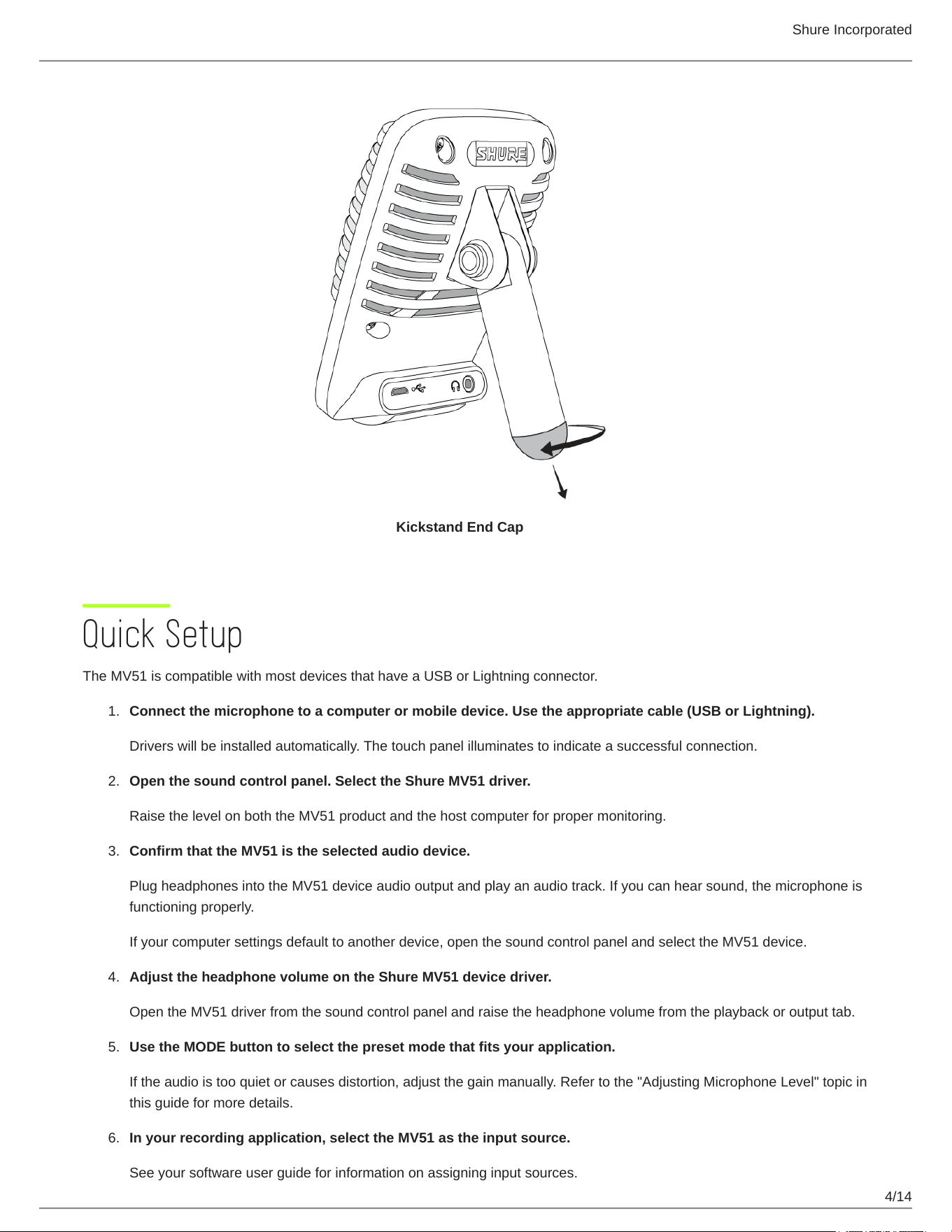
Unscrew the end cap to thread the kickstand onto a standard 5/8" microphone stand.
®
Shure Incorporated
4/14
1.
2.
3.
4.
5.
6.
Kickstand End Cap
Quick Setup
The MV51 is compatible with most devices that have a USB or Lightning connector.
Connect the microphone to a computer or mobile device. Use the appropriate cable (USB or Lightning).
Drivers will be installed automatically. The touch panel illuminates to indicate a successful connection.
Open the sound control panel. Select the Shure MV51 driver.
Raise the level on both the MV51 product and the host computer for proper monitoring.
Confirm that the MV51 is the selected audio device.
Plug headphones into the MV51 device audio output and play an audio track. If you can hear sound, the microphone is
functioning properly.
If your computer settings default to another device, open the sound control panel and select the MV51 device.
Adjust the headphone volume on the Shure MV51 device driver.
Open the MV51 driver from the sound control panel and raise the headphone volume from the playback or output tab.
Use the MODE button to select the preset mode that fits your application.
If the audio is too quiet or causes distortion, adjust the gain manually. Refer to the "Adjusting Microphone Level" topic in
this guide for more details.
In your recording application, select the MV51 as the input source.
See your software user guide for information on assigning input sources.

Shure Incorporated
5/14
◦
◦
◦
◦
You are ready to record.
Touch Panel Interface Controls
Touch Panel
① Volume Control Slider
Adjust microphone or headphone level by sliding your finger across the control surface.
Press the mode button to activate microphone level.
Press the headphone button to activate headphone volume.
② LED bar
Displays microphone and headphone level. The LED color indicates the level being displayed or adjusted.
Green: Microphone level
Orange: Headphone level
③ Mute Button
Press to mute and unmute the microphone.
④ Mode Selector
Press to select preset mode.
⑤ Headphone Volume Selector
Press to select headphone level controls (orange LED bar). Then use the volume control slider to adjust headphone level.
Press again to return to microphone level display (green LED bar).
Preset Modes
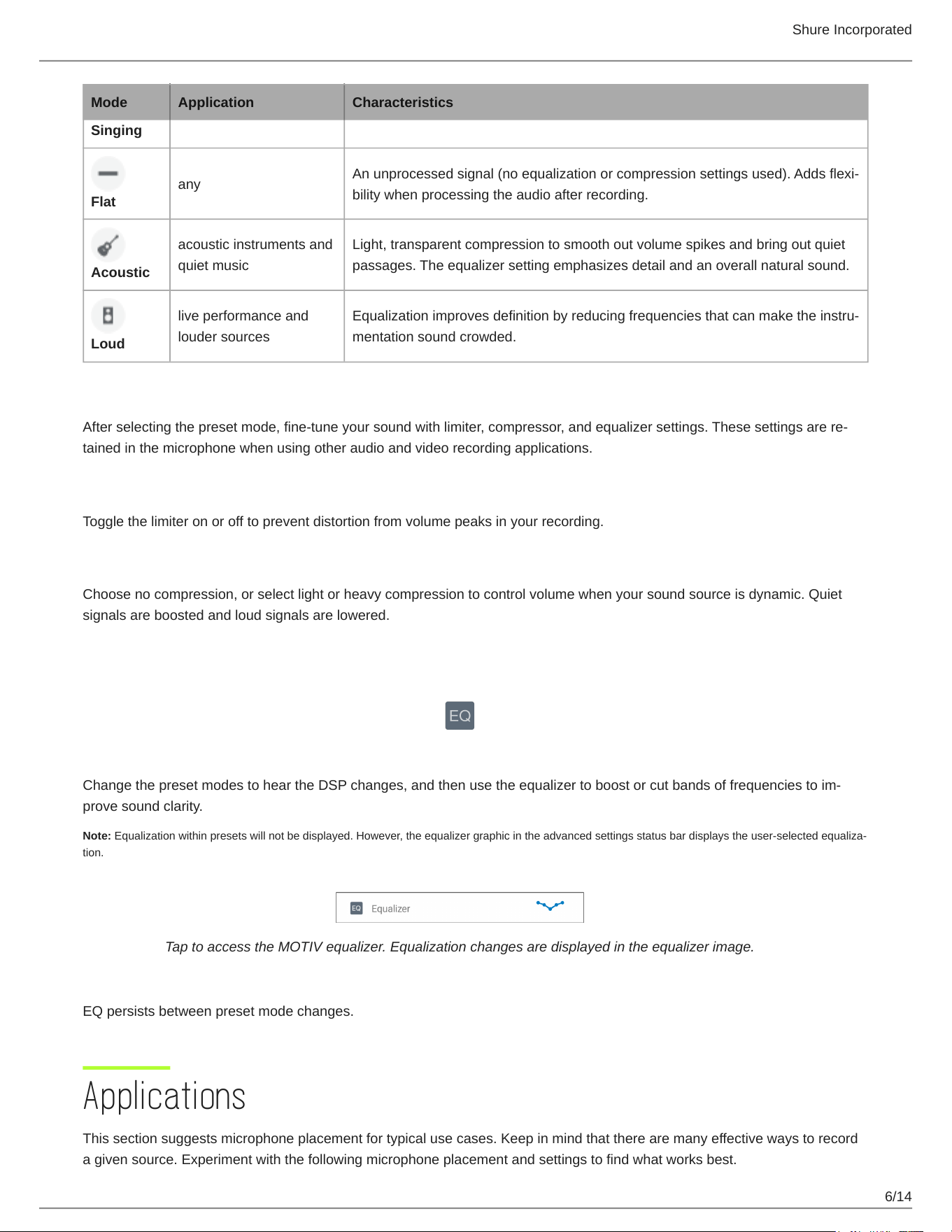
Five selectable modes optimize settings for equalization and compression to fit your recording needs. Set the microphone level
and select the preset mode that best fits your application. Or experiment with each of the modes to find which sounds best.
Preset modes can affect the strength of the input signal, so adjust the microphone level as needed after changing presets.
Mode Application Characteristics
Speech
speech Equalization that emphasizes clarity and fullness with gentle compression.
soloorgroupvocalper-
formances
Subtle equalization to add richness and clarity for a natural sound.
Shure Incorporated
6/14
Mode Application Characteristics
Singing
Flat
any
Anunprocessedsignal(noequalizationorcompressionsettingsused).Addsflexi-
bility when processing the audio after recording.
Acoustic
acoustic instruments and
quiet music
Light, transparent compression to smooth out volume spikes and bring out quiet
passages. The equalizer setting emphasizes detail and an overall natural sound.
Loud
live performance and
louder sources
Equalizationimprovesdefinitionbyreducingfrequenciesthatcanmaketheinstru-
mentation sound crowded.
Advanced Mic Settings
Afterselectingthepresetmode,fine-tuneyoursoundwithlimiter,compressor,andequalizersettings.Thesesettingsarere-
tained in the microphone when using other audio and video recording applications.
Limiter
Toggle the limiter on or off to prevent distortion from volume peaks in your recording.
Compressor
Choose no compression, or select light or heavy compression to control volume when your sound source is dynamic. Quiet
signals are boosted and loud signals are lowered.
Equalizer
ChangethepresetmodestoheartheDSPchanges,andthenusetheequalizertoboostorcutbandsoffrequenciestoim-
prove sound clarity.
Note:Equalizationwithinpresetswillnotbedisplayed.However,theequalizergraphicintheadvancedsettingsstatusbardisplaystheuser-selectedequaliza-
tion.
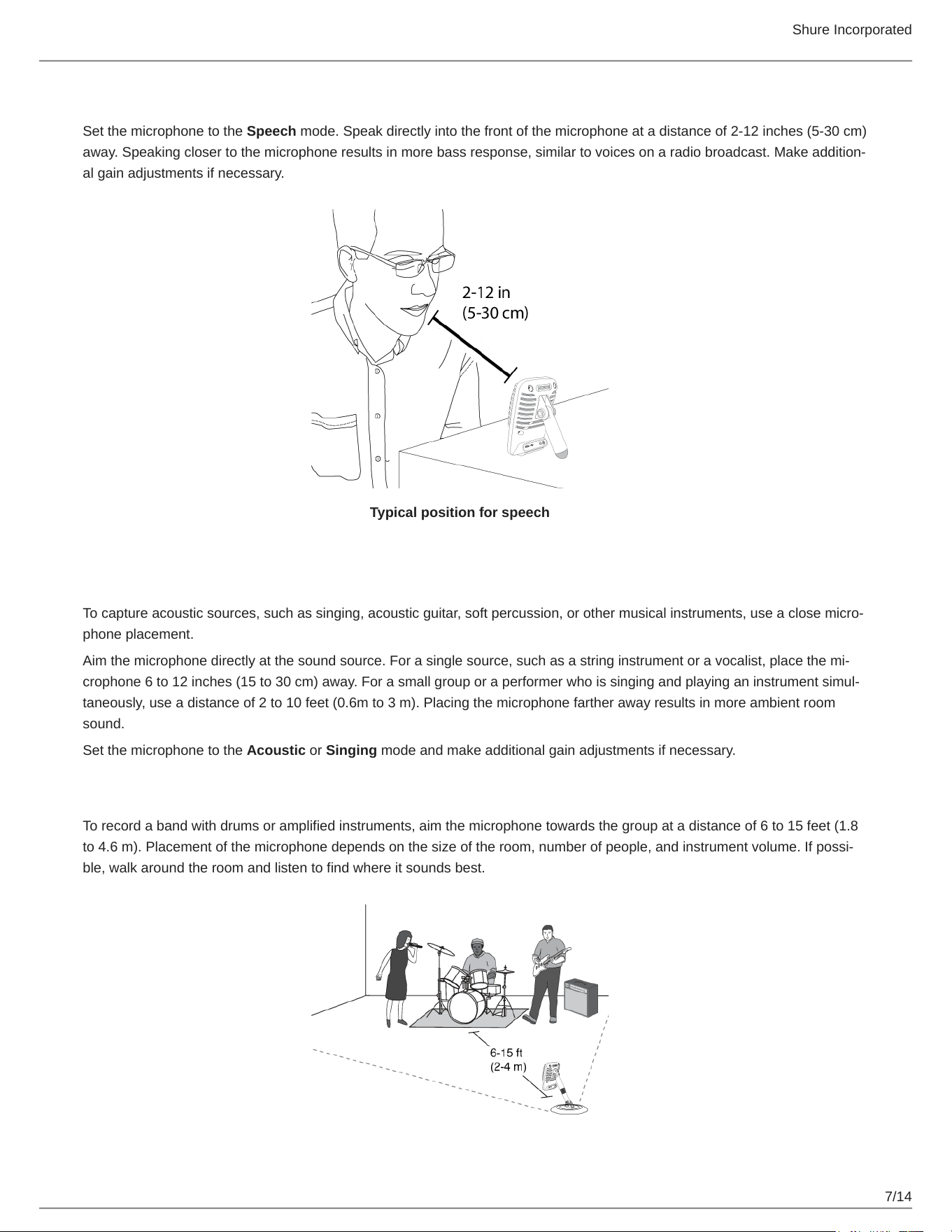
Tap to access the MOTIV equalizer. Equalization changes are displayed in the equalizer image.
EQ persists between preset mode changes.
Applications
This section suggests microphone placement for typical use cases. Keep in mind that there are many effective ways to record
a given source. Experiment with the following microphone placement and settings to find what works best.
Shure Incorporated
7/14
Podcast and Voice Recording
Set the microphone to the Speech mode. Speak directly into the front of the microphone at a distance of 2-12 inches (5-30 cm)
away.Speakingclosertothemicrophoneresultsinmorebassresponse,similartovoicesonaradiobroadcast.Makeaddition-
al gain adjustments if necessary.
Typical position for speech
Acoustic Instruments and Music
Tocaptureacousticsources,suchassinging,acousticguitar,softpercussion,orothermusicalinstruments,useaclosemicro-
phone placement.
Aimthemicrophonedirectlyatthesoundsource.Forasinglesource,suchasastringinstrumentoravocalist,placethemi-
crophone6to12inches(15to30cm)away.Forasmallgrouporaperformerwhoissingingandplayinganinstrumentsimul-
taneously, use a distance of 2 to 10 feet (0.6m to 3 m). Placing the microphone farther away results in more ambient room
sound.
Set the microphone to the Acoustic or Singing mode and make additional gain adjustments if necessary.
Bands and Loud Sources
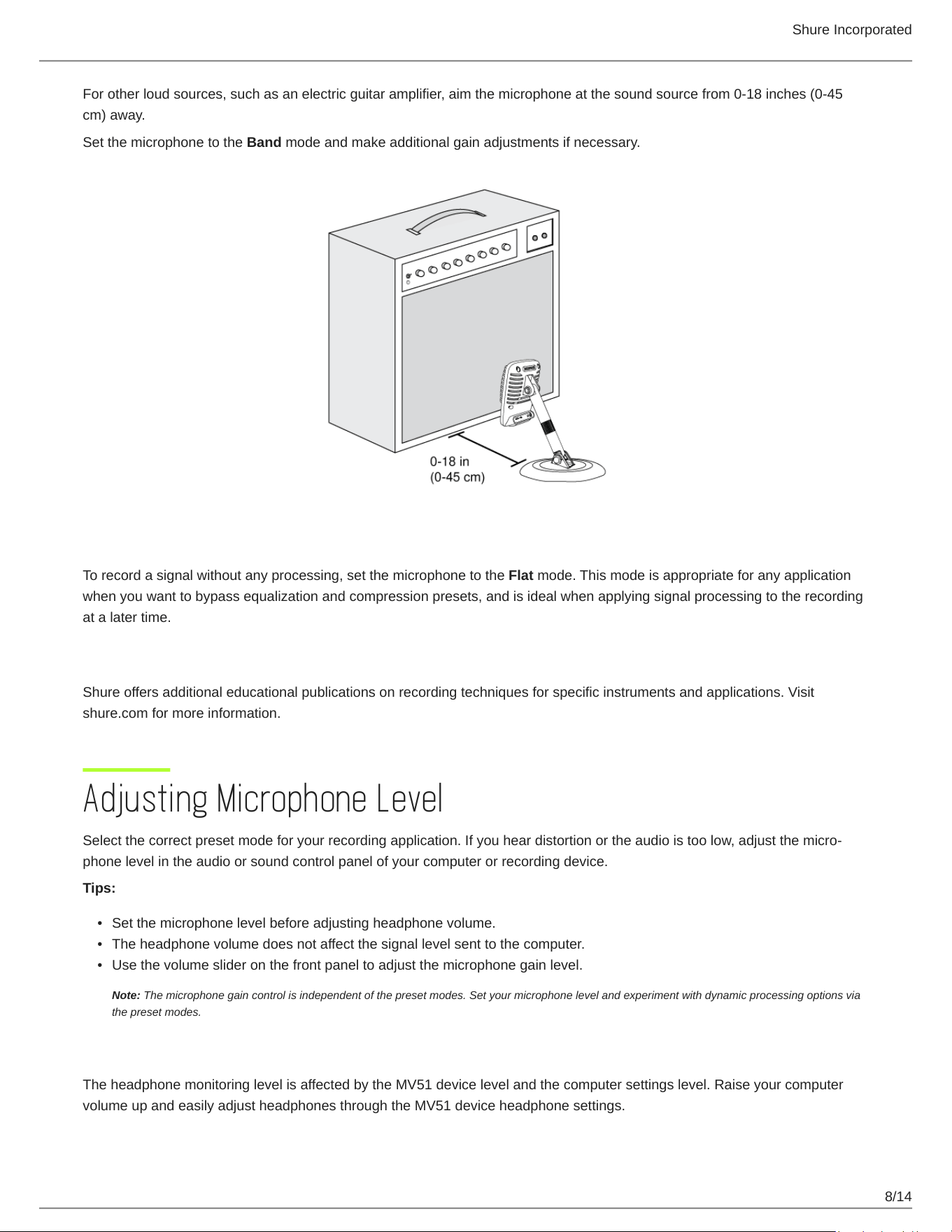
To record a band with drums or amplified instruments, aim the microphone towards the group at a distance of 6 to 15 feet (1.8
to4.6m).Placementofthemicrophonedependsonthesizeoftheroom,numberofpeople,andinstrumentvolume.Ifpossi-
ble, walk around the room and listen to find where it sounds best.
Shure Incorporated
8/14
•
•
•
For other loud sources, such as an electric guitar amplifier, aim the microphone at the sound source from 0-18 inches (0-45
cm) away.
Set the microphone to the Band mode and make additional gain adjustments if necessary.
Bypass EQ and Compression (Flat)
To record a signal without any processing, set the microphone to the Flat mode. This mode is appropriate for any application
when you want to bypass equalization and compression presets, and is ideal when applying signal processing to the recording
at a later time.
Additional Tips
Shure offers additional educational publications on recording techniques for specific instruments and applications. Visit
shure.com for more information.
Adjusting Microphone Level
Selectthecorrectpresetmodeforyourrecordingapplication.Ifyouheardistortionortheaudioistoolow,adjustthemicro-
phone level in the audio or sound control panel of your computer or recording device.
Tips:
Set the microphone level before adjusting headphone volume.
The headphone volume does not affect the signal level sent to the computer.
Use the volume slider on the front panel to adjust the microphone gain level.
Note: The microphone gain control is independent of the preset modes. Set your microphone level and experiment with dynamic processing options via
the preset modes.
Adjusting Headphone Level
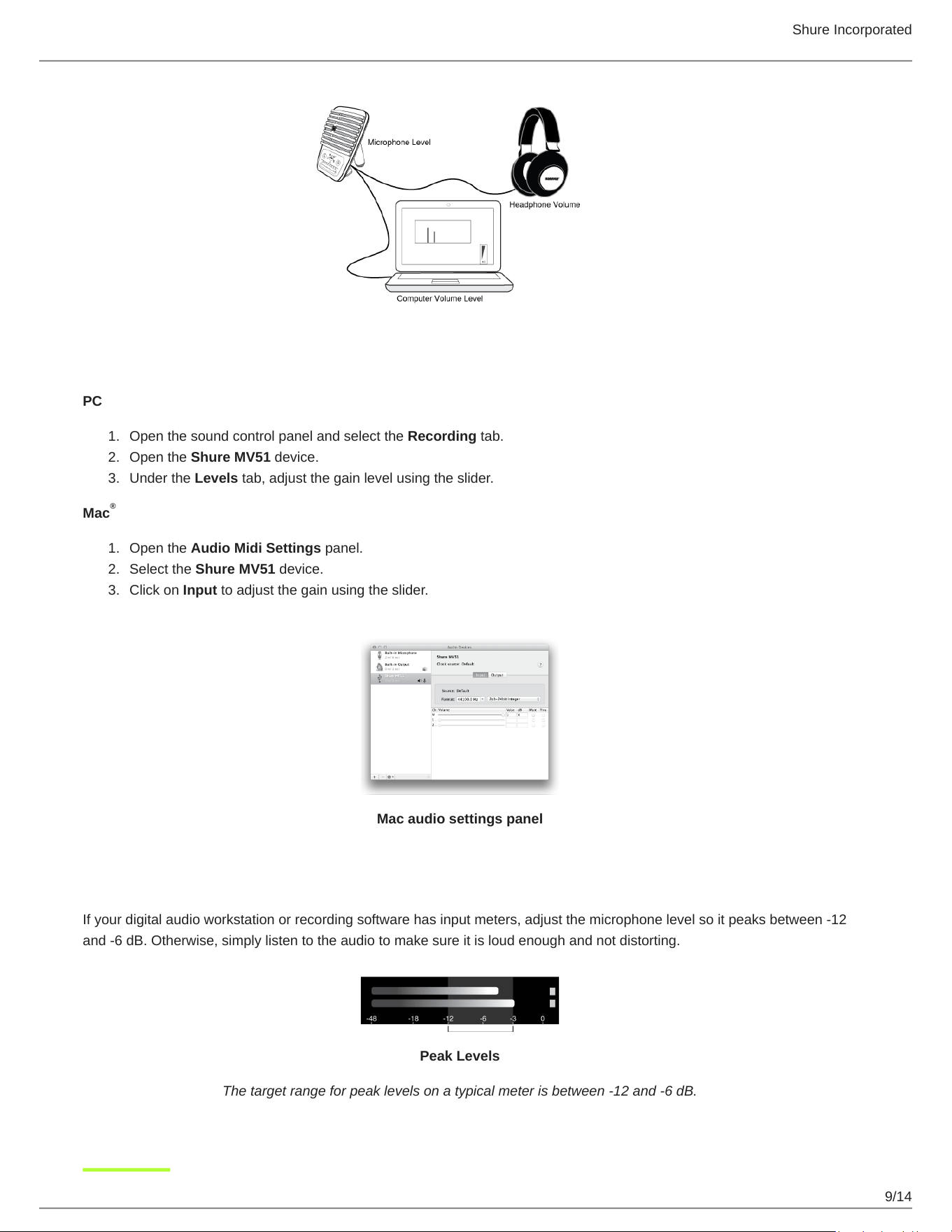
The headphone monitoring level is affected by the MV51 device level and the computer settings level. Raise your computer
volume up and easily adjust headphones through the MV51 device headphone settings.
Shure Incorporated
9/14
1.
2.
3.
1.
2.
3.
Accessing the Control Panel
PC
Open the sound control panel and select the Recording tab.
Open the Shure MV51 device.
Under the Levels tab, adjust the gain level using the slider.
Mac
Open the Audio Midi Settings panel.
Select the Shure MV51 device.
Click on Input to adjust the gain using the slider.
Mac audio settings panel
Input Meter Level
If your digital audio workstation or recording software has input meters, adjust the microphone level so it peaks between -12
and -6 dB. Otherwise, simply listen to the audio to make sure it is loud enough and not distorting.
Peak Levels
The target range for peak levels on a typical meter is between -12 and -6 dB.
®
Shure Incorporated
10/14
Monitoring with the MOTIV Device
Theheadphoneoutputprovidesanequalblendofthedirectmicrophonesignalandaudioplaybackfromthecomputer.Thisal-
lowsyoutoconvenientlyadjusttheoverallheadphonevolumewithonecontrolonthedevicetouchpanel.Tochangetheplay-
back audio level relative to the direct microphone signal level, adjust the computer or DAW mixer settings.
Tip: When first connecting the microphone to your computer, make sure to raise the volume level in the sound control panel of
the computer for a strong audio signal. Then adjust headphone level on the device for comfortable monitoring.
Sampling Rate and Bit Depth
Sample Rate and Bit Depth settings are found in a drop down menu in the audio or sound control panel of your computer. You
can adjust these variables to fit your needs. Select a lower sample rate for podcast recording, when it is important to have a
smaller file for easy download. Select a higher sample rate for music and more dynamic recordings.
Tip: Record at a higher sample rate and bounce down to an M4A for a file with the highest sound quality at a manageable size.
Tip for PC users: Make sure that the sample rate and bit depth microphone settings, found in the sound control panel of the
computer, match with the sample rate and bit depth selected in your software.
Troubleshooting
Issue Solution
The display does not illu-
minate
Make sure that the MV51 is fully plugged in.
Audio is too low
Check the computer sound control panel settings. When first connecting the MV51 to your
computer, make sure to raise the computer volume level.
Audio sounds bad
Check the sound control panel of the computer to ensure that the MV51 is fully plugged in
and recognized.
Audio is distorted
Use the audio meter to ensure that volume peaks are within the target range. If level is
reaching the red peak indicator of the input meter, turn the gain down.
Audio sounds unnatural or
jittery
Makesurethatthesamplerateandbitdepthmicrophonesettings,foundinthesoundcon-
trol panel of the computer, are consistent with the sample rate and bit depth selected in your
software.
MV51 is plugged in, but
the volume meter does not
register a signal.
Edit the privacy setting for the iOS device under SETTINGS > PRIVACY > MICROPHONE to
give the recording application permission to use the microphone.
Device not working with
USB hub.
TheMV51requires250mAperport.CheckUSBhubdocumentationforcurrent/portspecifi-
cation.
Shure Incorporated
11/14
•
•
•
•
•
•
•
•
•
•
•
•
•
•
•
•
System Requirements
System Requirements and Compatibility: Mac
MacOS 10.13 to 10.15
64 bit
Minimum 2 GB of RAM
Minimum 500 MB of hard disk space
System Requirements and Compatibility: Windows
Windows 10
64 bit
Minimum 2 GB of RAM
Minimum 500 MB of hard disk space
System Requirements and Compatibility: iOS
iOS: iOS 12 and higher
iPhone: iPhone 6 and higher
iPod Touch: 6th gen
iPad: iPad 4th gen and higher
iPad Mini: iPad Mini 1st gen and higher
System Requirements and Compatibility: Android
Will work with any Android device that has:
Android Oreo 8.0 and higher
USBHostPowerRequirementof≥100mA
USB Audio Class 1.1 support and higher
Android is a trademark of Google Inc.
Note: See https://www.shure.com/MOTIVcompatibility for information on supportive Android devices.
Specifications
MFi Certified
Yes
DSP Modes (Presets)
Speech/Singing/Acoustic/Loud/Flat
Transducer Type
ElectretCondenser(25mm)
Polar Pattern
Unidirectional (Cardioid)

Shure Incorporated
12/14
Bit Depth
16-bit/24-bit
Sampling Rate
44.1/48kHz
Frequency Response
20Hzto20,000Hz
Adjustable Gain Range
0to+36dB
Sensitivity
-39dBFS/Paat1kHz[1][2}
Maximum SPL
130dBSPL[2]
Headphone Output
3.5mm(1/8″)
Power Requirements
Powered through USB or Lightning connector
Mute Switch Attenuation
Yes
Mounting Stand
Built-in
Stand Adapter
5/8-27 thread mount (standard mic stand mount)
Housing
all metal construction
Net Weight
574.7g(20.27oz.)
Dimensions
128x86x70mm
H x W x D
[1]1Pa=94dBSPL
[2] At Minimum Gain, Flat Mode

Shure Incorporated
13/14
1.
2.
•
Polar Pattern
Frequency Response
Accessories
Furnished Accessories
1 m USB cable AMV-USB
1 m USB-C cable 95C38076
95A2050
Certifications
Information to the user
This device complies with part 15 of the FCC Rules. Operation is subject to the following two conditions:
This device may not cause harmful interference.
This device must accept any interference received, including interference that may cause undesired operation.
Note: This equipment has been tested and found to comply with the limits for a Class B digital device, pursuant to part 15 of
theFCCRules.Theselimitsaredesignedtoprovidereasonableprotectionagainstharmfulinterferenceinaresidentialinstalla-
tion. This equipment generates uses and can radiate radio frequency energy and, if not installed and used in accordance with
the instructions, may cause harmful interference to radio communications. However, there is no guarantee that interference will
not occur in a particular installation. If this equipment does cause harmful interference to radio or television reception, which
can be determined by turning the equipment off and on, the user is encouraged to try to correct the interference by one or more
of the following measures:
Reorient or relocate the receiving antenna.
Shure Incorporated
14/14
•
•
•
Increase the separation between the equipment and the receiver.
Connect the equipment to an outlet on a circuit different from that to which the receiver is connected.
Consult the dealer or an experienced radio/TV technician for help.
Industry Canada ICES-003 Compliance Label: CAN ICES-3 (B)/NMB-3(B)
Note: Testingisbasedontheuseofsuppliedandrecommendedcabletypes.Theuseofotherthanshielded(screened)cabletypesmaydegradeEMCper-
formance.
This product meets the Essential Requirements of all relevant European directives and is eligible for CE marking.
The CE Declaration of Conformity can be obtained from: www.shure.com/europe/compliance
Authorized European representative:
Shure Europe GmbH
Global Compliance
Jakob-Dieffenbacher-Str. 12
75031 Eppingen, Germany
Phone: +49-7262-92 49 0
Email: [email protected]
www.shure.com
Use of the Made for Apple badge means that an accessory has been designed to connect specifically to the Apple product(s)
identified in the badge and has been certified by the developer to meet Apple performance standards. Apple is not responsible
for the operation of this device or its compliance with safety and regulatory standards.
Apple, iPad, iPhone, iPod and Lightning are trademarks of Apple Inc., registered in the U.S. and other countries. tvOS is a
trademarkofAppleInc.Thetrademark“iPhone”isusedinJapanwithalicensefromAiphoneK.K.
Mac and Lightning are registered trademarks of Apple Inc.

